













Point Of Sale Keyboard Shortcut

Do you want to enhance POS with keyboard shortcuts? Using this module you can manage keyboard shortcuts for point of sale. You can create various keyboard shortcuts and use them in the running session of the POS. So POS users can perform operations effectively and quickly using keyboard shortcuts.

Related Modules
Features

POS Keyboard Shortcut Management
Create and manage custom keyboard shortcuts for various POS operations to improve efficiency.

Faster POS Operations with Shortcuts
Enable POS users to perform actions quickly using keyboard shortcuts instead of manual navigation.

Category Selection Shortcut 
Configure keyboard shortcuts for quick product category selection in POS operations.

Cash In/Out Shortcut
Assign shortcuts to perform cash in and cash out operations quickly from the POS screen.

Create Product Shortcut
Create new products instantly using configurable keyboard shortcuts.

Shortcut Access Control Group
Enable the "Enable Shortcut Key" user group to create, manage, and use keyboard shortcuts.

Quick Product Selection & Cart Actions
Quickly select products, add them to the cart, close screens, and change cashiers using keyboard shortcuts.

Refund Order Shortcut
Process order refunds quickly using dedicated keyboard shortcuts.

Pricelist Selection Shortcut
Switch and select pricelists efficiently using configurable keyboard shortcuts.
Shortcut Conflict Detection
Automatically detect and prevent assigning the same shortcut to multiple actions on the same screen.

Enable the "Enable Shortcut Key" group to create and use the shortcut keys.
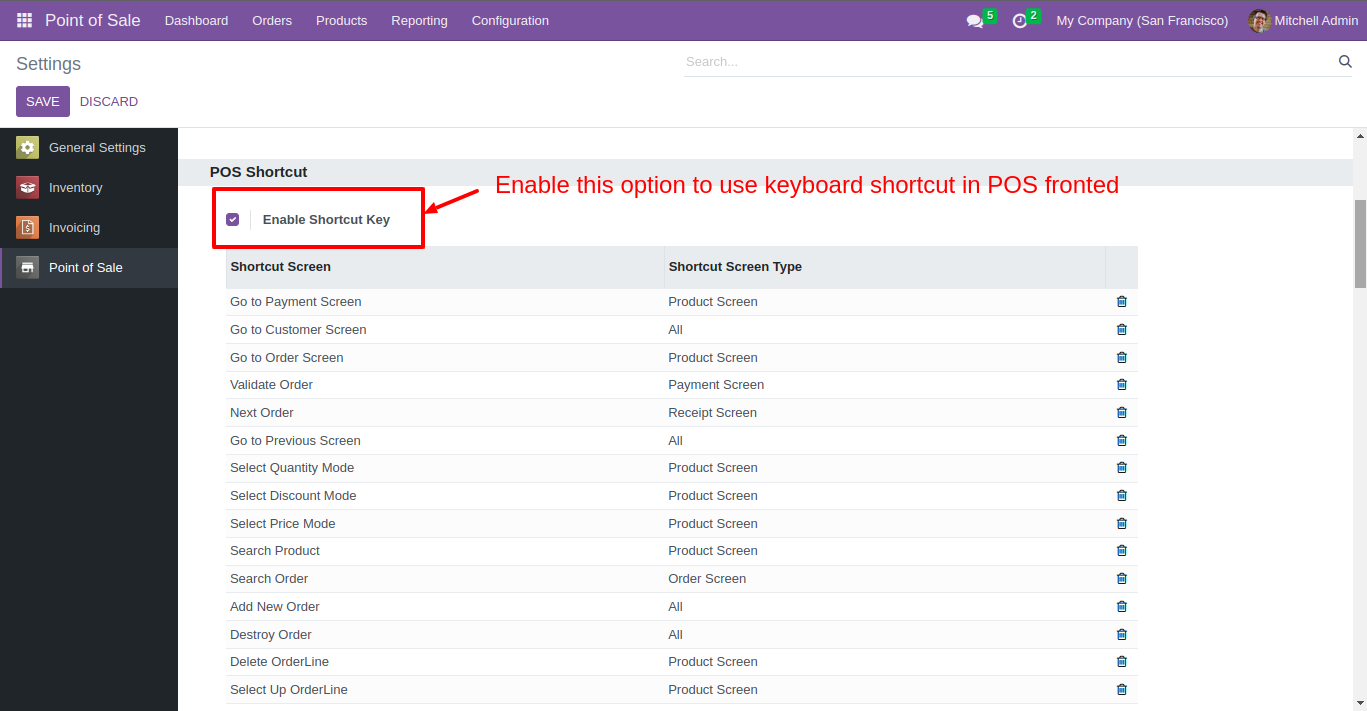
We provide below shortcut keys by default.
Screen Type: Product Screen
| No | Key | Description |
|---|---|---|
| 1 | Shift + p | Go to payment screen |
| 2 | q | Select Quantity Mode |
| 3 | d | Select Discount Mode |
| 4 | r | Select Price Mode |
| 5 | f | Search Product |
| 6 | Delete | Delete Orderline |
| 7 | Arrow Up | Select up orderline |
| 8 | Arrow Down | Select down orderline |
Screen Type: Payment Screen
| No | Key | Description |
|---|---|---|
| 1 | v | Validate Order |
| 2 | Shift + Delete | Delete paymentline |
| 3 | Arrow Up | Select up paymentline |
| 4 | Arrow Down | Select down paymentline |
| 5 | F10 | +f10 |
| 6 | F2 | +f20 |
| 7 | F5 | +f50 |
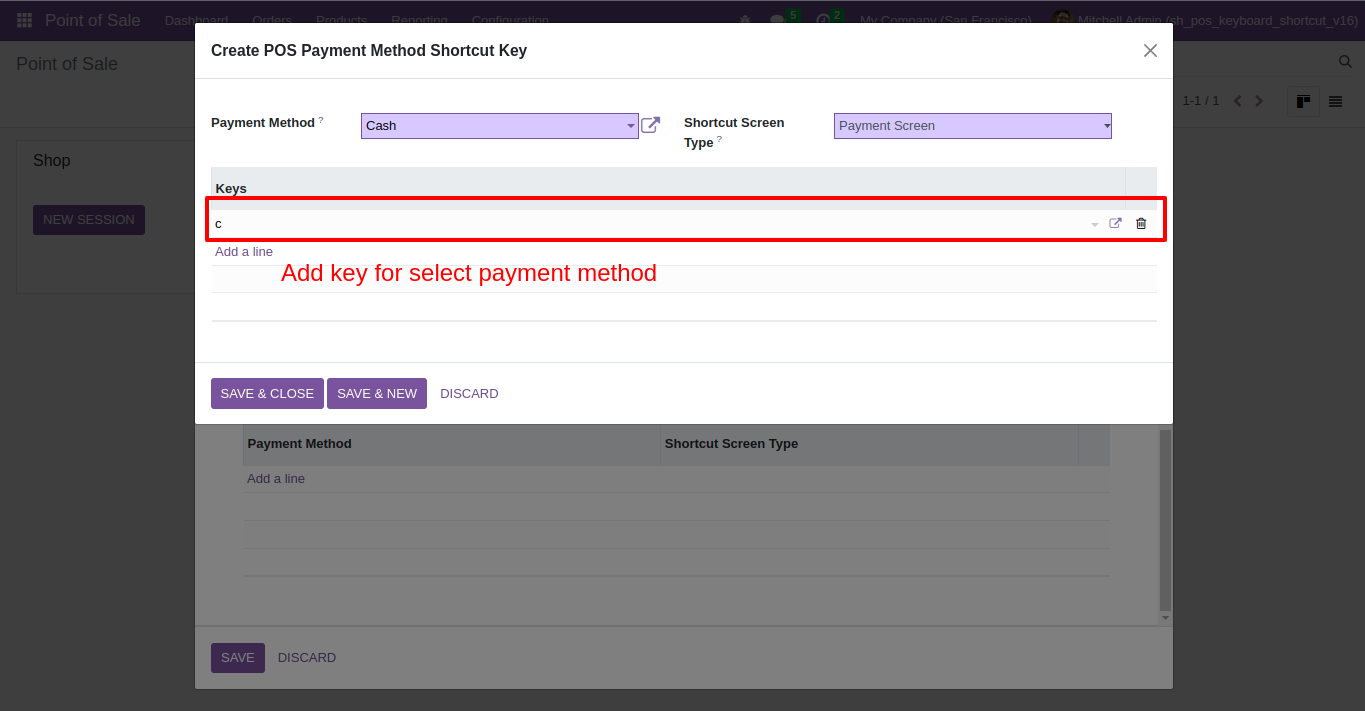
| 8 | C | Cash payment method |
| 9 | B | Bank payment method |
Screen Type: Receipt Screen
| No | Key | Description |
|---|---|---|
| 1 | n | Next Order |
Screen Type: Customer Screen
| No | Key | Description |
|---|---|---|
| 1 | f | Search Customer |
| 2 | Arrow Up | Select up customer |
| 3 | Arrow Down | Select down customer |
| 4 | Enter | Set customer |
| 5 | e | Edit customer |
| 6 | s | Save Customer |
| 7 | + | Create Customer |
Screen Type: Order Screen
| No | Key | Description |
|---|---|---|
| 1 | Shift + G | Go to Order Screen |
| 2 | f | Search Order |
| 3 | Arrow Up | Select Up Order |
| 4 | Arrow Down | Select Down Order |
| 5 | Enter | Select Order |
Screen Type: All
| No | Key | Description |
|---|---|---|
| 1 | Control + c | Go to customer screen |
| 2 | Escape | Go to Previous Screen |
| 3 | Insert | Add New order |
| 4 | Control + Delete | Destroy Current Order |
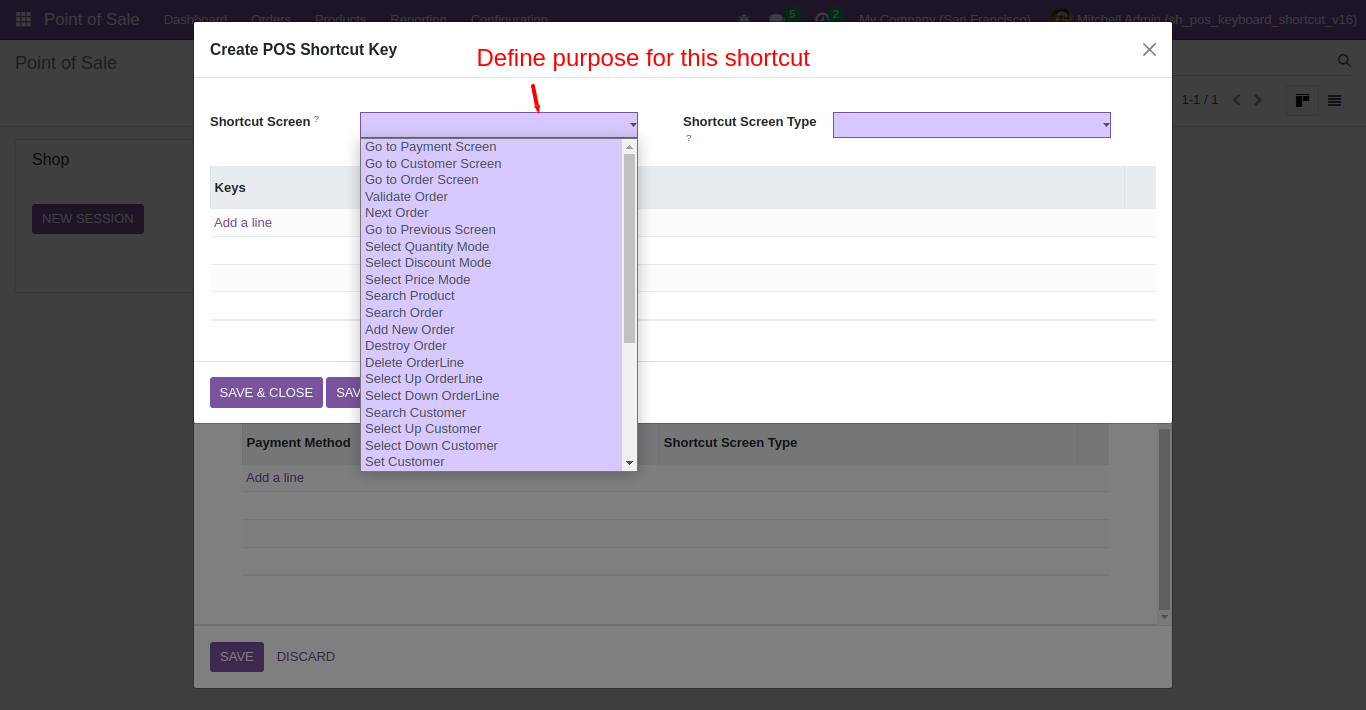
You can create a shortcut key from here.
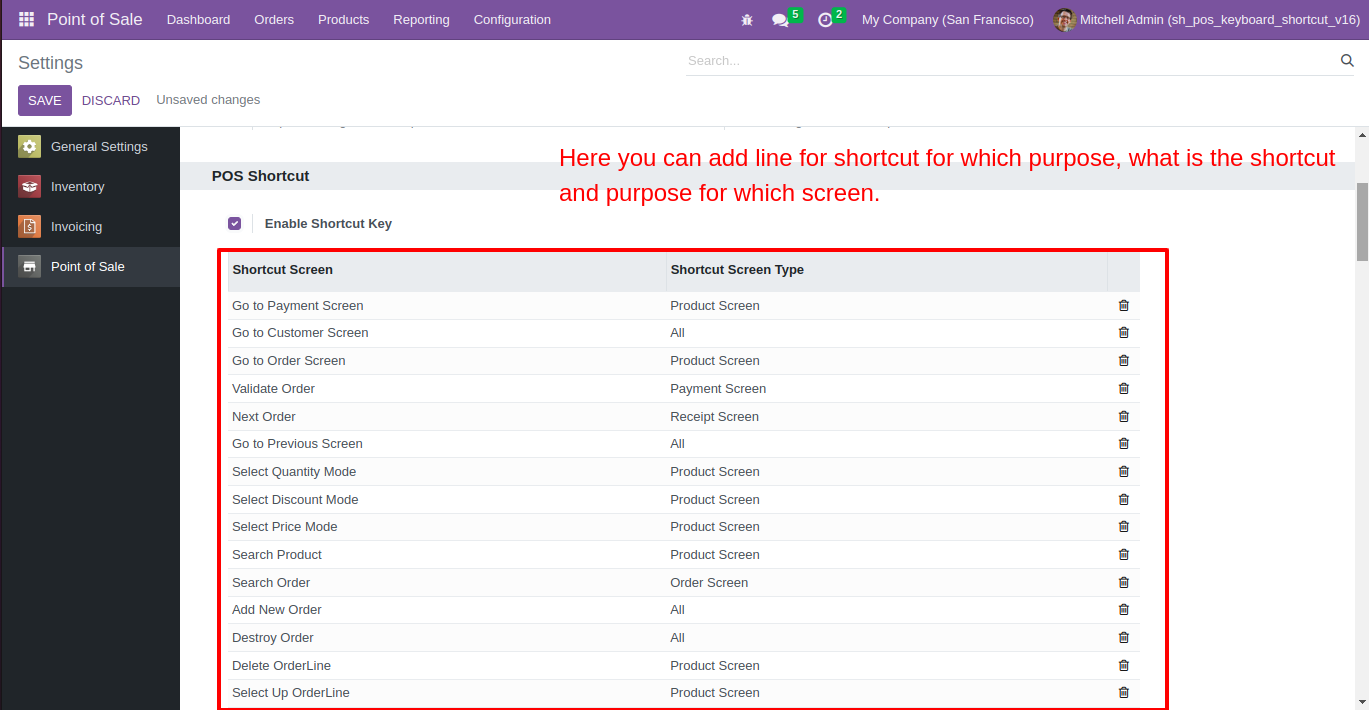
When you click on "Add a line" this wizard opens, you can create shortcut keys as per requirement.
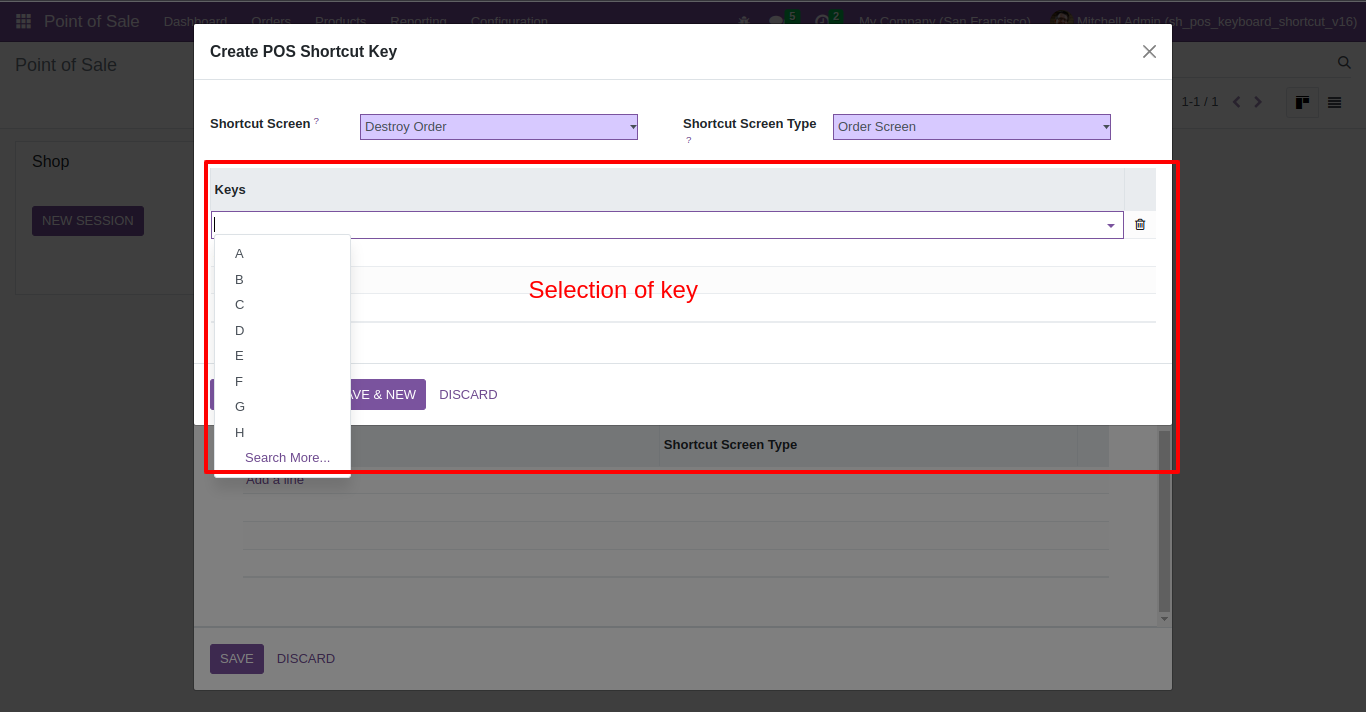
You can choose a key and define a shortcut key for that key from here.
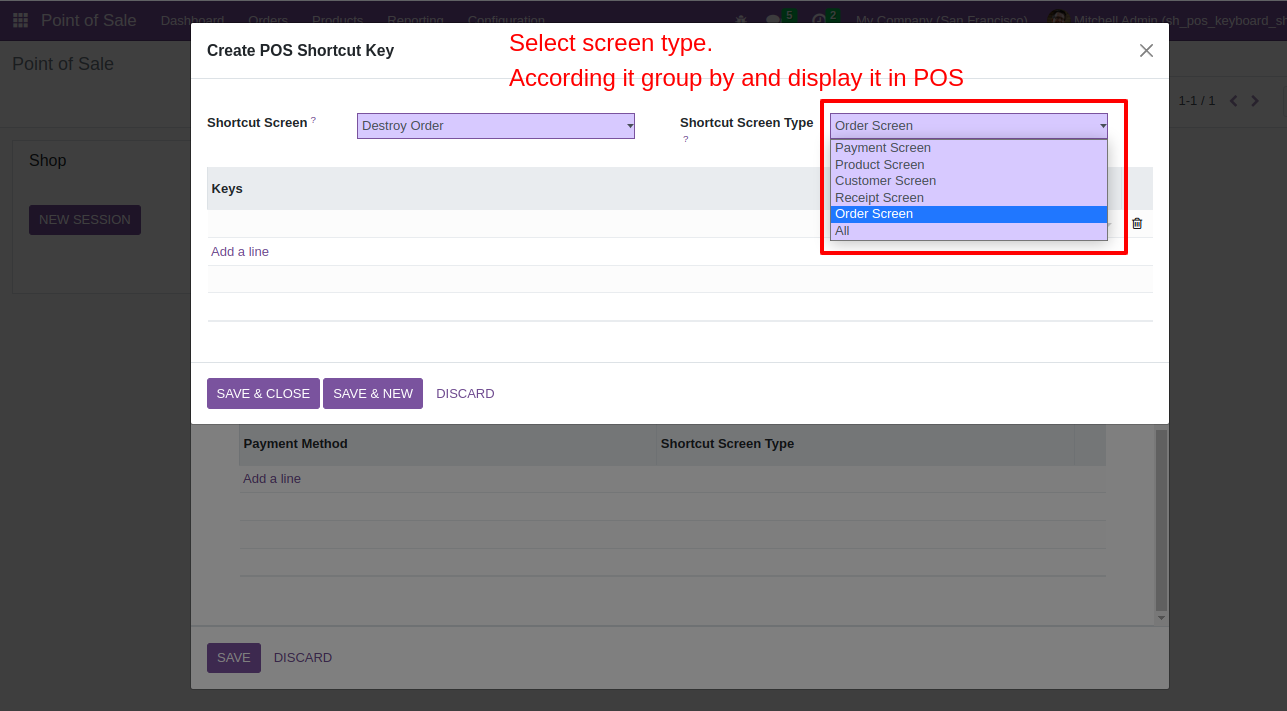
You can choose the shortcut screen type from here.
ou can choose a shortcut key for the payment method as per need.
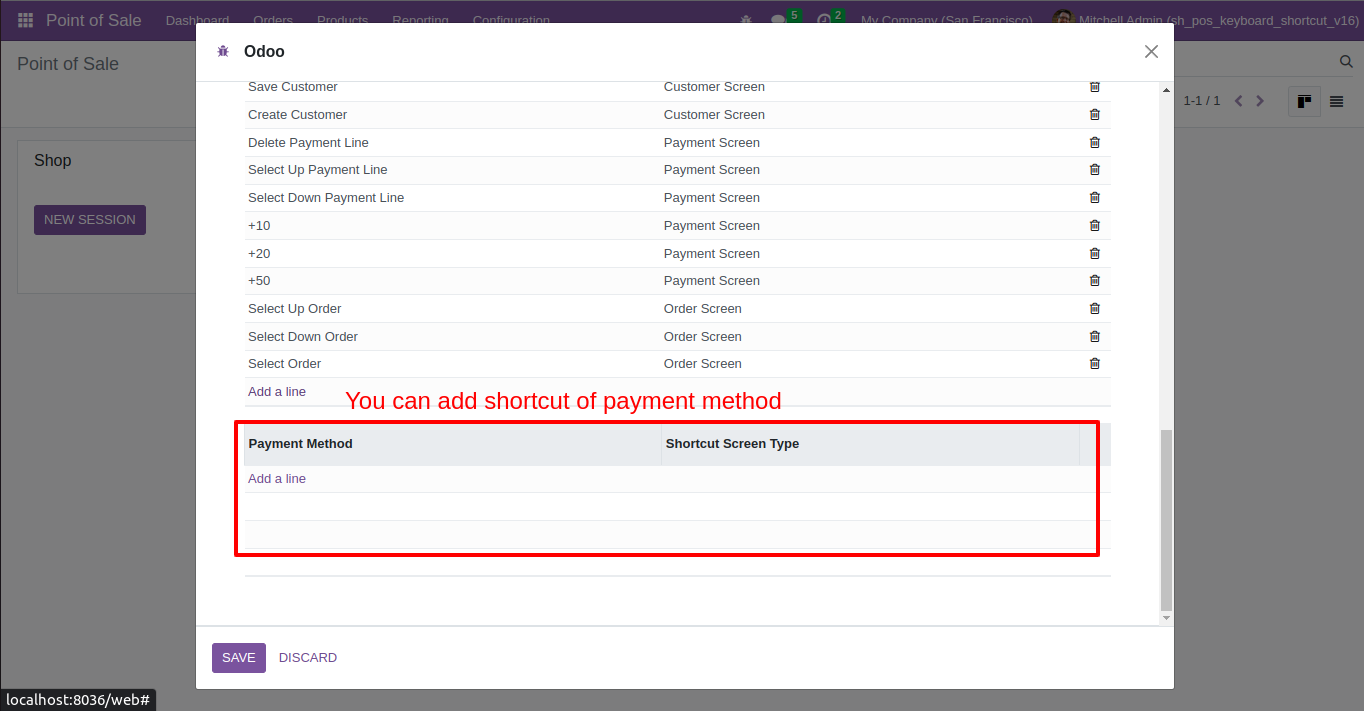
So choose the payment method and shortcut screen type.
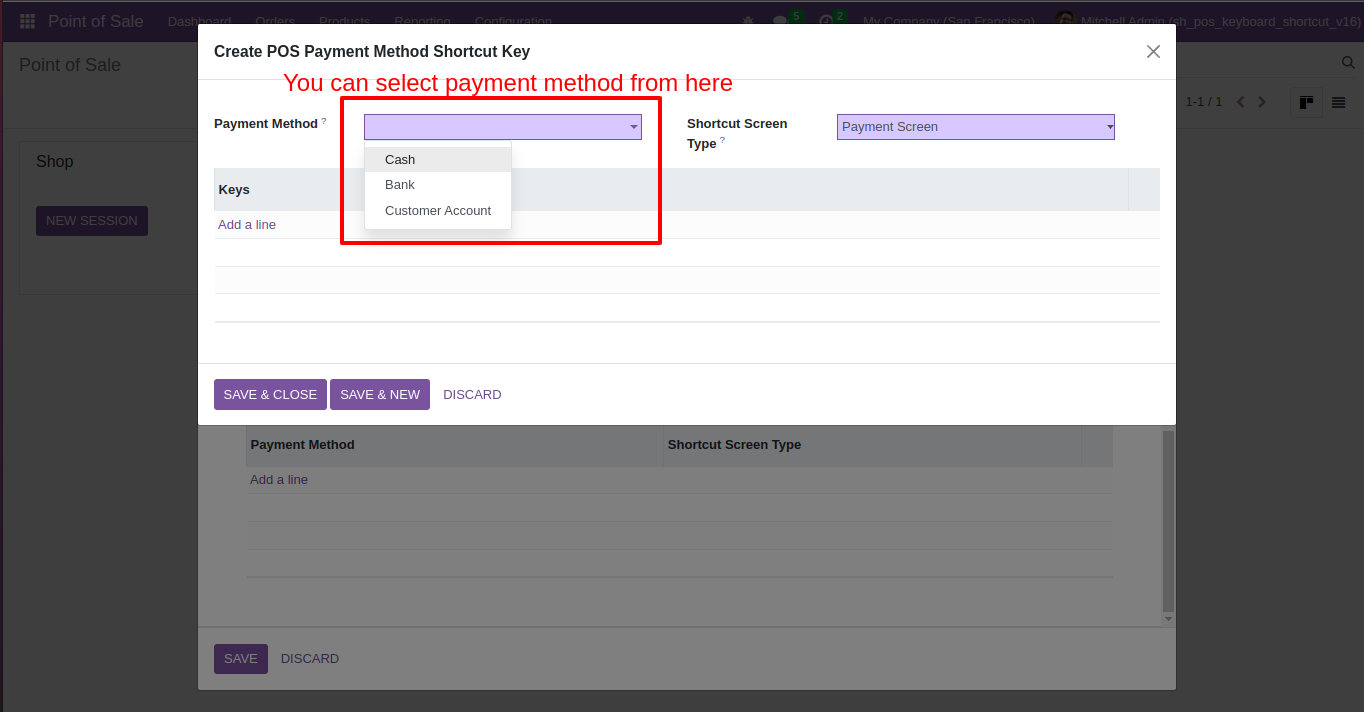
When you click on "Add a line" you can create shortcut keys as per requirement.
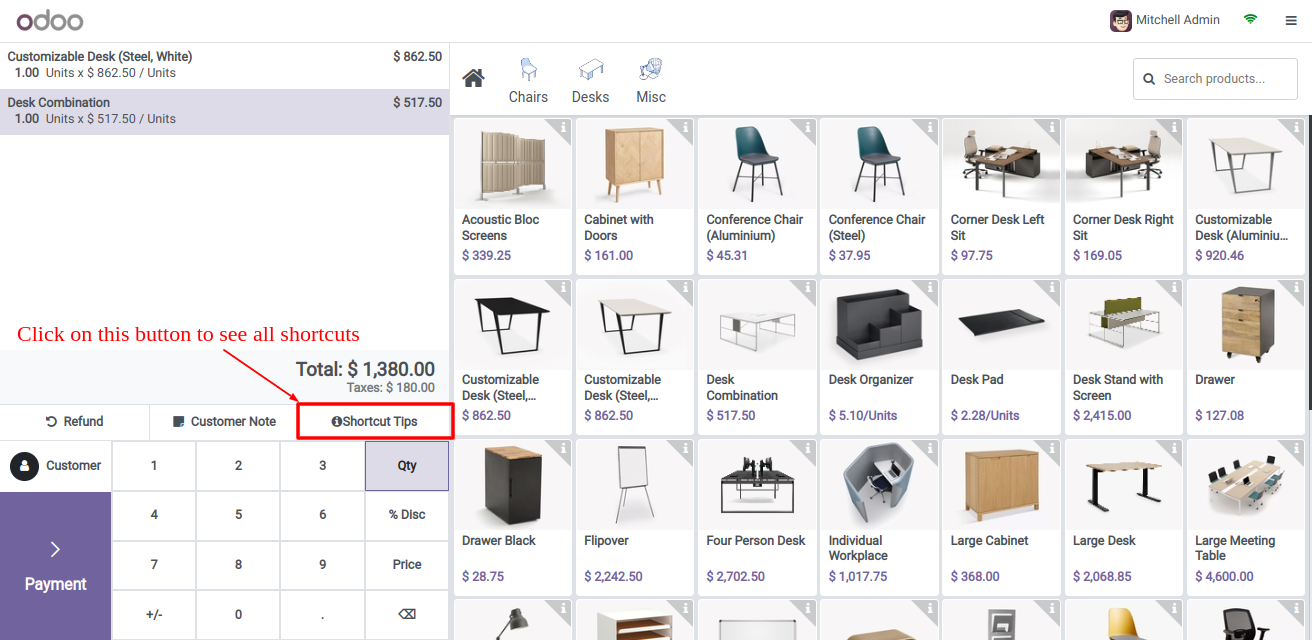
Press the button "Shortcut Tips" to see all shortcut keys.
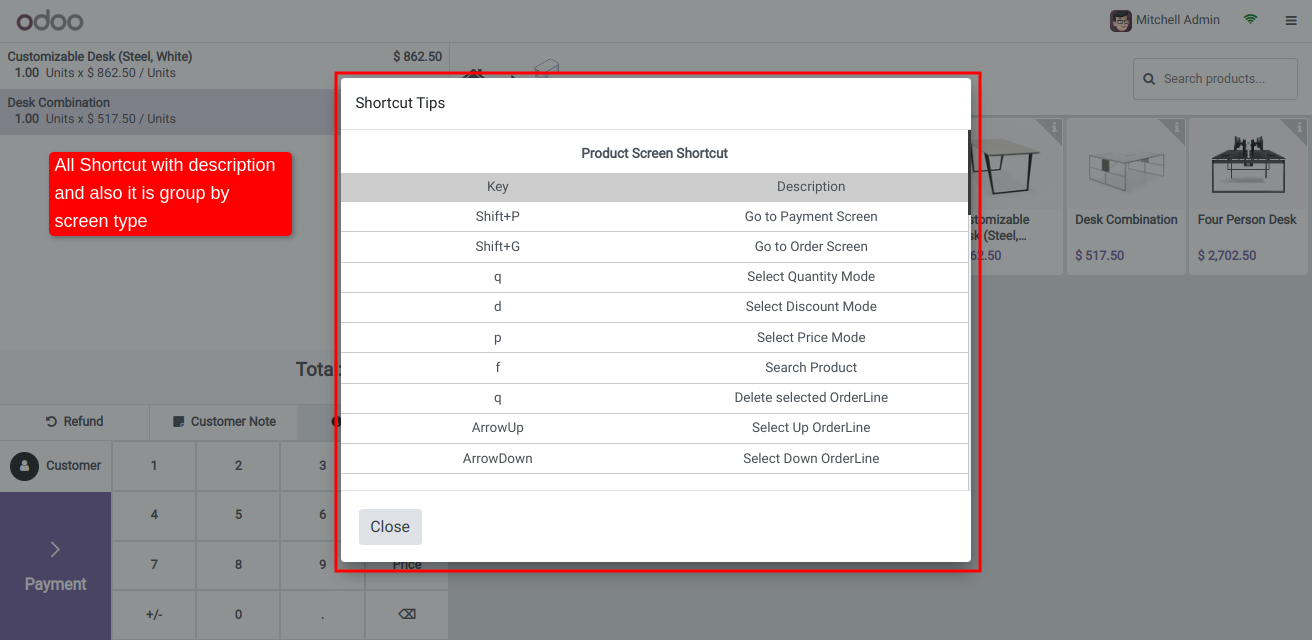
All shortcut keys are displayed here.
Quick Keyboard Shortcuts Feature.
Shortcut To Quickly Select Product & Add It To The Cart, Close Button, Change The Cashier
(Available When Employee Login Is Enabled).
Configure keyboard shortcuts for Category Selection, Cash In/Out, Create Product, Refund Order, and Pricelist Selection, with conflict detection to prevent duplicate shortcut assignments on the same screen.
Version 18.0.10.0.0 | Released on : 04rd June 2026
Version 18.0.9.0.0 | Released on : 14th November 2025
Shortcut To Quickly Select A Product & Add It To The Cart, Close Button, Change The Cashier (Available When Employee Login Is Enabled).
Version 18.0.8.0.0 | Released on : 03rd July 2025
Version 18.0.7.0.0 | Released on : 03rd March 2025
Version 18.0.6.0.0 | Released on : 21st February 2025
Version 18.0.5.0.0 | Released on : 11th February 2025
Version 18.0.4.0.0 | Released on : 04th February 2025
Version 18.0.3.0.0 | Released on : 03rd February 2025
Version 18.0.2.0.0 | Released on : 27th January 2025
Version 18.0.1.0.0 | Released on : 16th September 2024
- Yes, this app works perfectly with Odoo Enterprise (Odoo.sh & Premise) as well as Community.
- Please Contact Us at sales@softhealer.comto request customization.
- Yes, we provide free support for 100 days.
- Yes, you will get free update for lifetime.
- No, you don't need to install addition libraries.
- Yes, You have to download module for each version (13,14,15) except in version 12 or lower.
- No, We do not provide any kind of exchange.
- No, this application is not compatible with odoo.com(odoo saas).
Discover Our Latest Apps


