











Point Of Sale Extended Receipt

This POS module allows you to customize the receipt as per your choice. You can display Barcode or QRCode, invoice number & customer details(name, address, phone number & email) in the POS order receipt.

Related Modules
Hot Features
Features
- You can customize the POS receipt.
- You can display Barcode or QRCode in the receipt.
- You can display the invoice number in the receipt.
- You can display the customer details(name, address, phone number, email, order number & customer vat) in the receipt.
-
We provide the
below configurations,
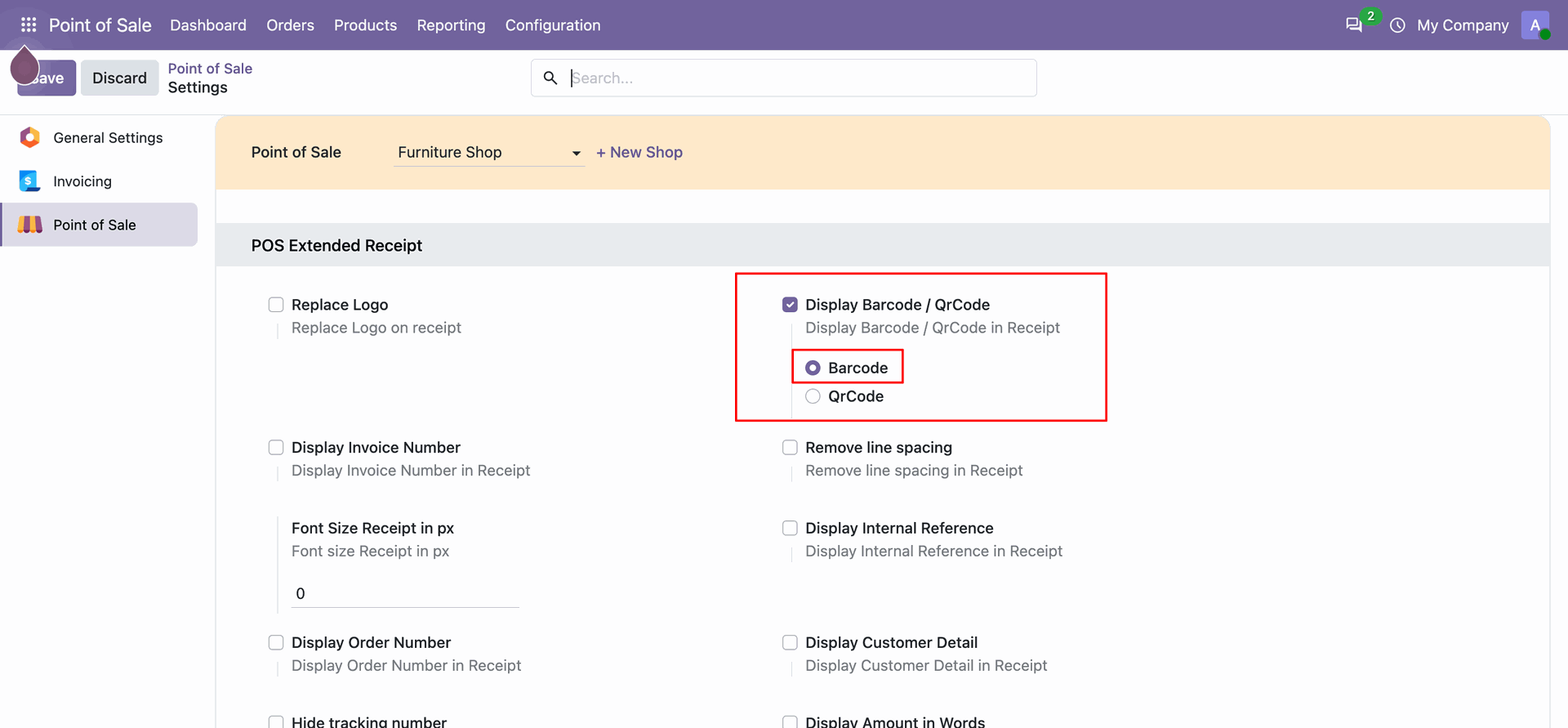
A) Display Barcode/QRCode: If this option is ticked then you have to tick Barcode or QRCode which you want shows in the receipt. You can shows Barcode or QRCode anyone in the receipt at a time.
If this option is unticked then it does not shows Barcode/QRCode in the receipt.
B) Display Invoice Number: If this option is ticked then the invoice number will display in the POS order receipt.
If this option is unticked then it does not display the invoice number in the POS order receipt.
C) Display Customer Detail: If this option is ticked then the customer details(name, address, phone number, email, order number & customer vat) will display in the POS order receipt, You can display customer details as per requirement. For example, If you enable customer name then only the customer name shows in the receipt.
If this option is unticked then it does not display any customer details in the POS order receipt. - Print your receipts in various sizes, like A3, A4, and A5 options.
- Allows you to display and customize your company logo on receipts.
- You can remove extra line spacing for a more compact receipt layout.
- Enables you to set and adjust the font size of receipt content for better readability.
- You can hide the tracking number from receipts.
- The total amount on the receipt to be displayed in words,
- You can configure a default receipt size (A3, A4, A5) to maintain consistent printing and formatting for all your documents.
Tick the "Display Barcode/QRCode" to shows Barcode/QRCode in the POS order
receipt.
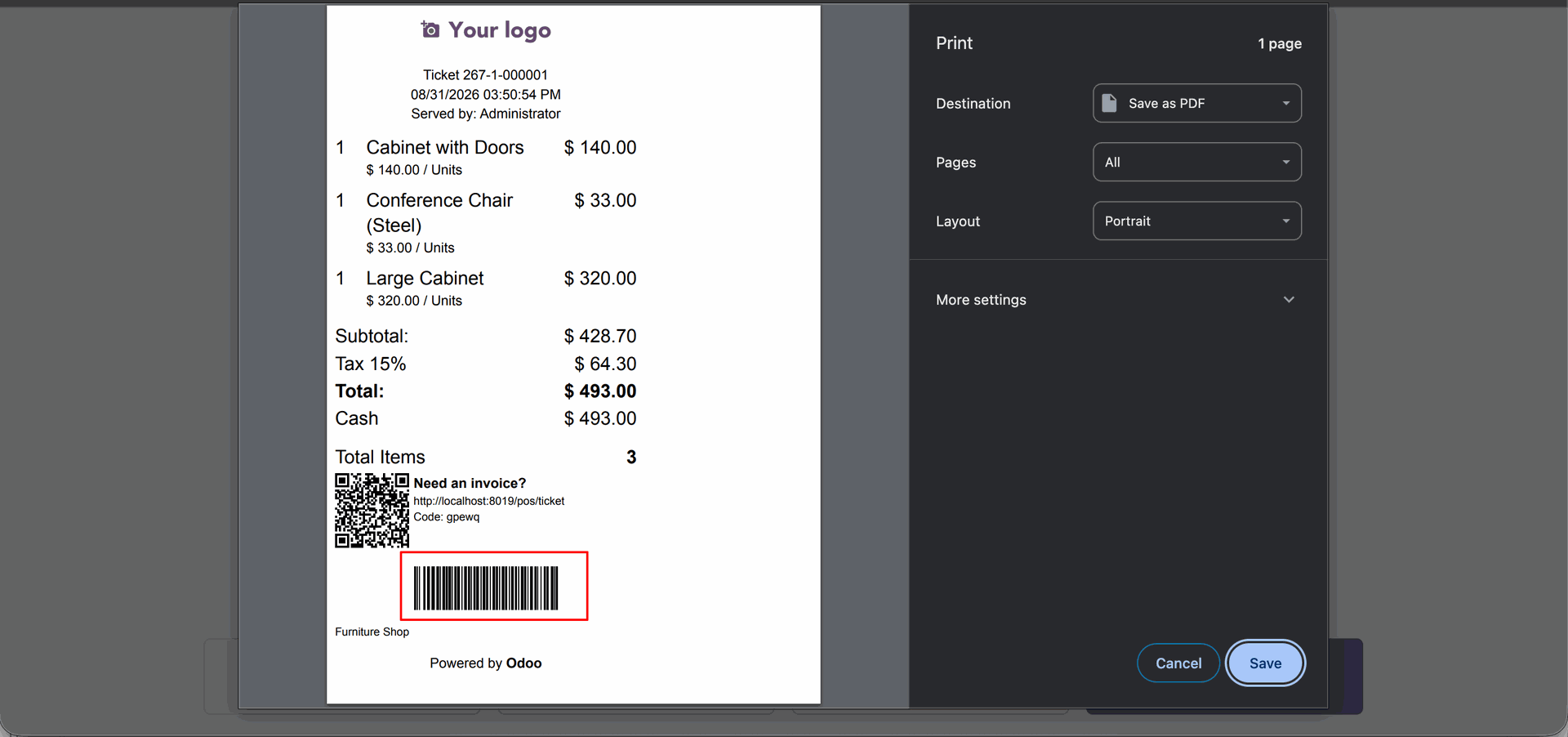
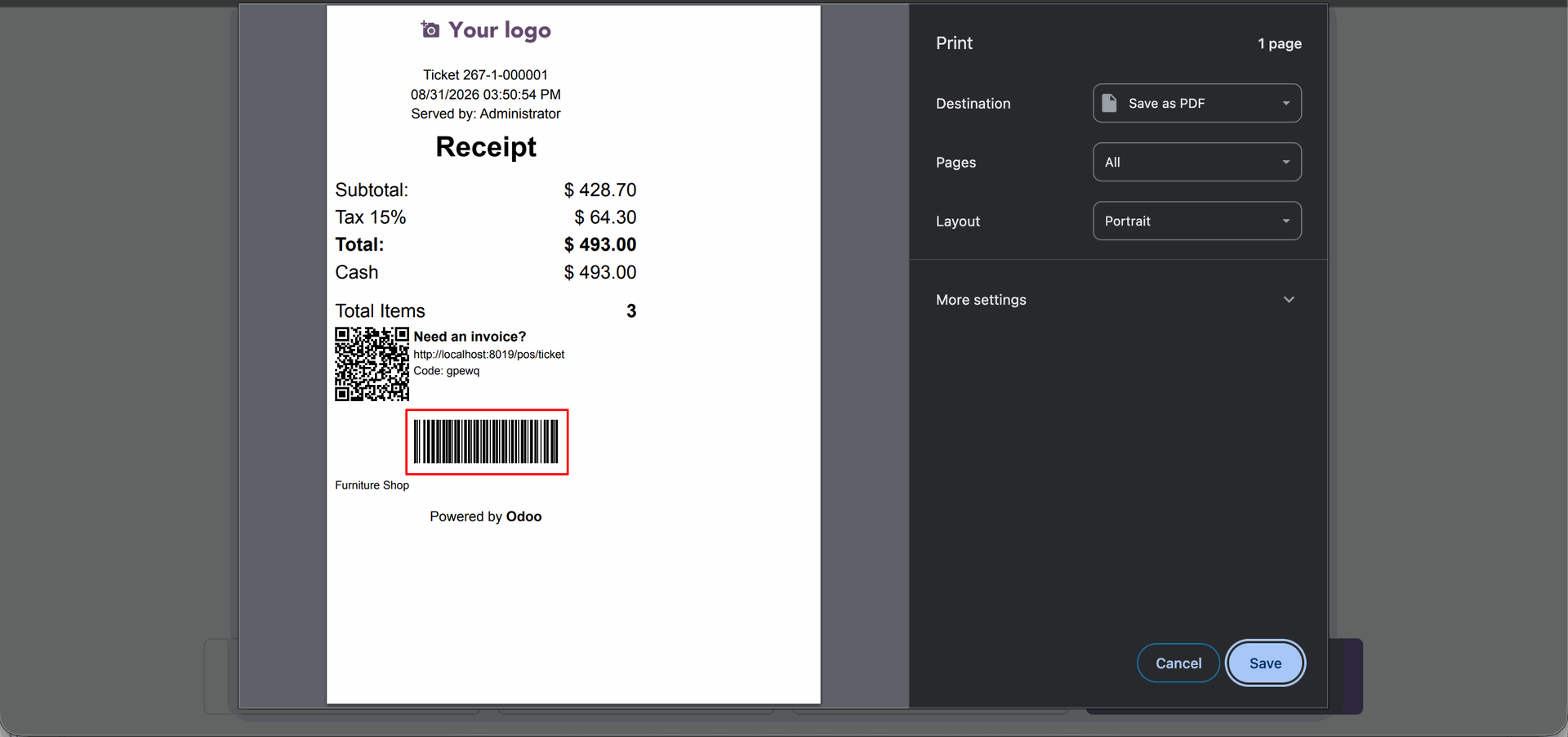
If you tick "Barcode" then it displays Barcode in the POS order receipt.
Click the Print button, then select Full Receipt in the Print Wizard.
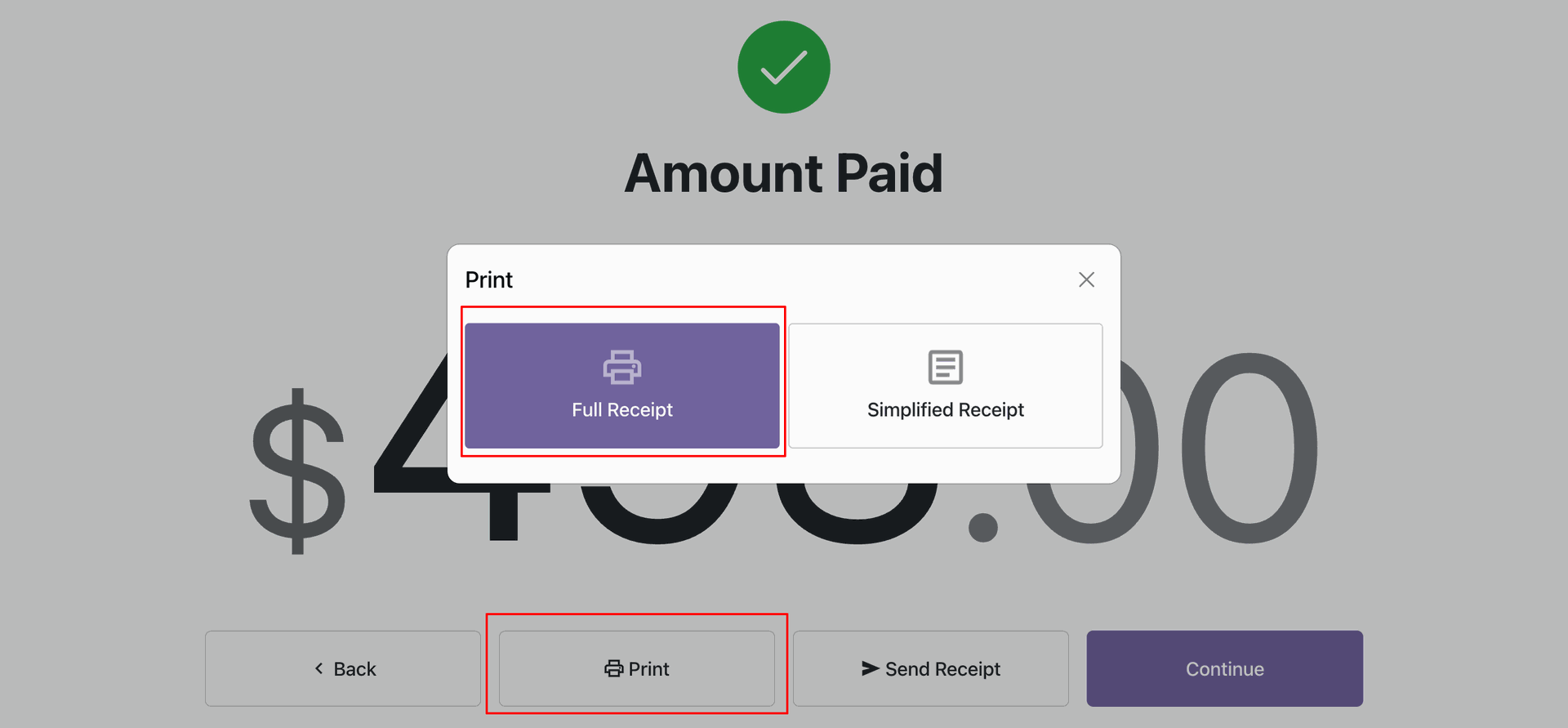
POS receipt with the Barcode.
Click the Print button, then select Simplified Receipt in the Print Wizard.
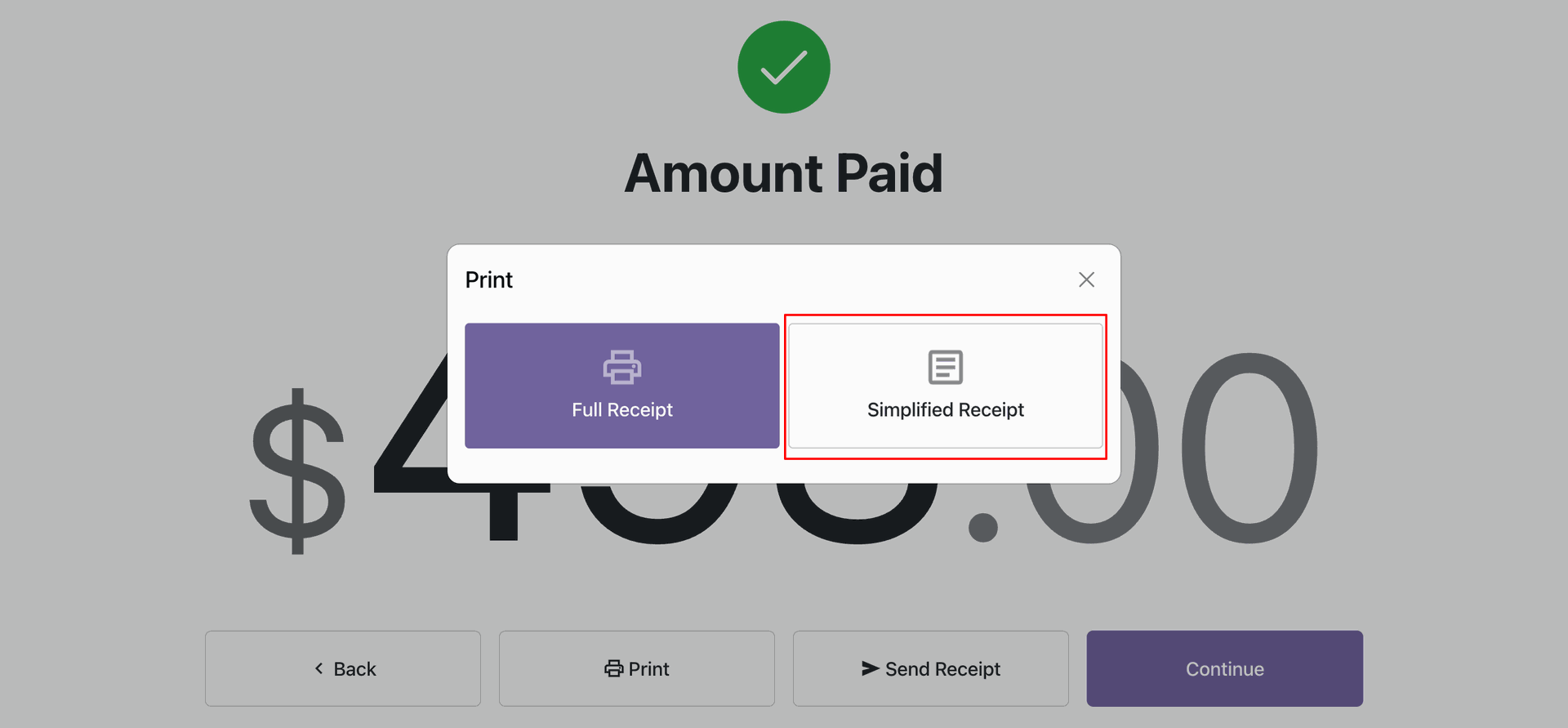
POS receipt with the Barcode.
Go to the POS settings ==> Enable 'Replace Logo' option and select the 'Company Nme'.
If you tick "QRcode" then it displays QRcode in the POS order receipt.
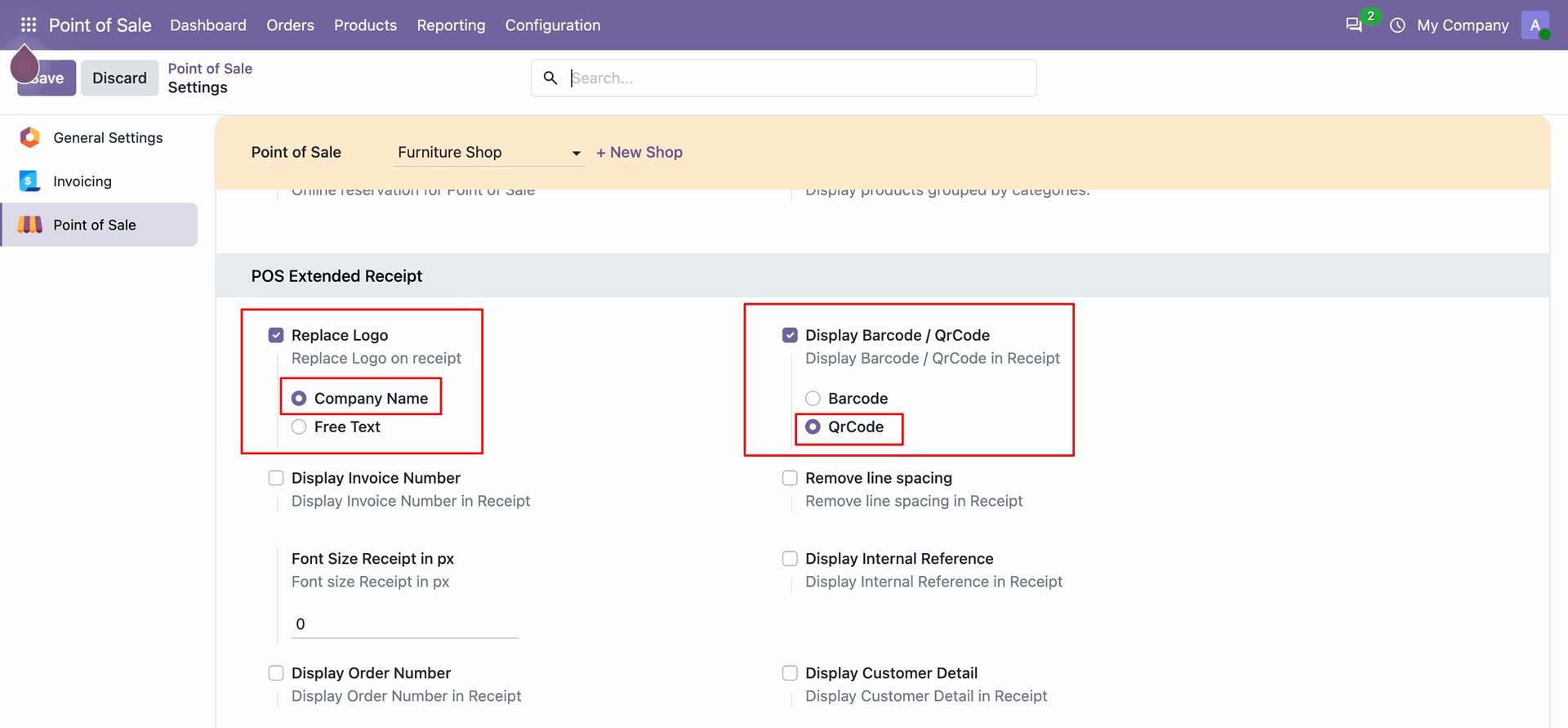
POS receipt with the company name and QRcode.
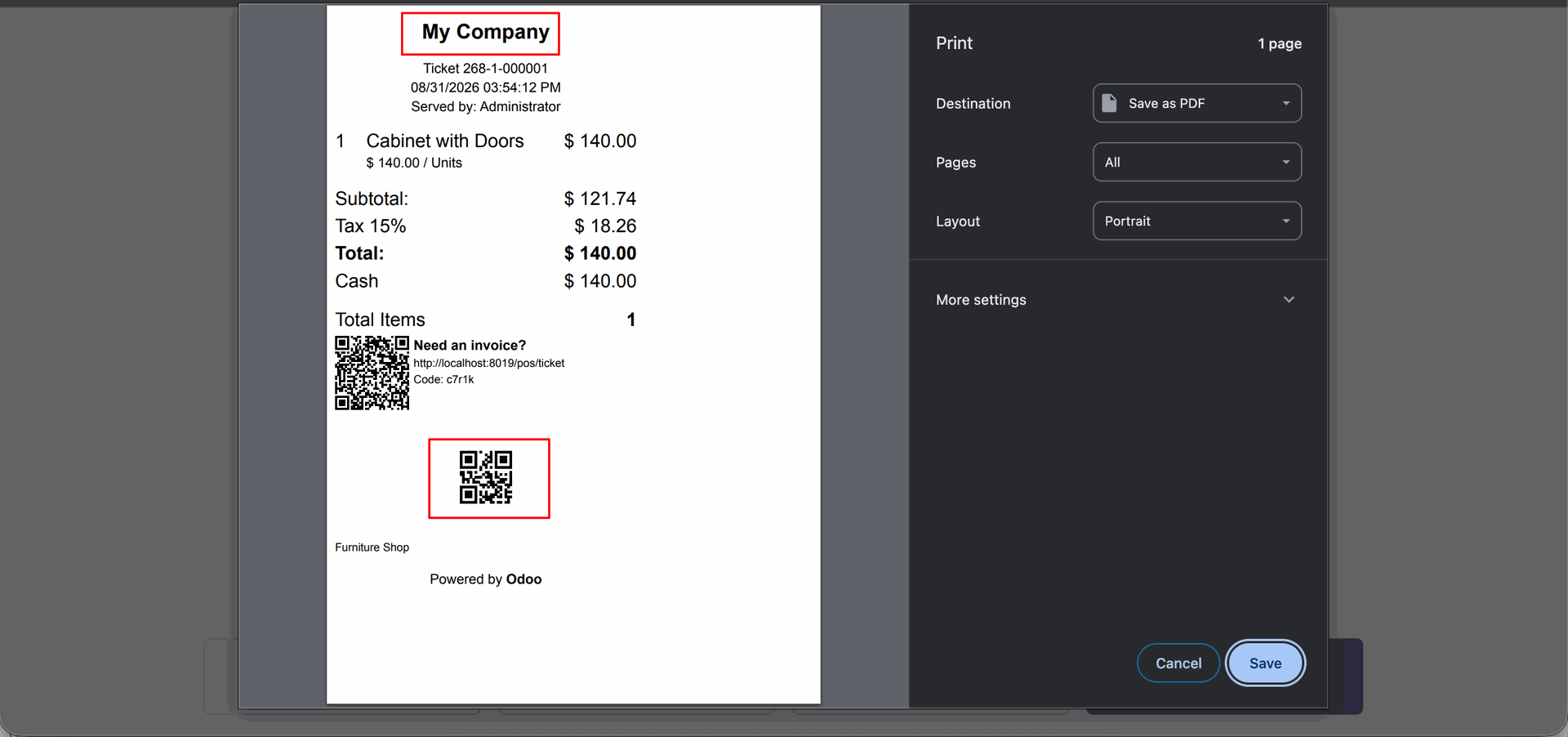
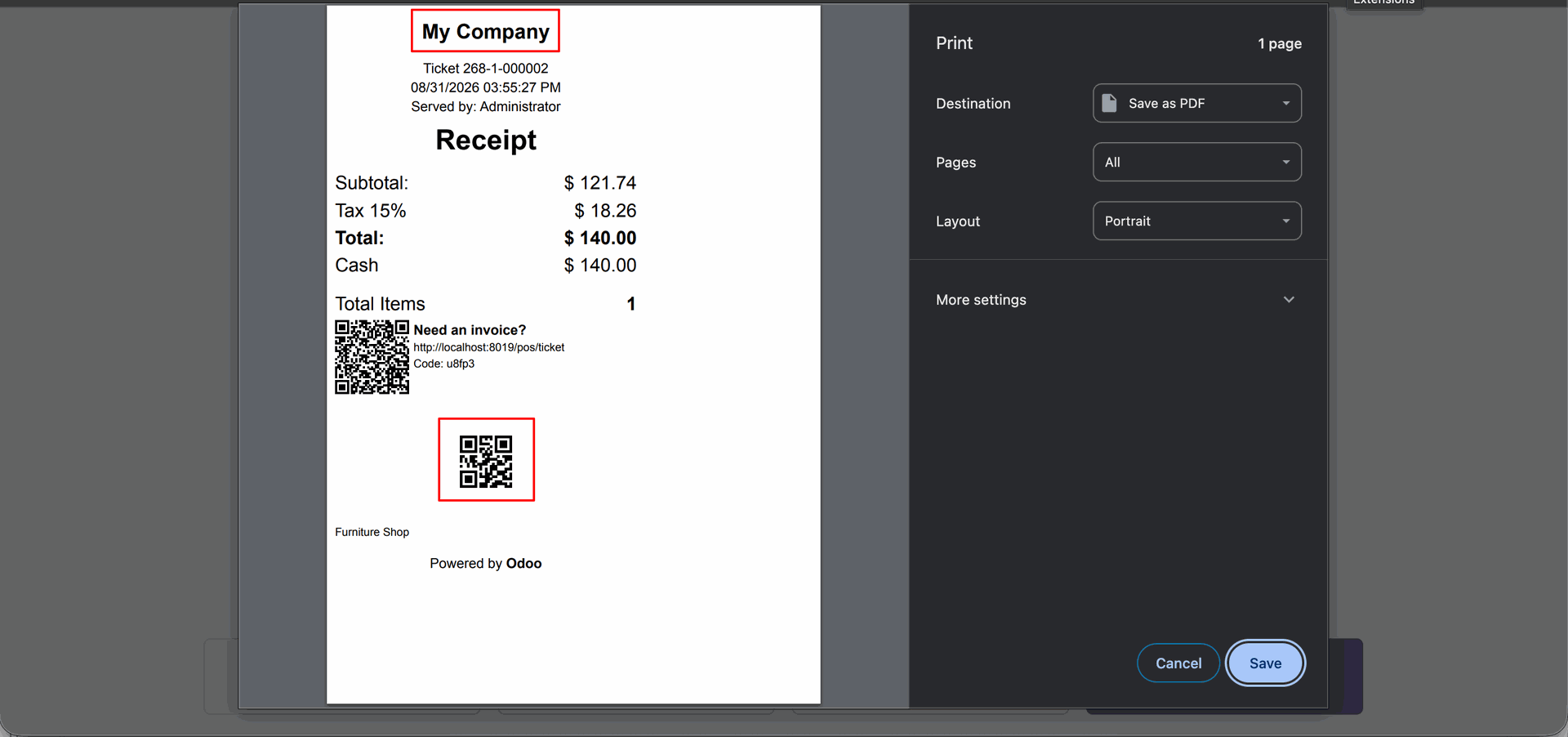
Now, select 'Free Text' and enter the desired content.
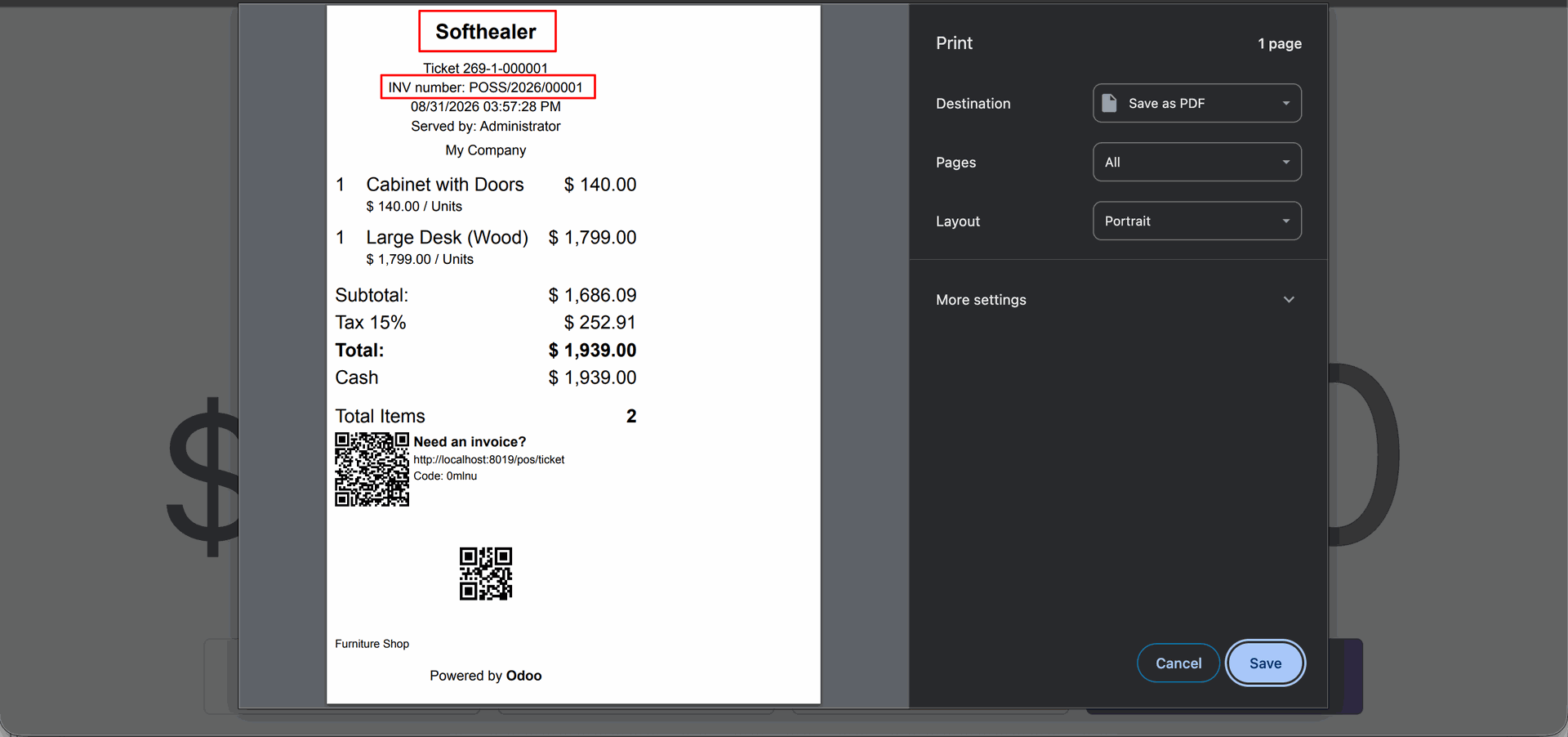
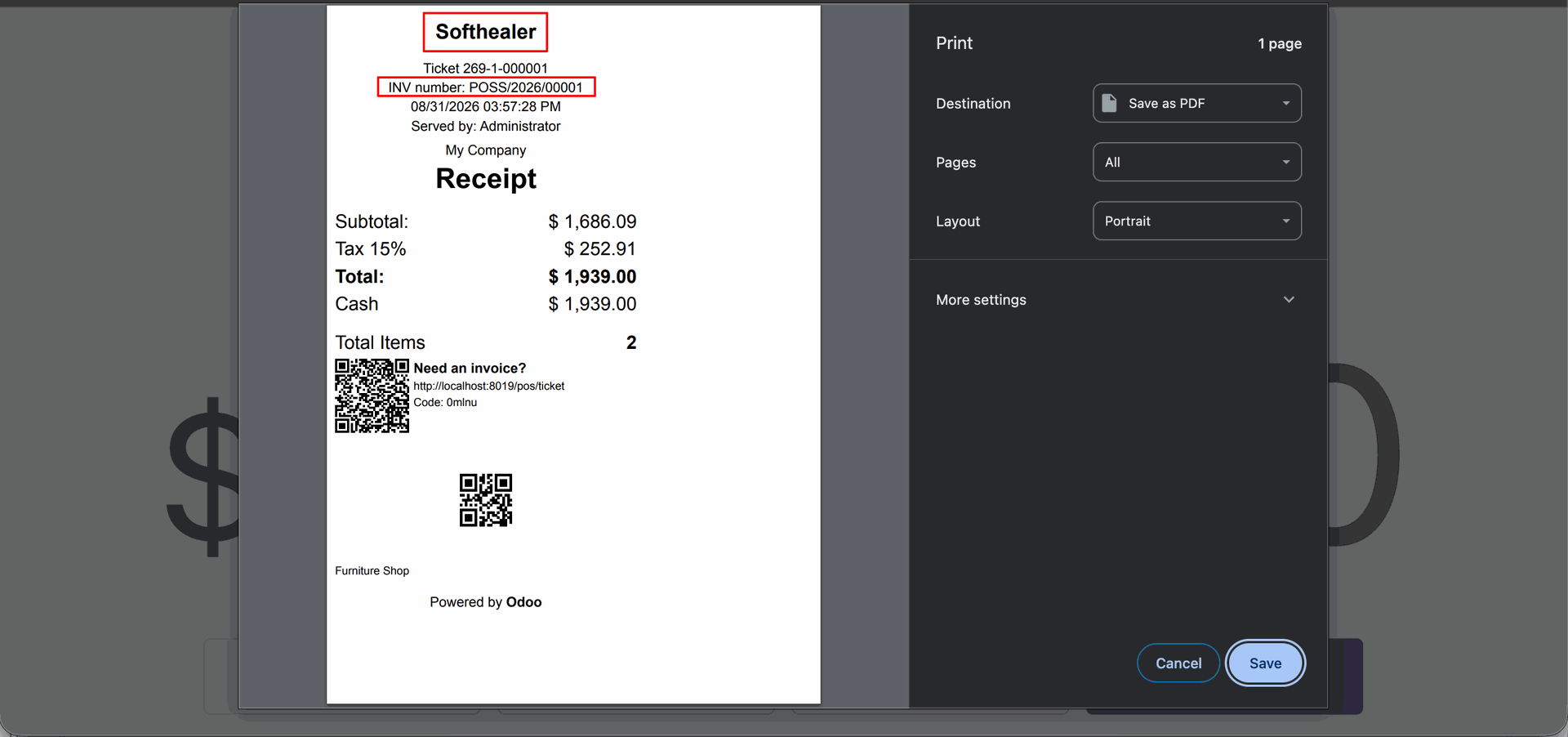
Tick the "Display Invoice Number" to shows the invoice number in the POS order receipt.
Note: POS offline will not work in the invoice numbers.
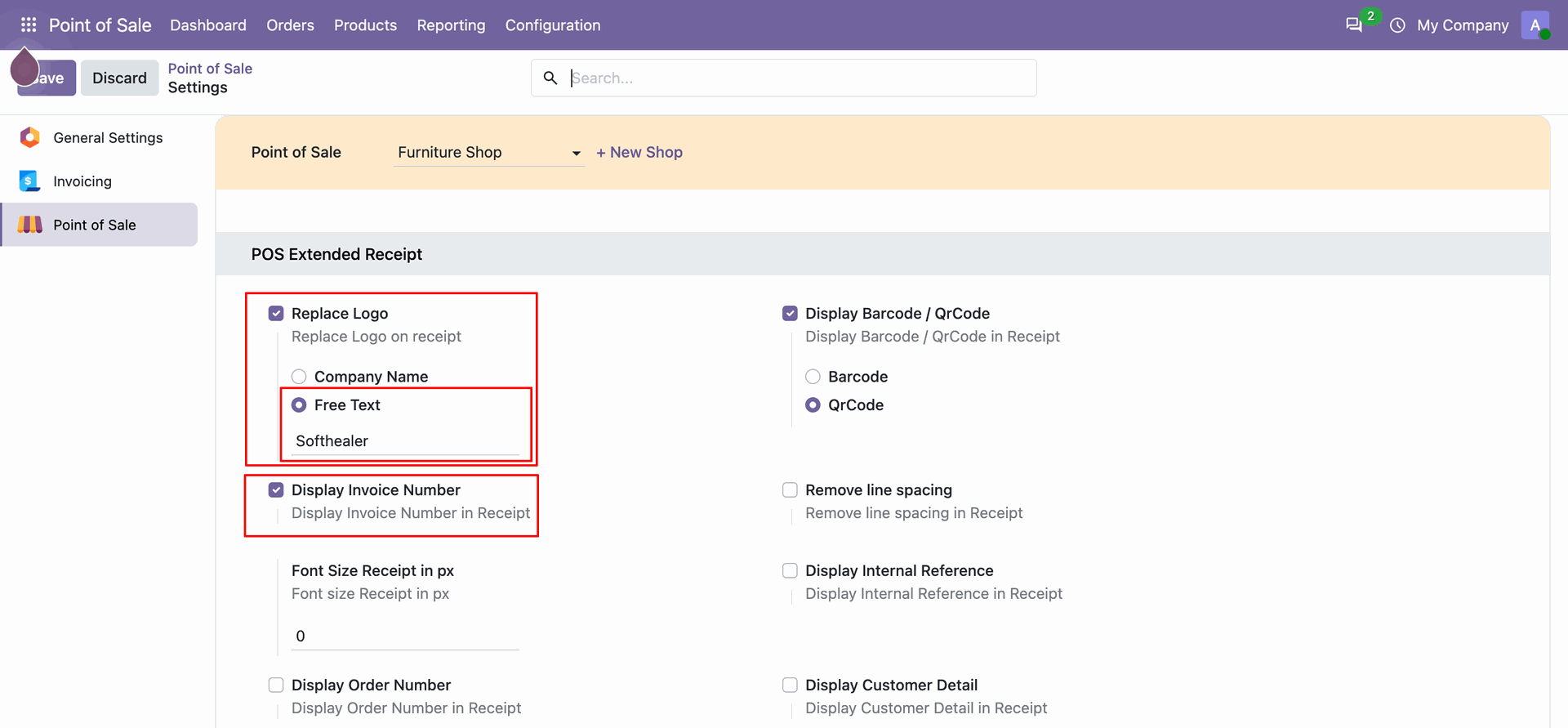
The receipt displays the content configured in the settings, along with the invoice number.
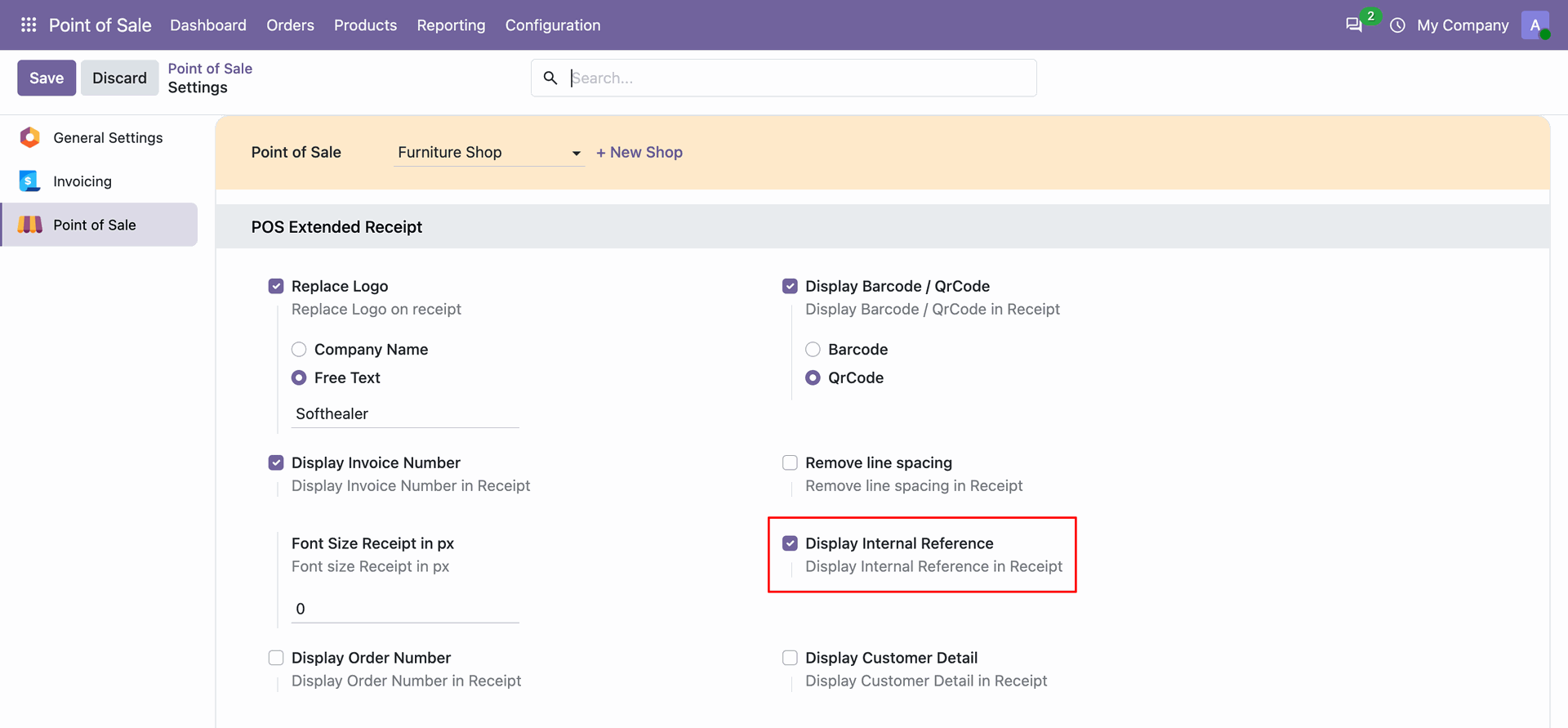
Configuration to display internal reference in the receipt.
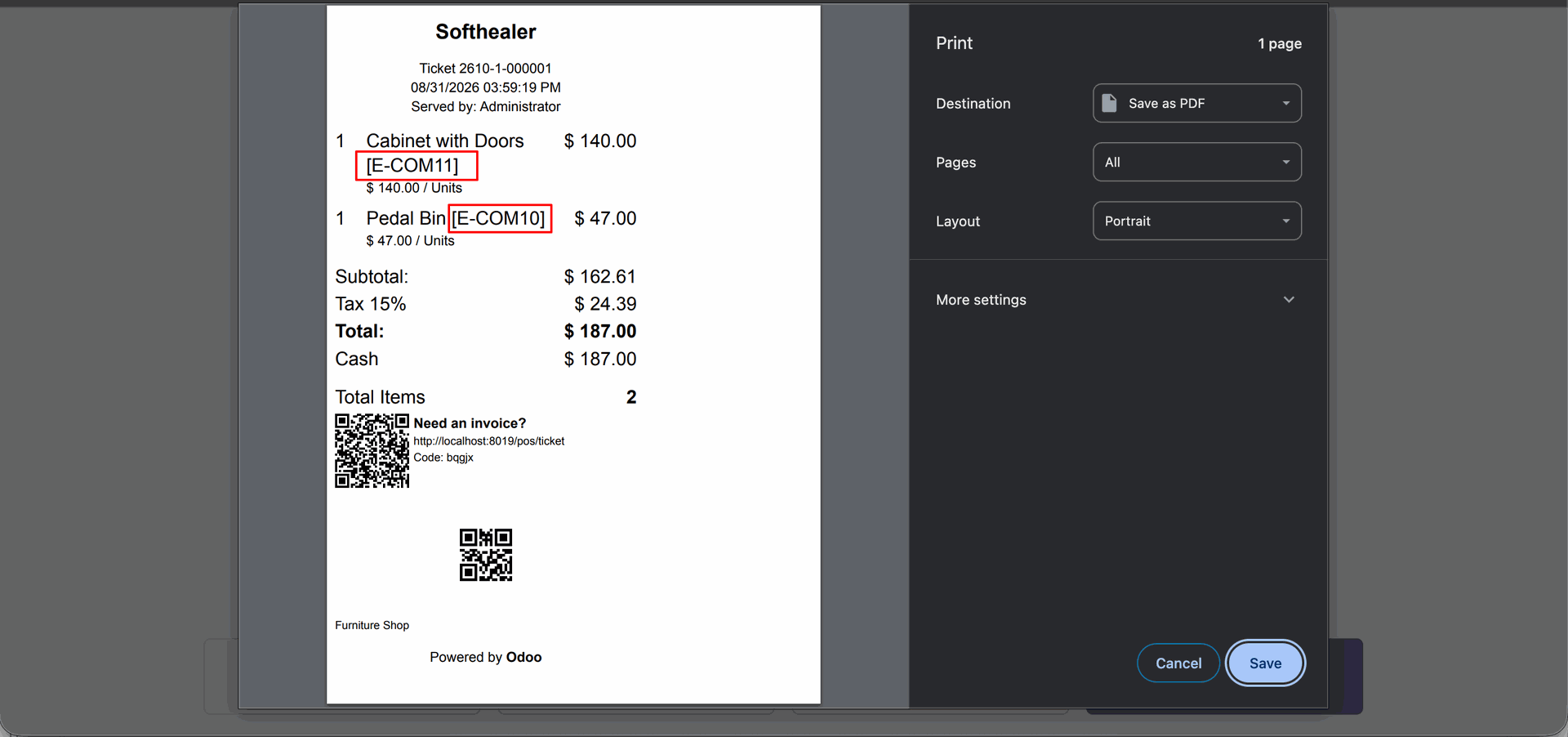
Receipt with the internal reference.
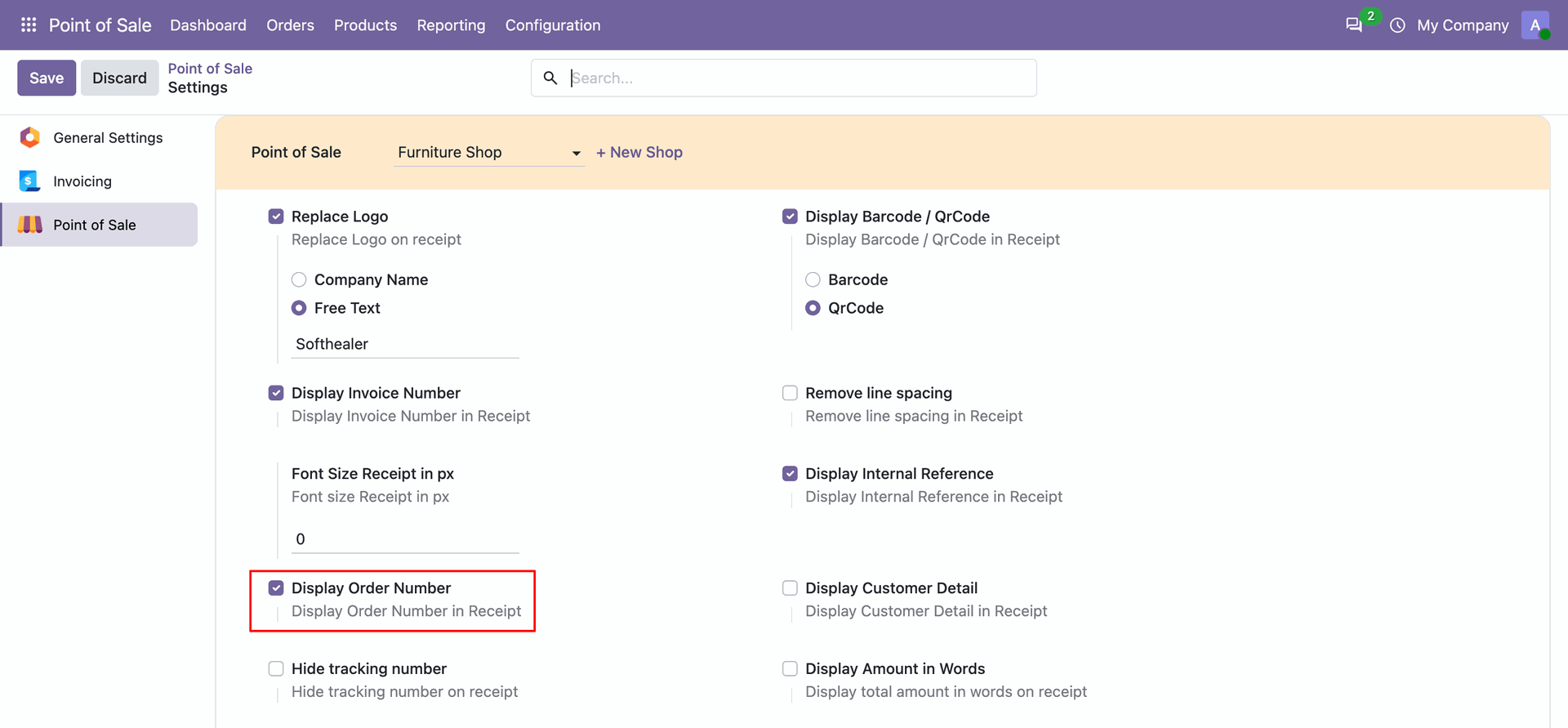
Tick the "Display Order Number" to shows the Order Number in the POS receipt.
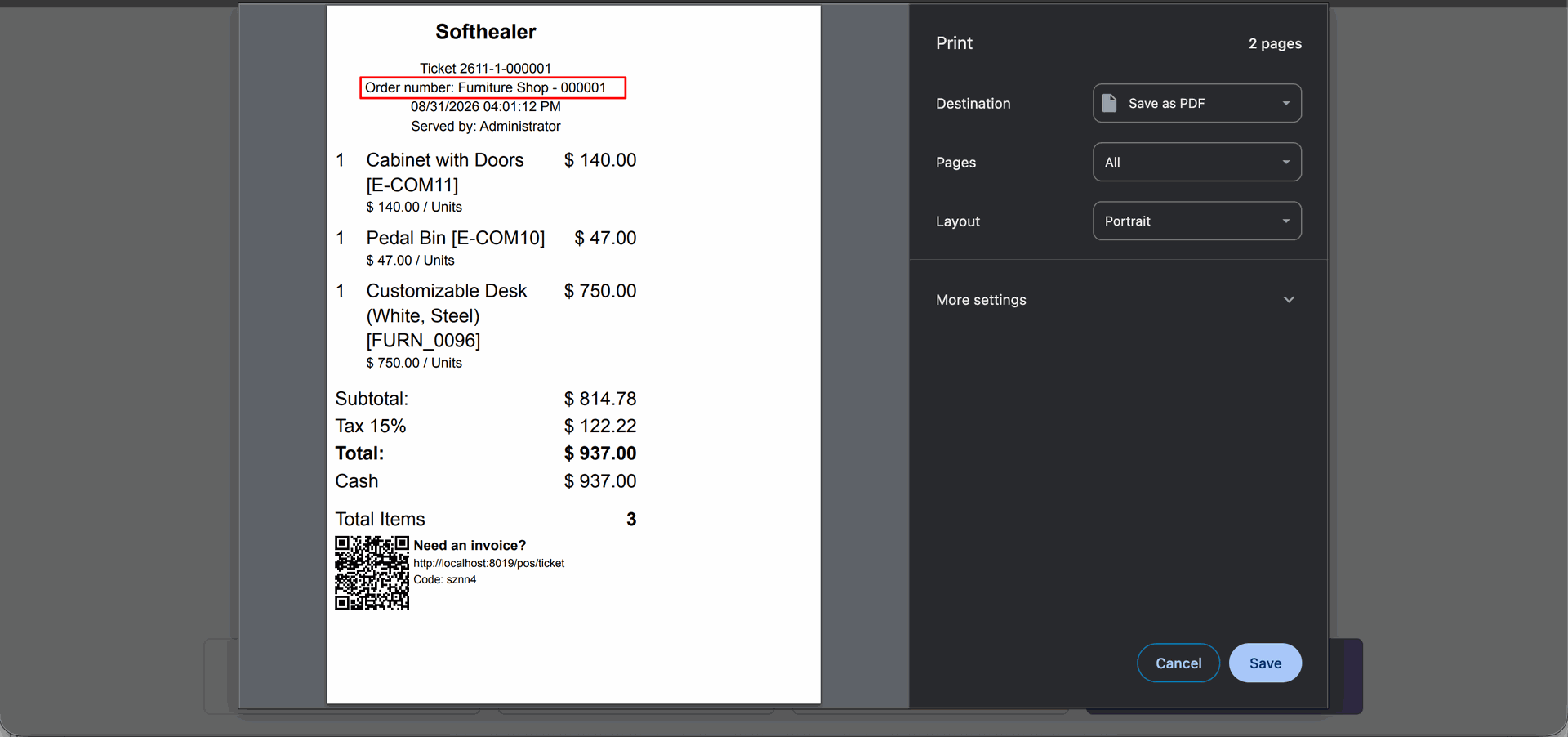
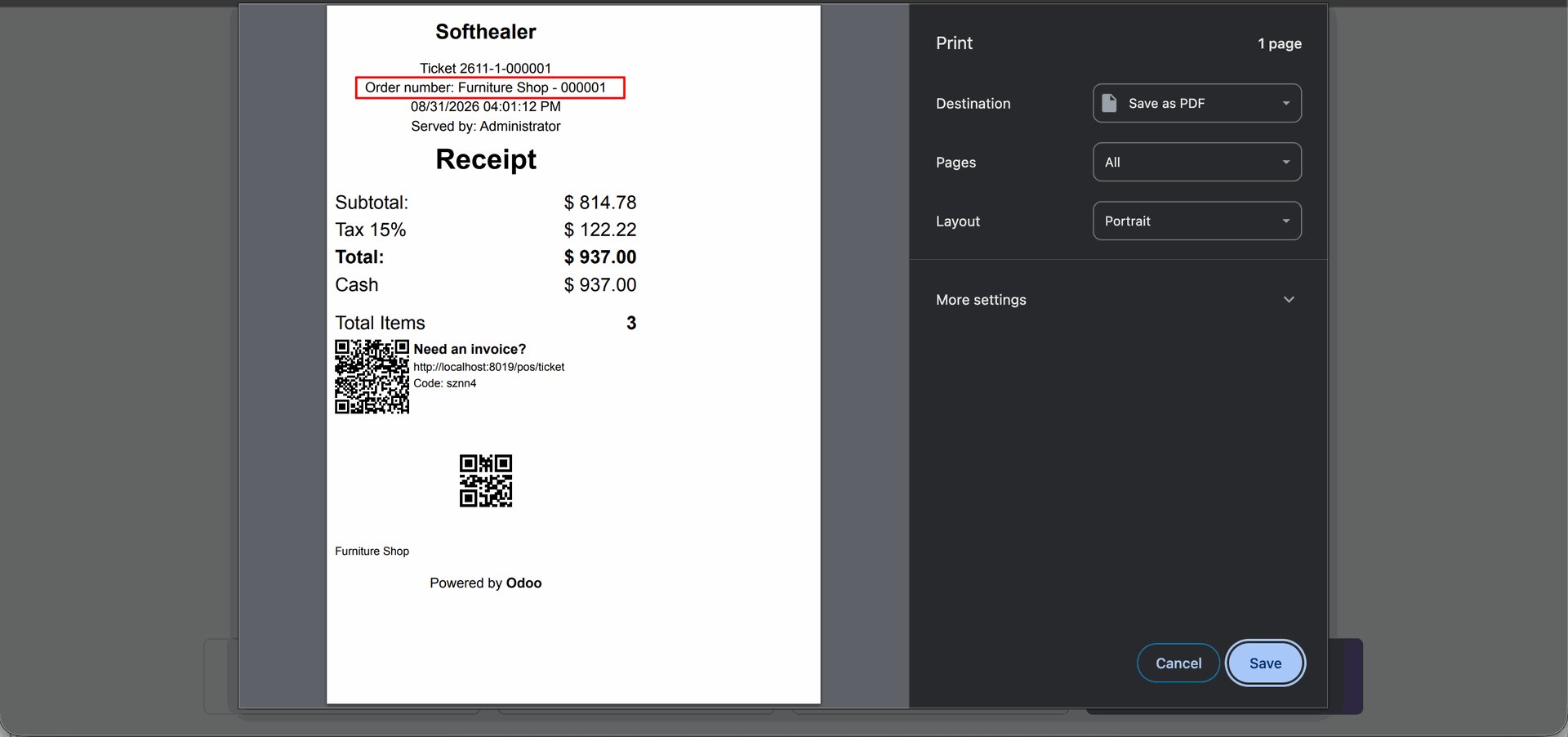
HPOS receipt with the Order Number.
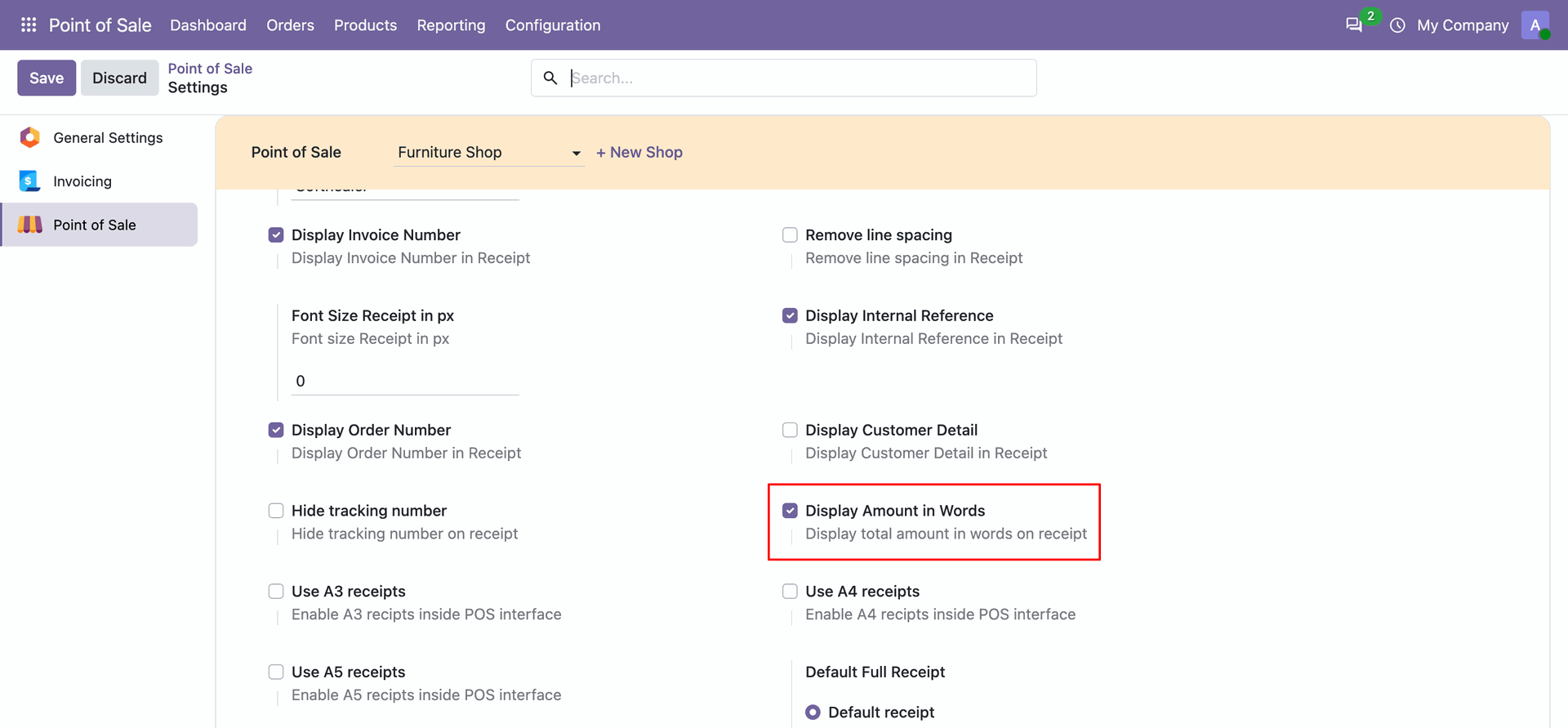
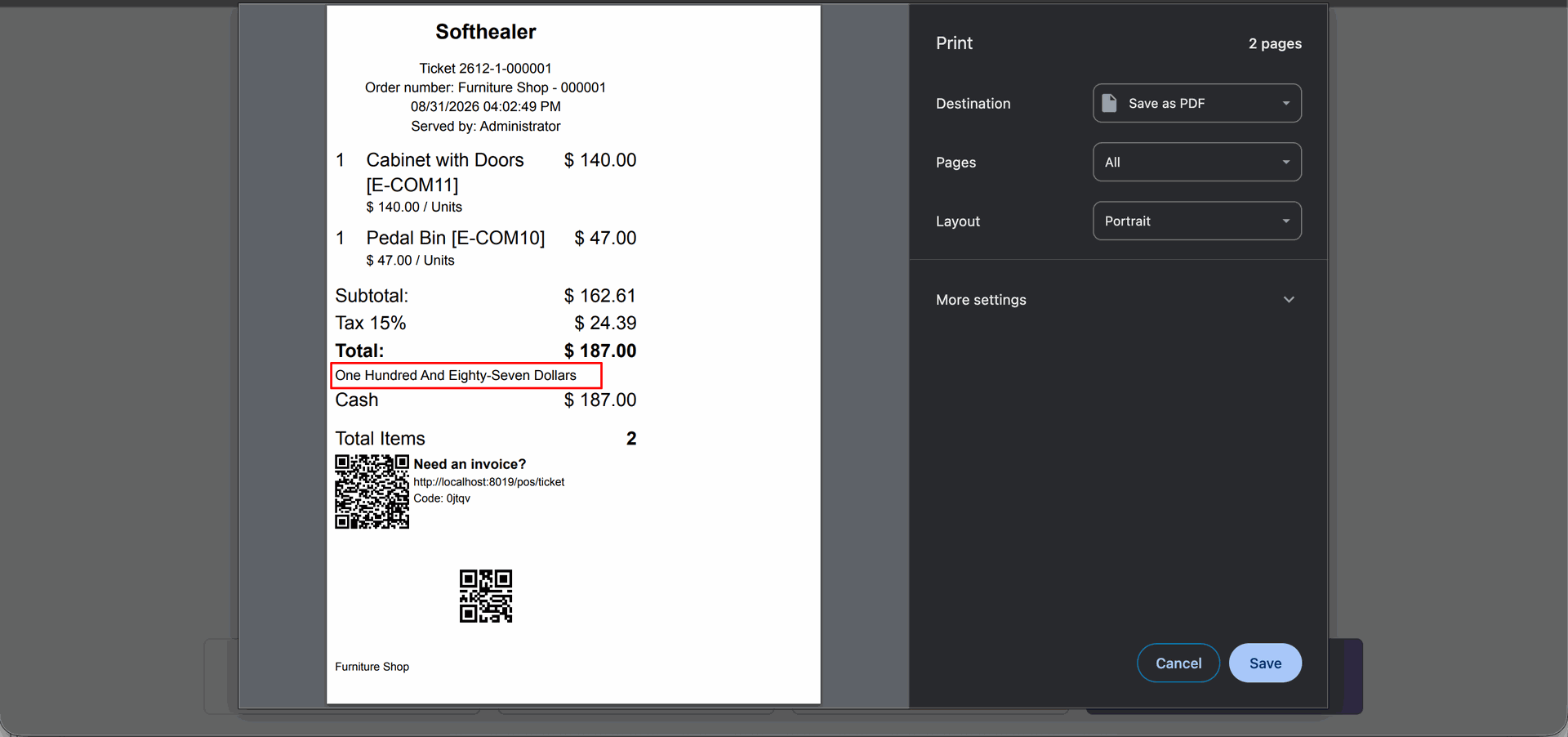
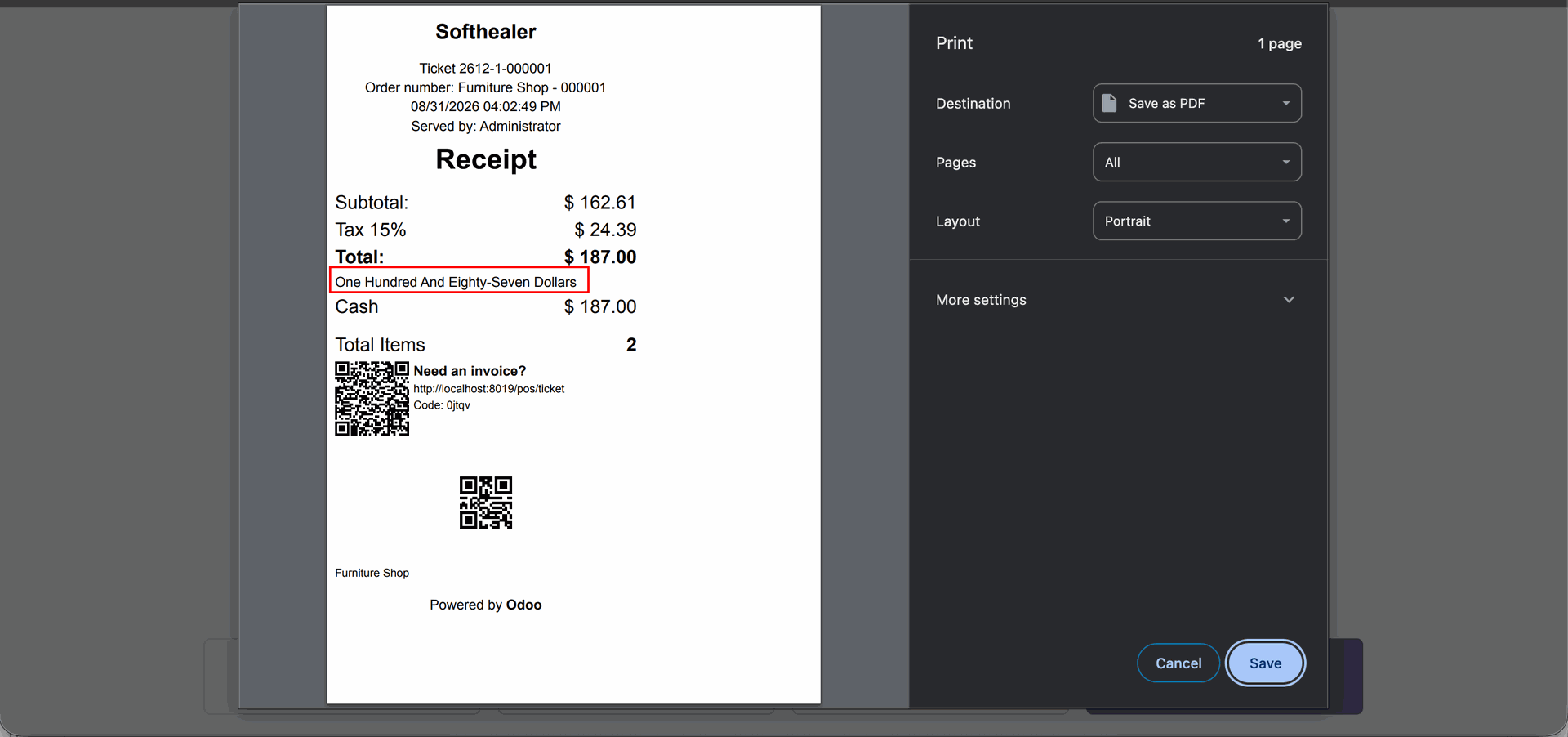
Go to the POS settings ==> Enable 'Display Amount in Words' option.
Here, you can see the amount displayed in words on the receipt.
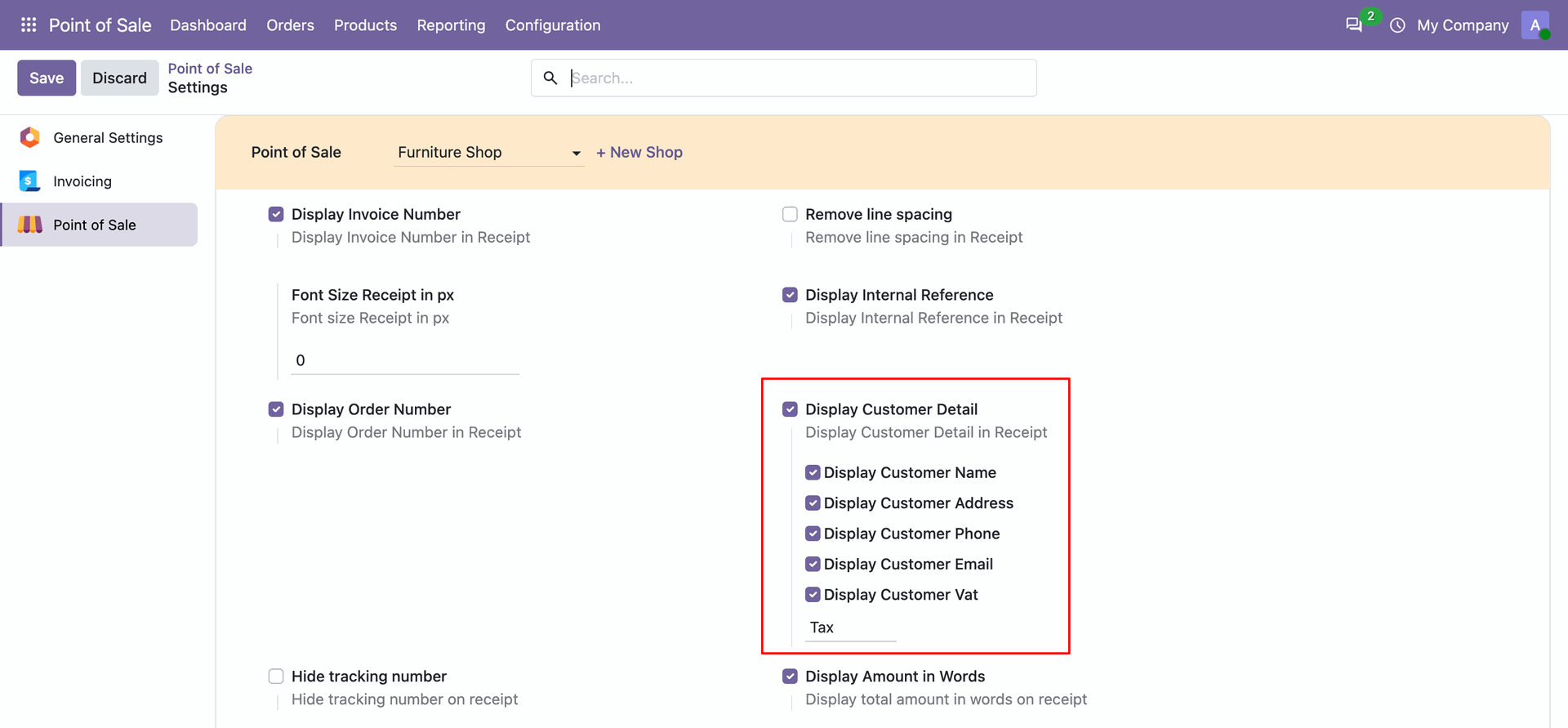
Tick the "Display Customer Detail" to shows the customer details(name, address, phone number,
email
& vat) in the POS order receipt.
Note: POS offline supported in the customer details (name, address, phone number & email).
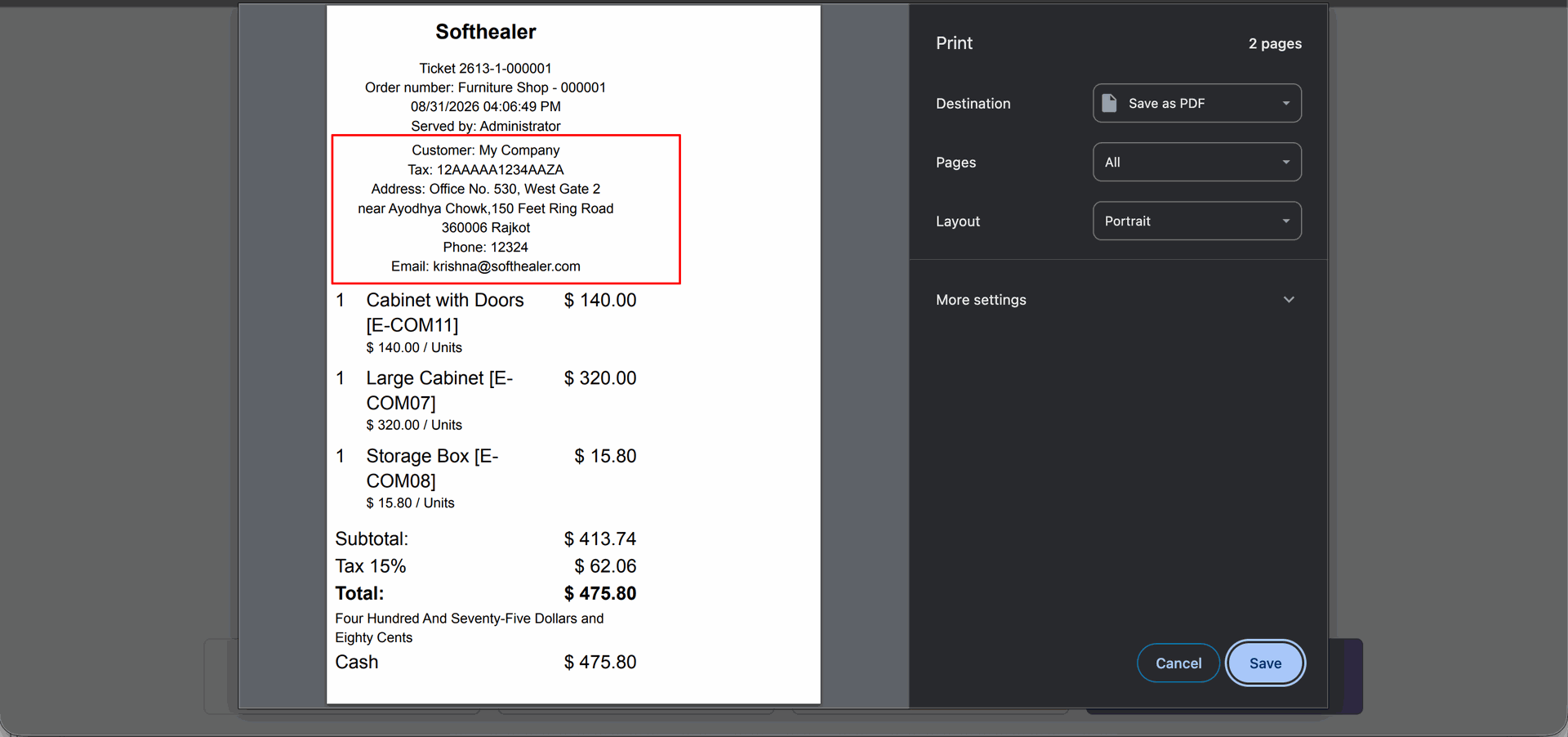
POS receipt with the customer details.
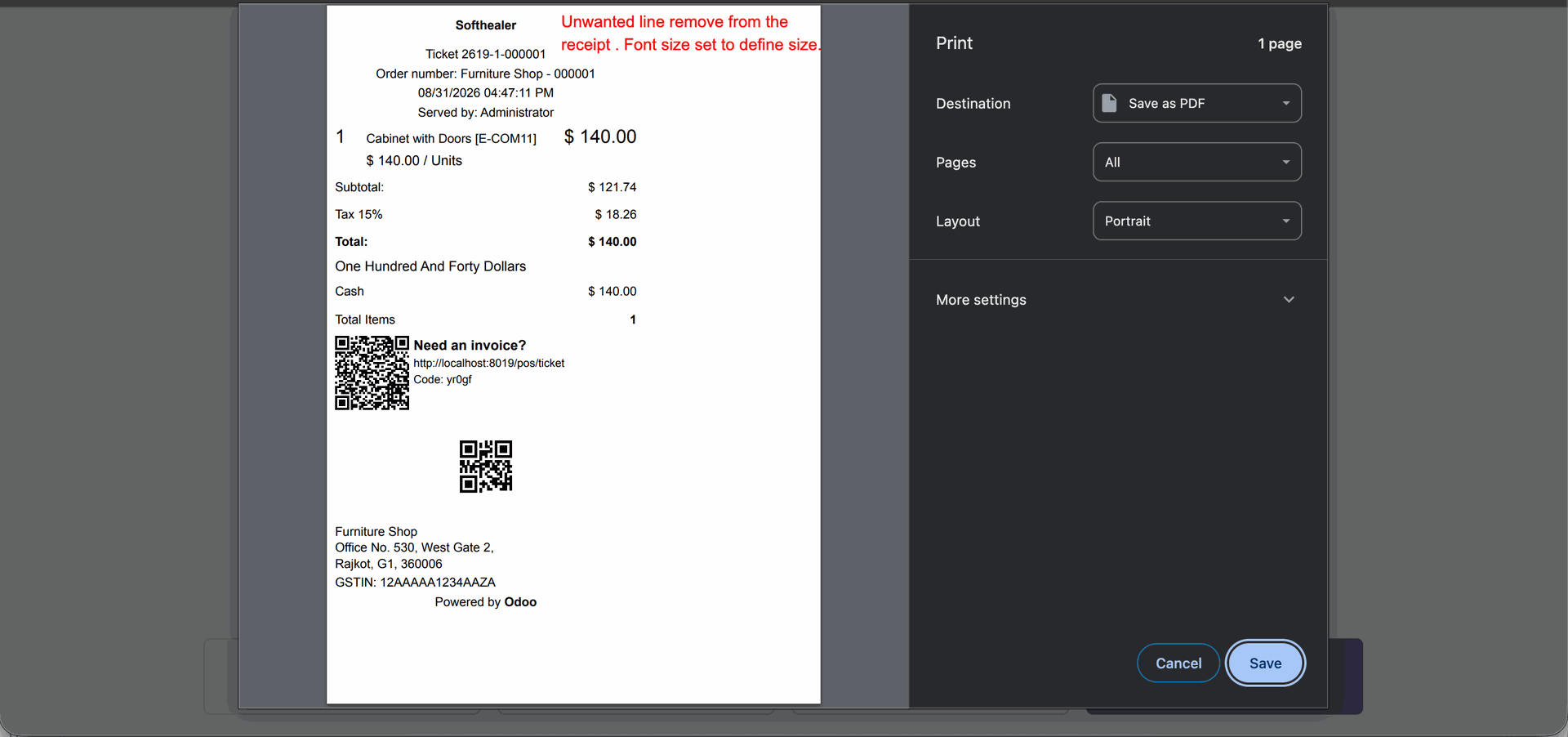
Go to the POS settings ==> Enable 'Remove Line Spacing' option.
Enable 'Font Size Receipt in px' option and enter the font size.
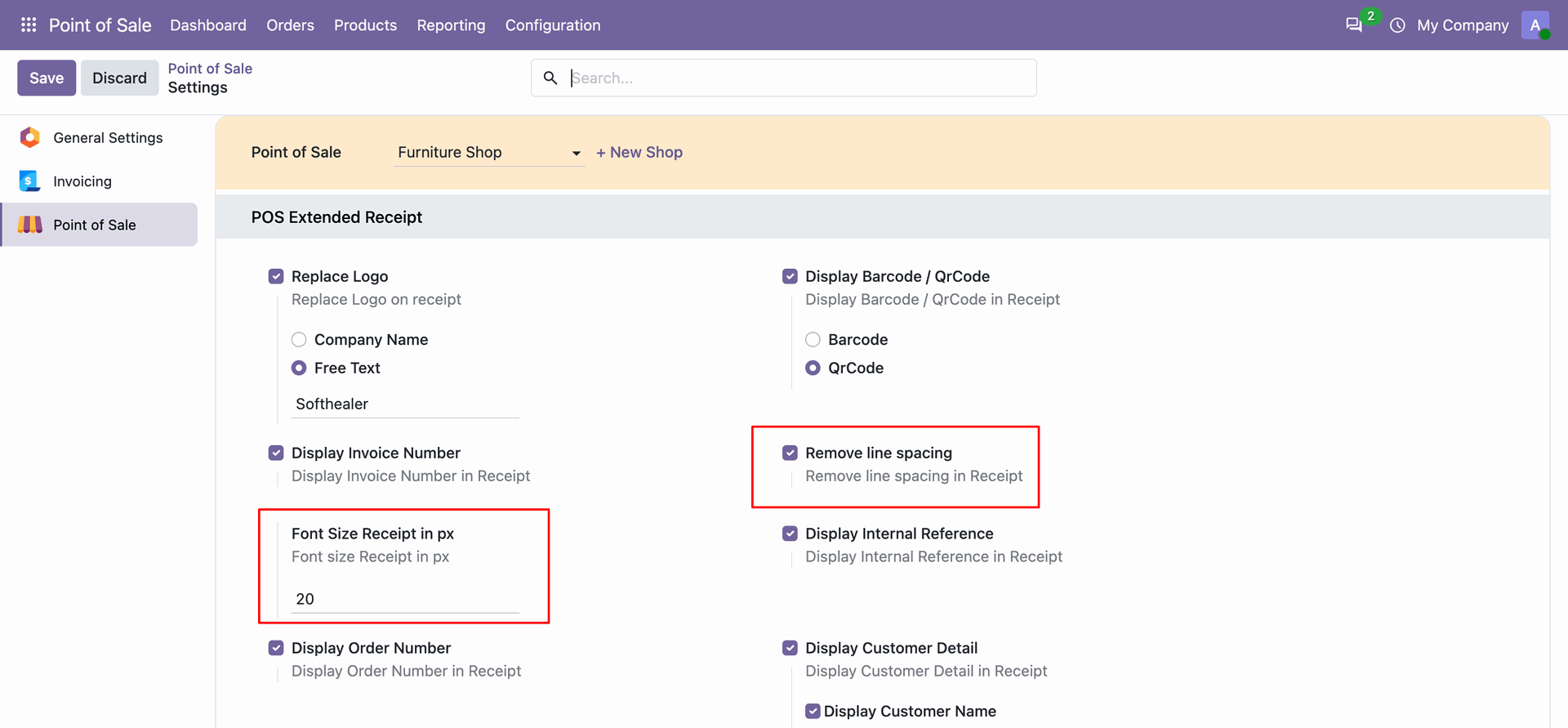
Remove unwanted lines from the receipt and set the font size to the defined size.
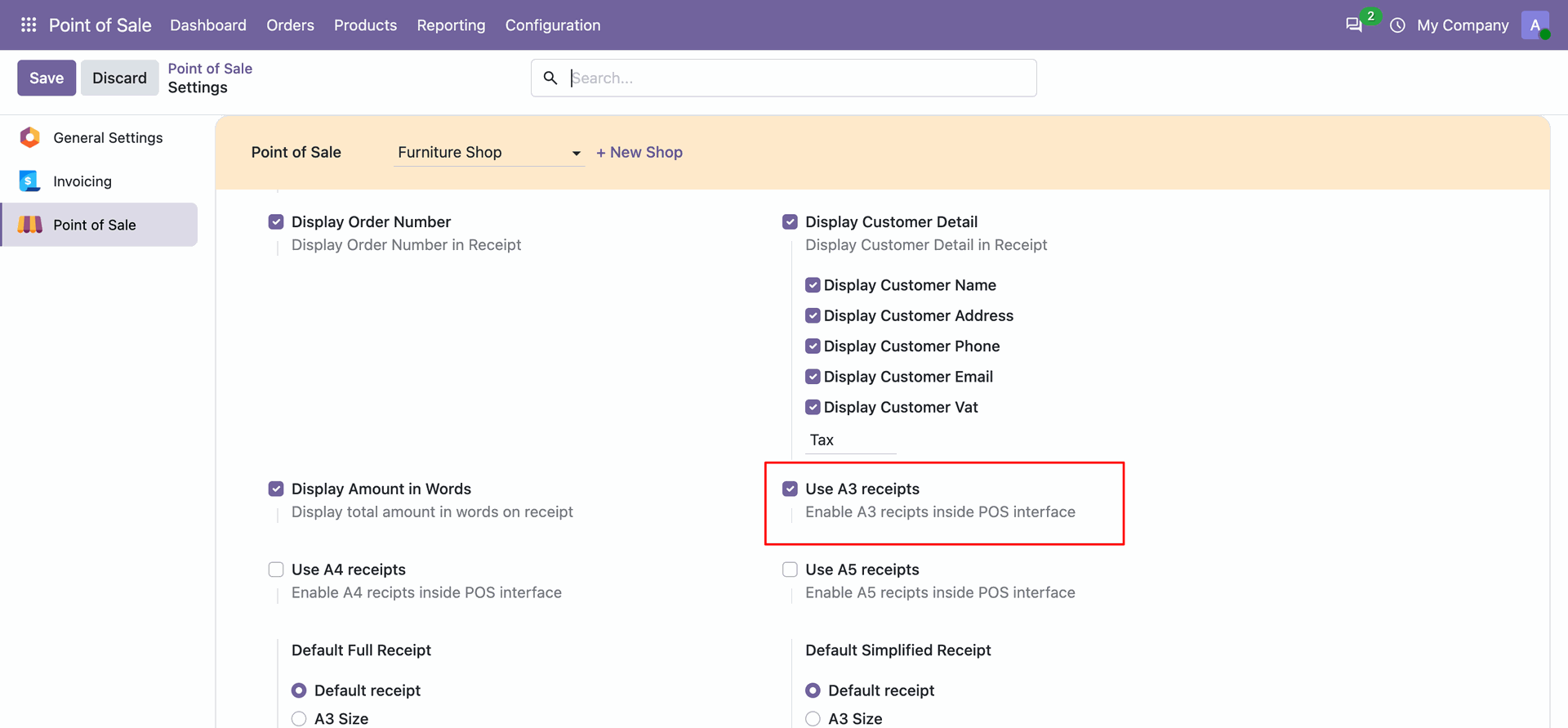
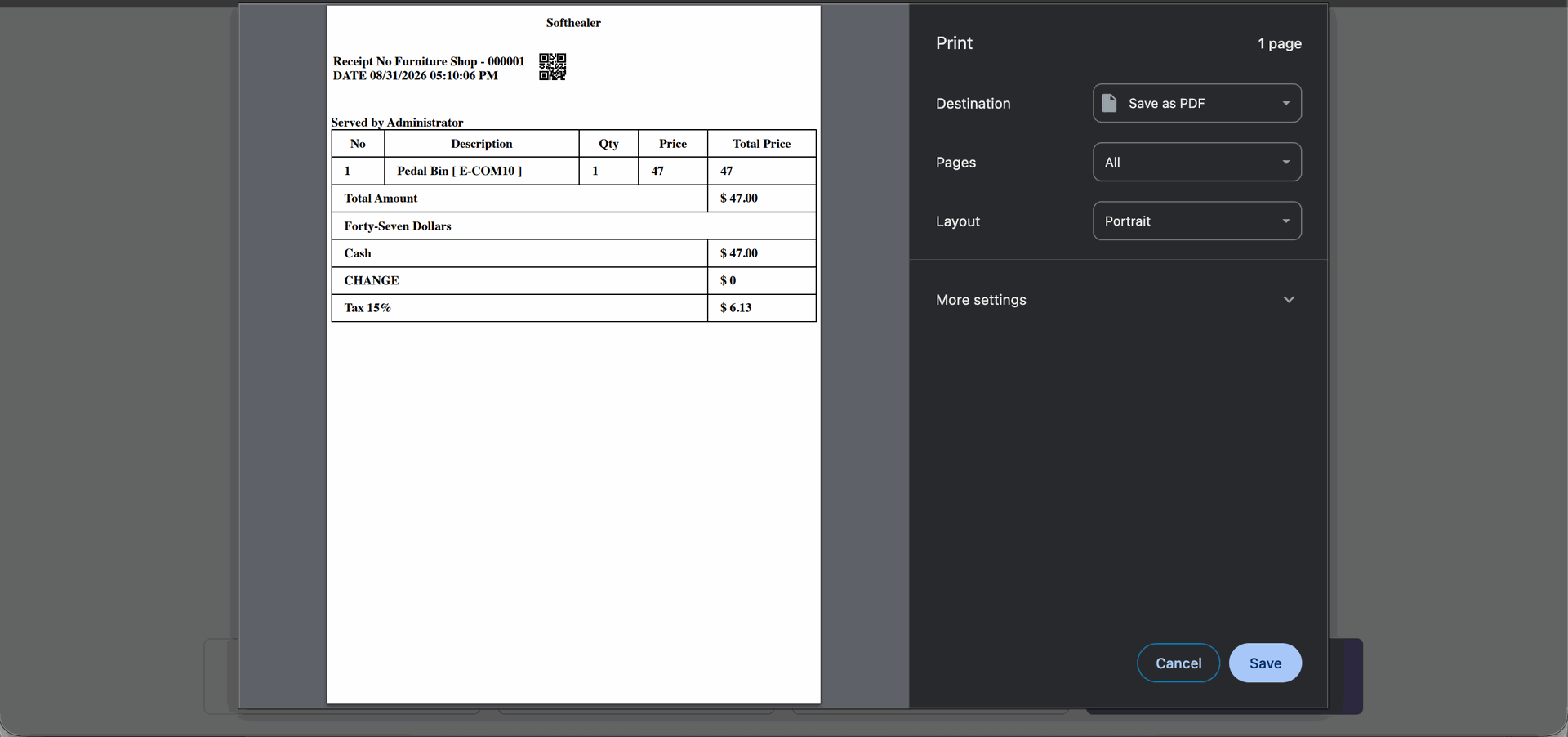
Go to the pos setting and tick Use A3 Receipt.
Here, you will find the available A3 receipt options.
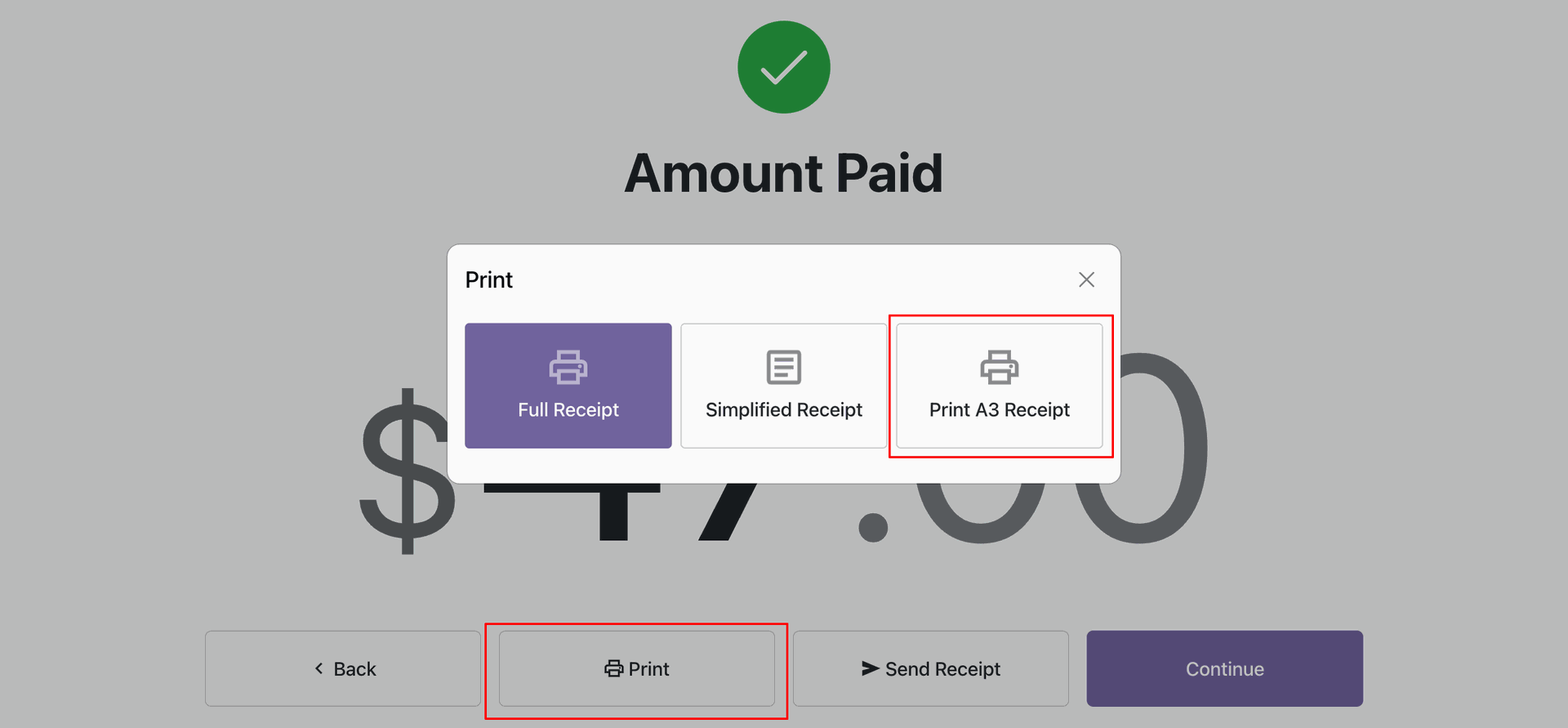
The receipt is printed on an A3 size.
Now enable the Use A4 Receipt option.
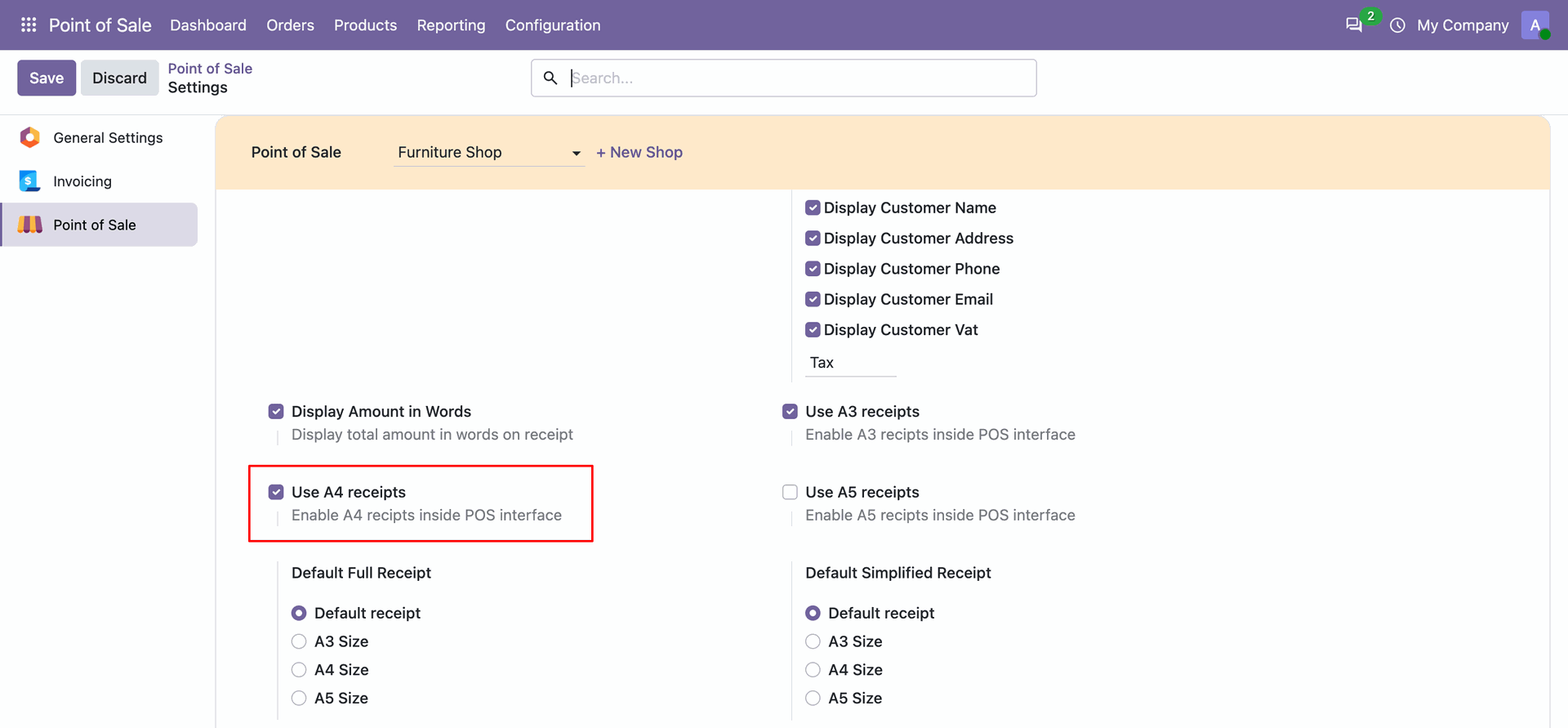
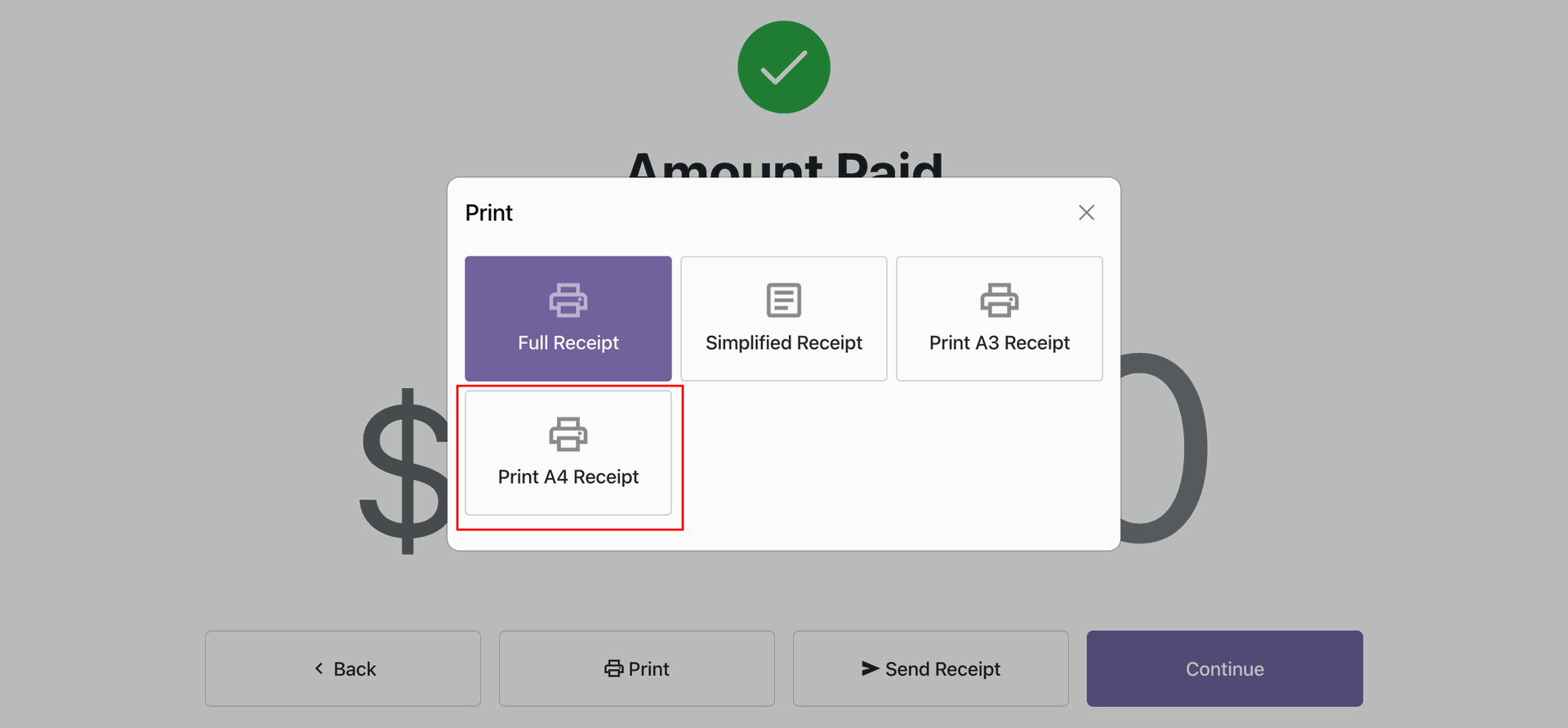
Here, you will also find the A4 receipt options.
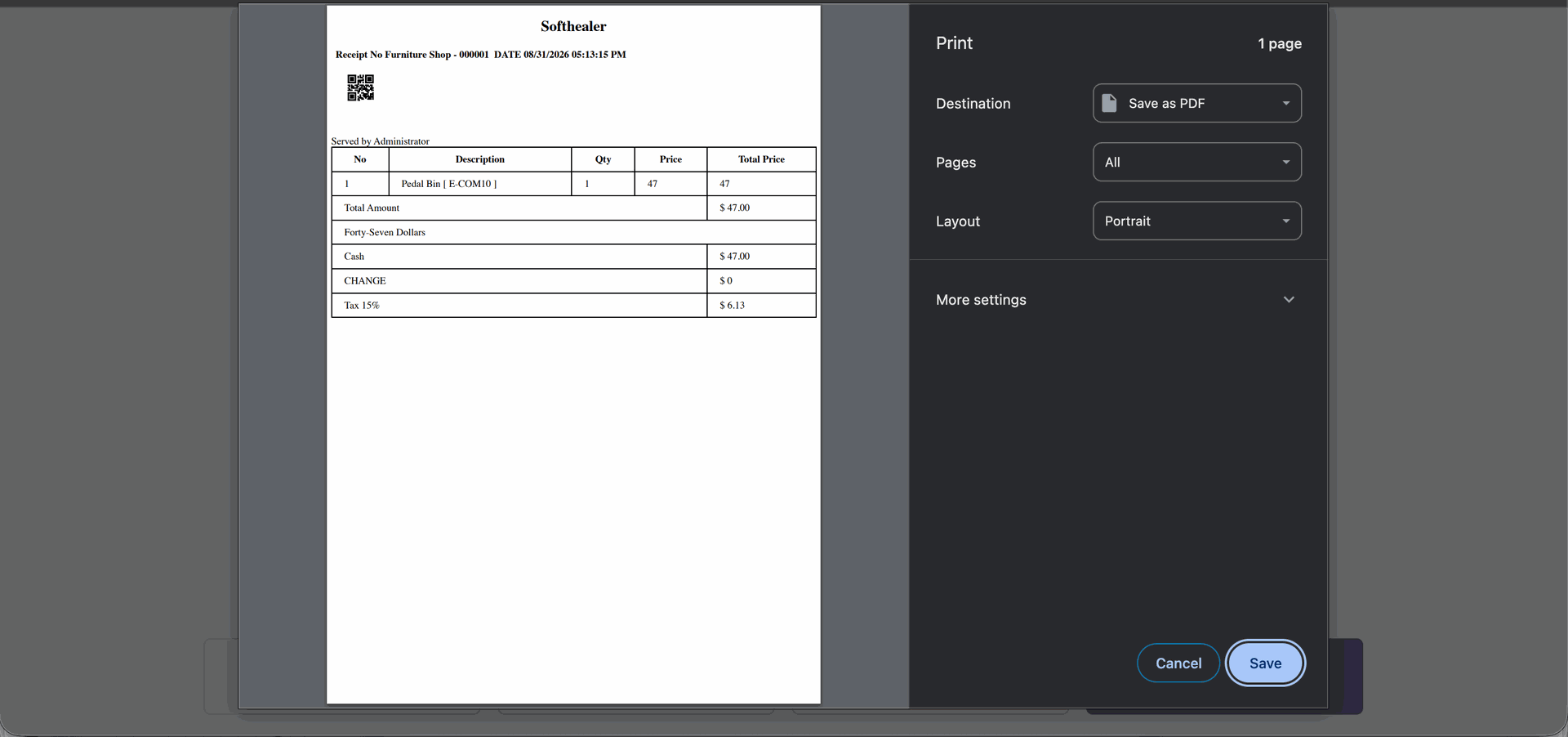
The receipt is printed on an A4 size.
Now enable the Use A5 Receipt option.
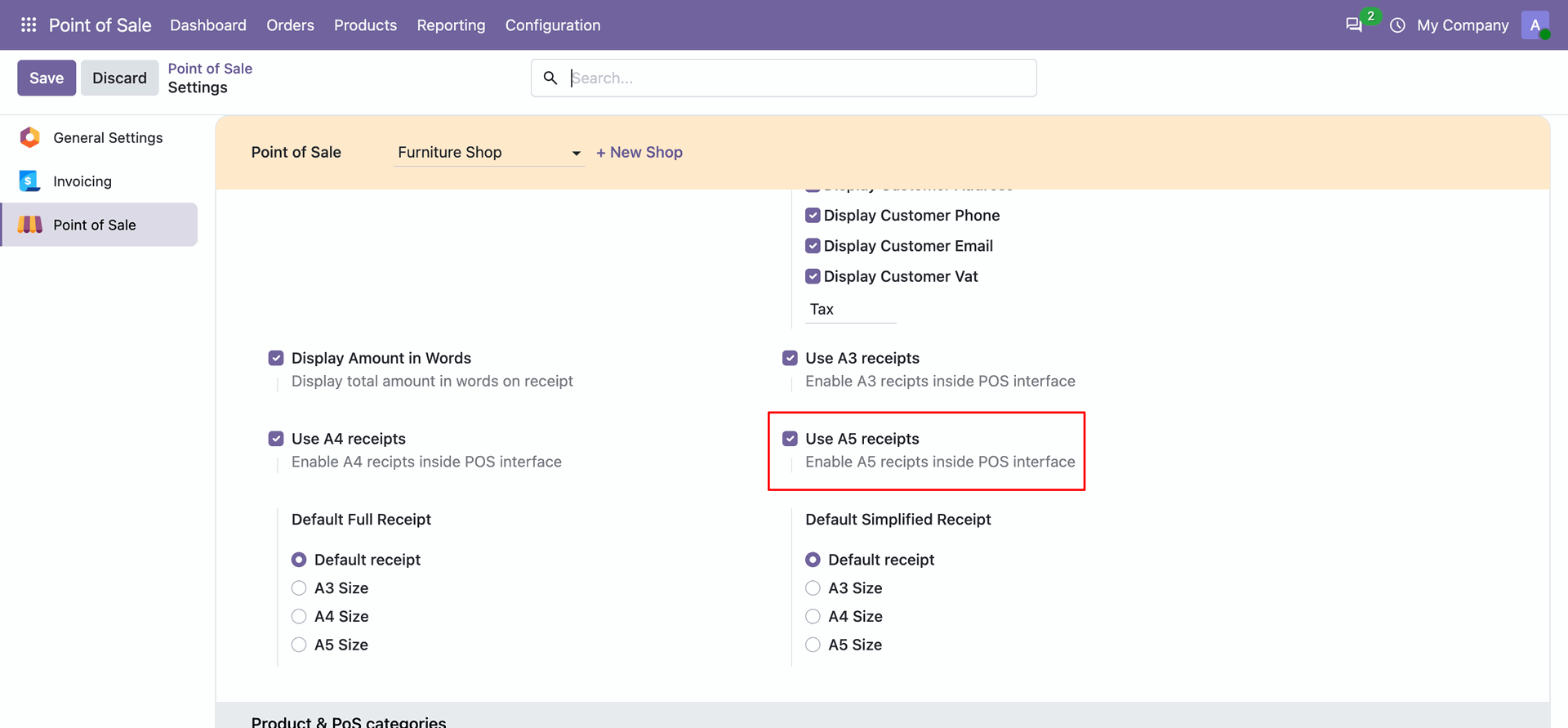
Here, you will also find the A5 receipt options.
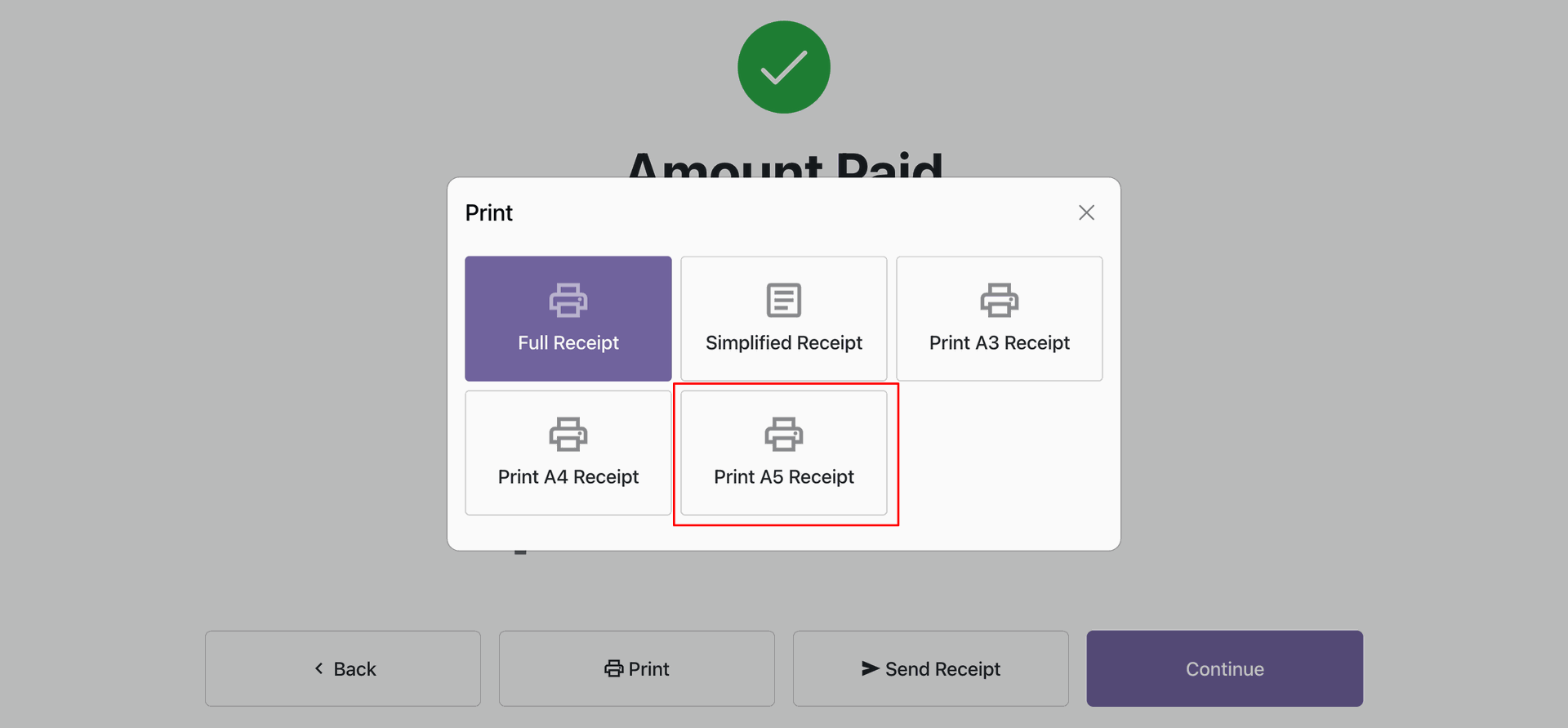
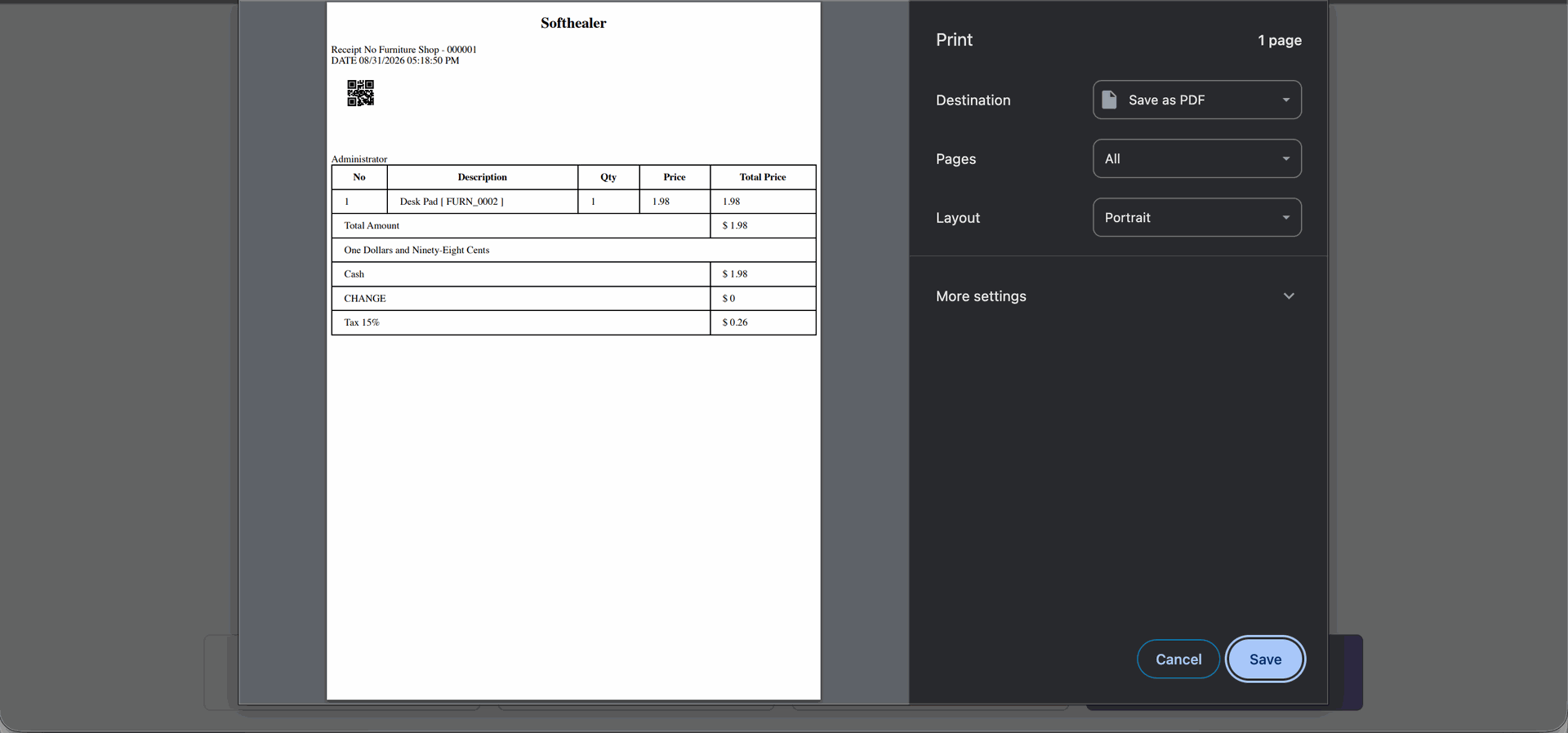
The receipt is printed on an A5 size.
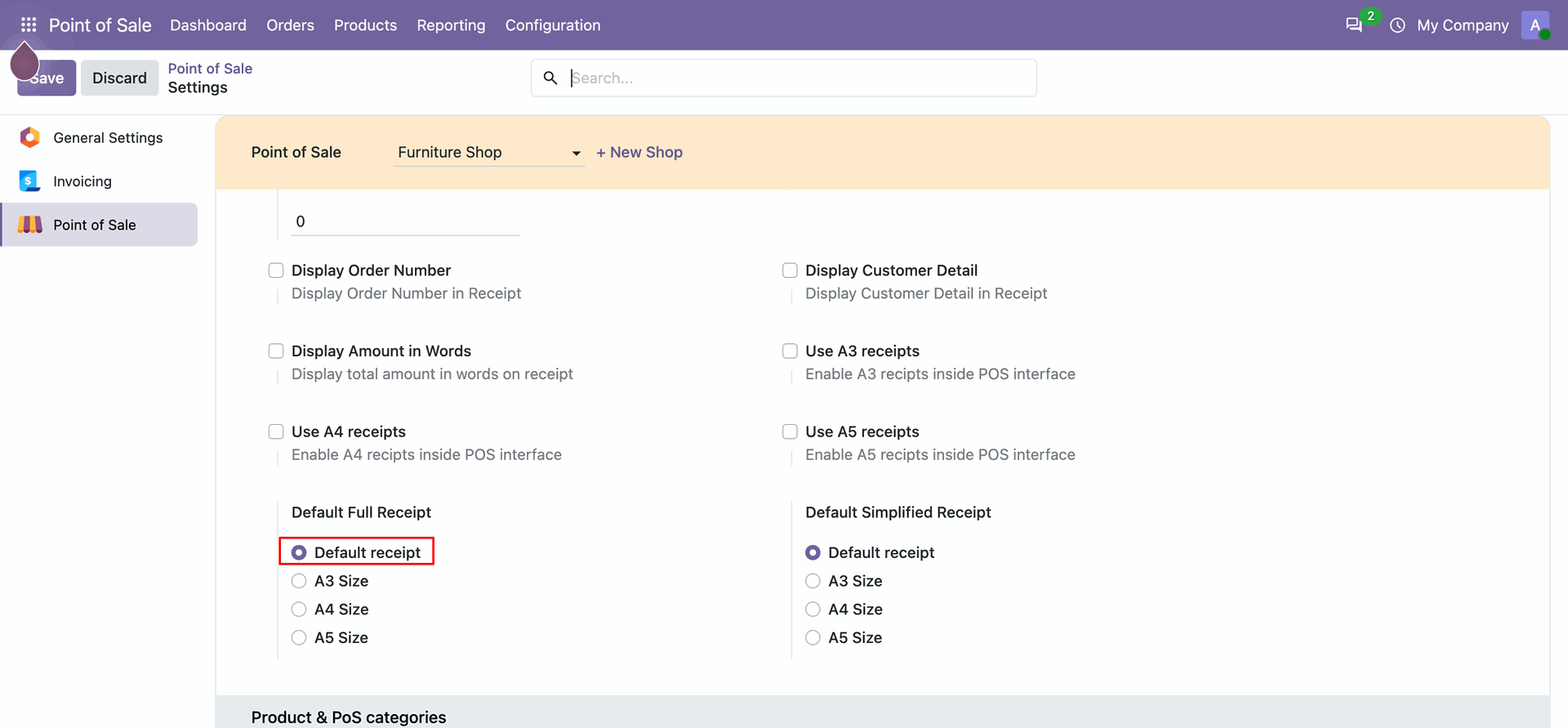
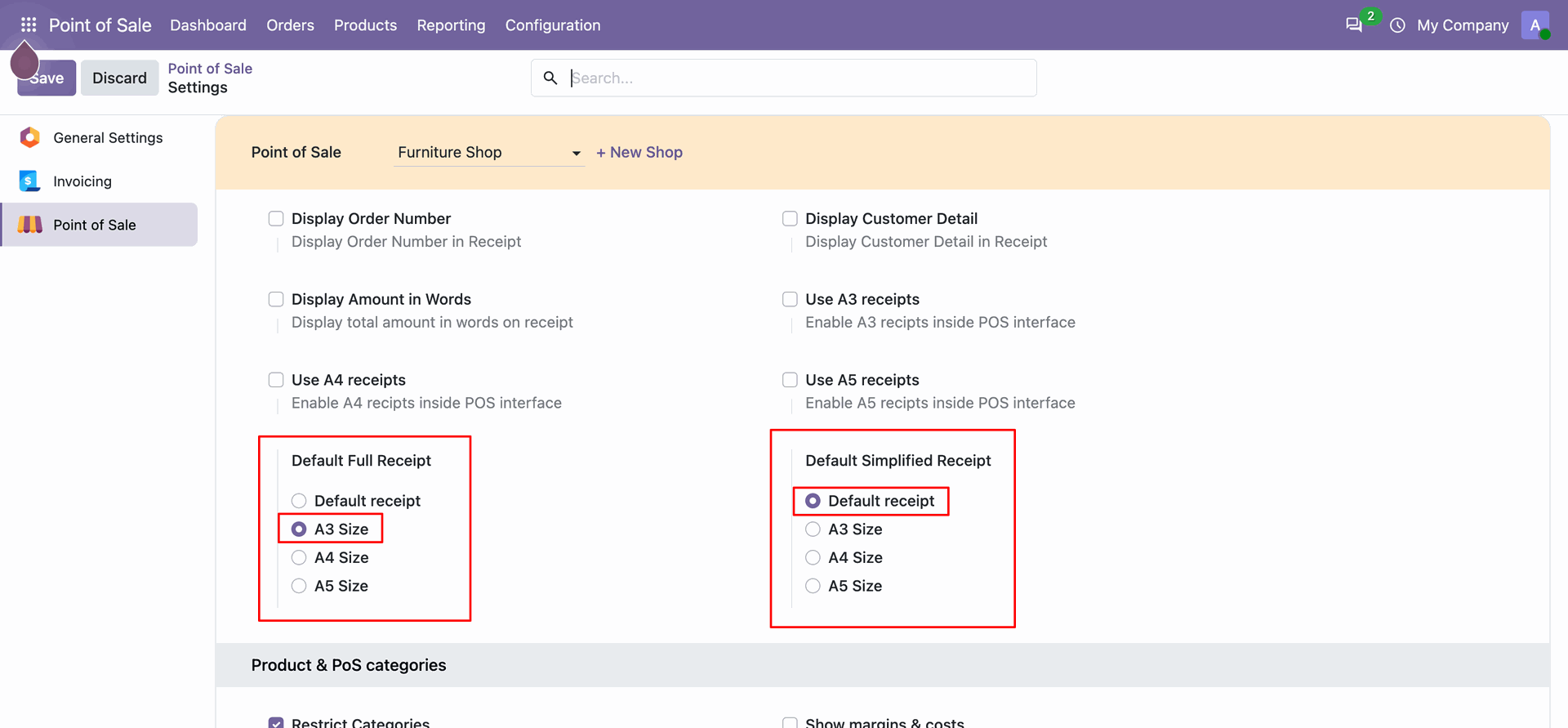
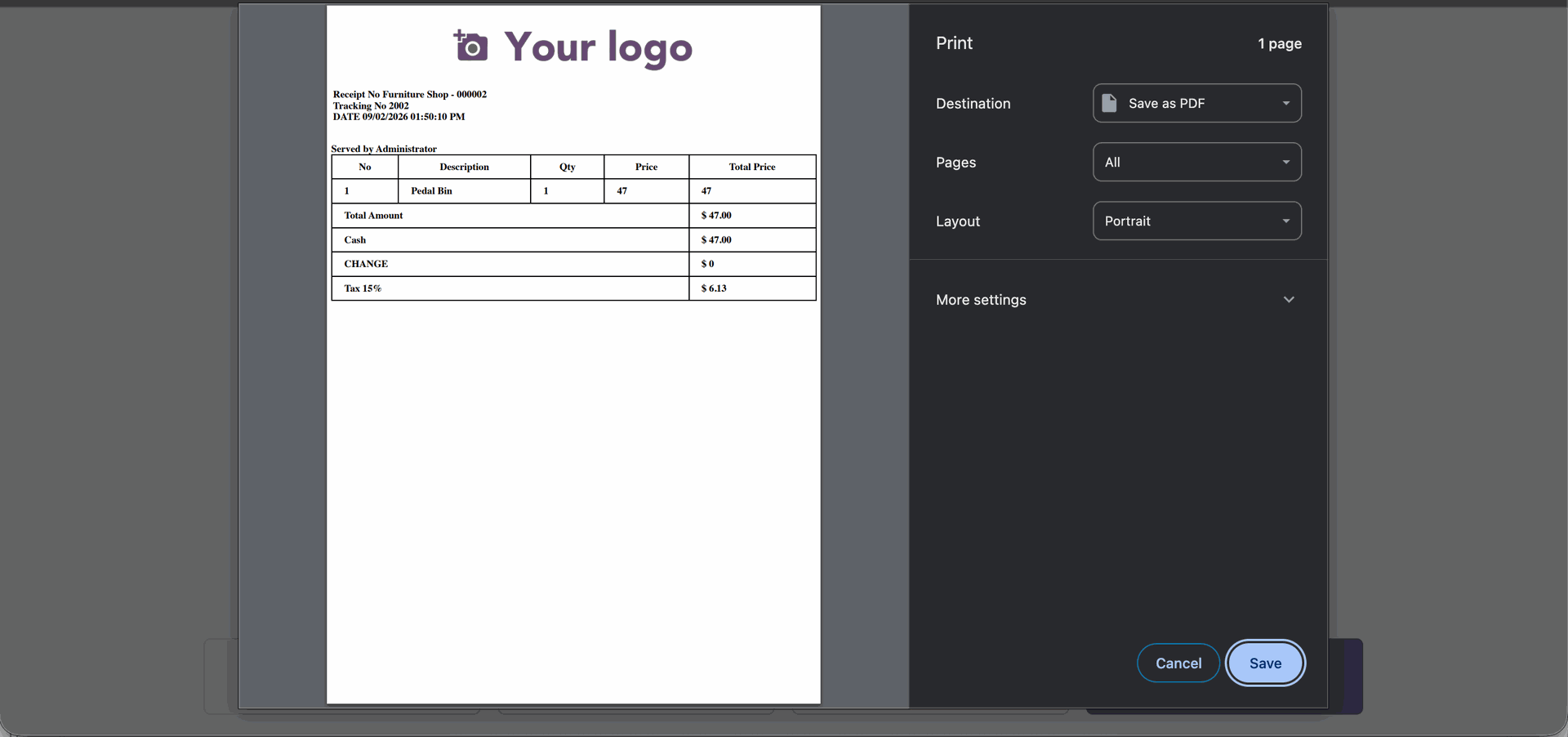
Go to the pos setting and select default full receipt 'Defaul Receipt'.
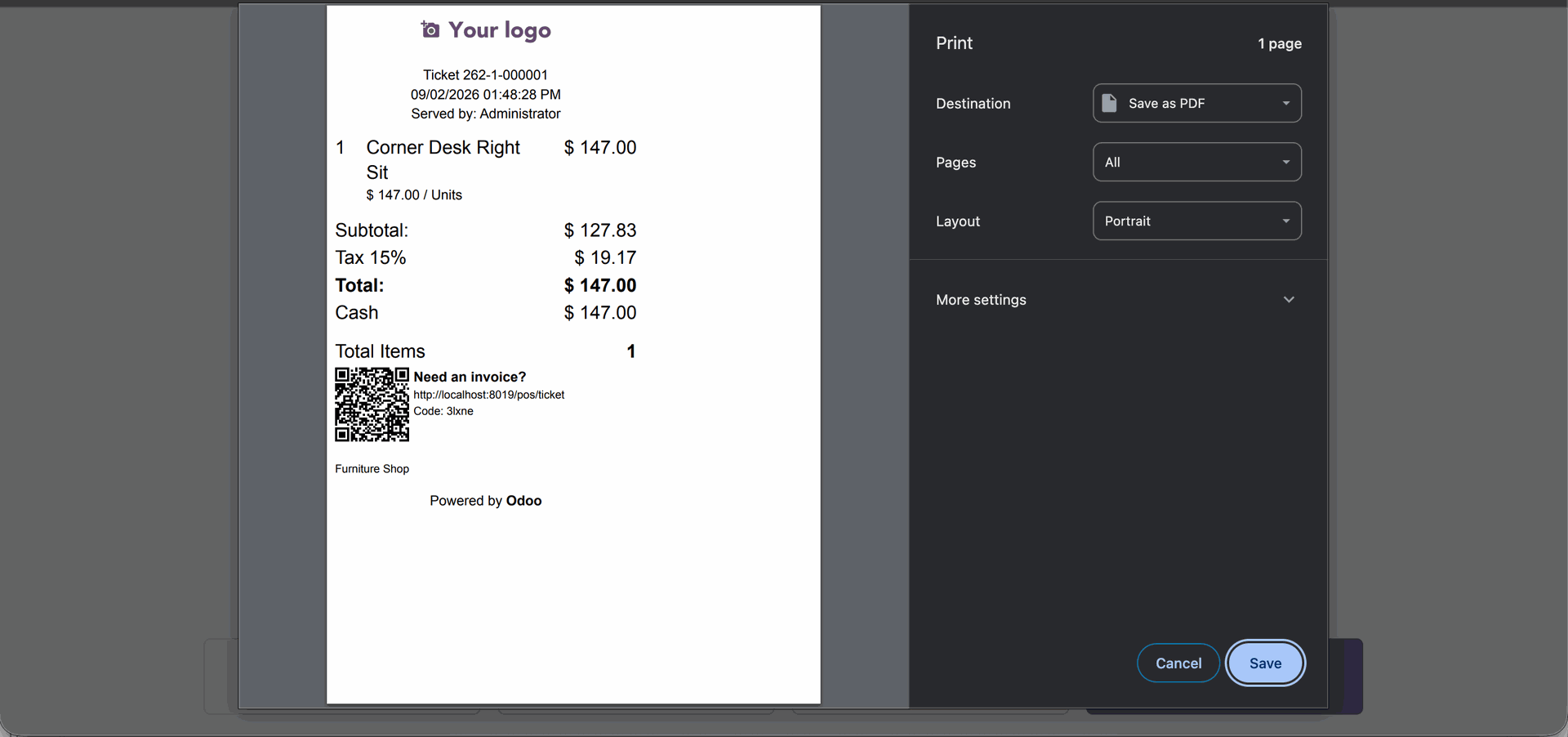
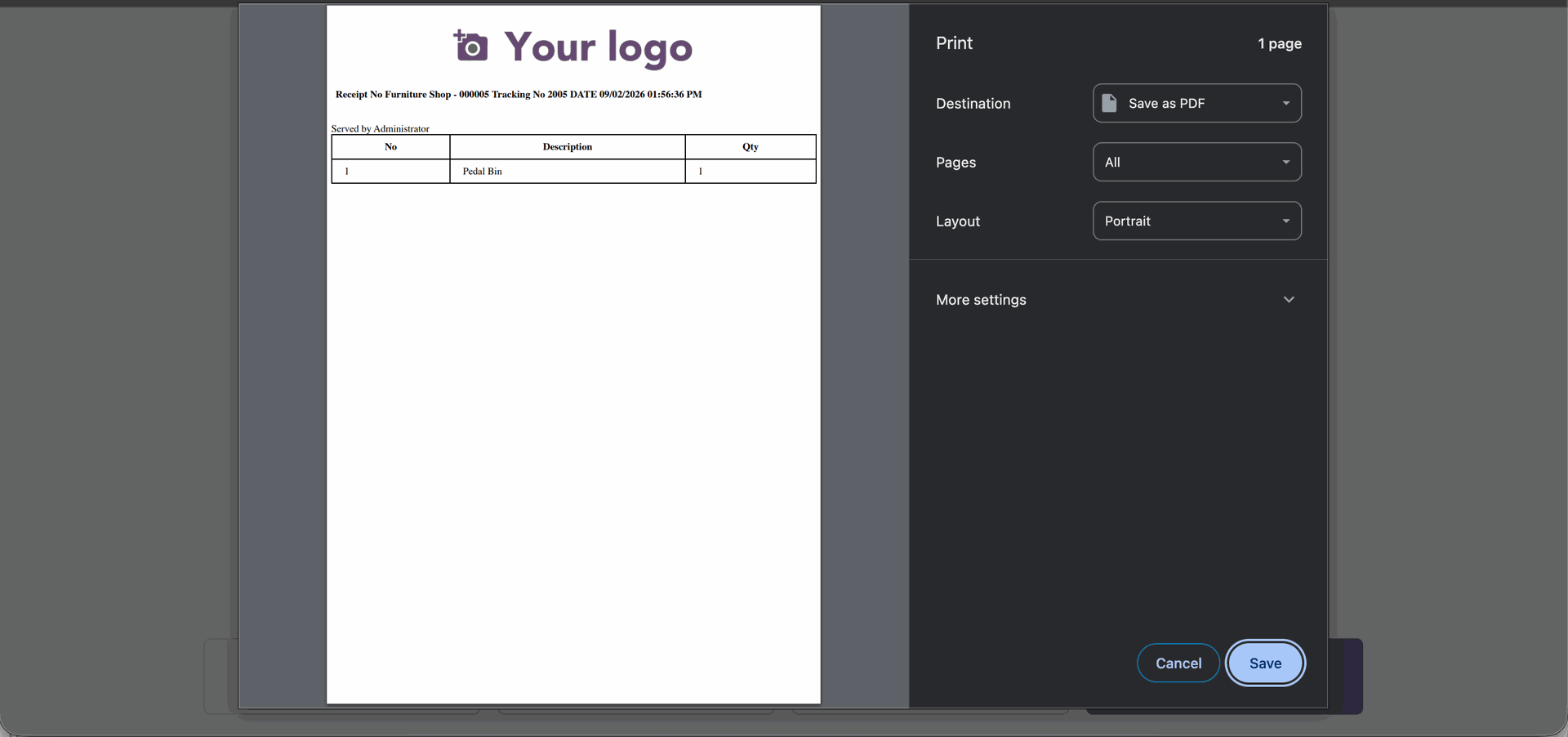
Click the Print button, then select Full Receipt in the Print Wizard.
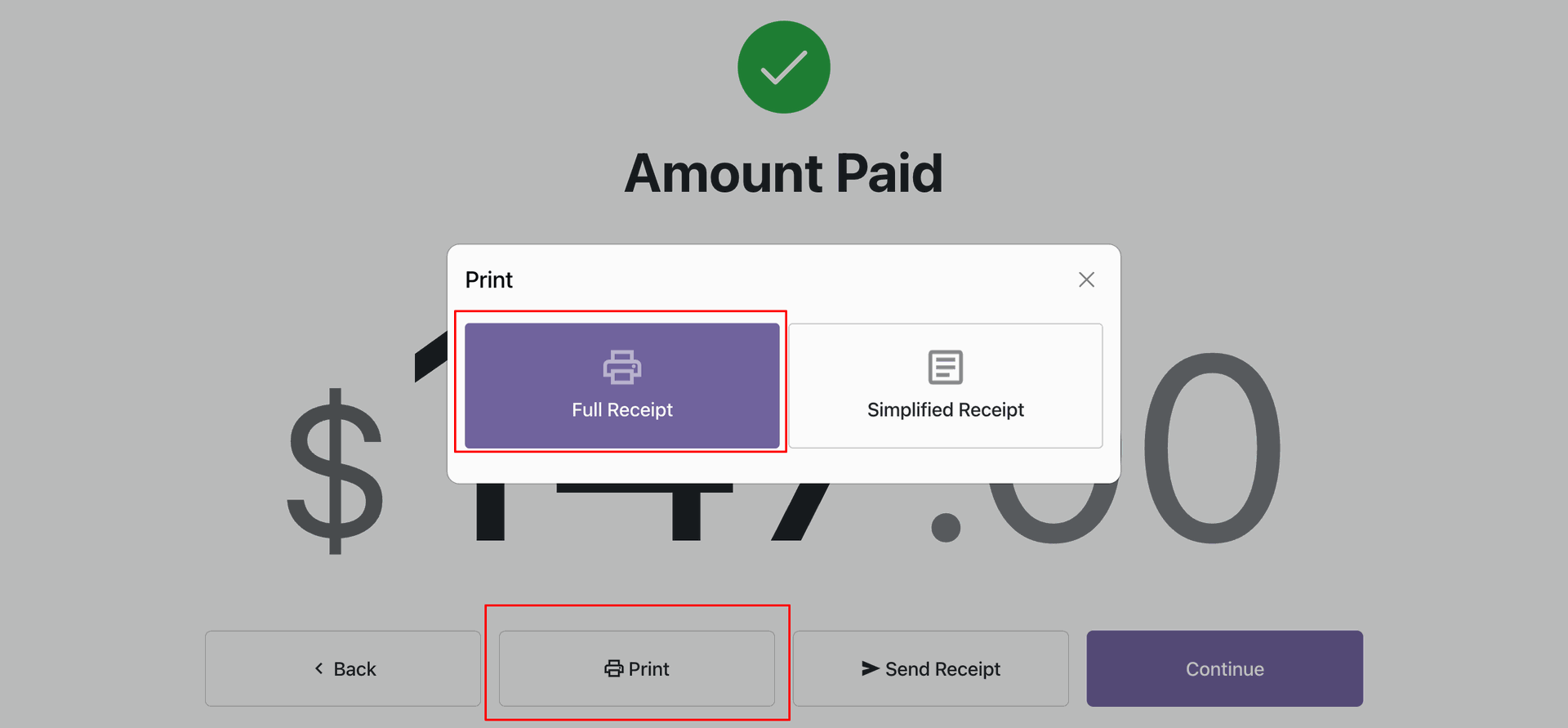
The full receipt is printed in the default receipt size.
Select default full receipt 'A3 Size' and select default Simplified receipt 'Defaul Receipt'.
Print A3 Full Receipt.
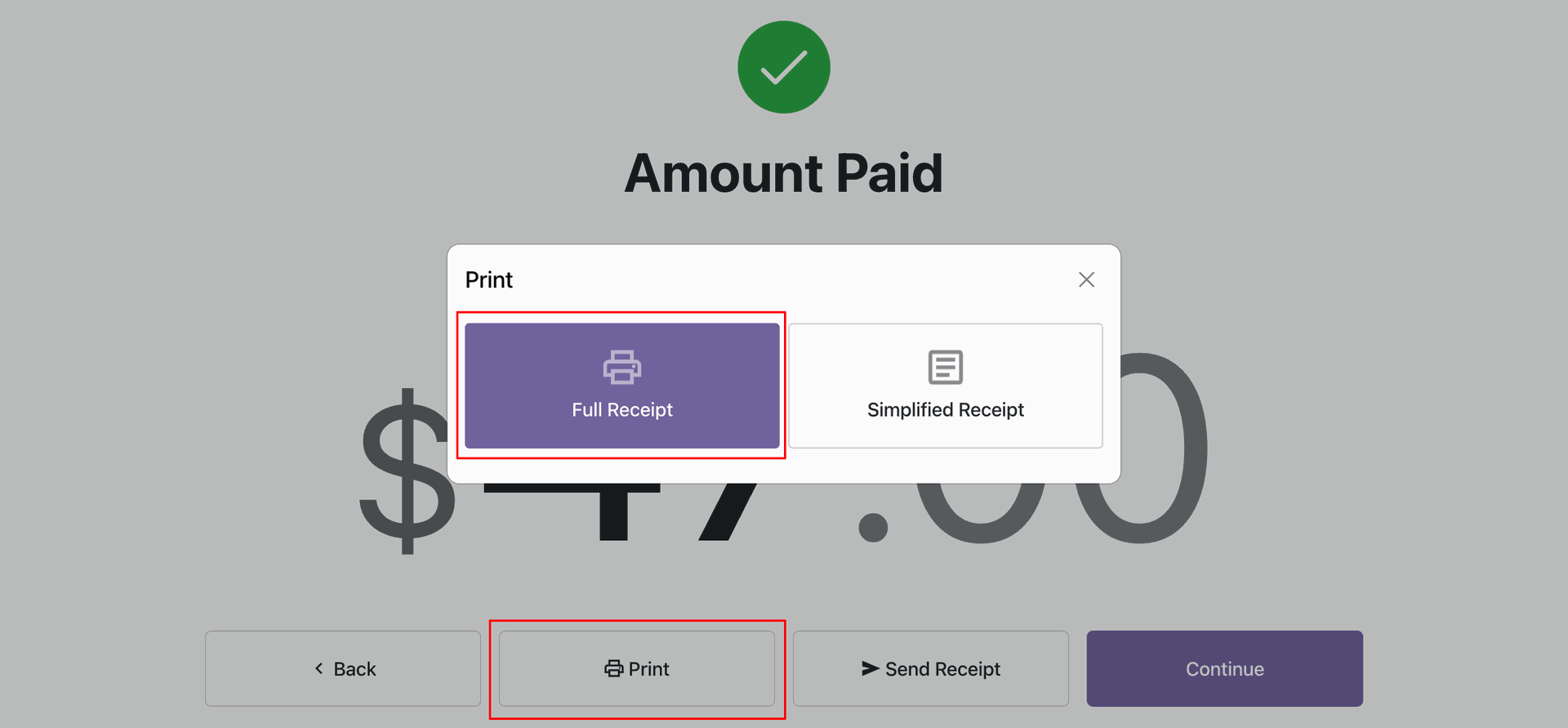
The full receipt is printed in the A3 size
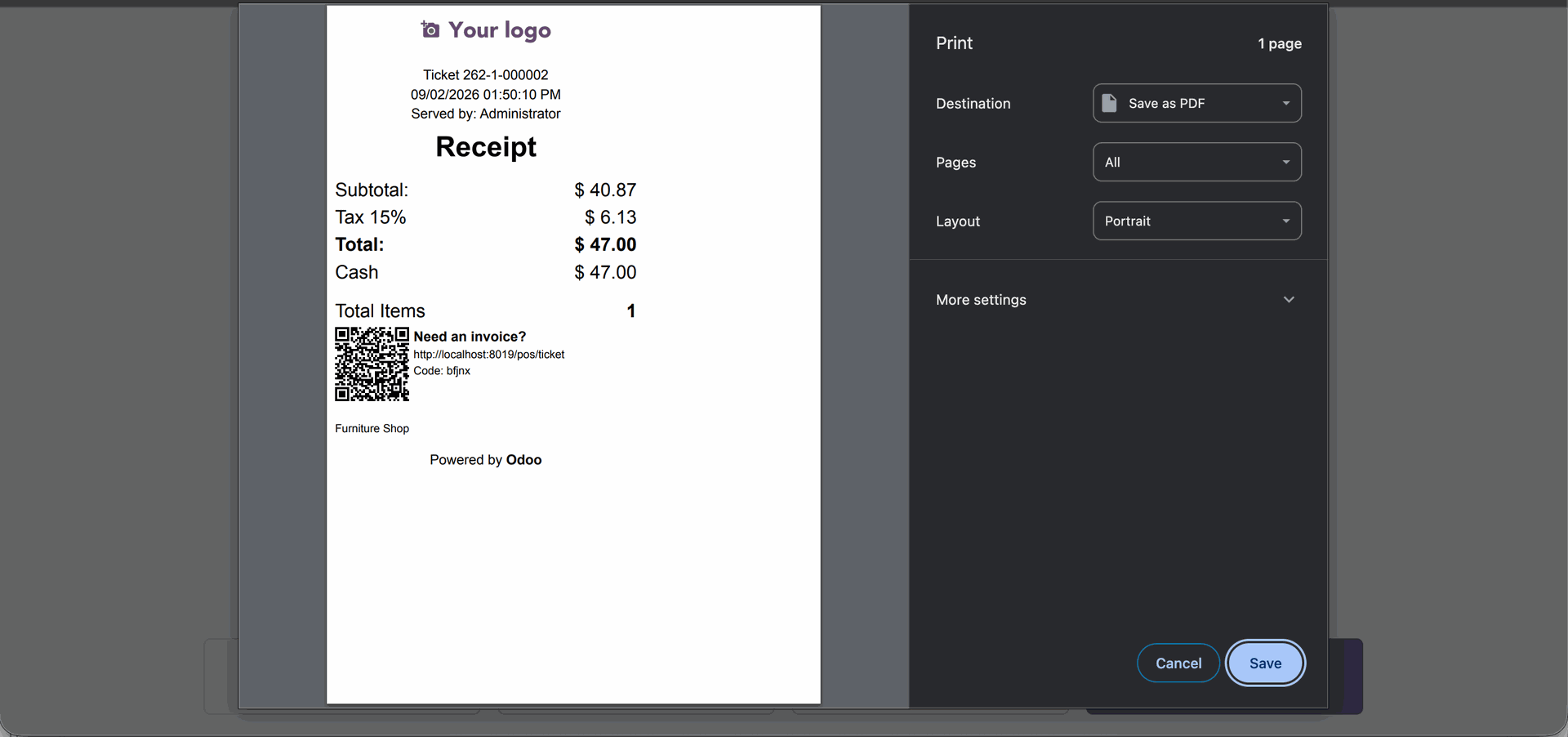
Print Default Simplified Receipt.
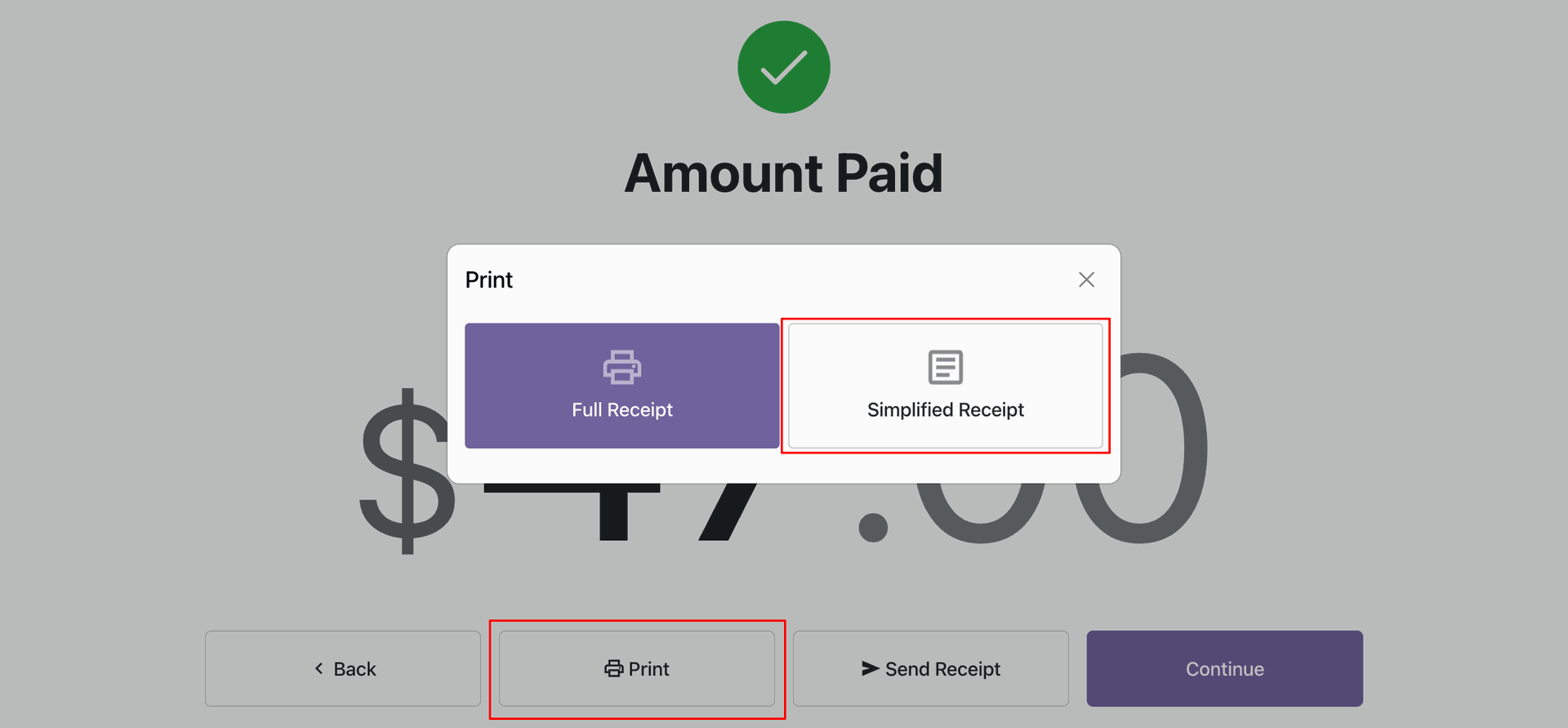
The Simplified receipt is printed in the Default receipt size
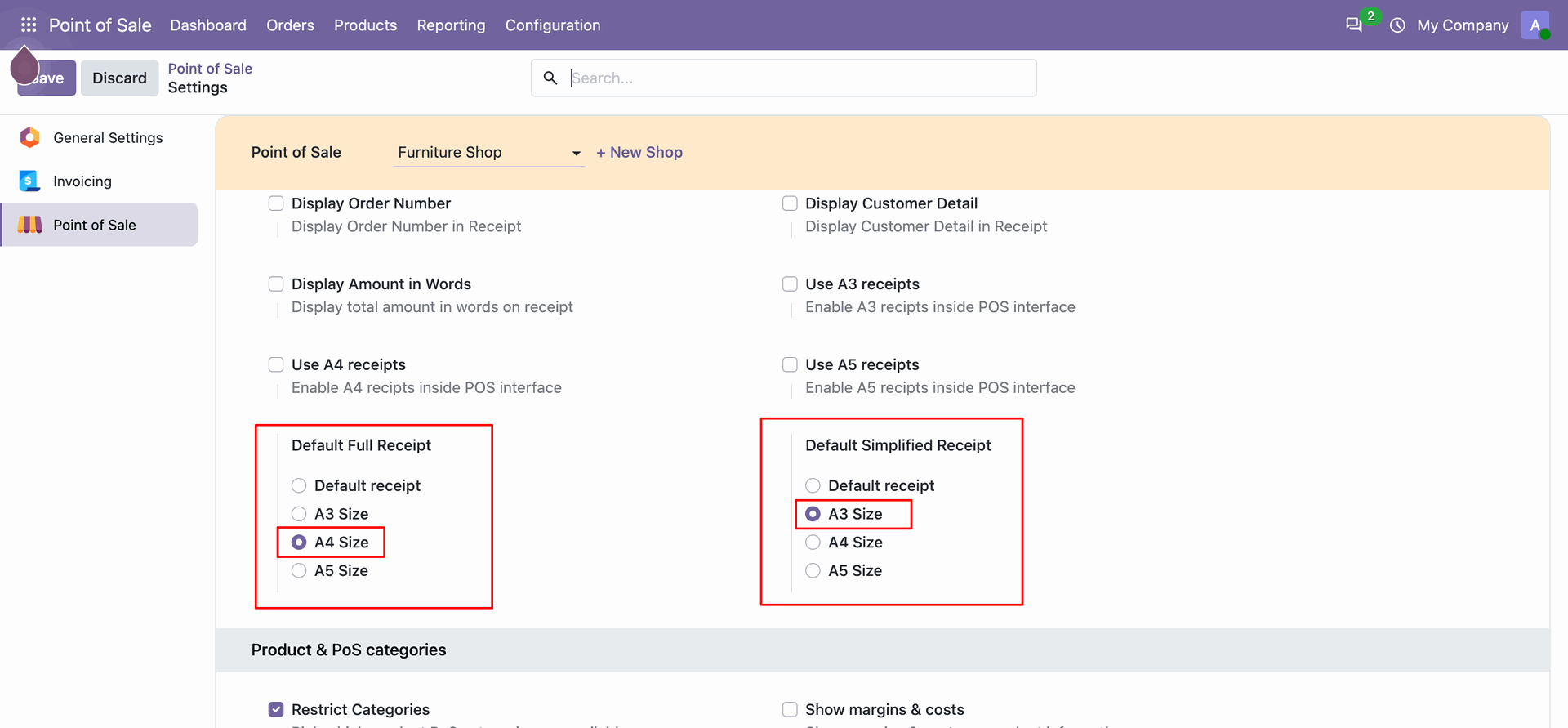
Select default full receipt 'A4 Size' and select default Simplified receipt 'A3' size.
Print A4 Full Receipt.
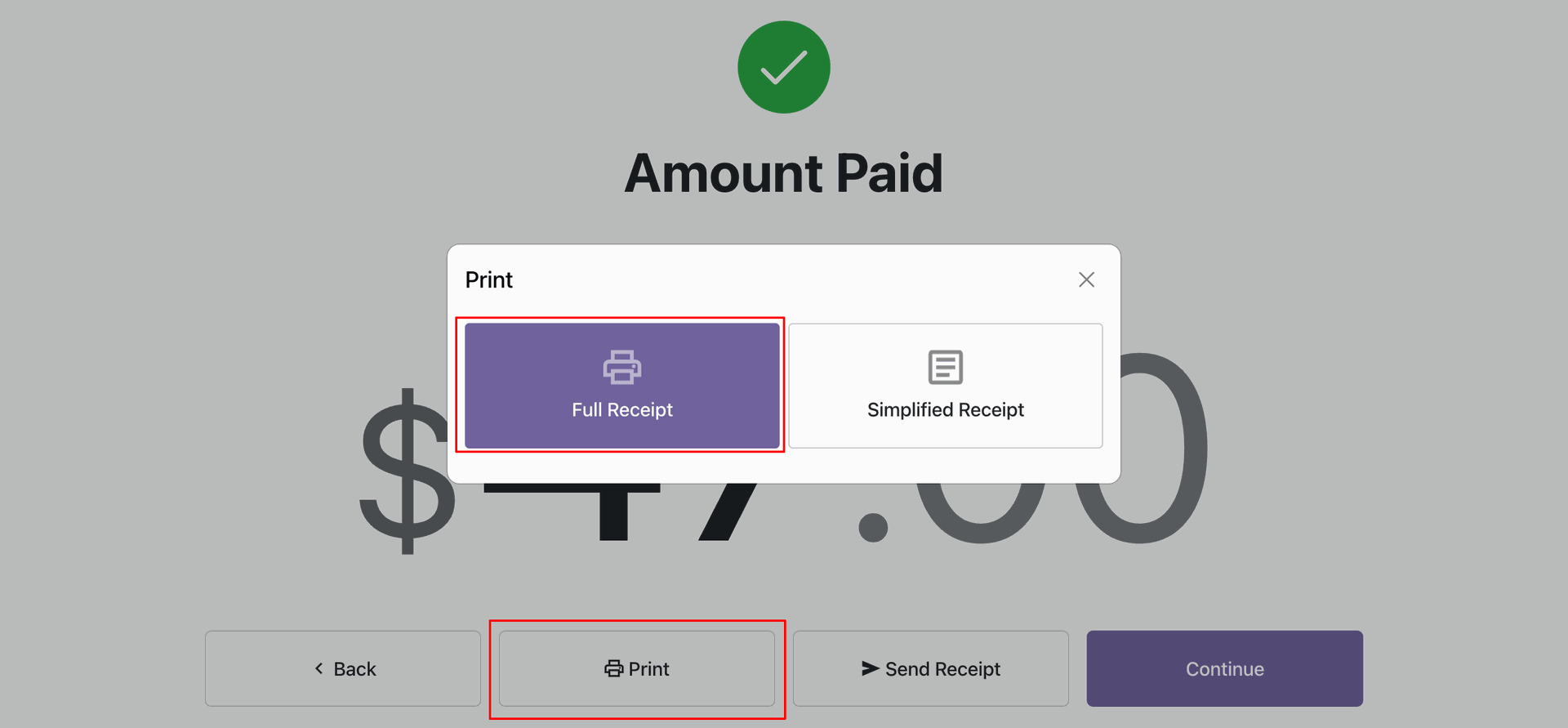
The full receipt is printed in the A4 size.
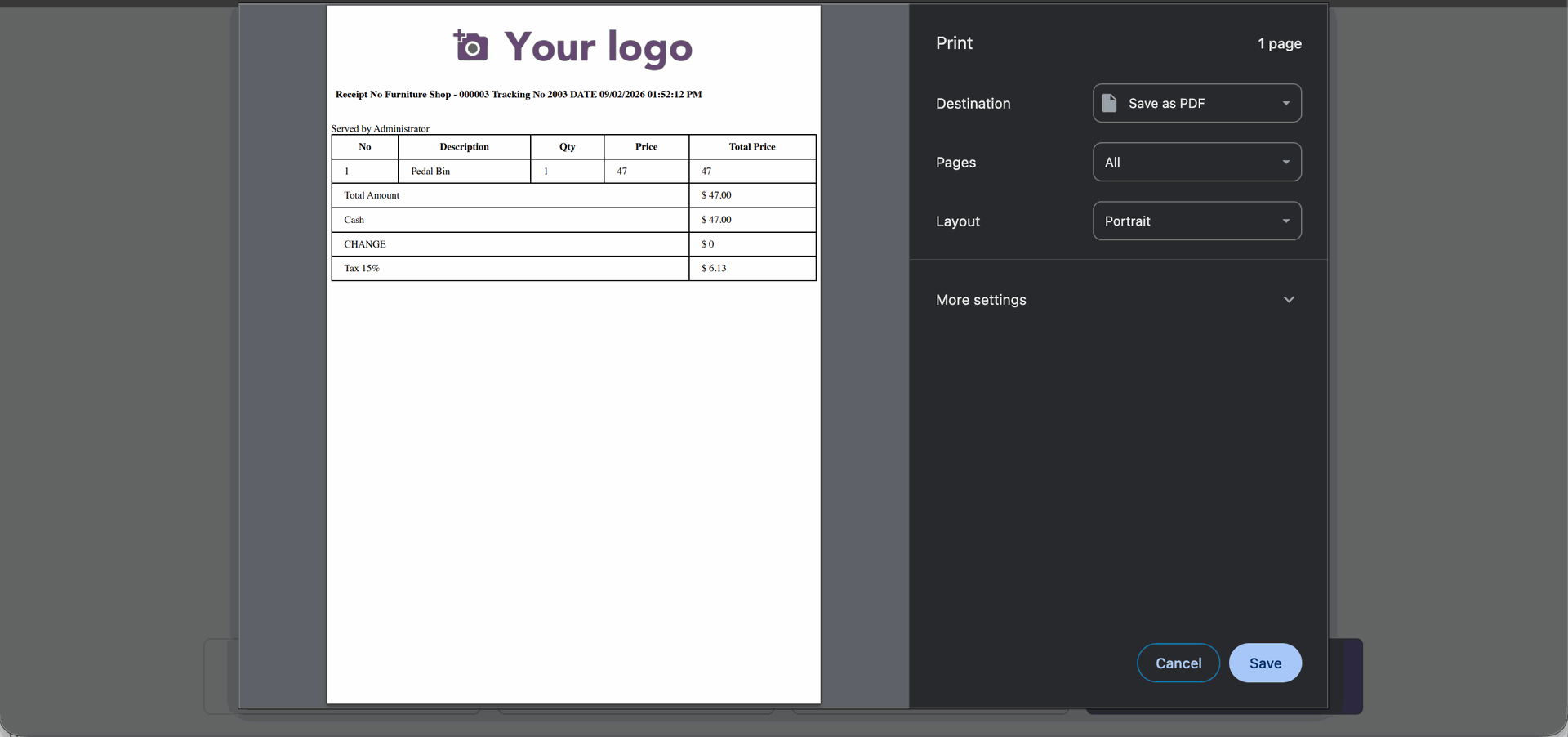
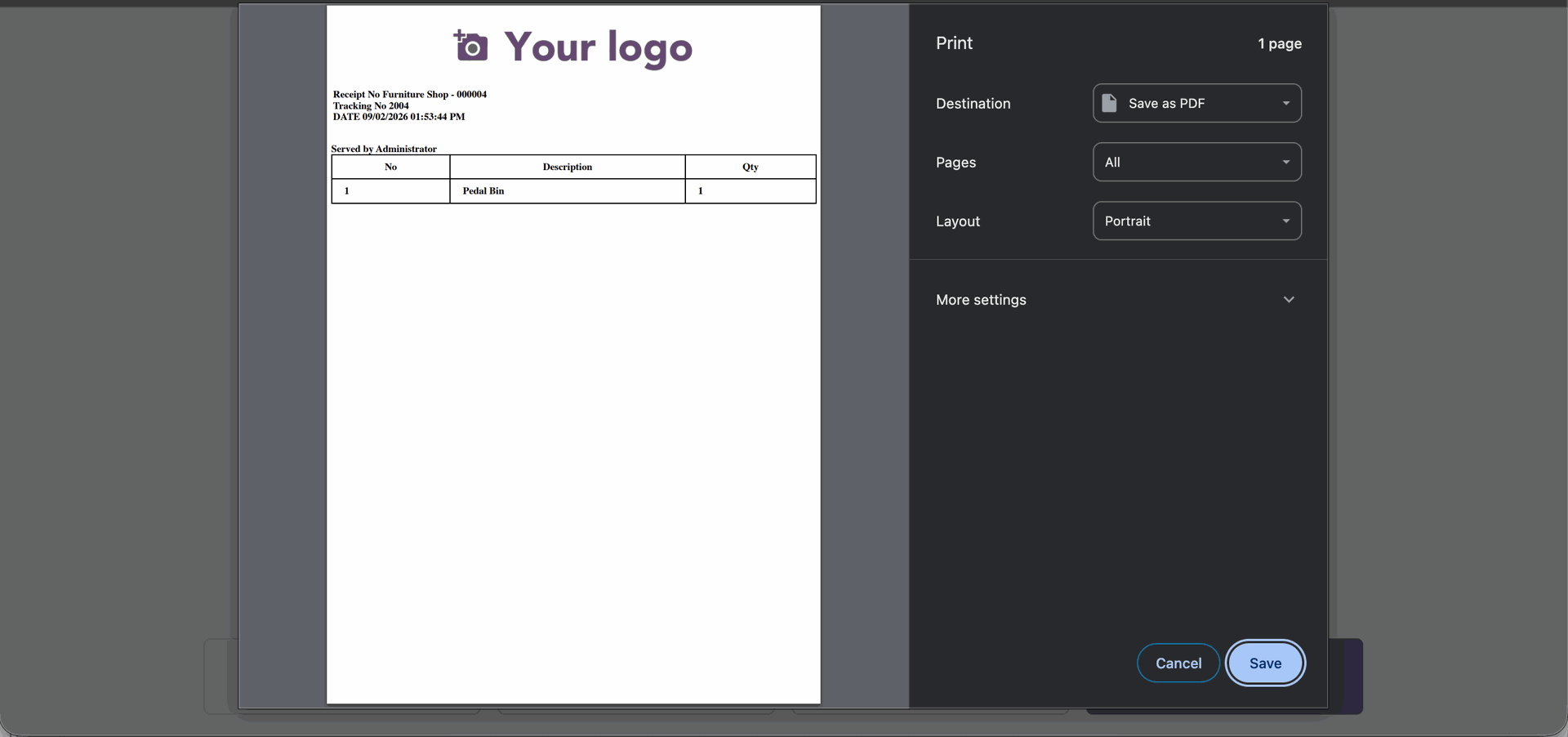
Print A3 size Simplified Receipt.
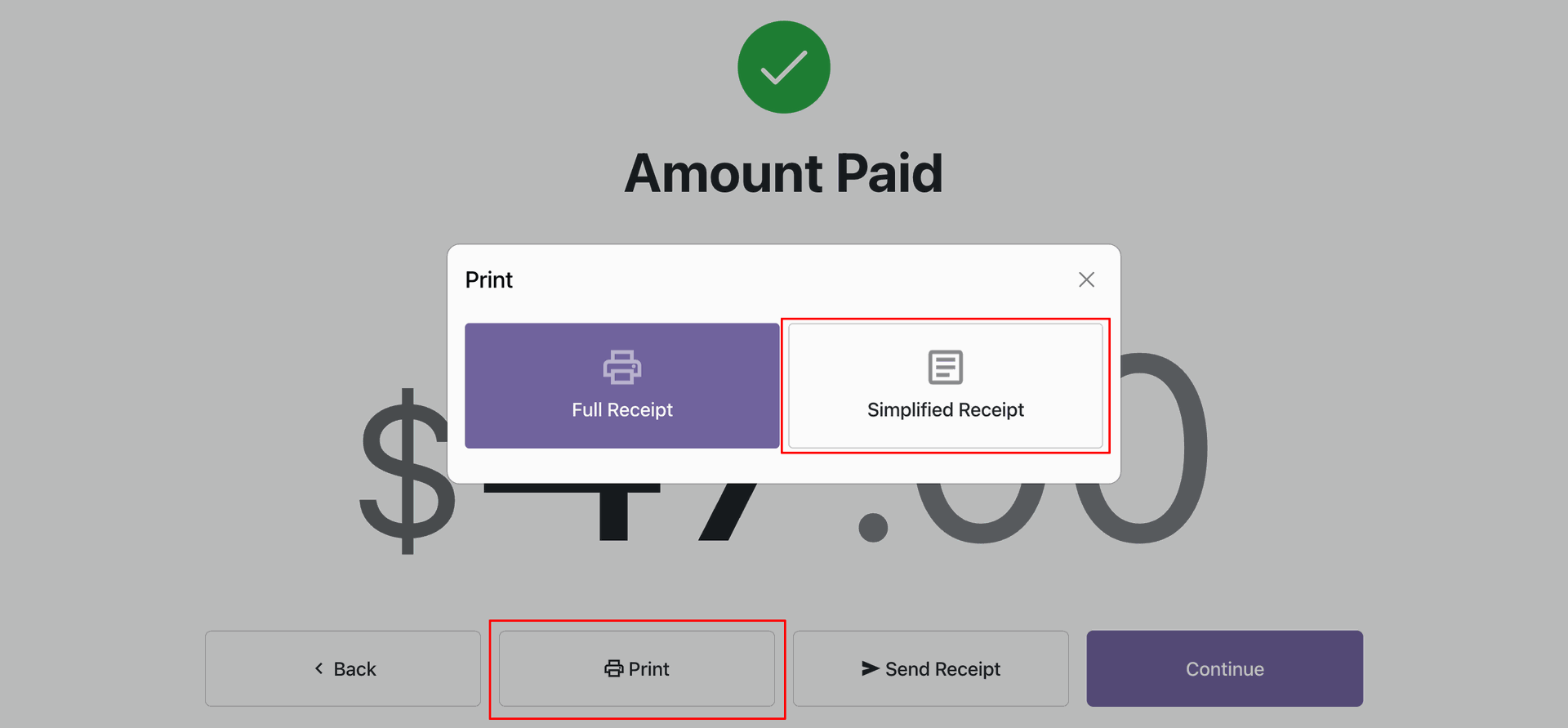
The Simplified receipt is printed in the A3 size.
Select default full receipt 'A5 Size' and select default Simplified receipt 'A4 Size'.
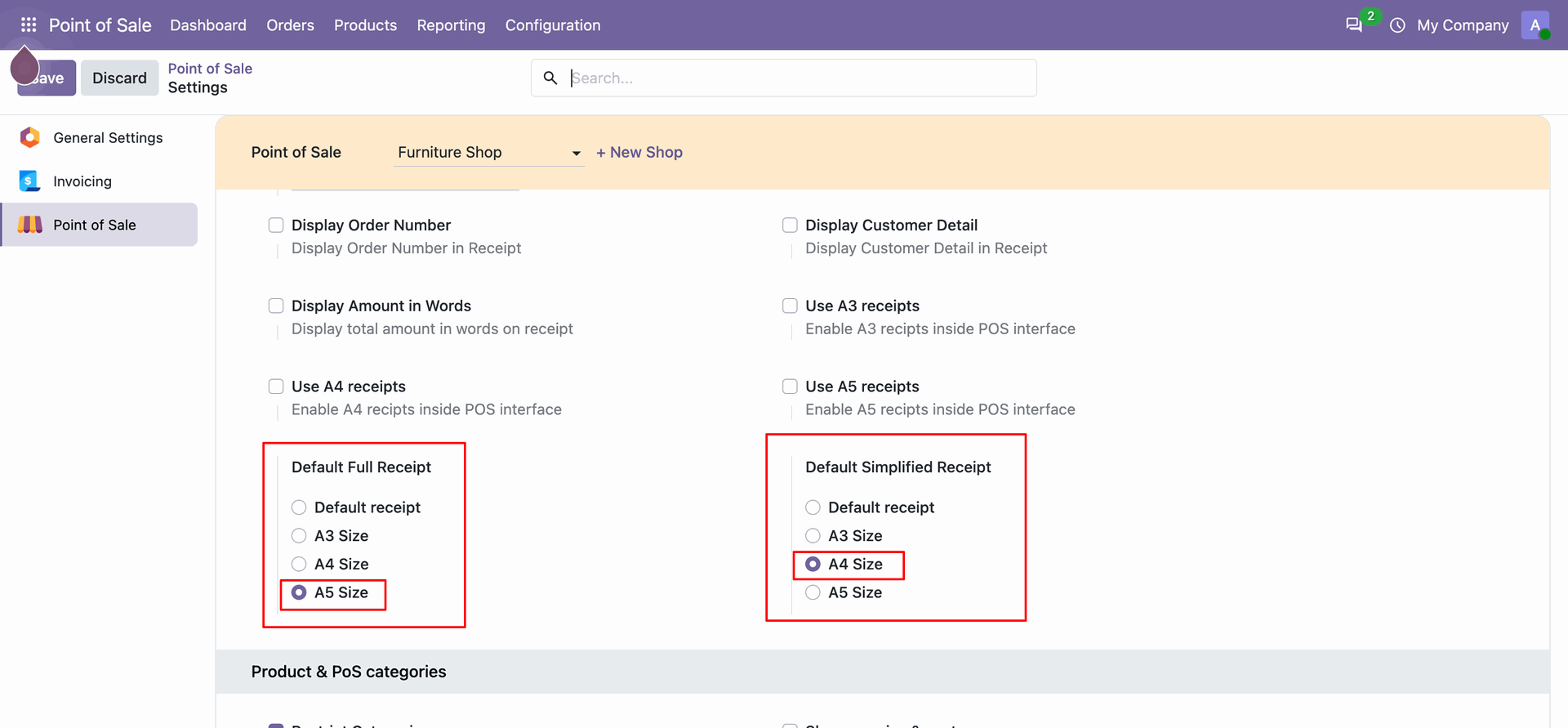
Print A5 Full Receipt.
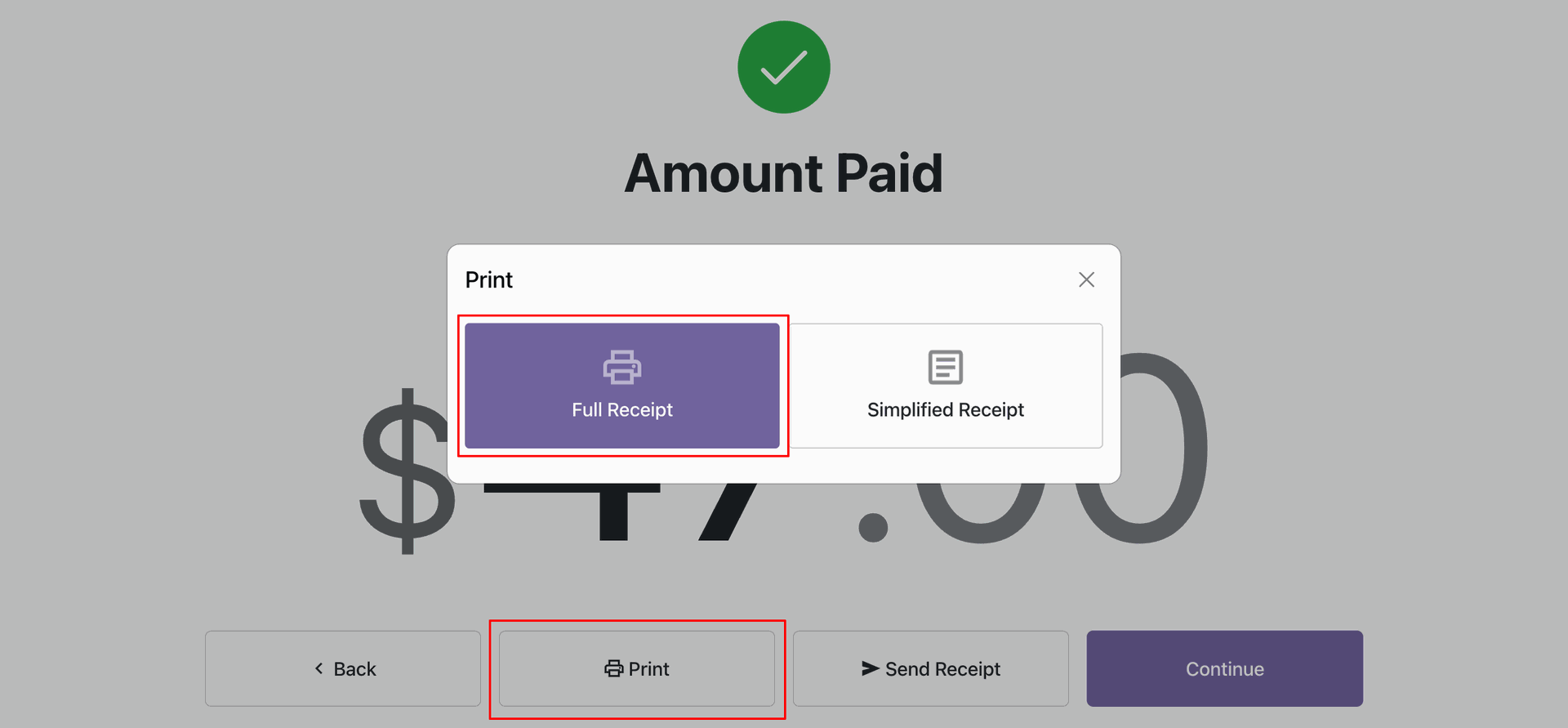
The full receipt is printed in the A5 size
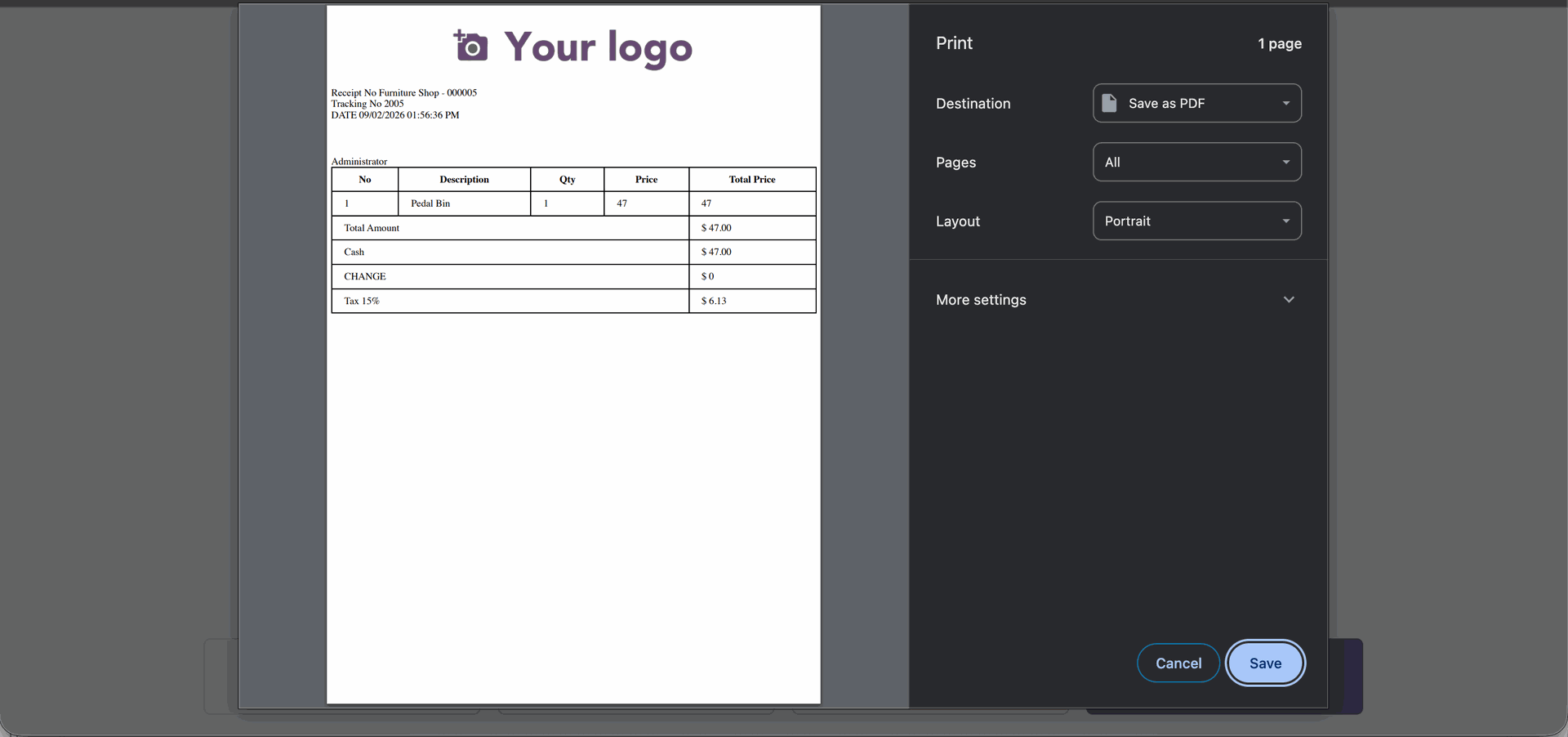
Print A4 size Simplified Receipt.
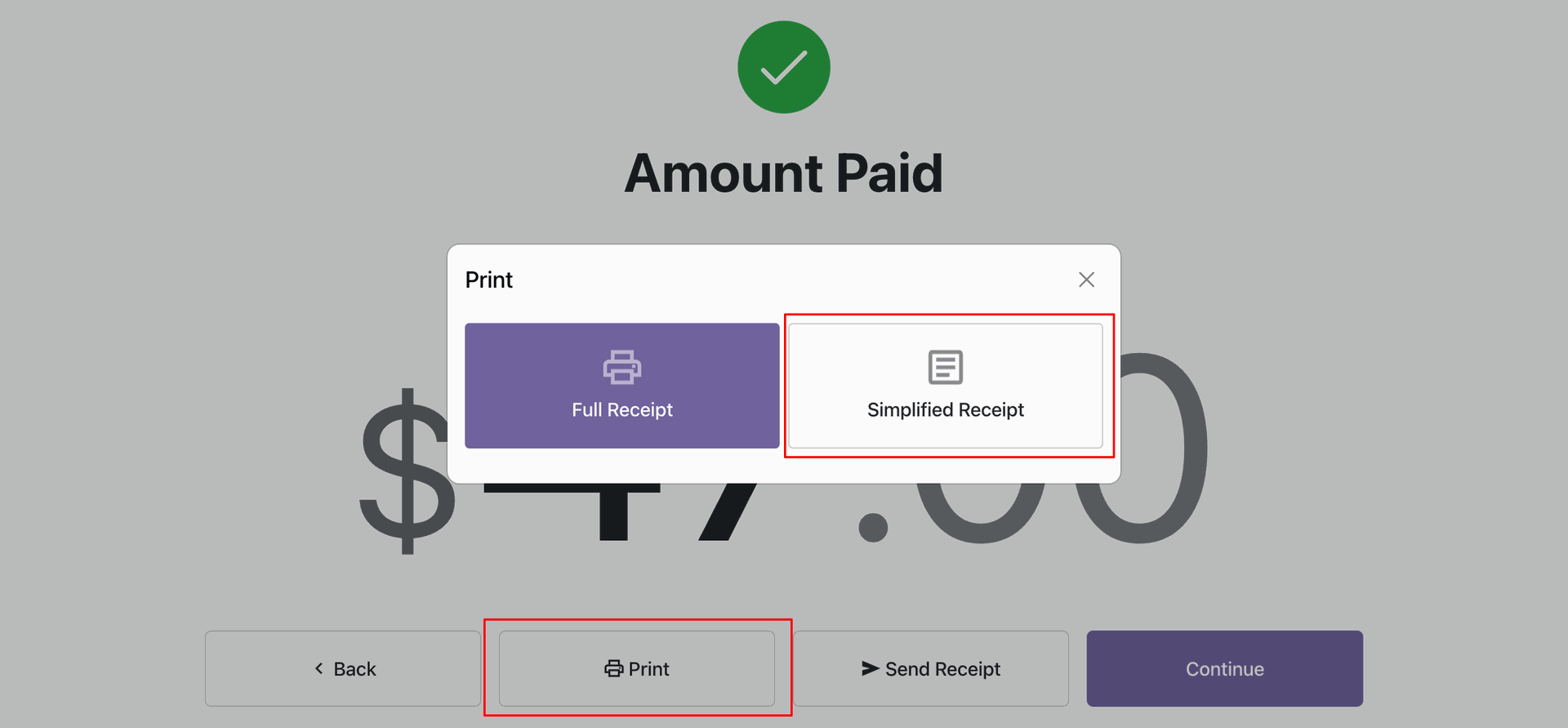
The Simplified receipt is printed in the A4 size
Version 20.0.1.0.0 | Released on : 16th September 2026
- Yes, this app works perfectly with Odoo Enterprise (Odoo.sh & Premise) as well as Community.
- No, this application is not compatible with odoo.com(odoo saas/Odoo Online)
- Yes, to test this module, please contact us at sales@softhealer.com.
- Please contact us at sales@softhealer.comto request customization.
- Yes, we provide free support for 365 days from the date of purchase.
- Yes, you will receive lifetime free updates for the version of the module you purchased.
- No, there is no need to install any additional libraries.
- Yes, for version 12 and above, you need to purchase the module separately for each version you intend to use.
- No, exchanges or refunds are not allowed. Please make sure to select the correct version before purchasing.
- You can contact us at support@softhealer.com for language translation support. We use Google Translator tools to provide translations in multiple languages, so the accuracy may vary. We welcome your suggestions to help improve translations.
Discover Our Latest Apps