










Paypal Express Checkout Payment Integration

The Paypal Express Checkout Payment Integration module seamlessly integrates your Odoo store with the Paypal payment gateway, enabling fast and secure online payments through supported credit/debit cards and other Paypal payment methods. It enhances the checkout experience with customizable payment status messages and automatic notifications, while offering full multi-website compatibility so each site can manage its own payment settings. The module also supports processing refunds directly from Odoo for smoother cancellations, maintains complete transaction history for easy tracking, and handles multi-currency payments with accurate conversions. Additionally, customers can securely pay through a dedicated self-service payment portal, ensuring a reliable and convenient payment experience for your e-commerce business.
Related Modules
Key Features
Features
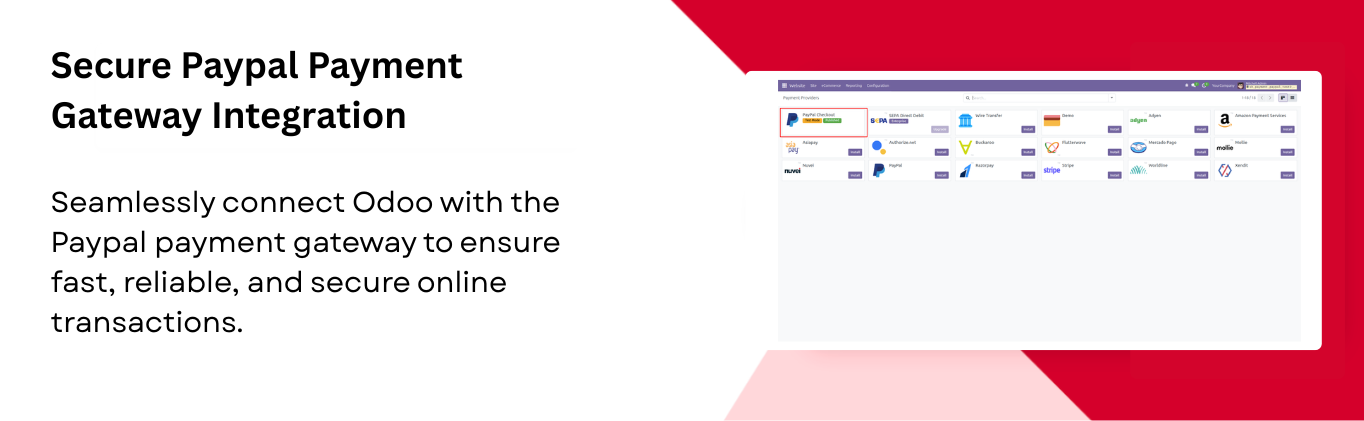
Secure Paypal Express Checkout Payment Gateway Integration
Connect your store with Paypal Express Checkout for fast and secure payment processing.
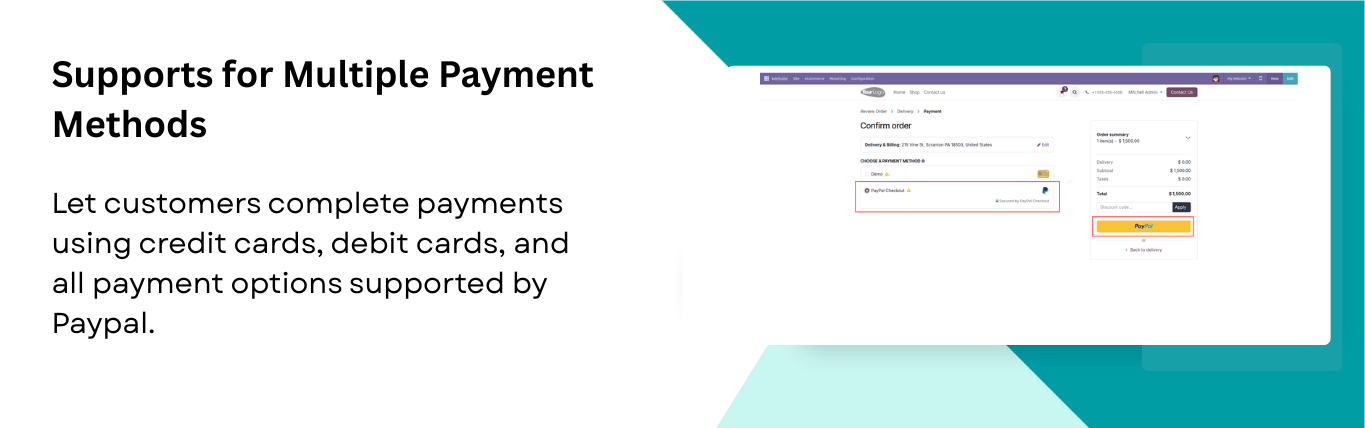
Support for Multiple Payment Methods
Allow customers to pay via credit/debit cards or any other payment methods supported by Paypal Express Checkout.
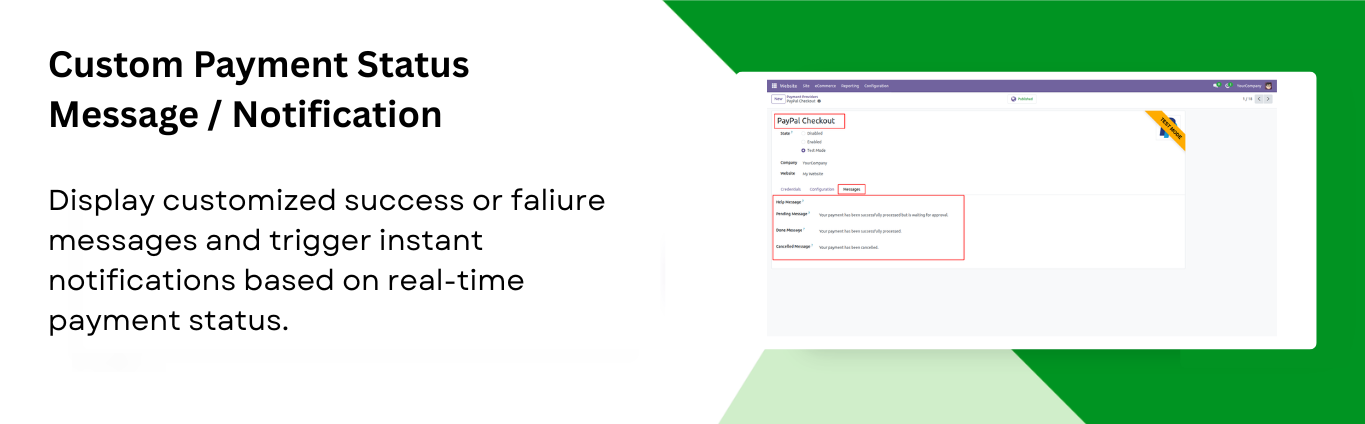
Custom Payment Status Message / Notification
Show personalized success/failure messages and send notifications after each payment update.
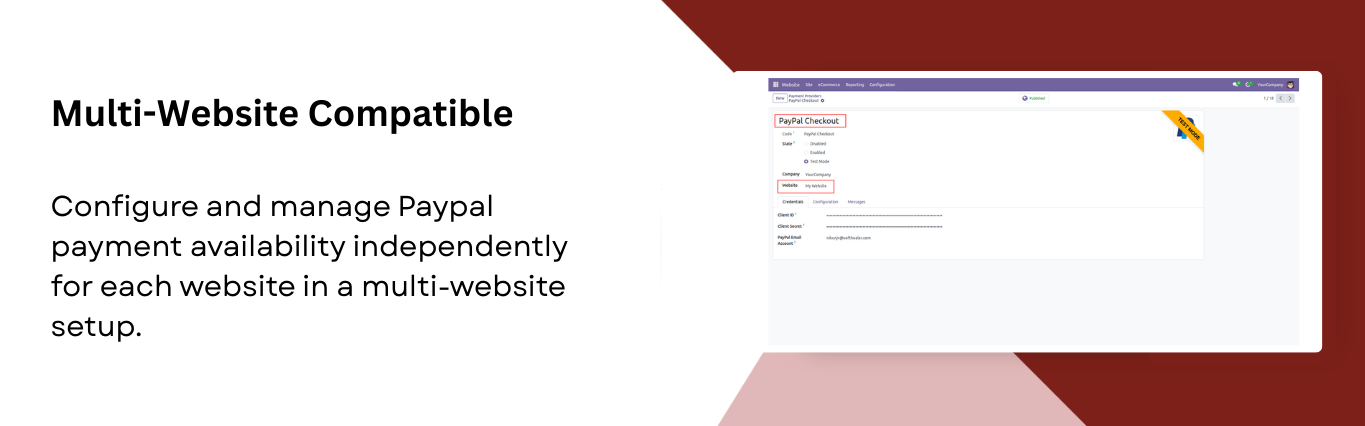
Multi-Website Compatible
Enable payment methods separately for each website in a multi-website environment.
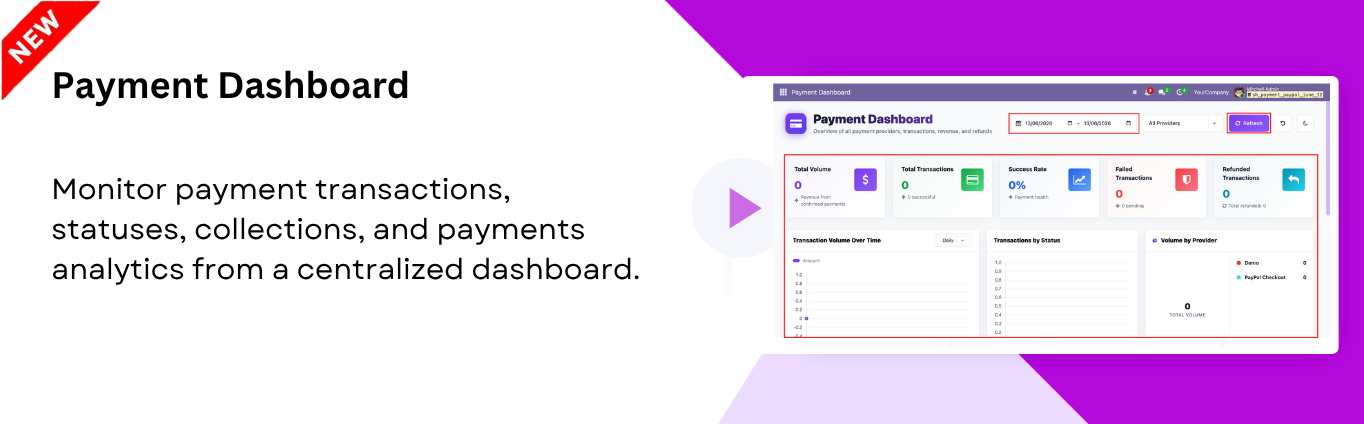
Payment Dashboard

Monitor payment transactions, statuses, collections, and payment analytics from a centralized dashboard.
Refund Support for Paypal Express Checkout Payments
Process refunds directly from Odoo for any order paid through Paypal Express Checkout. Ensuring smooth handling of cancellations.
Transaction History
Maintain a transaction history in Odoo for all payments processed through Paypal, making payments straightforward.
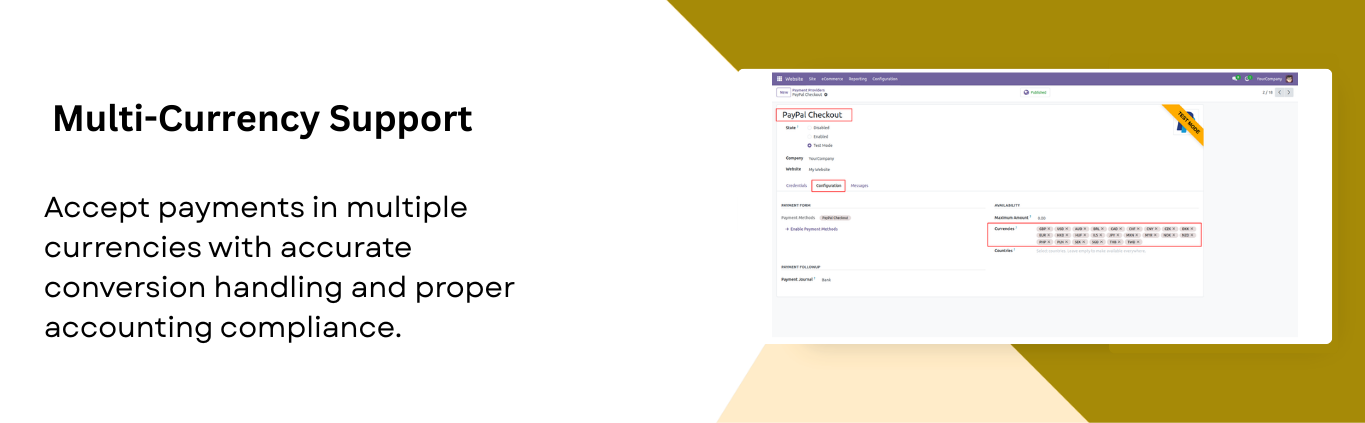
Multi-currency Support
Accept and process payments in multiple currencies with accurate conversions and compliant accounting.
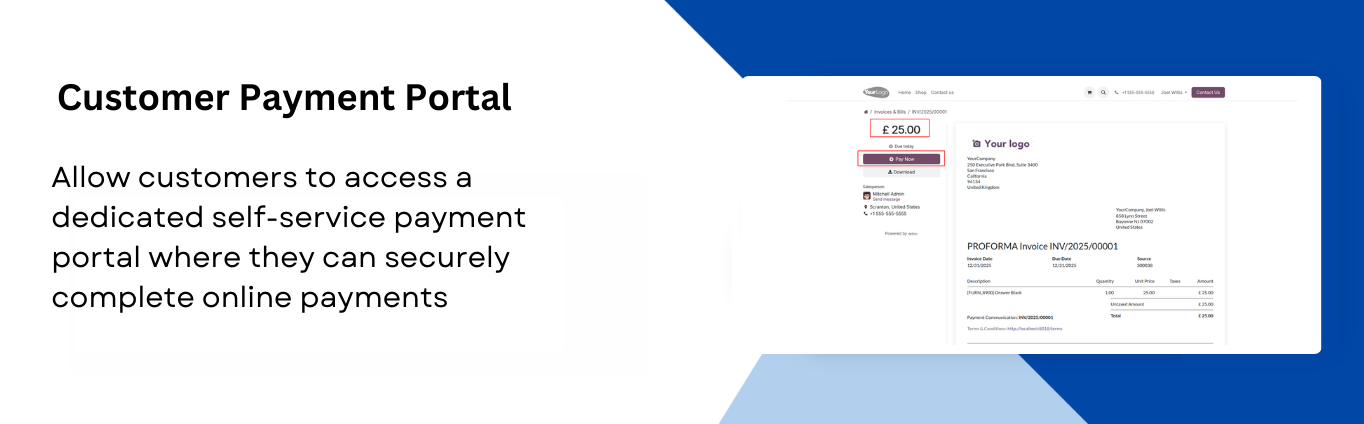
Customer Payment Portal
Let customers pay online securely through a self-service payment portal.
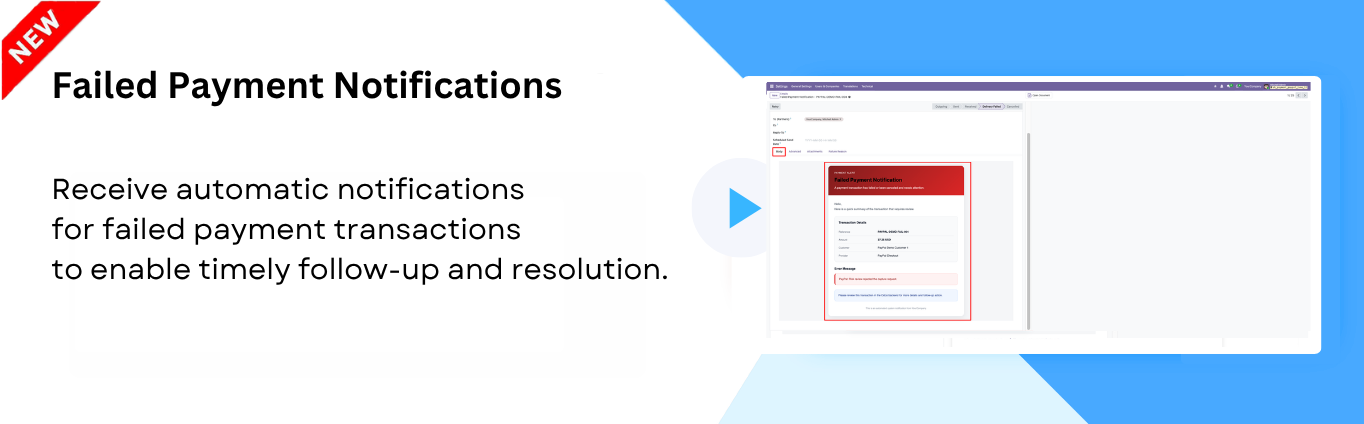
Failed Payment Notifications
Receive automatic notifications for failed payment transactions to enable timely follow-up and resolution.

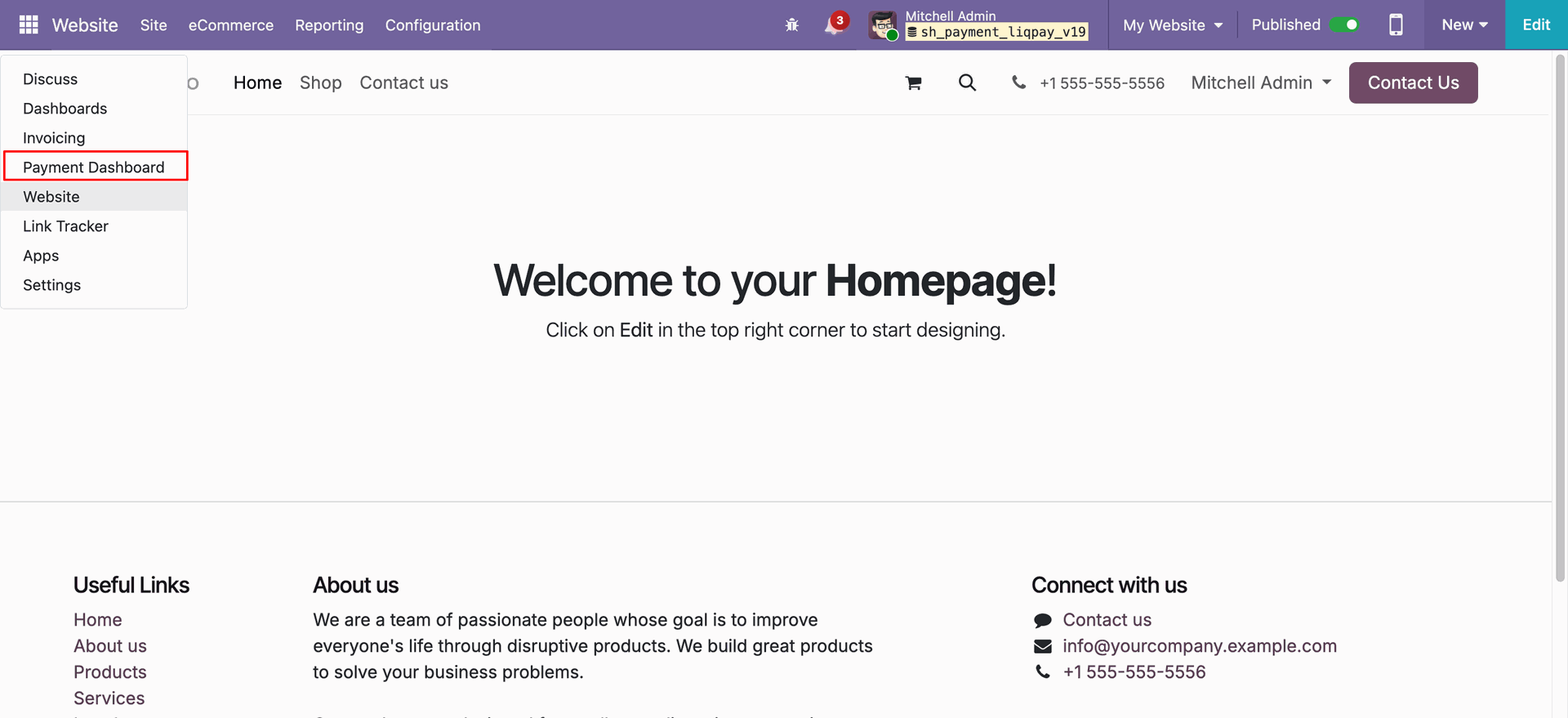
Click on the Payment Dashboard from the Apps to view payment related information.
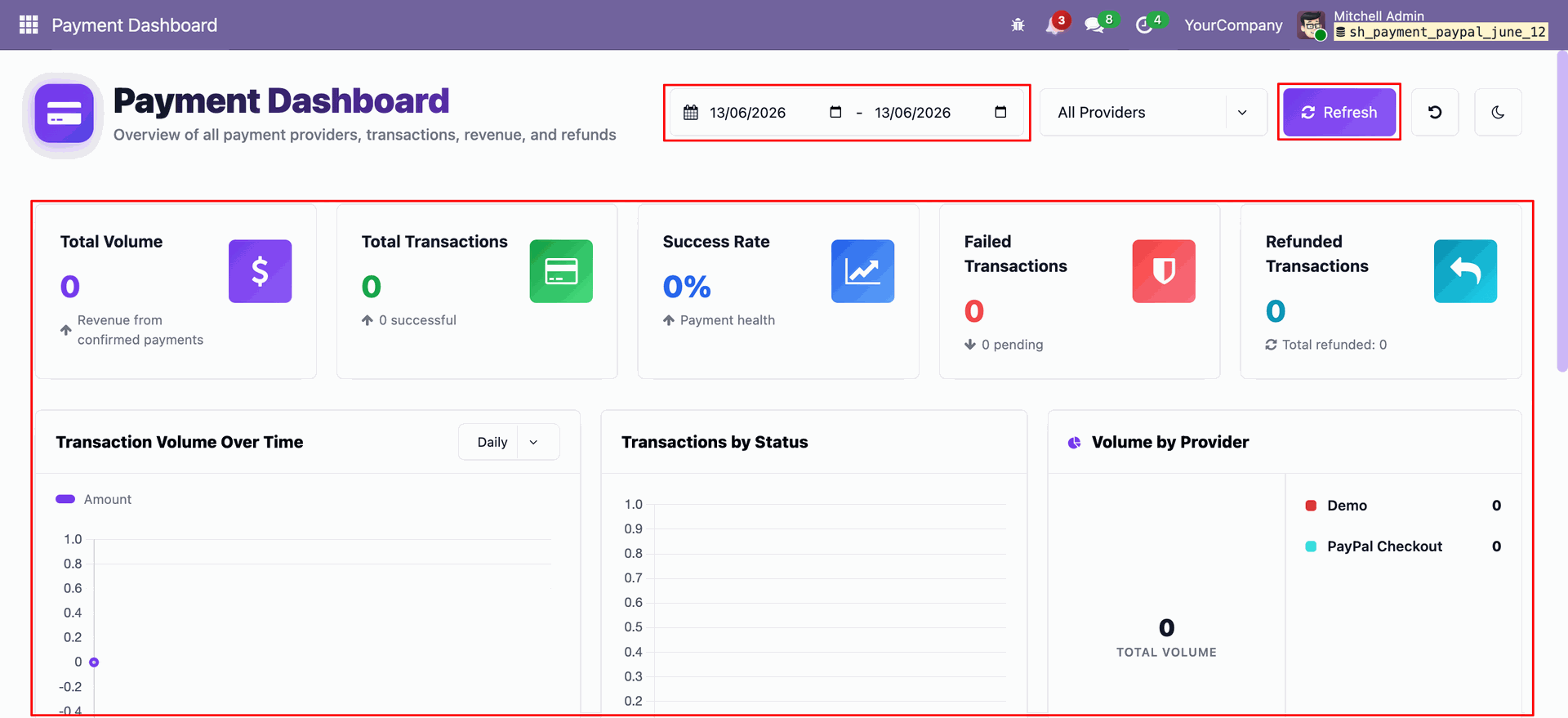
The Payment Dashboard provides an overview of payment activities, including Total Volume, Total Transactions, Success Rate, Failed Transactions, and Refunded Transactions.
Users can filter the data using From Date, To Date, and Provider filters, refresh the dashboard using the Refresh button.
Select Paypal Checkout from the Provider filter on the Payment Dashboard to view payment statistics, transactions, revenue metrics, and charts related specifically to Paypal.
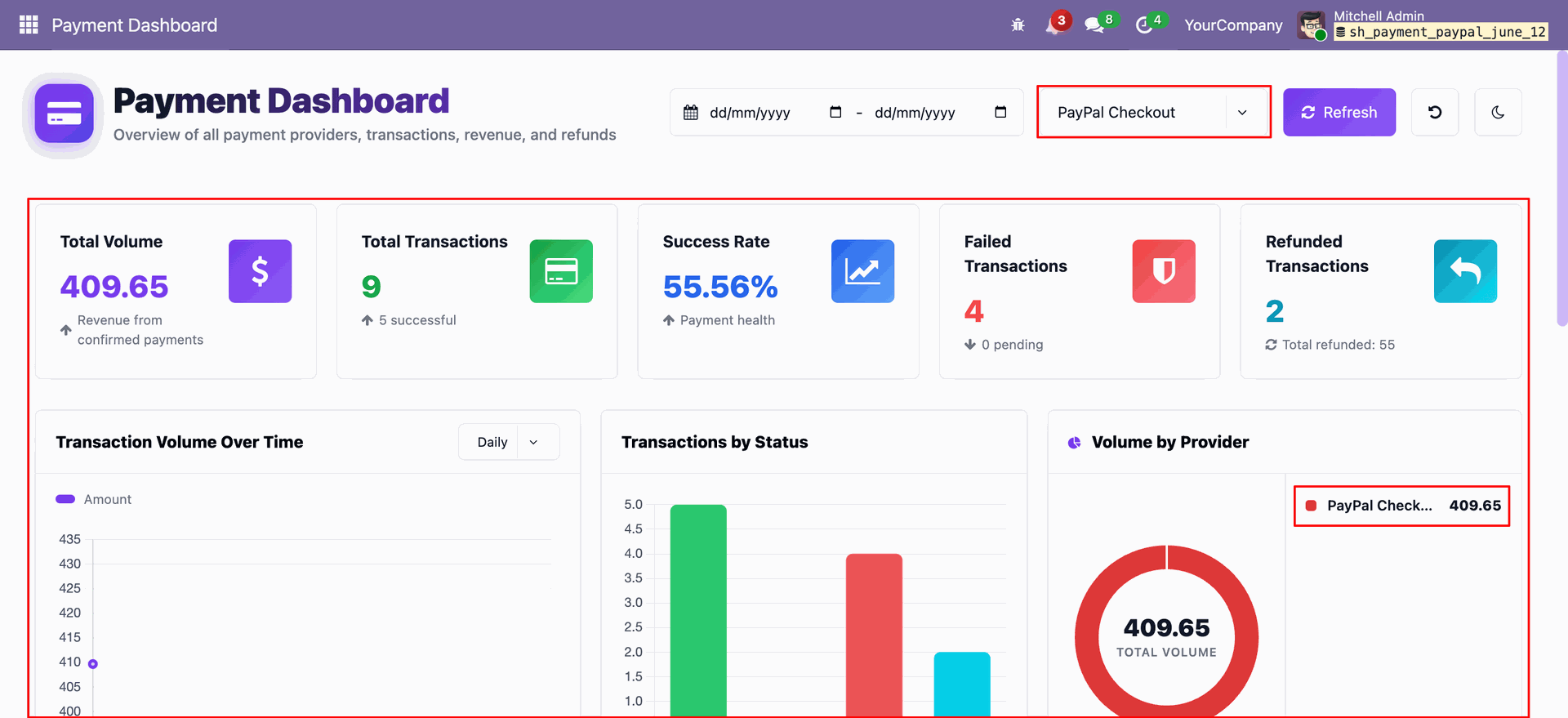
Click on the Total Volume tile from the Payment Dashboard to View all confirmed transactions.
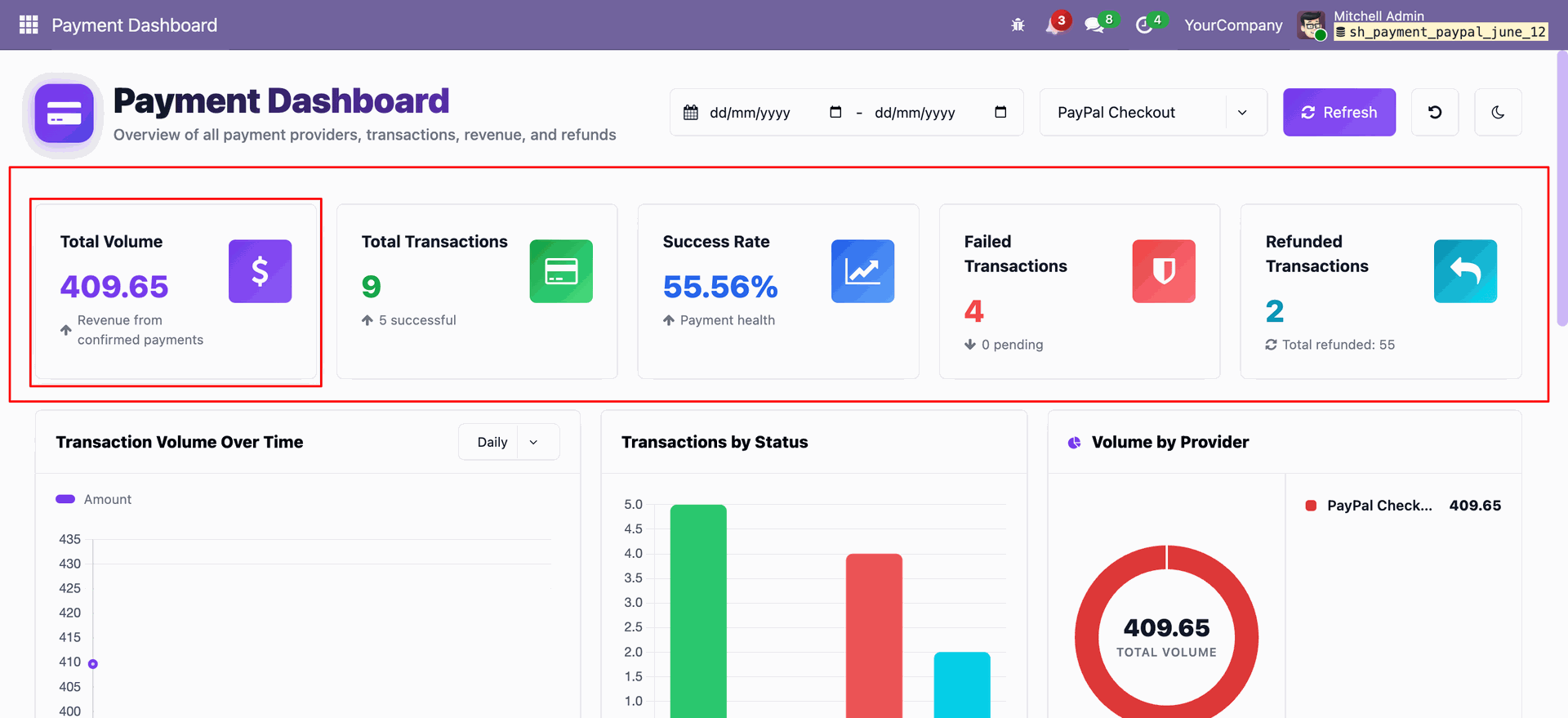
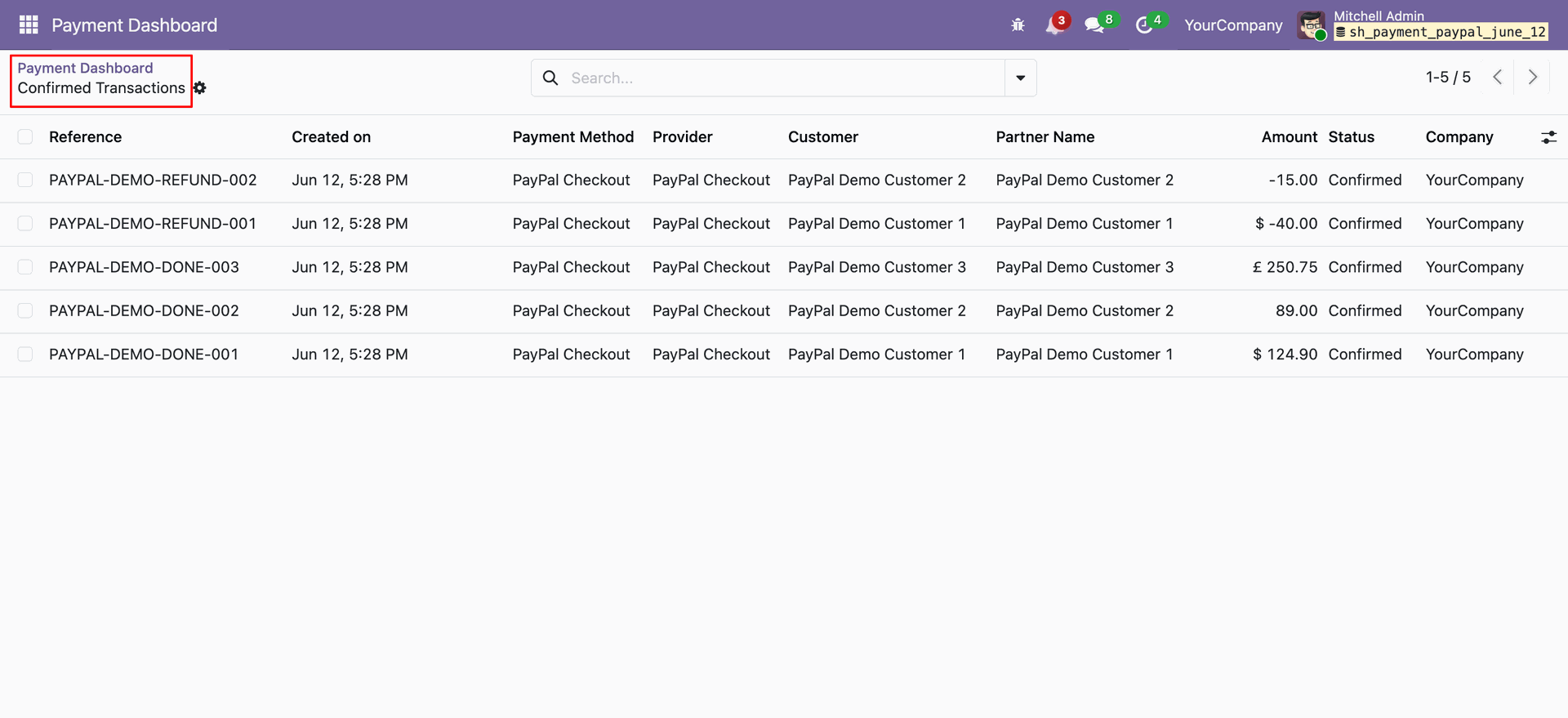
Clicking on the Total Volume tile from the Payment Dashboard will open a List View of all Confirmed Transactions.
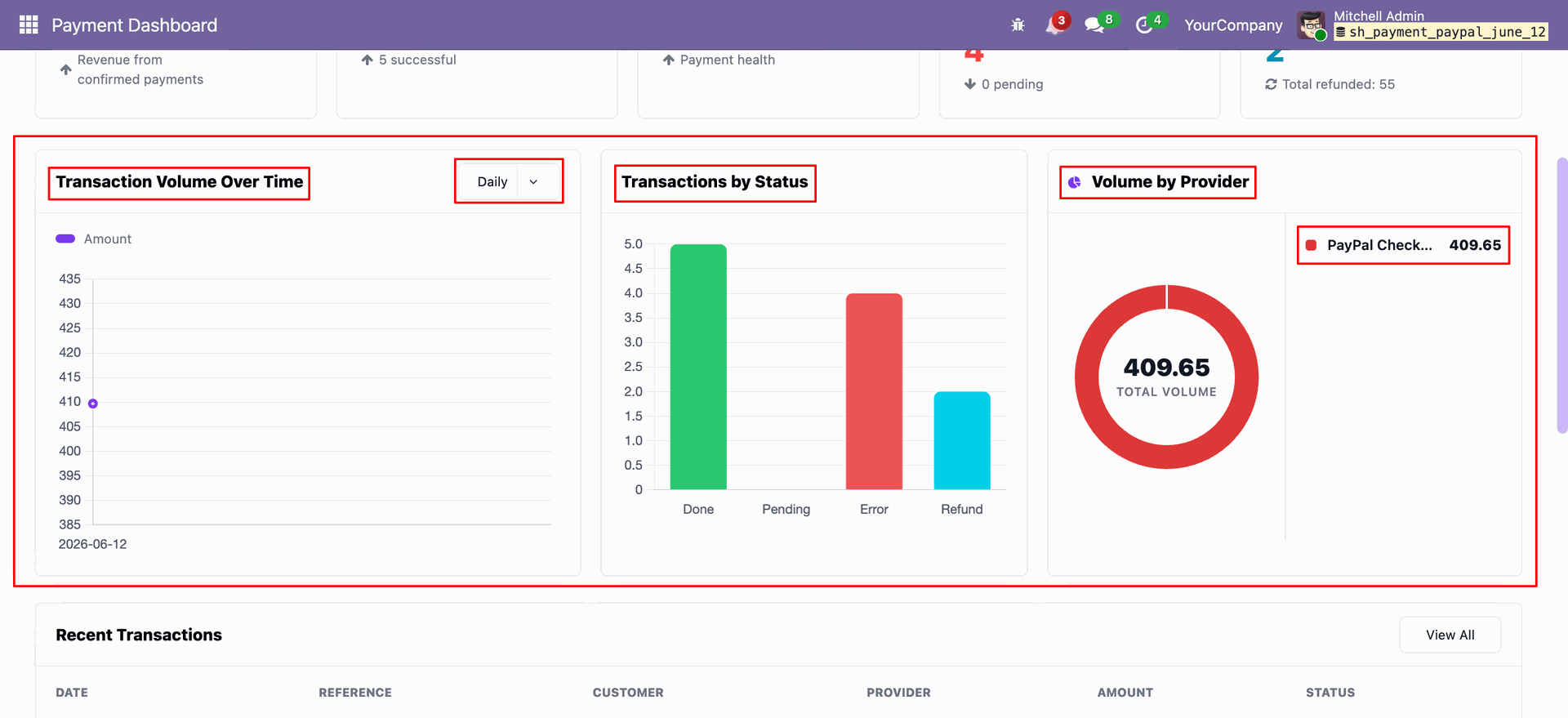
The dashboard displays interactive charts for Transaction Volume Over Time, Transactions by Status, and Volume by Provider, enabling users to analyze payment trends and performance more effectively.
Recent Transactions can also be viewed directly from the Payment Dashboard, allowing users to quickly monitor the latest payment activities and transaction statuses.
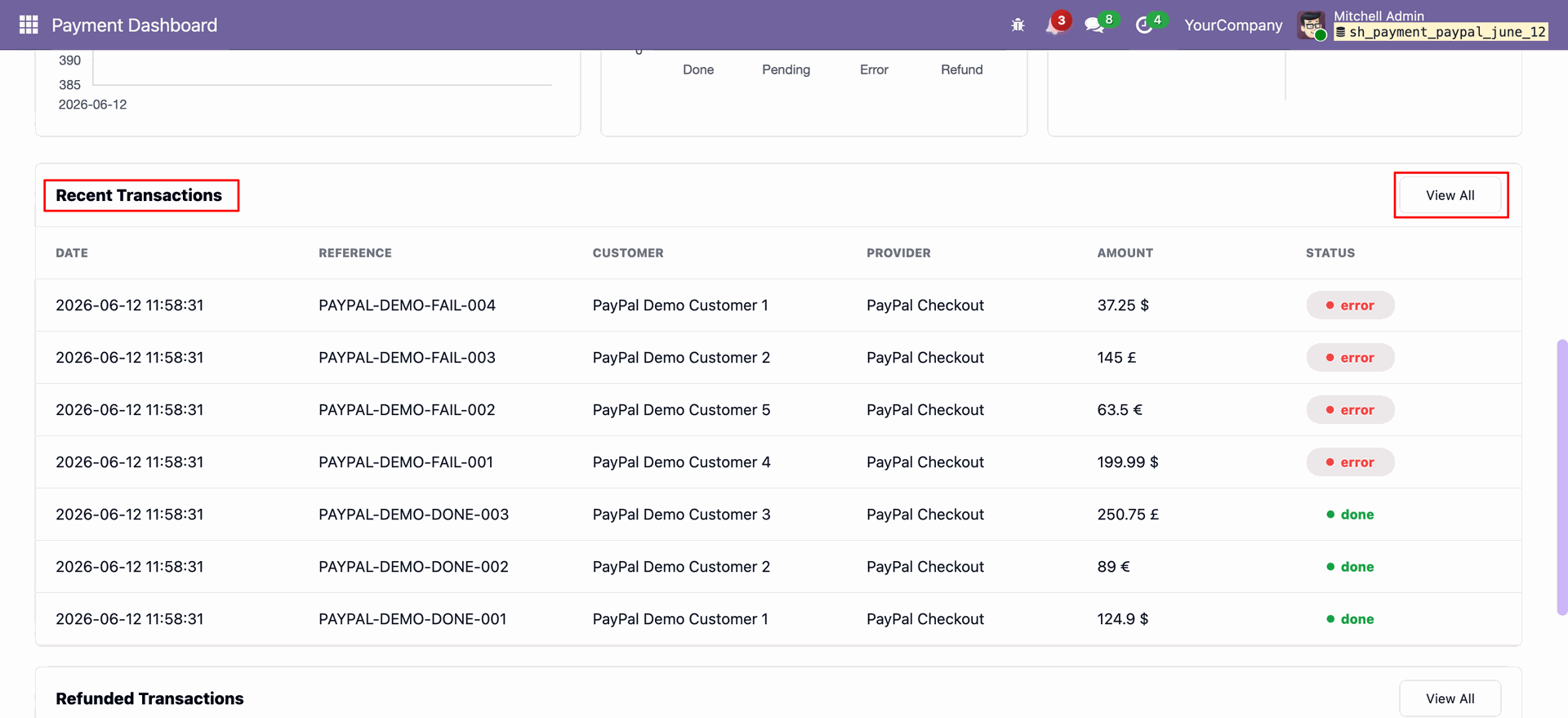
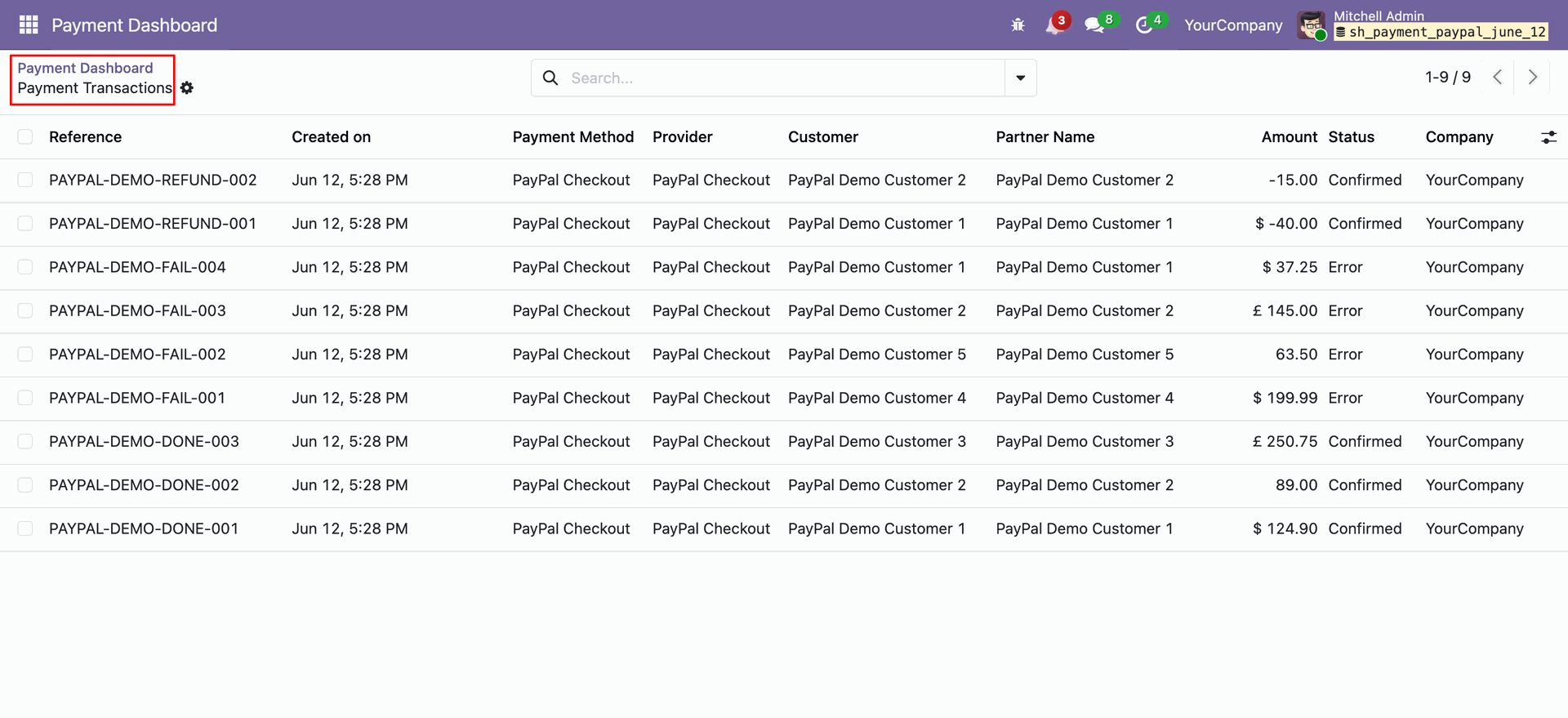
Clicking the View All button in the Recent Transactions section of the Payment Dashboard will open a Payment Transactions List View.
Refunded Transactions can also be viewed directly from the Payment Dashboard, allowing users to quickly review all refunded payment transactions and their details.
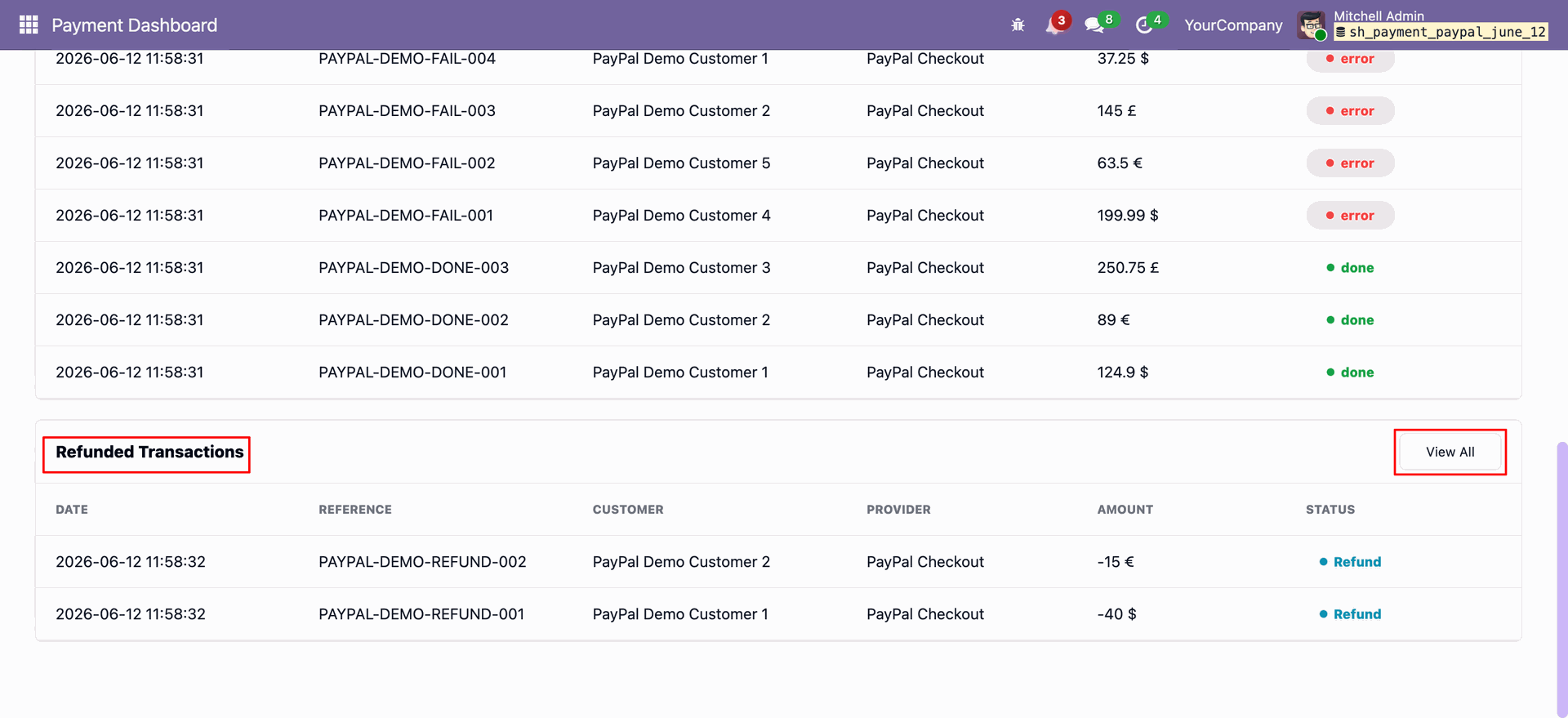
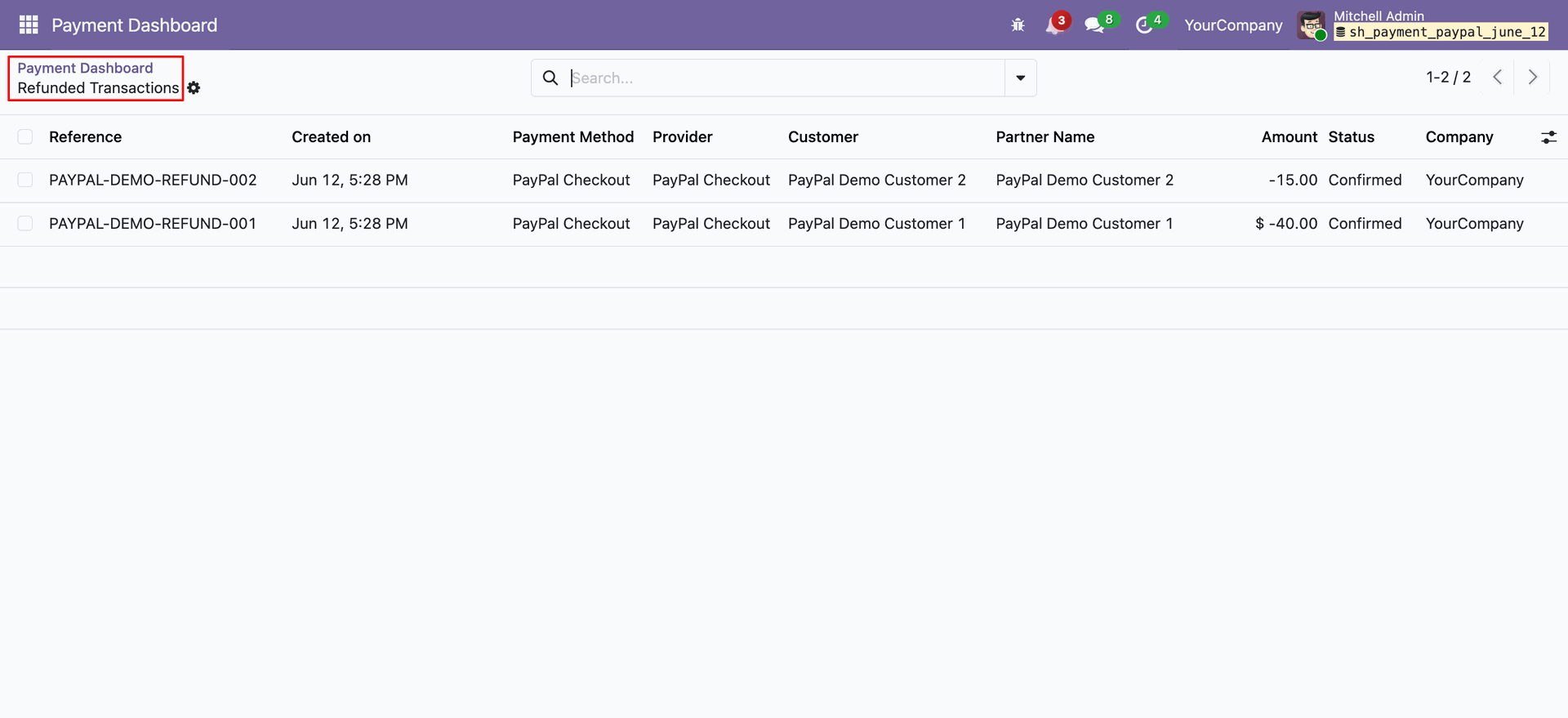
Clicking the View All button in the Refunded Transactions section of the Payment Dashboard will open a Refunded Transactions List View.
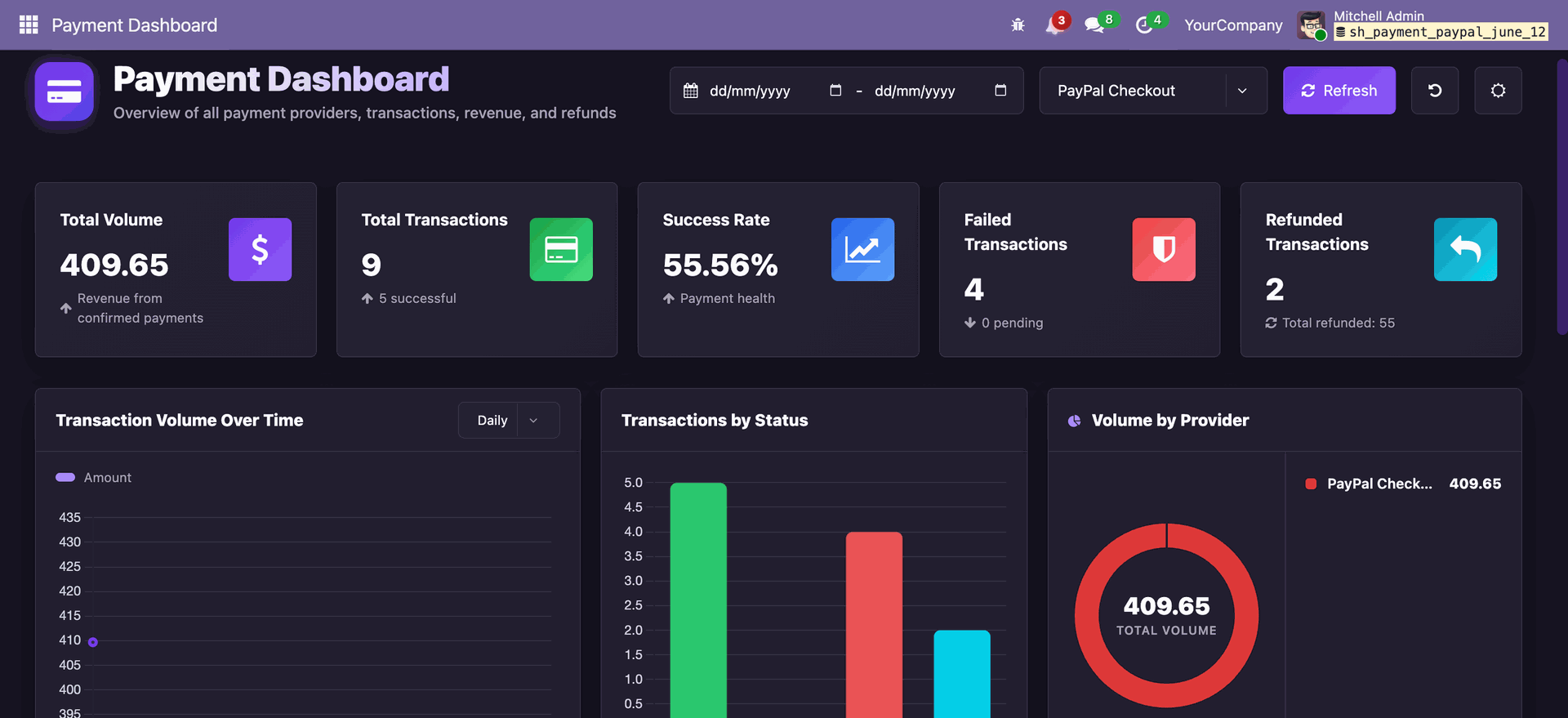
Users can switch to Night Mode from the Payment Dashboard for enhanced visibility.
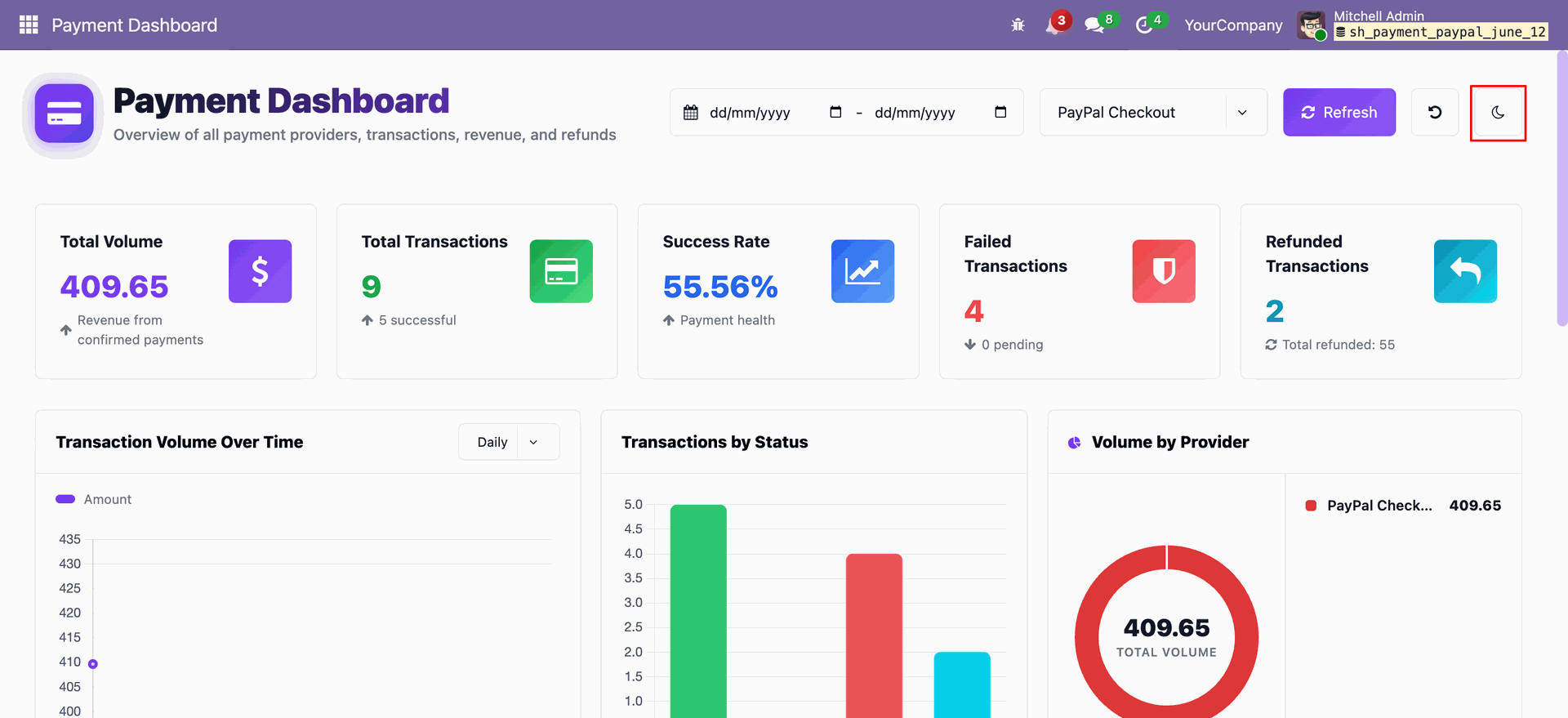
Switch to Night Mode to enjoy a dark-themed dashboard with improved visibility and a more comfortable viewing experience.
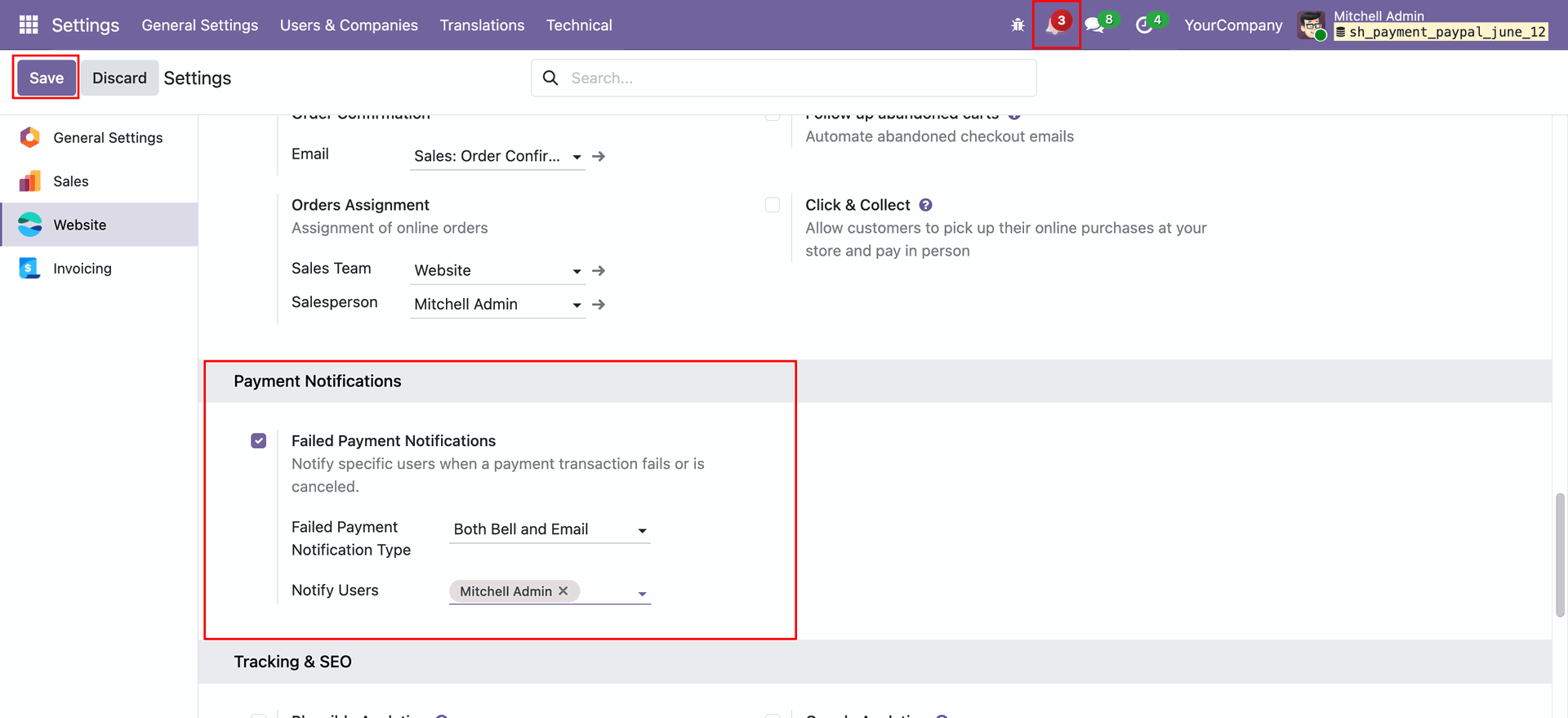
Go to the Website General Settings and enable the Failed Payment Notification option to receive notifications whenever a payment transaction fails.
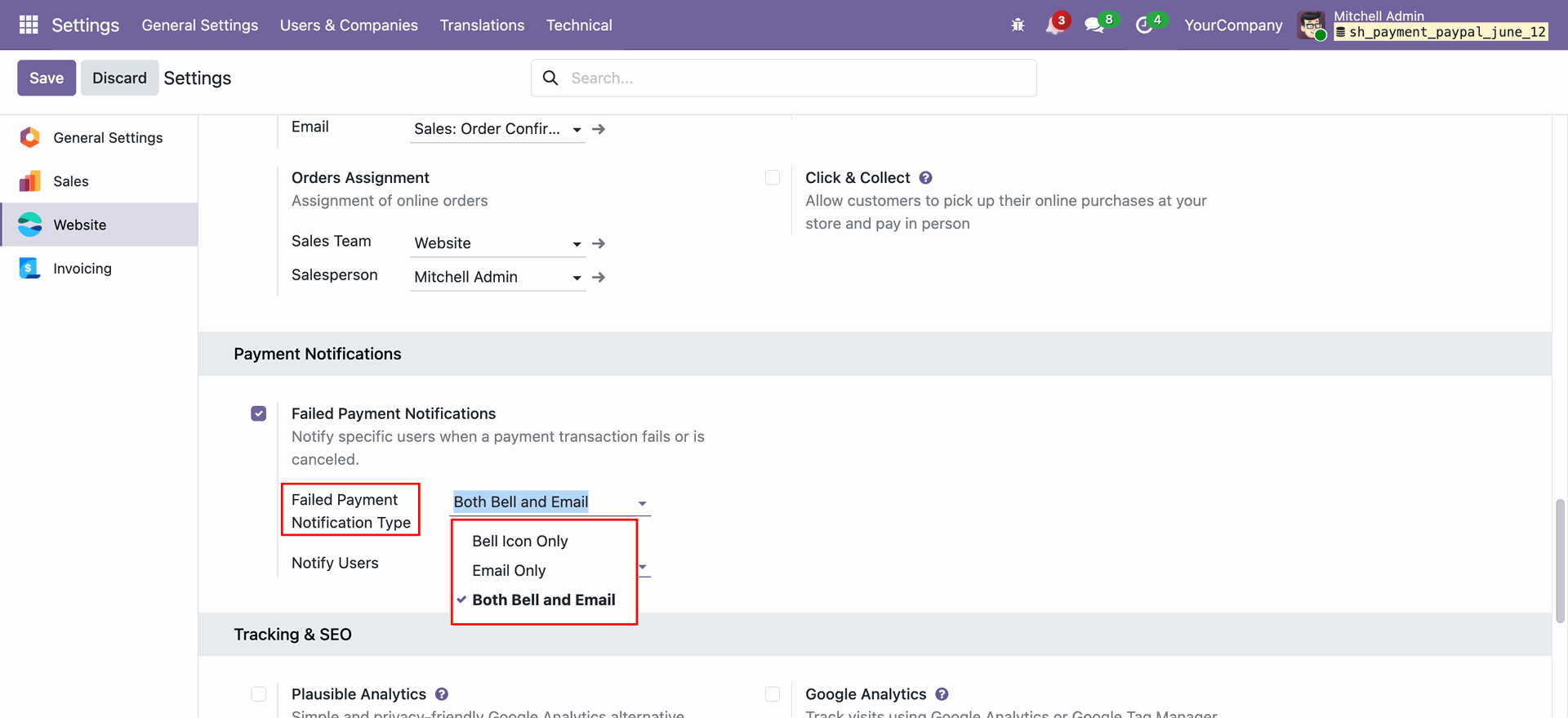
Configure the Failed Payment Notification Type by selecting one of the following options: Bell Icon Only, Email Only, or Both Email and Bell Icon.
Failed payment notifications can be viewed from the Bell Icon when the notification type is set to Bell Icon Only or Both Email and Bell Icon.
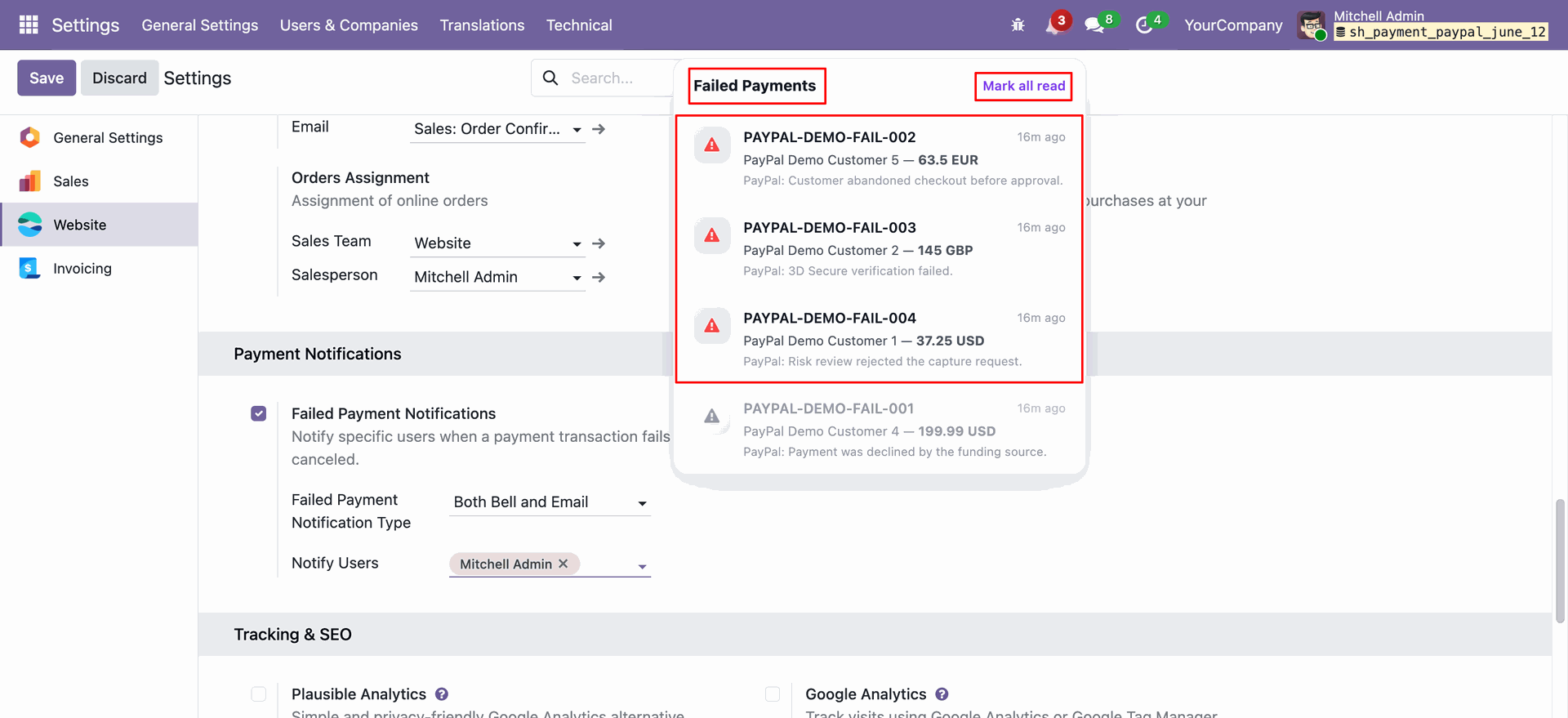
Failed payment notifications will be sent via Email when the notification type is set to Email Only or Both Email and Bell Icon.
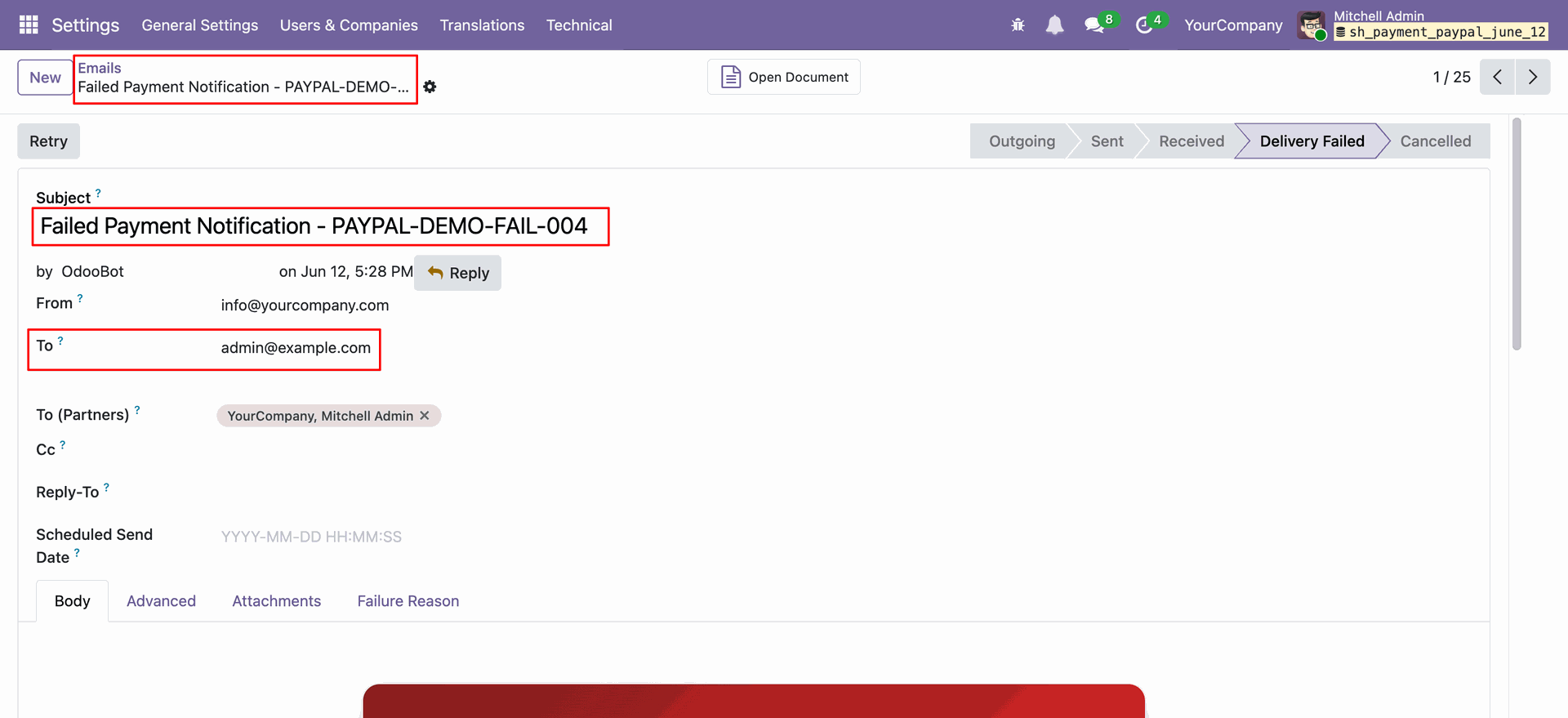
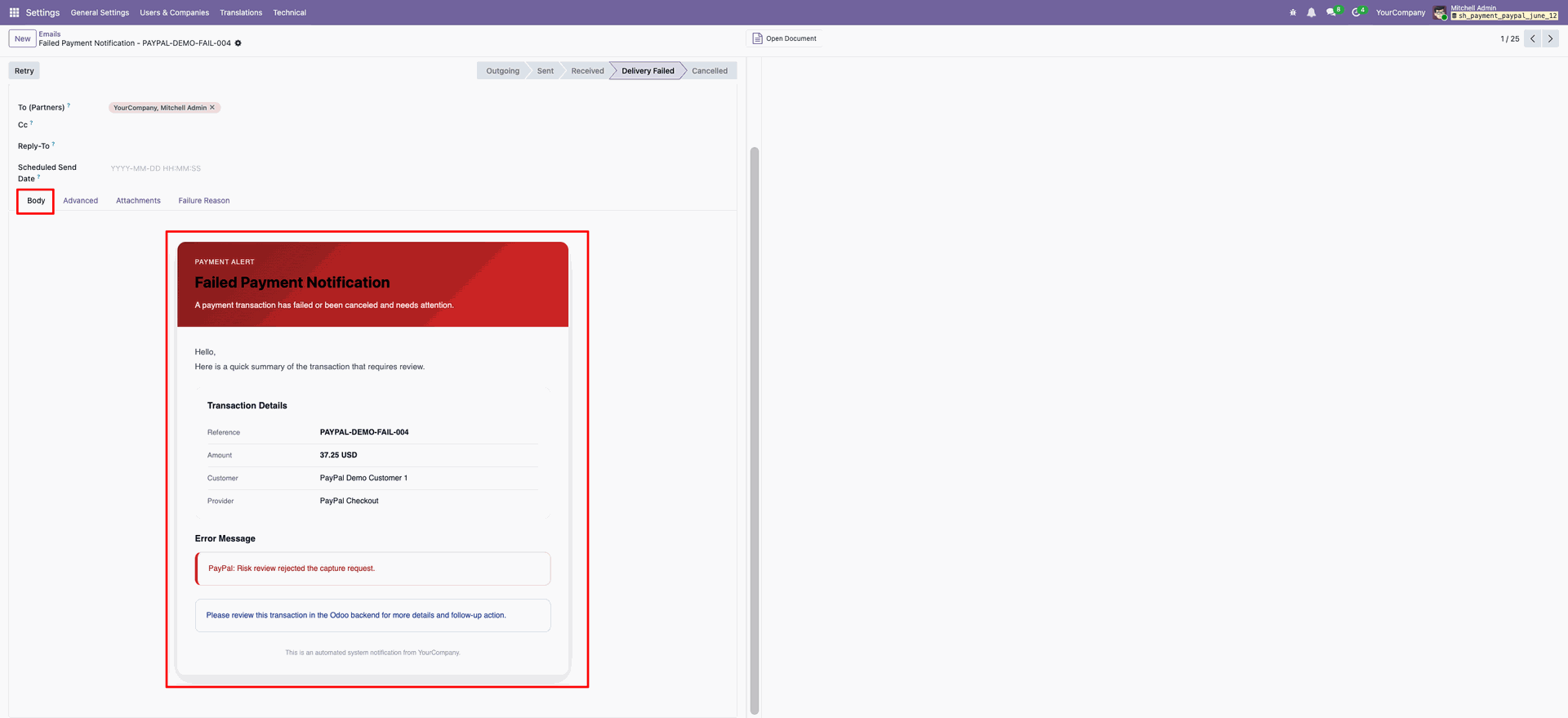
Users will receive an email containing the failed payment details and related transaction information.
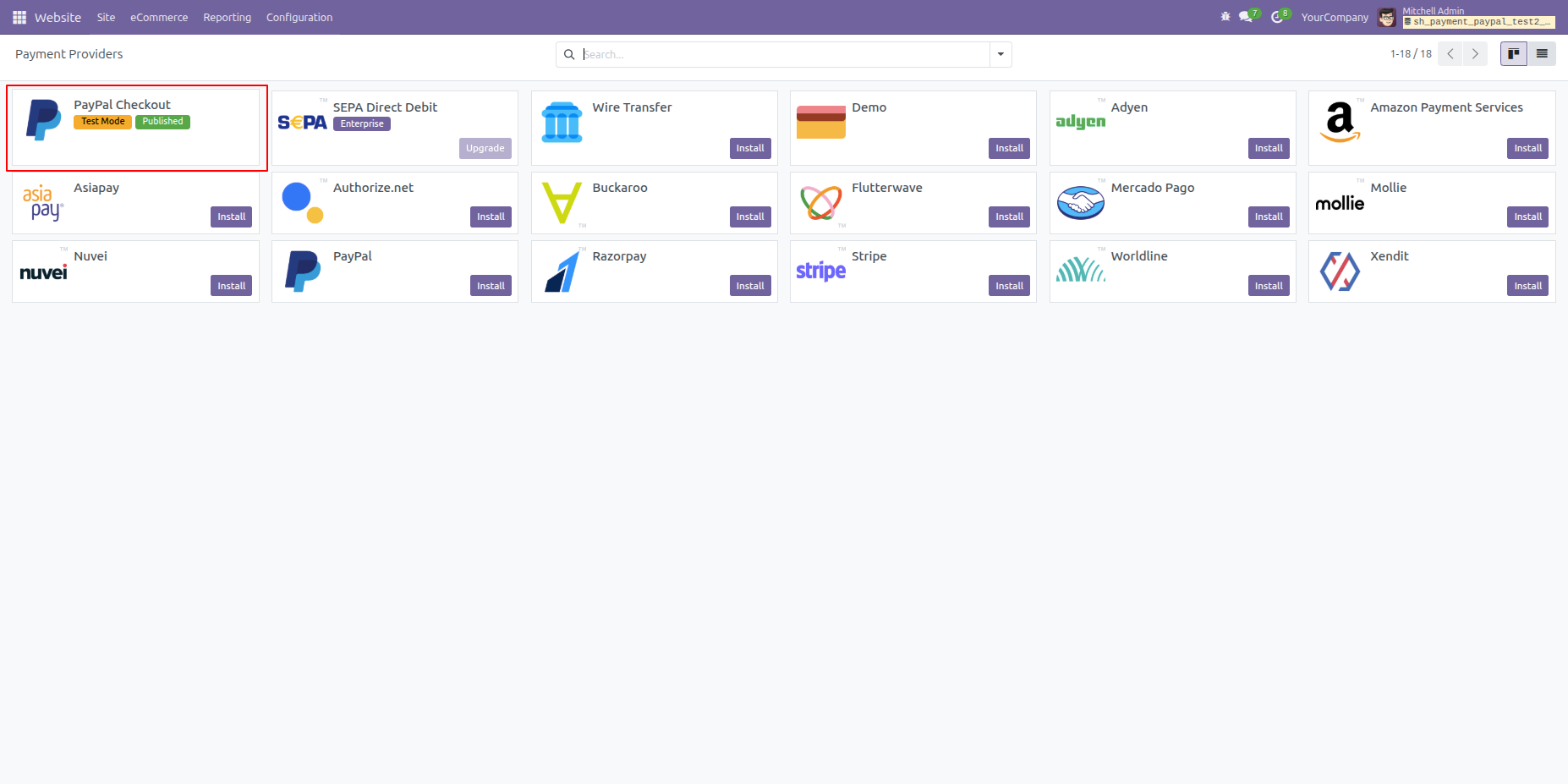
Go to Website -> Configuration -> Payment Providers to access Paypal Express Checkout settings.
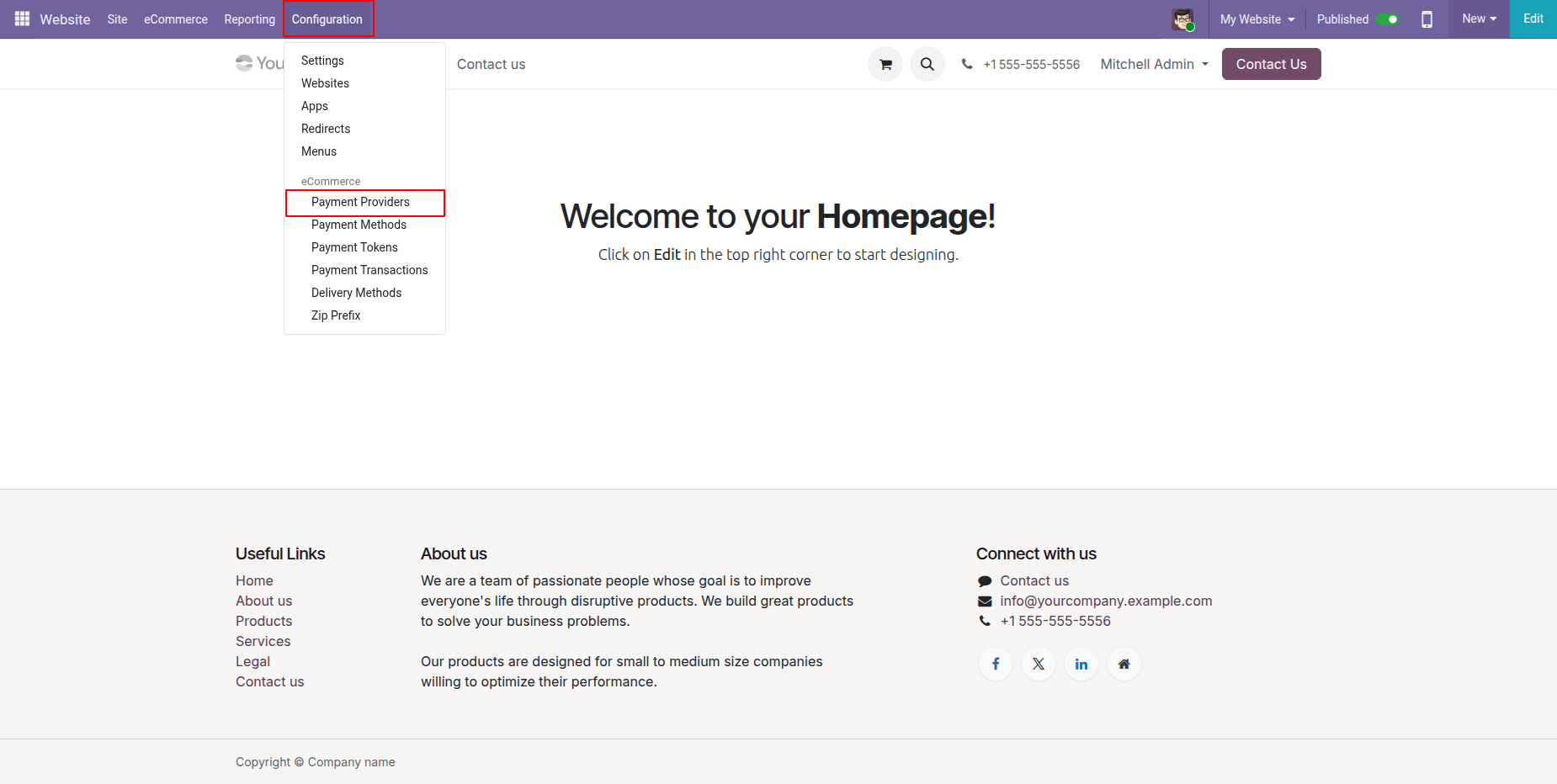
Select Paypal Checkout from the list of available payment providers and click Activate.
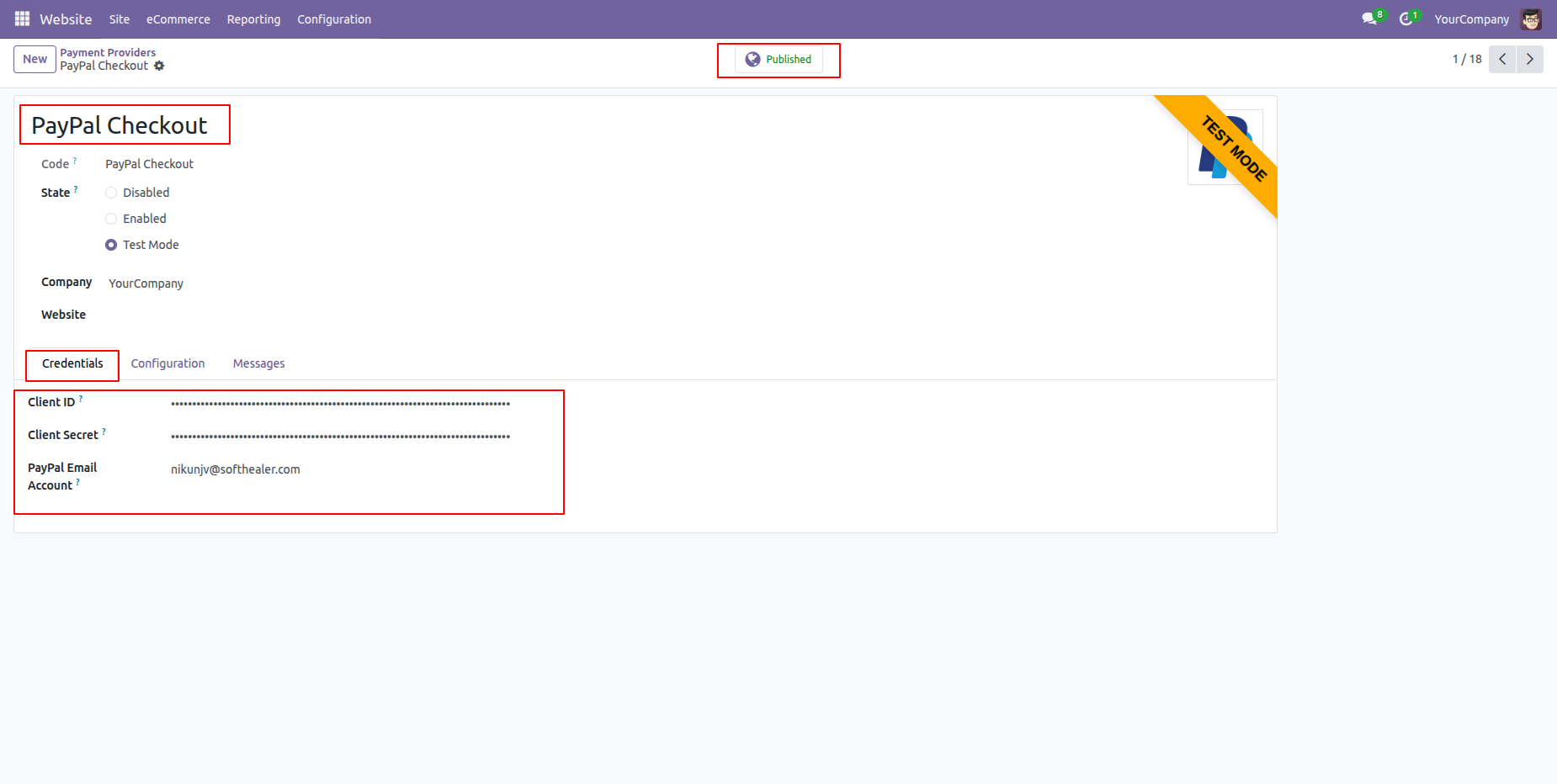
Enter your credentials to enable payment processing.
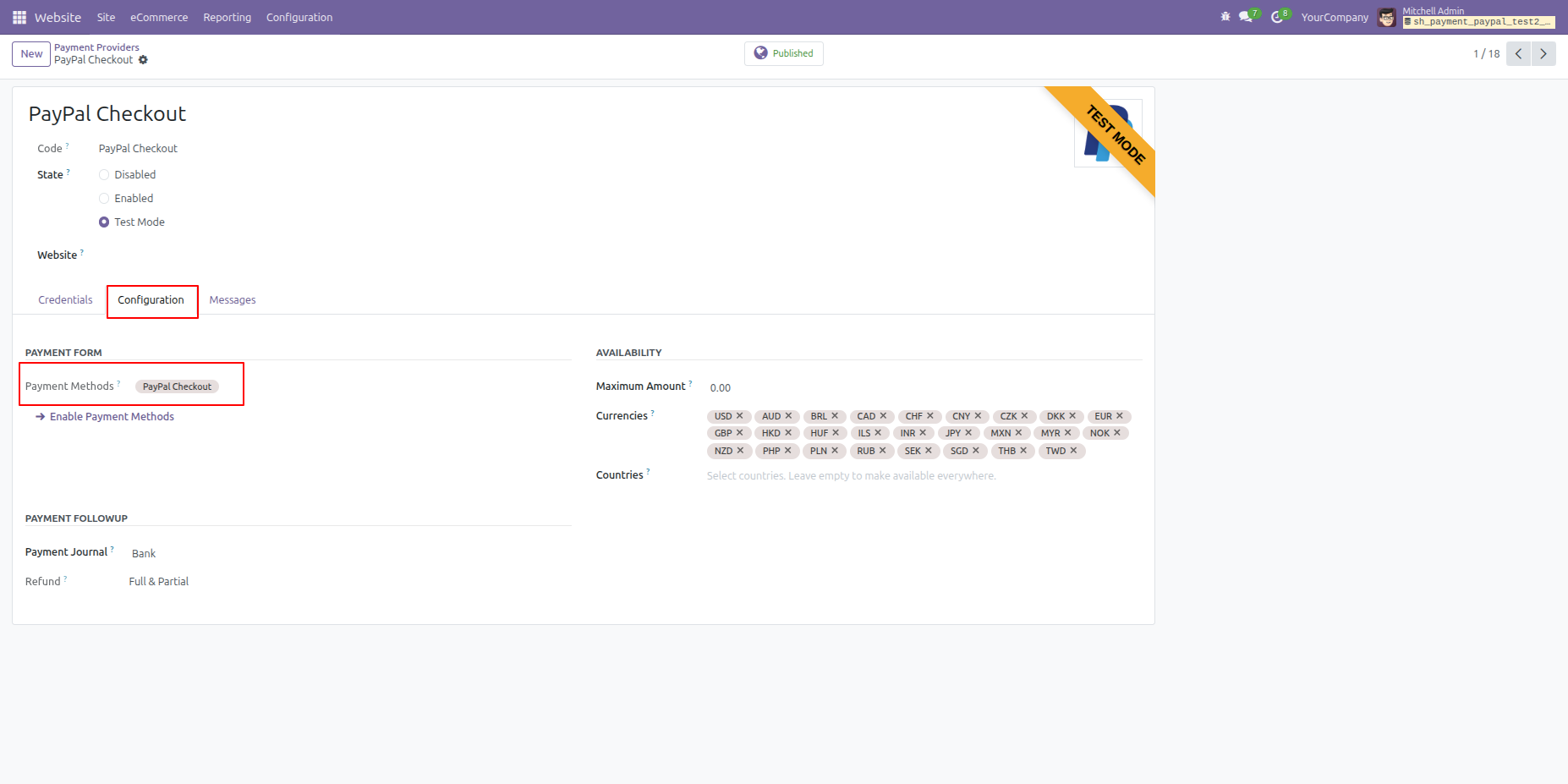
Go to the "Configuration" select "Paypal Checkout" payment method.
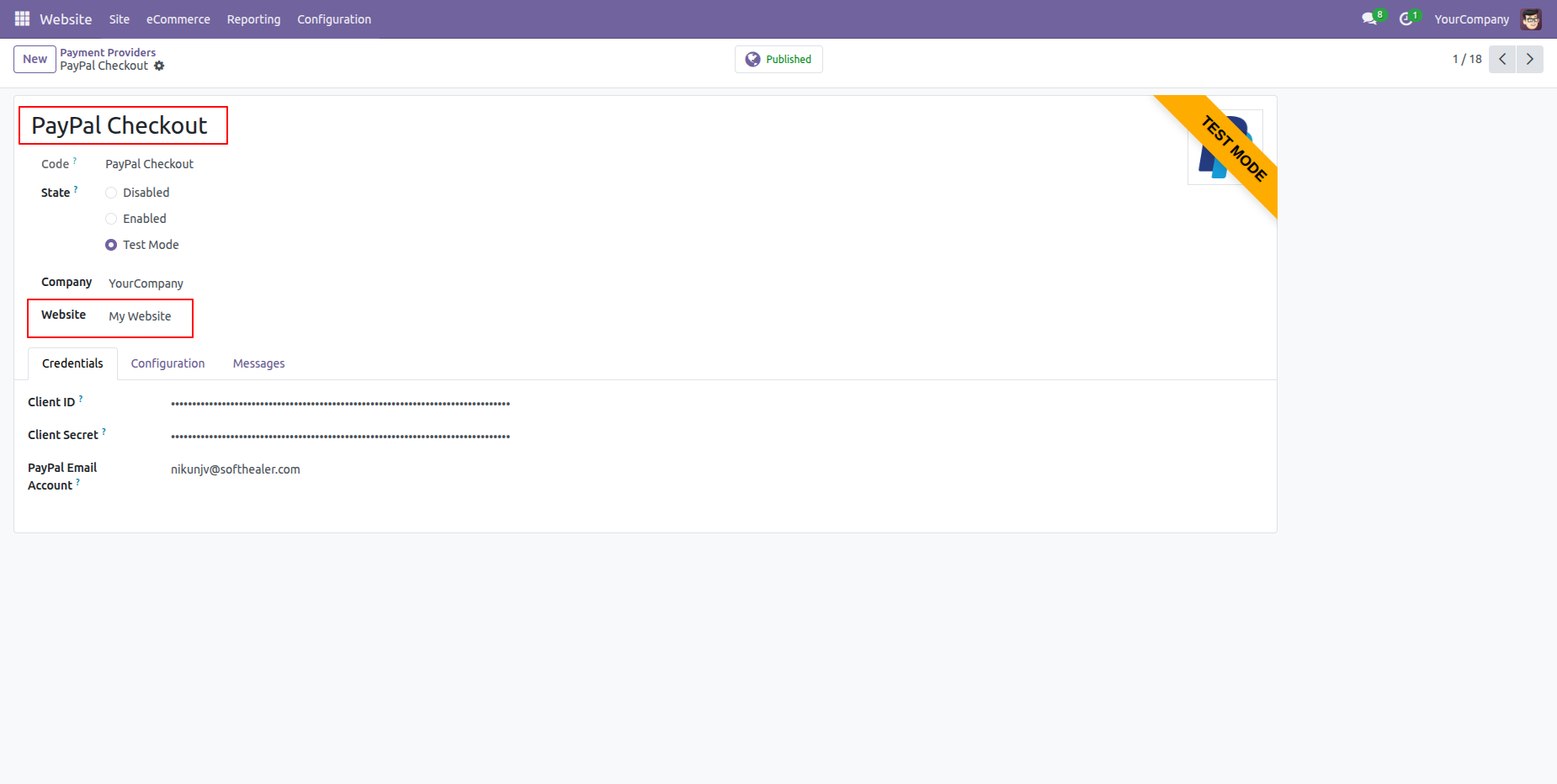
Enable Paypal Checkout across multiple Odoo websites.
You can set custom payment messages.
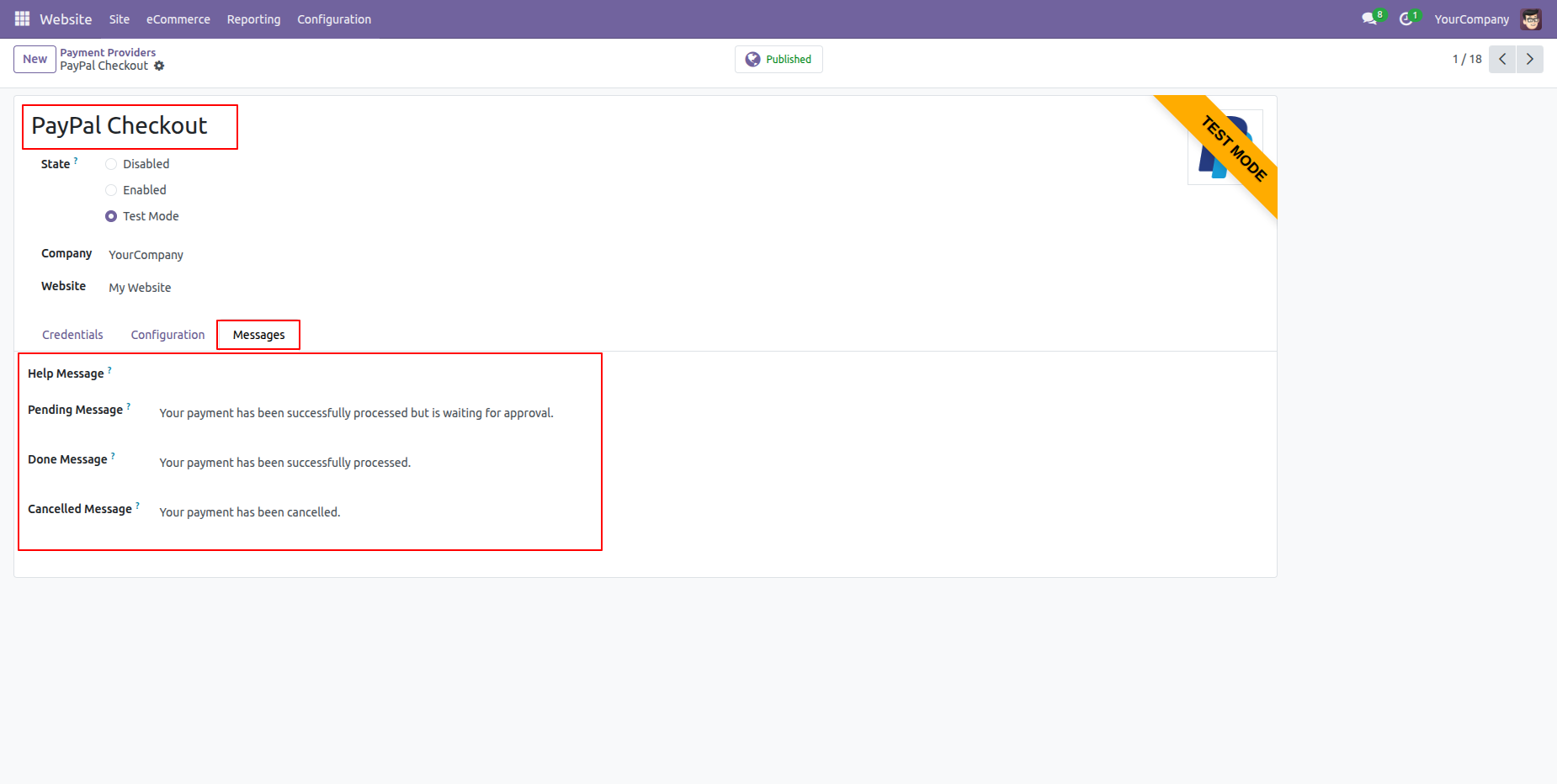
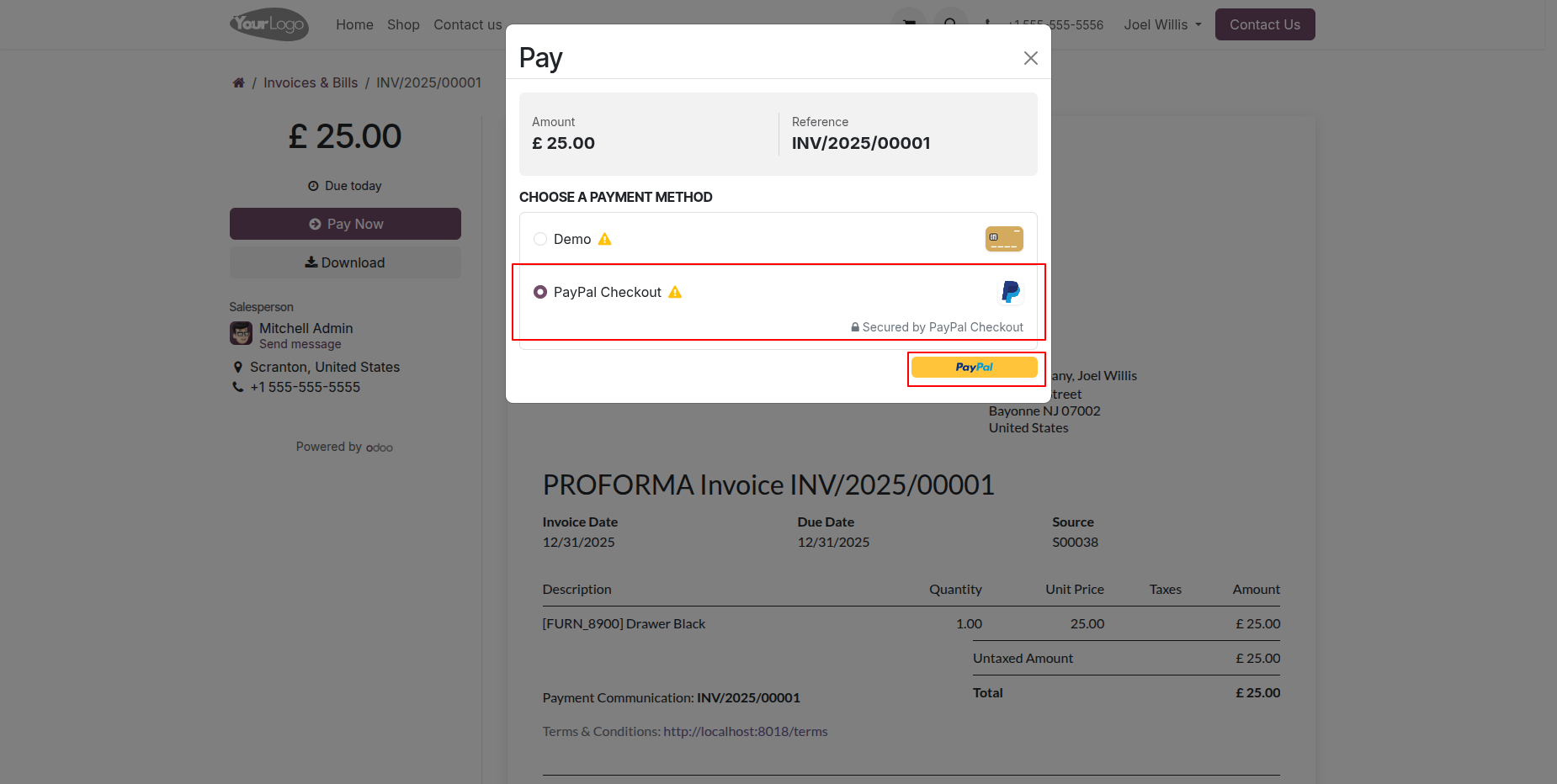
Select "Paypal Checkout" in checkout and click "Paypal".
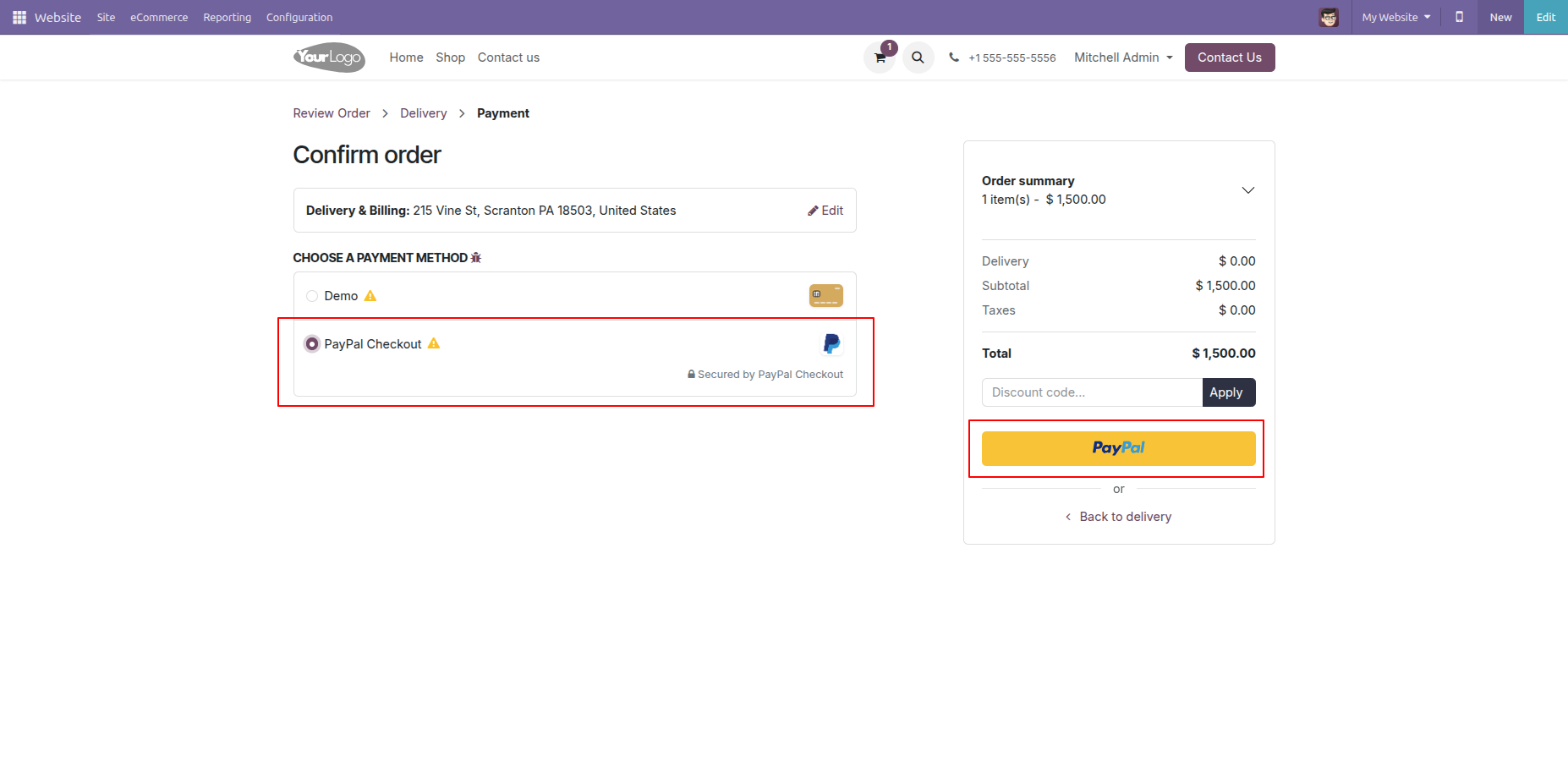
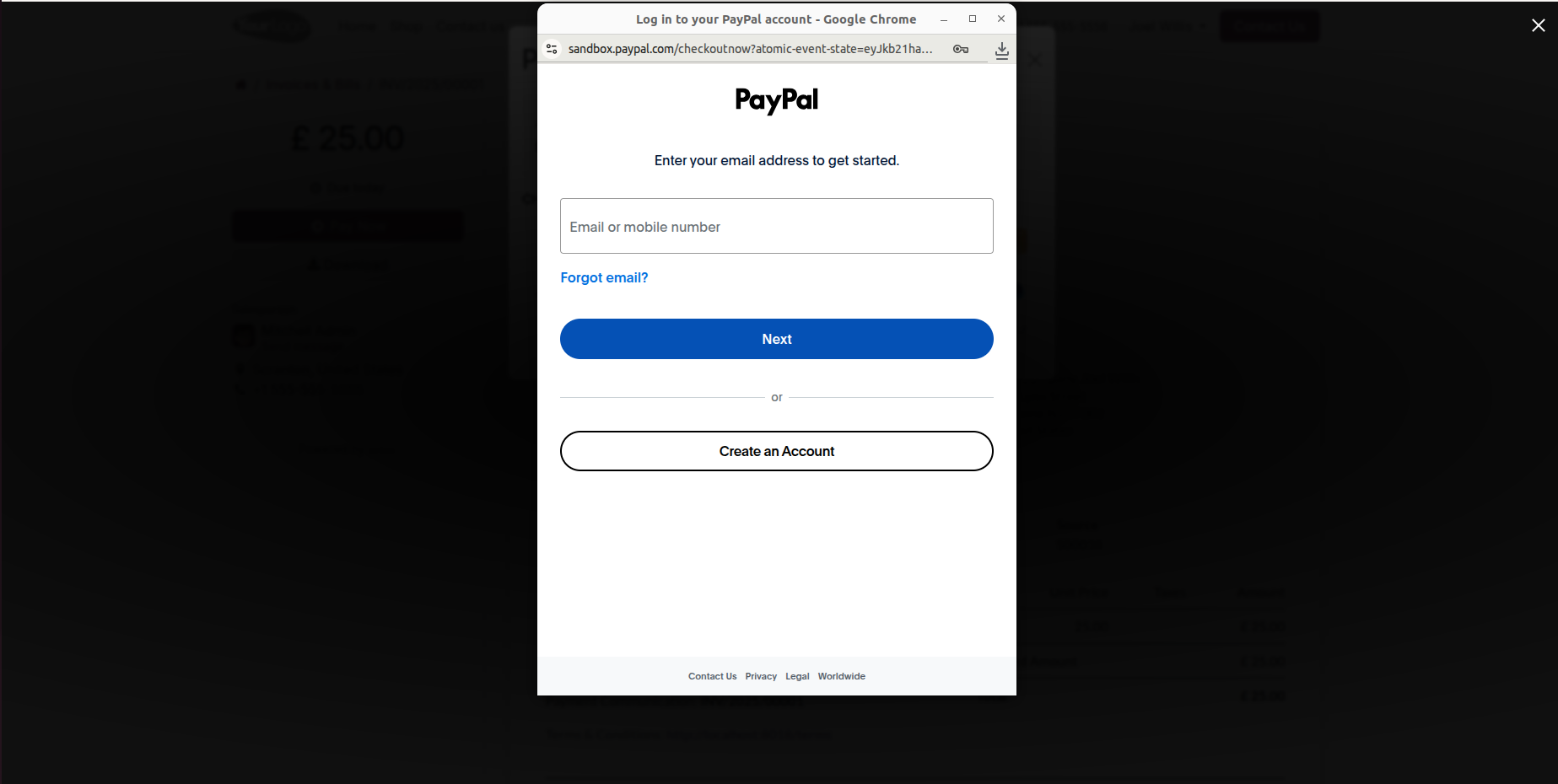
Enter card details.
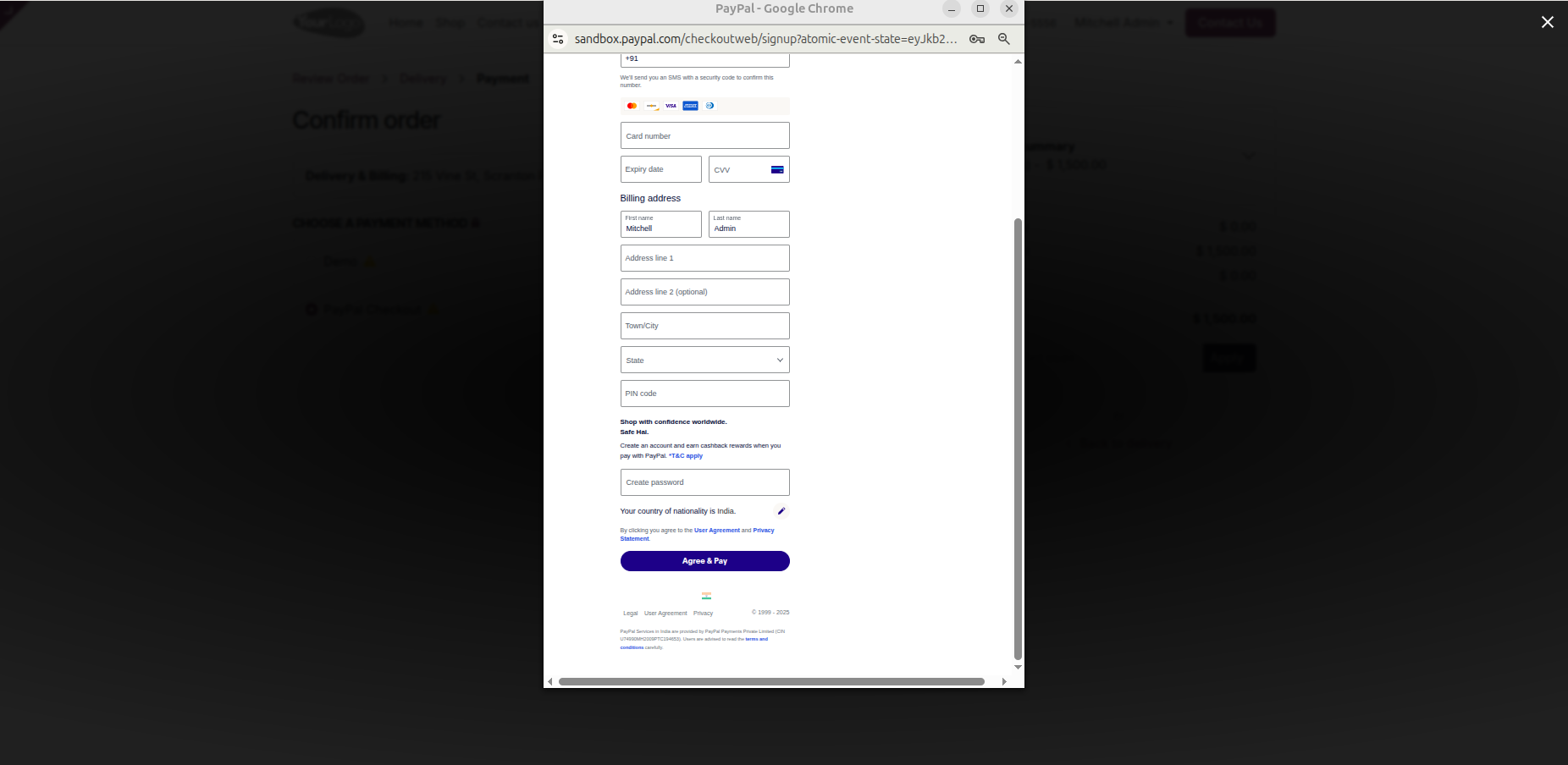
Once payment is done, it shows an order confirmation message.
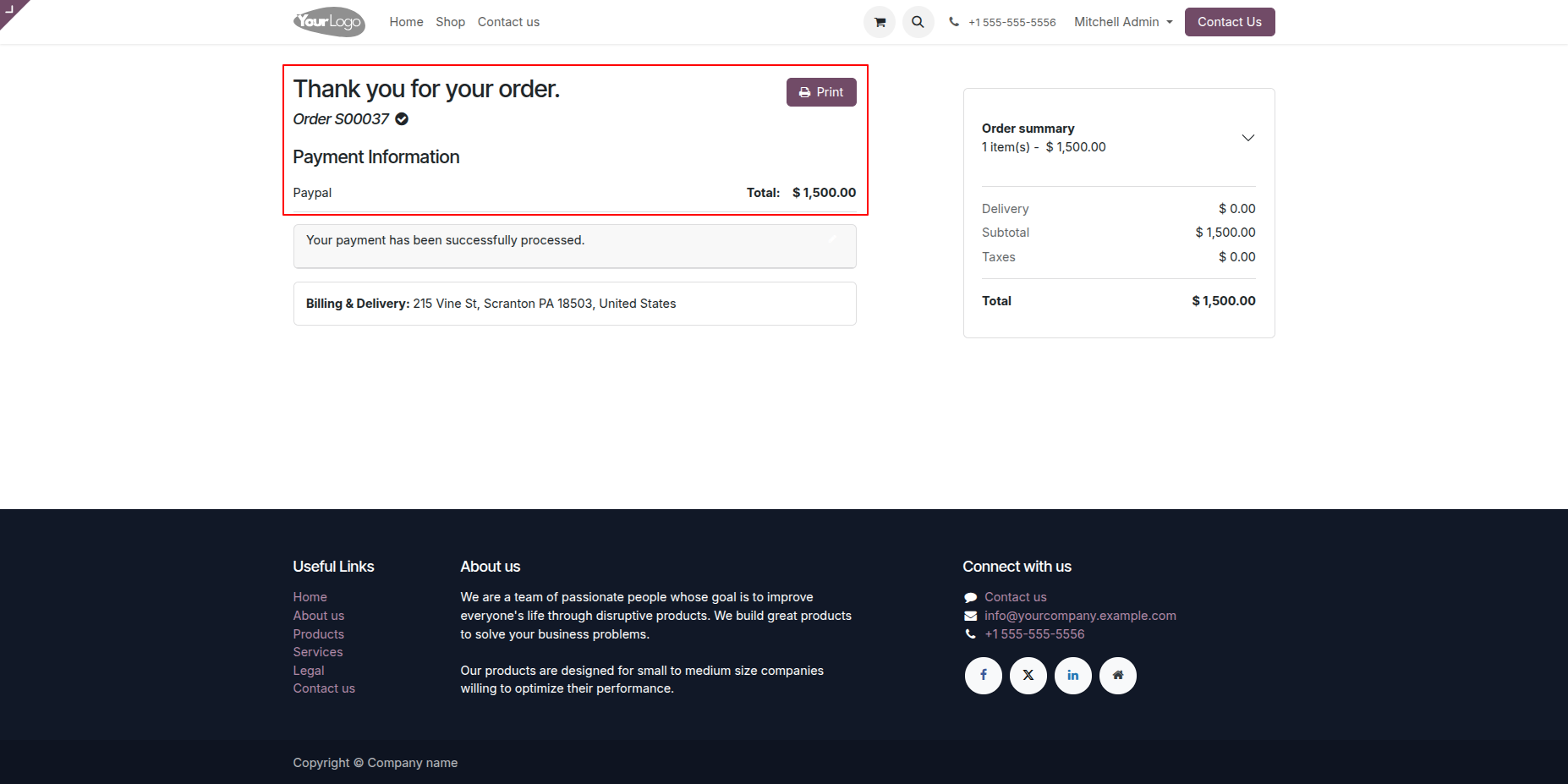
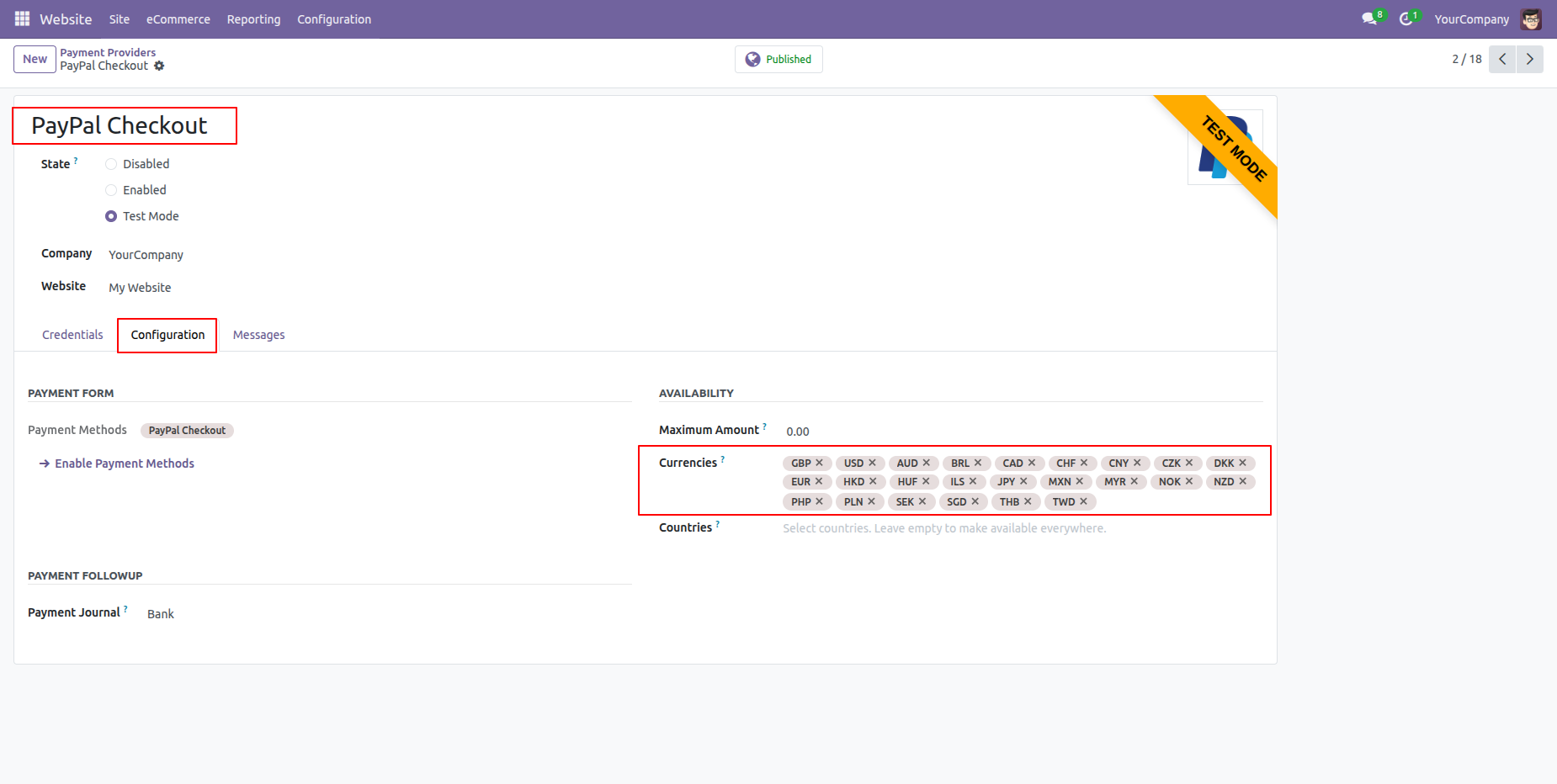
The PayPal Checkout configuration screen highlights the wide range of supported currencies.
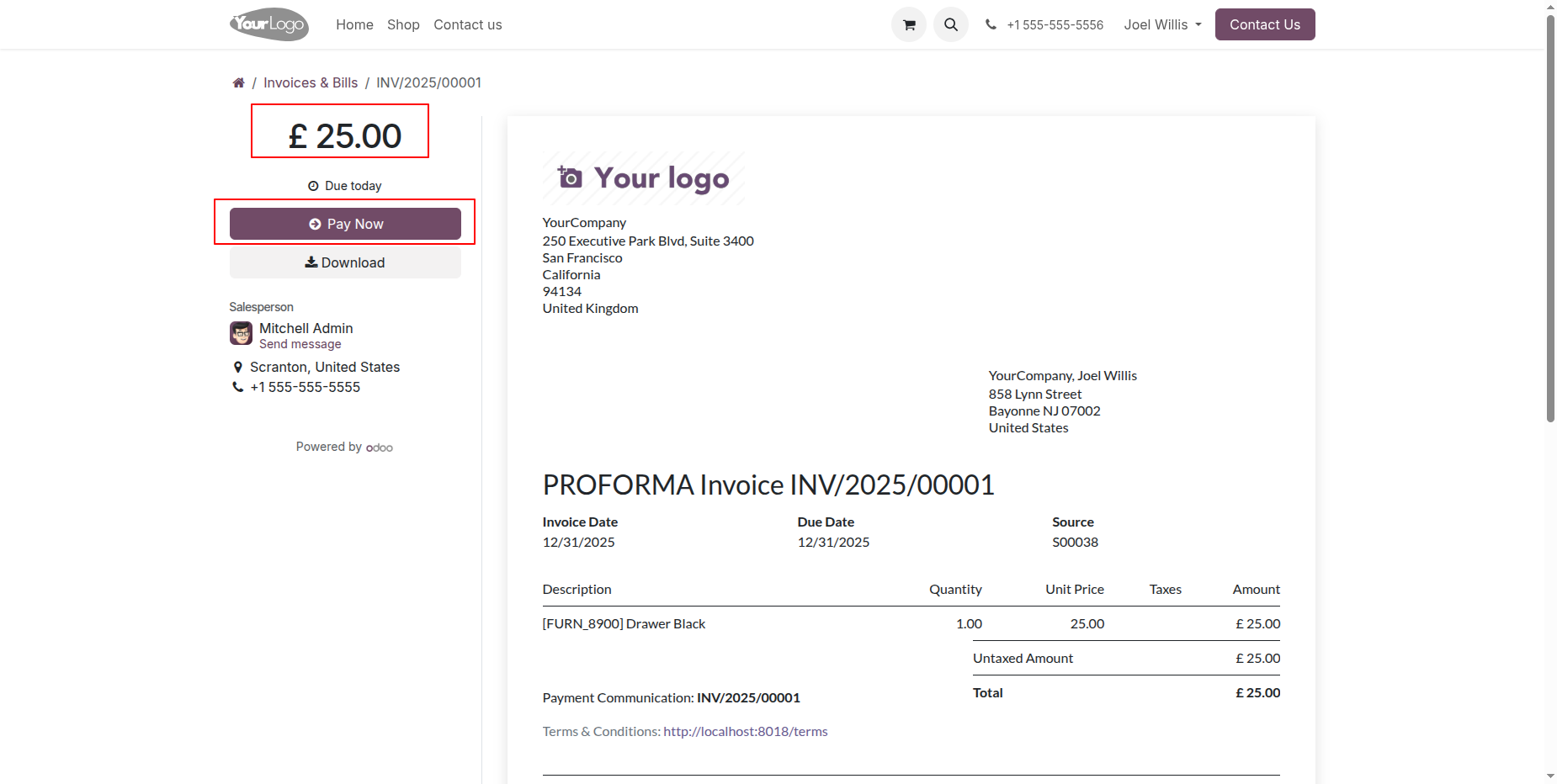
Click the Pay Now button at the portal for portal payment.
Select "Paypal Checkout" in checkout and click "PayPal".
Enter card details.
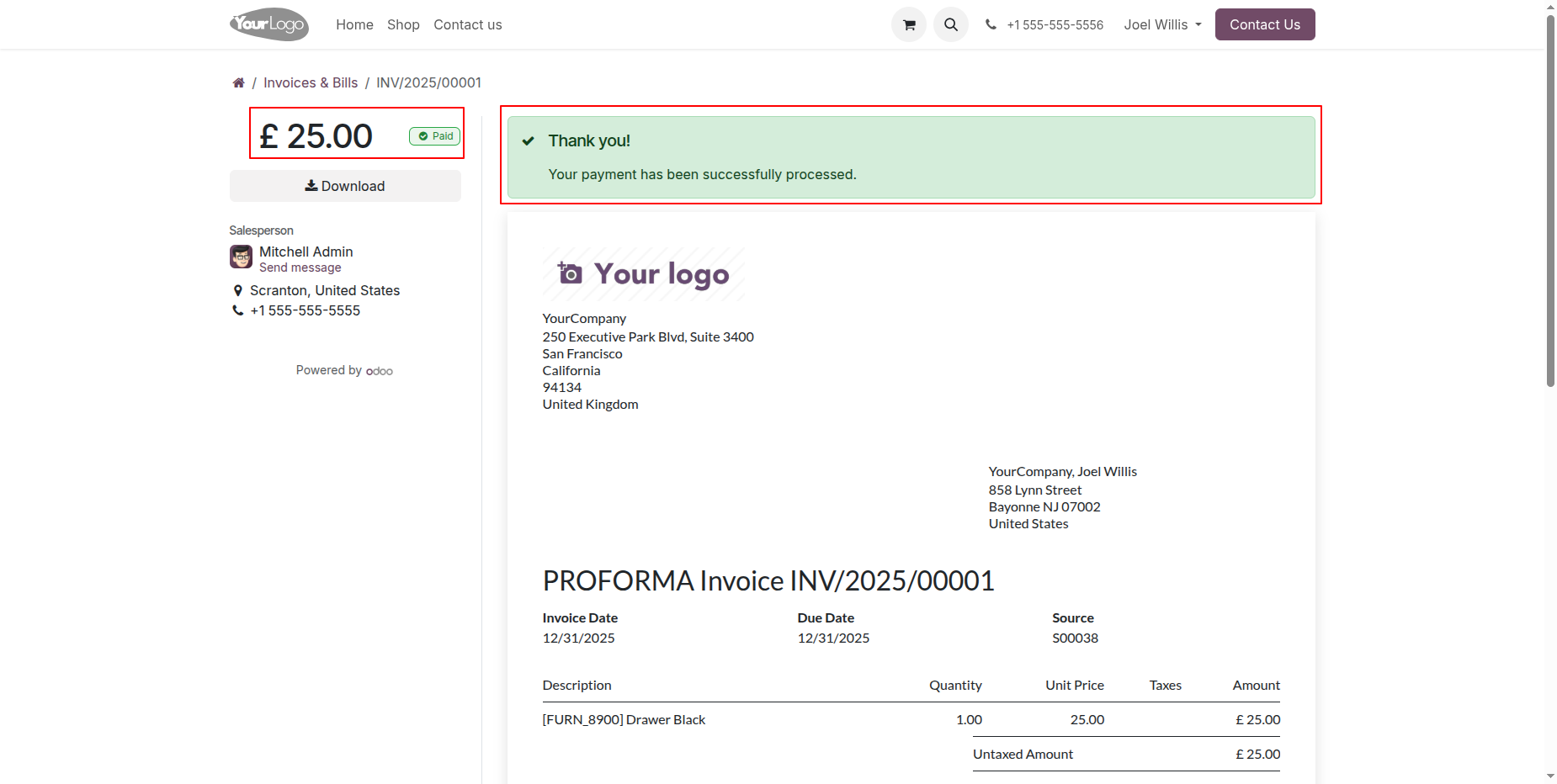
Once payment is done, it shows an order confirmation message.
Version 18.0.2.0.0 | Released on : 19th June 2026
Version 18.0.1.0.0 | Released on : 6th January 2026
- Yes, this app works perfectly with Odoo Enterprise (Odoo.sh & On-Premise) as well as Community.
- No, this application is not compatible with odoo.com(odoo saas/Odoo Online).
- Please Contact Us at sales@softhealer.com to request customization.
- Yes, you will get free update for lifetime.
- No, you don't need to install additional libraries.
- For version 12 or upper, you will need to purchase the module for each version that you want to use.
- Yes, we provide free lifetime support for the version you purchased.
- No, We do not provide any kind of exchange.
Discover Our Latest Apps