












Outstanding Balance & Multiple Invoice Payment Allocation

This feature helps you manage customer and vendor payments easily. You can view all outstanding invoices or bills in one place, apply a single payment to multiple invoices or bills, and easily track remaining balances. Allocate custom amounts to each invoice and manage advance payments for open invoices or bills.

Features
- View and manage outstanding invoices/bills.
- Apply advance payments to open invoices/bills.
- Split one payment across multiple invoices/bills.
- Easily track balances, partial payments, and outstanding dues in one place.
- Allocate advance payment custom amounts to specific invoices/bills.
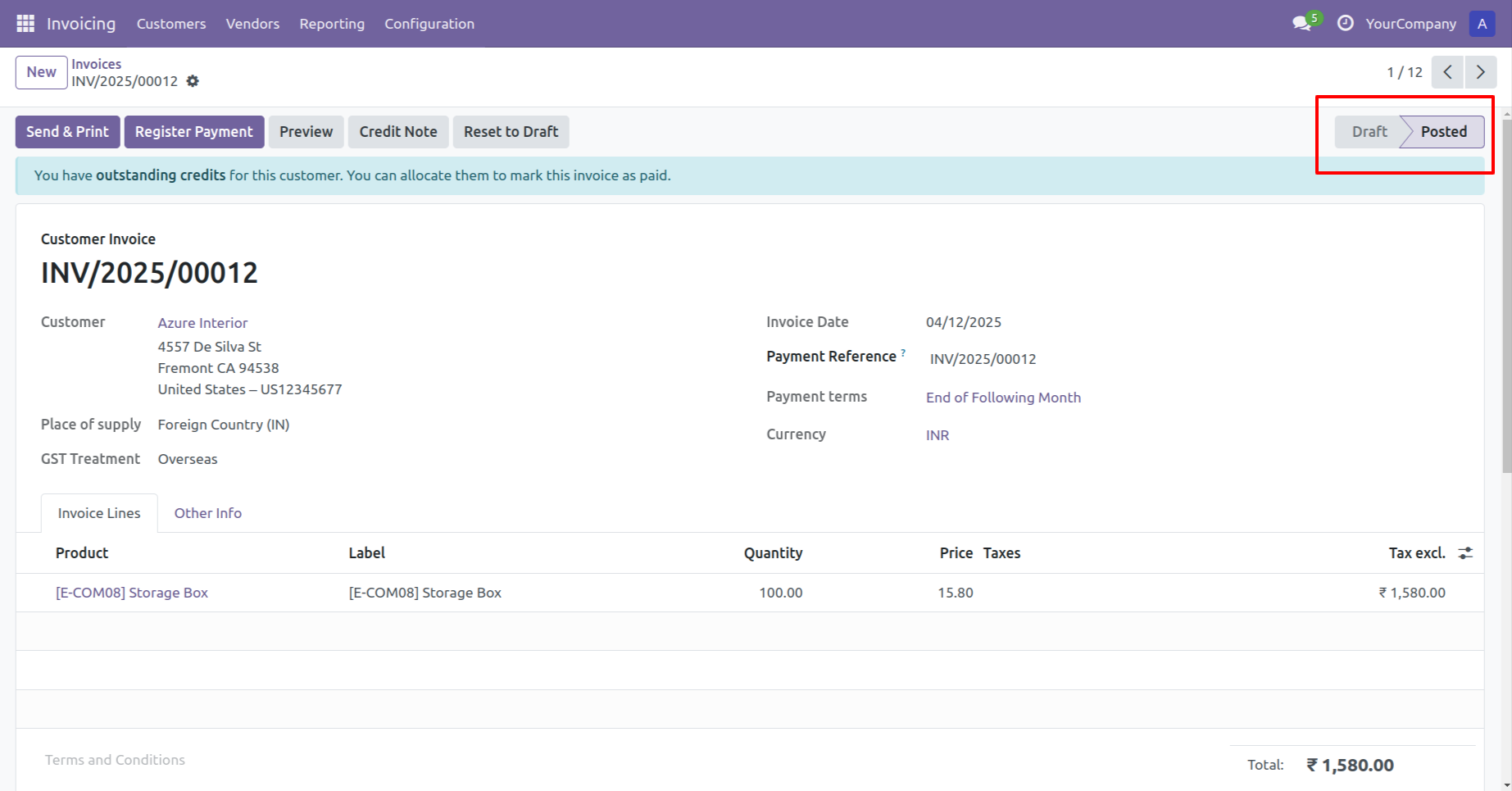
Create a customer invoice and post it.
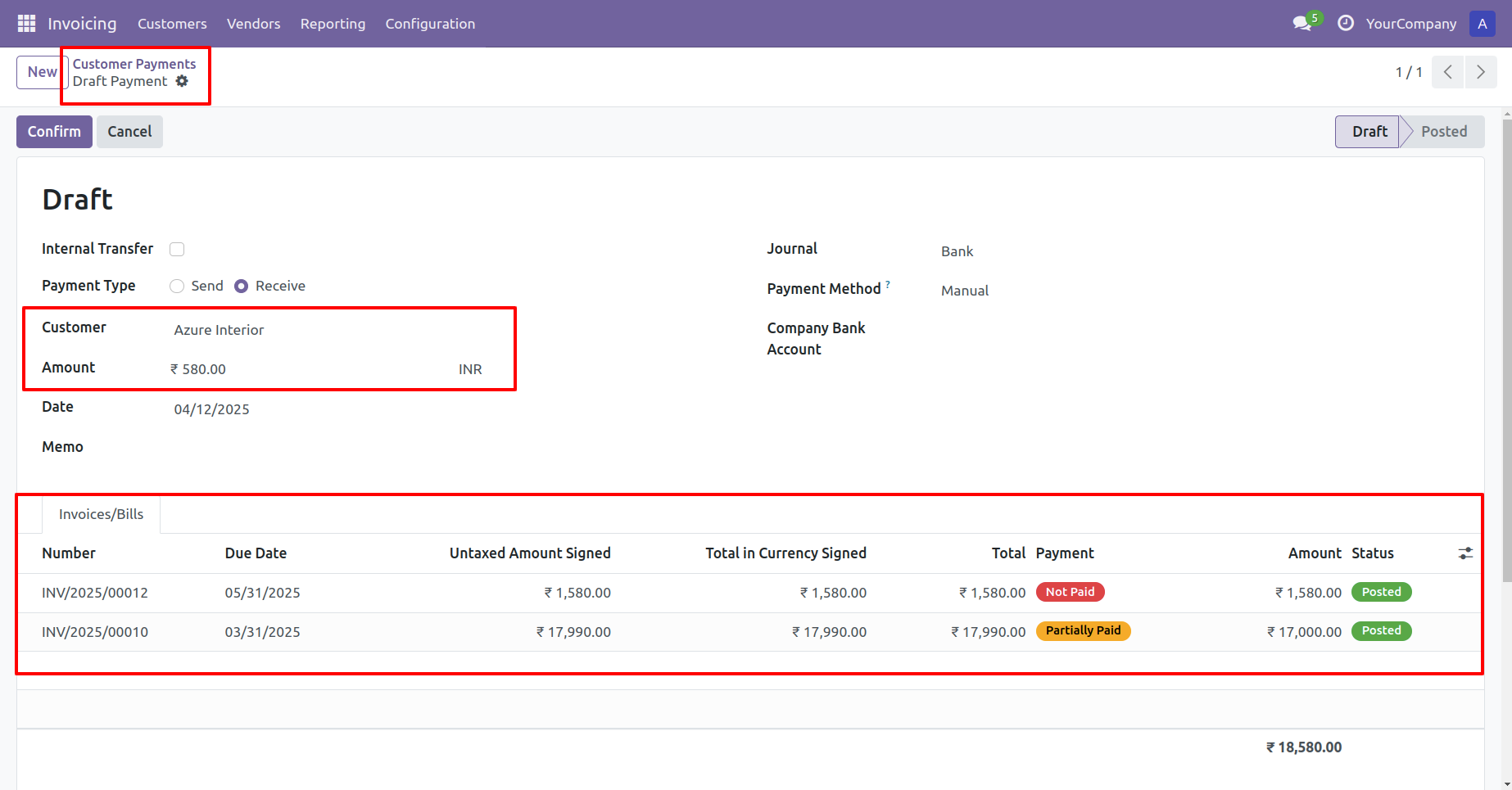
Create customer payment, choose 'Send' as the payment type, you can see list of invoices for the selected customer, add the payment amount and click on the 'Confirm' button.
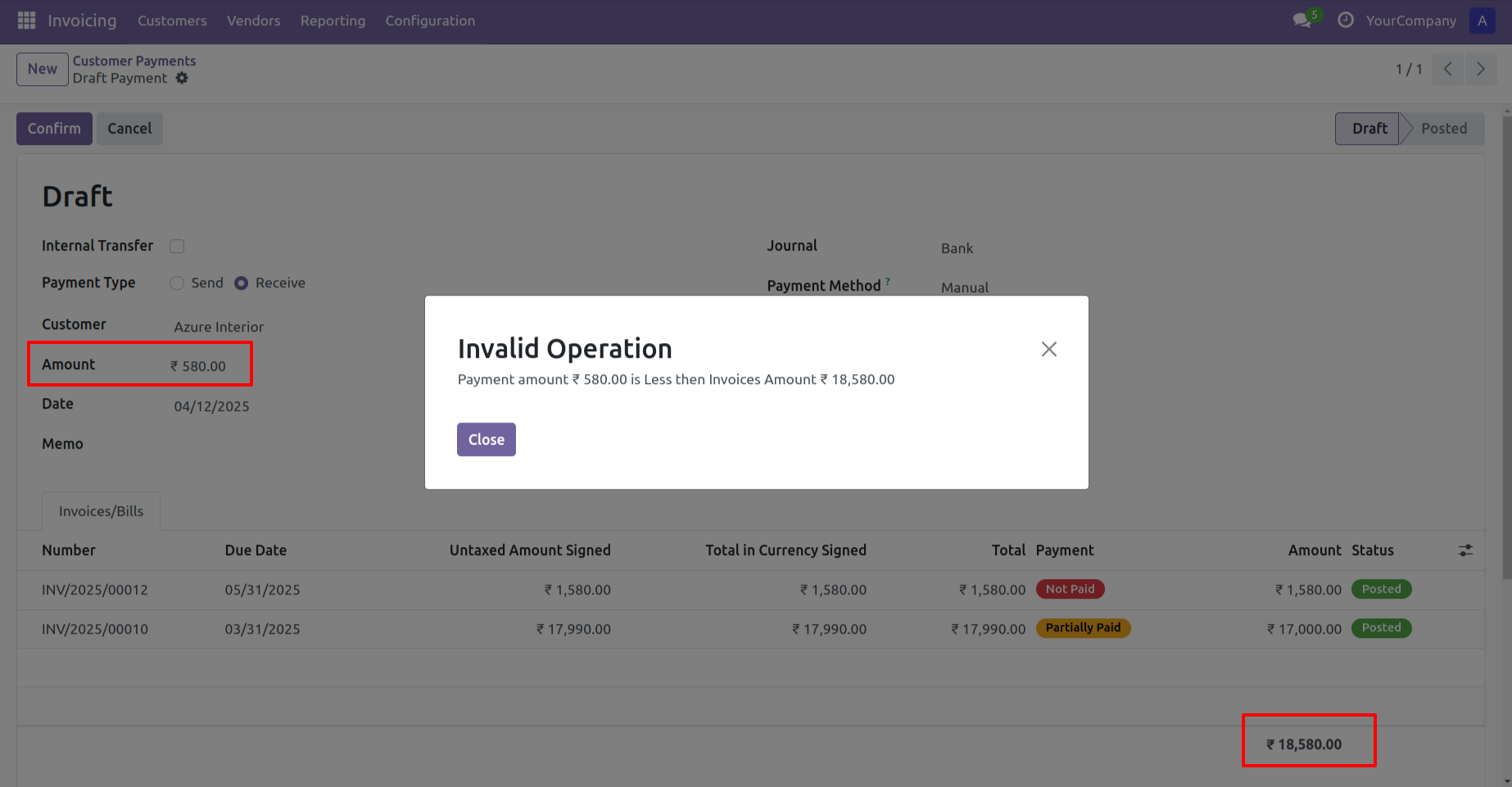
If the added amount is less than the total invoice amount, an 'Invalid' warning popup will appear.
Allocate payment amount with the invoice amount and click on confirm button. Invoice status
will be changed with partially paid.
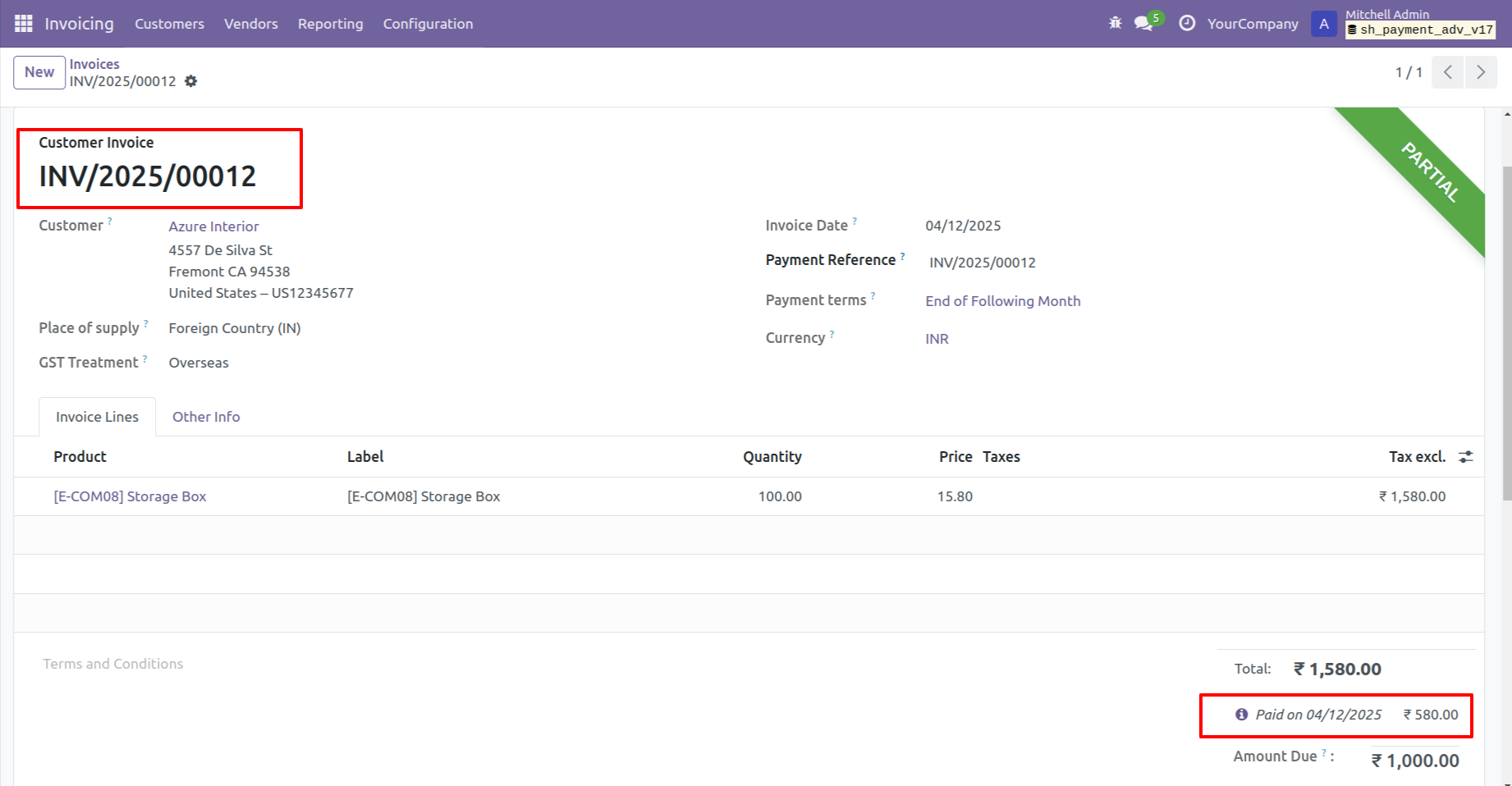
Click on the 'Invoice' smart button to view the adjusted invoice.
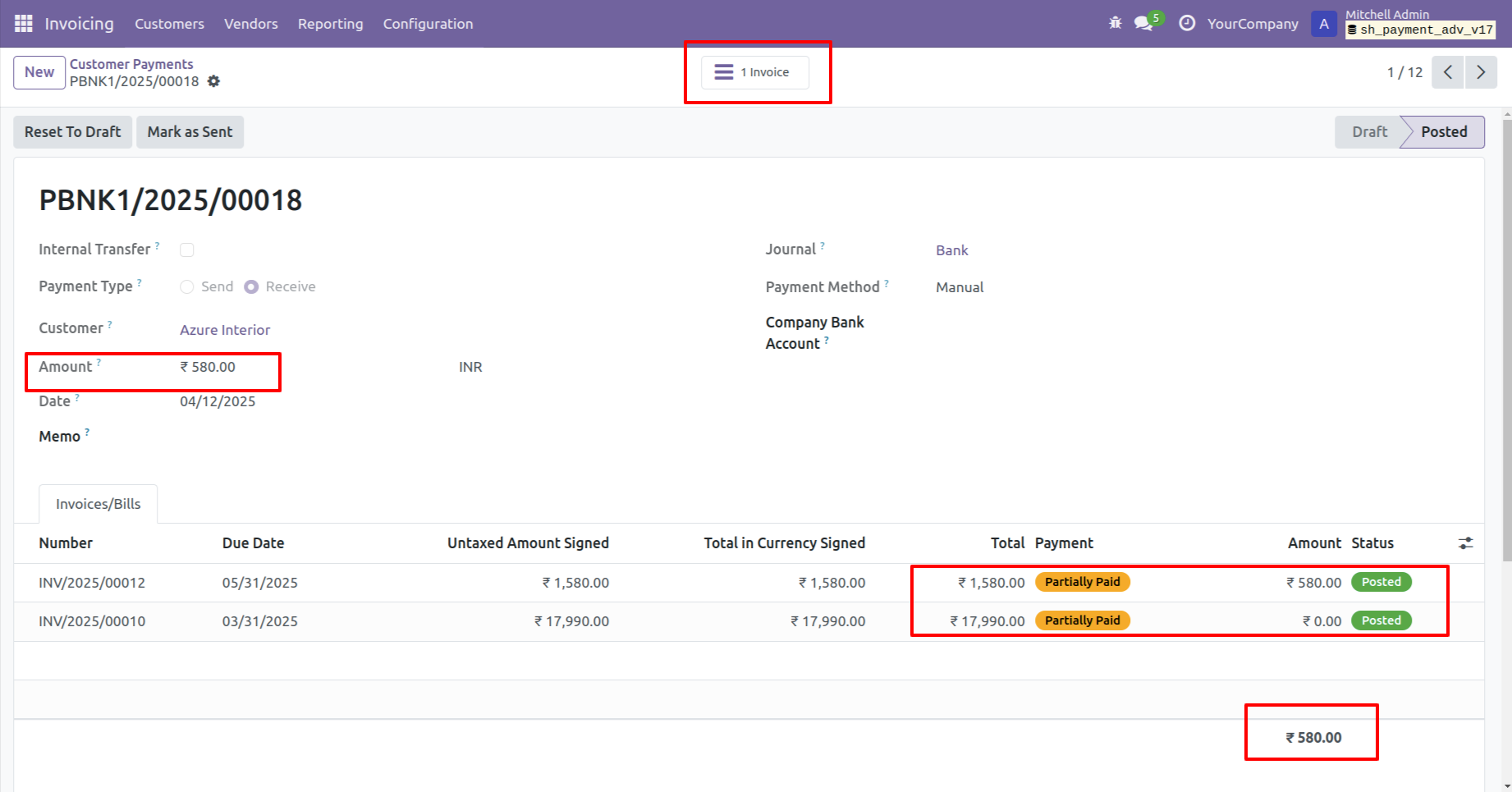
Partially paid invoice with adjusted paid amount.
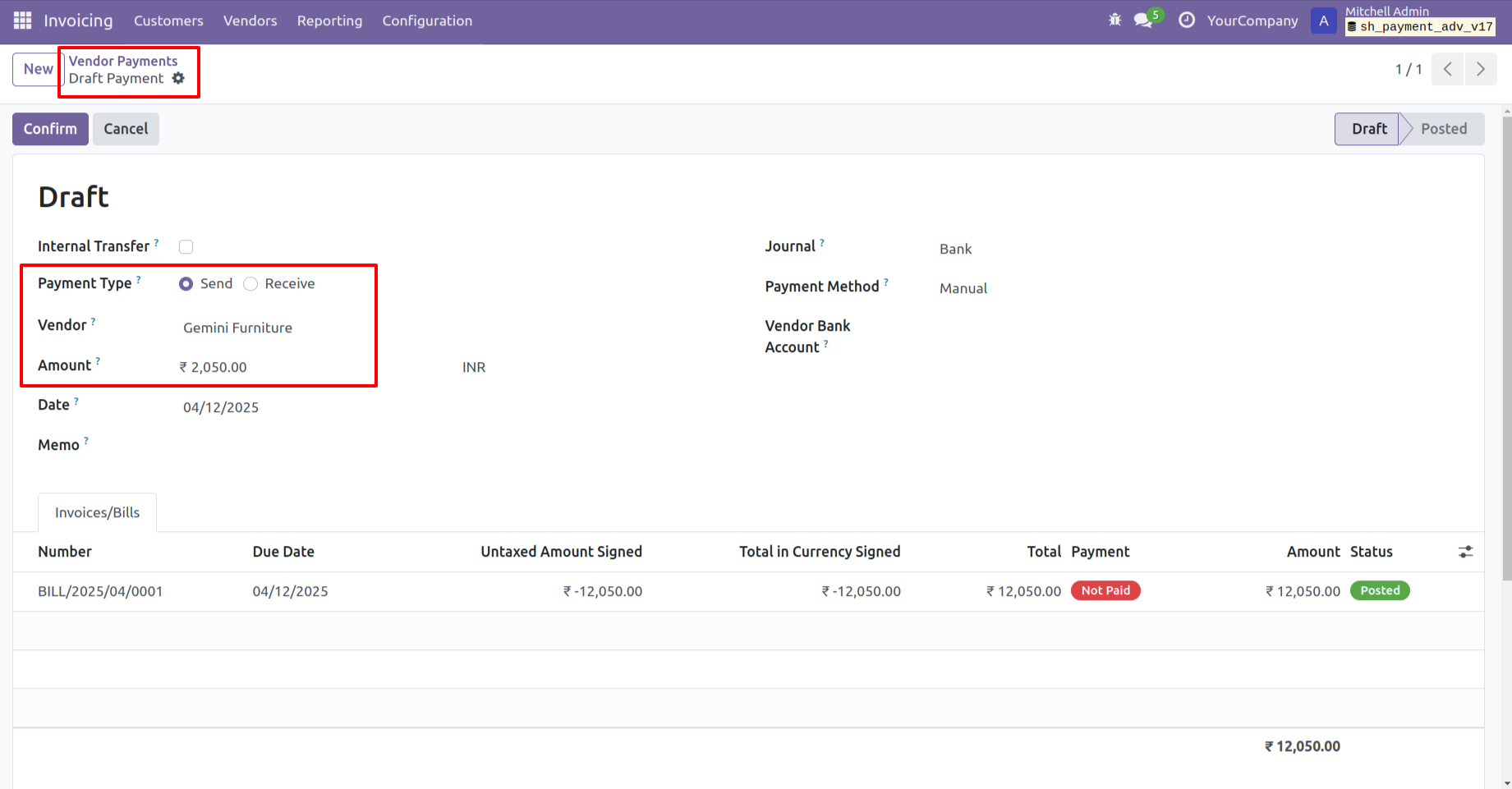
Create vendor payment, choose 'Send' as the payment type, you can see list of bills for the selected vendor, add the payment amount and click on the 'Confirm' button.
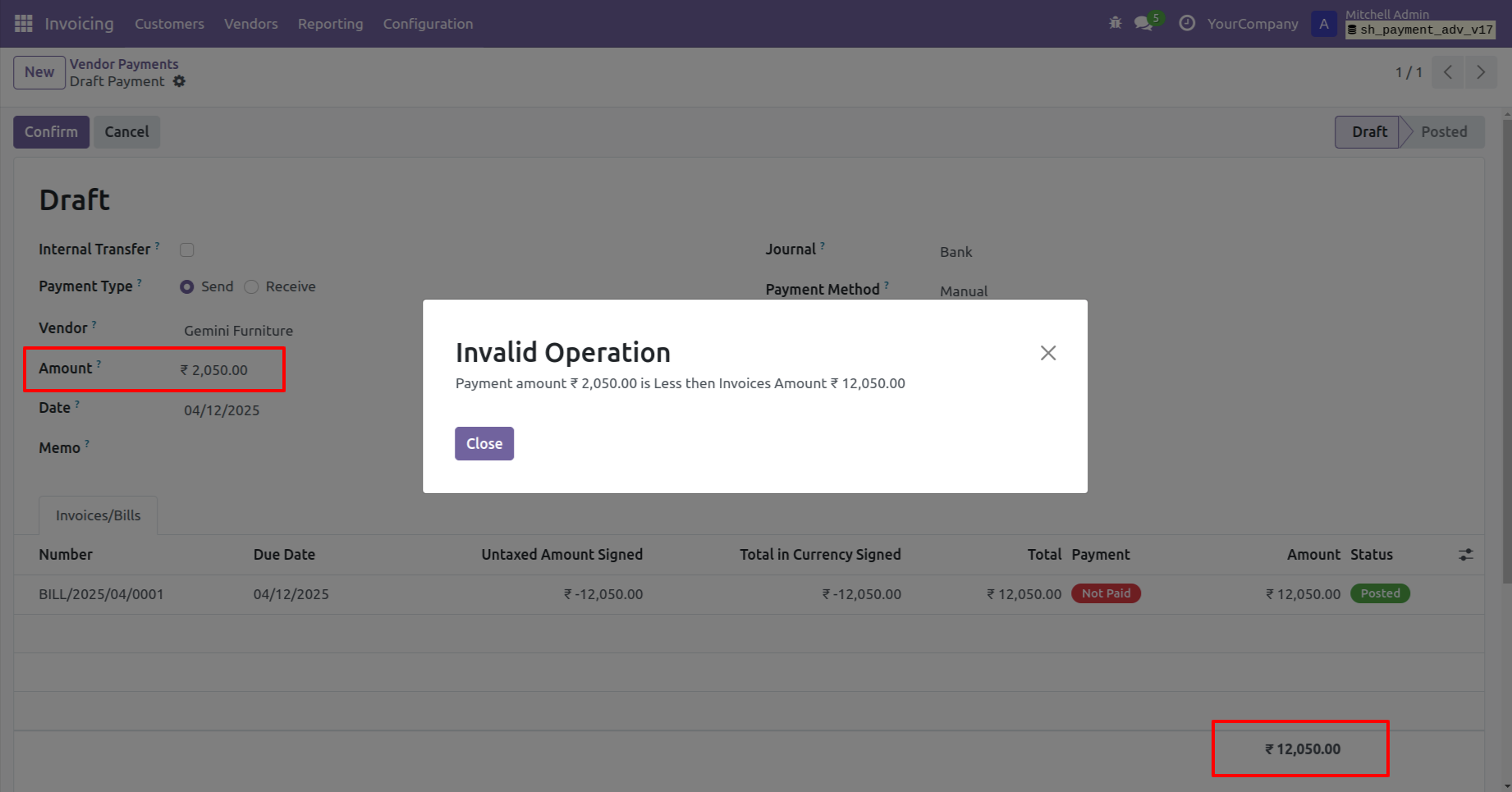
If the added amount is less than the total bill amount, an 'Invalid' warning popup will appear.
Allocate the payment amount with the invoice amount, then click on the Confirm button.
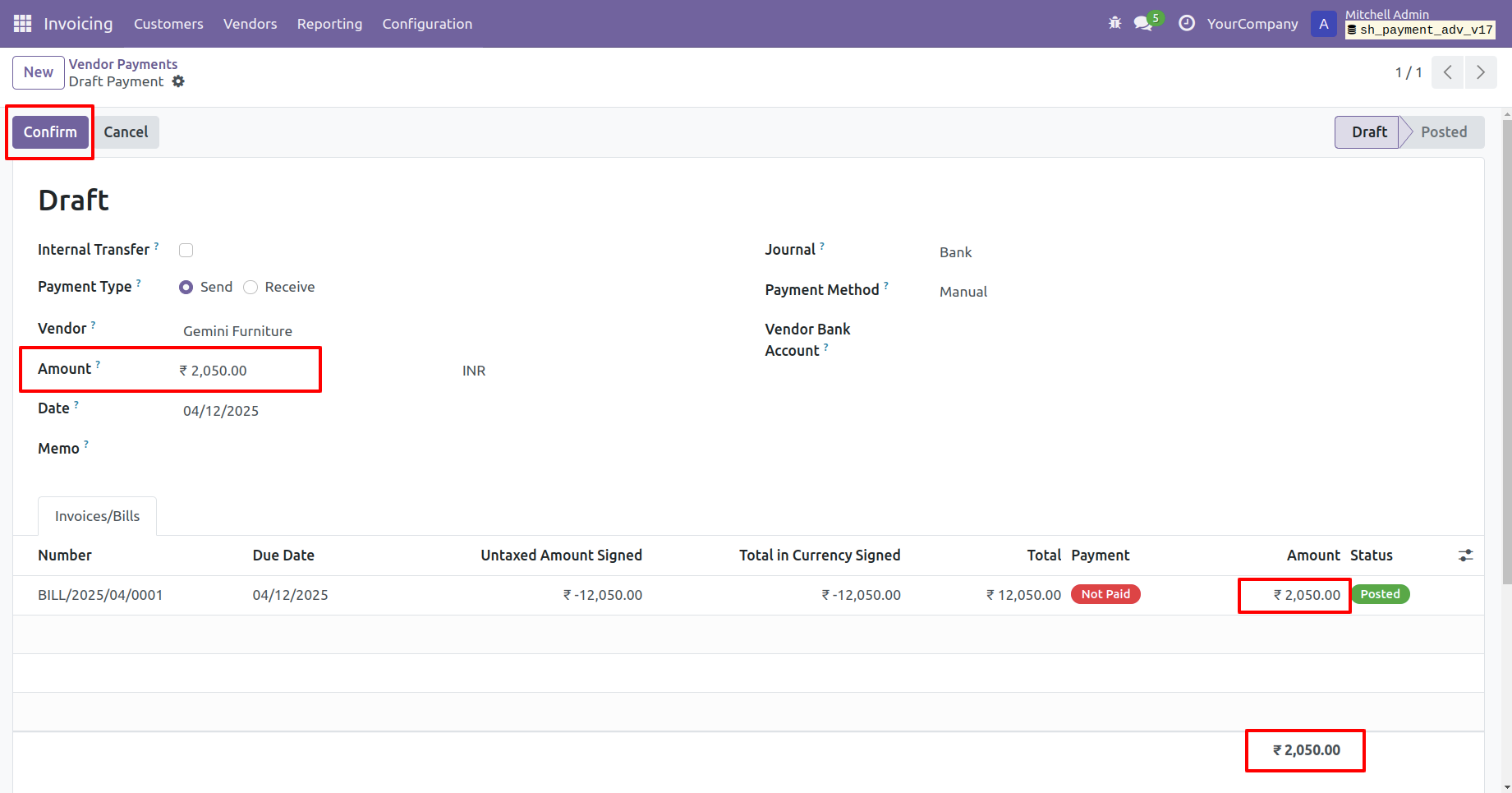
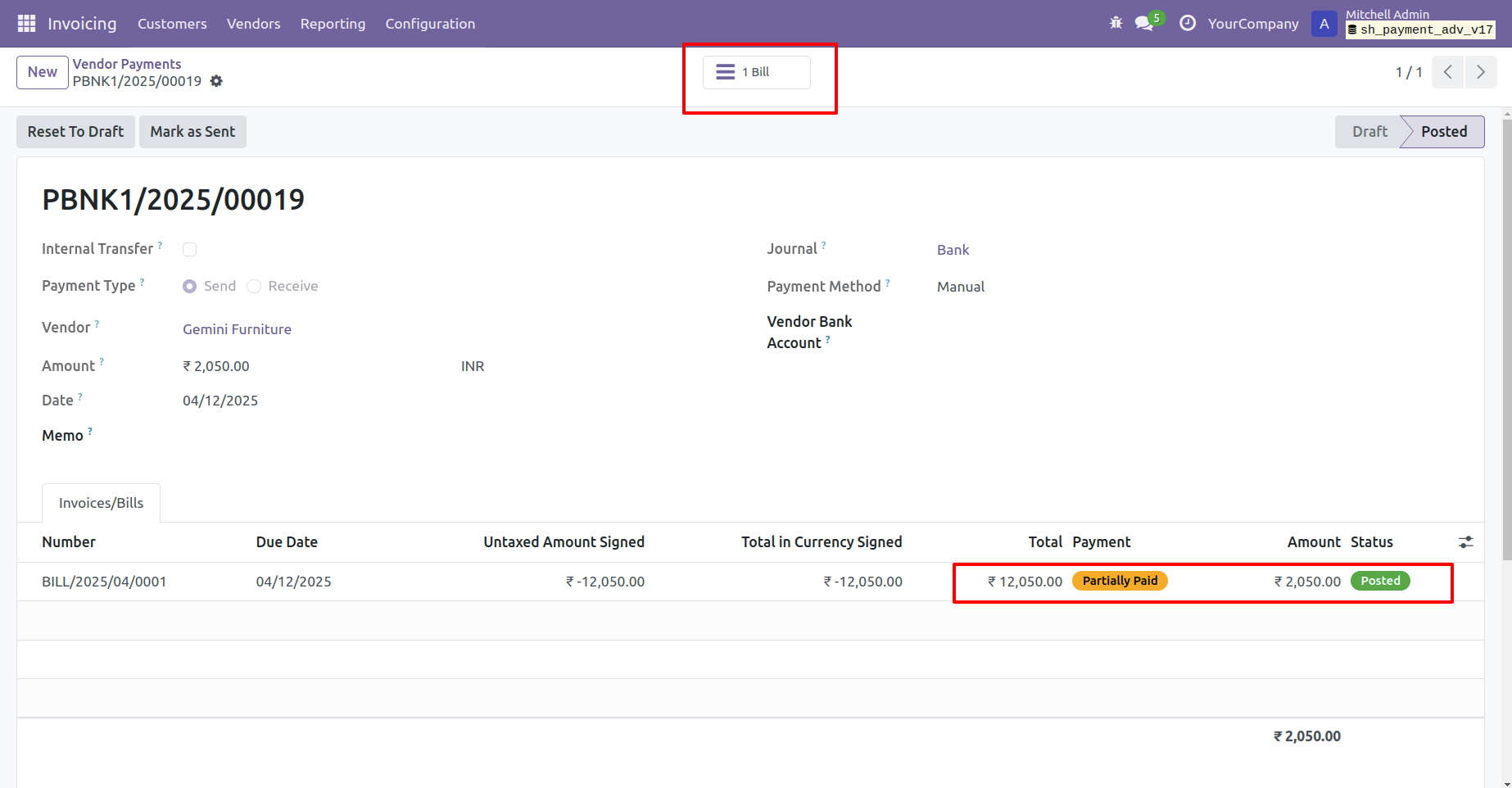
Bill status will be changed with partially paid. Click on the 'Bill' smart button to view the bill.
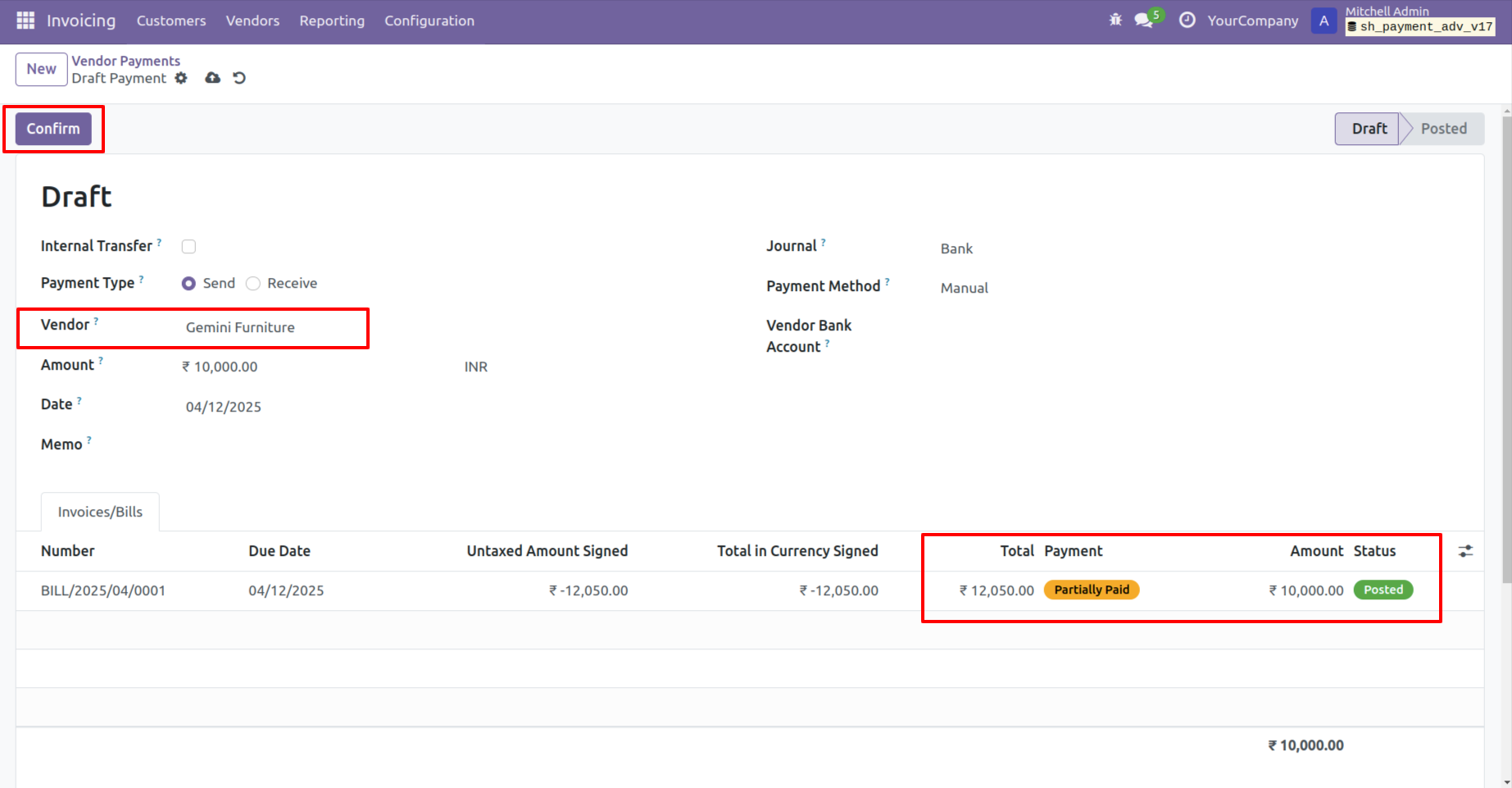
Create another payment with same customer, you will see total amount and outstanding amount of the bill. Add the bill amount and click on confirm.
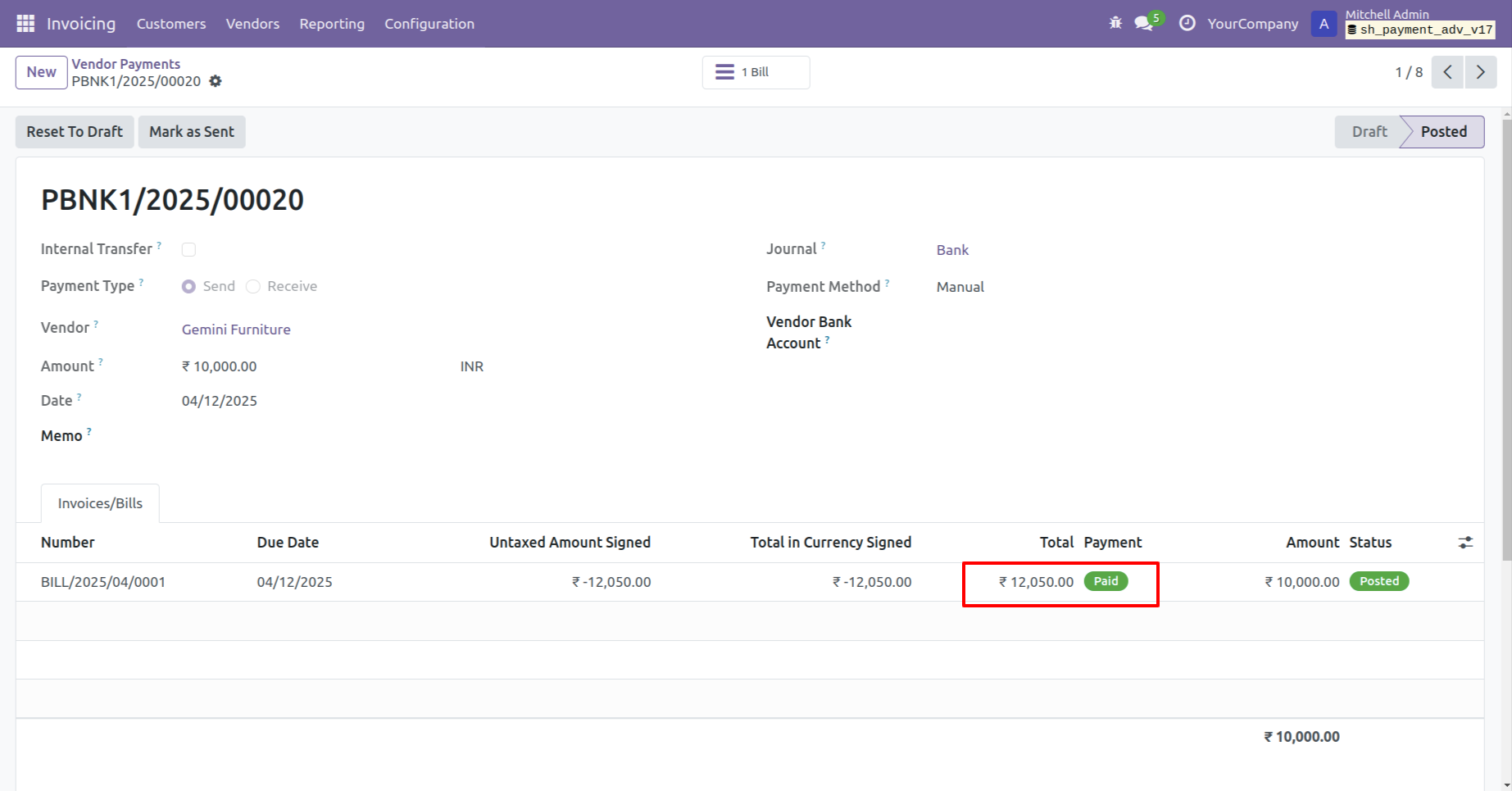
Bill has been fully paid. Also status will be changed from partially paid to paid.
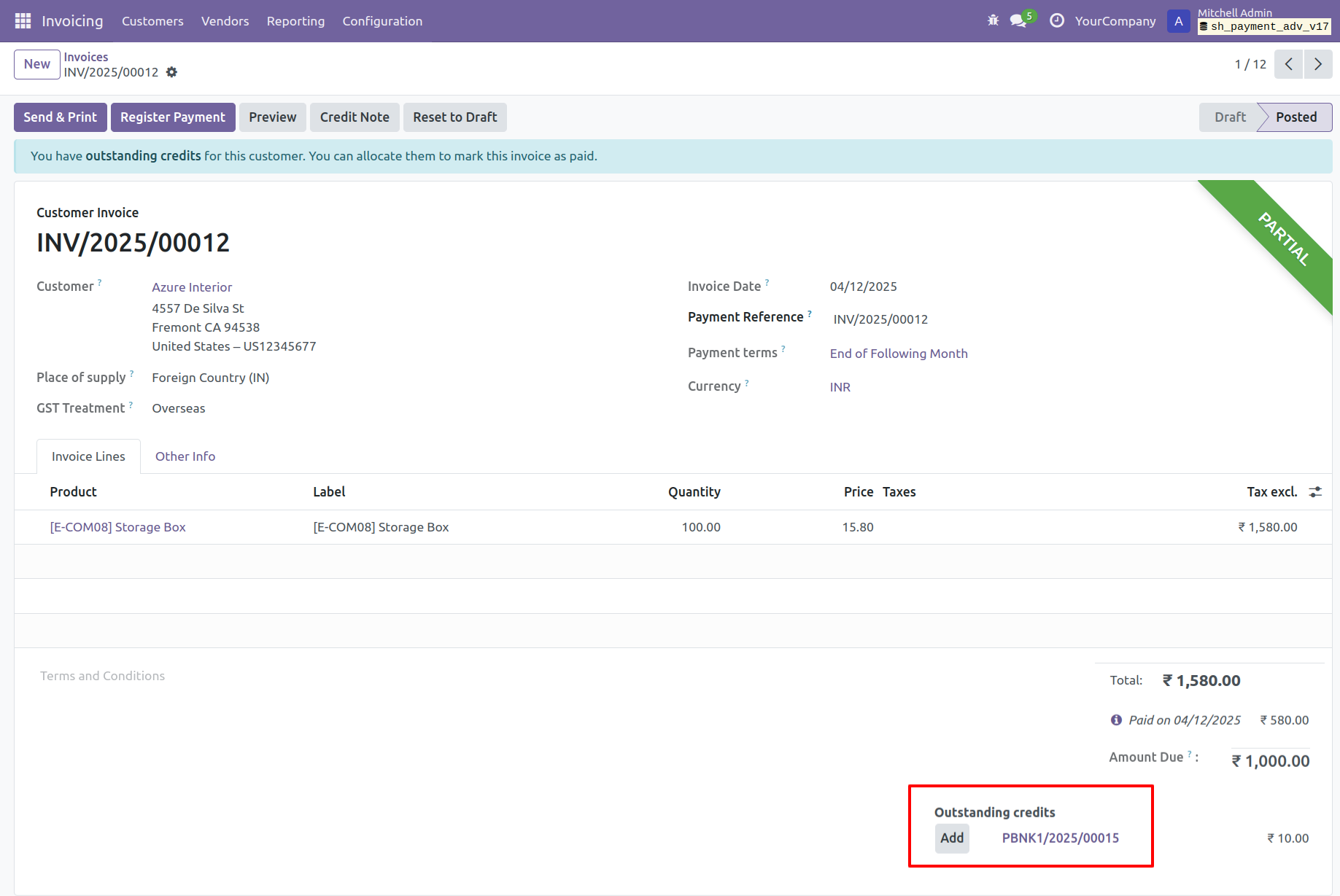
You can adjust advance payment with invoice/bills. click on add button from outstanding credits in the invoice.
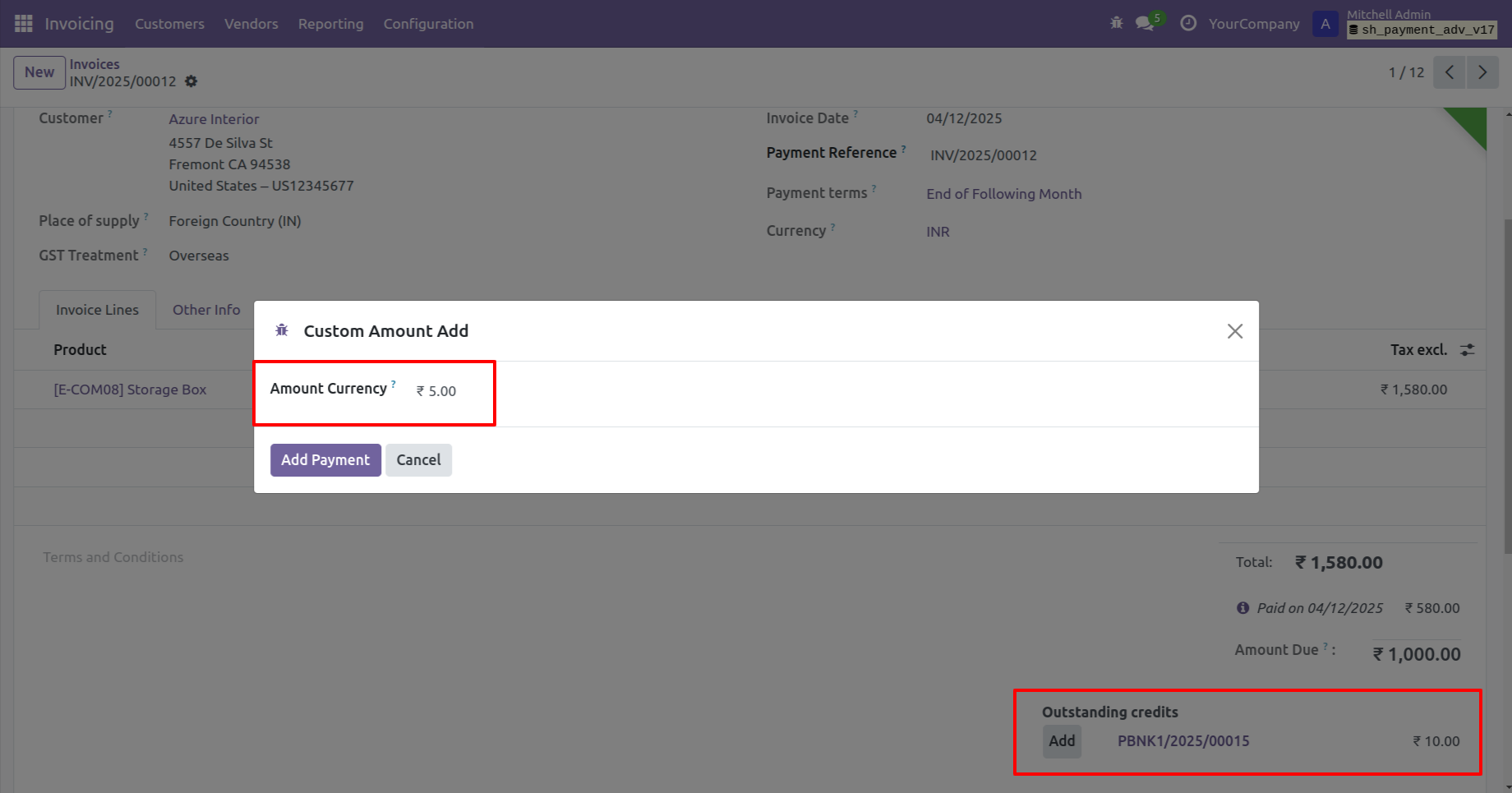
After that one wizard opens, enter the custom amount in the 'Amount Currency' field and click on 'Add Payment' button.
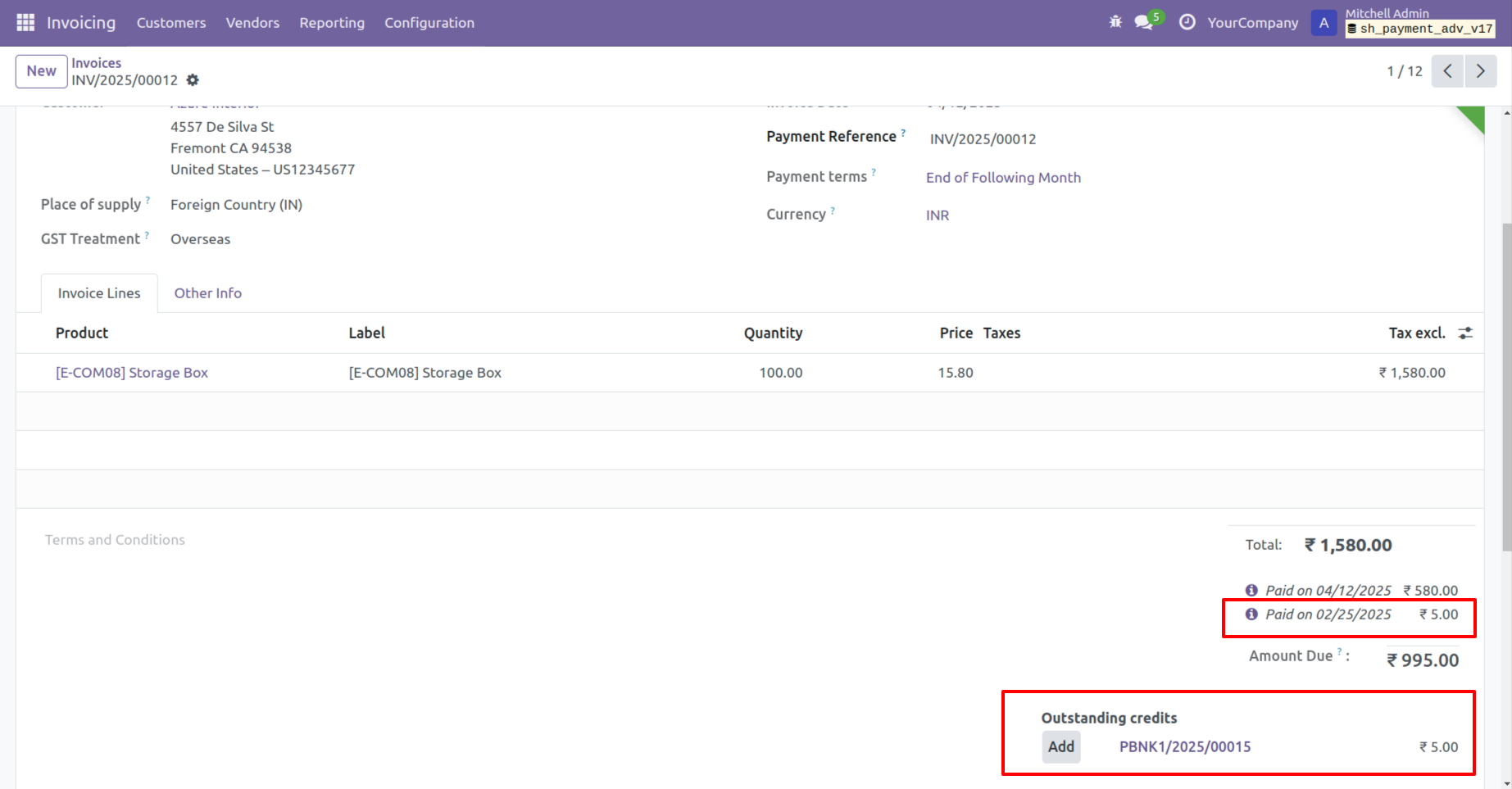
You can see adjusted advance payment with custom amount in the invoice.
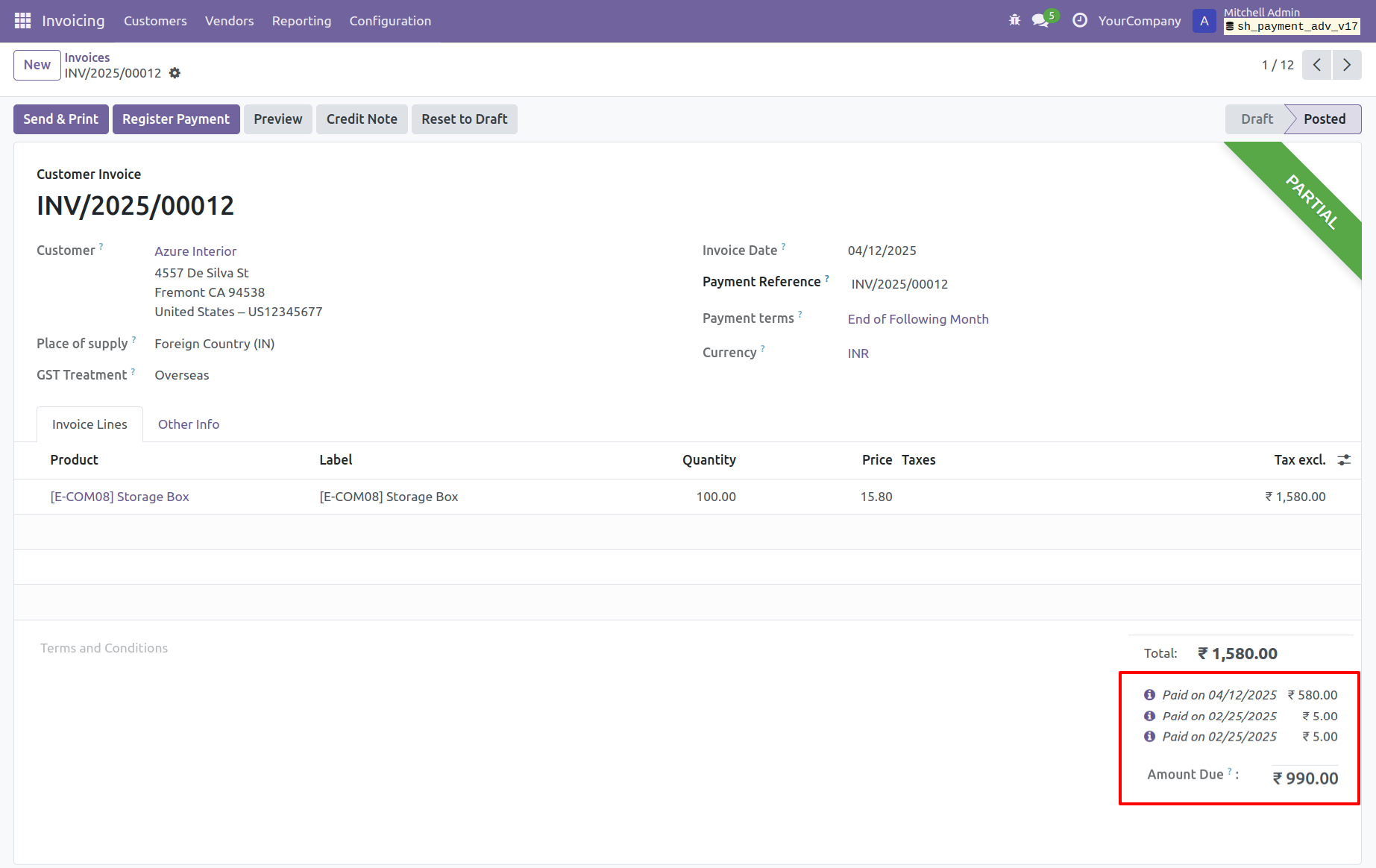
Here, you can view the paid amount date, and count.
Version 20.0.1.0.0 | Released on : 15th September 2026
- Yes, this app works perfectly with Odoo Enterprise (Odoo.sh & Premise) as well as Community.
- No, this application is not compatible with odoo.com(odoo saas/Odoo Online)
- Yes, to test this module, please contact us at sales@softhealer.com.
- Please contact us at sales@softhealer.com to request customization.
- Yes, we provide free support for 365 days from the date of purchase.
- Yes, you will receive lifetime free updates for the version of the module you purchased.
- No, there is no need to install any additional libraries.
- Yes, for version 12 and above, you need to purchase the module separately for each version you intend to use.
- No, exchanges or refunds are not allowed. Please make sure to select the correct version before purchasing.
- You can contact us at support@softhealer.com for language translation support. We use Google Translator tools to provide translations in multiple languages, so the accuracy may vary. We welcome your suggestions to help improve translations.
Discover Our Latest Apps