












Optical Management System Website

Build a professional online presence for your optical business with a complete Optical Management System Website. Showcase optical products, eyewear collections, eye examination services, and optometry information in an engaging way. Allow customers to explore products, manage their orders, access detailed eye examination reports, and connect with your optical store. Streamline your online operations while delivering a smooth and customer-friendly experience across devices.
Related Modules
Key Features
Features

Optical Snippets
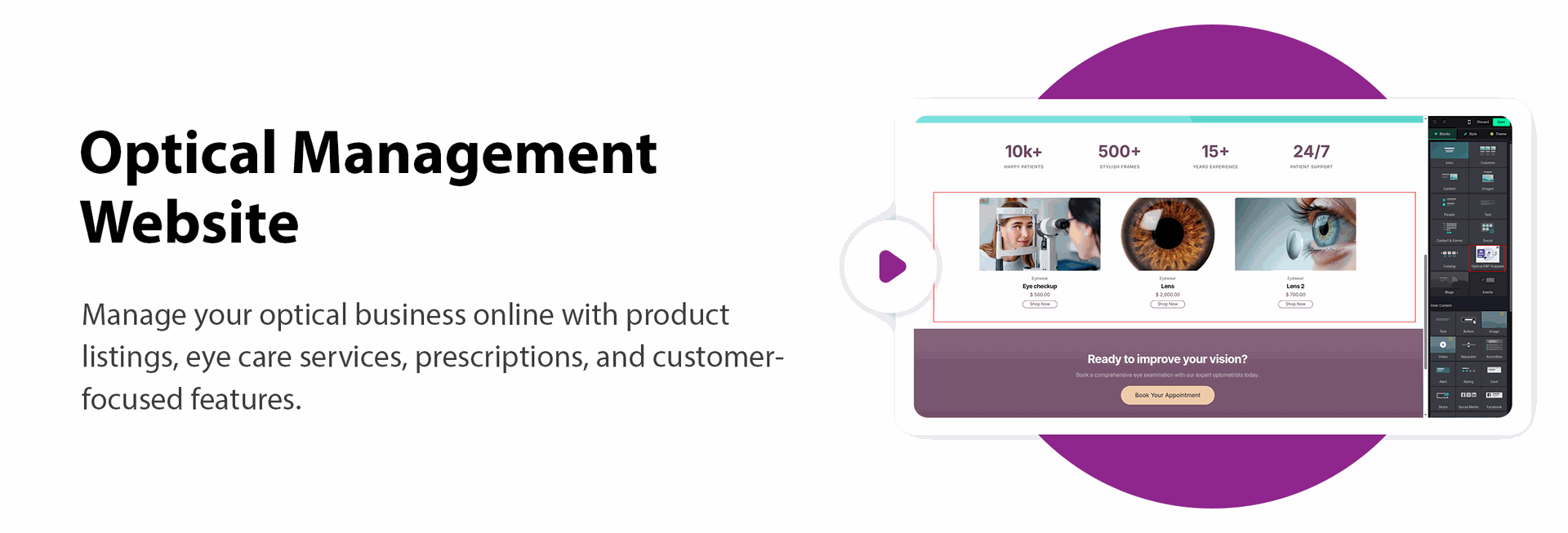
Drag and drop the Optical Snippet from the Website Editor to manage your optical business online with product listings, eye care services, prescriptions, and customer-focused features.

Optical Product Catalogue
Display frames, lenses, glasses, and other optical products with detailed product information.

Optical Products & Services
Manage and sell optical products and eye-care services with different product variations.

Patient Eye Examination
Examine patients' eye health and record detailed eye examination results from the Sales Order.

Optical Purchase Management
Purchase optical products from vendors after approval and sell them to customers.

Customer Notifications
Notify customers when their ordered optical products are ready.

Prescription Reports
Print detailed eye measurements, prescriptions, and ophthalmology reports.

Top-Selling Products Analysis
Analyse top-selling optical products for a selected date range.

Optical Customer Portal
Allow customers to access their optical information and related services through the portal.

Online Optical Product Purchase
Allow customers to browse and purchase optical products directly from the website.

Optometrist Management
Create optometrist profiles and link their prescriptions to patient sales orders.

Detailed Prescription
Record and manage detailed eye measurements and prescriptions for each patient.

Optical Sales Management
Manage the complete optical sales process, including patient details, eye prescriptions, product selection, and order confirmation.

Sales Analysis Filters
Filter sales reports by product count, quantity sold, sales channel, date range, and other criteria.

Optometrist Prescription Reports
View prescriptions linked to specific optometrists in detailed reports.

Sales Period Comparison
Compare top-selling products across two different time periods.

Optical Management Dashboard
Get an overview of optical sales, purchases, prescriptions, and business performance from a centralised dashboard.
Just drag and drop the Optical ERP Snippets in the website.
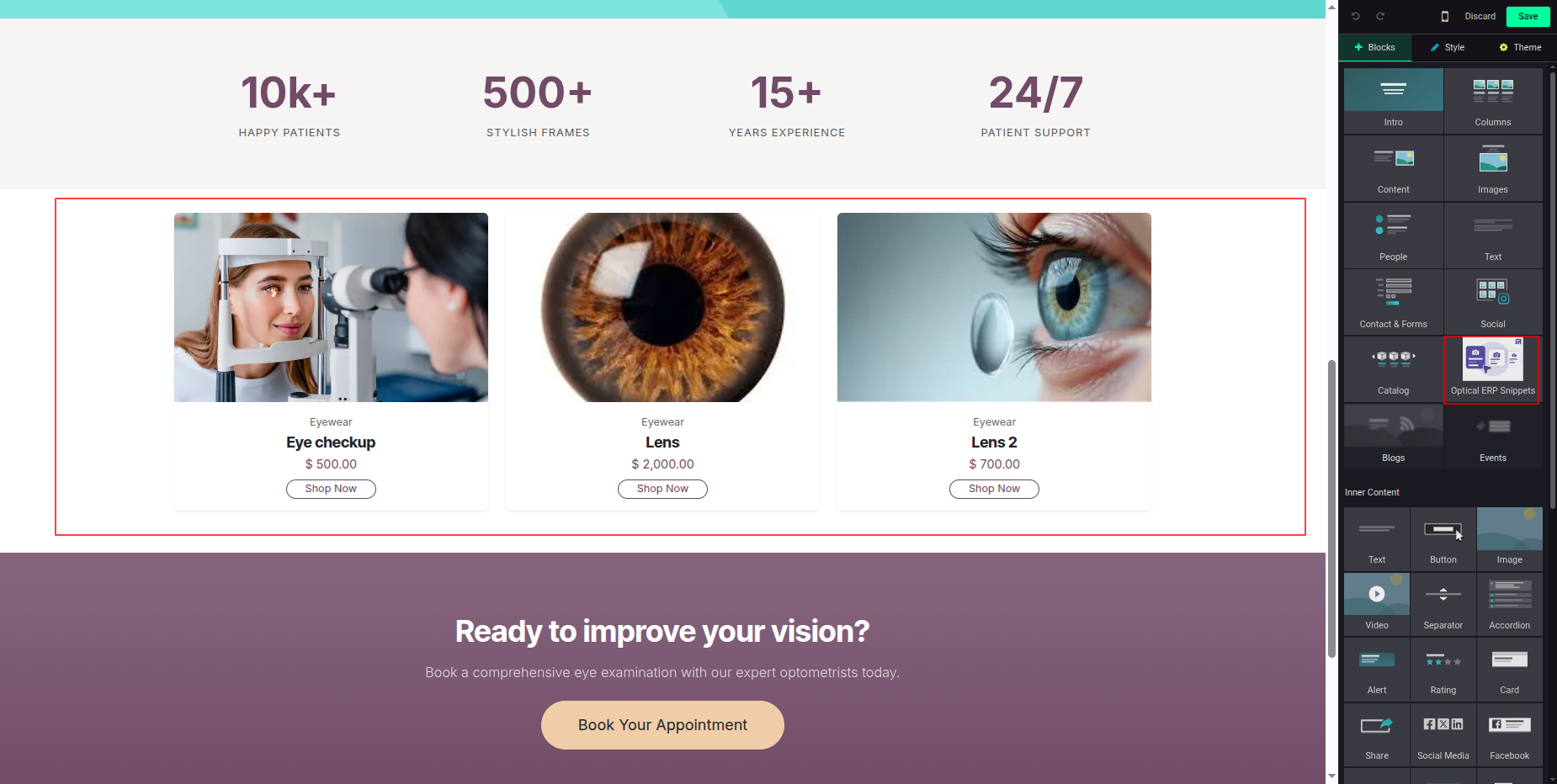
Once the Optical ERP snippets are added, you can click the Shop Now button to purchase the optical products and services.
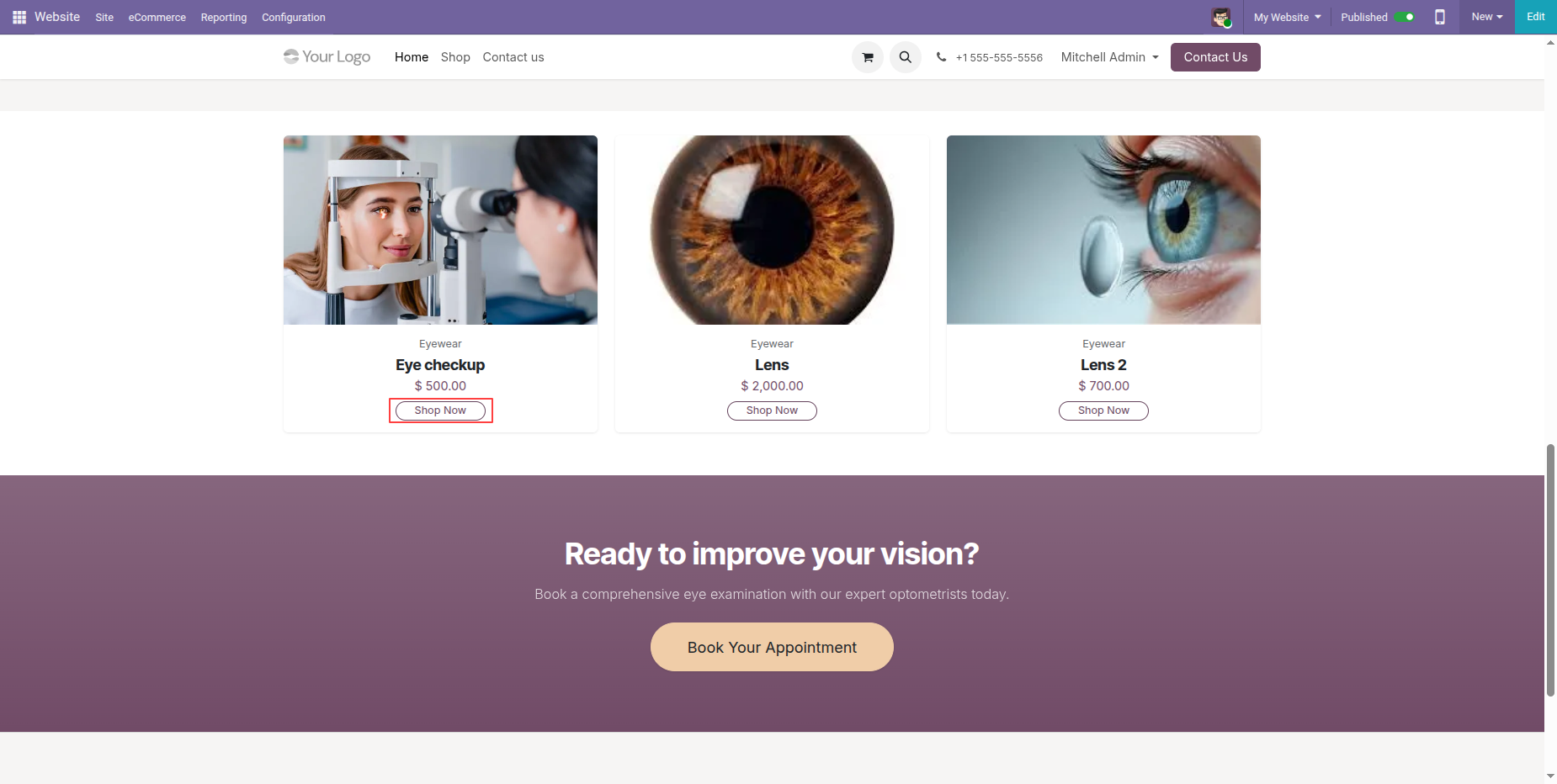
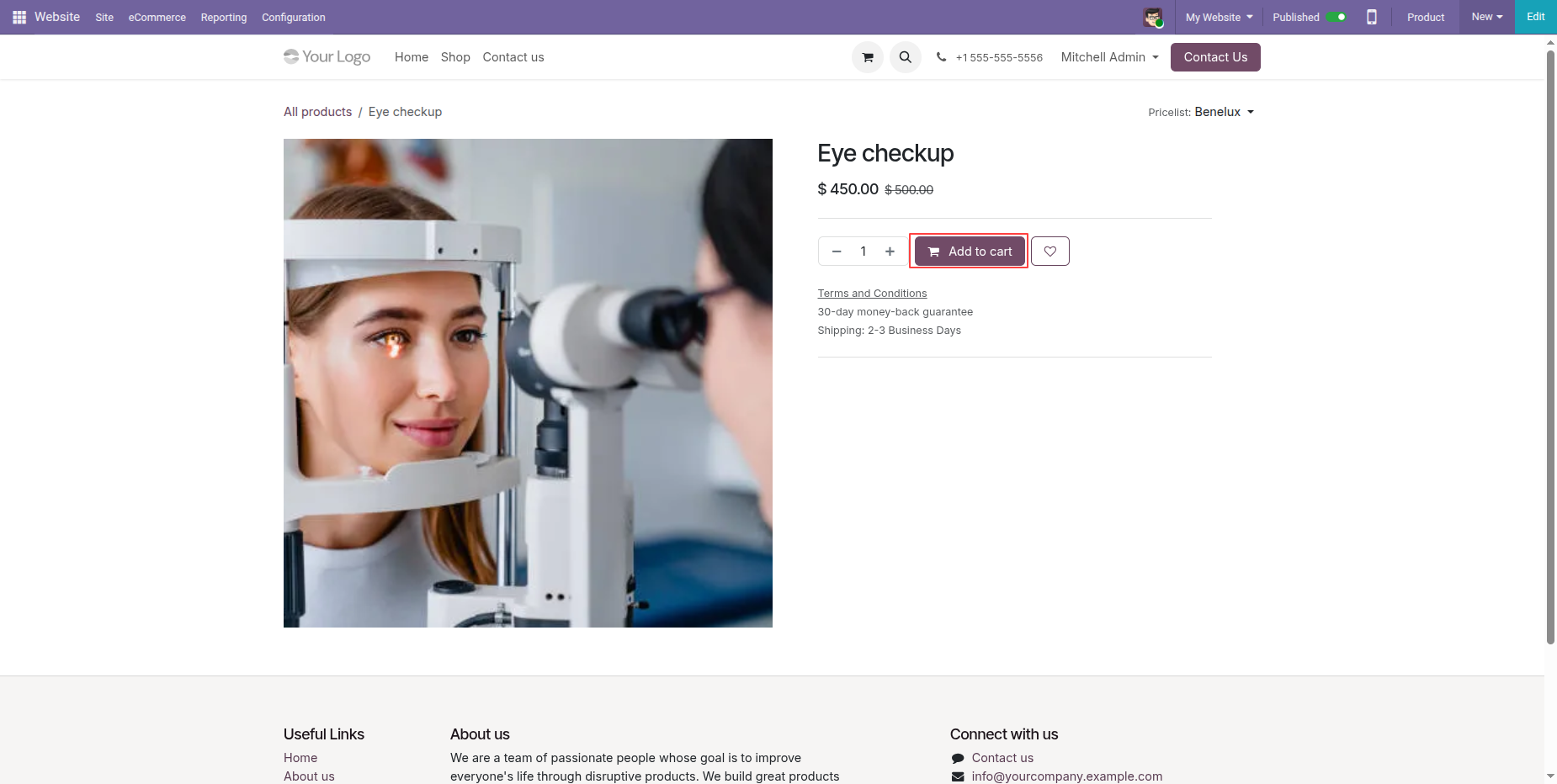
Select the product and its quantities and click Add to cart.
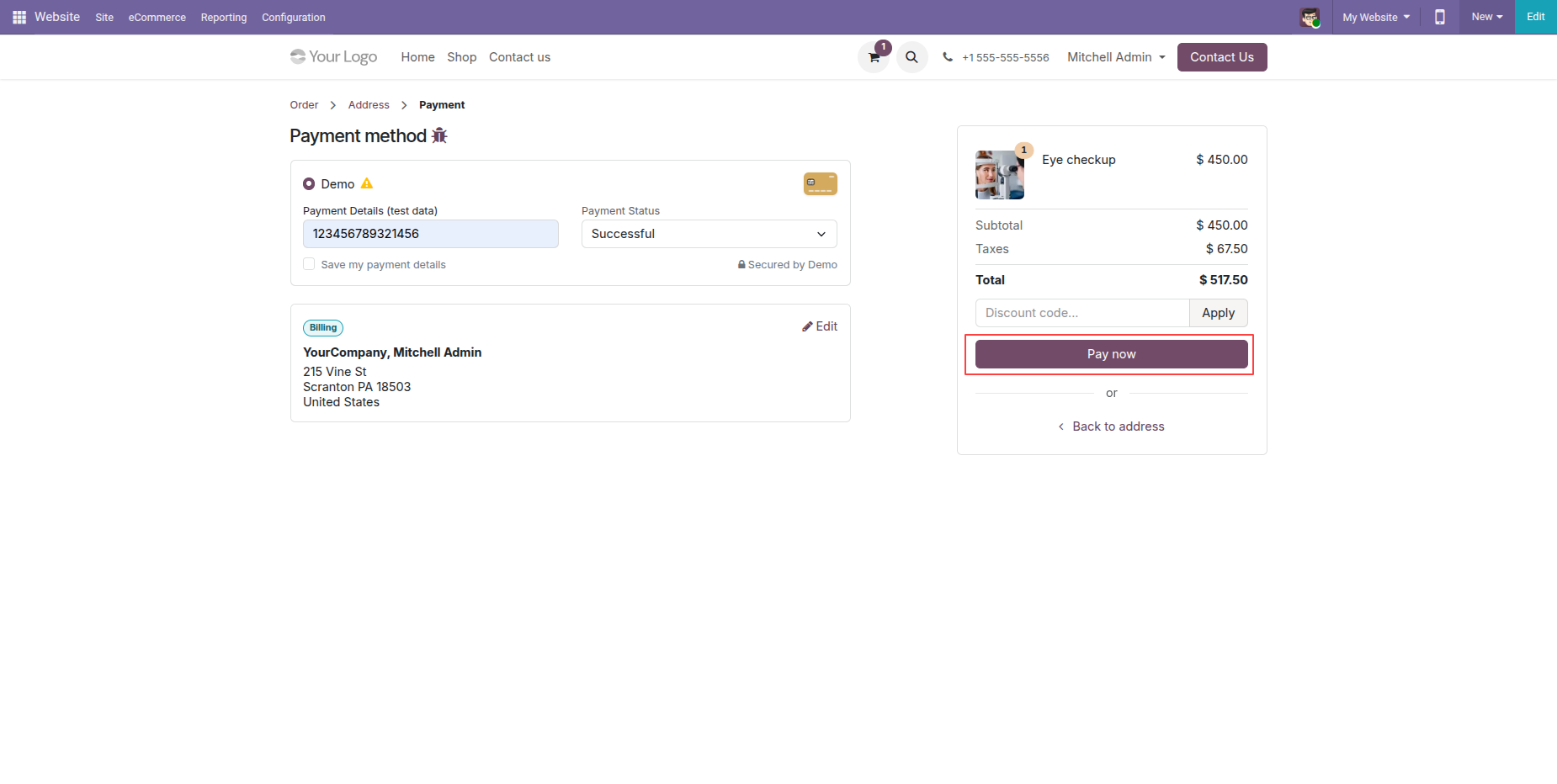
Enter card details for Payment and click Pay Now to make payment.
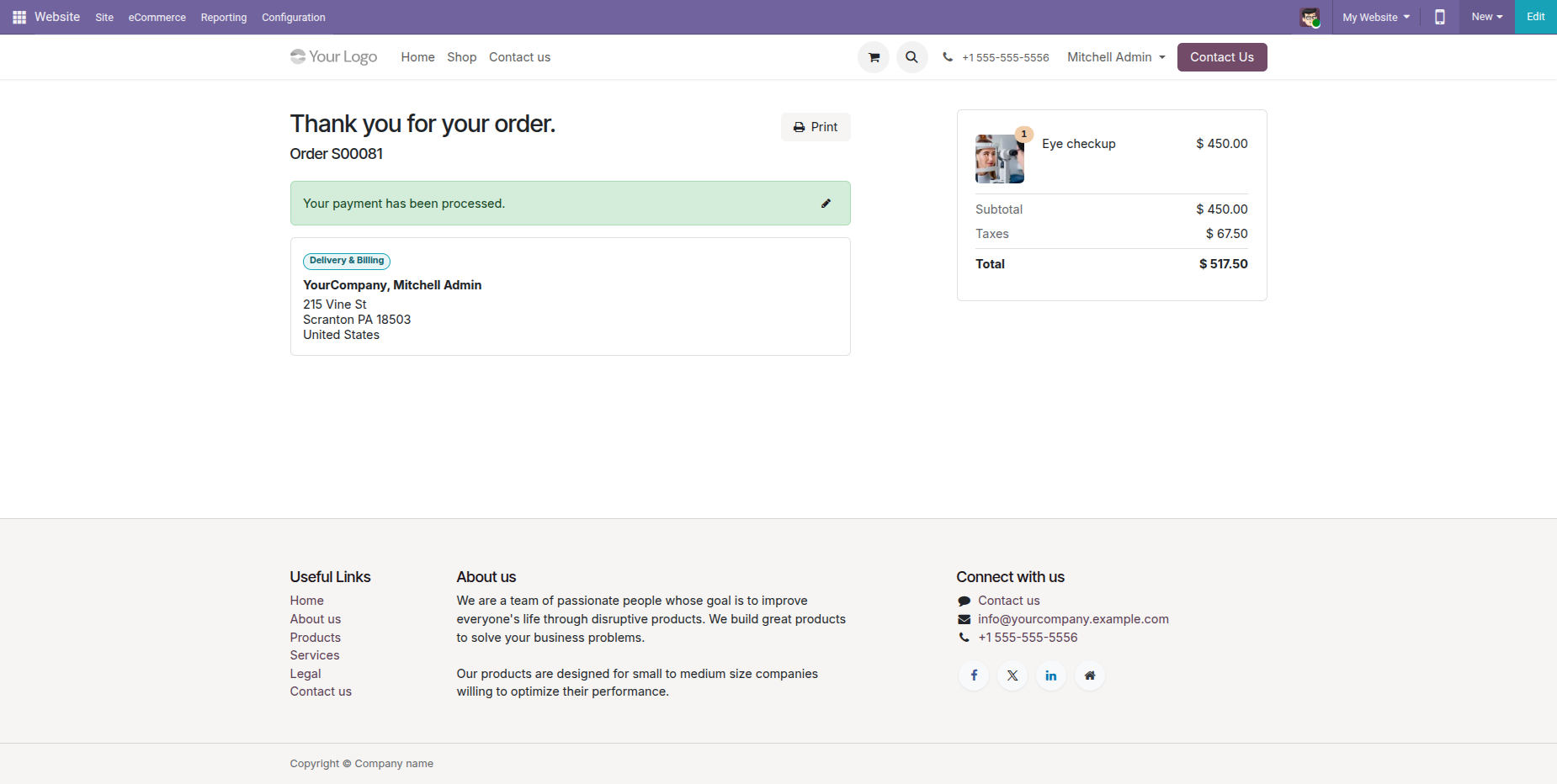
Once payment is successfully processed, the confirmation message is displayed.
We can see in the backed that the order/quotation is created for that particular optical product.
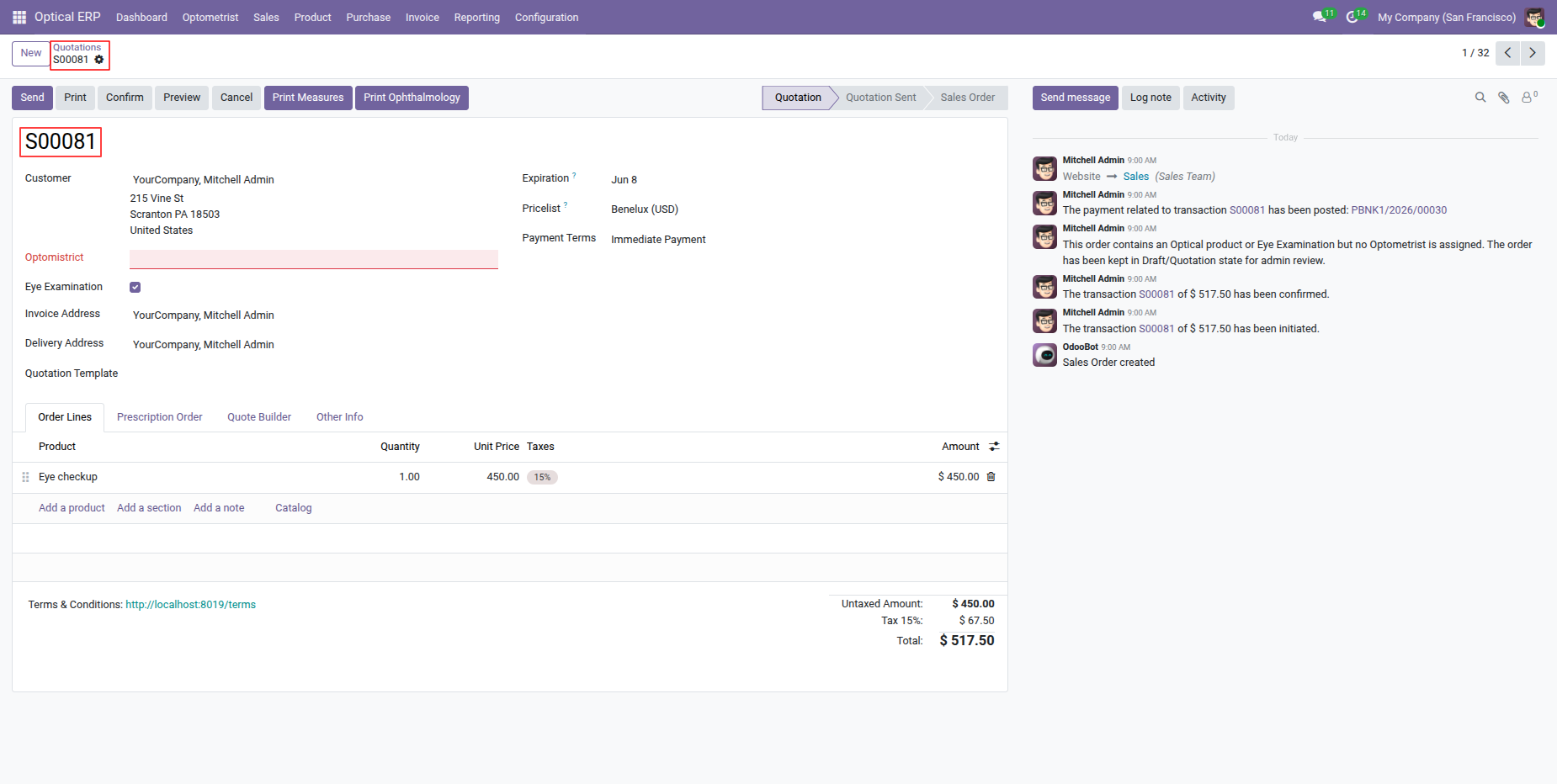
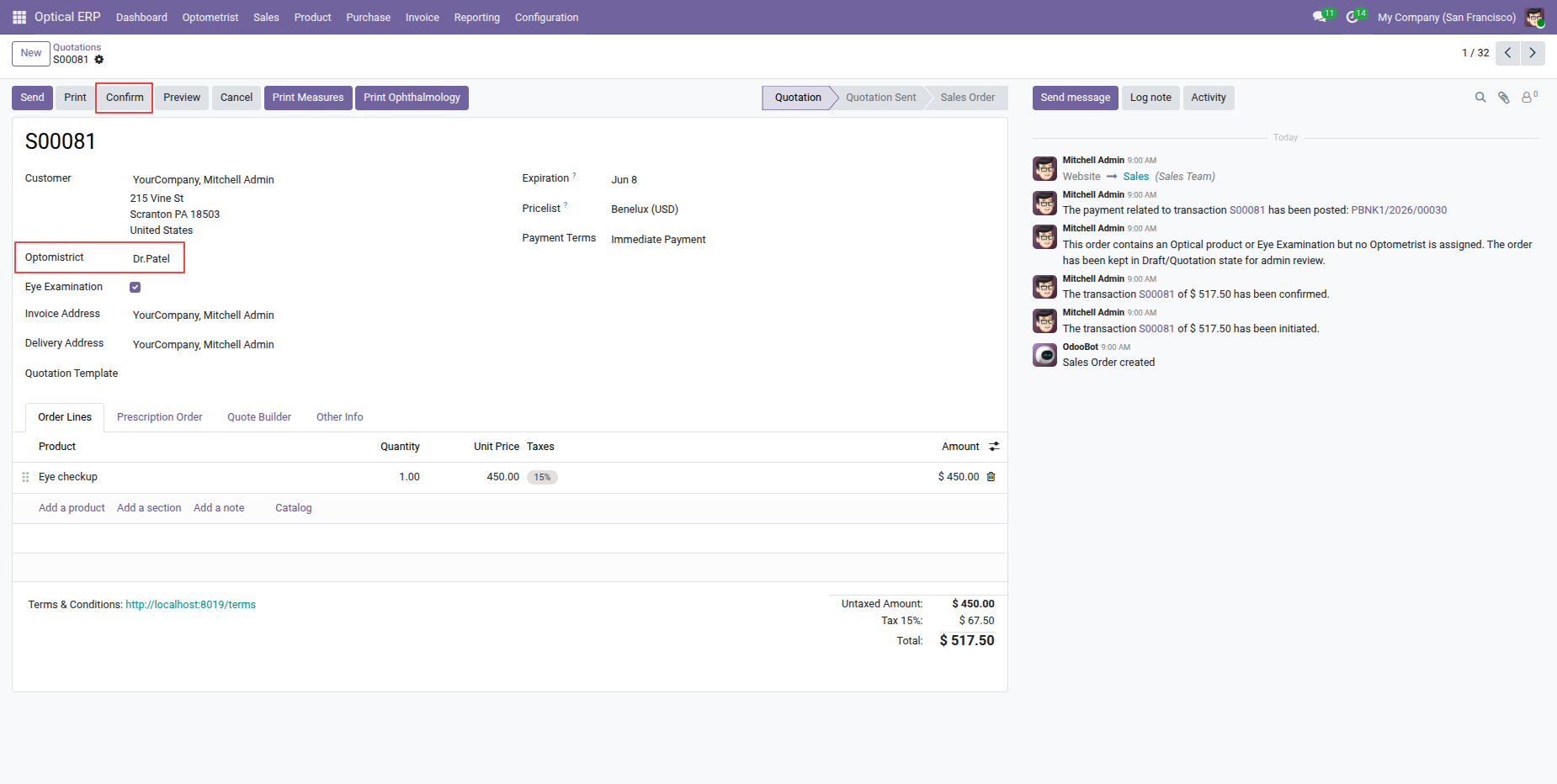
Select the Optimistrict and then confirm the order.

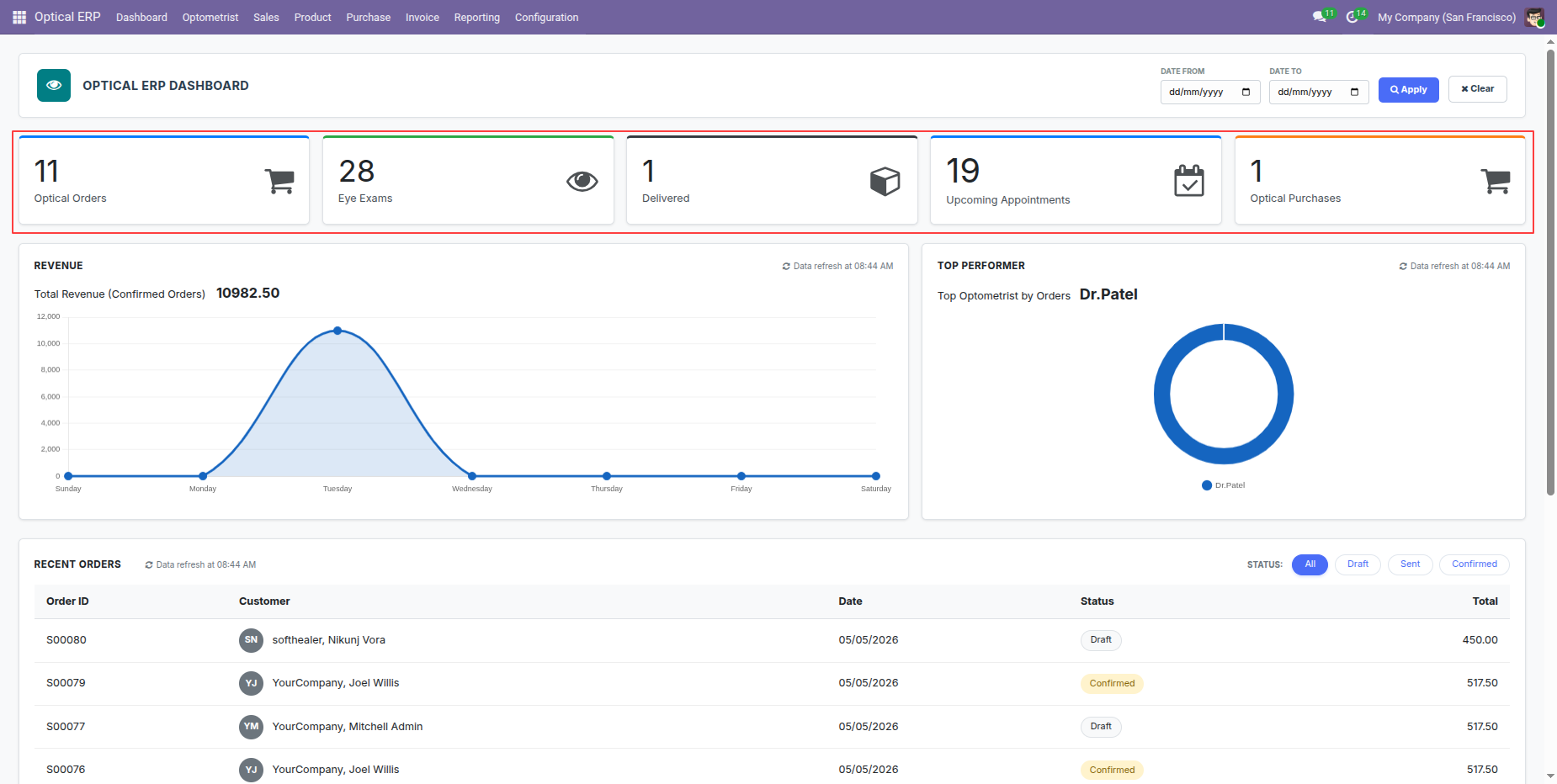
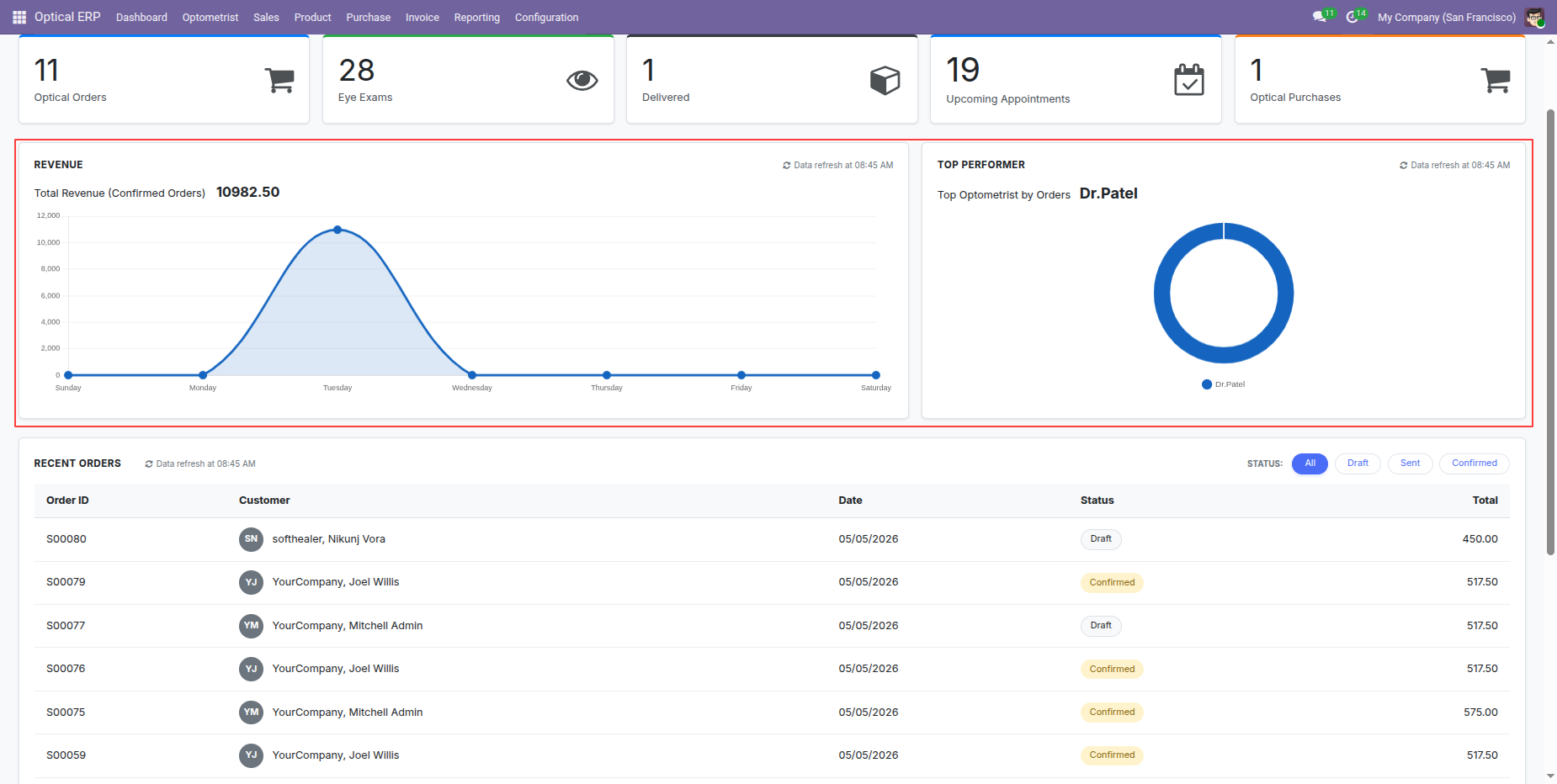
The Optical Dashboard displays key statistics, including Optical Products, Eye Exams, Delivered Orders, Upcoming Appointments, and Optical Purchases counts.
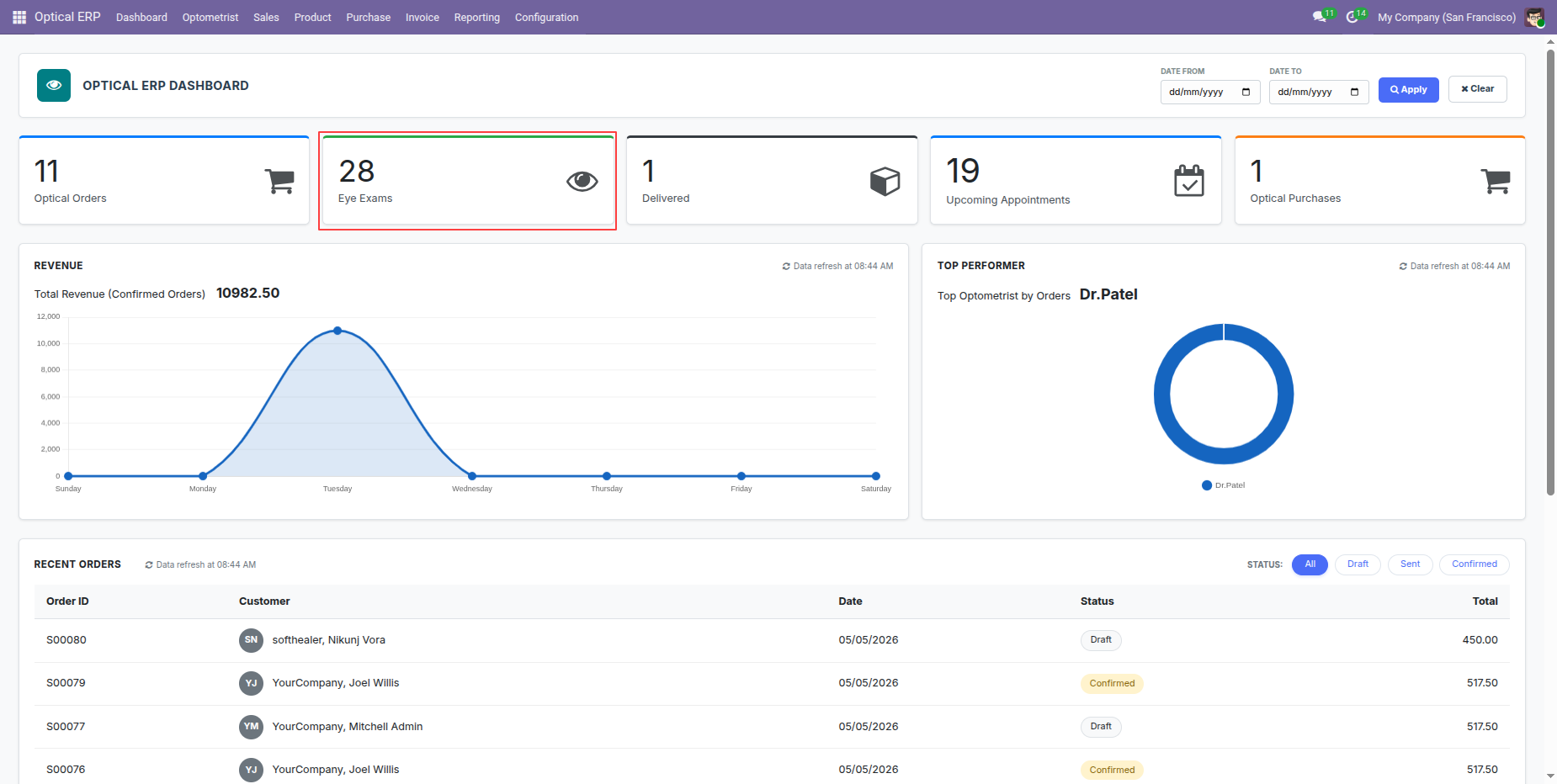
Click the Eye Exams tile on the Optical Dashboard to view the list of eye examination records.
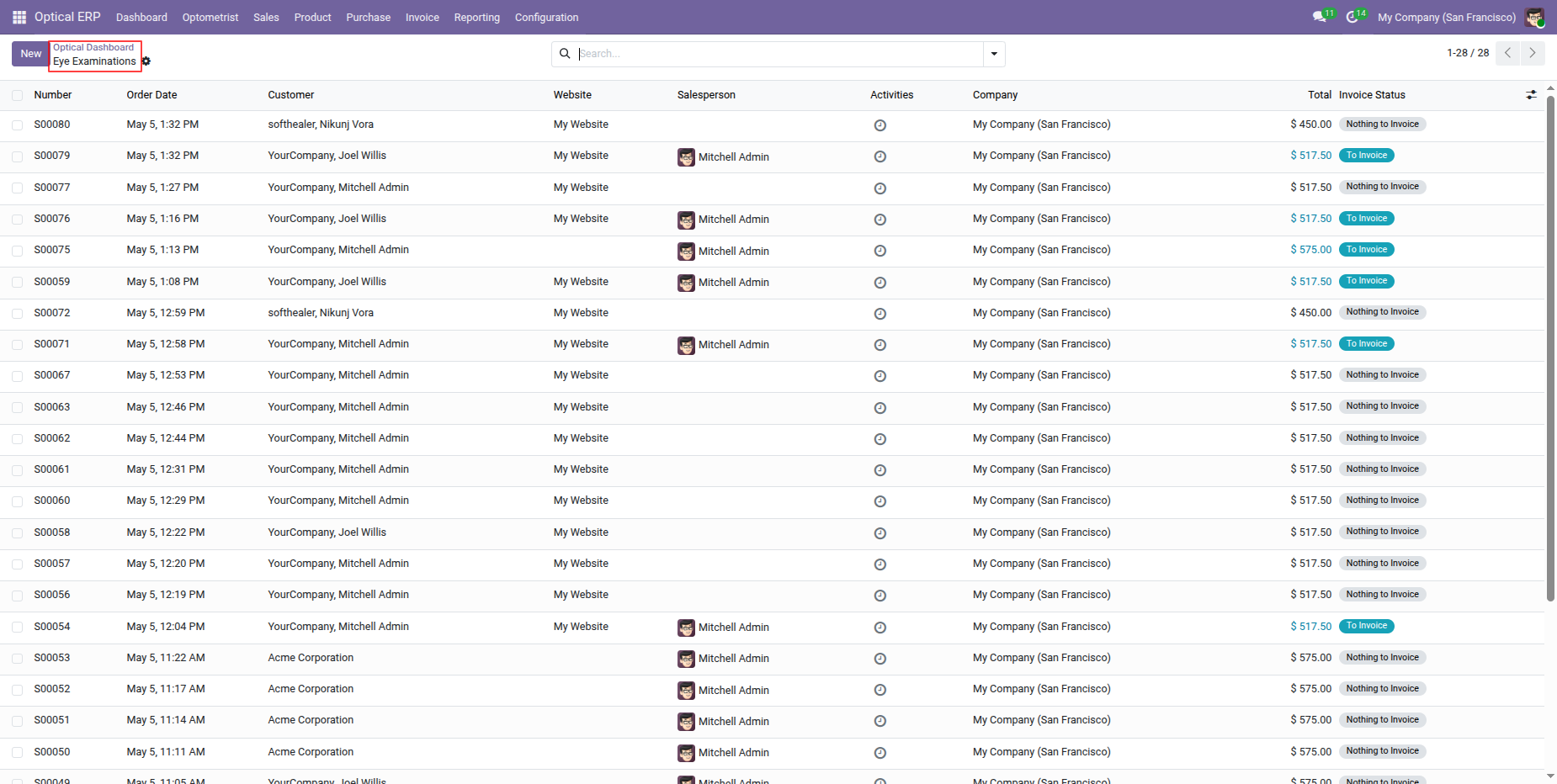
Clicking the Eye Exams tile opens the Eye Examinations list view, where users can view and manage all eye examination records.
The dashboard displays Revenue and Top Performing Optometrists through interactive charts, providing a clear overview of sales performance and optometrist contributions.
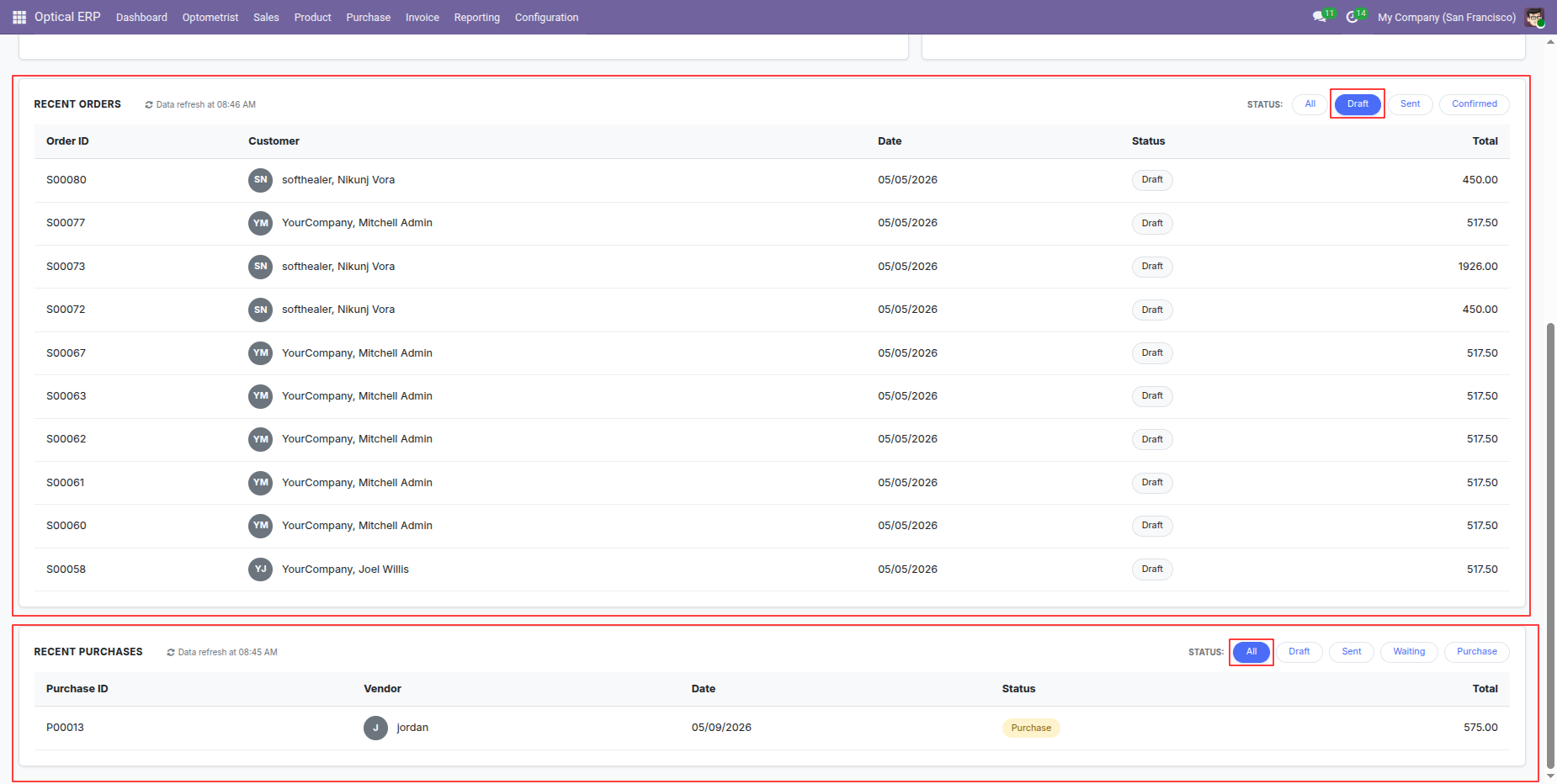
The dashboard also displays Recent Sales Orders and Purchase Orders in a table, along with their respective order statuses, providing a quick overview of recent transactions.
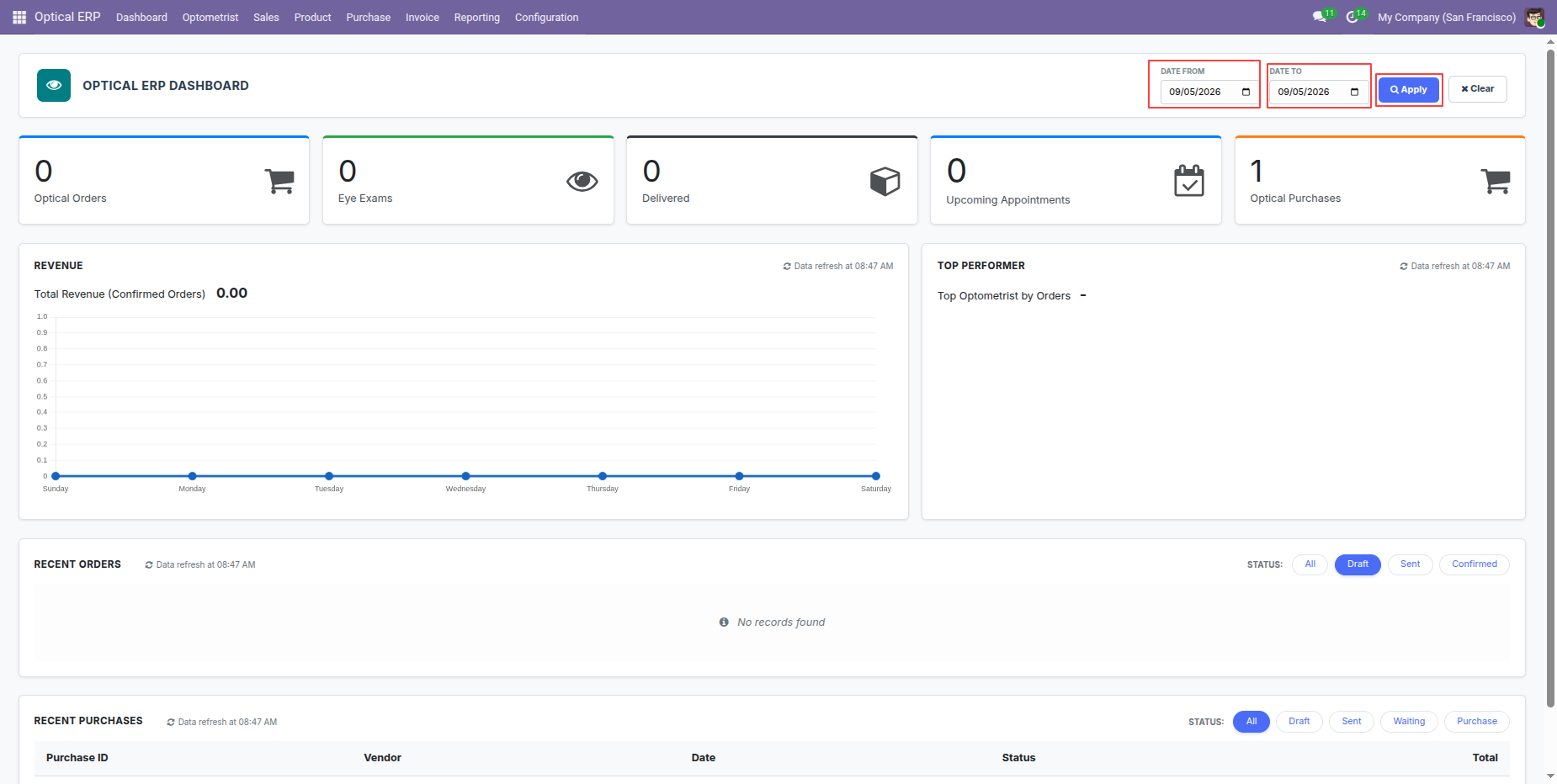
The Optical Dashboard can also be filtered by a date range, allowing users to view dashboard data and statistics for a specific period.
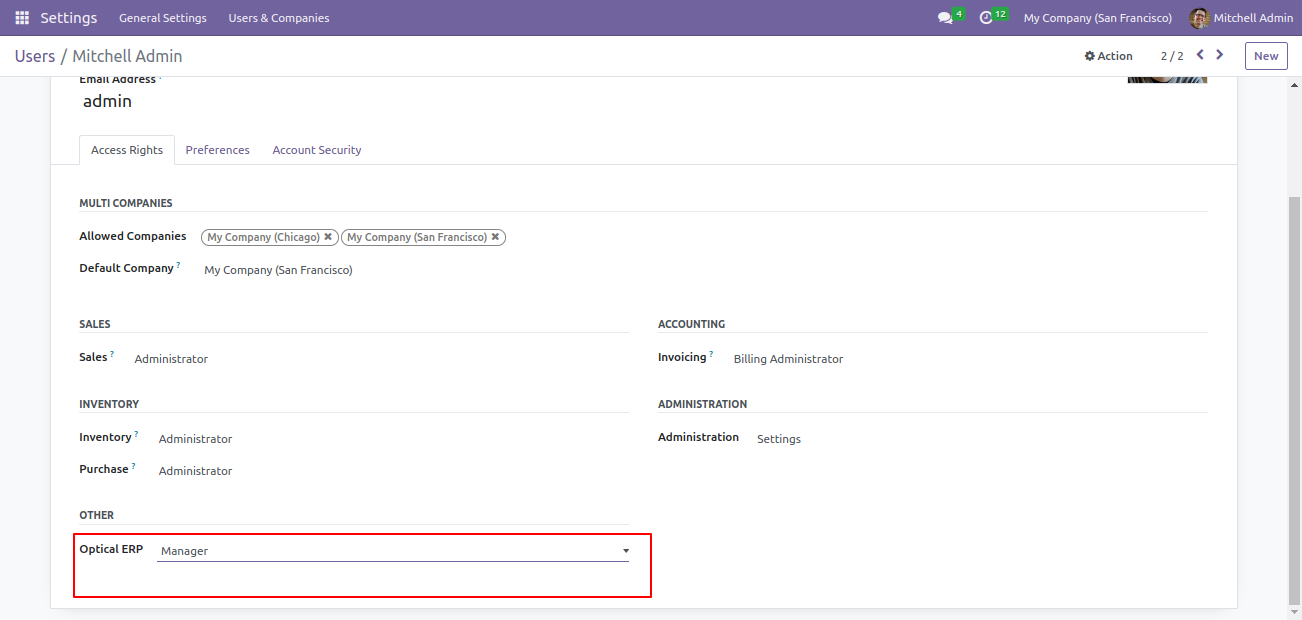
Go to users setting select user and set optical ERP manager.
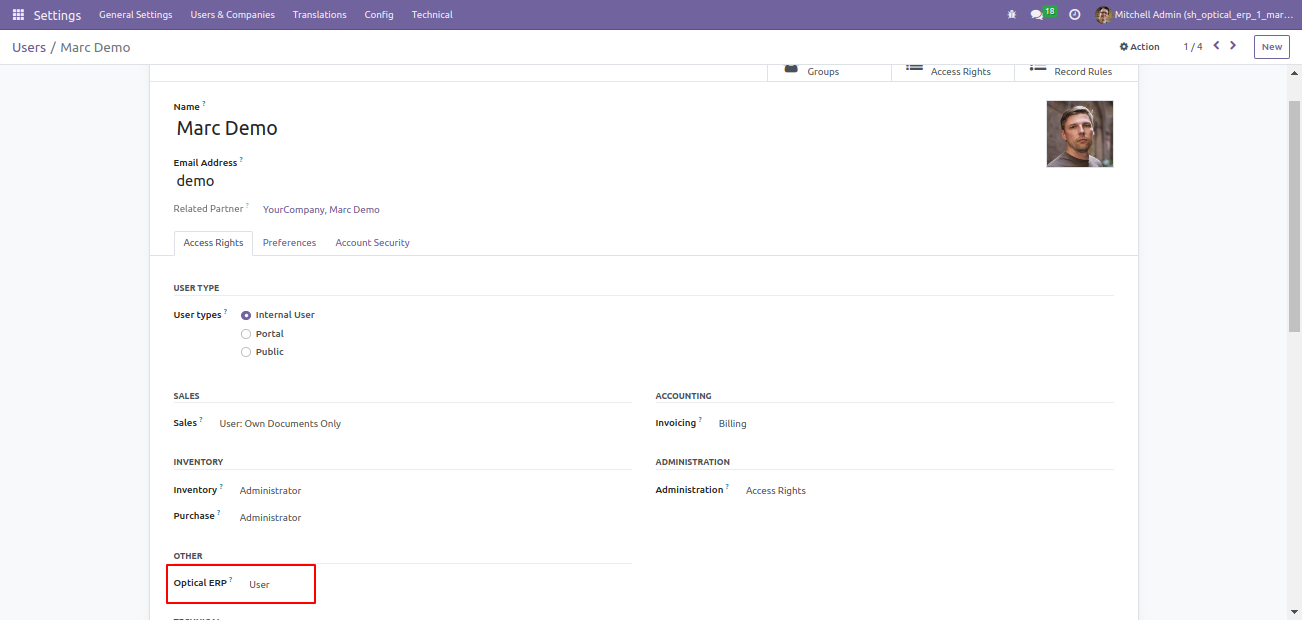
Go to users setting select user and set optical ERP user.
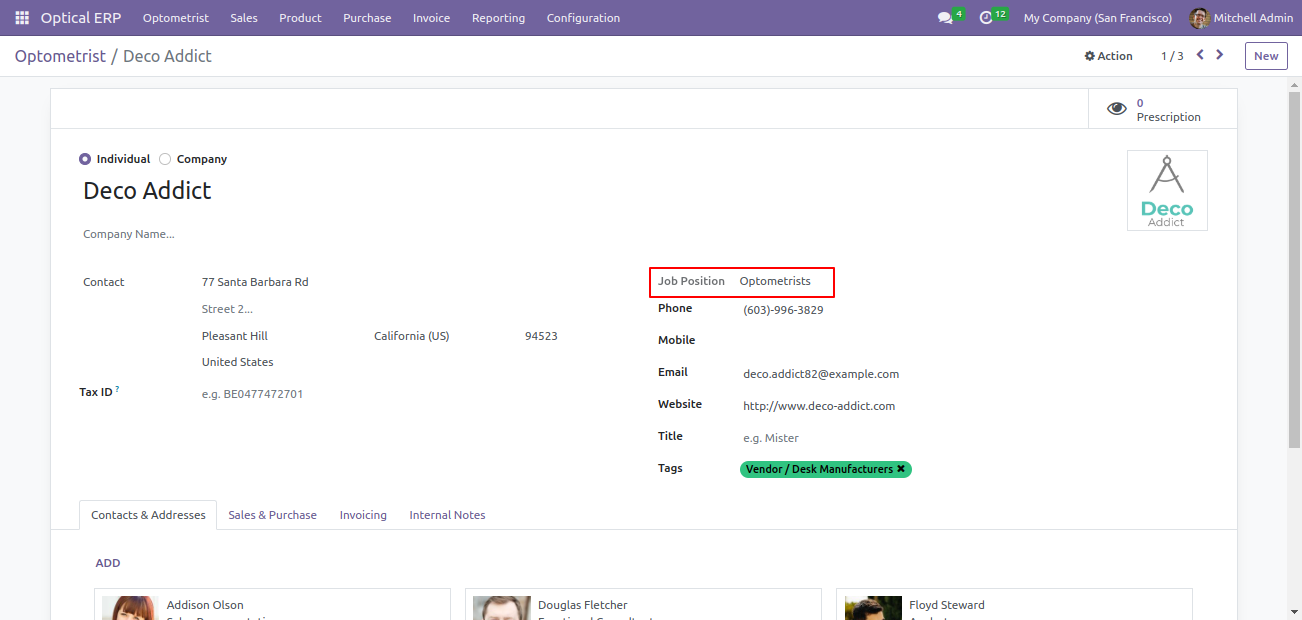
Create optometrists with their job positions from the optometrists menu.
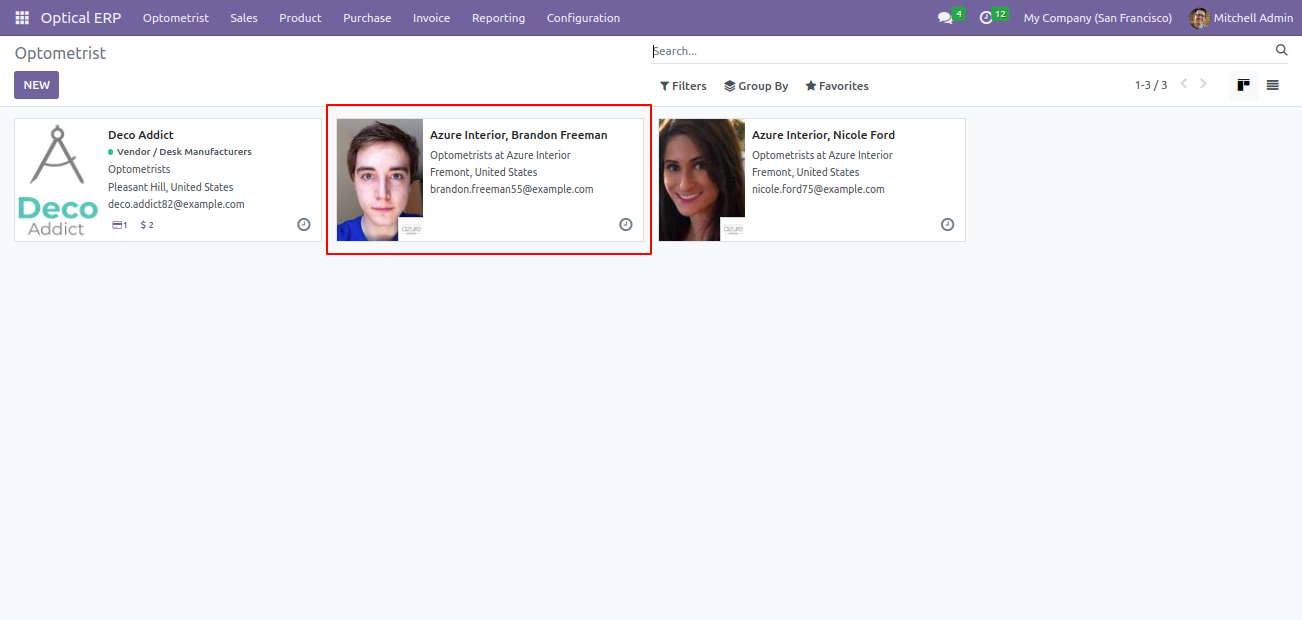
You can see all contacts that have optometrist job positions.
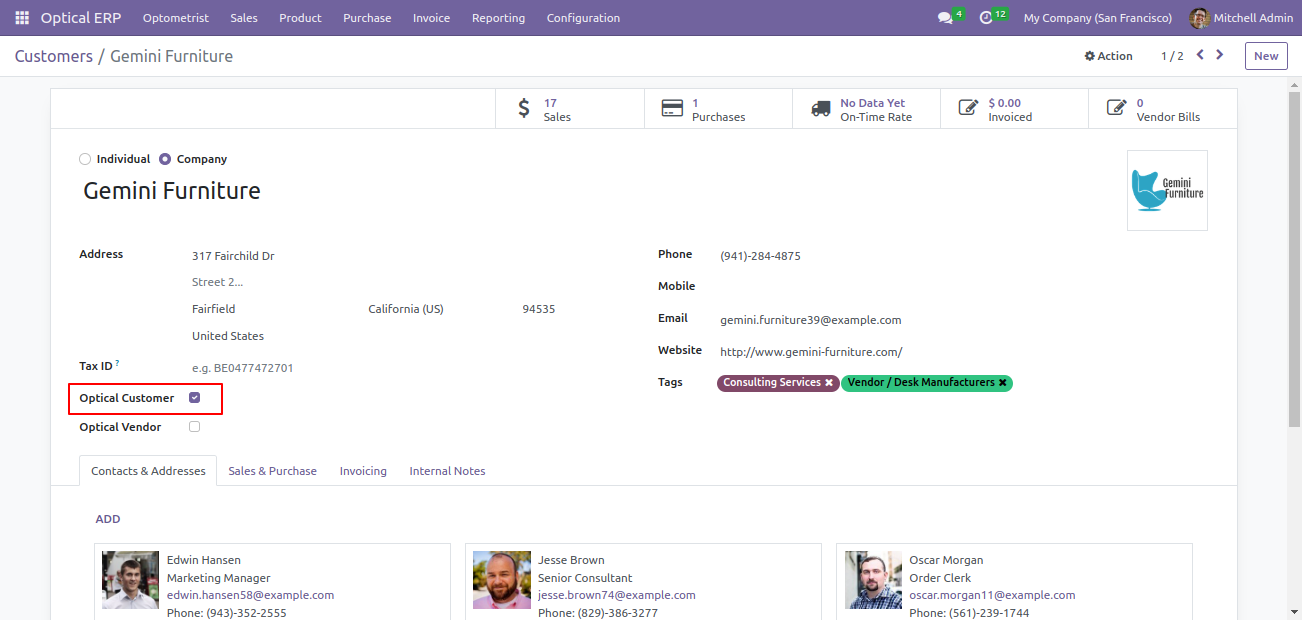
Create a customer by clicking the optical customer boolean from the customers menu.
You can see all the customers.
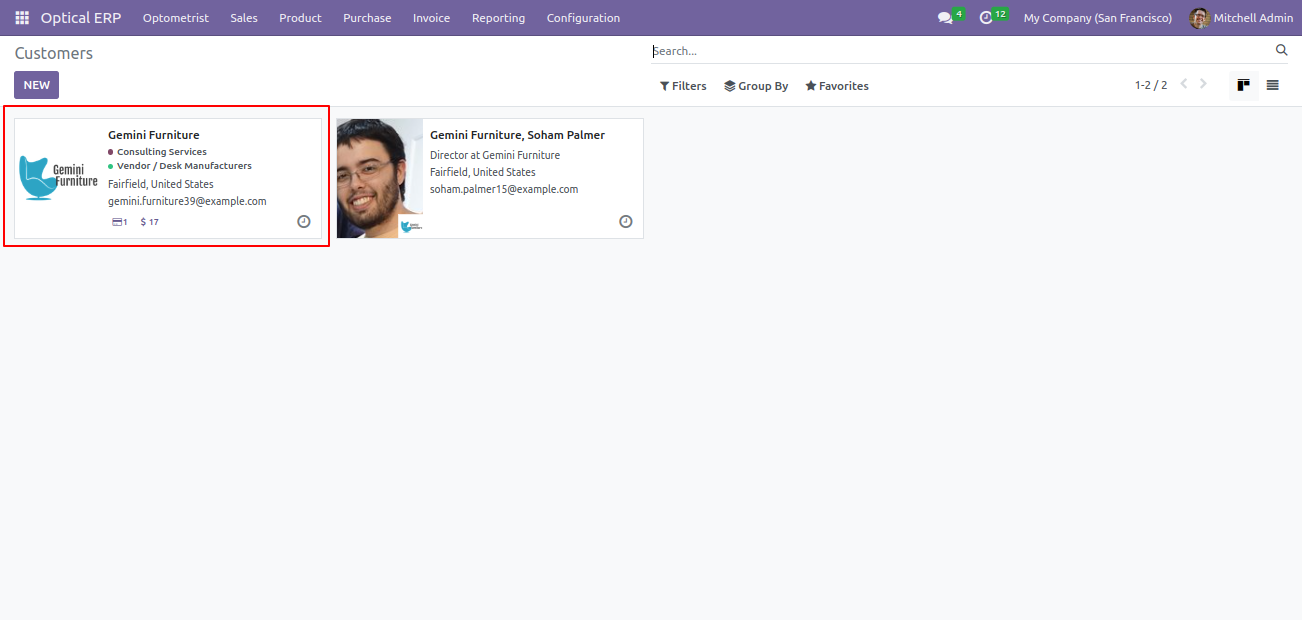
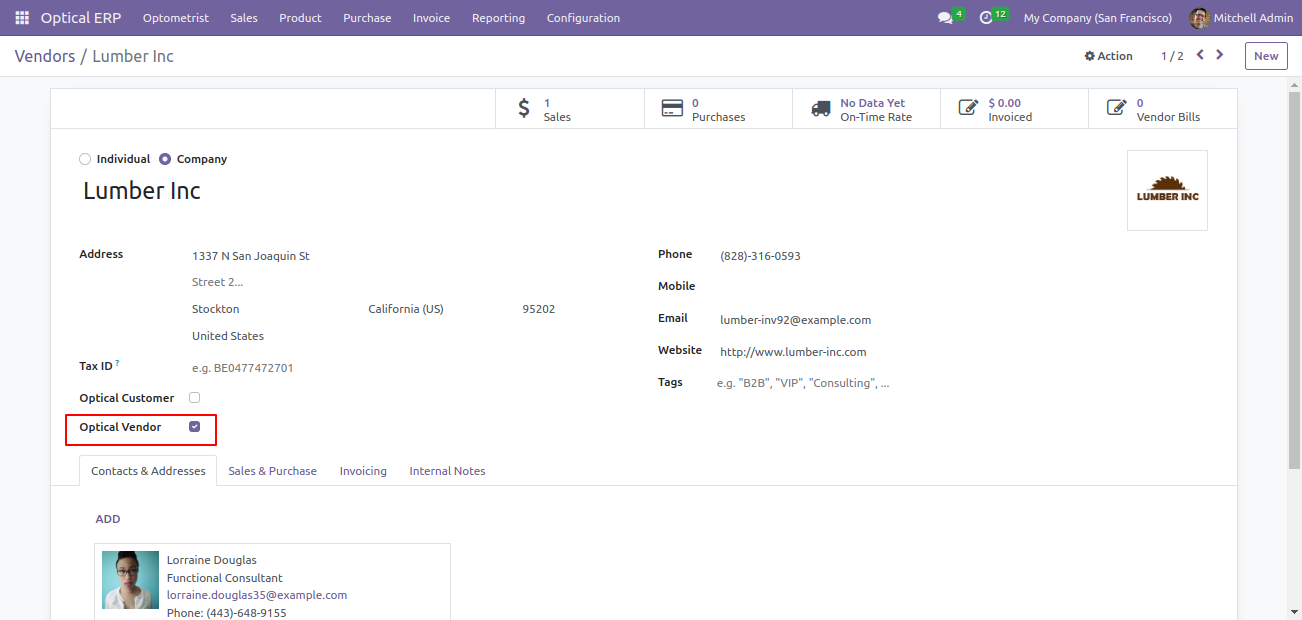
Create a vendor by clicking the optical vendor boolean from the vendors menu.
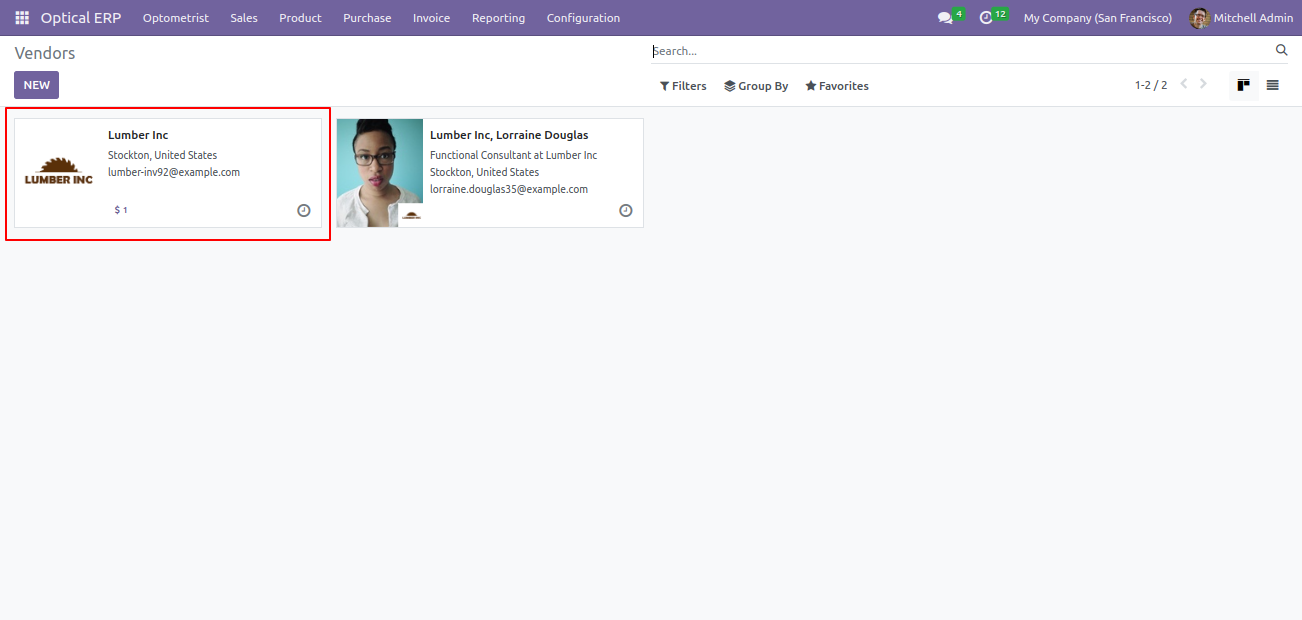
You can see all the vendors.
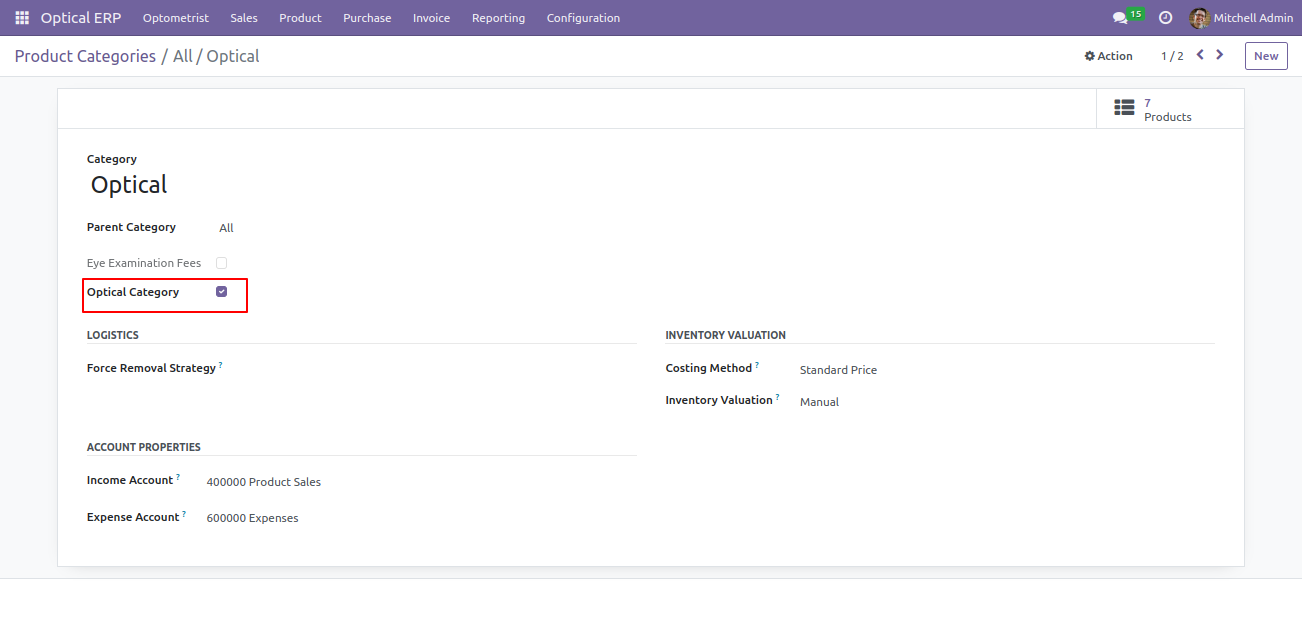
Create an optical product category and tick the boolean optical category for optical products and eye examination fees boolean is for eye examination fees serviceable product.
Create optical products with their variants by selecting the optical product category.
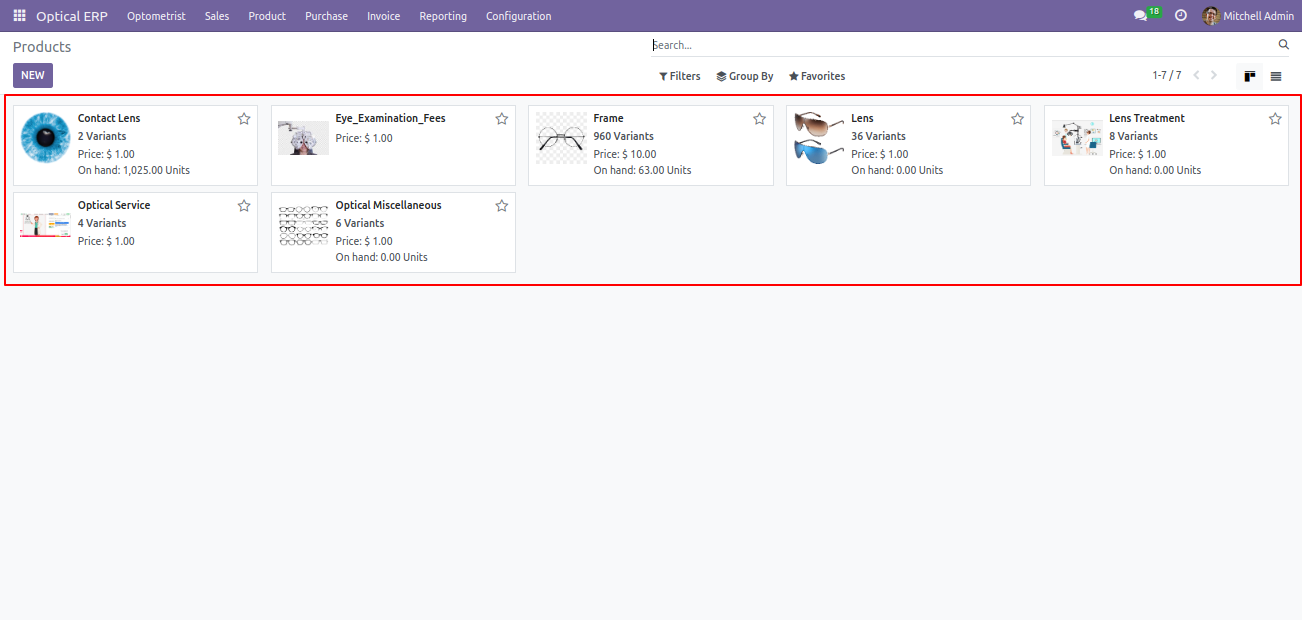
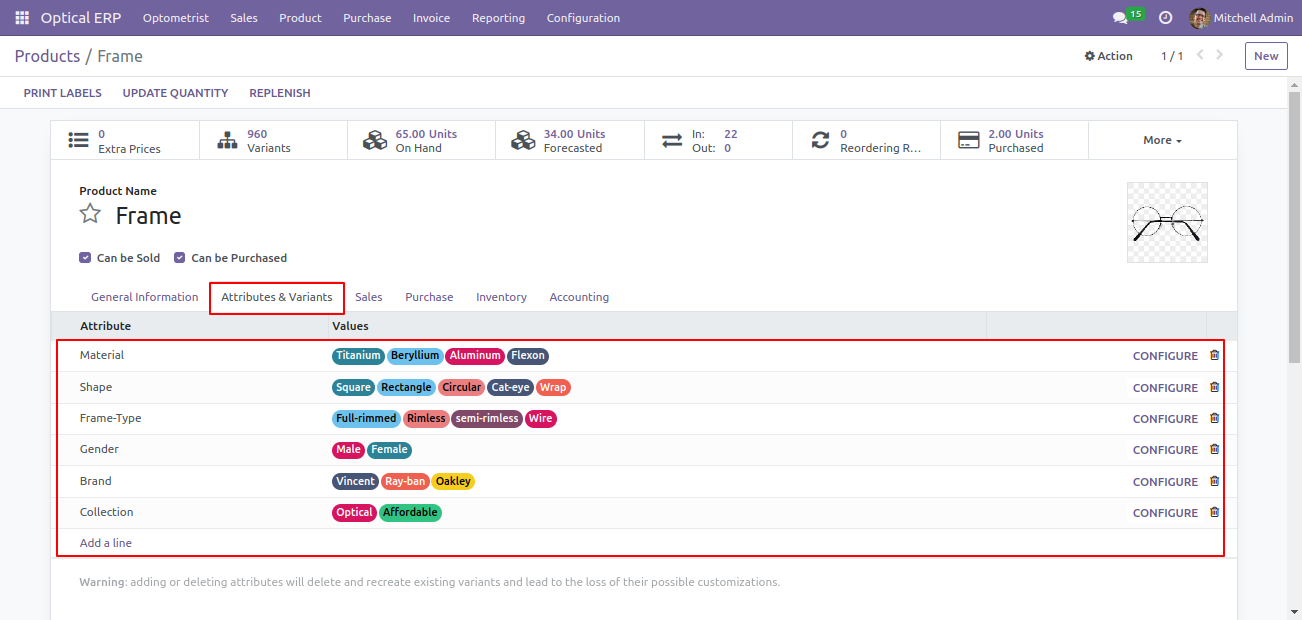
Create optical product attributes & variants and configure their extra prices if any.
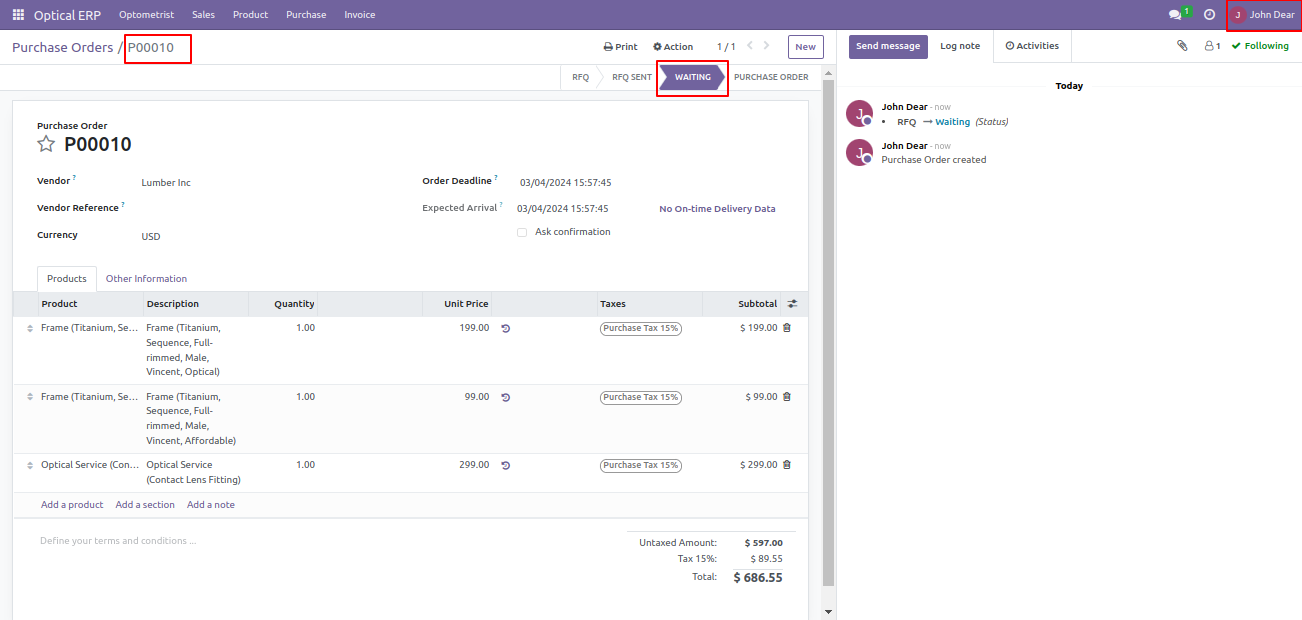
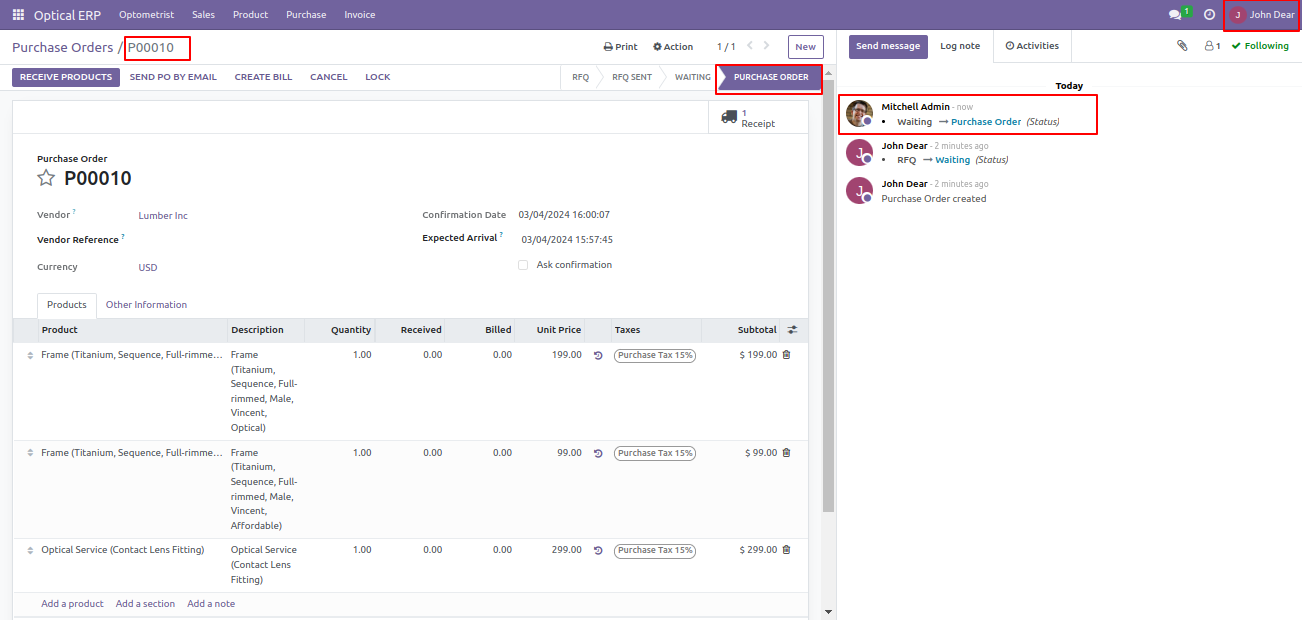
Users can create an RFQ from the purchase menu and send it for approval to the manager.
The manager will approve or cancel the purchase order.
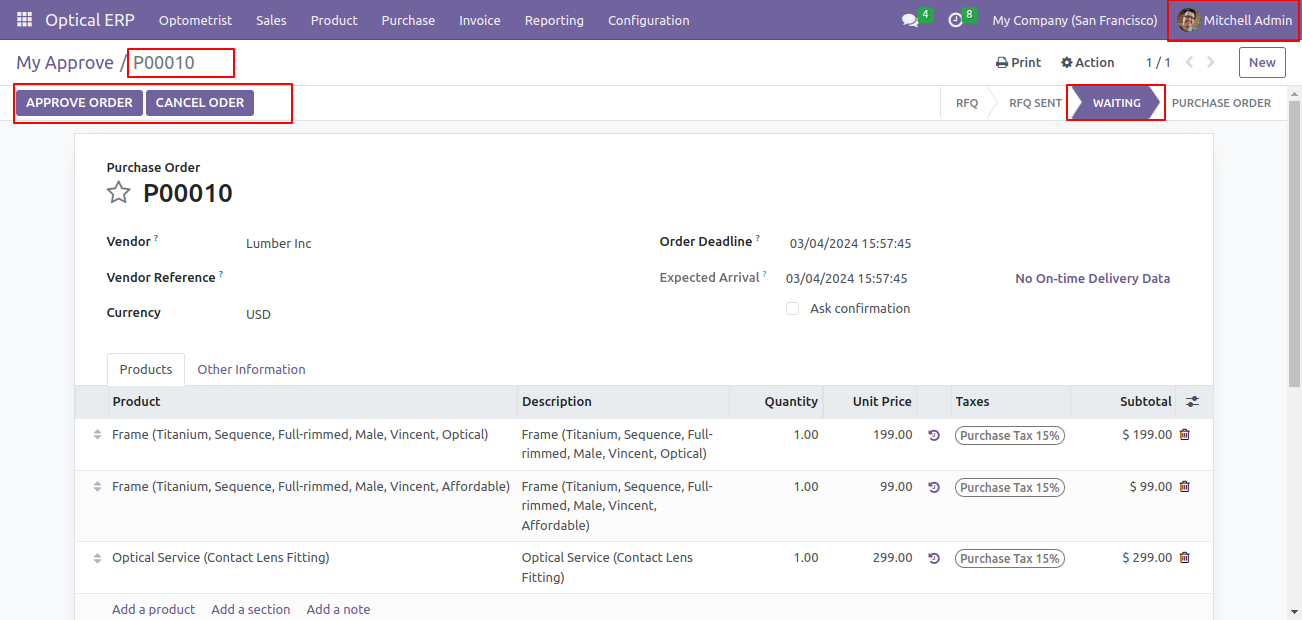
The manager approves the RFQ, and it will be in the purchase order
stage.
You can see stage movements in chatter.
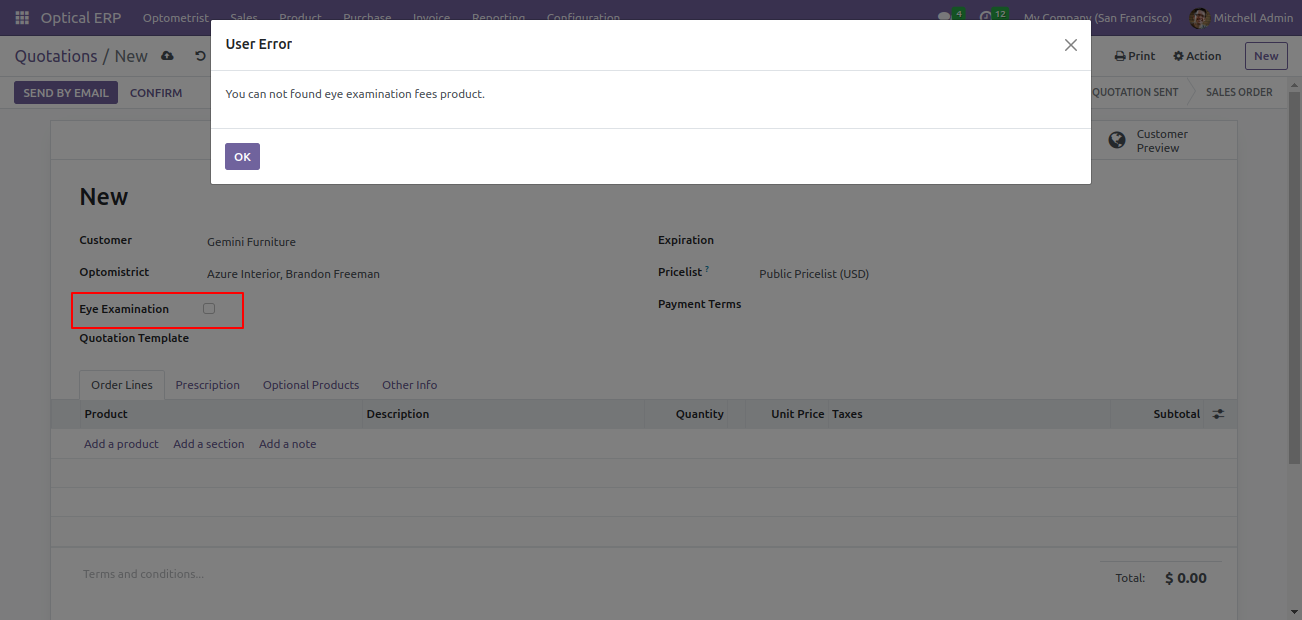
Create eye examination fees as a serviceable product with the
eye_examination_fees
category.
If the product is not created, it will raise a warning.
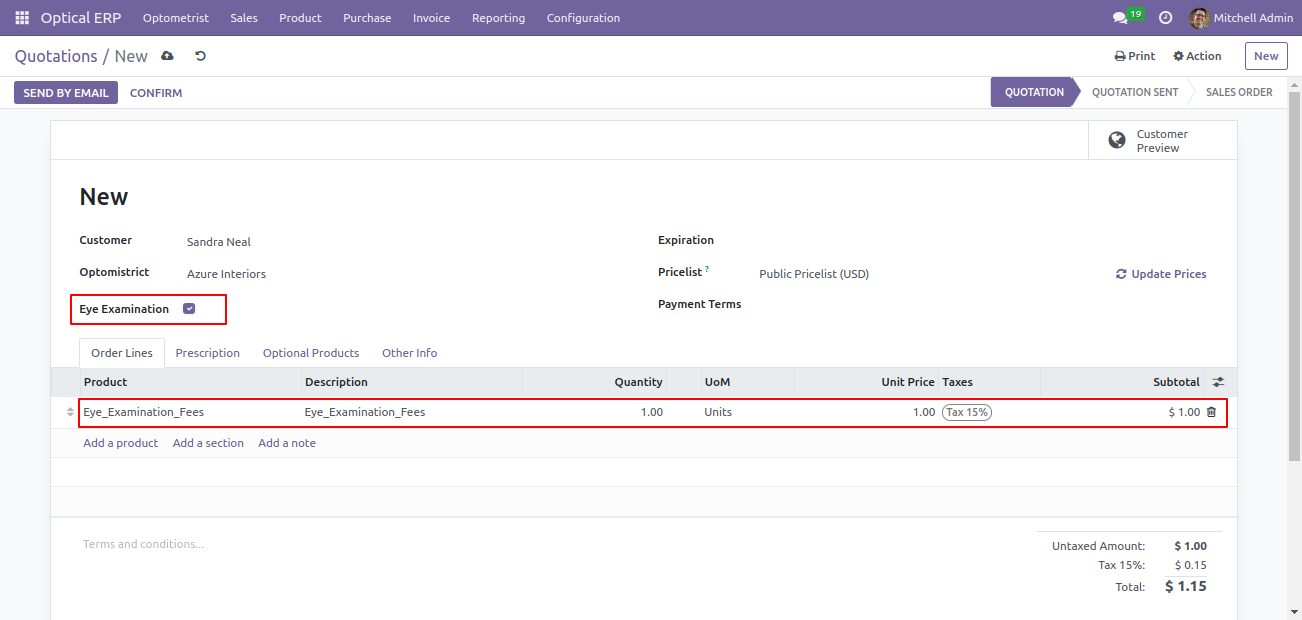
When you tick the eye examination boolean from the sale order it will take by default fees in order lines.
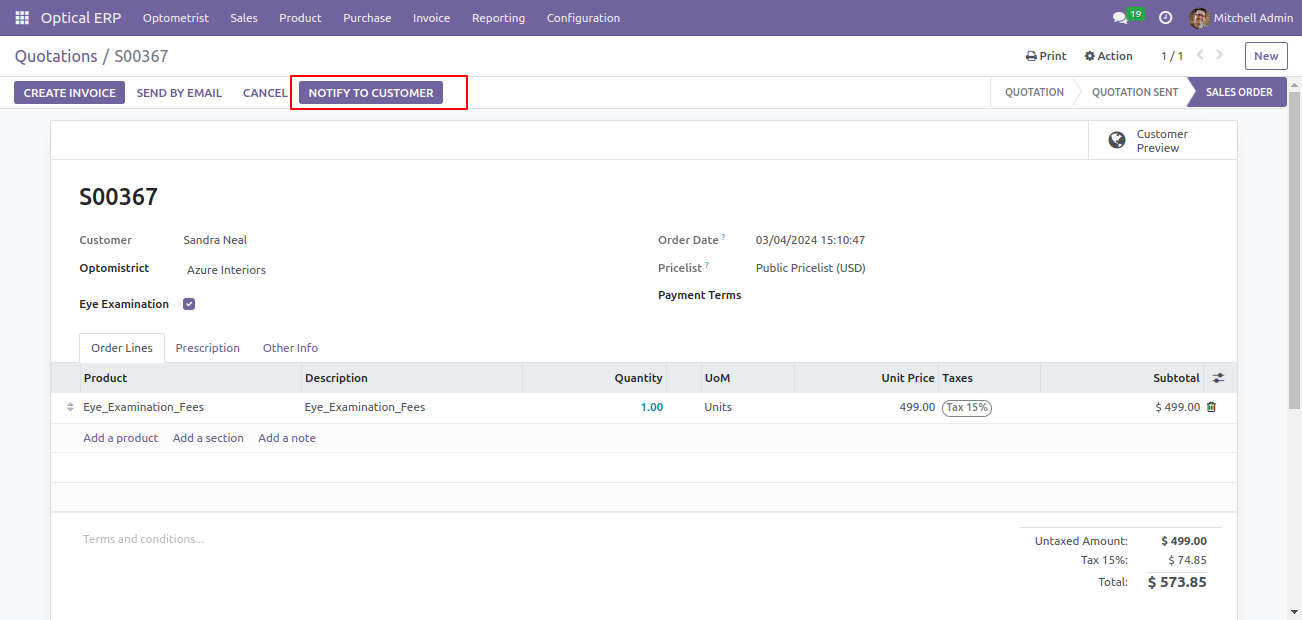
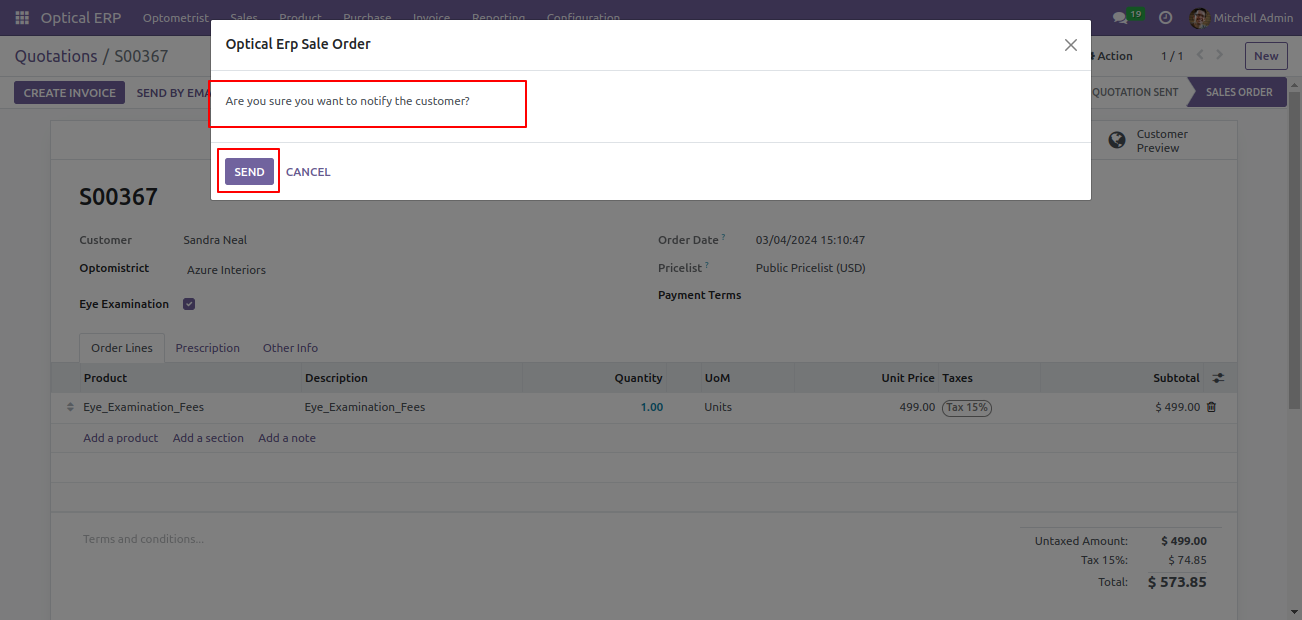
Click on notify to customer button when products are getting ready.
By clicking on the notify to customer button, it will ask for confirmation to notify, click on the send button.
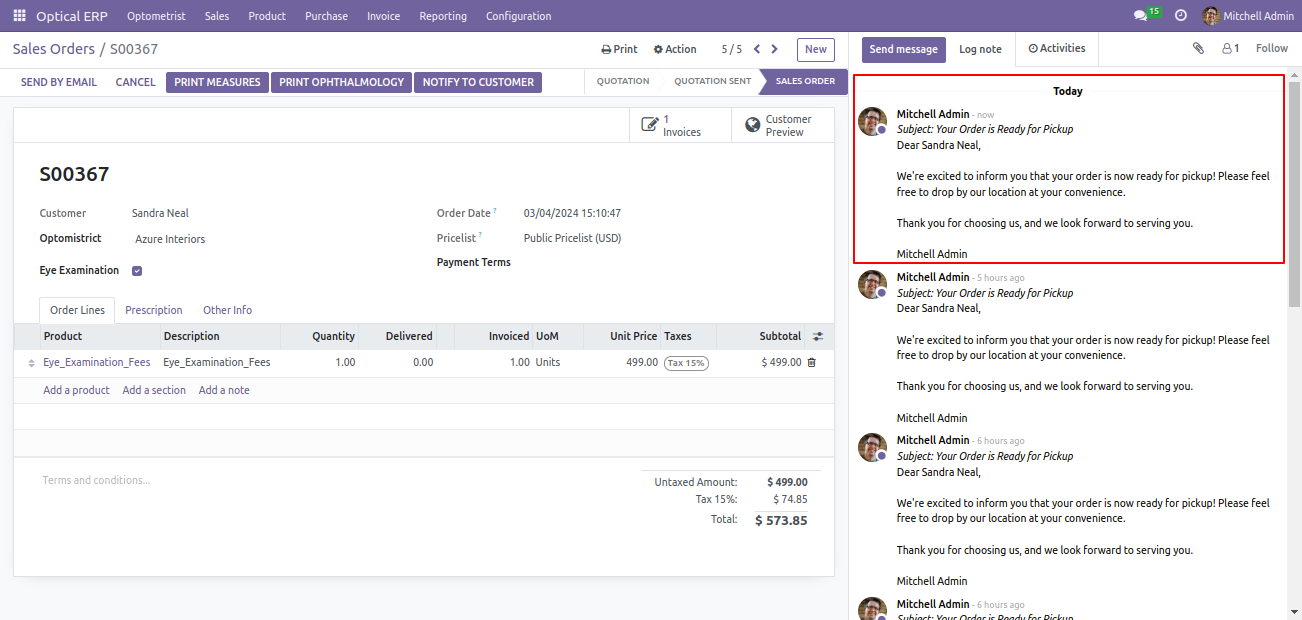
You can see details from the chatter.
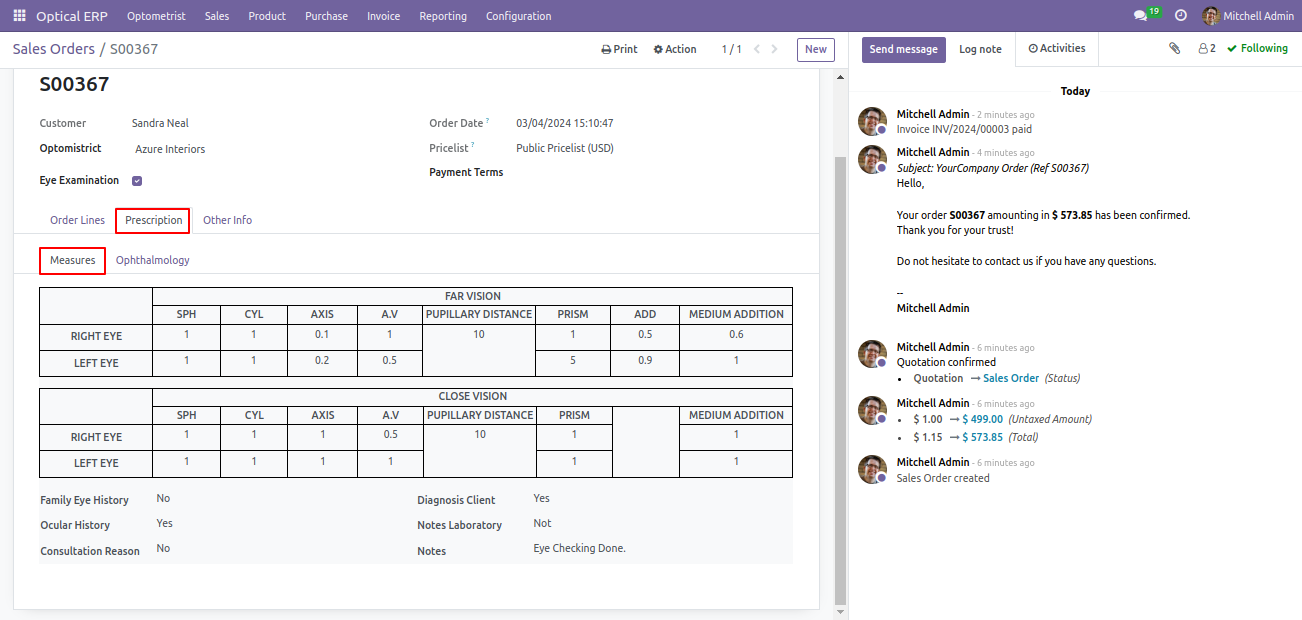
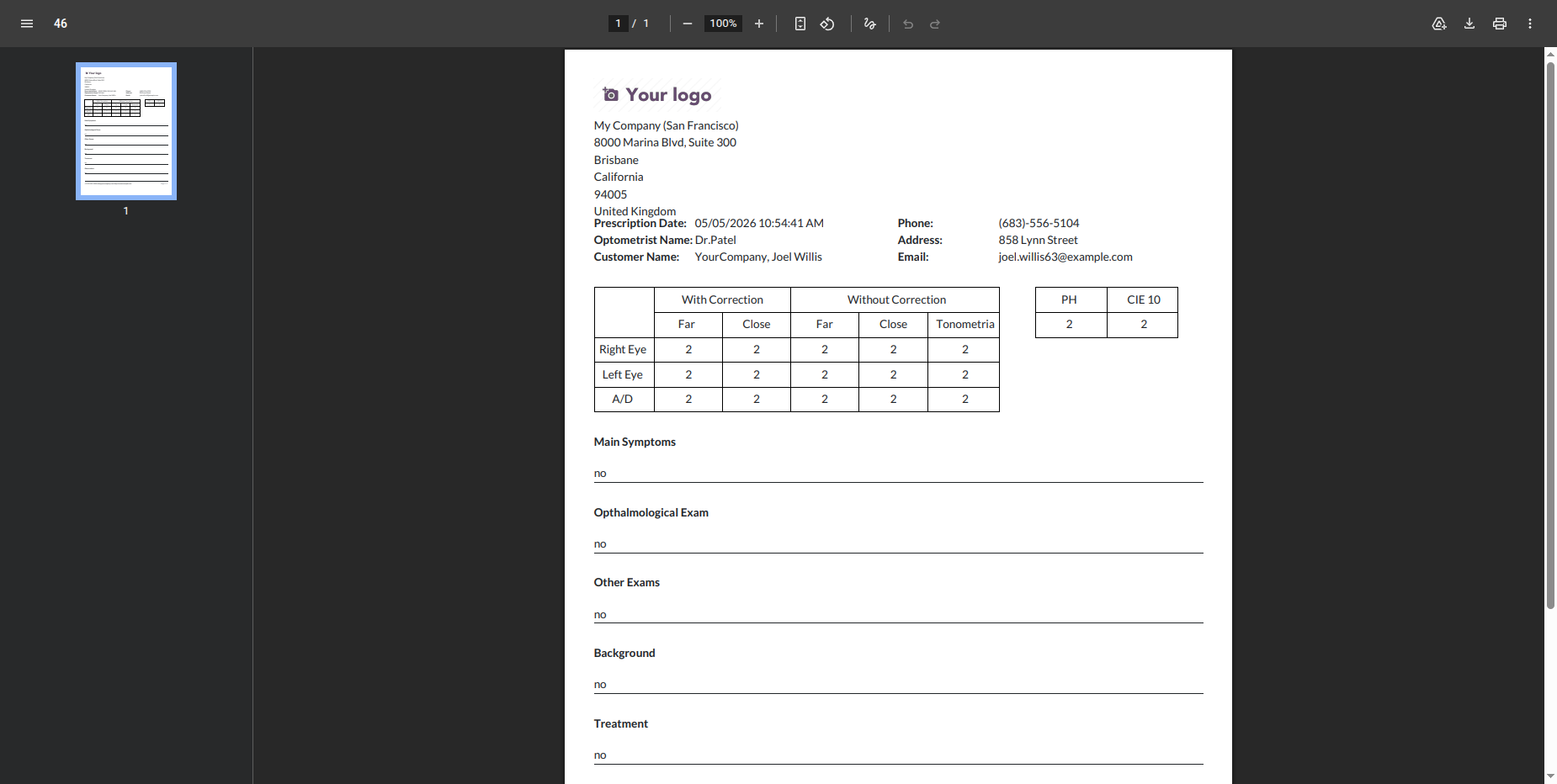
You can add eye measurements in a prescription tab in the sale order.
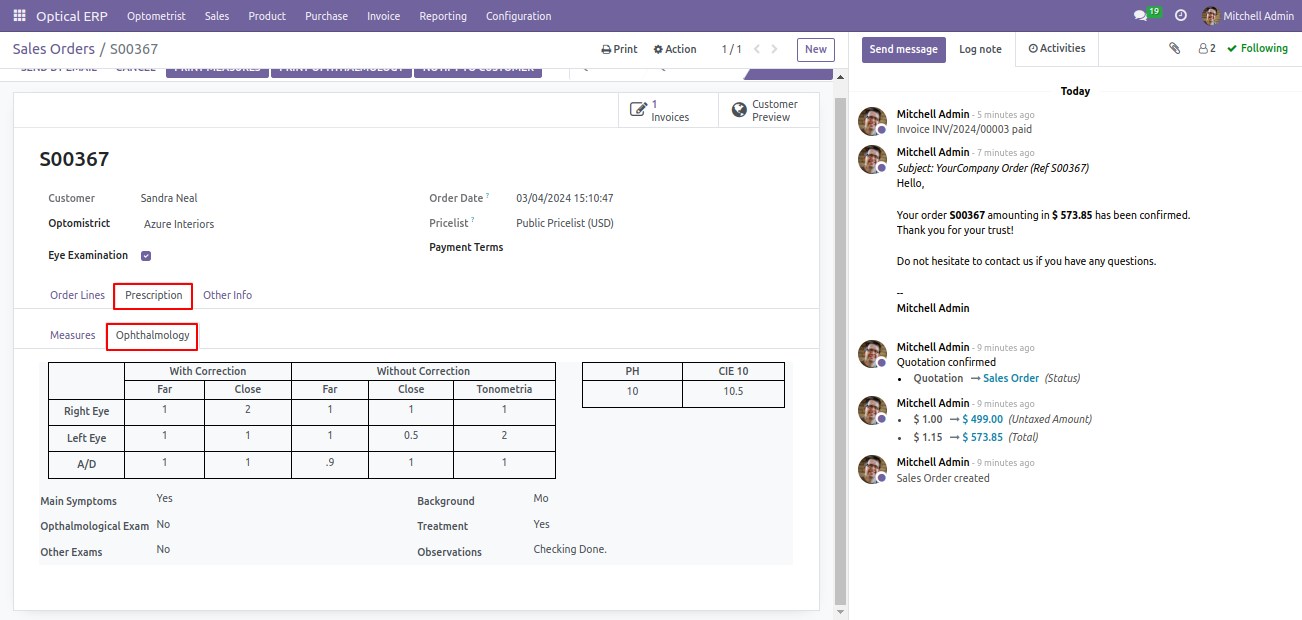
You can add ophthalmology reports in a prescription tab in the sale order.
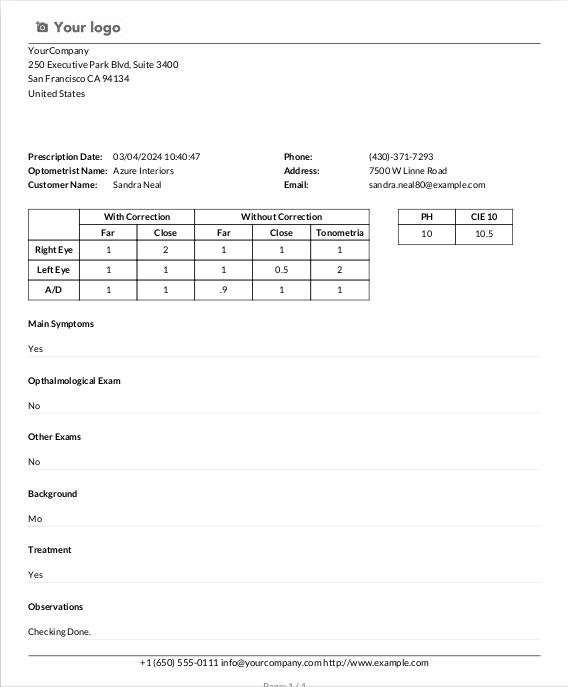
You can print measures and ophthalmology reports by clicking on the print measures and print ophthalmology buttons.
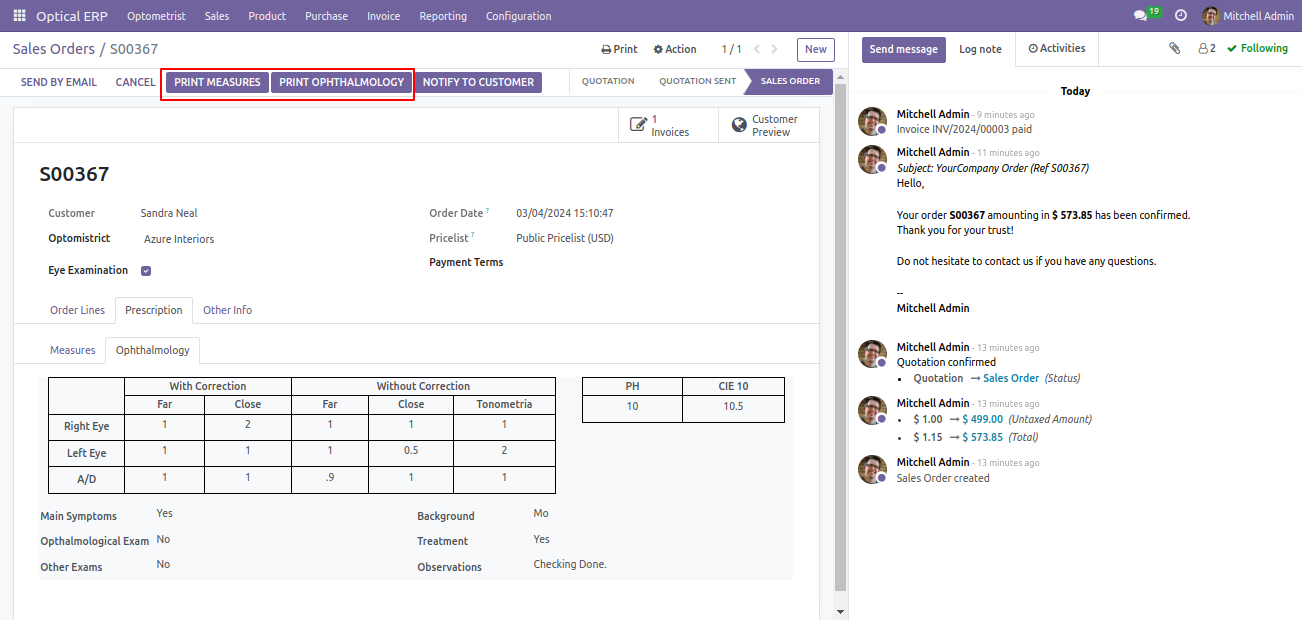
Measures report in a pdf file format.
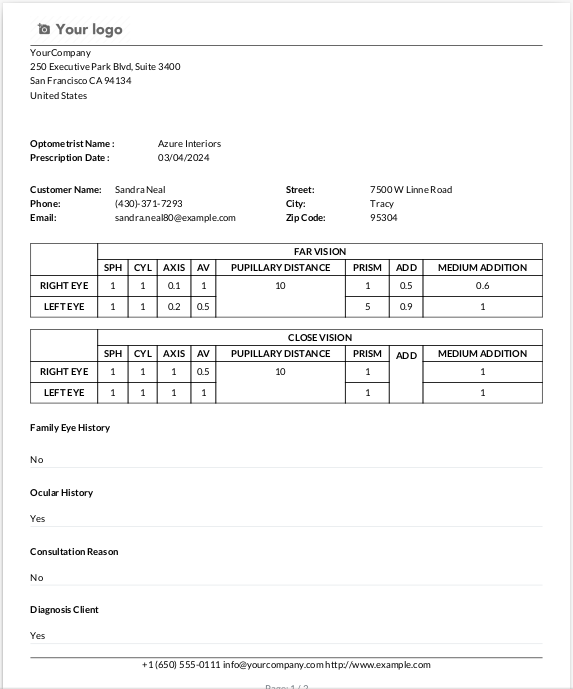
Ophthalmology report in a pdf file format.
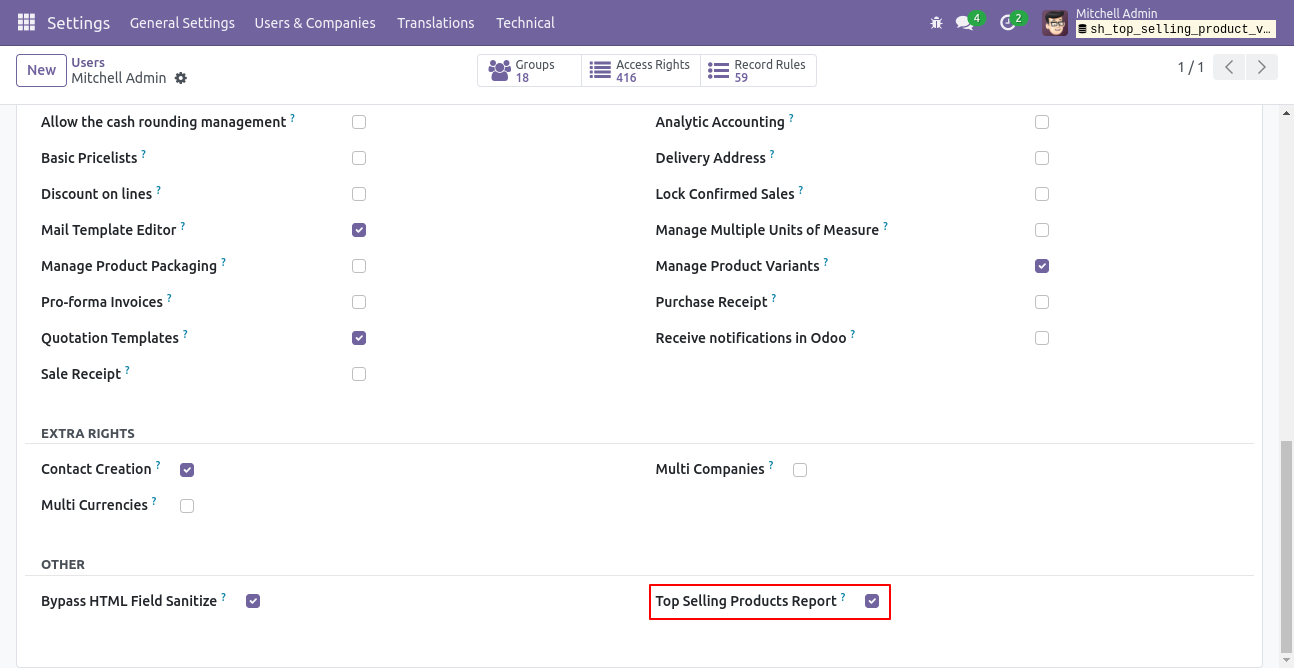
You can configure user groups from here.
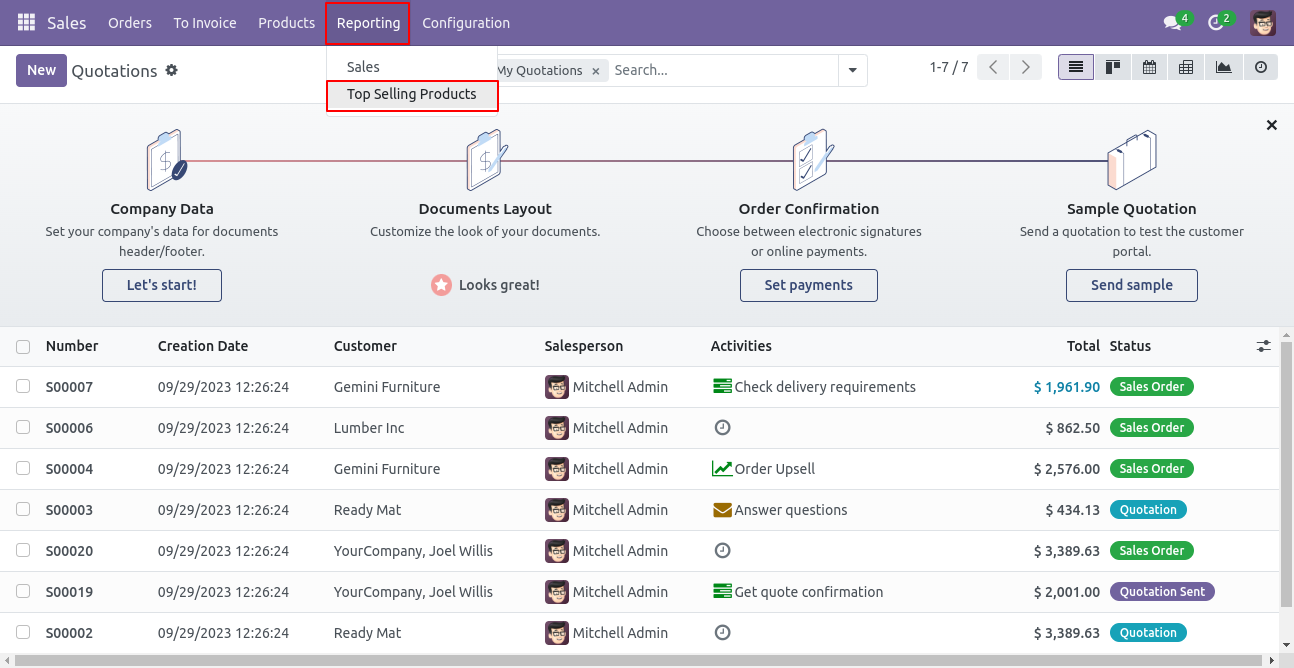
Top Selling Products Menu.
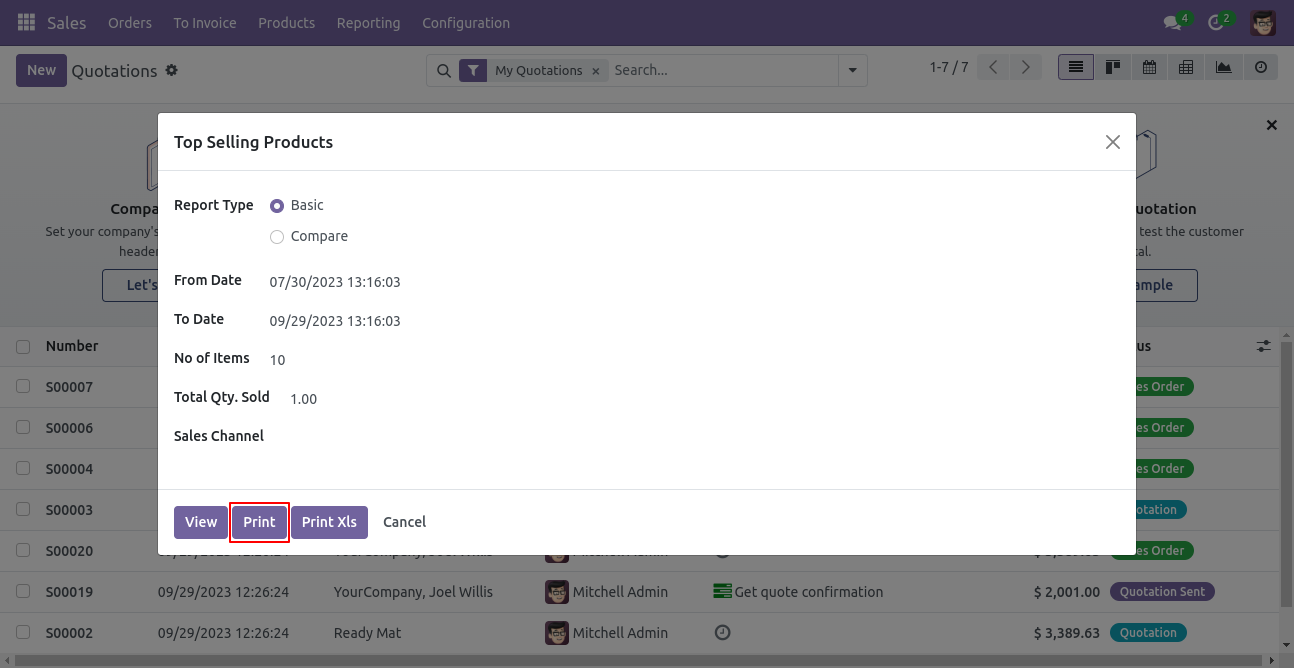
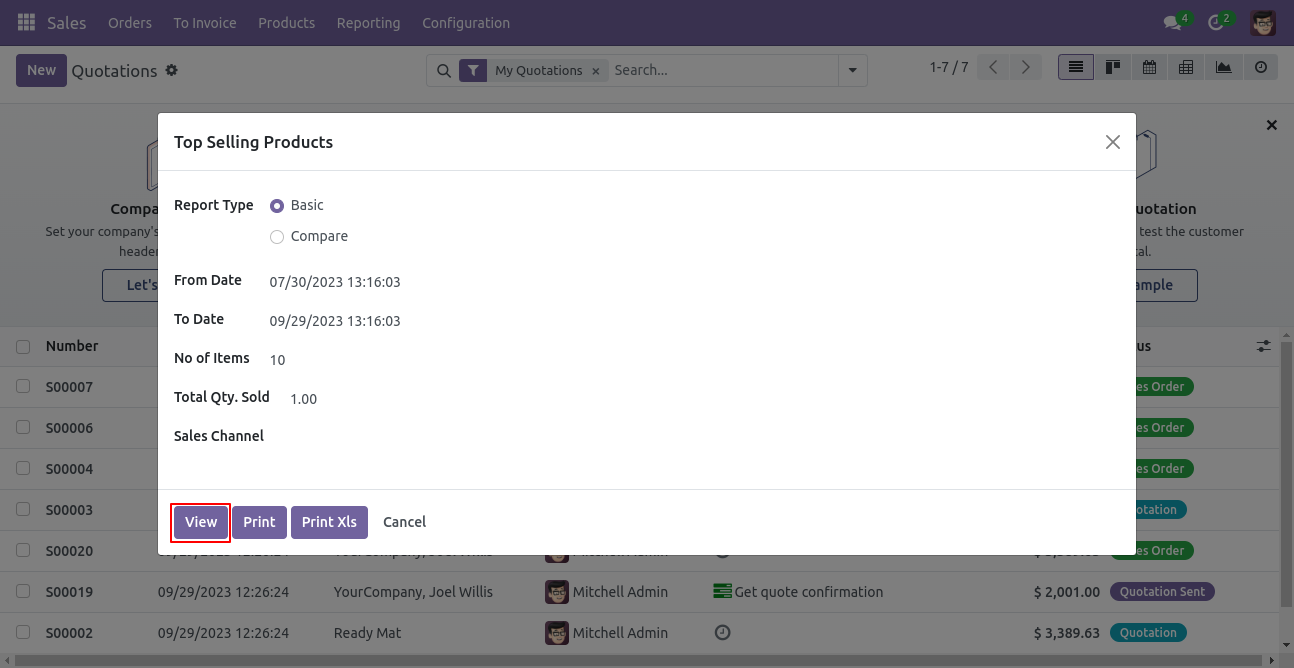
Top Selling Products report wizard and select Basic Report type.
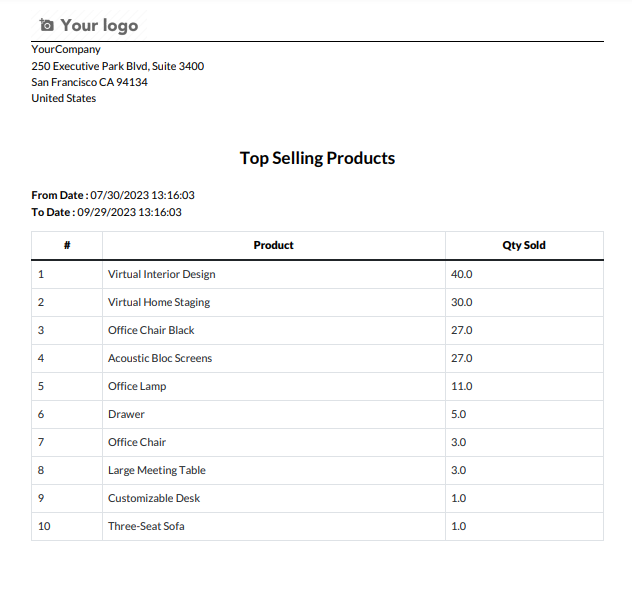
Top top-selling product basic PDf report looks like below.
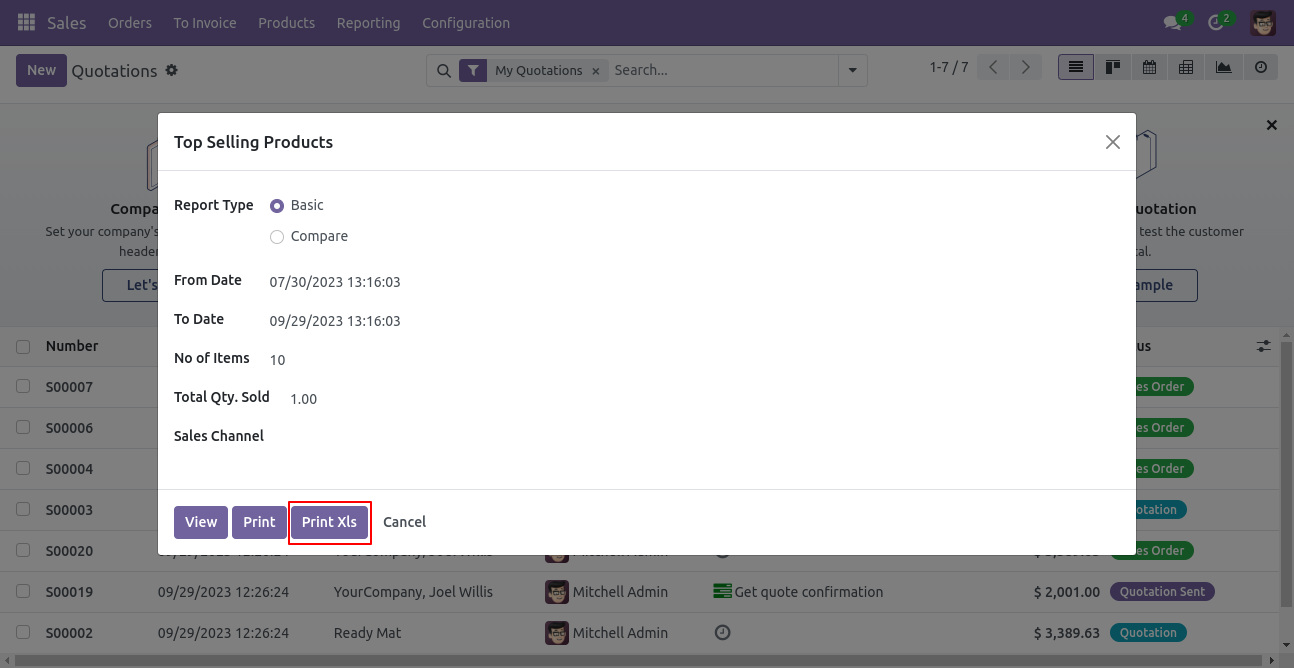
Top Selling Products report wizard and select Basic Report type and print Excel report.
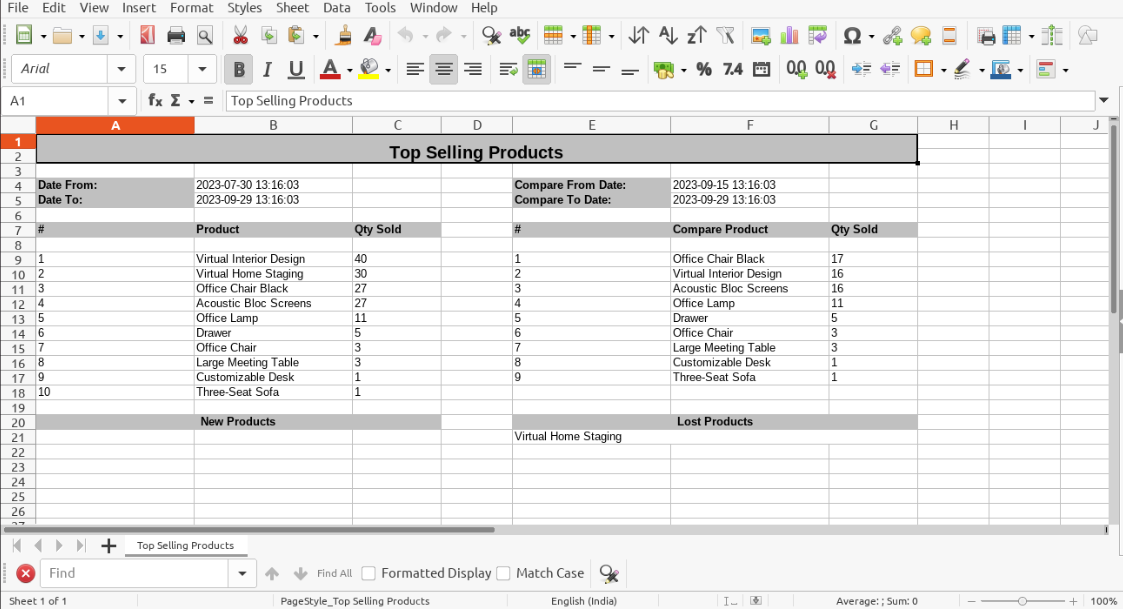
Top selling product Basic Excel report looks like below.
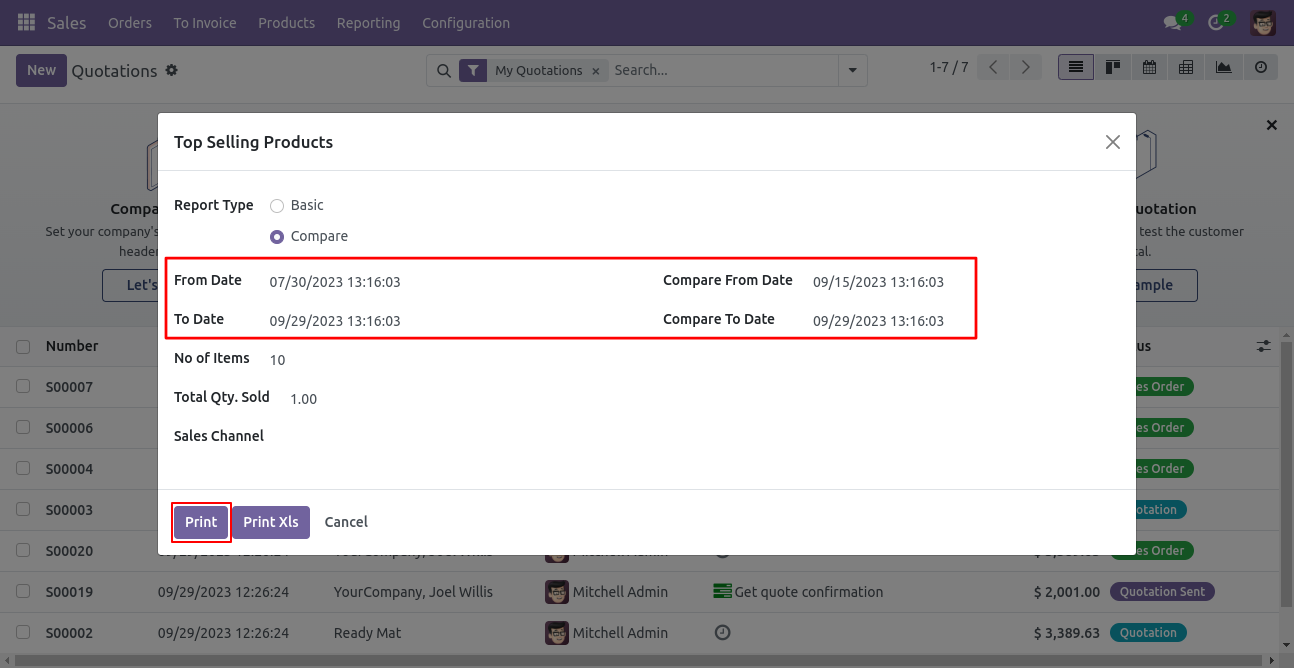
Top Selling Products report wizard and select Compare Report type.
Also enter date and time to get report between particular date-time.
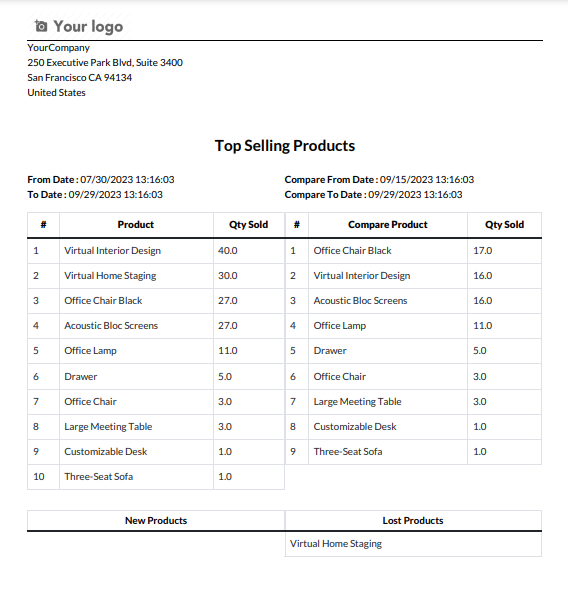
Top selling product Compare PDf report look like below.
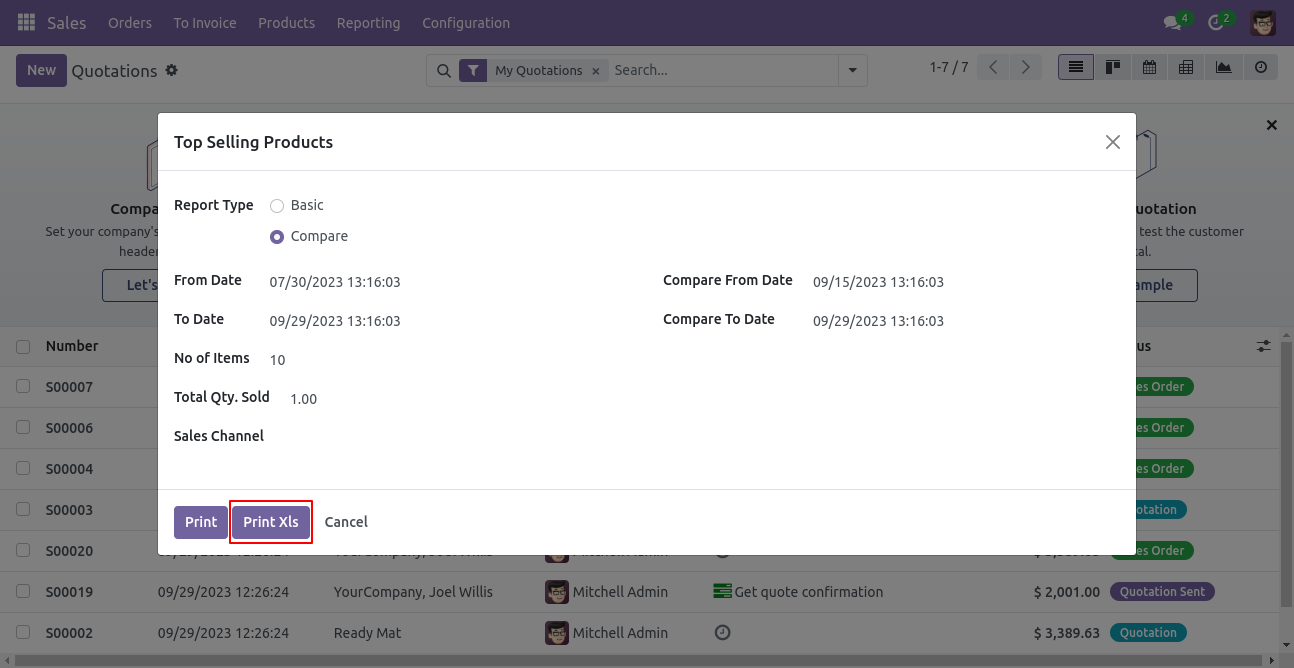
Top Selling Products report wizard and select Compare Report type and print Excel report.
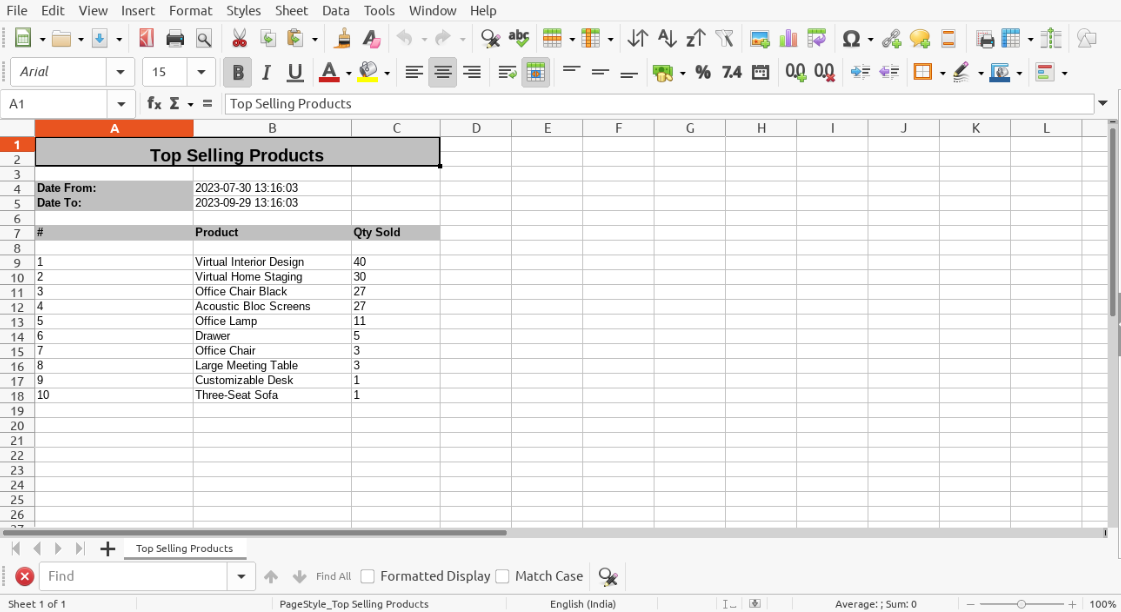
Top selling product Compare Excel report look like below.
Top Selling Products report wizard and select Basic Report type.
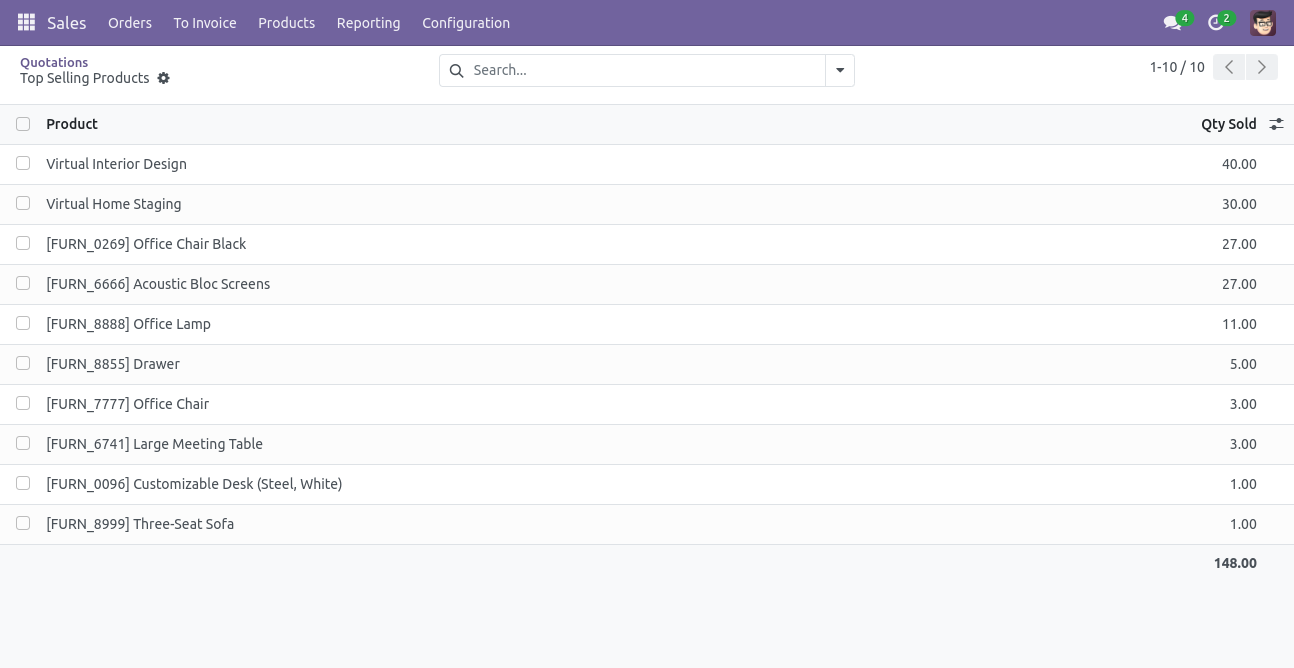
By clicking the 'View' button, users can view the top-selling products as shown below.
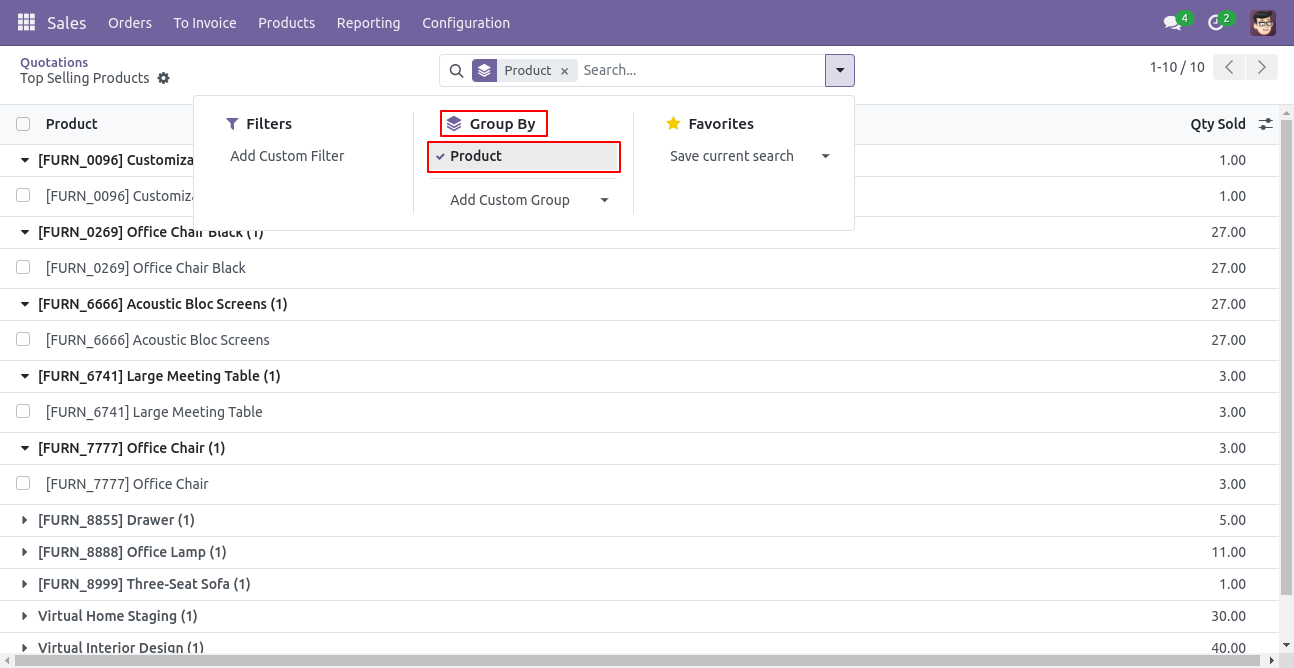
You can group by products.
A user-friendly portal where customers can view their optical details, eye examinations, appointments, purchases, and optical-related information.
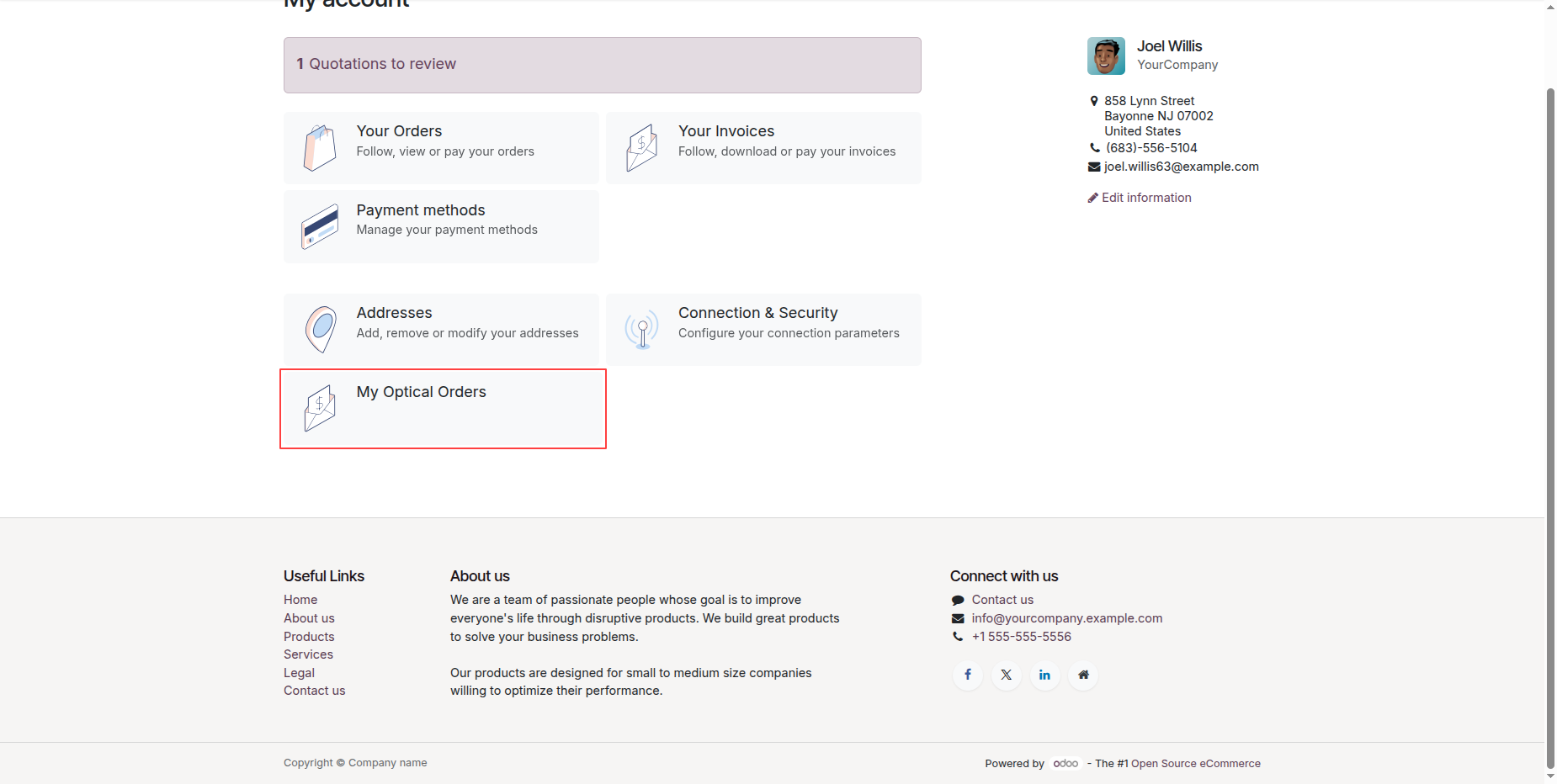
Open the My Orders list view from the Customer Portal. Users can click the Print button to print the measurement details for the selected order.
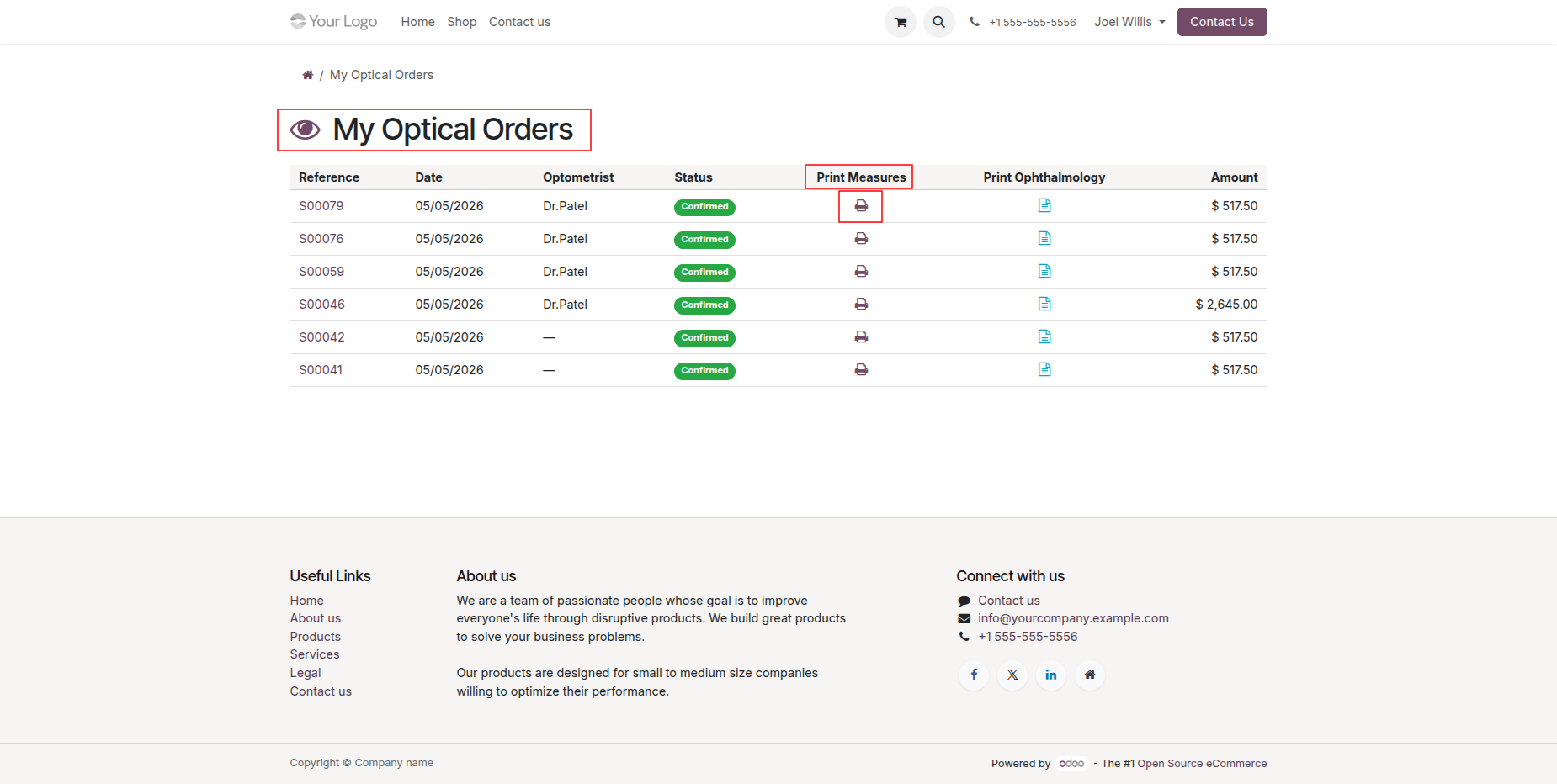
A PDF report containing the measurement details is generated in PDF format for printing or download.
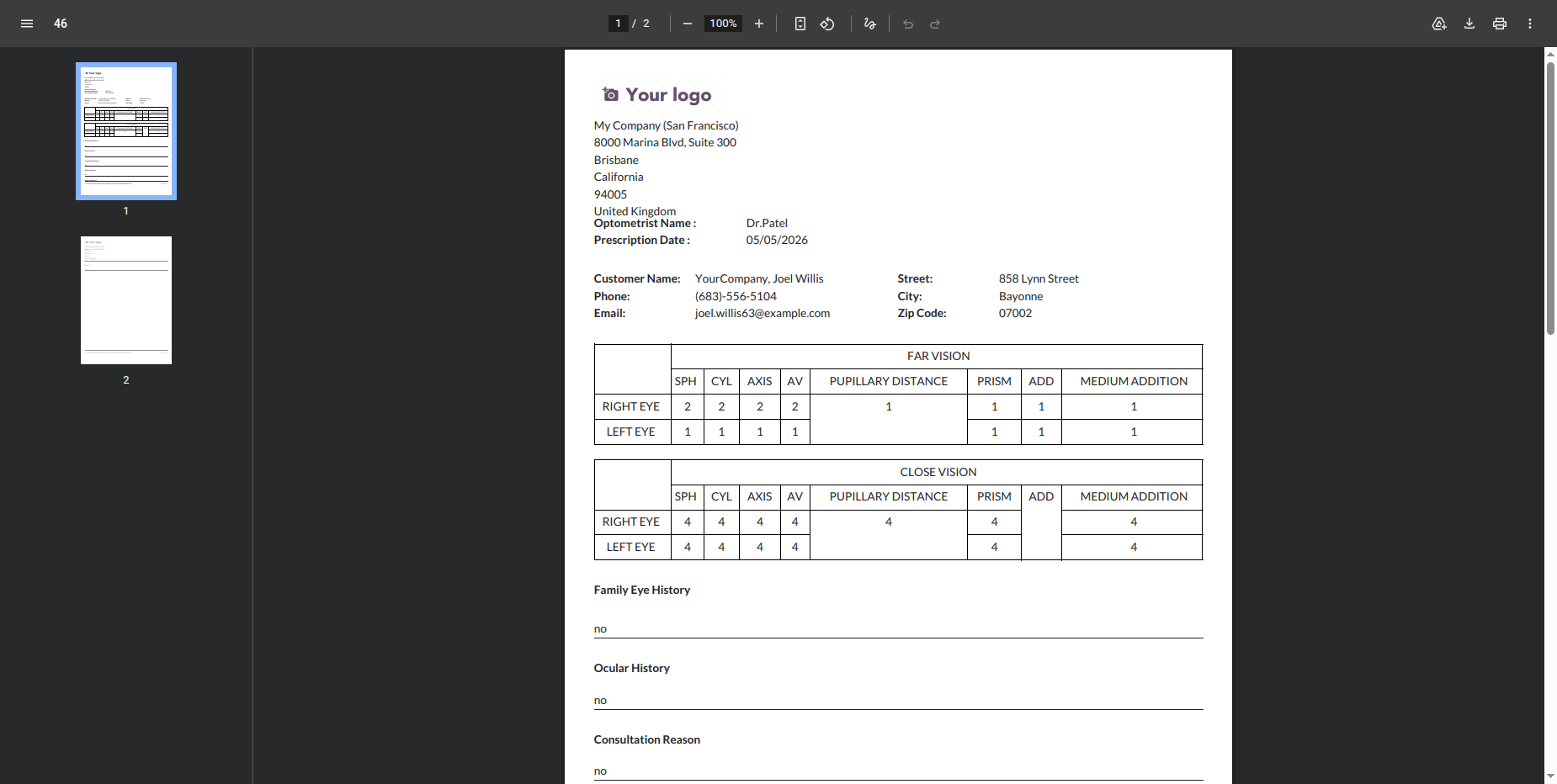
Open the My Orders list view from the Customer Portal. Users can click the Print button to print the Ophthalmology details for the selected order.
The Ophthalmology Report is generated in PDF format, allowing users to view, print, or download the report.
Version 19.0.1.0.0 | Released on : 11th August 2026
- Yes, this app works perfectly with Odoo Enterprise (Odoo.sh & Premise) as well as Community.
- No, this application is not compatible with odoo.com(odoo saas/Odoo Online)
- Yes, to test this module, please contact us at sales@softhealer.com.
- Please contact us at sales@softhealer.com to request customization.
- Yes, we provide free lifetime support for the version you purchased.
- Yes, you will receive lifetime free updates for the version of the module you purchased.
- No, there is no need to install any additional libraries.
- Yes, for version 12 and above, you need to purchase the module separately for each version you intend to use.
- No, exchanges or refunds are not allowed. Please make sure to select the correct version before purchasing.
- You can contact us at support@softhealer.com for language translation support. We use Google Translator tools to provide translations in multiple languages, so the accuracy may vary. We welcome your suggestions to help improve translations.
Discover Our Latest Apps