











One Drive Connector - Enterprise | One Drive Odoo Integration | Connect One Drive with Odoo | Odoo One Drive Connector

Integrate Odoo with Microsoft OneDrive to automatically synchronize files and folders between both platforms. Securely connect using OAuth authentication, transfer documents in both directions, organize files with dynamic folder rules, and track synchronization status in real time.
Key Features
Features
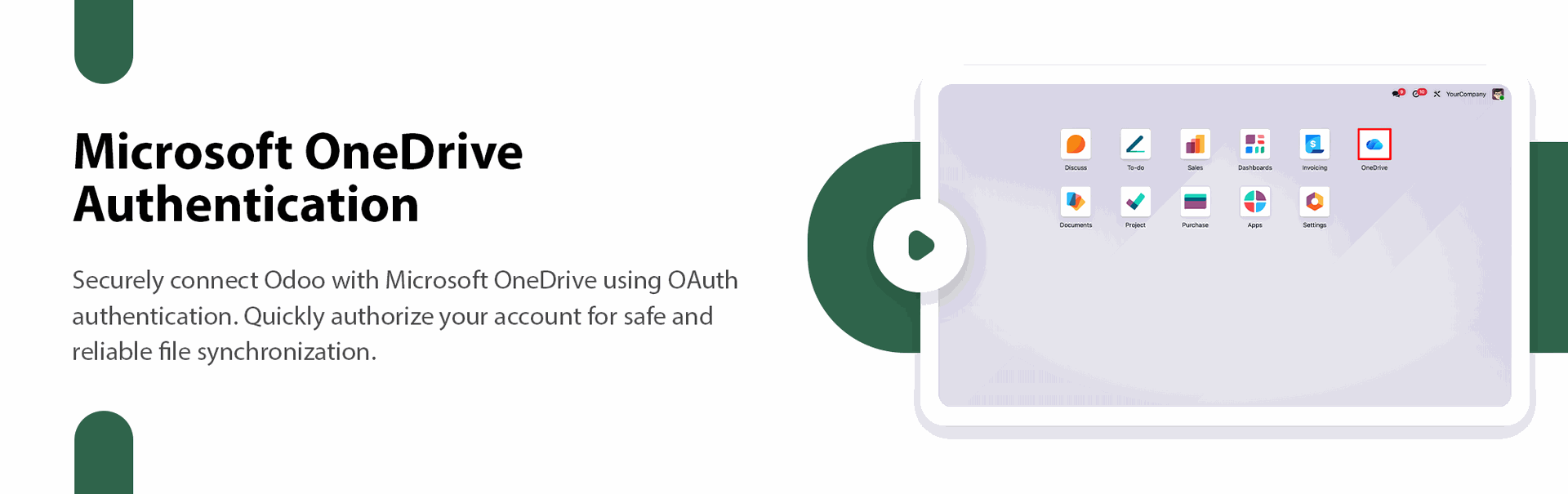
Microsoft OneDrive Authentication
Connect Odoo with Microsoft OneDrive using secure OAuth authentication.
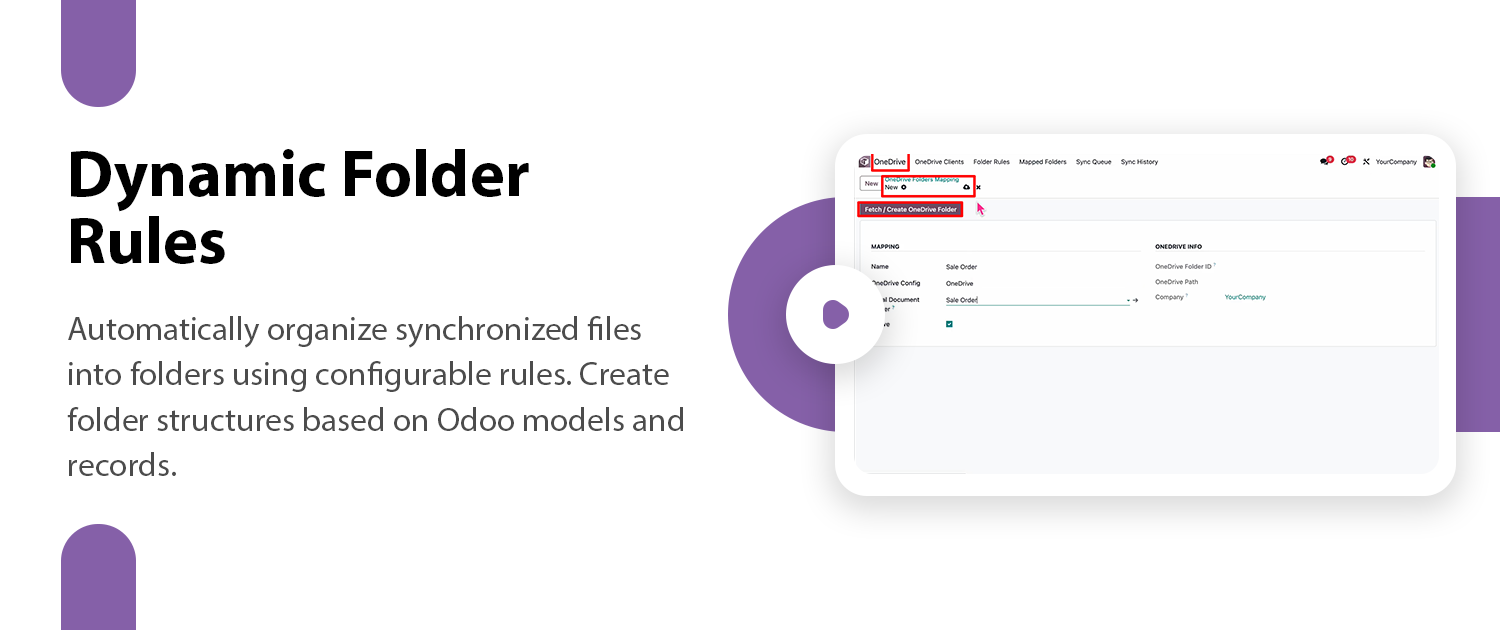
Dynamic Folder Rules
Create dynamic folder rules based on Odoo records to keep your files organized intuitively.

Automated Background Syncing
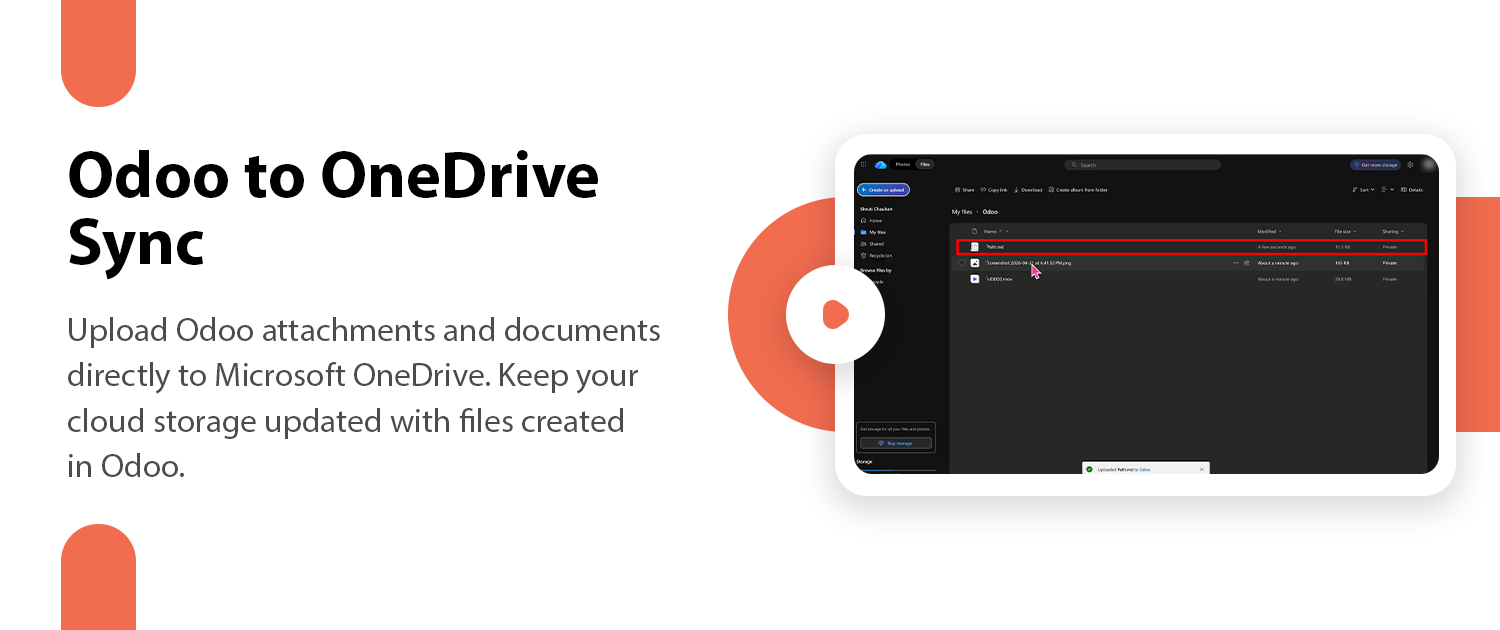
Automatically synchronize attachments and files between your Odoo system and Microsoft OneDrive in the background.
Bi-directional Document Sync
Synchronize files and folders between Odoo and Microsoft OneDrive in both directions.
Bi-Directional Deletion
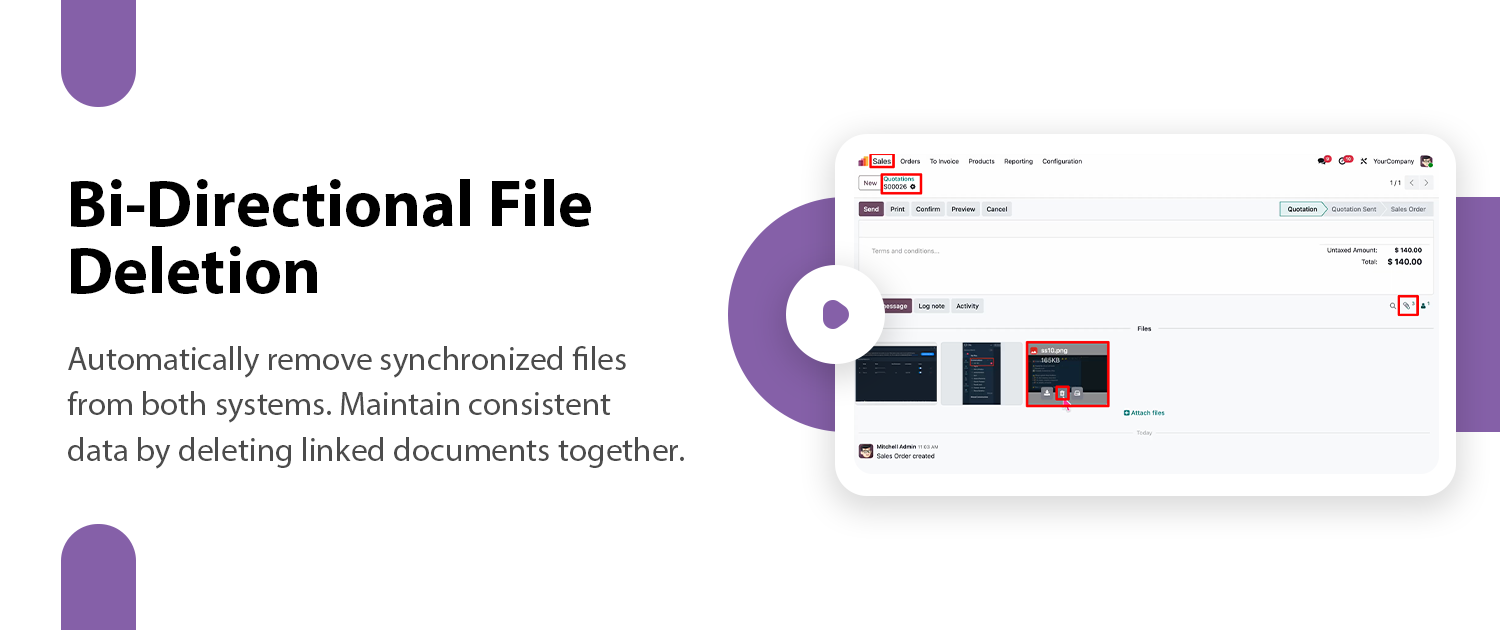
Automatically delete files in both systems when removed from one to maintain perfect consistency.

Real-time Status Tracking
Track the synchronization status of your files in real-time to ensure data consistency.
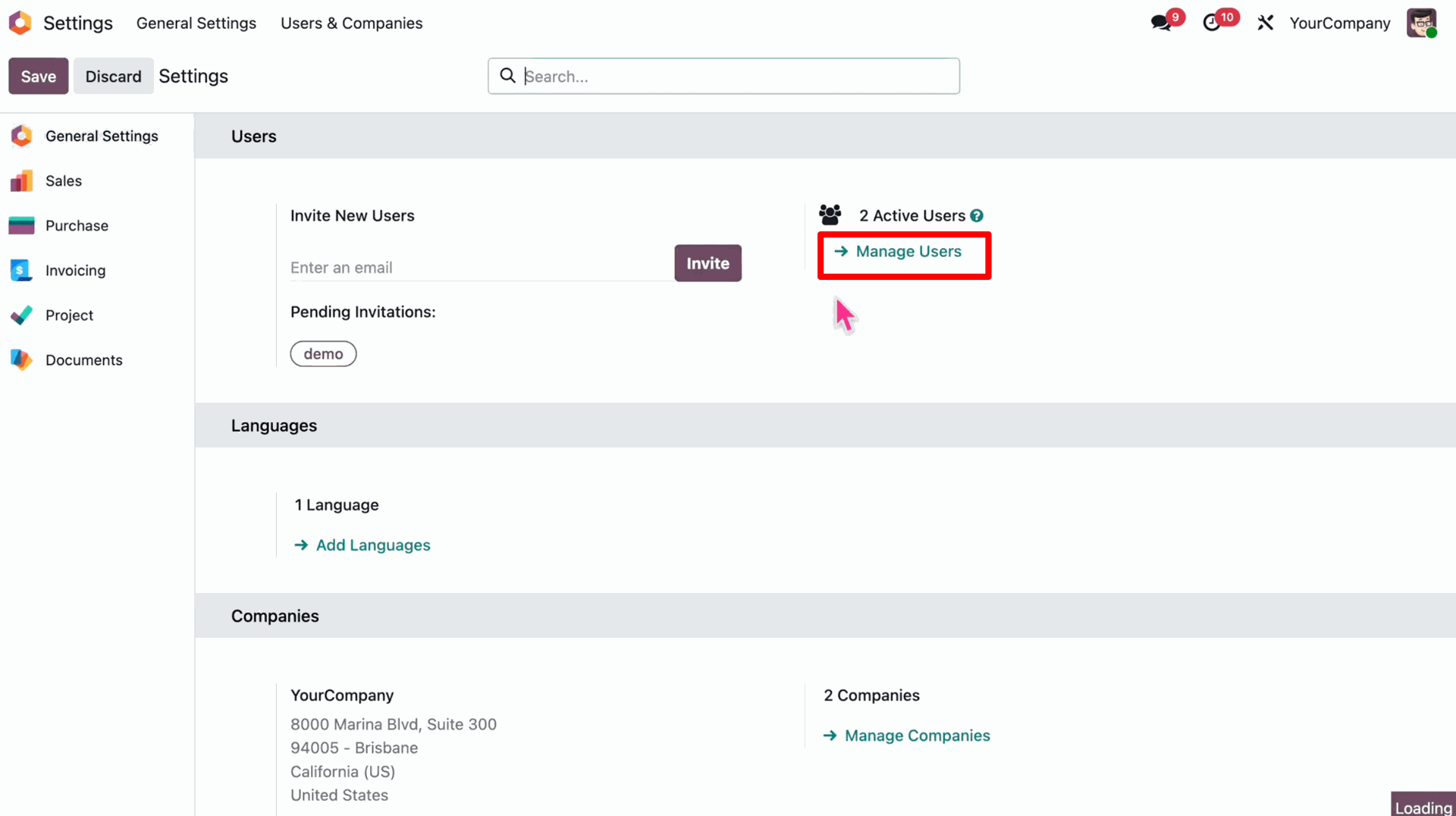
Navigate to Settings in your Odoo apps.
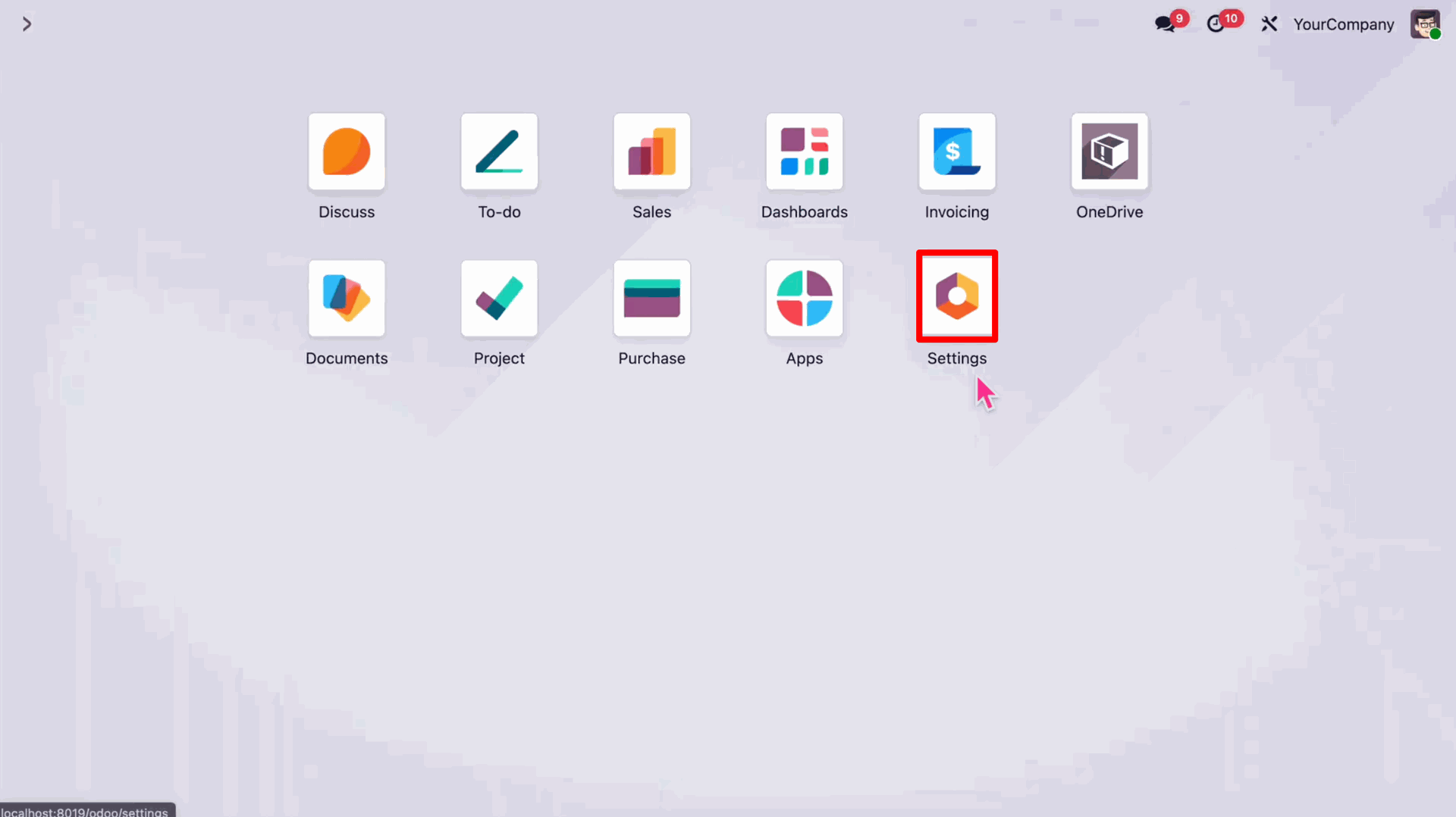
Go to Manage Users under Users & Companies.
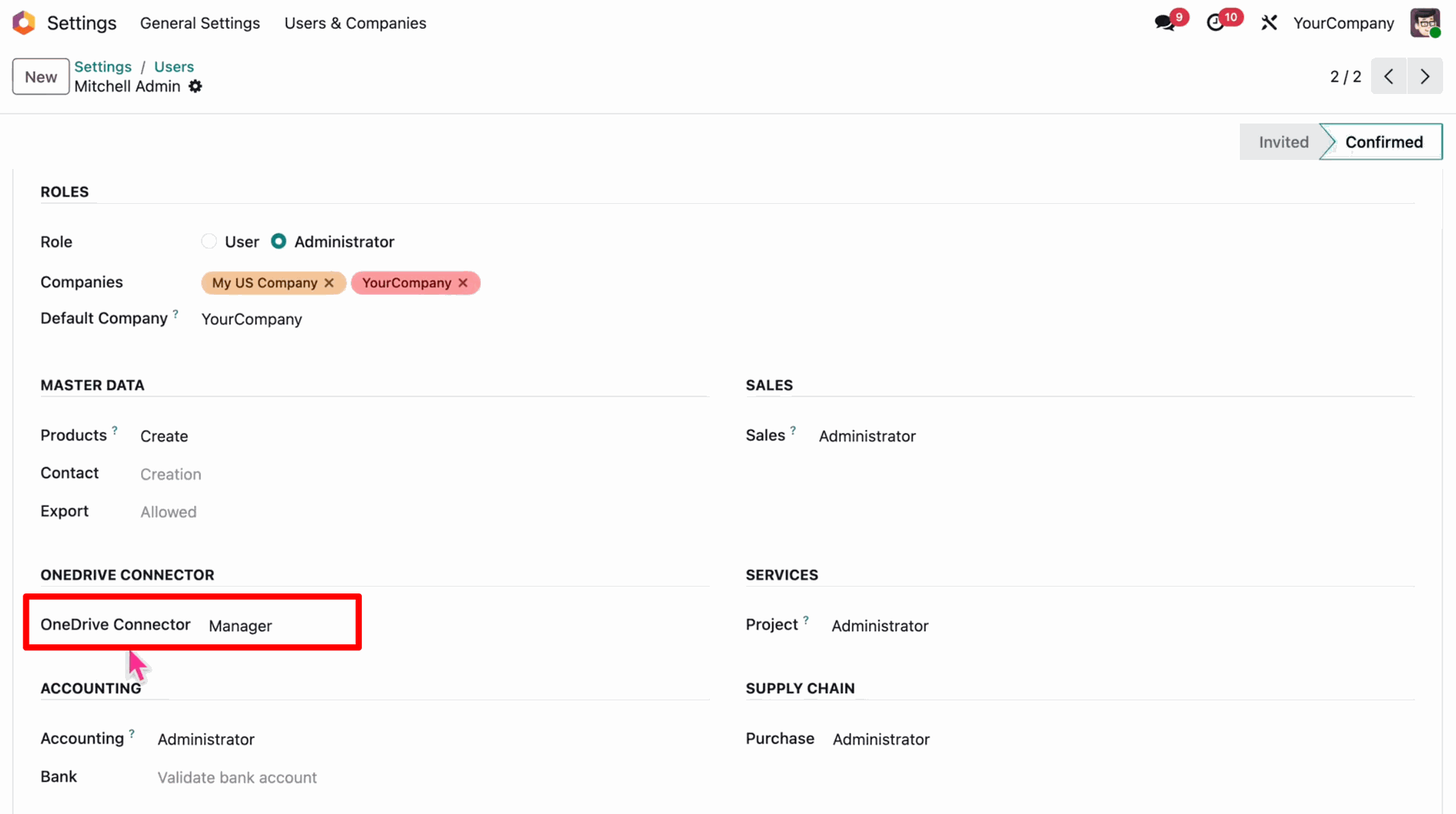
Assign the 'Manager' role for OneDrive Connector to the user.
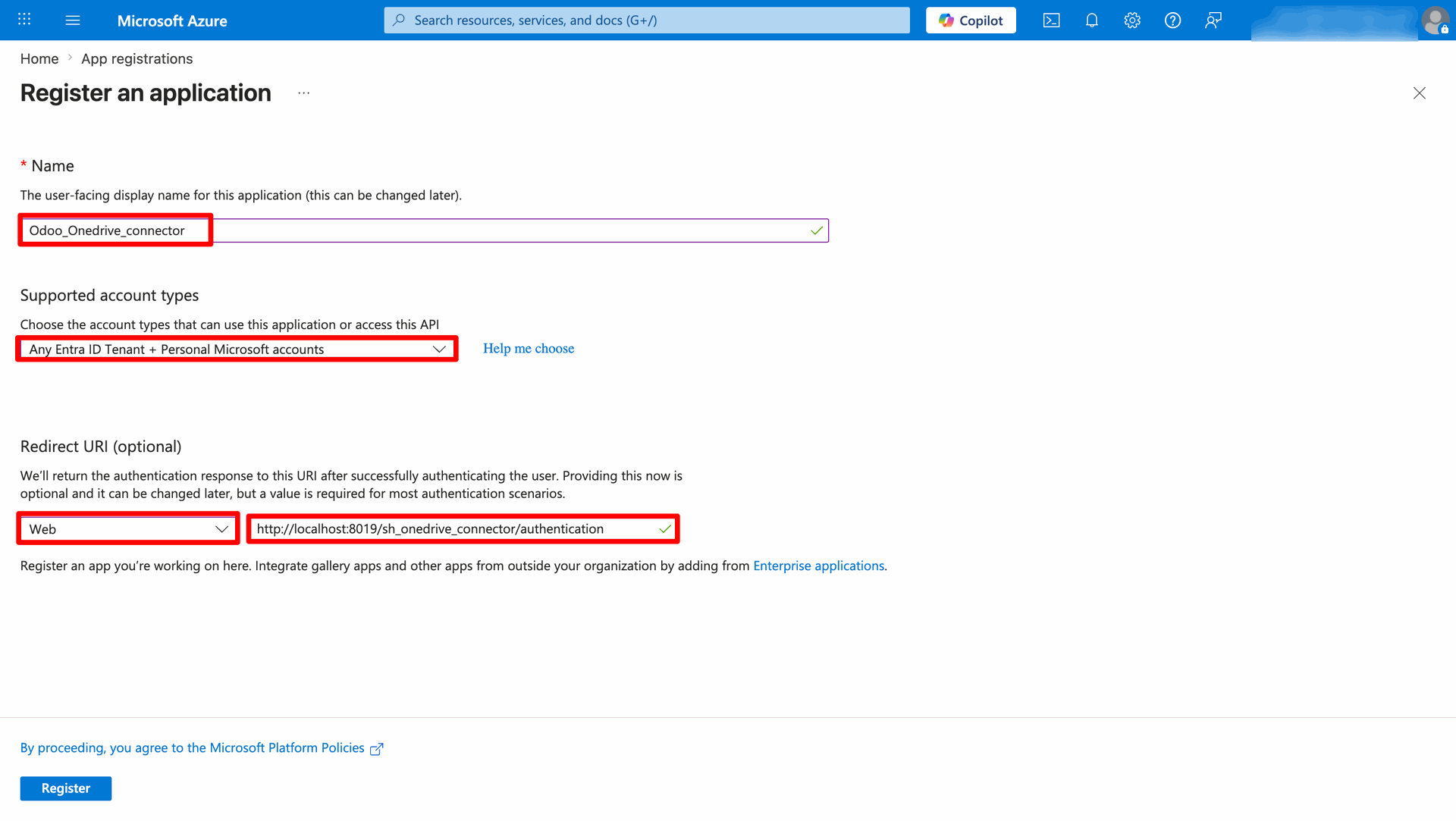
Register a new application in Microsoft Azure for the OneDrive Connector.
Obtain the Application (client) ID from the Azure app overview.
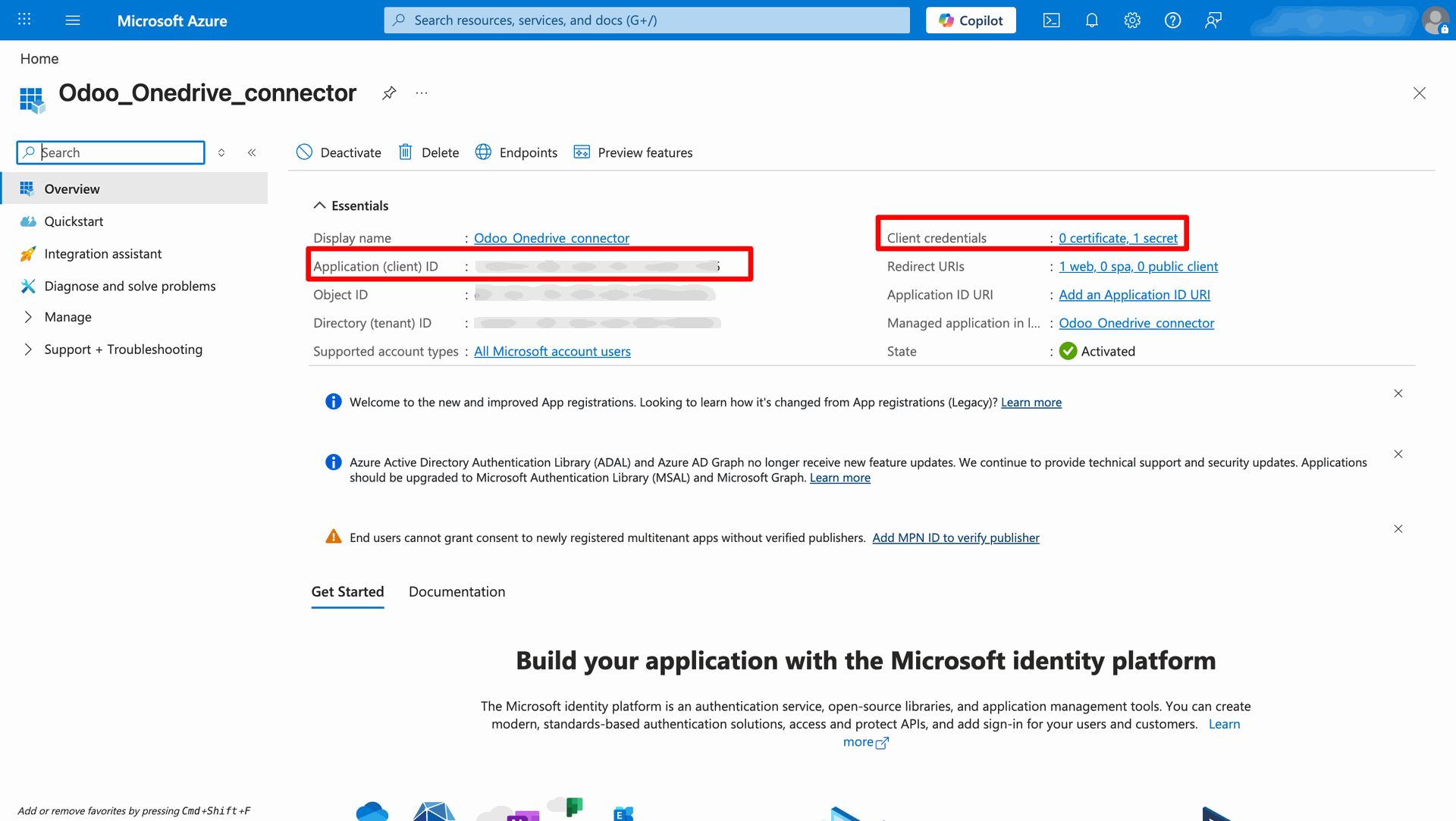
Generate and copy a new Client Secret from Certificates & secrets.
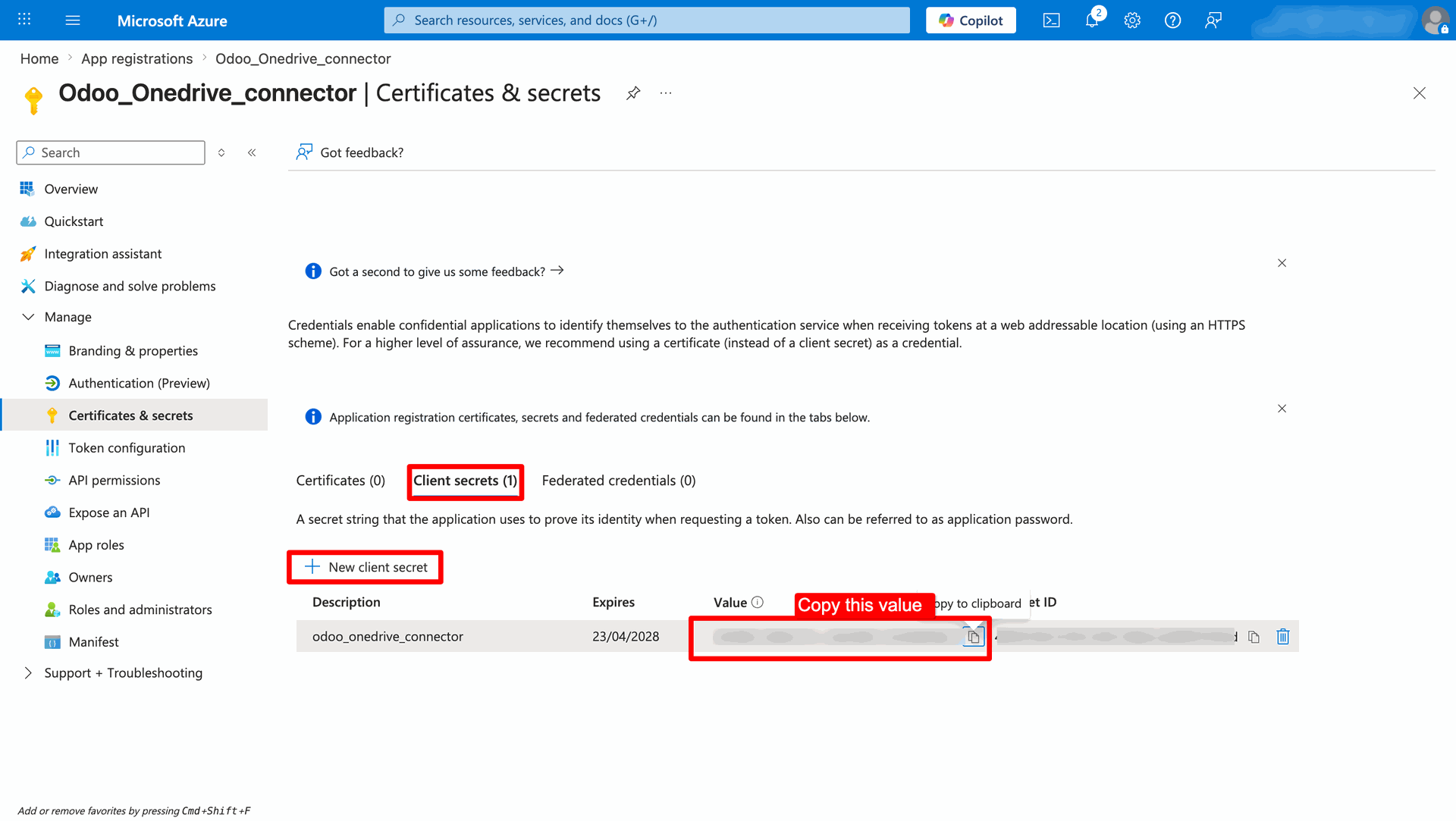
Open the OneDrive application from the Odoo apps.
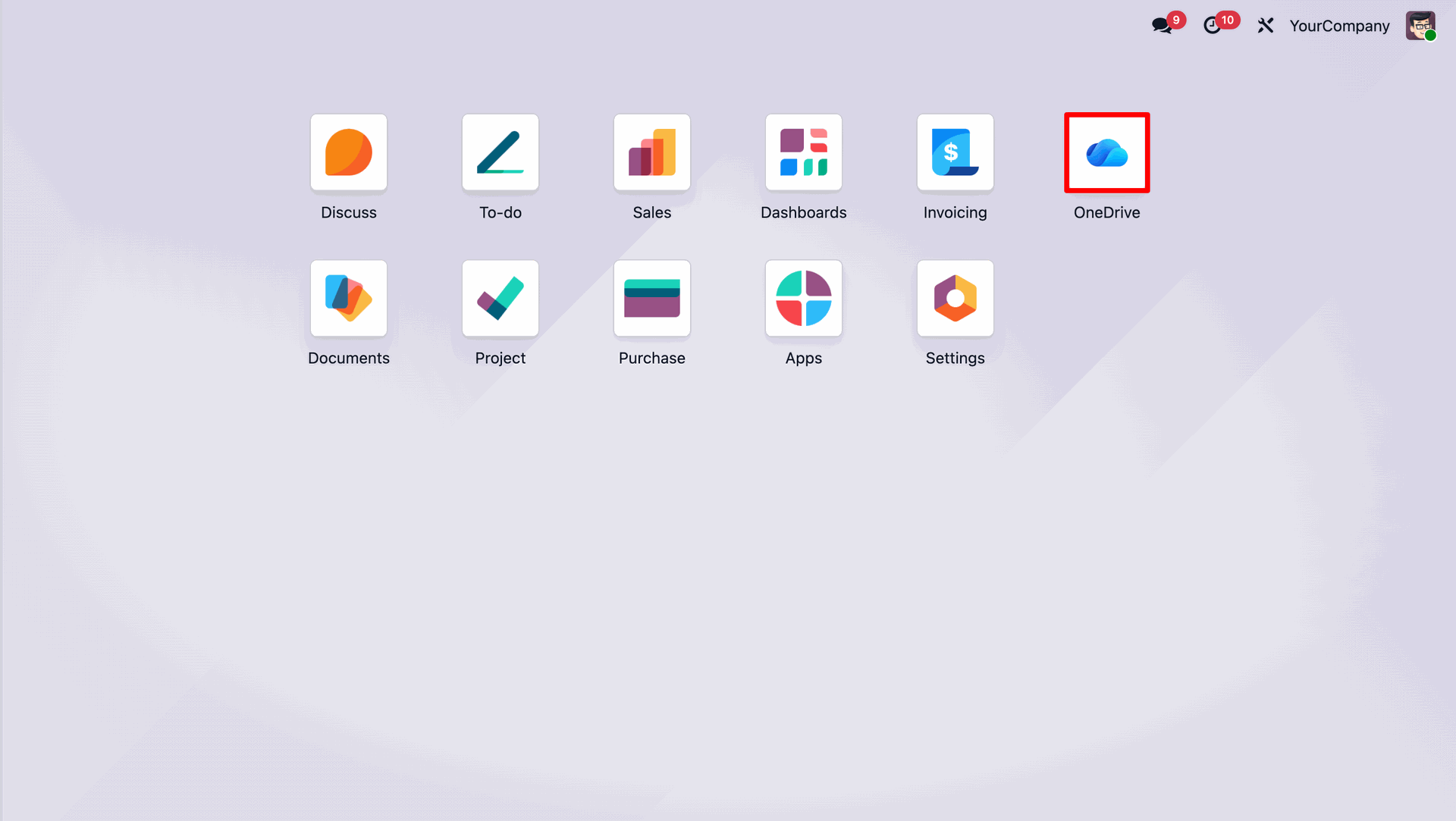
Click on the 'Authorize OneDrive' button to initiate the connection.
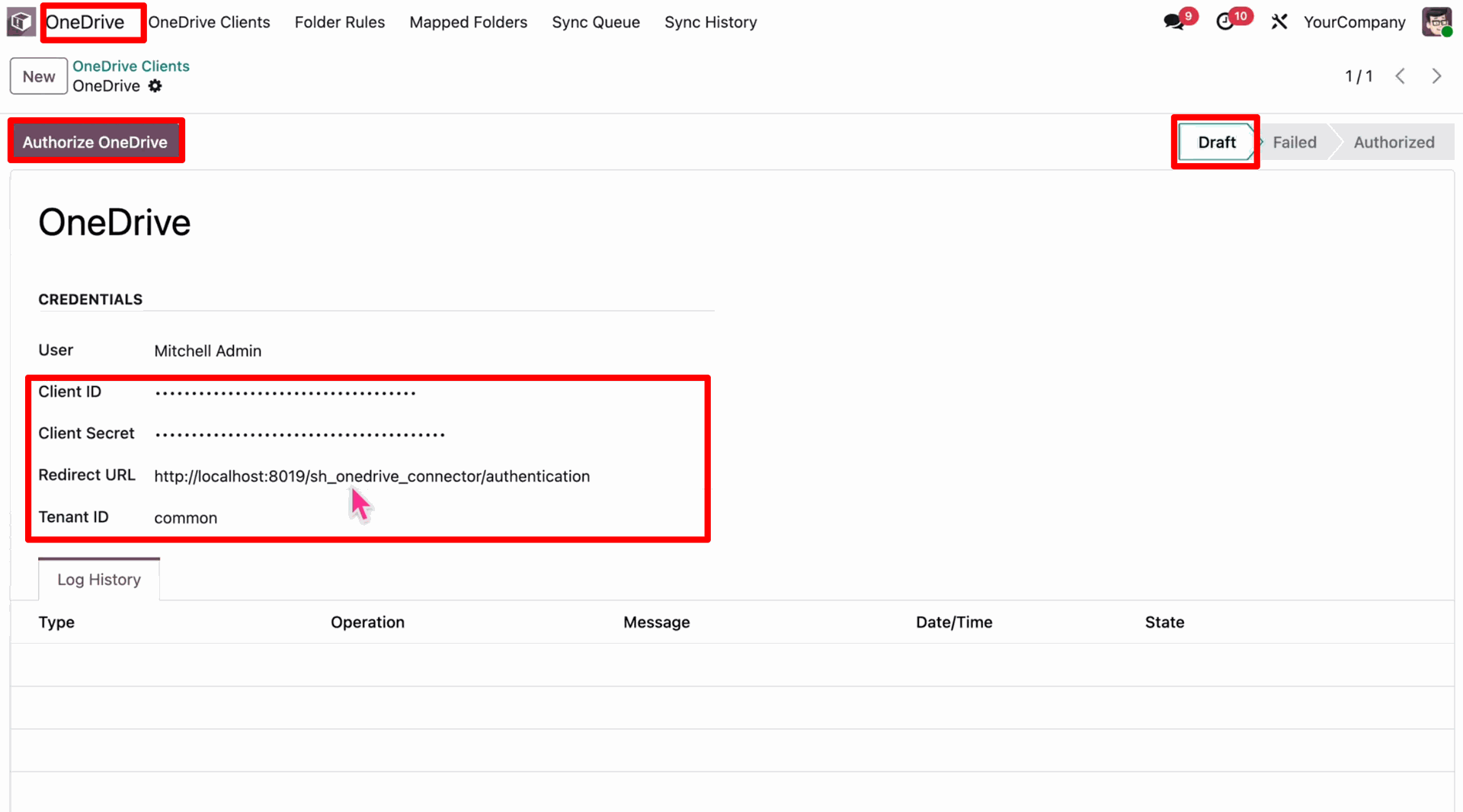
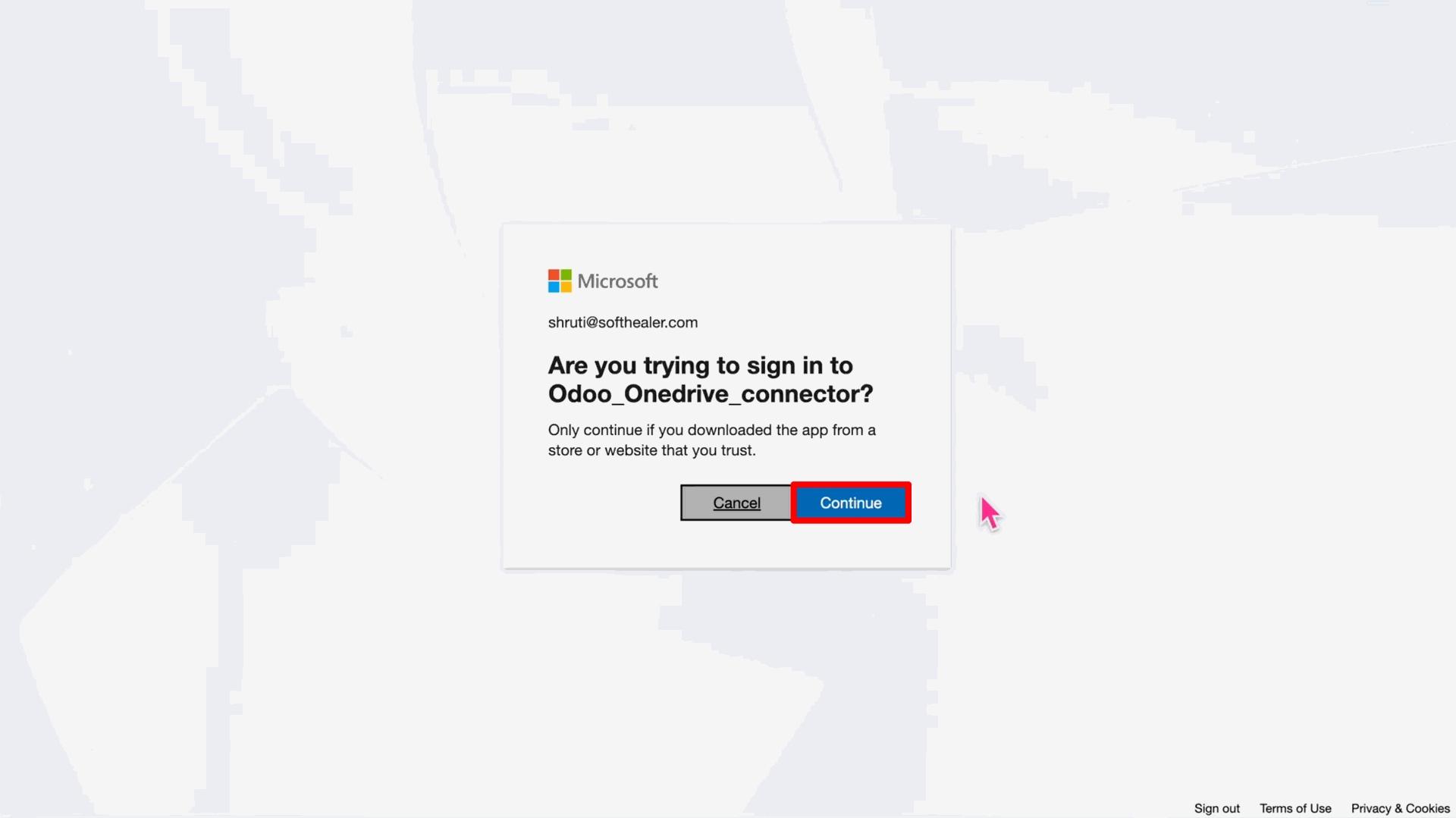
Sign in with your Microsoft account credentials.
Grant the necessary permissions to the Odoo application.
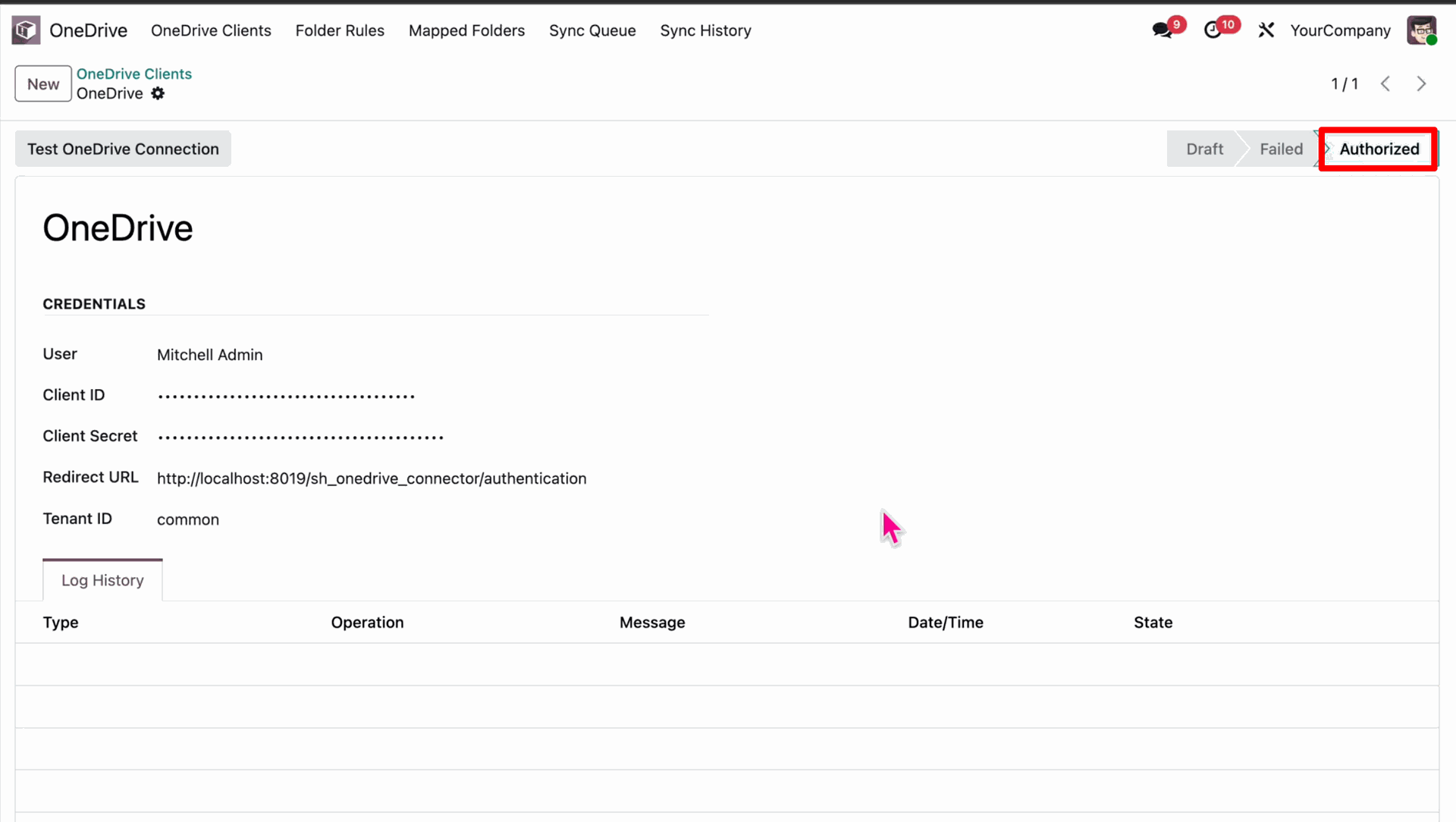
The connection is successfully established and authorized.
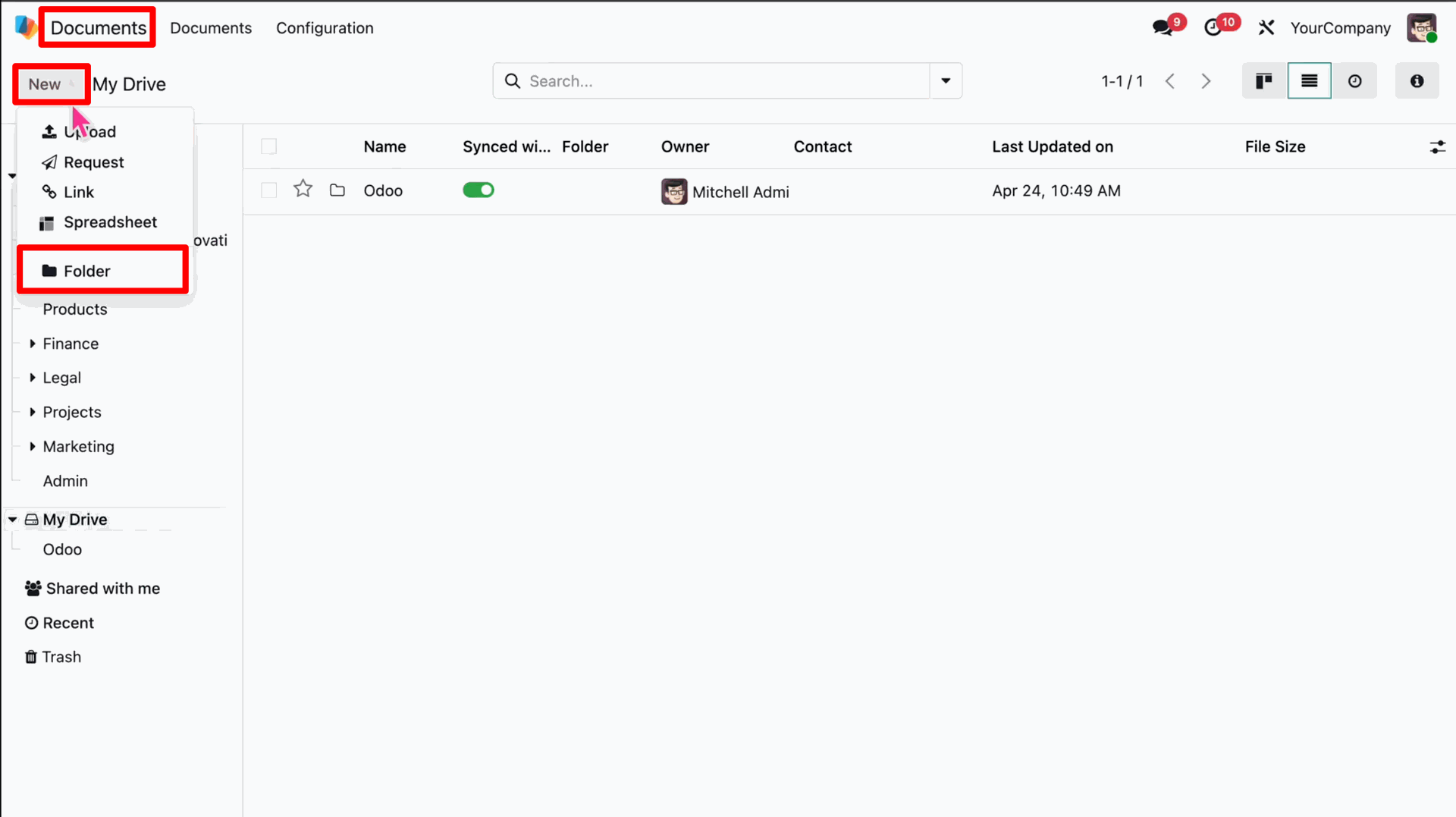
Navigate to the Documents App to create a Root Folder.
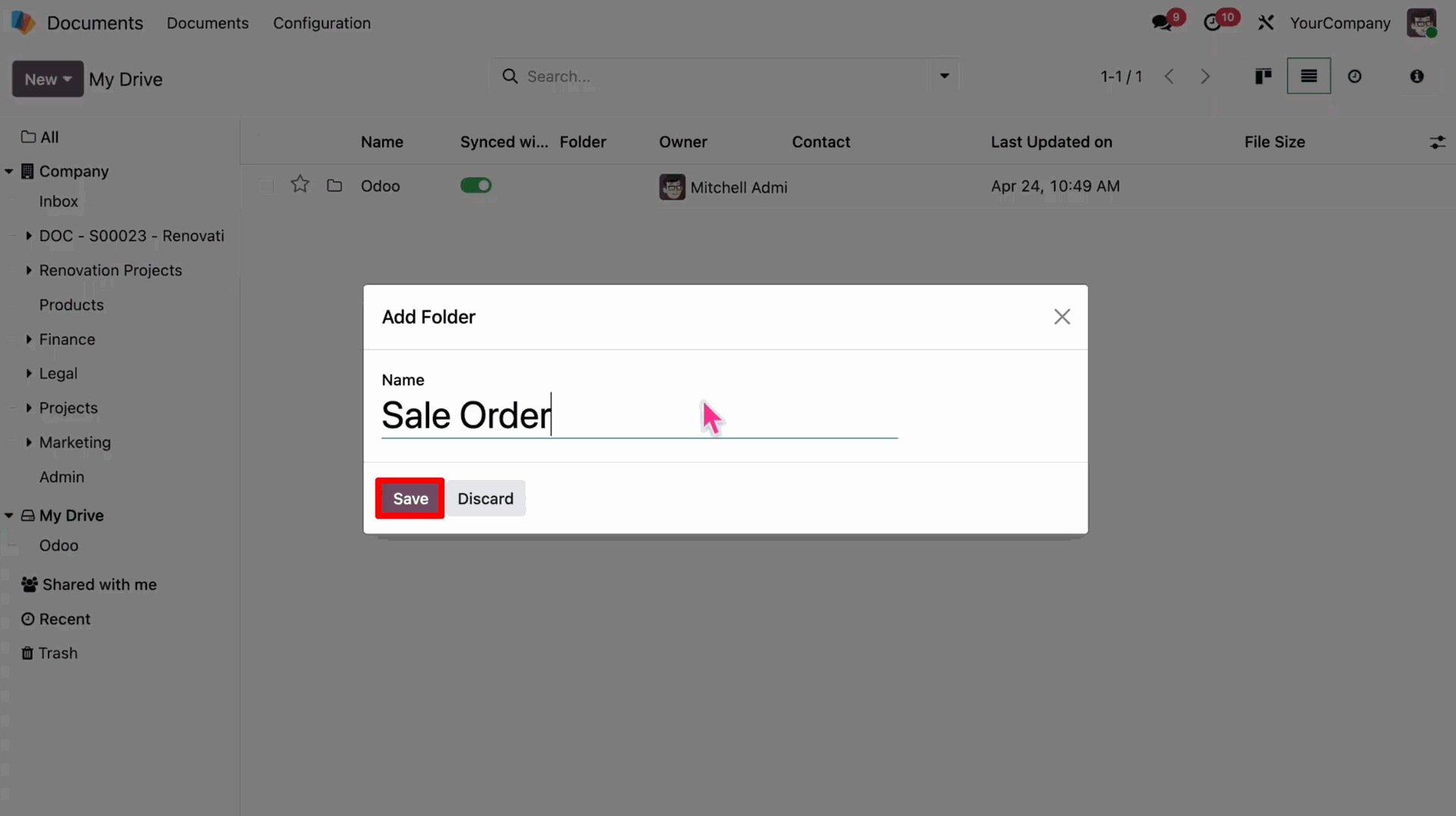
Create a new folder (e.g., 'Sale Order') that will act as the root for your records.
Open the OneDrive Connector and go to 'Mapped Folders'.
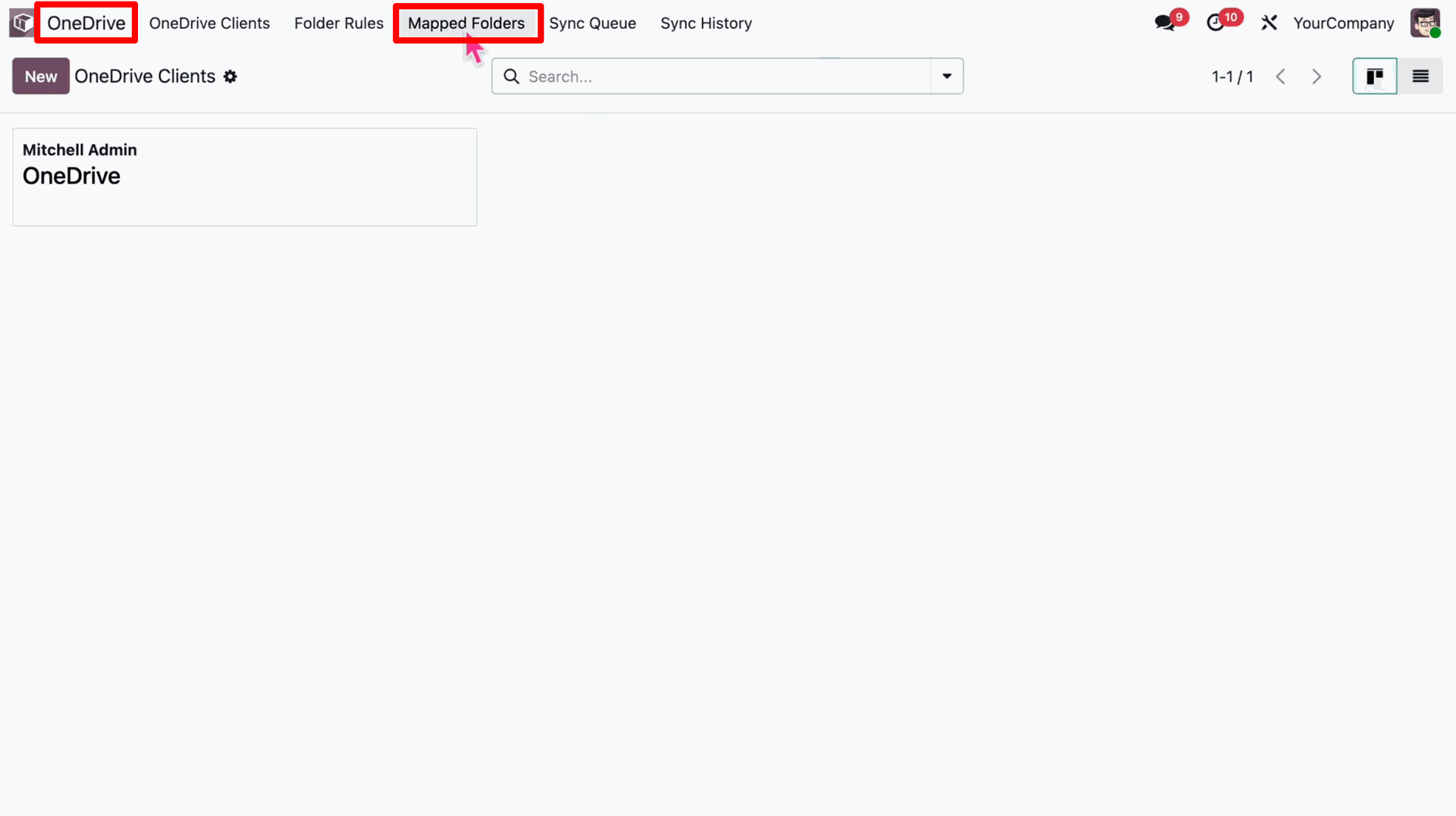
Map your local 'Sale Order' folder to dynamically create its counterpart in OneDrive.
Define the model for this folder rule (e.g., 'Sales Order').
Set the naming convention for the synced folder.
Select the fields as per need.
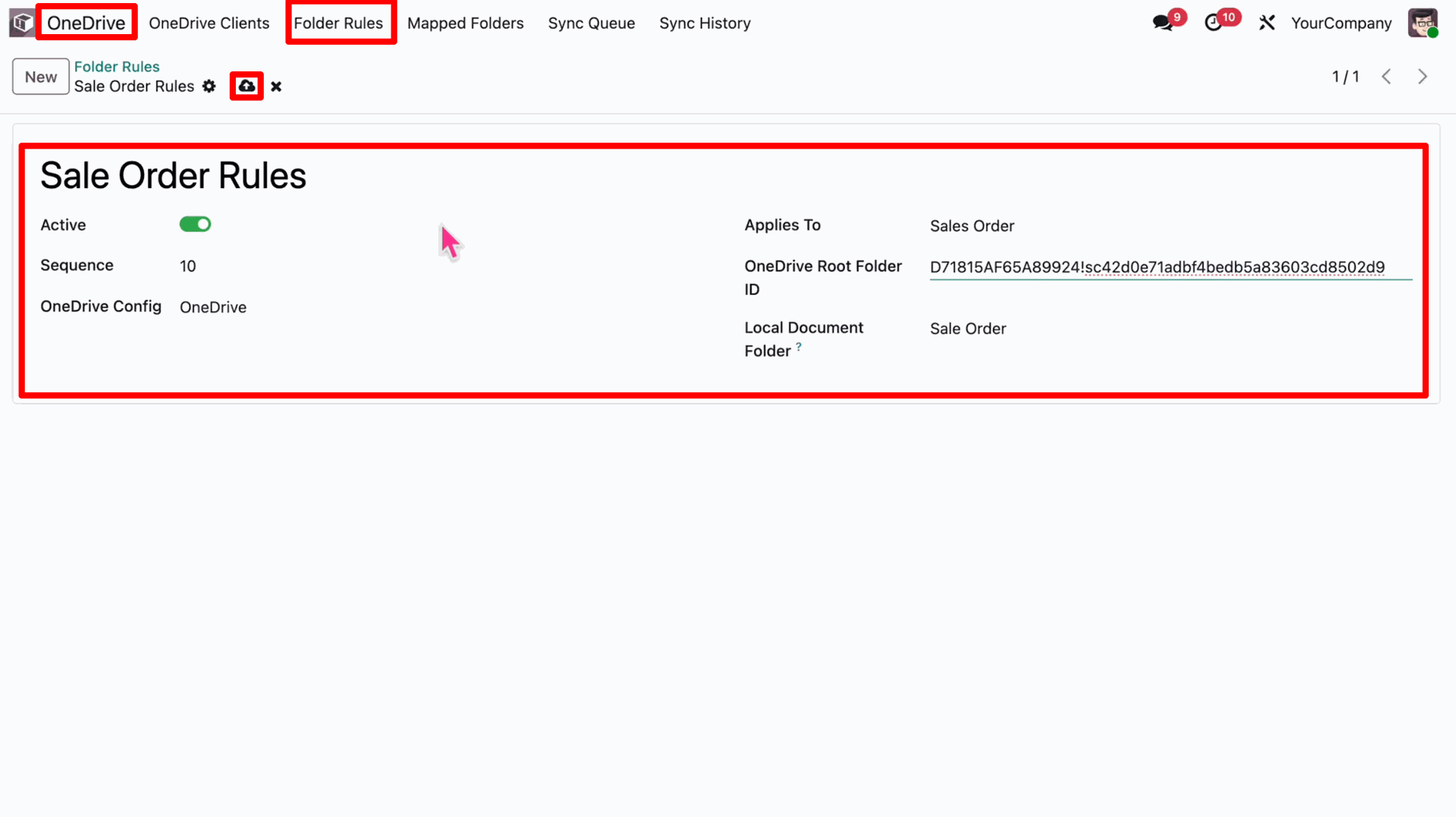
Navigate back to the Odoo apps.
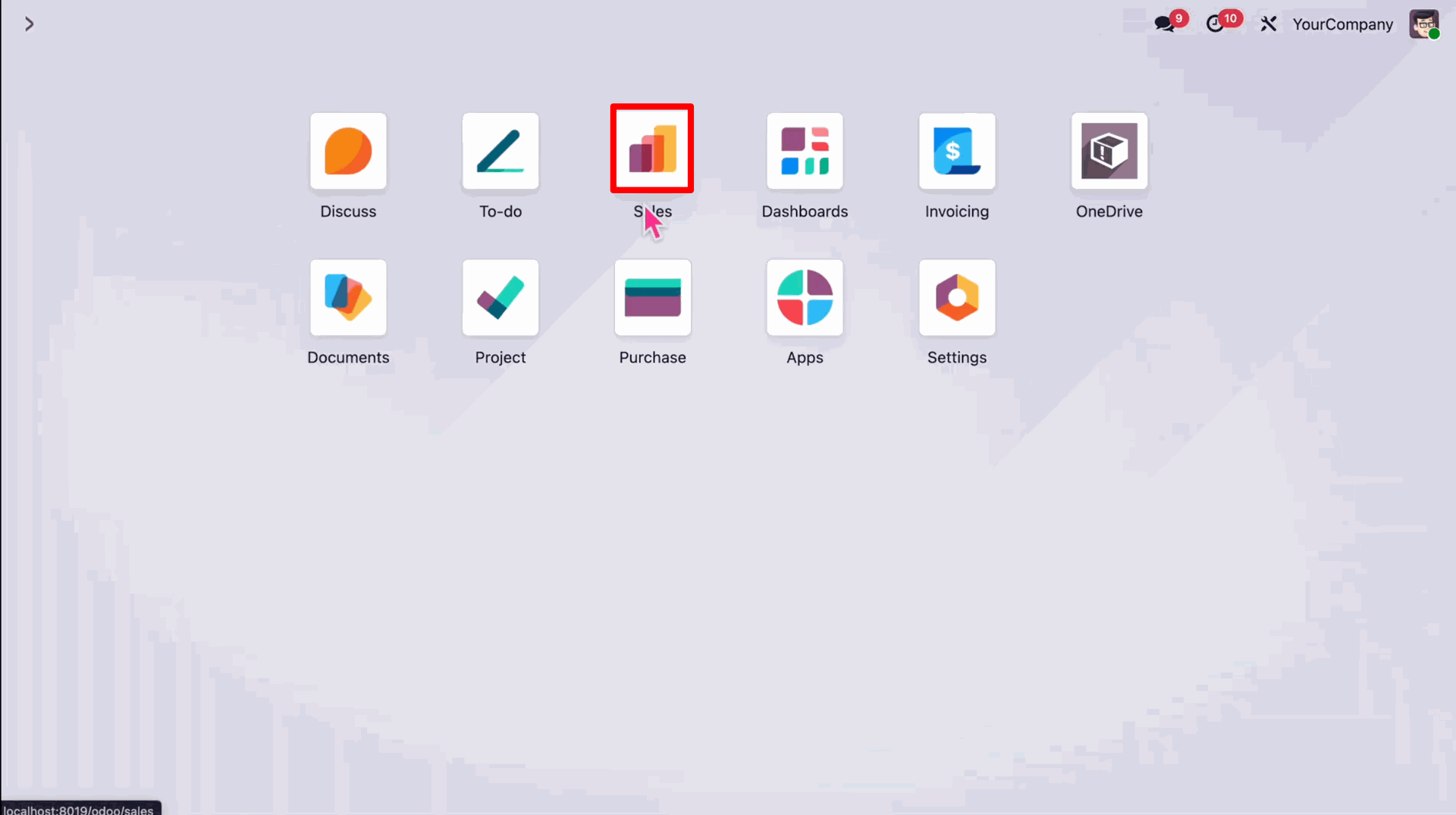
Open a Sales Order record.
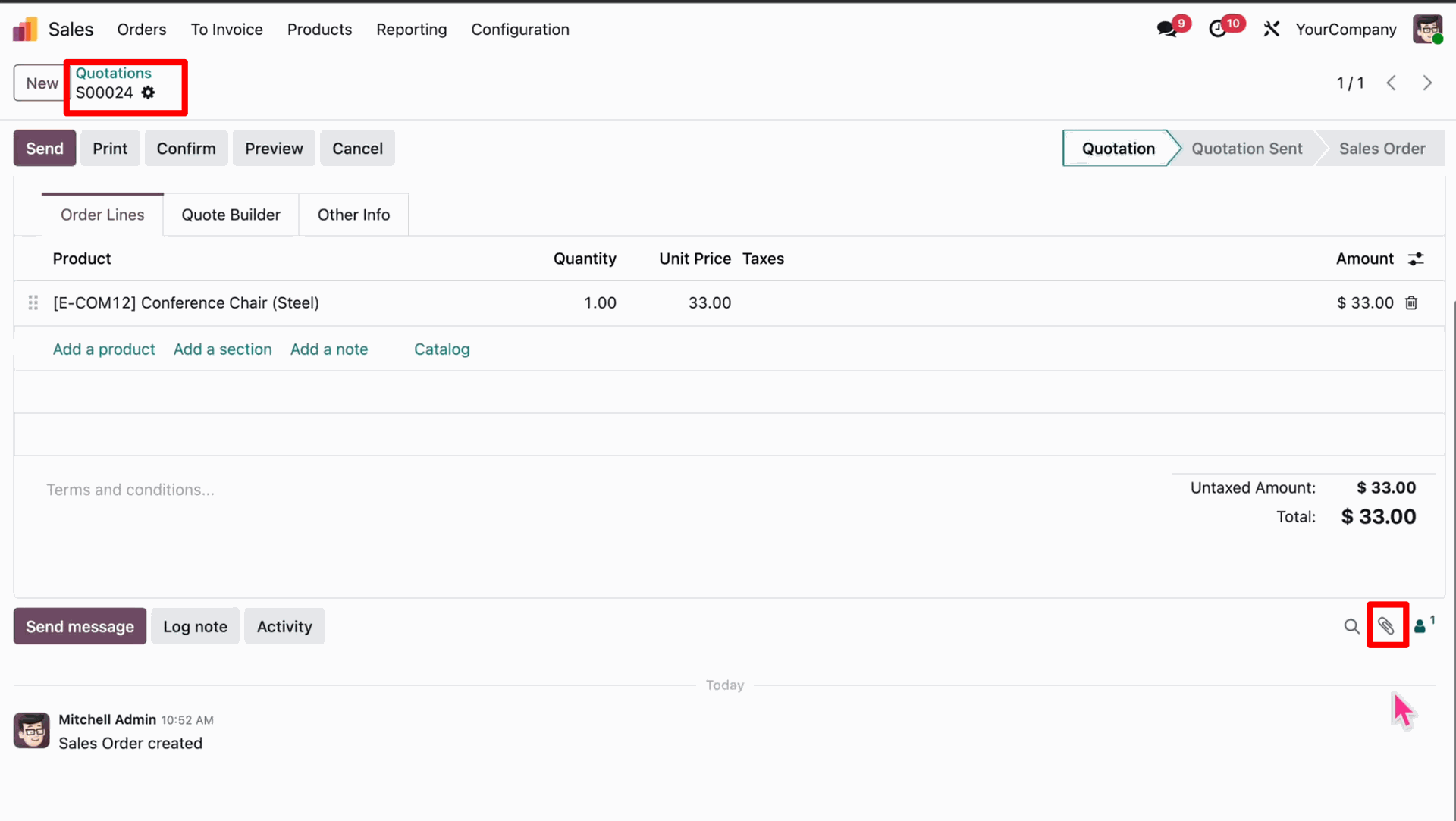
Upload a document or attachment to the Sales Order.
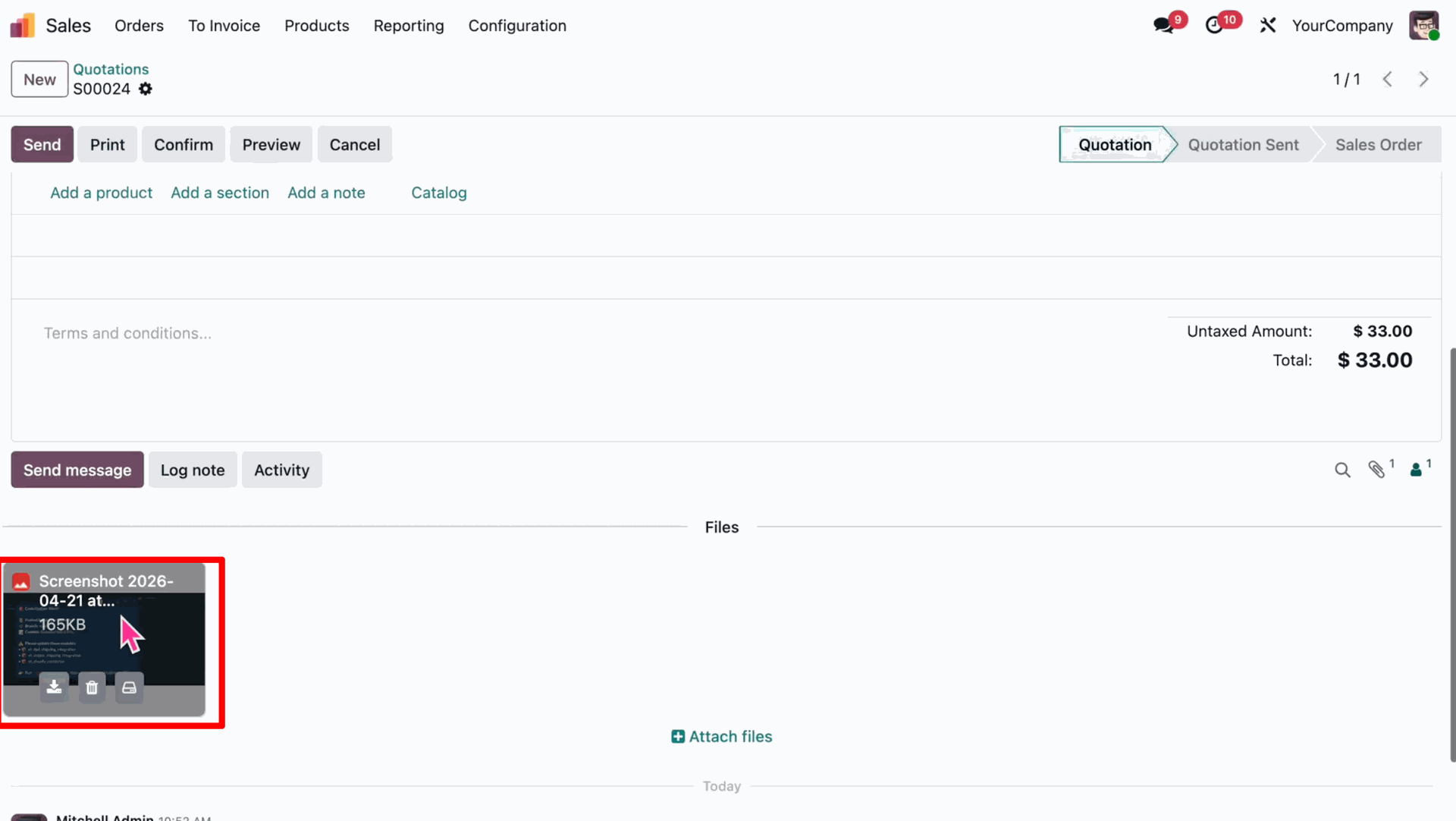
Navigate to the folder.
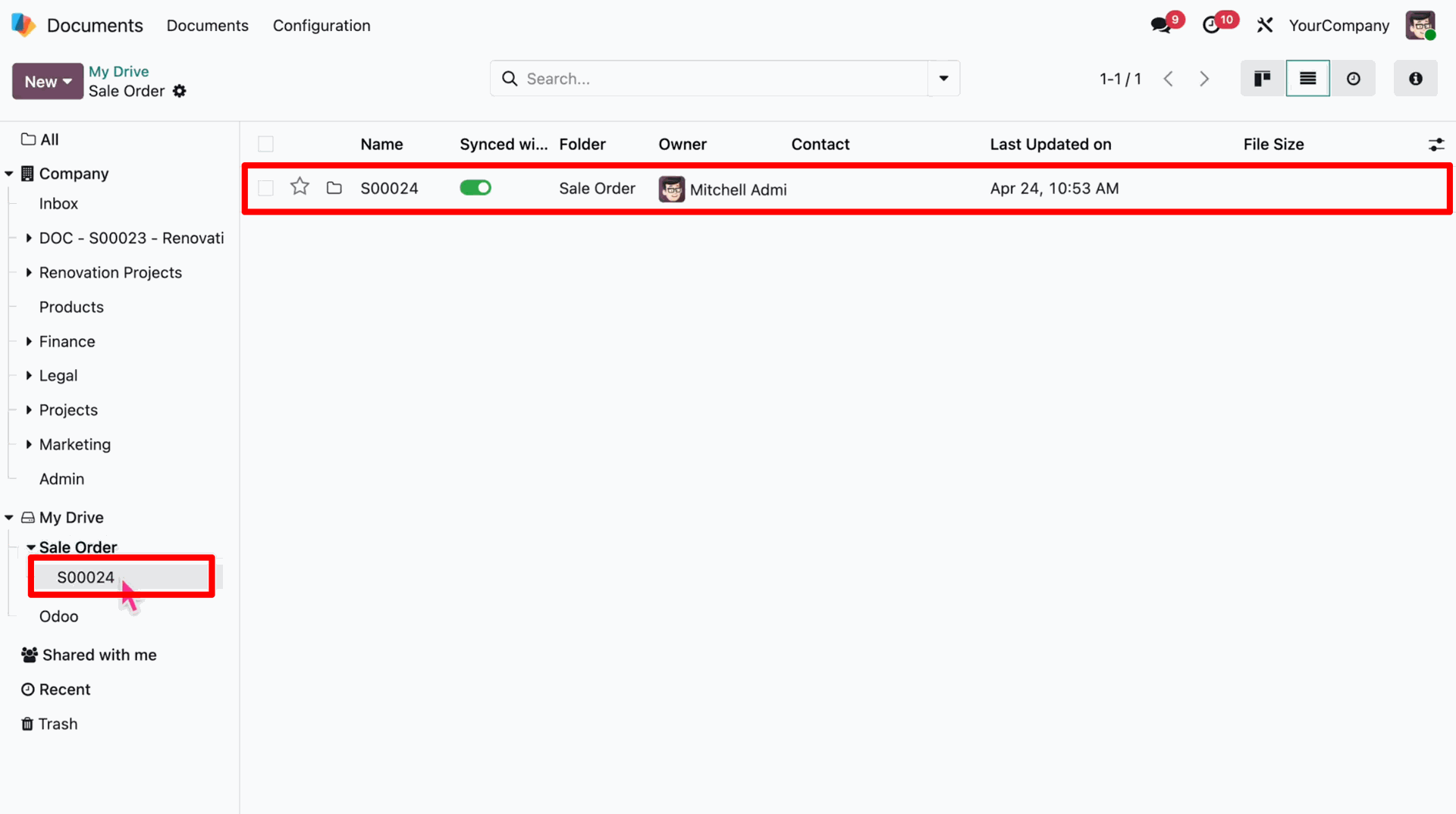
View the pending synchronization task.
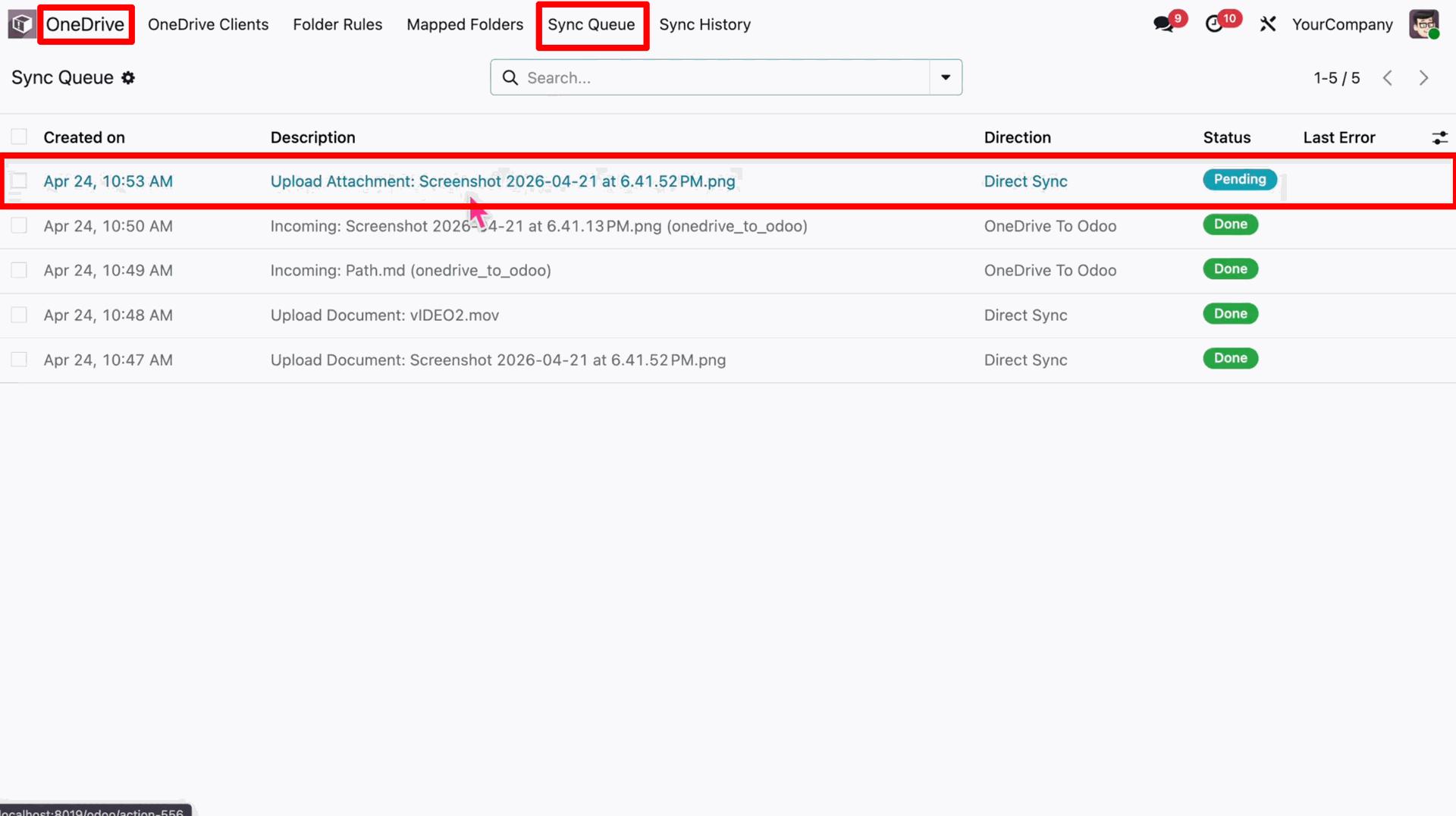
Click the 'Run Manually' button to trigger the synchronization immediately.
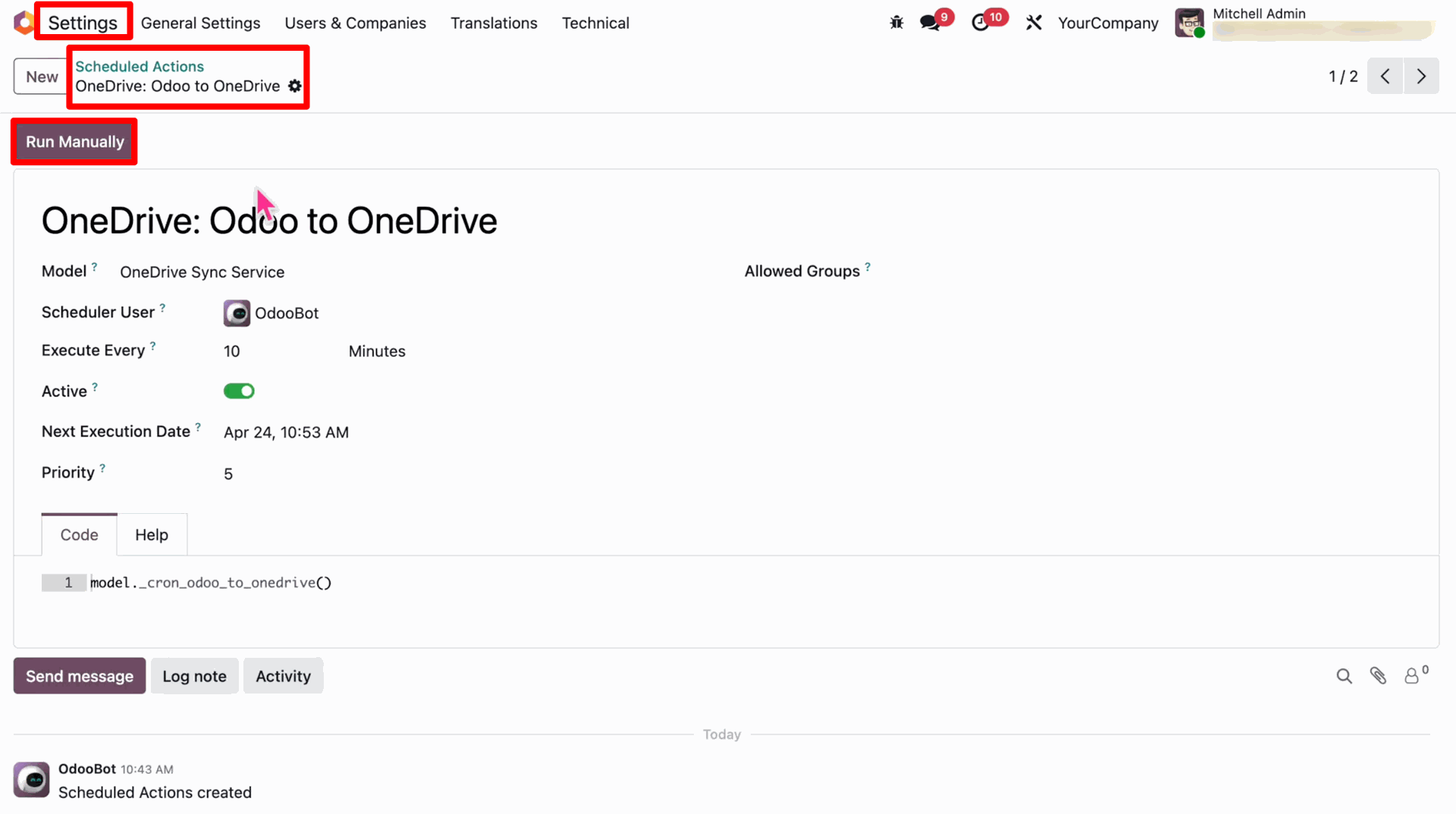
View the successful upload.
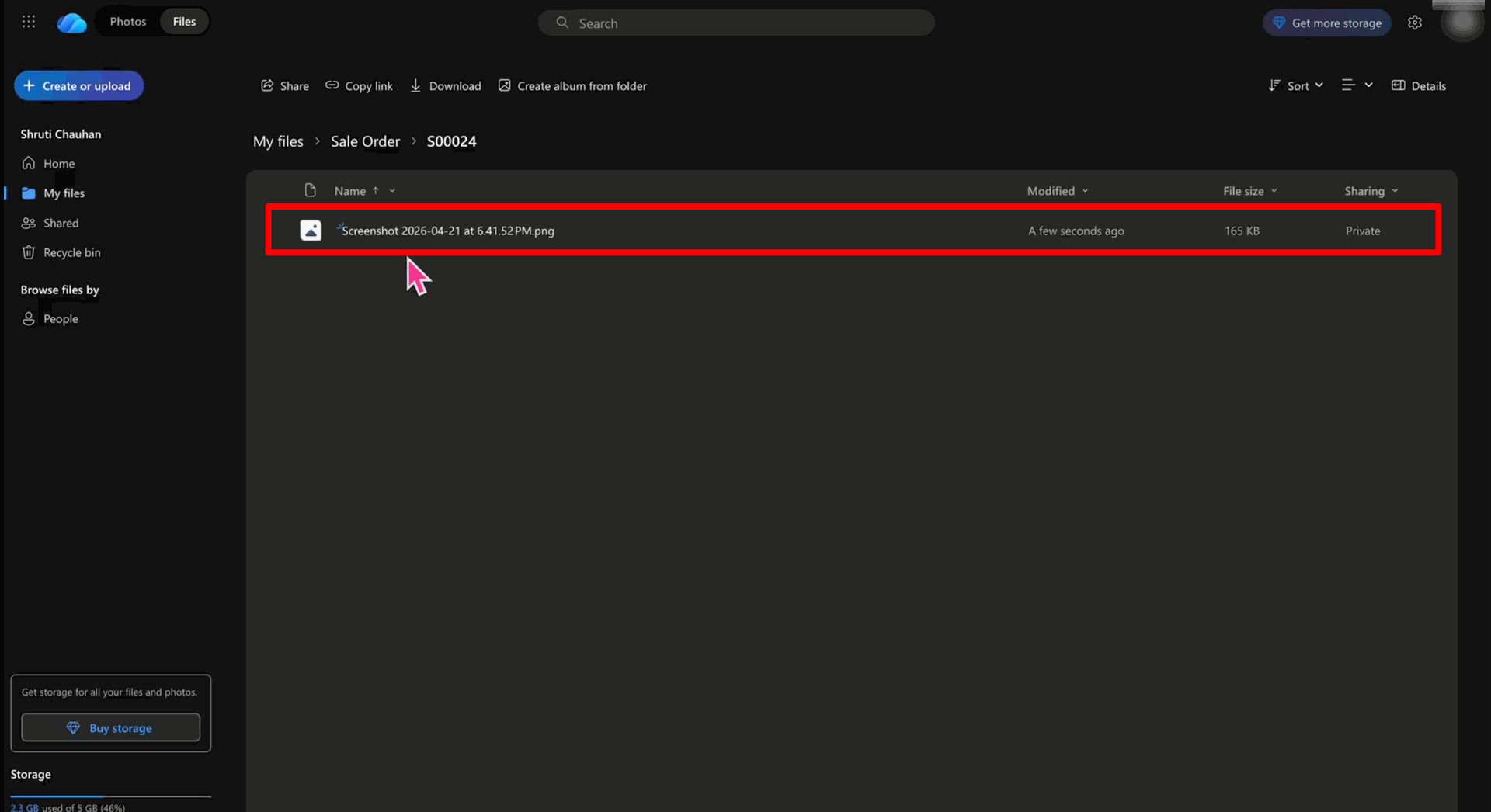
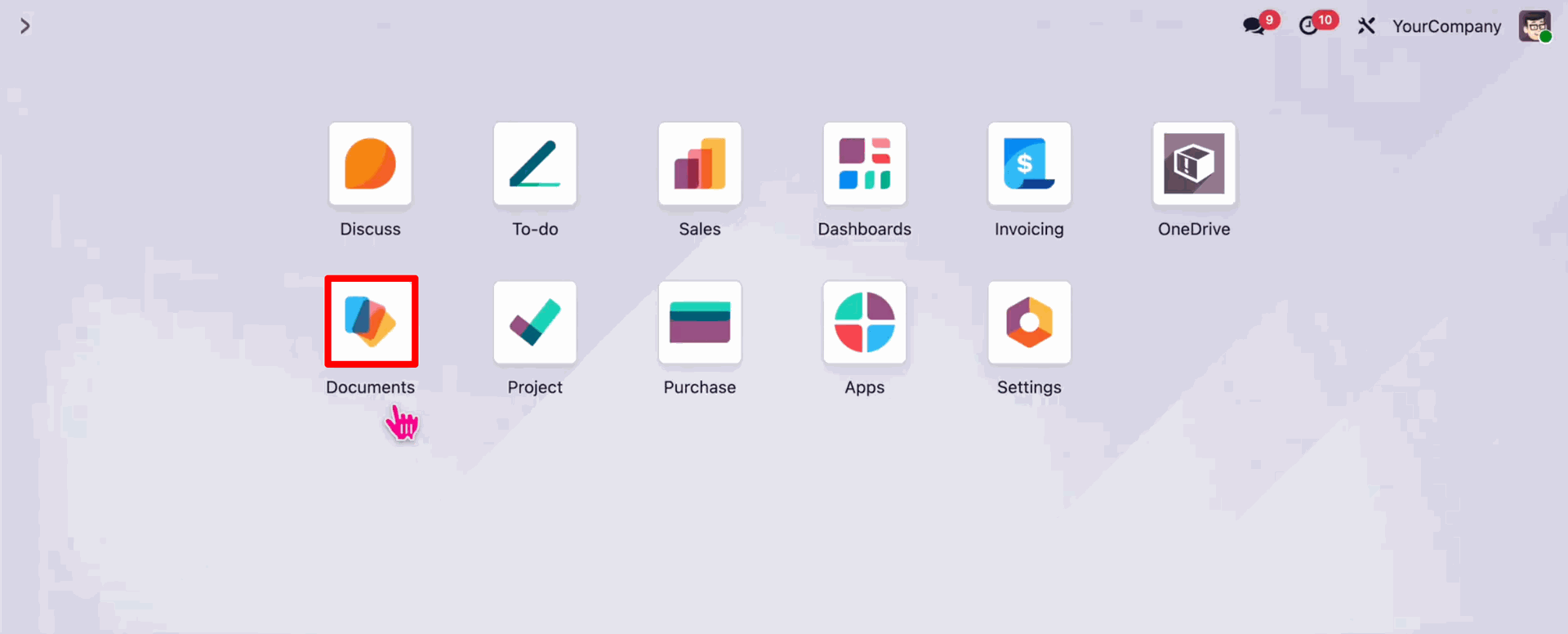
Navigate to the Documents app from the Odoo apps.
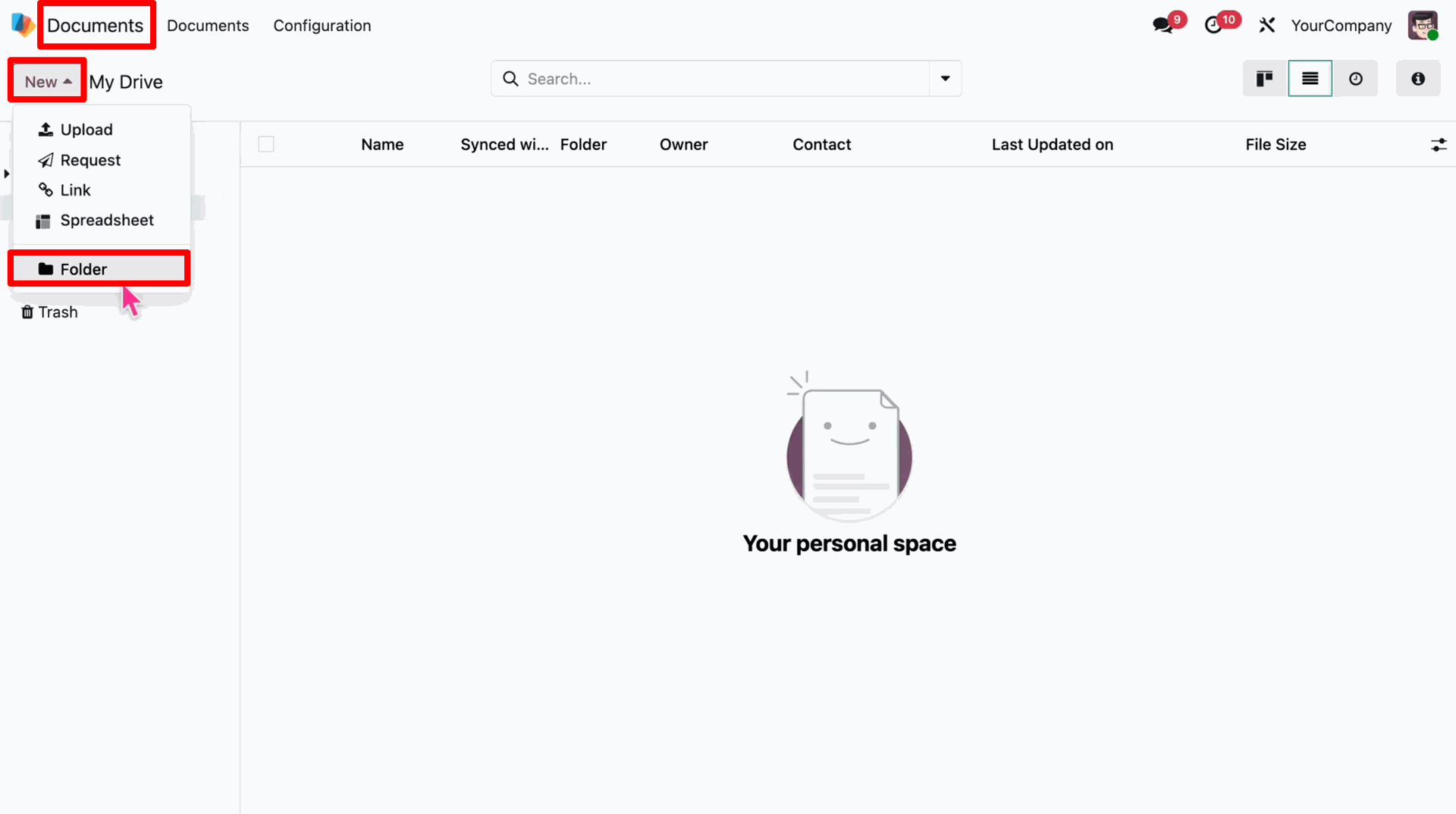
In the Documents app, click on the "New" button and select "Folder" to create a new folder.
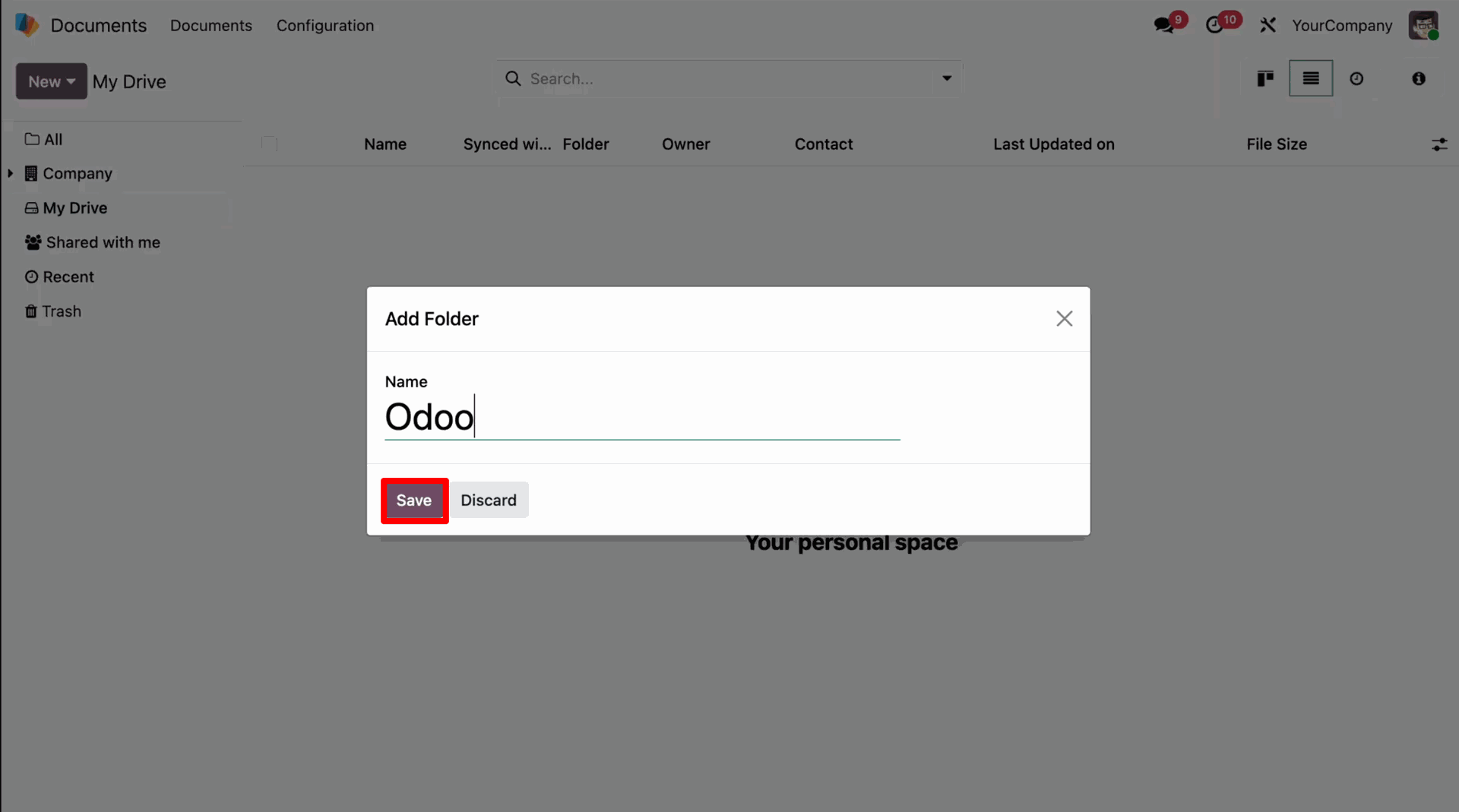
Enter the folder name as "Odoo" and click "Save".
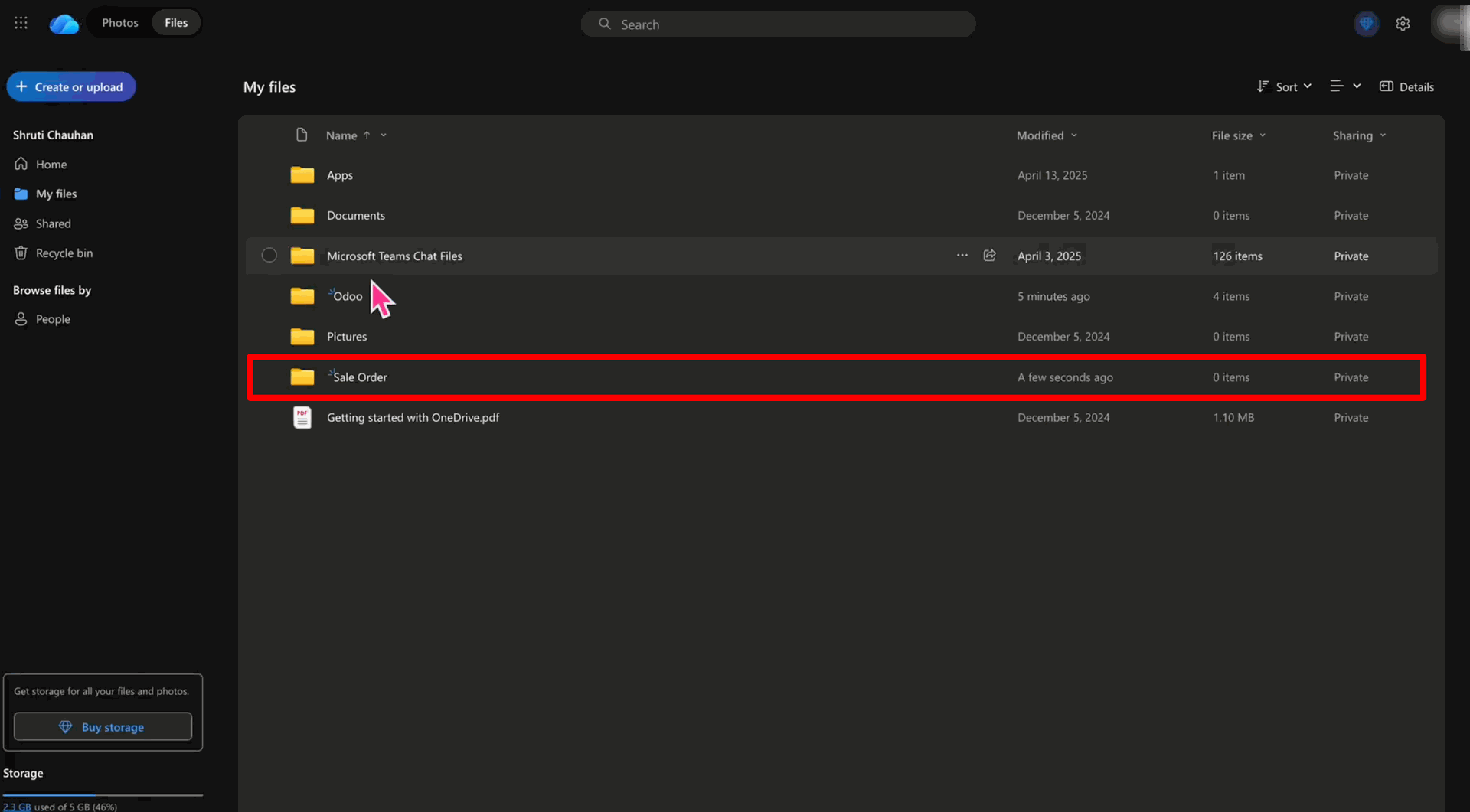
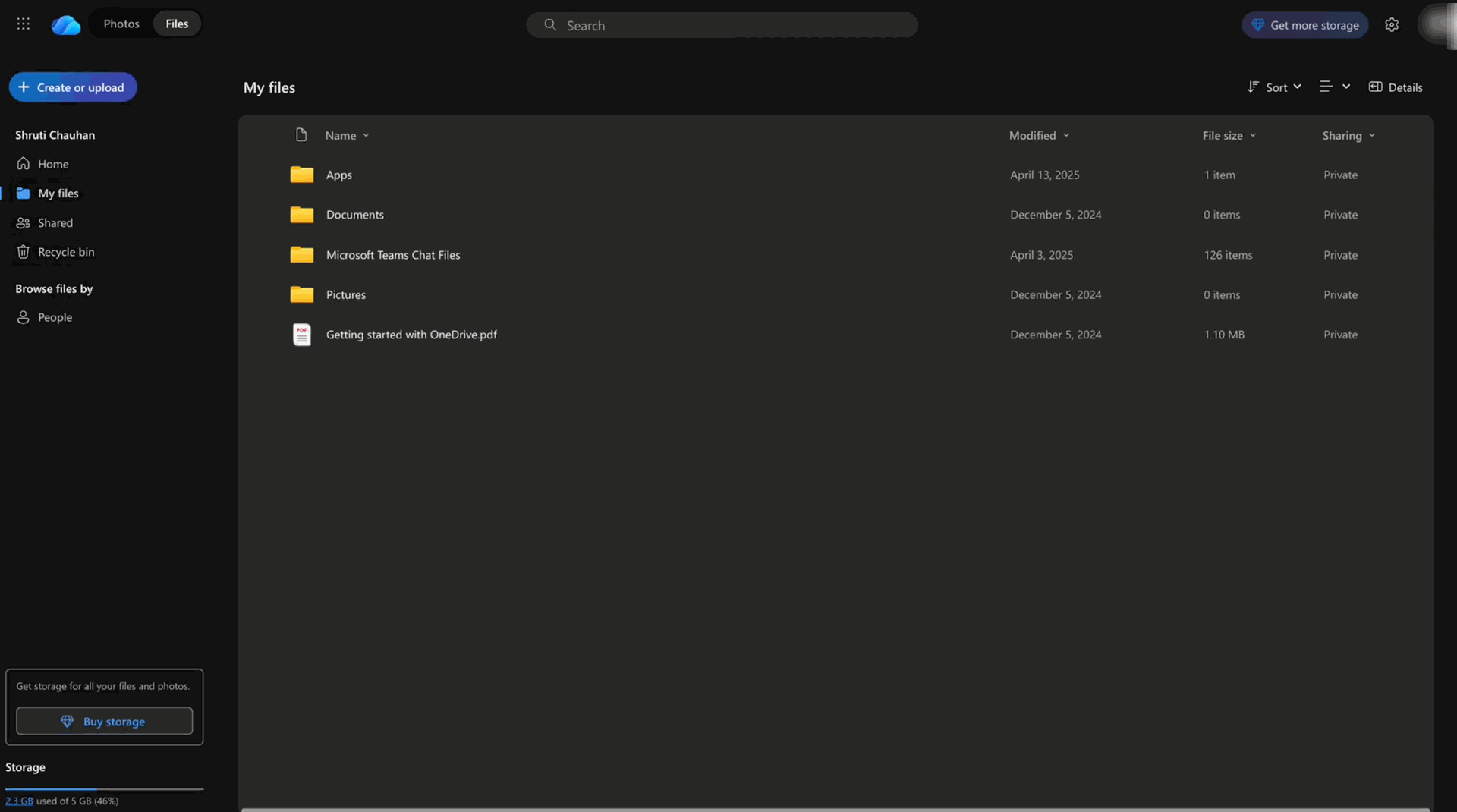
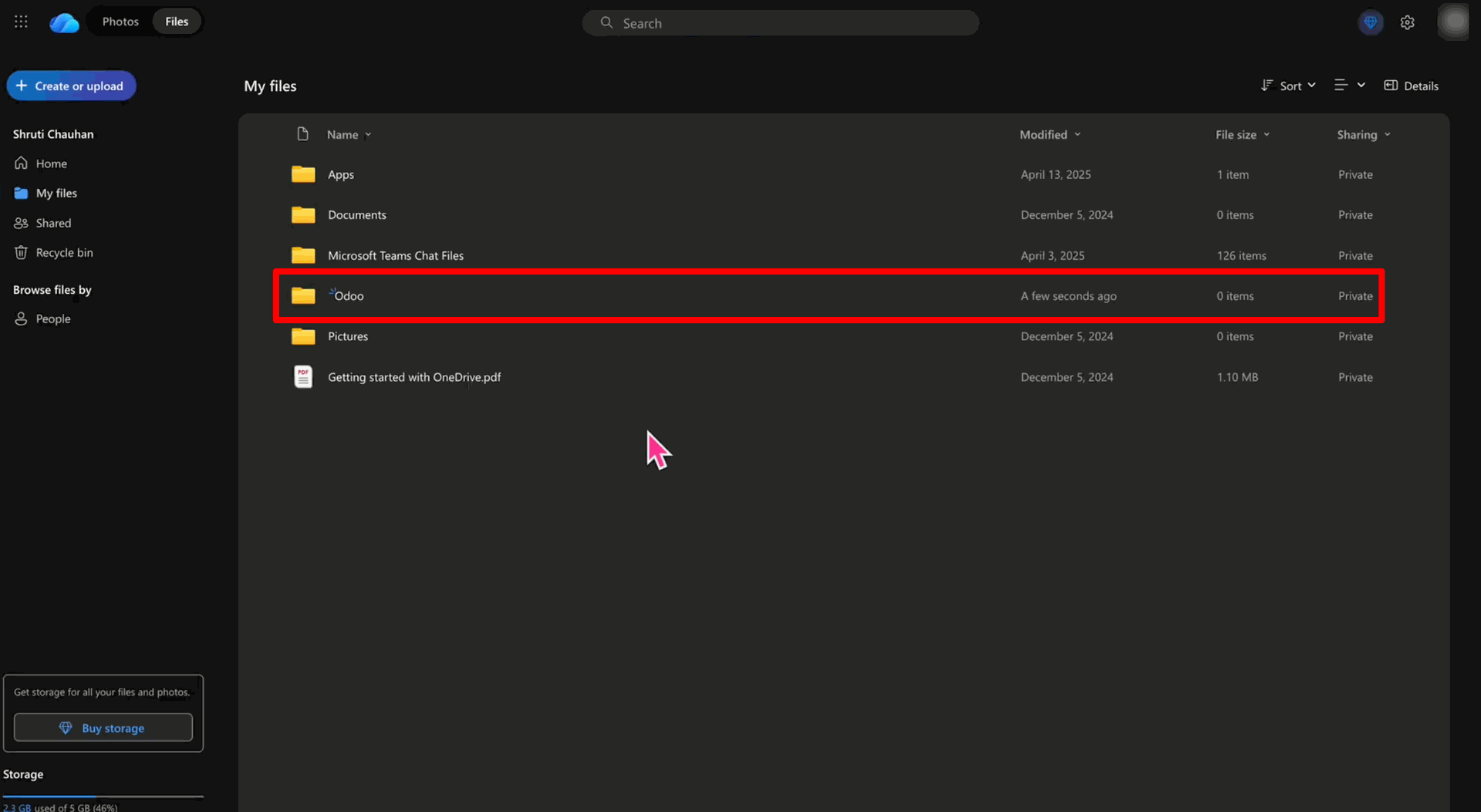
The newly created folder "Odoo" will be visible in your OneDrive account under "My files".
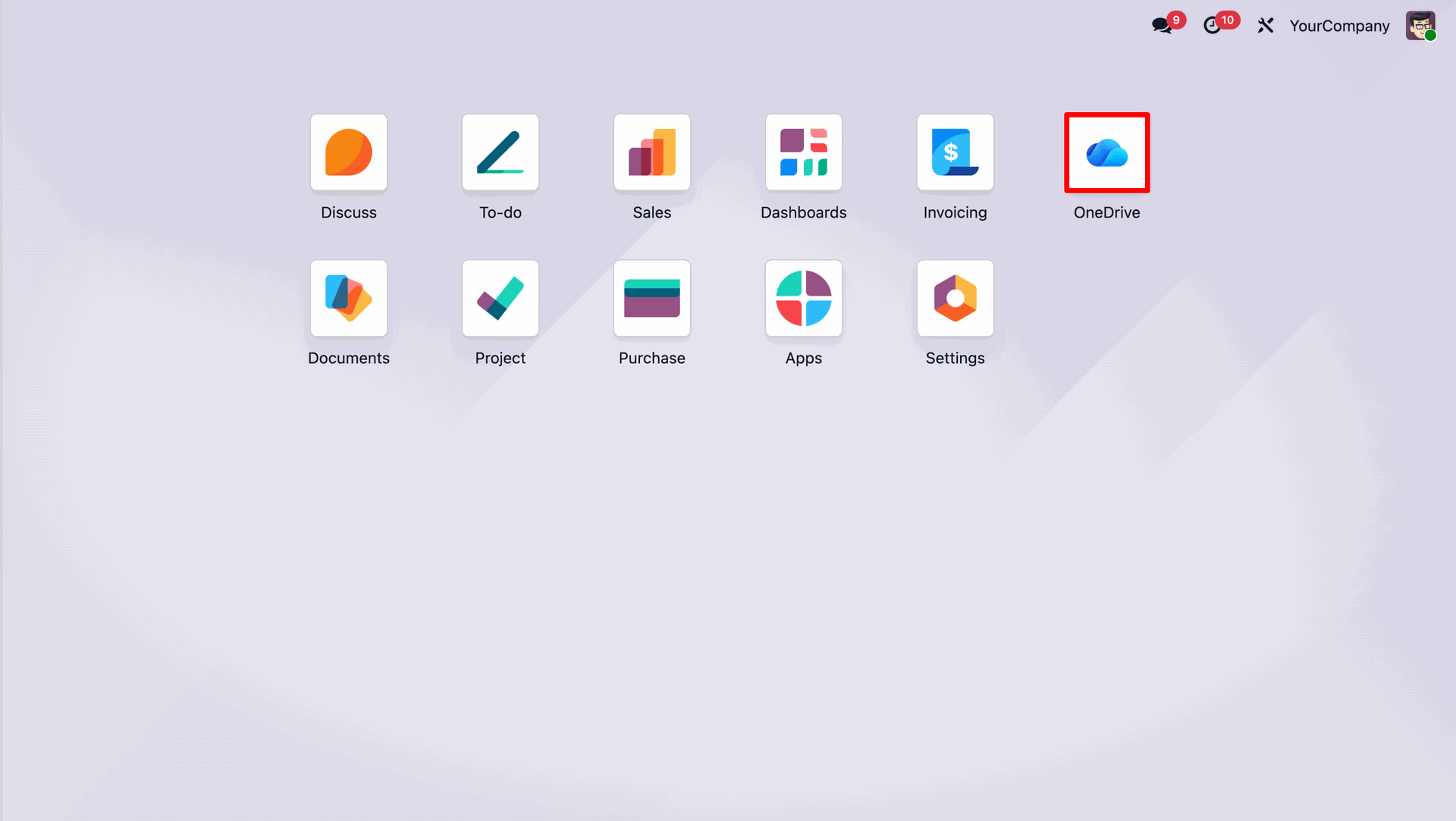
Navigate back to the Odoo apps and open the "OneDrive" app.
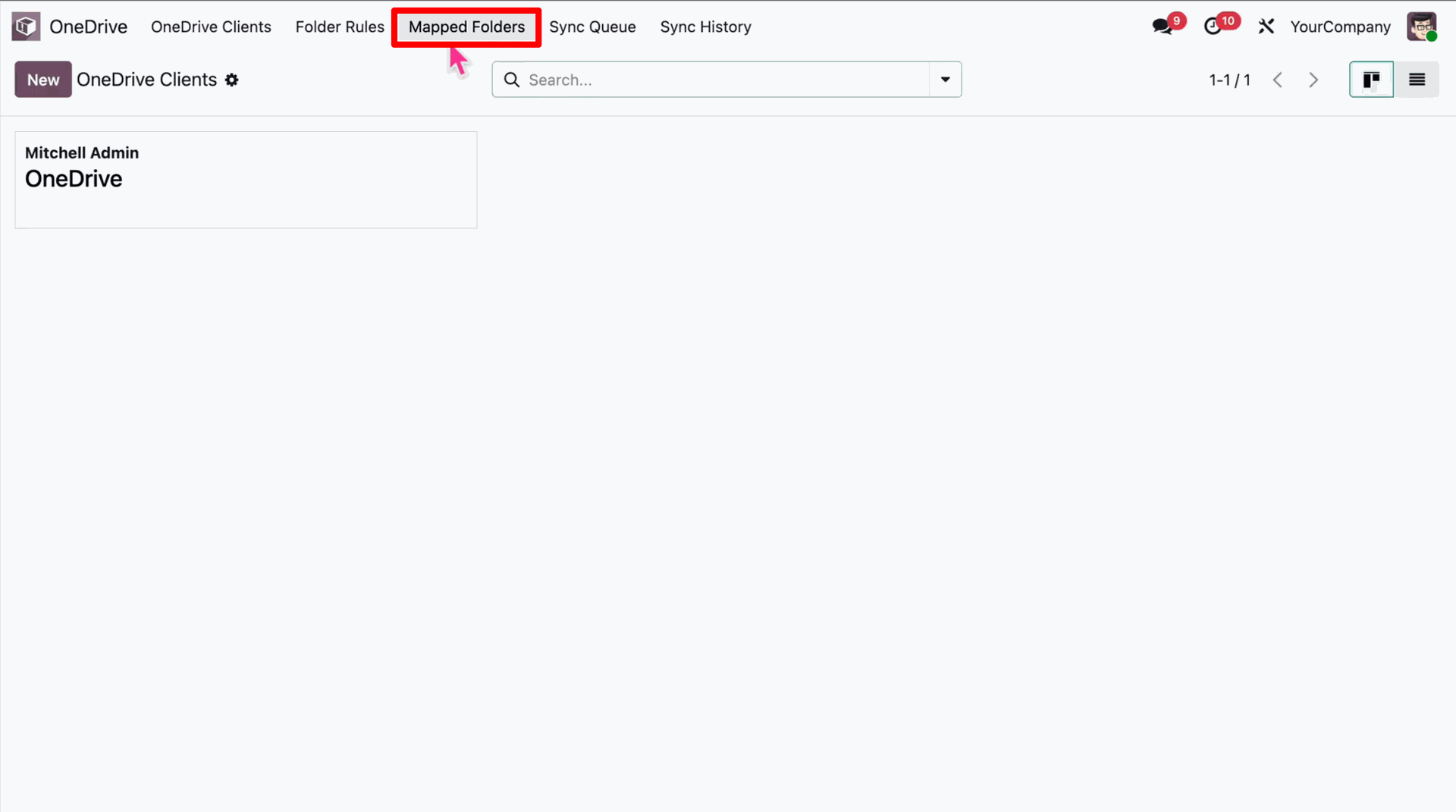
Go to the "Mapped Folders" menu under the OneDrive app.
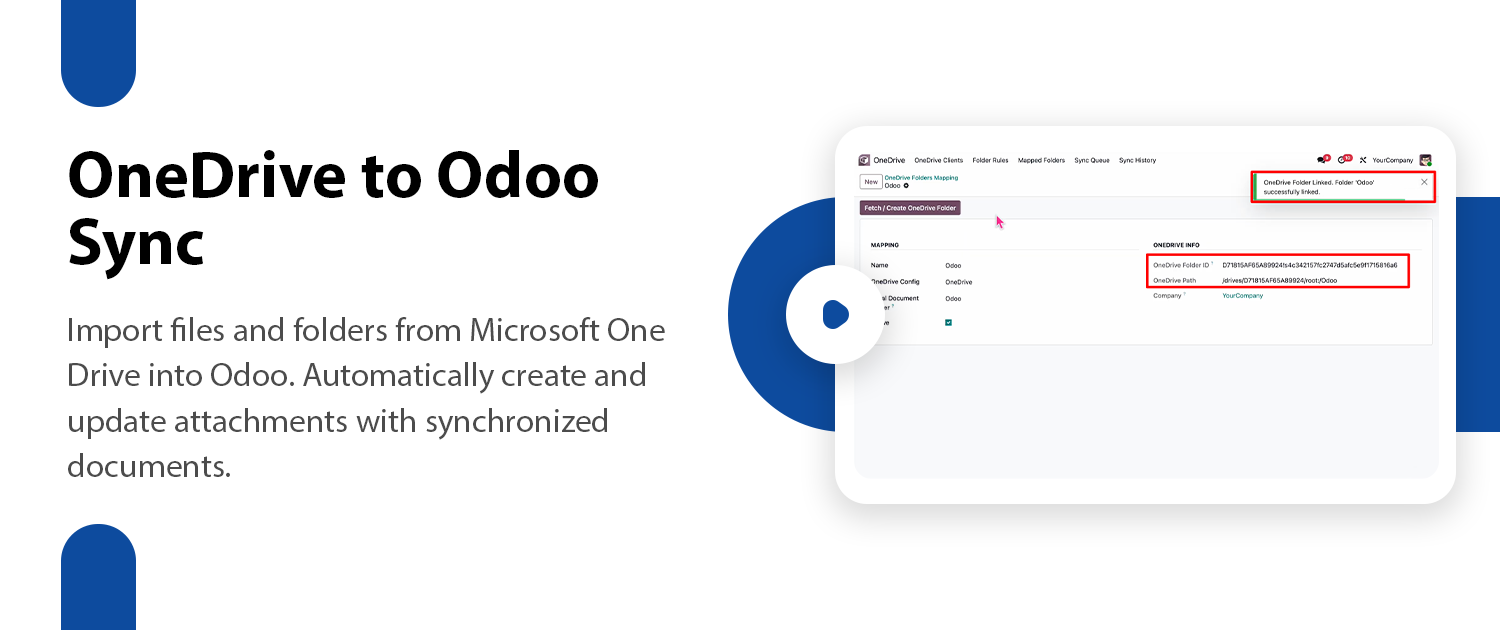
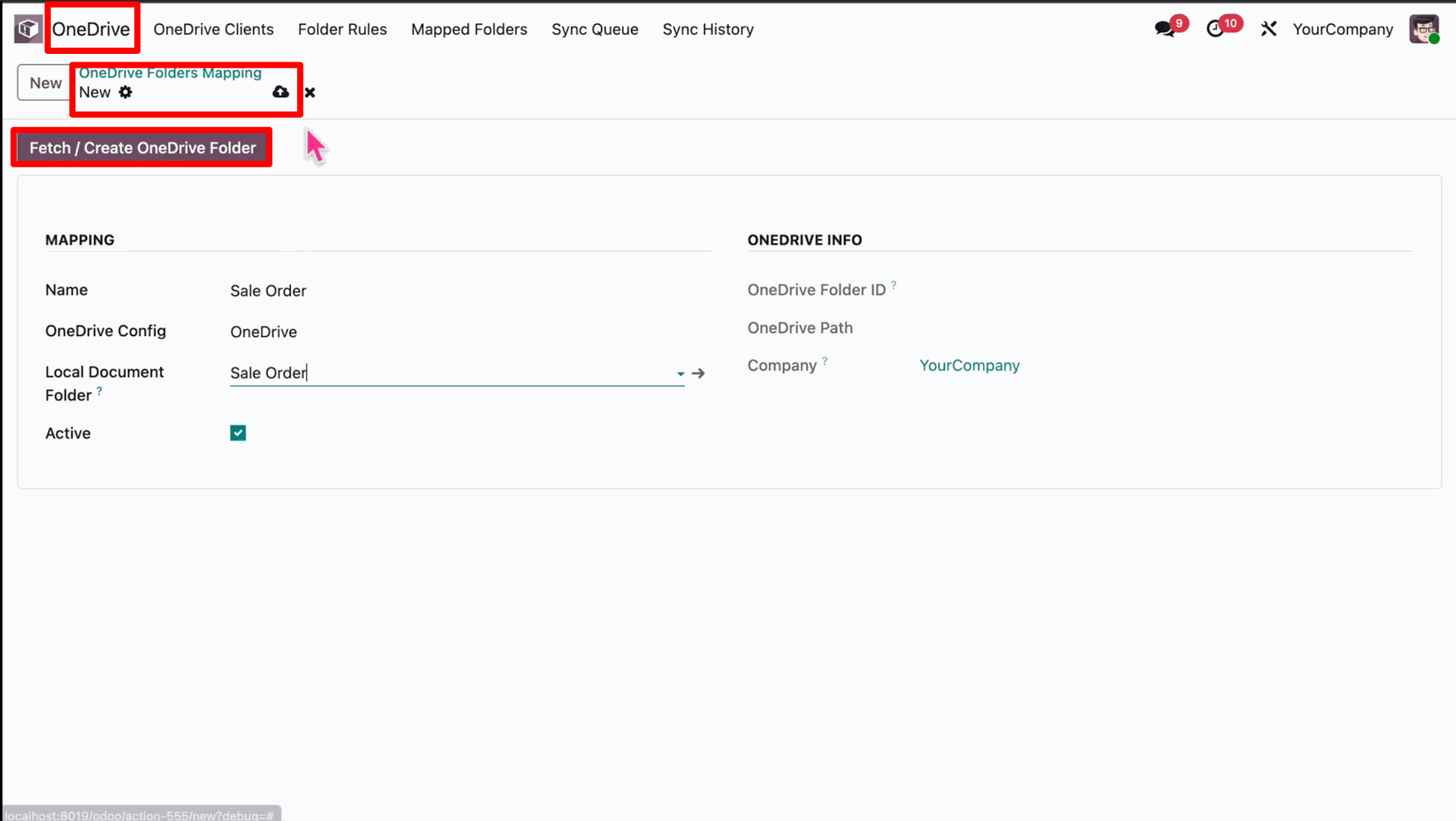
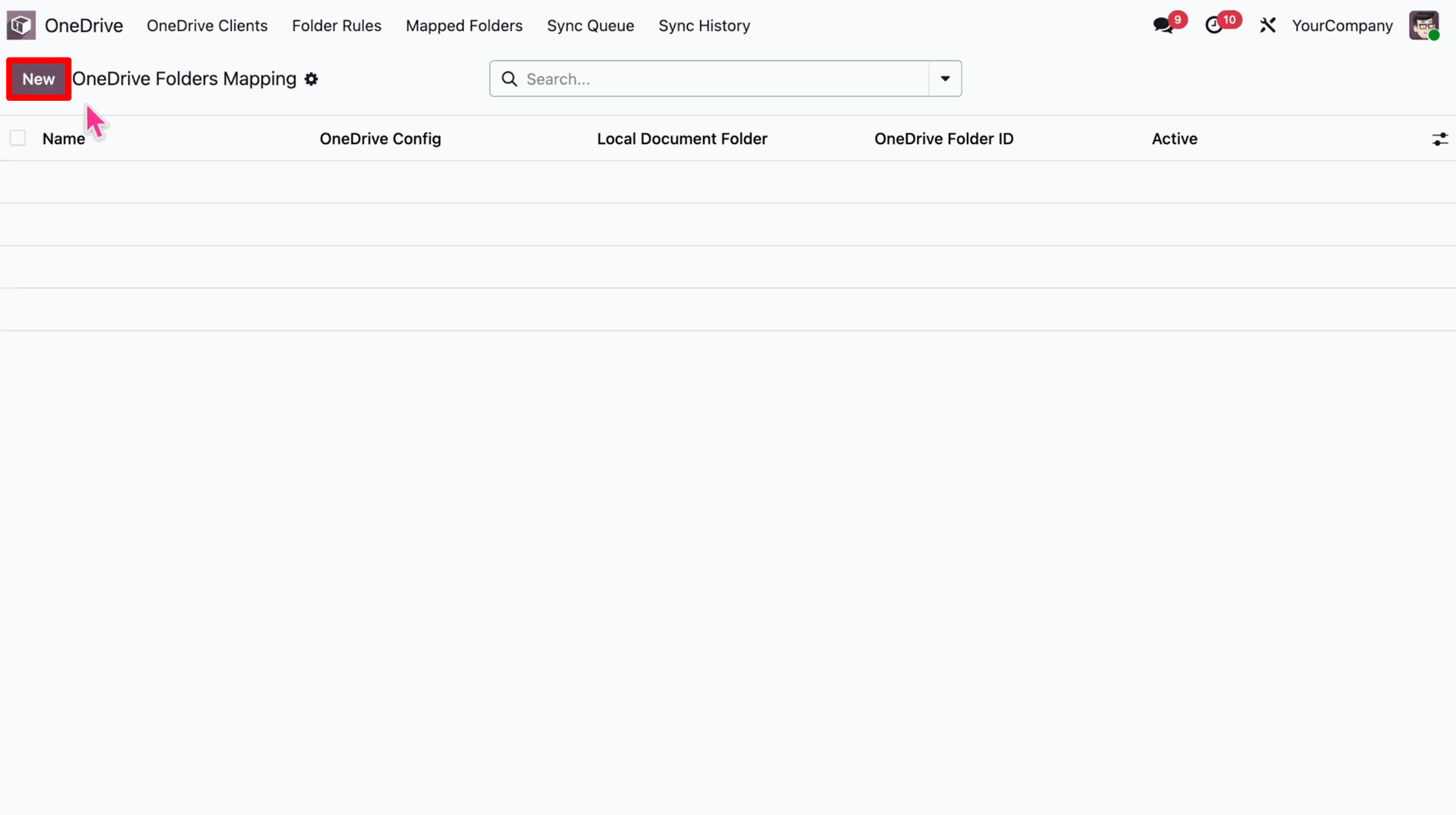
Click on the "New" button to create a new OneDrive Folders Mapping.
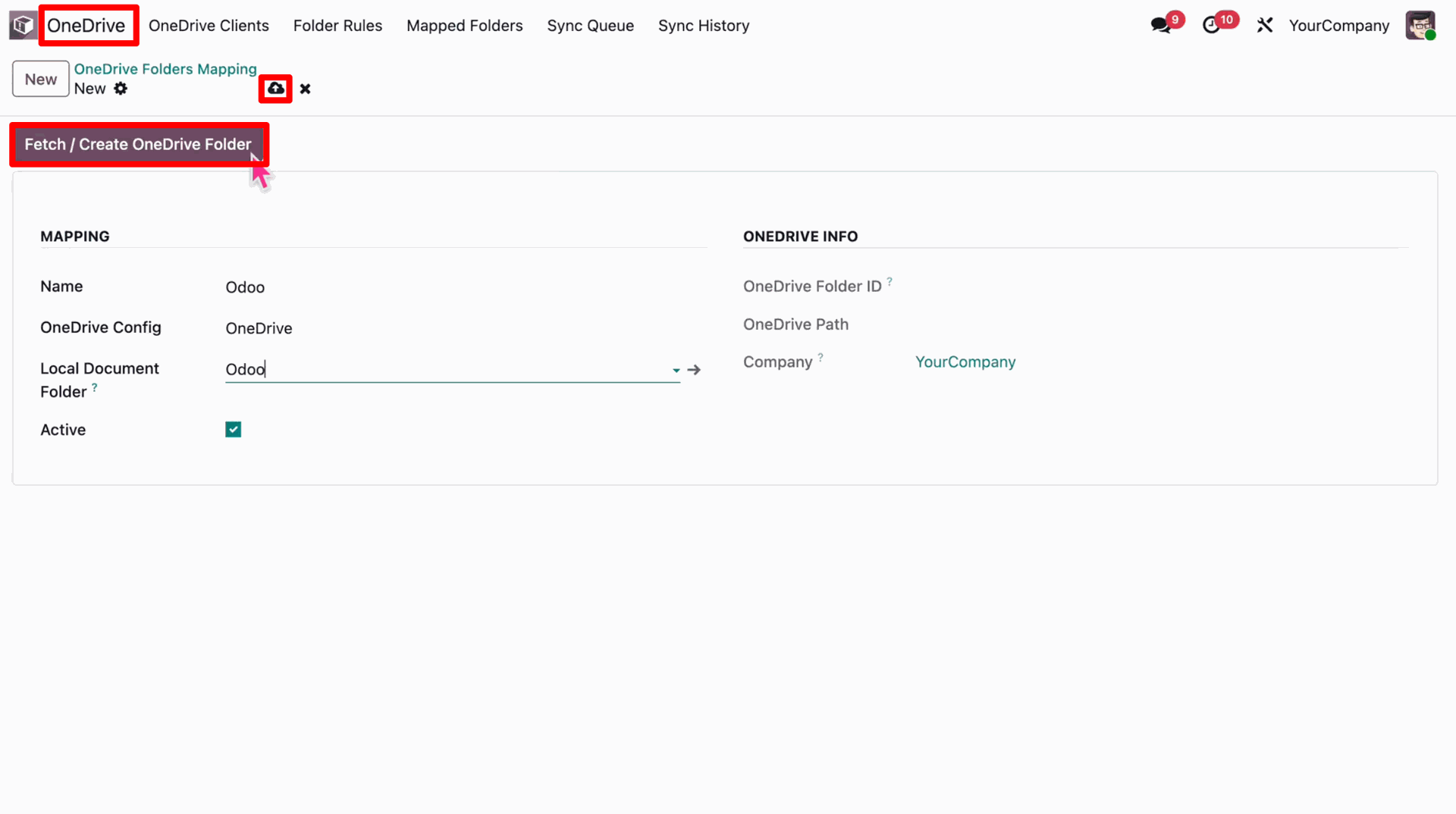
Enter the mapping details and click on the "Fetch / Create OneDrive Folder" button.
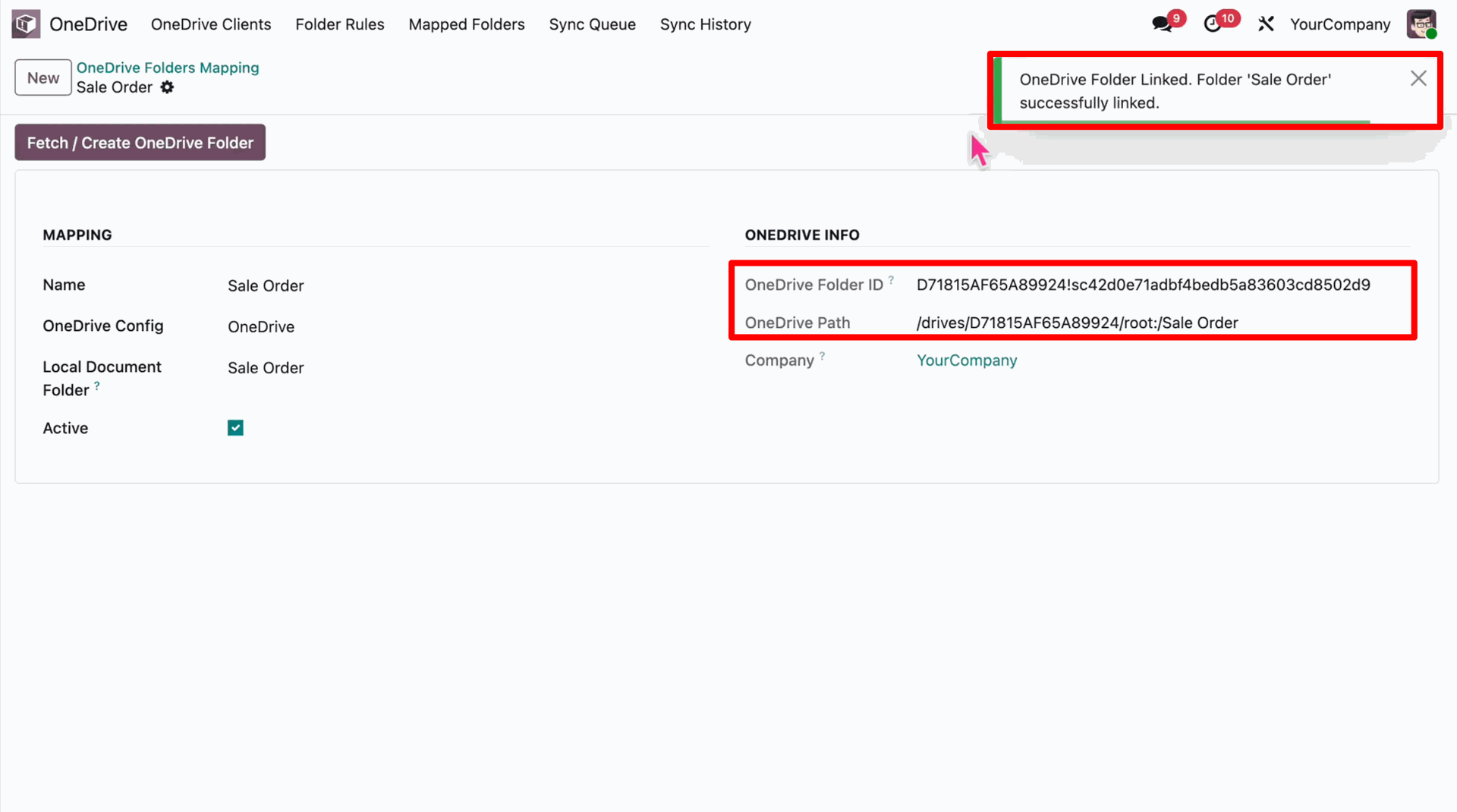
A success message will appear indicating the OneDrive folder 'Odoo' is successfully linked, along with the Folder ID and Path.
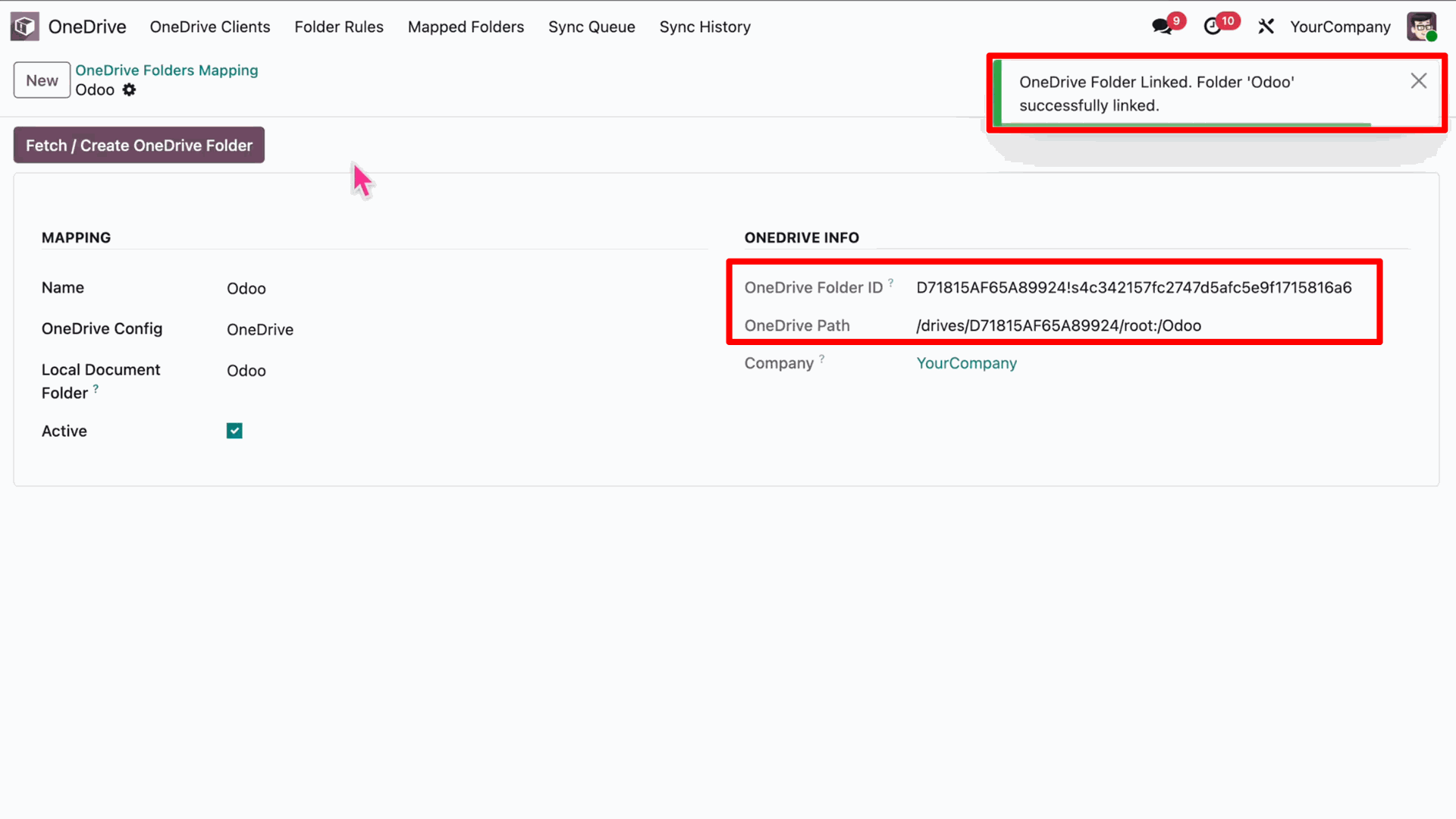
The linked "Odoo" folder is now ready and visible in your OneDrive account.
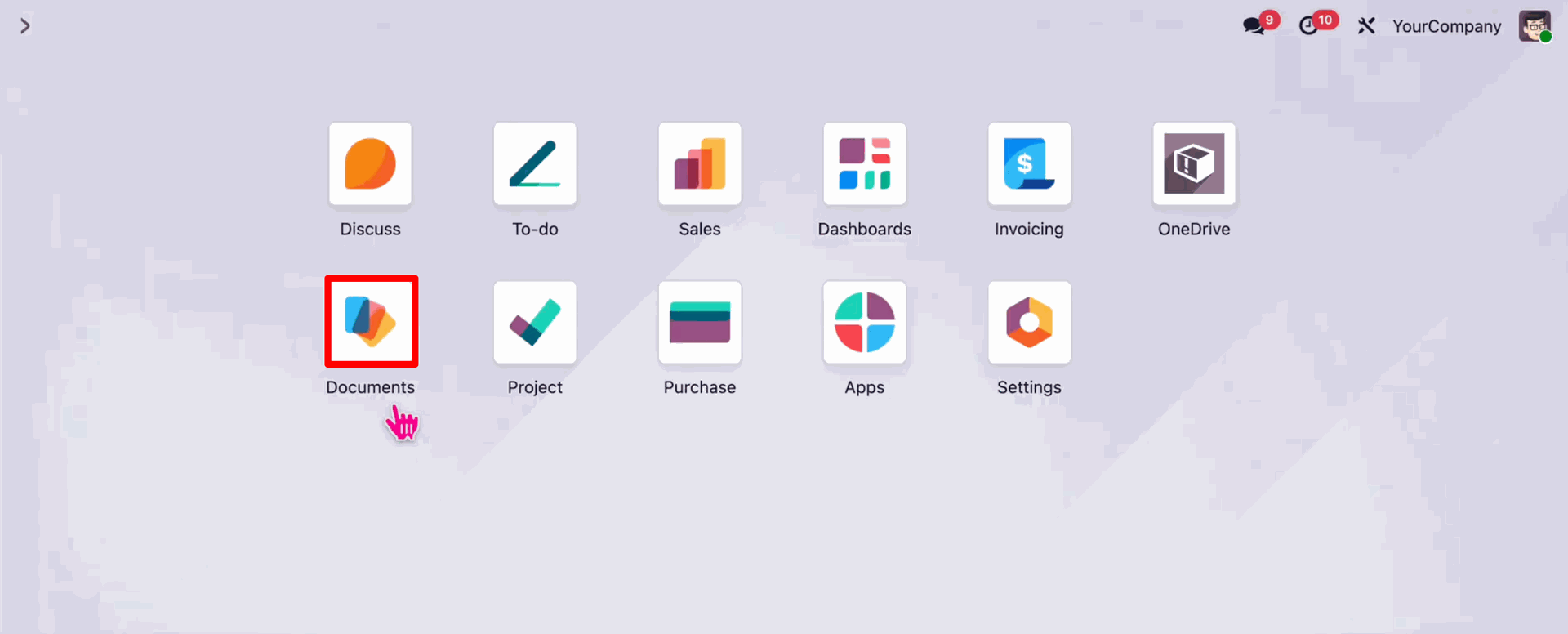
Navigate back to the Documents app from the Odoo apps.
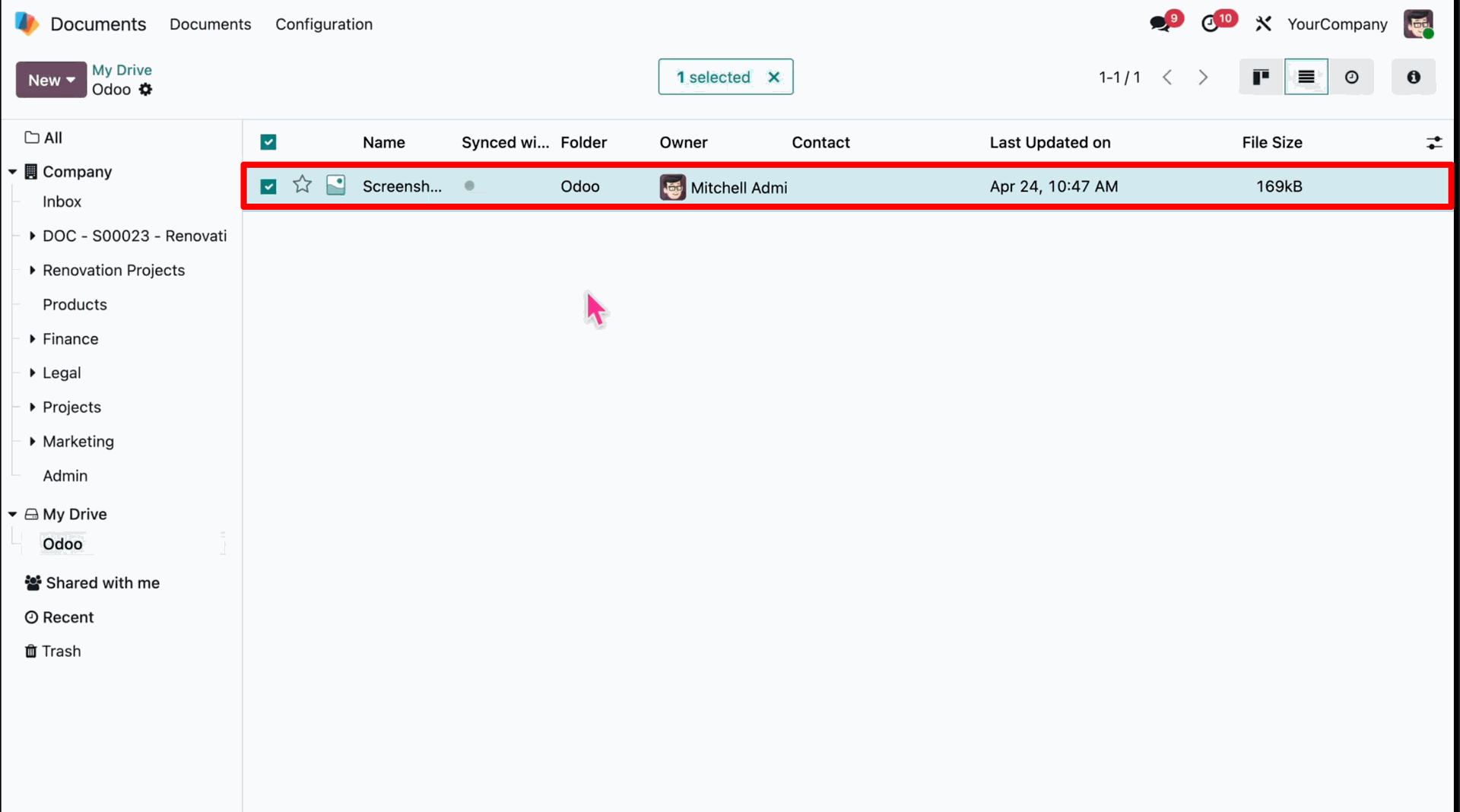
In the Documents app sidebar, select the "Odoo" folder under "My Drive".
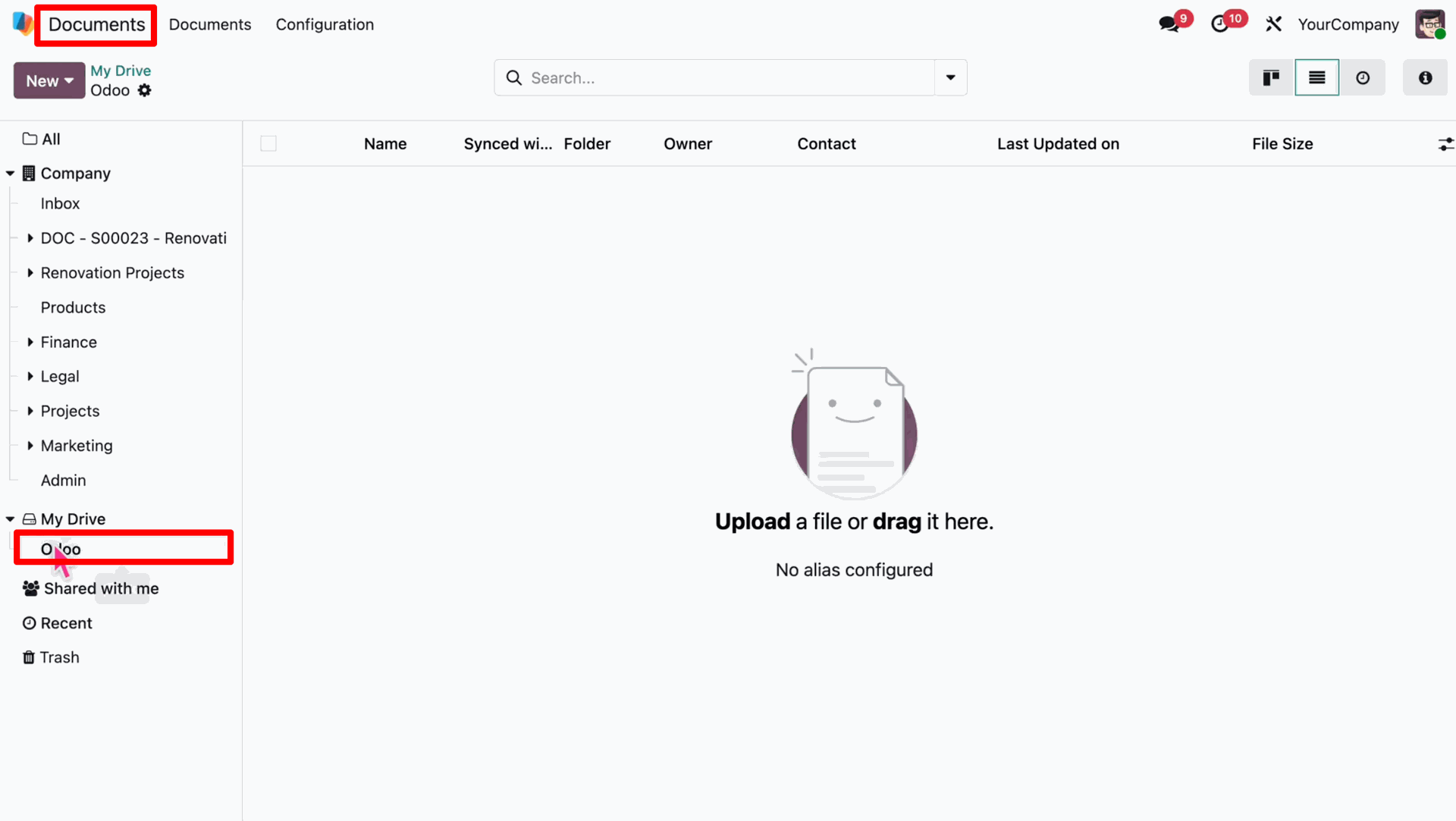
Upload a document or select an existing file within the "Odoo" folder.
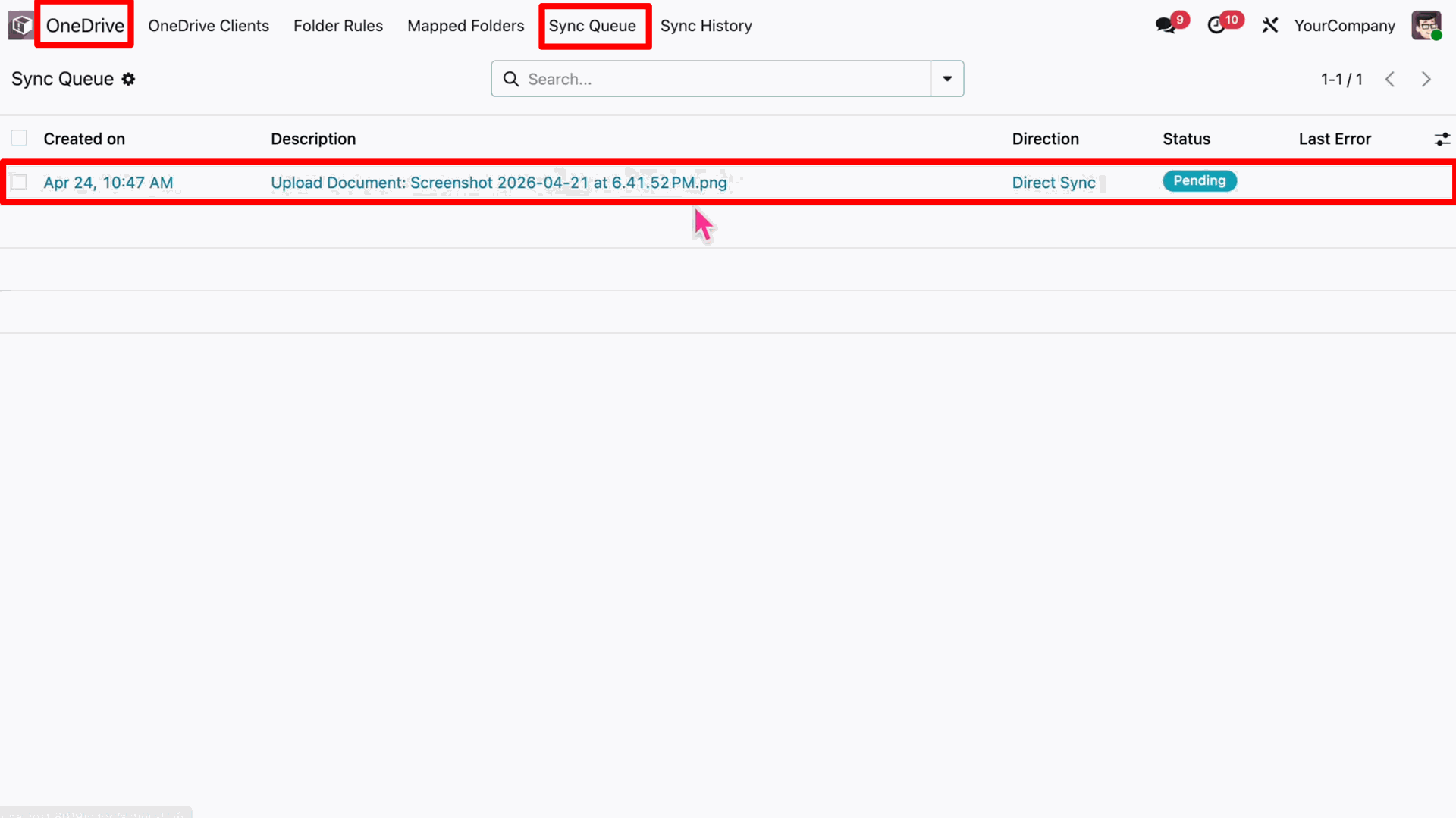
Go to the "Sync Queue" in the OneDrive app to see the uploaded document in "Pending" status for Direct Sync.
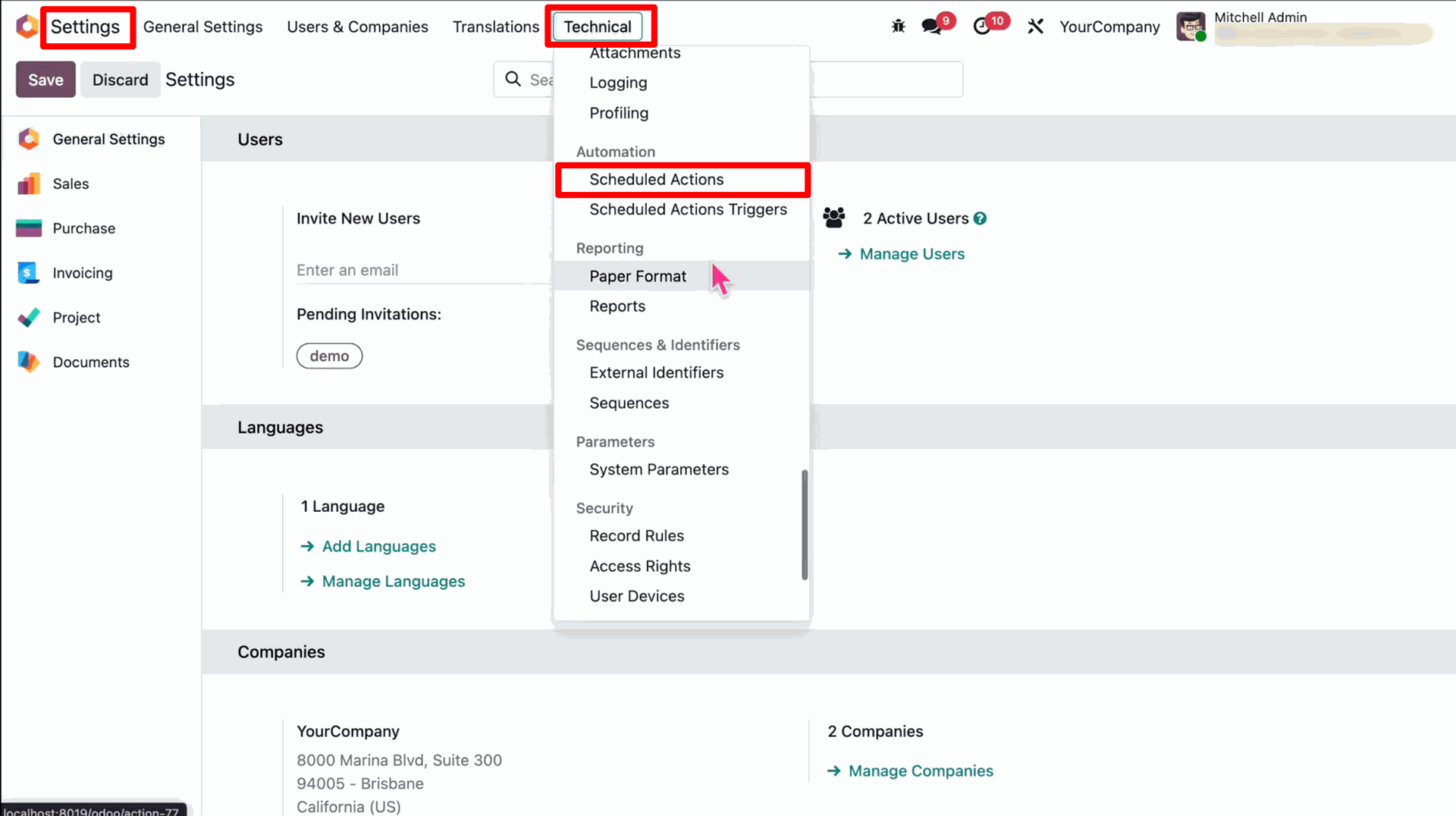
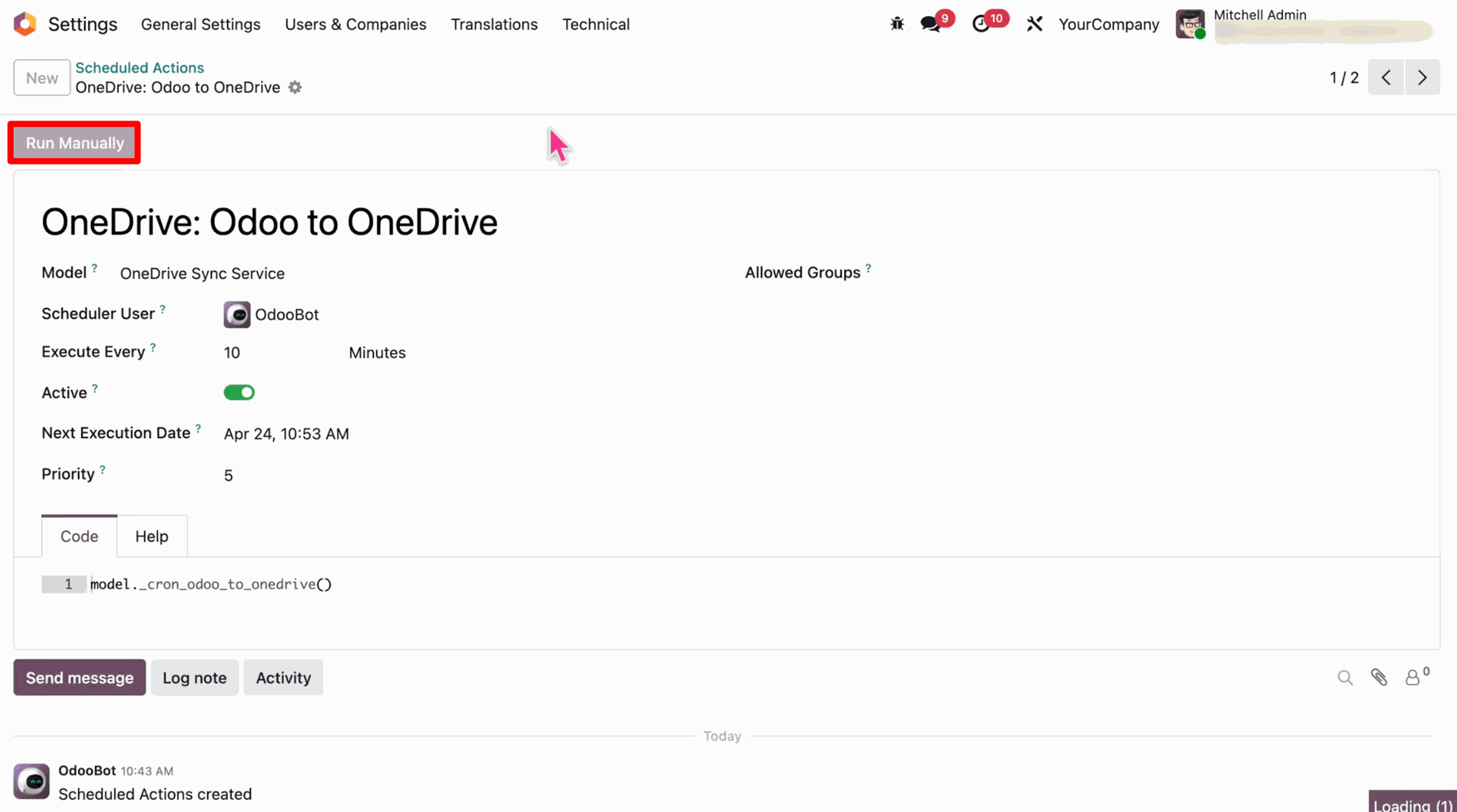
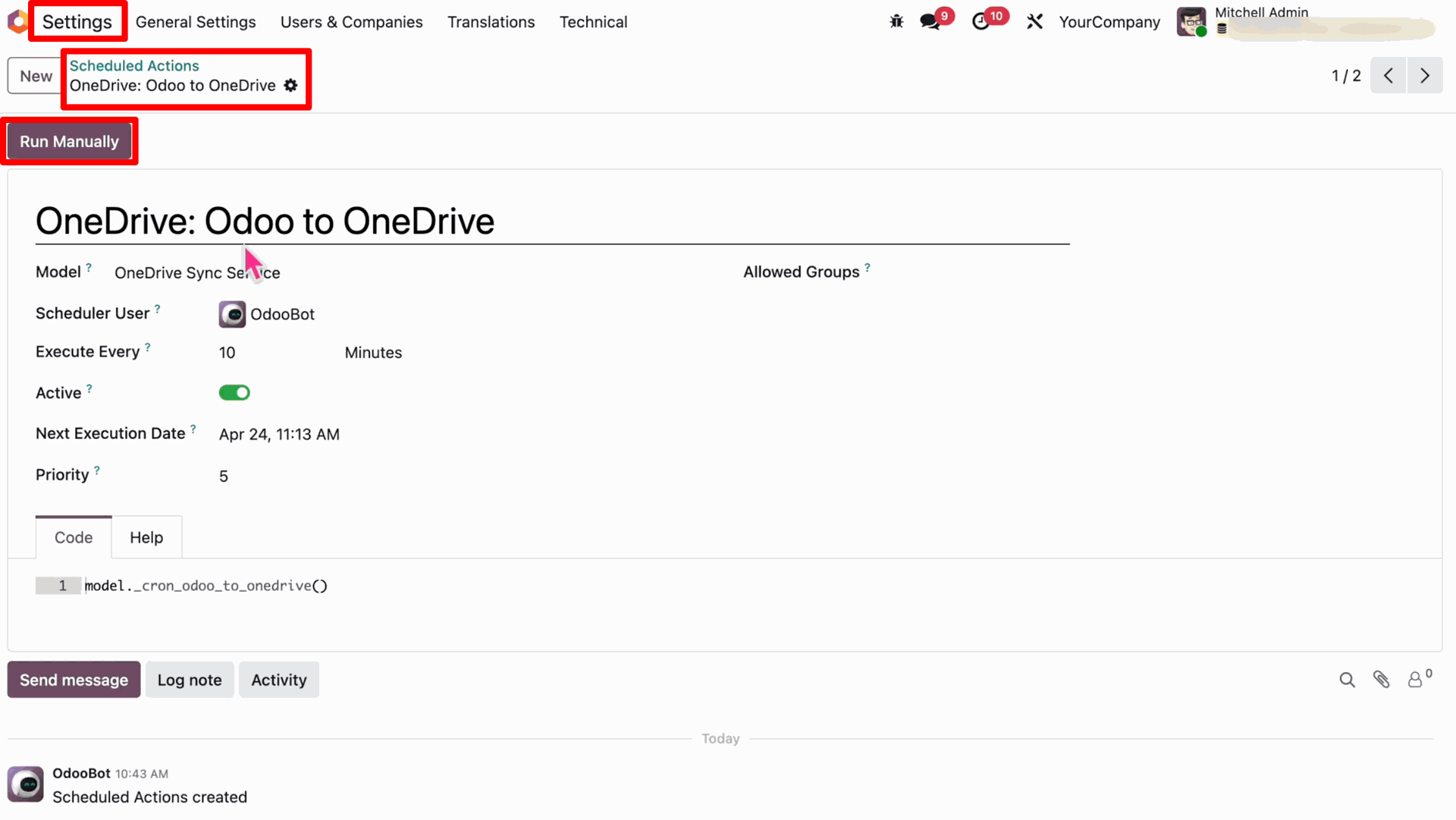
Navigate to Settings > Technical > Scheduled Actions.
Find and select the scheduled action named "OneDrive: Odoo to OneDrive".
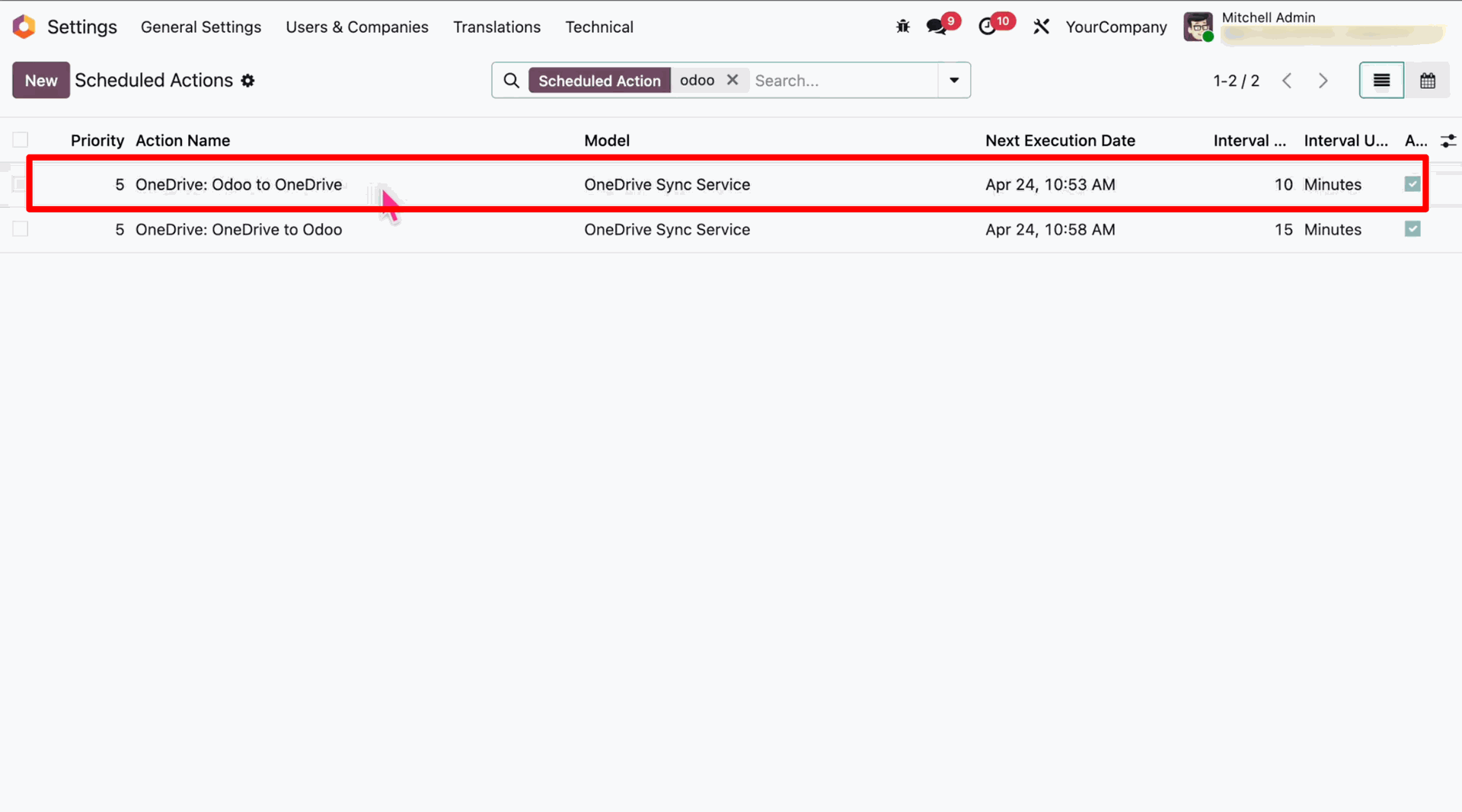
Click on the "Run Manually" button to trigger the synchronization process immediately.
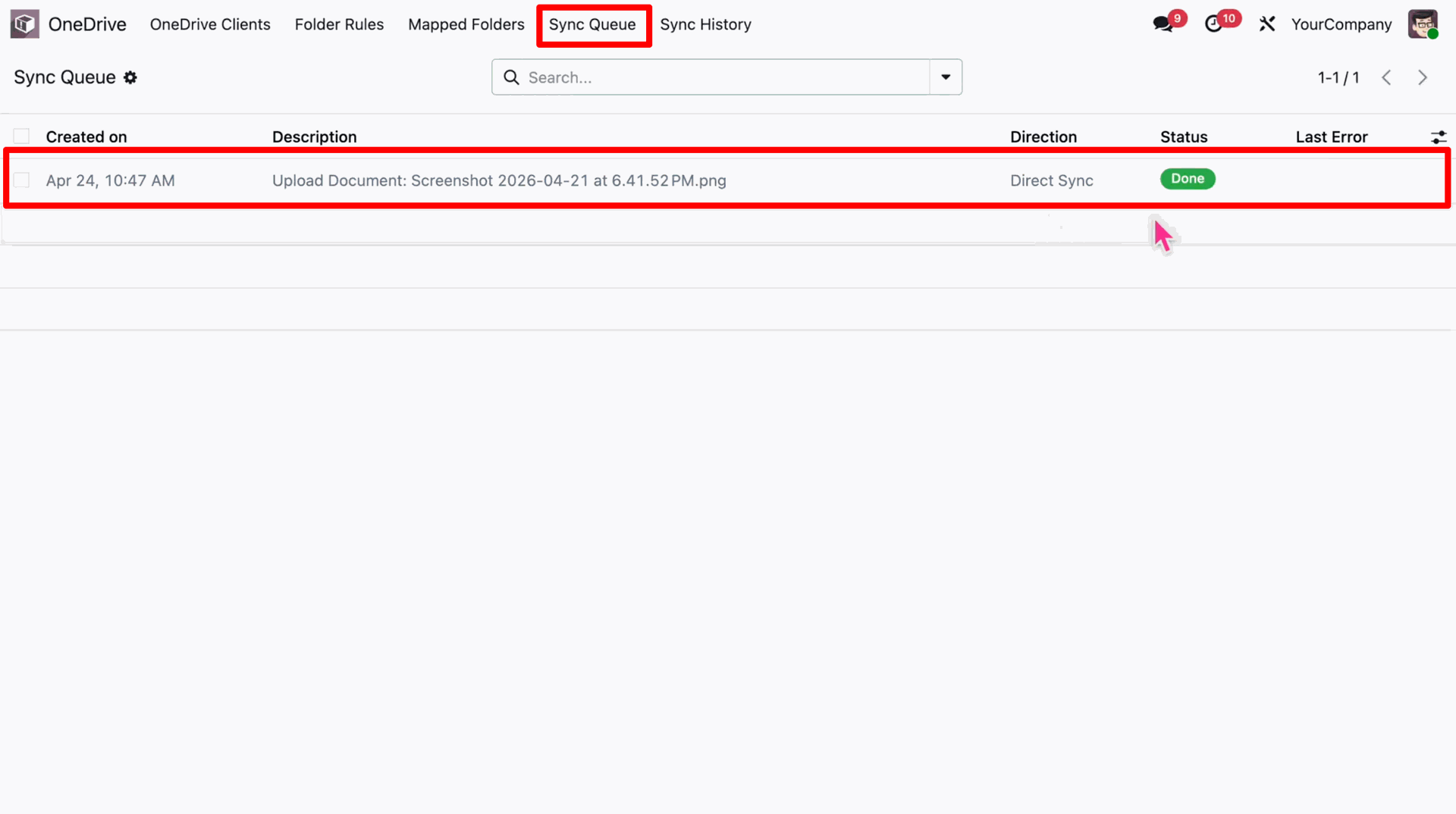
Check the "Sync Queue" again; the status of the document will now be changed to "Done".
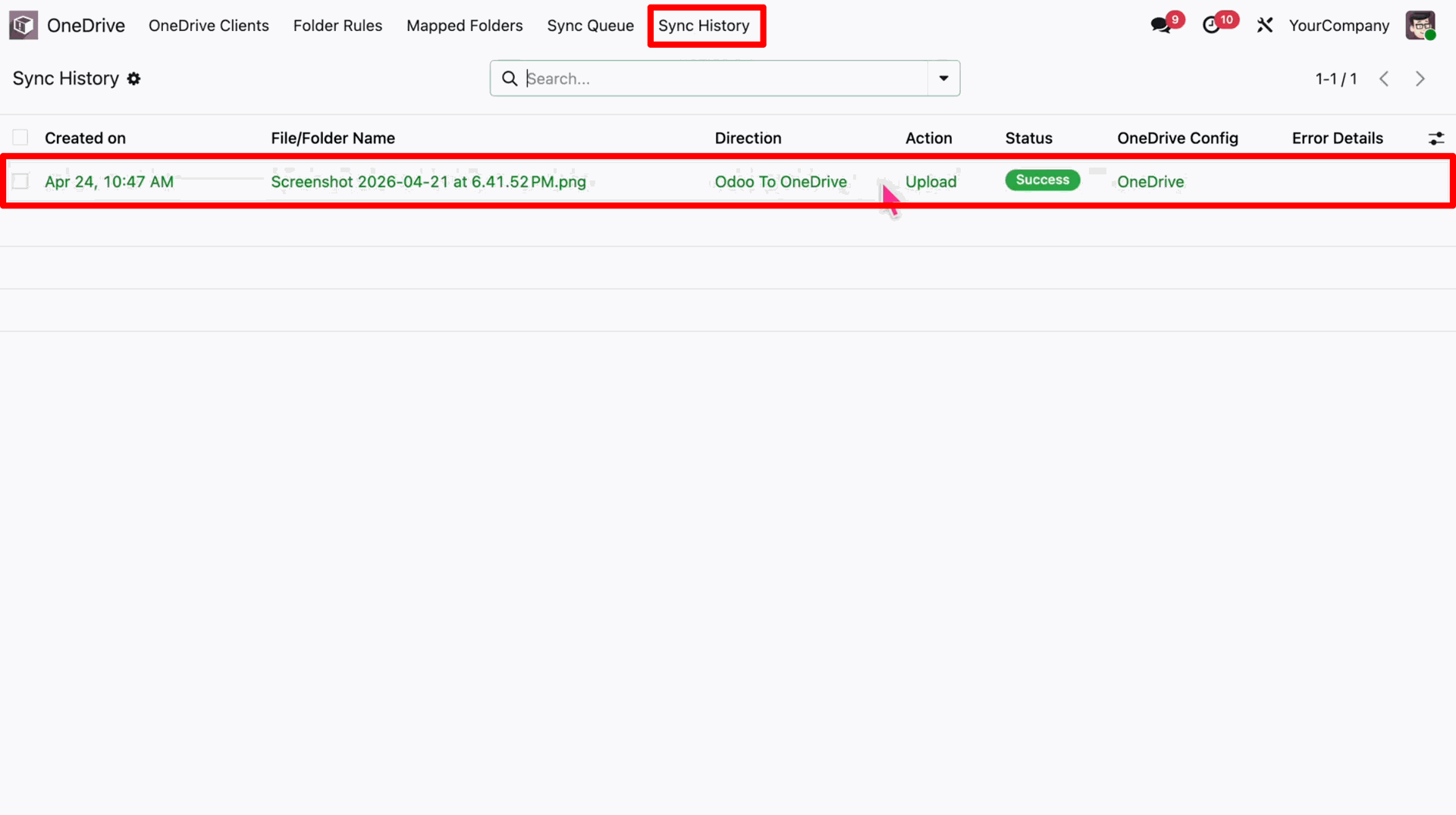
Go to the "Sync History" menu to verify the successful upload of the document from Odoo to OneDrive.
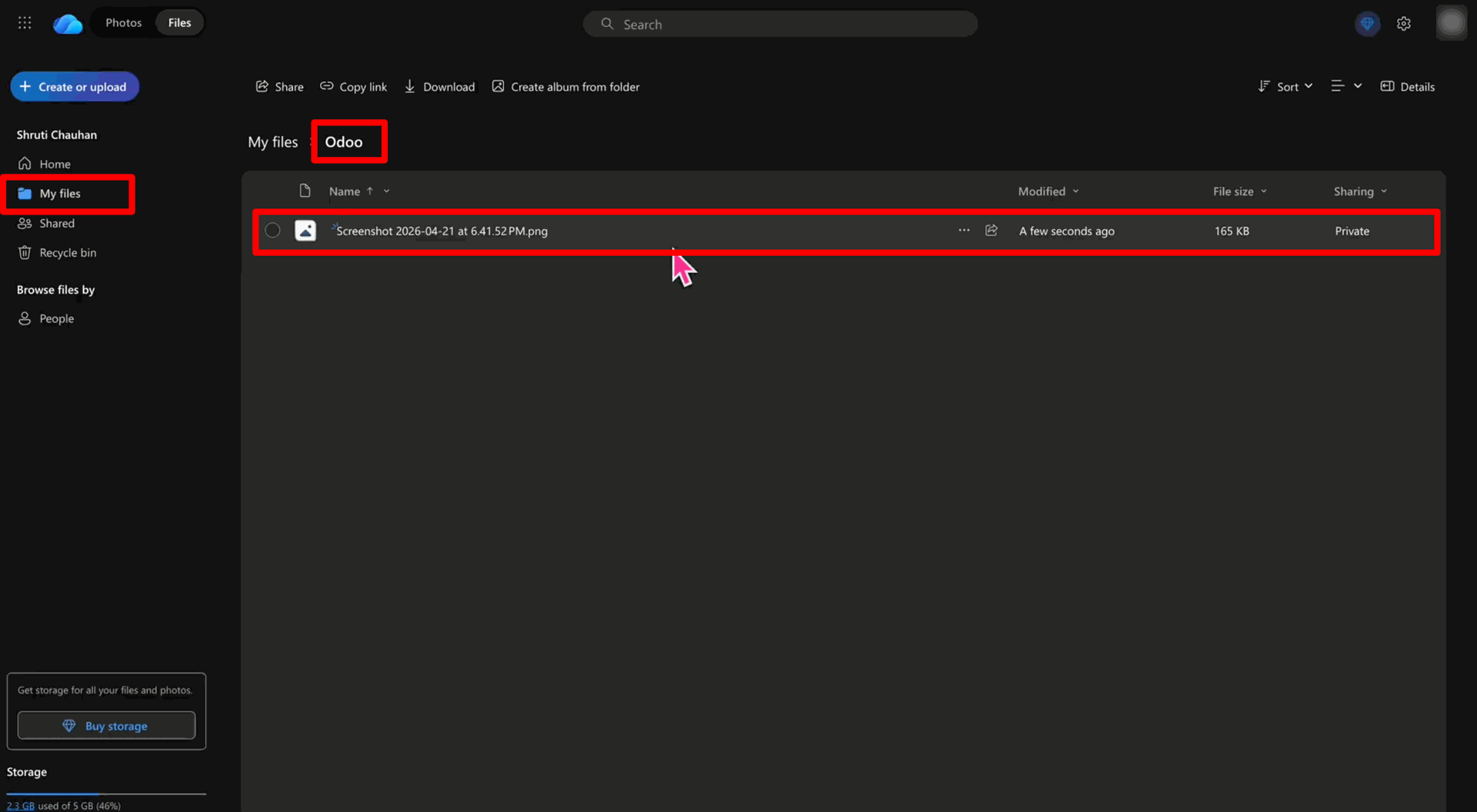
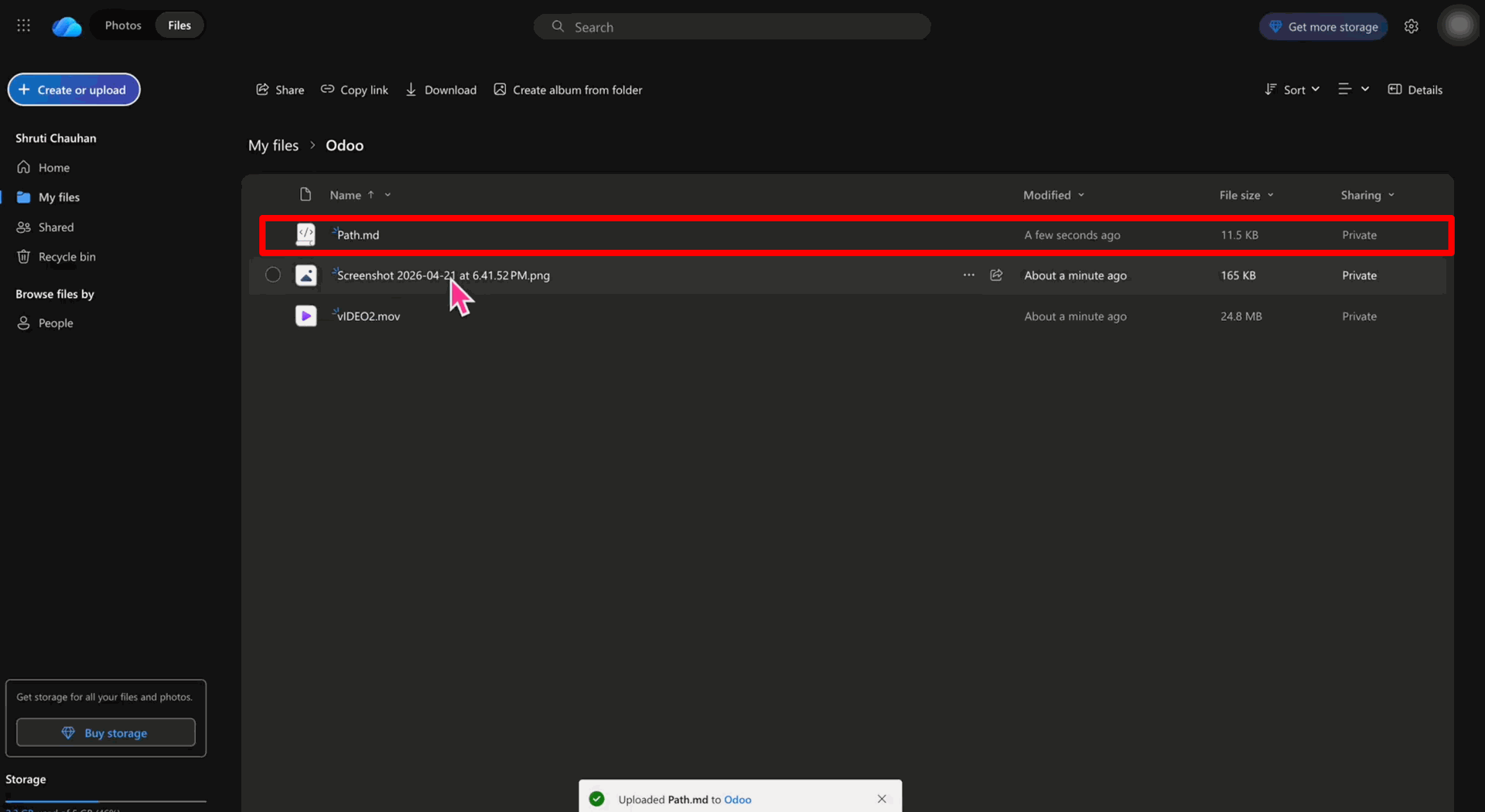
Finally, verify the synced document in your OneDrive account inside the "Odoo" folder.
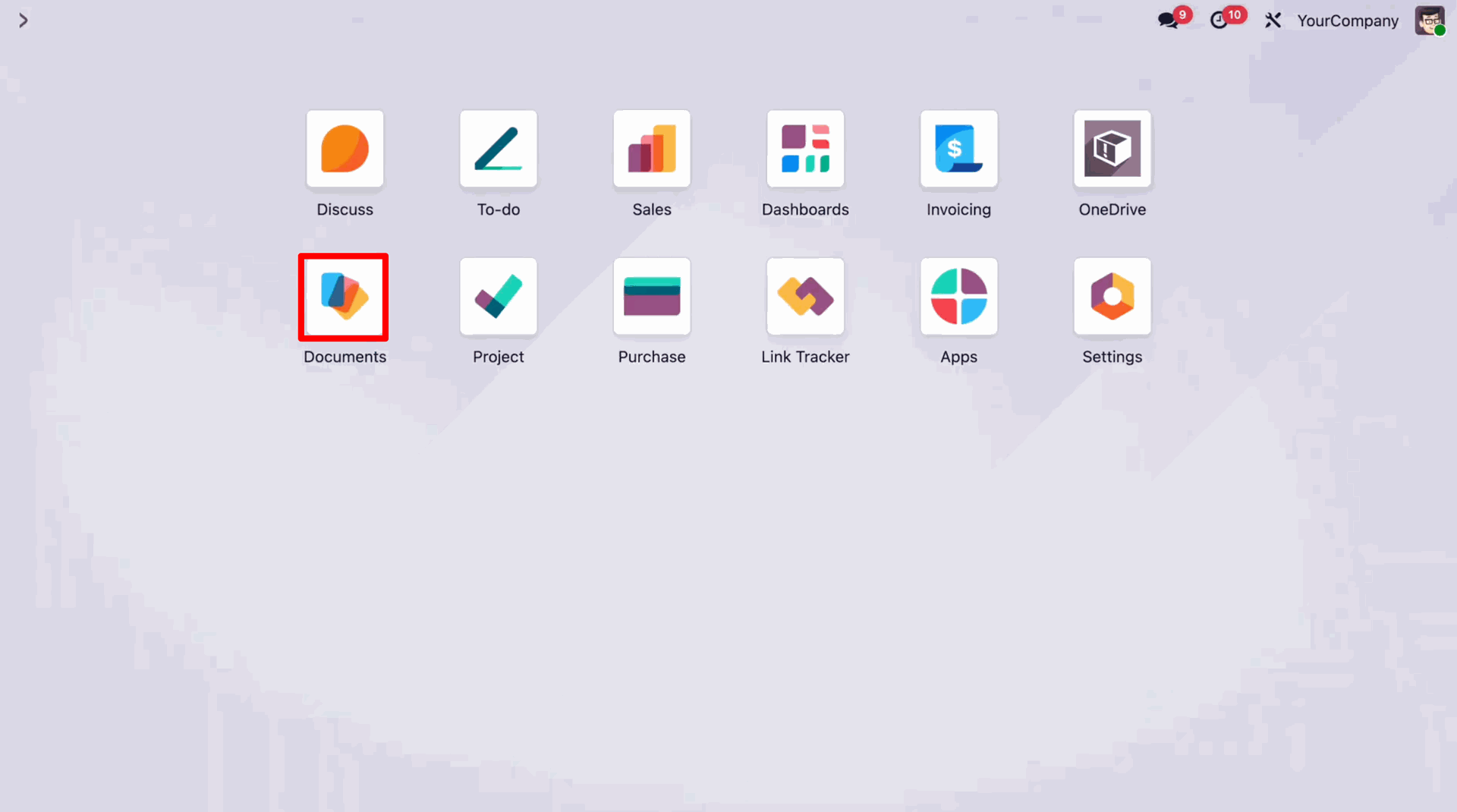
Navigate to the Documents App from the Odoo apps.
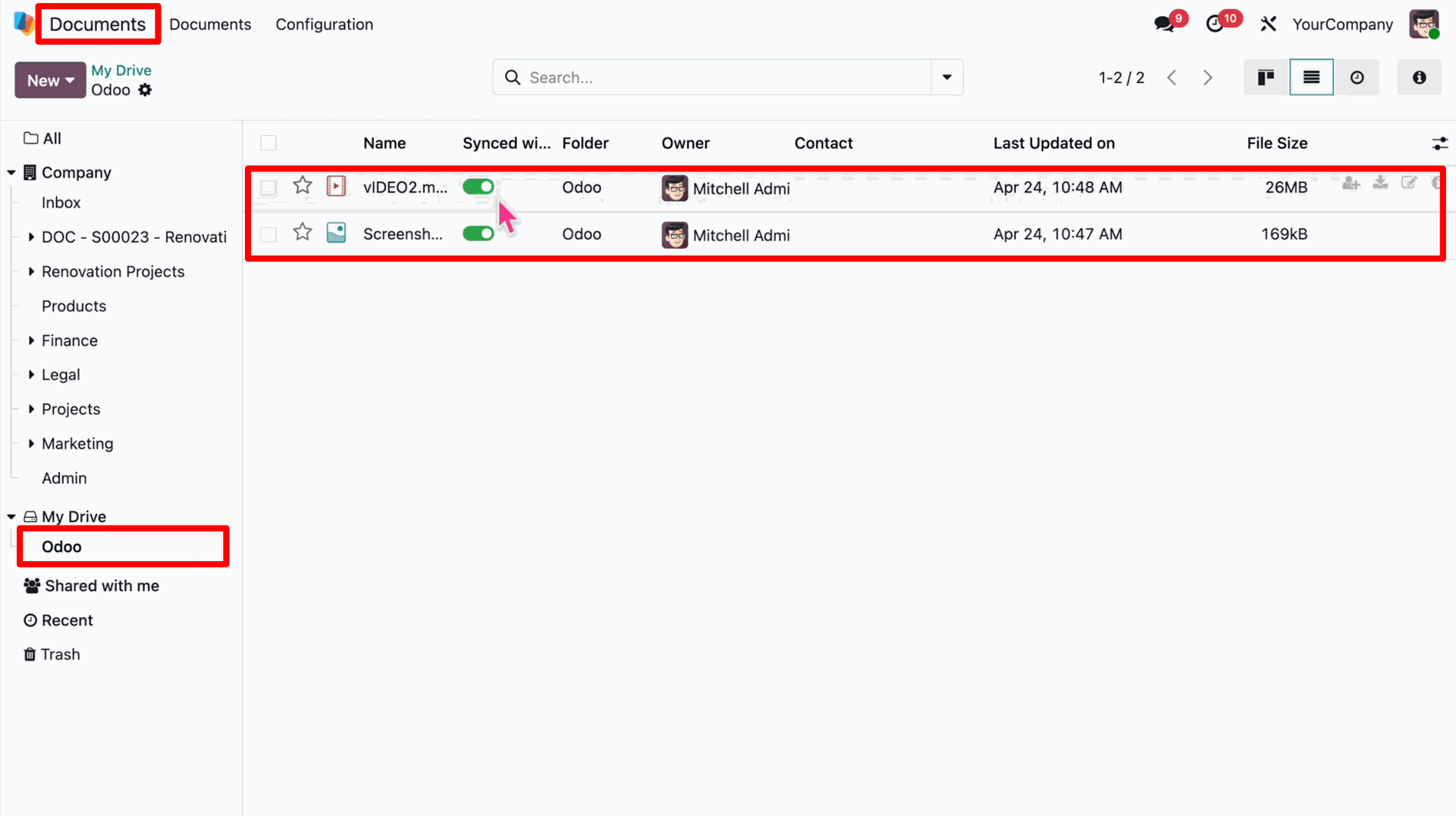
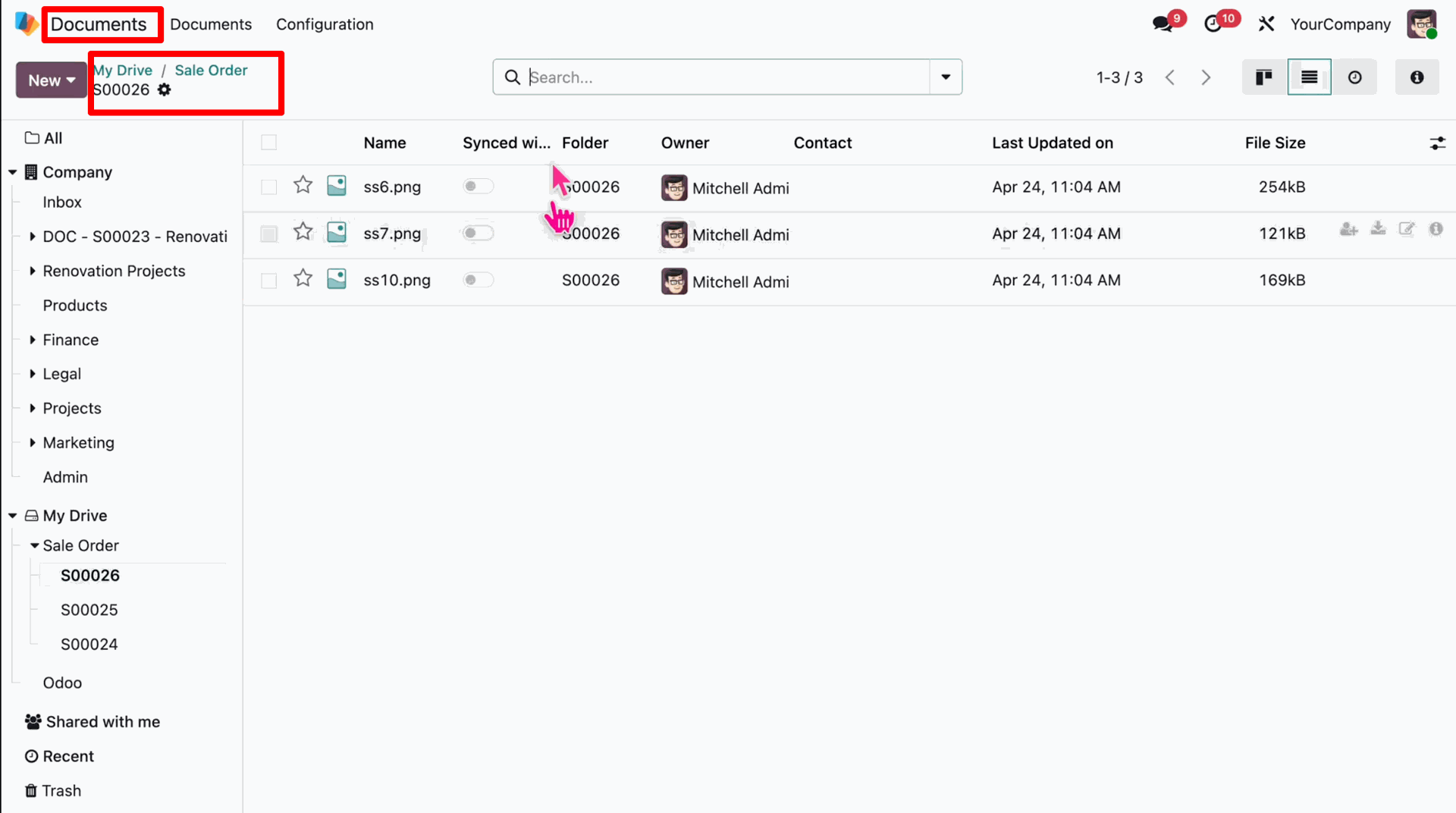
Open the mapped folder (e.g., 'Odoo') in the Documents app to view existing files.
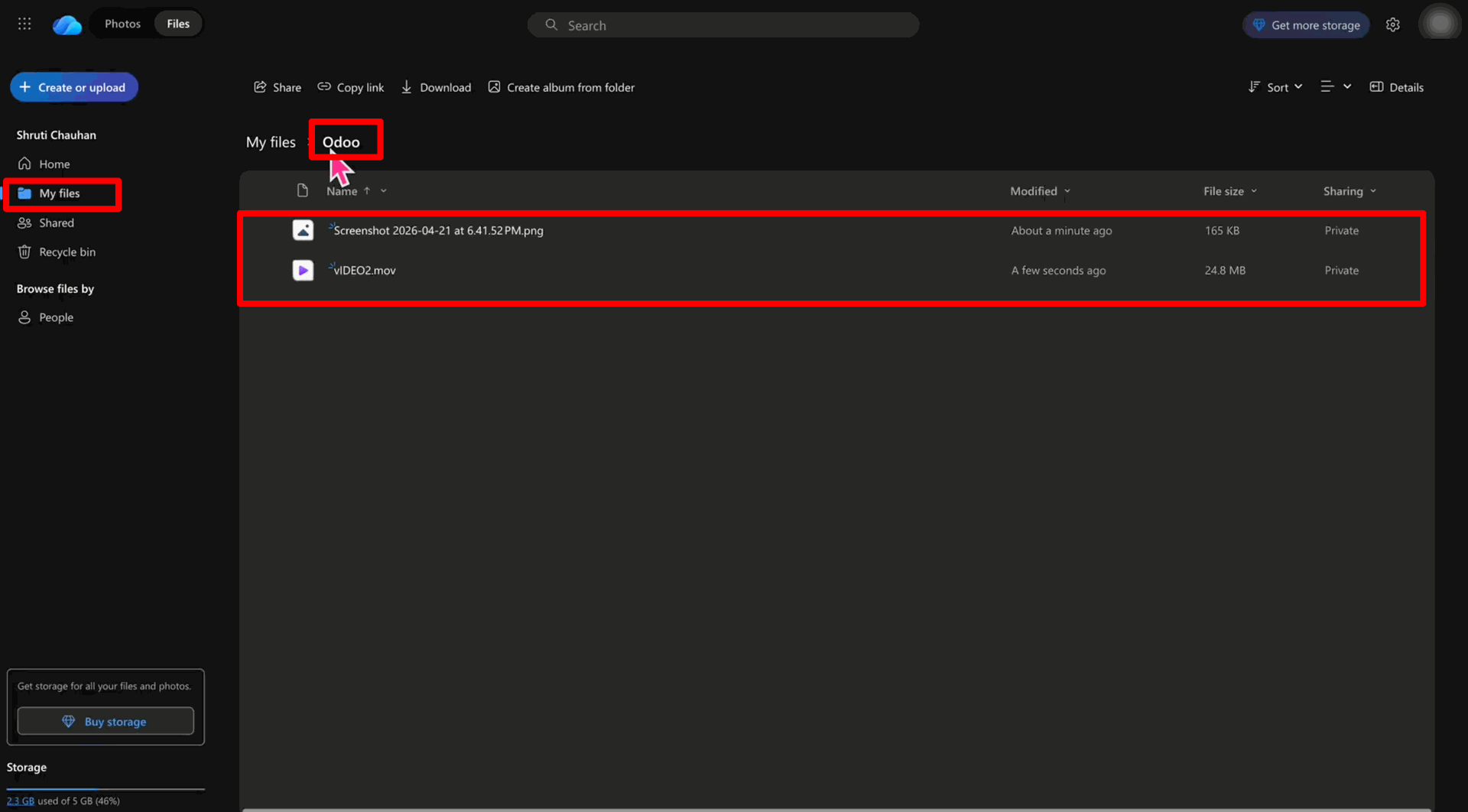
Navigate to your OneDrive account and open the mapped 'Odoo' folder.
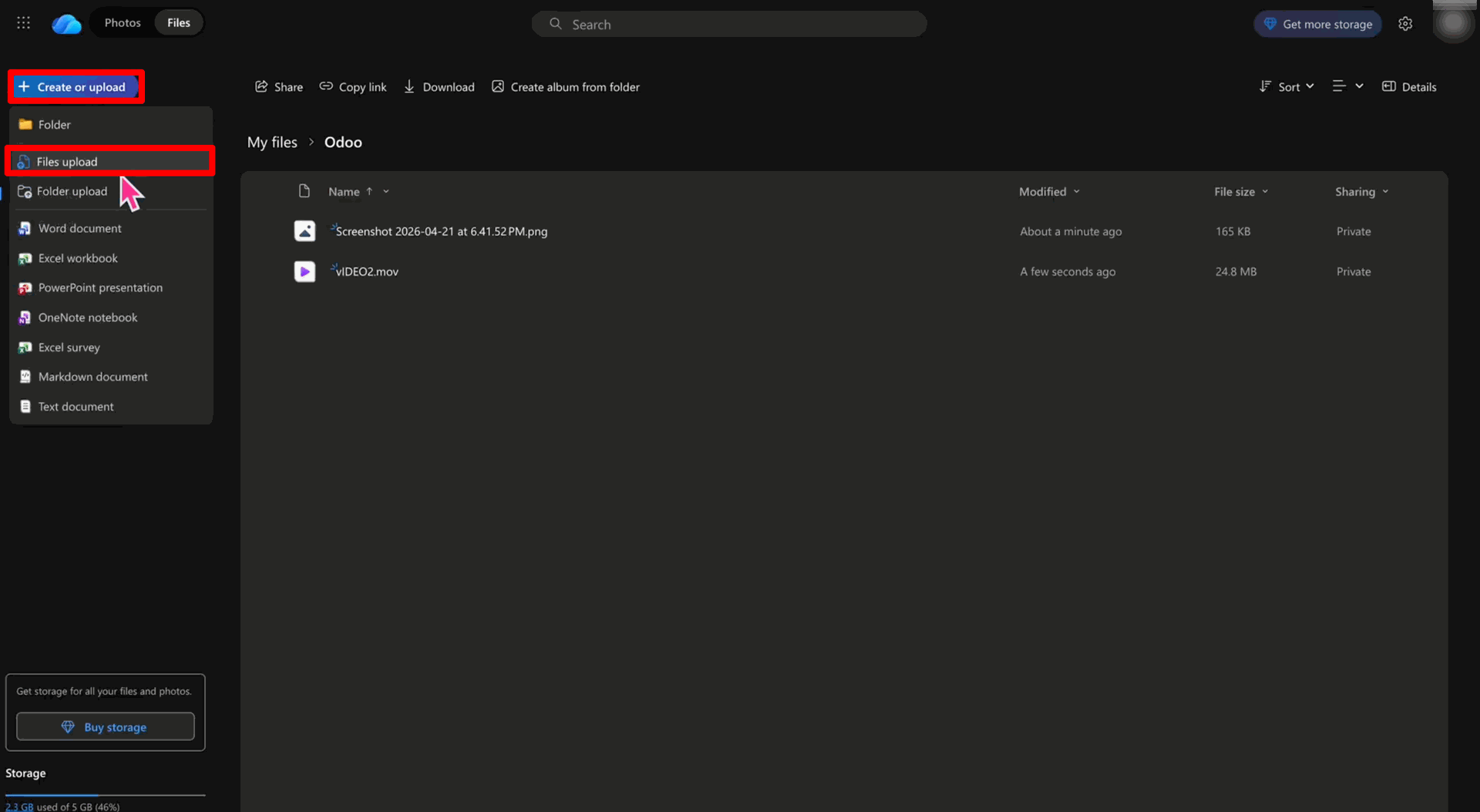
Click on the 'Create or upload' button and select 'Files upload' to upload a new file.
Ensure the new file is completely uploaded in the OneDrive folder.
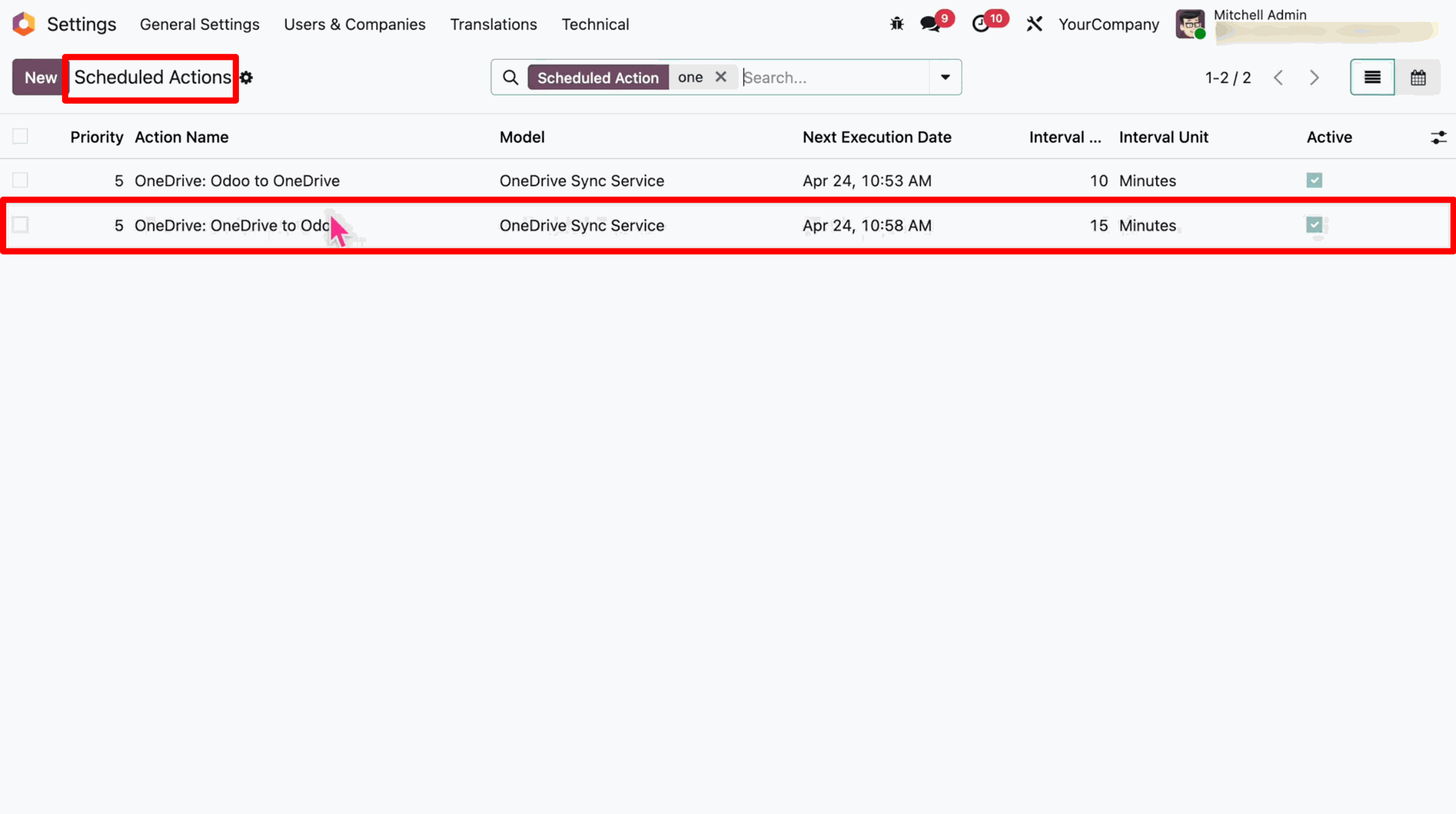
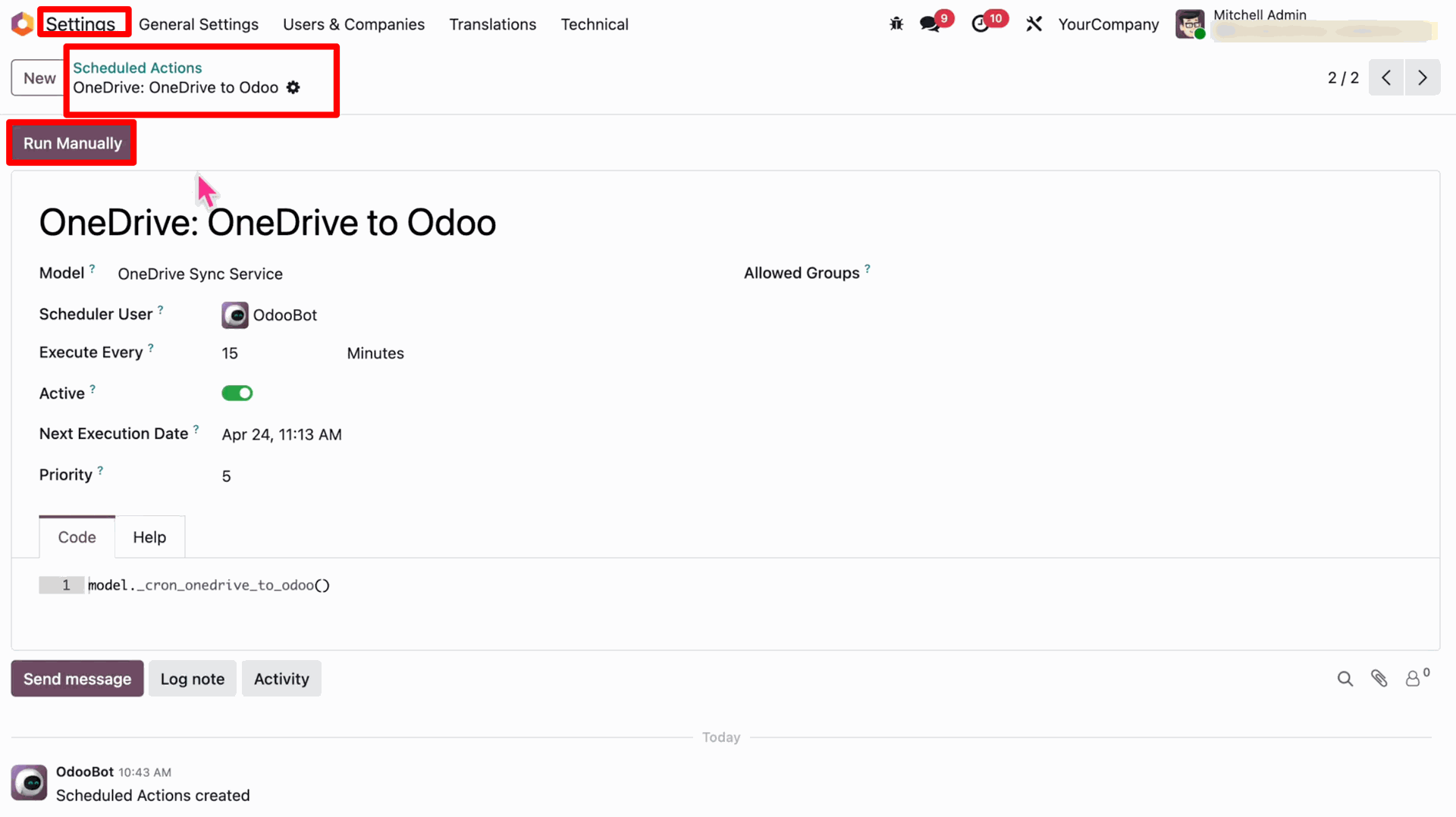
In Odoo, navigate to Settings > Technical > Scheduled Actions and select the 'OneDrive: OneDrive to Odoo' action.
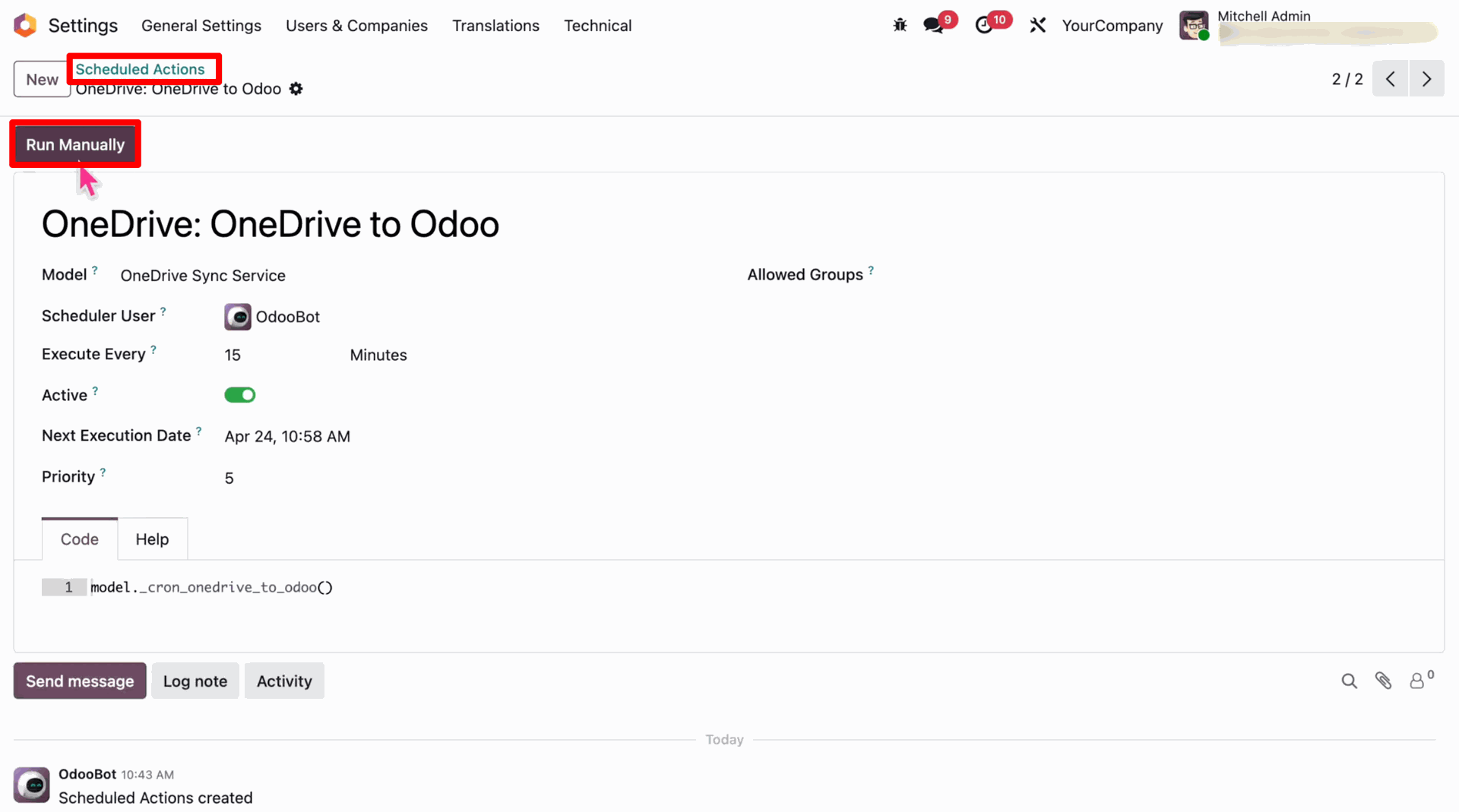
Click the 'Run Manually' button to trigger the import synchronization immediately.
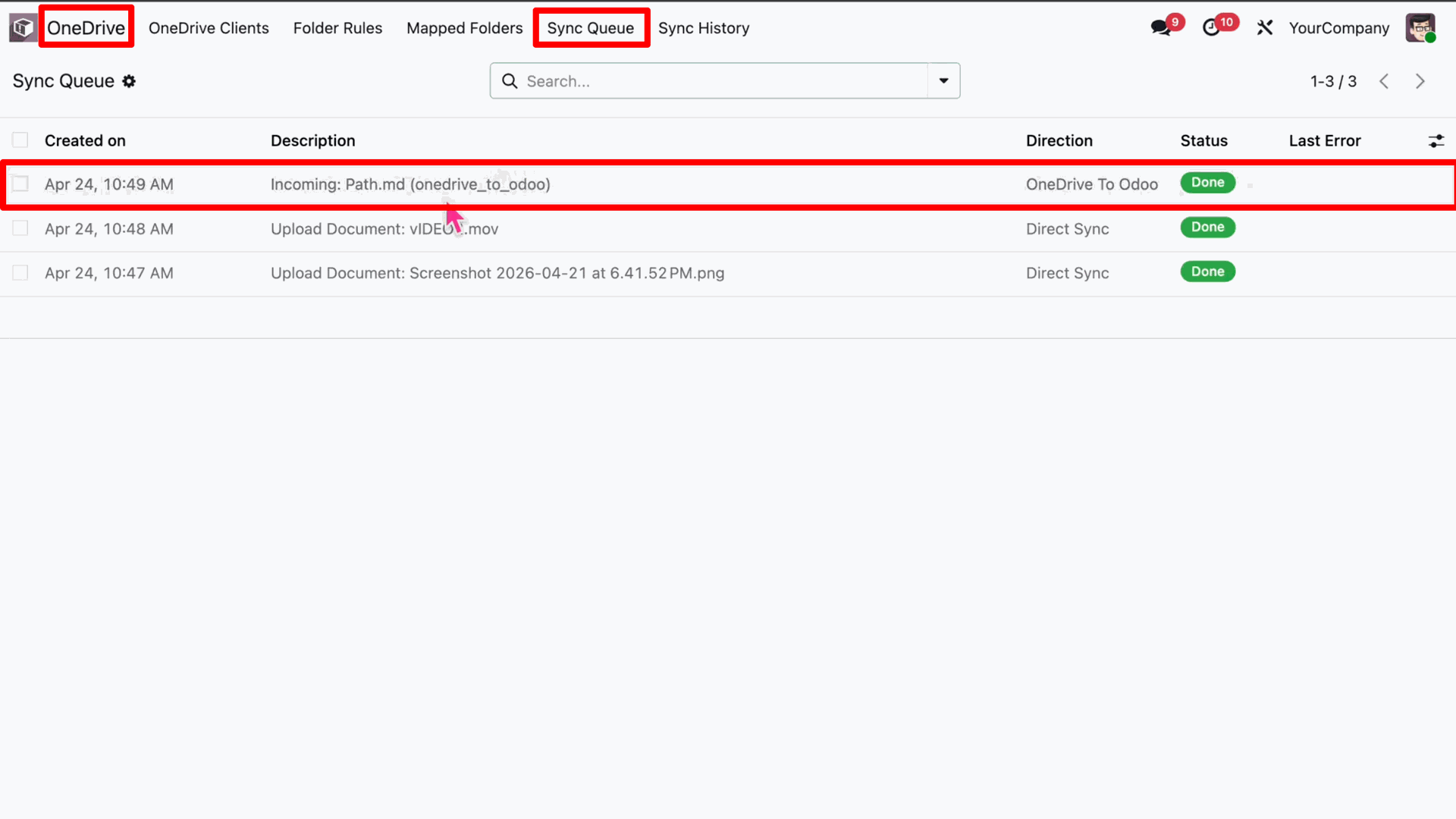
Check the 'Sync Queue' in the OneDrive app; the new file should be imported with a 'Done' status.
Check the 'Sync History' to verify the import log details are marked as 'Success'.
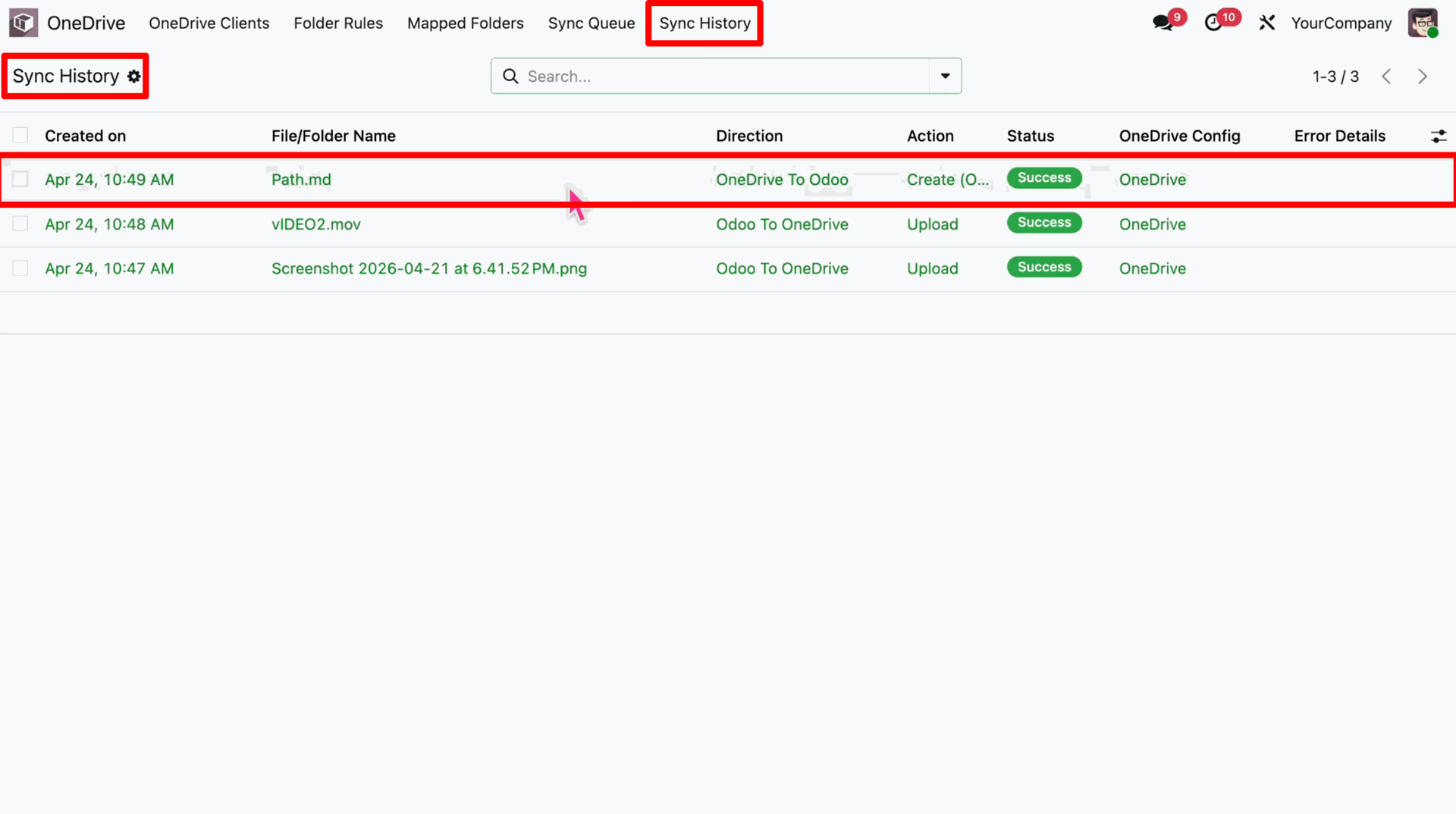
Finally, verify the newly imported file is now present in the Odoo Documents app.
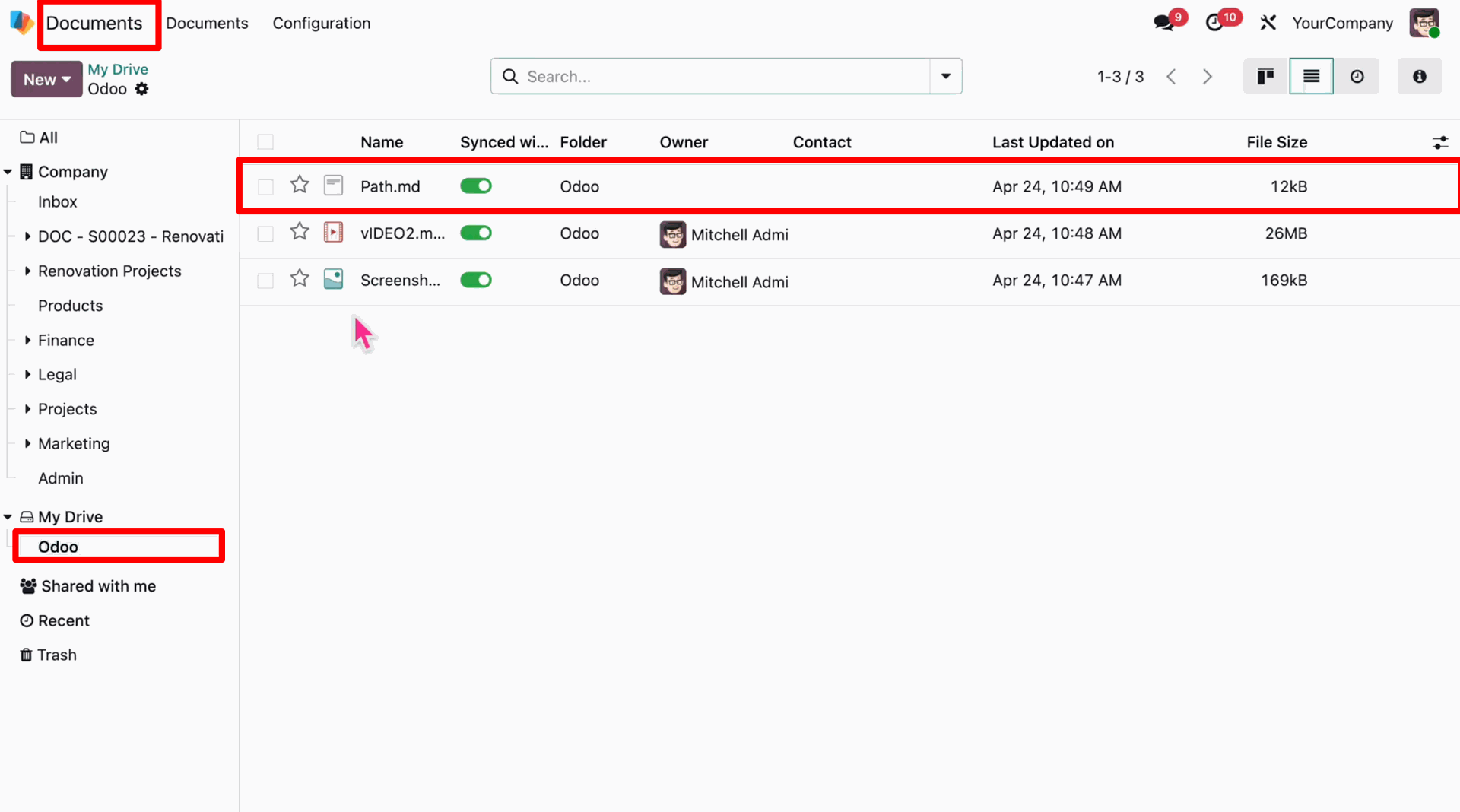
Verify that the synchronized files exist in the Odoo Documents app under the mapped folder.
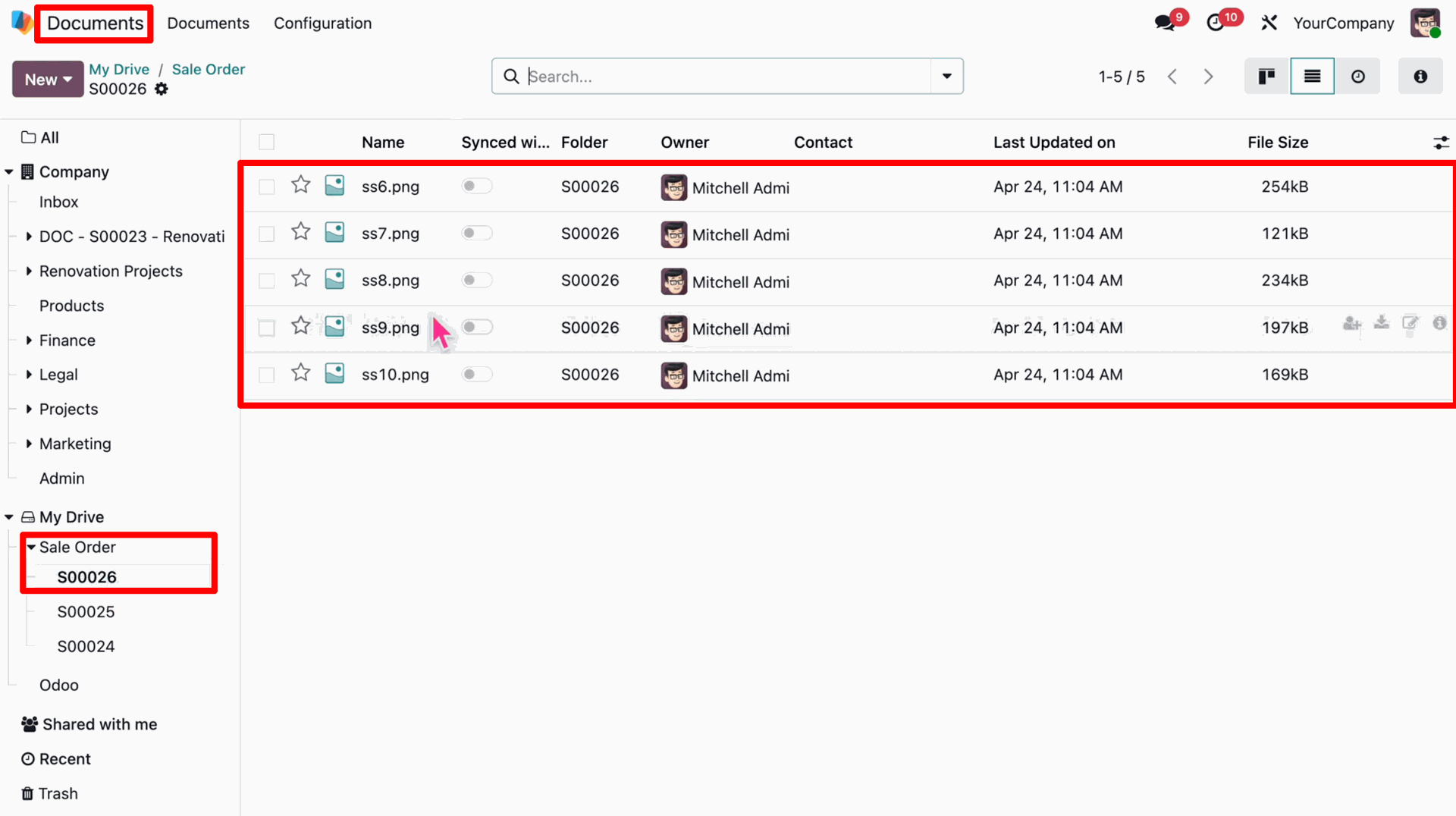
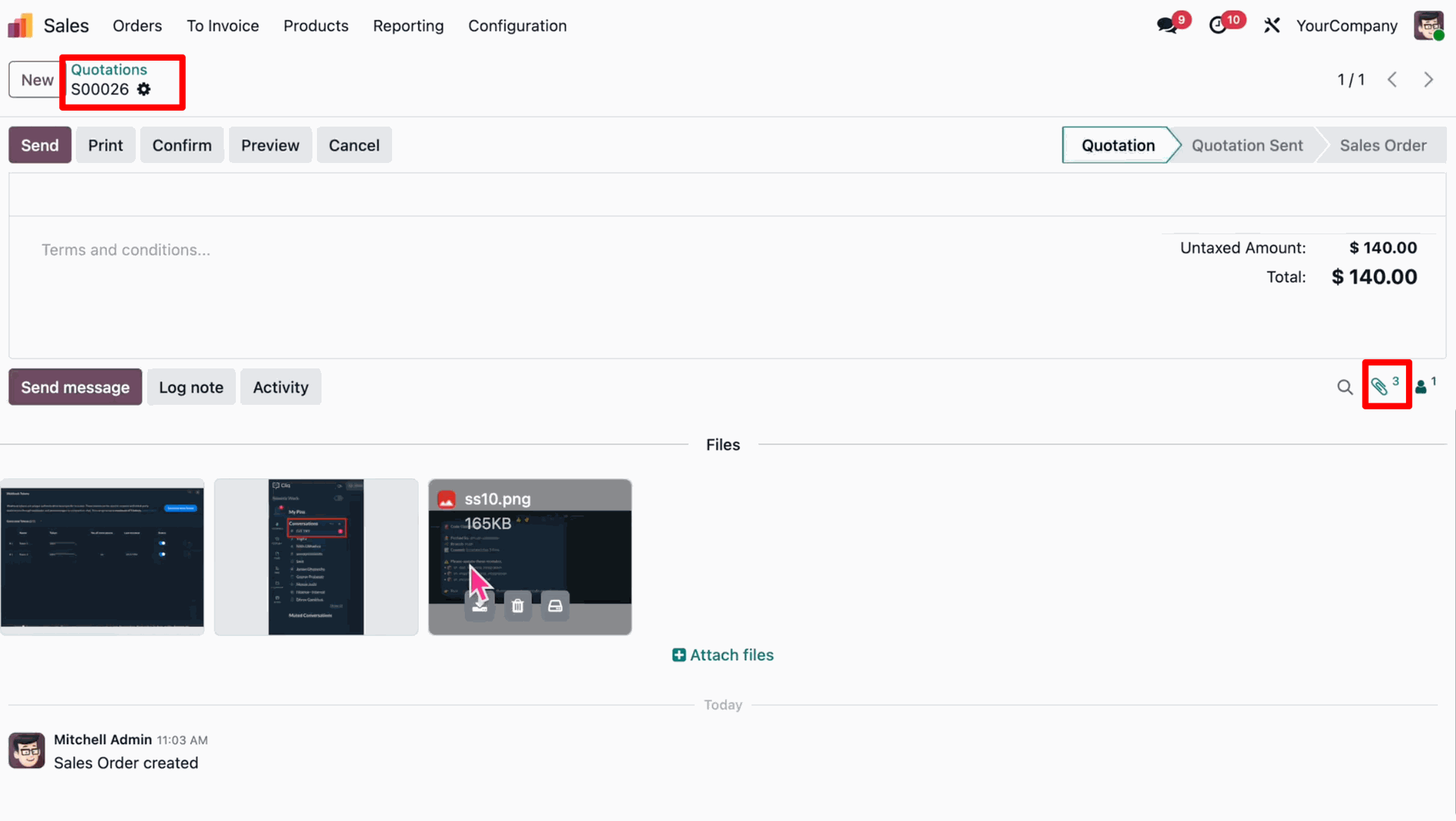
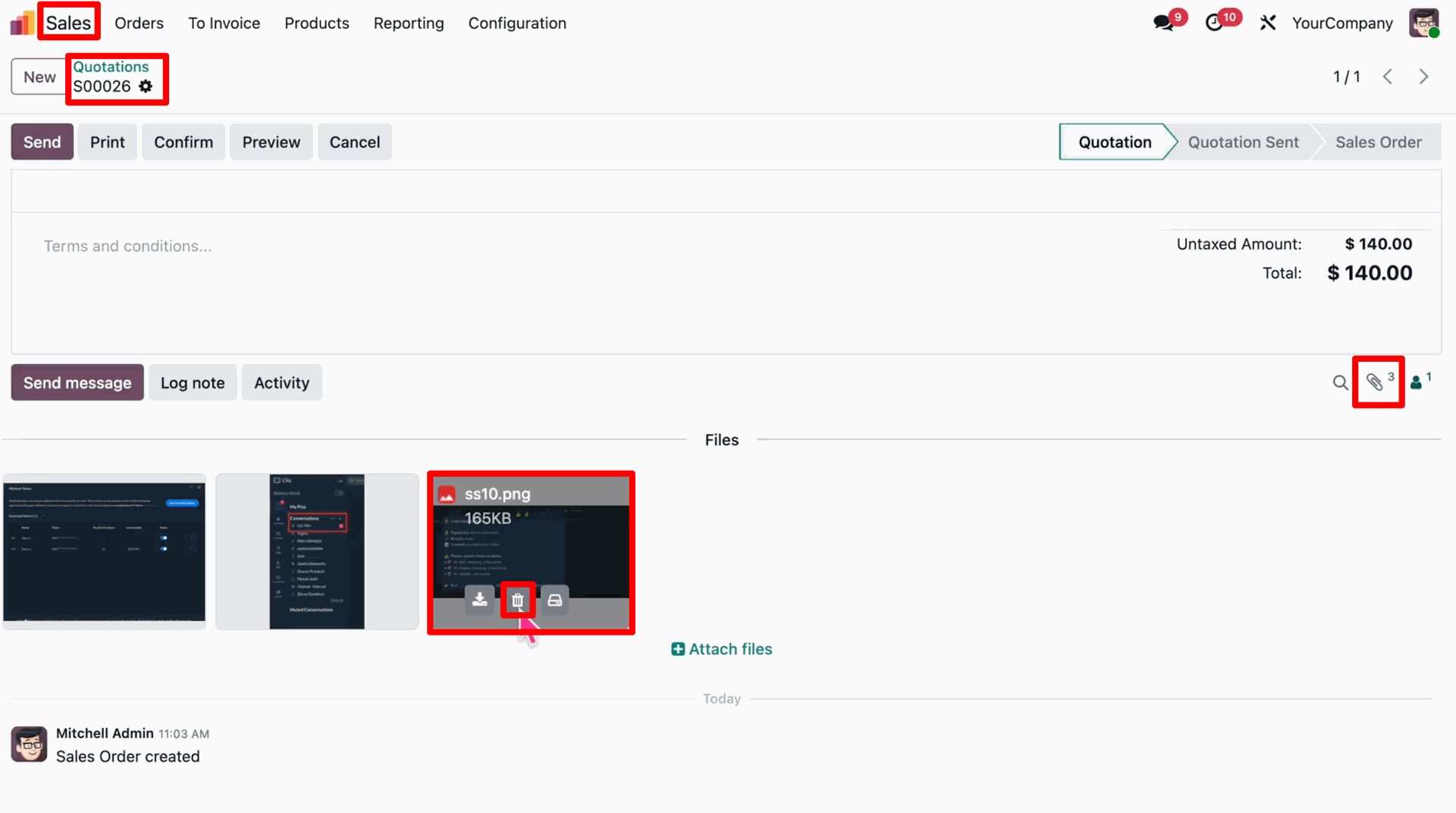
Verify that the same files exist as attachments in the corresponding Odoo record.
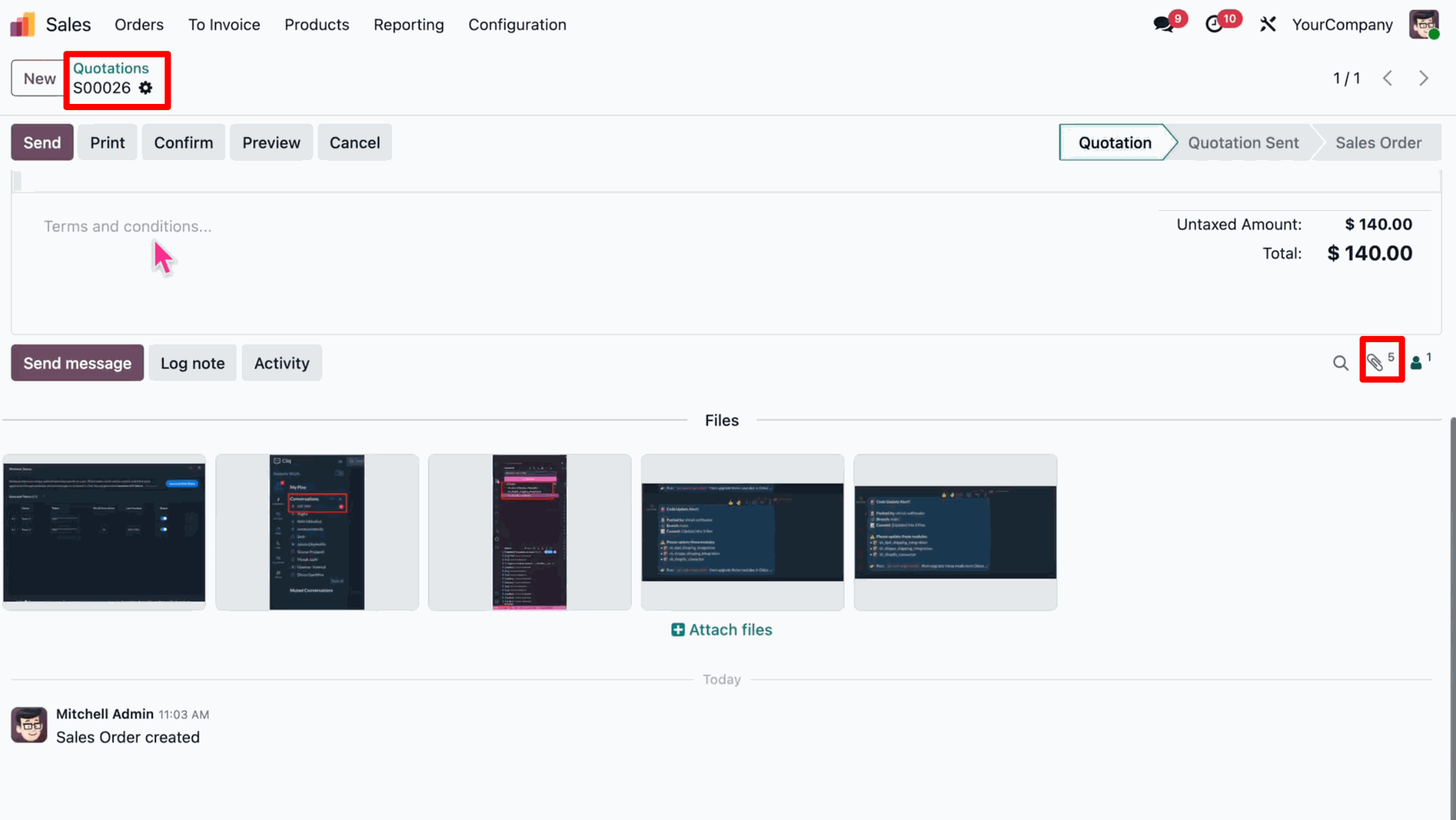
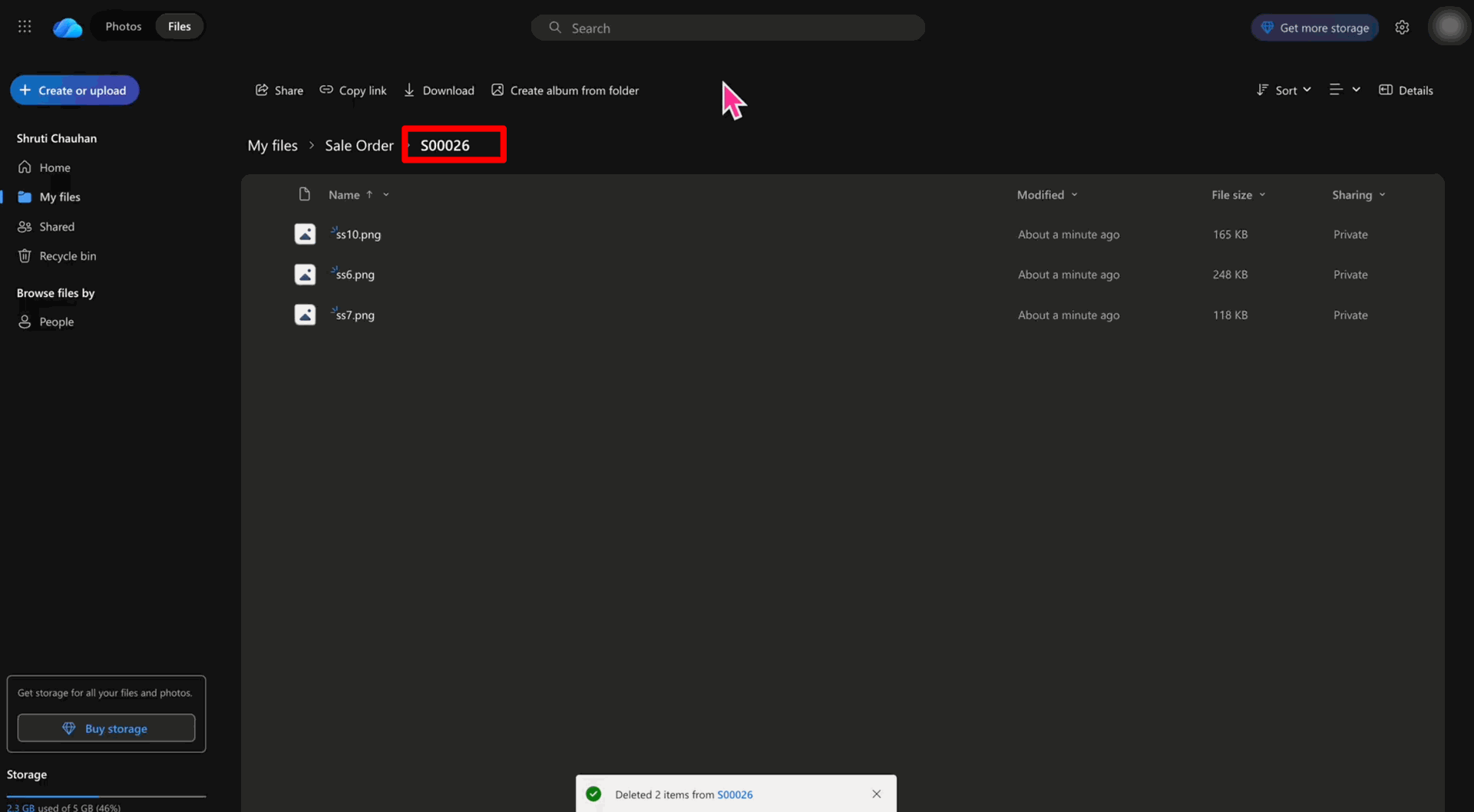
In OneDrive, select the files you want to delete and click the 'Delete' button.
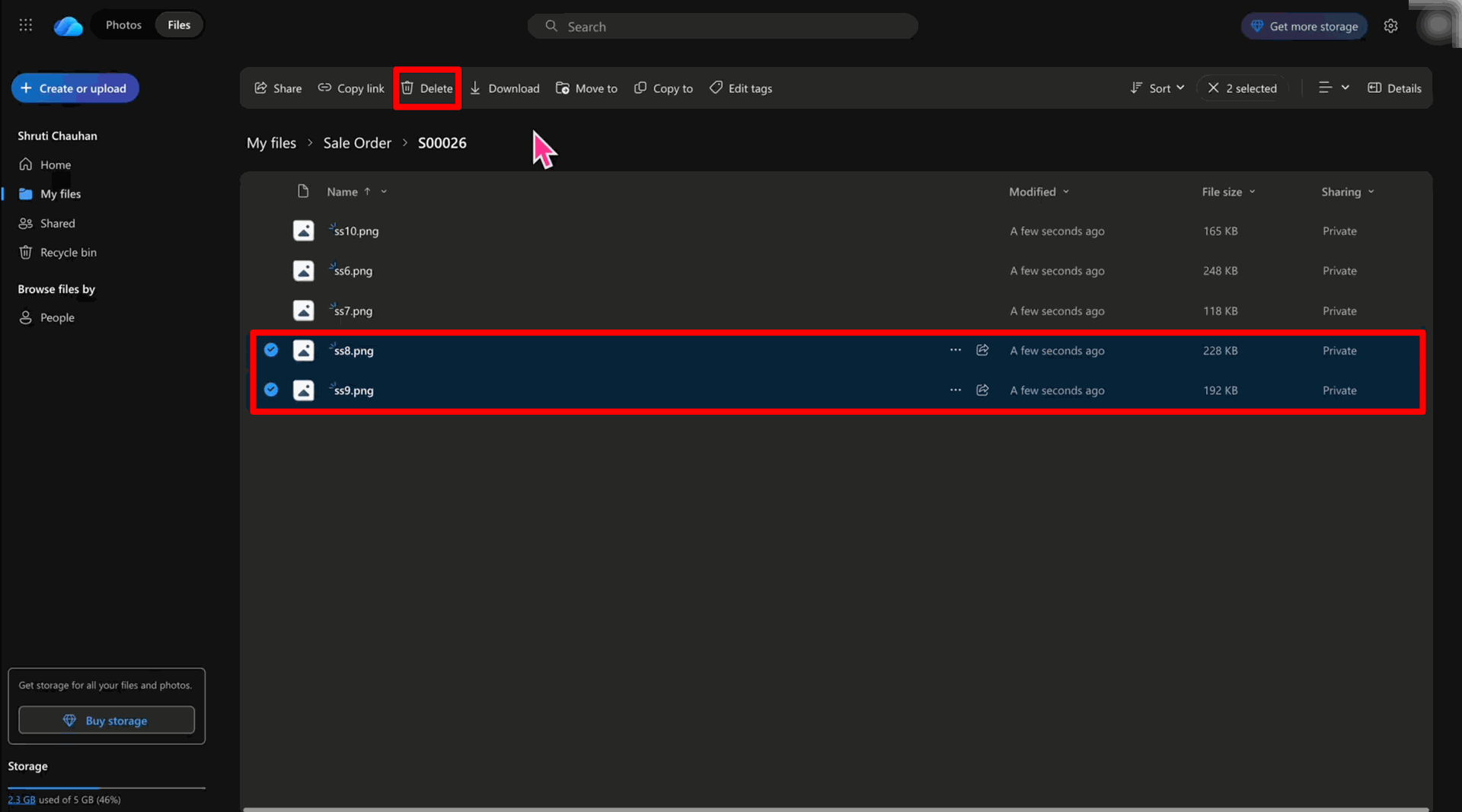
The selected files are successfully removed from the OneDrive folder.
In Odoo, run the 'OneDrive: OneDrive to Odoo' scheduled action manually to synchronize the deletion.
The files are automatically deleted from the Odoo record attachments.
Verify the files are also removed from the Odoo Documents app.
Now, delete a different file directly from the Odoo record attachments.
Run the 'OneDrive: Odoo to OneDrive' scheduled action manually to synchronize this deletion.
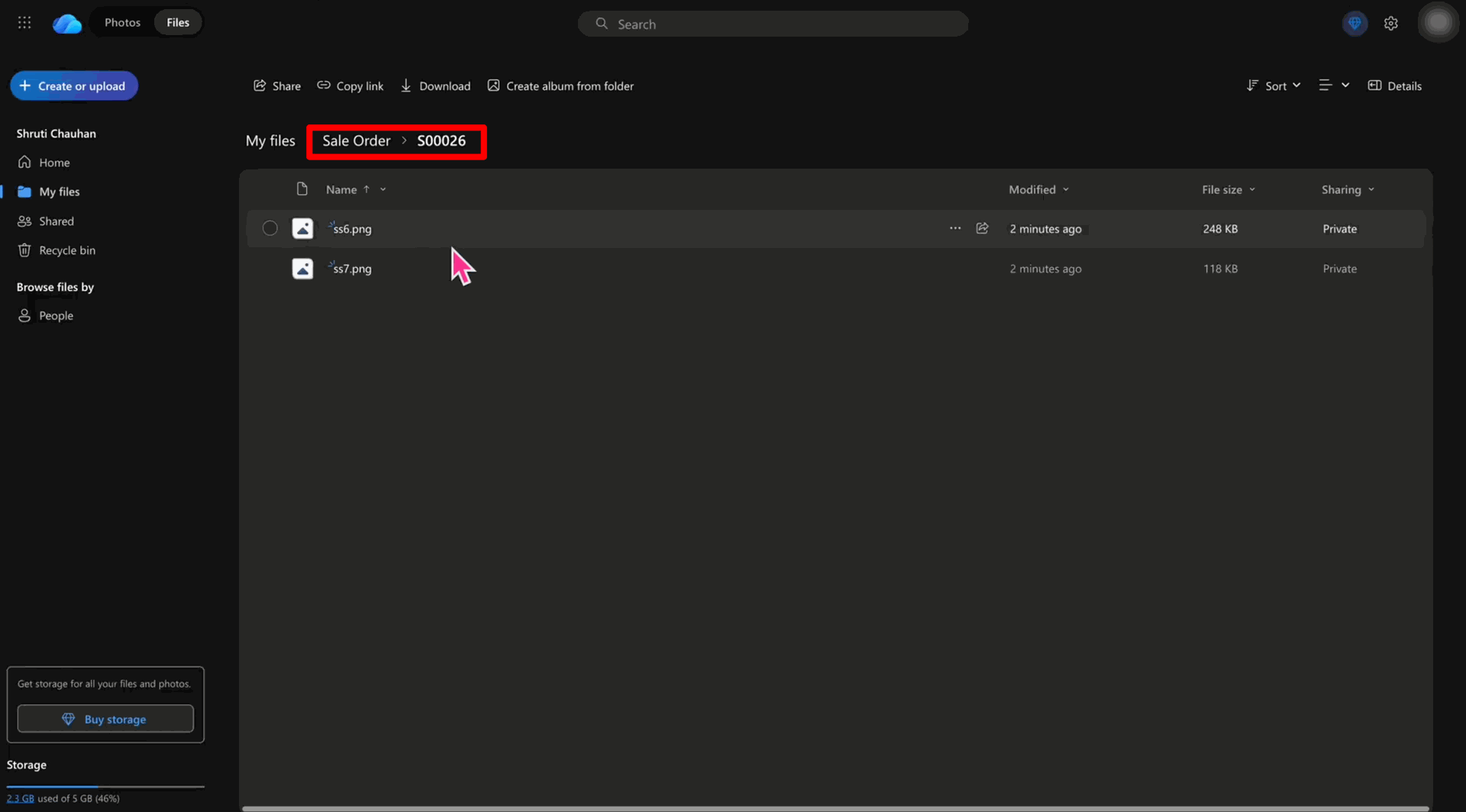
Finally, verify the file is automatically removed from the OneDrive folder.
Version 19.0.1.0.0 | Released on : 29th June 2026
- No, this app works perfectly with Odoo Enterprise (Odoo.sh & Premise) as only.
- No, this application is not compatible with odoo.com(odoo saas/Odoo Online)
- Yes, to test this module, please contact us at sales@softhealer.com.
- Please contact us at sales@softhealer.com to request customization.
- Yes, we provide free support for 365 days from the date of purchase.
- Yes, you will receive lifetime free updates for the version of the module you purchased.
- No, there is no need to install any additional libraries.
- Yes, for version 12 and above, you need to purchase the module separately for each version you intend to use.
- No, exchanges or refunds are not allowed. Please make sure to select the correct version before purchasing.
- You can contact us at support@softhealer.com for language translation support. We use Google Translator tools to provide translations in multiple languages, so the accuracy may vary. We welcome your suggestions to help improve translations.
Discover Our Latest Apps