 Easy to Manage
 Dedicated Support









 Scan to email sales
Odoo Work.UA Integration

The Work.UA Integration app seamlessly connects Odoo Recruitment with the official Work.UA. It allows HR teams to post, update, and delete job vacancies directly from Odoo. Streamlining recruitment, support for multiple accounts simplifies your workflow.
Key Features
Features
Work.UA Integration
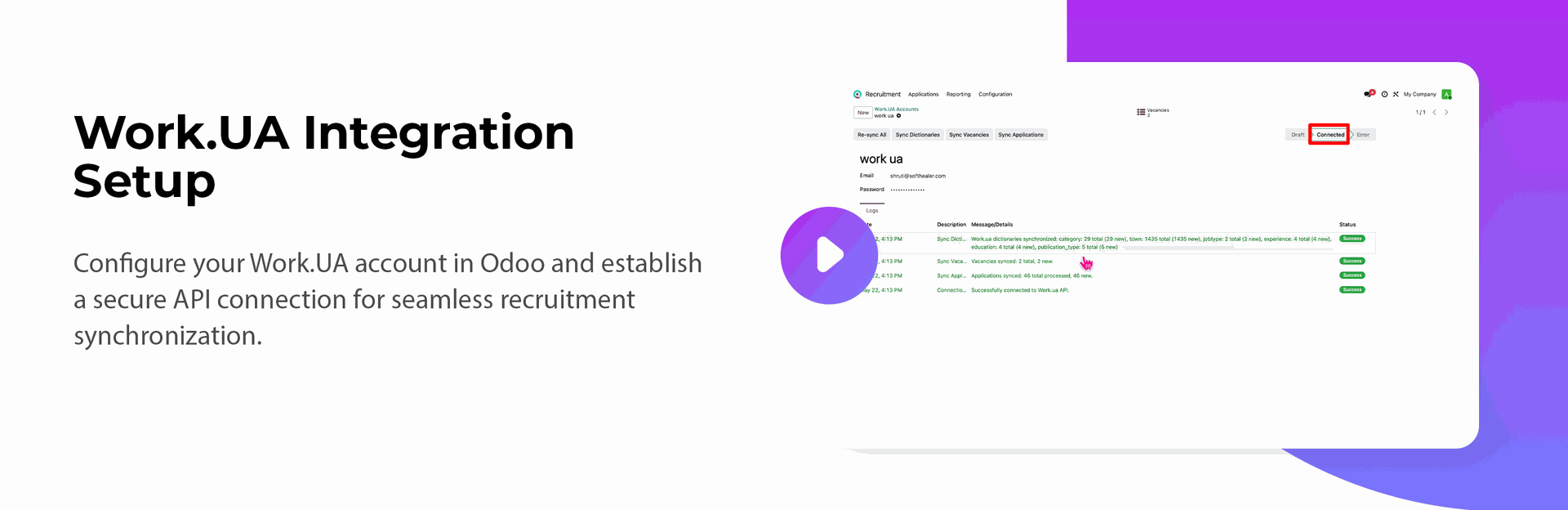
Connect Odoo Recruitment directly with Work.UA using the API for seamless communication.
Vacancy Posting & Management
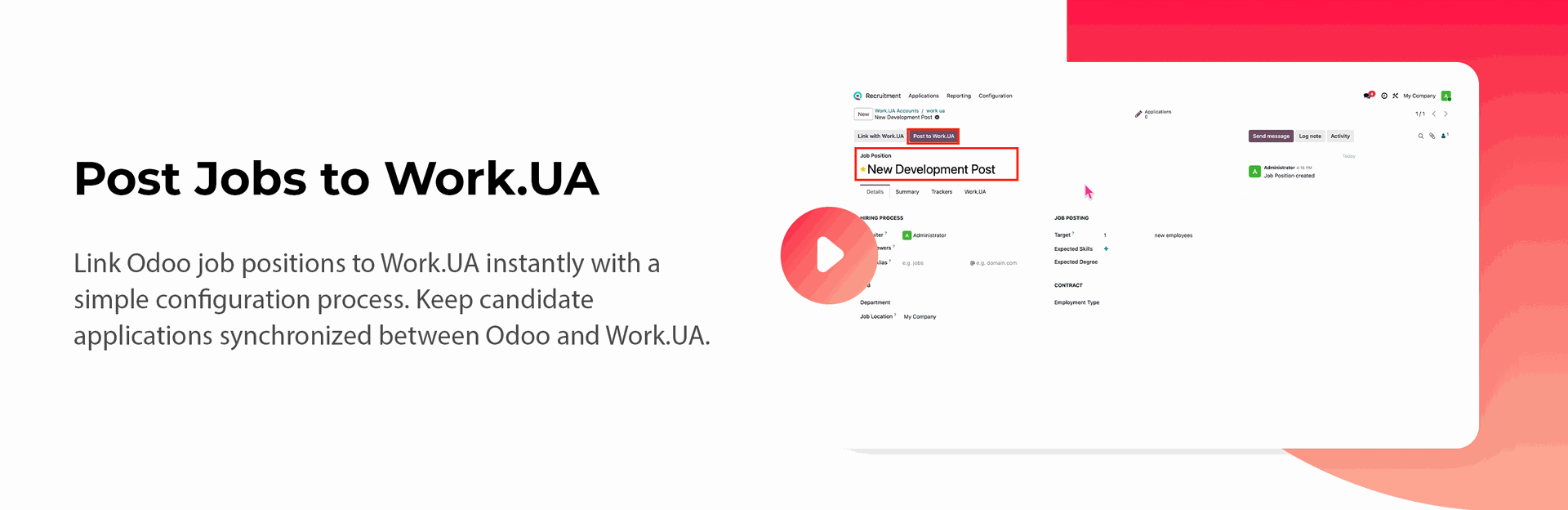
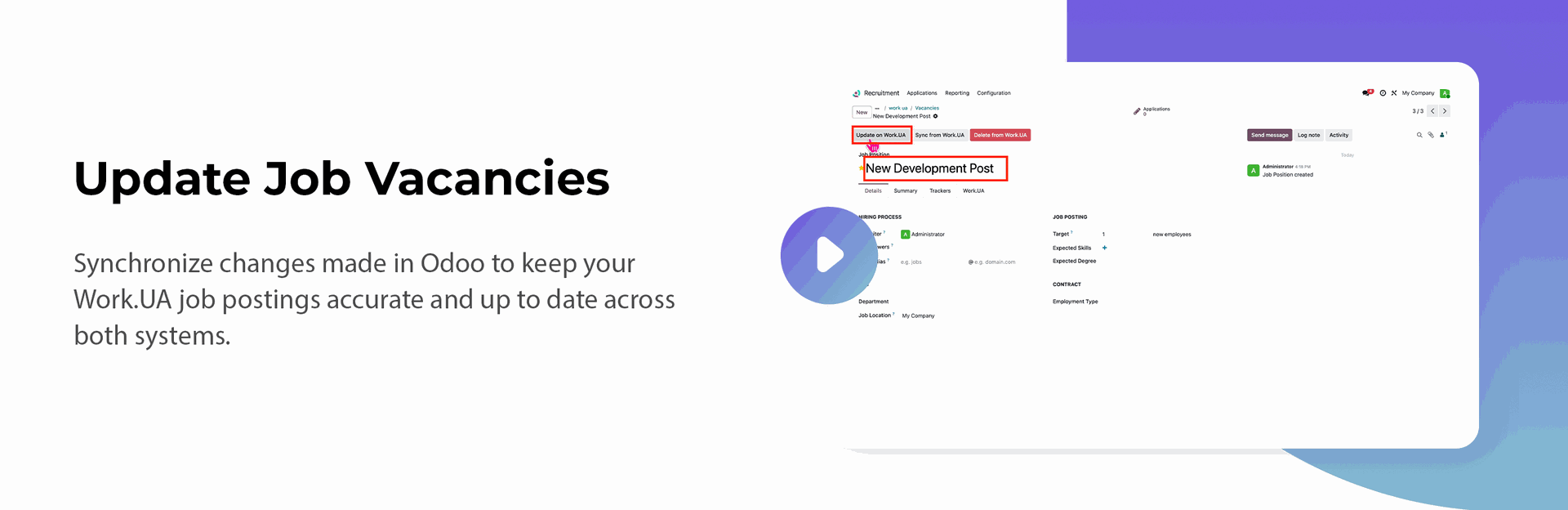
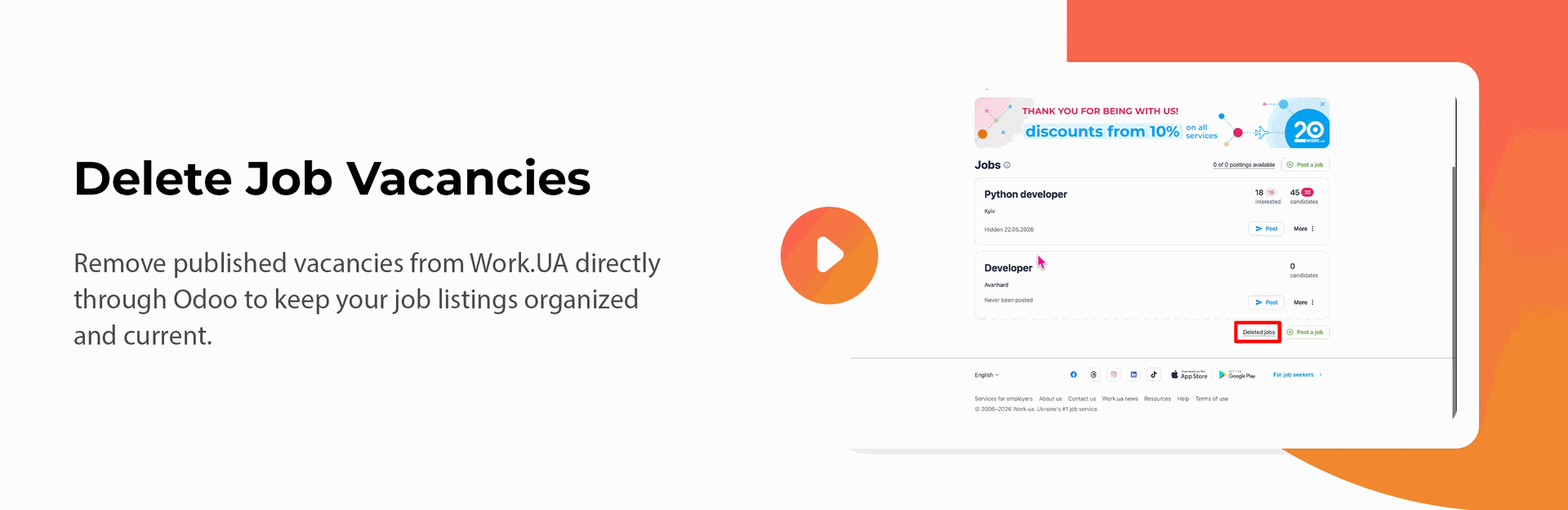
Create, update, or delete vacancies on Work.UA directly from Odoo job positions.
Work.UA Synchronization Logs
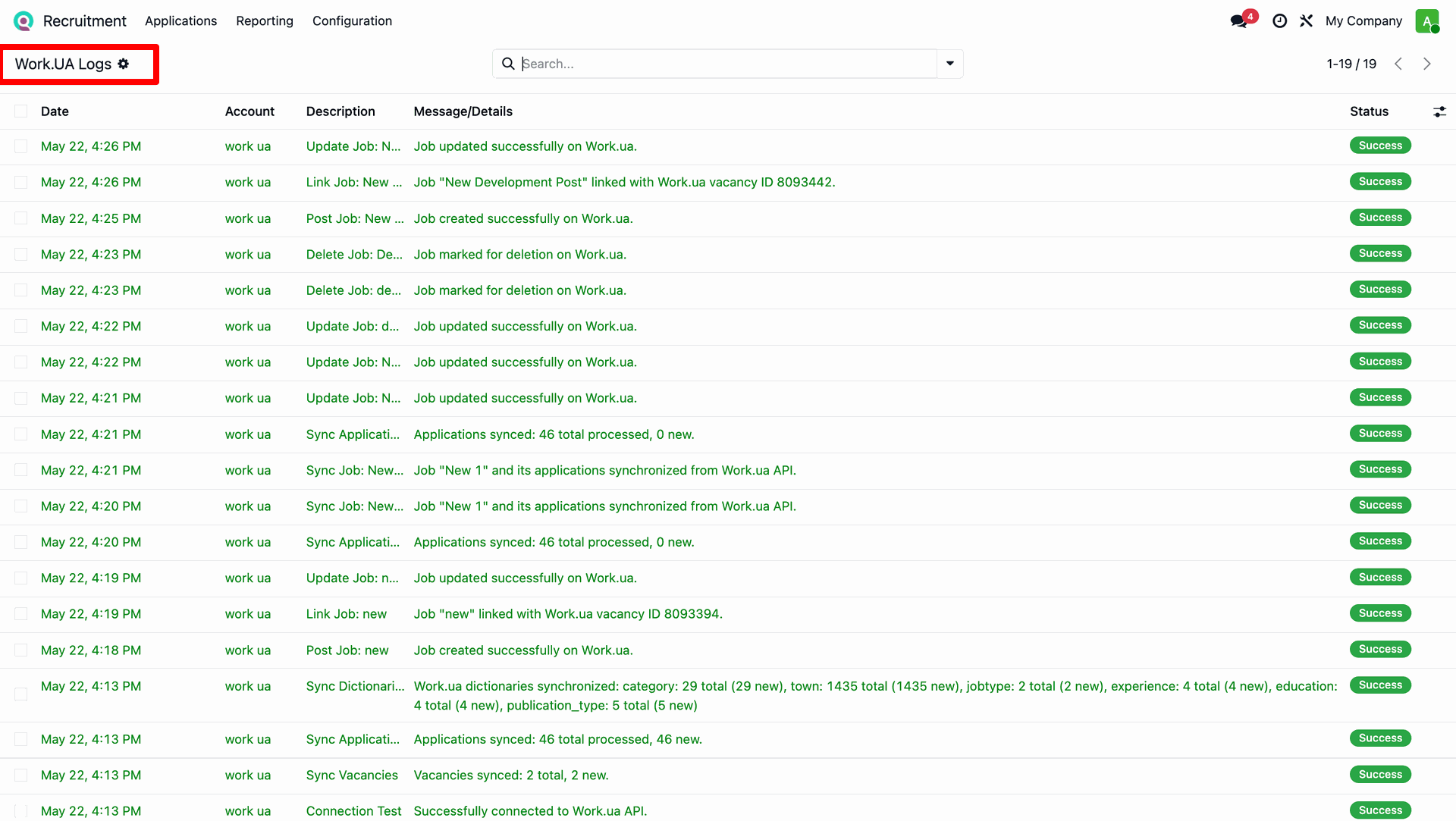
Track synchronization history with detailed logs for successful and failed operations.
Multi-Account Support
Configure and manage multiple Work.UA accounts within a single Odoo instance.
Full Dictionary Syncing
Sync dictionaries such as job types, experience, publication type, education, and other Work.UA dictionaries into Odoo.
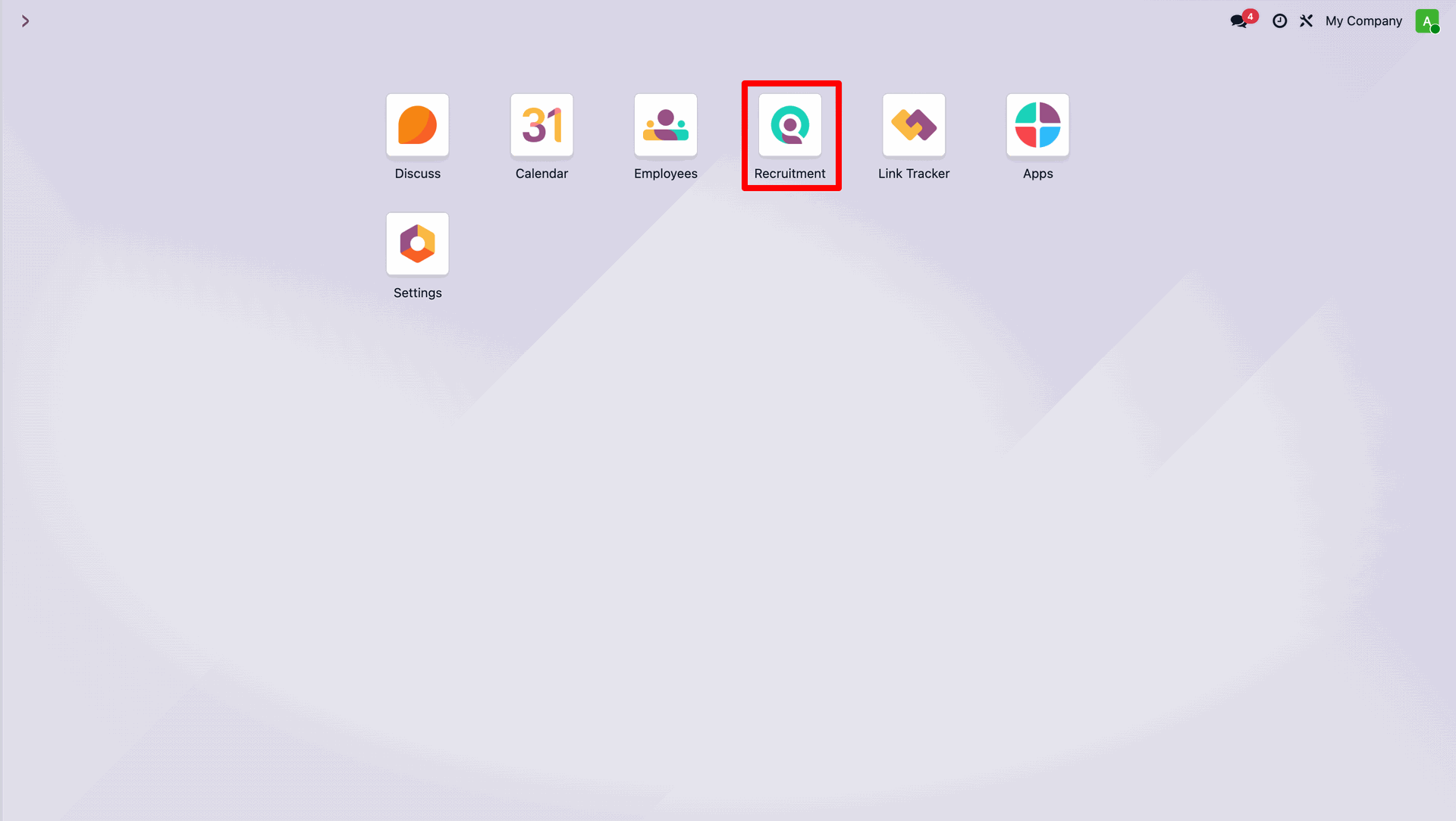
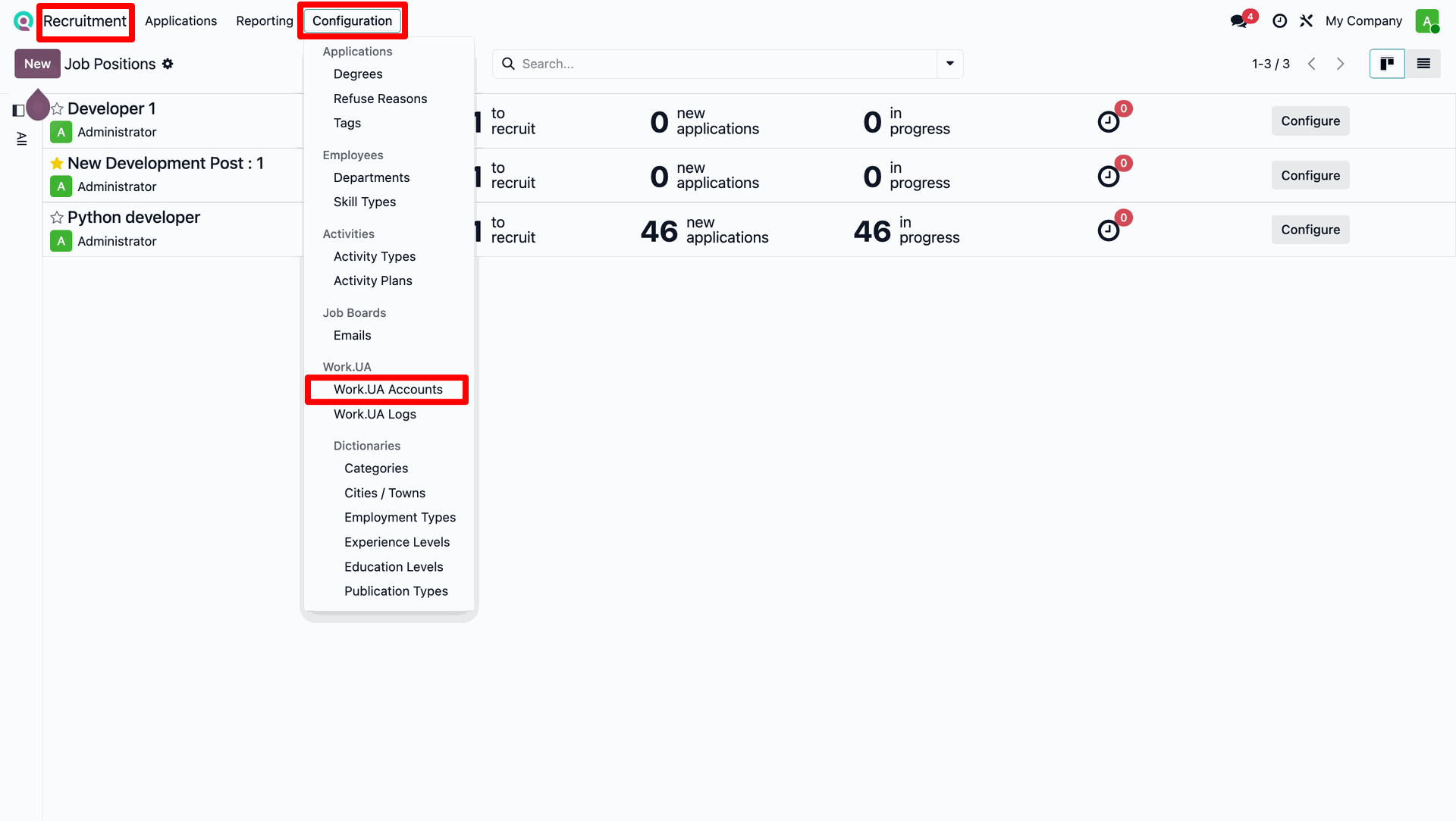
Navigate to the Recruitment app from the Odoo main dashboard.
Go to Configuration and select Work.UA Accounts.
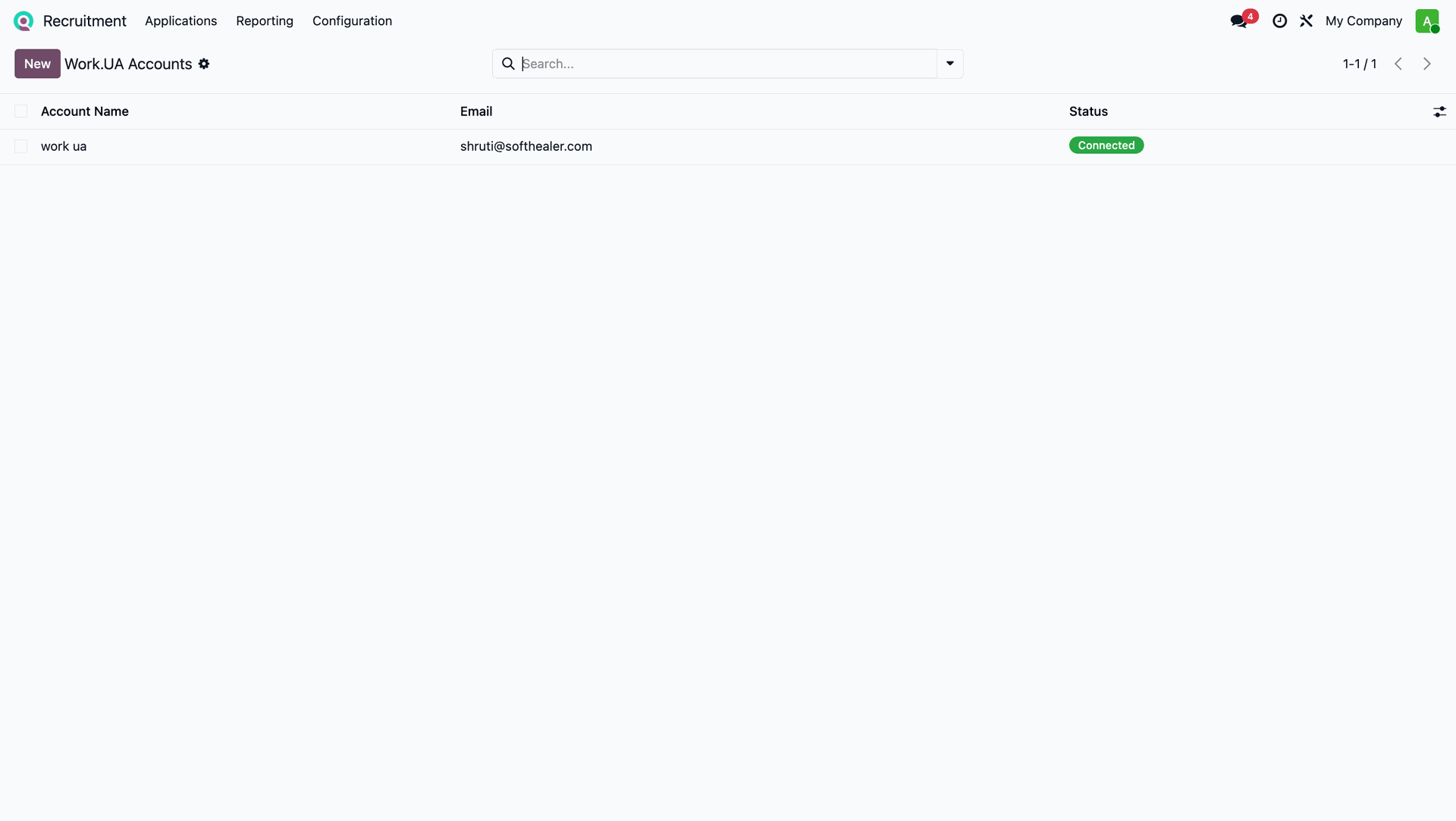
View the list of configured Work.UA accounts in the tree view.
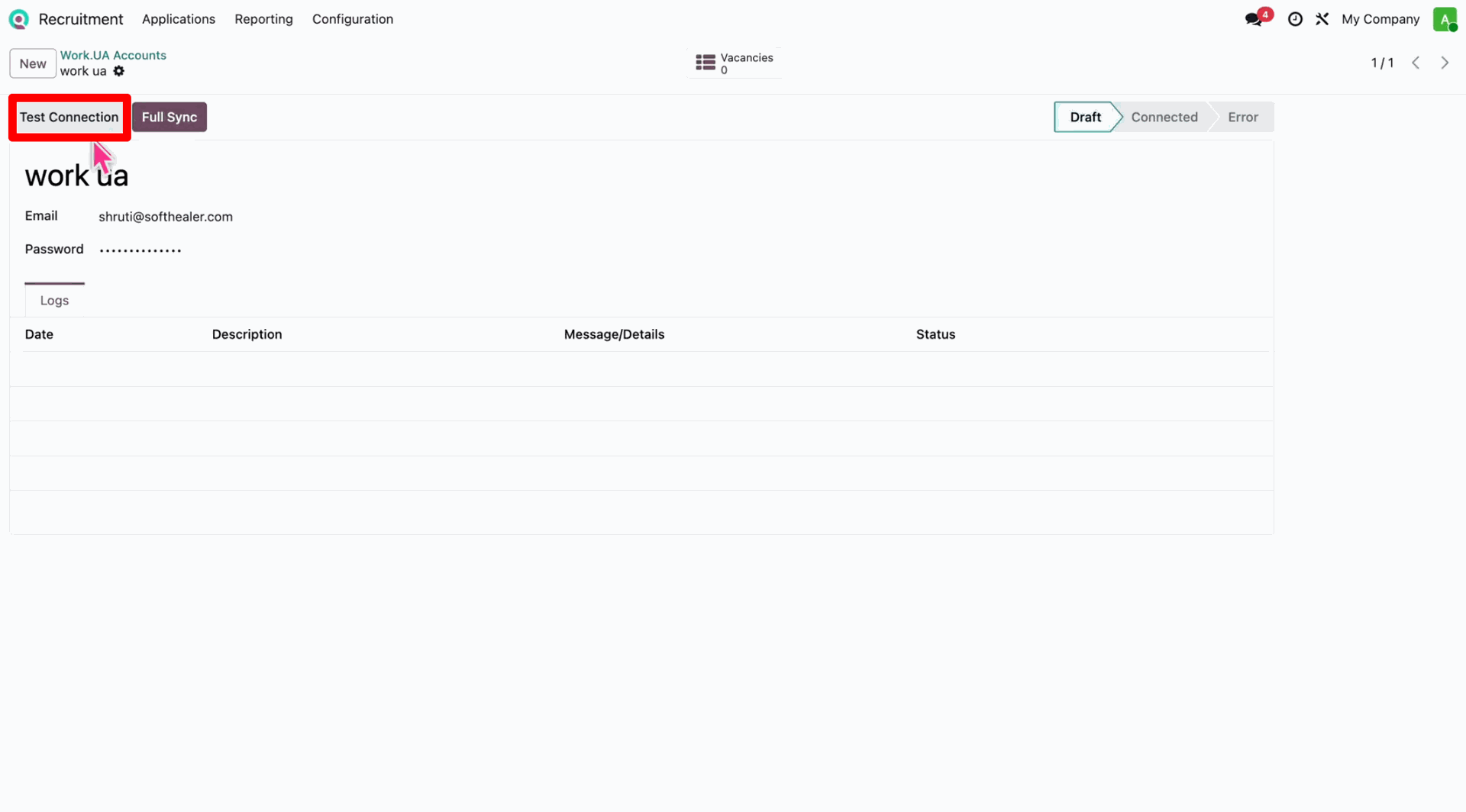
Click 'Test Connection' to verify API credentials with Work.UA.
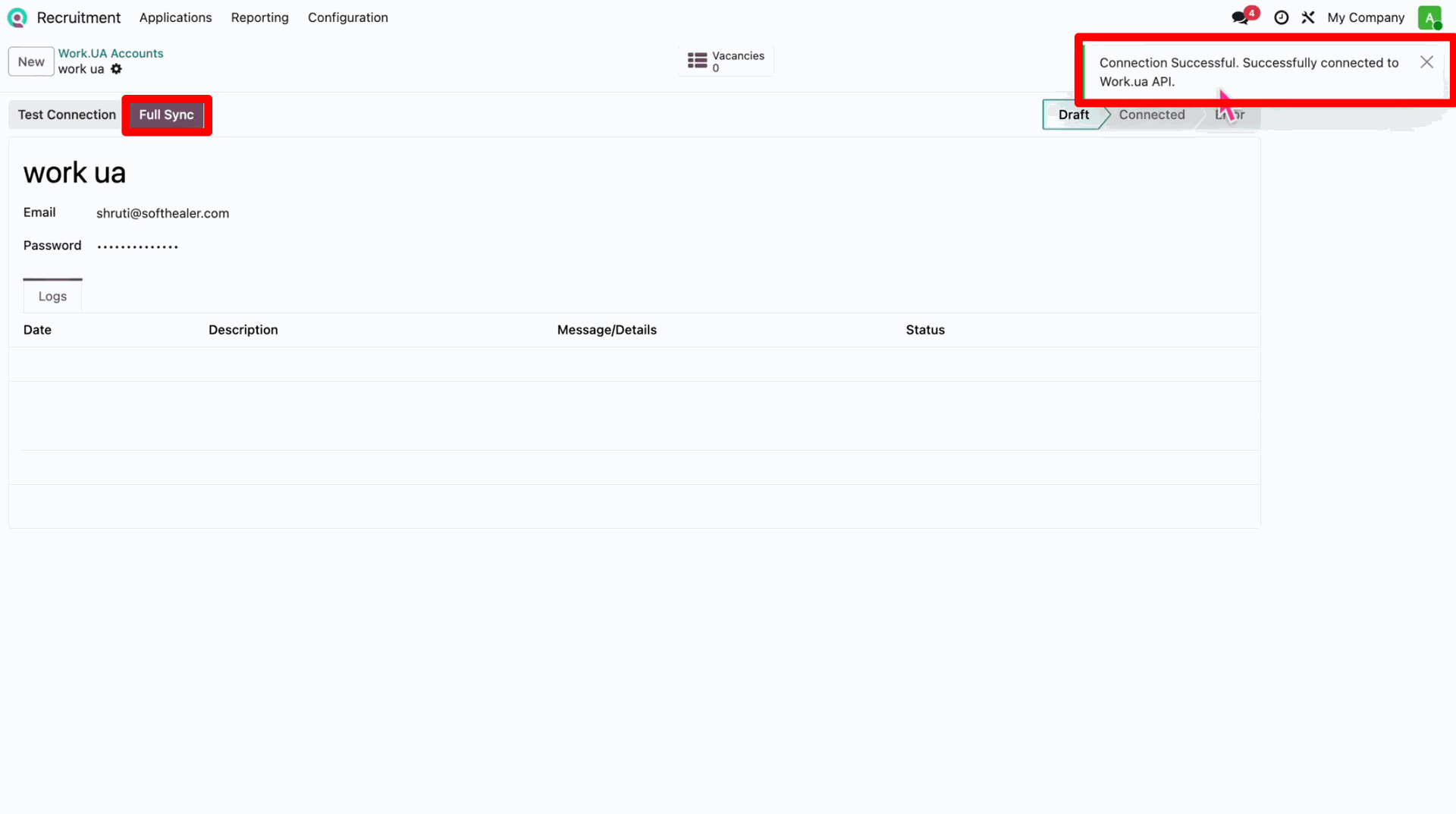
After successful connection, initiate a 'Full Sync' to download dictionaries.
Check the synchronization logs and ensure the account status is 'Connected'.
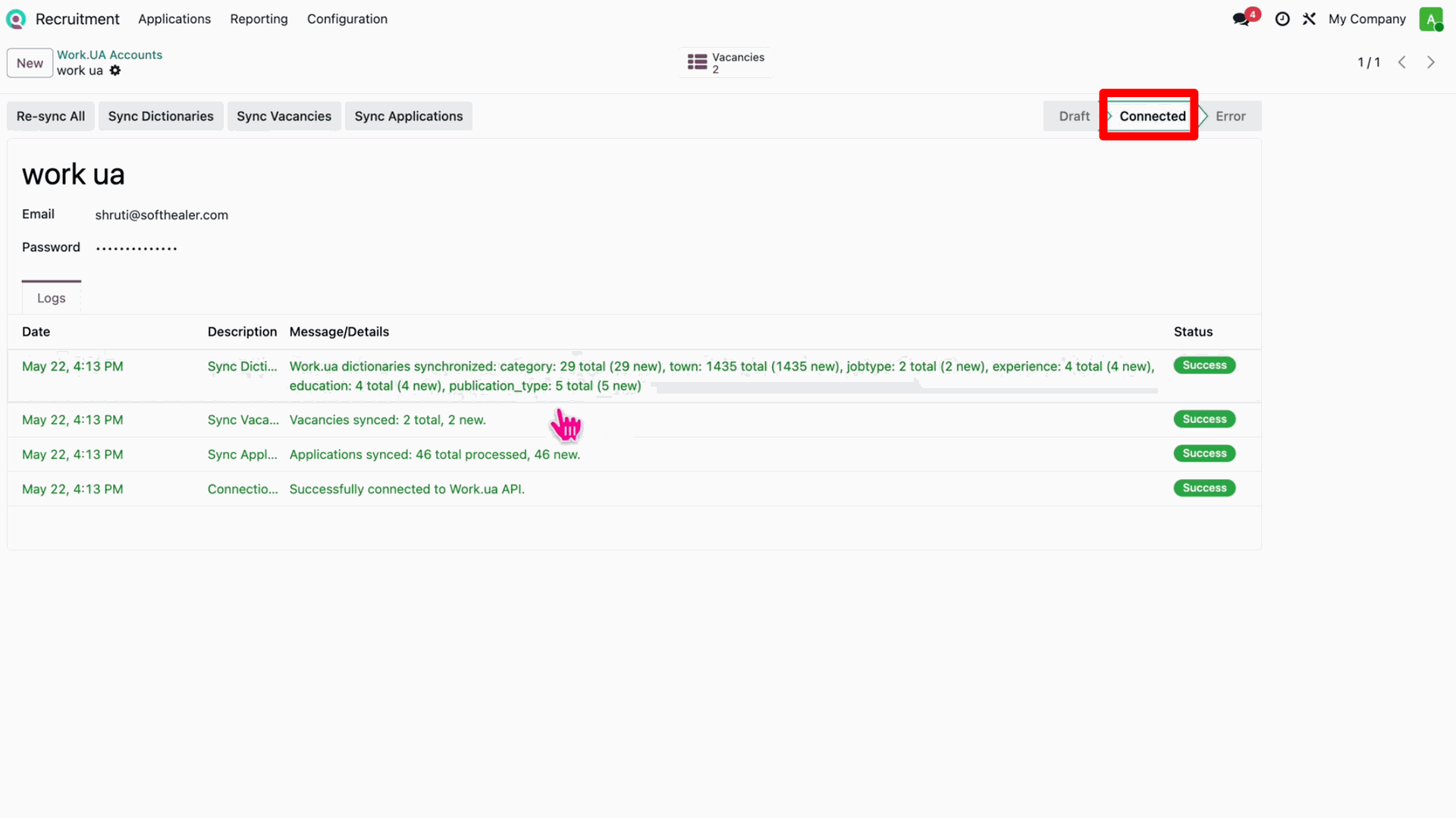
Access the 'Vacancies' smart button to manage jobs linked to this account.
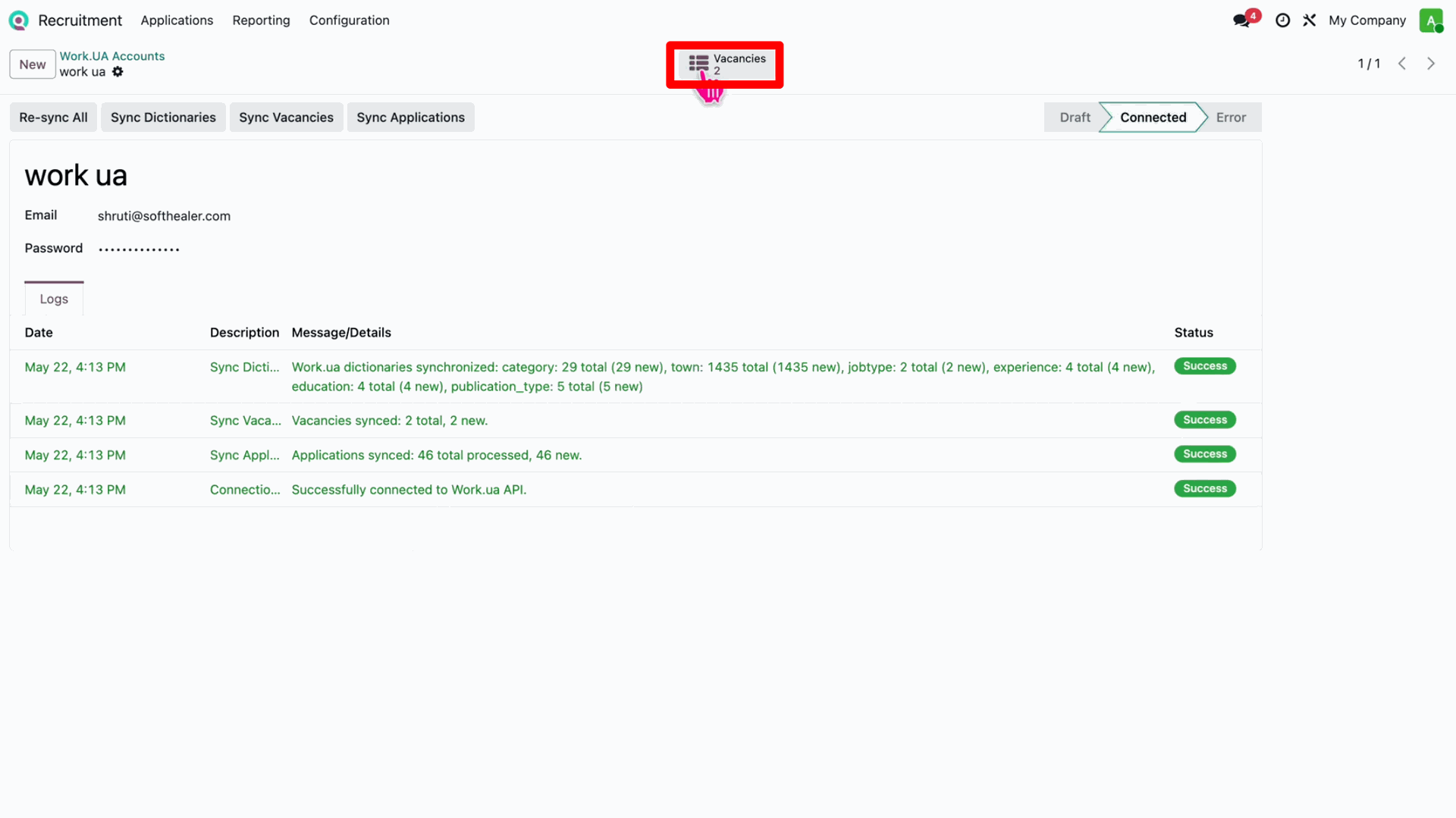
View all synchronized job vacancies from Work.UA in the list.
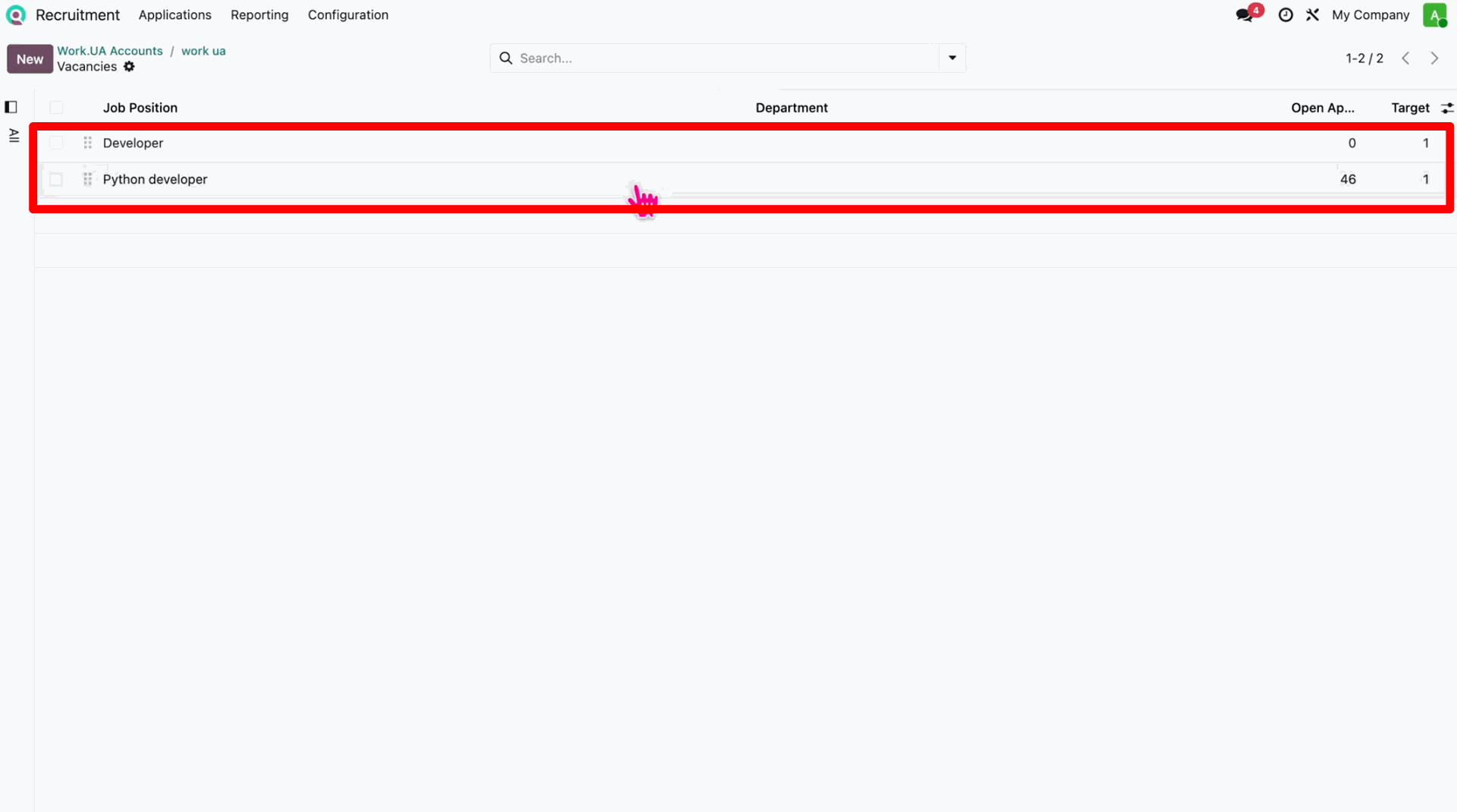
Navigate to a specific Job Position and open the 'Applications' smart button.
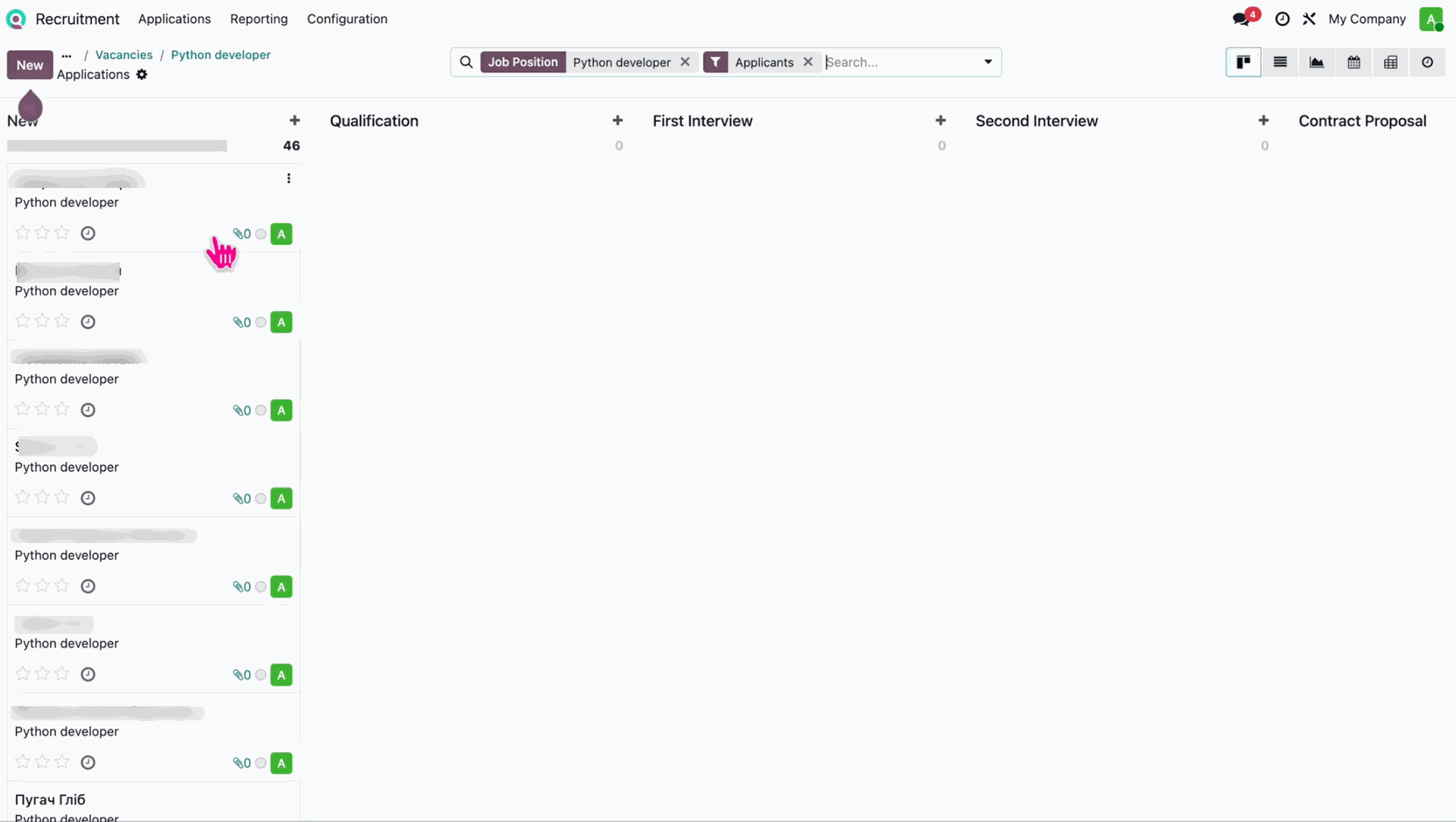
Review all candidate applications imported from Work.UA in the Kanban view.
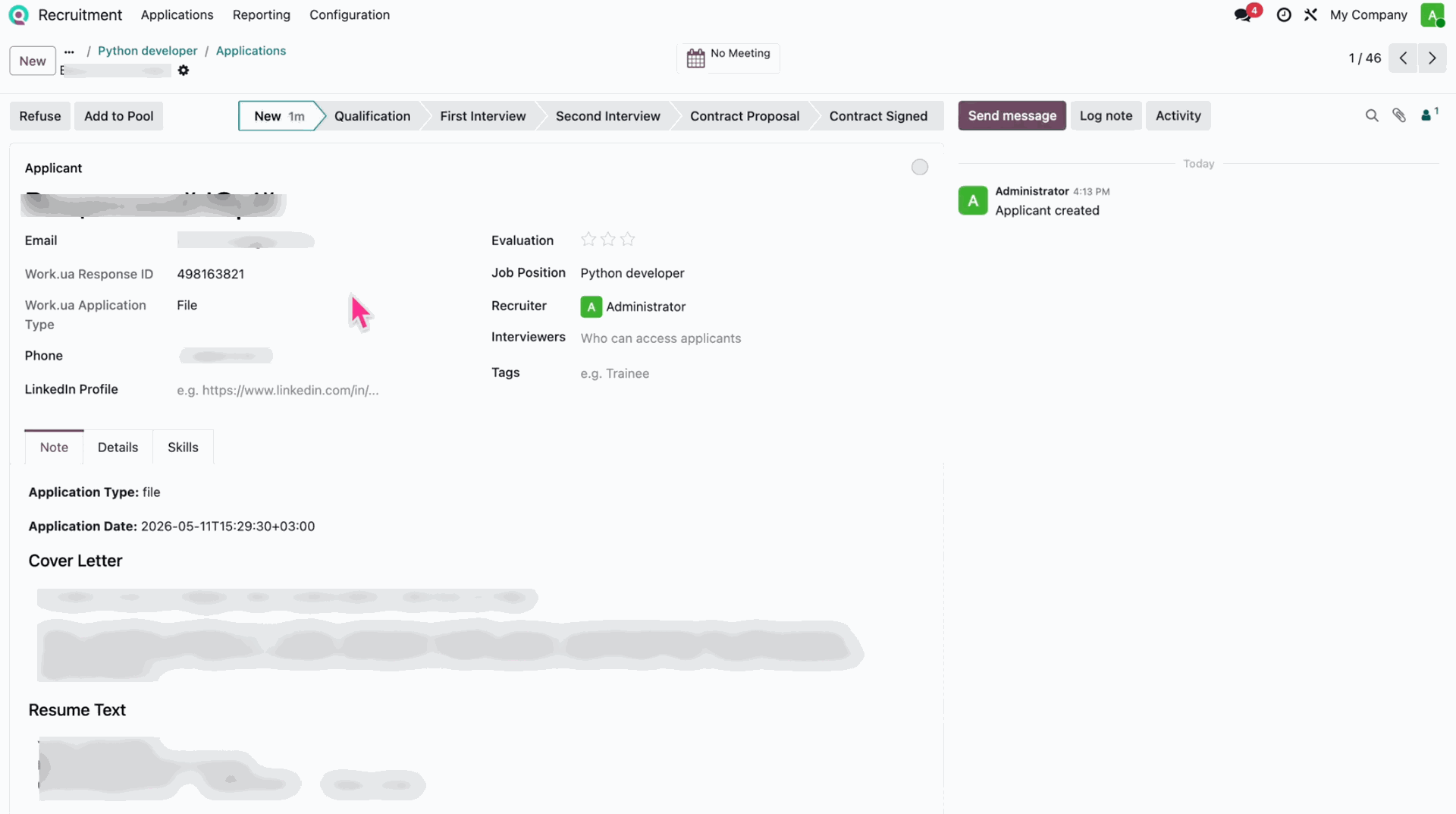
Check applicant details including Work.UA Response ID and Application Type.
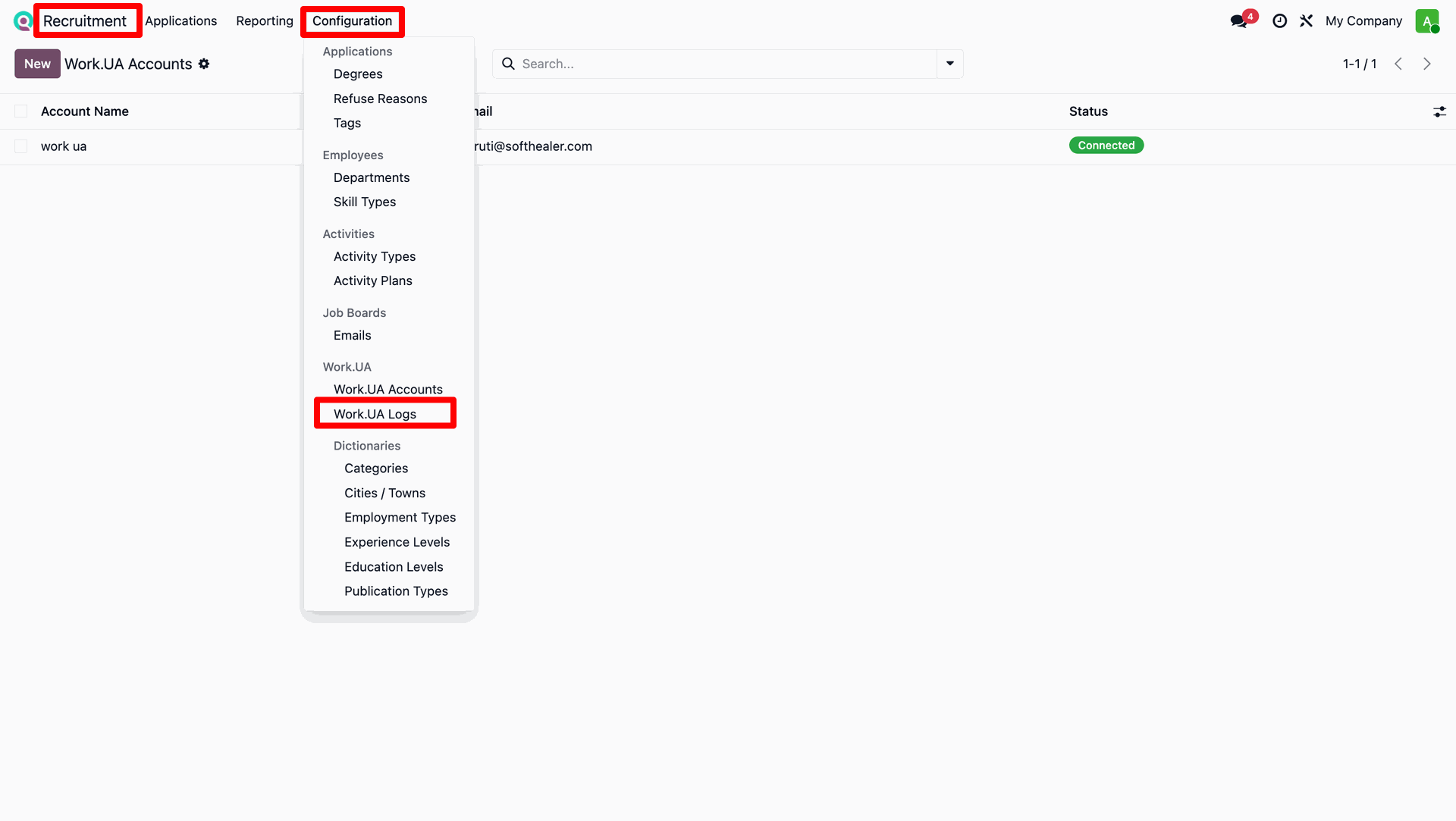
Go to Configuration and select Work.UA Logs to review API activity.
Monitor detailed integration logs and synchronization statuses.
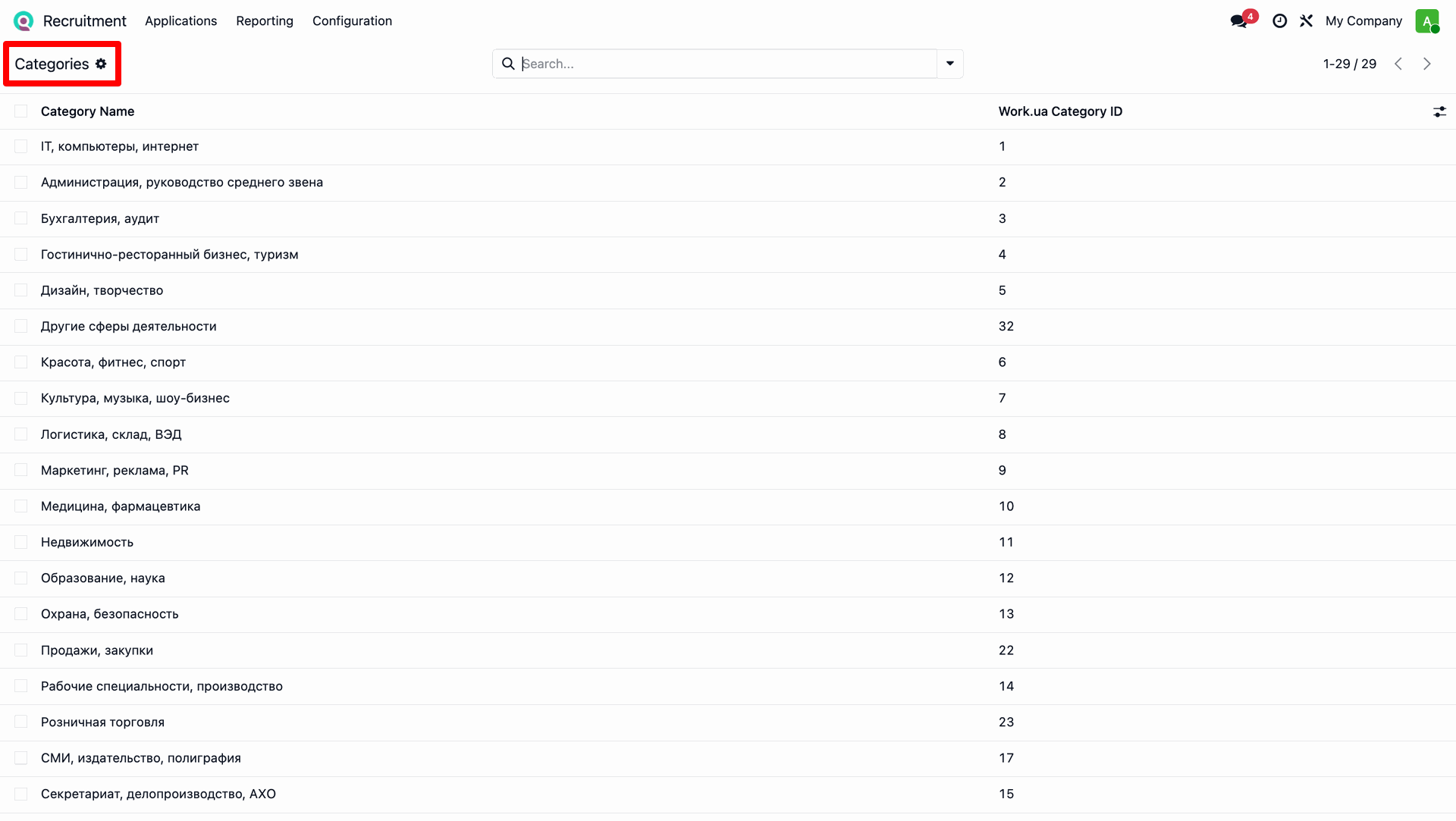
Navigate to Configuration > Categories to manage Work.UA job categories.
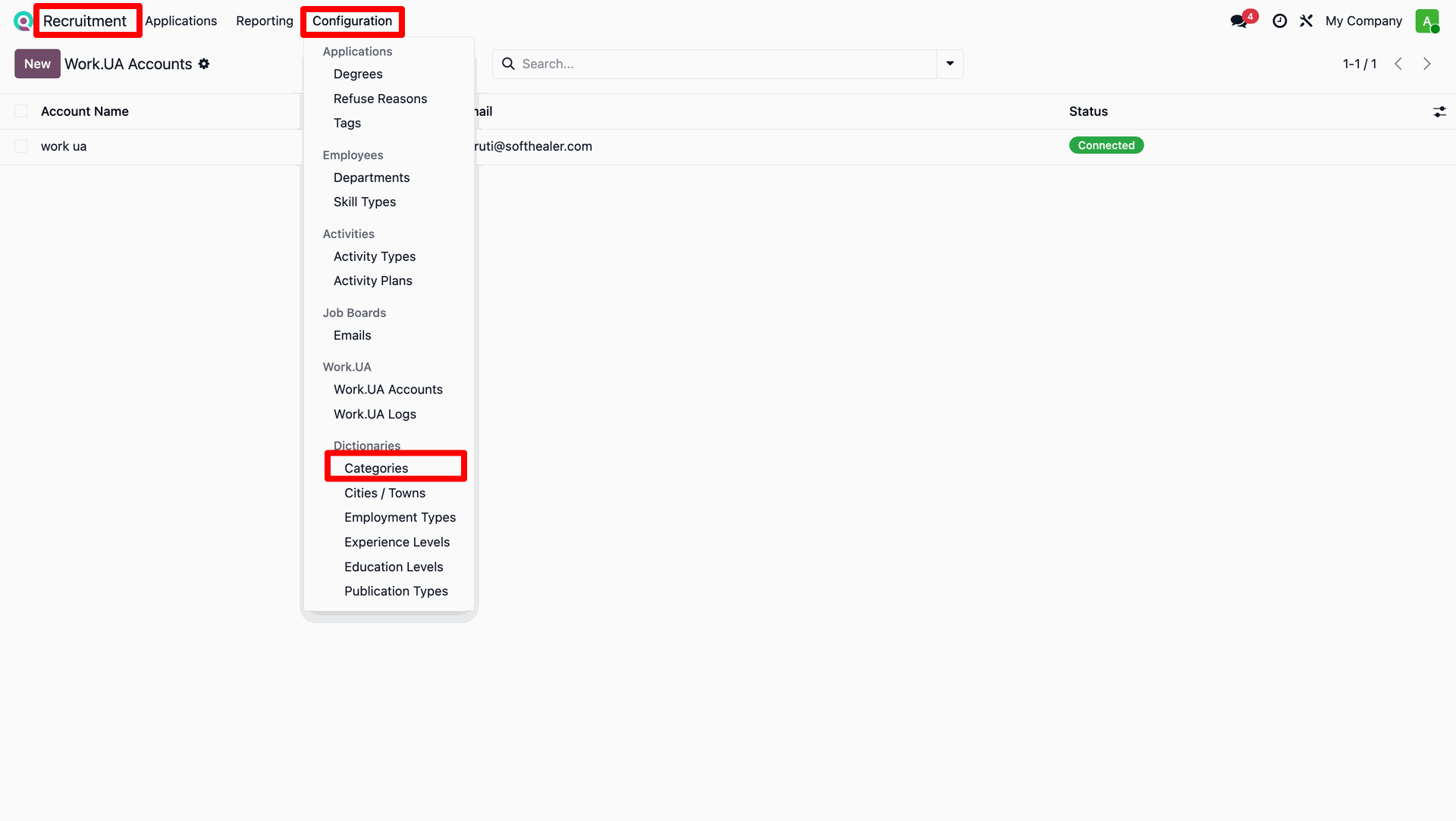
Verify the imported Work.UA Categories catalog entries.
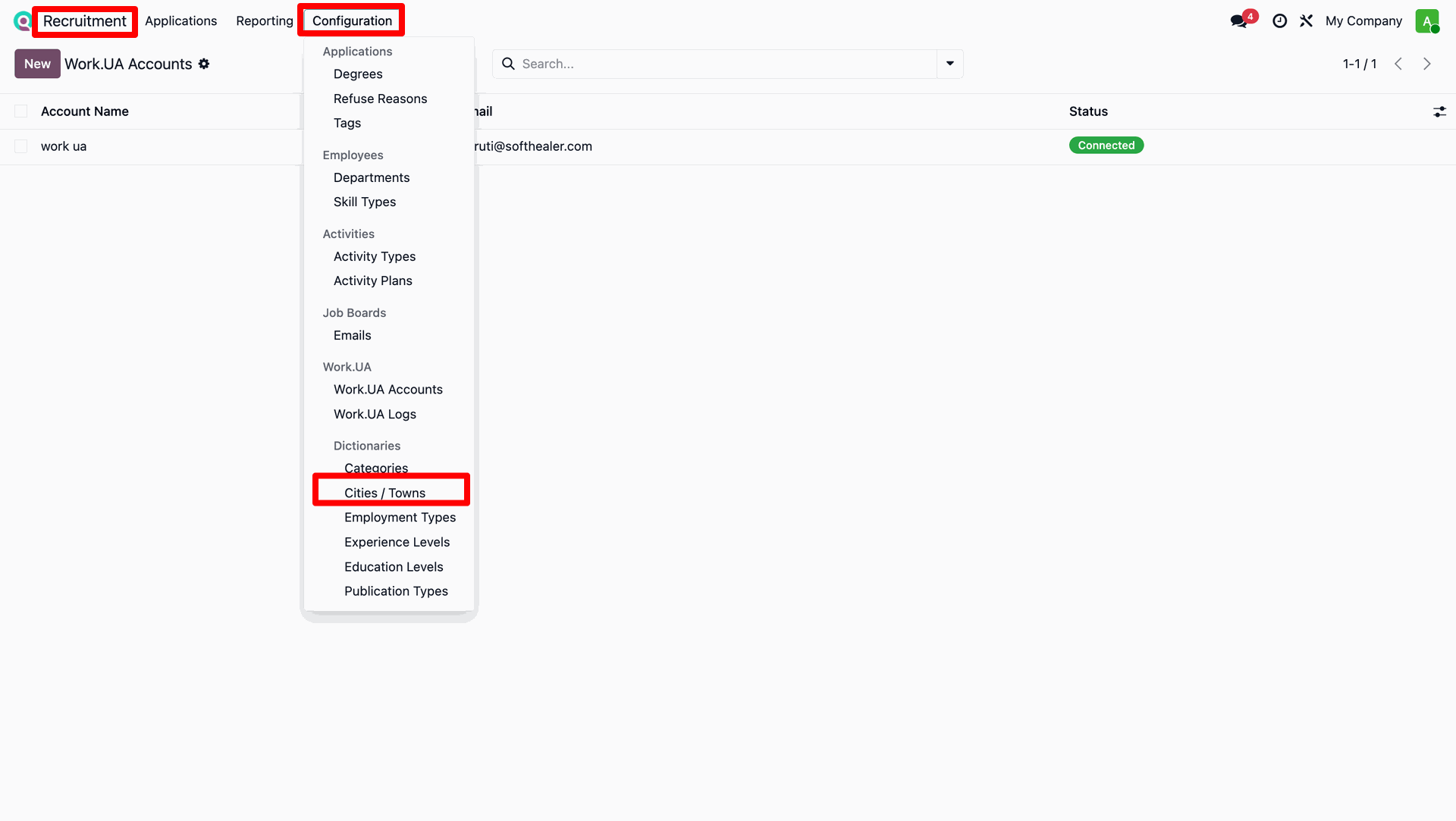
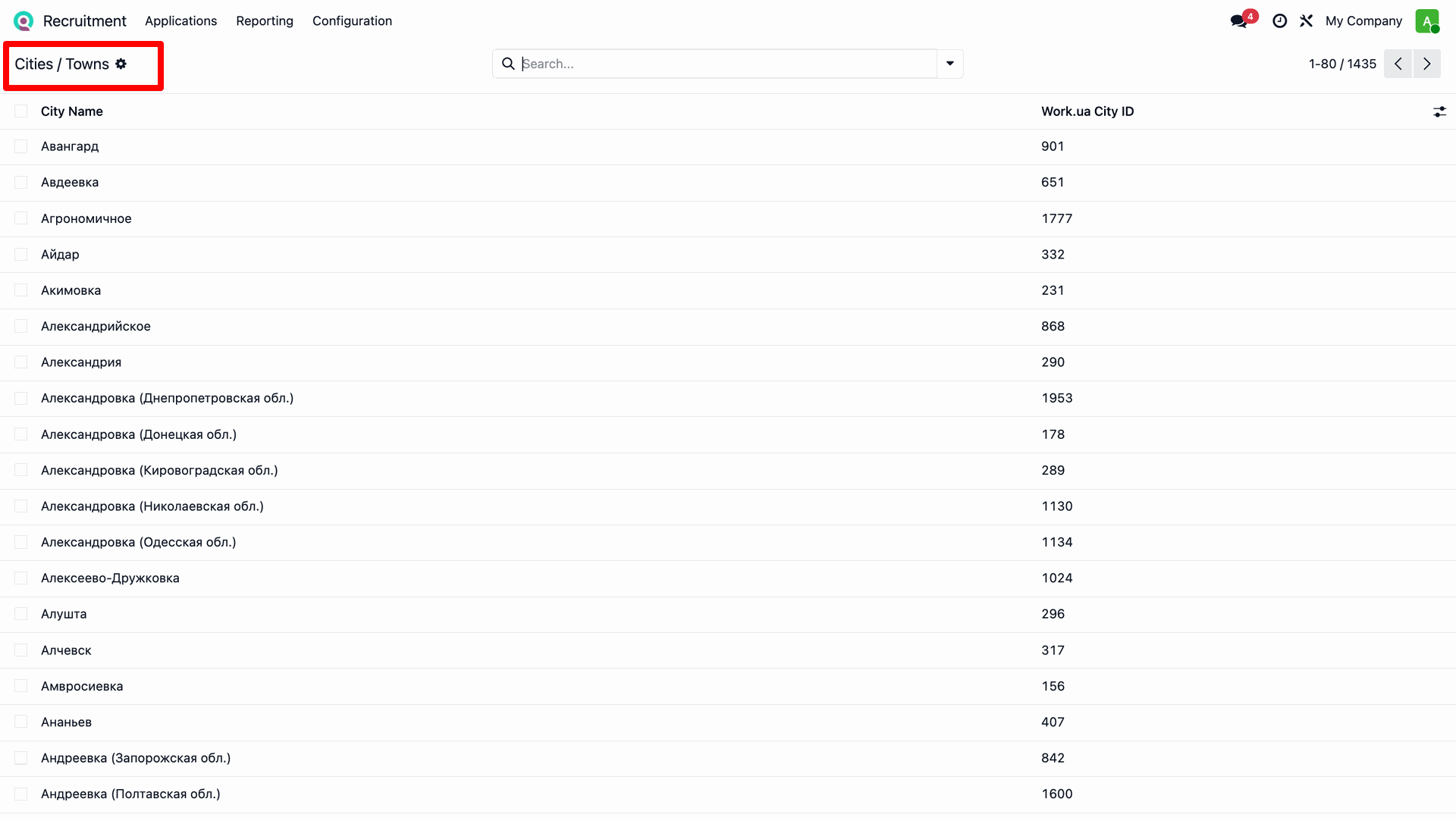
Access the Cities / Towns configuration menu for location mapping.
Review the synchronized Work.UA Cities and Towns catalog list.
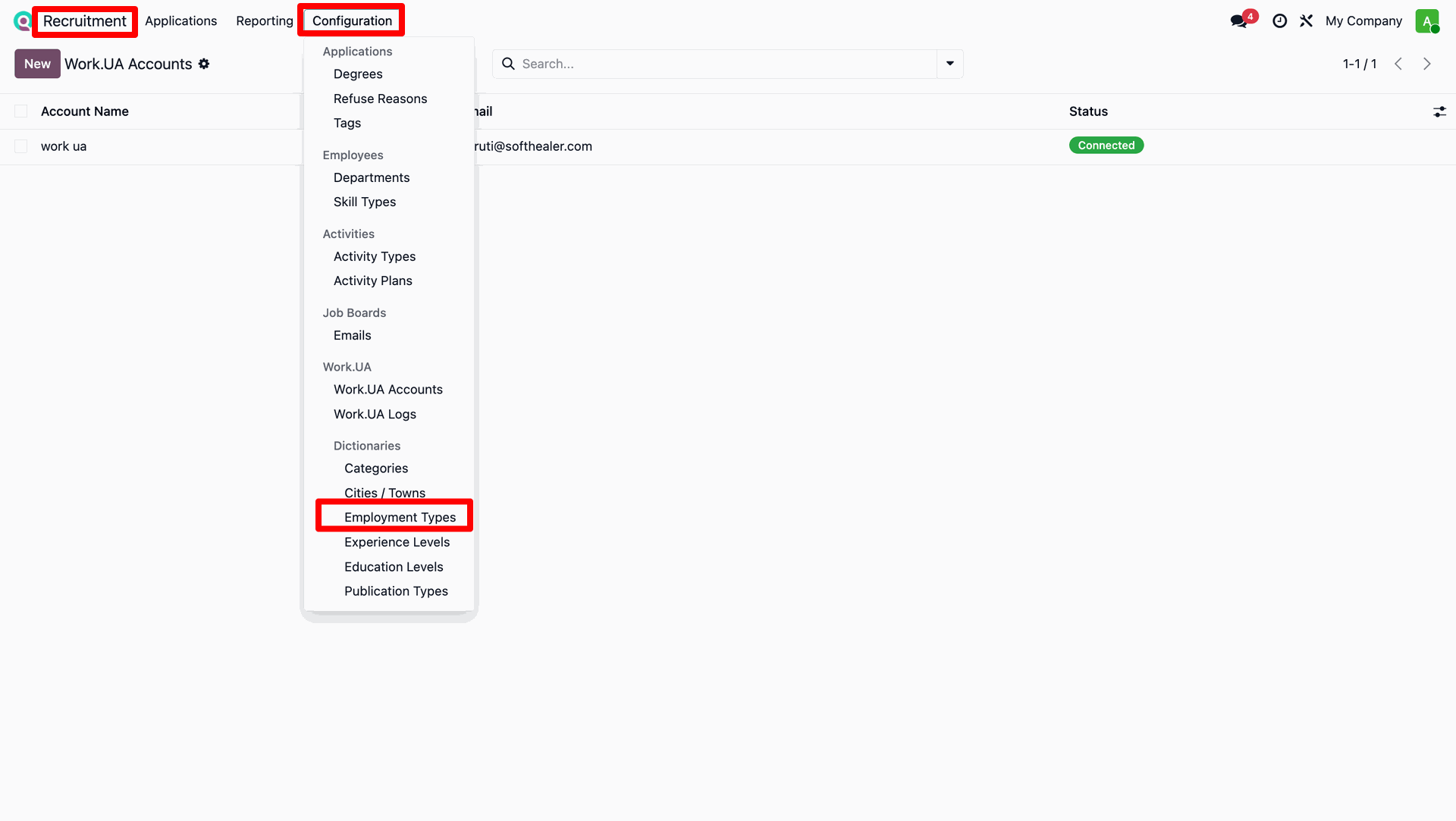
Navigate to Configuration > Employment Types.
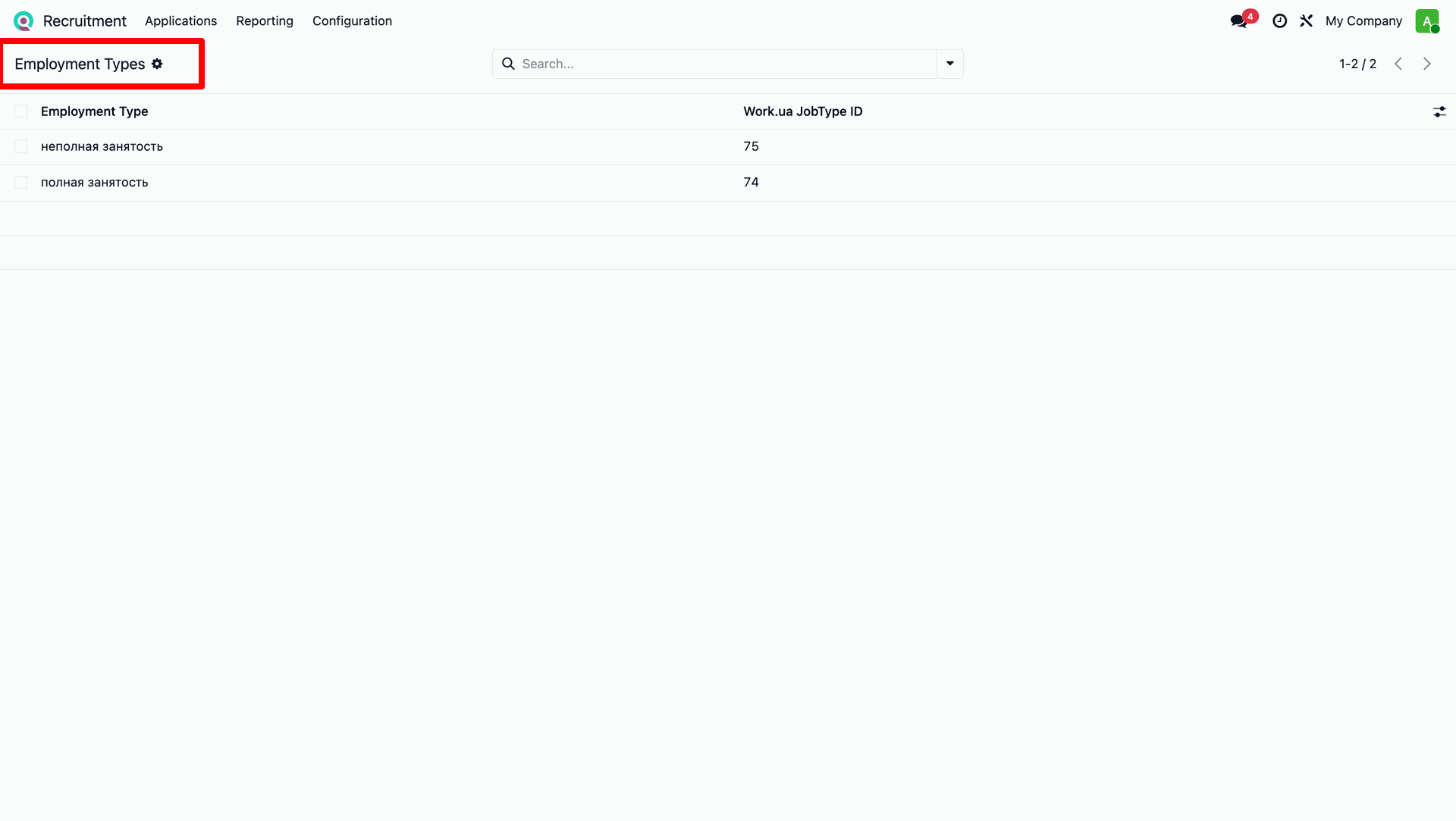
Verify the synchronized Work.UA Employment types list.
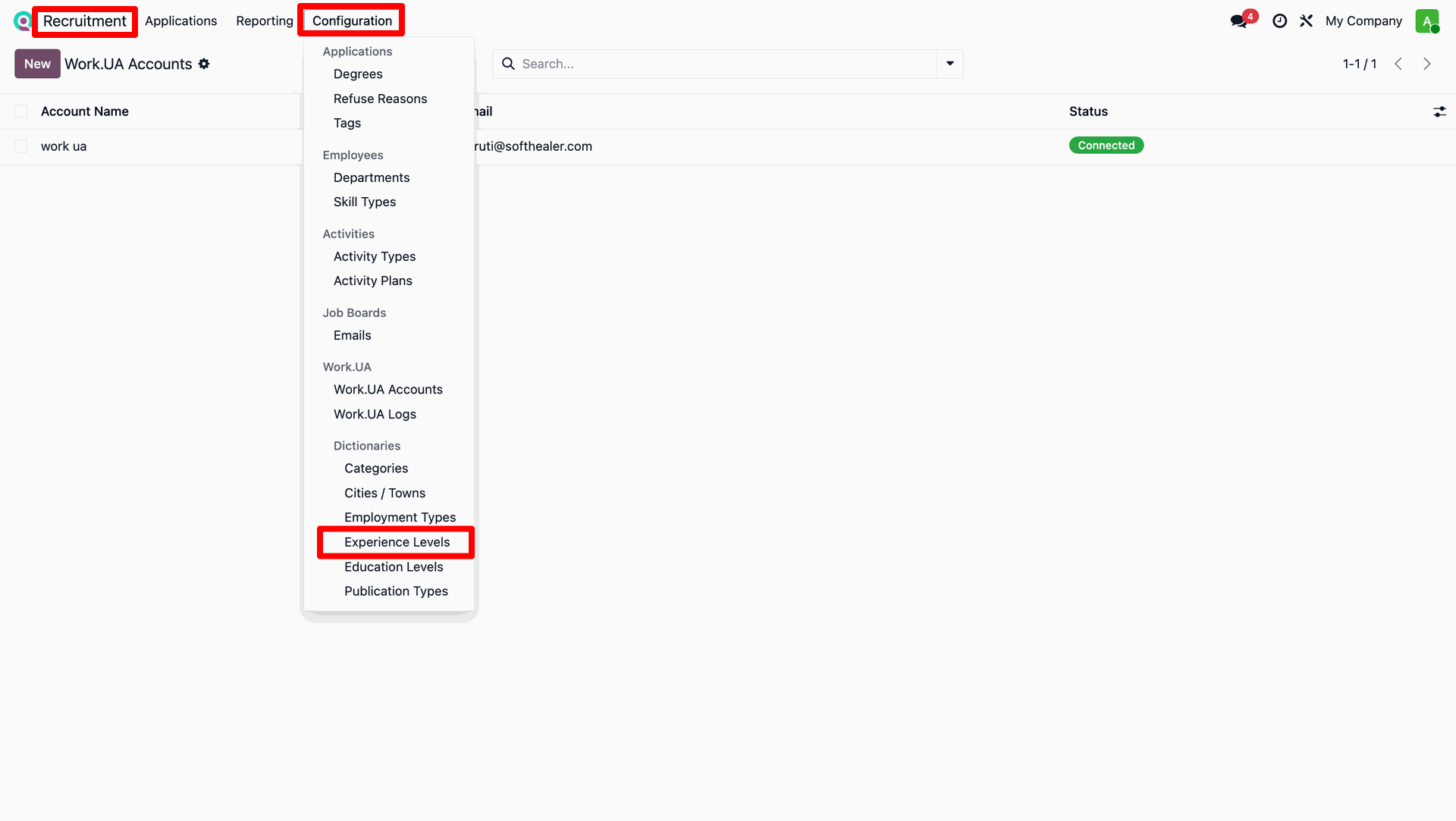
Go to Configuration > Experience Levels to view experience requirements.
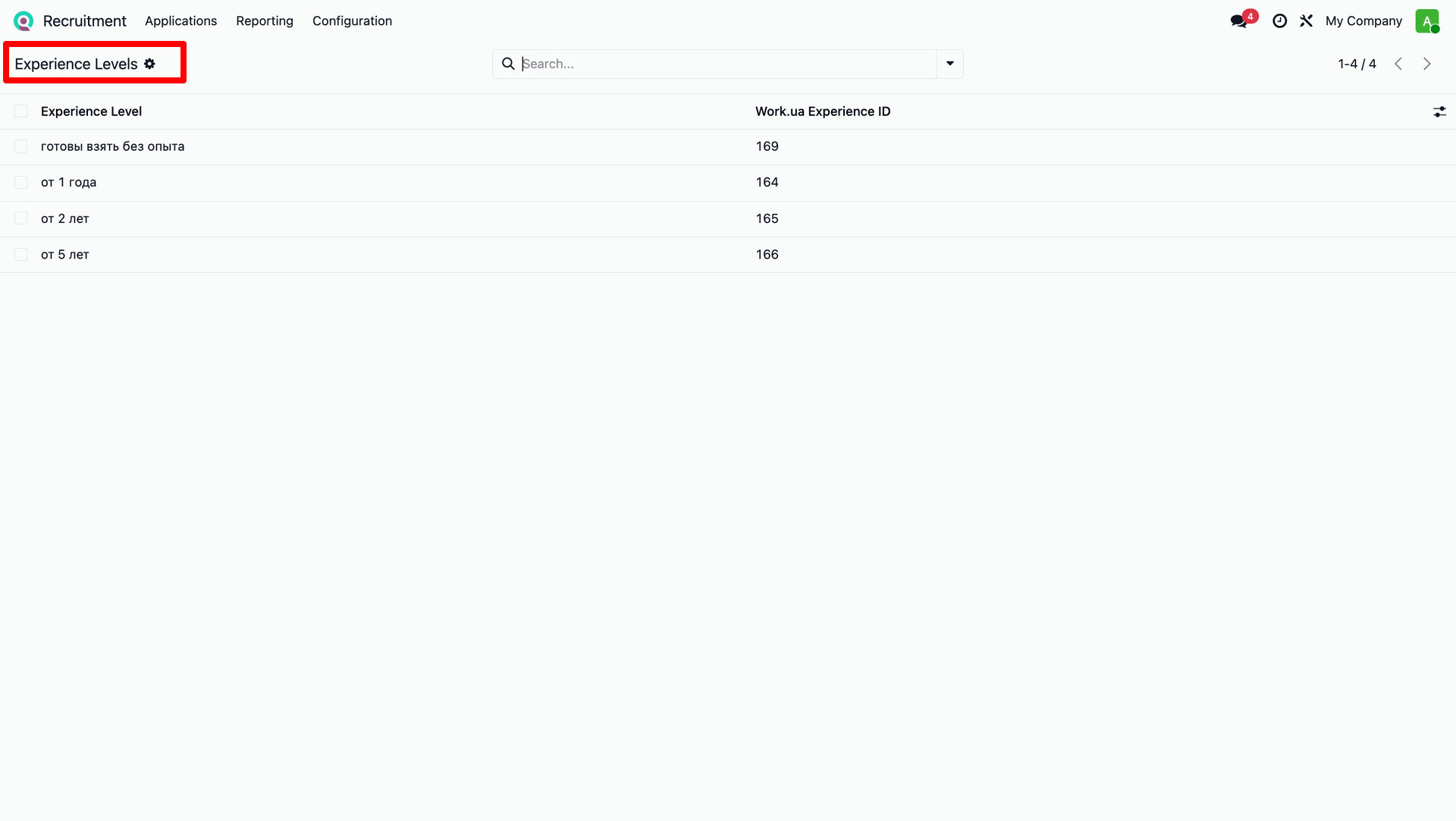
Verify the imported Work.UA Experience level catalog.
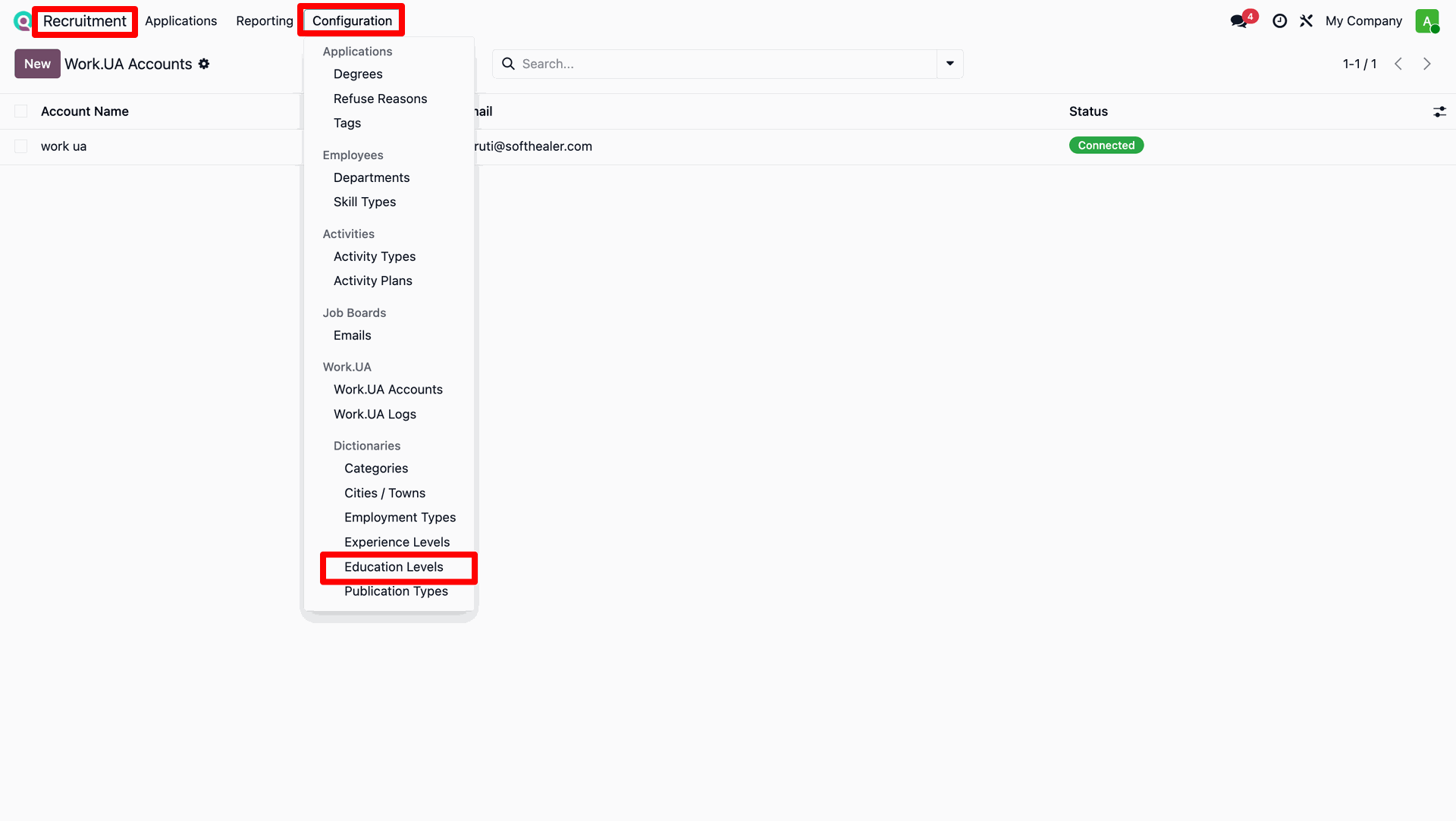
Access the Configuration menu for Education Levels.
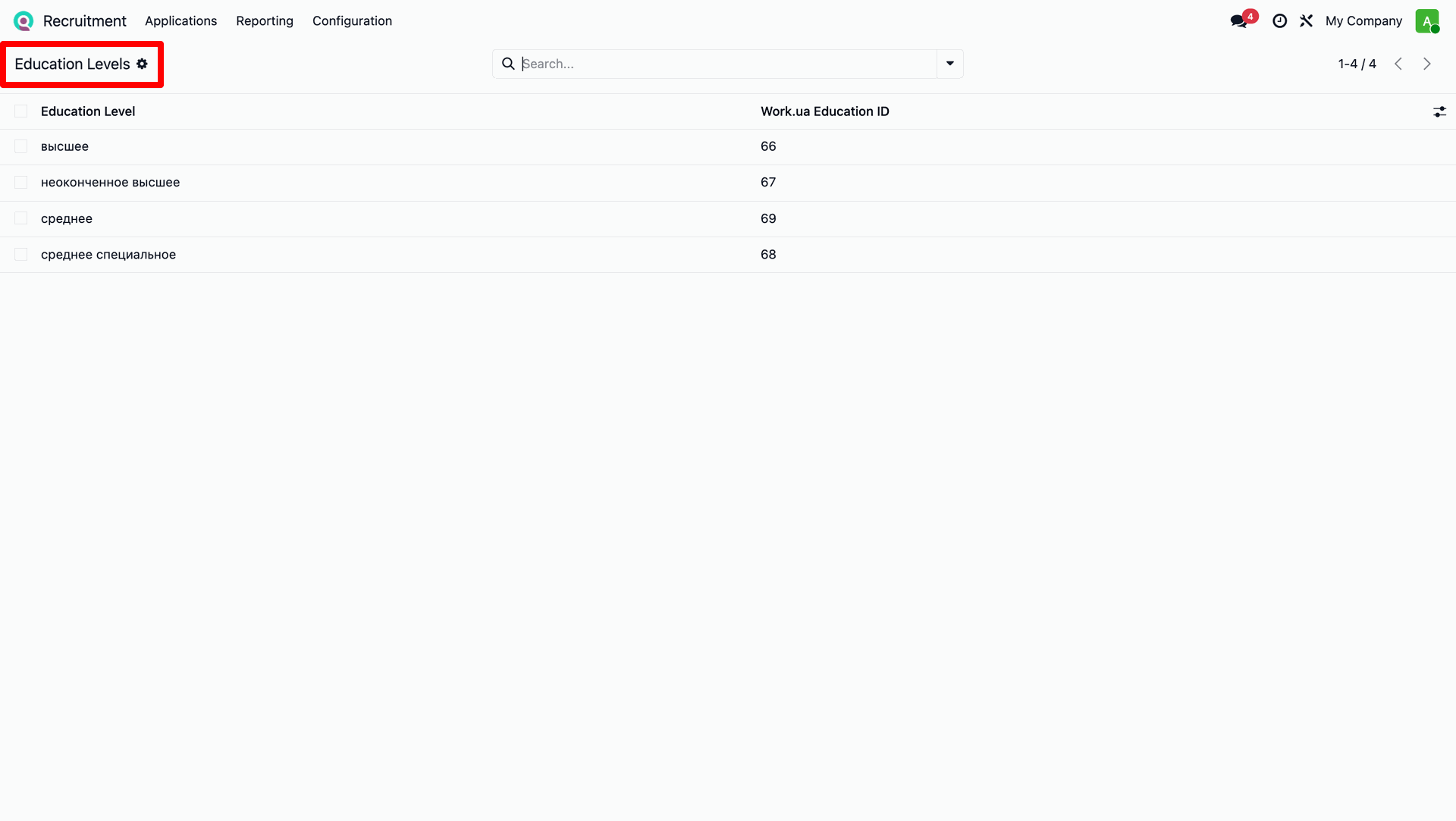
Verify the synchronized Work.UA Education level catalog.
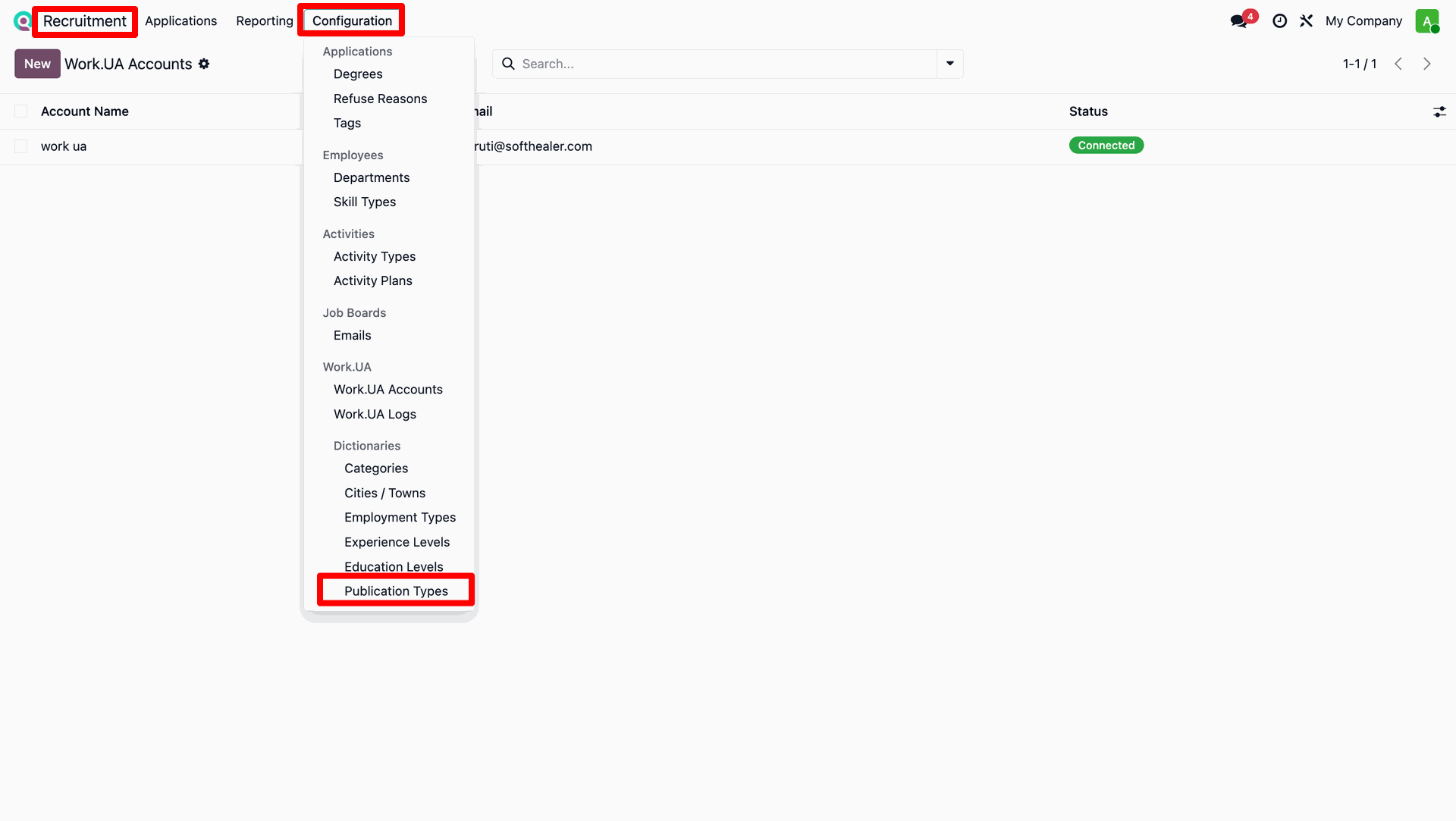
Navigate to Configuration > Publication Types.
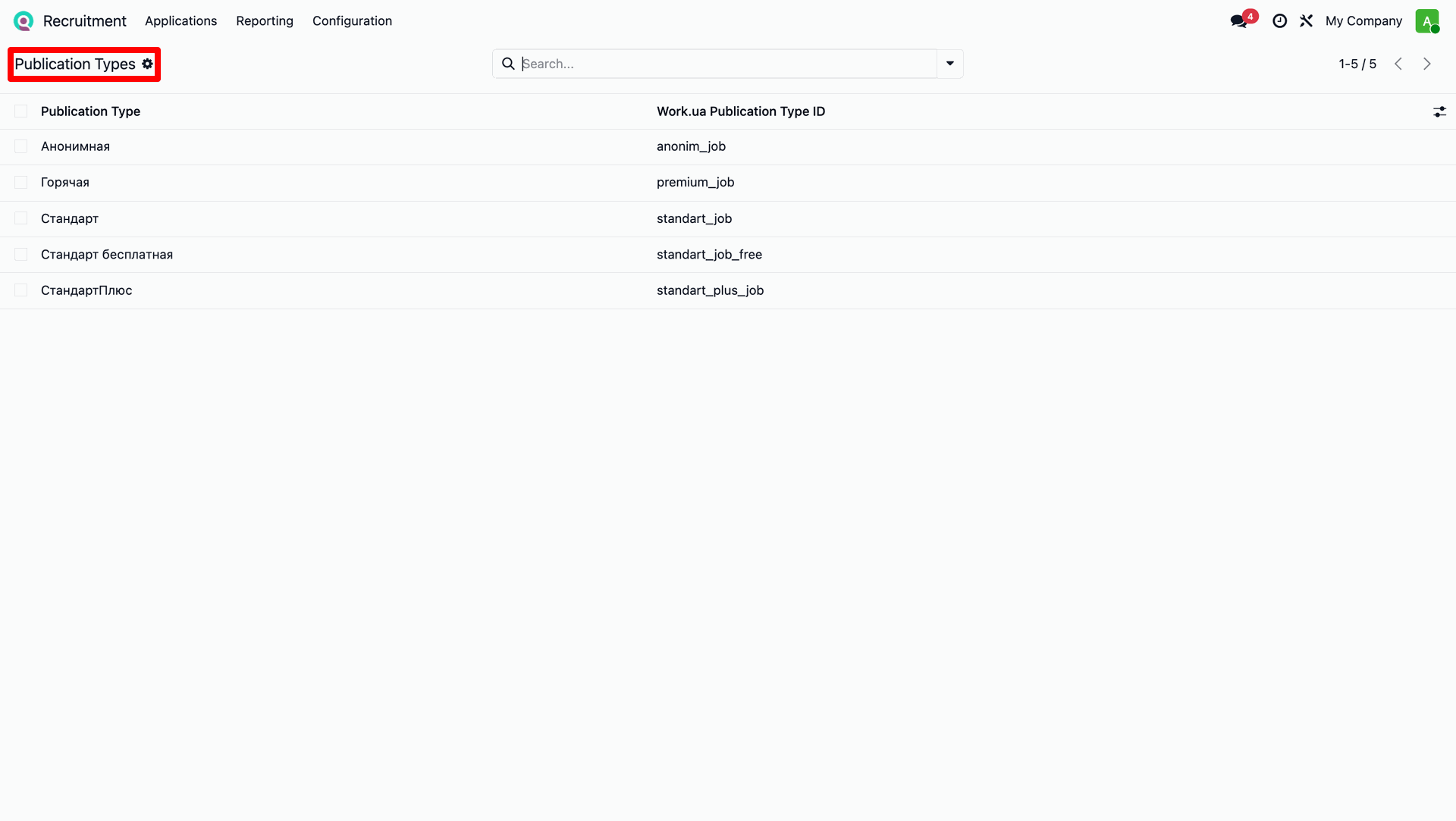
Verify the imported Work.UA Publication types catalog.
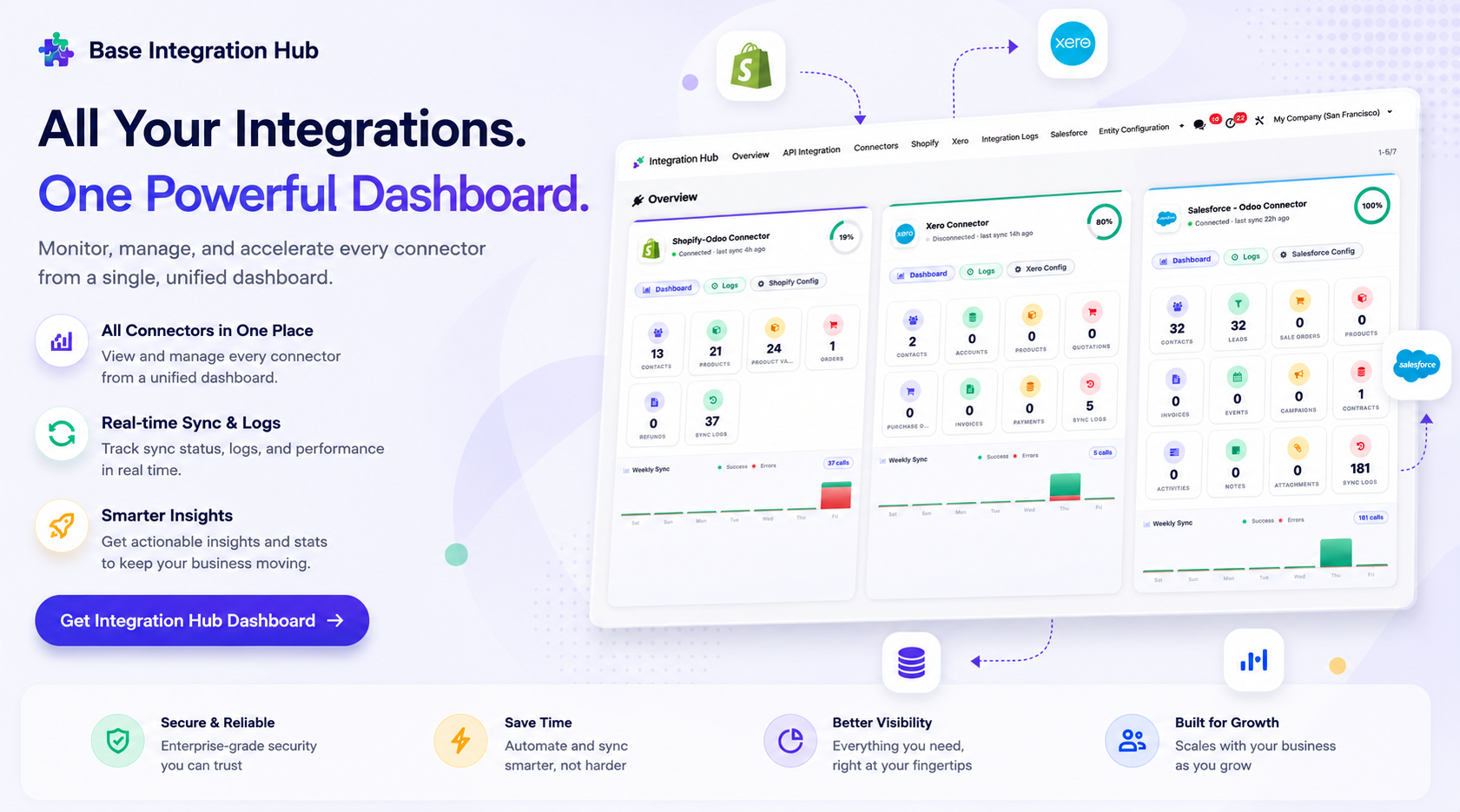
Centralized dashboard to manage and monitor all connectors from one place. Quickly access sync summary, activity logs, and configuration controls with improved visibility.
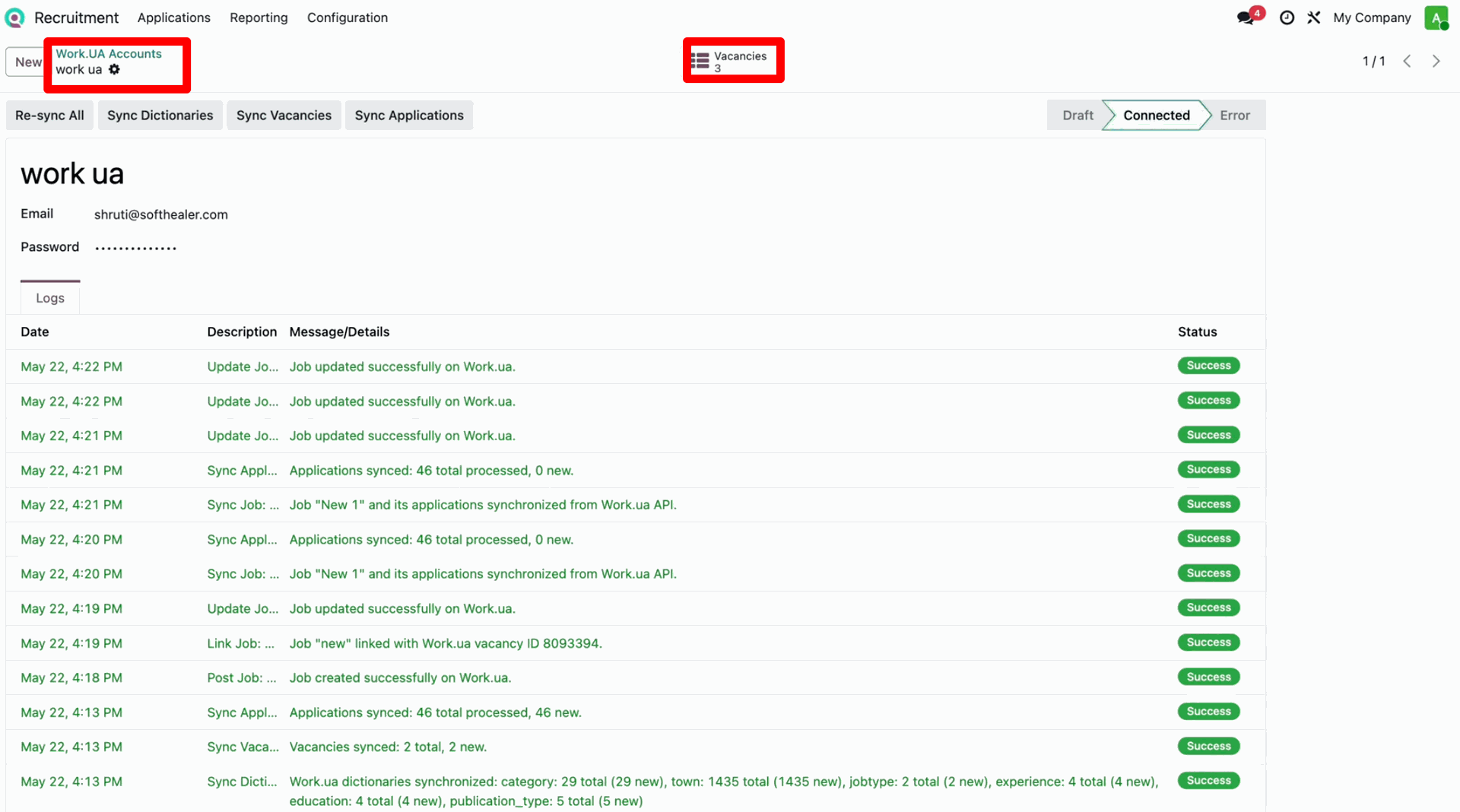
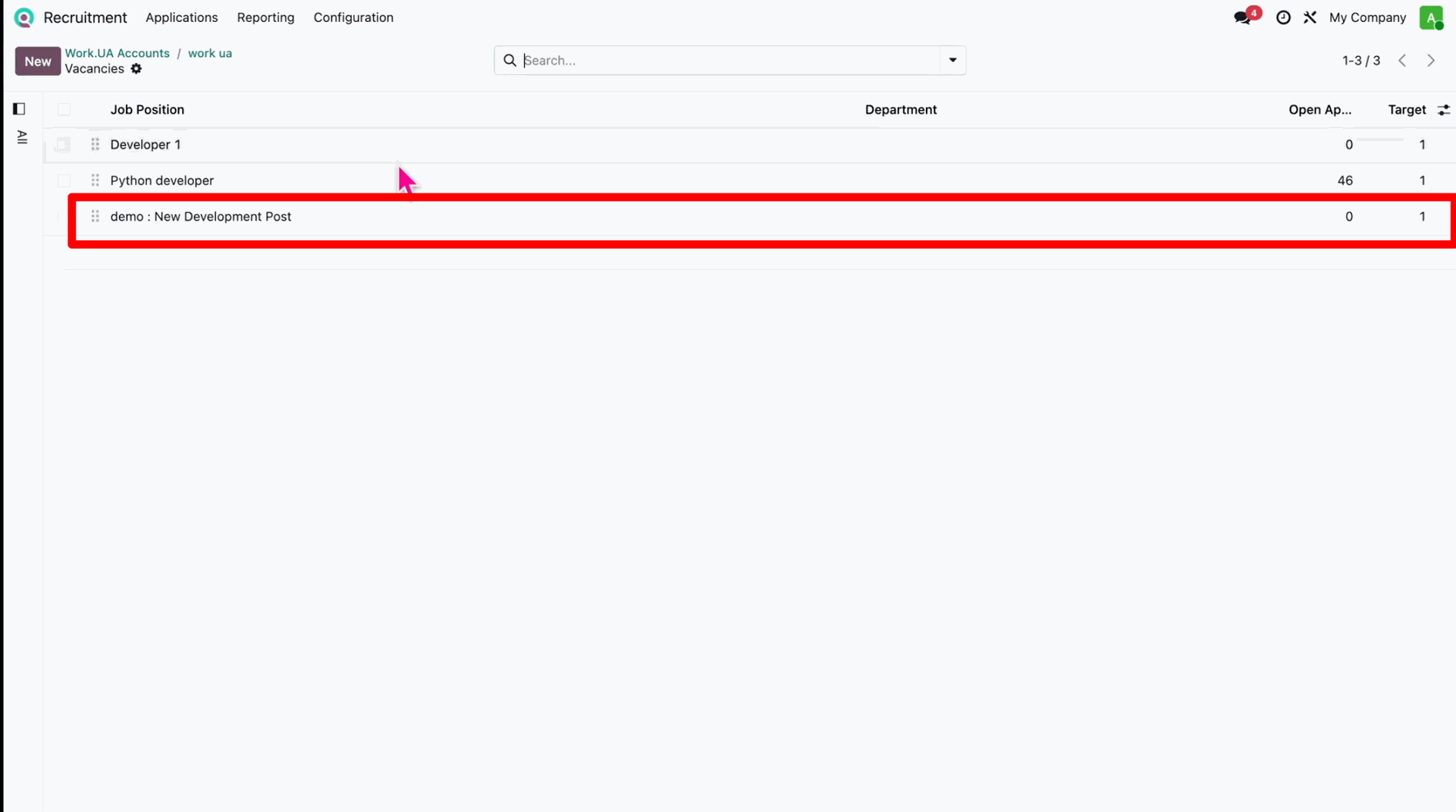
Navigate to the Work.UA Accounts and click on the 'Vacancies' smart button to view all synchronized job postings.
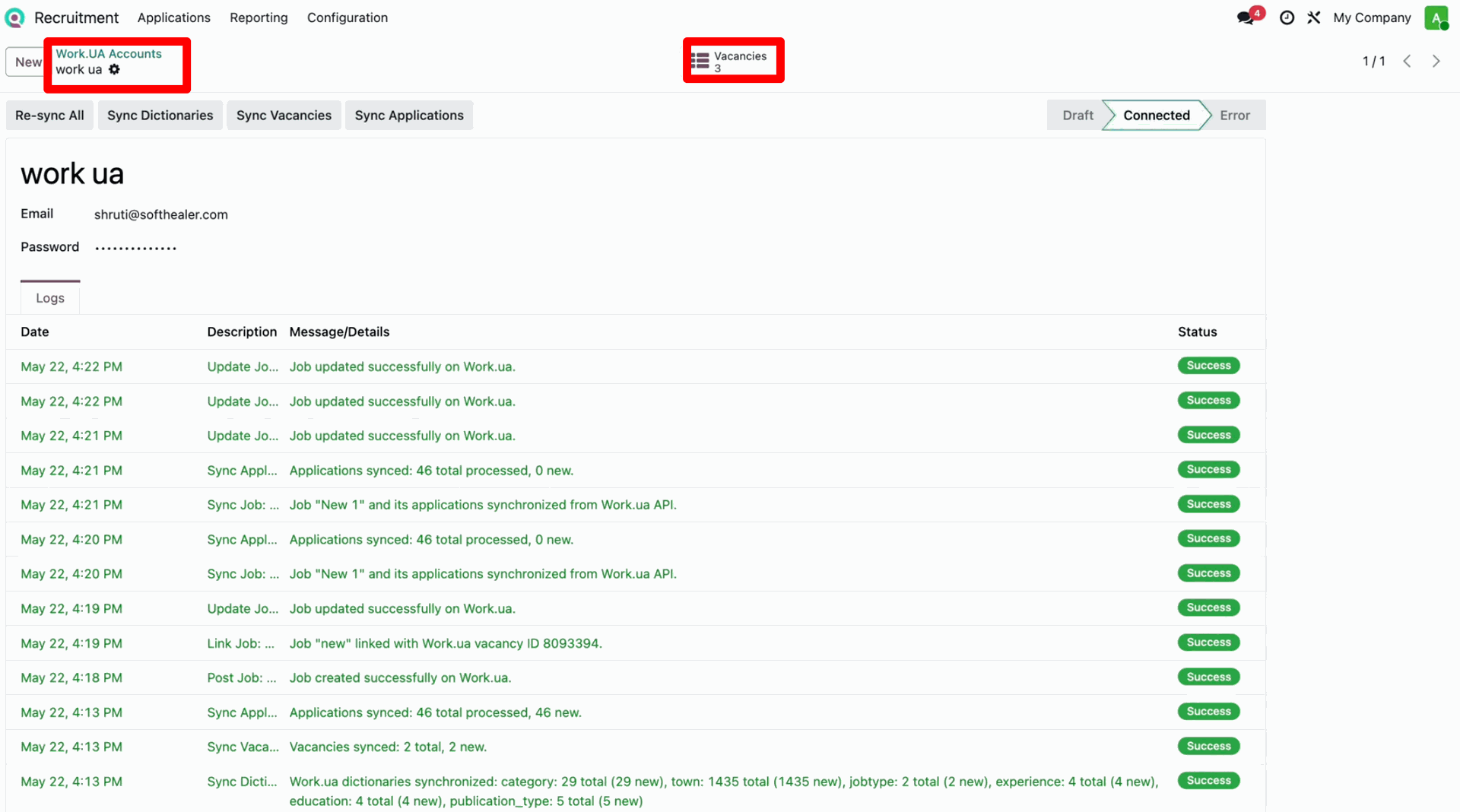
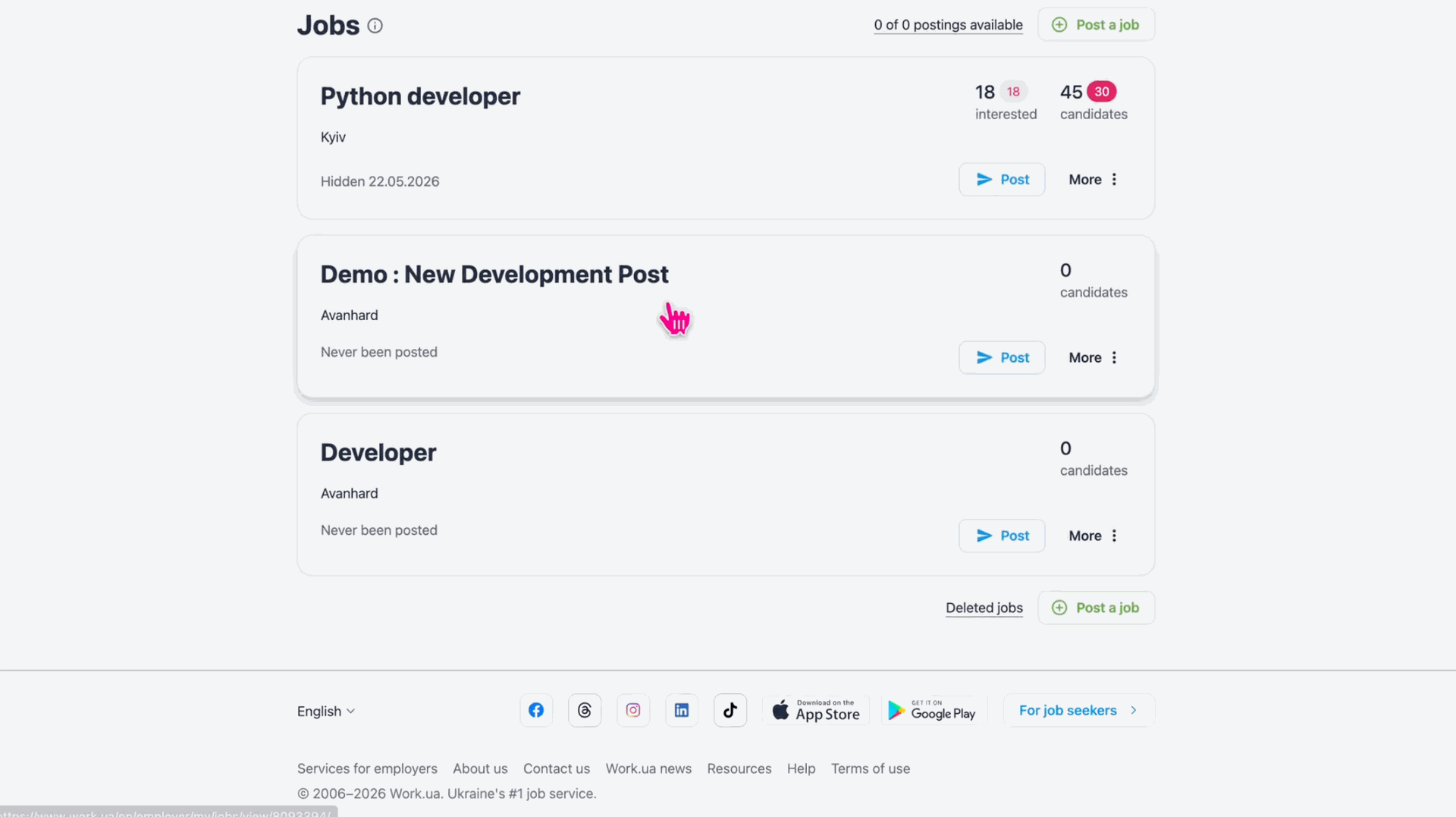
You can verify your active job postings directly from your Work.UA employer dashboard.
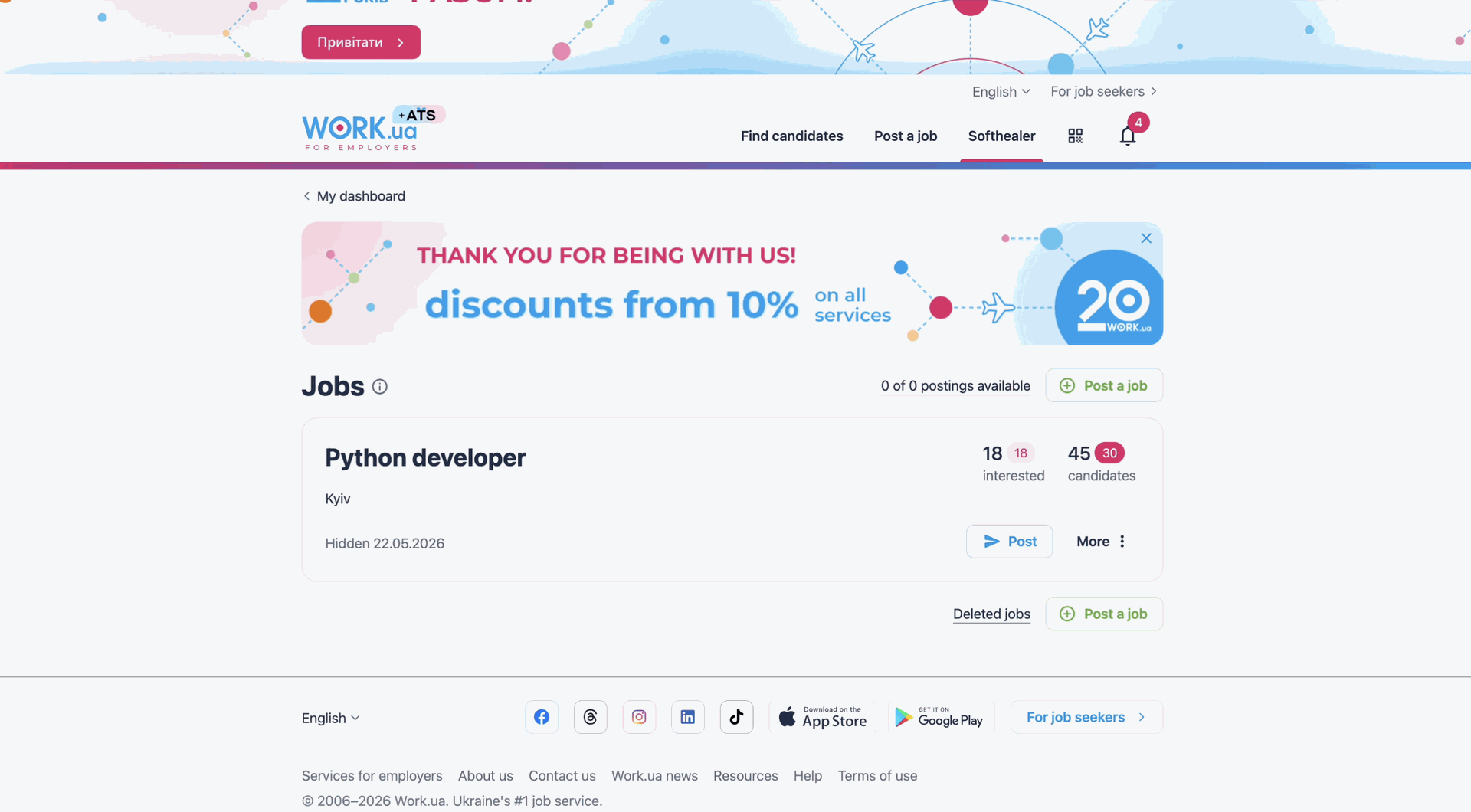
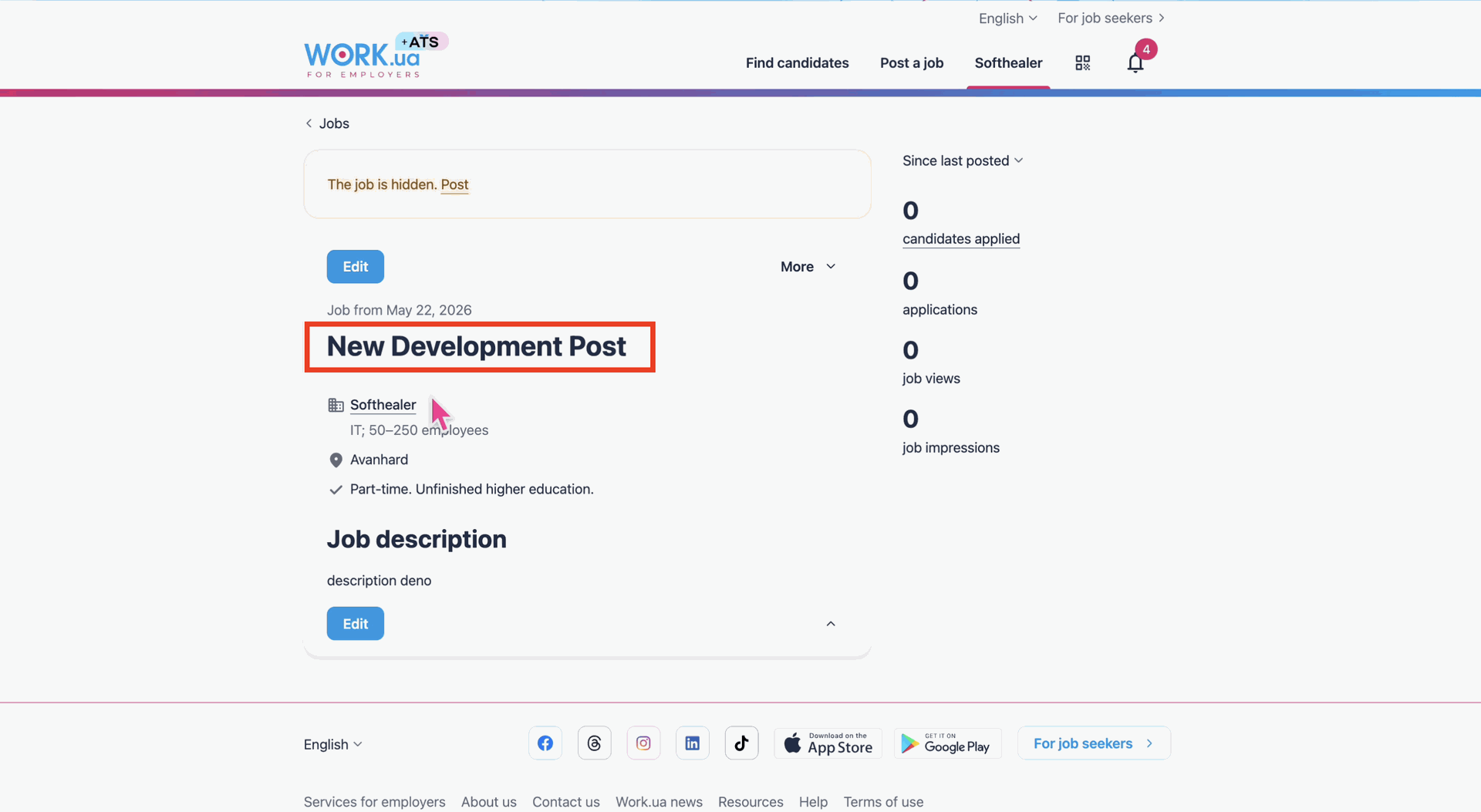
To publish a new job, click the 'Post to Work.UA' action button directly on the Job Position form.
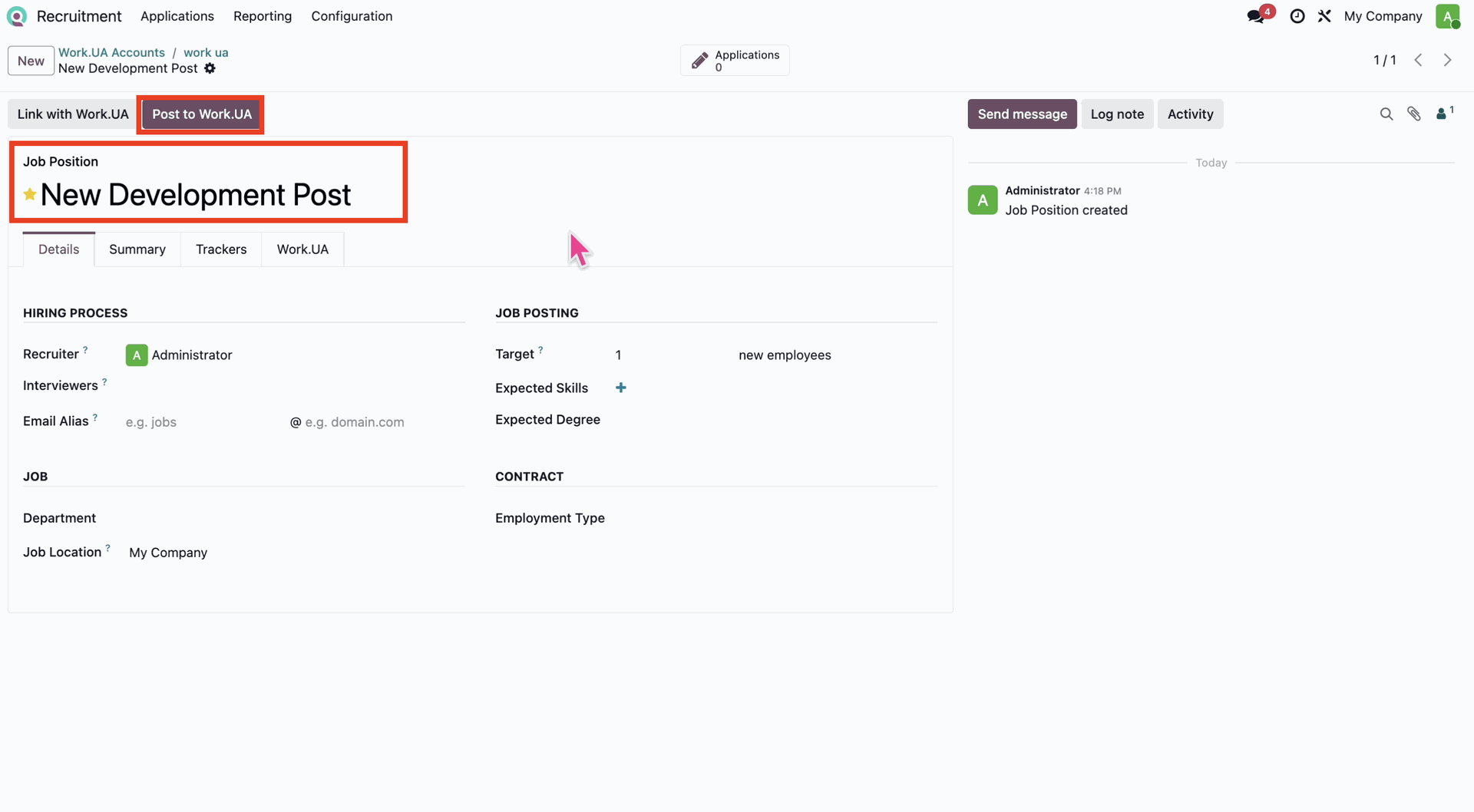
After posting, you can confirm that the new vacancy is successfully listed on the Work.UA portal.
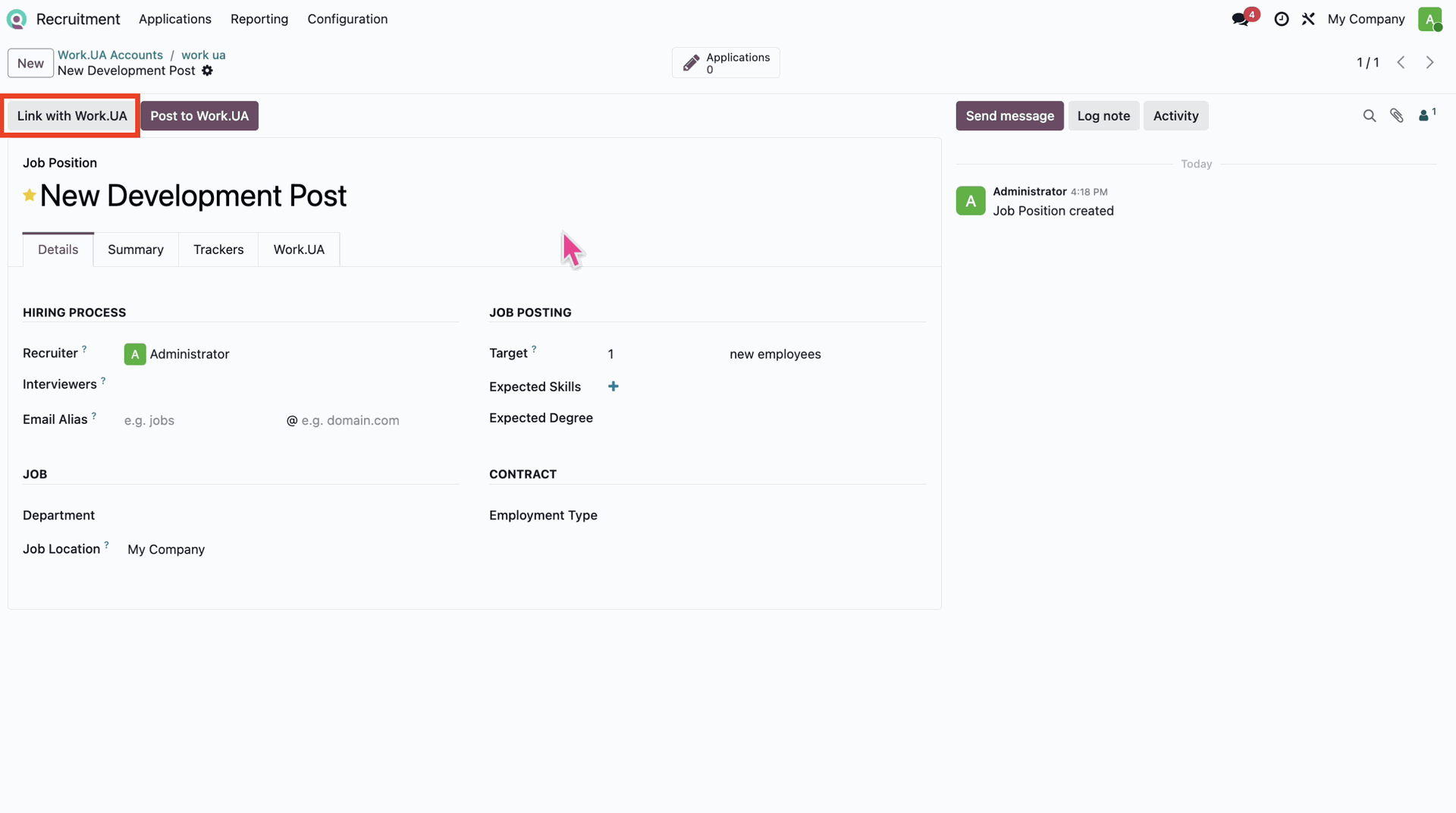
To link an existing Work.UA job, use the 'Link with Work.UA' button on a corresponding Job Position in Odoo.
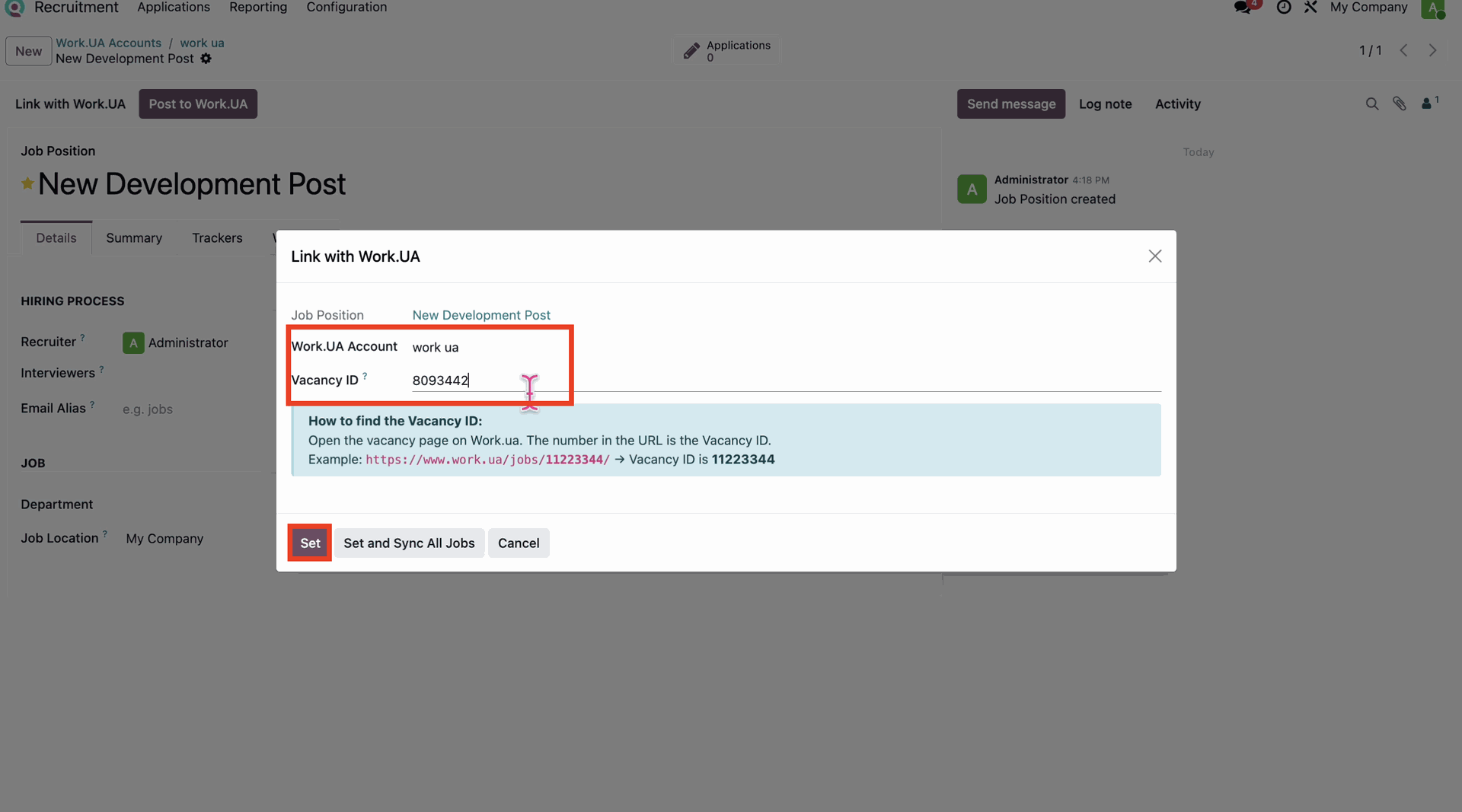
In the wizard, provide your Work.UA Account and the specific Vacancy ID from the portal to establish the link.
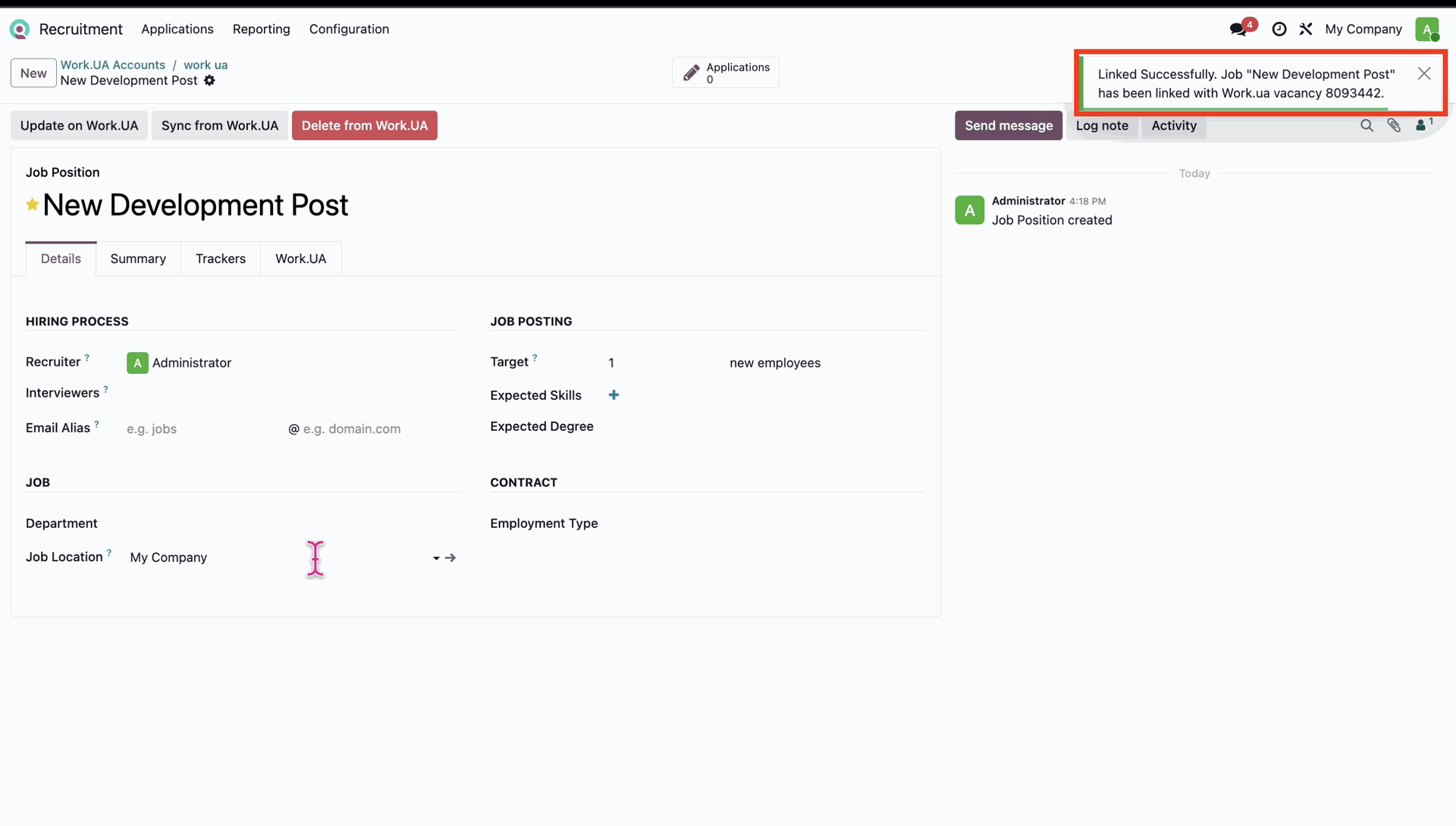
A success message will confirm that the Job Position has been successfully linked with the Work.UA vacancy.
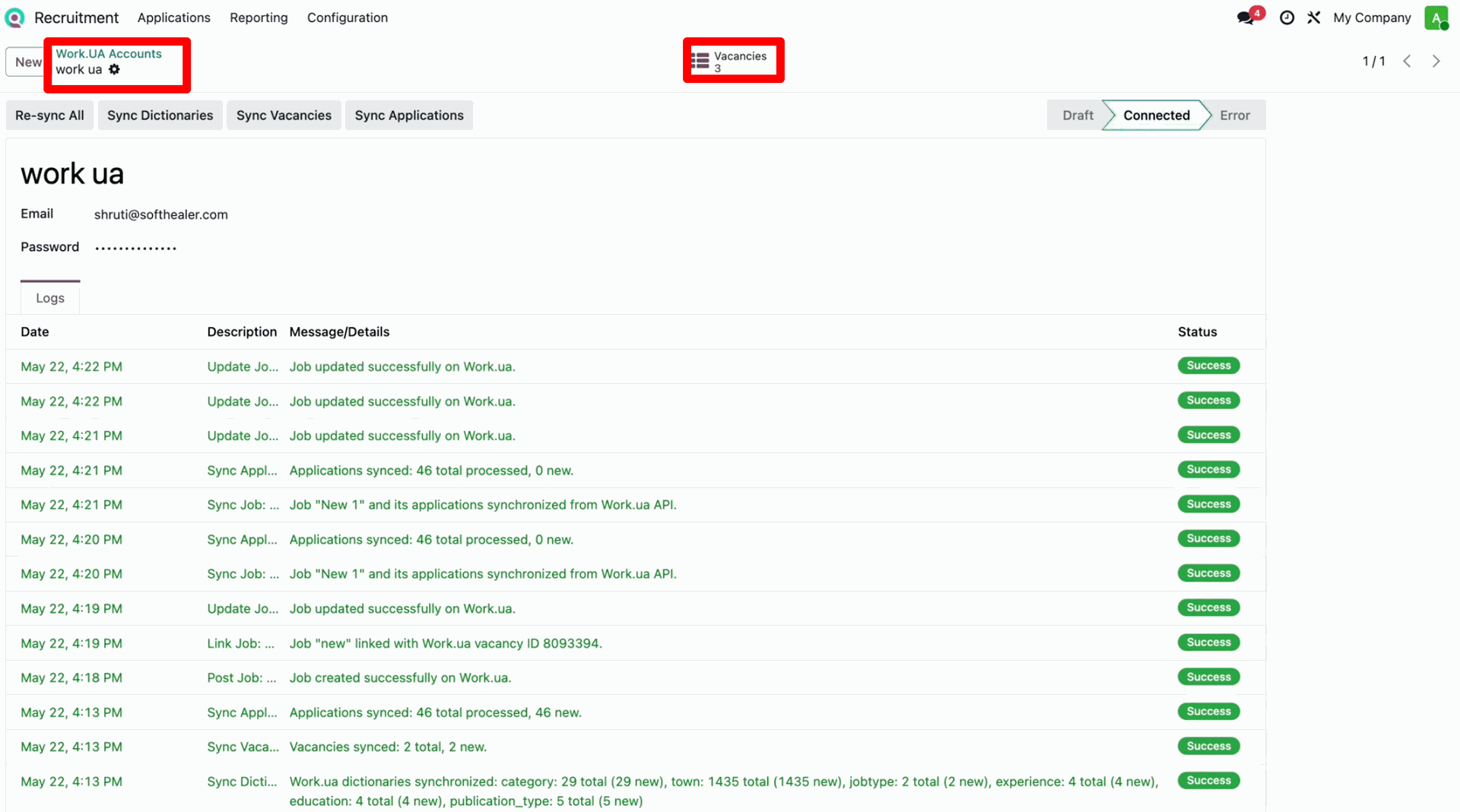
Navigate to Work.UA Accounts and click the 'Vacancies' smart button to view jobs.
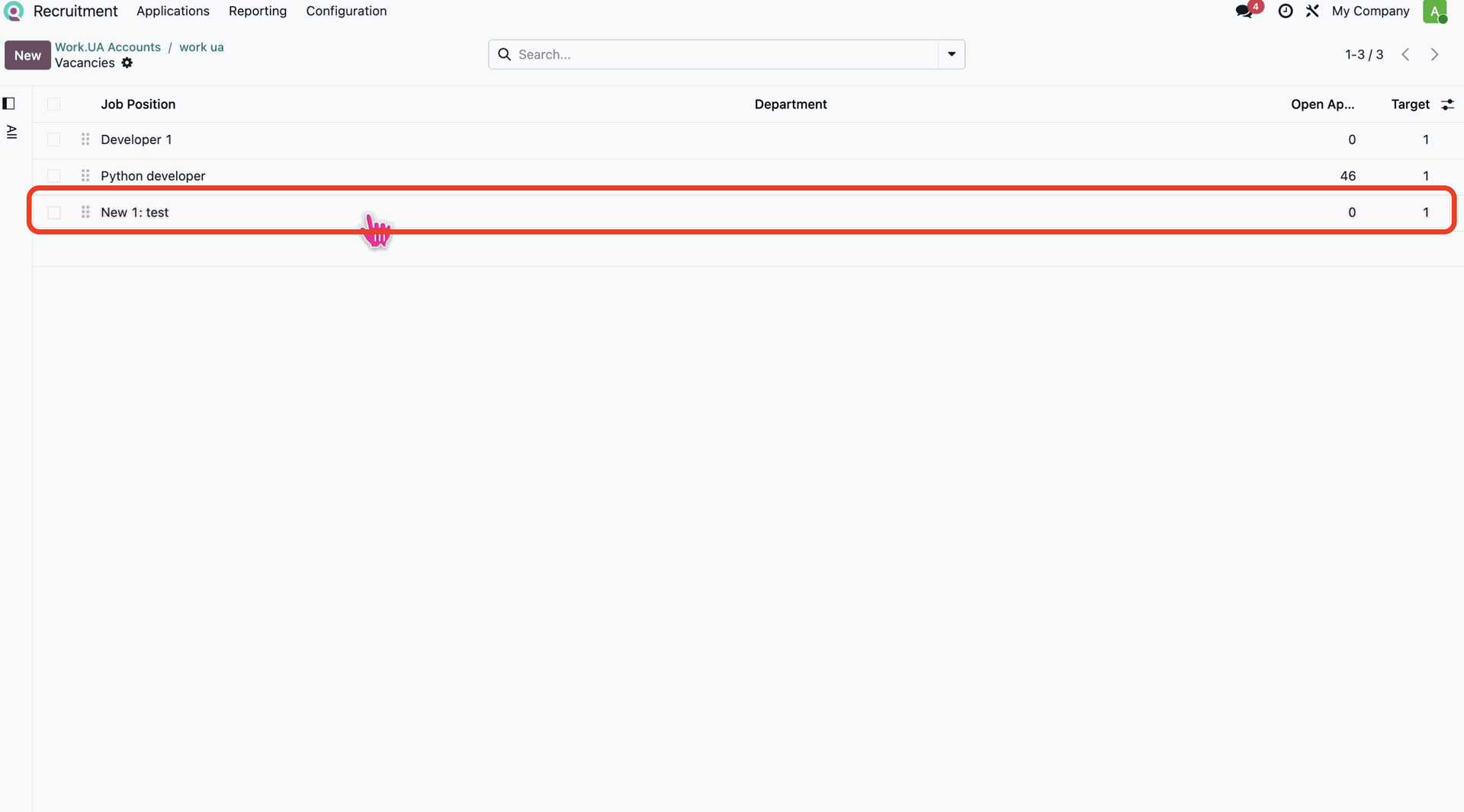
Select the job position from the Vacancies list to view or update it.
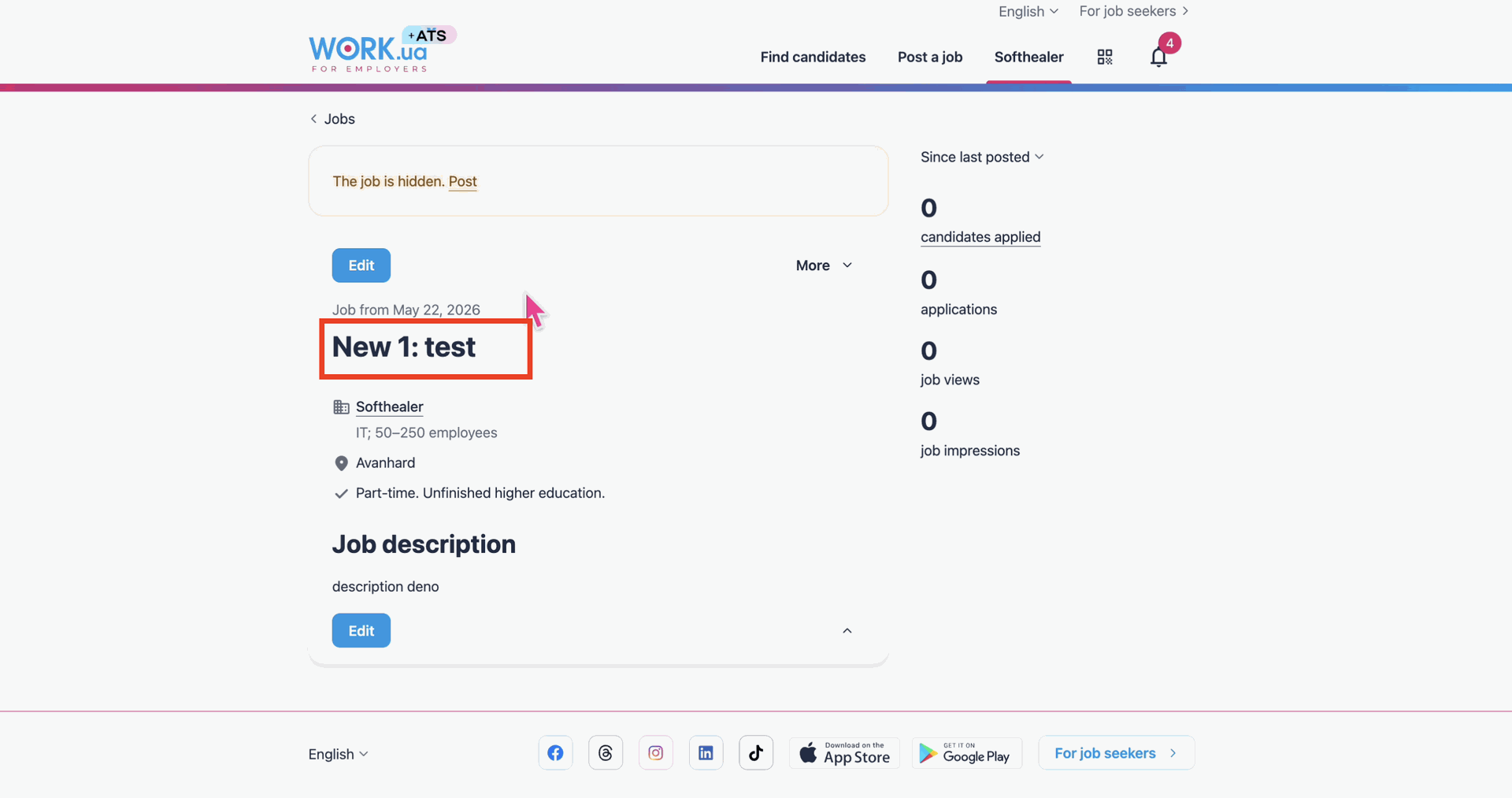
View the updated details of the job vacancy on the Work.UA portal.
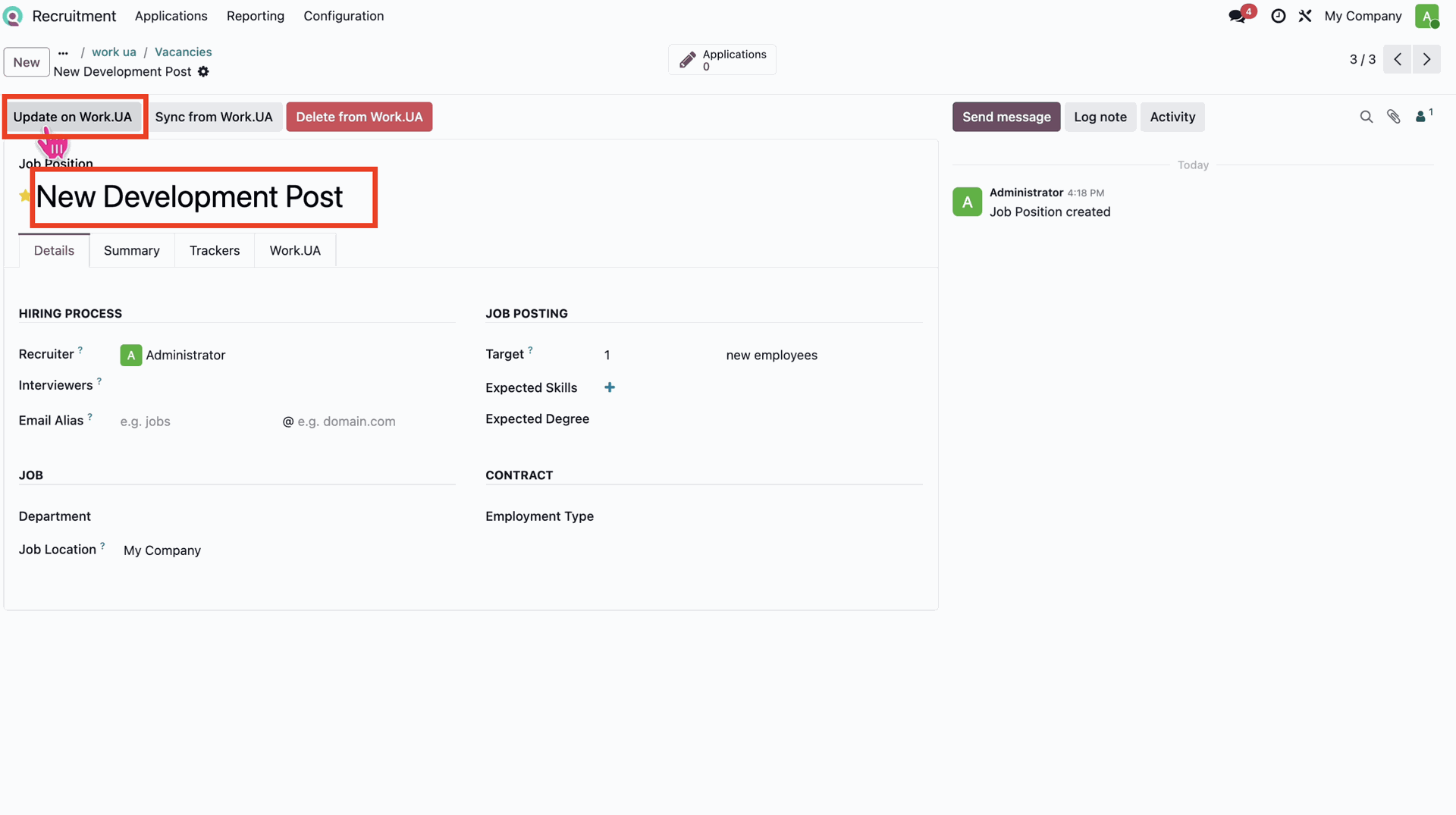
In Odoo, click the 'Update on Work.UA' button on the Job Position form.
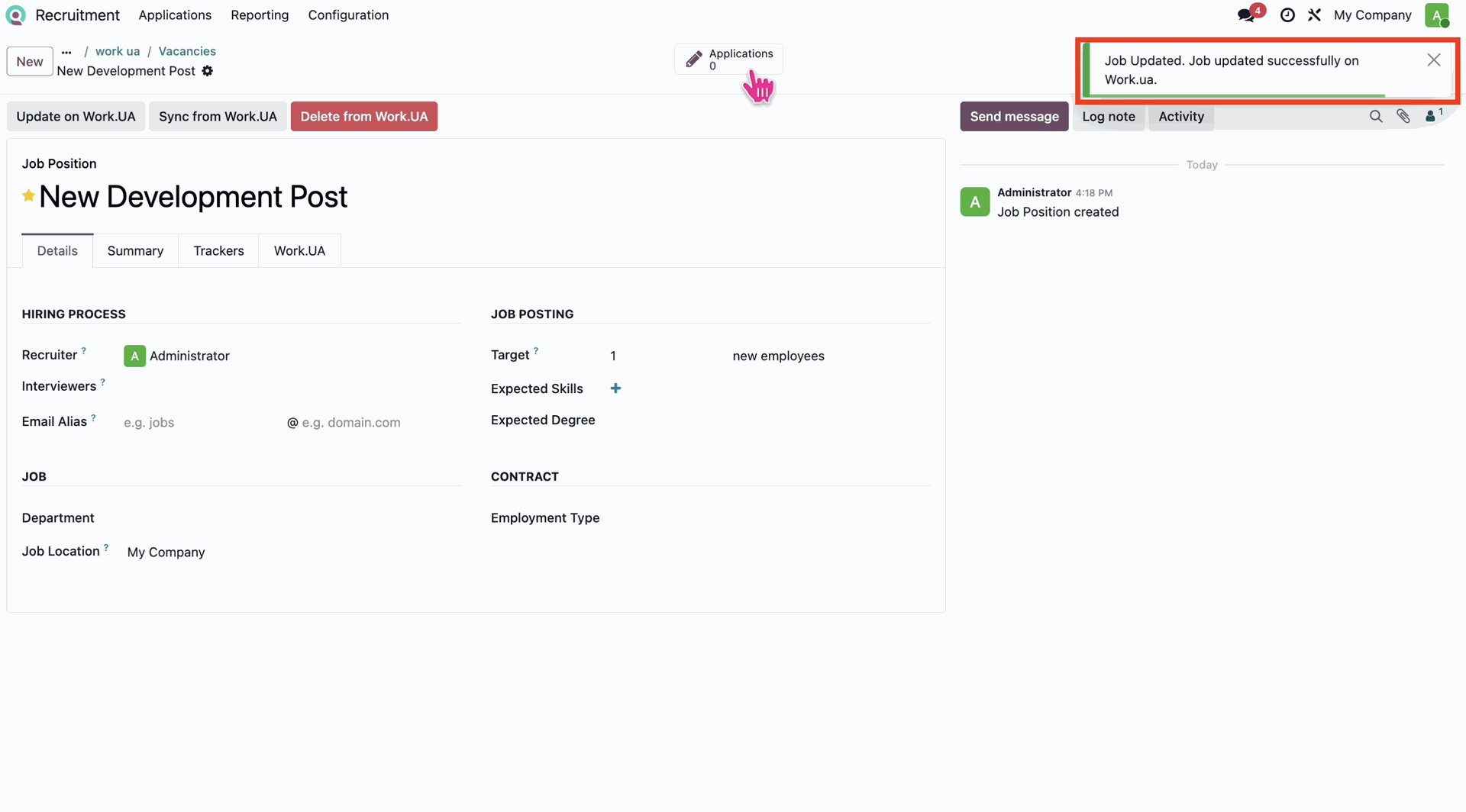
Notice the success notification 'Job Updated...' on the form.
Check the updated vacancy on the Work.UA portal to ensure all details are synced correctly.
Go to the Work.UA Accounts and click on the 'Vacancies' smart button.
Before deleting, you can see the active job post on the Work.UA portal.
Select the job position you want to delete from the Odoo vacancies list.
Click the 'Delete from Work.UA' button on the Job Position form.
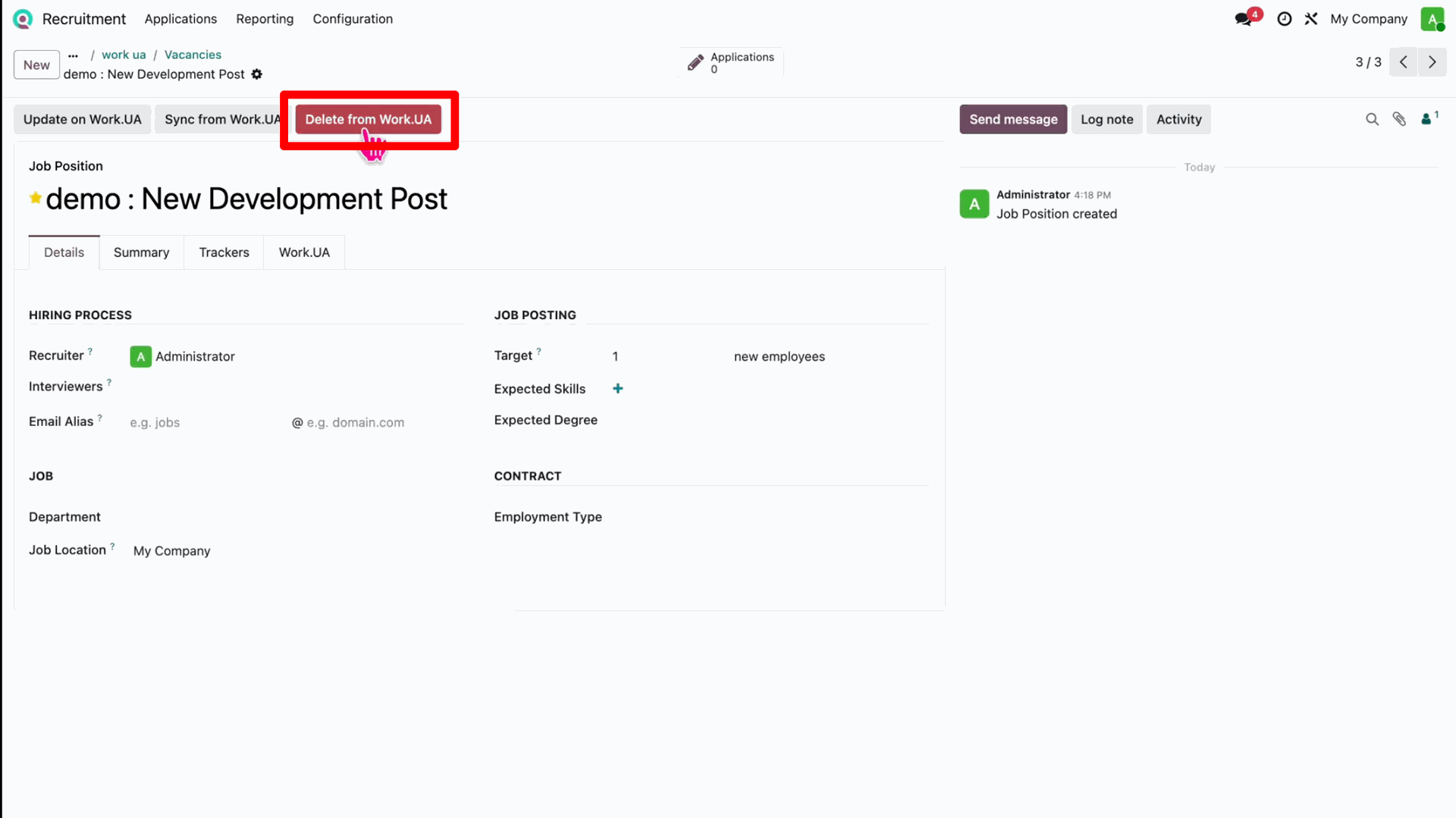
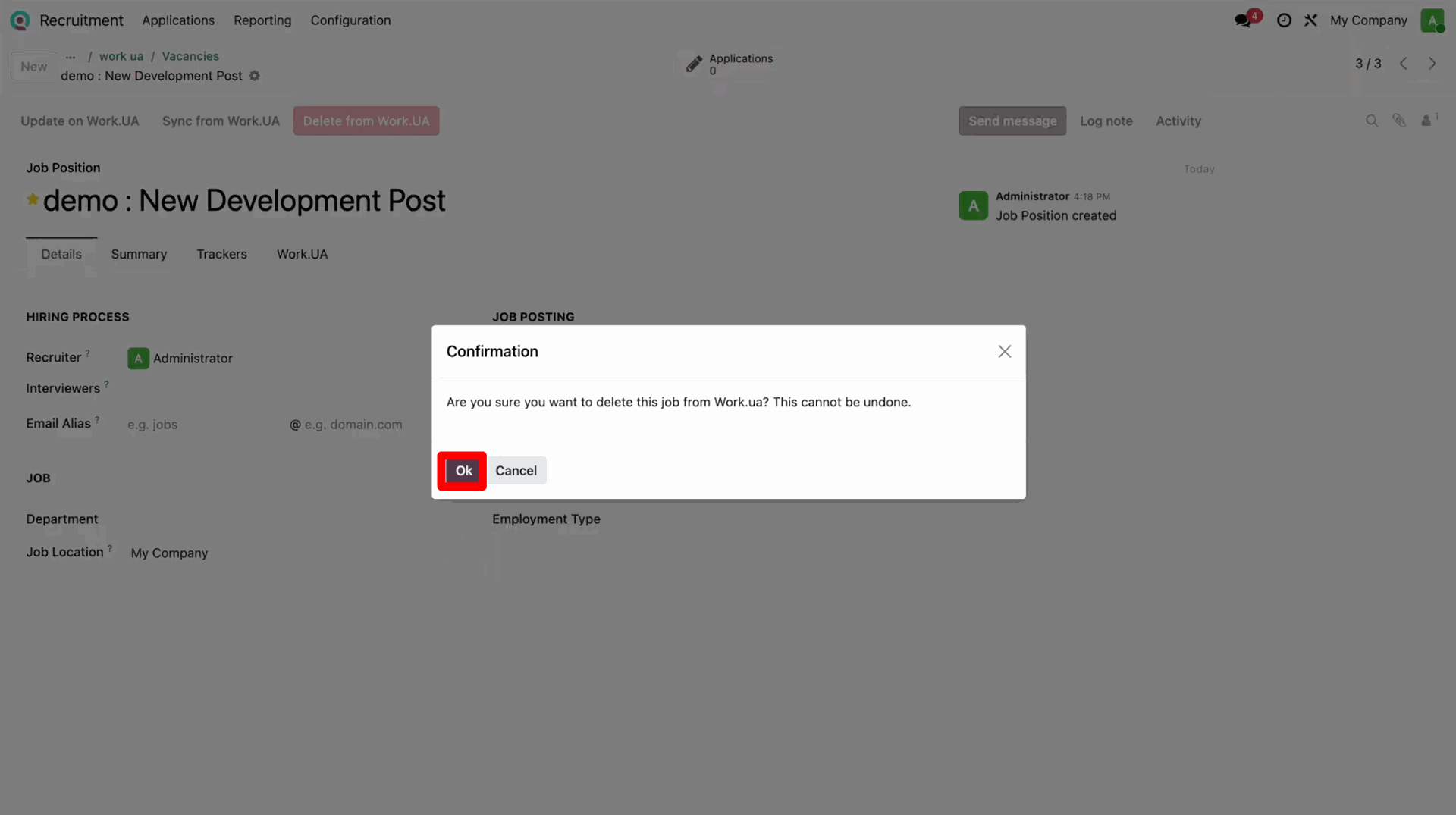
Confirm the deletion by clicking 'Ok' on the popup.
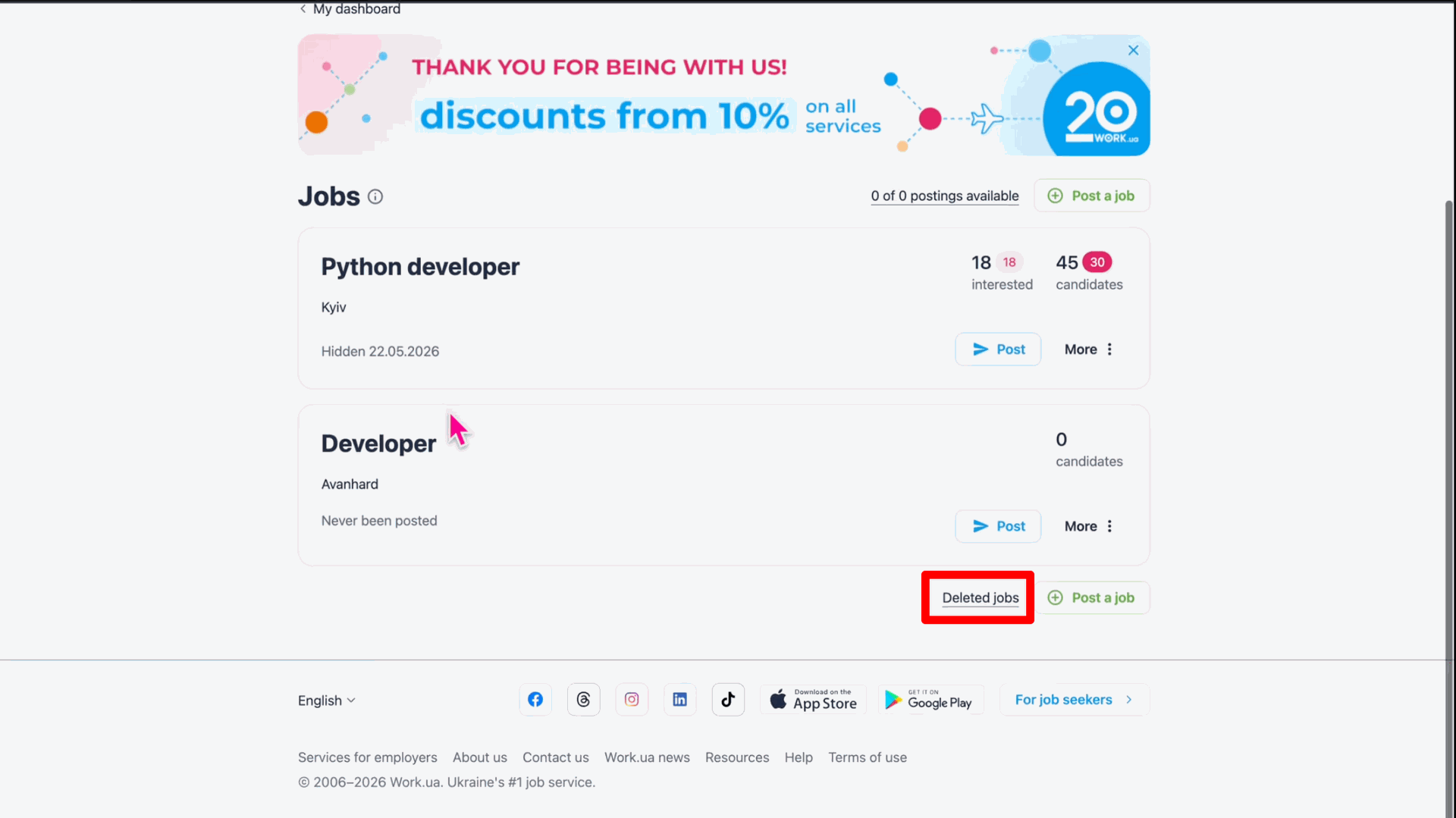
You can navigate to the 'Deleted jobs' section on the Work.UA portal.
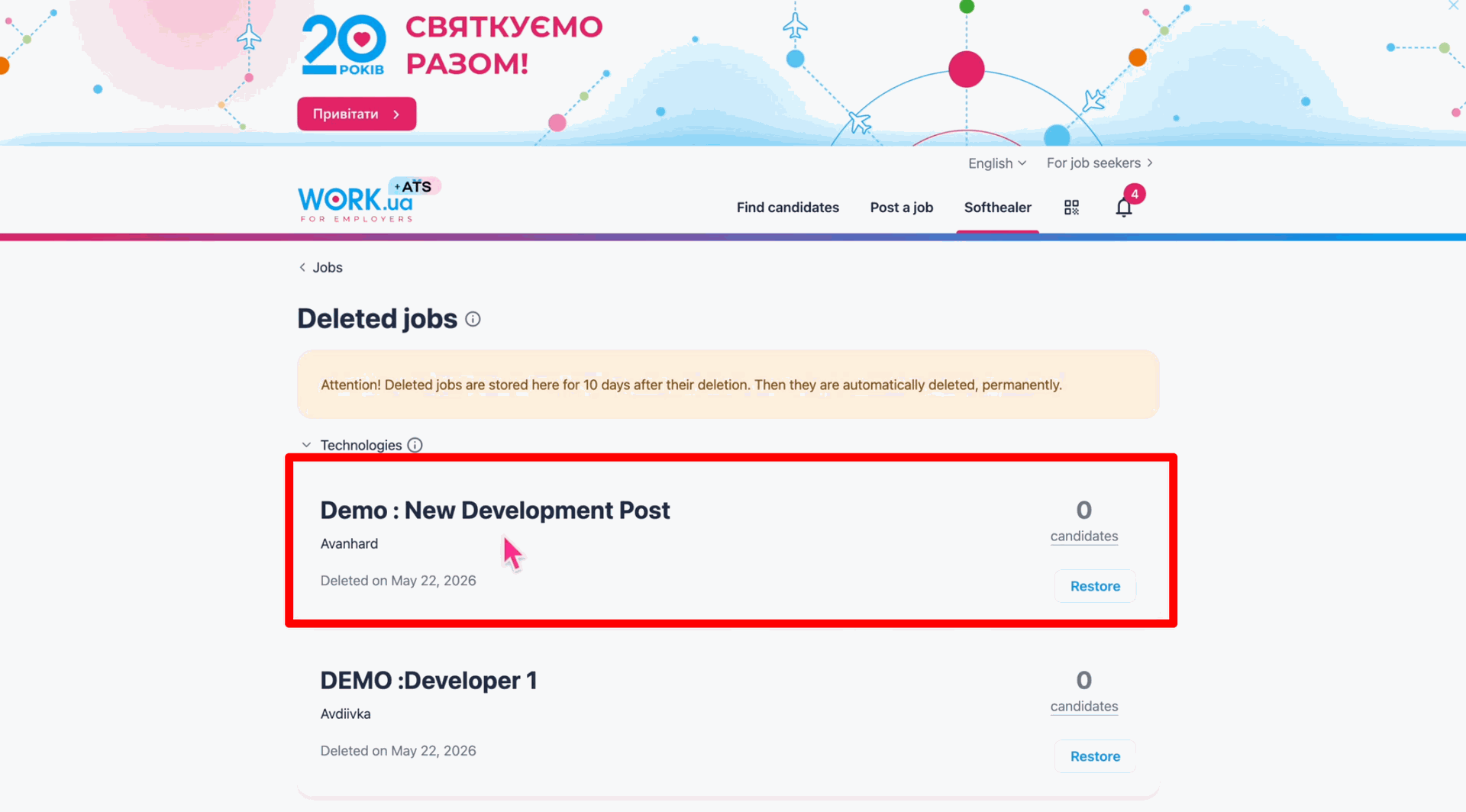
Verify that the job post now appears under your Deleted jobs.
Version 19.0.1.0.0 | Released on : 23rd July 2026
- Yes, this app works perfectly with Odoo Enterprise (Odoo.sh & Premise) as well as Community.
- No, this application is not compatible with odoo.com(odoo saas/Odoo Online)
- Yes, to test this module, please contact us at sales@softhealer.com.
- Please contact us at sales@softhealer.com to request customization.
- Yes, we provide free support for 365 days from the date of purchase.
- Yes, you will receive lifetime free updates for the version of the module you purchased.
- No, there is no need to install any additional libraries.
- Yes, for version 12 and above, you need to purchase the module separately for each version you intend to use.
- No, exchanges or refunds are not allowed. Please make sure to select the correct version before purchasing.
- You can contact us at support@softhealer.com for language translation support. We use Google Translator tools to provide translations in multiple languages, so the accuracy may vary. We welcome your suggestions to help improve translations.
Discover Our Latest Apps