












Odoo Microsoft Teams Connector

This module allows you to schedule and manage Microsoft Teams meetings directly from the Odoo Calendar.
When a calendar event is created in Odoo, a Microsoft Teams meeting link is automatically generated and
synchronized with Microsoft Outlook Calendar, and any updates or deletions made in Odoo are reflected in
Teams to keep all participants informed. The module supports both automatic synchronization and manual
control, giving users full flexibility in managing meetings, and also allows users to join Teams meetings
directly from the Odoo event view.
Key Features
Features

Seamless Odoo-Teams Connector
Provides a smooth and reliable connection between Odoo and Microsoft Teams, enabling uninterrupted communication between both platforms.

Teams Meeting Link Generation
Creates a Microsoft Teams meeting link directly from an Odoo calendar event.

Automatic Synchronization Settings
Allows users to enable or disable automatic meeting creation, updates, and deletion.

Manual Meeting Management
Provides manual buttons to create, sync, or delete Microsoft Teams meetings from Odoo.

Meeting Creation Synchronization
Ensures that Microsoft Teams meetings are created and synchronized immediately when a calendar event is created in Odoo.

Timezone Accuracy Management
Maintains correct meeting times across different user time zones.

Microsoft Calendar Event ID Storage
Shows the Store Microsoft Calendar event IDs to maintain synchronization and event tracking across systems.

Teams Sync Error Log Storage
Shows the Capture and store Microsoft Teams synchronization error messages for troubleshooting and audit purposes.

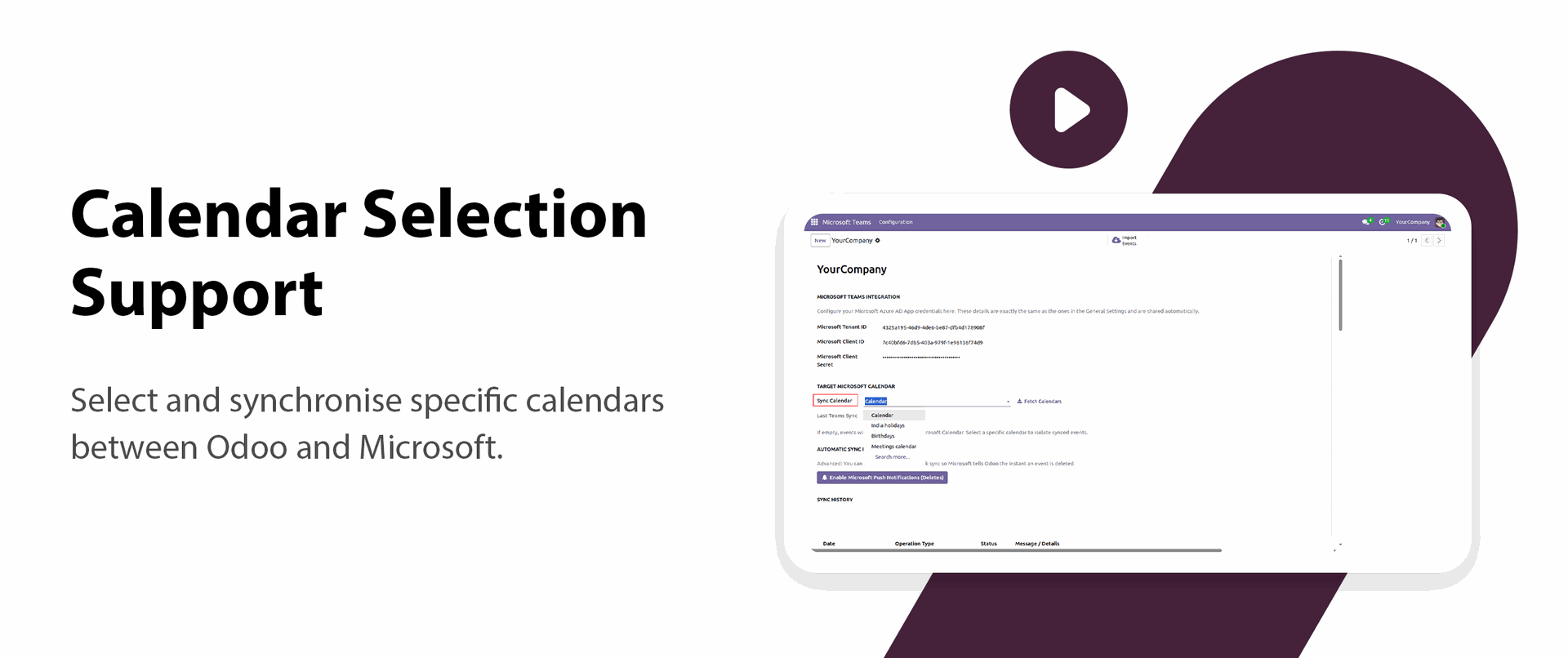
Calendar Selection Support

Select and synchronize specific calendars between Odoo and Microsoft.

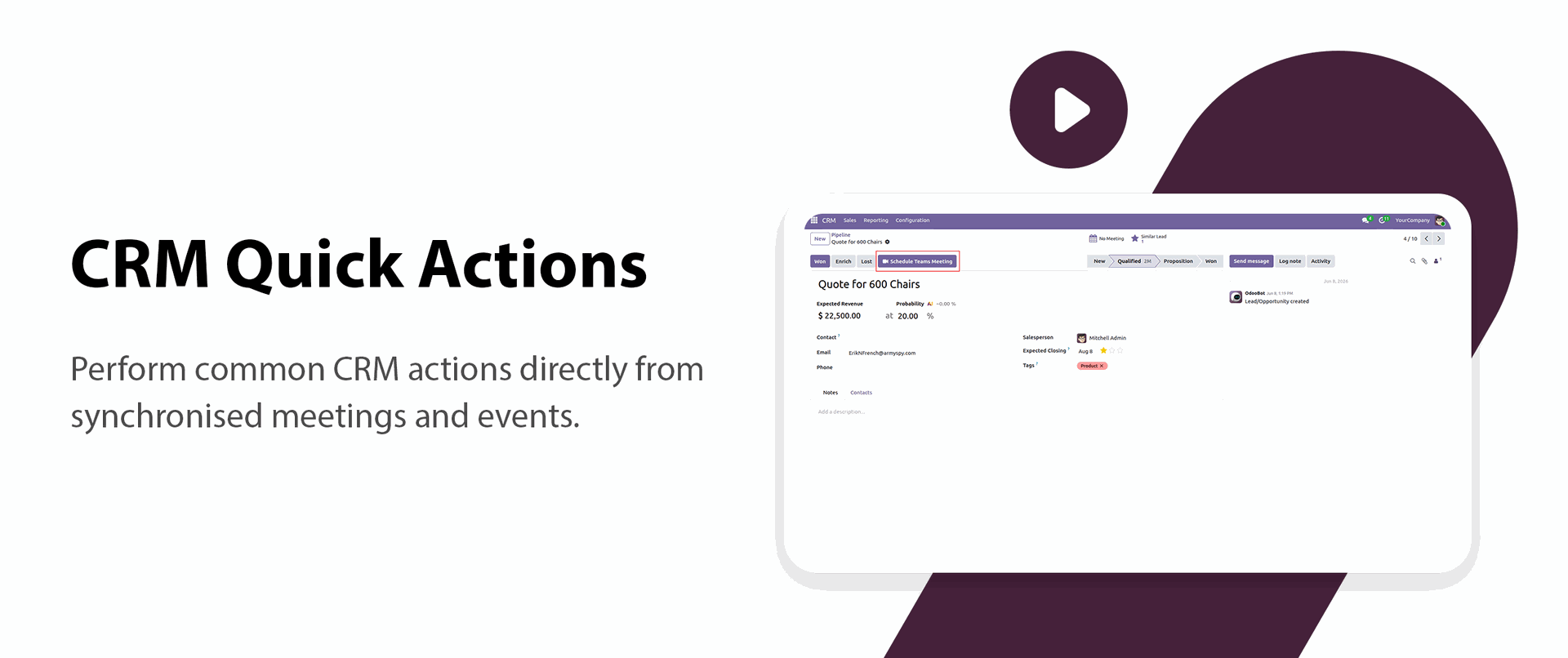
CRM Quick Actions
Perform common CRM actions directly from synchronized meetings and events.

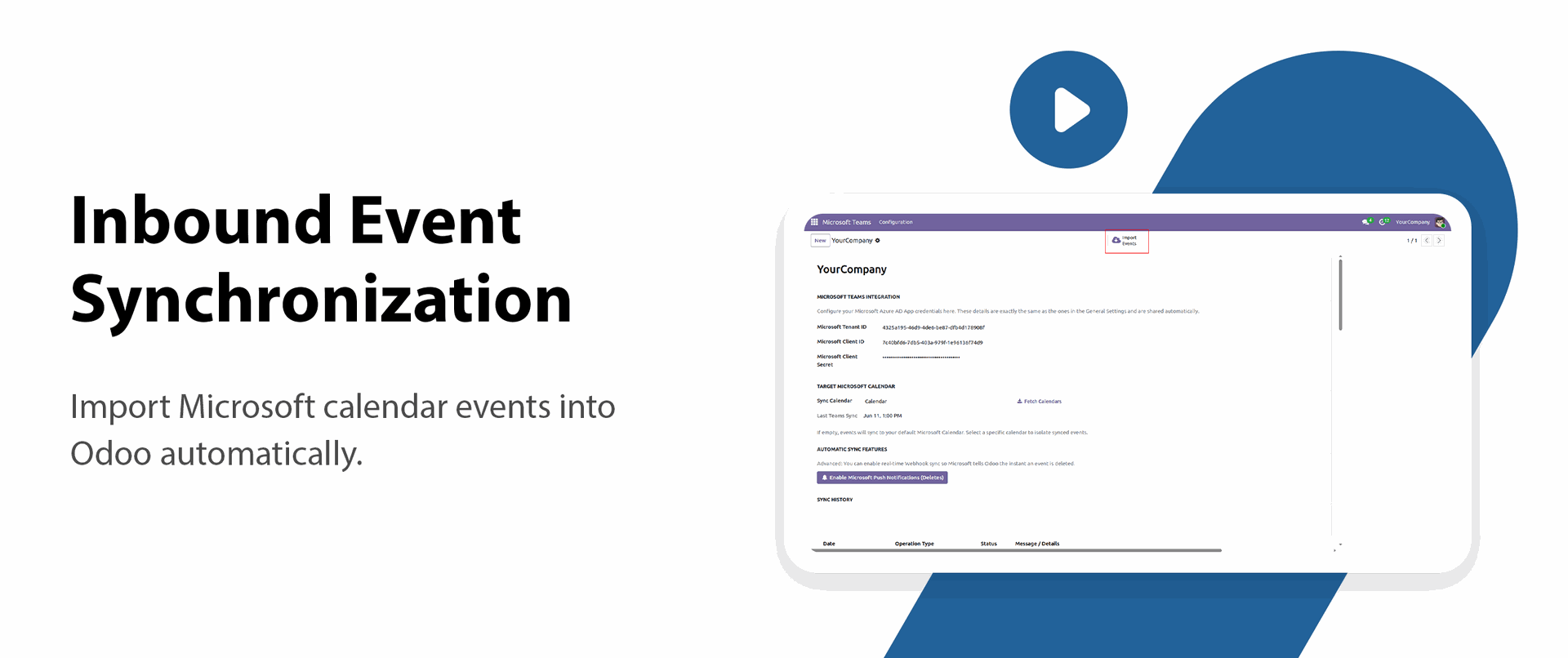
Inbound Event Synchronization
Import Microsoft calendar events into Odoo automatically.

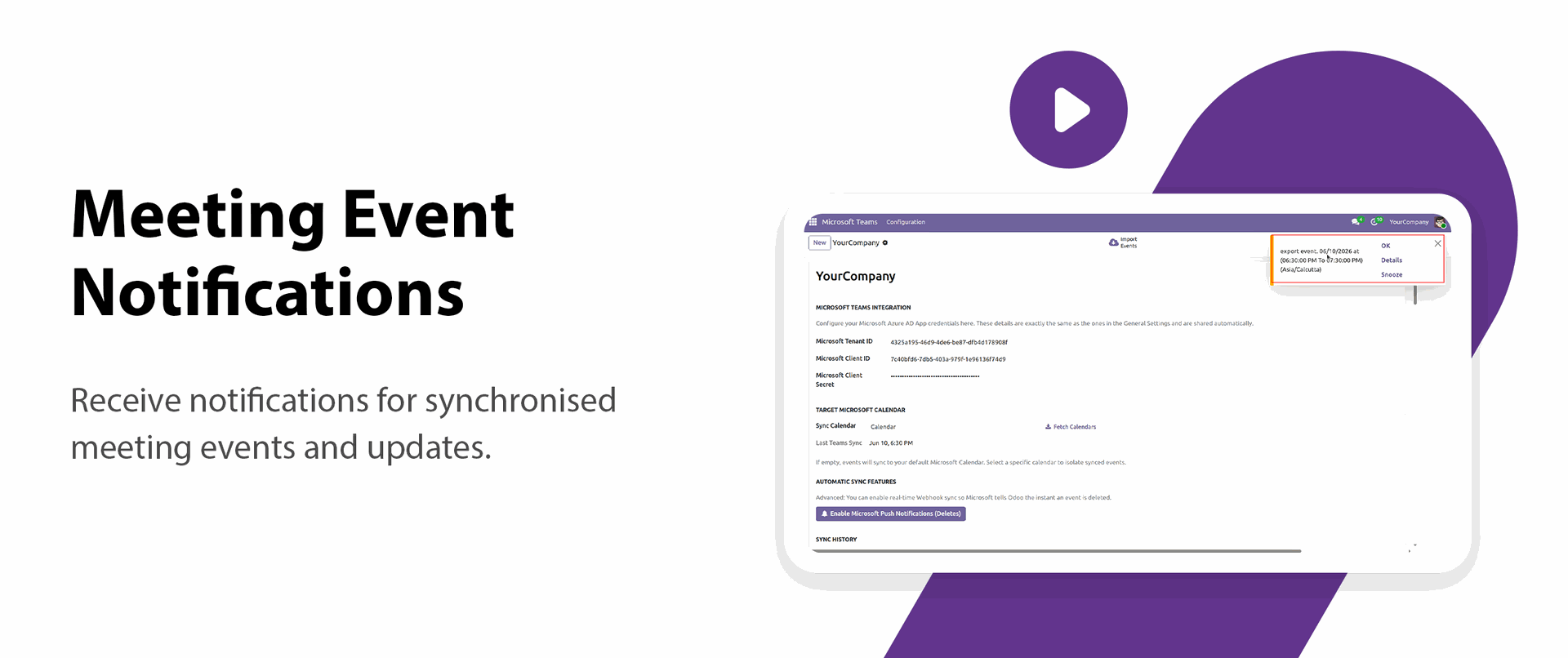
Meeting Event Notifications
Receive notifications for synchronized meeting events and updates.
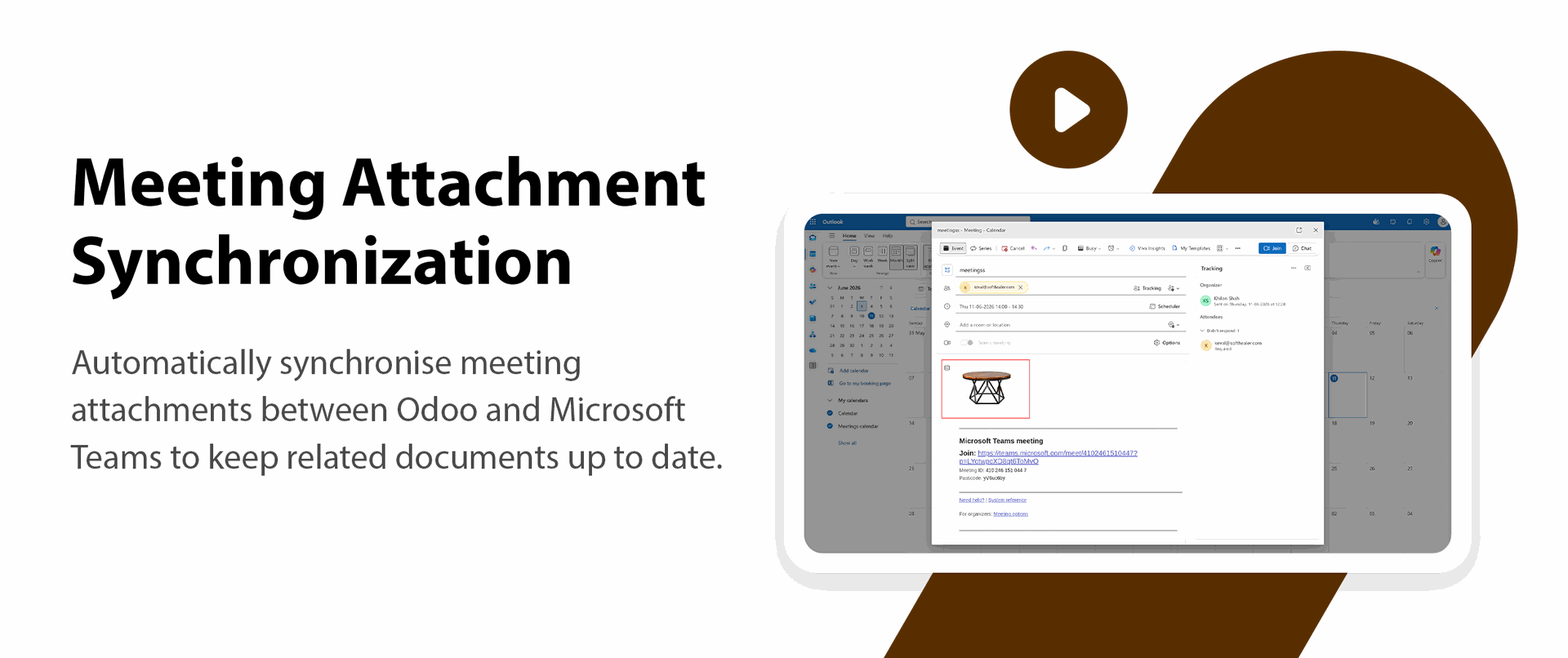
Meeting Attachment Synchronization
Synchronize meeting attachments between Odoo and Microsoft Teams to keep related documents up to date.

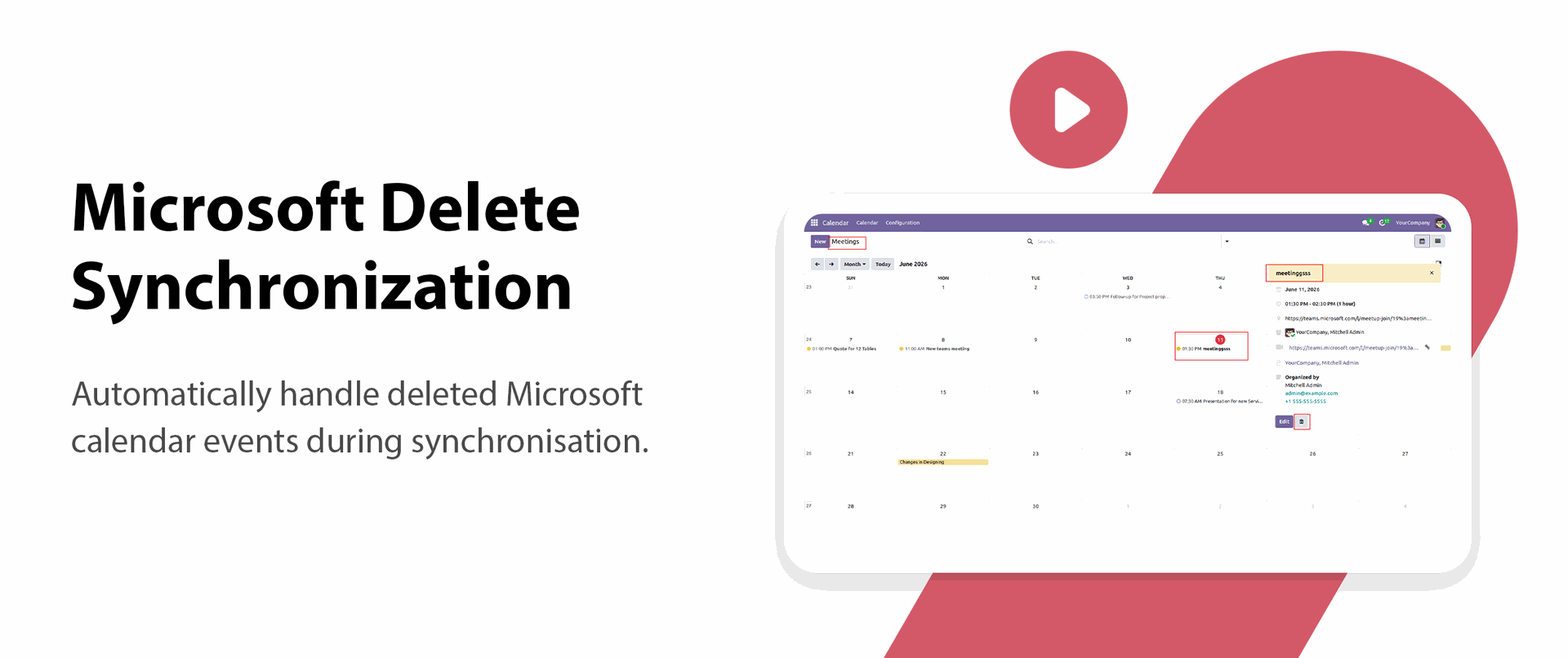
Microsoft Delete Synchronization
Automatically handle deleted Microsoft calendar events during synchronization.

Meeting Delete Synchronization
Deletes the related Microsoft Teams meeting when the Odoo calendar meeting is removed.

Direct Meeting Access
Enables users to join Microsoft Teams meetings directly from the Odoo calendar event.

Recurring Event Synchronization
Supports synchronization of recurring calendar events with Microsoft Teams.

Participant Invitation Handling
Automatically sends meeting invitations to attendees added in the Odoo event.

Meeting Change Synchronization
Updates meeting details in Microsoft Teams when event information is modified in Odoo.

Connection Status Visibility
Displays whether a user's Microsoft account is connected or not.
Meeting Sync Status Indicators
Shows the current state of meeting synchronization, such as pending, synced, or error.

PKCE-Based OAuth Authentication
Shows the Enhance security using PKCE-based OAuth authentication for secure user authorization and token exchange.

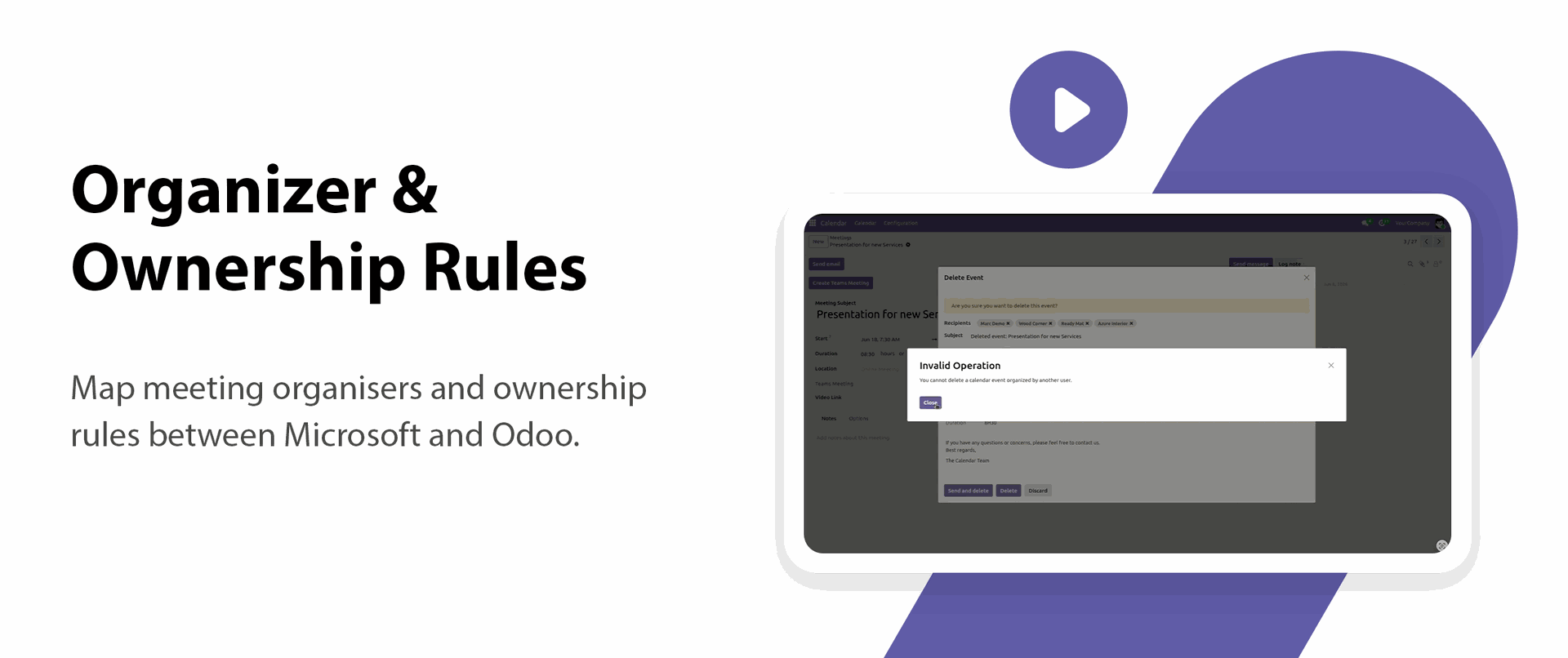
Organizer & Ownership Rules
Map meeting organizers and ownership rules between Microsoft and Odoo.
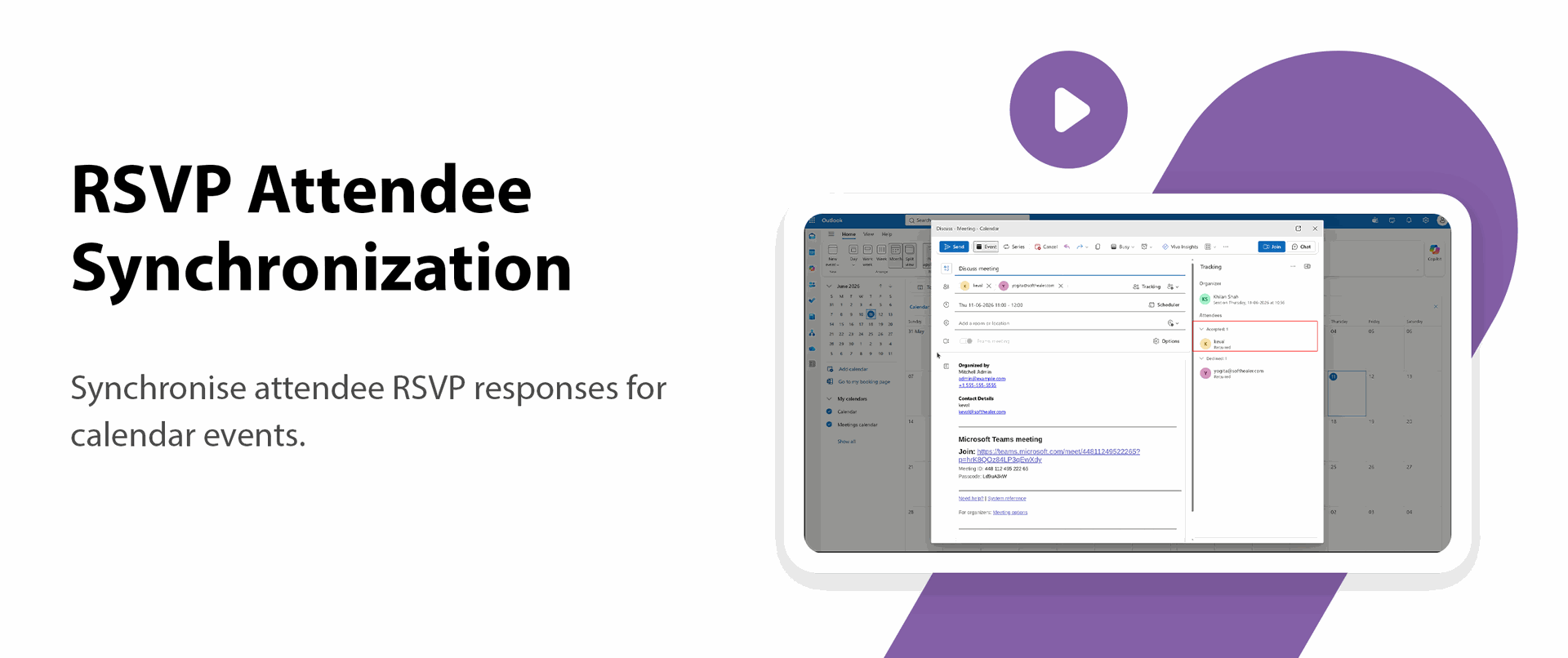
RSVP Attendee Synchronization
Synchronize attendee RSVP responses for calendar events.

Subscription Renewal Management
Automatically manage Microsoft integration subscription renewals to maintain uninterrupted synchronization.

Background Delta Synchronization
Synchronize only incremental changes using scheduled background delta sync jobs.
Conflict-Safe Bi-Directional Synchronization
Prevent data conflicts while synchronizing updates between Odoo and Microsoft in both directions.

Delta Sync Reconciliation
Reconcile synchronization records using delta sync to ensure data consistency.

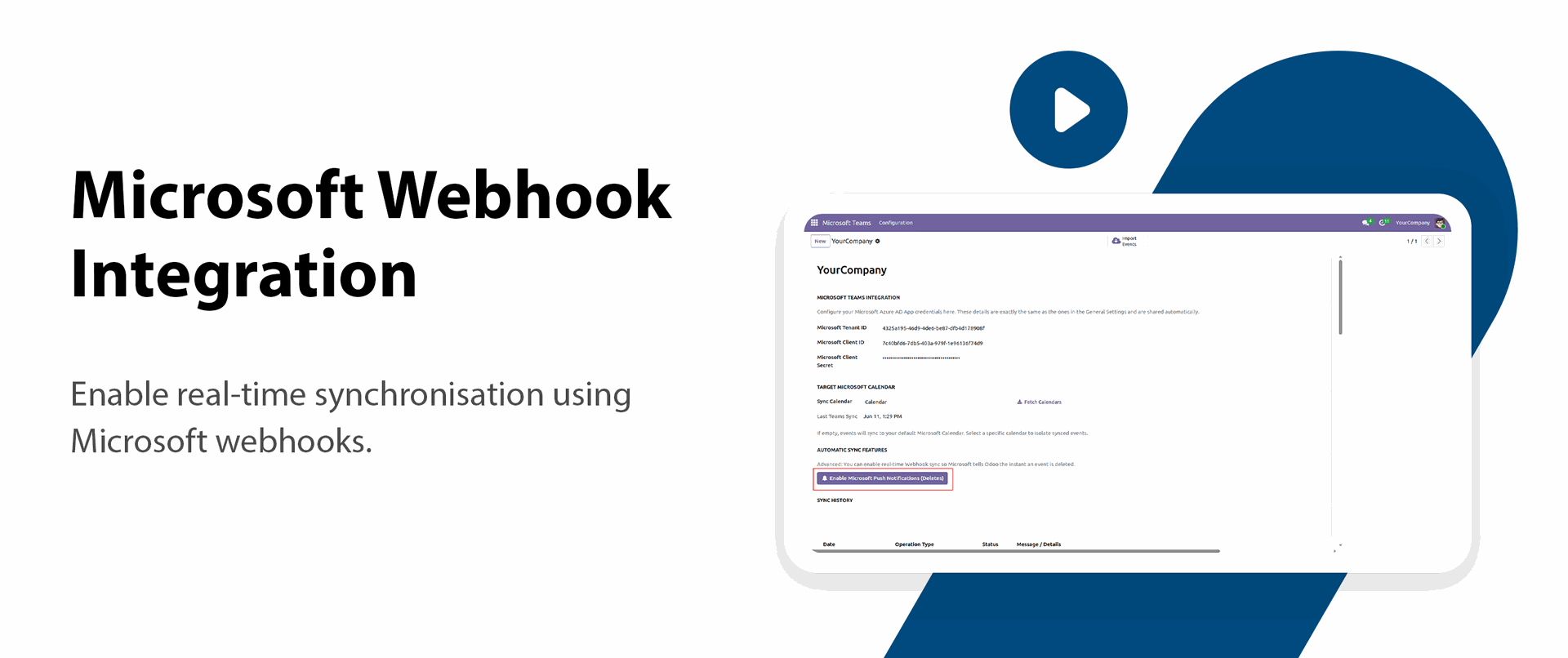
Microsoft Webhook Integration
Enable real-time synchronization using Microsoft webhooks.

Centralized dashboard to manage and monitor all connectors from one place. Quickly access sync summary, activity logs, and configuration controls with improved visibility.
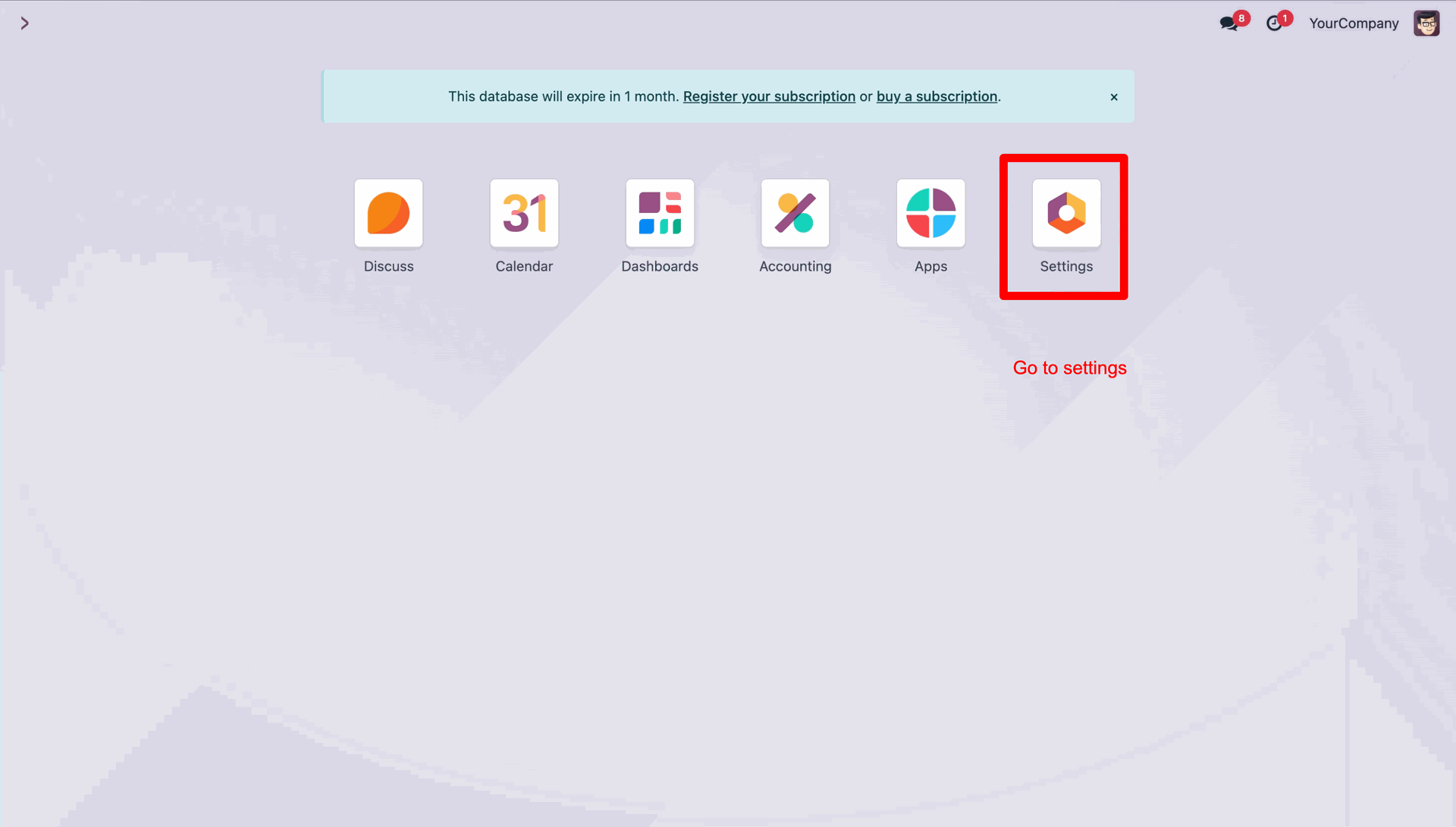
Click the Settings icon to access the system configuration menu.
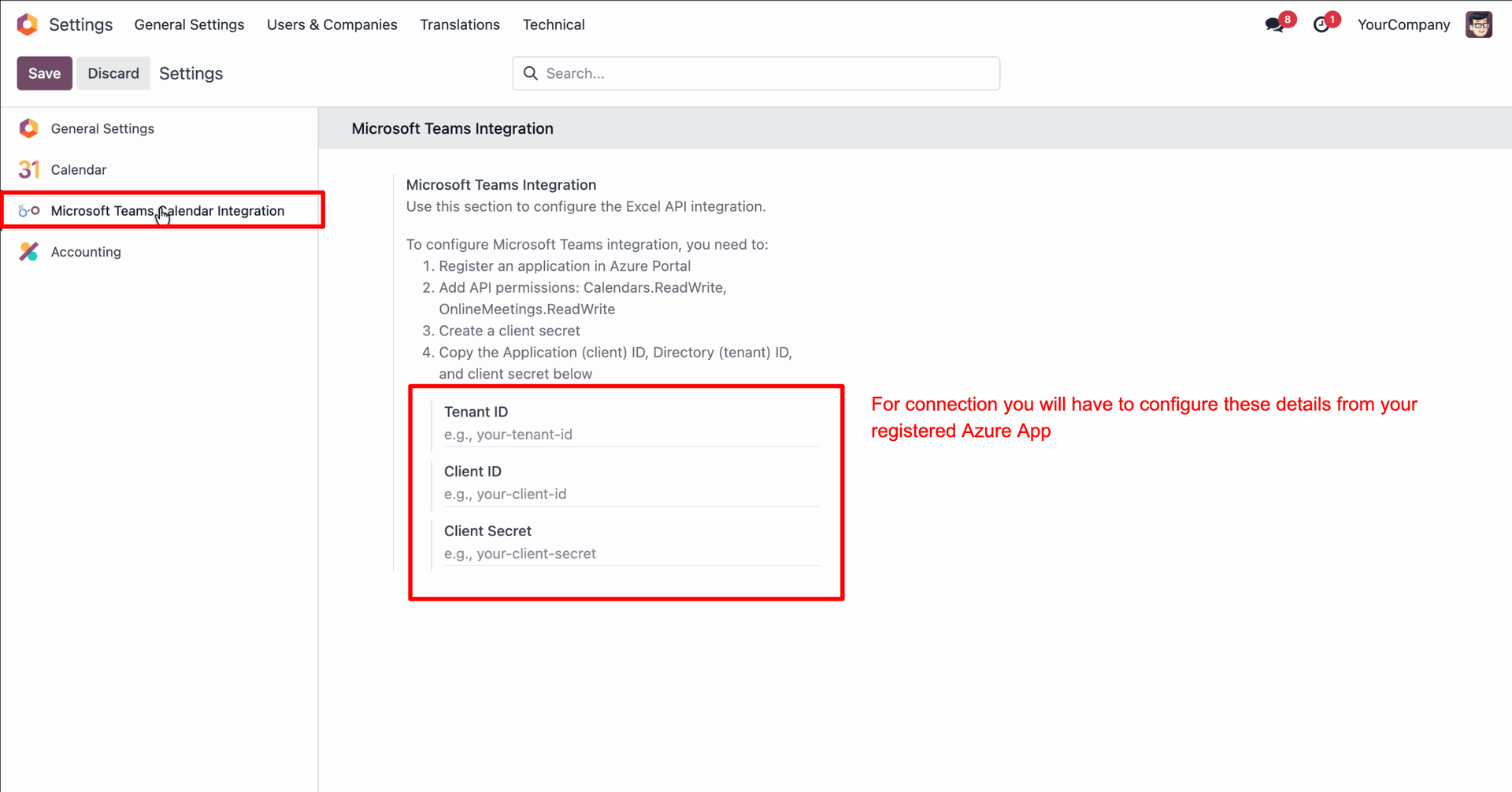
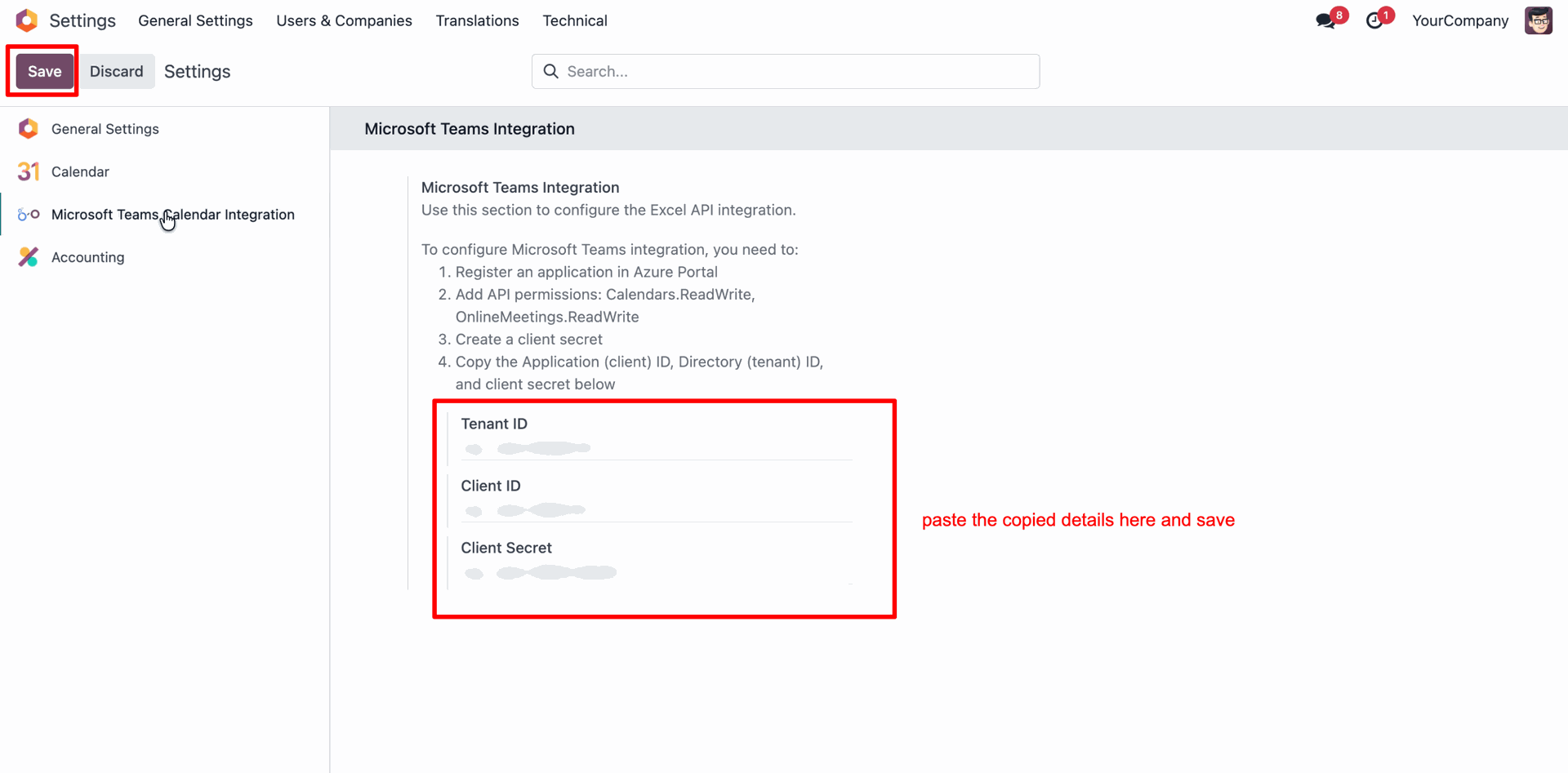
Enter your Azure App credentials (Tenant ID, Client ID, Client Secret) in the Microsoft Teams Calendar Integration settings to authorize the connection.
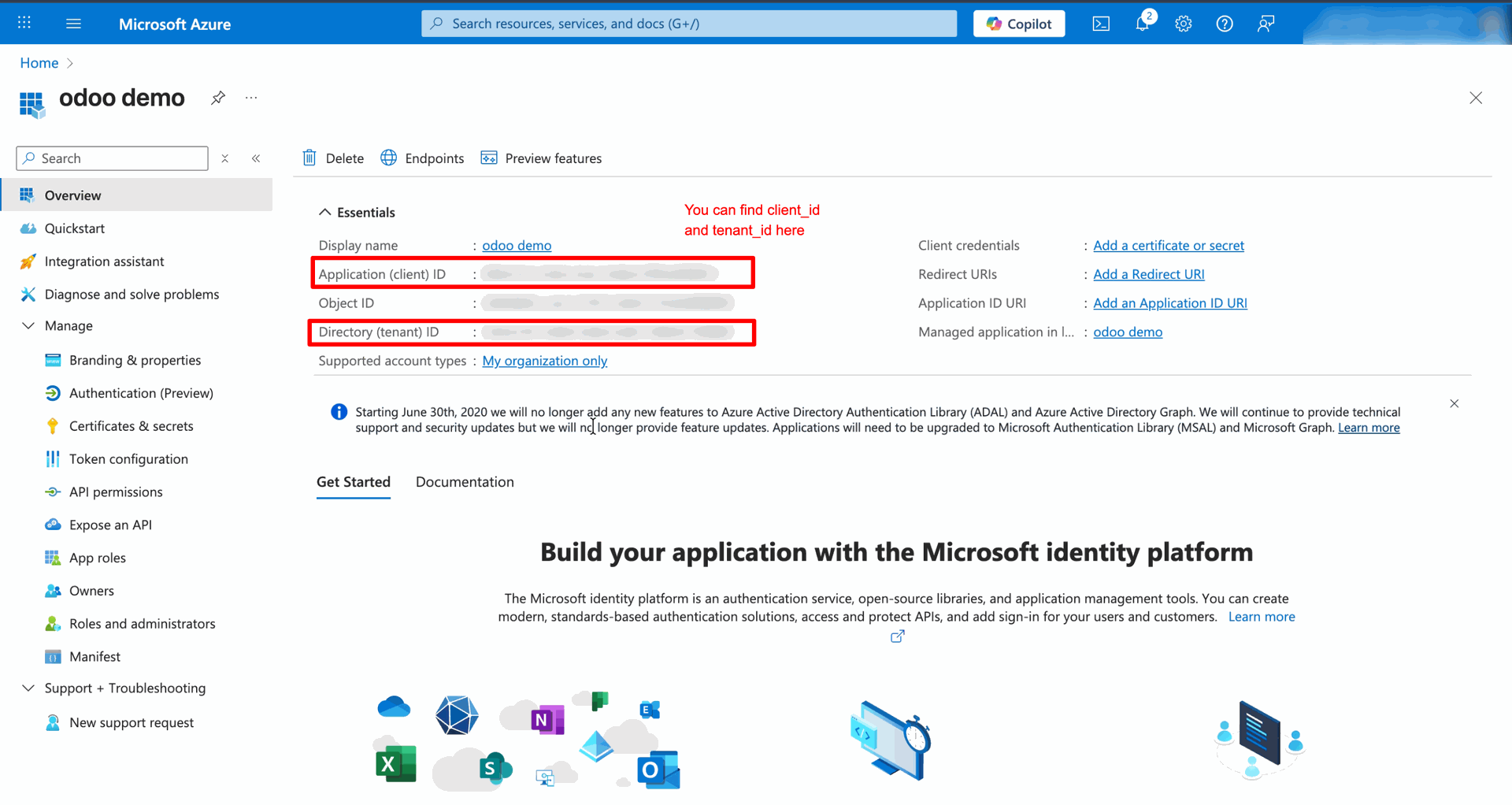
Copy the Application (client) ID and Directory (tenant) ID from the App Overview page to use in your Odoo configuration.
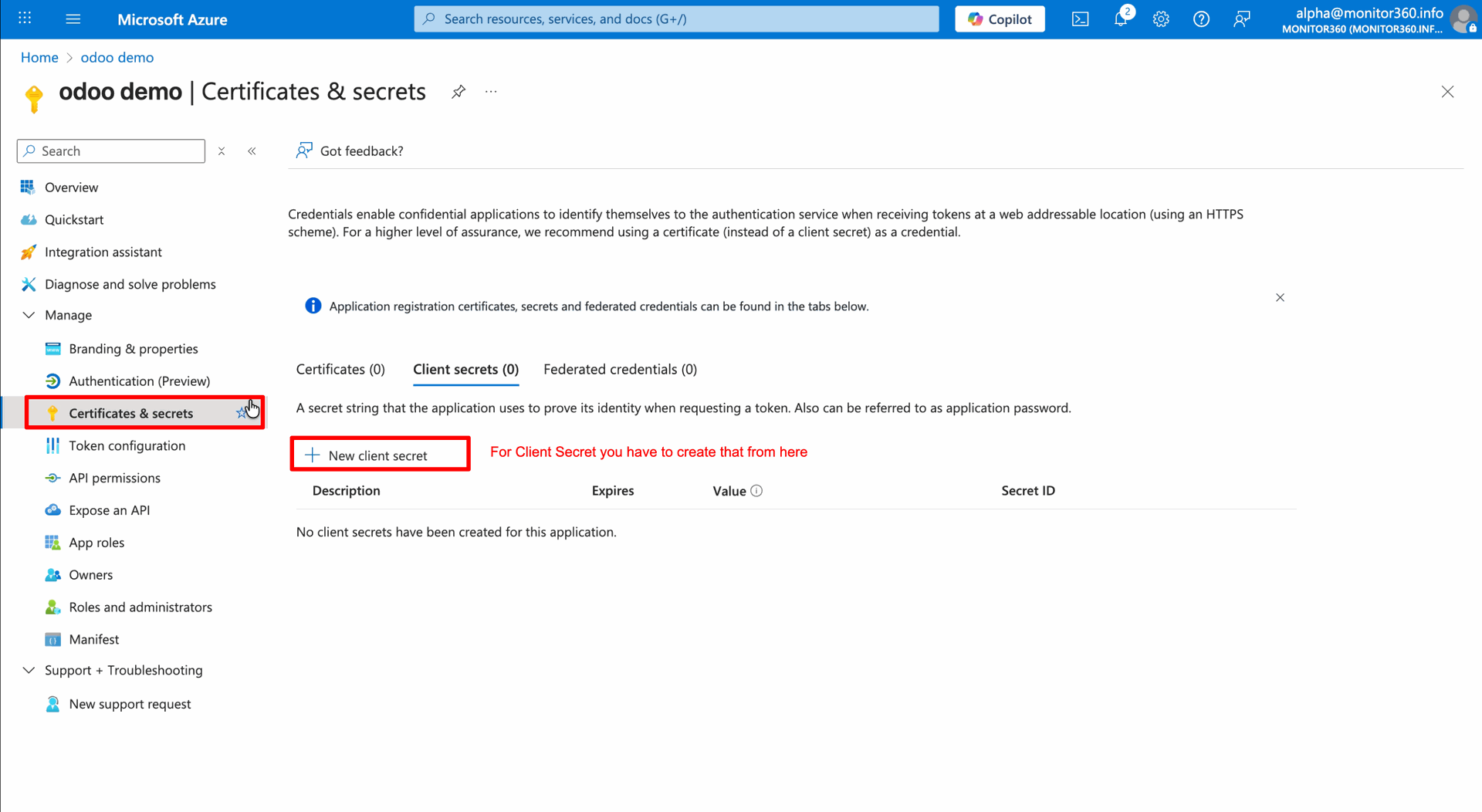
Navigate to Certificates & secrets and click + New client secret to generate the security key needed for Odoo.
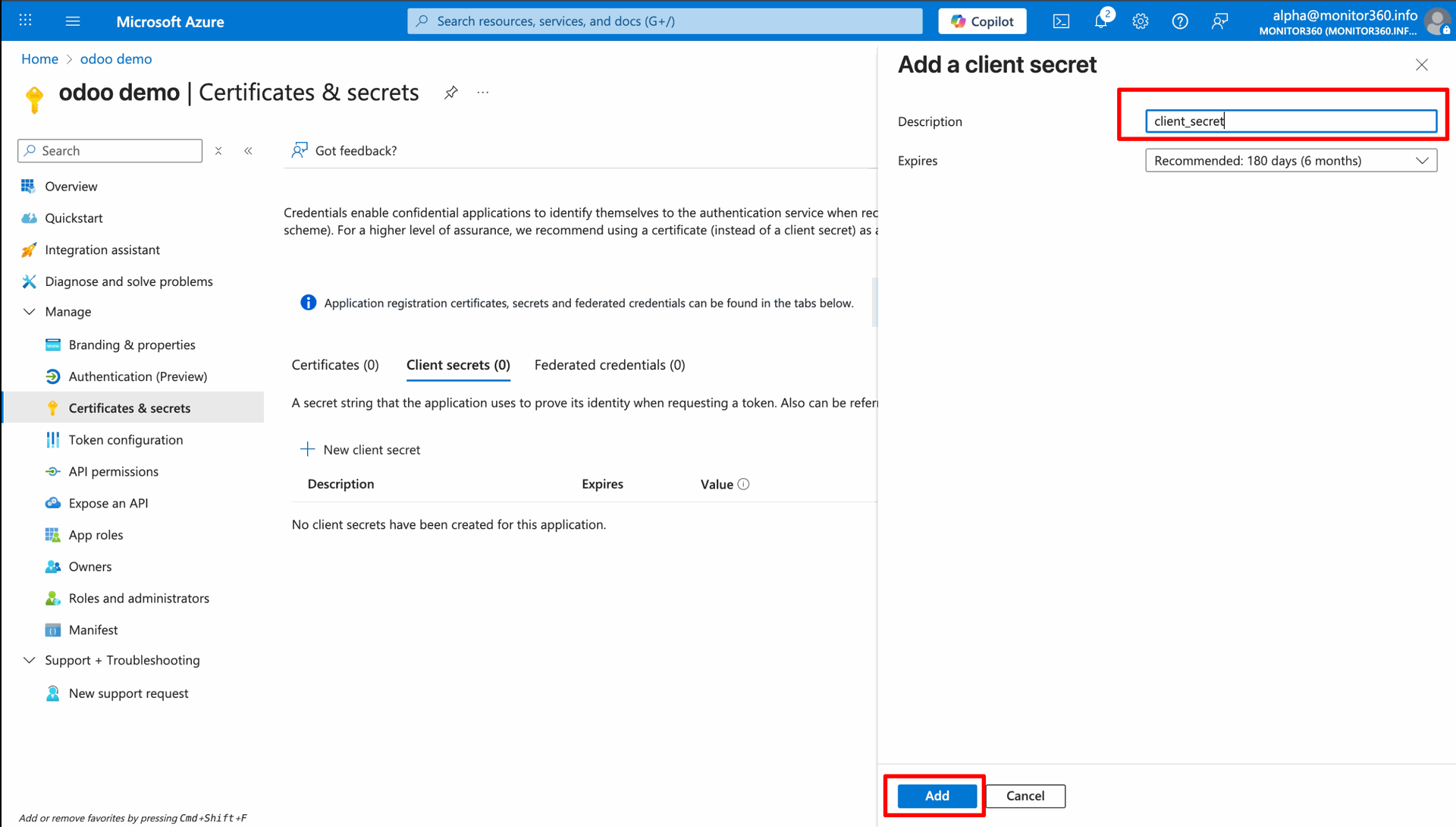
Enter a description for the secret and click Add to generate the new security key.
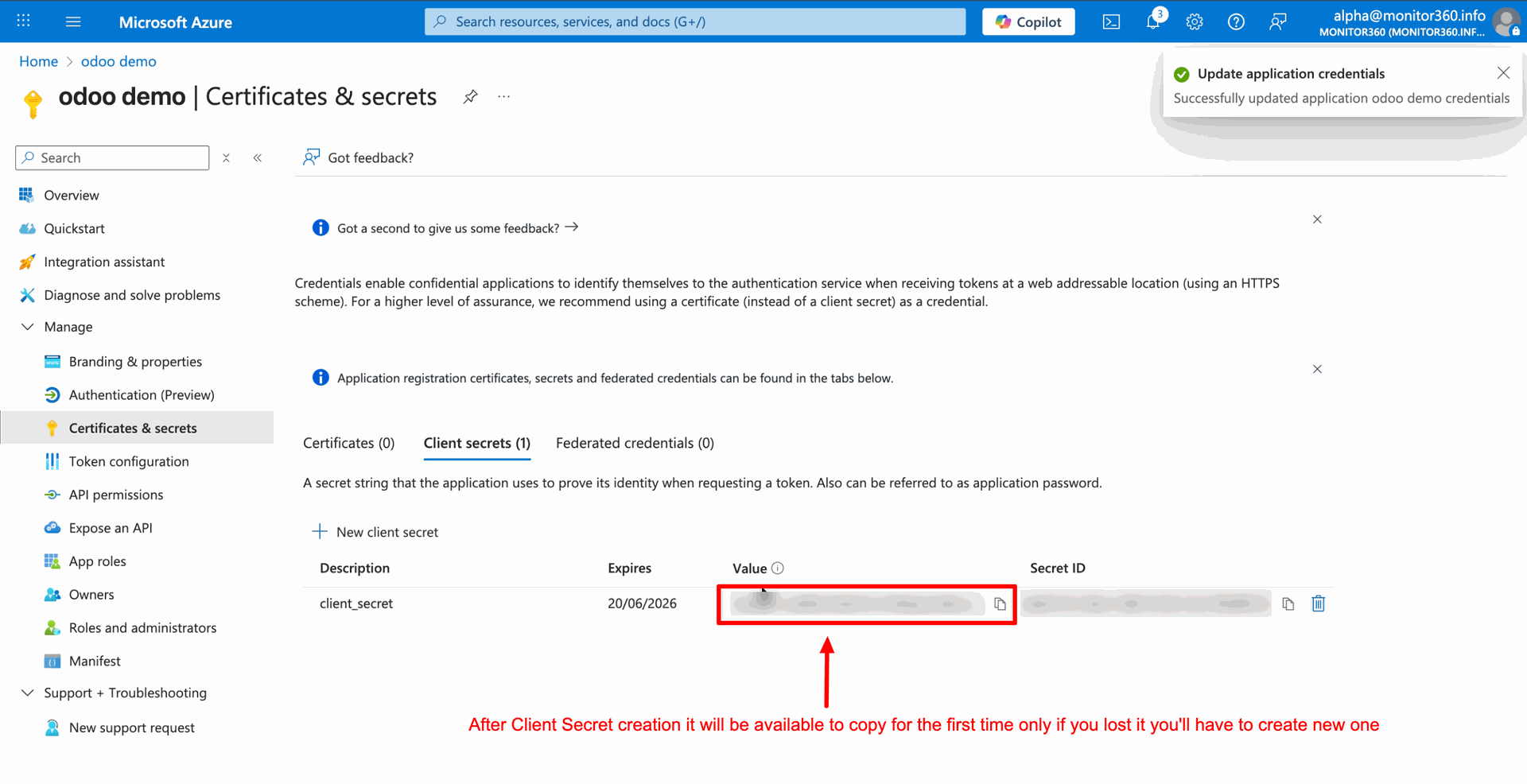
Copy the generated Value immediately, as it is displayed only once and is required to complete the Odoo configuration.
Paste the Azure credentials into the Odoo configuration fields and click Save to finalize the integration setup.
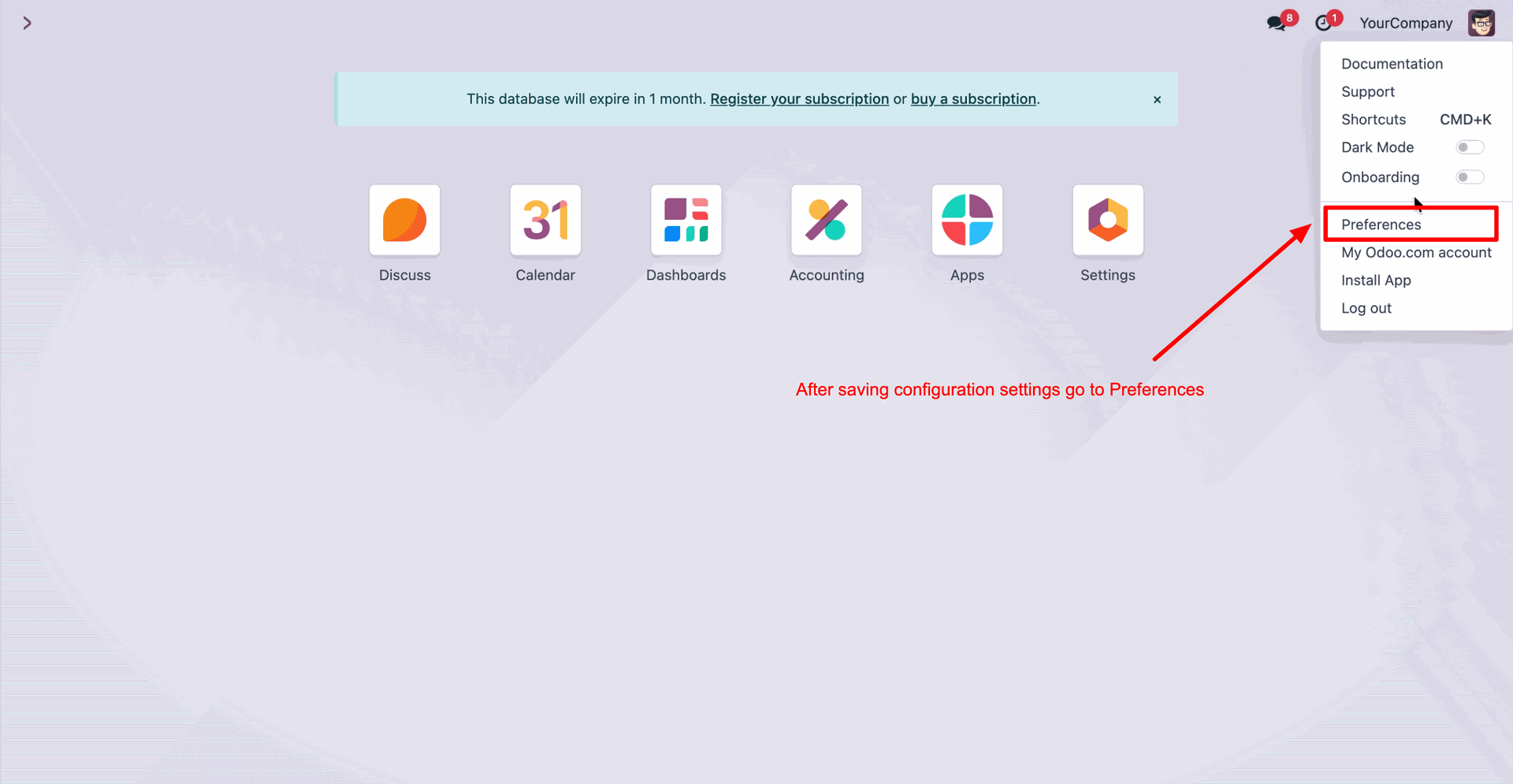
Click your profile avatar in the top right and select Preferences to access your personal user settings.
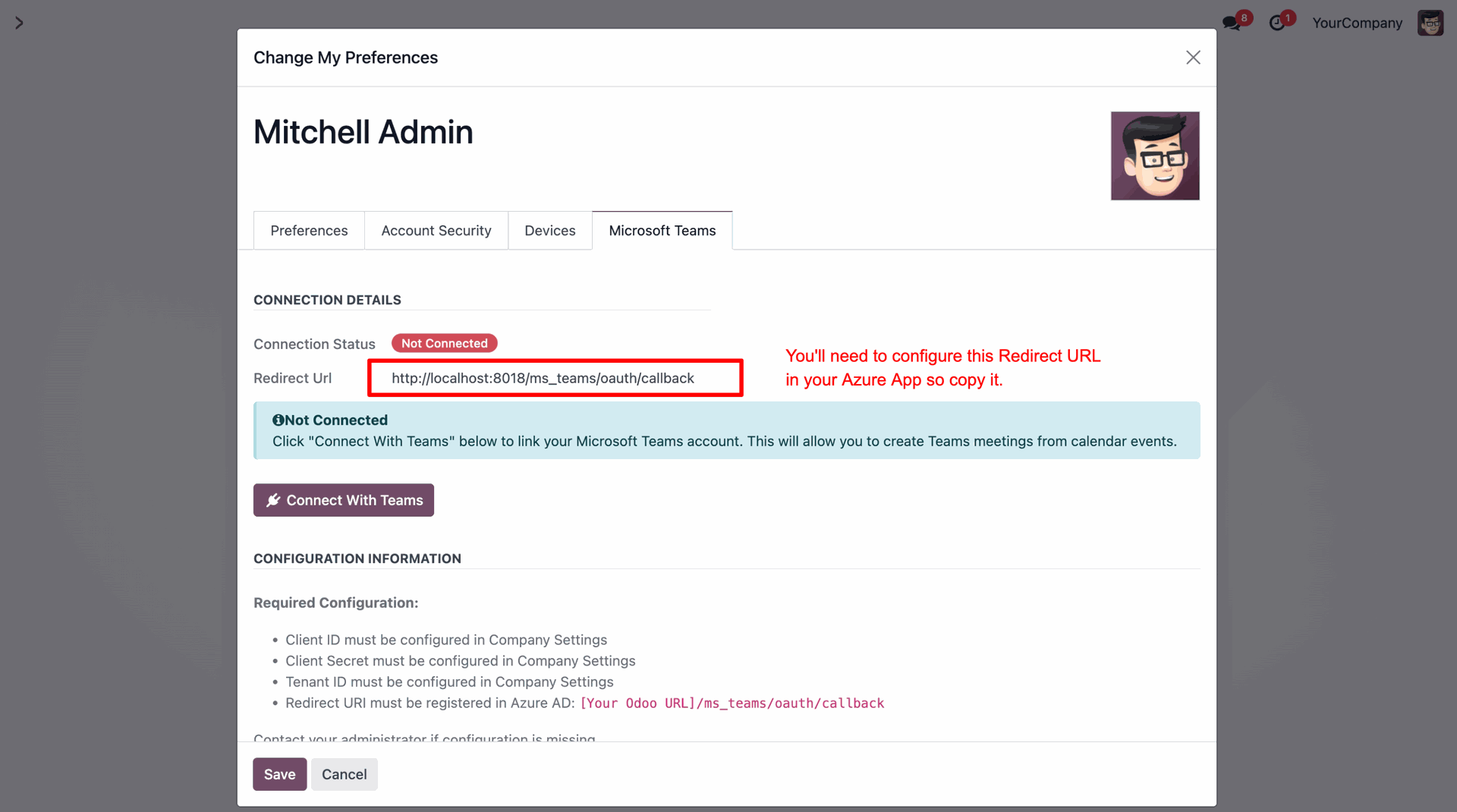
Copy the Redirect Url from the Microsoft Teams tab, as this specific address must be added to your Azure App's Authentication settings.
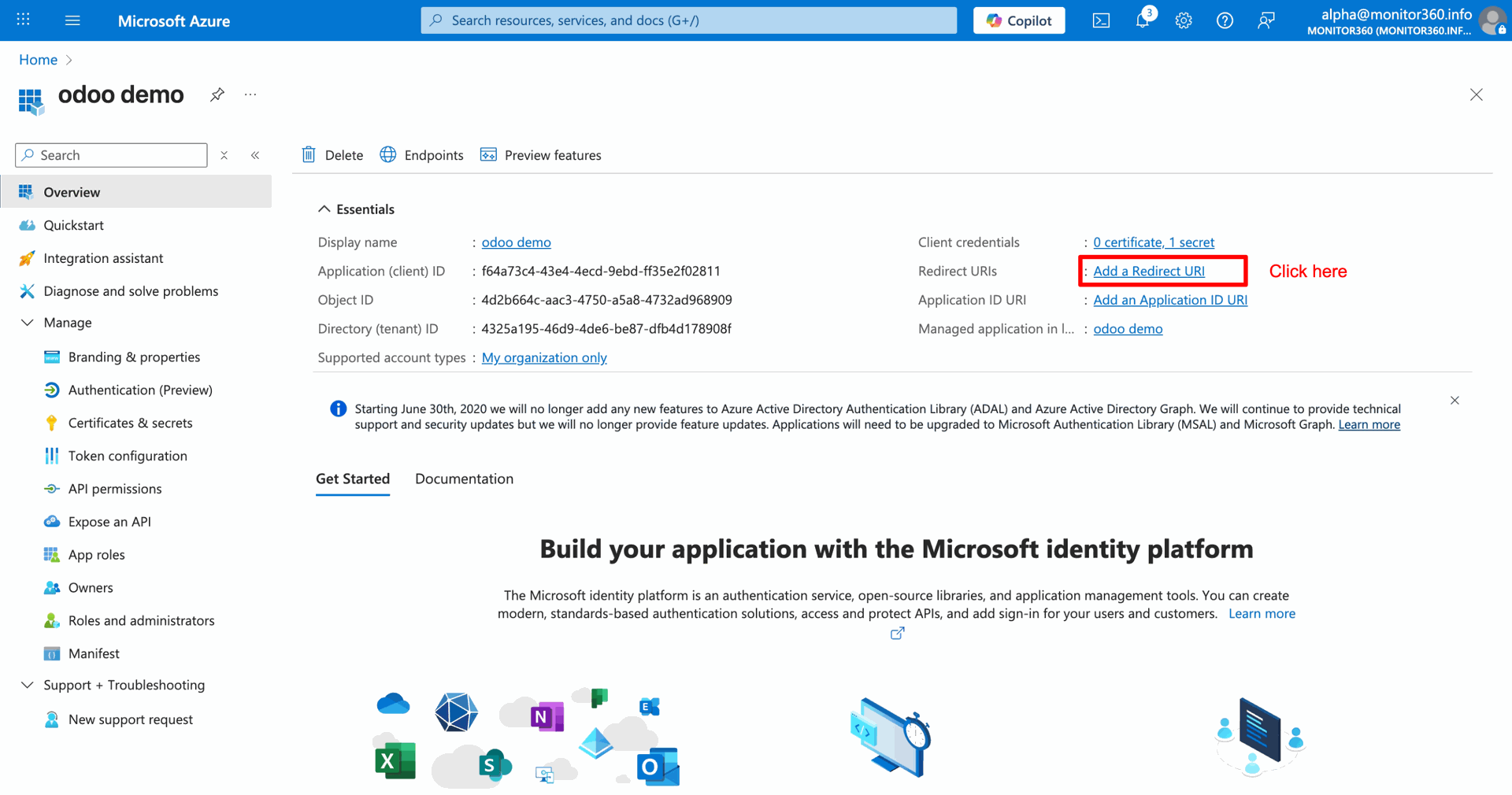
On the Azure App Overview page, click Add a Redirect URI to configure the authentication callback address.
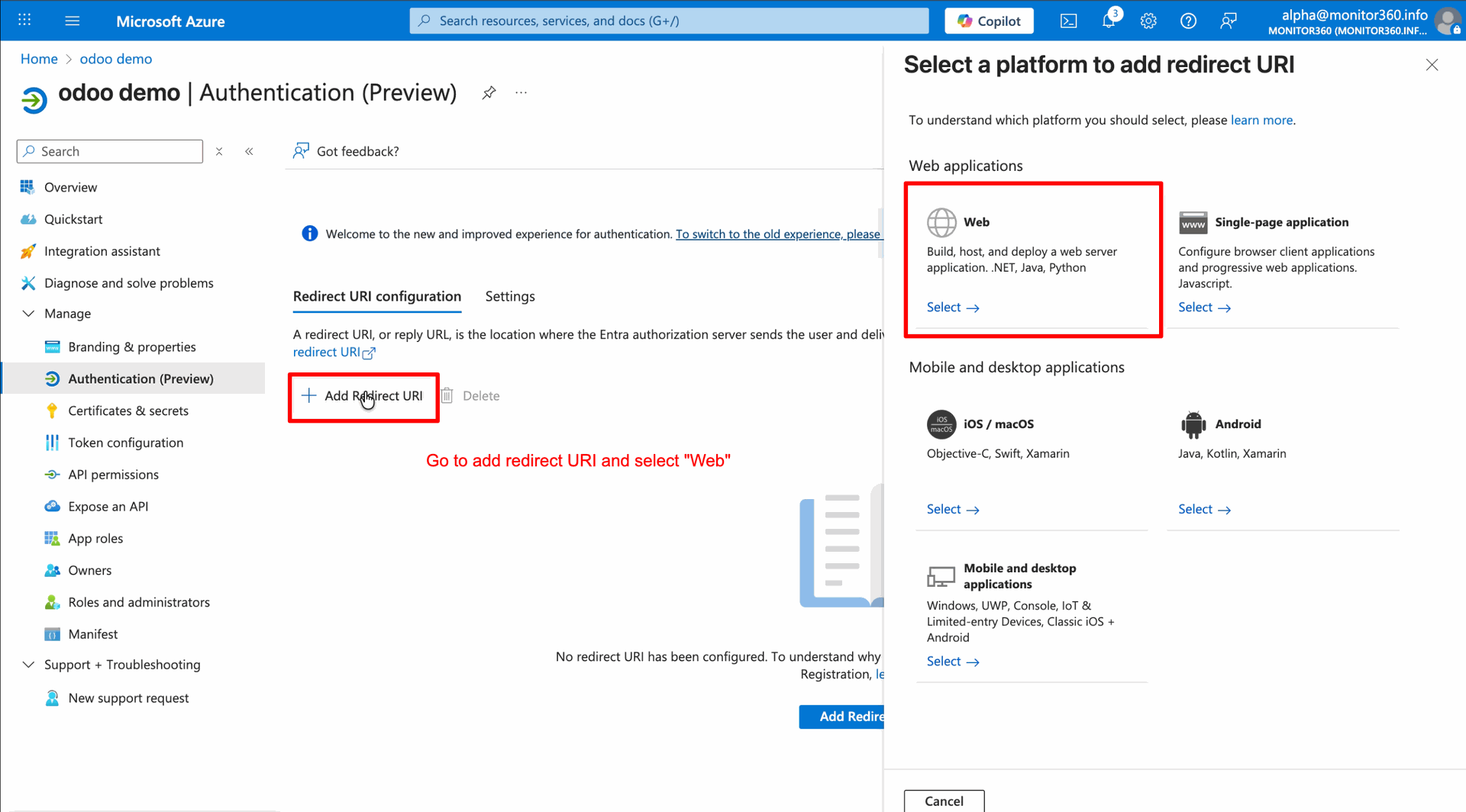
Select Web from the side panel to configure the application for standard web server authentication.
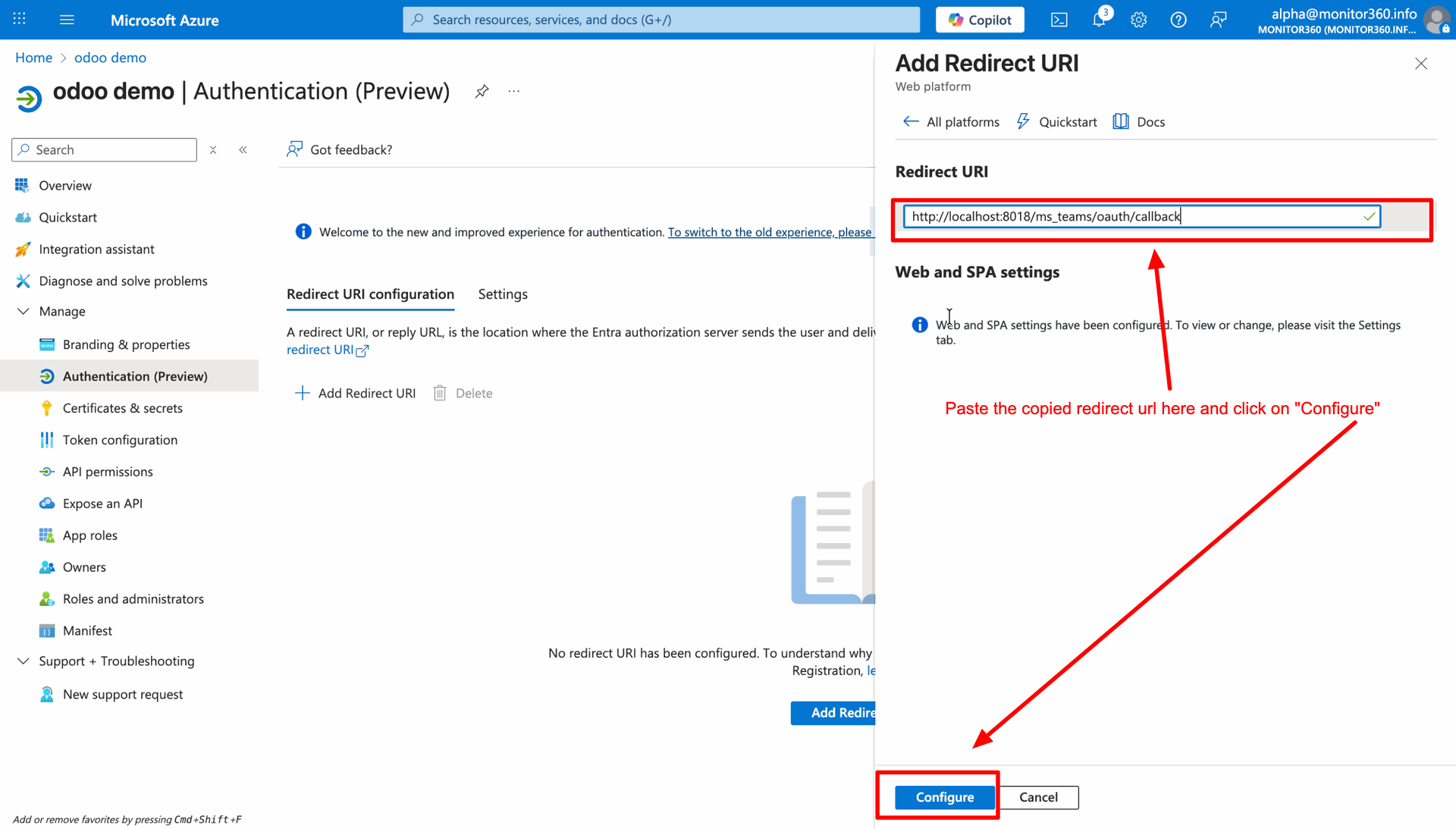
Paste the Odoo callback URL into the Redirect URI field and click Configure to register the authorized return address.
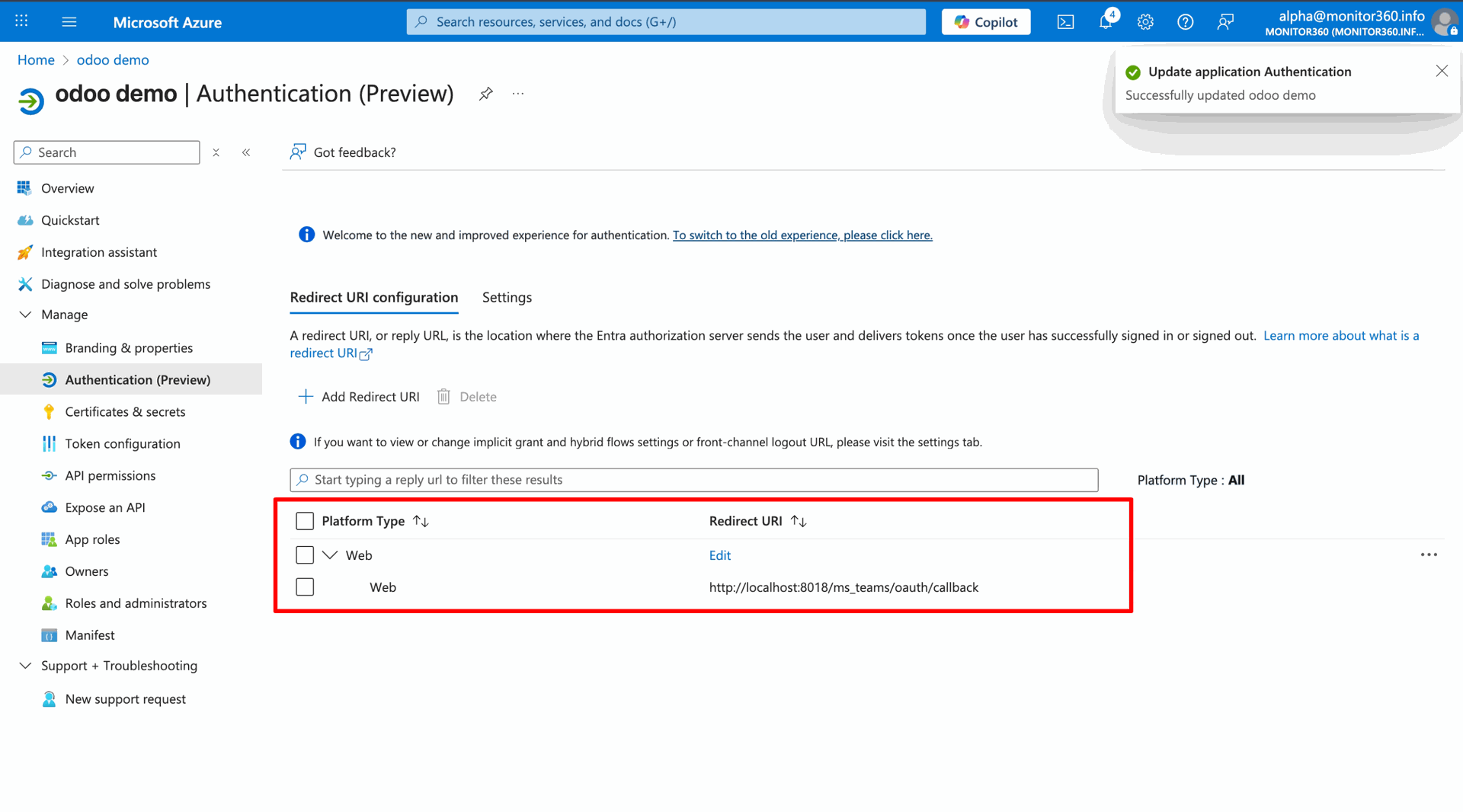
Verify that the specific Redirect URI is now successfully listed under the Web platform section to confirm the configuration is active.
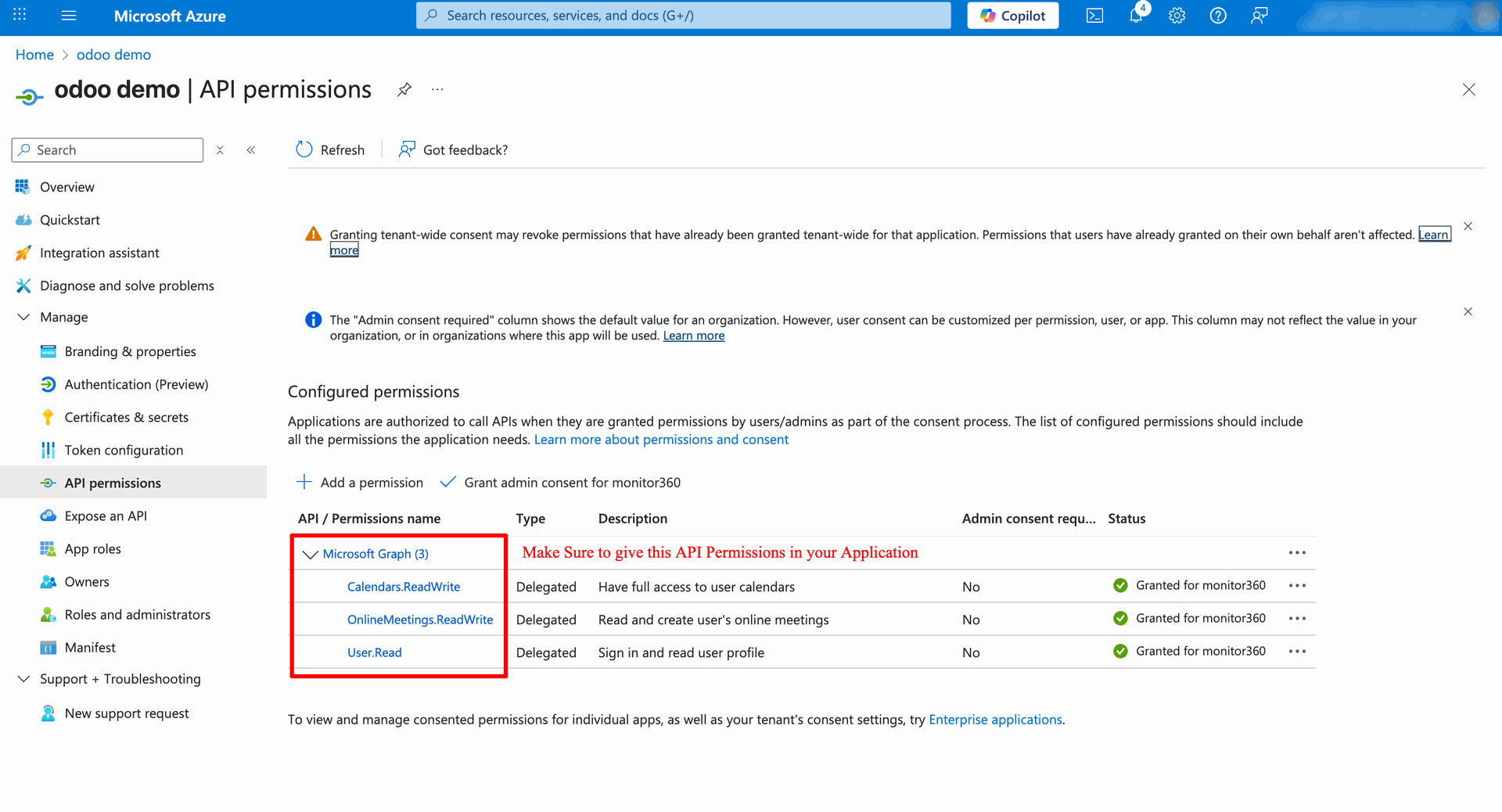
Add the required Microsoft Graph permissions (Calendars.ReadWrite, OnlineMeetings.ReadWrite, User.Read) in the API permissions section.
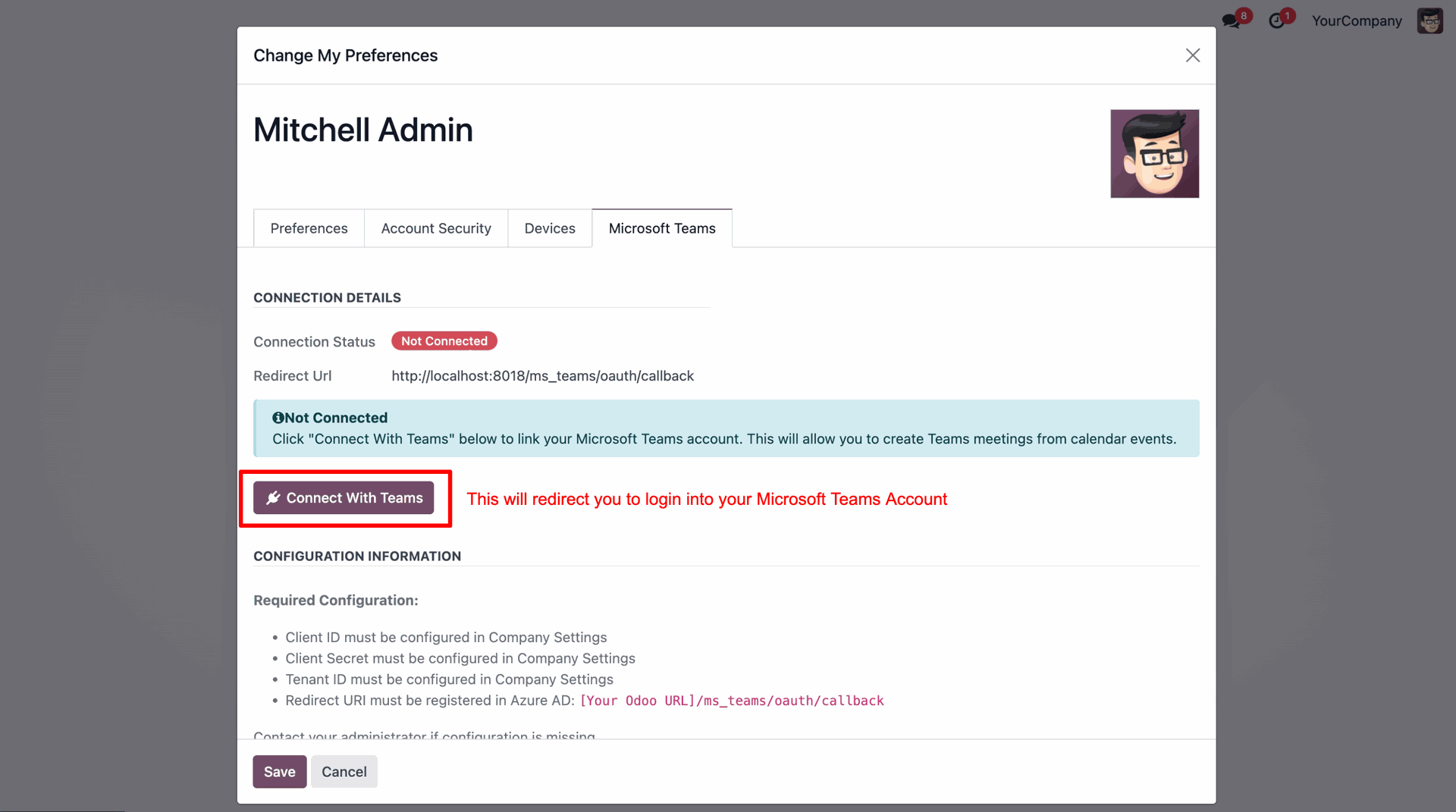
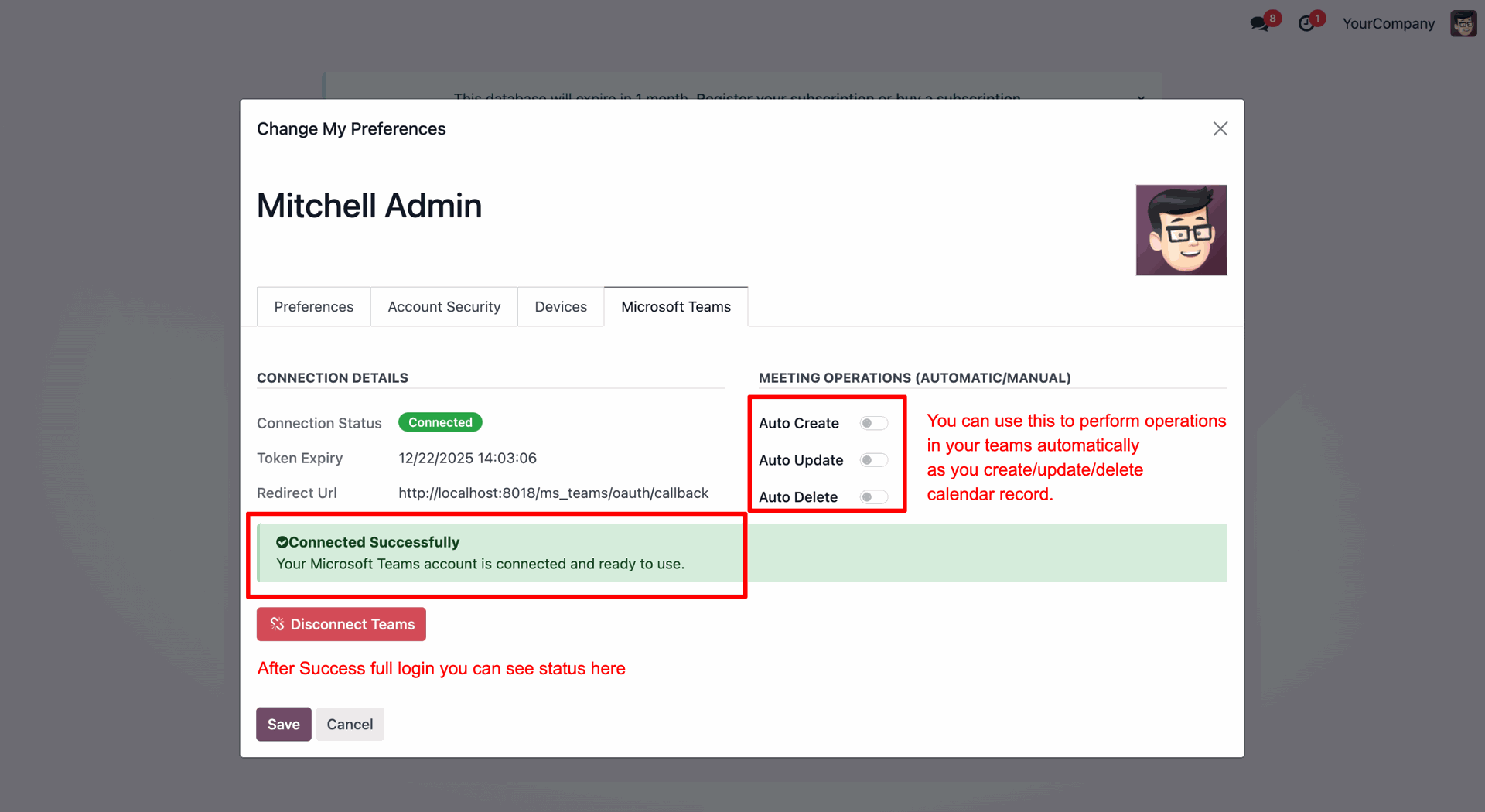
Click the Connect With Teams button in the User Preferences to log in and link your Microsoft account.
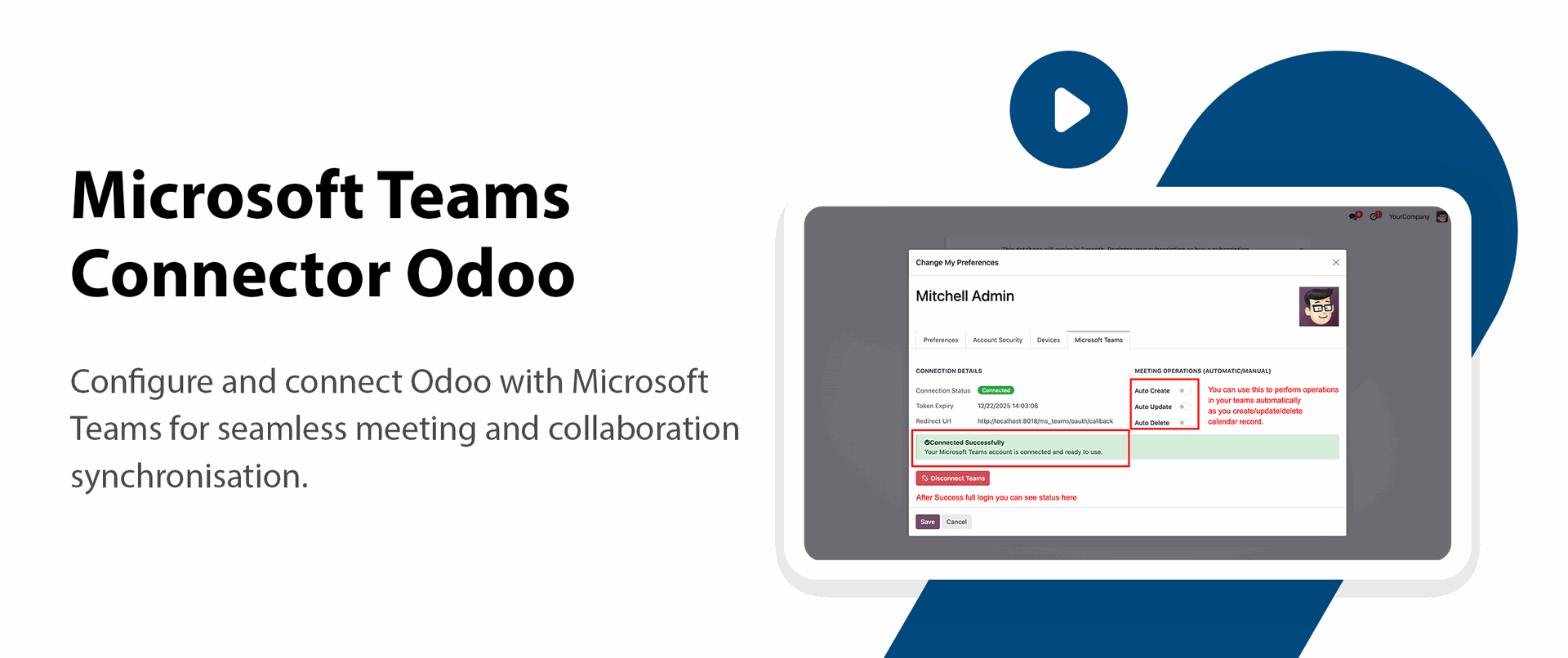
Verify the 'Connected' status and enable Auto Create, Update, and Delete to automate synchronization between Odoo and Teams.
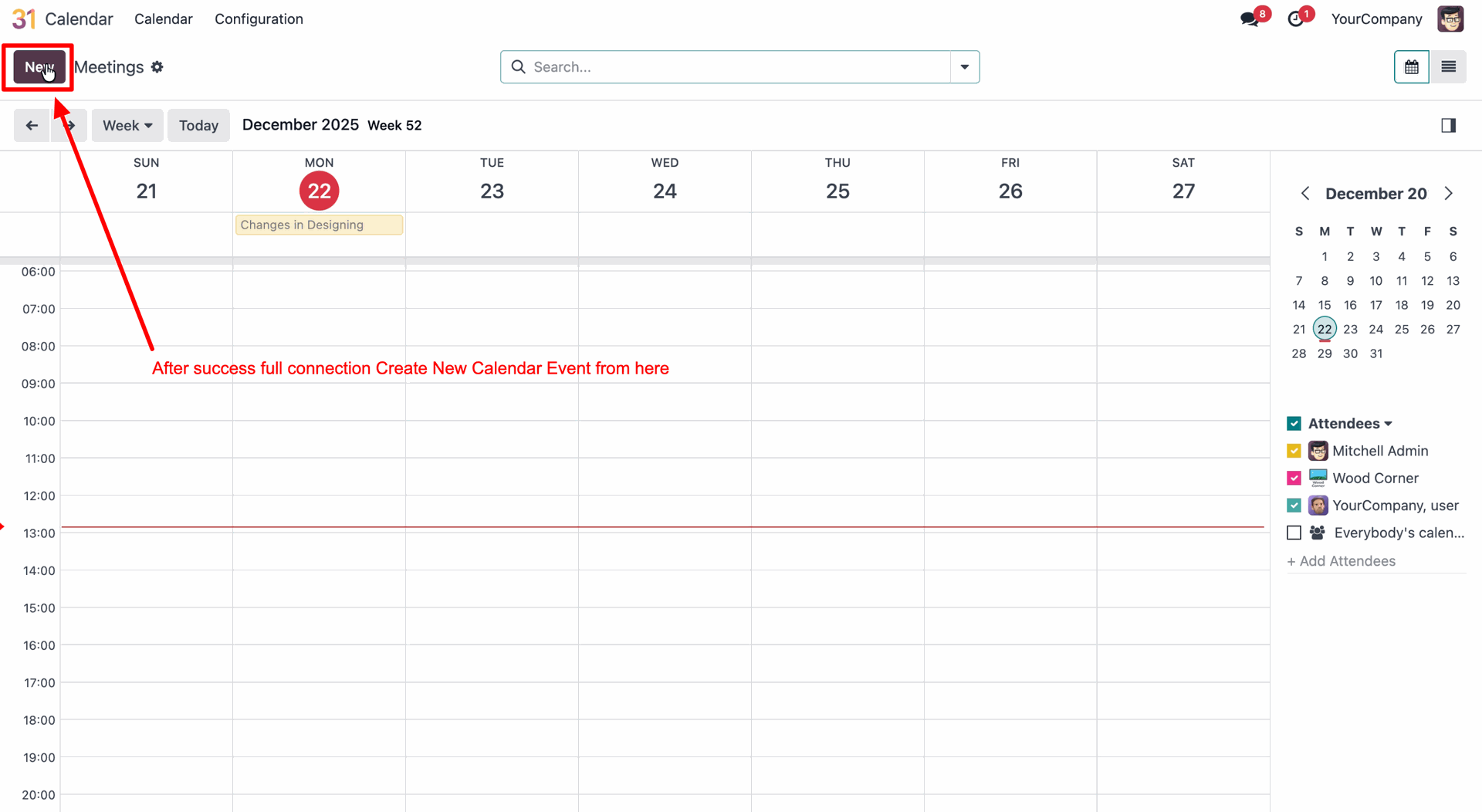
Open the Calendar app and click the New button to schedule a meeting and test the integration.
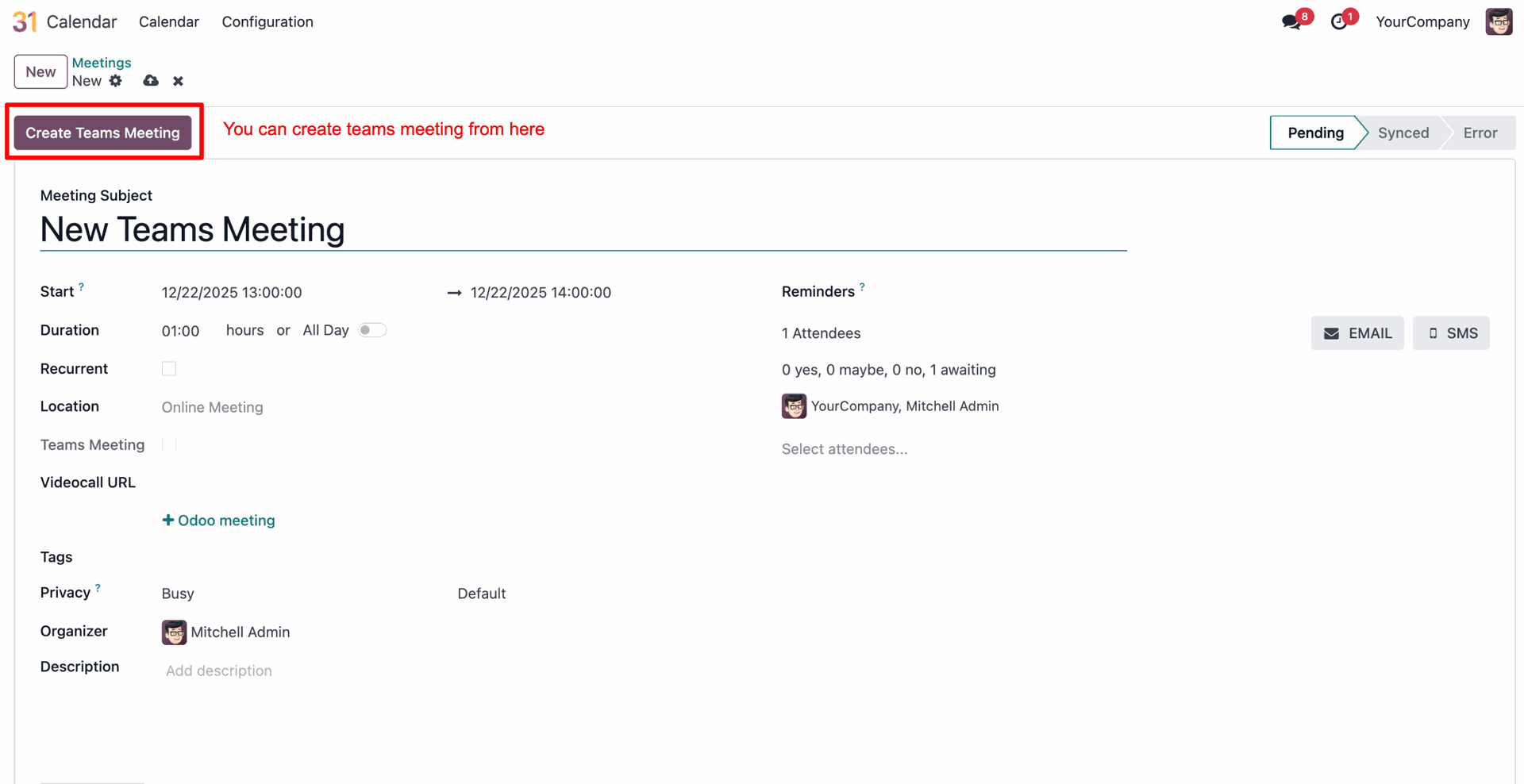
Click the Create Teams Meeting button on the event form to manually generate a conference link and track the sync status.
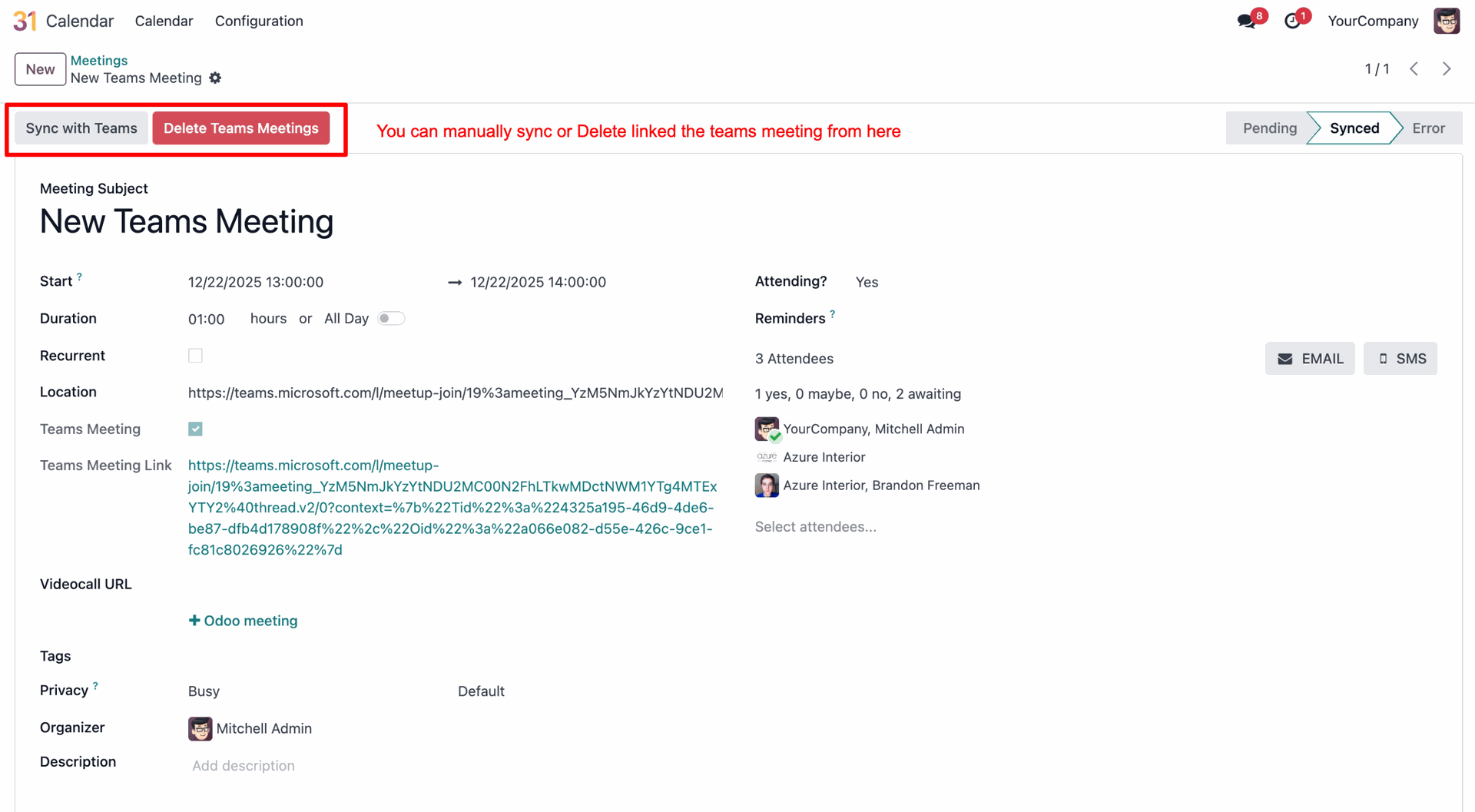
Use the Sync with Teams and Delete Teams Meetings buttons to manage the connection manually once the status shows as Synced.
Check your Microsoft Teams calendar to confirm that the Odoo event has successfully appeared at the scheduled time.
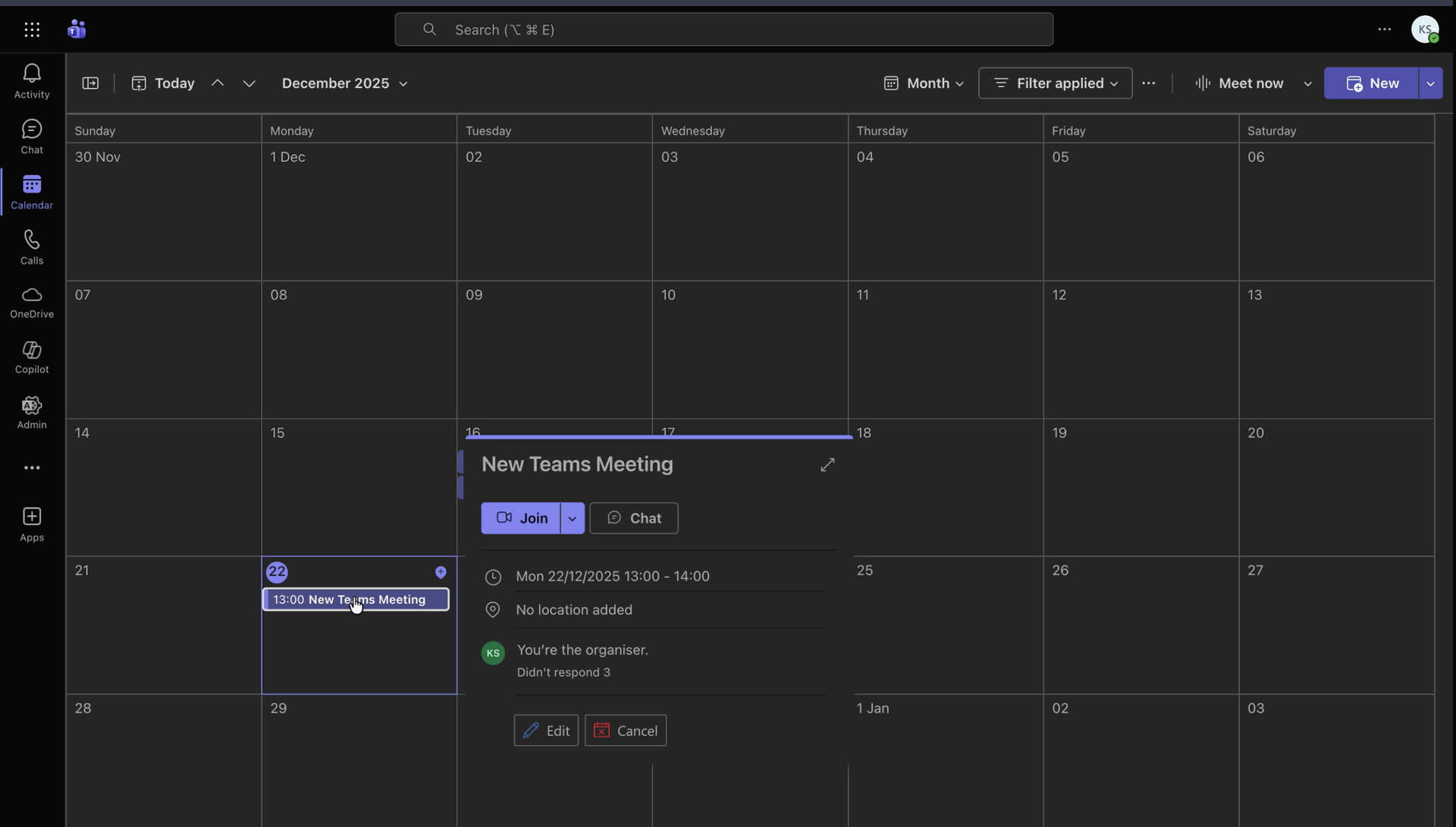
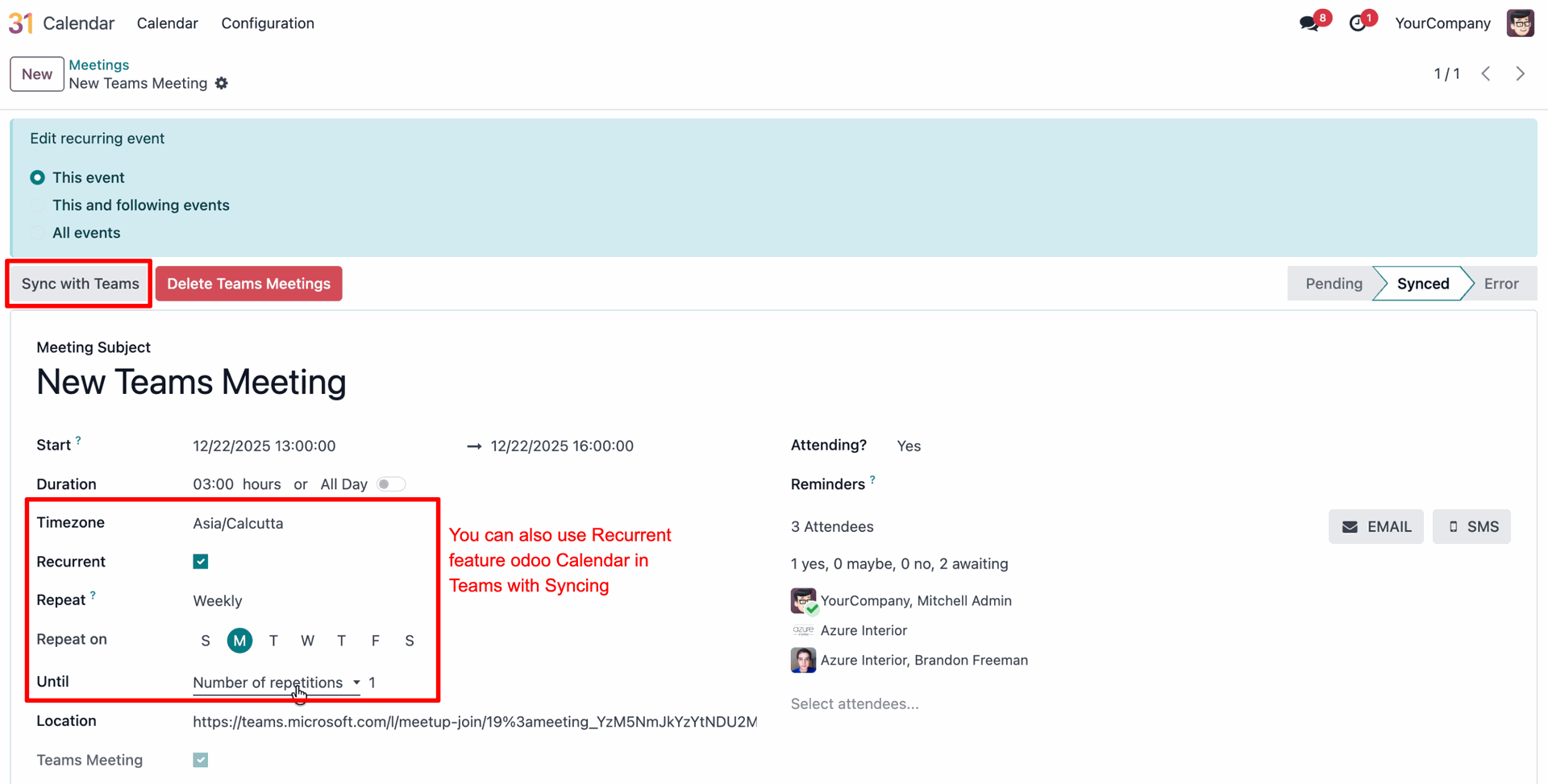
Enable the Recurrent option to schedule repeating events and click Sync with Teams to update the full series on both platforms.
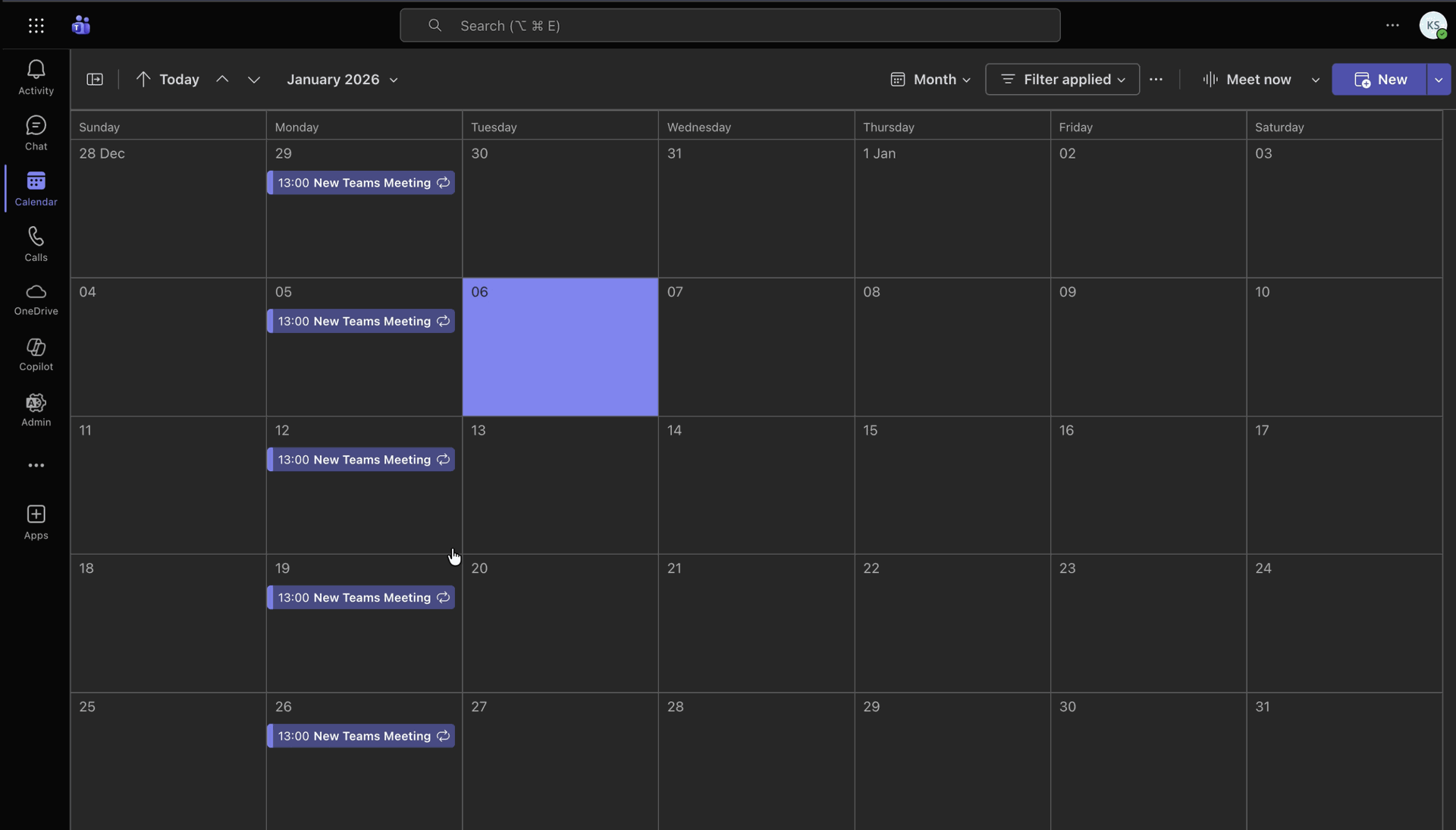
Check the Microsoft Teams calendar to confirm that the recurring event series (e.g., every Monday at 13:00) has been successfully synchronized.
Go to the Microsoft Teams app.
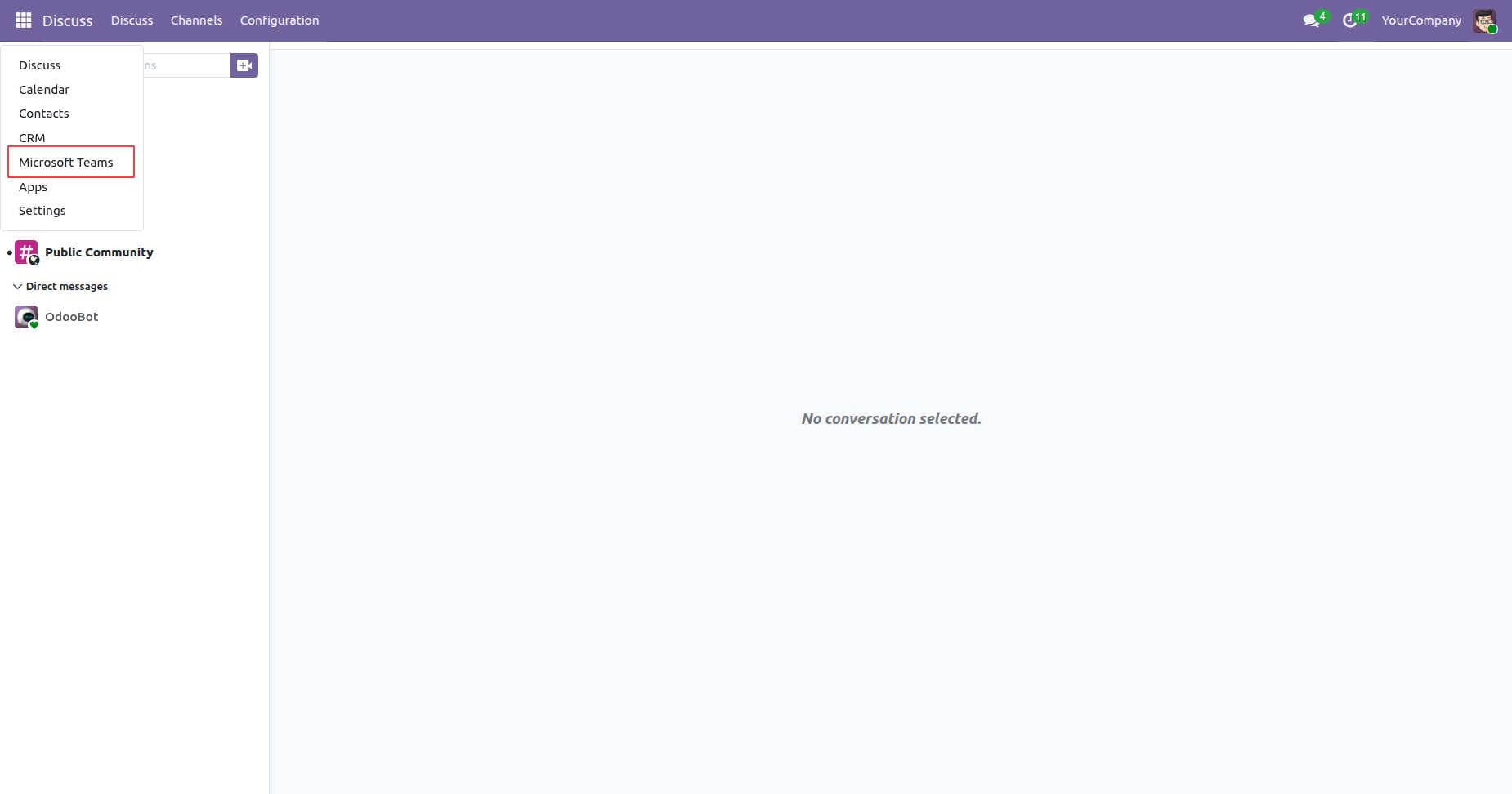
Go to Configuration and select Calendar Sync to configure and manage the synchronization between Odoo Calendar and Microsoft Teams/Outlook Calendar.
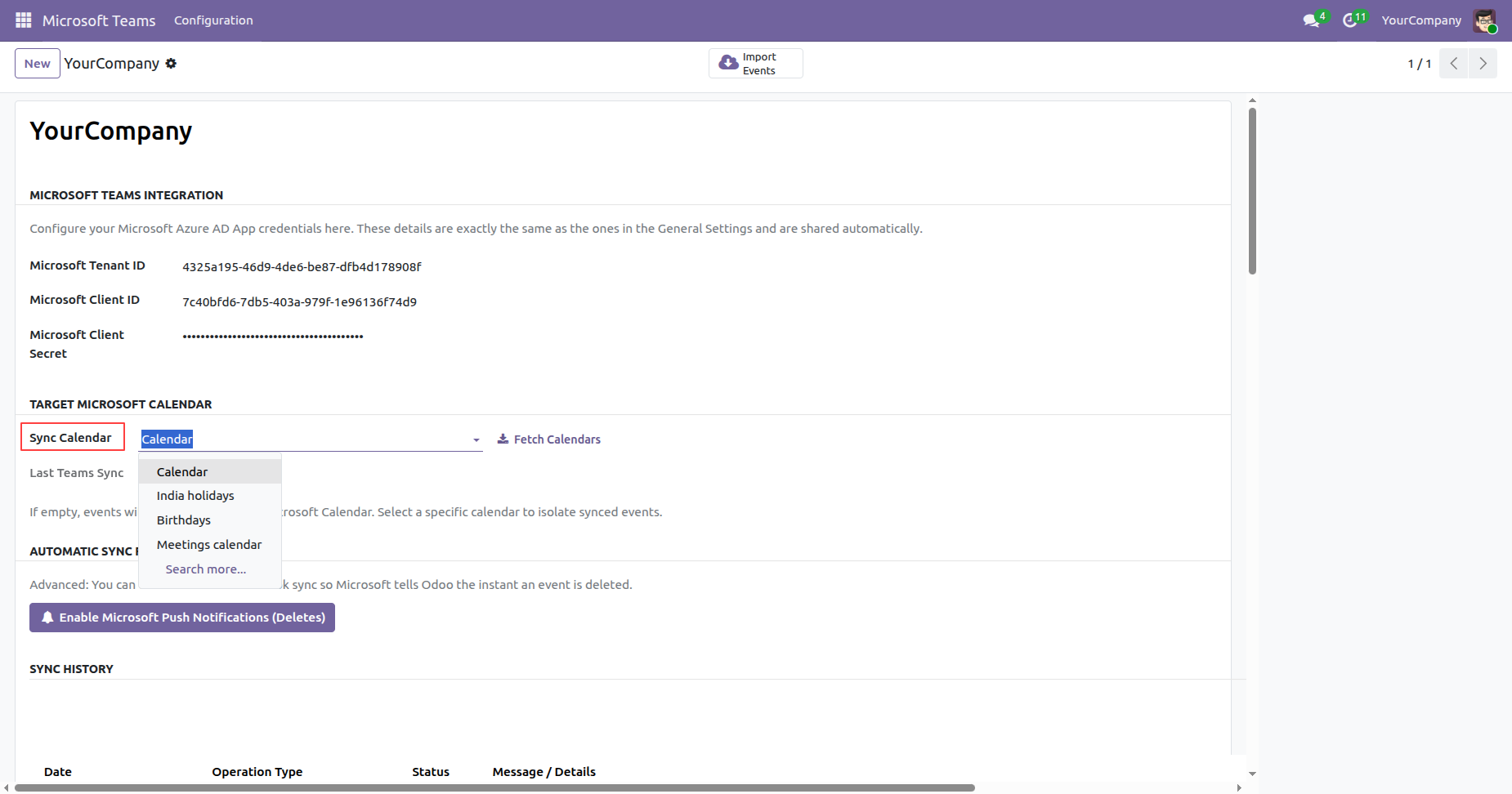
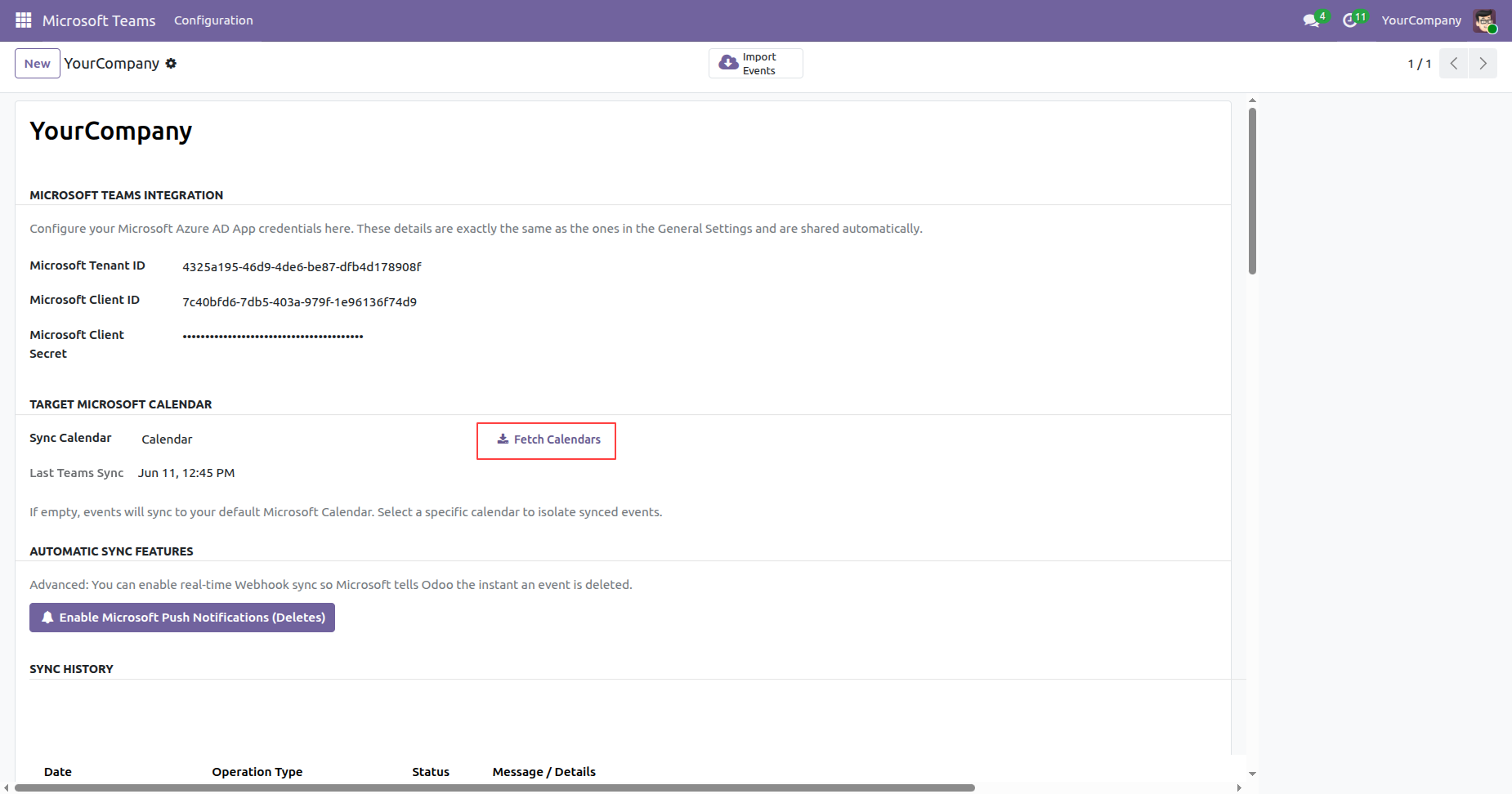
Click the Fetch Calendars button to retrieve and synchronize the available Microsoft calendars with Odoo.
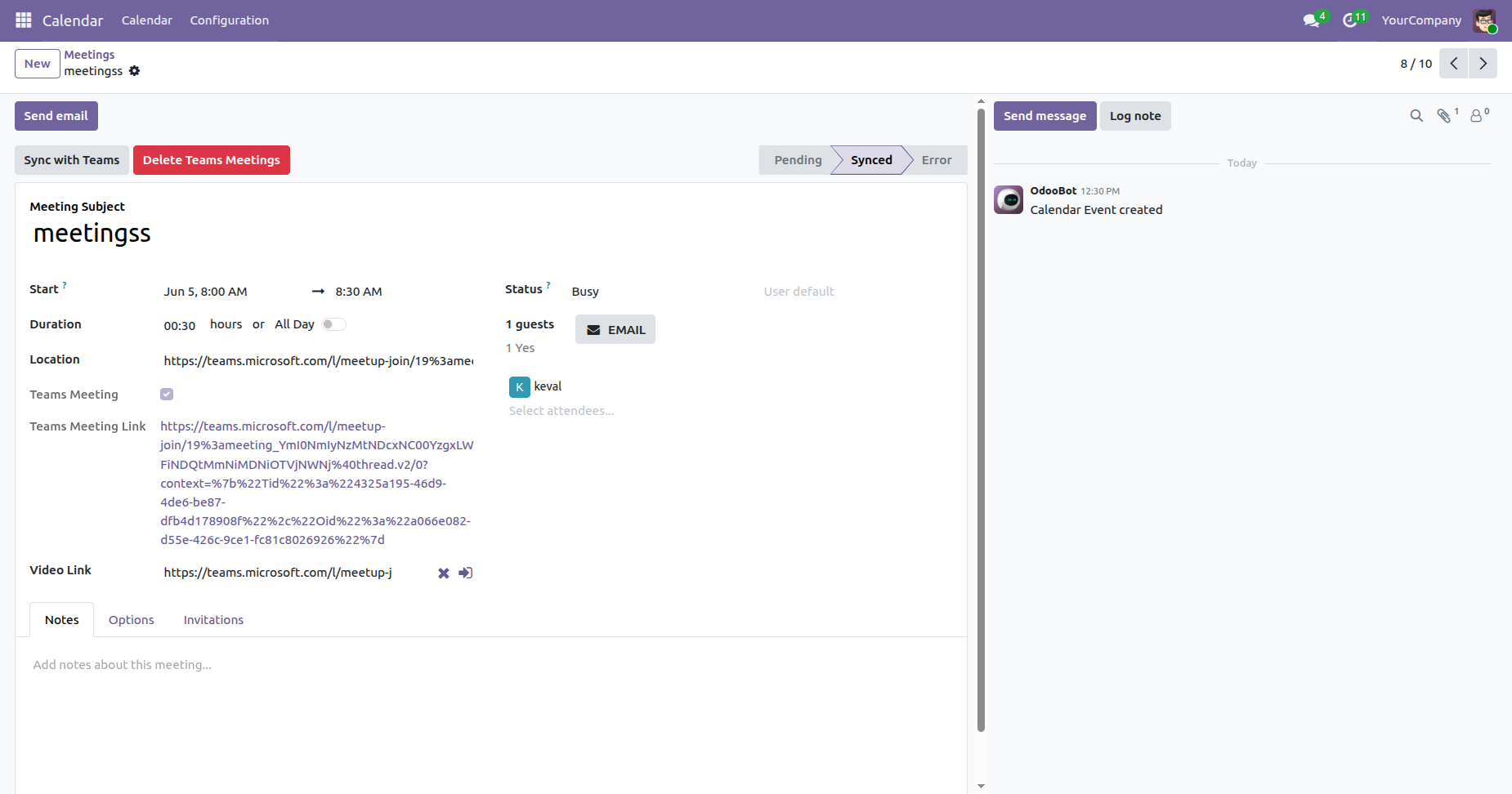
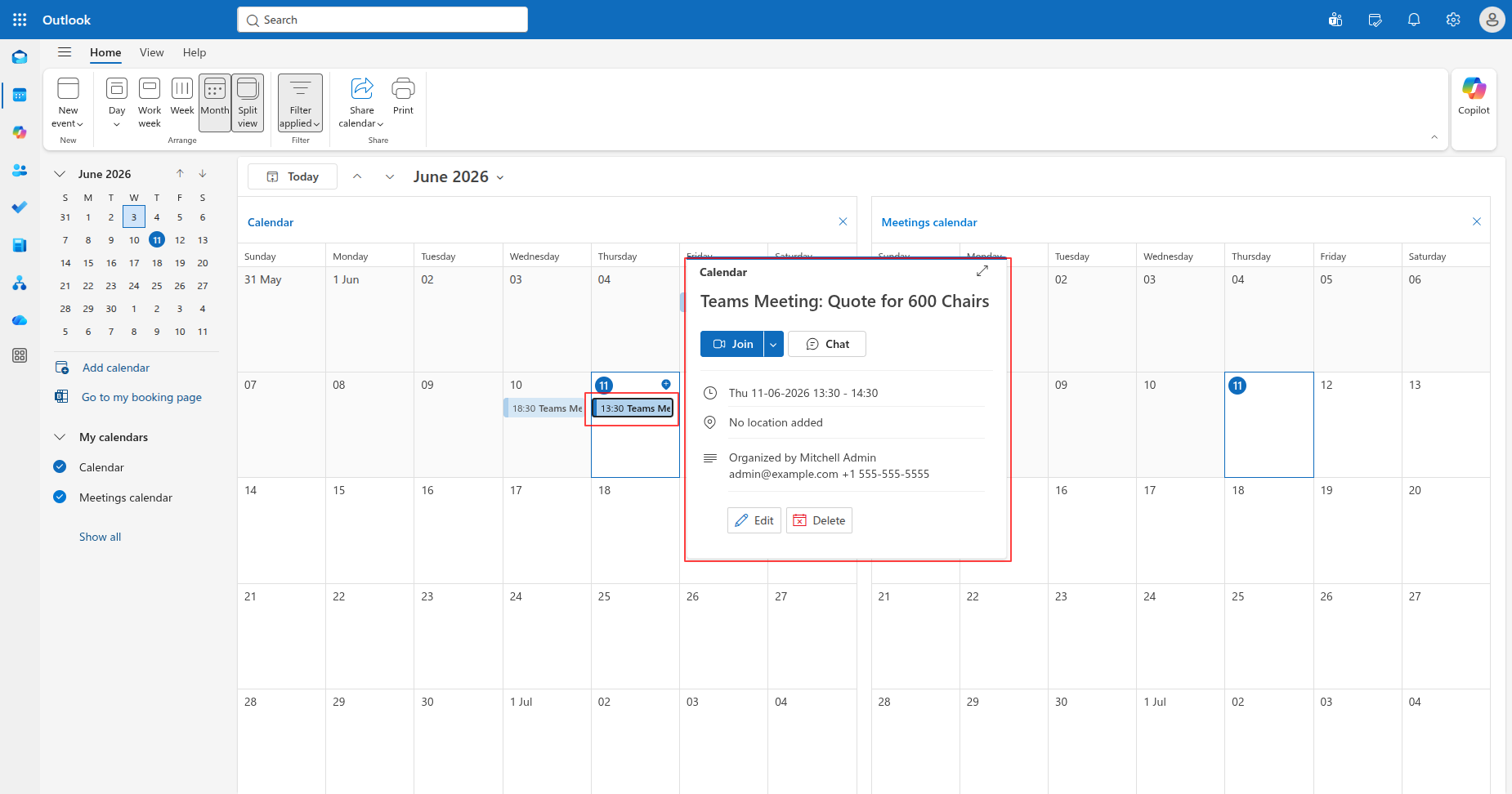
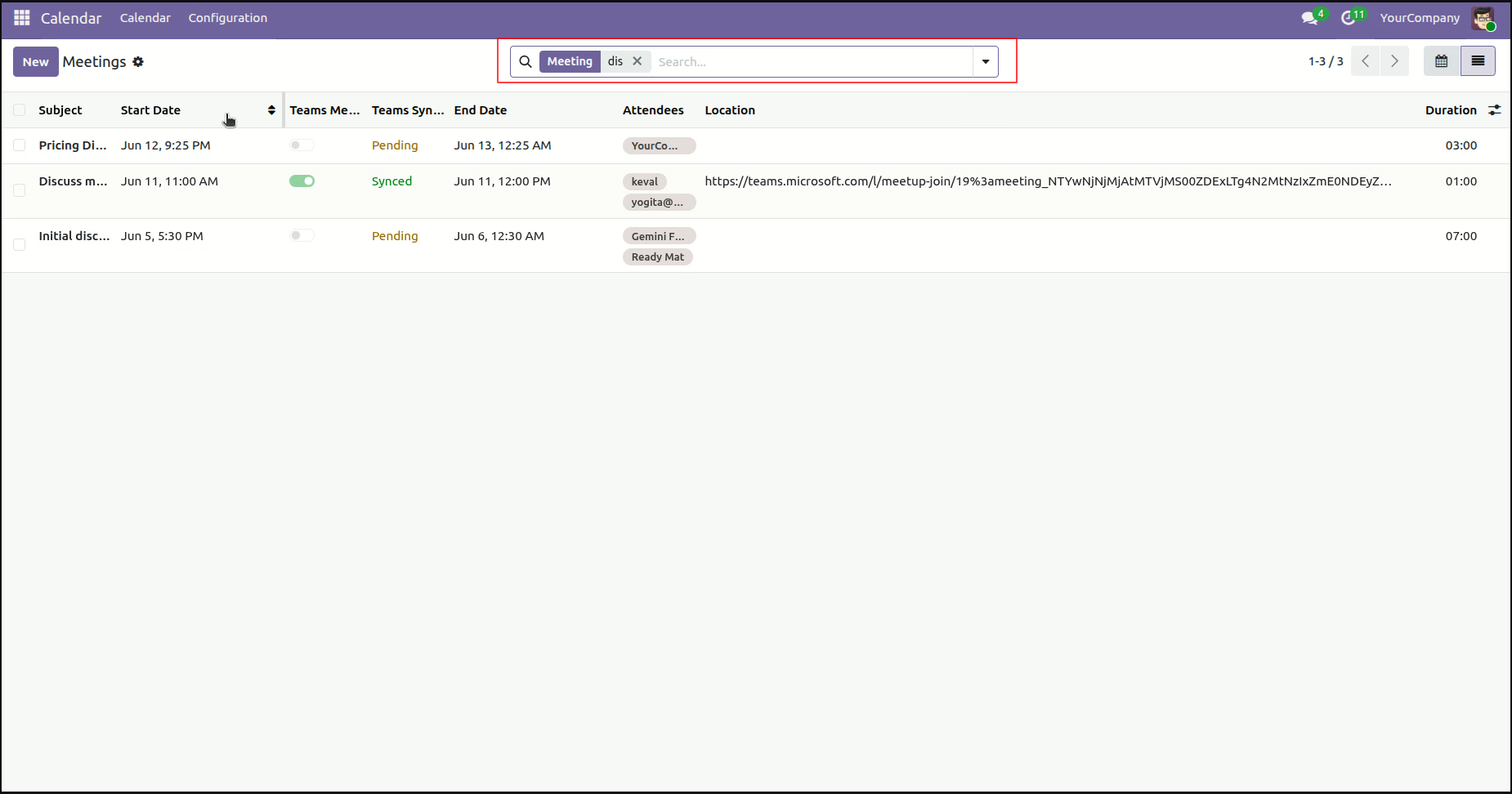
The meeting is successfully fetched from the Microsoft Calendar and created in Odoo Calendar.
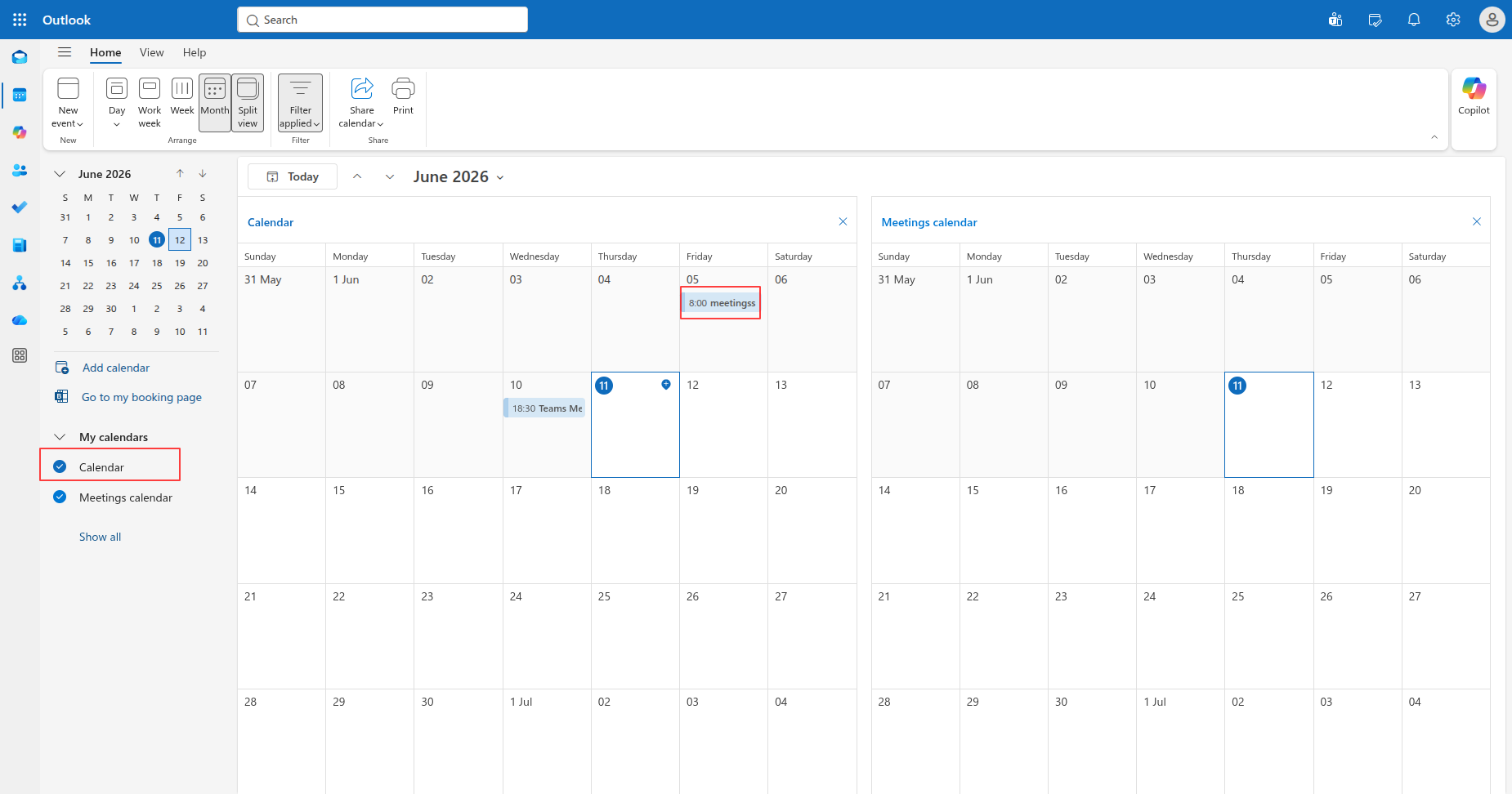
Created meeting in Microsoft Calendar.
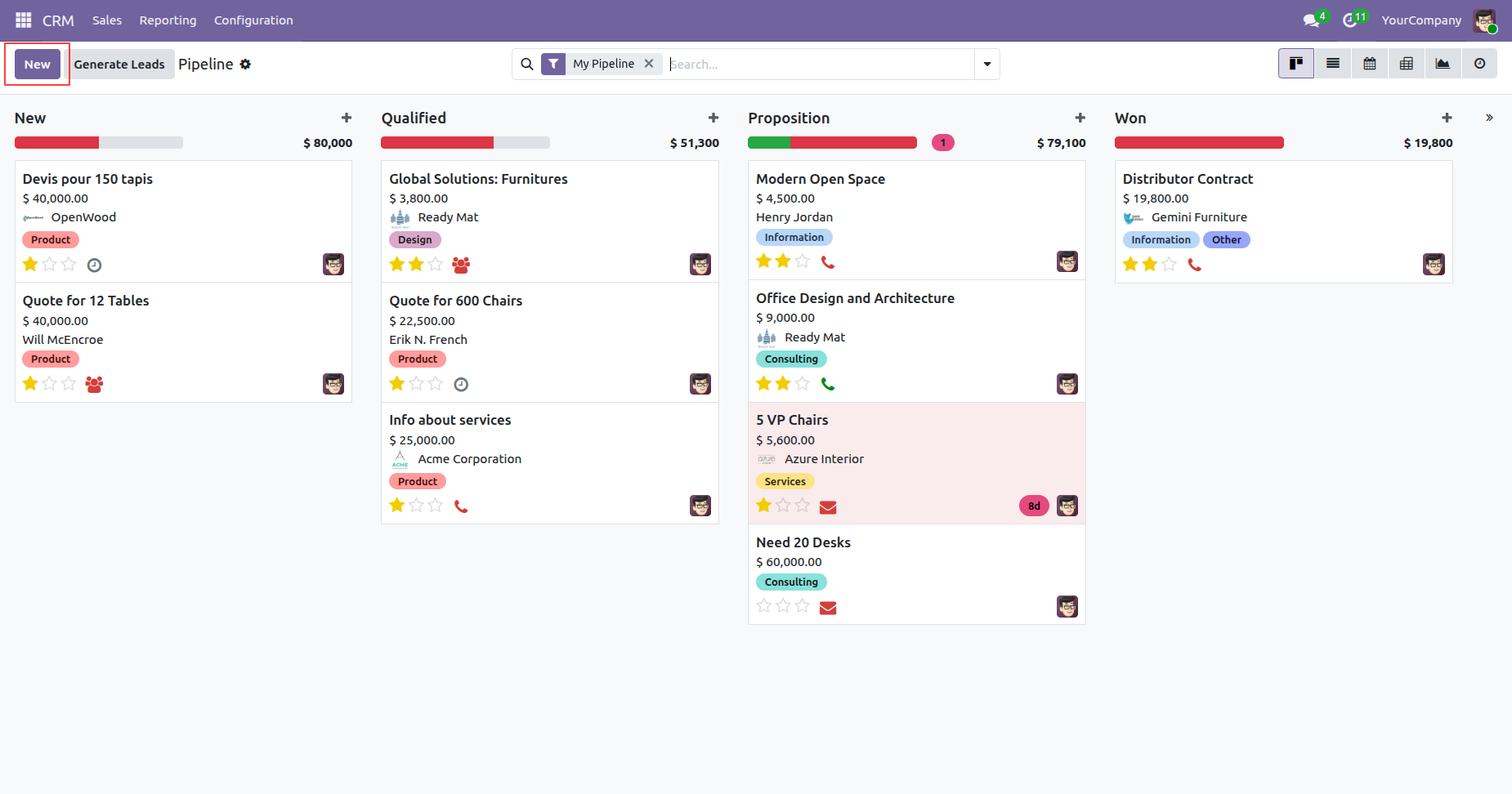
Go to the CRM Pipeline and click New to create a new Lead/Opportunity.
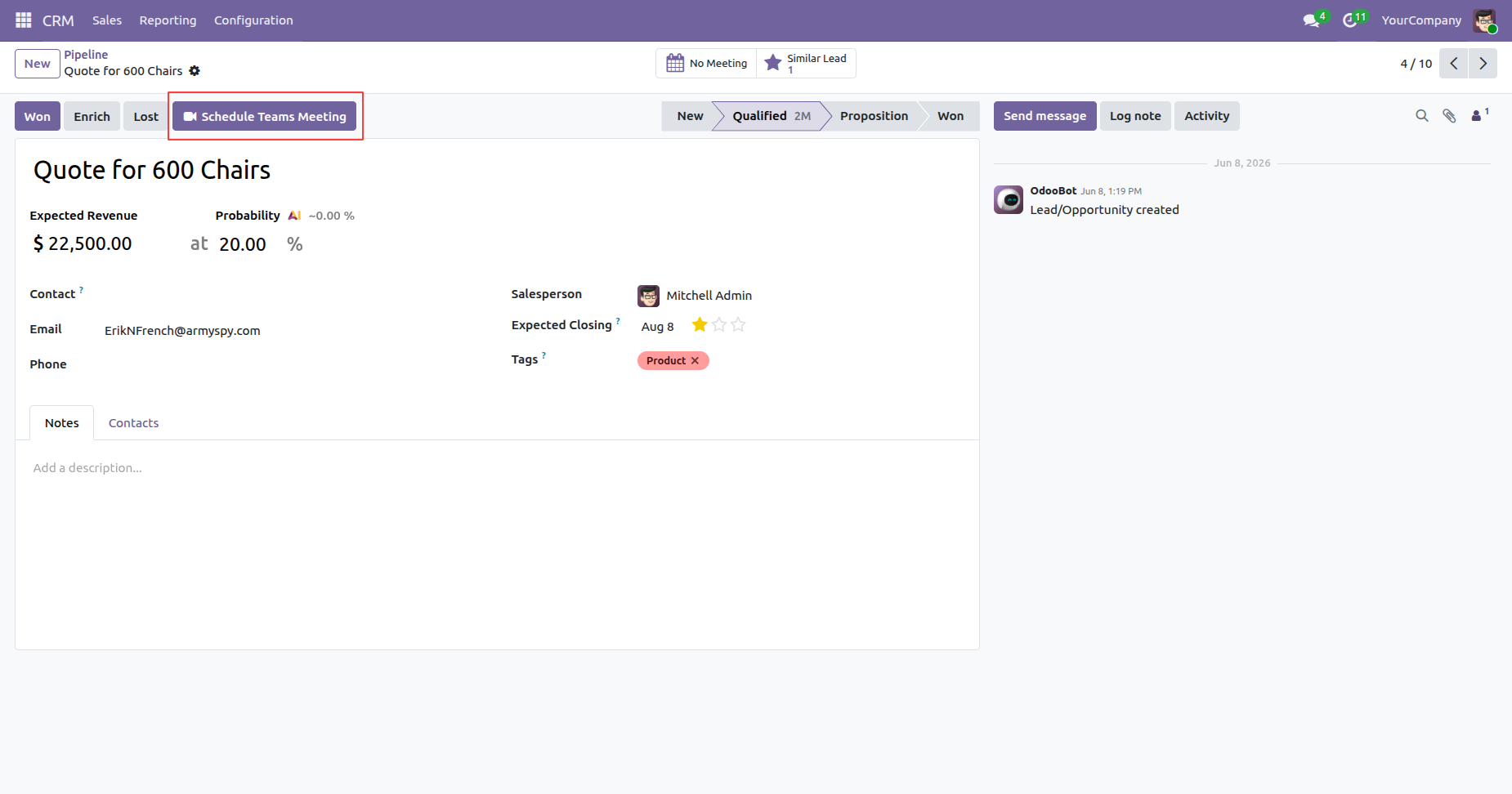
Open the CRM Pipeline form view and click Schedule Teams Meeting button to create and schedule a meeting directly from the pipeline.
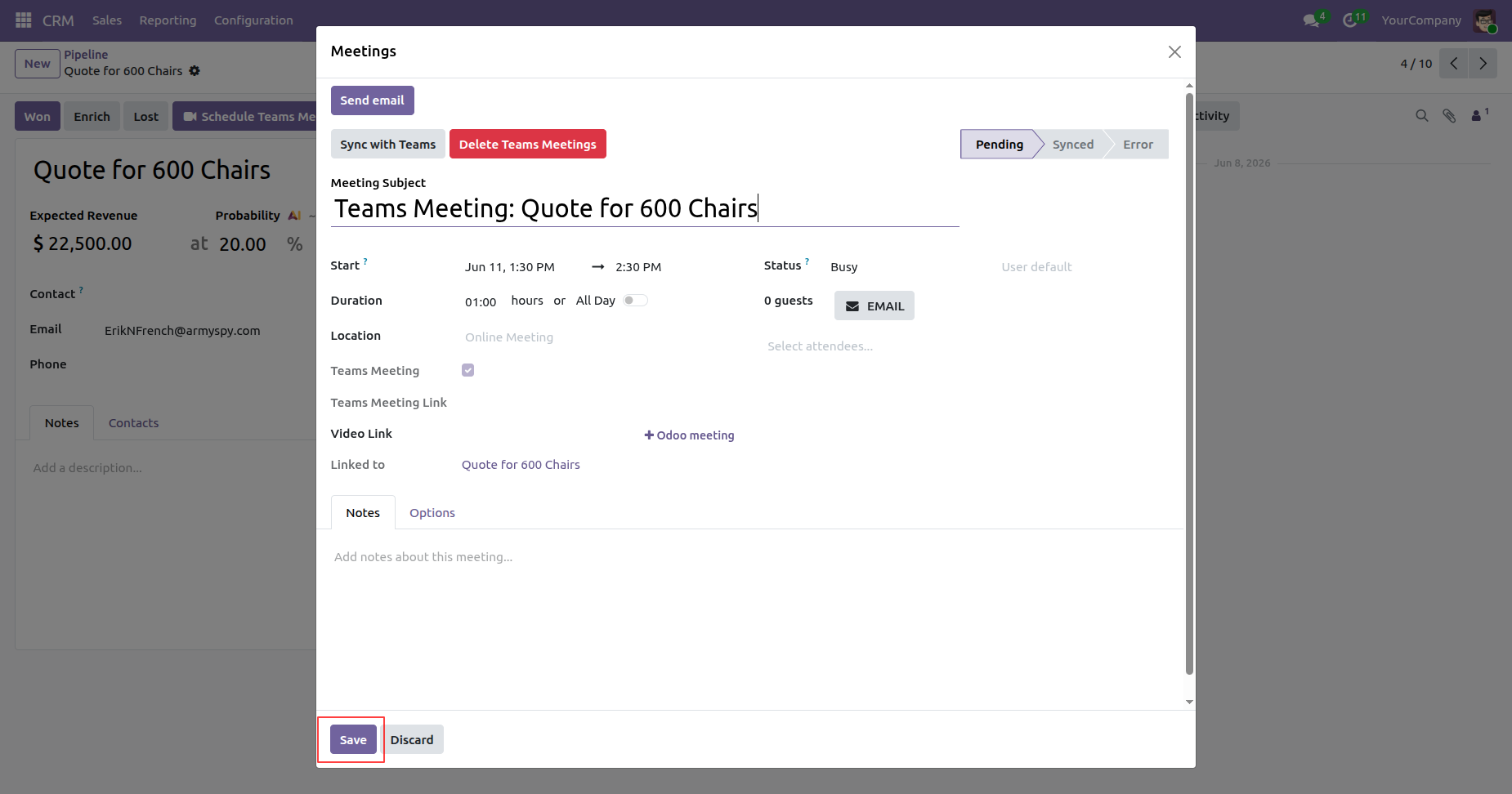
Clicking the Schedule Teams Meeting button opens the Meeting wizard. Enter the required meeting details, then click the Save button to create and schedule the Microsoft Teams meeting.
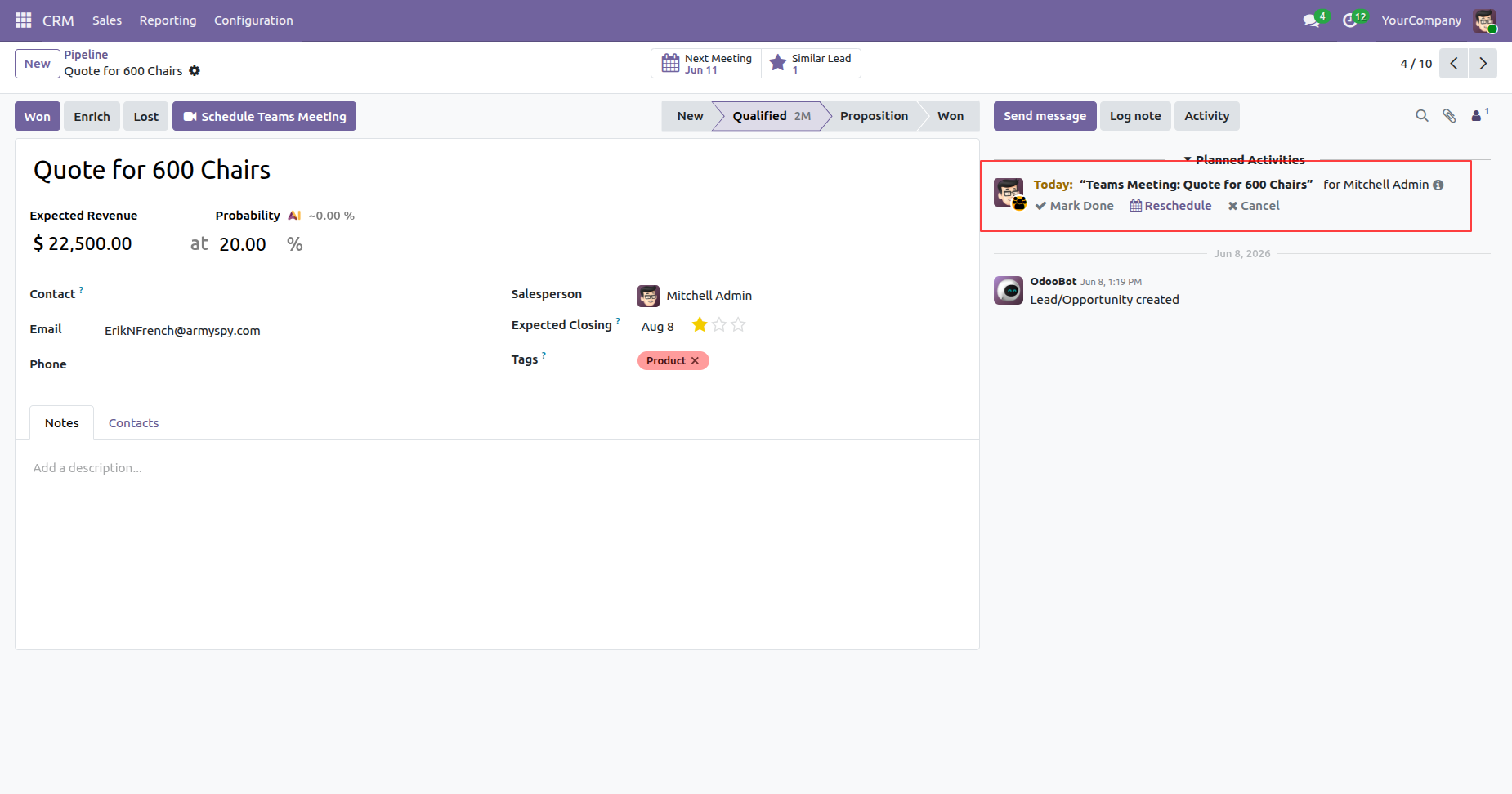
The scheduled meeting is automatically added as an activity in Odoo, allowing users to track and access it directly from the related record.
The meeting is successfully scheduled in the Microsoft Calendar directly from the Odoo CRM Pipeline.
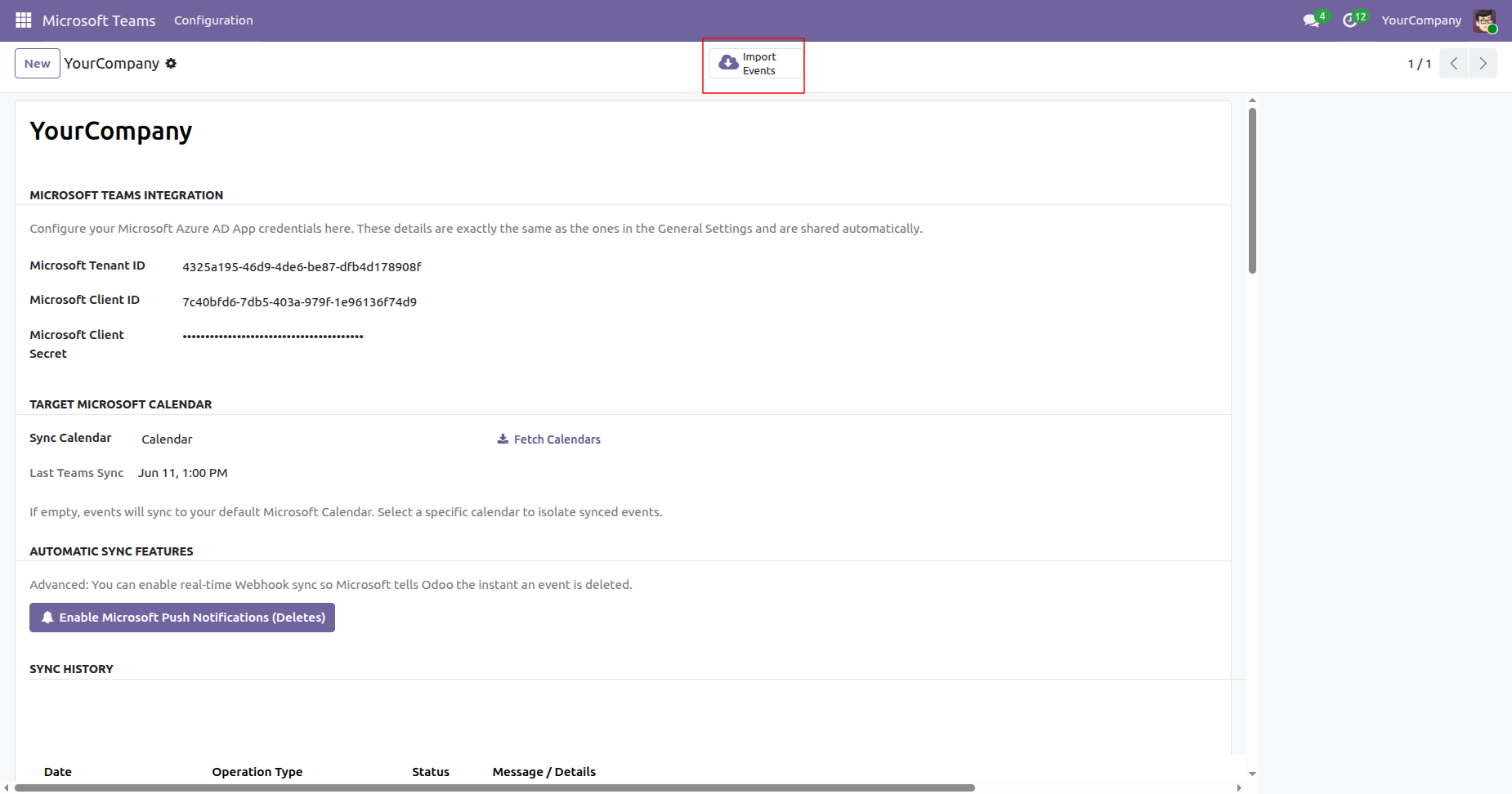
Click the Import Events button in the Microsoft Teams Configuration to import calendar events from Microsoft Calendar into Odoo.
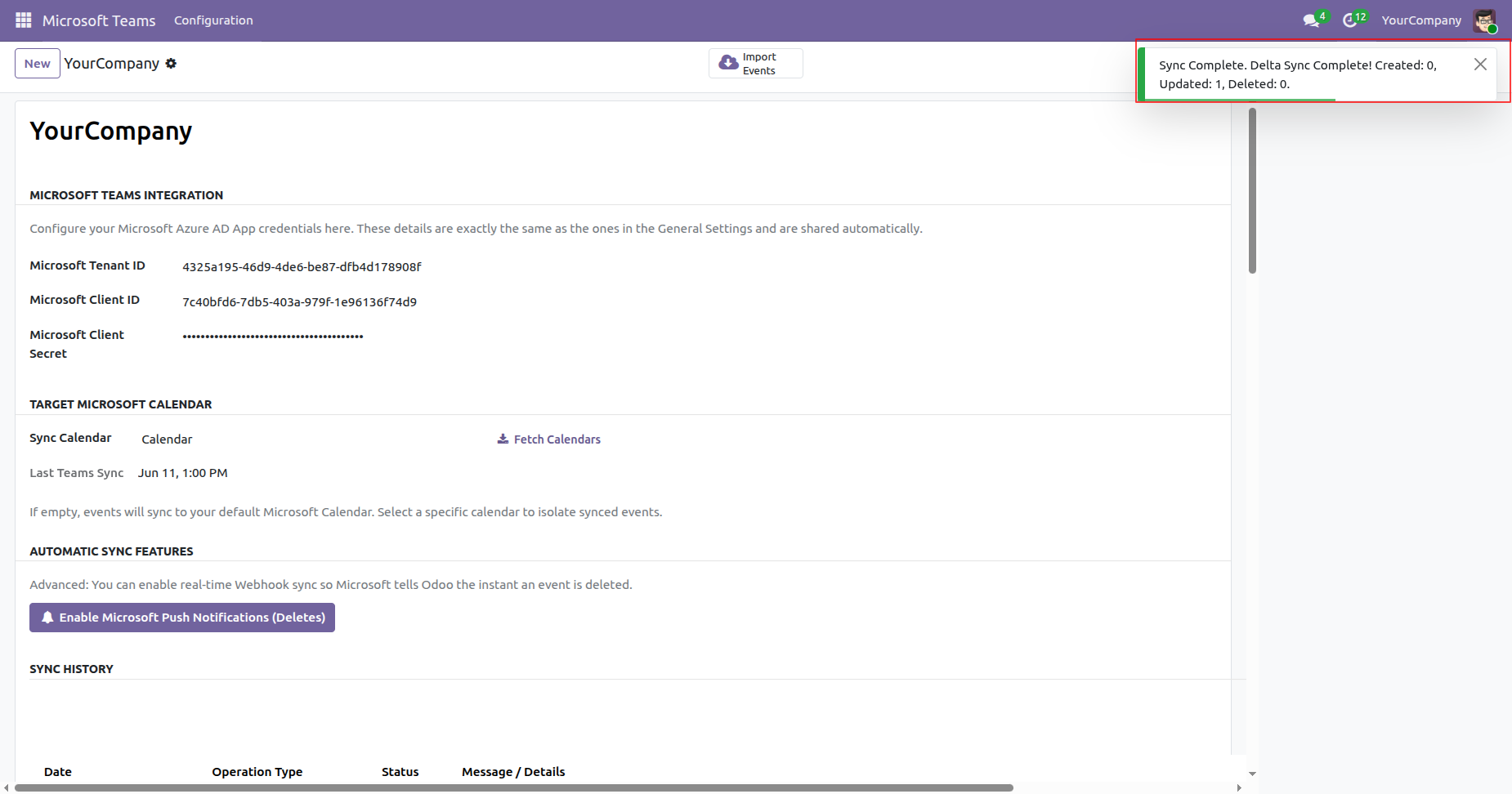
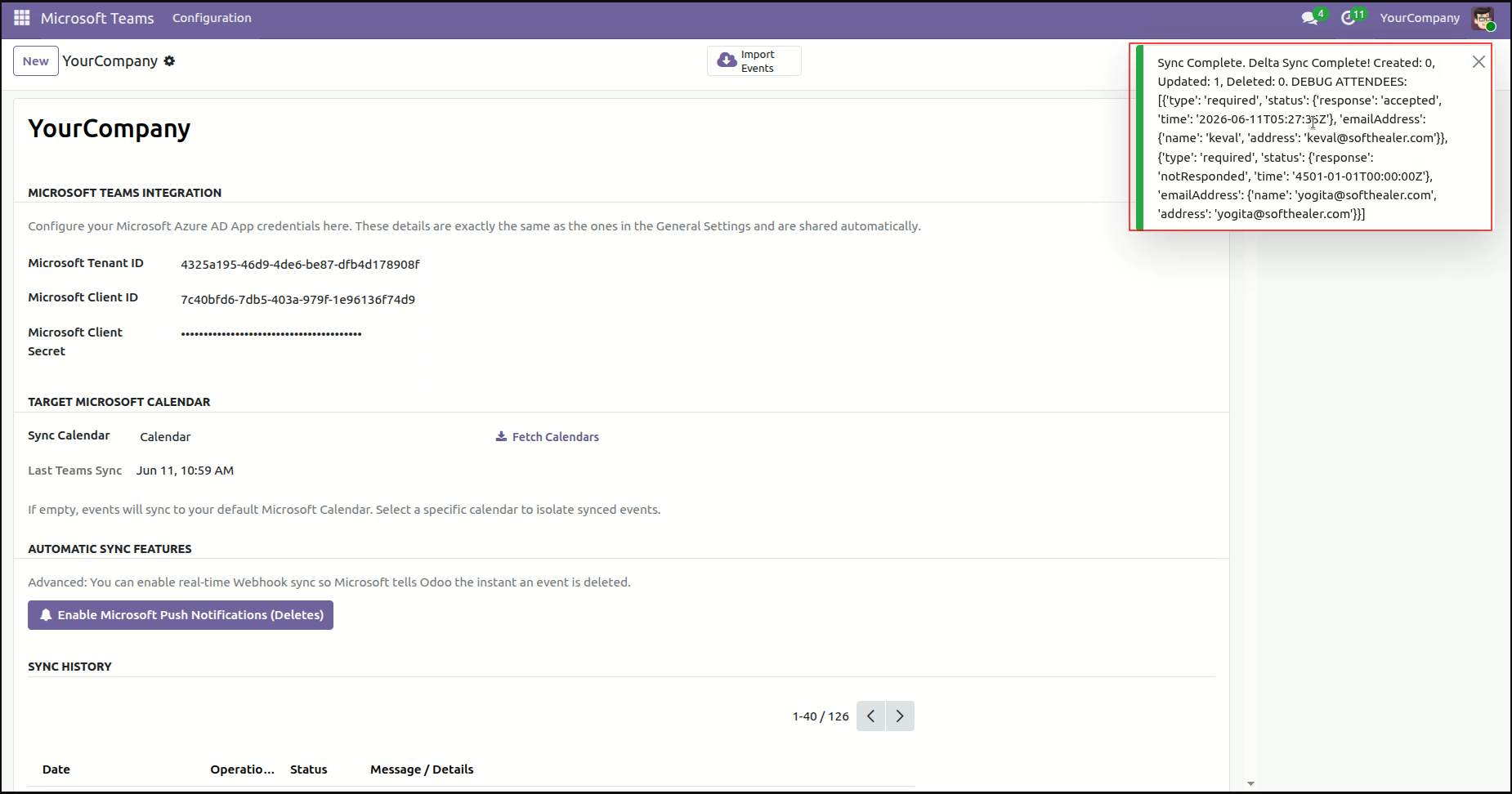
Once the synchronization is complete, a success notification is displayed to confirm that the events have been imported successfully.
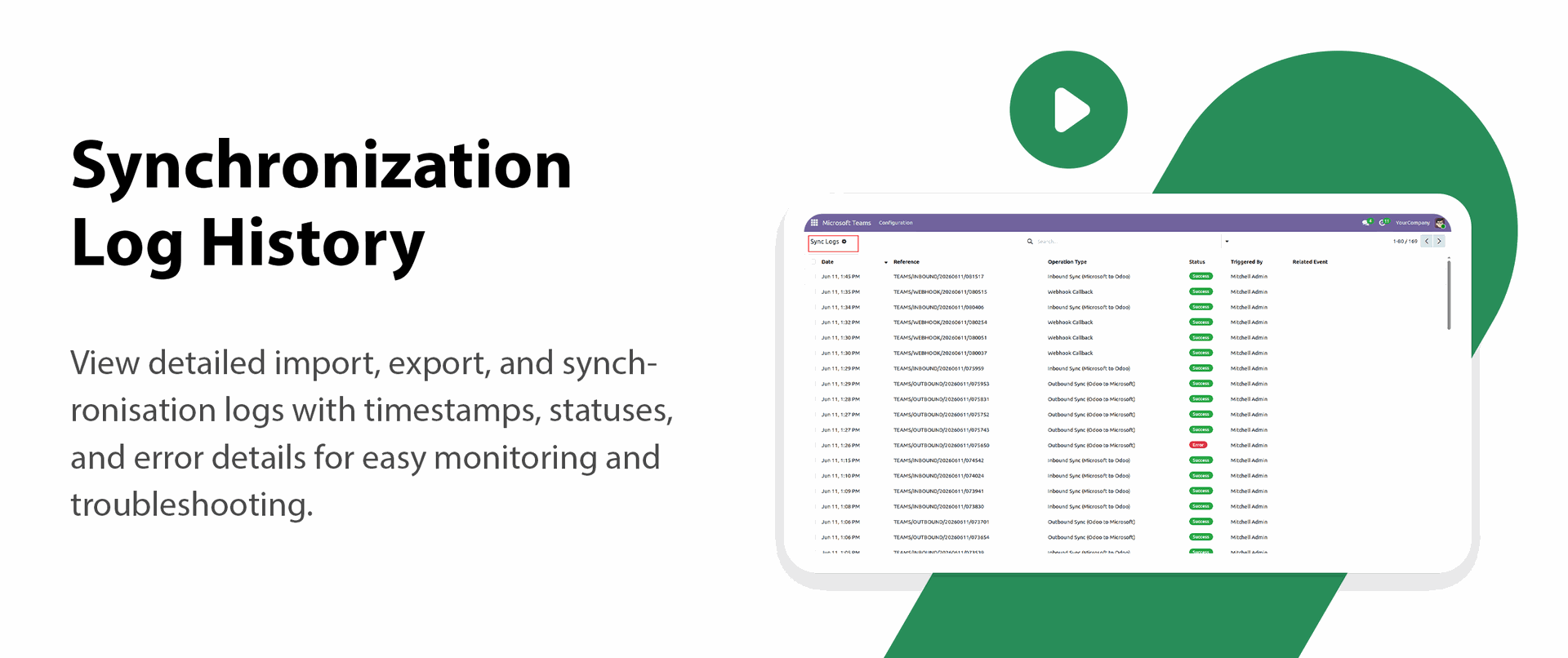
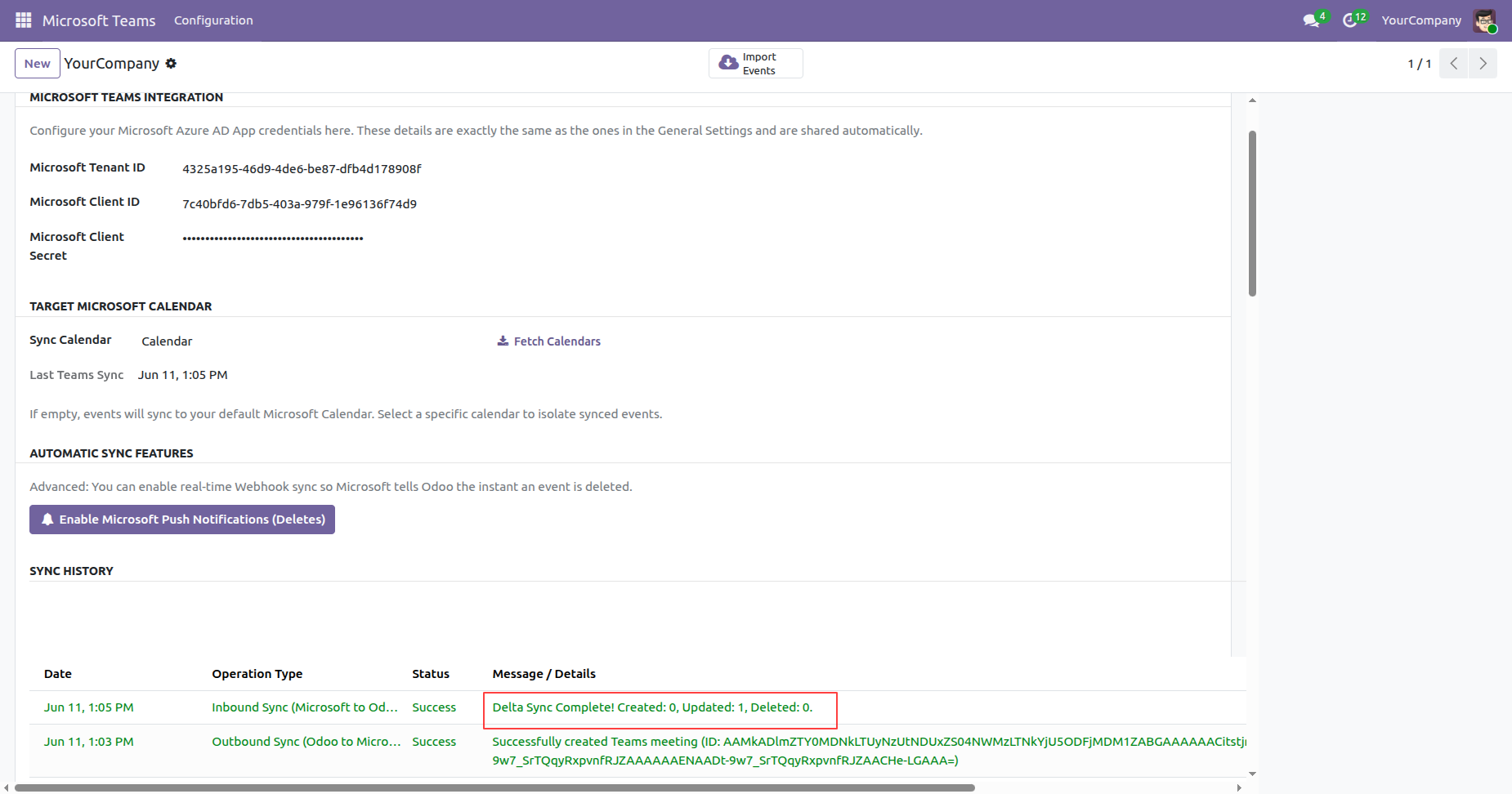
Synchronization details are also recorded and can be viewed in the Log History section in Odoo.
When the meeting reminder is triggered, a notification is displayed to the user with three available options: OK, Details, and Snooze.
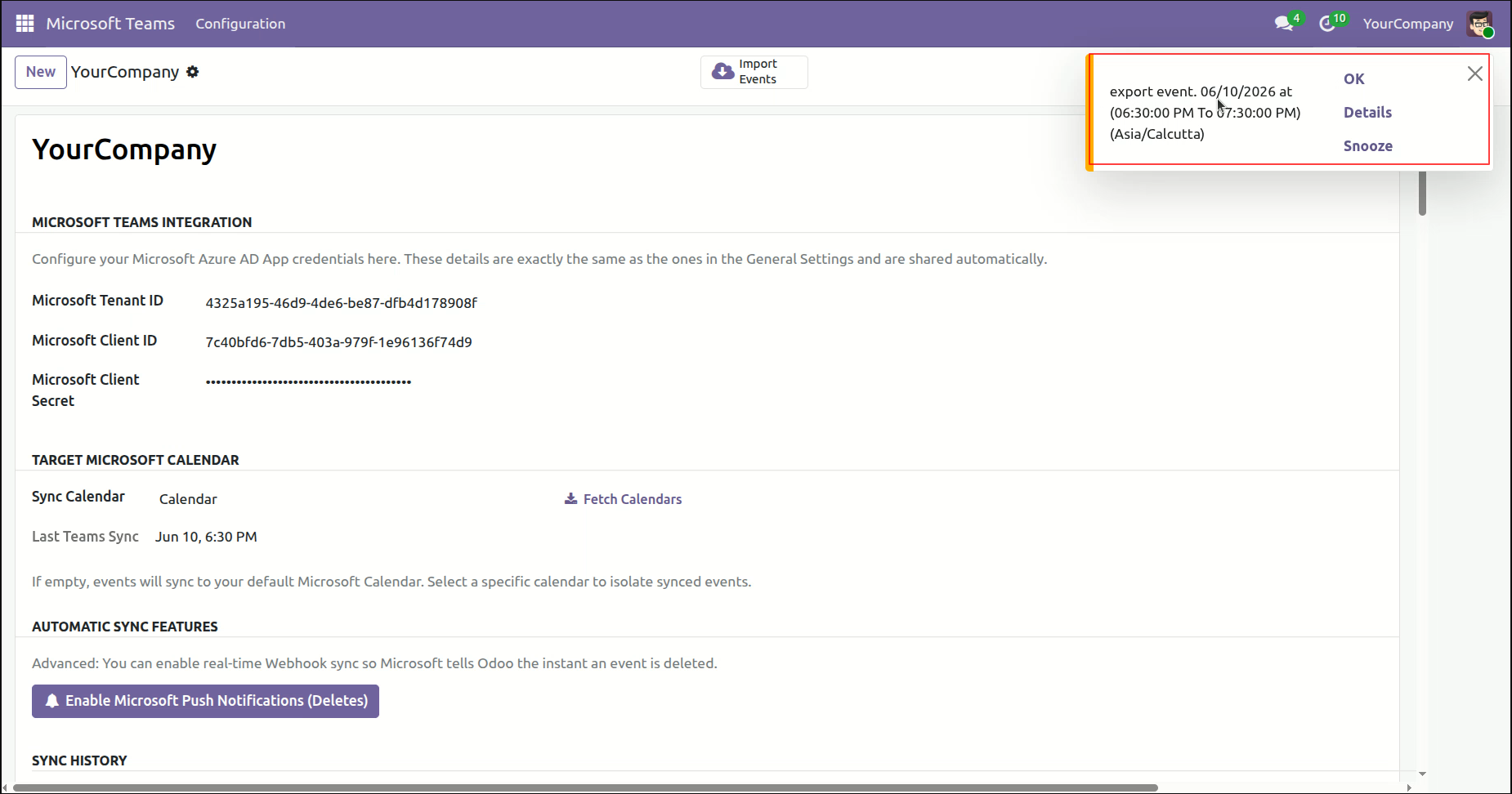
Click Details from the meeting notification to open the meeting details.
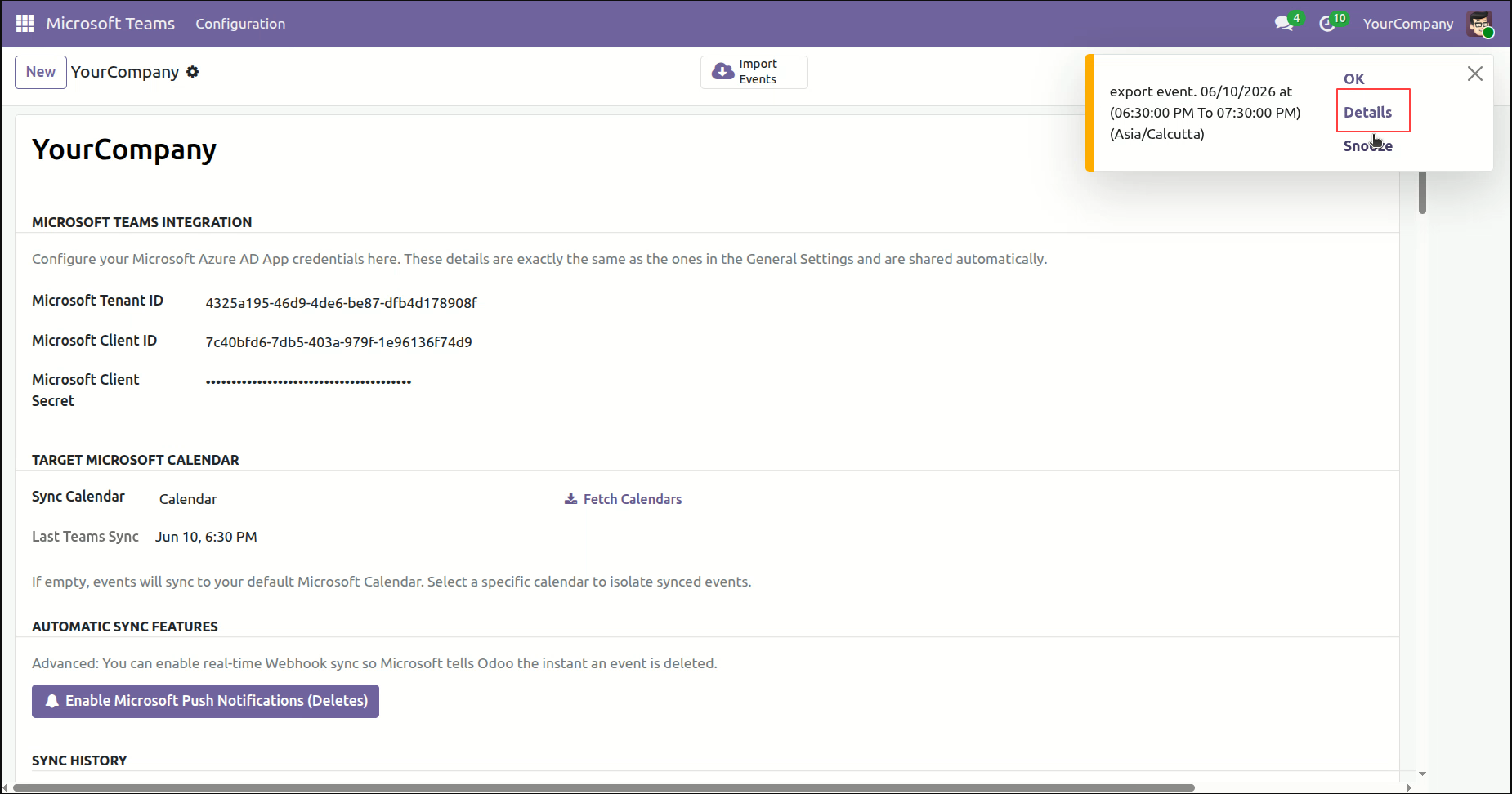
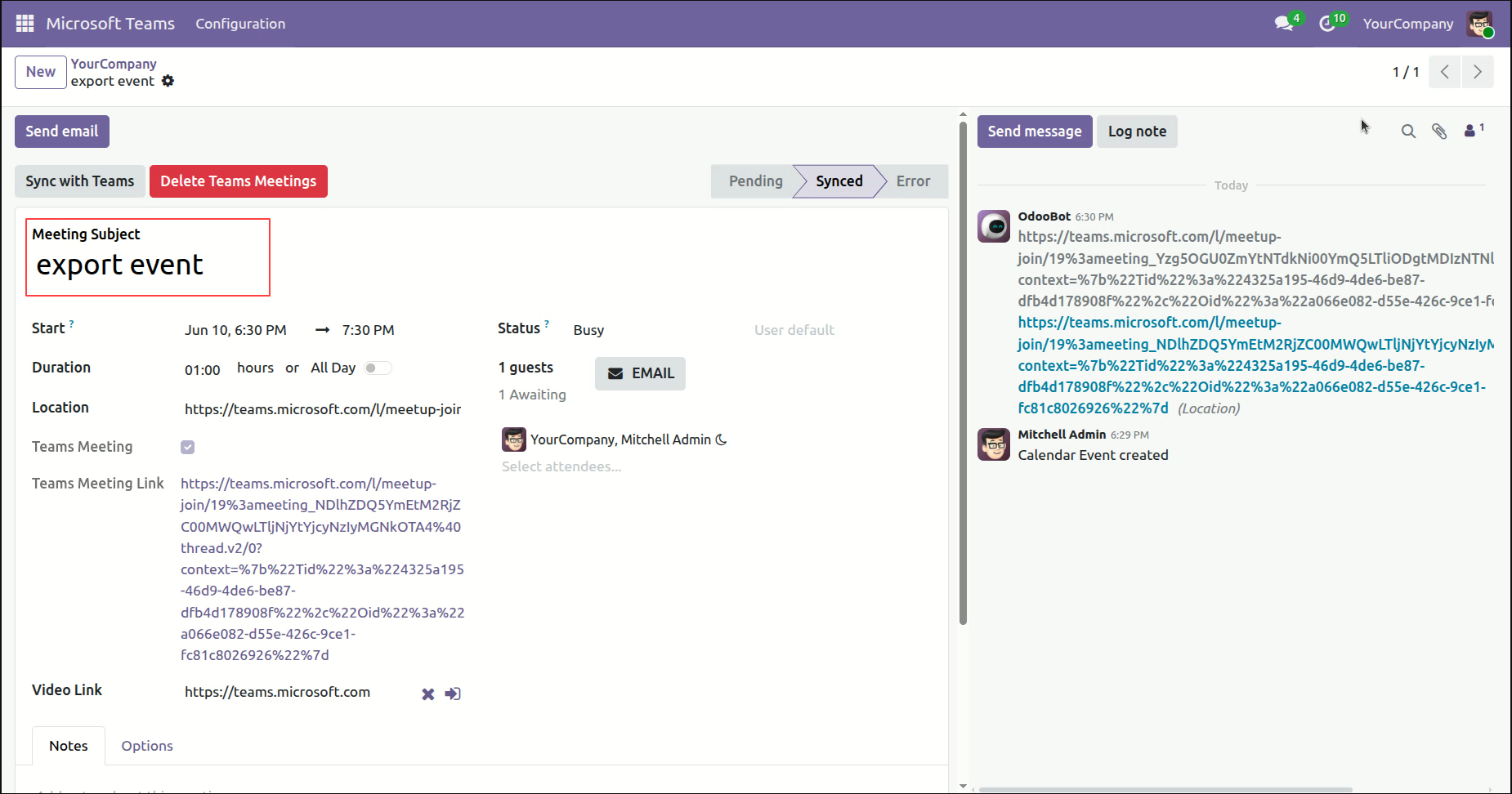
Clicking Details opens the Meeting Details window, where users can view the complete information about the scheduled meeting.
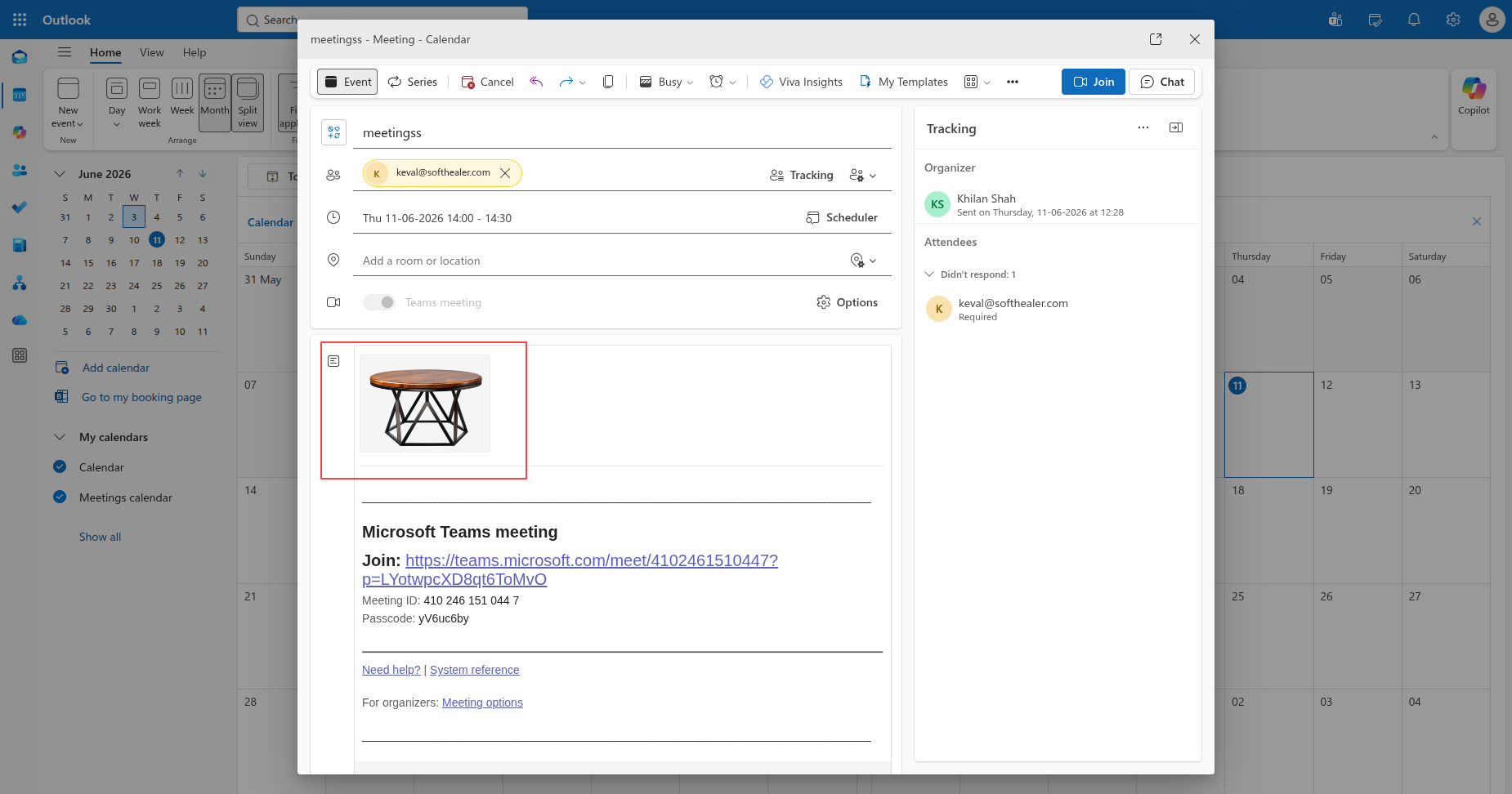
Open the Microsoft Teams Calendar, attach the required file or document to the meeting, and save the changes.
Go to the Microsoft Teams Configuration in Odoo and click the Import Events button to import the latest calendar events, including any updated meeting details and attachments, from Microsoft Teams into Odoo.
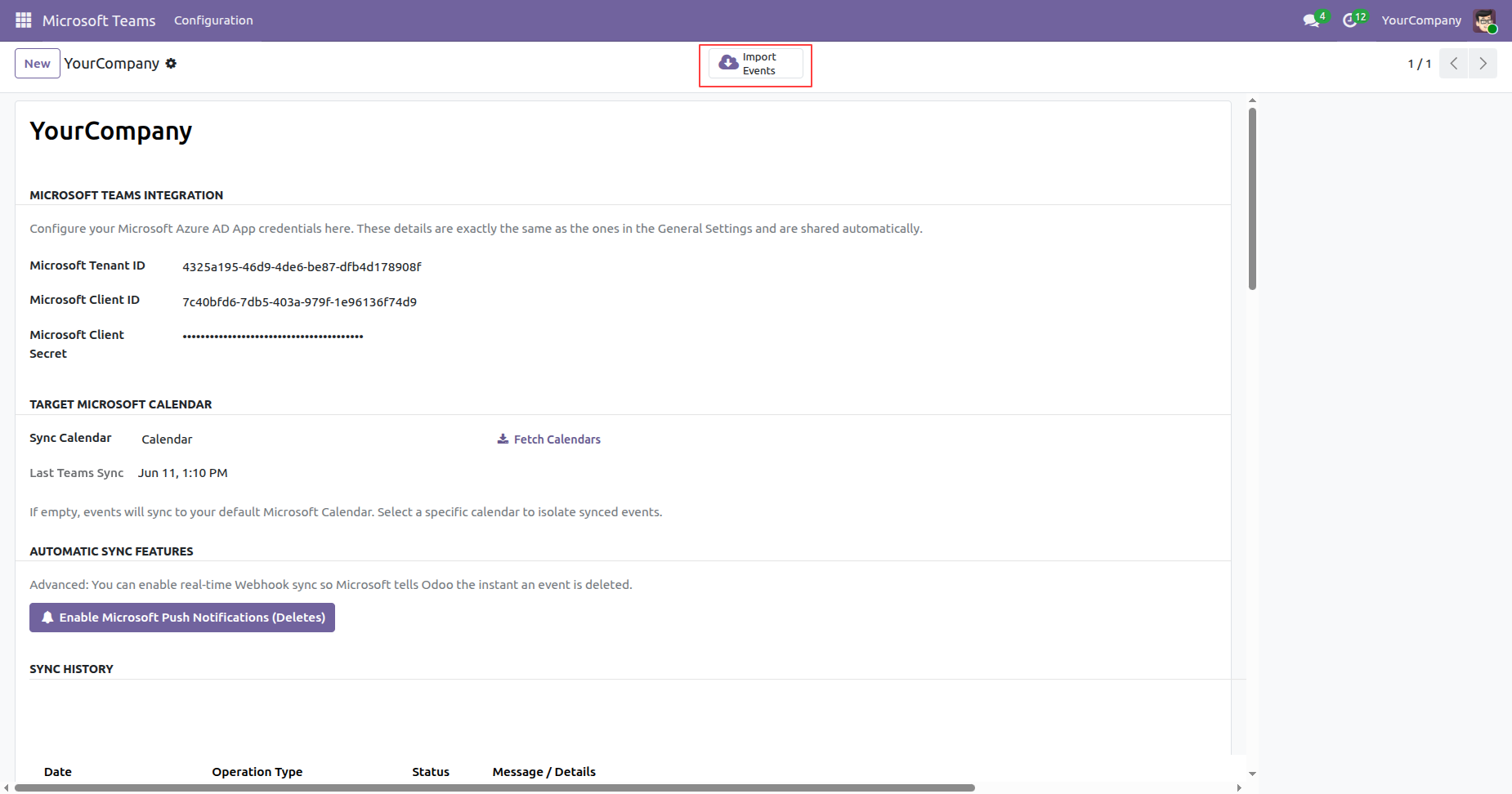
The attachment added to the meeting in Microsoft Teams is successfully imported and attached to the corresponding meeting in Odoo.
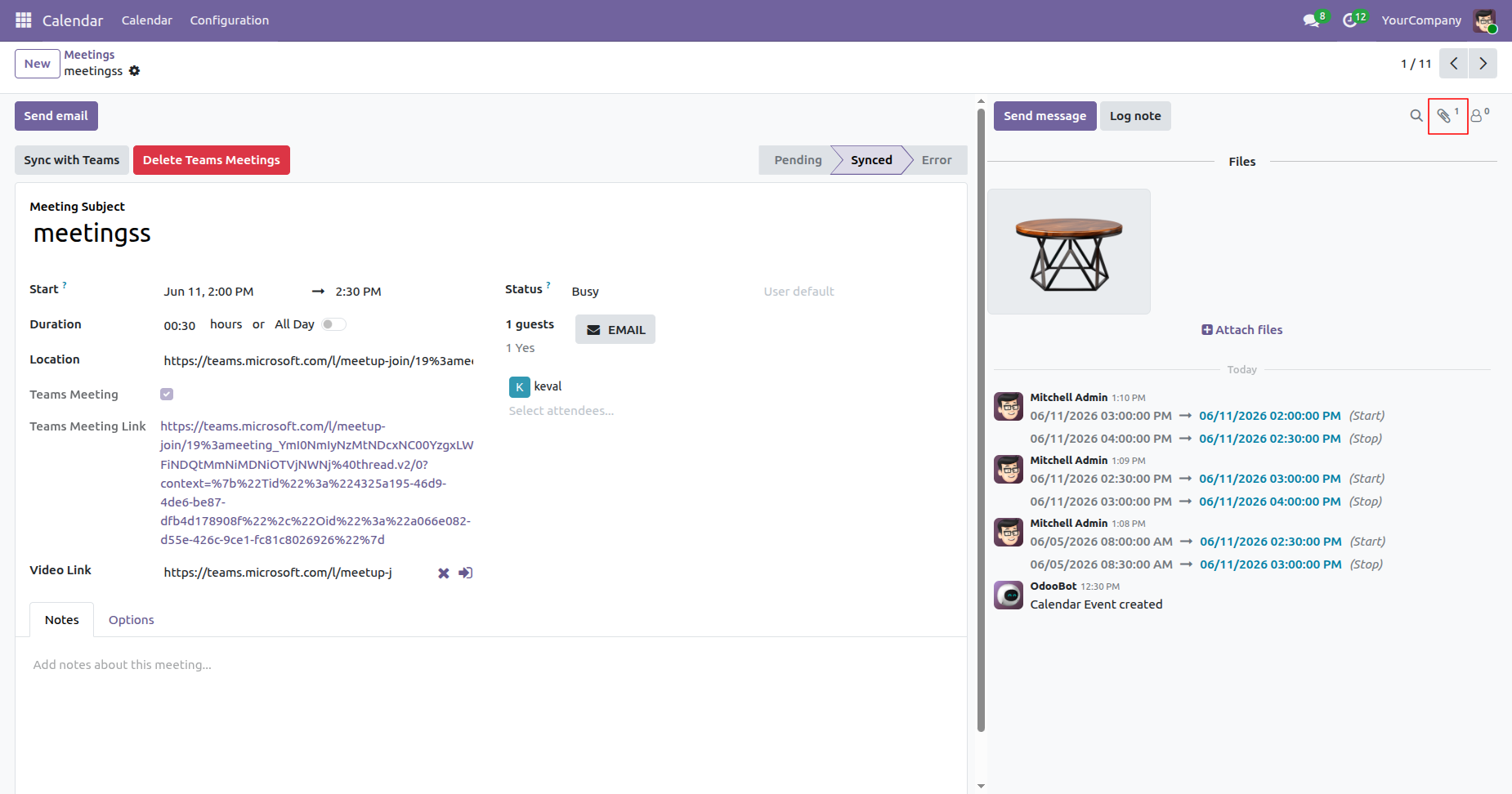
Delete the meeting from Odoo to remove it from both the Odoo Calendar.
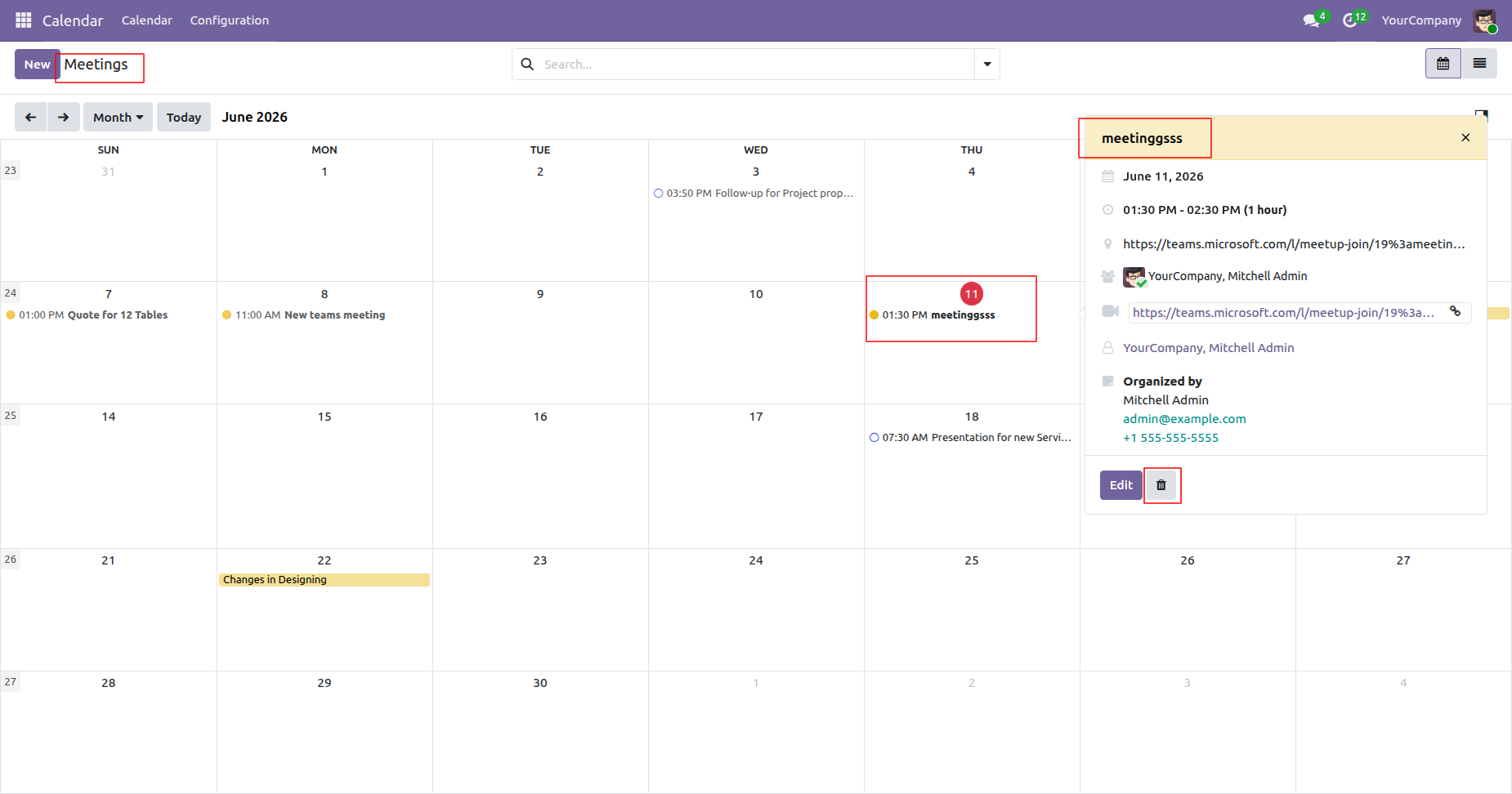
Once the meeting is deleted in Odoo, the deletion is synchronized with the Microsoft Calendar. After successful synchronization, a success log entry is created and can be viewed in the Log History section, confirming that the record was deleted successfully.
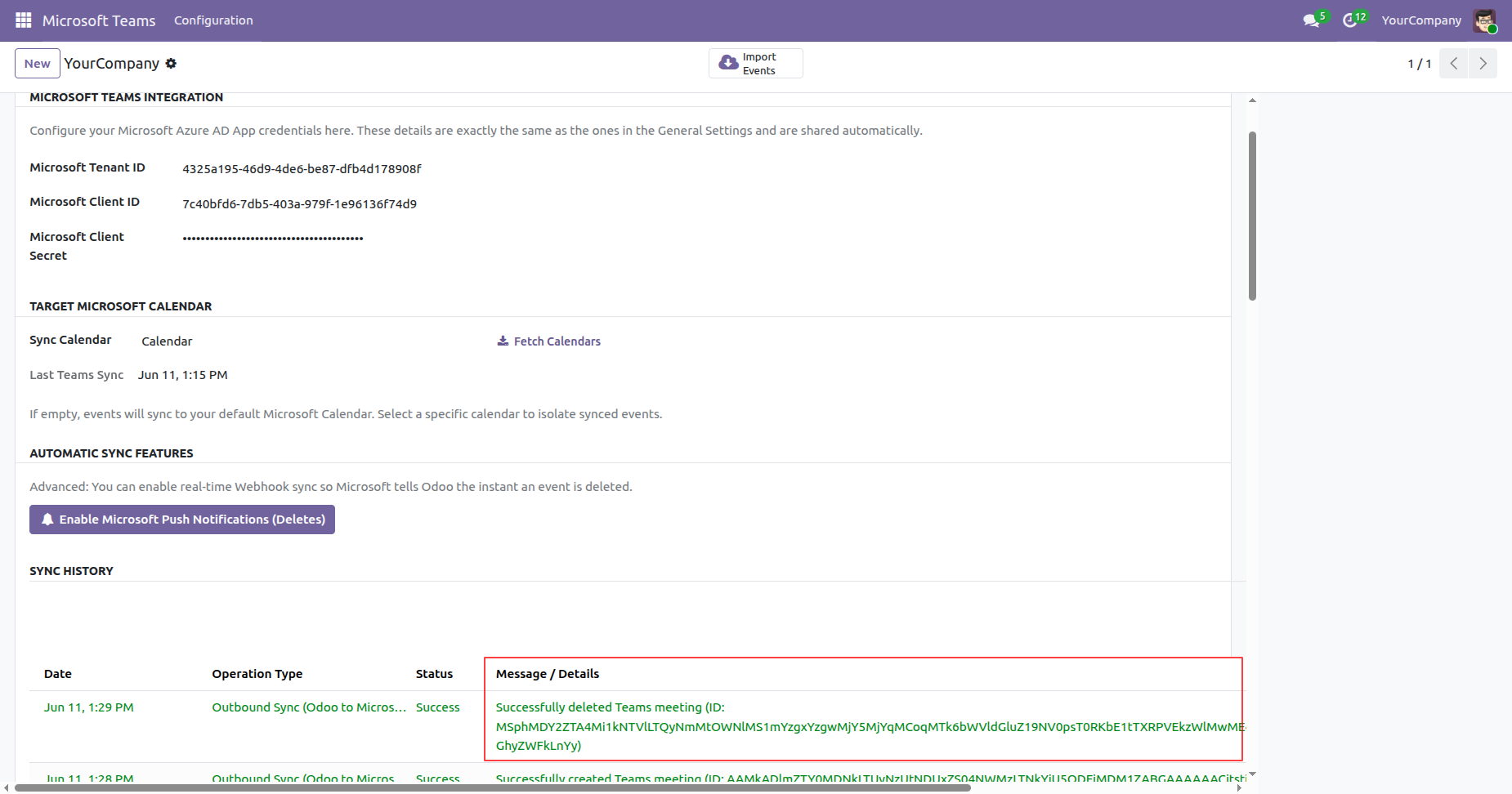
Deleting the meeting from Odoo also deletes the corresponding meeting from the Microsoft Calendar after successful synchronization.
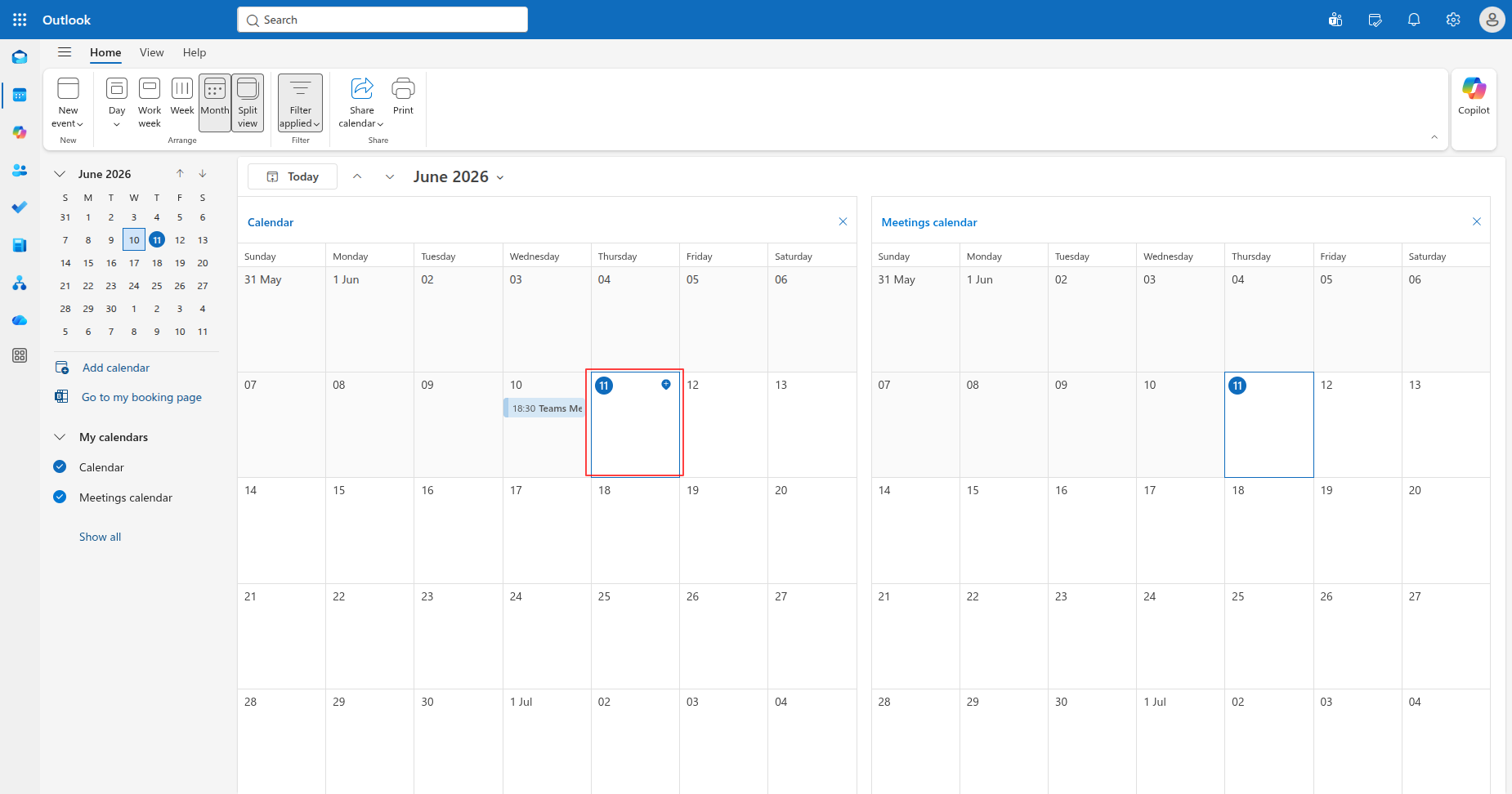
Open the meeting that was created by another user and update the meeting details or delete the meeting.
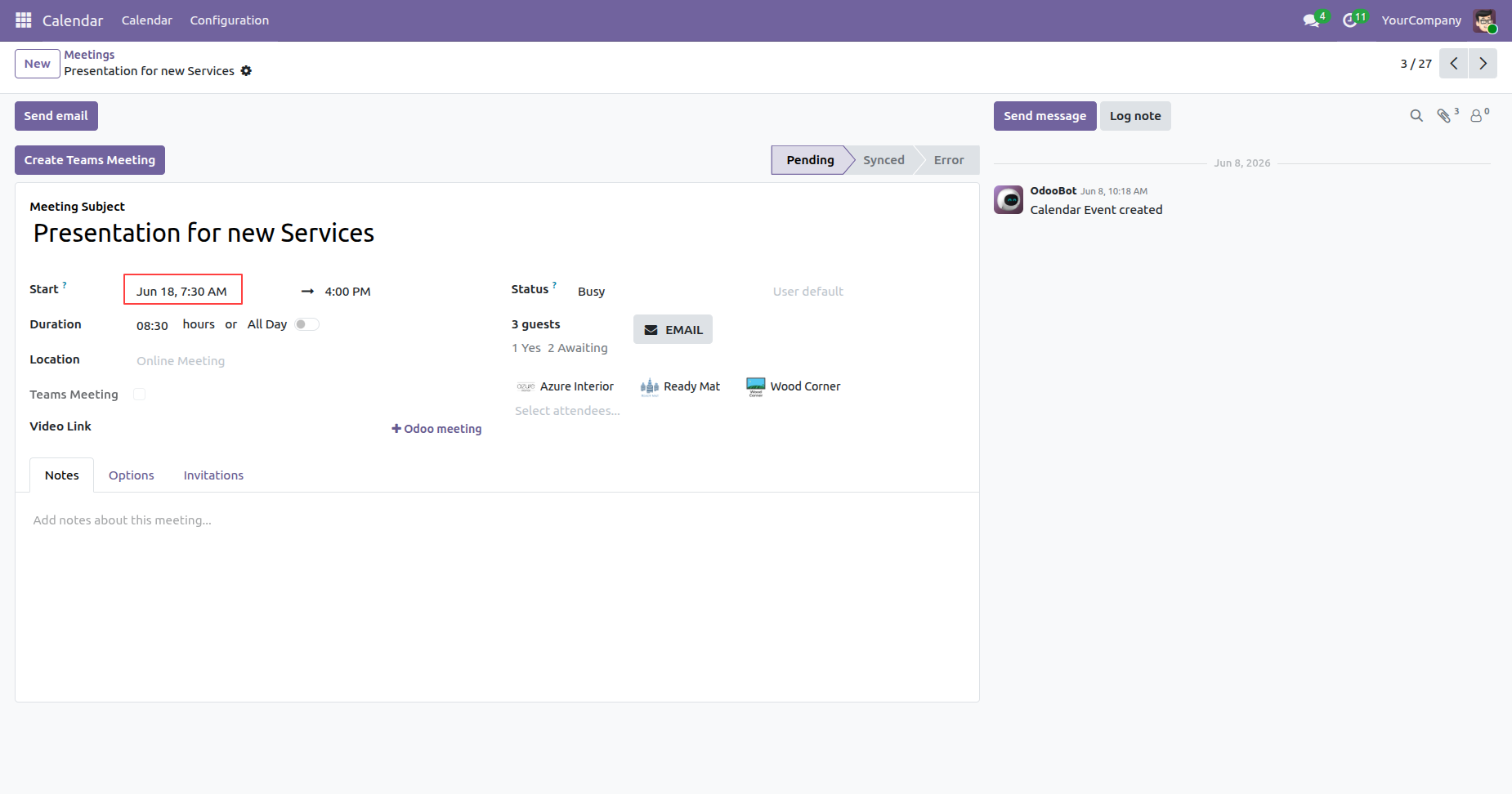
When you click Save Changes, the system displays a warning message indicating that the meeting was created by another user and cannot be updated by you.
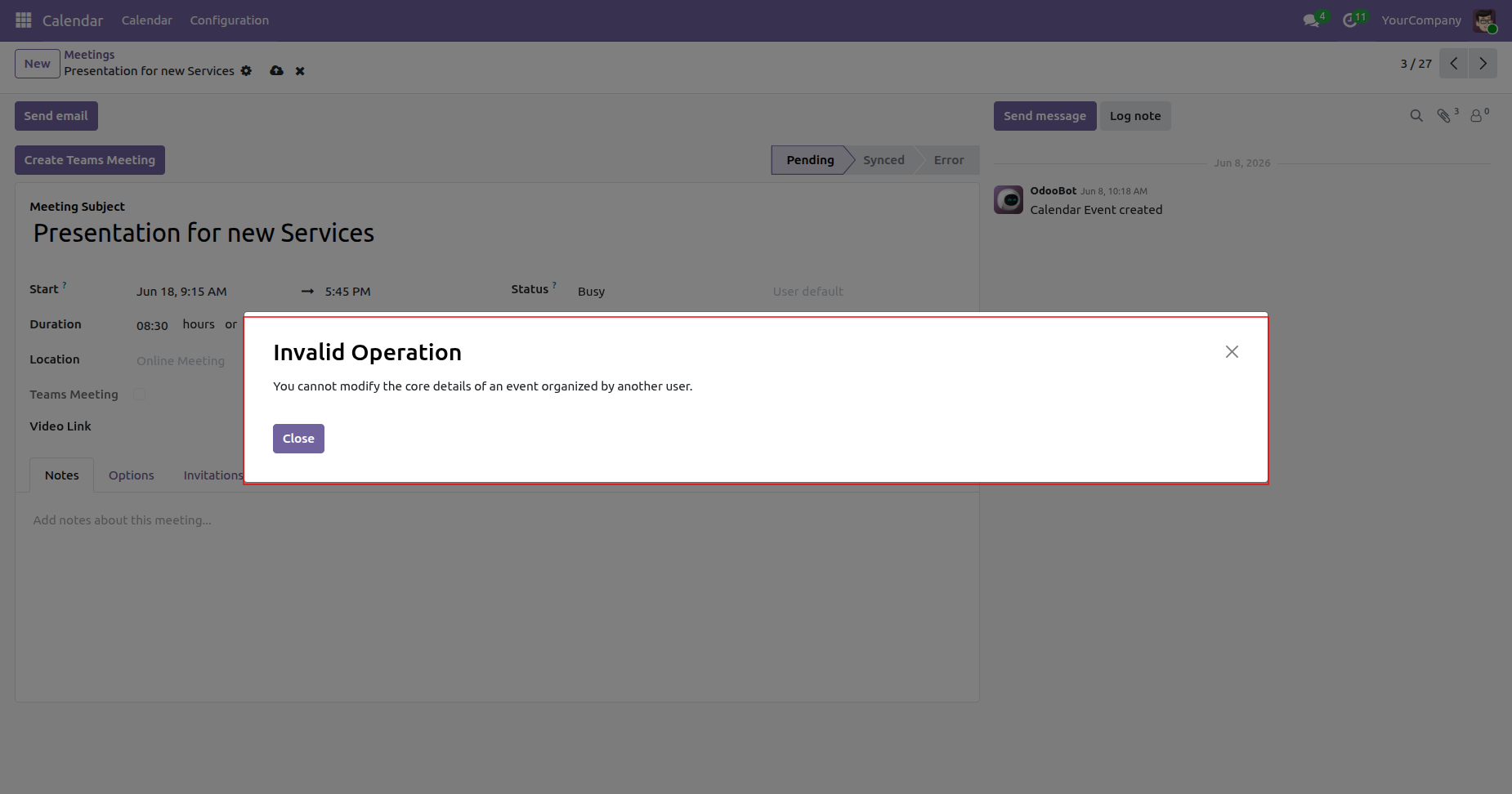
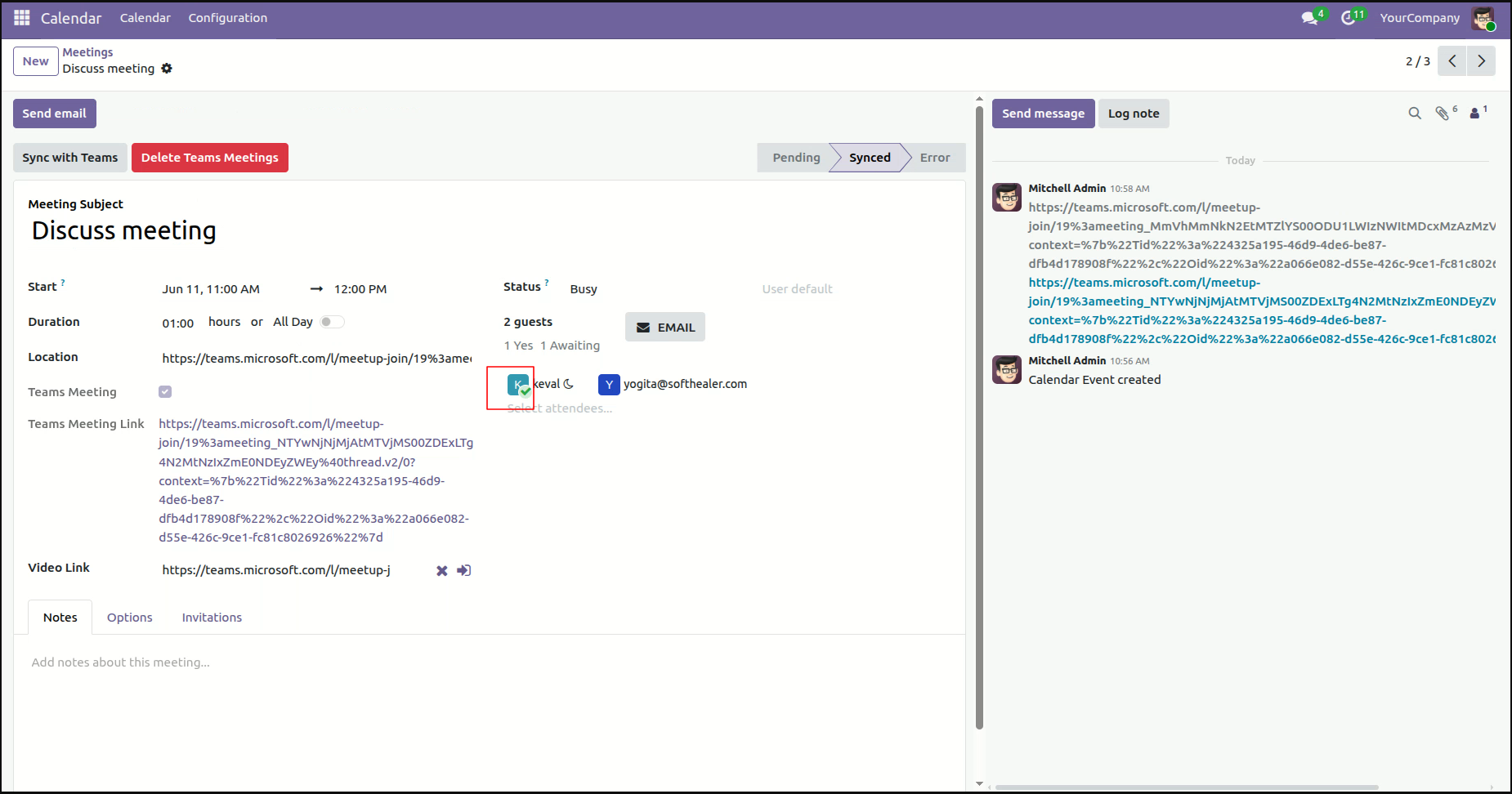
Open the meeting in the Microsoft Teams Calendar to view the attendees' response status, including Accepted, Declined, or Tentative (Maybe).
Go to the Microsoft Teams Configuration in Odoo and click the Import Events button to import the latest calendar events, including any updated meeting details and attachments, from Microsoft Teams into Odoo.
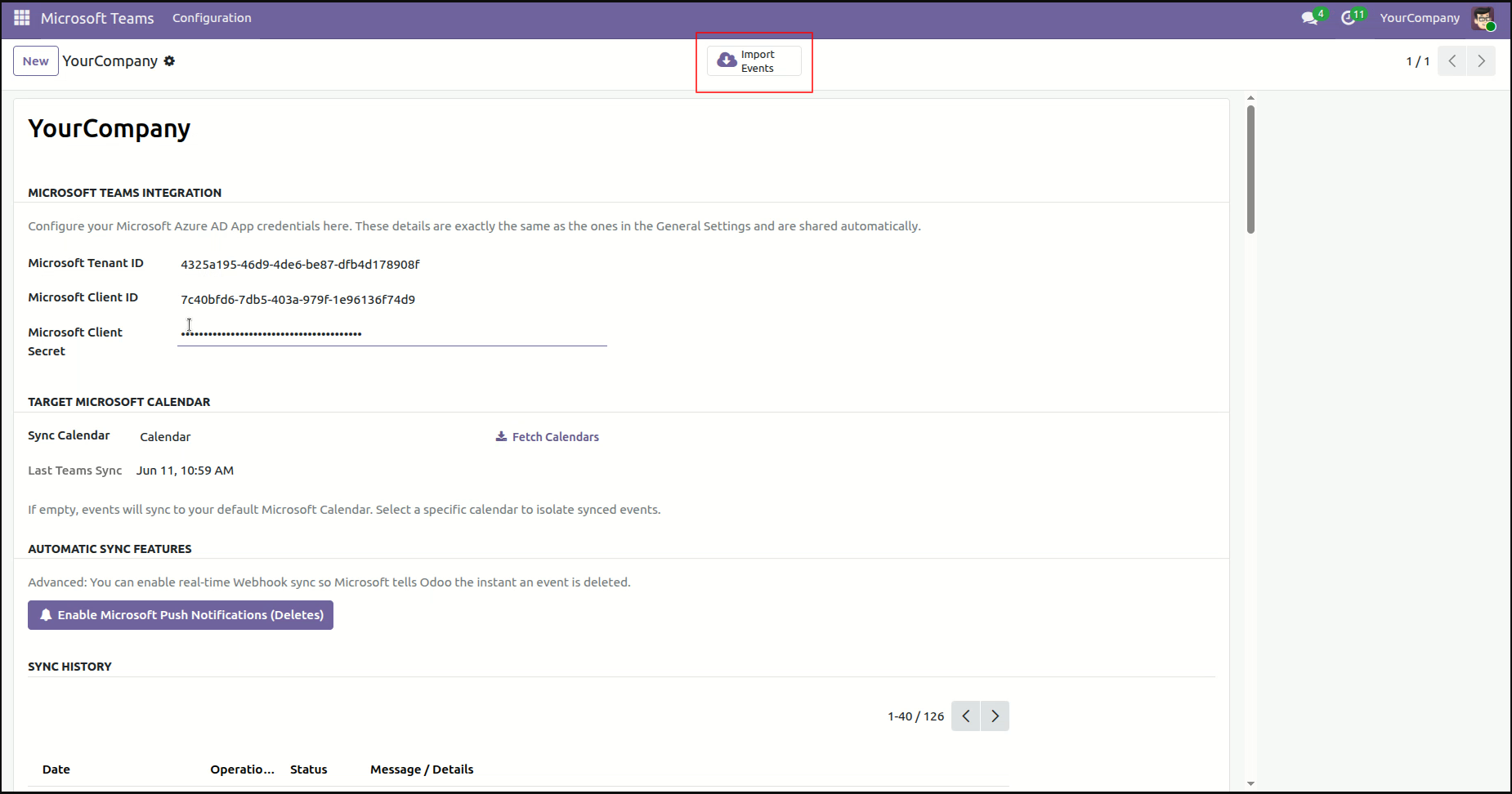
Once the synchronization is complete, a success notification is displayed to confirm that the records have been synced successfully.
Go to the Calendar app in Odoo and open the Meetings.
Open the meeting in Odoo Calendar to view the attendees' response status, which is imported from the Microsoft Calendar, including Accepted, Declined, or Tentative (Maybe).
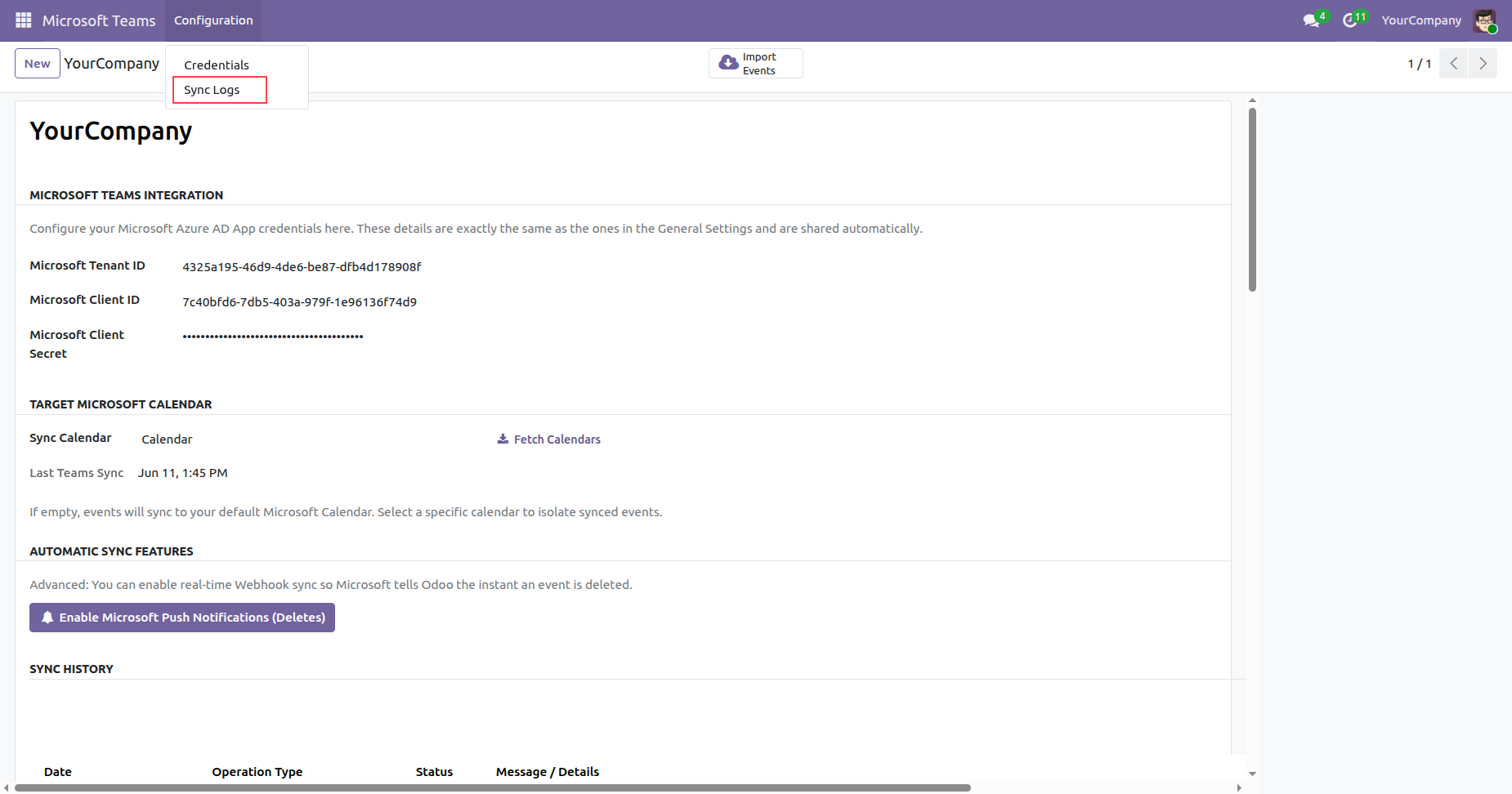
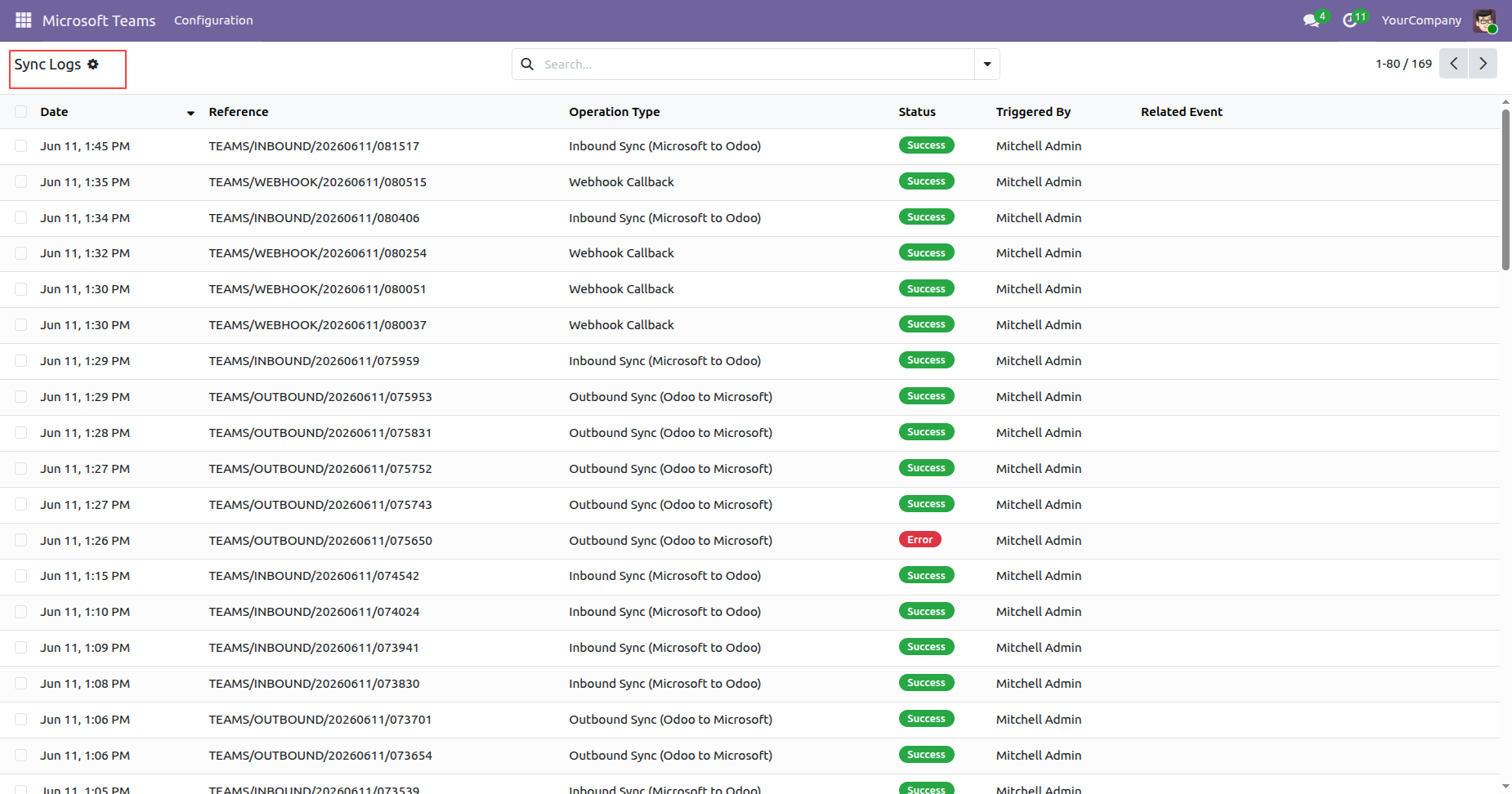
Go to the Microsoft Teams app, open the Configuration menu, and select the Sync Log History submenu to view the synchronization logs and activity history.
The Sync Log History records are displayed in the List View, where users can review the synchronization status, timestamps, operation type, and detailed log information.
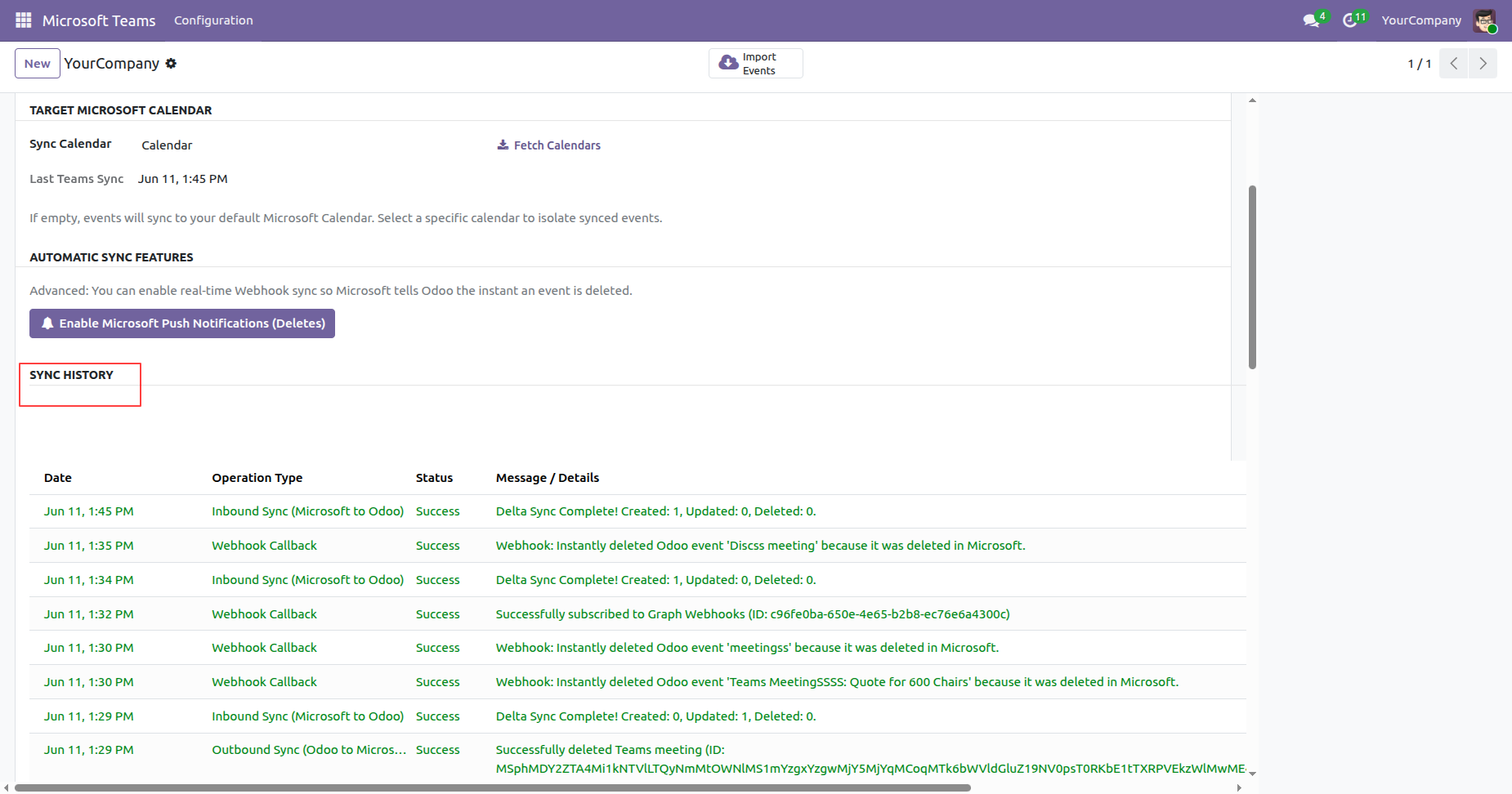
The Sync Log History is also available under the Log History section of the Credential form view.
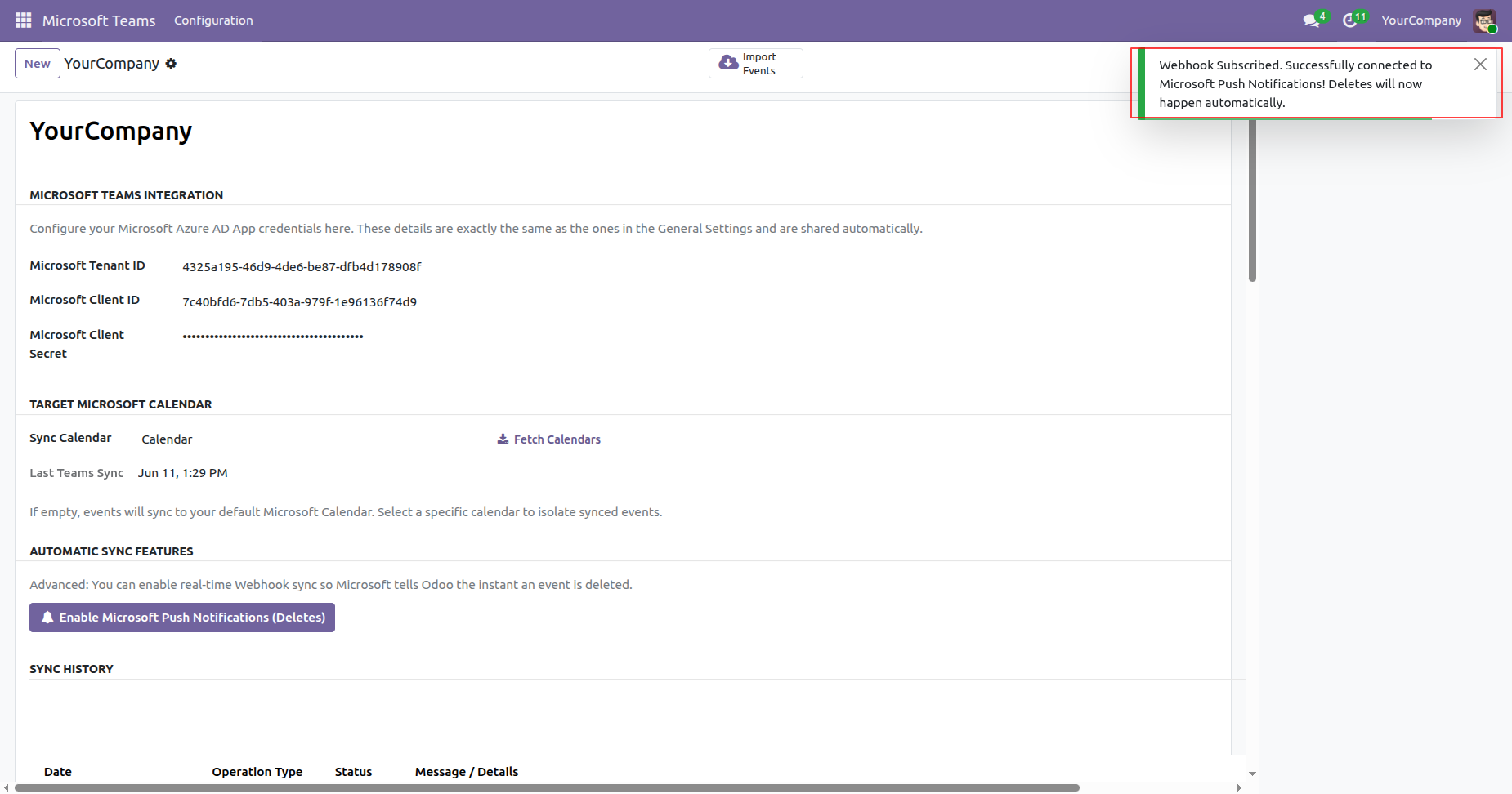
Open the Microsoft Teams Credentials form view and click the Enable Microsoft Push Notifications (Deletes) button to enable real-time notifications for deleted events from Microsoft.
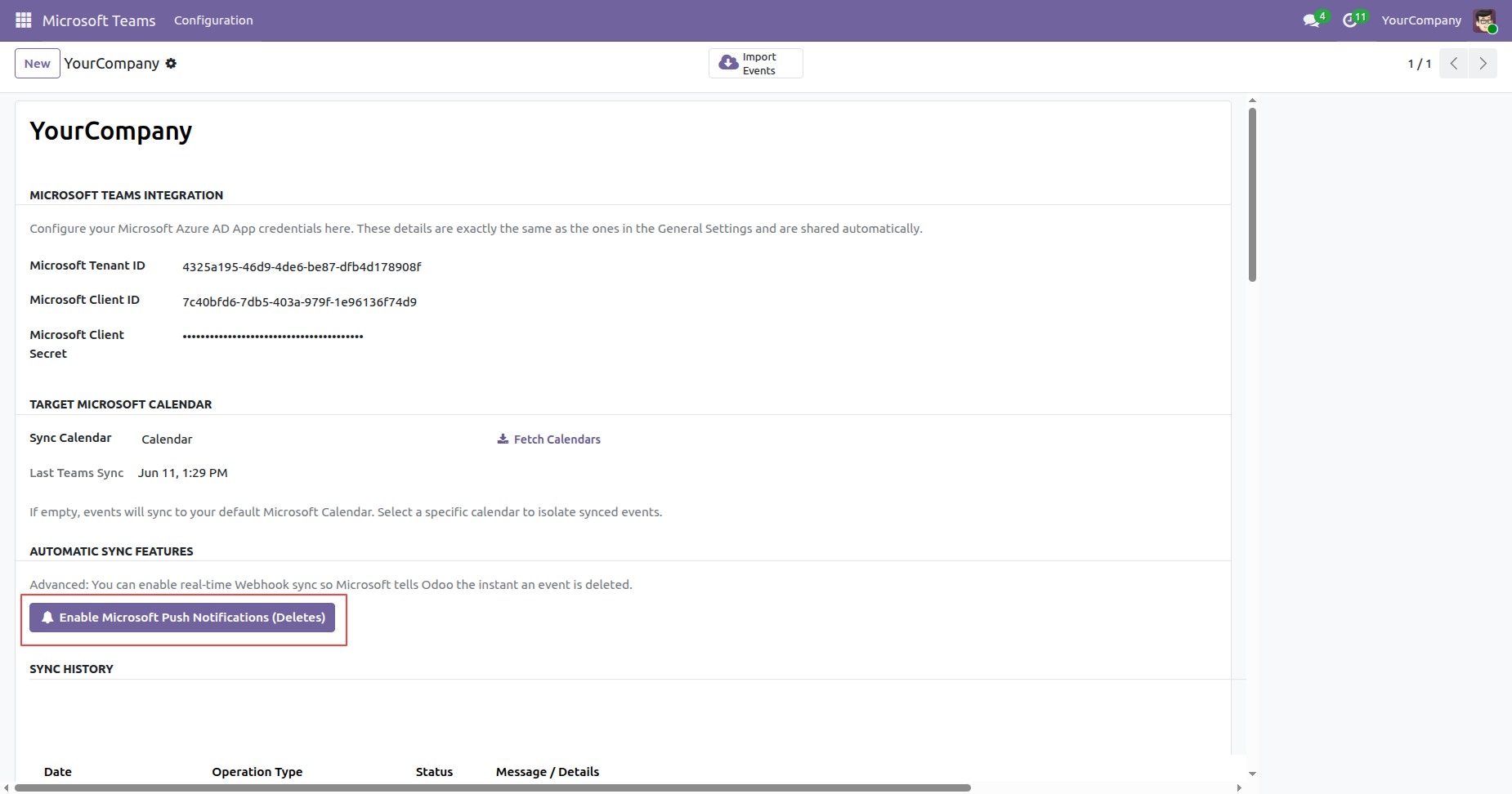
After the webhook is successfully subscribed, it is connected to Microsoft Push Notifications (Deletes). From that point onward, delete notifications are processed automatically, and a success notification is displayed confirming that the subscription has been enabled.
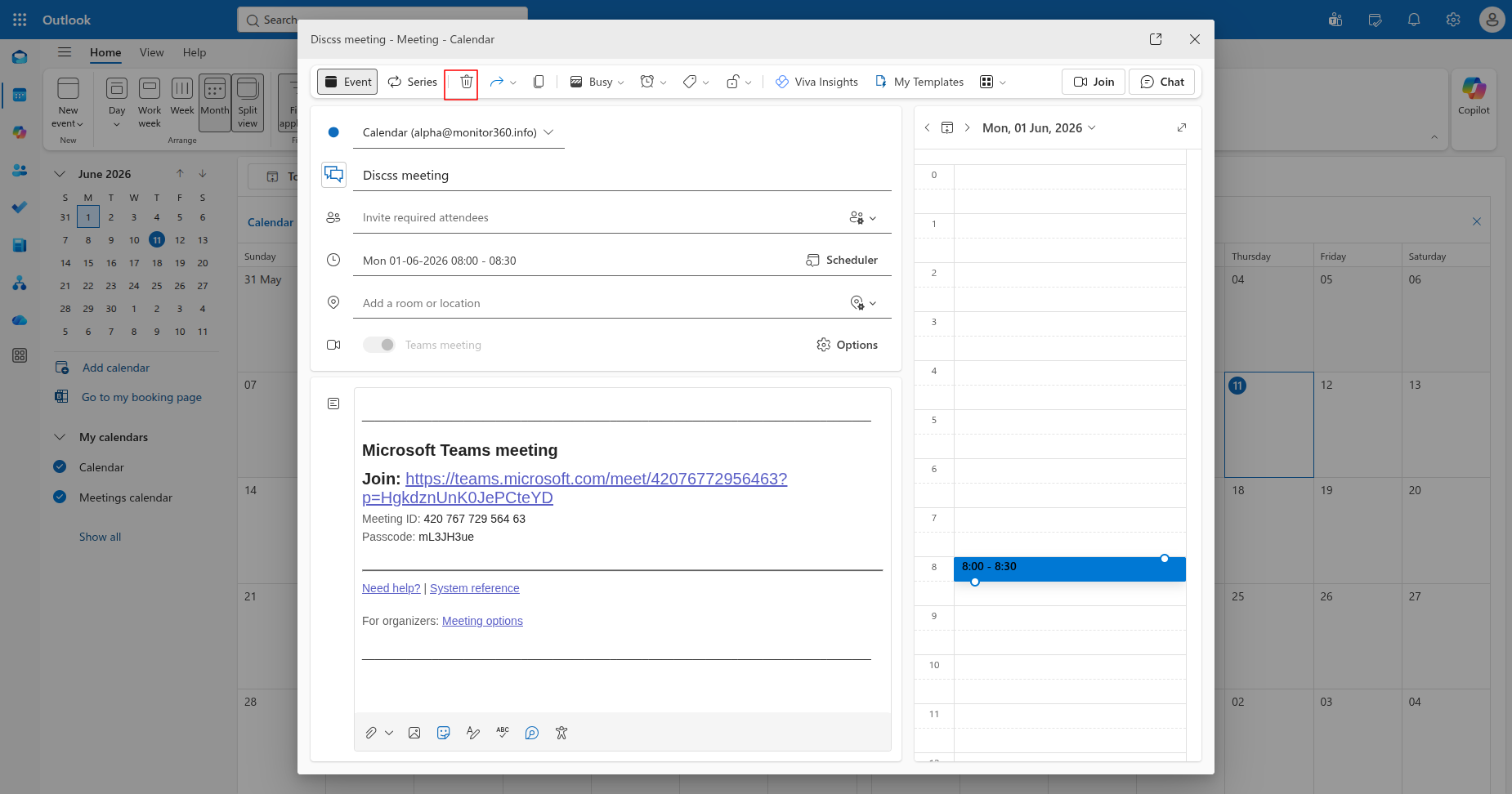
Delete the meeting from the Microsoft Teams Calendar.
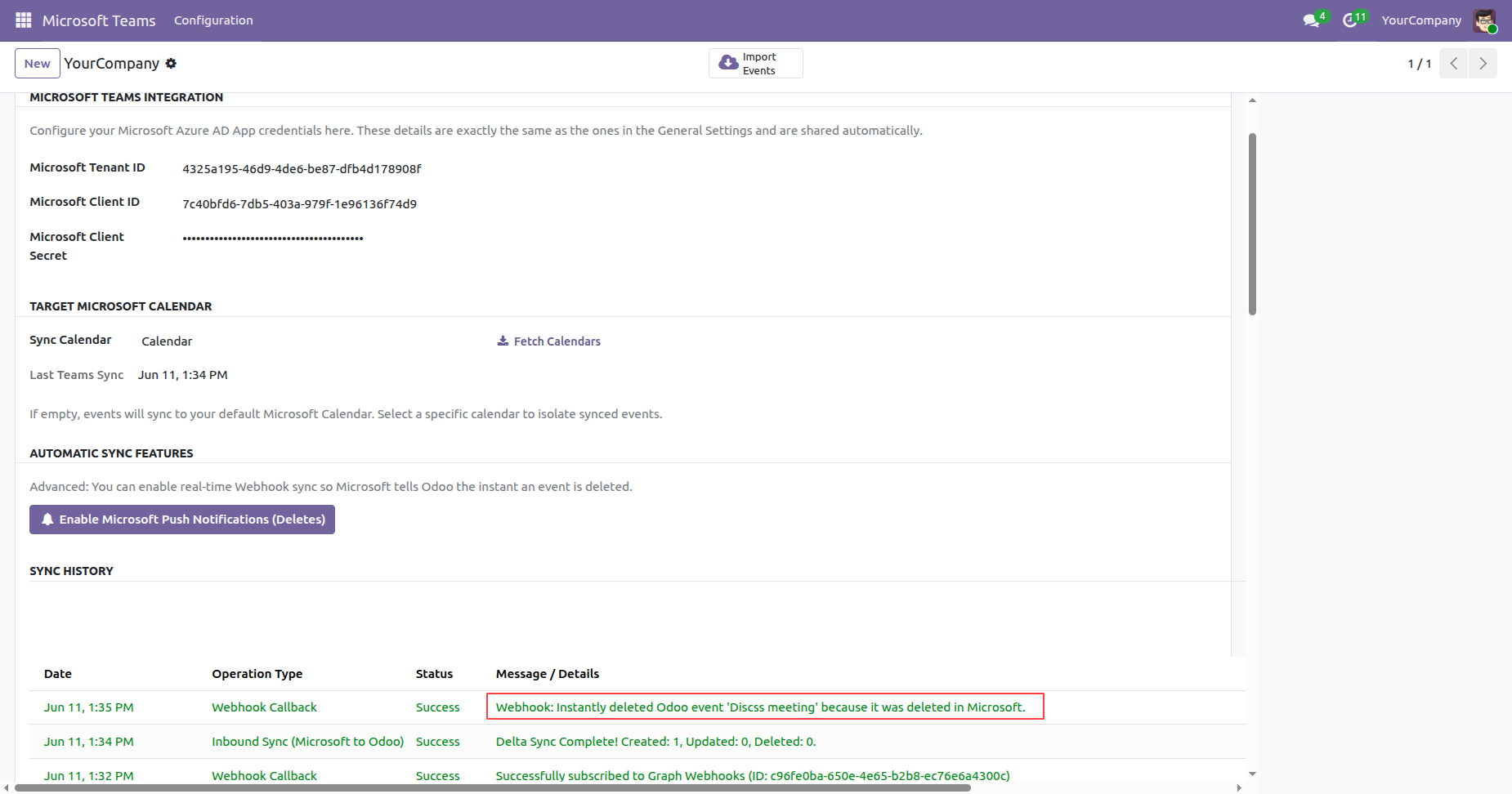
Go to the Microsoft Teams Credentials form view in Odoo. Under the Log History section, you can view the real-time log entry confirming that the meeting was deleted from the Microsoft Teams Calendar.
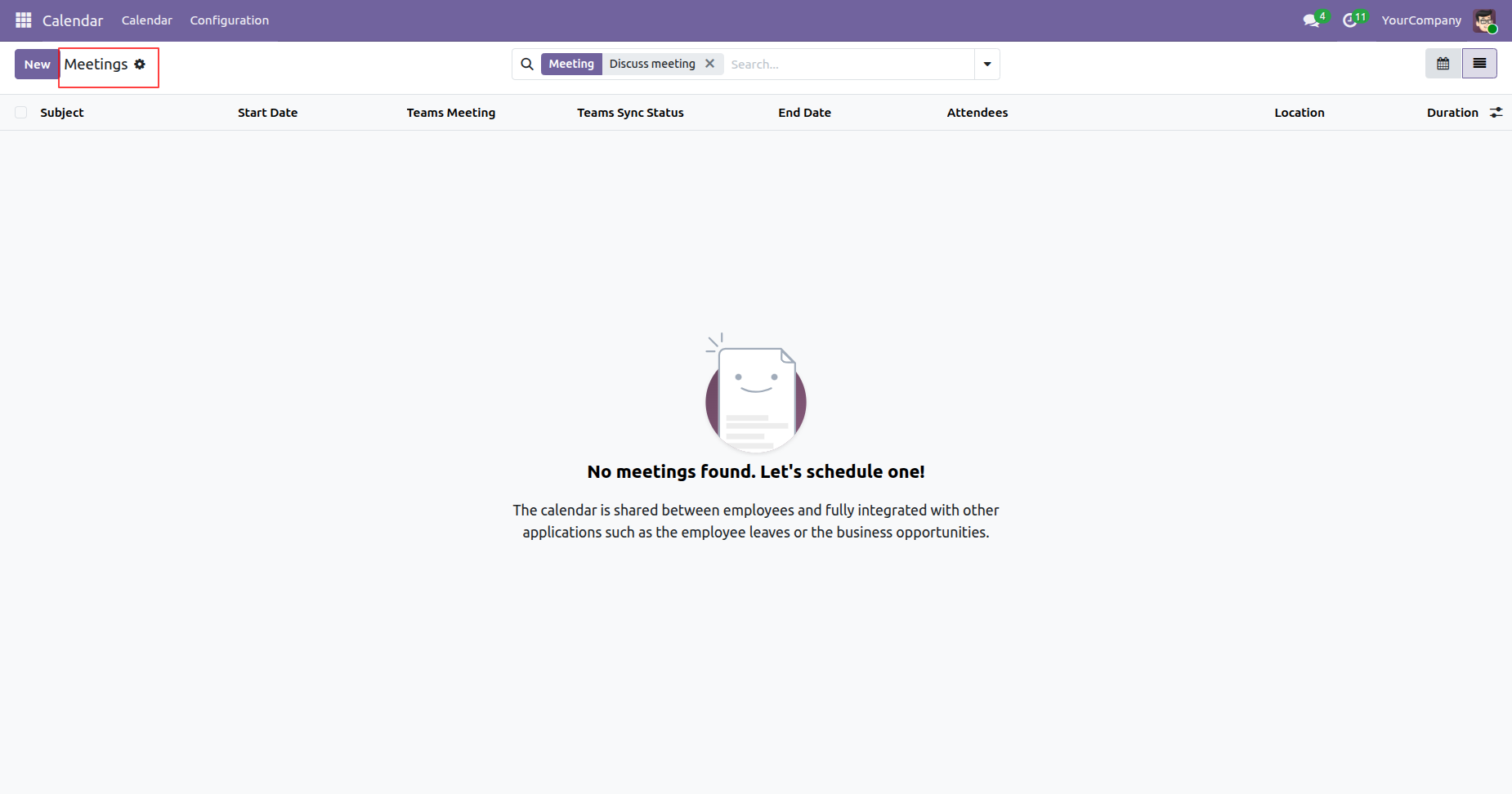
The meeting is also automatically deleted from Odoo after the deletion is detected in the Microsoft Teams Calendar through the configured Microsoft Push Notifications (Deletes) webhook.
Version 18.0.2.0.0 | Released on : 28th July 2026
Version 18.0.1.0.0 | Released on : 20th January 2026
- Yes, this app works perfectly with Odoo Enterprise (Odoo.sh & Premise) as well as Community.
- No, this application is not compatible with odoo.com(odoo saas/Odoo Online)
- Yes, to test this module, please contact us at sales@softhealer.com.
- Please contact us at sales@softhealer.comto request customization.
- Yes, we provide free lifetime support for the version you purchased.
- Yes, you will receive lifetime free updates for the version of the module you purchased.
- No, there is no need to install any additional libraries.
- Yes, for version 12 and above, you need to purchase the module separately for each version you intend to use.
- No, exchanges or refunds are not allowed. Please make sure to select the correct version before purchasing.
- You can contact us at support@softhealer.com for language translation support. We use Google Translator tools to provide translations in multiple languages, so the accuracy may vary. We welcome your suggestions to help improve translations.
Discover Our Latest Apps