Microsoft Fabric Odoo Connector
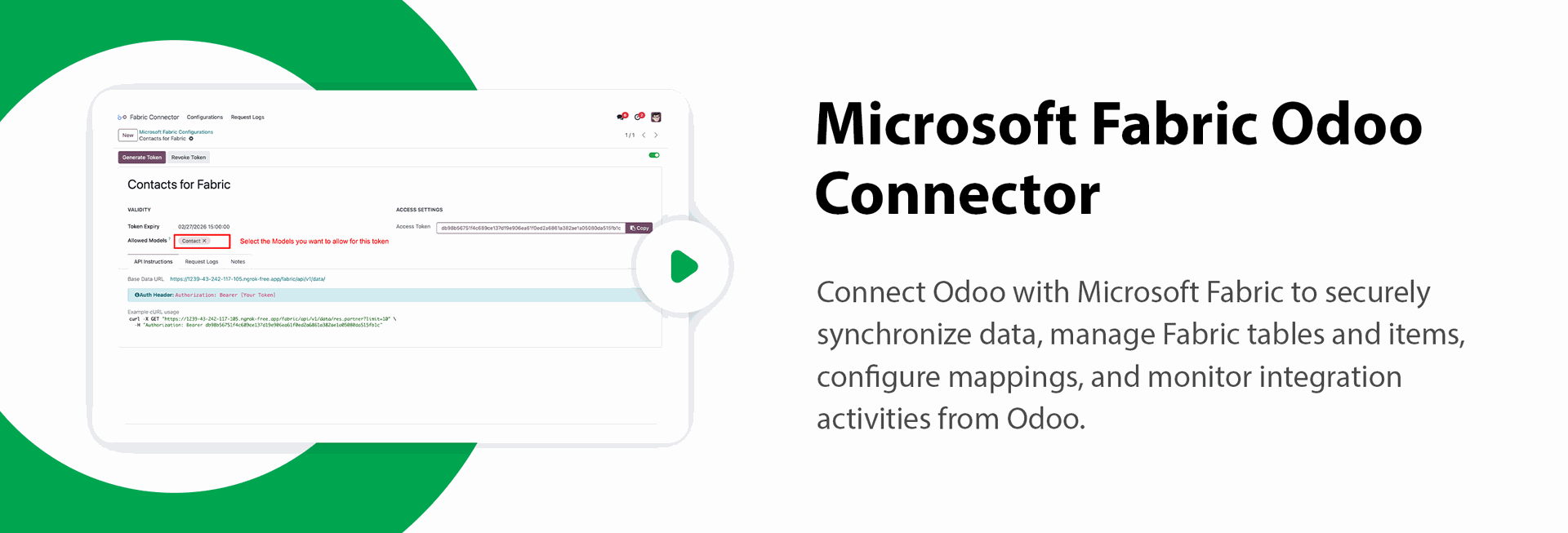
Securely expose governed Odoo data to Microsoft Fabric using backward-compatible REST pull APIs, schema discovery, table and column mapping, incremental checkpoints, request monitoring, and Fabric workspace/item discovery.
Use schema, models, data, and checkpoint endpoints with bearer-token authentication.
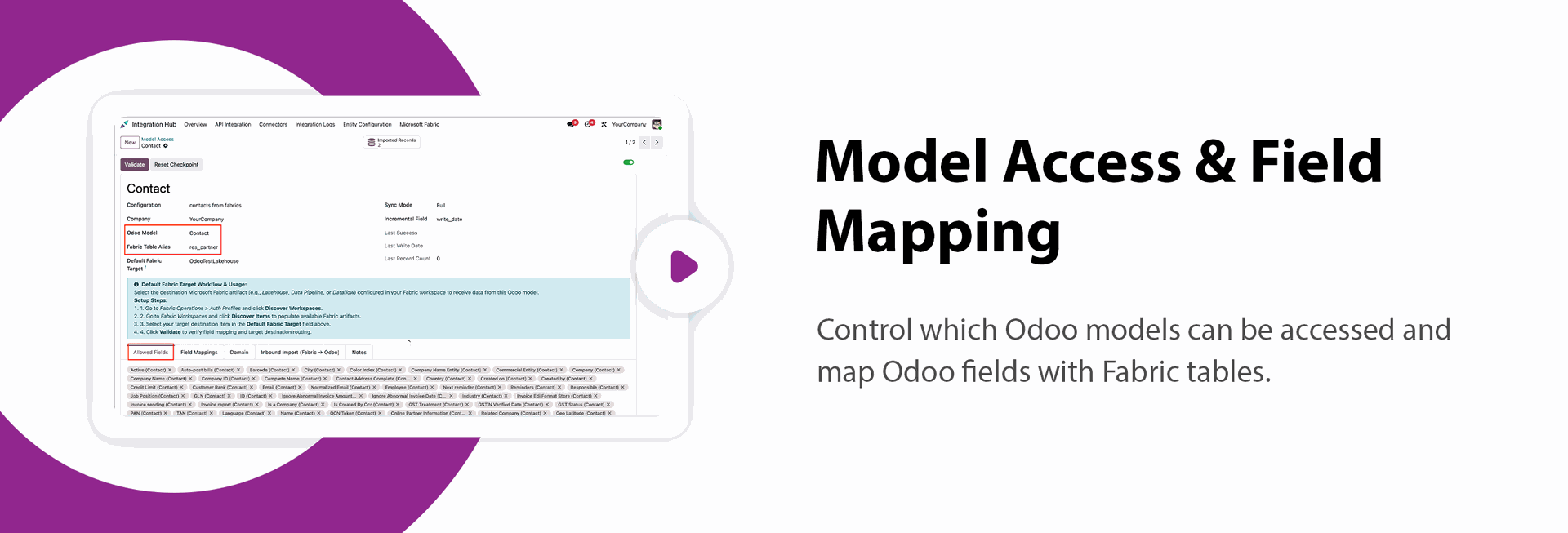
Configure allowed models, fields, domains, table aliases, and column aliases.
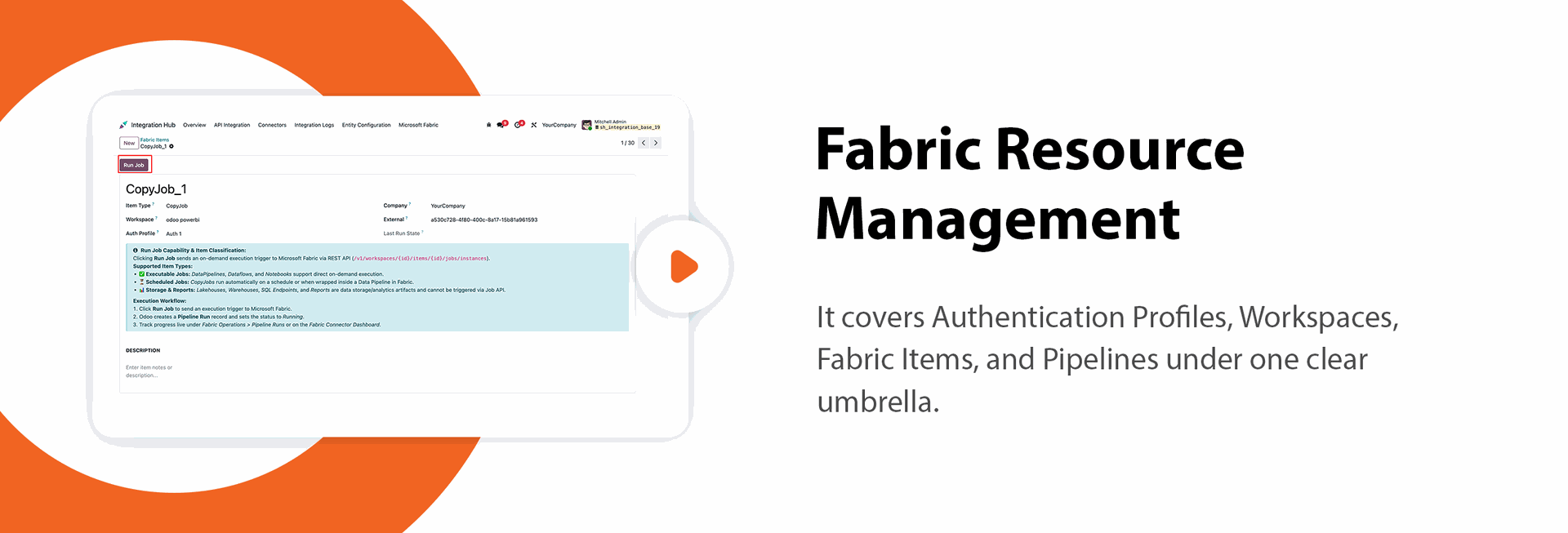
Monitor requests, queues, checkpoints, Fabric items, and pipeline/copy-job runs.













Microsoft Fabric Odoo Connector

The Odoo Microsoft Fabric Connector enables seamless integration between Odoo and Microsoft Fabric,
allowing businesses to securely synchronize their operational data for advanced analytics and reporting.
With an easy setup process, users can authenticate the connection, select Fabric workspaces and Lakehouse
destinations, and configure model-level data synchronization without any complex development.
The module supports flexible data access, scheduled synchronization, and detailed logging to ensure
reliable and controlled data movement. By sending Odoo data directly to Fabric storage, it helps
organizations centralize information and keep it ready for analytics, reporting, and insights through
Power BI and other Fabric tools.
Key Features
Features
Easy Data Connection
Quickly connect Odoo with Microsoft Fabric using a simple configuration process without requiring complex development.
Bearer Token Authentication
Securely establish the connection using token-based authentication to ensure protected and reliable data synchronization.
Token Expiry Control
Define token validity duration to manage access securely and maintain controlled authentication.
Fabric Copy Job Workflow Support
Enable structured data movement using Fabric copy workflows to manage and organize synchronization processes efficiently.
Configurable Model Access
Select and control which Odoo models are included in synchronization to ensure flexible and secure data sharing.

Fabric Destinations
Store raw data in the Lakehouse, such as Delta or Parquet formats, manage structured data in the Warehouse for reporting, and keep it ready for seamless connectivity with Power BI for advanced analytics and visualization.

Request Logging and Monitoring
Track synchronization activities with detailed logs, including request time, model name, and sync status for better visibility.
Lakehouse Integration
Synchronize Odoo data directly into Fabric Lakehouse for centralized storage and analytics readiness.
Direct Data Synchronization
Seamlessly sync selected Odoo models to Fabric tables through an intuitive configuration interface.
Full Odoo Data Access
Access both standard and custom fields from any Odoo module to ensure complete data availability for analytics.

Scheduled Synchronization
Configure automated sync intervals to keep Fabric data updated regularly without manual intervention.
Secure Bearer Token Authentication 
Secure Fabric API access with hashed bearer tokens while supporting existing token configurations.
Model Access & Field Mapping
Control which Odoo models can be accessed and map Odoo fields with Fabric tables.
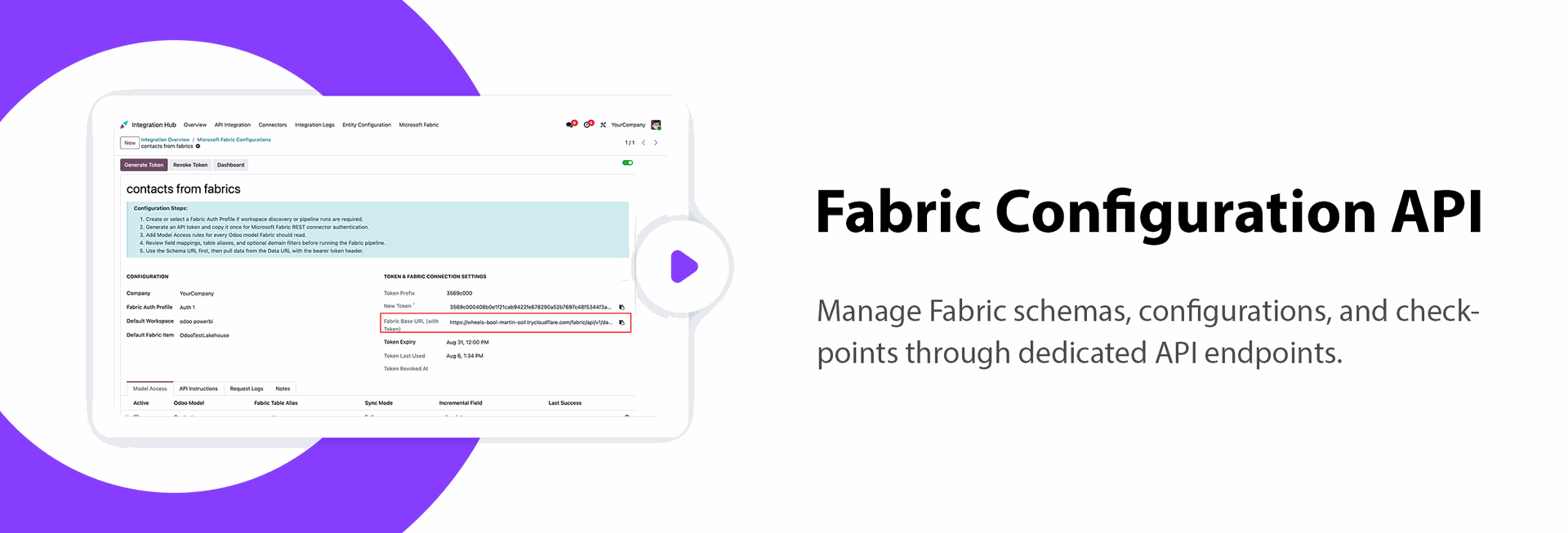
Fabric Schema & Configuration API
Manage Fabric schemas, configurations, and checkpoints through dedicated API endpoints.
Incremental Sync Checkpoints
Track synchronization checkpoints and queue records to process only new or updated data.

Fabric Service Principal Authentication
Configure service-principal authentication and discover Fabric workspaces and items from Odoo.
Fabric Pipeline Run Tracking
Track Fabric pipeline runs and monitor their execution status from Odoo.
Fabric Items Run Job
Run Fabric item jobs from Odoo and track their execution and results.
Fabric to Odoo Inbound Sync
Import data from Microsoft Fabric into Odoo through the inbound synchronization process.
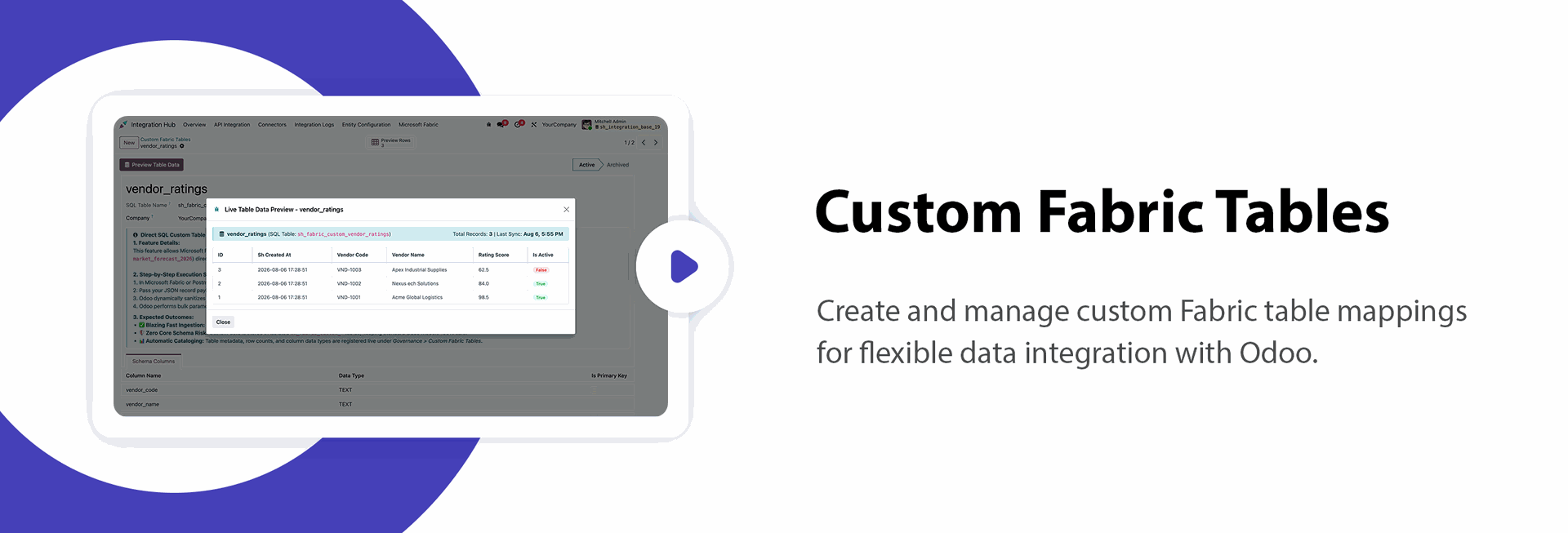
Custom Fabric Tables
Create and manage custom Fabric table mappings for flexible data integration with Odoo.
Request Log Management
Track Fabric API requests and manage integration logs for better monitoring and troubleshooting.

Automatic Log Cleanup
Automatically remove old integration logs based on the configured cleanup schedule.

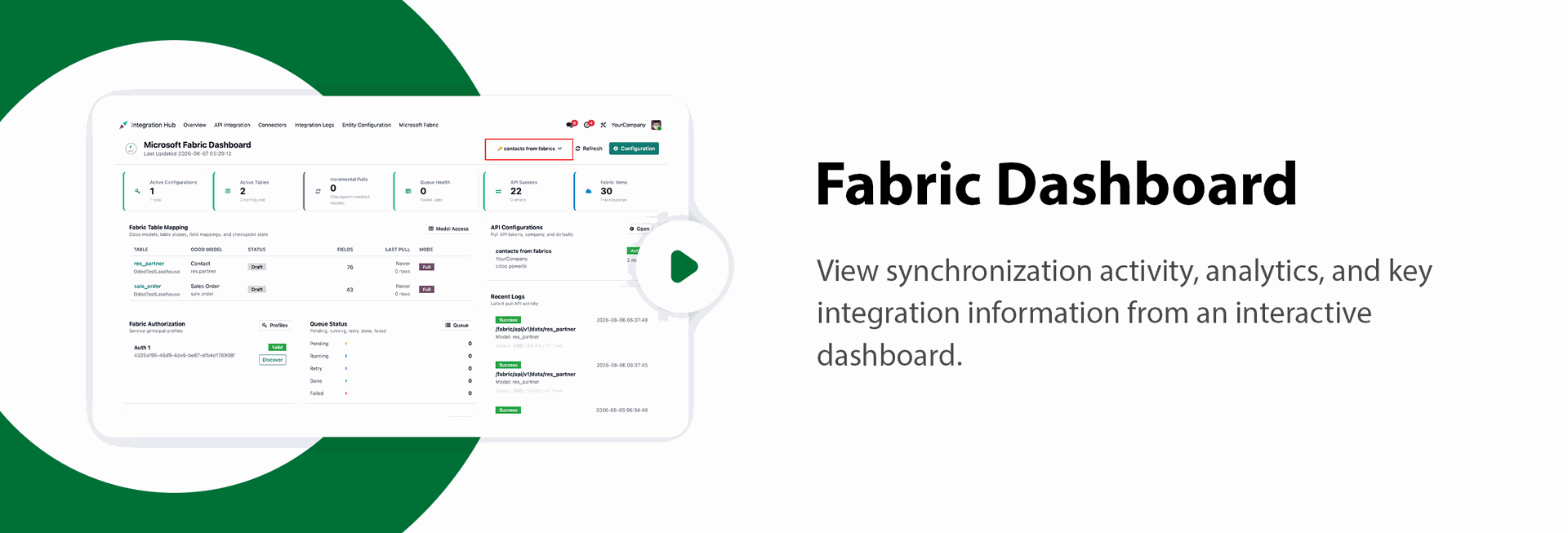
Fabric Dashboard & Analytics
View synchronization activity, analytics, and key integration information from an interactive dashboard.
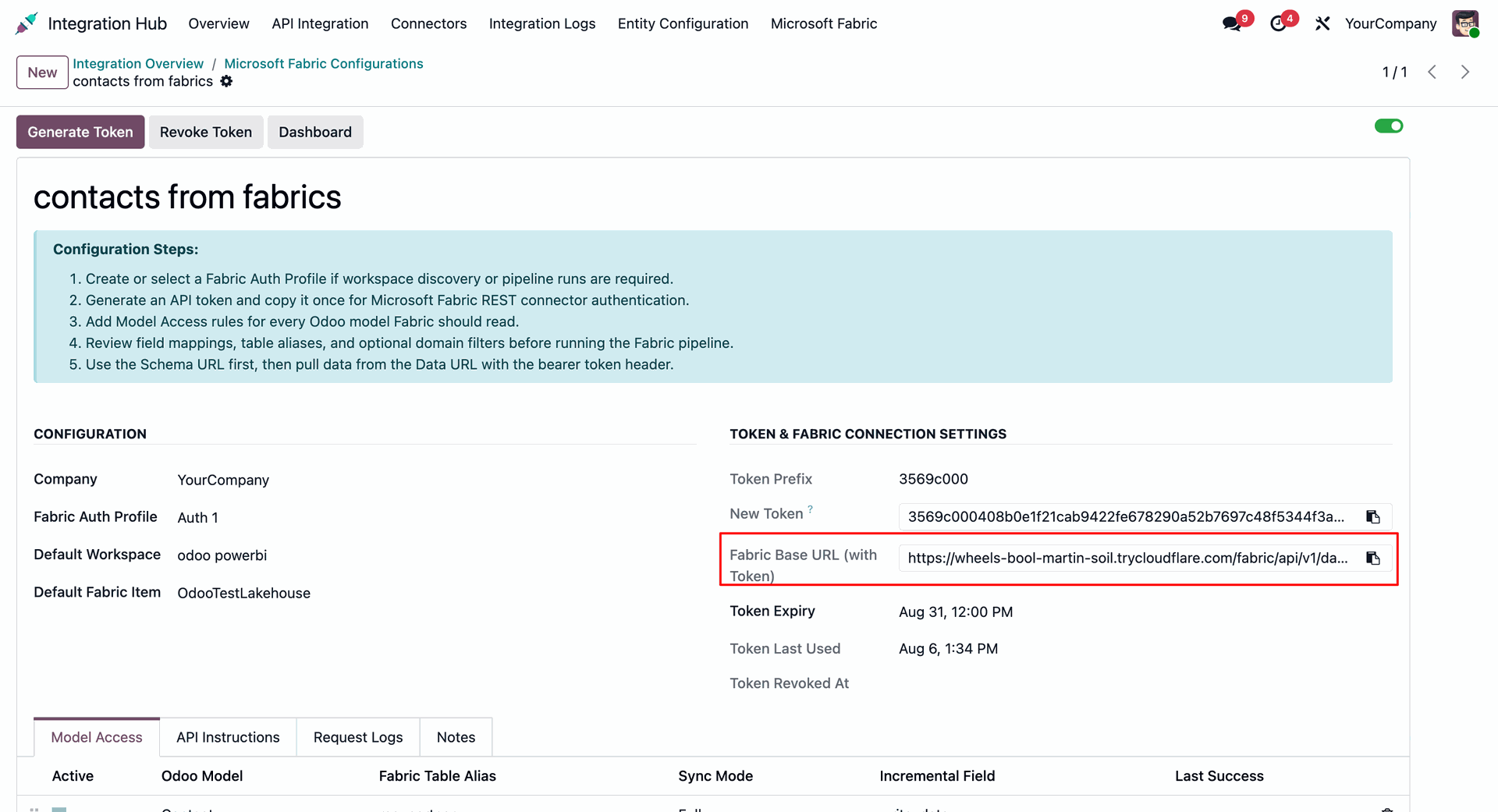
Open the Microsoft Fabric Configuration and review the configured company, authentication profile, workspace, and Fabric item.
Create or open a Fabric Copy Job and select REST as the data source.
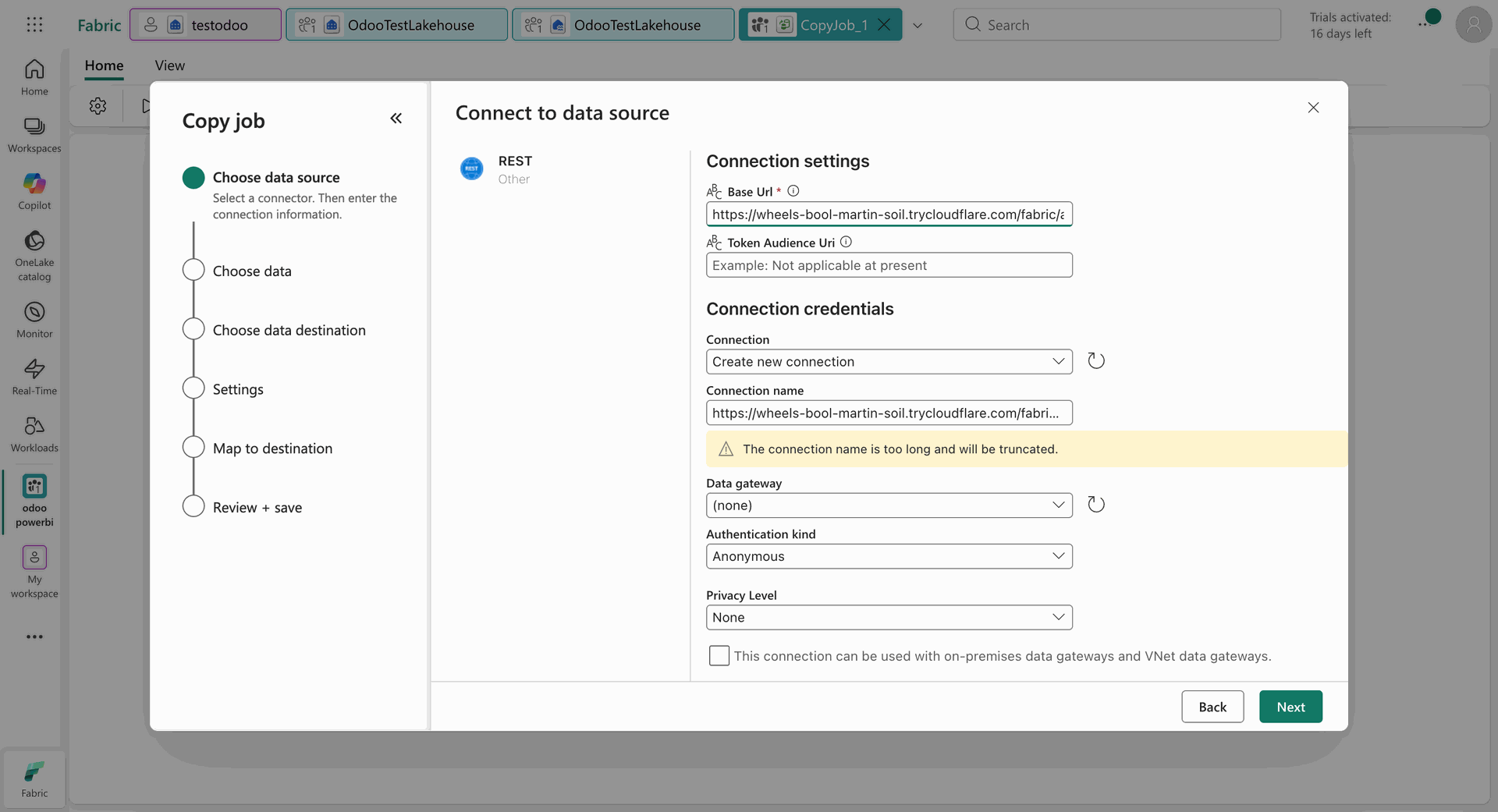
Configure the REST request URL and authorization header for accessing the Odoo Fabric API.
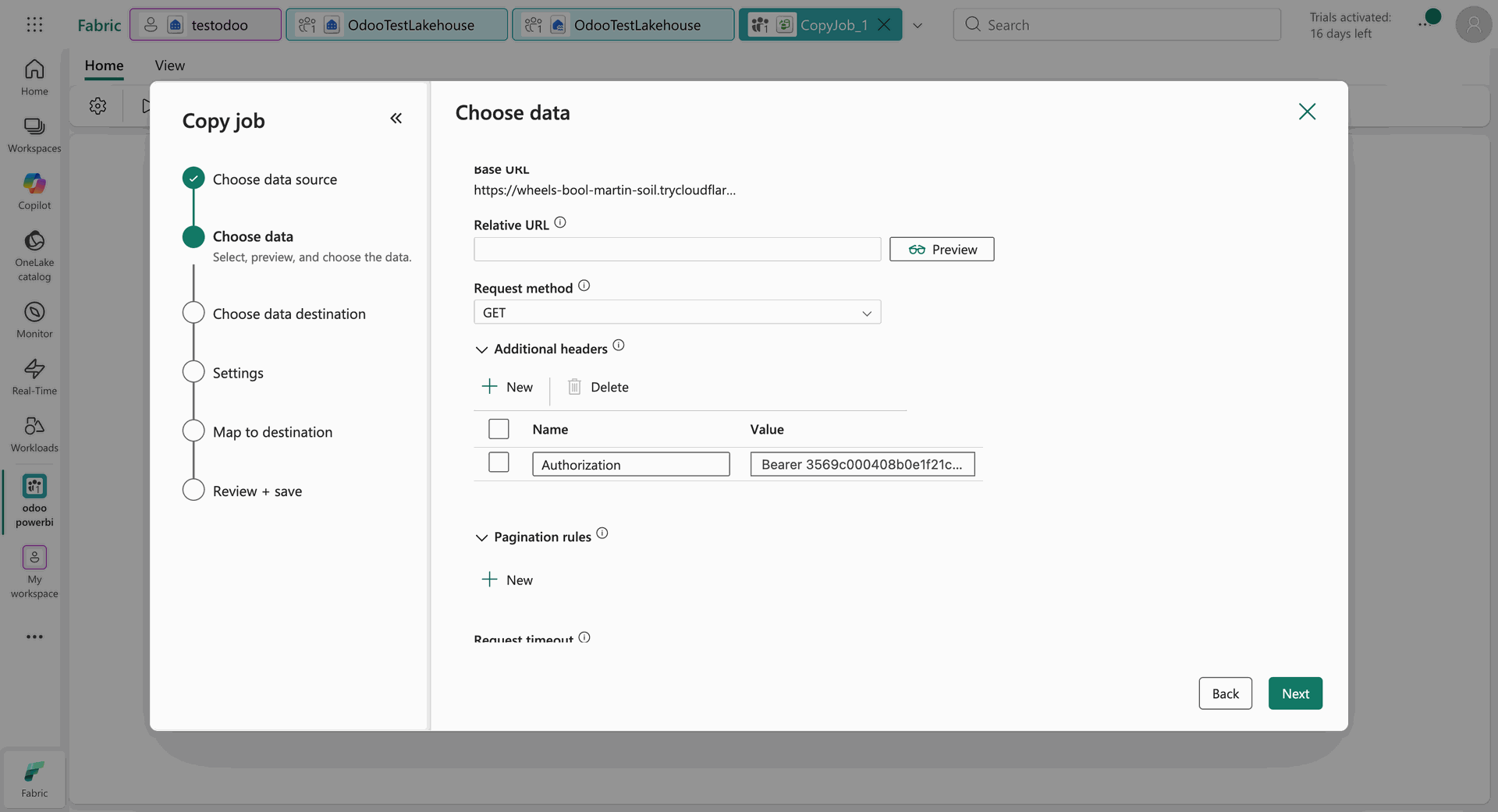
Add the required bearer-token authorization header to authenticate the REST request.
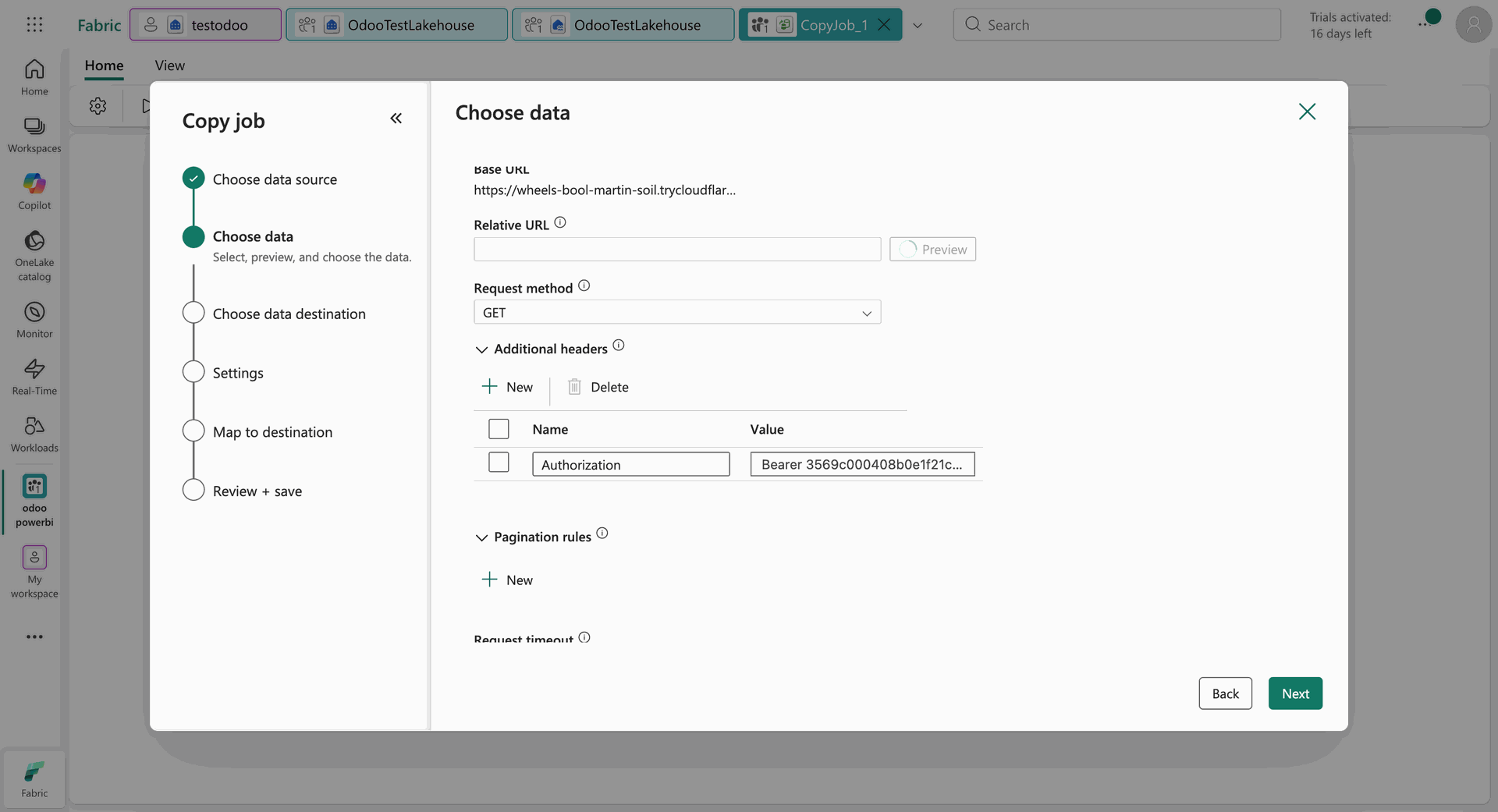
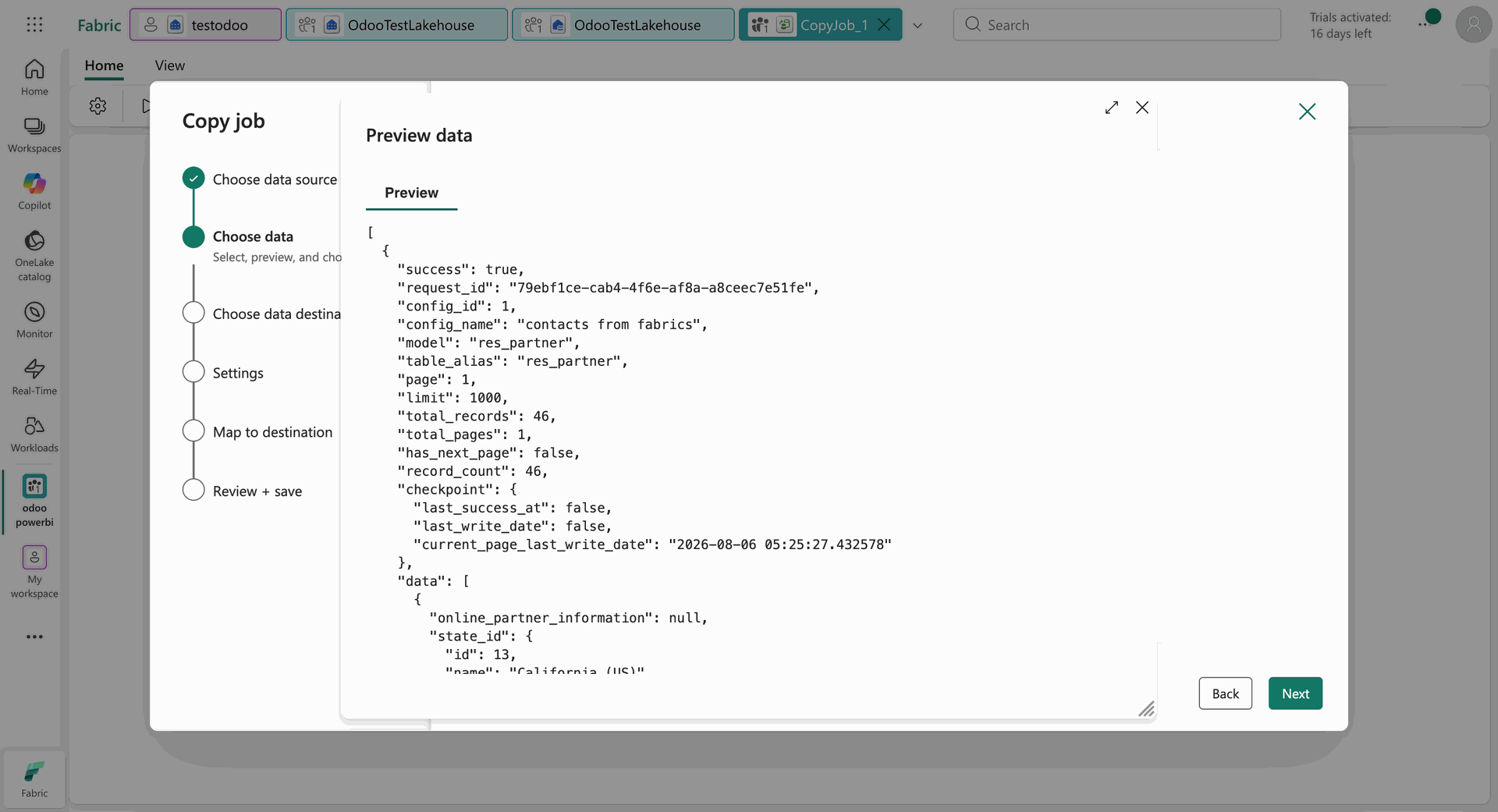
Preview the API response to verify the Odoo data returned by the configured request.
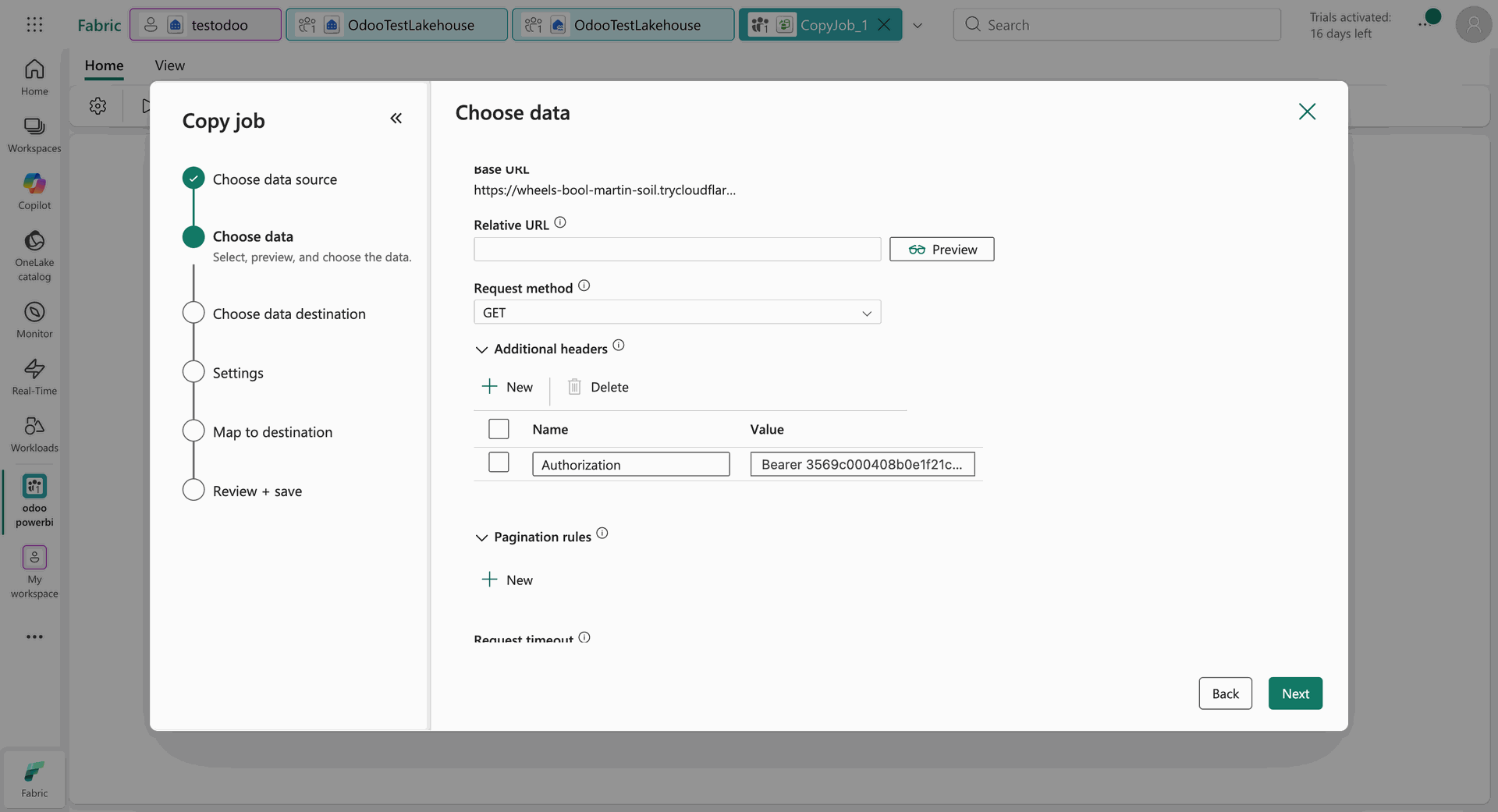
Review the returned schema and fields before configuring the Fabric copy operation.
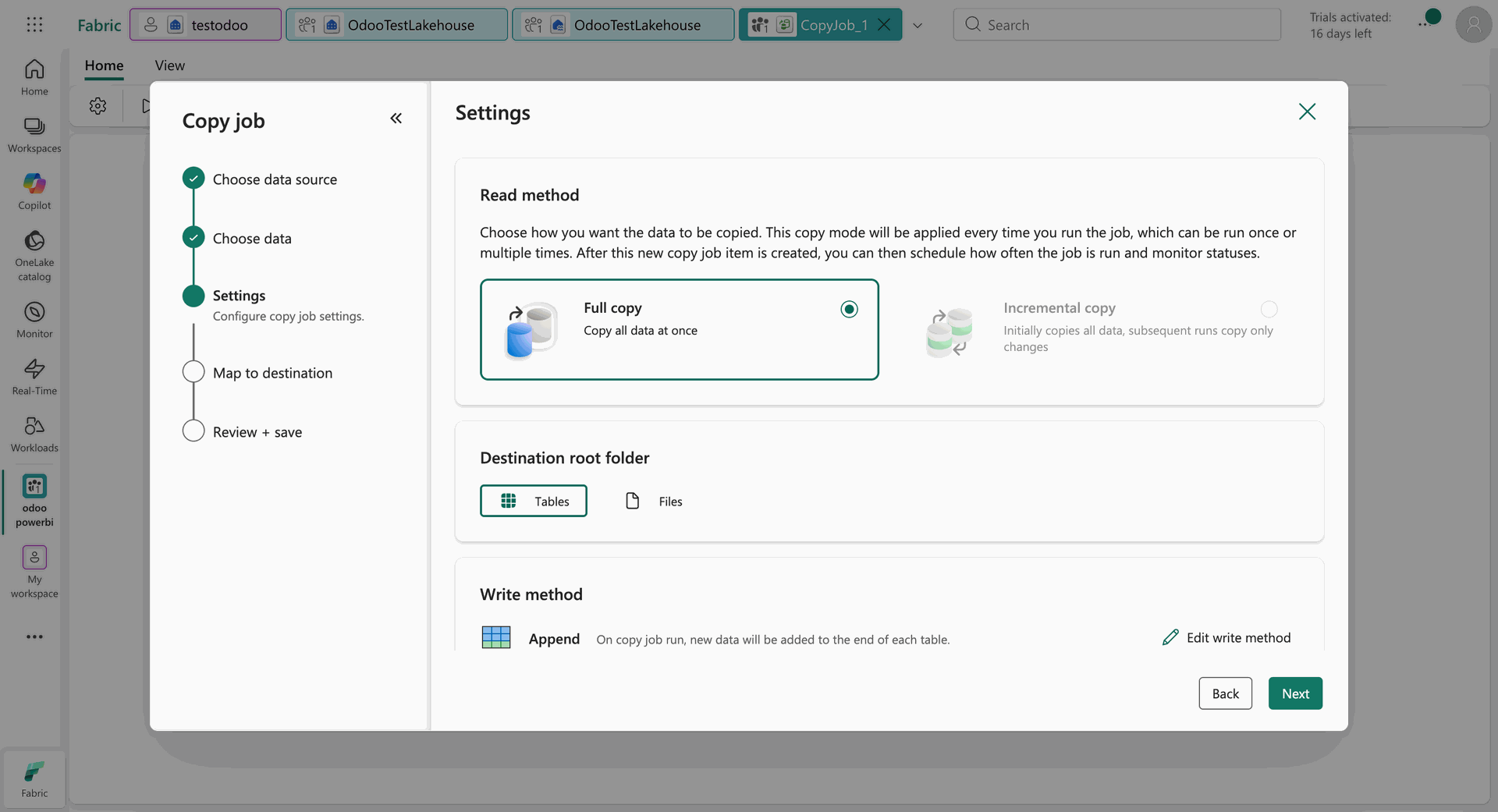
Configure the Copy Job settings, including the read method and destination folder.
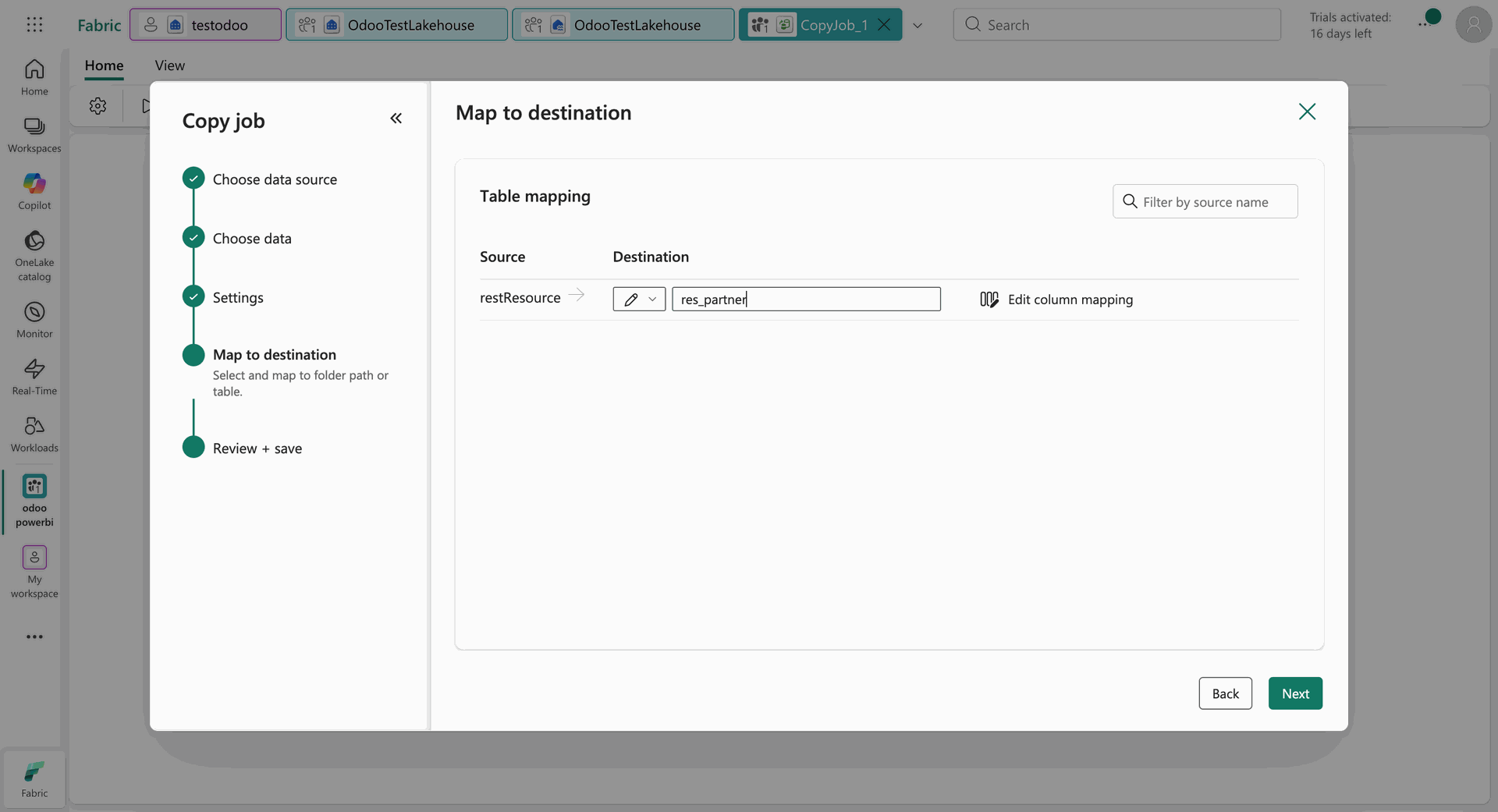
Map the source Odoo table to the destination Fabric table.
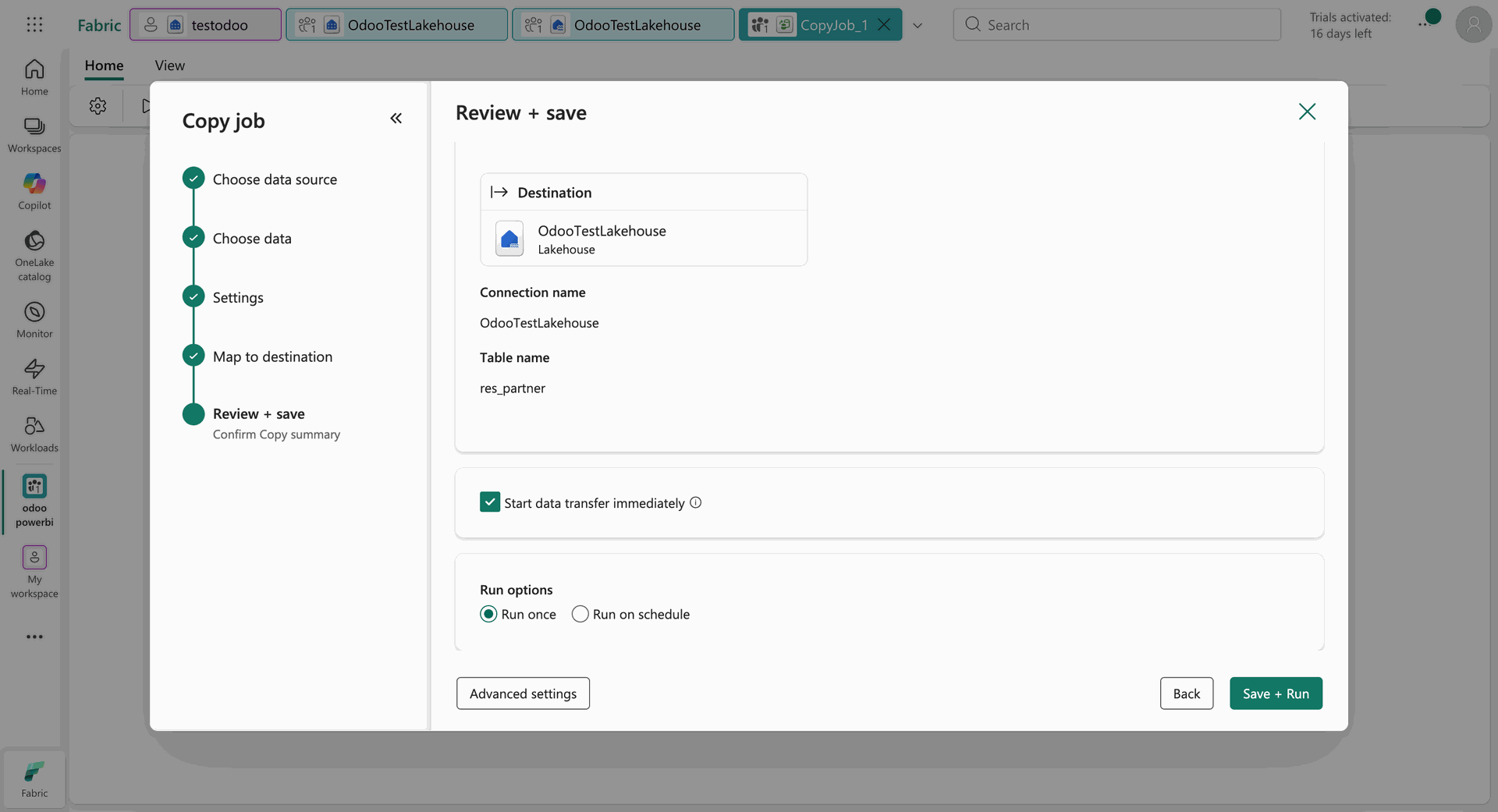
Review the Copy Job configuration, destination, and execution options before running it.
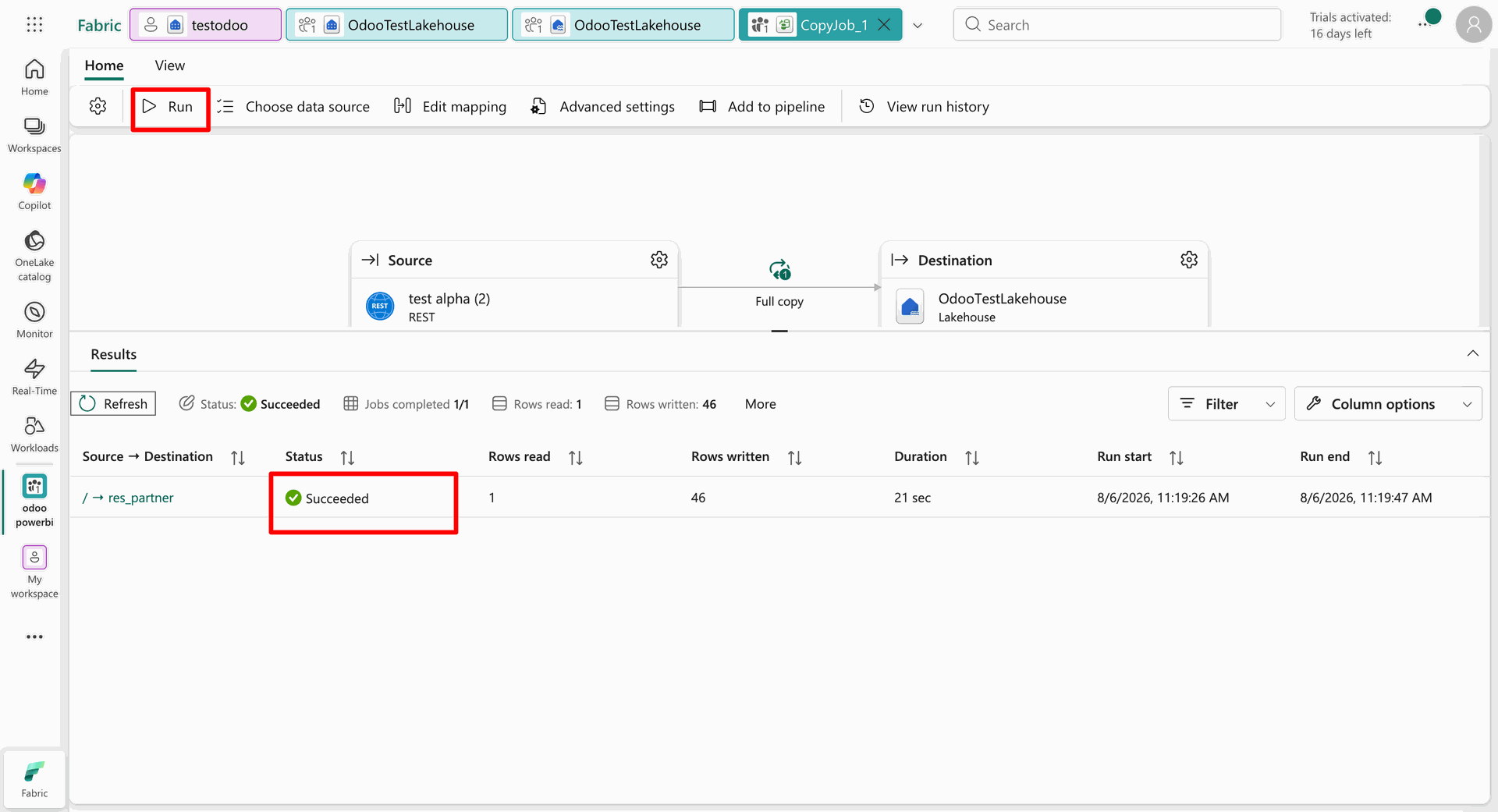
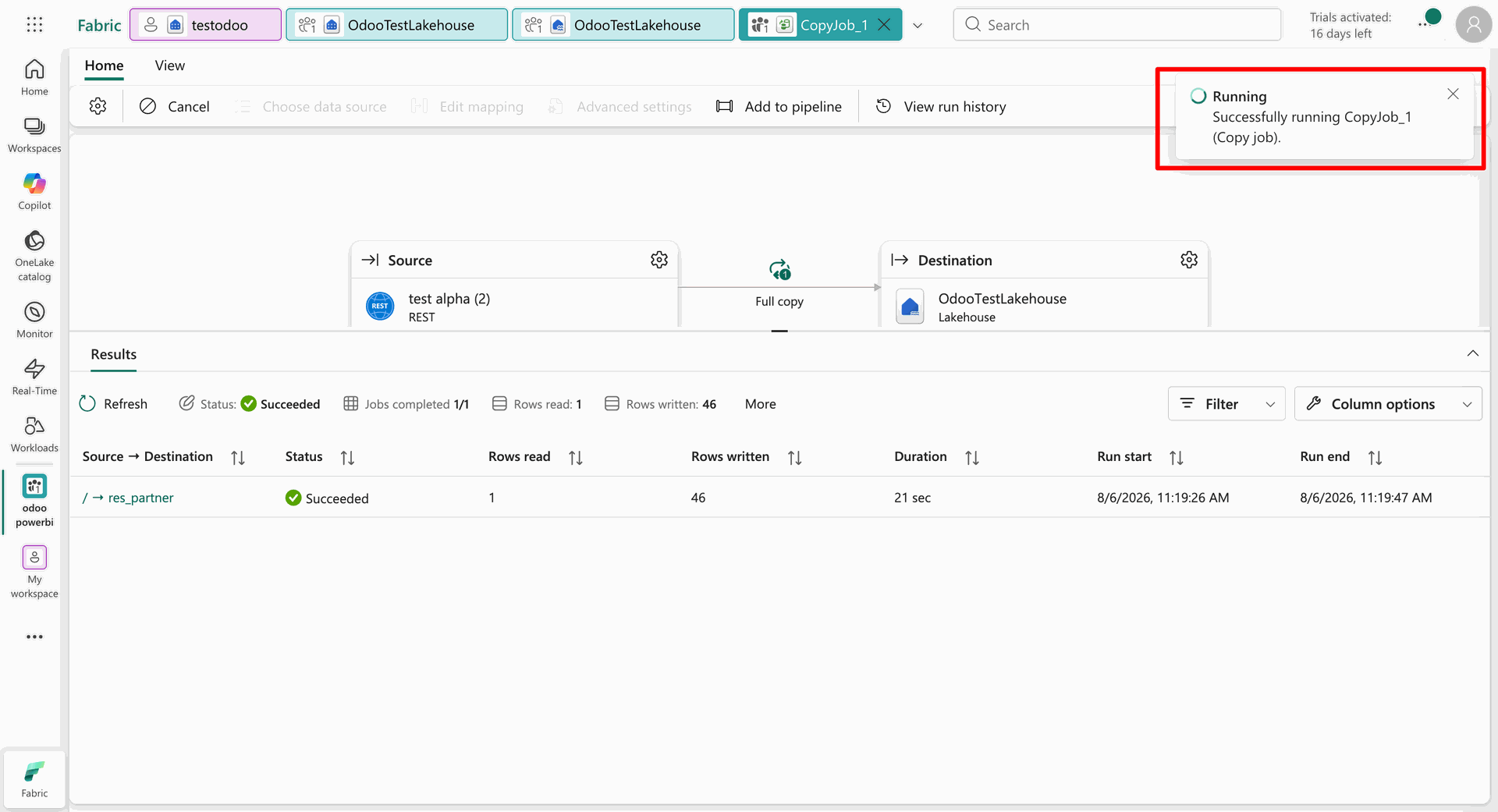
Run the Fabric Copy Job and verify the completed result and written rows.
Open the Fabric Lakehouse and locate the generated data files for the synchronized table.
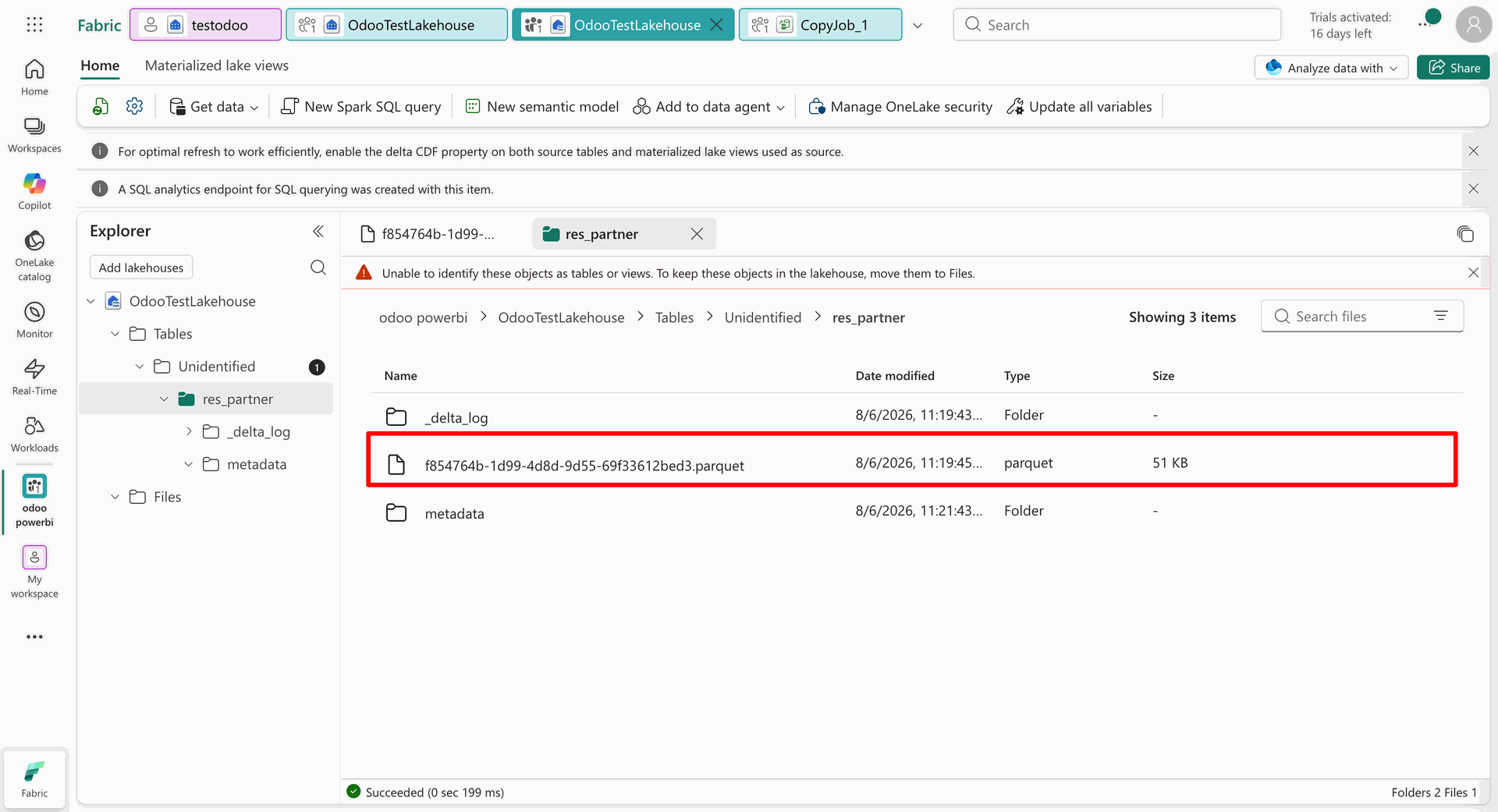
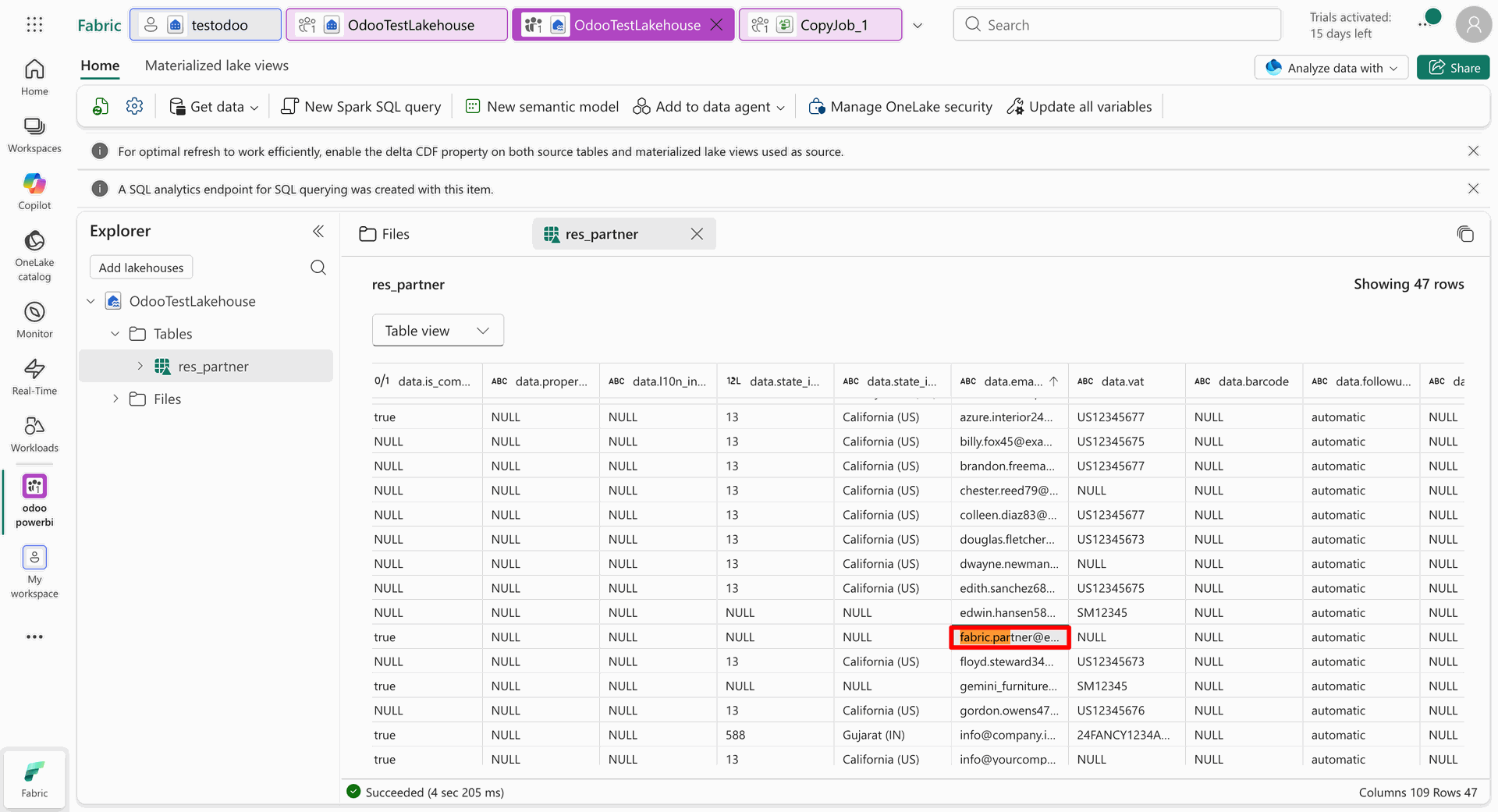
Open the synchronized table in the Fabric Lakehouse to verify the imported Odoo records and columns.
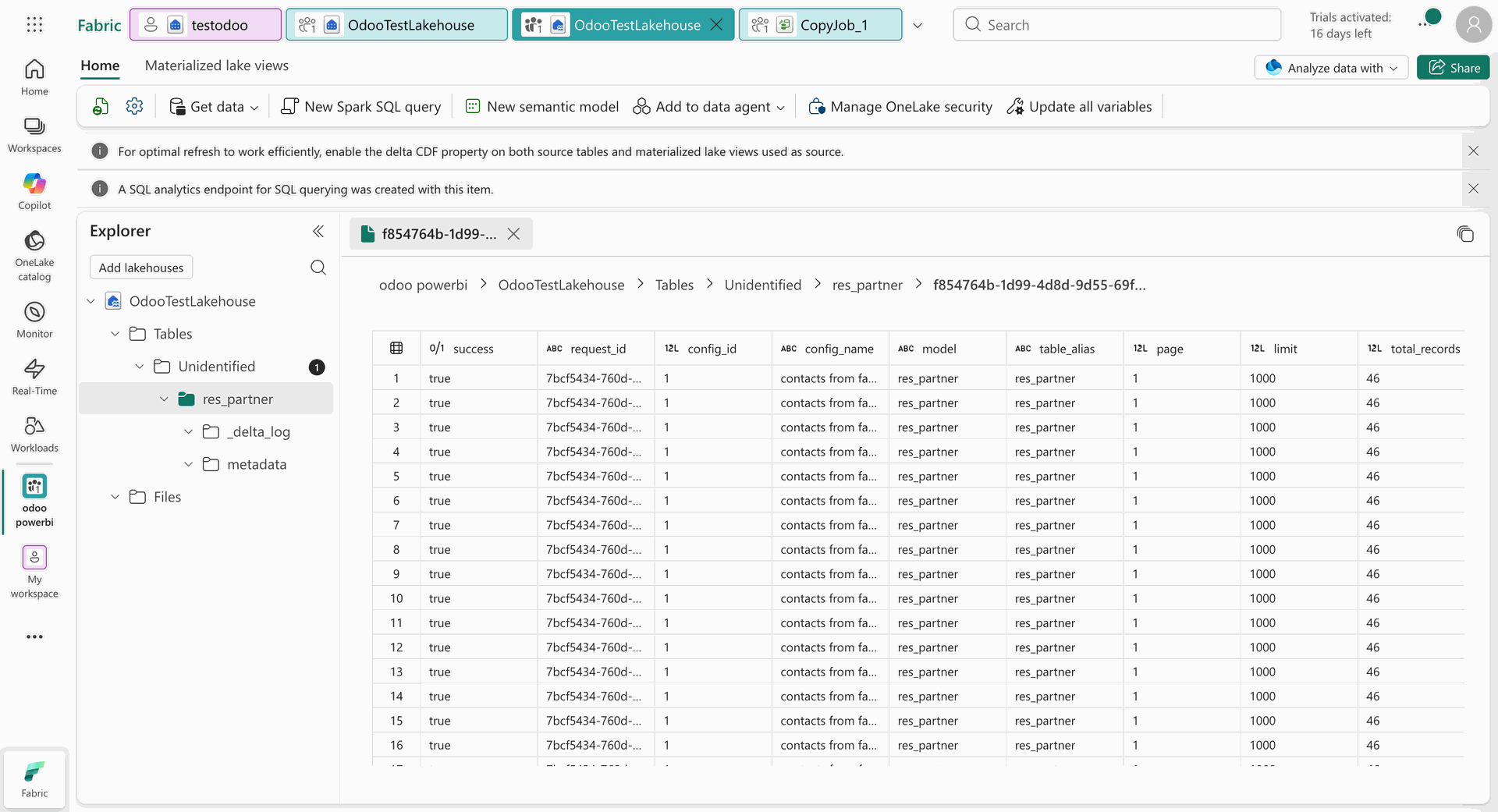
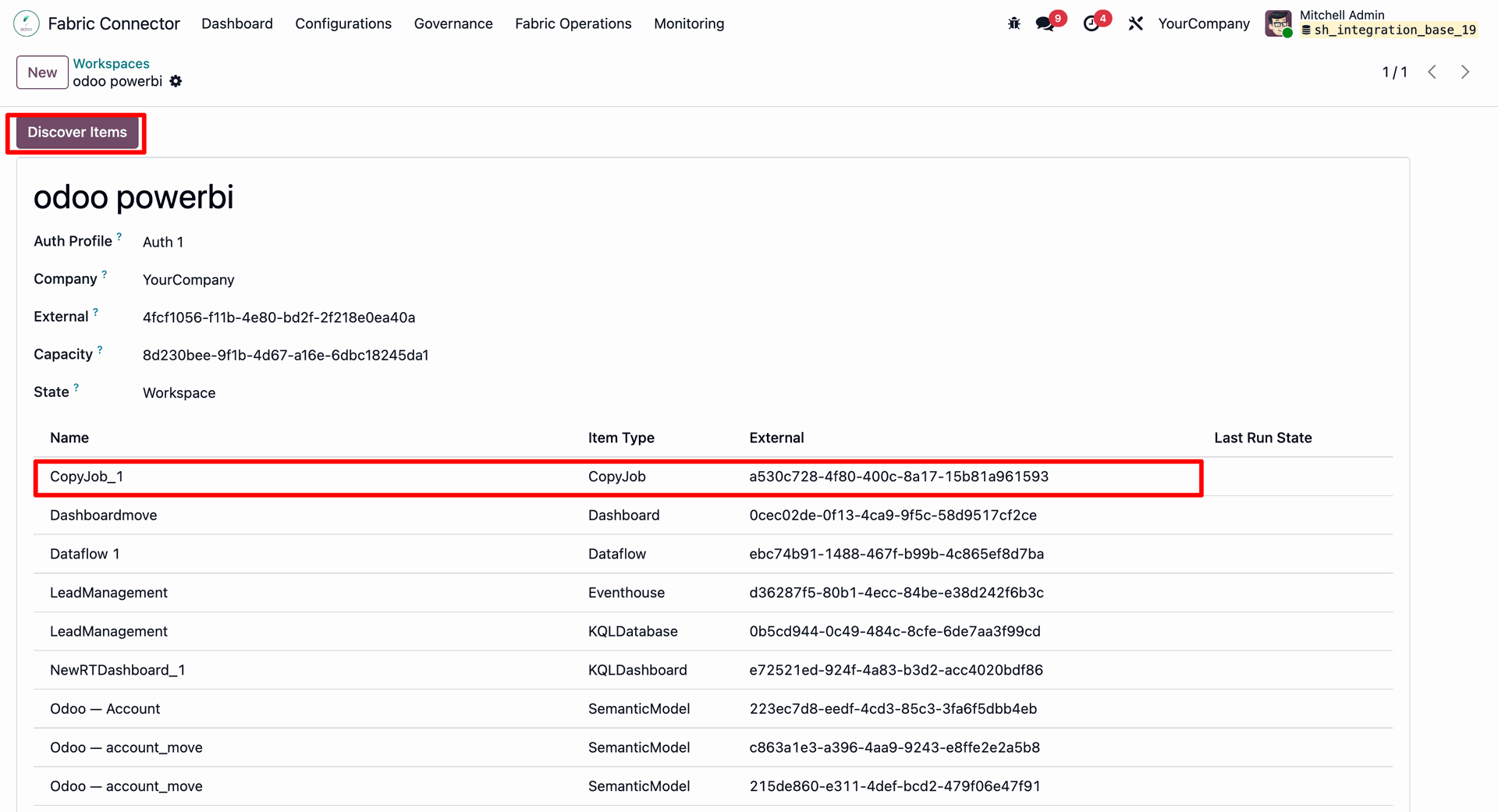
Review the discovered Fabric item details in Odoo, including the item name, type, external ID, and status.
Open Fabric Operations and navigate to Pipeline Runs to review the available Fabric pipeline executions.
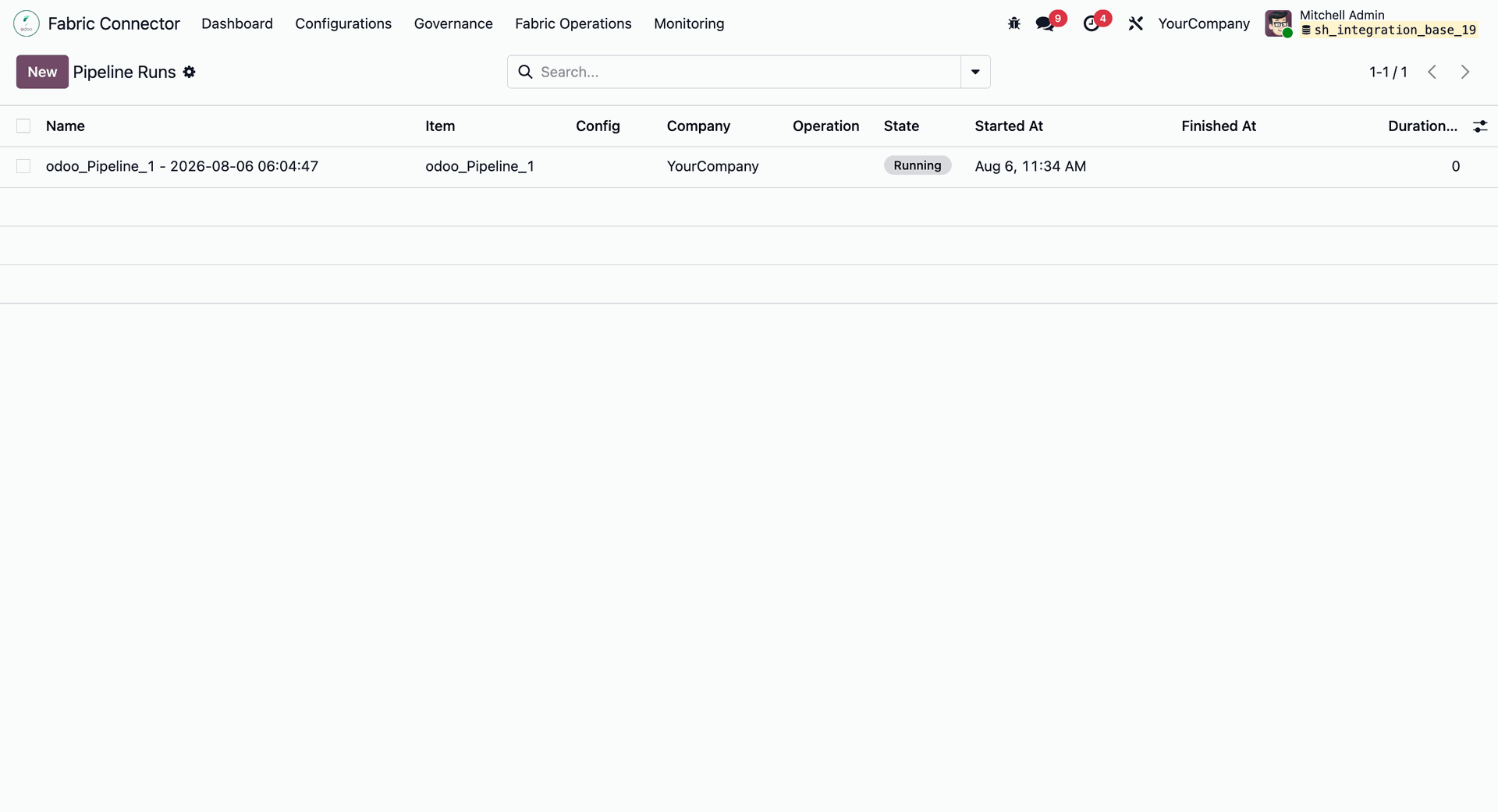
Open a pipeline run to view its execution state and available run details.
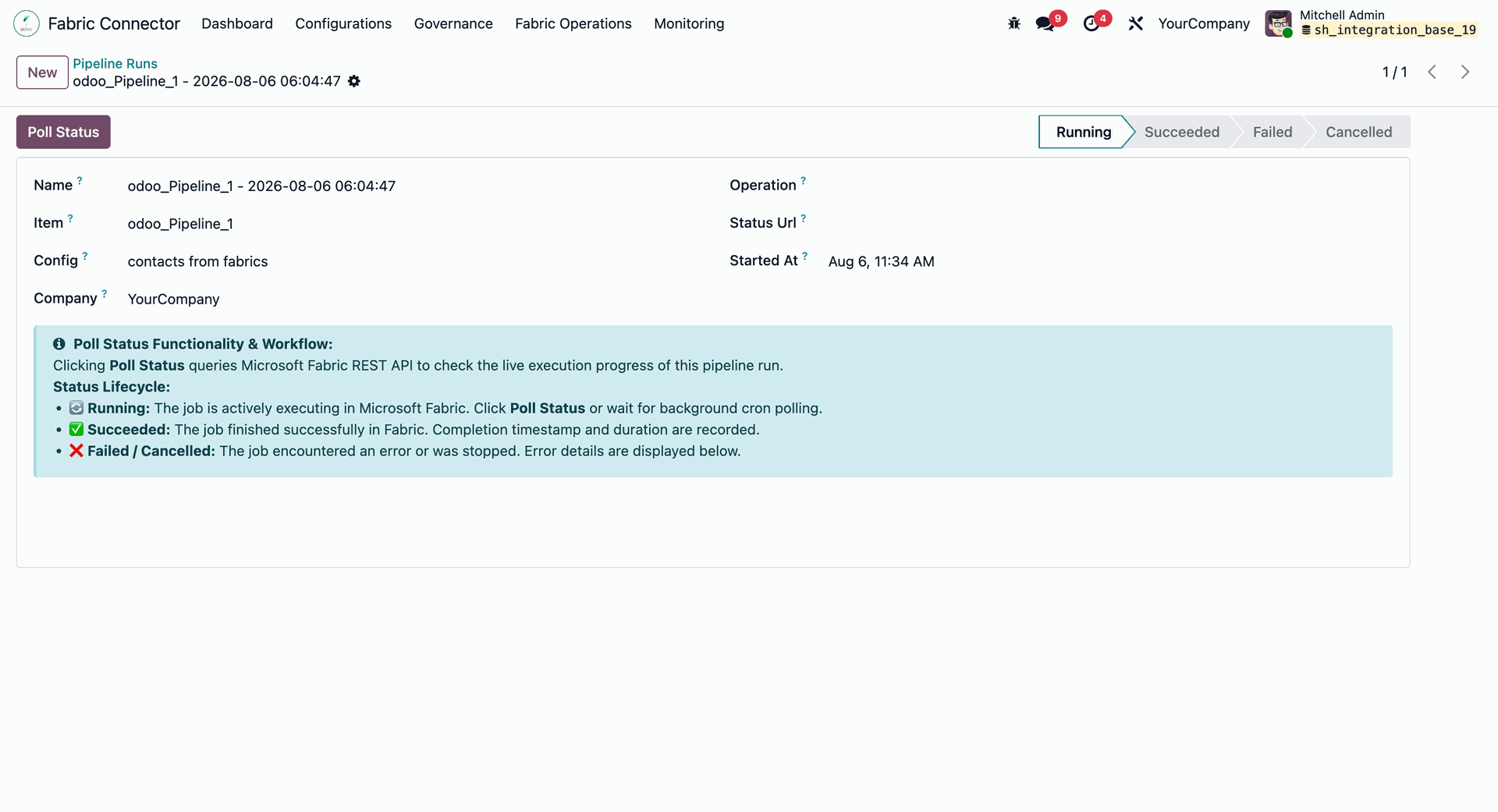
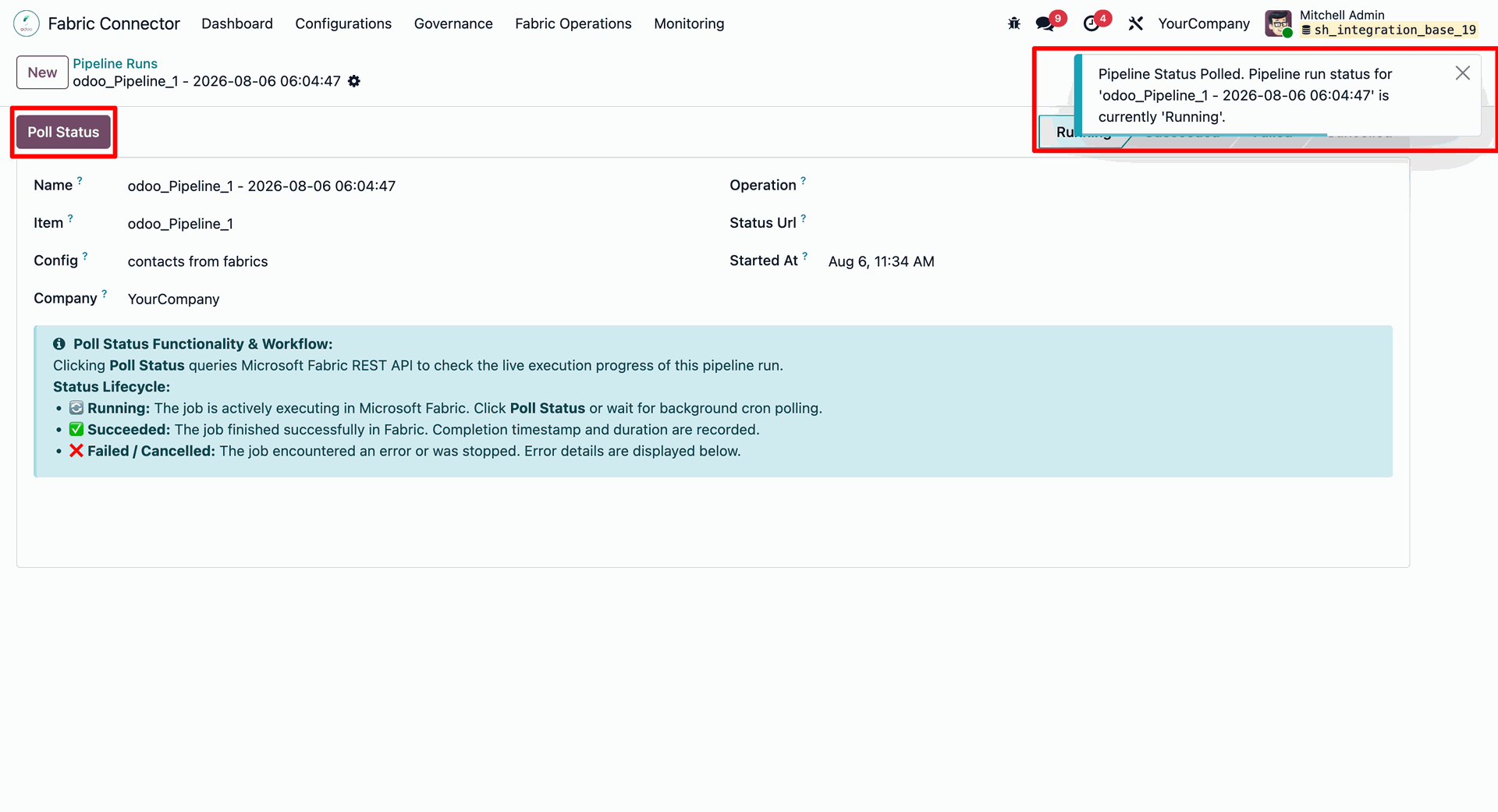
Review the pipeline run details, including the Fabric item, configuration, company, and execution status.
Open the Fabric Item record in Odoo and review its workspace, item type, authentication profile, and run information.
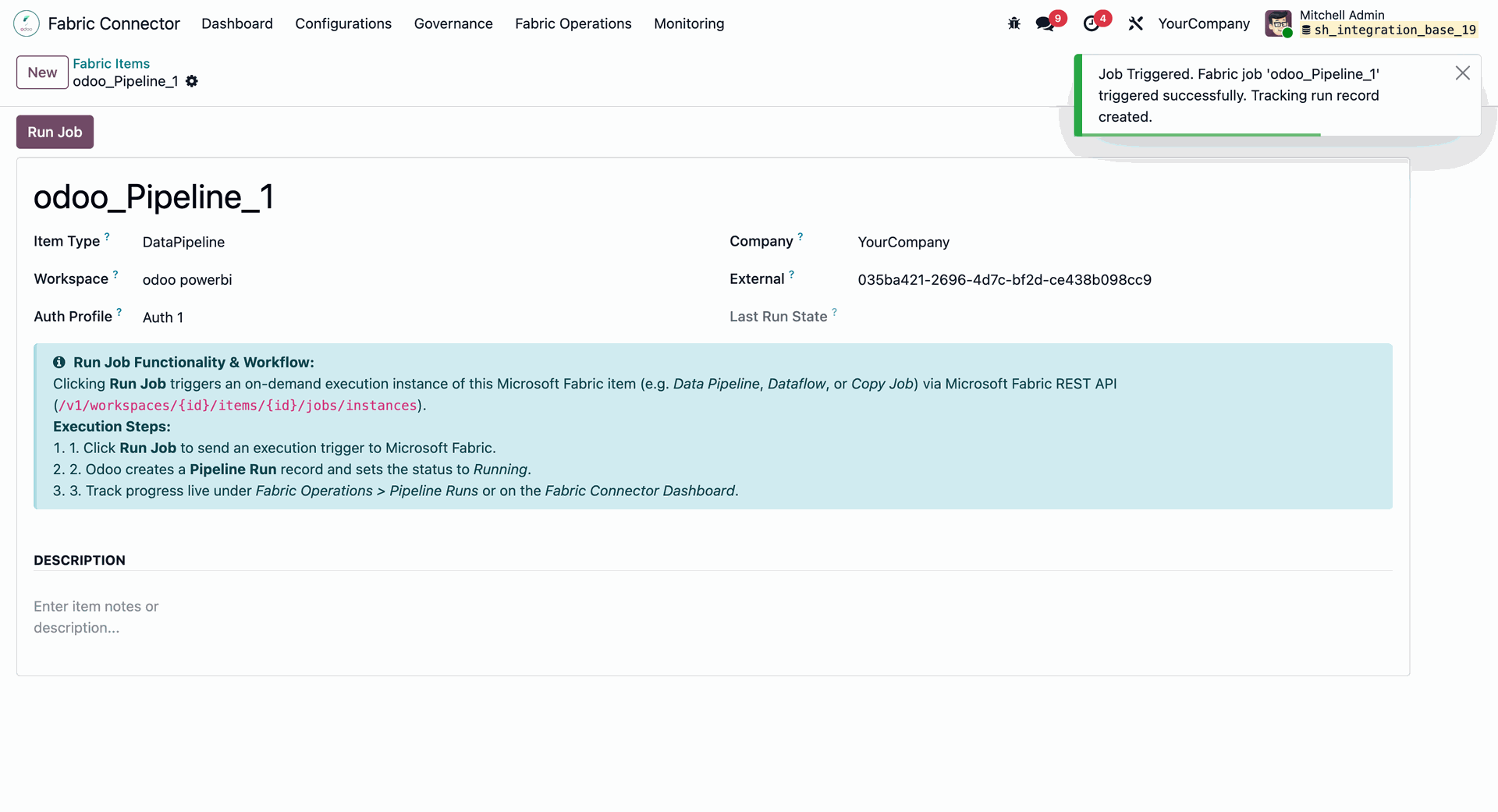
Click Run Job on a supported Fabric item to trigger an on-demand execution and track the resulting pipeline run.
Open the Microsoft Fabric Dashboard to view active configurations, tables, API activity, queue health, and Fabric item counts.
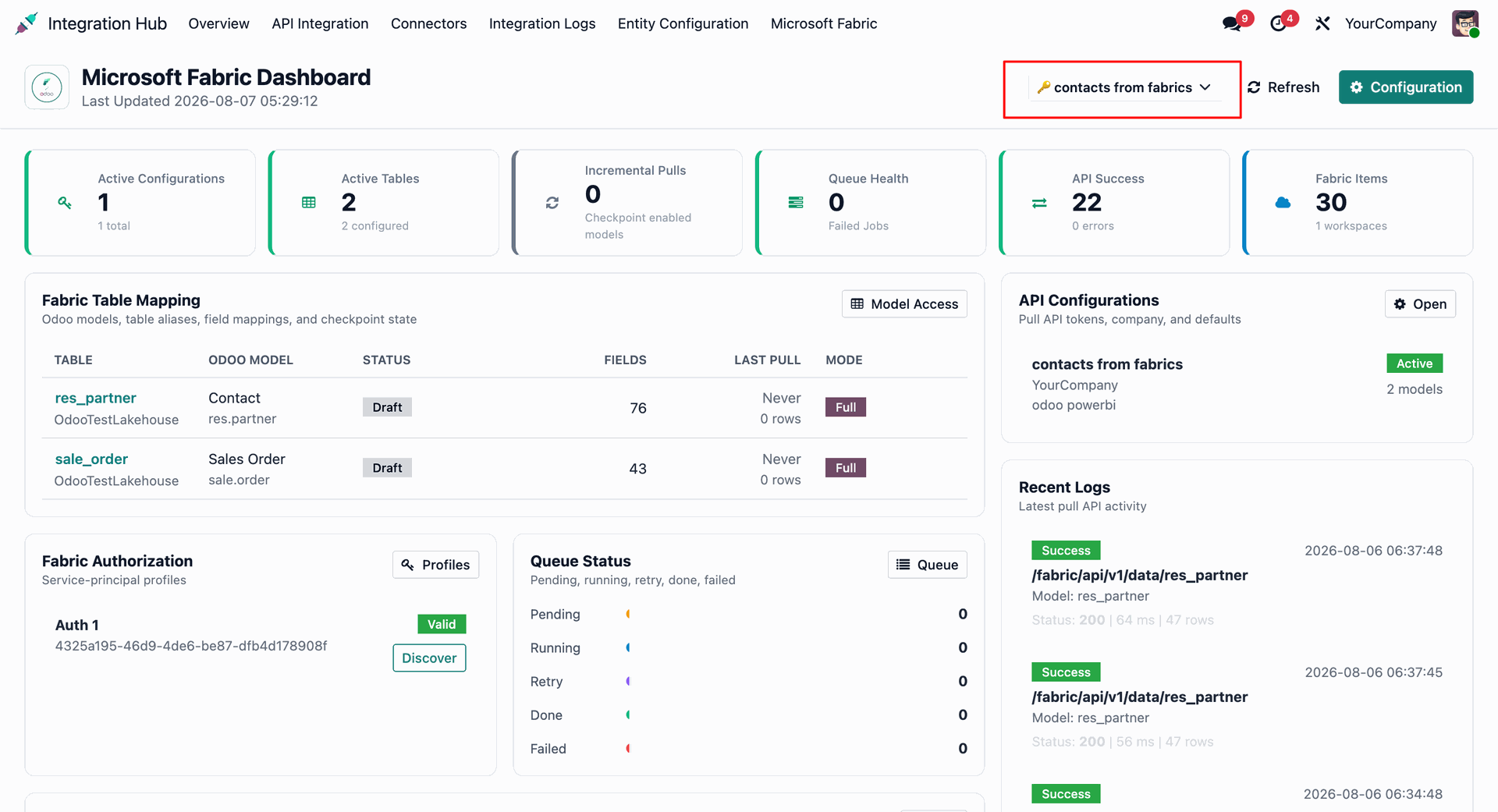
Review recent Fabric API activity, queue status, and synchronization trends from the dashboard monitoring panels.
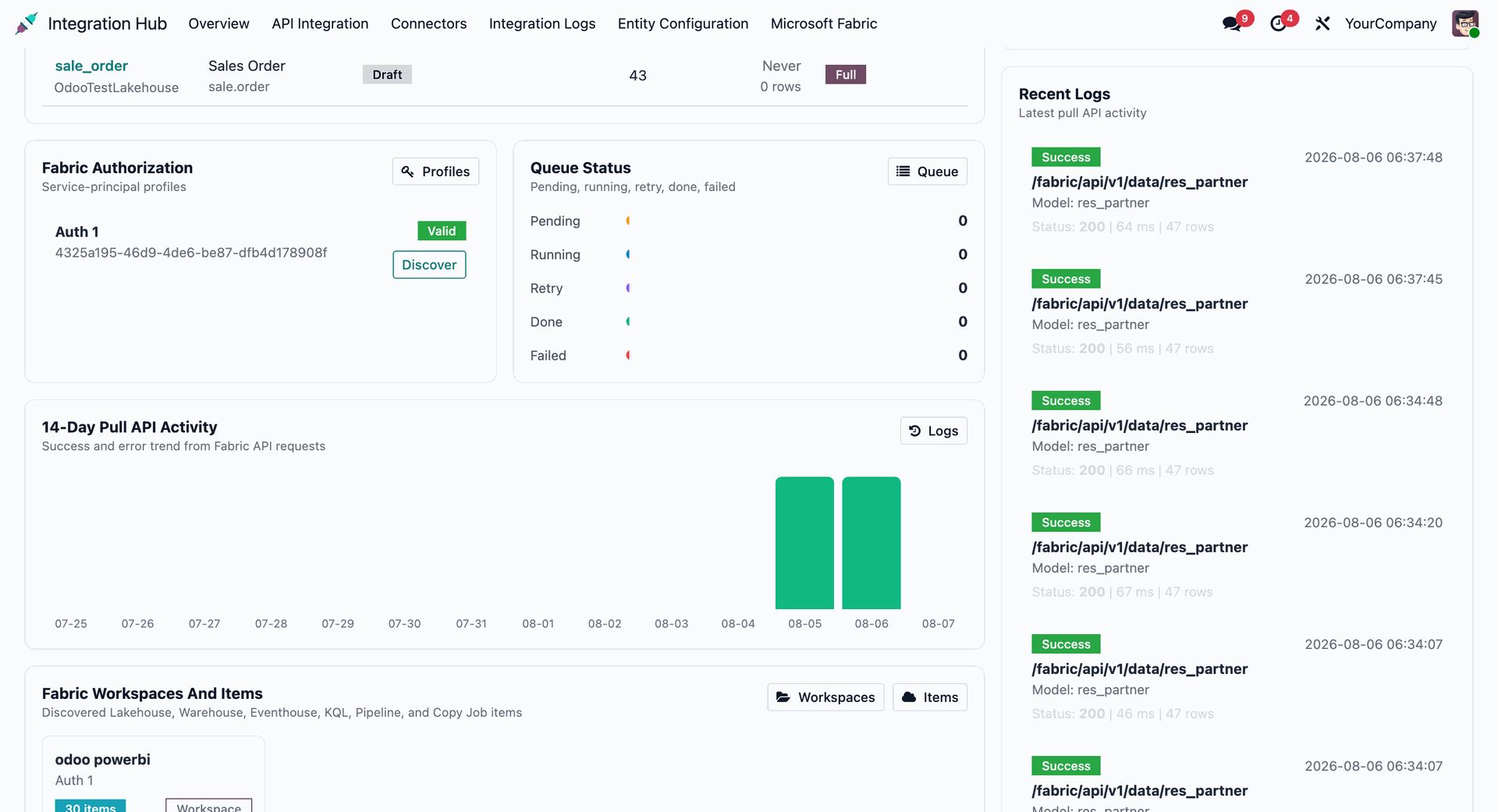
View discovered Fabric workspaces and items, including item types and their current synchronization status.
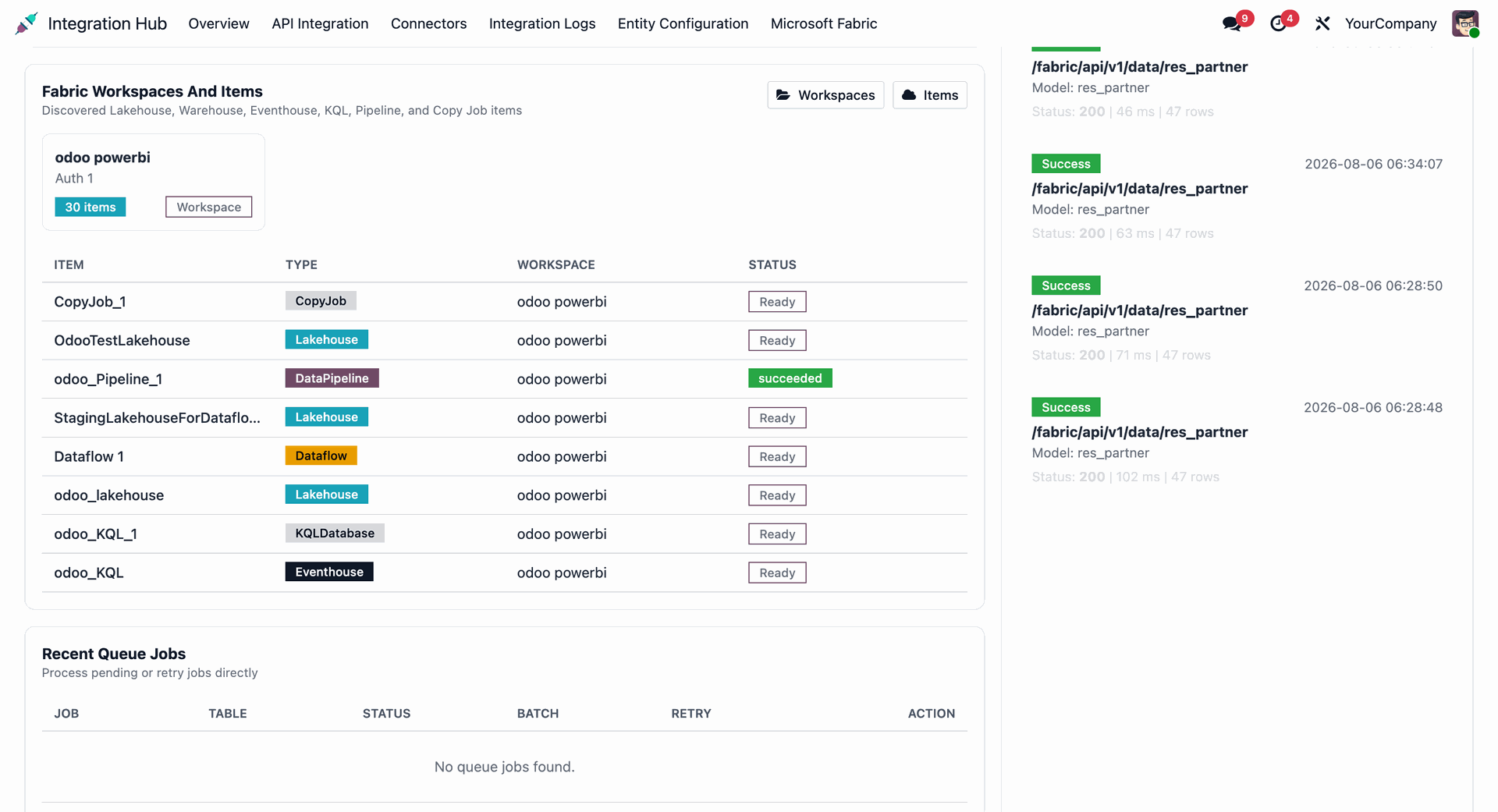
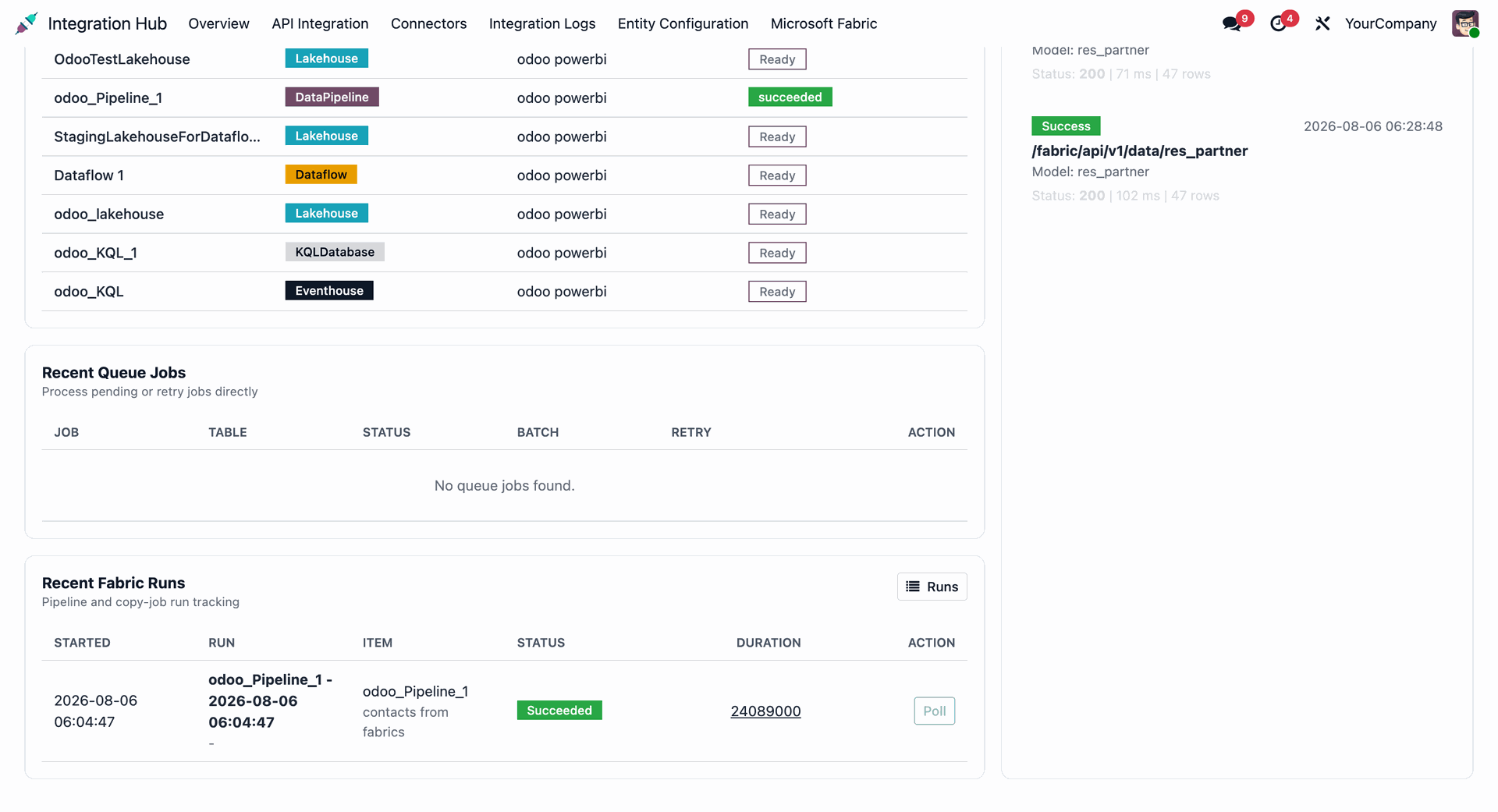
Check recent Fabric runs and queue jobs to monitor pipeline and copy-job execution results.
Open Microsoft Fabric Operations from the connector menu and navigate to Auth Profiles.
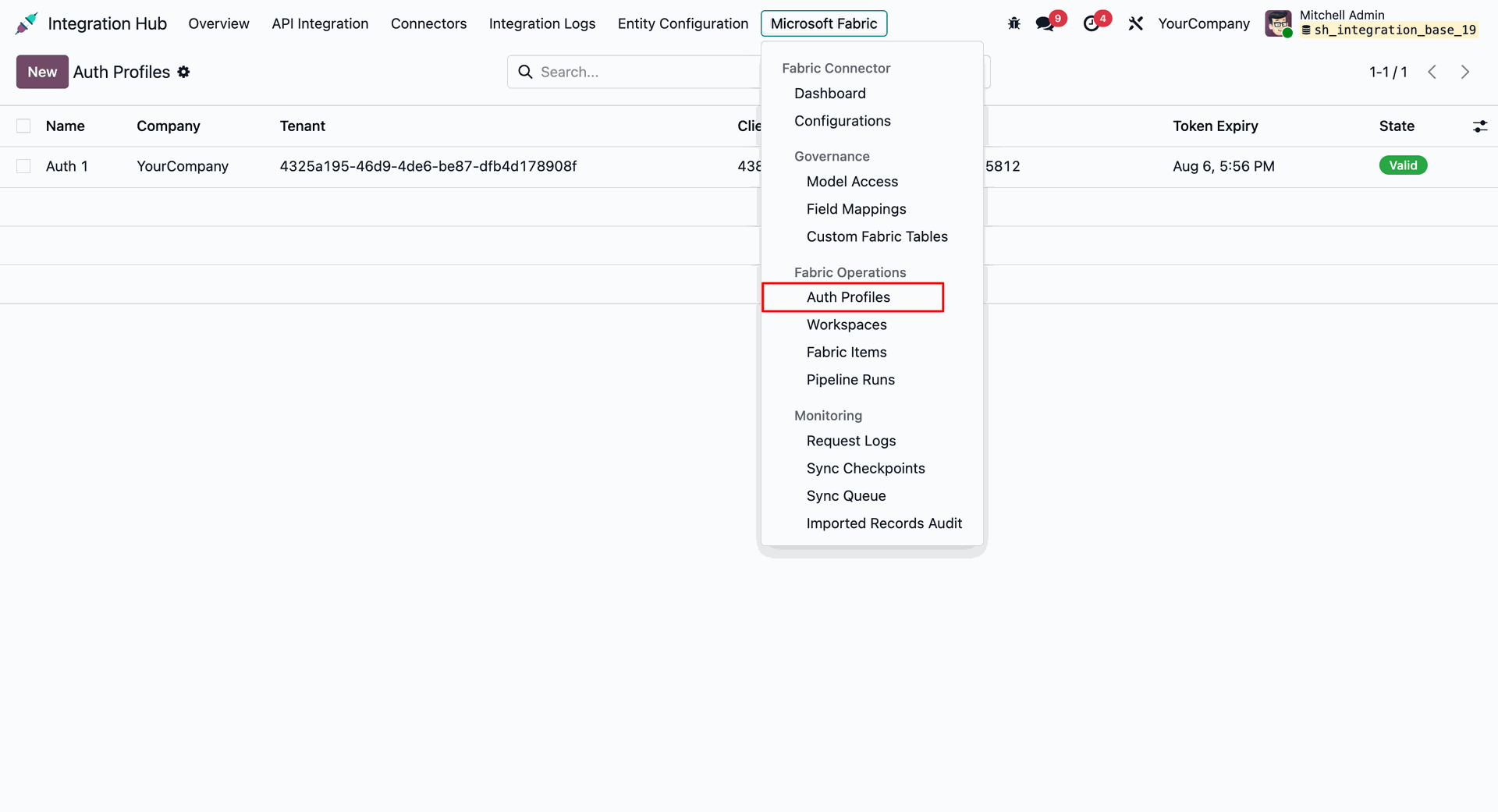
Open an authentication profile, click Test Connection, and verify that the Microsoft Fabric connection is valid.
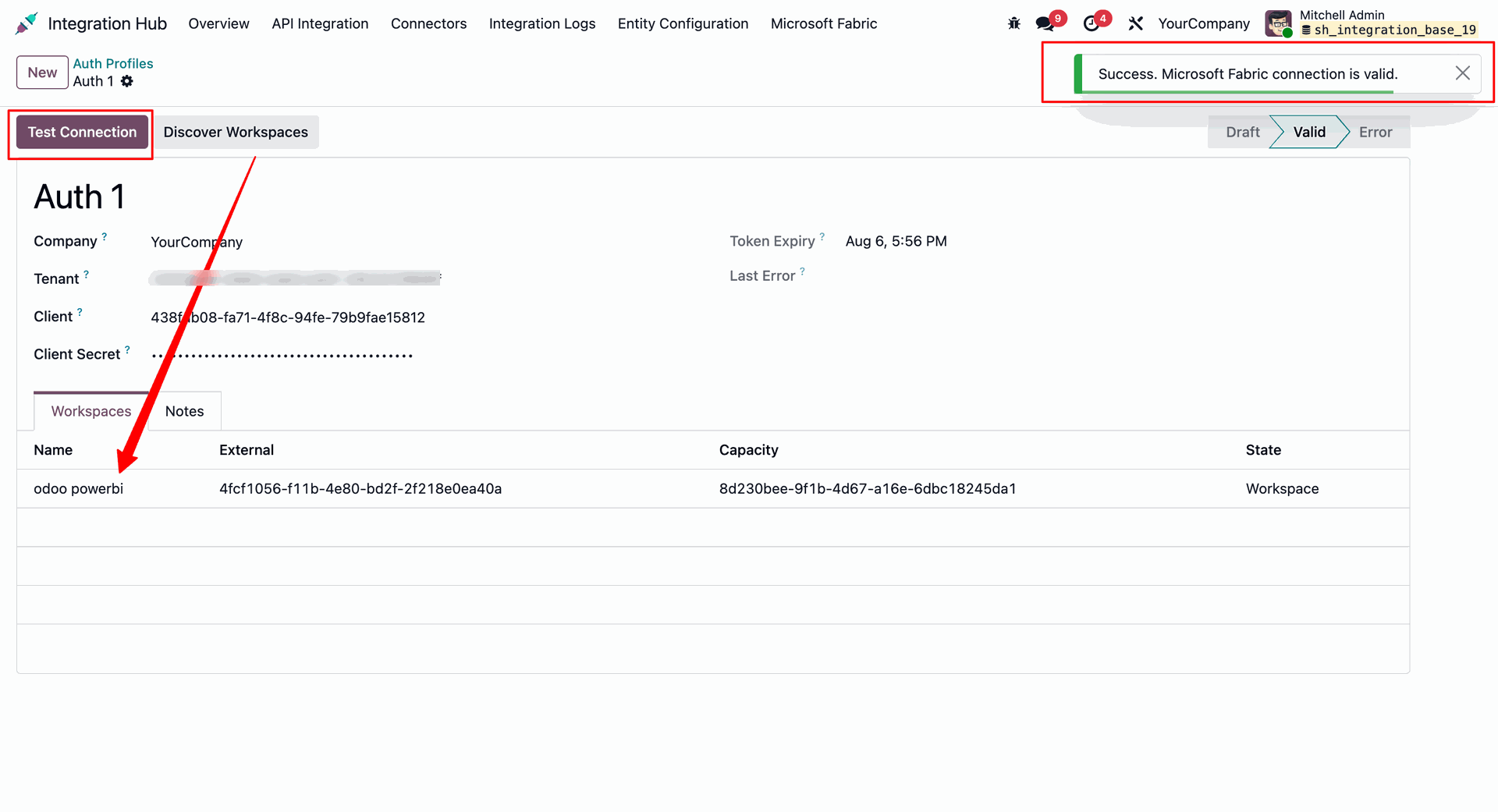
Open the configured workspace and click Discover Items to retrieve the available Fabric items.
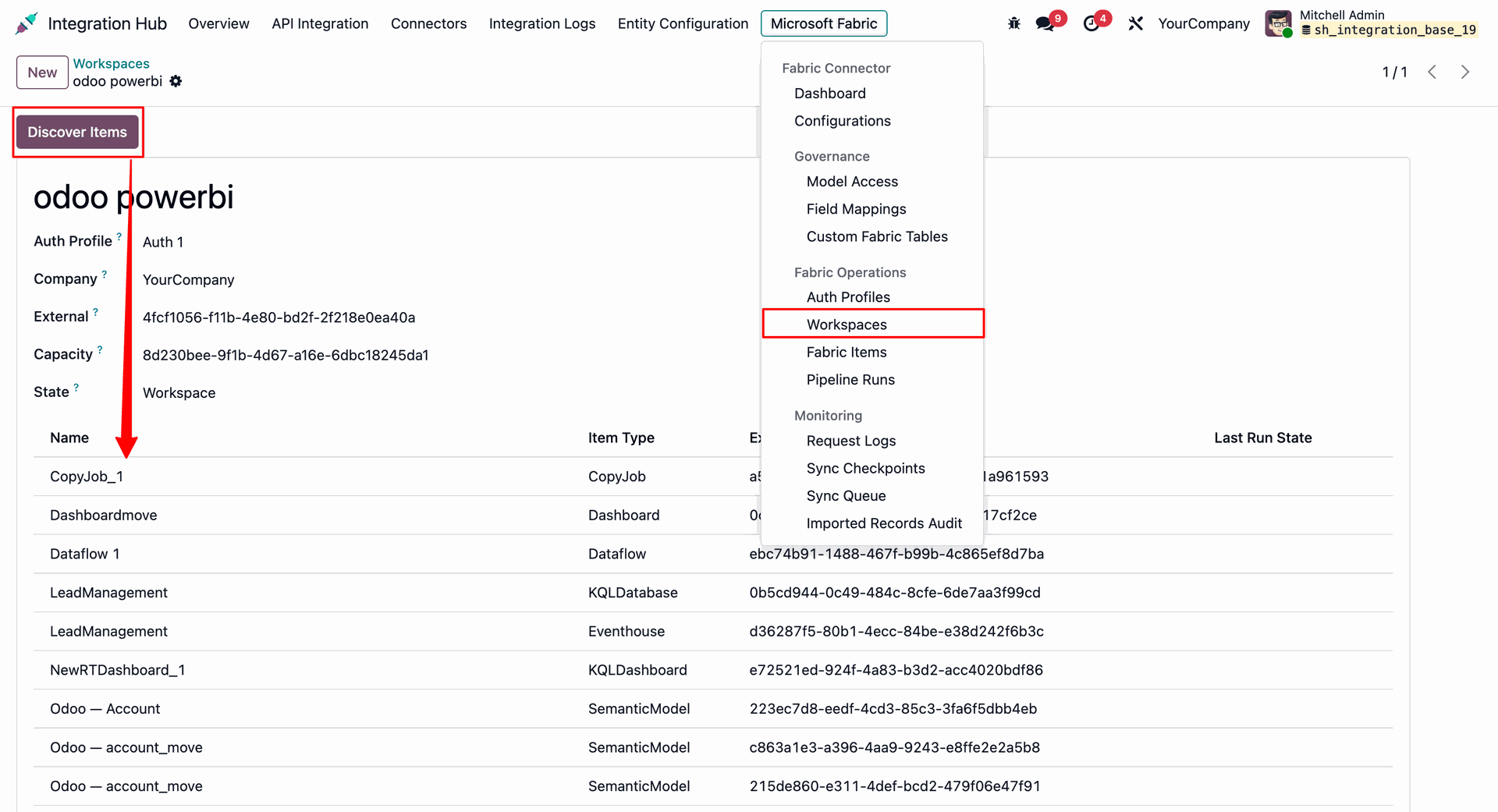
Open Fabric Items to review discovered items, their types, workspaces, and last run states.
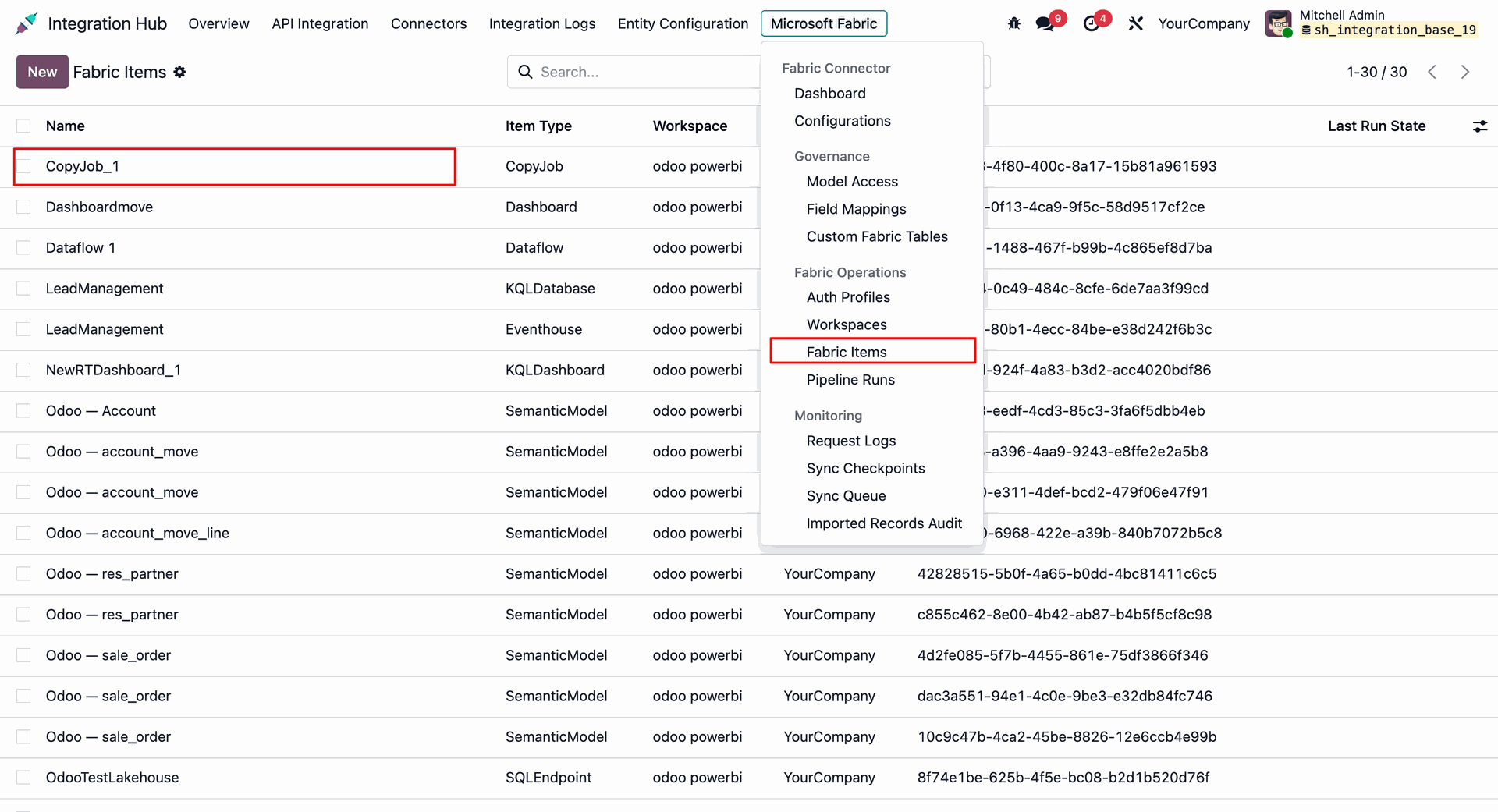
Open a Fabric item and click Run Job to trigger the item execution from Odoo.
Open a Microsoft Fabric Notebook and create the custom dataset that will be stored as a Delta table.
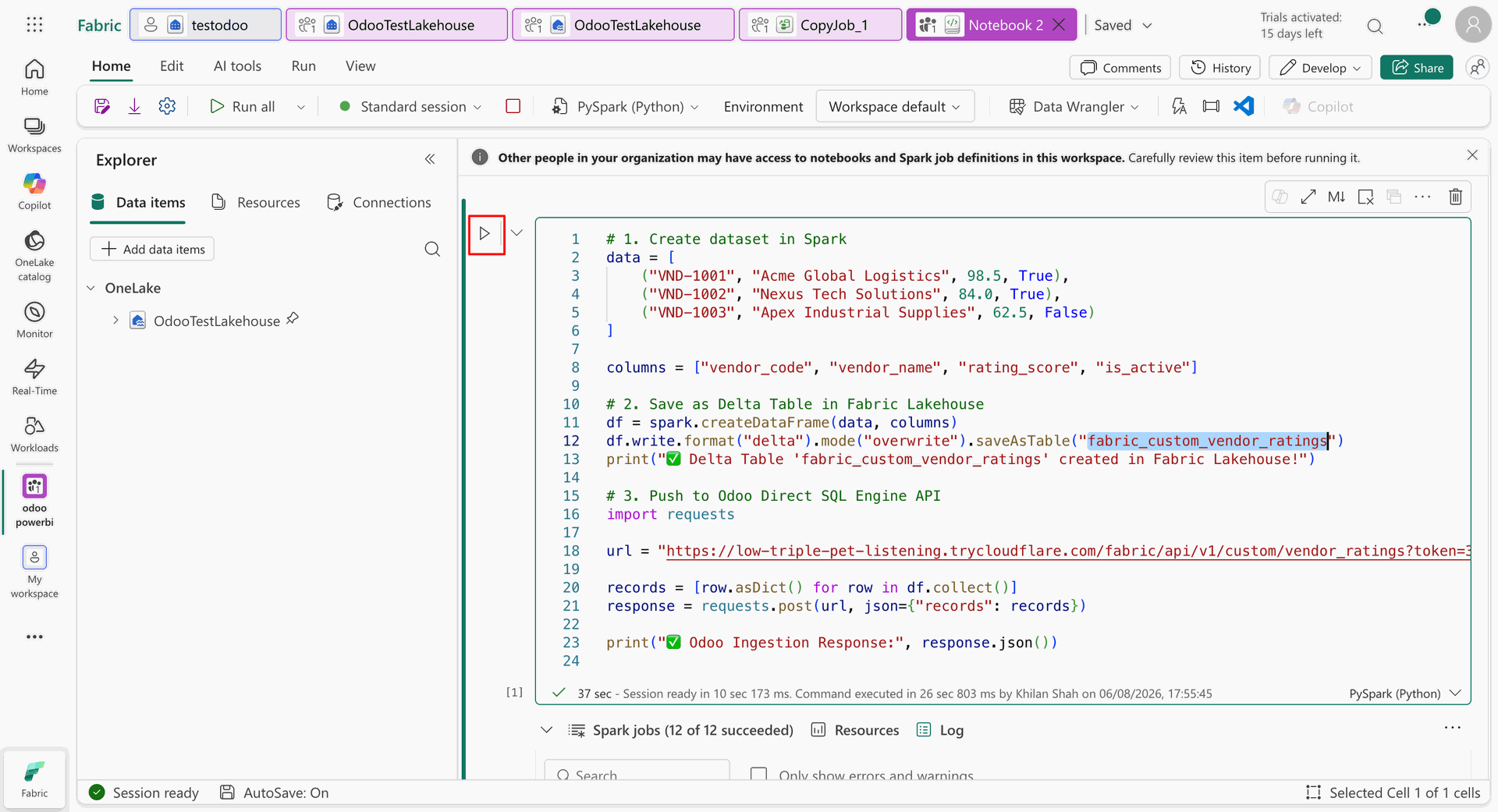
Run the notebook code to create the Delta table and send the custom records to the Odoo Fabric API.
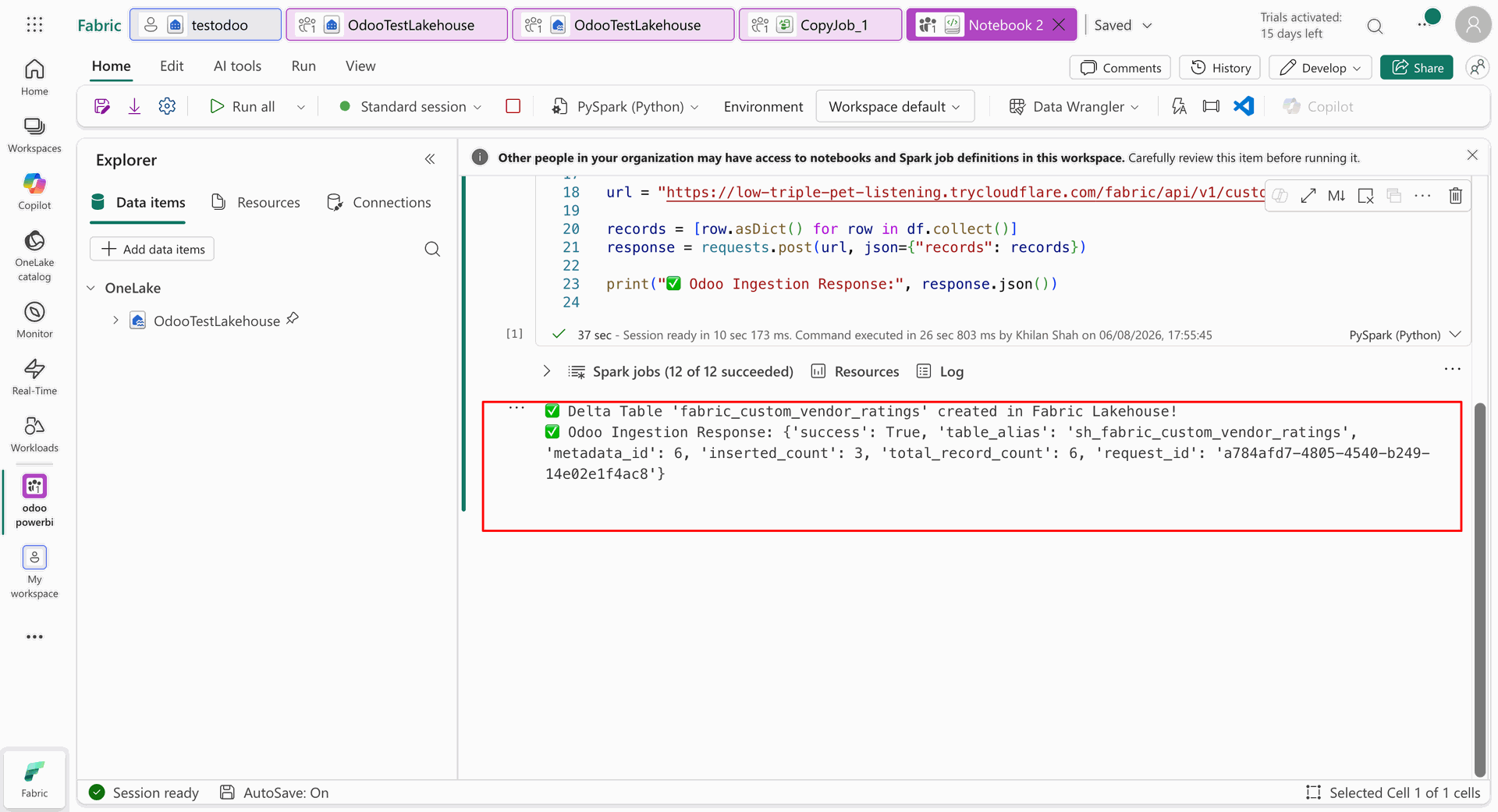
Review the Odoo response after the custom Fabric table data is posted through the API.
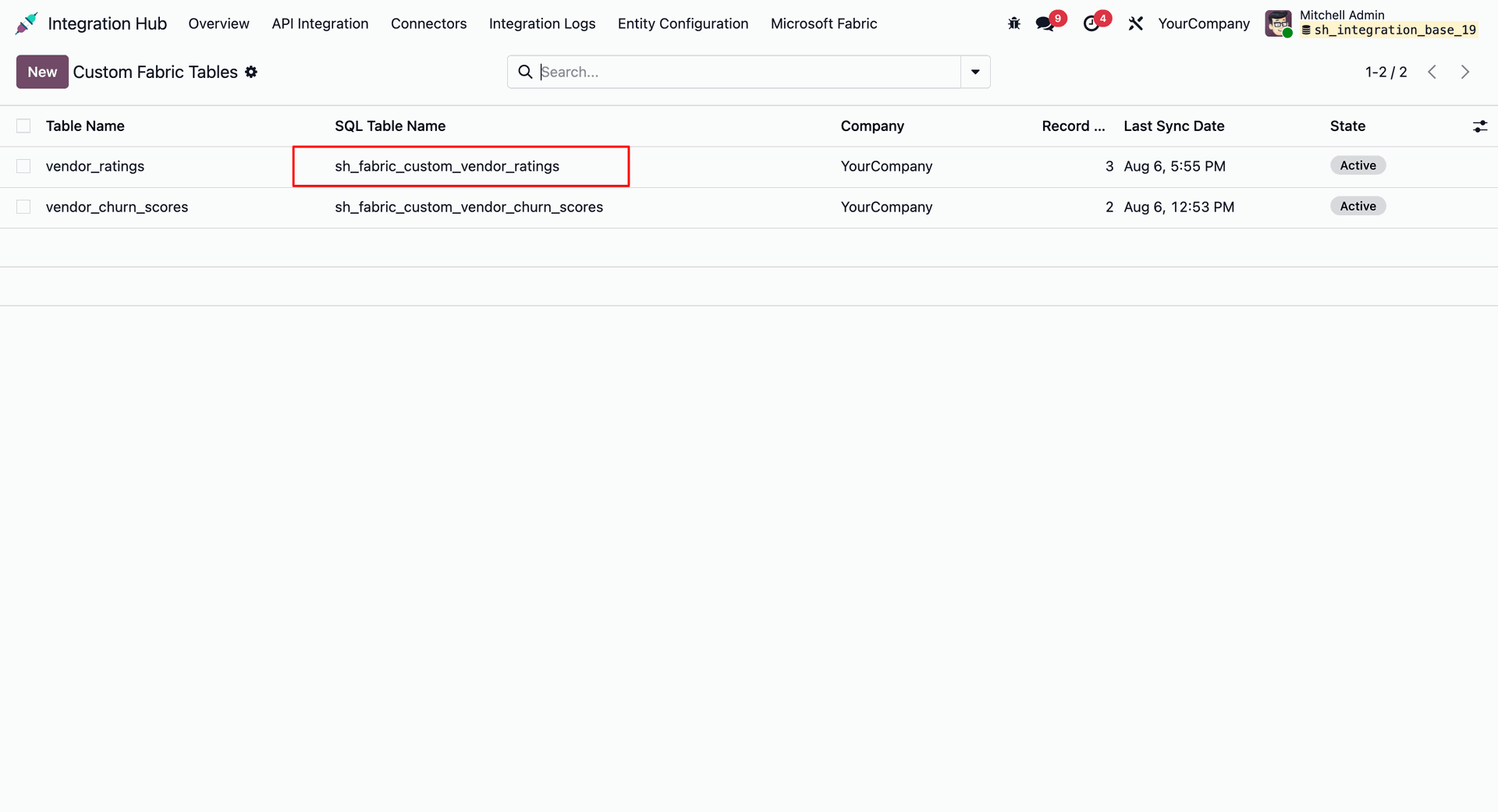
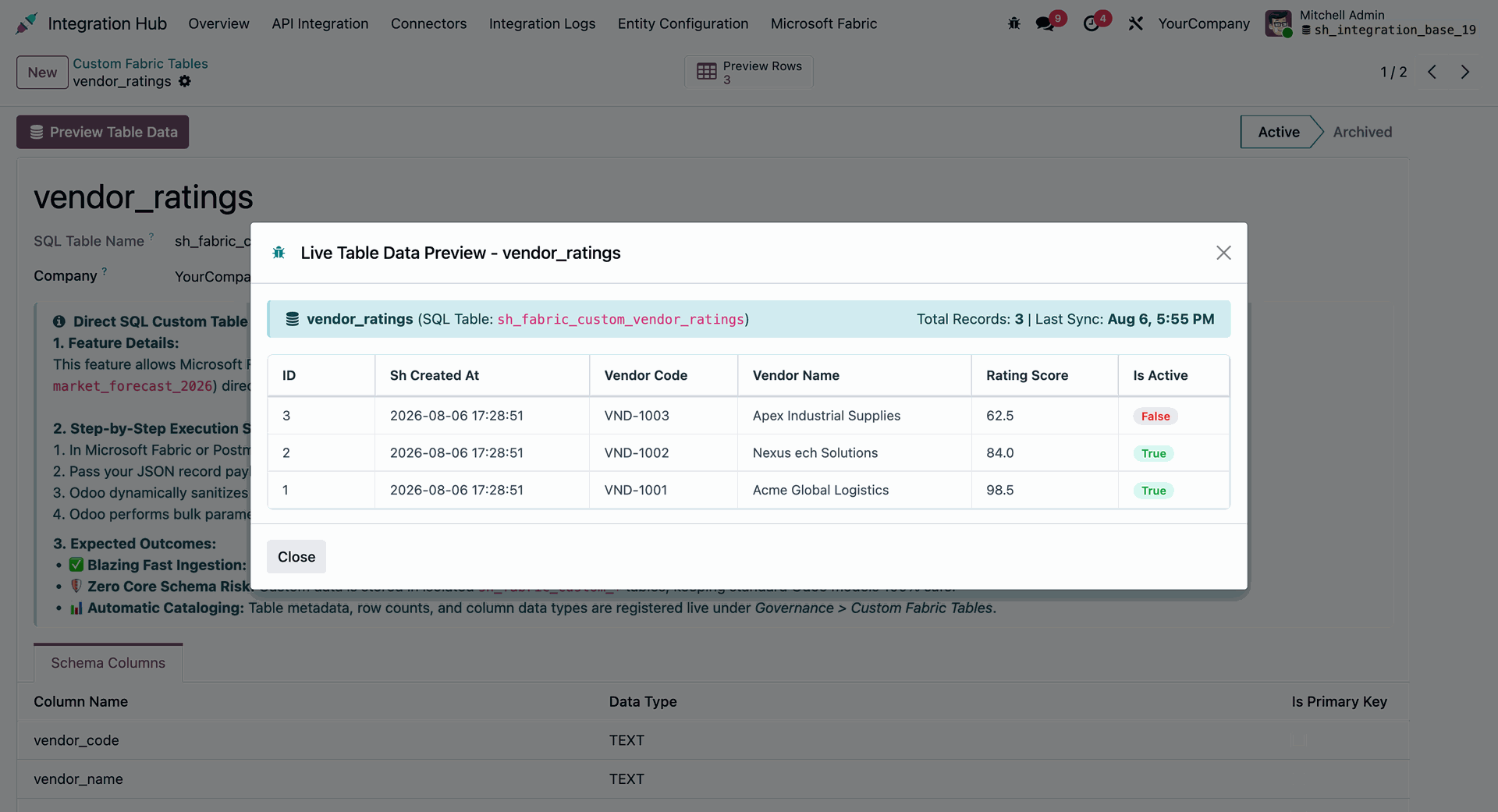
Open Custom Fabric Tables in Odoo to review the configured custom table and its synchronization details.
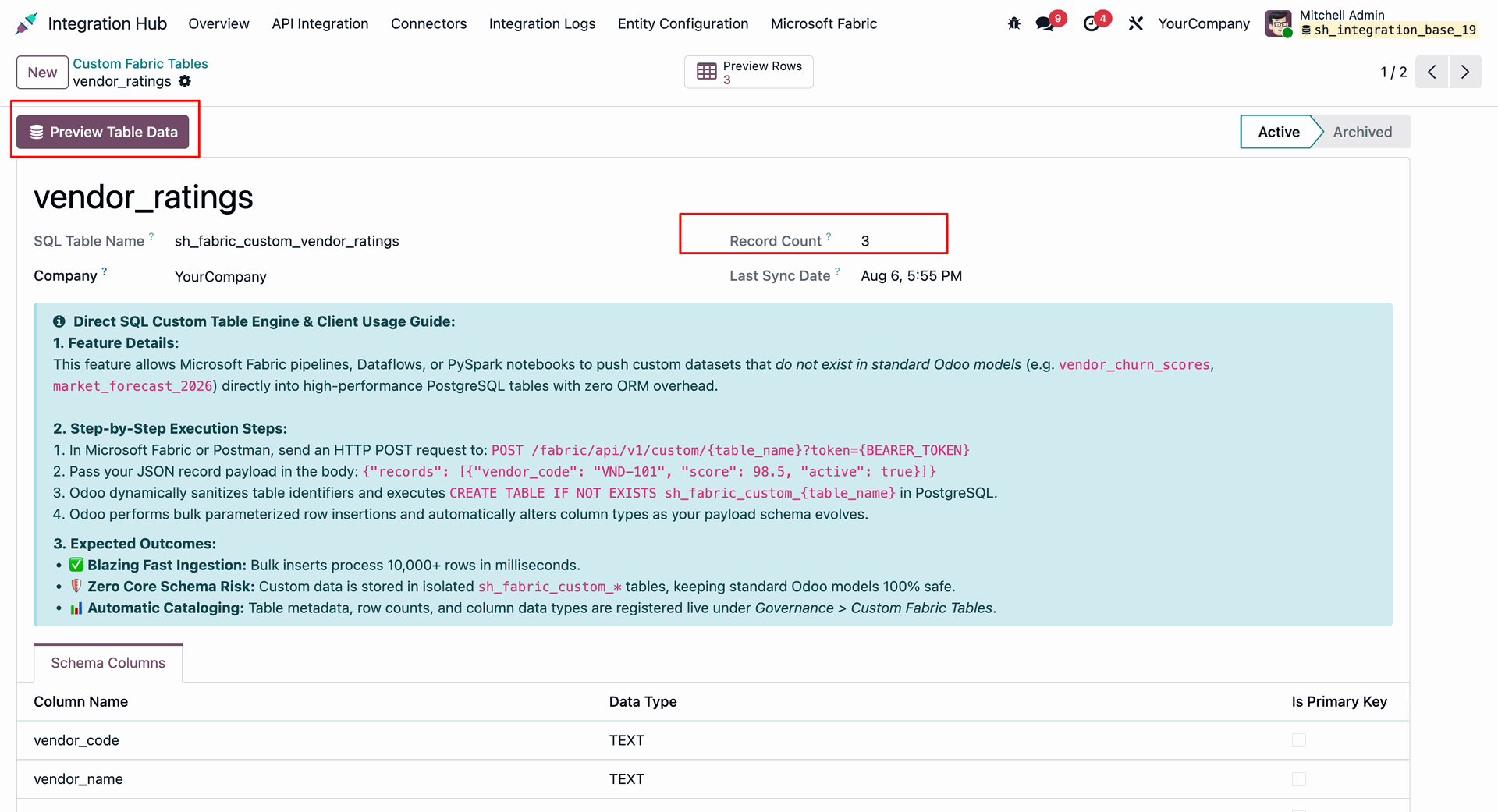
Review the custom Fabric table configuration and confirm the mapped fields and table information.
Open Model Access for the required Odoo model and select the Inbound Import (Fabric → Odoo) tab.
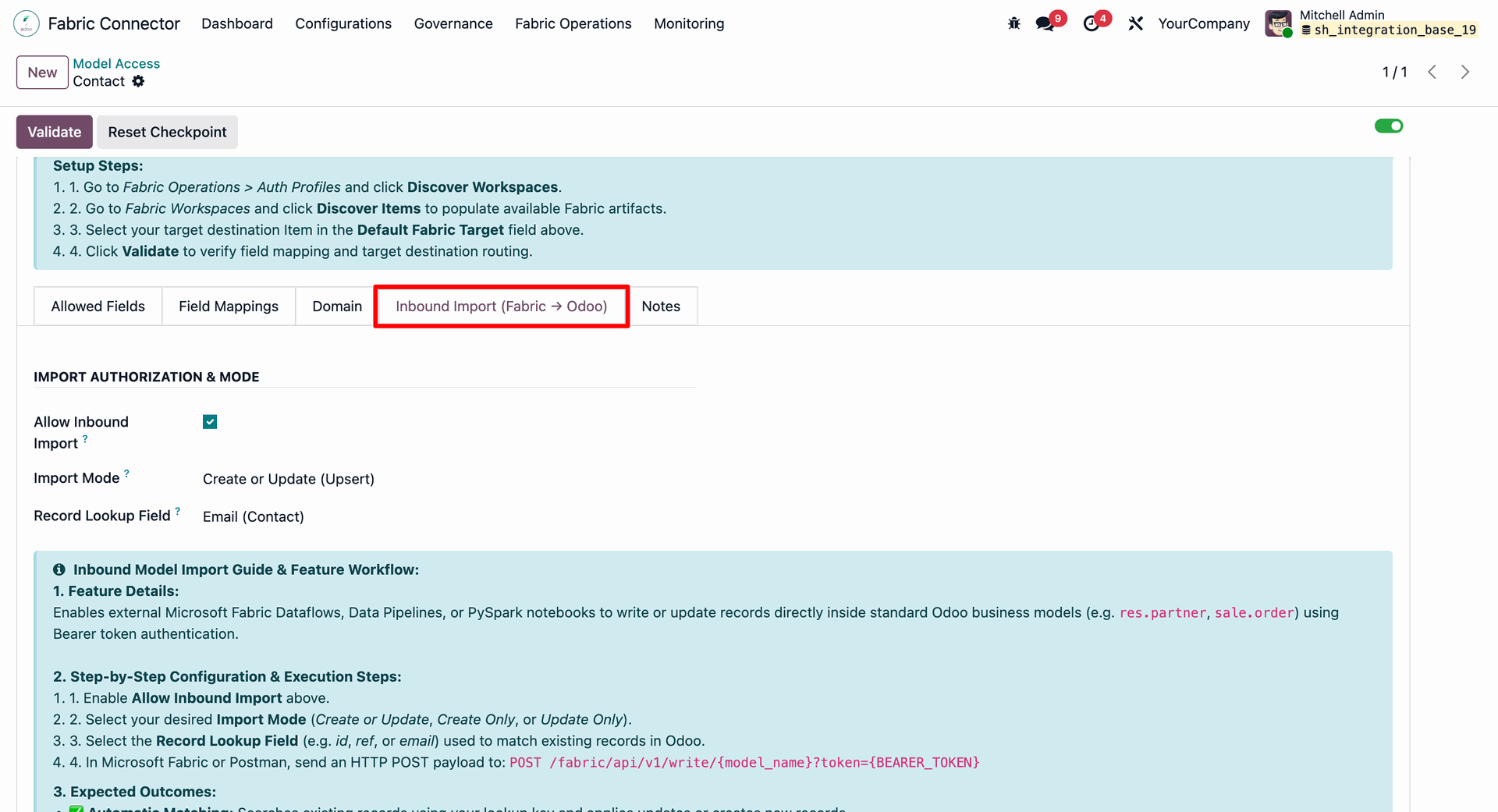
Enable inbound import and configure the import mode and record lookup field used to create or update Odoo records.
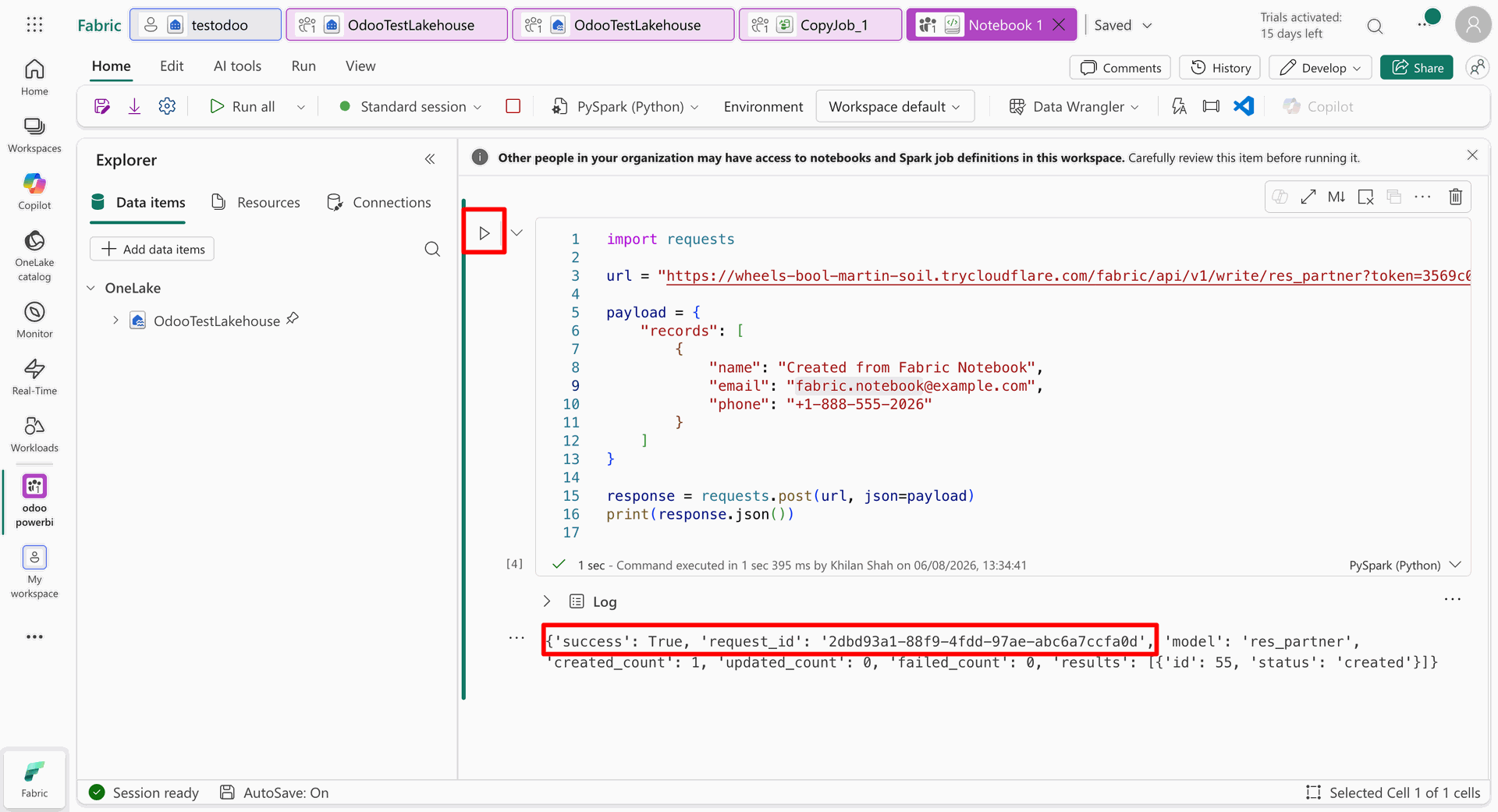
Configure the Fabric-to-Odoo inbound request using the model, lookup, and mapped fields required for record import.
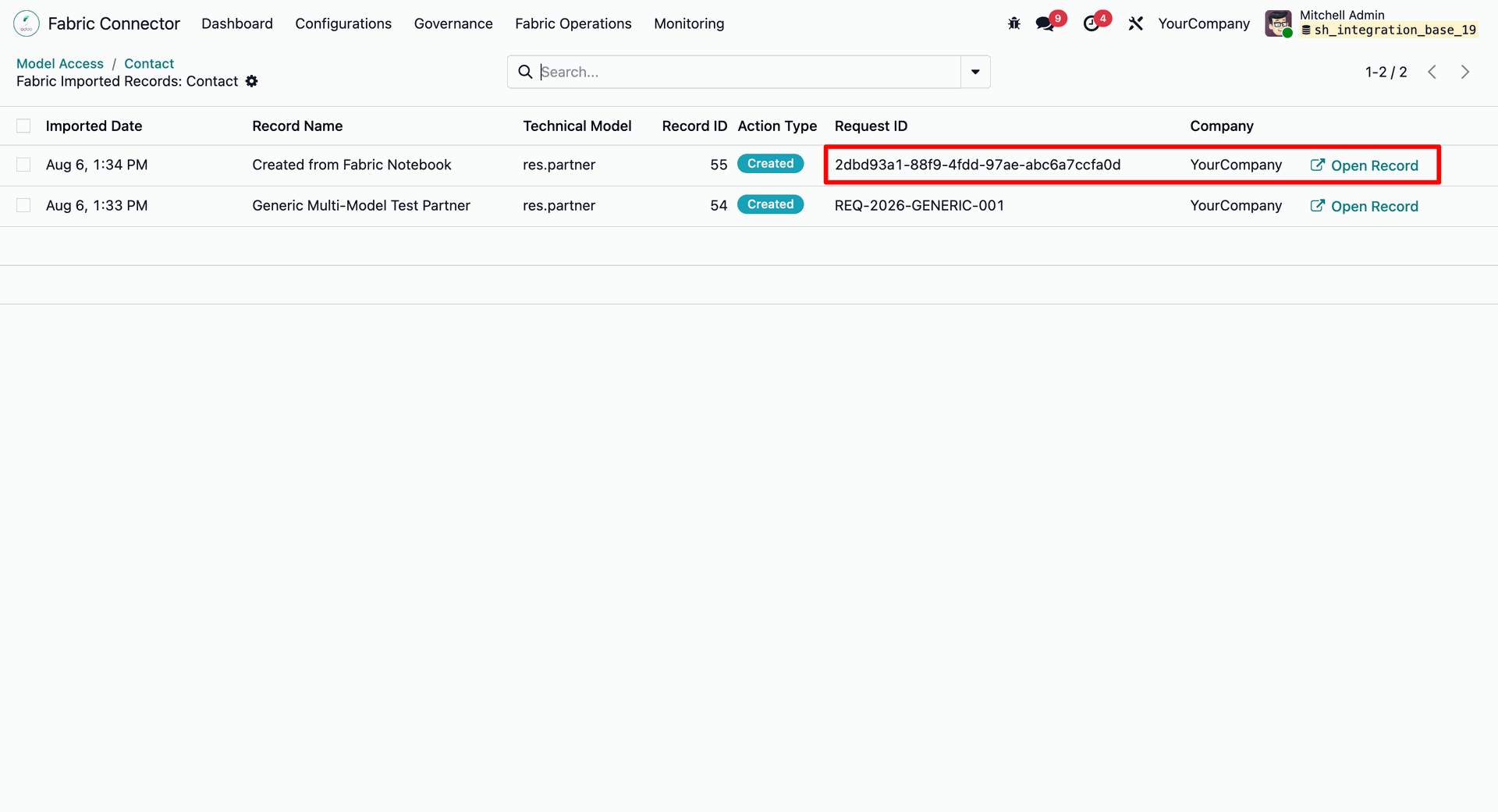
Run the inbound synchronization and verify that the Fabric data is processed and the corresponding Odoo record is created or updated.
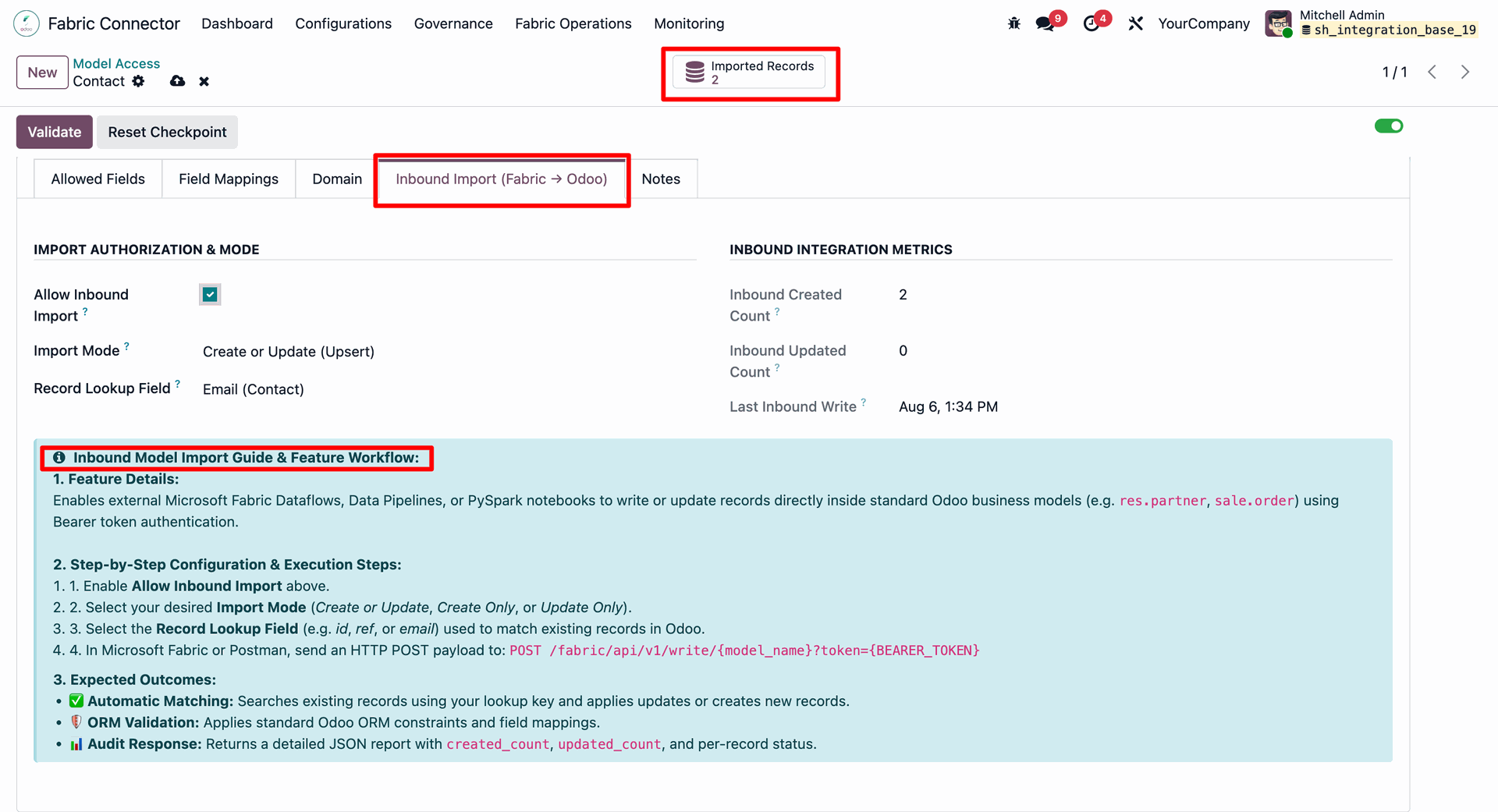
Review the imported Odoo record and confirm that the inbound Fabric data has been applied successfully.
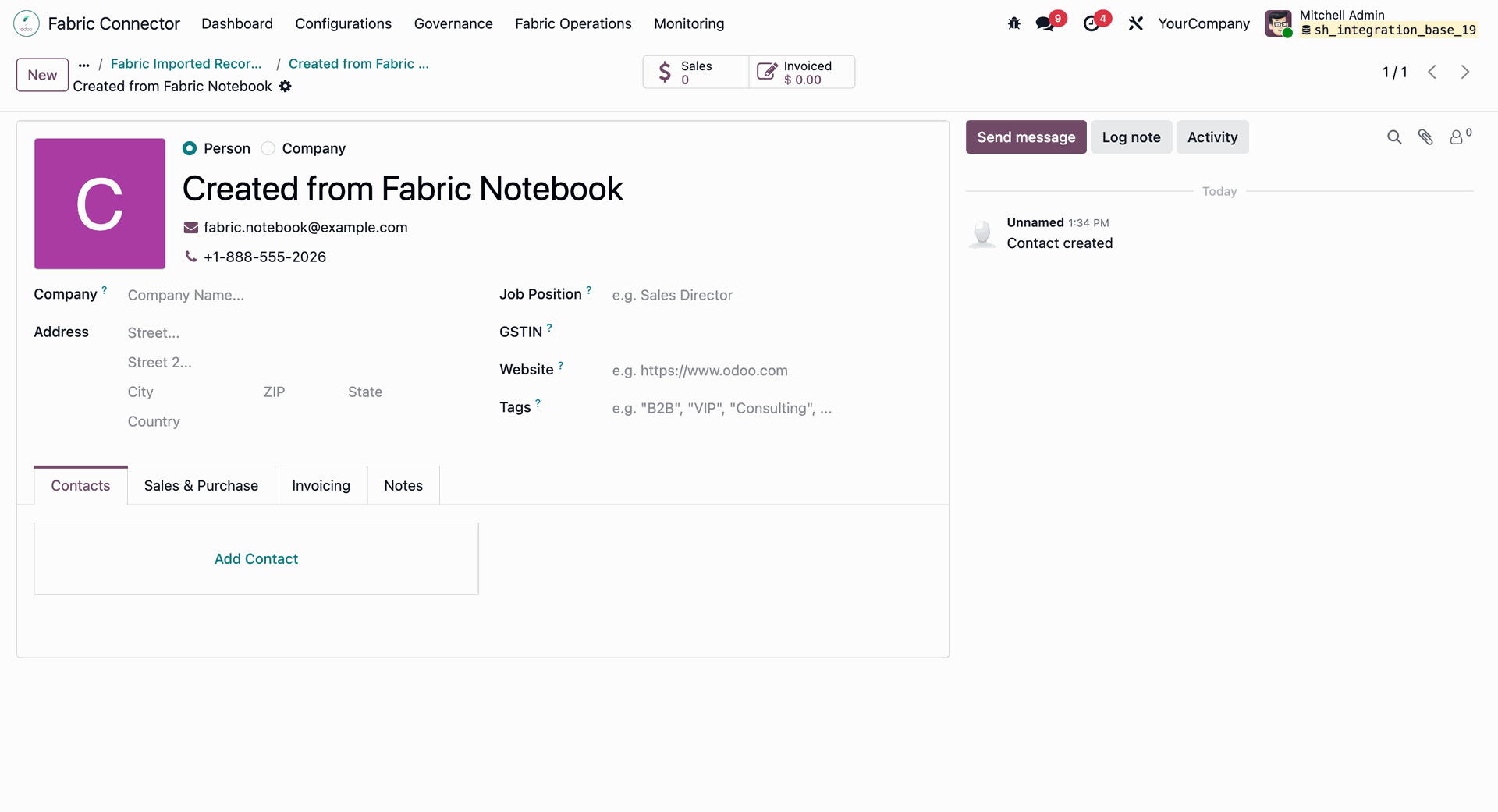
Open the Odoo record created from the Fabric synchronization and verify the imported record details.
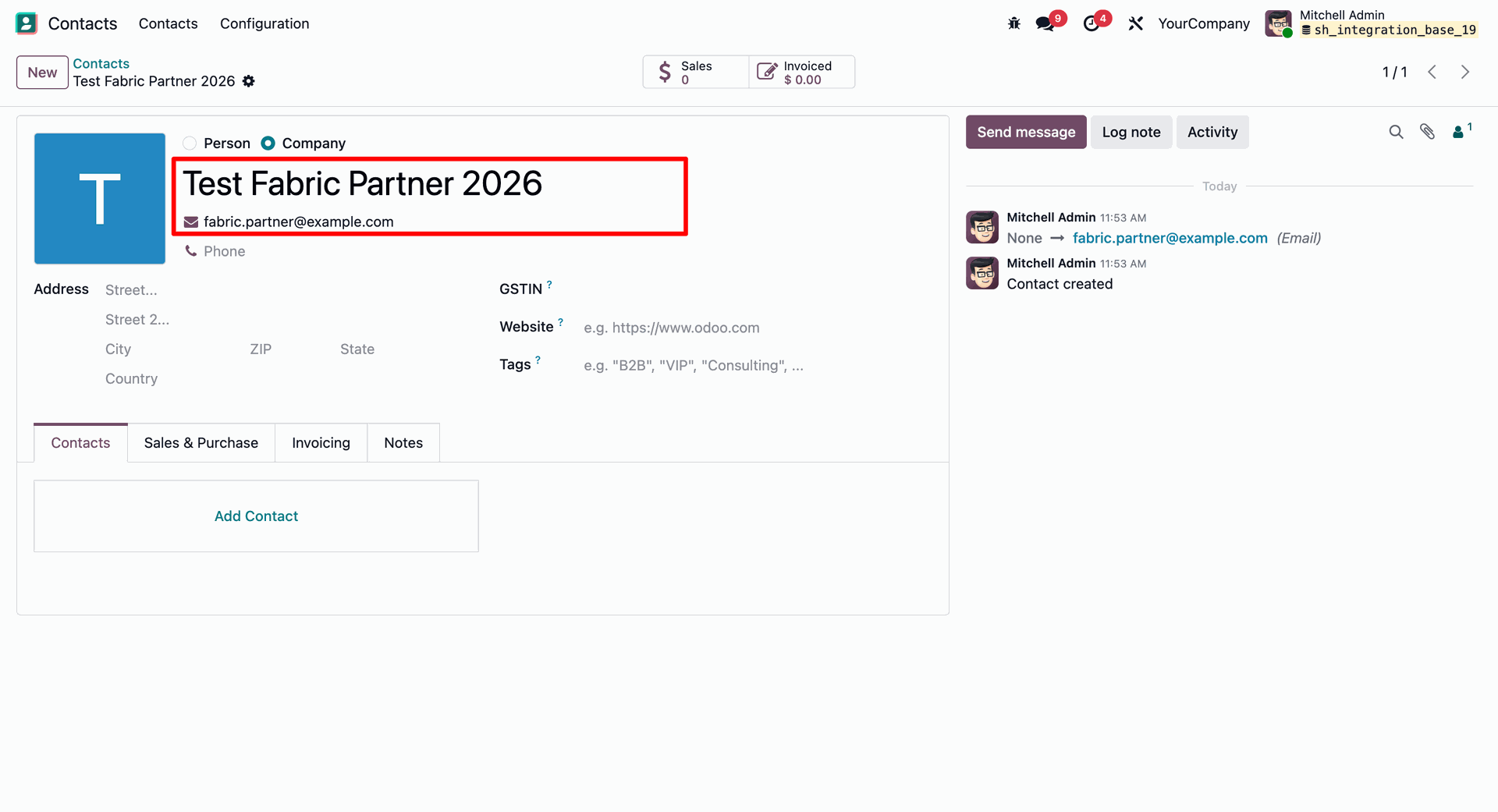
Open the Fabric Copy Job and click Run to execute the configured data movement.
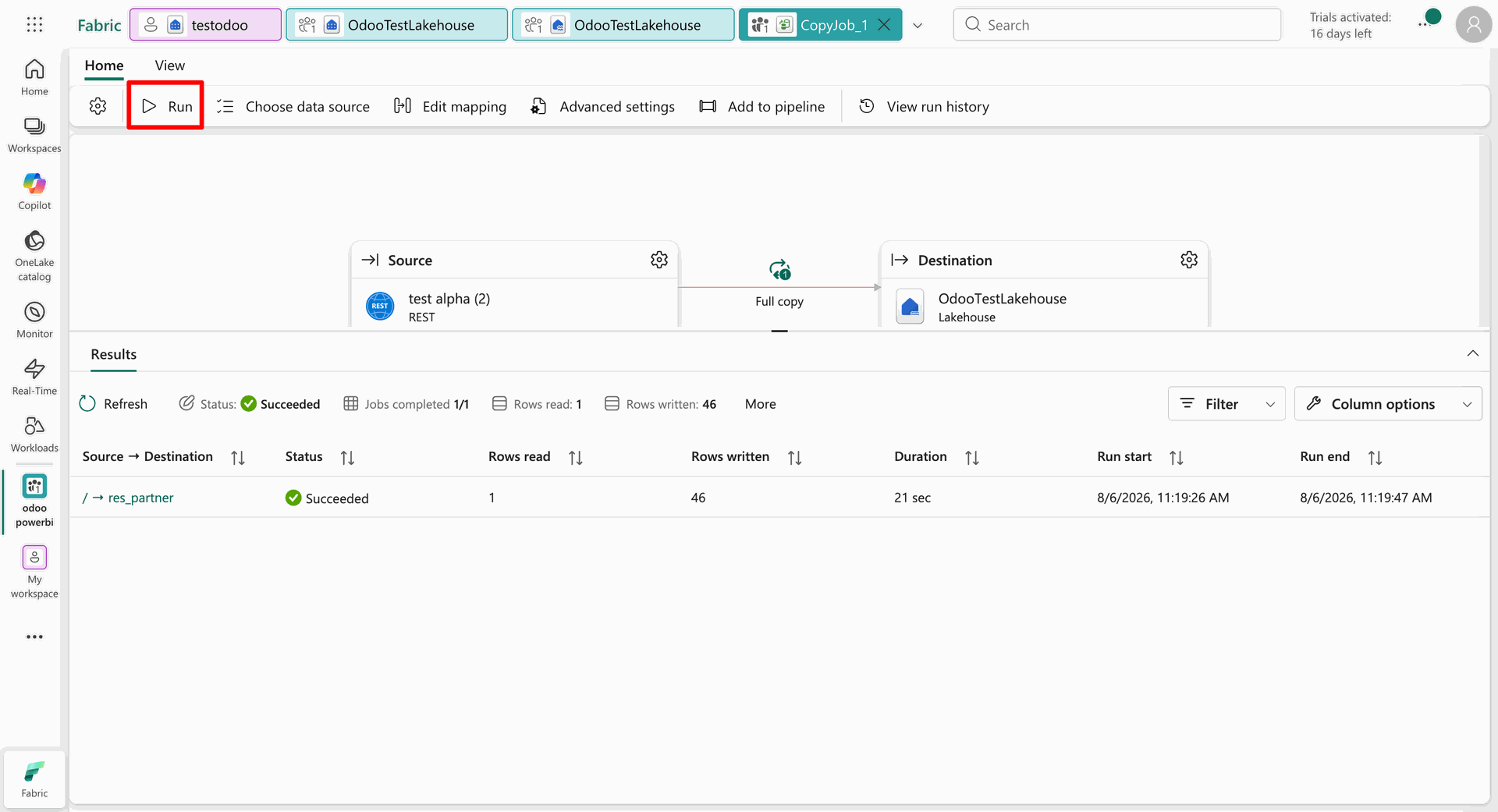
Review the completed Copy Job result, including source, destination, status, rows read, and rows written.
Open the destination Fabric Lakehouse table and verify that the synchronized Odoo data is available.
Version 19.0.2.0.0 | Released on : 11th September 2026
Version 19.0.1.0.0 | Released on : 12th March 2026
- Yes, this app works perfectly with Odoo Enterprise (Odoo.sh & Premise) as well as Community.
- No, this application is not compatible with odoo.com(odoo saas/Odoo Online)
- Yes, to test this module, please contact us at sales@softhealer.com.
- Please contact us at sales@softhealer.comto request customization.
- Yes, we provide free lifetime support for the version you purchased.
- Yes, you will receive lifetime free updates for the version of the module you purchased.
- No, there is no need to install any additional libraries.
- Yes, for version 12 and above, you need to purchase the module separately for each version you intend to use.
- No, exchanges or refunds are not allowed. Please make sure to select the correct version before purchasing.
- You can contact us at support@softhealer.com for language translation support. We use Google Translator tools to provide translations in multiple languages, so the accuracy may vary. We welcome your suggestions to help improve translations.
Discover Our Latest Apps