












Meeting Timesheet Automation

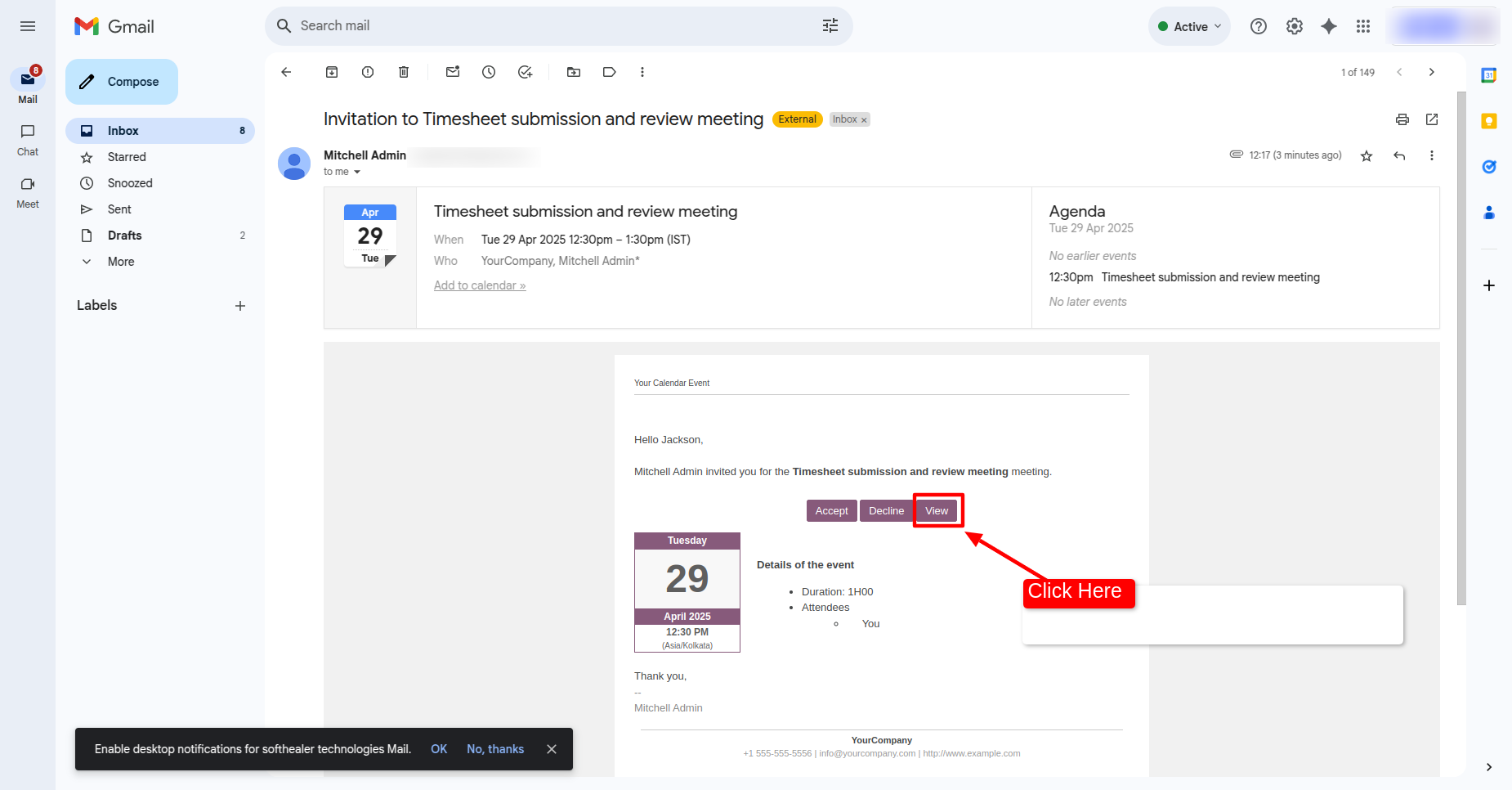
Using our module, timesheet entries are automatically generated when a user accepts a meeting invitation—streamlining attendance tracking and time logging. Before accepting or declining, users can review the meeting details by clicking the View button directly from the email form view.

Related Modules
Features
- Accept or decline meeting invitations directly from the email view.
- Automatically create timesheet entries when a meeting invitation is accepted.
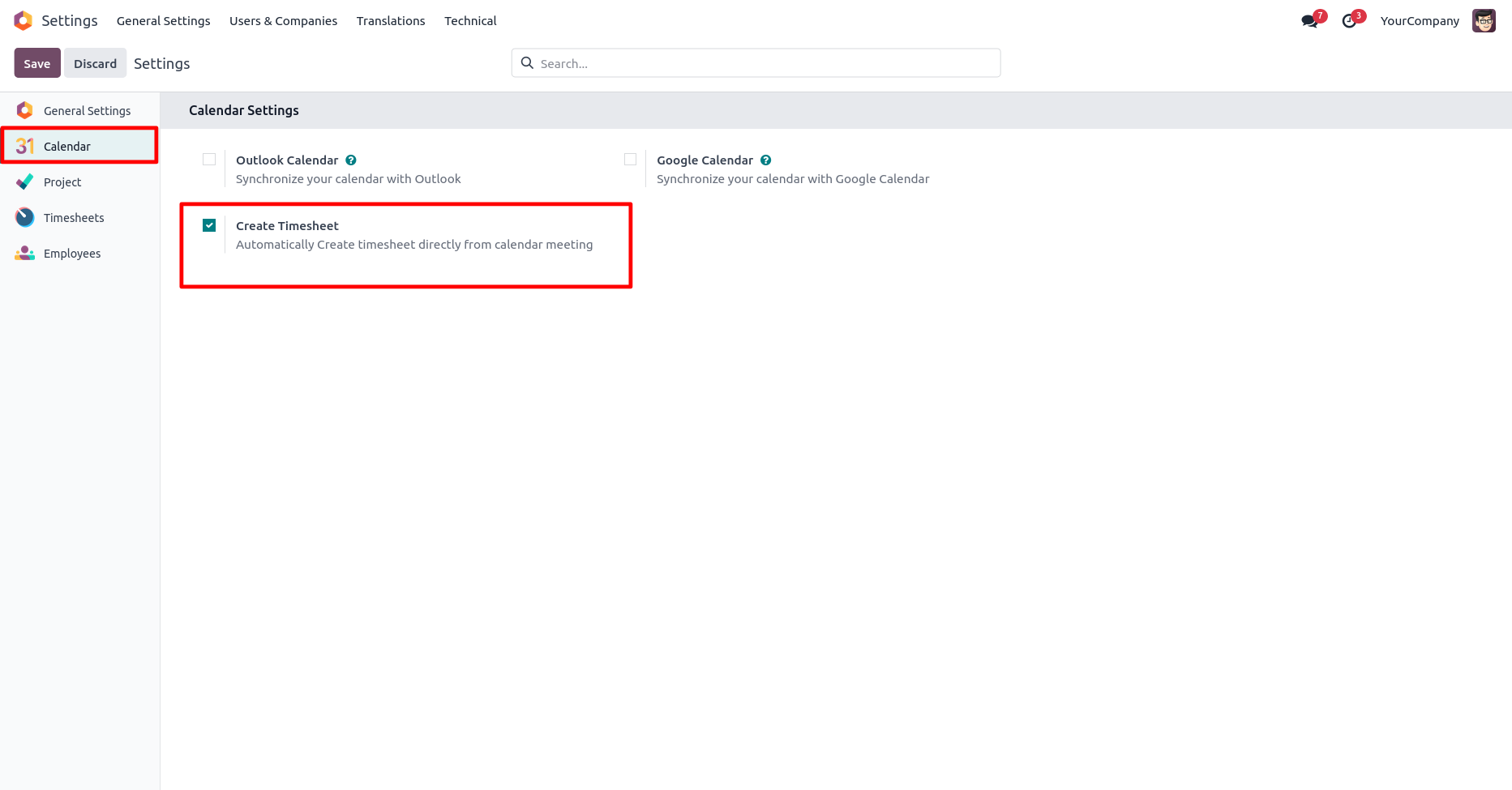
Go to the calender setting and tick 'Create Timesheet' boolean.
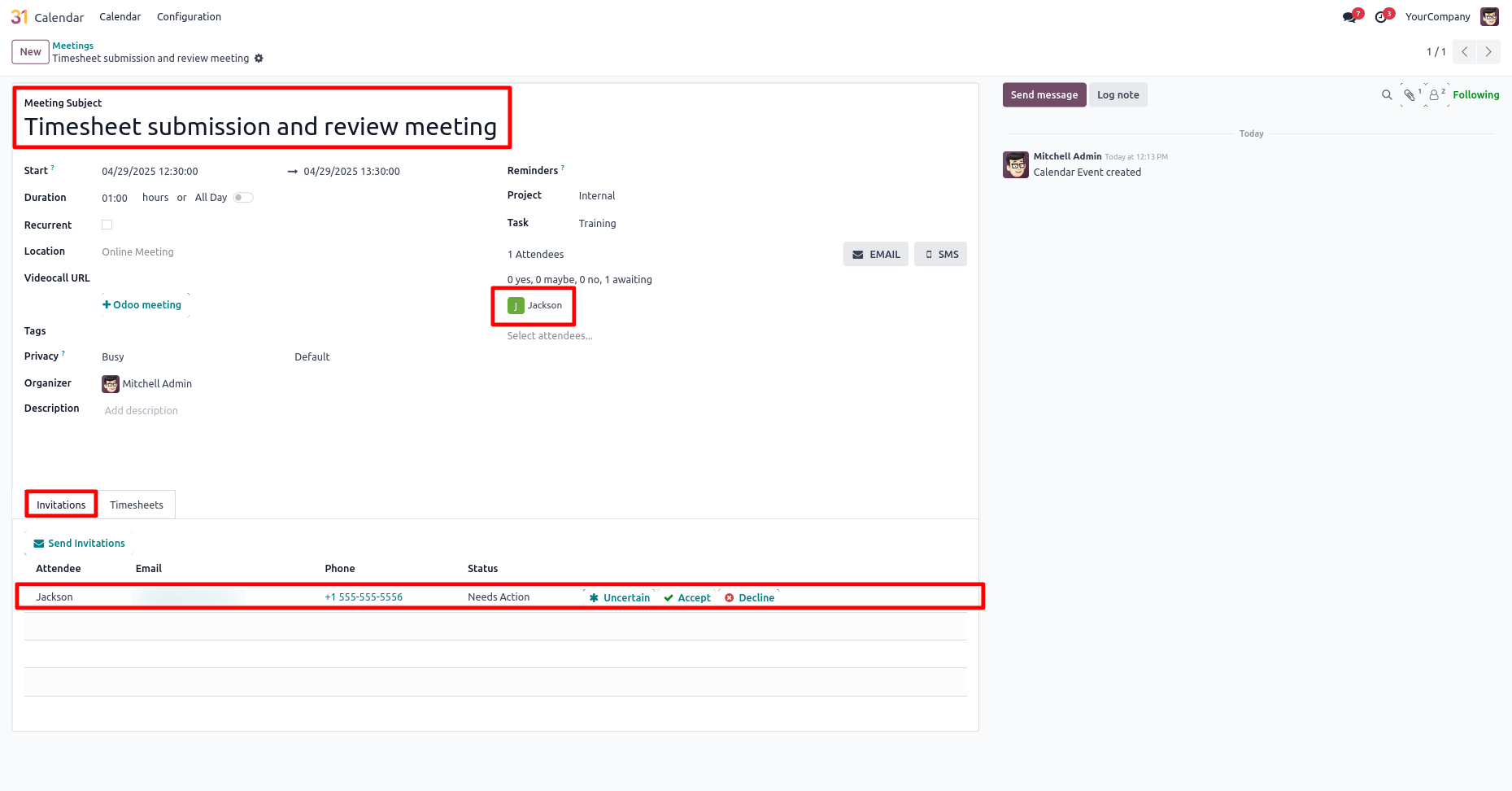
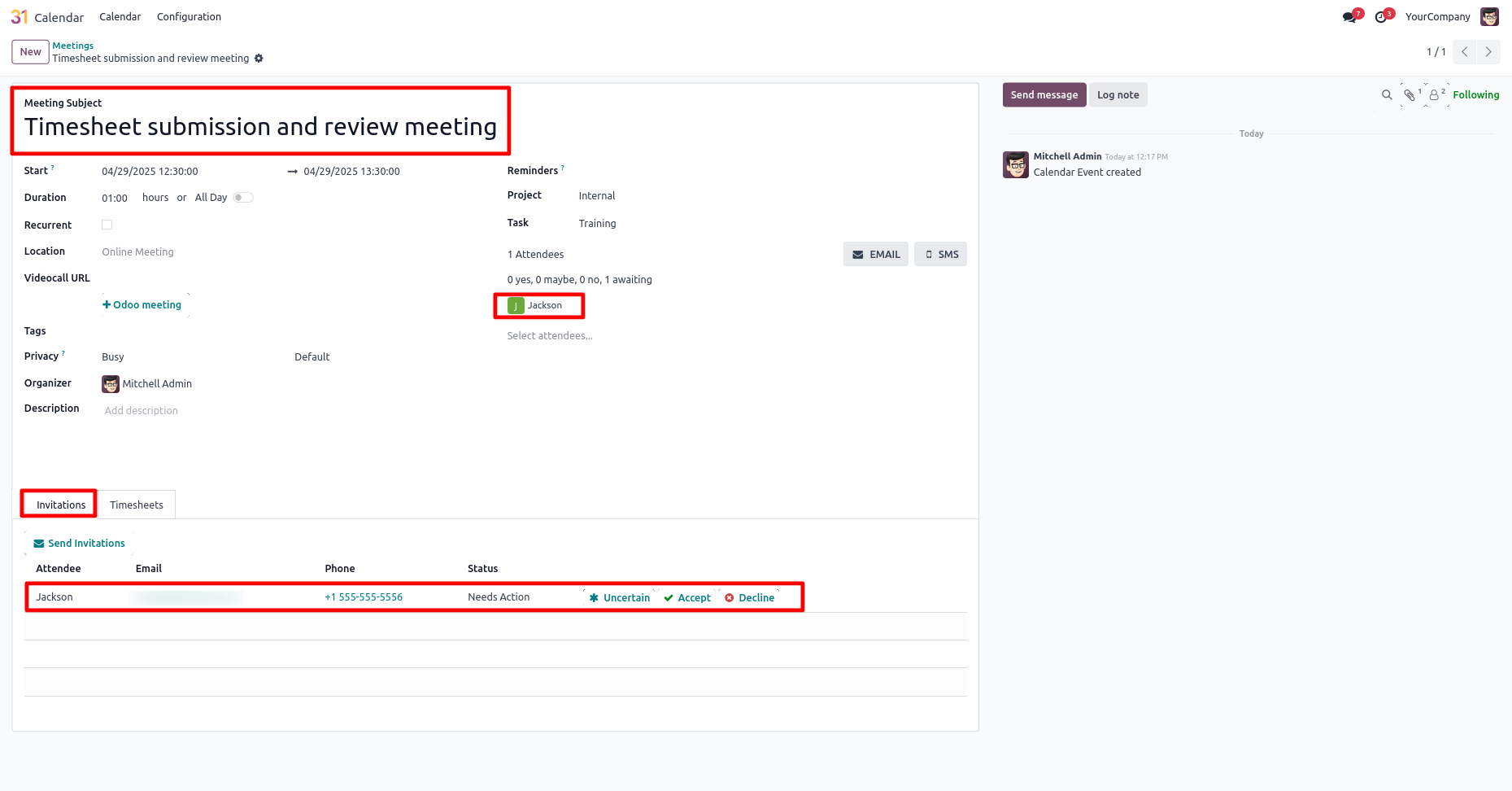
Create a meeting. You will find the invitation under the "Invitation" tab.
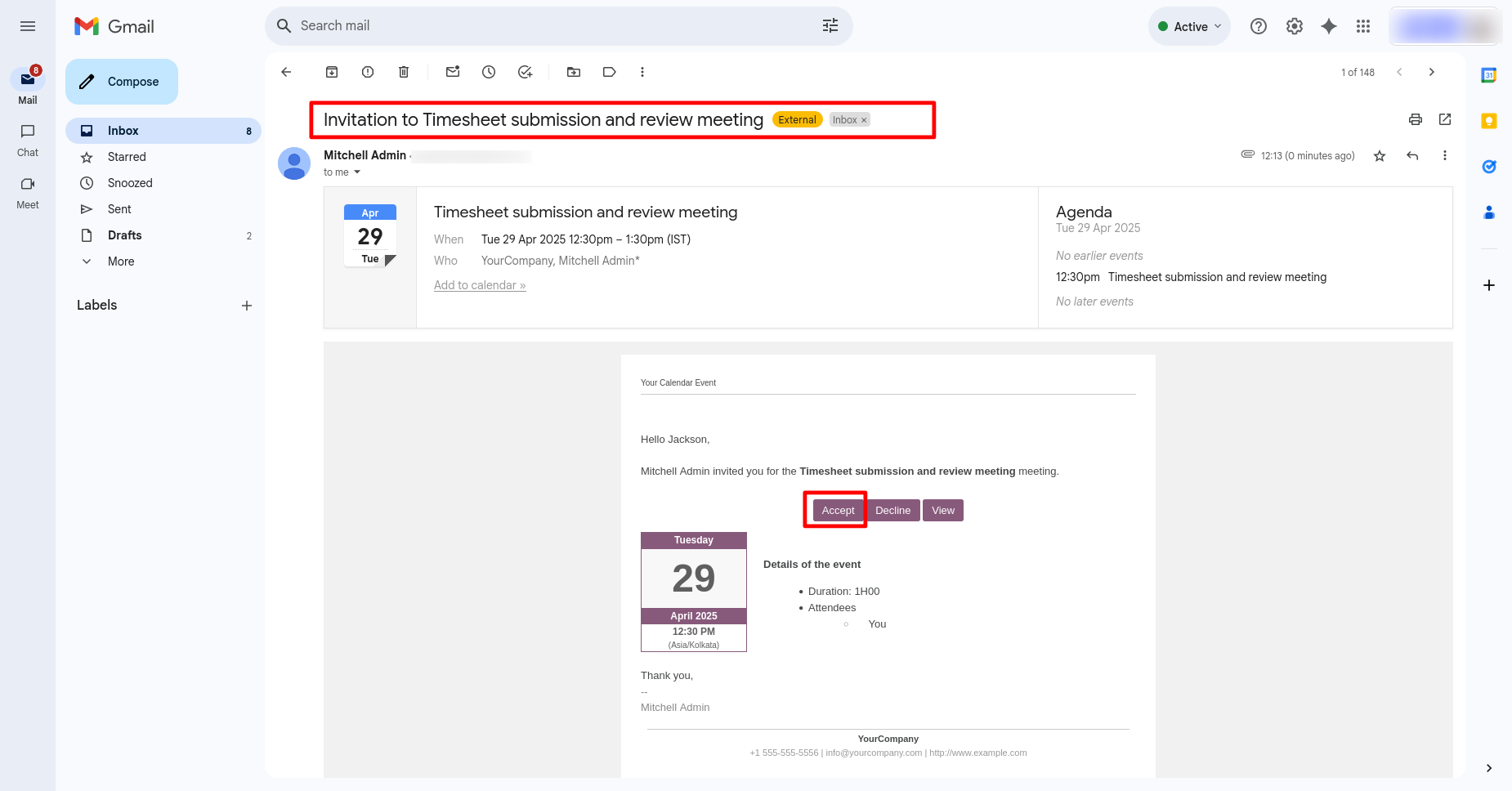
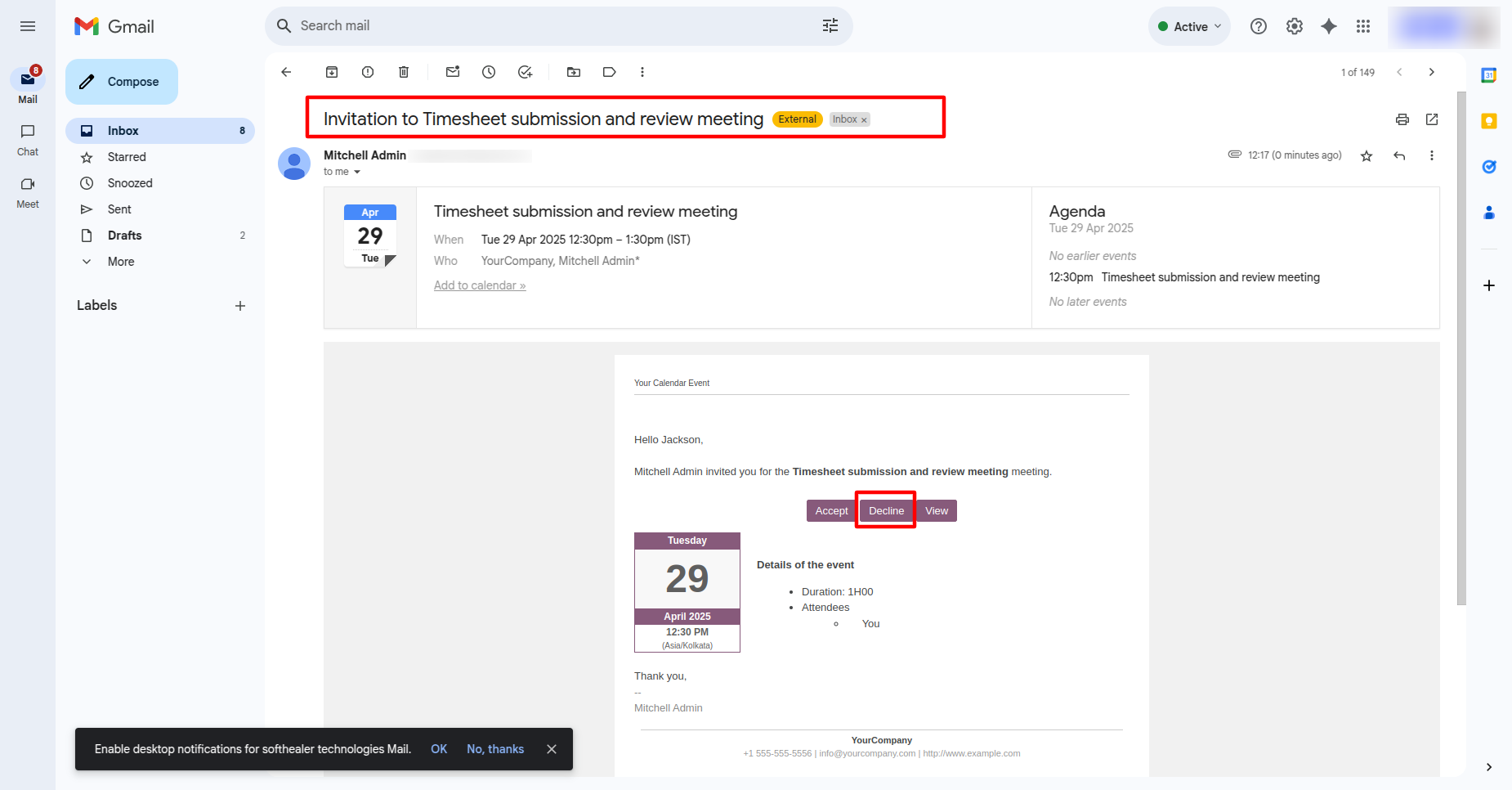
The invitation email will appear as shown below.
Click on the "Accept" button to confirm the invitation.
Once accepted, a true icon will appear next to the user's name, and a timesheet entry will be displayed in the "Timesheet" tab.
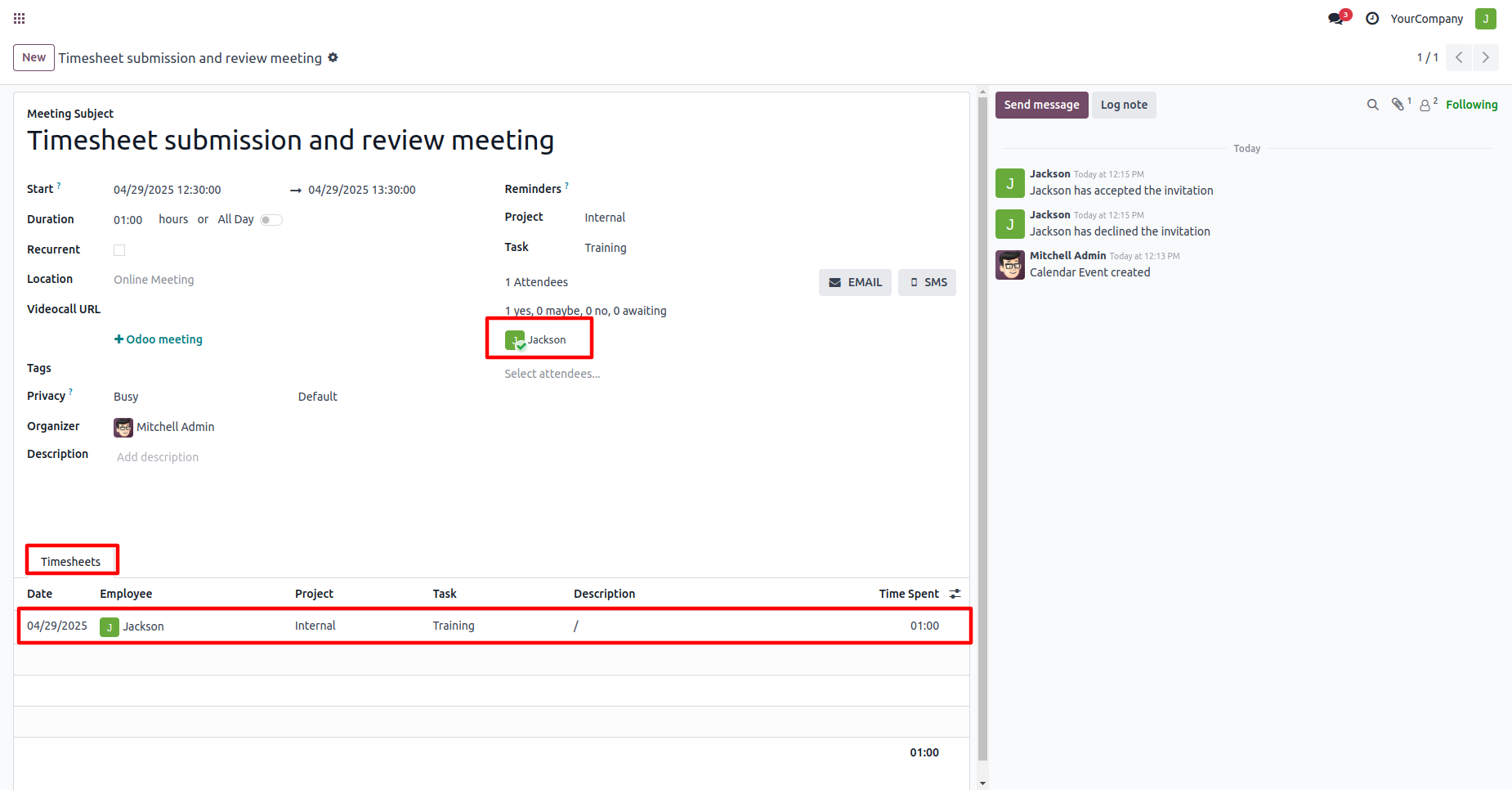
Create another meeting.
In the email form view, click on the "Decline" button.
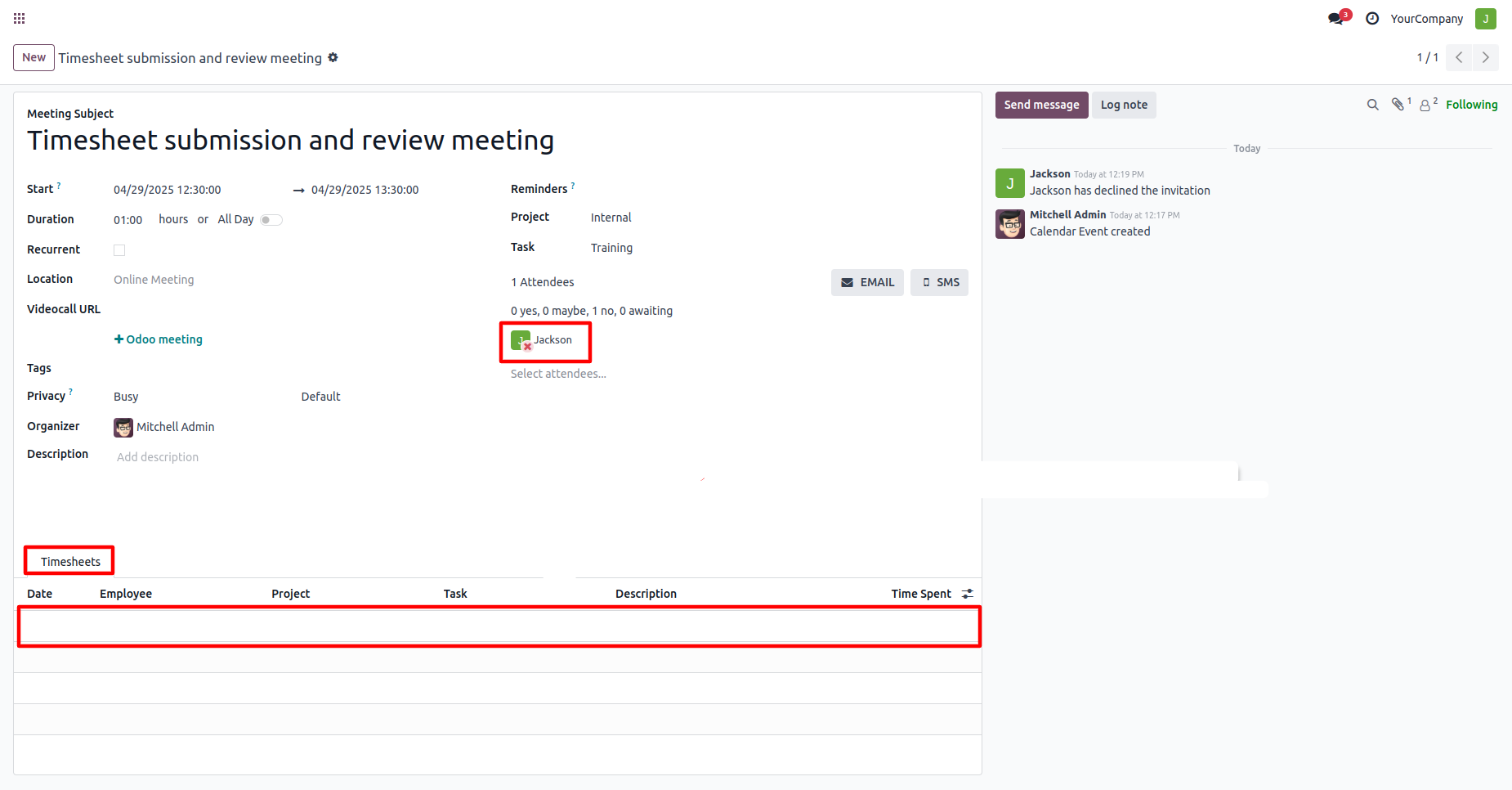
If the user declines the invitation, no time entry will be recorded in the "Timesheet" tab.
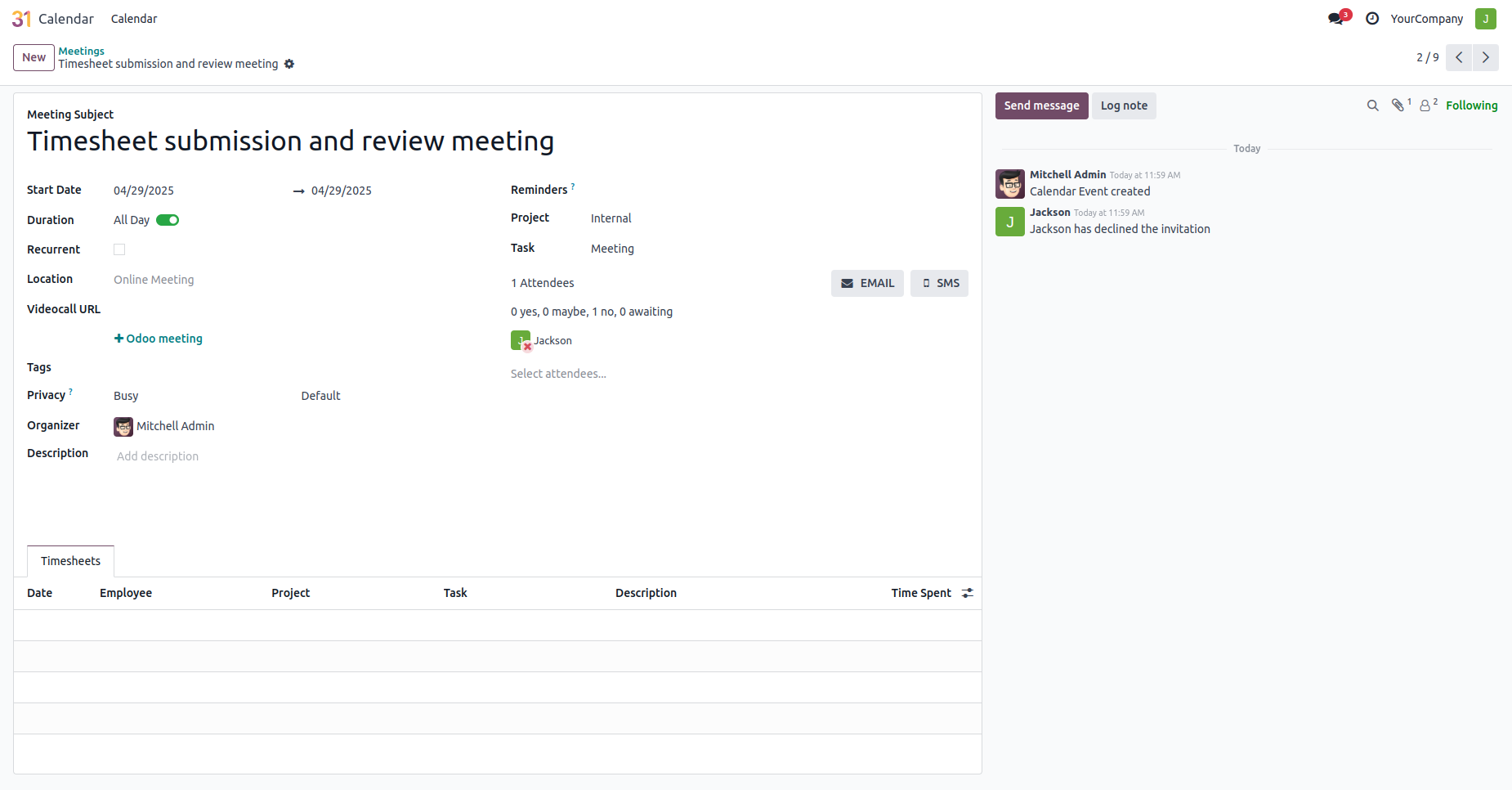
In the email form view, click on the "View" button.
After that, you will redirected to the meeting form view.
Version 20.0.1.0.0 | Released on : 15th September 2026
- No, this app works perfectly with Odoo Enterprise (Odoo.sh & Premise) only.
- No, this application is not compatible with odoo.com(odoo saas/Odoo Online)
- No, currently it does not work if the product type is selected as a combo product. For more details, please contact our support team at support@softhealer.com.
- Yes, to test this module, please contact us at sales@softhealer.com.
- Please contact us at sales@softhealer.com to request customization.
- Yes, we provide free support for 365 days from the date of purchase.
- Yes, you will receive lifetime free updates for the version of the module you purchased.
- No, there is no need to install any additional libraries.
- Yes, for version 12 and above, you need to purchase the module separately for each version you intend to use.
- No, exchanges or refunds are not allowed. Please make sure to select the correct version before purchasing.
- You can contact us at support@softhealer.com for language translation support. We use Google Translator tools to provide translations in multiple languages, so the accuracy may vary. We welcome your suggestions to help improve translations.
Discover Our Latest Apps