












Manage Purchase Order With Helpdesk

If your company provides prepaid support services, meaning that the authorized user accepts responsibility for payment of the charges for use of the company's service. You can do that with this module. This module allows your helpdesk team to generate a request for quotation/purchase order directly from the helpdesk ticket vice versa they can generate a helpdesk ticket from the purchase order/request for quotation. It helps to provide resulting in faster responses to your vendor needs. You can easily manage products in tickets and display products in the ticket PDF report.

Features
- Easy to create purchase order/request for quotation from the helpdesk ticket.
- Easy to create helpdesk ticket from the purchase order/request for quotation.
- We provide a separate security group to manage helpdesk ticket to purchase order & purchase order to helpdesk ticket operations.
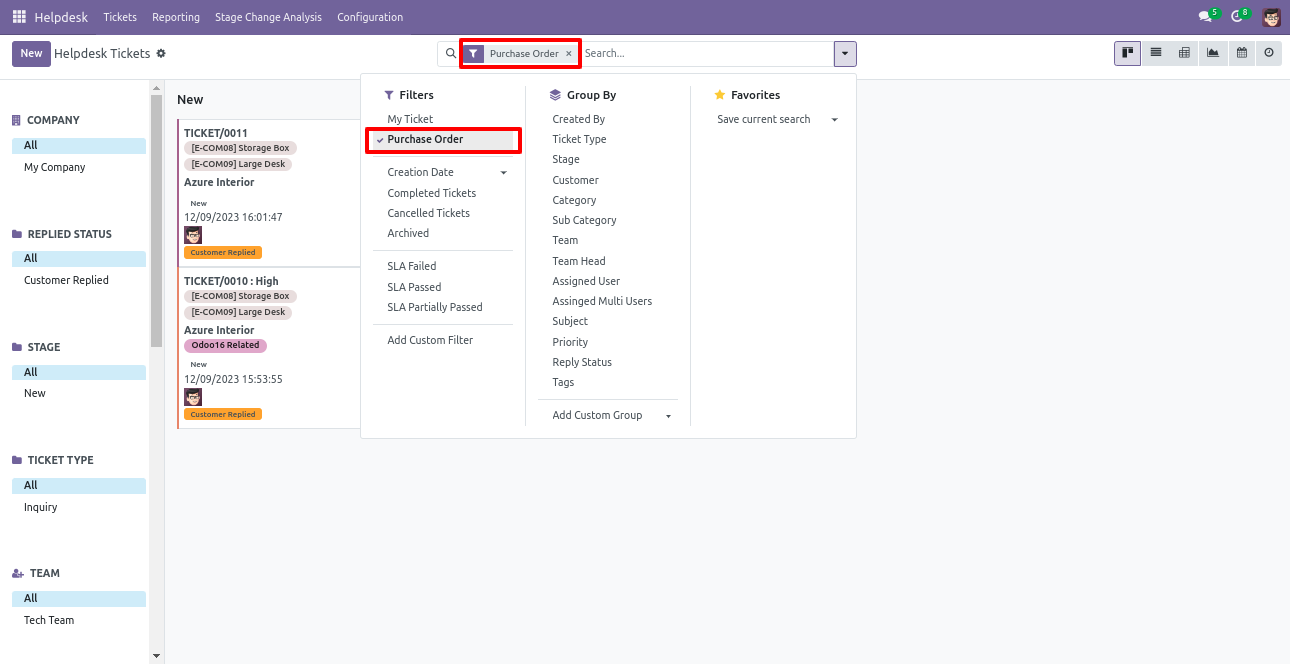
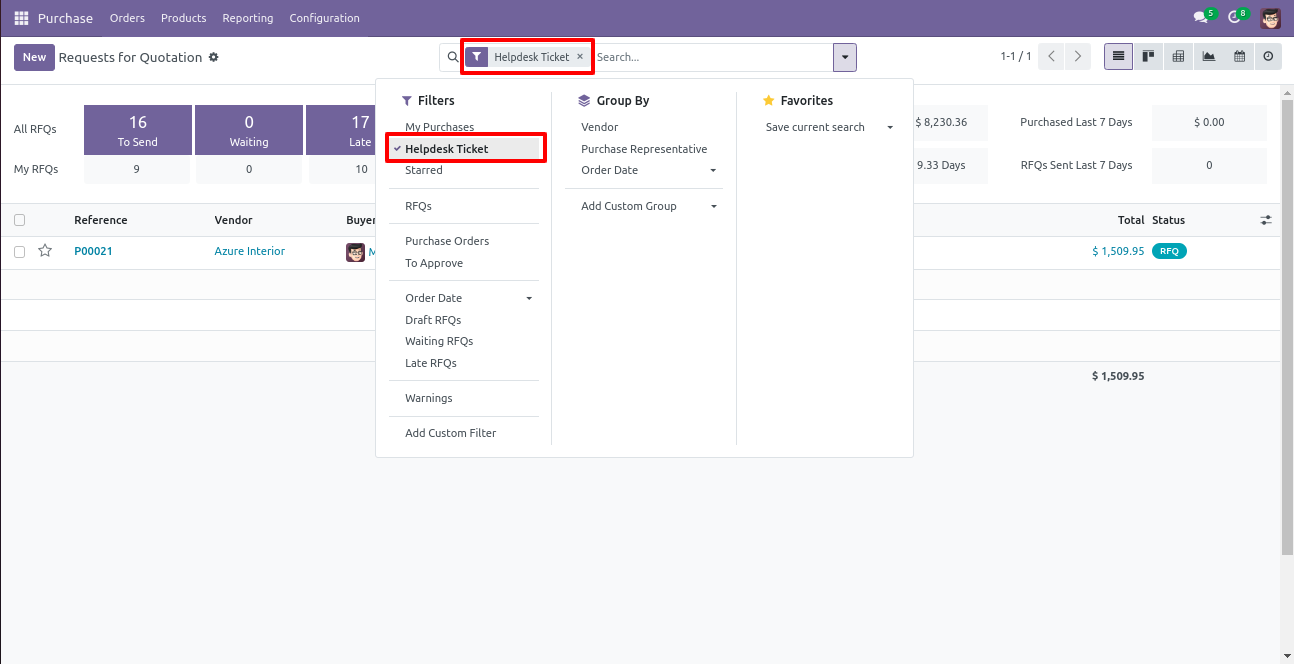
- You can filter tickets purchase order wise & purchase order ticket wise.
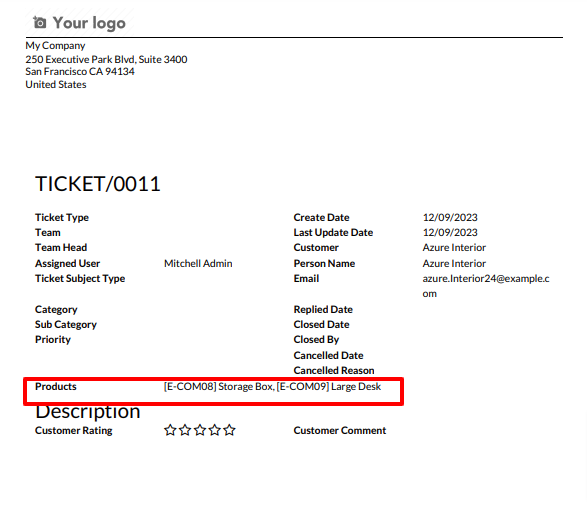
- You can manage products in tickets as well you can display products in the ticket PDF report.
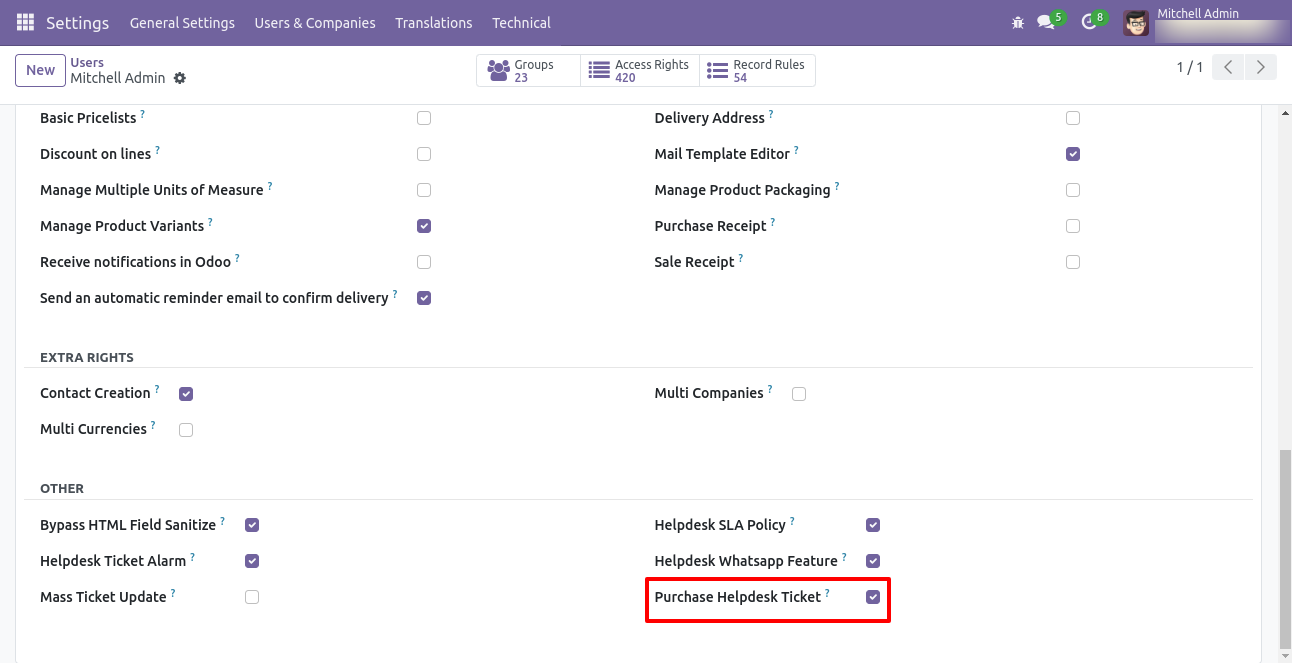
Tick security group 'Purchase Helpdesk Ticket' to generate a request for quotation/purchase order directly from the helpdesk ticket as well generate a helpdesk ticket from the purchase order/request for quotation.
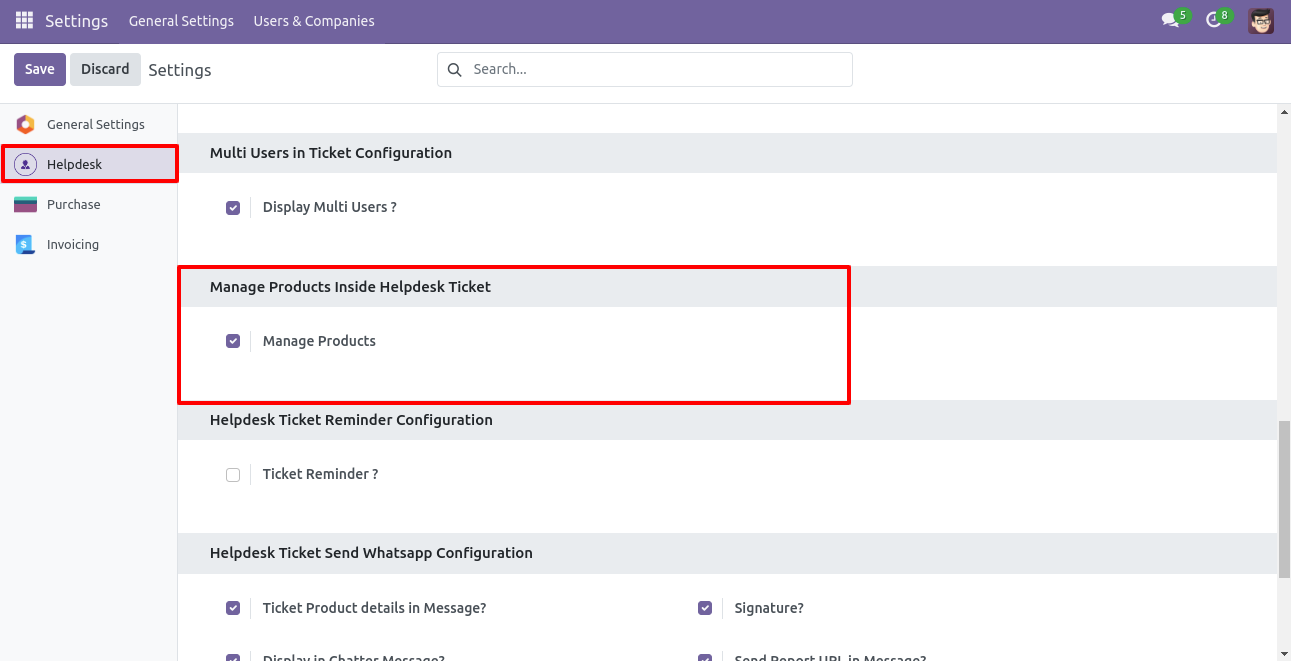
Go to the helpdesk settings and tick 'Manage Products'.
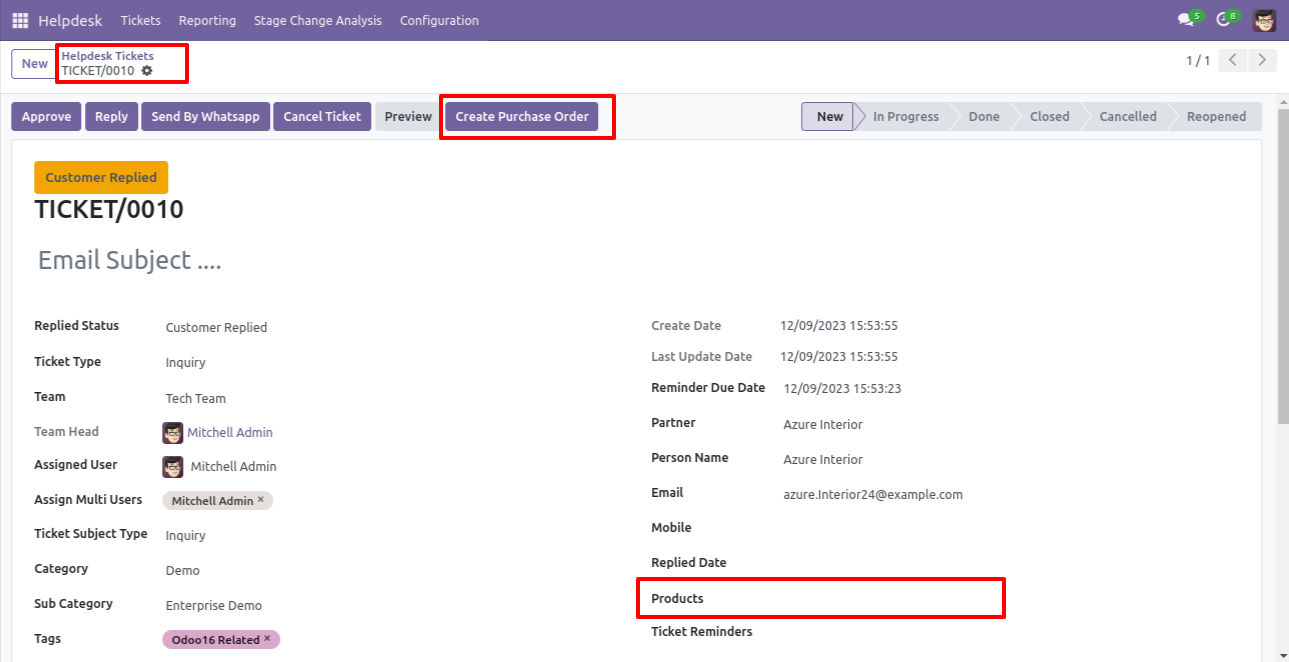
'Helpdesk Ticket' form view, press the 'Create Purchase order' button to create a request for quotation/purchase order directly from the helpdesk ticket.
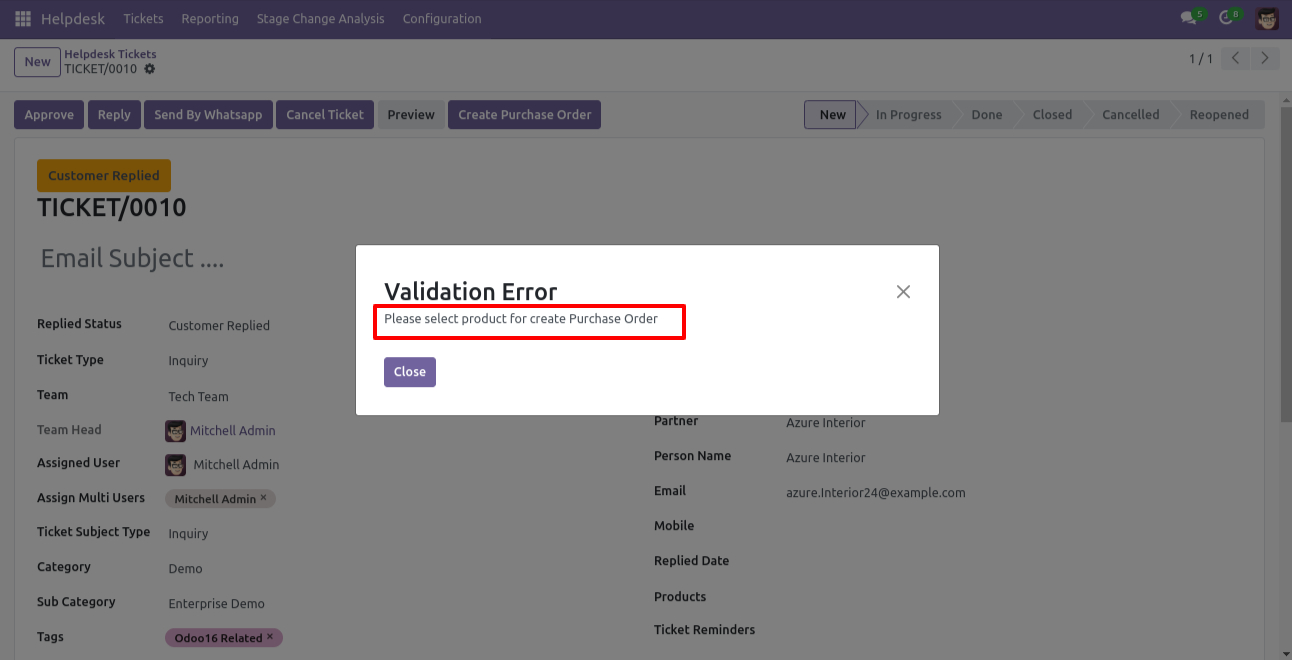
If you you try to create a PO without selecting a product then this error will appears.
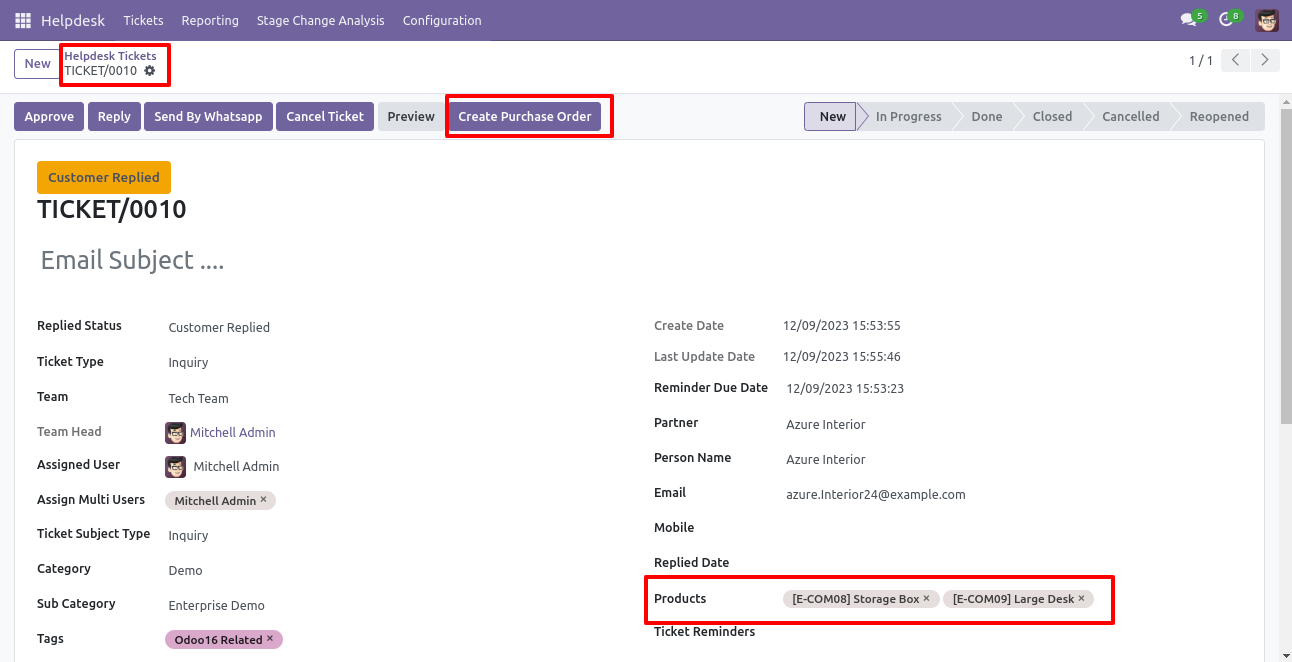
Select products and click on the 'Create Purchase Order' button.
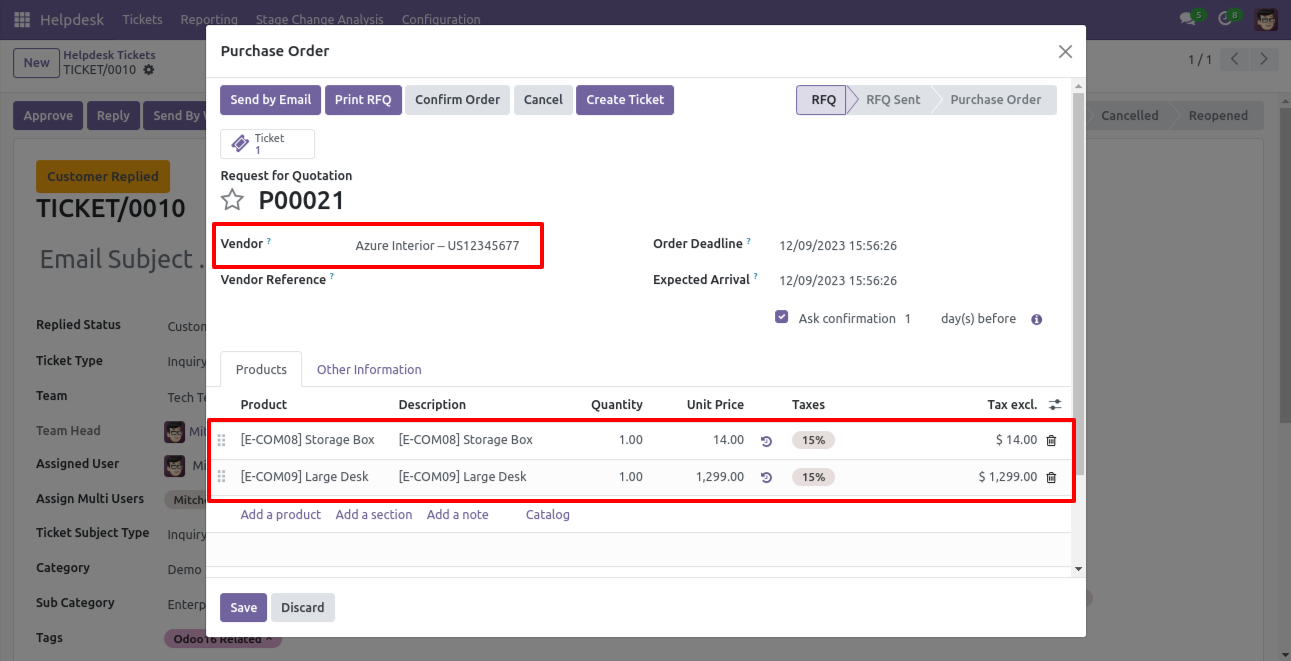
After that one wizard opens, fill the details and save it.
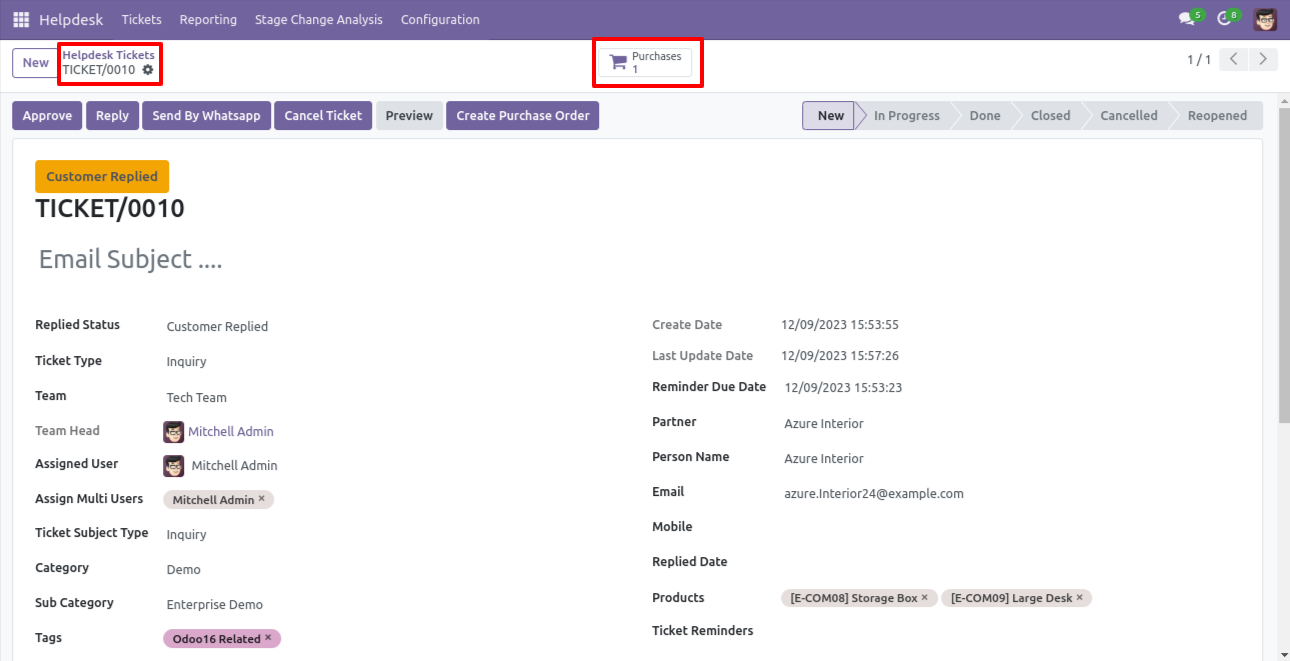
Now, from the ticket, you can see generated purchase orders of that ticket using the 'purchases' smart button.
So, from that purchase order, you can see tickets of that purchase order/request for quotation using the 'Tickets' smart button.
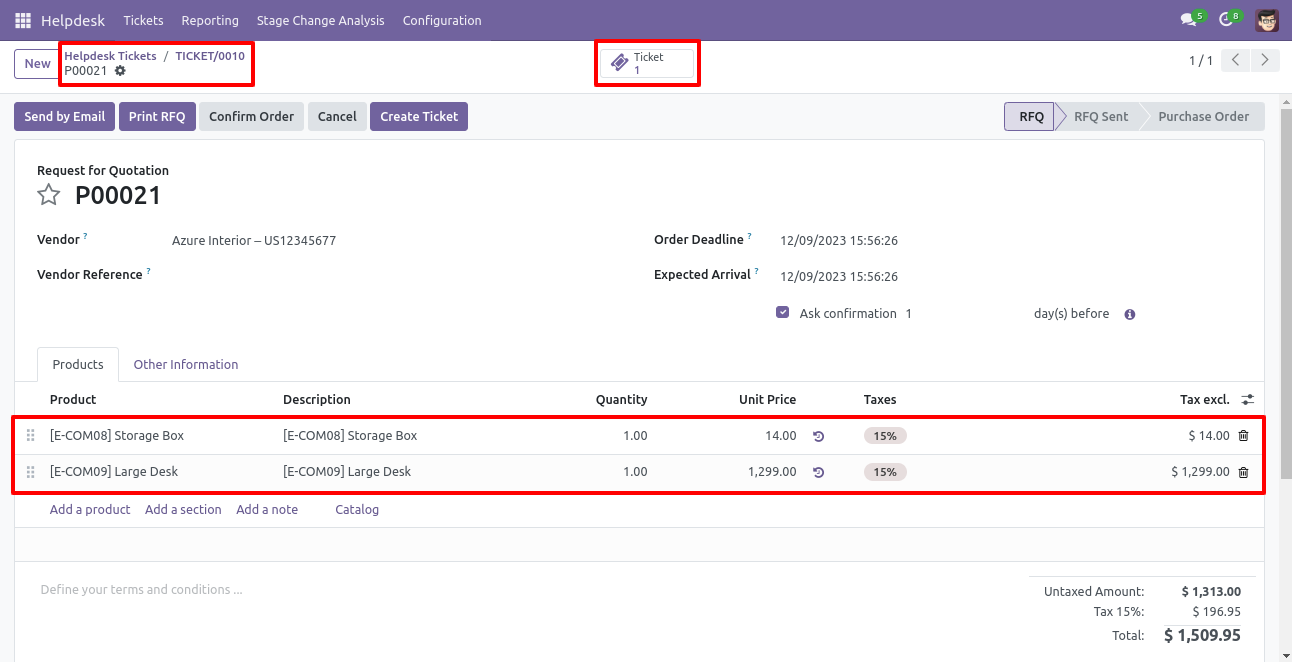
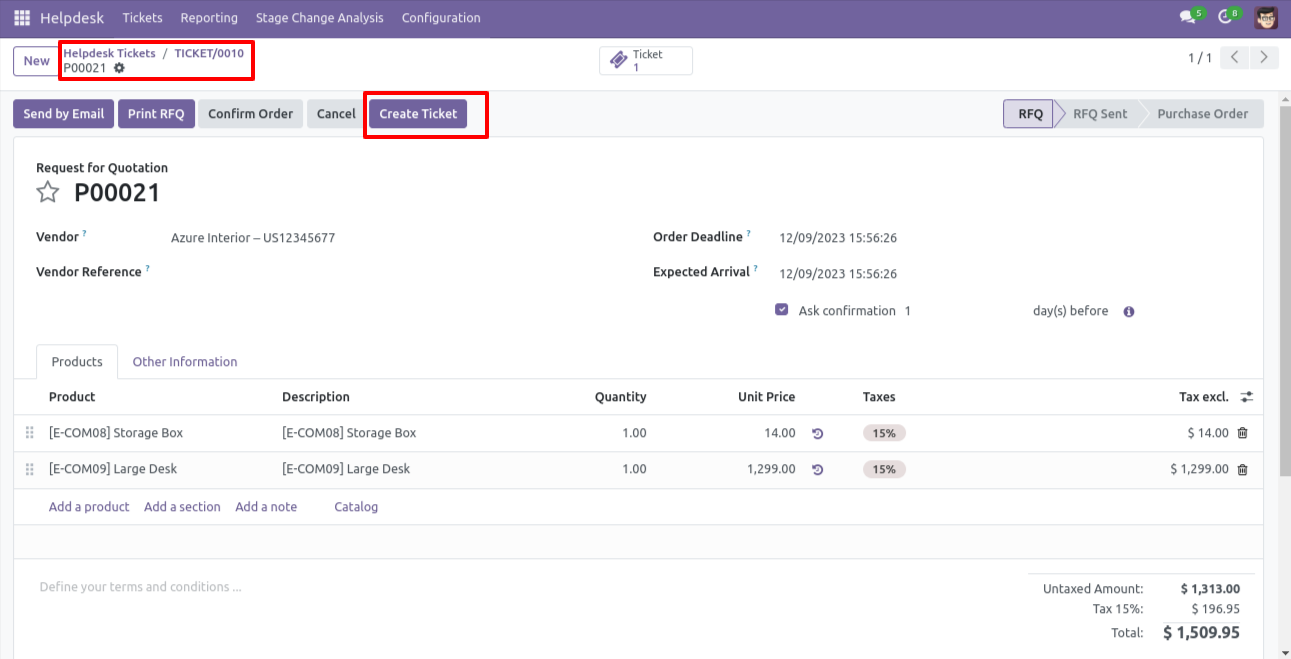
You can create a helpdesk ticket from the purchase order/request for quotation using the 'Create Ticket' button.
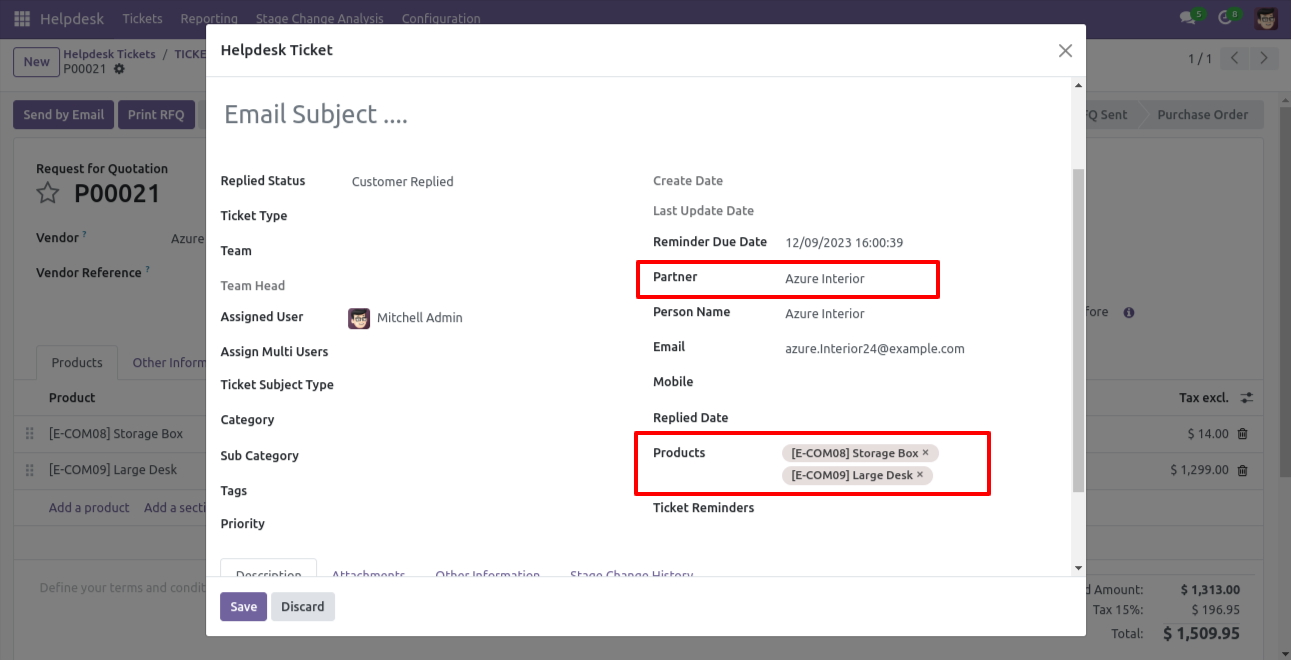
After that one wizard opens, fill the details and save it.
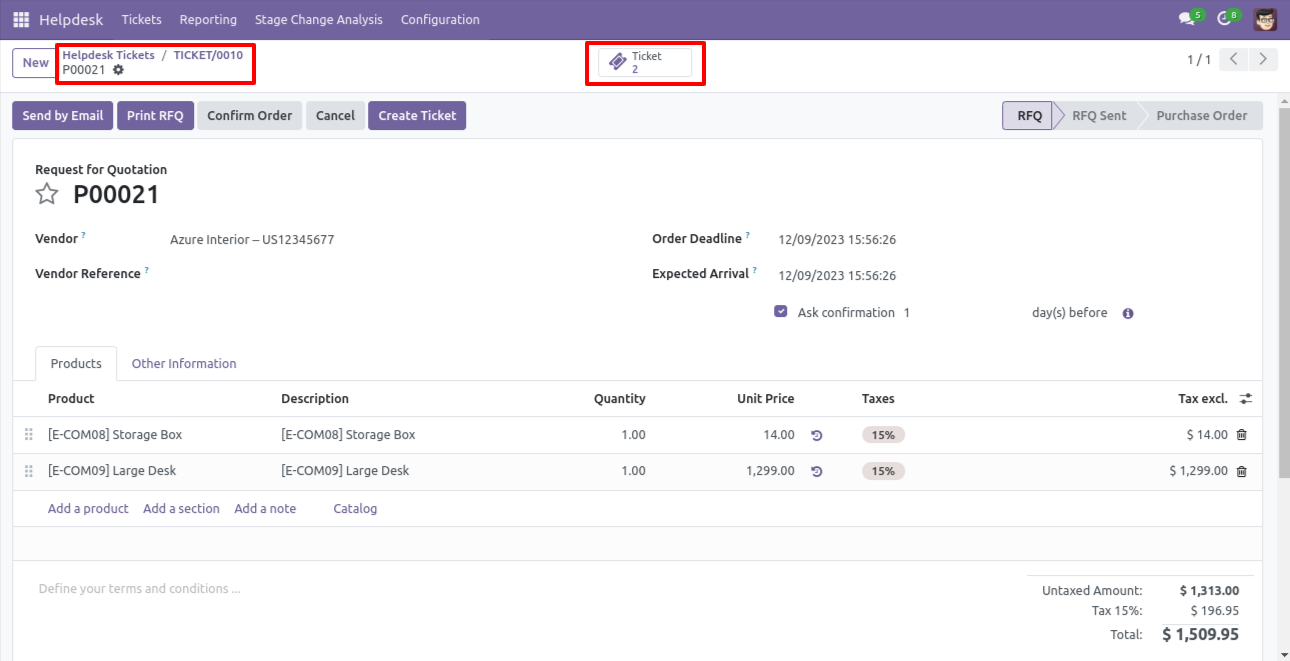
You can see tickets of that purchase order/request for quotation using the 'Ticket' smart button.
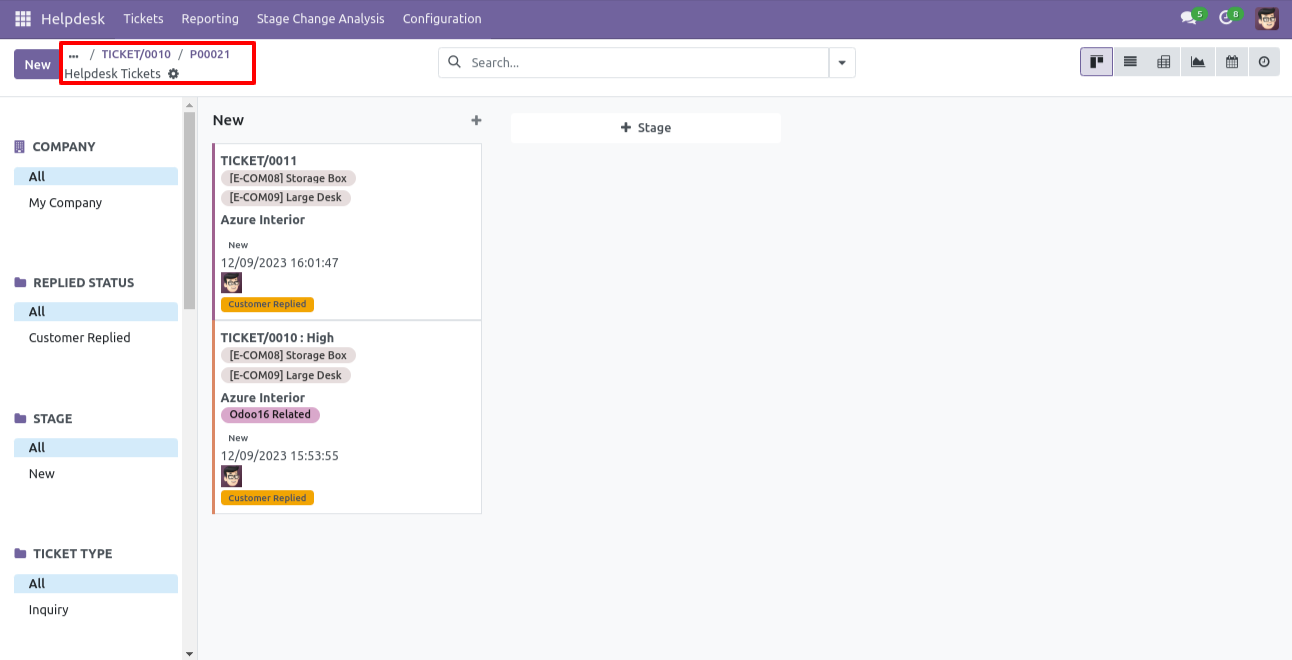
It opens tickets Kanban view.
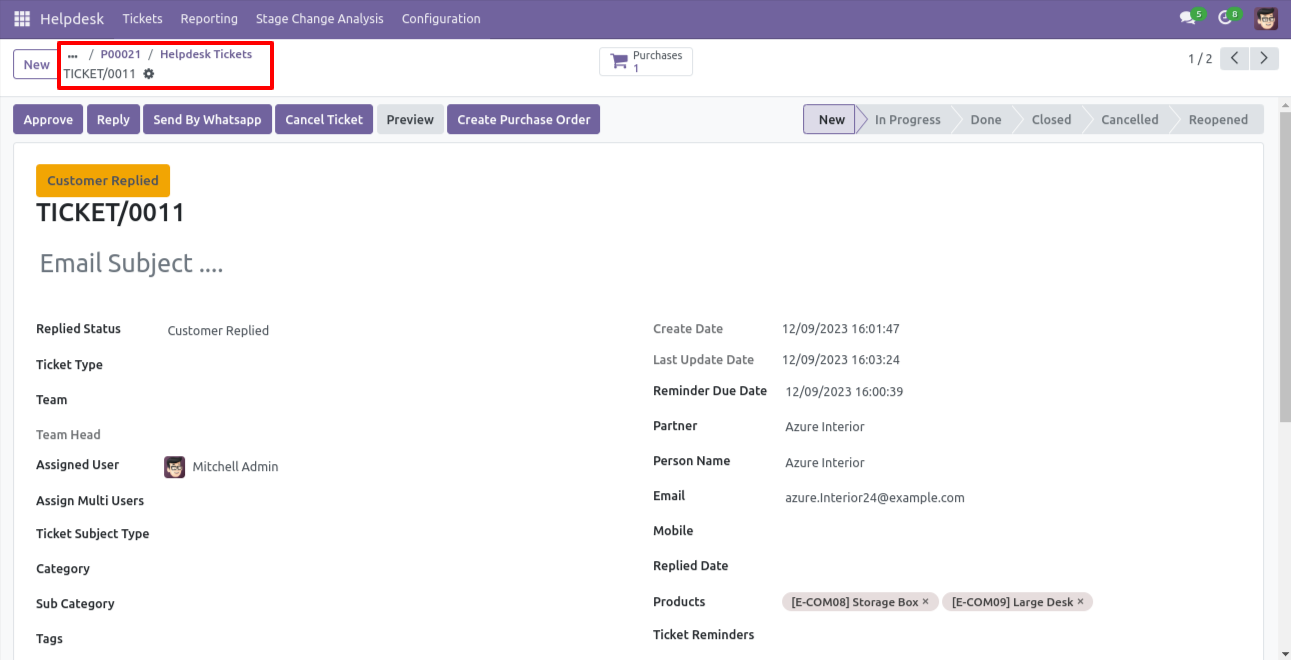
Created ticket form view looks like this.
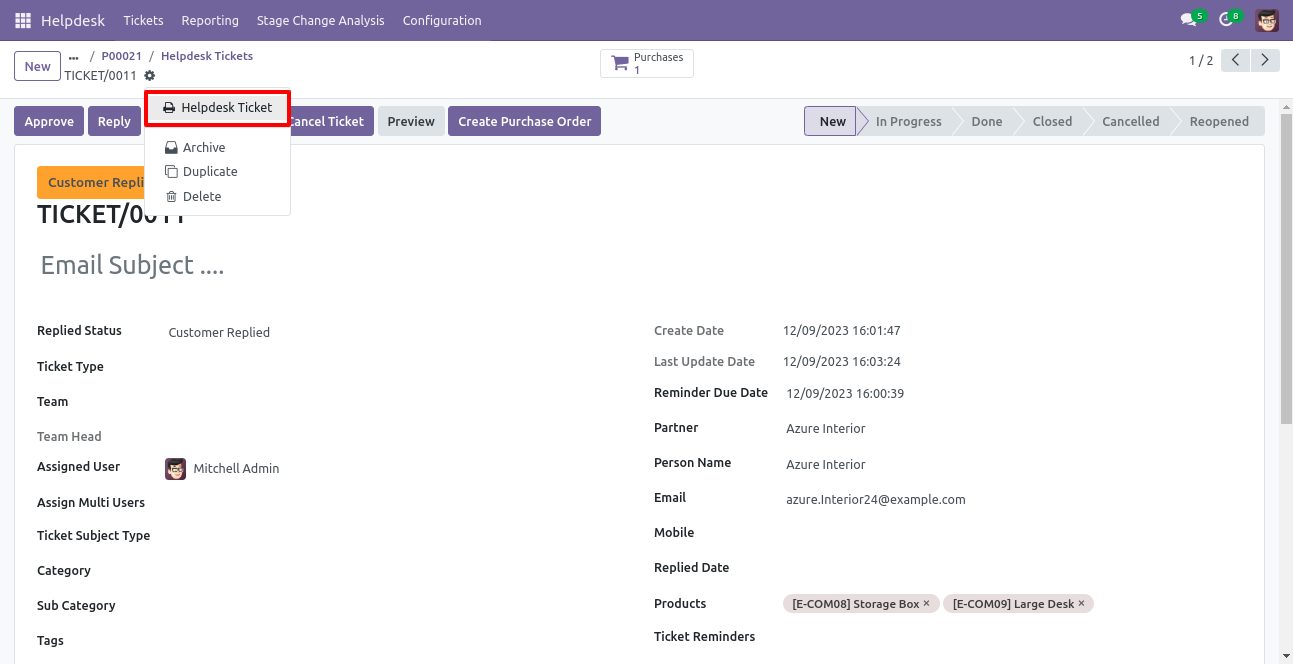
Form view of the helpdesk ticket, Click on the print 'Helpdesk ticket' from the action buton.
Ticket PDF report with the products.
You can filter tickets purchase order wise.
You can filter purchase order ticket wise.
Version 20.0.1.0.0 | Released on : 15th September 2026
- Yes, this app works perfectly with Odoo Enterprise (Odoo.sh & Premise) as well as Community.
- No, this application is not compatible with odoo.com(odoo saas/Odoo Online)
- Yes, to test this module, please contact us at sales@softhealer.com.
- Please contact us at sales@softhealer.comto request customization.
- Yes, we provide free support for 365 days from the date of purchase.
- Yes, you will receive lifetime free updates for the version of the module you purchased.
- No, there is no need to install any additional libraries.
- Yes, for version 12 and above, you need to purchase the module separately for each version you intend to use.
- No, exchanges or refunds are not allowed. Please make sure to select the correct version before purchasing.
- You can contact us at support@softhealer.com for language translation support. We use Google Translator tools to provide translations in multiple languages, so the accuracy may vary. We welcome your suggestions to help improve translations.
Discover Our Latest Apps