












Manage Multiple Task Timers

Explore our efficient task management solution designed to improve workflow efficiency. Our platform simplifies starting tasks and allows you to control them by ending or pausing as needed, with quick resumption of paused tasks. Editing timesheets is simple, and tracking paused tasks is straightforward. Simplify your workflow with our module!

Features
- Manage multiple timers for different tasks concurrently.
- You can start, pause, and resume timers individually as needed.
- Easy to End and Pause the tasks.
- Easily resume tasks that have been paused.
- Edit the timesheet esily as needed.
- You have the option to view all the pause tasks.
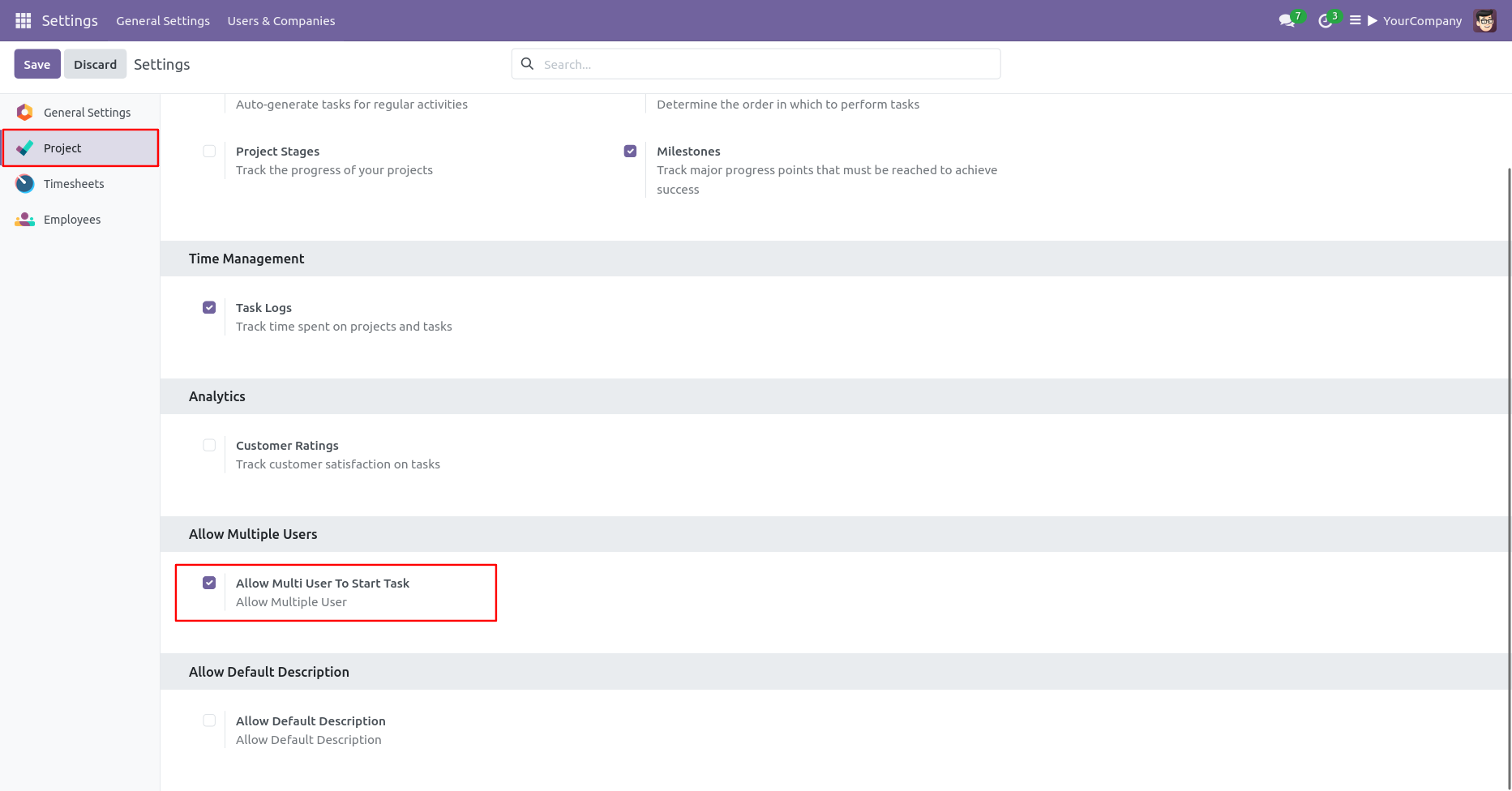
Go to the project "Configuration" ==> Tick 'Allow Multi User To Start Task'.
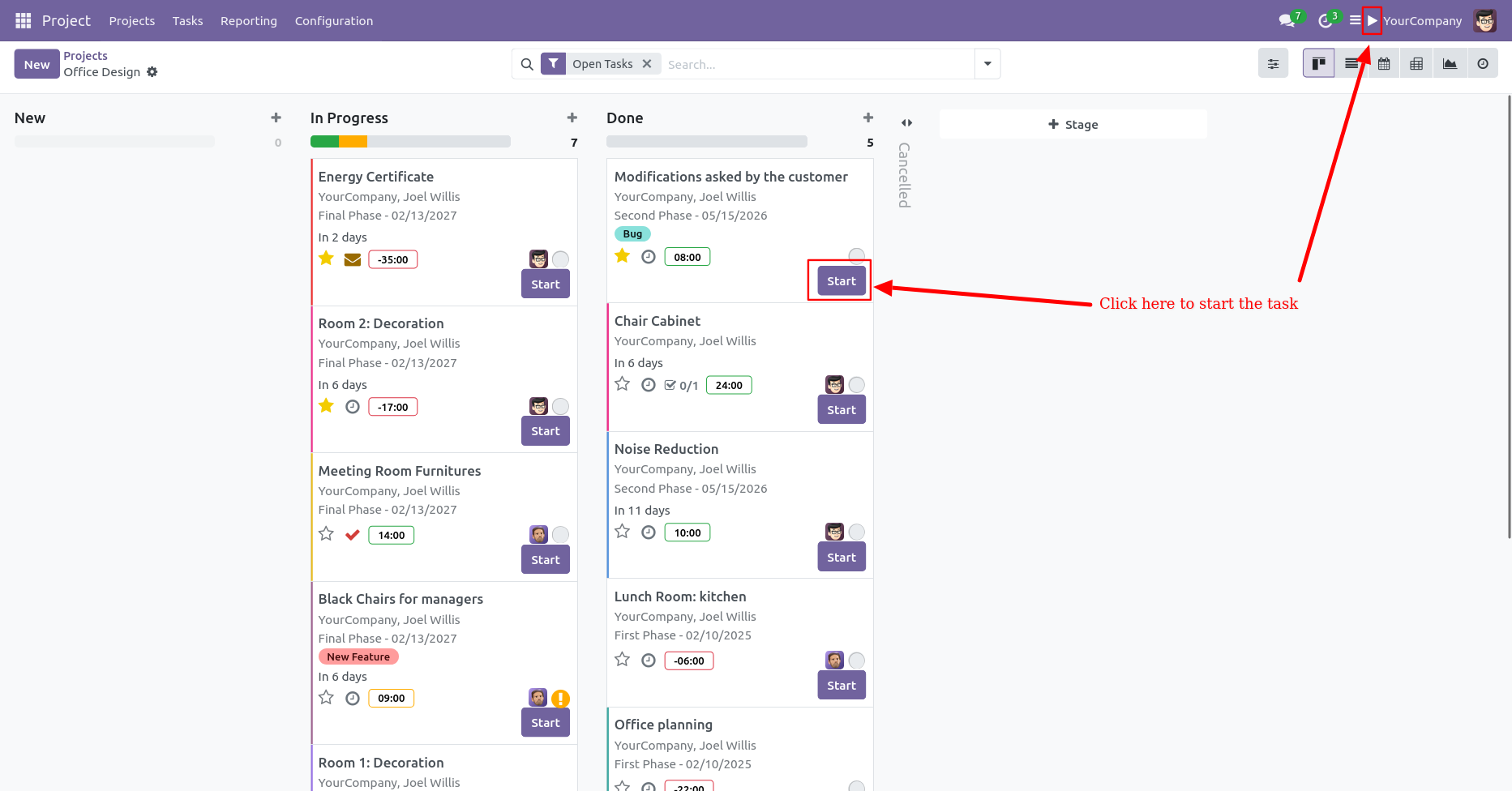
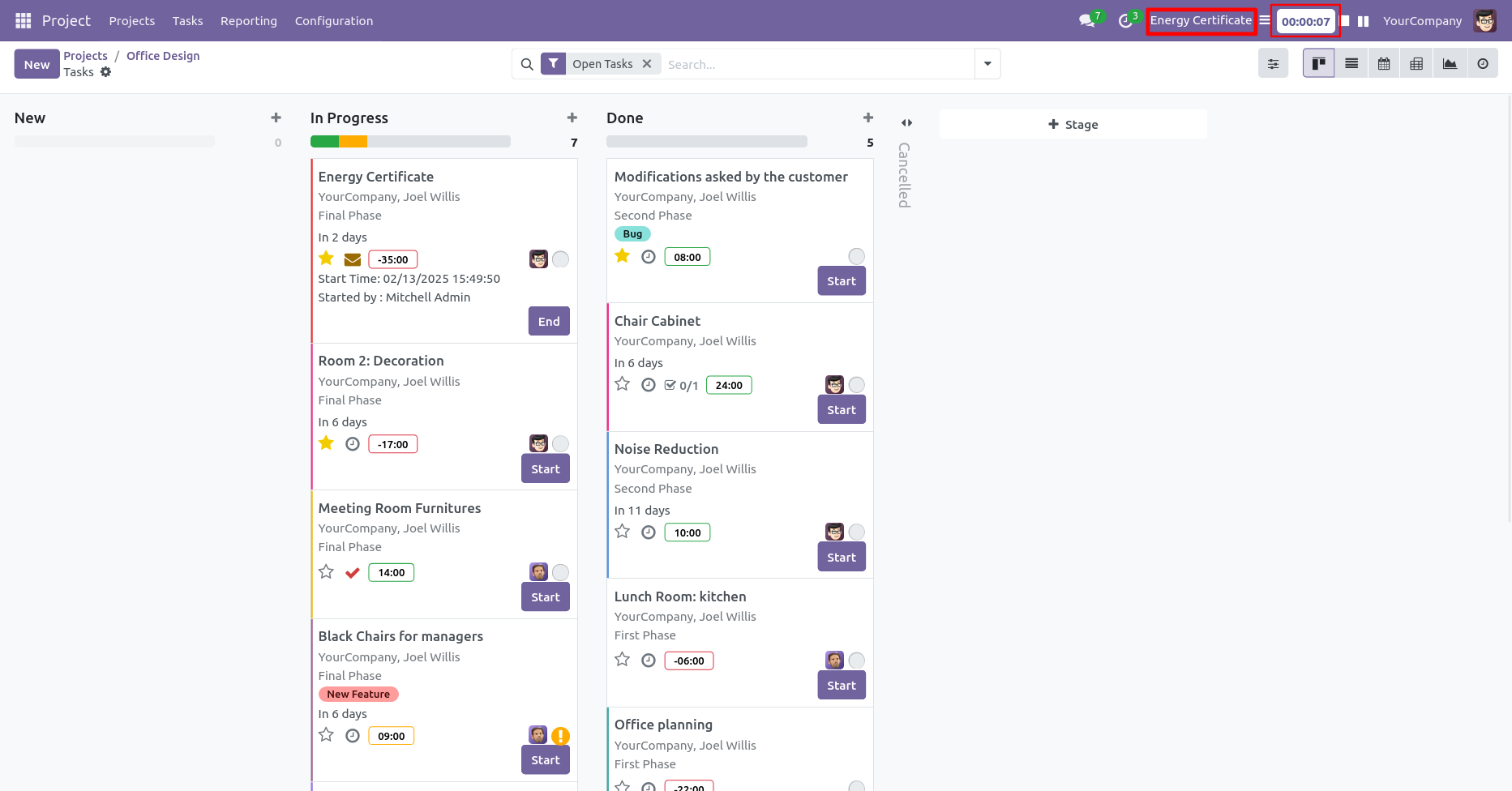
You can start/end each task from the kanban view & menu bar.
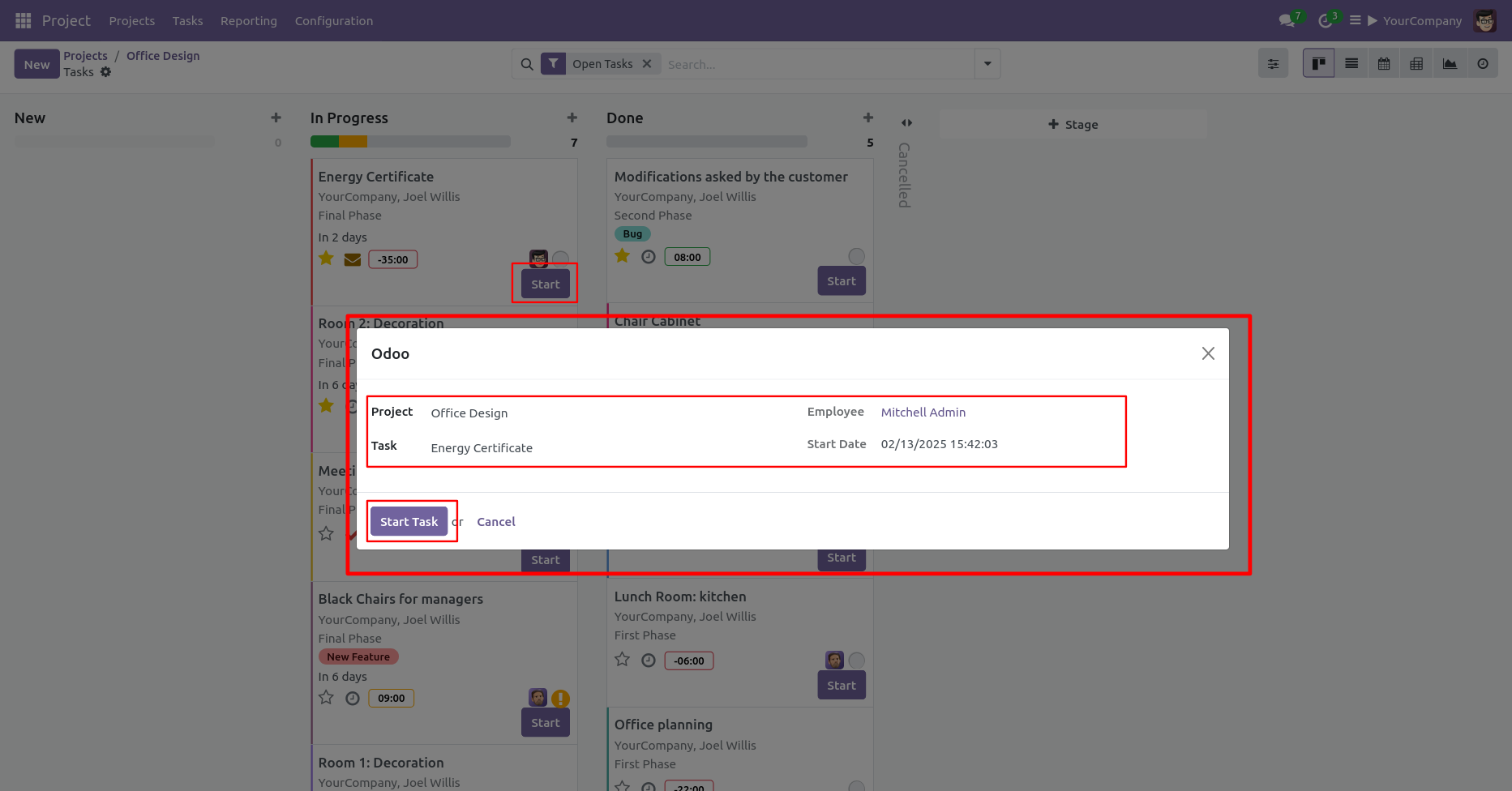
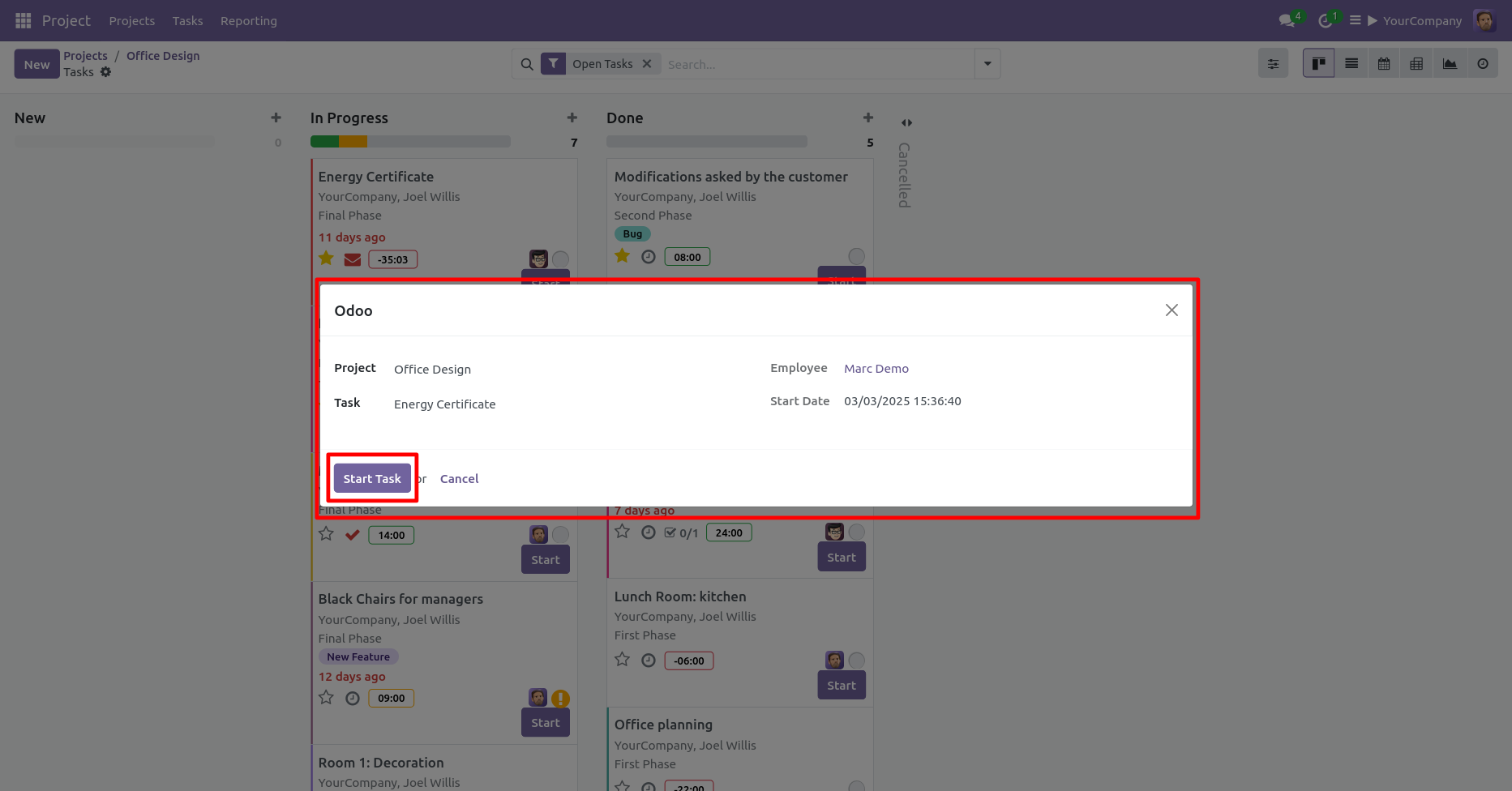
After press 'Start' button, this wizard will appear. Enter a project and task detail, and press the 'Start Task' button.
Here, you can view the task name and its corresponding value.
You can also start/end task from here.
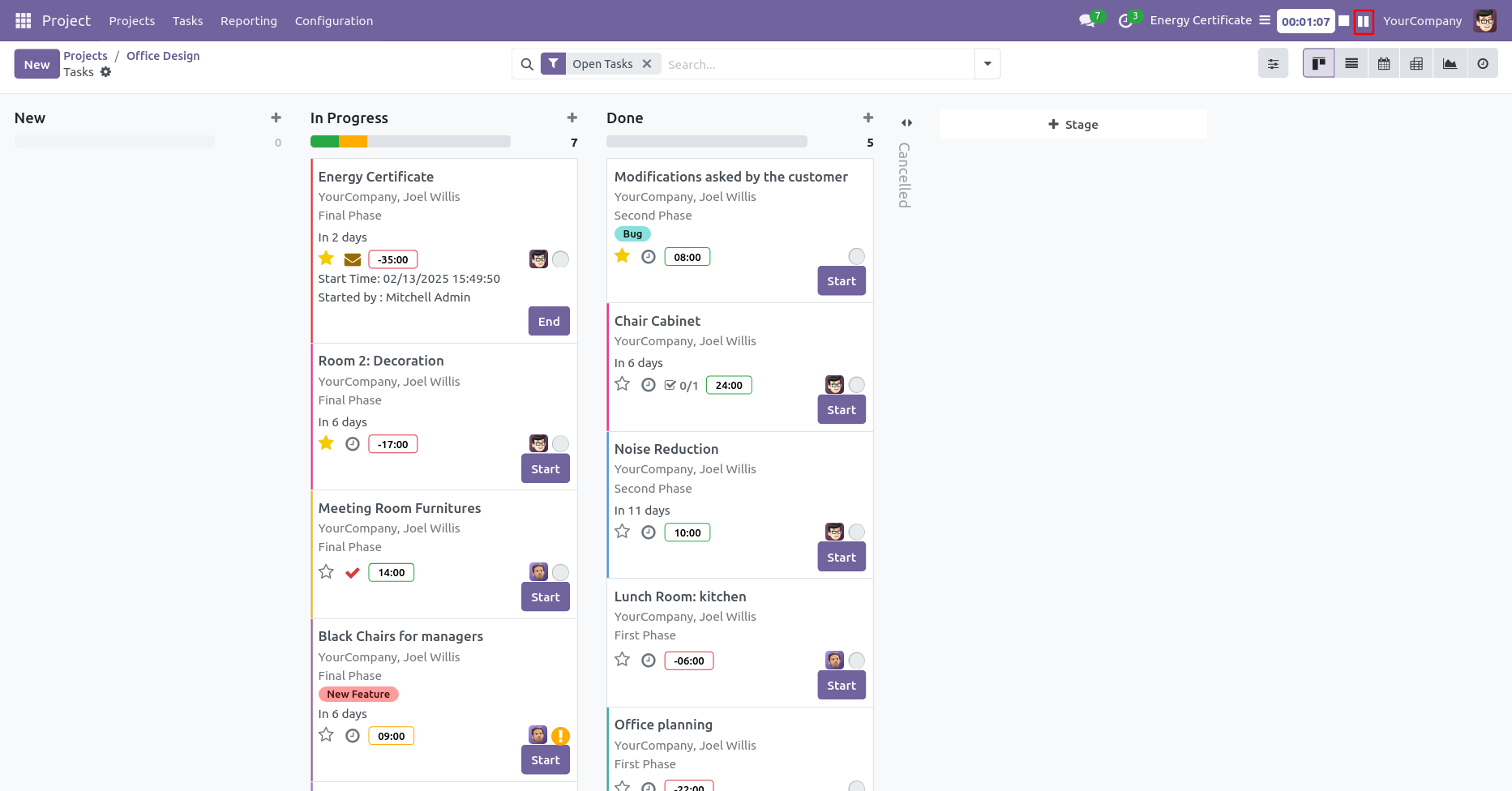
Use the 'Pause Timer' button to pause a running timer.
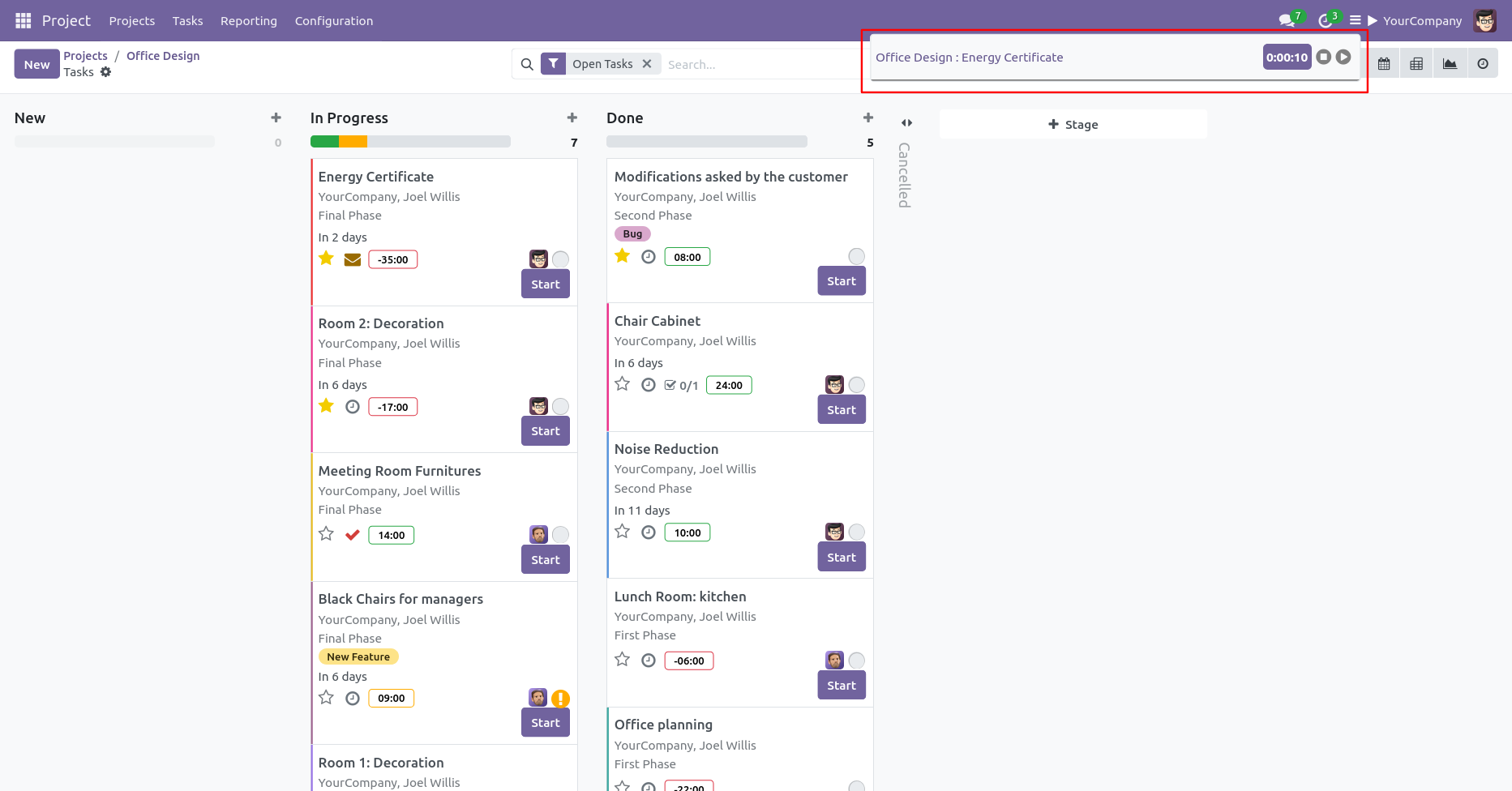
From the 'Open Pending Task Menu' button, you can view all paused task entries.
You can end or resume the task from here at anytime.
Click on the 'Start Timer' button to start the task. Add task details and click on the 'Start' button.
Here, you can view the task name and its corresponding value.
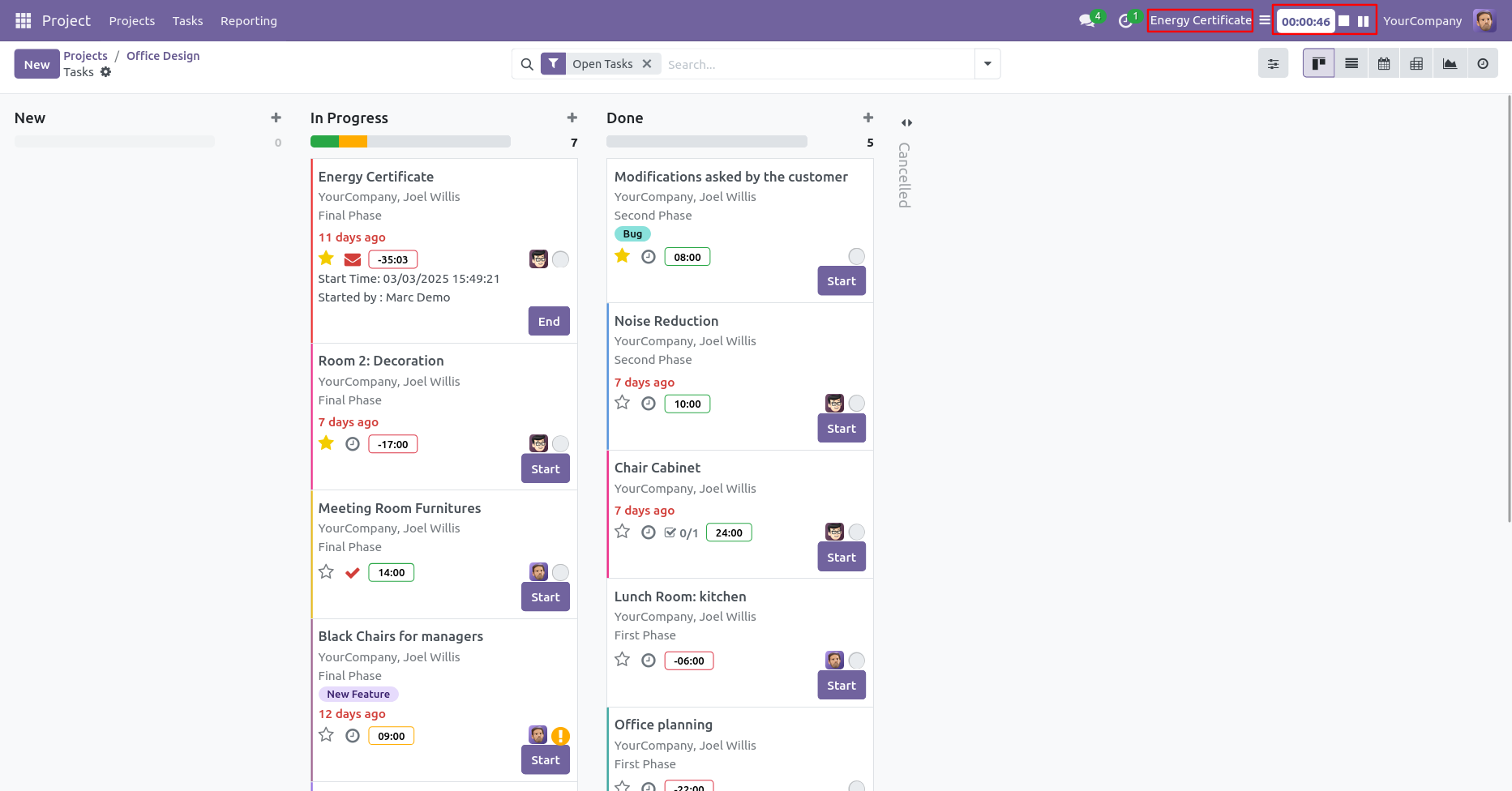
You can end or resume the task from here at anytime.
When you click on 'End Task' button, this wizard will appear. Add a task description and
click on the 'End Task' button.
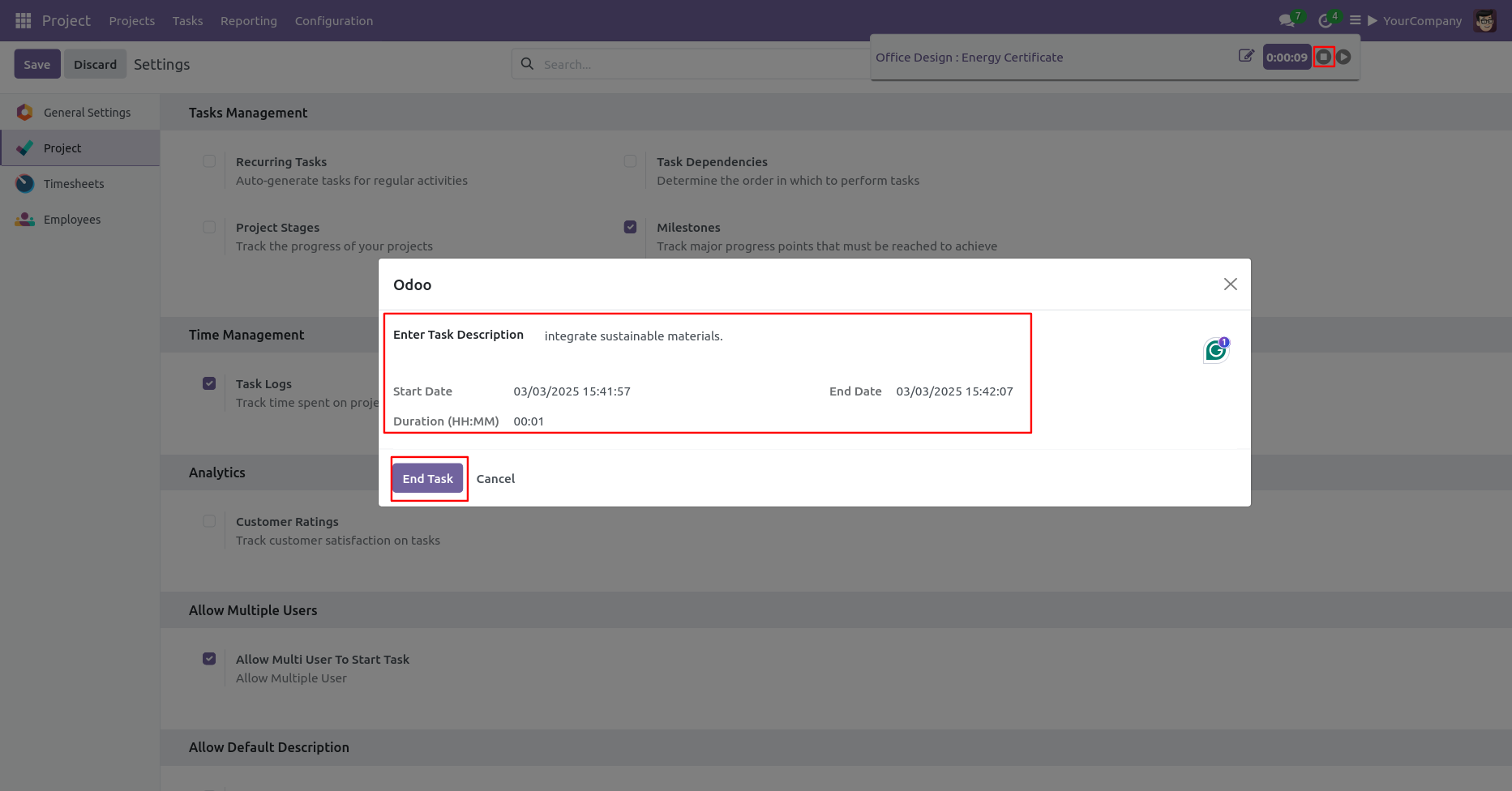
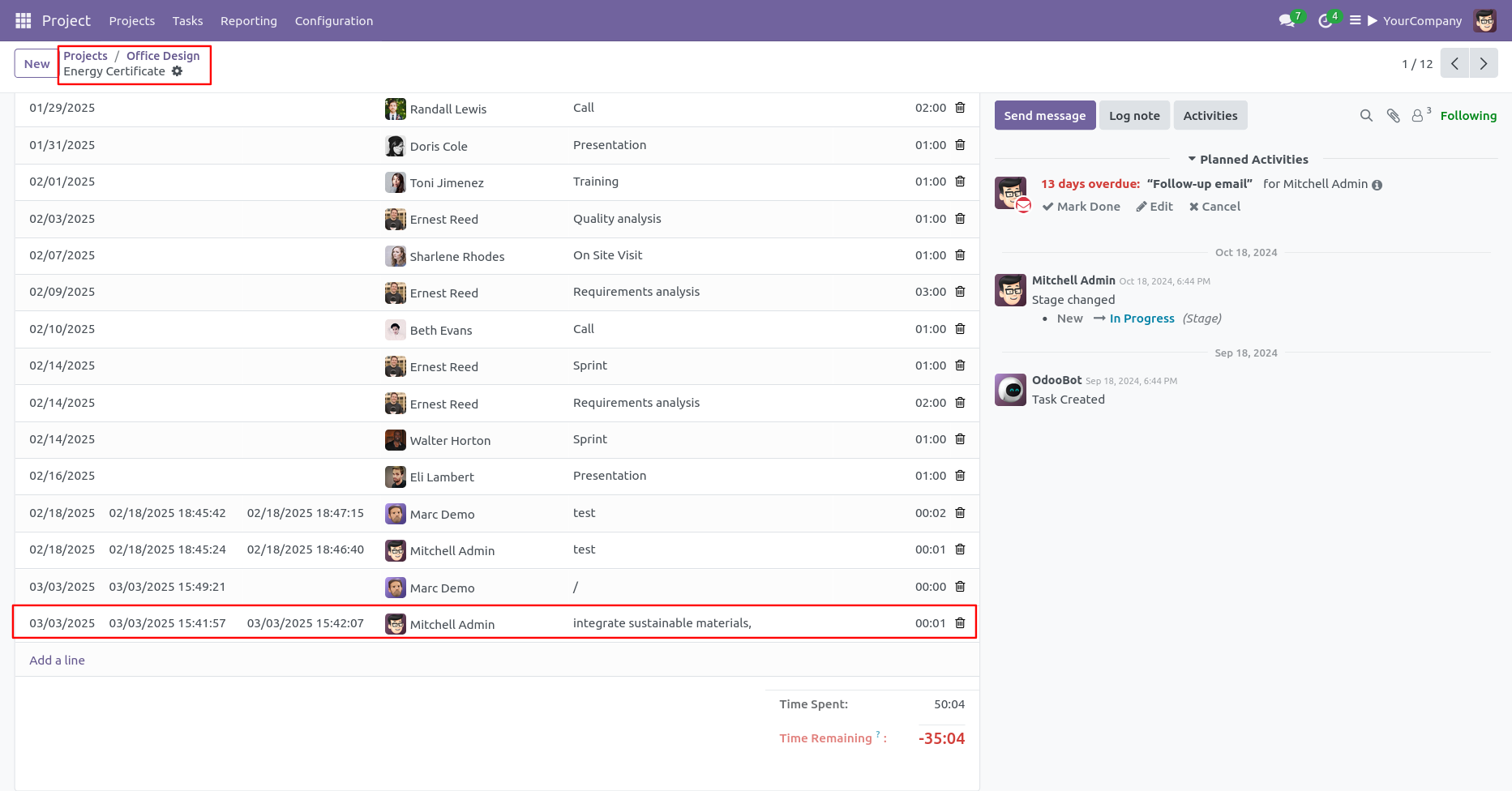
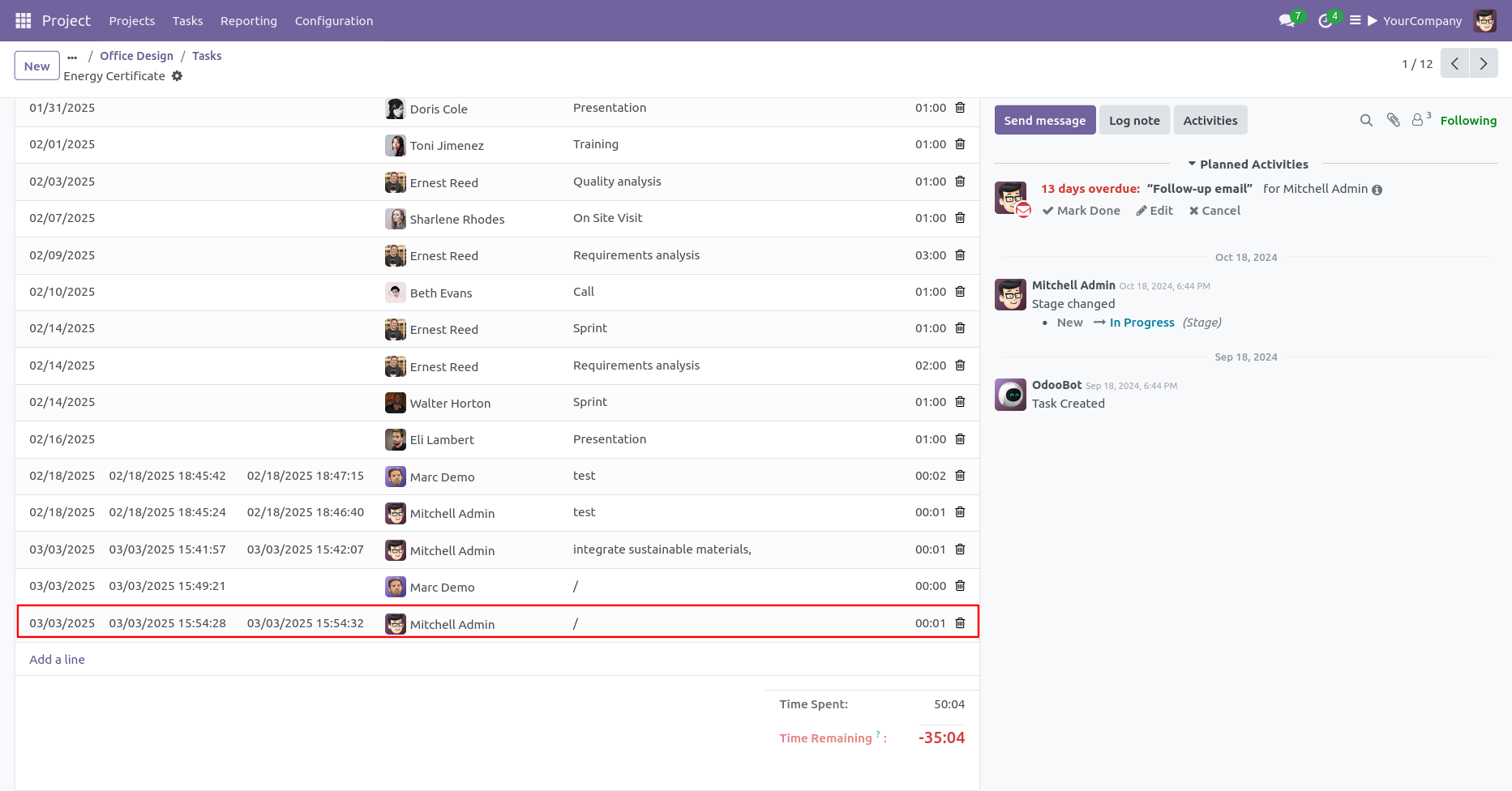
After ending the task, The time duration and date will update automatically with full task detail in timesheet.
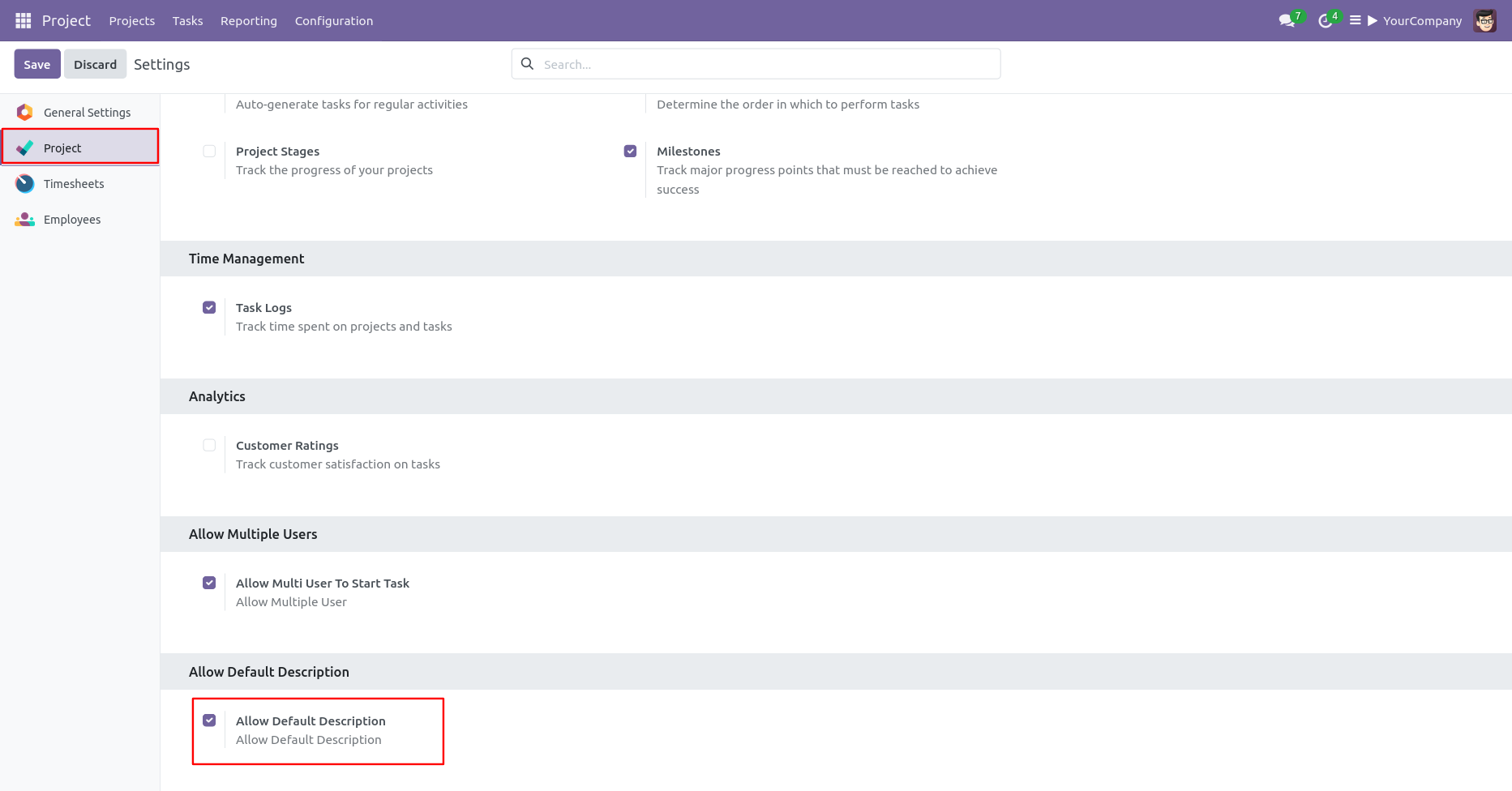
Go to the project "Configuration" ==> Tick 'Allow Default Description'.
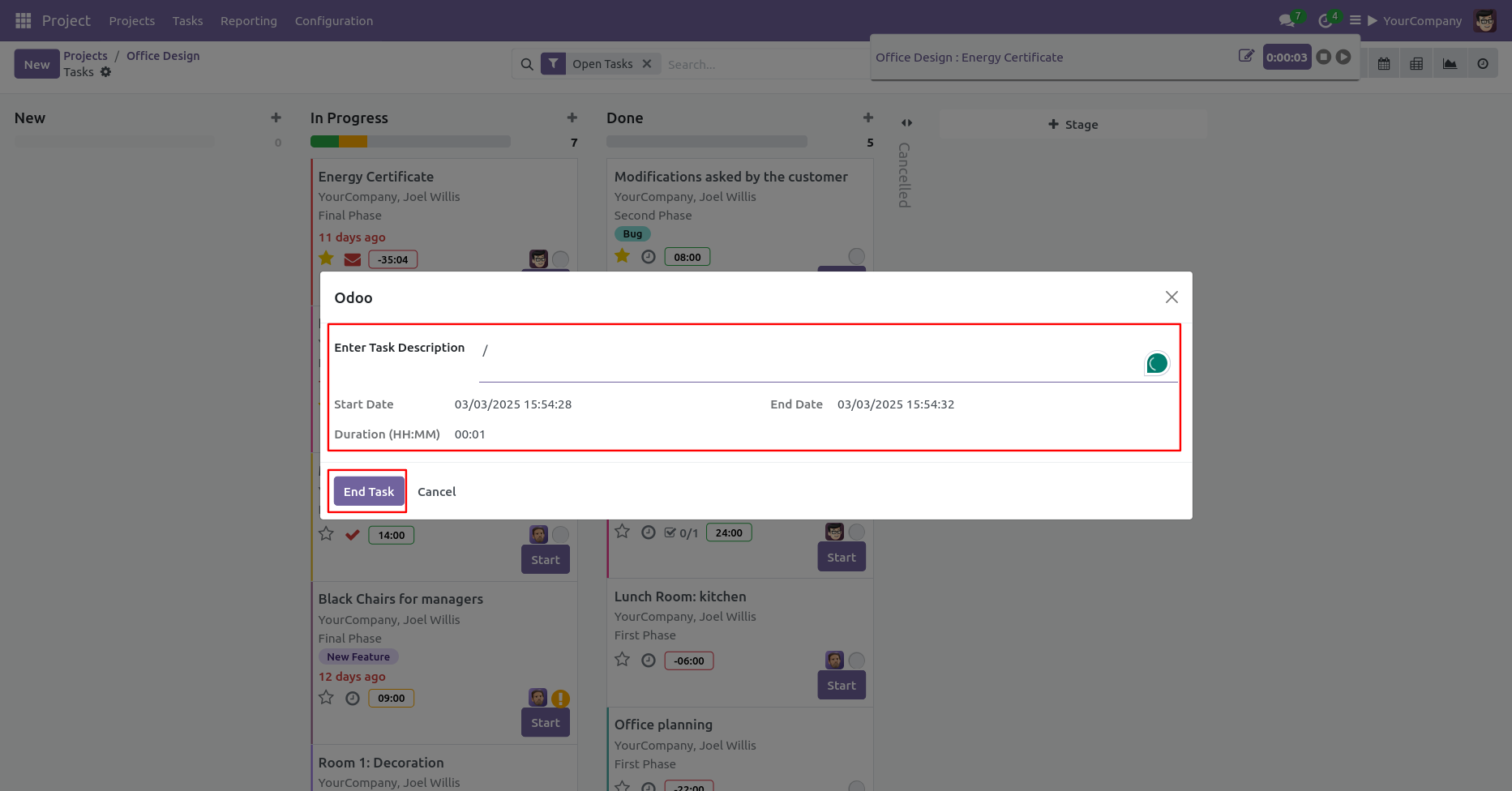
To end the timer, click on the 'End timer' button. After that one wizard will
appear.
Add details and click on the 'End Task' button.
After ending the task, The time duration and date will update automatically with full task detail in timesheet.
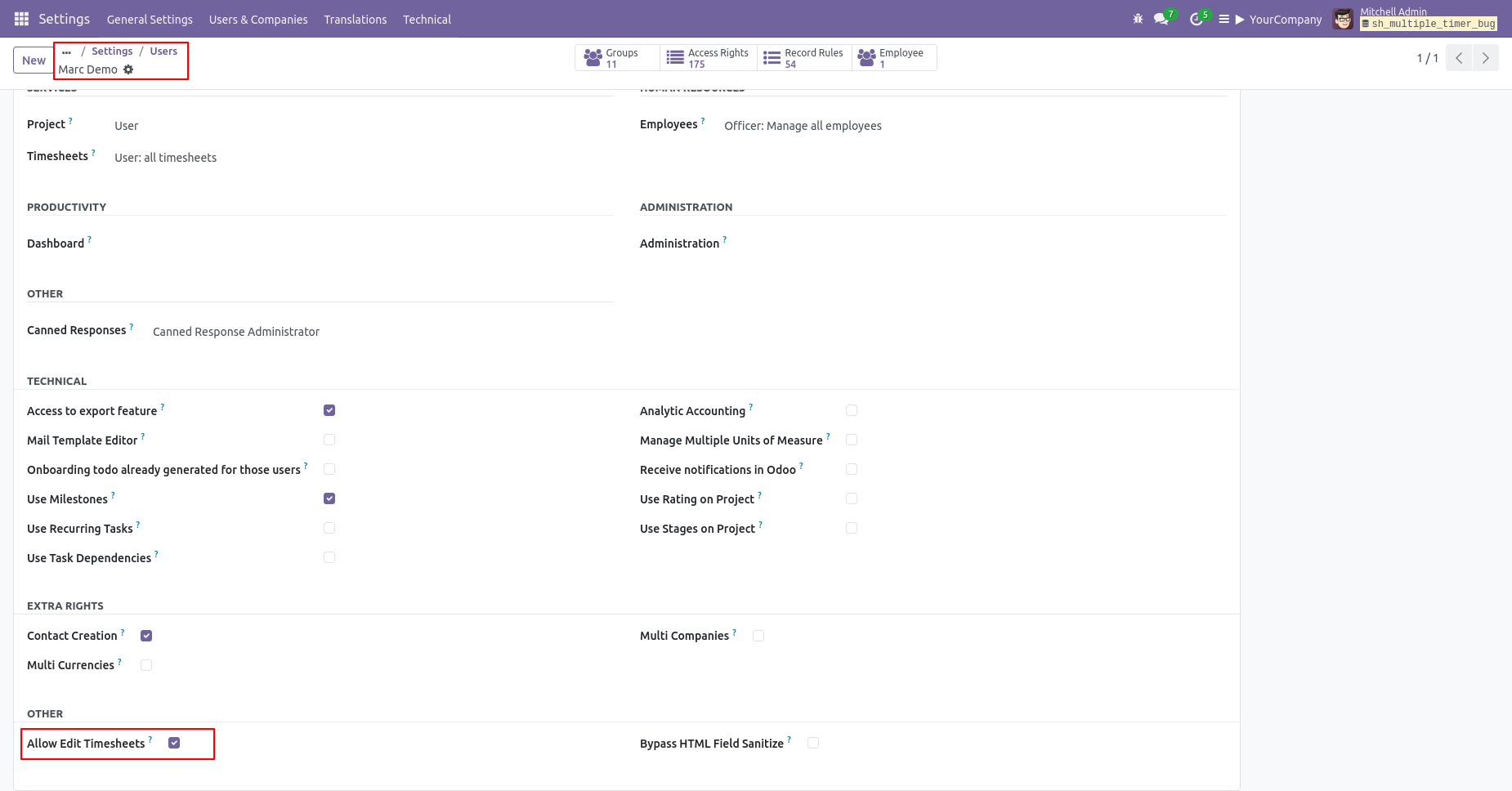
Go to the "Configuration" ==> Users ==> Allow Edit Timesheets access.
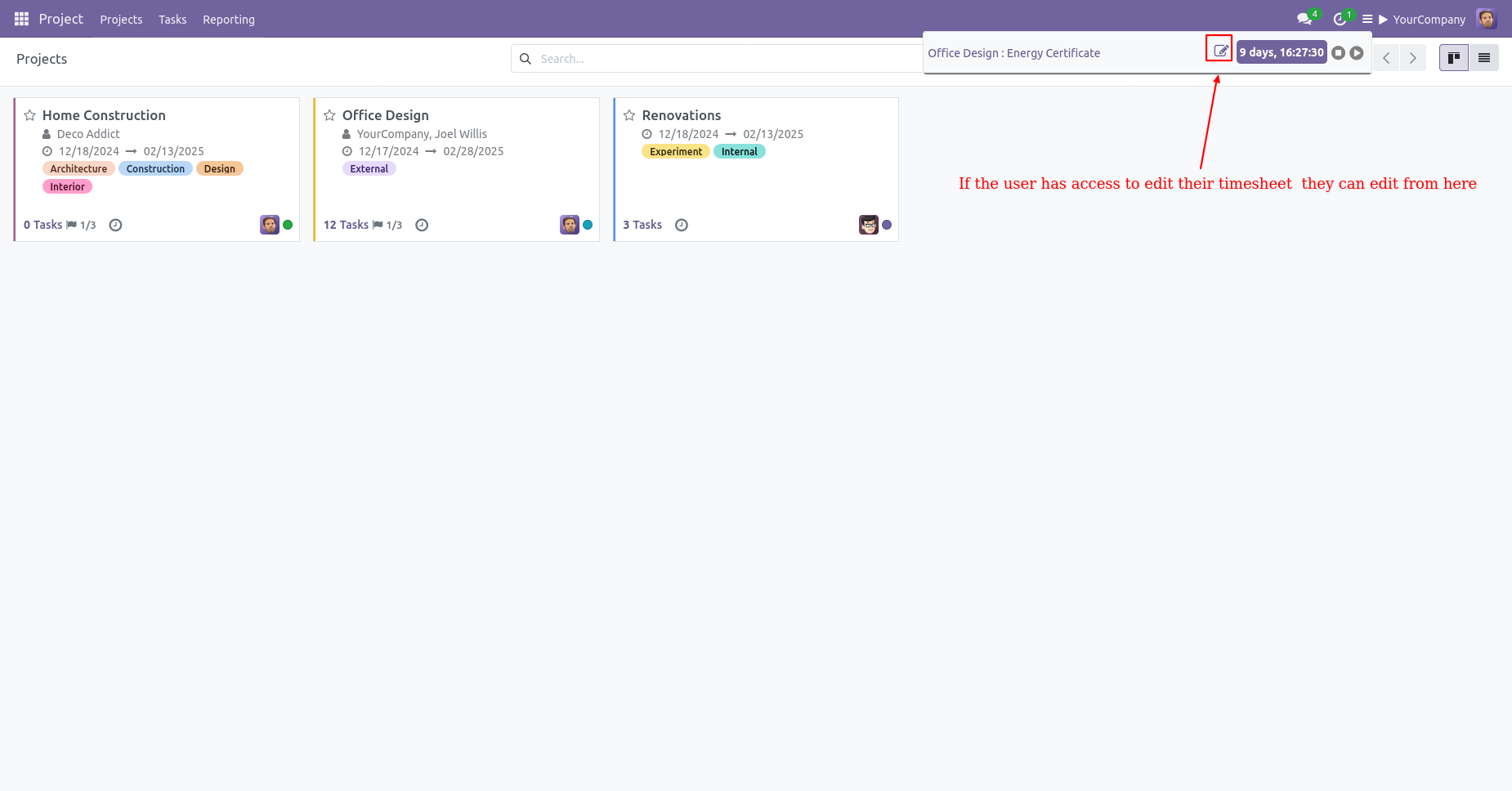
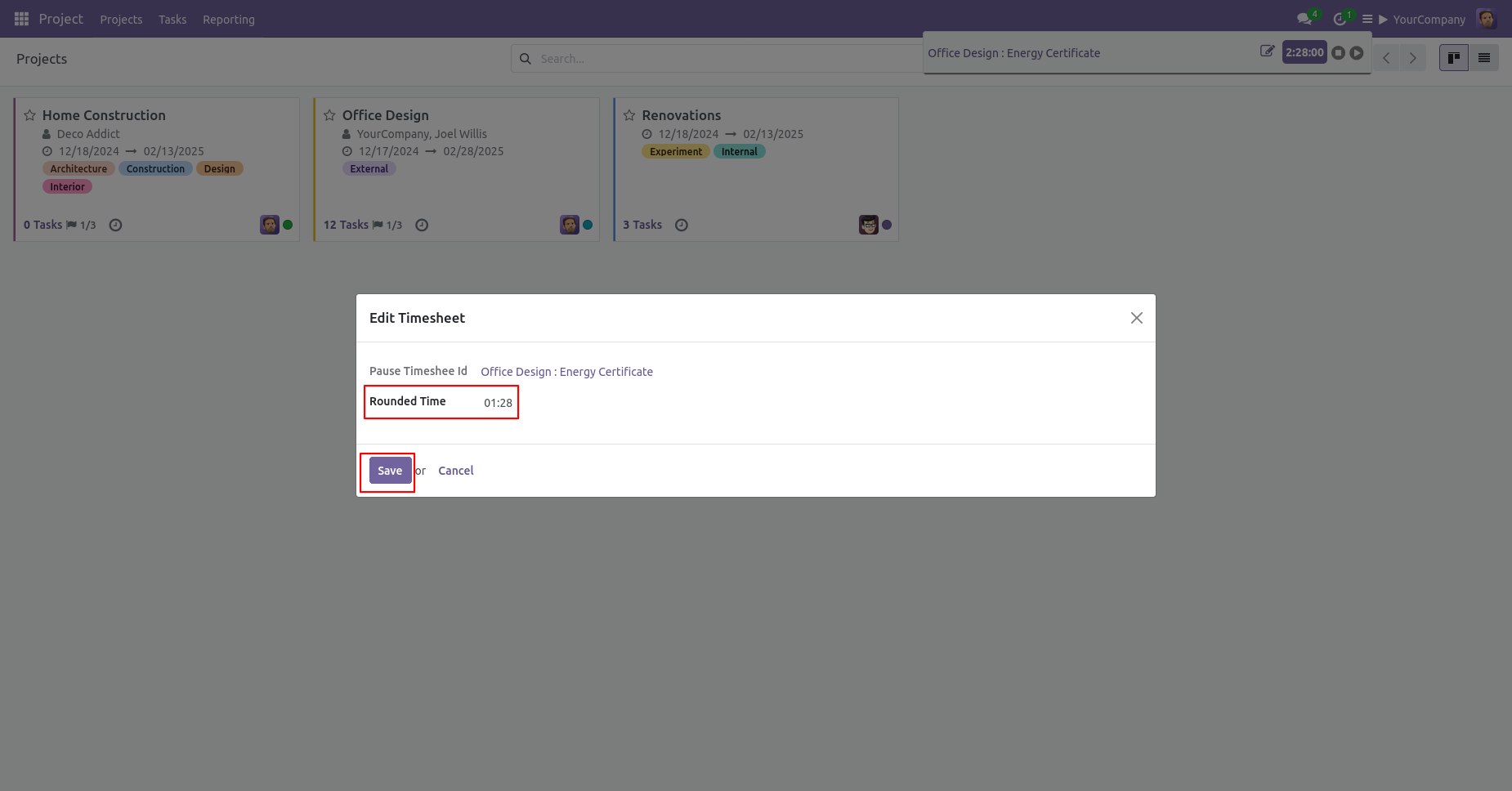
After that, you'll find the edit button here. Click on it to proceed.
Modify the timesheet in the wizard and click 'Save' button.
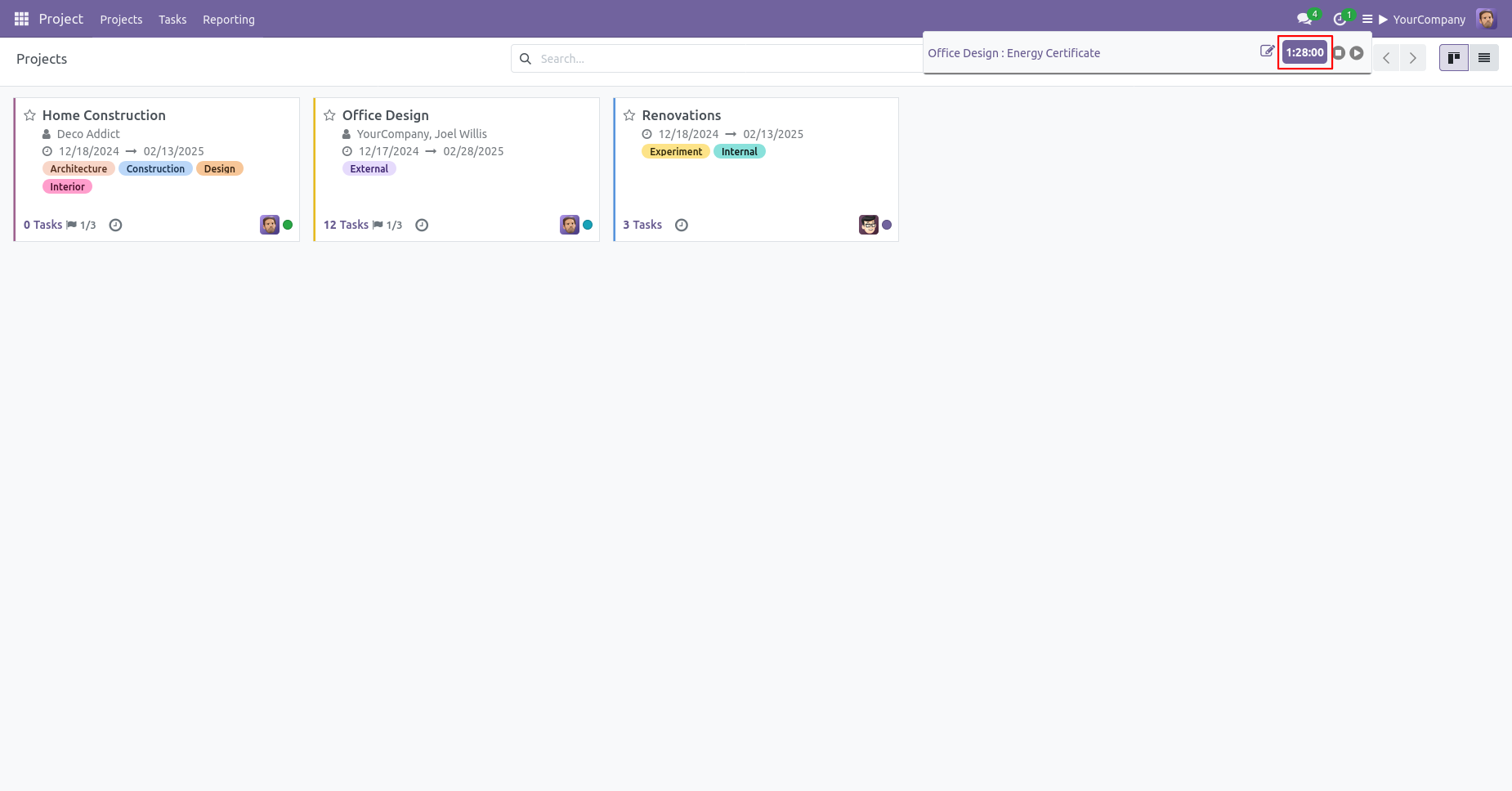
Here, you can see that the timesheet has been updated.
Version 20.0.1.0.0 | Released on : 15th September 2026
- Yes, this app works perfectly with Odoo Enterprise (Odoo.sh & Premise) as well as Community.
- No, this application is not compatible with odoo.com(odoo saas/Odoo Online)
- Yes, to test this module, please contact us at sales@softhealer.com.
- Please contact us at sales@softhealer.comto request customization.
- Yes, we provide free support for 365 days from the date of purchase.
- Yes, you will receive lifetime free updates for the version of the module you purchased.
- No, there is no need to install any additional libraries.
- Yes, for version 12 and above, you need to purchase the module separately for each version you intend to use.
- No, exchanges or refunds are not allowed. Please make sure to select the correct version before purchasing.
- You can contact us at support@softhealer.com for language translation support. We use Google Translator tools to provide translations in multiple languages, so the accuracy may vary. We welcome your suggestions to help improve translations.
Discover Our Latest Apps