












Machine Repair Management

Manage end-to-end machine repair operations seamlessly in Odoo. Track repair requests from portal and backend, manage machine diagnostics, assign repair teams, reserve and consume spare parts, automatically send repair quotations, track warranty agreements, and generate comprehensive repair reports and job cards.
Features

Comprehensive Machine Repair Dashboard
Monitor key repair metrics, stage breakdown, and counters in interactive dashboard.

Repair Request Submission
Allow customers to submit repair requests directly via the portal or enable internal users to create repair orders in backend.

Spare Parts Reservation and Stock Allocation
Reserve required spare parts for repair orders, track location-wise inventory allocation, and consume parts seamlessly.

Automated Repair Quotation Sent
Automatically sent repair sales quotations to maintain a smooth workflow.
Machine Warranty Agreement Tracking
Manage warranty services, define covered and non-covered repair components, and apply warranty terms directly on repair orders.

Multi Team Repair Assignment
Organize repair teams, assign specific repair technicians, track repair stages, perform quality checks, and process feedback.

Custom Machine Master Data Management
Maintain detailed machine records, machine brands, machine models, and problem types.
Professional Repair Reports and Job Cards
Print repair receipts, repair job cards, delivery notes, and detailed cost breakdown sheets directly from repair orders.

Workflow
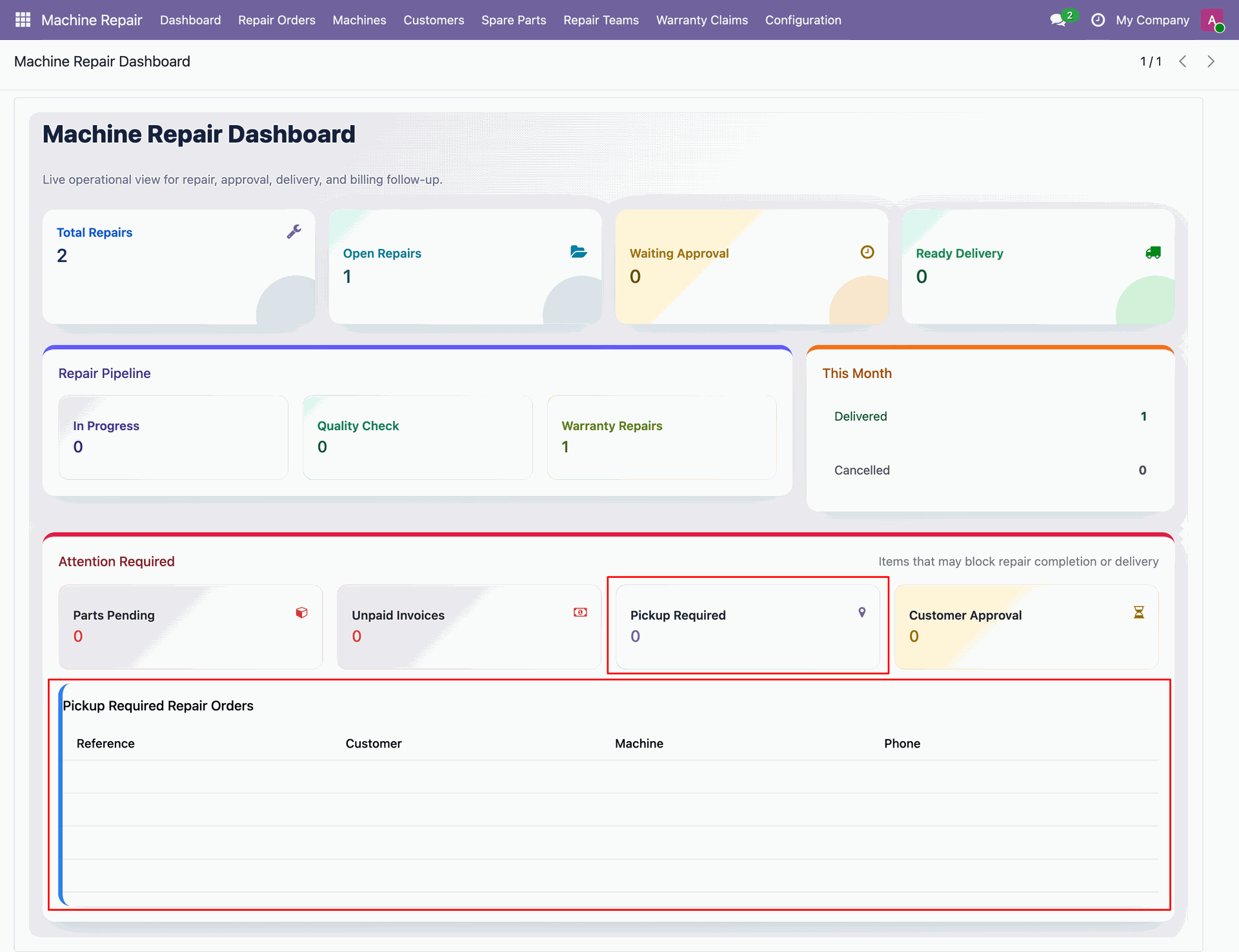
View comprehensive repair dashboard displaying repair request counters and stage statistics.
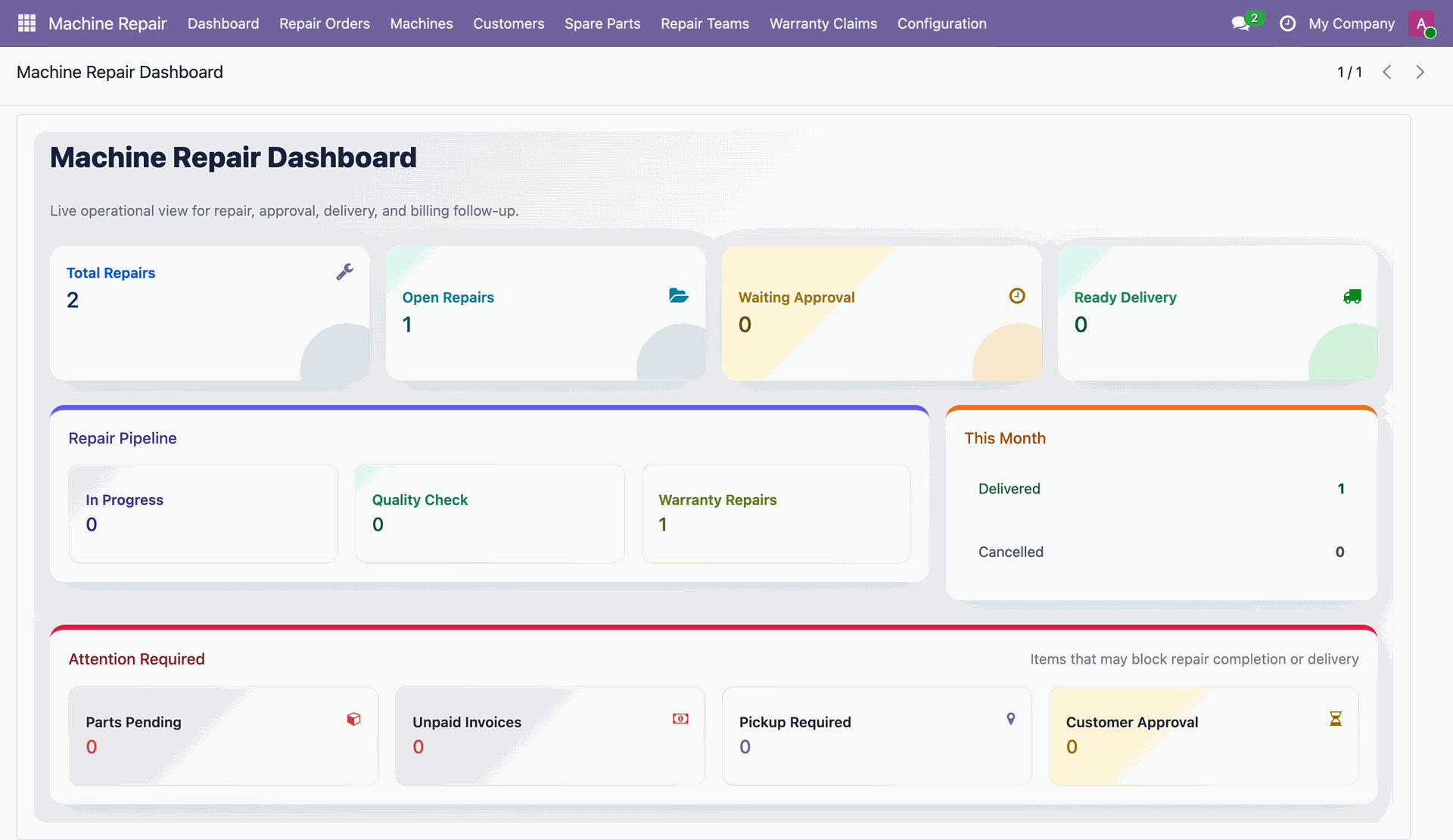
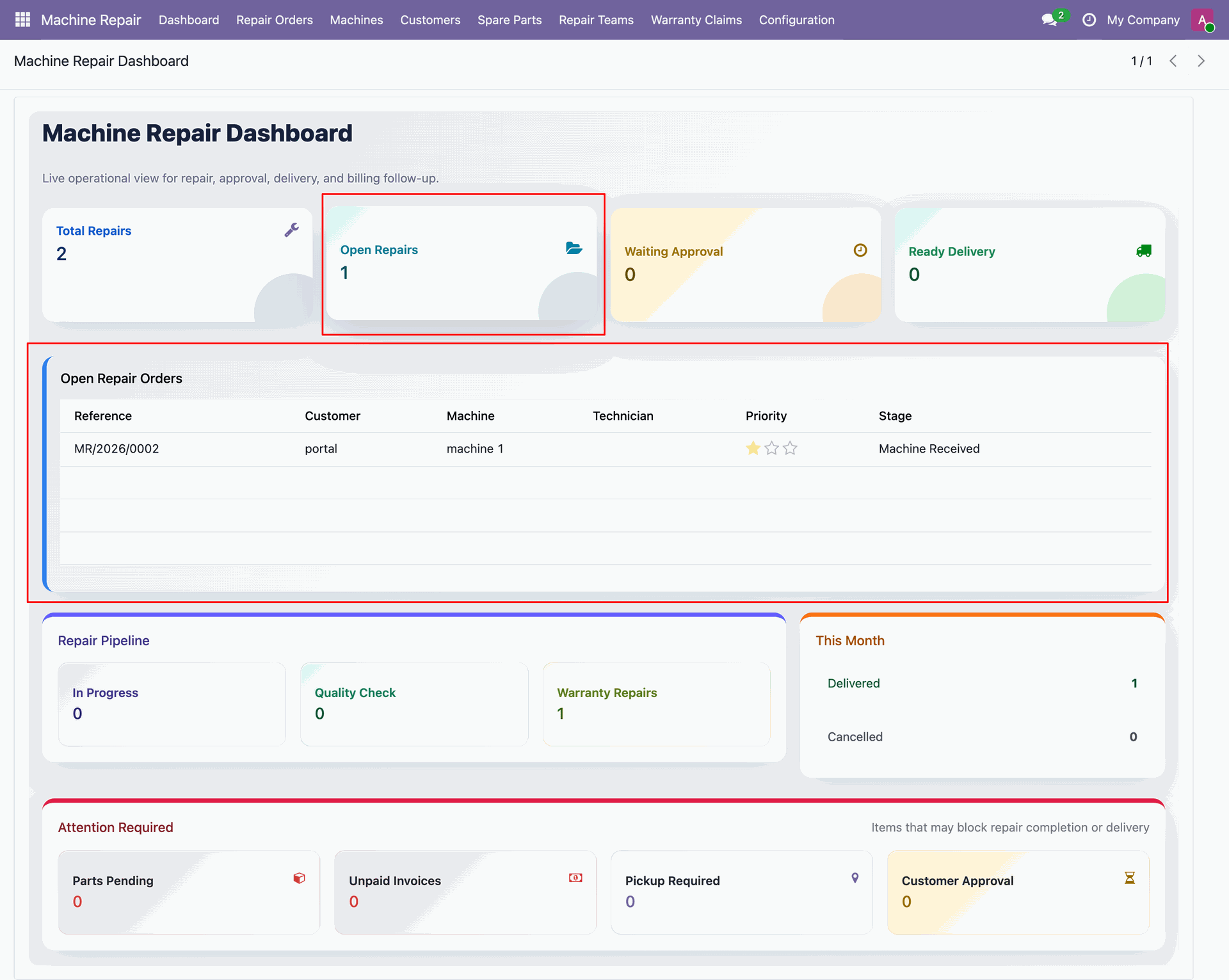
You can open the repair orders list from the dashboard.
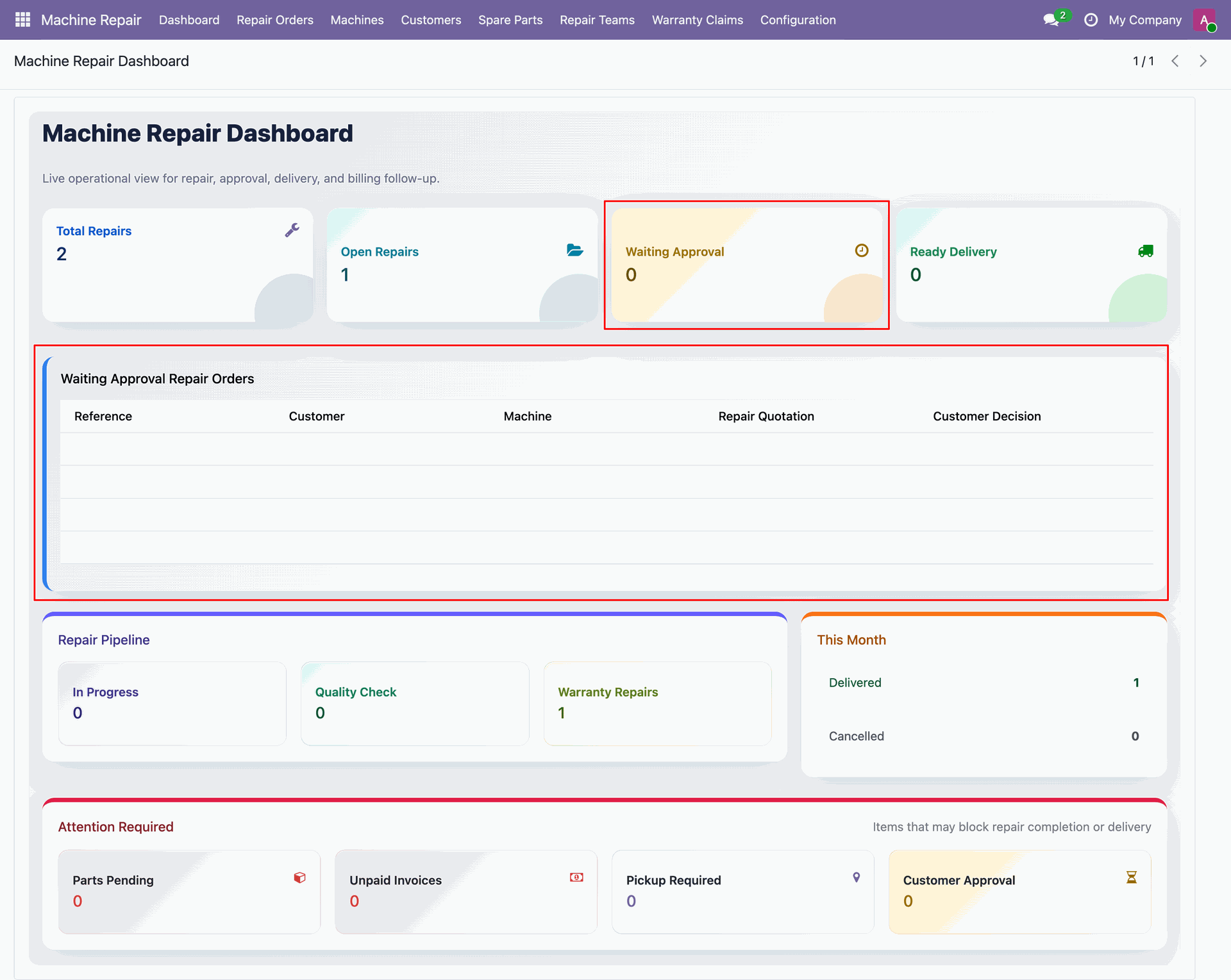
You can open the waiting approvals repair orders list from the dashboard.
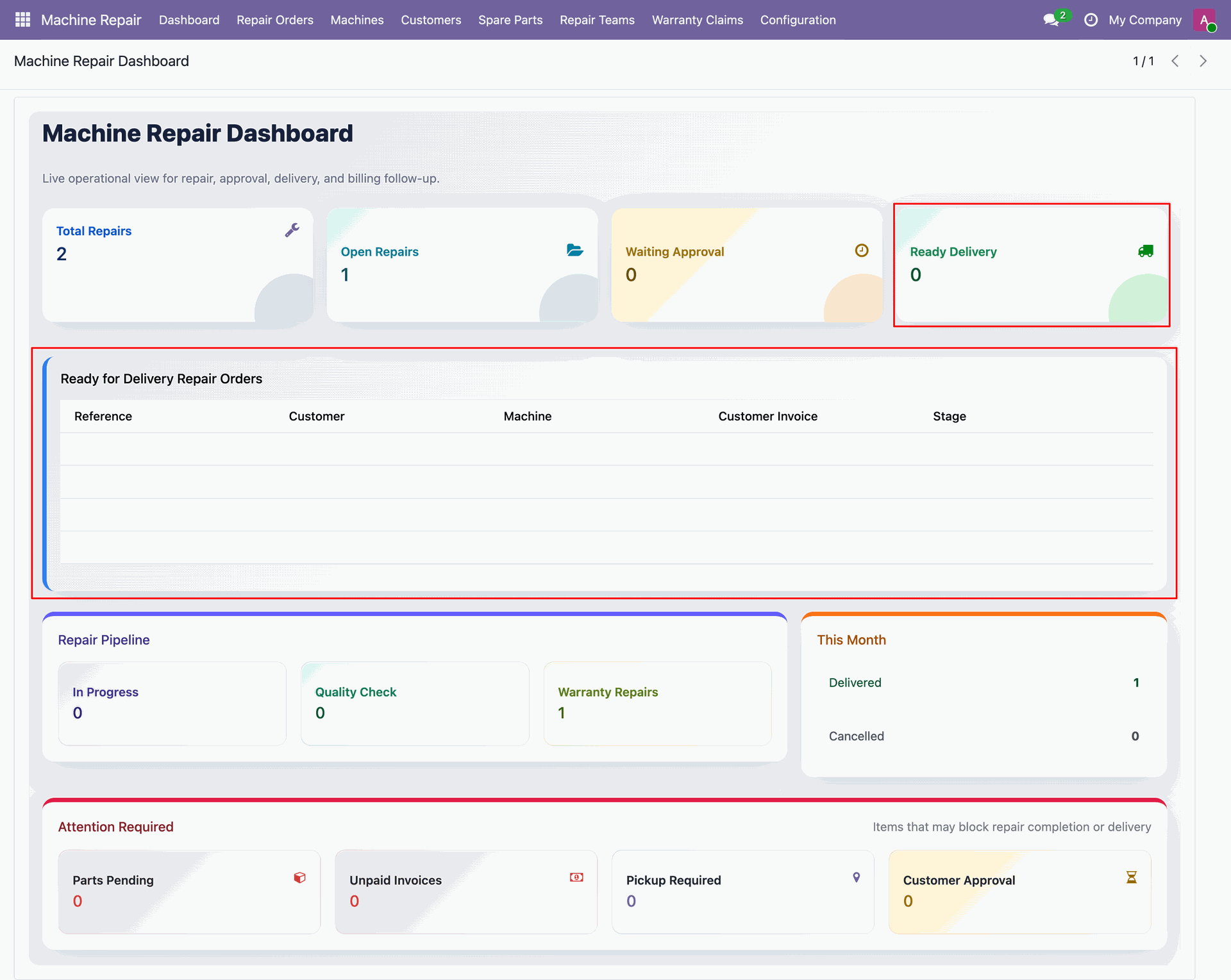
You can open the ready-for-delivery repair orders list from the dashboard.
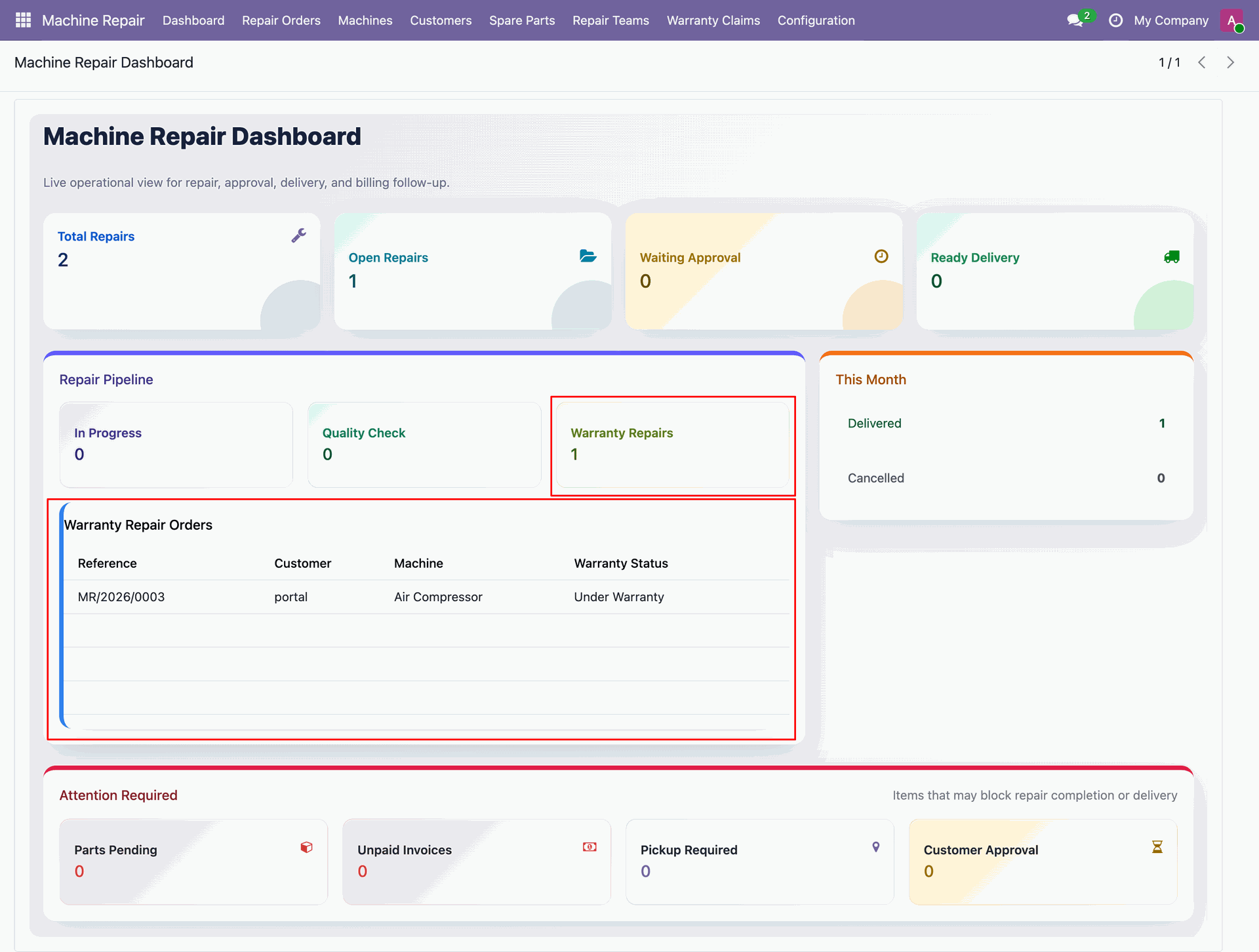
You can open the warranty repair orders list from the dashboard.
You can open the pickup-required repair orders list from the dashboard.
Workflow
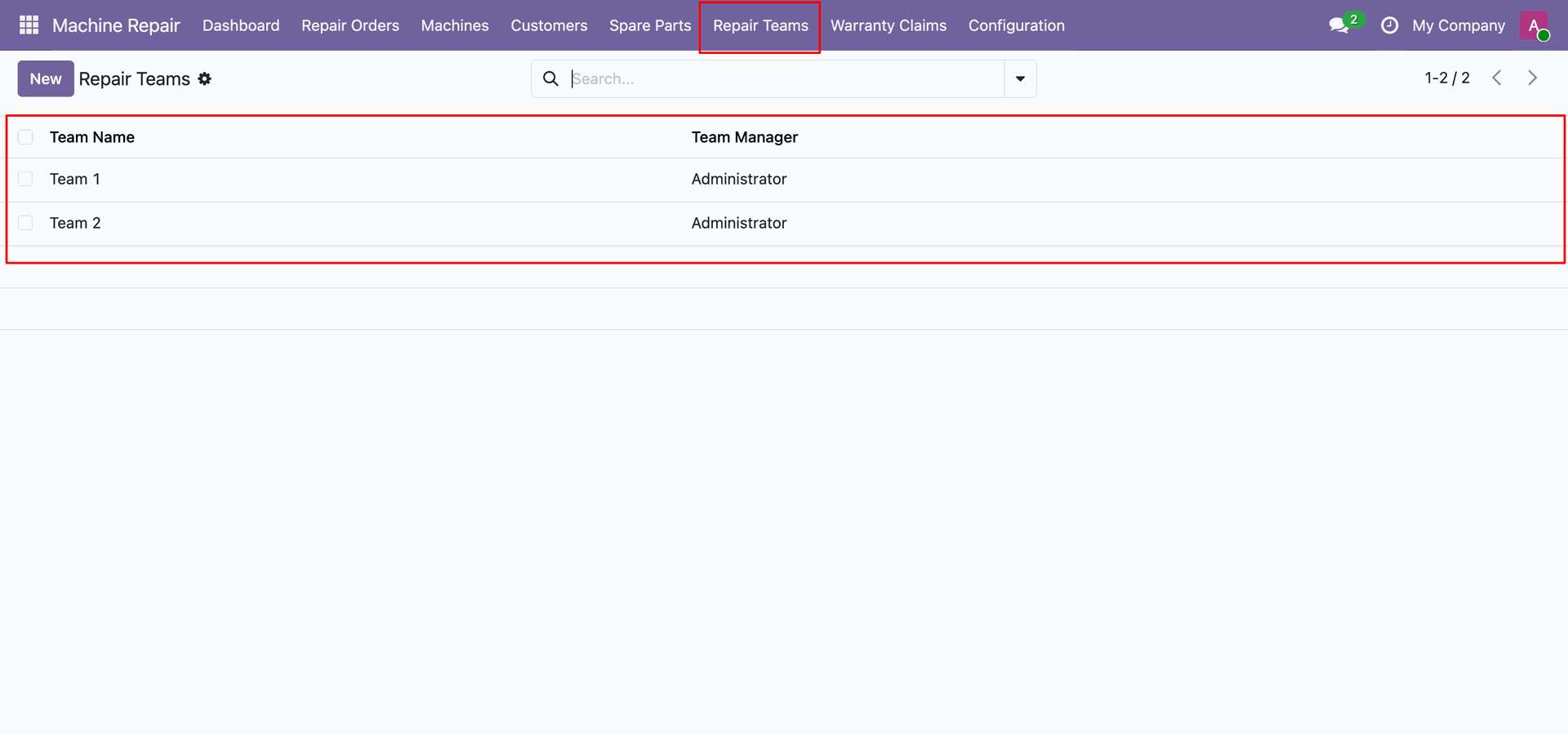
Repair teams list view.
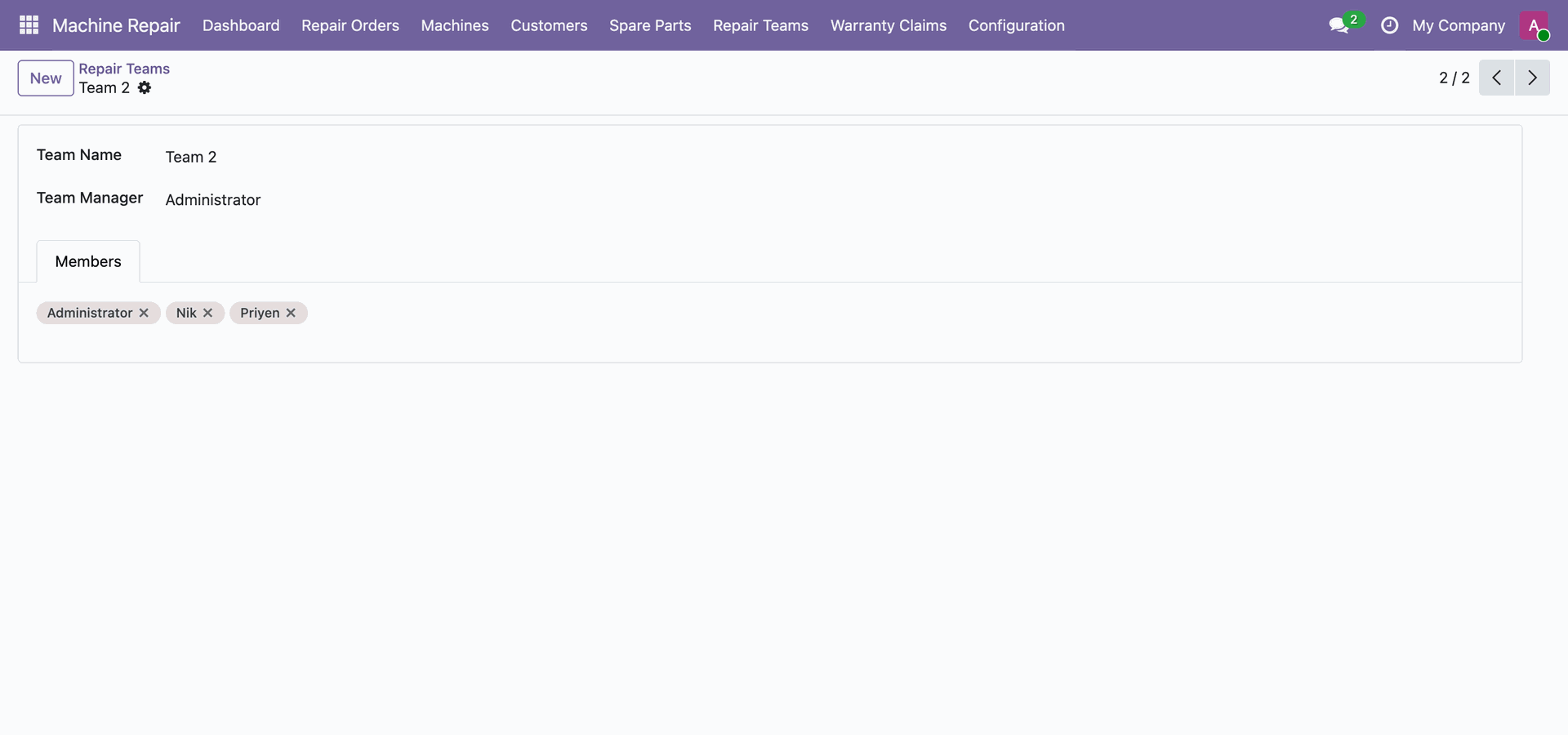
Repair teams form view.
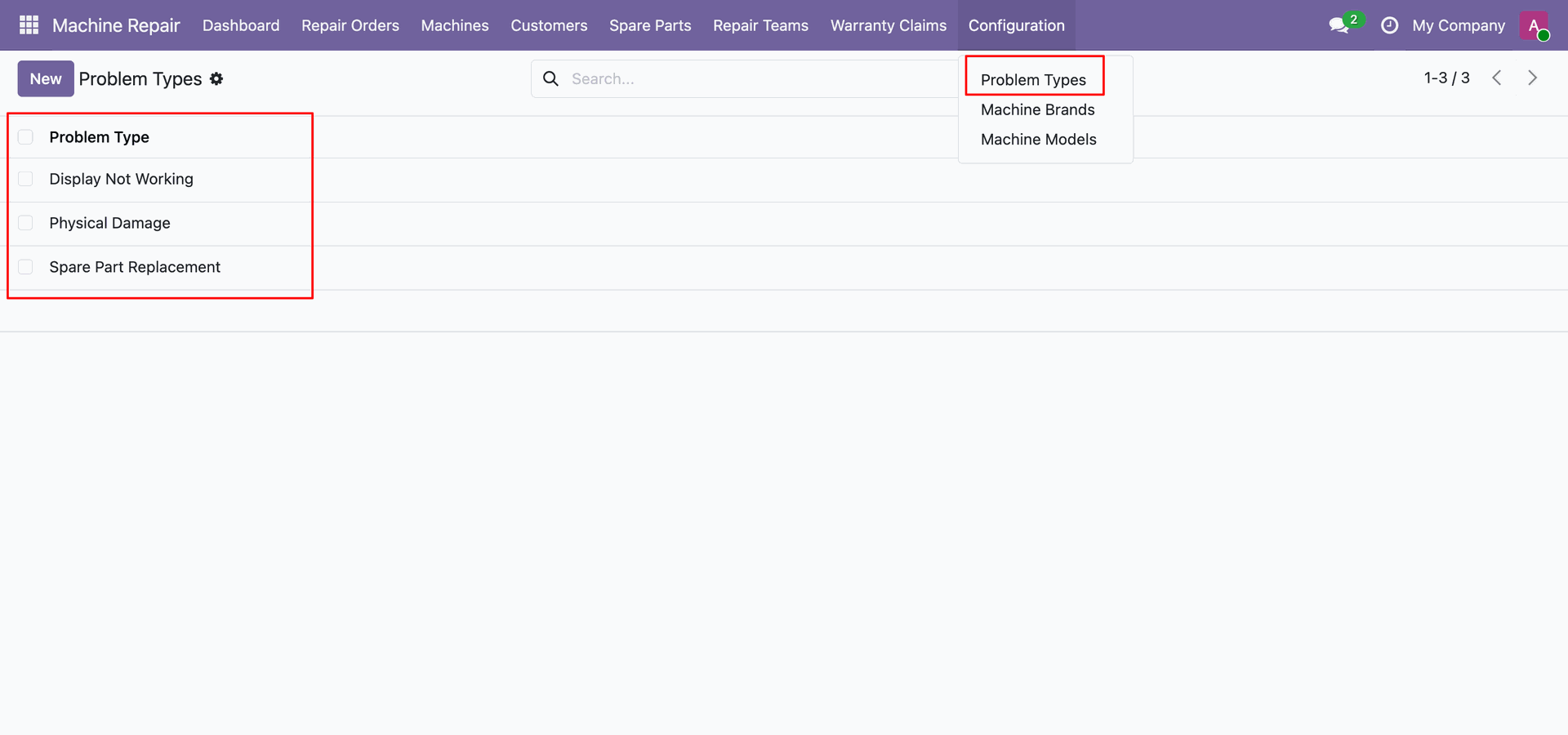
Problem types list view.
Machine brands list view.
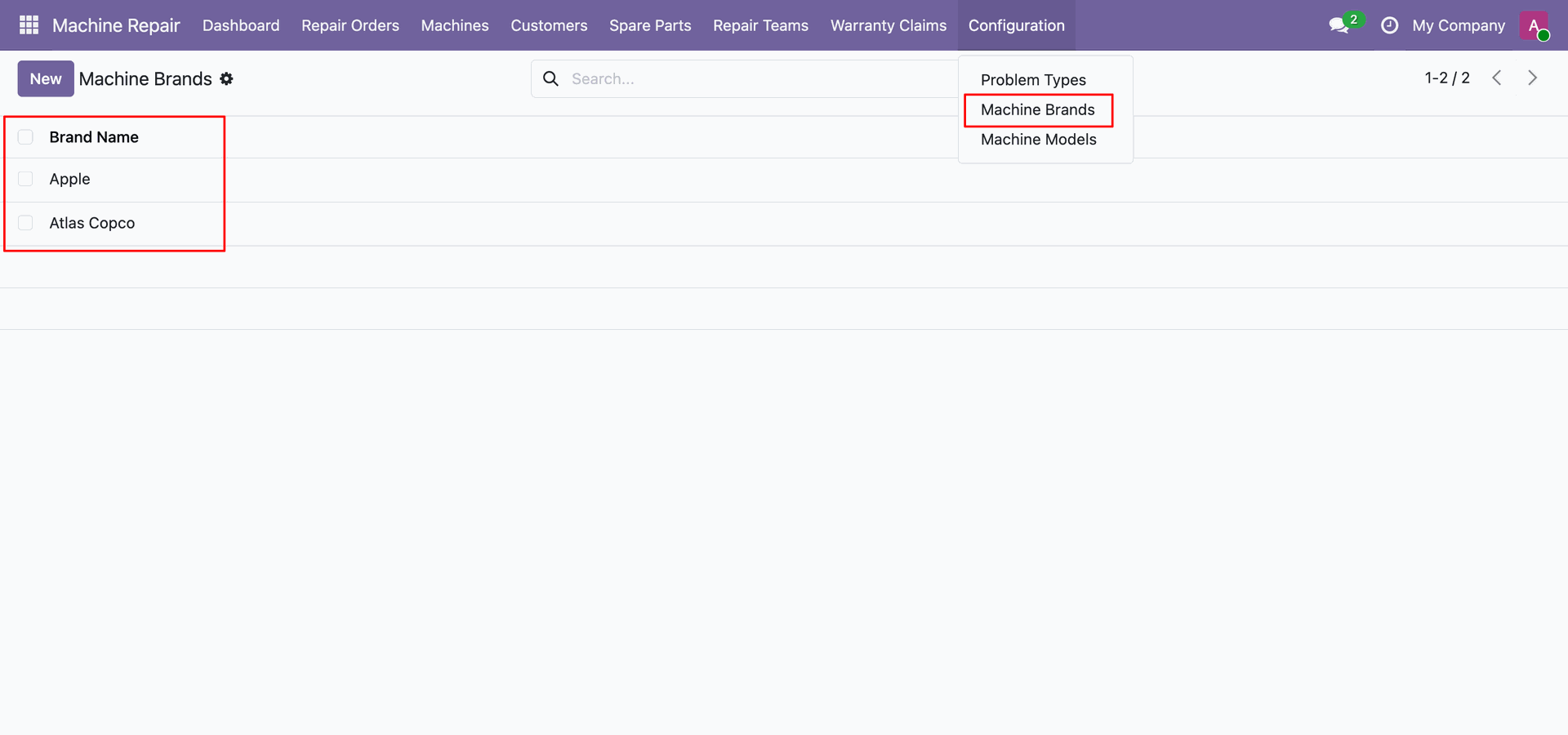
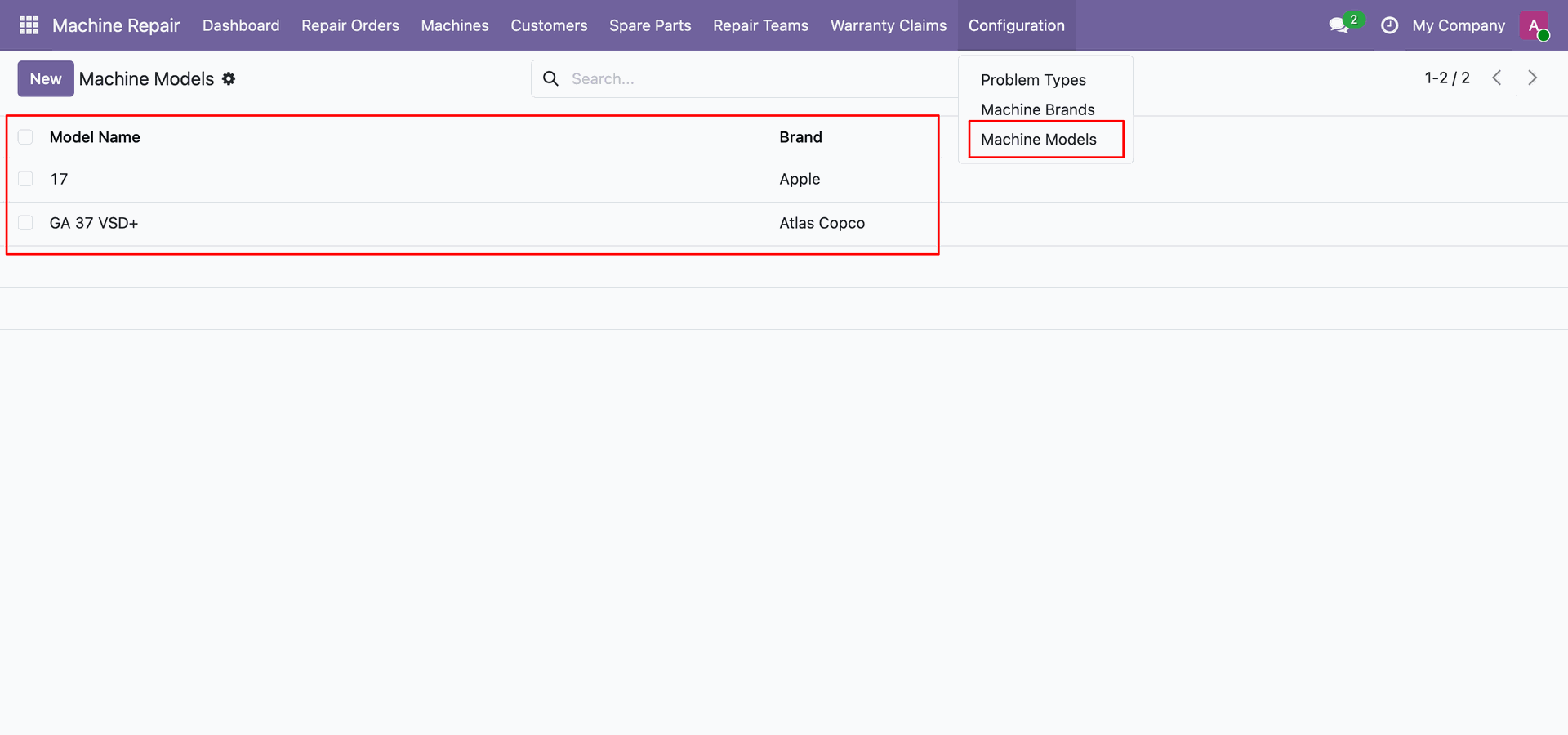
Machine models list view.
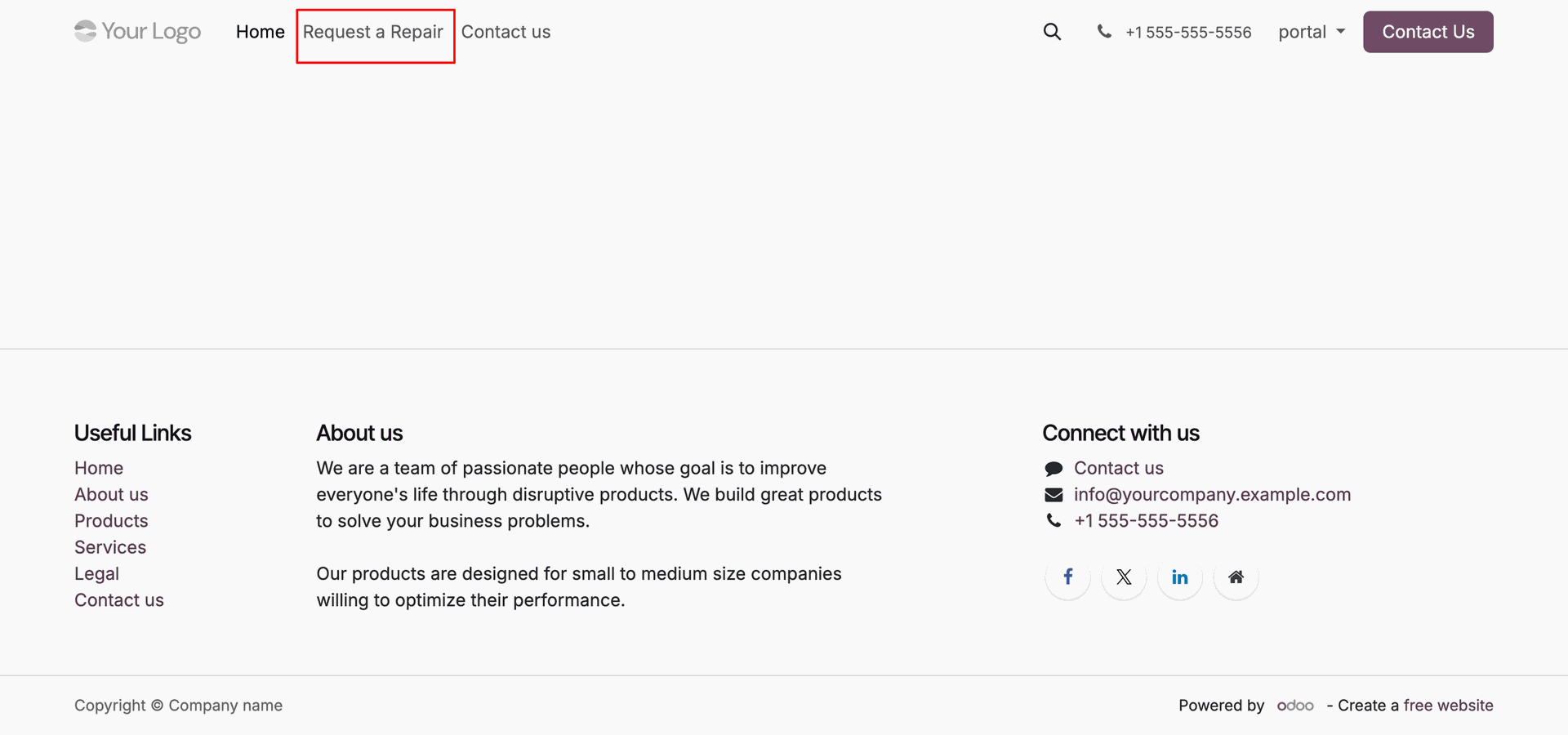
Click Request a Repair link in the top navigation bar of customer portal.
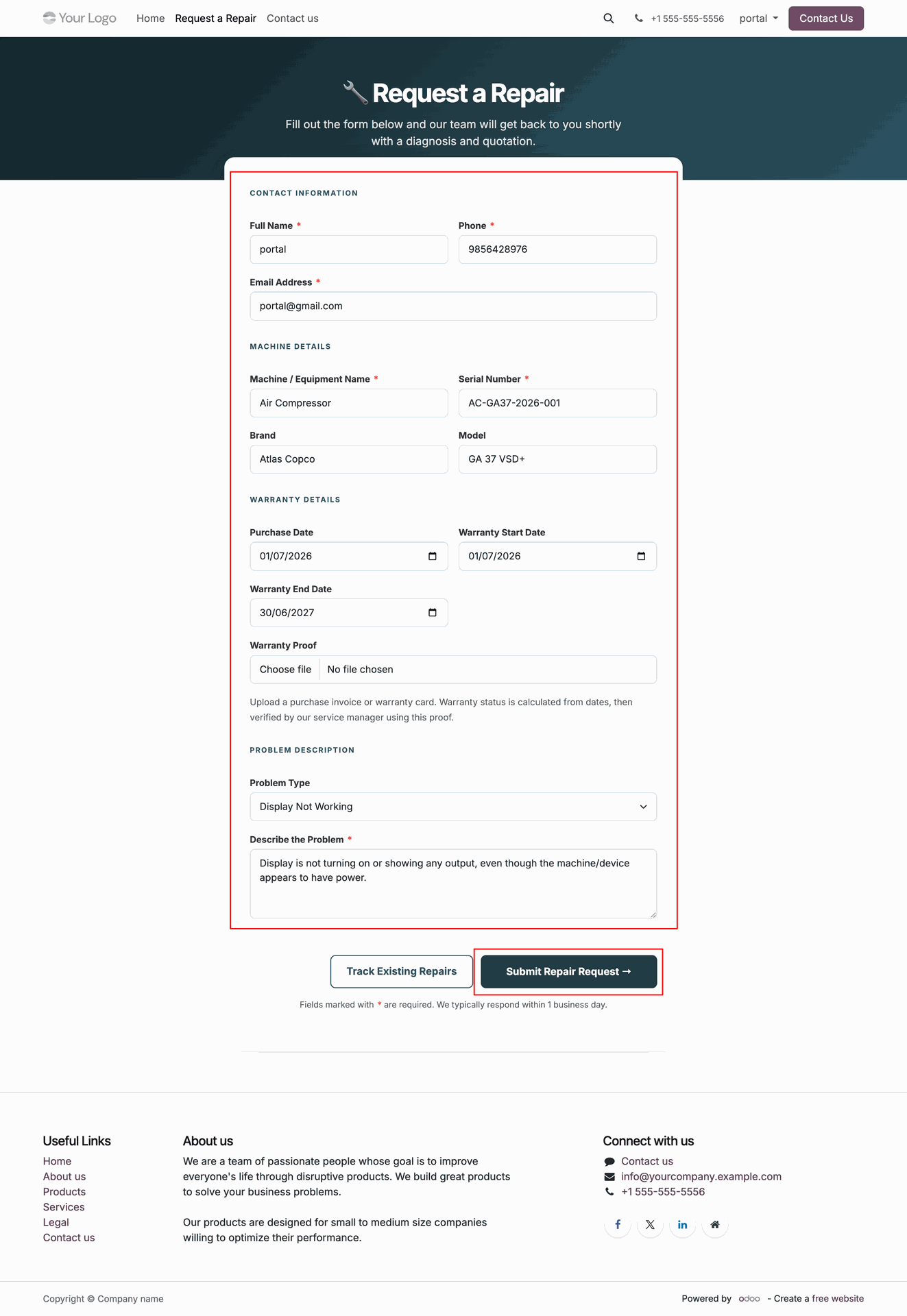
Fill in customer, machine details, problem description, and click Submit Repair Request button.
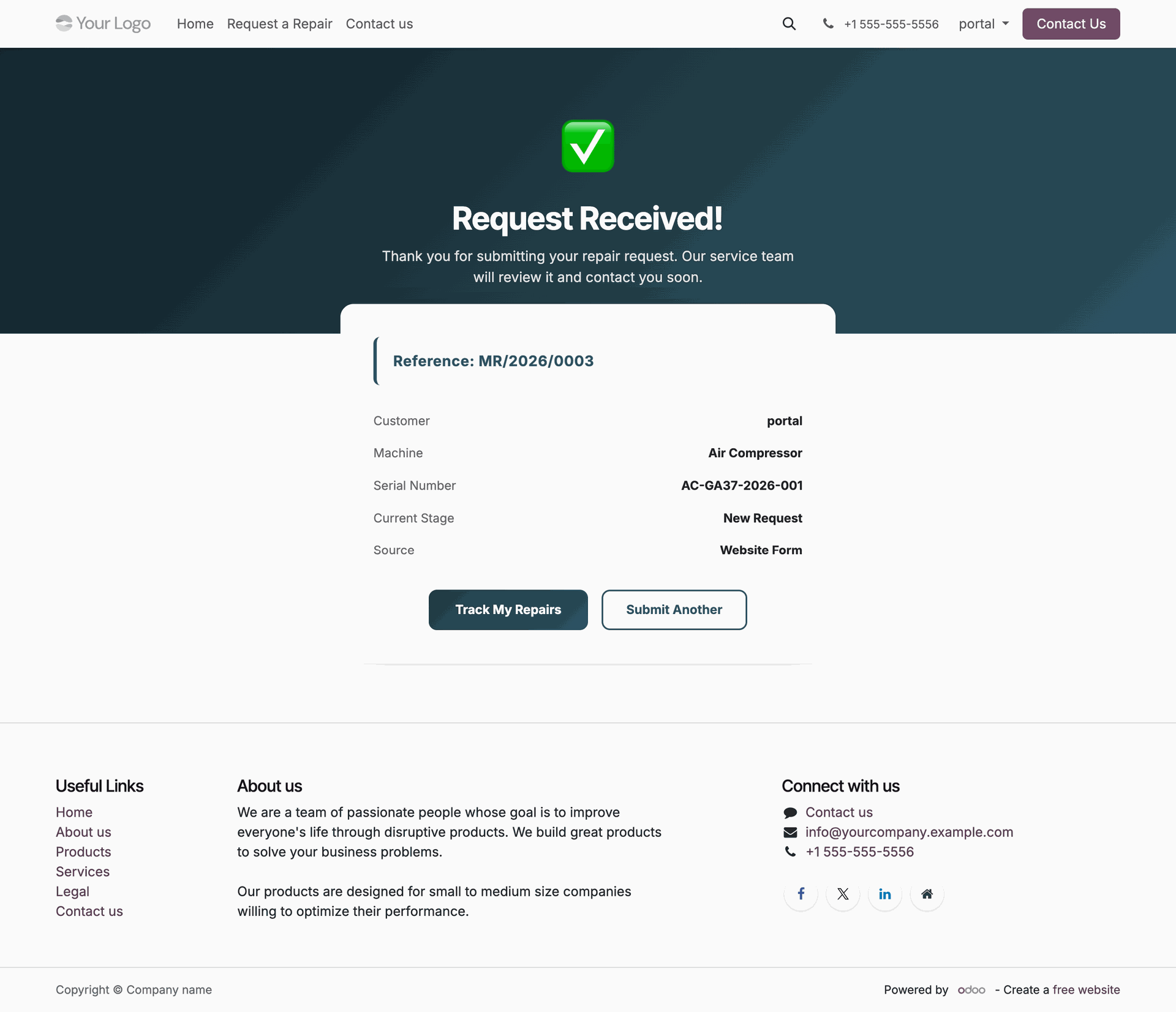
View repair request submission confirmation message showing generated reference number MR/2026/0003 on portal.
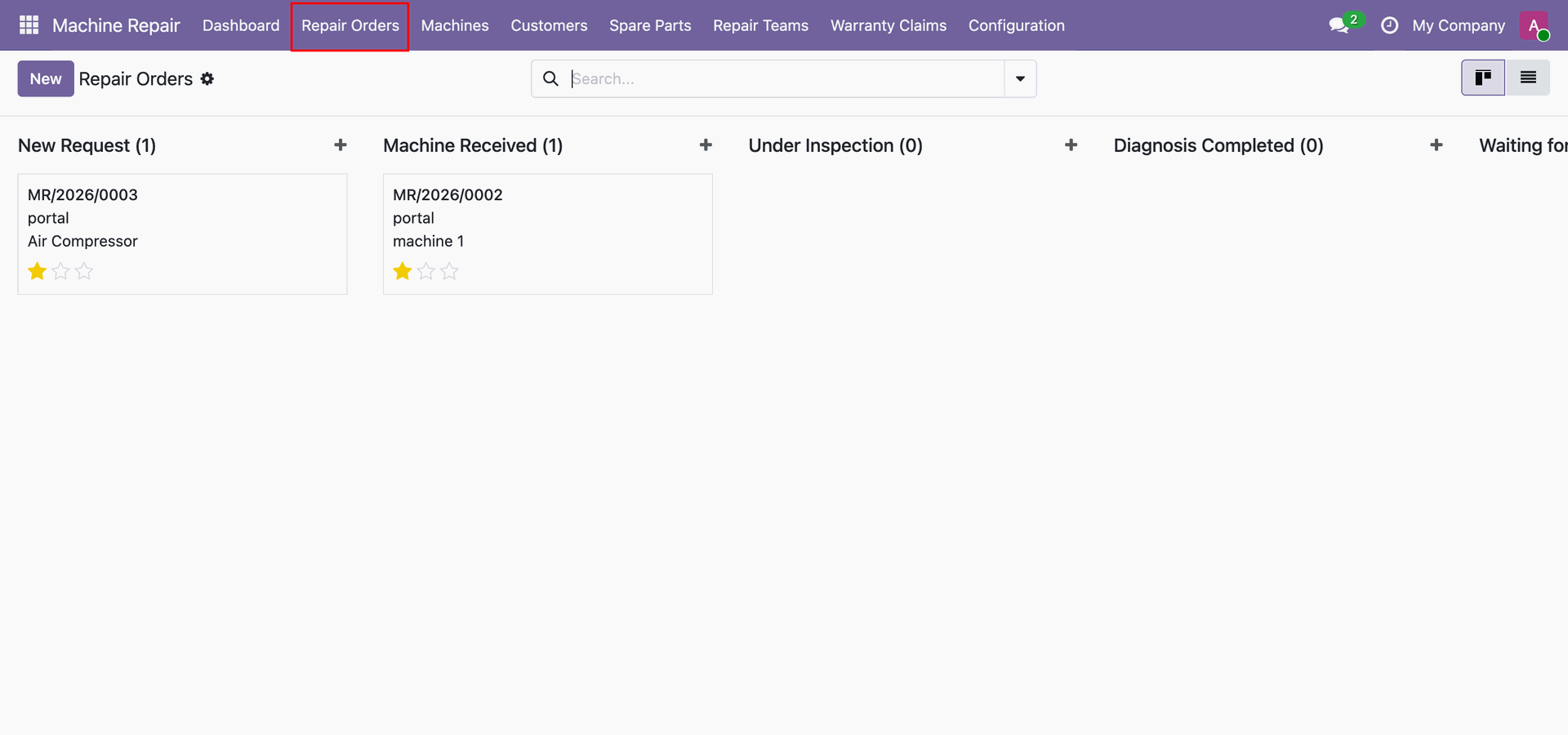
Select Repair Orders from top menu to view all machine repair requests in backend.
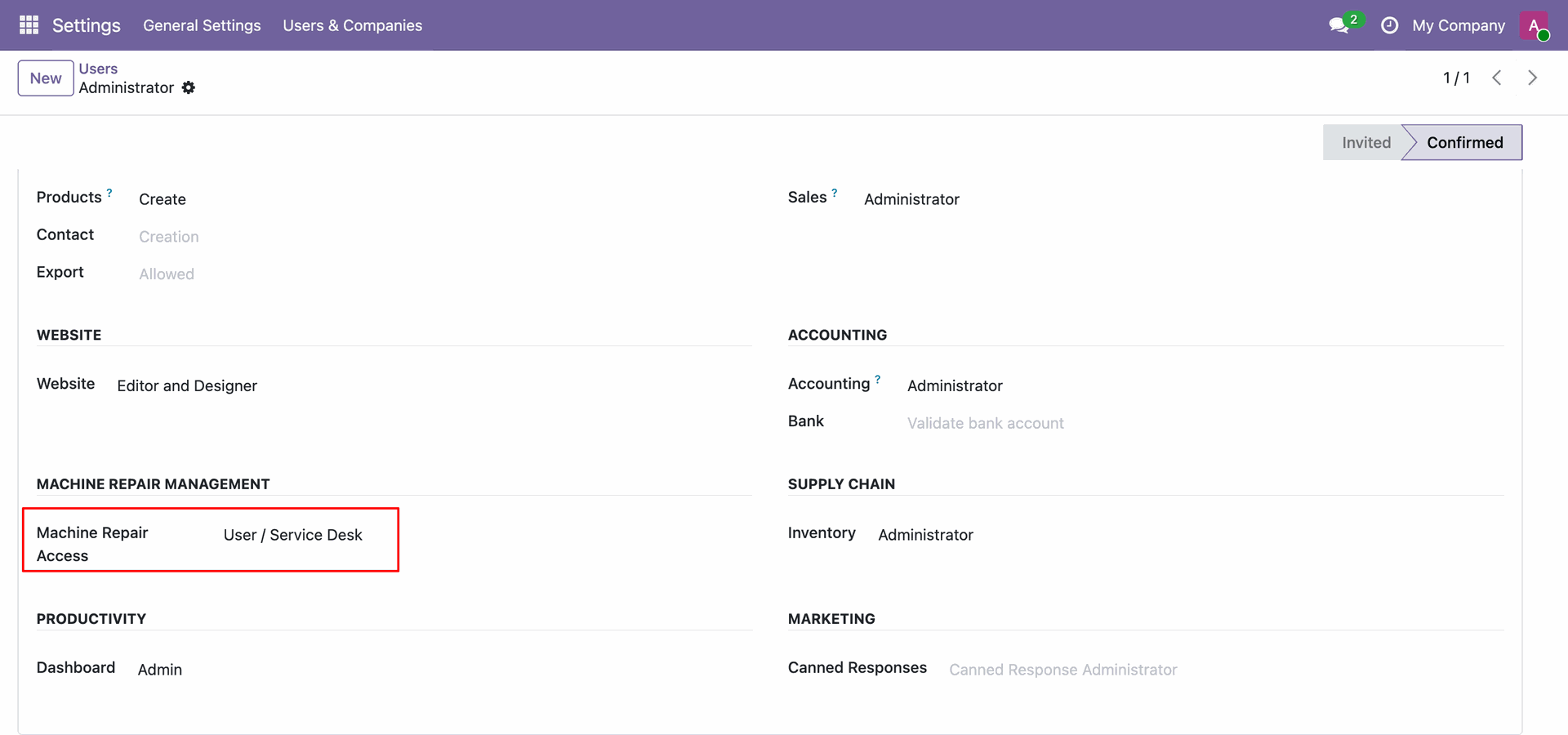
Set Machine Repair Access group to User Service Desk for service desk user permissions.
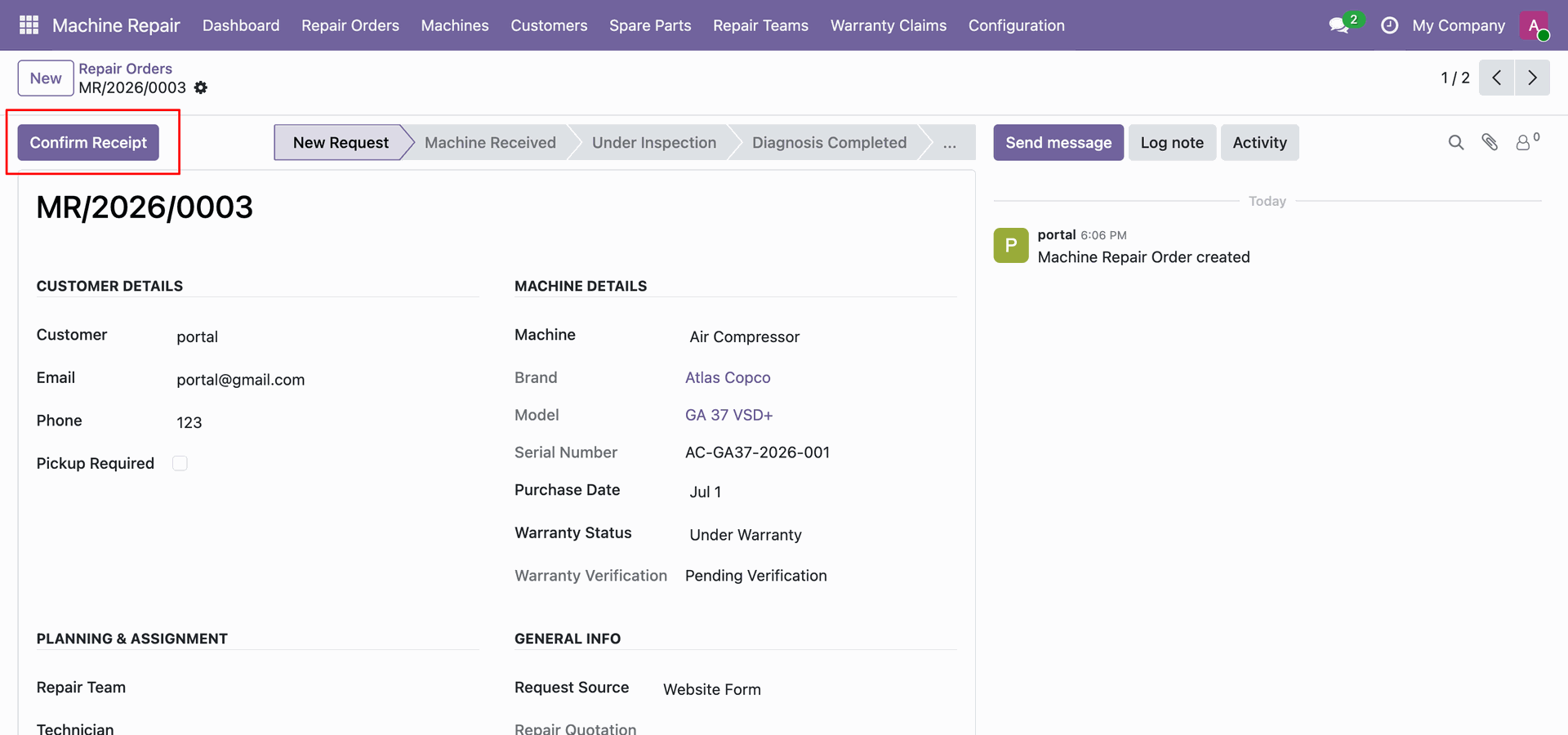
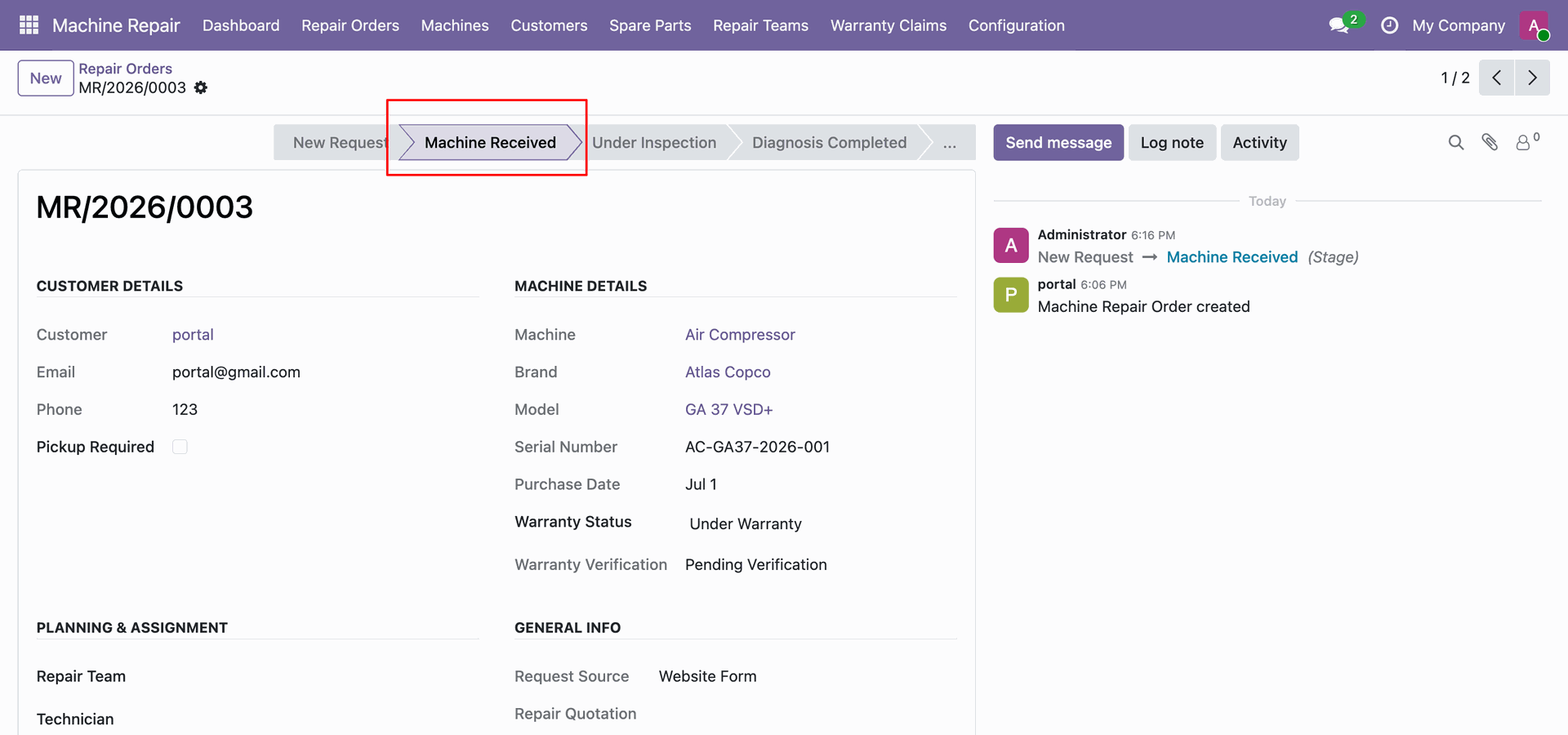
Click Confirm Receipt header button on repair order form to acknowledge incoming machine delivery.
View repair order stage automatically updated to Machine Received after acknowledging machine arrival.
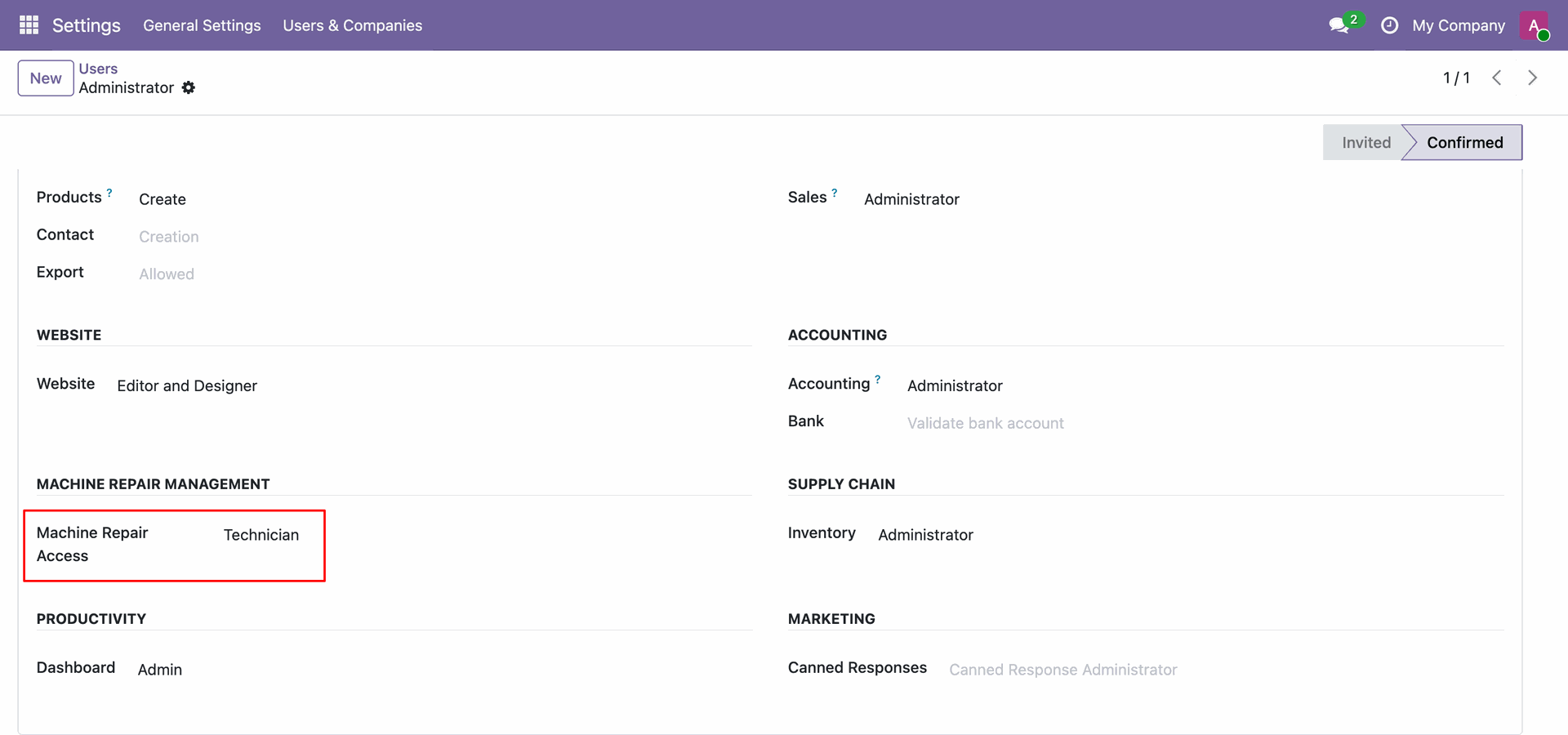
Configure Machine Repair Access user group to Technician for assigned repair technician permissions.
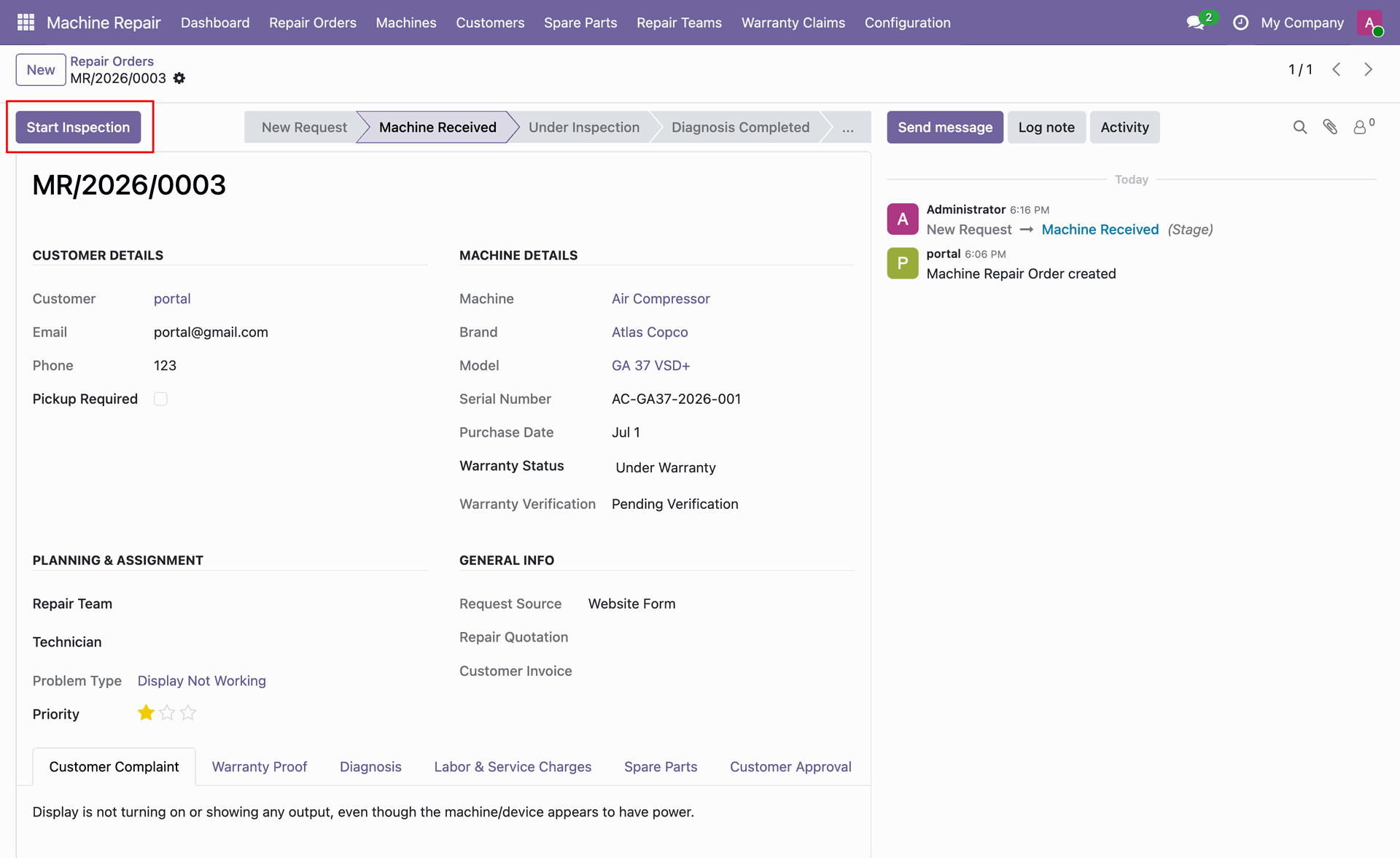
Click Start Inspection header button on repair order form to begin machine diagnostic check.
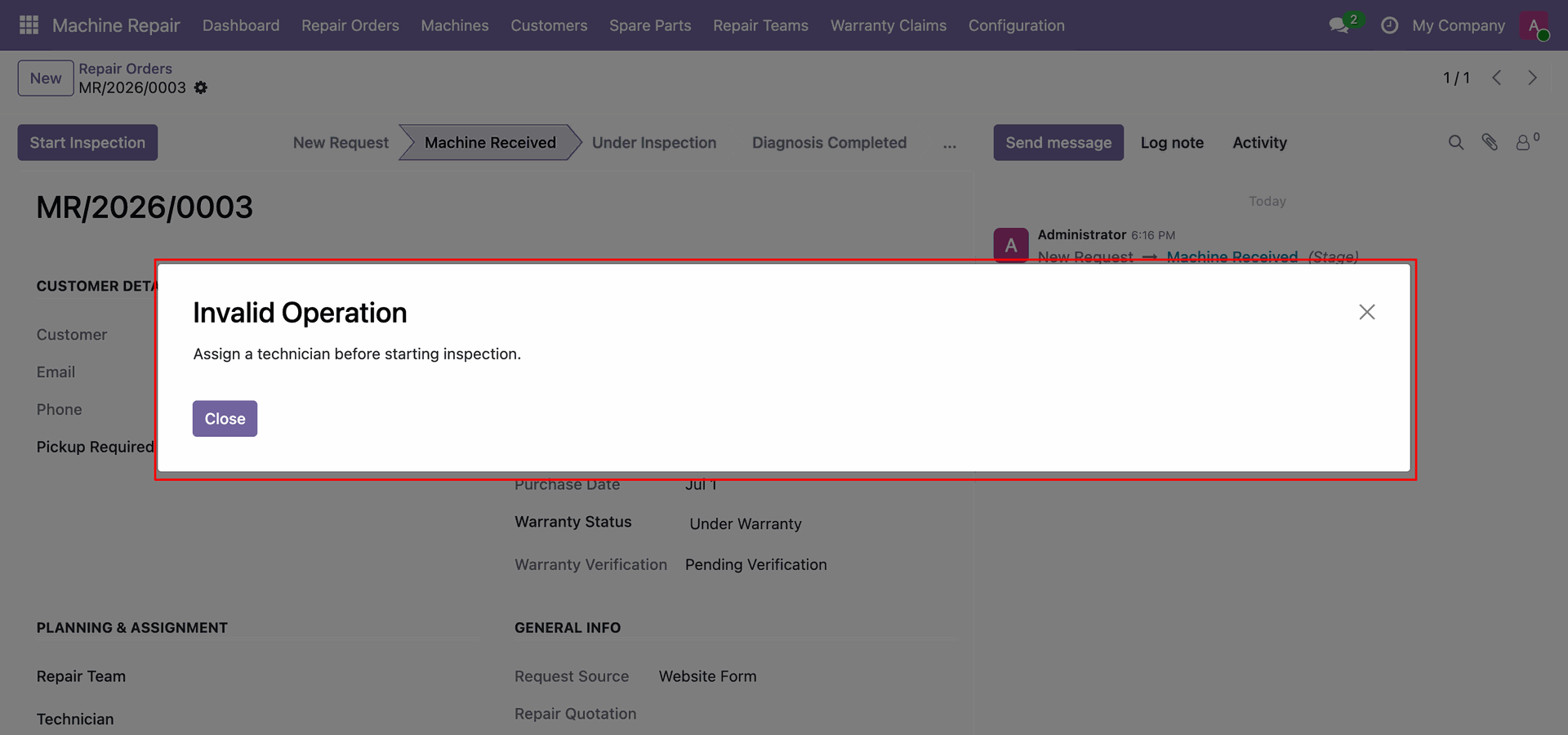
View Invalid Operation popup warning to assign a technician before starting machine inspection.
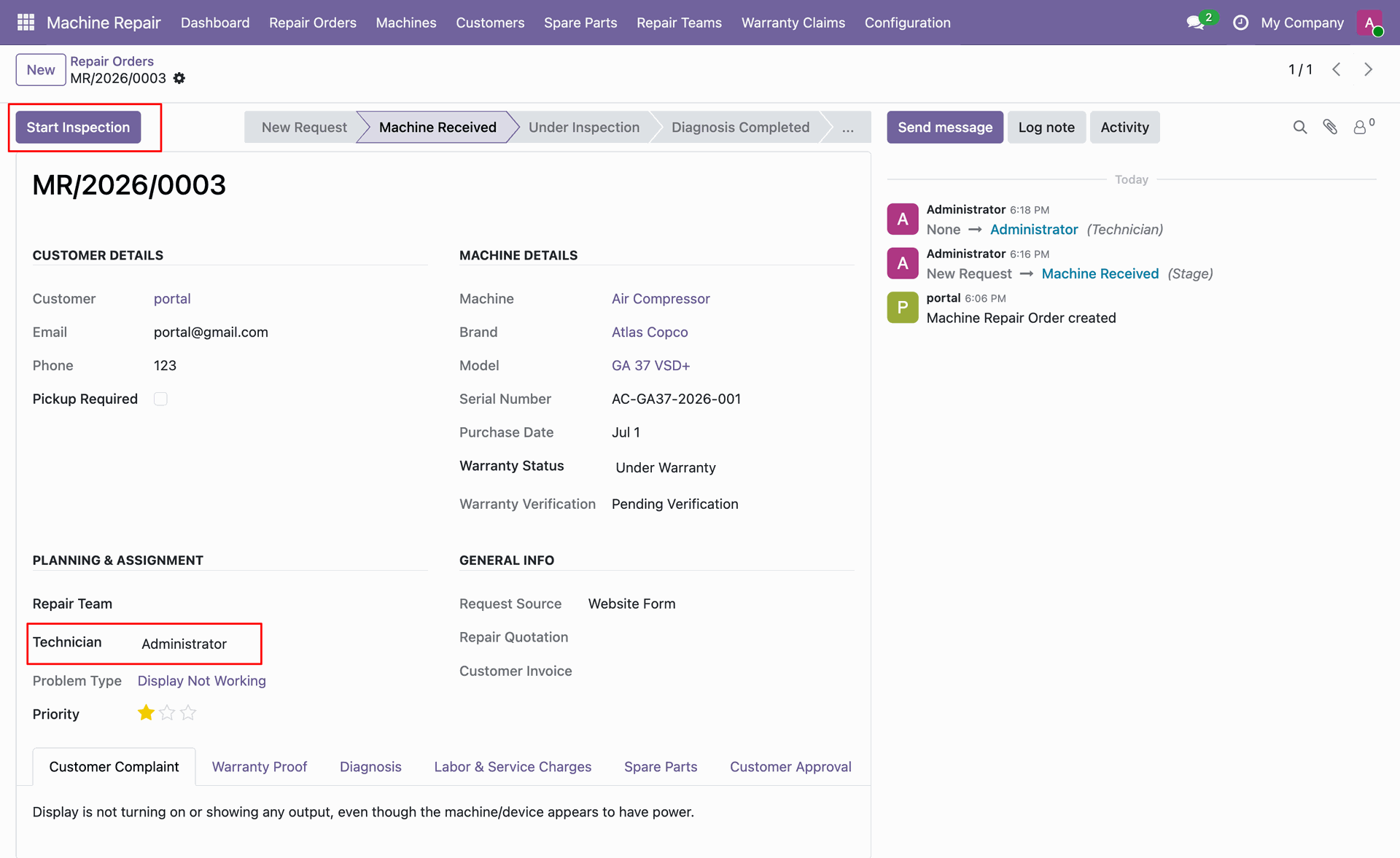
Assign technician Administrator and click Start Inspection header button to proceed with diagnostic check.
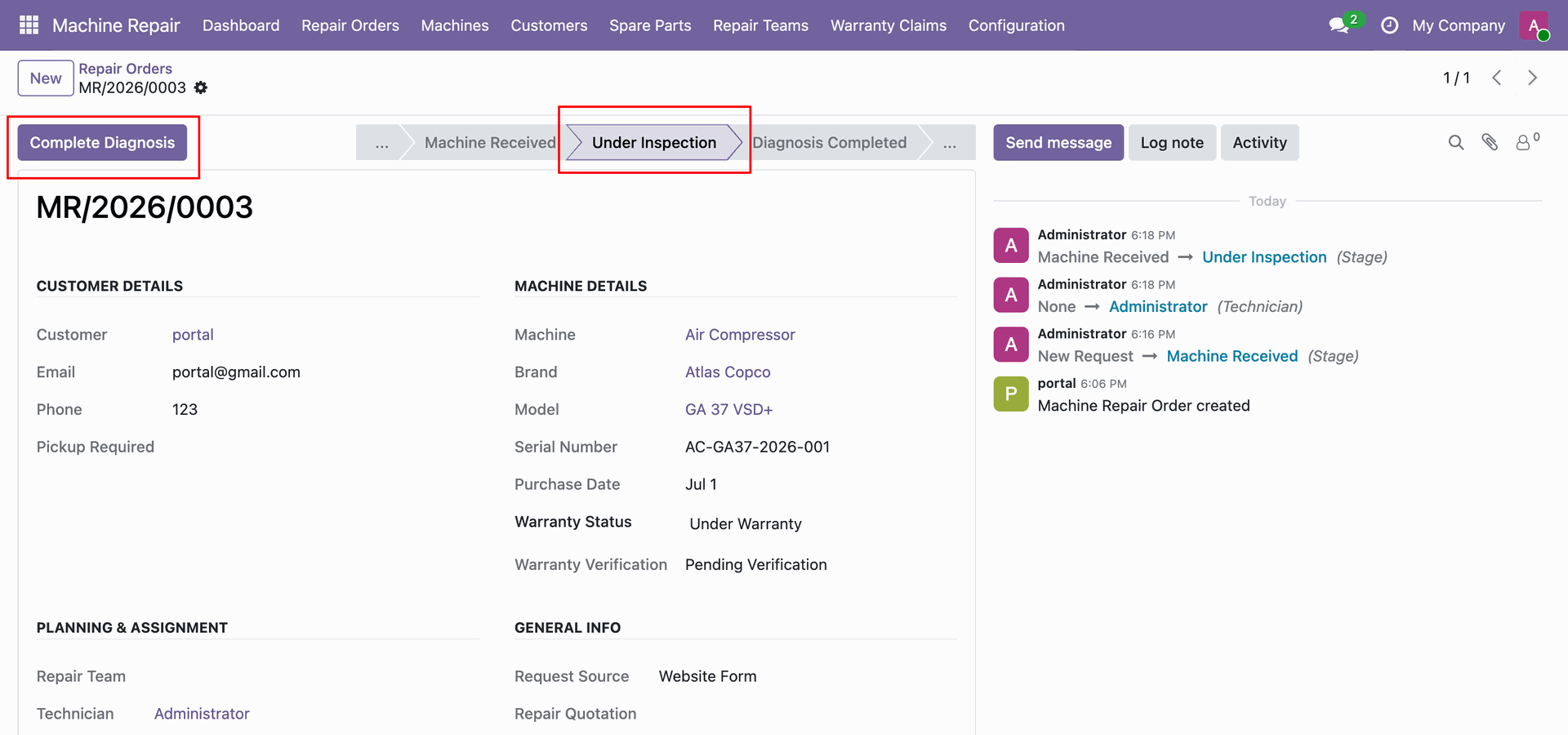
View order stage updated to Under Inspection and click Complete Diagnosis header button.
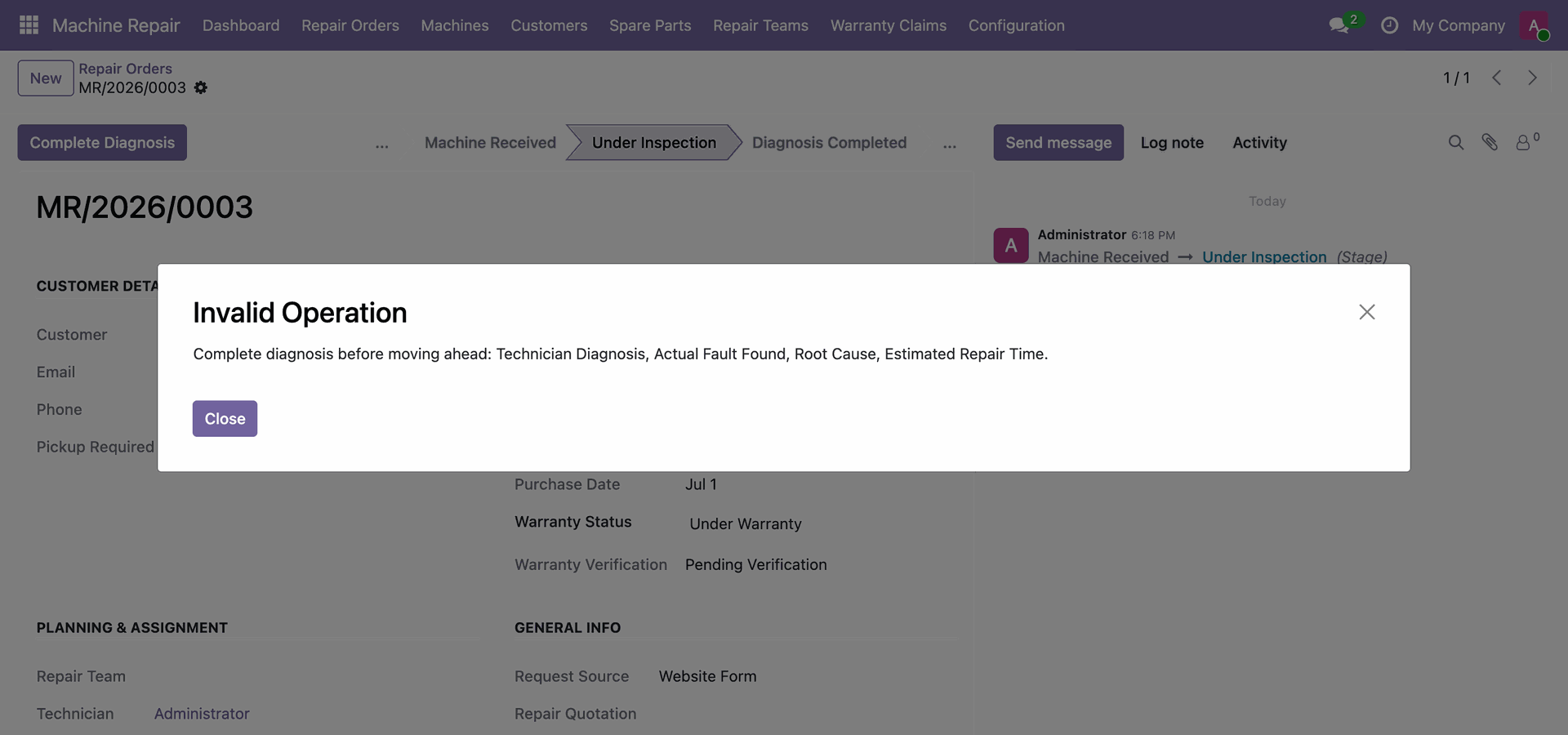
View Invalid Operation popup modal instructing user to complete diagnosis details before advancing workflow.
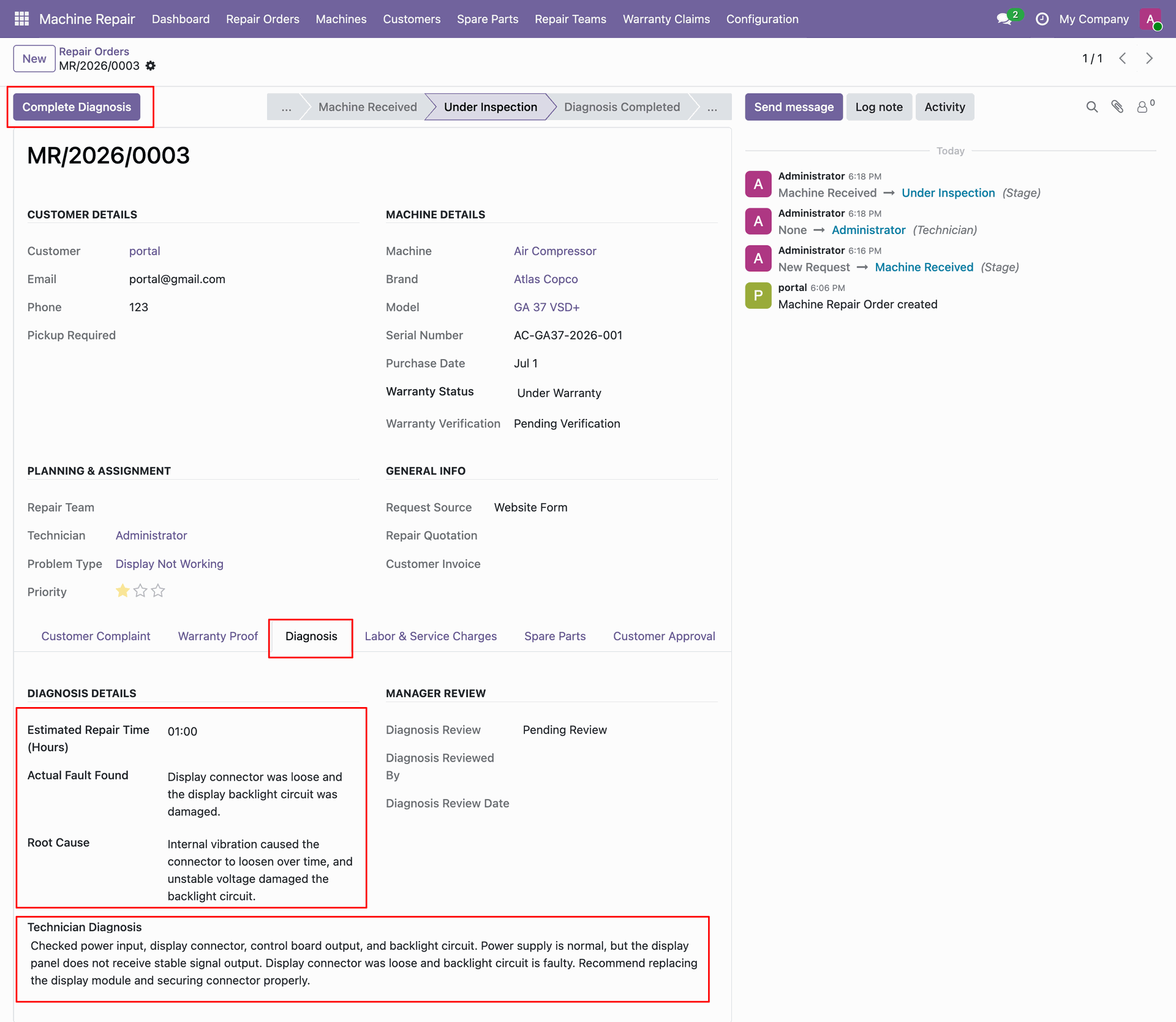
Fill in Fault Found, Root Cause, Technician Diagnosis details and click Complete Diagnosis button.
View repair order workflow status updated to Diagnosis Completed after recording detailed diagnostic results.
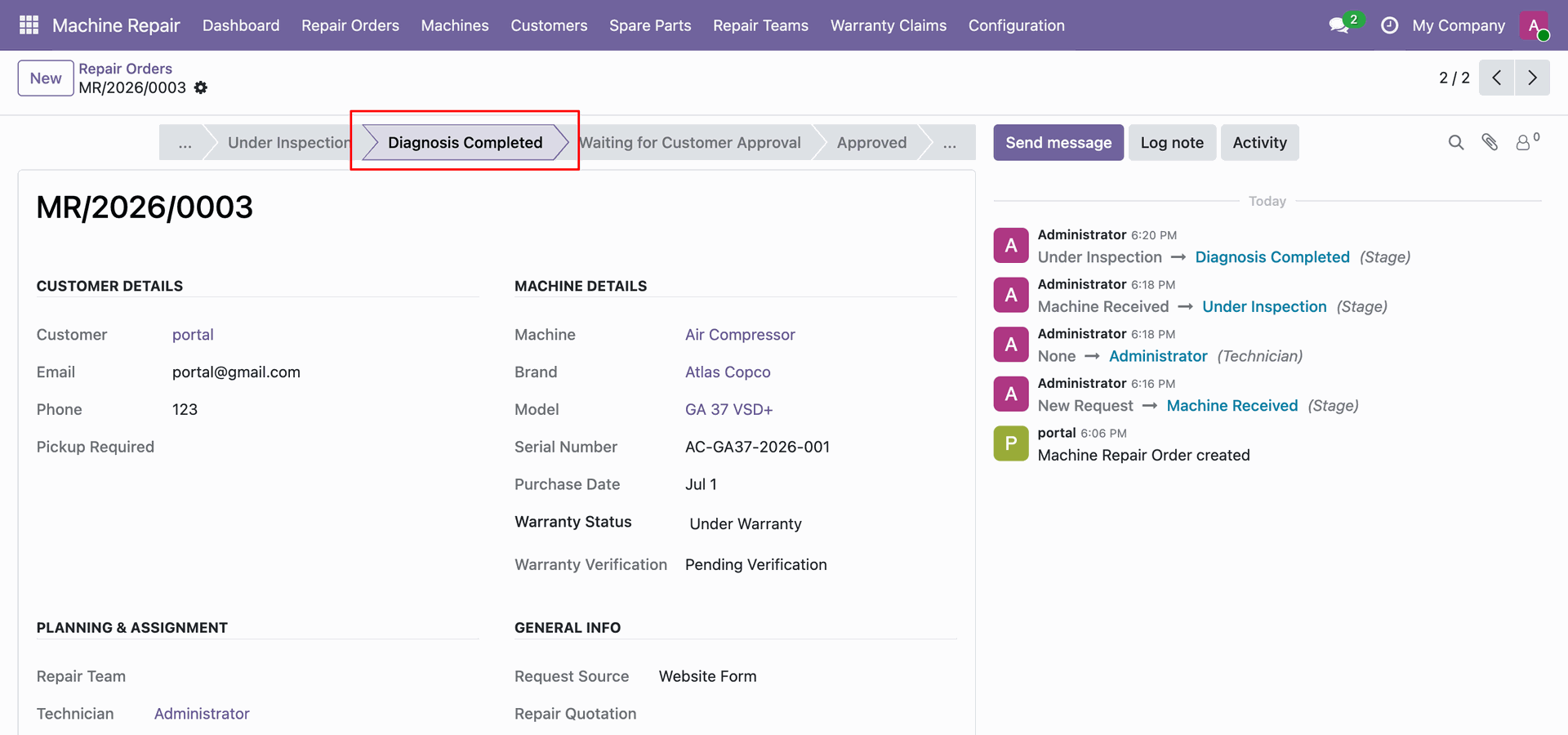
Set Machine Repair Access user group to Service Manager for manager approval permissions.
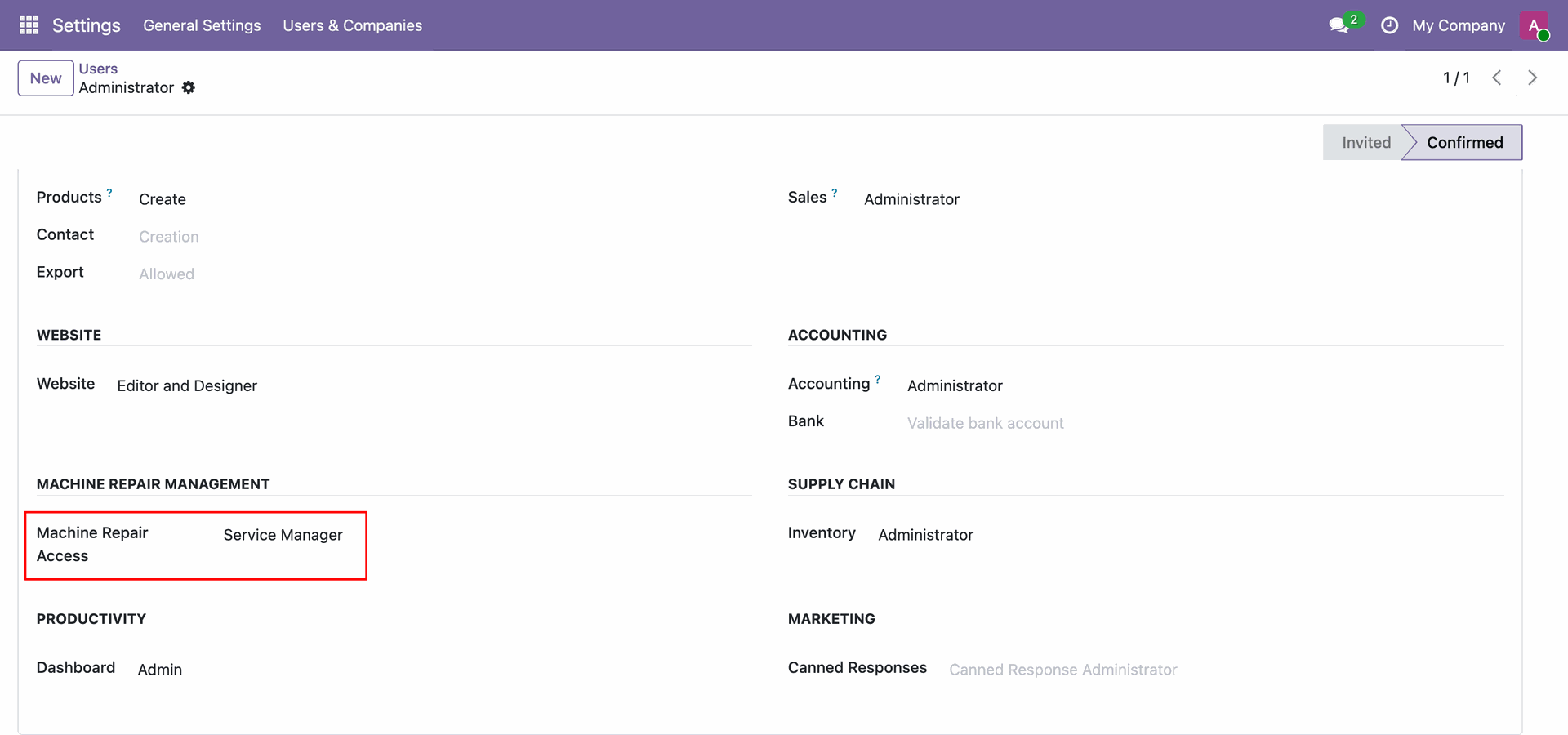
Click Approve Diagnosis header button as Service Manager to validate completed diagnostic report.
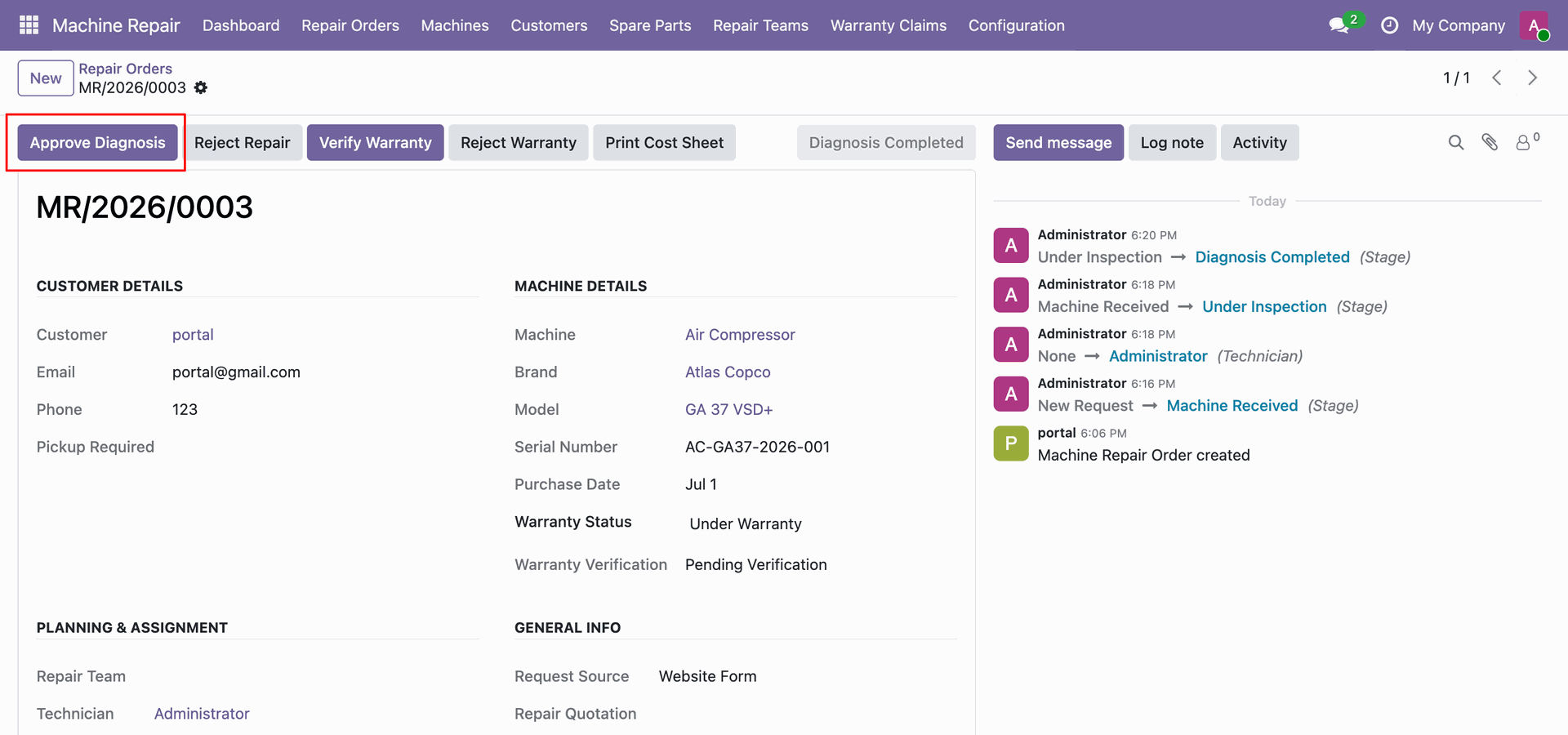
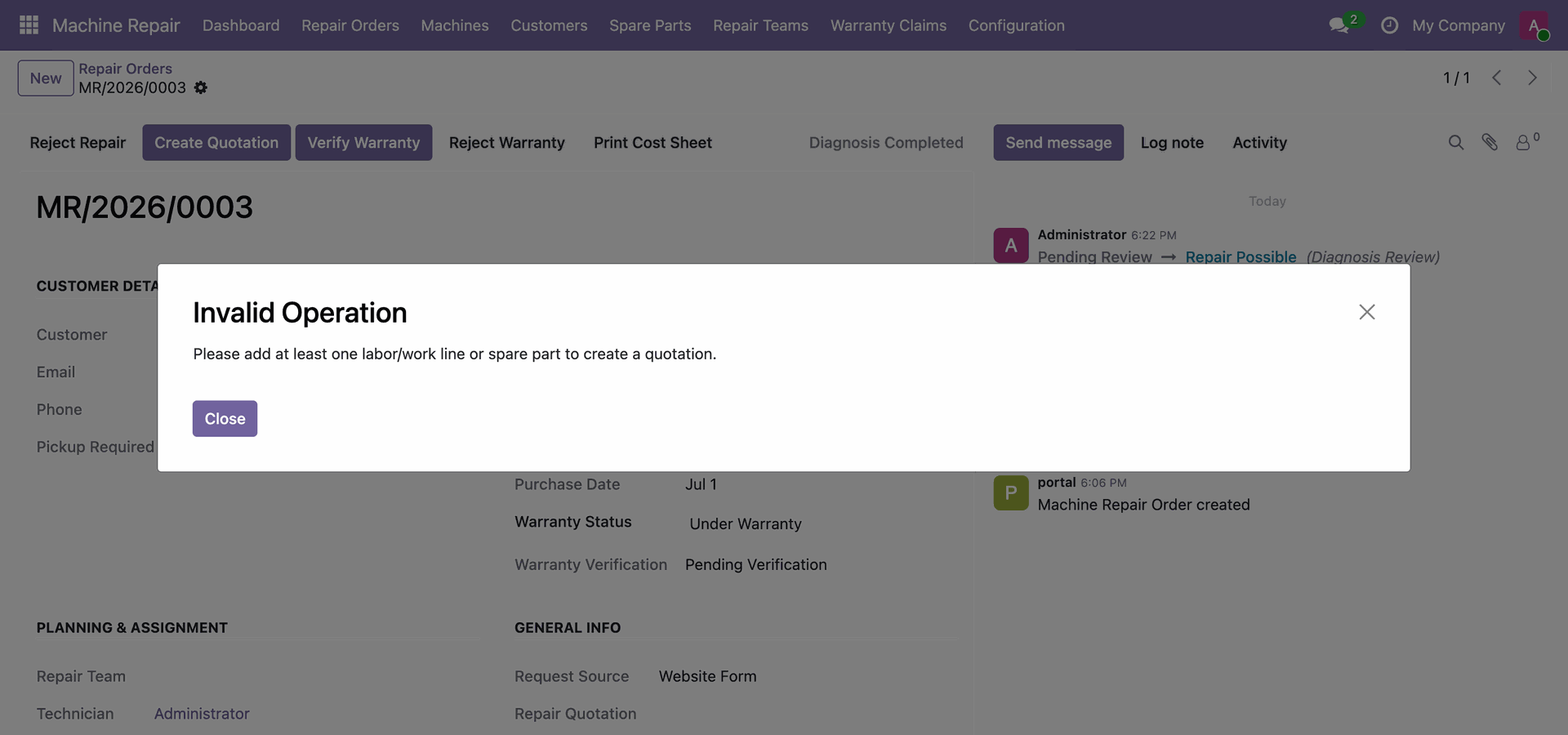
Click Create Quotation header button on repair order form to generate cost estimate quotation.
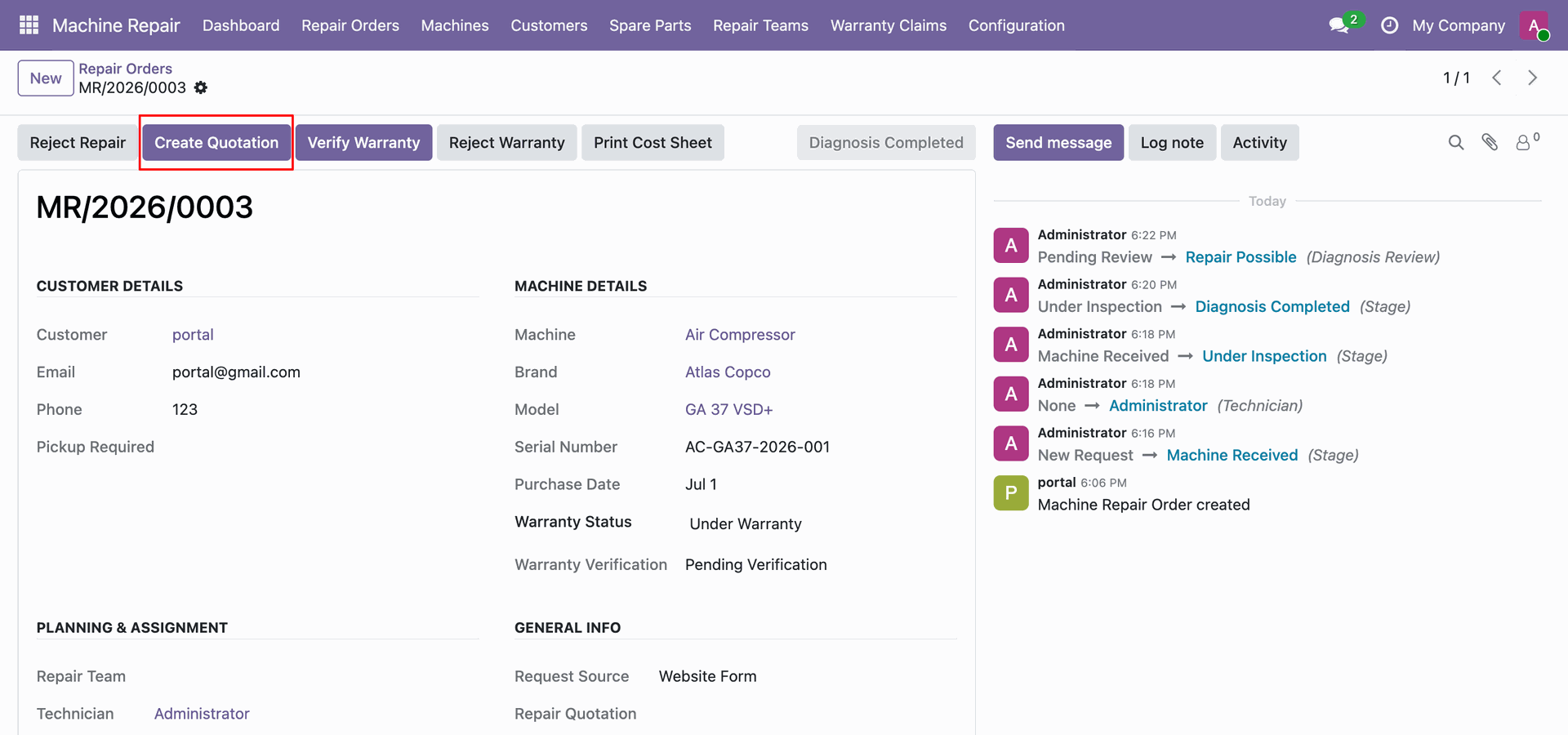
View Invalid Operation popup warning to add labor charges or spare parts before creating quotation.
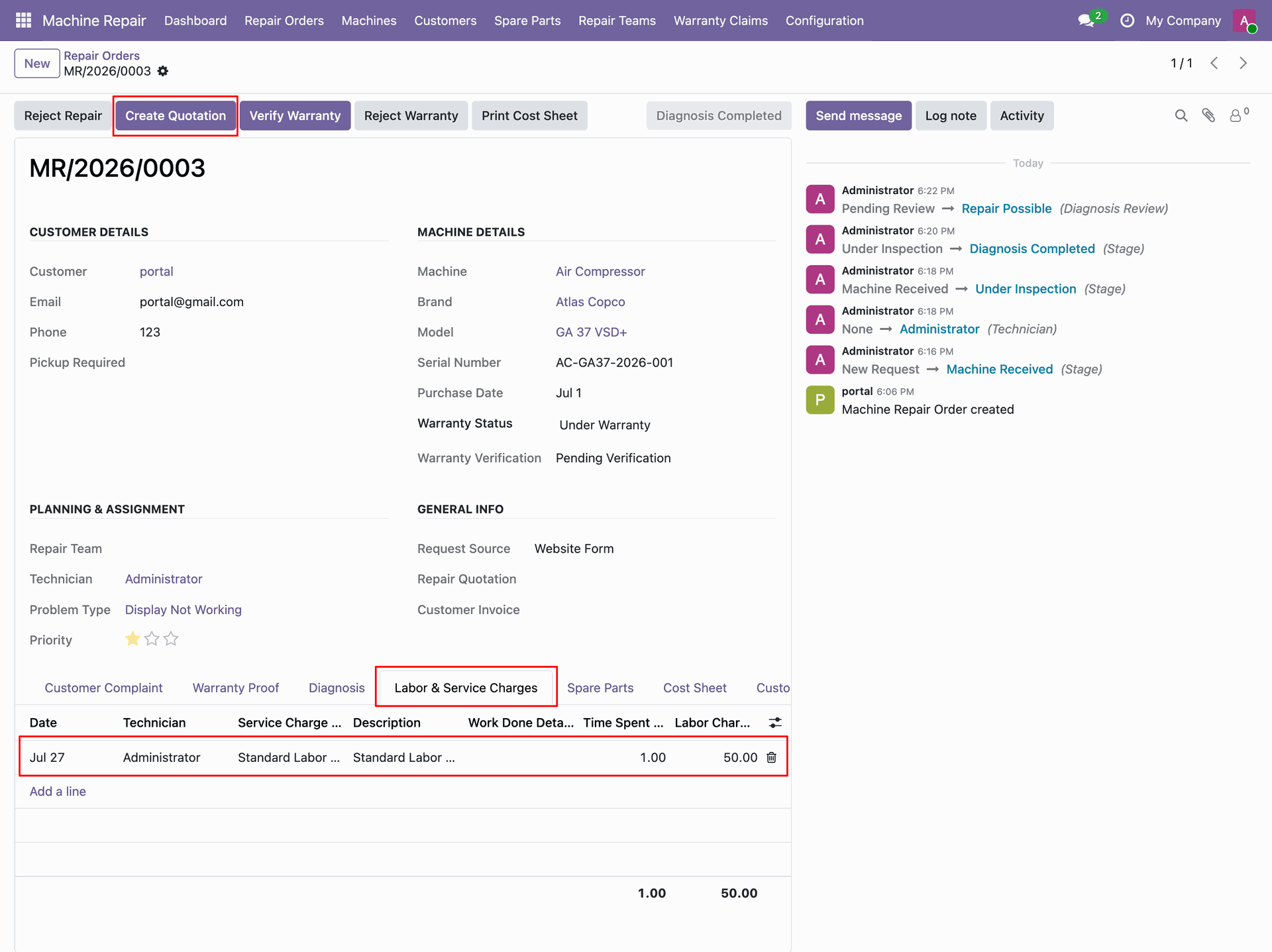
Add Standard Labor Service line under Labor Charges tab and click Create Quotation button.
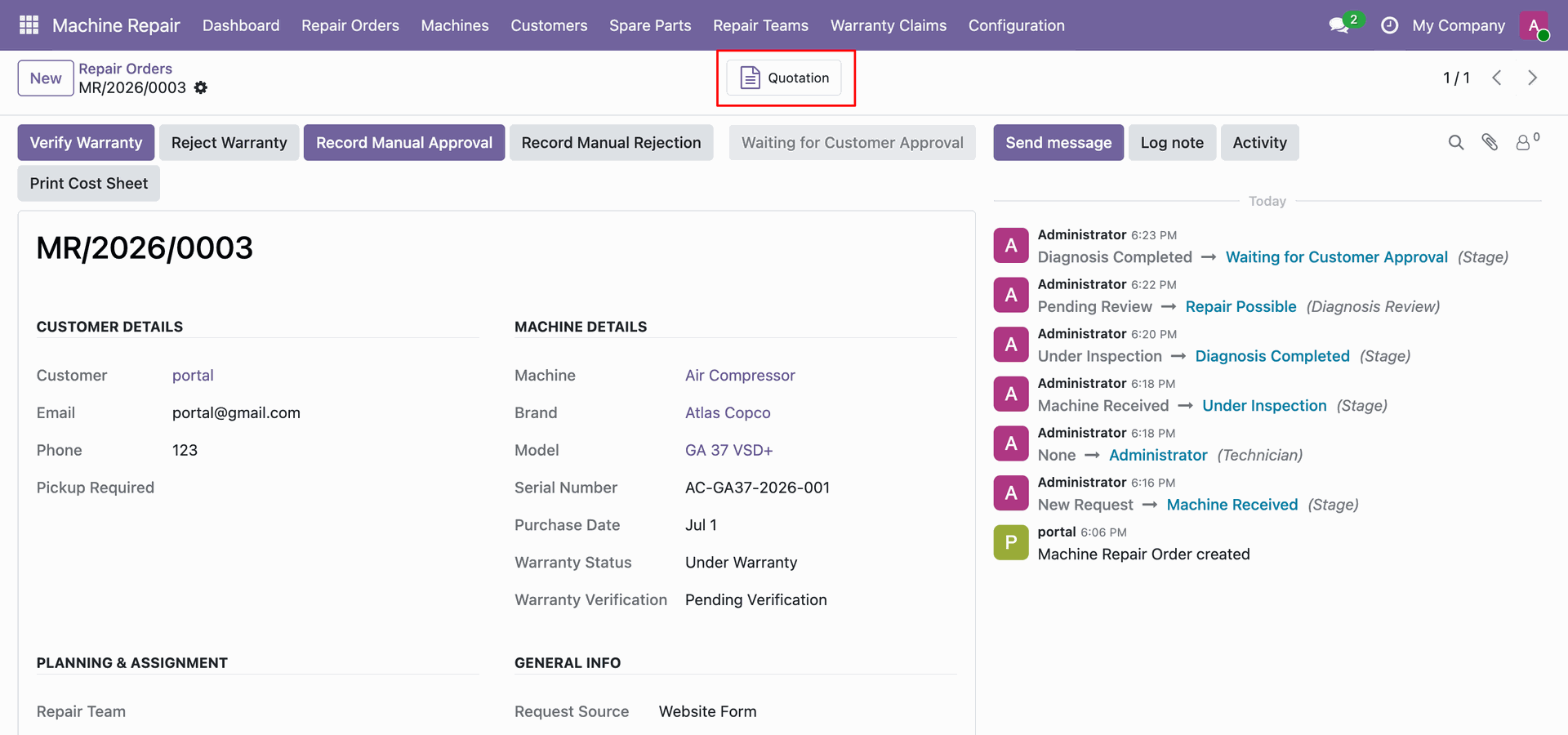
Click Quotation stat button in top right smart button bar to open linked repair quotation.
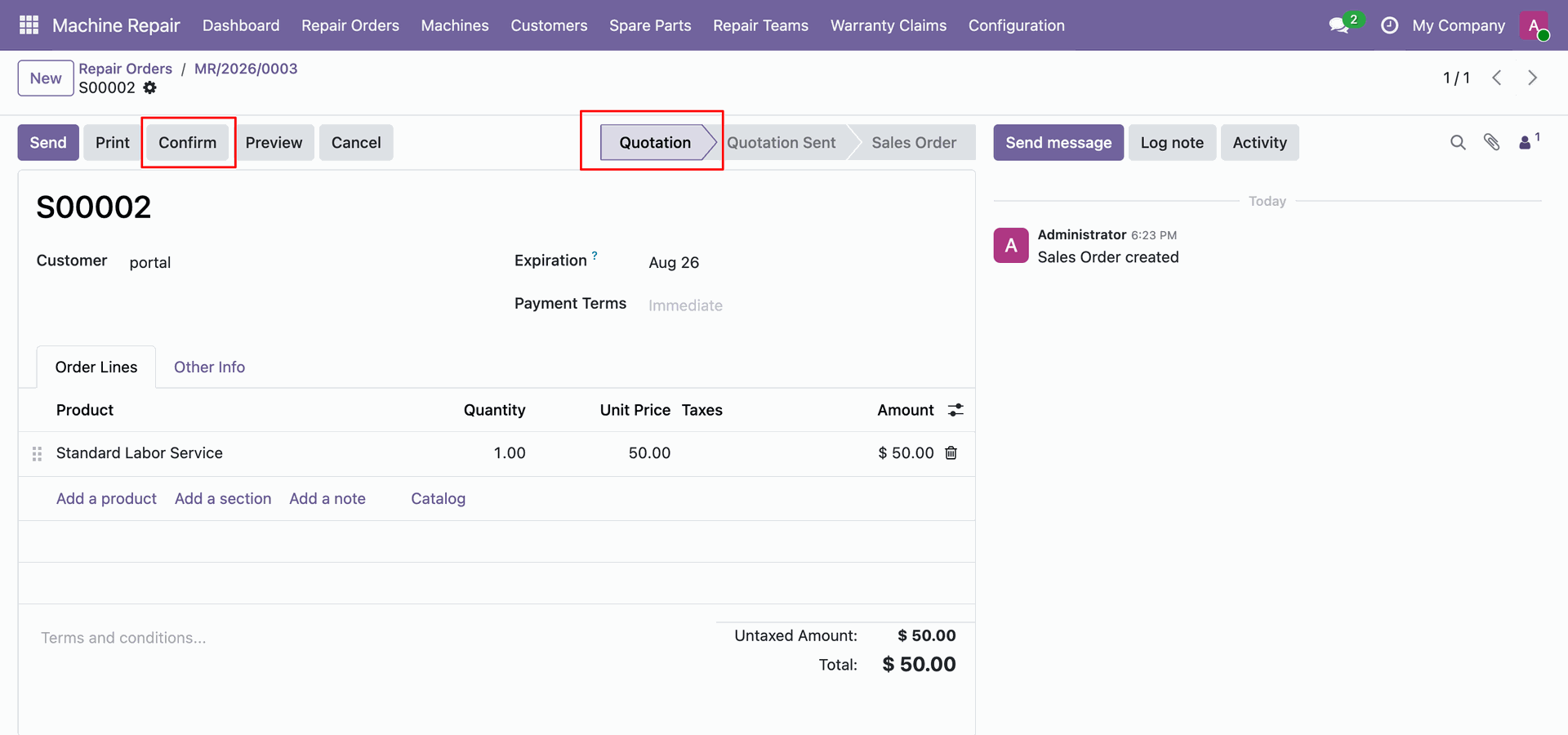
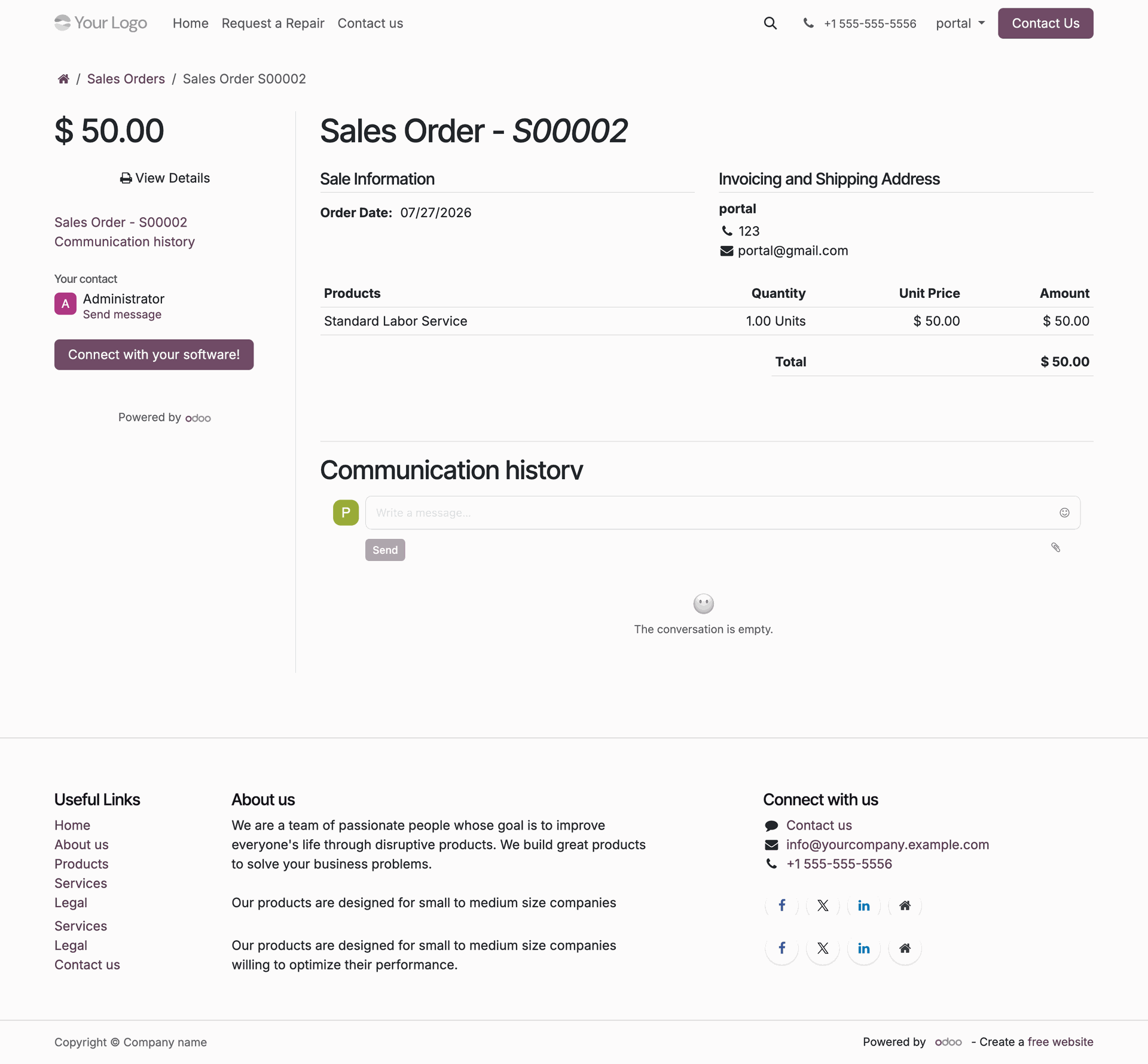
View generated sales quotation S00002 for repair order and click Confirm header button.
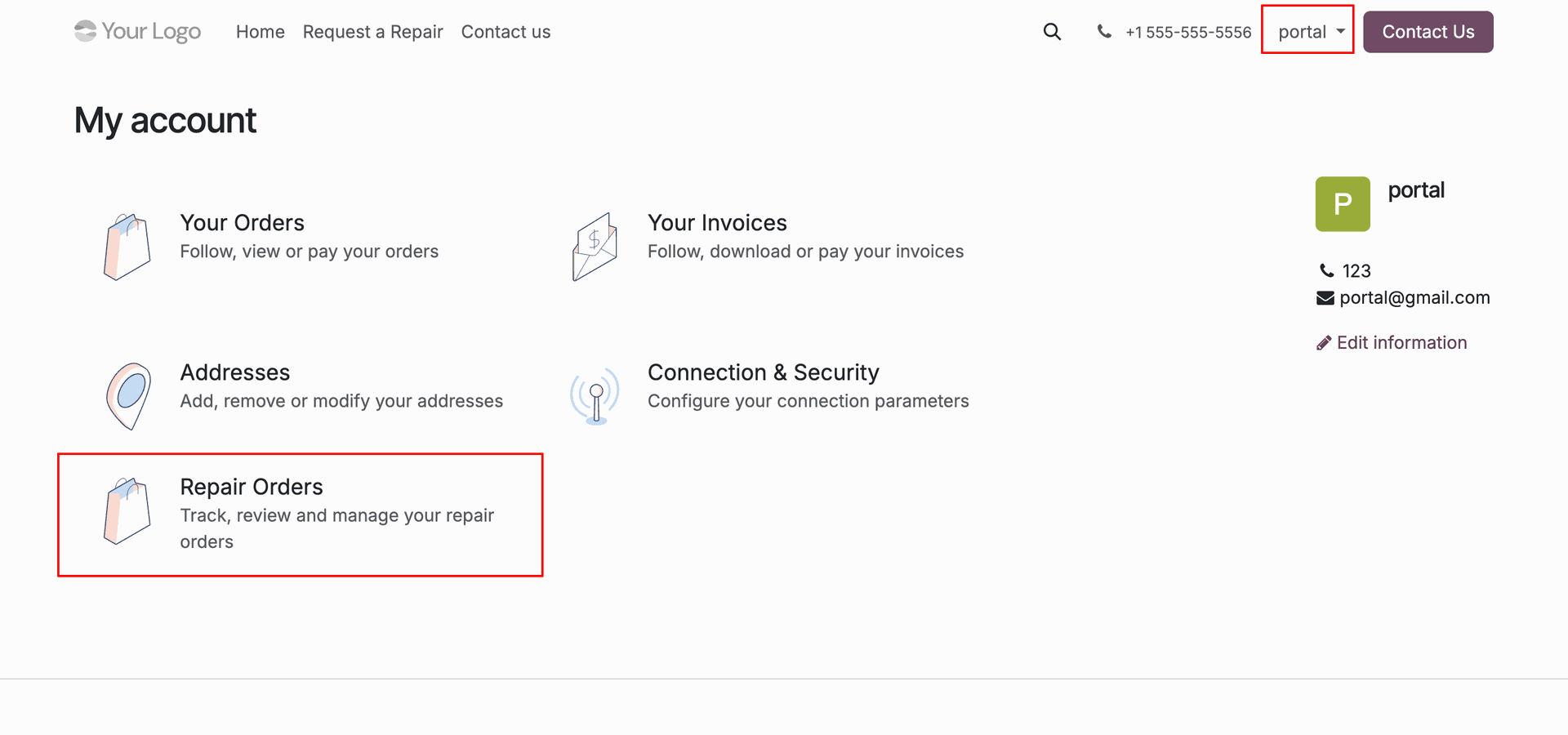
Click Repair Orders menu card on customer portal dashboard to view submitted repair requests.
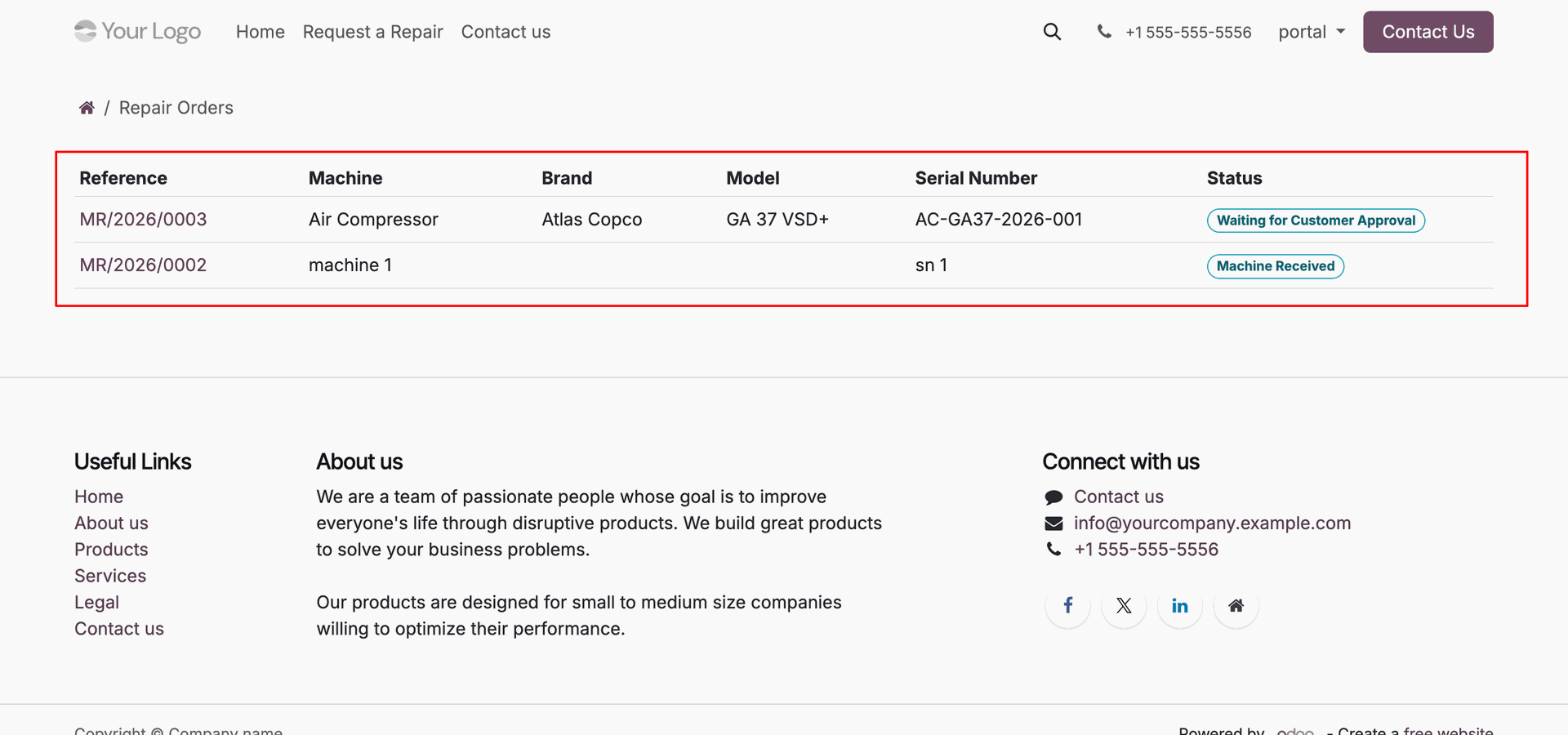
View repair orders list table on customer portal.
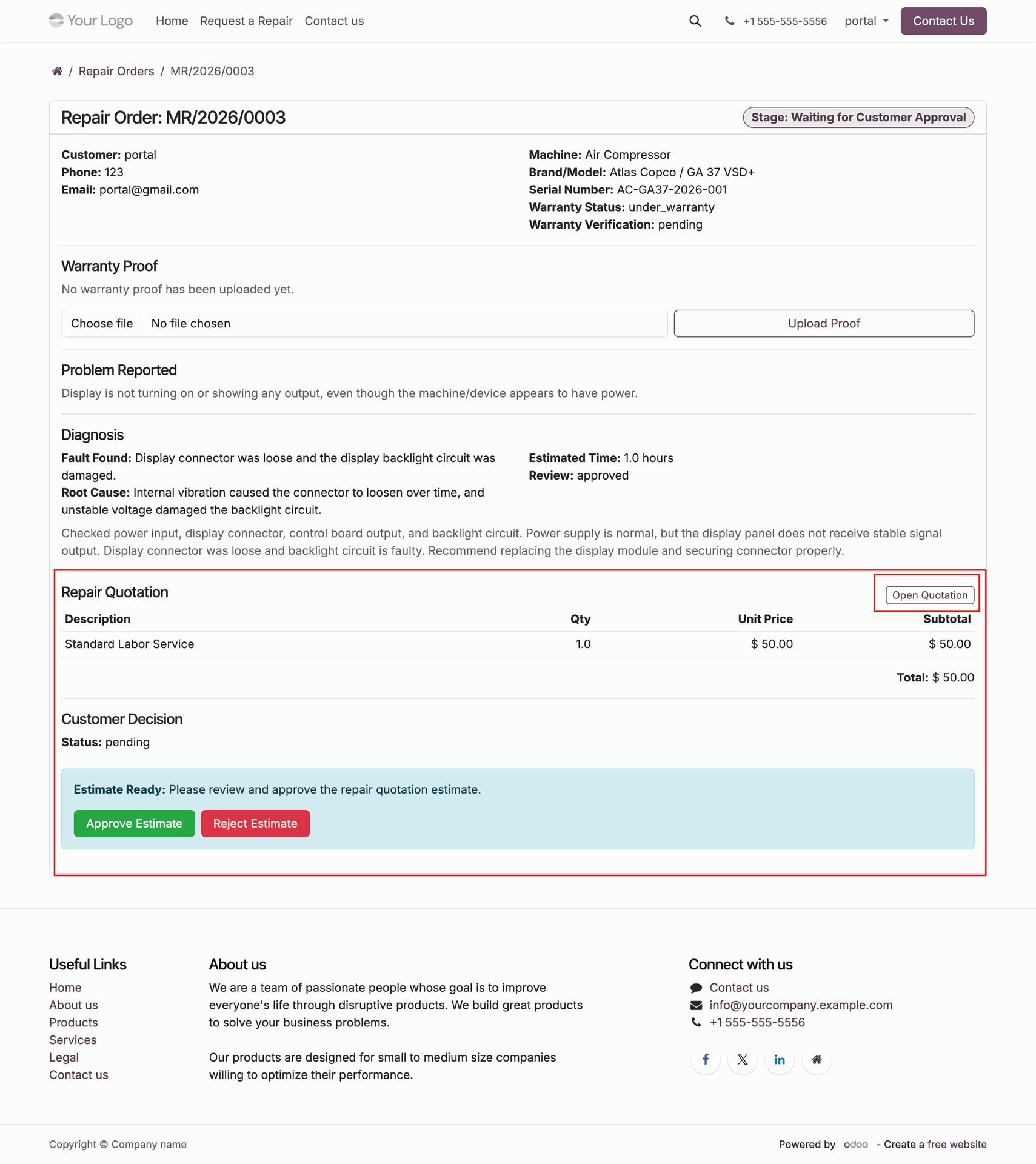
Review Repair Quotation cost details and estimation response buttons on customer portal order view.
View detailed sales quotation S00002 itemized charges and total amount on customer portal view.
Click Approve Estimate button on portal repair request to accept diagnostic repair quotation.
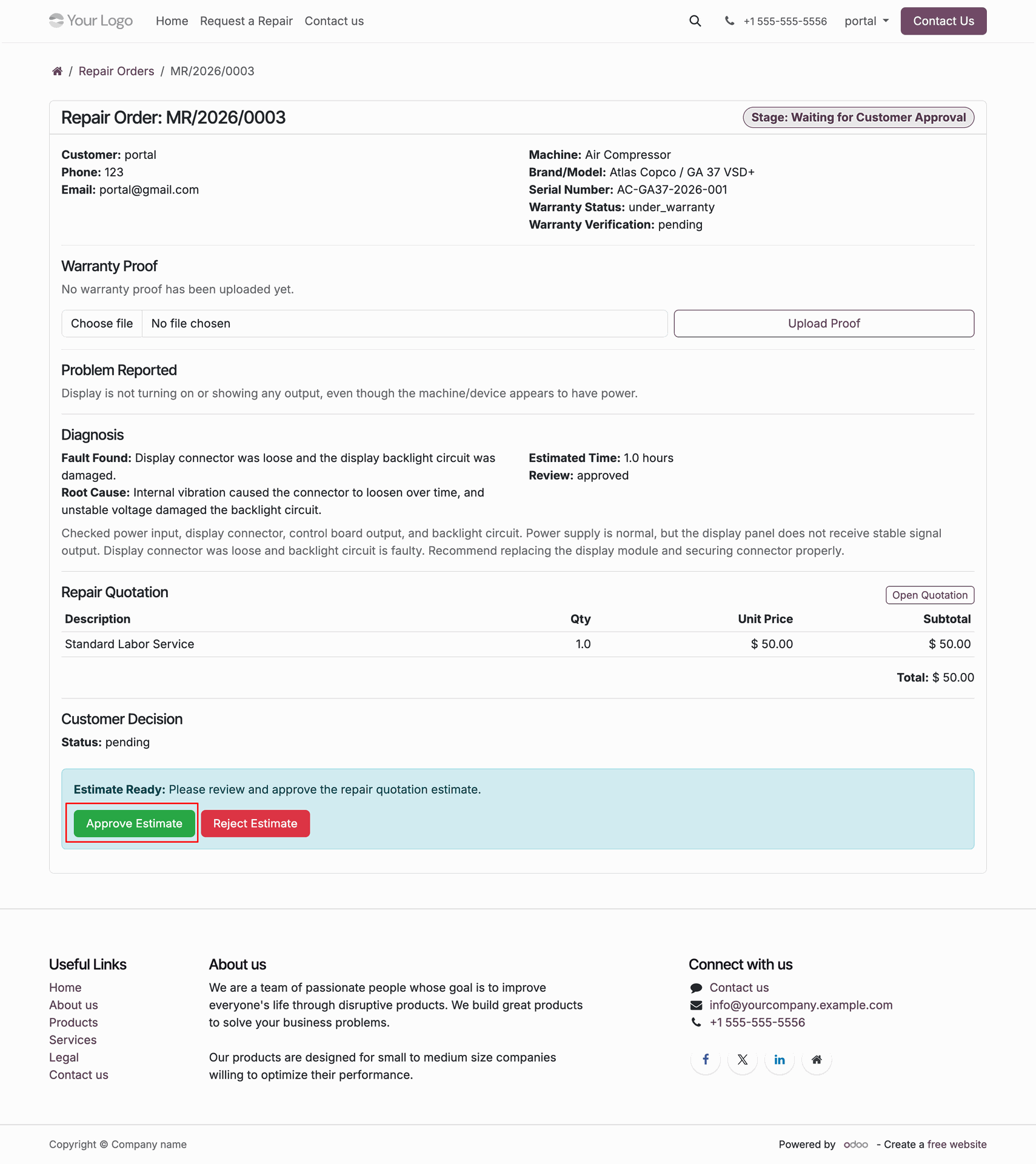
View stage updated to Approved and click Reserve Parts / Start Repair header button.
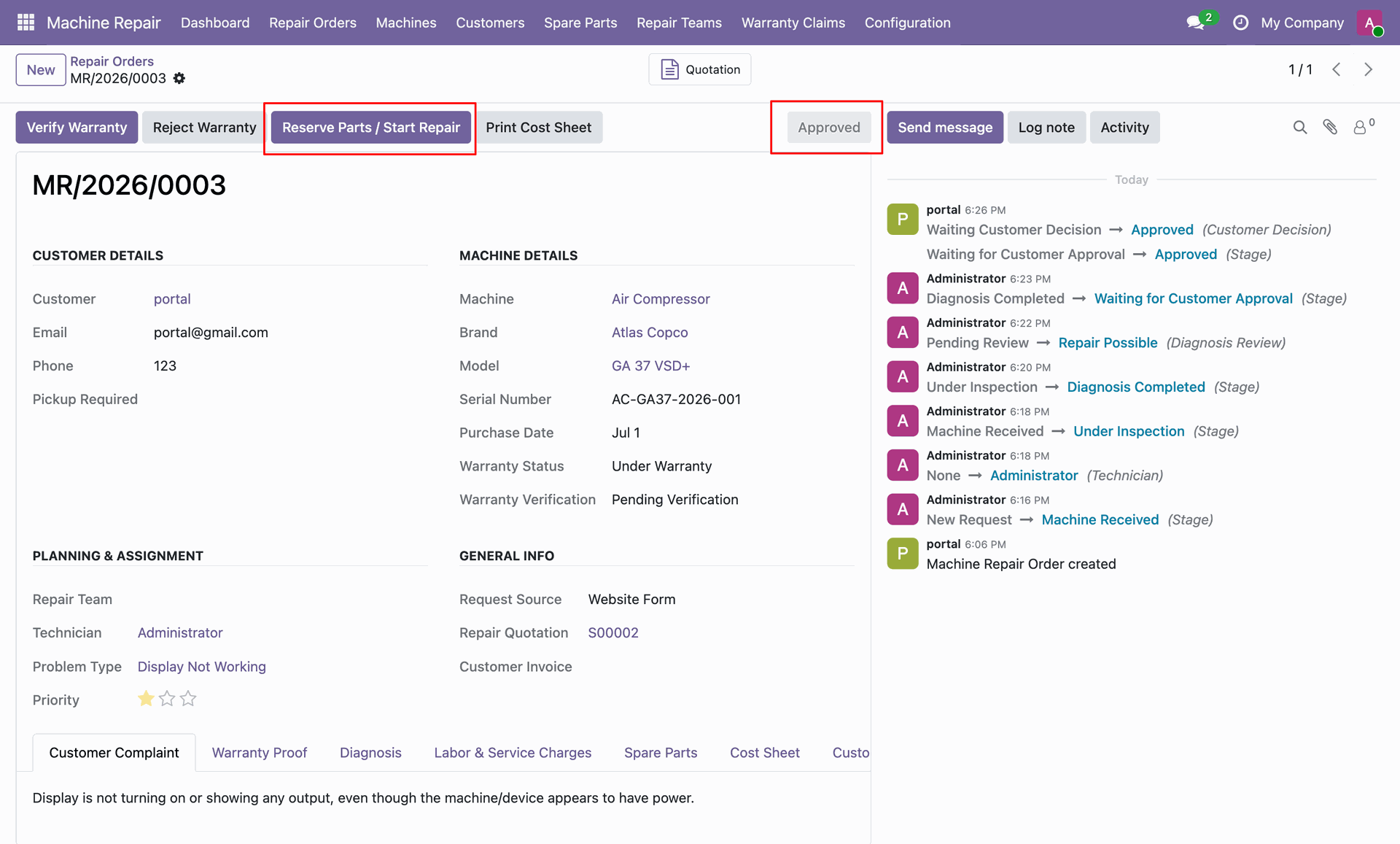
View stage updated to Repair in Progress and click Send to QC header button.
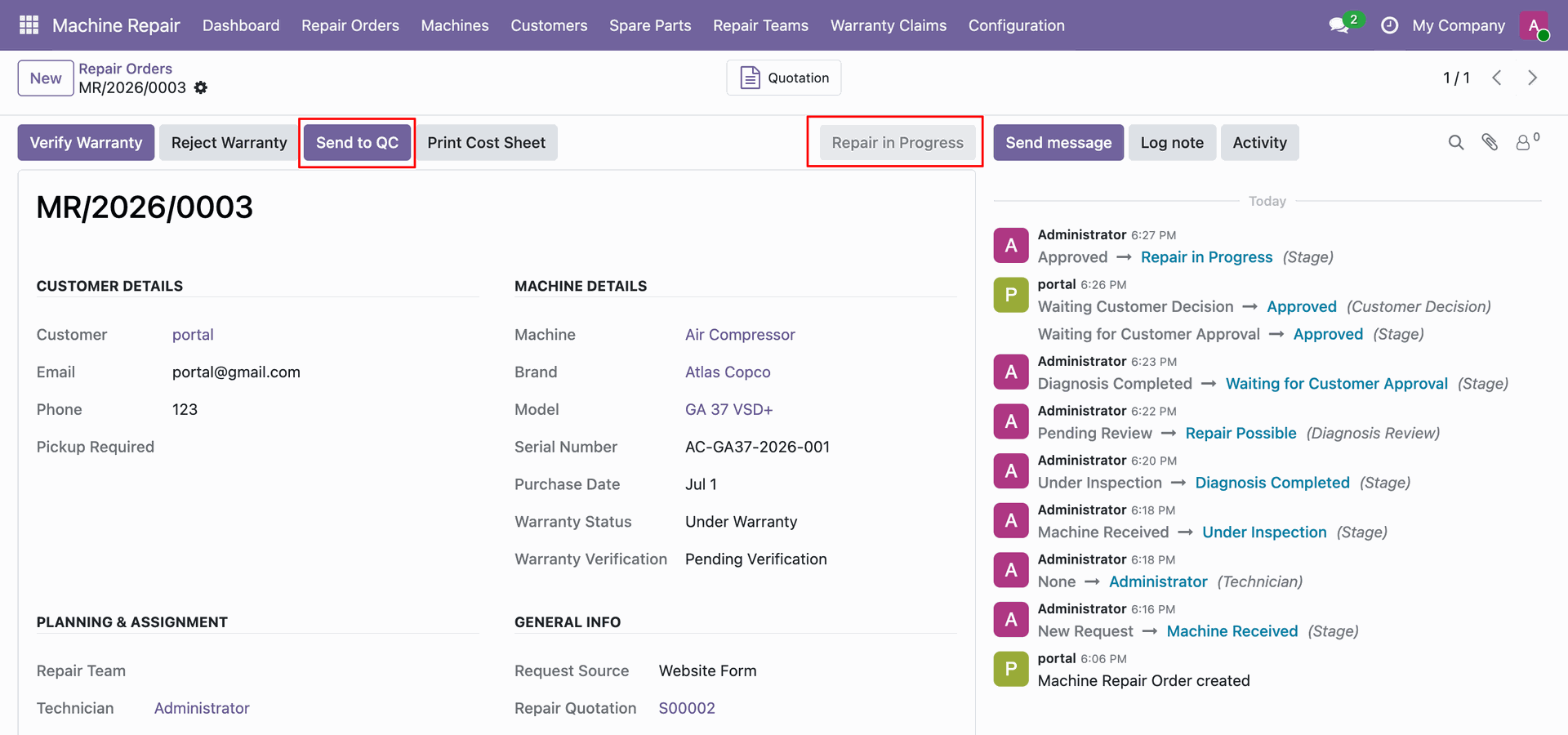
View Invalid Operation popup modal instructing user to fill work done details before QC.
Enter Work Done Details on labor line and click Send to QC header button.
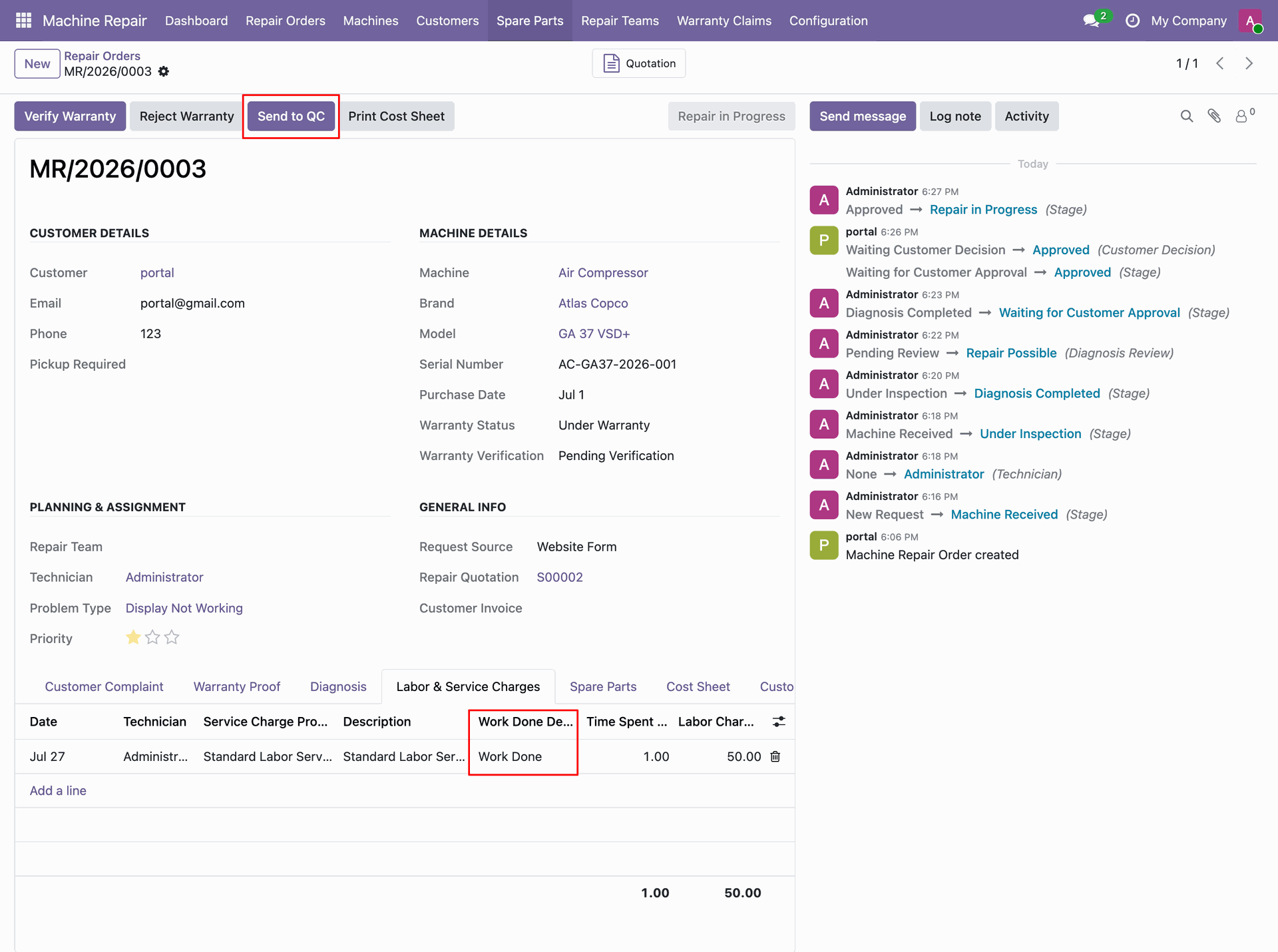
View order stage updated to Quality Check and click QC Passed header button.
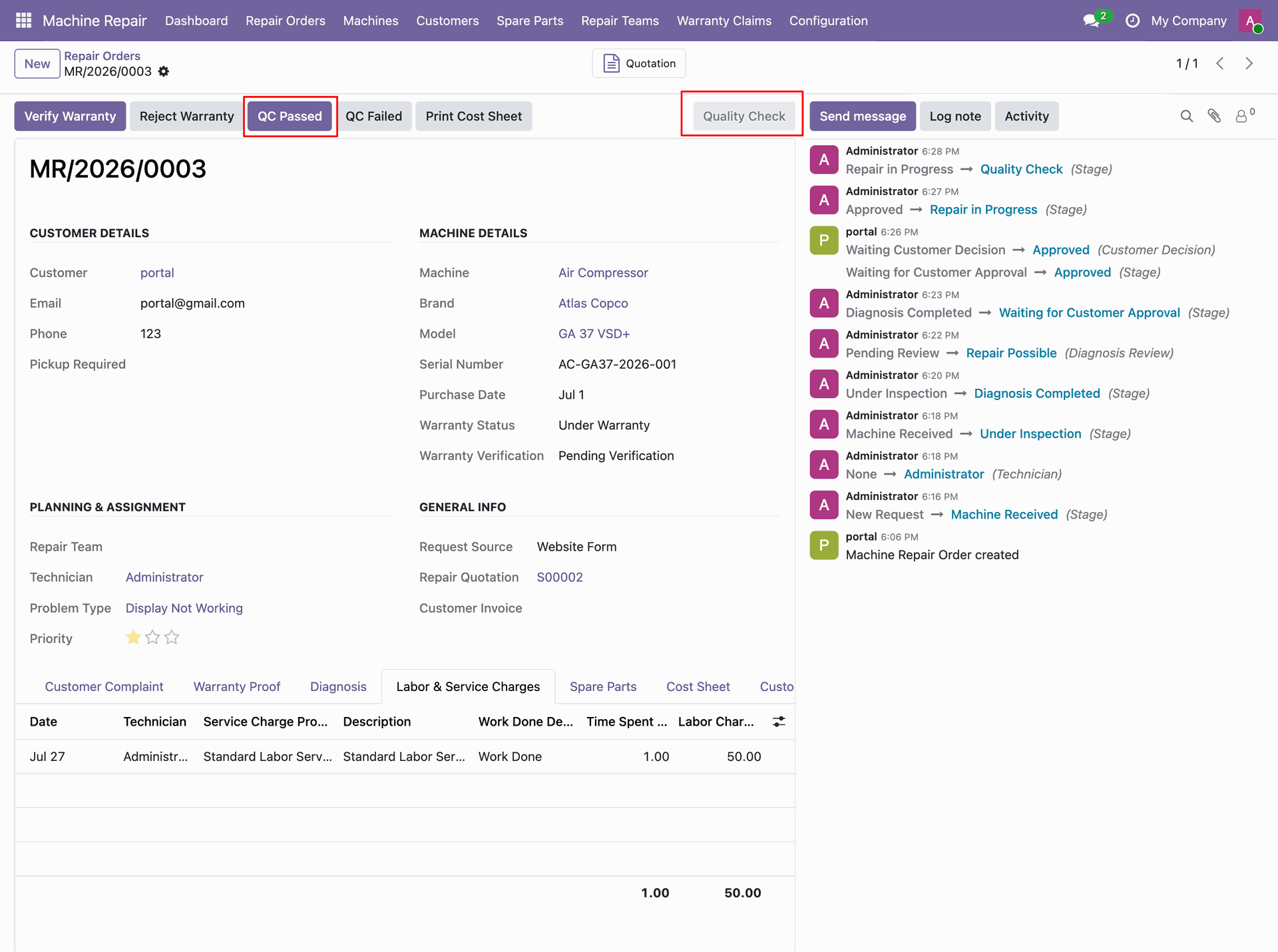
View Invalid Operation popup modal requiring completed Quality Check checklist before passing quality control.
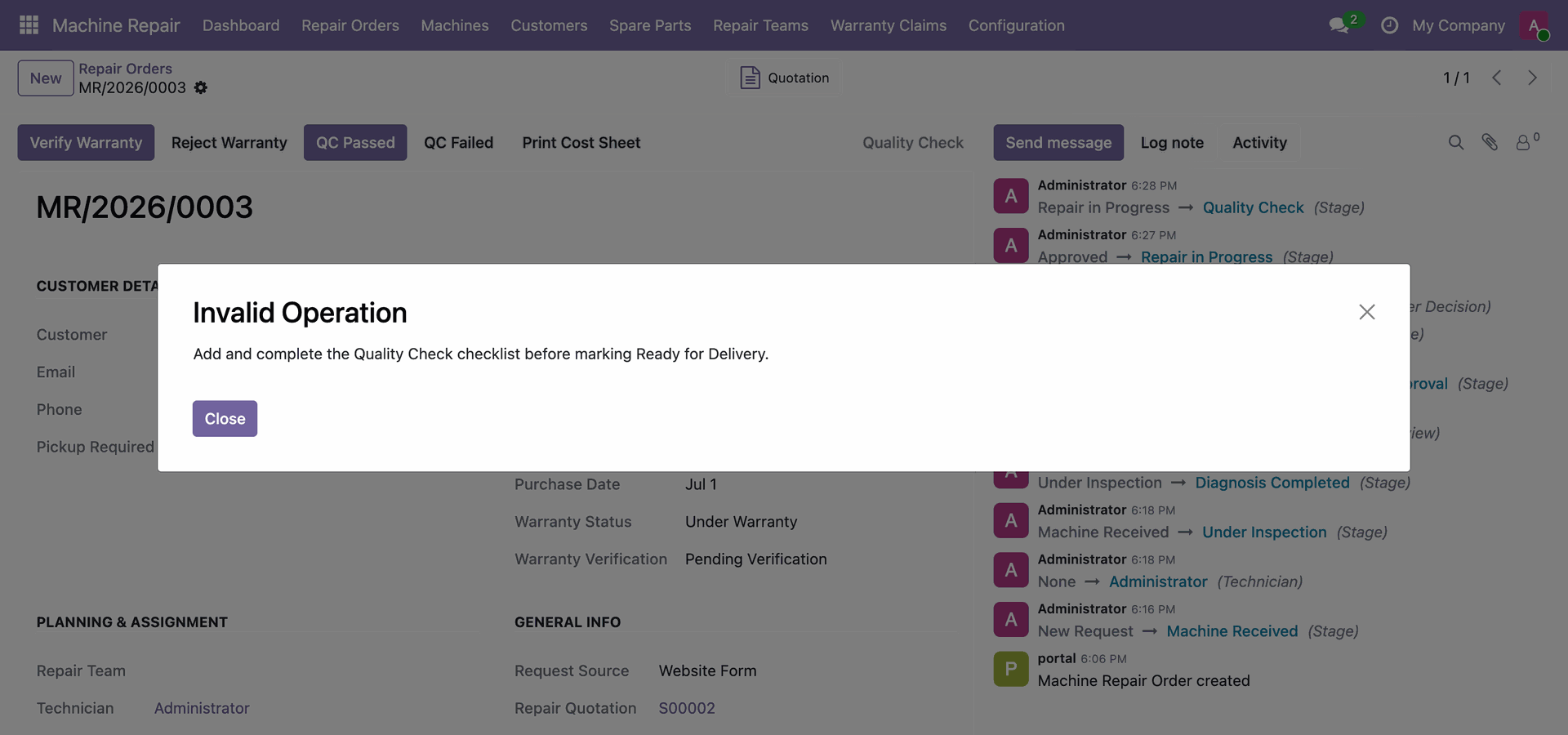
Complete Quality Check checklist item and click QC Passed header button on repair form.
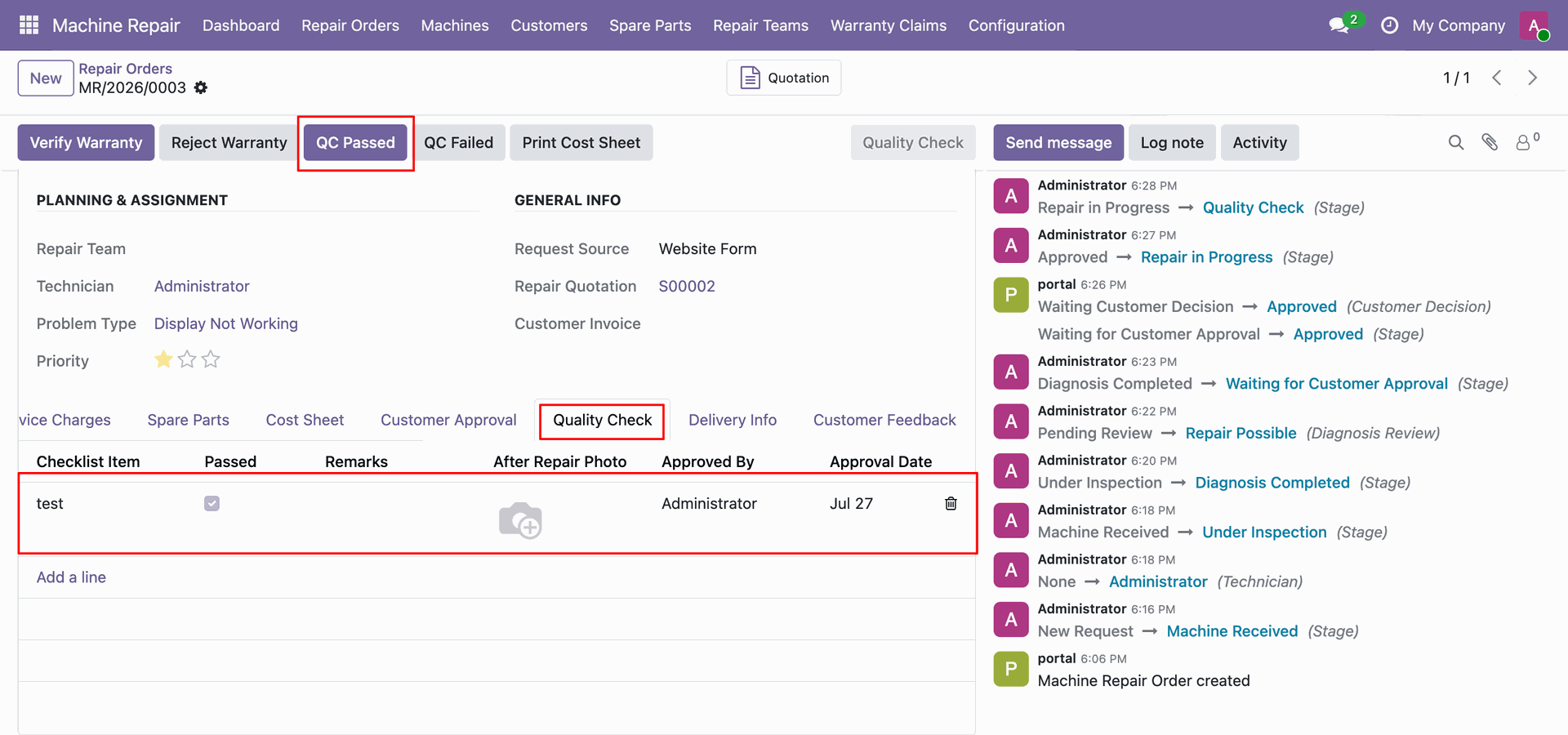
View stage updated to Ready for Delivery and click Create Invoice header button.
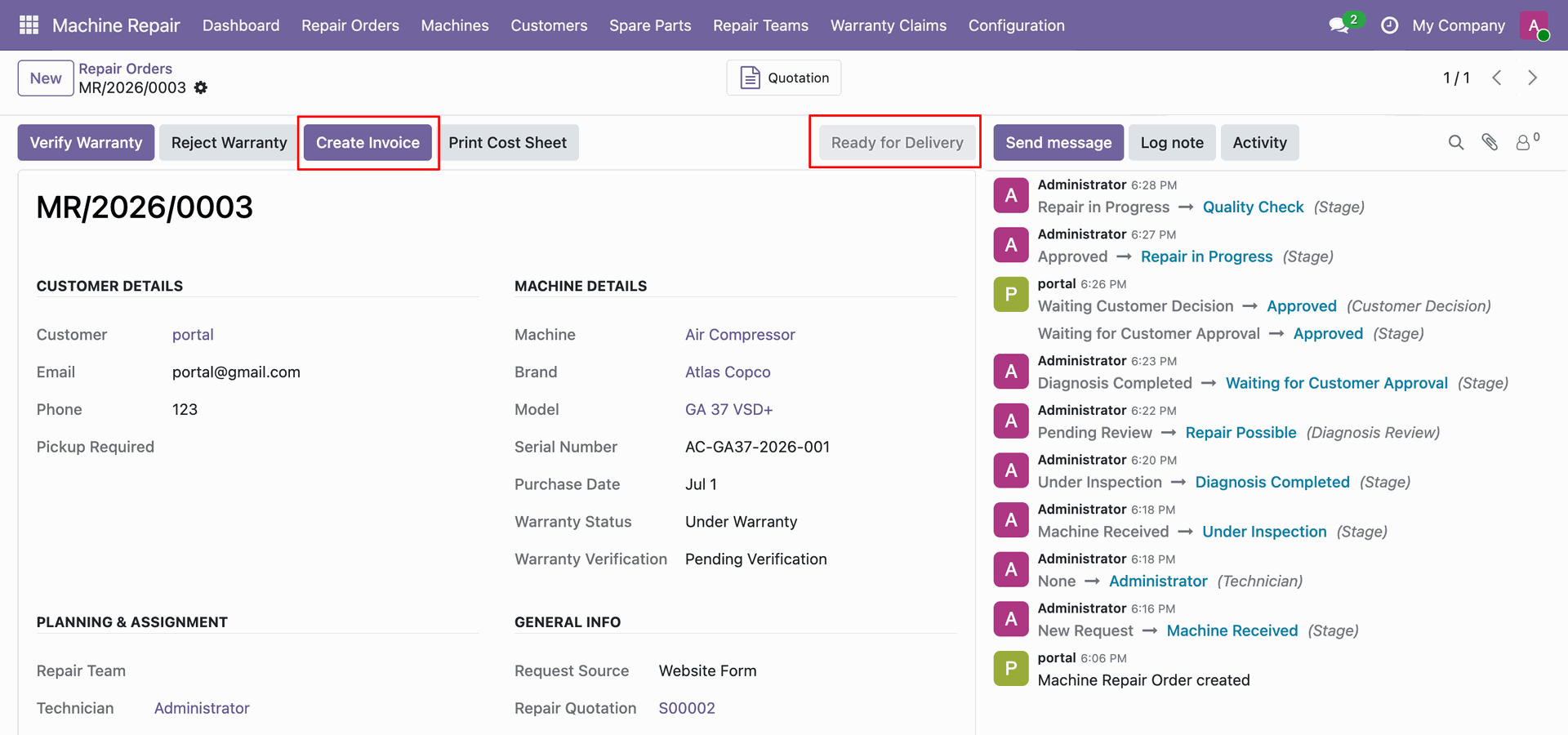
View Invalid Operation modal notifying delivery block until invoice payment or manager override authorization.
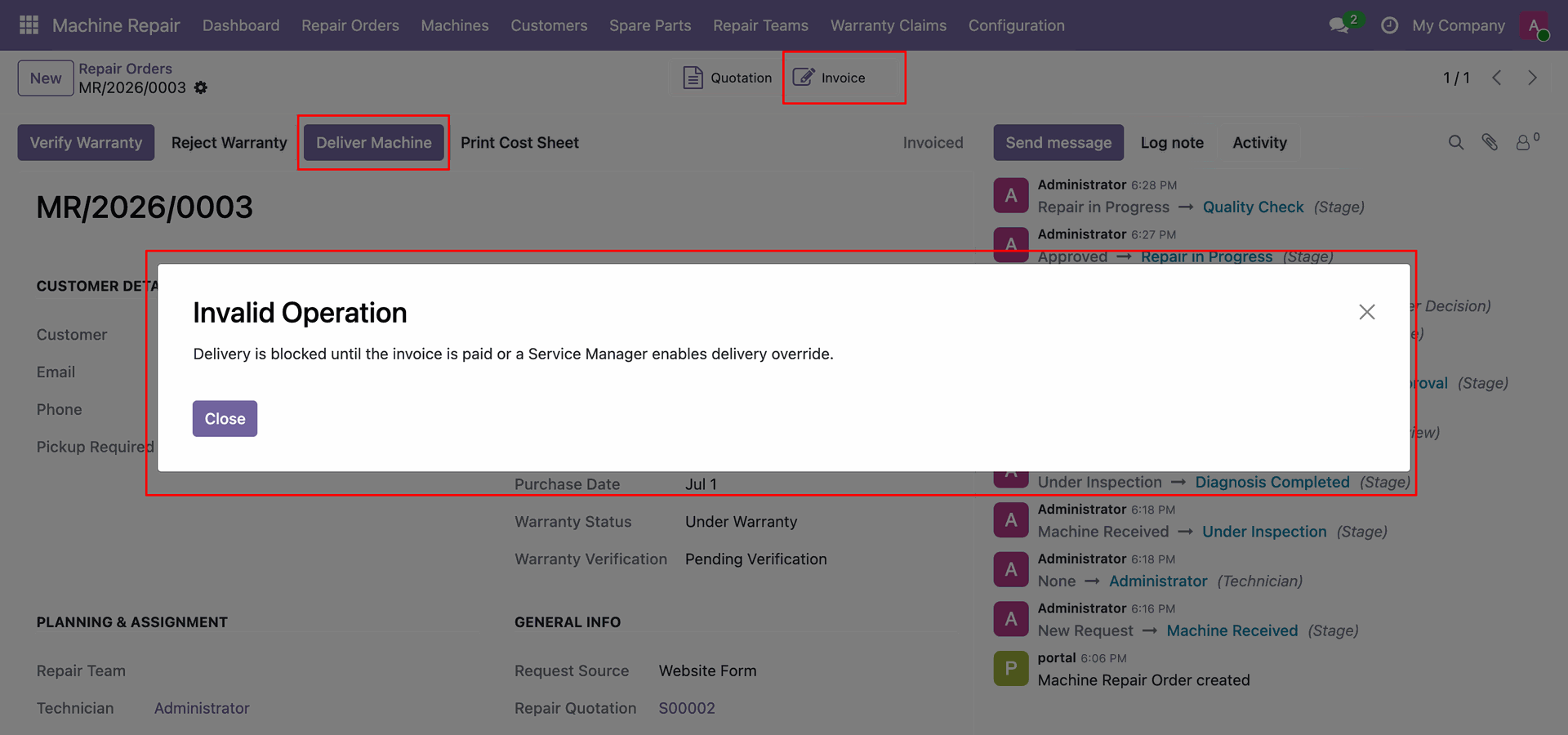
Click Confirm header button on draft repair invoice form to validate customer billing entry.
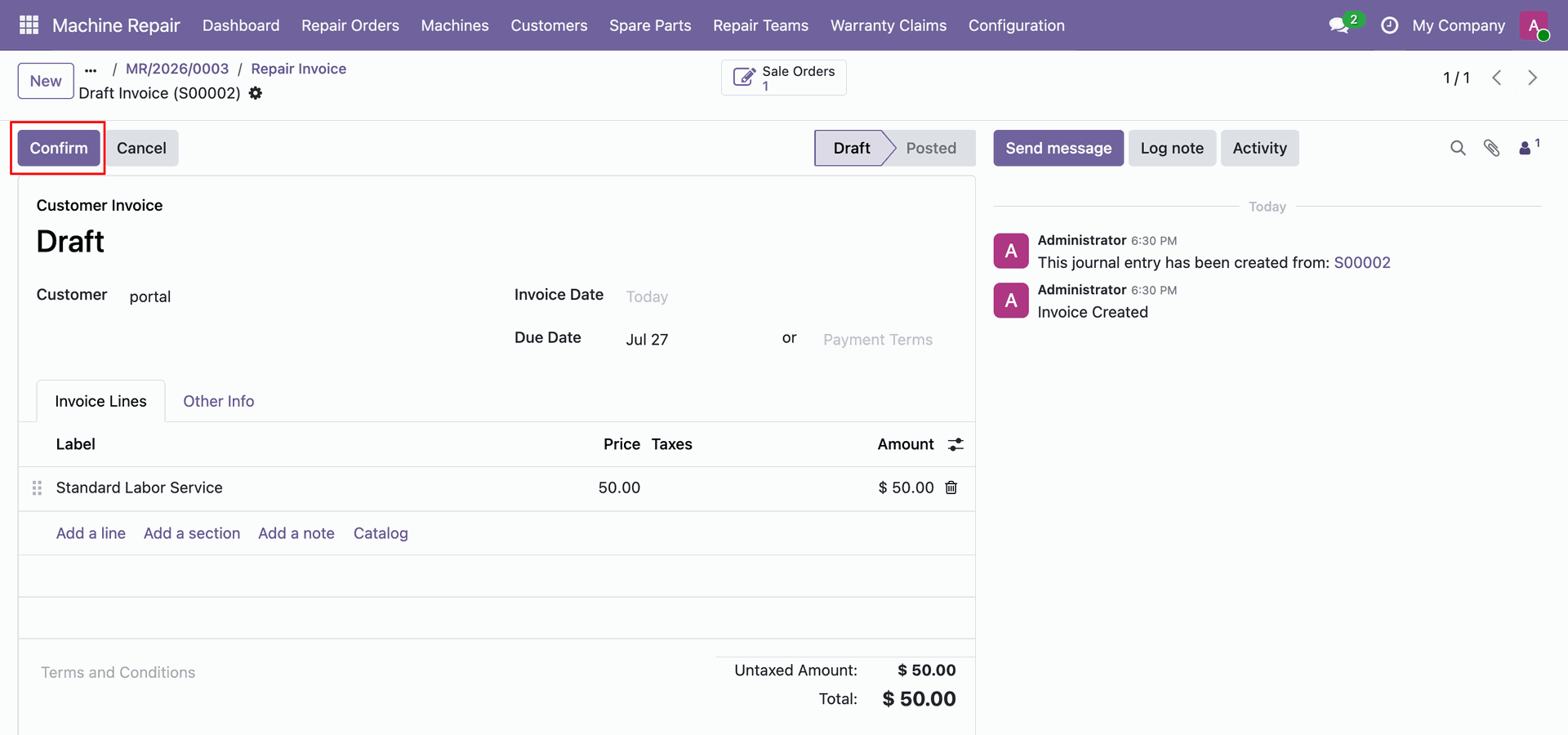
Click Pay header button and select Create Payment modal button to record customer payment.
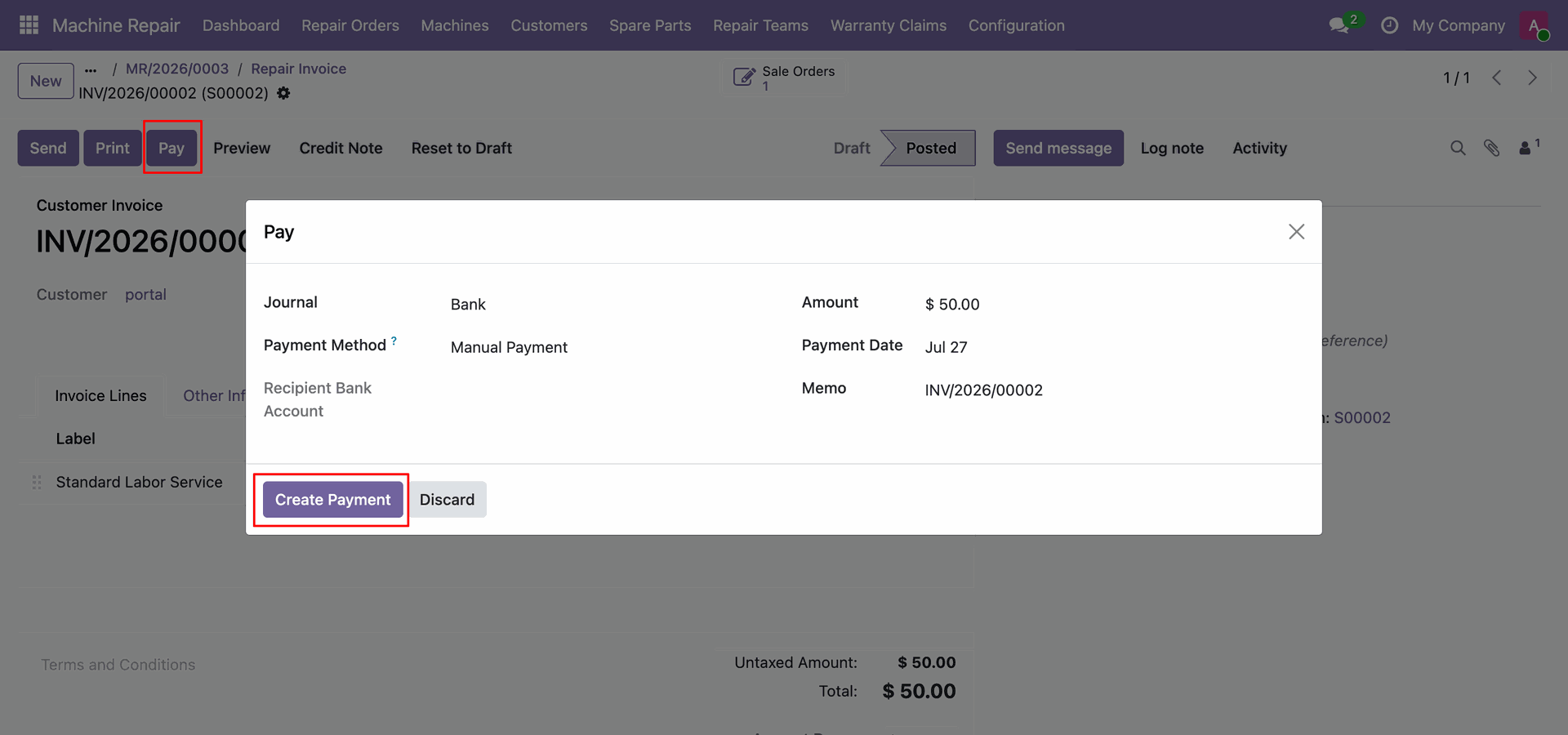
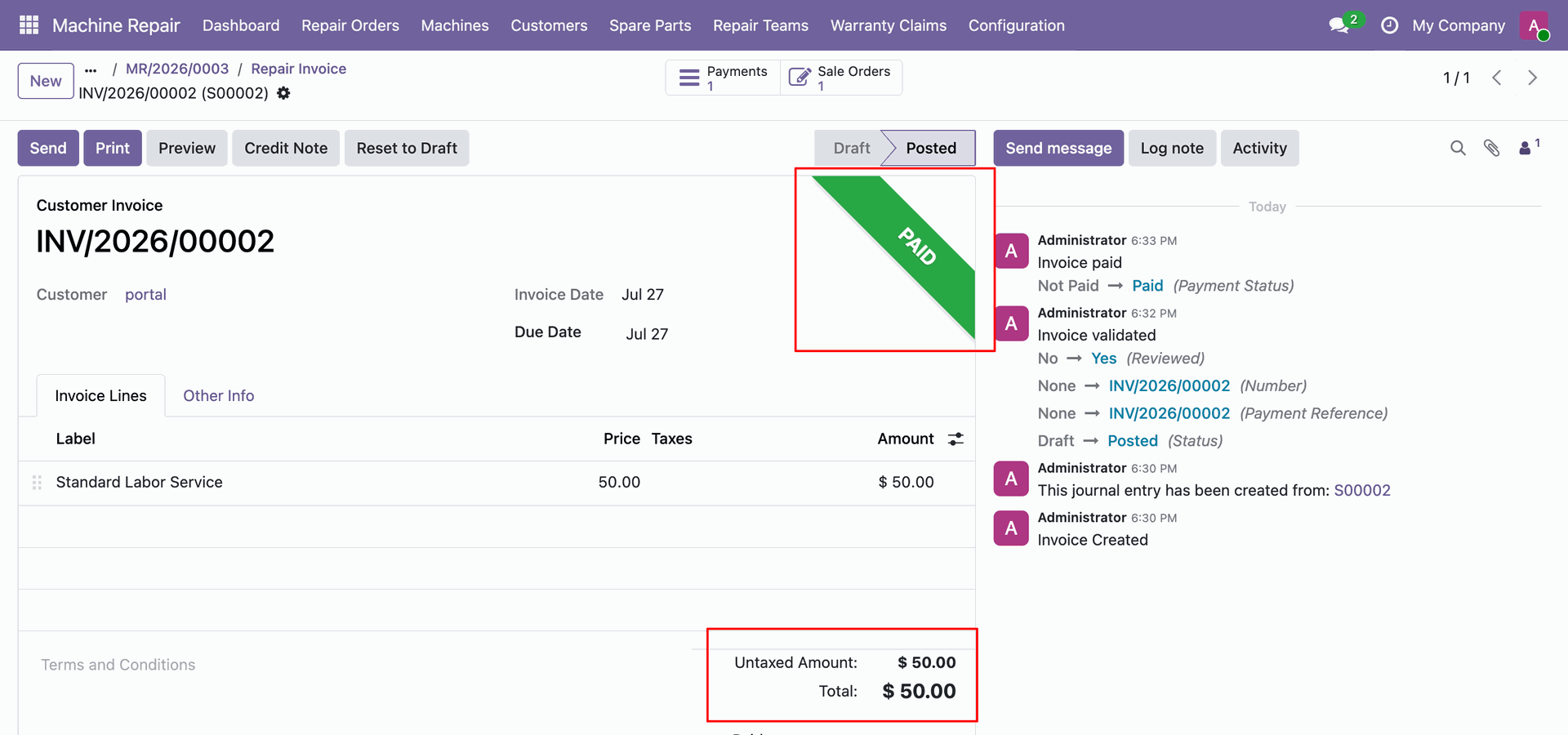
View customer invoice status displaying green PAID banner and verified total amount of $50.00.
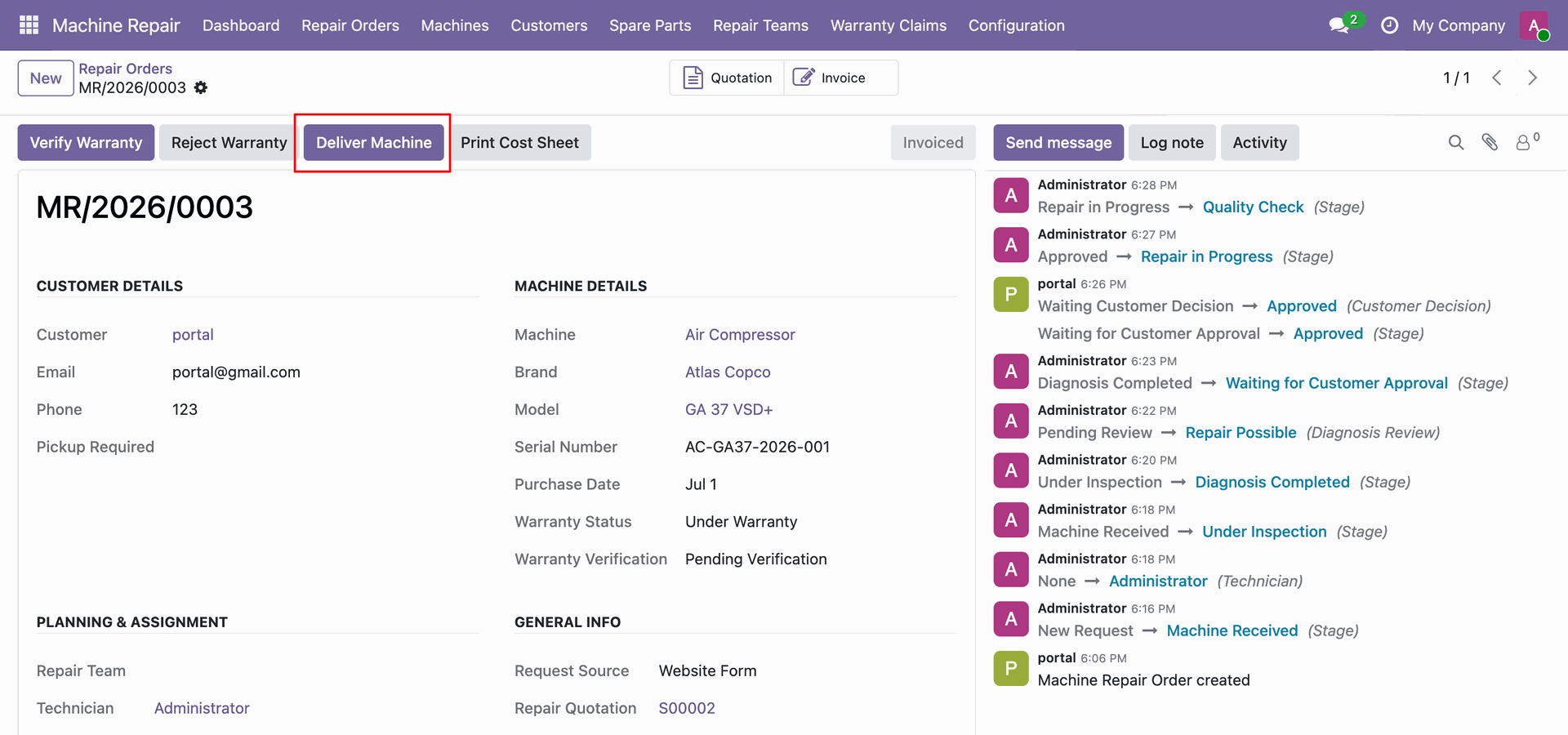
Click Deliver Machine header button on repair order form to complete physical product handover.
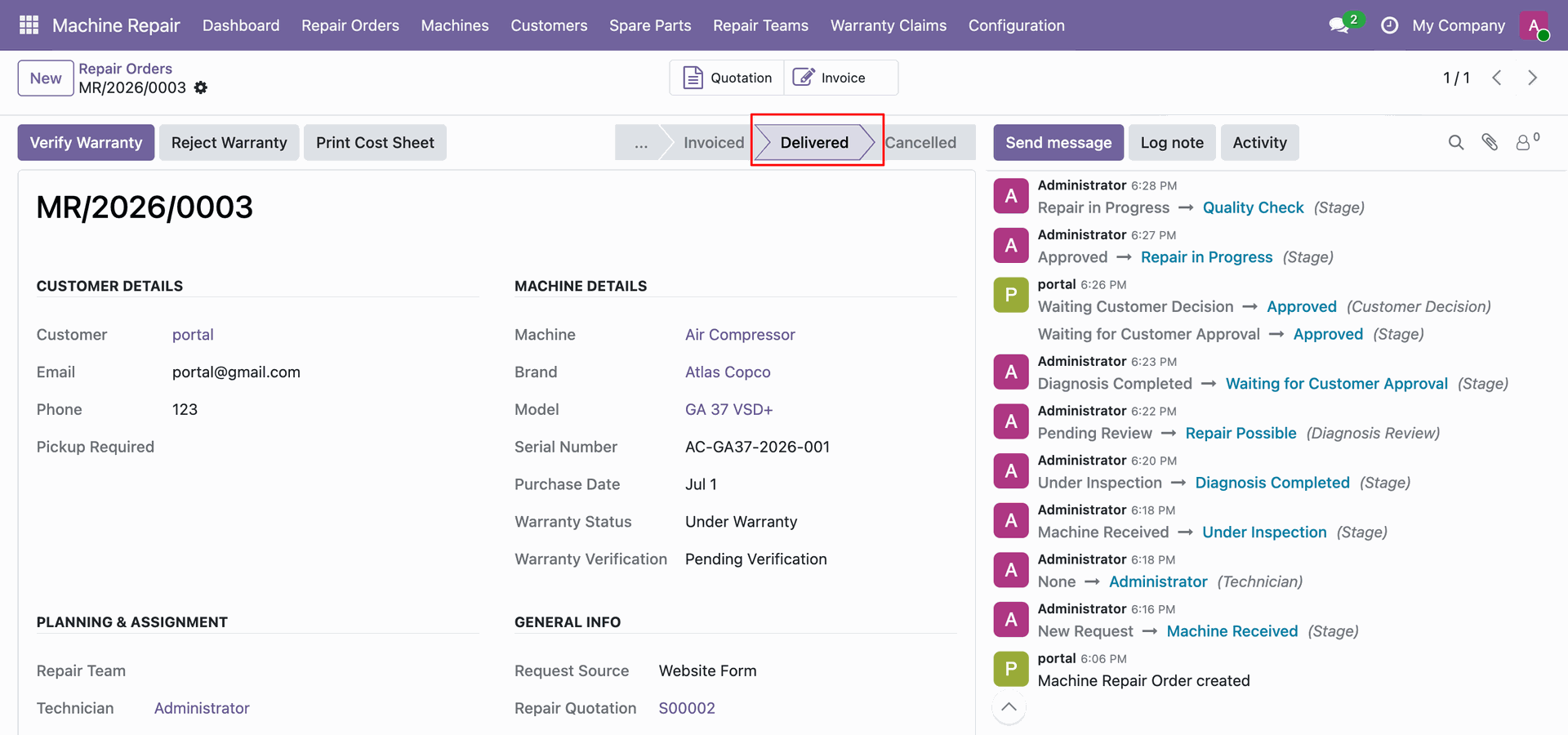
View machine repair order workflow stage updated to Delivered following successful equipment handover.
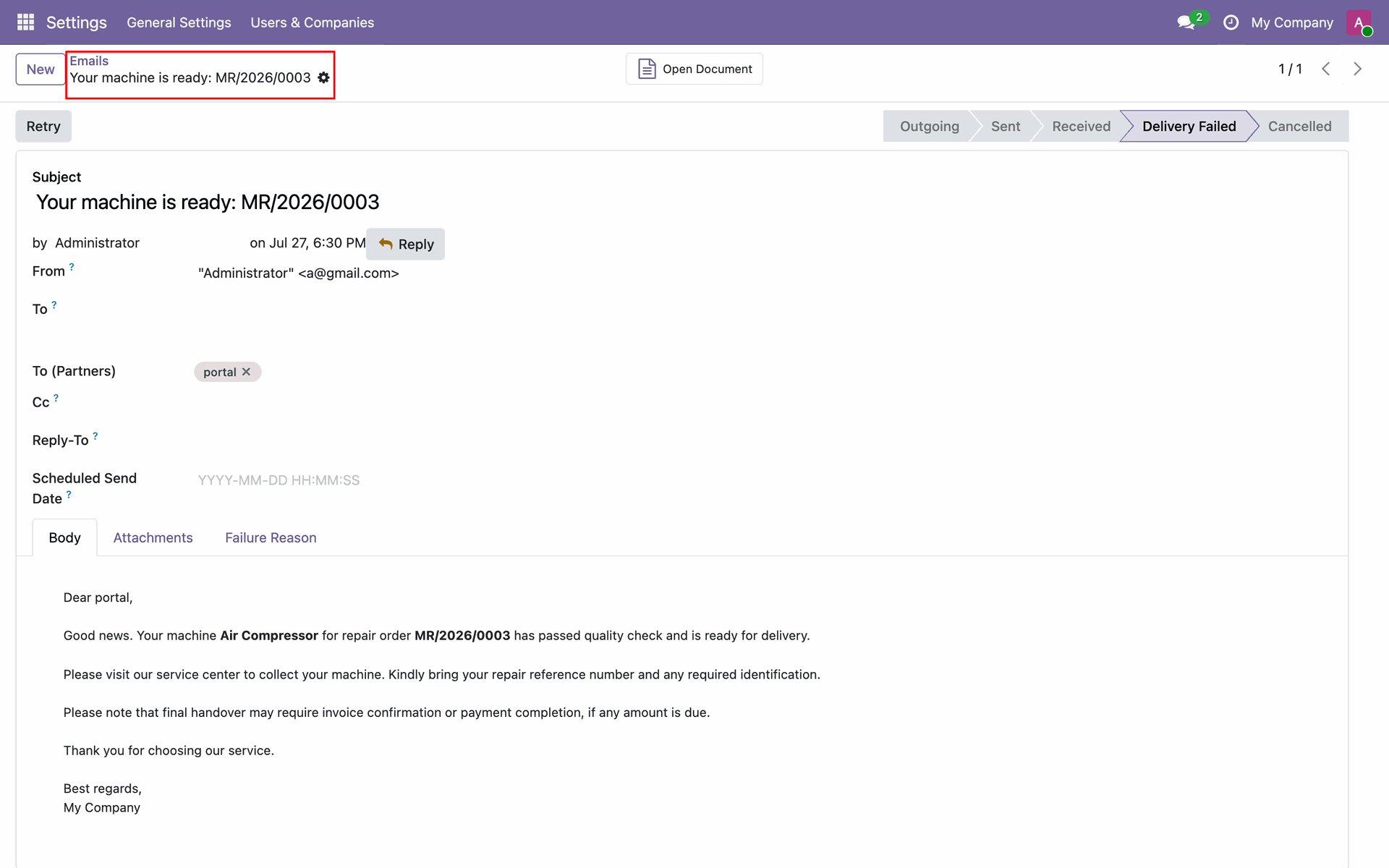
View automated ready for delivery email notification generated and sent to customer in Settings.
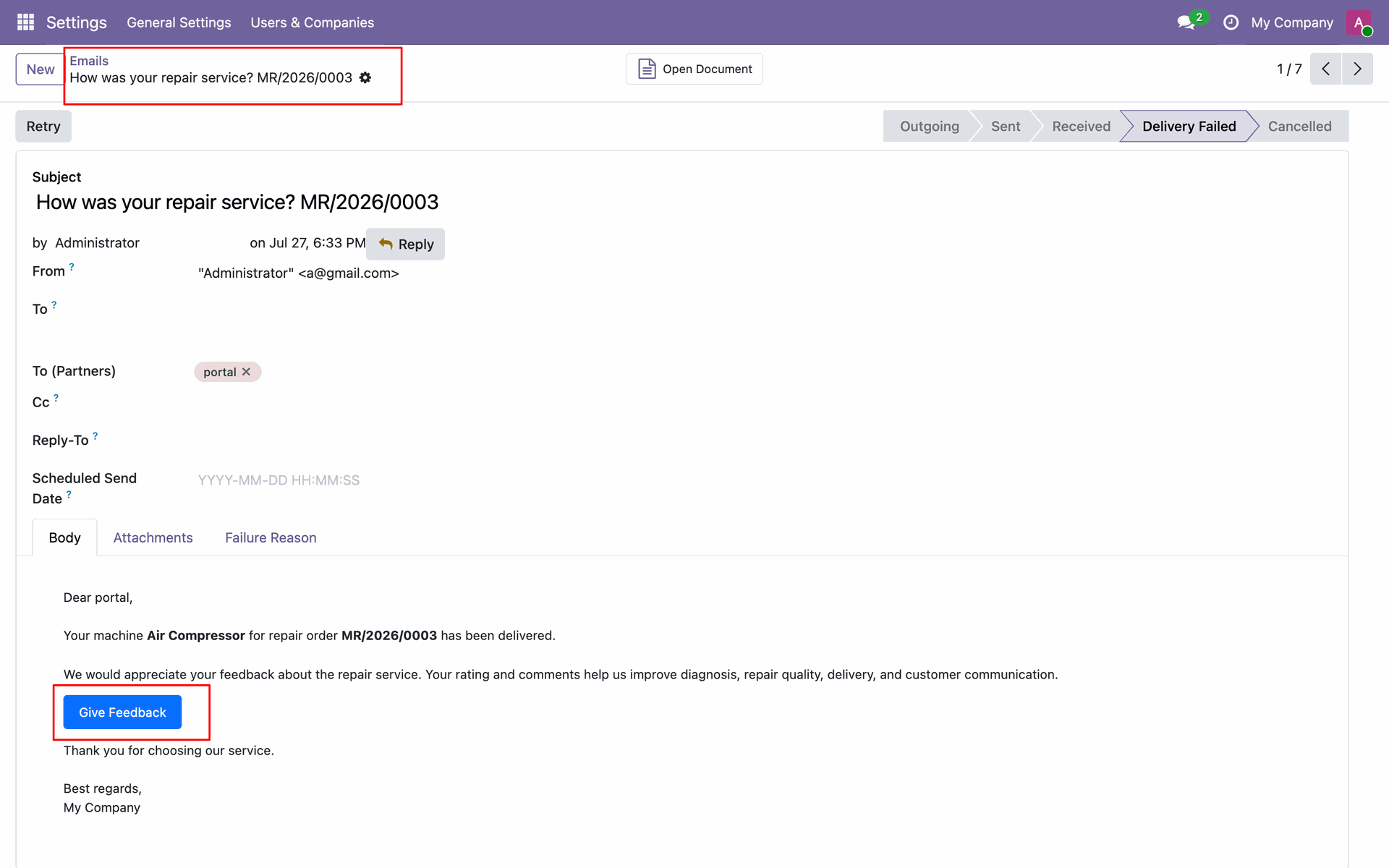
View feedback request email notification sent to customer containing Give Feedback action button.
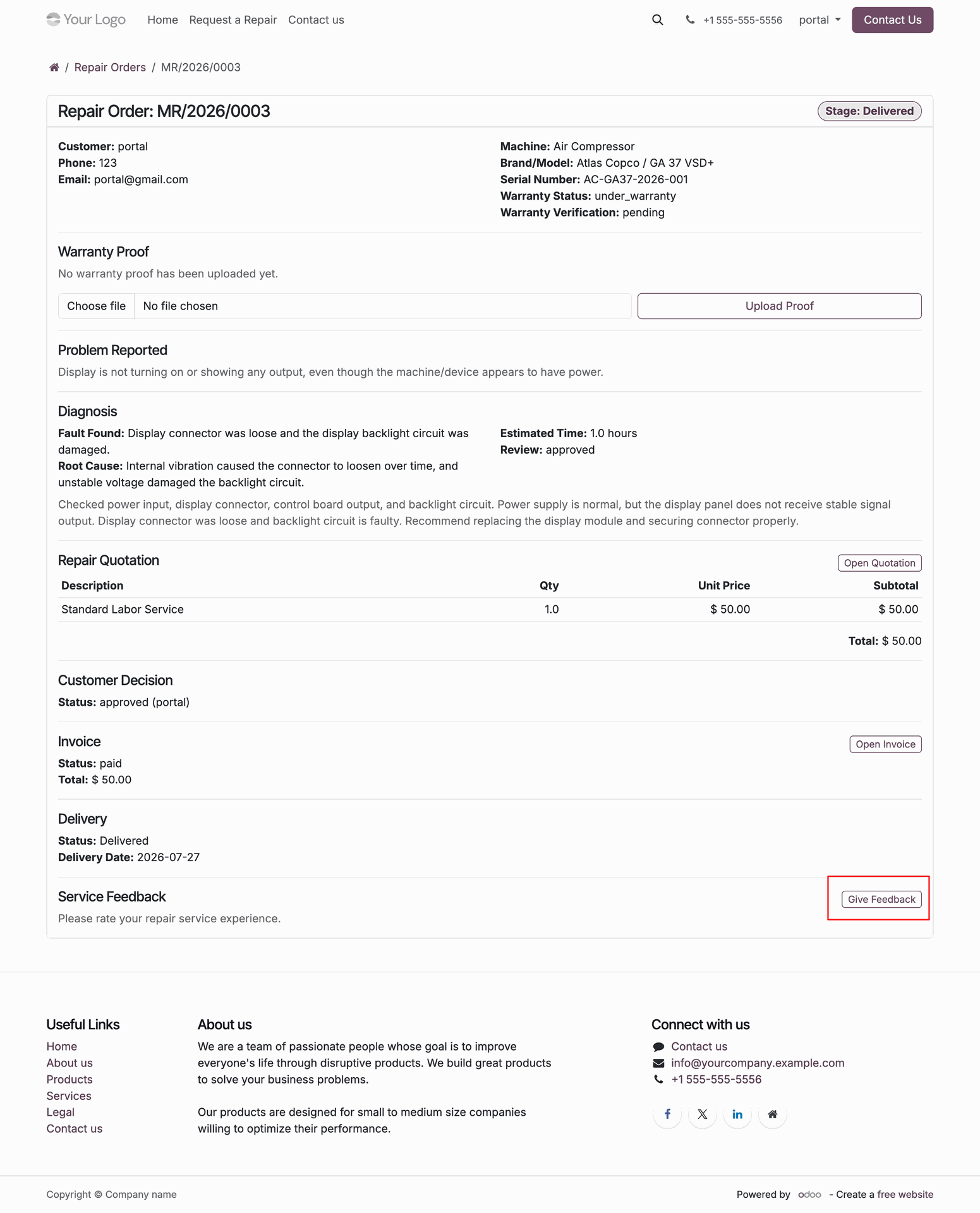
Click Give Feedback button under Service Feedback section on customer portal repair order view.
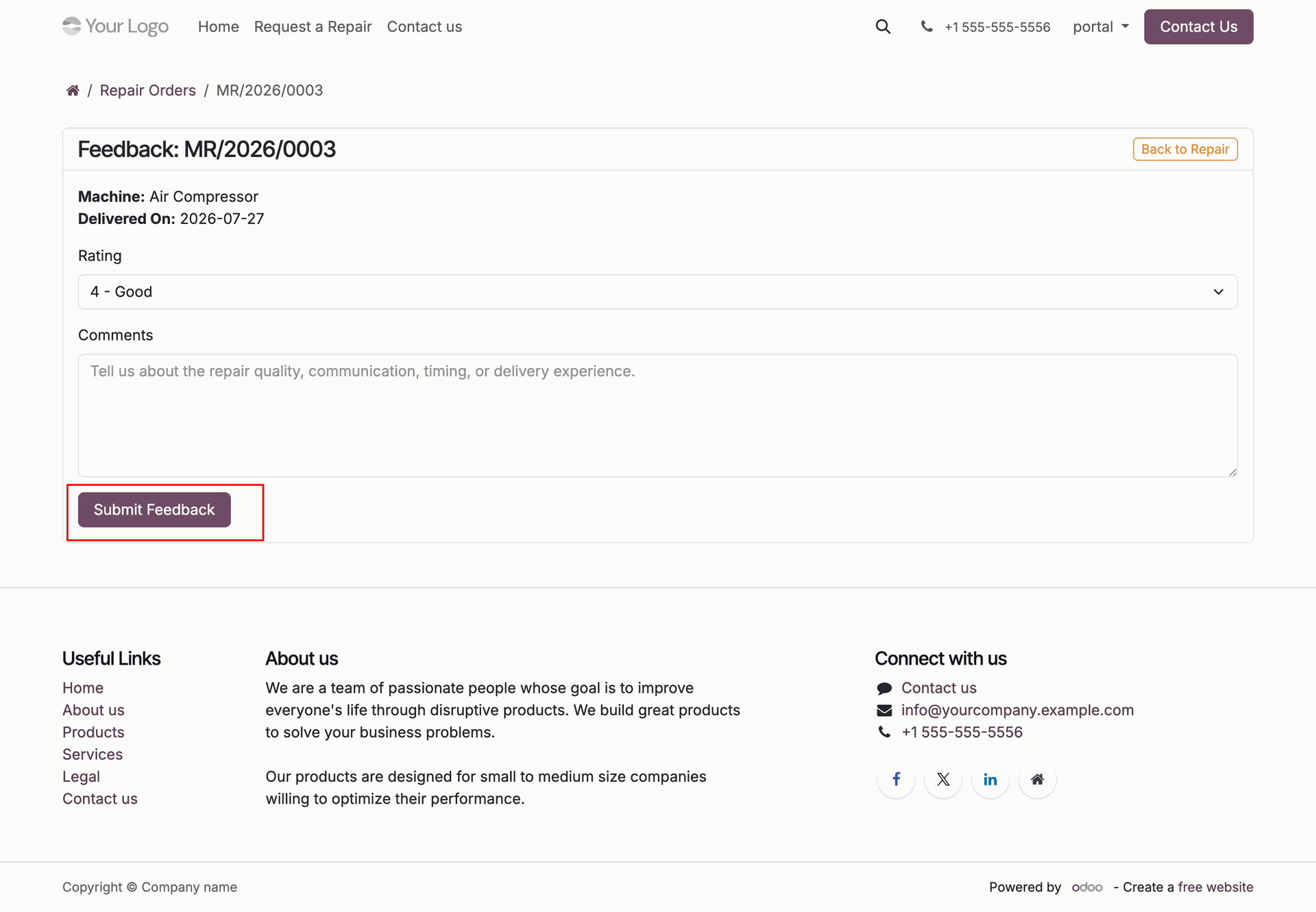
Select rating 4 Good and click Submit Feedback button on customer portal feedback page.
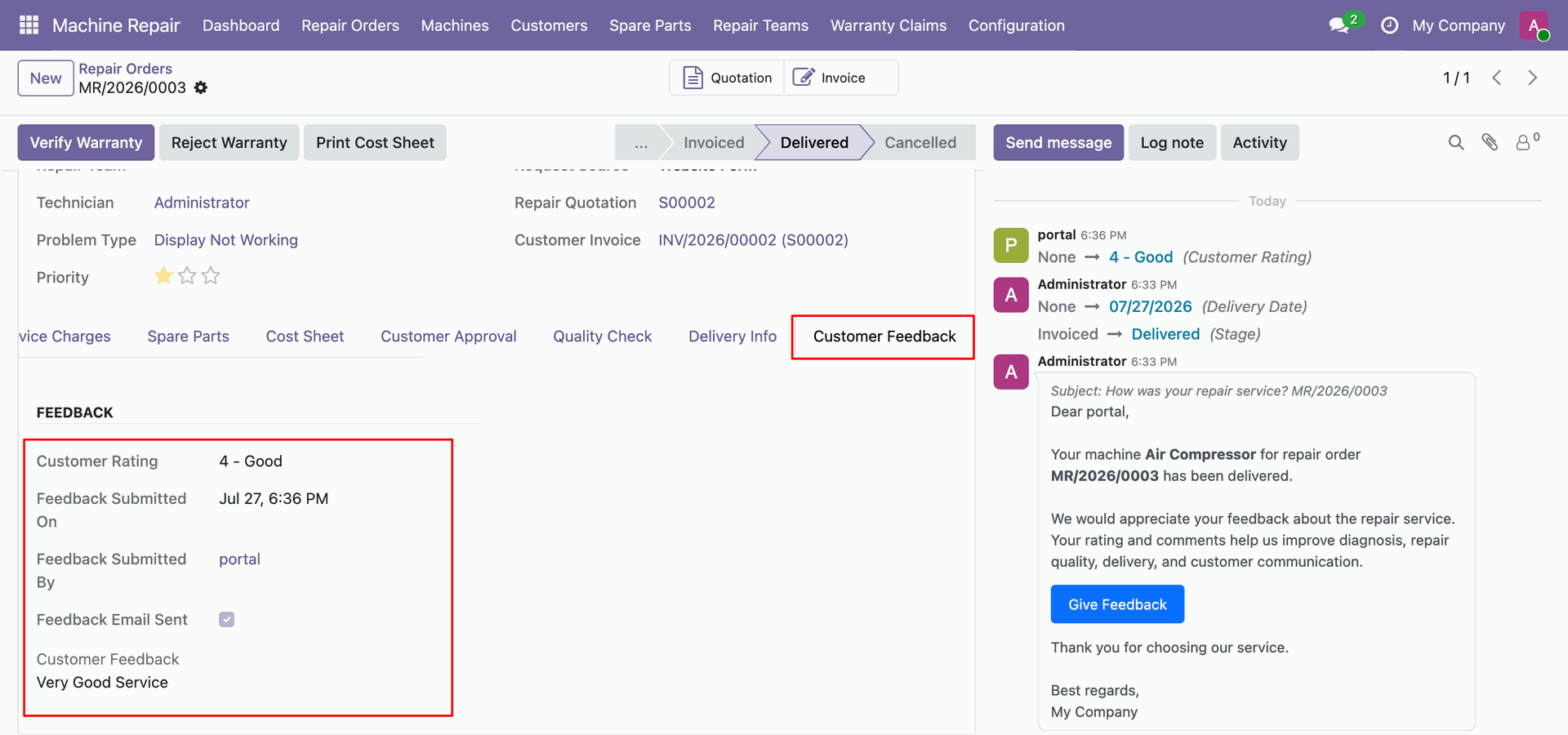
View Customer Feedback tab details displaying customer rating and feedback text in backend.
Click Verify Warranty header button to check warranty status and verification details on order.
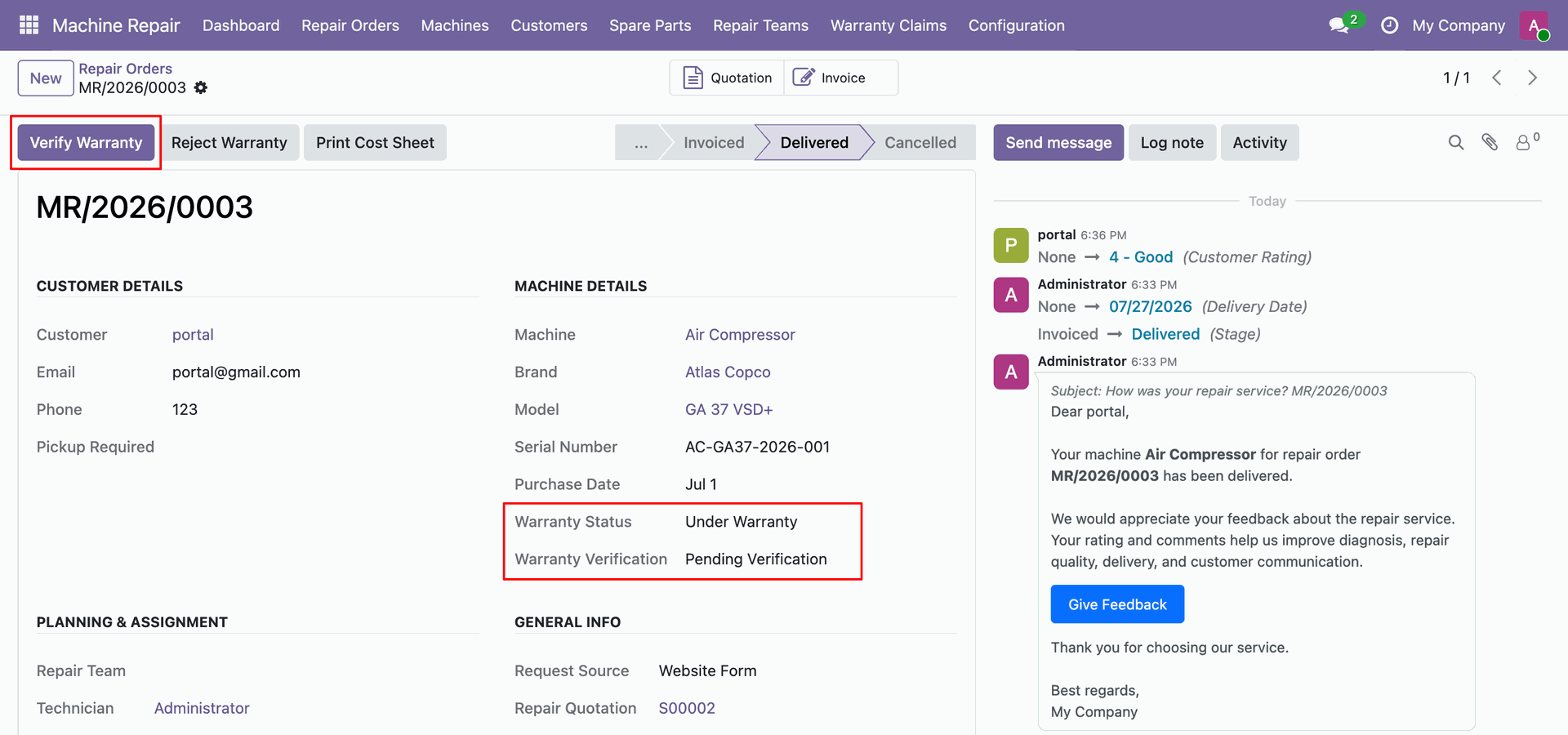
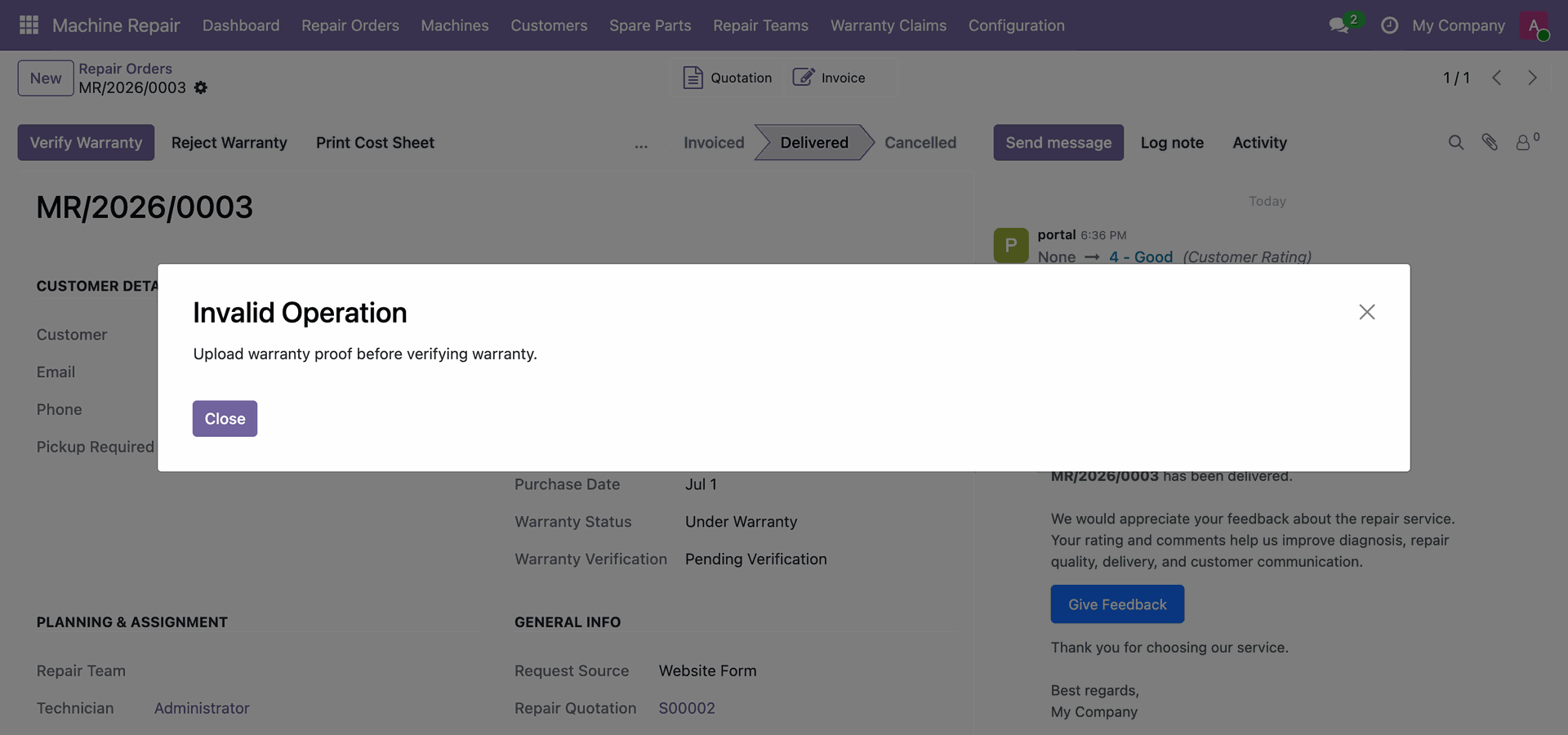
View Invalid Operation popup modal warning user to upload warranty proof before verifying warranty.
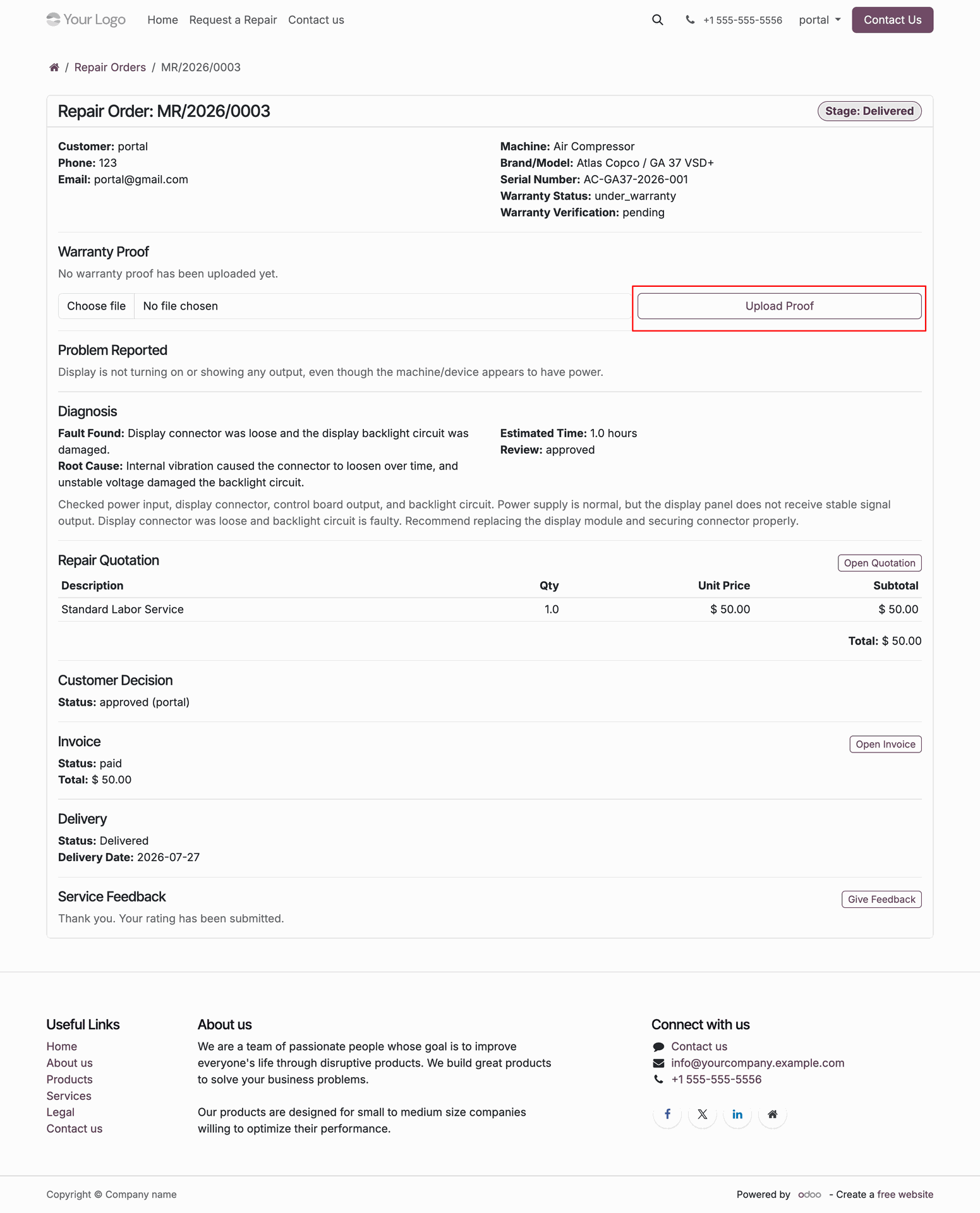
Click Upload Proof button under Warranty Proof section on customer portal repair order view.
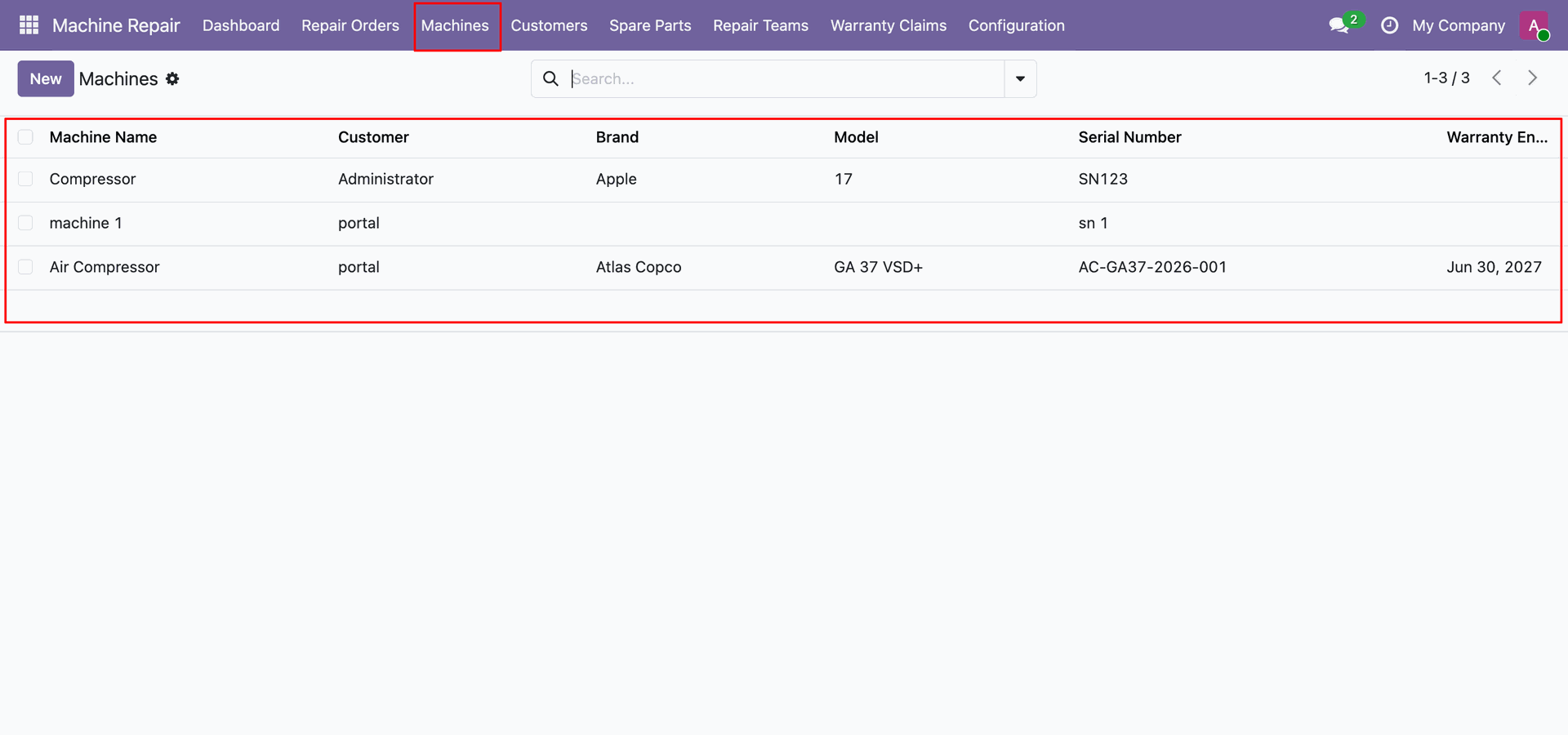
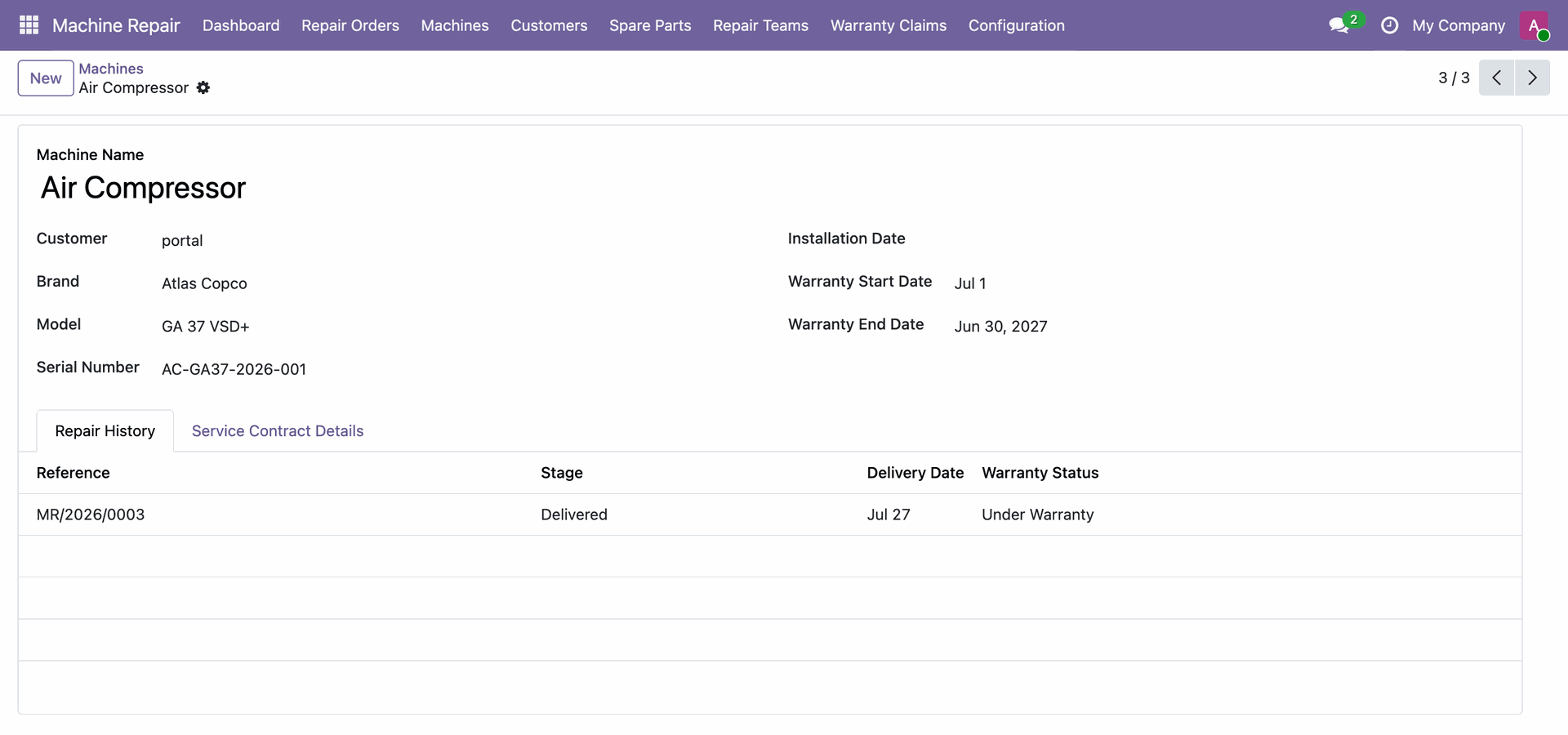
Access the Machines list view to browse registered customer machines, brands, models, and serial numbers.
View machine details and track associated repair history records directly on the machine form.
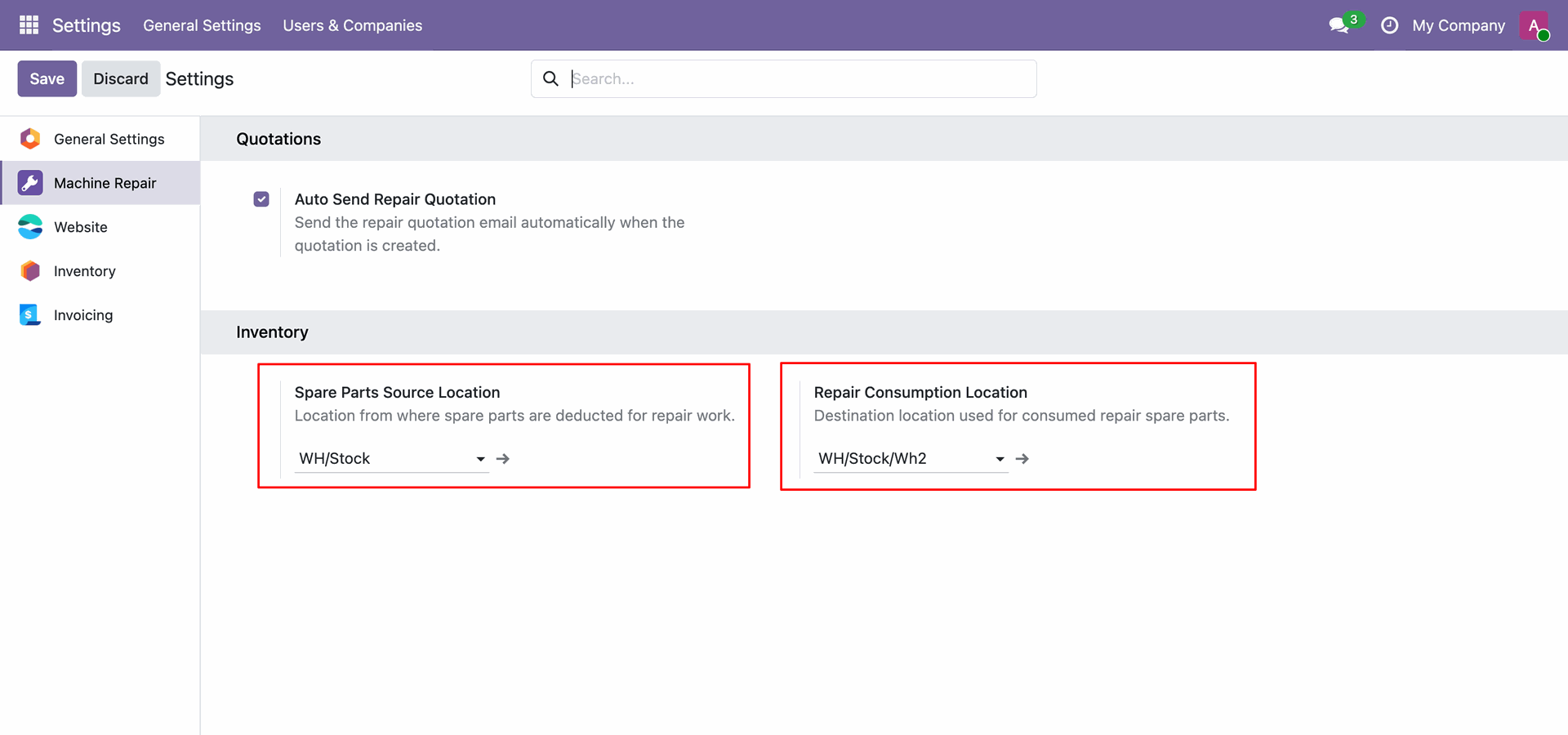
Workflow
Configure default stock source location and consumption location for spare parts in repair settings.
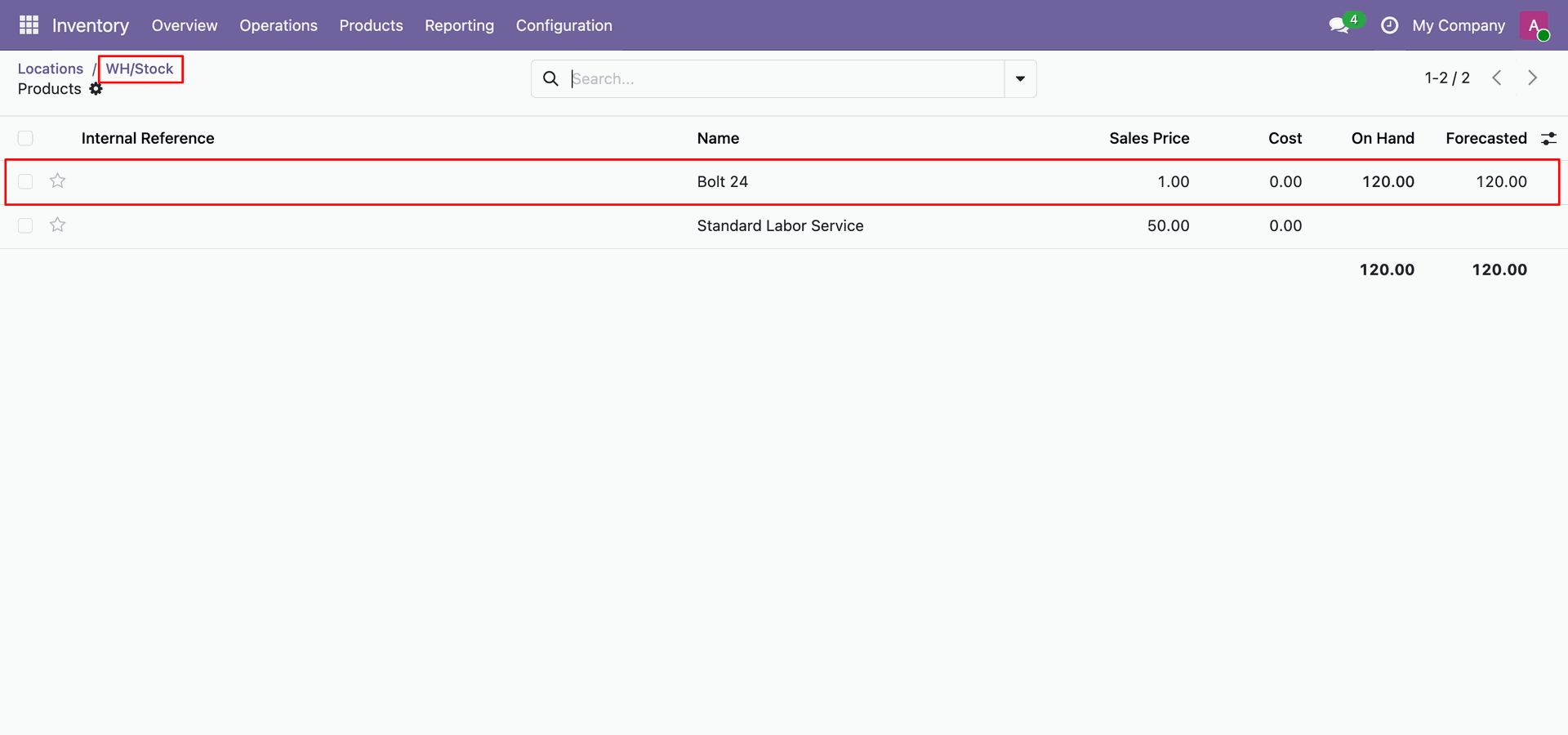
Review initial available stock levels for spare part Bolt 24 under WH/Stock location.
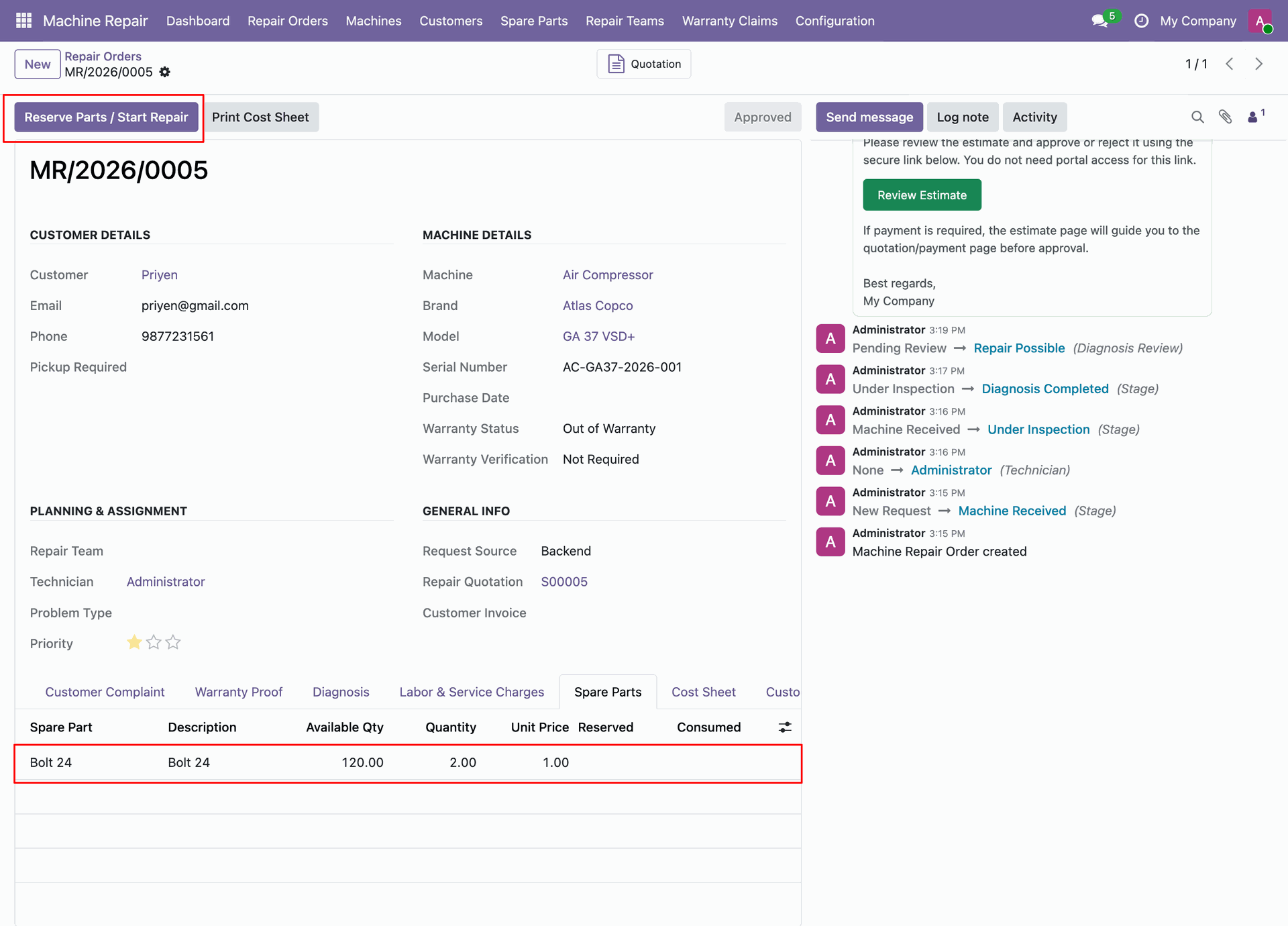
Click Reserve Parts / Start Repair to reserve required spare parts for repair order.
Verify reserved spare parts status and click Consume Parts to start using components.
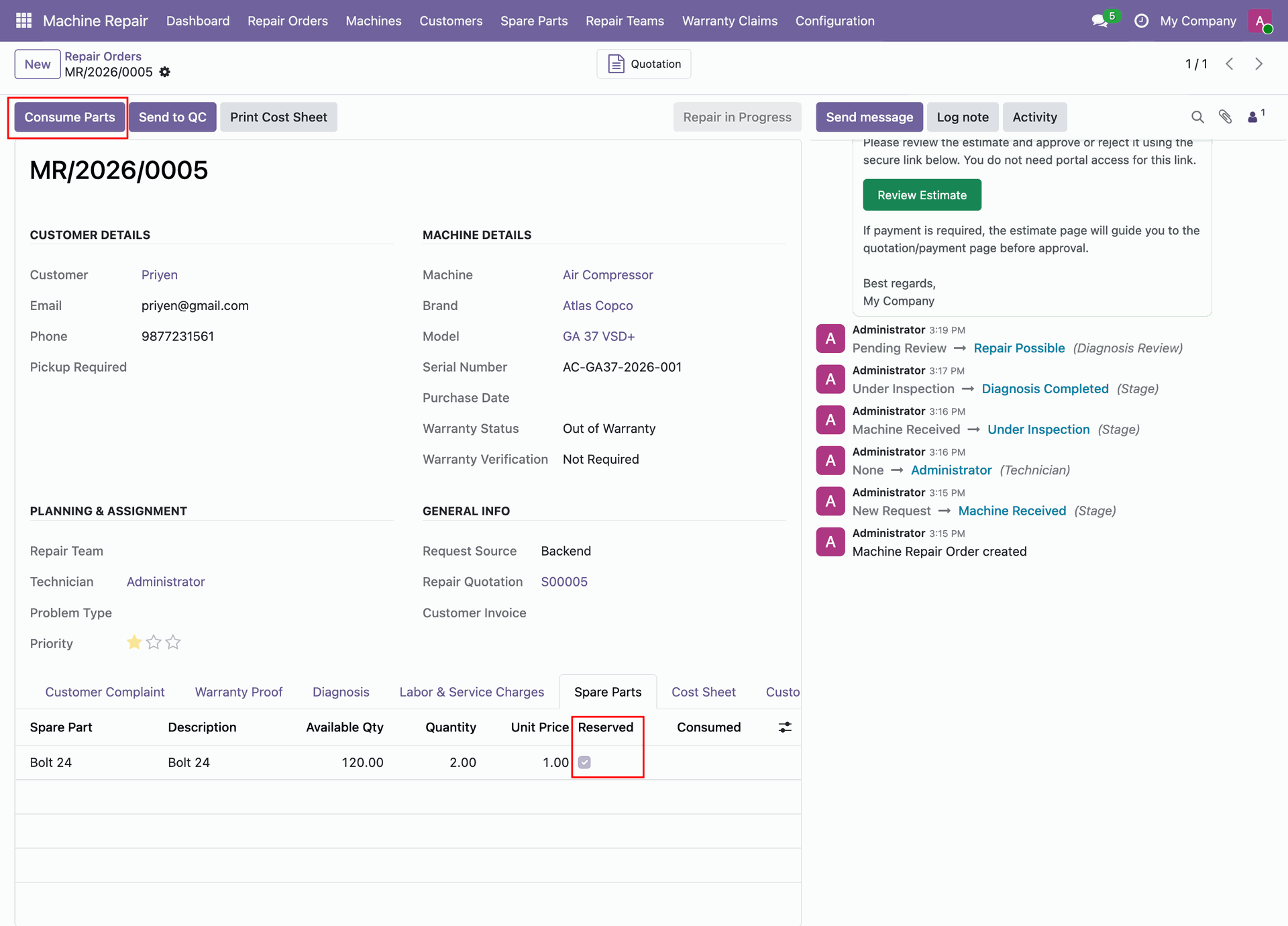
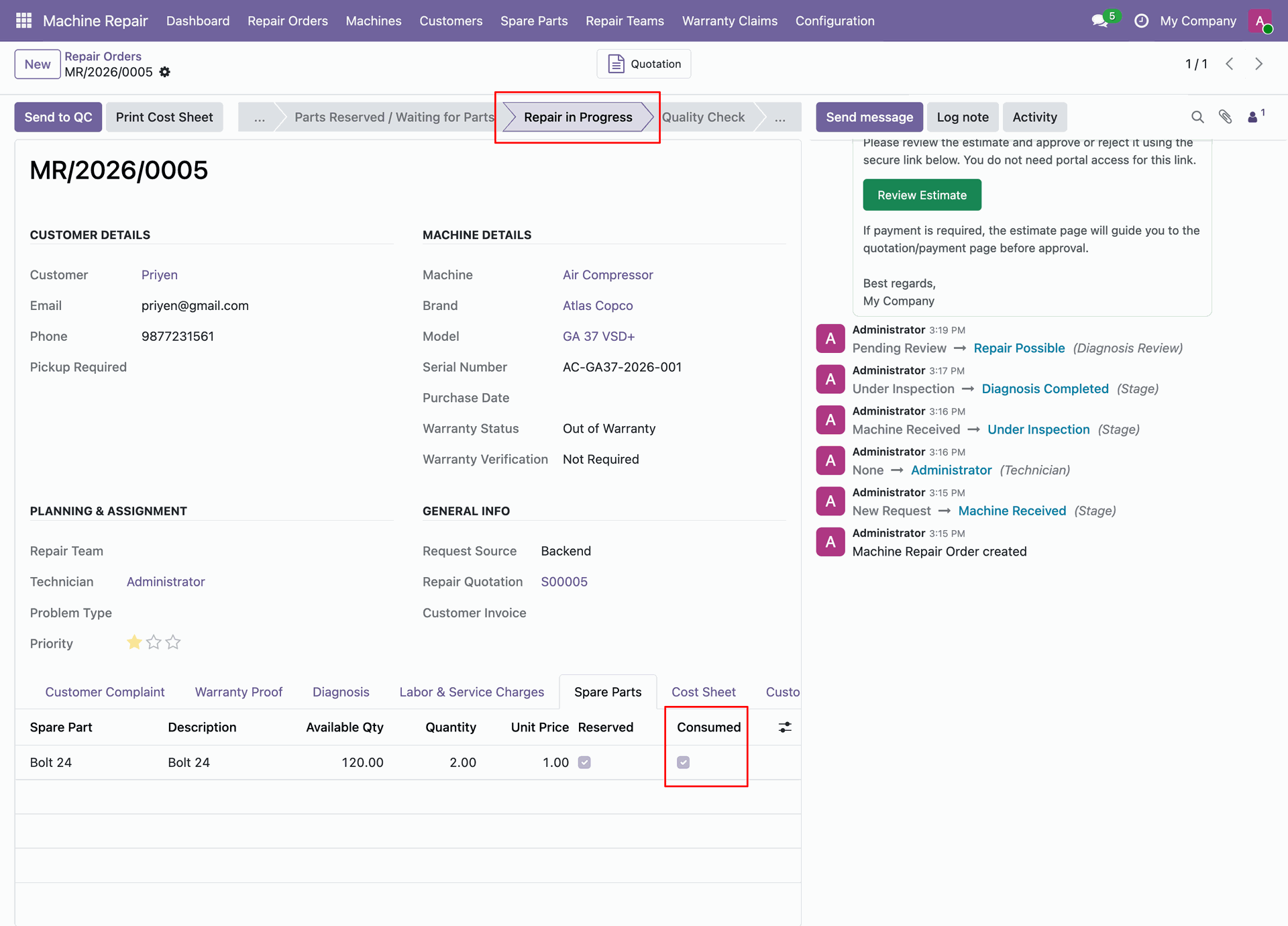
Track repair order status in Repair in Progress stage after consuming reserved spare parts.
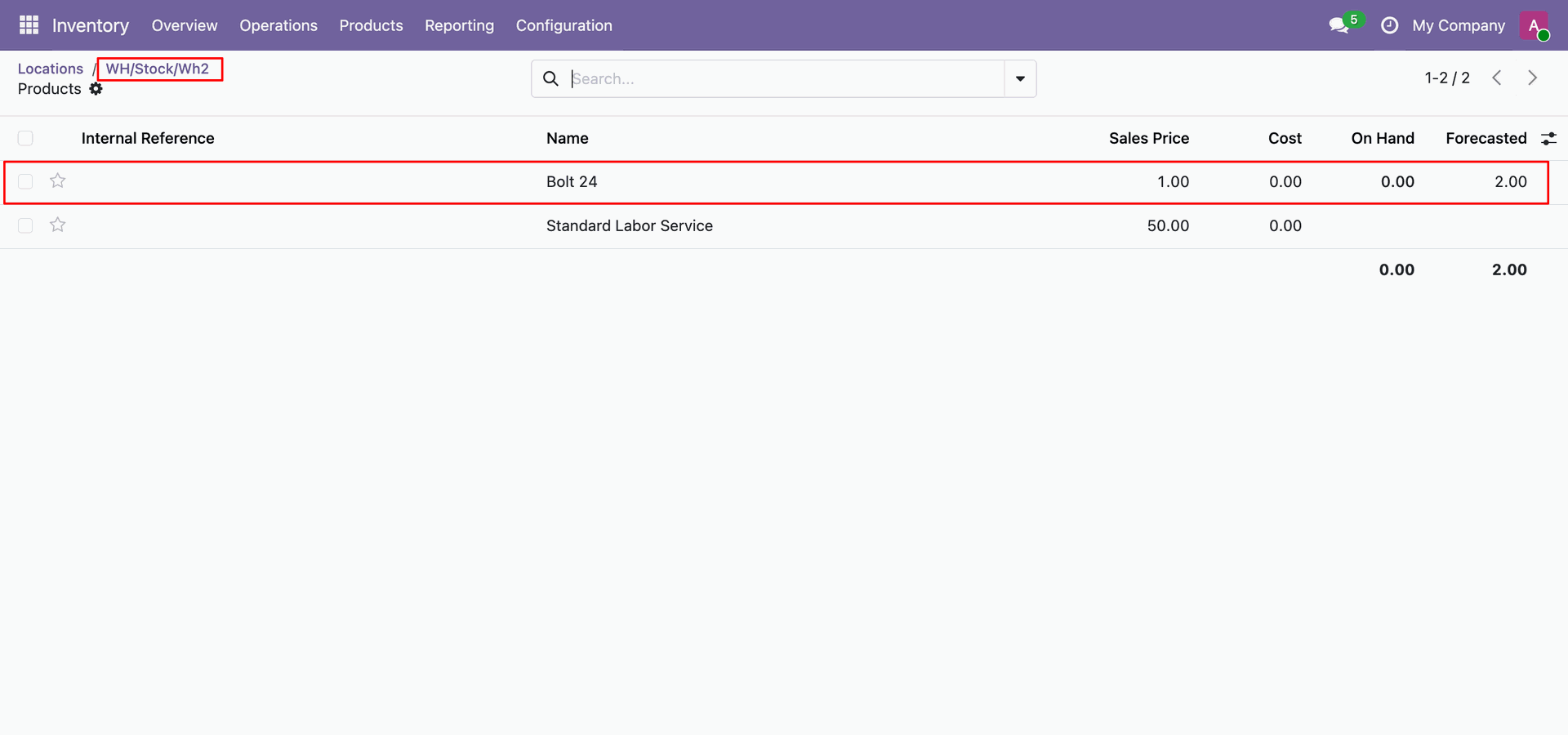
Check updated stock quantity of Bolt 24 moved into destination location WH/Stock/Wh2.
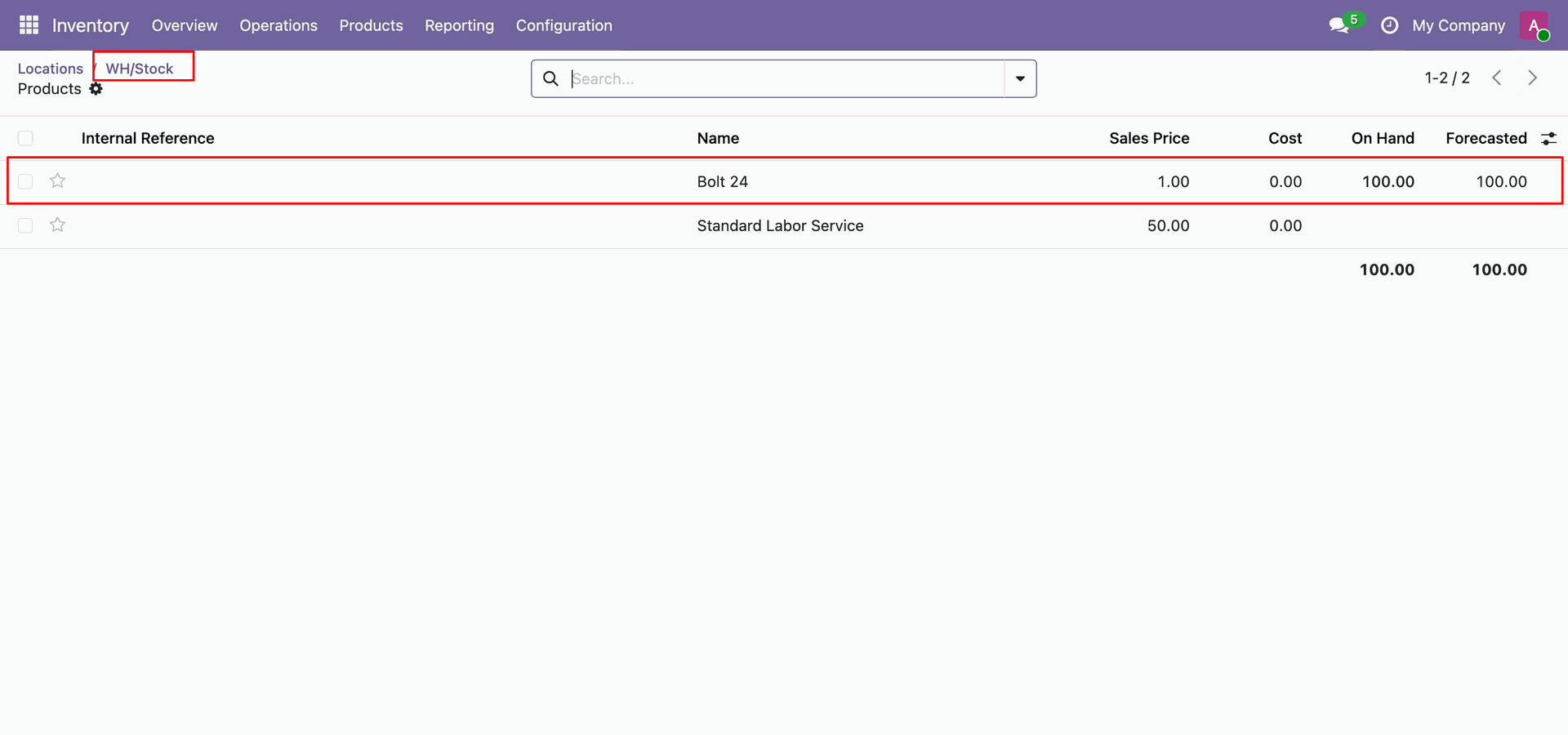
Verify remaining stock balance of Bolt 24 at source location WH/Stock after consumption.
Workflow
Configure the repair settings to automatically send repair quotations to customers when creating a quotation.
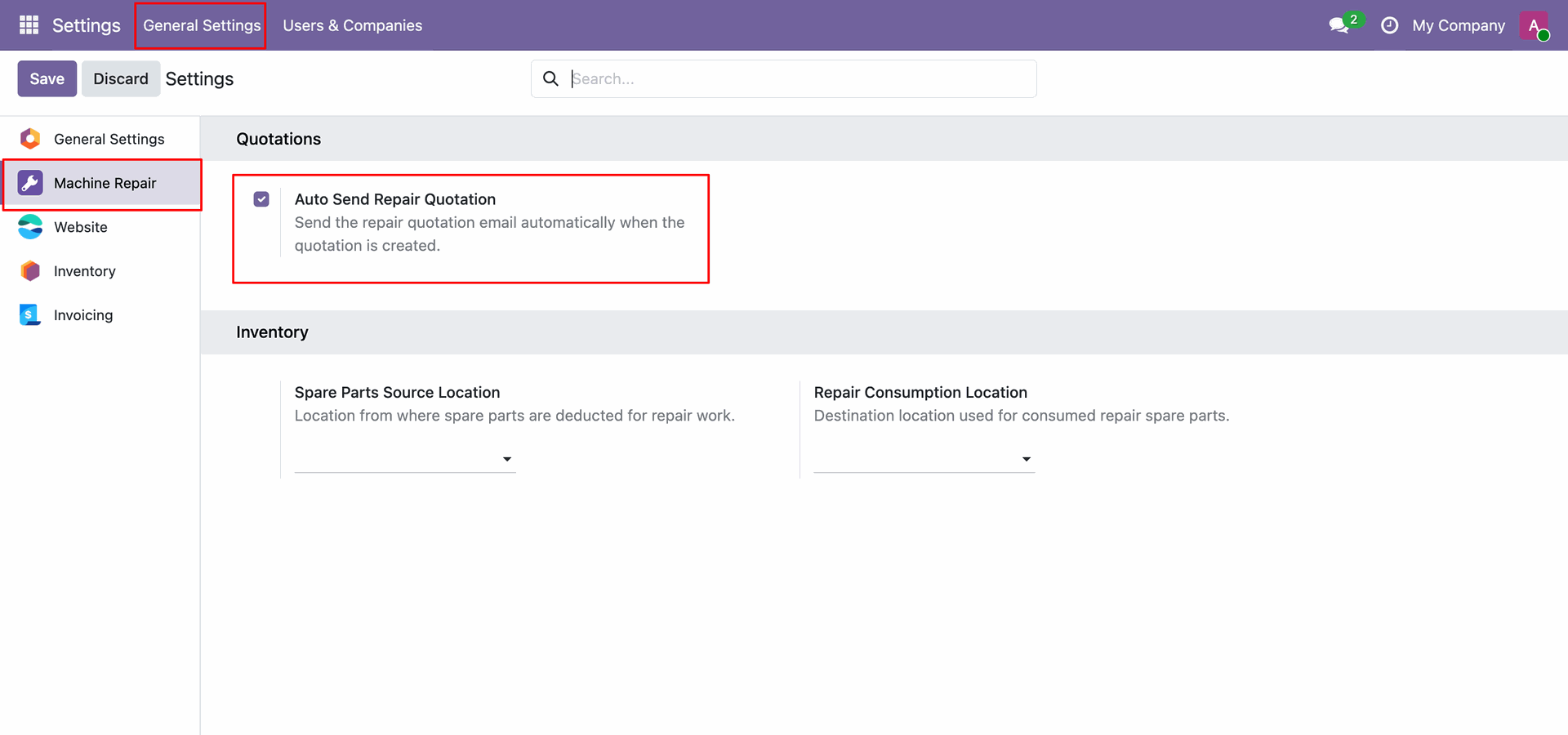
Click Create Quotation to automatically generate and email repair quotation to the customer.
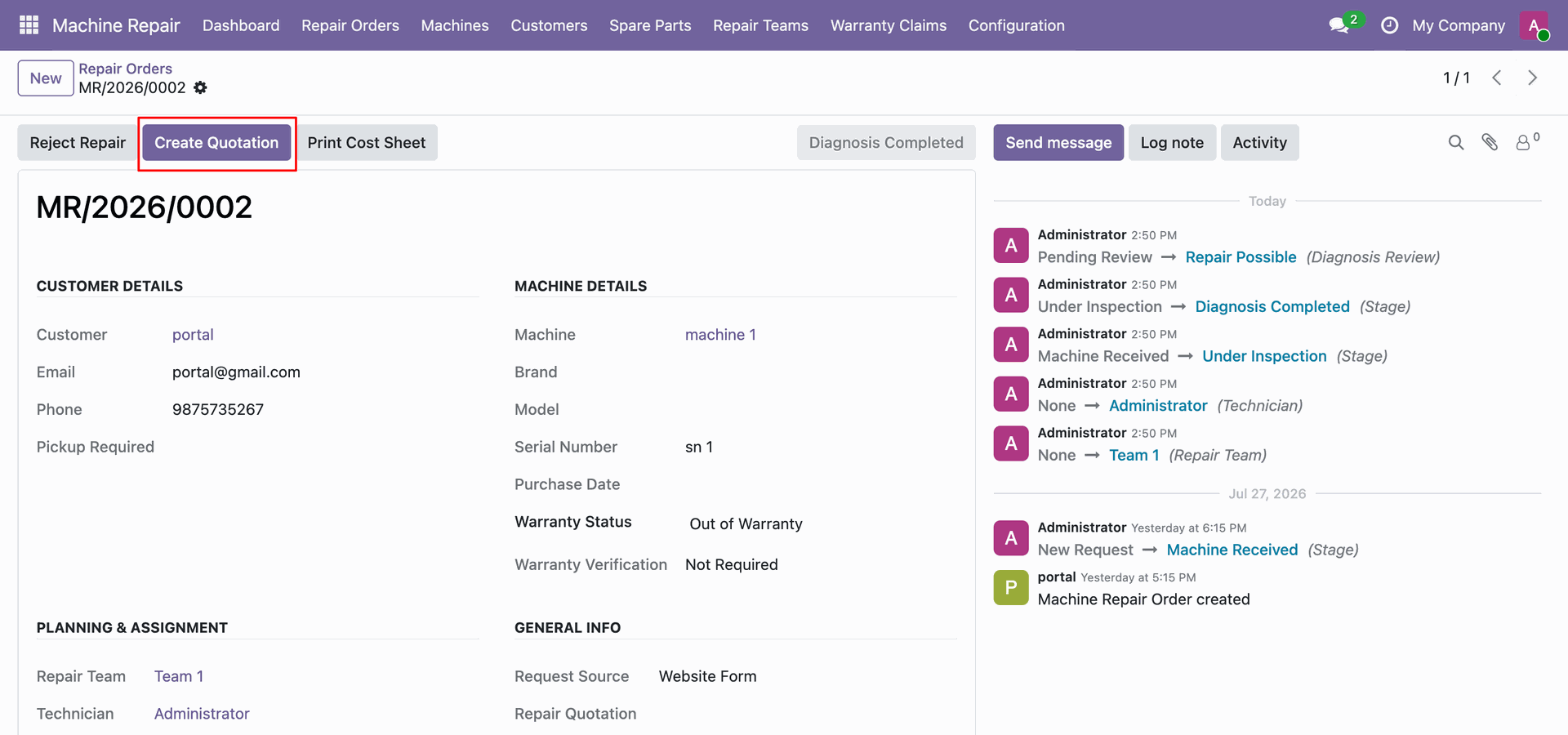
View quotation S00003 in Quotation Sent stage with automatically sent email in chatter.
Workflow
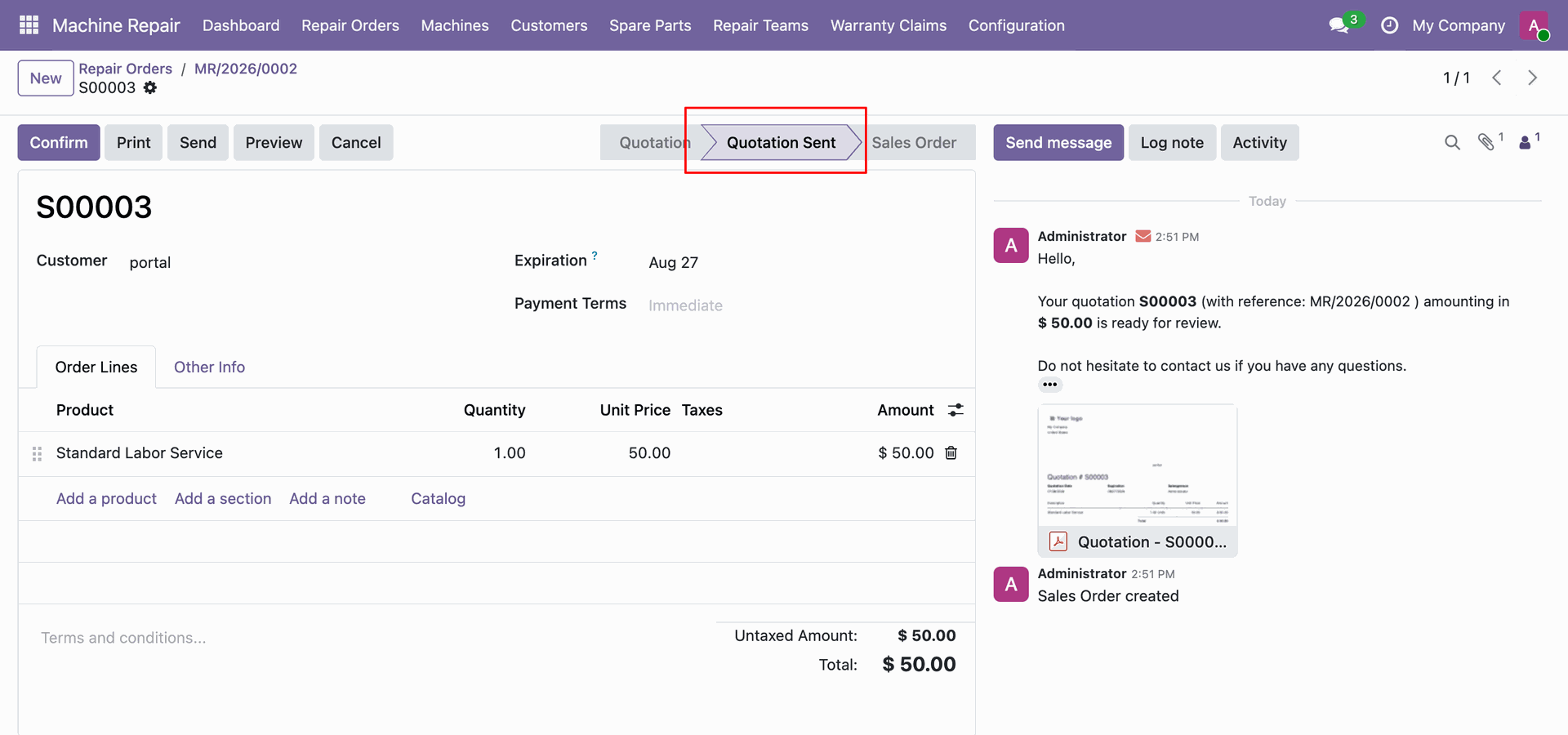
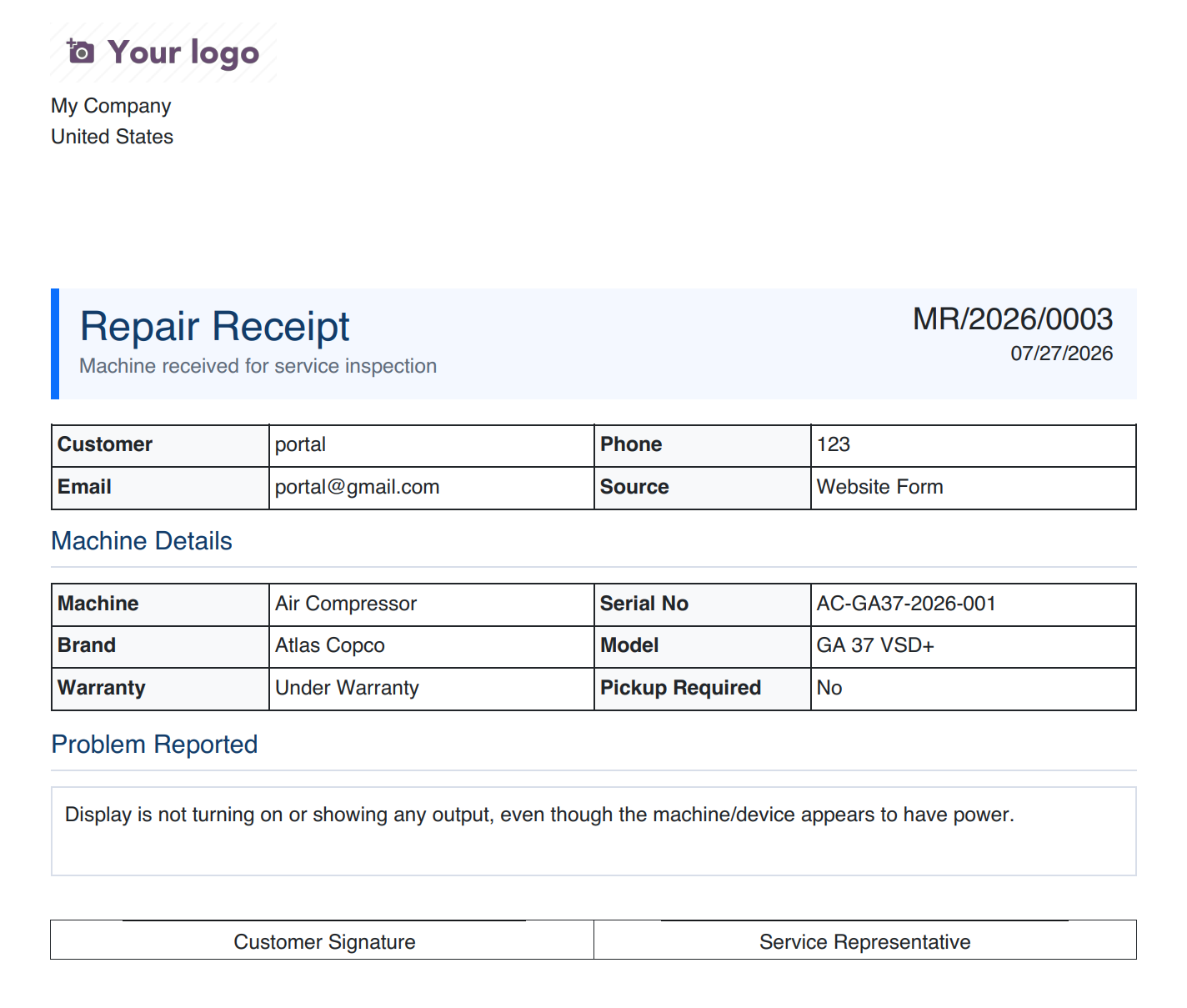
Select Repair Receipt from the Print menu to generate a receipt for the customer.
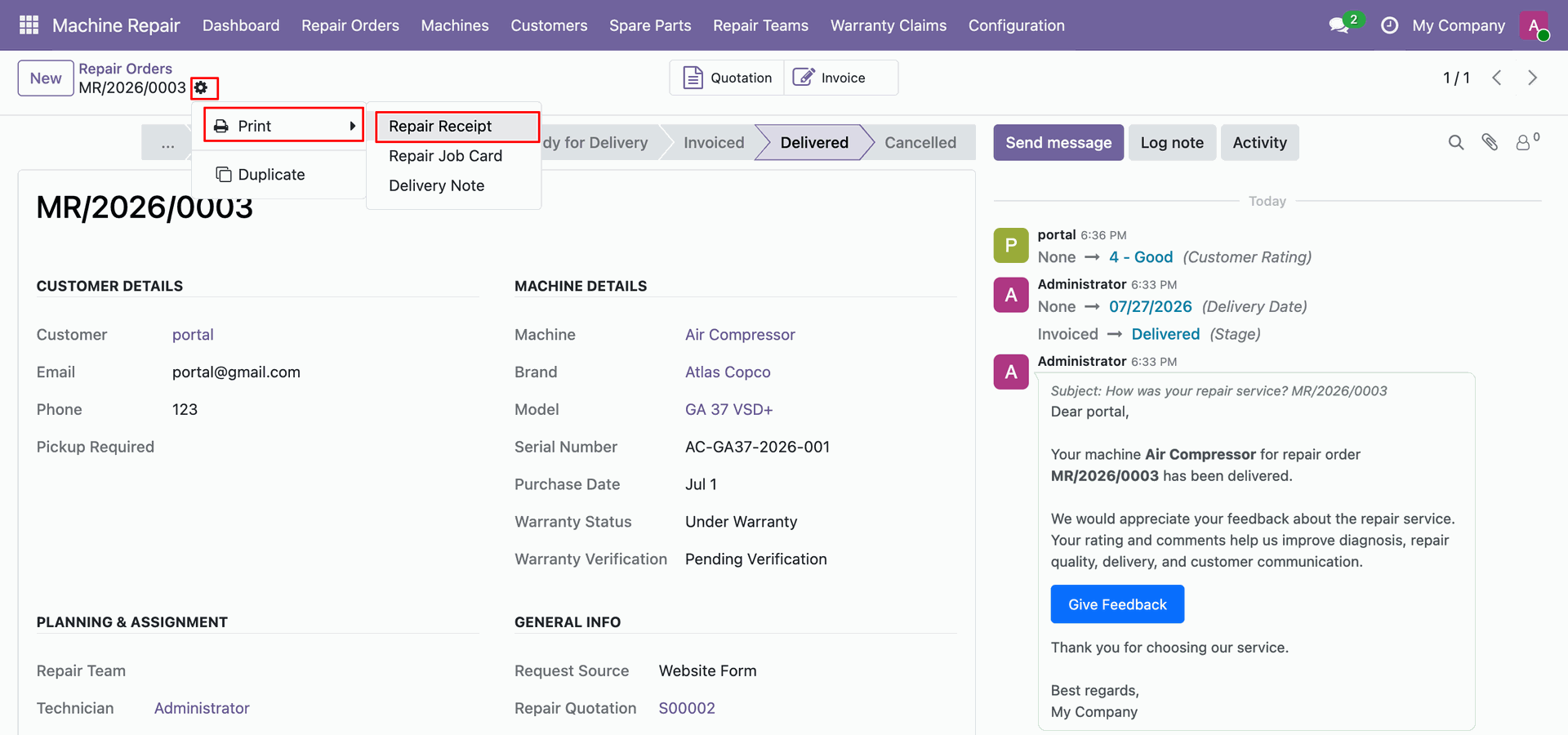
Review the printed Repair Receipt containing customer details, machine specifications, and problem description.
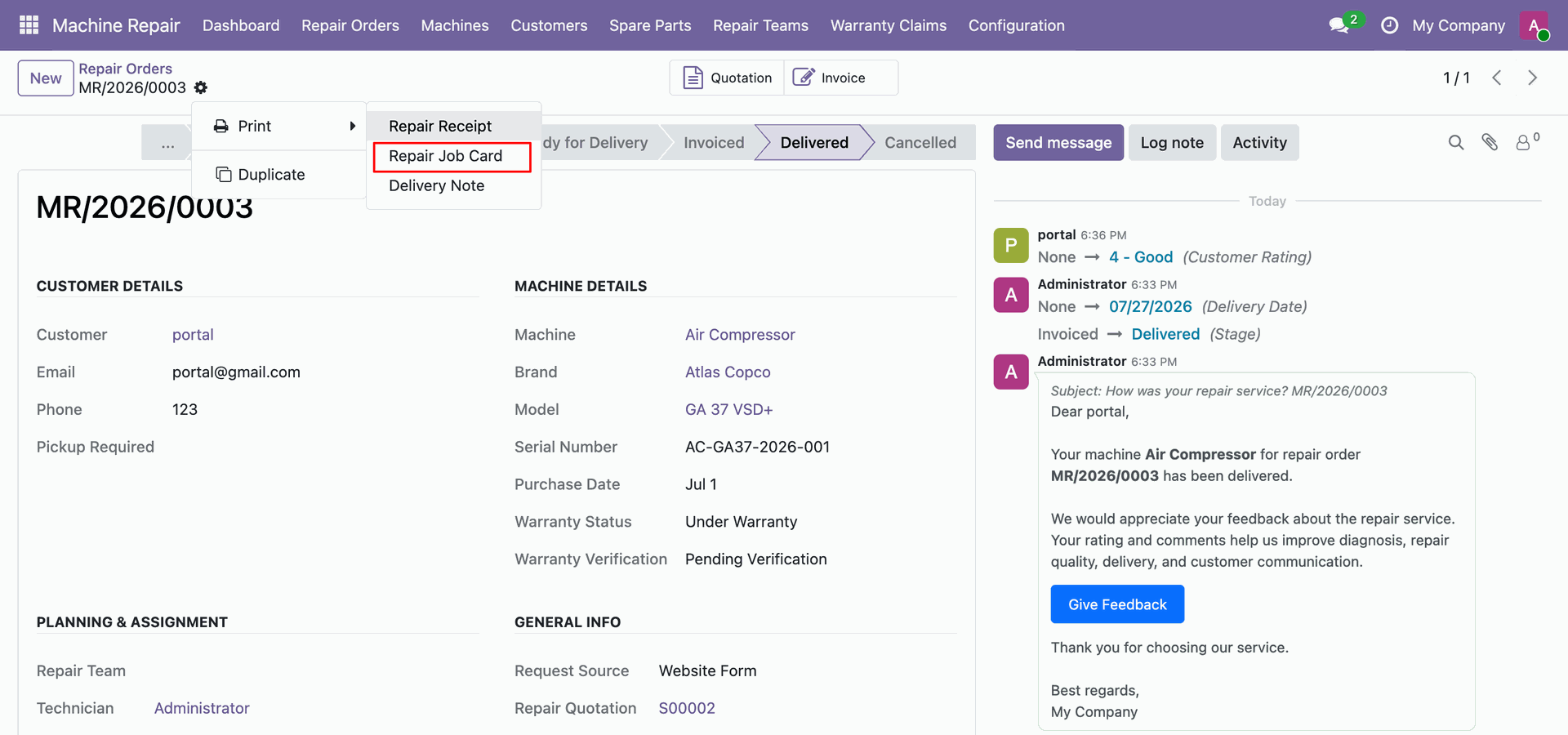
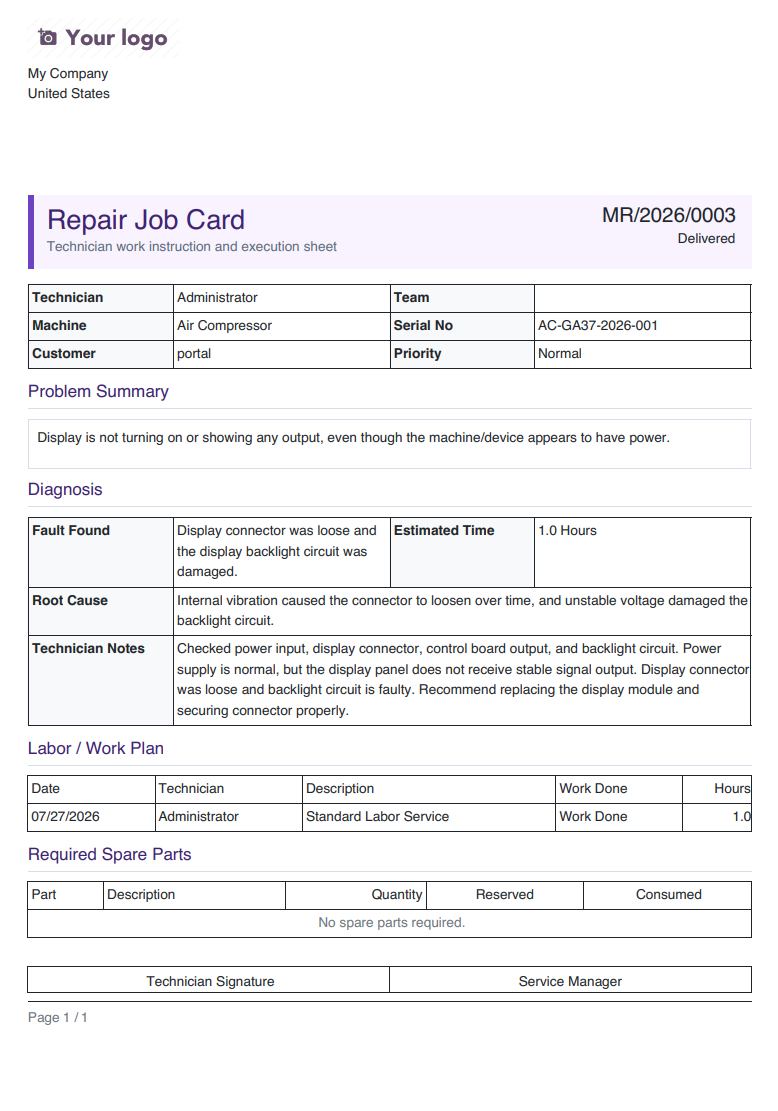
Select Repair Job Card from the Print menu to generate work instructions for technicians.
Review the printed Repair Job Card showing diagnosis details, labor plan, and spare parts.
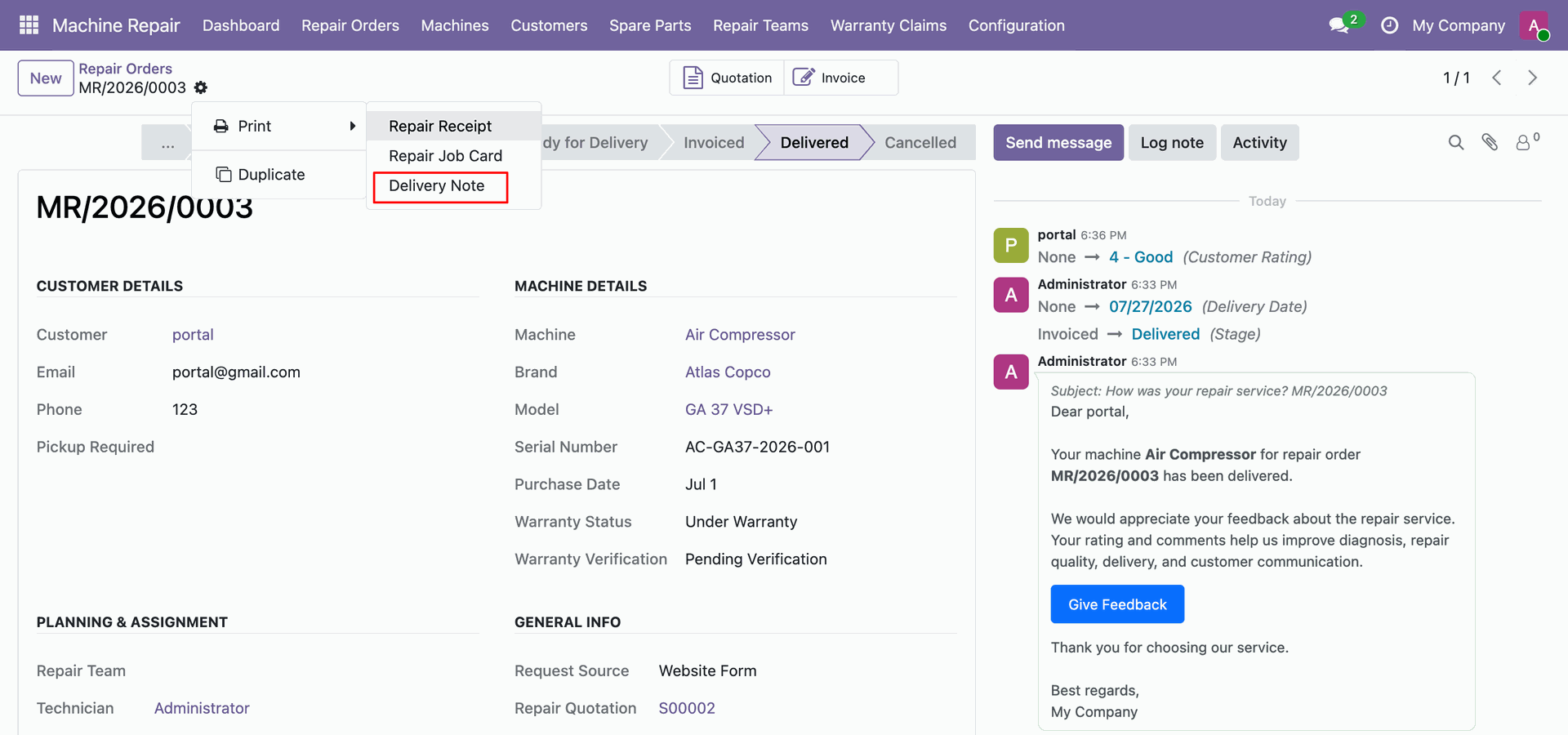
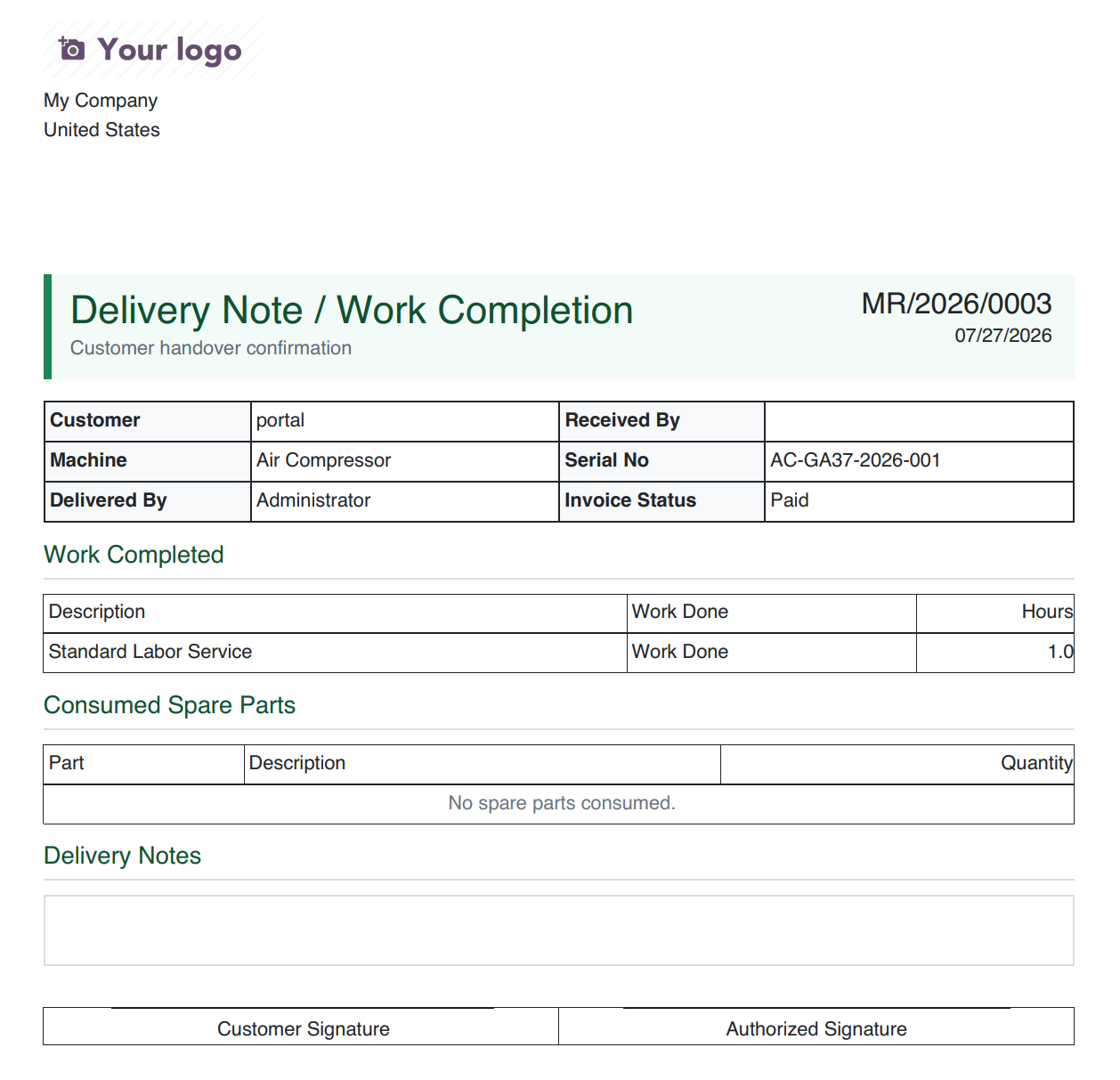
Select Delivery Note from the Print menu to create a handover receipt for delivery.
Review the printed Delivery Note document displaying customer handover details and work completion summary.
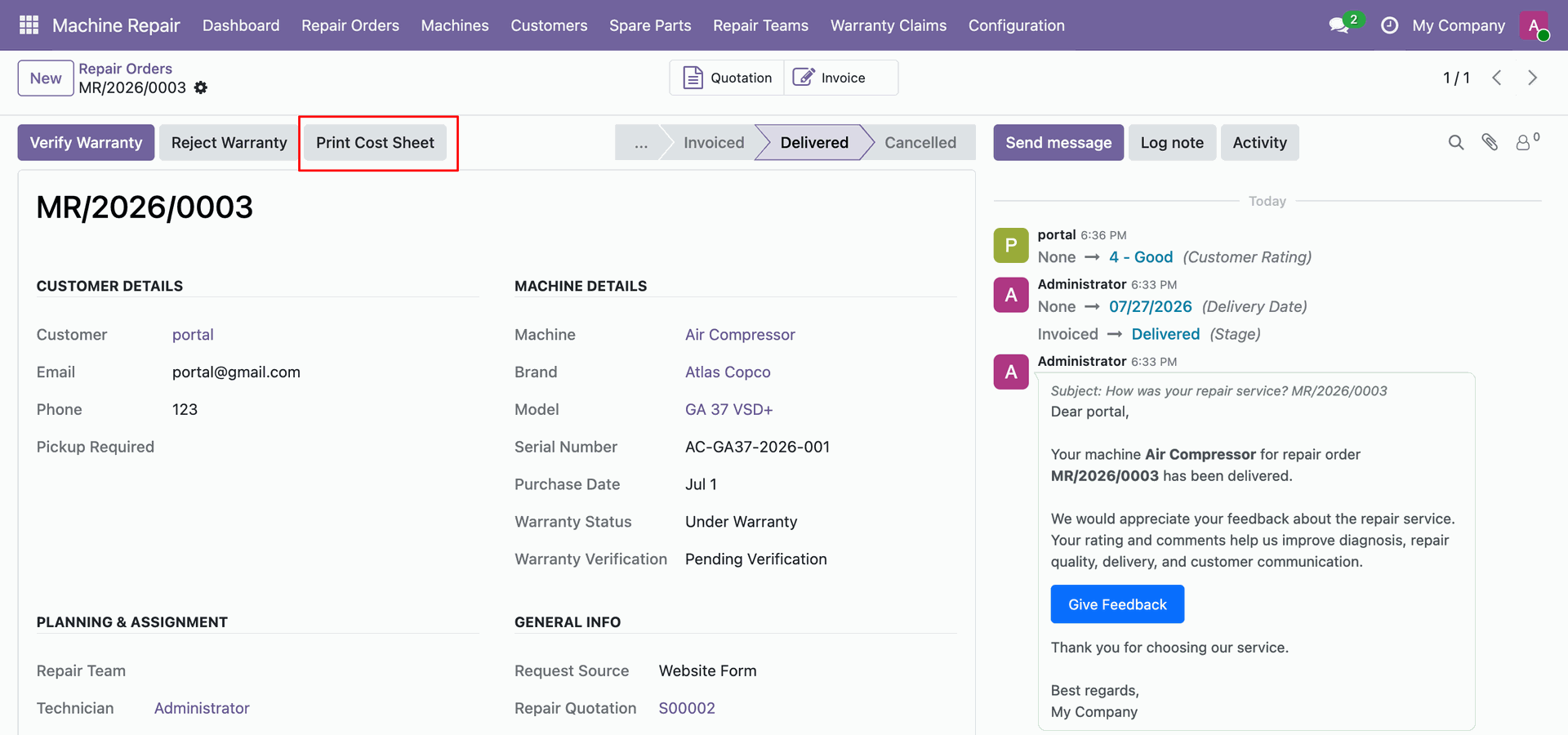
Click Print Cost Sheet on the repair order to generate the cost and margin report.
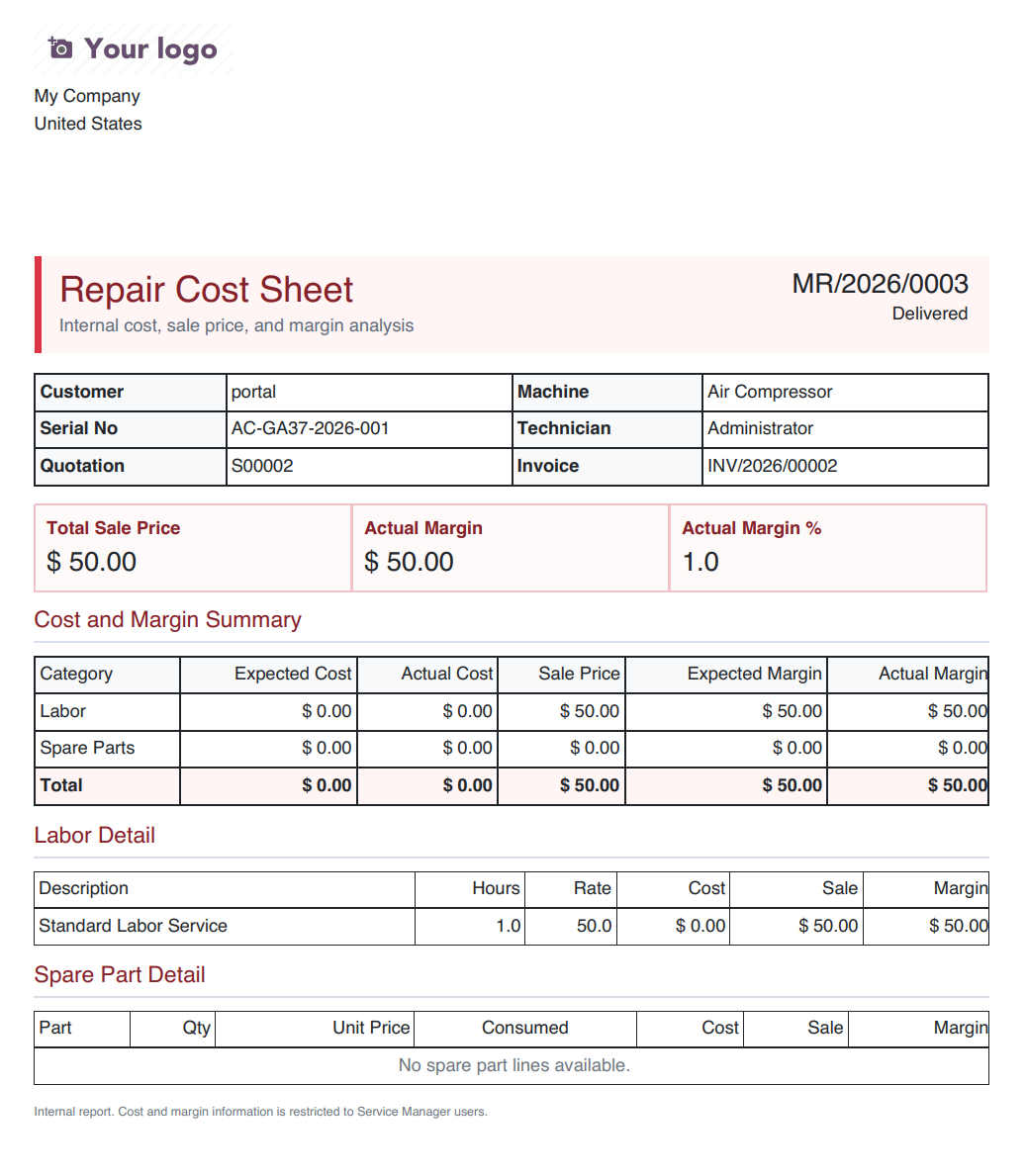
Review the printed Repair Cost Sheet report displaying total sale price, actual margin, and cost summary.
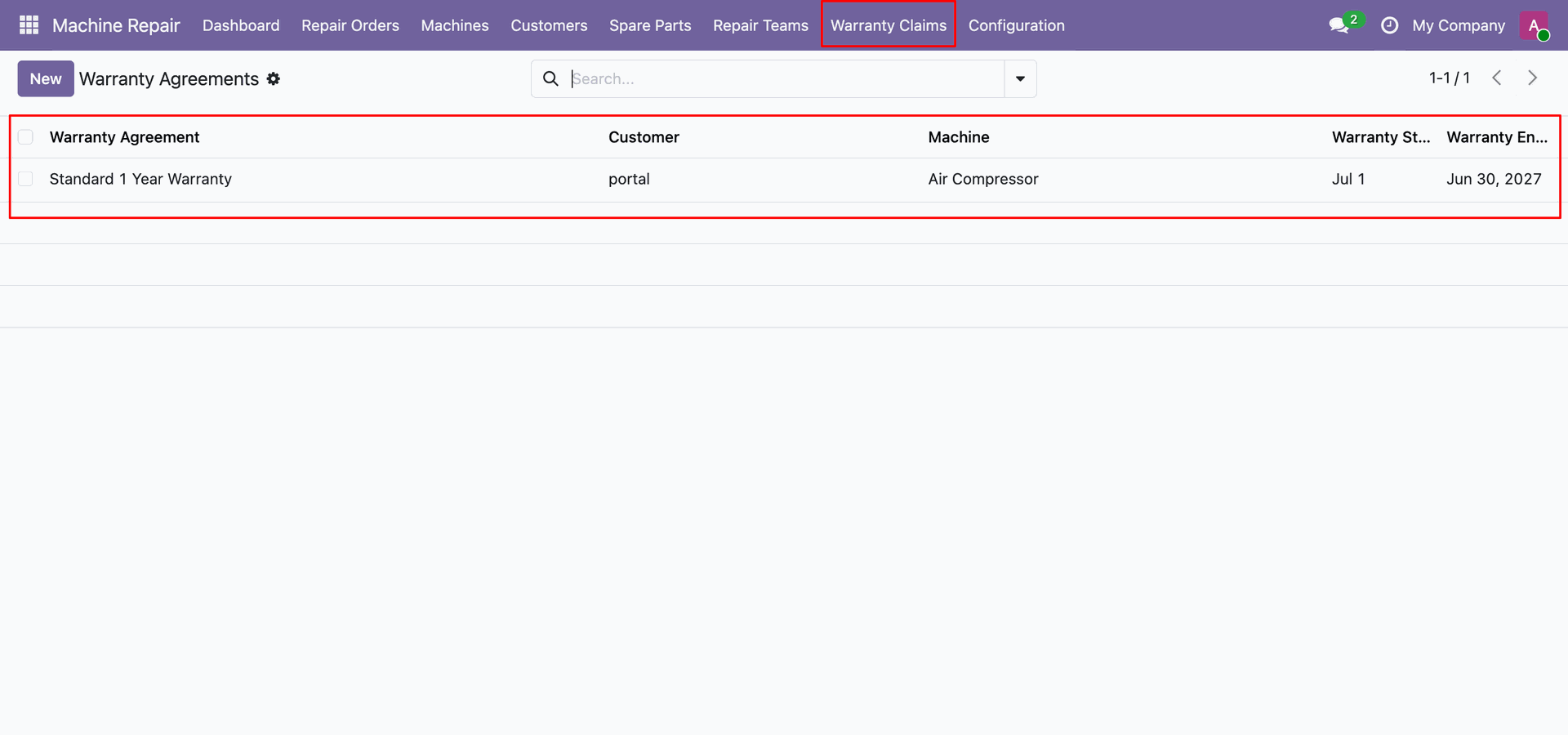
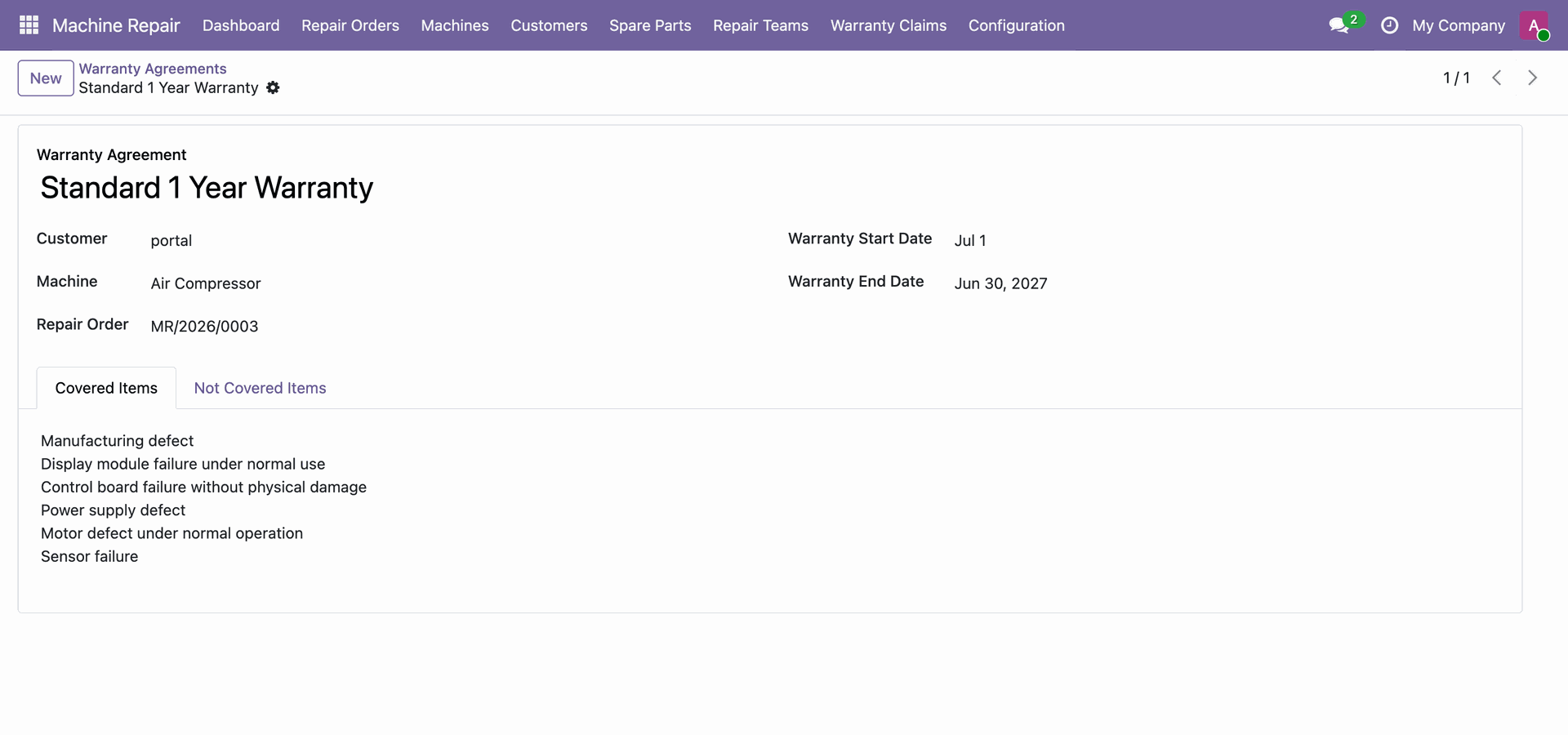
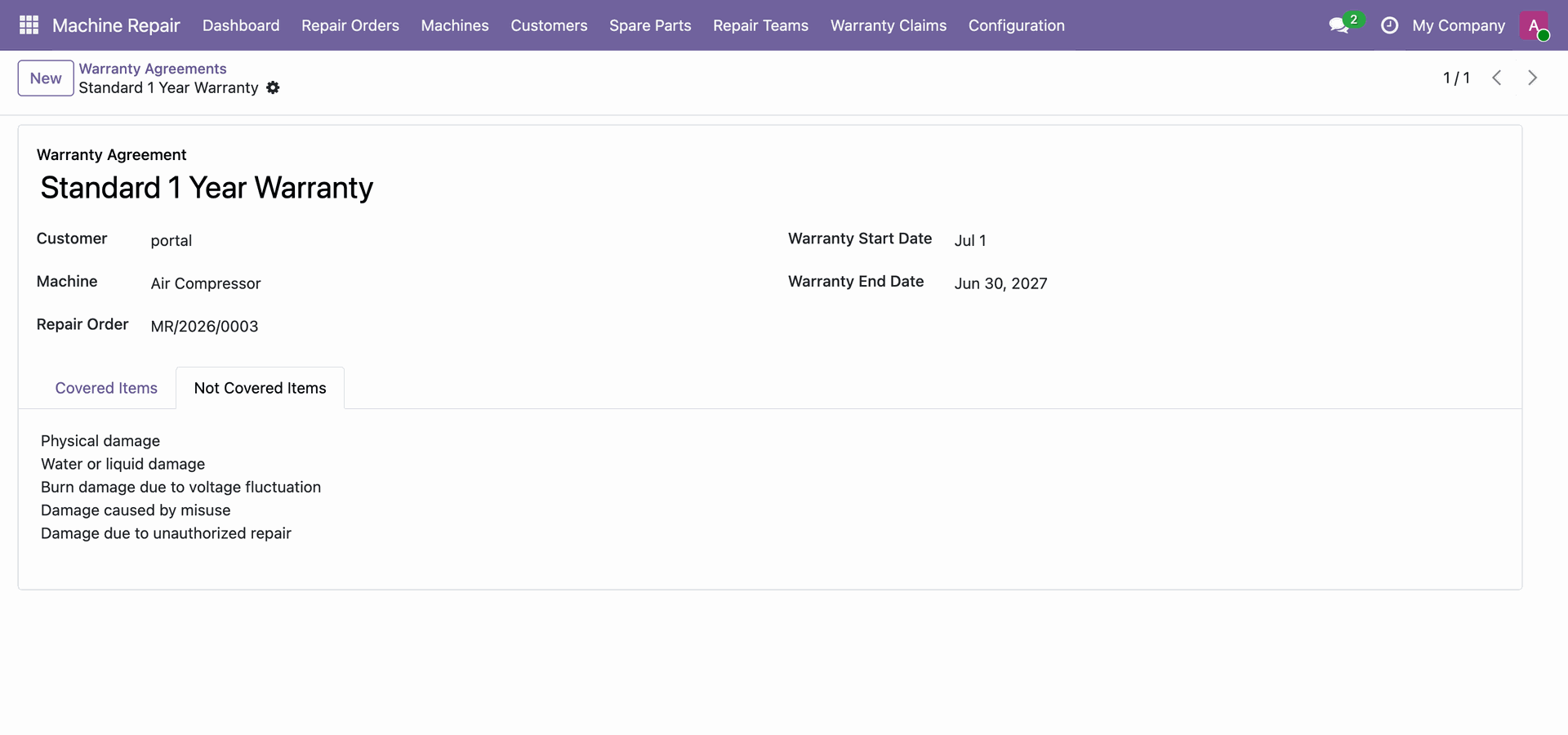
Open Warranty Agreements to view warranty contracts, customer assignments, machines, and validity dates.
Review covered items under the Standard 1 Year Warranty agreement for the machine.
Review non-covered items and exclusions defined under the warranty agreement terms for the machine.
Version 18.0.1.0.0 | Released on : 26th September 2026
- Yes, this app works perfectly with Odoo Enterprise (Odoo.sh & Premise) as well as Community.
- No, this application is not compatible with odoo.com(odoo saas/Odoo Online)
- Yes, to test this module, please contact us at sales@softhealer.com.
- Please contact us at sales@softhealer.com to request customization.
- Yes, we provide free support for 365 days from the date of purchase.
- Yes, you will receive lifetime free updates for the version of the module you purchased.
- No, there is no need to install any additional libraries.
- Yes, for version 12 and above, you need to purchase the module separately for each version you intend to use.
- No, exchanges or refunds are not allowed. Please make sure to select the correct version before purchasing.
- You can contact us at support@softhealer.com for language translation support. We use Google Translator tools to provide translations in multiple languages, so the accuracy may vary. We welcome your suggestions to help improve translations.
Discover Our Latest Apps