











M-Pesa Payment Integration

Using this module enables seamless integration between Odoo and the M-Pesa payment system. It allows customers to make secure, real-time payments through M-Pesa when confirming orders or invoices. The module supports both manual and automatic payment confirmations via webhooks. You can easily configure M-Pesa credentials, send payment links through email, and monitor all transactions directly in Odoo. It simplifies mobile payments, minimizes manual effort, and enhances overall payment efficiency.
Related Modules
Key Features
Features

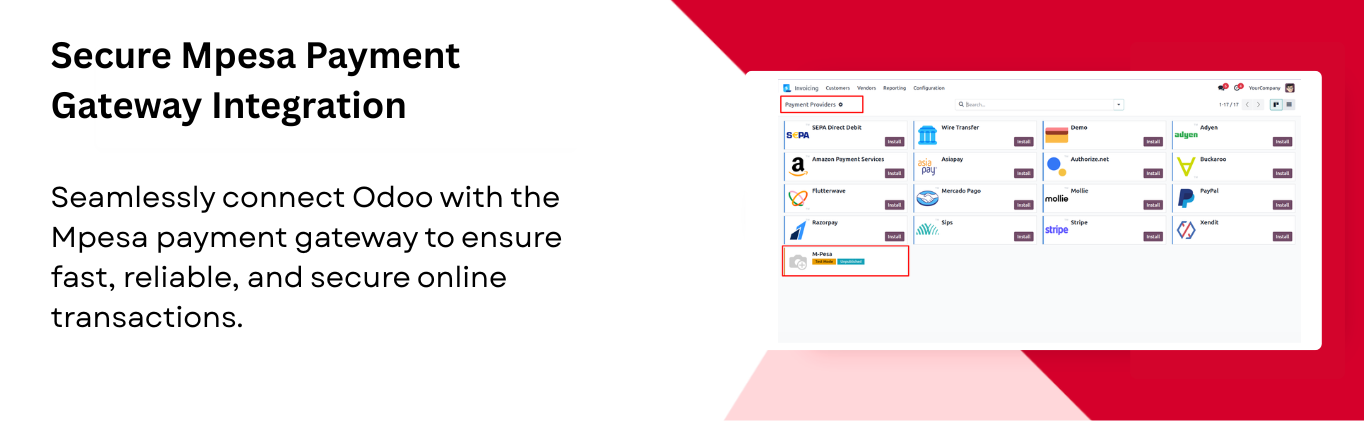
Easy Odoo & M-Pesa Integration
Easily integrate your Odoo system with the M-Pesa payment gateway to enable fast and secure transactions.

M-Pesa Payment Reminder
Easily send payment reminder emails directly from the invoice list view with a single click.
STK Push Notification & Order Confirmation
Sends an STK push notification to partner's registered mobile number, and automatically confirms the order upon successful payment.

Share Payment Links via Email
Generate and send secure payment links to customers through email for quick payment completion.
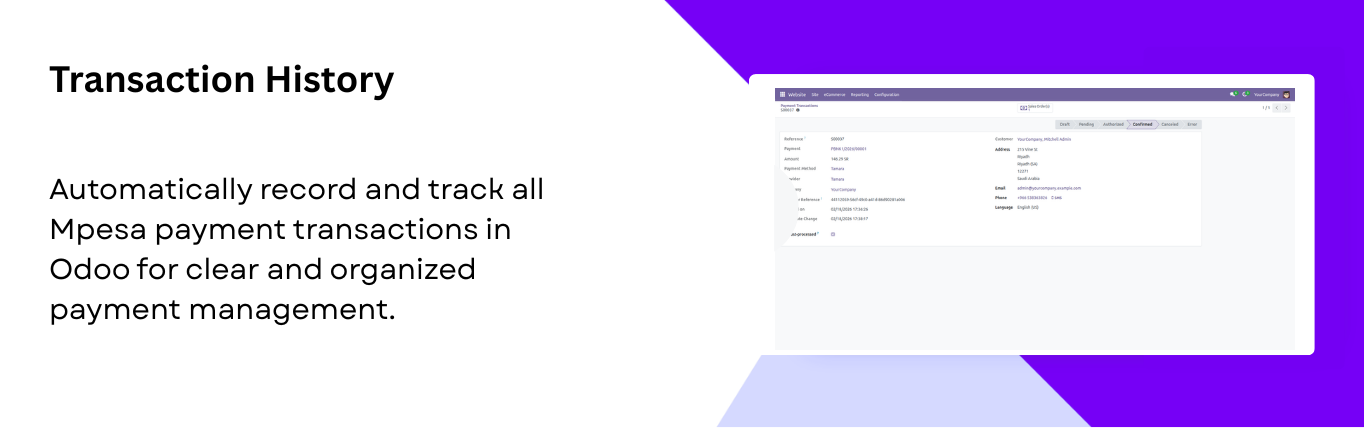
Transaction History
Maintain a transaction history in Odoo for all payments processed through Mpesa, making payments straightforward.
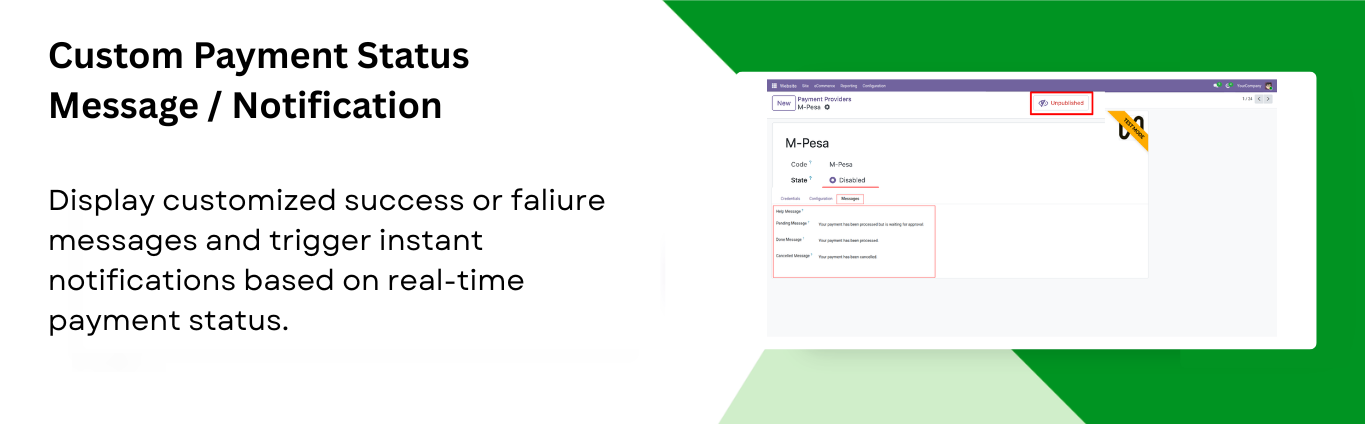
Custom Payment Status Notification
Show personalized success/failure messages and send notifications after each payment update.
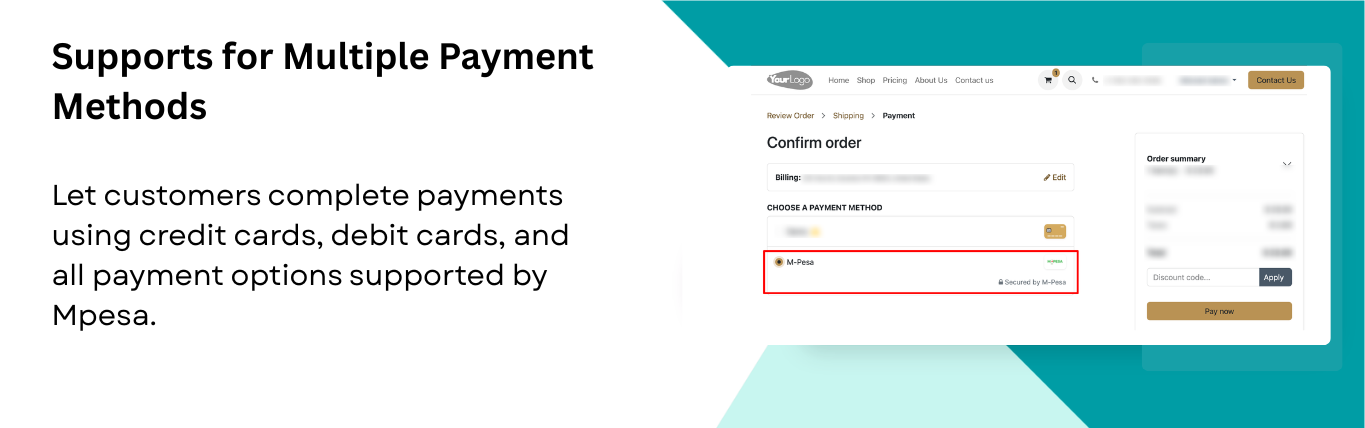
Support for Multiple Payment Methods
Allow customers to pay via credit/debit cards or any other payment methods supported by Mpesa.
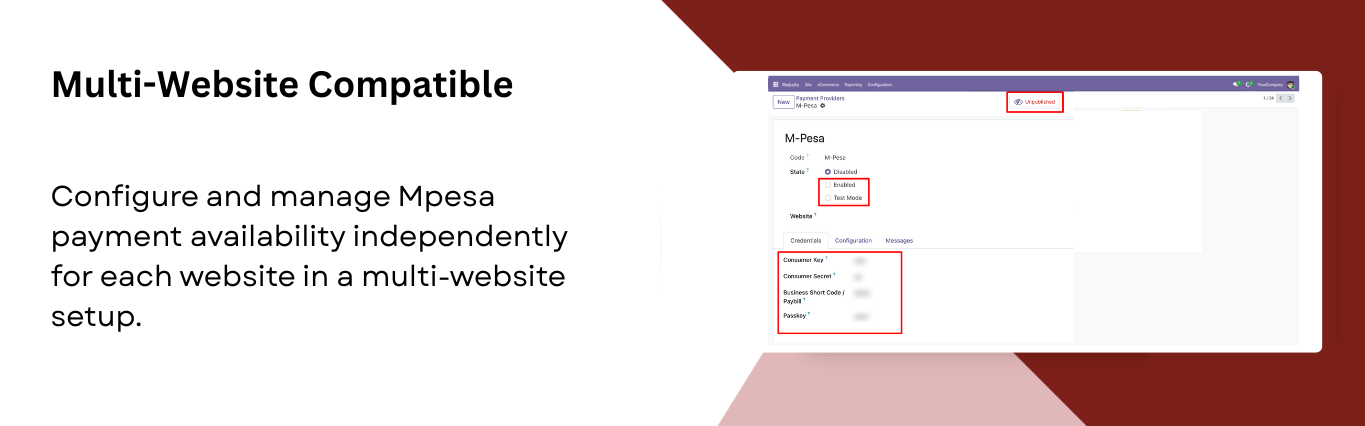
Multi-Website Compatible
Enable payment methods separately for each website in a multi-website environment.

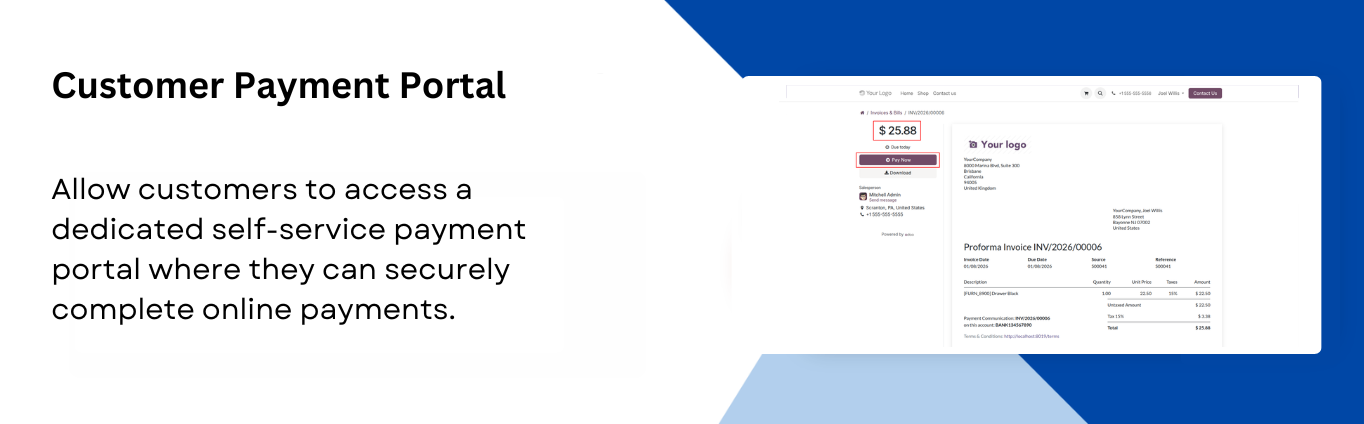
Customer Payment Portal
Customers can make payments through the portal and view their invoices.
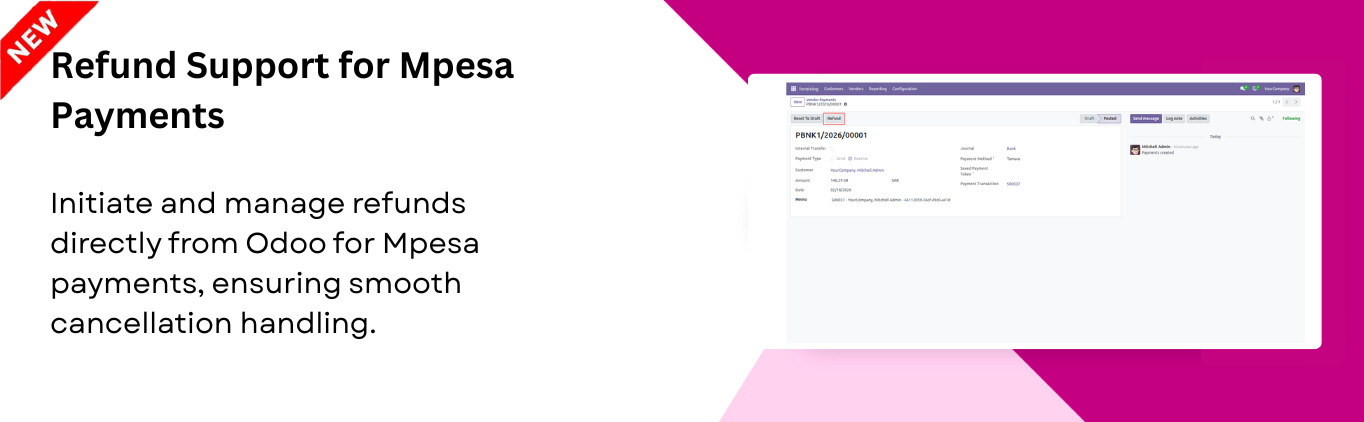
Refund Support for Mpesa Payments
Process refunds directly from Odoo for any order paid through Mpesa. Ensuring smooth handling of cancellations.
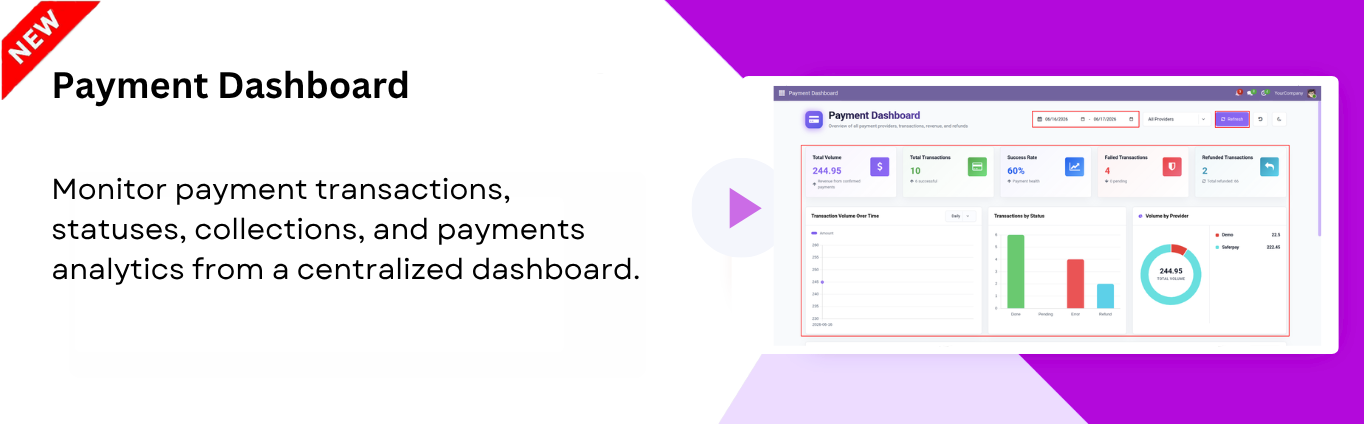
Payment Dashboard

Monitor payment transactions, statuses, collections, and payment analytics from a centralized dashboard.
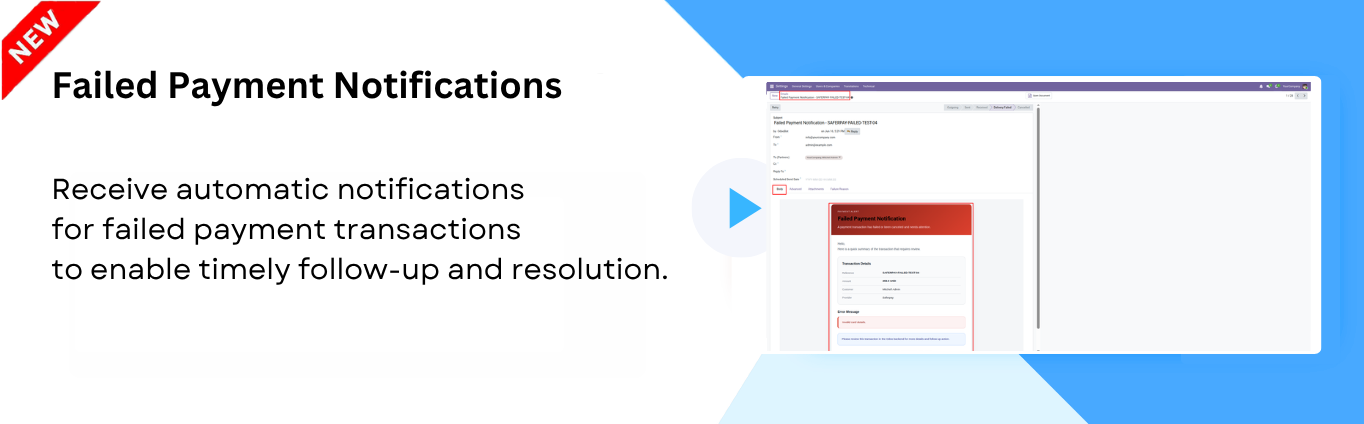
Failed Payment Notifications
Receive automatic notifications for failed payment transactions to enable timely follow-up and resolution.

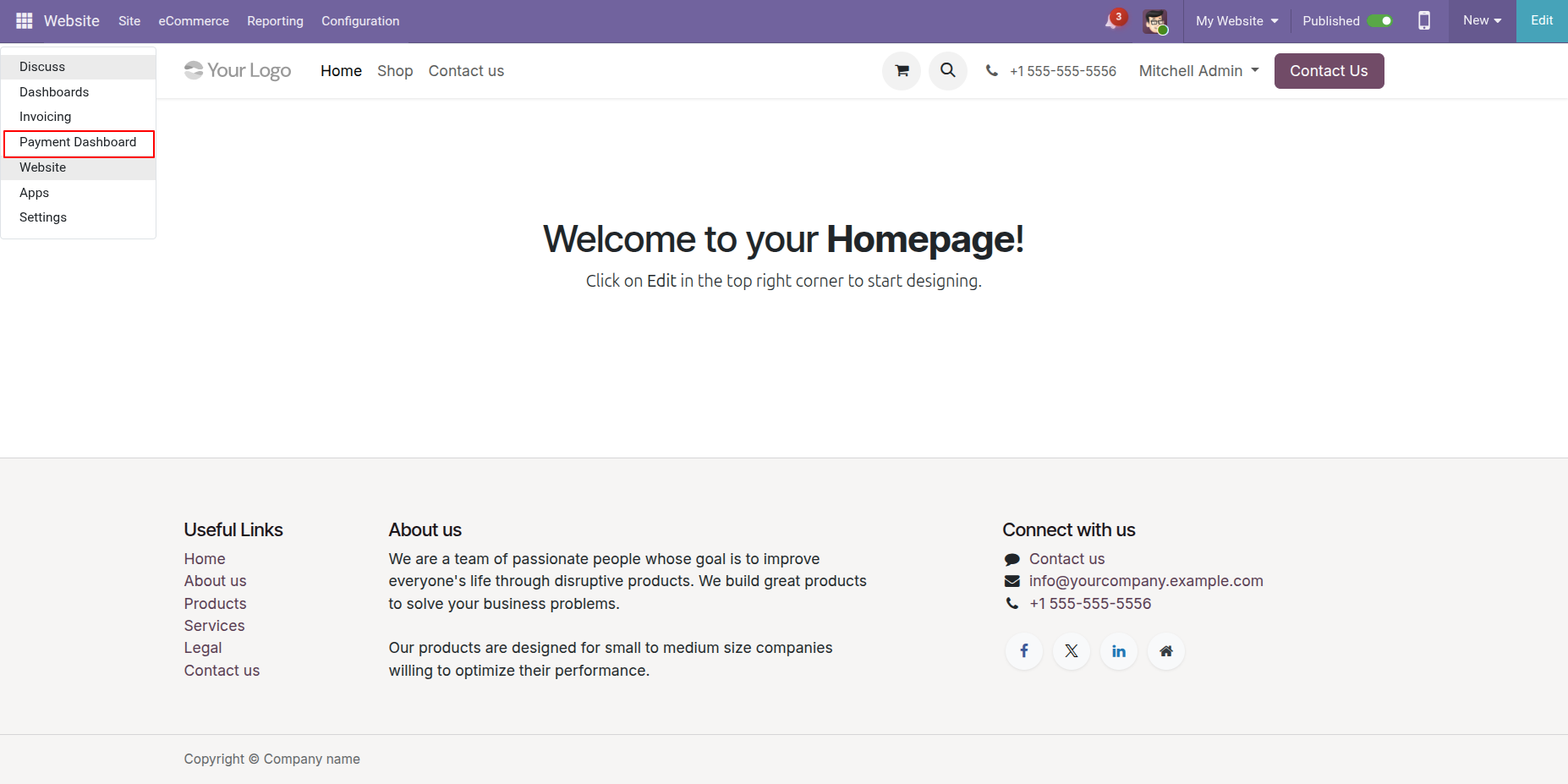
Click on the Payment Dashboard from the Apps to view payment related information.
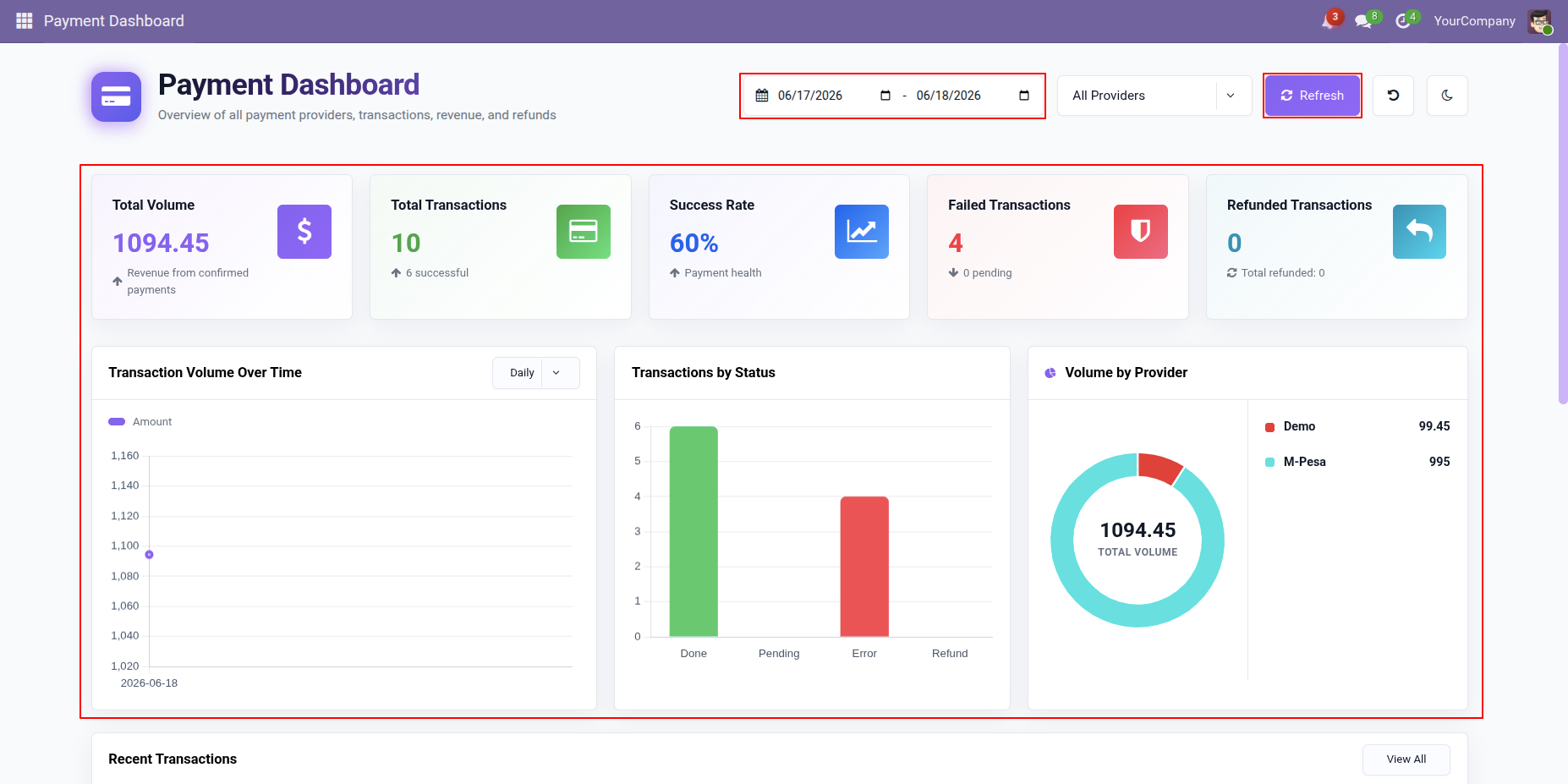
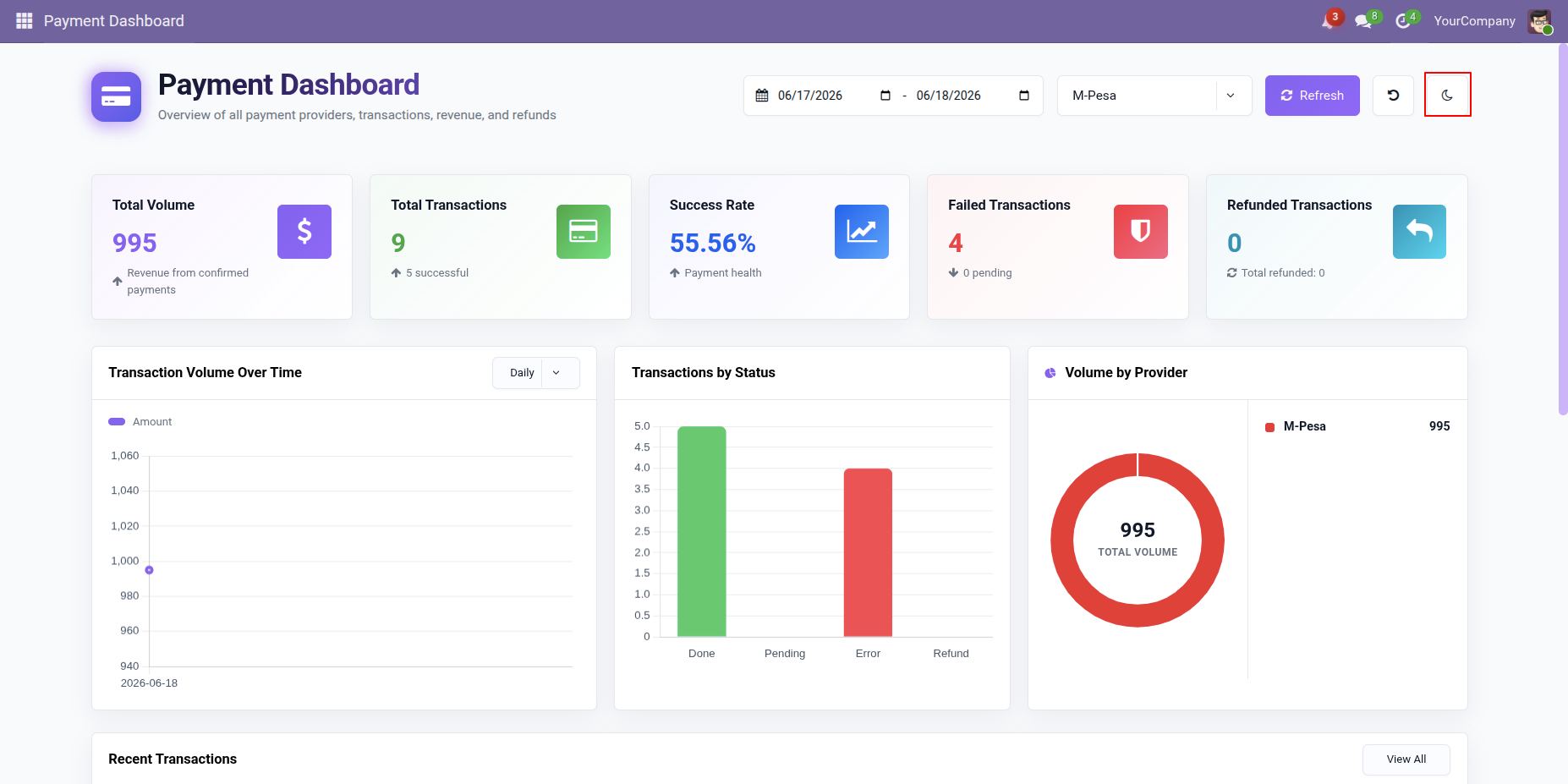
The Payment Dashboard provides an overview of payment activities, including Total Volume, Total Transactions, Success Rate, Failed Transactions, and Refunded Transactions.
Users can filter the data using From Date, To Date, and Provider filters, refresh the dashboard using the Refresh button.
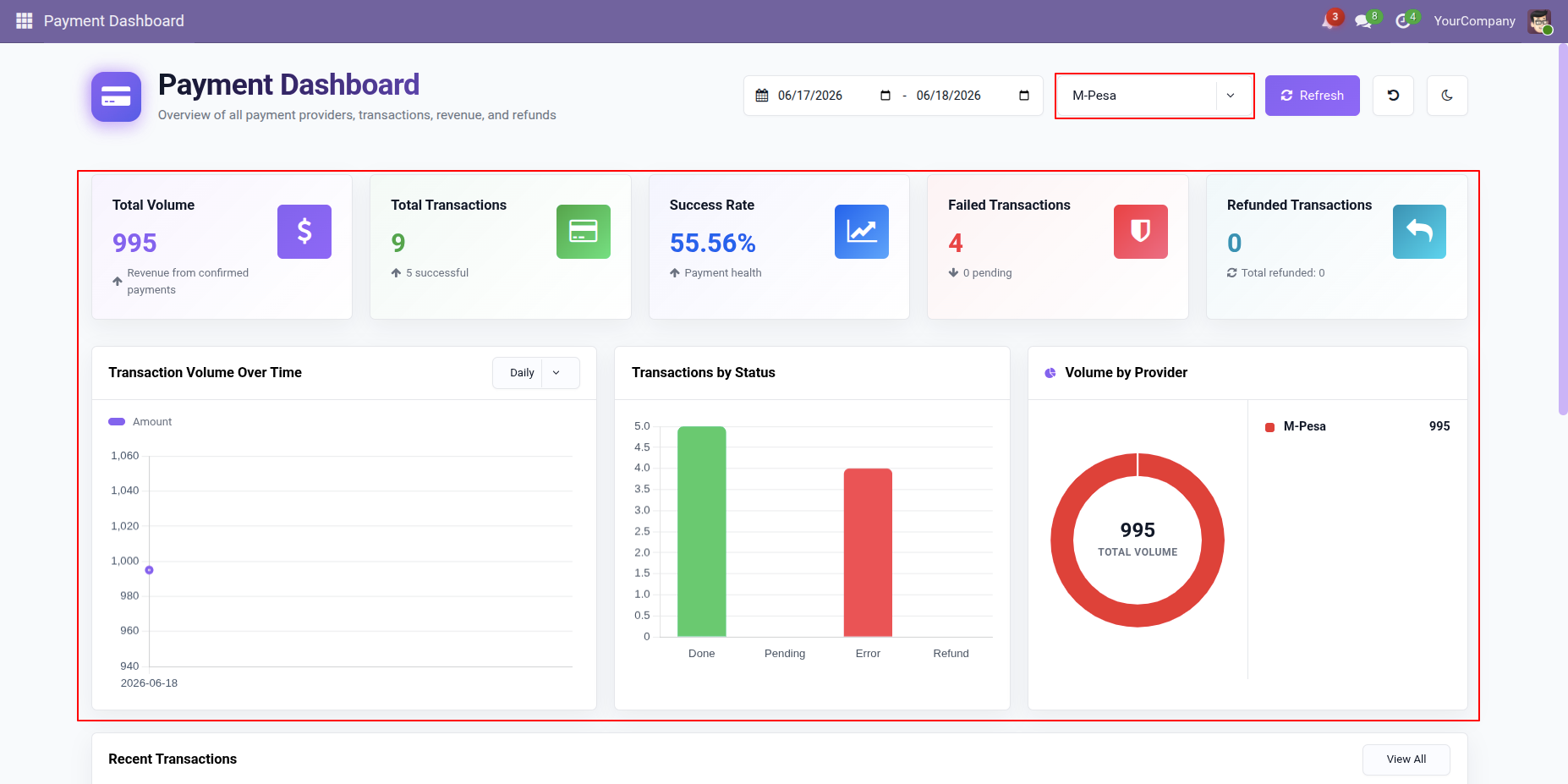
Select M-Pesa from the Provider filter on the Payment Dashboard to view payment statistics, transactions, revenue metrics, and charts related specifically to M-Pesa Payment.
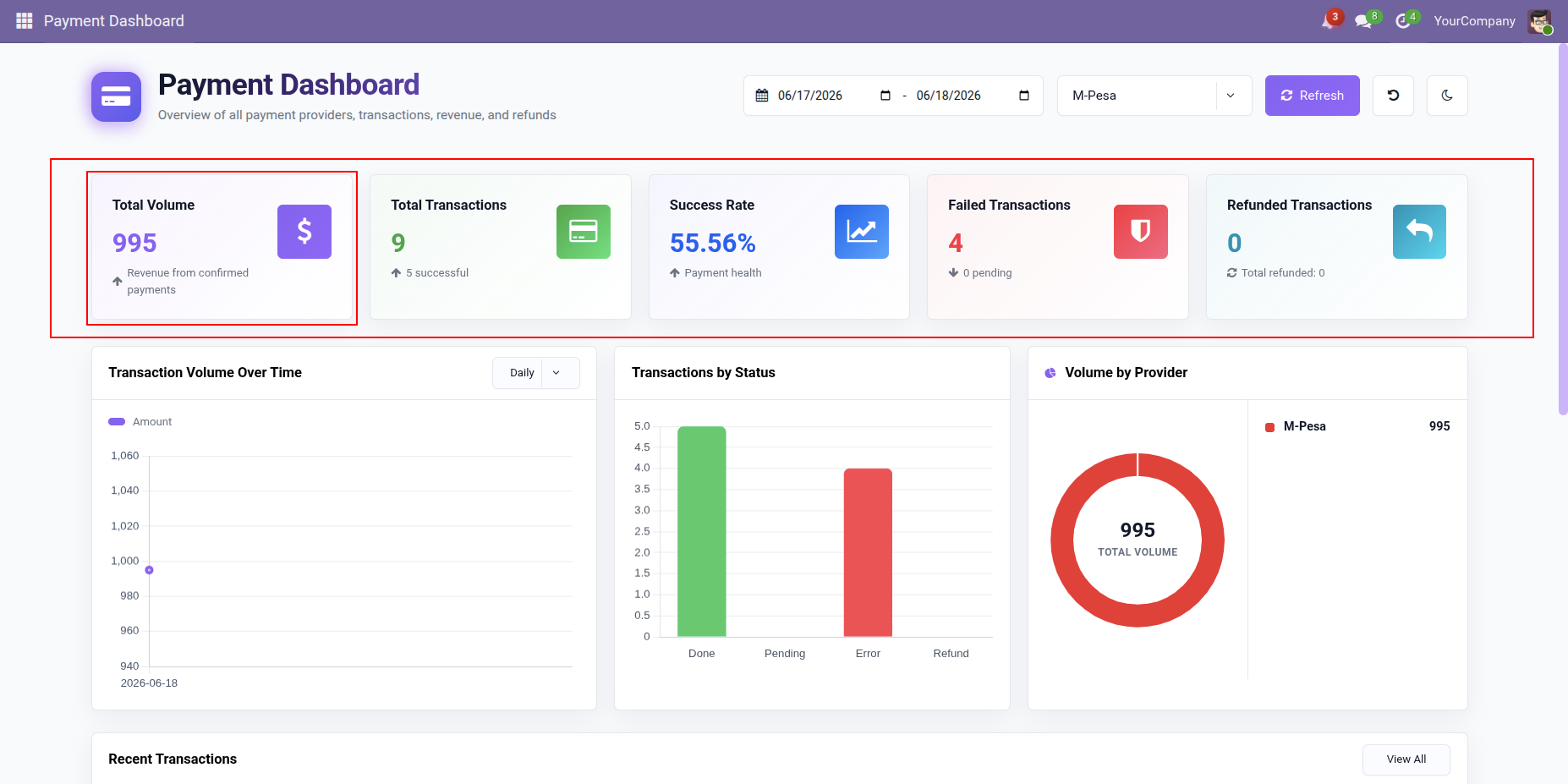
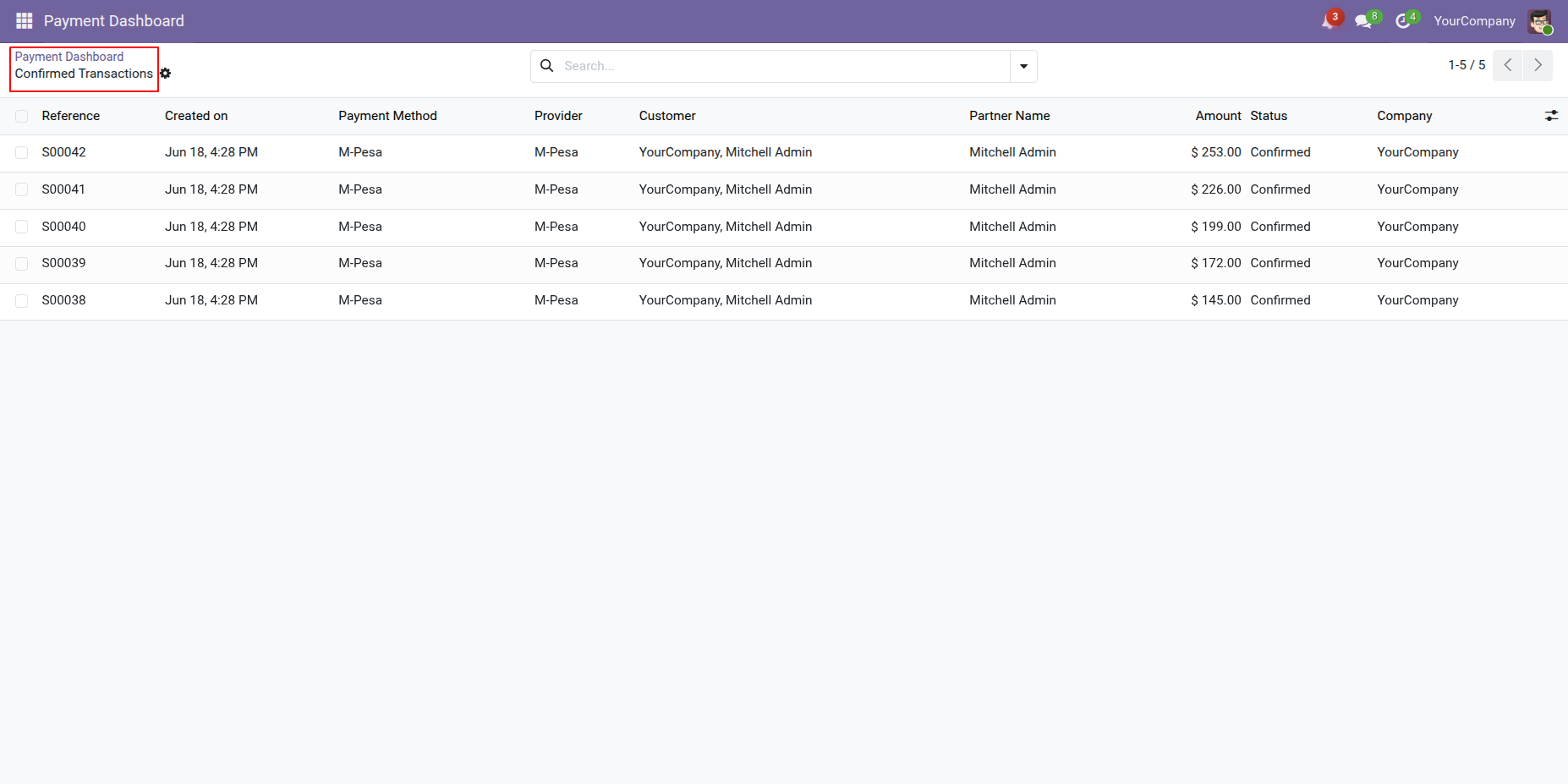
Click on the Total Volume tile from the Payment Dashboard to View all confirmed transactions.
Clicking on the Total Volume tile from the Payment Dashboard will open a List View of all Confirmed Transactions.
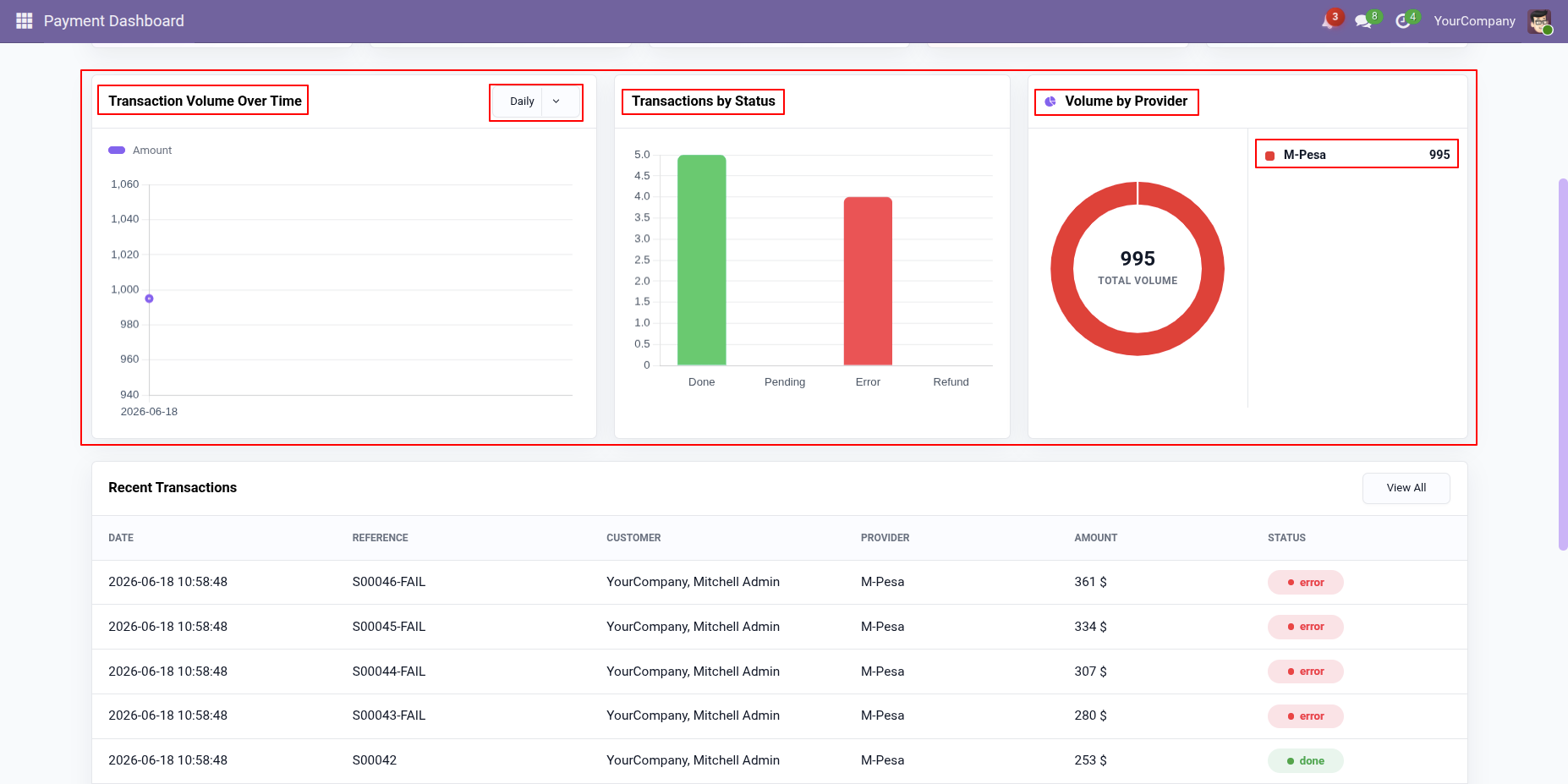
The dashboard displays interactive charts for Transaction Volume Over Time, Transactions by Status, and Volume by Provider, enabling users to analyze payment trends and performance more effectively.
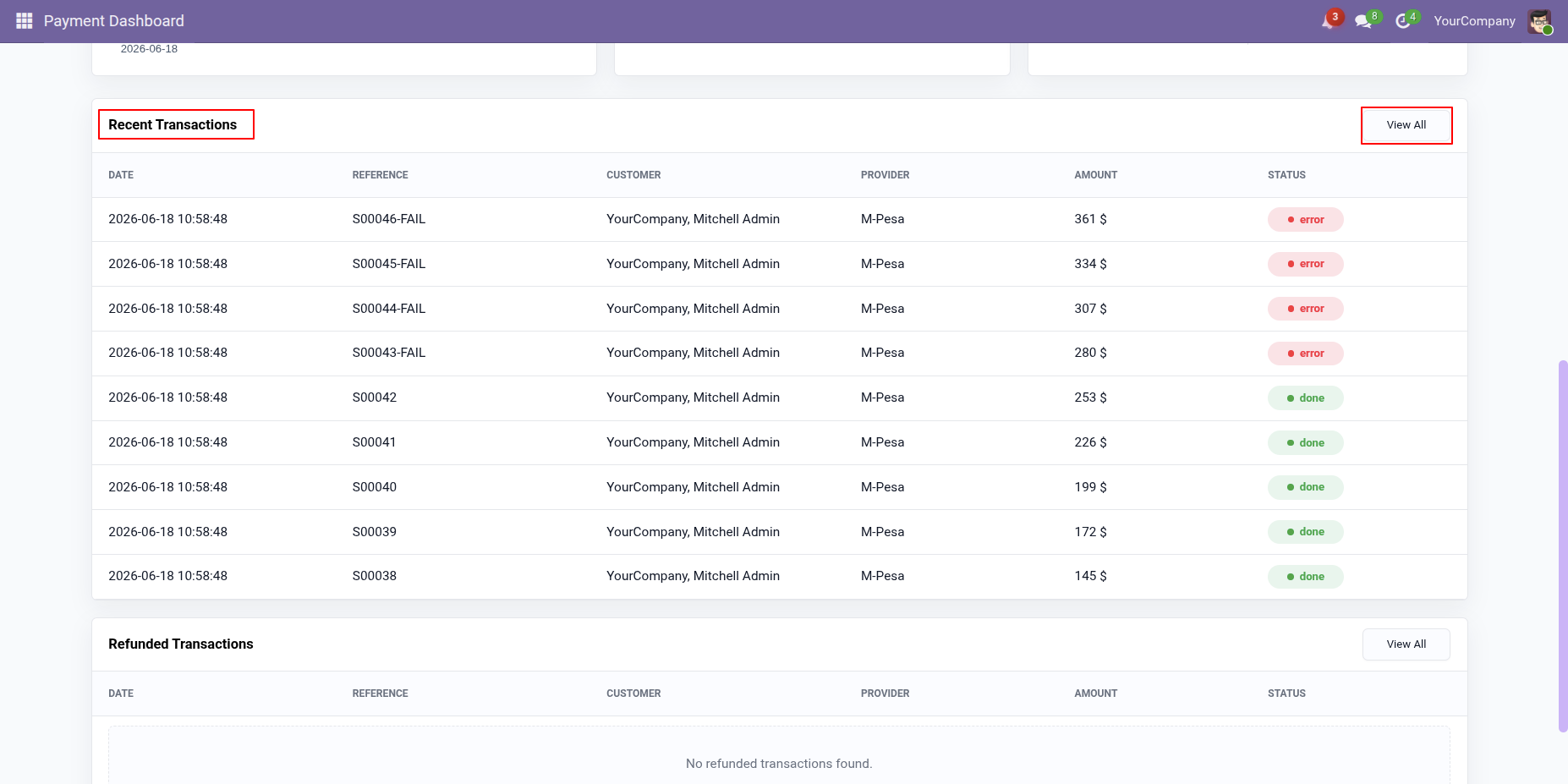
Recent Transactions can also be viewed directly from the Payment Dashboard, allowing users to quickly monitor the latest payment activities and transaction statuses.
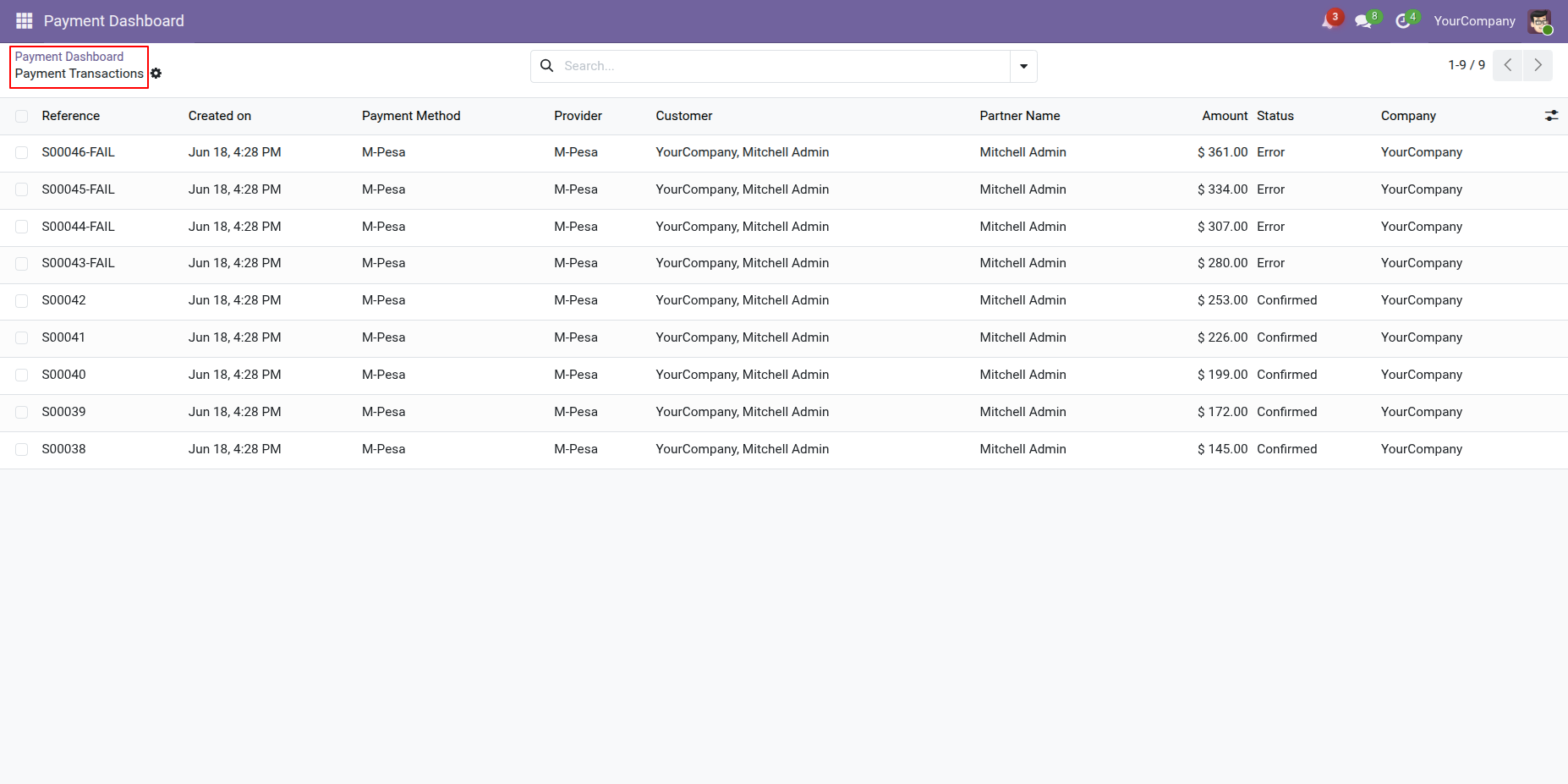
Clicking the View All button in the Recent Transactions section of the Payment Dashboard will open a Payment Transactions List View.
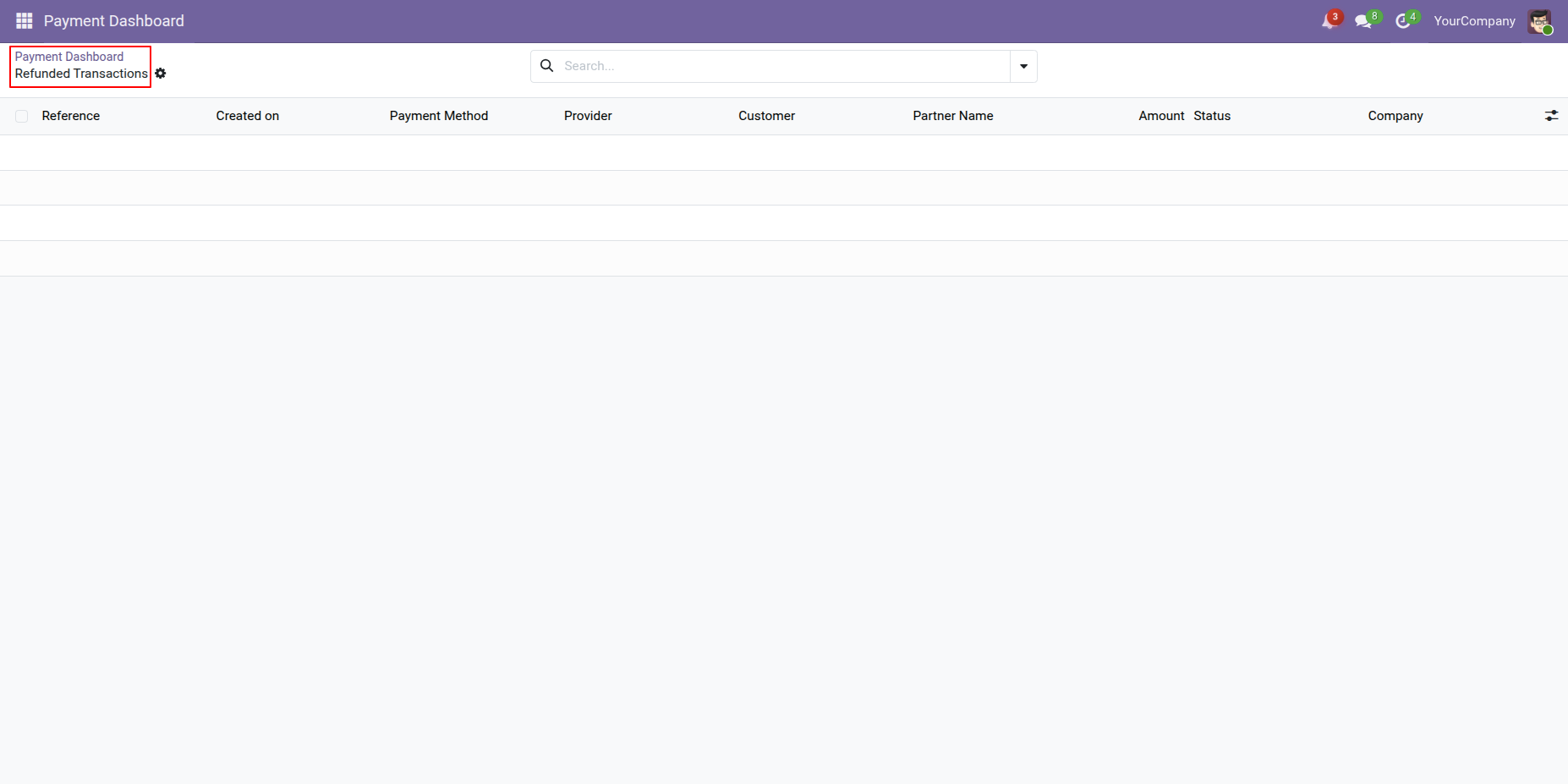
Refunded Transactions can also be viewed directly from the Payment Dashboard, allowing users to quickly review all refunded payment transactions and their details.
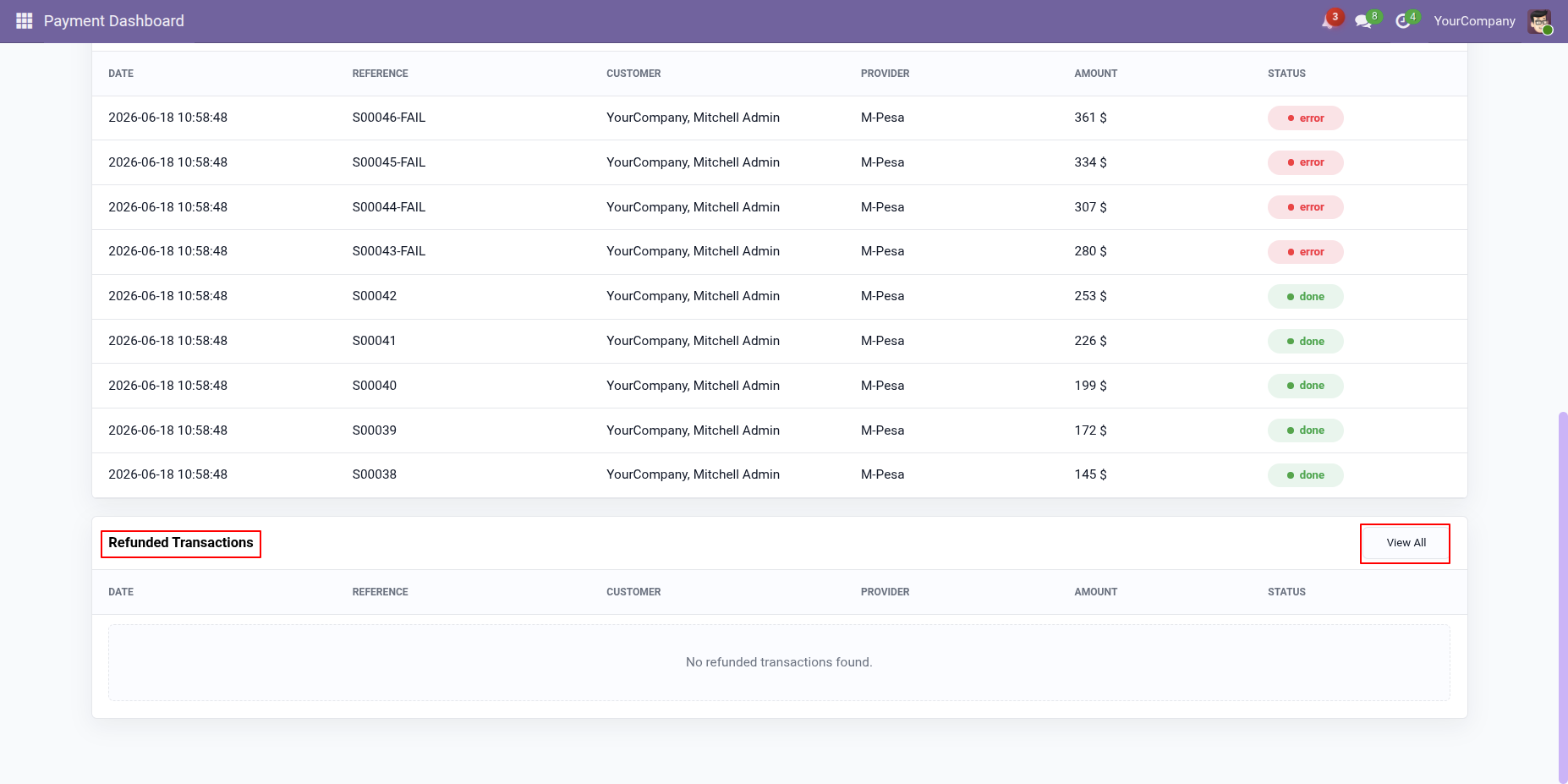
Clicking the View All button in the Refunded Transactions section of the Payment Dashboard will open a Refunded Transactions List View.
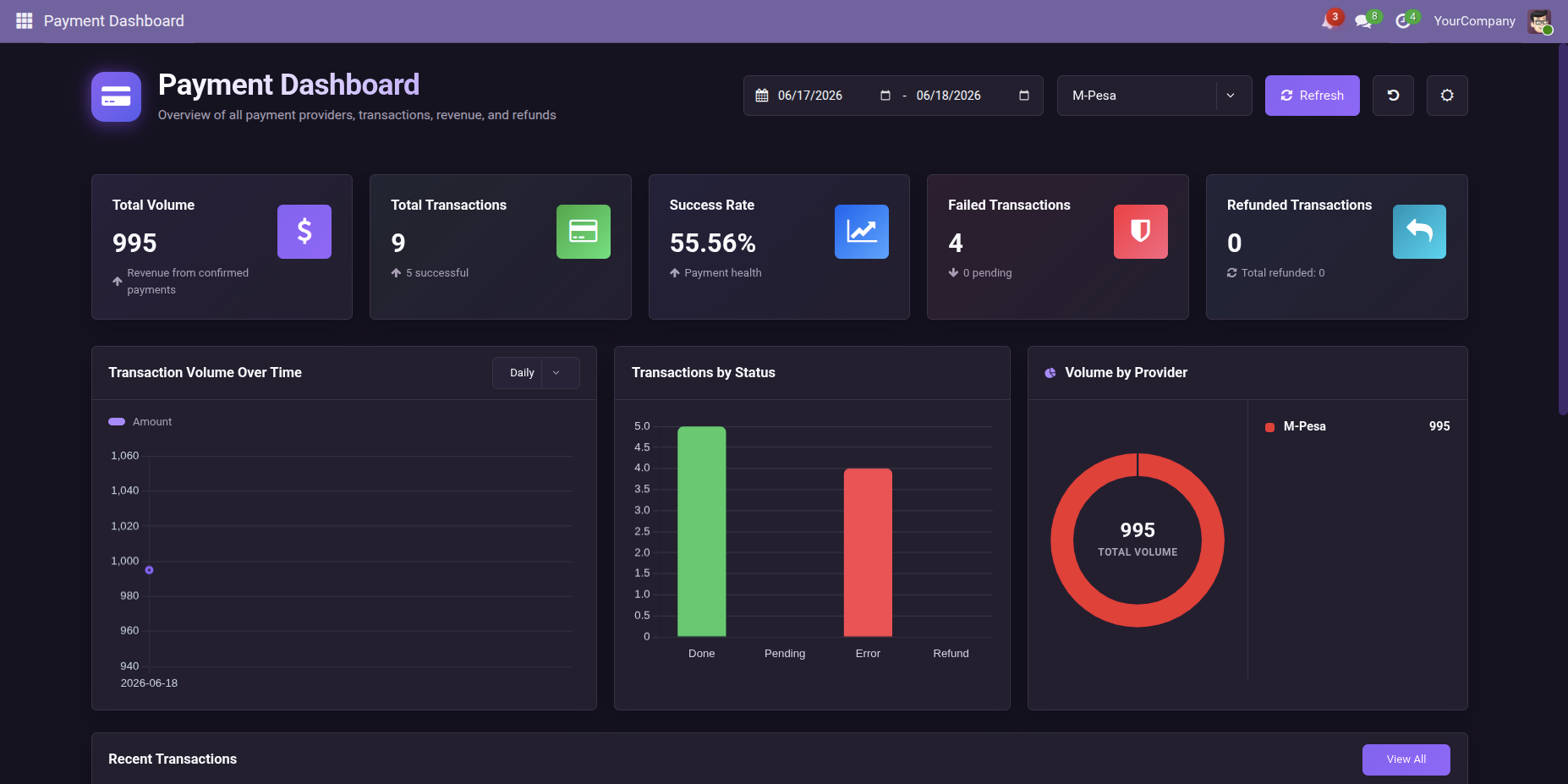
Users can switch to Night Mode from the Payment Dashboard for enhanced visibility.
Switch to Night Mode to enjoy a dark-themed dashboard with improved visibility and a more comfortable viewing experience.
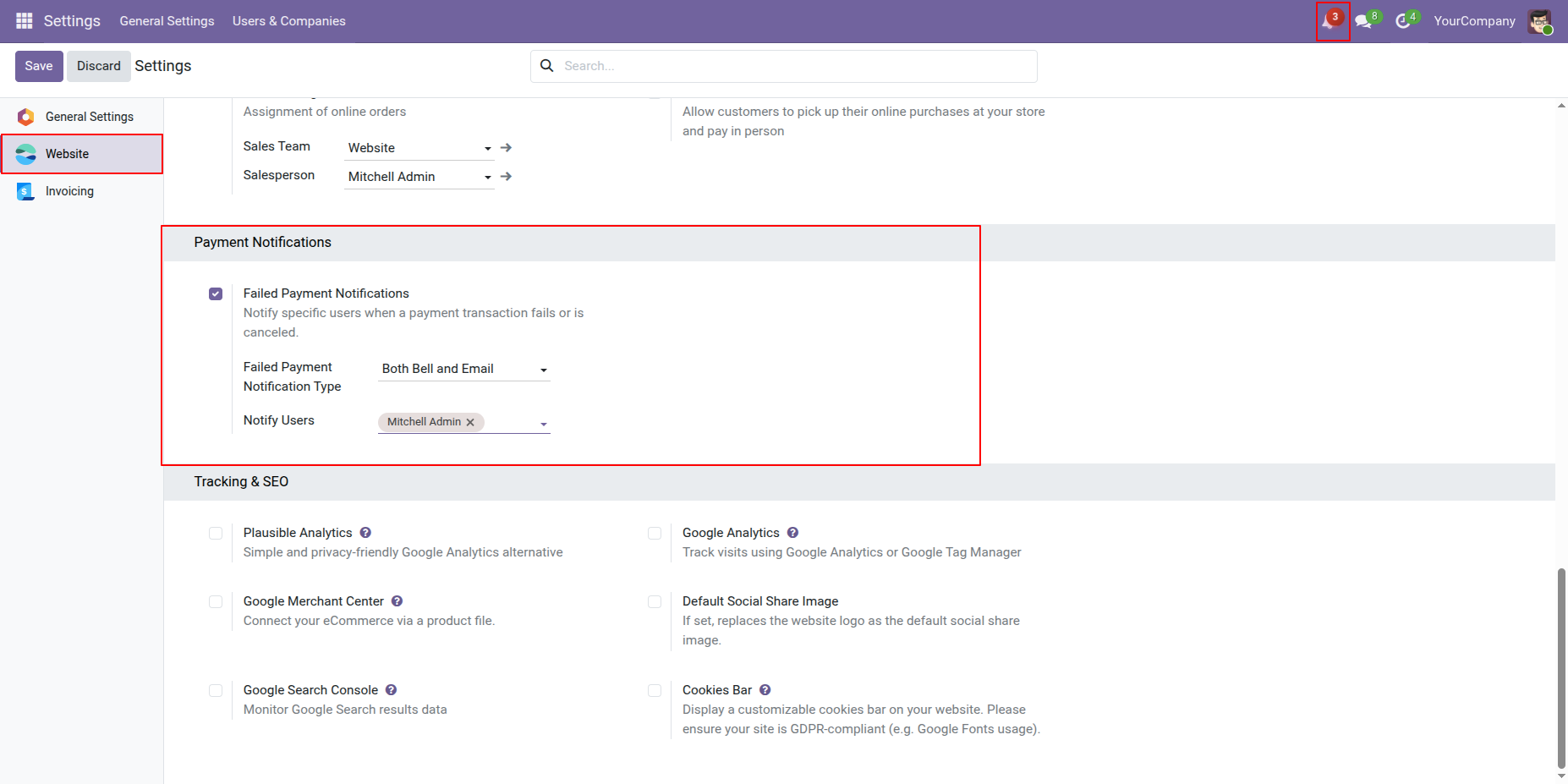
Go to the Website General Settings and enable the Failed Payment Notification option to receive notifications whenever a payment transaction fails.
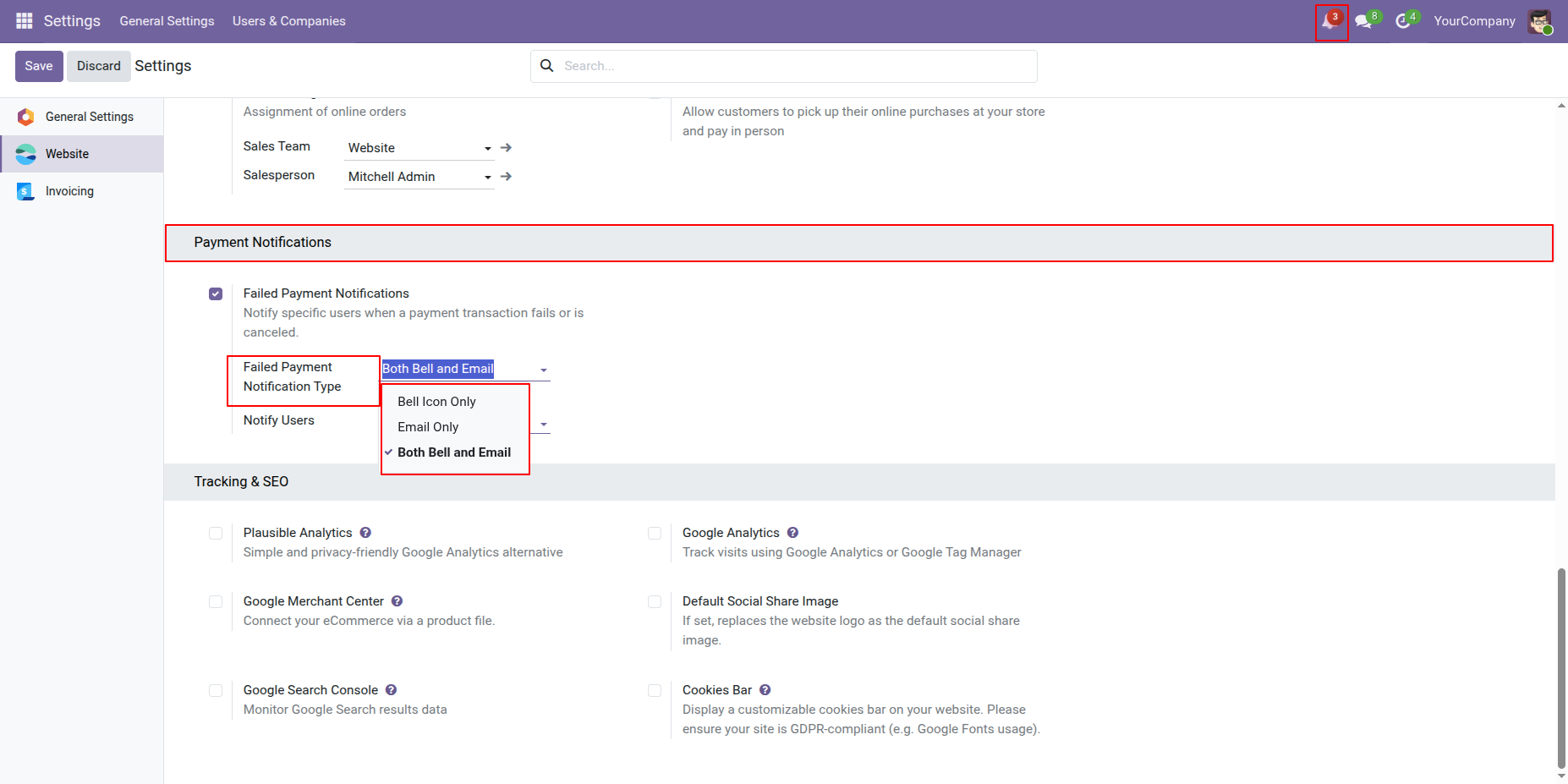
Configure the Failed Payment Notification Type by selecting one of the following options: Bell Icon Only, Email Only, or Both Email and Bell Icon.
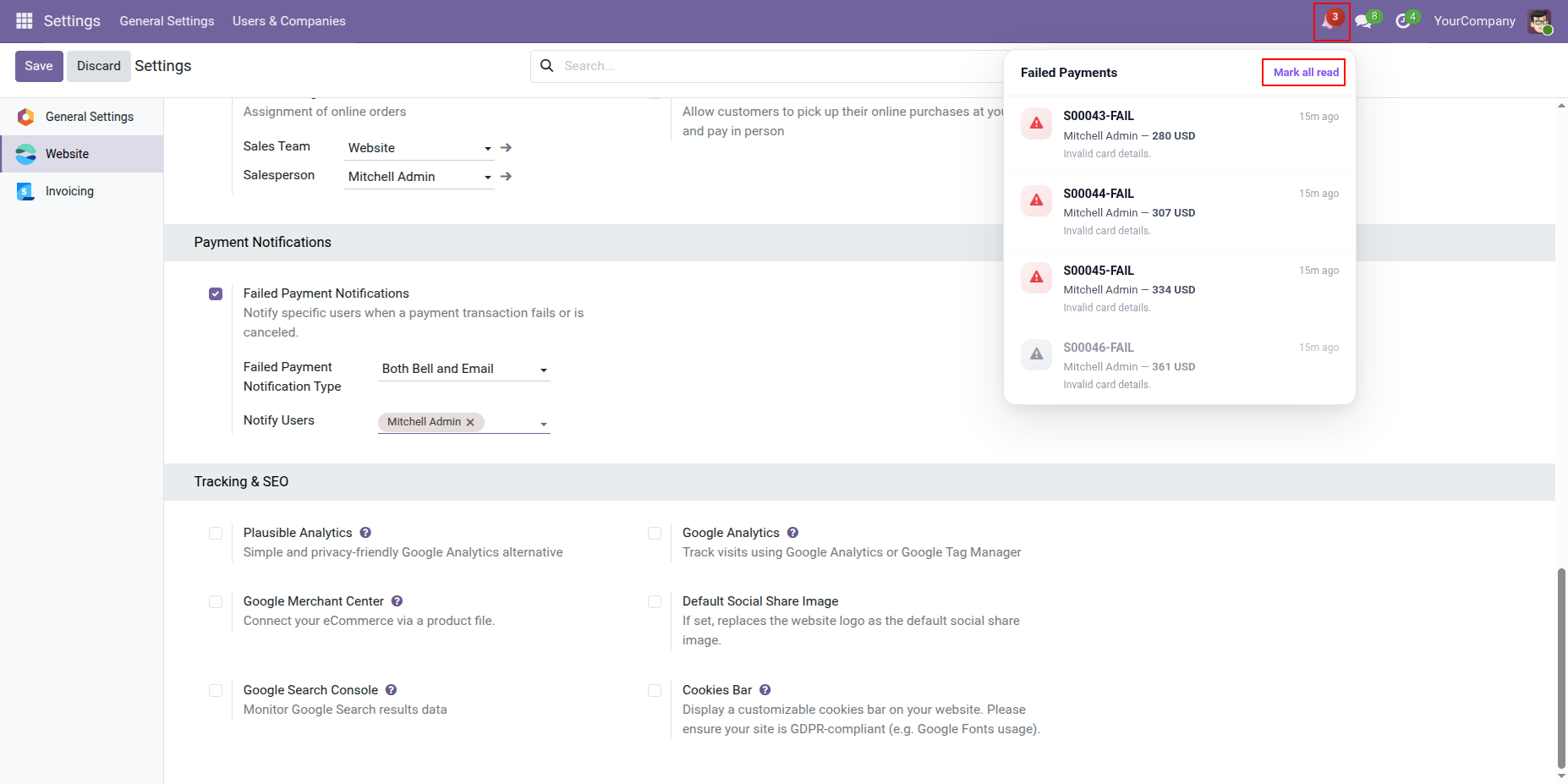
Failed payment notifications can be viewed from the Bell Icon when the notification type is set to Bell Icon Only or Both Email and Bell Icon.
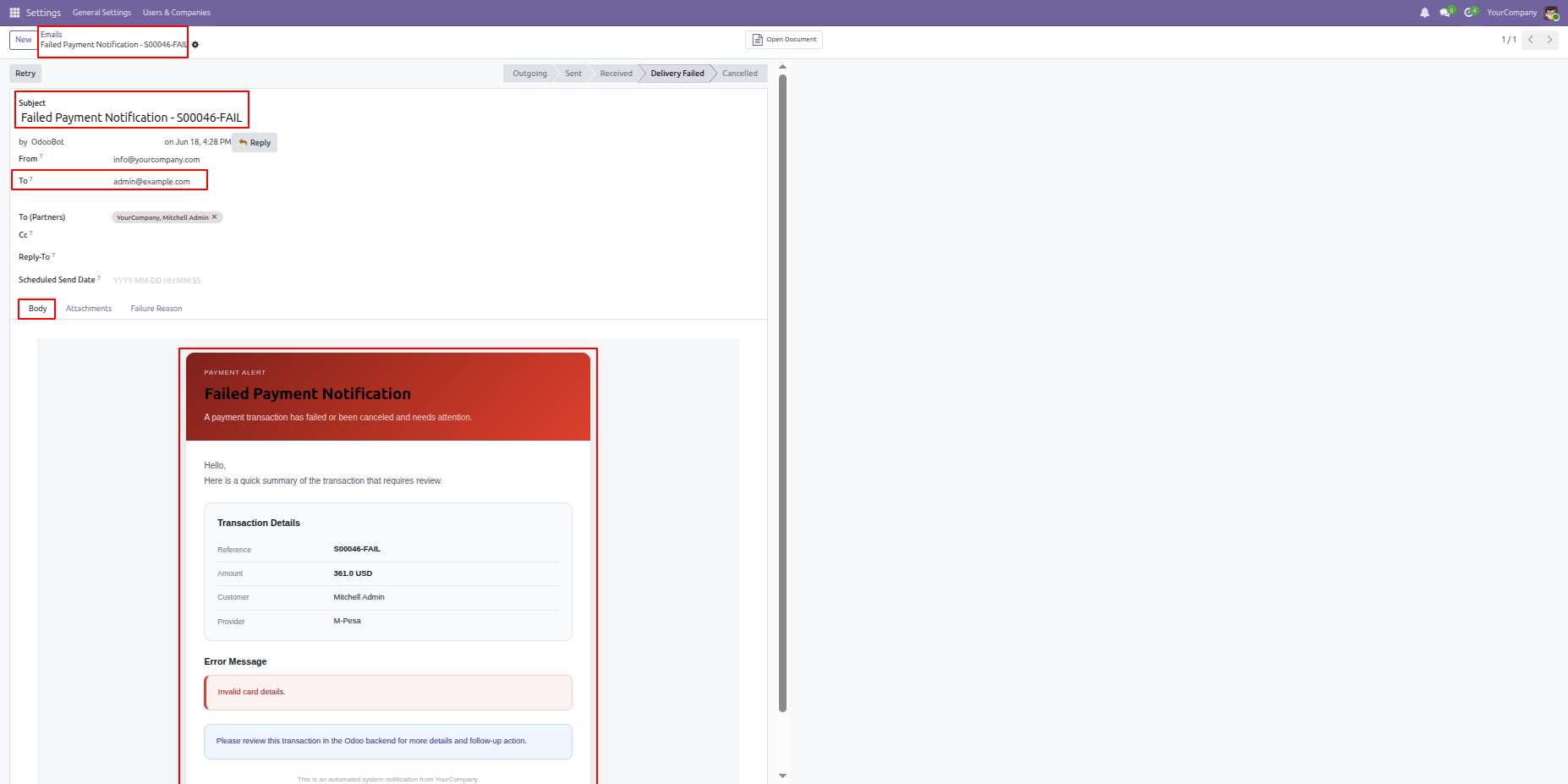
Users will receive an email containing the failed payment details and related transaction information.
To enable payment from the invoice, configure the M-Pesa account.
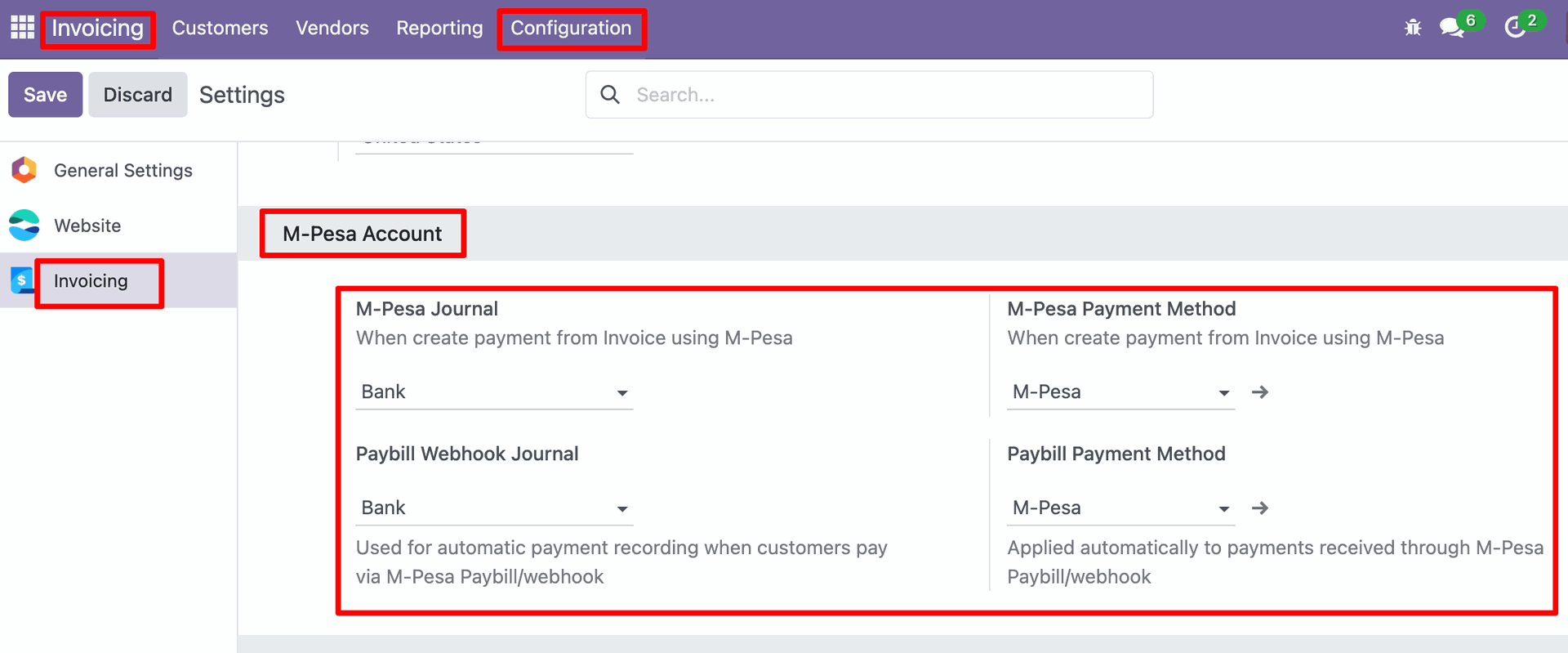
Go to the Invoice/Account -> Configuration -> "Payment Provider"
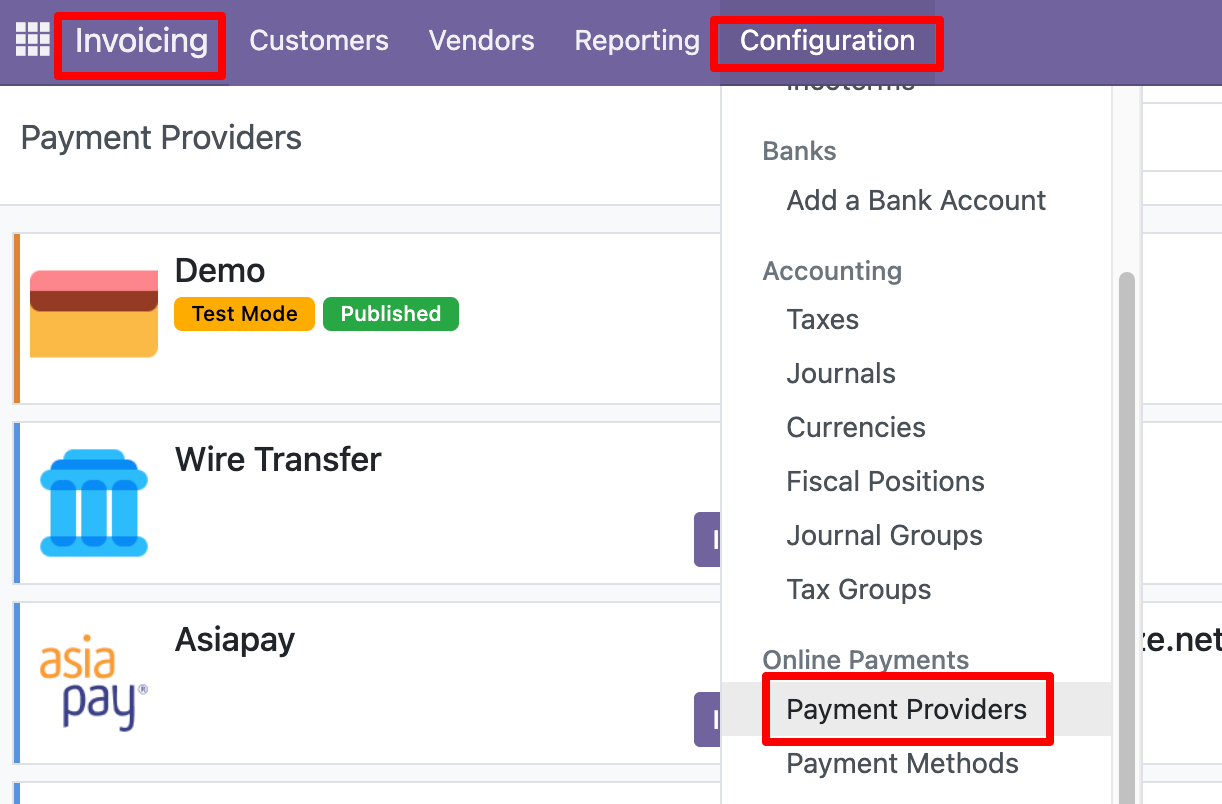
Here you can see the M-Pesa option.
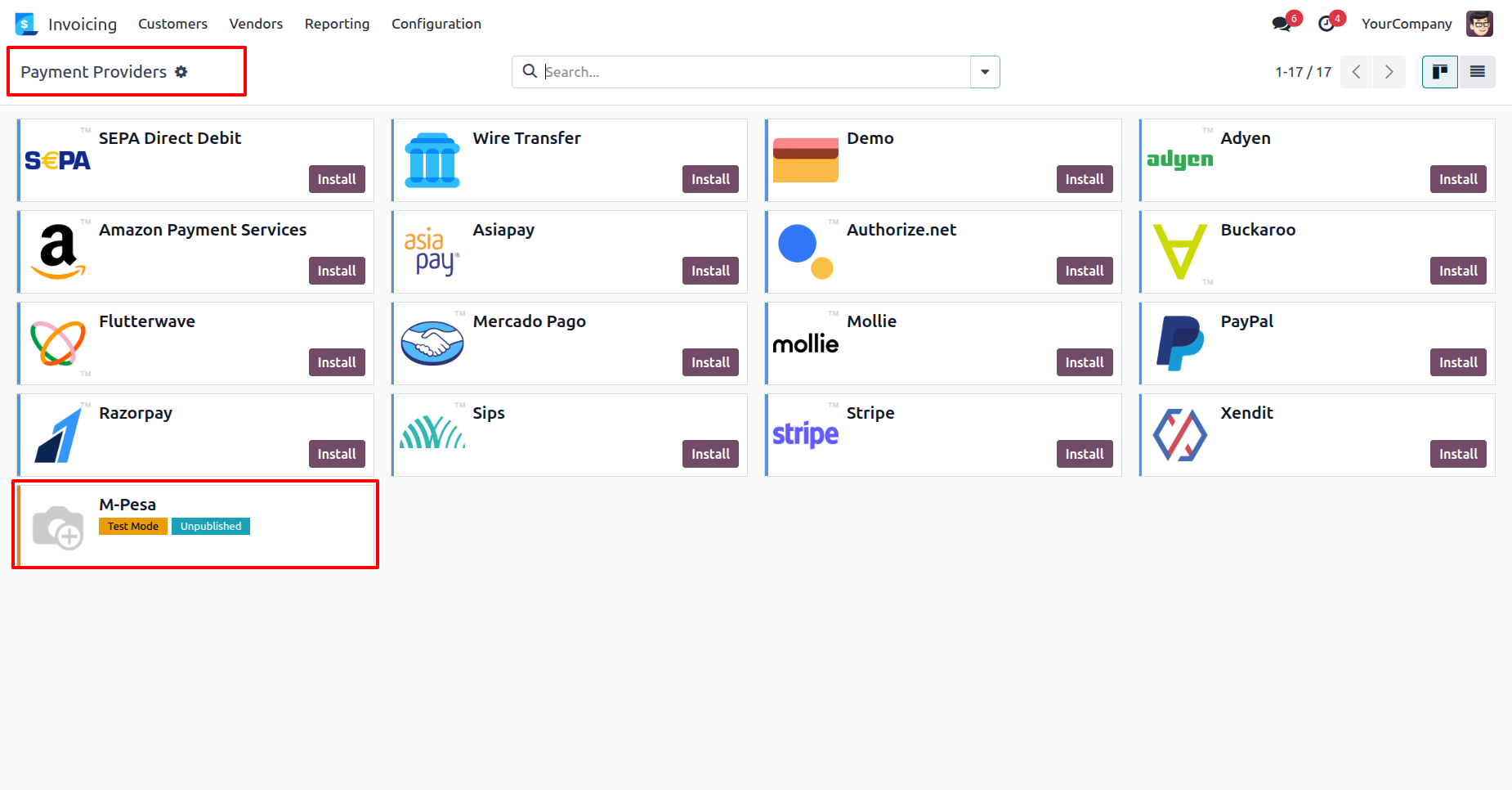
Enter the credentials (Customer Key, Consumer Secret, Business Short Code/Paybill, and Passkey) obtained from the M-Pesa portal.
Enable state or test mode as per your preference and publish it.
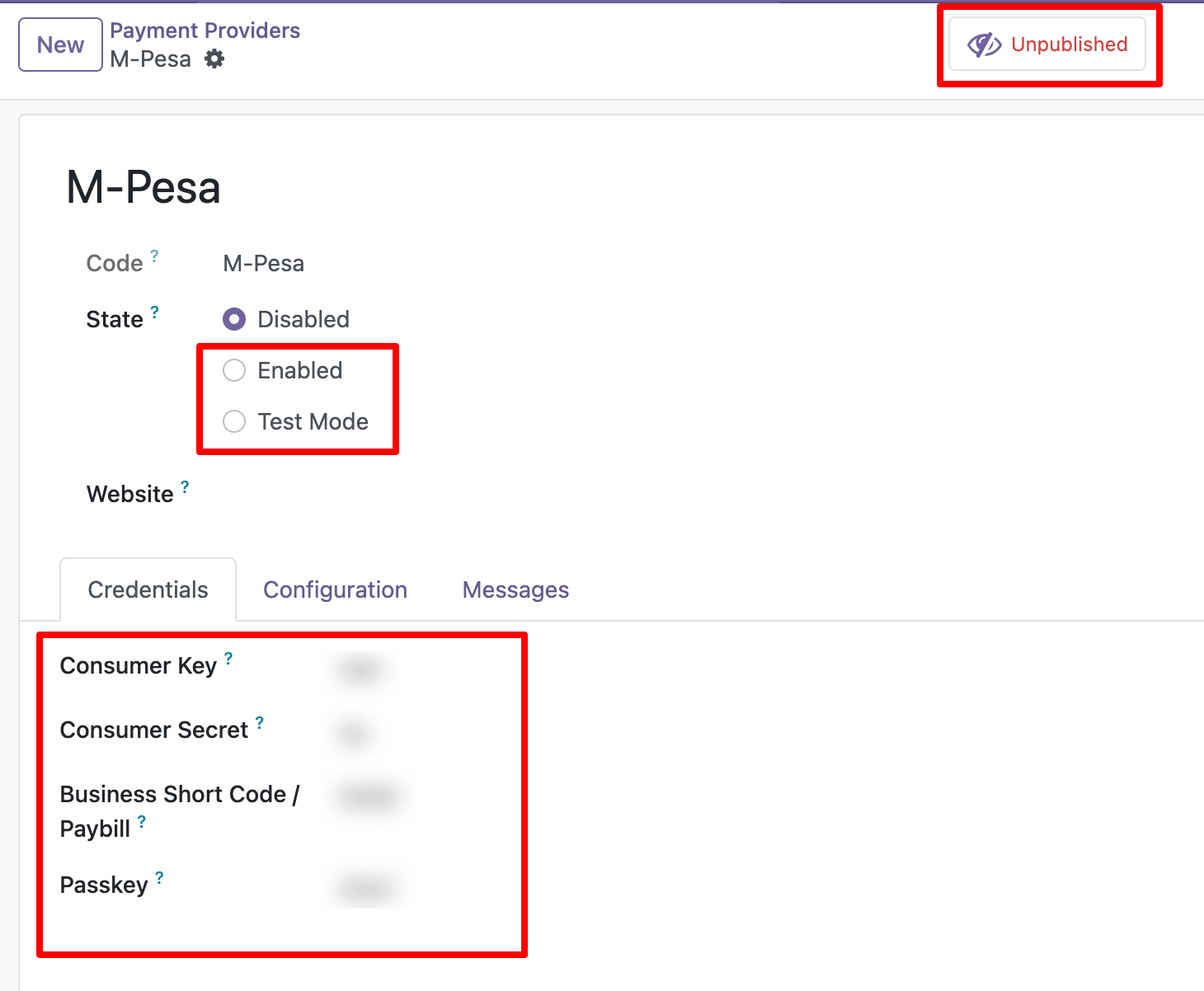
Click on the "Enable Payment Methods" under the Configuration tab.
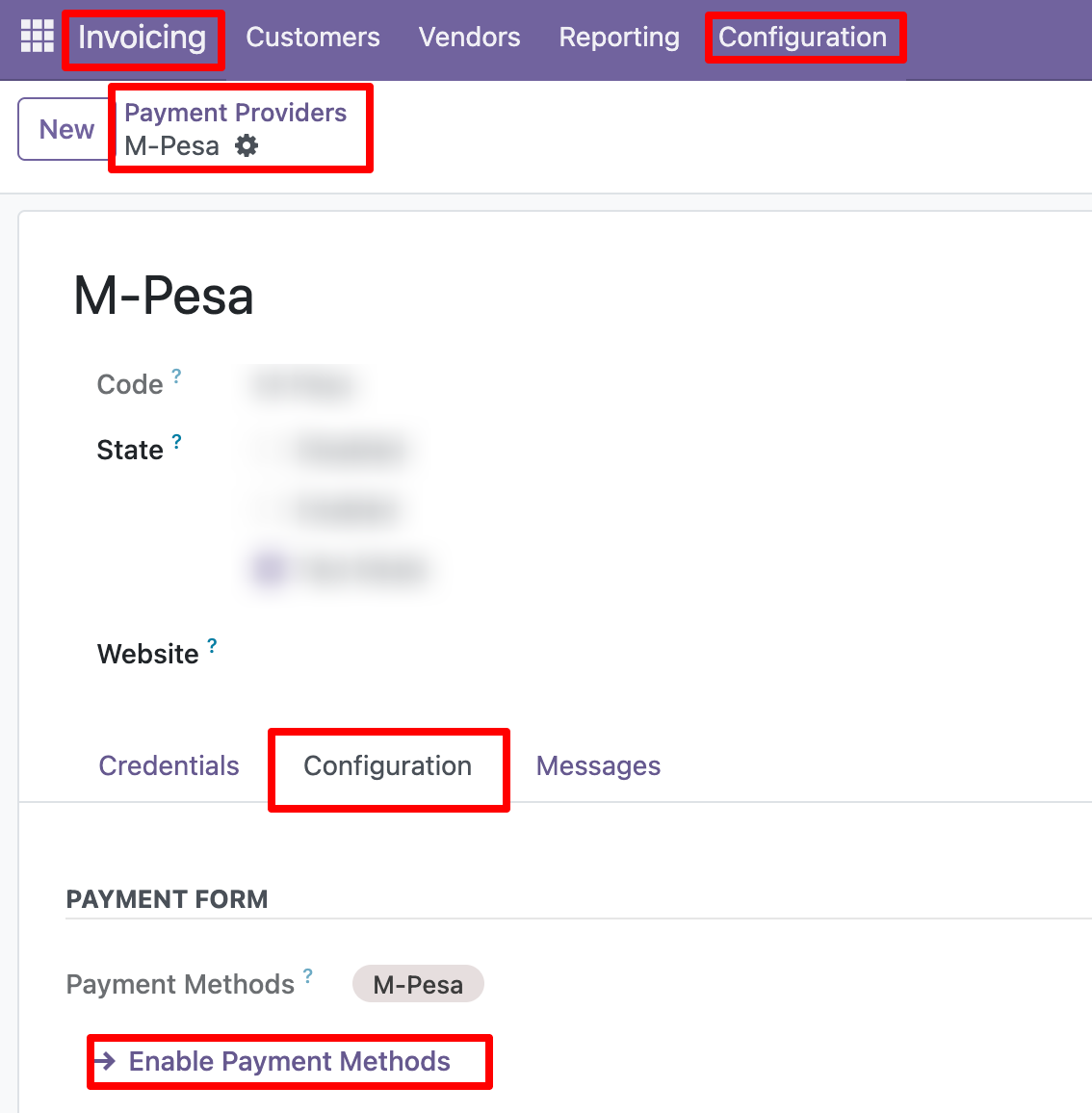
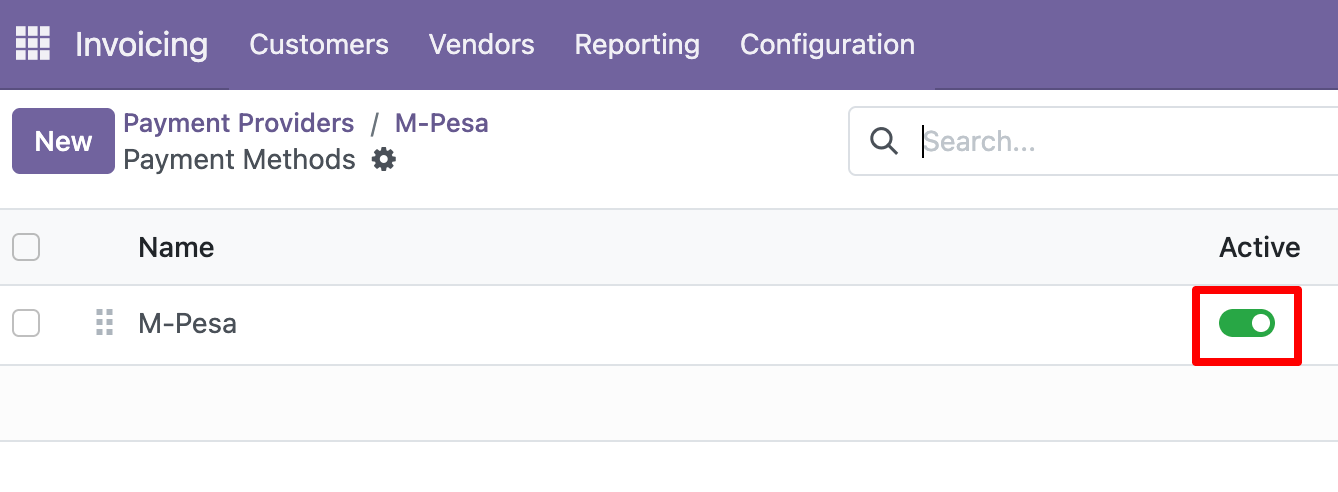
Activate the M-Pesa payment method.
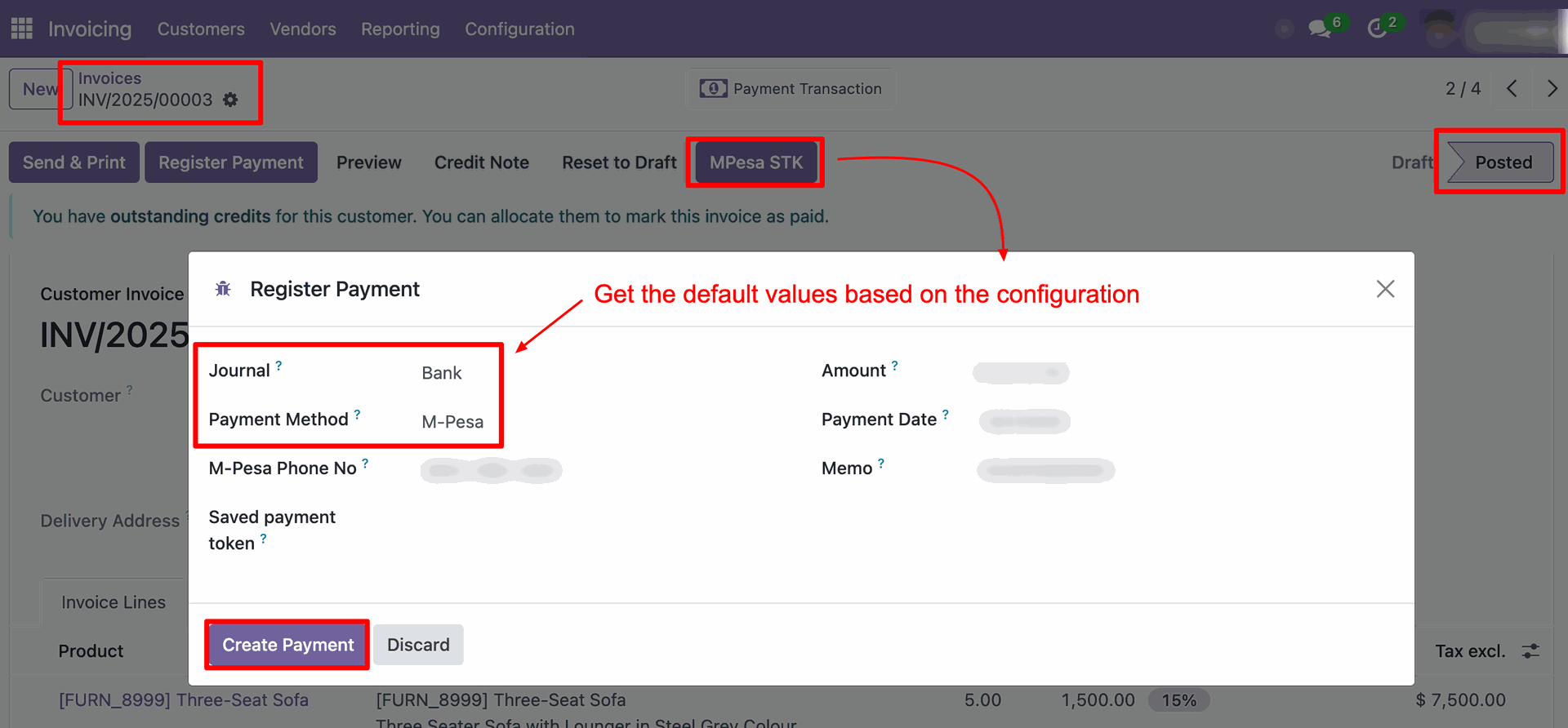
In the invoice, click the “M-Pesa STK” button.
After that, the Register Payment wizard will appear.
Enter the required details and click on the “Create Payment” button.
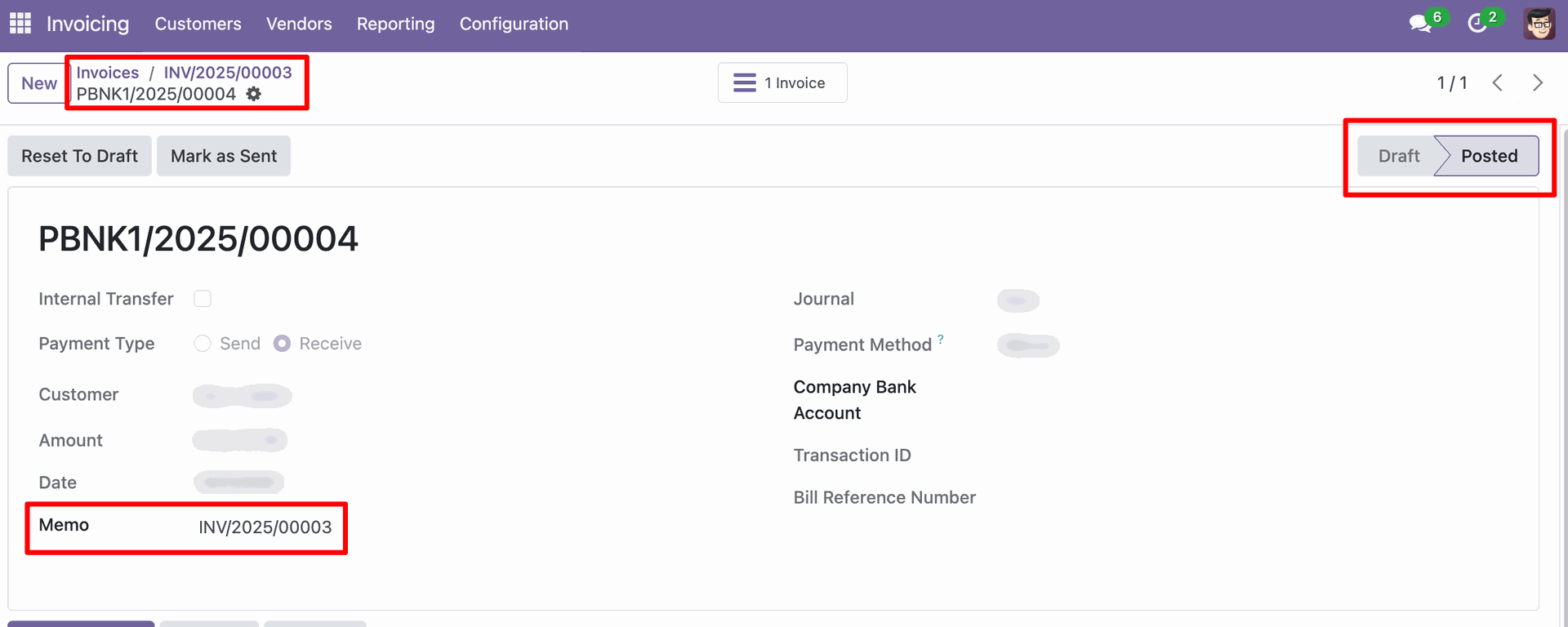
In the payment you can see the invoice number (Memo).
In the invoice list view, select the invoices and click on the "M-Pesa Payment Reminder" from the Action.
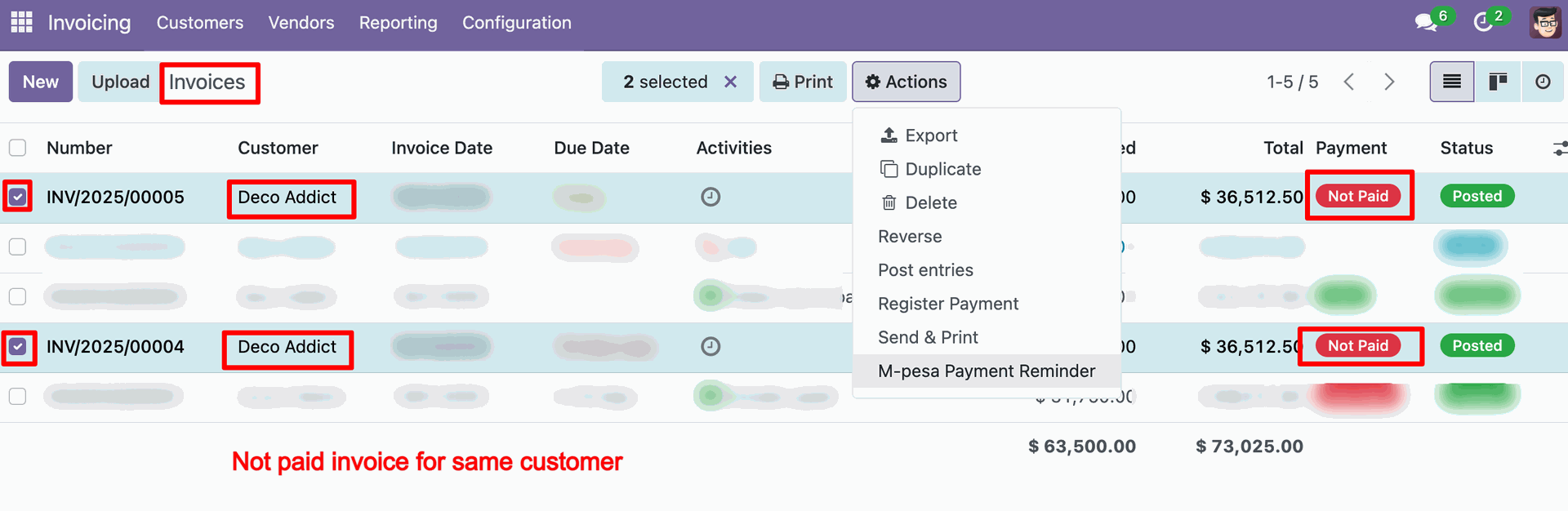
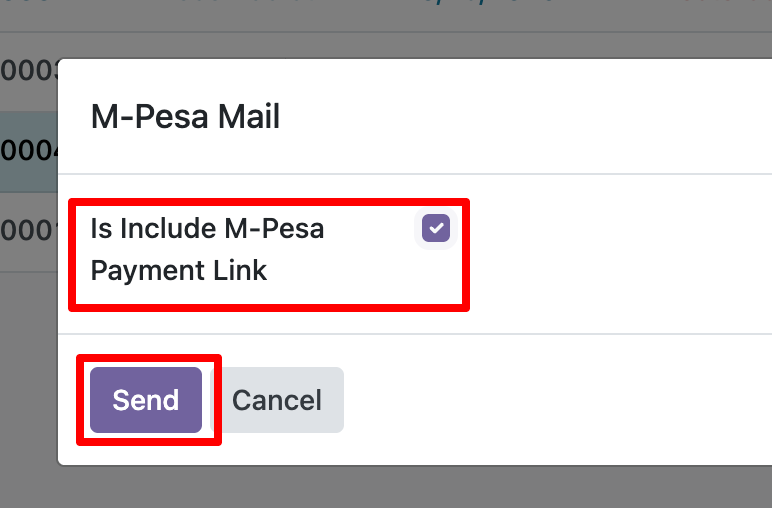
After that, the M-Pesa Mail wizard will appear.
Enable the “Include M-Pesa Payment Link” boolean and click on the “Send” button.
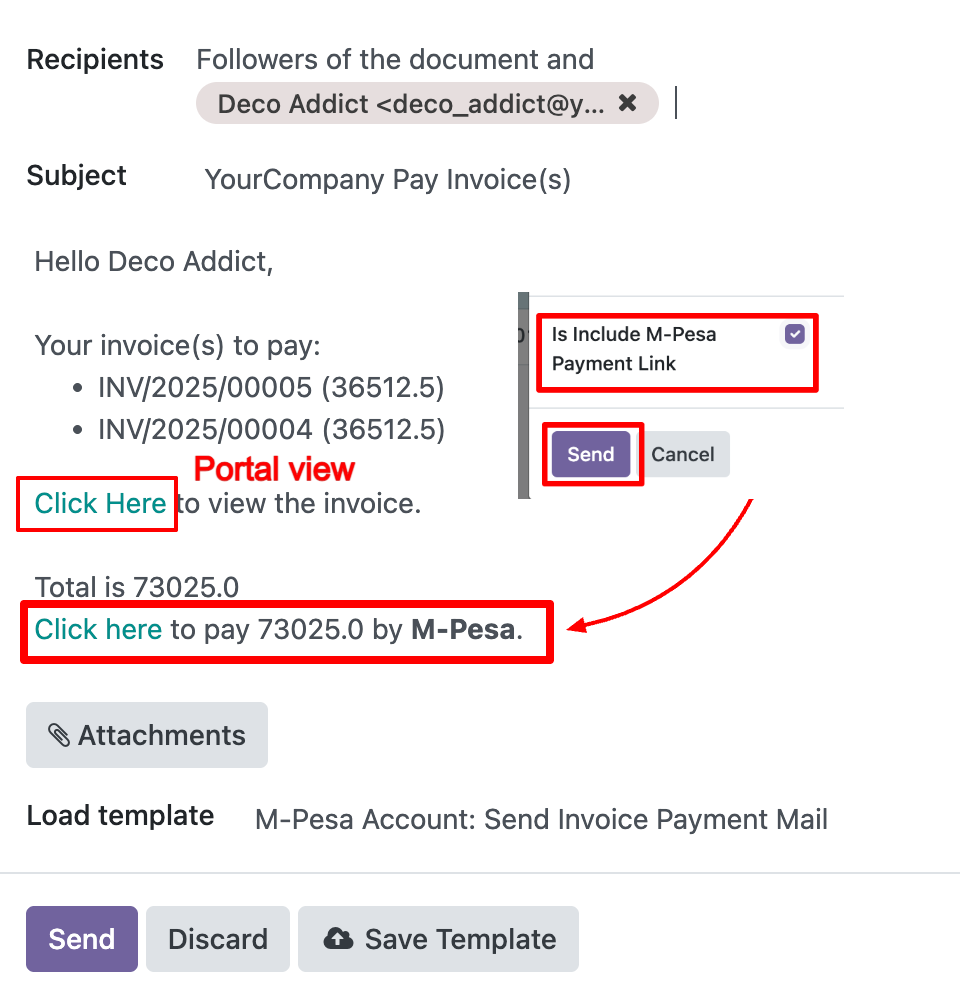
After that, a payment link will be added to the email. When the customer clicks the link, an M-Pesa STK notification will be sent for the total amount.
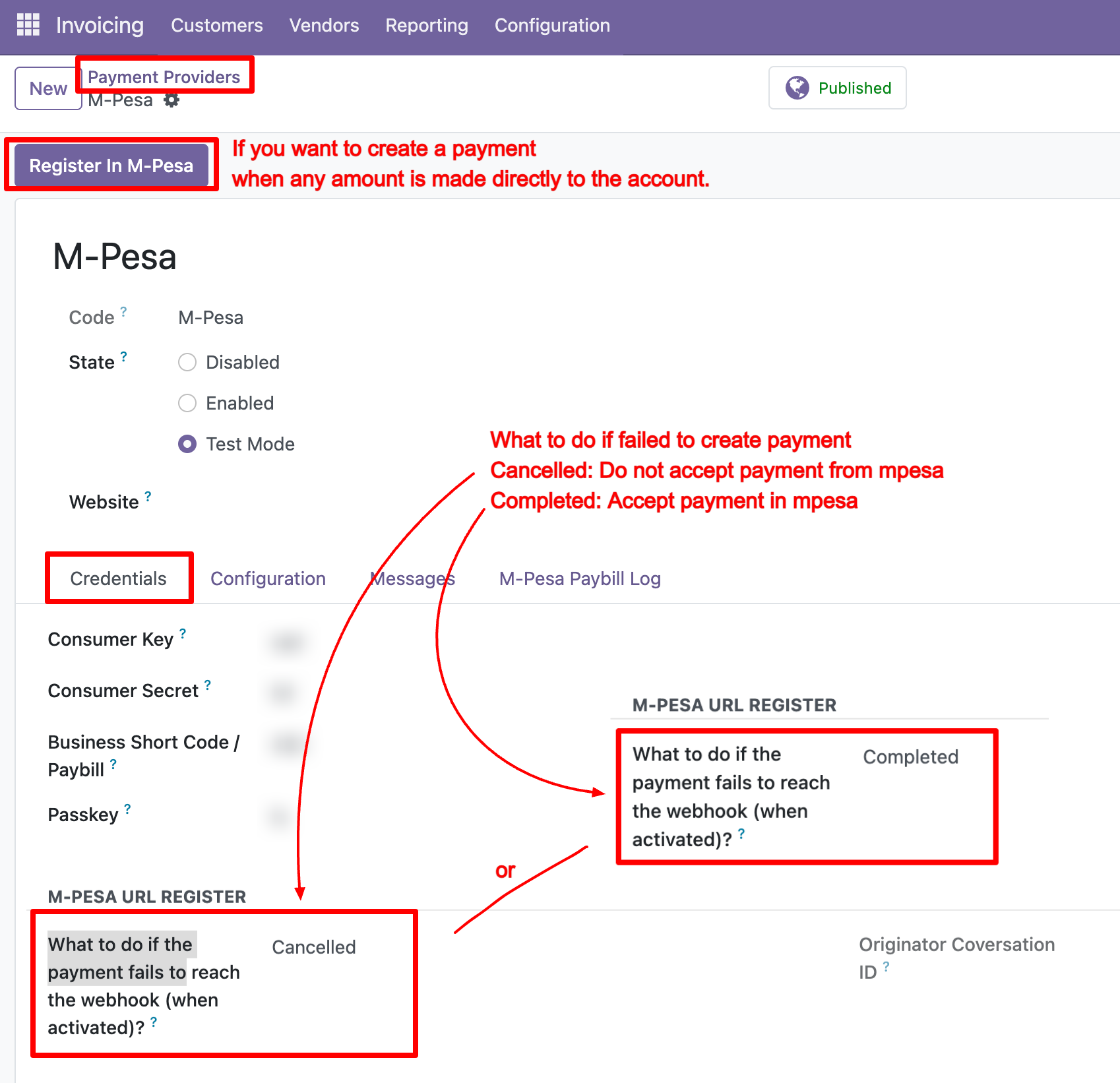
If you want payments to be created automatically when a customer pays through M-Pesa using the merchant details provided, you can enable the webhook flow.
This setting determines how to handle cases where a customer makes a payment, but the response fails to reach Odoo.
There are two options available: Confirm Payment or Cancel Payment.
Now you can see the M-Pesa payment option available on the website.
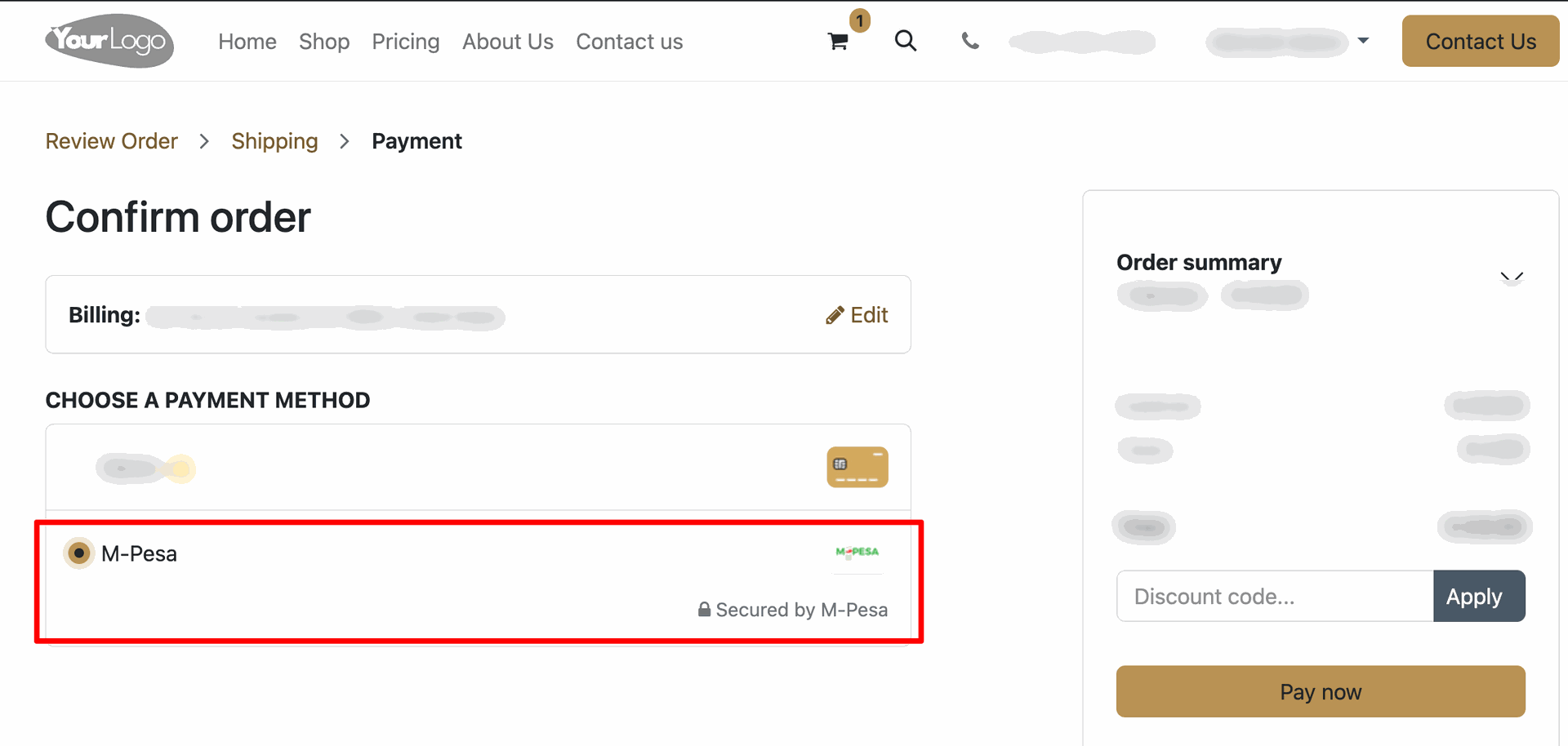
An STK push notification will be sent to the partner's registered mobile number.
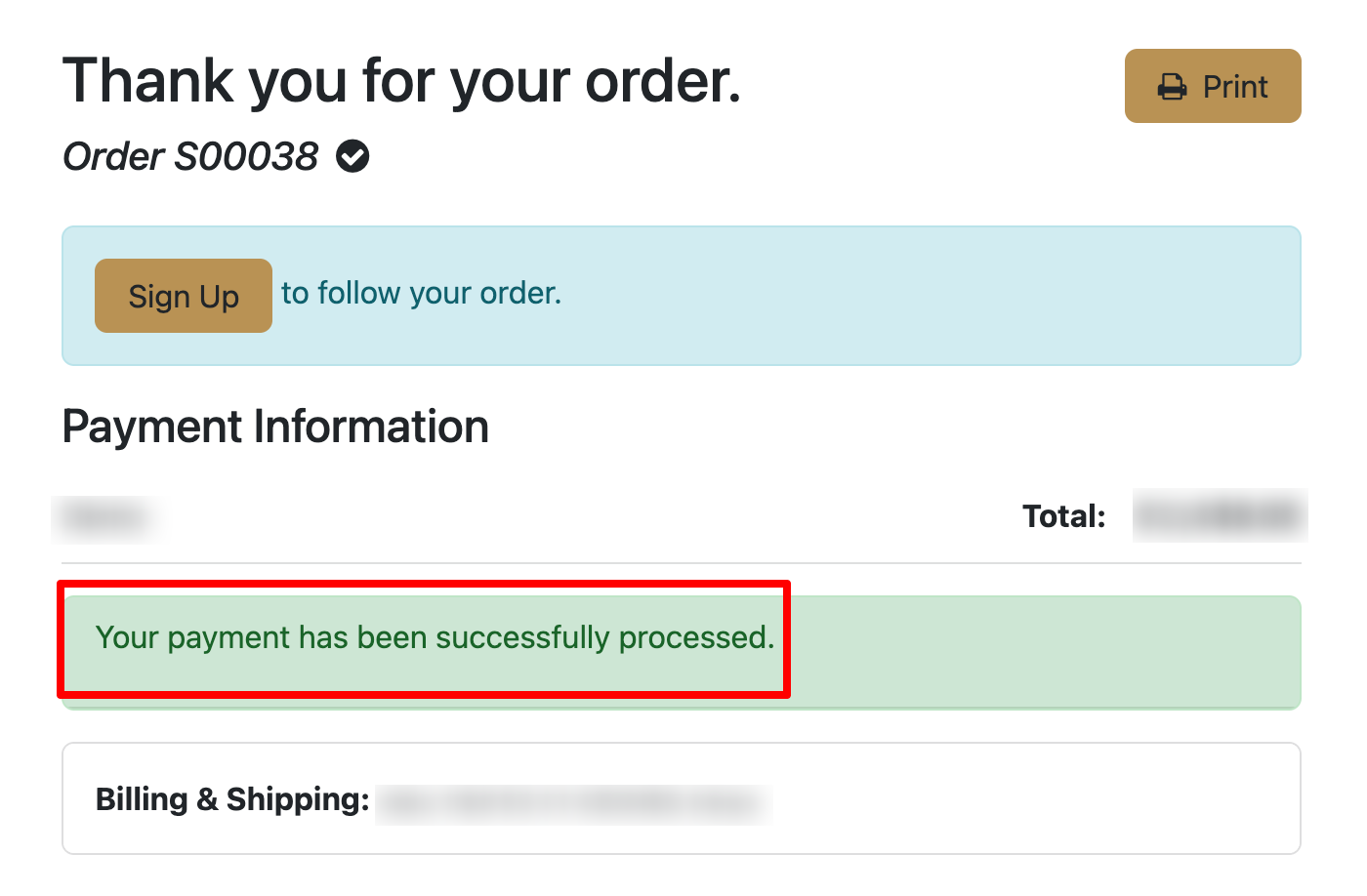
Once the payment is successful, the order will be confirmed.
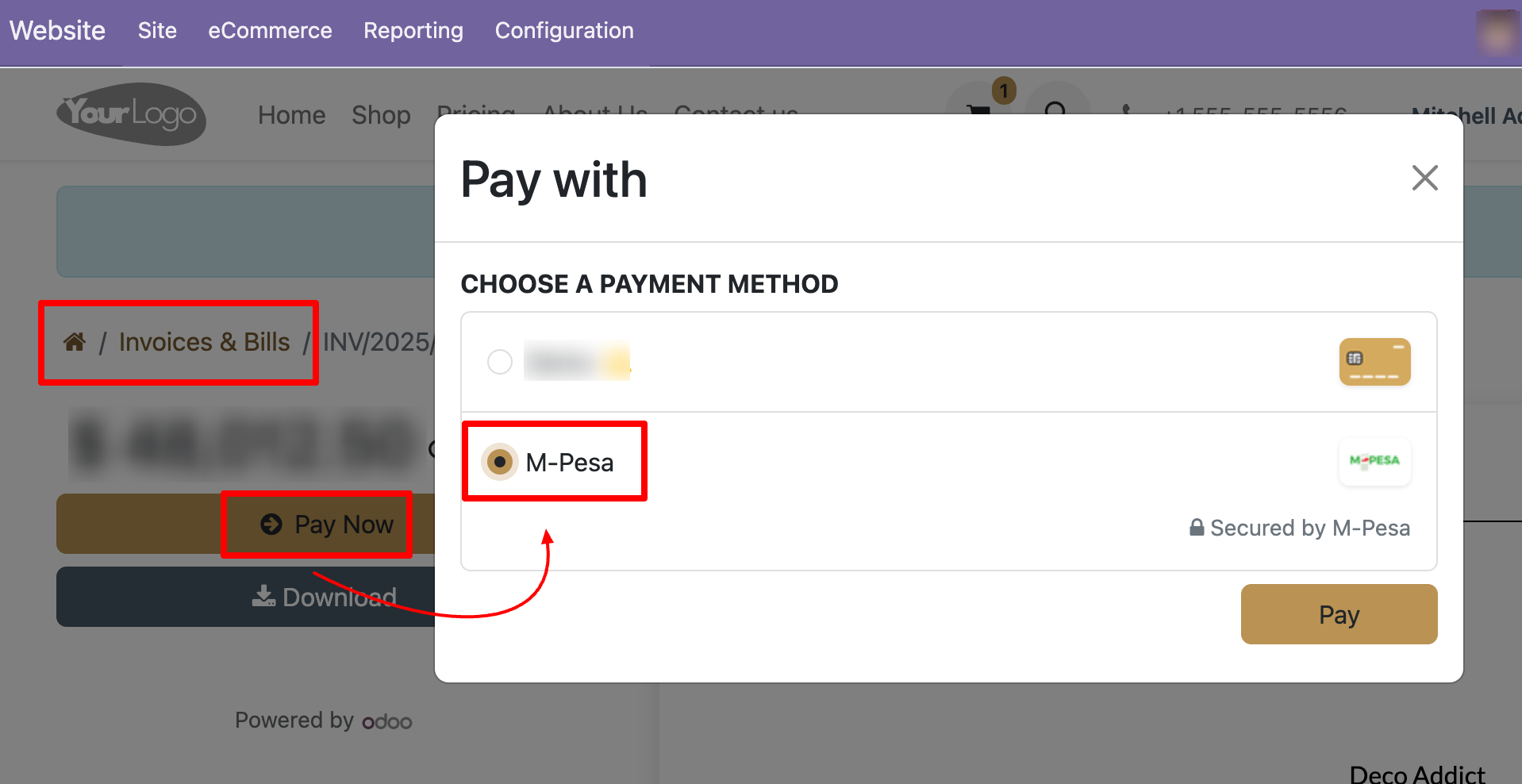
You can also see the M-Pesa payment option in the portal.
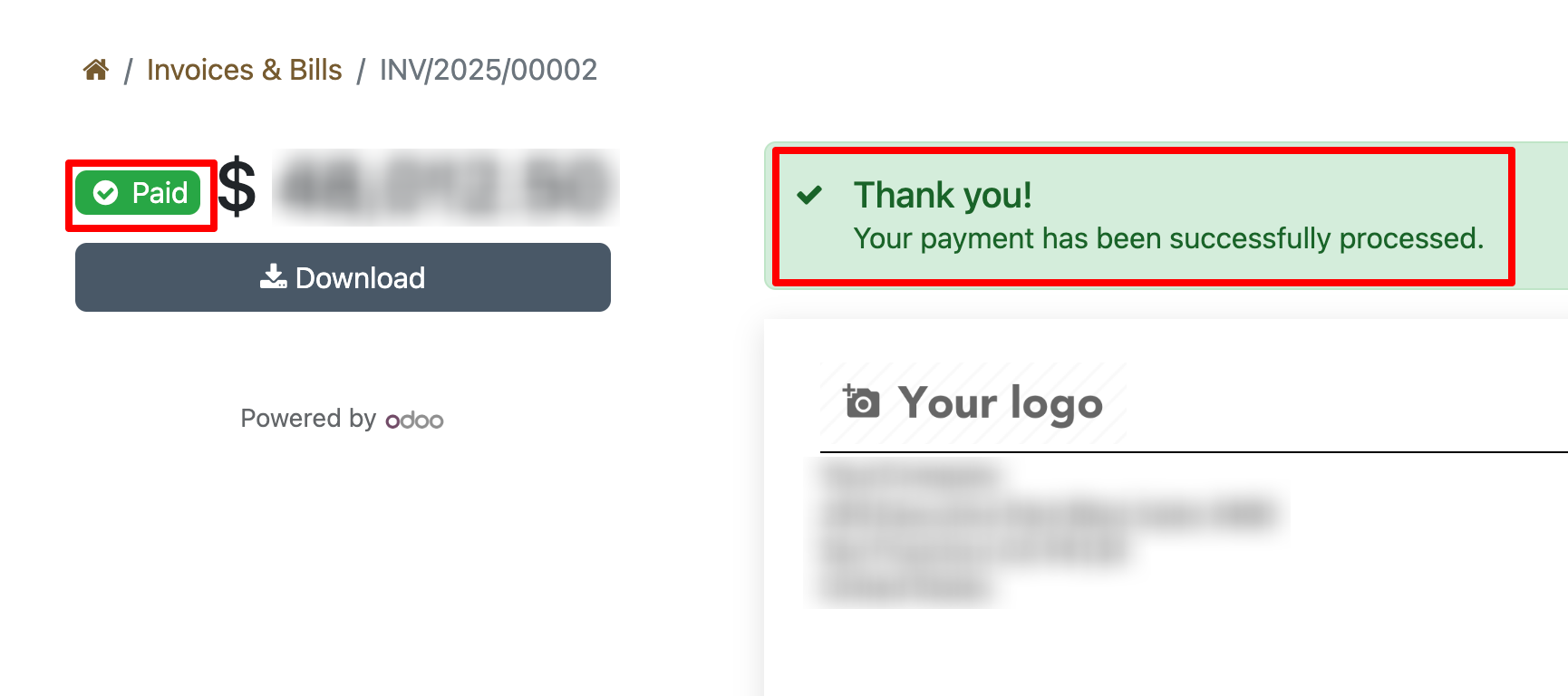
Here, you can see that the payment has been successfully paid.
Version 19.0.2.0.0 | Released on : 07th July 2026
Version 19.0.1.0.0 | Released on : 2nd January 2026
- Yes, this app works perfectly with Odoo Enterprise (Odoo.sh & Premise) as well as Community.
- No, this application is not compatible with odoo.com(odoo saas/Odoo Online)
- Yes, to test this module, please contact us at sales@softhealer.com.
- Please contact us at sales@softhealer.com to request customization.
- Yes, we provide free lifetime support for the version you purchased.
- Yes, you will receive lifetime free updates for the version of the module you purchased.
- No, there is no need to install any additional libraries.
- Yes, for version 12 and above, you need to purchase the module separately for each version you intend to use.
- No, exchanges or refunds are not allowed. Please make sure to select the correct version before purchasing.
- You can contact us at support@softhealer.com for language translation support. We use Google Translator tools to provide translations in multiple languages, so the accuracy may vary. We welcome your suggestions to help improve translations.
Discover Our Latest Apps