

 Easy to Manage
 Dedicated Support
















 Scan to email sales





List View Manager – Customize & Manage List Views

List View Manager enhances Odoo list views with flexible tools to customize columns, save reusable presets, apply formatting rules, control editing access, adjust spacing, refresh data, group records, and manage list view data. Easily back up, import, export, and print list view configurations and records from a centralized interface.

Features

List View Configuration
Configure and manage Odoo list views from a centralized interface to customize how records are displayed.
Columns Management
Customize list view columns by managing their visibility, order, and configuration according to your requirements.

Presets Management
Create and manage reusable list view presets to quickly apply preferred list view configurations.

Format Rules
Apply formatting rules to list view records and values for clearer and more effective data presentation.

Read-Only Mode
Enable read-only mode for list views to prevent users from modifying records directly from the list.

Refresh List View
Refresh list view data quickly to display the latest record information in the current view.

Adjust List View Spacing
Adjust list view spacing and display density to create a more compact or comfortable viewing experience.

Backup Presets
Create backups of configured list view presets to safely preserve customized settings.
Import Presets
Import saved presets to restore or reuse previously configured list view settings.

Export List View
Export list view records for sharing, further processing, reporting, or external data analysis.

Print List View
Print list view records in a structured format for offline reference and documentation.

Grouping in List View
Group records in list views to organize large datasets and make information easier to browse and analyze.

Complete List View Management
Manage columns, presets, formatting, spacing, grouping, backups, imports, exports, and printing from one place.
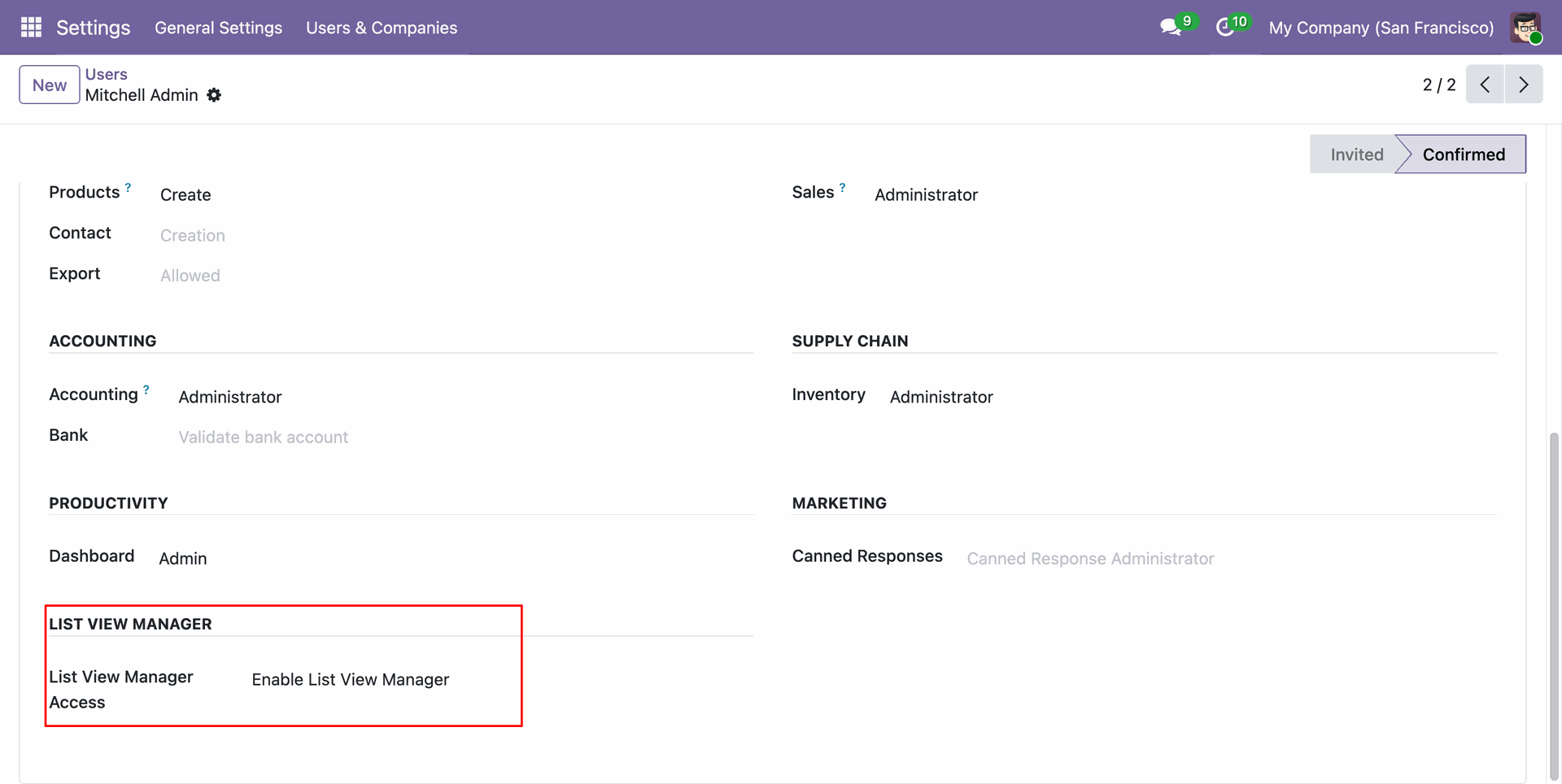
Configure user access permissions to enable or disable List View Manager features for specific users.
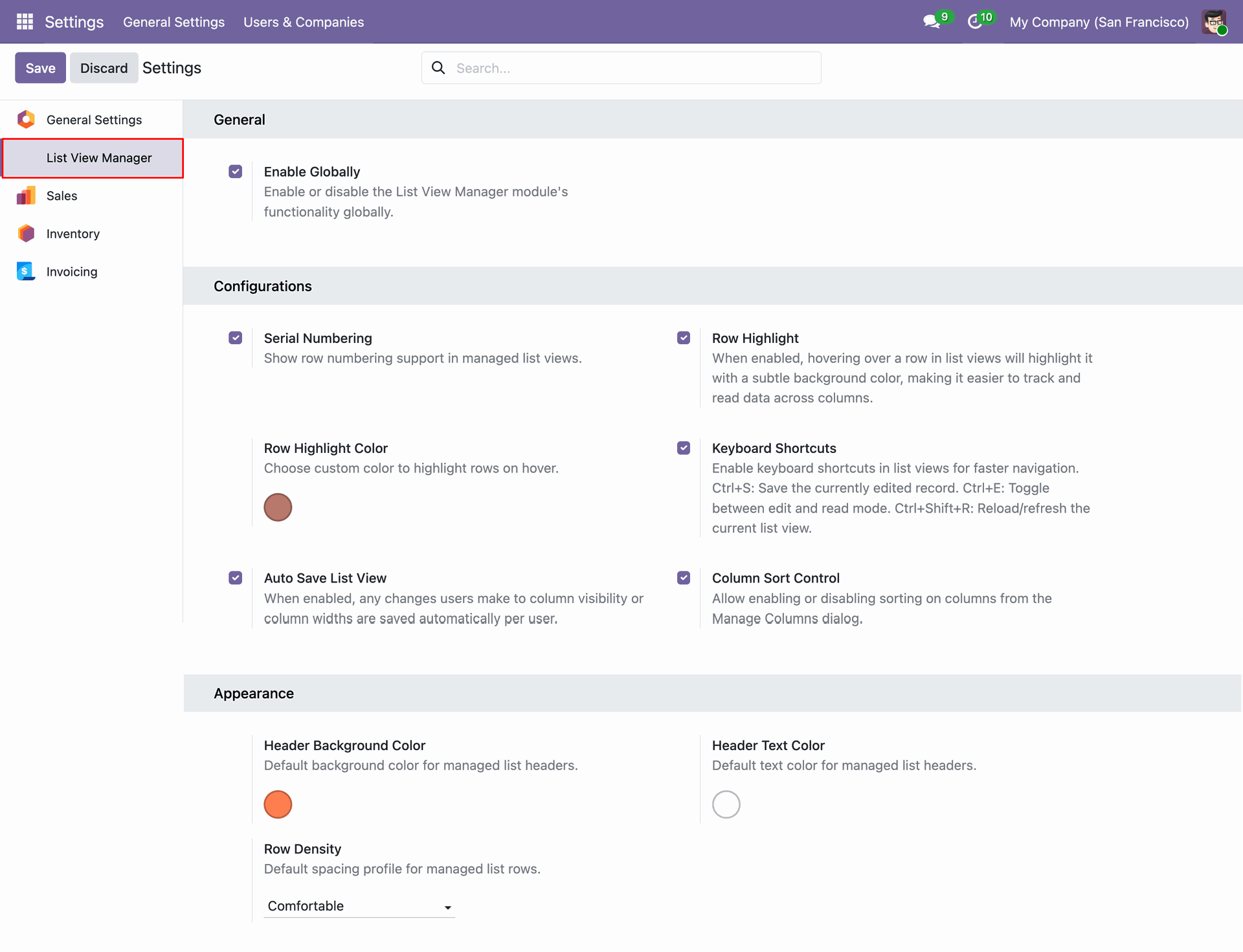
Configure general application settings including record sequence numbering, row hover highlighting, auto save, default row density, and header background color.
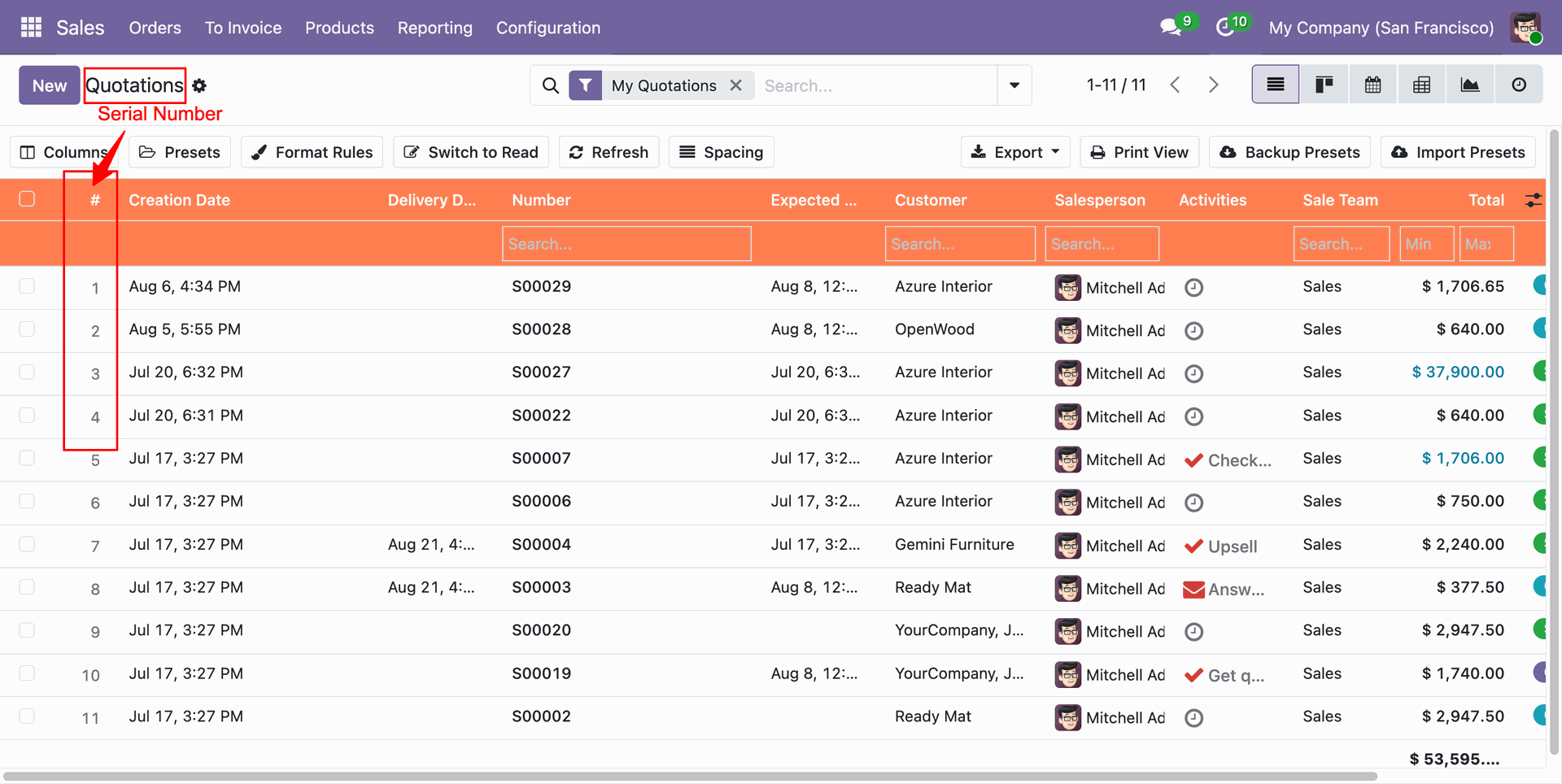
Access the List View Manager toolbar at the top of list views with automatic record sequence numbering (# column).
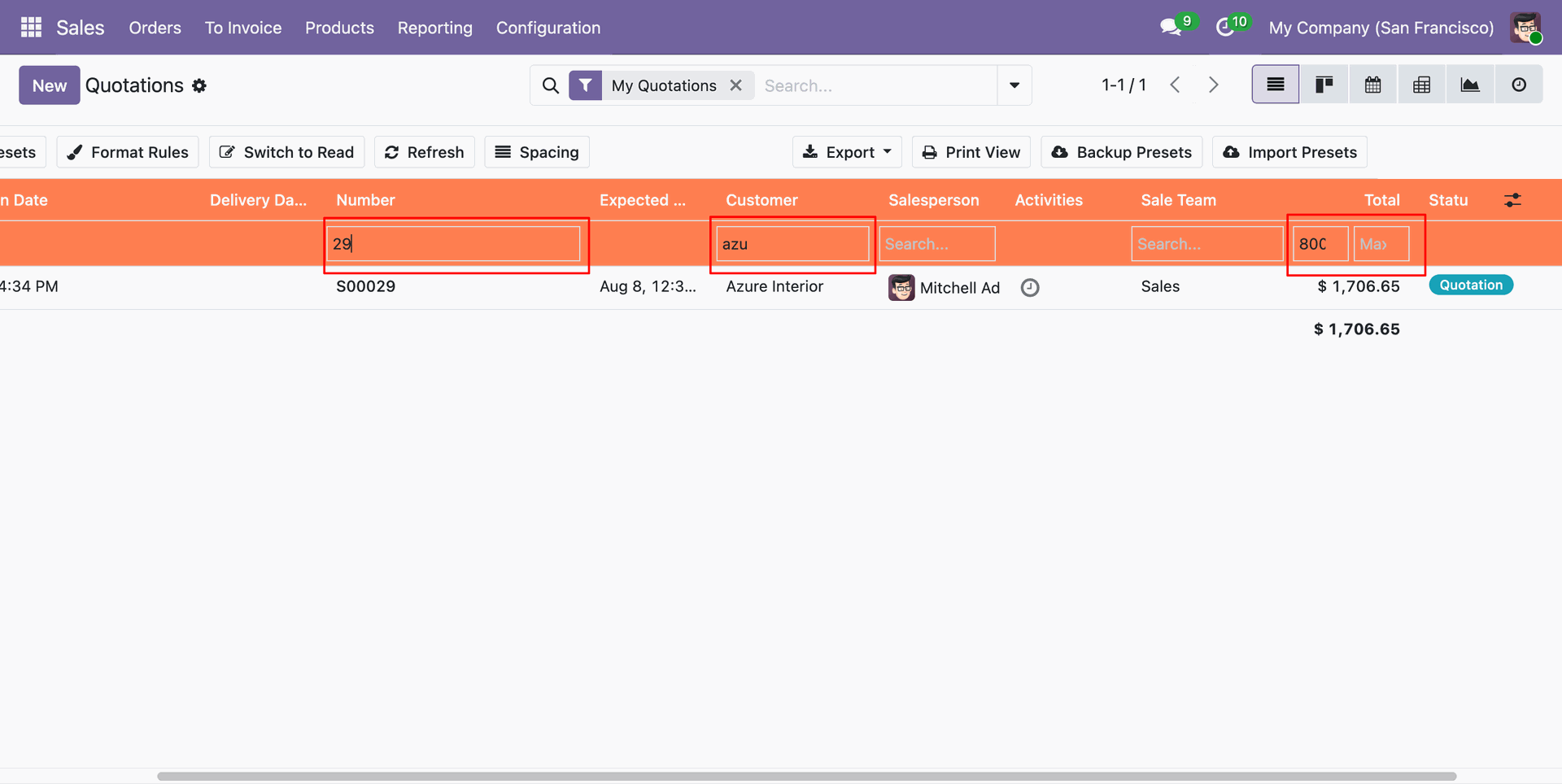
Filter records directly within column headers using live text search and min-max numeric or date range filtering inputs.
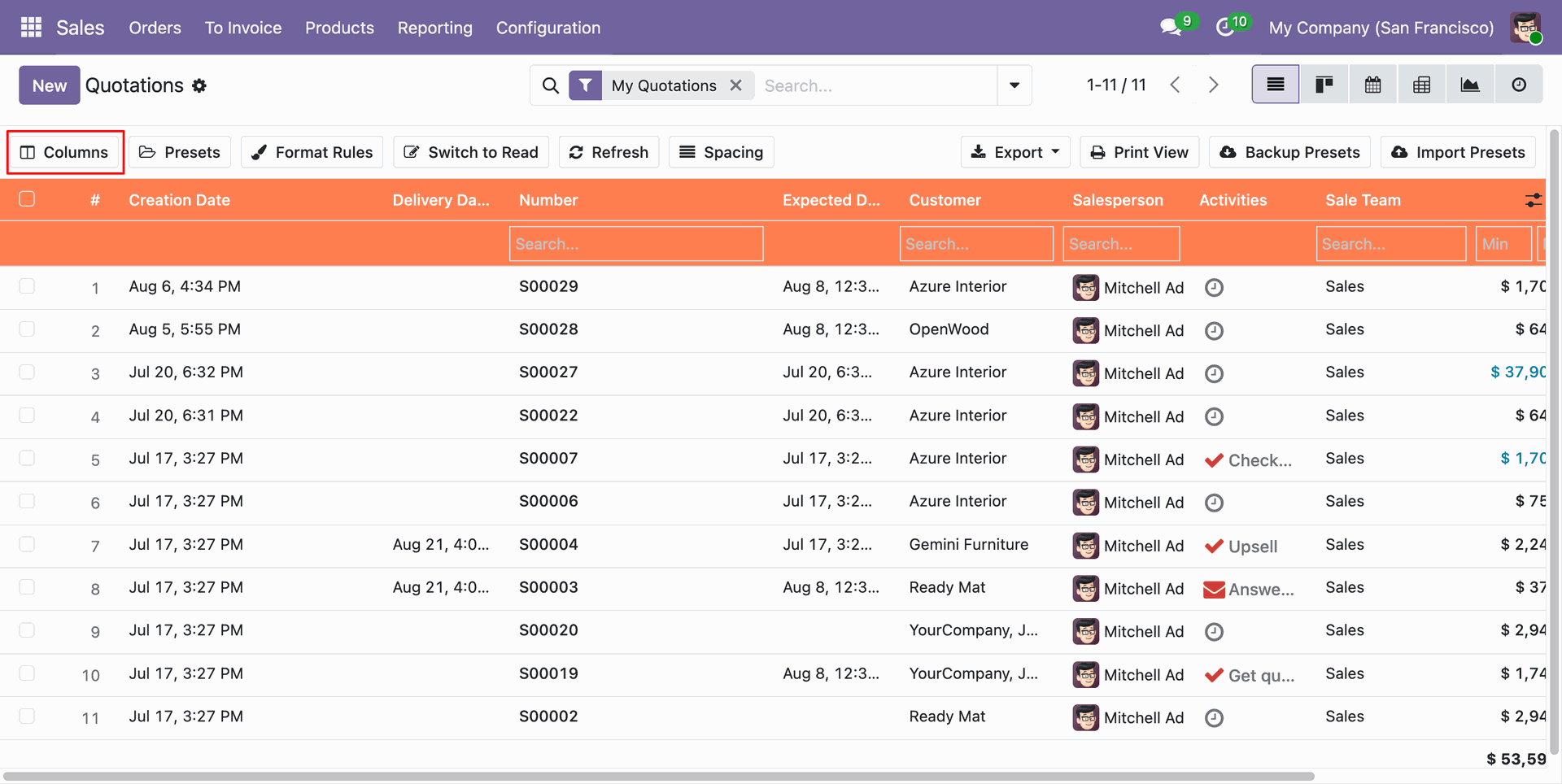
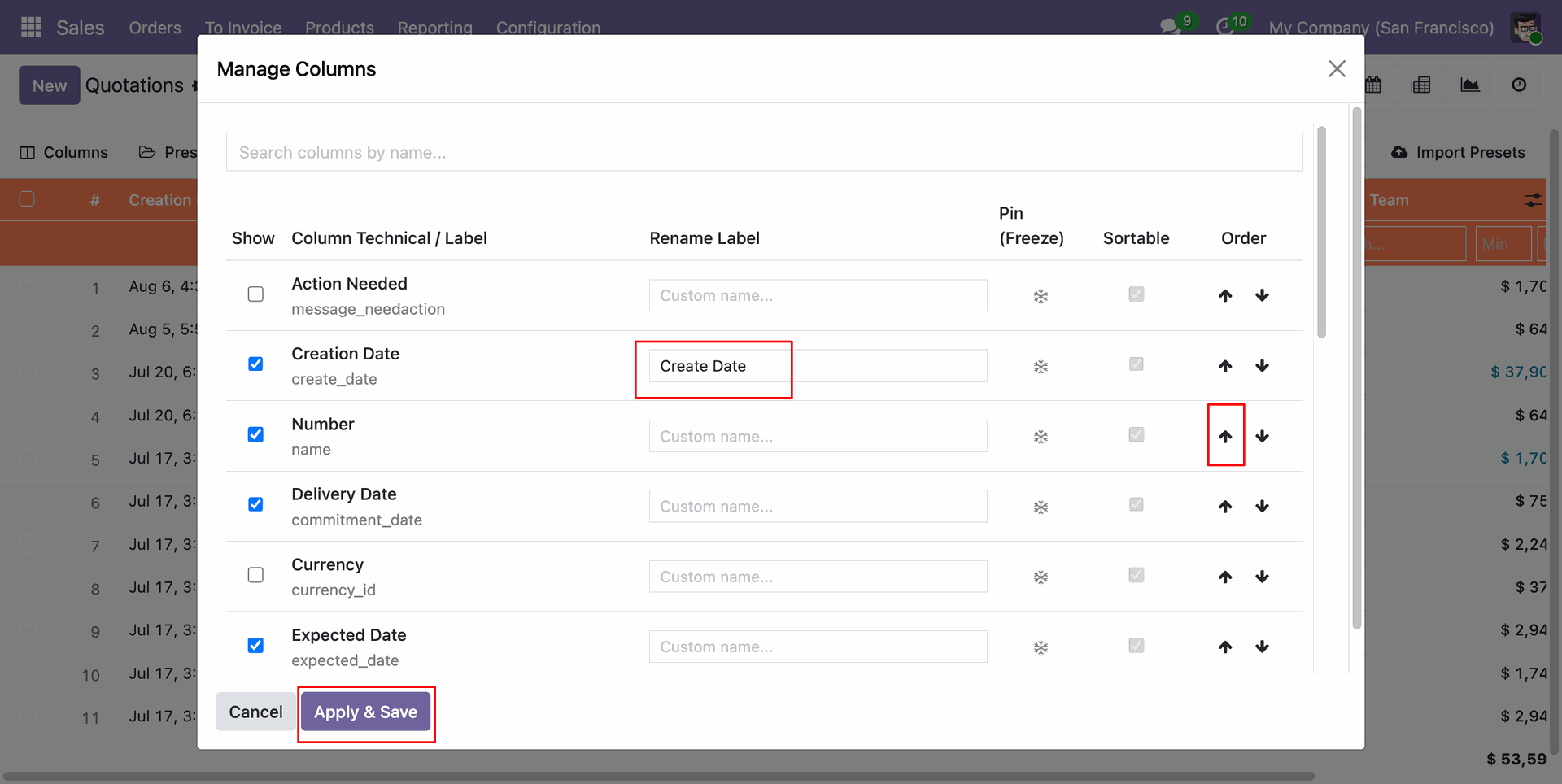
Click the Columns button on the list view toolbar to open the interactive column customization modal.
Easily toggle column visibility, edit custom header titles, enable column freezing, set sortable fields, and drag to reorder columns.
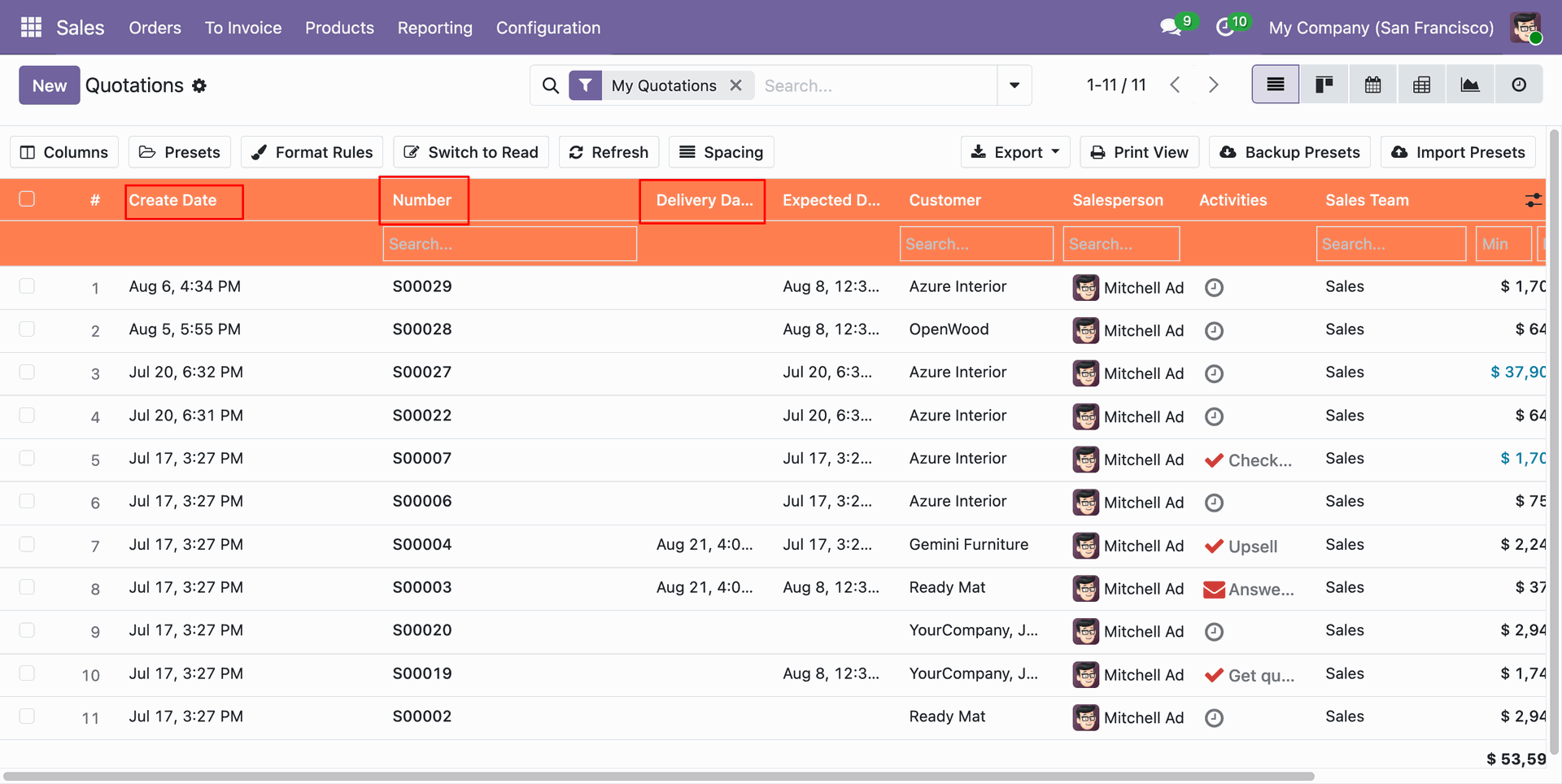
View the updated list layout with customized column sequence, custom header titles, and frozen columns applied instantly.
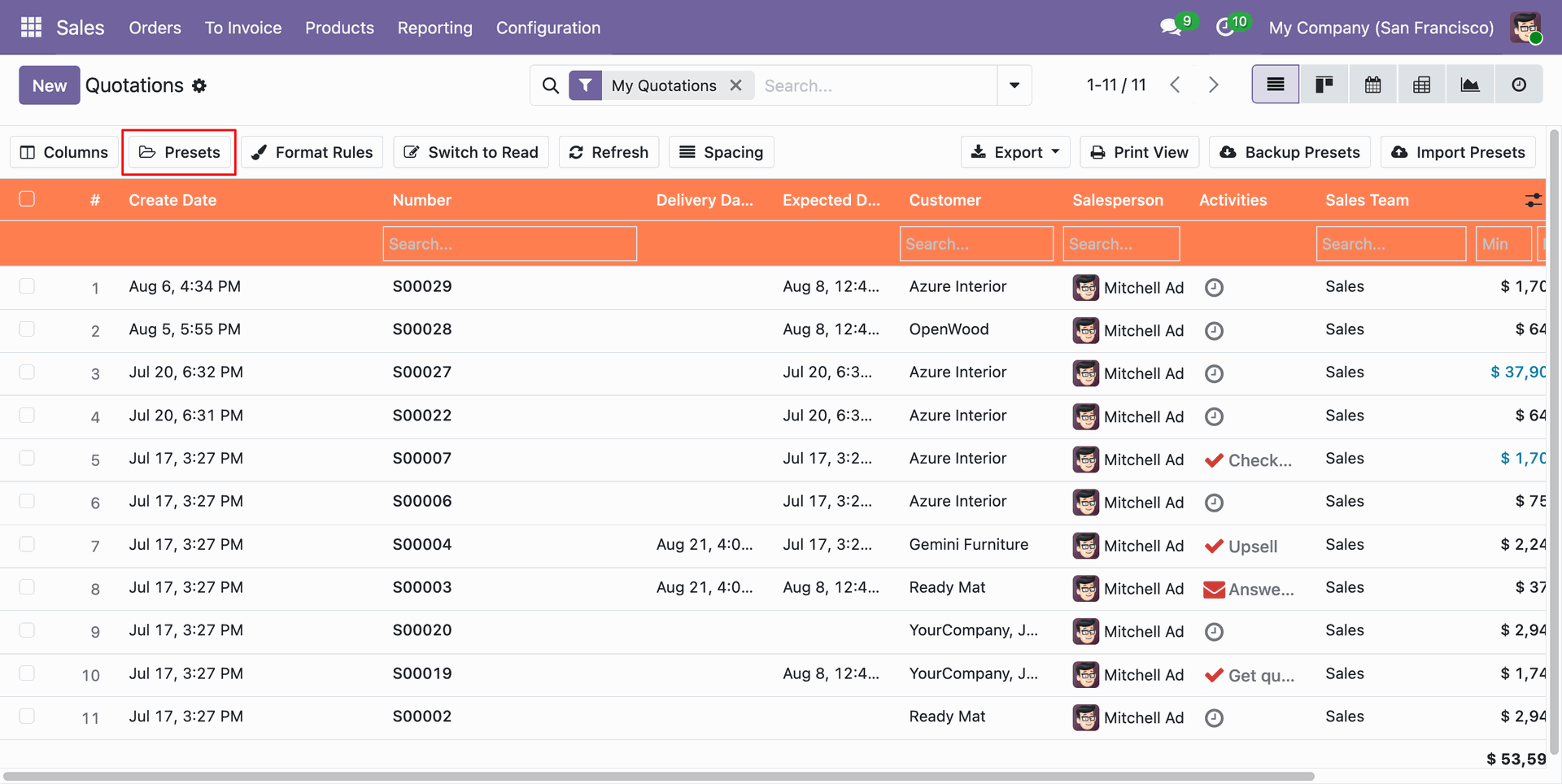
Click the Presets button on the list toolbar to access saved list view configurations and layout presets.
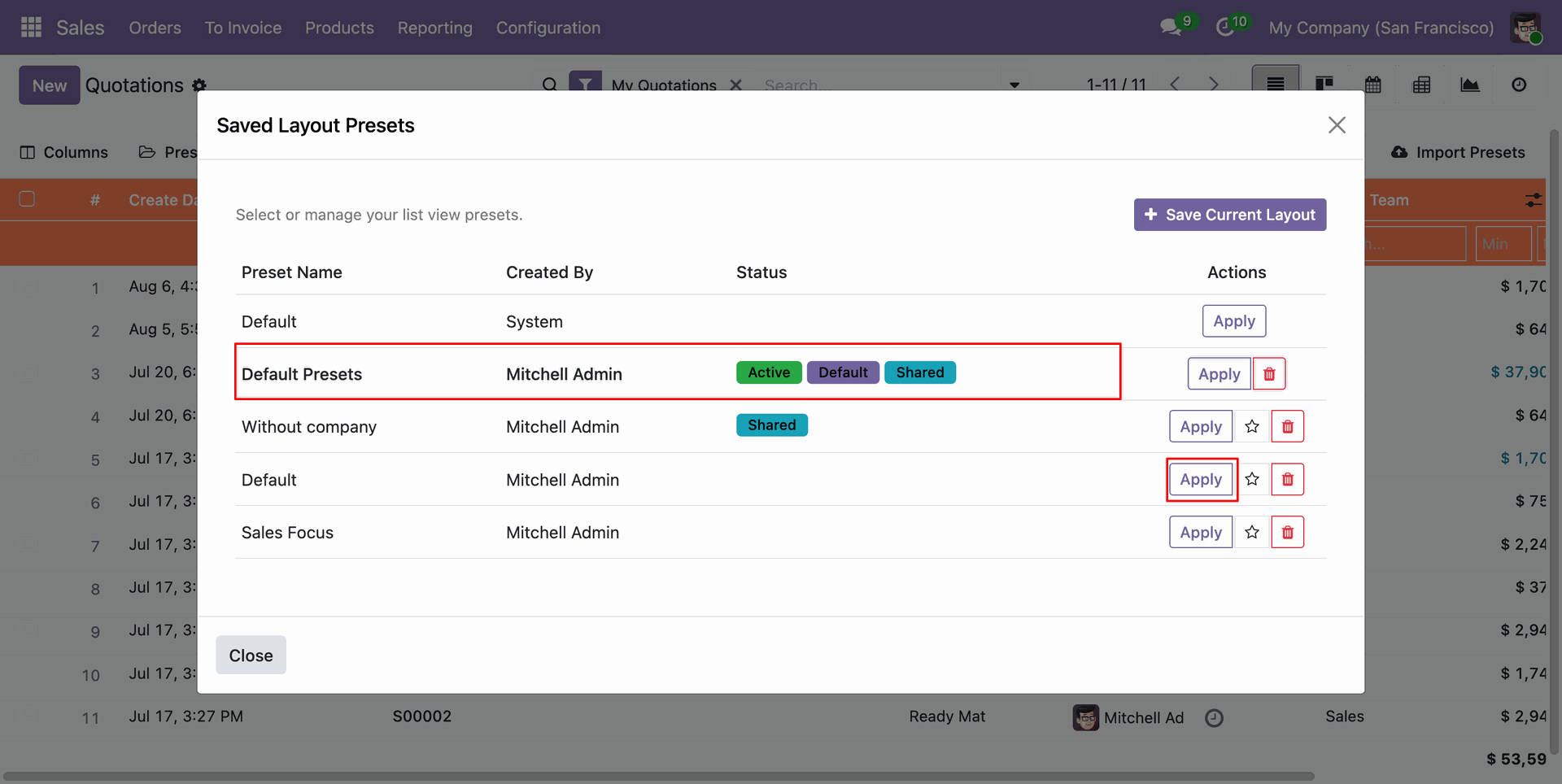
View, activate, set as default, or delete saved list view layout presets for current user or shared across users.
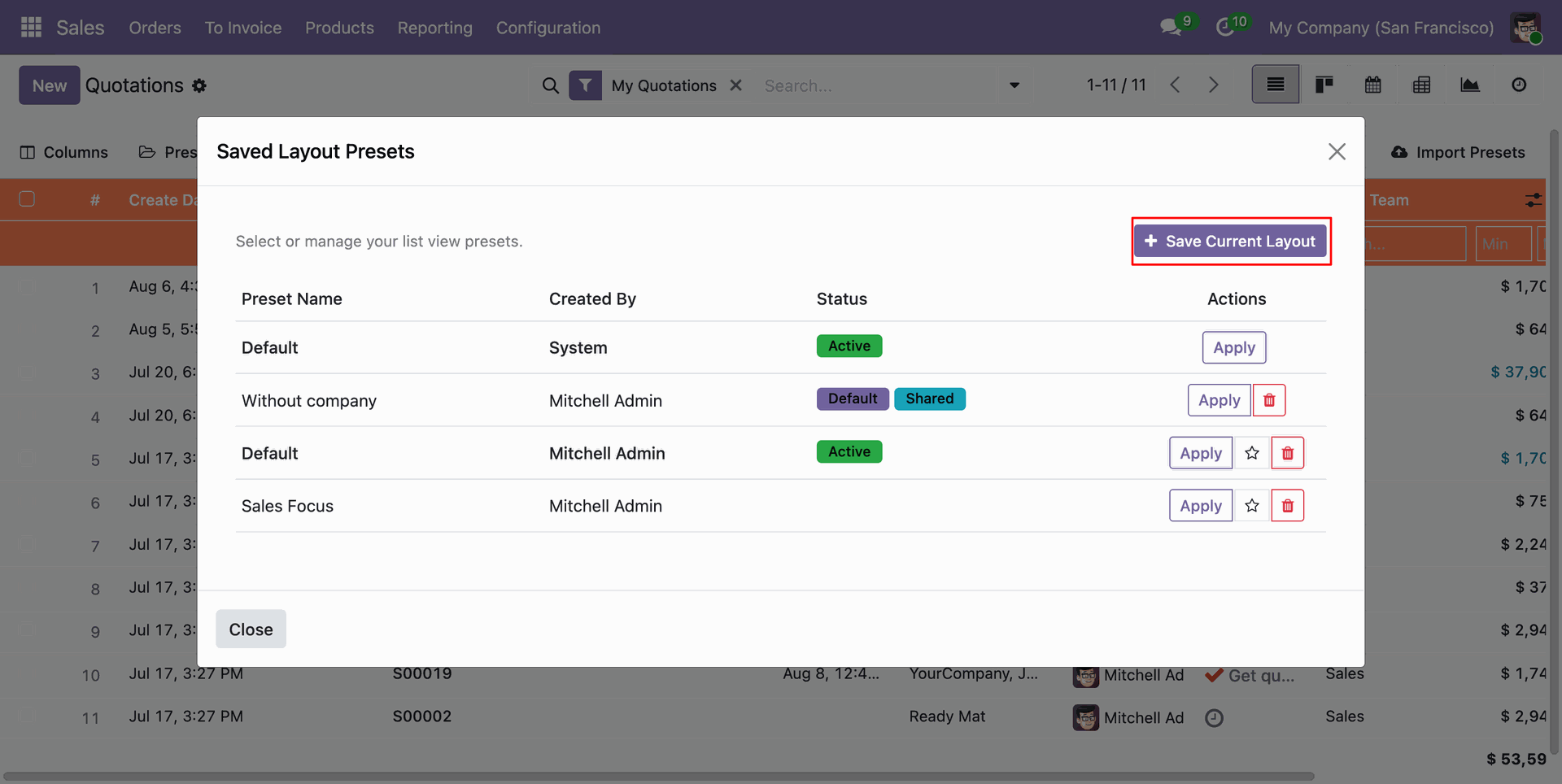
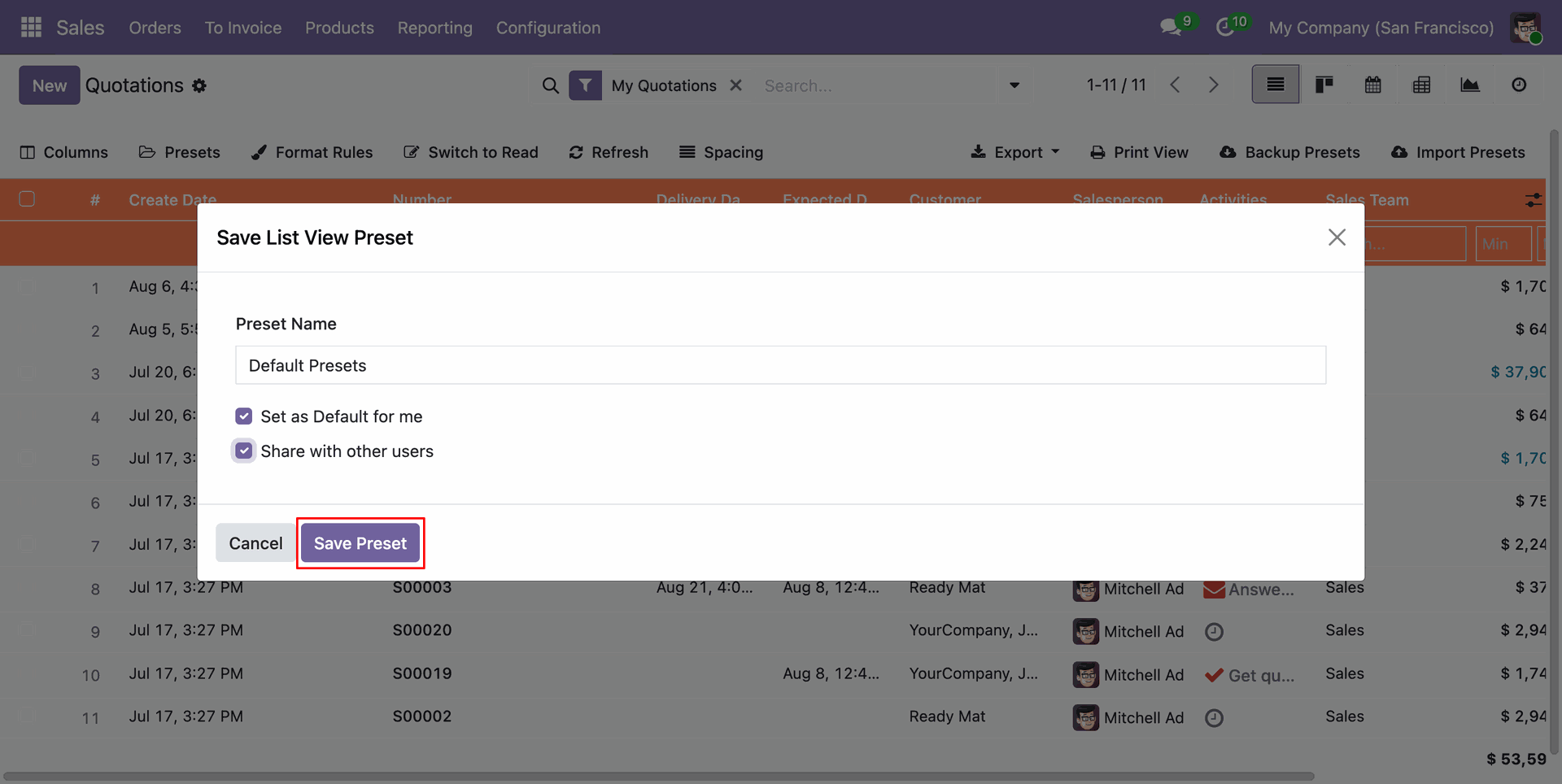
Save your active column layout as a new preset with options to set as default view and share with other users.
See active preset status and switch between saved layout presets effortlessly.
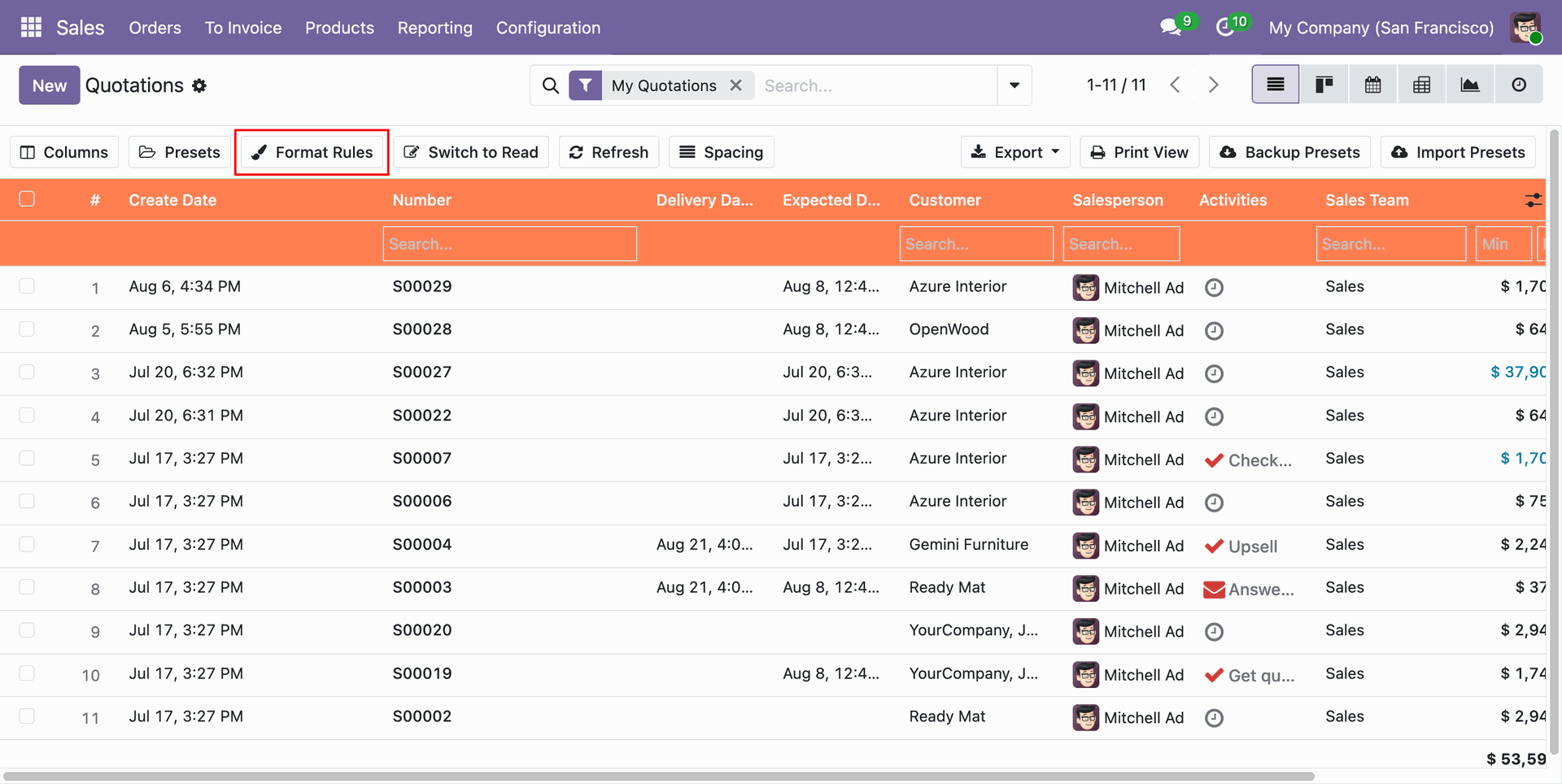
Click the Format Rules button on the toolbar to configure dynamic row color highlighting.
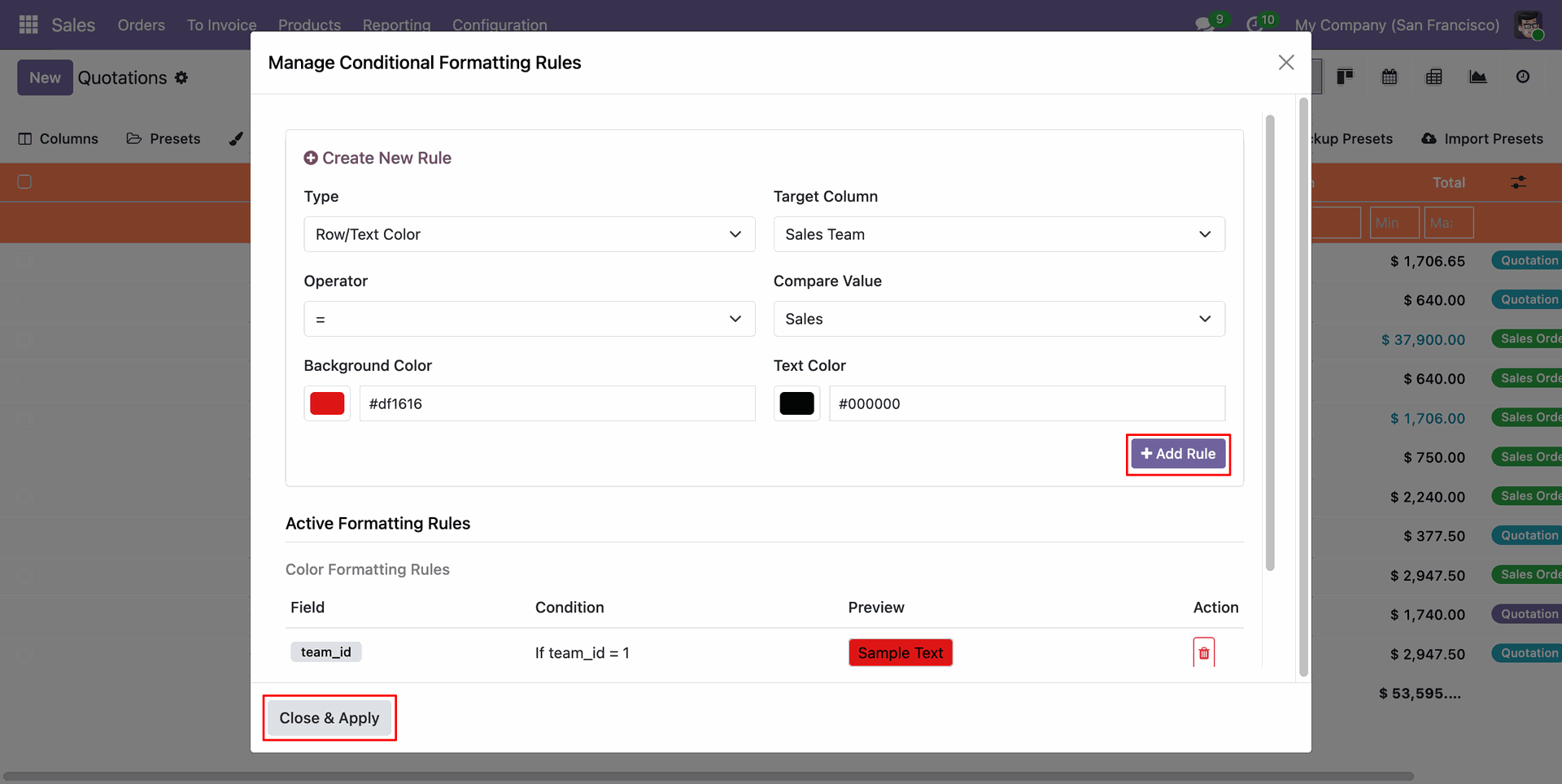
Create and edit dynamic conditional rules to highlight list view rows with custom background and text colors.
List view rows automatically highlighted with custom background and font colors based on matched condition rules.
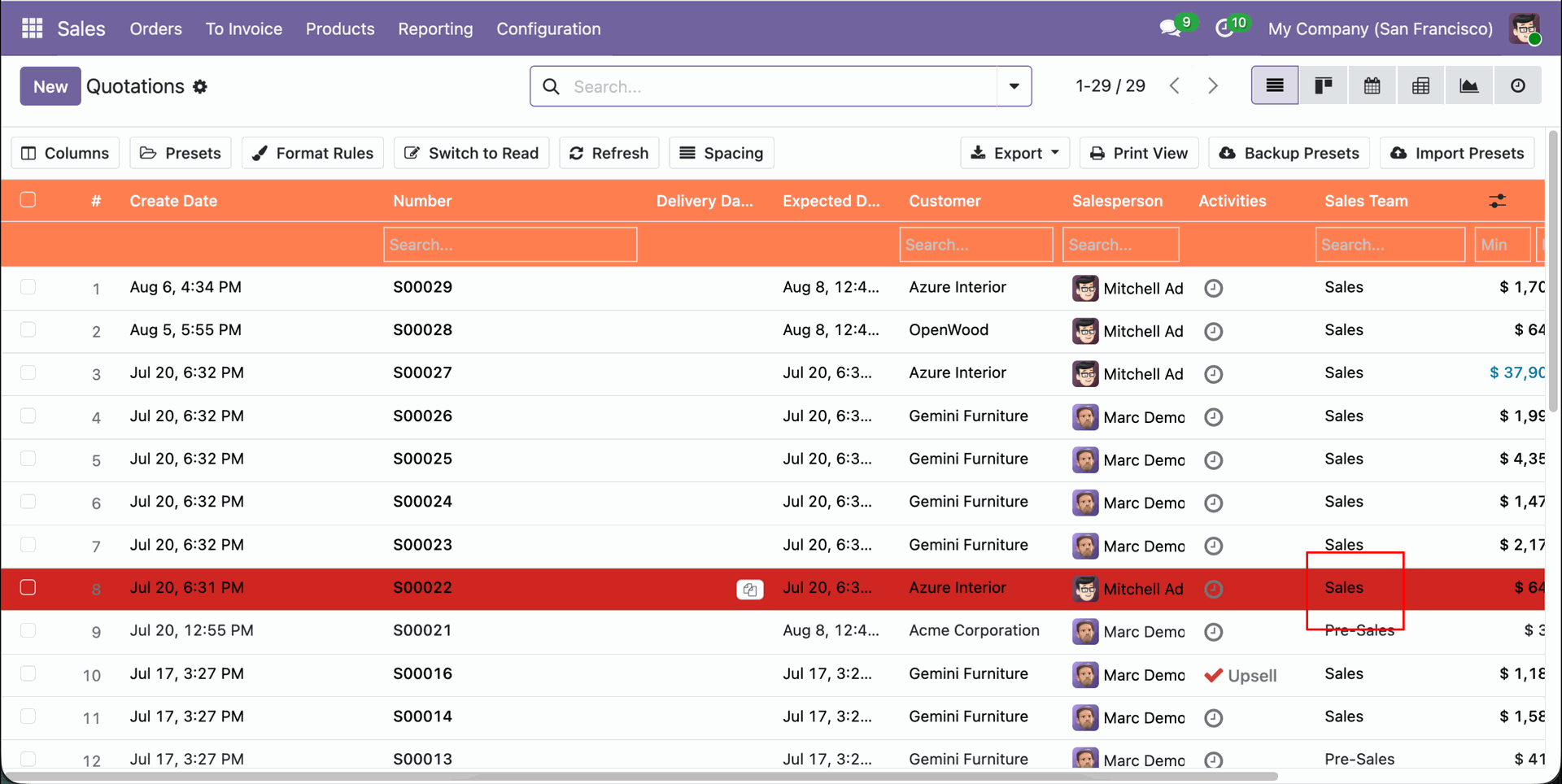
Click Switch to Read button on toolbar to lock list view rows into read-only navigation mode.
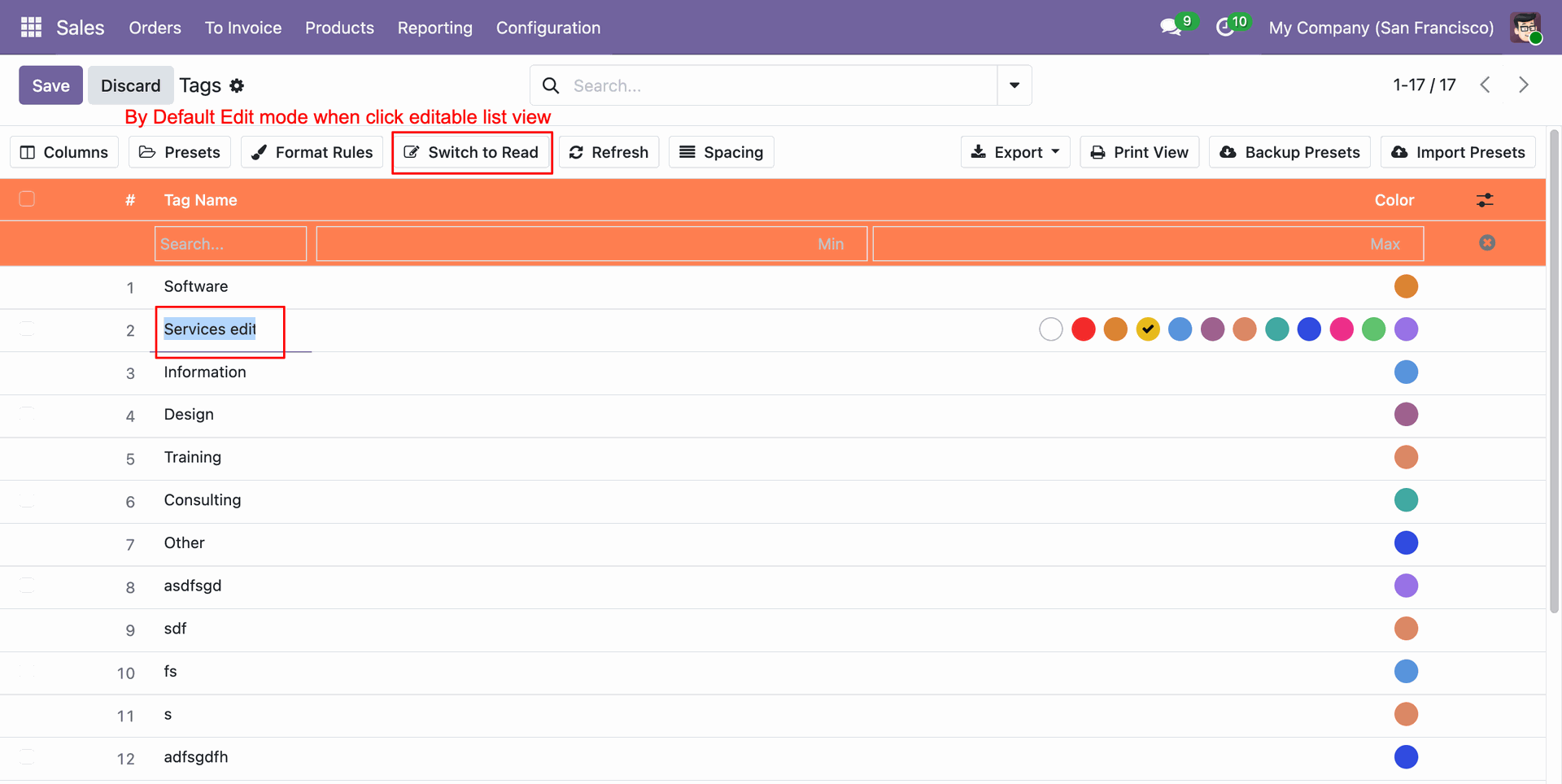
List view in Read Mode preventing accidental inline edits while browsing record lists.
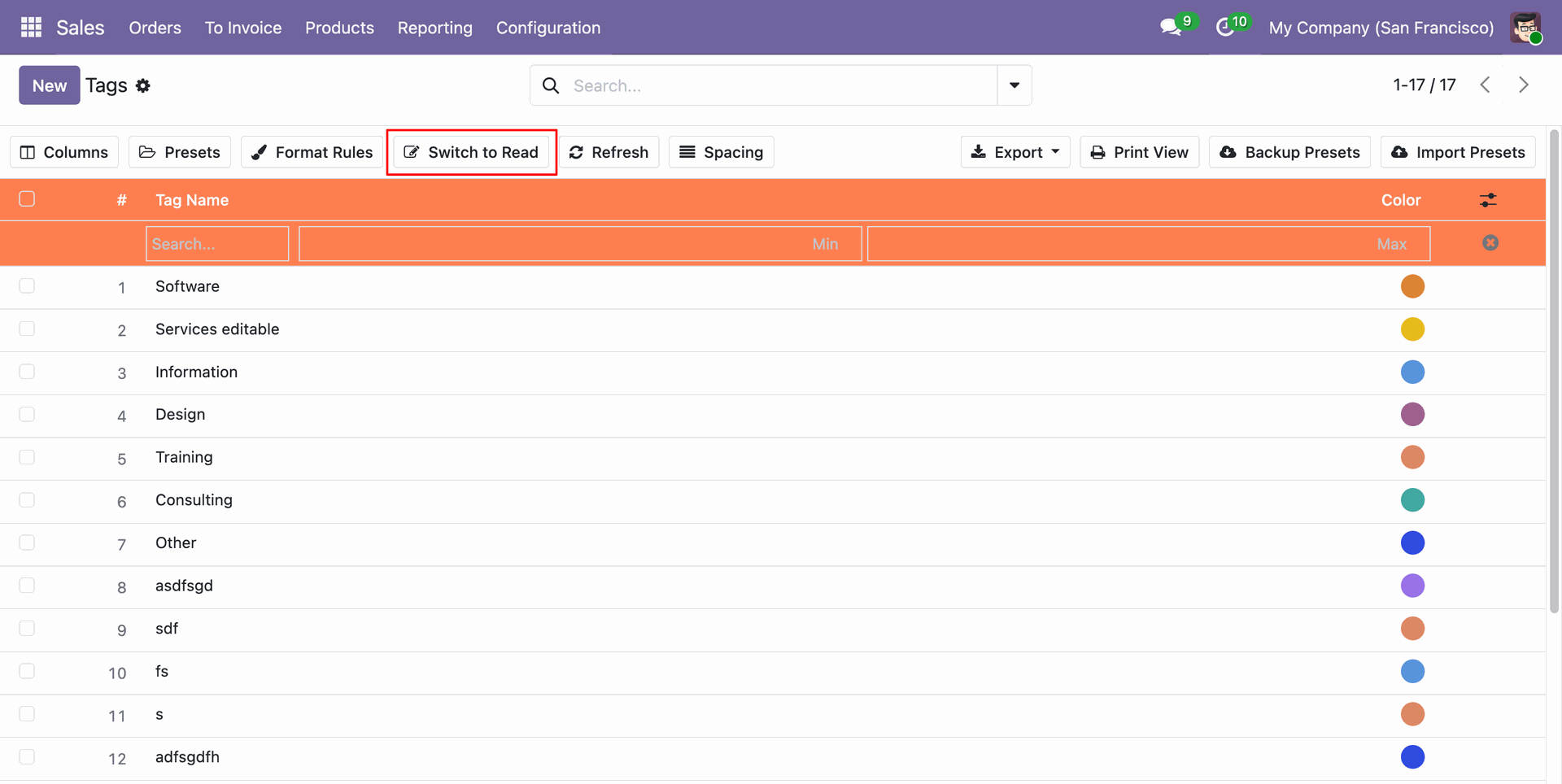
Clicking records in Read Mode directly opens the record in standard form view.
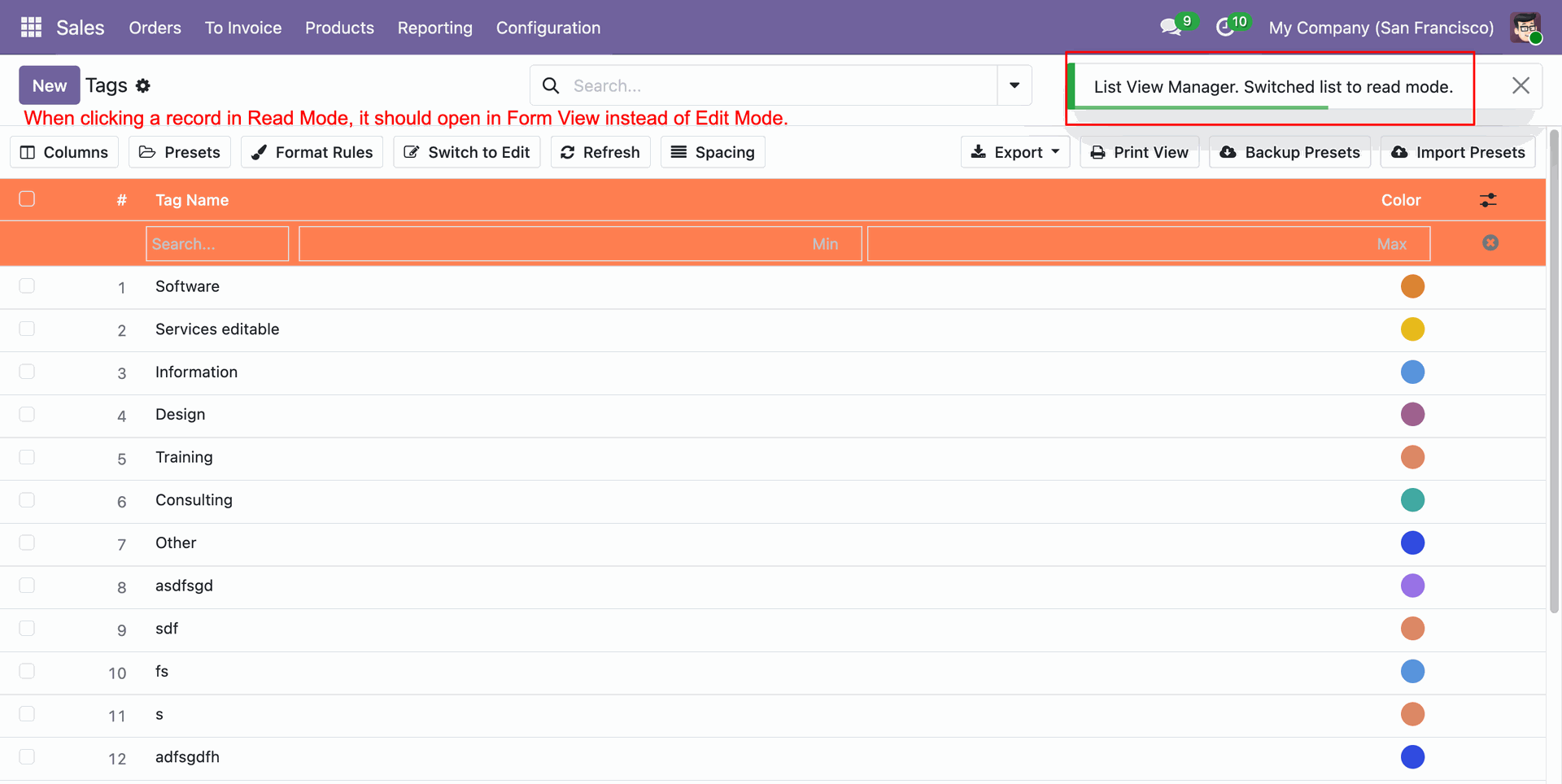
Click Refresh button on toolbar to reload list view data on the fly without refreshing the browser tab.
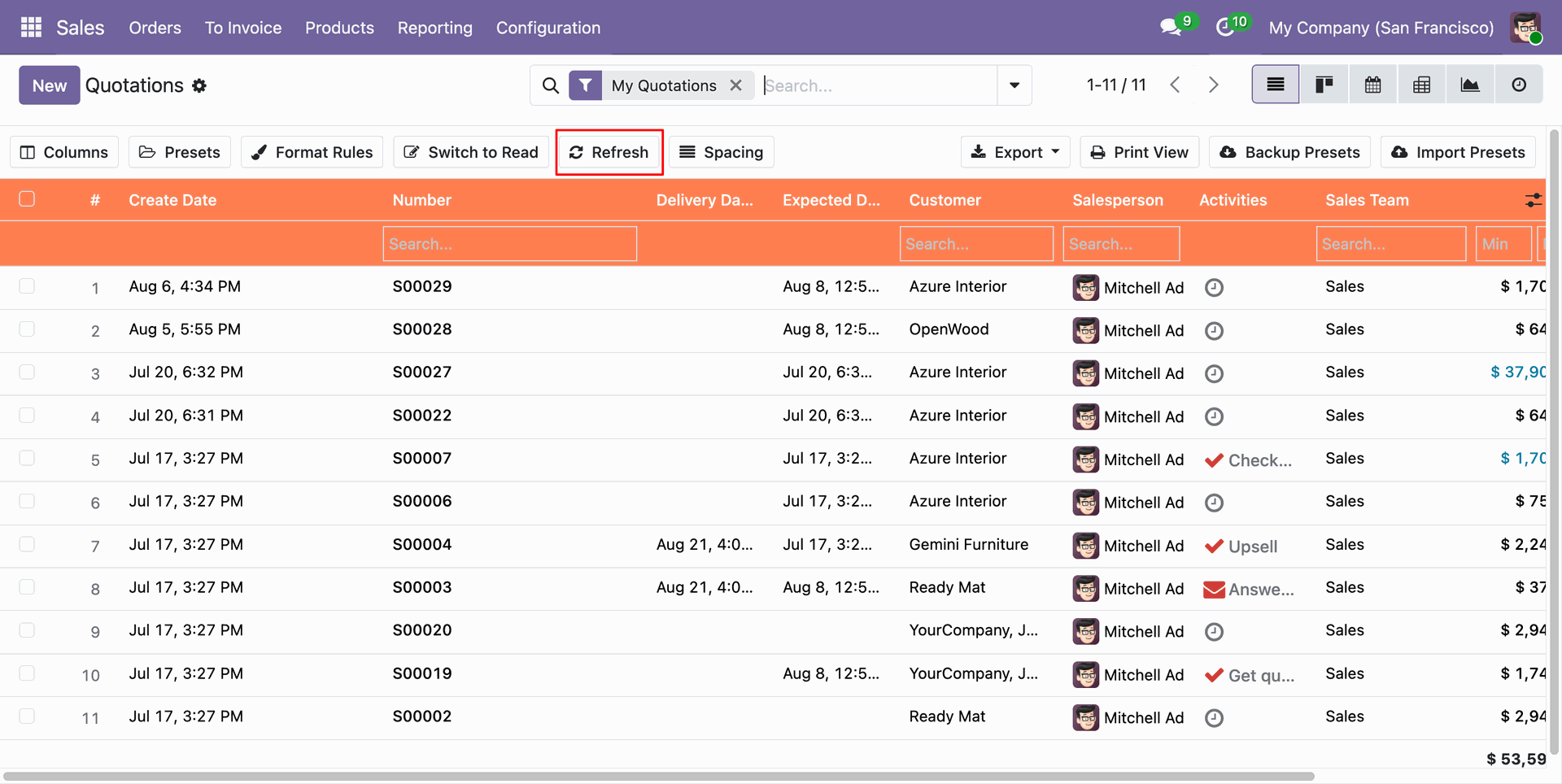
Click Spacing button on toolbar to adjust list view row padding and layout density.
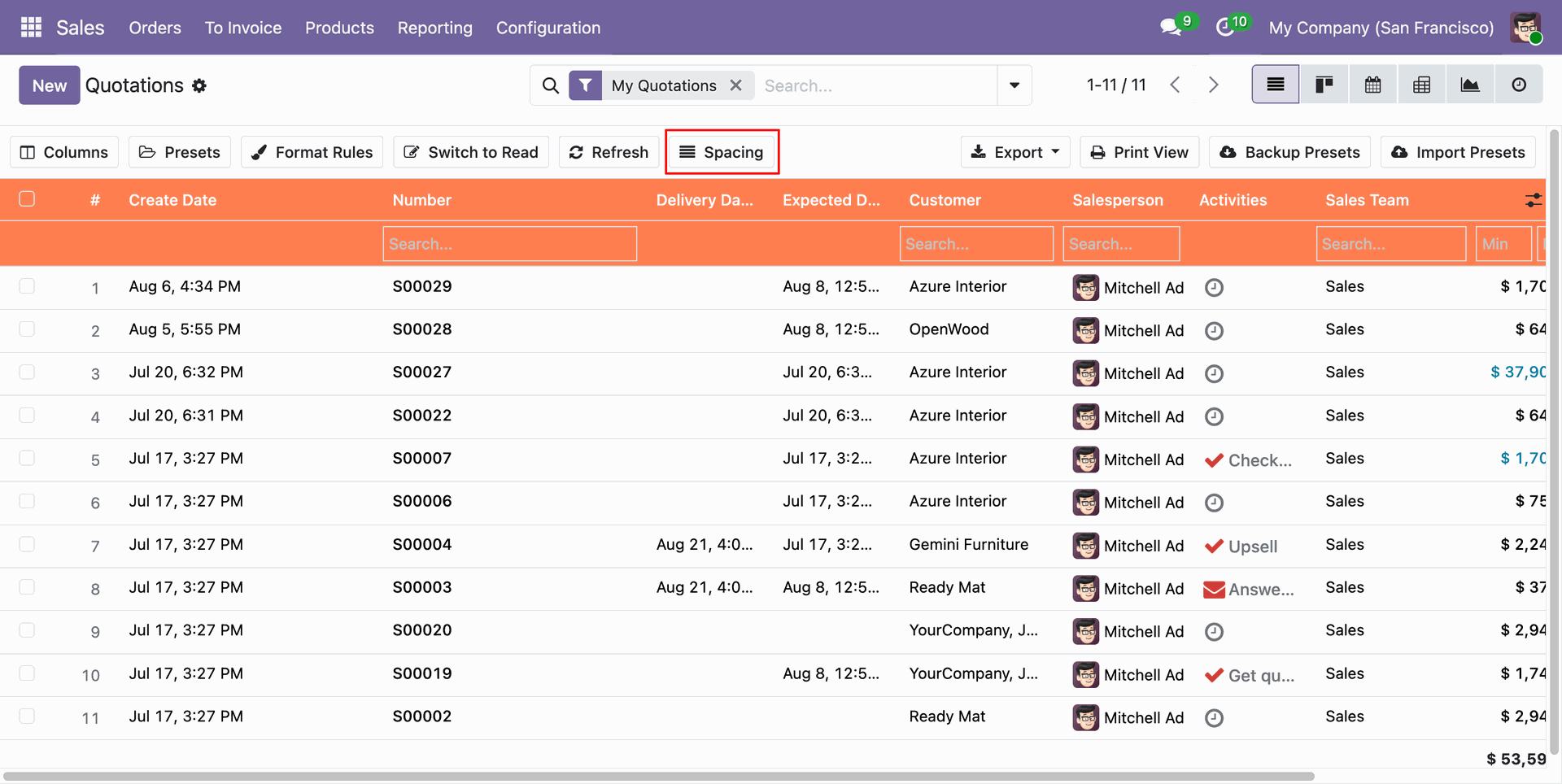
Choose between Compact, Comfortable, and Spacious row density options for optimal data readability.
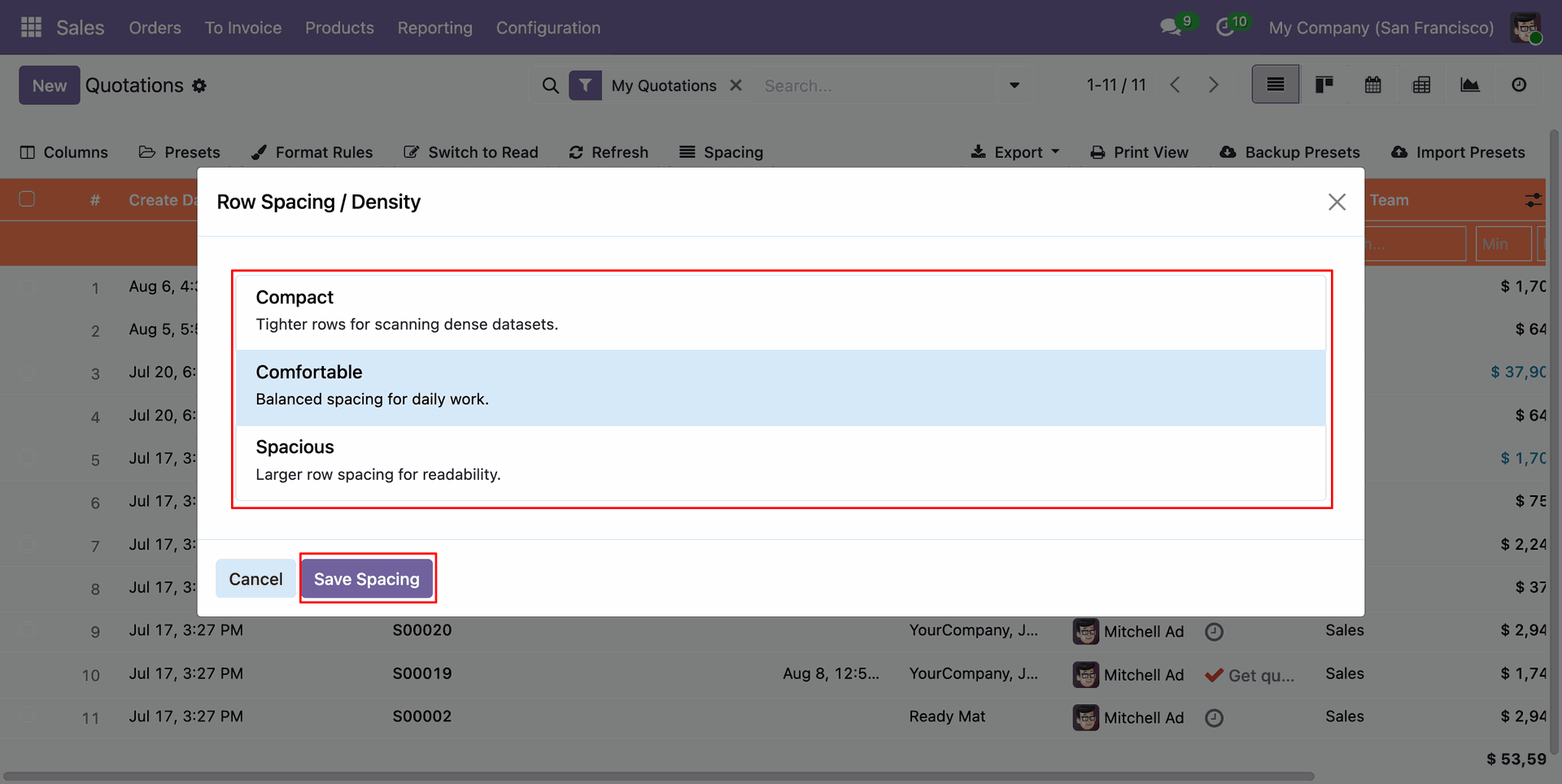
List view displaying compact row height allowing more records to fit on screen.
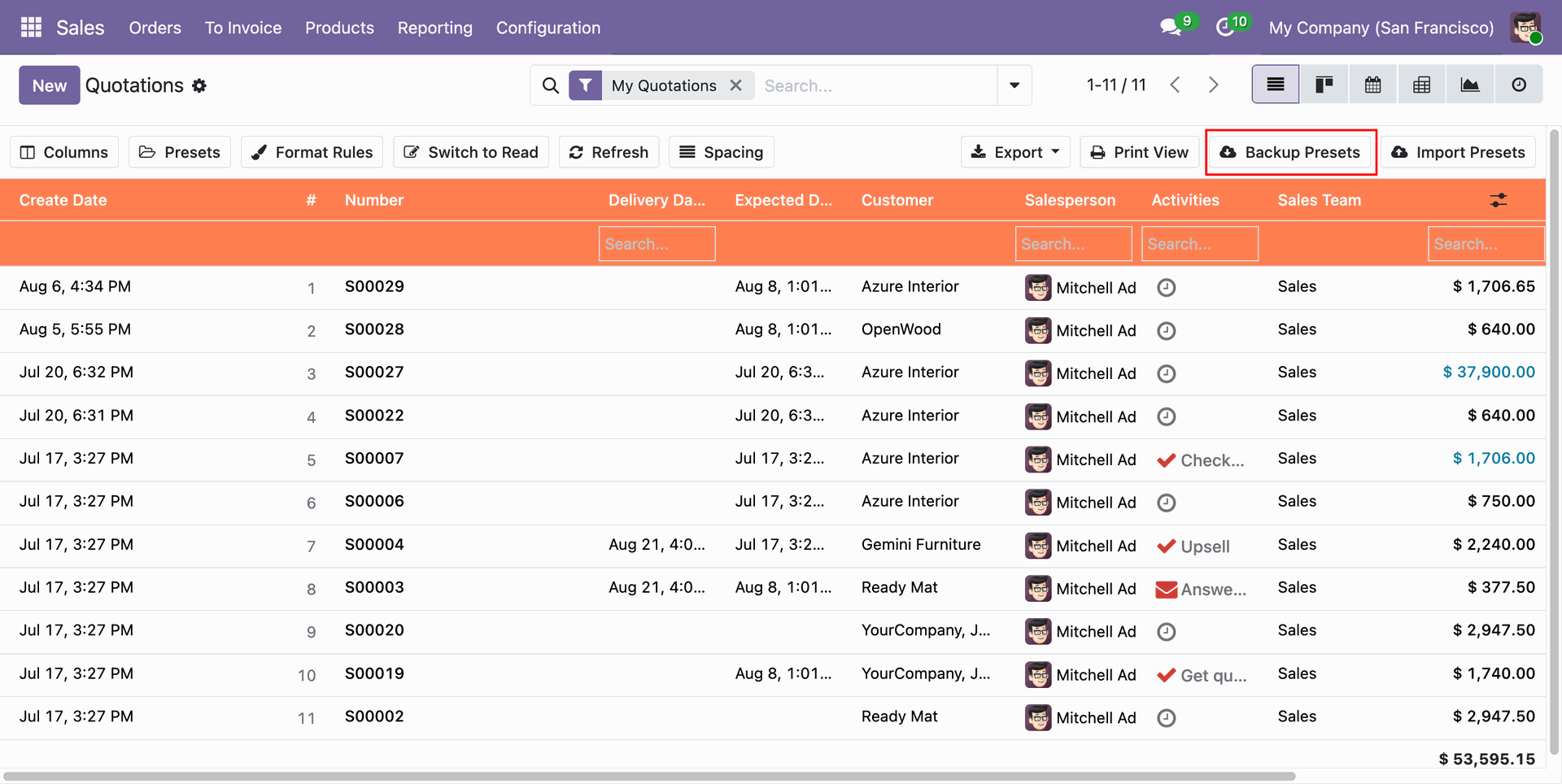
Click Backup Presets button to export all saved list view configurations into a JSON file.
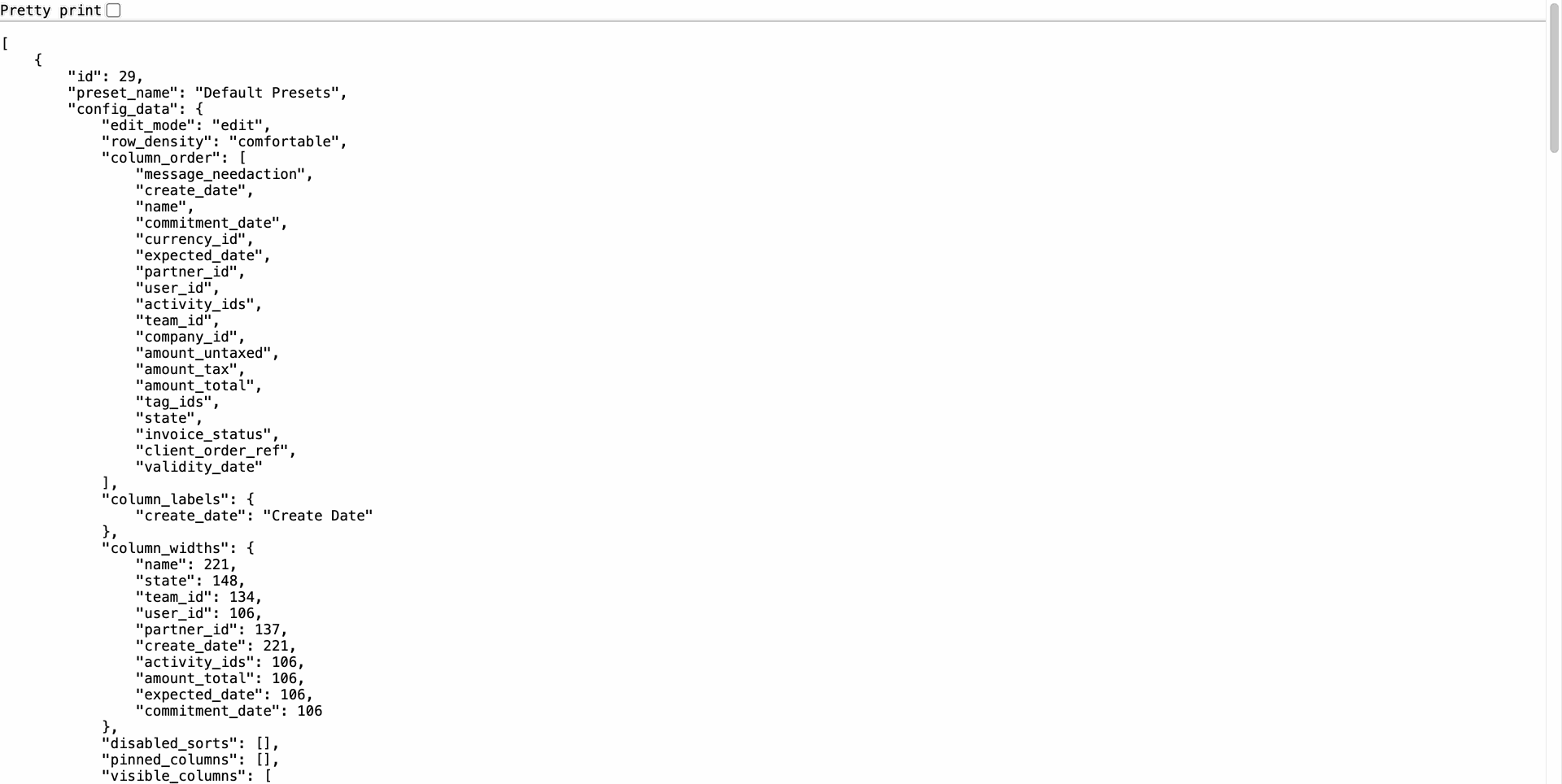
JSON backup file containing complete configuration data for saved list presets.
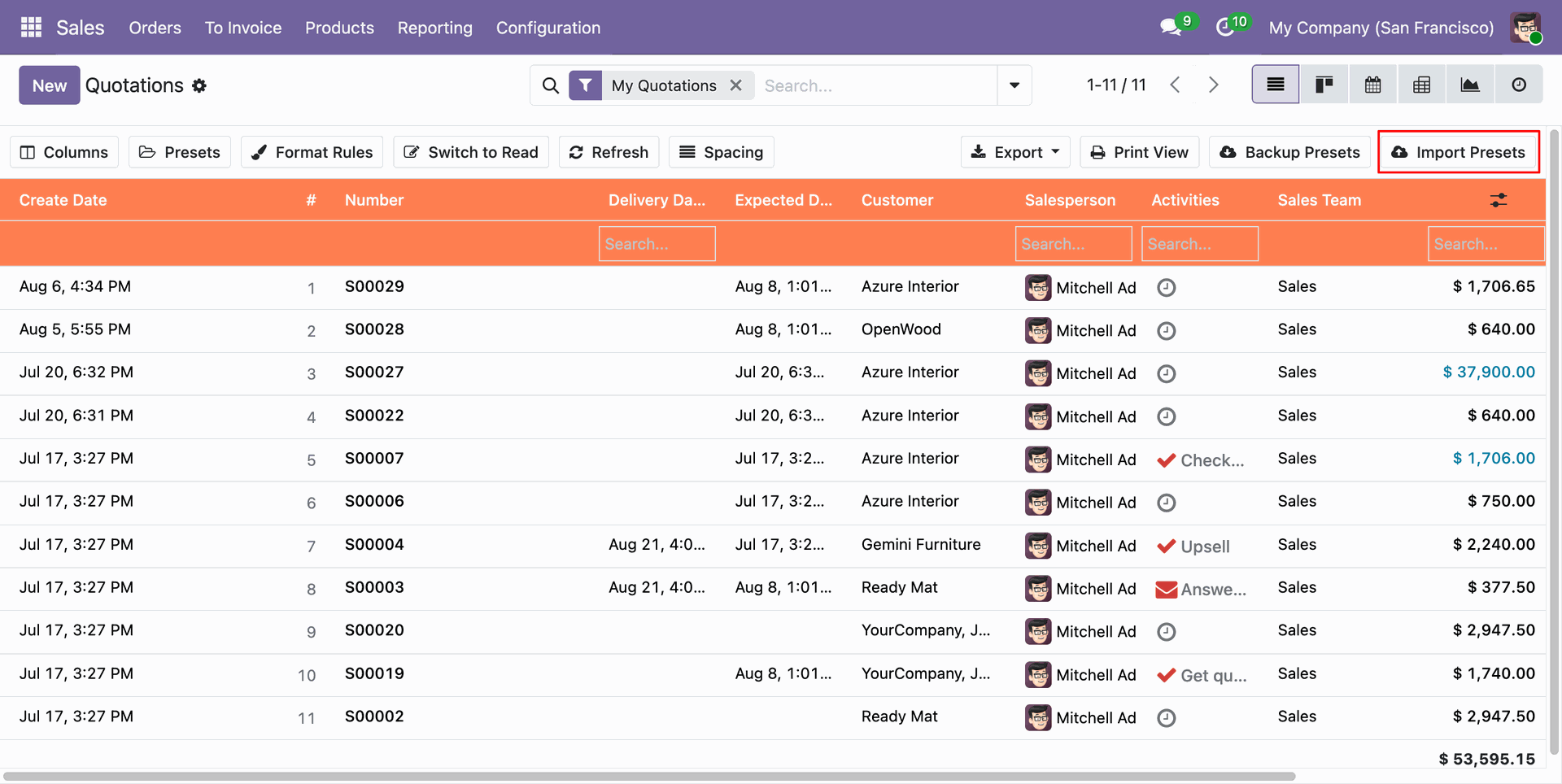
Click Import Presets button on toolbar to restore preset configurations from a JSON file.
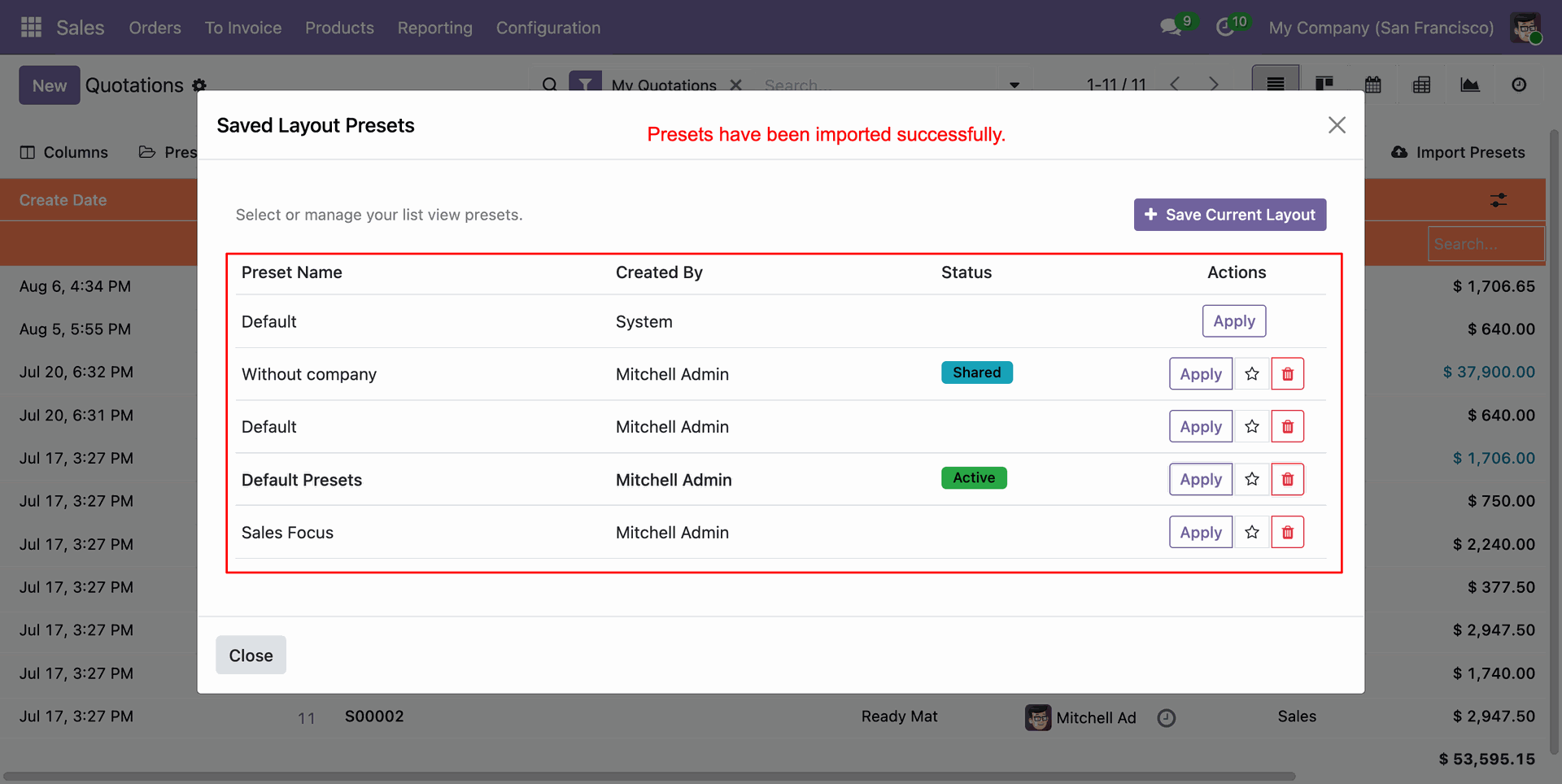
Confirmation message displayed upon successfully importing presets into the system.
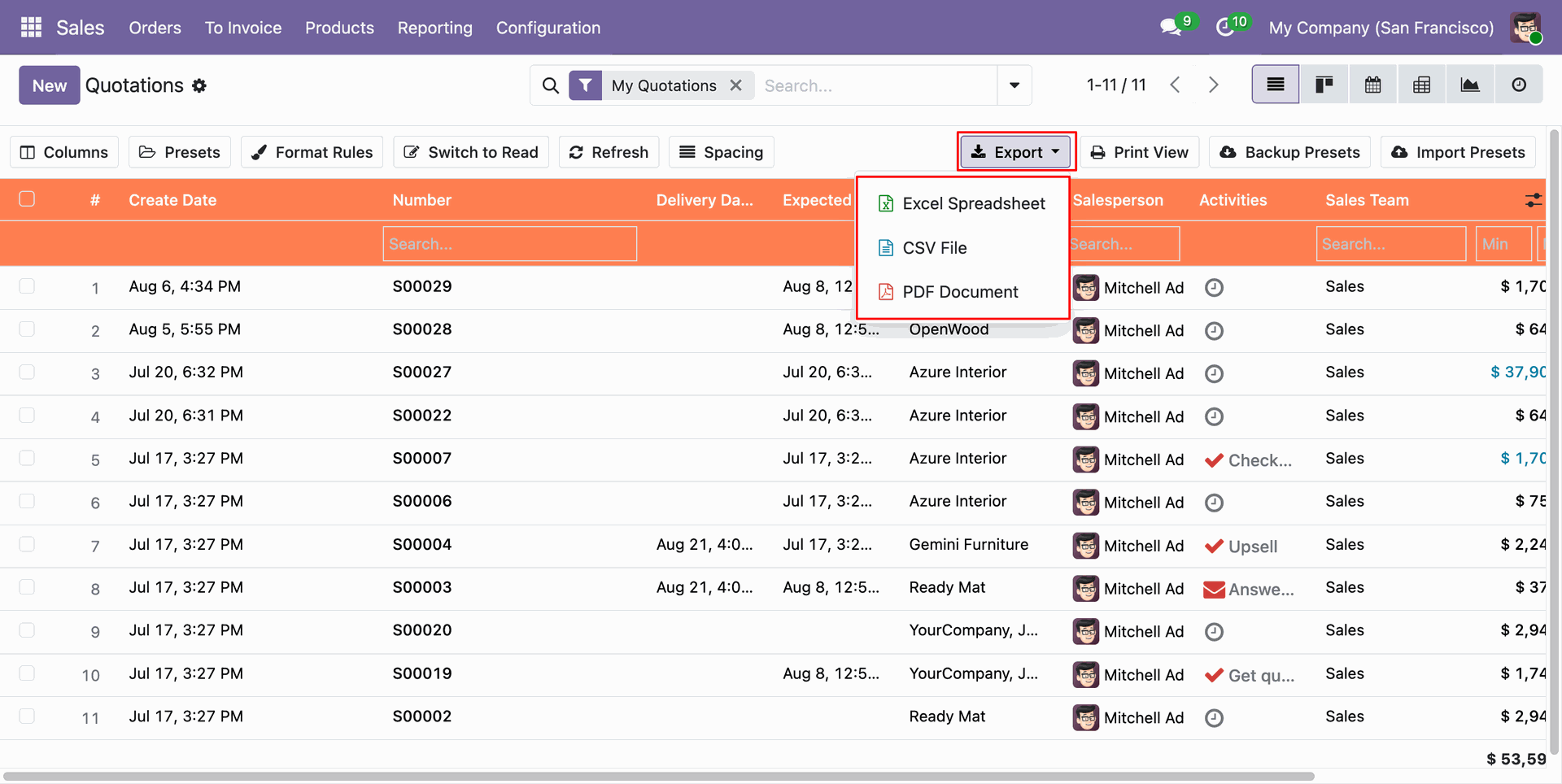
Click Export button on toolbar to export list view data into Excel (.xlsx), CSV, or PDF formats.
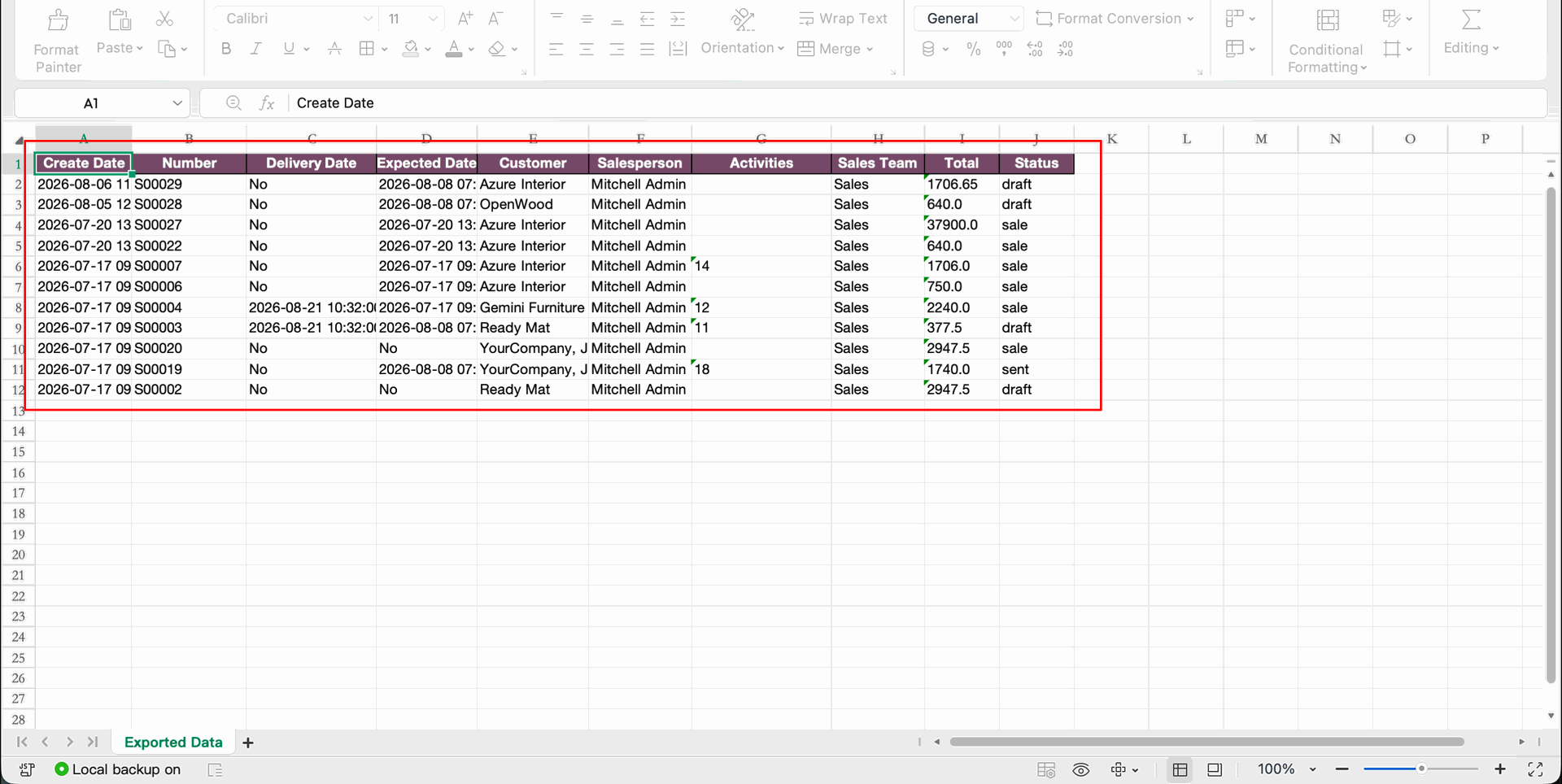
Downloaded Excel (.xlsx) file containing customized list view columns and record data.
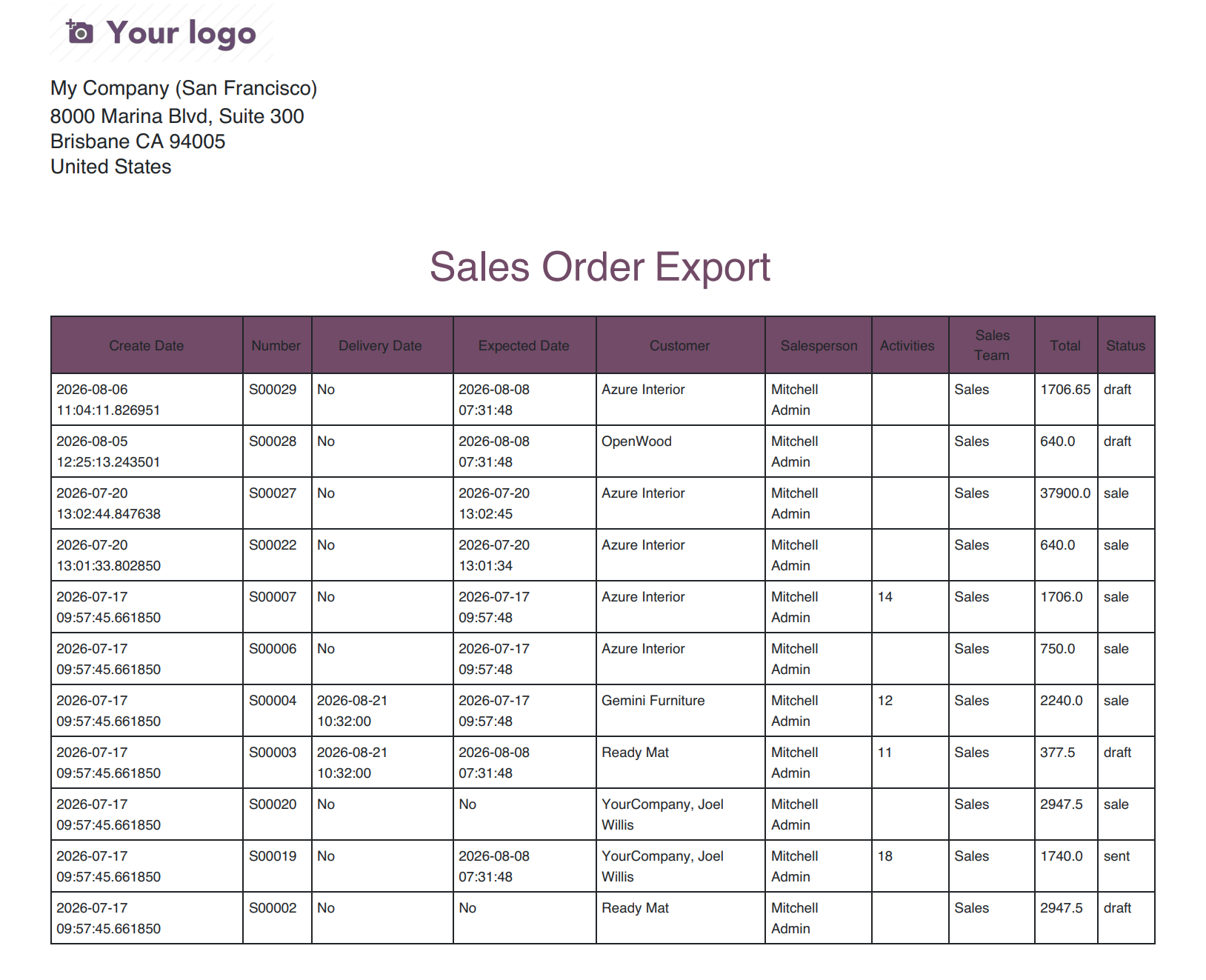
Formatted PDF document generated directly from current list view layout.
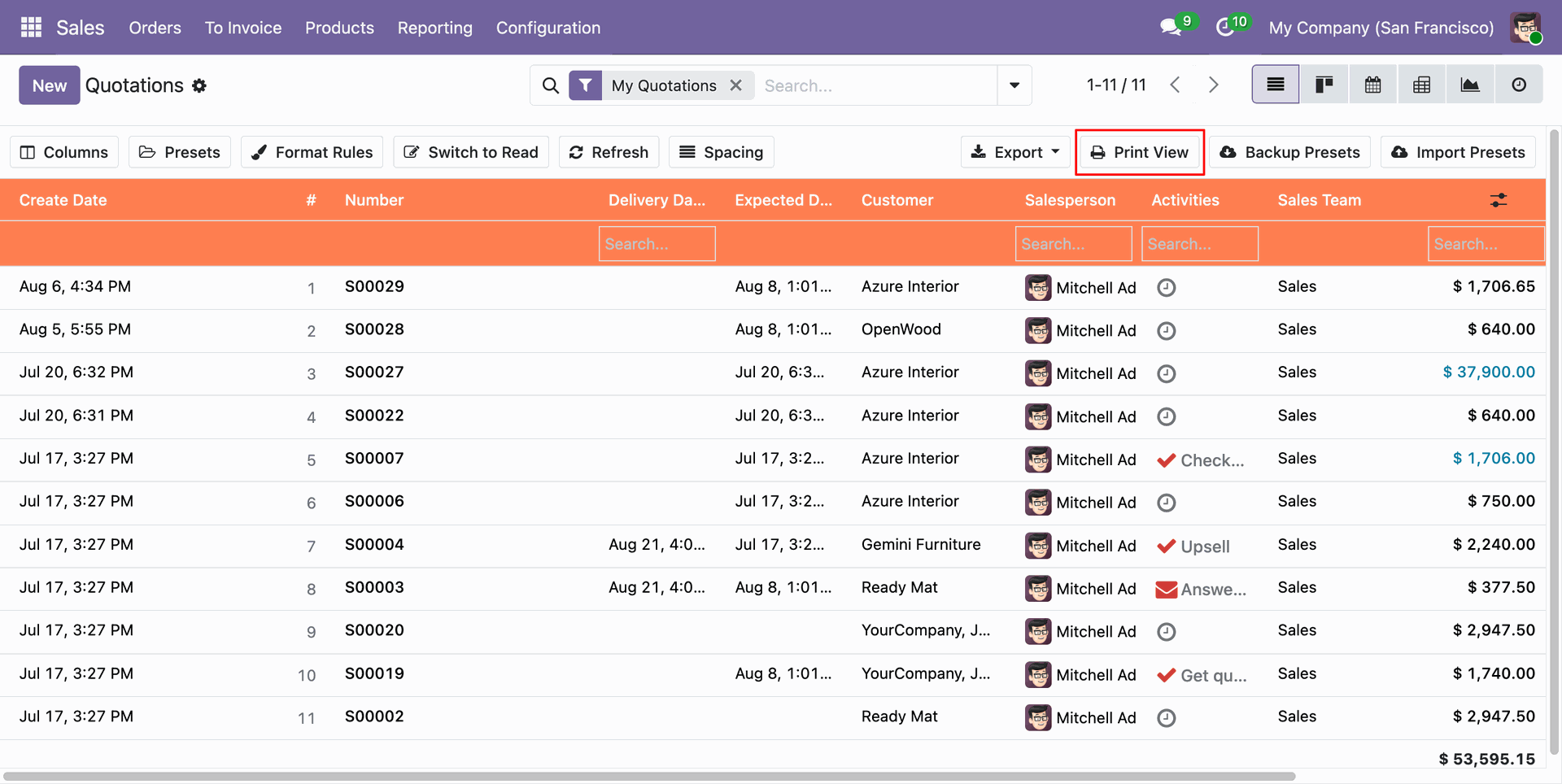
Click Print View button on toolbar to send current list view table directly to browser print view.
Apply widget="enable_groupping_o2m" on One2Many subtable fields in form view XML layout.
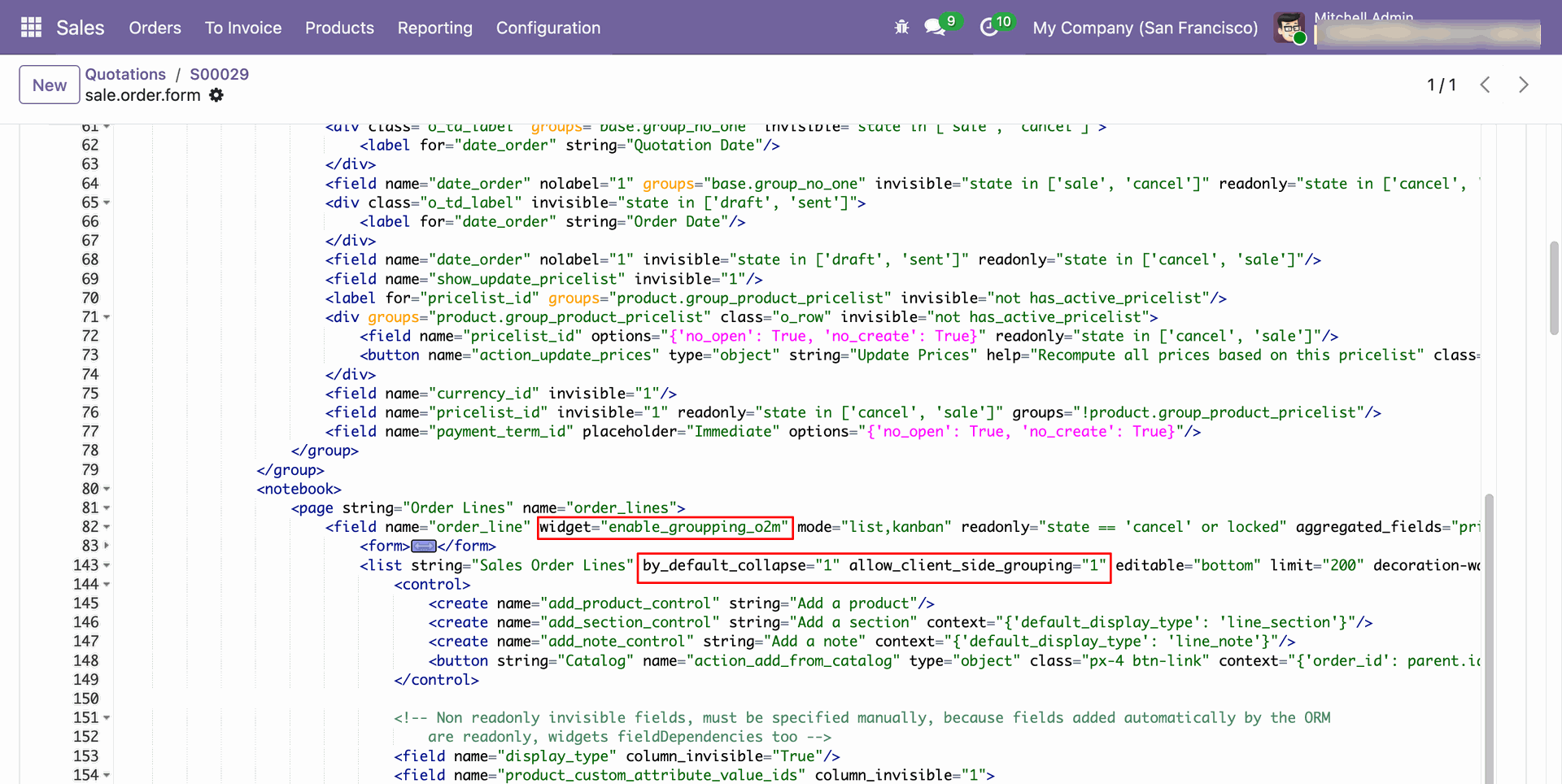
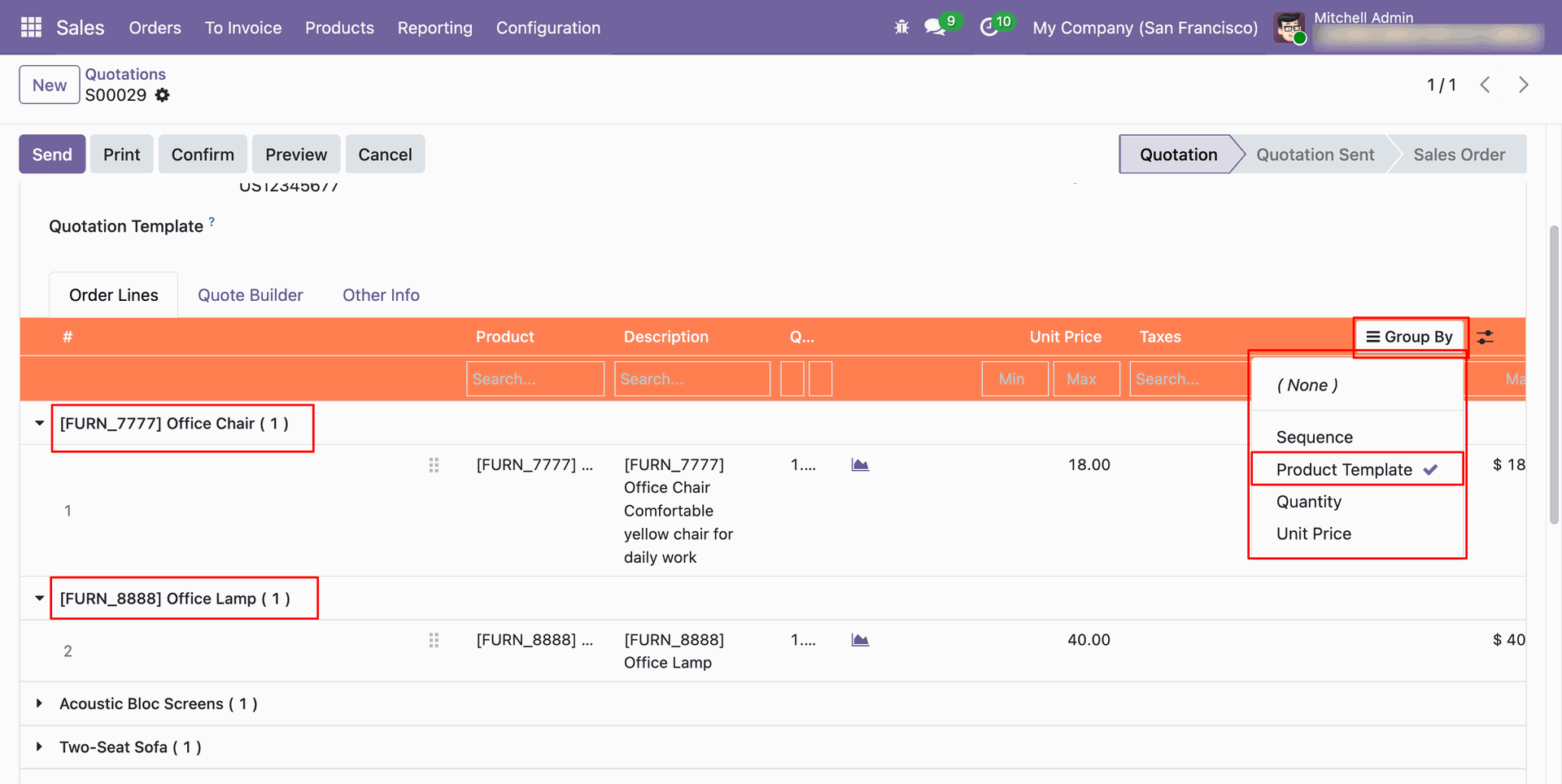
Group subtable lines dynamically by any column field directly inside form views.
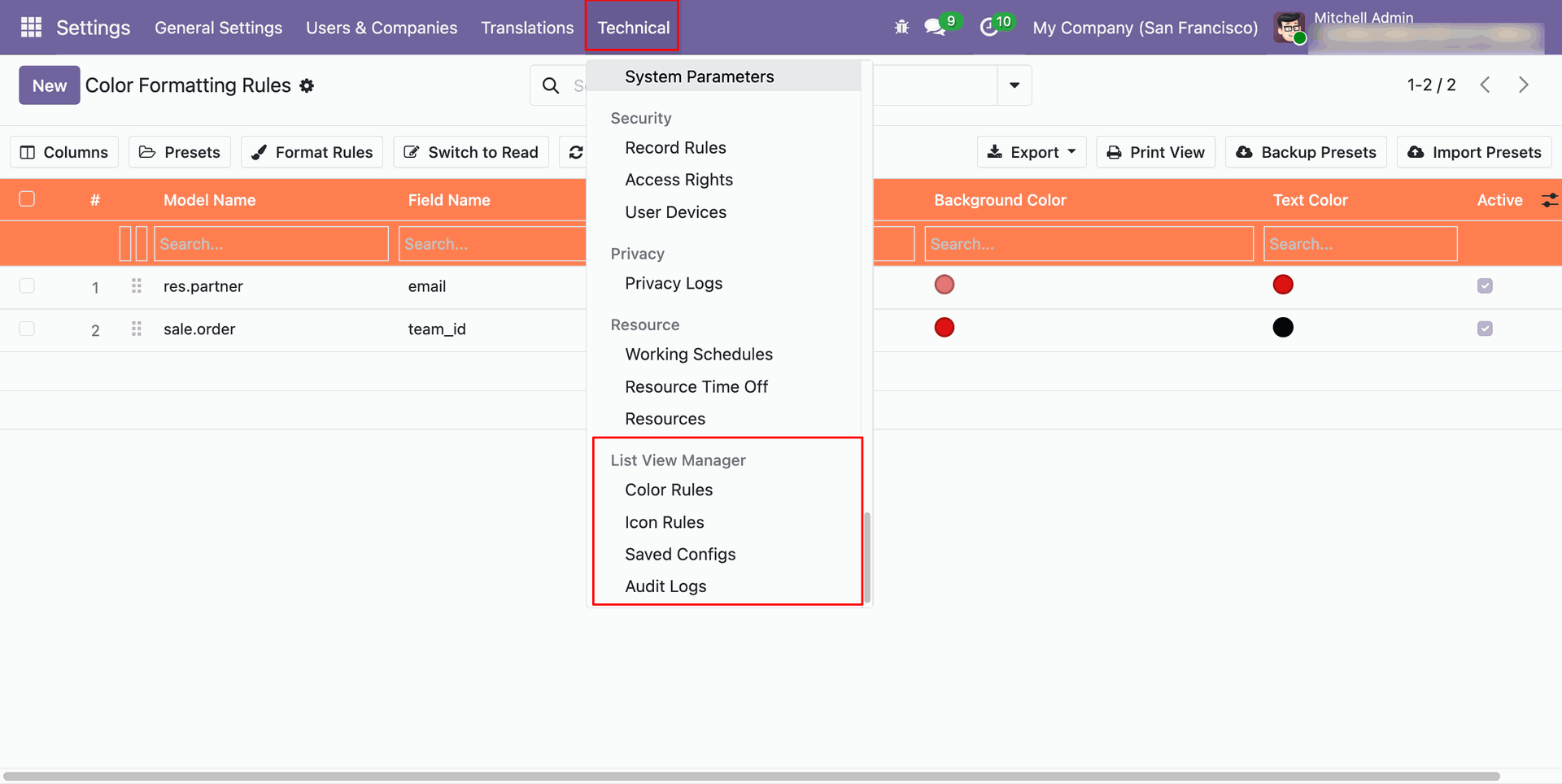
Access technical backend menus under Settings > List View Manager for Color Rules, Icon Rules, Saved Configs, and Audit Logs.
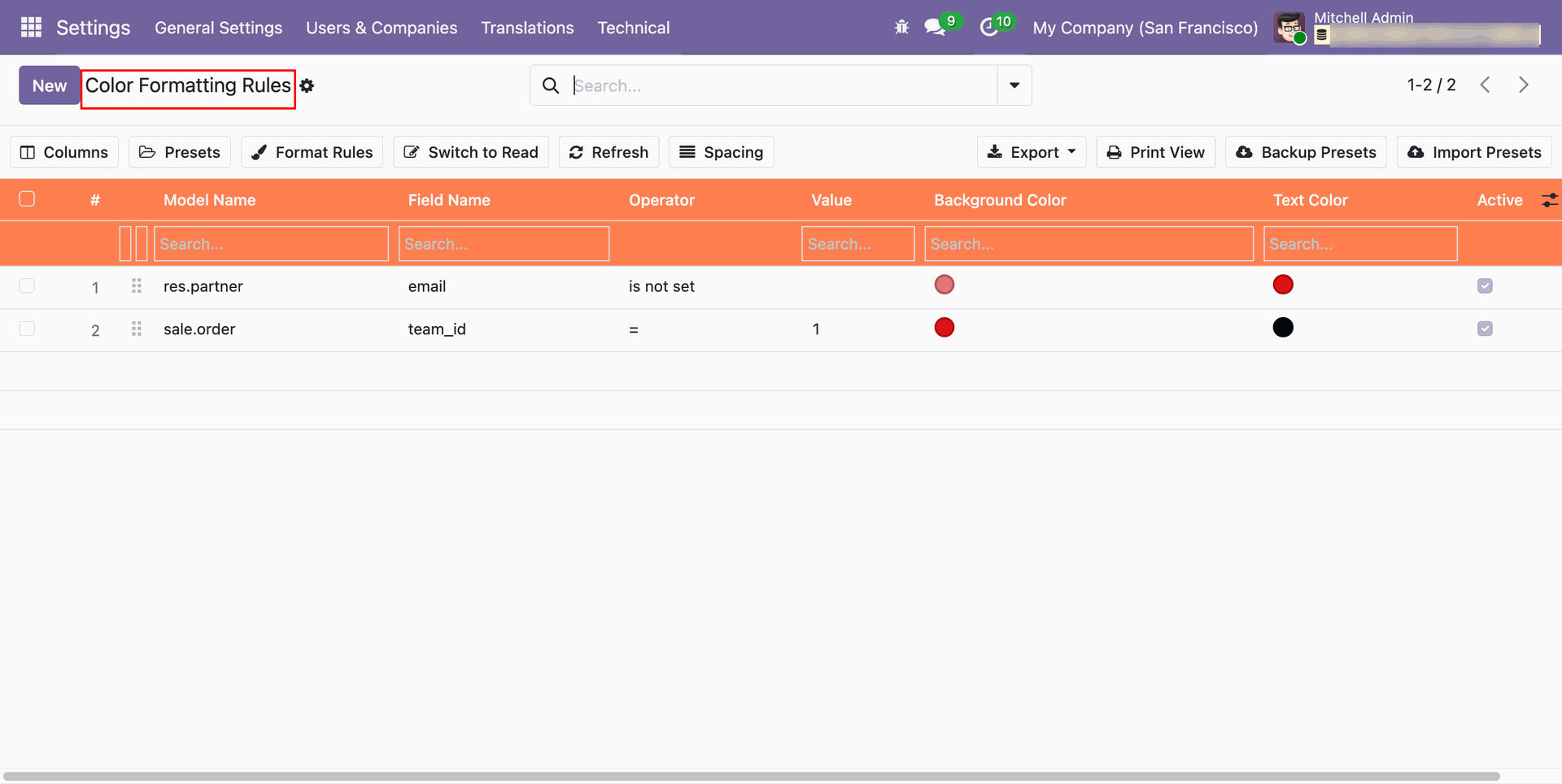
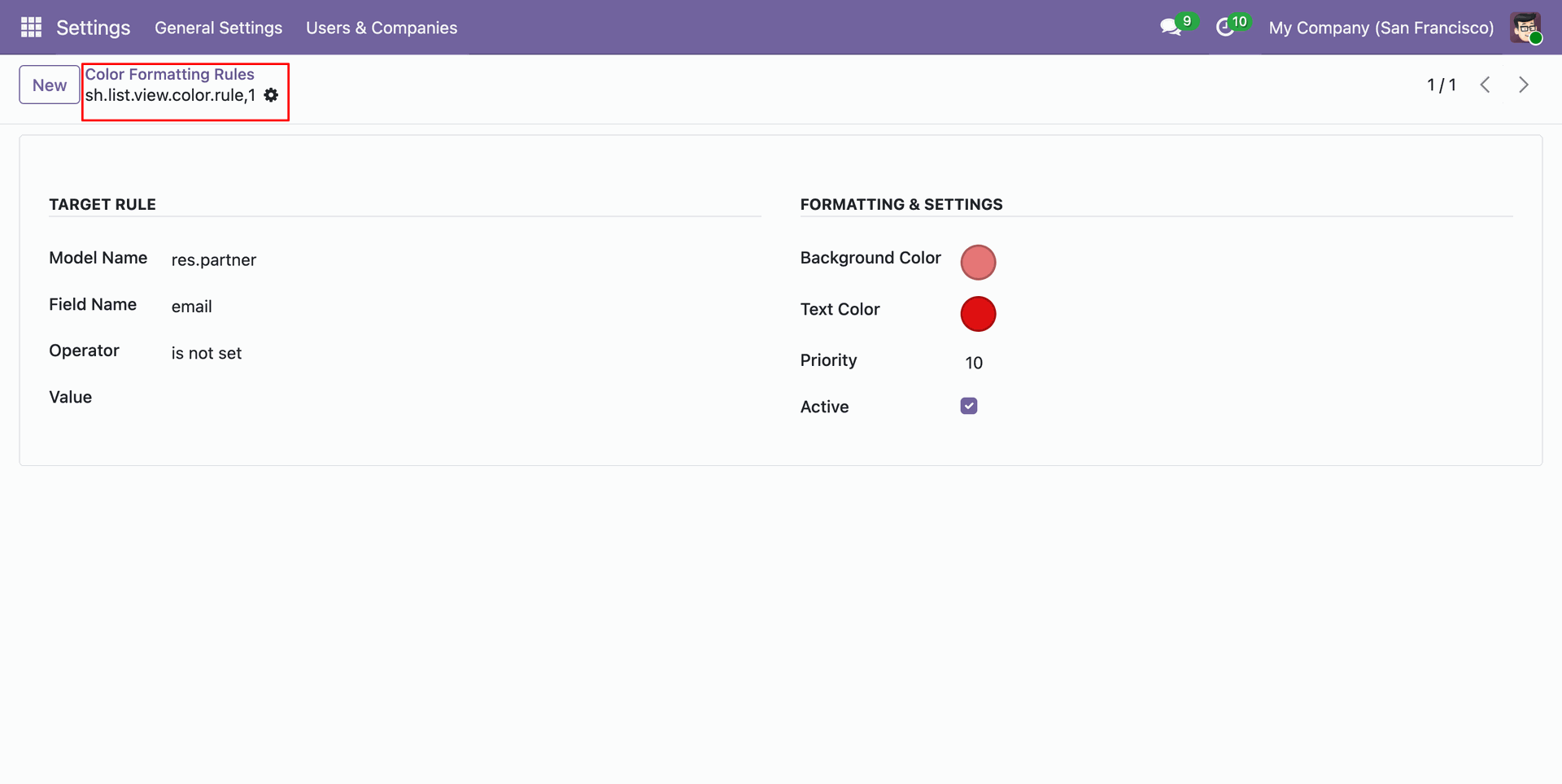
Backend list view of all created Color Formatting Rules with model name, field name, operator, background color, and text color.
Configure target rule model, field name, condition operator, value, priority, background color, and text color.
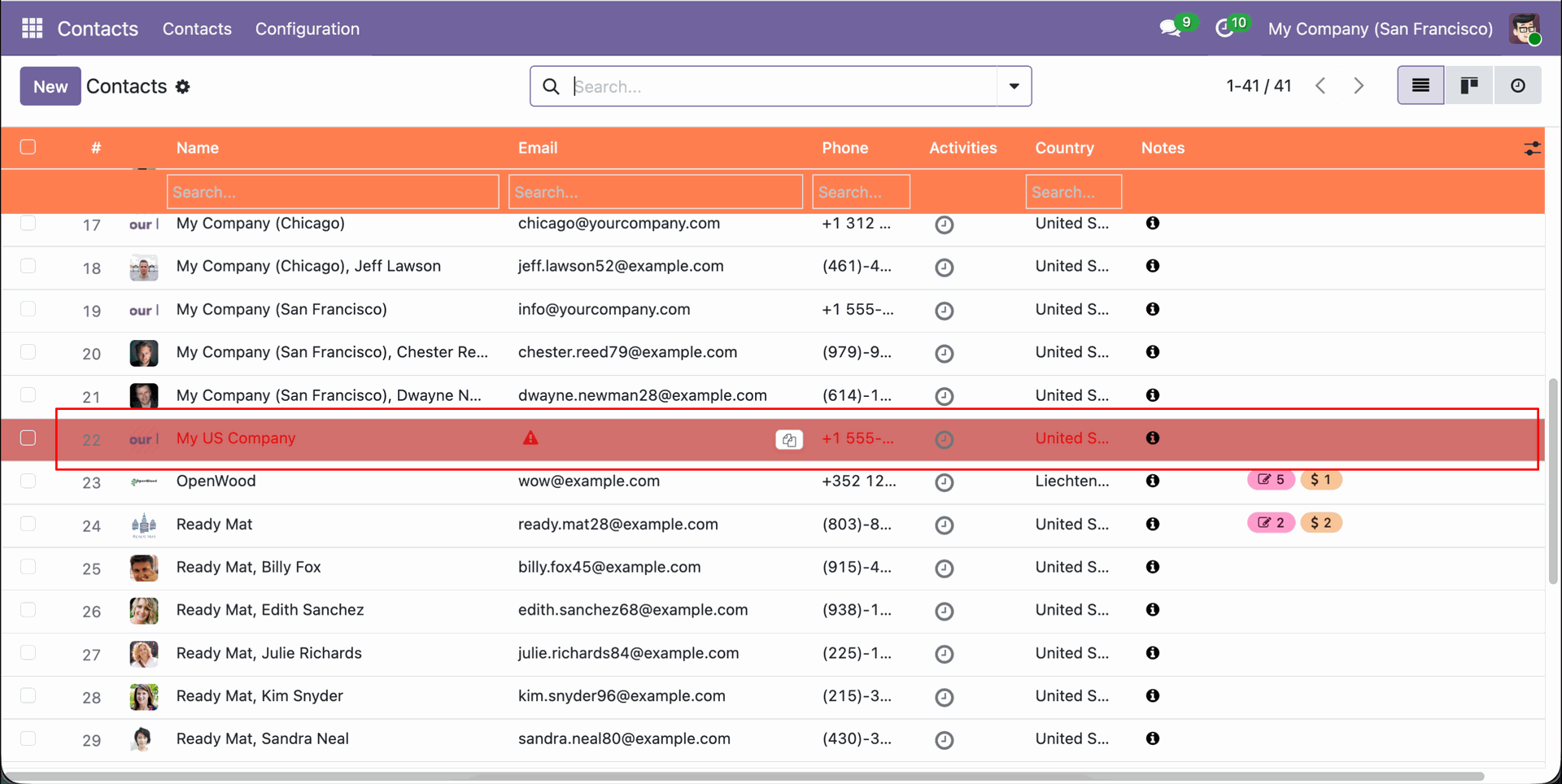
List view cell displaying custom Font Awesome icon alongside field value based on matching condition rule.
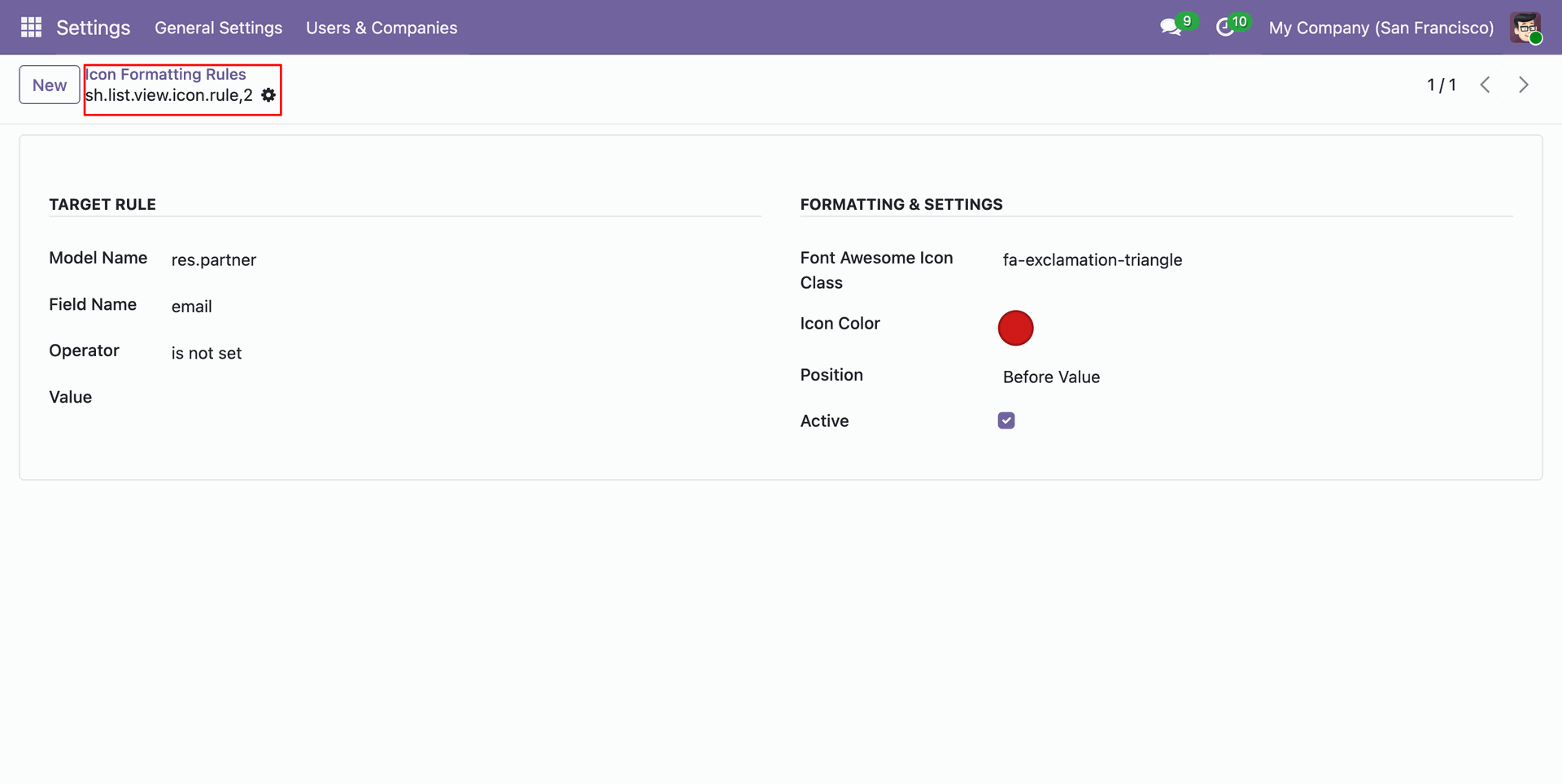
Define target model, field, condition, Font Awesome icon class (e.g., fa-exclamation-triangle), icon color, and position.
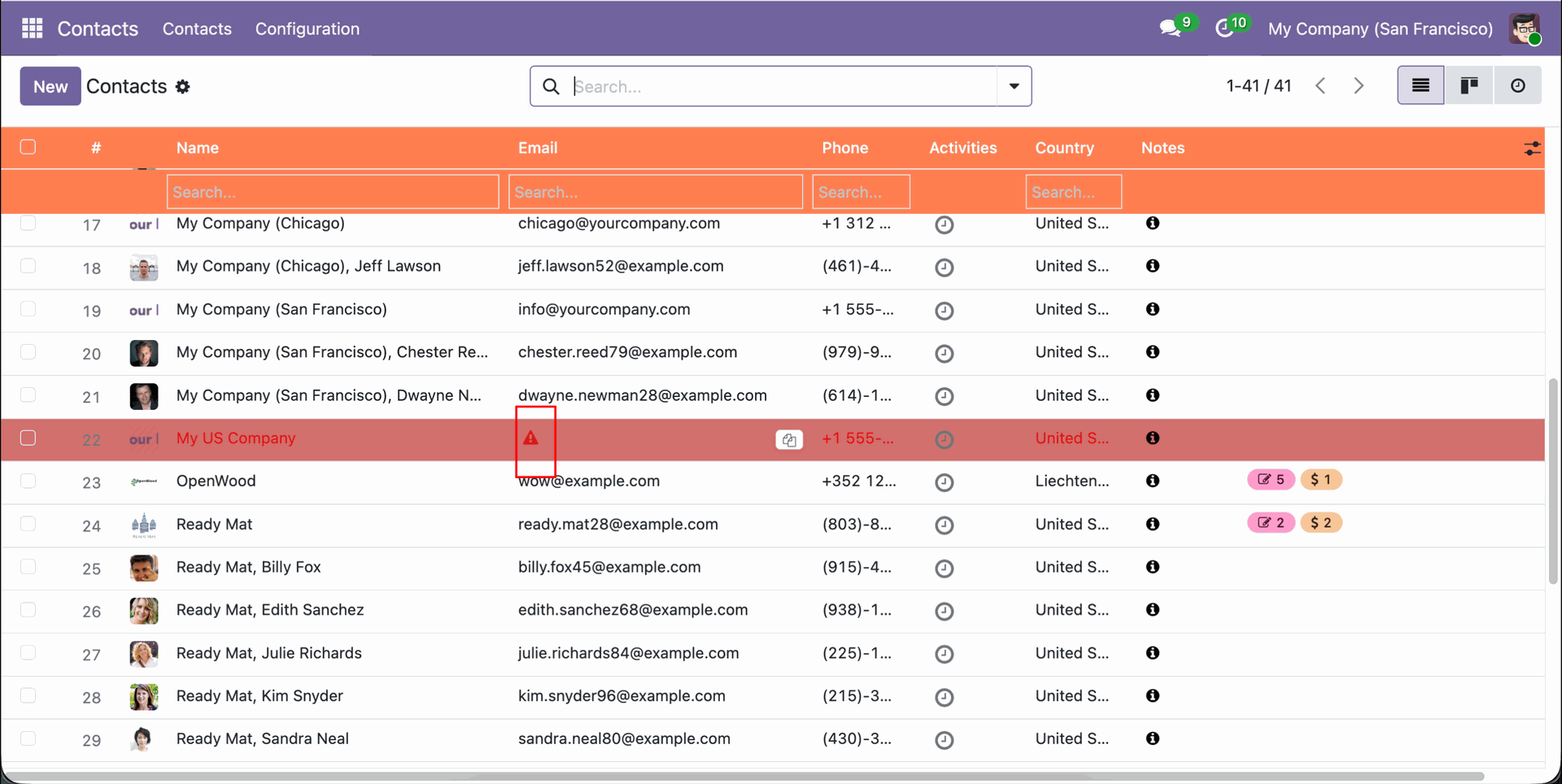
Visual highlight of custom icon rendered in list cell before record data.
Centralized backend menu listing all user-saved presets, model names, view IDs, and preset name.
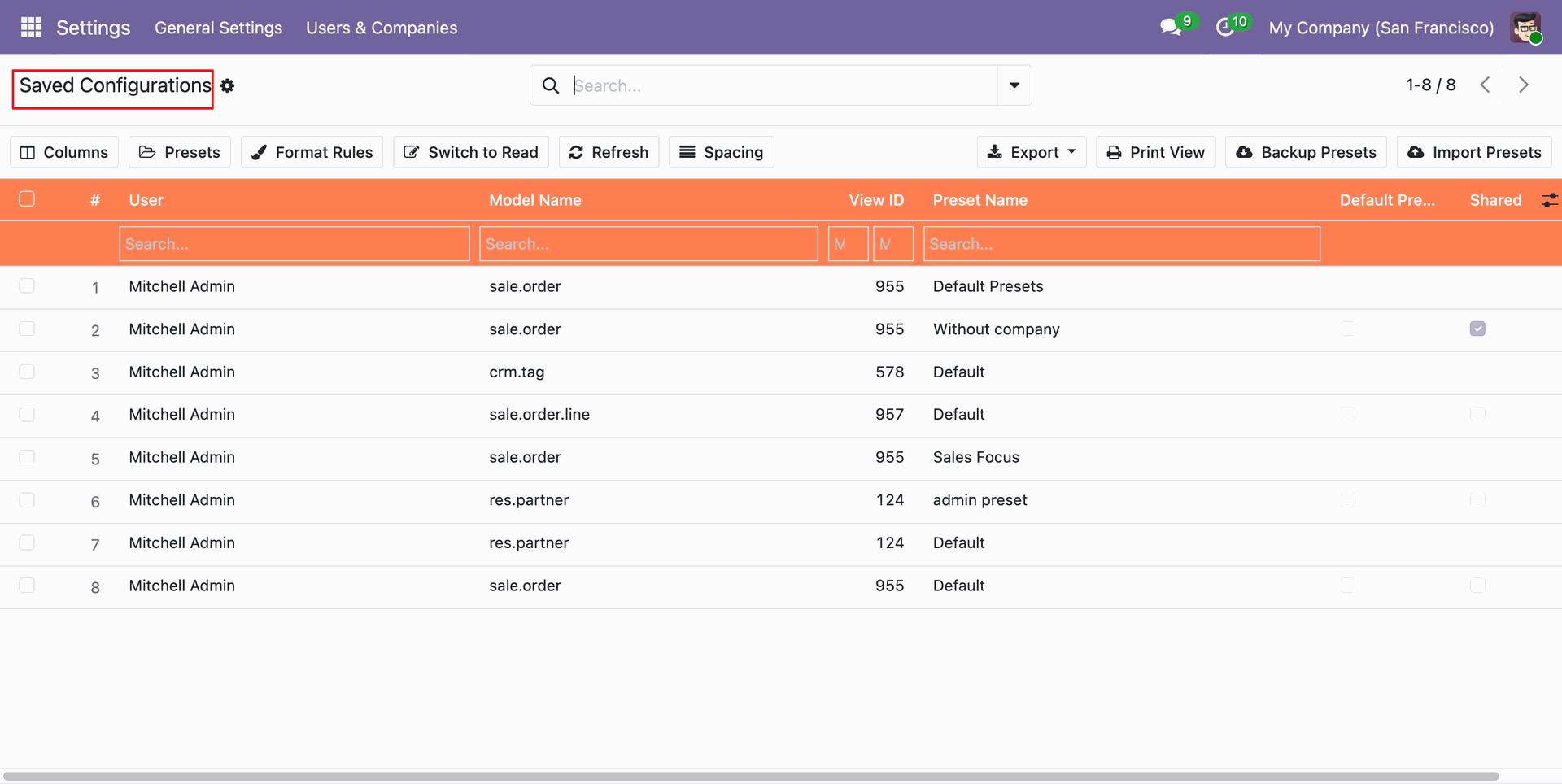
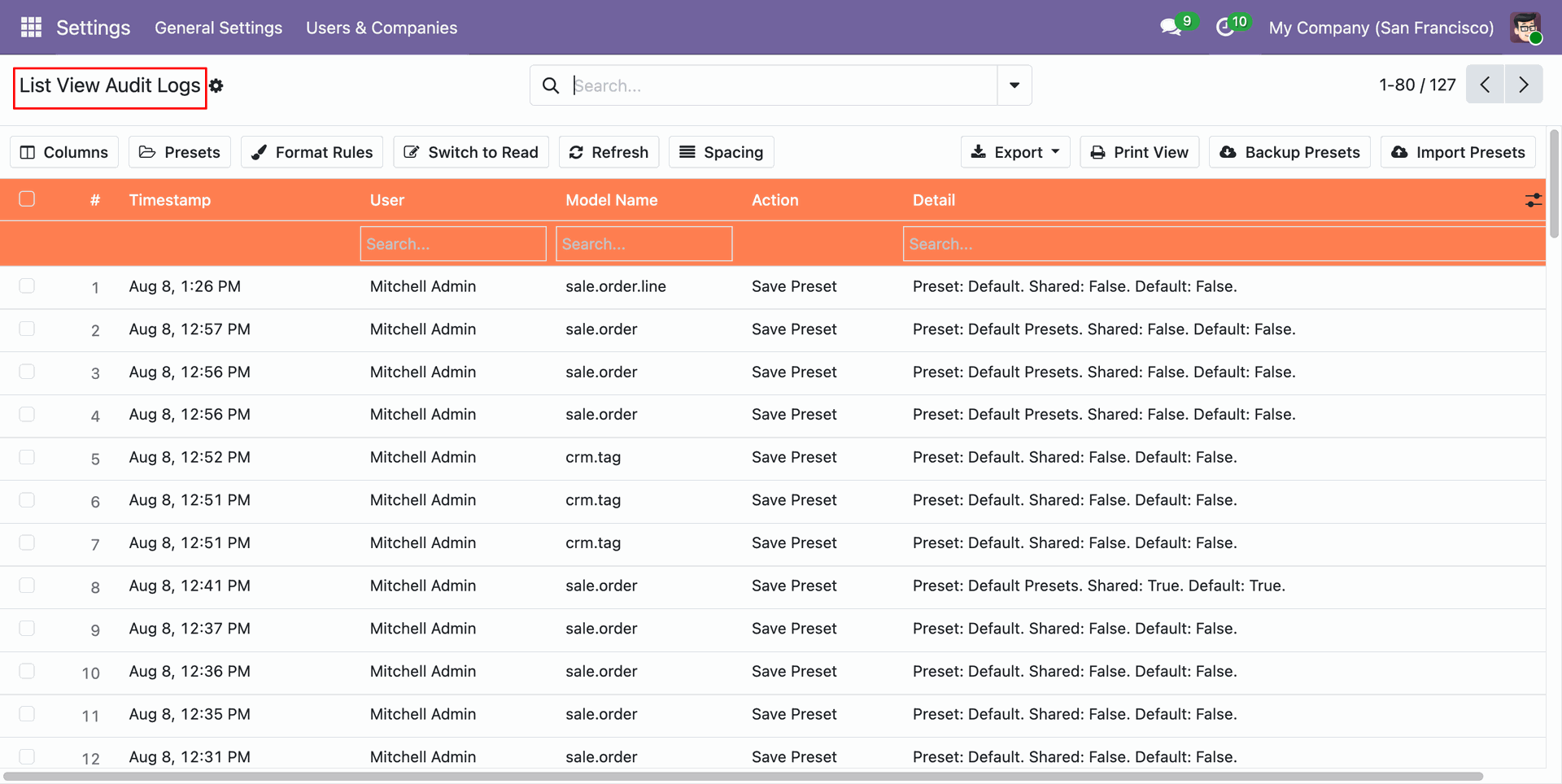
Comprehensive audit log tracking user actions, timestamps, model names, presets created, and updated configuration details.
Version 19.0.1.0.0 | Released on : 9th October 2026
- Yes, this app works perfectly with Odoo Enterprise (Odoo.sh & Premise) as well as Community.
- No, this application is not compatible with odoo.com(odoo saas/Odoo Online)
- Yes, to test this module, please contact us at sales@softhealer.com.
- Please contact us at sales@softhealer.com to request customization.
- Yes, we provide free support for 365 days from the date of purchase.
- Yes, you will receive lifetime free updates for the version of the module you purchased.
- No, there is no need to install any additional libraries.
- Yes, for version 12 and above, you need to purchase the module separately for each version you intend to use.
- No, exchanges or refunds are not allowed. Please make sure to select the correct version before purchasing.
- You can contact us at support@softhealer.com for language translation support. We use Google Translator tools to provide translations in multiple languages, so the accuracy may vary. We welcome your suggestions to help improve translations.
Discover Our Latest Apps