

 Easy to Manage
 Dedicated Support
















 Scan to email sales





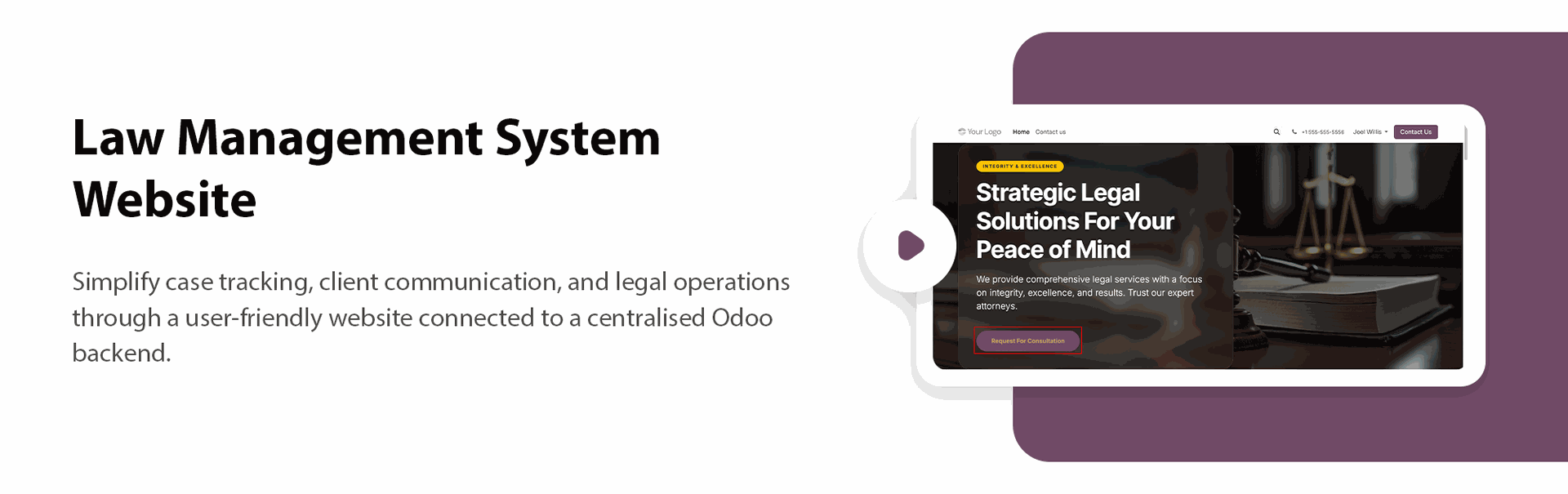
Law Management System Website

A comprehensive legal management solution for managing cases, clients, lawyers, documents, hearings, invoices, and case stages through a user-friendly website and centralised Odoo backend.
Related Modules
Key Features
Features

Dynamic Legal Services Snippet
Display and manage legal services dynamically on your website.

Dynamic Lawyer Profiles Snippet
Showcase lawyer profiles, details, and practice areas on your website.

Editable Home Page Templates
Easily customise and edit your website home page using ready-to-use templates.

Professional Request Forms
Allow visitors to submit legal service and case requests through professional forms.

Case & Matter Management
Manage cases and matters easily with stages, details, and related documents.
Multi-Lawyer Matter
Add and manage multiple lawyers in a single case or matter.

Matter Stages
Track cases and matters through different stages for better progress tracking.
Invoice Management
Create and manage invoices directly from cases and matters.
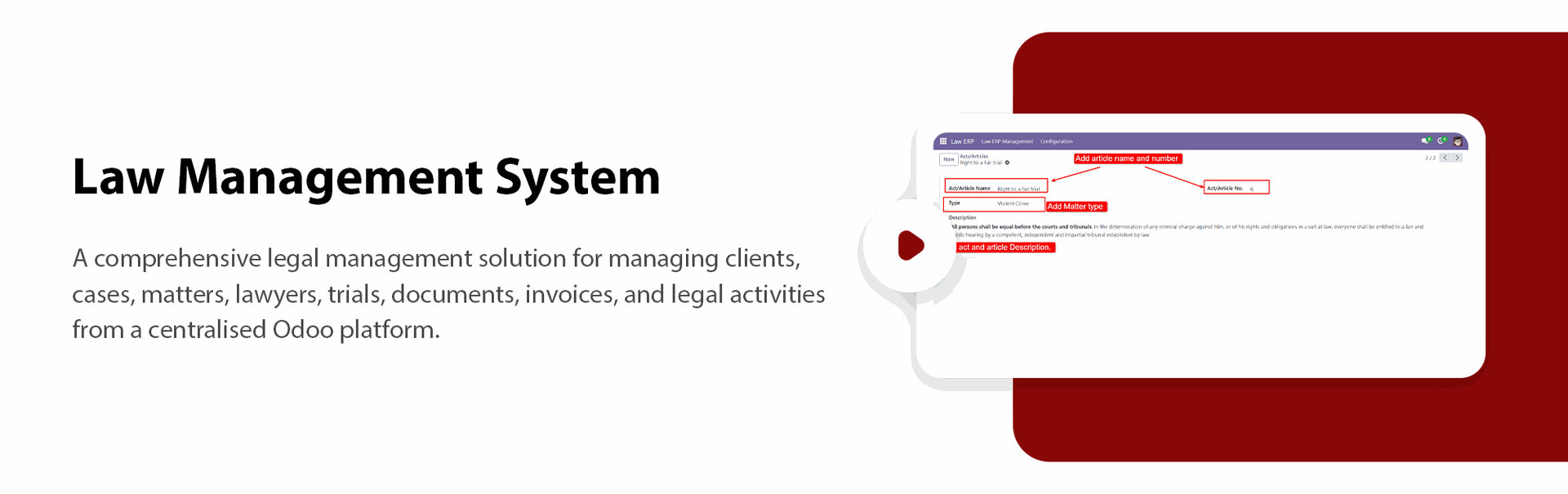
Act & Article Management
Manage Acts and Articles with their name, type, number, and description.
Lawyer Management
Create lawyers from employees and manage their wage arrangements.

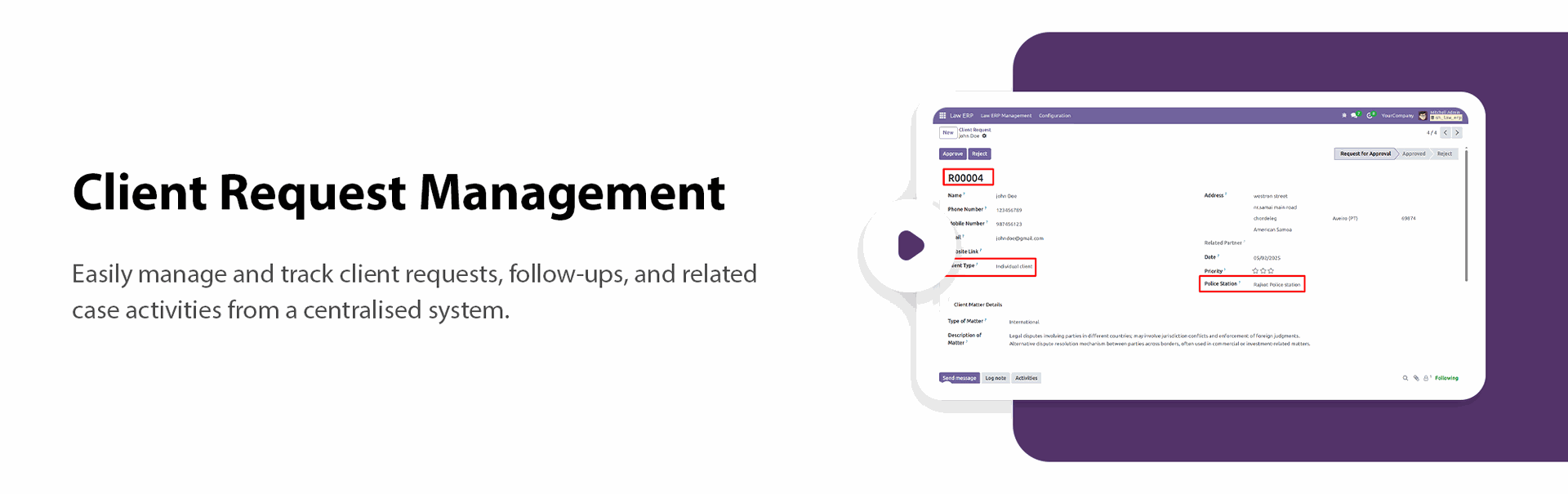
Client Requests
Allow clients to submit case requests and manage them through different stages.

Matter PDF Report
Print detailed PDF reports containing case and matter information.

Security Access
Manage access using separate security groups for managers and users.
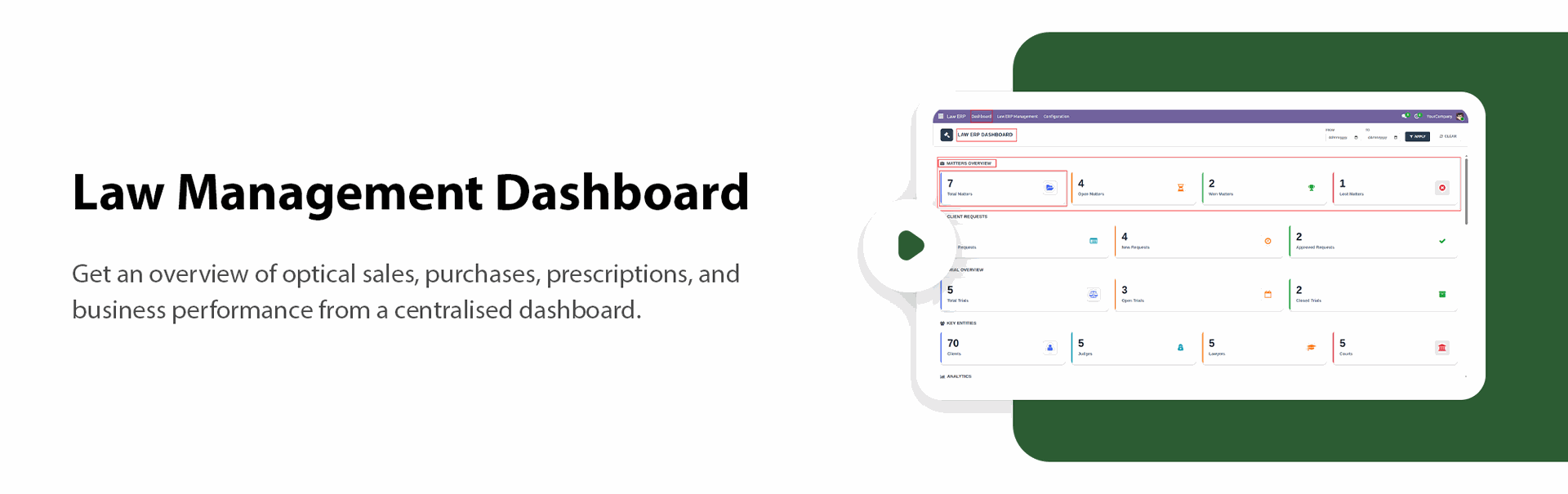
Law Management Dashboard
View cases, trials, invoices, clients, and overall law practice activities from one dashboard.

Trial Management
Manage trials and track trial progress using different stages.

Evidence Management
Track case evidence with favor, details, and related documents.
Law Practice Area
Create and manage different law practice areas for your cases and lawyers.

Flexible Legal Invoicing
Create invoices based on trials, fixed matters or services, or working hours spent on a case.

Client & Tag Management
Manage client types, police stations, and tags for better case organisation.

Judge & Victim Details
Record and manage lawyer, judge, victim, and opposition lawyer information.

Client Approval
Review, approve, or reject client requests and create customers after approval.

Case & Matter Analysis
Analyse case and matter information to monitor progress and performance.

WhatsApp Integration
Send case and matter details directly to clients through WhatsApp.

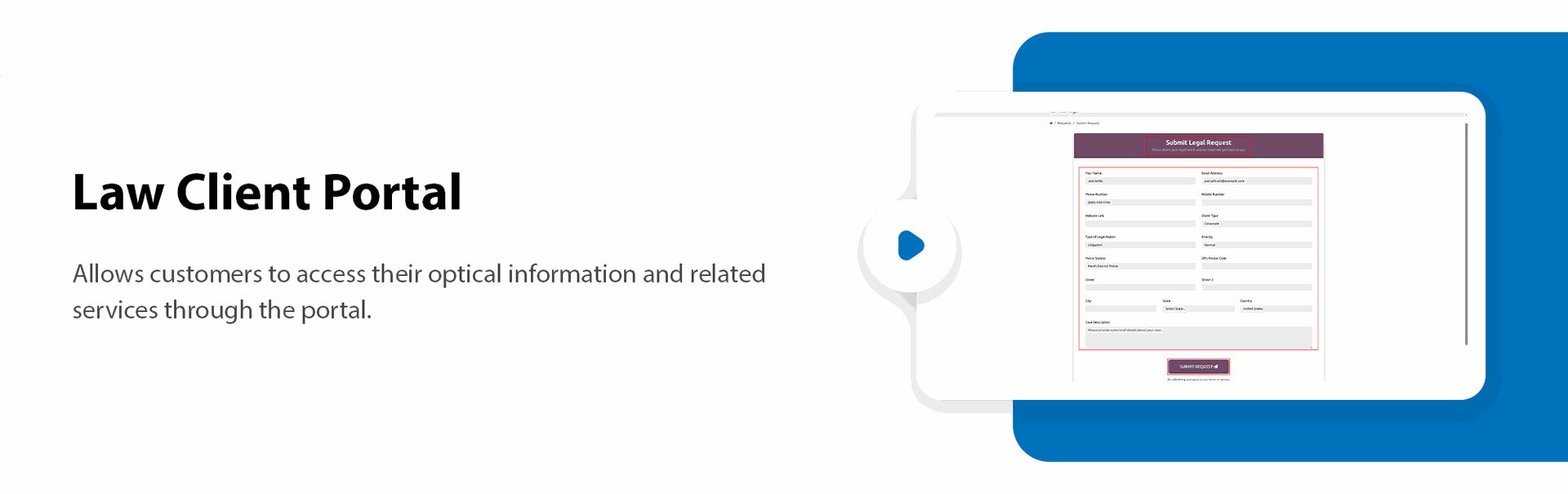
Law Client Portal
Allow clients to submit requests and access their case and matter information through the portal.
Drag & Drop Custom Snippets from Website Editor.
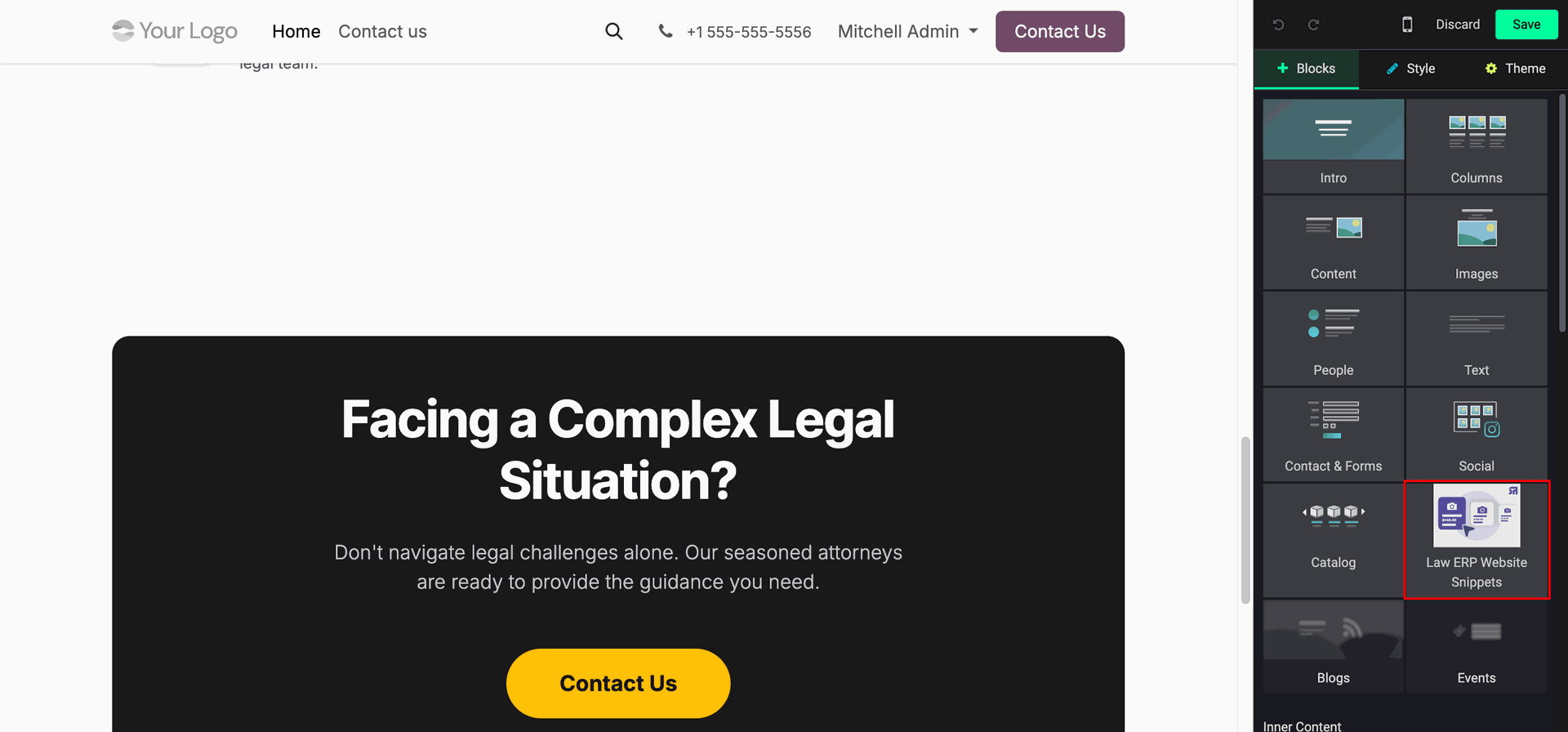
Select and Insert Legal Services and Our Lawyers Snippet Blocks.
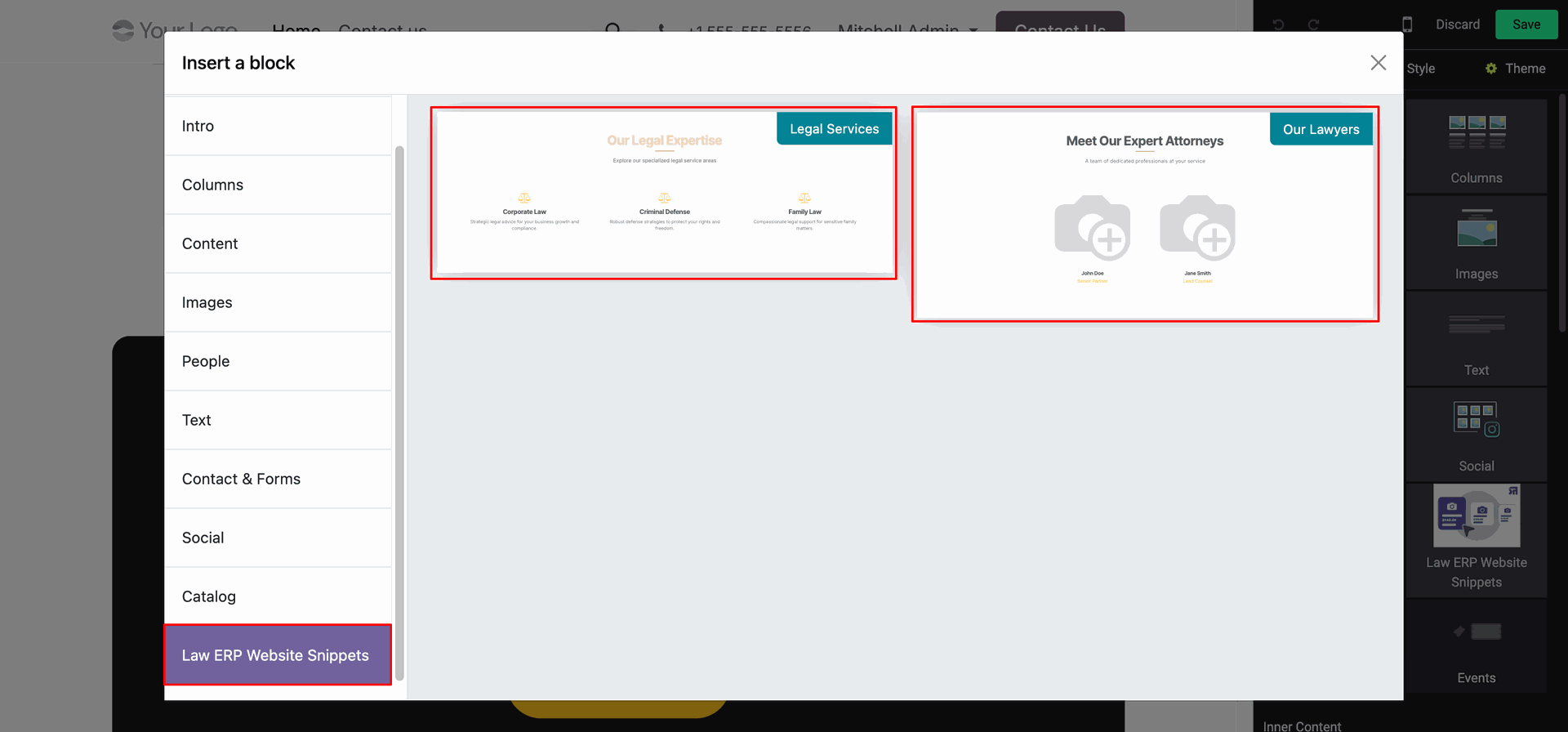
Dynamic Specialized Legal Services Snippet on Website.
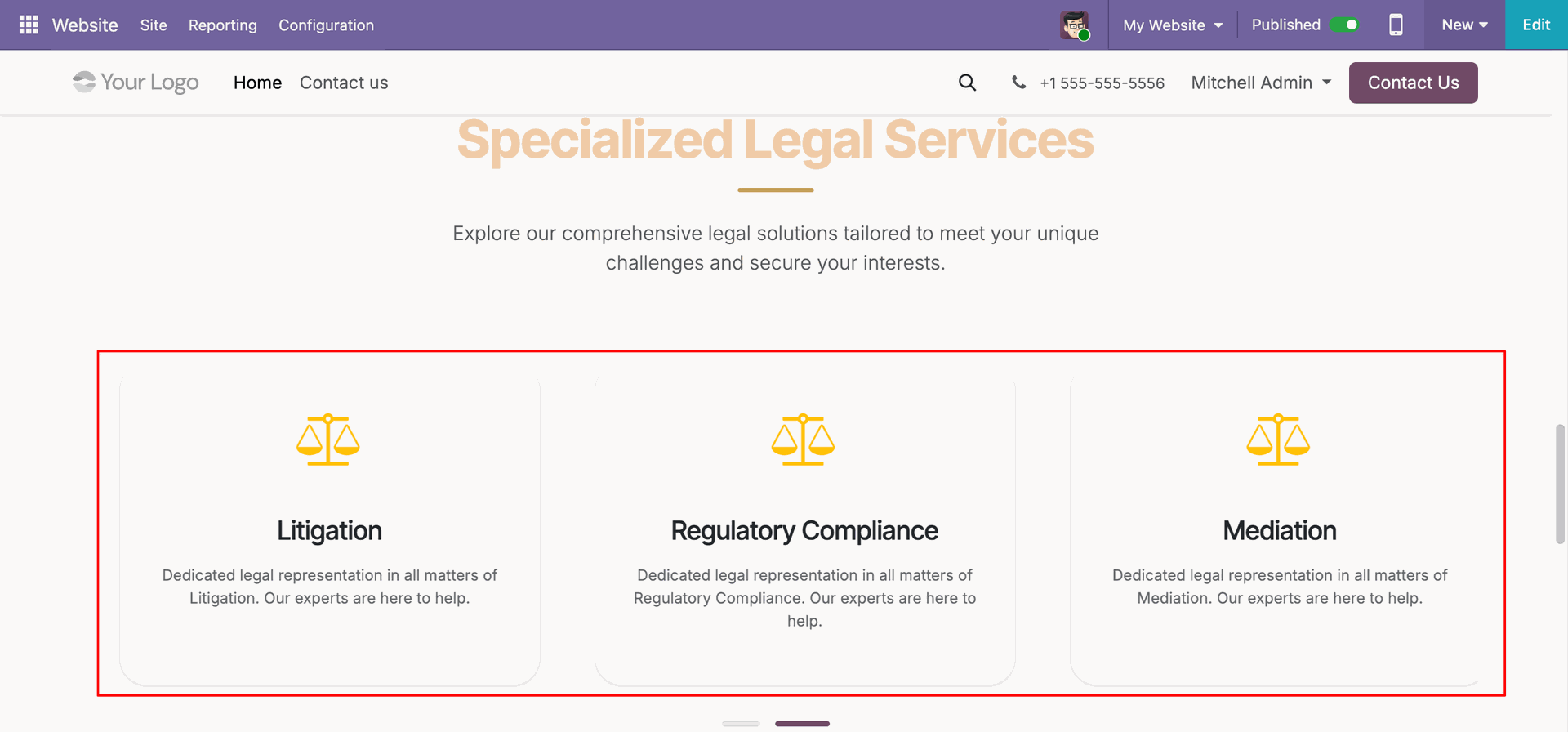
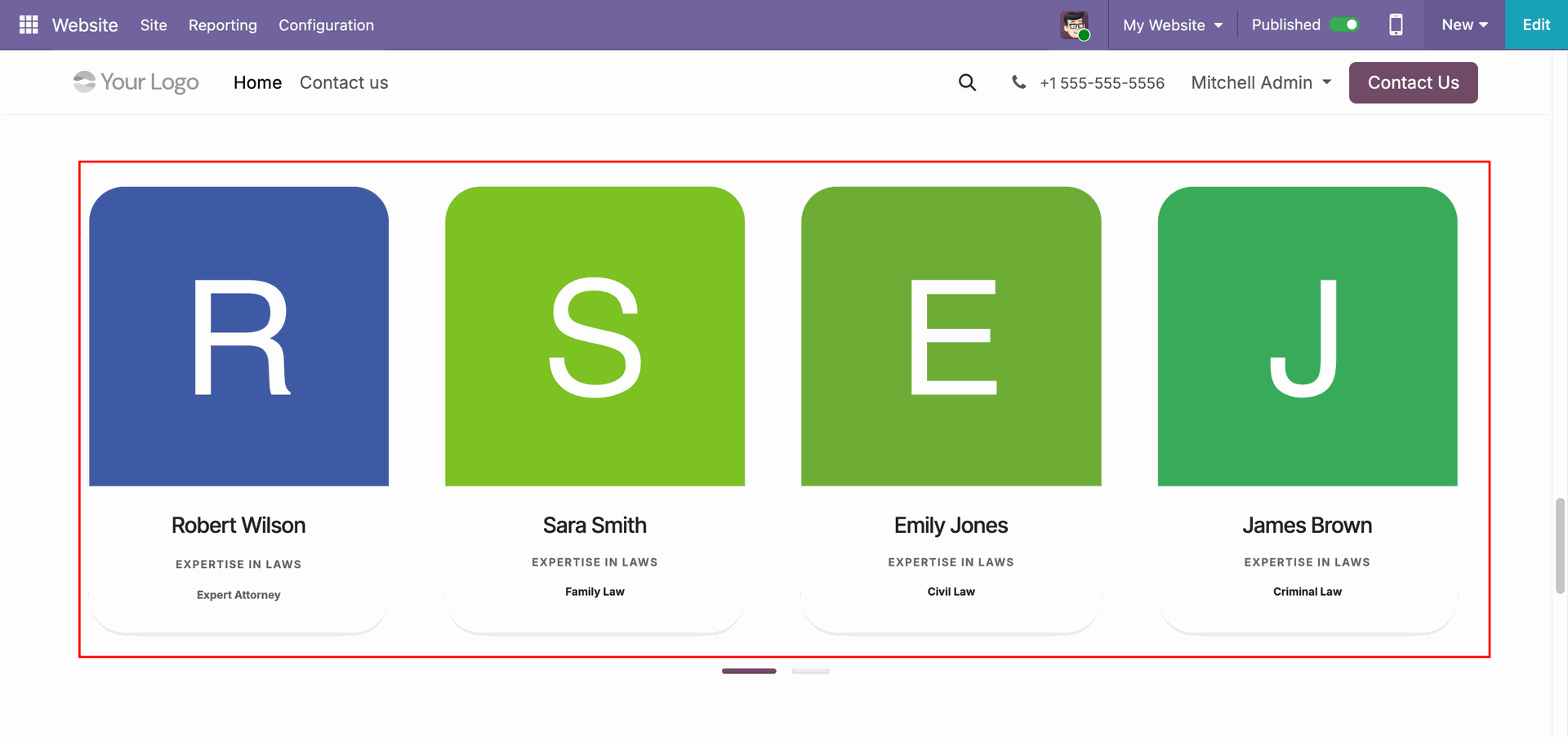
Dynamic Our Lawyers Snippet displays lawyer profiles on the website, helping visitors view lawyer details and expertise.
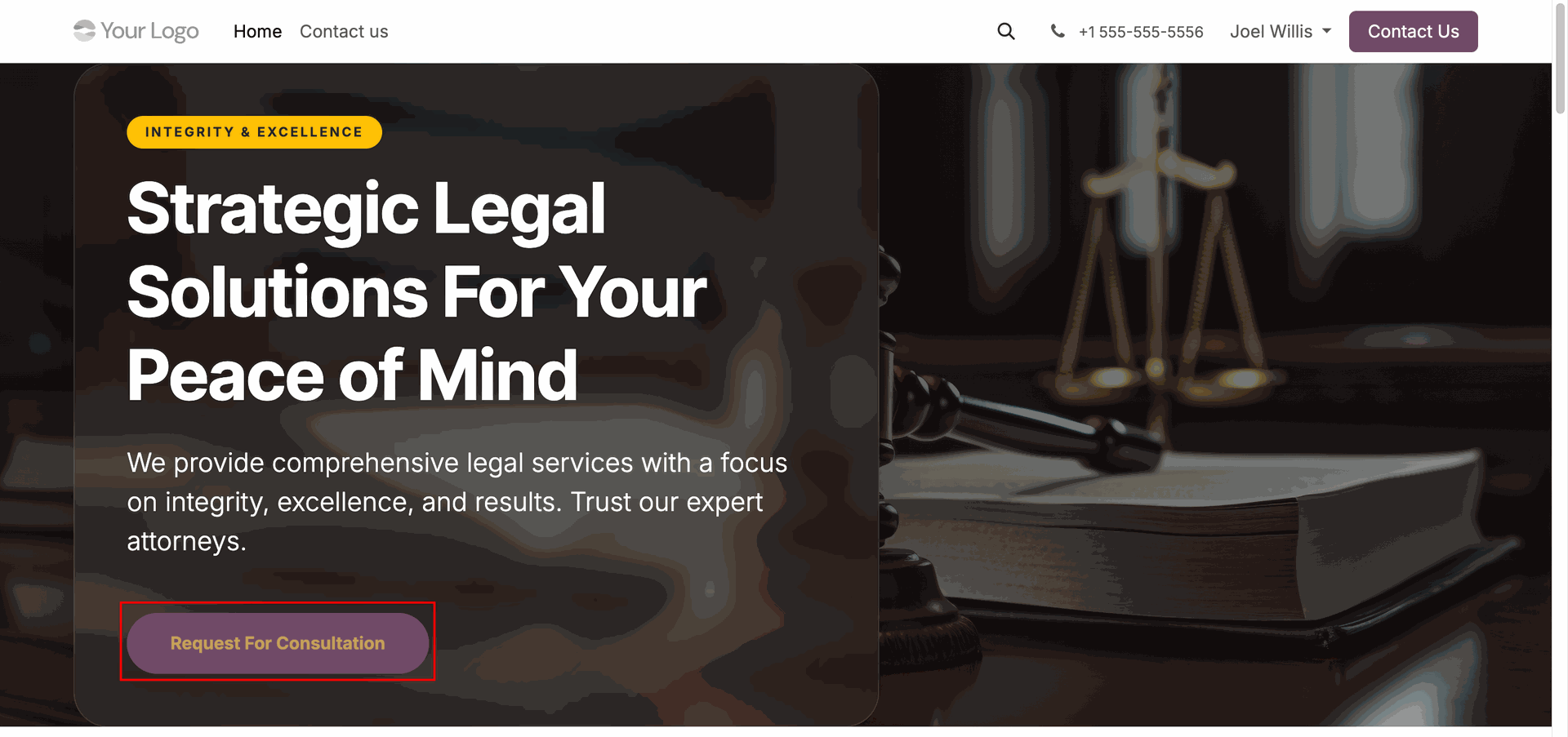
Click the Request for Consultation button on the home page to submit a consultation request.
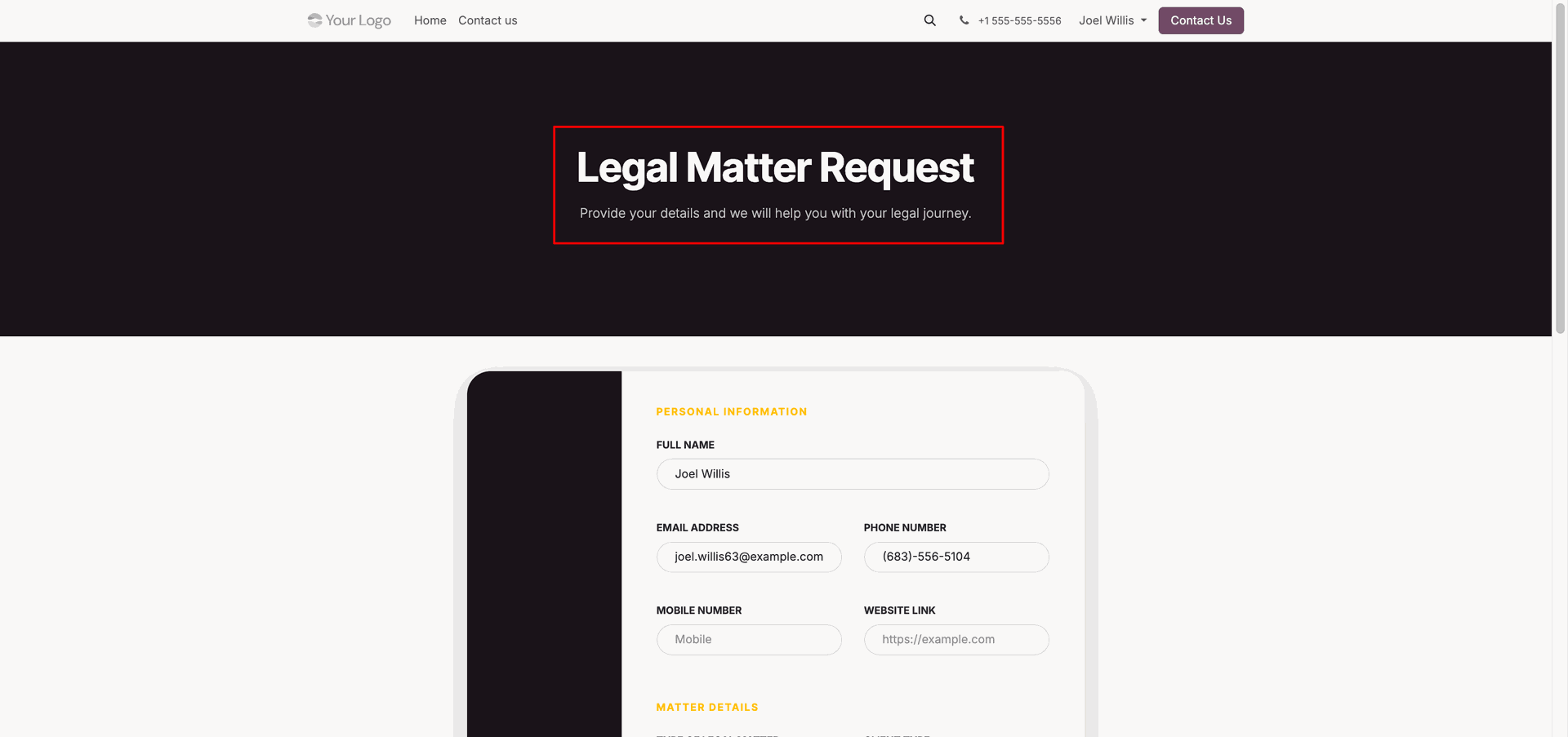
Legal Matter Request Form - Personal Information Section.
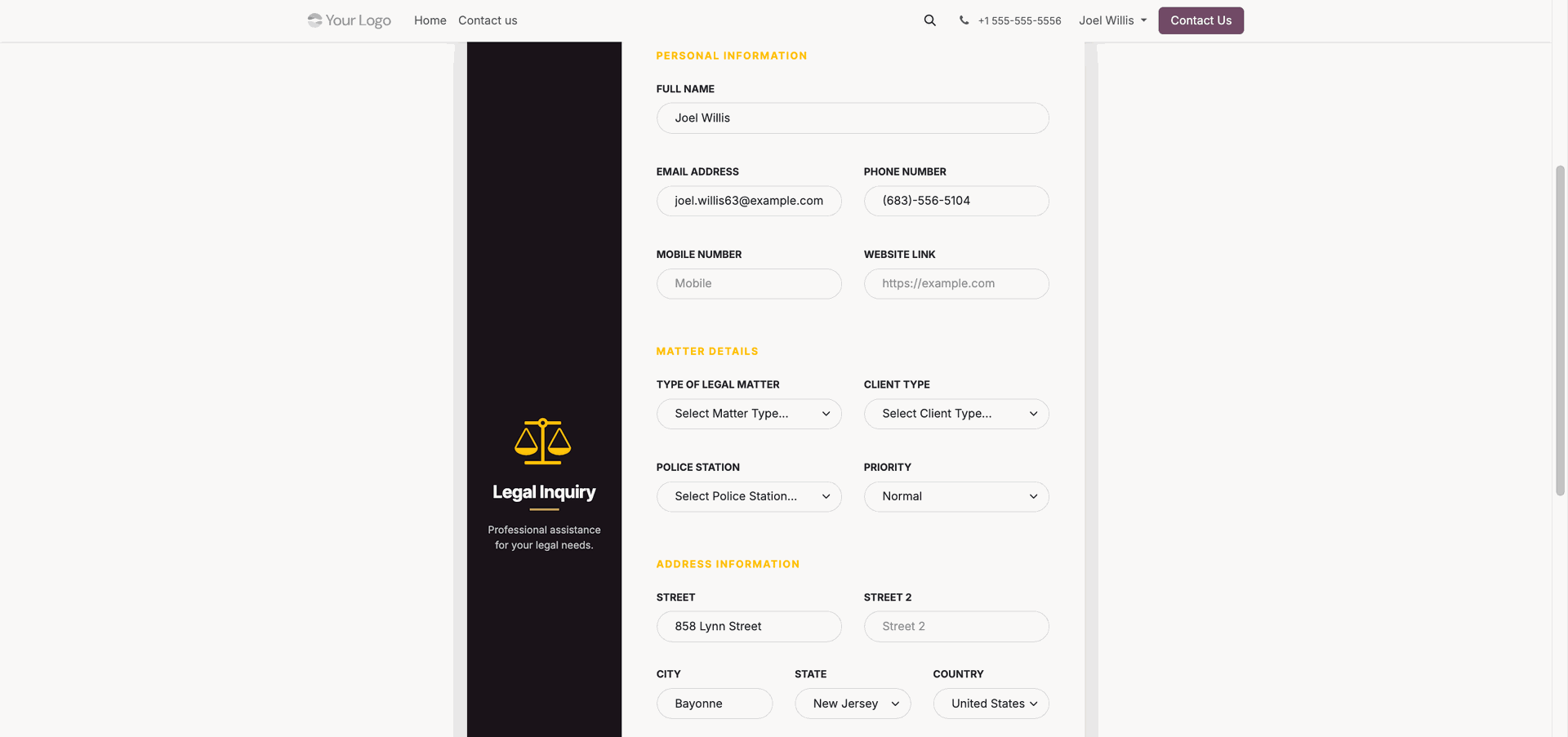
Legal Matter Request Form - Matter Details and Address Section.
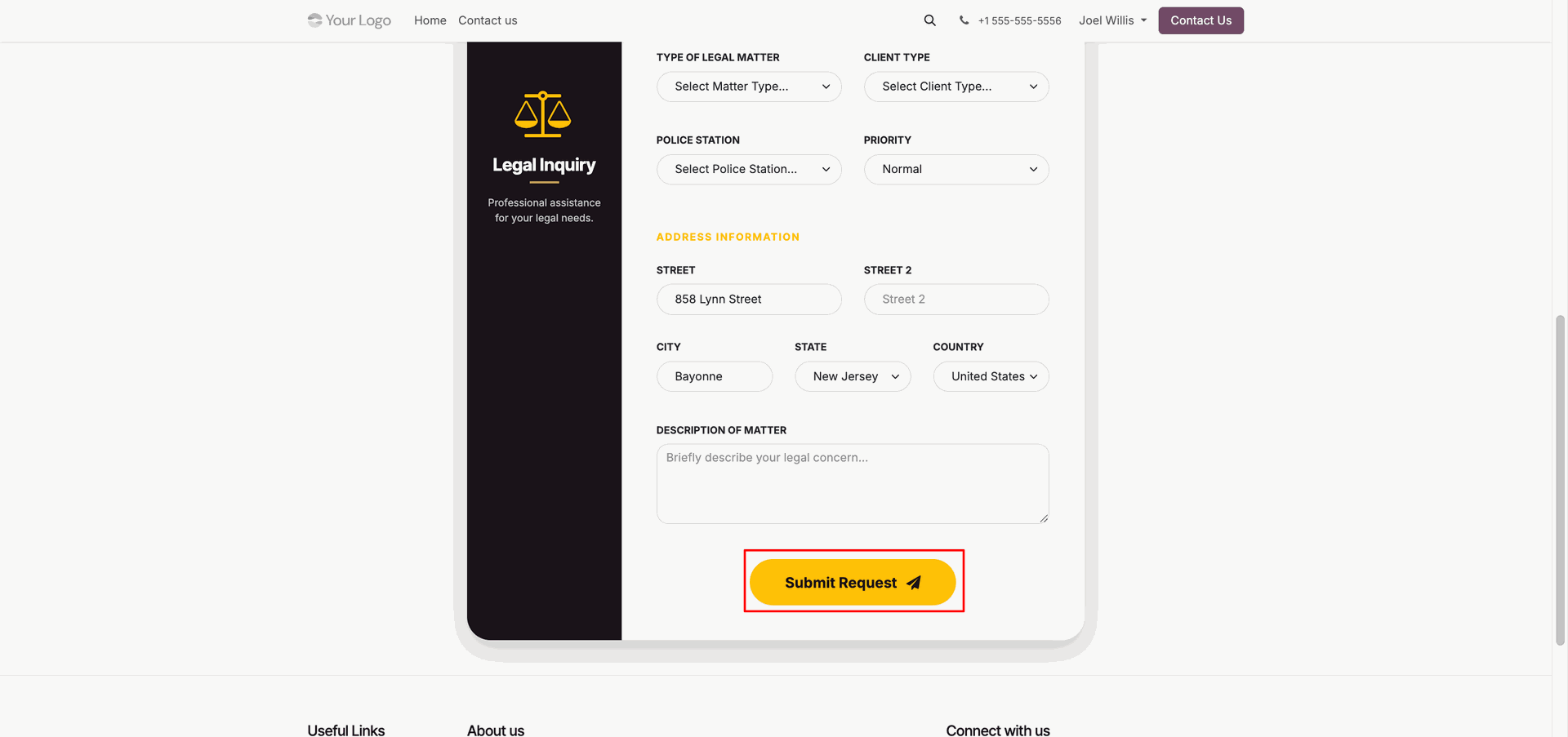
Legal Matter Request Form - Description and Submission.
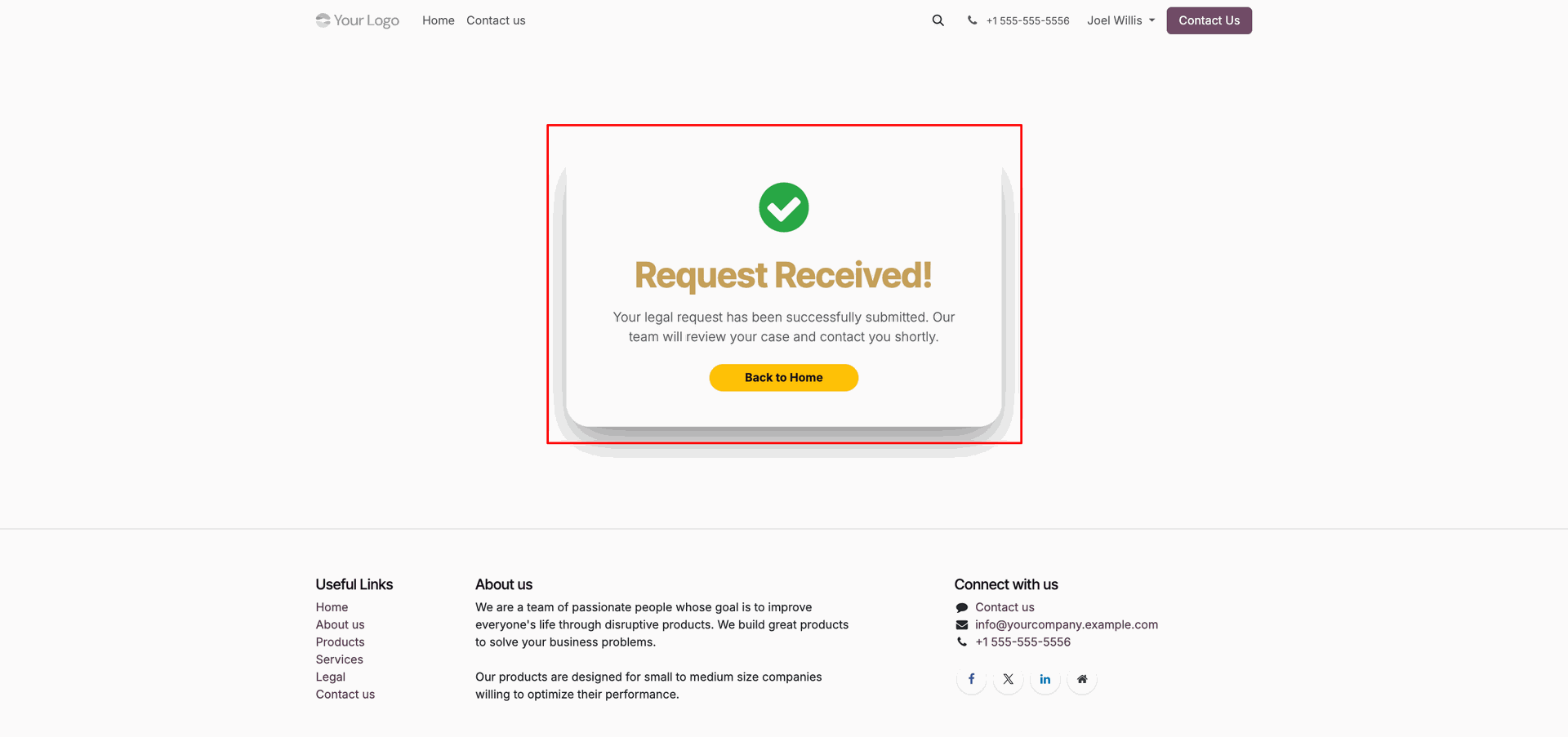
Legal Request Submission Success Page.
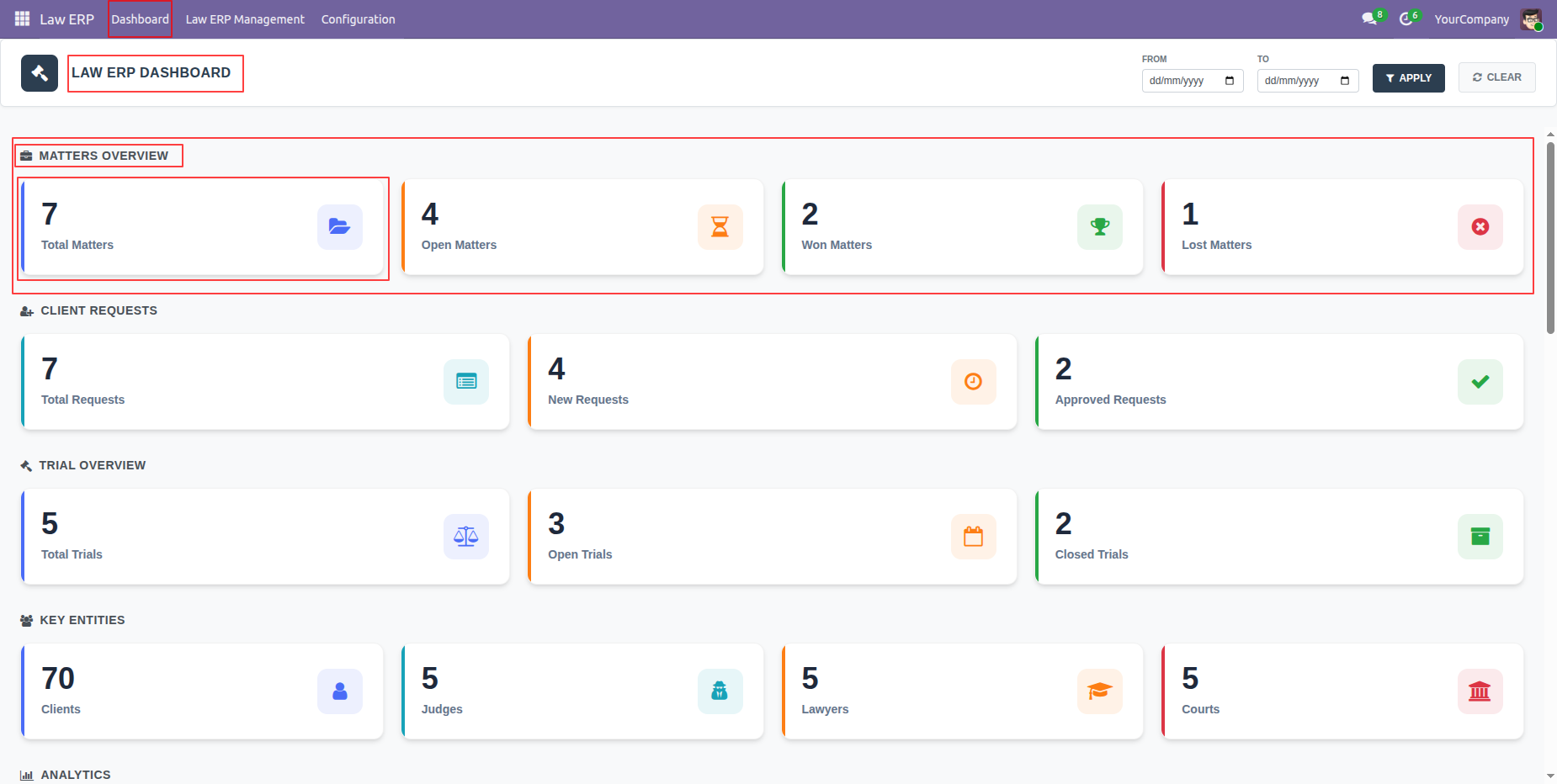
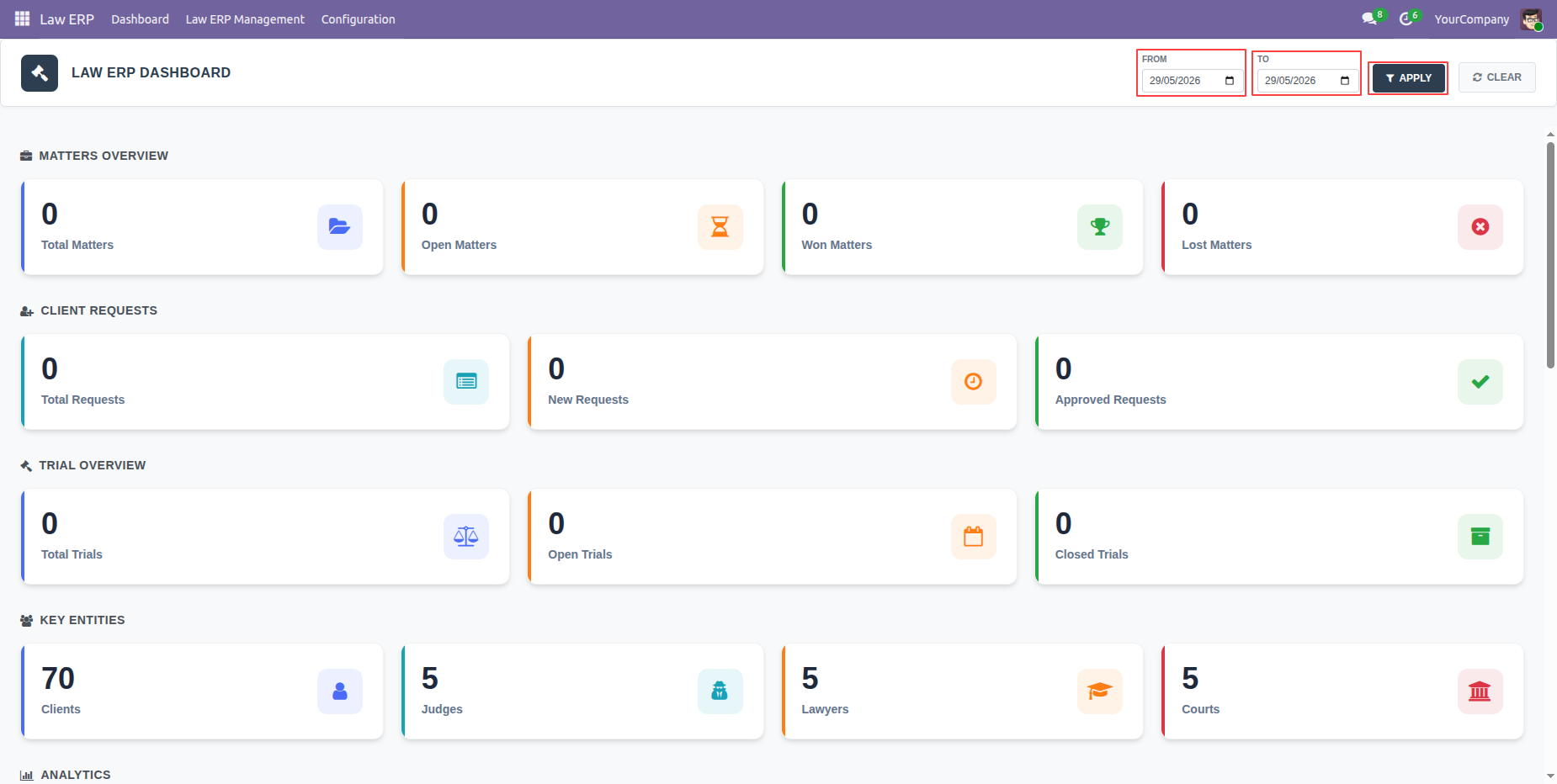
The Law ERP Dashboard displays key statistics, including Matter Overview,
Client Requests, Trial Overview, and Key Entities, providing a quick
summary of the overall legal operations.
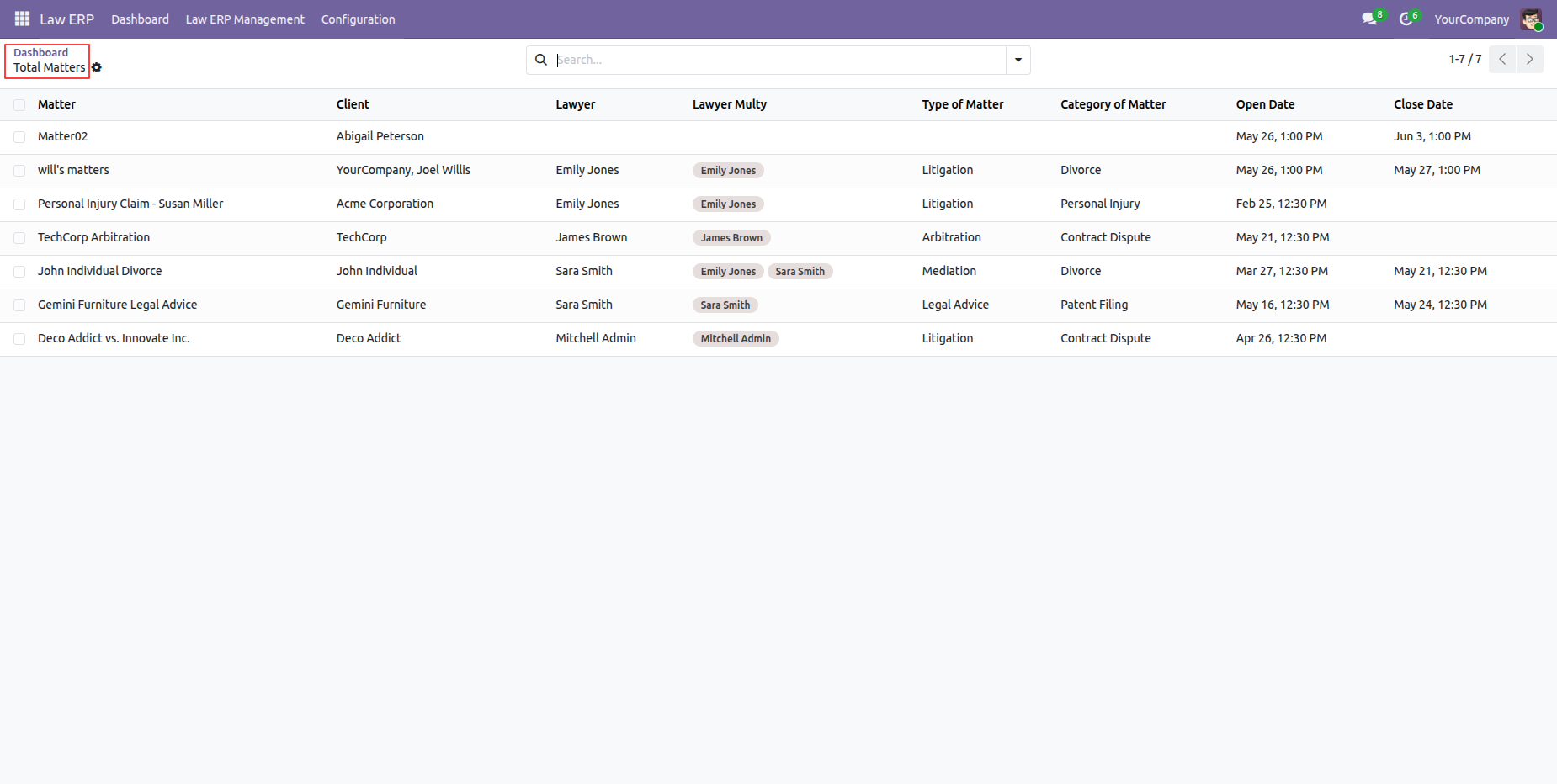
Click the Total Matters tile on the Law ERP Dashboard.
Clicking the Total Matters tile opens the Total Matters list view, where users can view and manage all matter records.
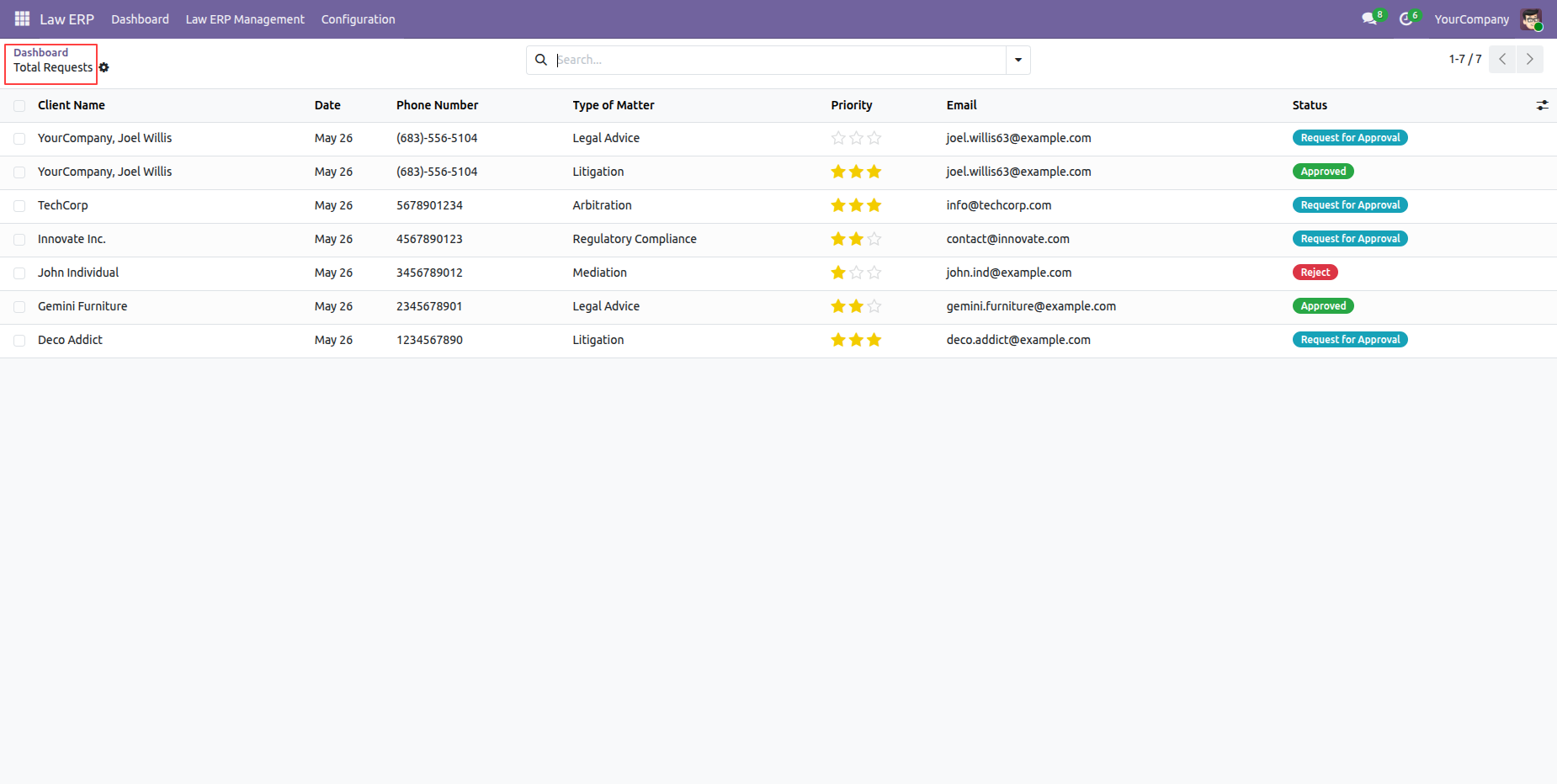
Click the Total Requests tile on the Law ERP Dashboard.
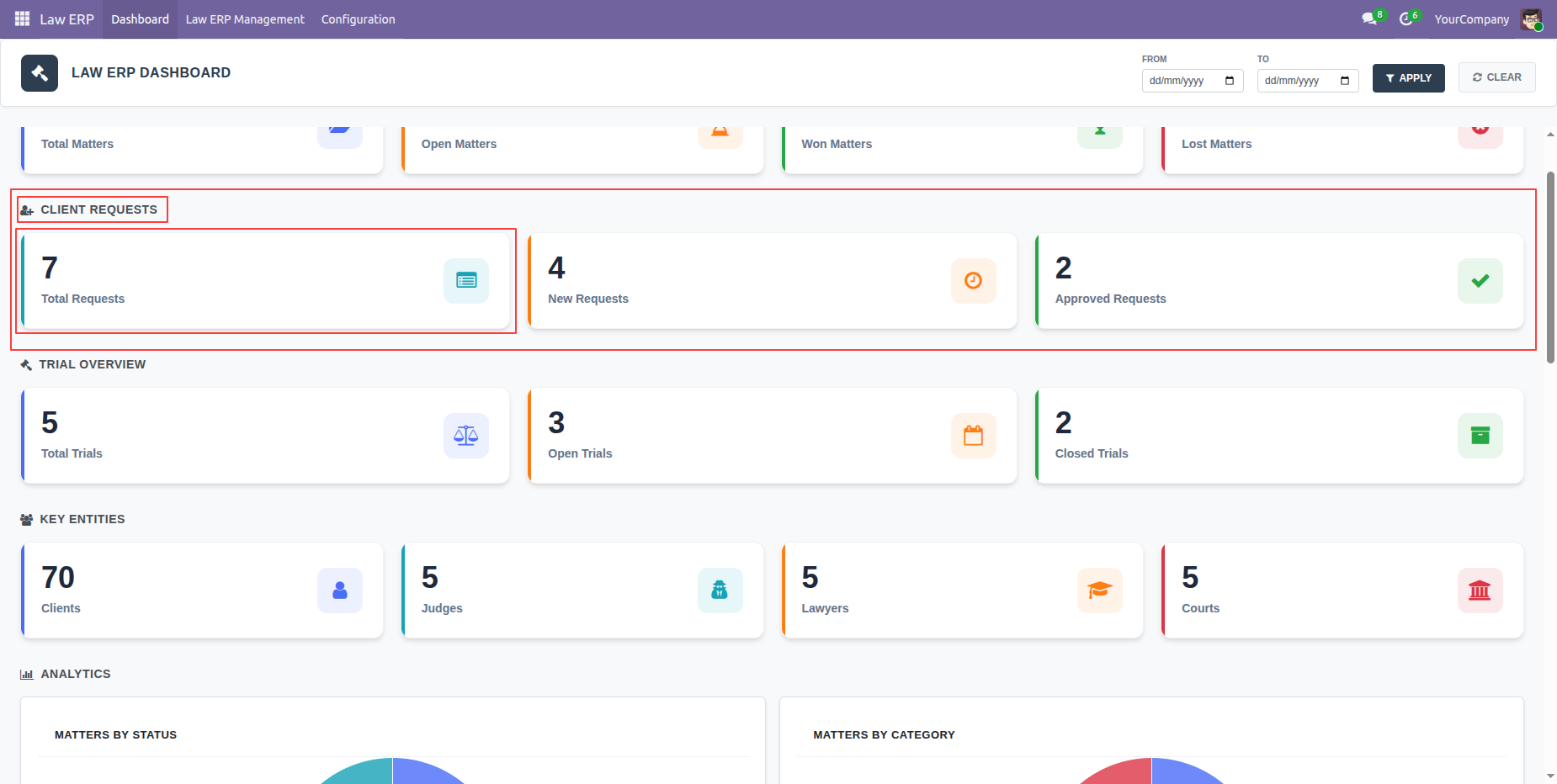
Clicking the Total Requests tile opens the Client Requests list view, where users can view and manage all client request records.
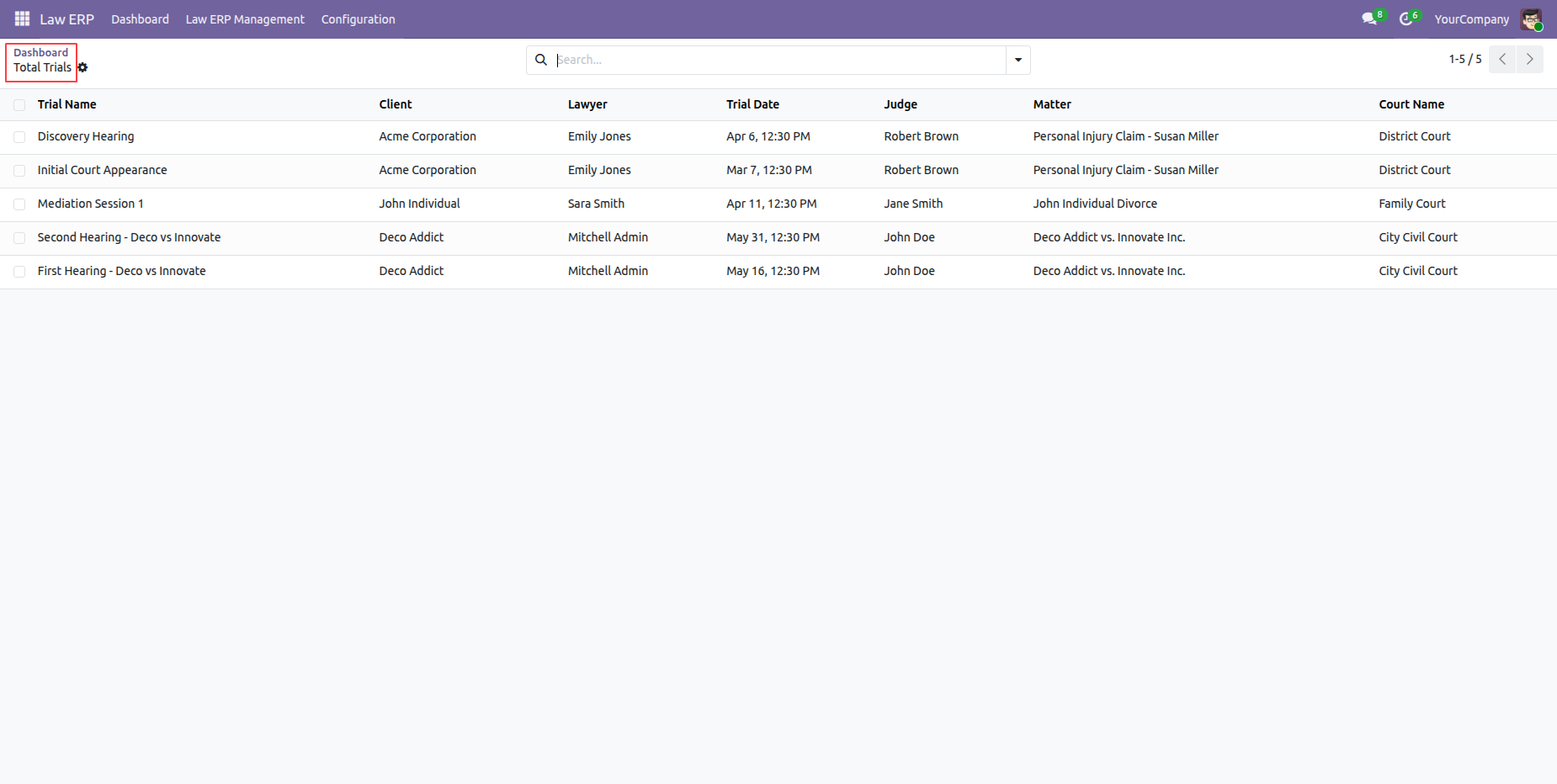
Click the Total Trials tile on the Law ERP Dashboard.
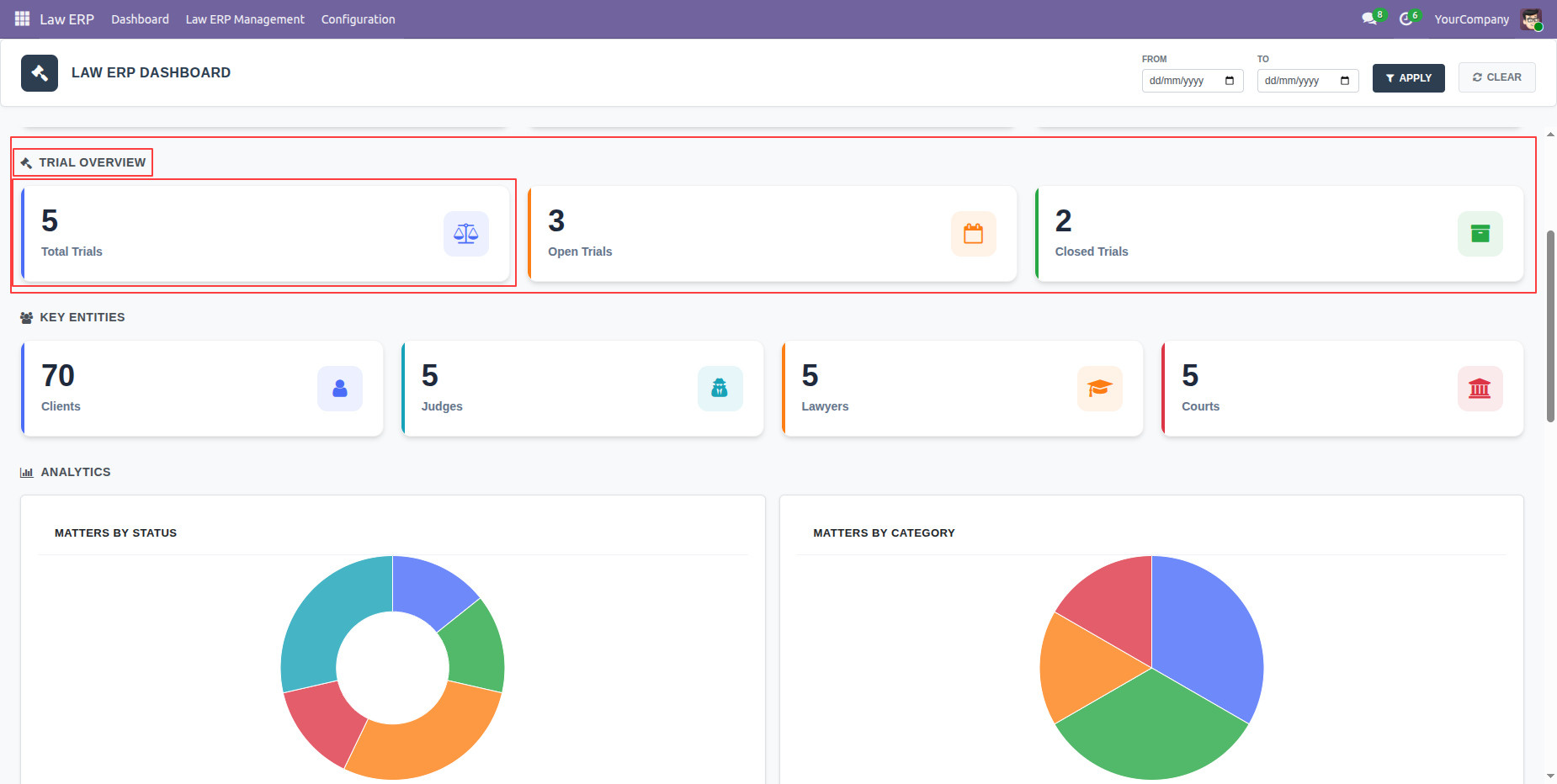
Clicking the Total Trials tile opens the Total Trials list view, where users can view and manage all trial records.
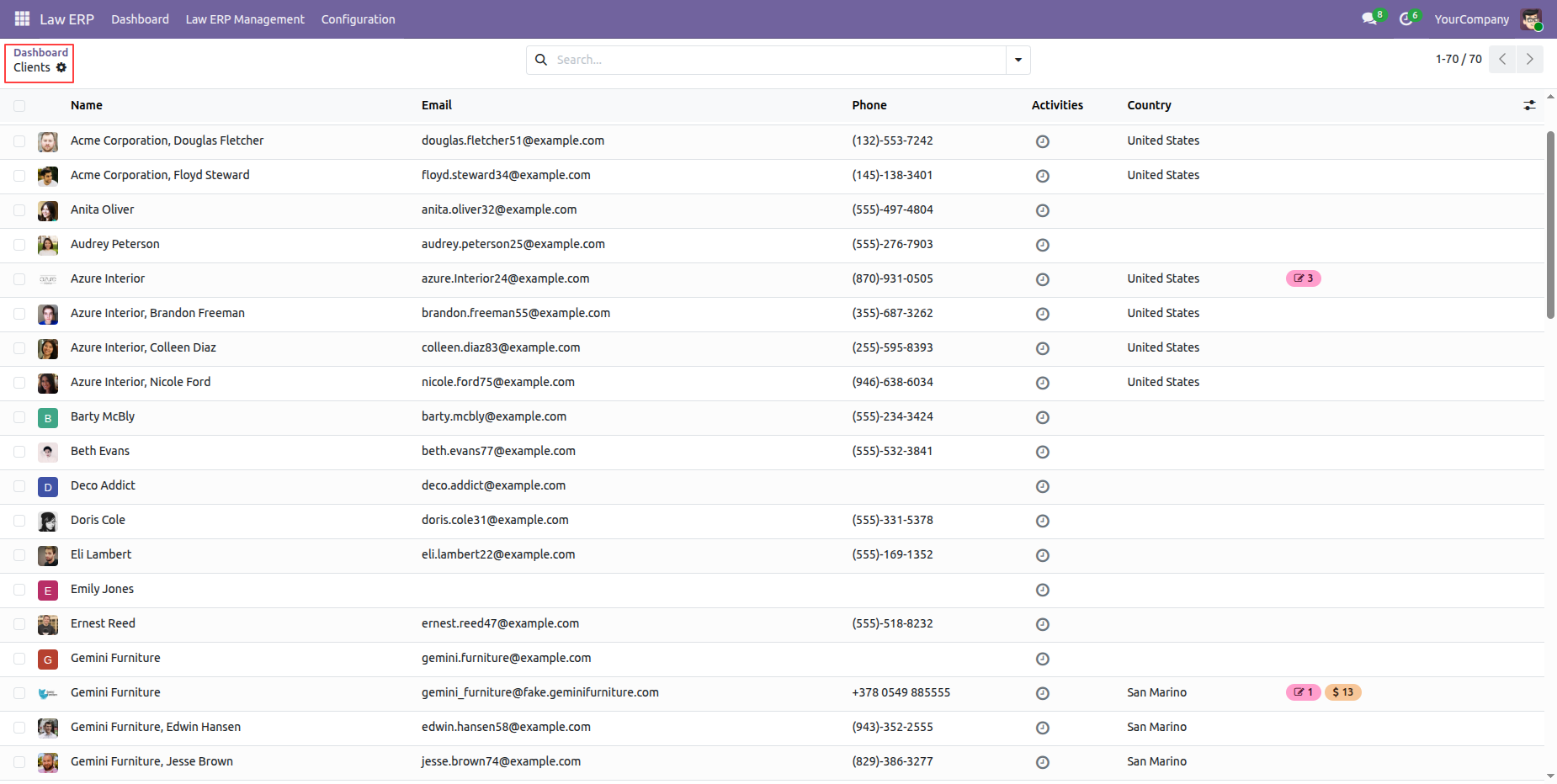
Click the Clients tile on the Law ERP Dashboard to view all client records.
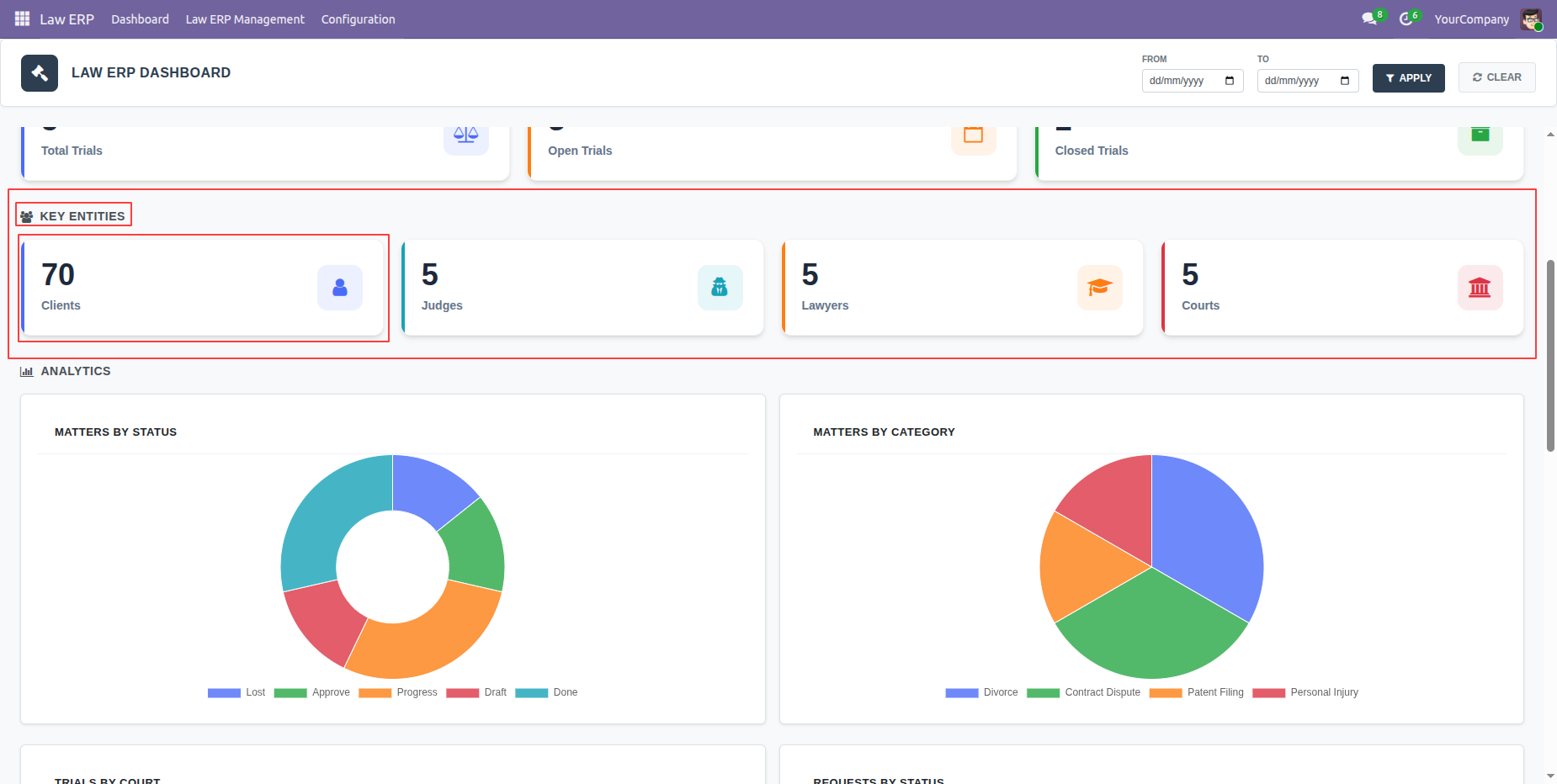
Clicking the Clients tile opens the Total Clients list view, where users can view and manage all client records.
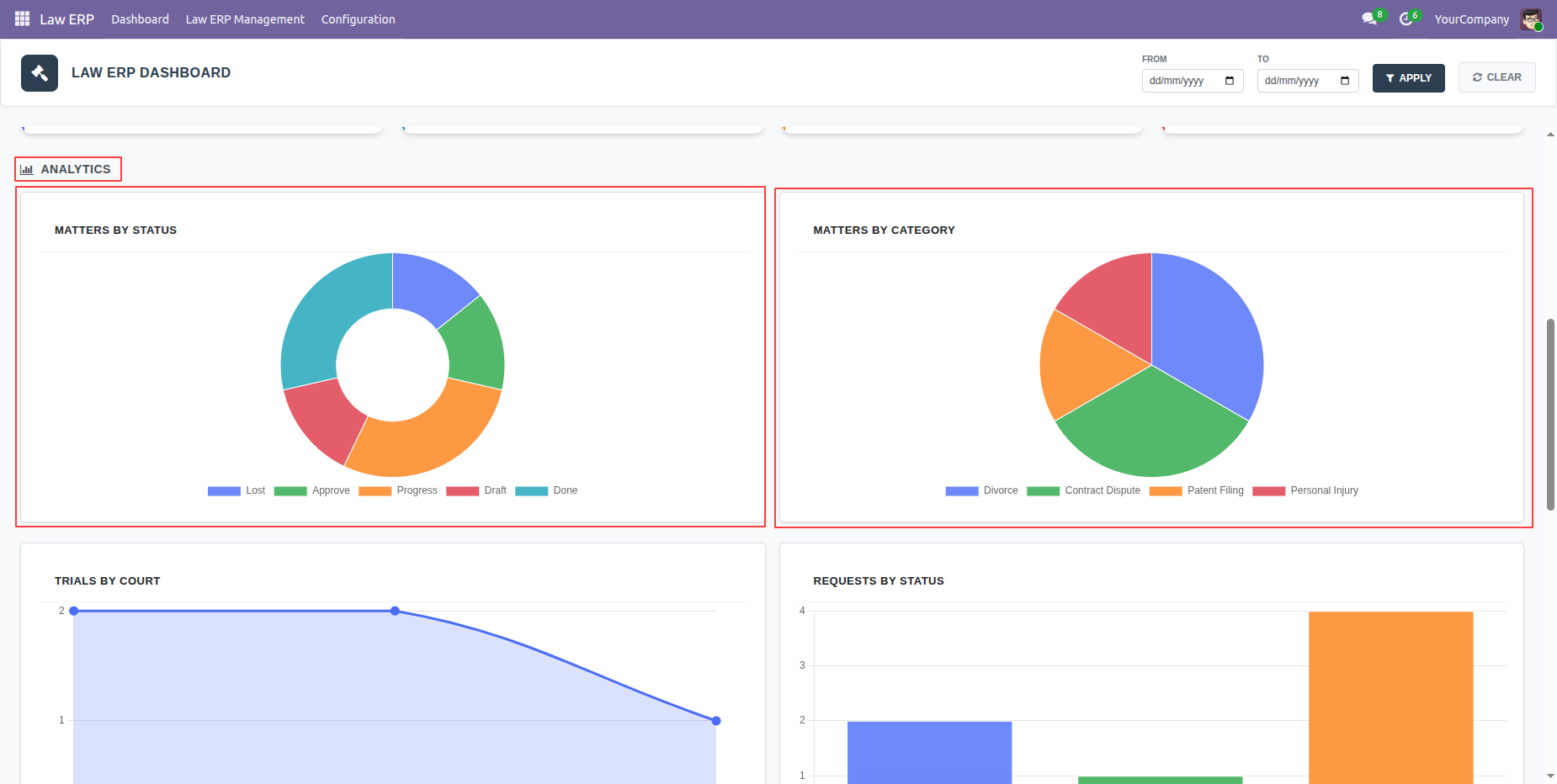
The Law ERP Dashboard also displays charts for Matters by Status and Matters by Category, providing a clear visual overview of matter distribution and current case statuses.
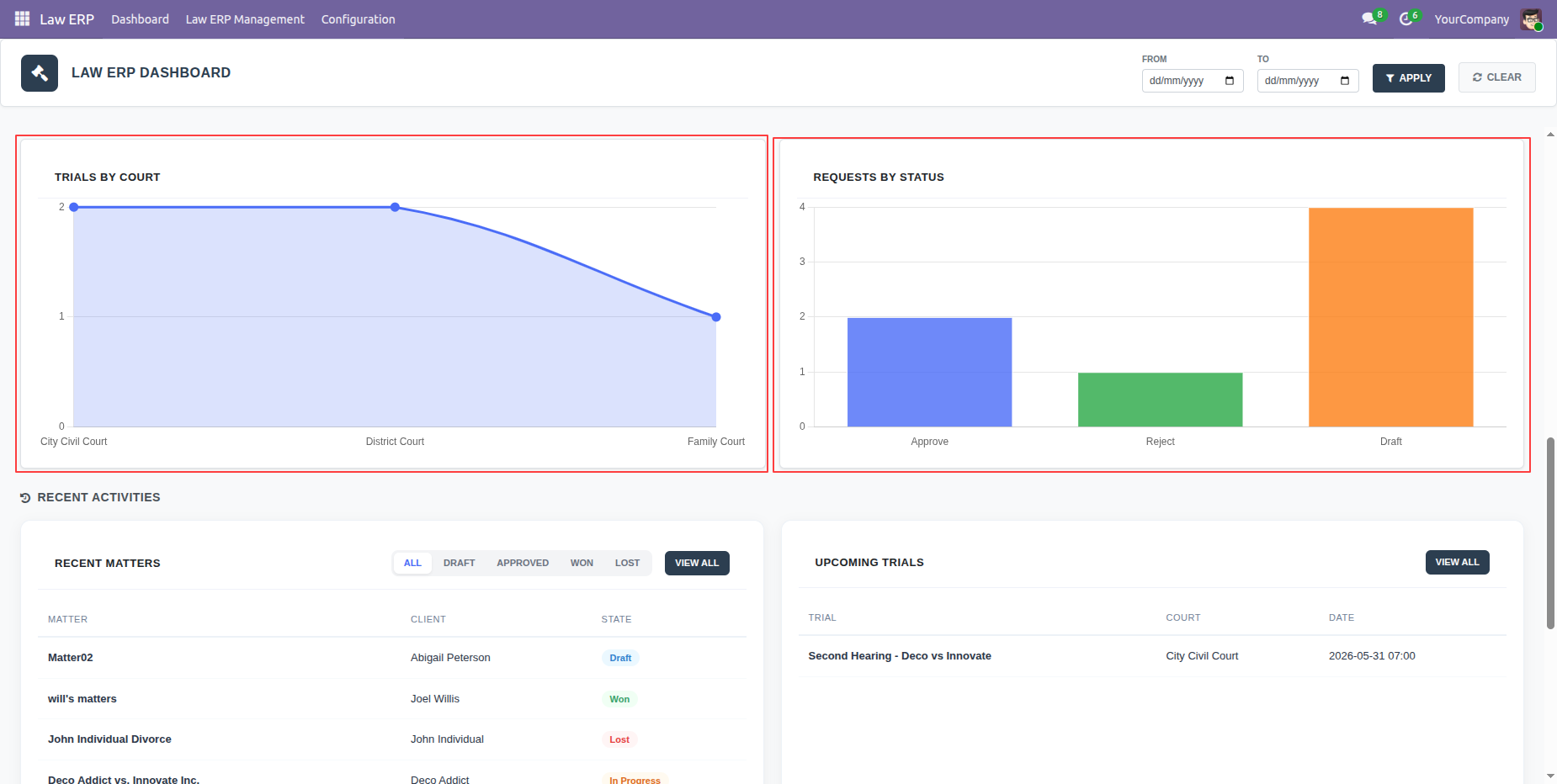
The Law ERP Dashboard also displays charts for Trials by Court and Client Requests by Status, providing a clear overview of trial distribution across courts and the current status of client requests.
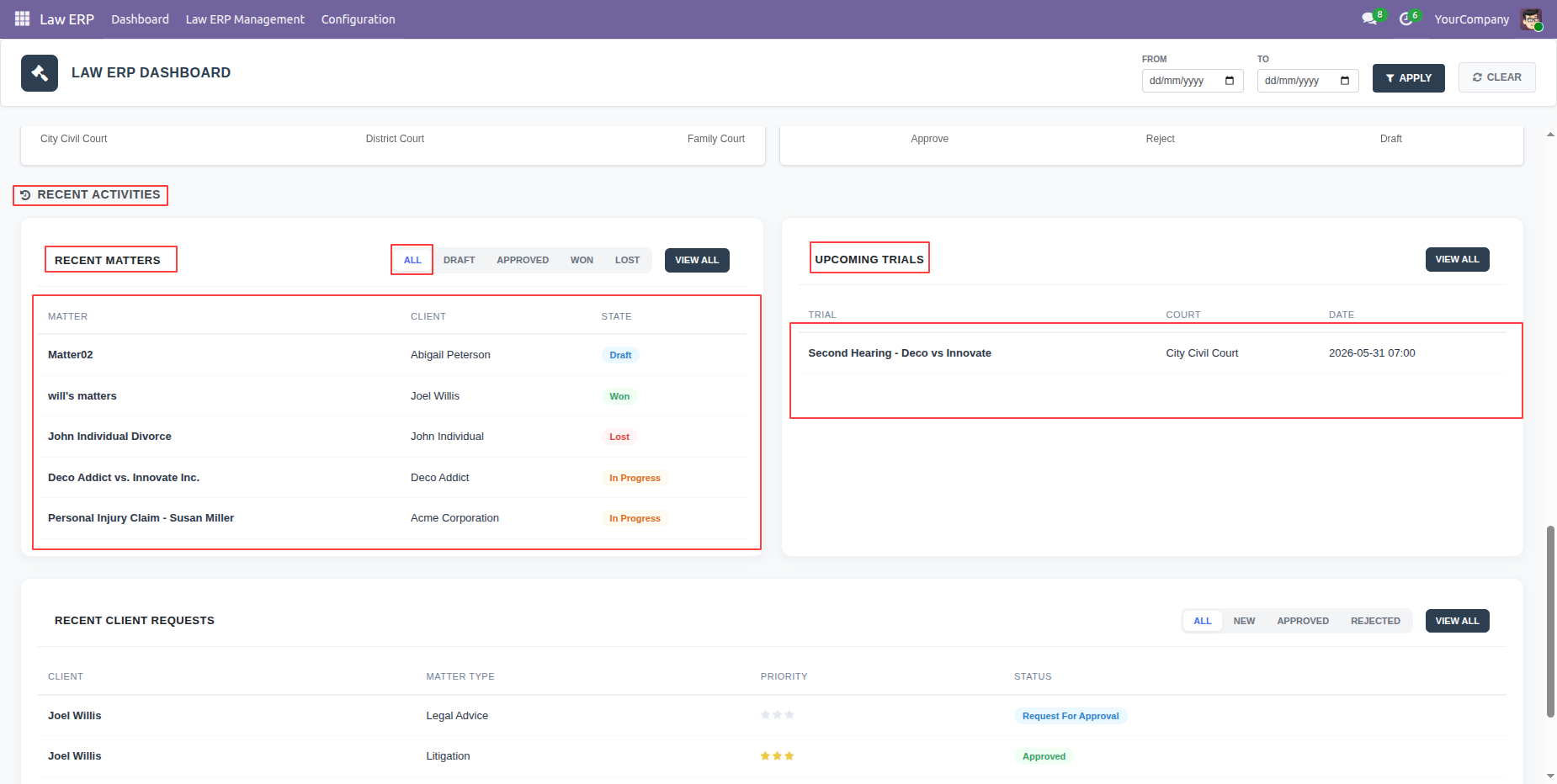
The Law ERP Dashboard also displays Recent Activities and Upcoming Trials in dedicated tables, allowing users to quickly monitor the latest updates and upcoming trial schedules.
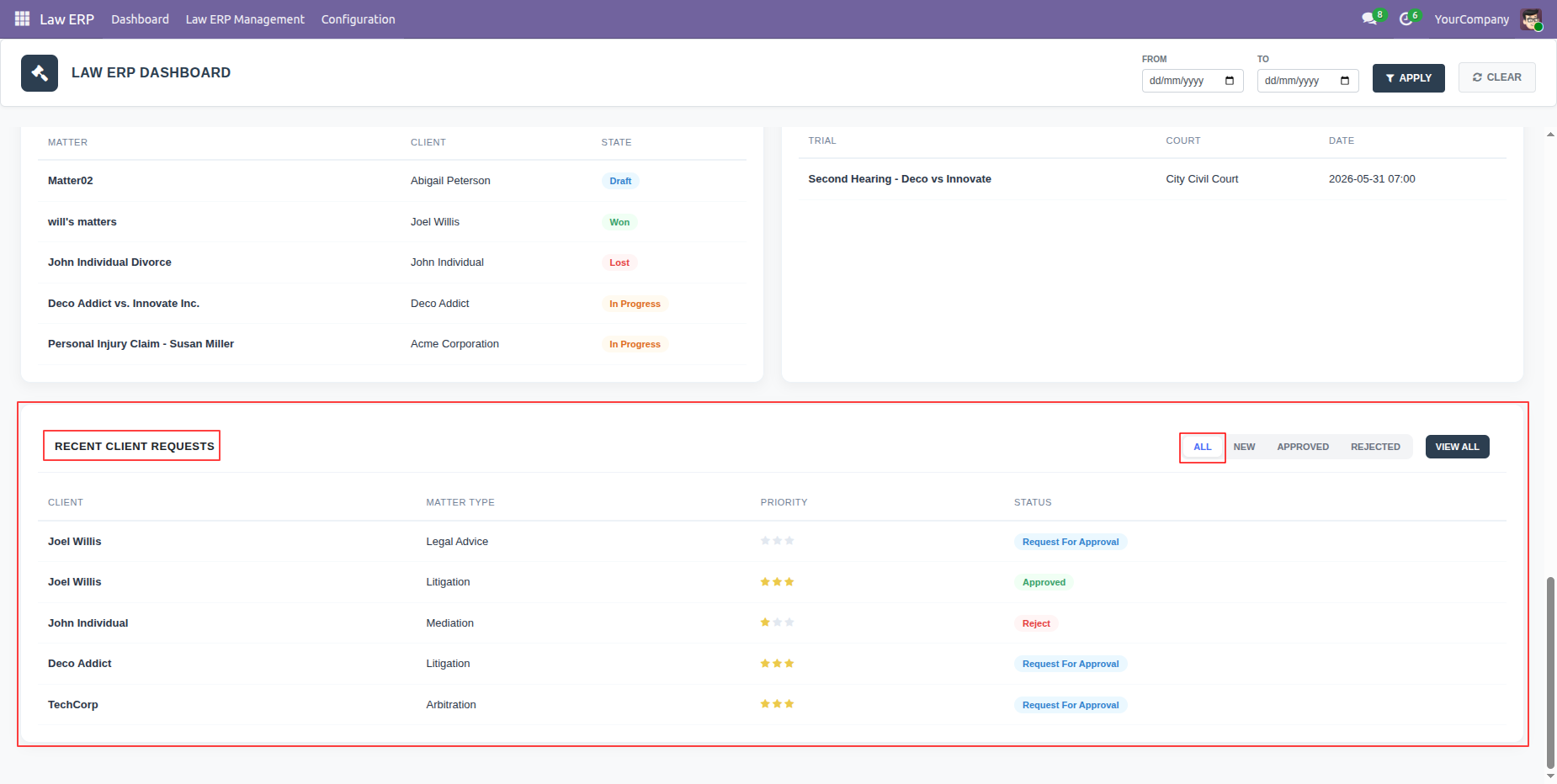
The Law ERP Dashboard displays Recent Client Requests in a table with a status filter, allowing users to quickly track and filter requests based on their current status.
The Law ERP Dashboard can also be filtered by a From Date and To Date, allowing users to view dashboard data for a specific time period.
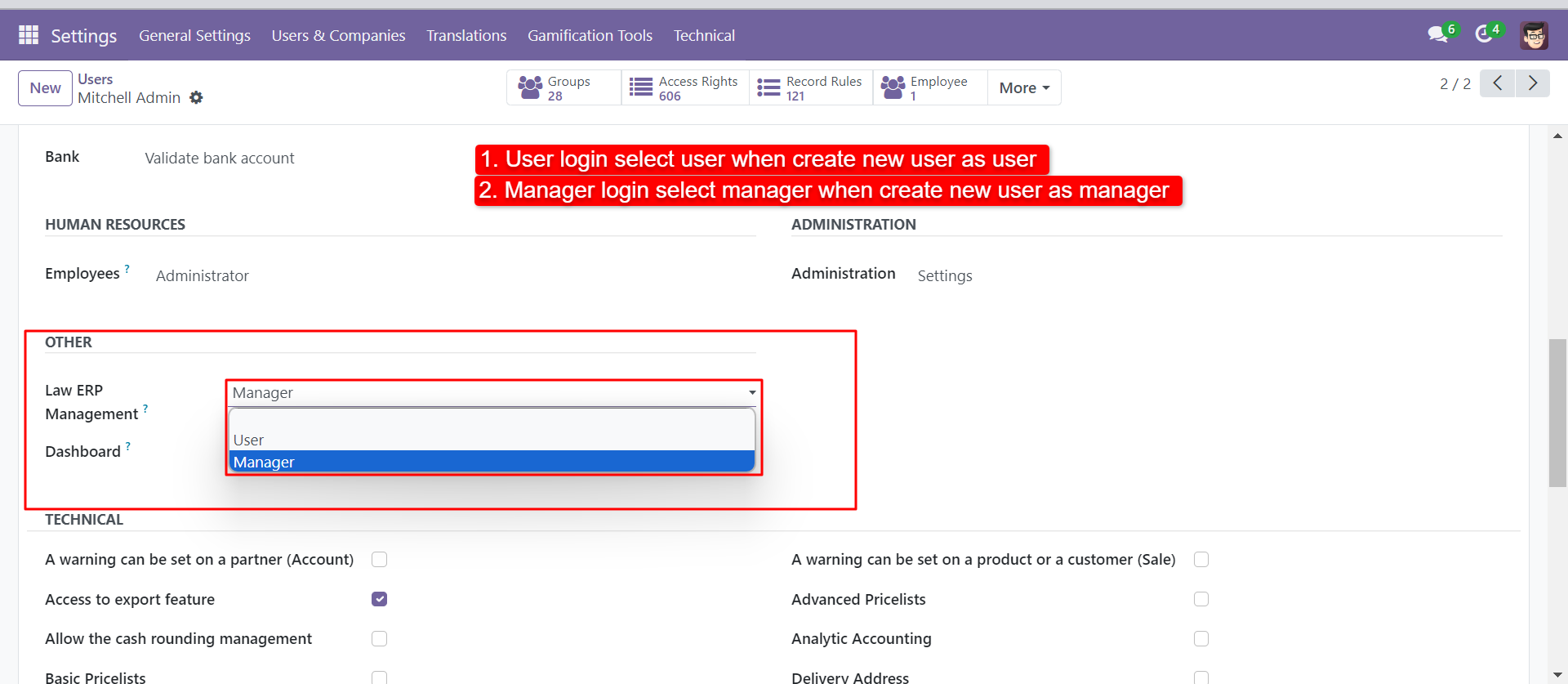
We have made 2 access groups for the 'Law ERP' system, 1) User & 2) Manager.
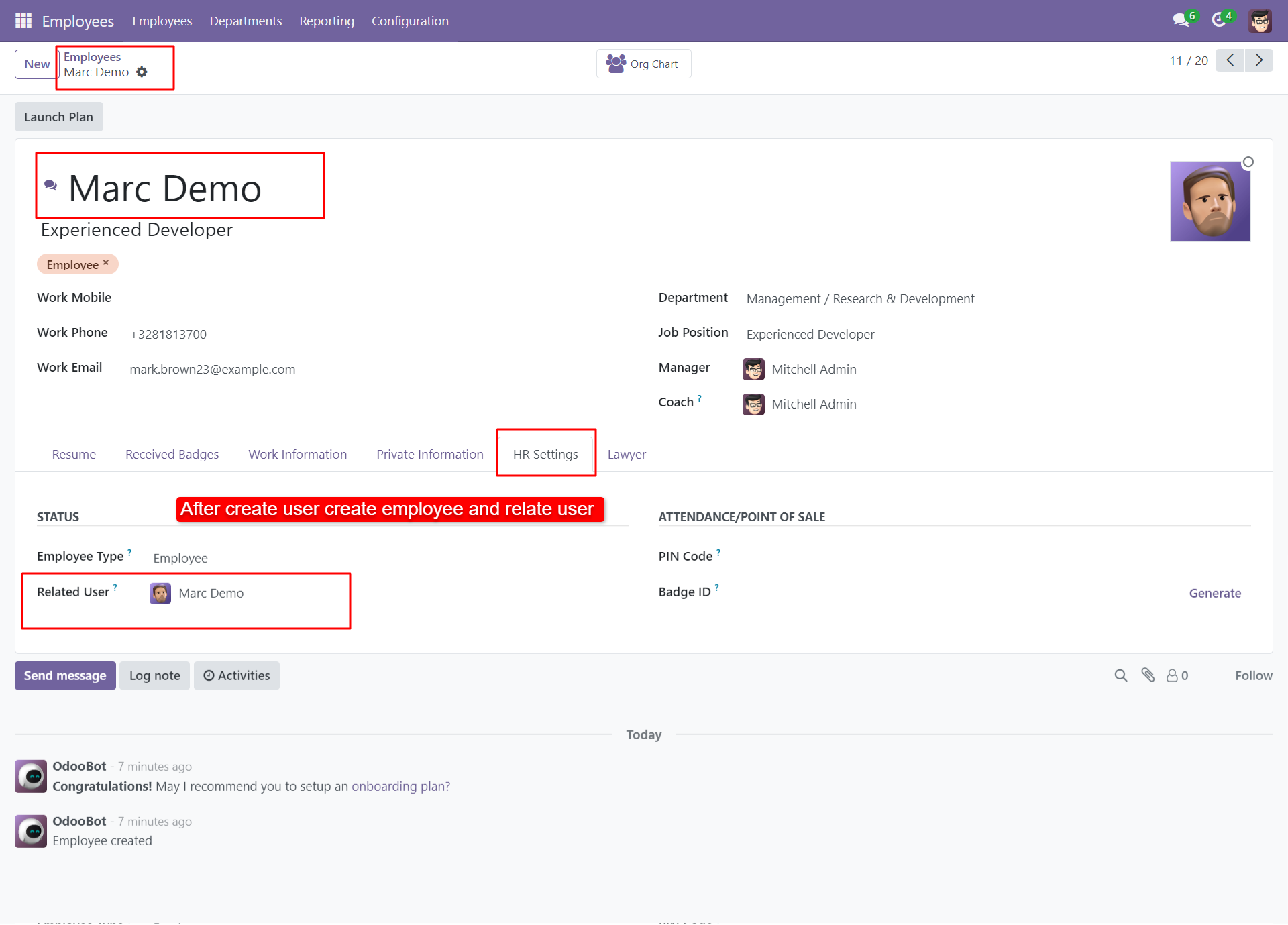
After creating user, create employee & related user.
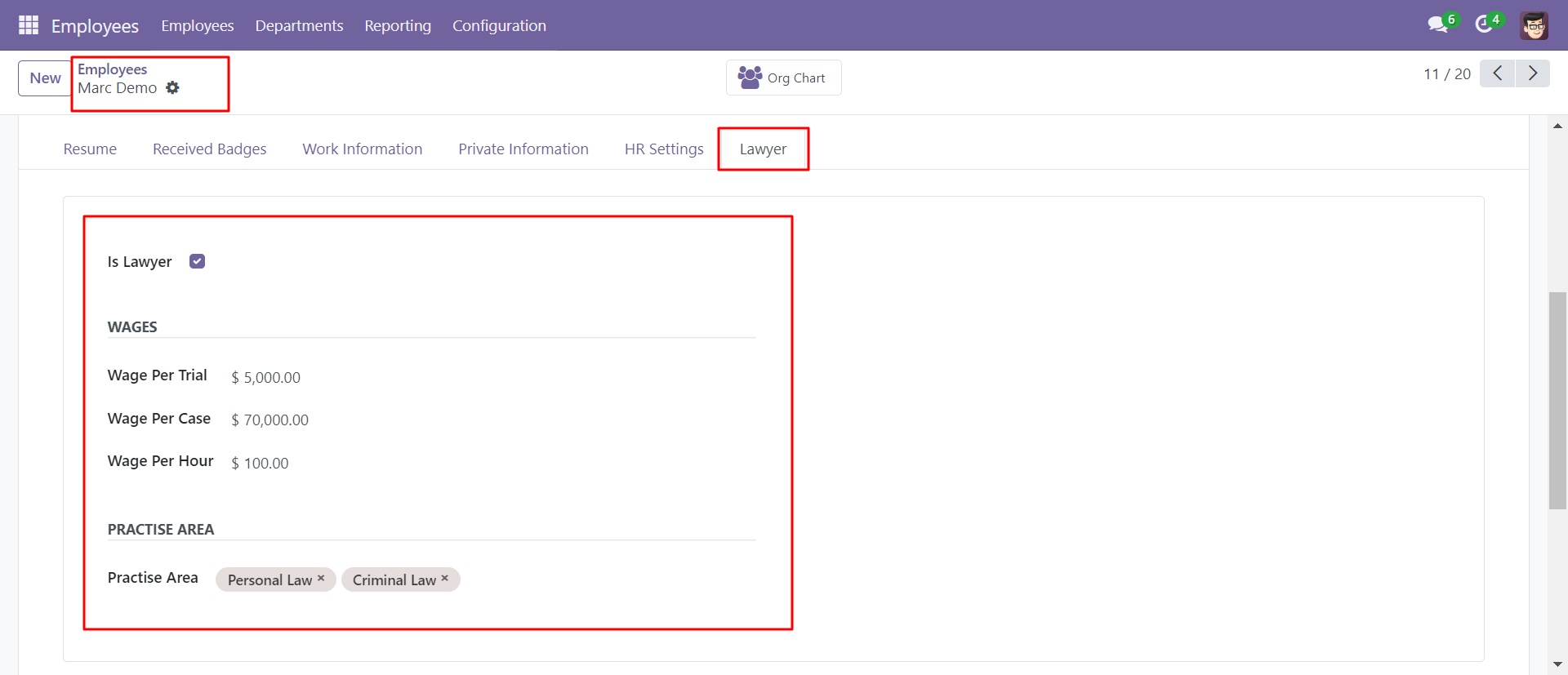
In the employee 'Lawyer' tab where you can define 'Is Lawyer', Lawer Wages in 3 different ways and his practice area.
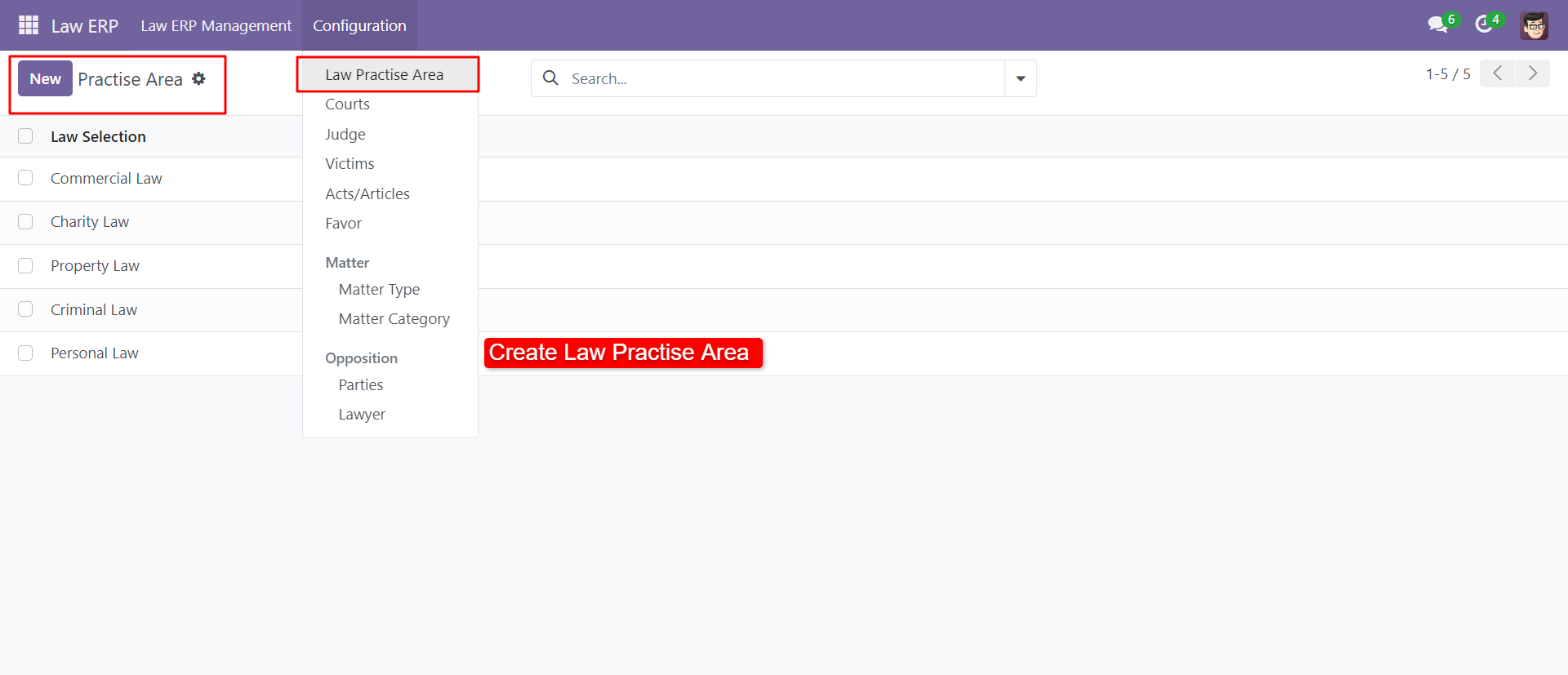
Users can create and configure 'Law Practice Area'.
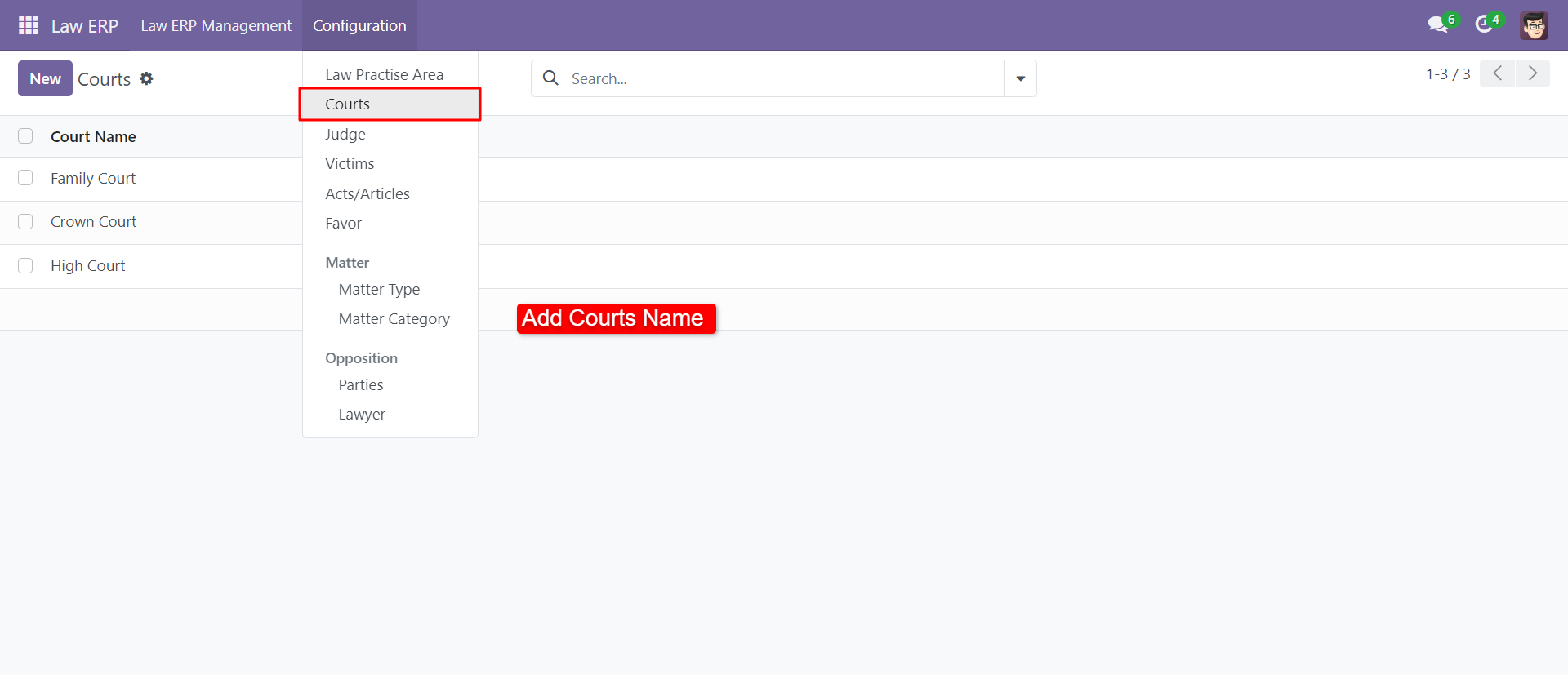
You can create a court from the configuration.
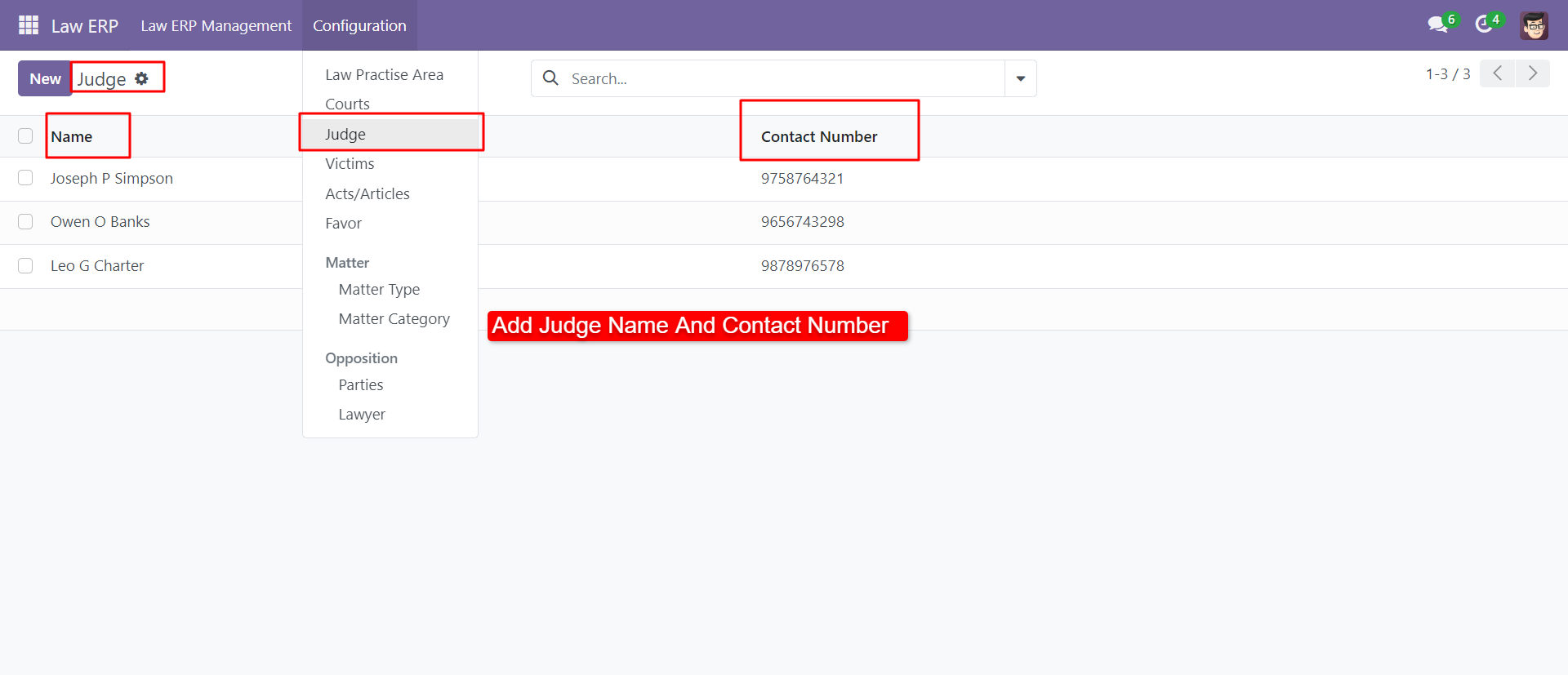
You can create and configure the judge with a contact number.
You can create and configure the victims with a contact number.
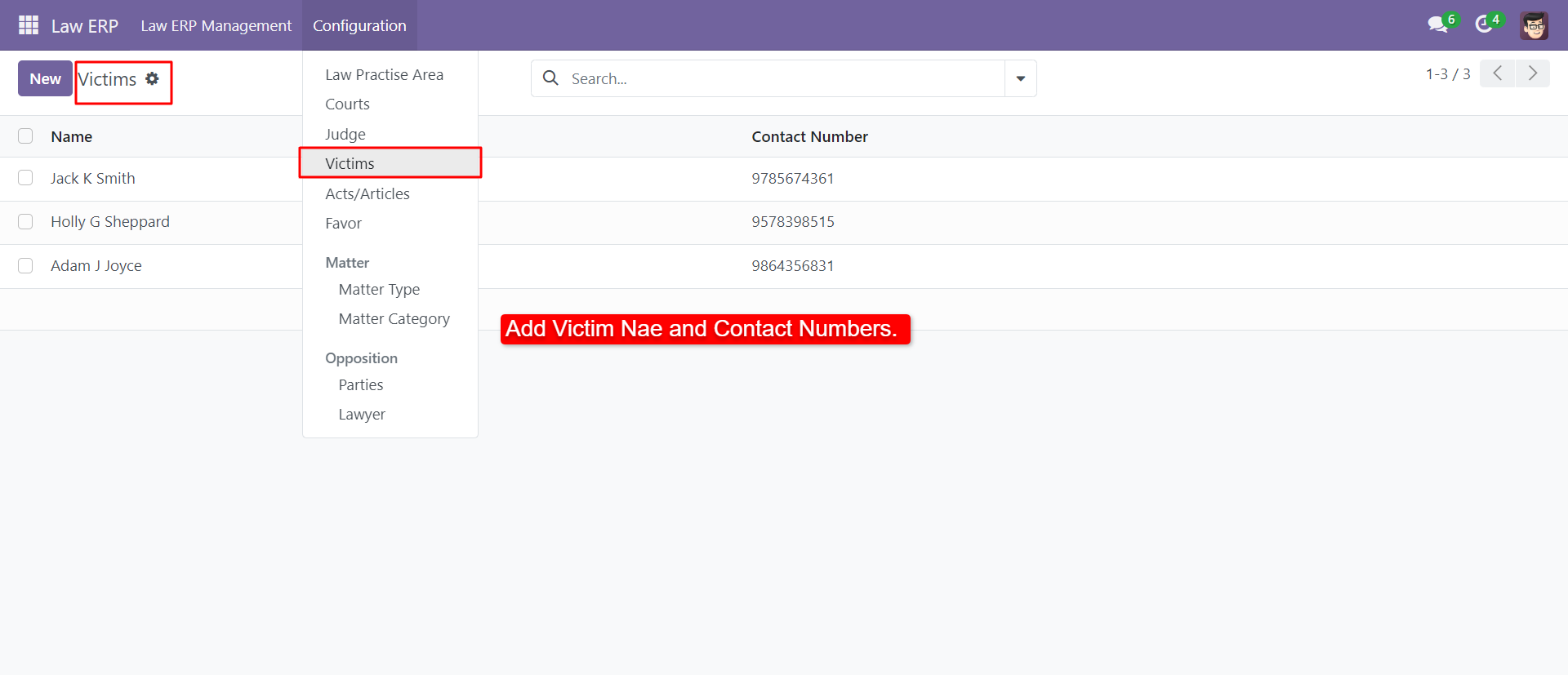
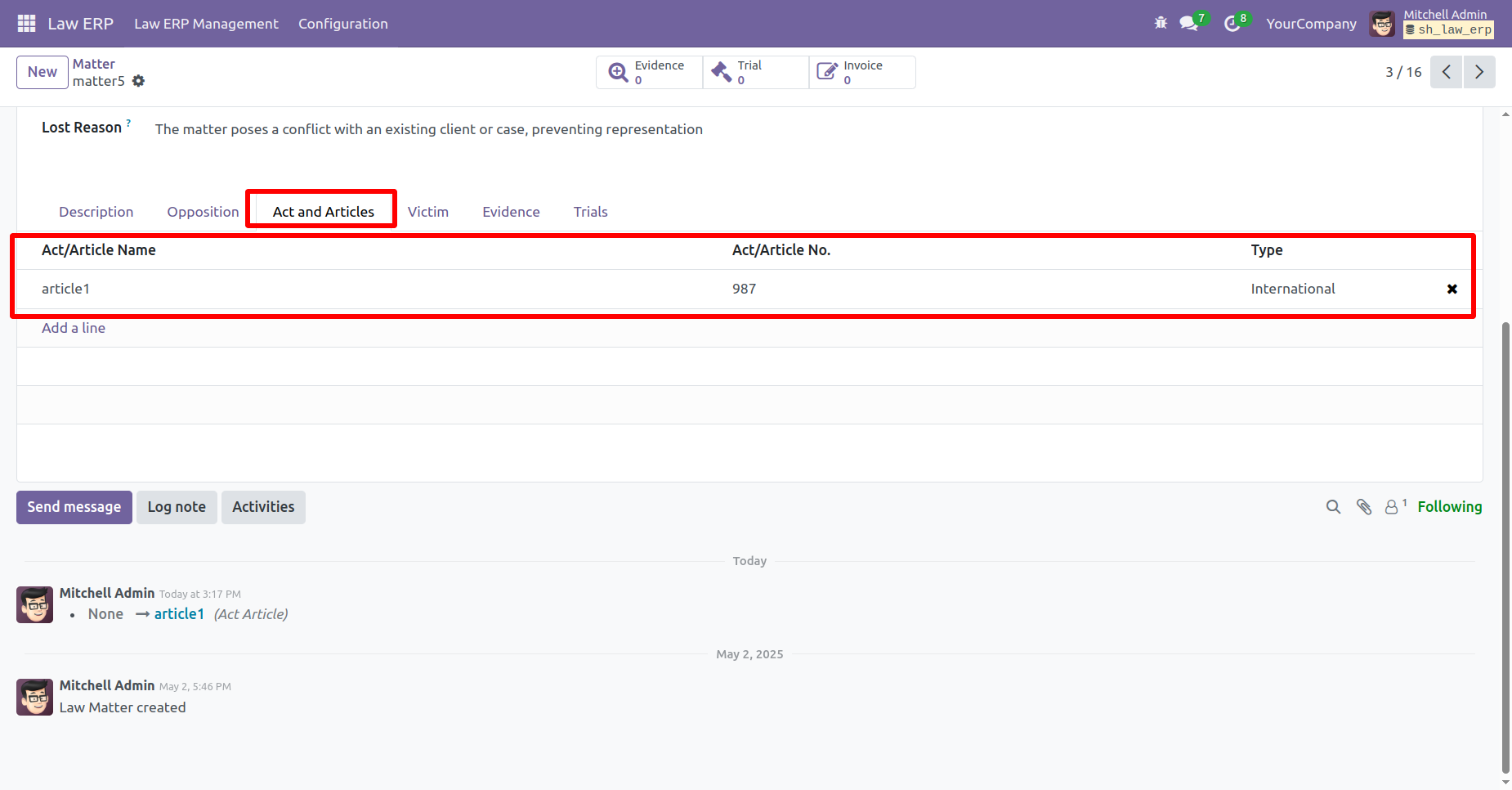
You can manage 'Acts/Articles' from the configuration menu.
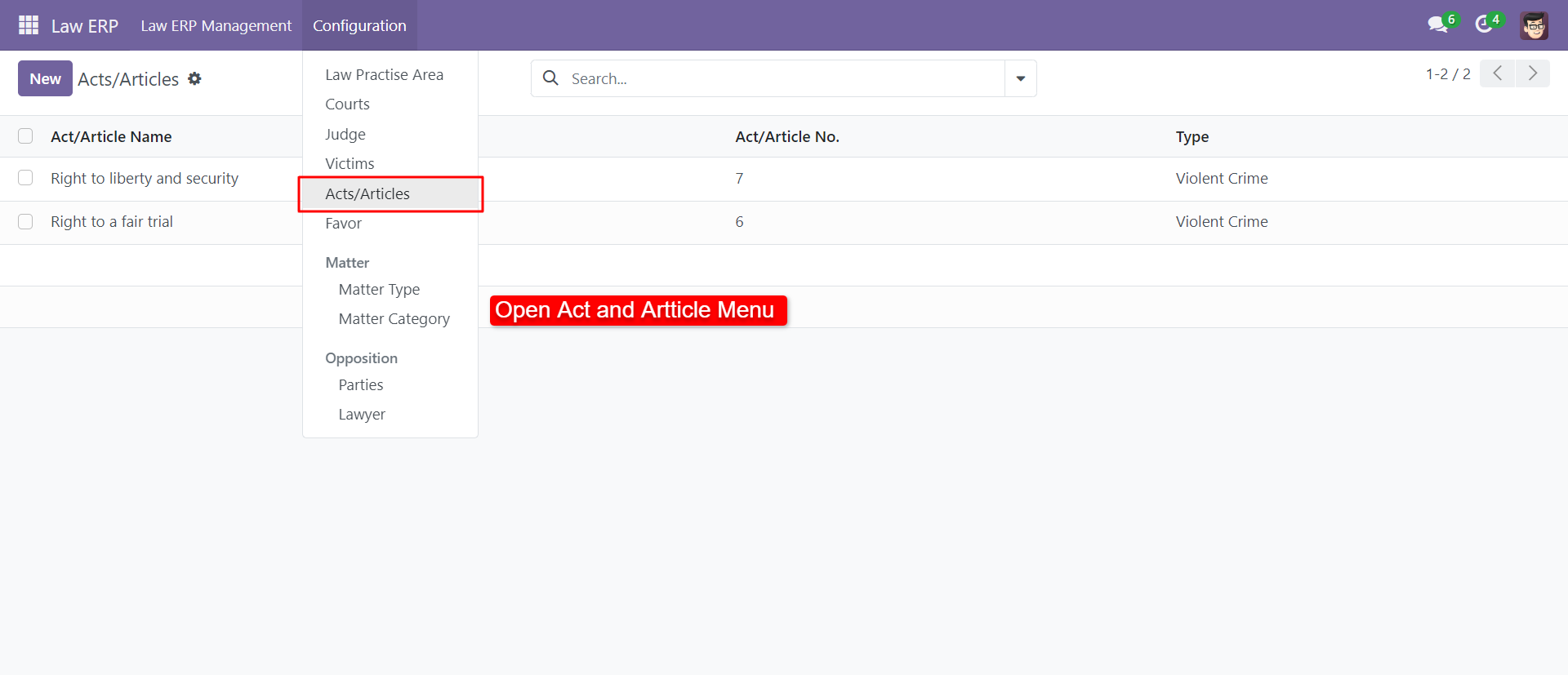
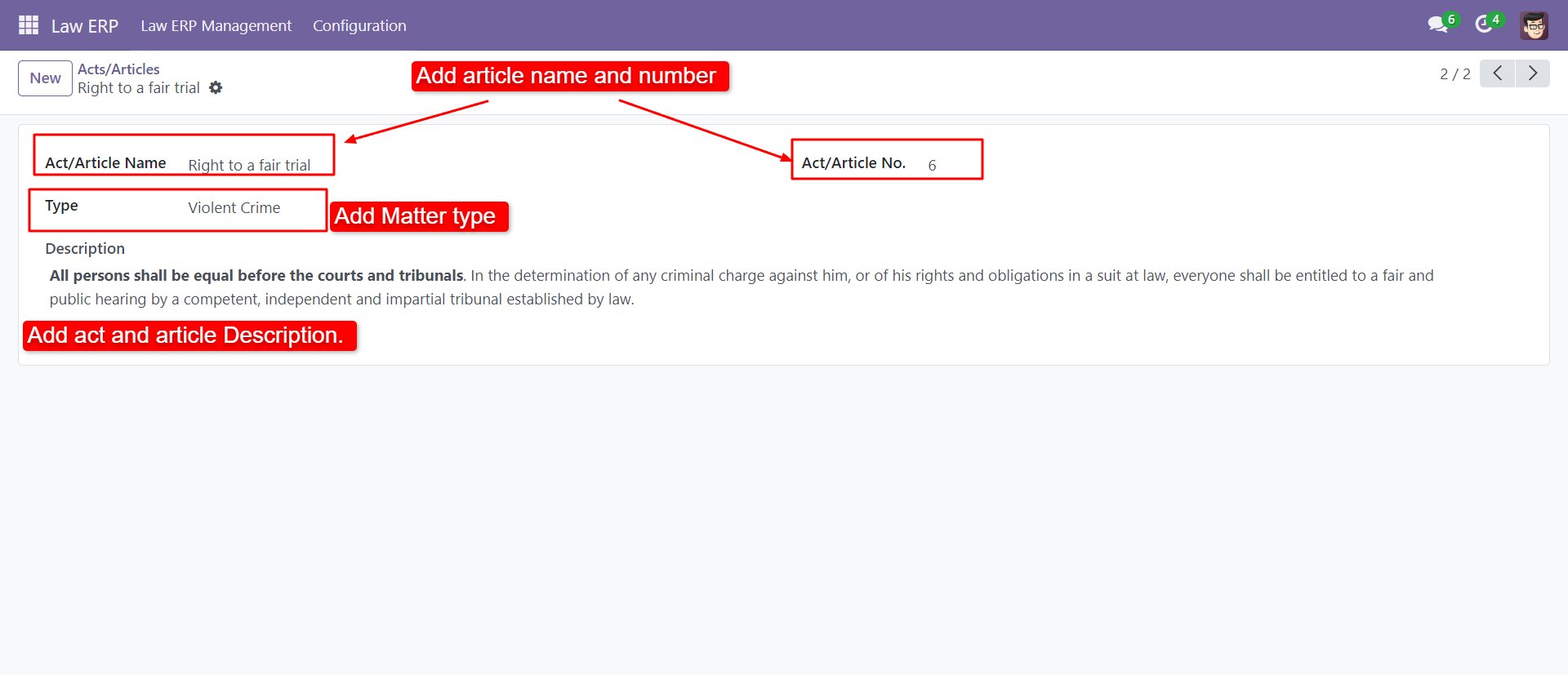
You can create 'Act/Article' with name, type, number & description.
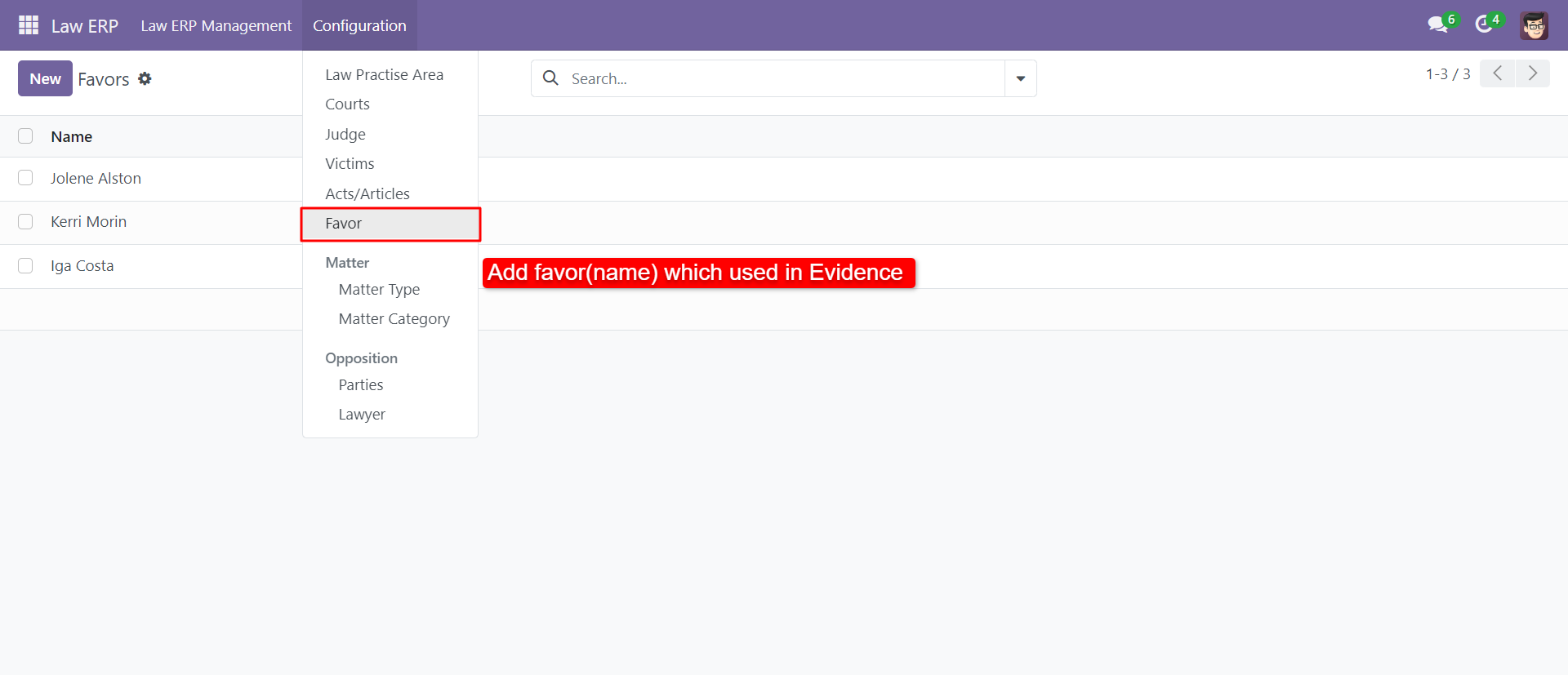
You can create favor which used in evidence from the configuration menu.
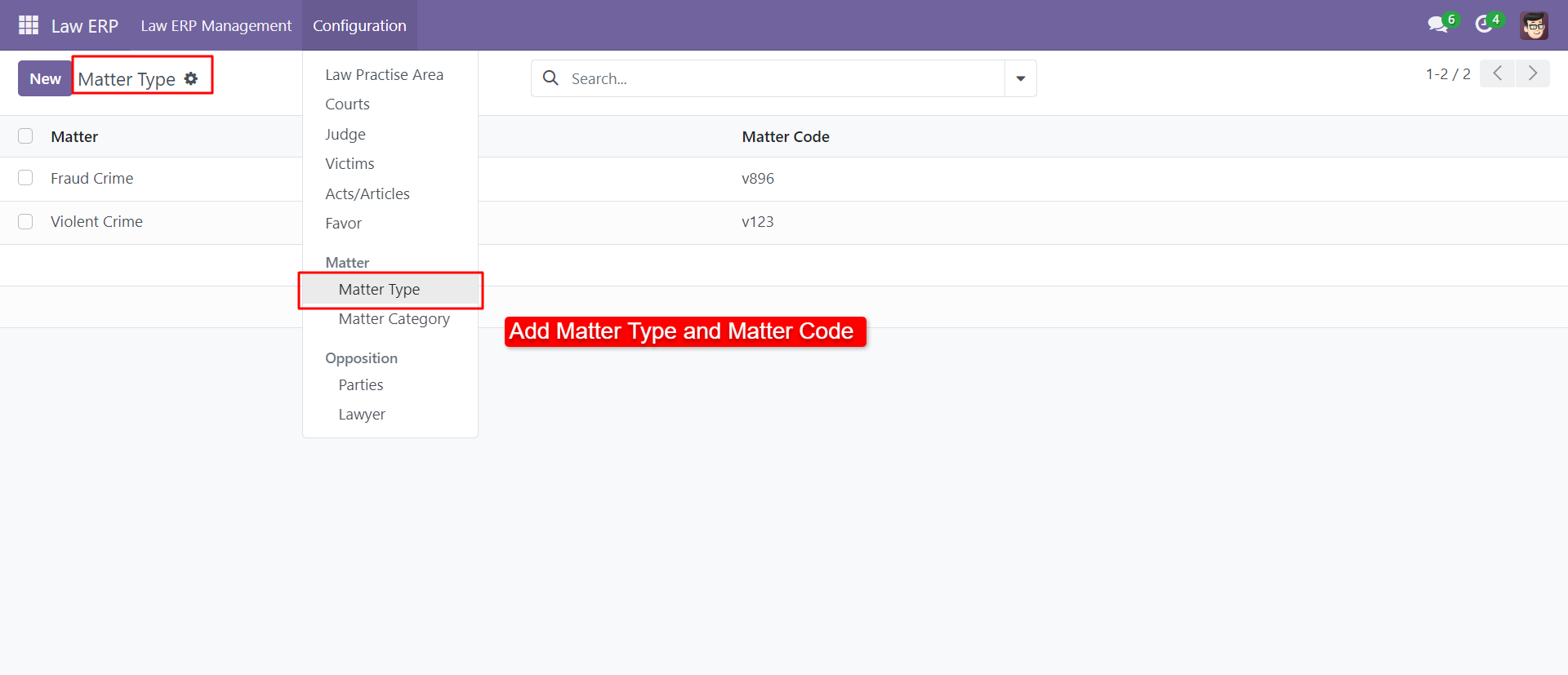
You can create and configure matter type.
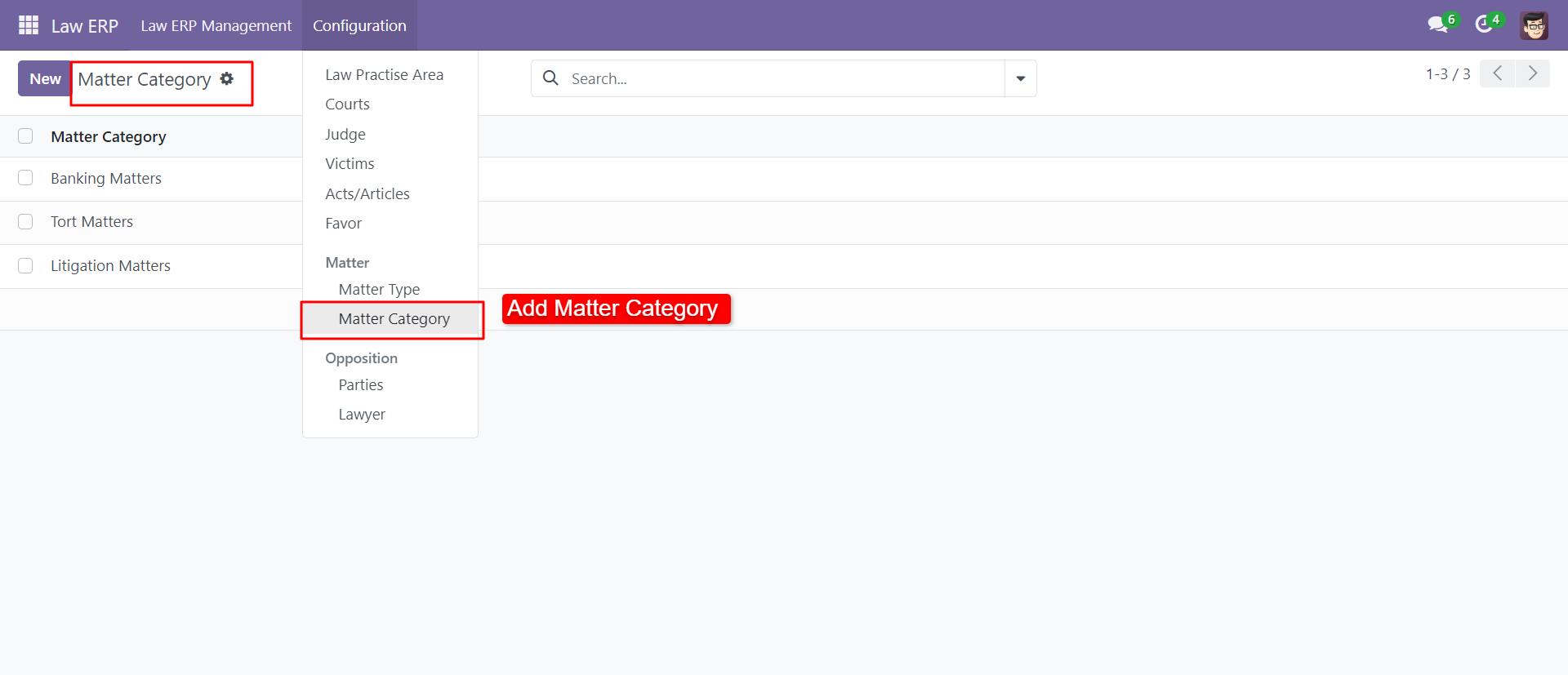
You can create and configure a matter category.
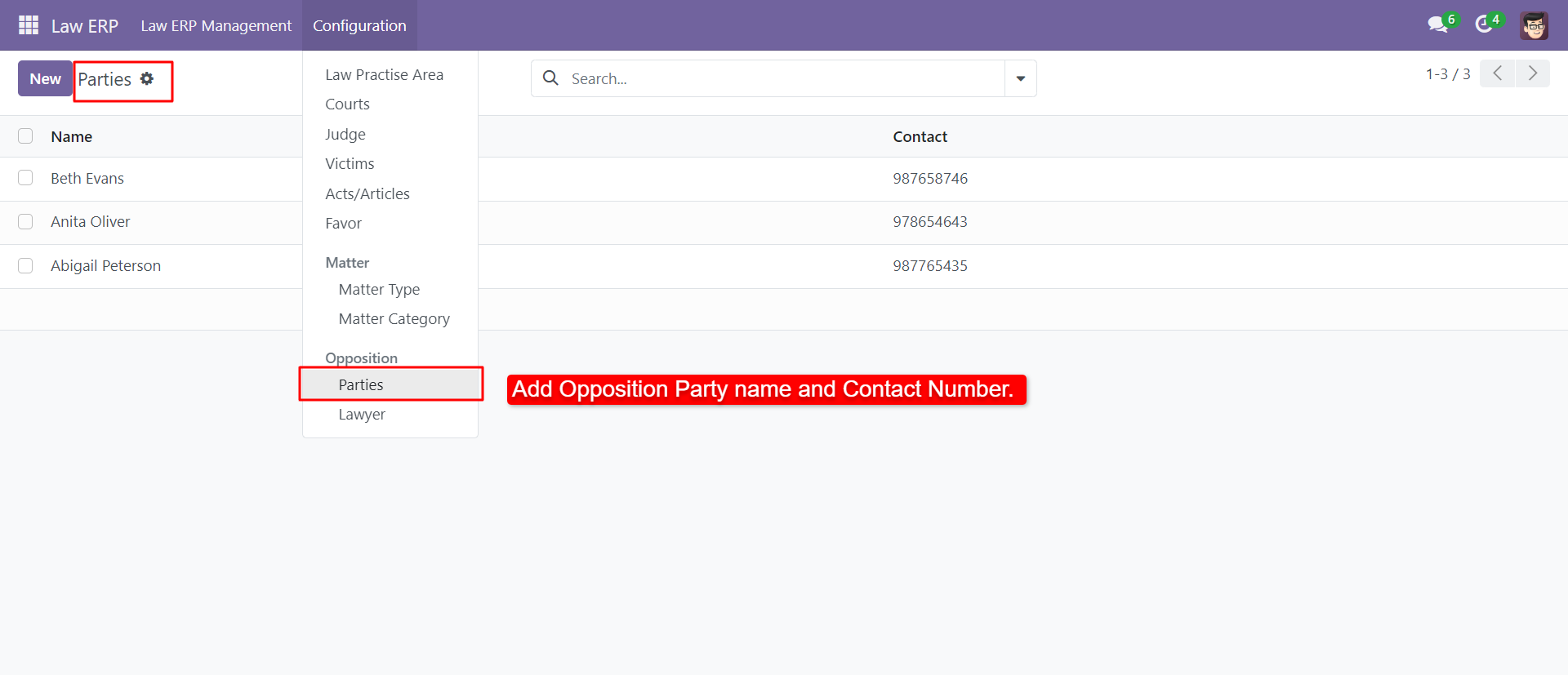
You can create and configure the opposite party with a contact number.
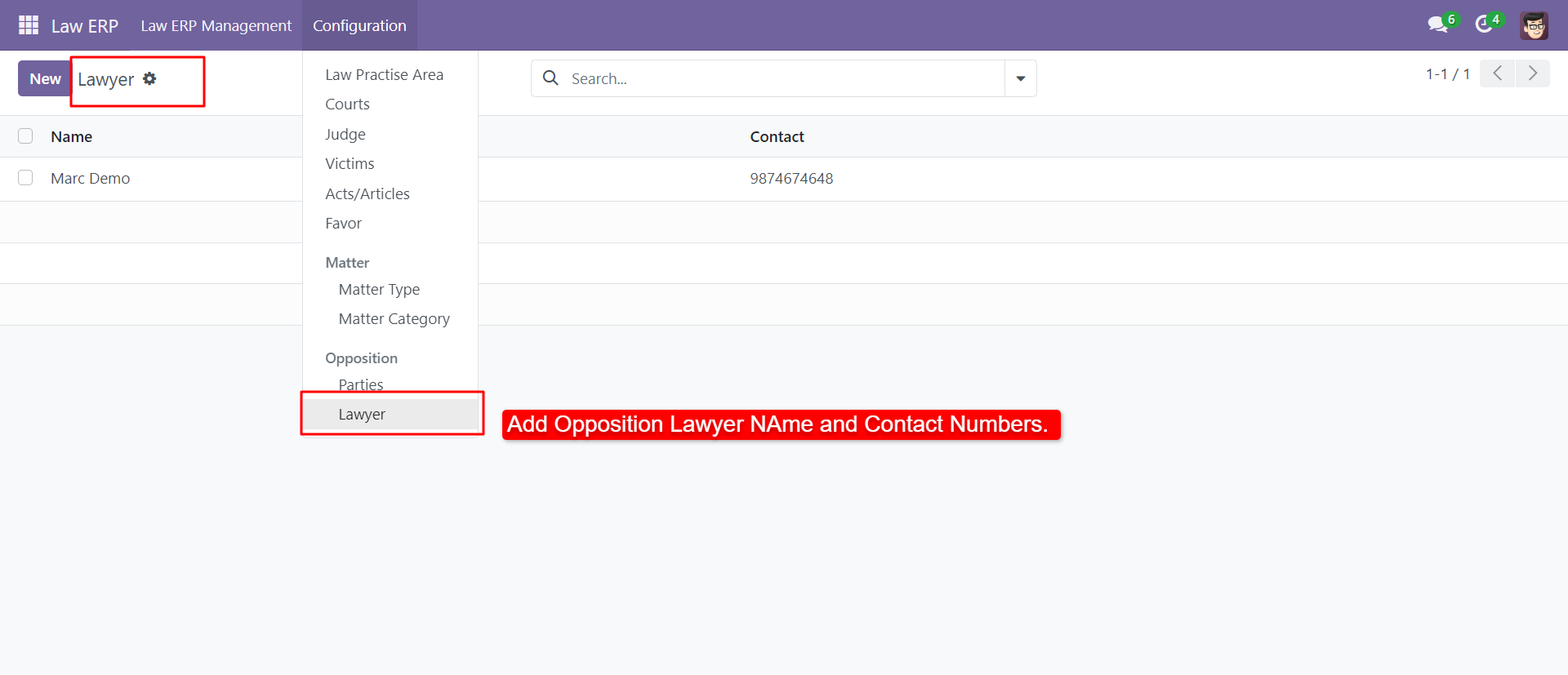
You can create and configure the opposite lawyer with a contact number.
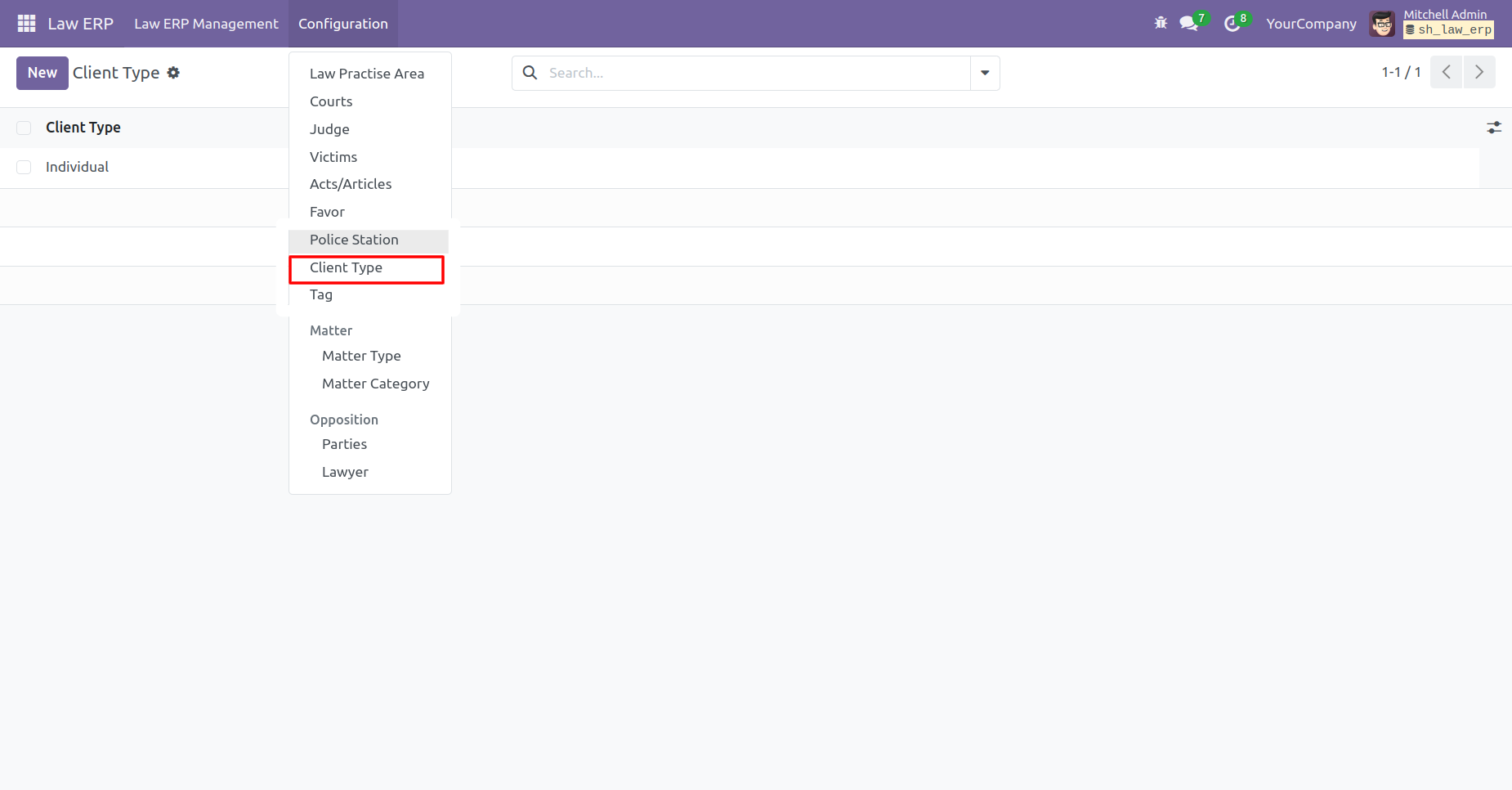
'Client Type' menu.
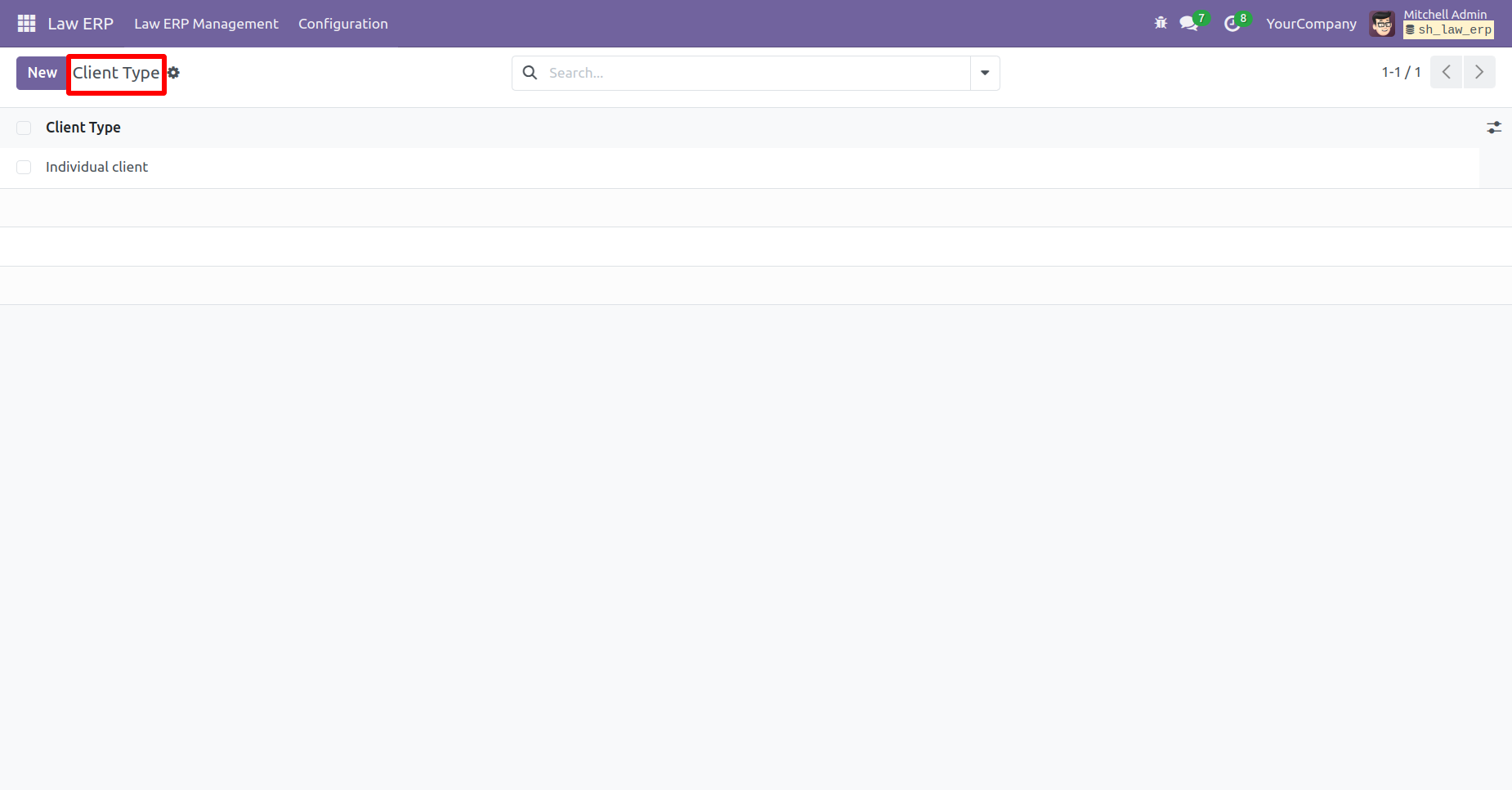
Tree view of the 'Client Type'.
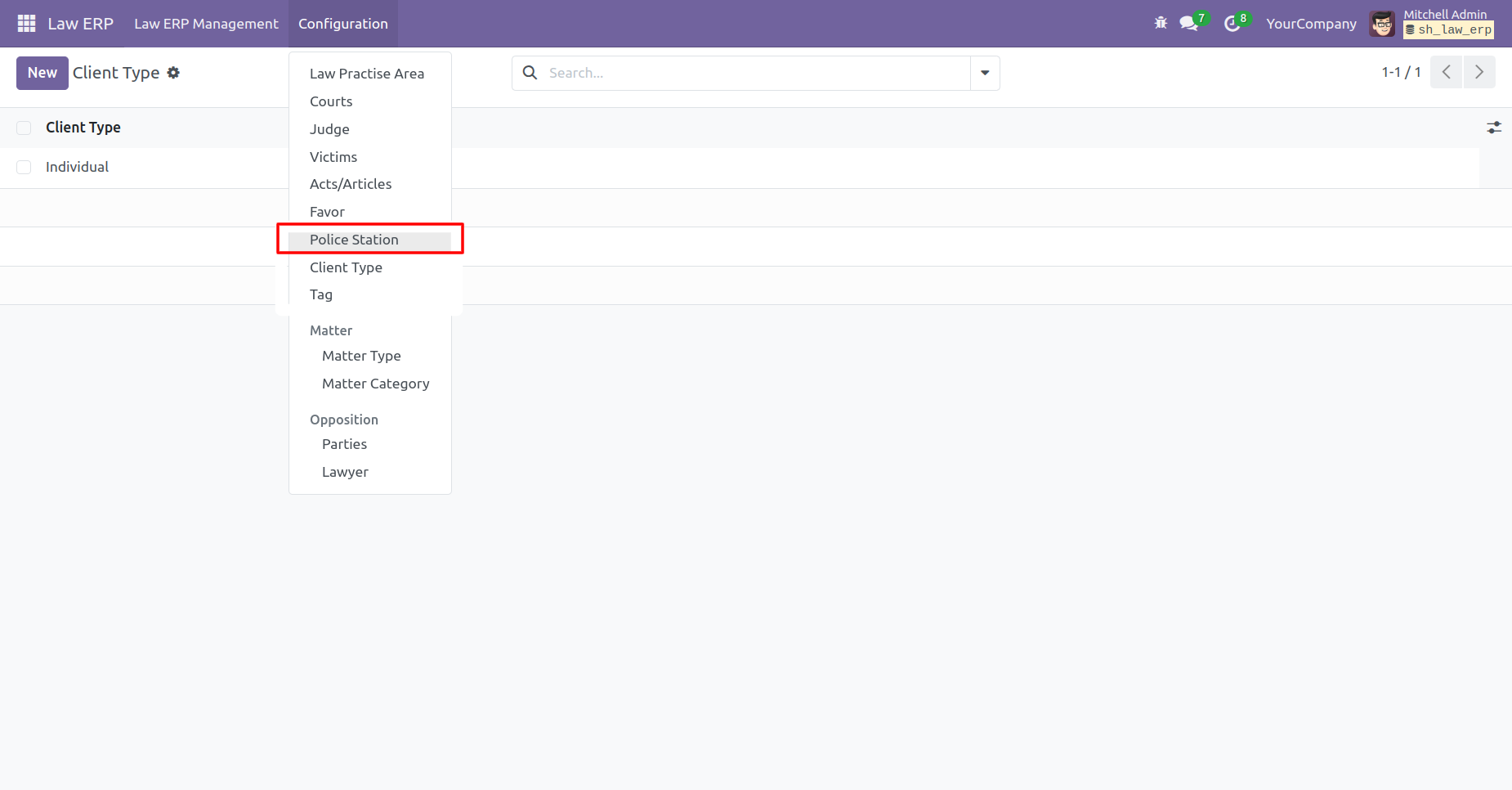
'Police Station' menu.
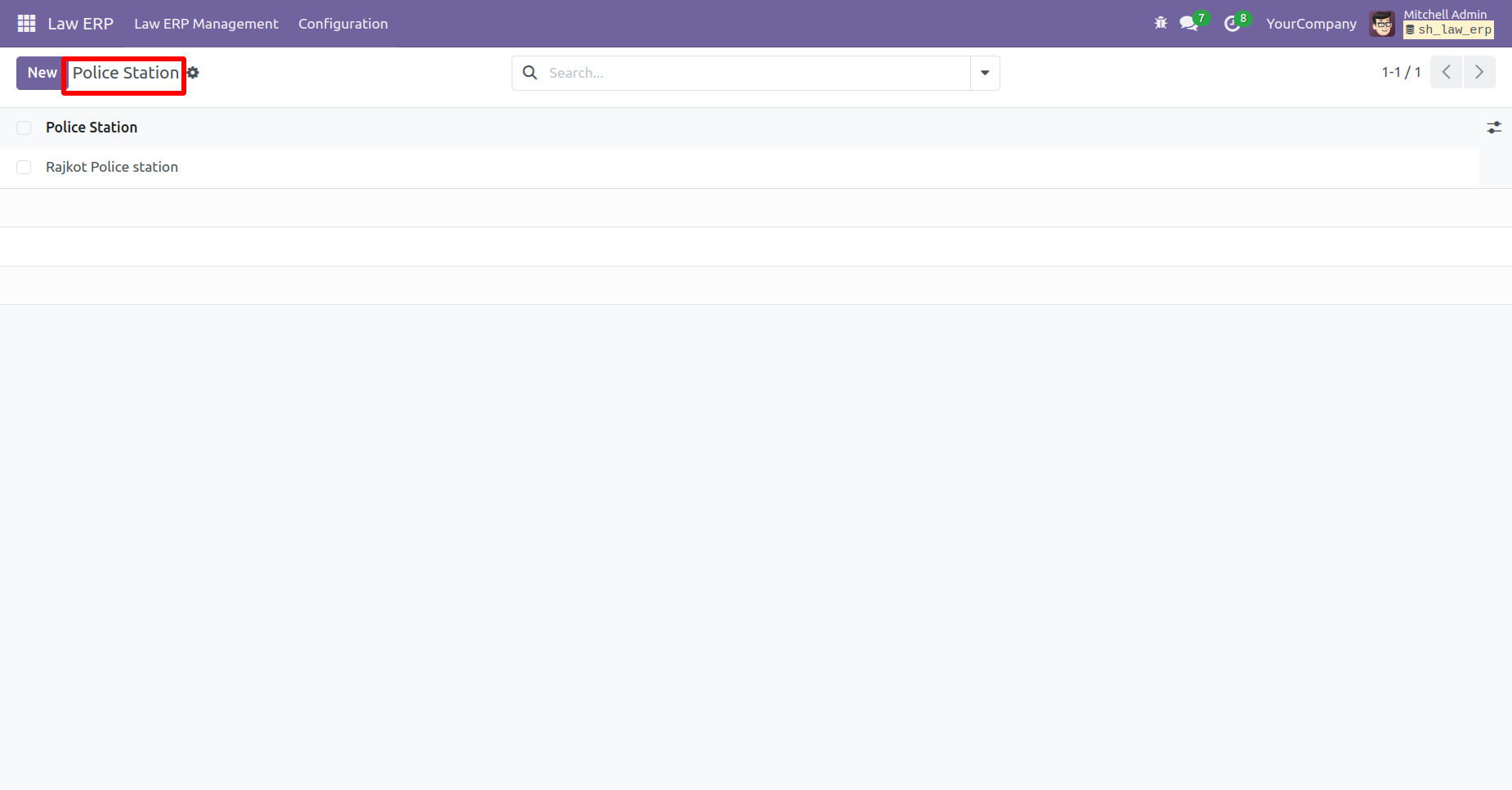
Tree view of the 'Police Station'.
'Tag' menu.
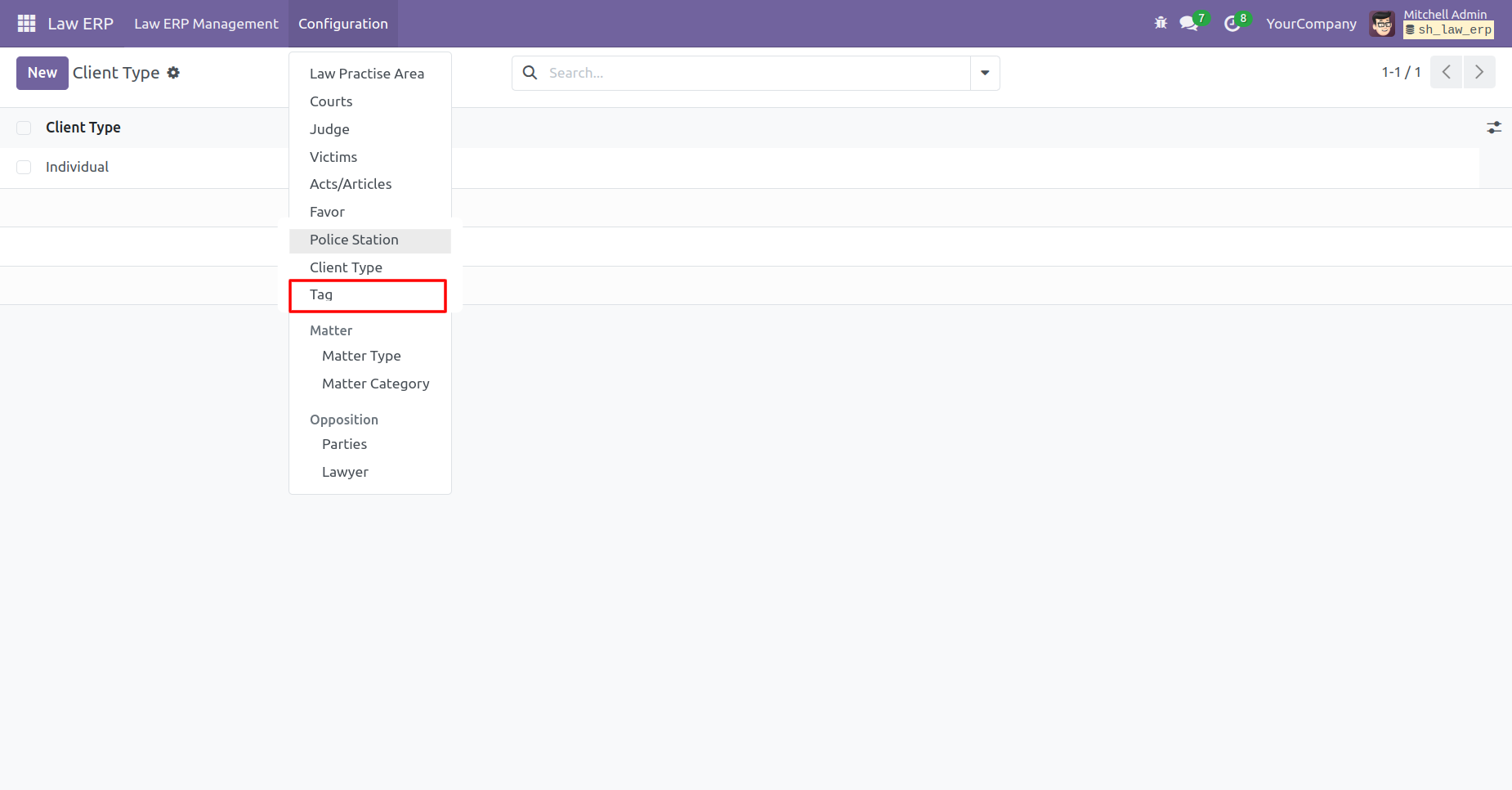
Tree view of the 'Tag'.
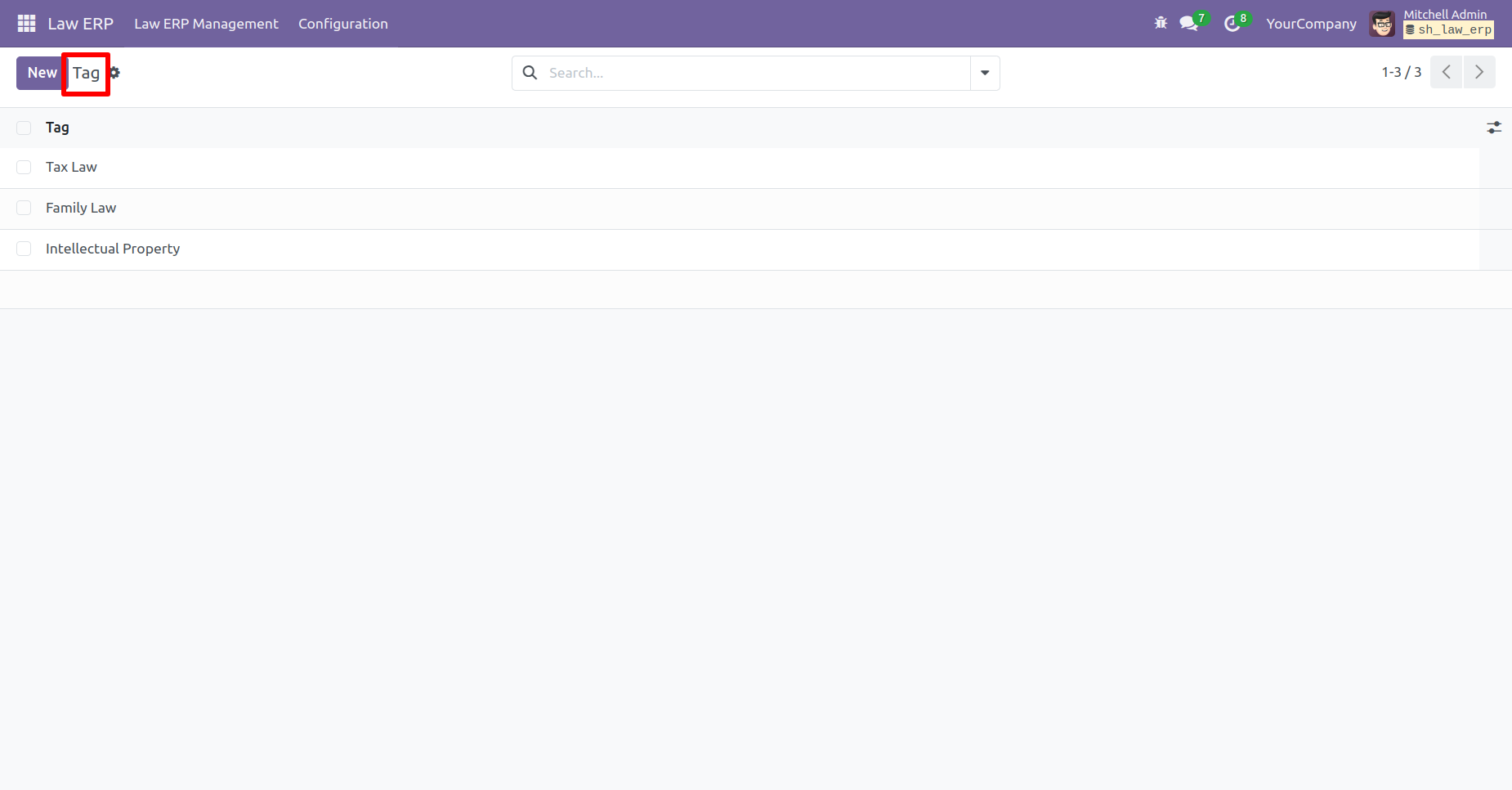
Client request list view with name, contact number & email.
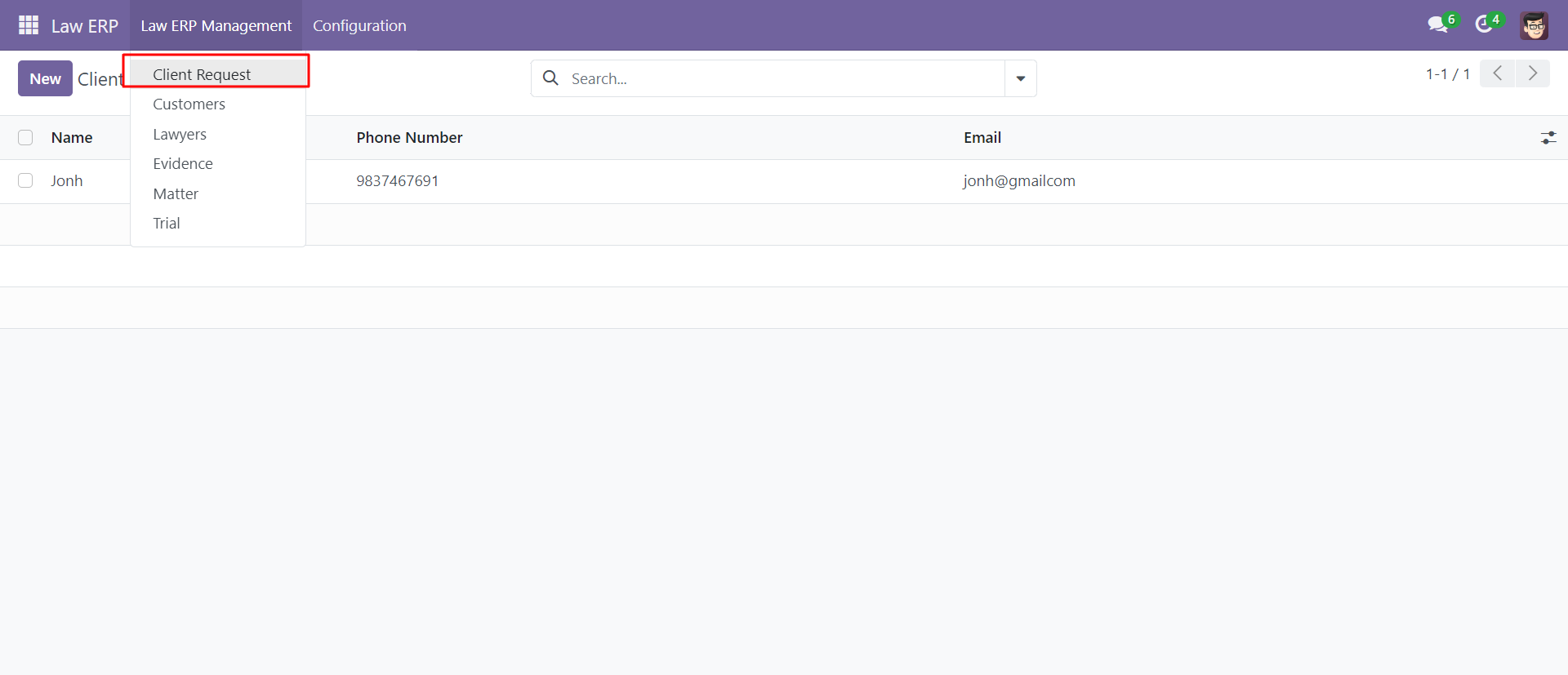
The client request form view looks like this After approved that request new customer will be created.
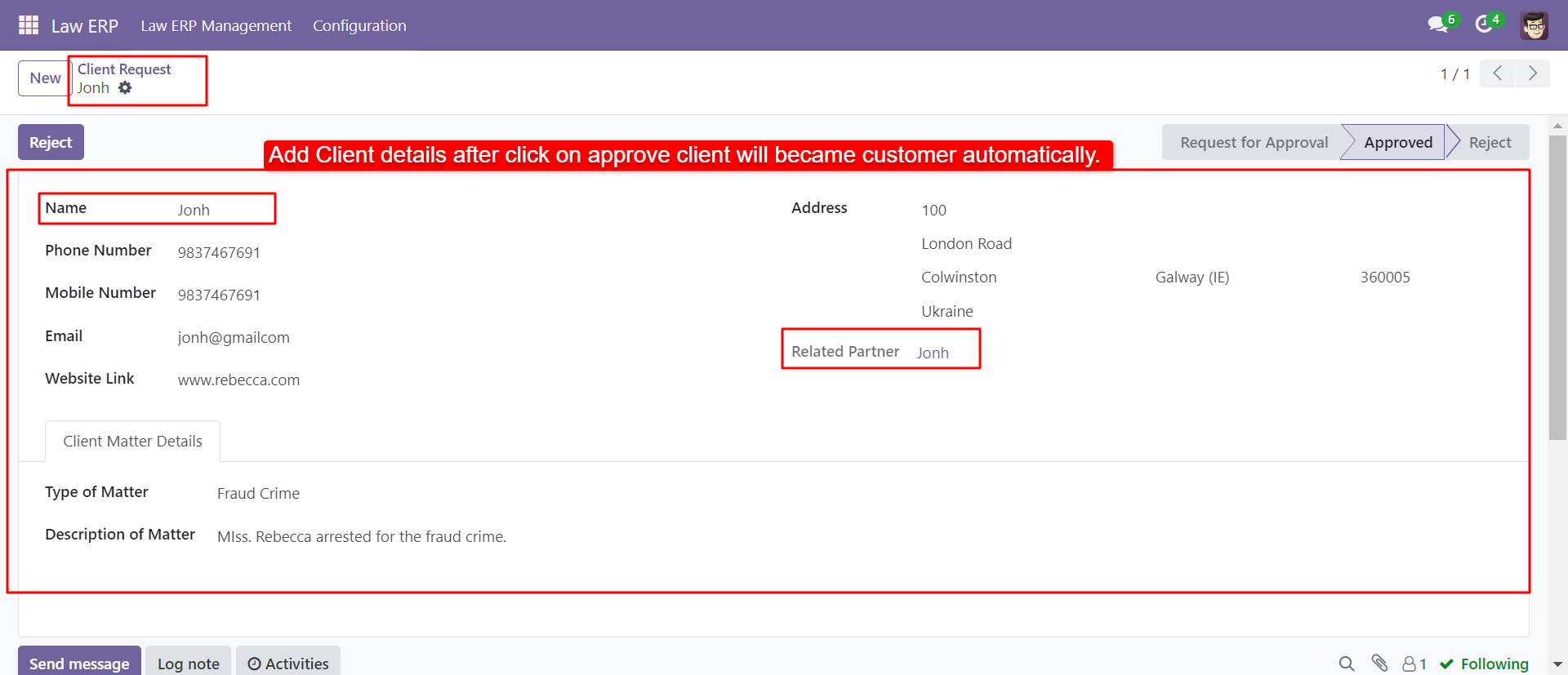
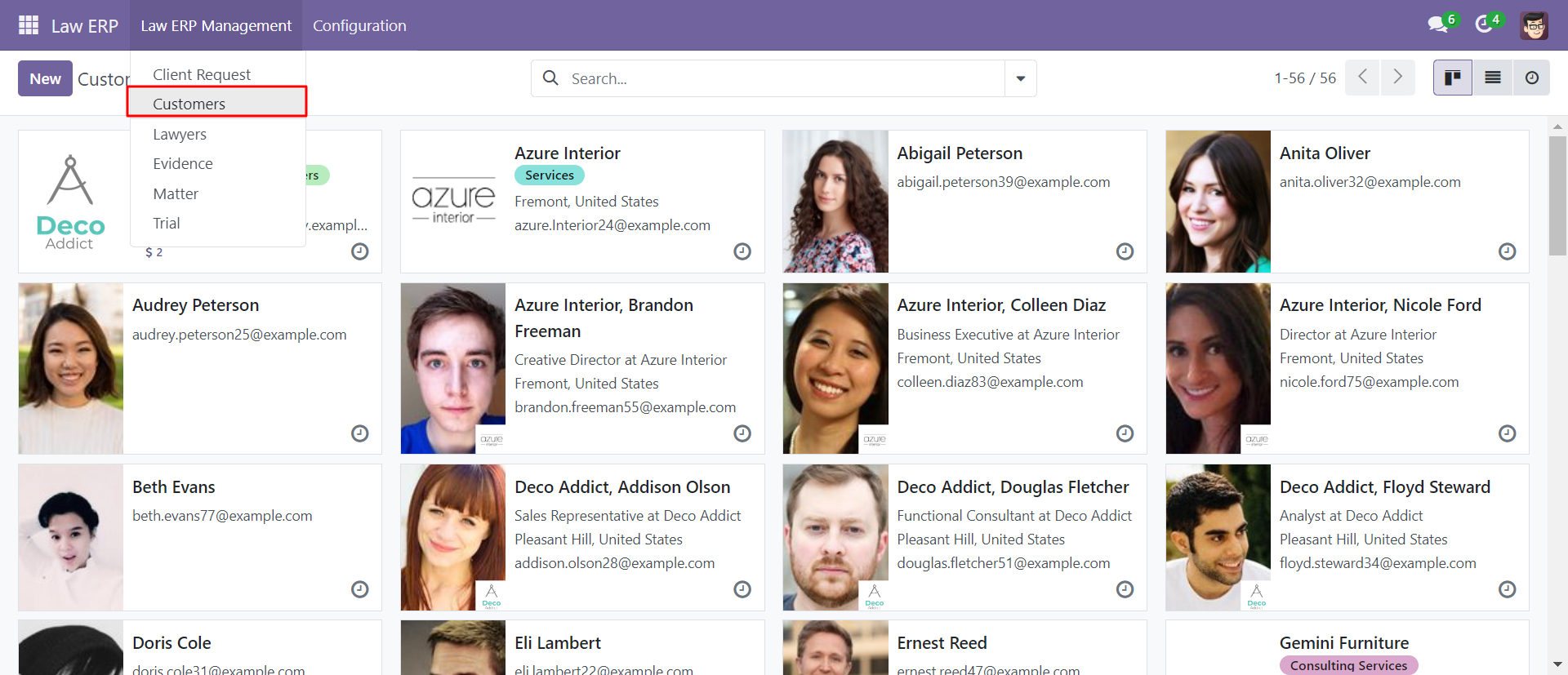
The customer kanban view looks like below.
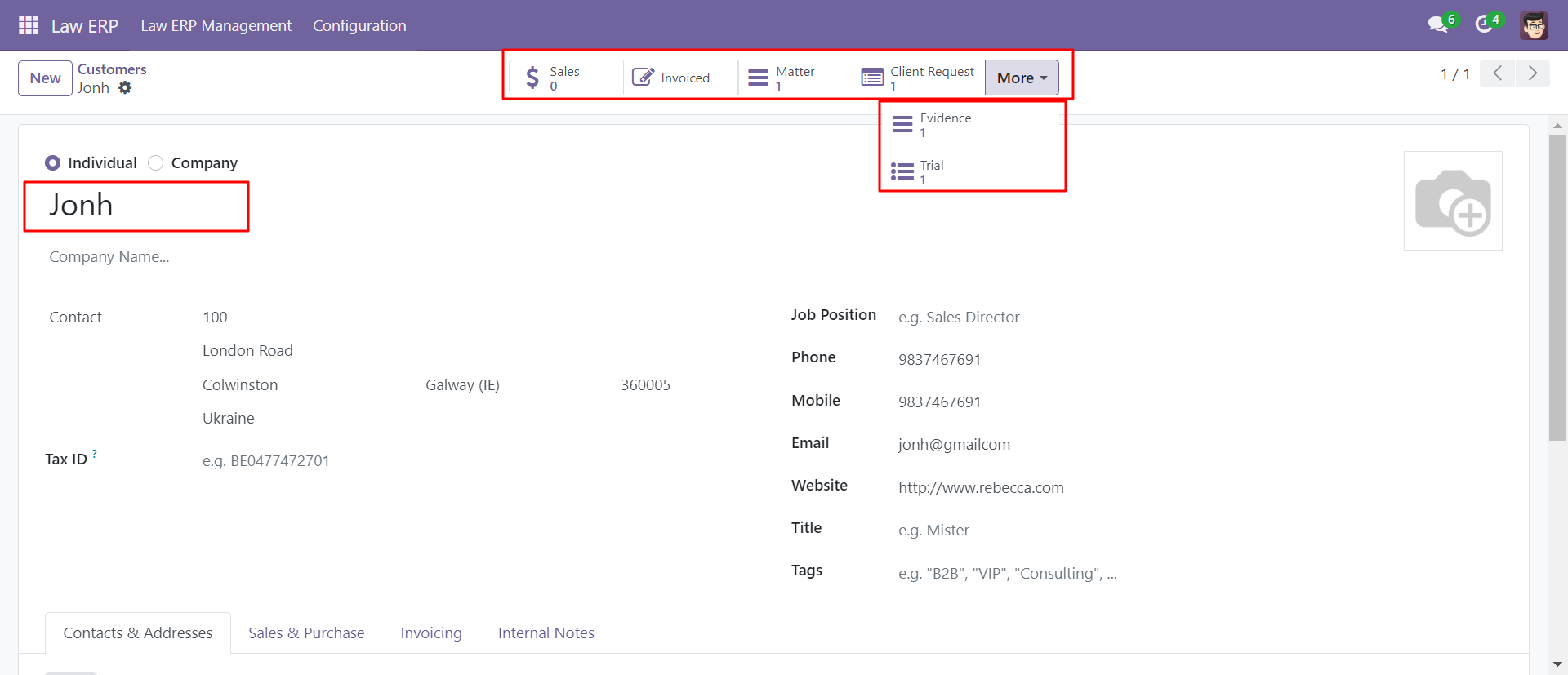
The customer form view with the sales, matter, trial, invoice, evidence & client request.
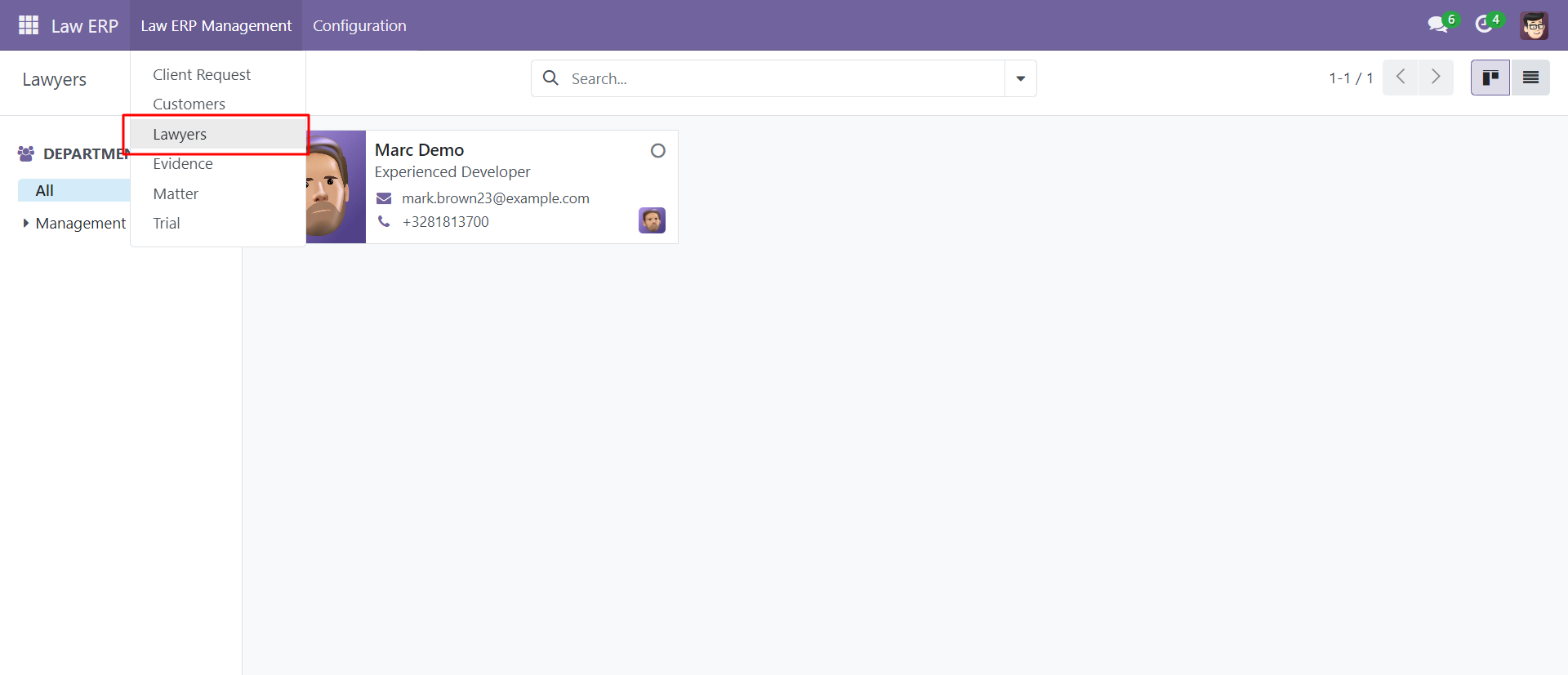
You can create and see lawyers under the 'Lawyers' menu.
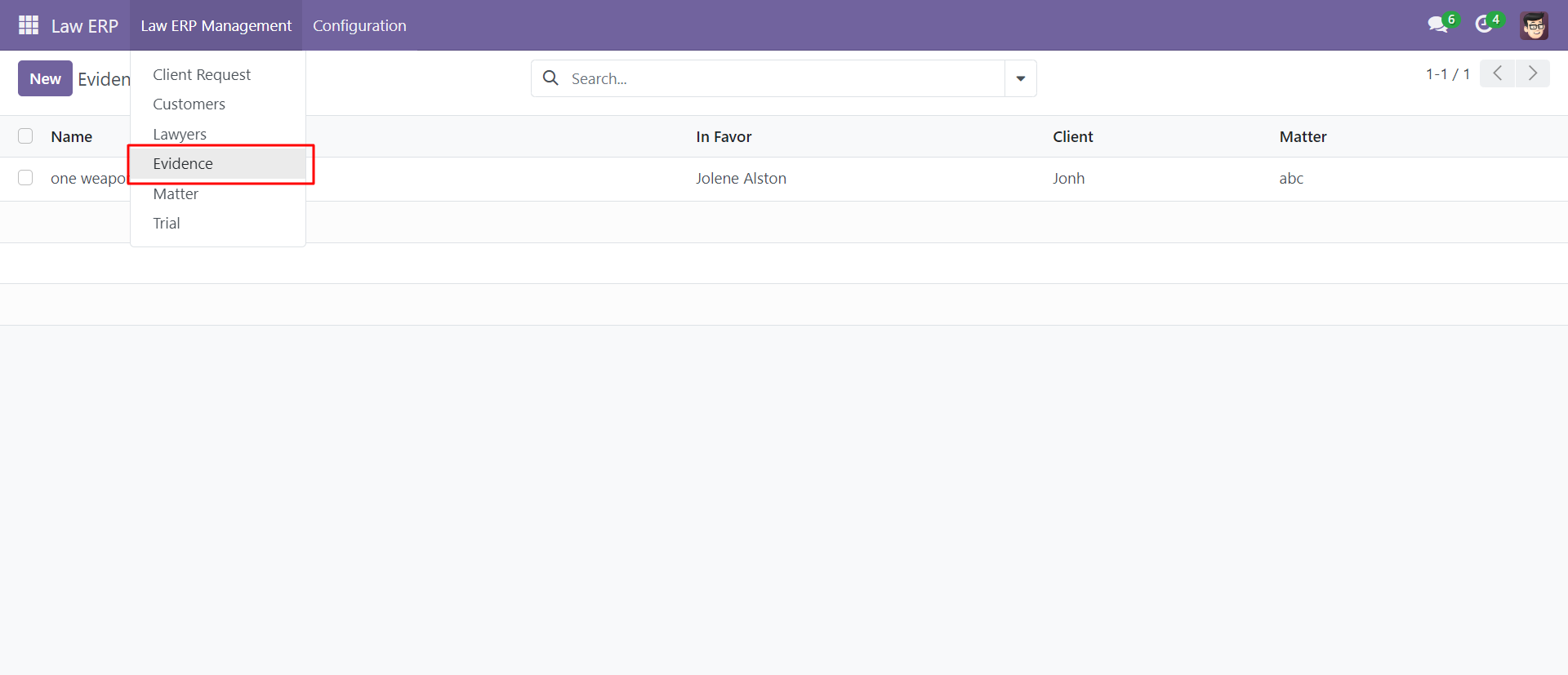
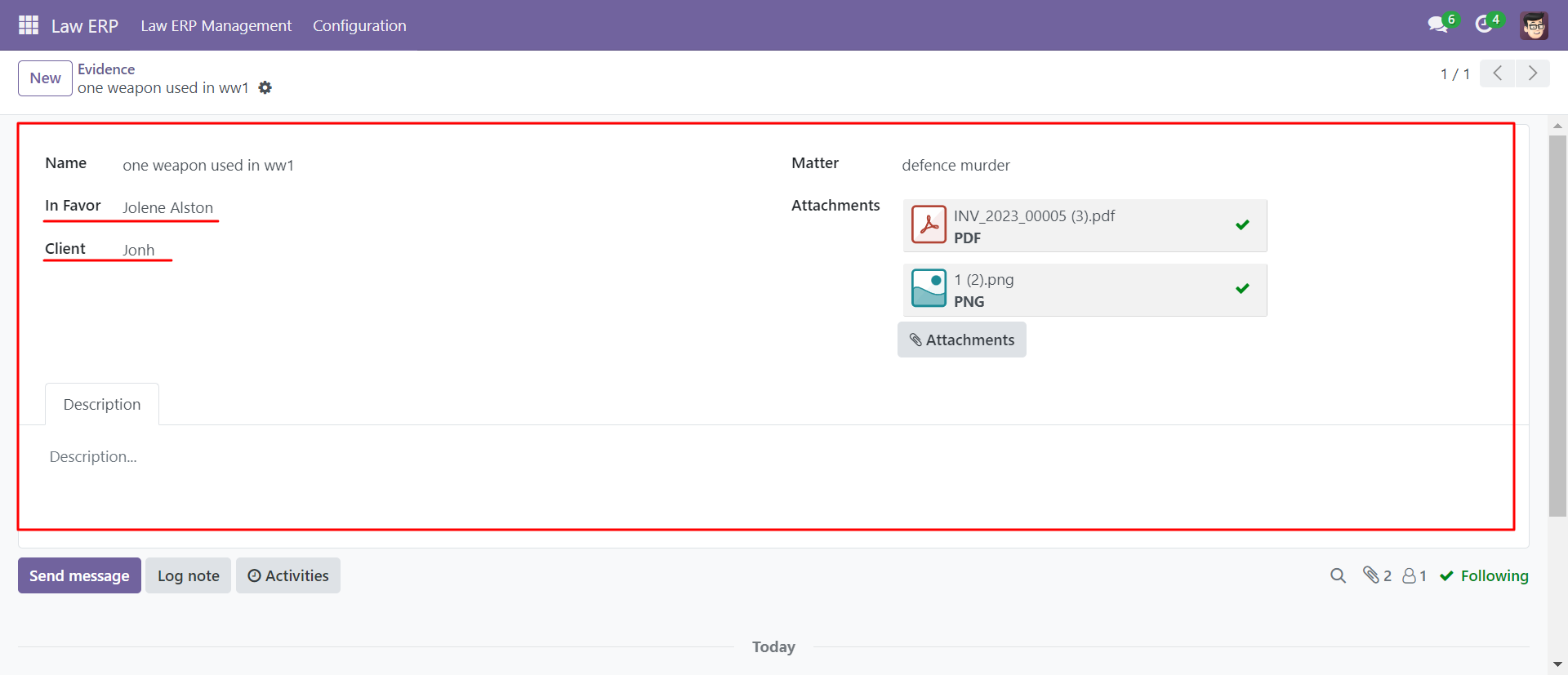
You can create and see evidence under the 'Evidence' menu.
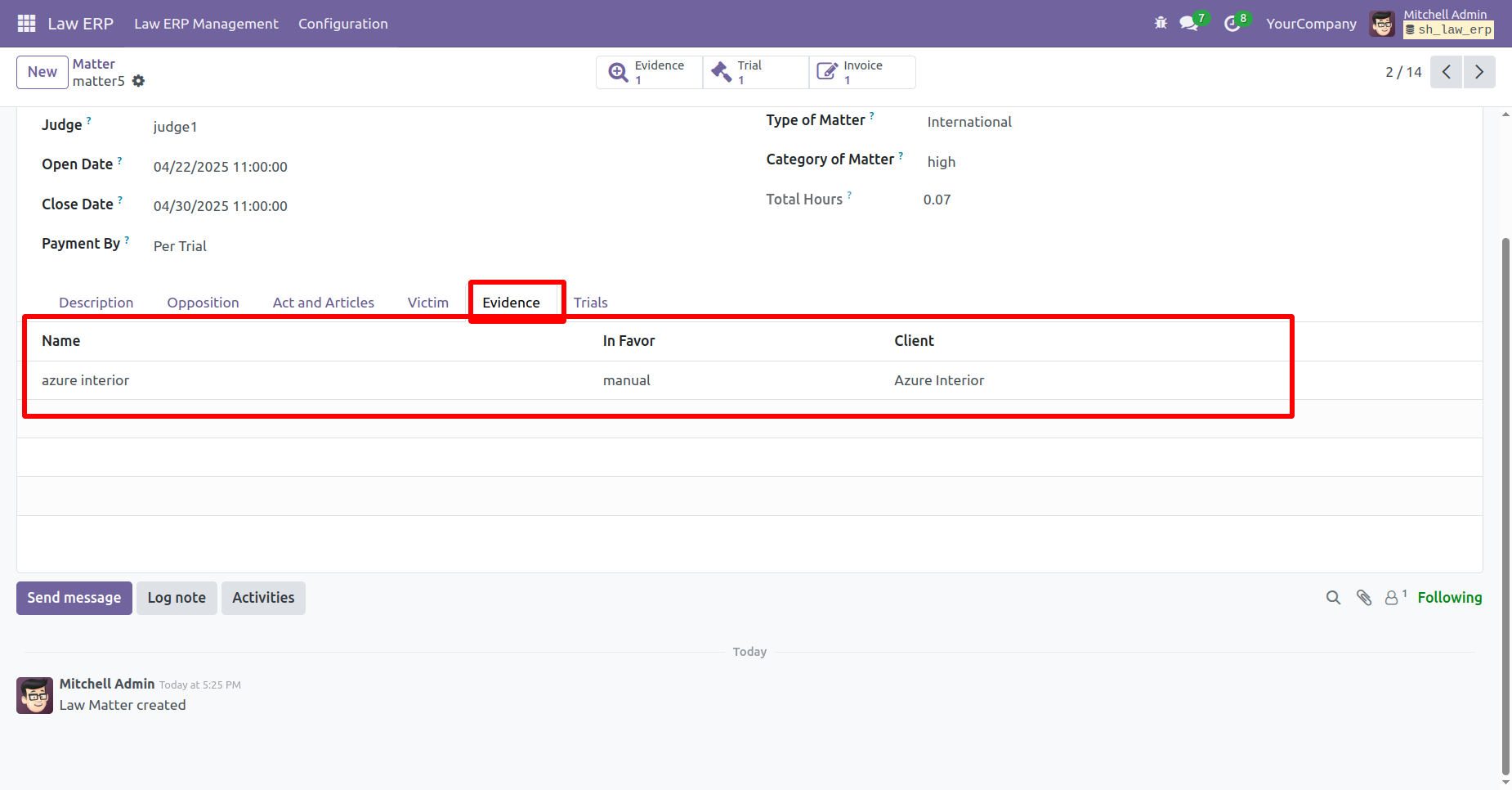
The 'Evidence' form view with the matter, client, attachments & in favor.
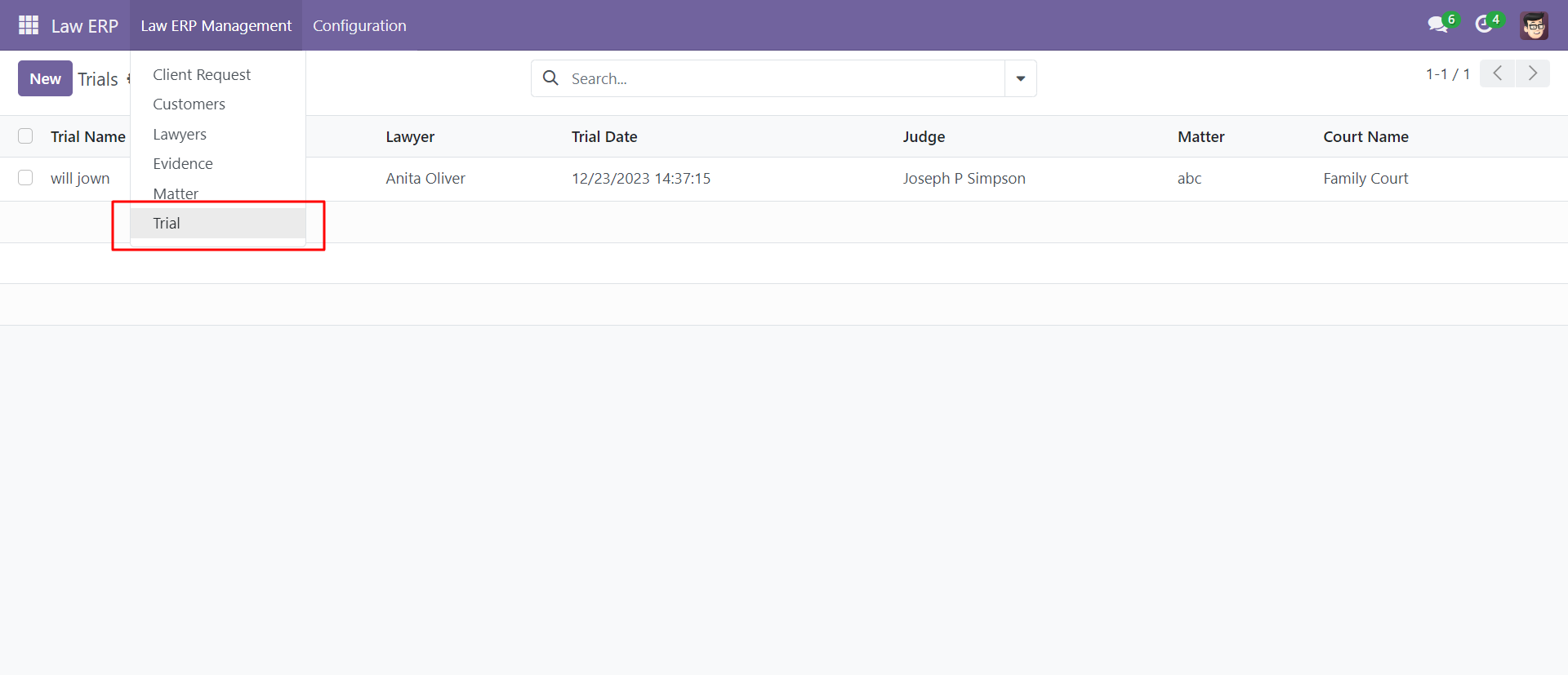
You can create and see trials under the 'Trial' menu.
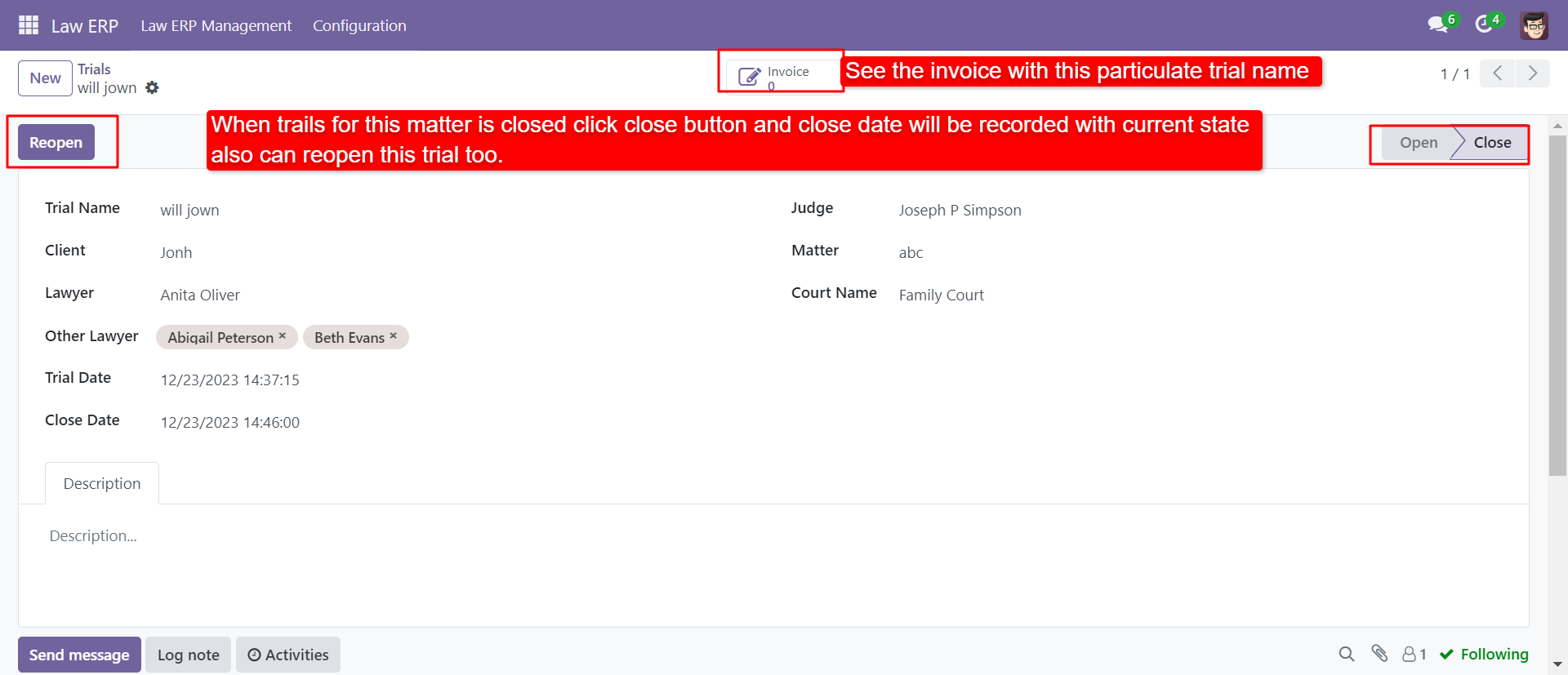
The 'Trial' form view, you can reopen a closed trial from the 'Reopen' button.
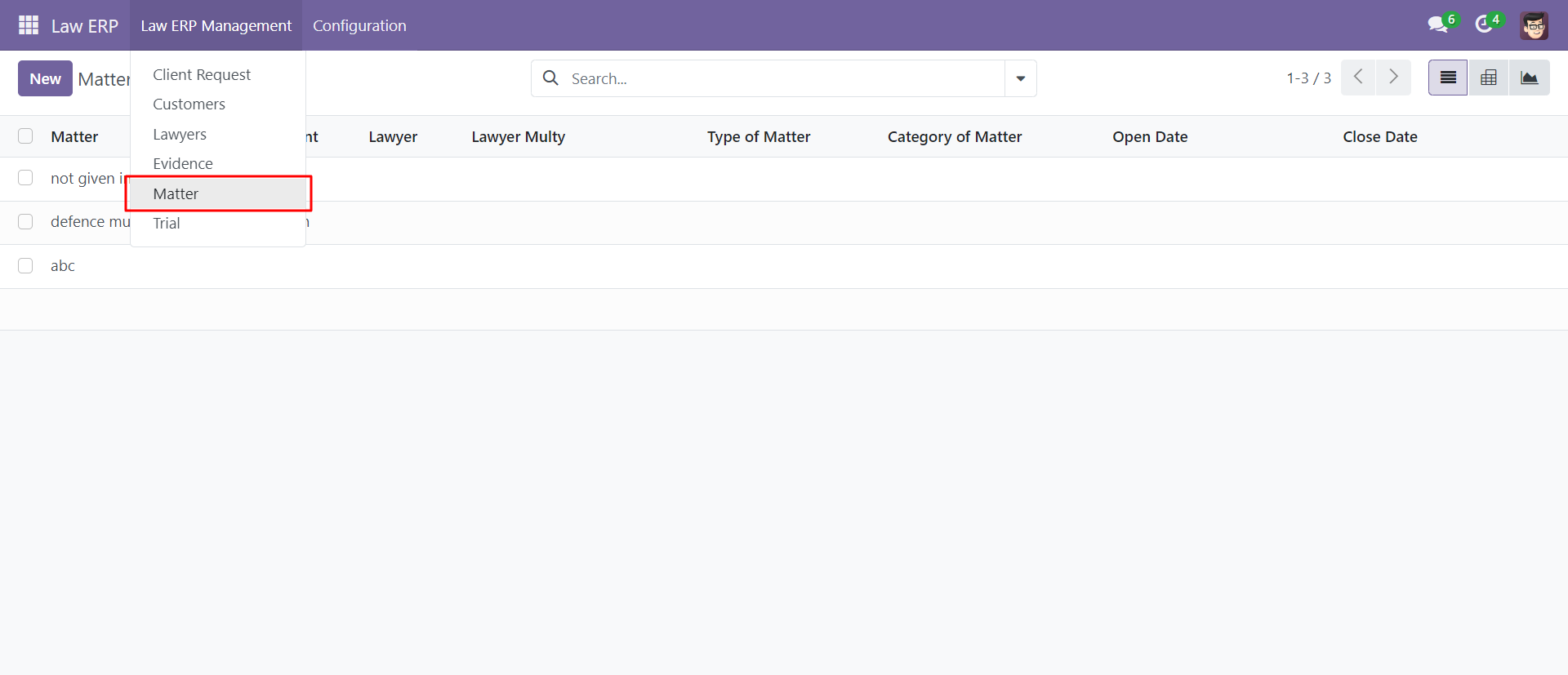
You can create and see matter under the 'Matter' menu.
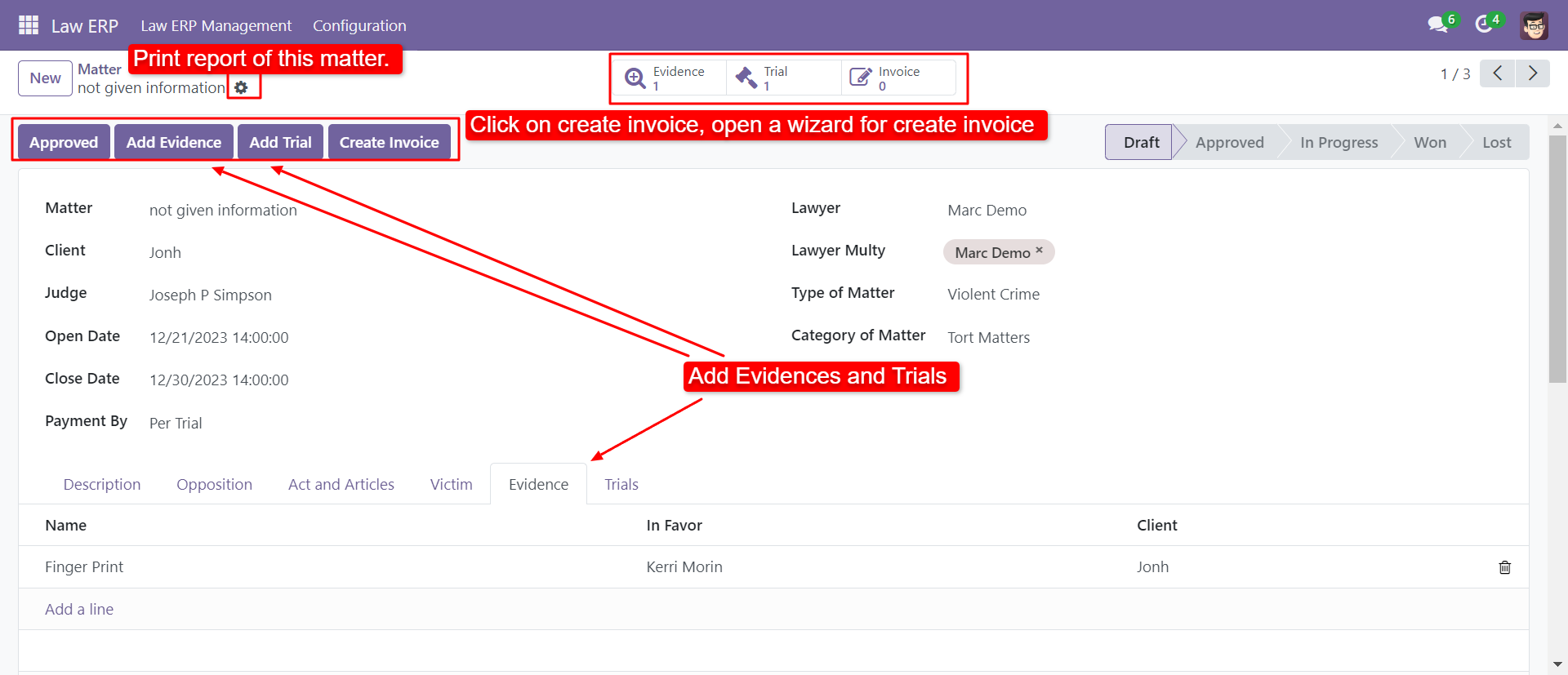
The 'Matter' from view with detail of evidence, trial & invoice. You can create evidence, trial & invoice also from here. You can print the matter report from the 'Print' button.
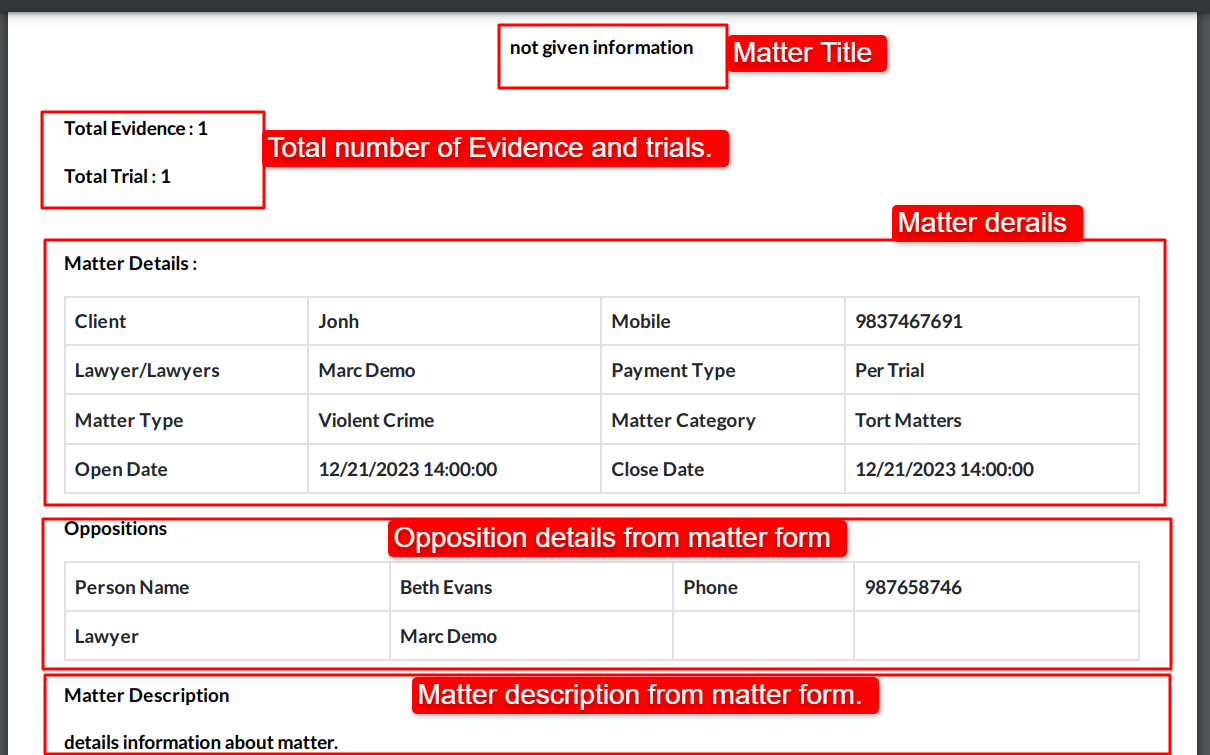
The printed PDF report of case/matter with full details, You can print PDF report from the 'Print ==> Print Matter'.
After press on the 'Invoice' button, this wizard opens, select details and press the 'Create Invoice' button.
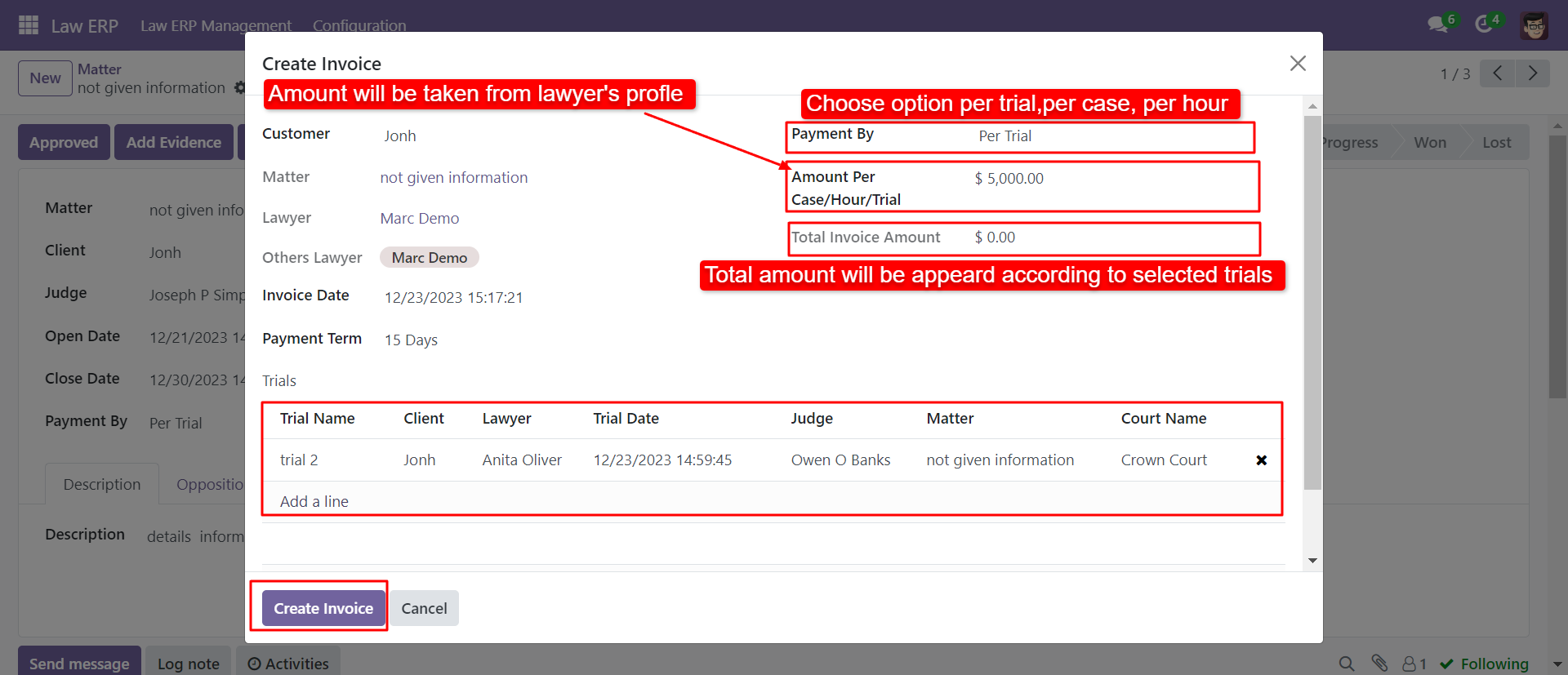
After that, you have to choose a payment option,
1) By Trial - You can create an invoice based on trial numbers.
2) By Cash- You can create an invoice based on fixed types of matter.
3) By Hour: You can create an invoice based on working hours.
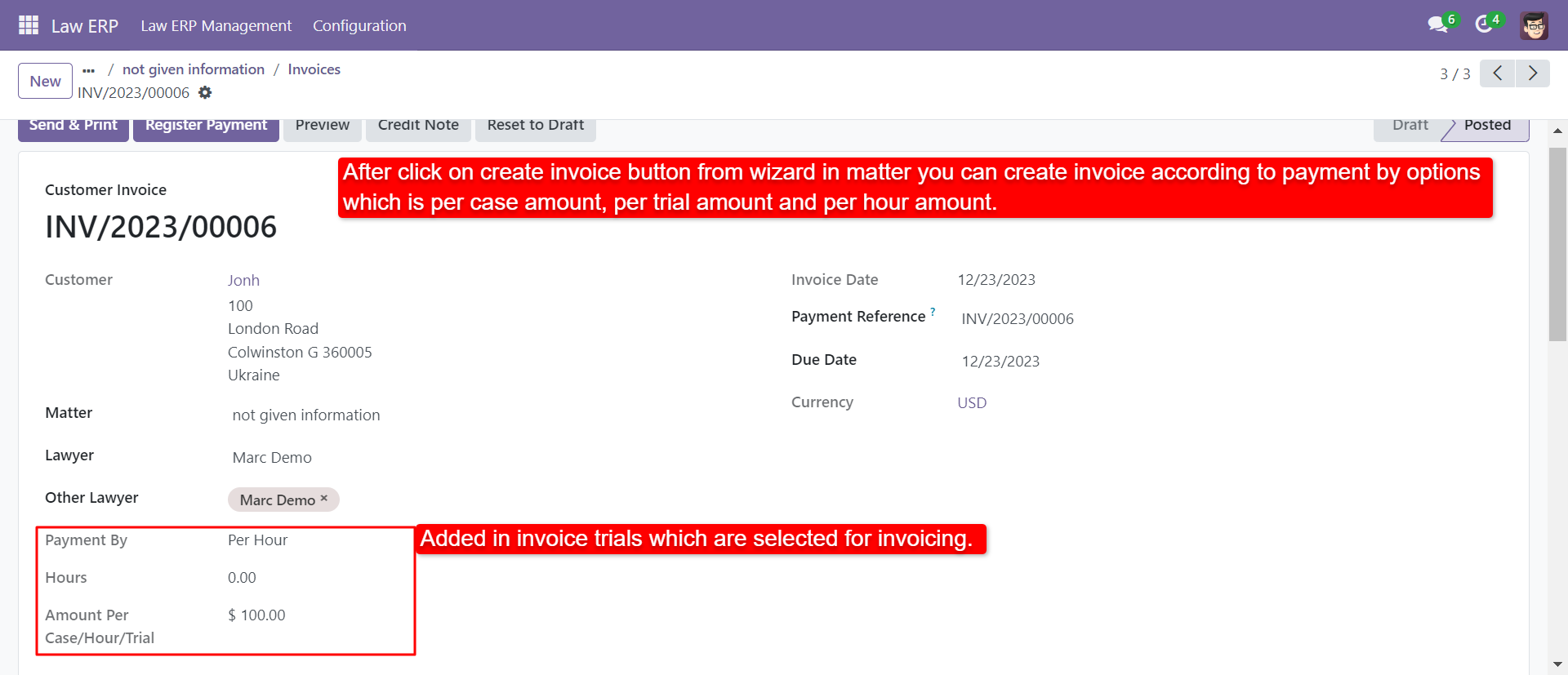
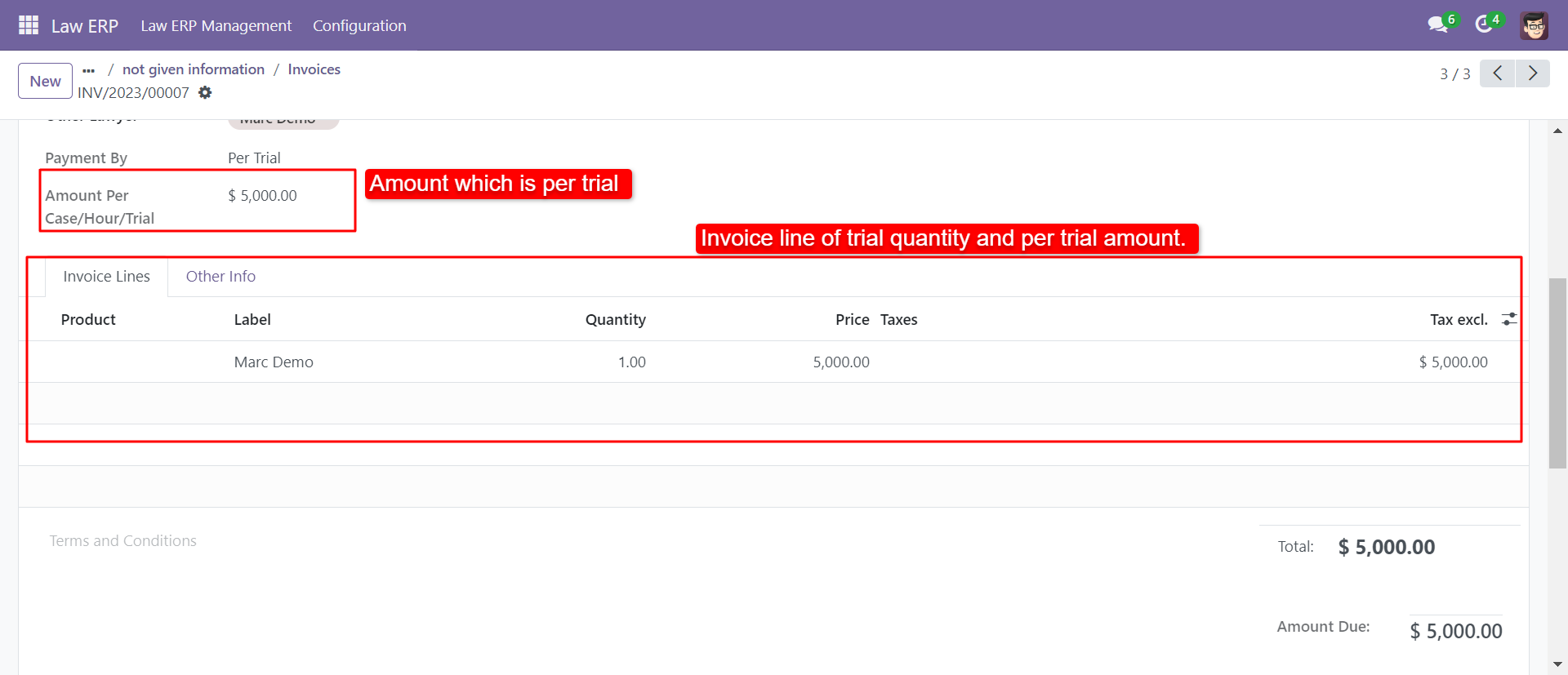
Amount per trial form view with total trial details.
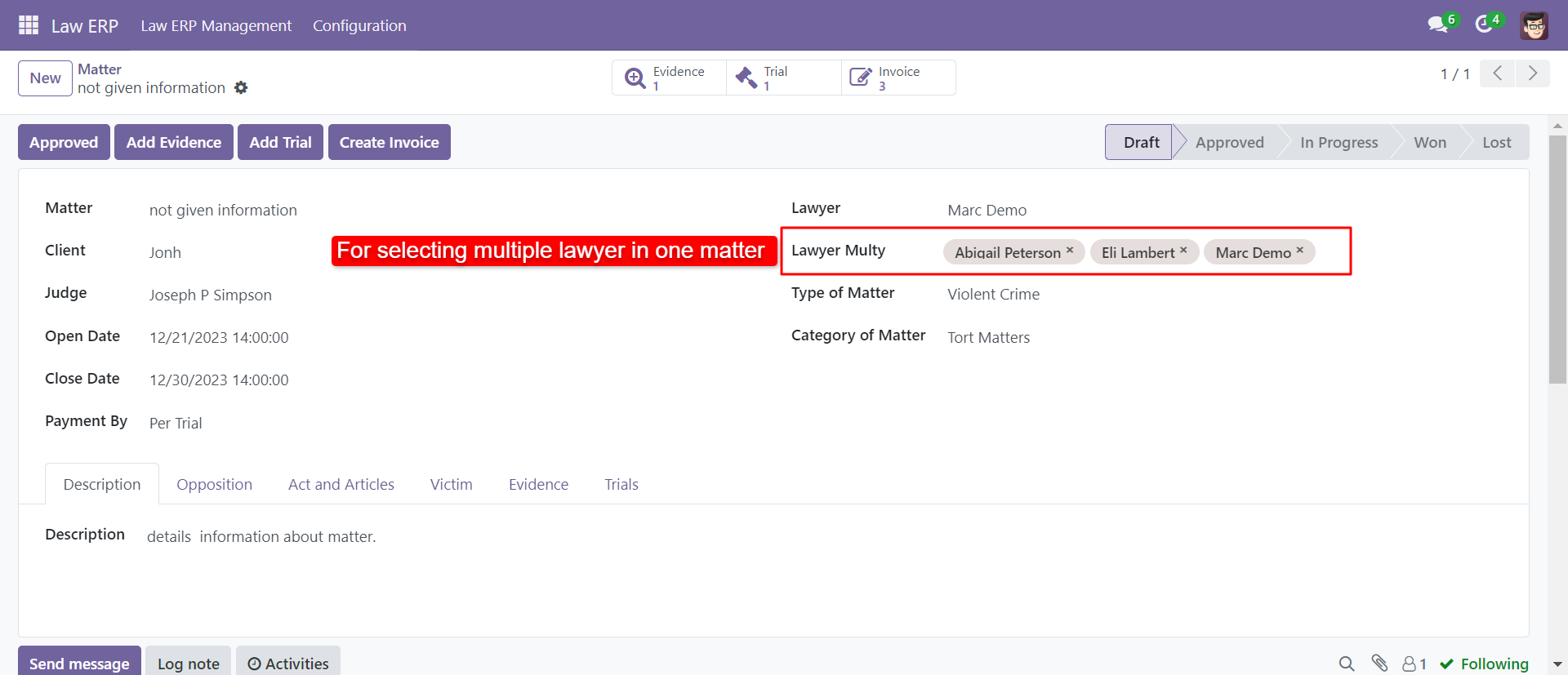
Multi Lawyer In One Matter
Select multiple lawyer in one matter.
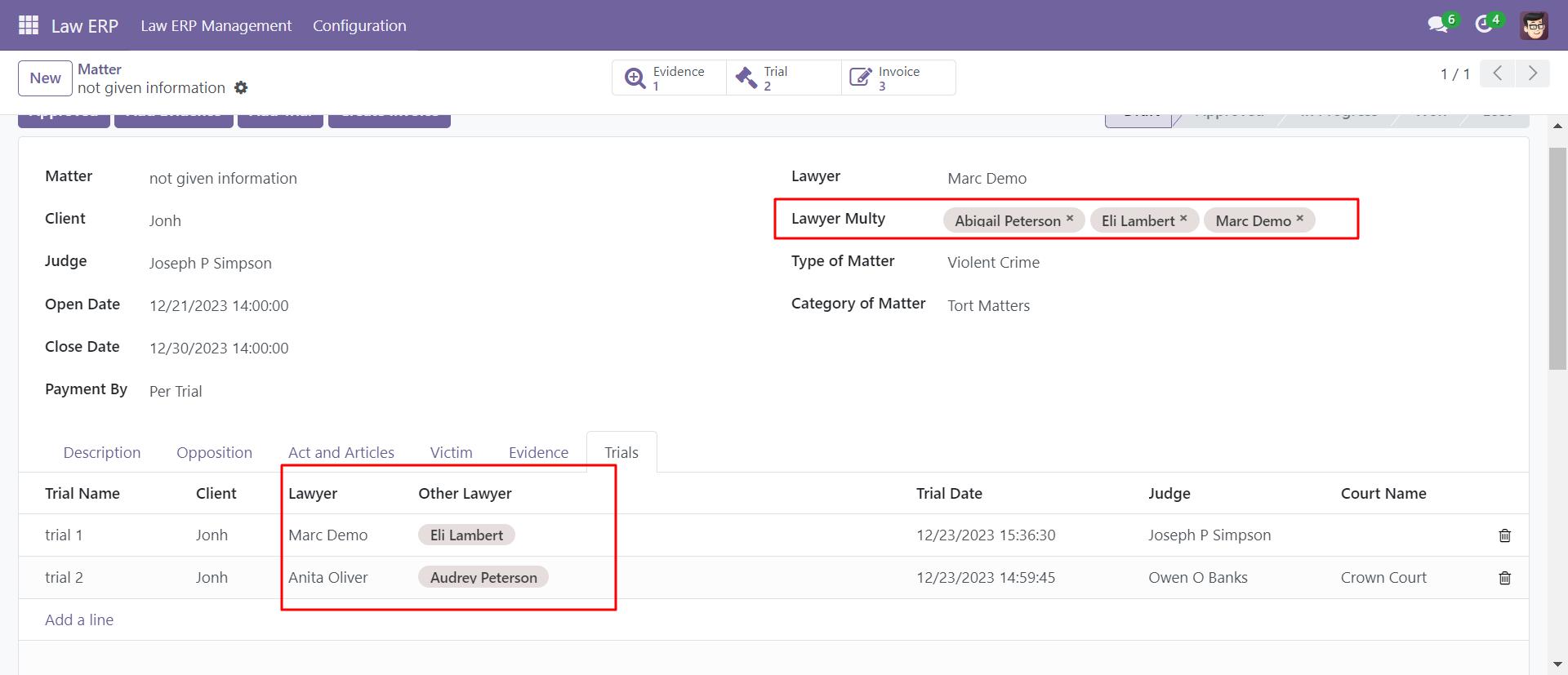
Trials with multiple lawyer.
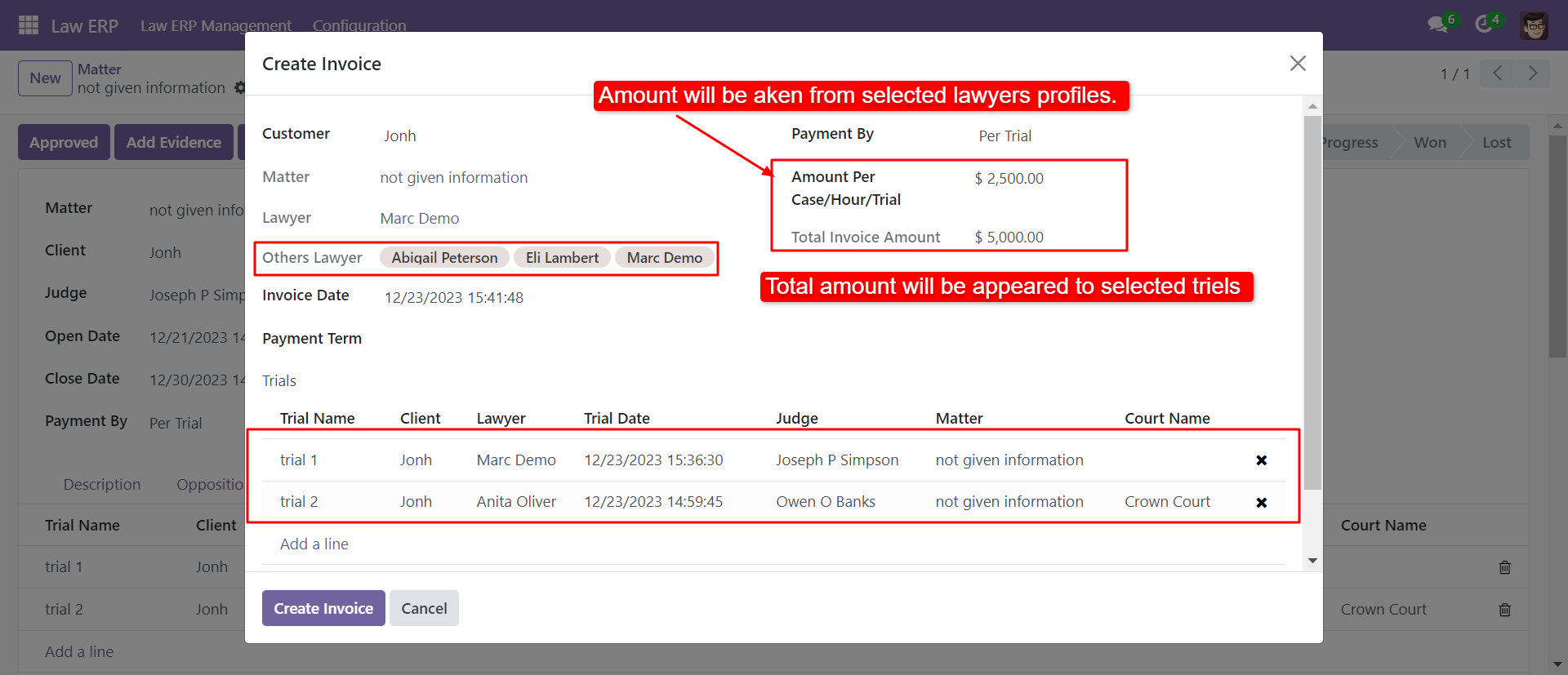
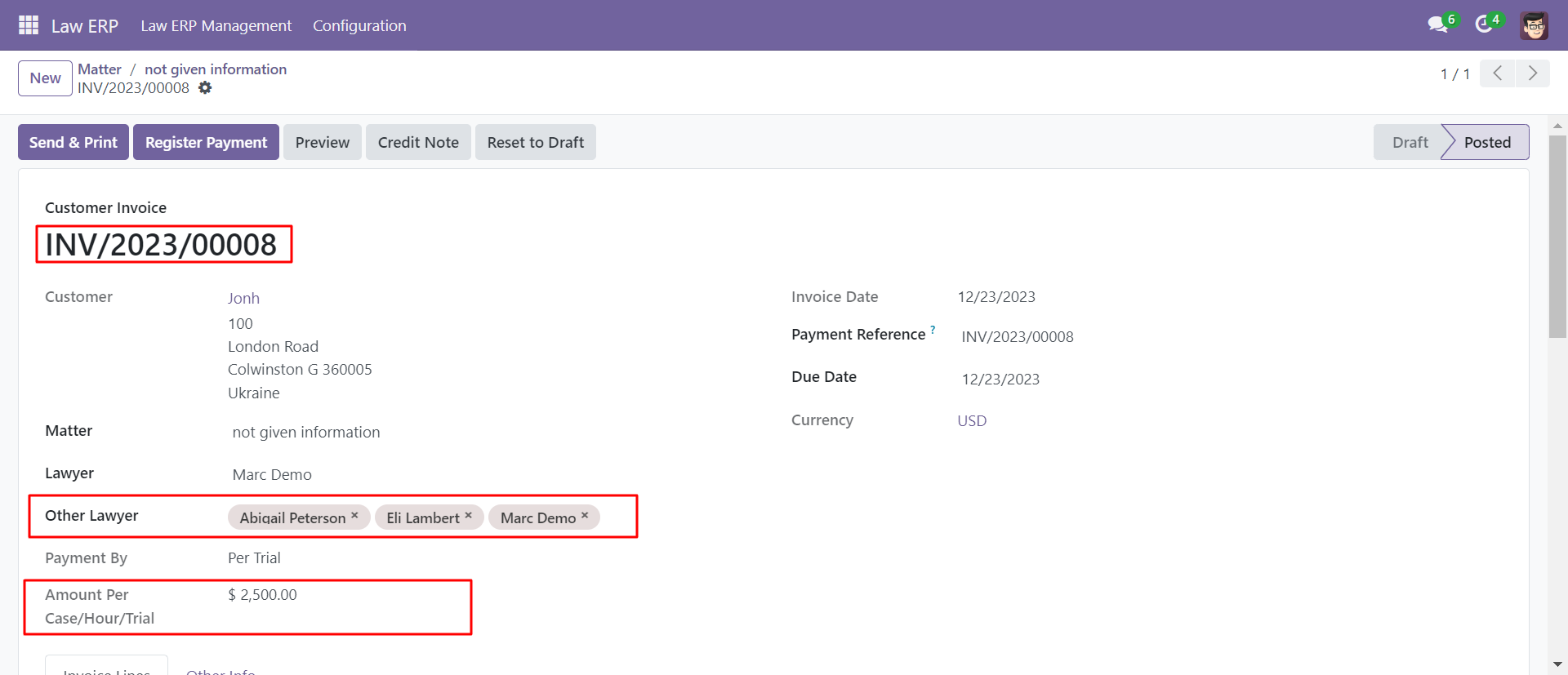
Invoice of multiple lawyer.
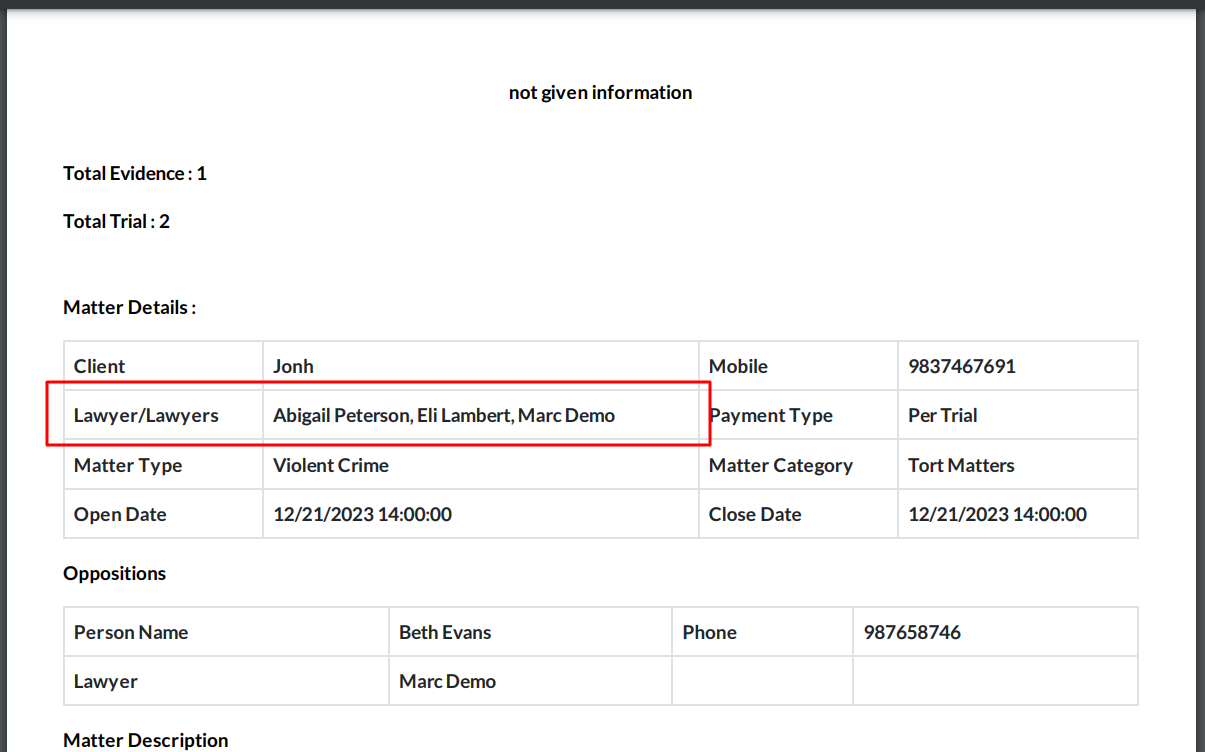
Matter report with multiple lawyer.
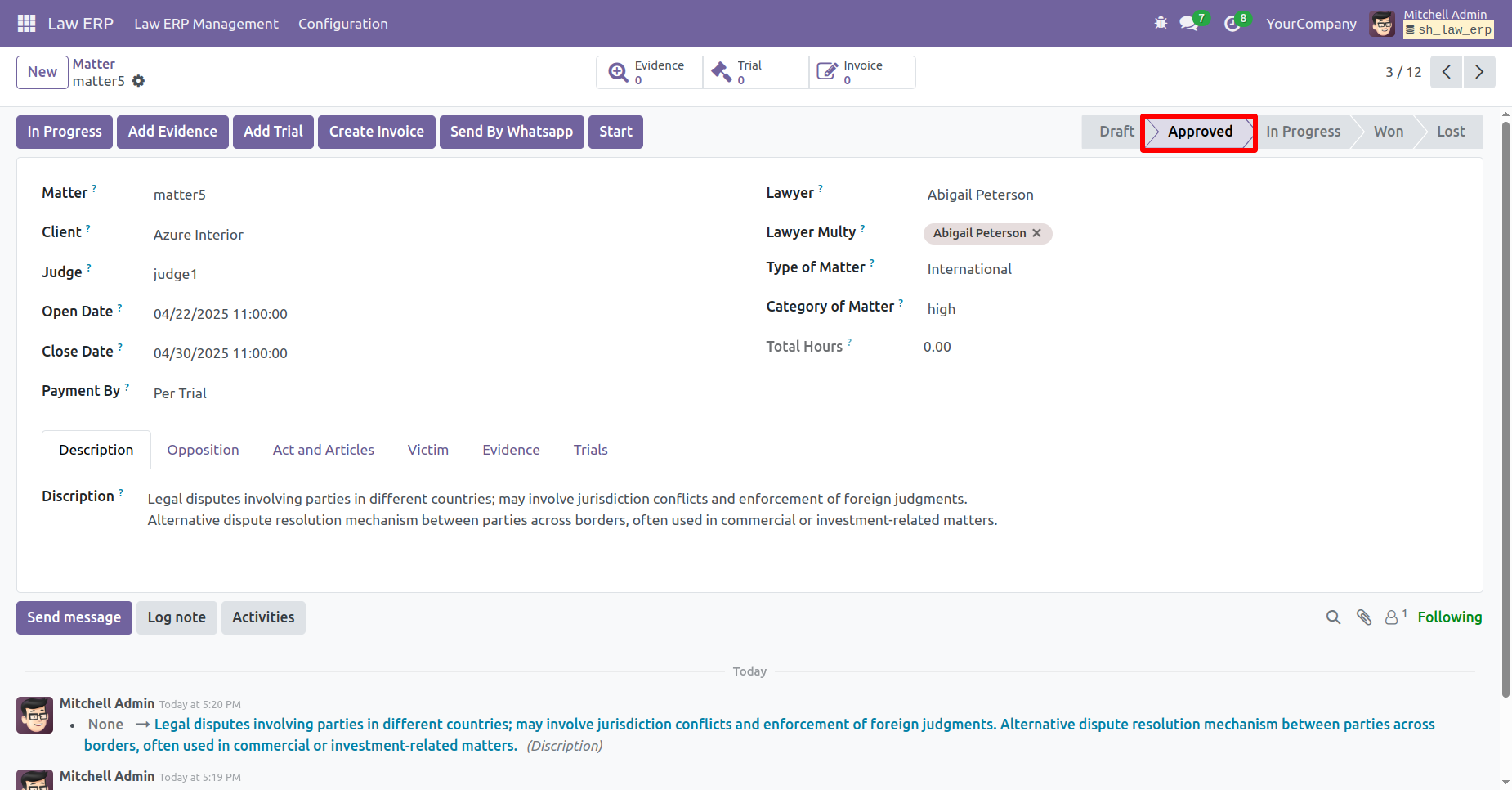
Open the Form View of a Matter. The current status is Approved.
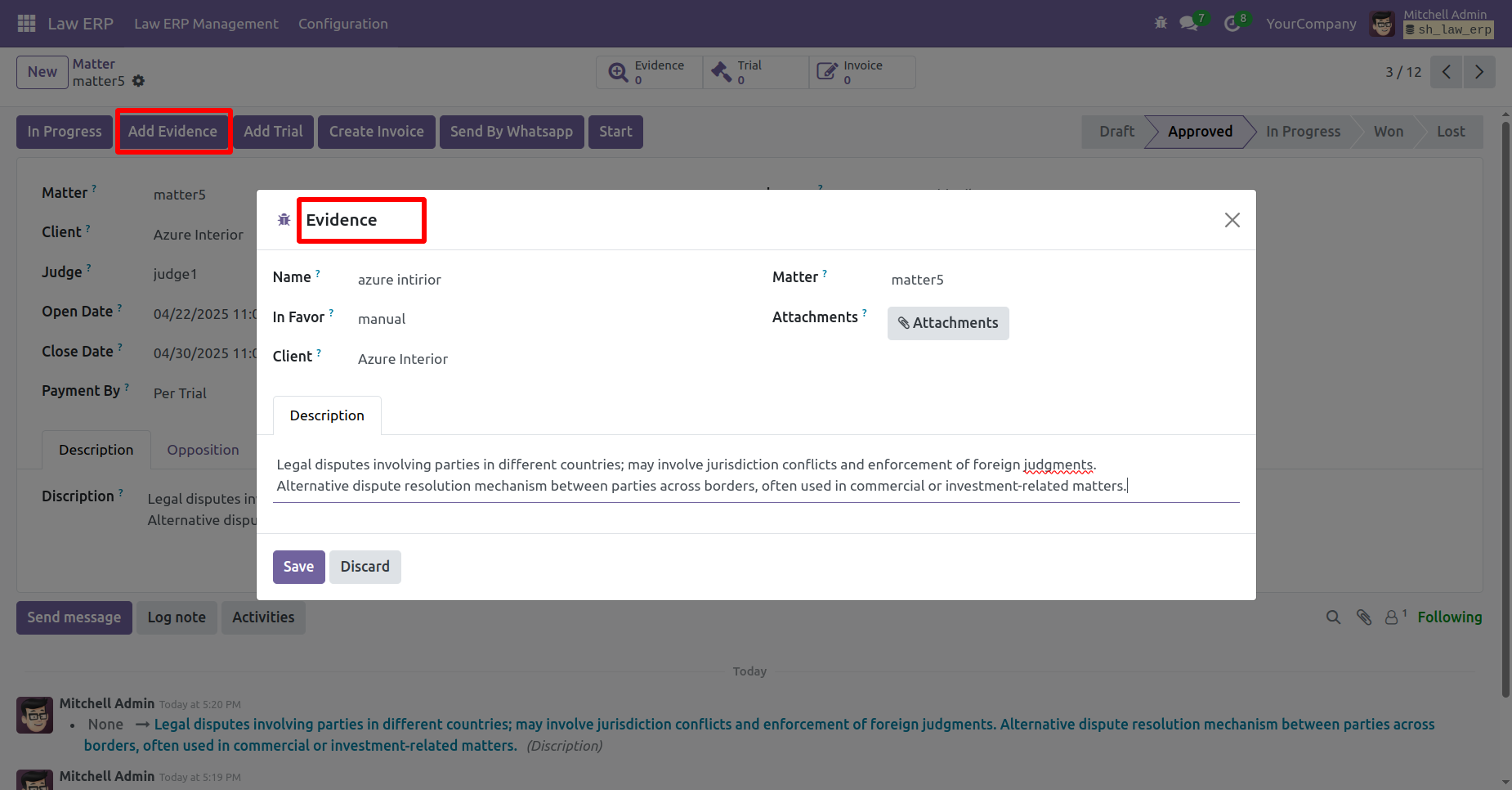
Click on the 'Add Evidence' button.
After that, the add evidence wizard will appears, add details and click on
the 'Save' button.
A wizard will appears. Enter the evidence details and click on the 'Save'
button.
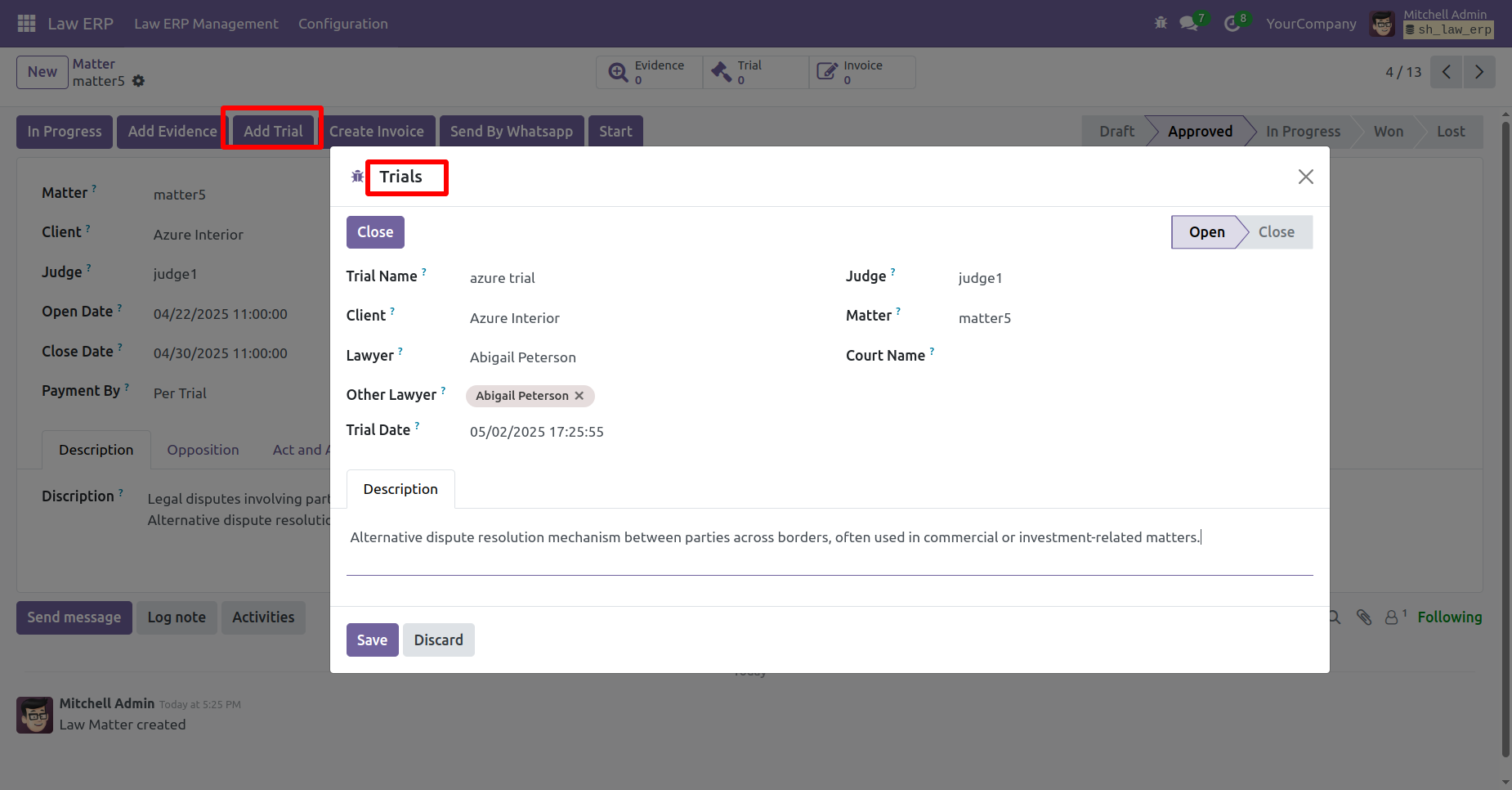
Click on the 'Add Trial' button.
A wizard will appears. Enter the Trials details and click on the 'Save'
button.
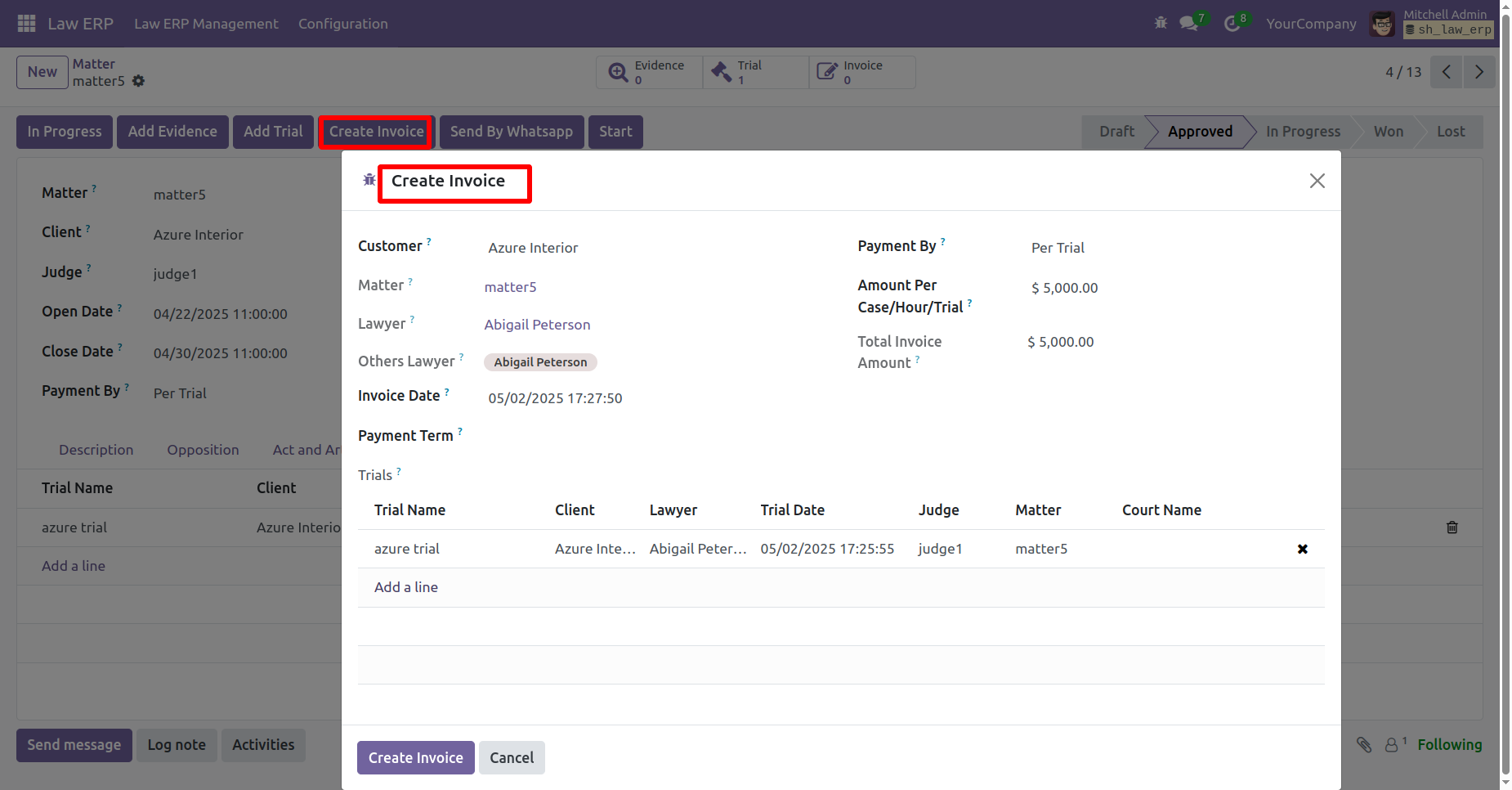
Click on the 'Create Invoice' button.
Enter the details in the Invoice Wizard, then click on the 'Create Invoice'
button.
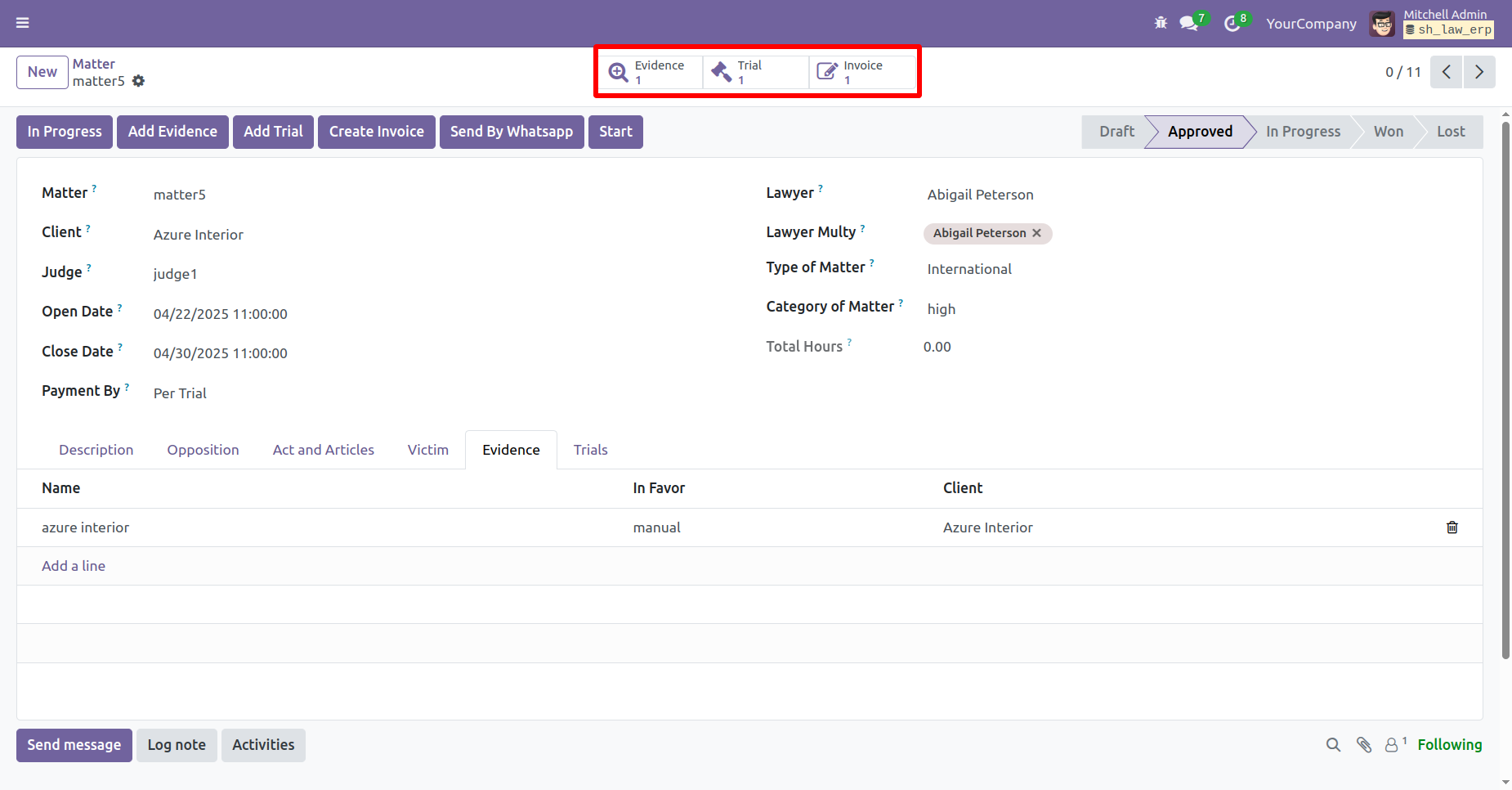
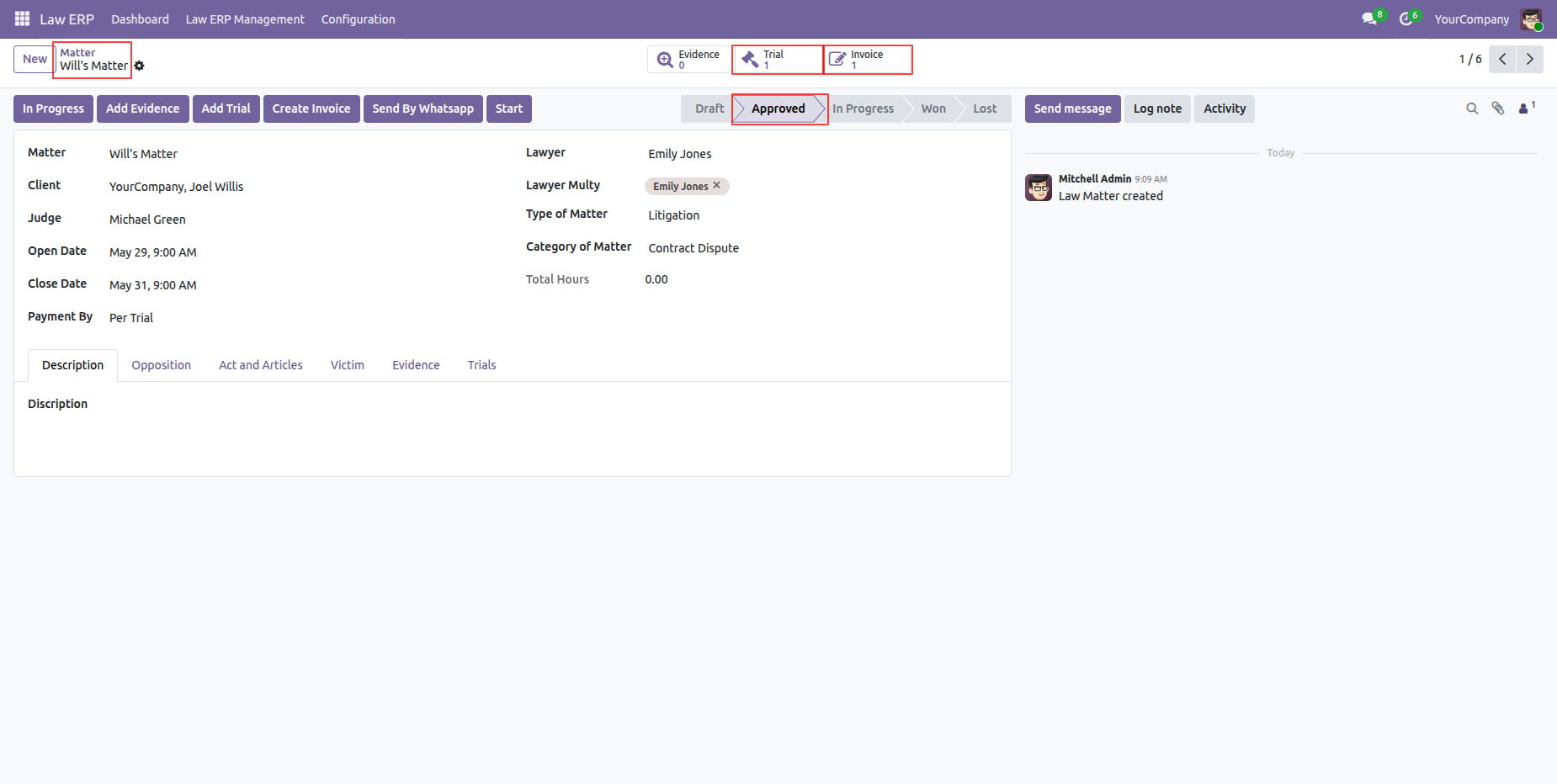
In the Matter Form View, smart buttons will show for Evidence, Trial, and Invoice.
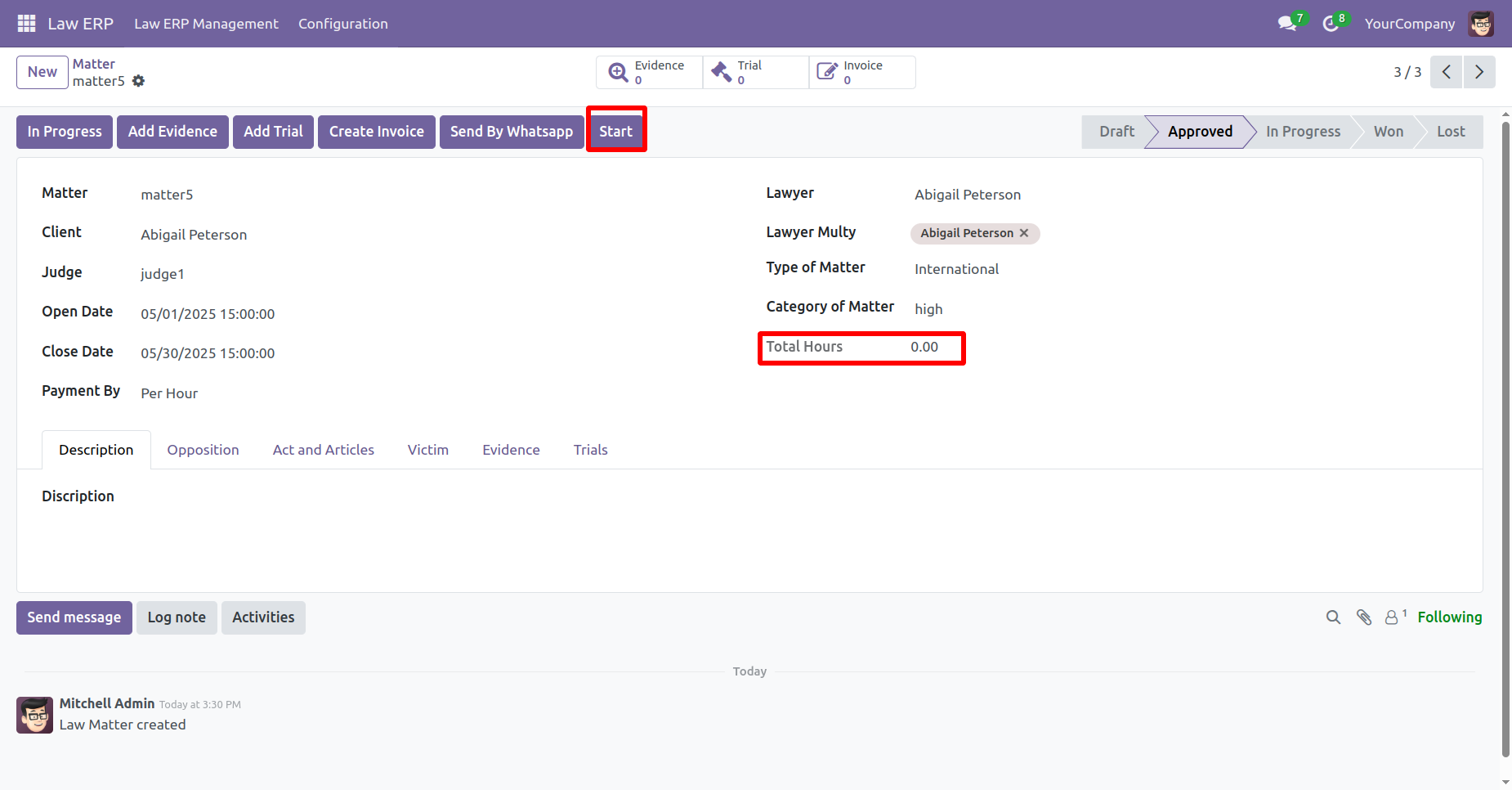
Click on the 'Start' button to start the matter.
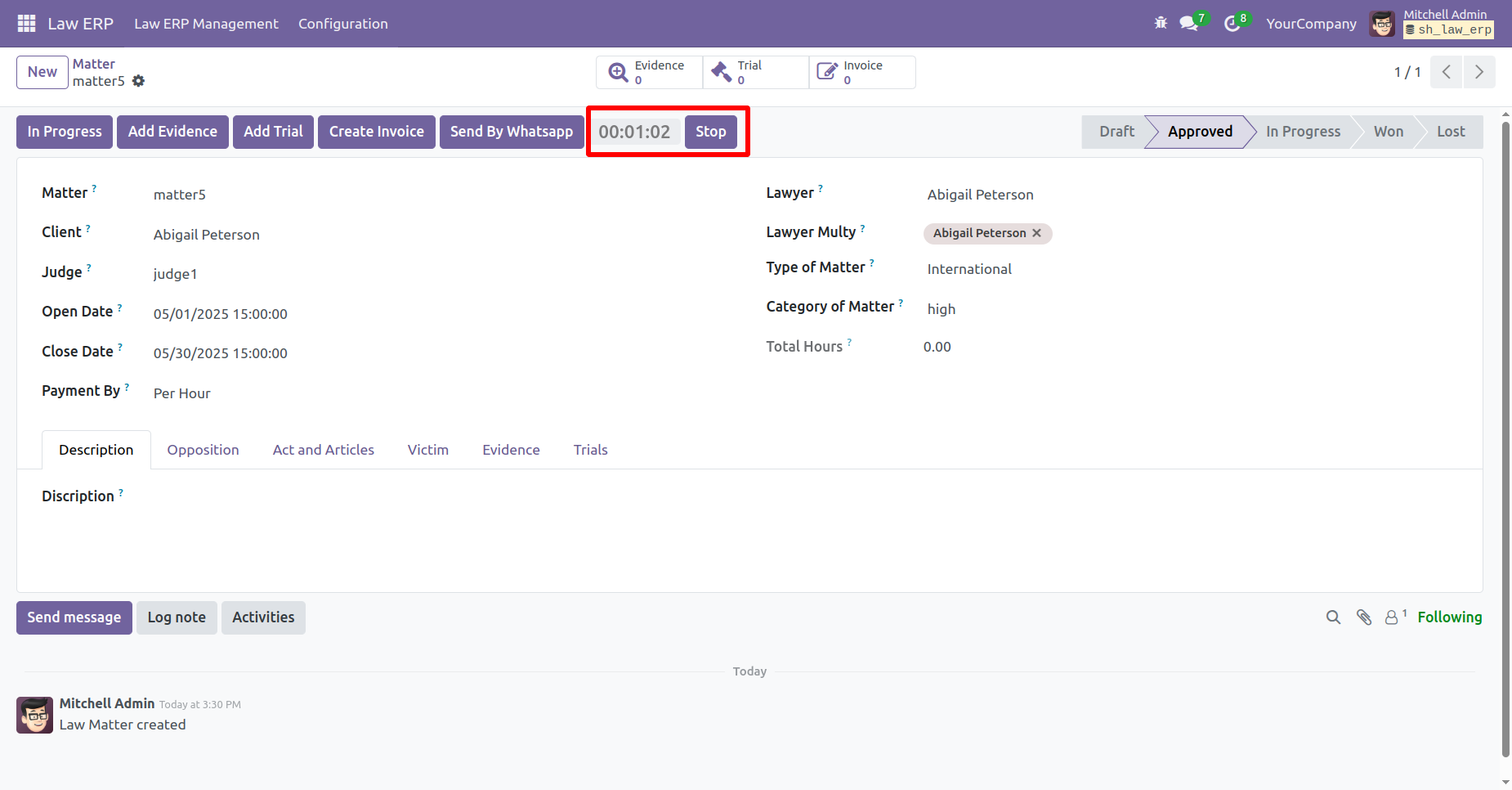
The running timer will be displayed.
Click on the 'Stop' button.
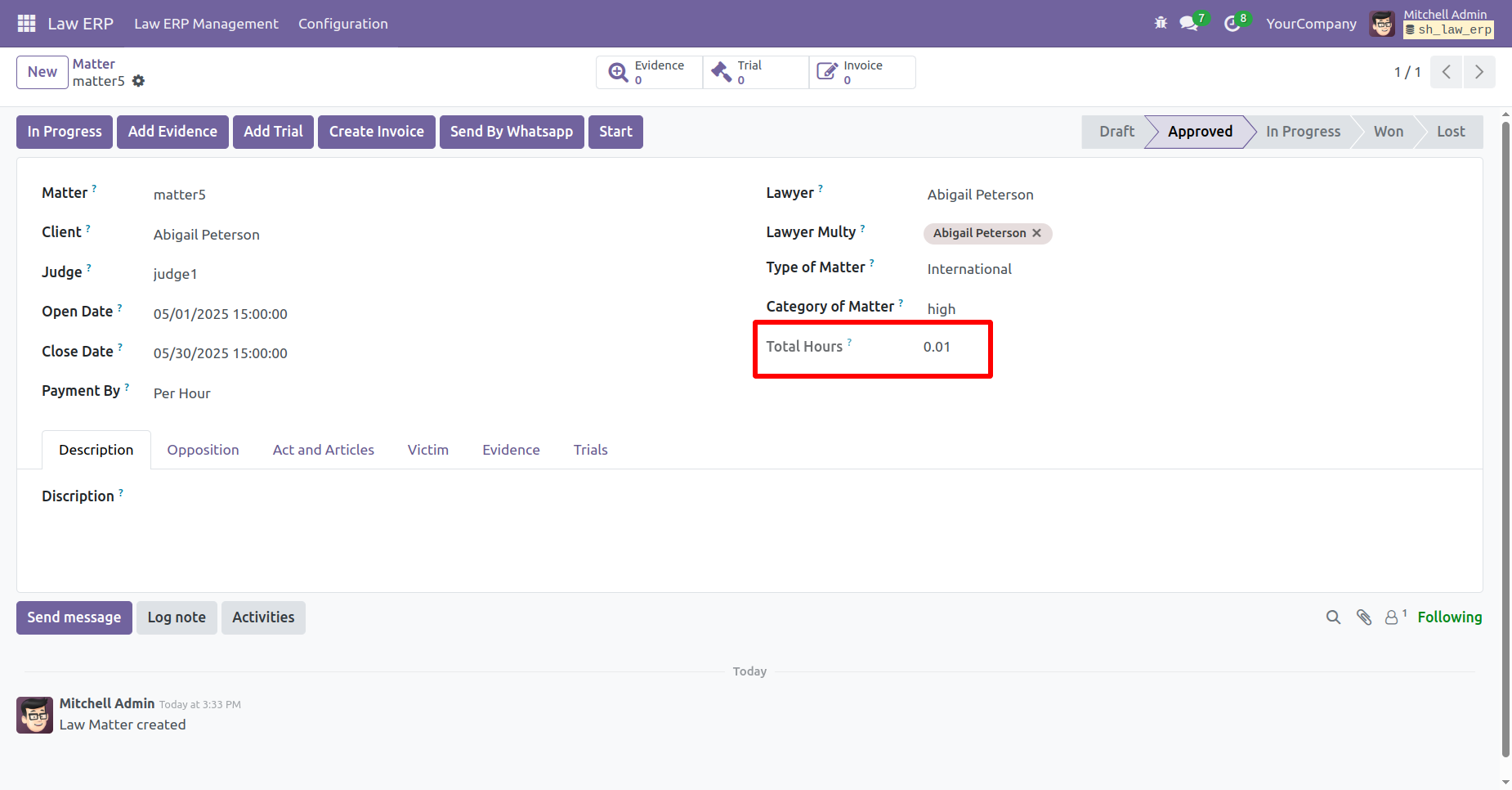
Total hours can be viewed on the form.
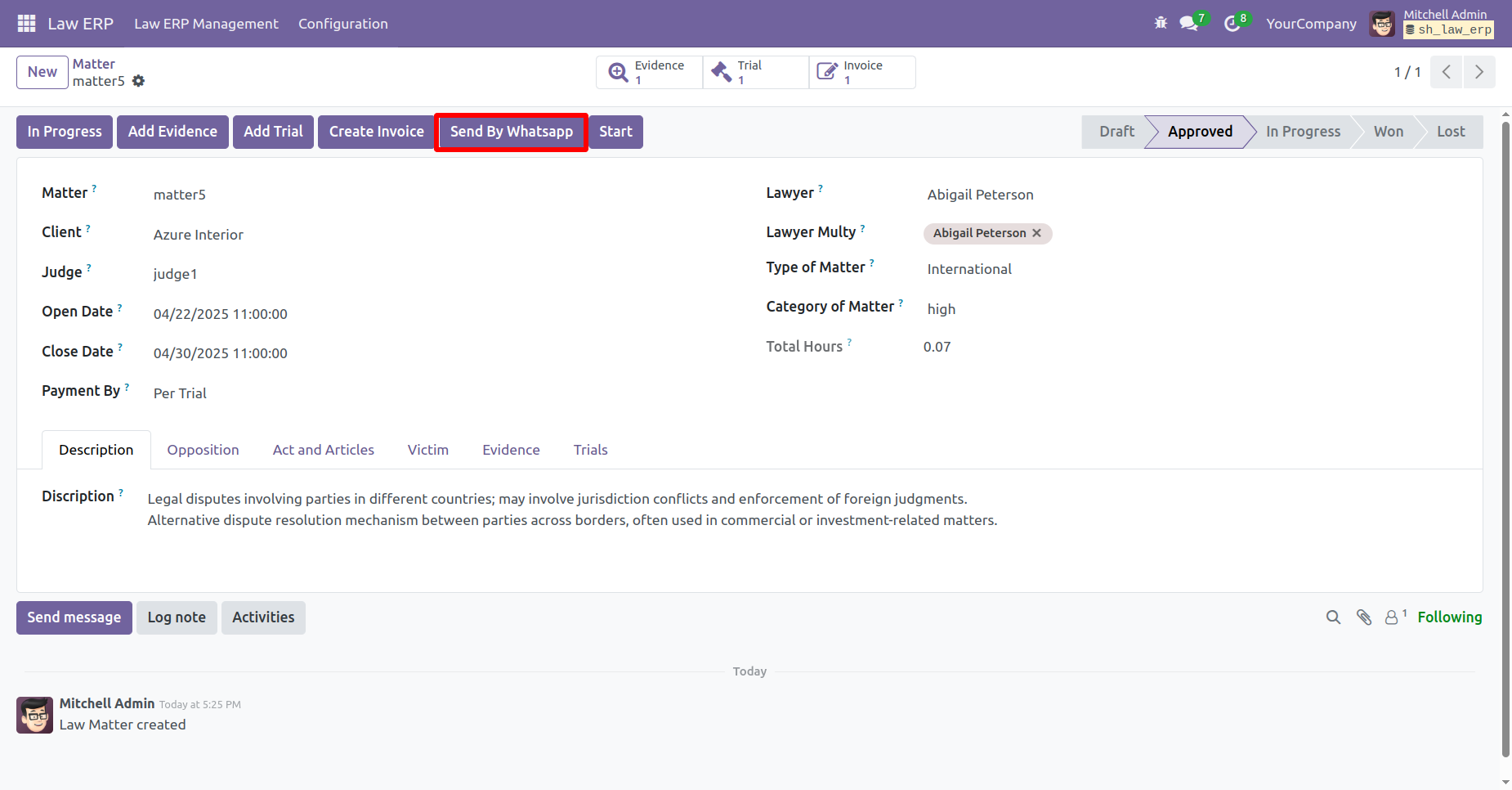
Click on the 'Send By Whatsapp' button.
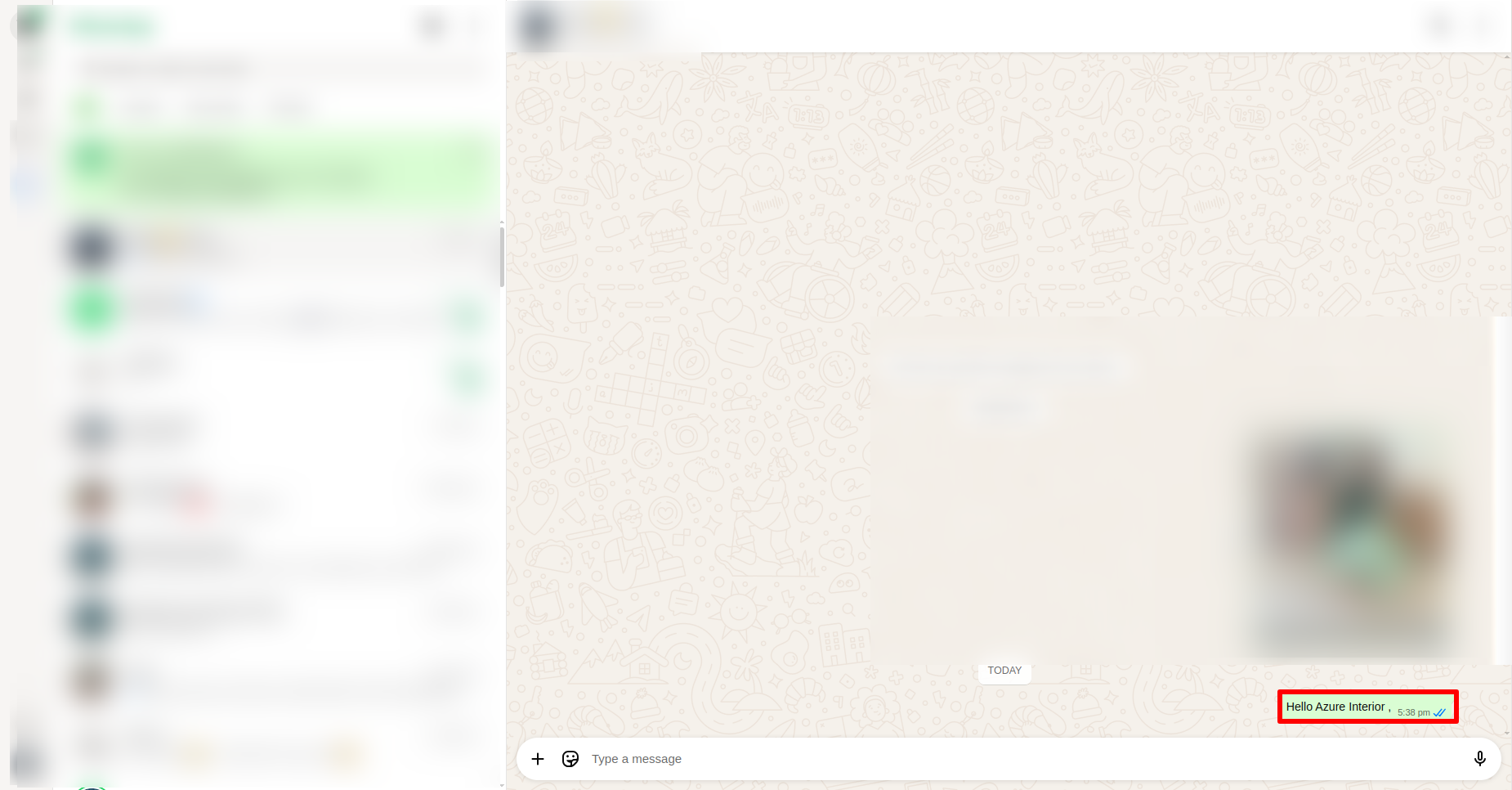
The matter details will be sent and appear in the WhatsApp chat.
Click on the 'In Progress' button.
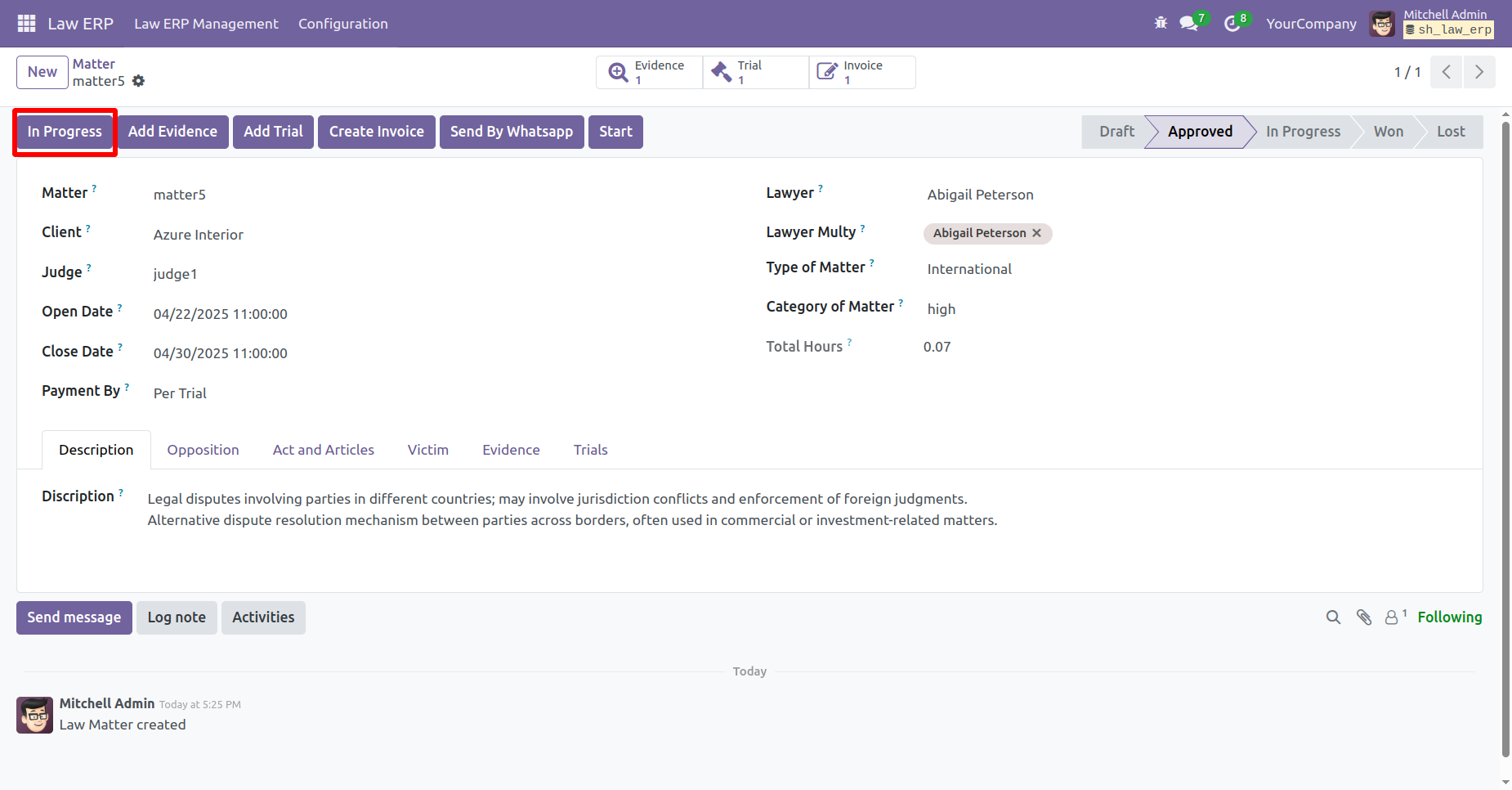
Here you can see the matter is in 'In Progress' stage.
Click on the 'Won' to move it to the Won stage.
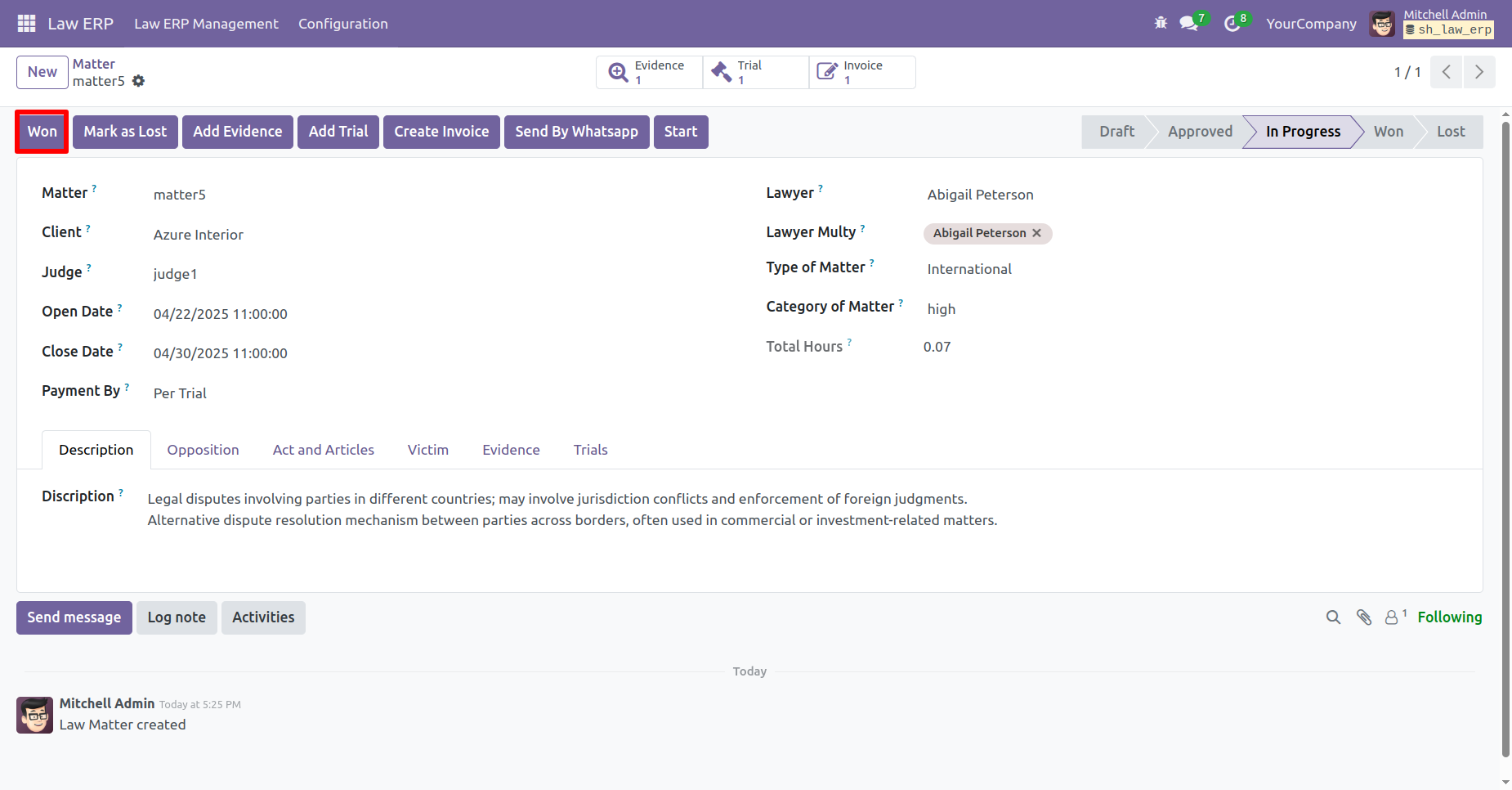
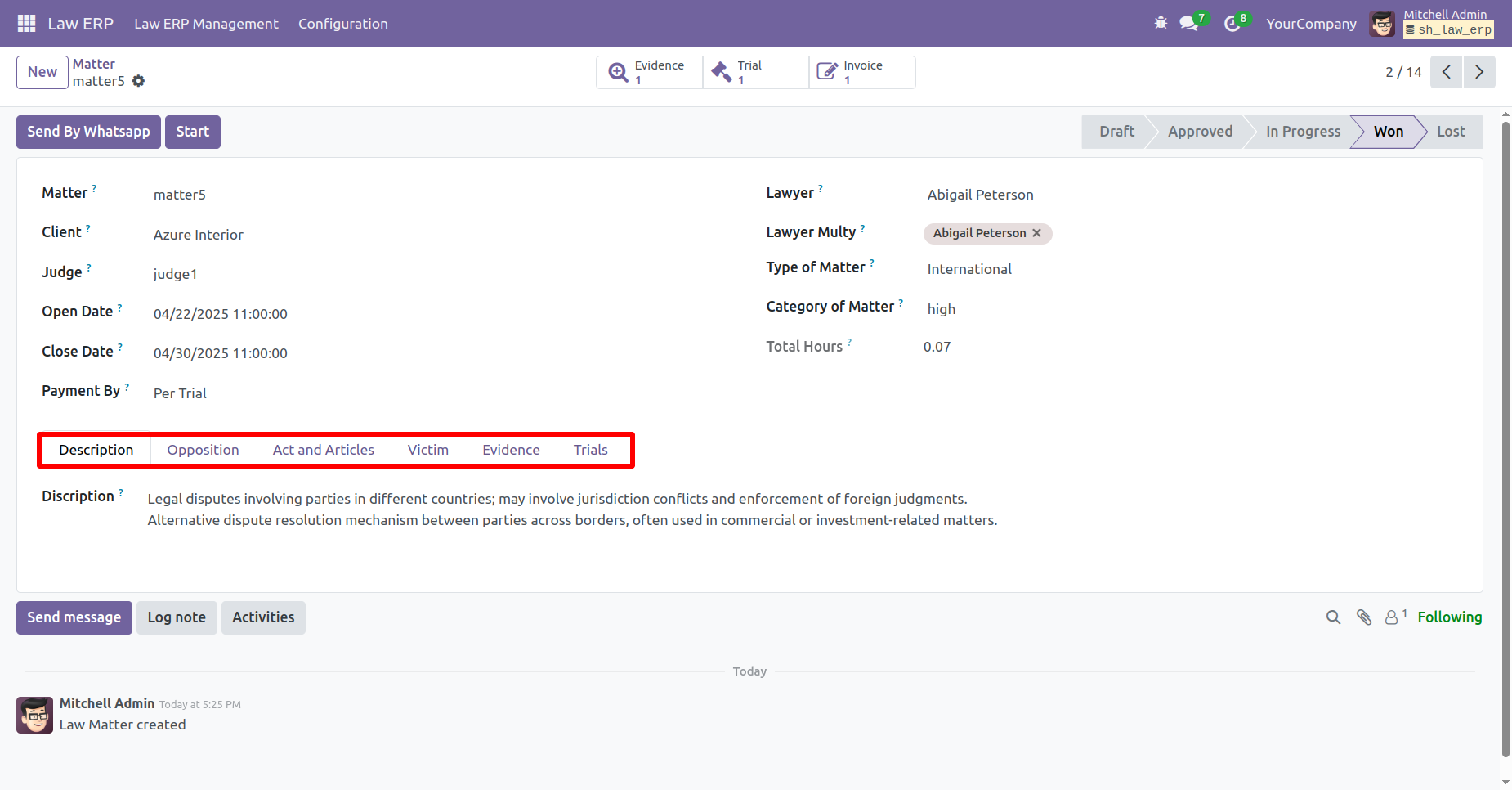
Here you can see the matter is in 'Won' stage.
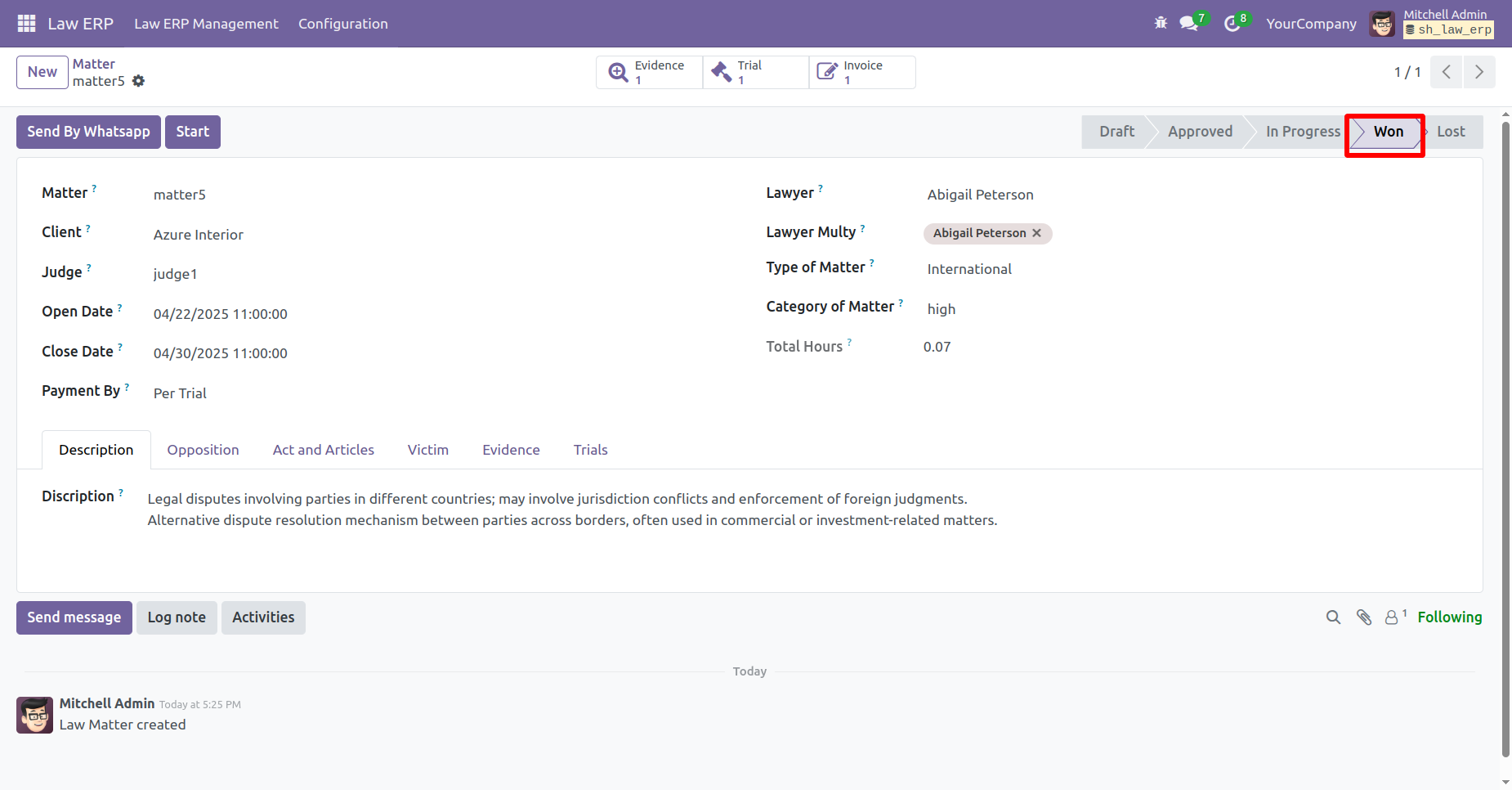
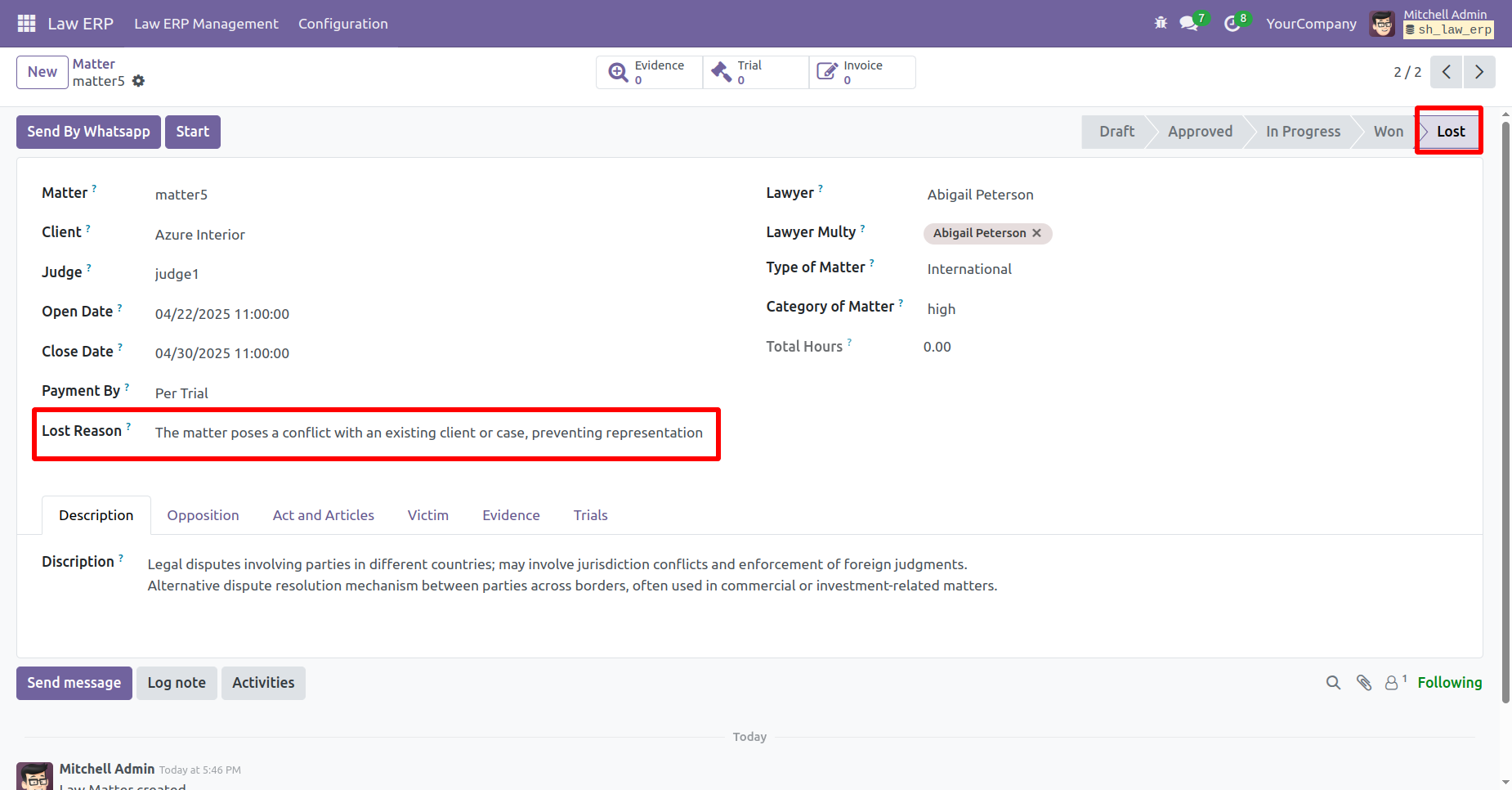
Click on the 'Mark as Lost' to mark it as Lost.
A wizard will appear, add Lost Reason and then click on the 'Submit'
button.
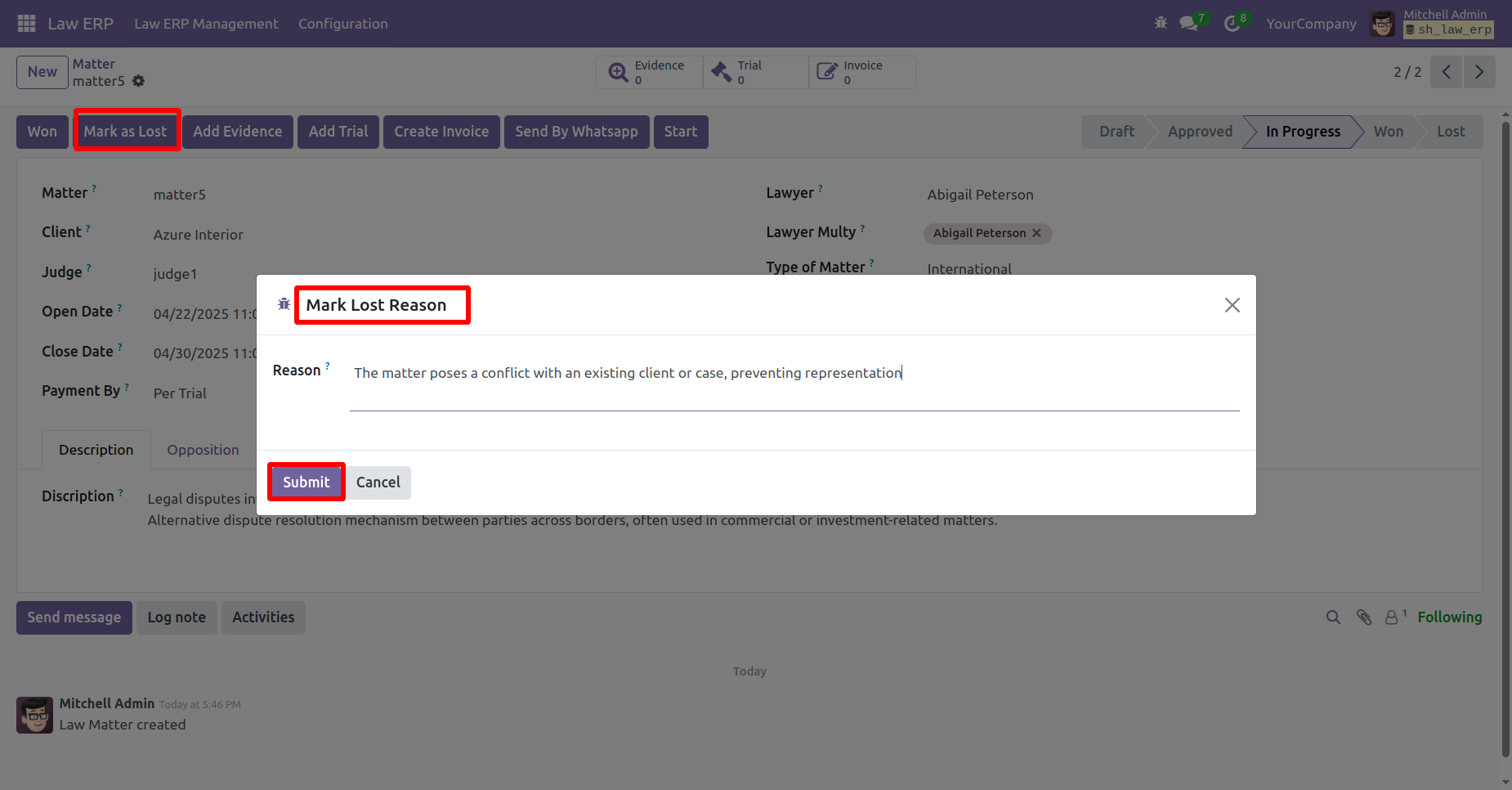
The status updates to 'Lost' and the reason is displayed.
'Description' tab.
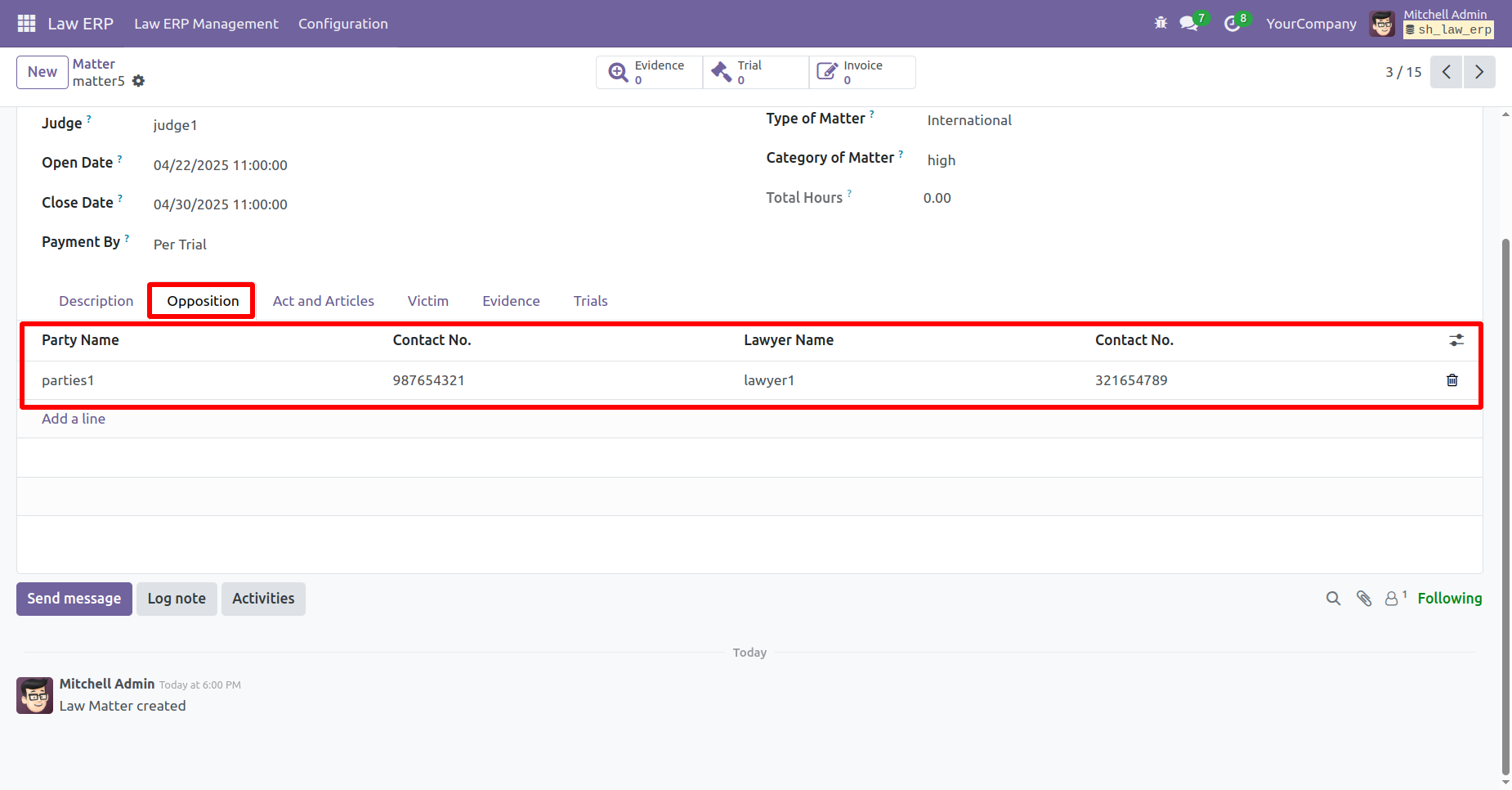
'Opposition' tab.
'Art and Articles' tab.
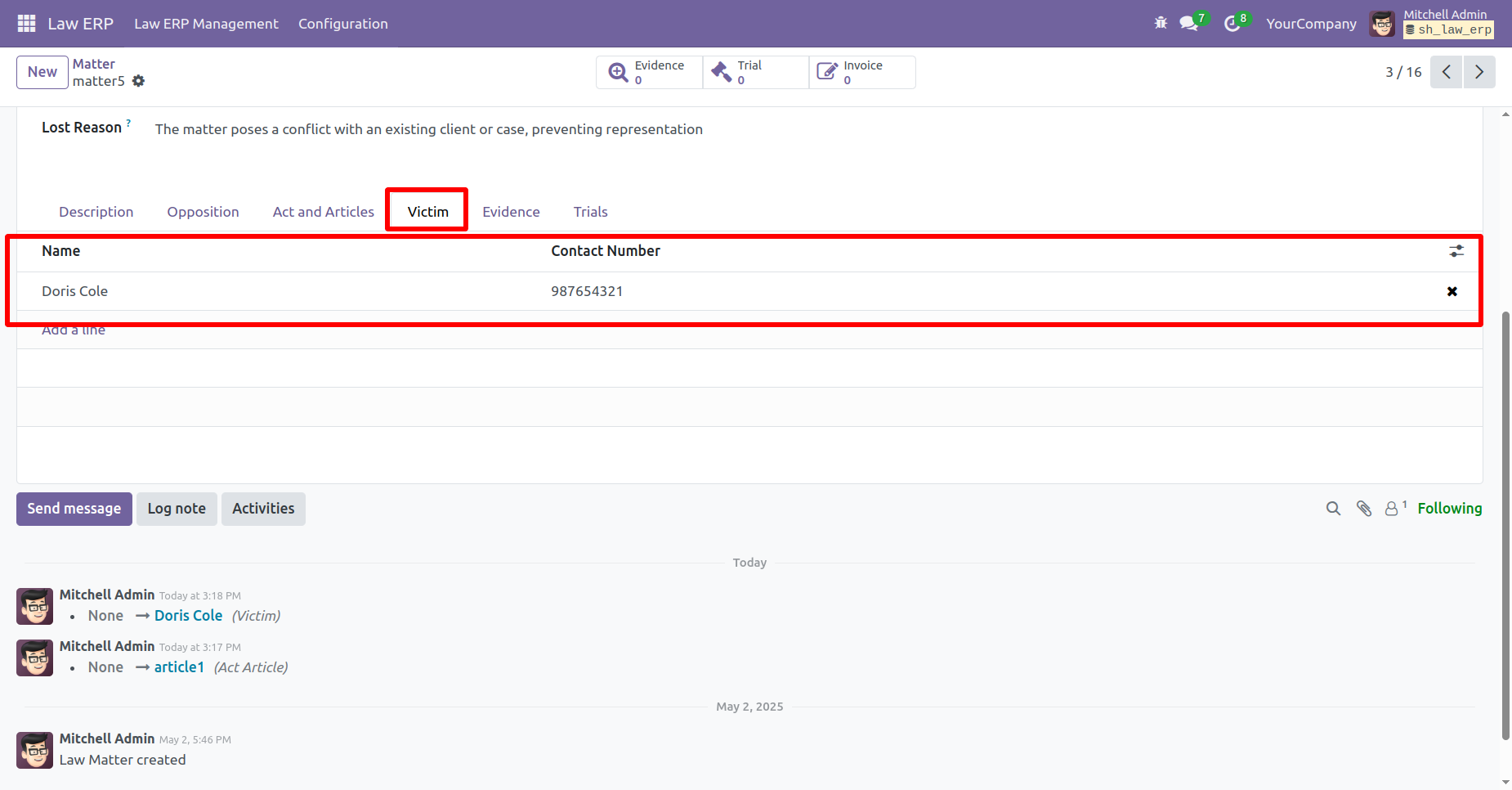
'Victim' tab.
'Evidence' tab.
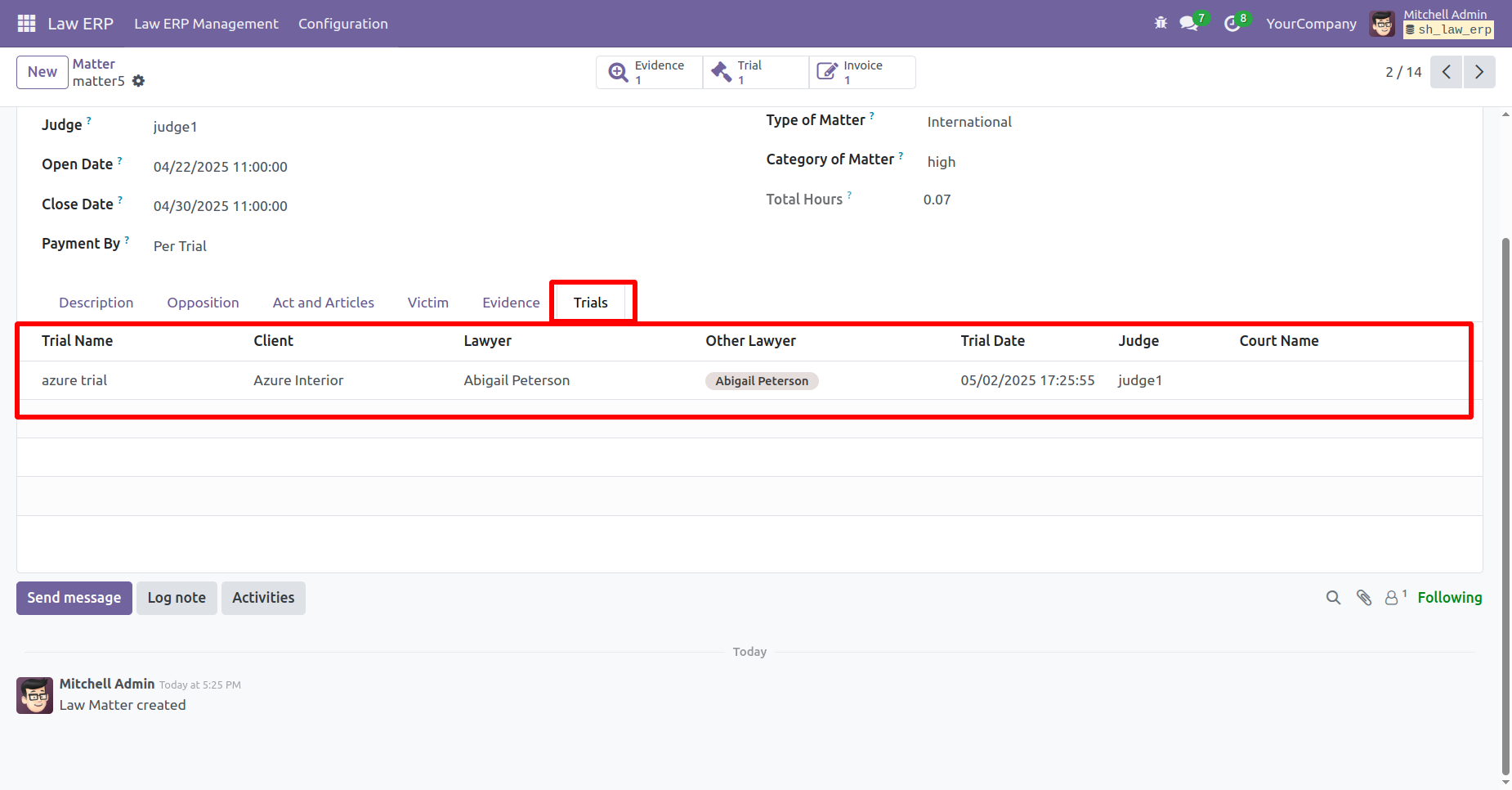
'Trials' tab.
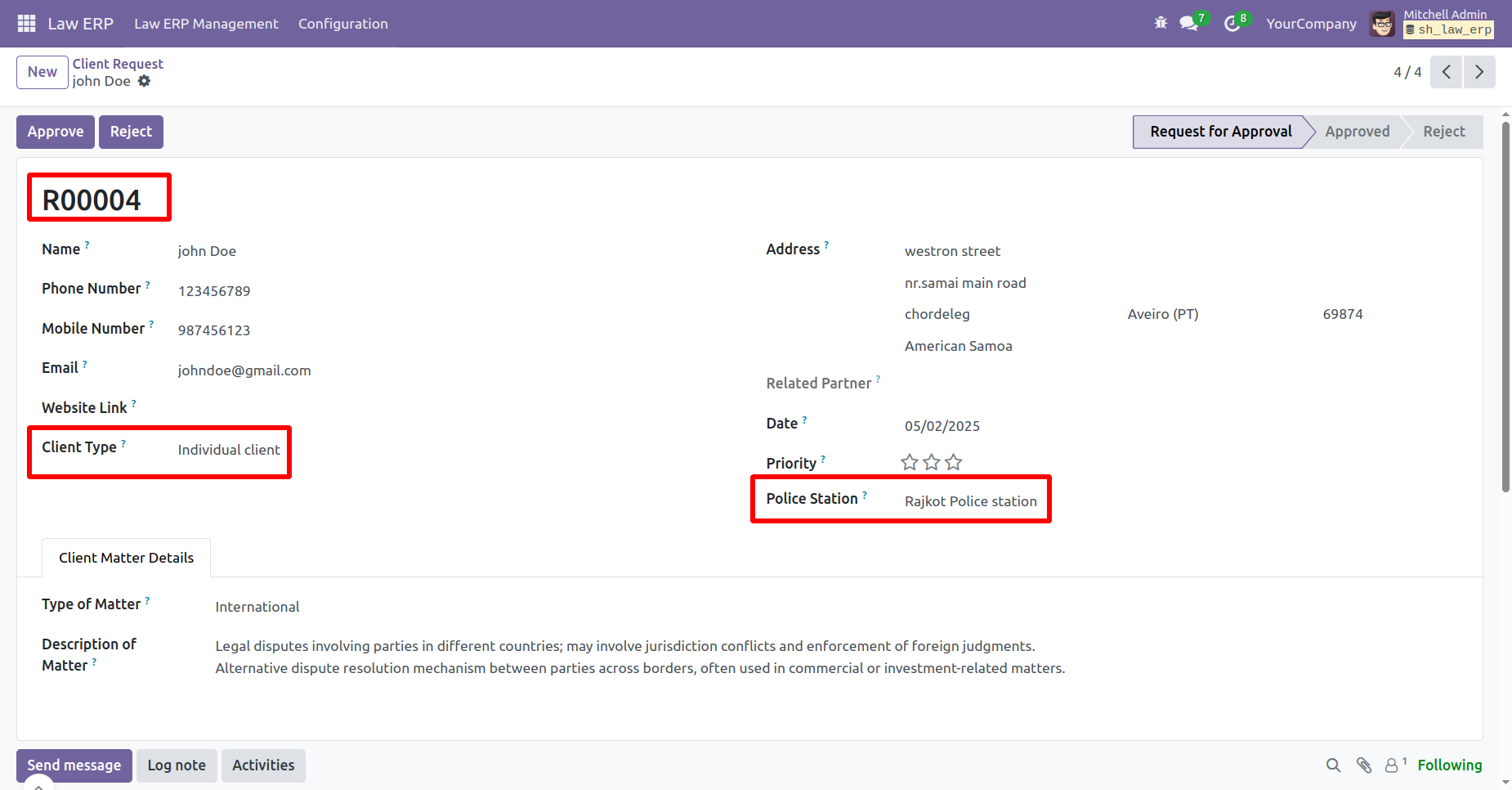
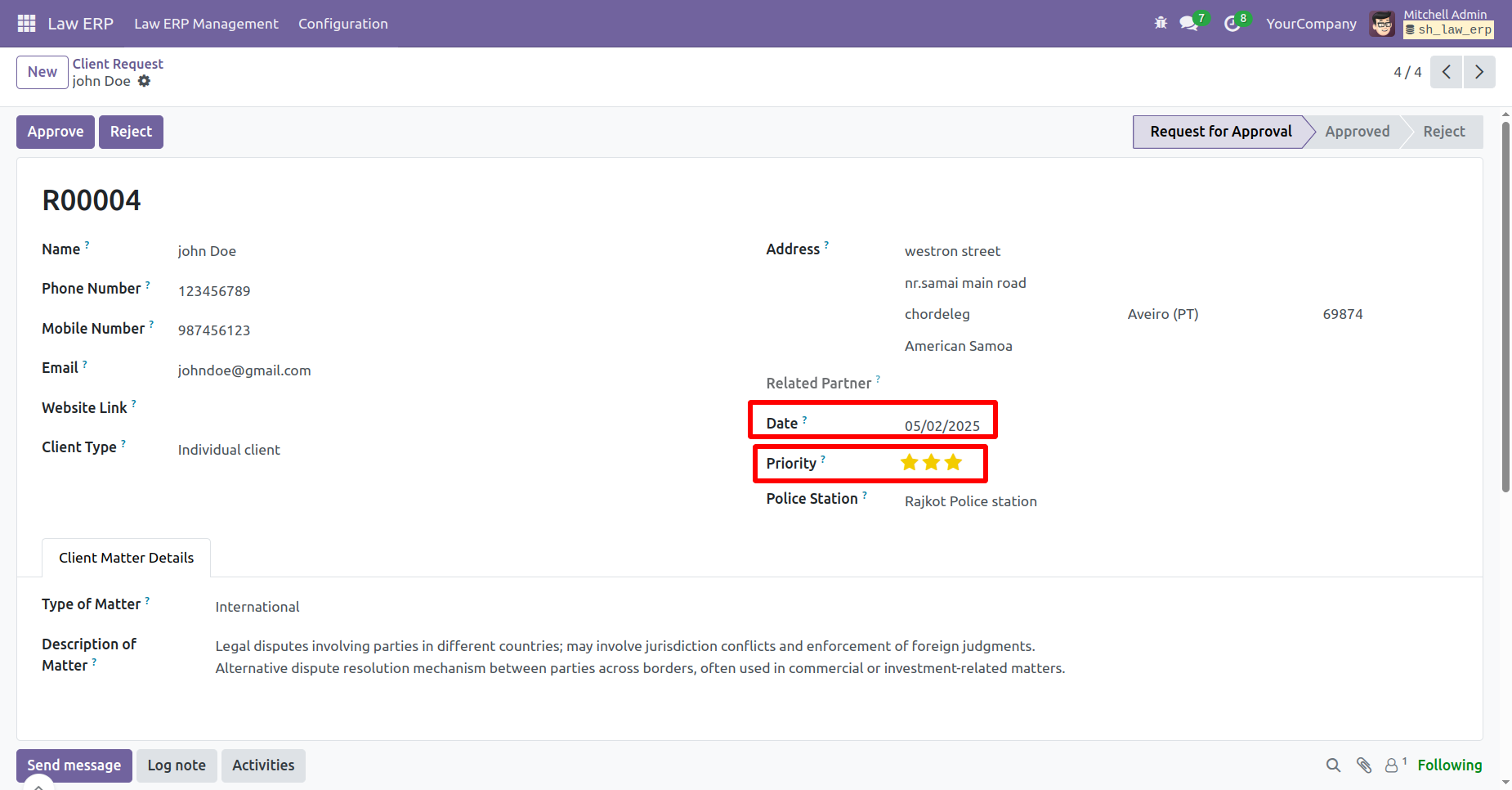
Form view of the 'Client Request'. Add the Client Type and Police Station.
Also, add the Date and Priority.
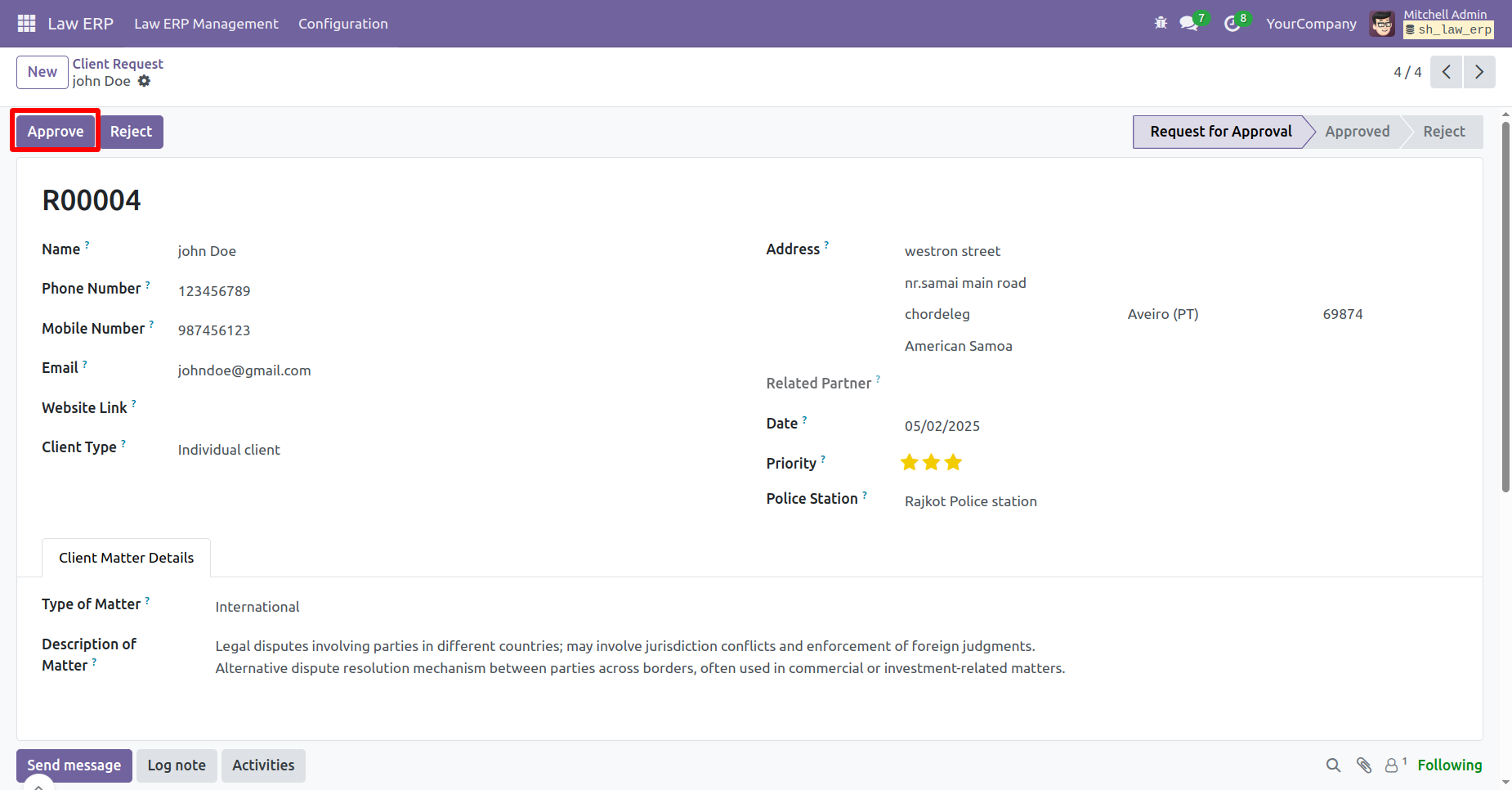
To approve a client request, click on the 'Approve' button.
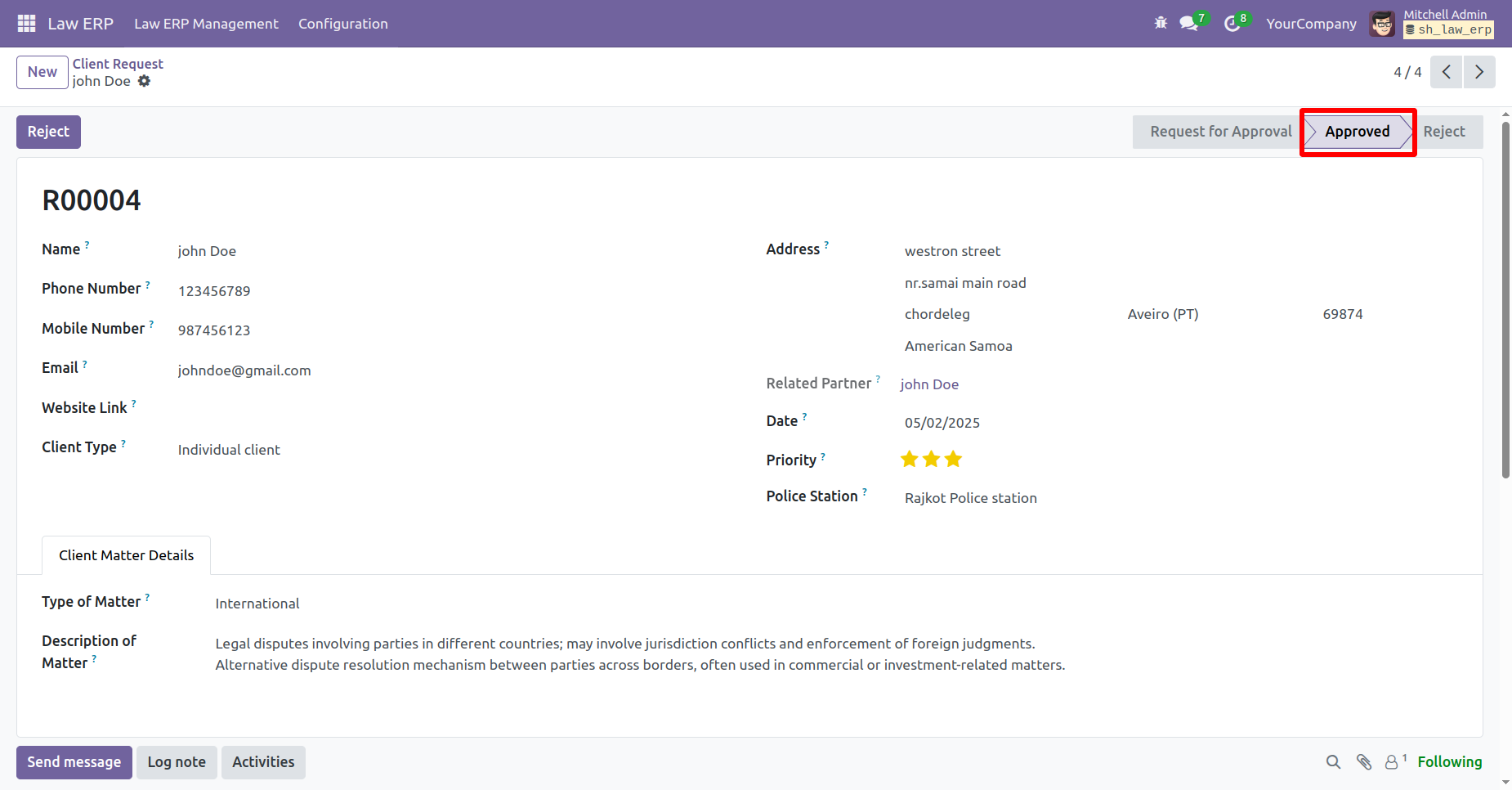
The request status will change to 'Approved'.
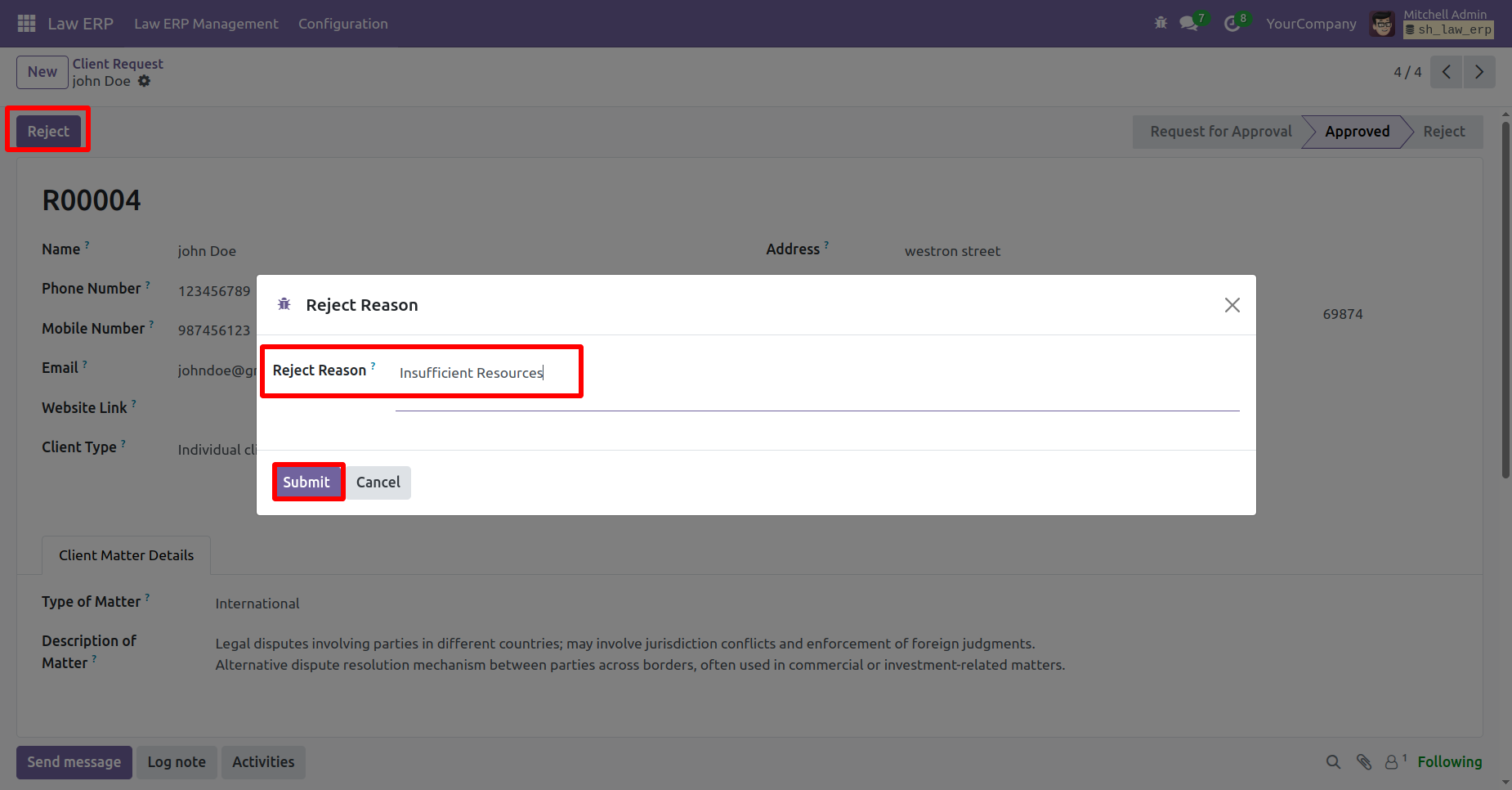
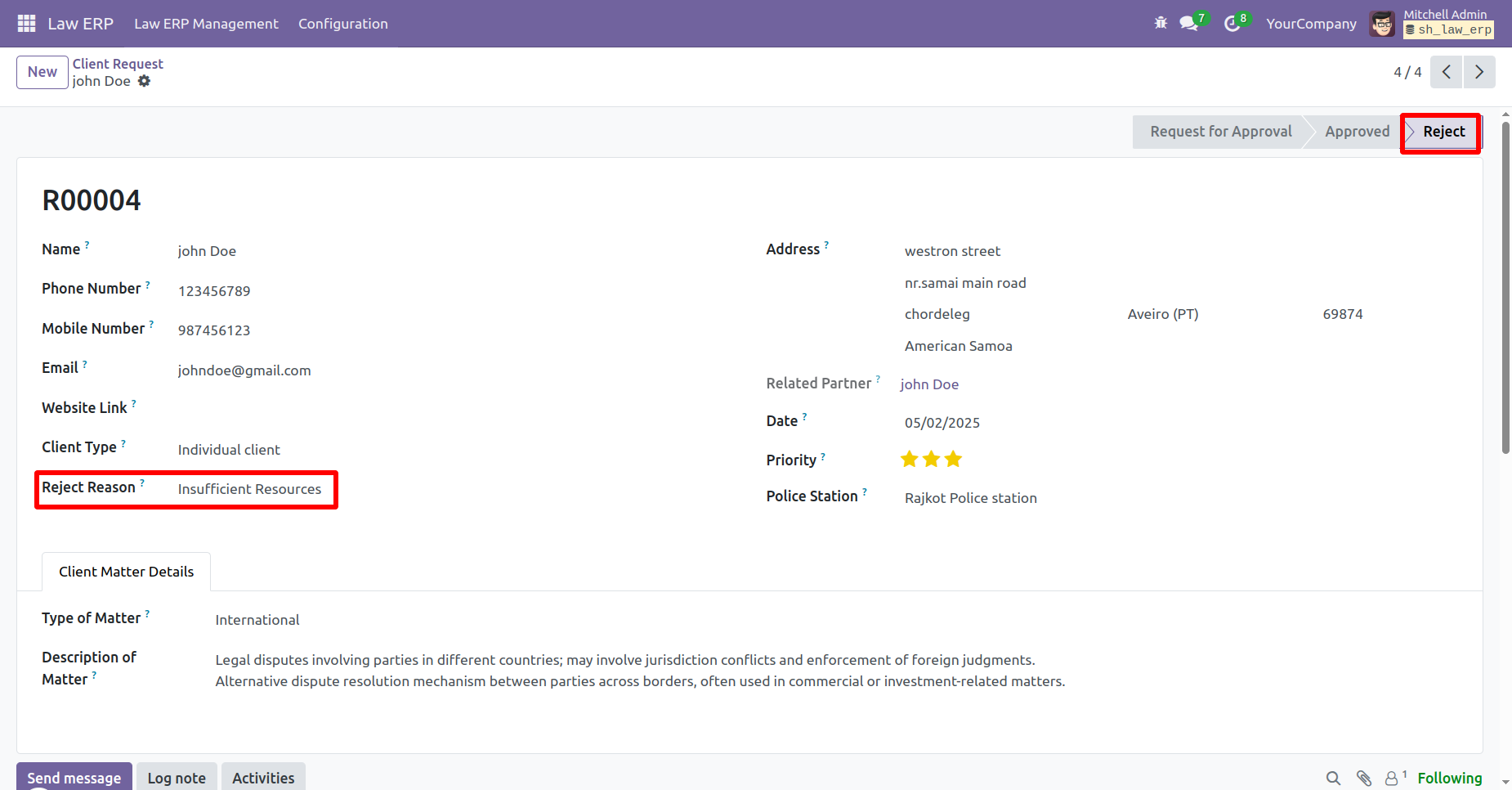
To reject a request, click on the 'Reject' button.
A Reject Wizard will appear. Enter the rejection reason and click on the
'Submit' button.
The request status will change to 'Reject', and the rejection reason will be visible.
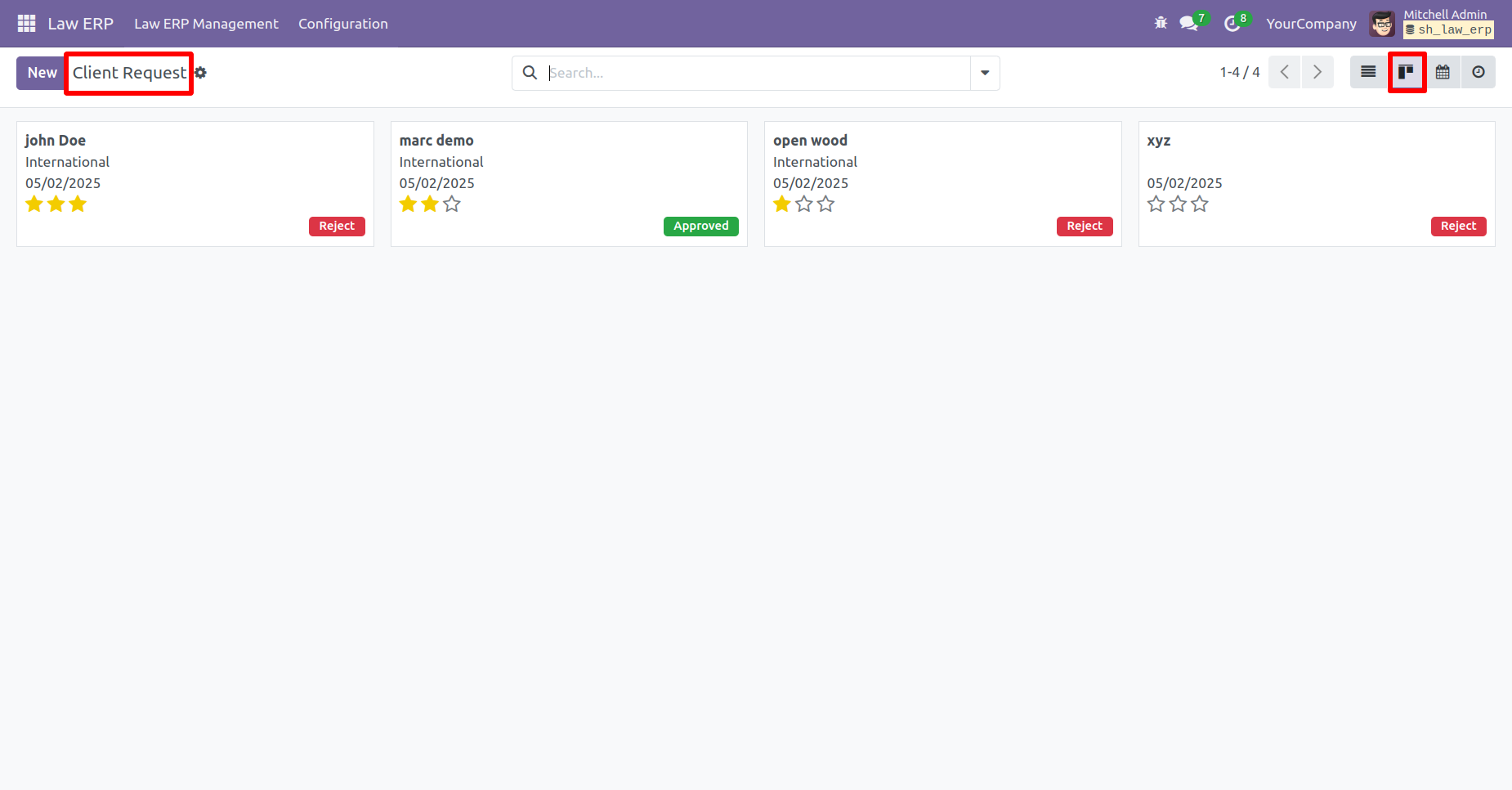
Kanban view of the 'Client Request'.
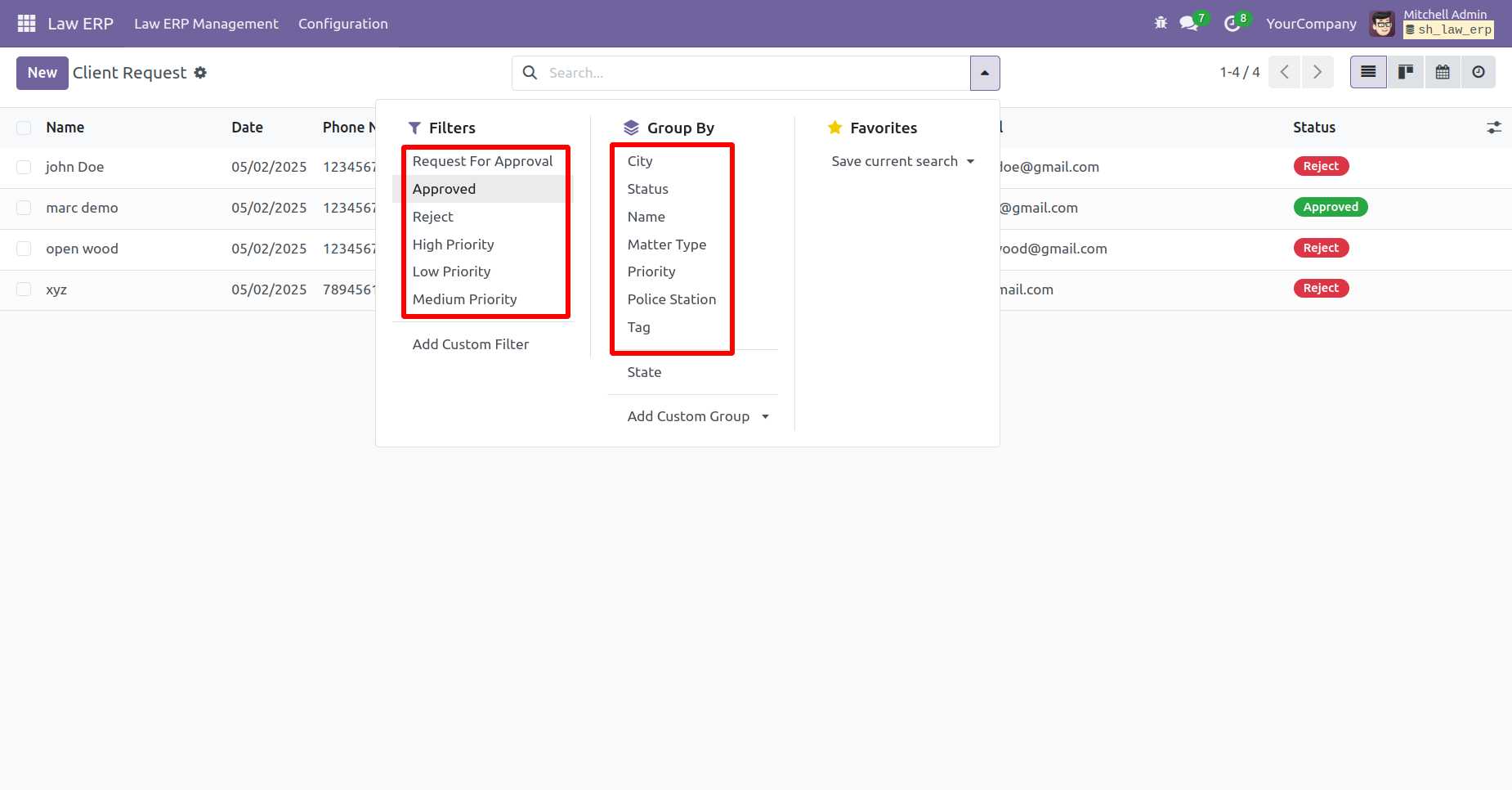
Use filters and group by options to sort the requests as needed.
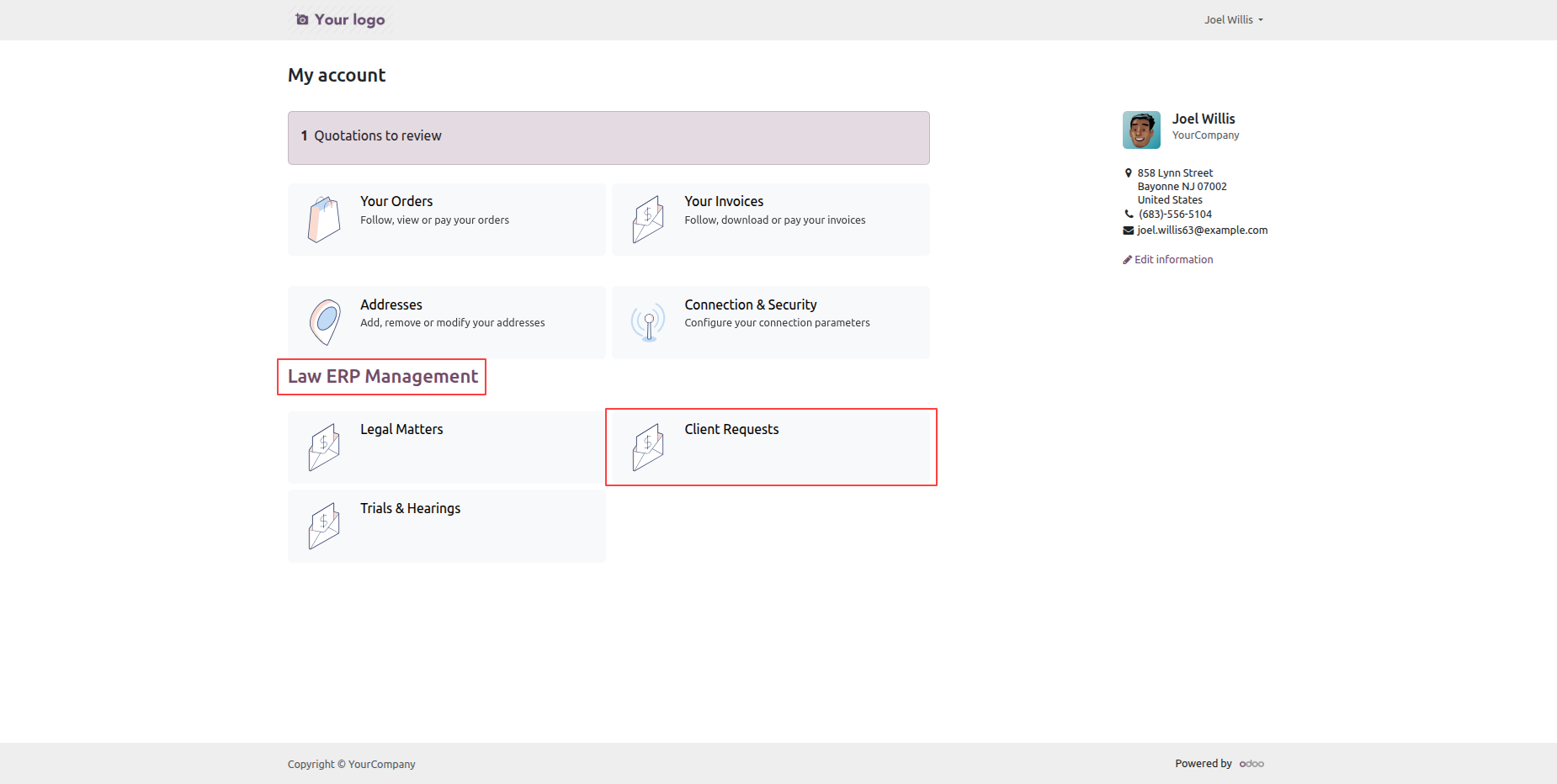
Click the Client Requests tile from the Portal Account under Law Management to view the submitted client requests.
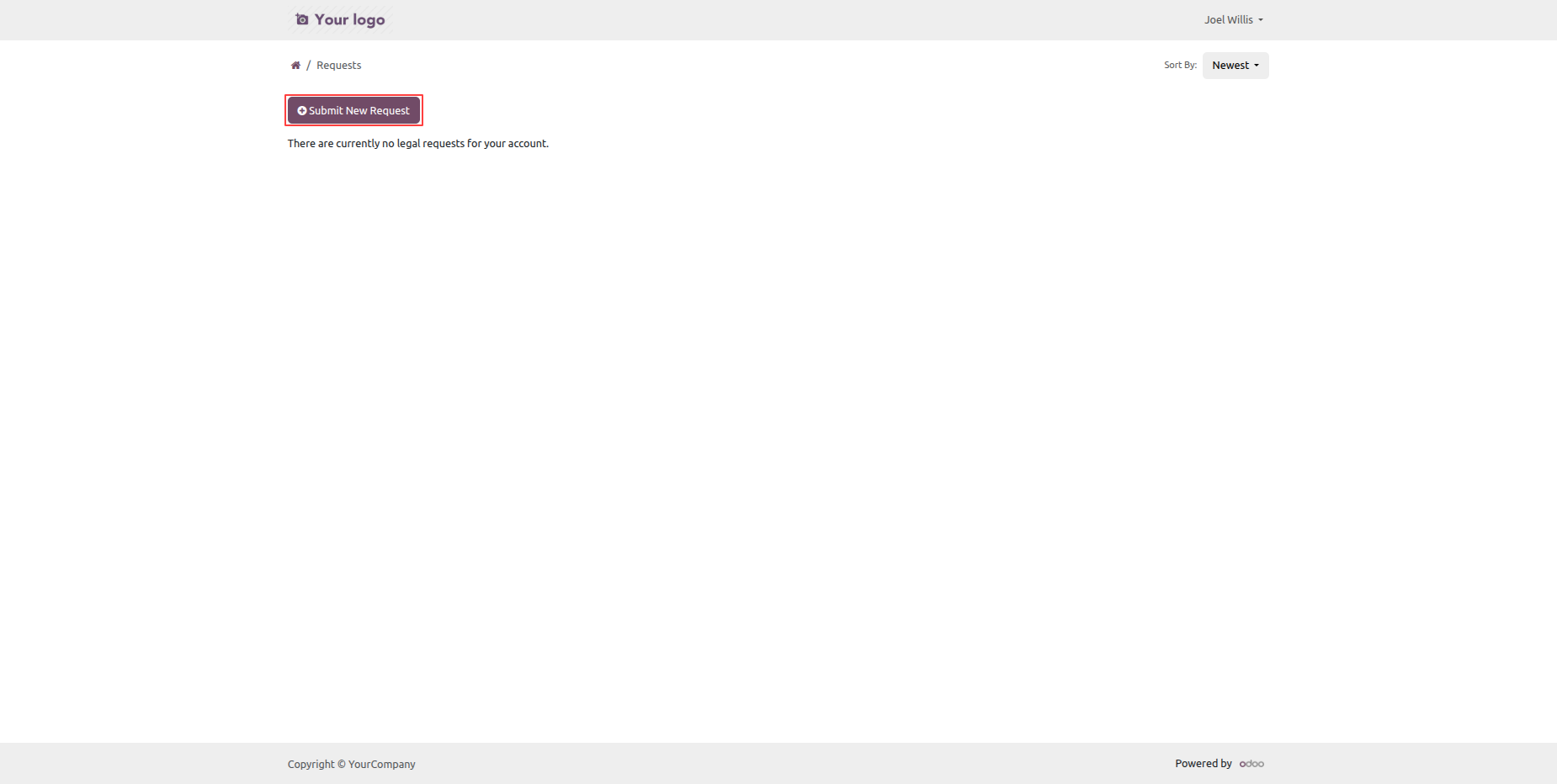
Click the Submit New Request button from the portal to create a new client request.
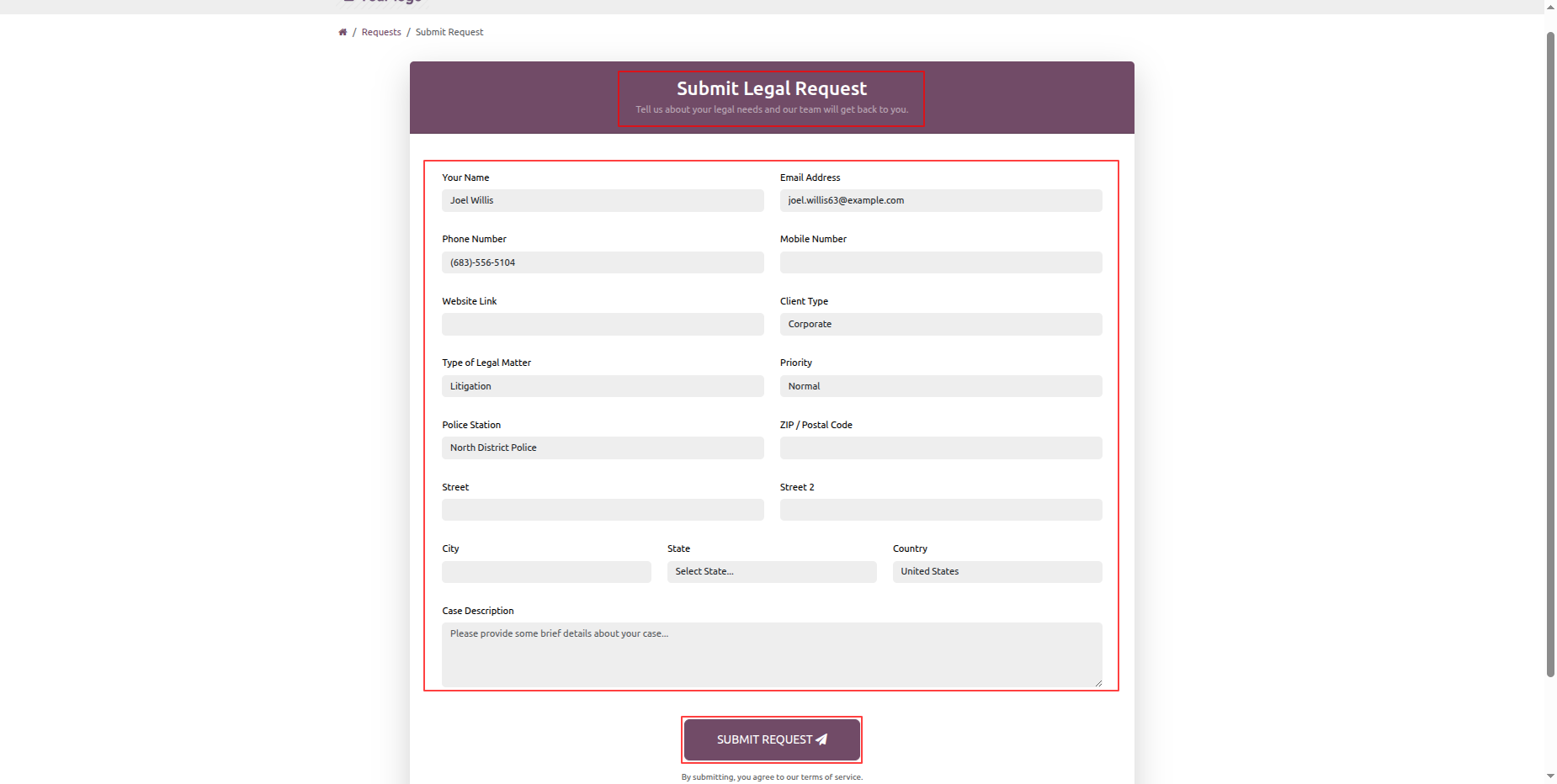
The Submit Legal Request form will open. Fill in the required details, then click Submit Request to submit the legal request.
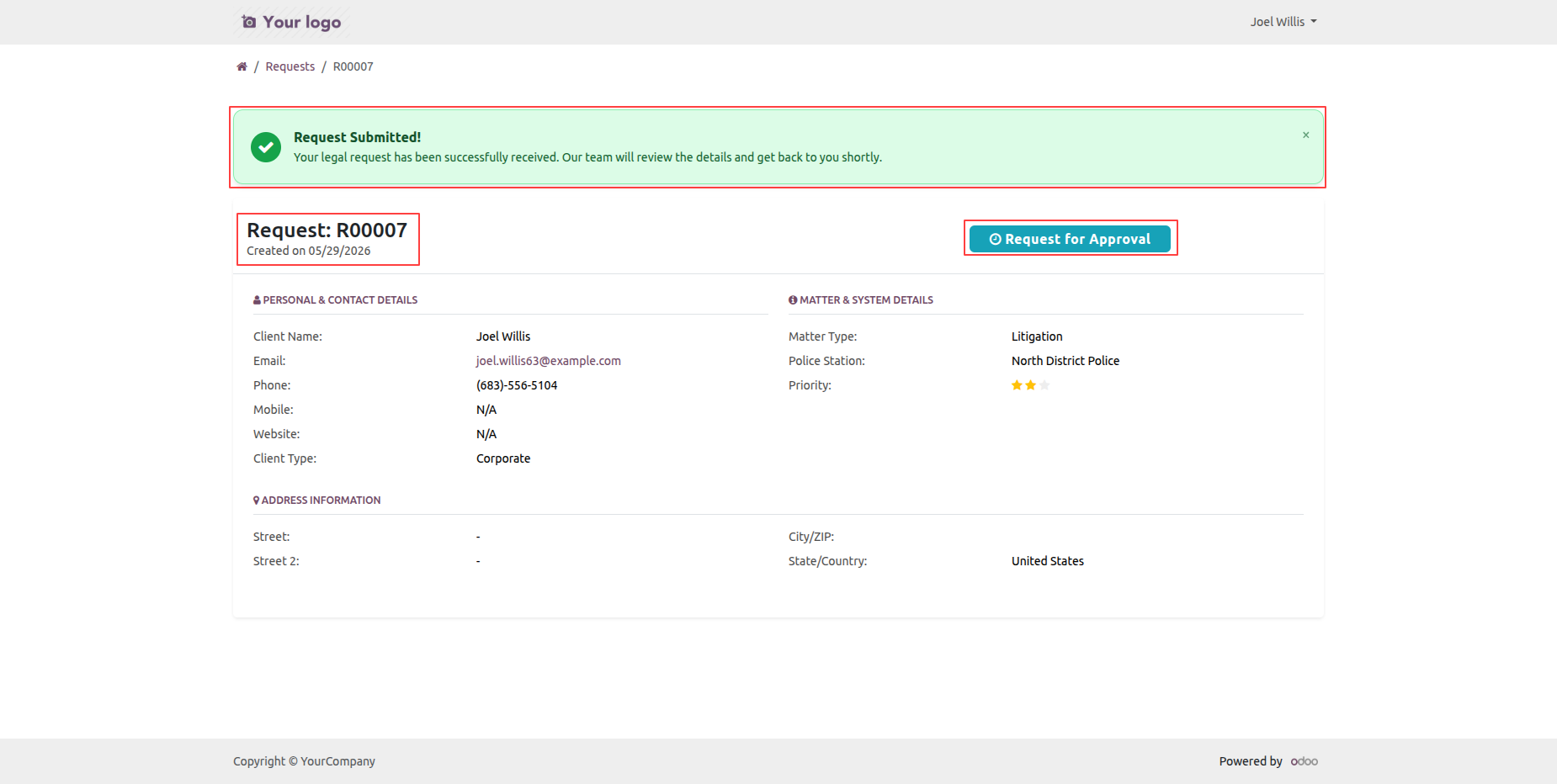
The legal request is successfully created and submitted from the portal, and its status is set to Request for Approval.
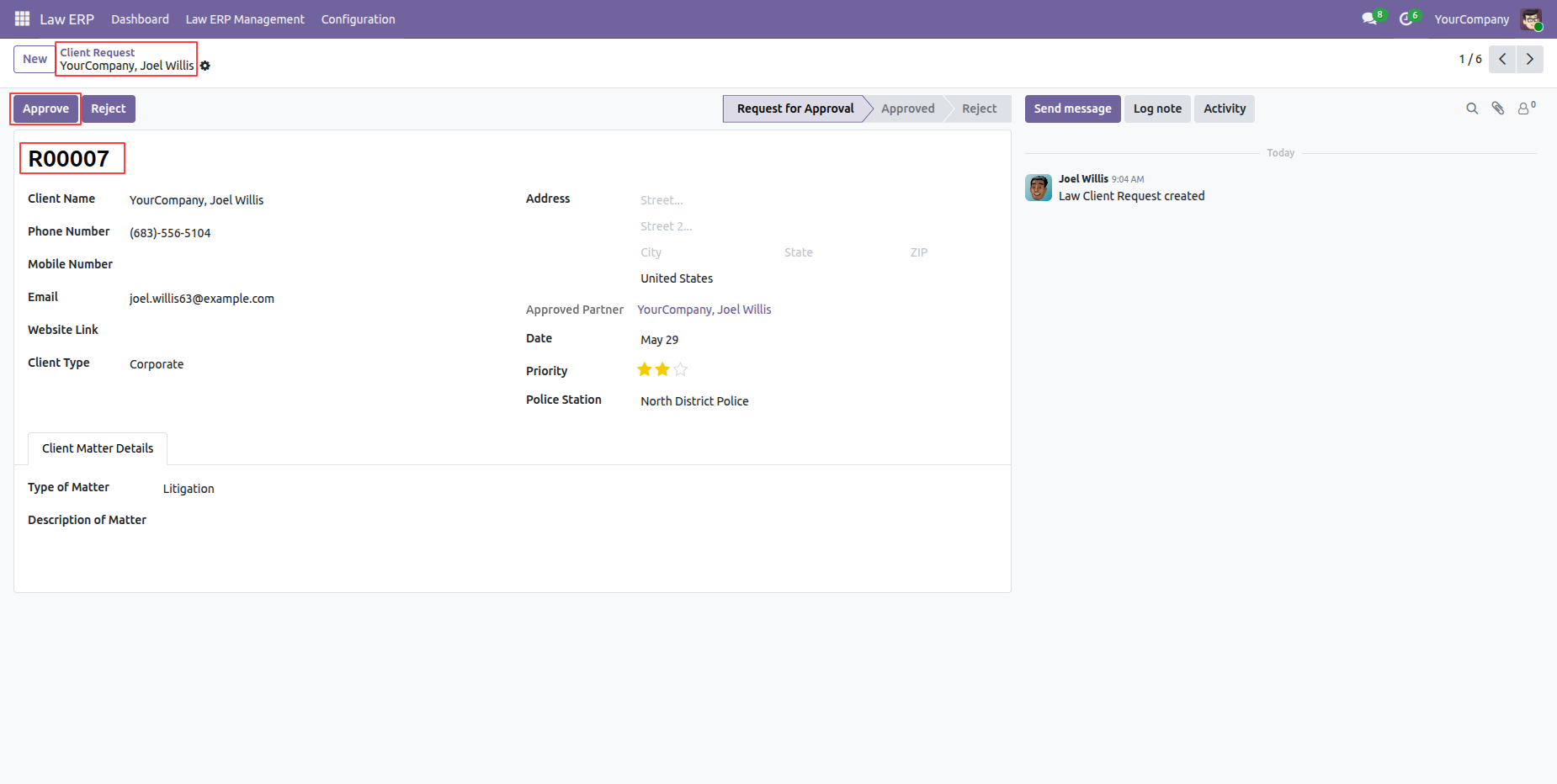
The backend user can review the submitted request and click the Approve button to approve the legal request.
Once approved, the legal request moves to the Approved stage.
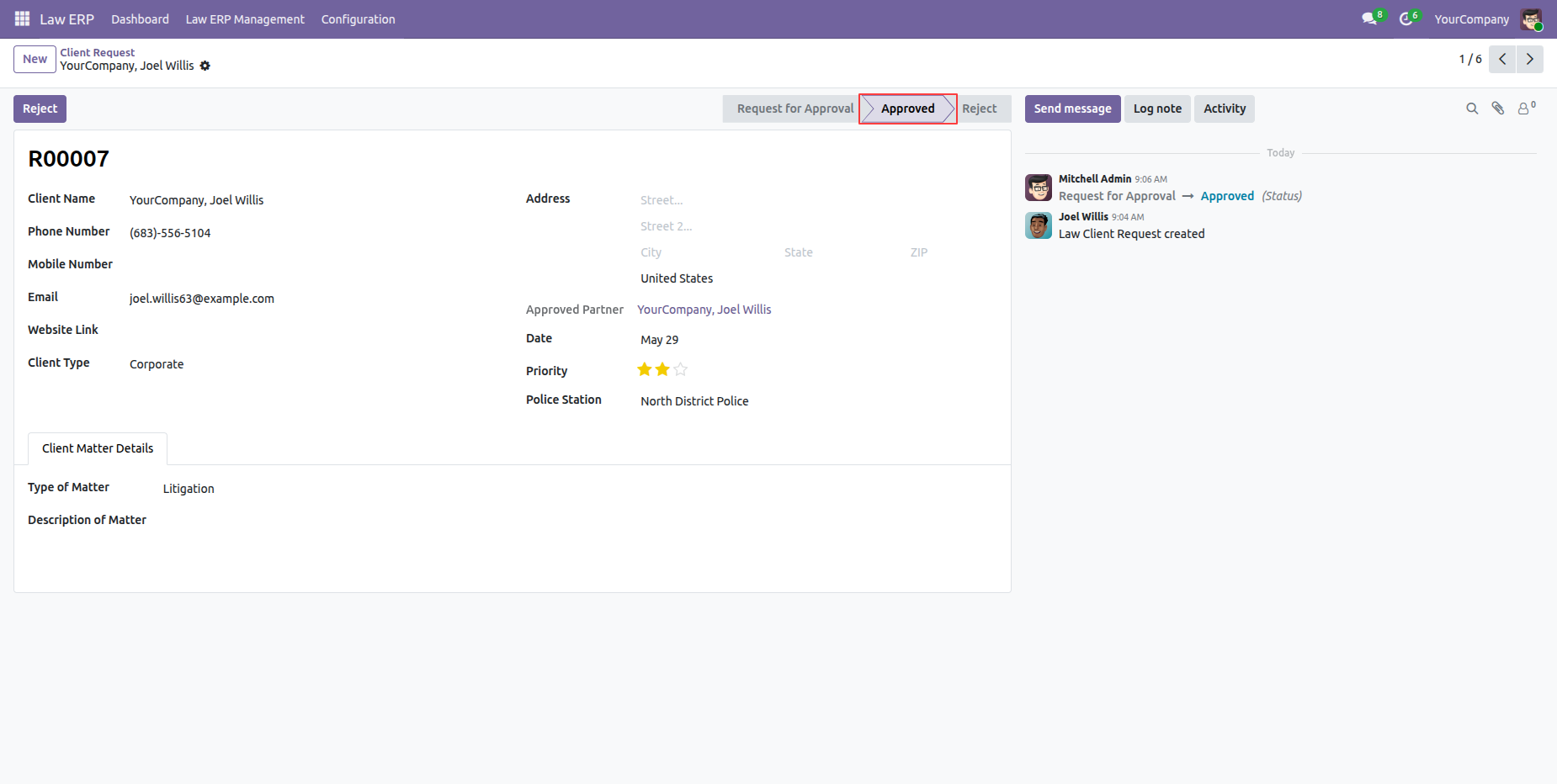
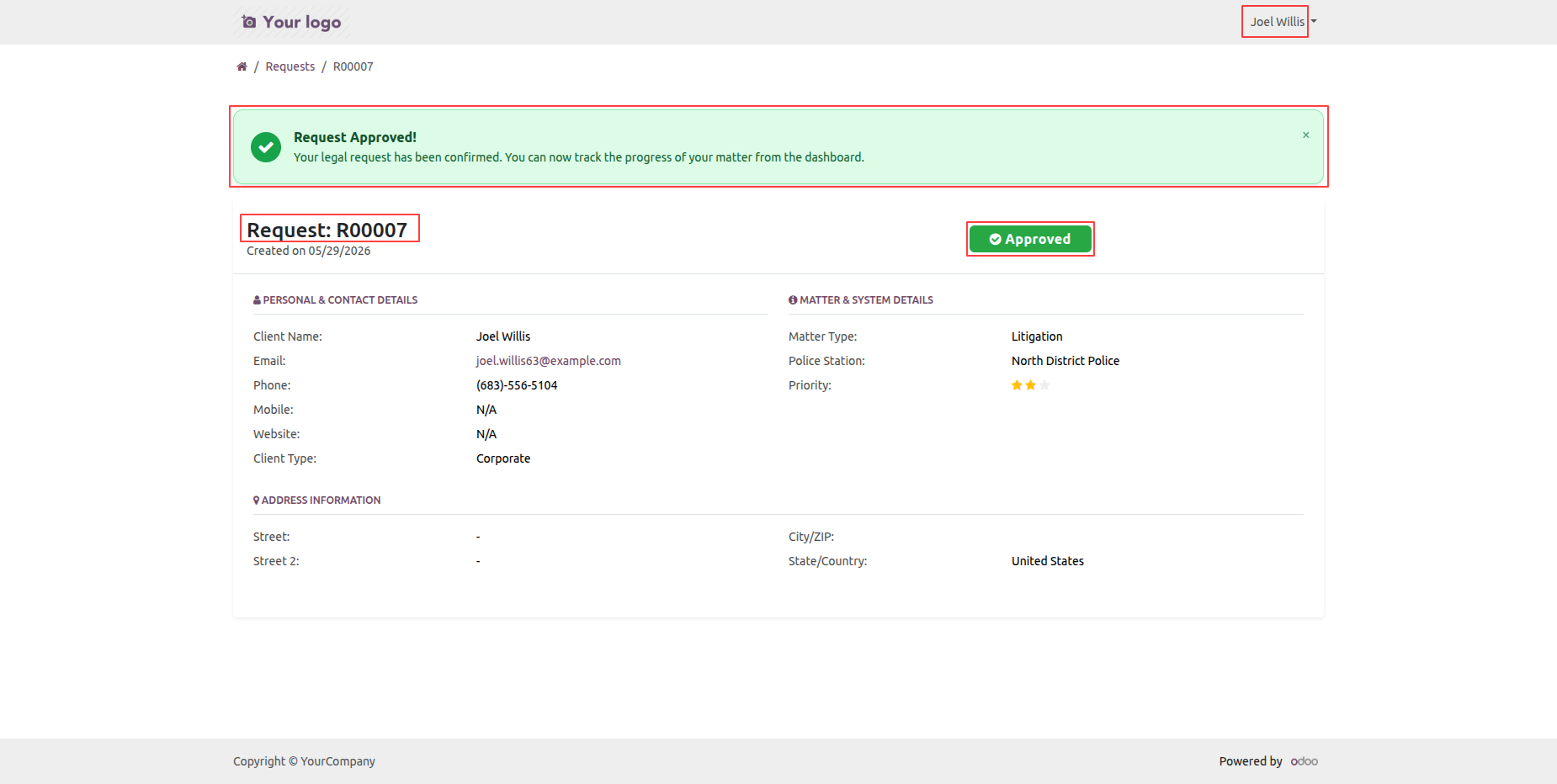
The request status is also updated in the portal, changing from Request for Approval to Approved.
Once the request is approved, a Matter is created in the Approved stage. Users can view the related Trials and Invoices using the corresponding smart buttons.
Click the Legal Matters tile from the portal to view the list of legal matters.
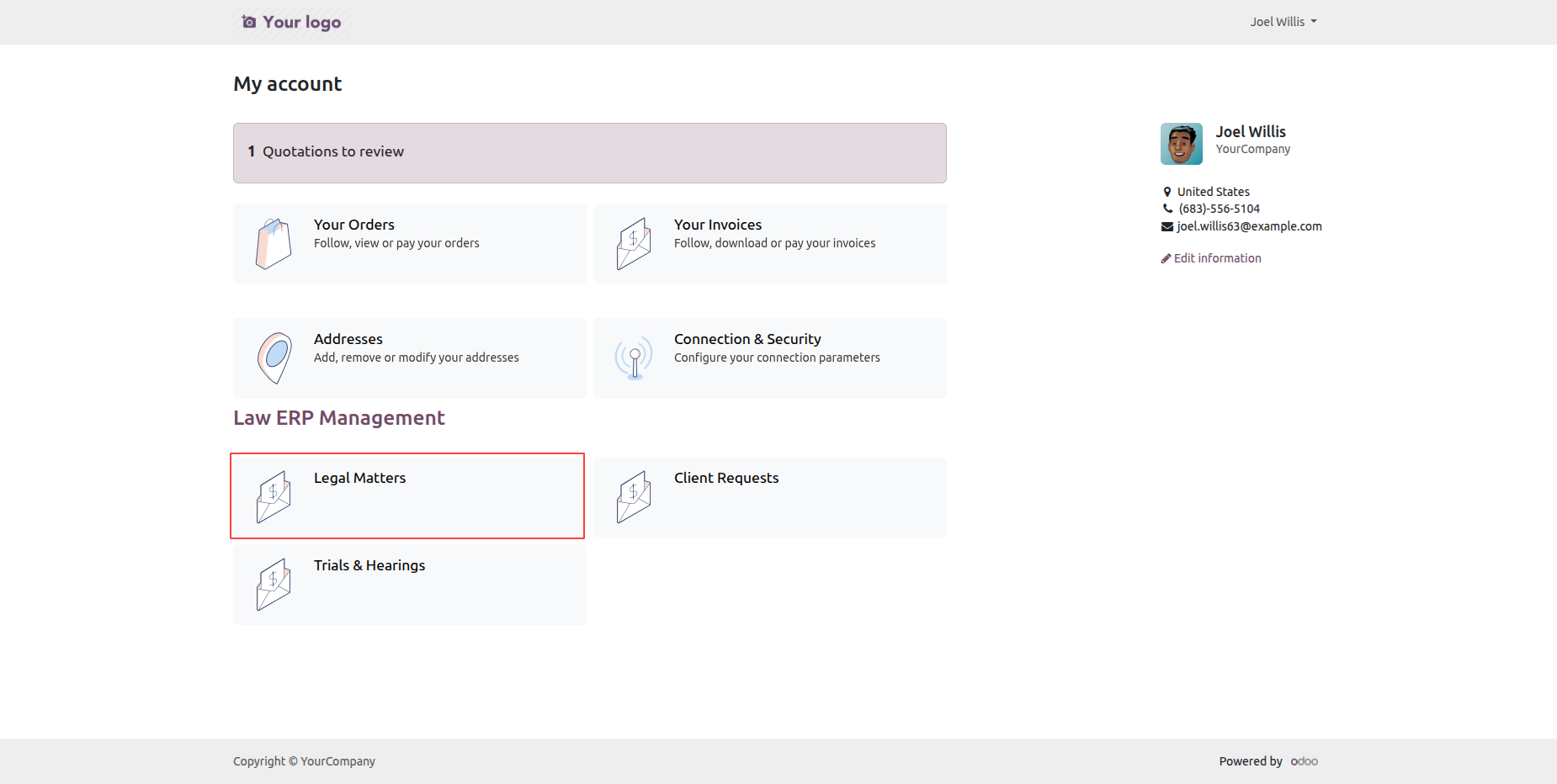
Clicking the Legal Matters tile opens the Legal Matters list view, where users can view the matters created from their approved requests.
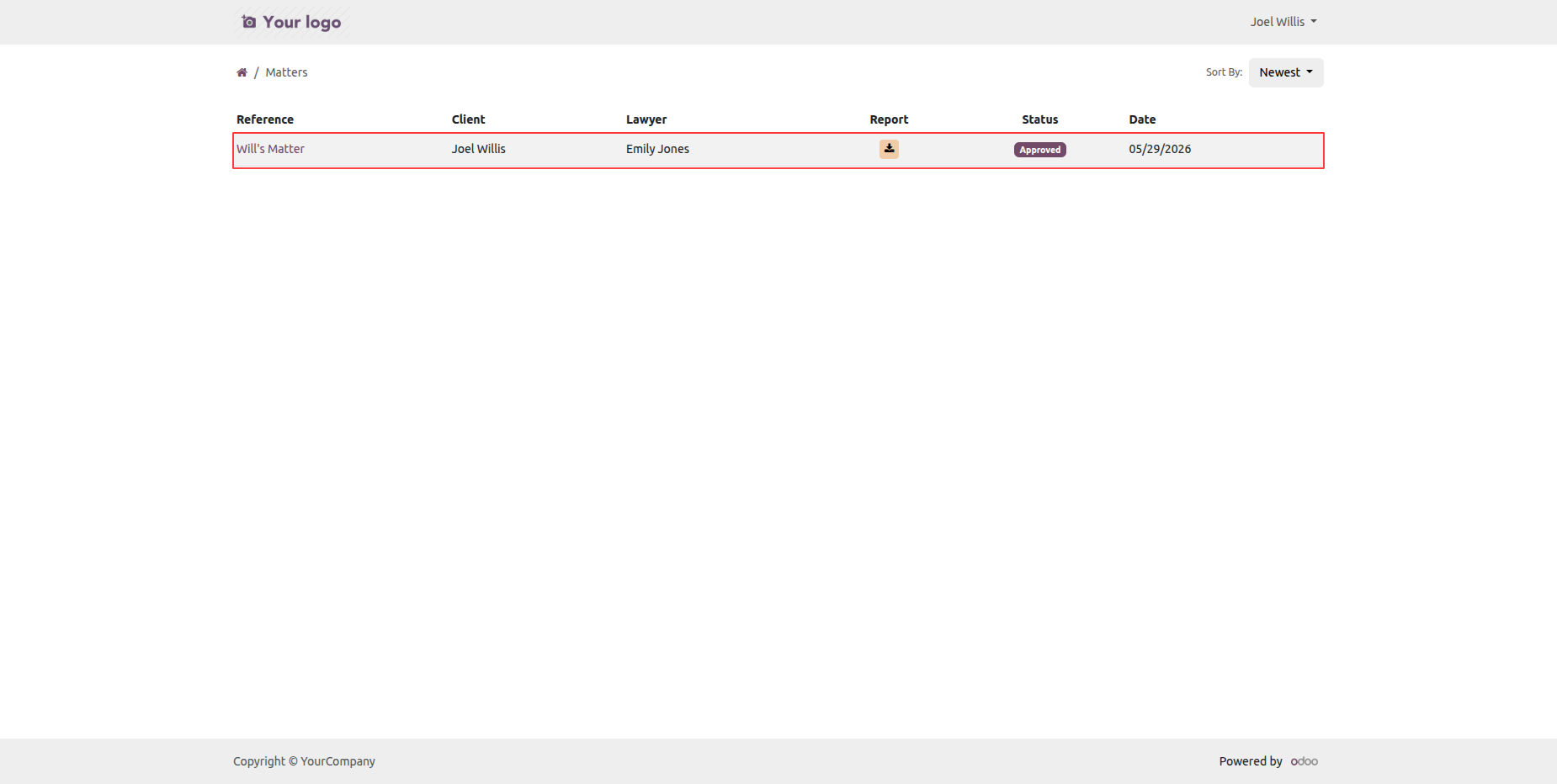
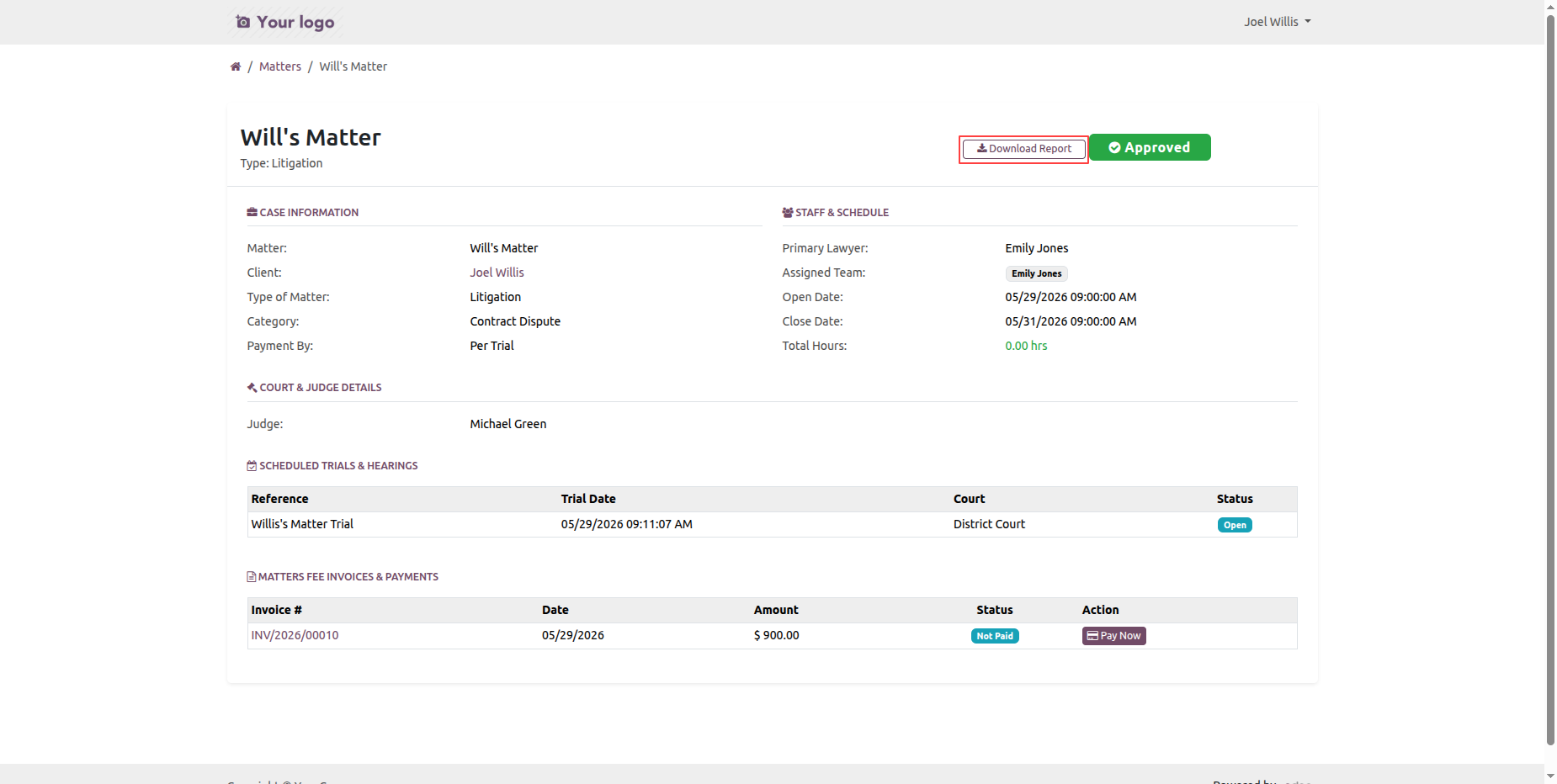
Users can download the Matter PDF Report from the portal by opening the Matter form view and clicking the Download button.
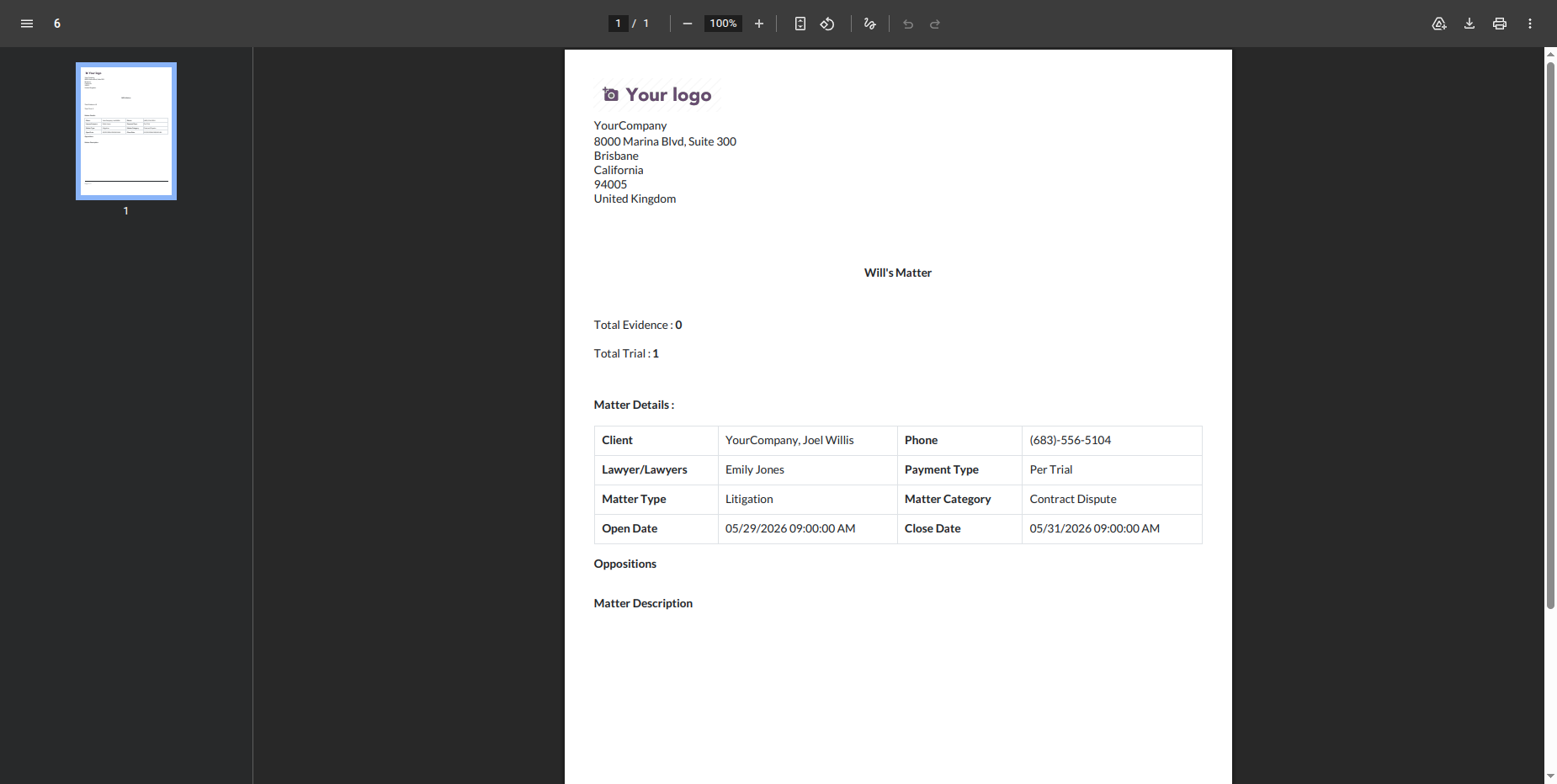
The Matter PDF Report is downloaded successfully from the portal.
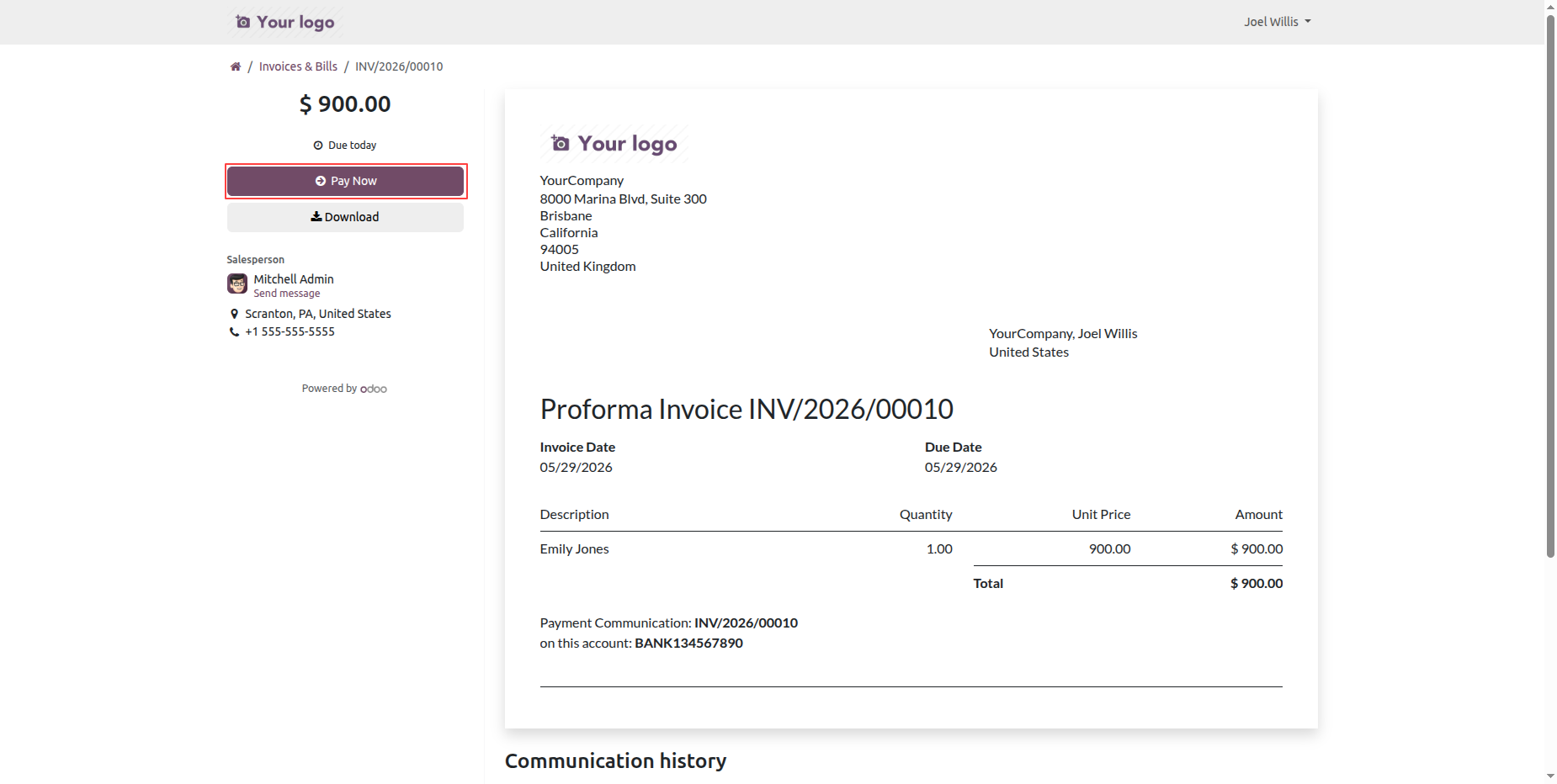
Click the Pay Now button under the Matter Fee, Invoice & Payments section to proceed with the payment.
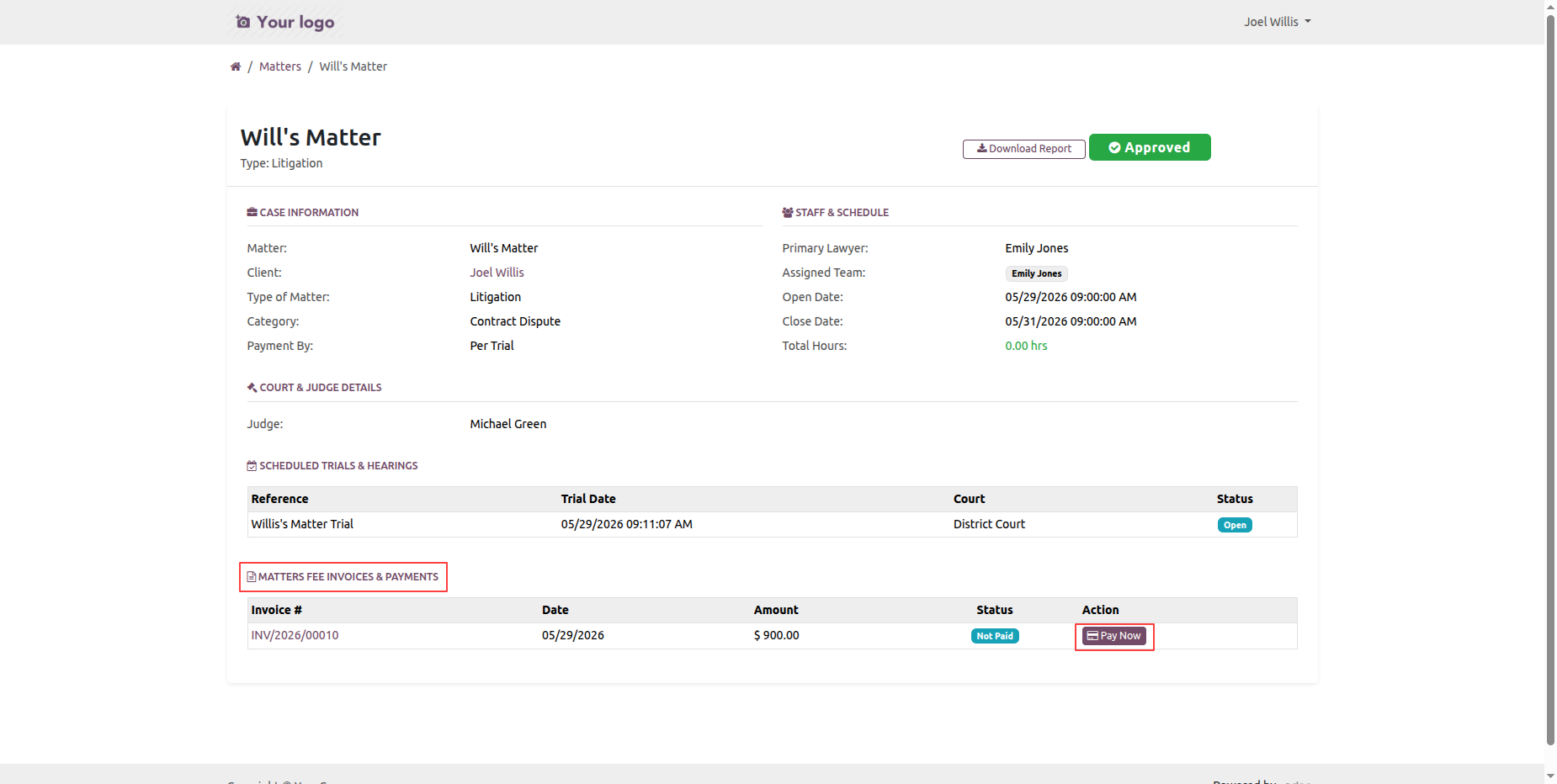
Clicking Pay Now creates an invoice for the matter fee. The invoice is then displayed in the portal, where the user can click Pay Now to proceed with the payment.
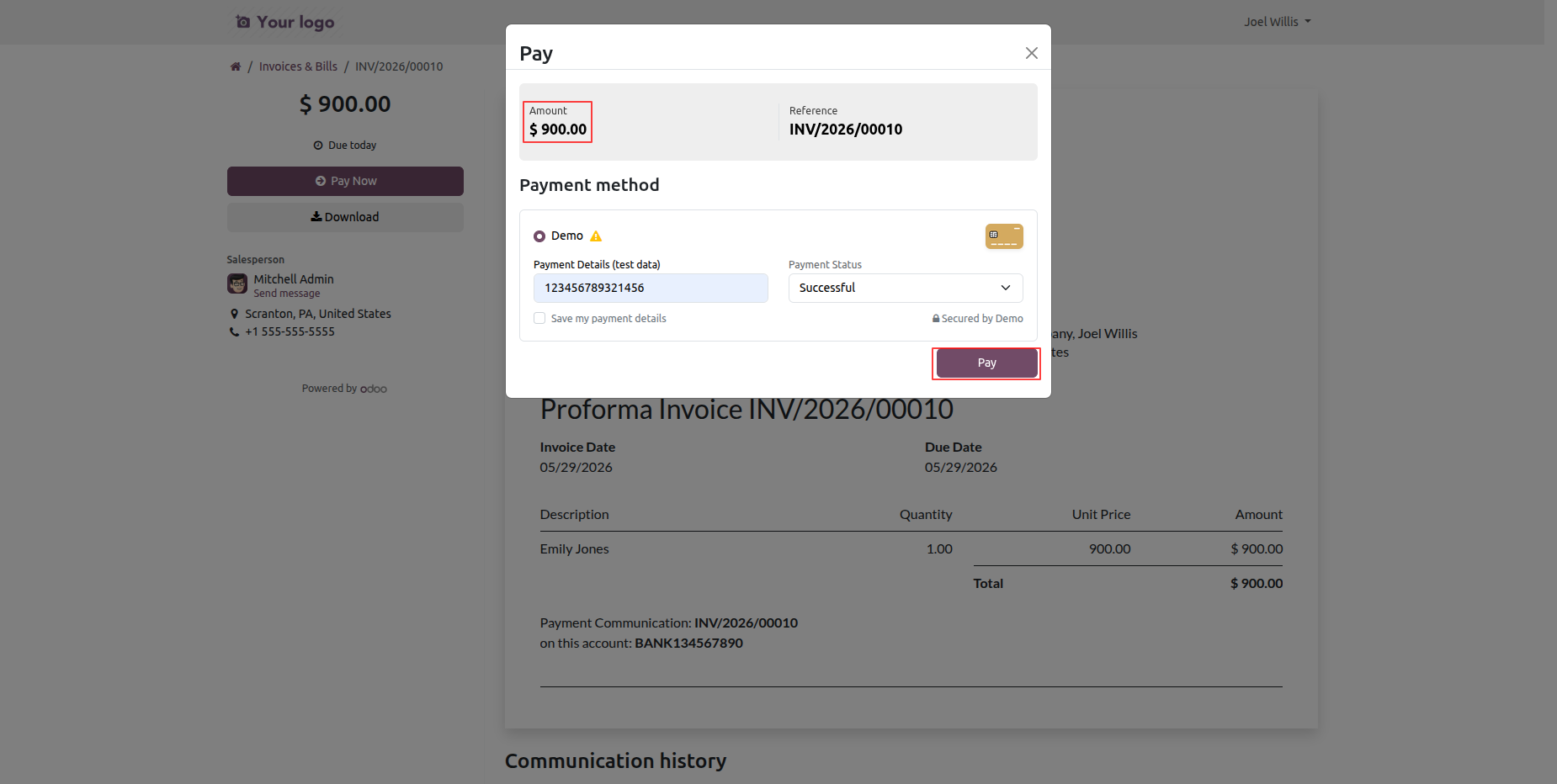
The Payment wizard will open. Enter the required payment details, then click the Pay button to complete the payment.
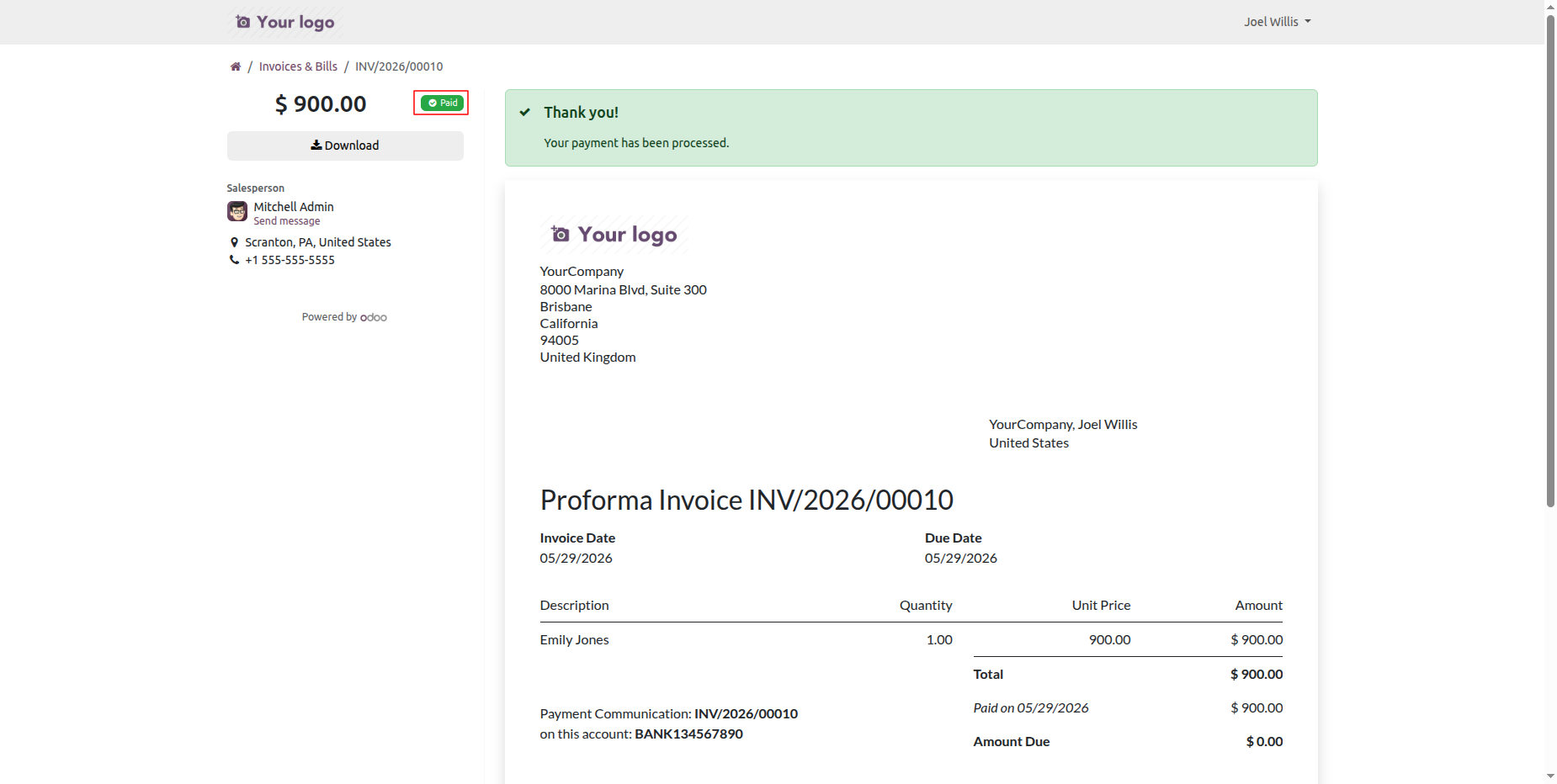
The Matter Fee payment has been successfully completed from the portal, and the payment status is updated accordingly.
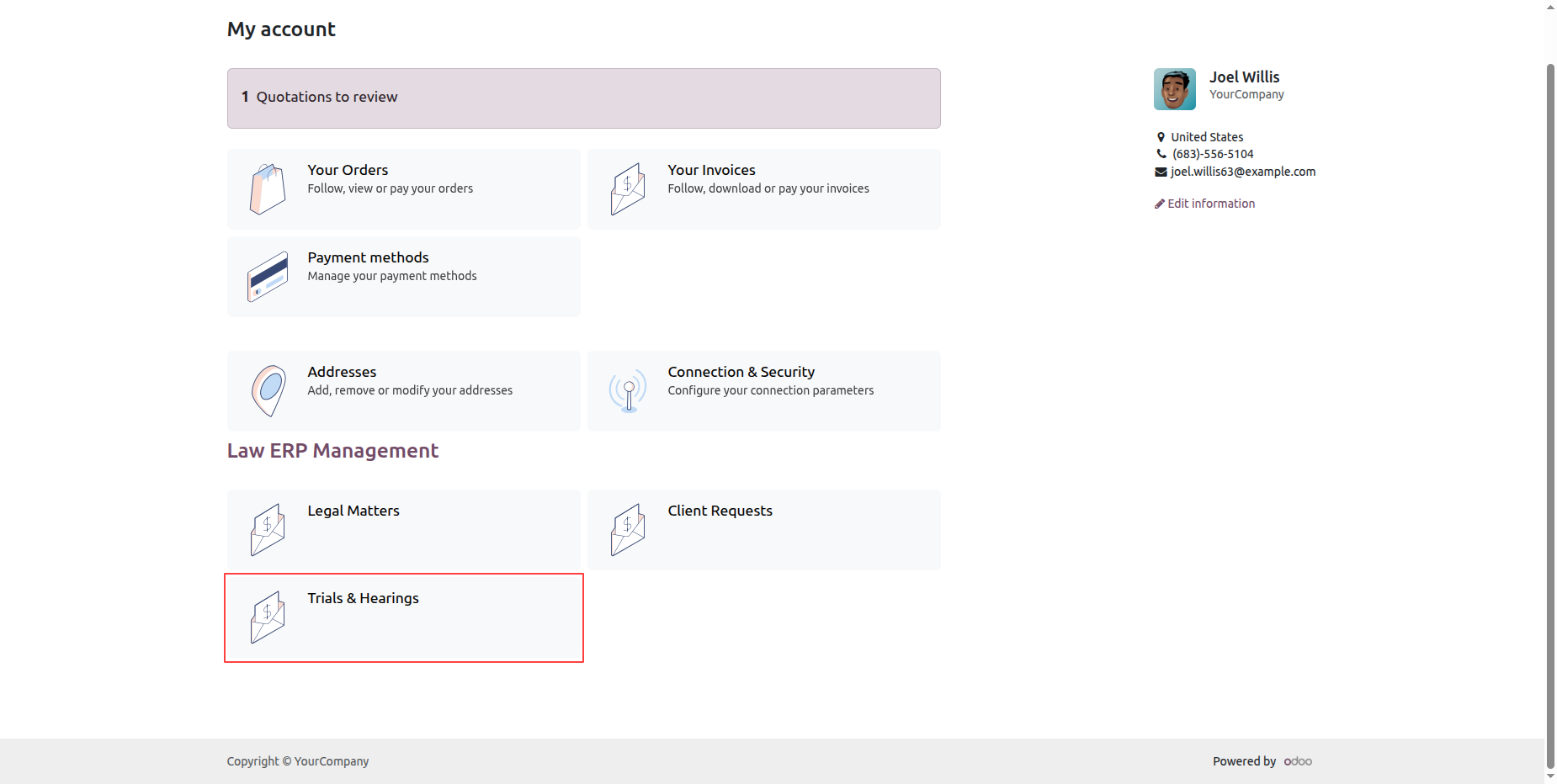
Click Trials & Hearings from the portal to view the scheduled trial and hearing records.
Clicking the Trials & Hearings tile opens the Trials list view, where users can view the trial created from the matters.
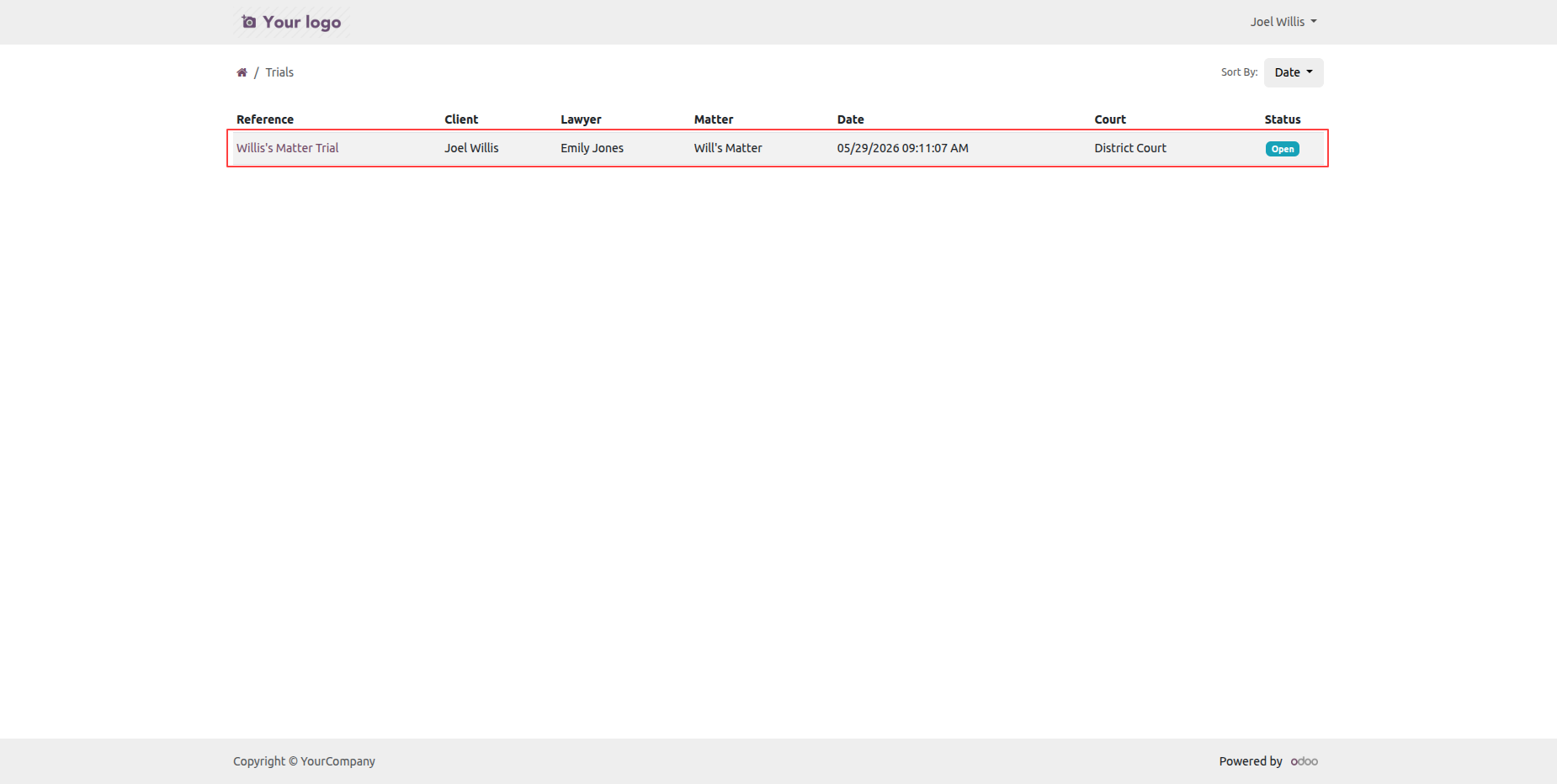
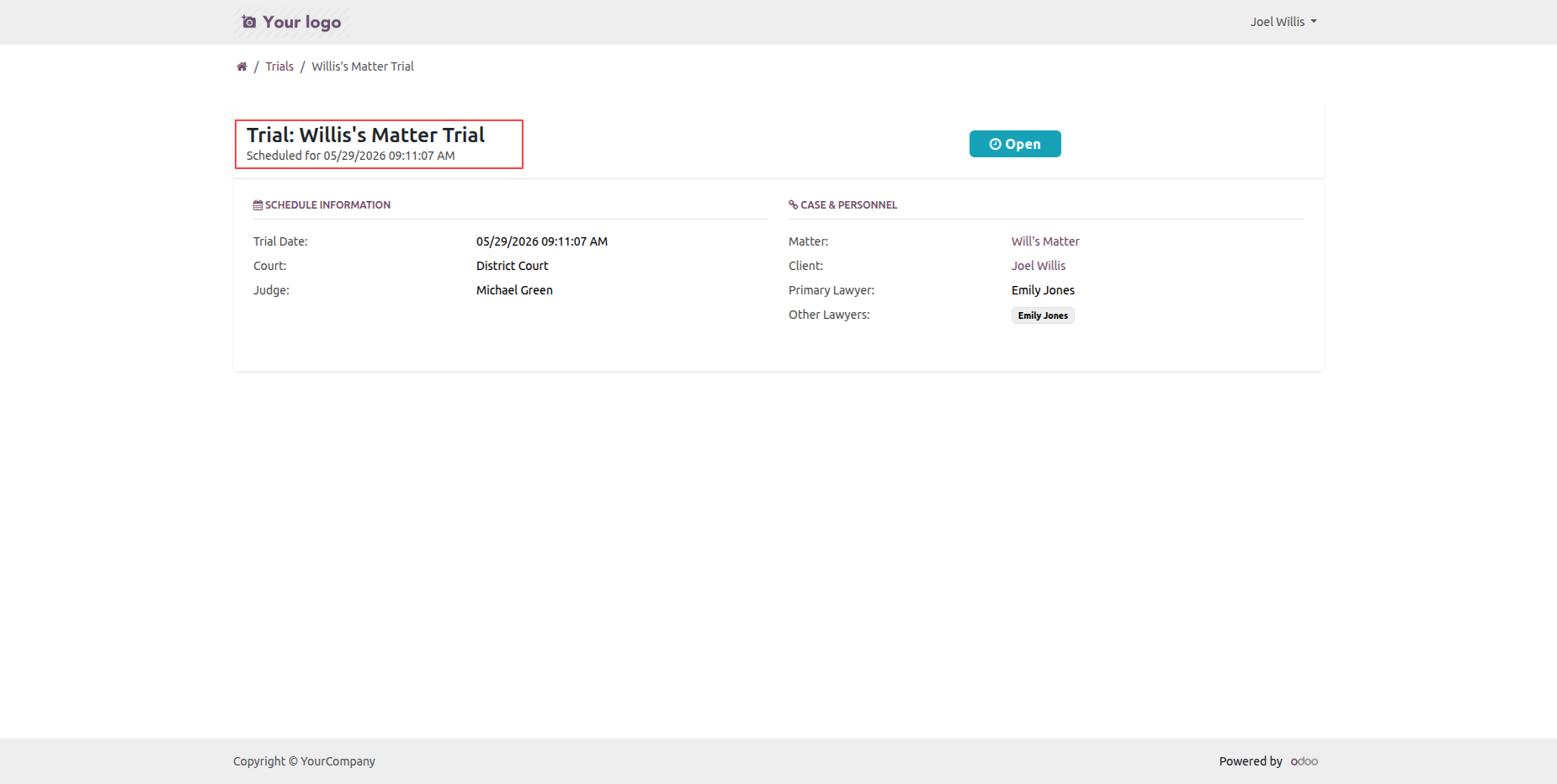
Click on a trial from the list view to open its form view.
Version 19.0.1.0.0 | Released on : 17th August 2026
- Yes, this app works perfectly with Odoo Enterprise (Odoo.sh & Premise) as well as Community.
- No, this application is not compatible with odoo.com(odoo saas/Odoo Online)
- Yes, to test this module, please contact us at sales@softhealer.com.
- Please contact us at sales@softhealer.com to request customization.
- Yes, we provide free lifetime support for the version you purchased.
- Yes, you will receive lifetime free updates for the version of the module you purchased.
- No, there is no need to install any additional libraries.
- Yes, for version 12 and above, you need to purchase the module separately for each version you intend to use.
- No, exchanges or refunds are not allowed. Please make sure to select the correct version before purchasing.
- You can contact us at support@softhealer.com for language translation support. We use Google Translator tools to provide translations in multiple languages, so the accuracy may vary. We welcome your suggestions to help improve translations.
Discover Our Latest Apps