












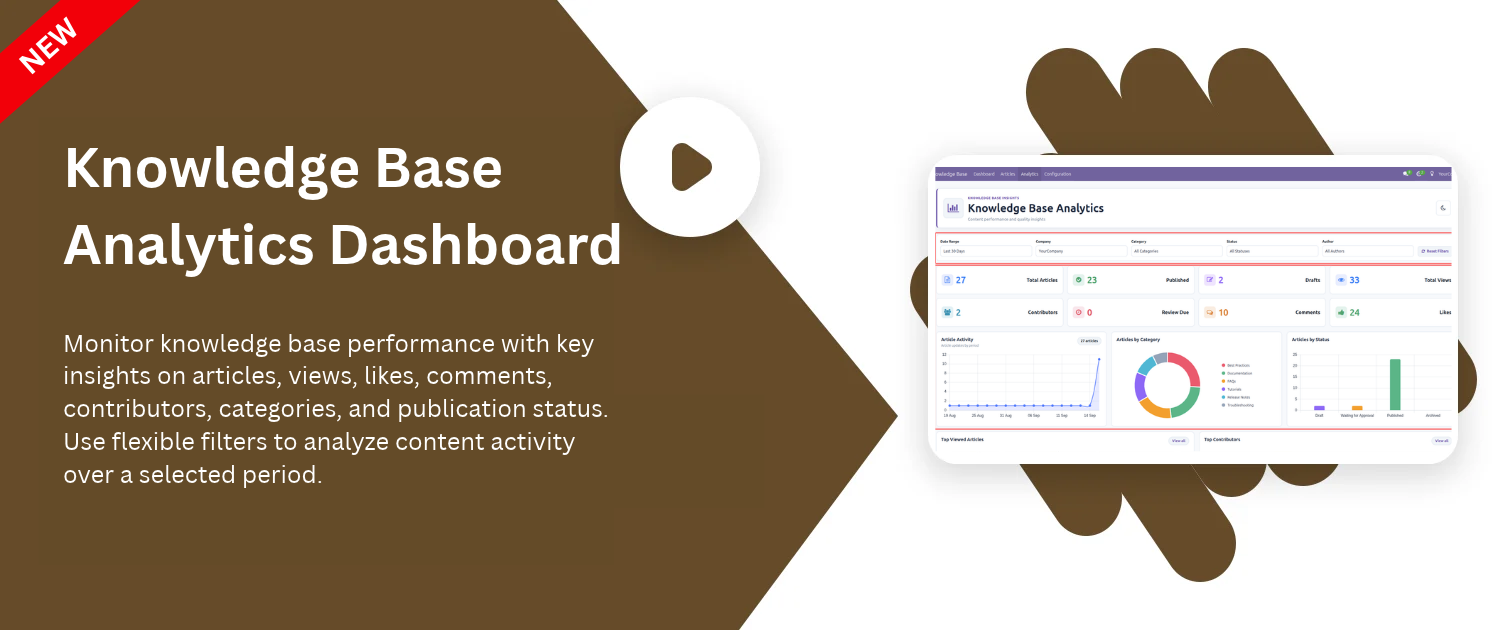
 Knowledge Base Analytics Dashboard Added.
Latest Version 19.0.7.0.0 | Released on : 10th September 2026
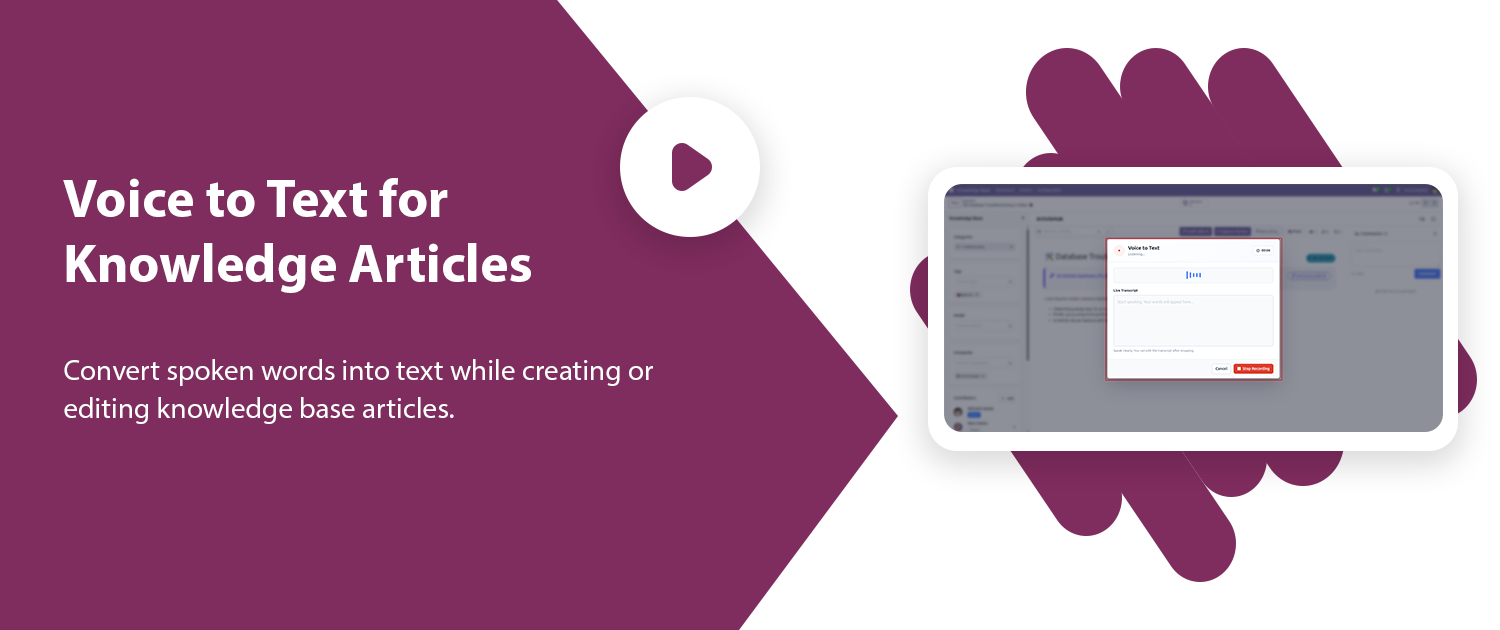
Convert spoken words into text while creating or editing knowledge base articles.
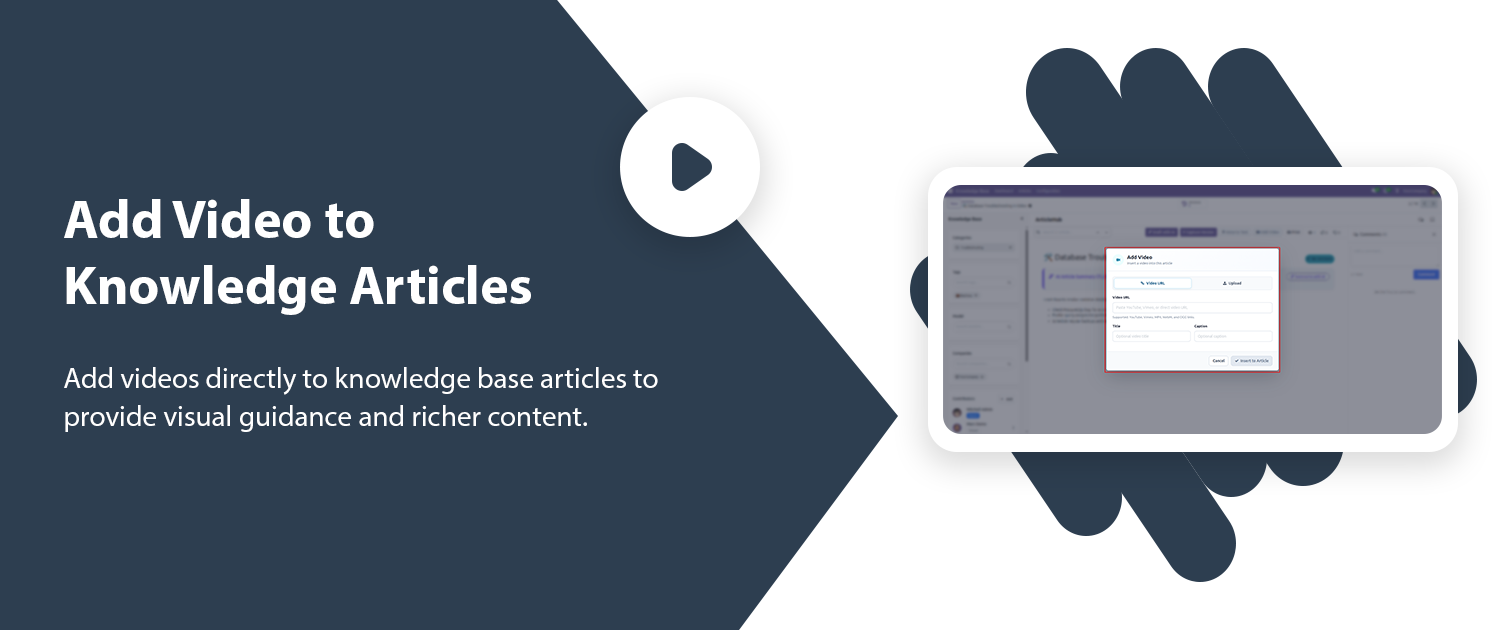
Add videos directly to knowledge base articles to provide visual guidance and richer content.
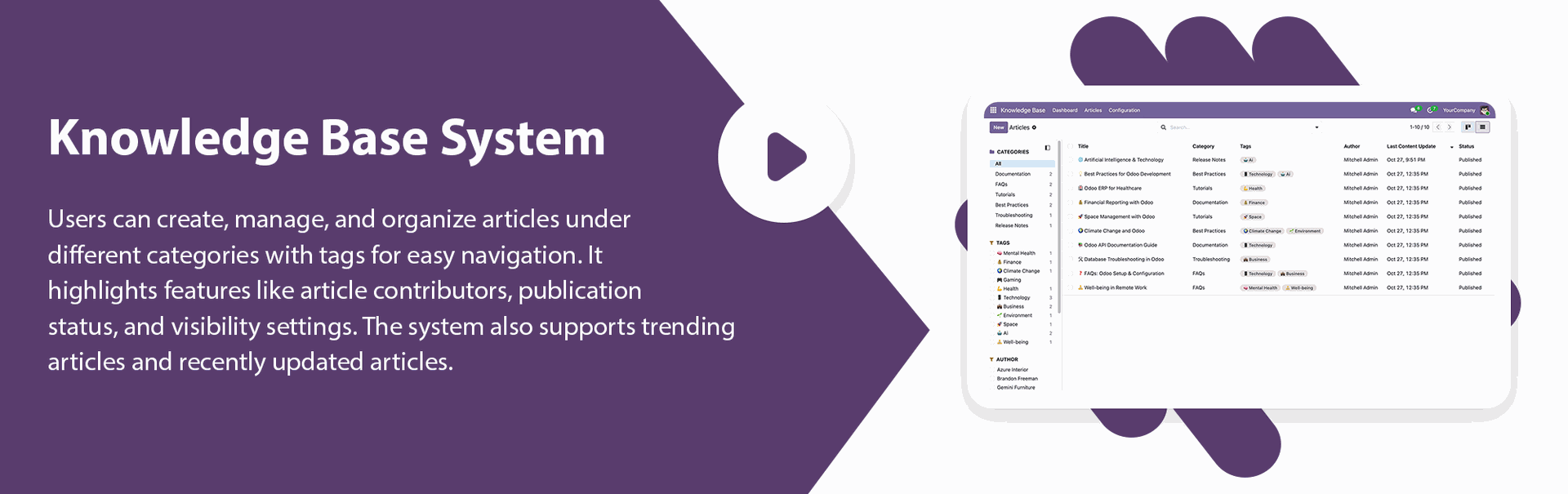
Knowledge Base System

The Knowledge Base System is a complete Knowledge Management System designed as a practical Knowledge Management Software solution.
It provides a collaborative space where teams can create, manage, and share
information efficiently. It enables users to build articles, tags, and contributor roles to ensure smooth
knowledge sharing across departments. Each article supports structured content with headings and
formatted text, giving an engaging and easy to read experience.
You can assign contributors as editors or viewers, manage access rights, and maintain version control by
switching between draft, approval, and published states. The portal and link-only options allow flexible
visibility for both internal and external readers. Collaboration is enhanced with an integrated
commenting system where team members can interact, reply, and react in real time. Articles can be shared
through generated links, printed, or filtered by tags and categories. Overall, this module helps
organizations centralize knowledge, promote teamwork, and maintain clear, accessible documentation for
ongoing learning and improvement. It is also useful for creating and maintaining Standard Operating
Procedures (SOPs), ensuring consistency and clarity in organizational processes.
Key Features
Related Modules
Features

Knowledge Management
A centralized platform to record, manage, organize, and share knowledge keeping everything accessible, structured, and easy to use in one place.

User & Manager Roles
Separate user and manager roles with configurable access and security rights.
Portal View
Separate Portal View for external users or team members with limited access.
Manage Article Status
Define and manage article Status such as Draft, In Progress, and Published.
Manage Article
Create, edit, and manage articles with detailed content structure.

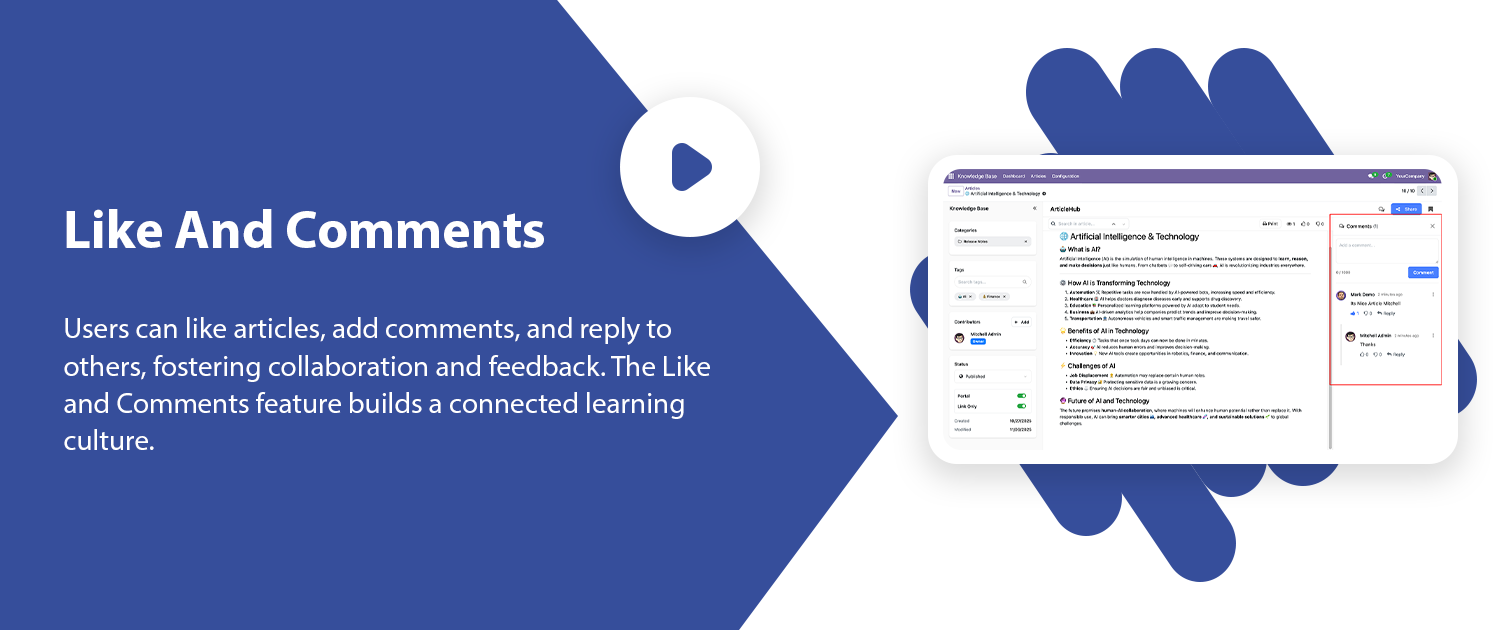
Like and Comment Article
Users can like and comment on articles for feedback.
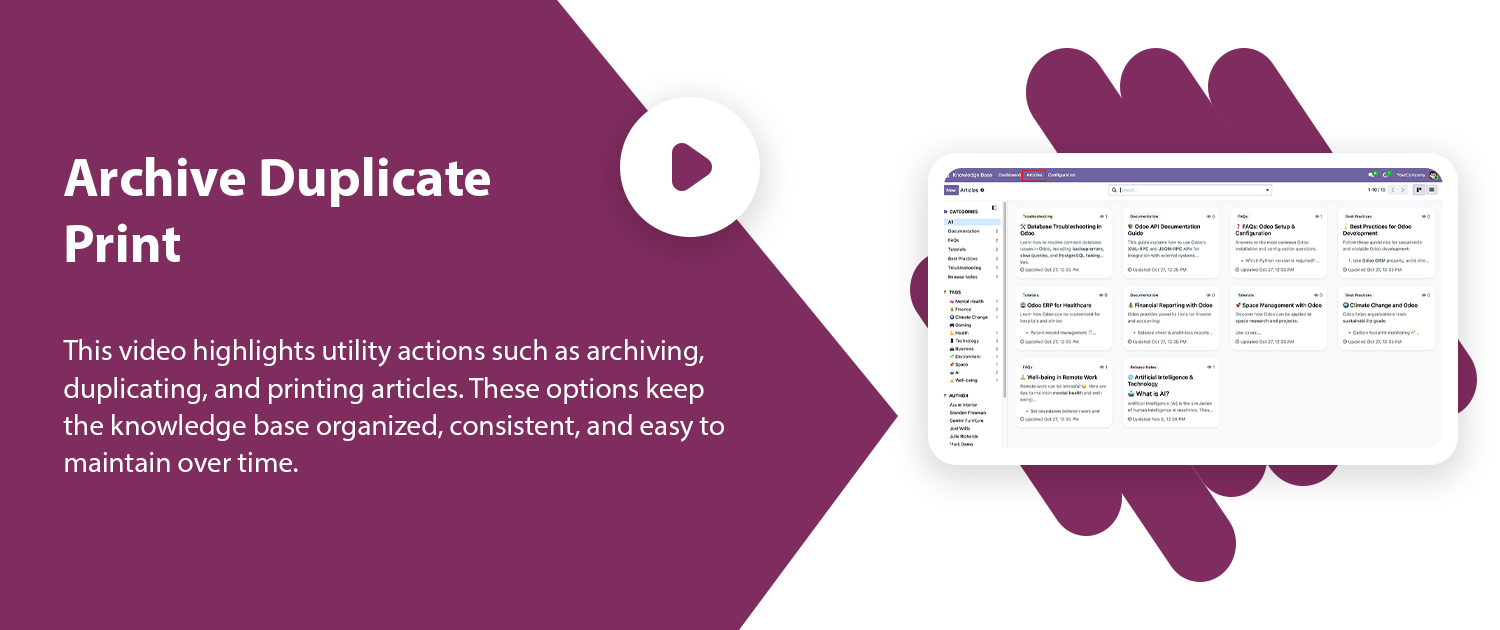
Archive and Duplicate Article
Quickly archive outdated articles and duplicate existing ones to reuse content while keeping the knowledge base organized and up to date.
Save Favorite Articles
Mark important articles as favorites to access them quickly anytime without searching through the entire knowledge base while providing a centralized Knowledge Base Platform and Internal Knowledge Base for organized content and collaboration.
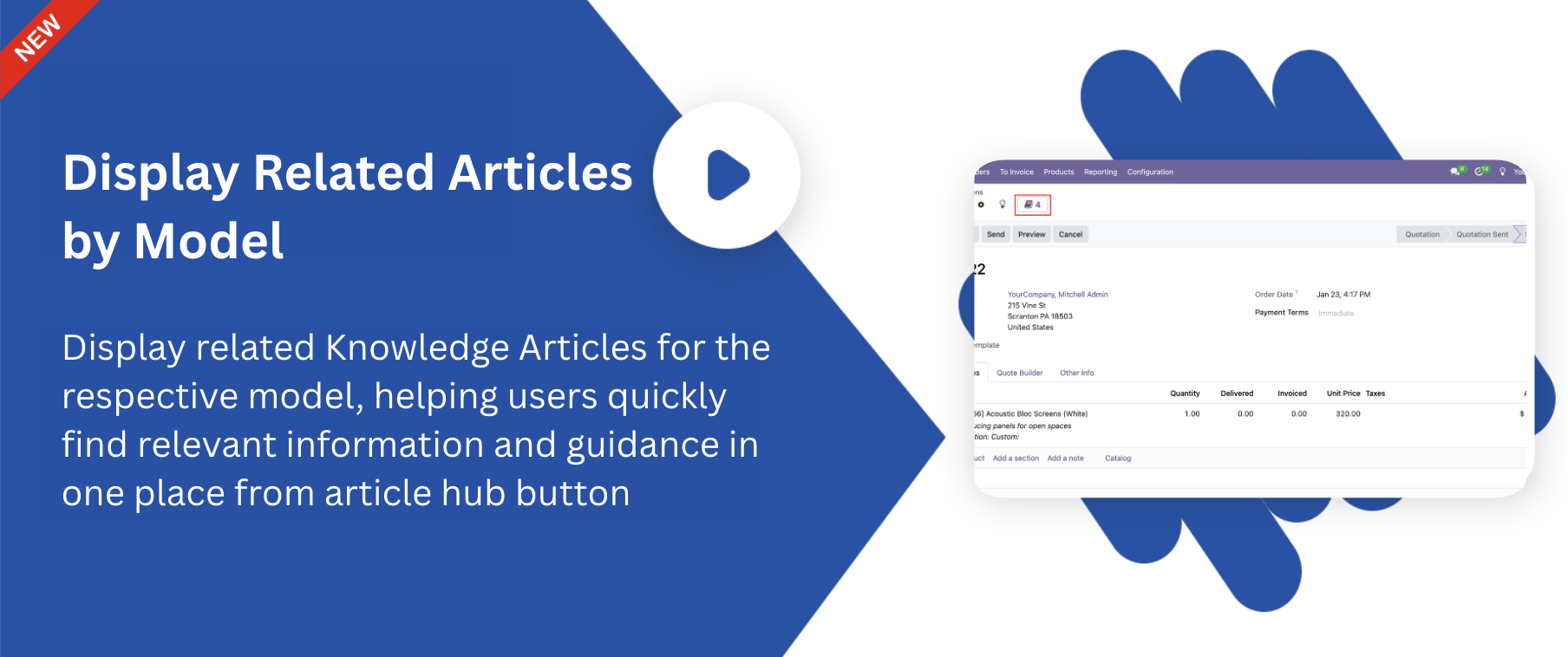
Display Related Articles
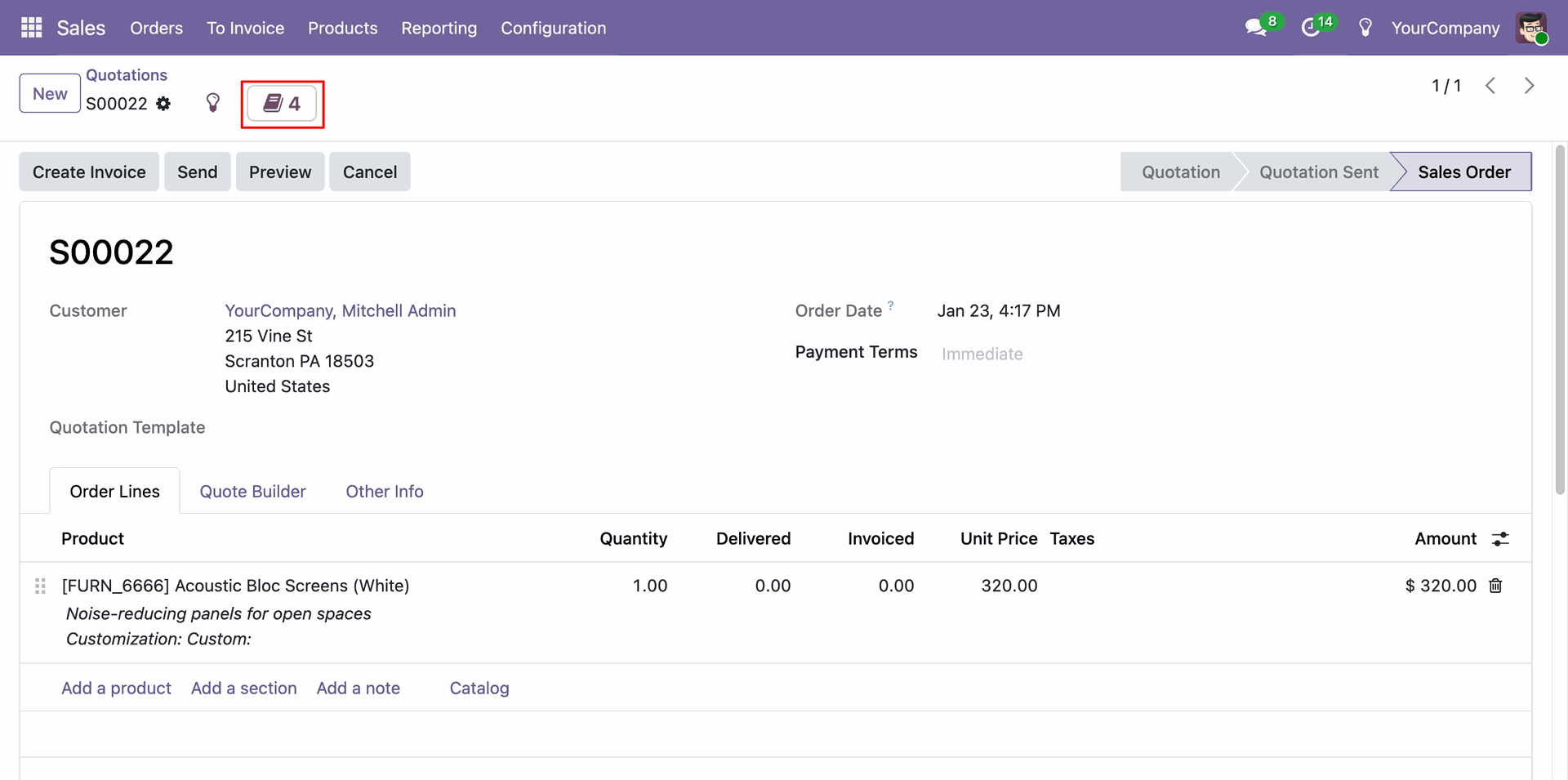
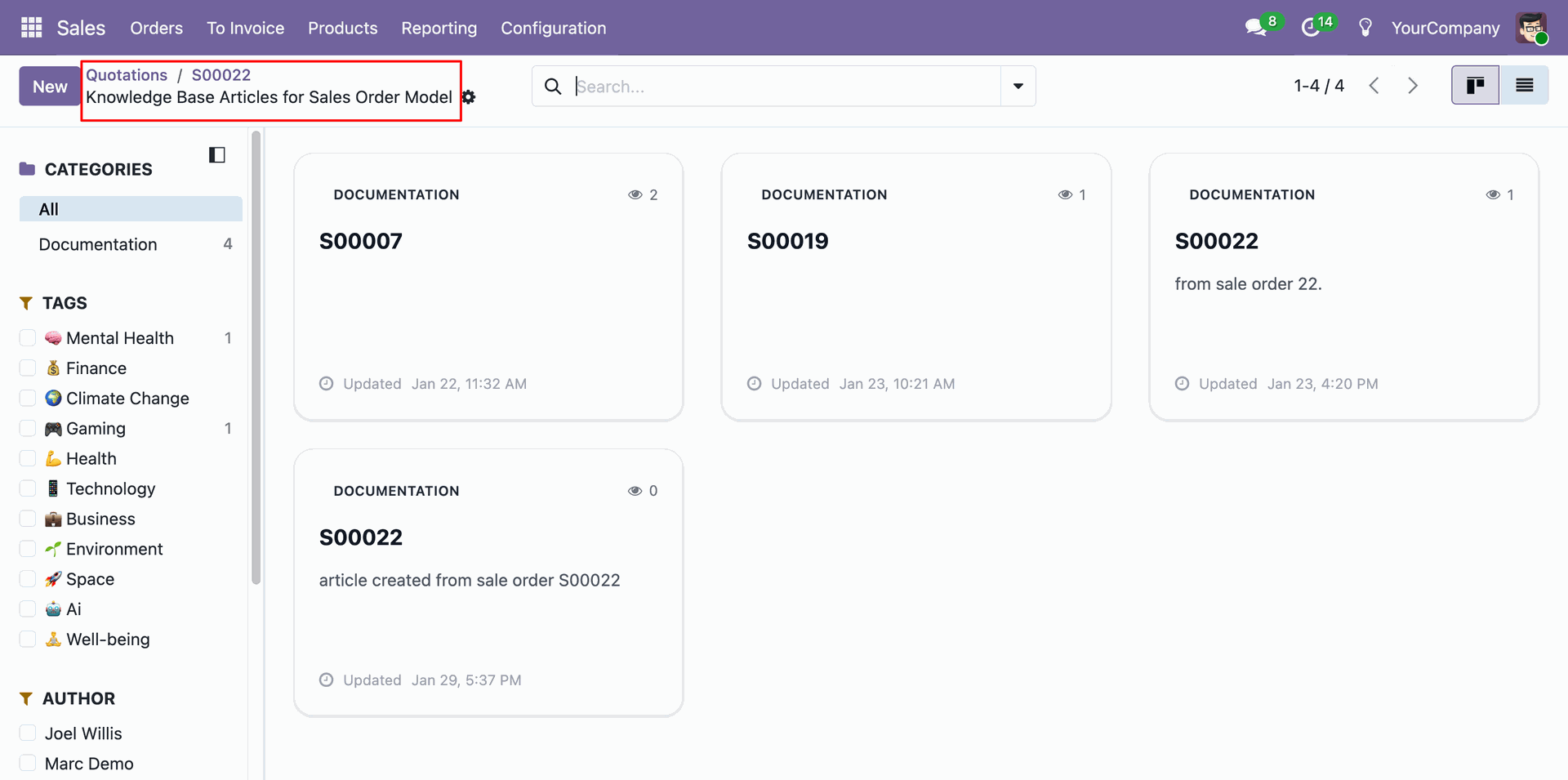
View related Knowledge Articles for the respective model directly from the Article Hub button for easy reference.

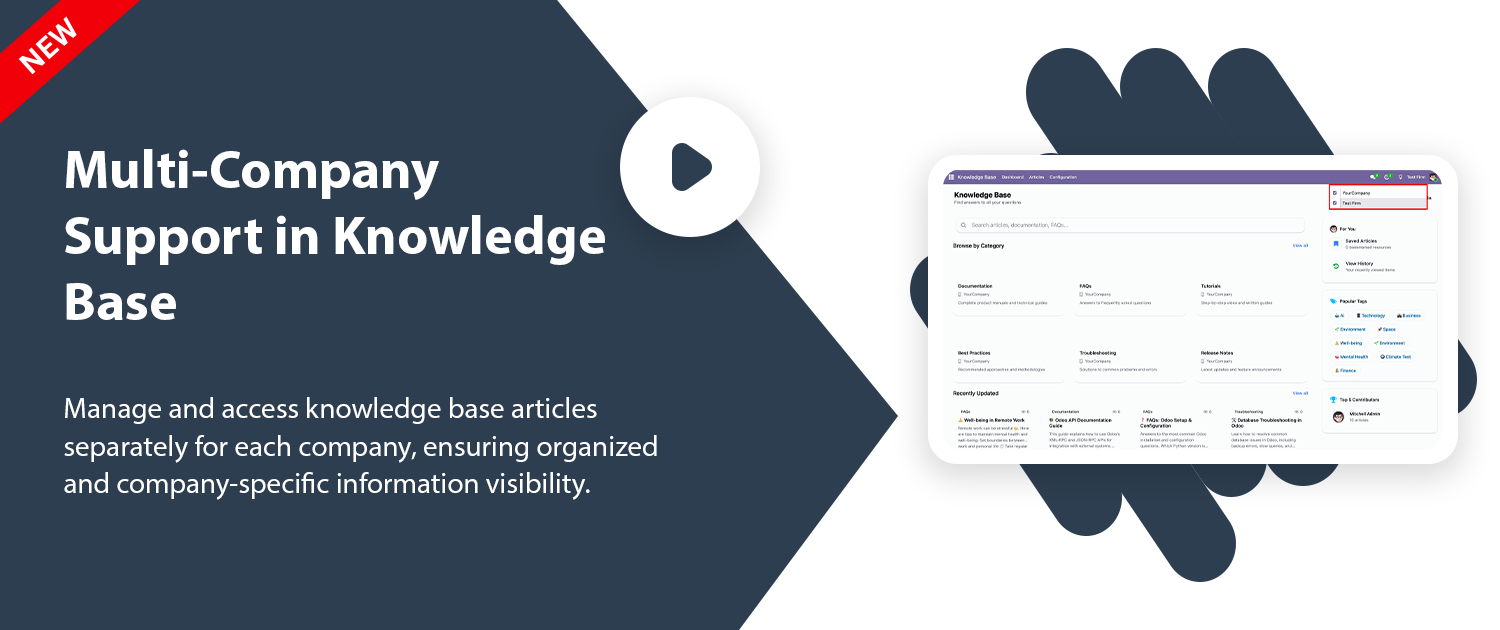
Company-Wise Article Management
Manage knowledge base articles, tags, and categories company-wise with dedicated multi-company content visibility, creating a structured Company Knowledge Base and Business Knowledge Base.
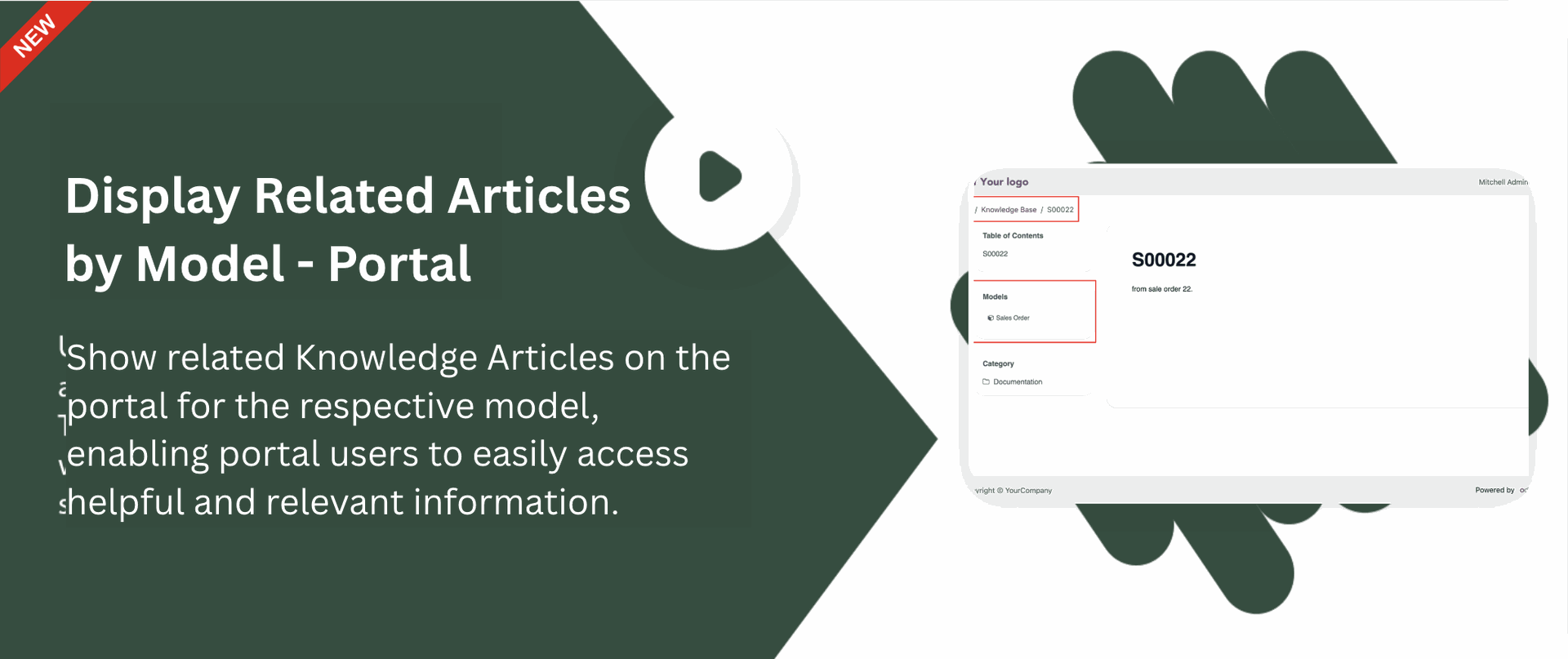
Display Related Articles - Portal
Show related Knowledge Articles on the portal for the respective model, allowing portal users to access helpful information easily.
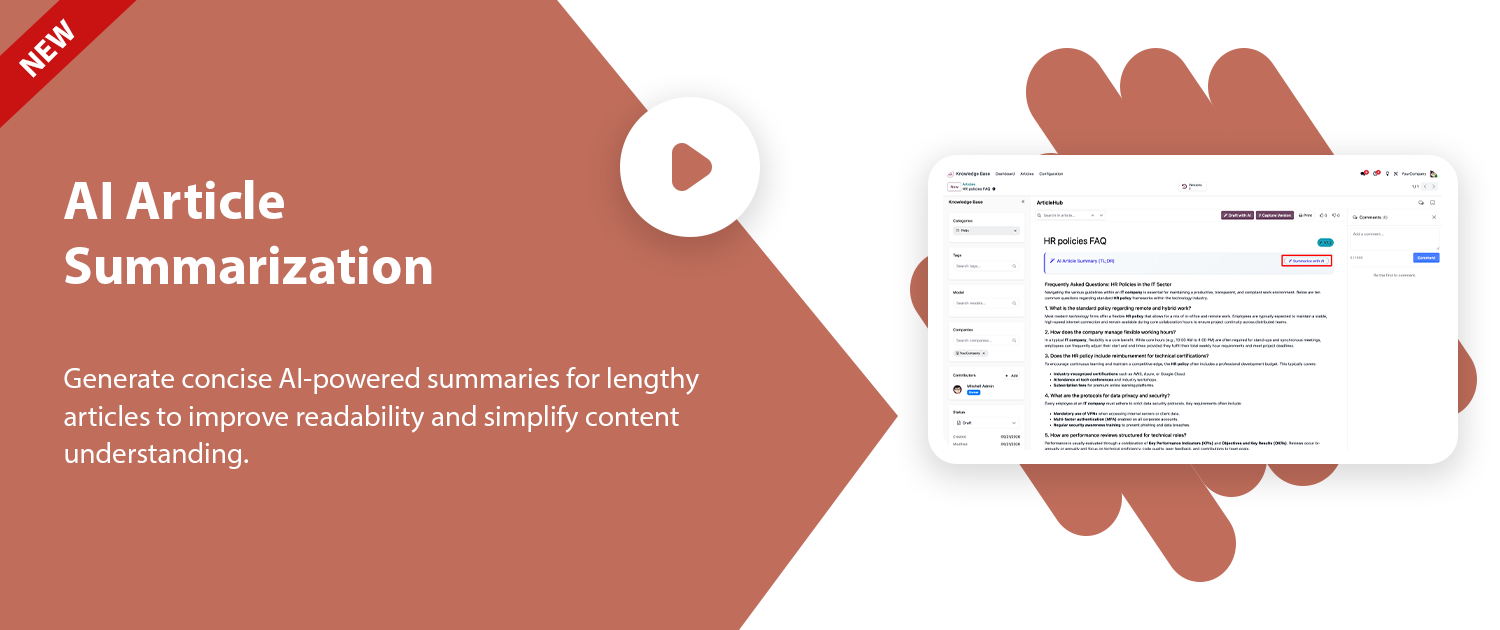
AI Article Summarization
Summarize lengthy knowledge base articles using AI for quick understanding and simplified content review.

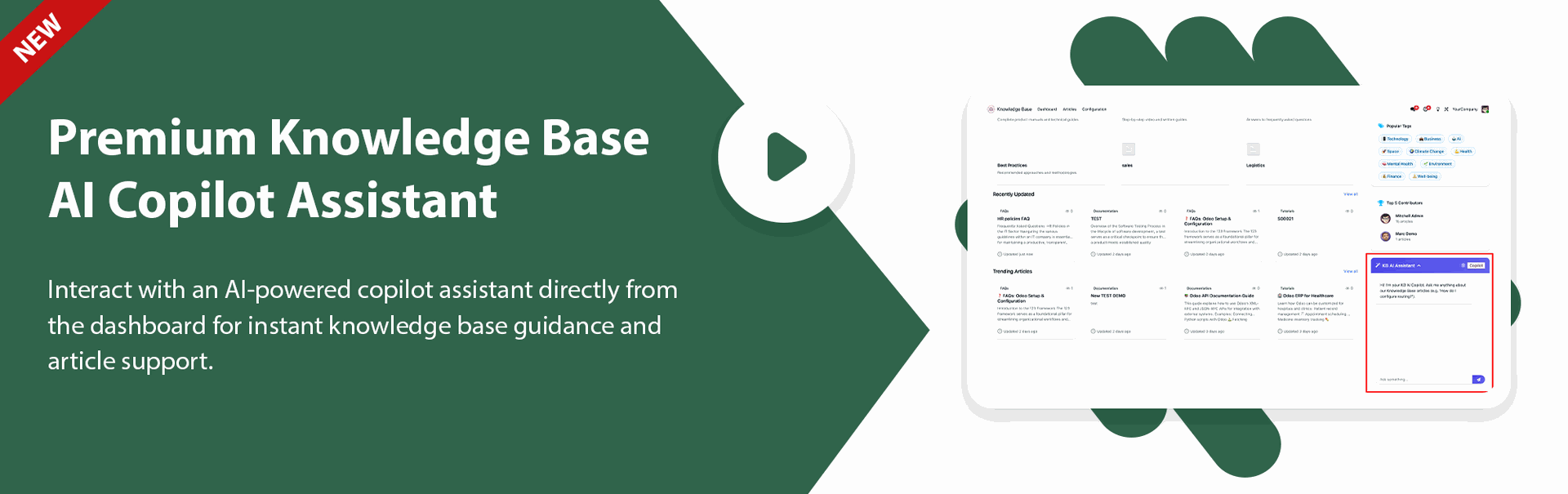
Premium KB AI Copilot
Interact with an intelligent assistant to query knowledge base content and retrieve structured answers instantly through Knowledge Base Software built for everyday employee access and support.
Voice-to-Text for Knowledge Articles
Convert spoken words into text while creating or editing knowledge base articles.
Dashboard
Centralized dashboard for the Knowledge Management Platform, displaying a quick overview of all knowledge activities. Display of Total Articles, Published Articles, Drafts, and Contributors for quick insights.
Share Article
Easily share article links within your organization and Assign multiple Contributors to articles for collaborative work with Knowledge Sharing Software and a Knowledge Sharing Platform.

Manage categories and Tags
Create and manage article categories and tags for structured organization, helping teams maintain an Employee Knowledge Base.

Track Activities
Track recent articles, most viewed, and most liked directly from the dashboard.

Manage Article Visibility
Control article visibility through publish and unpublish options.
Print Article
Easily print knowledge base articles directly from the interface to keep offline records.

User Notification Preferences
Users can enable or disable Knowledge Base notifications directly from their personal settings.

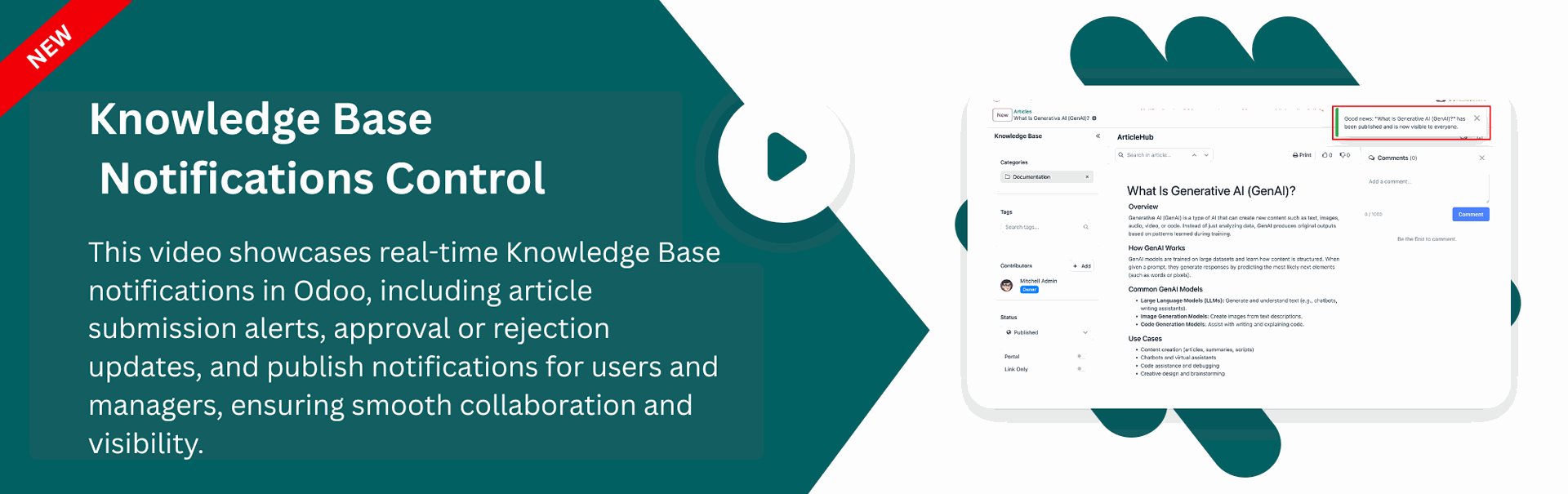
Smart Knowledge Base Notifications
Notifications are intelligently triggered based on user roles such as User, Manager, and Admin. Automatic notification is sent to the author once the manager approves and publishes the article. All managers are notified when any manager publishes a Knowledge Base article. Managers receive instant notifications when a user submits an article for review. Users are notified immediately when their article is sent back to draft with feedback. Notifications appear instantly inside Odoo without page refresh or manual tracking.
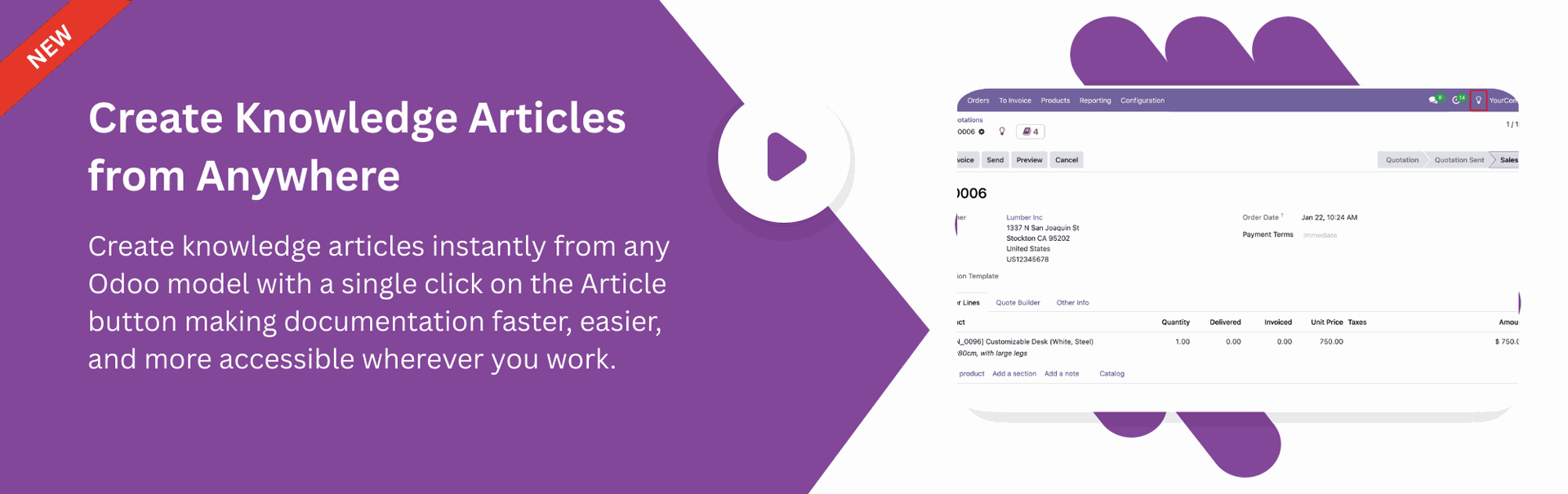
Create Knowledge Articles from Anywhere
Create Knowledge Articles from any Odoo model with a single click on the Article button for quick and easy documentation using Knowledge Documentation Software and Documentation Management Software.
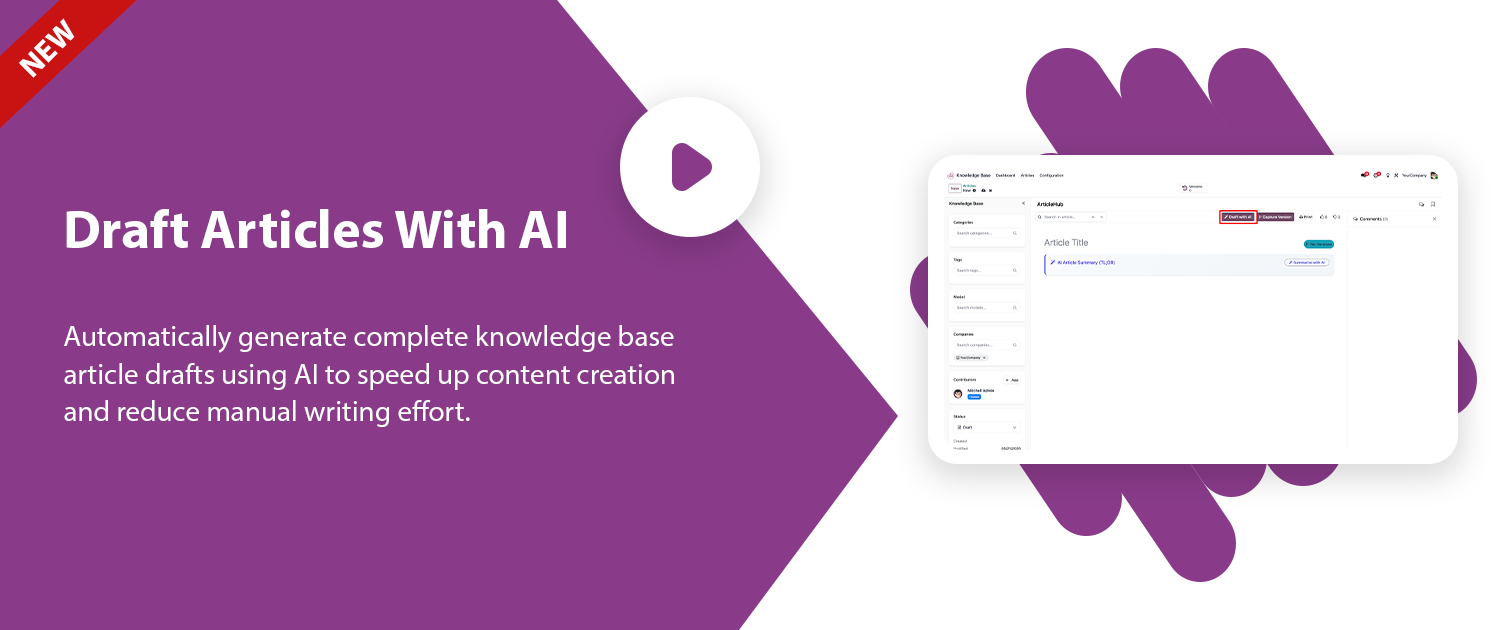
Draft Articles with AI
Generate comprehensive drafts automatically using advanced AI, saving time and simplifying content creation workflows.
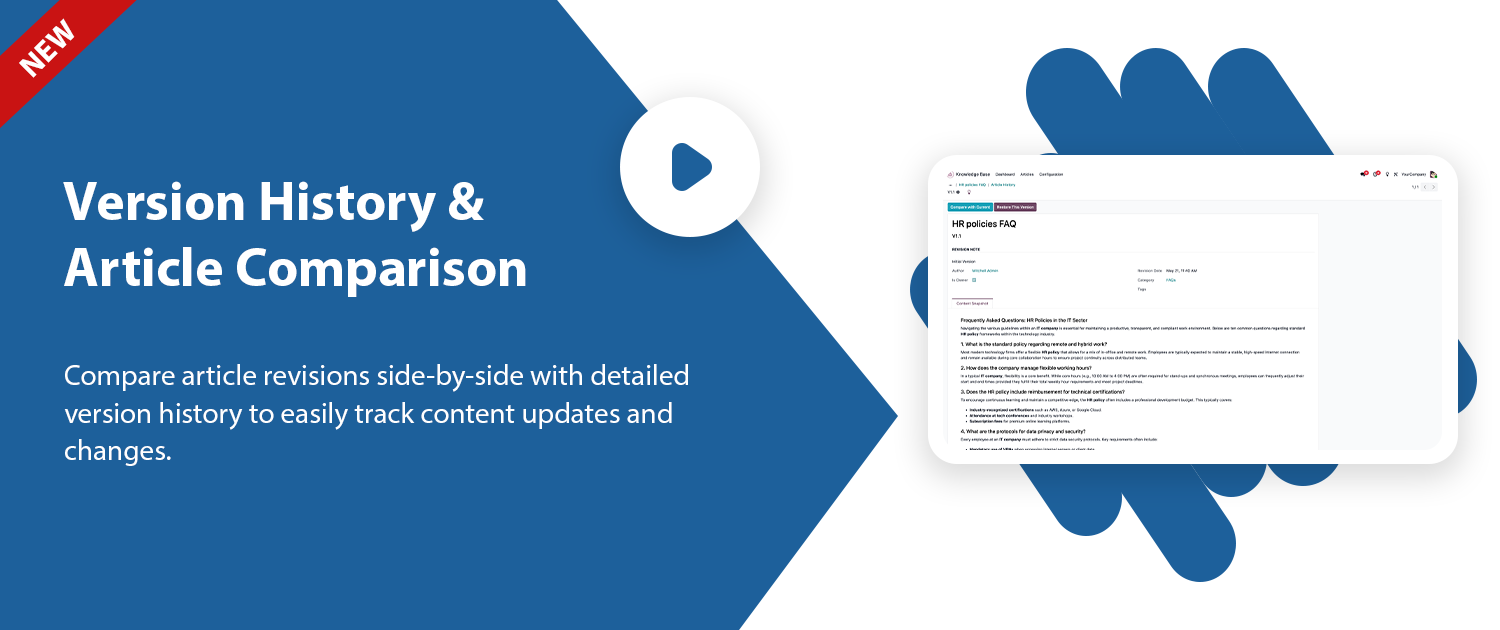
Version History & Article Comparison
Compare different article revisions side-by-side with clear color-coded differences to track all updates.
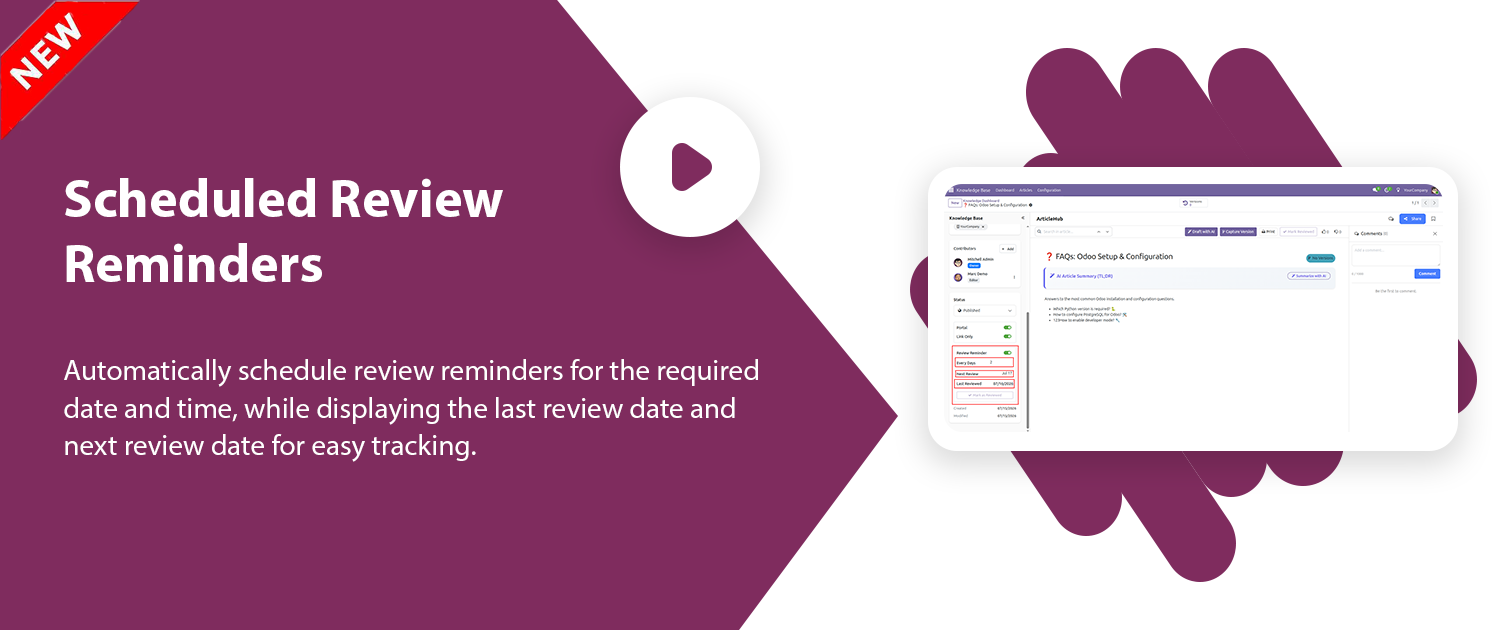
Scheduled Review Tracking
Automatically schedule review reminders for the required date and time, while displaying the last review date and next review date for easy tracking.
Add Video to Knowledge Articles
Add videos directly to knowledge base articles to provide visual guidance and richer content.
Analytics Dashboard
Track knowledge base performance from a centralized analytics dashboard. View article counts, publication status, views, comments, likes, drafts, and many analytical data from one screen.

The user access configuration where the Knowledge Base role is assigned.
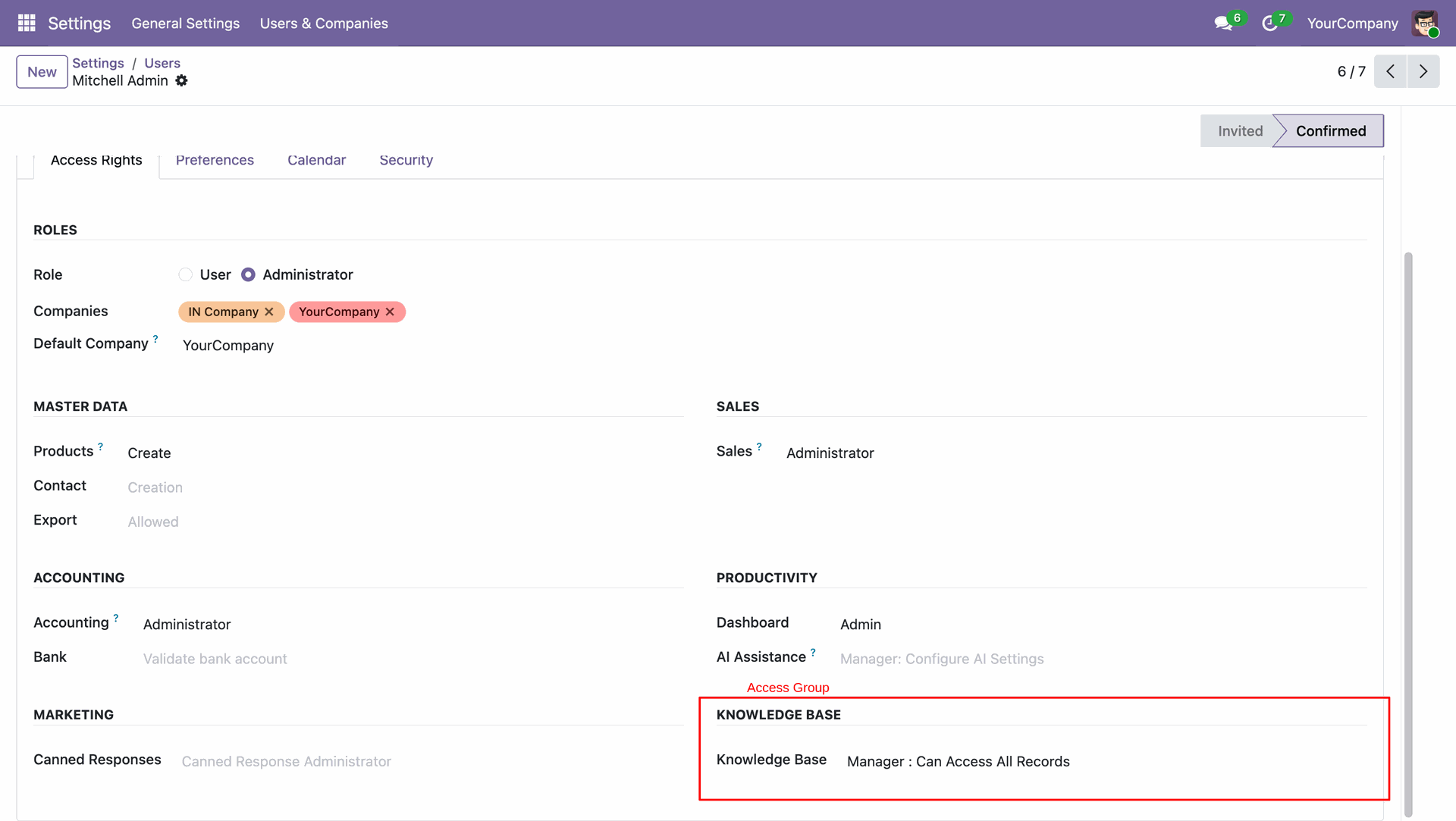
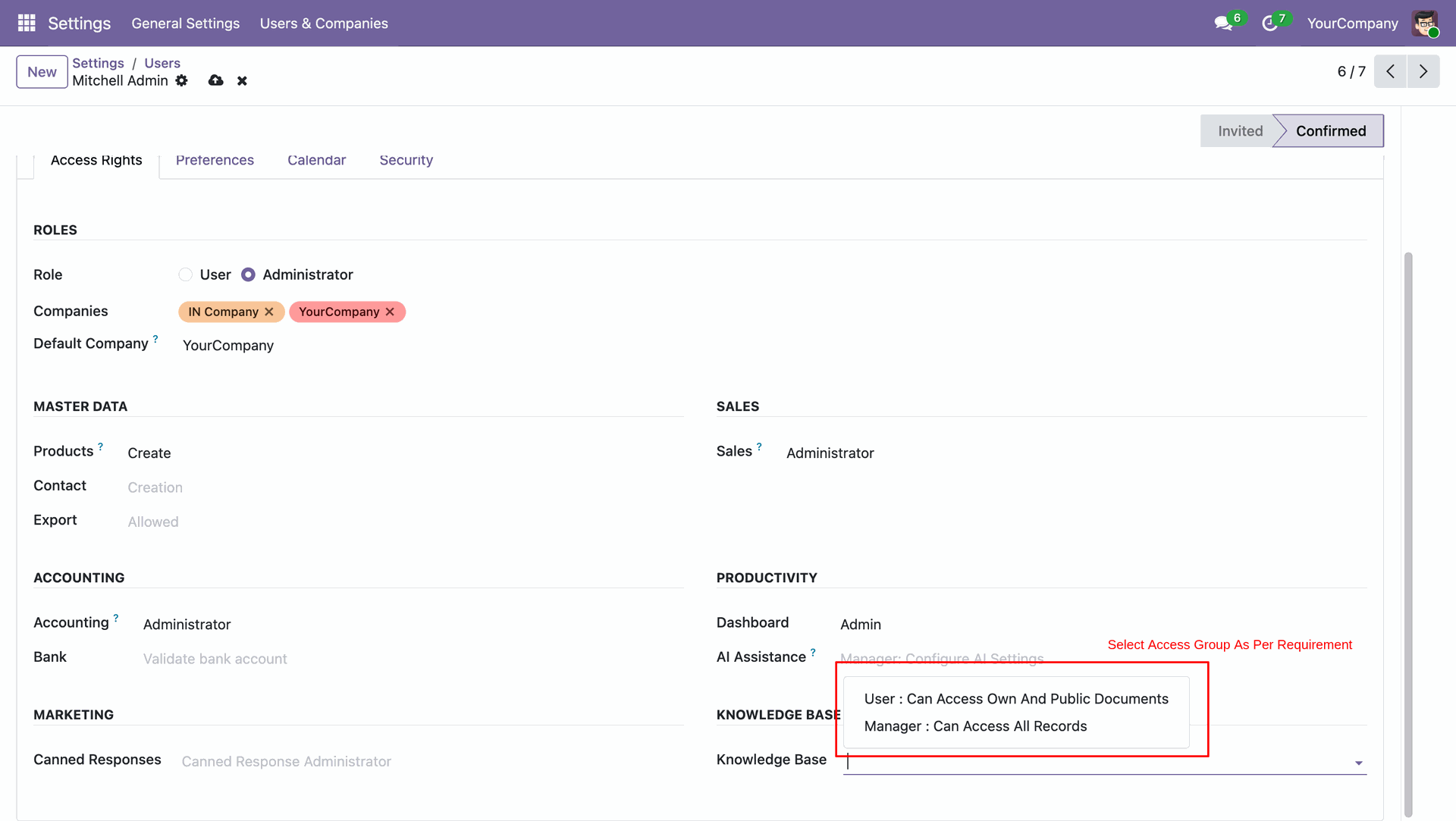
Set user access for the Knowledge Base module. You can choose between two roles - User, who can access their own and public documents, or Manager, who can access all records. Assign the appropriate access group as per your organizations requirement.
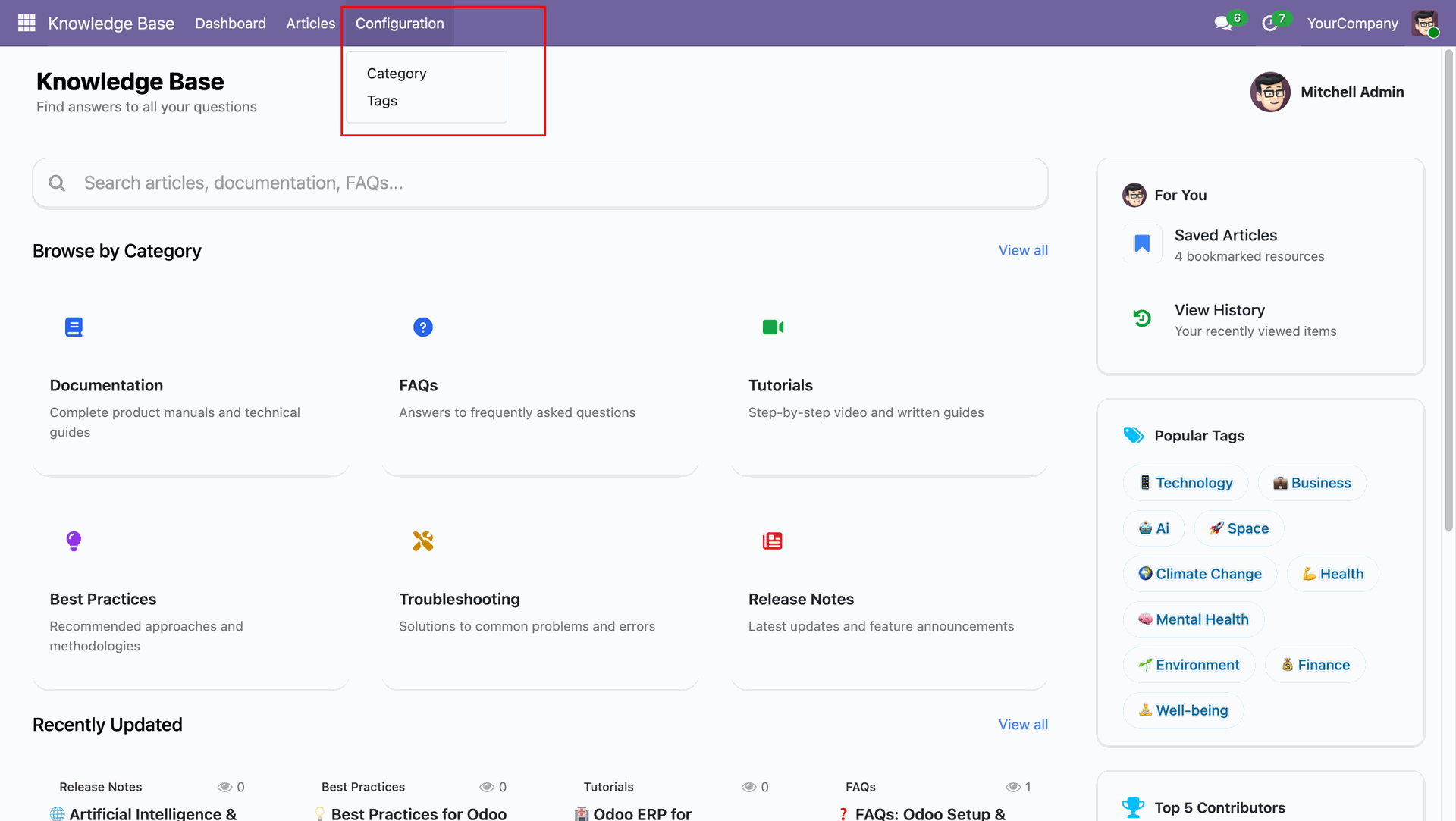
Configuration menu for categories and tags.
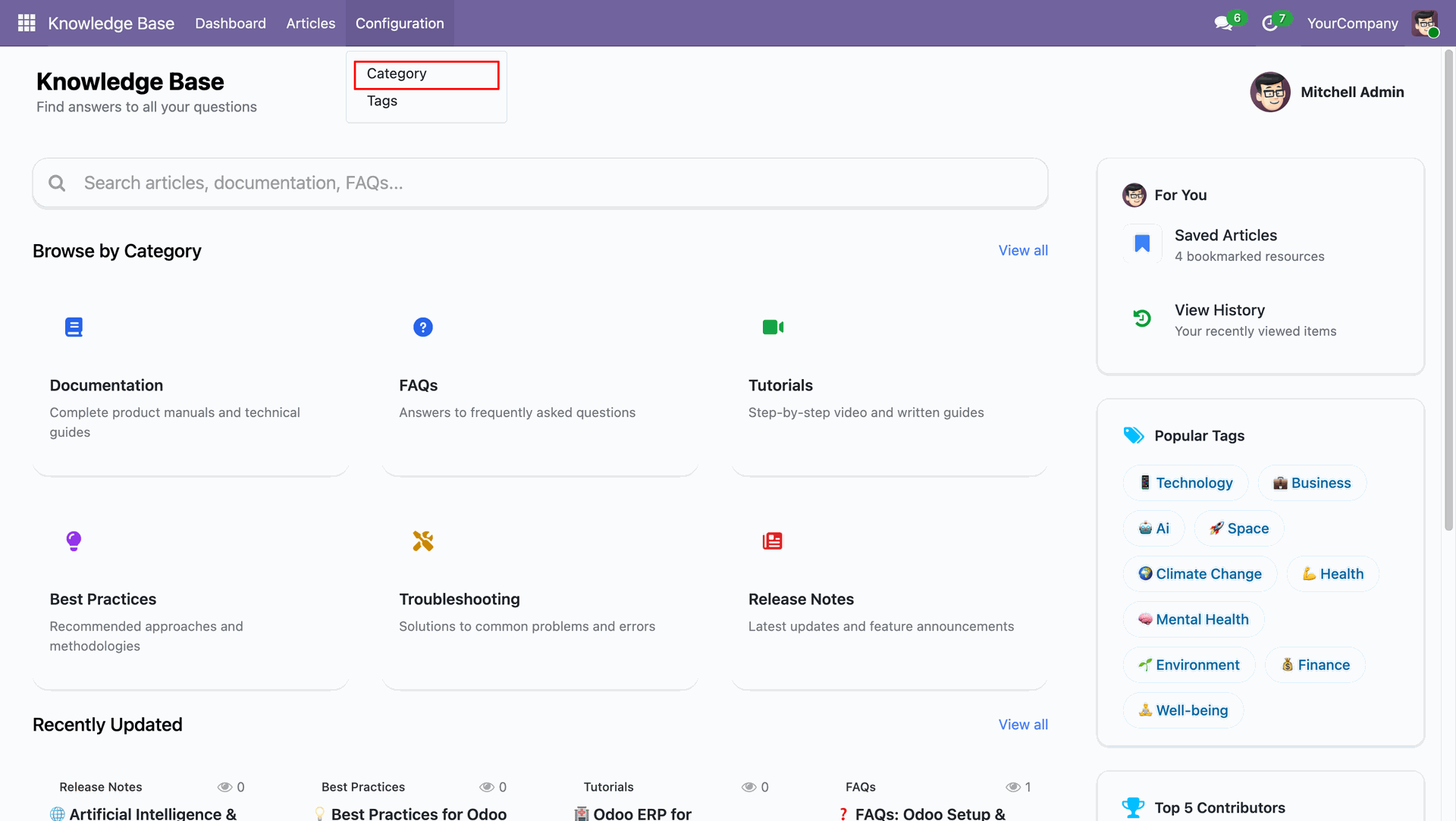
Now we navigate to the Category section for managing and organizing Knowledge Base content.
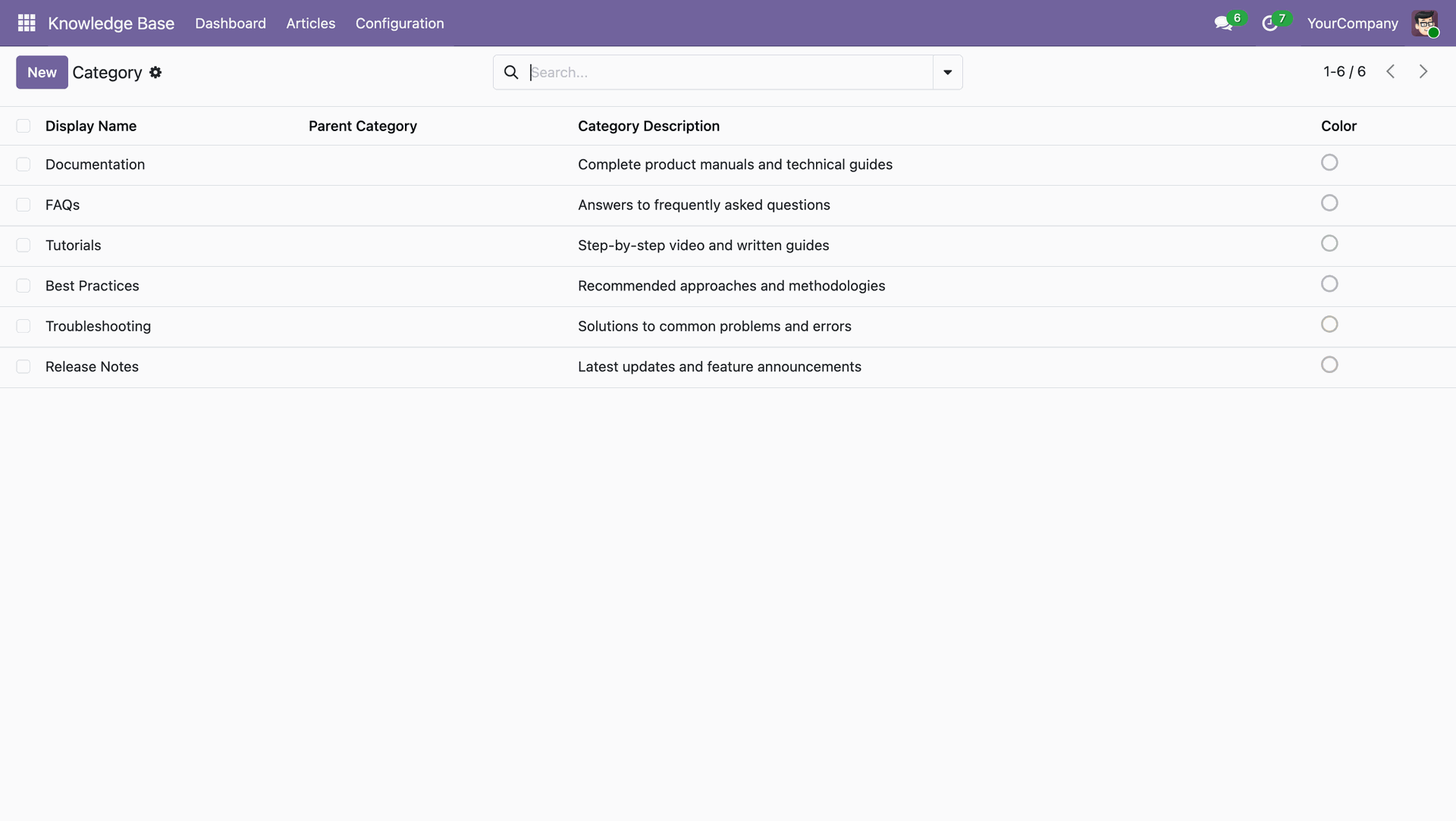
Category list view showing all defined Knowledge Base categories for organized content management.
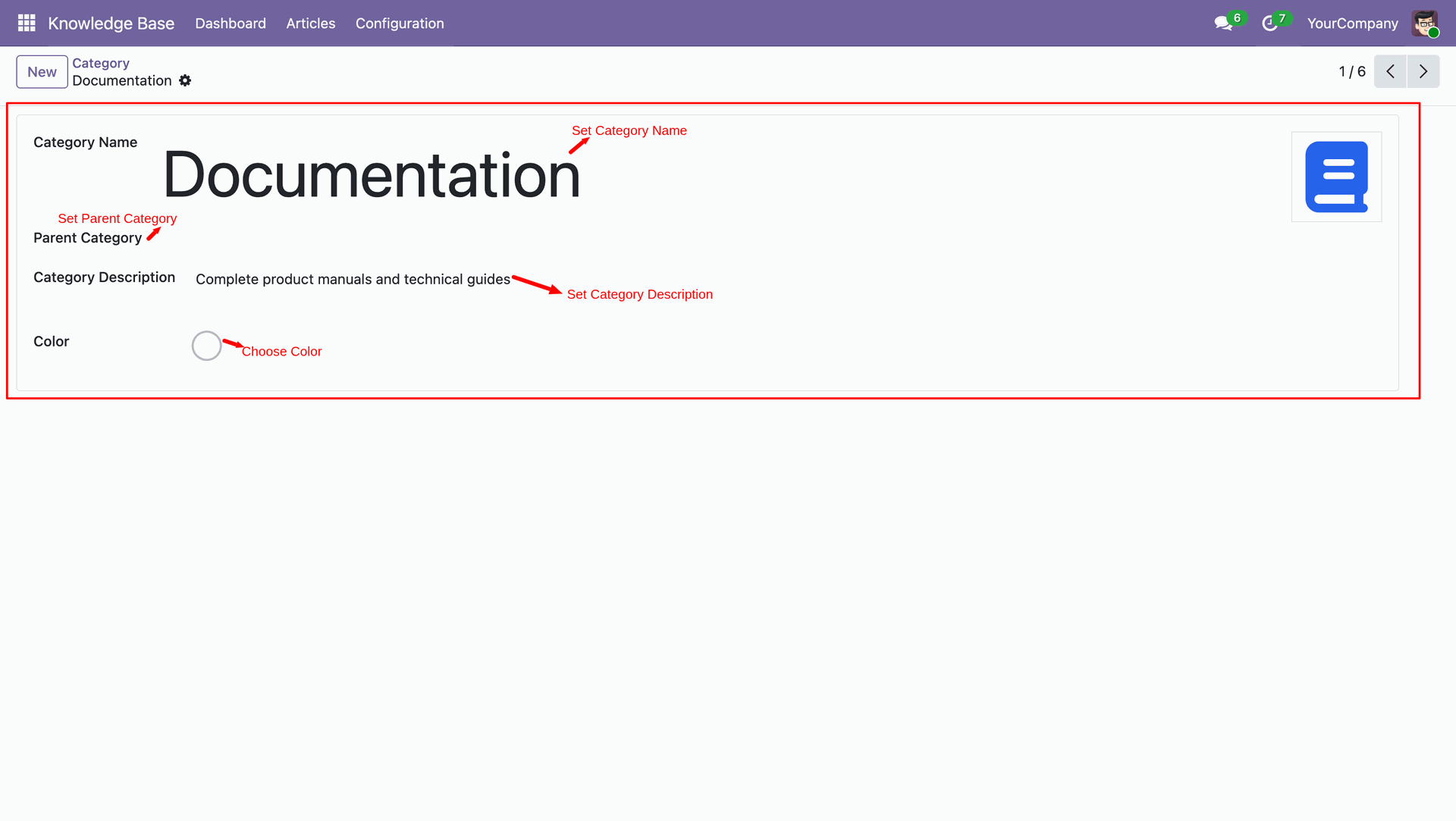
Form view for creating or editing a category with title, description, and relevant information.
Tags menu for creating and managing tags.
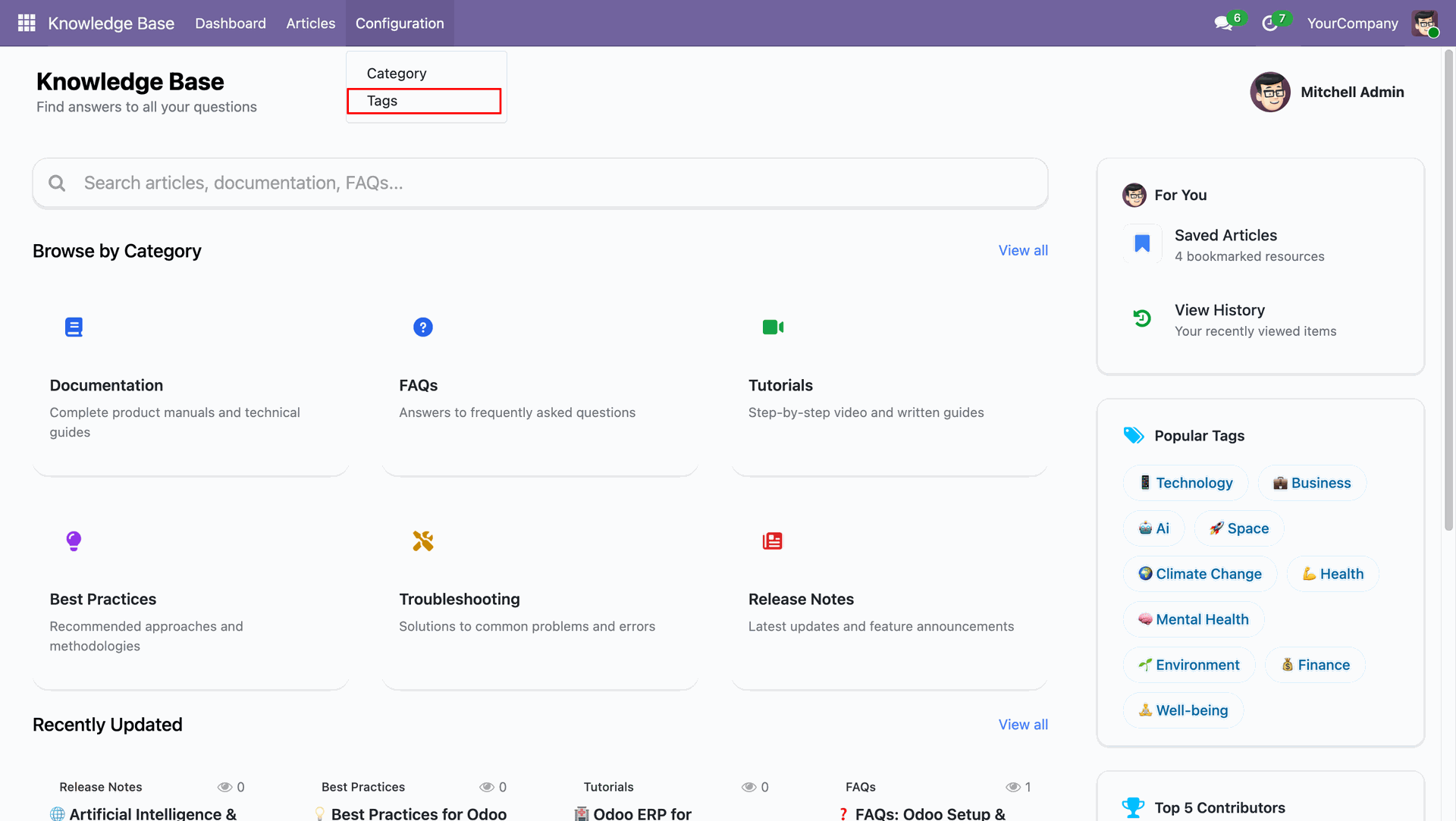
Tag list view showing all defined Knowledge Base tags.
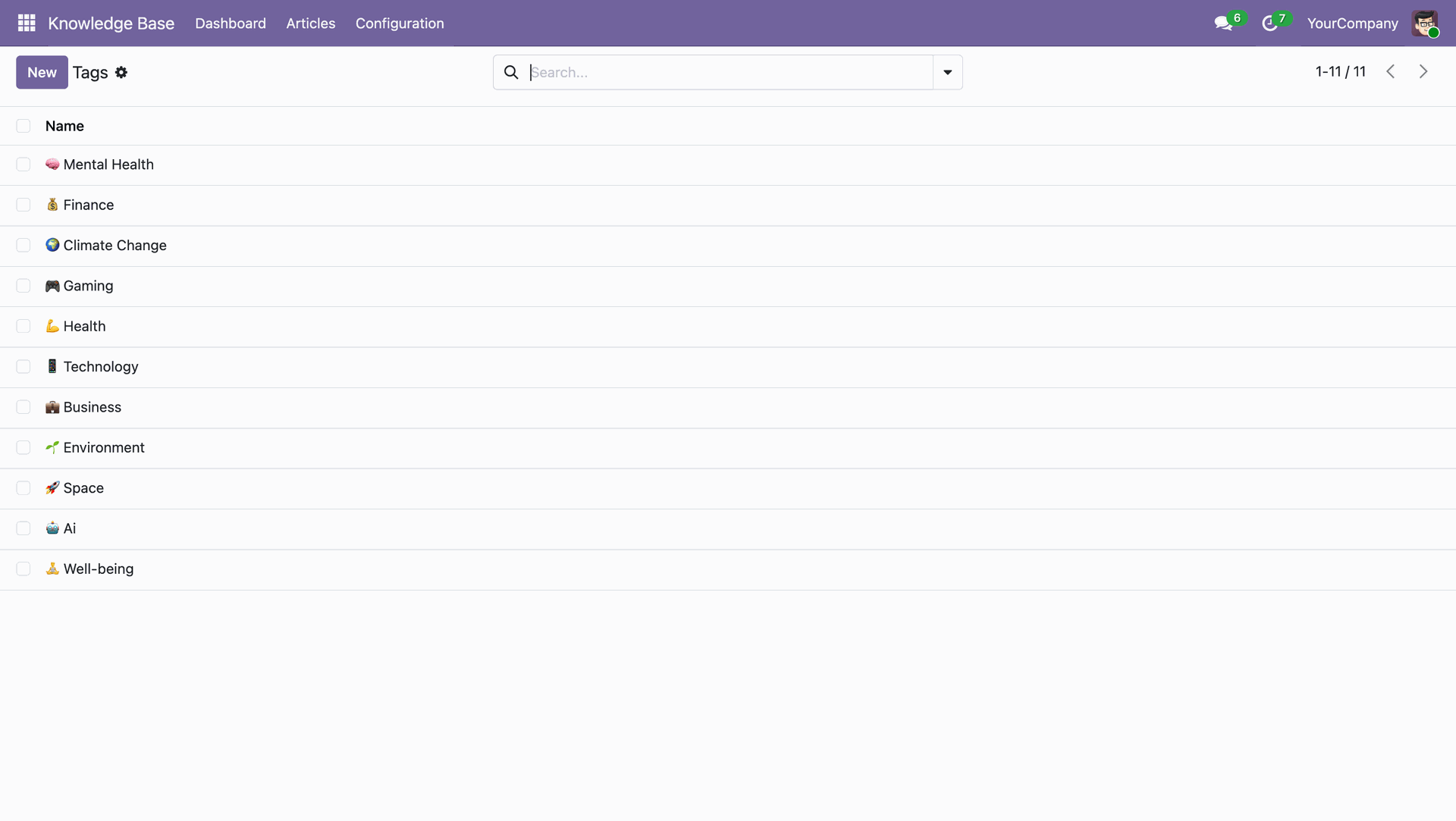
Tag form view.
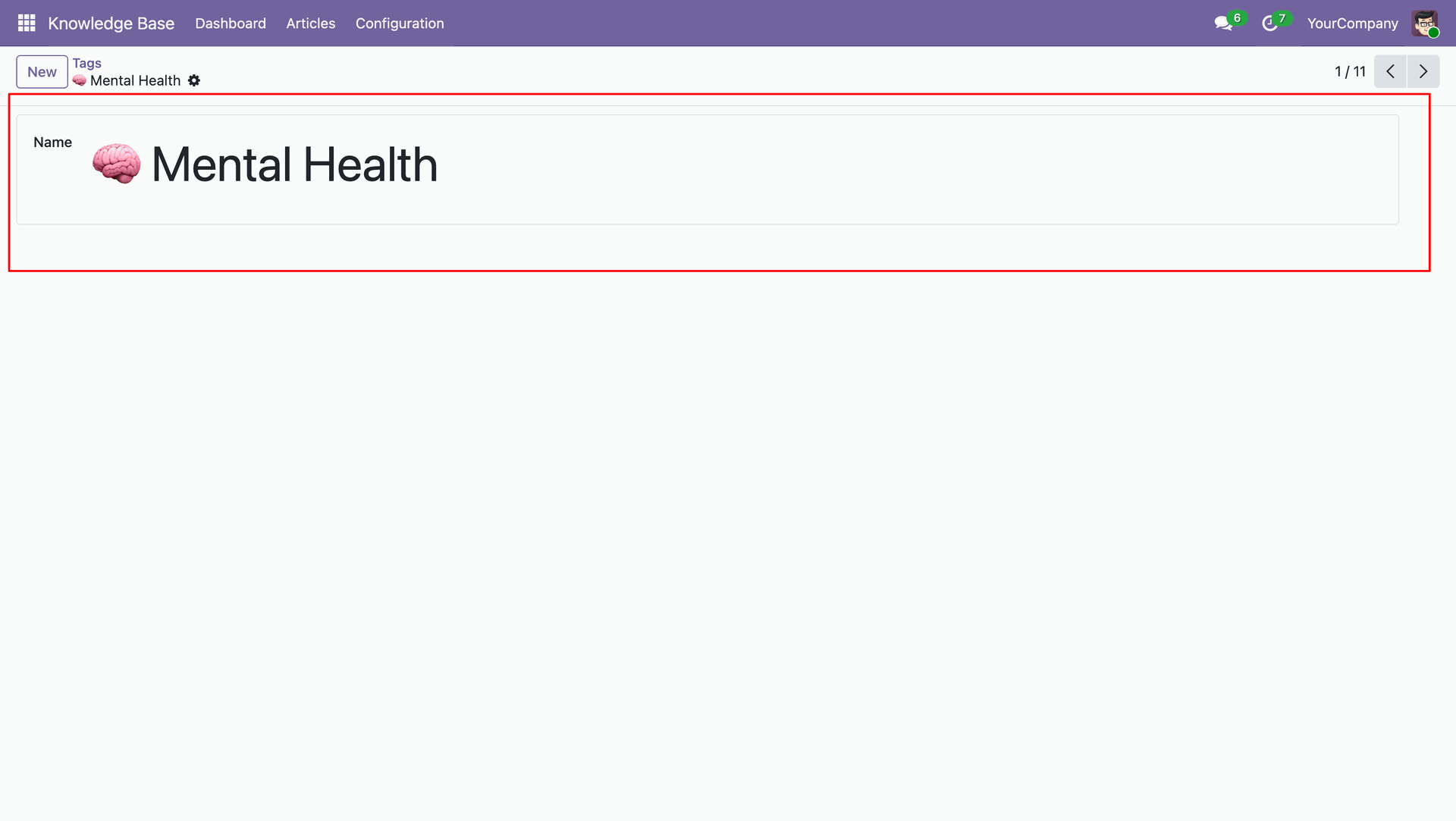
This screen shows the Articles menu with all knowledge base articles displayed in a kanban view. You can filter by category, tags, or author, and view details like summary, views, and last updated date.
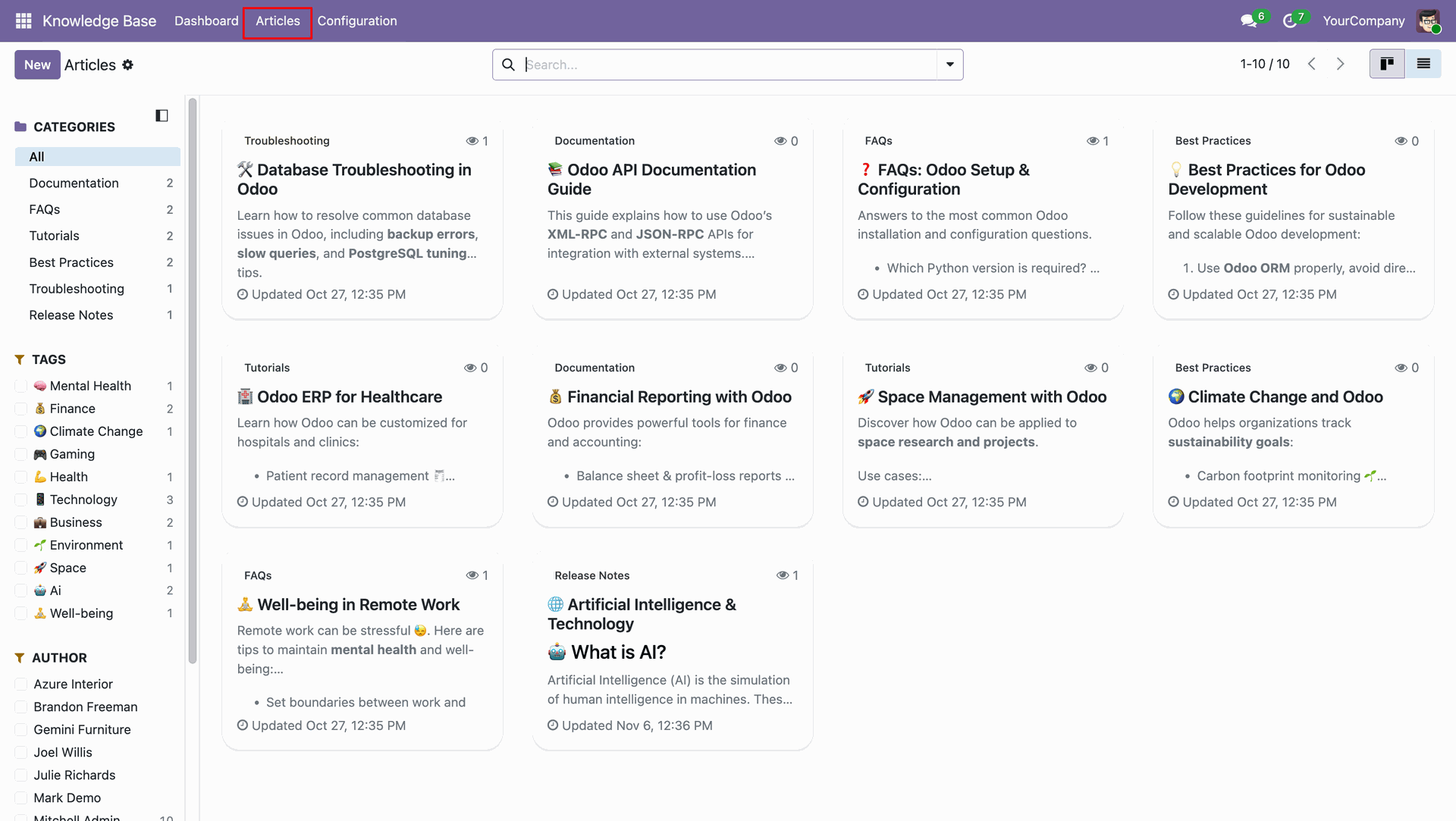
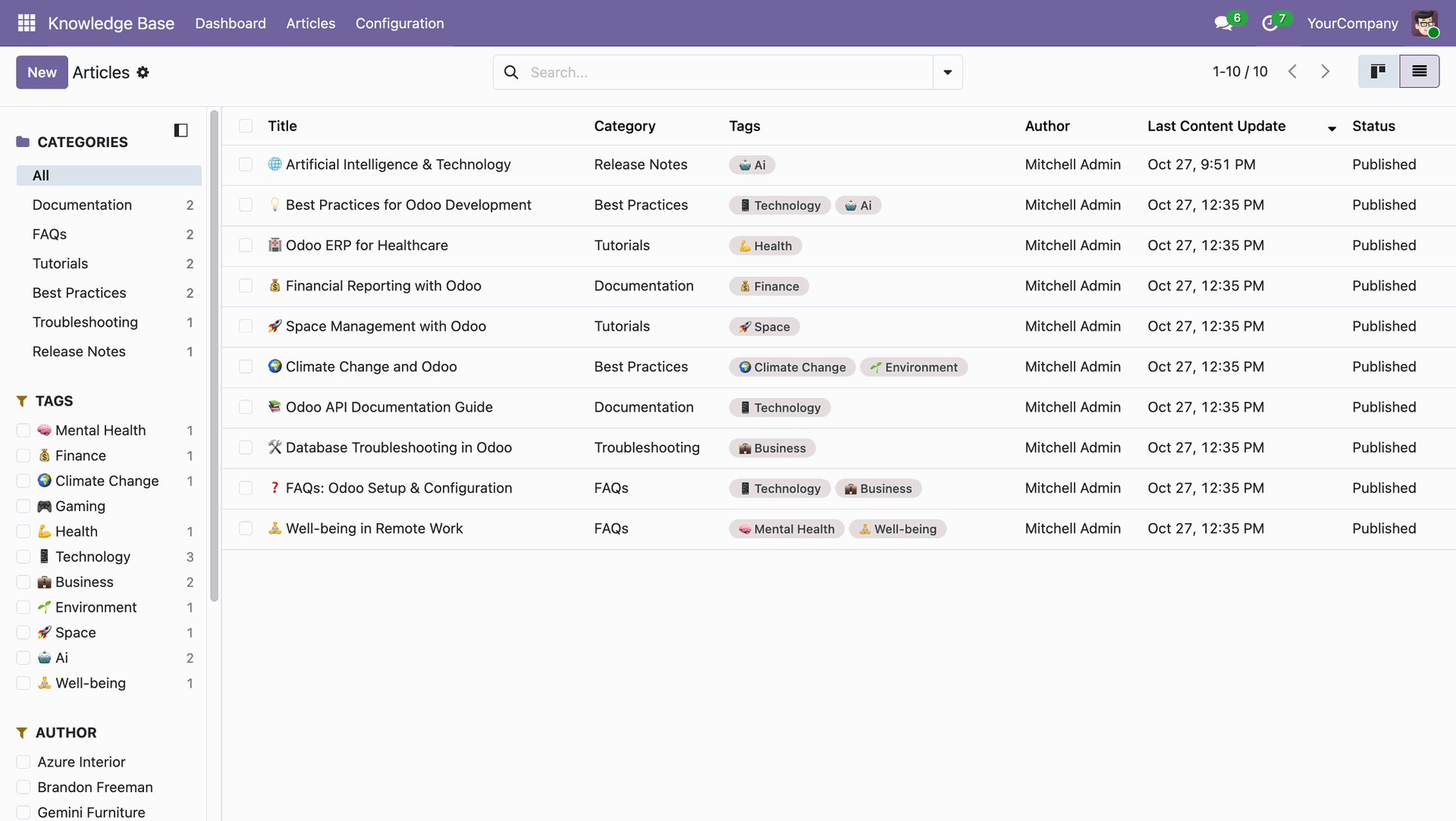
This view lists all articles in list view with details like title, category, tags, author, update time, and publication status.
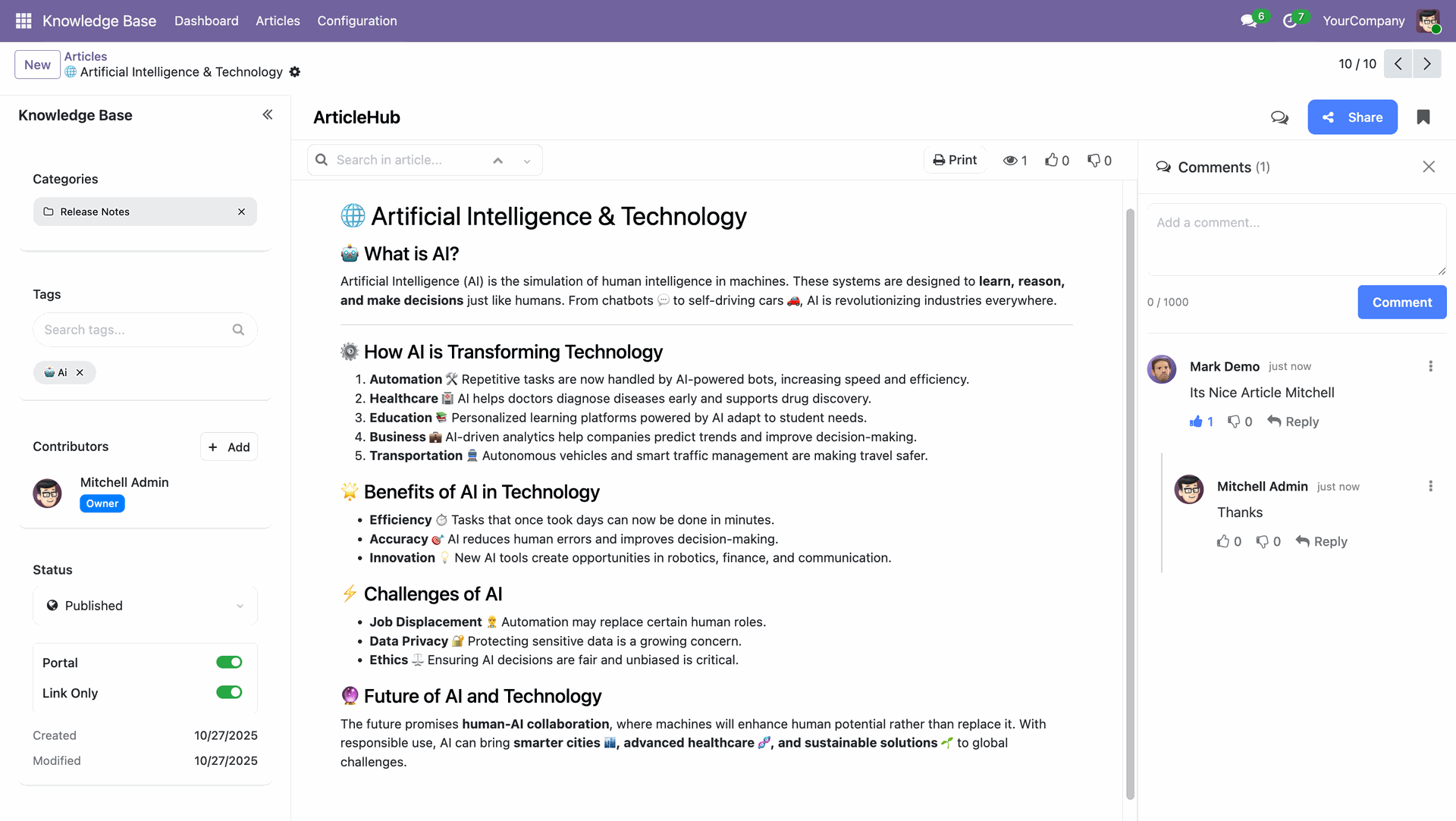
Article detailed view showing content, author info, category, tags, publication status, and user comments.
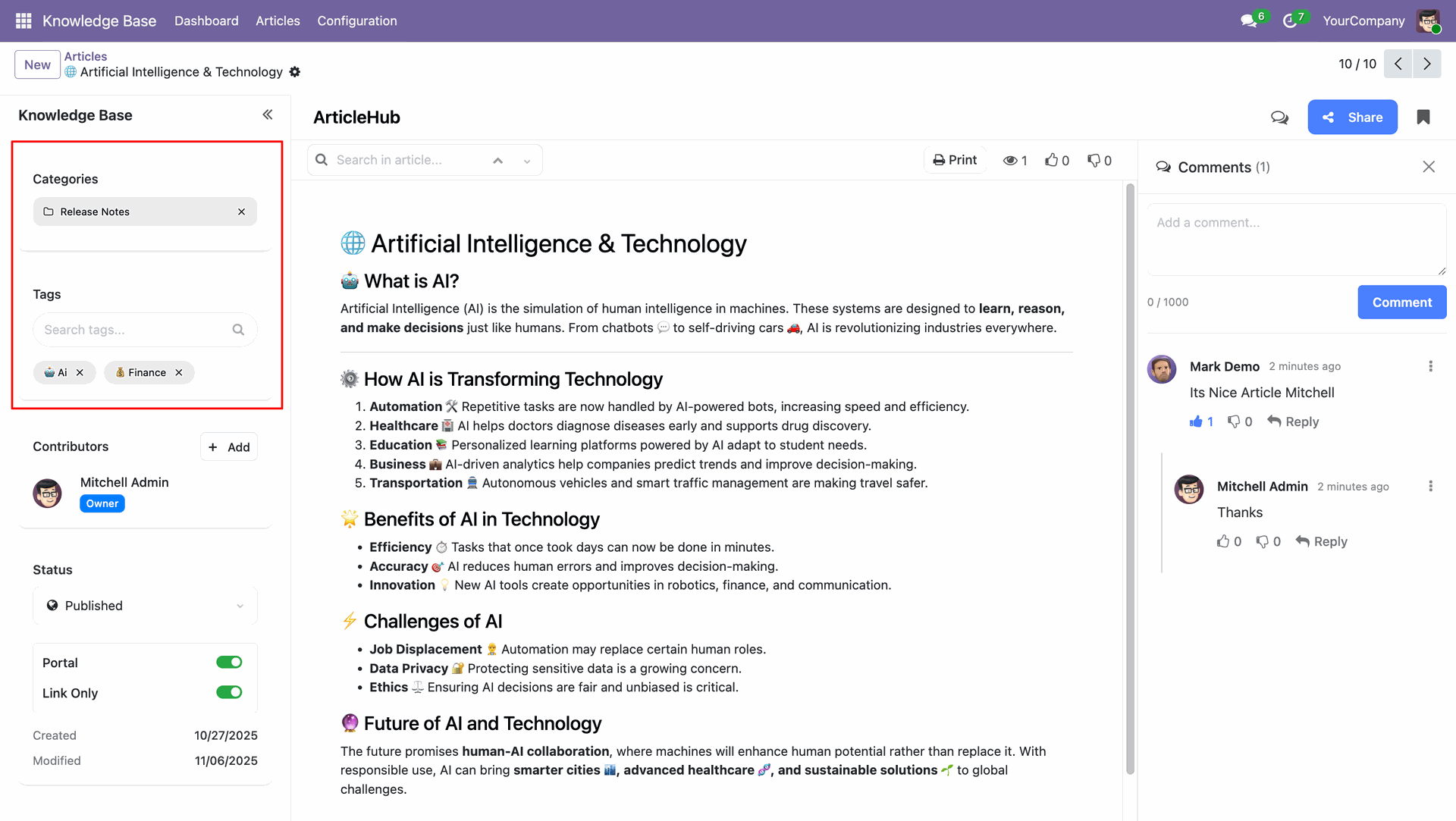
You can set categories and tags to organize your knowledge base articles. Categories group articles under main topics like documentation or release notes, while tags add extra context such as ai or finance for better filtering and quick access to related content.
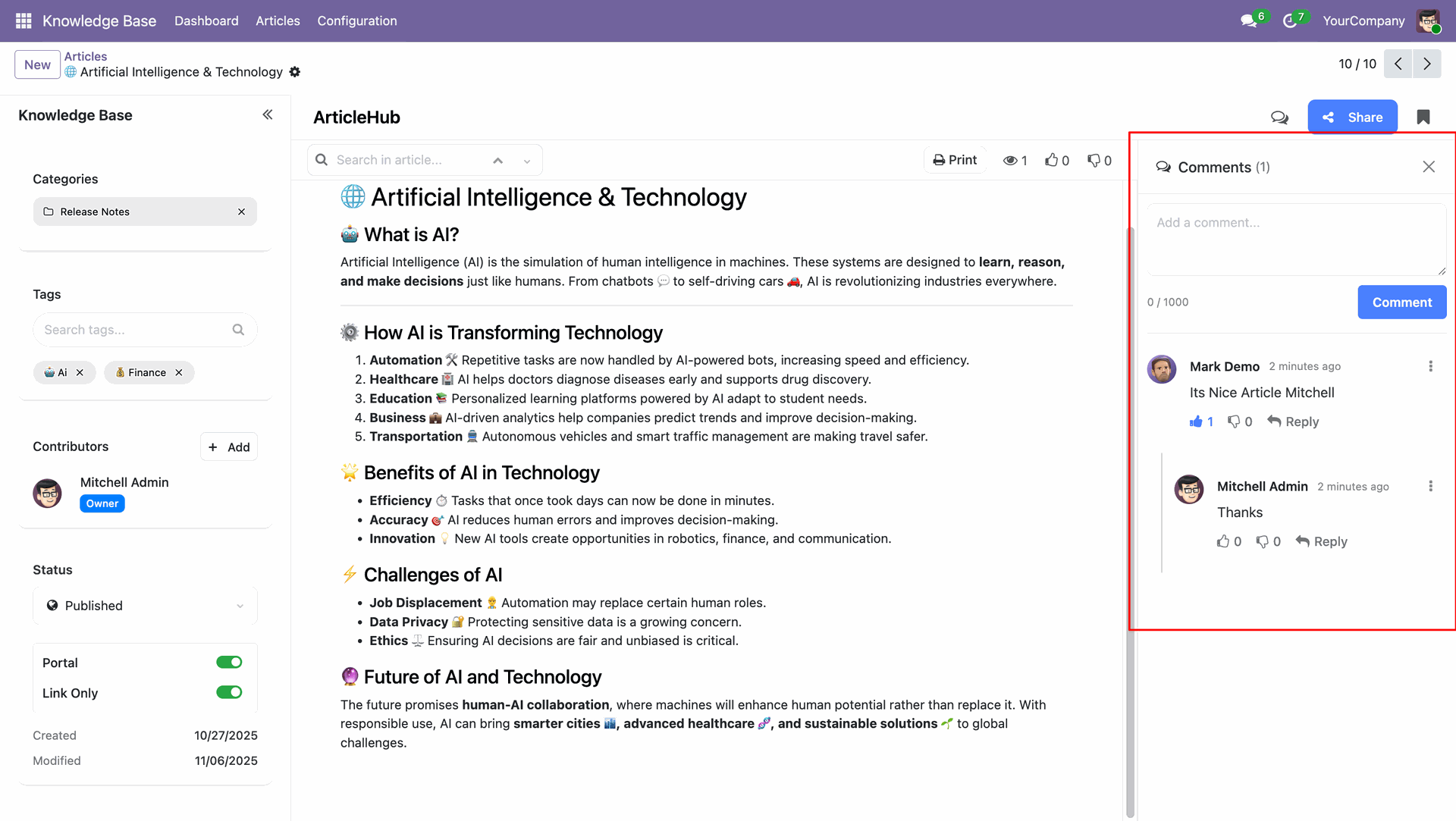
You can use the comments section to collaborate with other users by adding feedback or suggestions on articles. Team members can reply, like, or discuss directly within the comment thread, keeping communication organized and article improvement efficient.
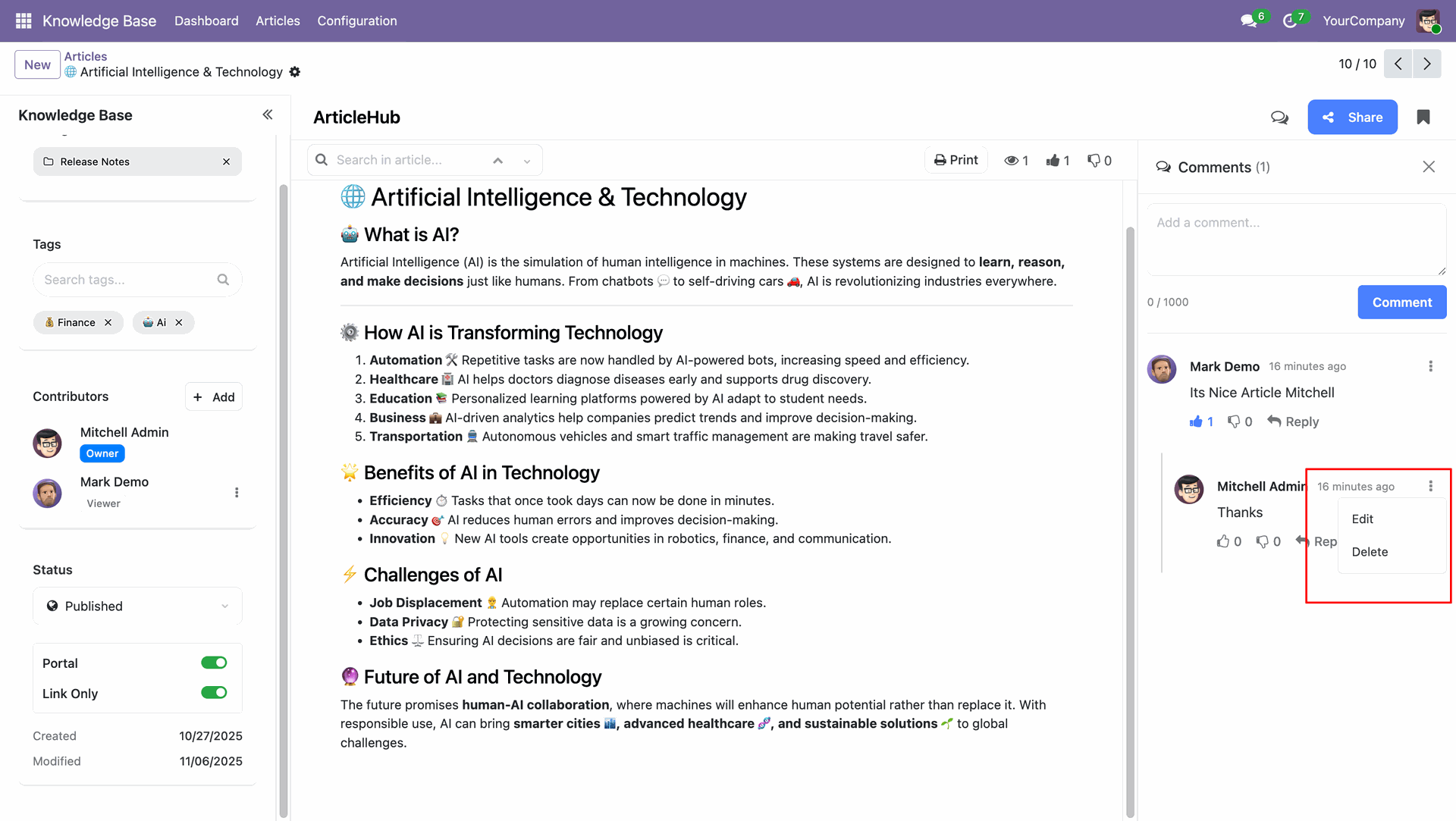
You can edit or delete your comments anytime using the menu beside each comment. This helps keep discussions clean and allows you to update or remove feedback when needed.
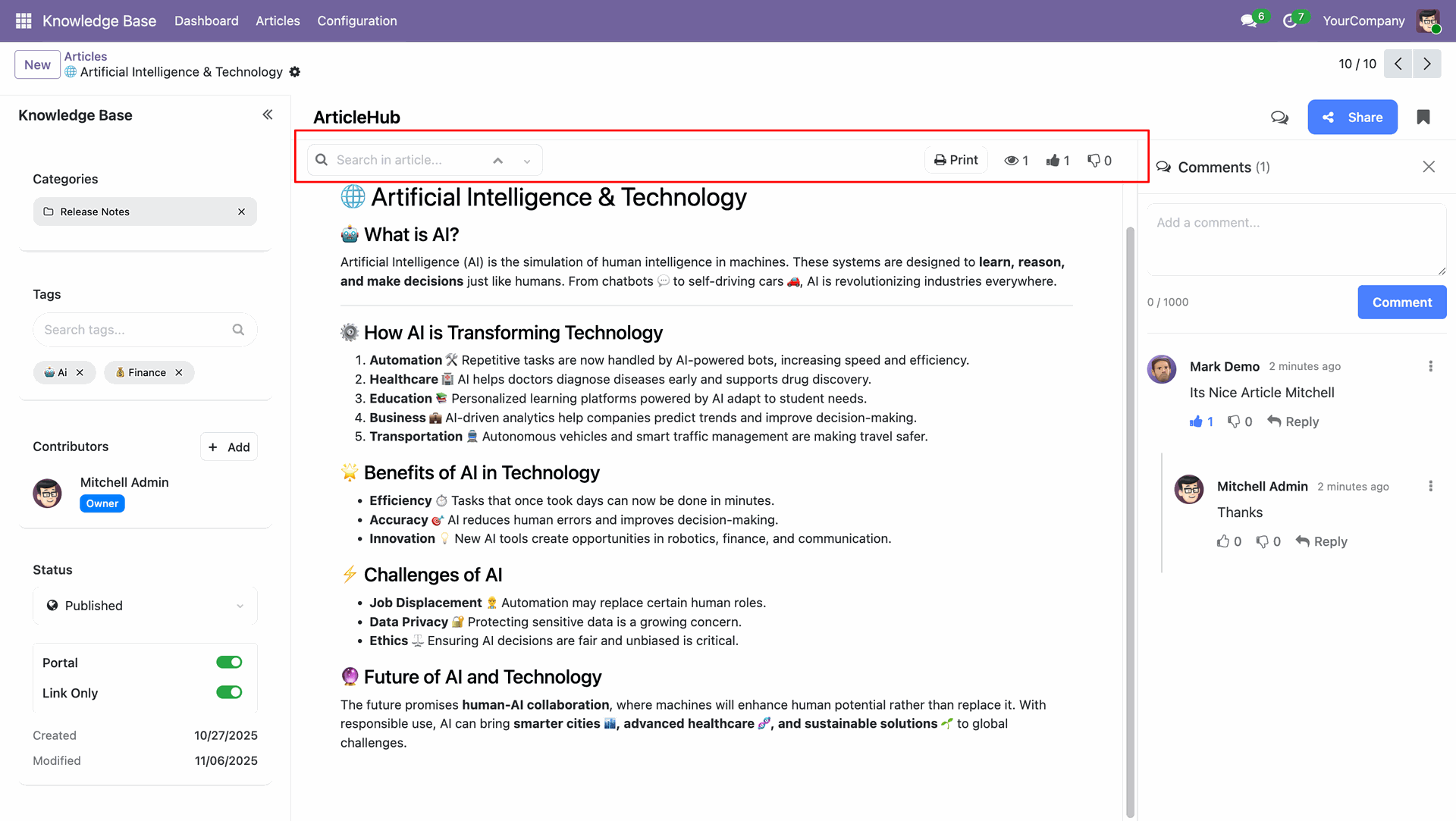
The highlighted section displays the article toolbar, which includes quick actions and insights. You can use it to search for articles, filter results, print the current article, and view engagement metrics such as views, likes, and dislikes - all helping manage and track content performance efficiently.
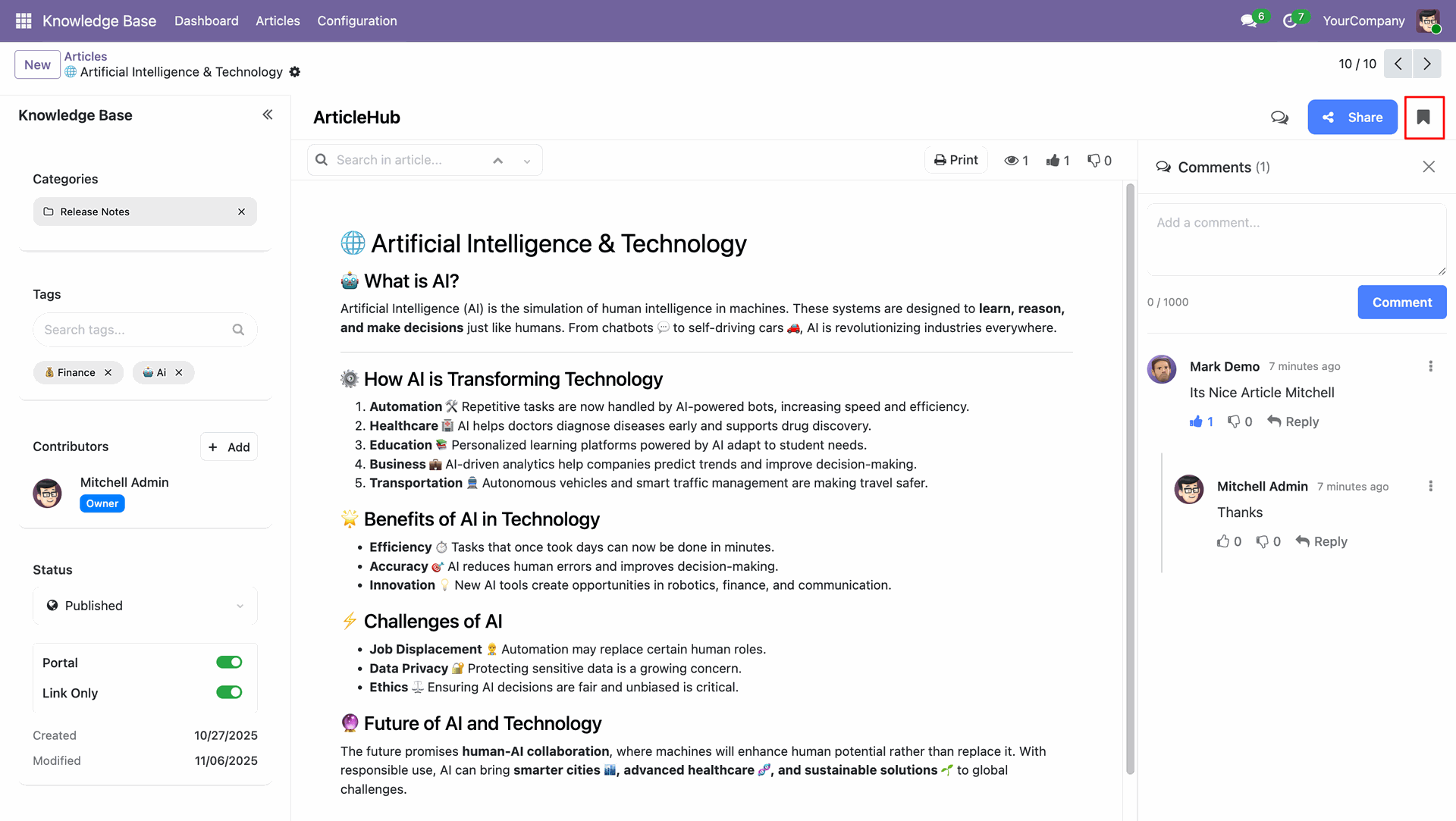
You can set a bookmark for any article using this icon, allowing you to quickly access and manage your favorite or frequently used articles from your saved list for faster navigation.
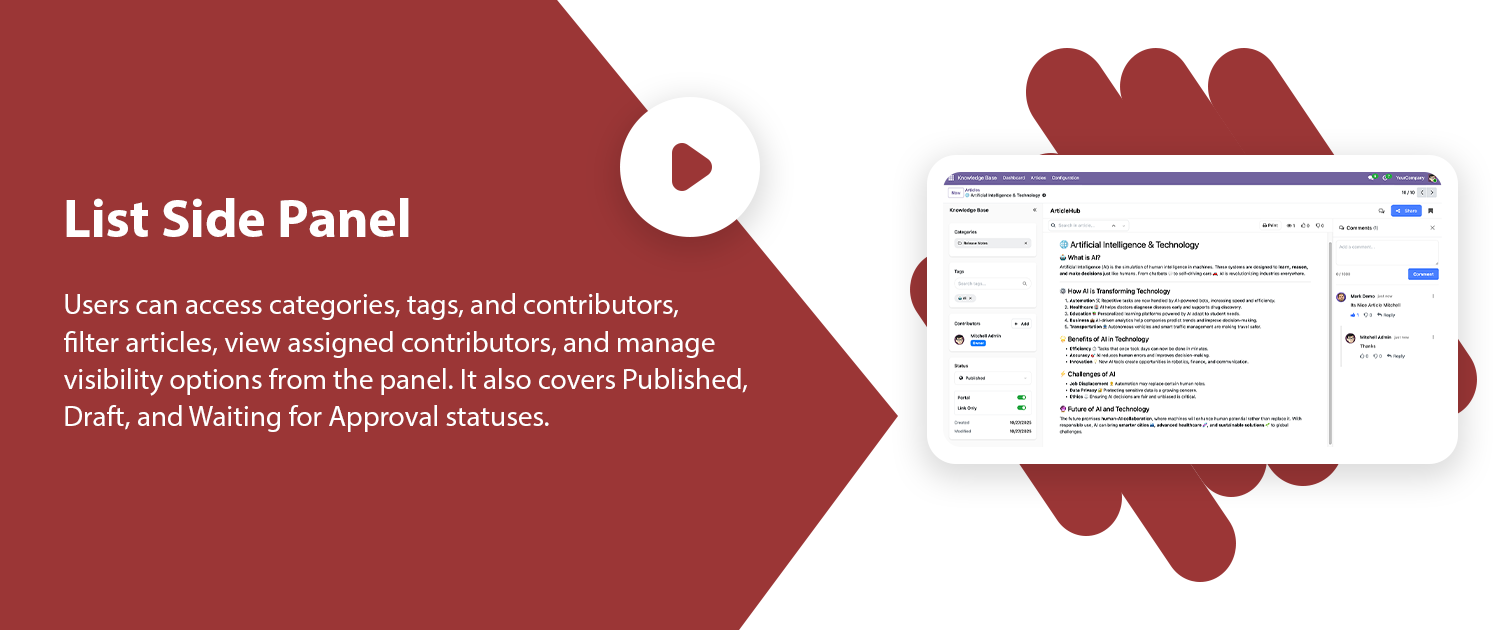
You can set contributors by selecting a user and assigning a role such as Editor or Viewer, allowing collaborative management and editing of the article as per their assigned permissions.
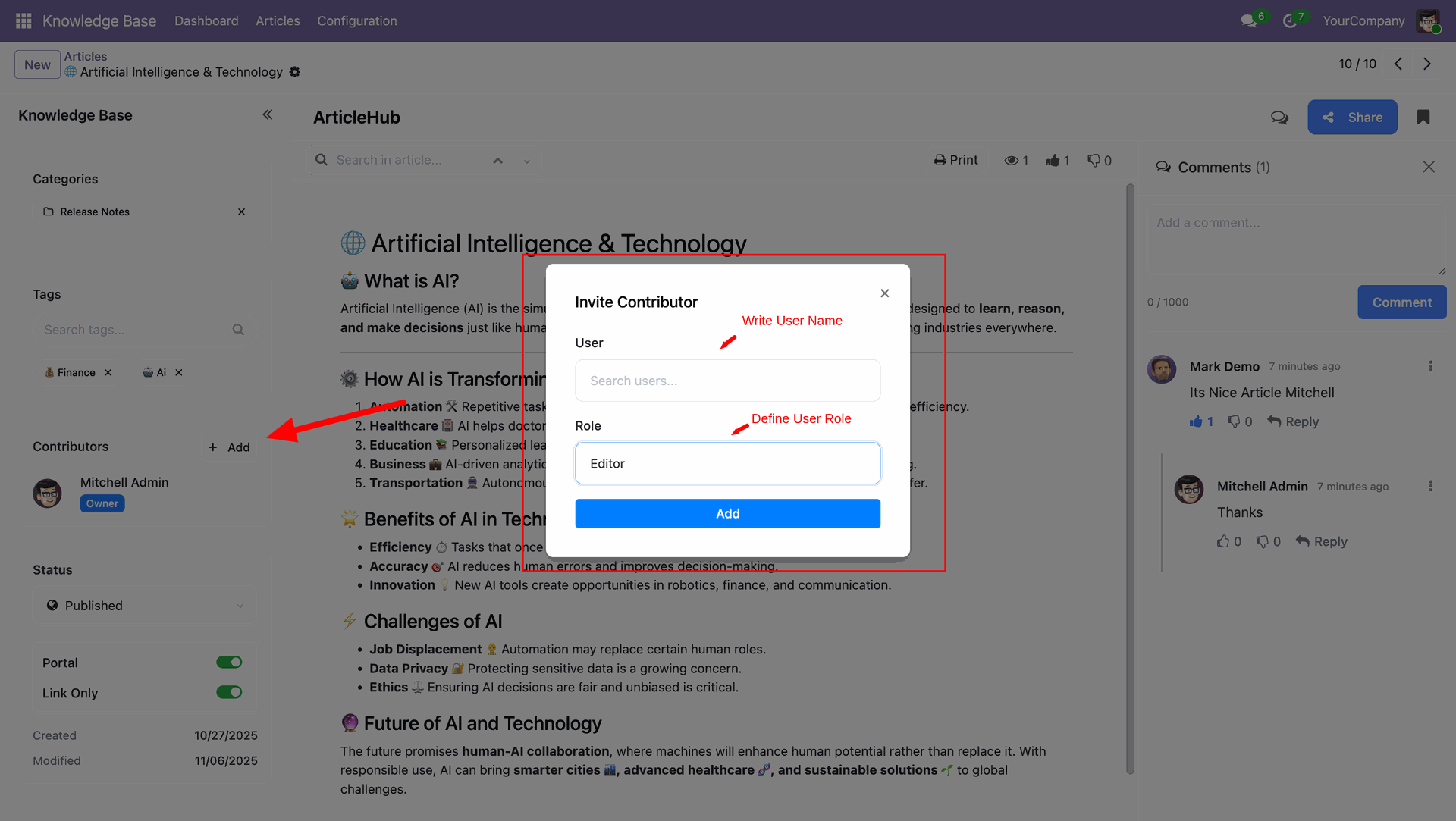
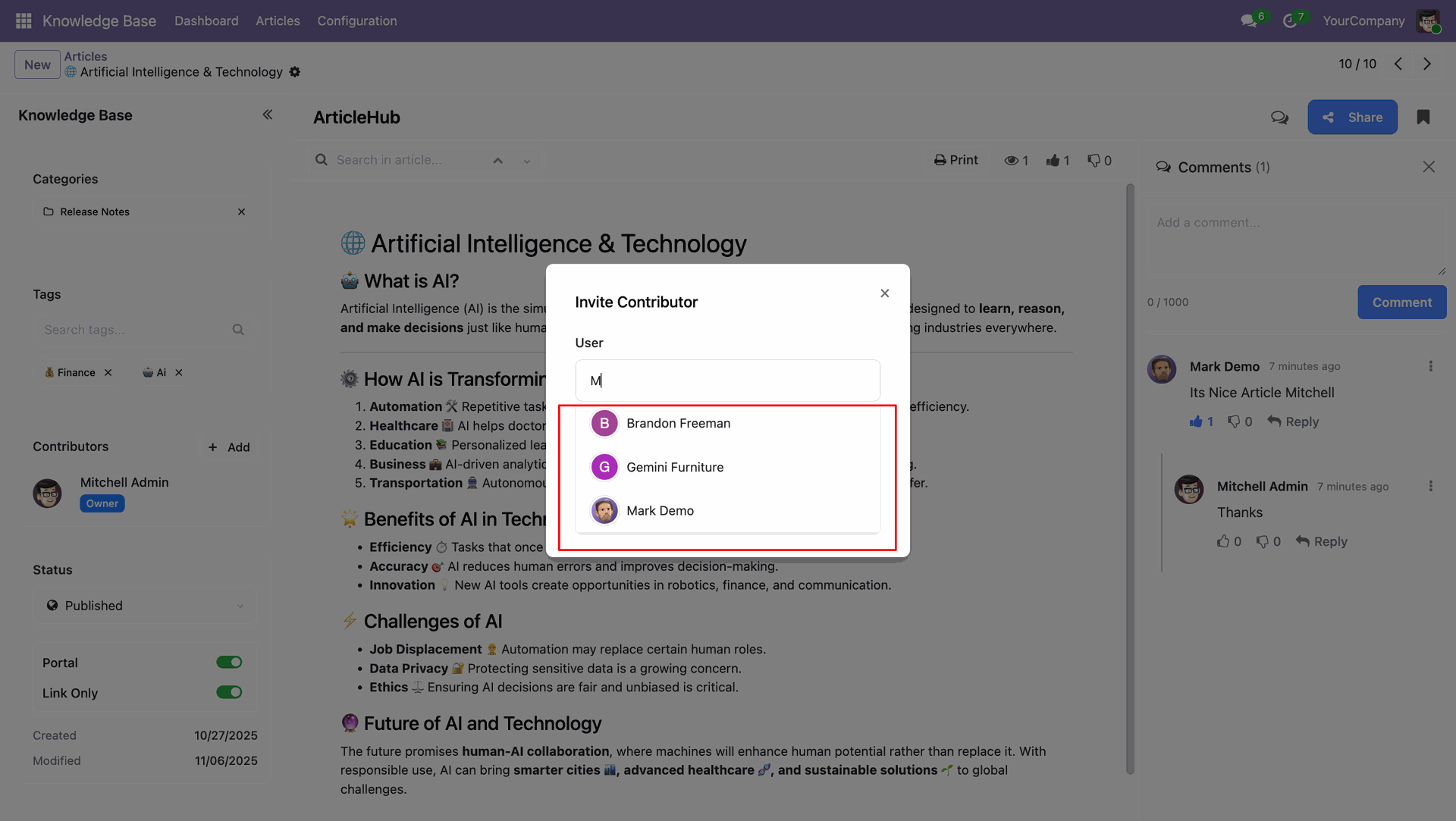
You can set a contributor by typing a users name in the search field, then selecting from the suggested list to quickly assign the desired user as a collaborator for the article.
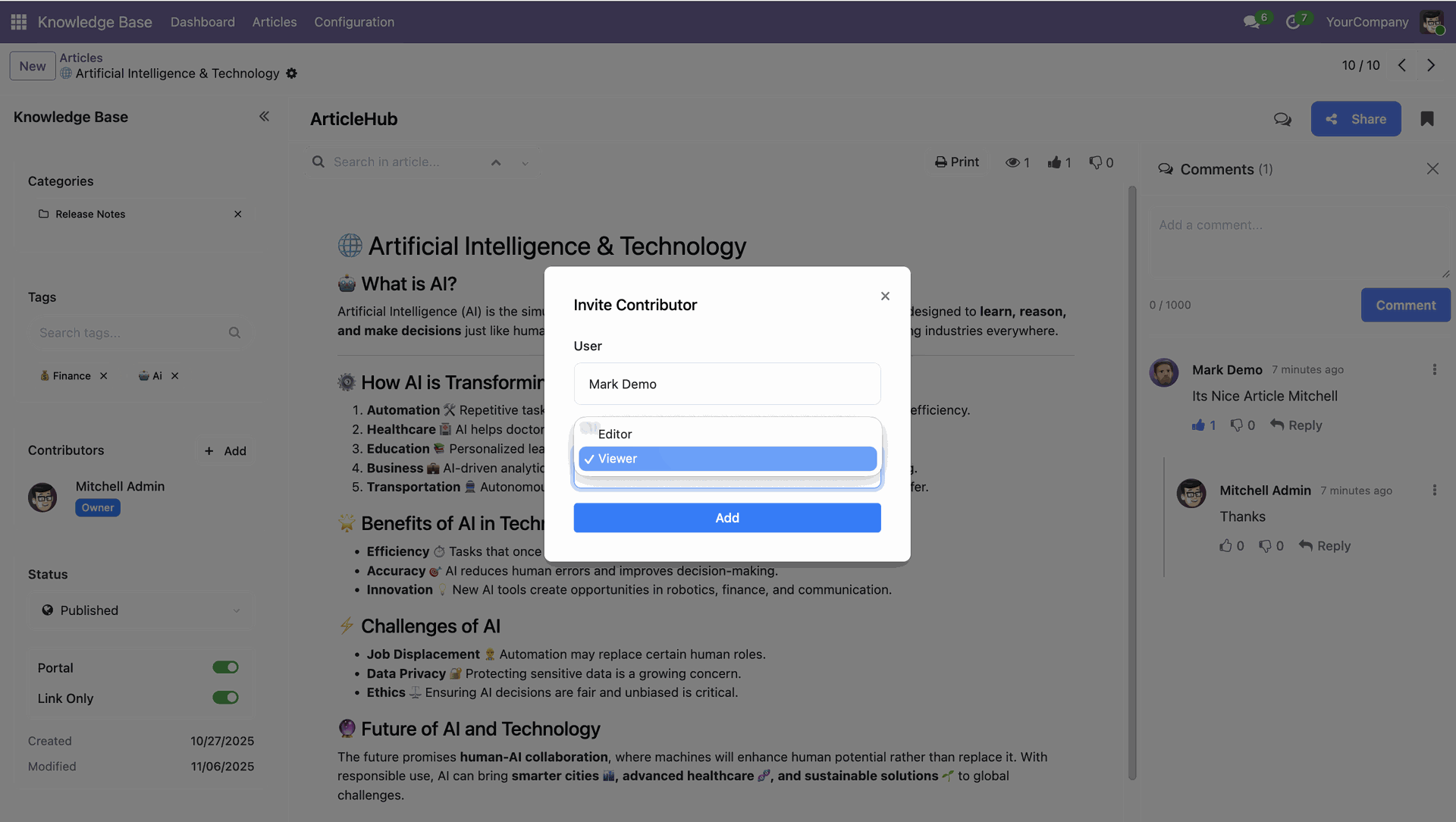
You can set the contributor role by choosing between Editor or Viewer to define their level of access before adding them to the article.
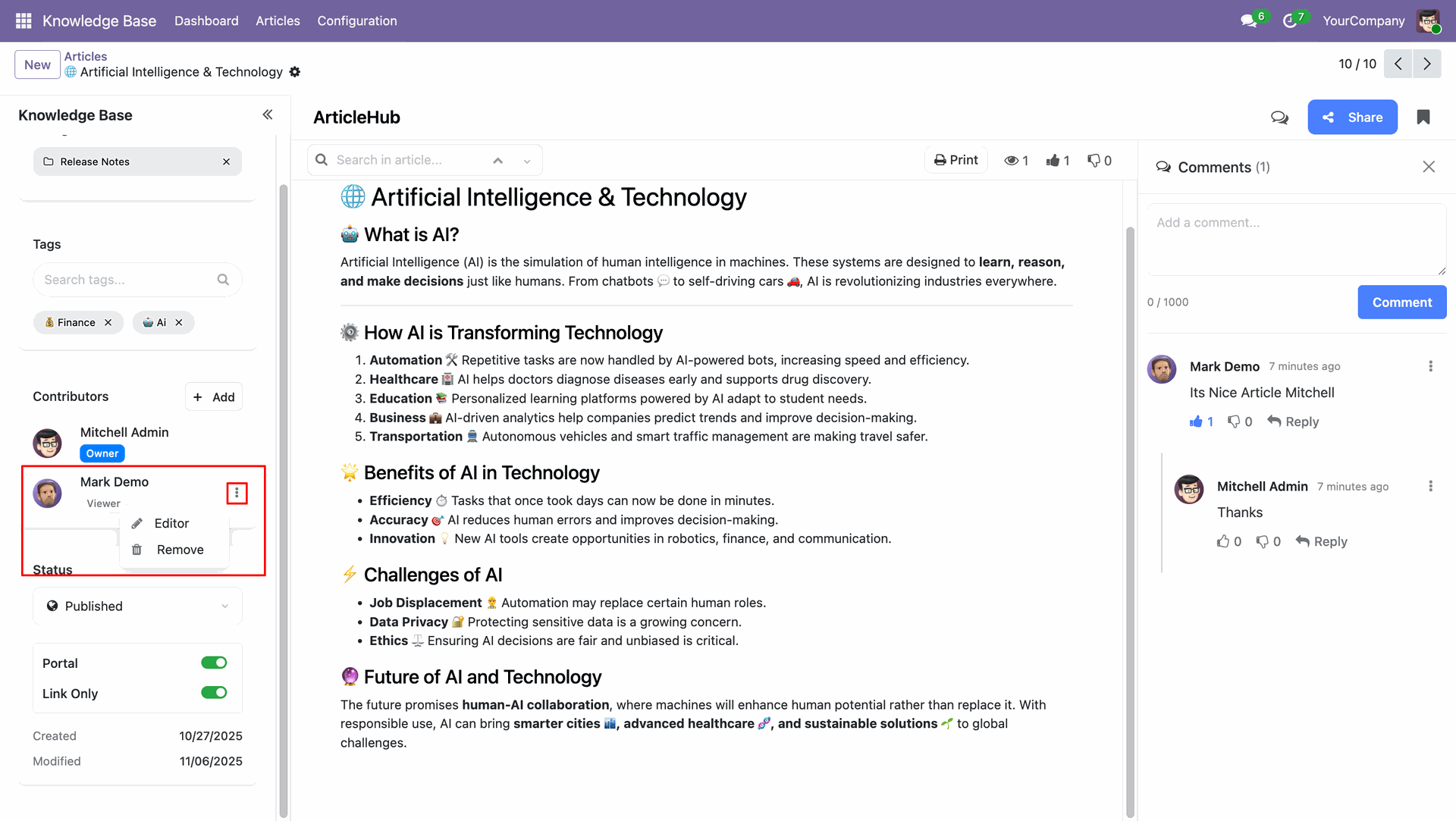
You can manage contributors by updating their role from viewer to editor or removing them from the list when needed.
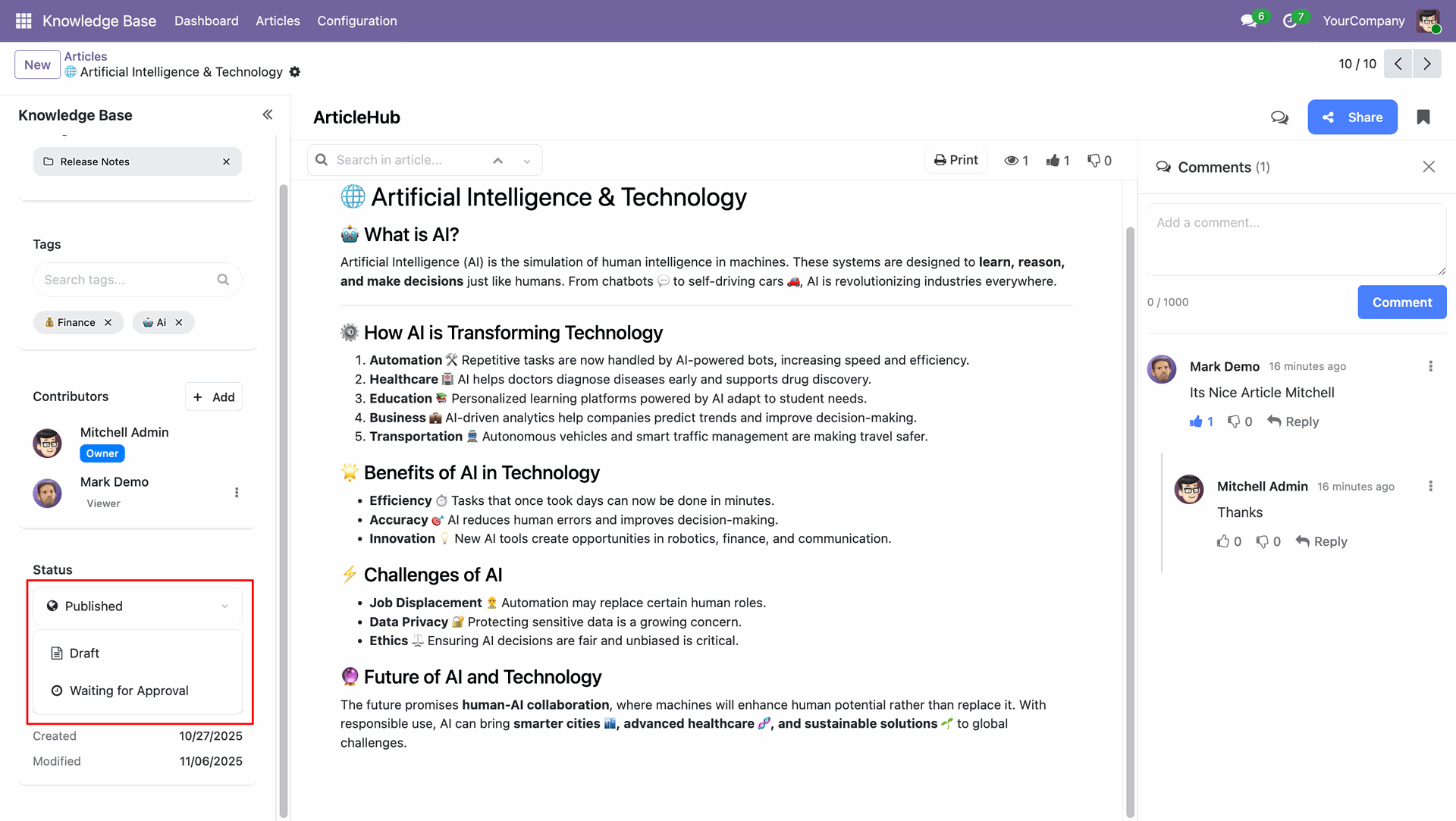
You can set the article status as Published, Draft, or Waiting for Approval based on its review stage.
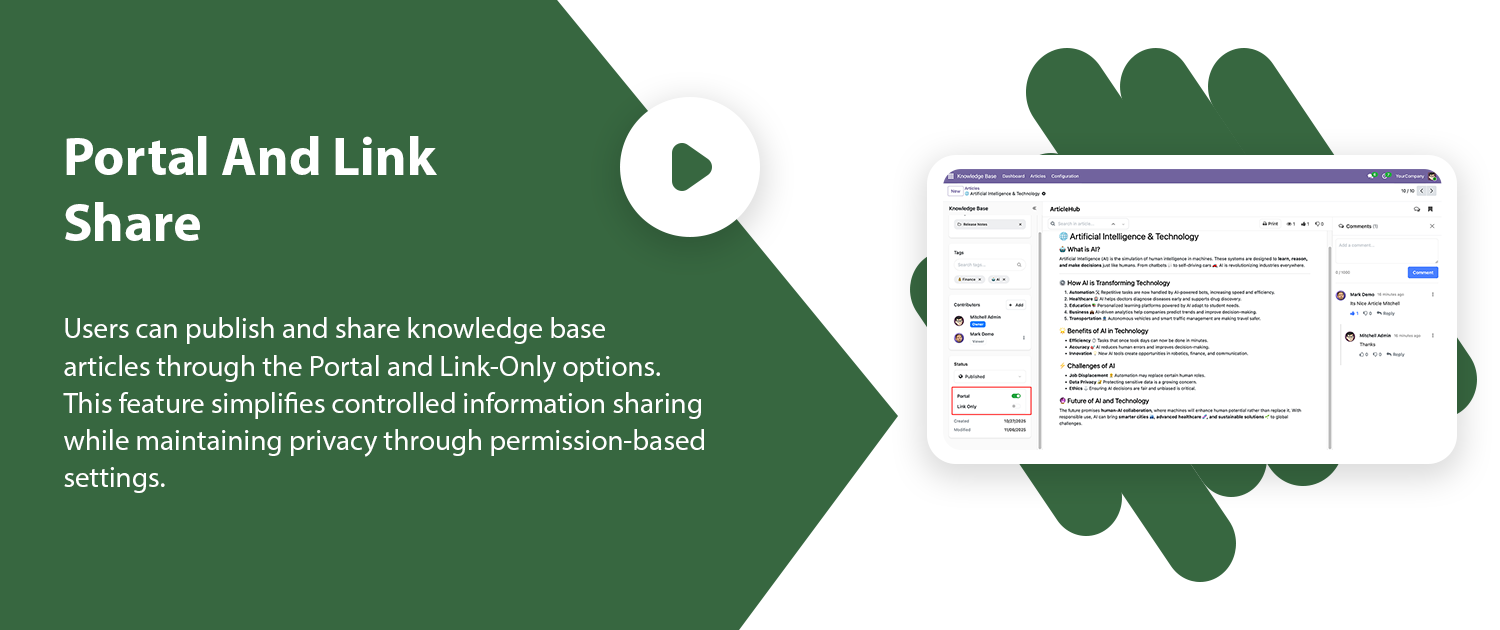
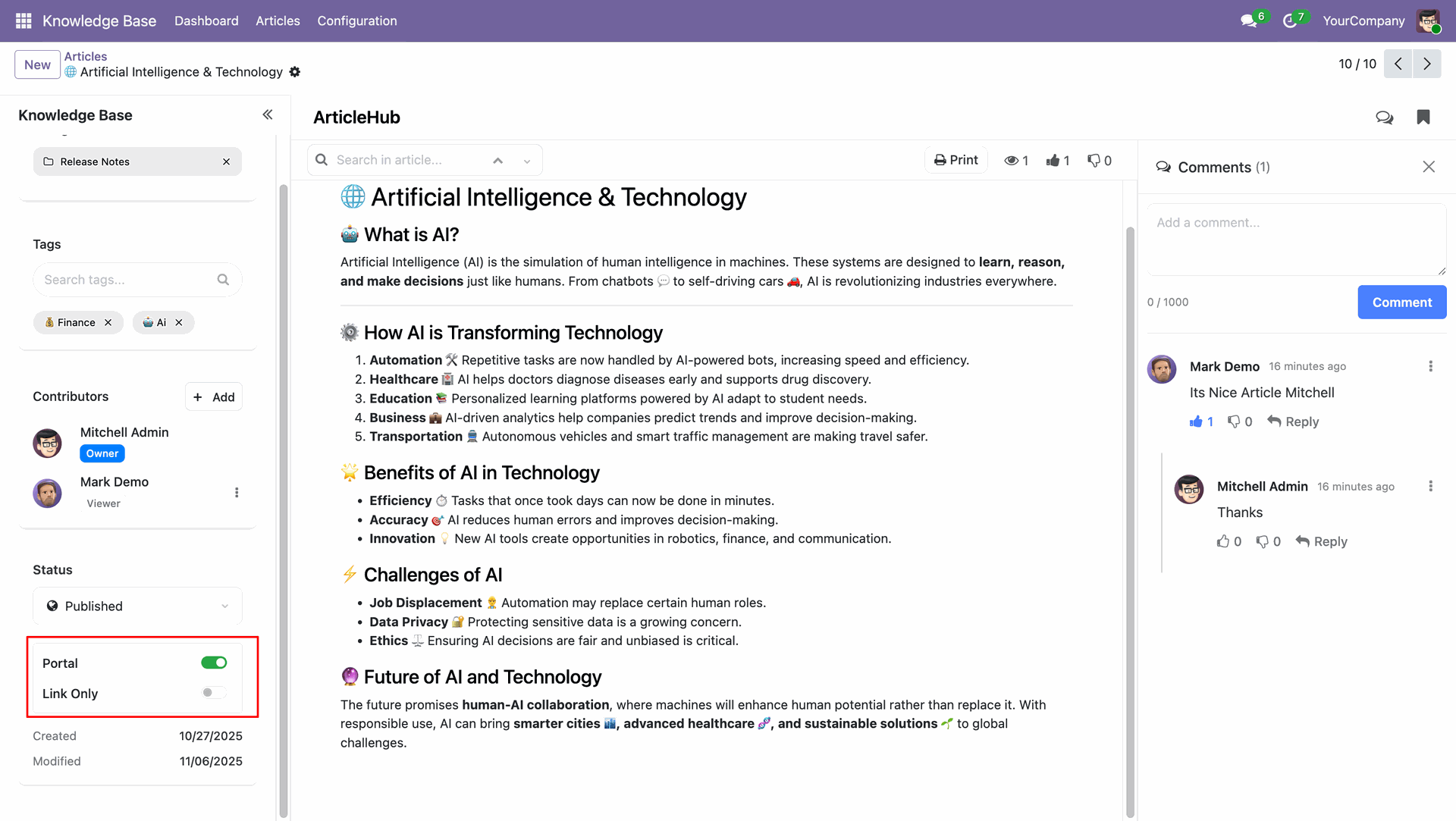
You can control the articles visibility using Portal and Link Only options.
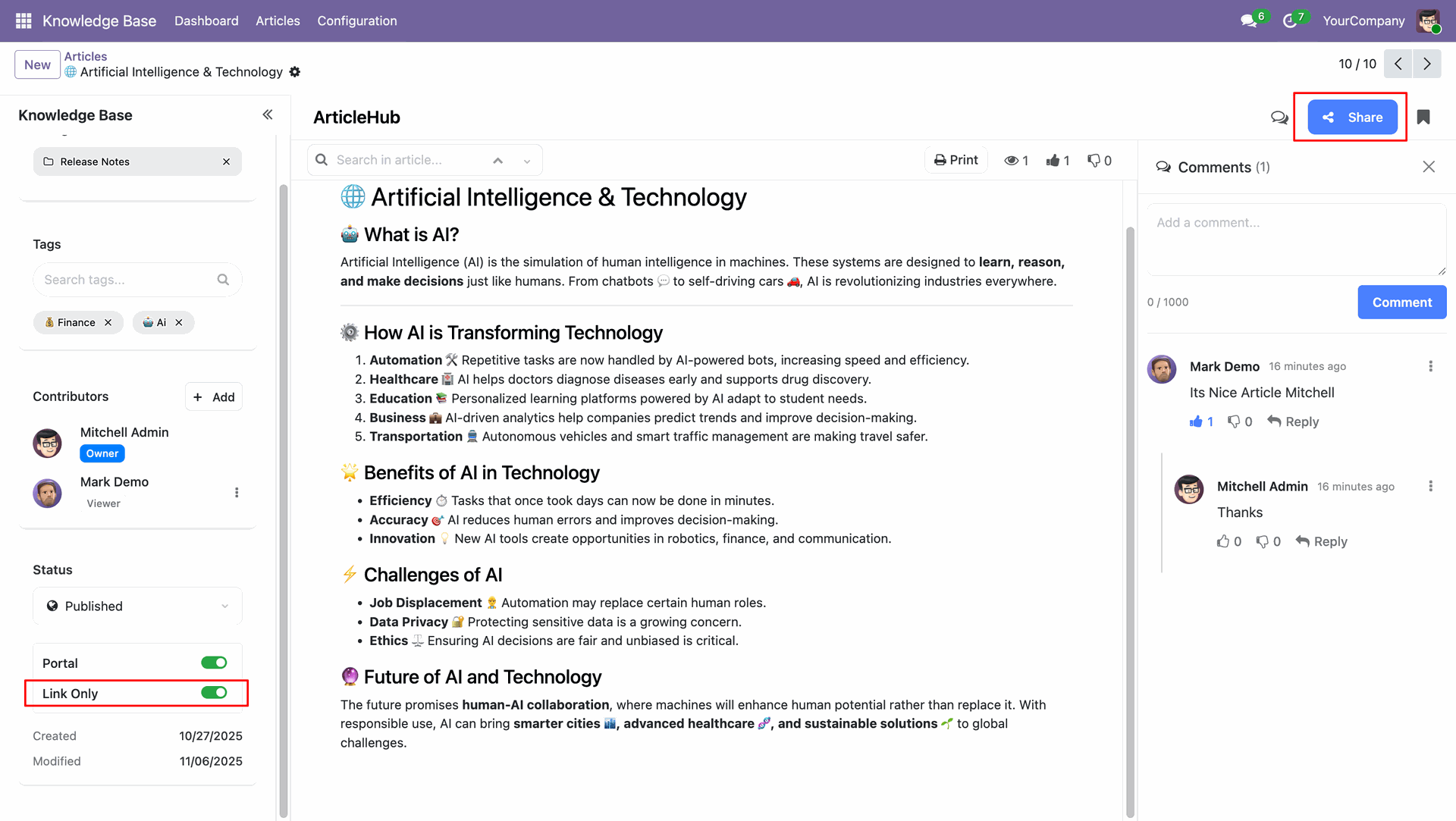
You can share the article with others using the Share button, which provides options to generate a link or invite specific contributors for collaboration.
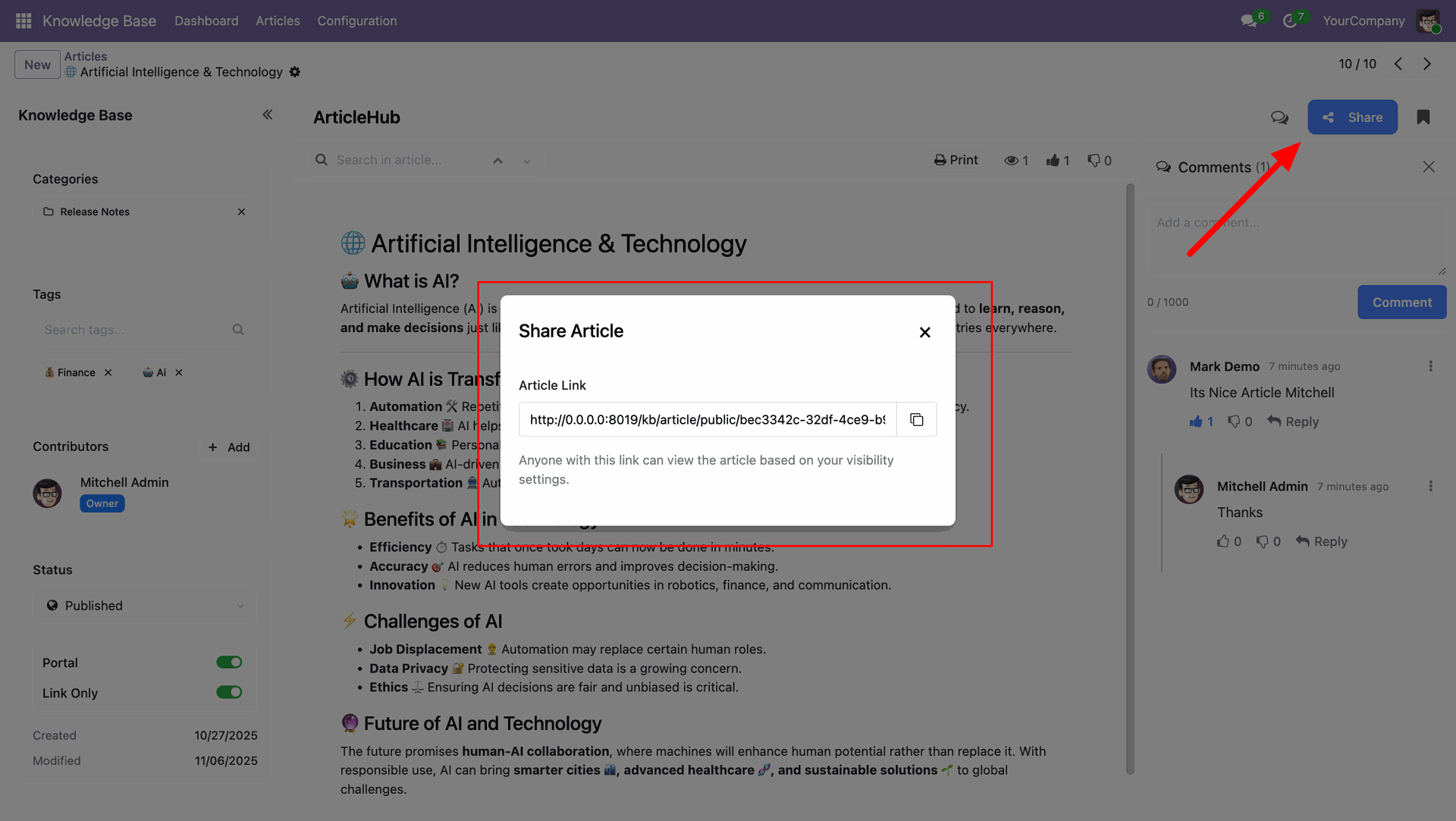
A shareable article link is generated, allowing anyone with the link to view the article based on the defined visibility settings.
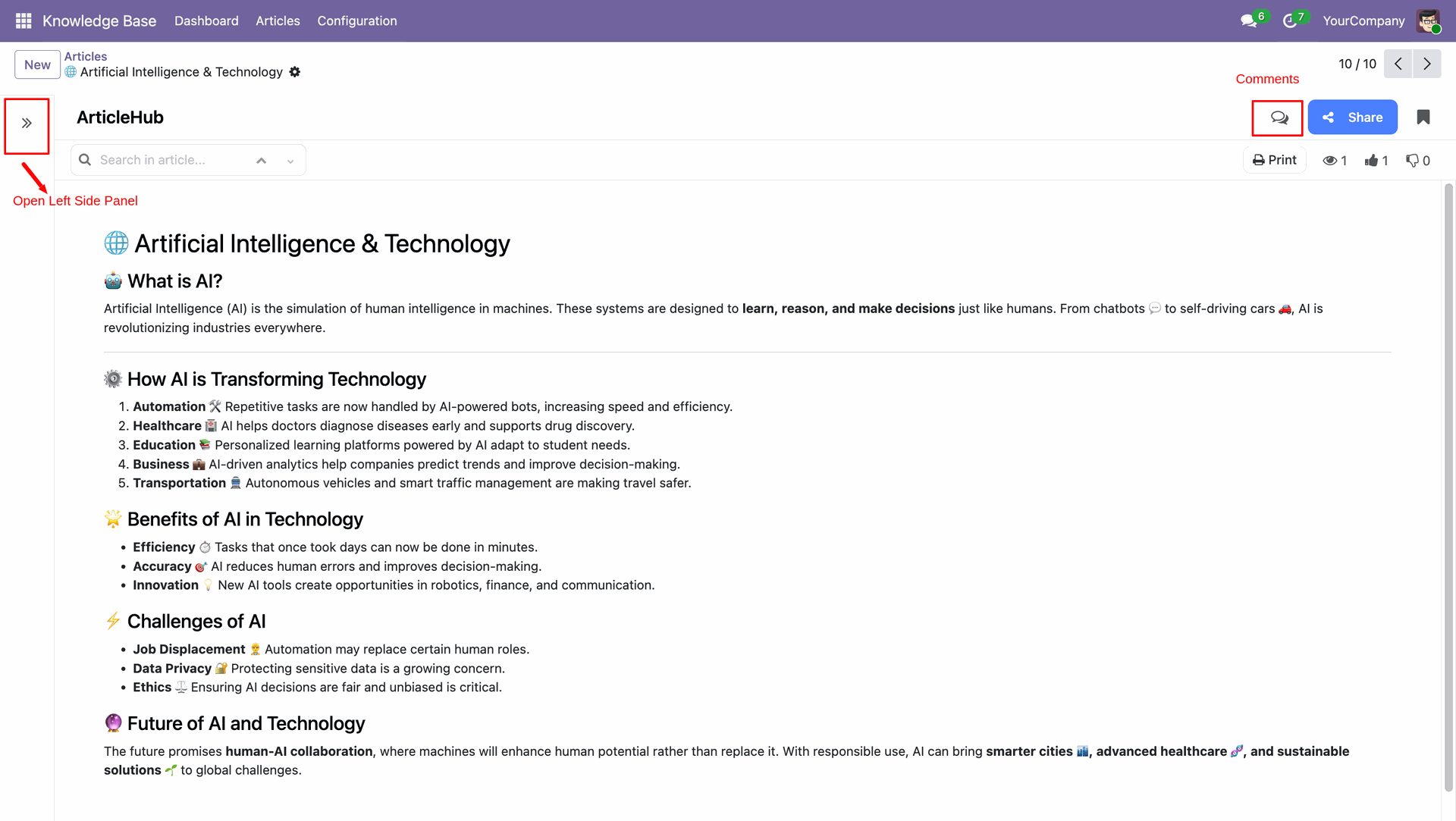
You can open the left-side panel by clicking the double-arrow icon. You can also view the comments section using the comment icon on the top bar to collaborate and share feedback.
The Knowledge Base Dashboard provides an organized view with sections for browsing by category, recently updated and trending articles, personalized options like saved articles and view history, popular tags for quick filtering, and a list of top contributors.
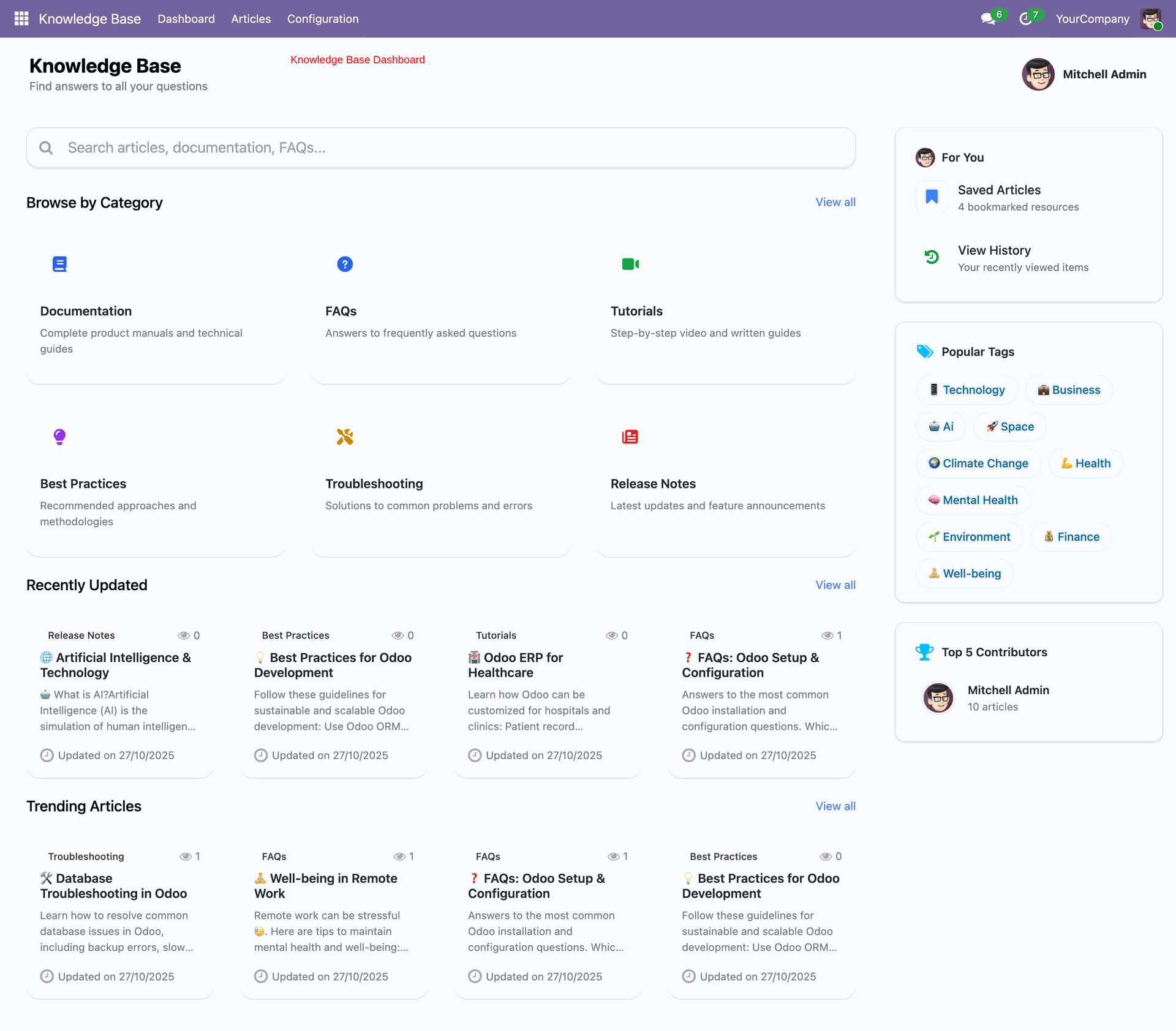
The Browse by Category section provides quick access to different knowledge areas such as Documentation, FAQs, Tutorials, Best Practices, Troubleshooting, and Release Notes. Users can click View All to explore the complete list of categories and access more detailed information.
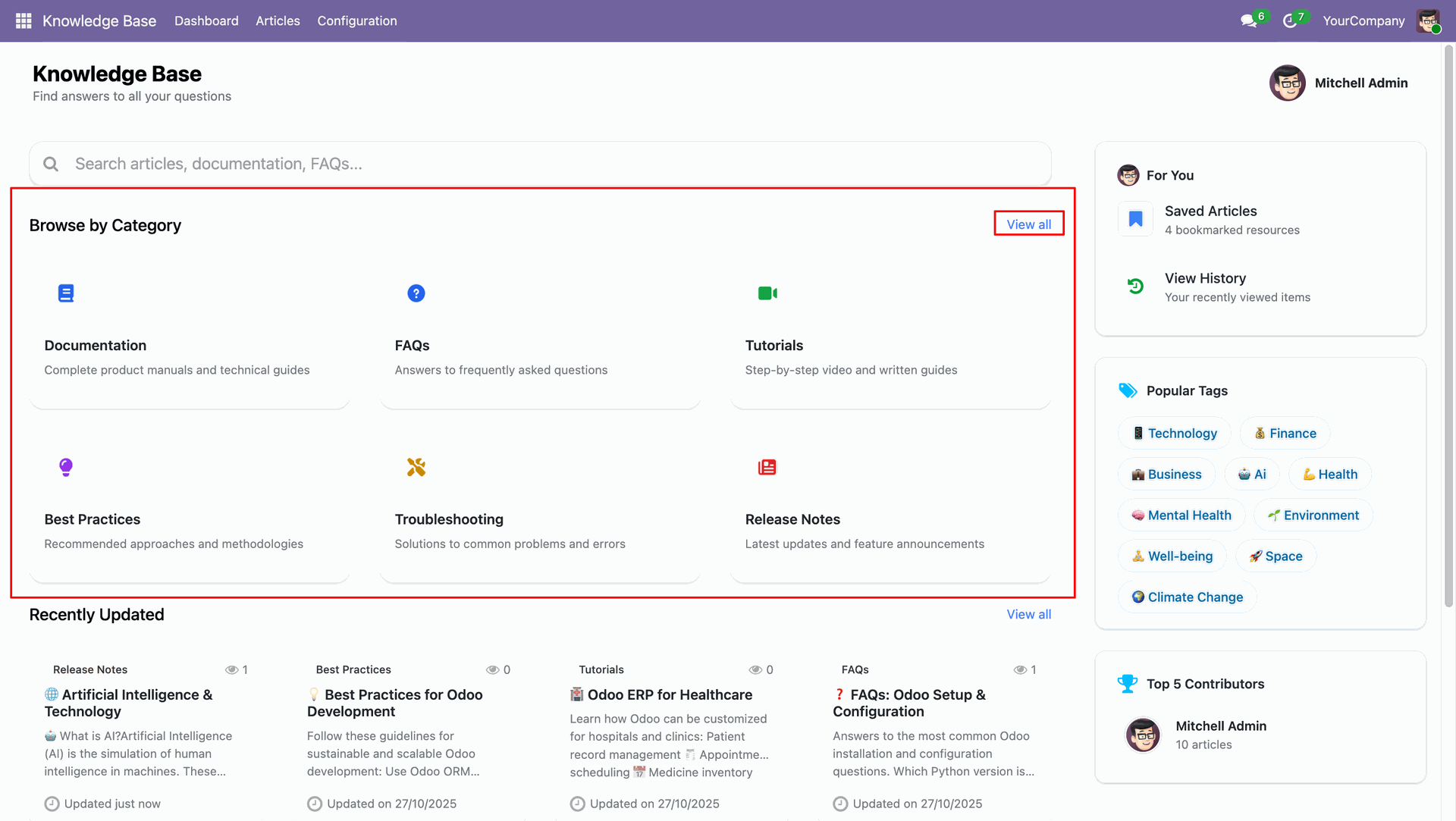
This section displays all knowledge base articles organized under their respective categories. Each record shows the article title, category, associated tags, author, last updated date, and publication status. Users can easily expand or collapse categories to view related articles for better navigation and management.
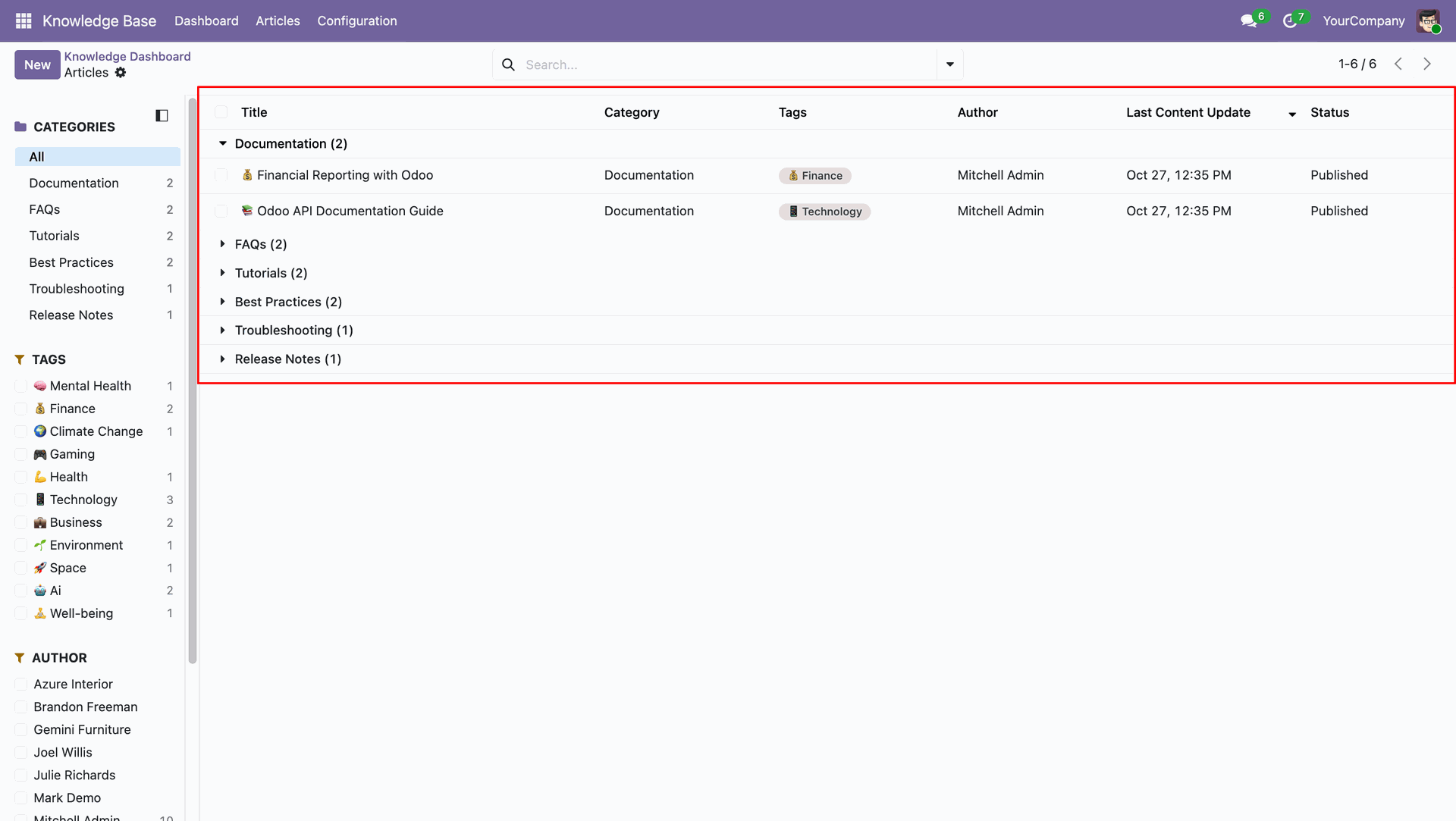
This section displays Recently Updated and Trending Articles. It highlights the latest content modifications and the most-read articles for quick access. Each card shows the article title, category, brief summary, update date, and view count. Users can click View All to explore the complete list of updated or trending articles.
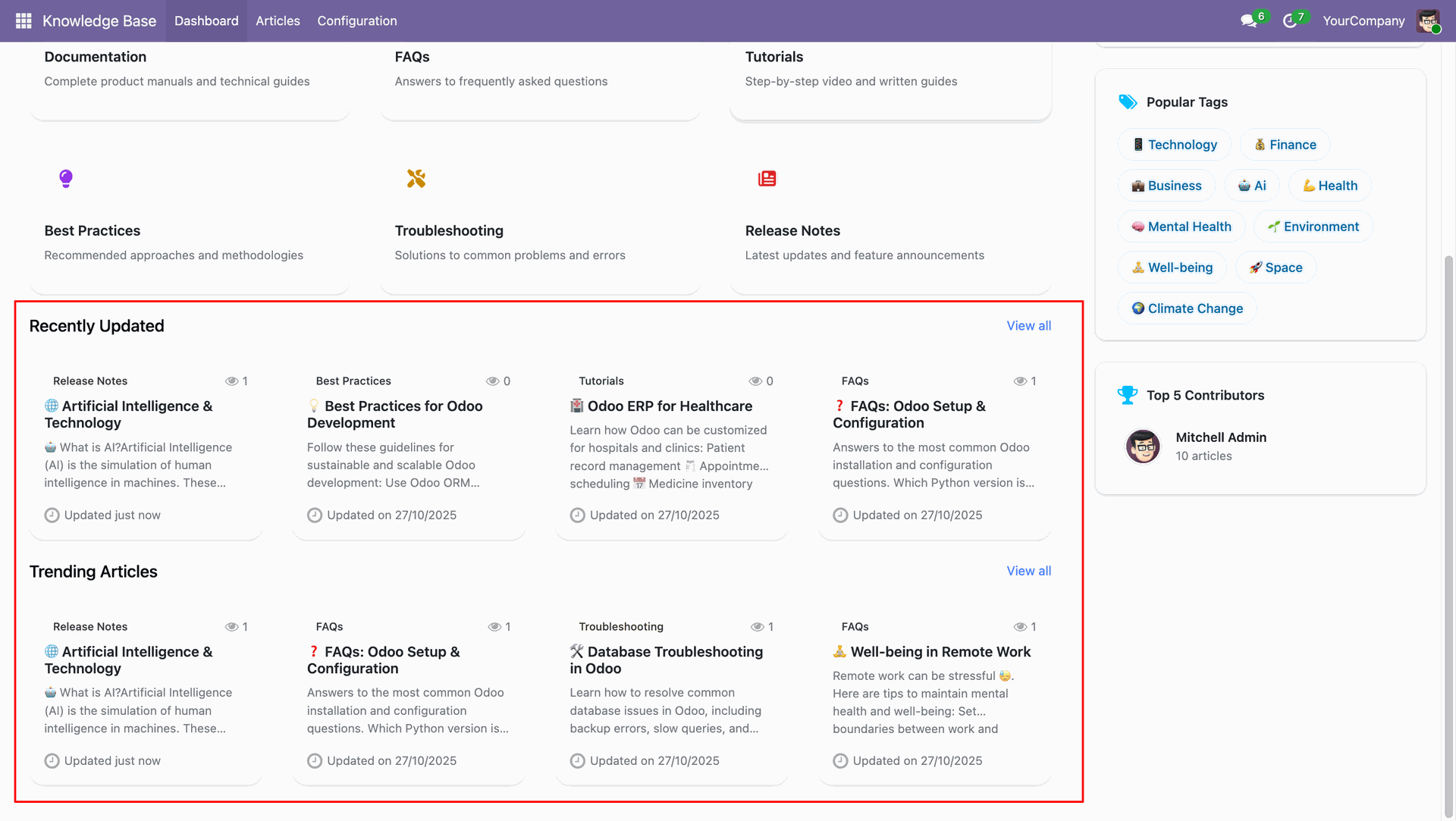
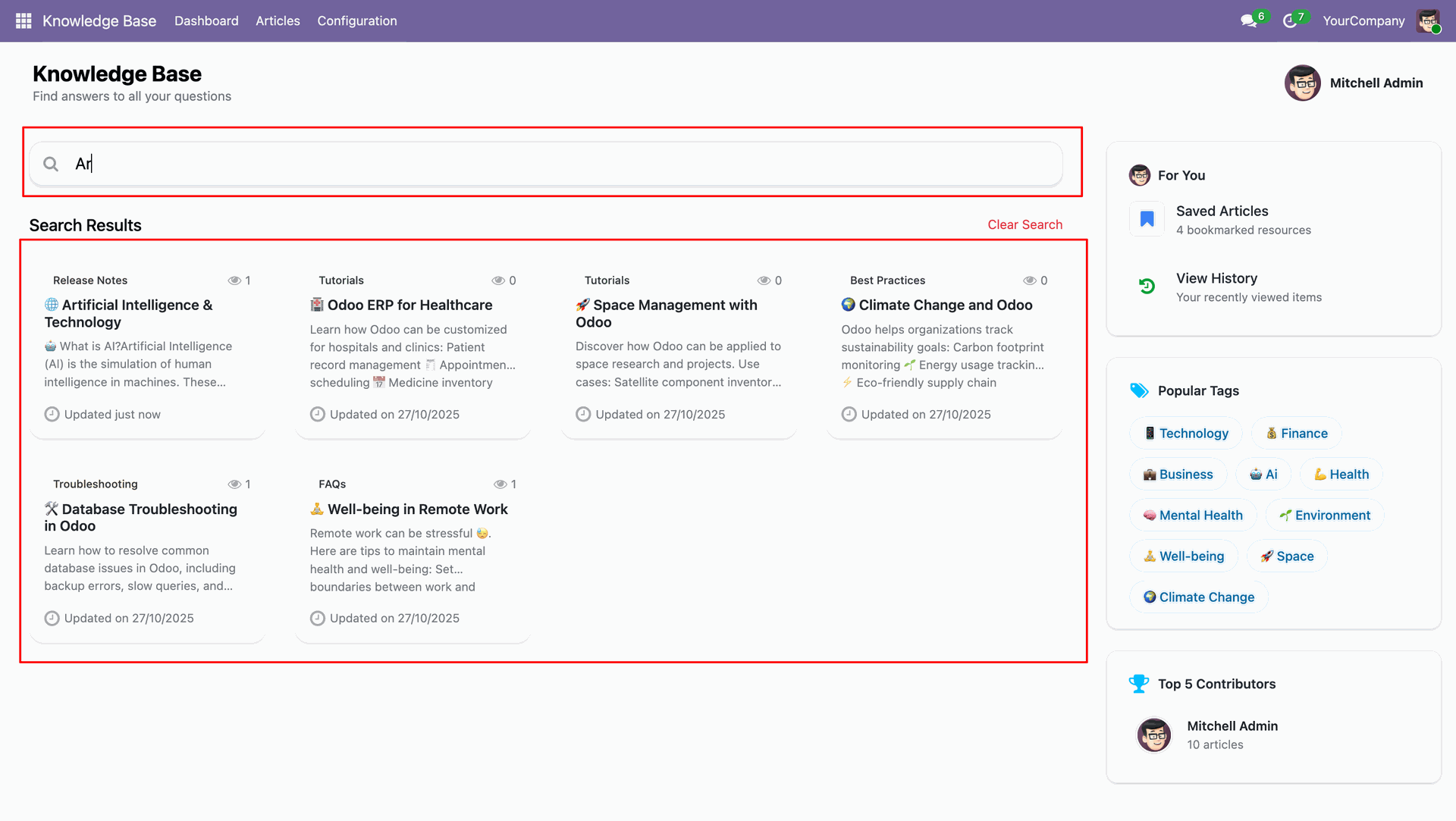
This section shows the Search Functionality of the Knowledge Base.
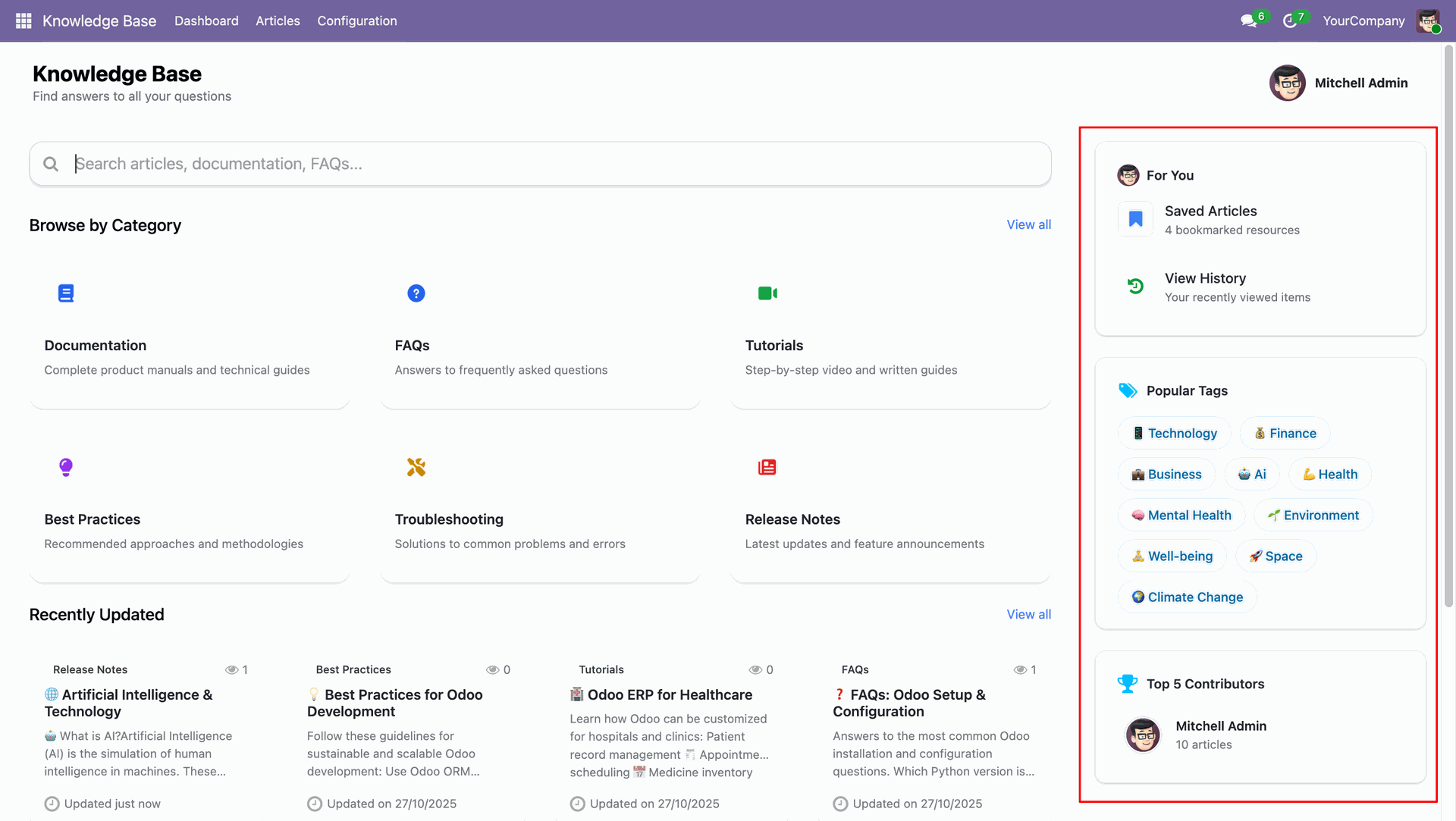
This section highlights the User Panel on the Knowledge Base dashboard. It includes quick access to Saved Articles for bookmarked content and View History for recently viewed items. Below, the Popular Tags area helps users explore trending topics easily, while the Top 5 Contributors section showcases leading content creators based on article contributions.
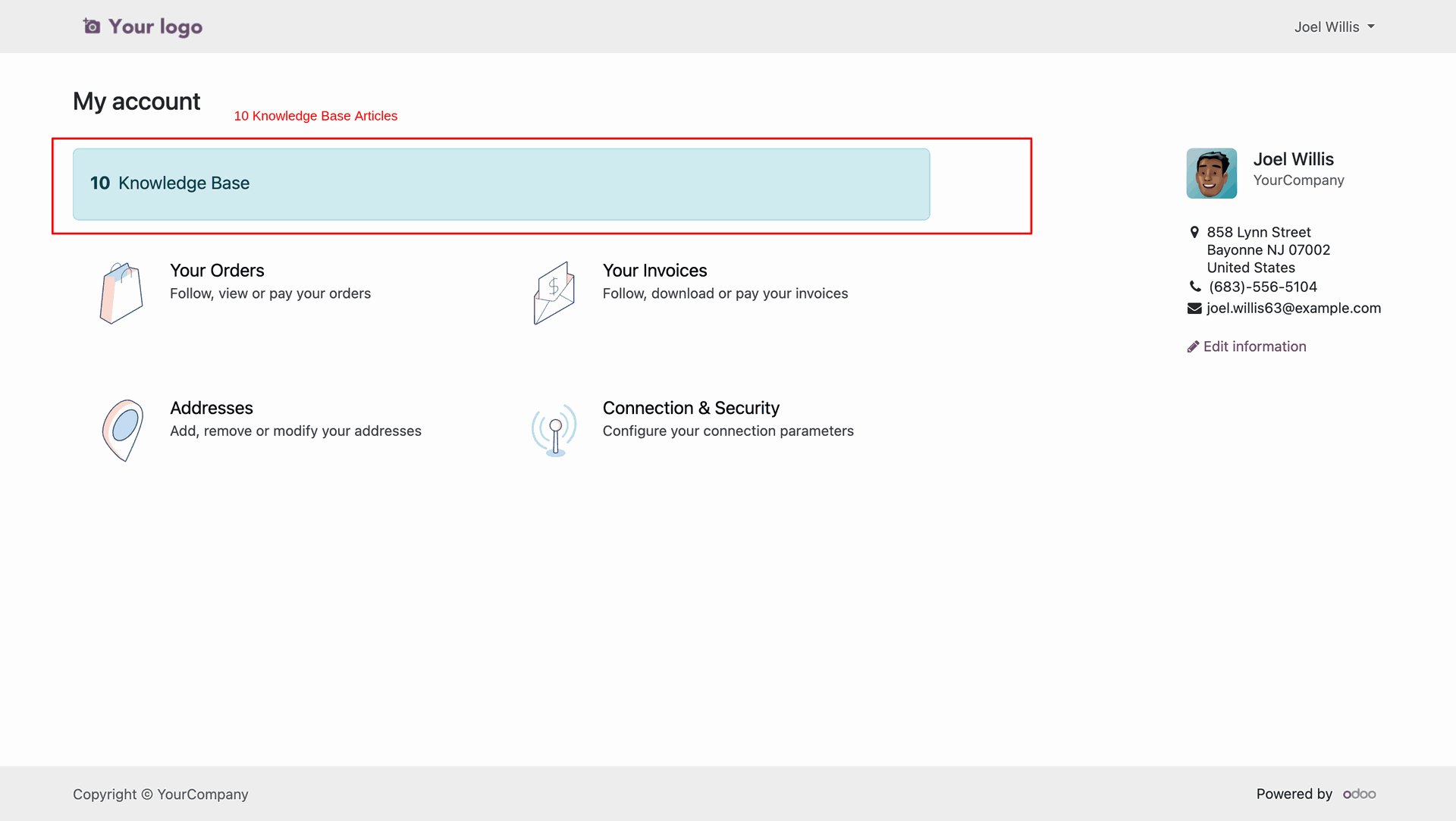
The customer portal displays a Knowledge Base section showing the total number of published articles. Users can access these articles directly from their account dashboard for quick reference.
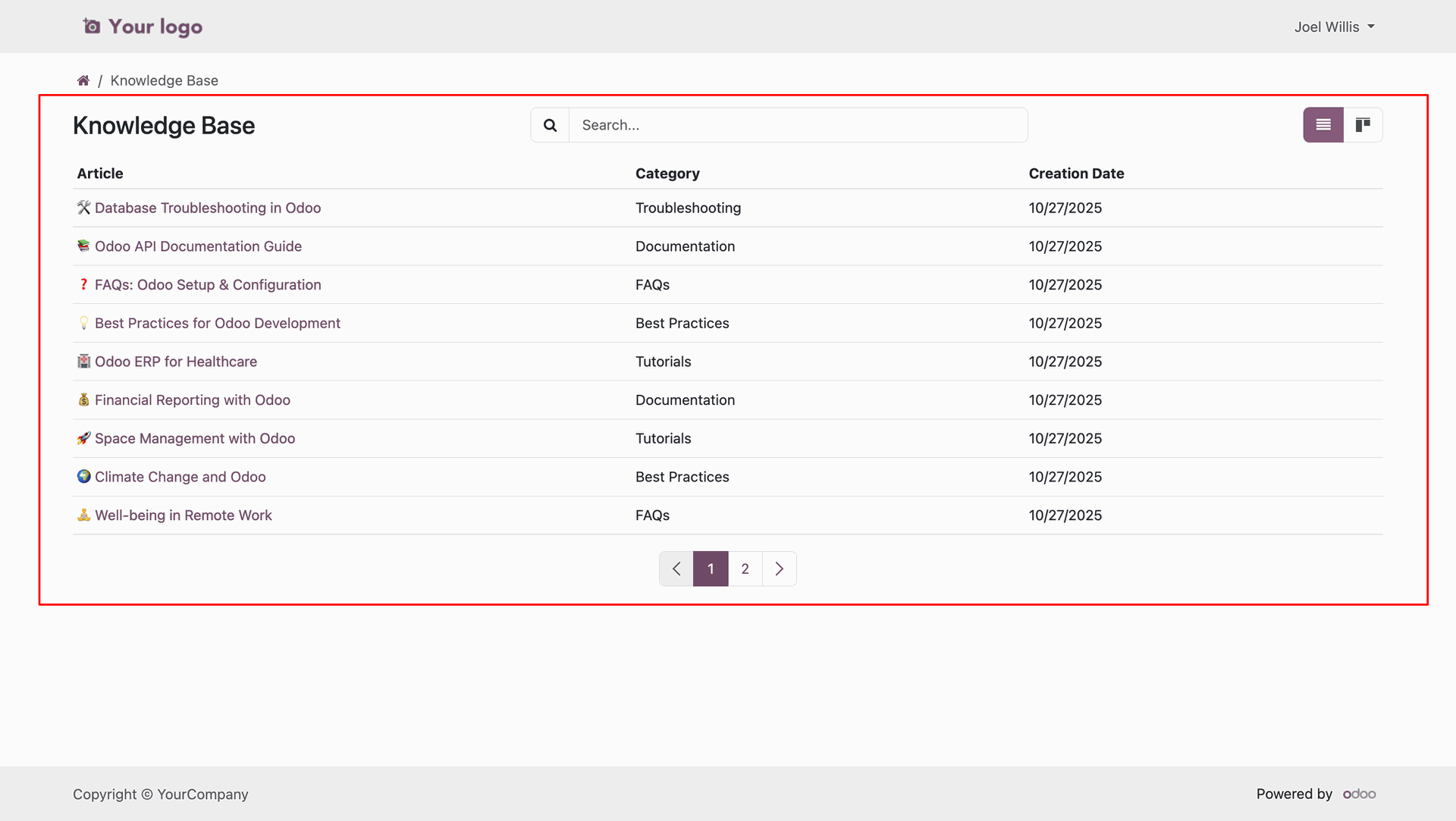
The customer can view all published Knowledge Base articles in a structured list, categorized by type with search and pagination options for easier navigation.
The Knowledge Base articles can also be viewed in a kanban layout, displaying article previews with category labels, short descriptions, and update details for quick browsing.
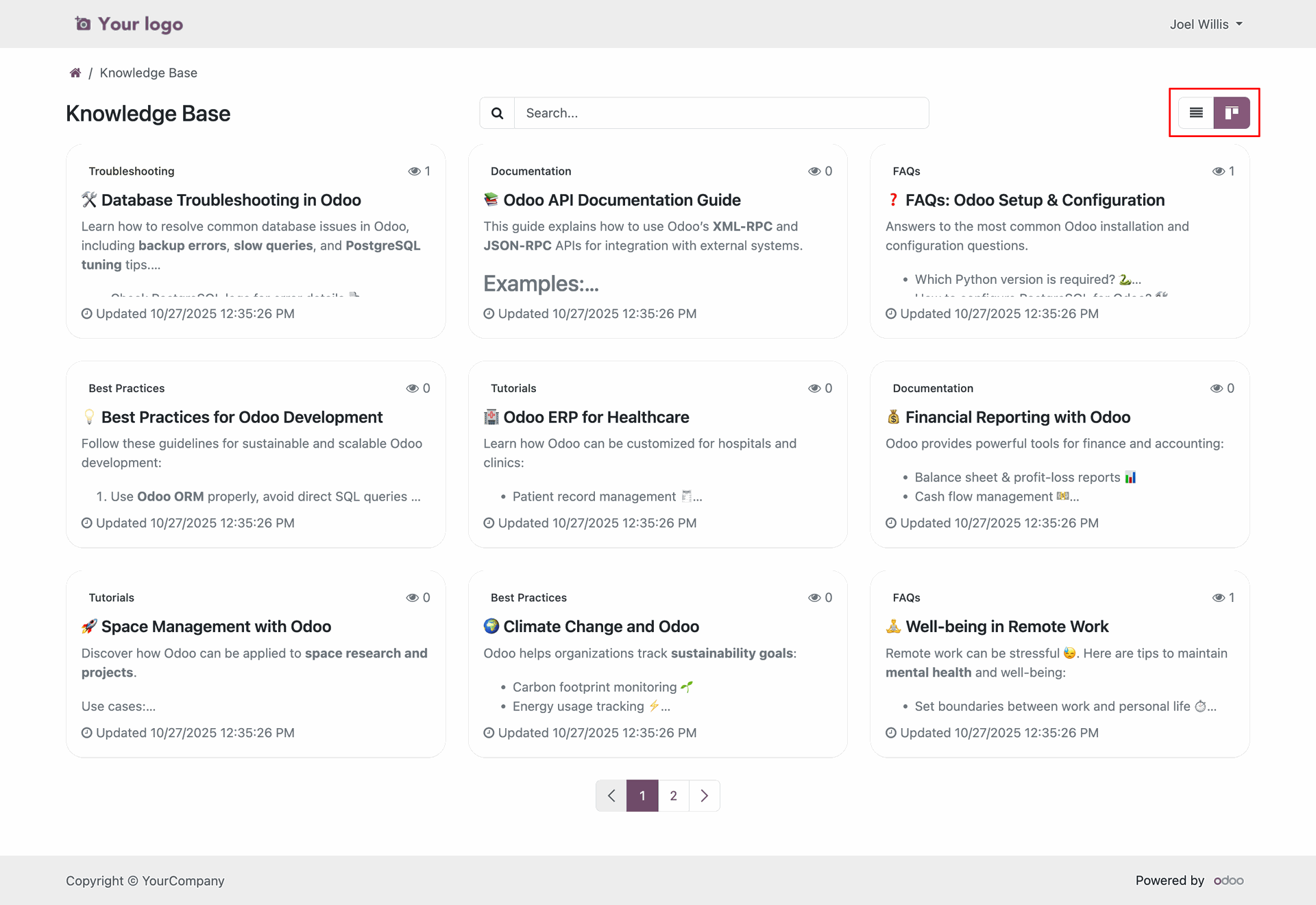
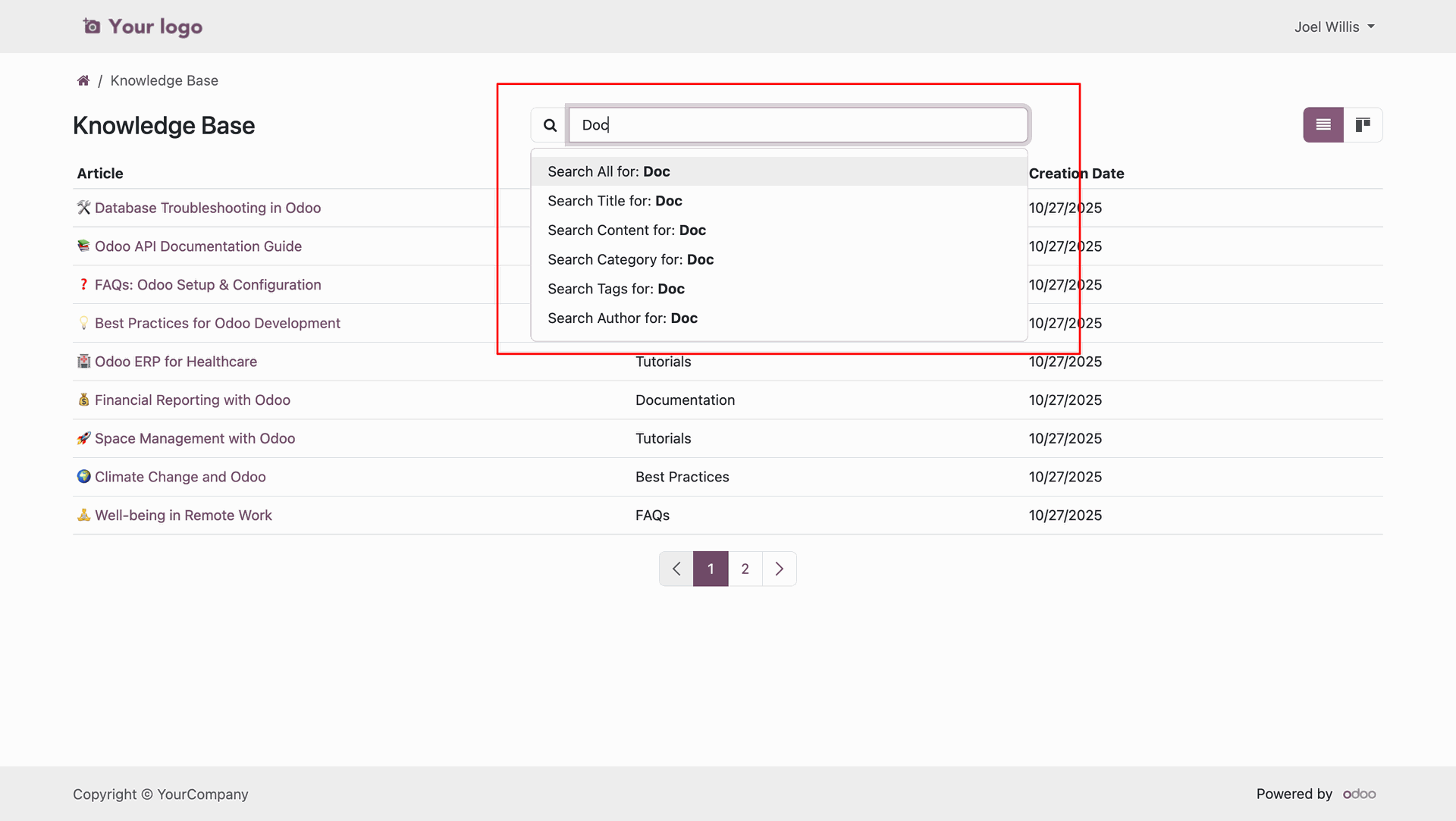
The Knowledge Base includes a smart search feature that allows users to find articles by title, content, category, tags, or author, making it easier to locate specific information quickly.
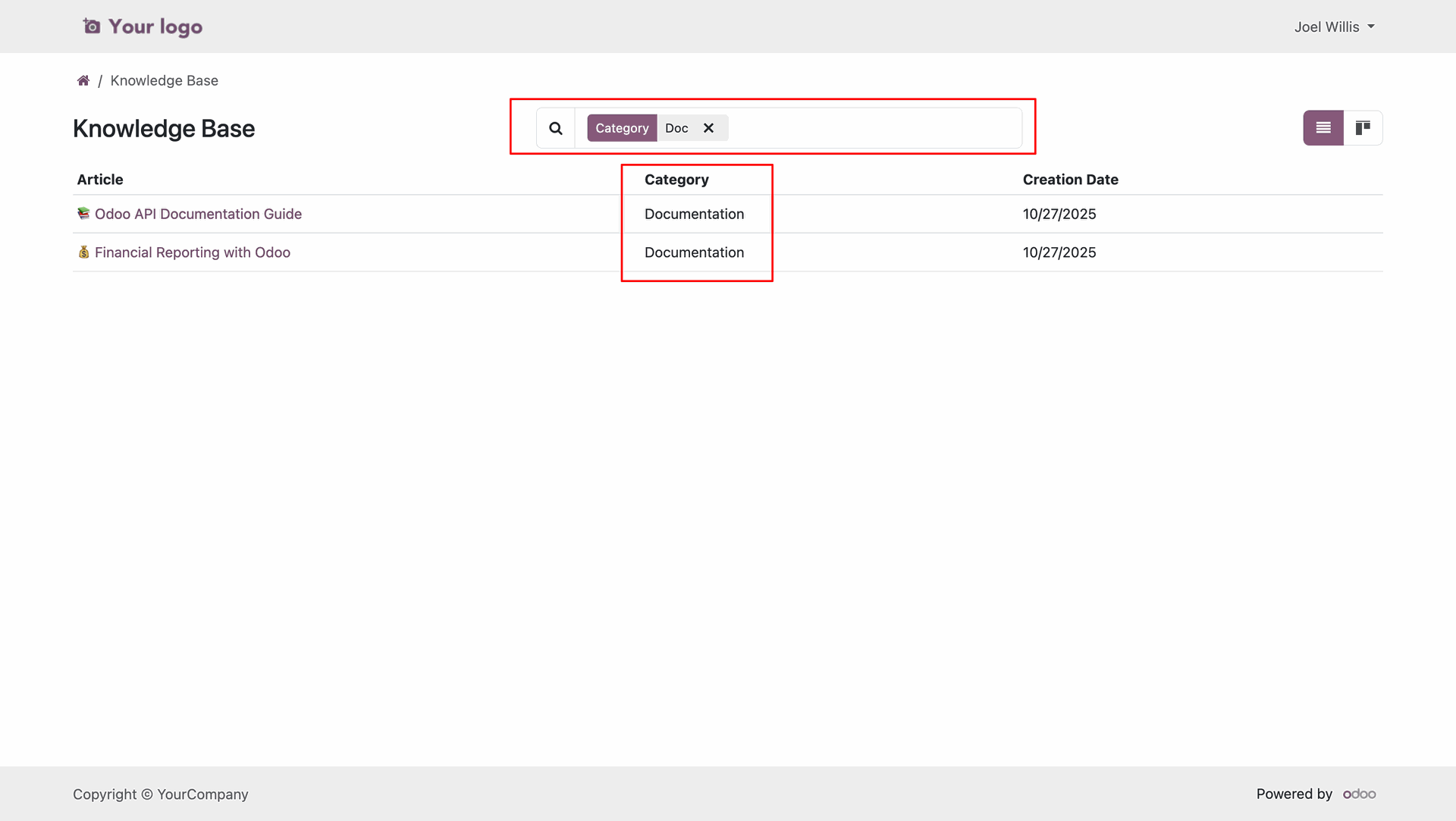
The system allows users to filter articles by category, displaying only those that match the selected criteria for a more focused search experience.
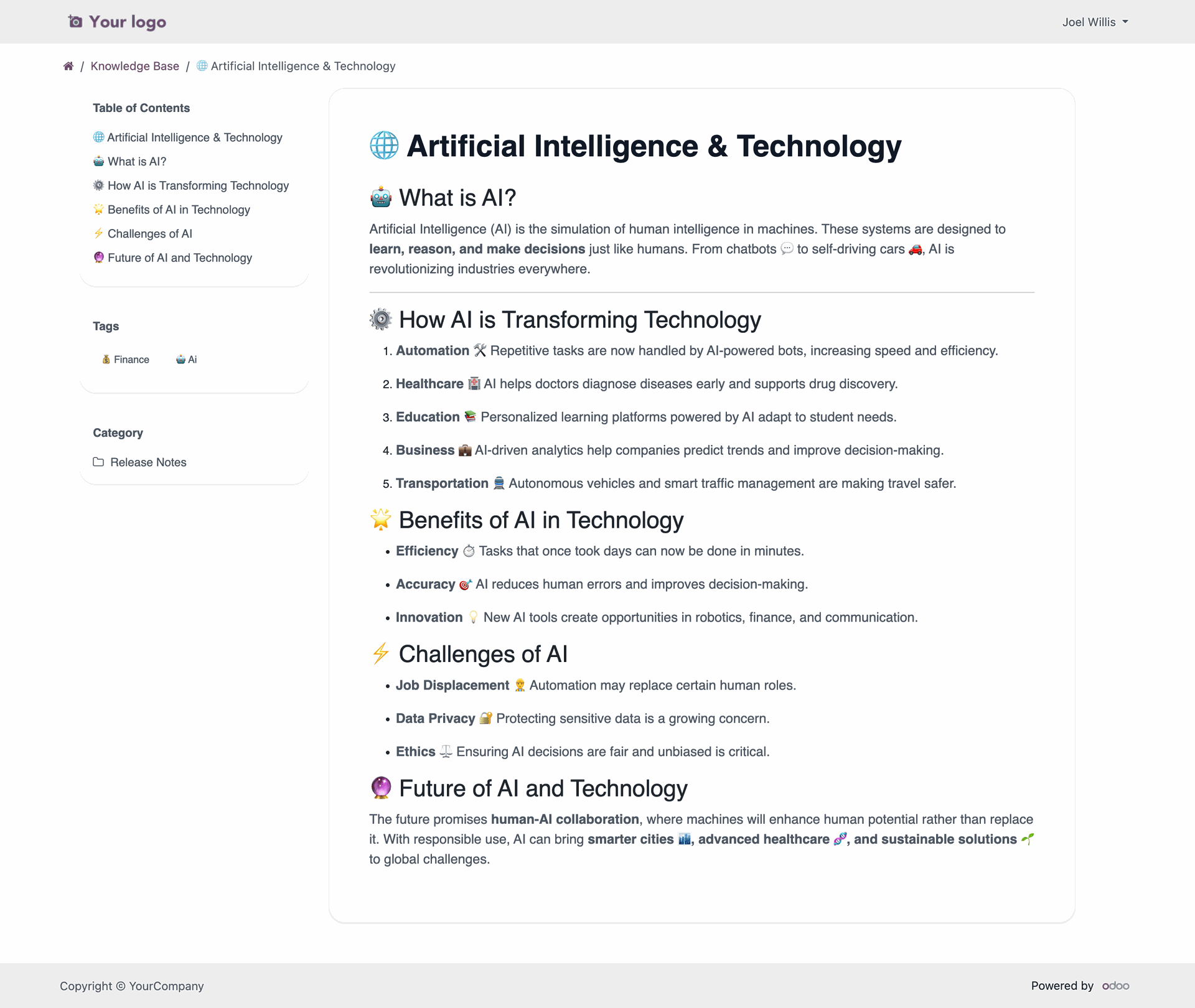
The article view displays a structured layout with a table of contents for quick navigation, categorized tags for better context, and clearly divided sections.
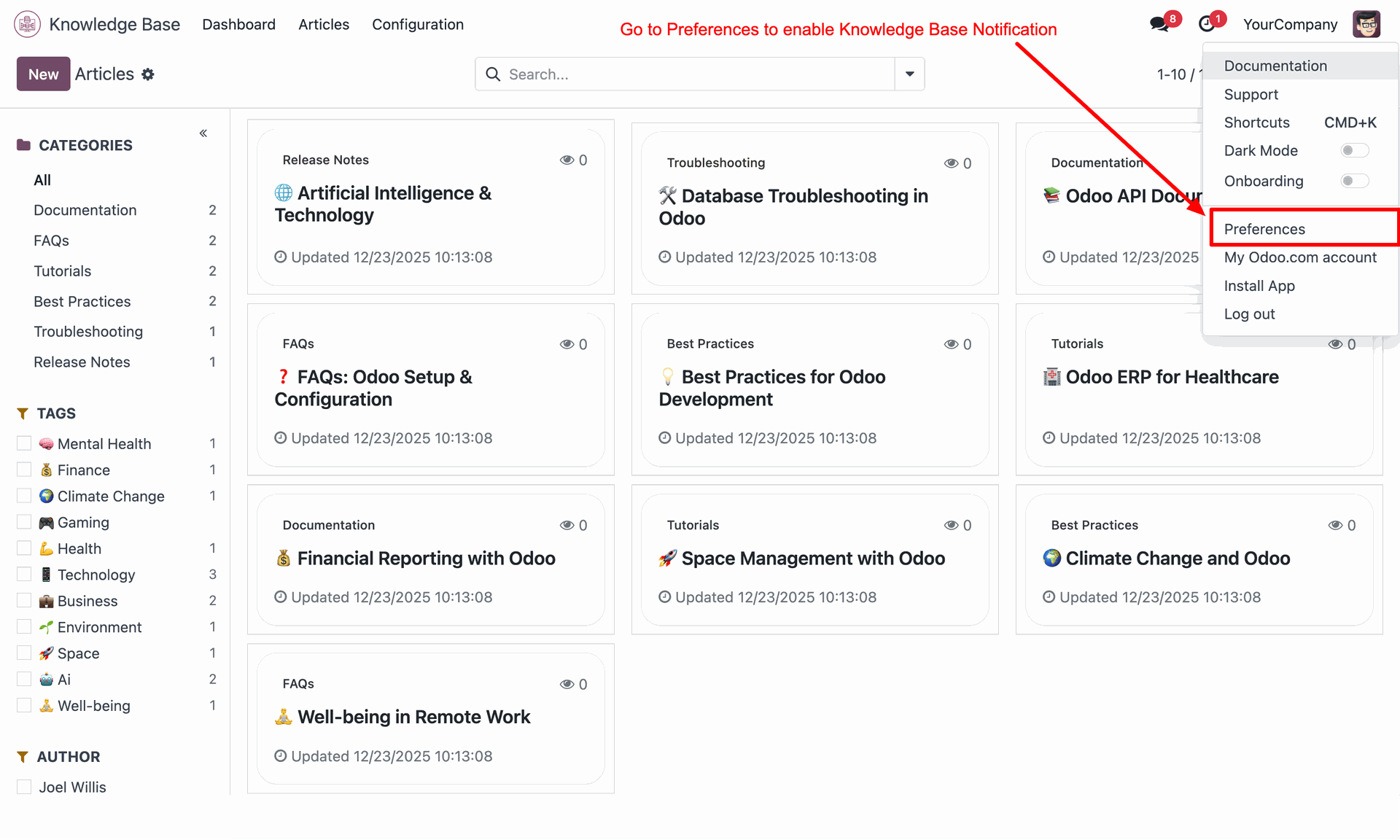
Access user preferences to enable Knowledge Base notifications.
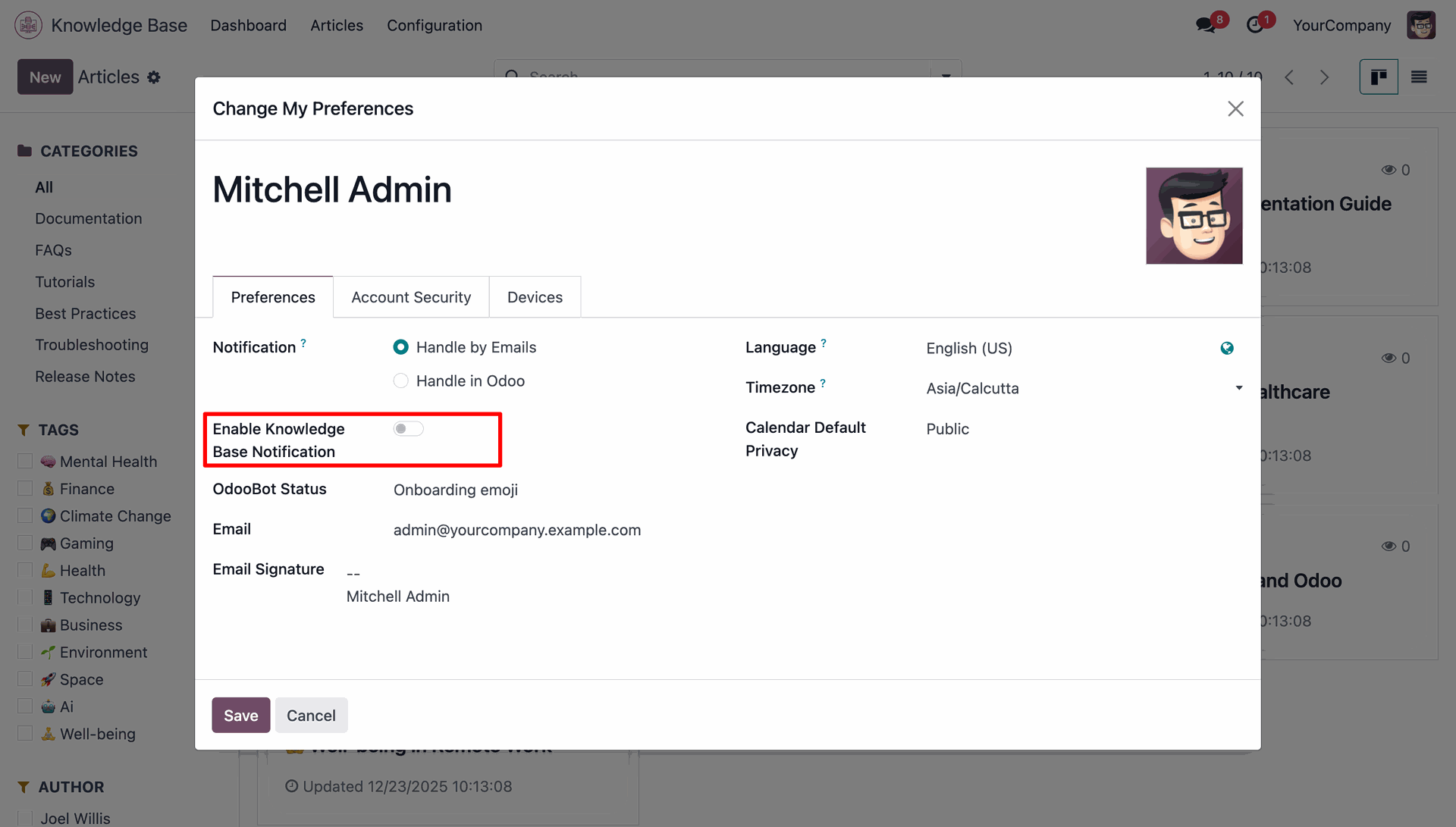
Enable Knowledge Base notification from the user preference settings.
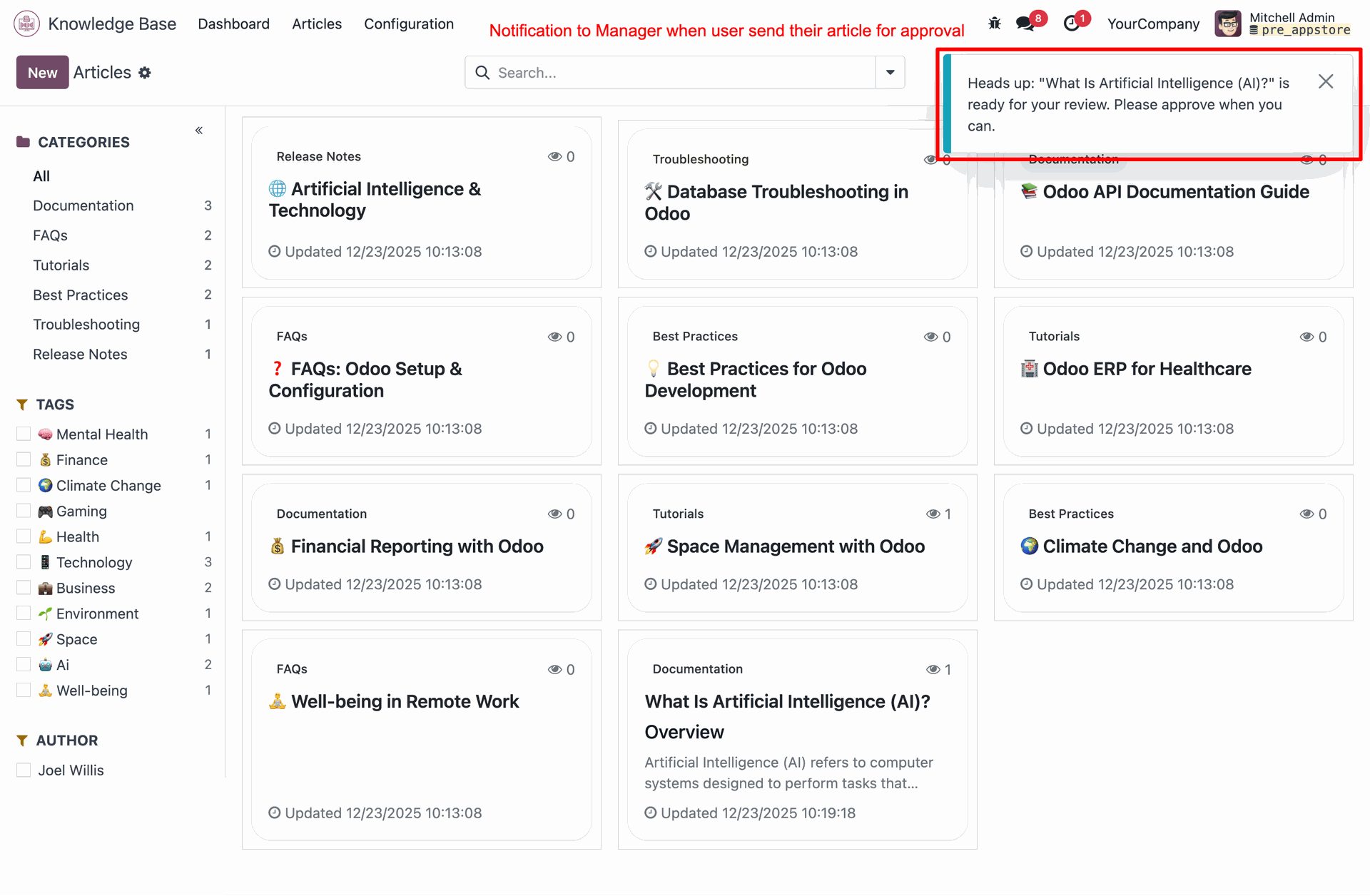
Managers receive instant notification when an article is submitted for approval.
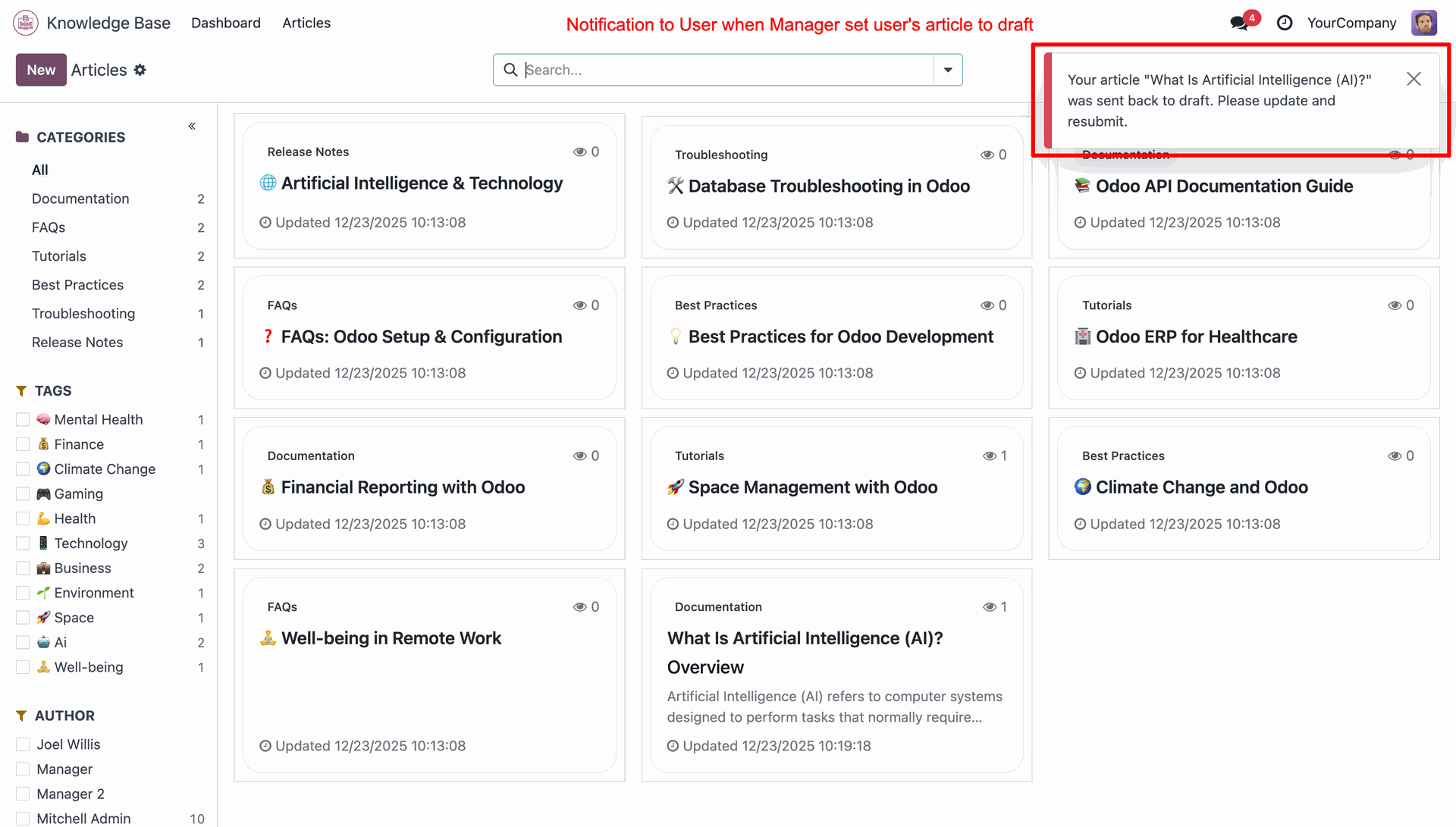
Users are notified when their article is sent back to draft by the manager.
Users receive confirmation when their article is approved and published.

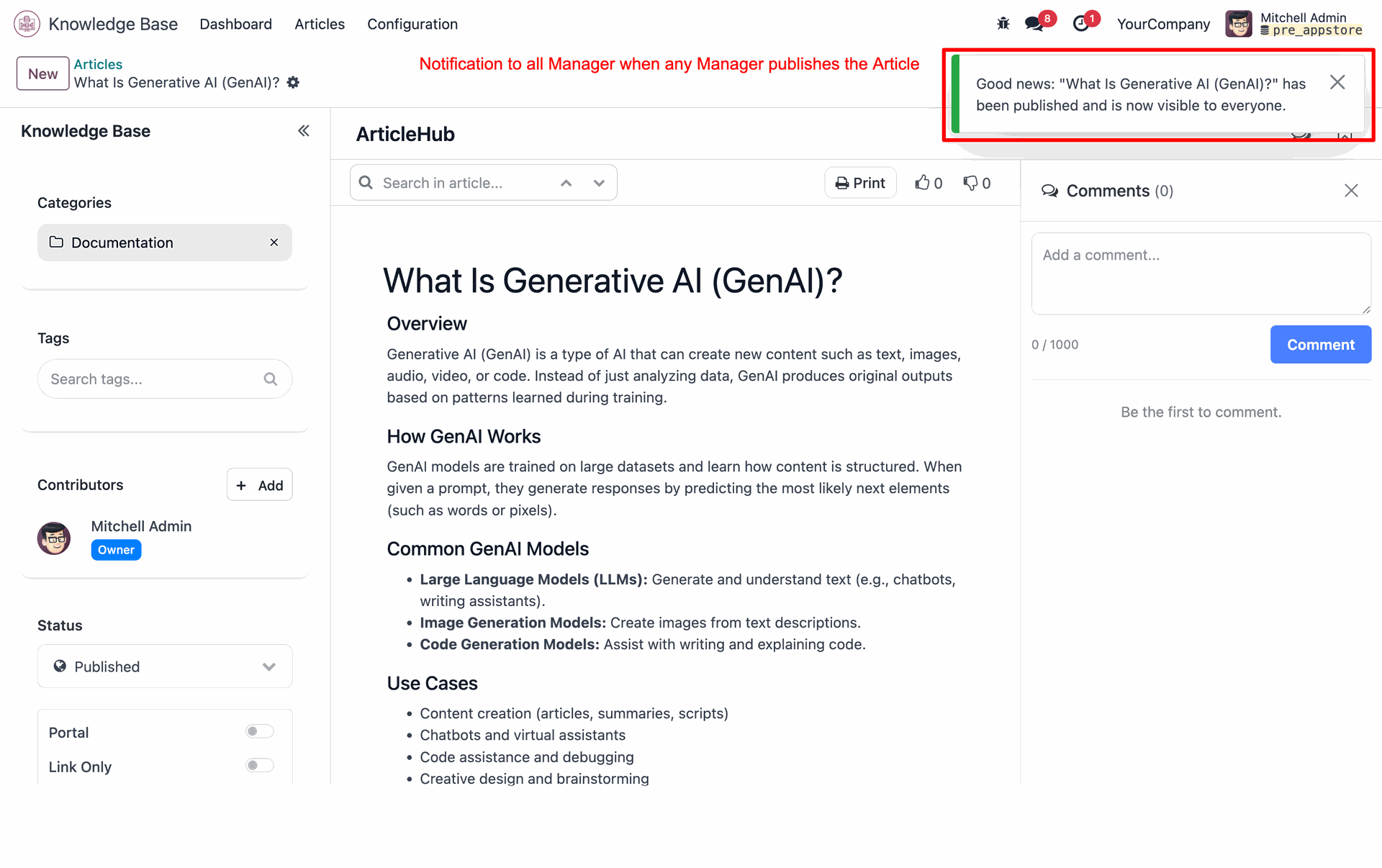
All managers are notified when any manager publishes an article.
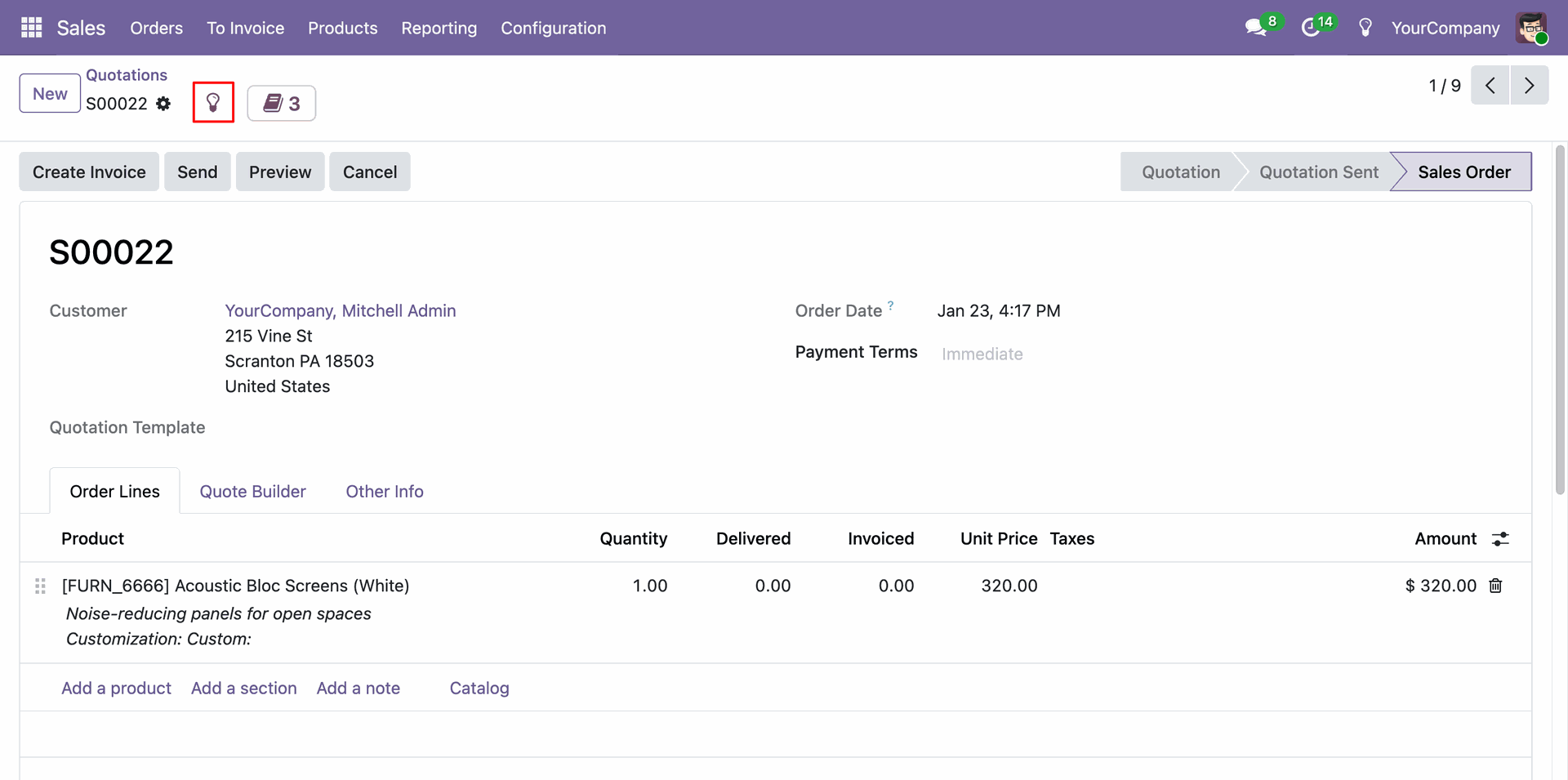
Click on Create Article button
Form view of the ArticleHub.
Click on the Create icon to add a new article.
Add details and click on the 'Save' button.
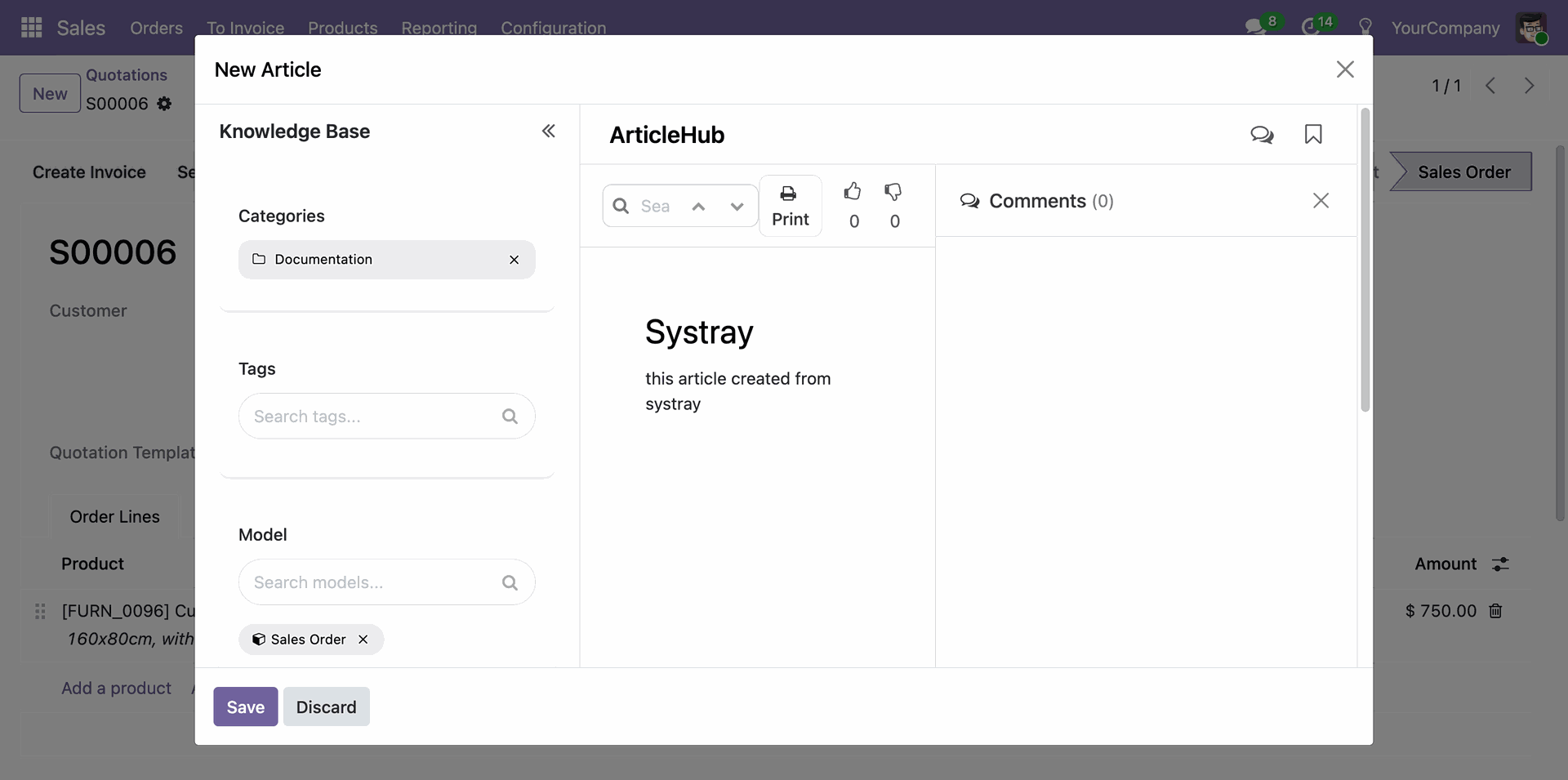
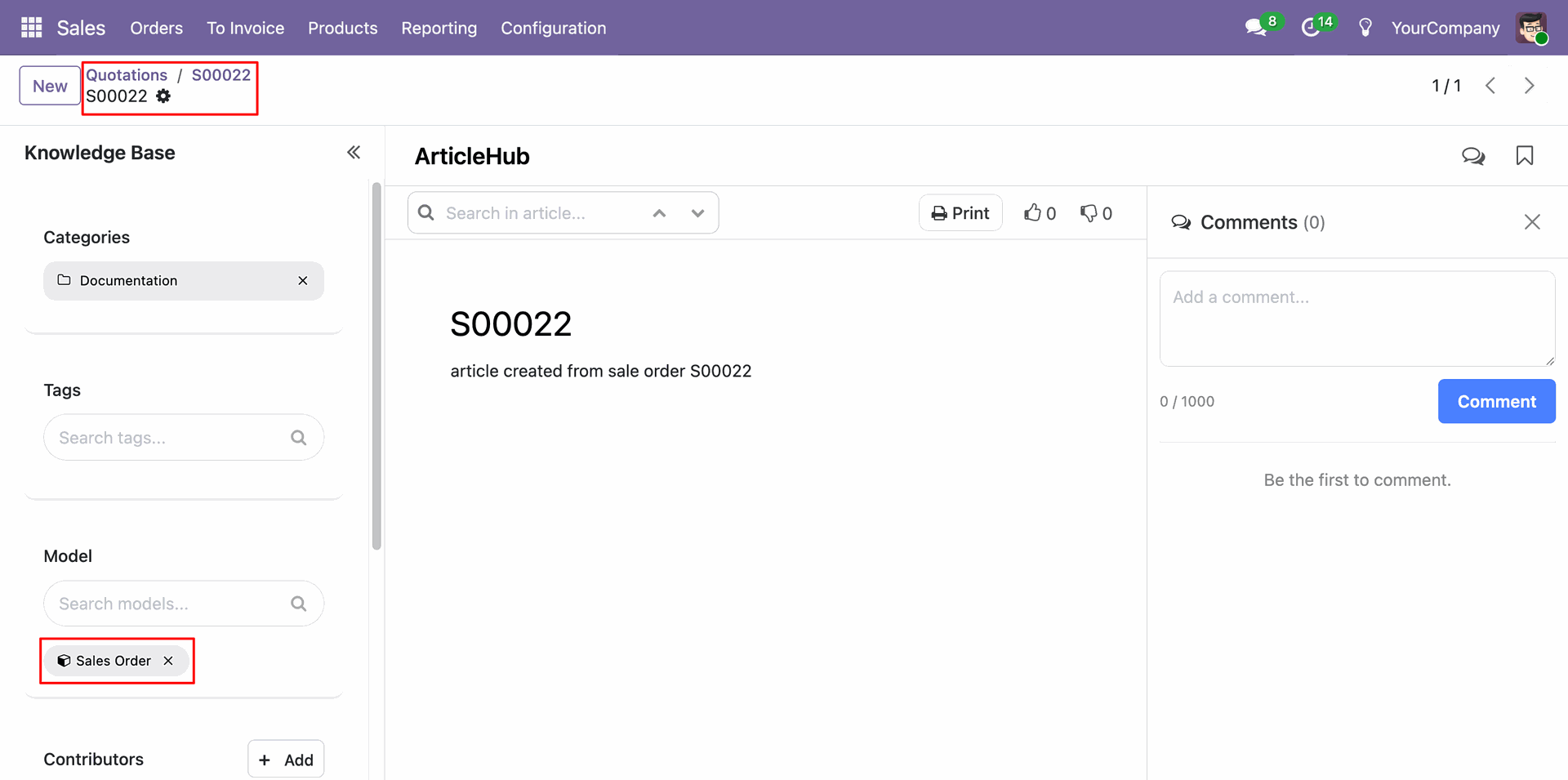
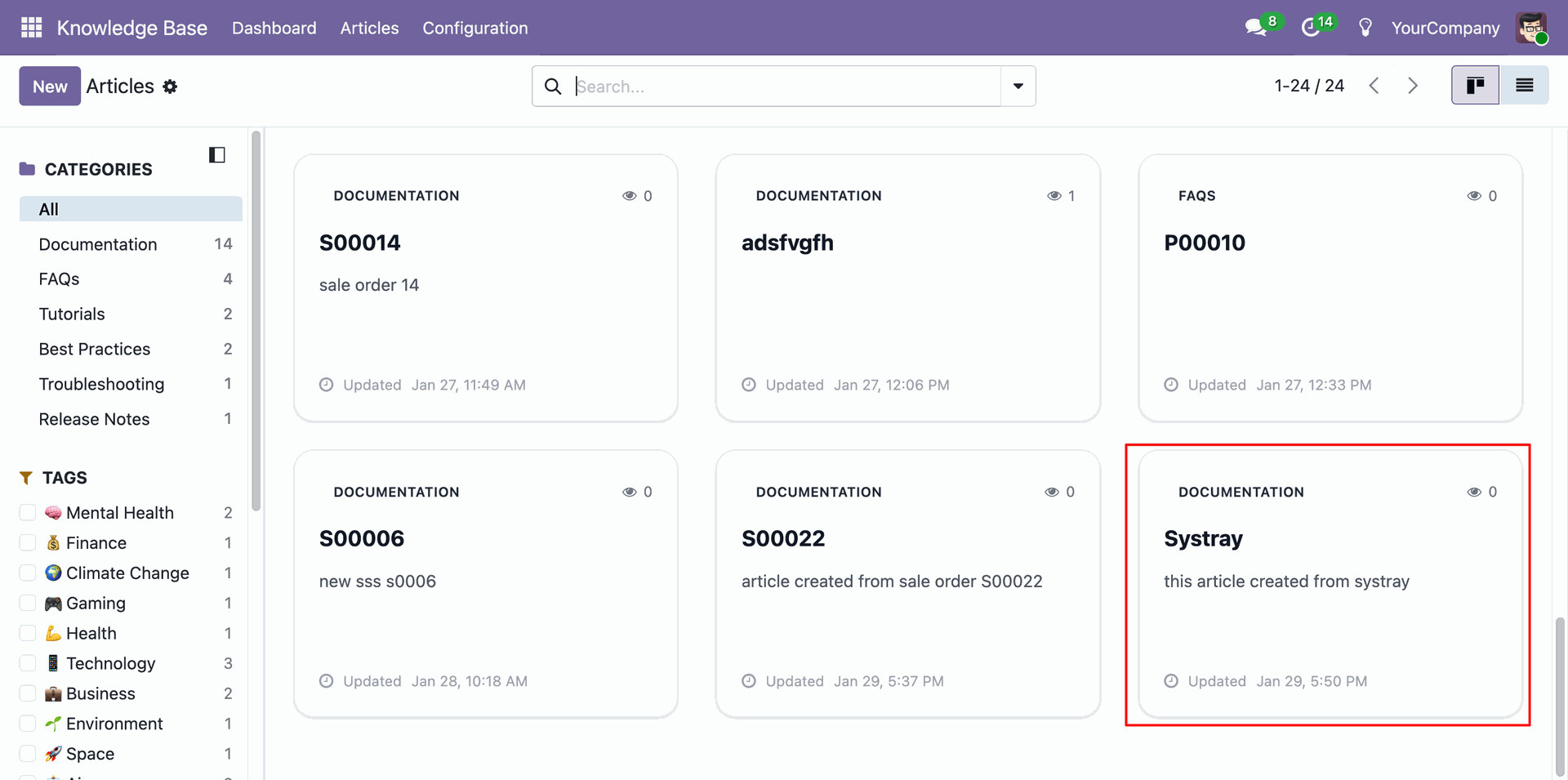
Here you can view the created article.
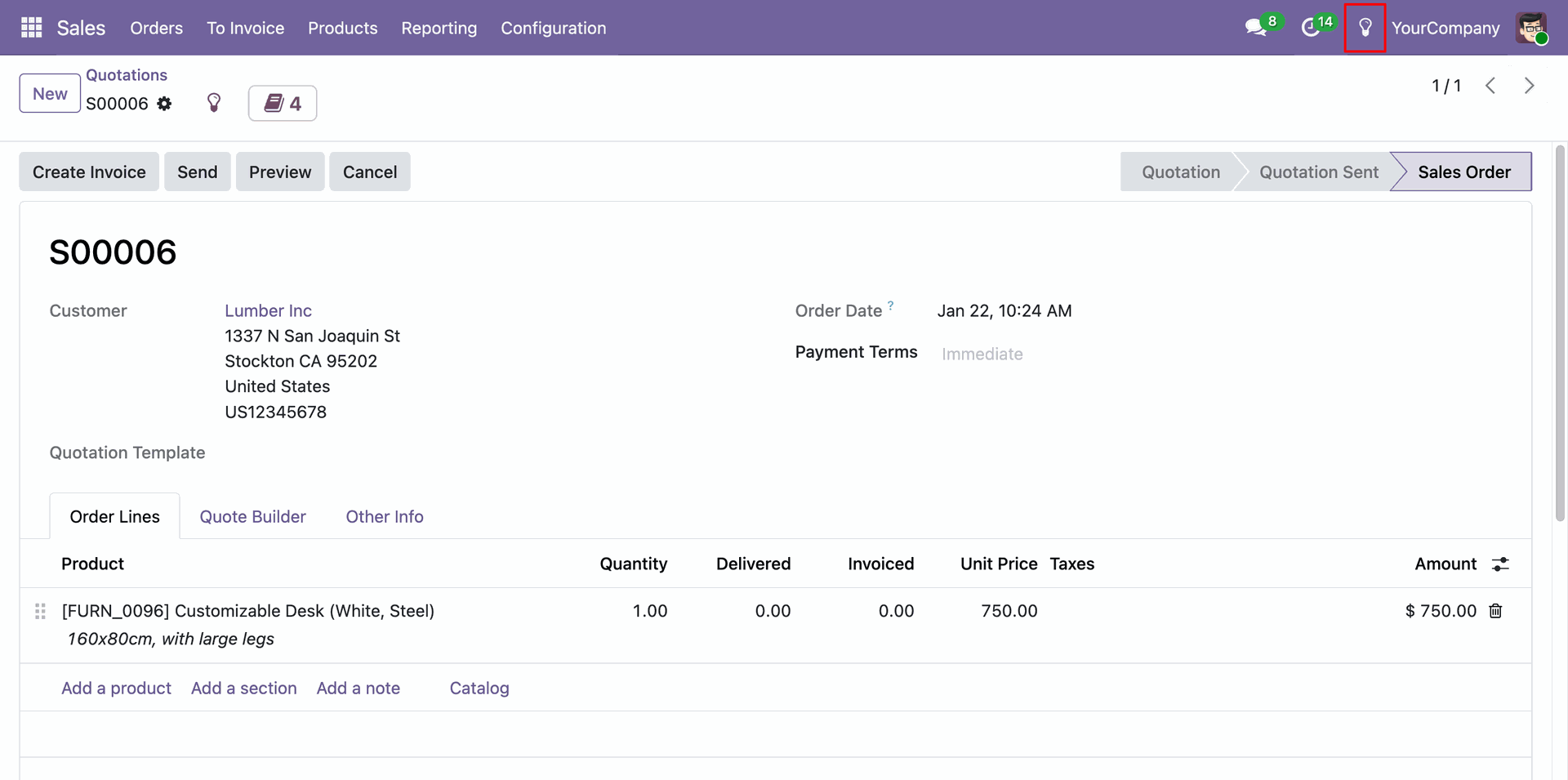
To view the related articles of a particular model, click on the 'Article' icon.
Kanban view of the article.
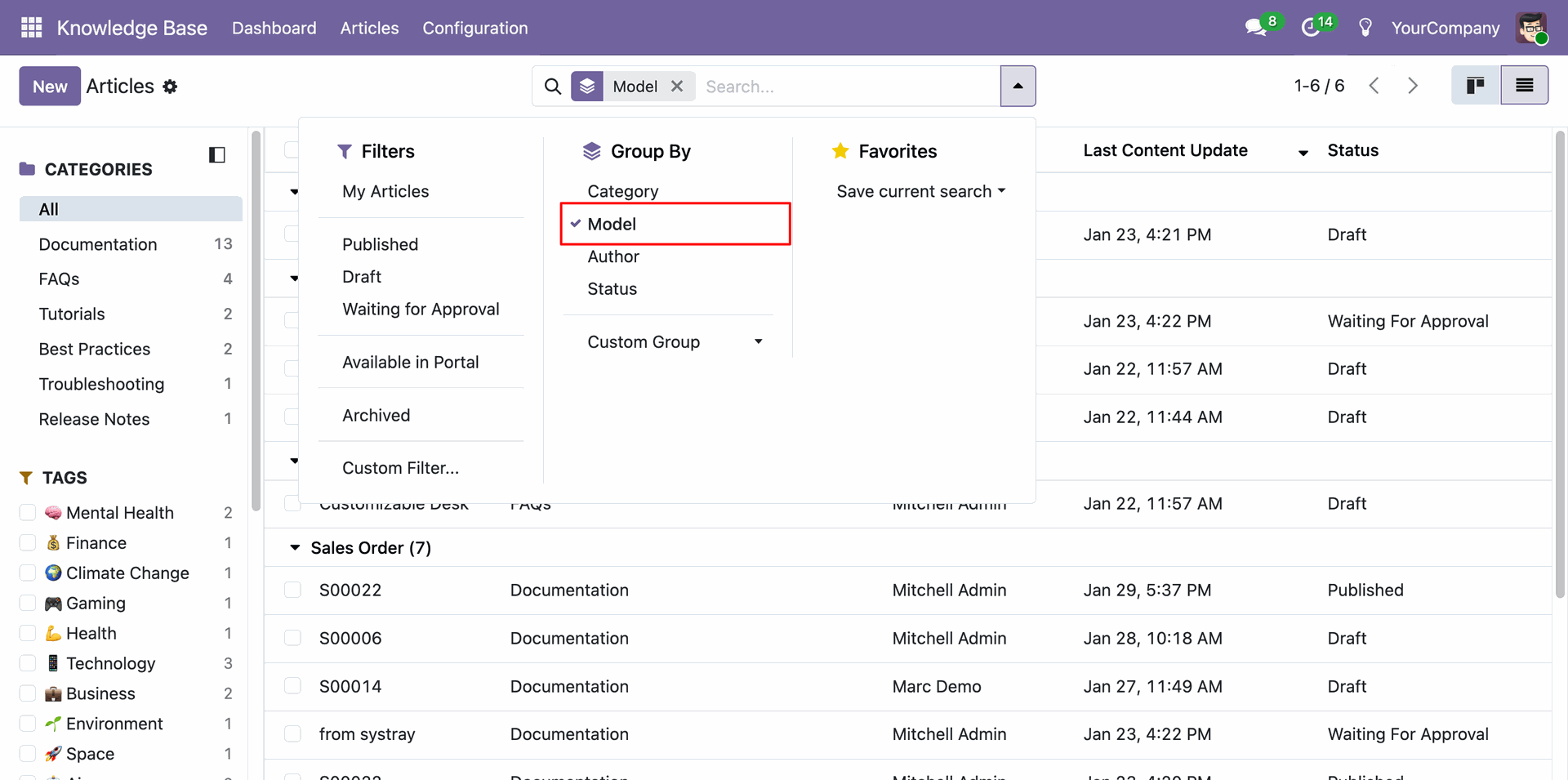
You can group articles by Model.
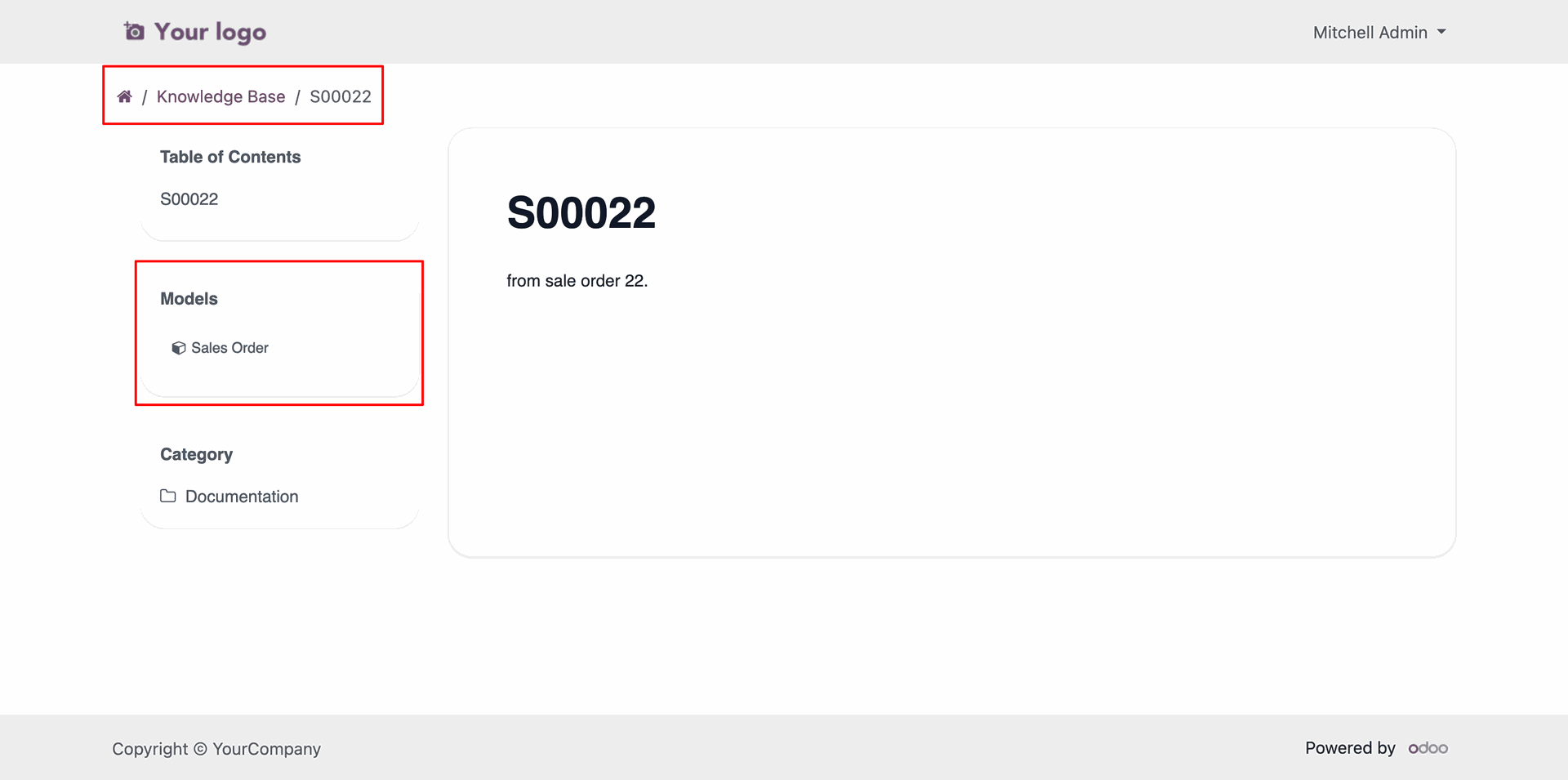
You can also view the Model on the portal side.
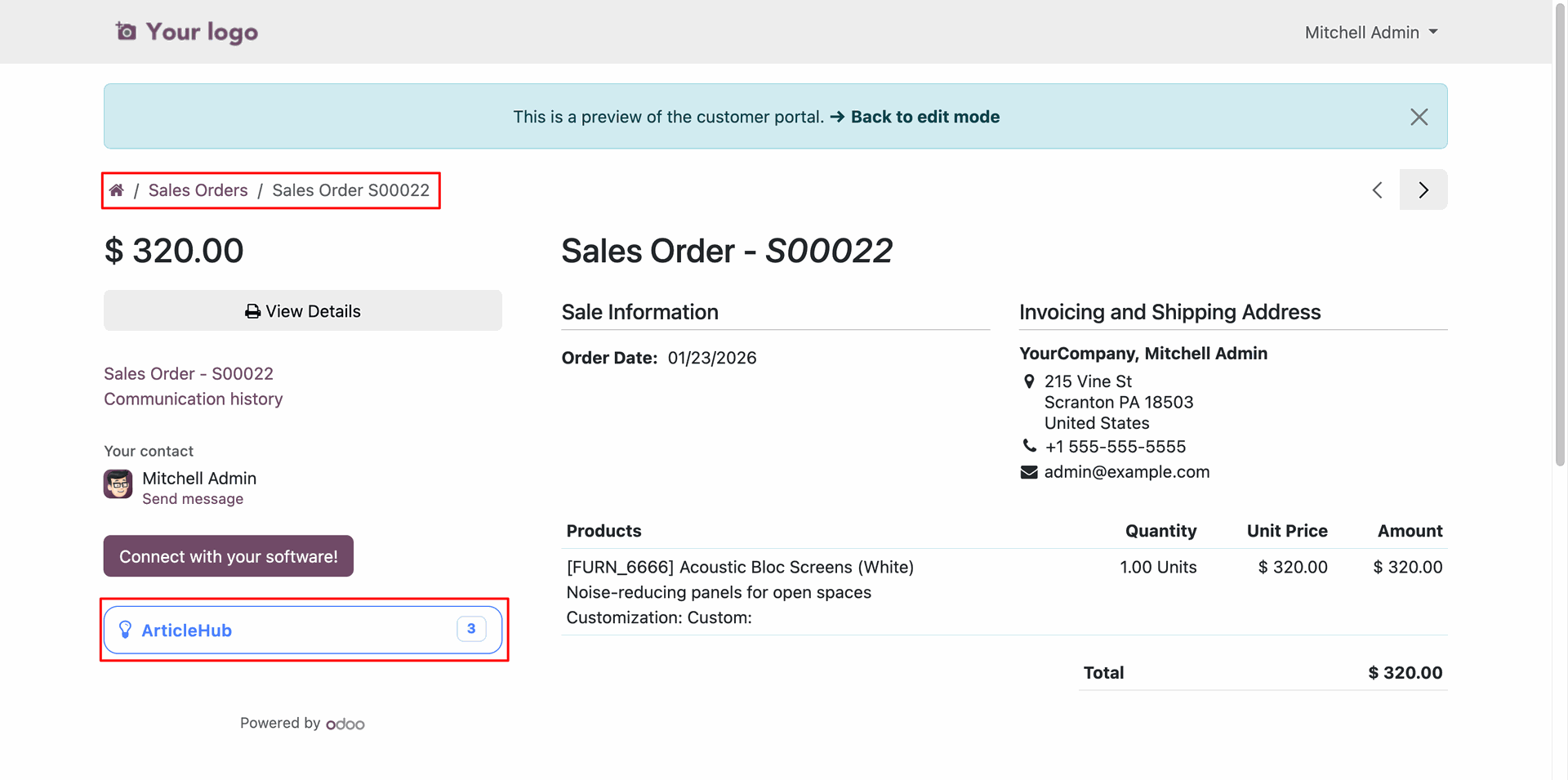
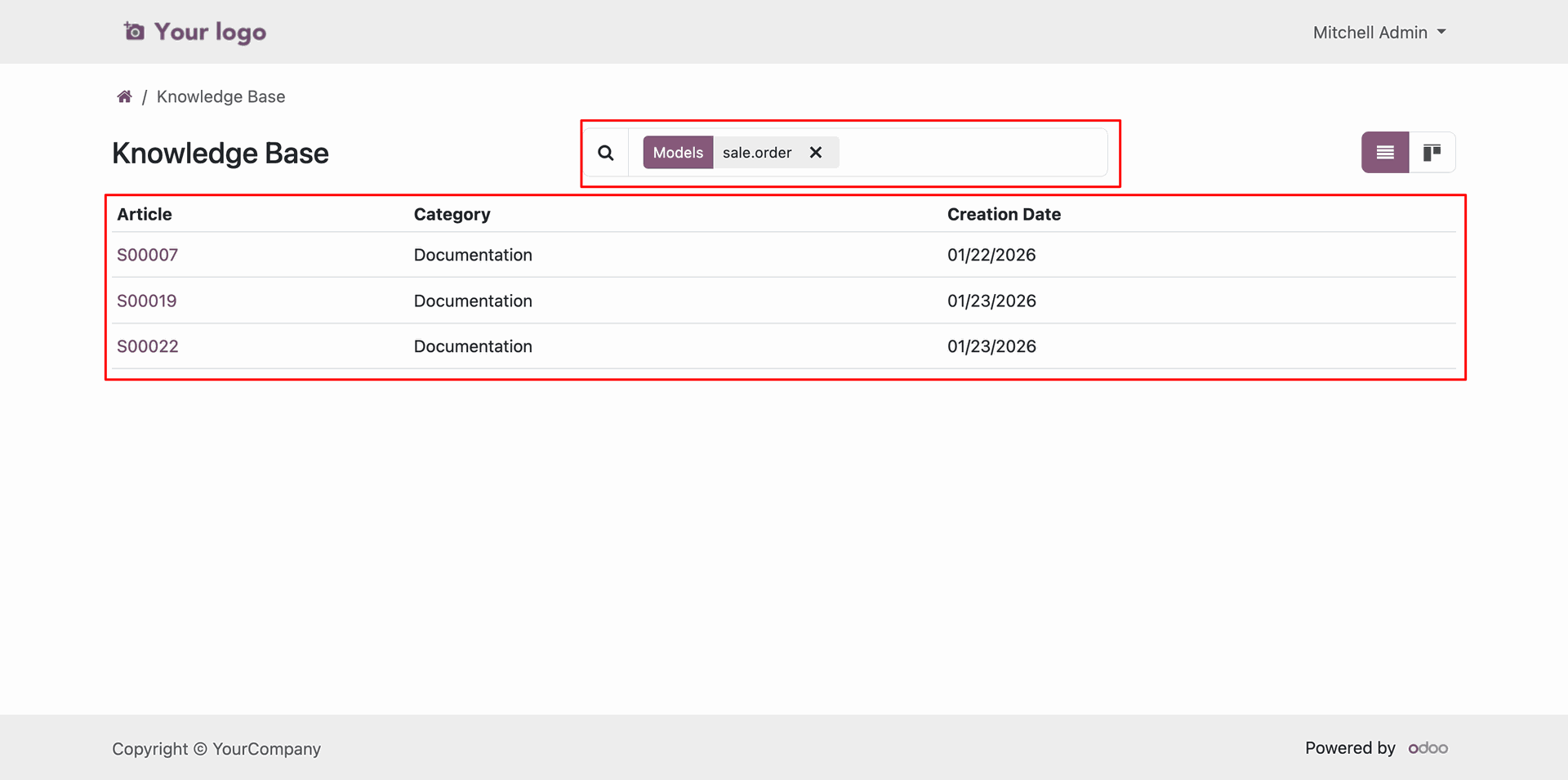
To view the related article at the portal side, click on the 'Article Hub' button.
Tree view of the articles.
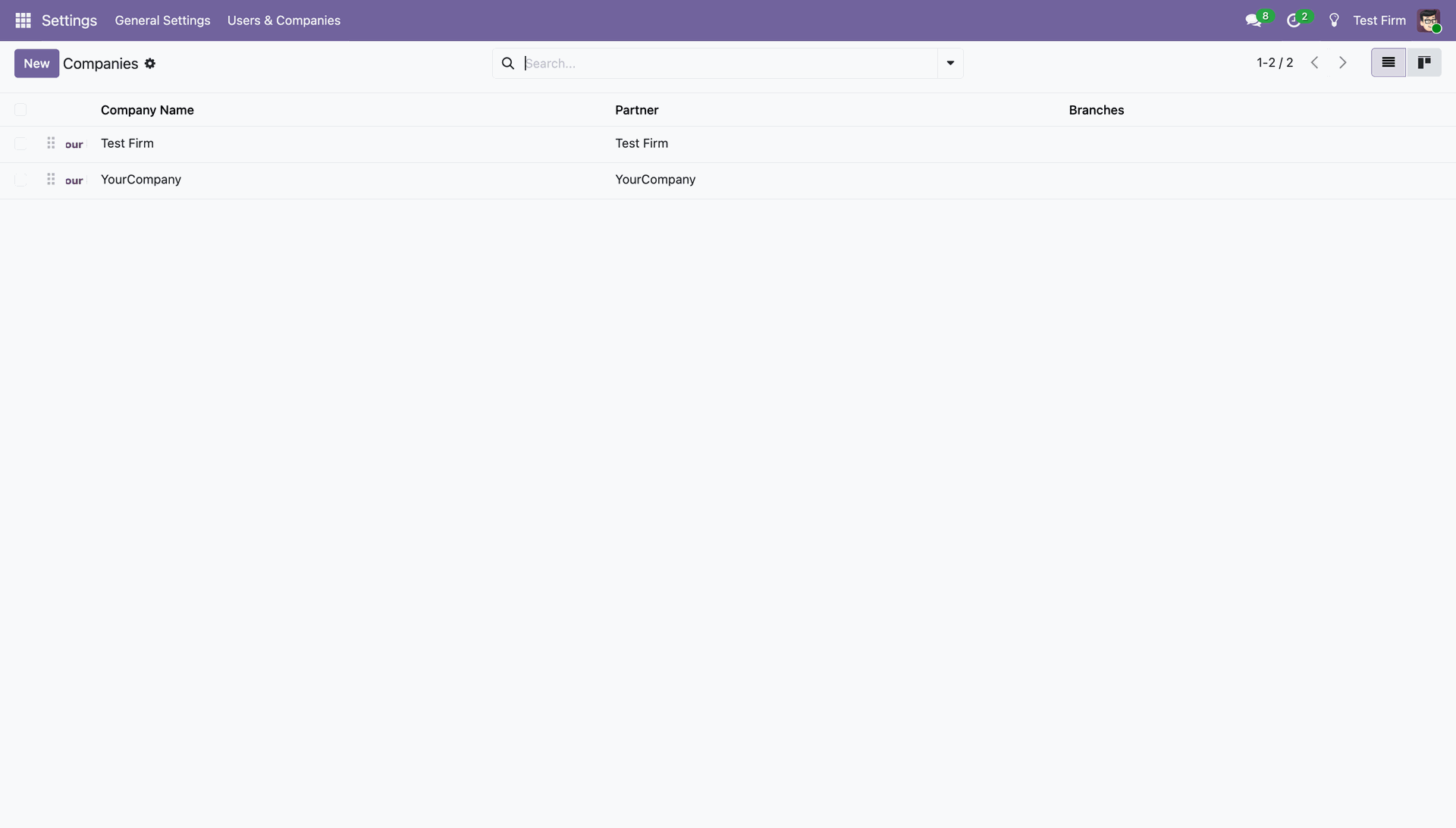
Companies list view.
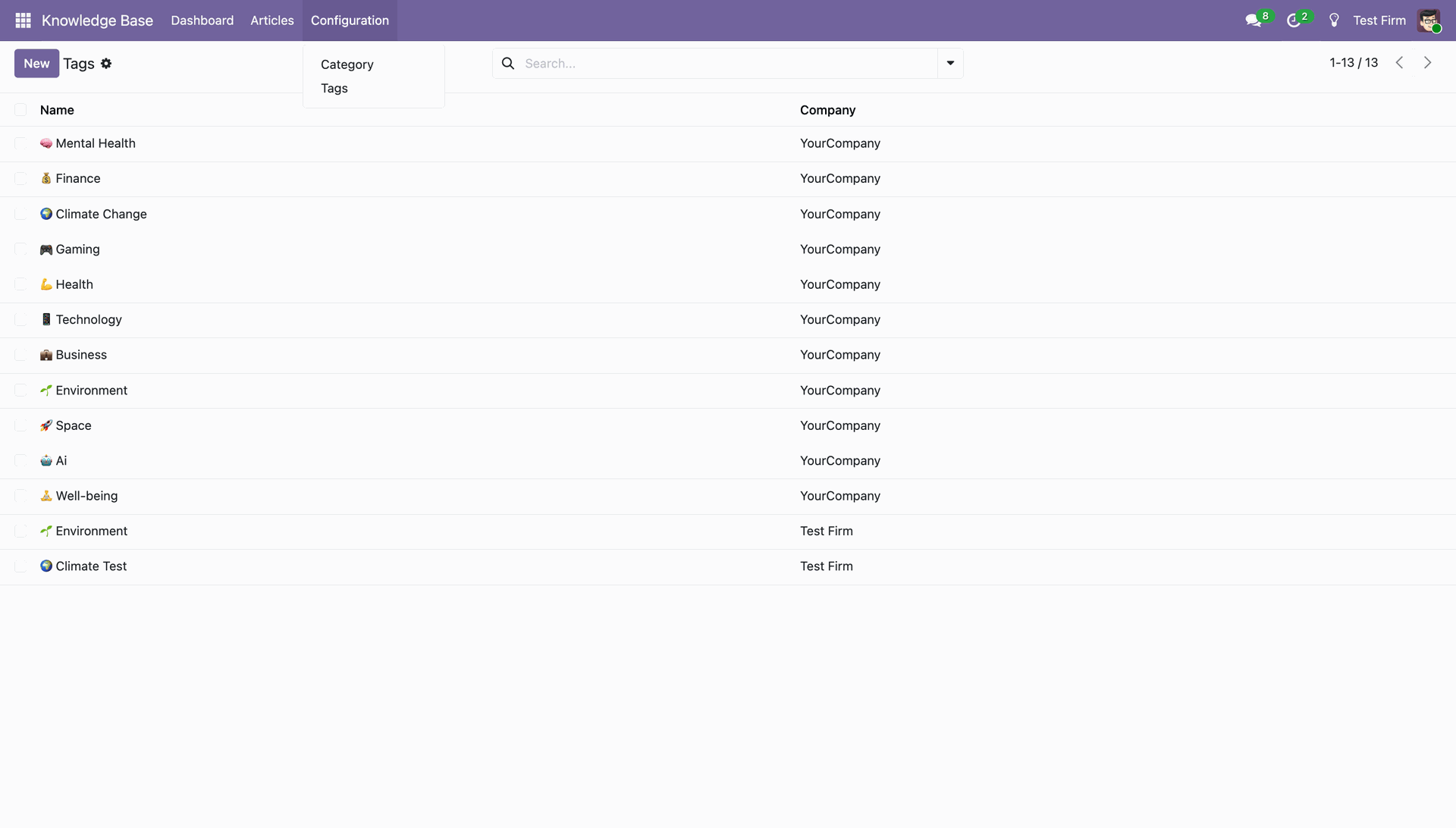
Tags with multi-company.
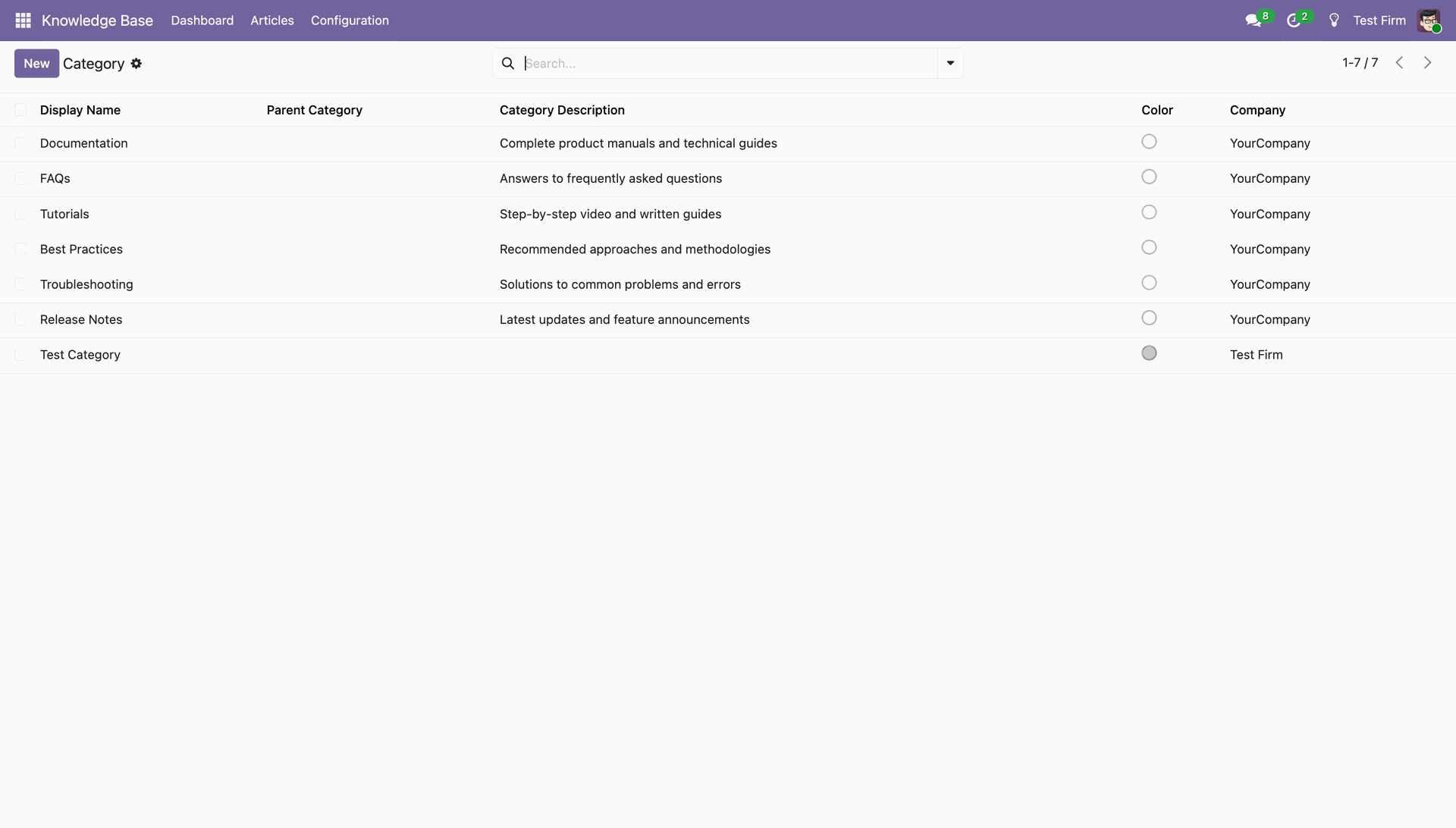
Category with multiple companies.
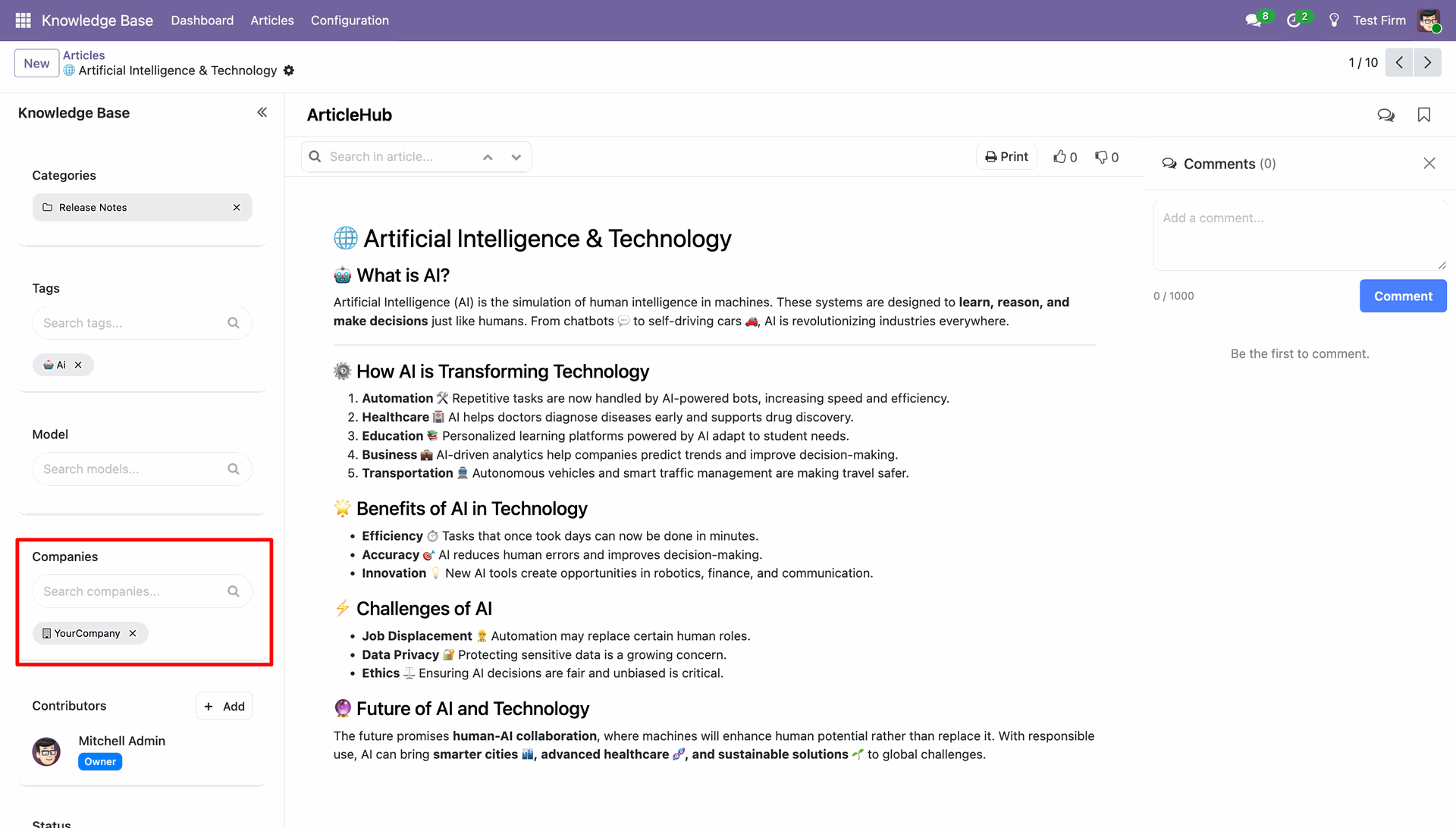
Company field in the knowledge base.
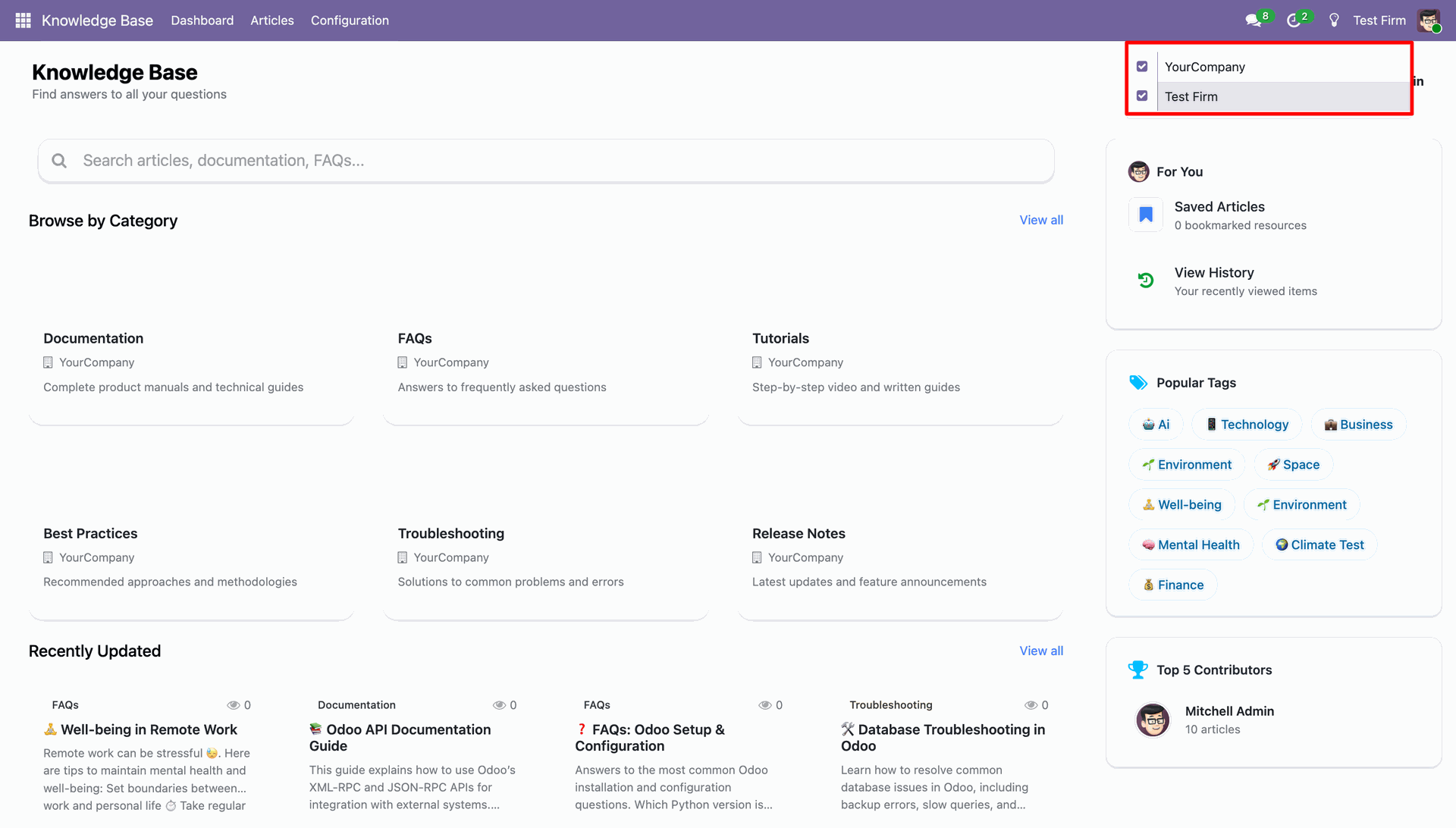
Knowledge-base dashboard with multi-company drop-down.
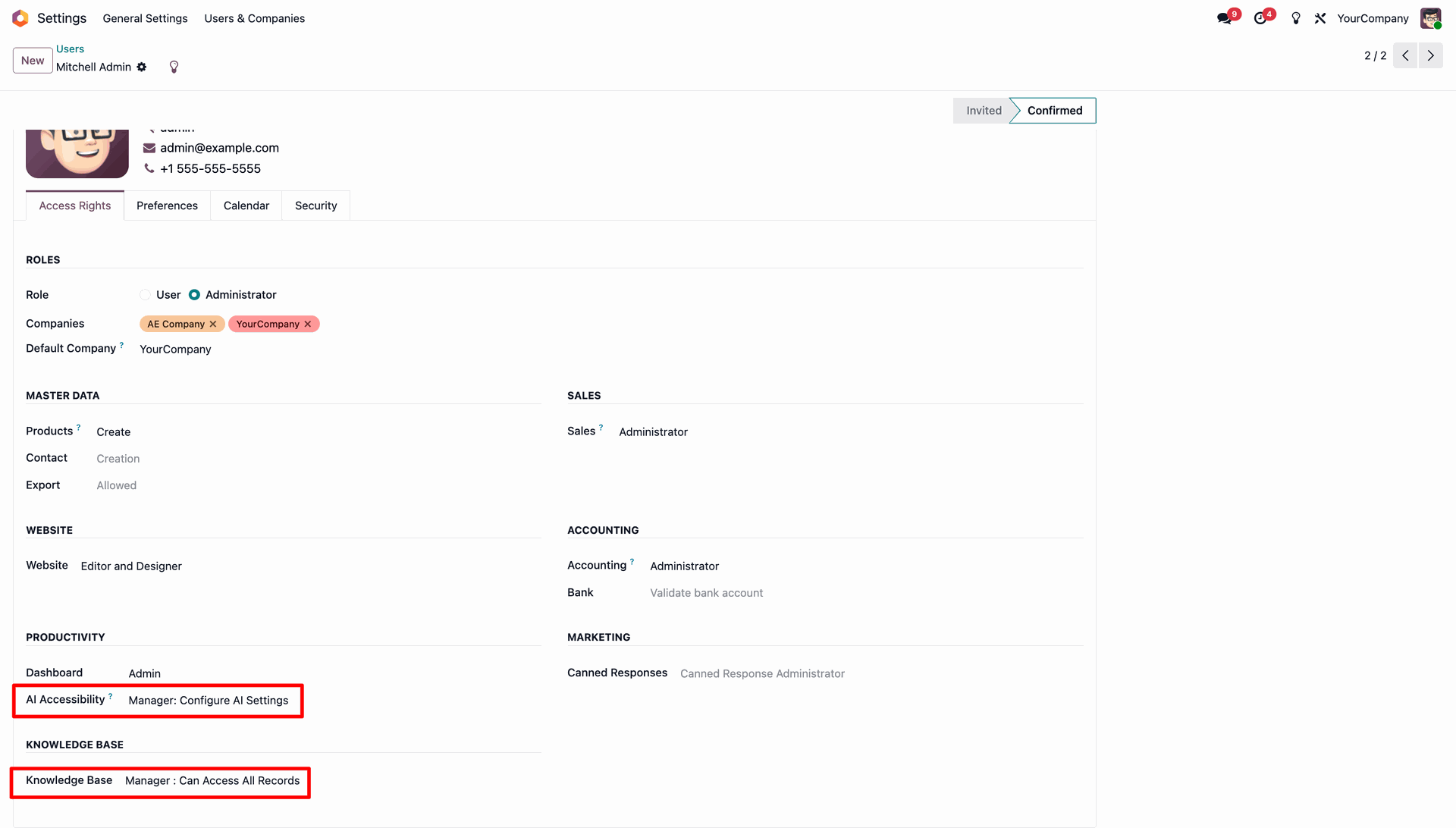
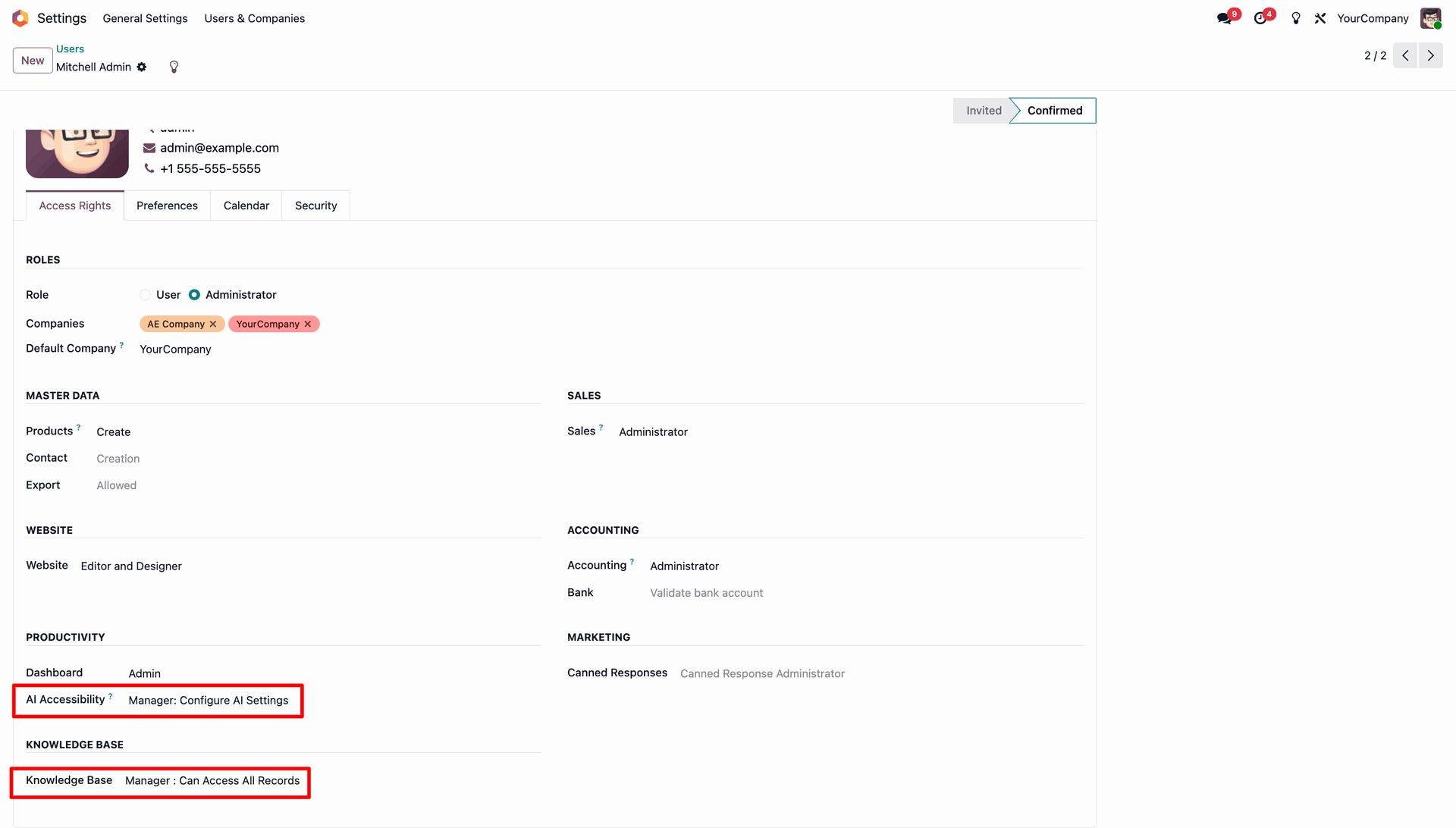
Set access in AI Accessibility and Knowledge Base access.
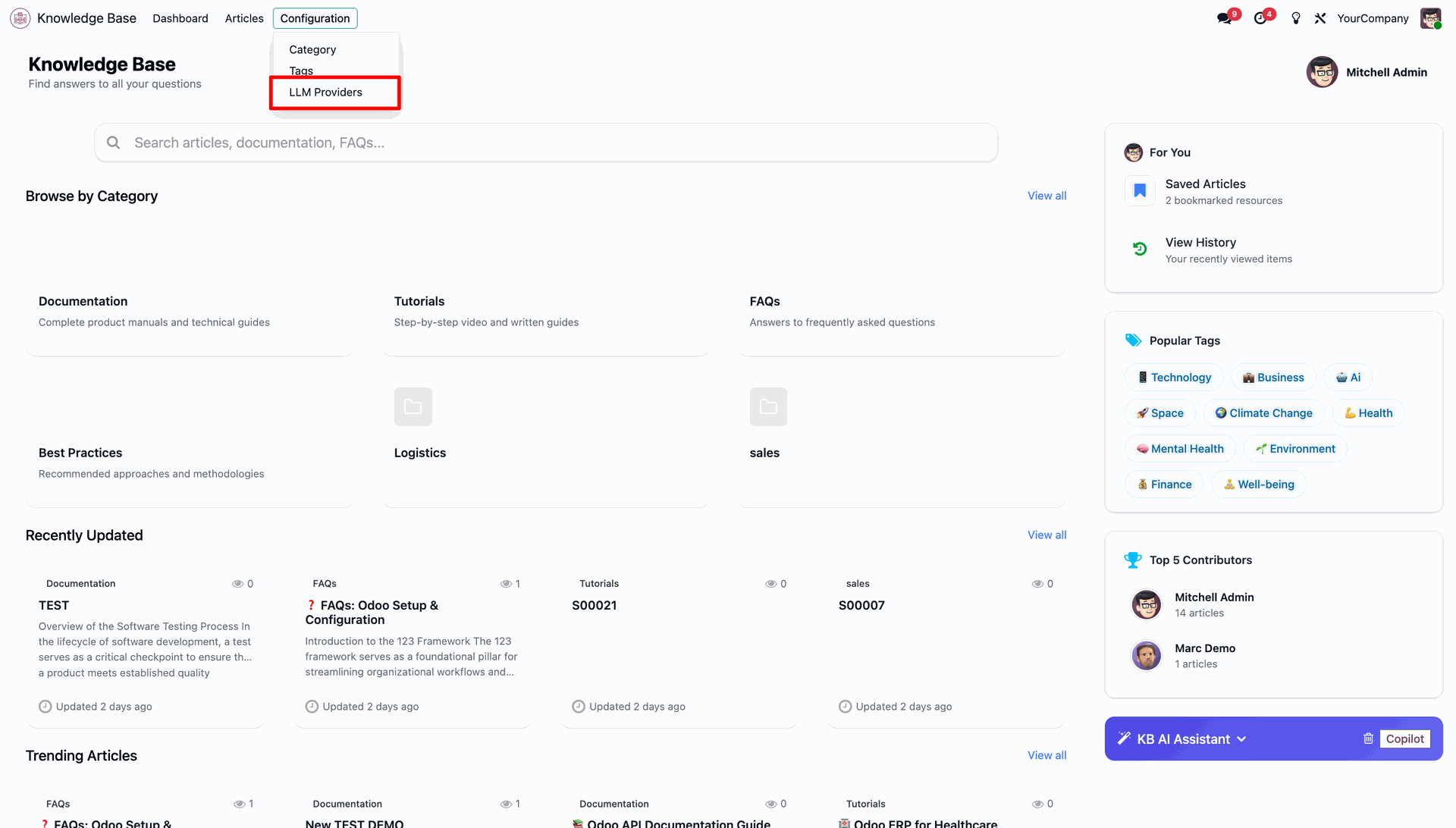
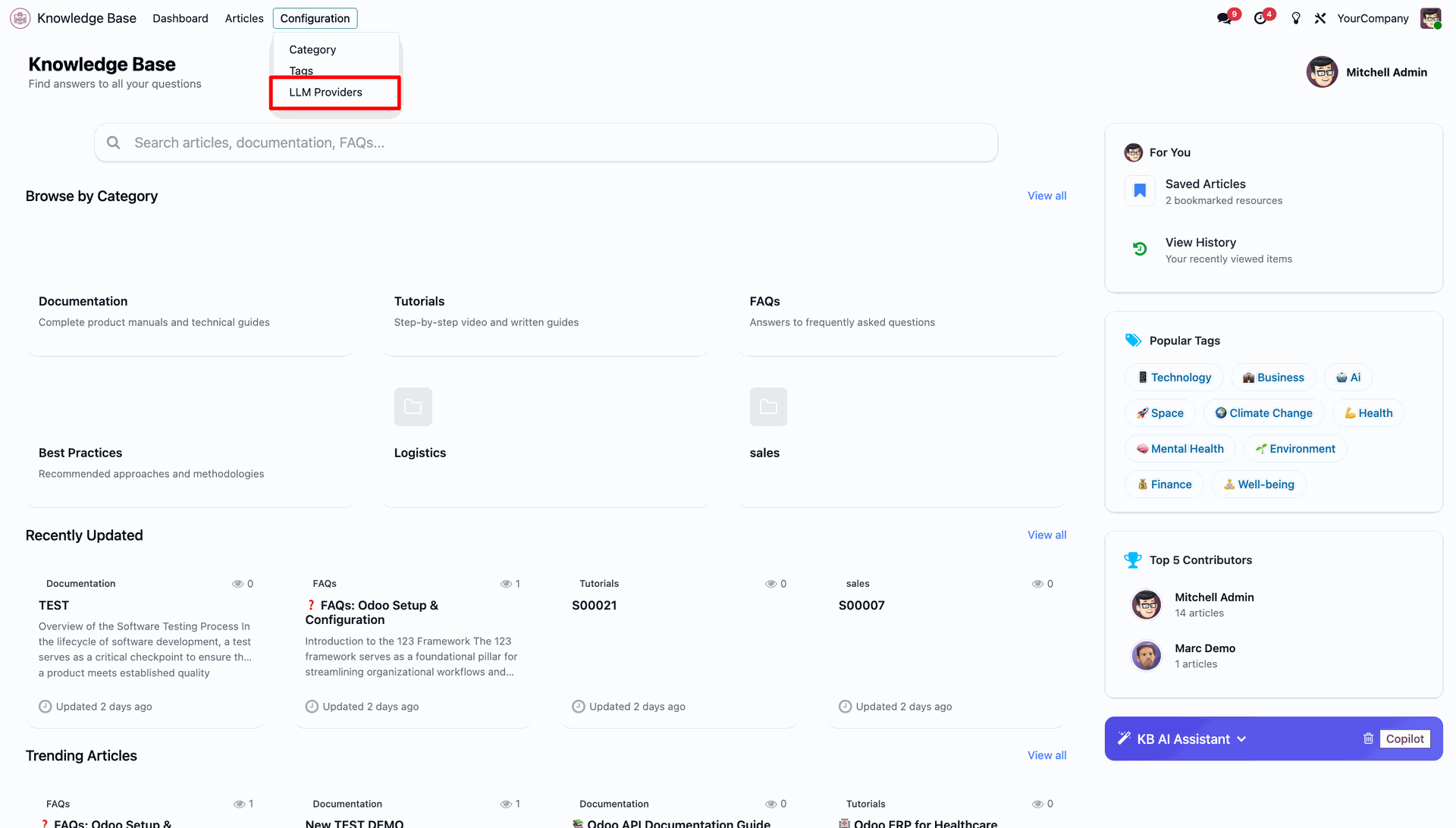
Navigate to the Configuration menu and then click LLM Providers to manage AI engines.
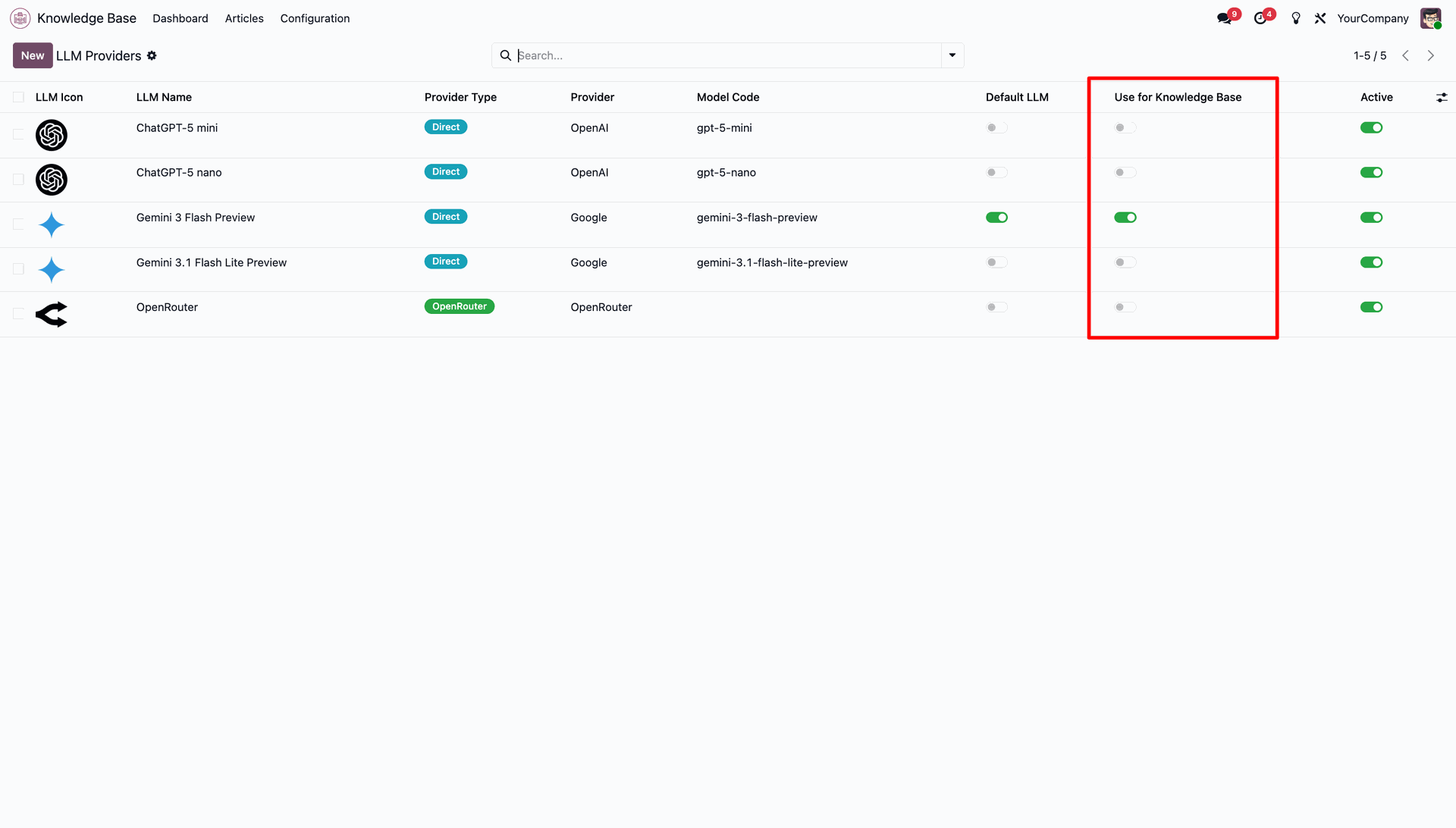
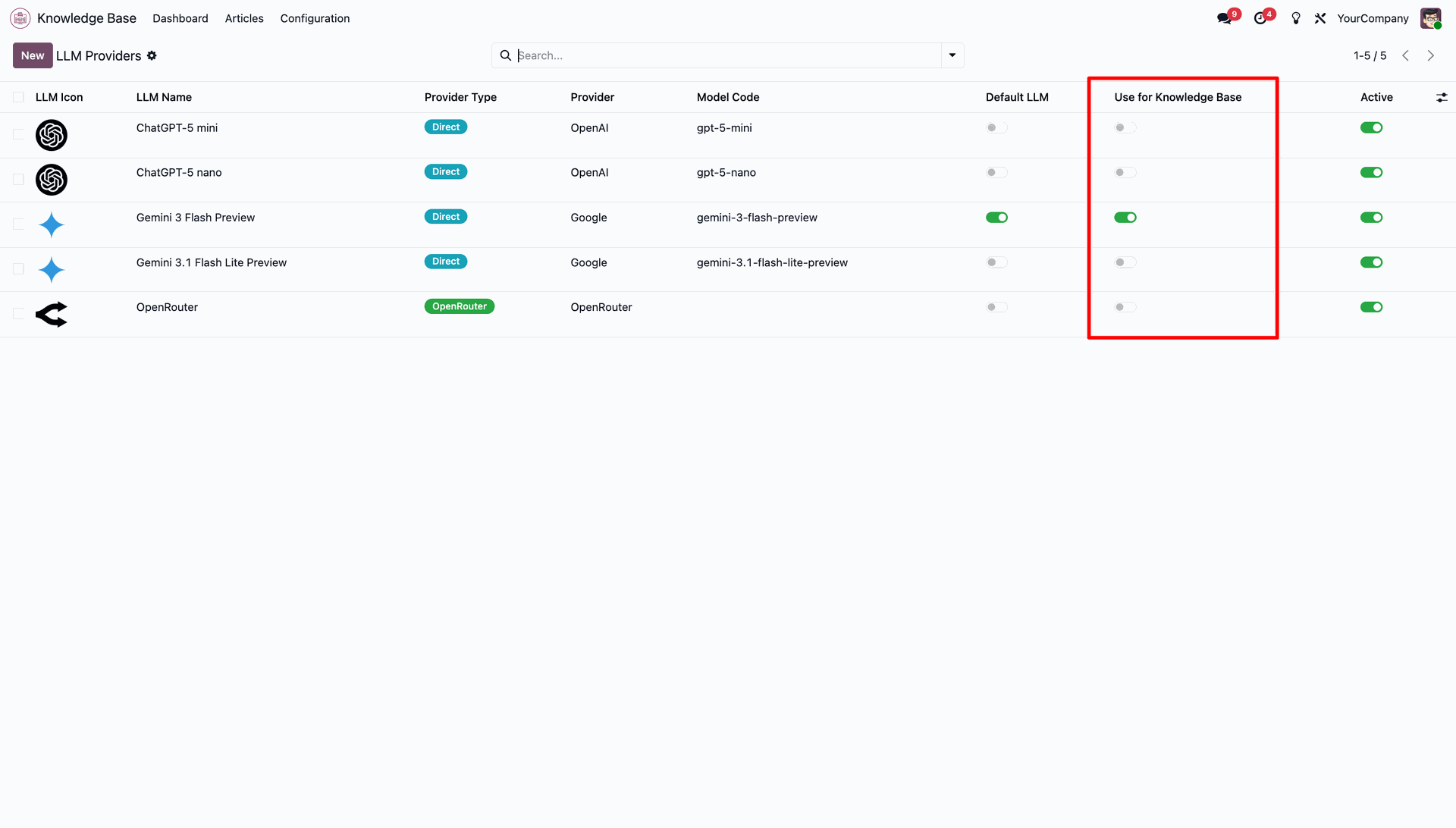
Toggle the Use for Knowledge Base option and select the LLM model configurations.
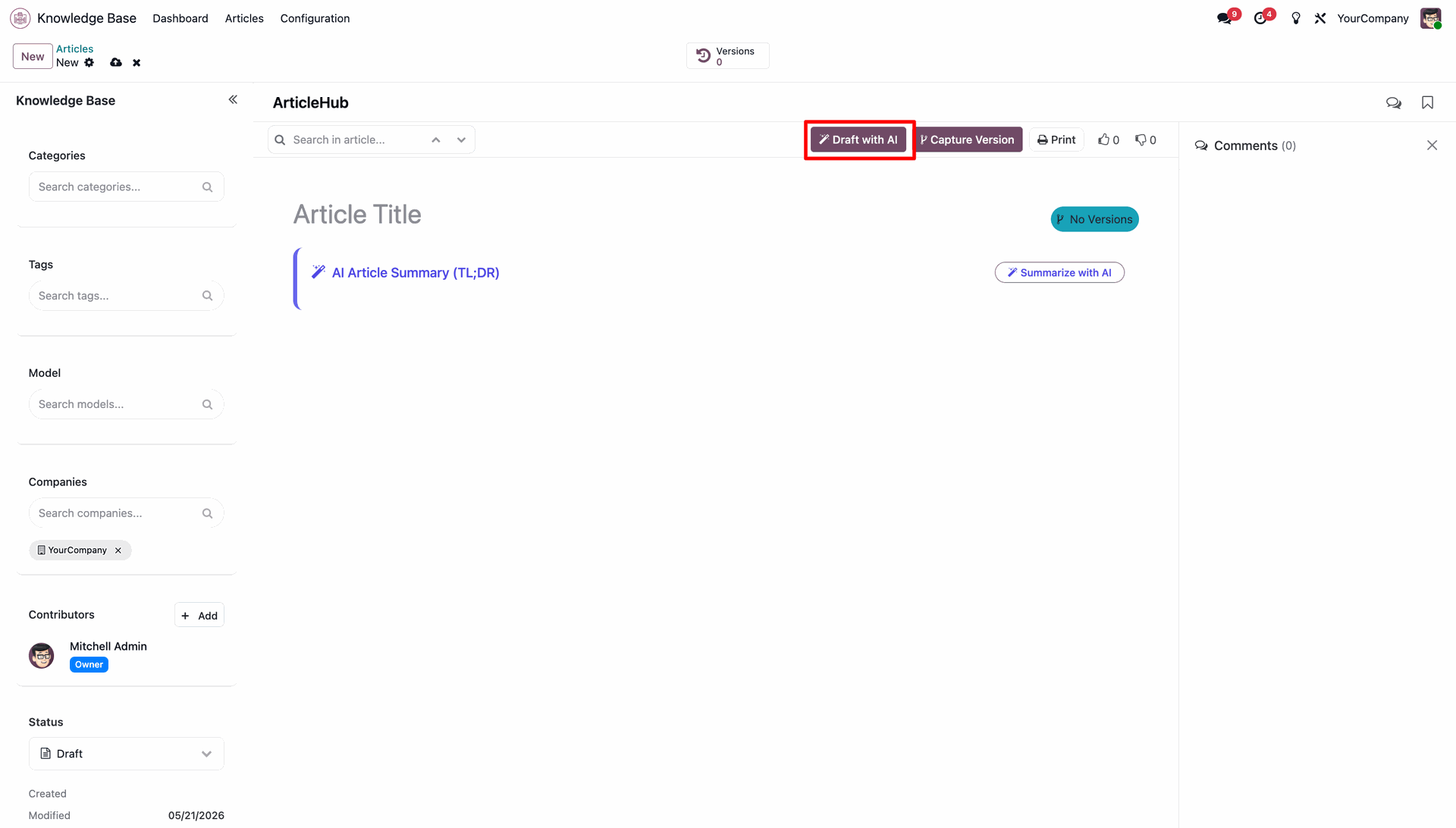
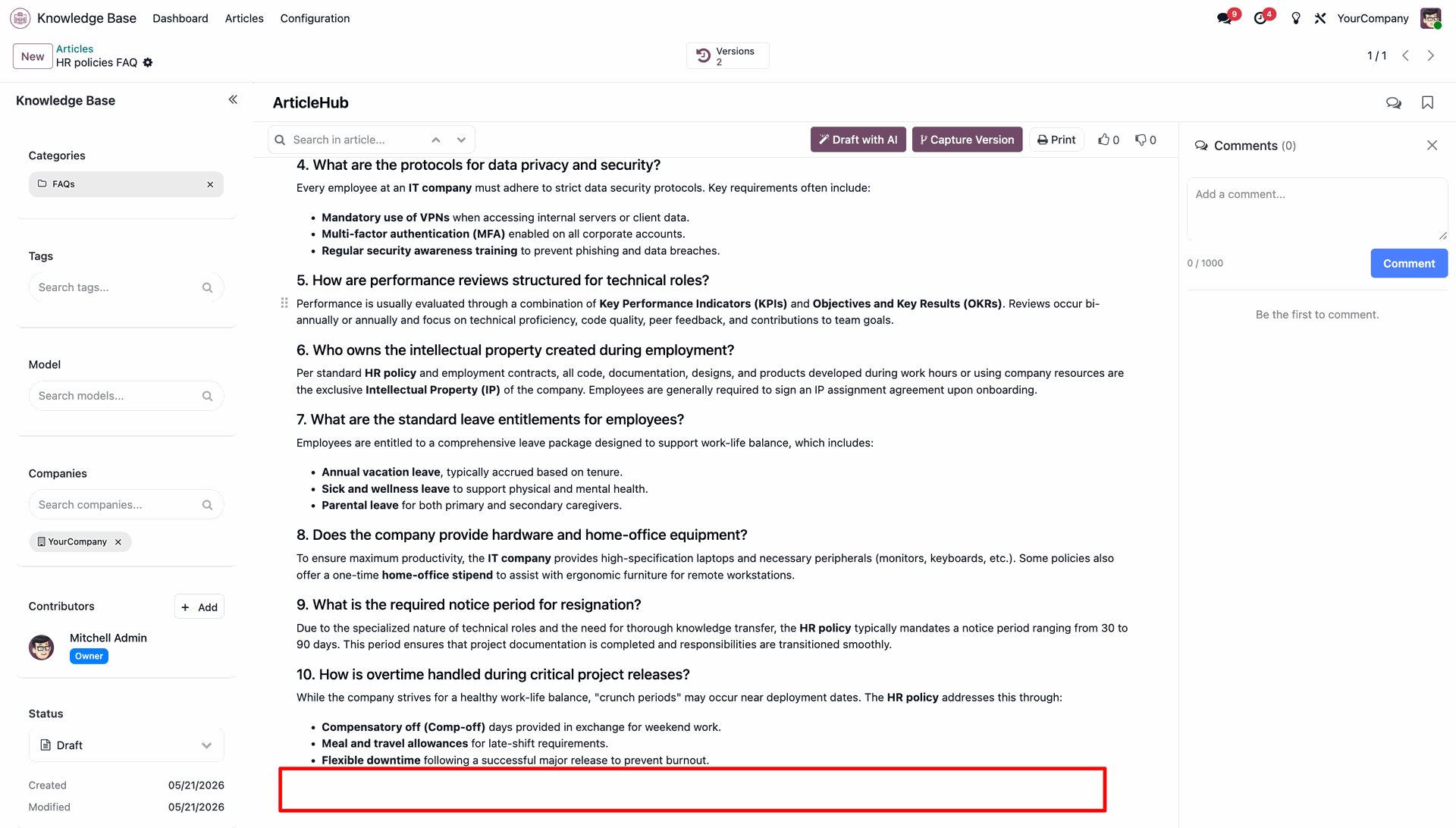
Press the Draft with AI button in the control panel to open drafting wizard.
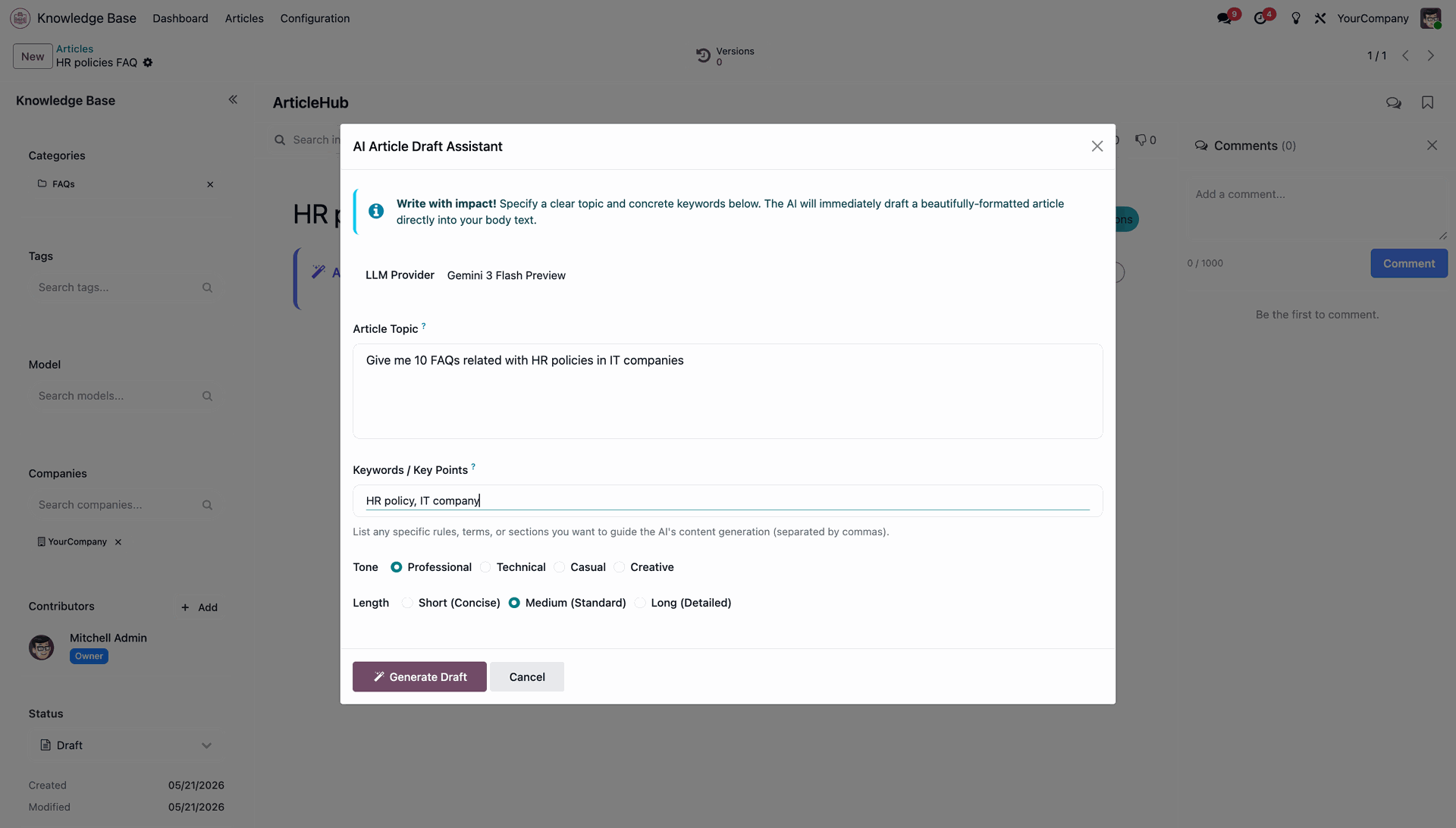
Enter the topic, keywords, tone, and word length, then press Generate Draft.
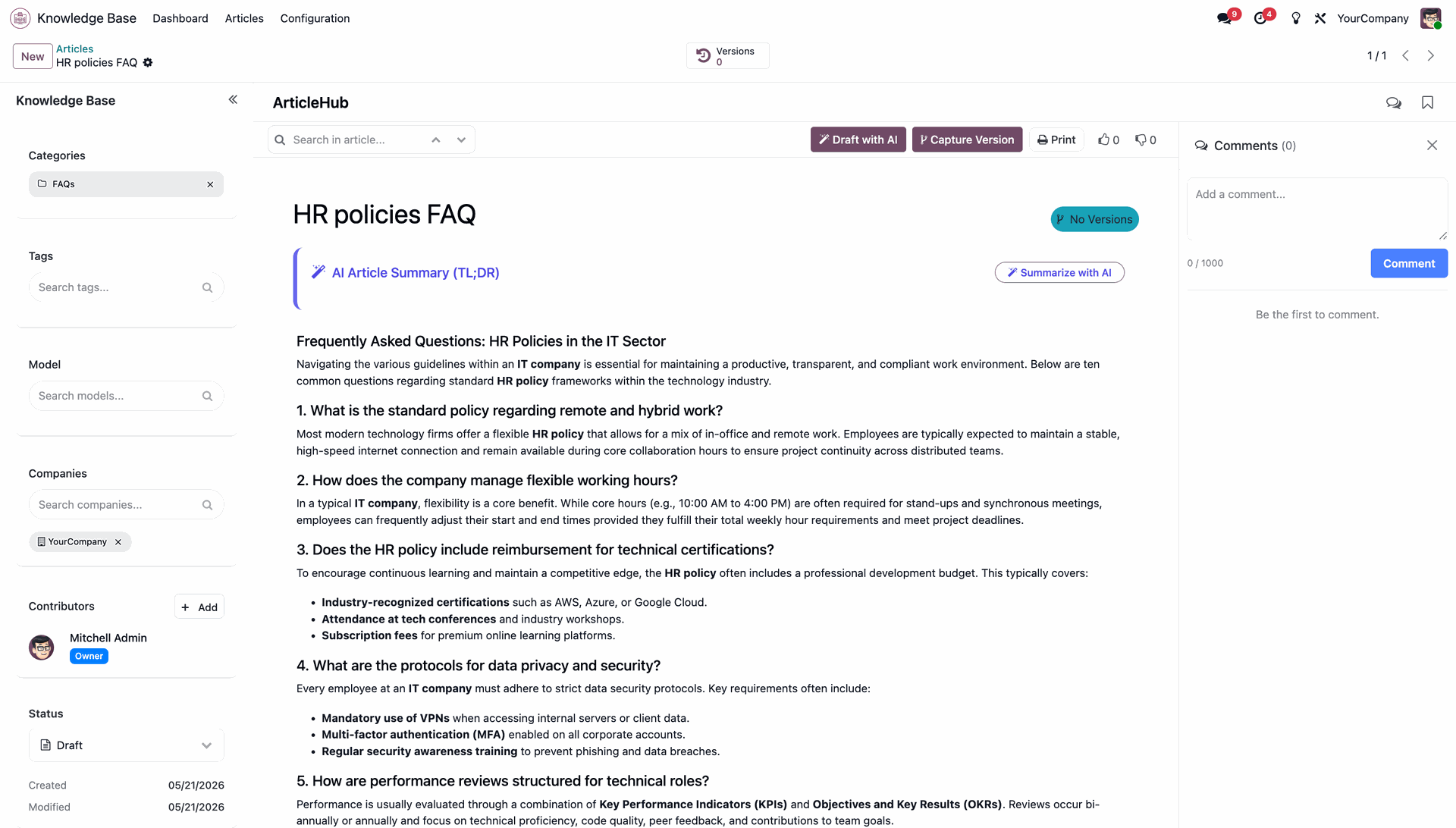
Review the generated structured article.
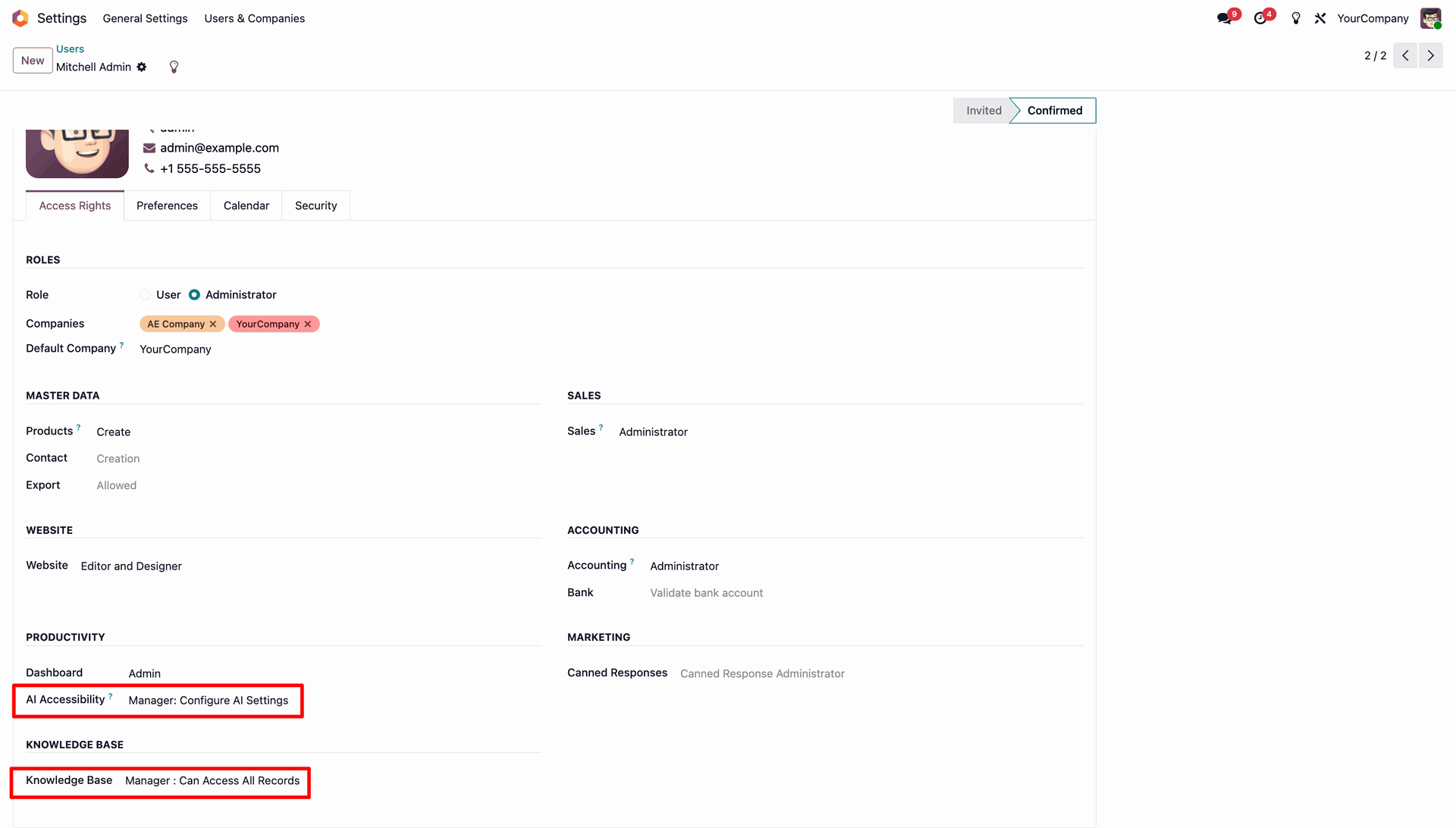
Set access in AI Accessibility and Knowledge Base access.
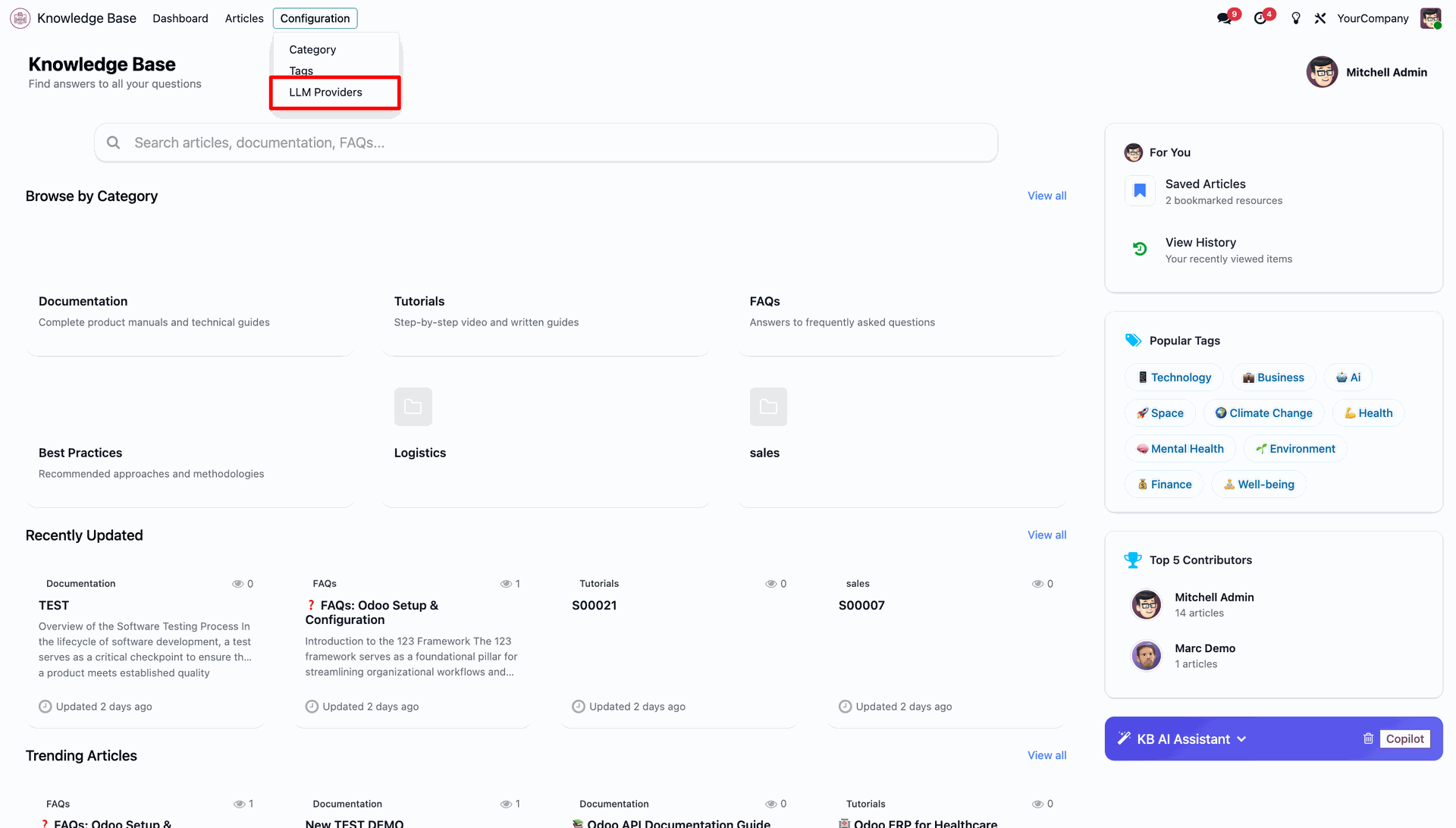
Navigate to the Configuration menu and then click LLM Providers to manage AI engines.
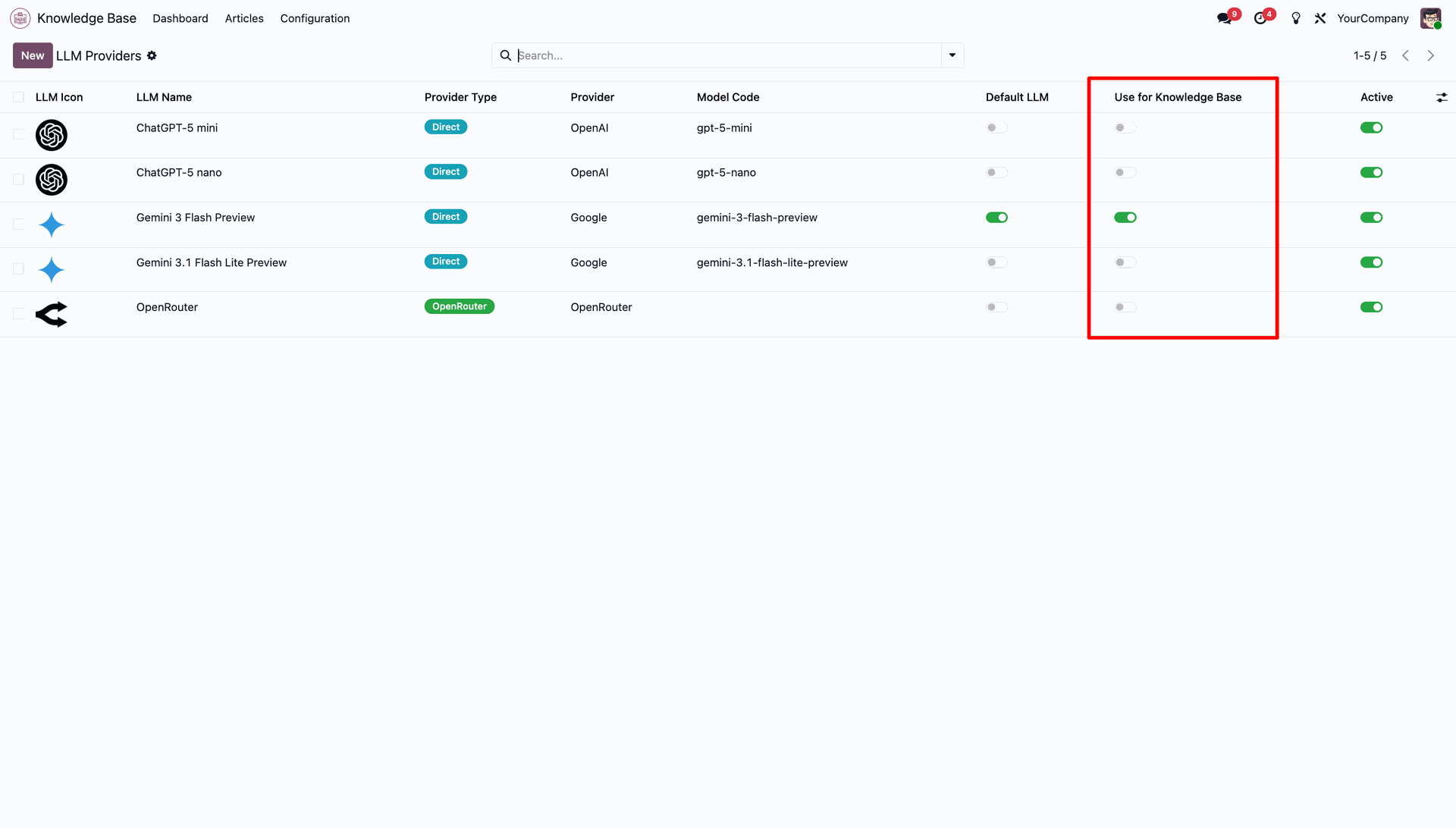
Toggle the Use for Knowledge Base option and select the LLM model configurations.
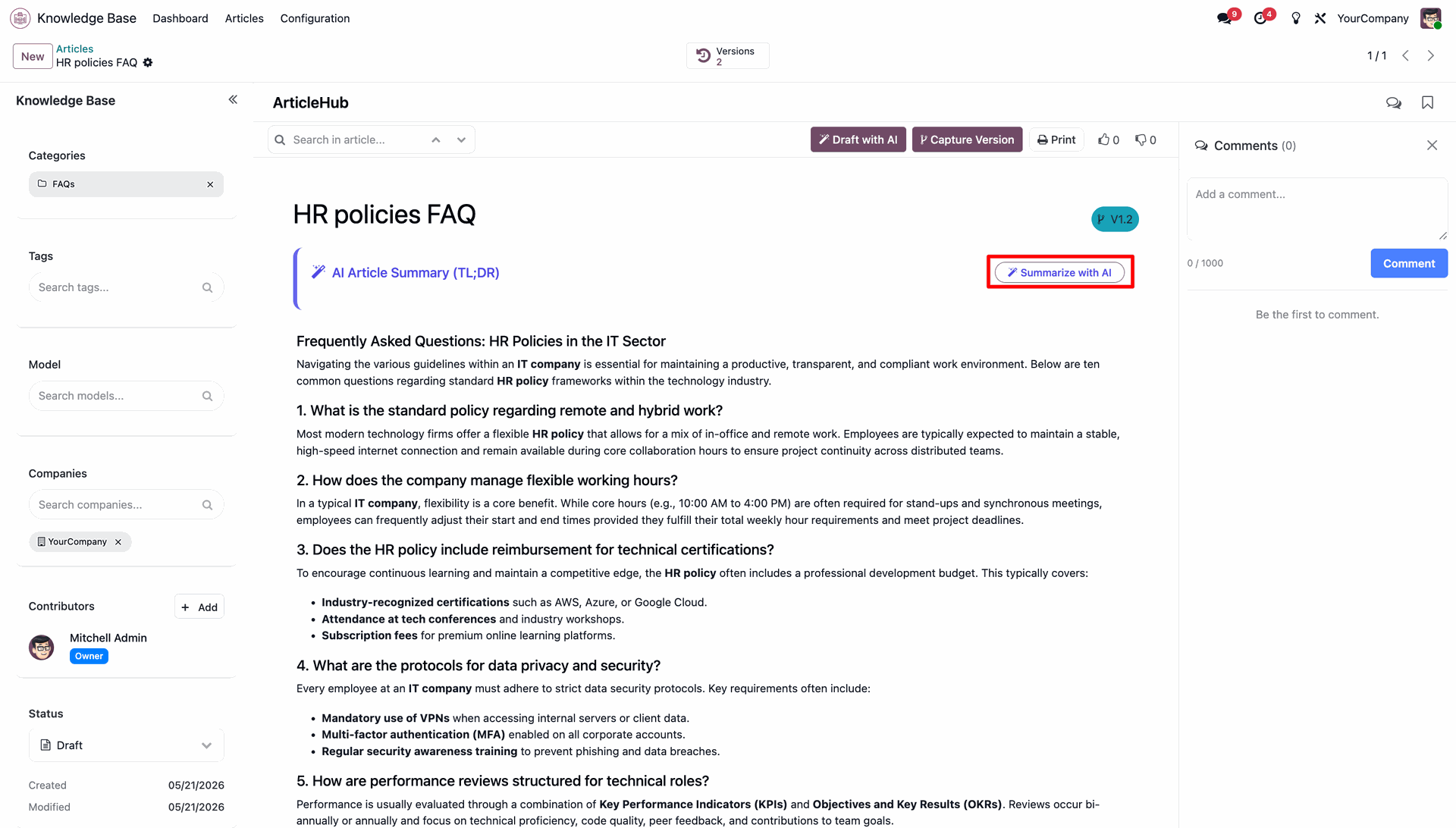
Click the Summarize with AI button inside the article view to initiate process.
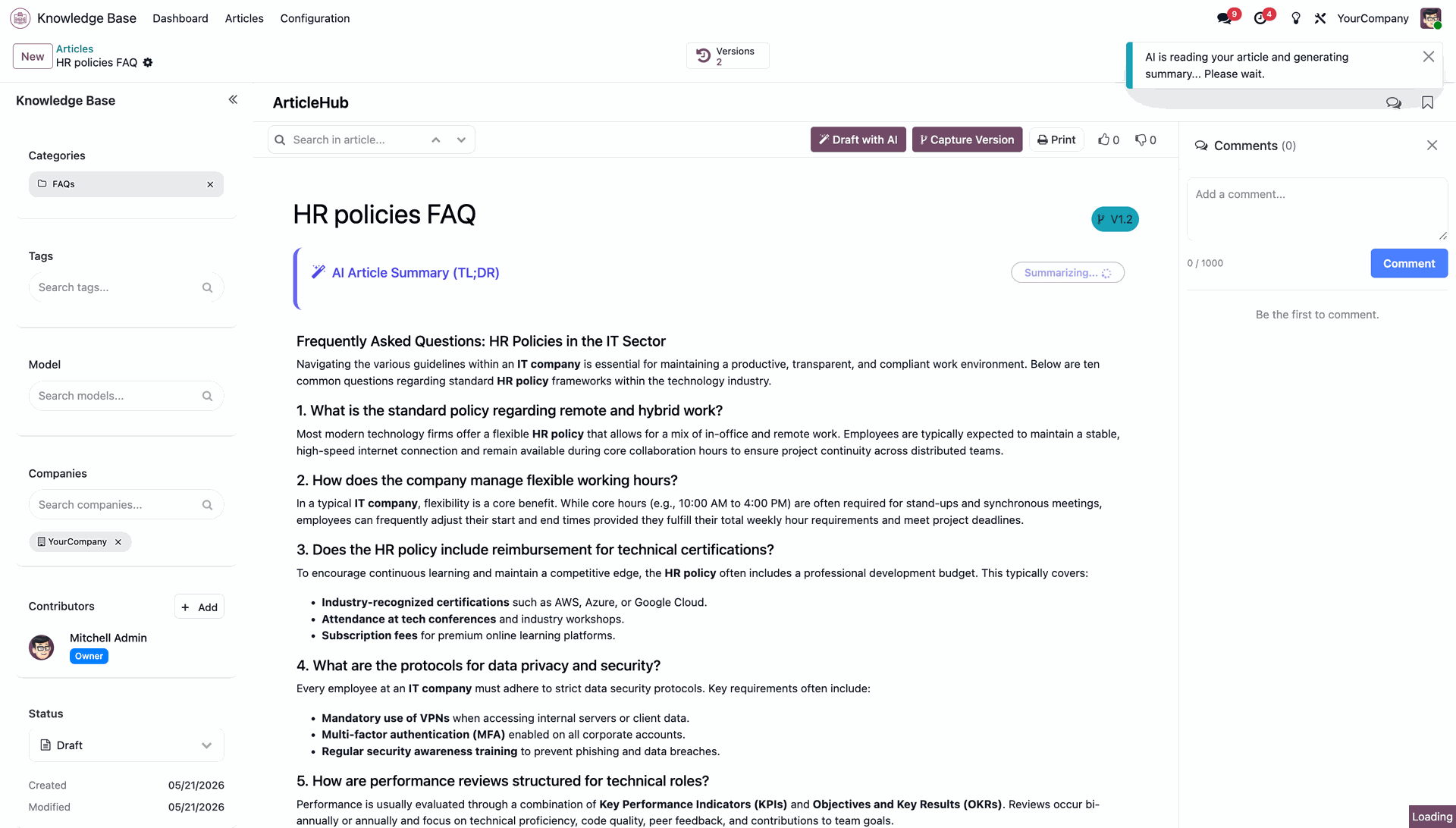
Wait for the status notification while AI reads the article body text.
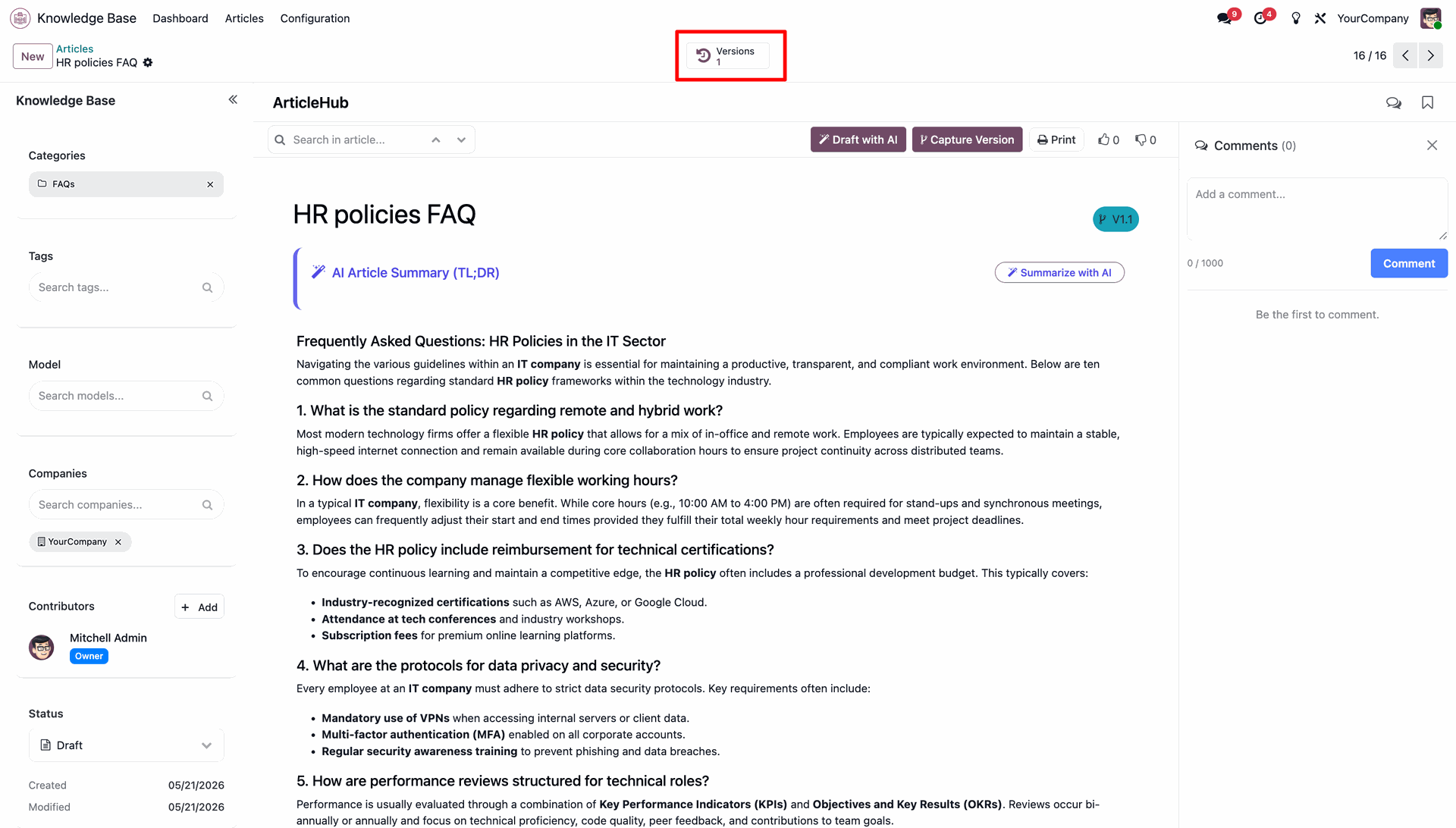
Review the AI-generated bulleted summary automatically displayed at the top of the article.
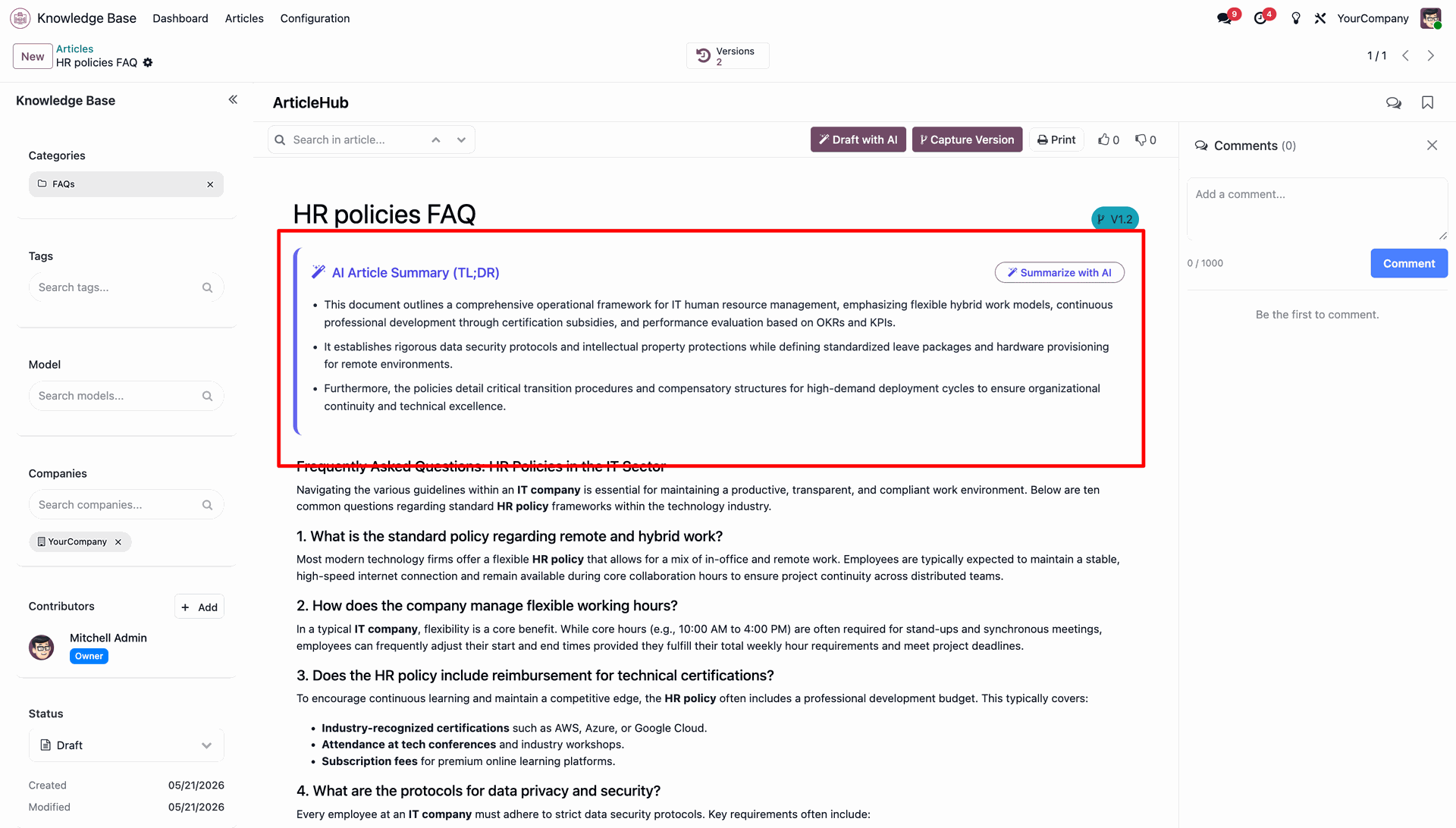
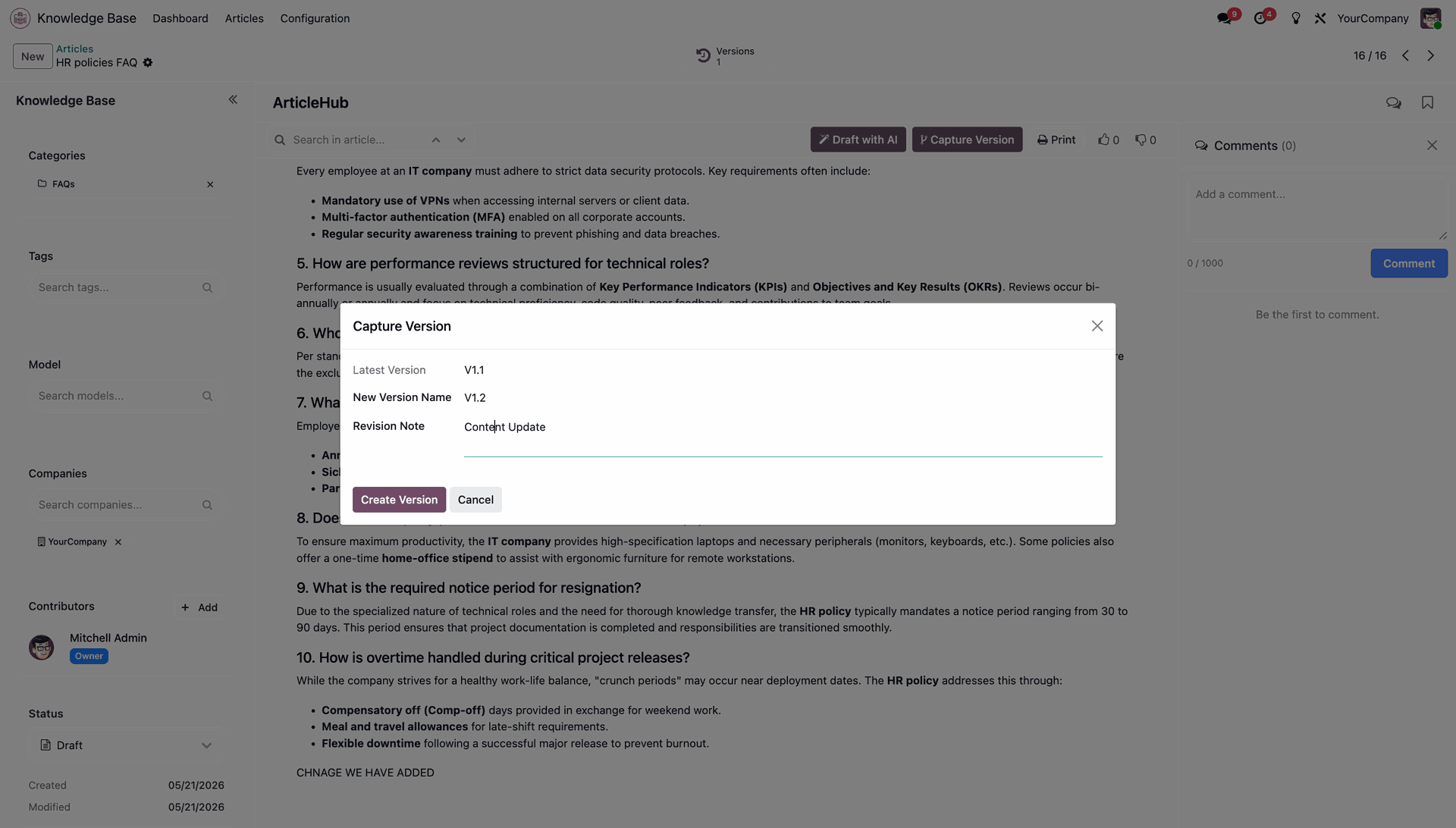
Press the Capture Version button on the active article form to store history.
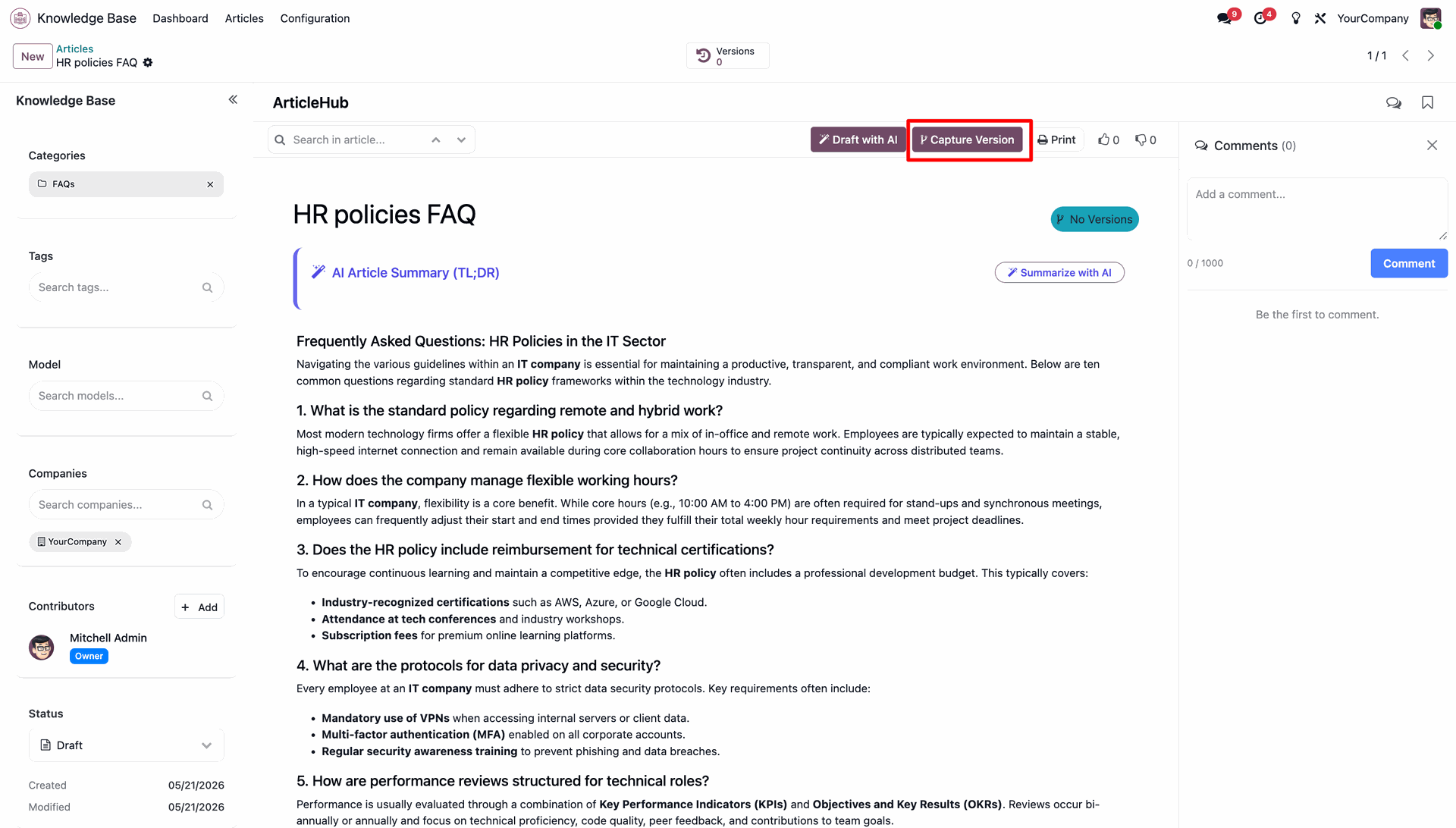
Provide a name and revision note, then click Create Version to save.
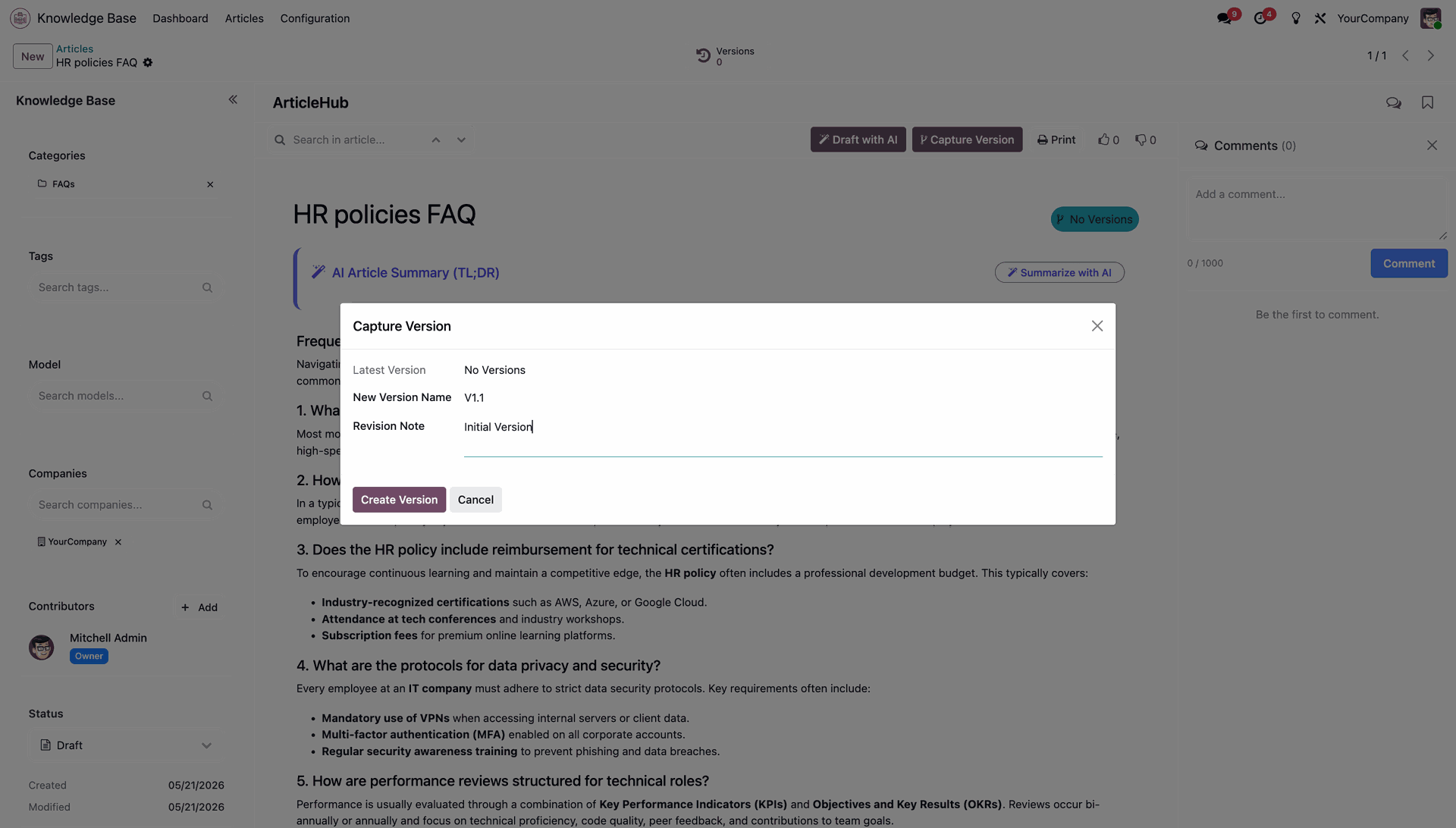
Check the Versions smart button on the top panel to view captured counts.
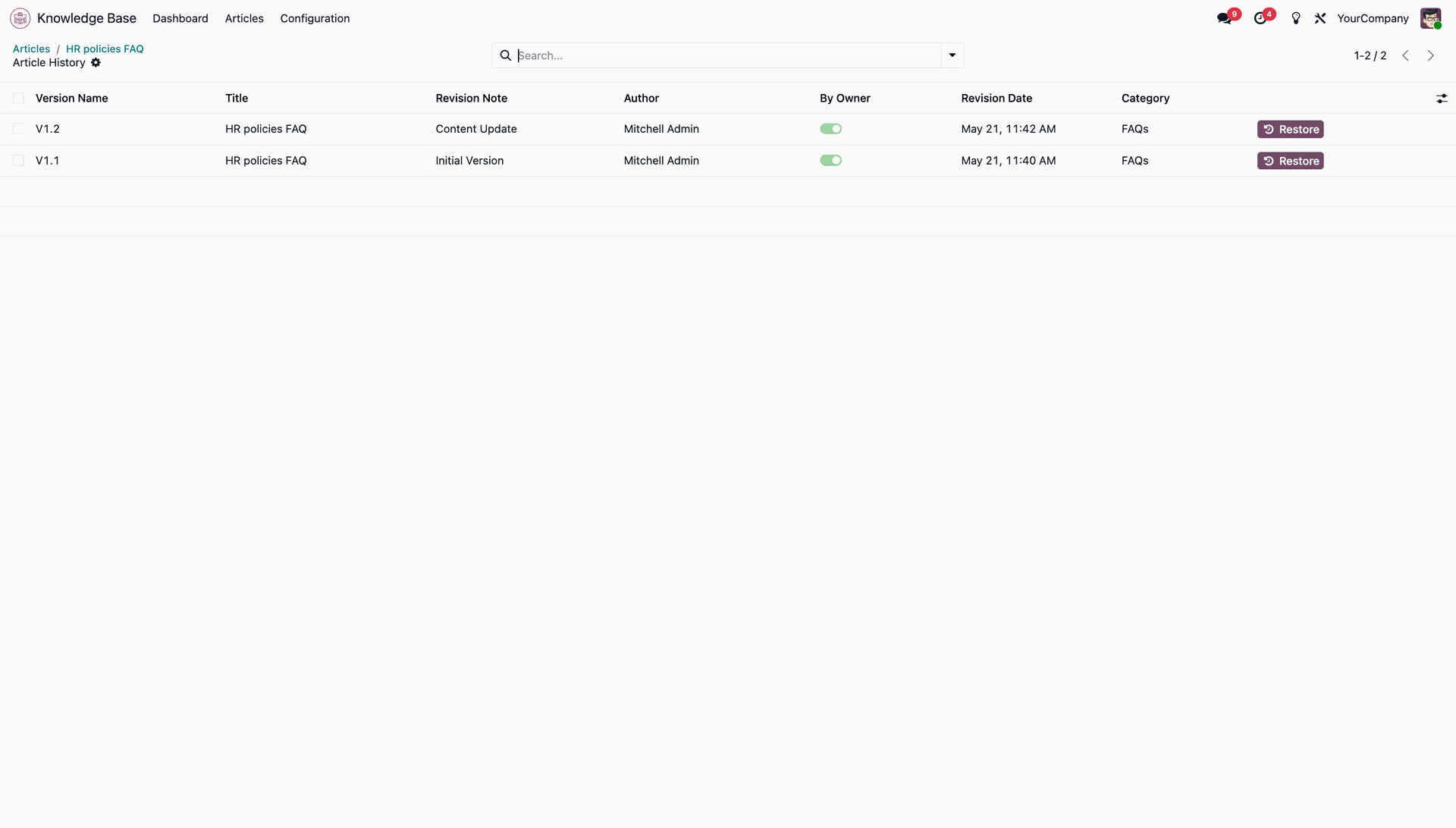
Open the Versions list view to see all revision records and dates.
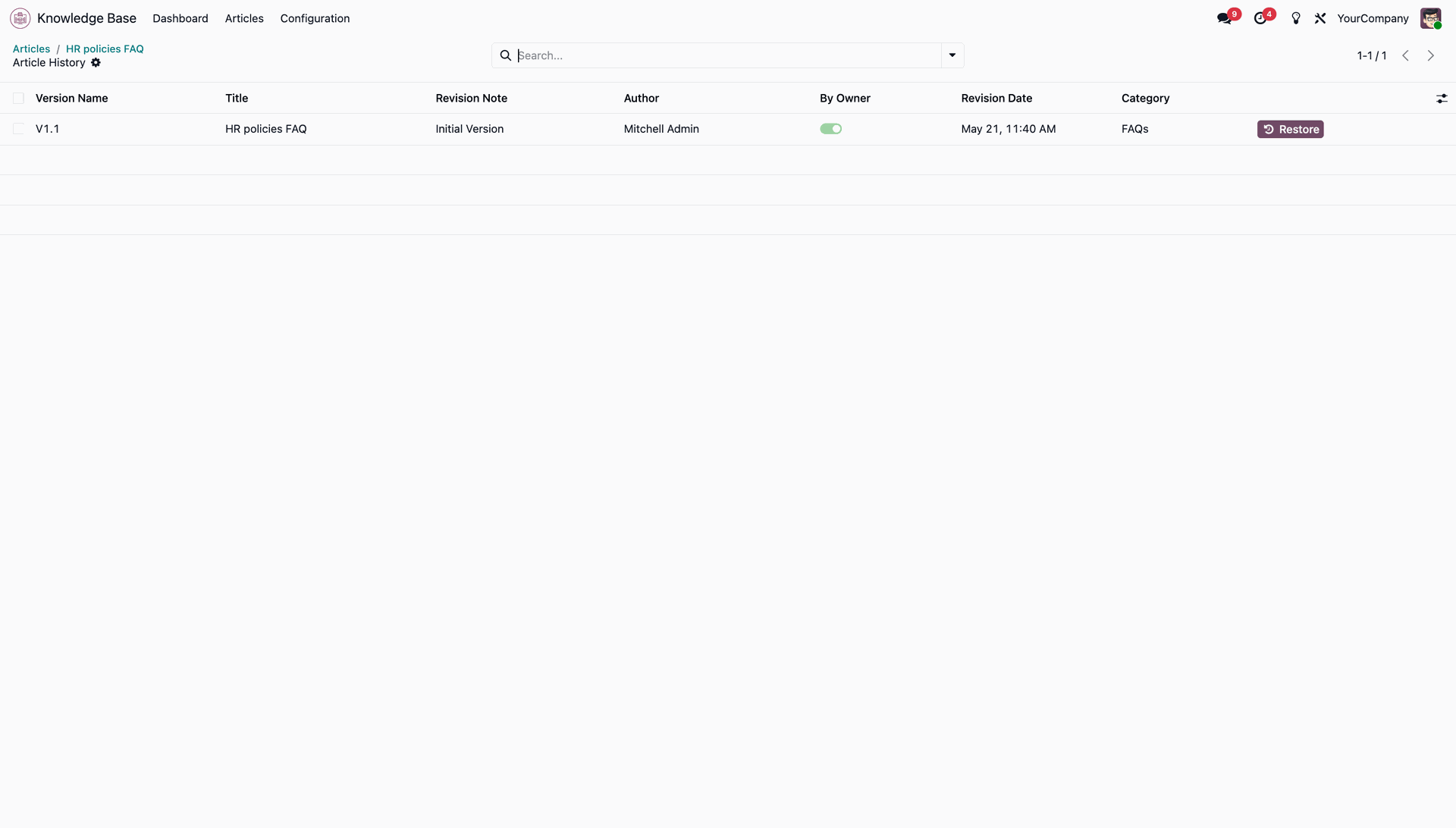
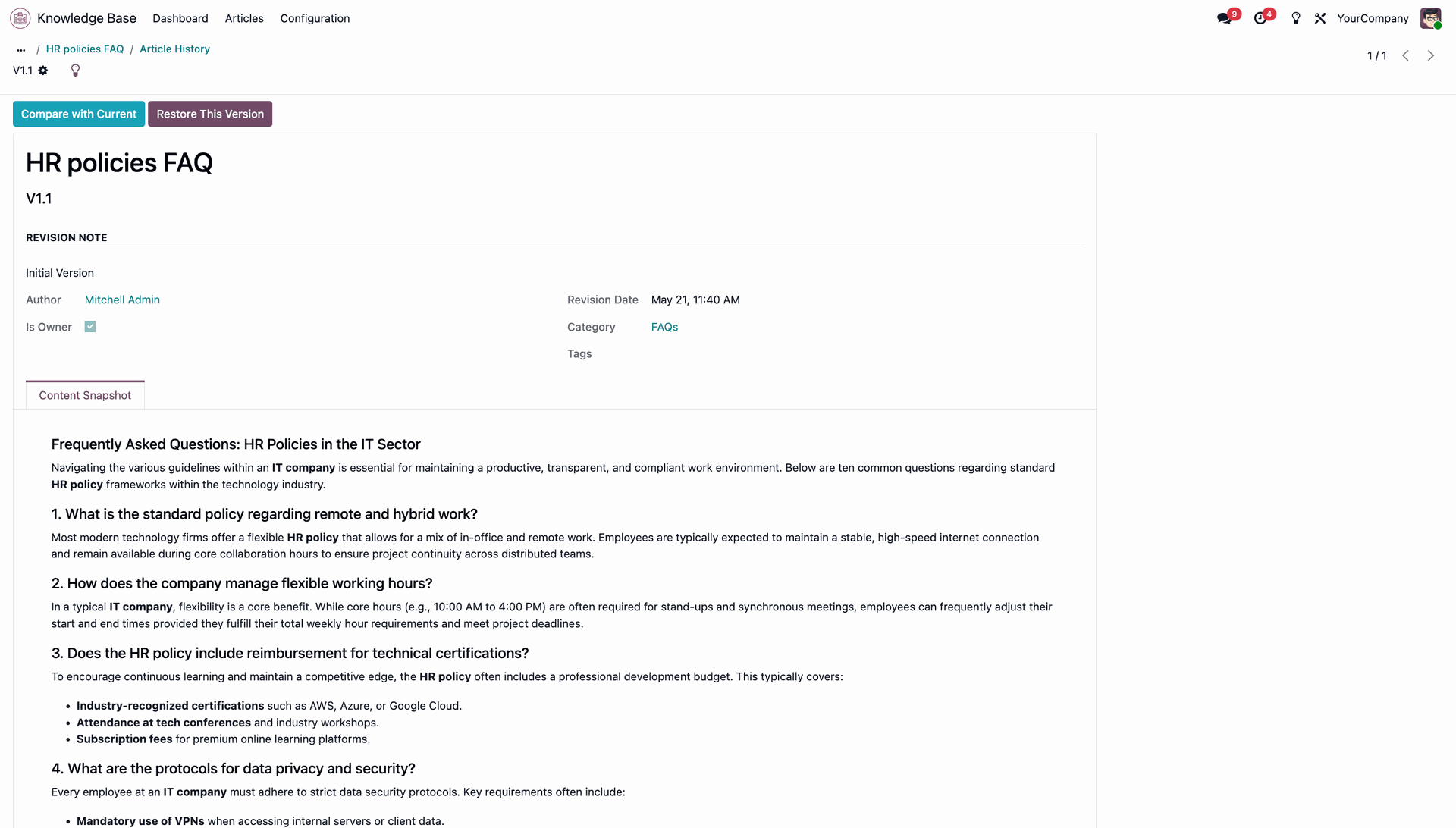
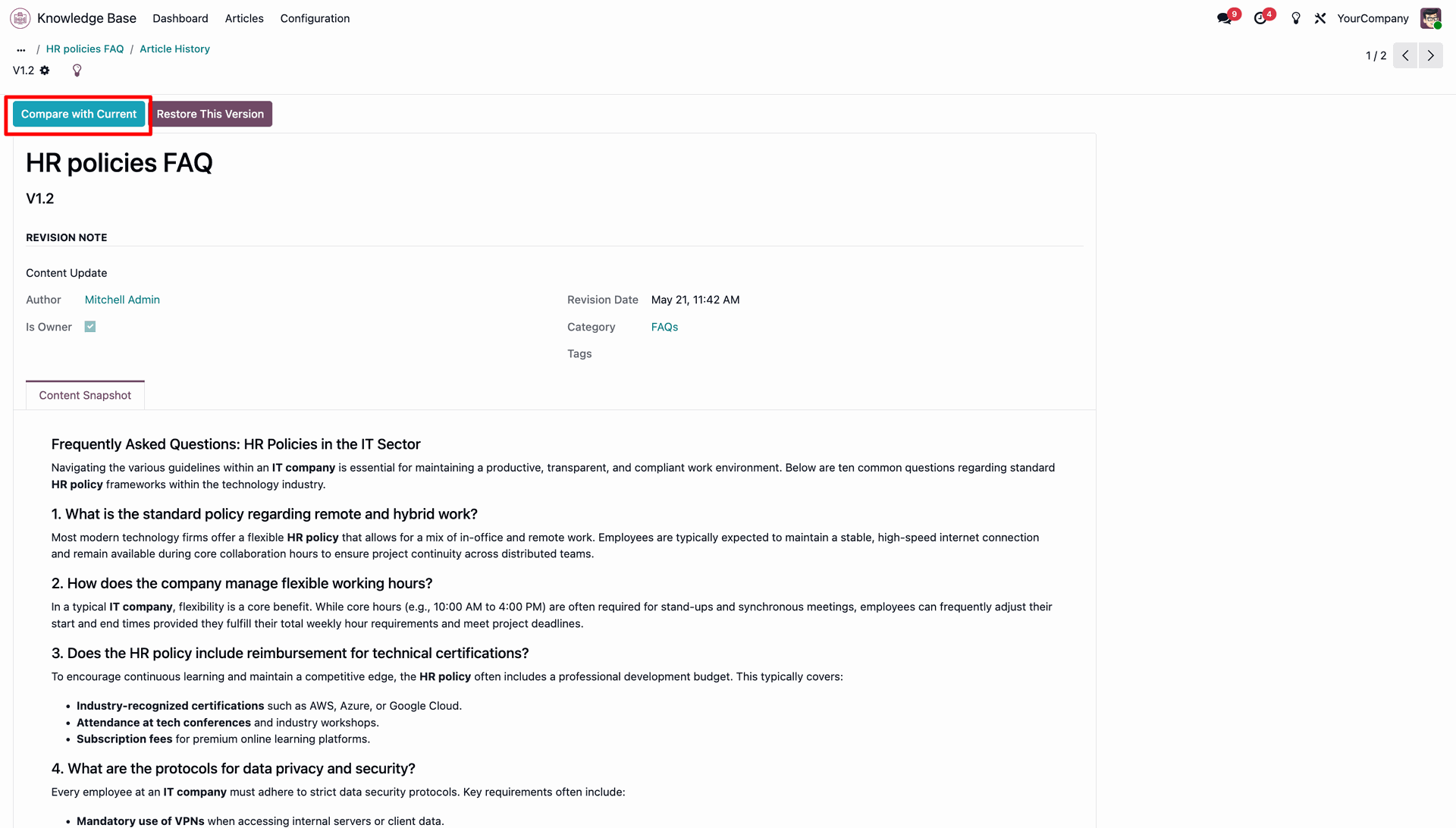
Review the revision details, author name, and historical content snapshot in detail.
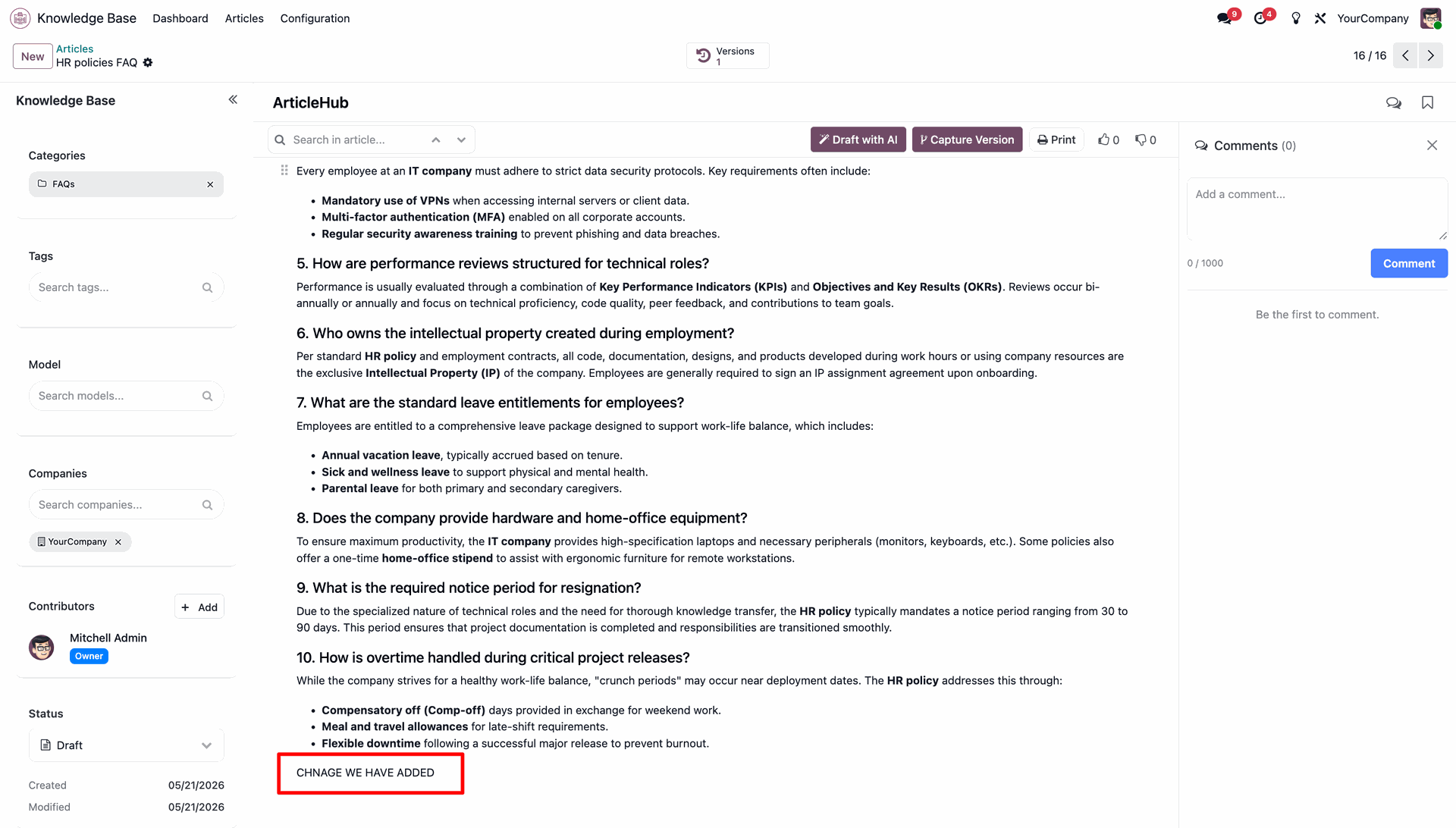
Type new modifications and edit the article body content using the direct editor.
Capture another version for the updated content by clicking the Capture Version button.
Verify that the Versions smart button is updated with the new revision count.
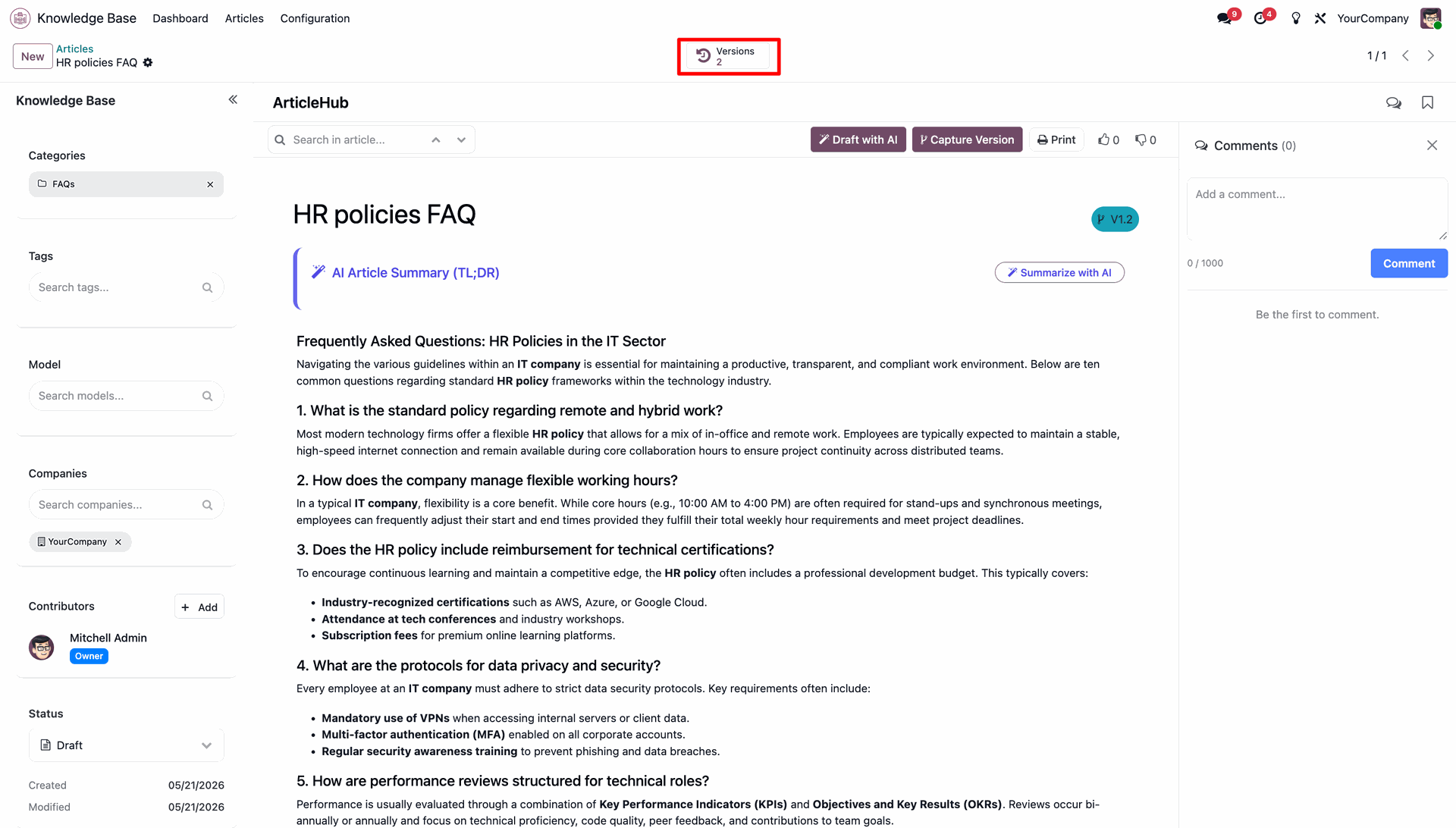
Observe the updated Versions list showing the multiple captured version history records.
Click the Compare with Current button on the historical version details form.
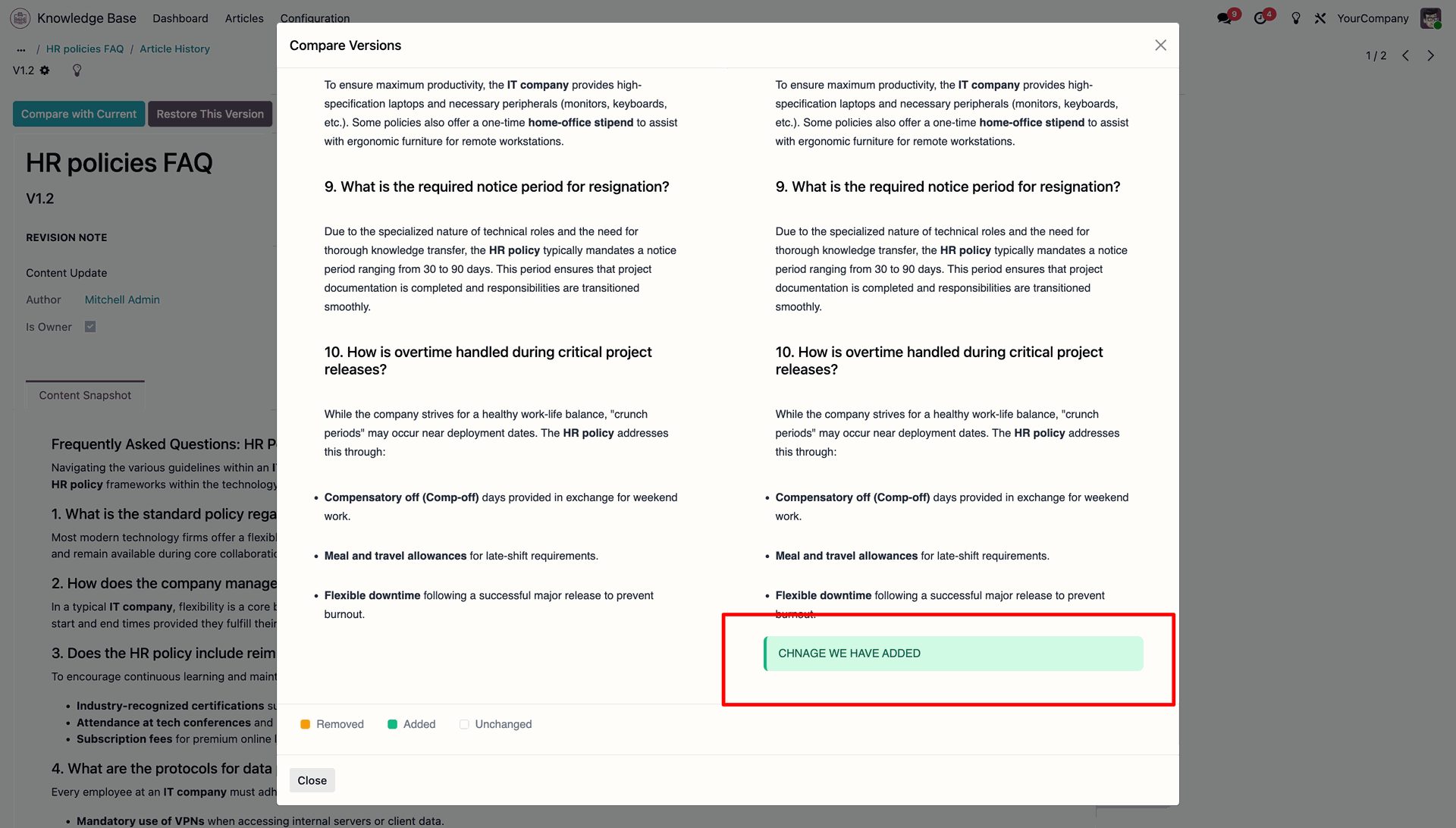
Select two version entries and click Compare to view side-by-side revision differences.
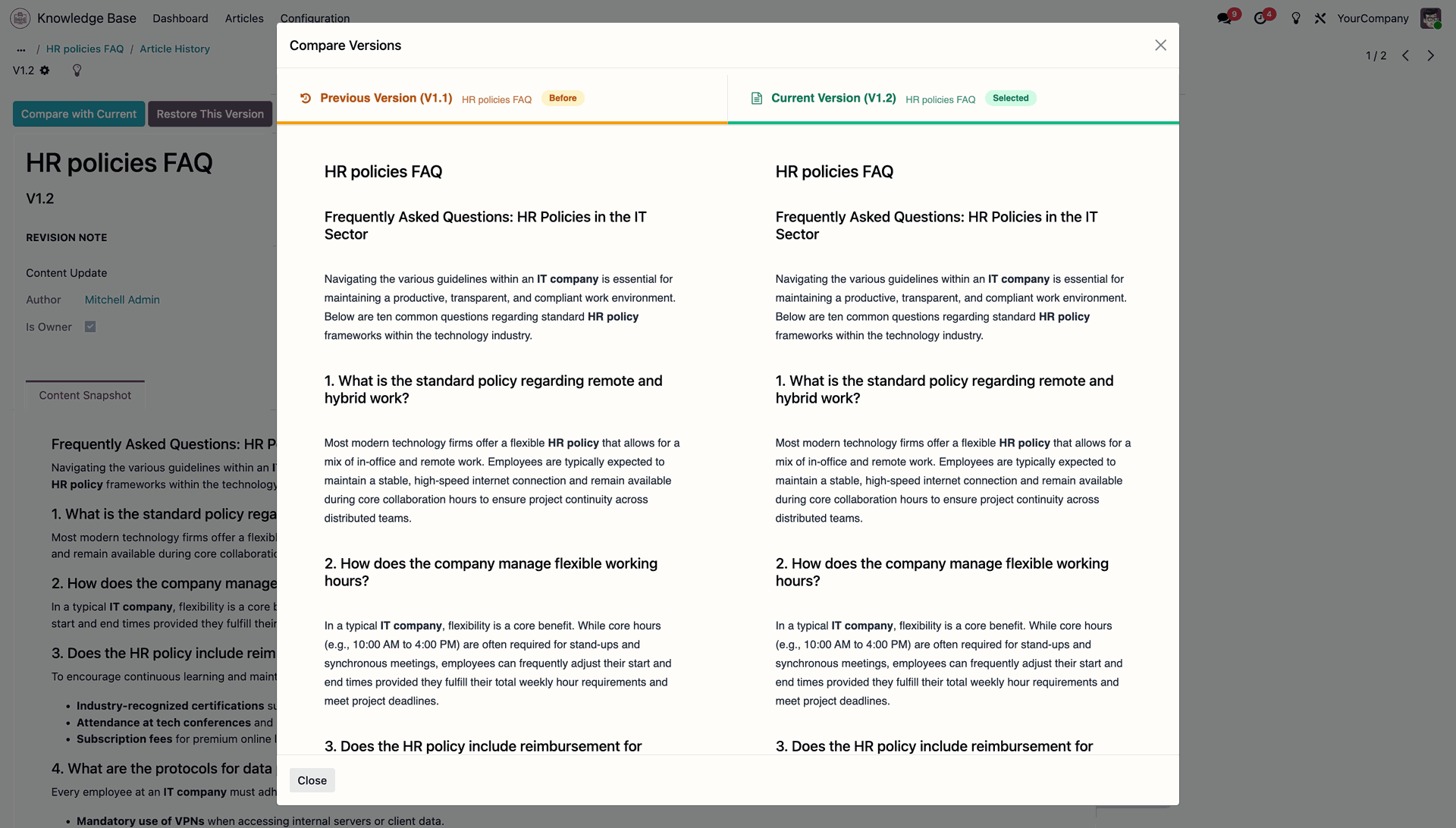
Review the differences highlighted in green and red to track added or removed lines.
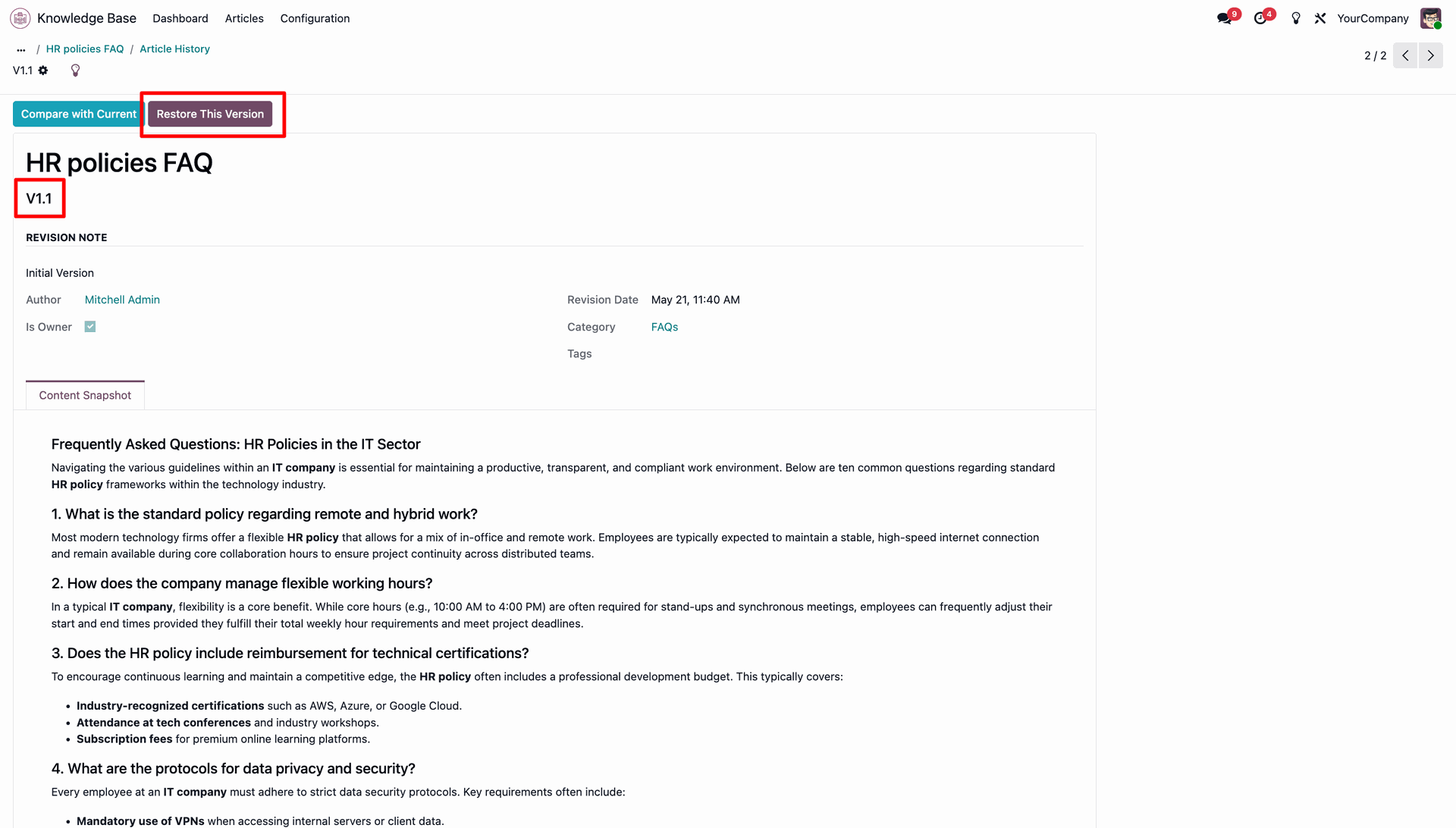
Click the Restore This Version button to restore the selected historical version of the article.
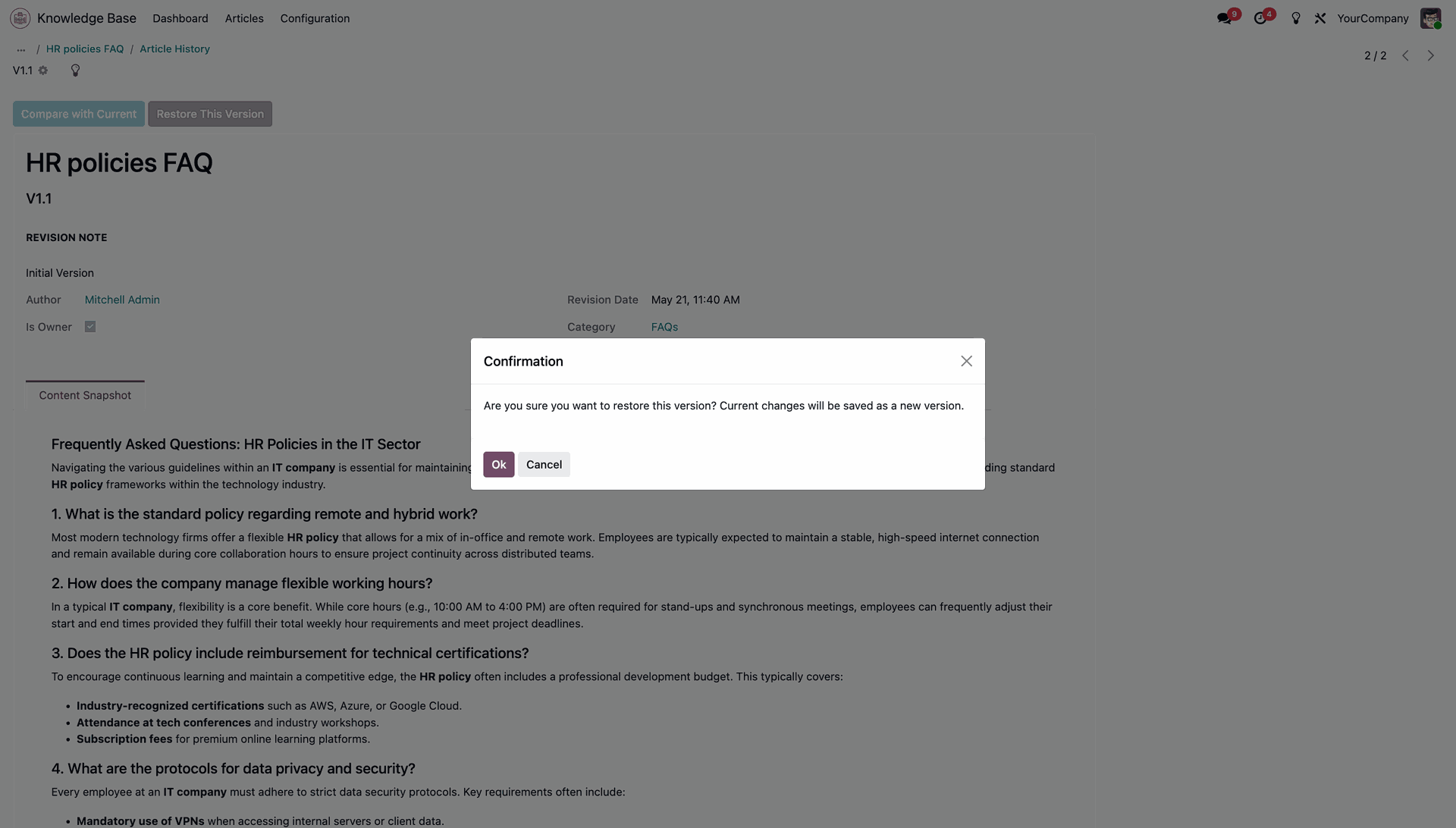
Press Ok on the confirmation popup dialog to restore this version as the active article.
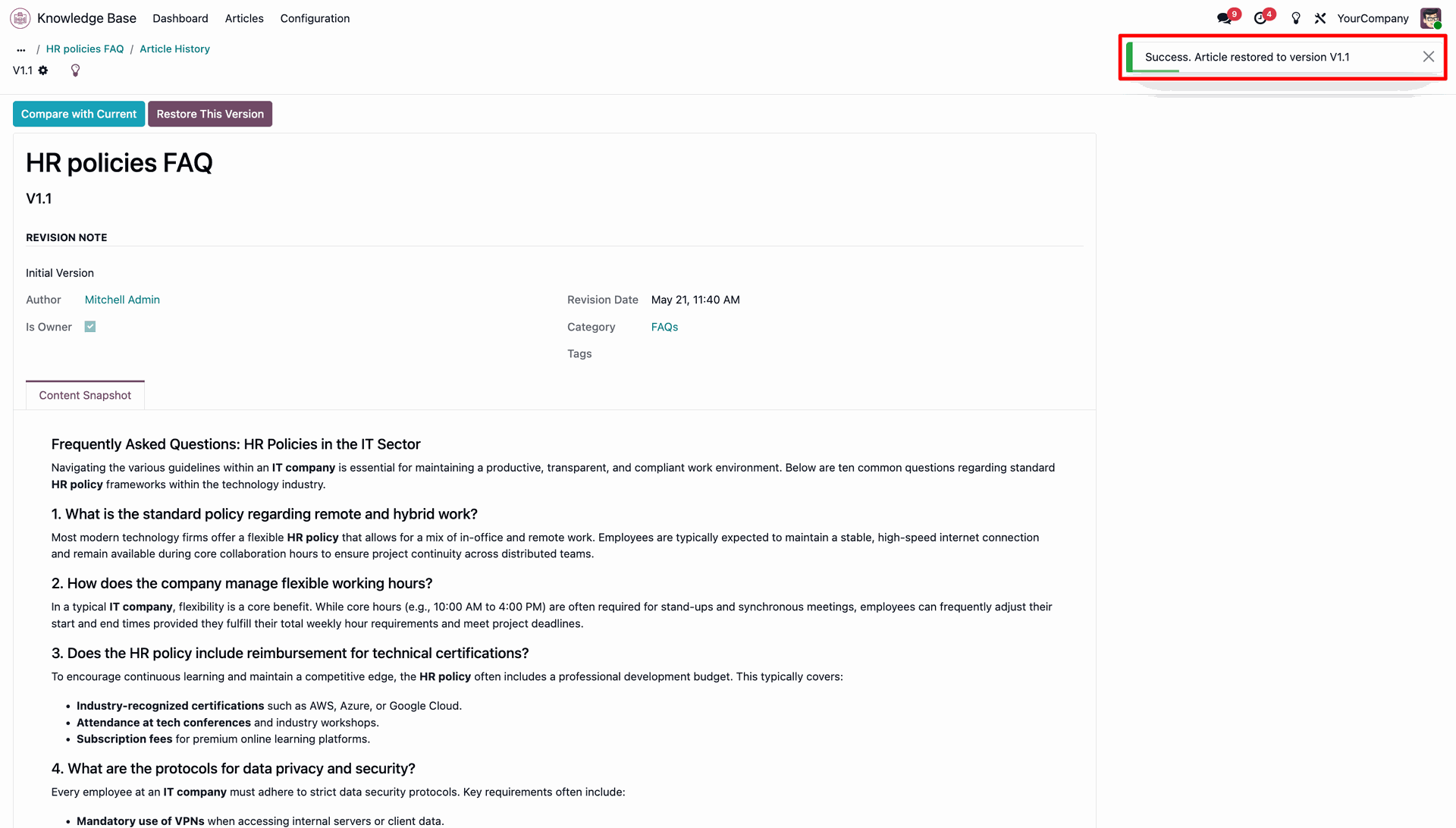
Observe the message confirming the article was successfully restored to the chosen version.
Verify the restored article content in the editor and view the active version count.
Set access in AI Accessibility and Knowledge Base access.
Navigate to the Configuration menu and then click LLM Providers to manage AI engines.
Toggle the Use for Knowledge Base option and select the LLM model configurations.
Click the KB AI Assistant panel on the dashboard to open chat window.
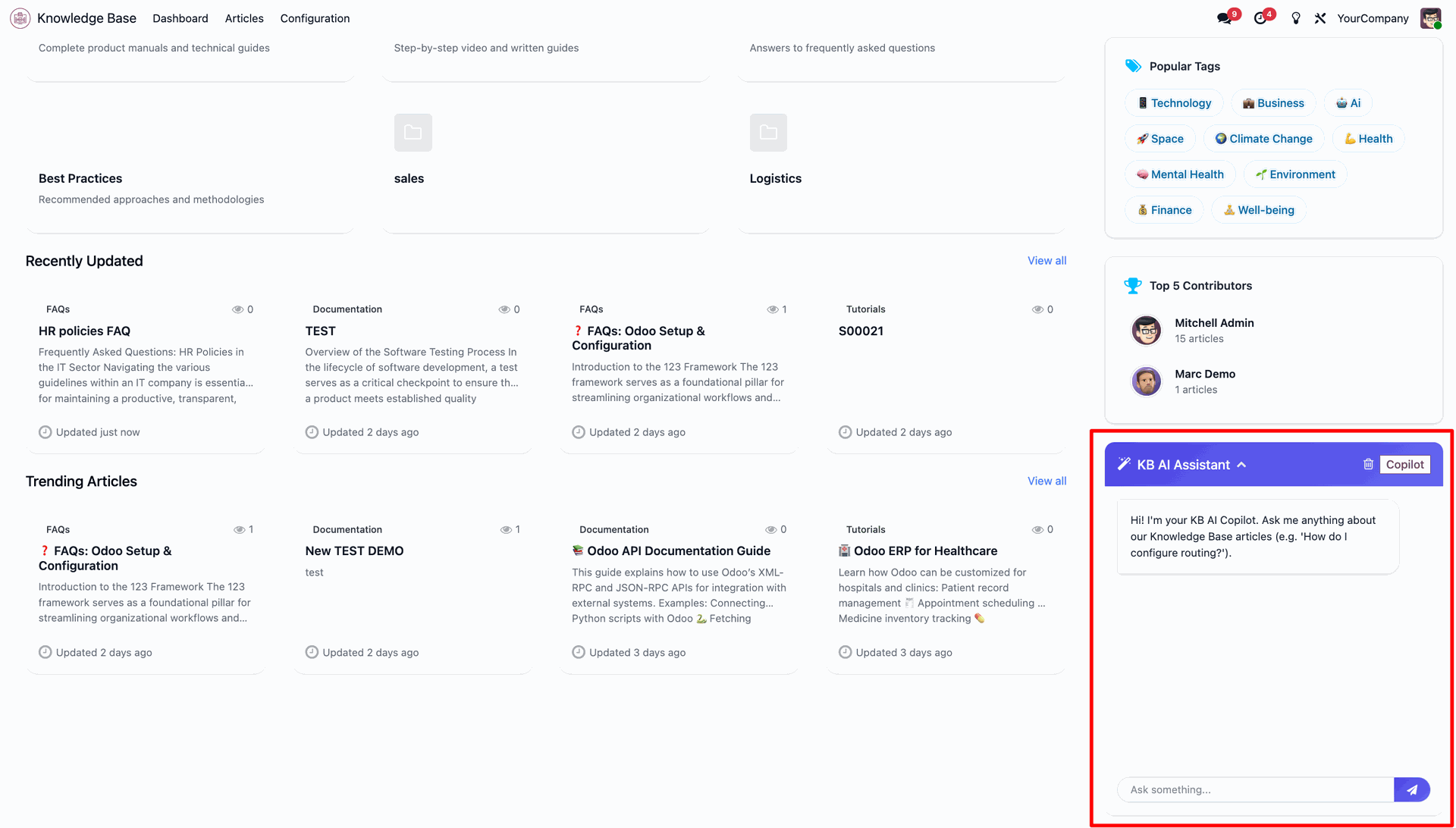
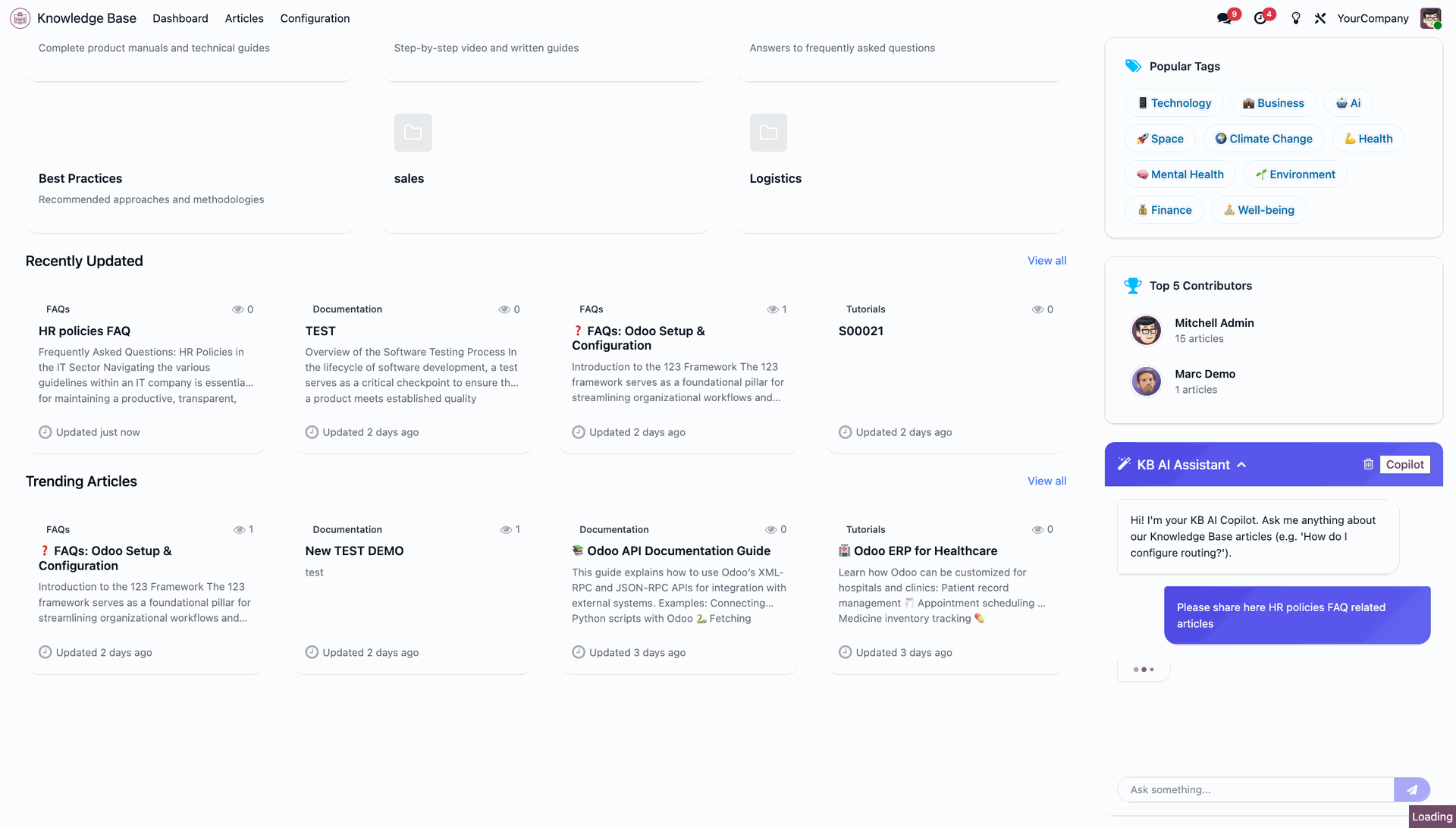
Type and send a question to the assistant and check the visual typing indicator.
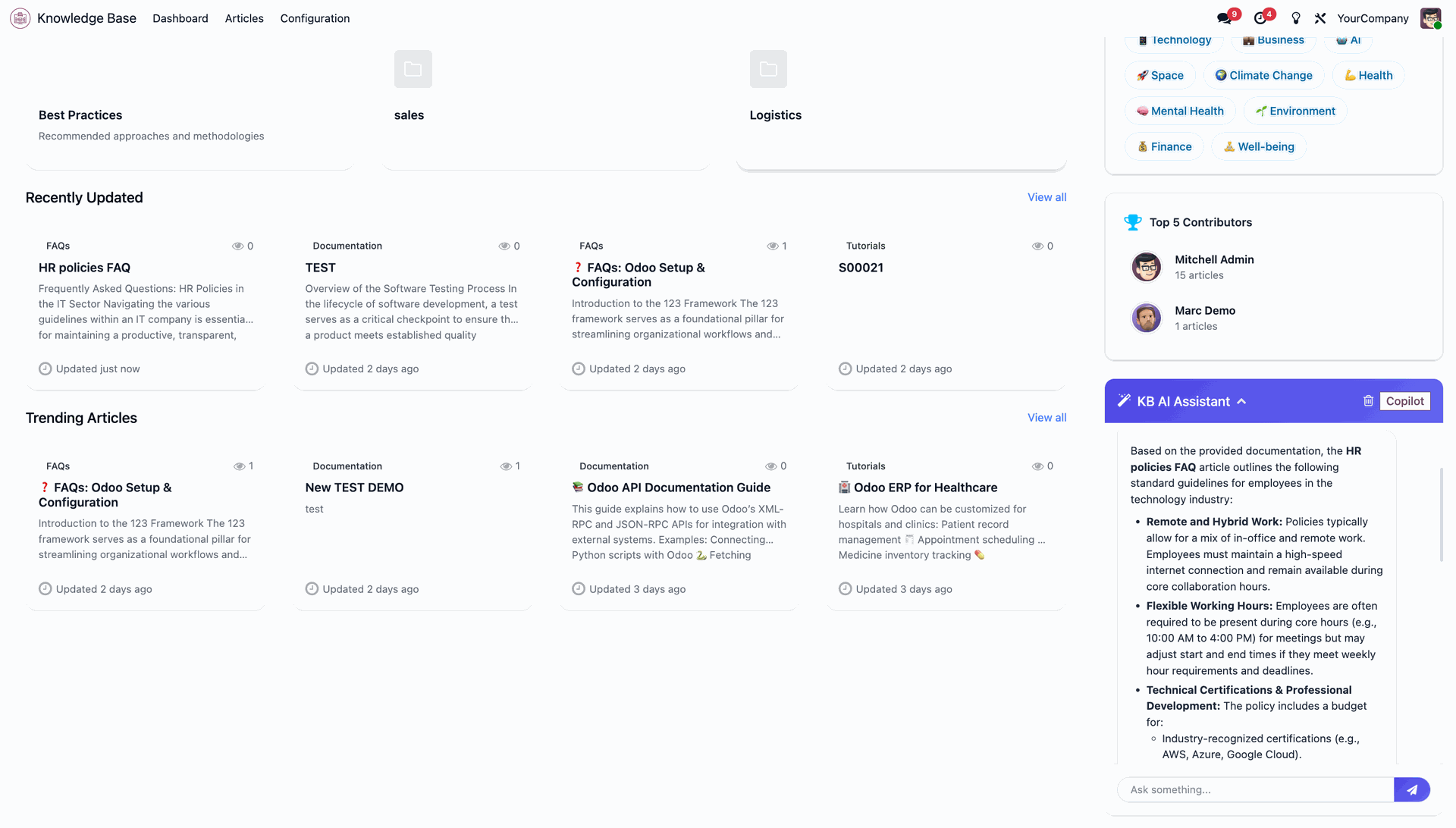
Receive detailed structured response text extracted from the knowledge base articles.
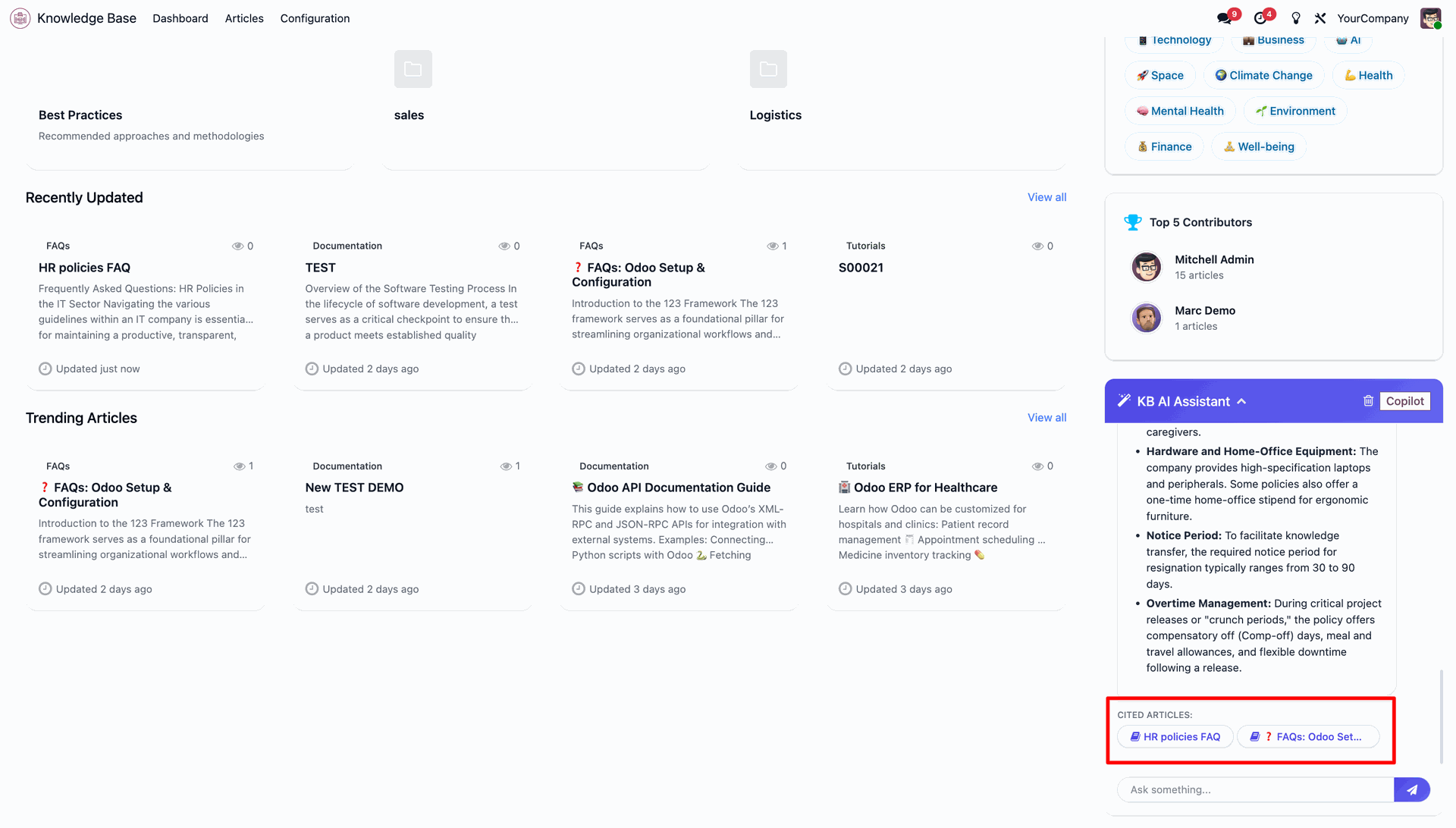
Click the cited article links to open the reference source documentation page instantly.
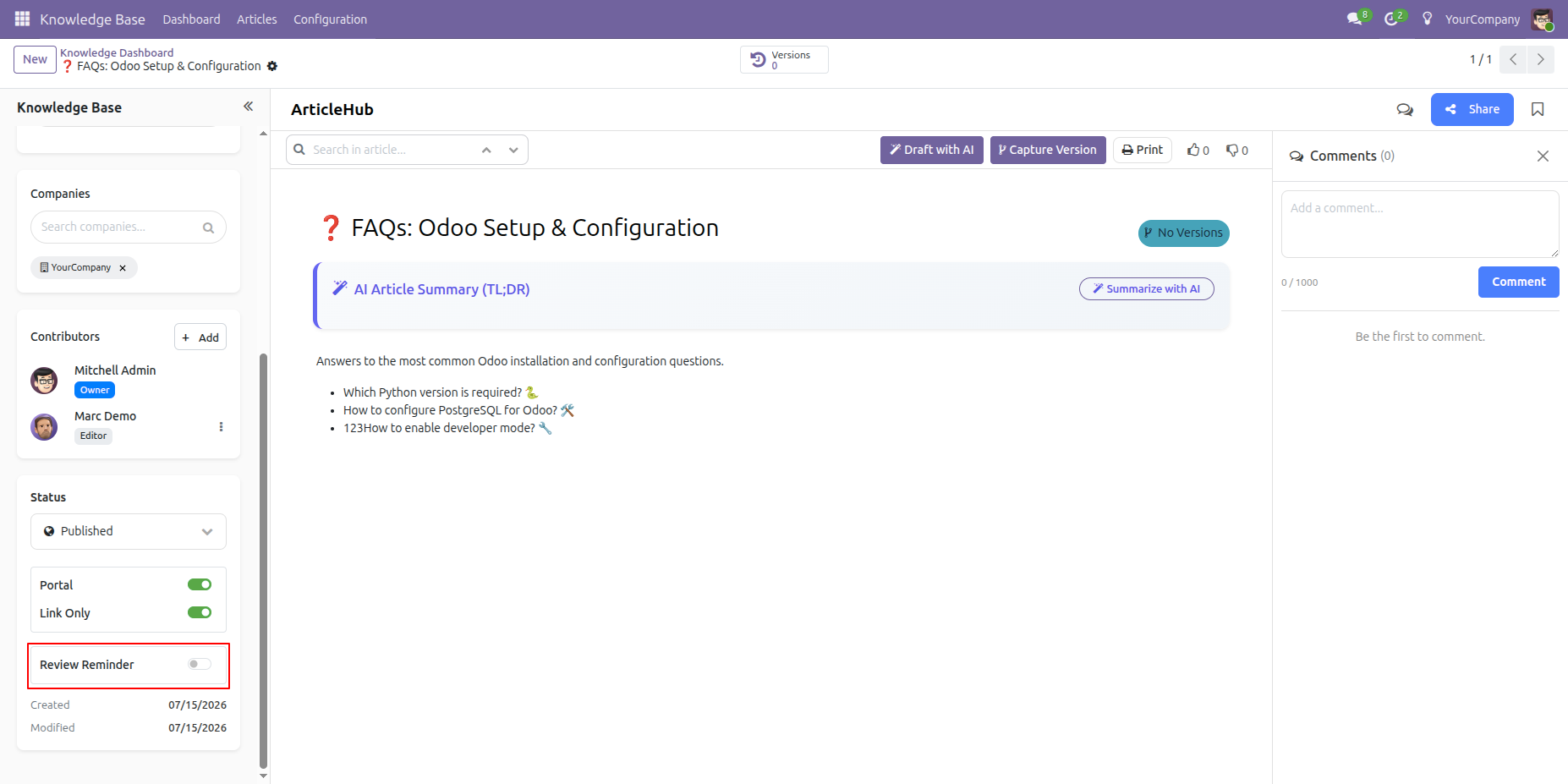
Go to the Knowledge Article and enable the Review Reminder toggle button to activate review reminders for the article.
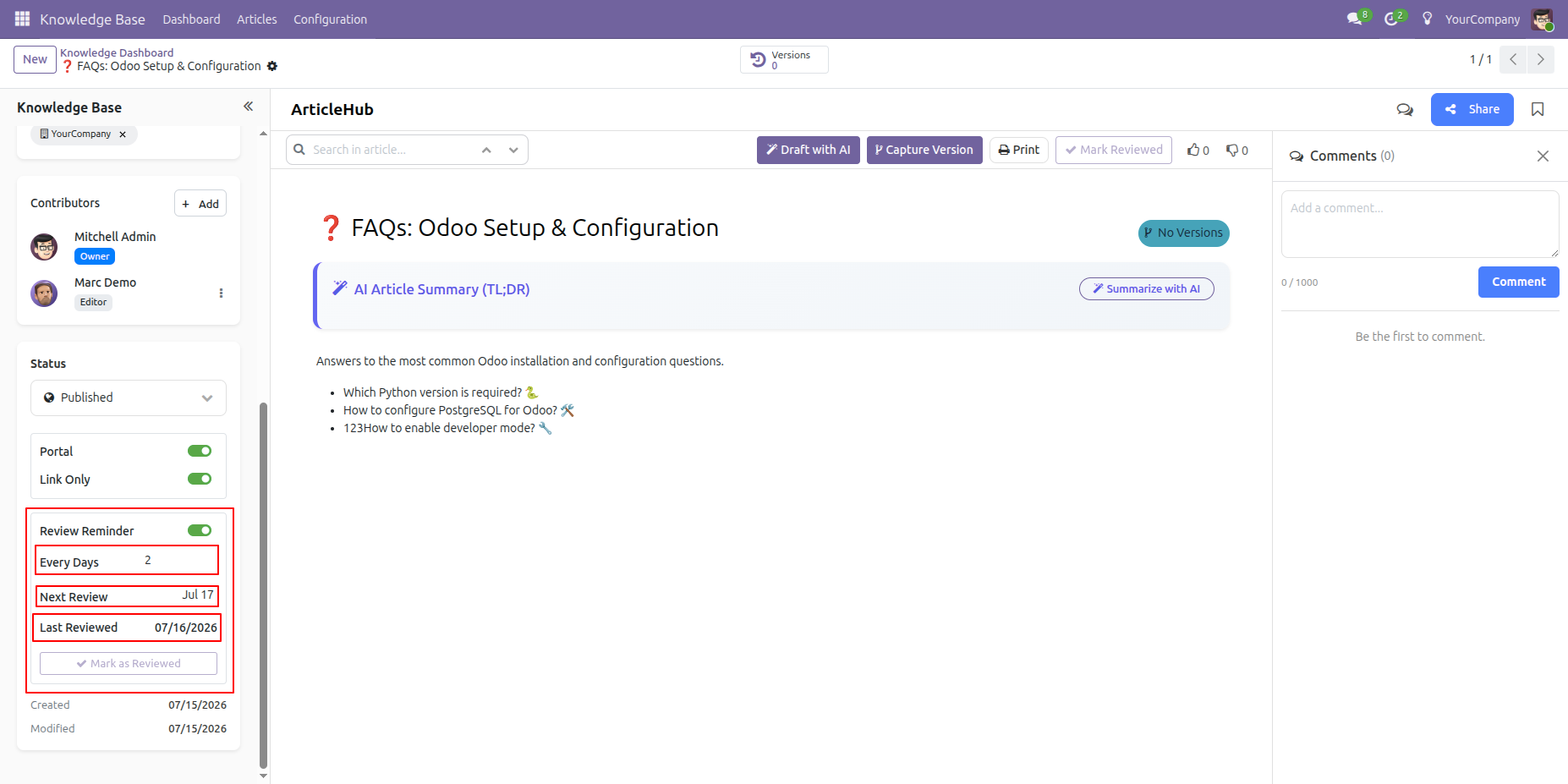
Enabling the Review Reminder toggle displays the Every Days, Next Review Date, and Last Reviewed Date fields for managing the article review schedule.
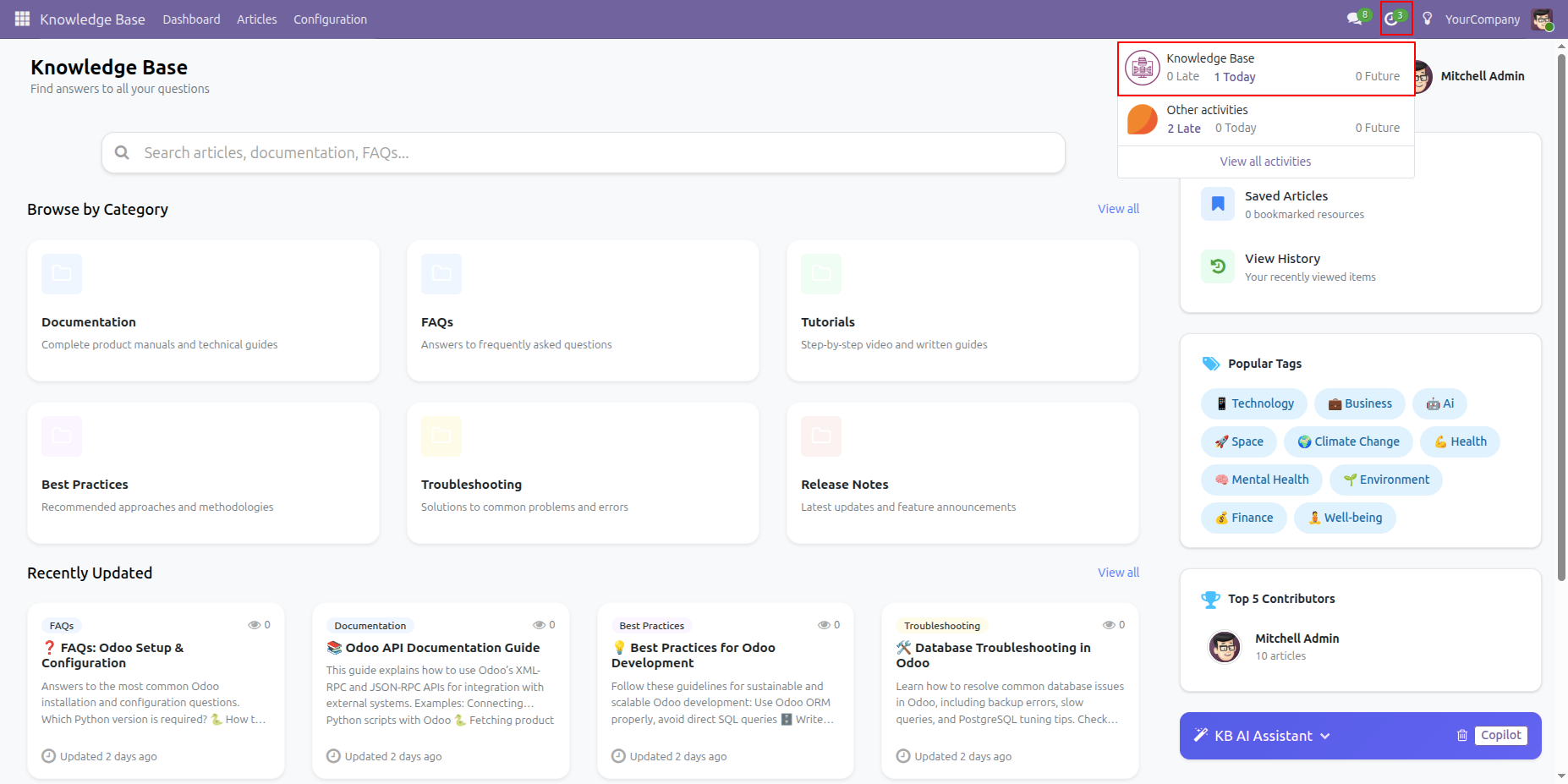
Based on the configured Every Days value, the system automatically creates a review activity according to the scheduled review interval.
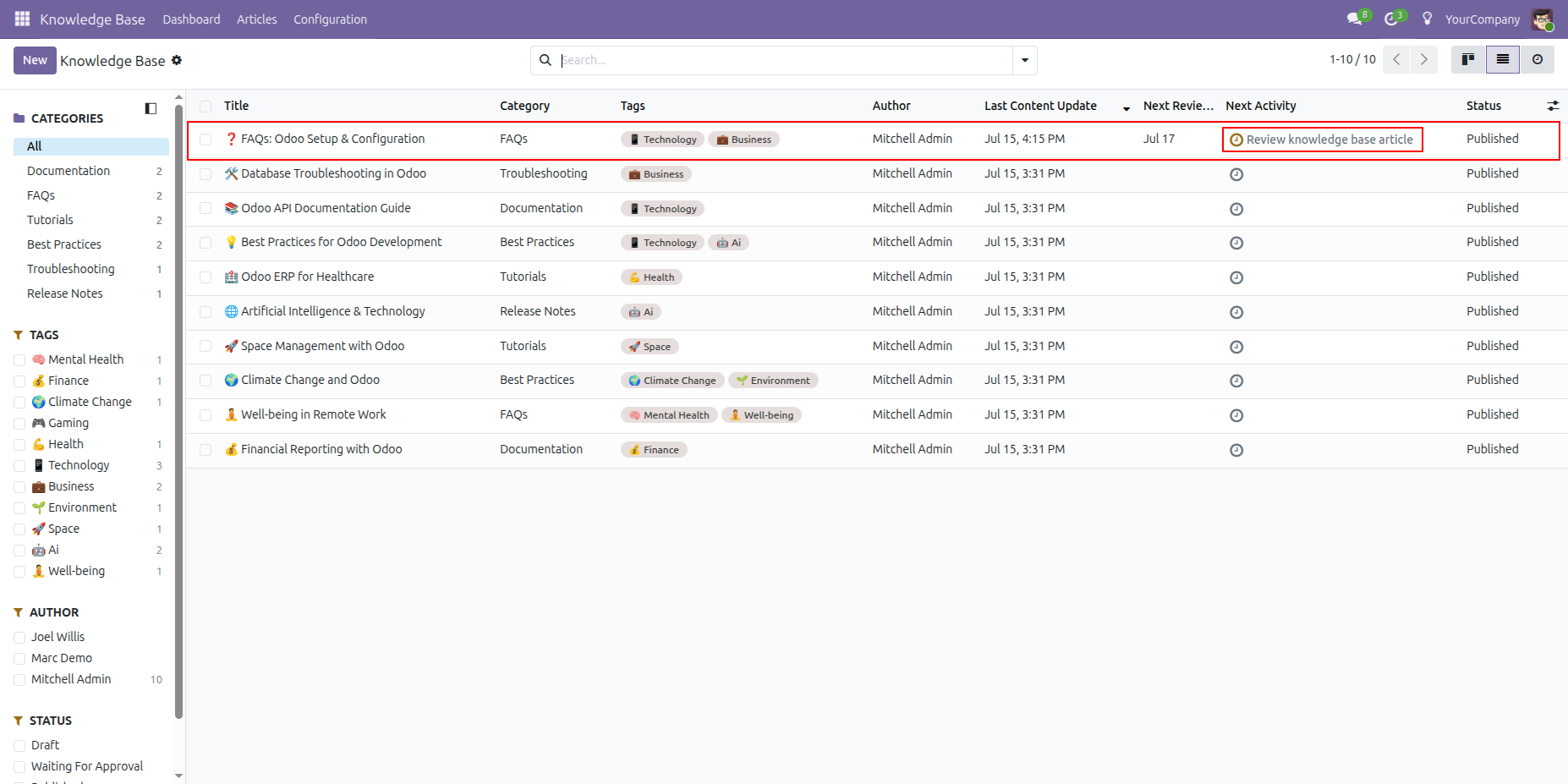
In the Knowledge Base List View, the scheduled Review Reminder Activity will be displayed, allowing users to easily track upcoming article reviews.
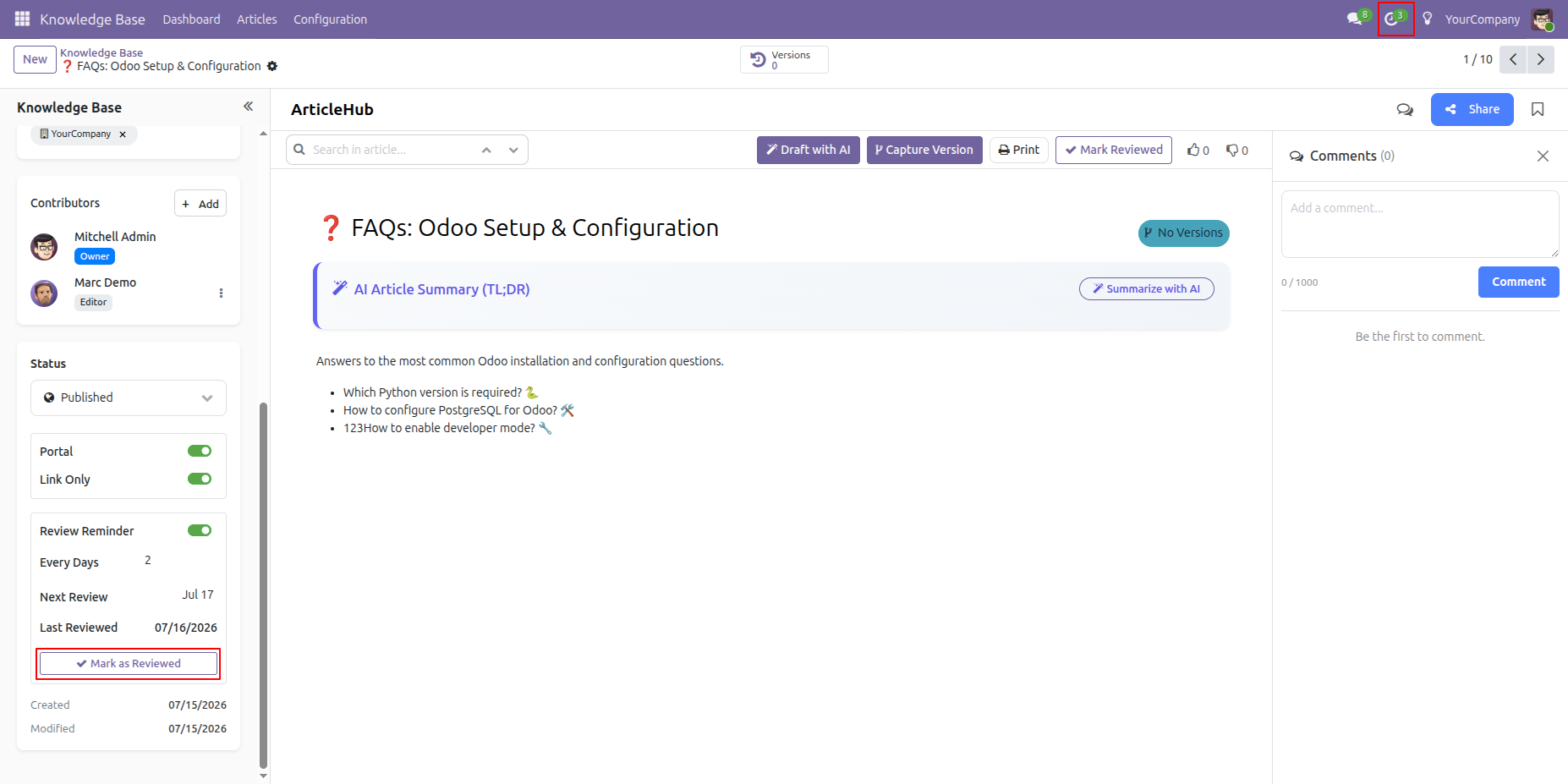
Open the Knowledge Article and click Mark as Reviewed to record the completed review.
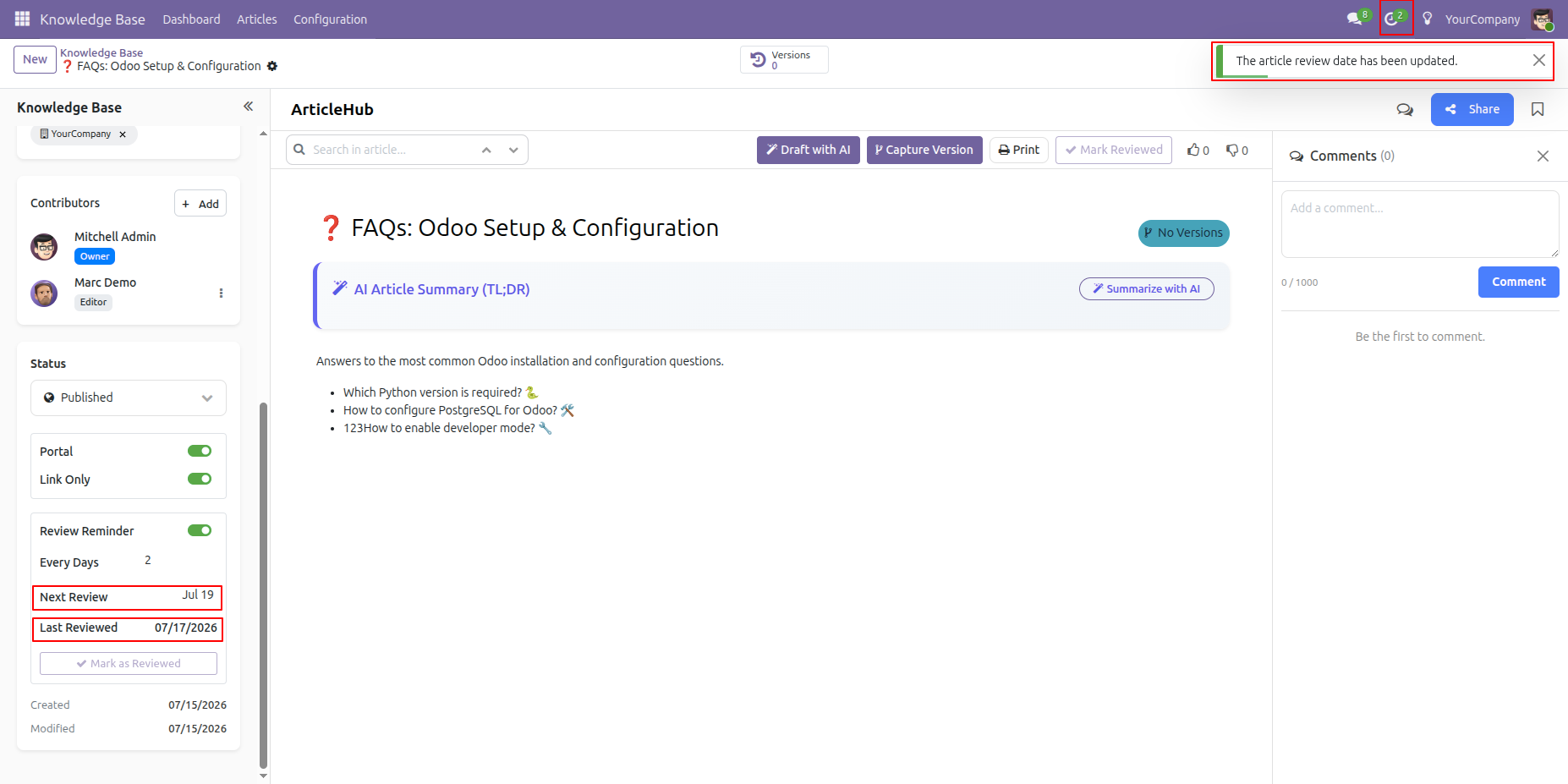
After clicking Mark as Reviewed, a notification confirms that the article review data has been updated. The system also updates the Next Review Date and Last Reviewed Date accordingly.
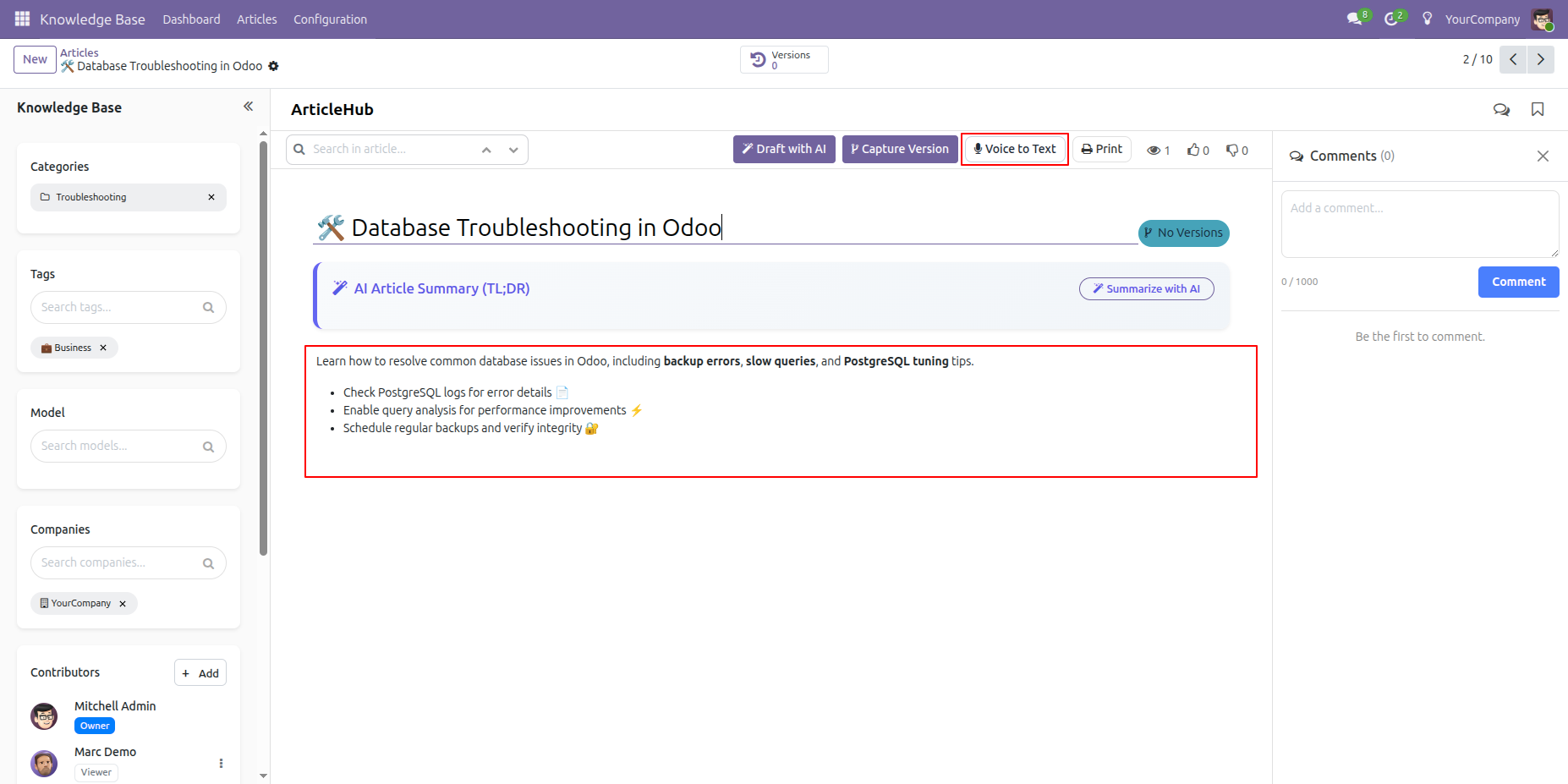
Select the Voice to Text button from the Knowledge Article toolbar to start converting spoken words into text.
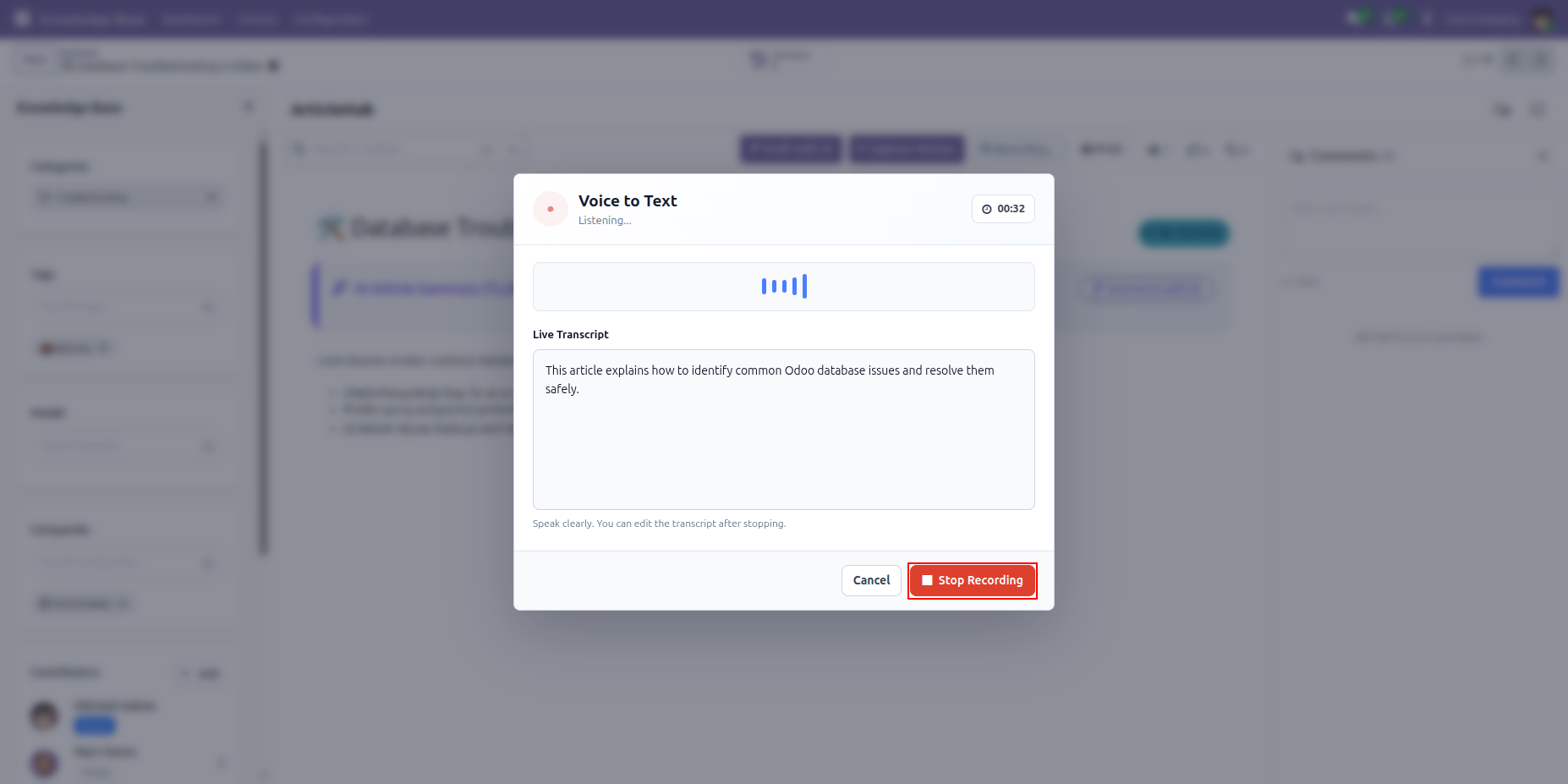
The Voice to Text window starts listening and displays the recording timer with a live transcript area.
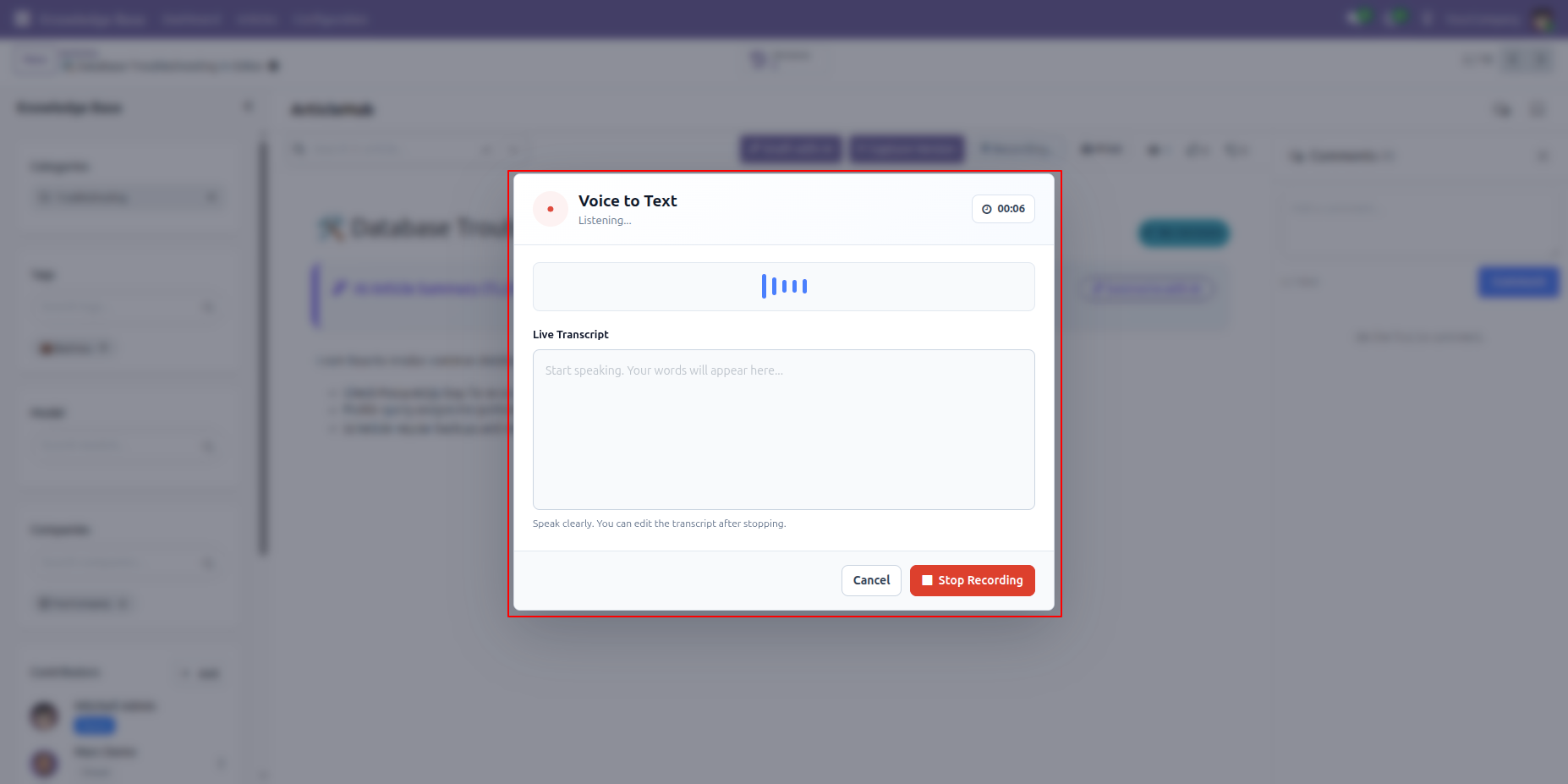
While recording, spoken content appears in the Live Transcript field and the Stop Recording button is available.
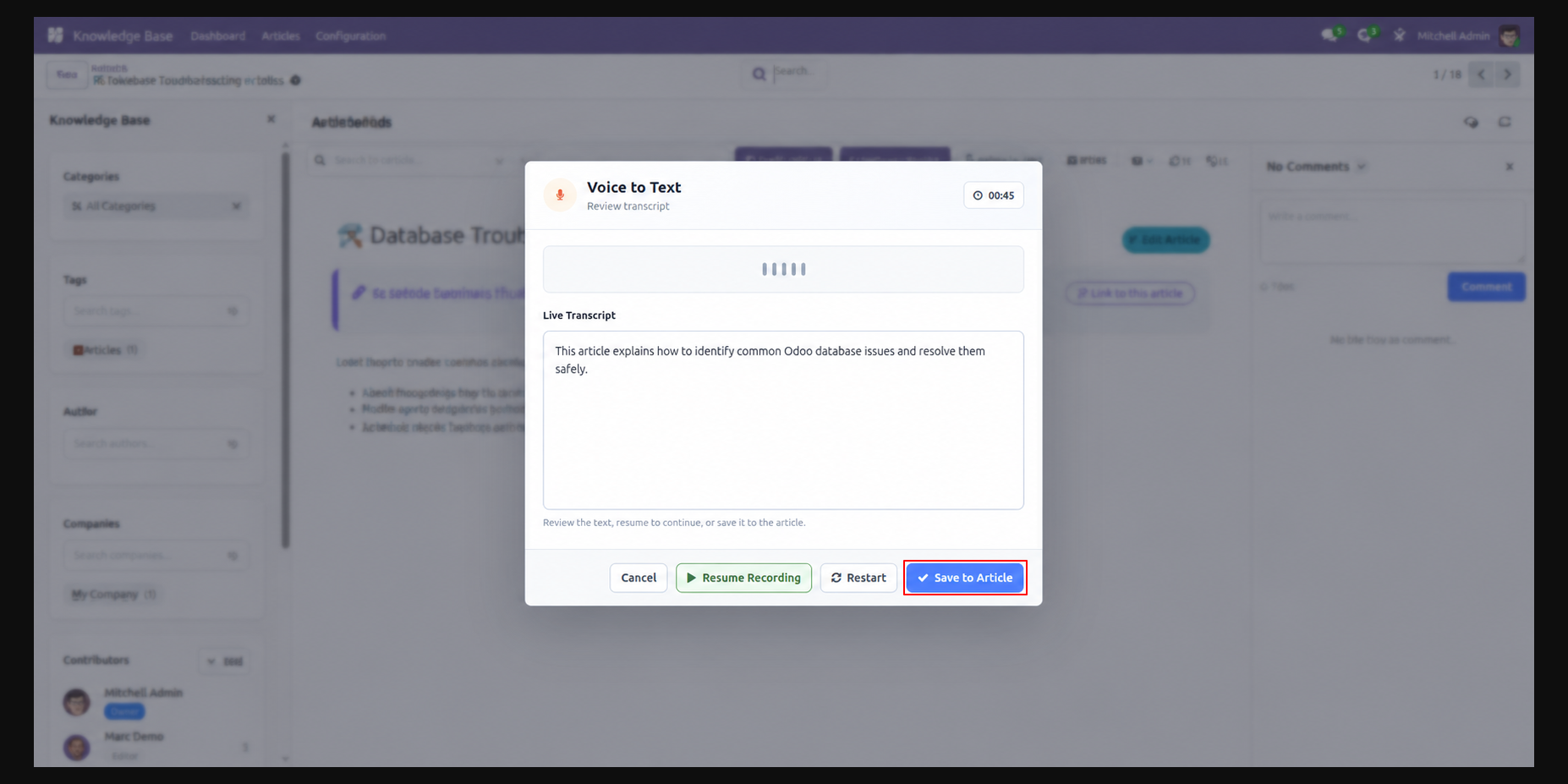
Review the generated transcript, then resume recording, restart the capture, or save the text to the article.
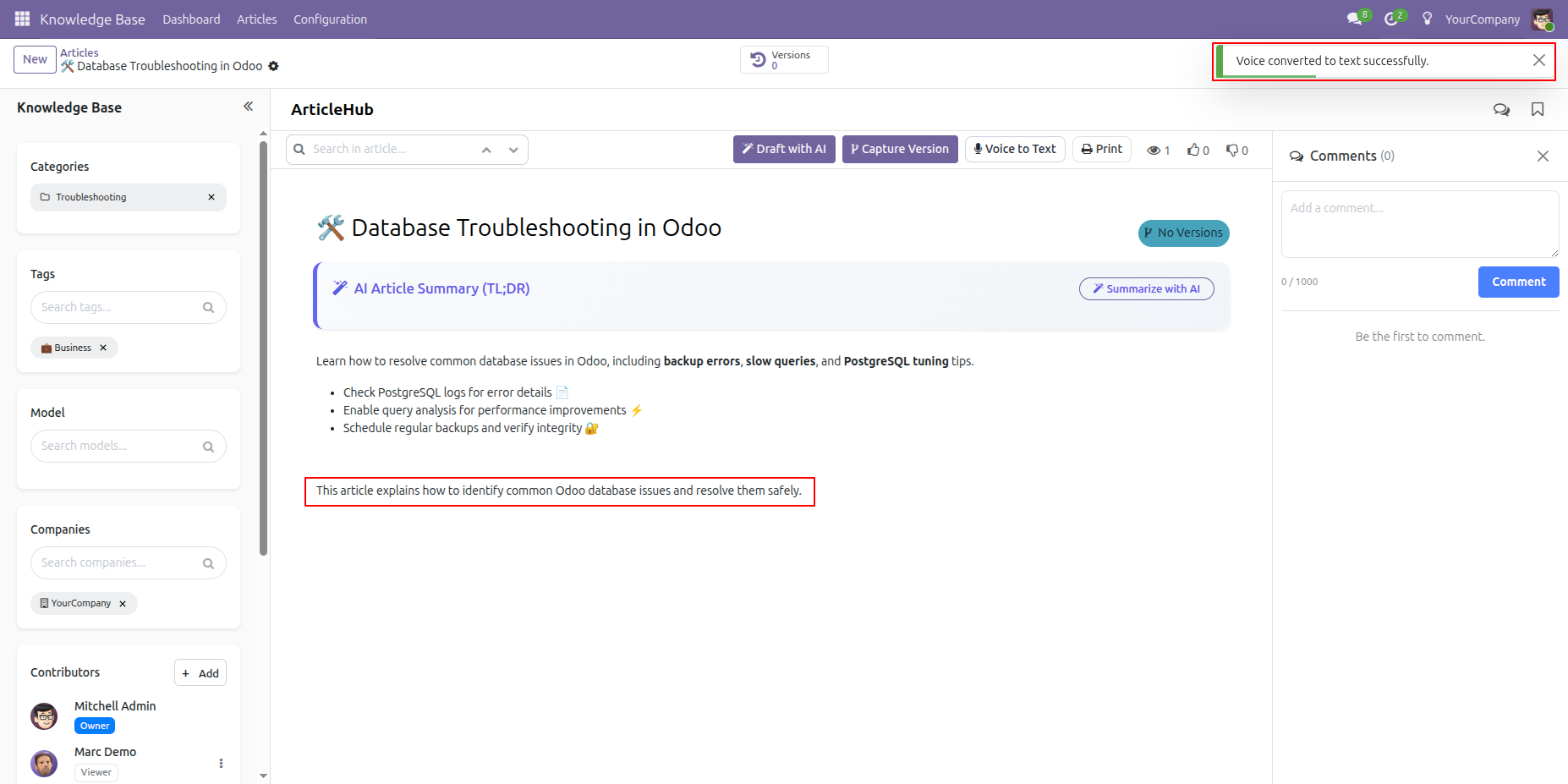
After saving, the converted text is inserted into the article and a success notification confirms the update.
Go to the 'Analytics' dashboard.
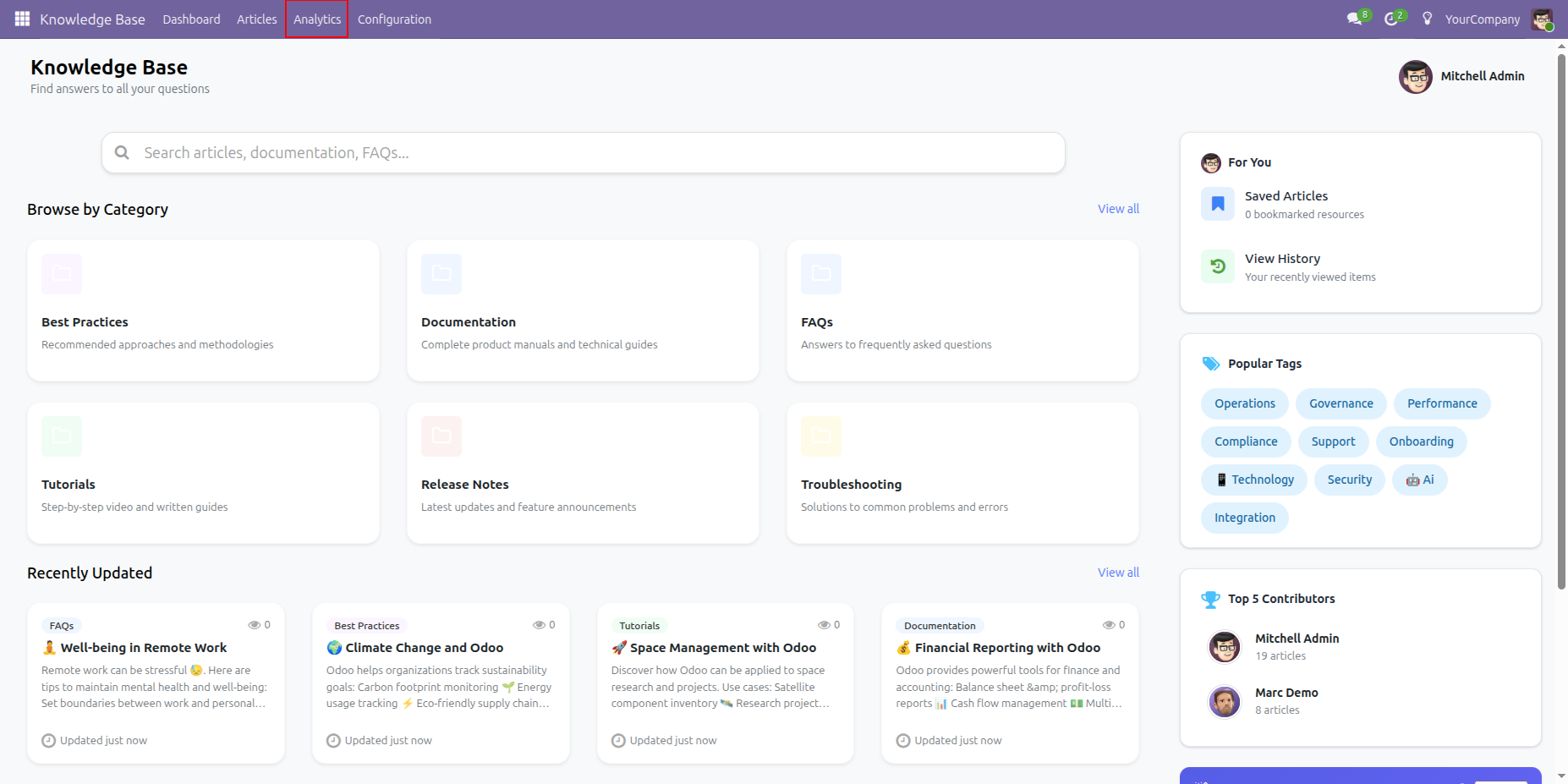
Analytics dashboard looks like this.
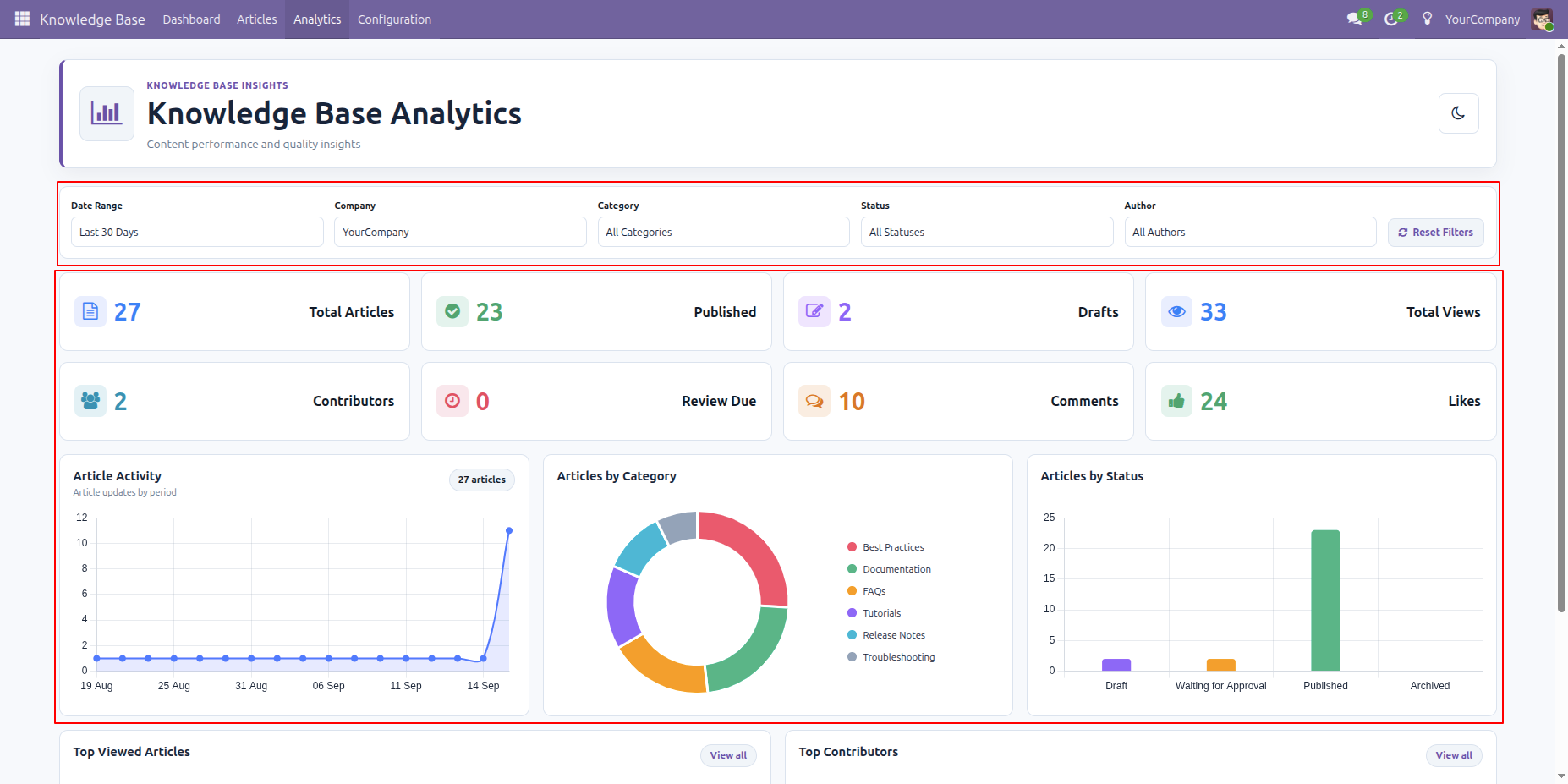
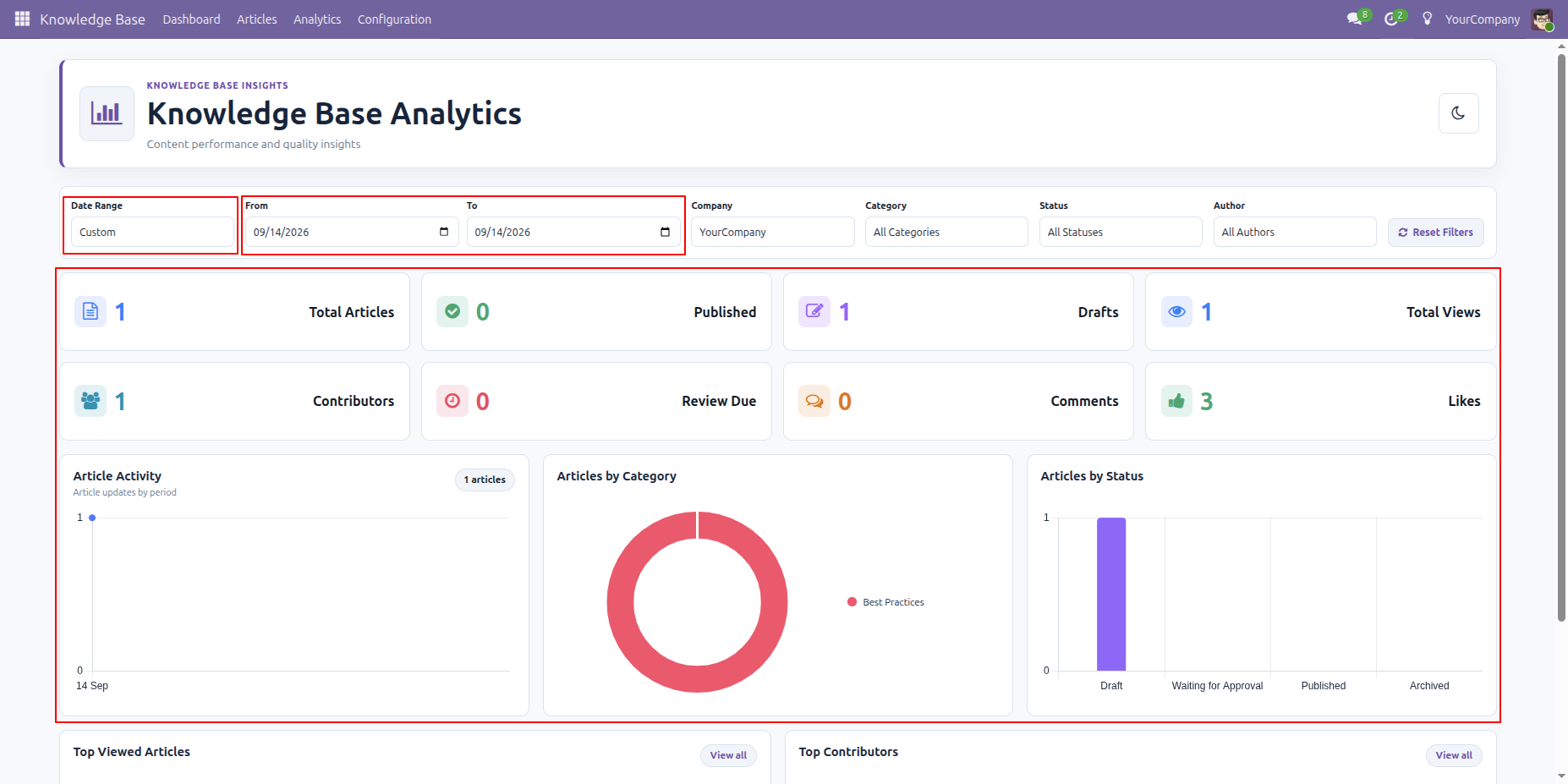
You can filter by date range.
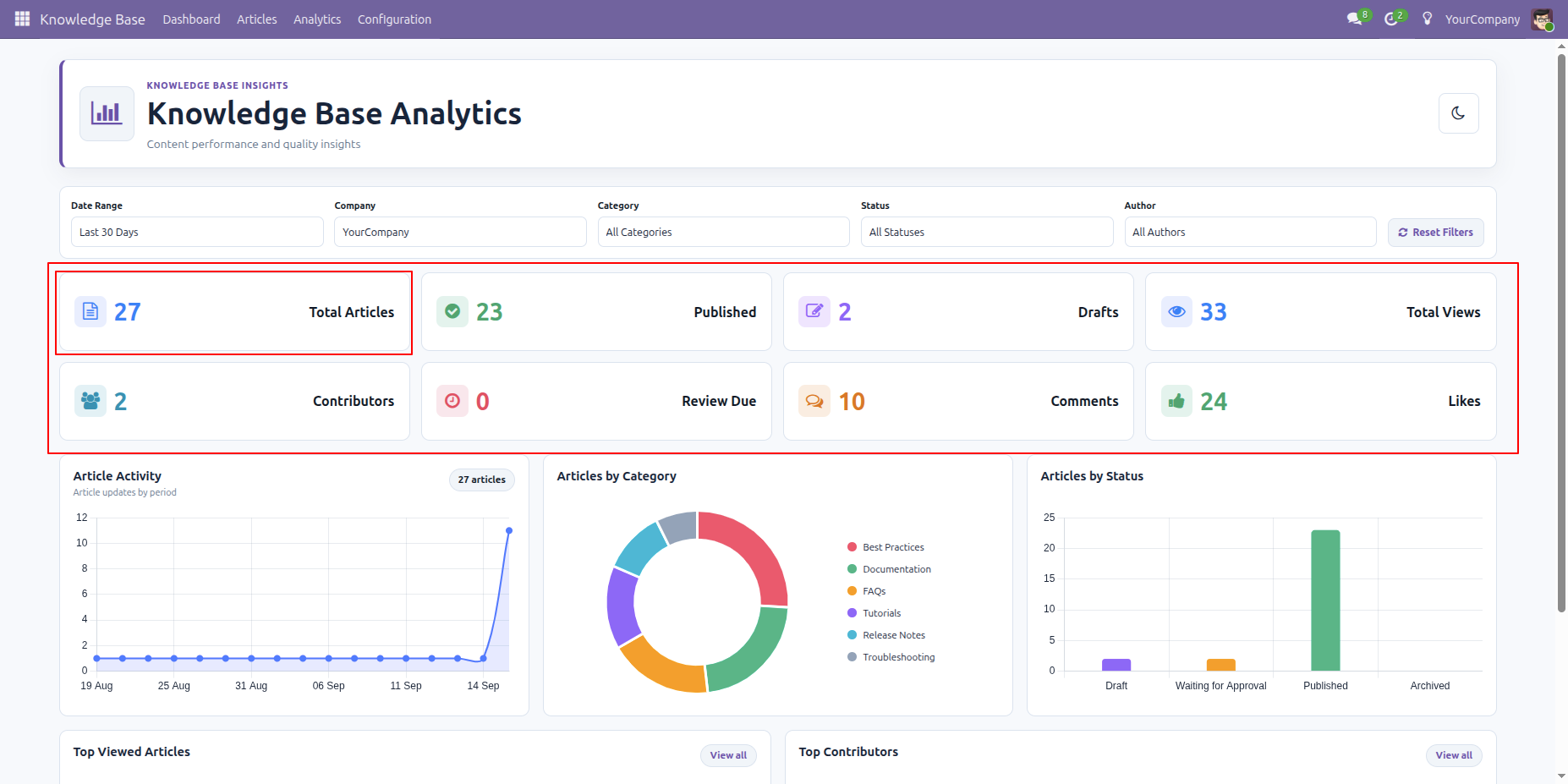
Articles overview with all statuses.
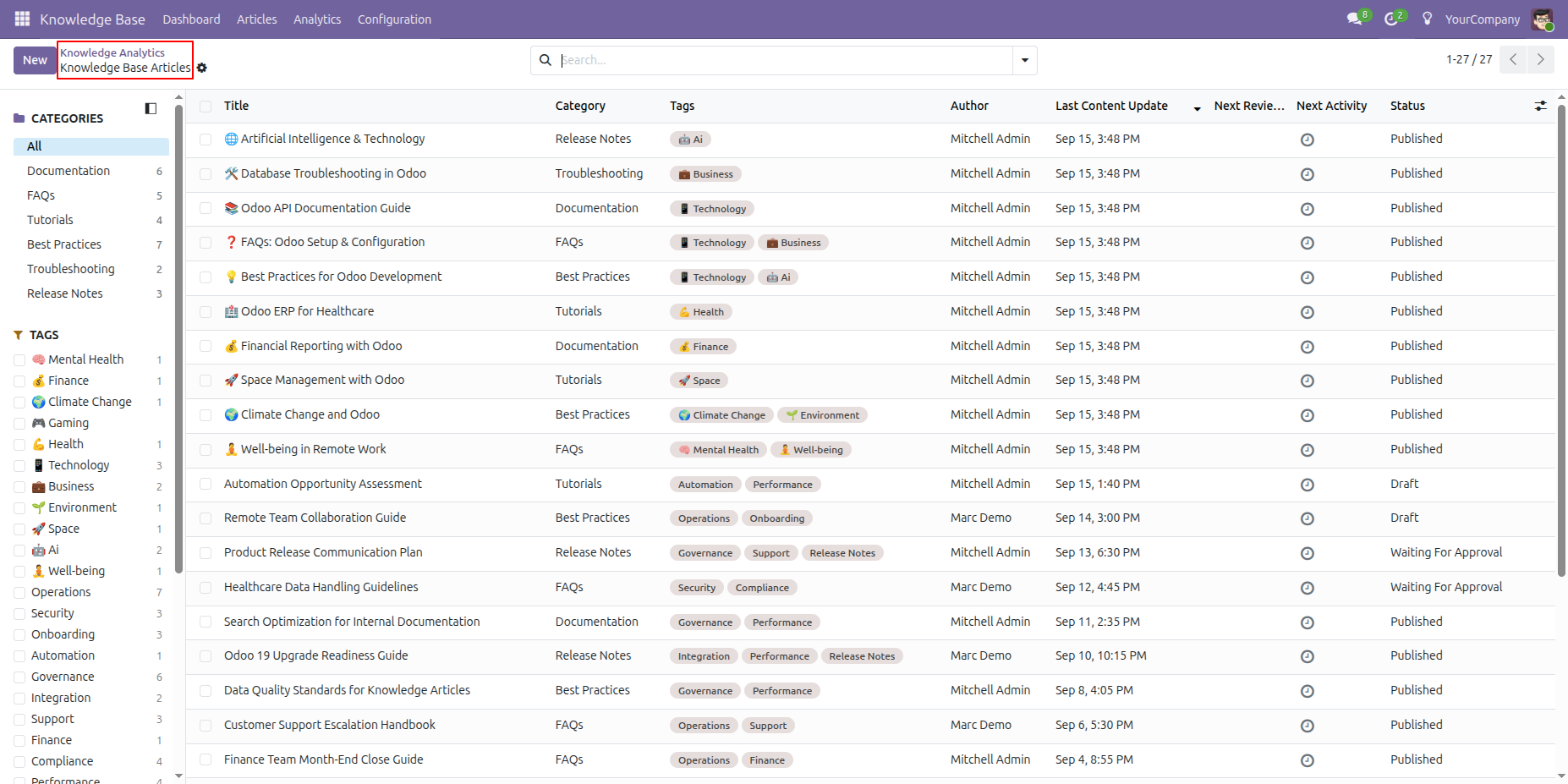
You can open articles from the dashboard.
Articles graph view for analytics.
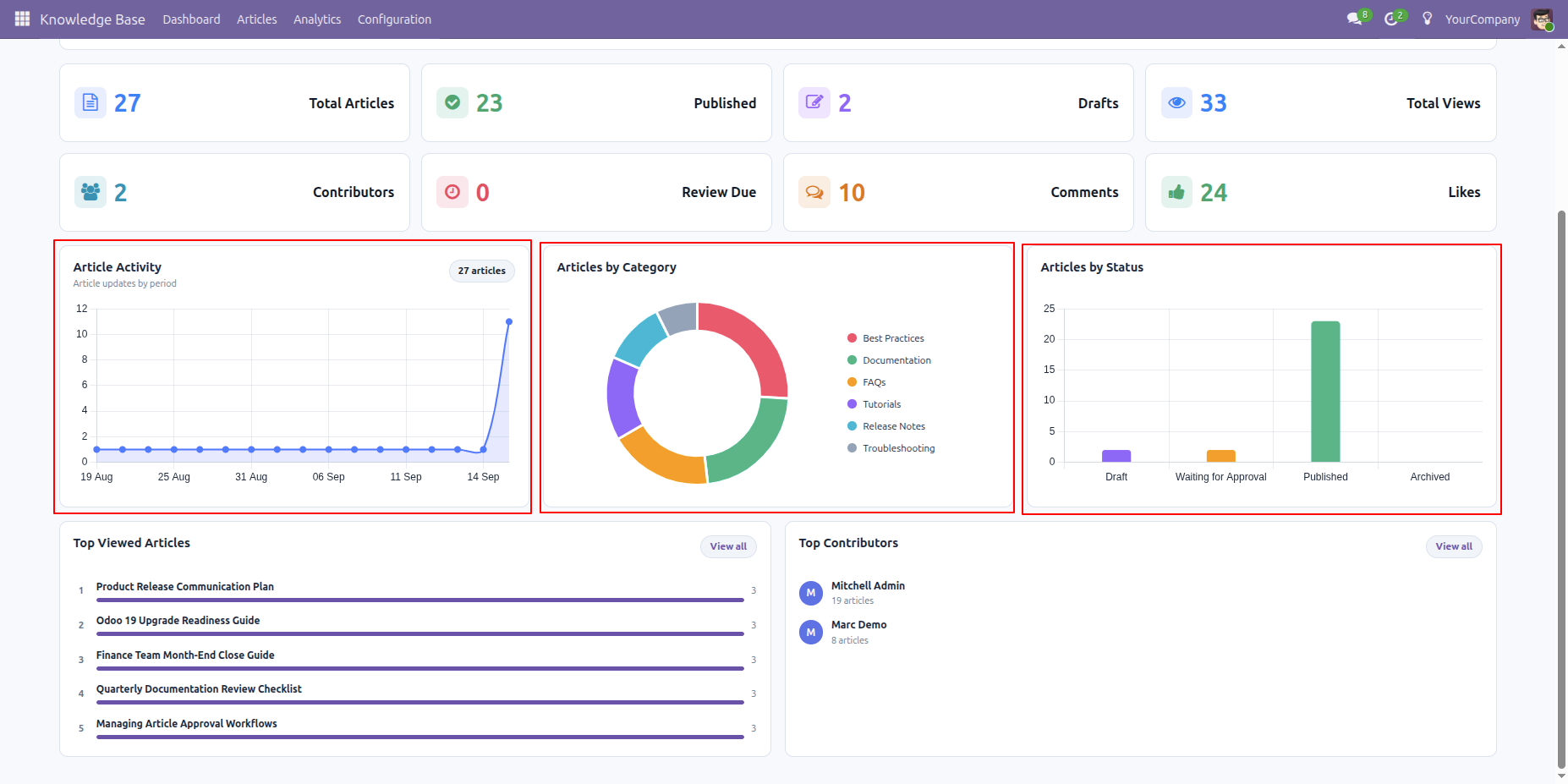
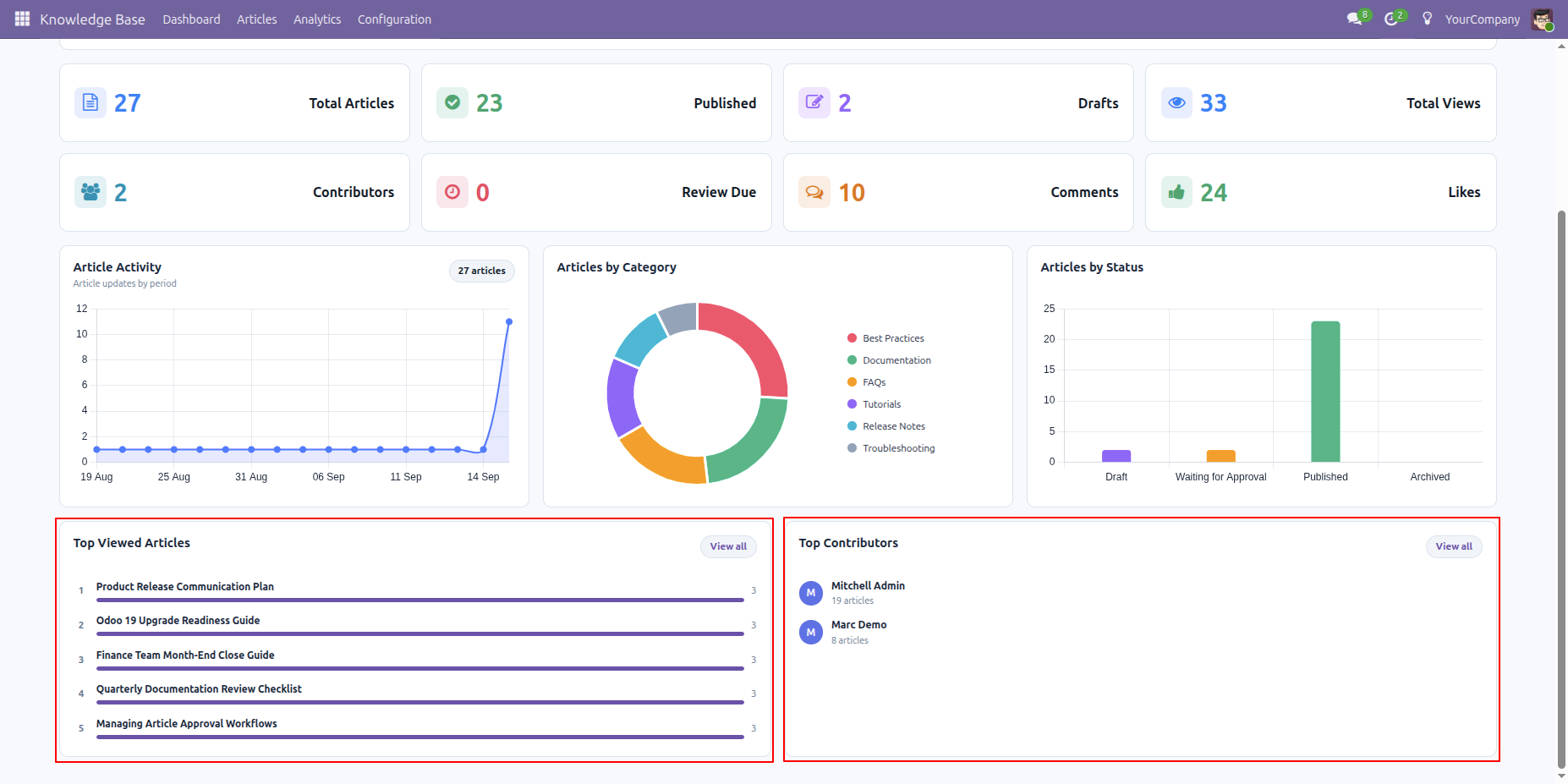
Top viewed articles and top contributors can be seen from the dashboard.
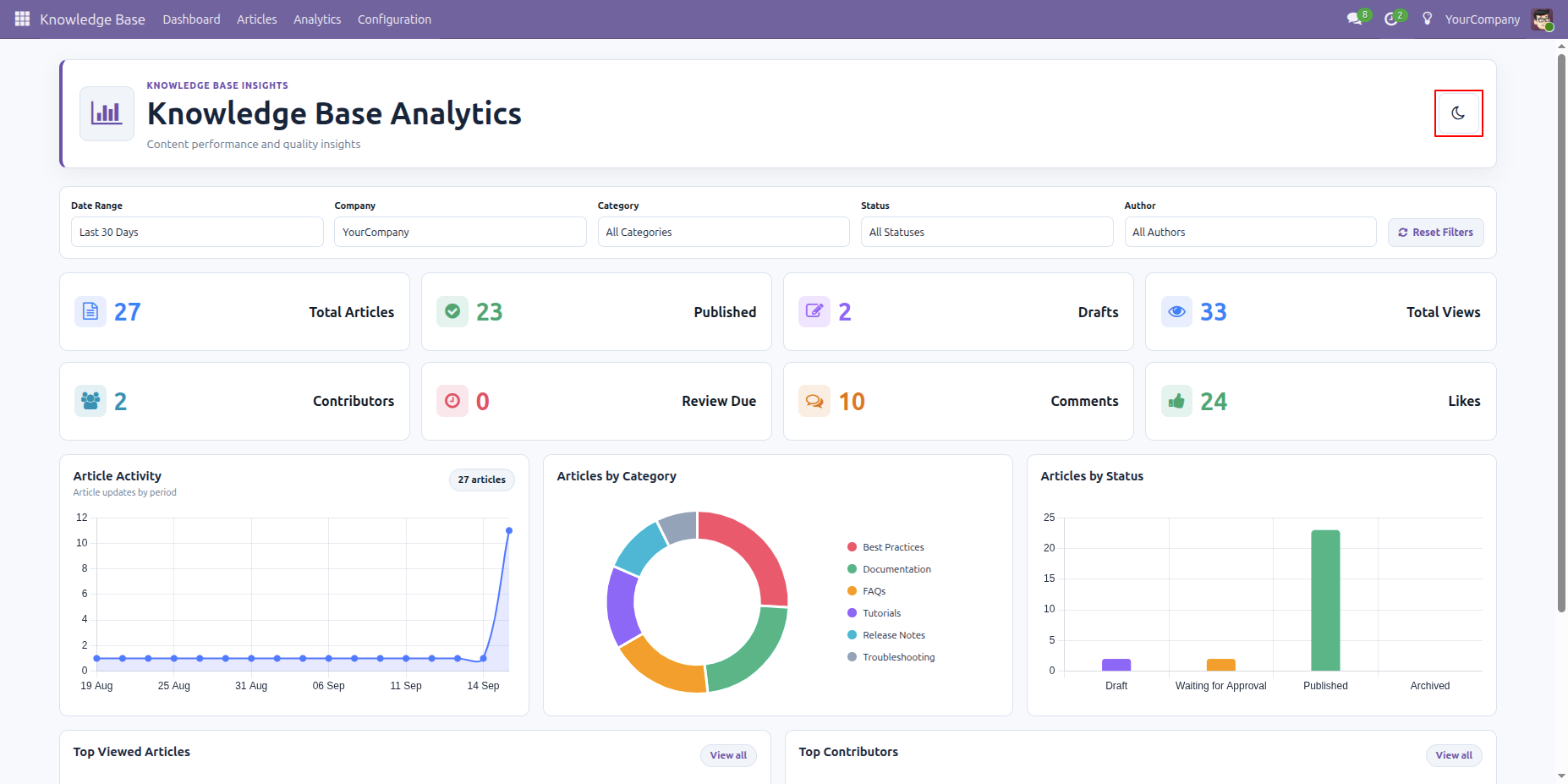
You can switch dark mode from the top button.
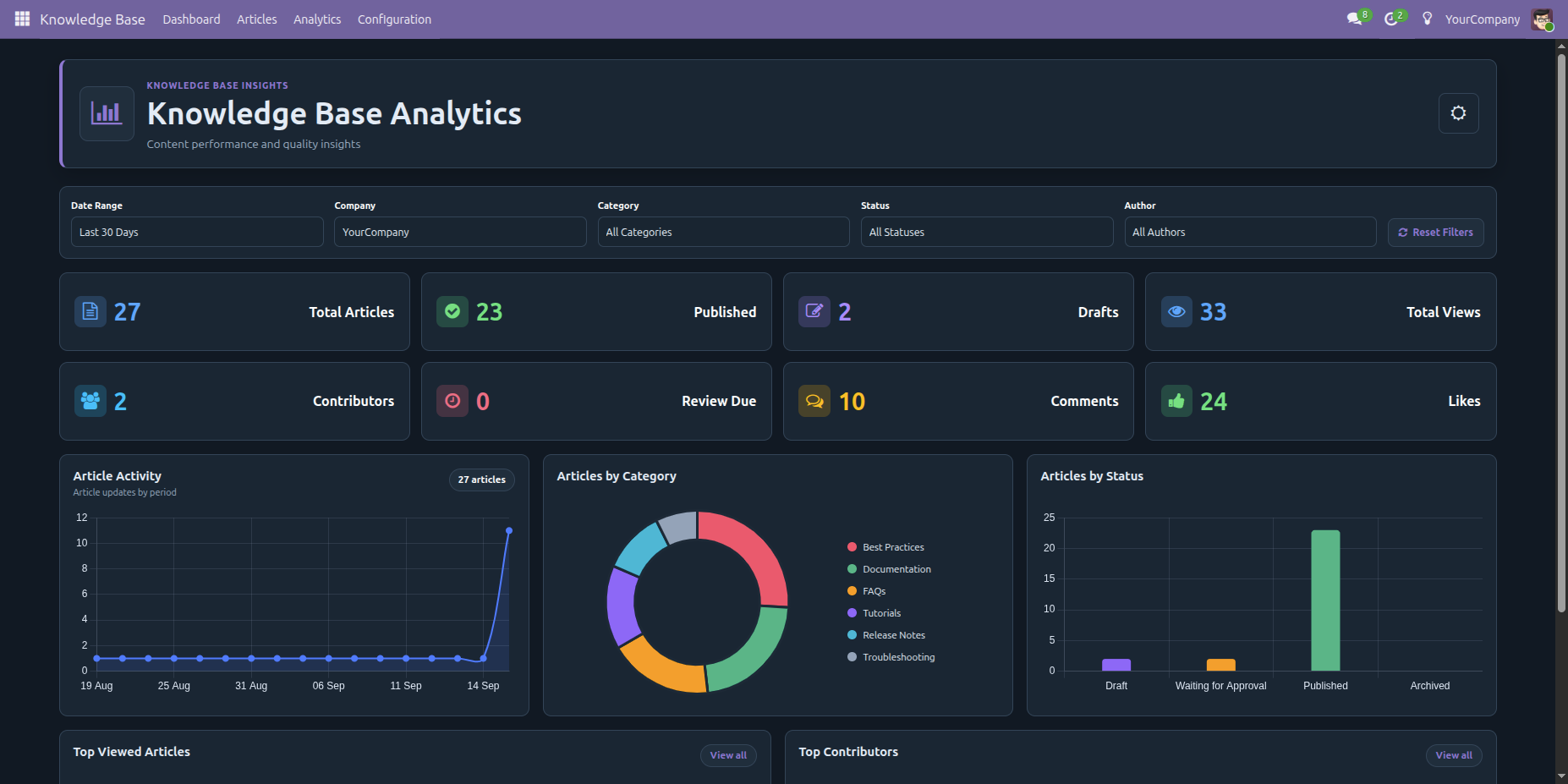
Dashboard in dark mode.
Select Add Video from the Knowledge Article toolbar to open the video insertion window.
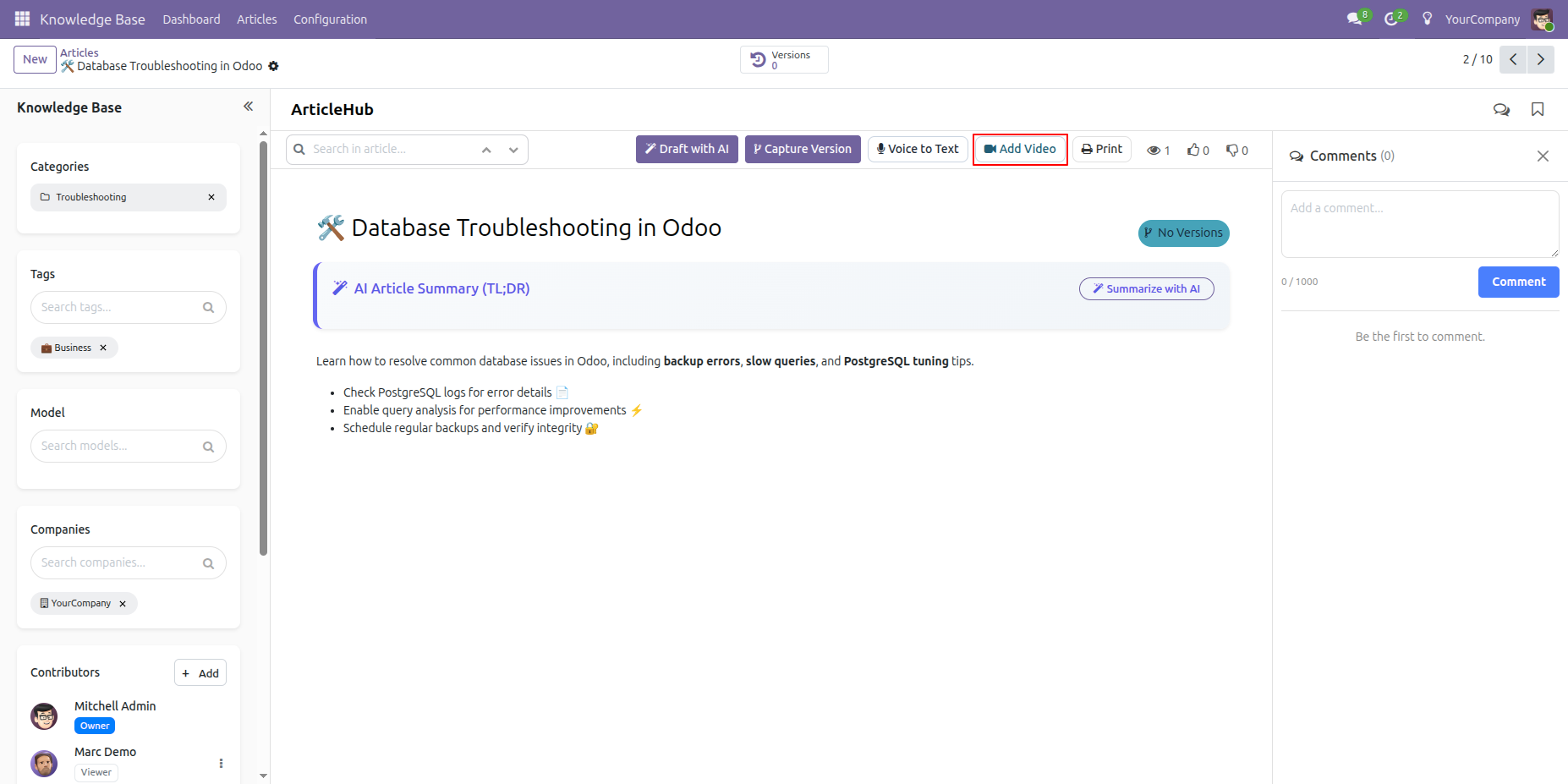
Choose Video URL to enter a YouTube, Vimeo, MP4, WebM, or OGG link with an optional title and caption.
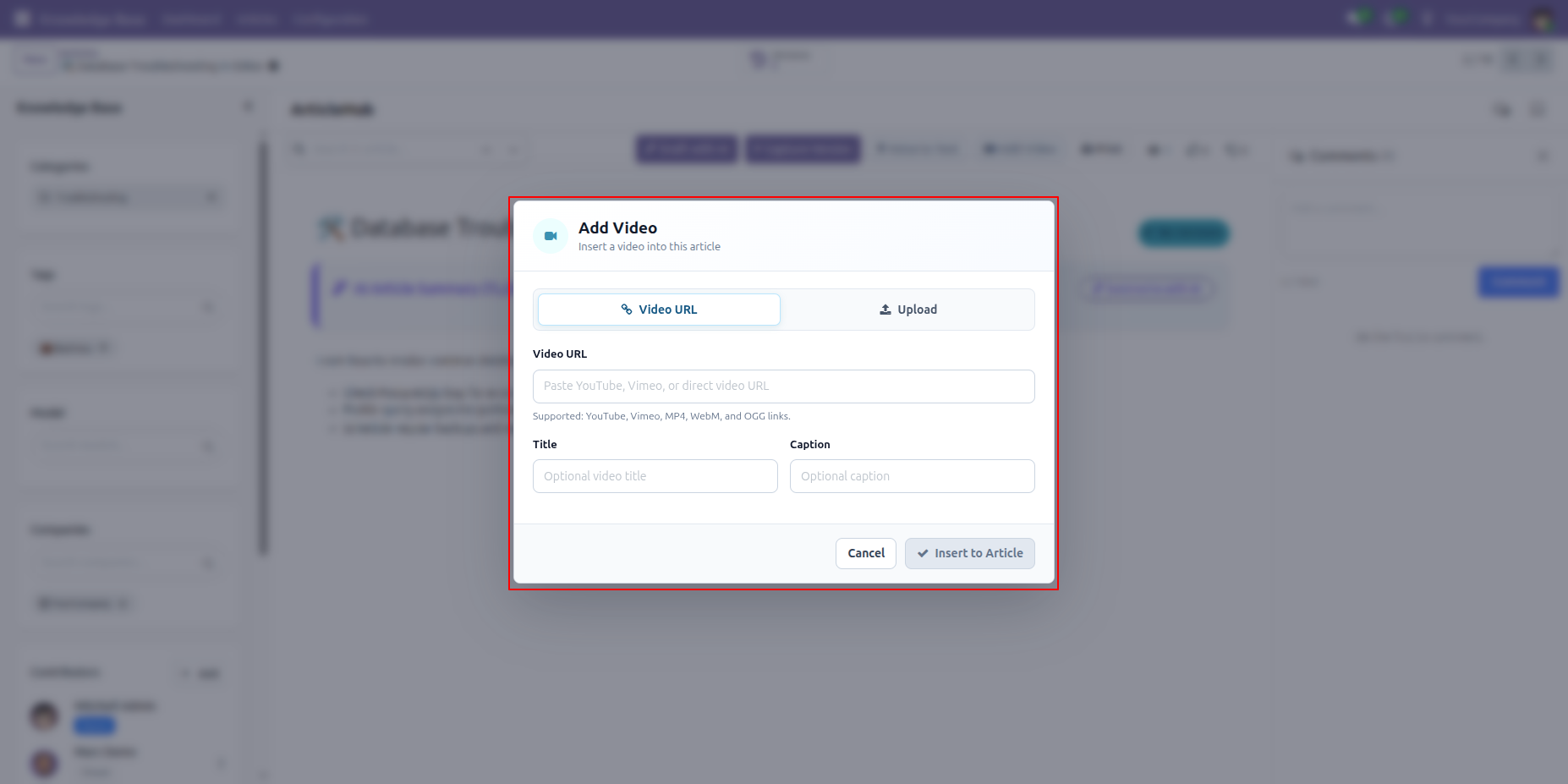
Choose Upload to select an MP4, WebM, or OGG video file and provide an optional title and caption.
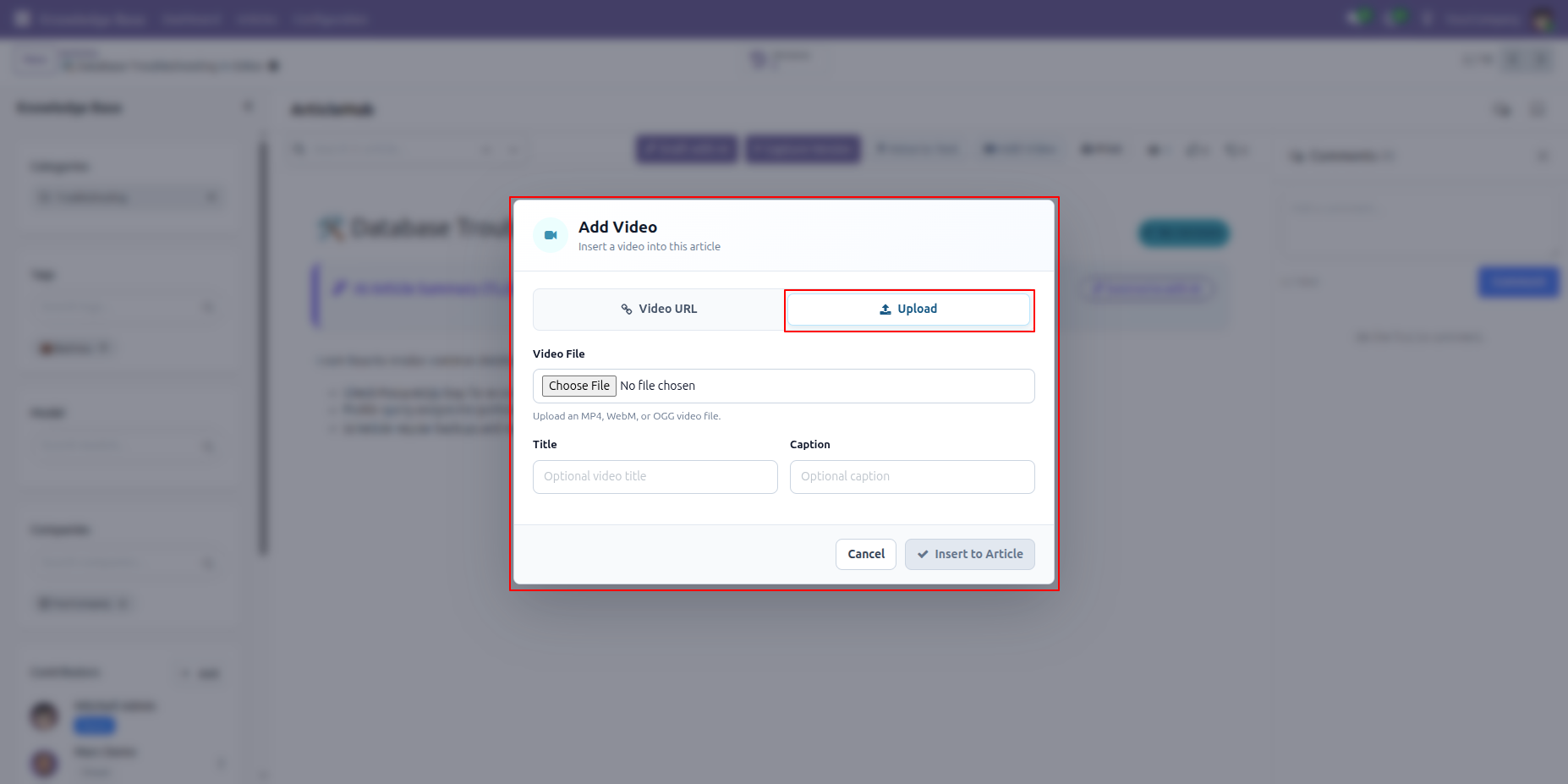
Enter the video URL, title, and caption, then select Insert to Article to add the video.
The article displays the inserted video with its title and embedded player for viewing within the article.
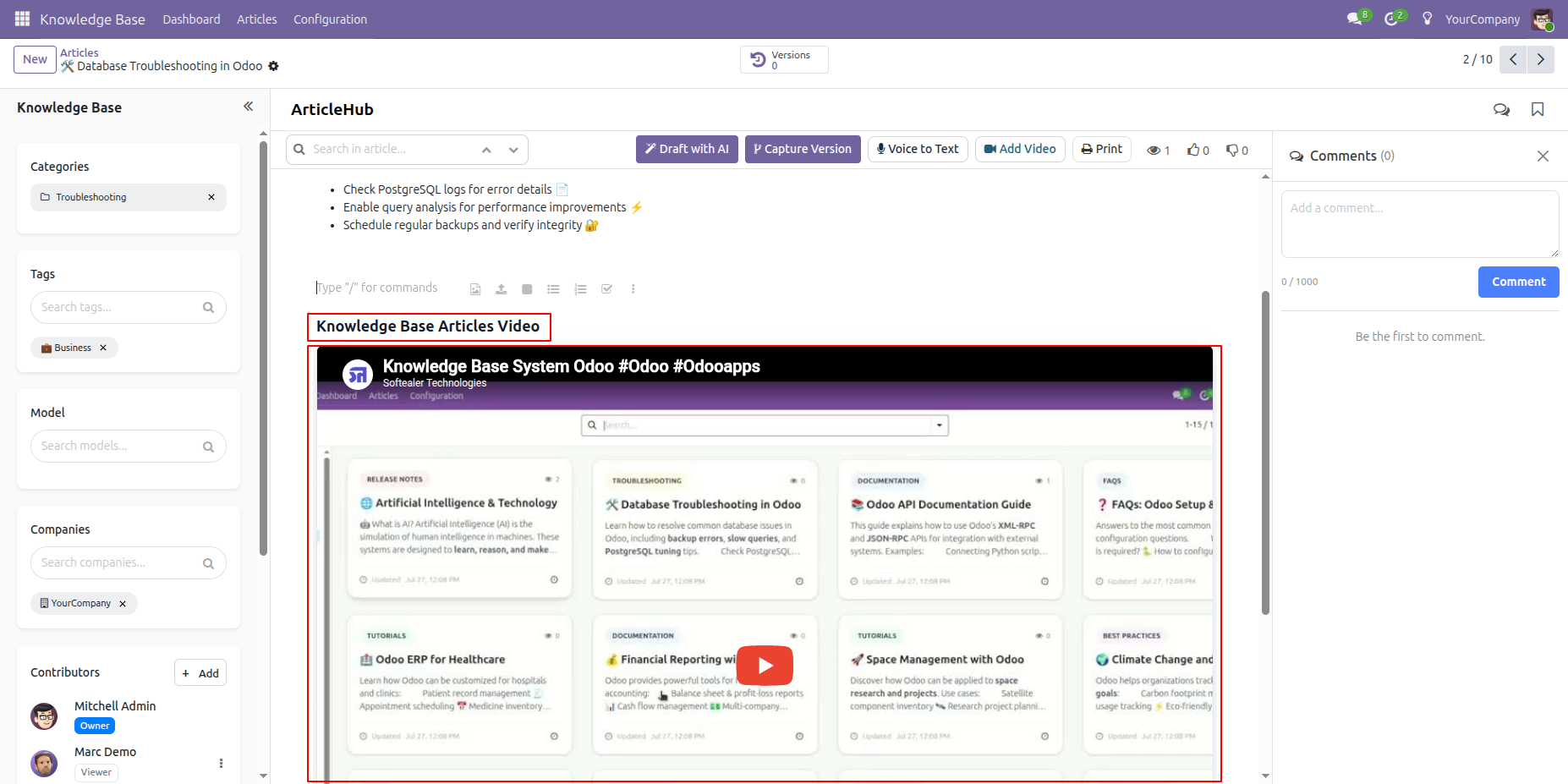
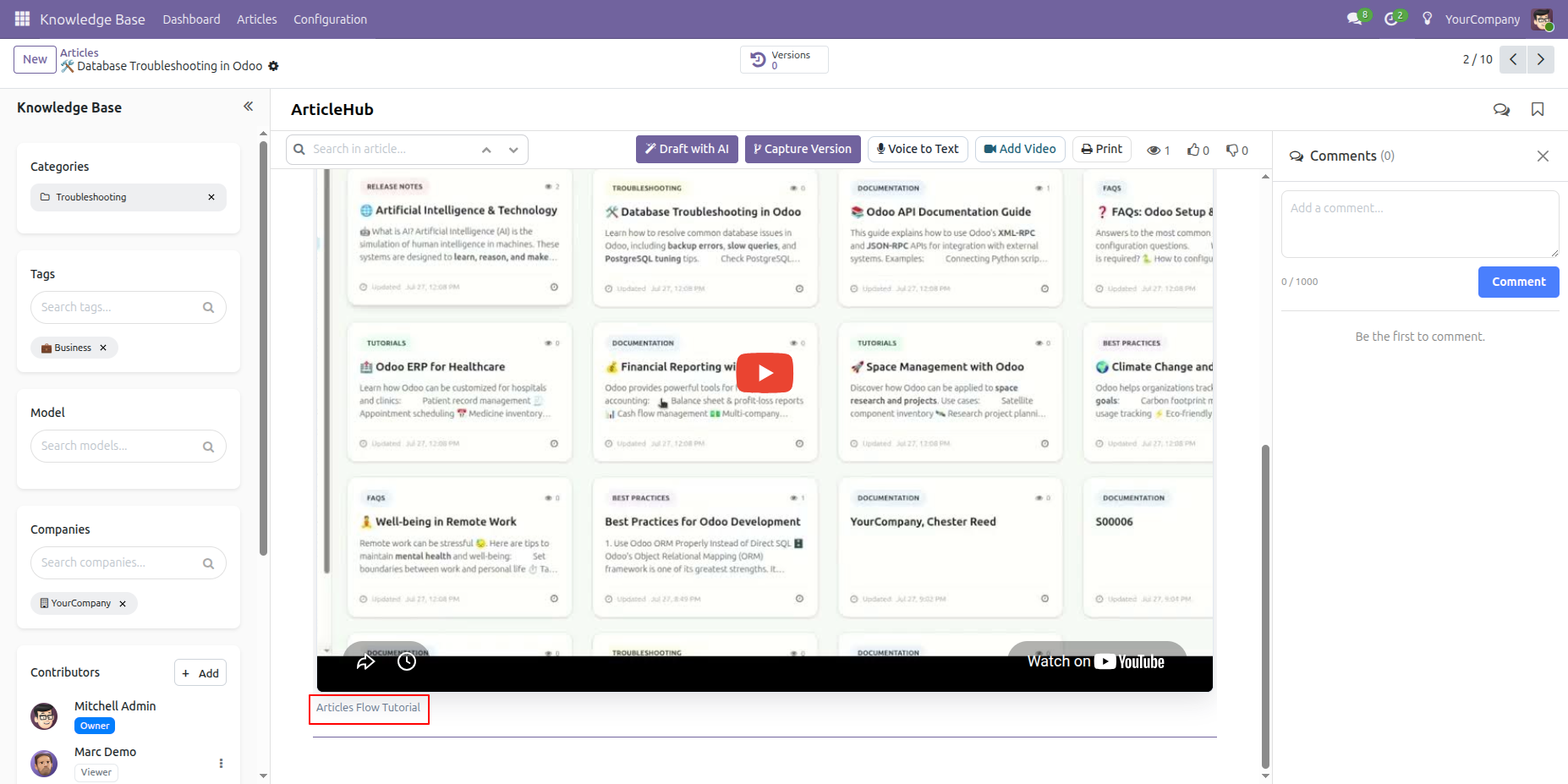
The embedded video remains available in the article with its caption shown below the player.
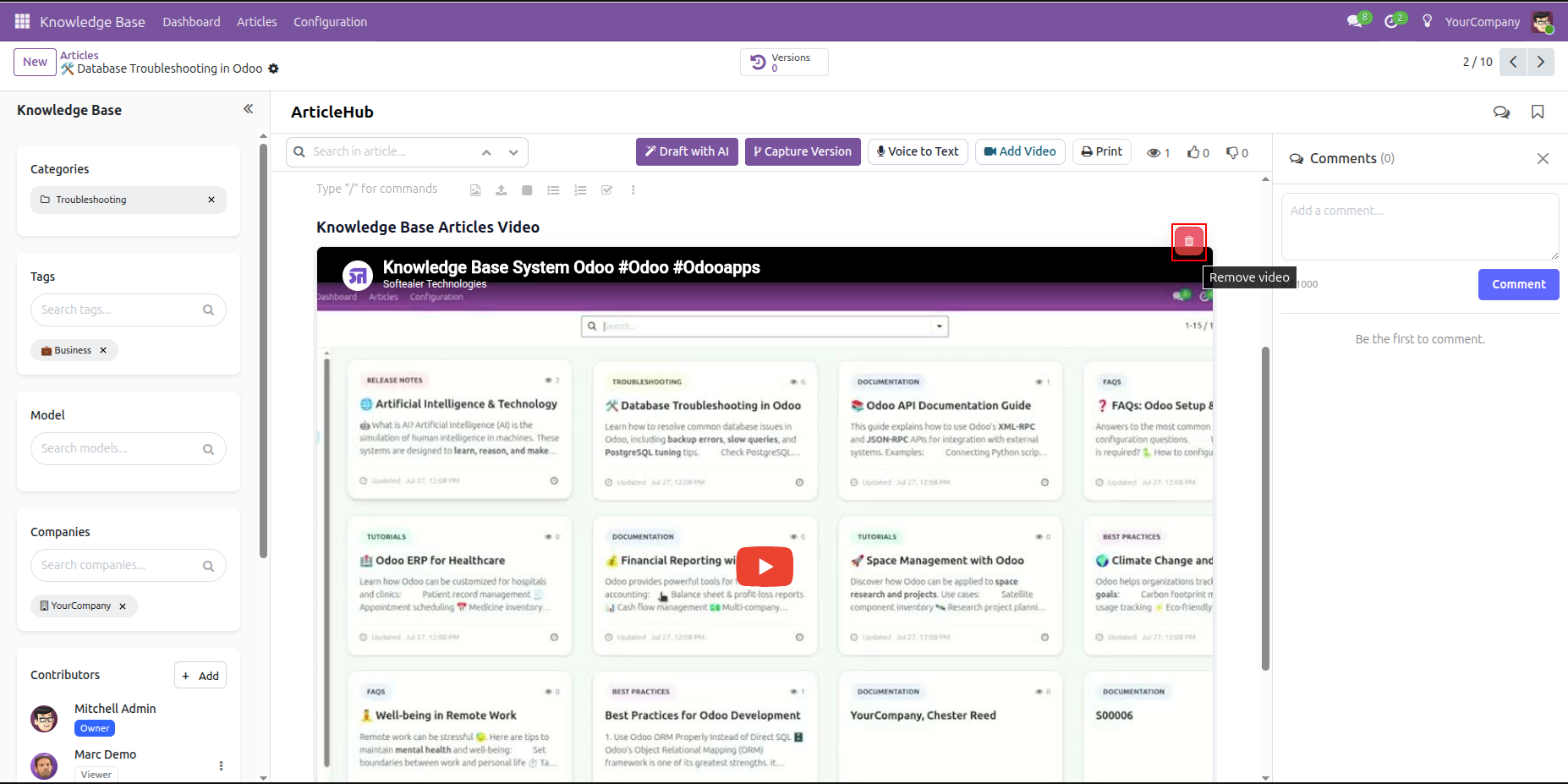
Use the Remove video button on the embedded video when the video should be deleted from the article.
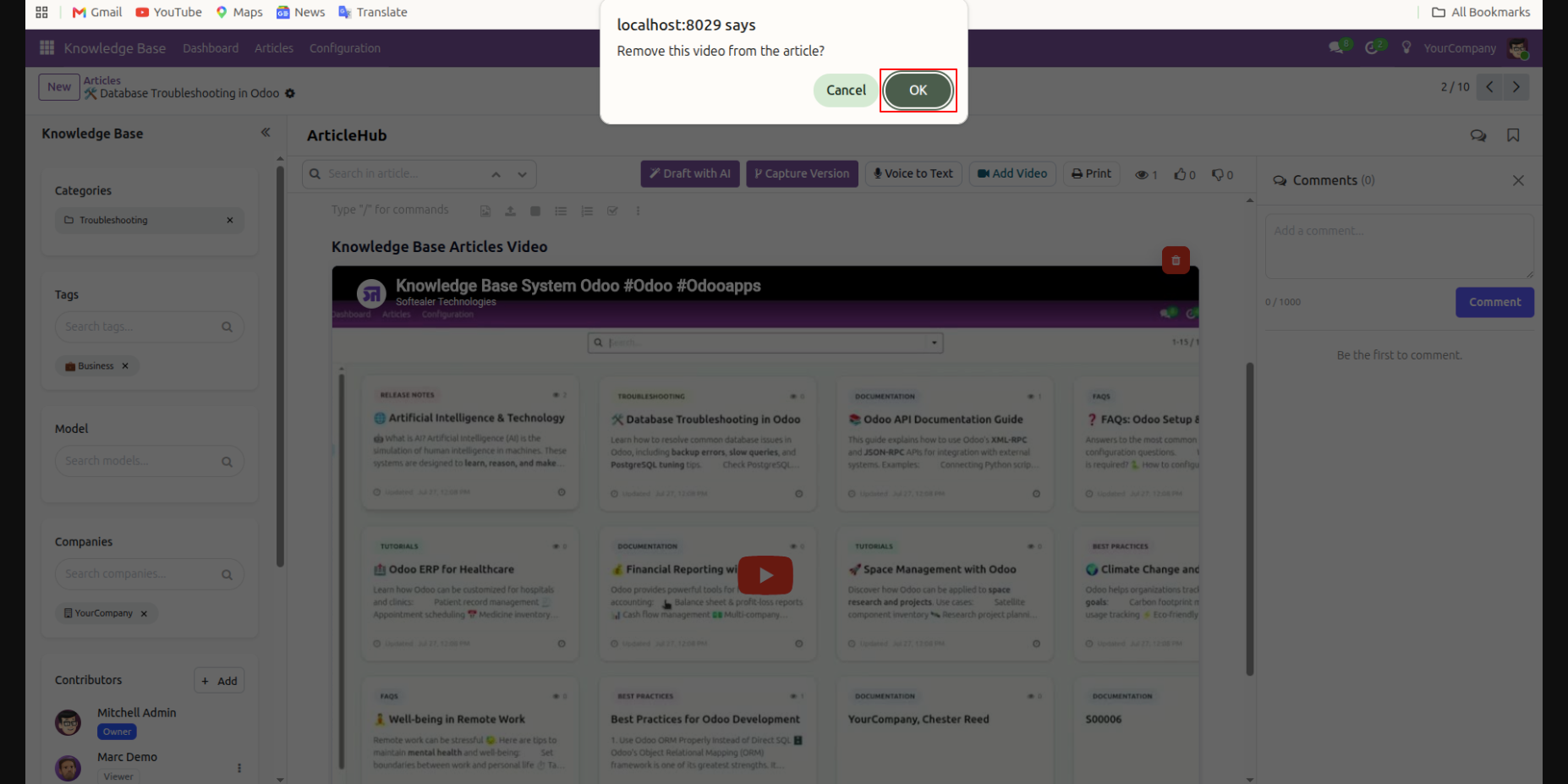
Confirm the removal by selecting OK in the confirmation dialog displayed for the selected video.
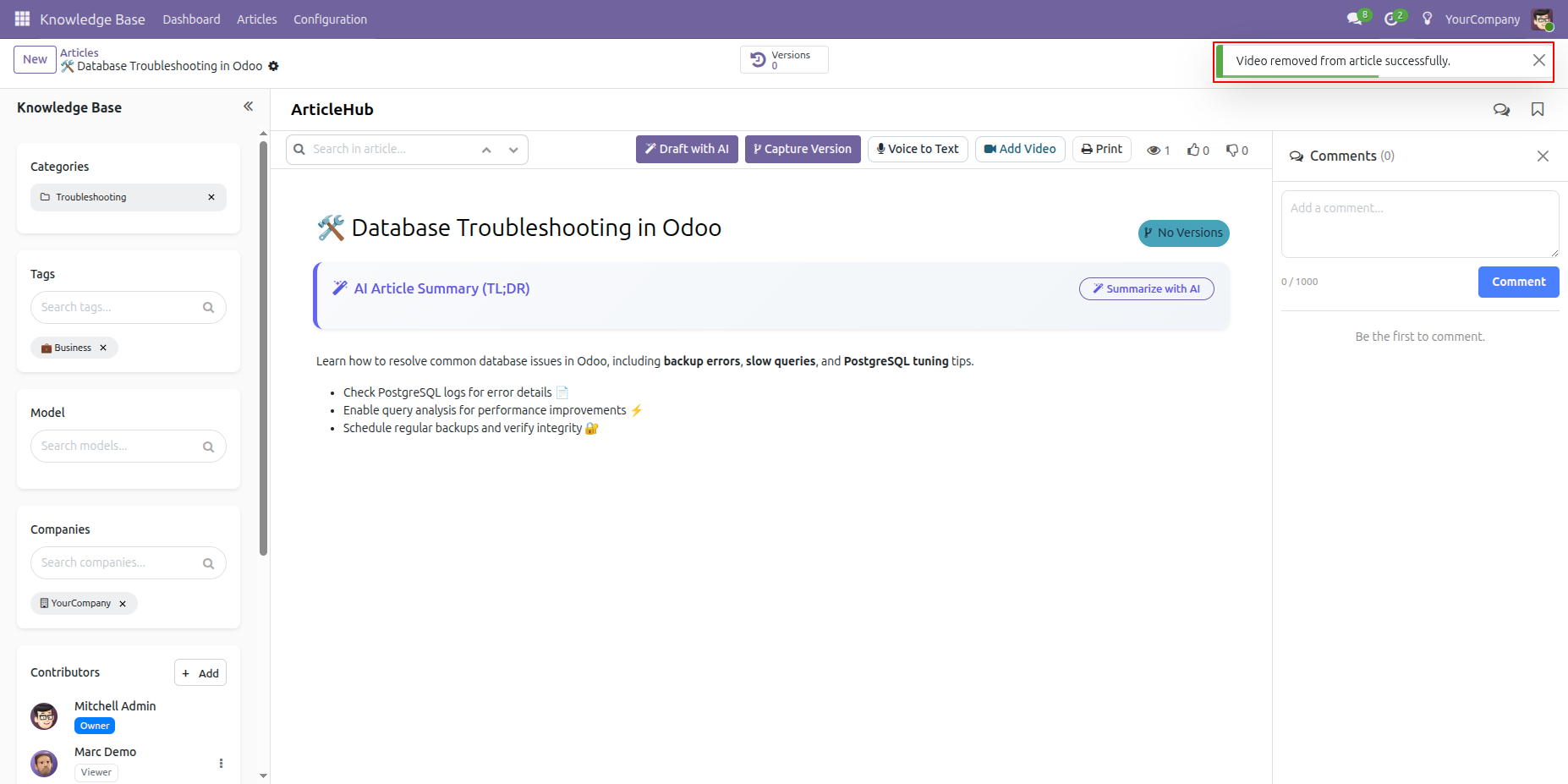
After confirmation, the article shows a notification stating that the video was removed successfully.
Version 19.0.8.0.0 | Released on : 8th October 2026
Version 19.0.7.0.0 | Released on : 10th September 2026
Version 19.0.6.0.0 | Released on : 17th August 2026
Version 19.0.5.0.0 | Released on : 8th June 2026
Version 19.0.4.0.0 | Released on : 11th February 2026
Version 19.0.3.0.0 | Released on : 30th January 2026
Version 19.0.2.0.0 | Released on : 24th December 2025
Version 19.0.1.0.0 | Released on : 06th November 2025
- Yes, this app works perfectly with Odoo Enterprise (Odoo.sh & Premise) as well as Community.
- No, this application is not compatible with odoo.com(odoo saas/Odoo Online)
- Yes, to test this module, please contact us at sales@softhealer.com.
- Please contact us at sales@softhealer.comto request customization.
- Yes, we provide free lifetime support for the version you purchased.
- Yes, you will receive lifetime free updates for the version of the module you purchased.
- No, there is no need to install any additional libraries.
- Yes, for version 12 and above, you need to purchase the module separately for each version you intend to use.
- No, exchanges or refunds are not allowed. Please make sure to select the correct version before purchasing.
- You can contact us at support@softhealer.com for language translation support. We use Google Translator tools to provide translations in multiple languages, so the accuracy may vary. We welcome your suggestions to help improve translations.
Discover Our Latest Apps