












Jewellery Business Management System

The Jewellery Business Management System for Odoo helps you efficiently manage jewellery products, metal types, purities, making charges, wastage, stone details, and hallmark certificates. With seamless integration across Sales, Purchase, Manufacturing, and POS, it automates price calculations based on metal weight, purity, and making charges, streamlining your entire jewellery business from inventory to sales.

Features

Interactive Dashboard
Monitor Jewellery sales, inventory, orders, and business performance from a centralized dashboard.

Metal Purity Management
Configure and manage different metal purity levels for Jewellery products.
Size Management
Define and manage Jewellery sizes for different Jewellery products.

Retail Category Management
Organize Jewellery products using configurable retail categories.

Hallmark & Certification Management
Manage hallmark information and certification details for Jewellery items.
Design Catalogue
Maintain a centralized catalog of Jewellery designs for easy product management.

Making Charges Management
Calculate making charges for different Jewellery products.
Wastage Calculation
Calculate metal wastage during Jewellery pricing.

Dynamic Price Calculation
Calculate Jewellery prices dynamically based on metal rates, making charges, wastage, and stones.
Price List Management
Create and manage multiple Jewellery price lists.

Stone Management
Maintain waight and prices about stones/diamond used in Jewellery products.

Custom Order Management
Handle customer-specific Jewellery orders with customized designs and specifications.
Purchase Order Management
Manage Jewellery purchase orders and supplier procurement processes.
Sales Order Management
Create and manage Jewellery sales orders with dynamic pricing support.

Manufacturing Order Management
Manage Jewellery manufacturing workflows from raw materials to finished products.
POS Order Management
Process Jewellery sales efficiently through the integrated Point of Sale system.
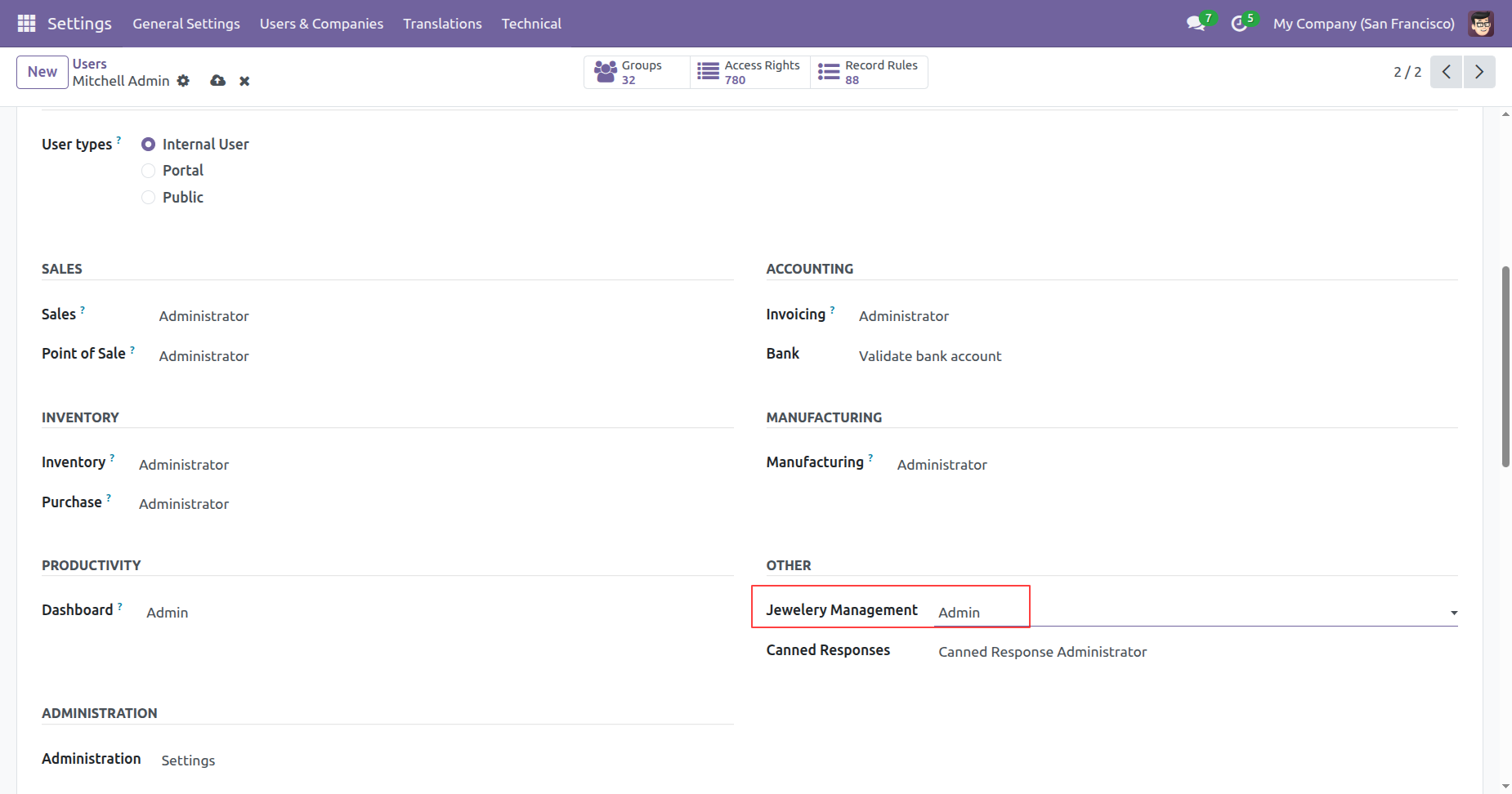
Define specific user groups and access rights (Administrator, Manager, User) for Jewellery Business Management System functions under user settings.
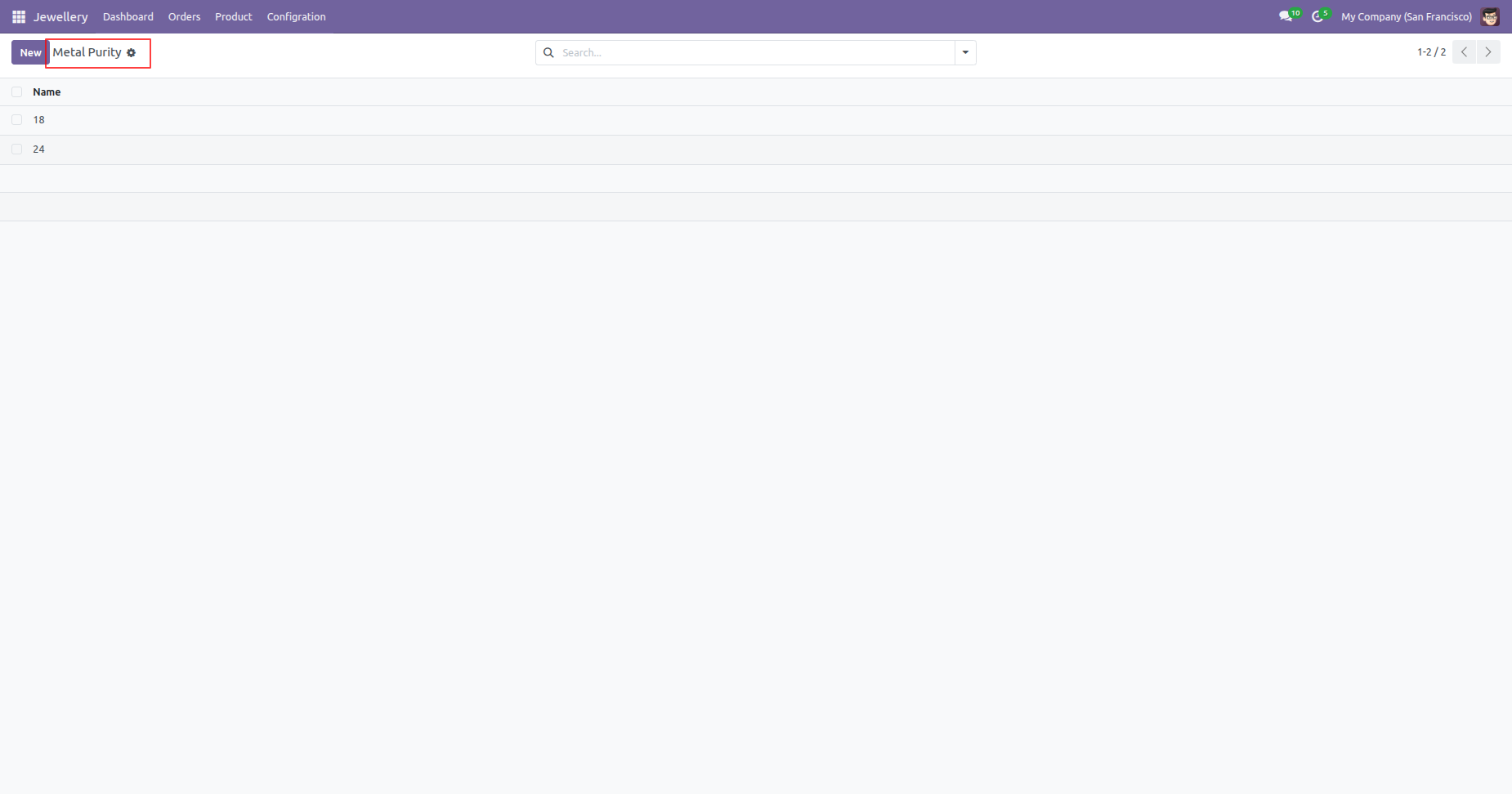
Go to the Configuration menu and select the Metal Purity submenu to create and manage metal purity levels or carat values.
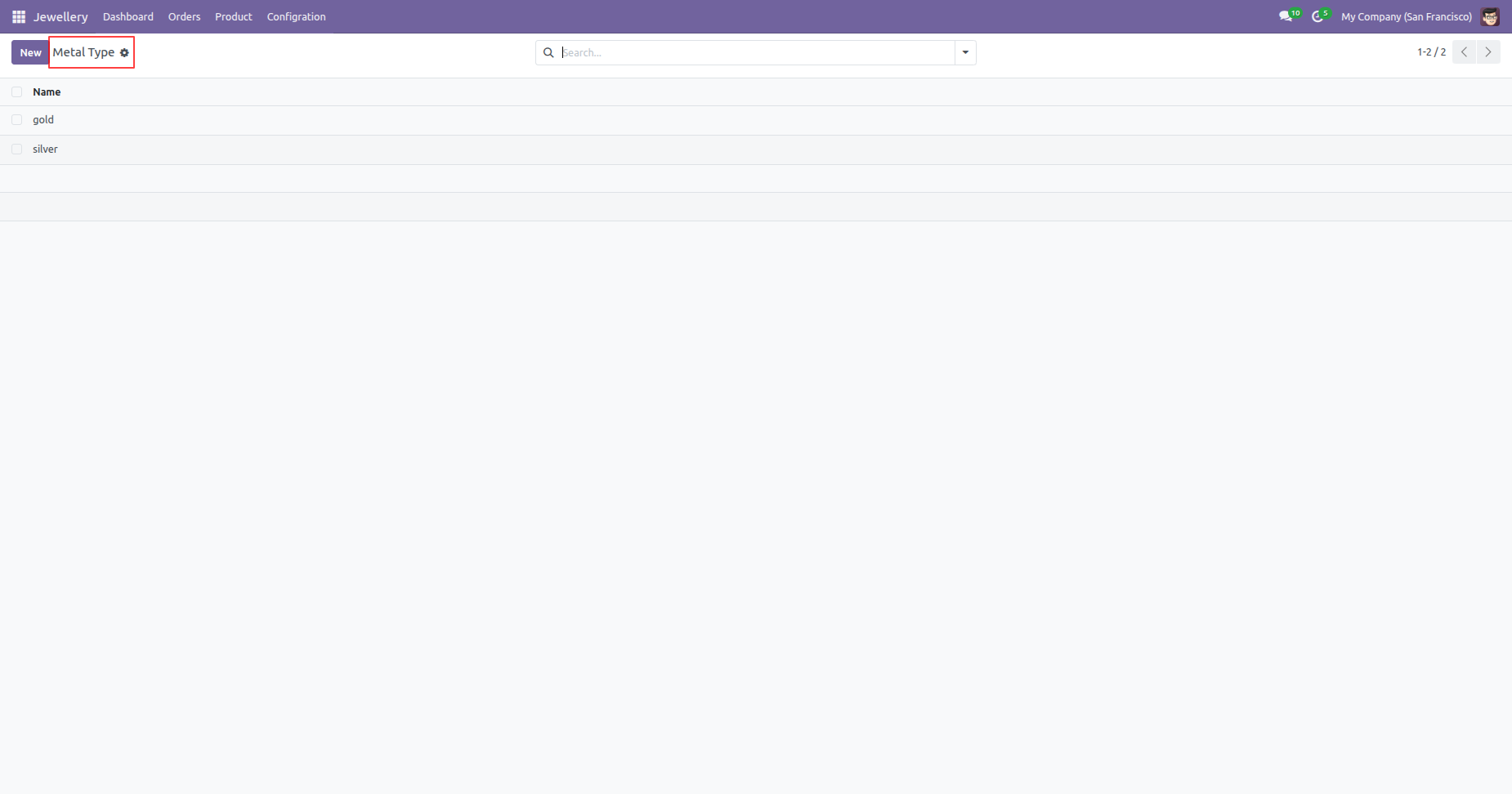
Go to the Configuration menu and select the Metal Type submenu to create and manage metal types used in jewellery products.
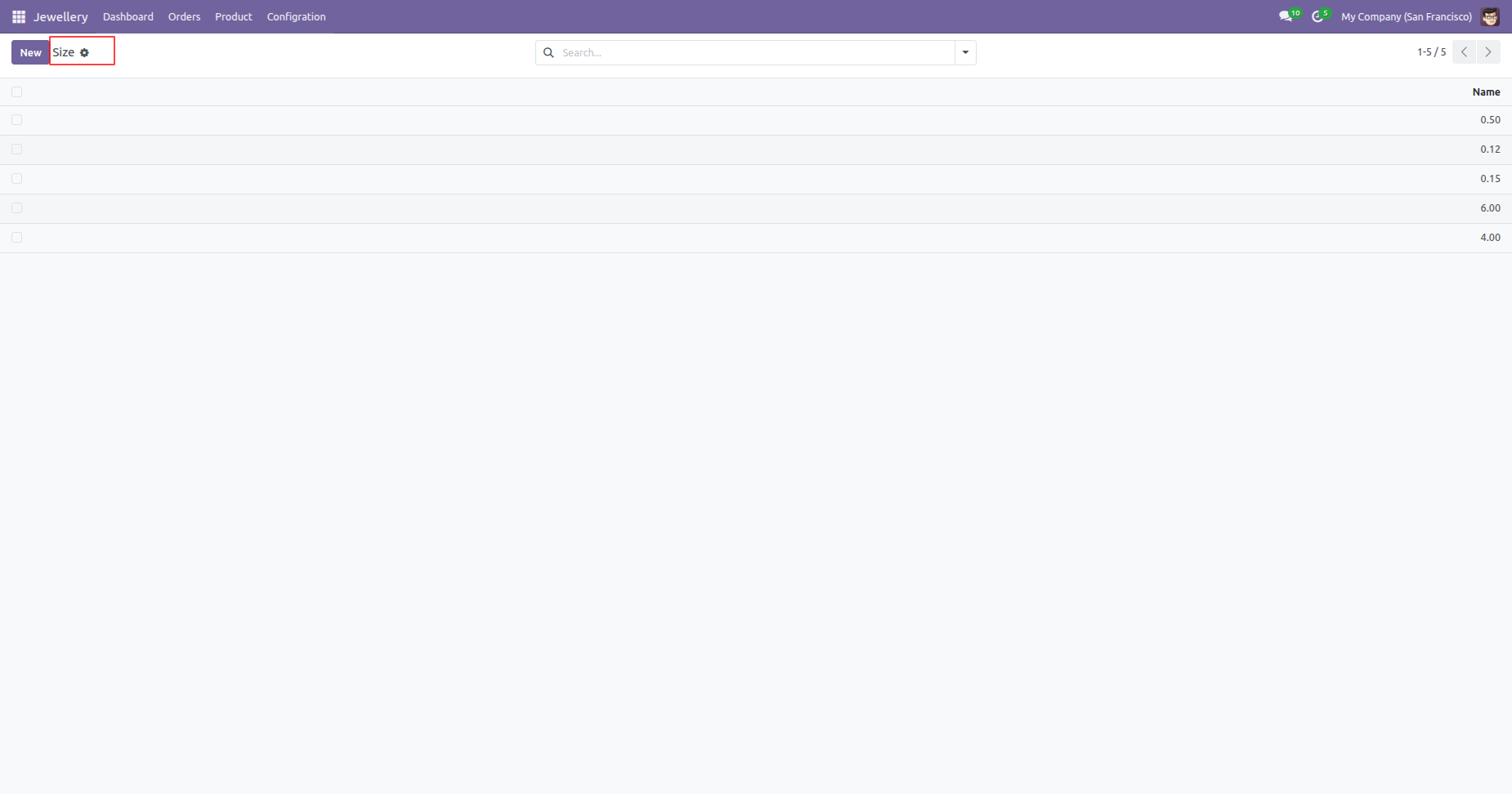
Go to the Configuration menu and select the Size submenu to create and manage general sizes used in jewellery products.
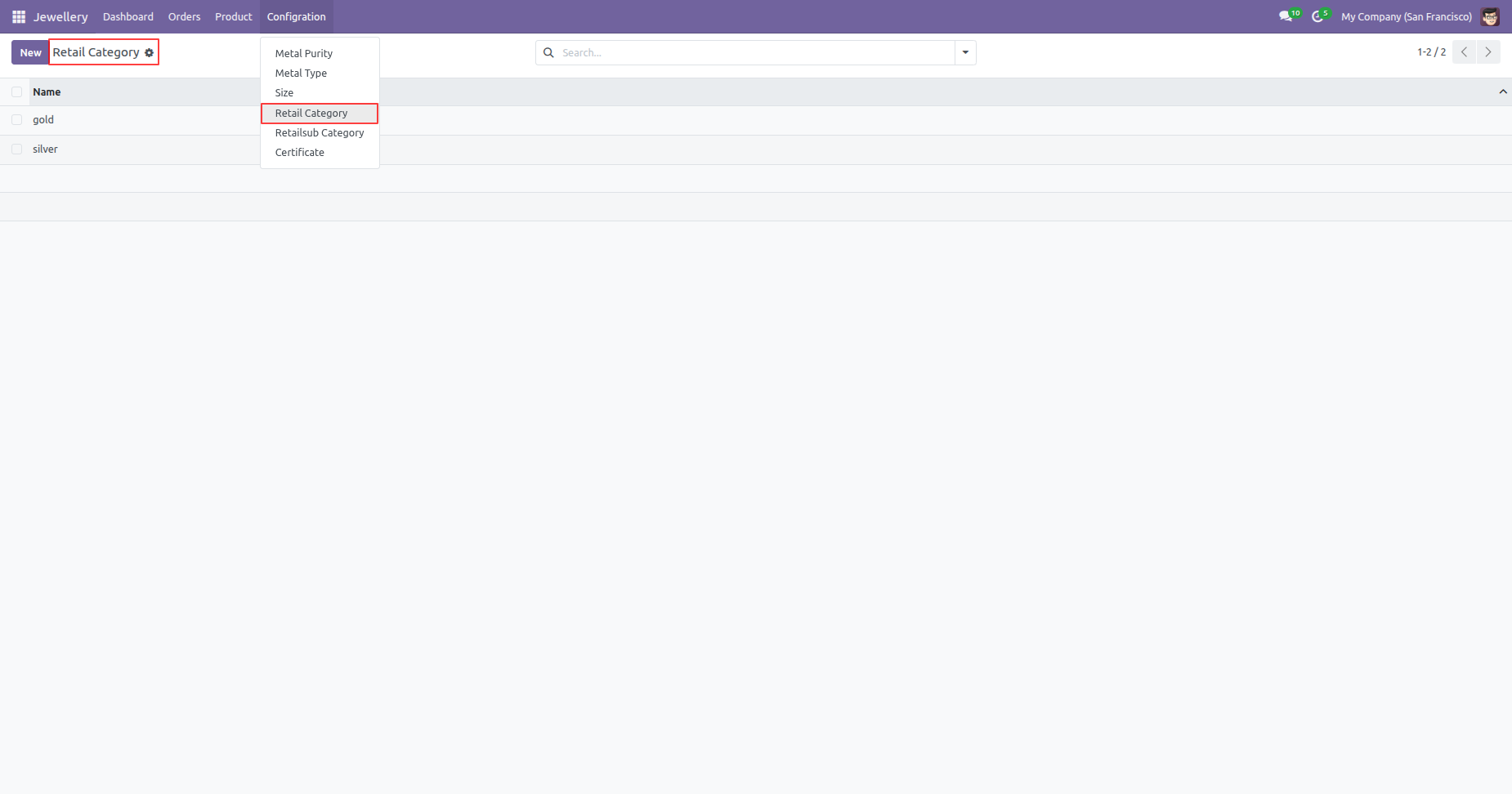
Go to the Configuration menu and select the Retail Categories submenu to create and manage retail categories for jewellery products.
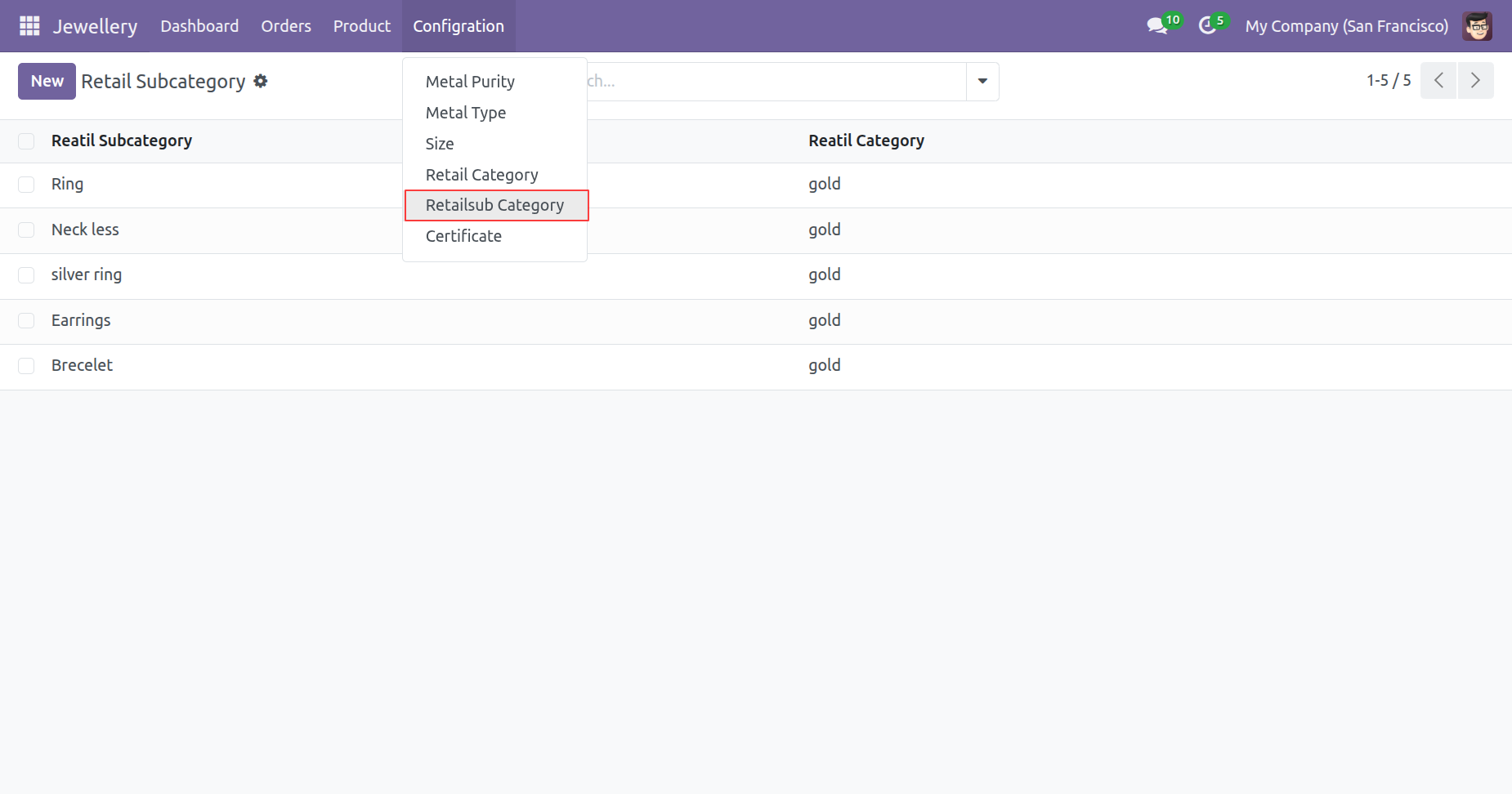
Go to the Configuration menu and select the Retail Sub Categories submenu to create and manage retail subcategories for jewellery products.
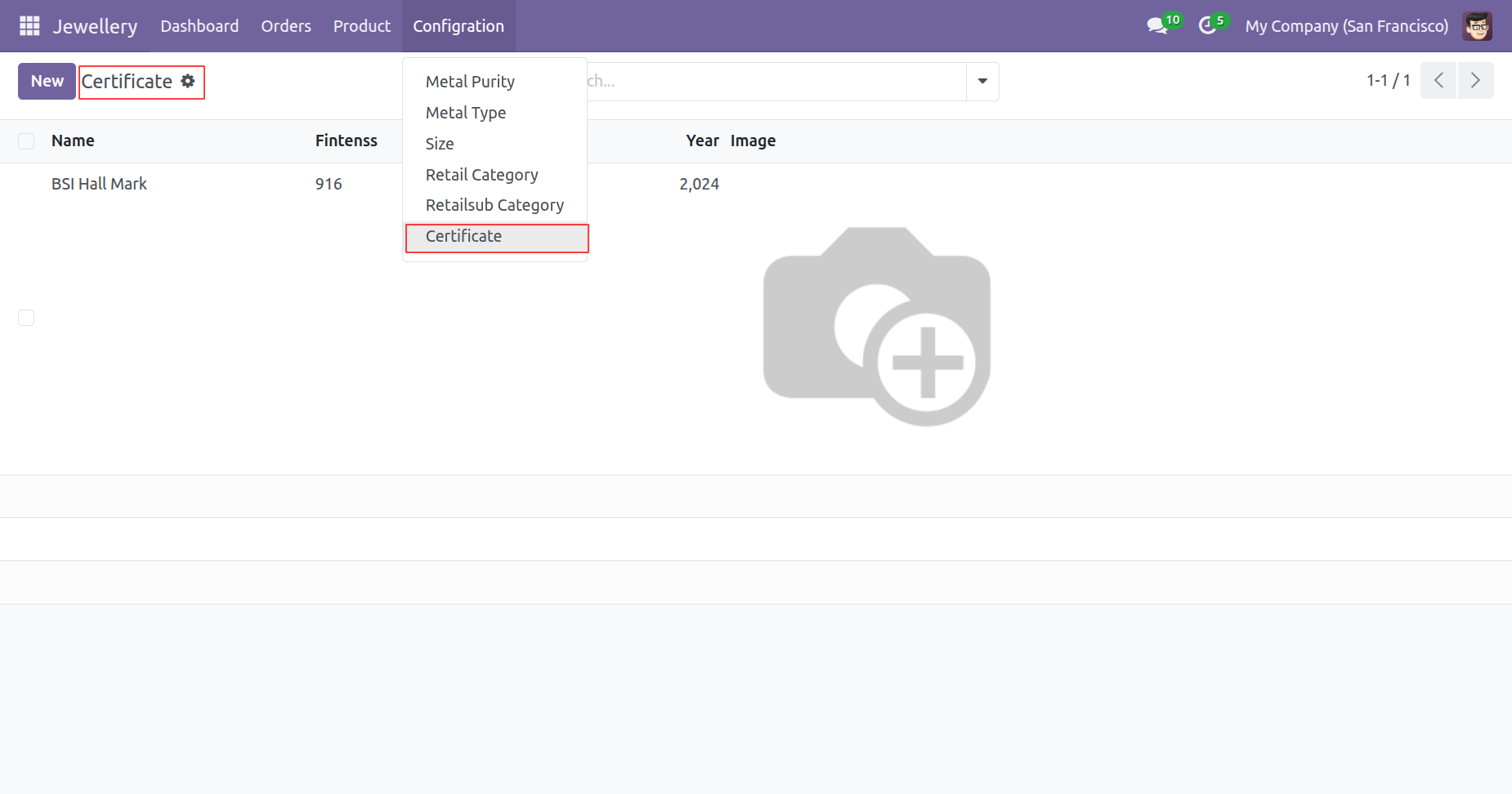
Go to the Configuration menu and select the Certificate submenu to create and manage hallmark and certification details, including the certificate name, information, issue year, image, and other related details.
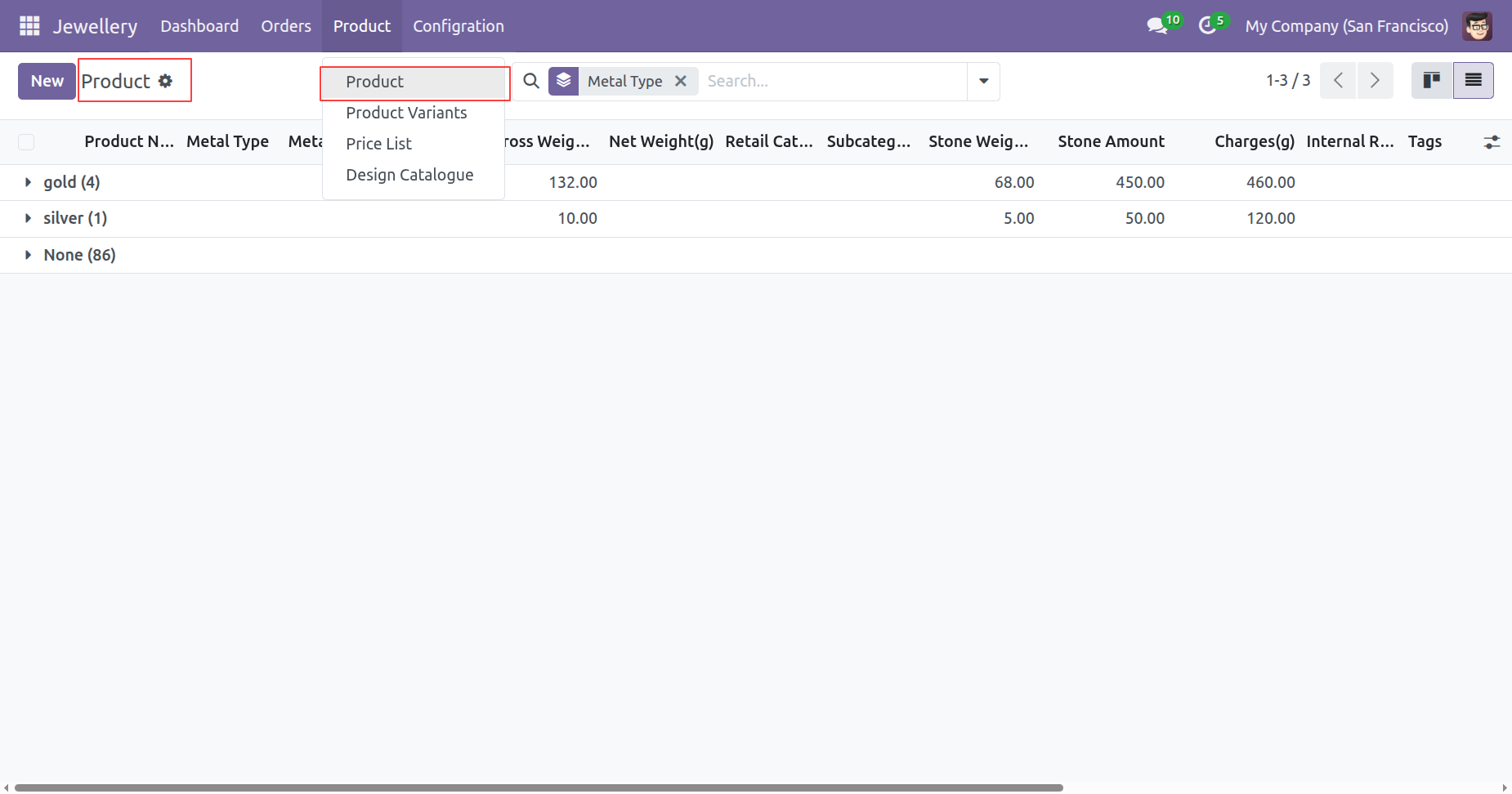
Go to the Products menu, where the Product List View is displayed with a default Group By -> Metal Type, making it easy to browse and manage products based on their metal type.
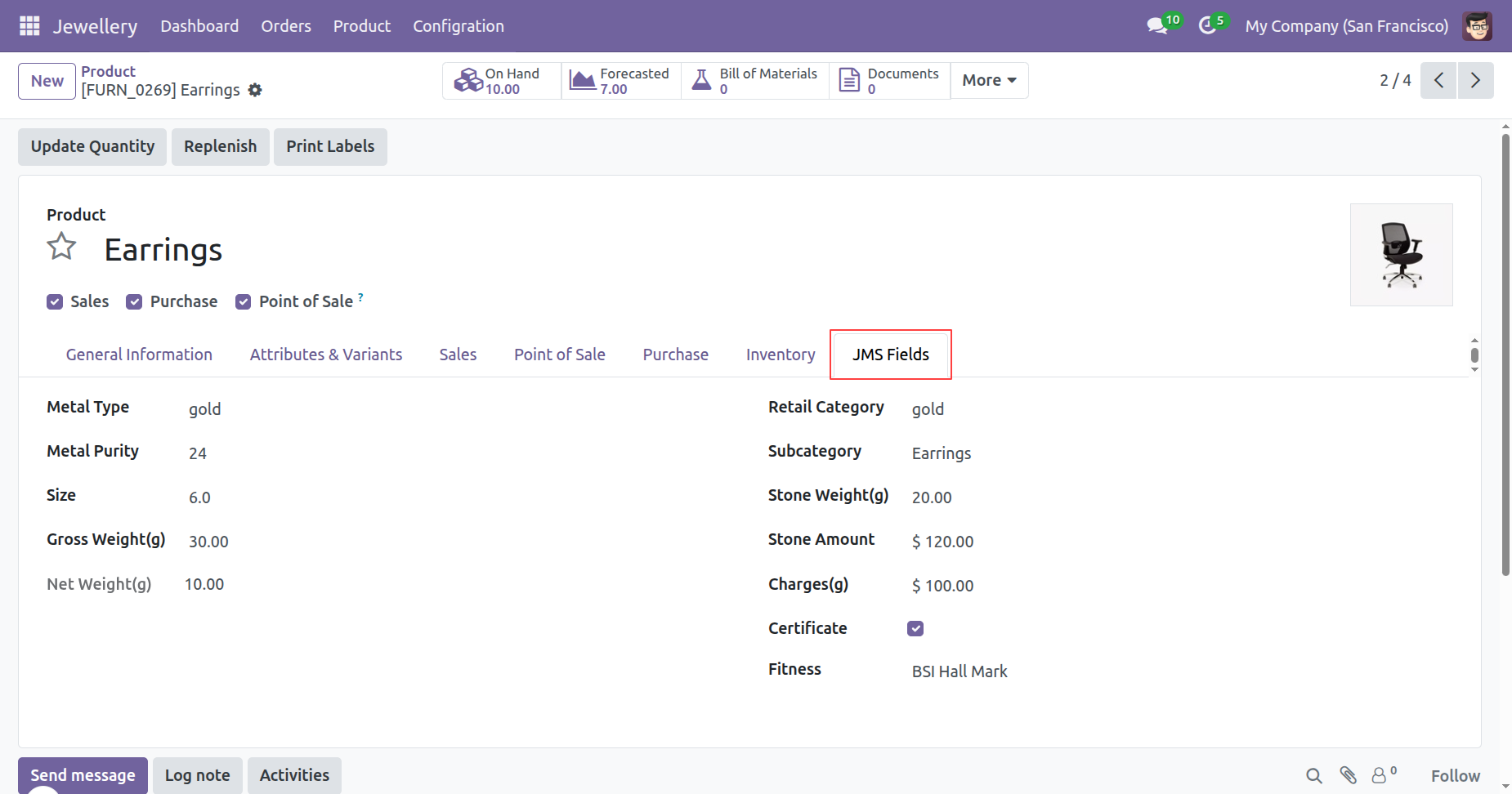
Custom 'JMS Fields' tab on the Product Template form to specify metal type, purity, size, weights, category, stone details, and certificate info.
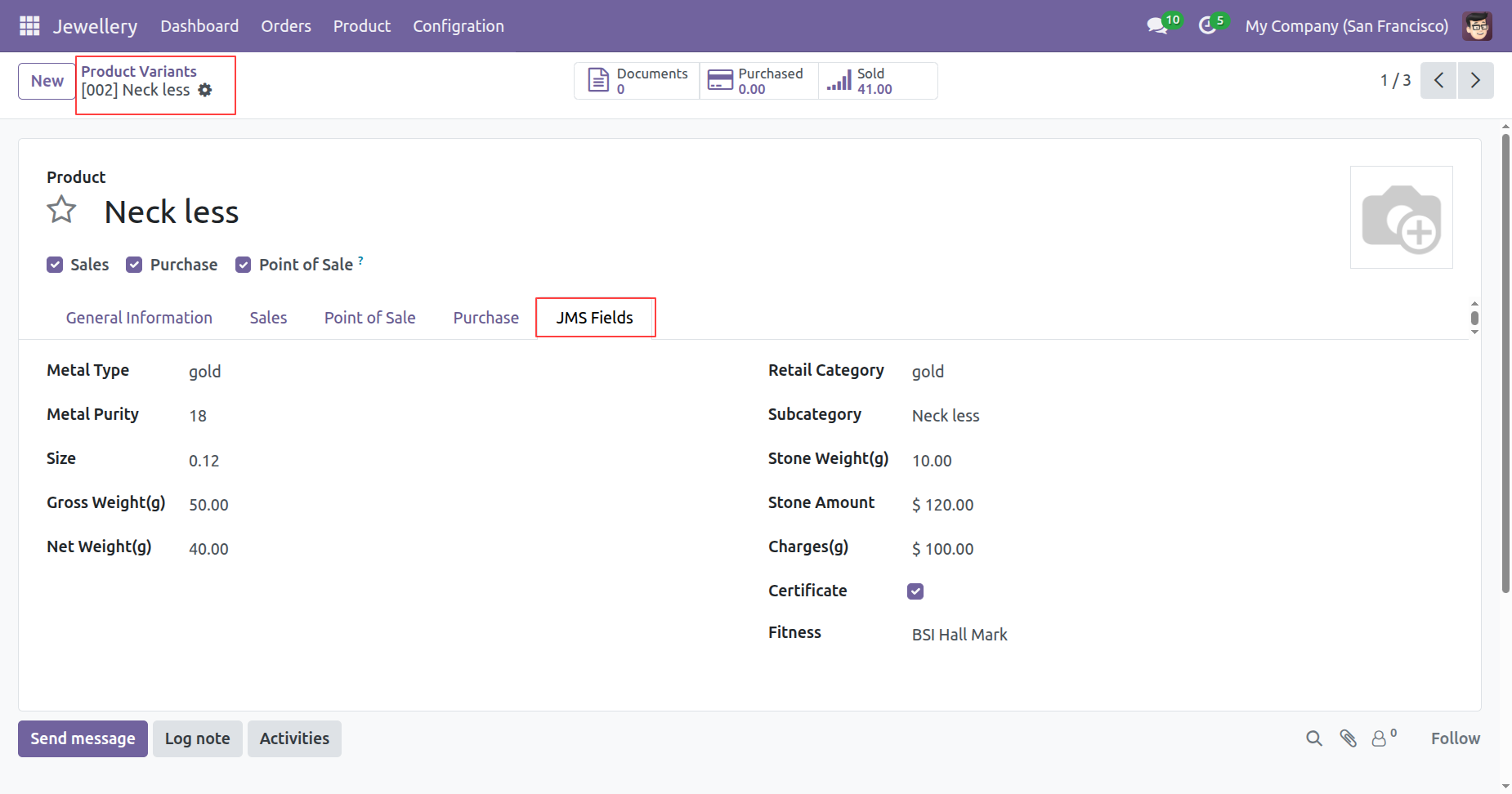
Specific Jewellery attributes and weights configured on individual product variants.
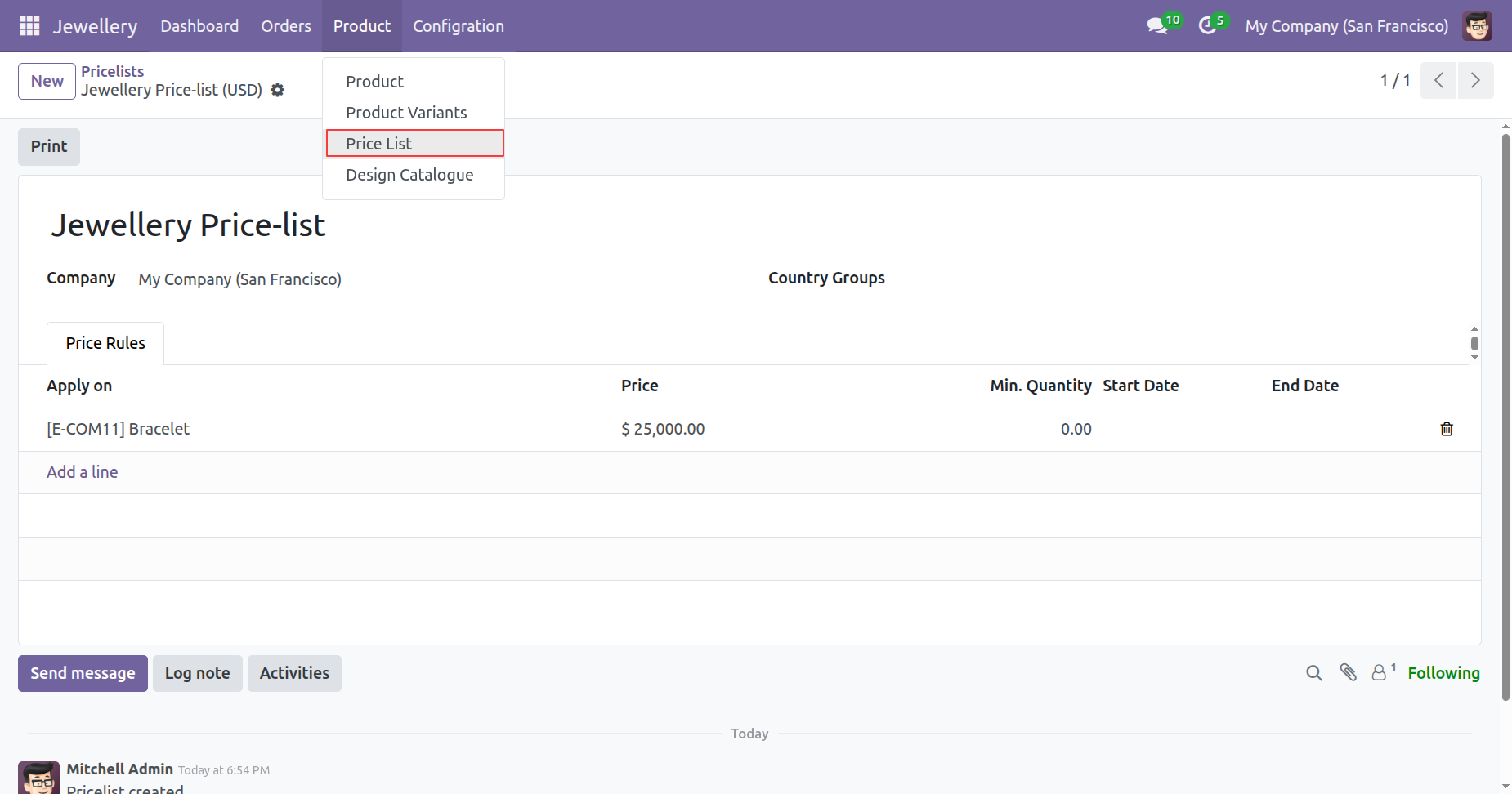
Define dynamic price rules for Jewellery products based on gold market rates and custom margins.
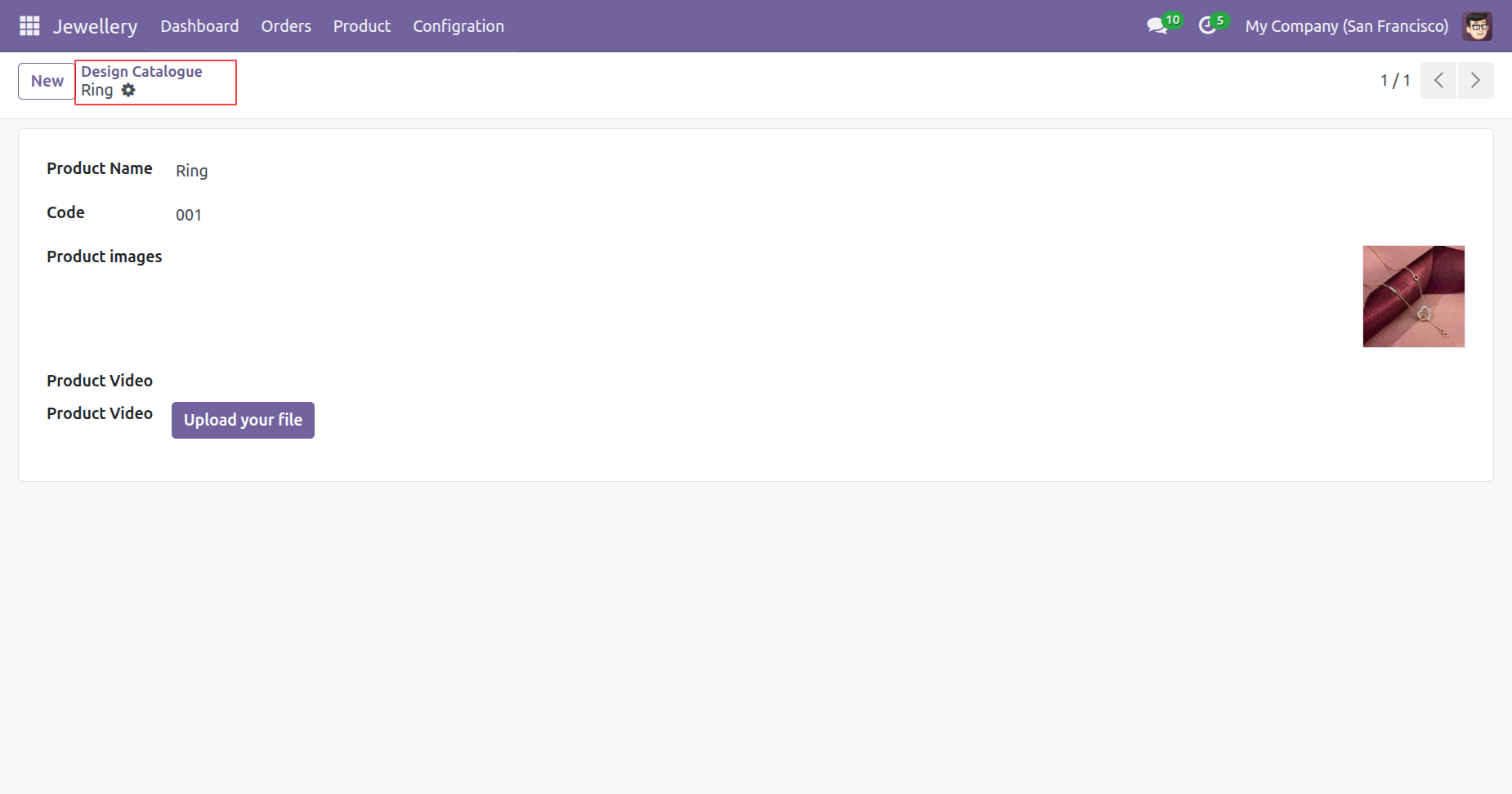
Go to the Design Catalogue menu to create and manage jewellery designs by adding the product name, design code, product image, and product video.
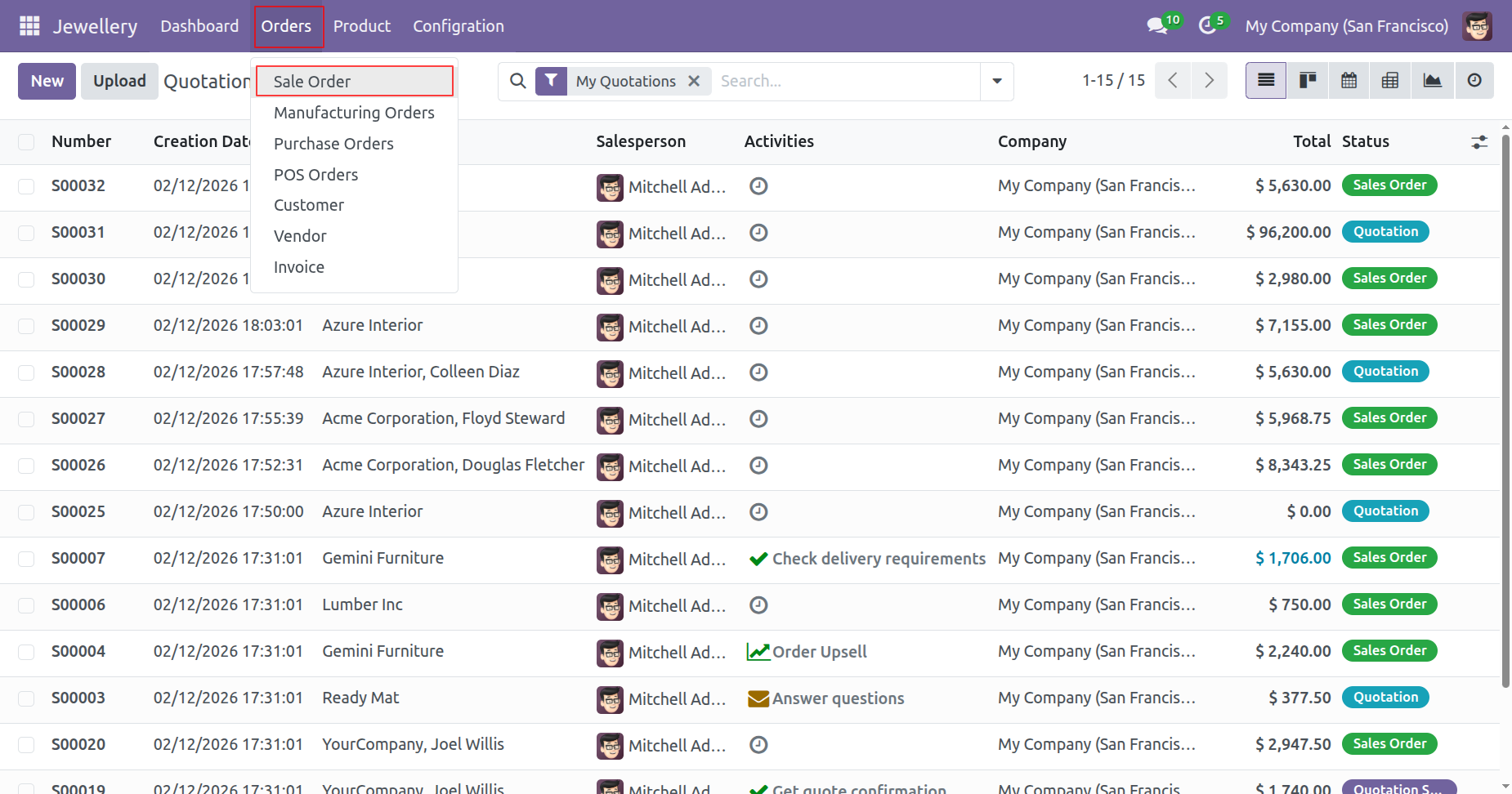
Go to the Orders menu and select Sales Orders to create and manage Sales Orders directly from the Jewellery Business Management System.
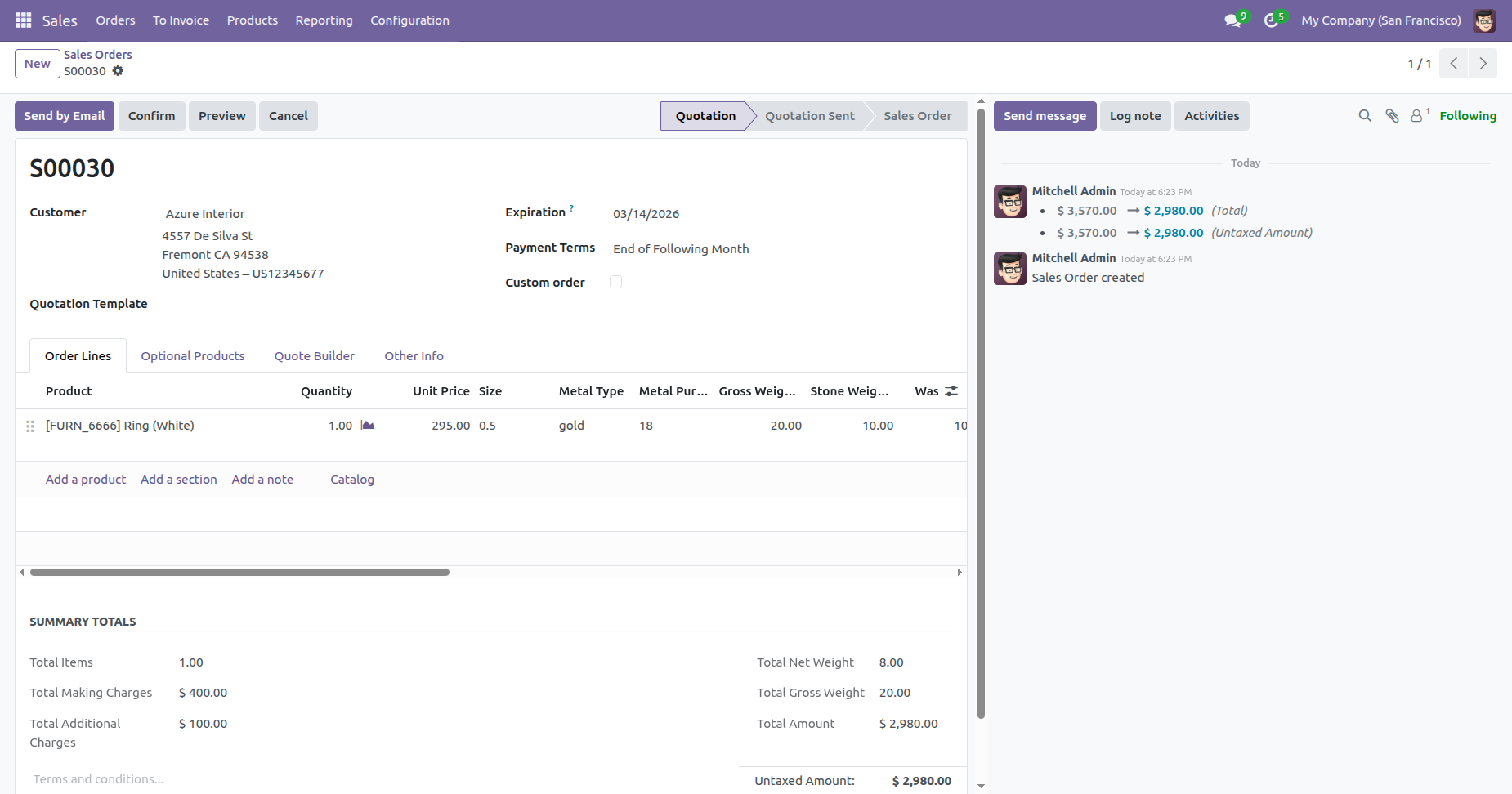
Create a Sales Order and add a jewellery product. The system automatically populates the order line with the related details, including Metal Type, Gross Weight, Stone Weight, Wastage (%), Wastage Amount, Stone Amount, Making Charges, Purity, and other applicable jewellery specifications.
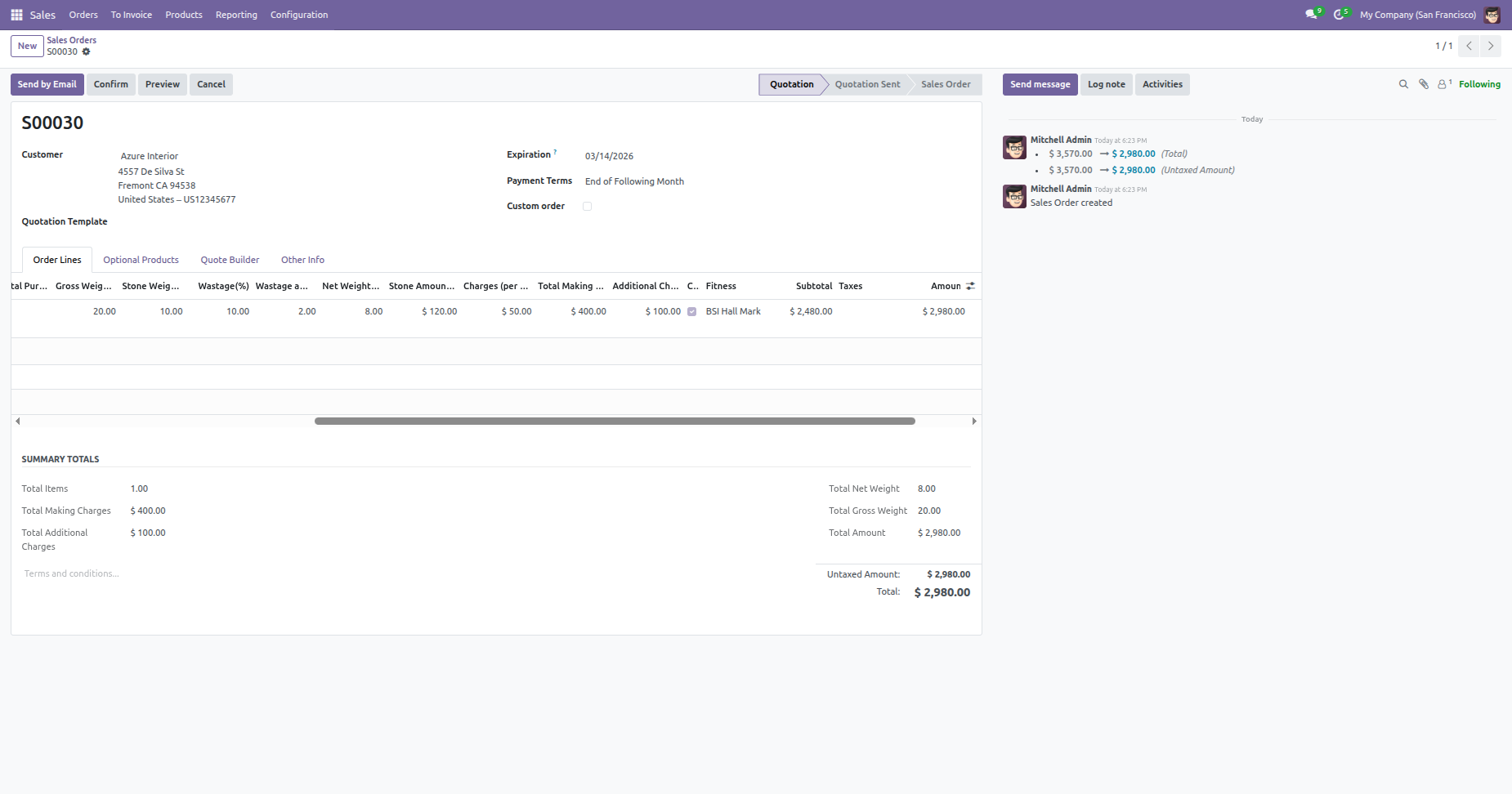
The Item Total, Making Charges, Additional Charges, Gross Weight, Net Weight, and Grand Total are automatically calculated from the order lines and displayed in the Sales Order Form View.
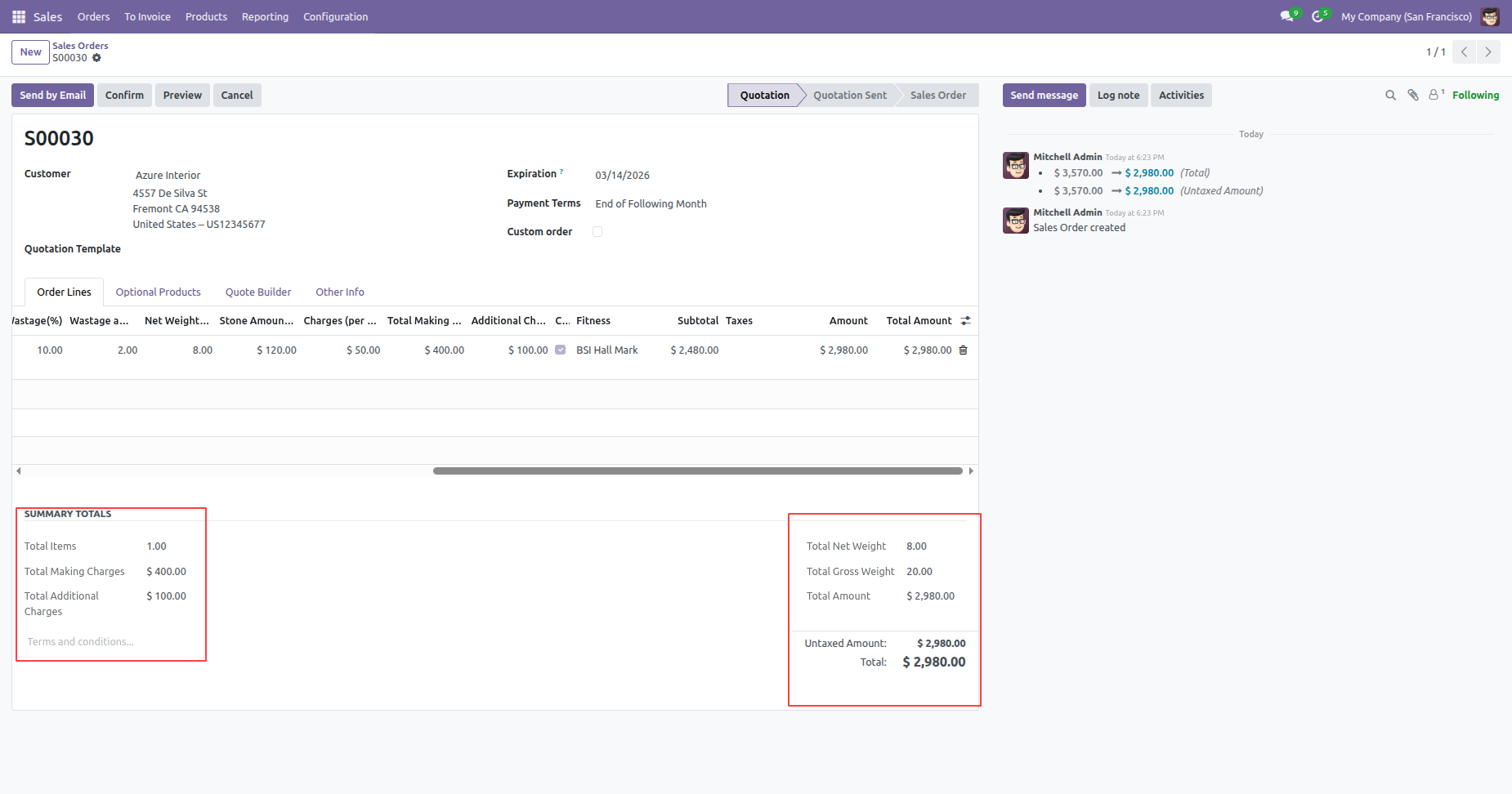
Click the Confirm button to confirm the Sales Order and proceed with the sales process.
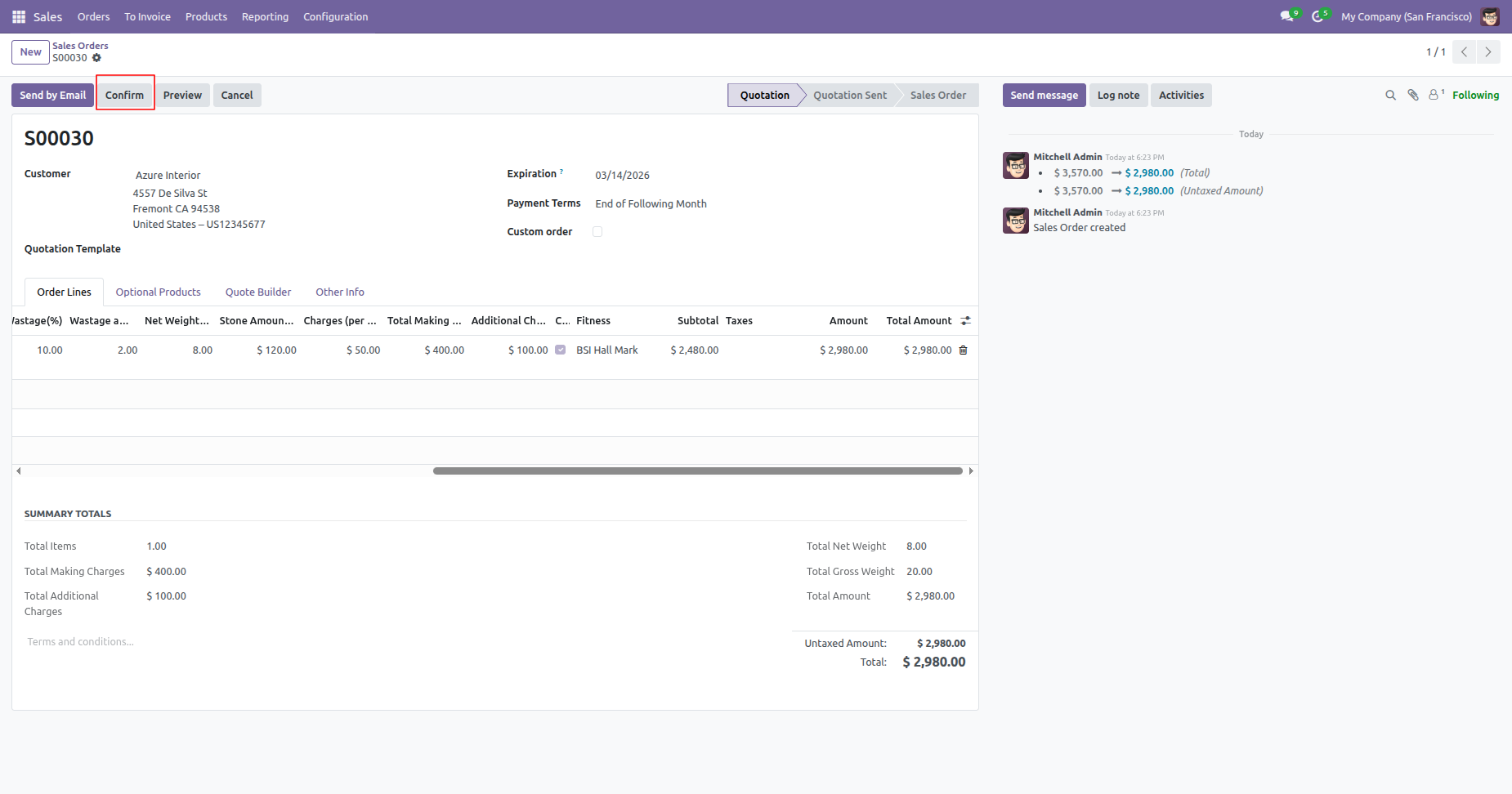
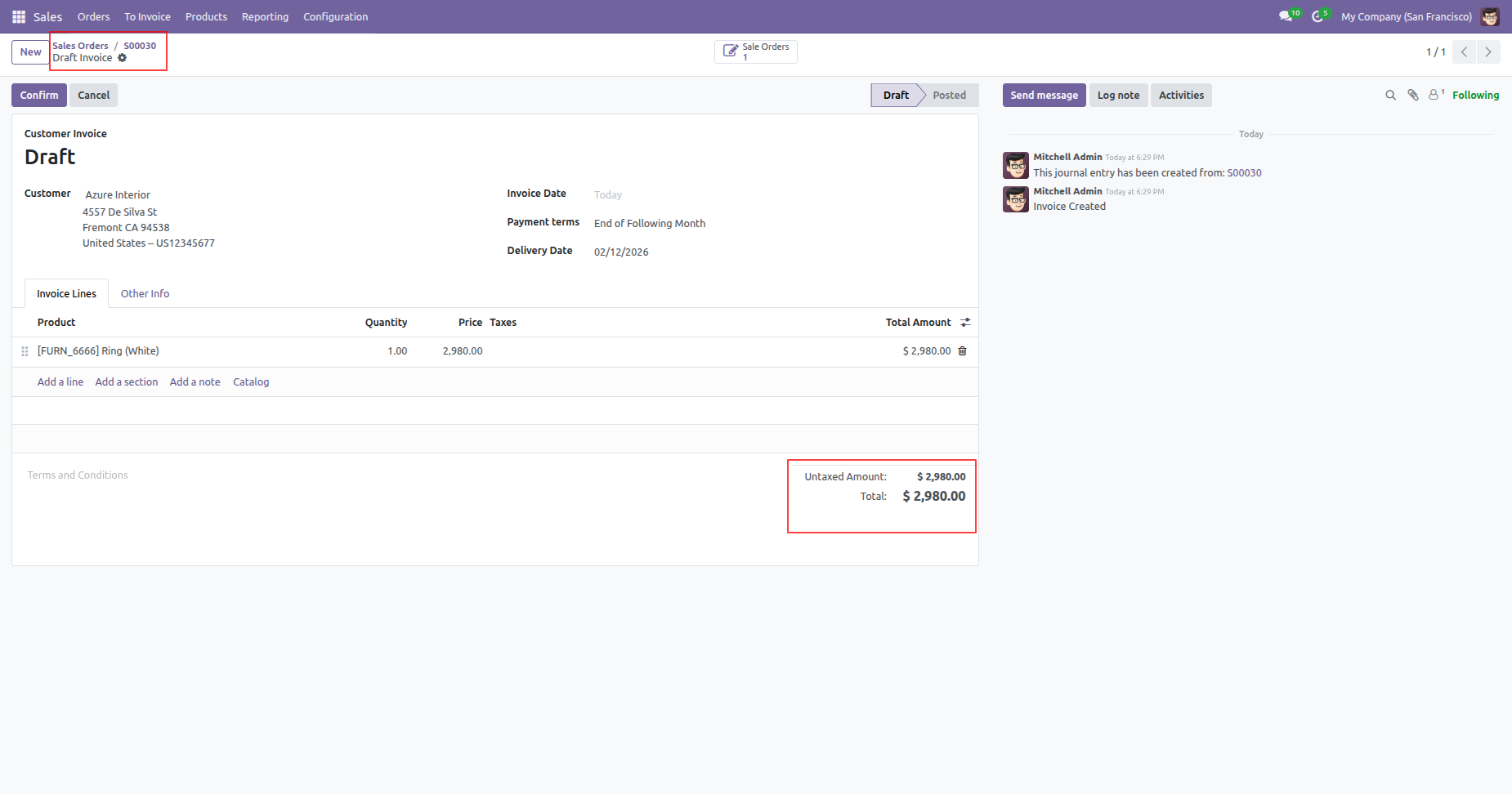
Upon confirming the Sales Order, the system automatically creates the corresponding Customer Invoice.
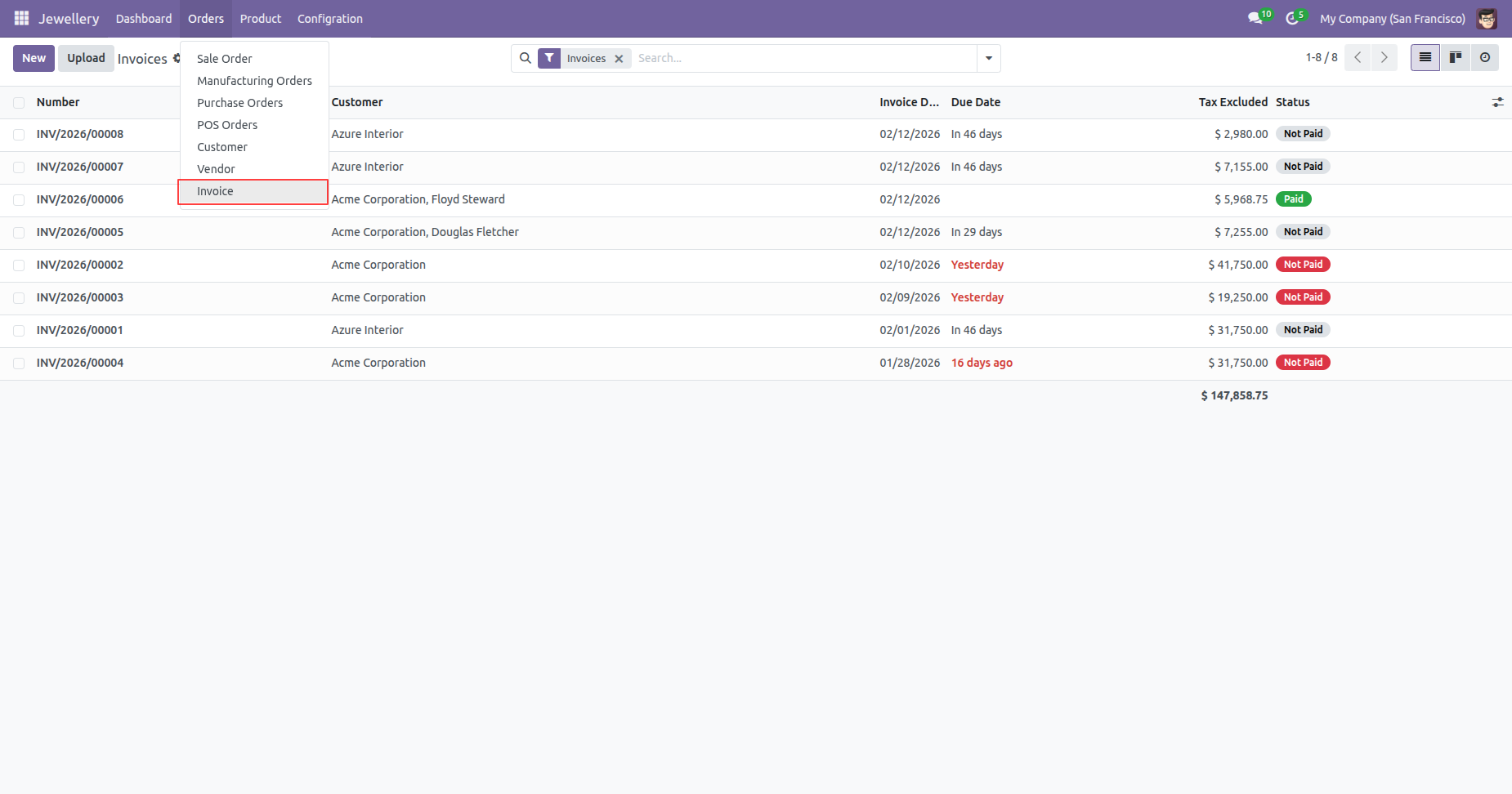
Go to the Orders menu and select Invoice to create and manage invoices records directly from the Jewellery Business Management System.
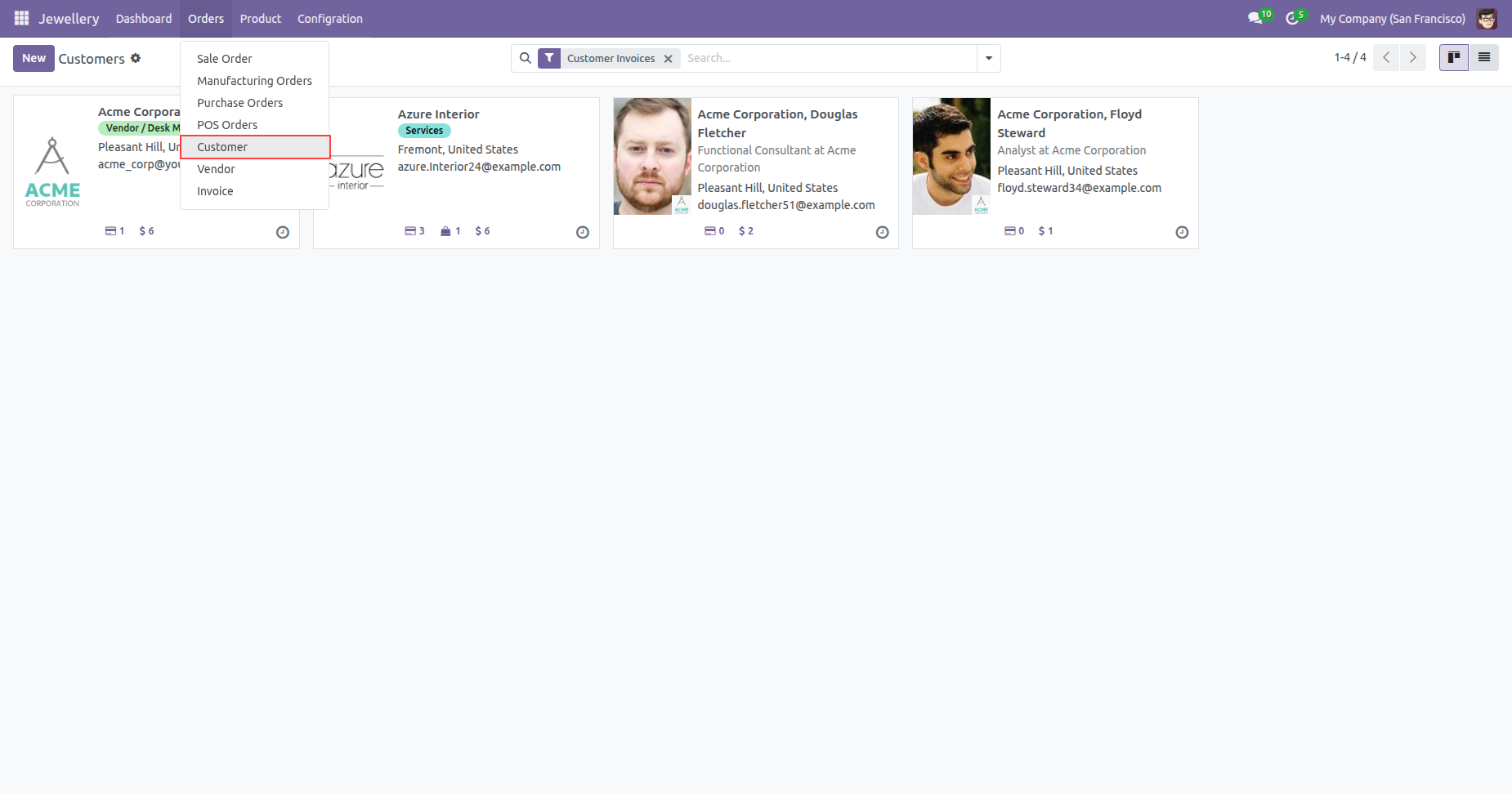
Go to the Orders menu and select Customer to create and manage customers records directly from the Jewellery Business Management System.
Go to the Orders menu and select Purchase Orders to create and manage Purchase Orders directly from the Jewellery Business Management System.
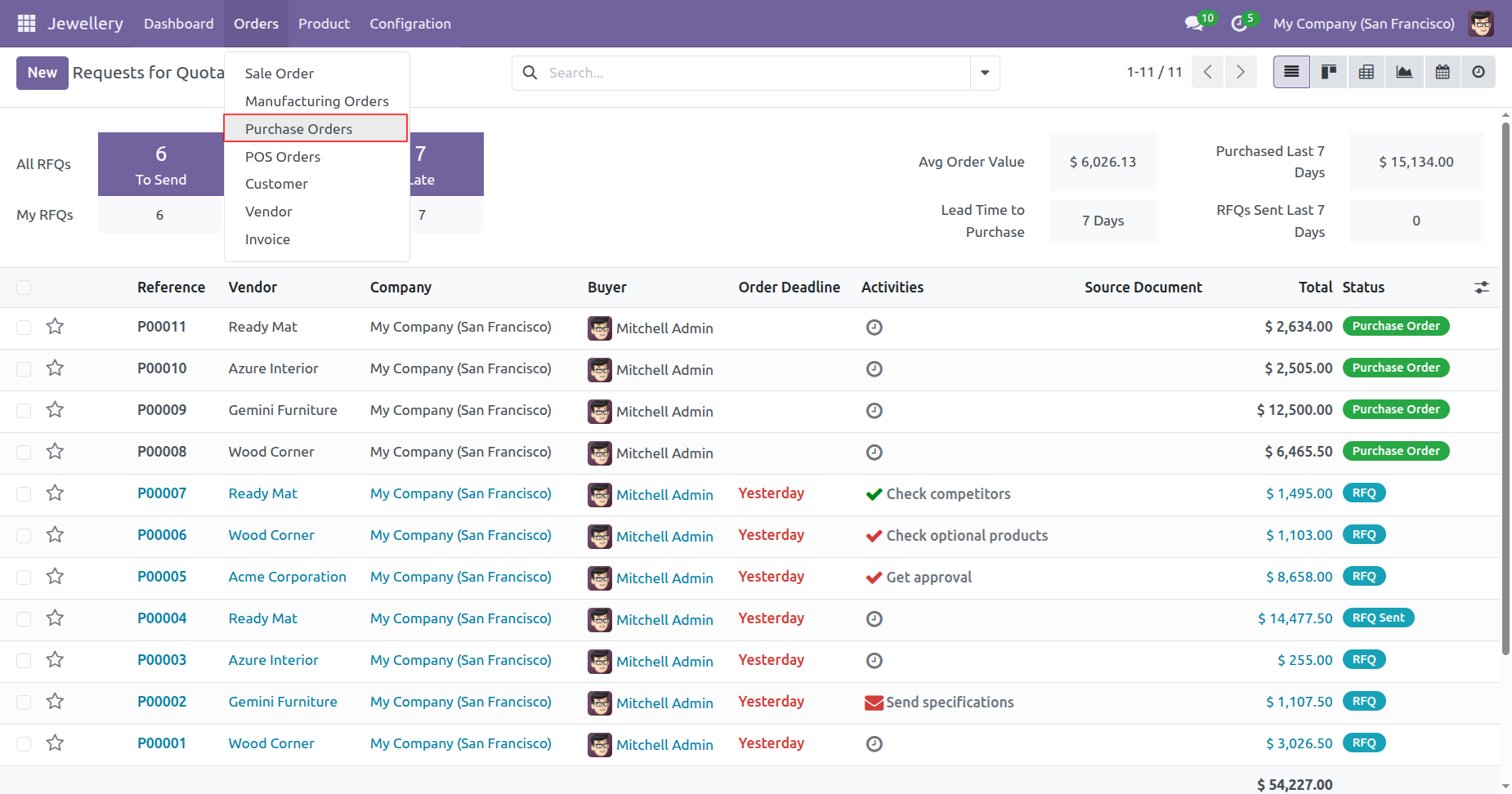
Create a Purchase Order by selecting a jewellery product or raw material, then specify the metal type, weight, purity, stone details, and other required specifications before sending the order to the supplier.
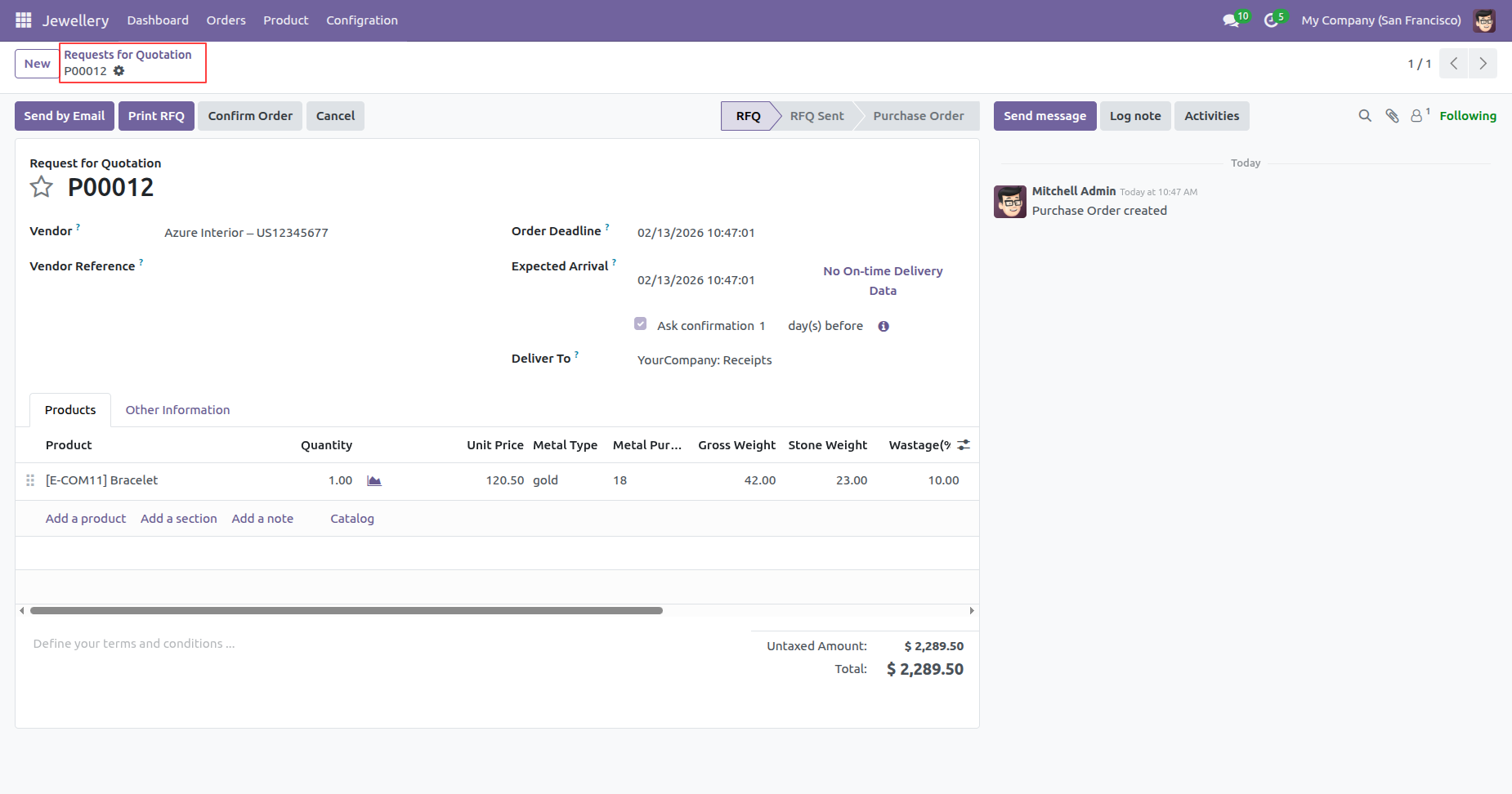
Go to the Orders menu and select Vendors to create and manage vendor records directly from the Jewellery Business Management System.
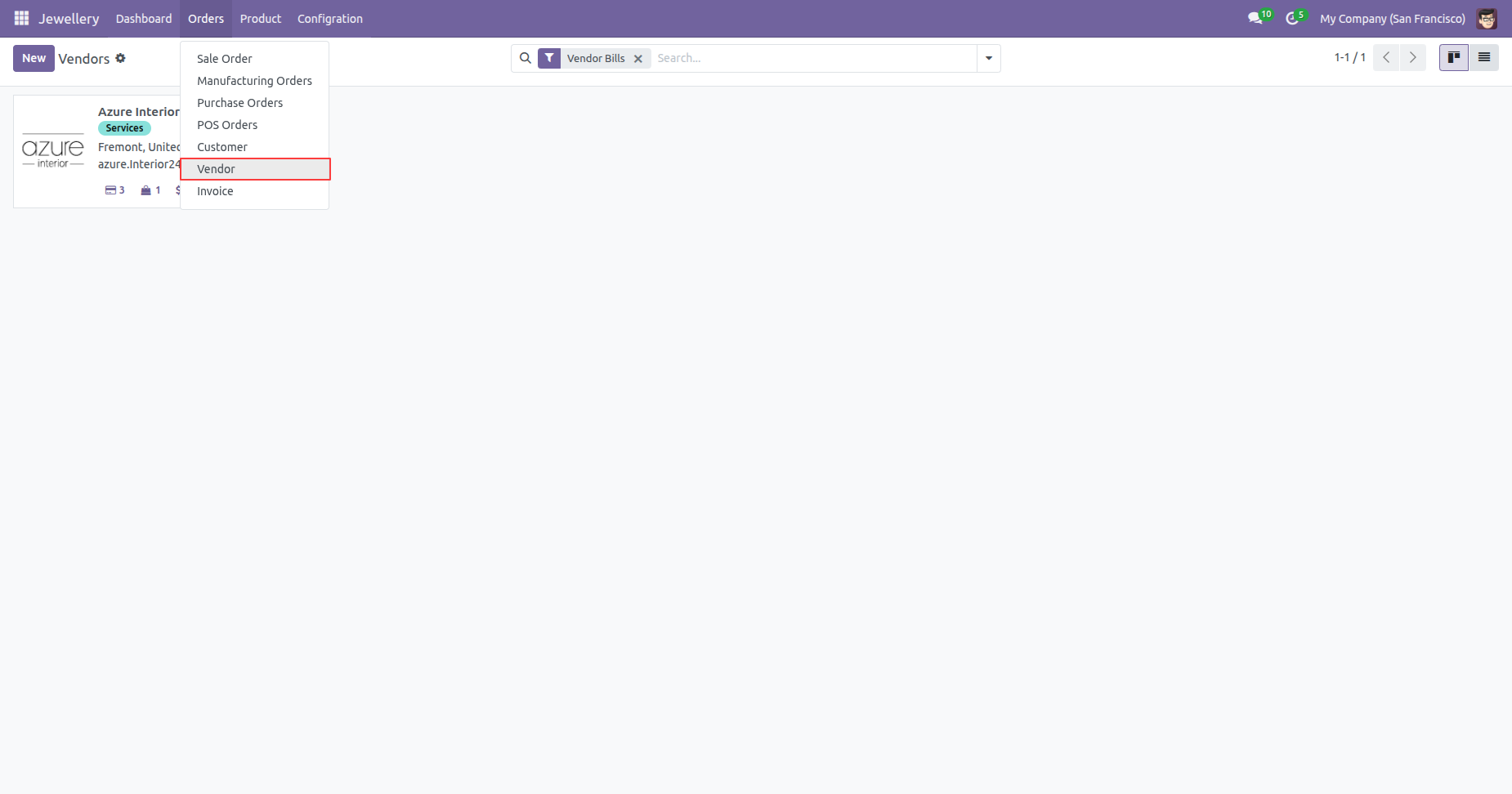
Go to the POS Shop to create and process jewellery sales through the Point of
Sale interface.
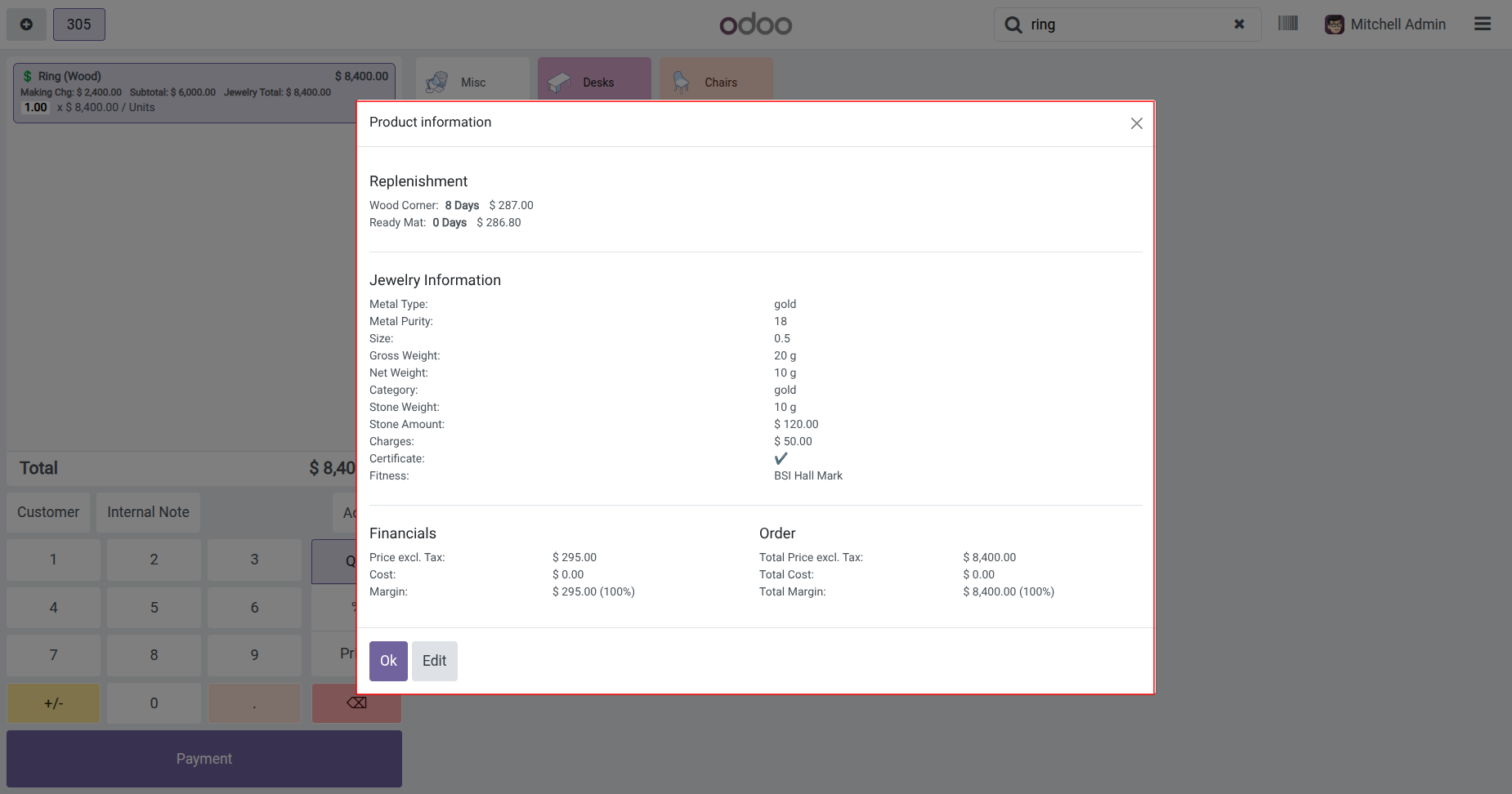
Search for the jewellery product in the POS Shop, then click the Product
Info.
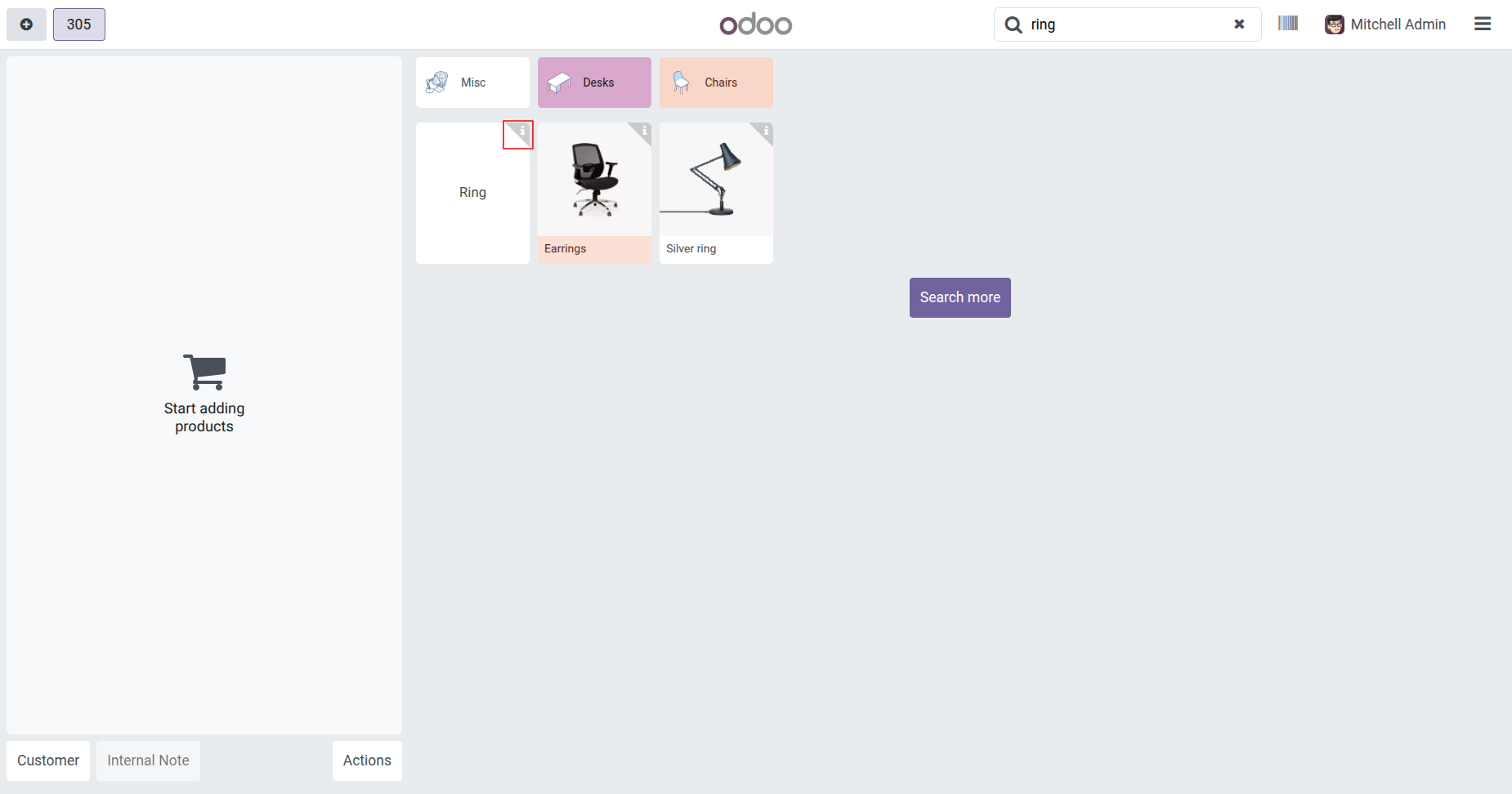
The Product Information popup displays complete jewellery details, including the Metal Type, Purity, Size, Gross Weight, Net Weight, Stone Details, Category, Pricing, and other relevant product specifications.
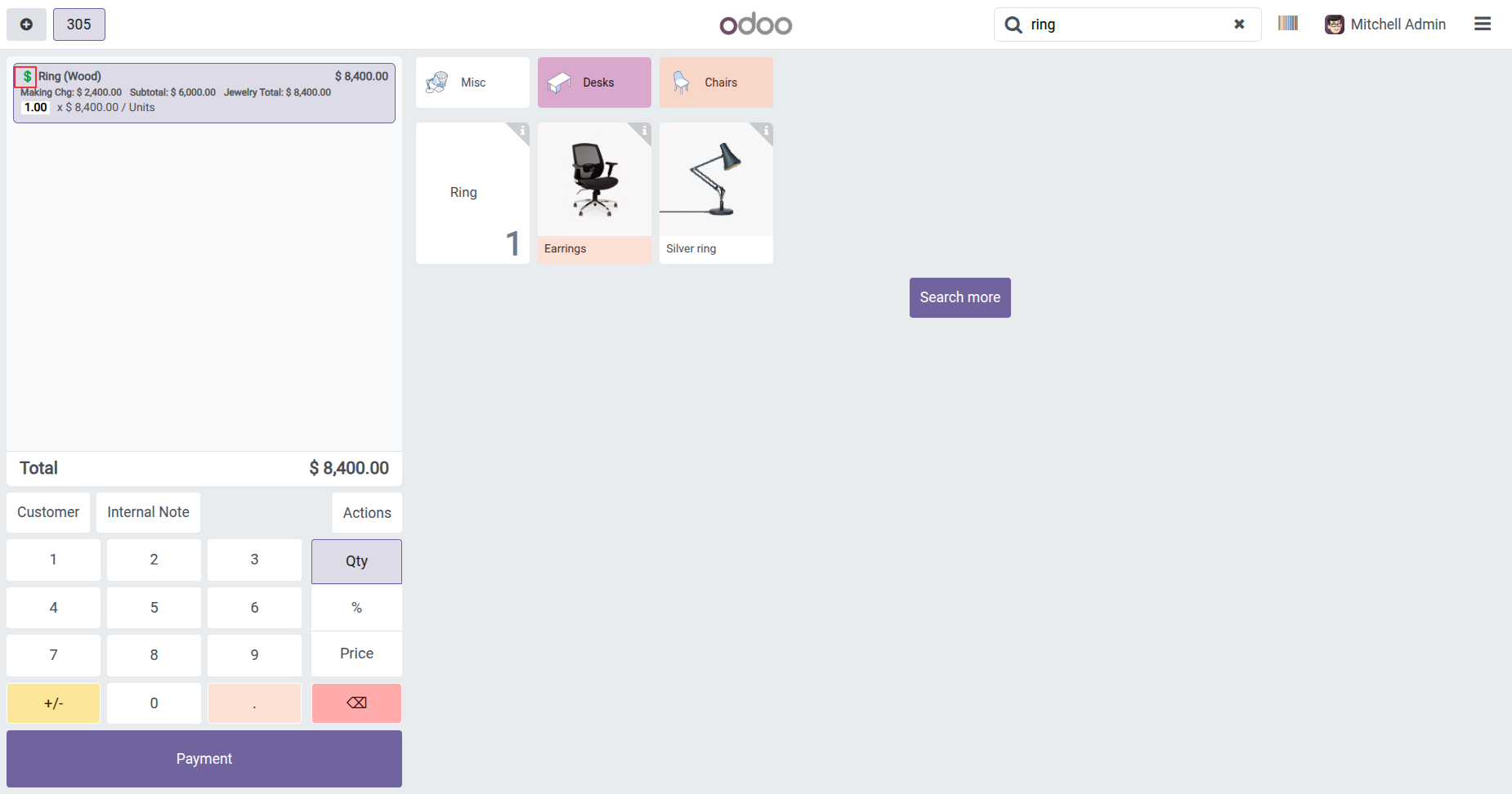
The Charges wizard opens, allowing you to enter additional charges and the wastage percentage. After entering the required values, click the Save button to apply the charges to the selected product.
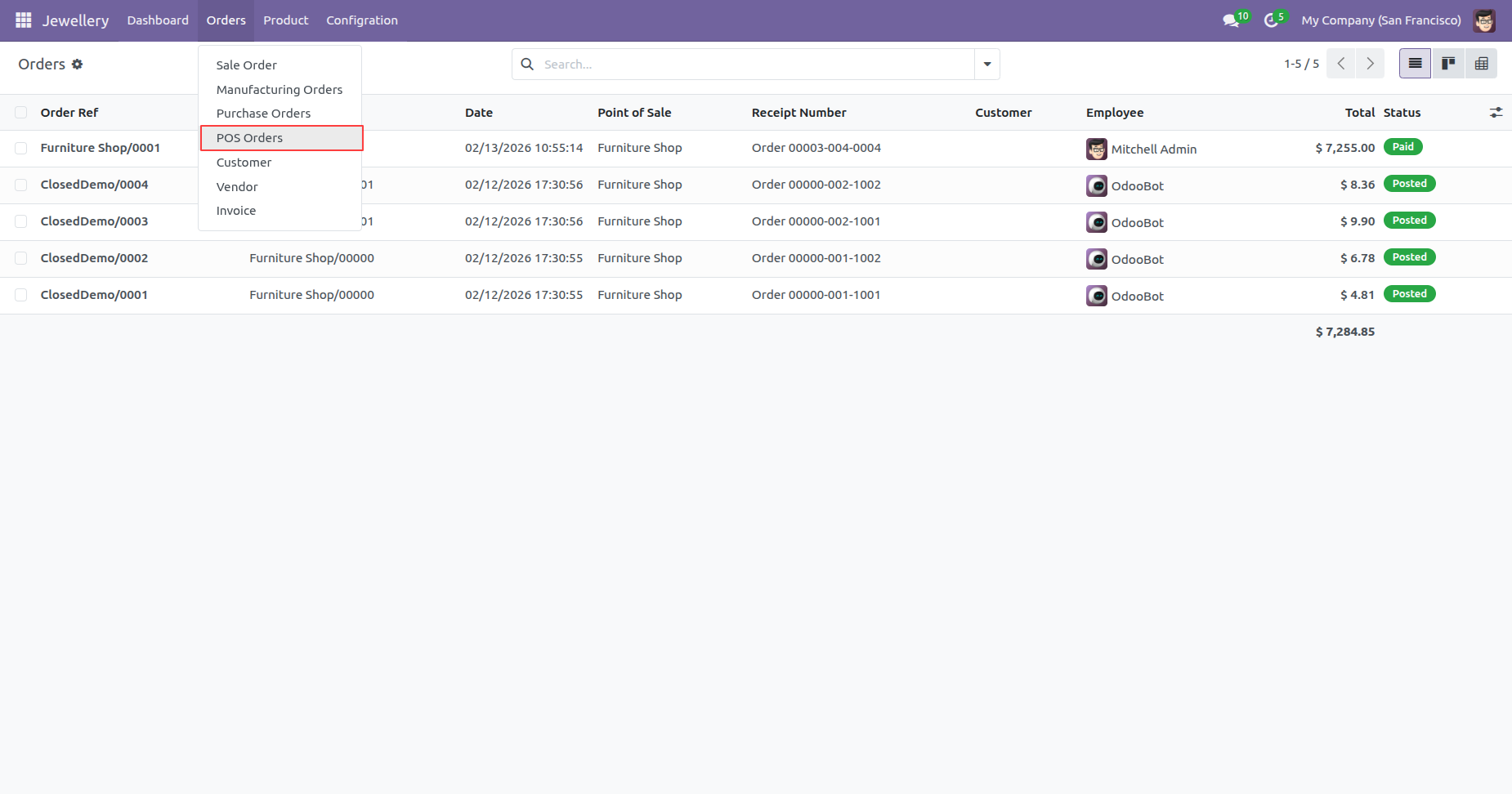
Go to the Orders menu and select POS Orders to manage POS Orders directly from the Jewellery Business Management System.
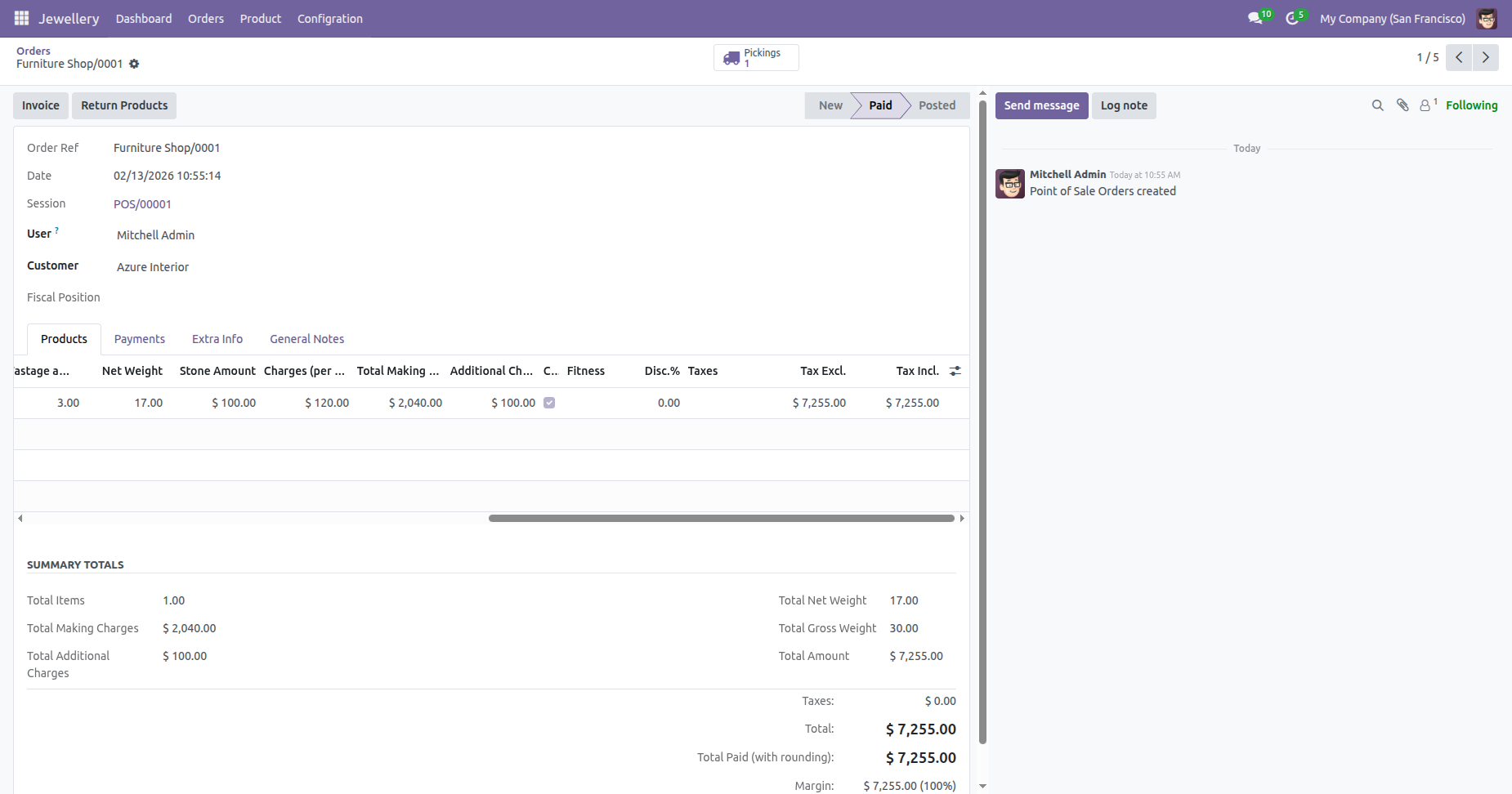
Created POS Order with all the jewellery details, including metal type, purity, size, gross weight, net weight, stone details, wastage, making charges, additional charges, and pricing.
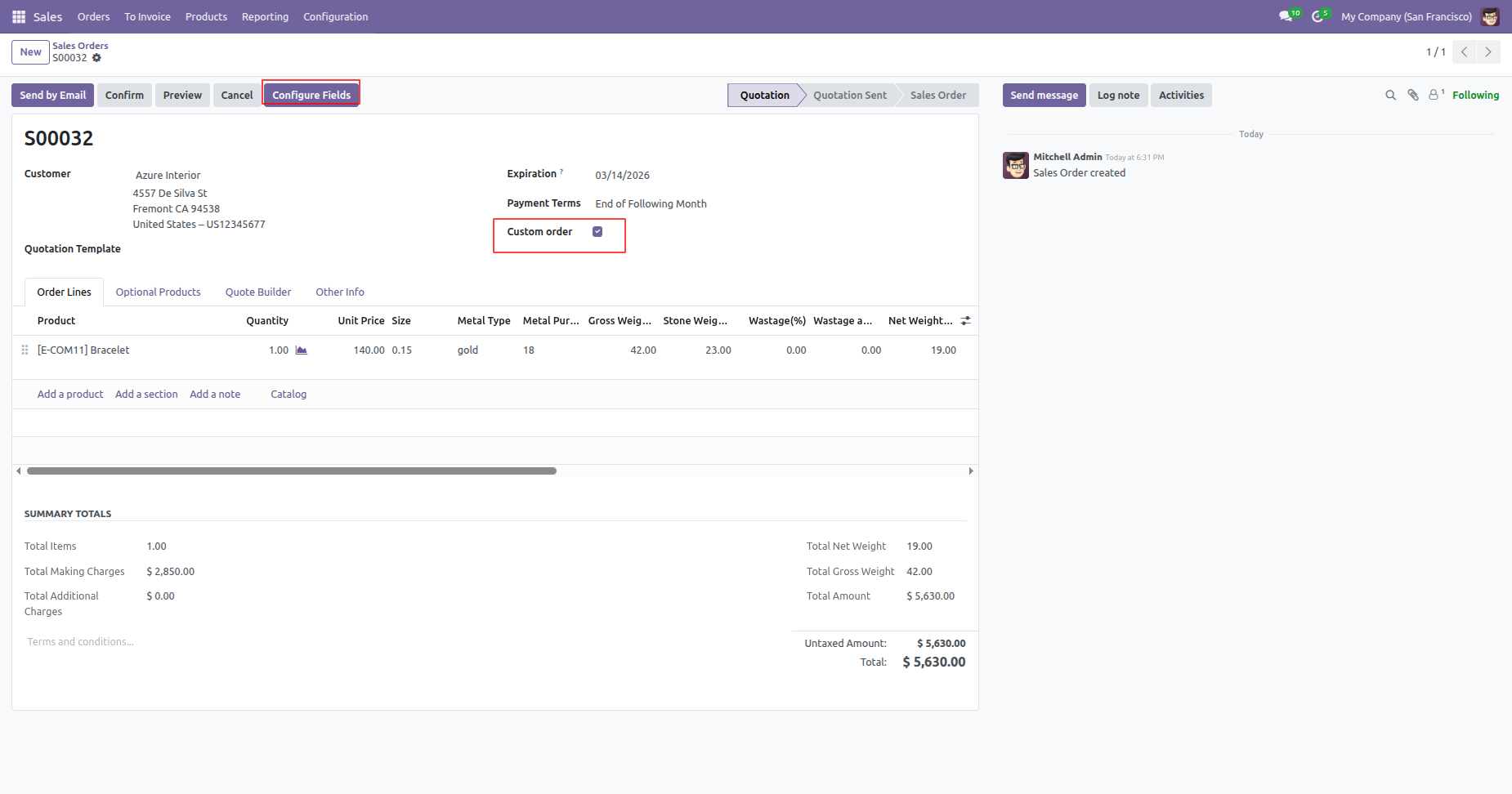
Enable the Custom Order option on the Sales Order, then click the Configure Fields button to add and manage the required custom order.
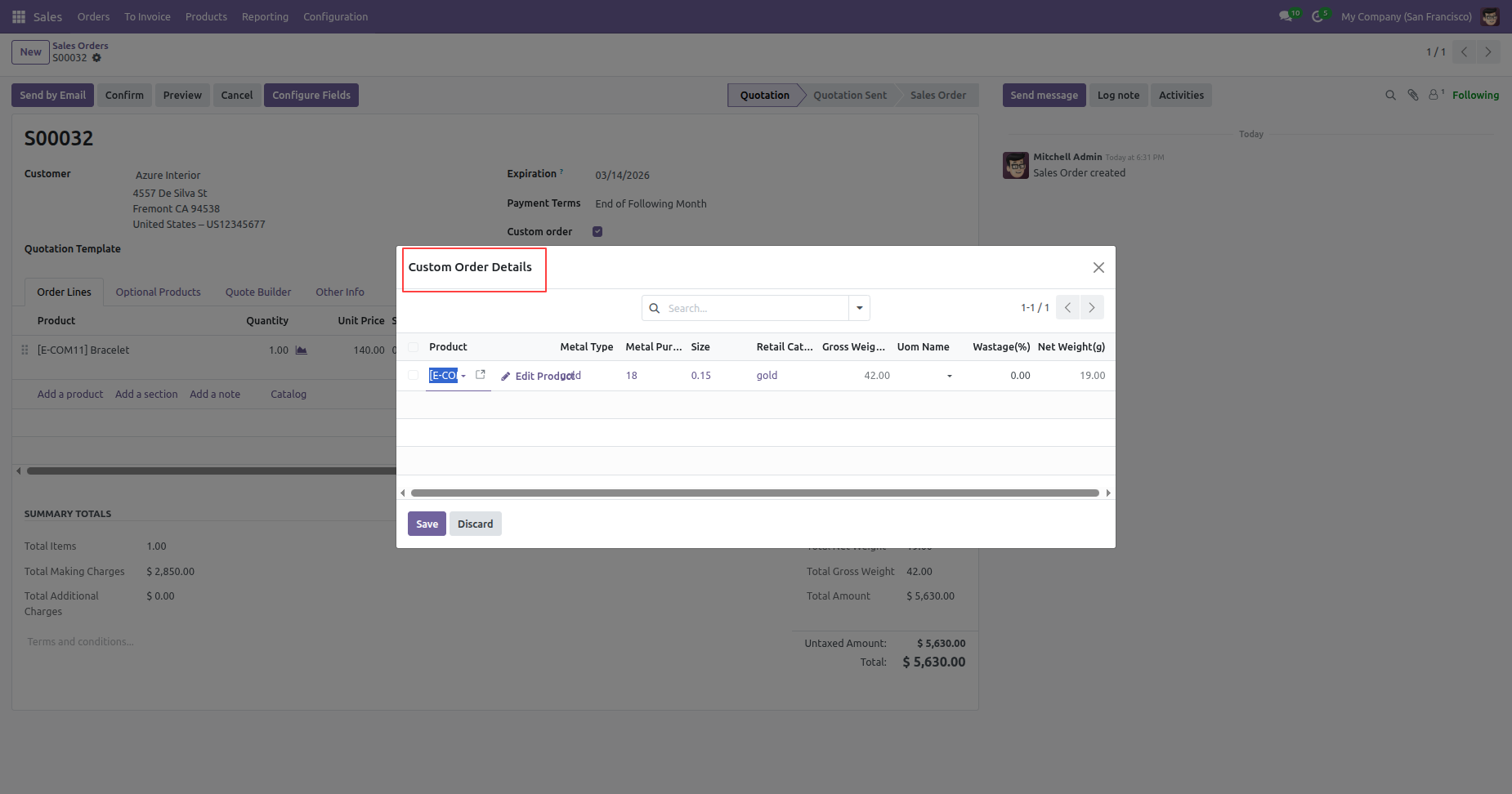
The Custom Order Details wizard will open, allowing you to enter the product, metal type, category, weight, and other required custom jewellery specifications.
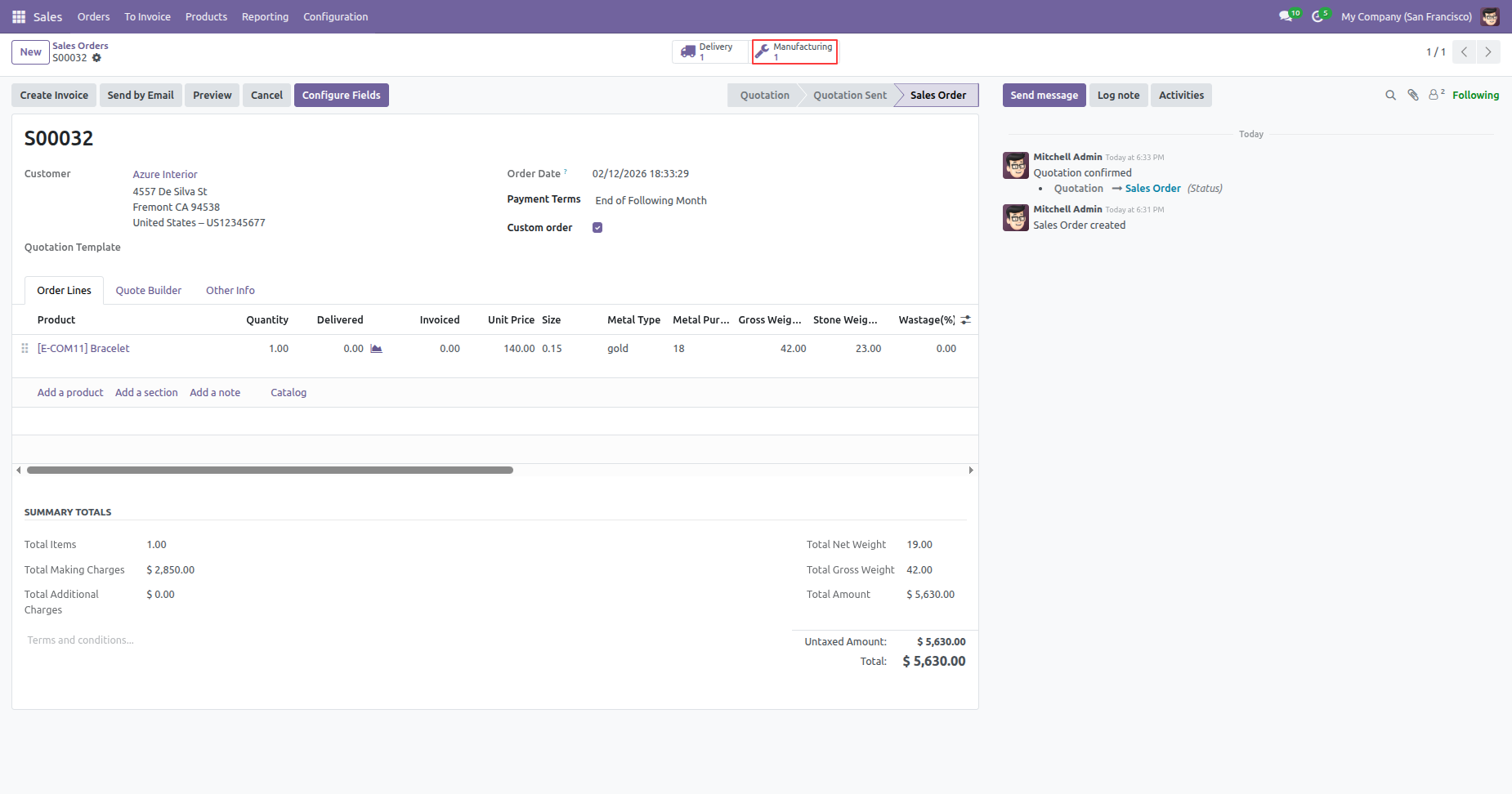
After entering the custom order details, confirm the Sales Order. Upon
confirmation, the system automatically
creates a Manufacturing Order for the custom order based on the specified
product, metal type, weight, and other configured details.
MRP Order smart button becomes visible on the Sales Order, allowing users
to quickly access the linked manufacturing order.
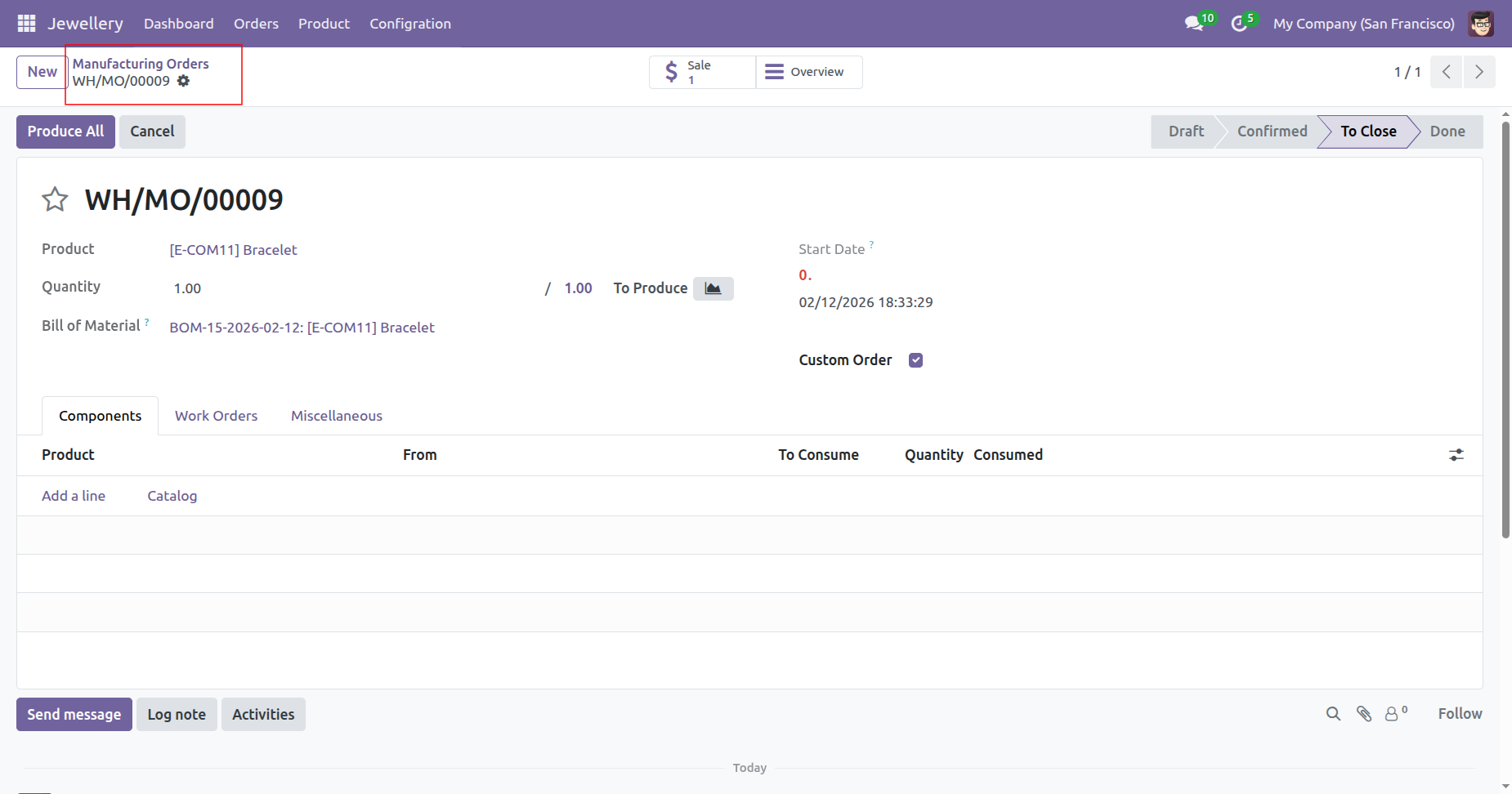
Go to the Orders menu and select Manufacturing Orders to create and manage Manufacturing Orders directly from the Jewellery Business Management System.
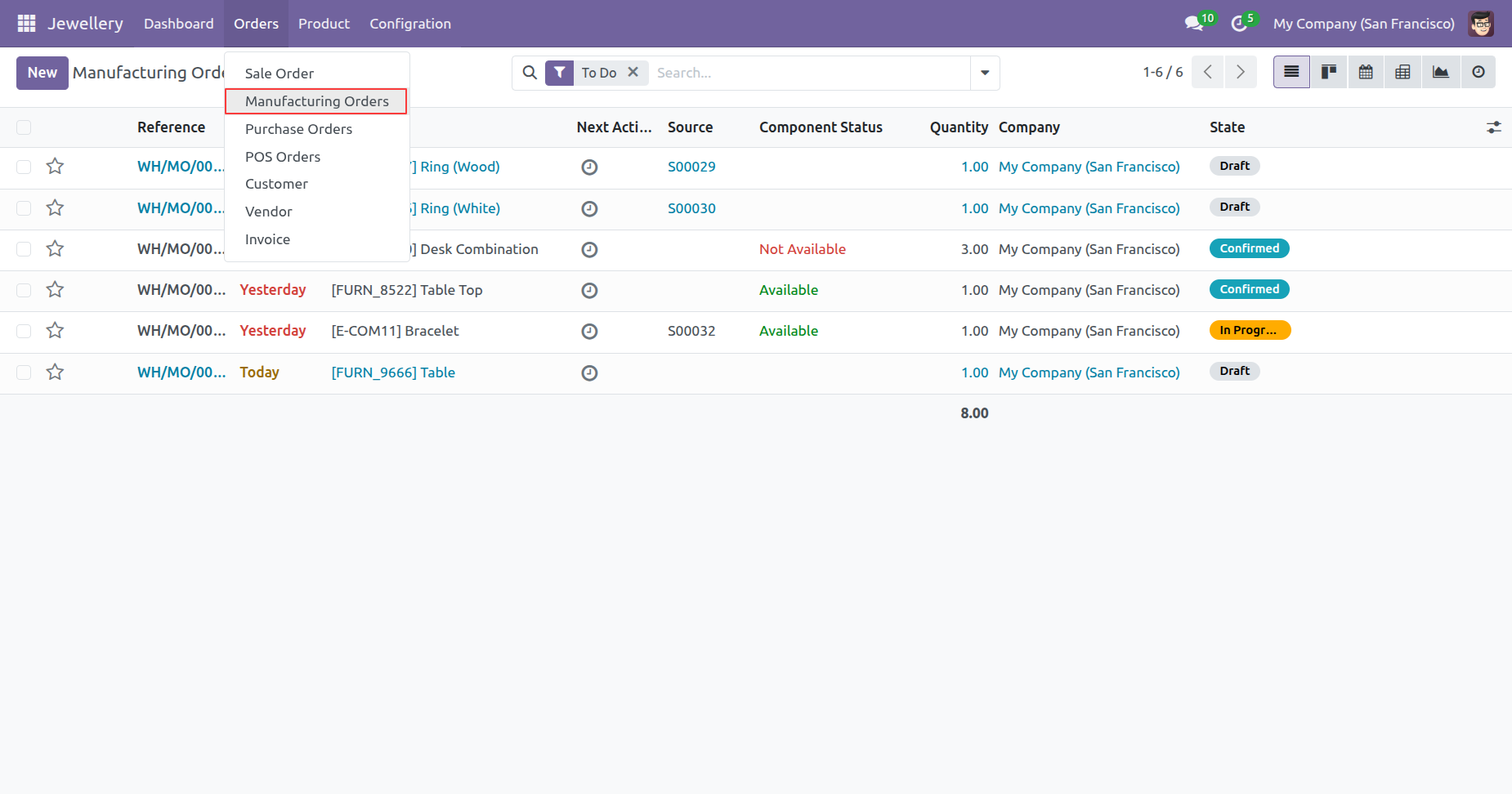
The Manufacturing Order created from the Custom Order is available for processing.
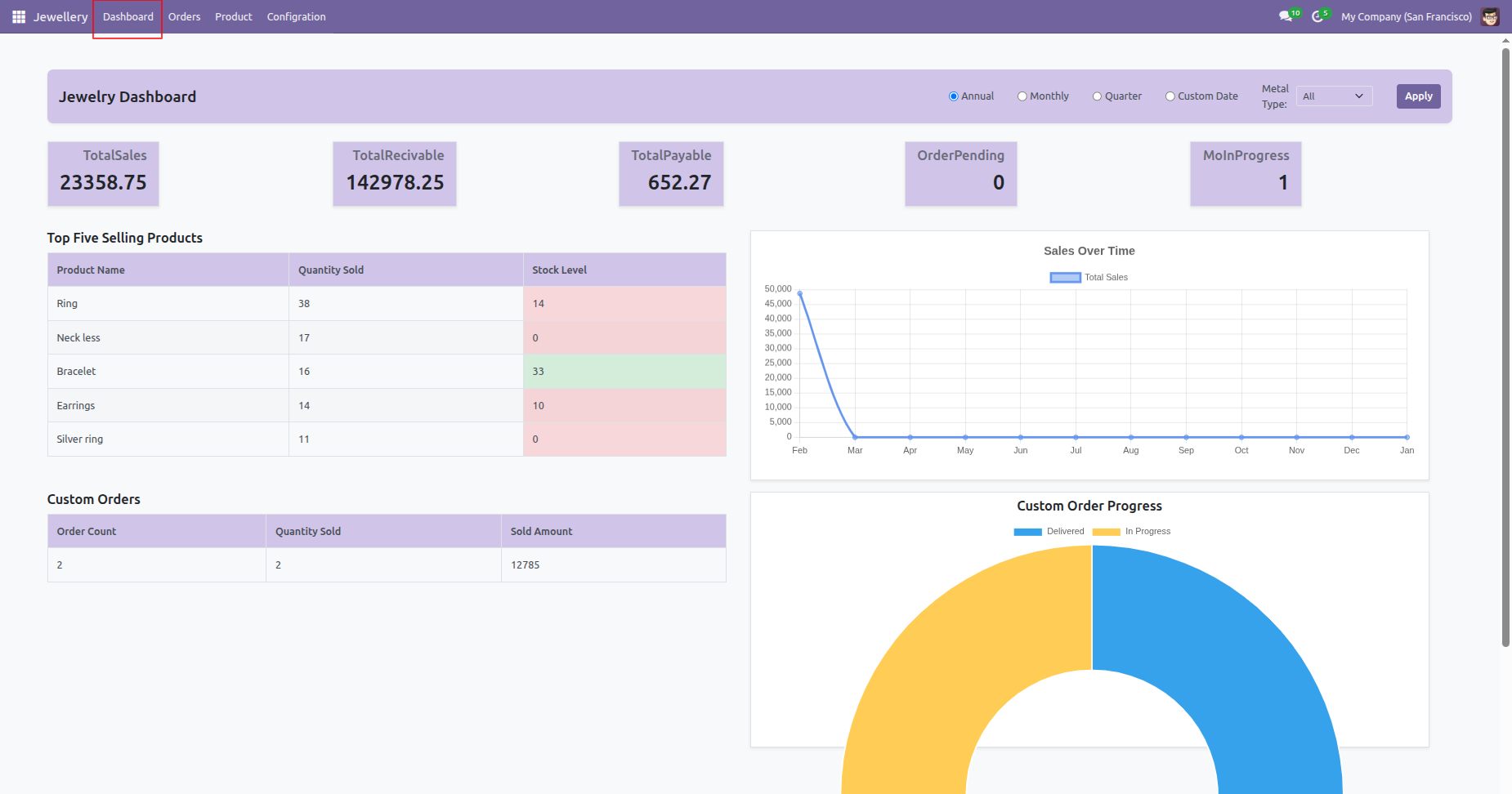
Go to the Jewellery Dashboard to view and manage jewellery-related operations, including sales, receivables, payables, pending orders, top 5 selling products, custom orders, custom order progress, and sales-over-time charts and tables, providing a centralized and comprehensive overview of business performance.
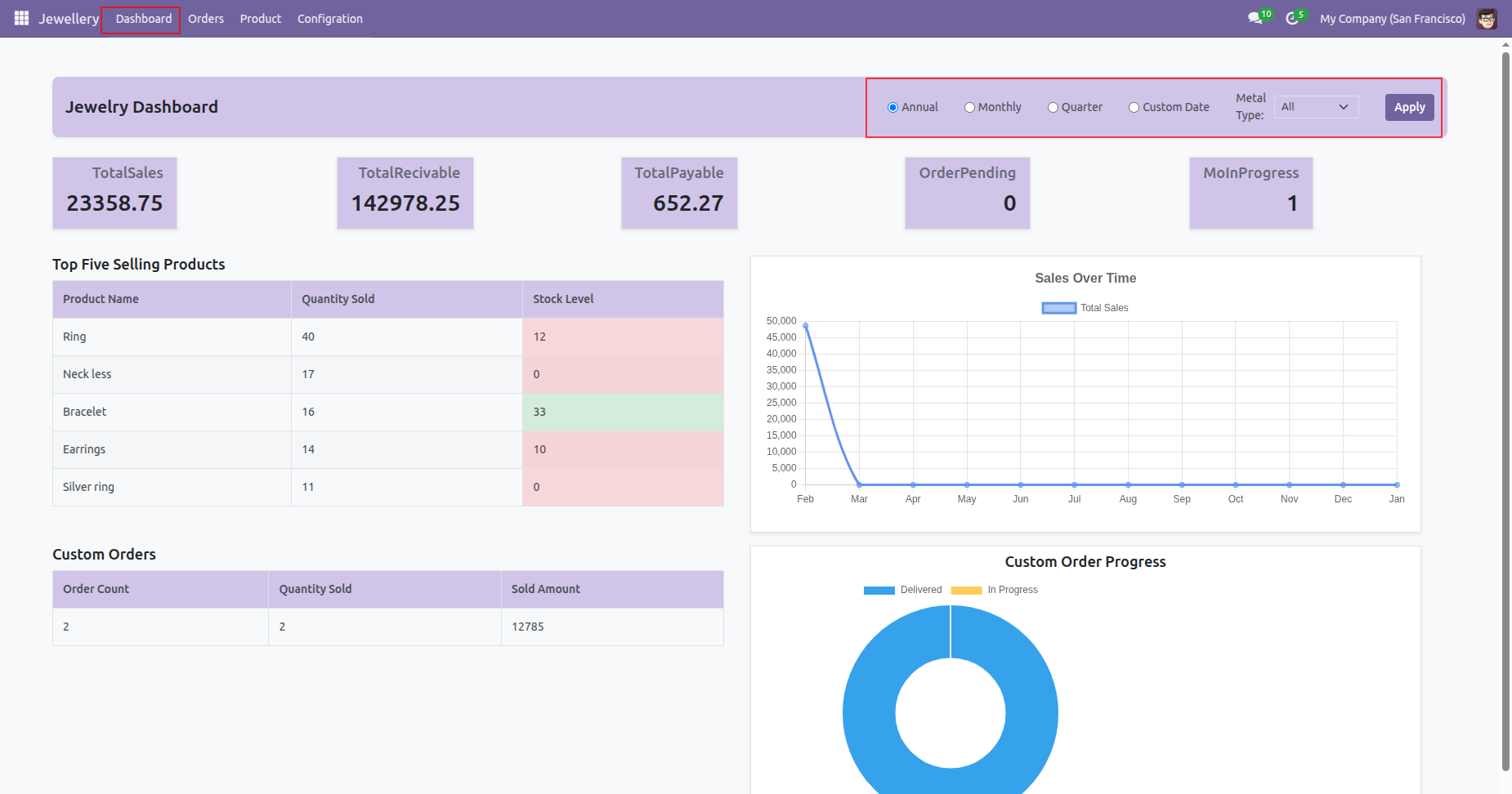
Users can filter the Jewellery Dashboard data using Annual, Monthly, Quarterly, or Custom Date filters. They can also apply a Metal Type filter to view dashboard statistics and reports specific to a selected metal.
Version 19.0.1.0.0 | Released on : 27th July 2026
- Yes, this app works perfectly with Odoo Enterprise (Odoo.sh & Premise) as well as Community.
- No, this application is not compatible with odoo.com(odoo saas/Odoo Online)
- Yes, to test this module, please contact us at sales@softhealer.com.
- Please contact us at sales@softhealer.com to request customization.
- Yes, we provide free lifetime support for the version you purchased.
- Yes, you will receive lifetime free updates for the version of the module you purchased.
- No, there is no need to install any additional libraries.
- Yes, for version 12 and above, you need to purchase the module separately for each version you intend to use.
- No, exchanges or refunds are not allowed. Please make sure to select the correct version before purchasing.
- You can contact us at support@softhealer.com for language translation support. We use Google Translator tools to provide translations in multiple languages, so the accuracy may vary. We welcome your suggestions to help improve translations.
Discover Our Latest Apps