













Invoice Quick Product Search

'Invoice Quick Product Search' is used to search for products in the invoice. You can easily search products by name, barcode, reference no, etc. Easily filter search product list by name, reference, etc. Also, you can get the on-hand the quantity of each product variant. Users can add multiple products in the invoice line by one click. You can enable or disable this feature for the different users for applying group 'Allow Quick Search Account Invoice Order' in user settings.

Features
- You can filter search results like product attribute & attribute value.
- Easy to enable "quick search product" feature for a particular user by allowing the group "Allow Quick Search Account Invoice Order" in the user setting.
- Easy to search for products with variants.
- Easy to filter search results like name, reference, and barcode.
- Easy to know on hand product quantity.
- Easy to add one by one or multiple search products in the invoice line.
- Easy to install and use it.
- No other configuration required.
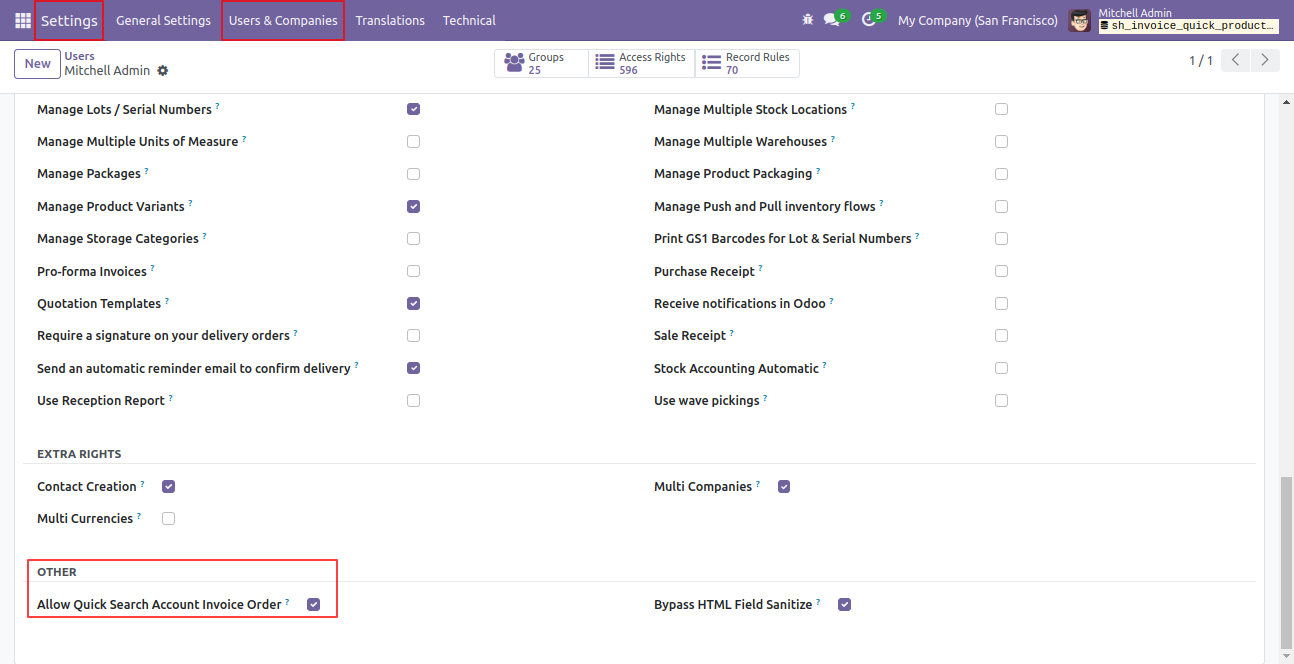
Tick "Allow Quick Search Account Invoice Order" Group in User Setting.
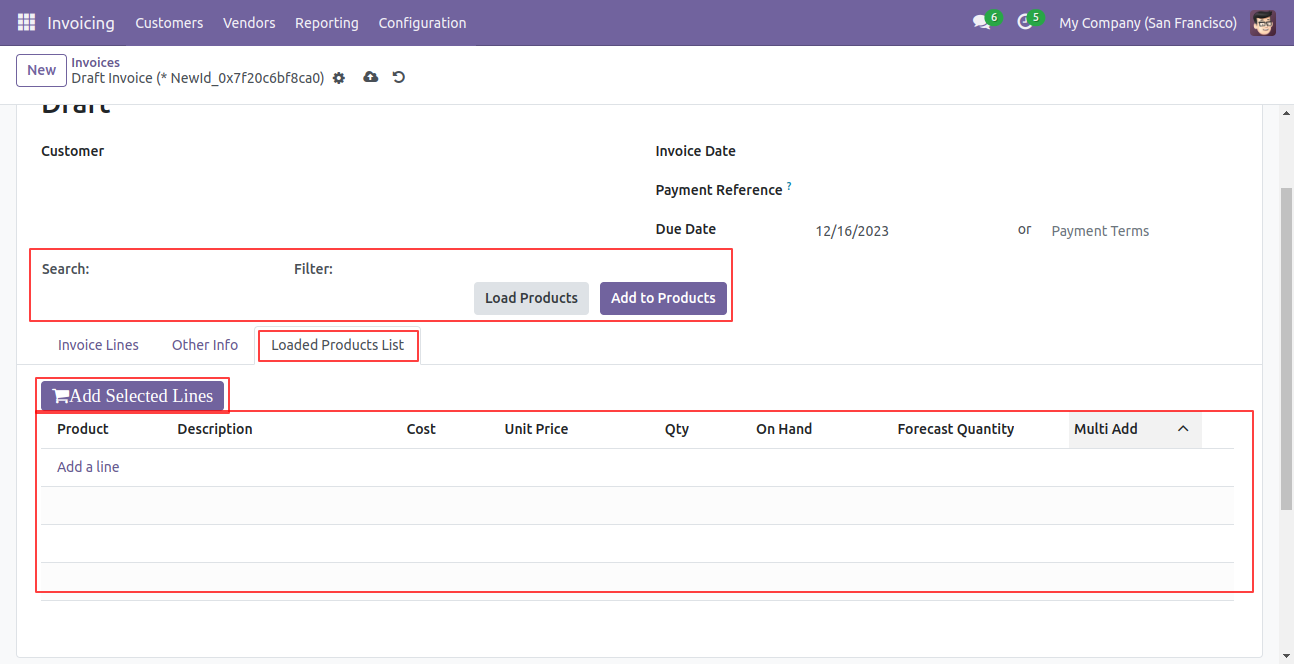
Filter Product with the product name and product category and press "Load Products" to load Products with all details of products in the Loaded Products List Tab.
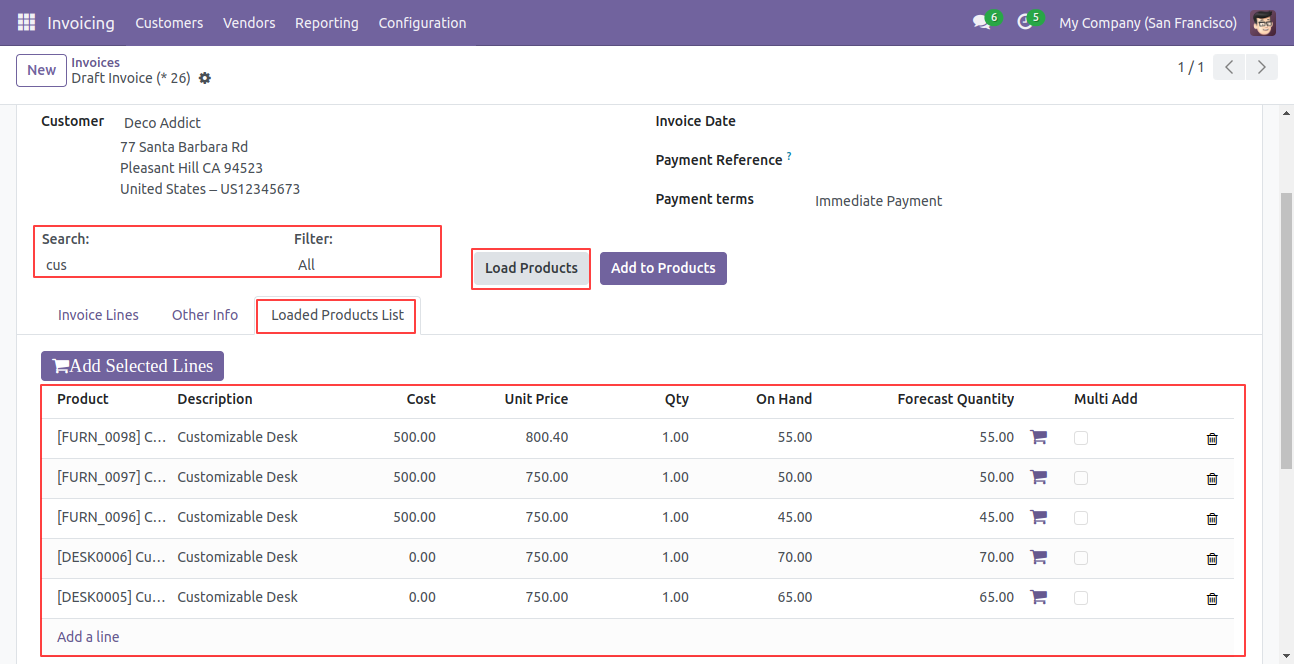
Loaded products are displayed with all the details of the product.
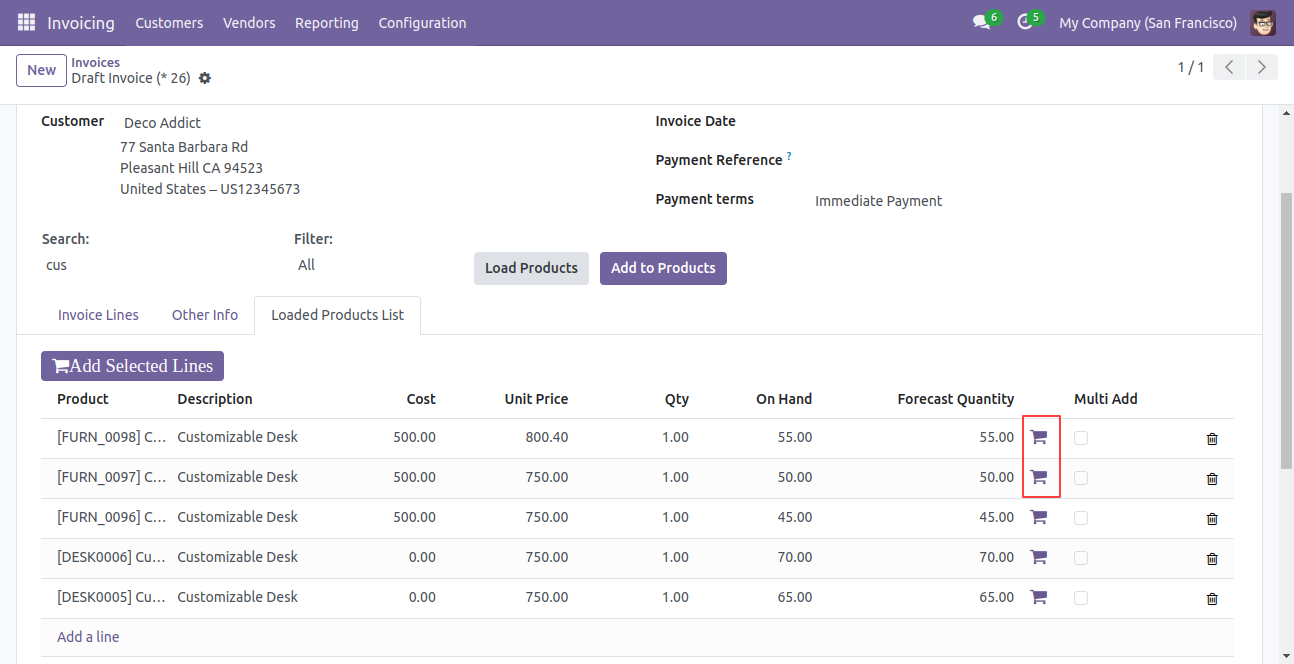
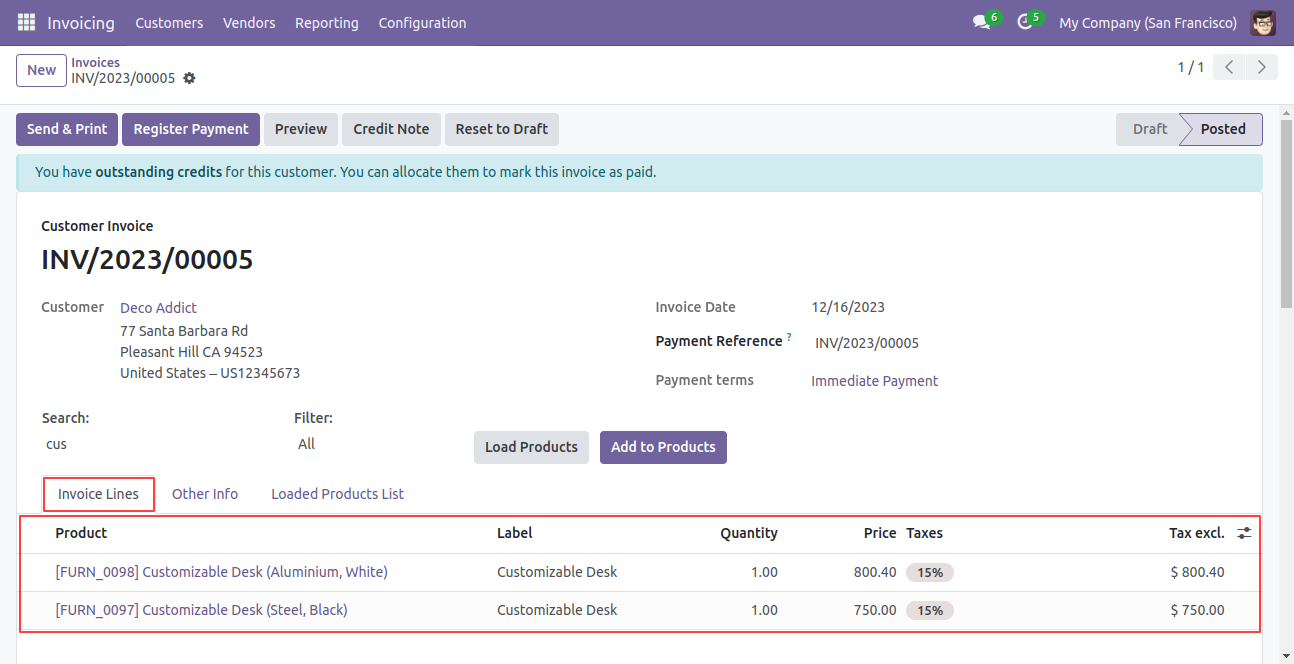
Press the "Cart" icon of the product to add in the invoice line.
The product added to the invoice line.
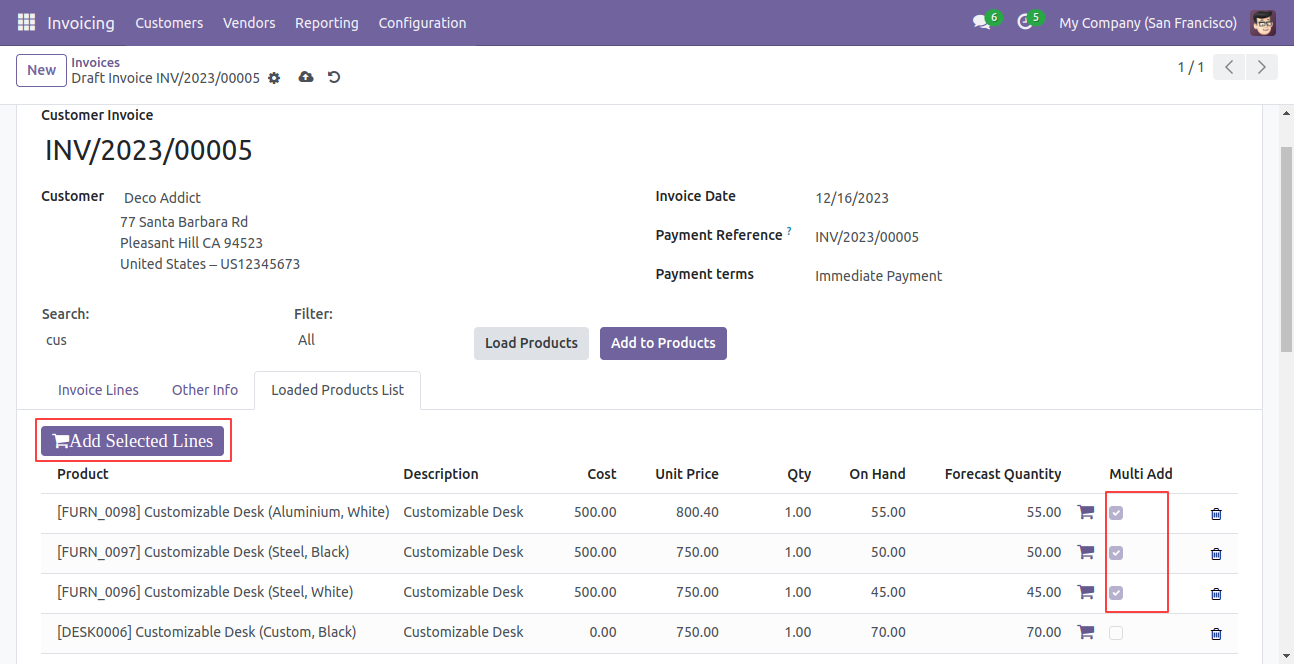
Press "Add Selected Line" to add all products in the invoice line which is selected.
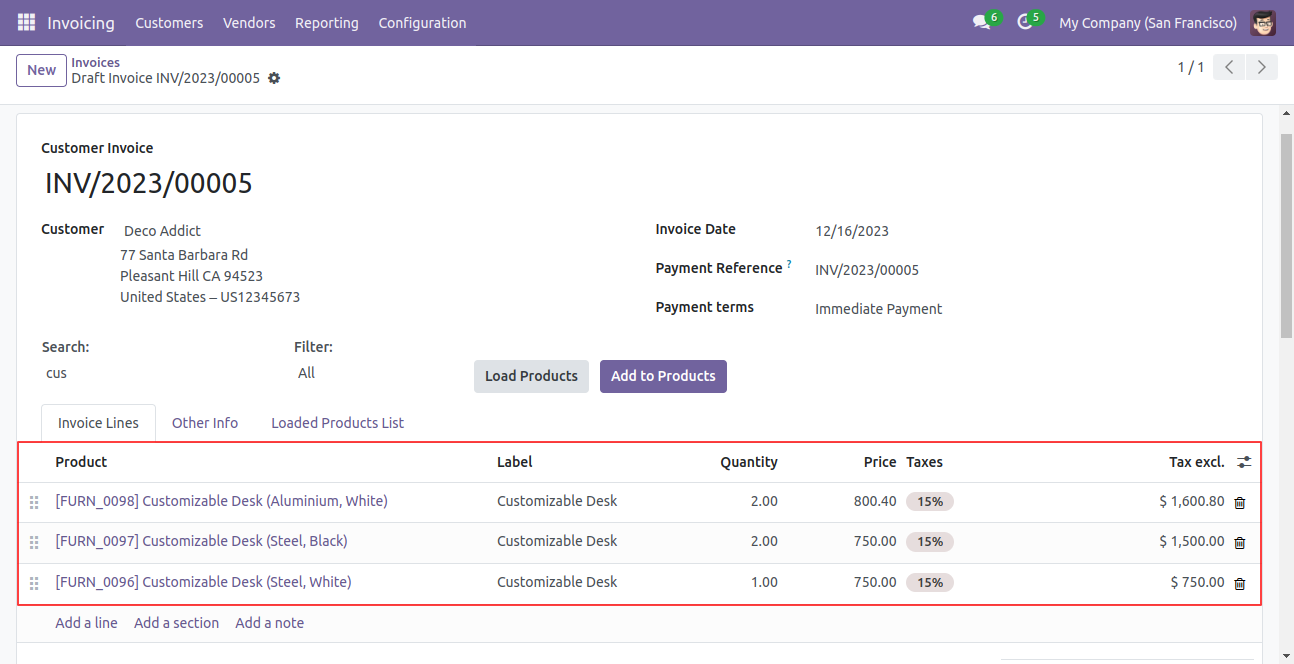
Products are added to the invoice line which is selected.
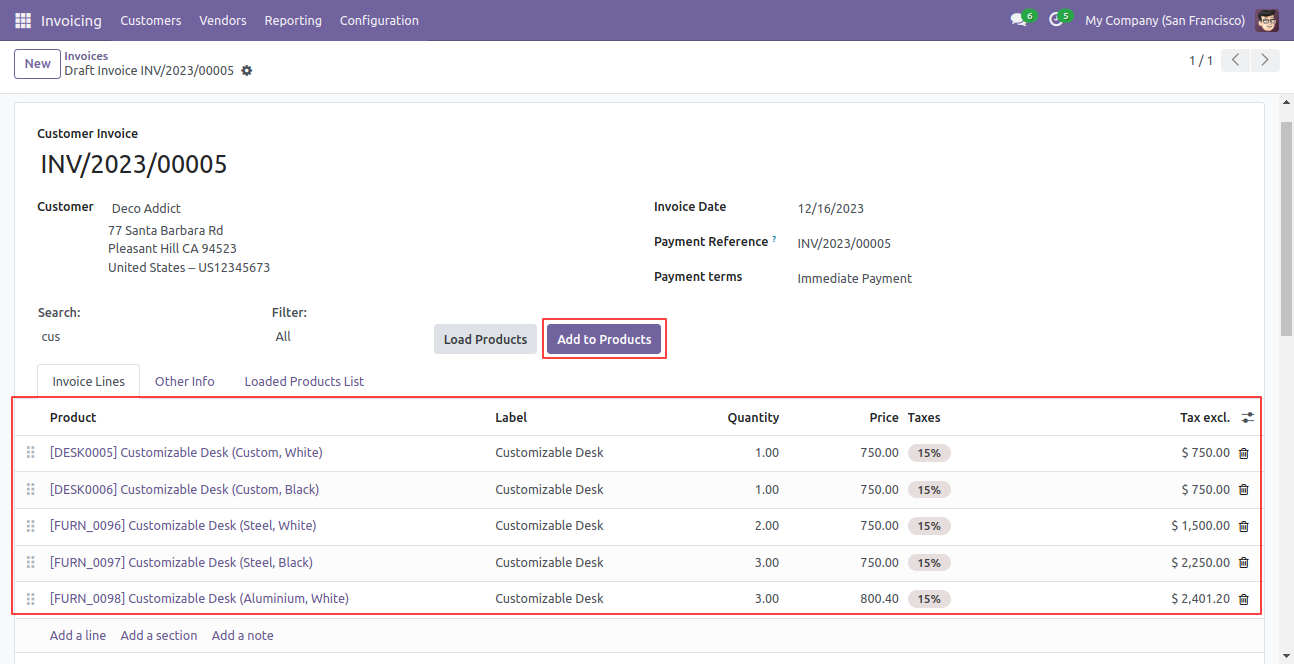
Press Add to Product so all loaded products will be added into the invoice line.
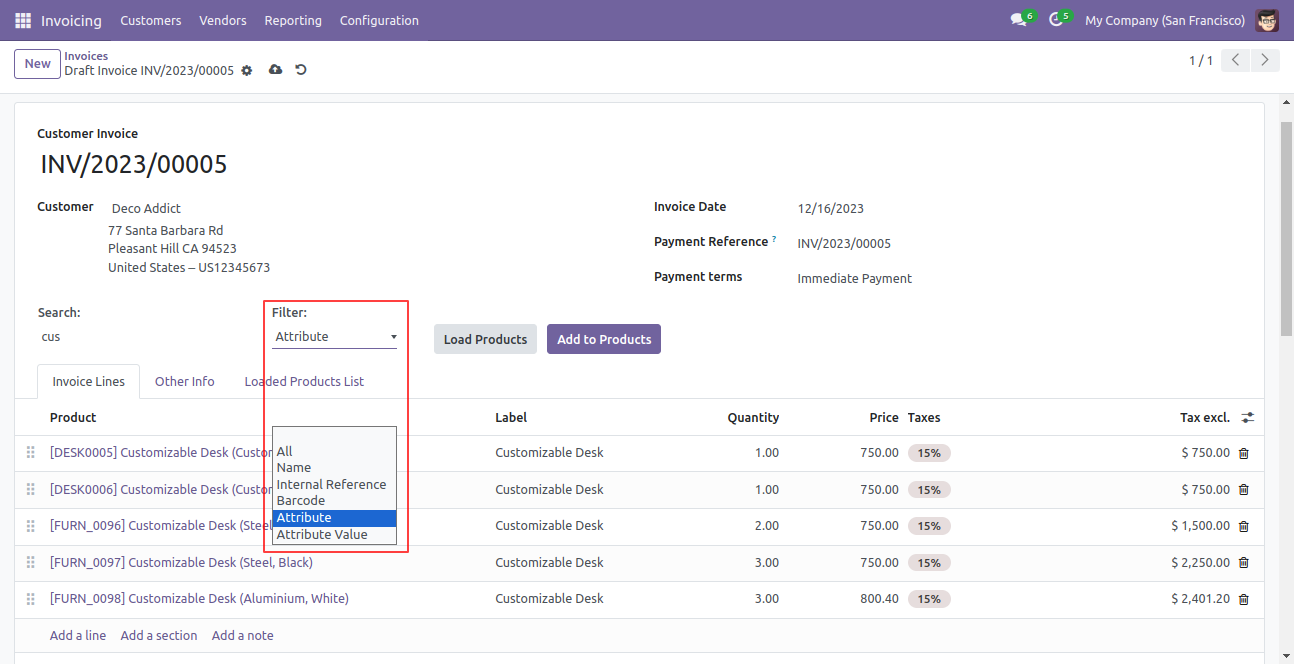
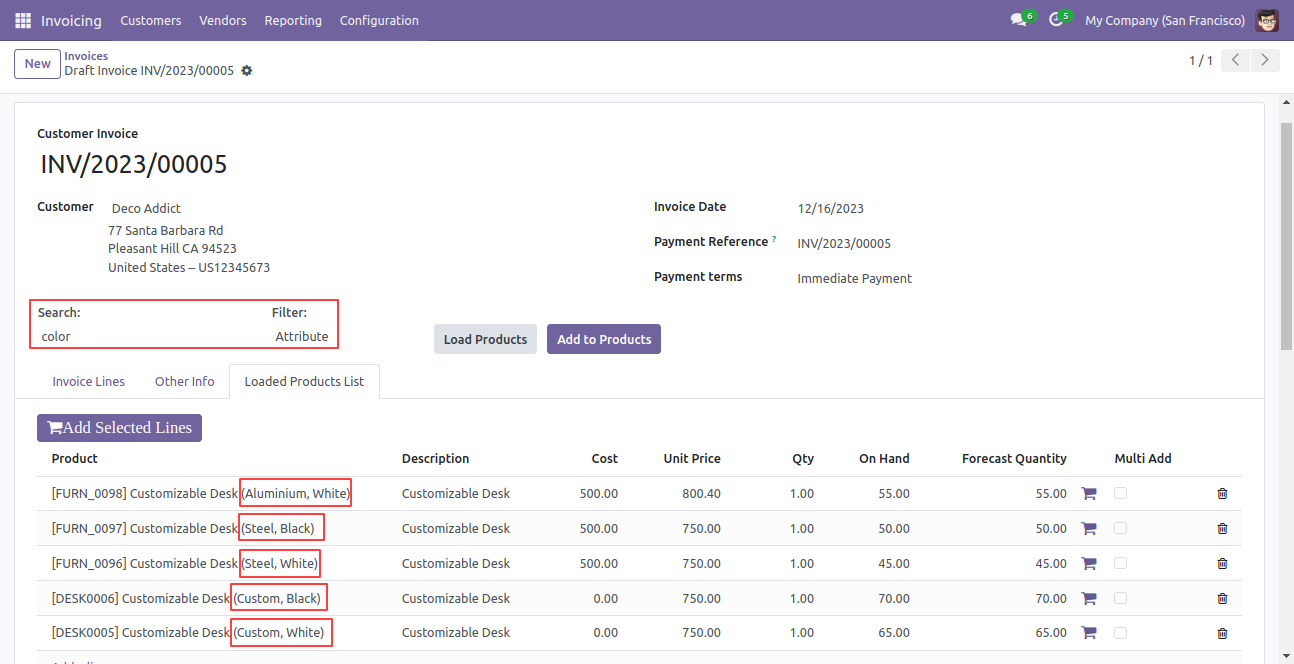
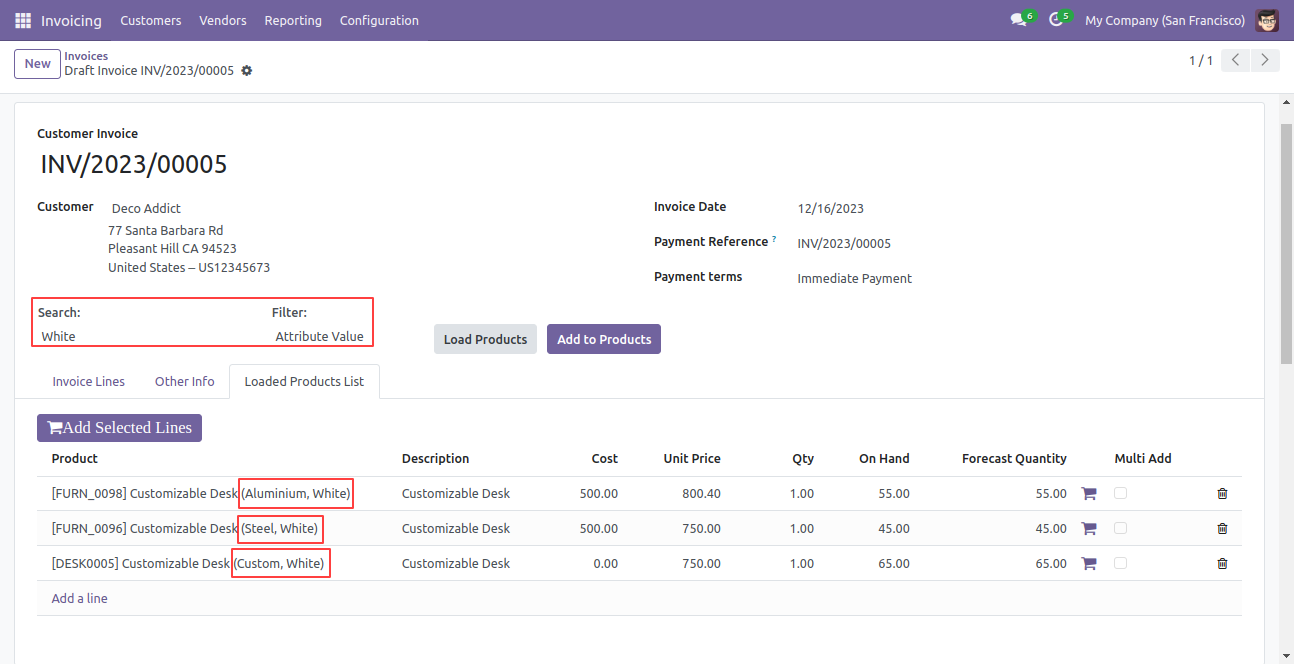
Filter products with the attribute & attribute value.
Products displayed with attributes & attributes value.
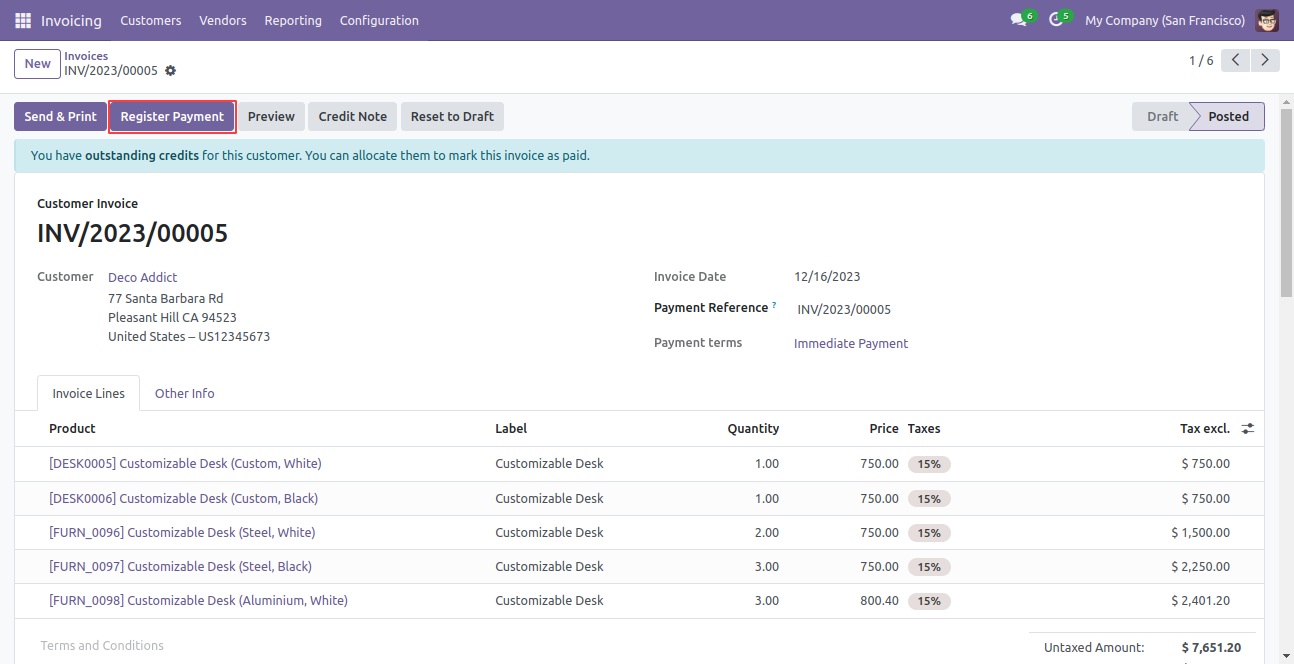
Press 'Register Payment' button.
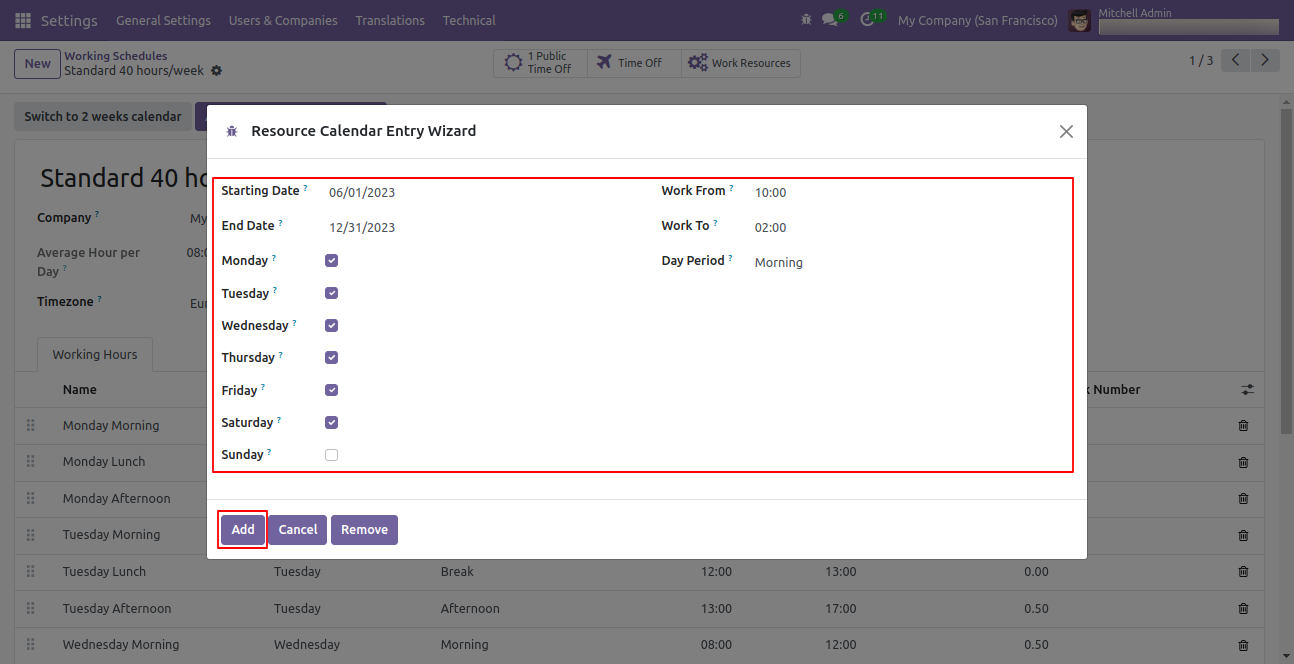
After that, the 'Resource Calendar Entry Wizard' will appear. Input the details and then proceed by clicking on the 'Add' button.
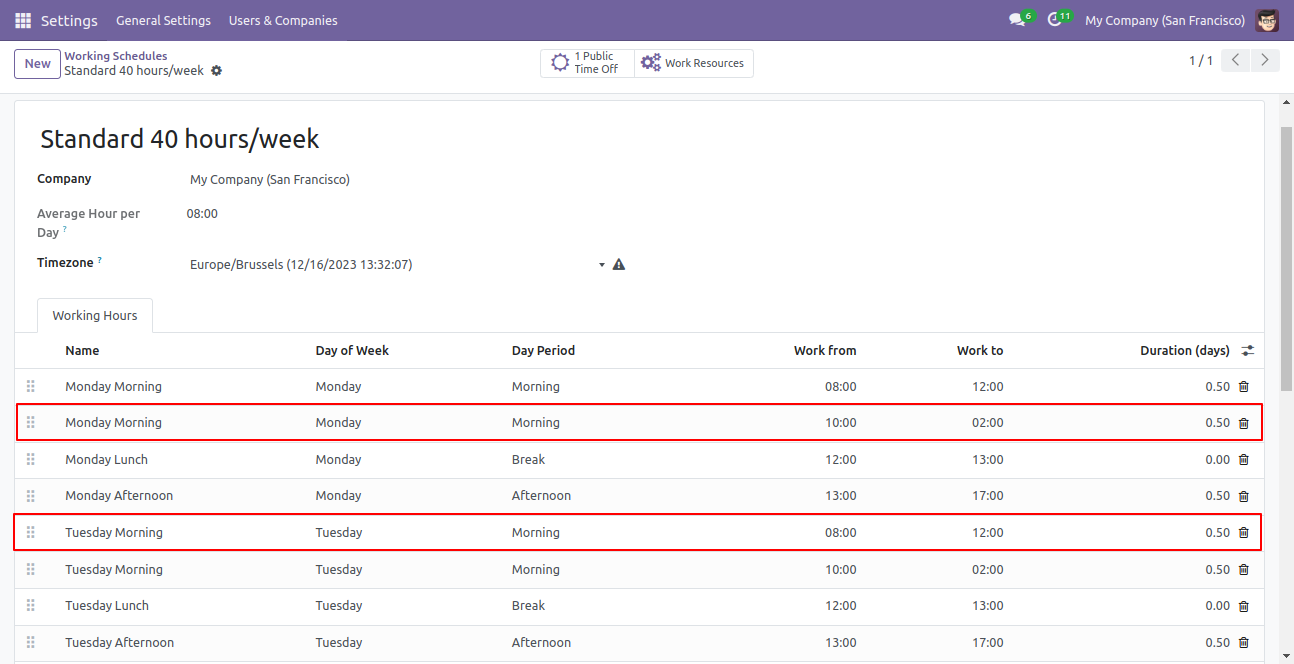
Added entry in the working schedules.
Version 18.0.1 | Released on : 10th October 2024
- Yes, this app works perfectly with Odoo Enterprise (Odoo.sh & Premise) as well as Community.
- Please Contact Us at sales@softhealer.comto request customization.
- Yes, we provide free support for 100 days.
- Yes, you will get free update for lifetime.
- No, you don't need to install addition libraries.
- Yes, You have to download module for each version (13,14,15) except in version 12 or lower.
- No, We do not provide any kind of exchange.
- No, this application is not compatible with odoo.com(odoo saas).
