












Inactive Customers

This feature helps you identify inactive customers based on their sales activity. Simply enter the number of days to set a reference date (reference date by subtracting the entered number of days from today). Customers with confirmed Sales Orders after this date are considered active. The system filters contacts with a Customer Rank above 0 and labeled under "Customer / Customers". Customers without recent sales are marked as inactive, with their last order date displayed. Use "View Customers" to preview the list or "Print XLSX" to export it to Excel.

Features
- Define inactive customers by entering a specific number of days.
- The system calculates a reference date by subtracting the entered days from today.
- Customers with confirmed Sales Orders after the reference date are automatically identified as active.
- Inactive customers are determined based on the absence of Sales Orders since the reference date.
- Export the list of inactive customers as an Excel (XLSX) report with a single click.
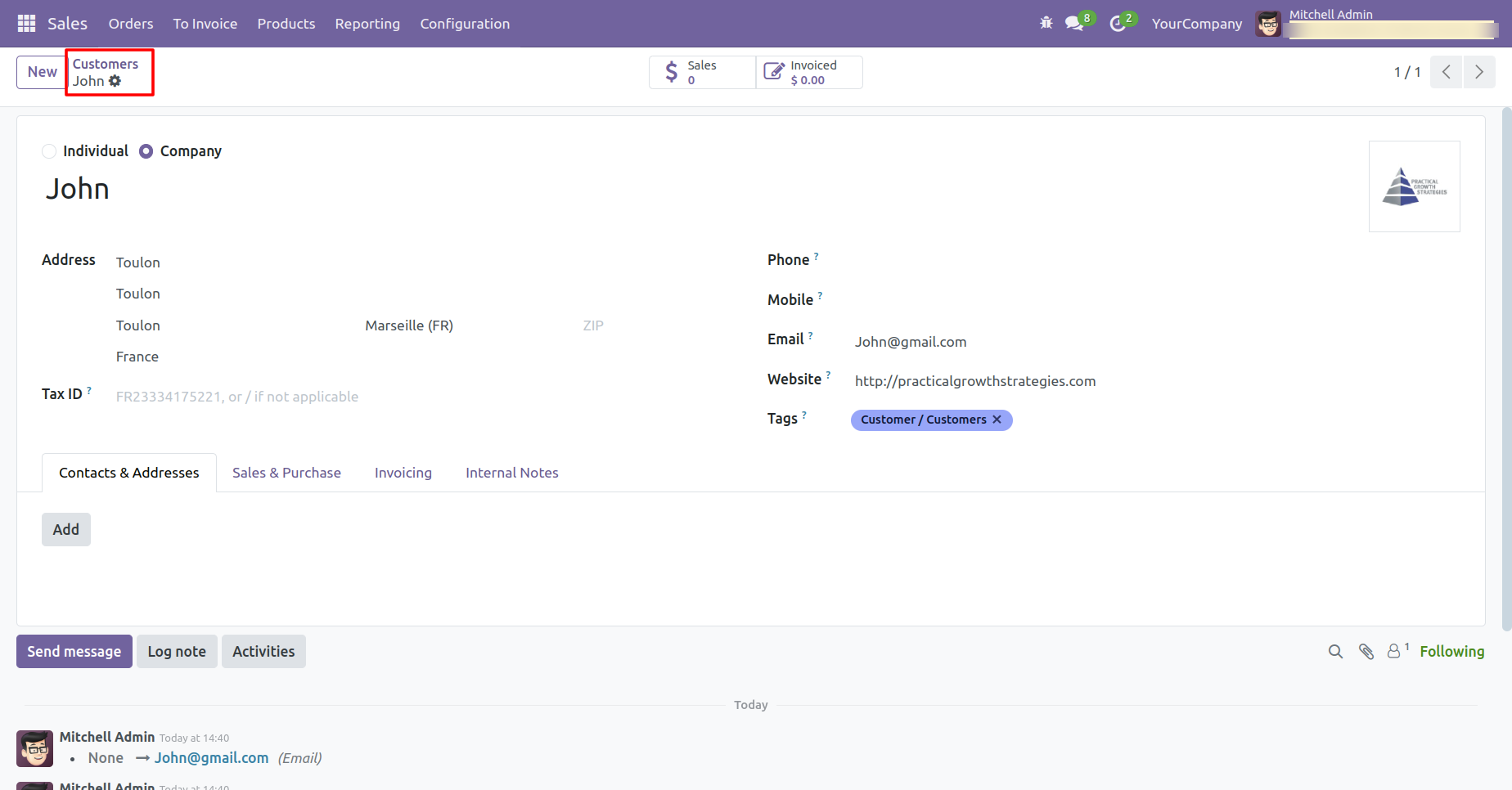
Create a new customer record.
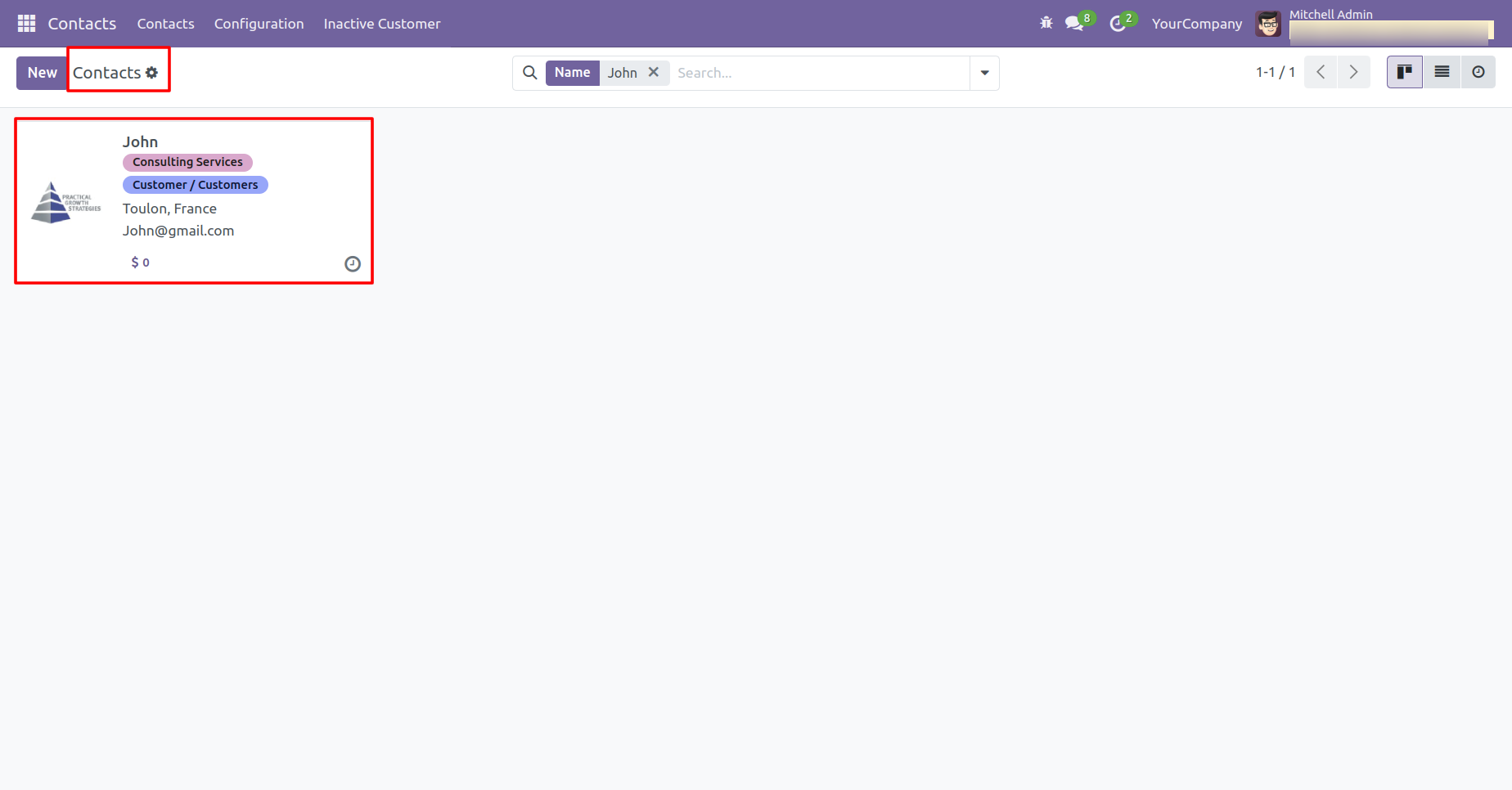
Once the customer is created, their contact will appear in the Contacts.
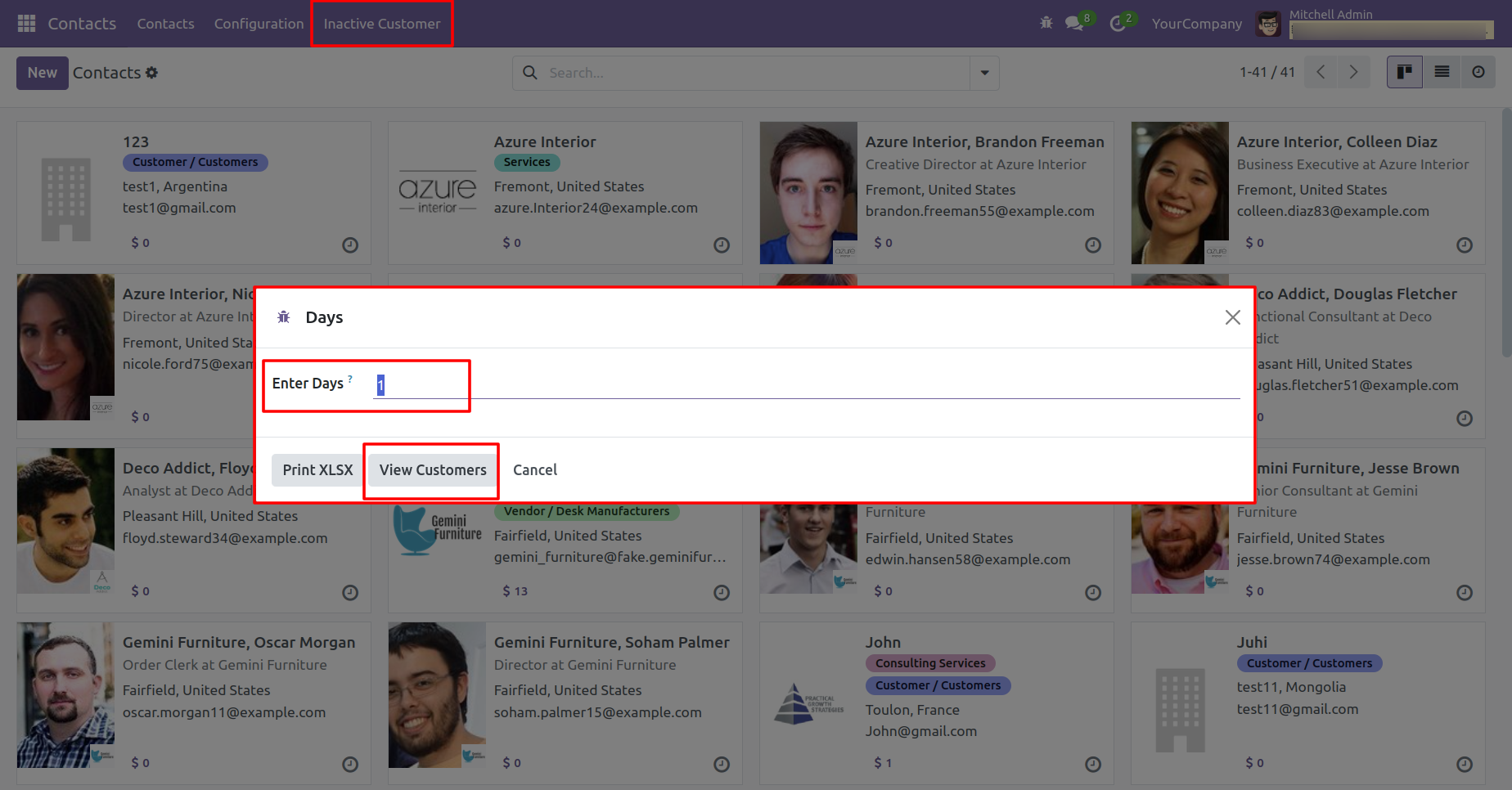
Click on the 'Inactive Customer' menu.
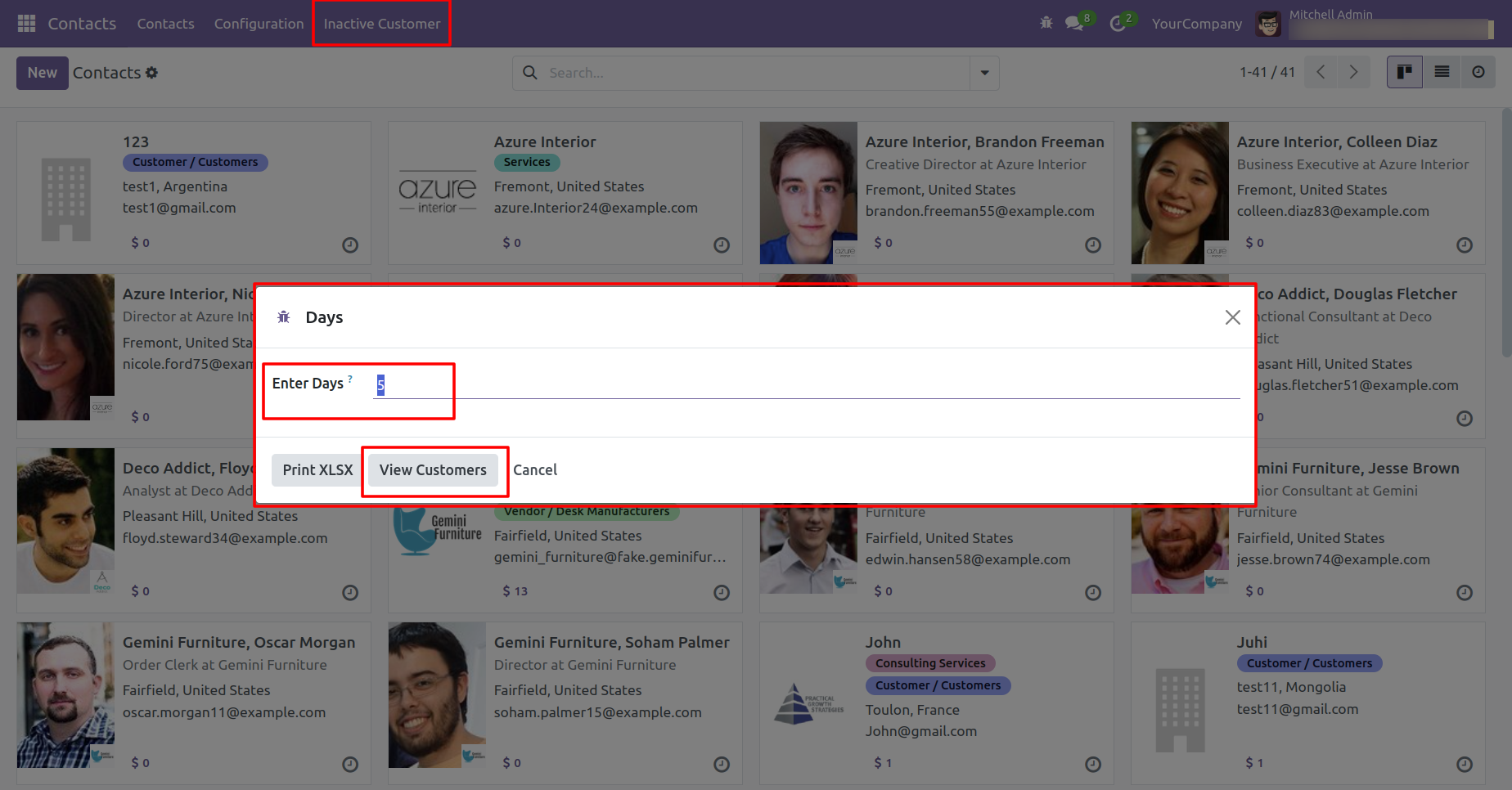
In the wizard, enter the number of days and click on the 'View Customers' button to proceed.
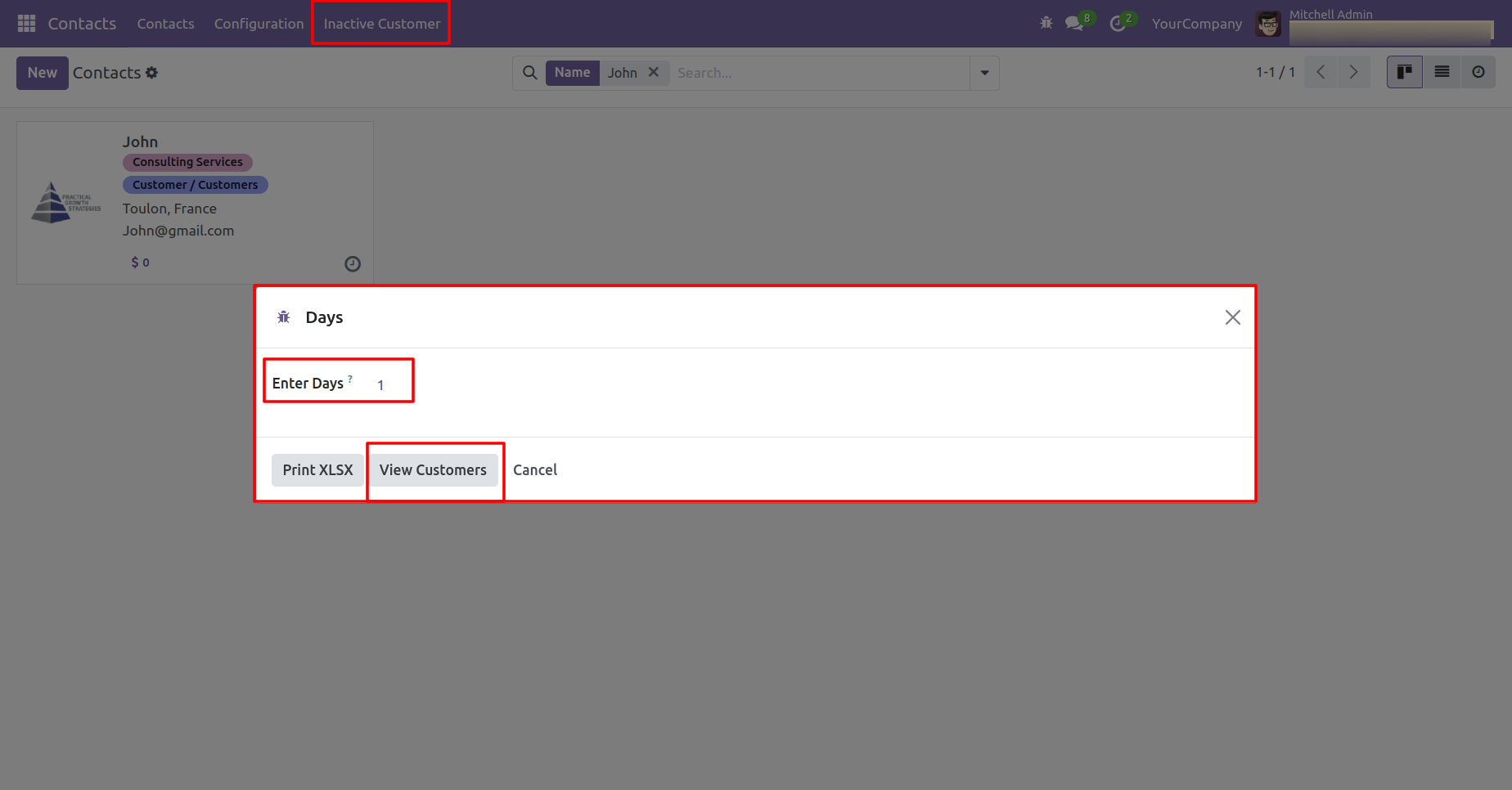
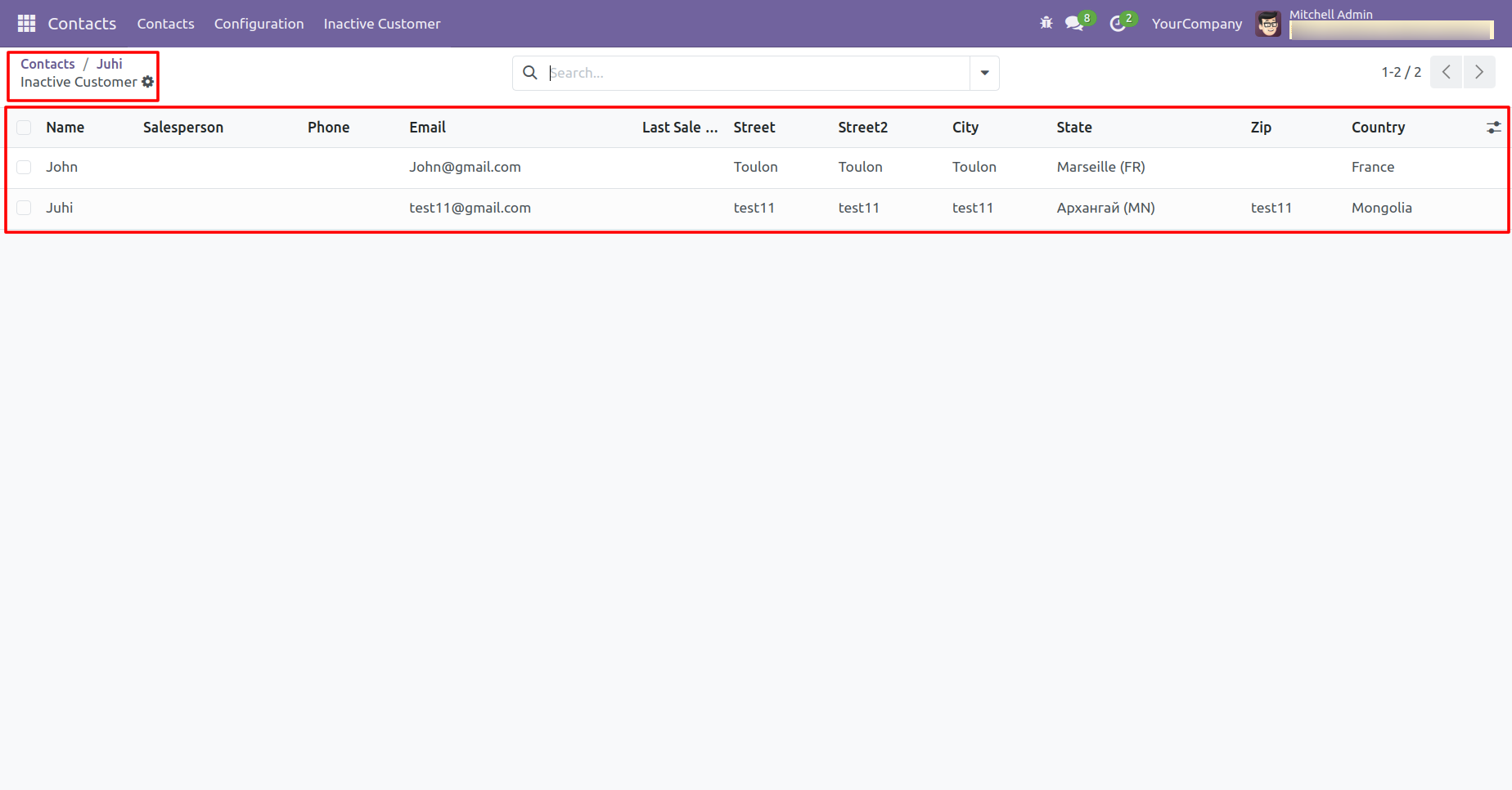
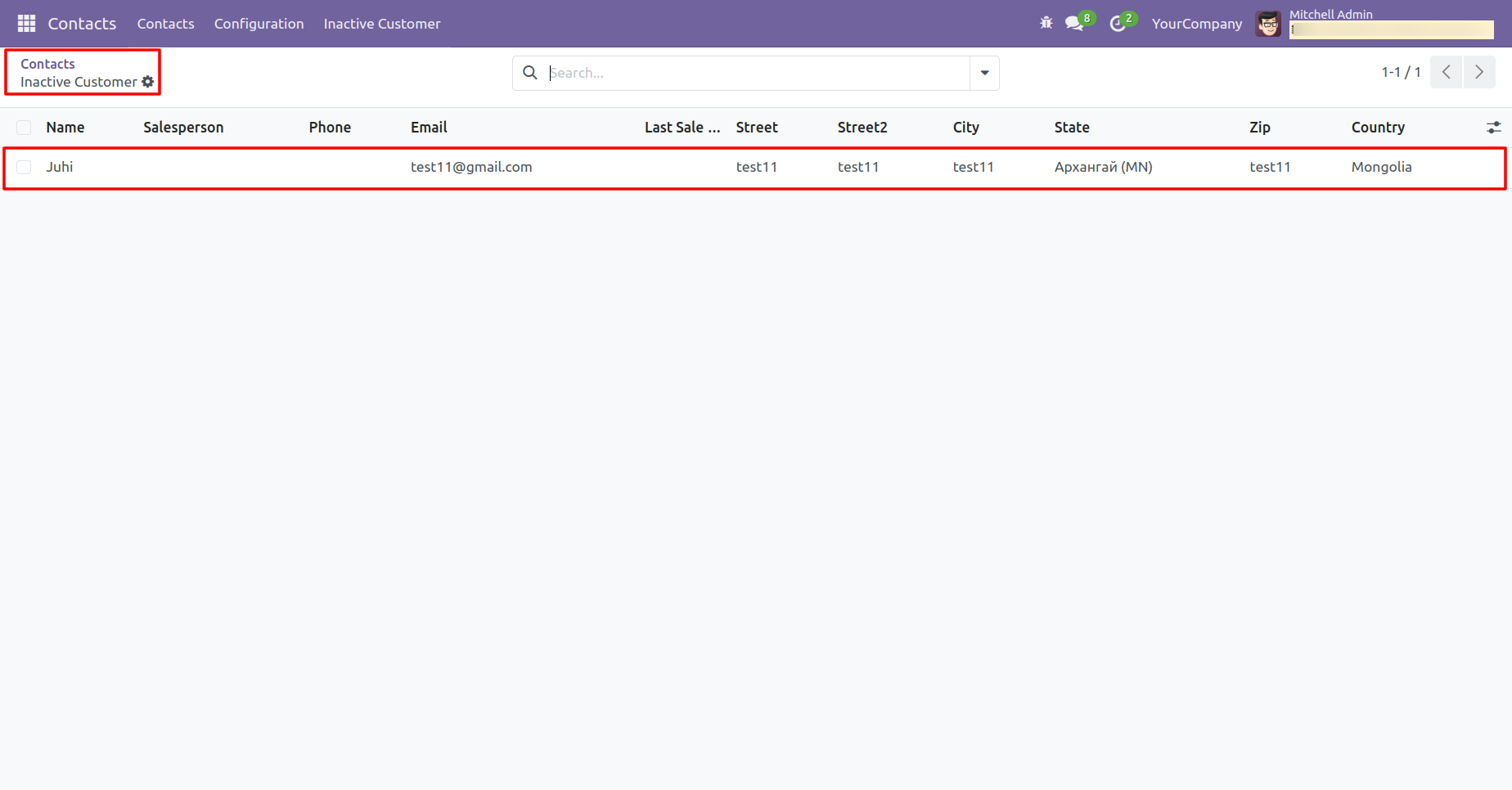
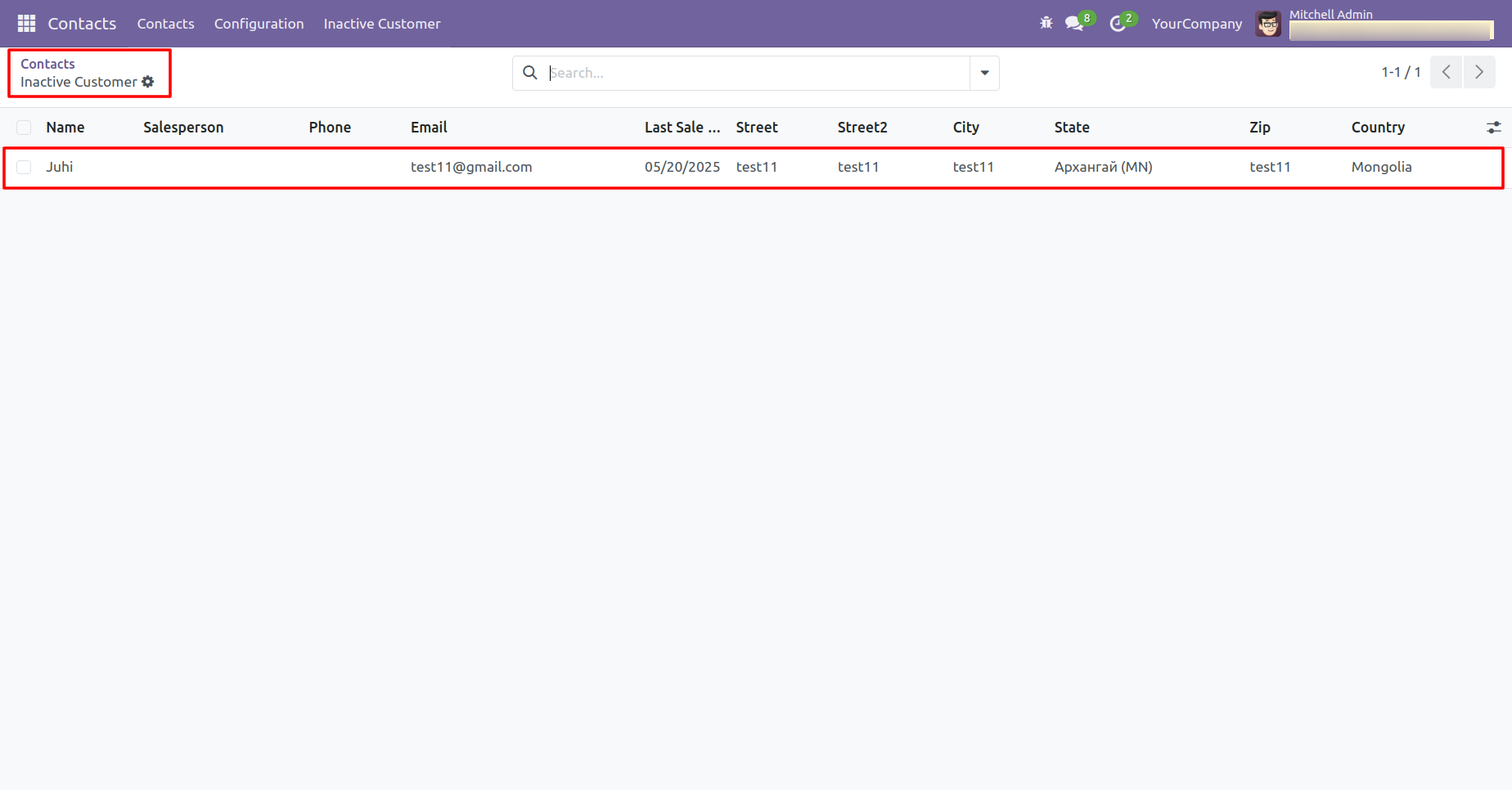
You can now view the list of customers who have been inactive for the specified number of
days.
Note: The system calculates the reference date by subtracting the entered number of
days from today.
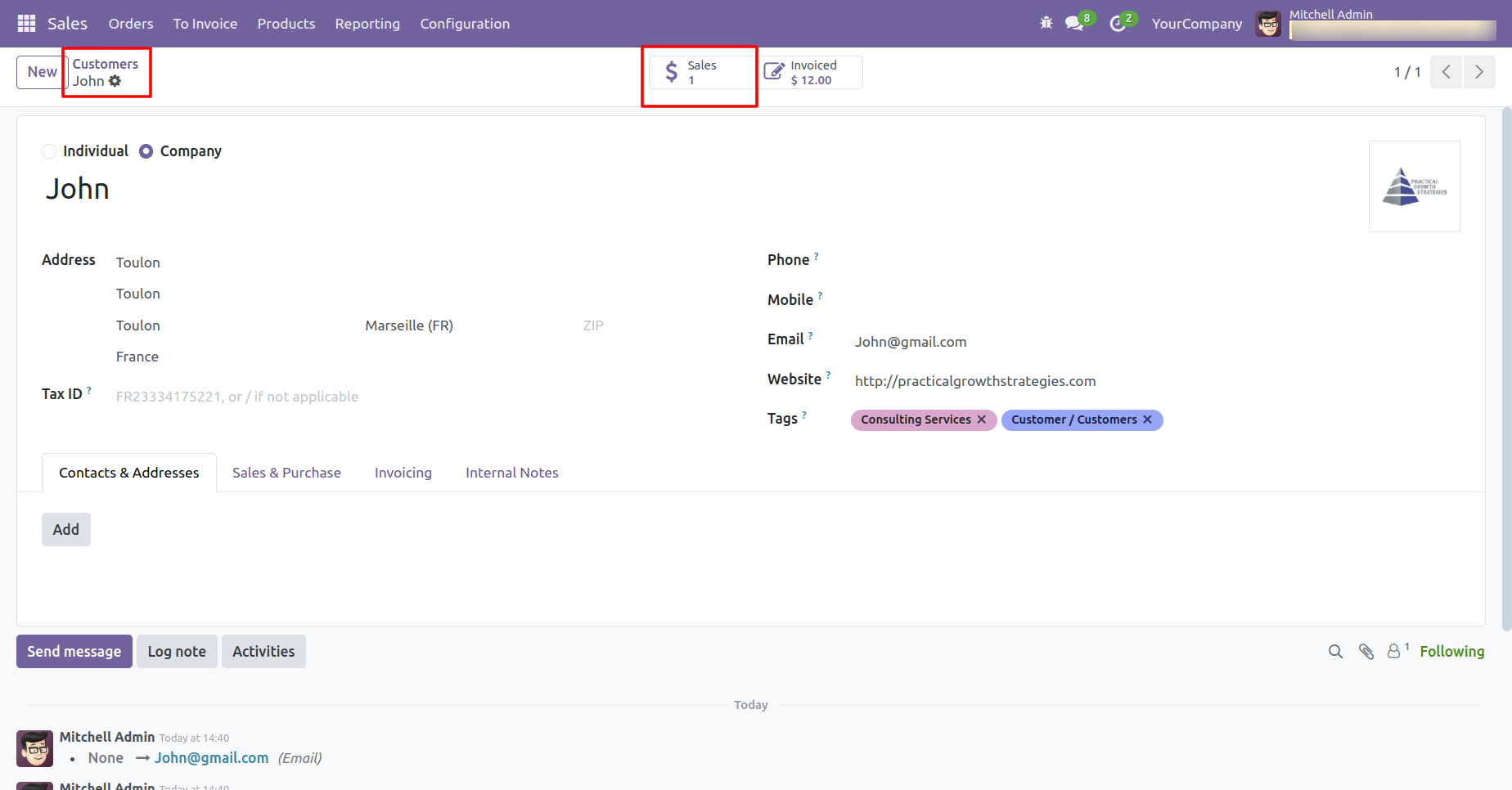
Create a sale order for the customer 'John'. Open John's contact and click on the 'Sales' smart button.
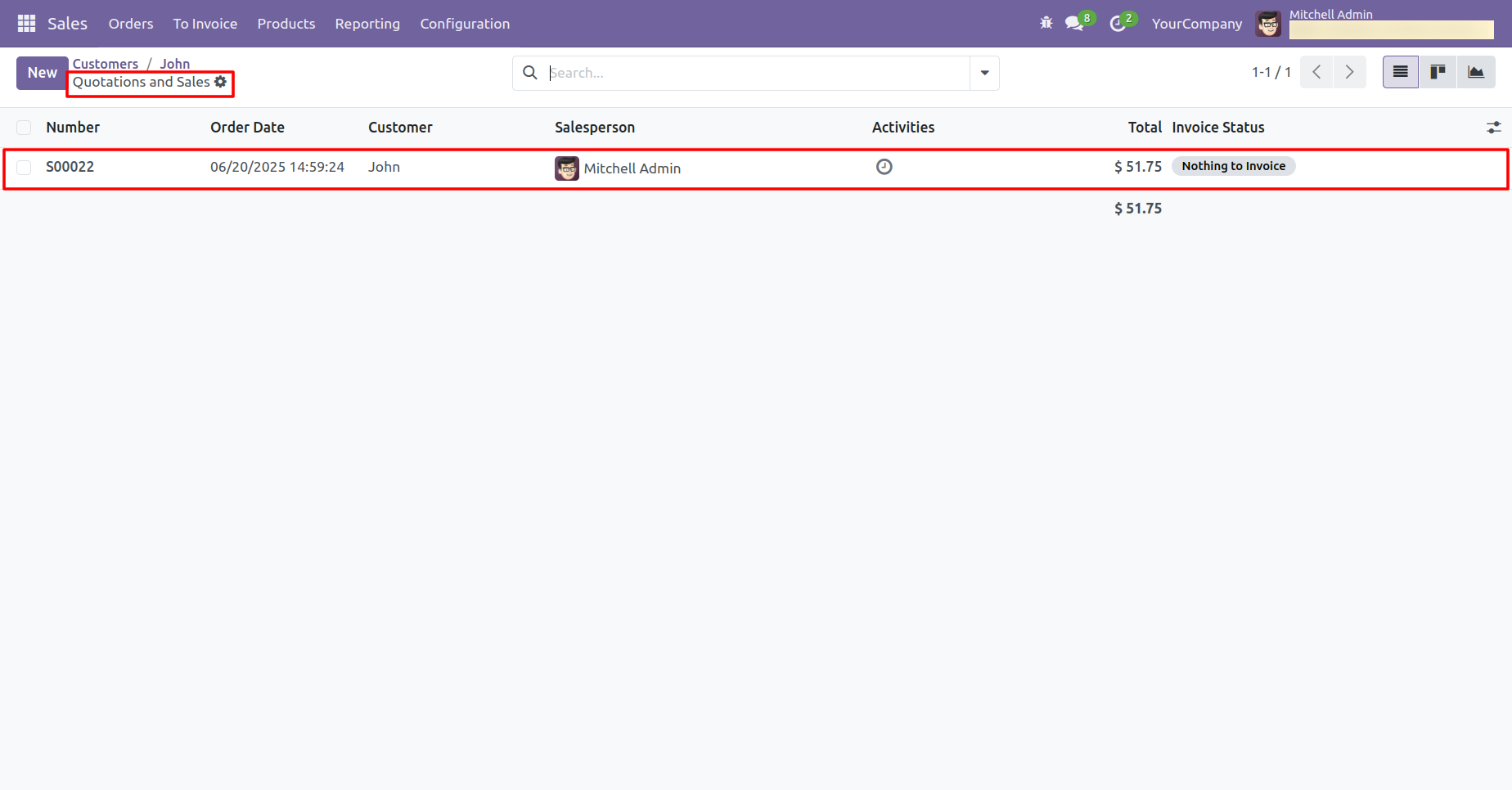
After that, the system redirects you to the SO list view.
Click on the 'Inactive Customer' menu. In the wizard, enter the number of days and click on the 'View Customers' button.
John is not listed as an inactive customer because a sale order was recently created for him.
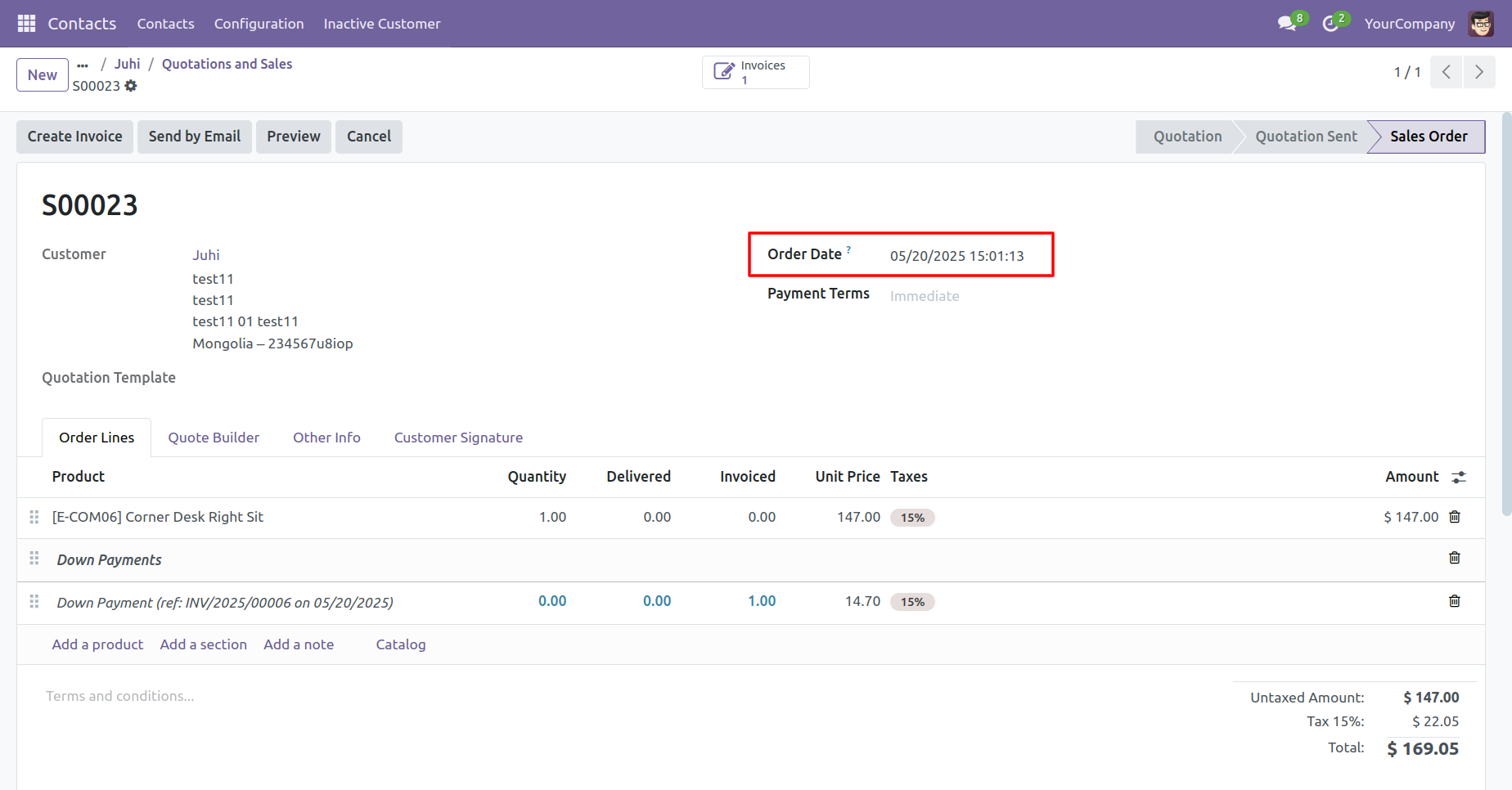
Create a sale order for the customer 'Juhi'. Open her contact and click on the 'Sales' smart button.
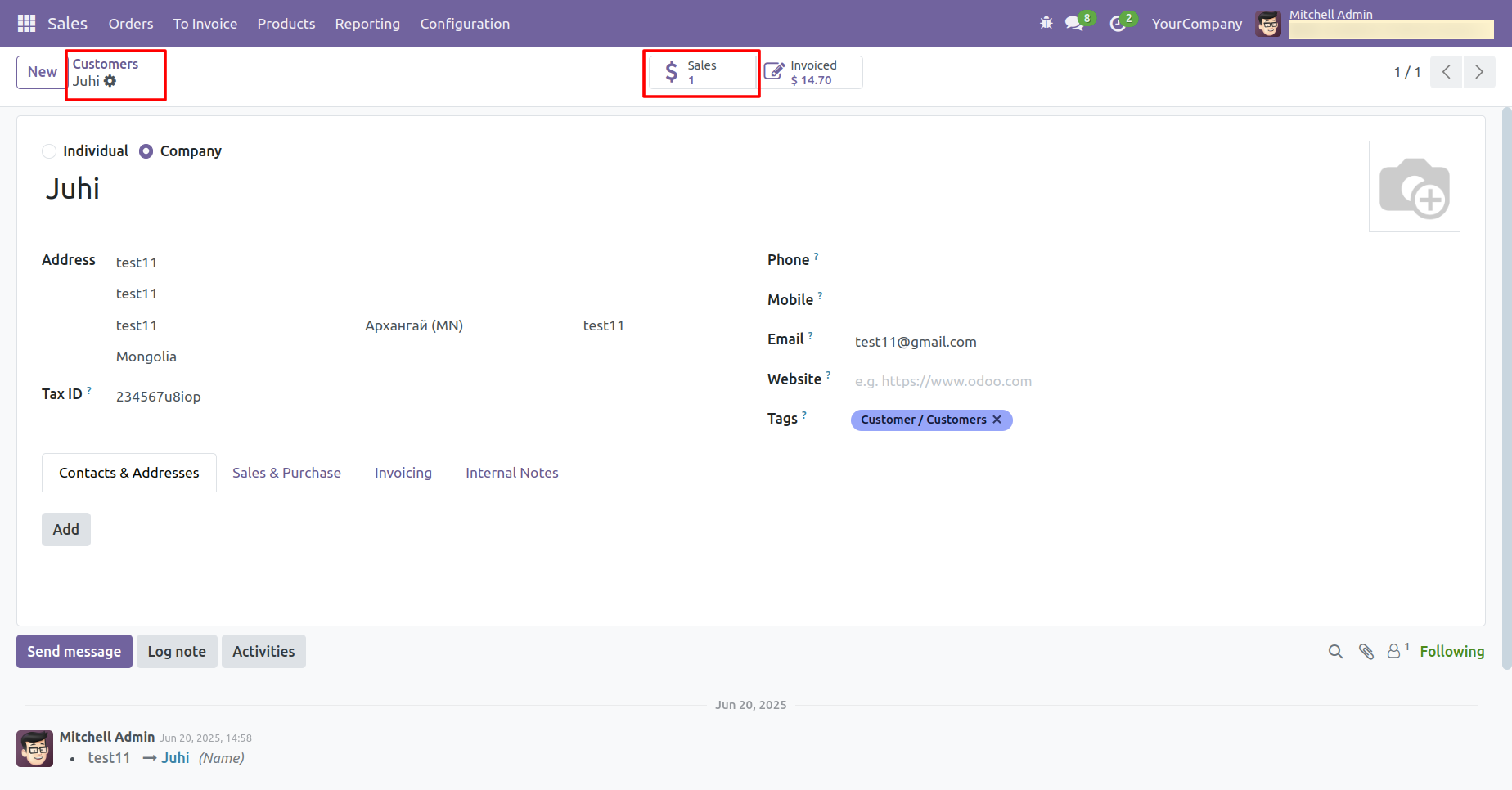
Once clicked, you'll be redirected to the Sales Order tree view.
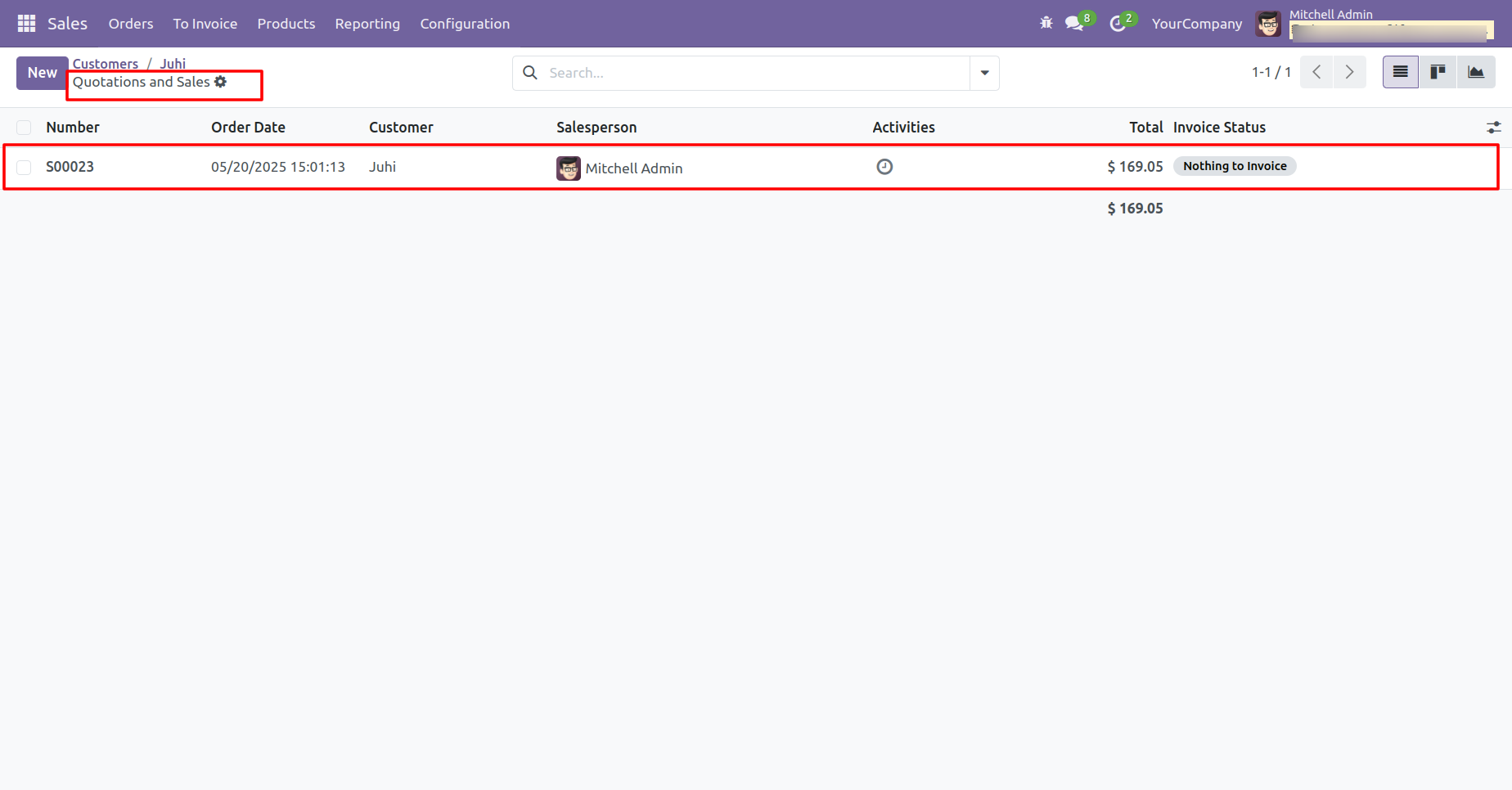
Form view of the SO.
Click on the 'Inactive Customer' menu. In the wizard, enter the number of days and click on the 'View Customers' button.
John is not listed as an inactive customer because a sale order was created for him before the entered number of days.
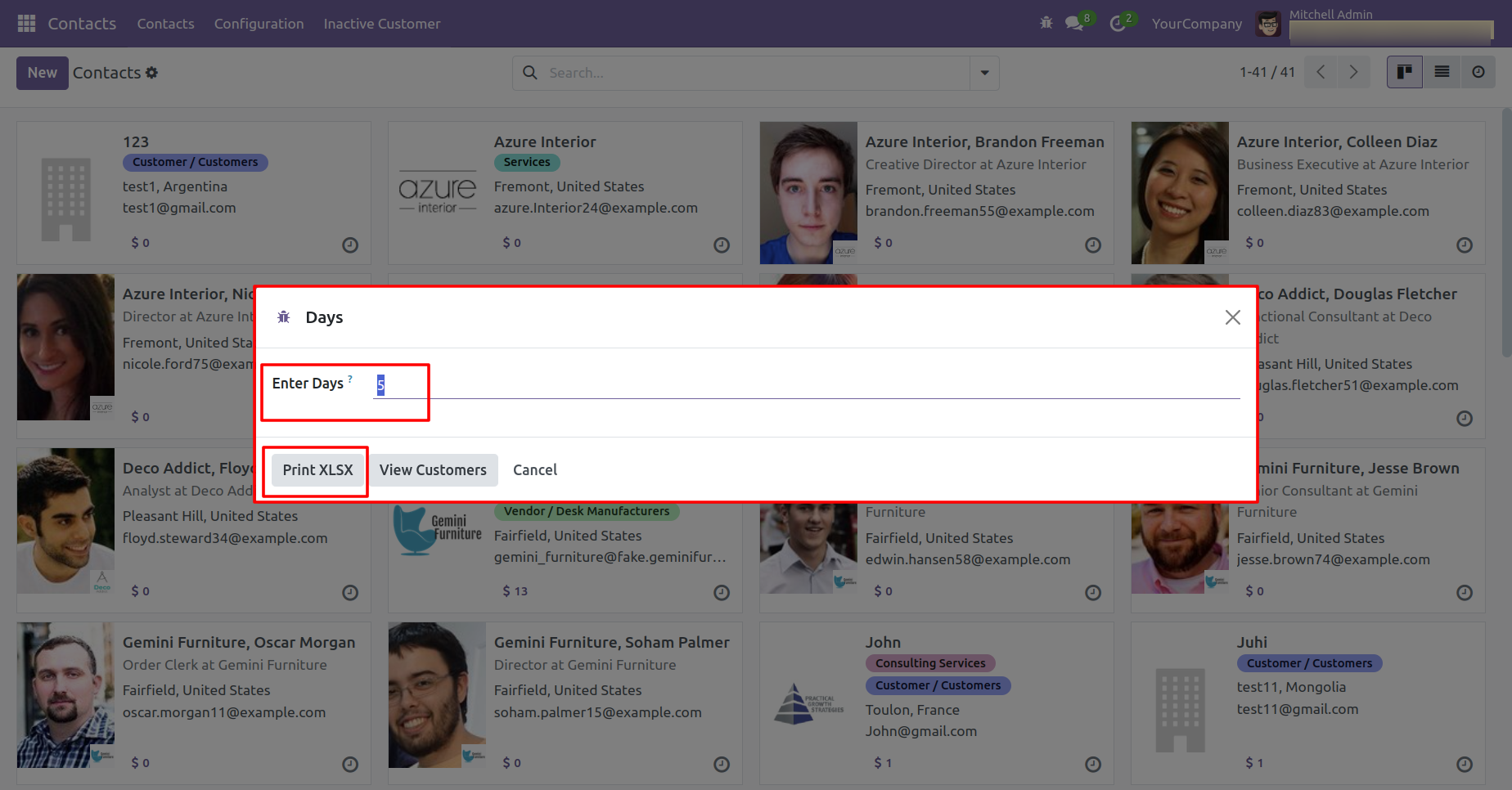
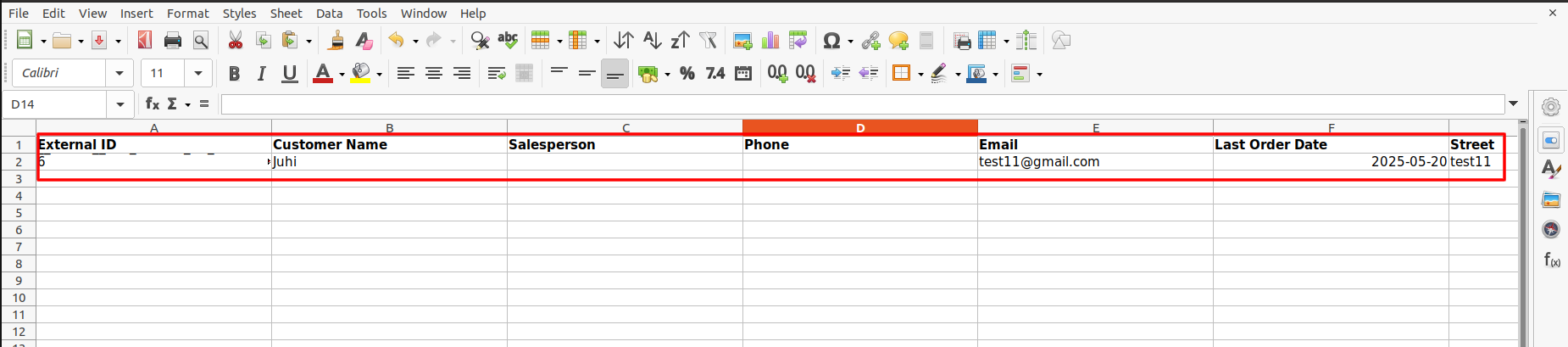
Click on the 'Print XLSX' button.
The XLS report of inactive customers is shown below.
v 15.0.12

Display customer vat number in the receipt.

v 15.0.10
Enable "Allow To Return Order" to allow return order.

Printed receipt with the return order reference.

Version 20.0.1.0.0 | Released on : 15th September 2026
- Yes, this app works perfectly with Odoo Enterprise (Odoo.sh & Premise) as well as Community.
- No, this application is not compatible with odoo.com(odoo saas/Odoo Online)
- This app is compatible with Linux, we have not tested it in windows.
- Yes as we have replaced the full receipt so it's possible another app which extending this can not work properly. We can give paid support to resolve this conflict.
- Yes, to test this module, please contact us at sales@softhealer.com.
- Please contact us at sales@softhealer.comto request customization.
- Yes, we provide free support for 365 days from the date of purchase.
- Yes, you will receive lifetime free updates for the version of the module you purchased.
- No, there is no need to install any additional libraries.
- Yes, for version 12 and above, you need to purchase the module separately for each version you intend to use.
- No, exchanges or refunds are not allowed. Please make sure to select the correct version before purchasing.
- You can contact us at support@softhealer.com for language translation support. We use Google Translator tools to provide translations in multiple languages, so the accuracy may vary. We welcome your suggestions to help improve translations.
Discover Our Latest Apps