











Import Transfers with Lots/Serial Number from CSV/Excel file

This module empowers users to efficiently import stock transfers, including receipts, deliveries, and internal transfers from CSV or Excel files. It specifically supports tracked products with lot and serial numbers, ensuring accuracy. Simplify your inventory management by importing multiple transfers simultaneously through a user-friendly wizard, saving time and reducing manual entry errors.

Features

Import Transfers from CSV/Excel
Easily import stock transfers with Lot/Serial numbers using CSV or Excel file formats.

Multiple Operation Types
Supports Receipts, Deliveries, and Internal Transfers in a single tool.
Batch Import Support
Import multiple pickings from a single file using unique Picking References.

Flexible Product Lookup
Identify products by Name, Internal Reference, or Barcode for seamless matching.

Smart Partner Matching
Find partners by Name, Reference, or ID, or auto-create them if missing.
Auto Process Pickings
Optionally auto-confirm and auto-validate transfers immediately after import.

Custom Scheduled Date
Set a specific scheduled date for all imported transfers from the wizard.
Detailed Error Logging
Get clear feedback on any skipped rows with specific reasons for failure.

Download Sample File (CSV/Excel)
Use the sample file as a template to quickly prepare and upload your data.
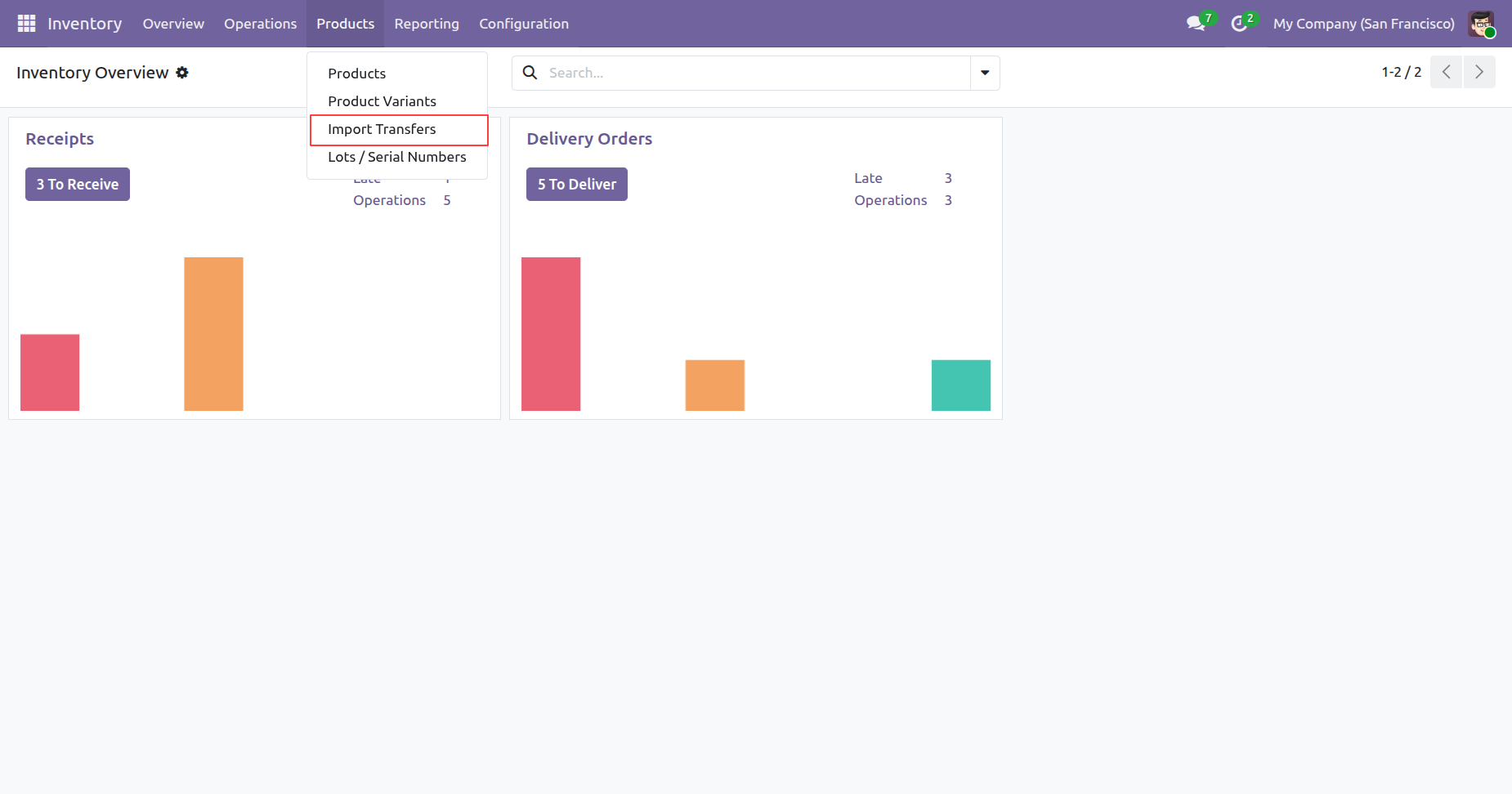
Navigating to Import Transfers via the Products menu in the Inventory module to bulk-upload warehouse movements.
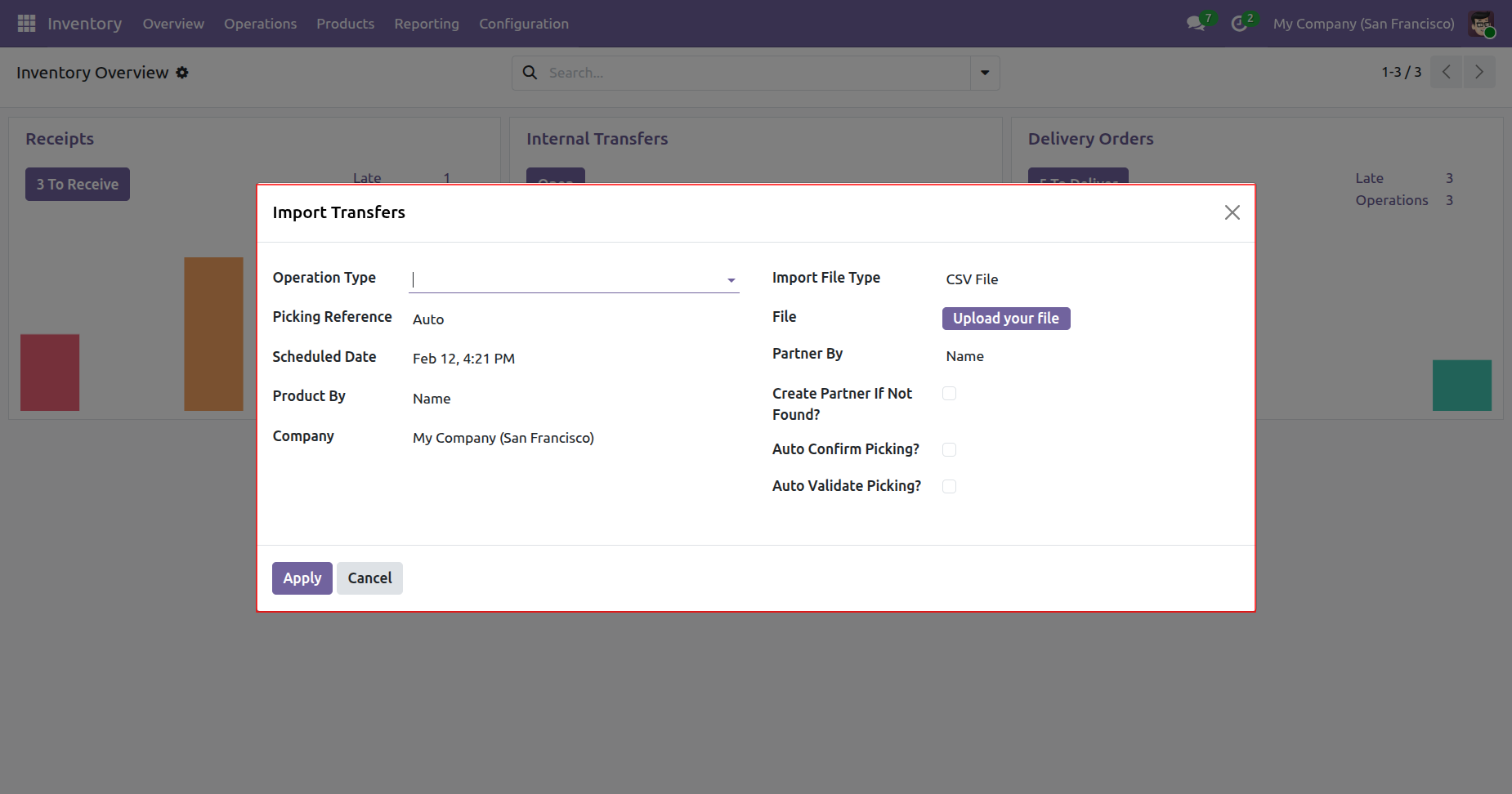
Using the Import Transfers wizard to bulk-upload inventory movements via CSV, with options to auto-confirm or auto-validate pickings.
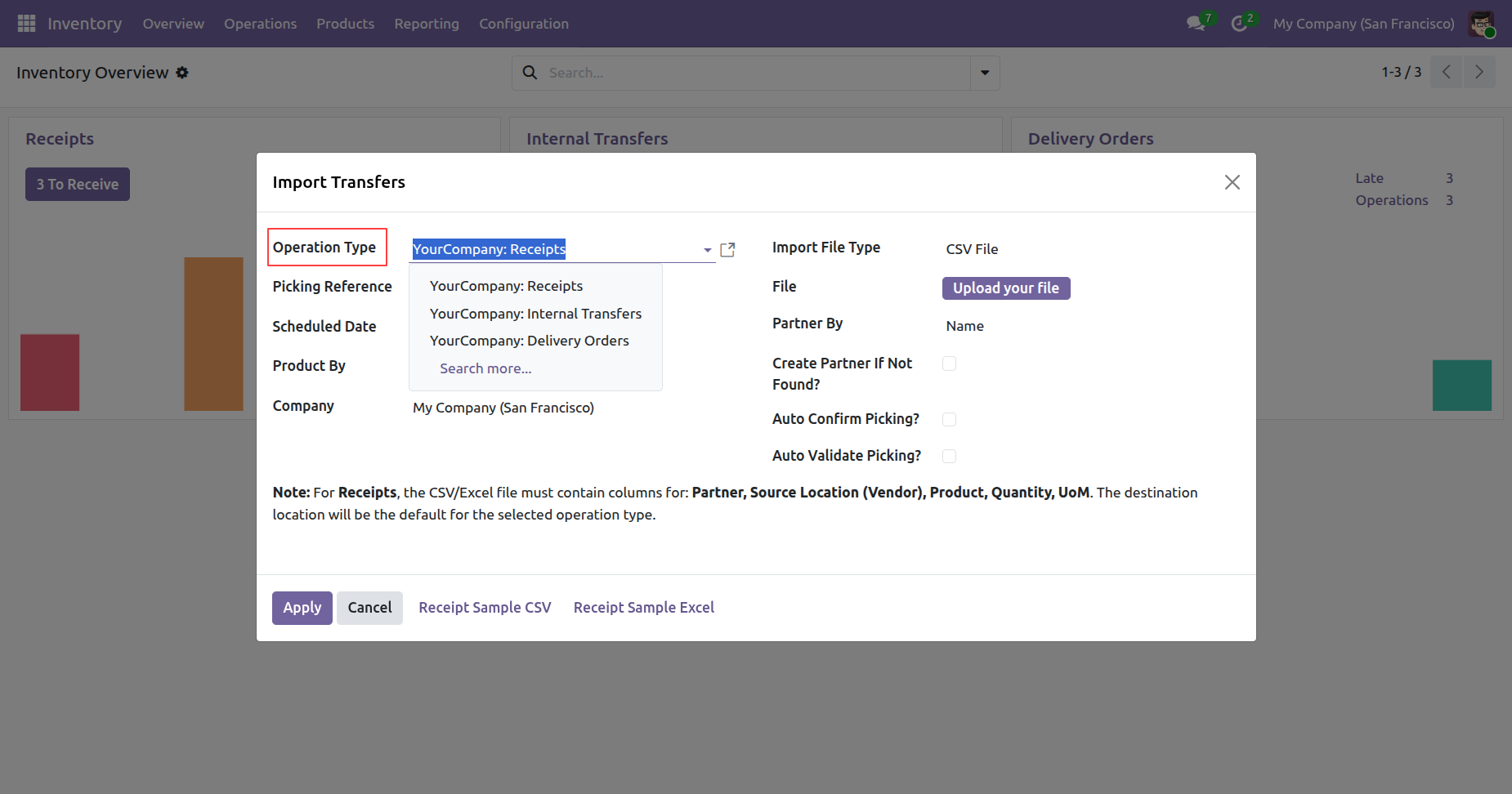
Selecting the Operation Type as Receipts within the Import Transfers wizard to bulk-upload inventory data via a CSV or Excel file.
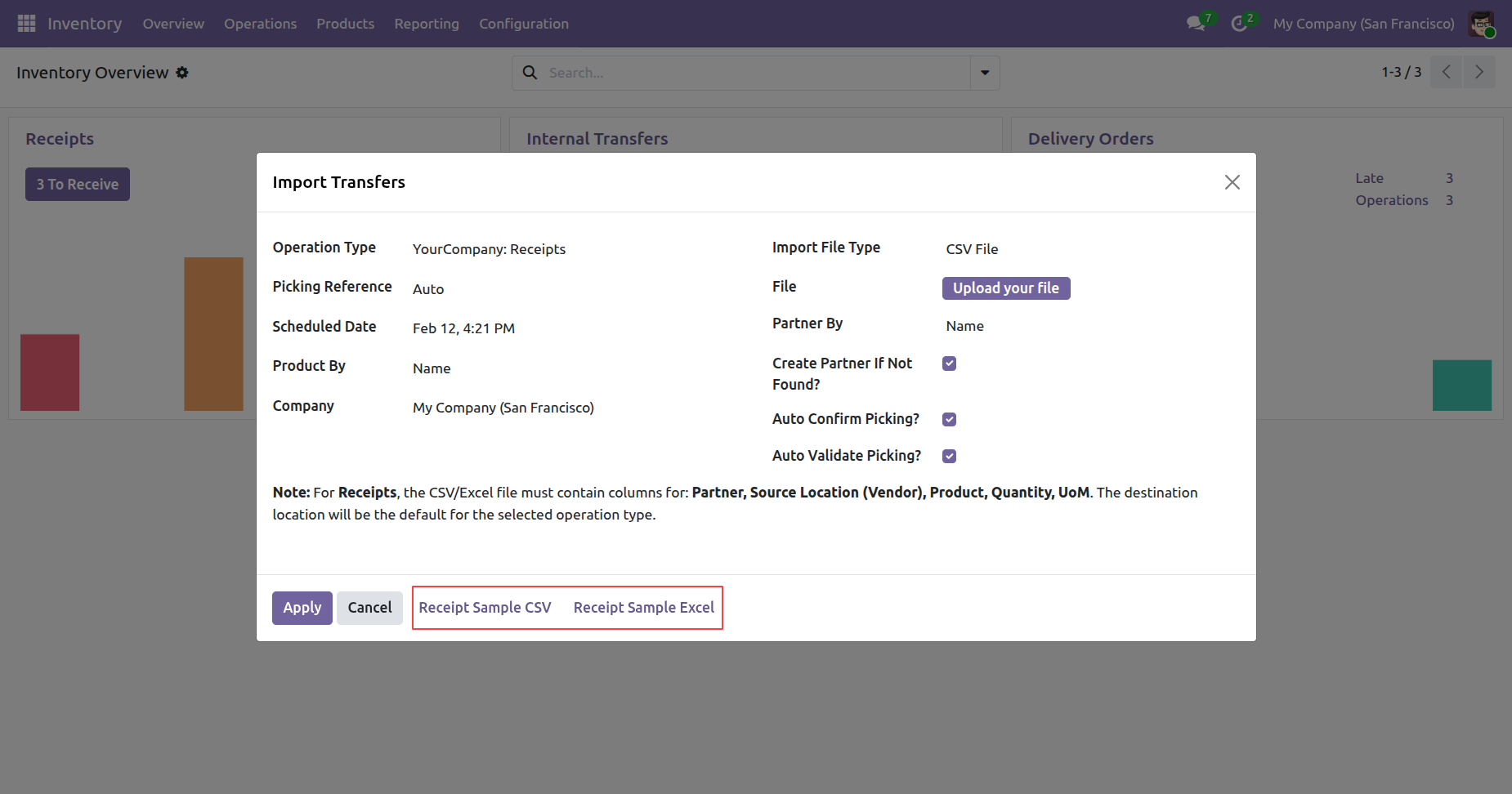
Downloading Receipt Sample CSV/Excel templates from the Import Transfers wizard to ensure correct data formatting before uploading.
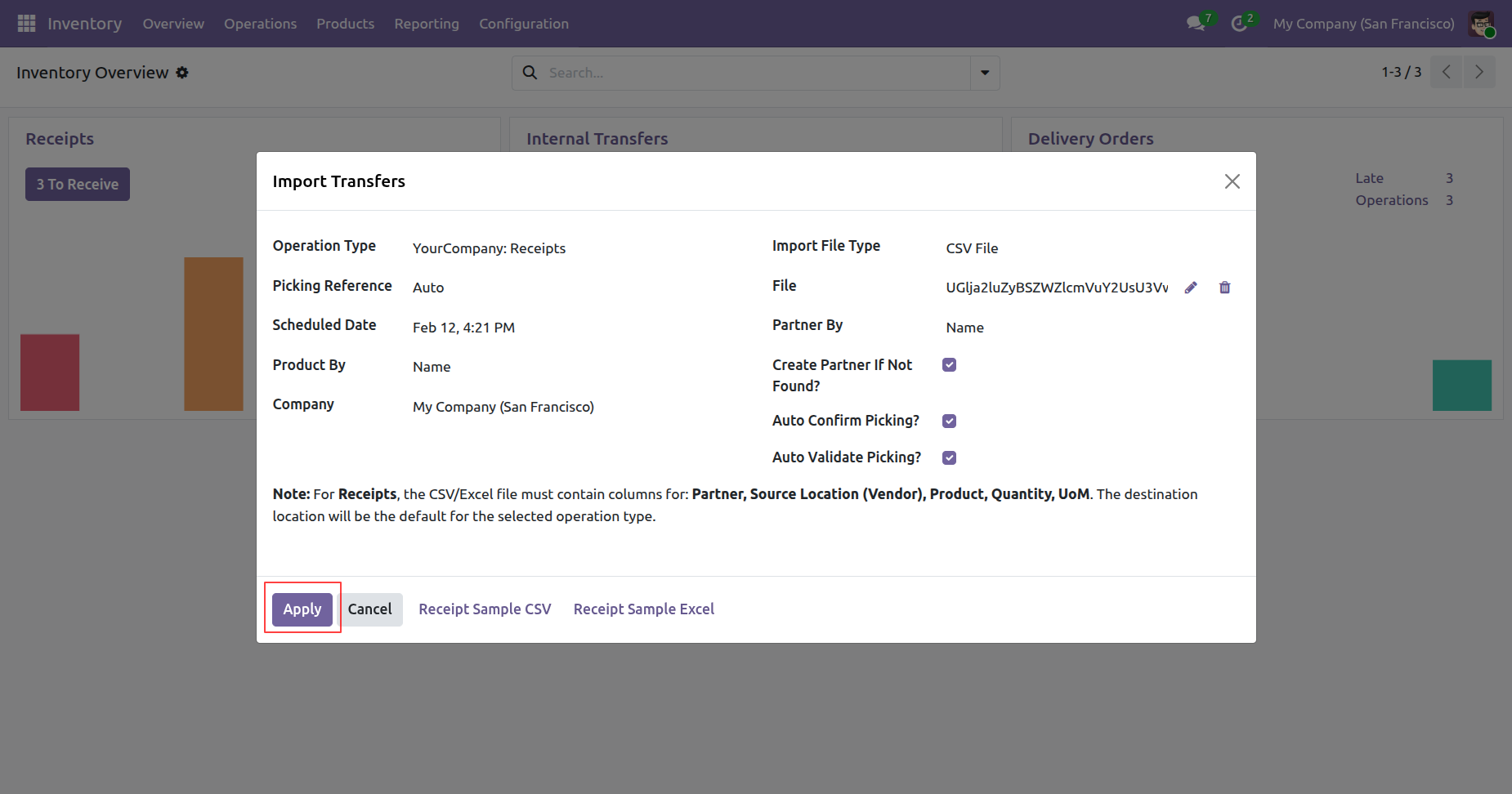
Clicking Apply to execute the bulk import of receipts for the San Francisco branch after successfully uploading the CSV data file.
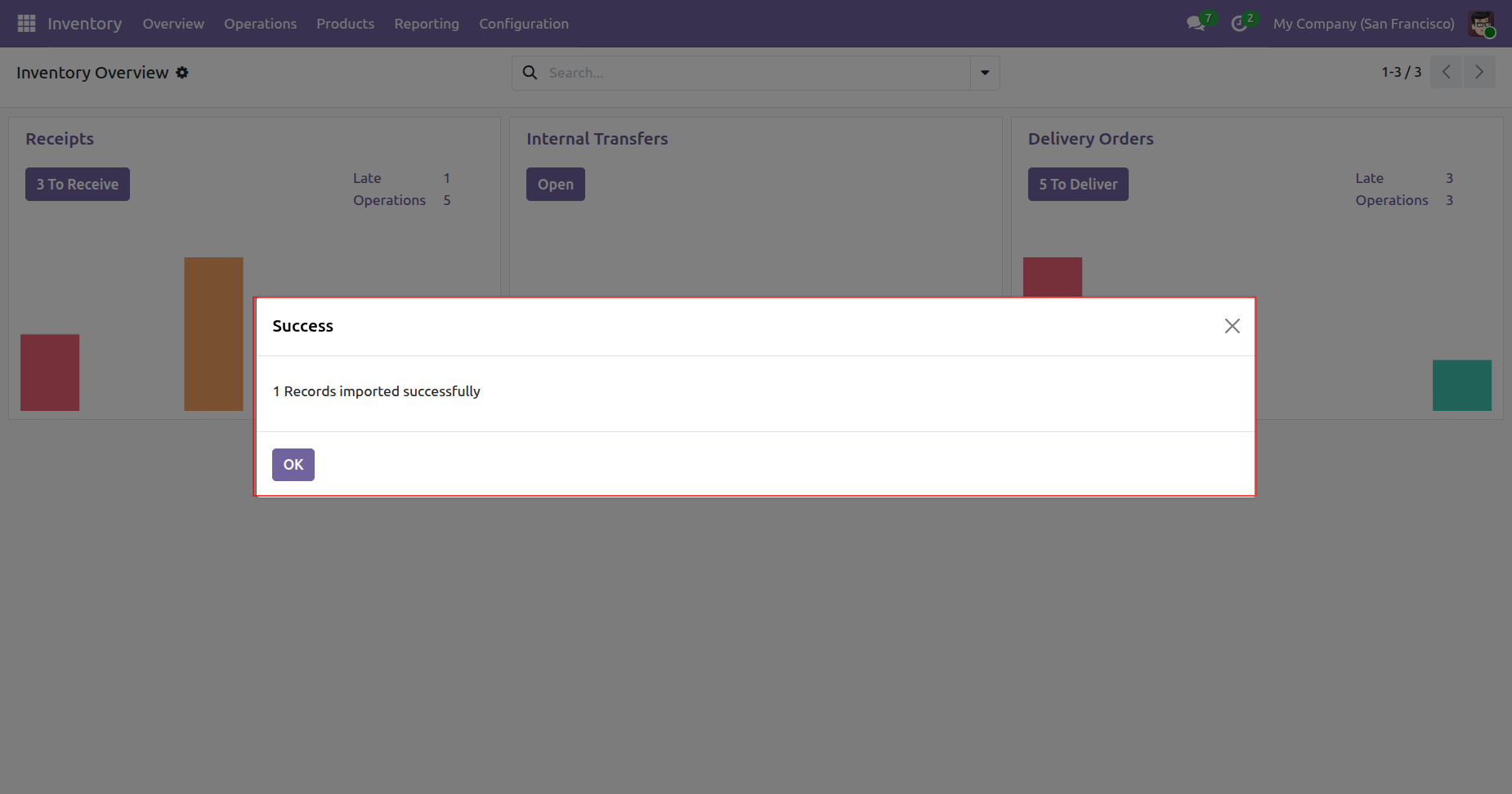
Confirming the successful import of transfer records into the Odoo Inventory module.
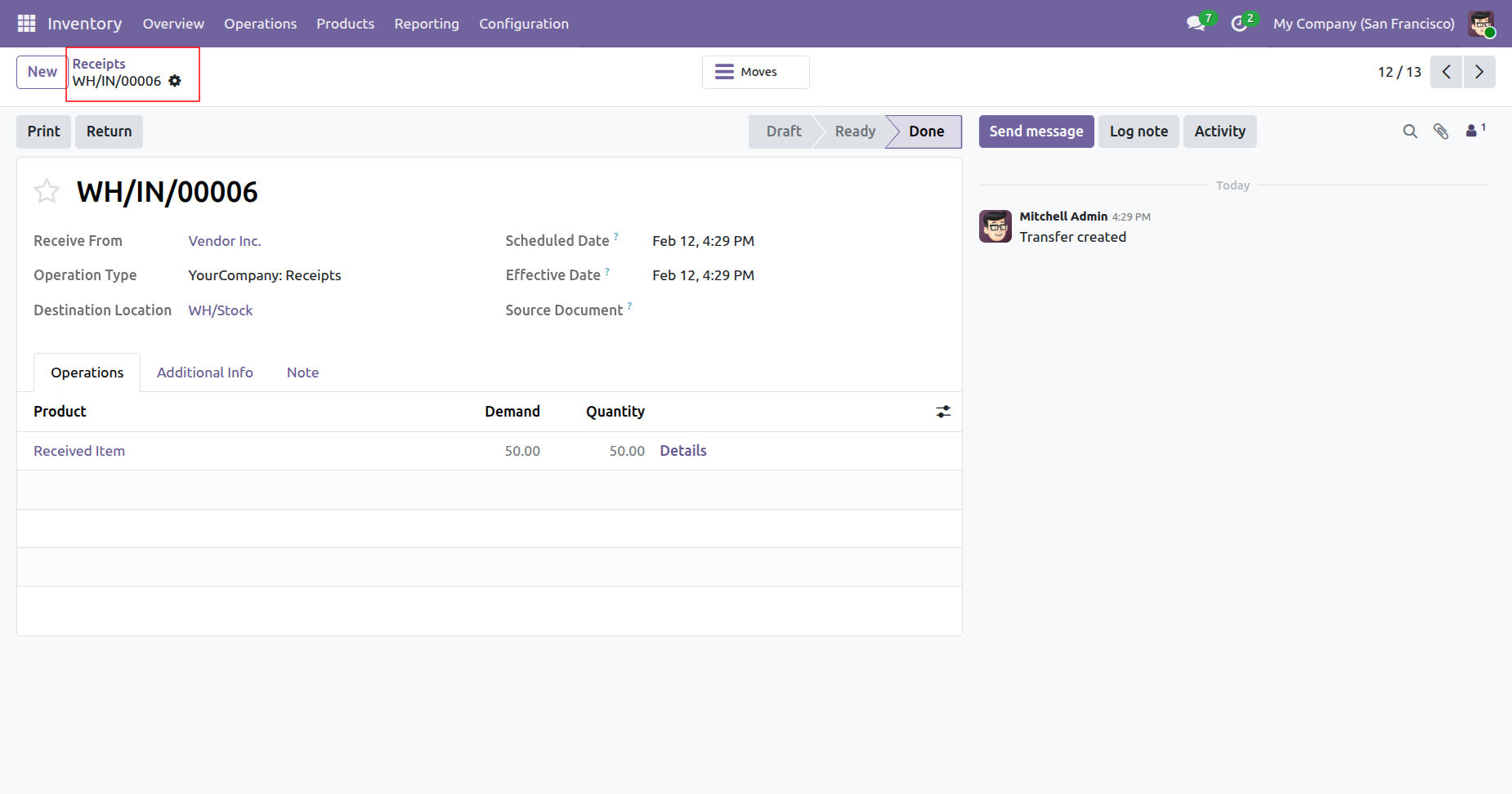
Reviewing the completed receipt WH/IN/00006 from Vendor Inc., with all 50 units of the "Received Item" successfully moved to WH/Stock.
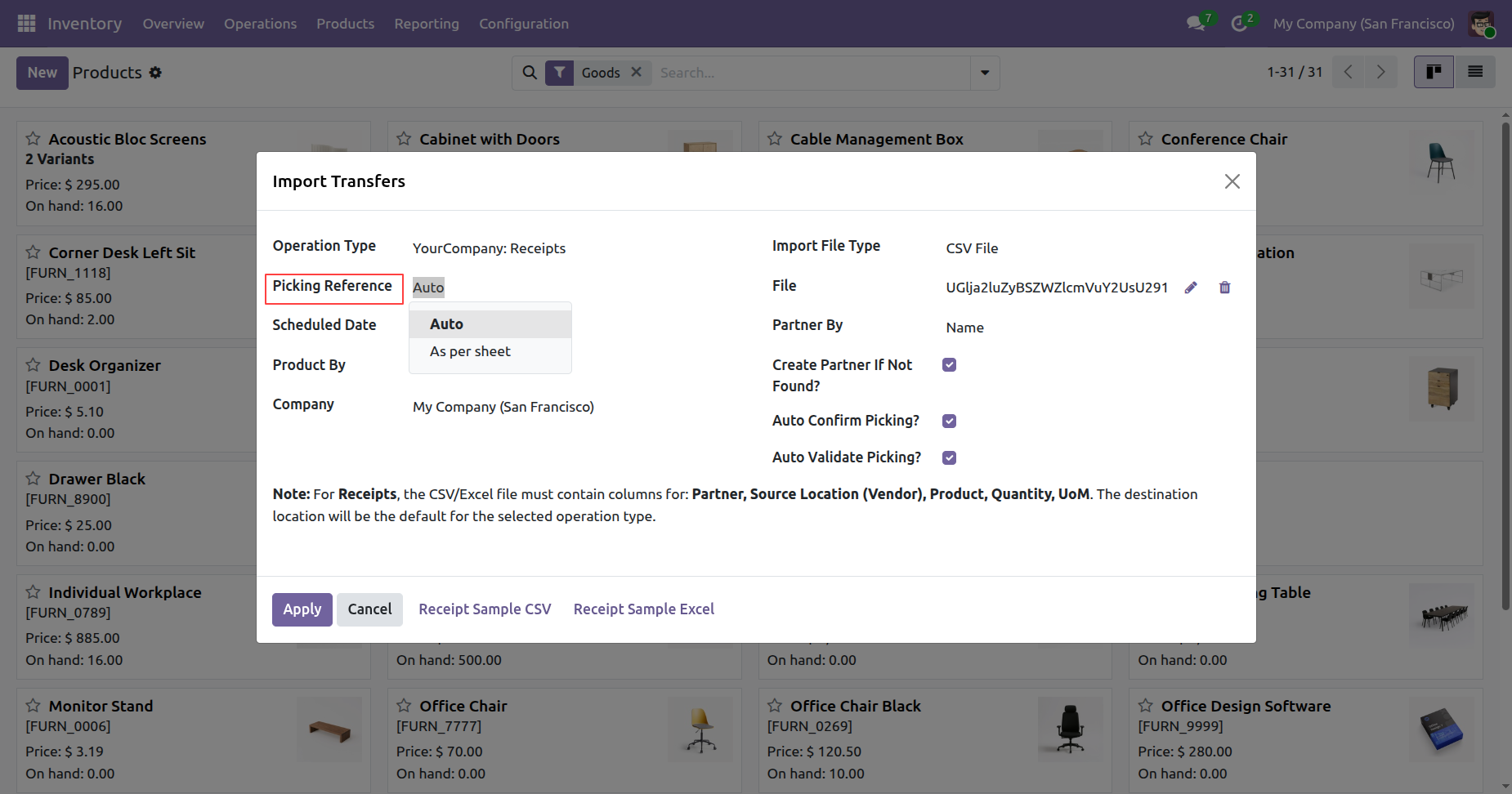
Setting the Picking Reference and Scheduled Date to "Auto" within the Import Transfers wizard to streamline bulk receipt processing.
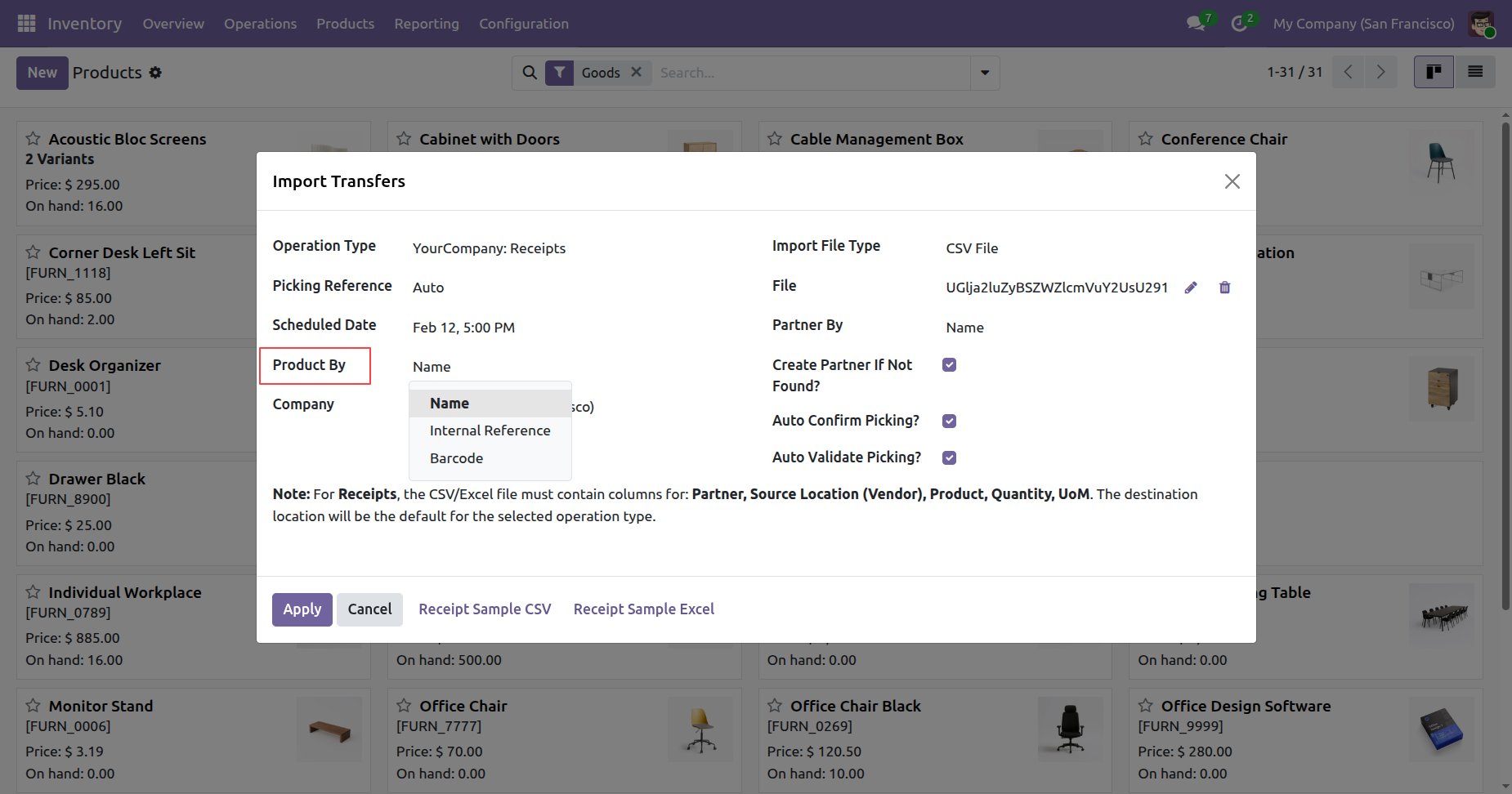
Selecting the Product By criteria, such as Name, Internal Reference, or Barcode, to accurately map items during the import process.
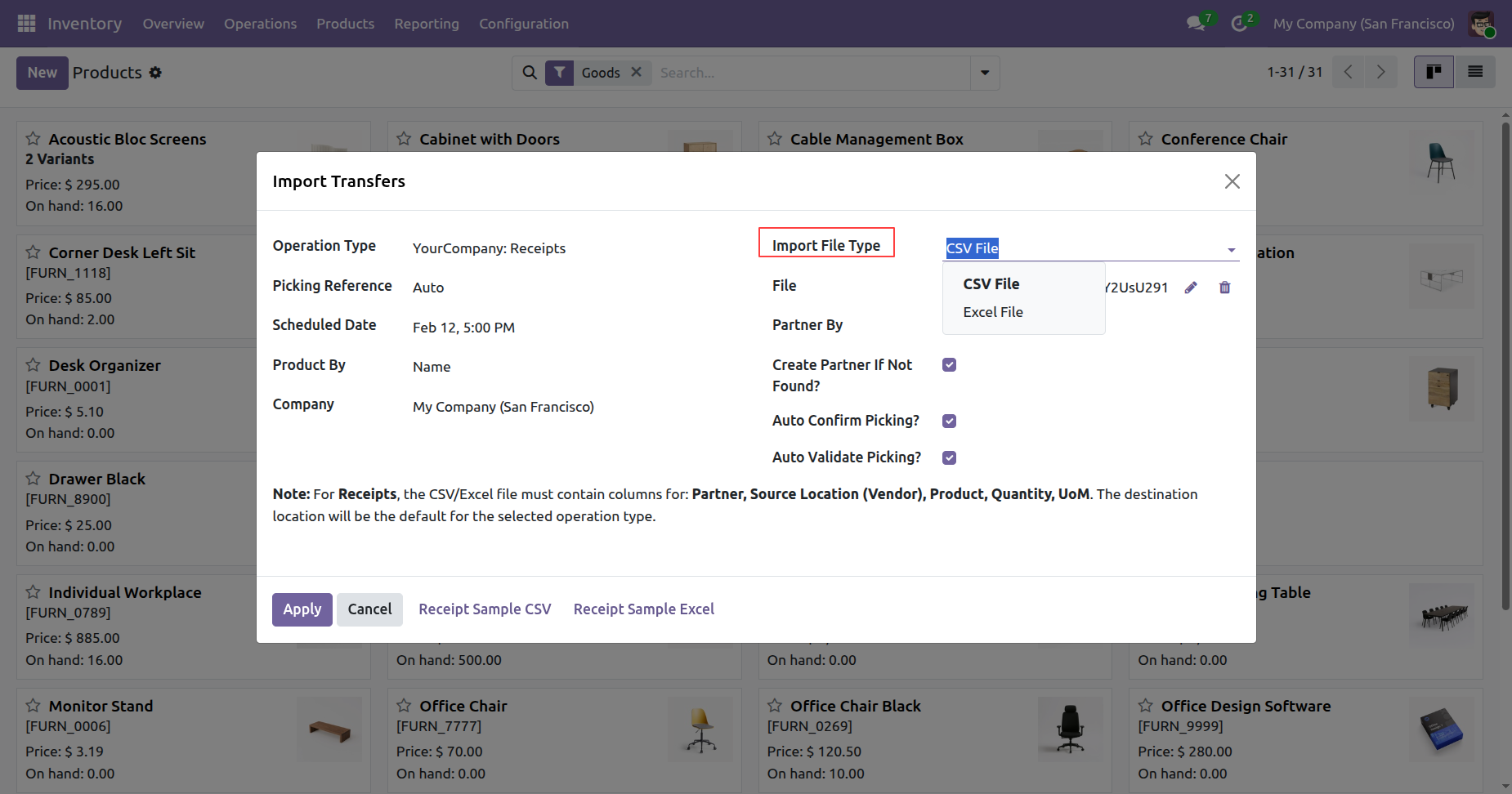
Selecting the Import File Type as either CSV File or Excel File to match the format of the inventory data being uploaded.
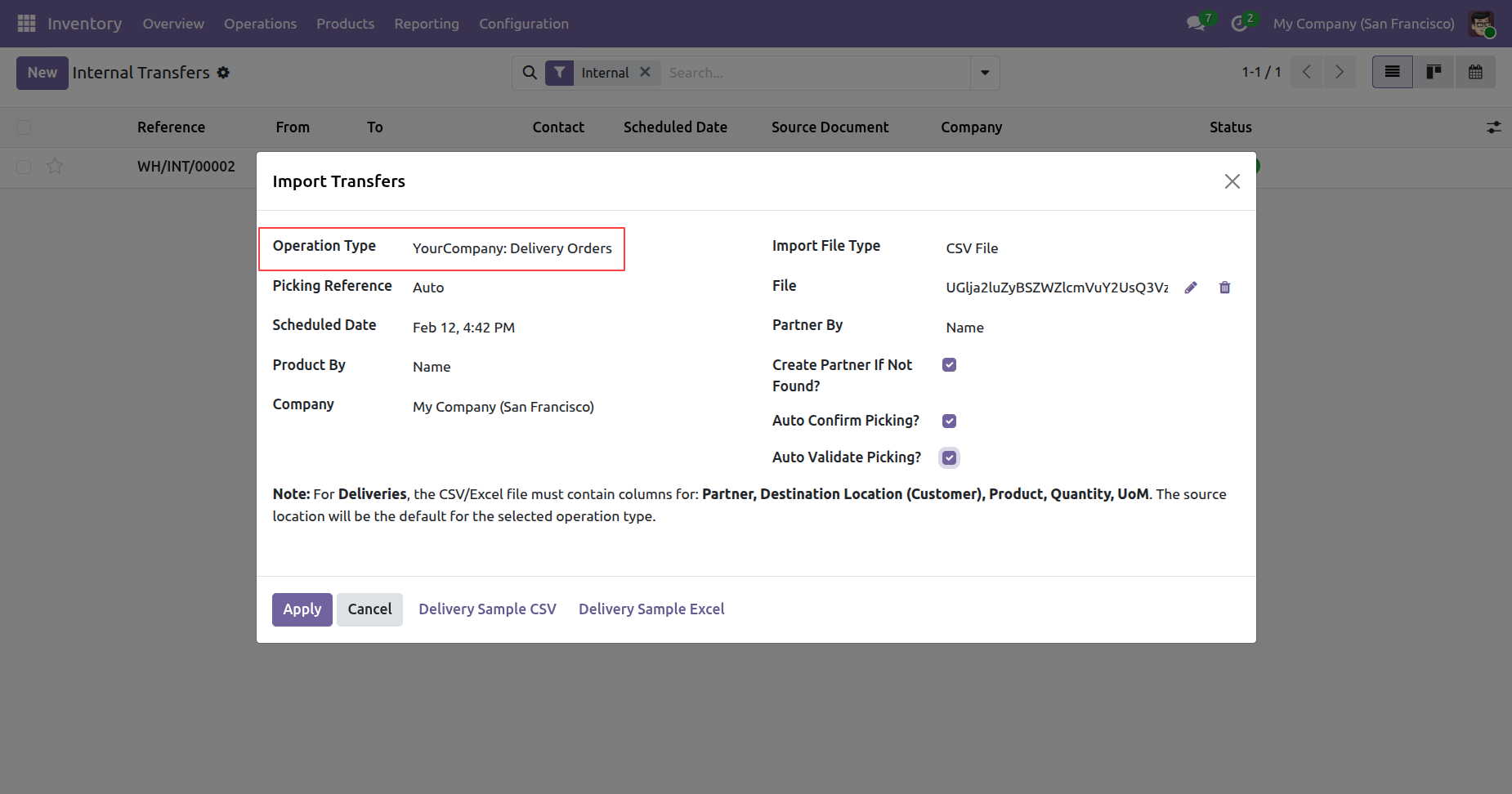
Selecting Delivery Orders as the operation type in the Import Transfers wizard to bulk-process outgoing shipments from the San Francisco warehouse.
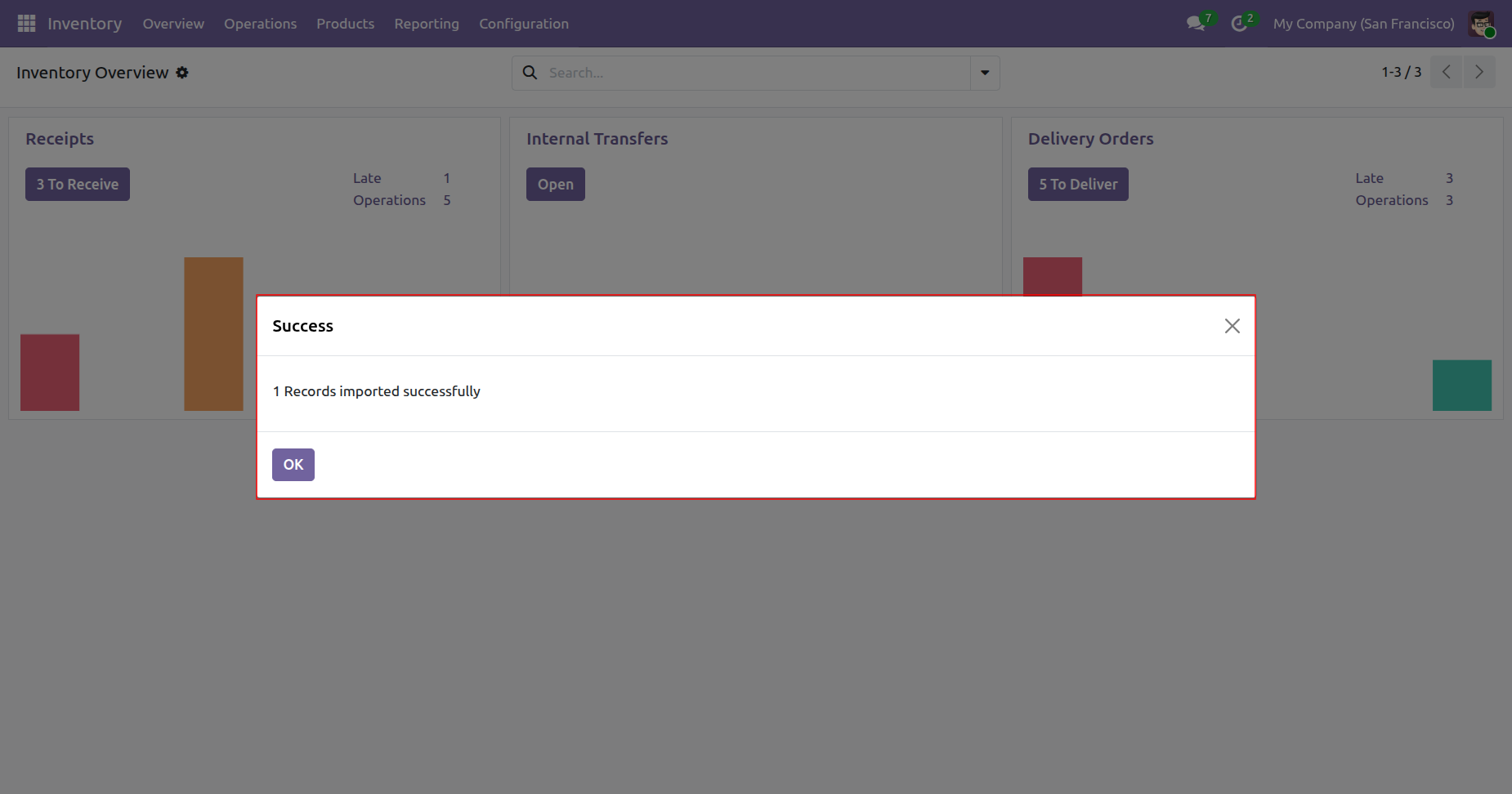
Finalizing the bulk delivery order process with a confirmation that the record was imported successfully into the Inventory module.
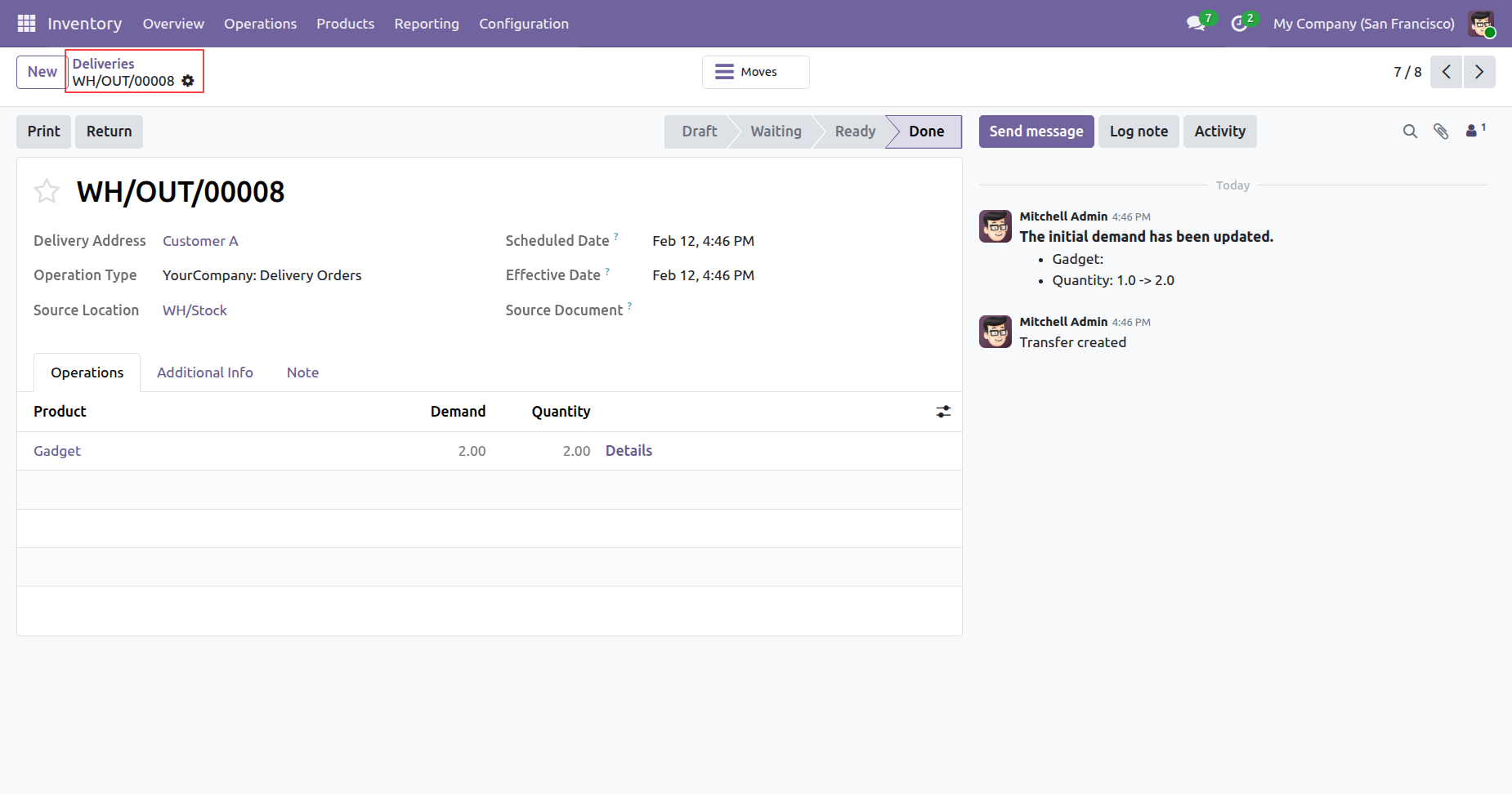
Reviewing the completed delivery WH/OUT/00008 for Customer A, showing a successful transfer of 2.0 units of Gadget from WH/Stock.
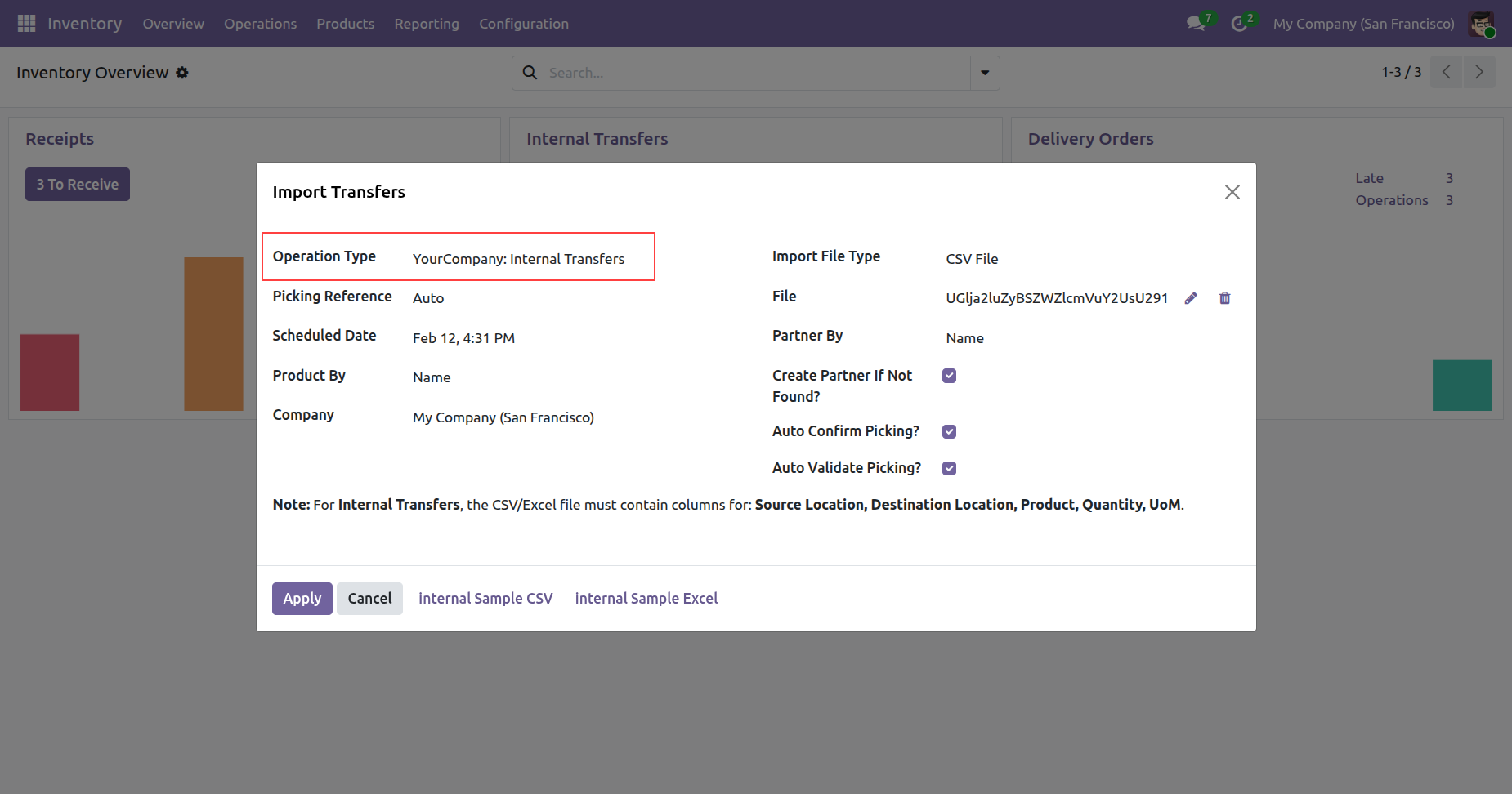
Selecting Internal Transfers as the operation type in the Import Transfers wizard to move stock between warehouse locations in bulk.
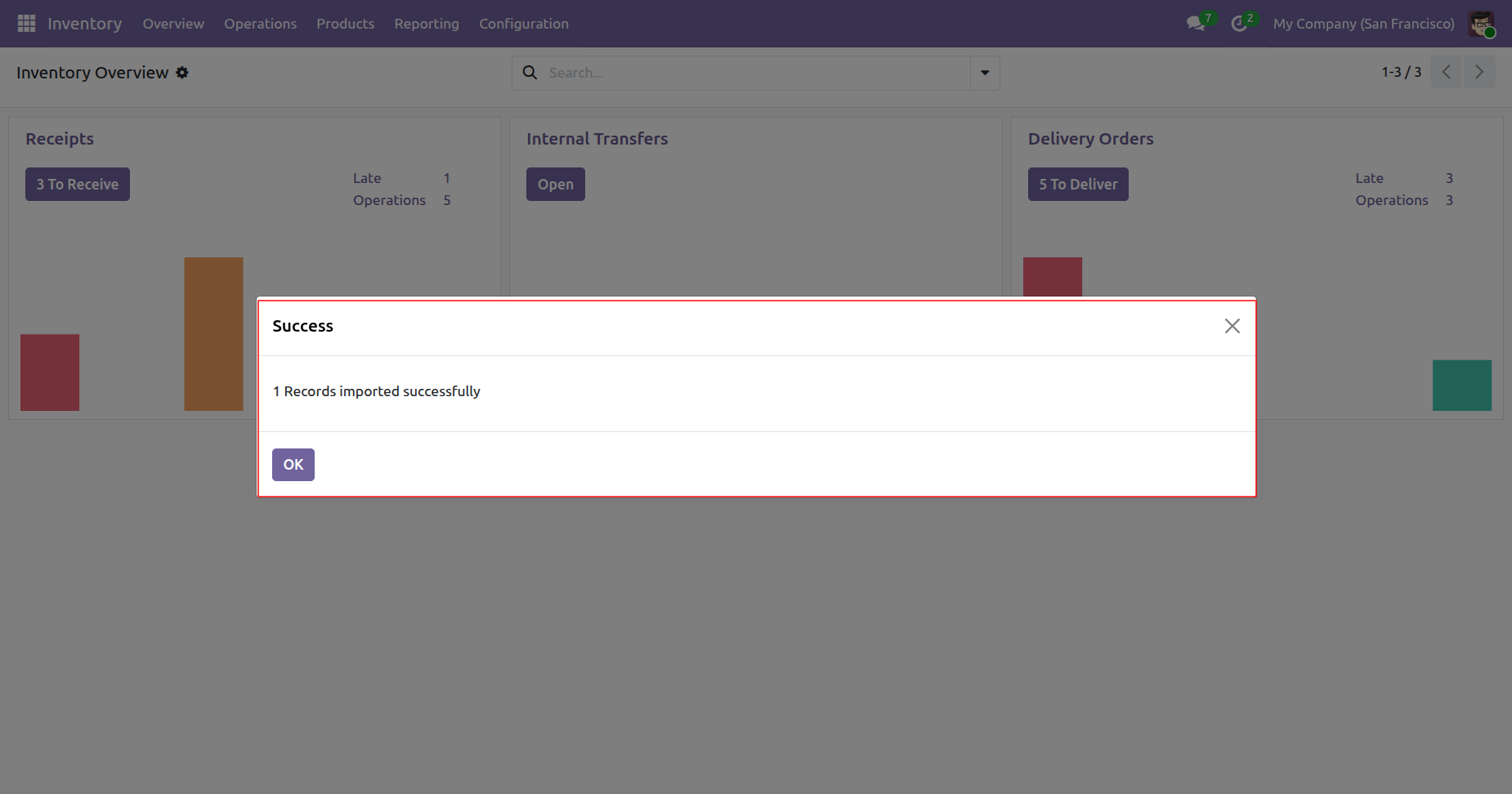
Confirming the successful import of internal transfer records into the Odoo Inventory dashboard.
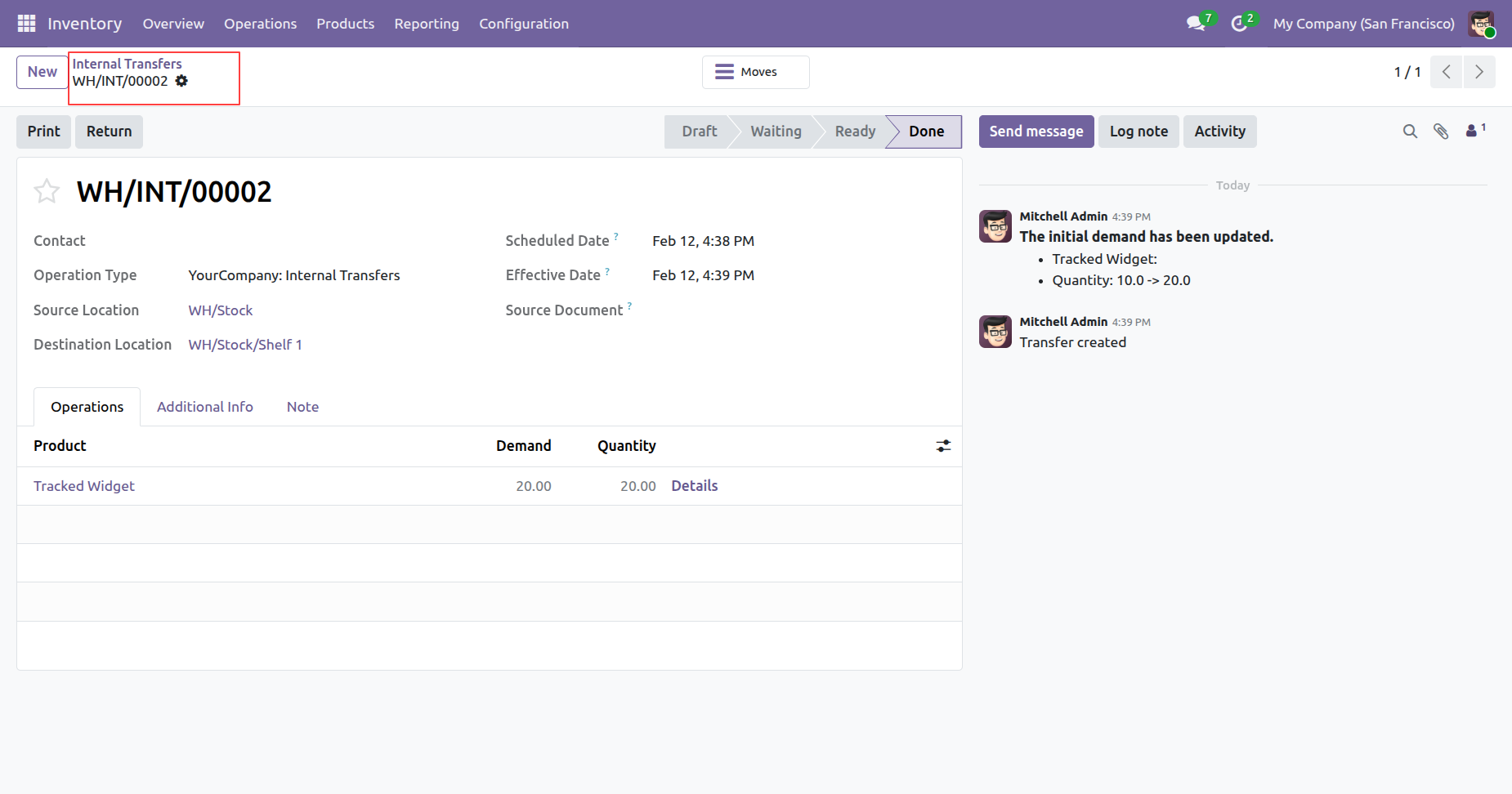
Reviewing the completed internal transfer WH/INT/00002, showing the movement of 20.00 units of Tracked Widget from WH/Stock to WH/Stock/Shelf 1.
Version 18.0.1.0.0 | Released on : 18th May 2026
- Yes, this app works perfectly with Odoo Enterprise (Odoo.sh & Premise) as well as Community.
- No, this application is not compatible with odoo.com(odoo saas/Odoo Online)
- Yes, to test this module, please contact us at sales@softhealer.com.
- Please contact us at sales@softhealer.com to request customization.
- Yes, we provide free support for 365 days from the date of purchase.
- Yes, you will receive lifetime free updates for the version of the module you purchased.
- No, there is no need to install any additional libraries.
- Yes, for version 12 and above, you need to purchase the module separately for each version you intend to use.
- No, exchanges or refunds are not allowed. Please make sure to select the correct version before purchasing.
- You can contact us at support@softhealer.com for language translation support. We use Google Translator tools to provide translations in multiple languages, so the accuracy may vary. We welcome your suggestions to help improve translations.
Discover Our Latest Apps