












Import Shipment Tracker

This module helps you easily monitor and track your incoming vendor shipments directly from your Purchase Orders. It automatically creates a detailed shipment tracking record as soon as a global or international purchase order is confirmed. To keep your supply chain organized, you can define different pipeline stages for your shipments, require custom checklists to be completed before moving to the next stage, and manage essential shipping documents like invoices, packing lists, and bills of lading all in one place. It is the perfect tool to ensure your logistics team never misses a verification step.

Related Modules
Features
Role-Based Access Control
Assign User or Administrator access rights to manage shipment tracking operations securely.
Shipment Tracking Control
Enable or disable shipment tracking functionality directly from Inventory settings.
Company Document Management
Create and manage shipment documents such as invoices, packing lists, and customs documents.
Required Document Configuration
Define mandatory documents required for each shipment tracking process.
Custom Shipment Stages
Create and manage custom shipment workflow stages based on logistics requirements.
Stage-Wise Checklists
Configure checklist items for each shipment stage to ensure process completion.
Incoterm-Based Workflow
Automatically apply shipment stages and requirements based on selected Incoterms.
Automatic Tracker Creation
Automatically create shipment tracker records when international purchase orders are confirmed.

Domestic Shipment Exclusion
Skip shipment tracker creation for domestic purchase orders automatically.
Shipment Tracker Smart Button
Access linked shipment tracking records directly from purchase orders.
Shipment Priority Management
Prioritize important shipments using a star-based priority indicator.

Document Attachment Management
Upload and manage shipment-related documents directly within the tracker.
Checklist Validation Control
Prevent stage progression until all checklist items are completed.
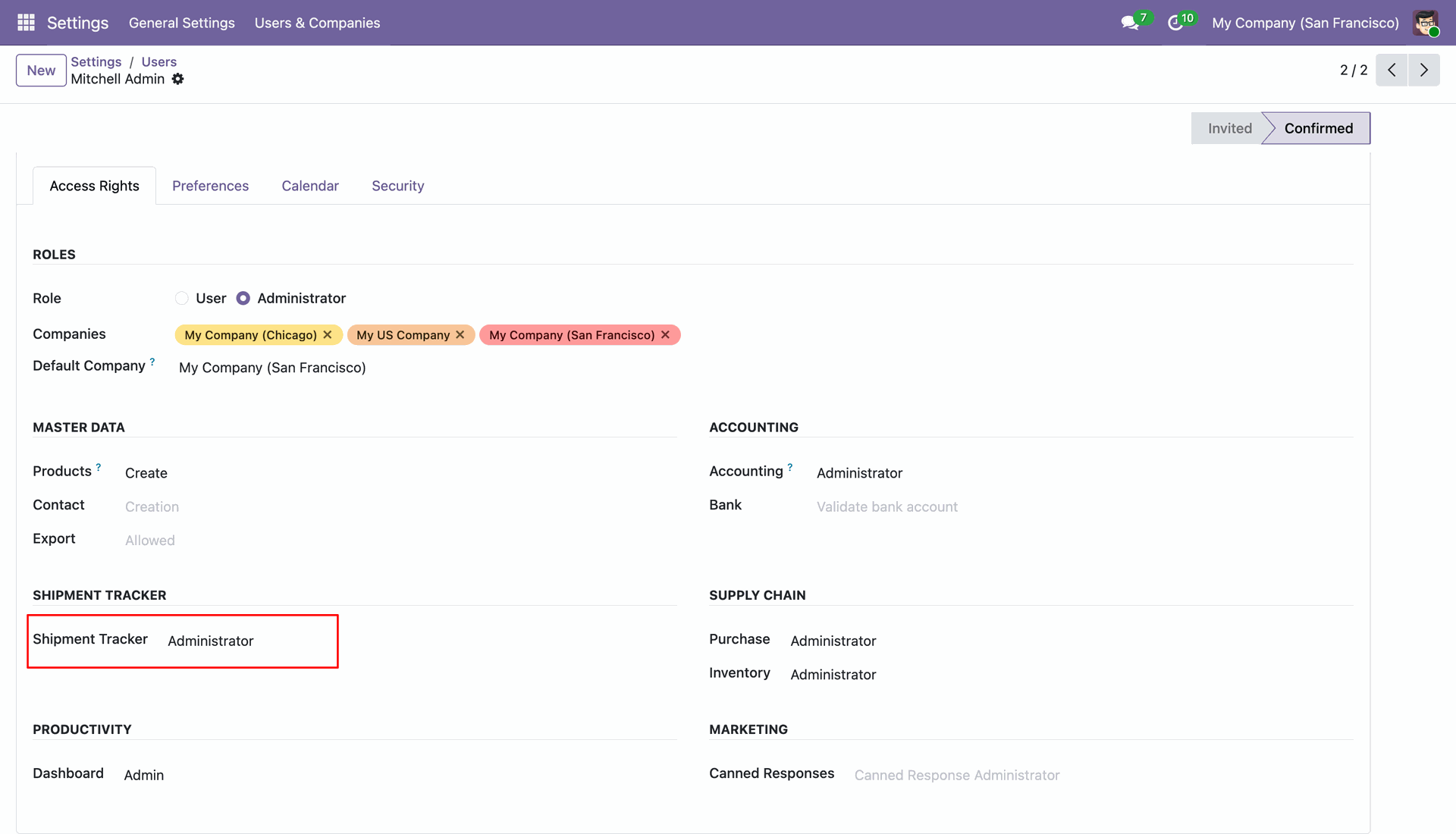
Go to Settings -> Users, assign them the Shipment Tracker role.
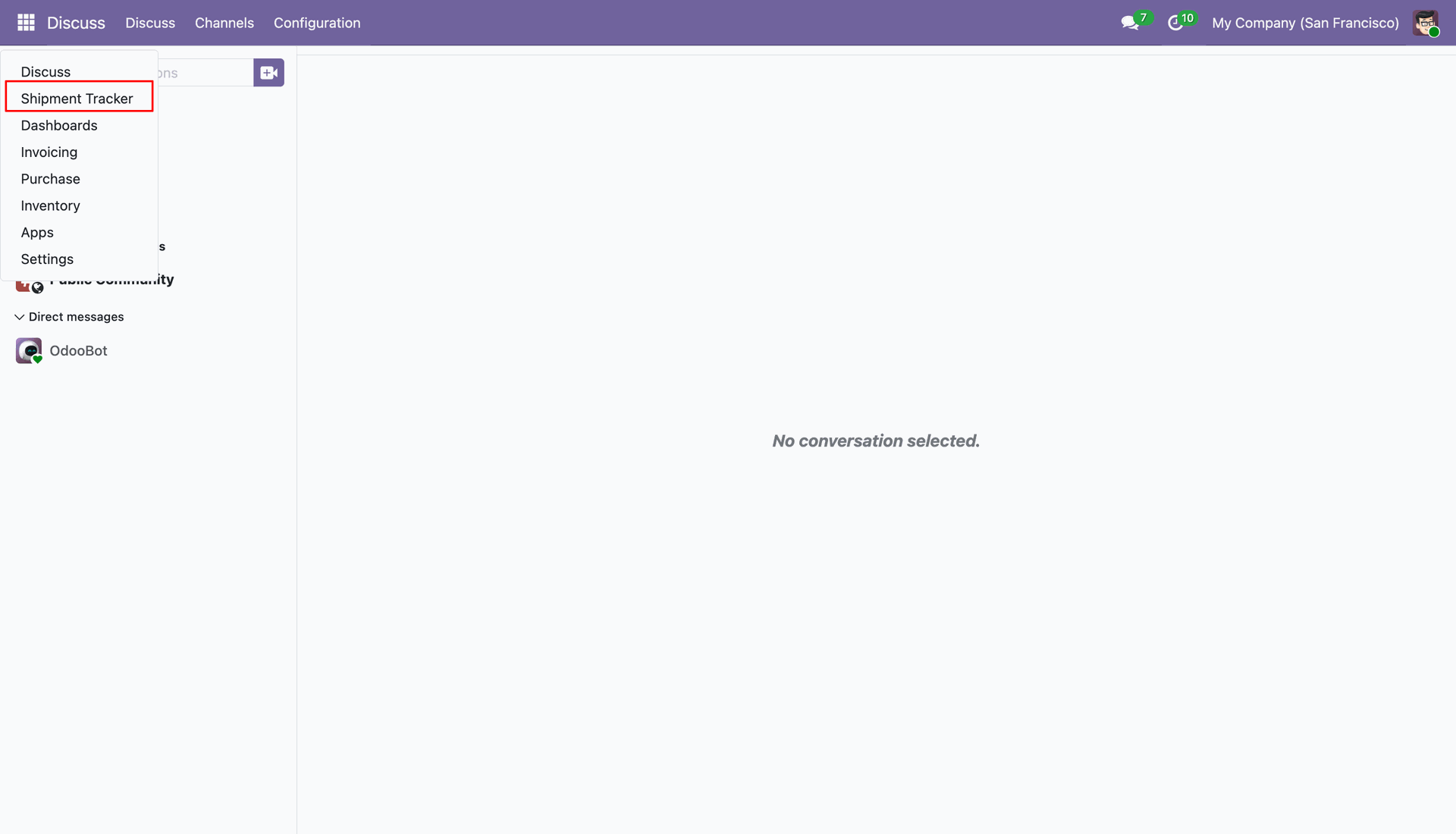
Go to the 'Shipment Tracker'.
From the shipment tracker configuration, you can manage settings, stages & company documents.
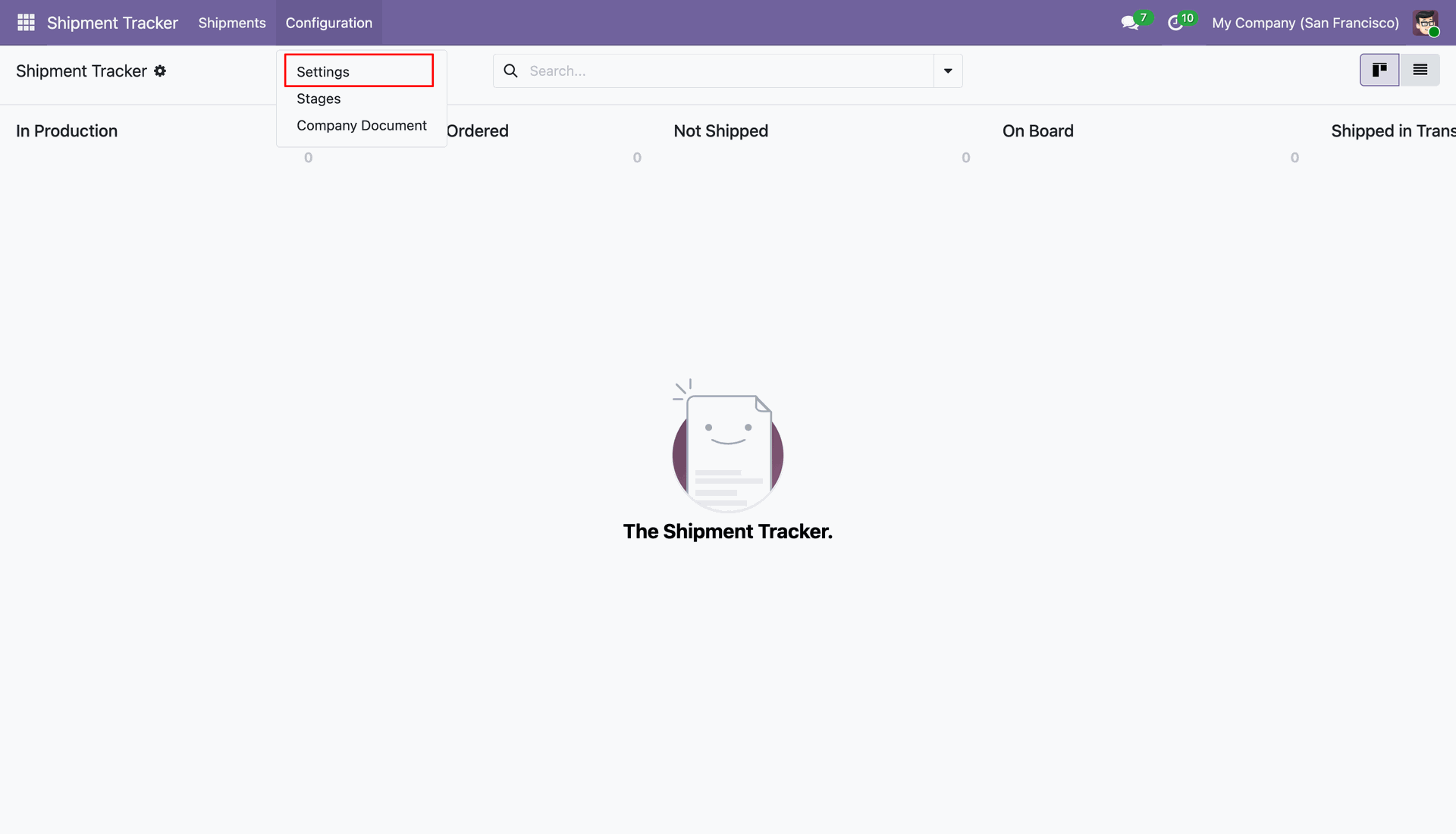
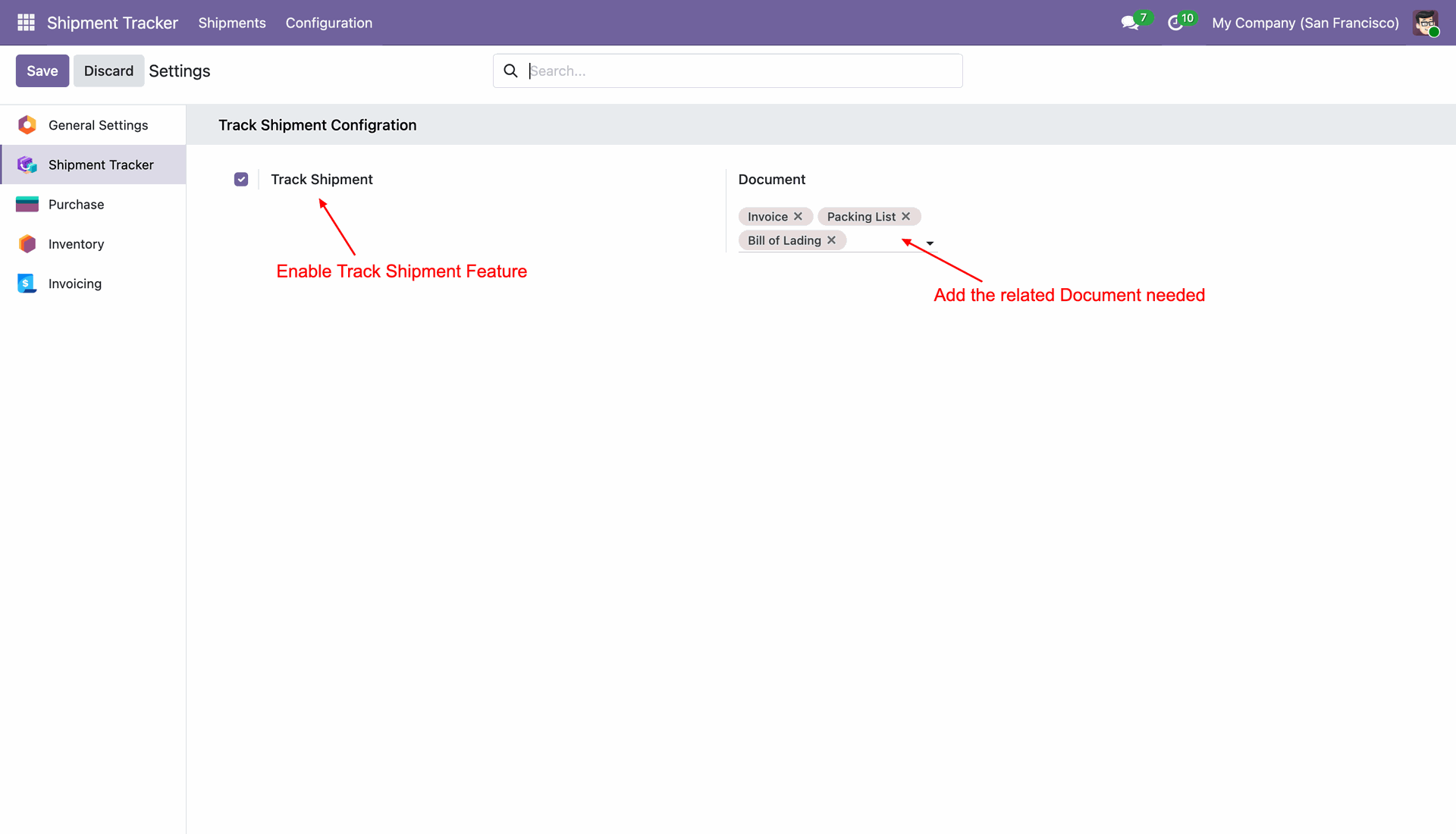
Go to Shipment Tracker > Configuration > Settings to check the Track Shipment box to activate the feature, and use the Document field to select the mandatory shipping papers.
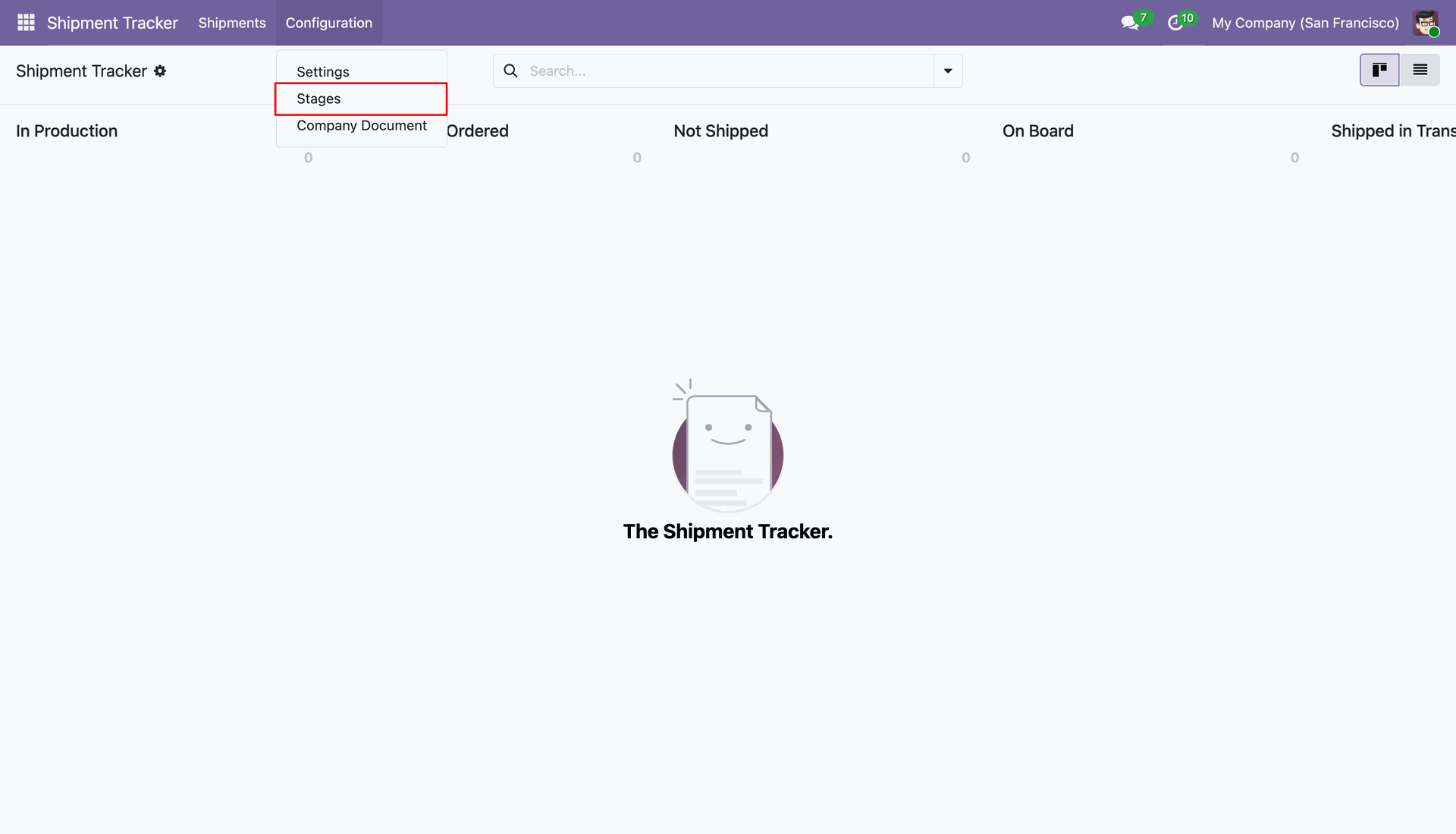
Go to the stages.
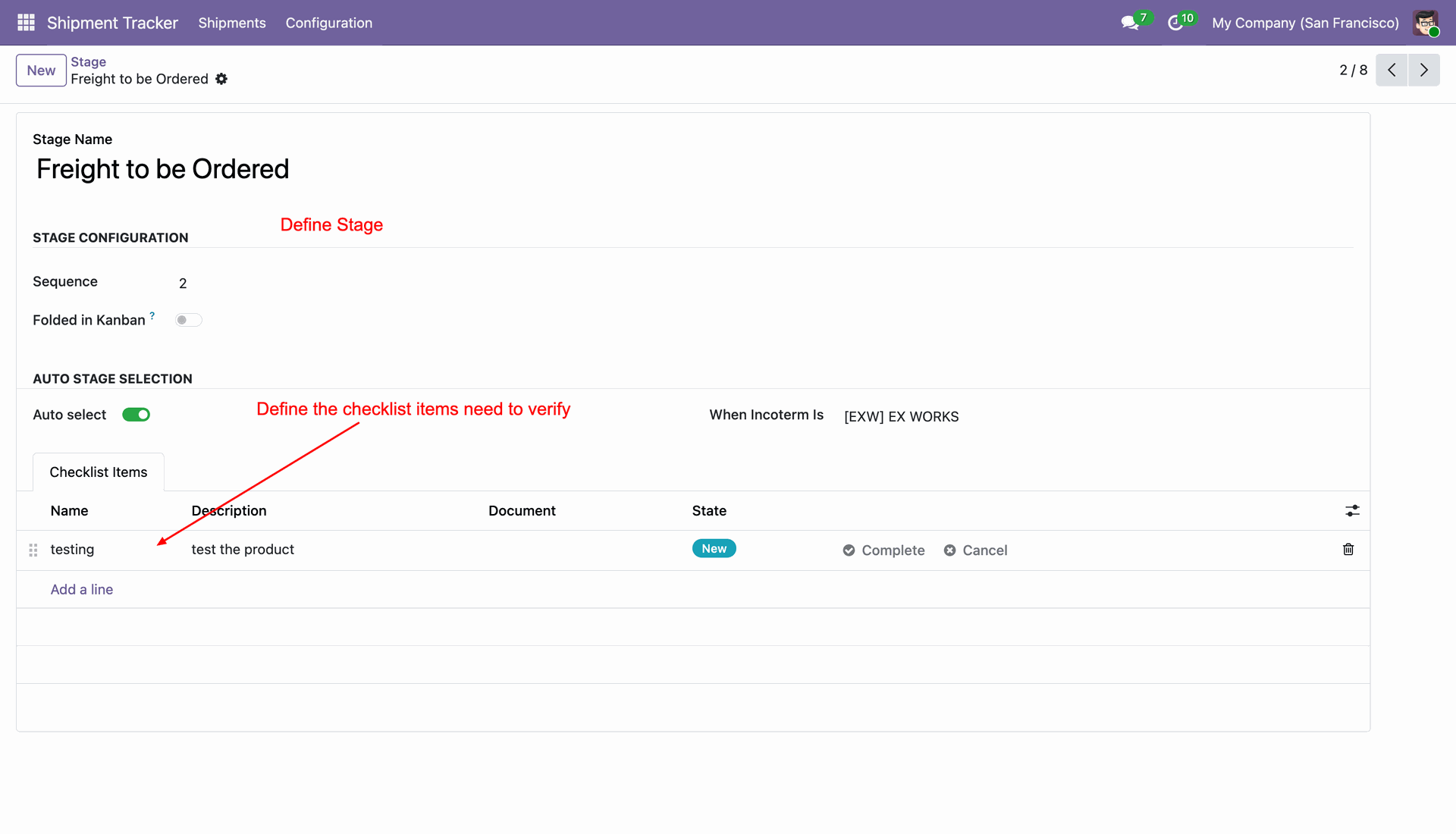
You can create a new stage, enter a name, enable Auto select for specific Incoterms, and add your required tasks under the Checklist Items tab.
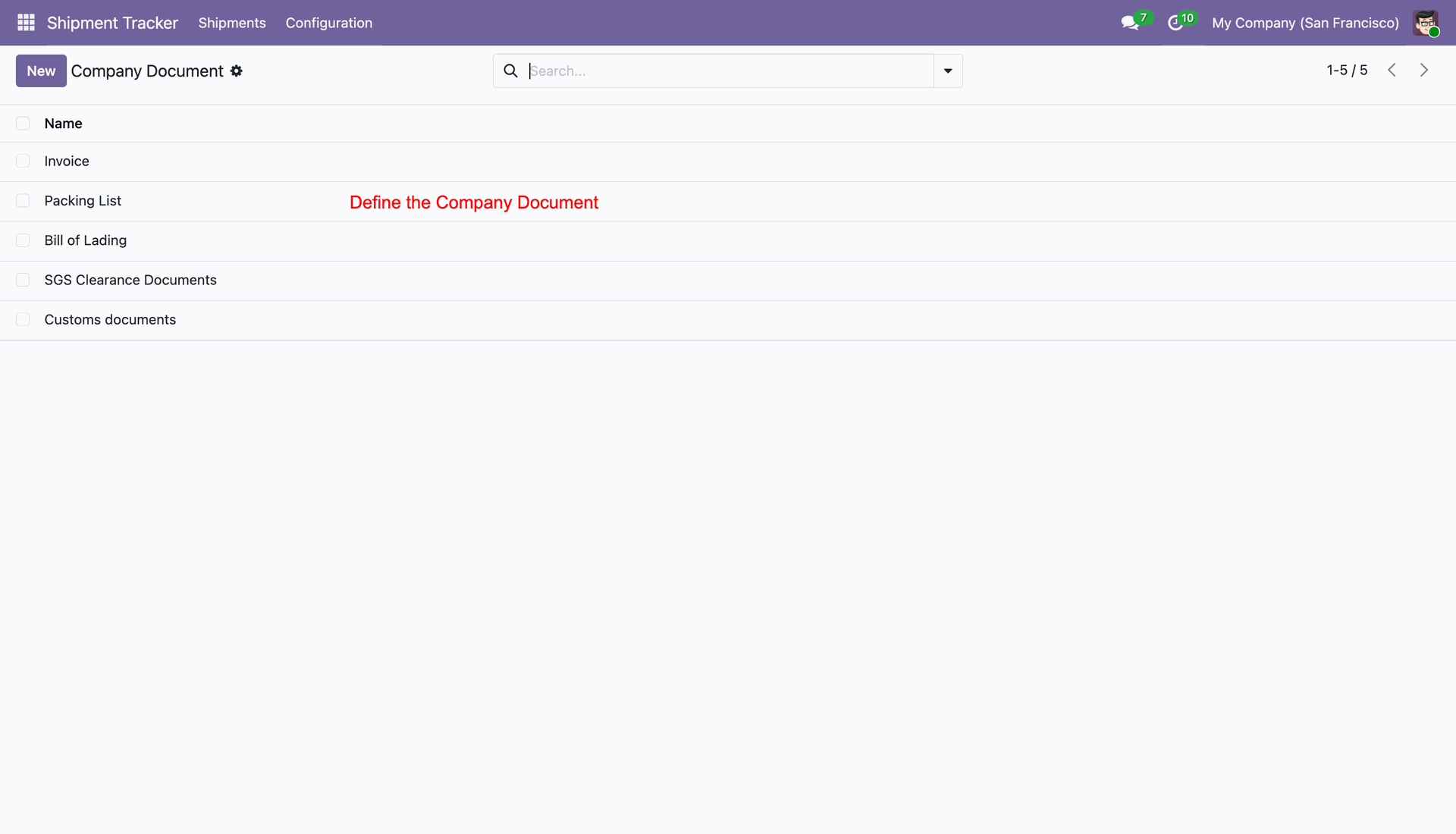
Go to the 'Company Document' menu.
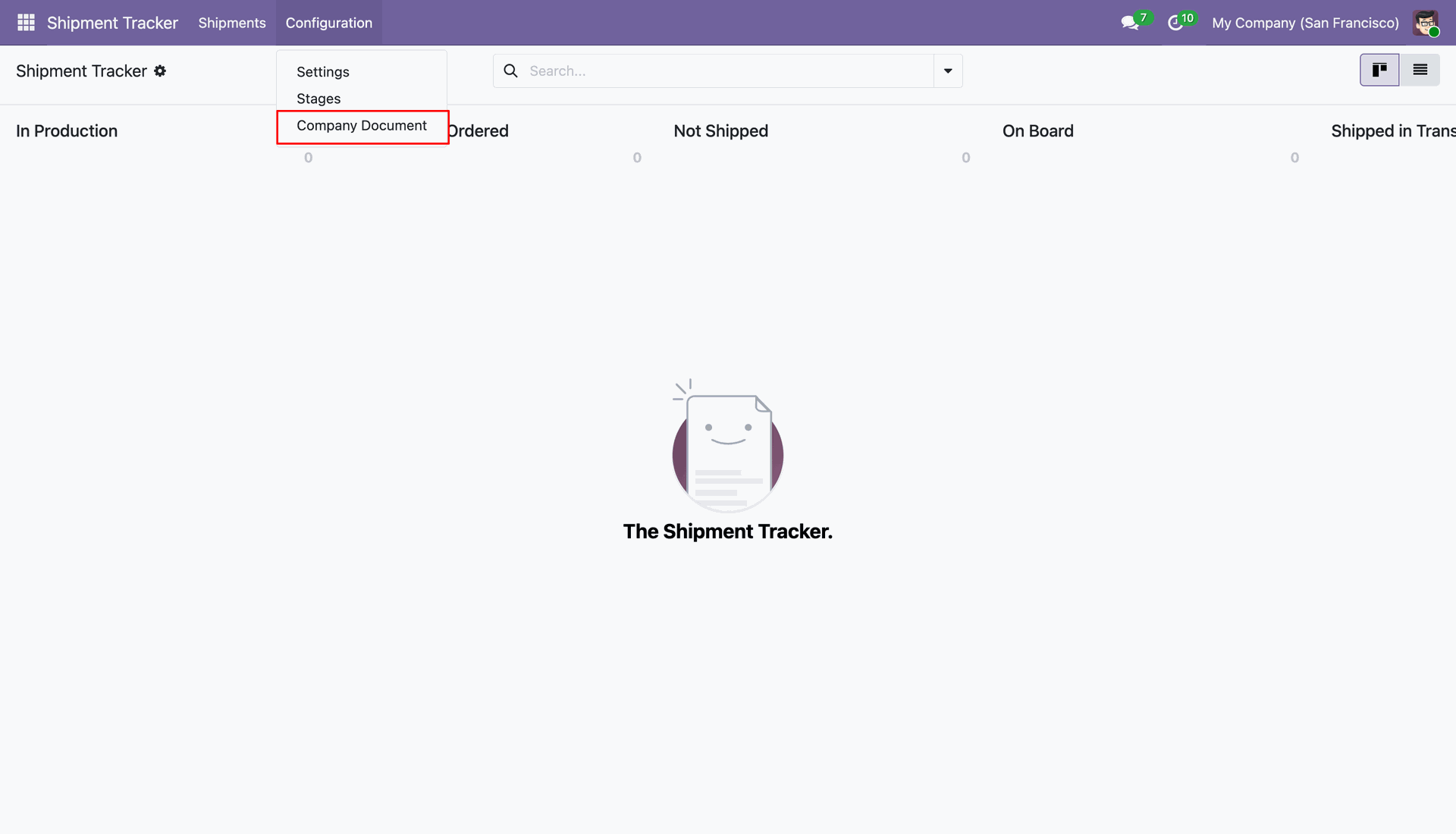
Create documents like Invoices, Packing Lists, and Bills of Lading.
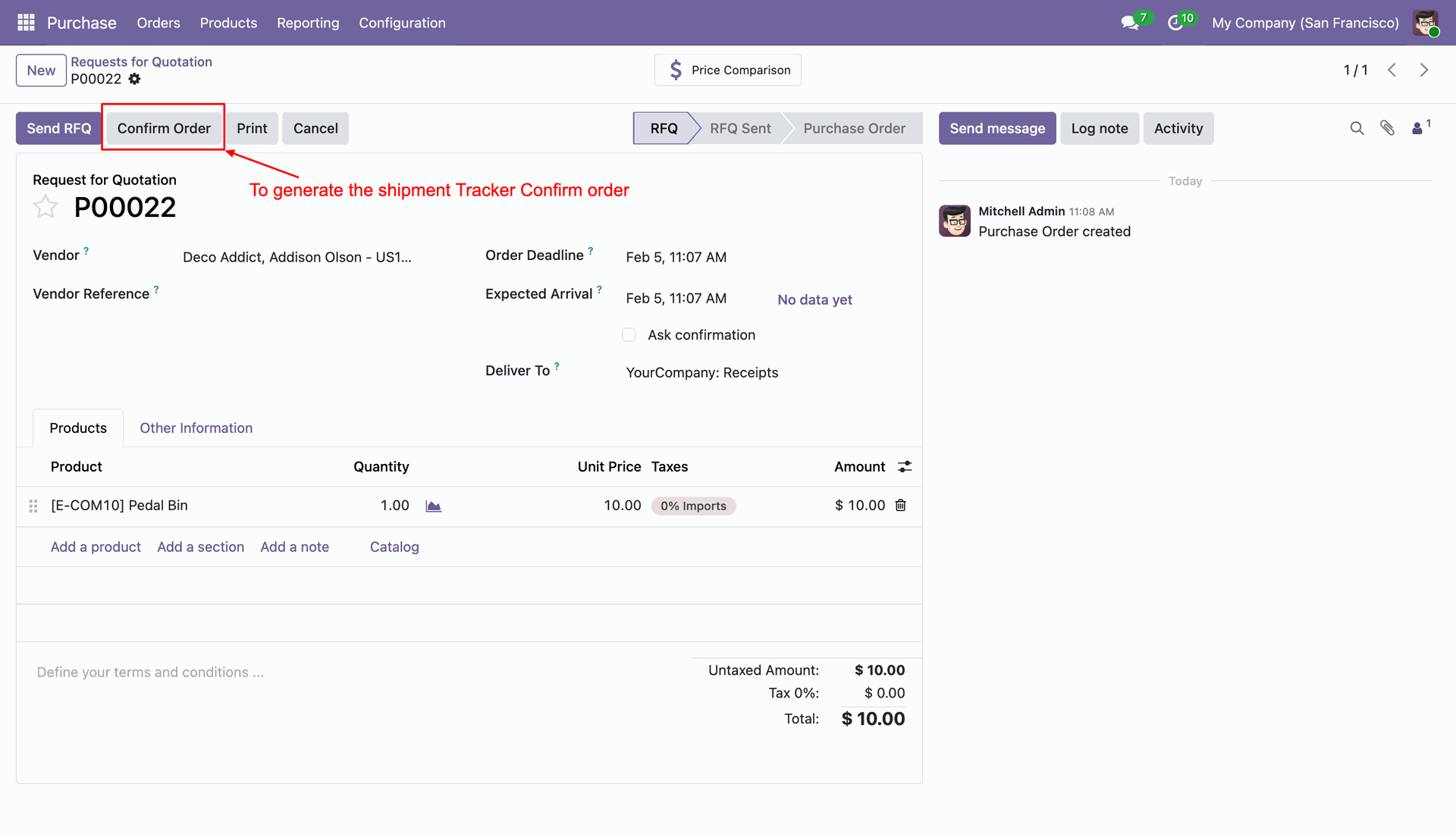
From the Purchase module, click the Confirm Order button on an RFQ to automatically generate a corresponding shipment tracker.
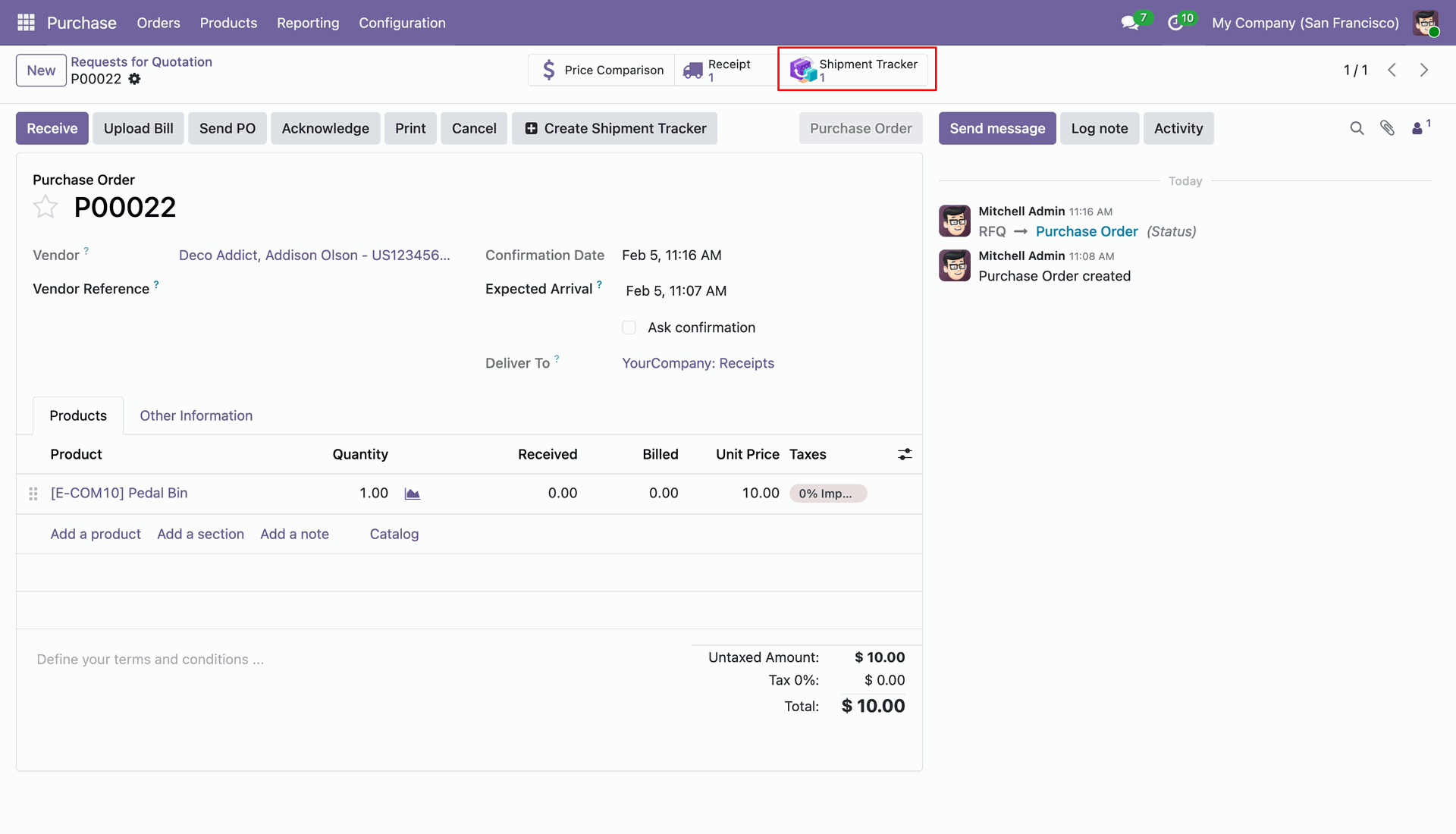
Once confirmed, a Shipment Tracker smart button will appear at the top of the Purchase Order showing the number of linked shipments.
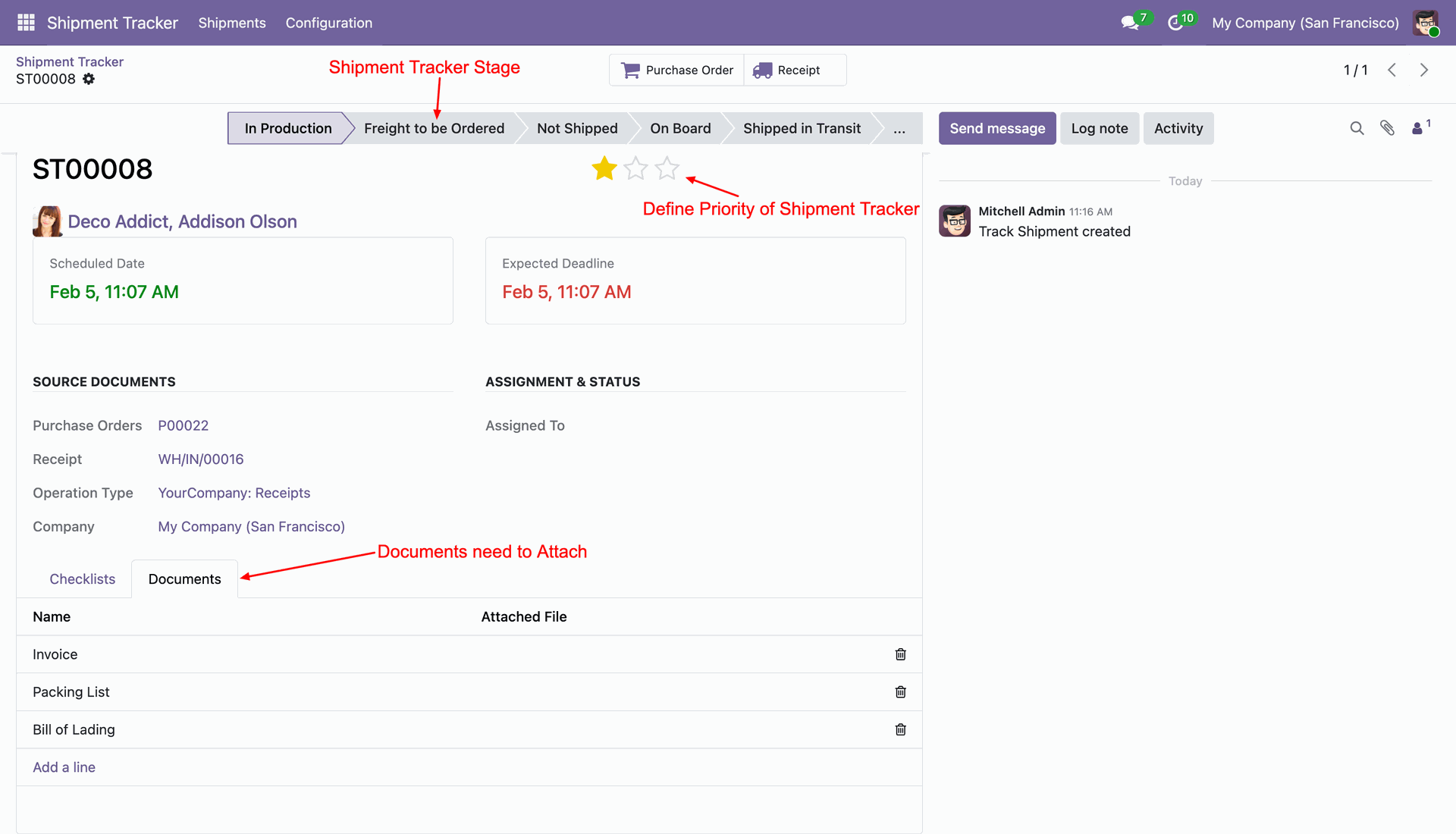
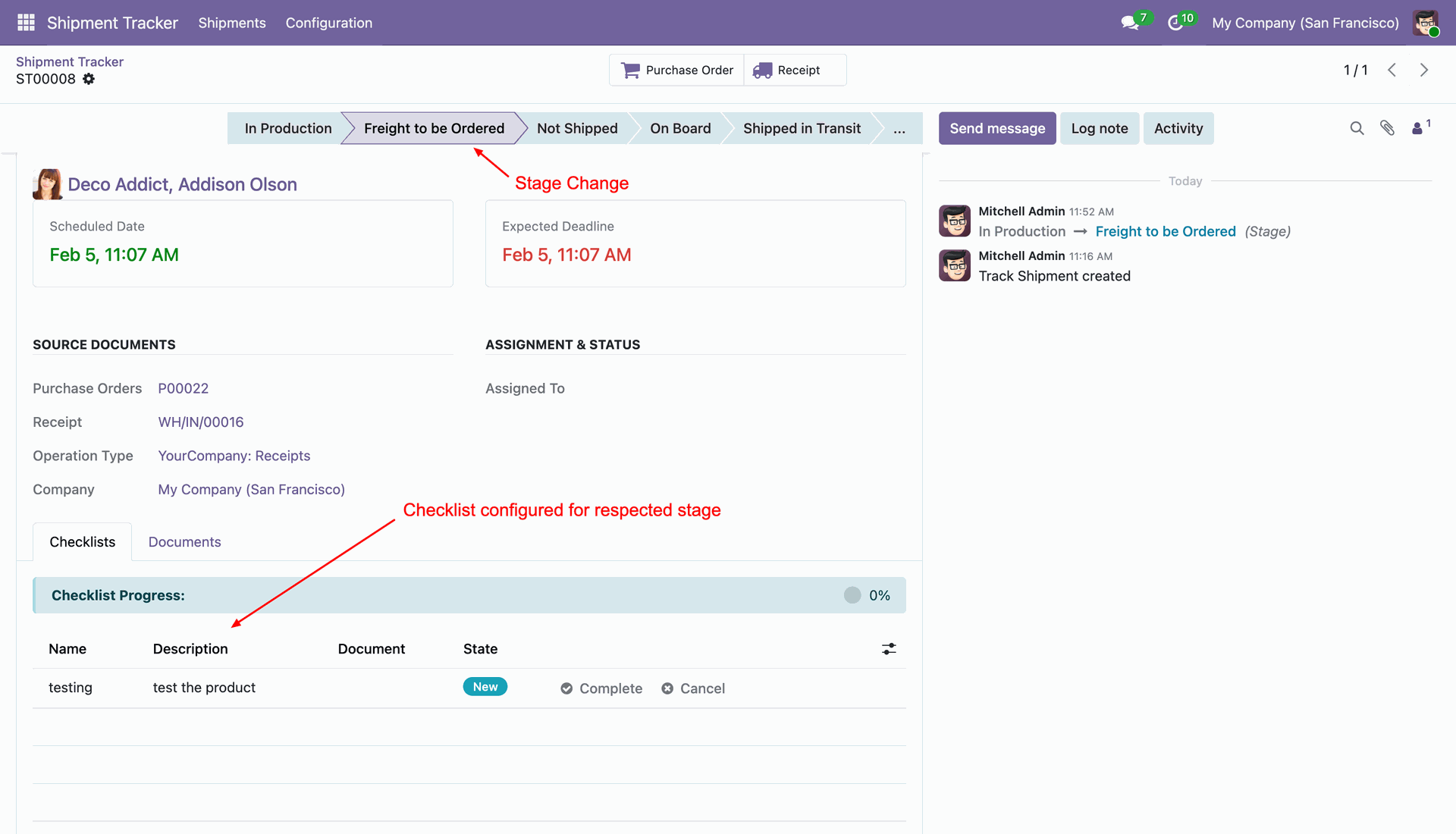
Inside the shipment record, you can see the current tracking stage, click the stars to set a Priority, and navigate to the Documents tab to see which files must be uploaded.
When a shipment moves to a new stage, the system automatically loads the Checklist tasks configured for that specific step under the Checklists tab.
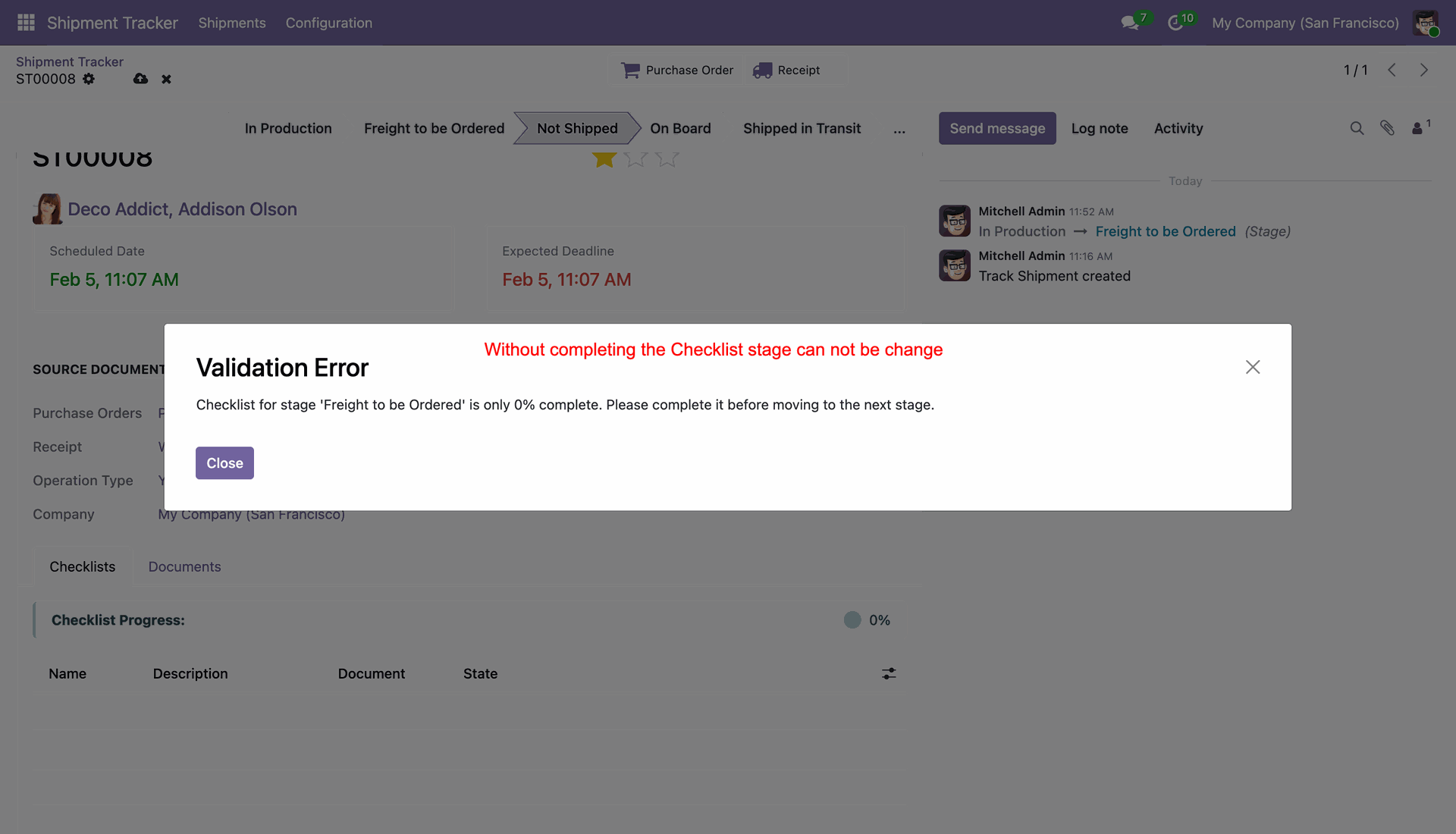
If a user tries to click into the next stage without checking off all current tasks, a Validation Error popup will block them until progress is 100% complete.
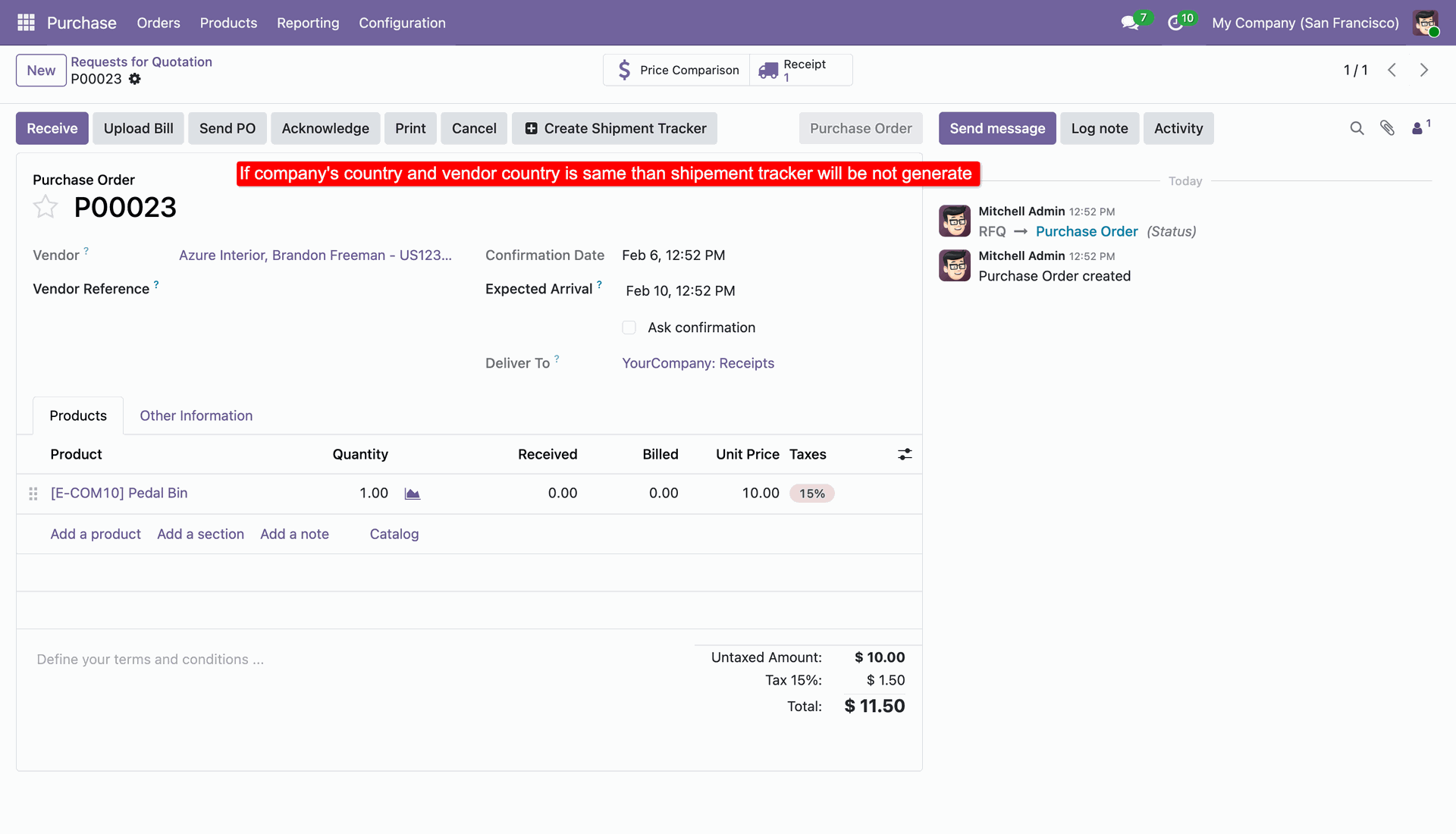
Note that if the vendor belongs to the same country as your company, the system will automatically bypass creating a shipment tracker.
Version 19.0.1.0.0 | Released on : 16th June 2026
- Yes, this app works perfectly with Odoo Enterprise (Odoo.sh & Premise) as well as Community.
- No, this application is not compatible with odoo.com(odoo saas/Odoo Online)
- Yes, to test this module, please contact us at sales@softhealer.com.
- Please contact us at sales@softhealer.comto request customization.
- Yes, we provide free support for 365 days from the date of purchase.
- Yes, you will receive lifetime free updates for the version of the module you purchased.
- No, there is no need to install any additional libraries.
- Yes, for version 12 and above, you need to purchase the module separately for each version you intend to use.
- No, exchanges or refunds are not allowed. Please make sure to select the correct version before purchasing.
- You can contact us at support@softhealer.com for language translation support. We use Google Translator tools to provide translations in multiple languages, so the accuracy may vary. We welcome your suggestions to help improve translations.
Discover Our Latest Apps