












Import Purchase Order Lines from CSV/Excel file

This module is useful to import Purchase Order Lines from CSV/Excel. You can import custom fields from CSV or Excel.


Related Modules
Hot Features

Features
- You can import unit price based on sheet.
- You can import unit price based on pricelist.
- Easy to import custom fields.
- Easy to import custom fields from CSV or Excel.
- Easy to import Text, Integer, Float, Character, Boolean, Selection, Many2one, Many2many custom fields.
- Import CSV or Excel.
- Easy to import product by Name, Barcode, Internal Reference.

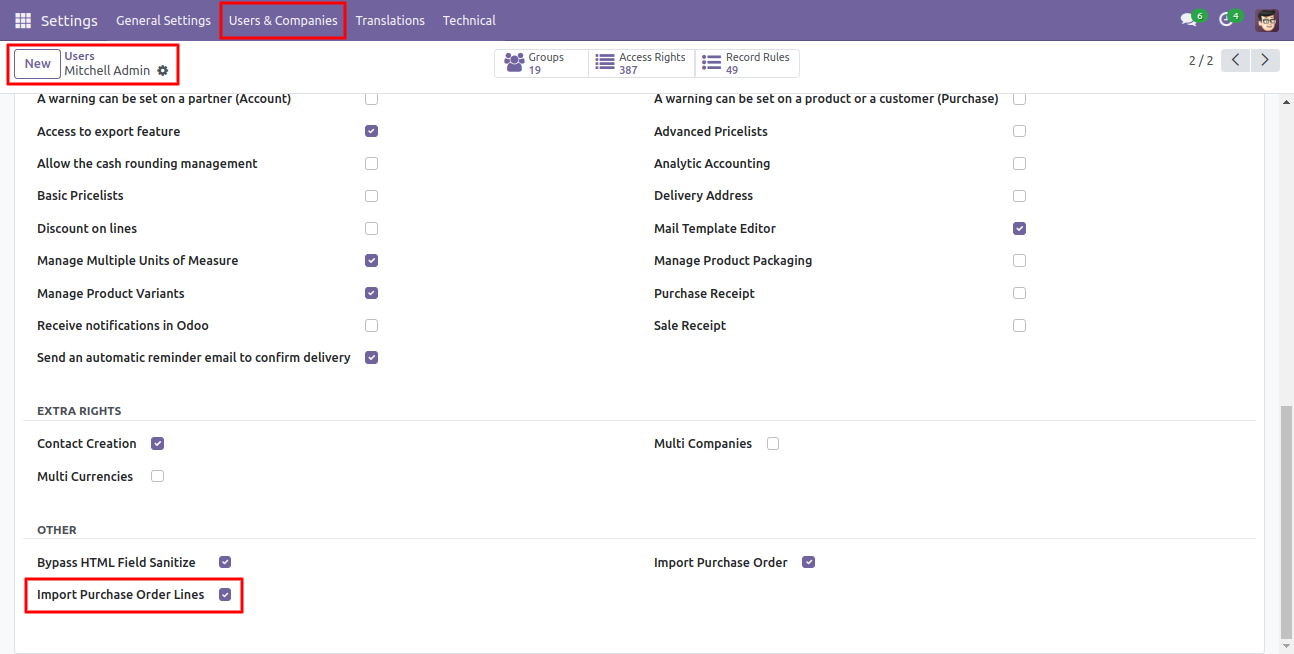
First, you need to tick the 'Import Purchase order lines' group to import the Purchase order lines.
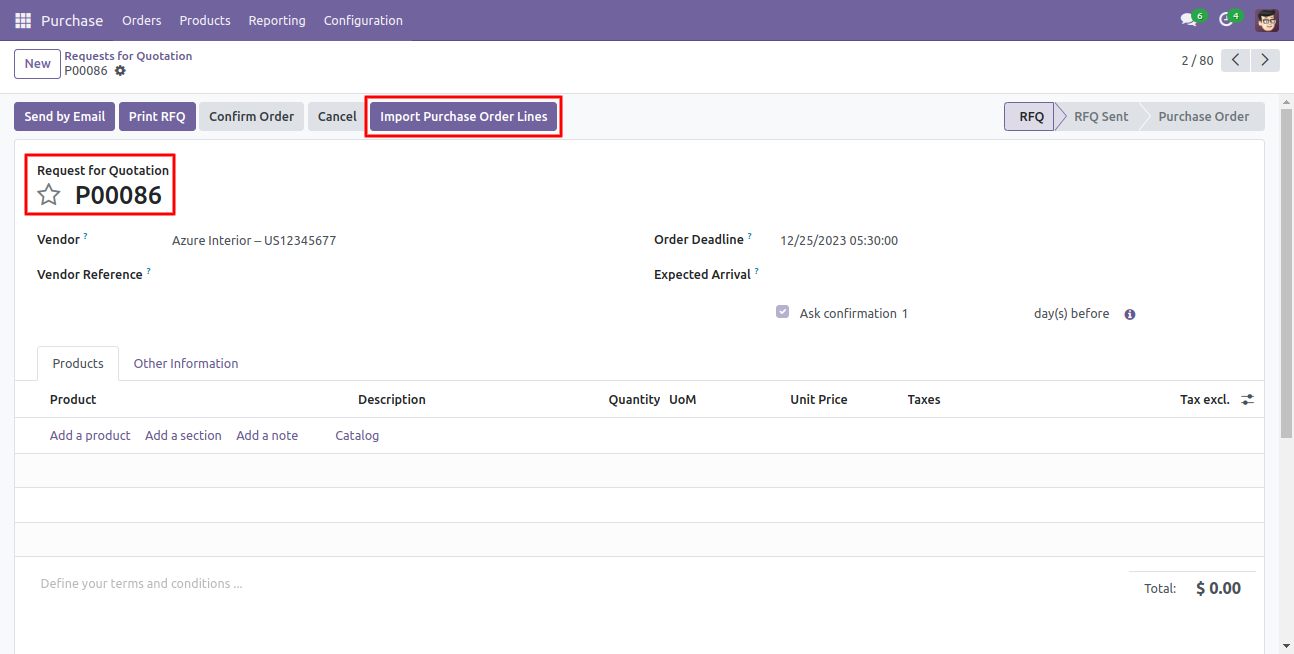
'Import Purchase Order Lines' button in RFQ/Purchase order form view.
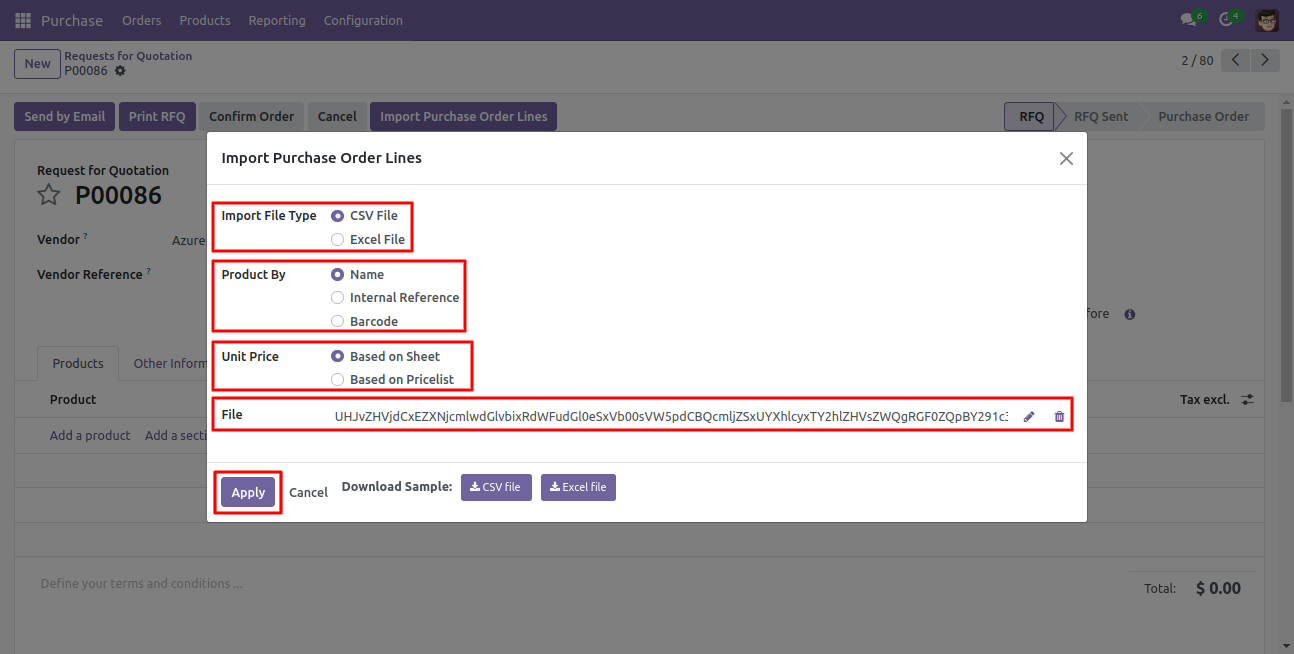
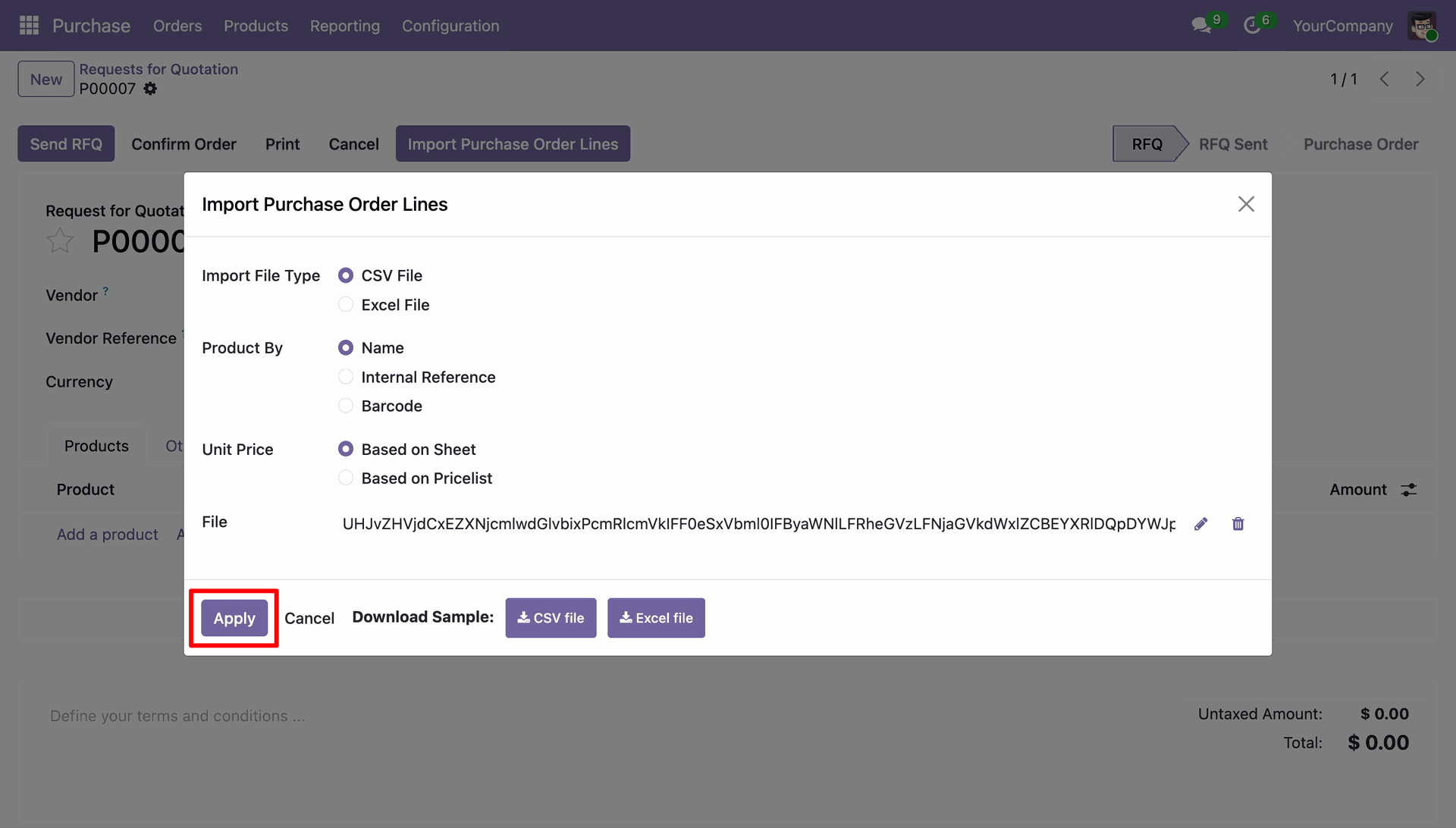
When you click the 'Import Purchase Order Lines' menu, the wizard will open and it looks like below.
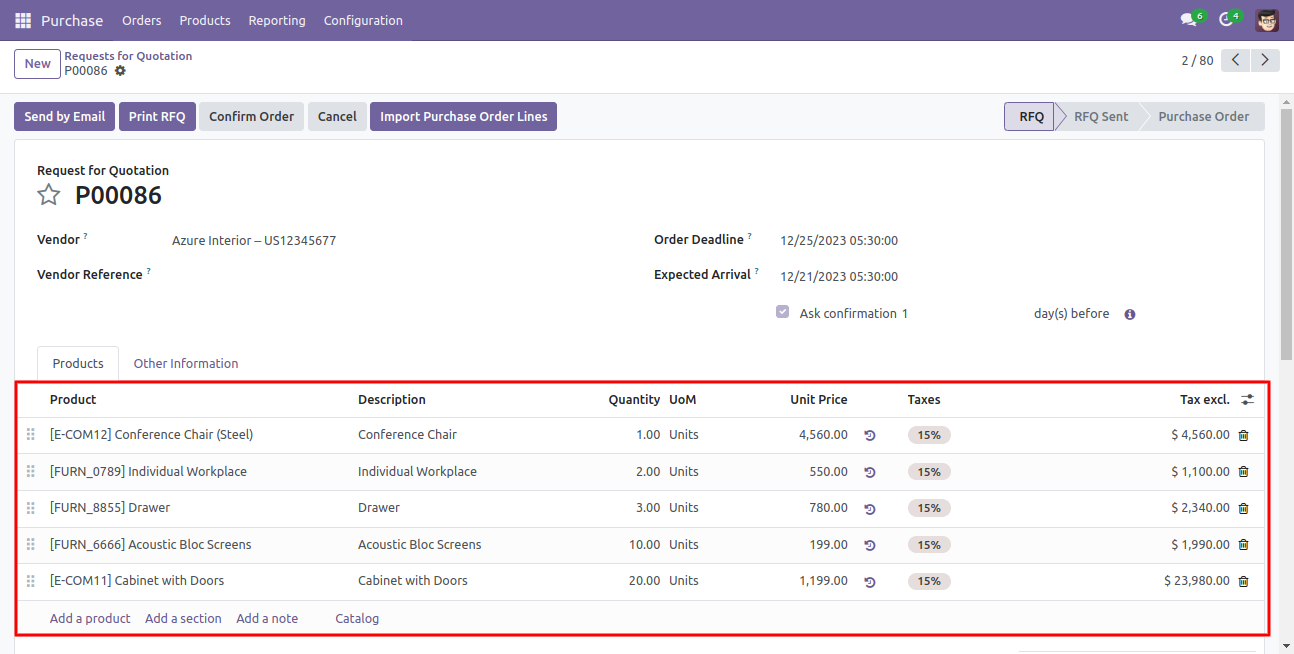
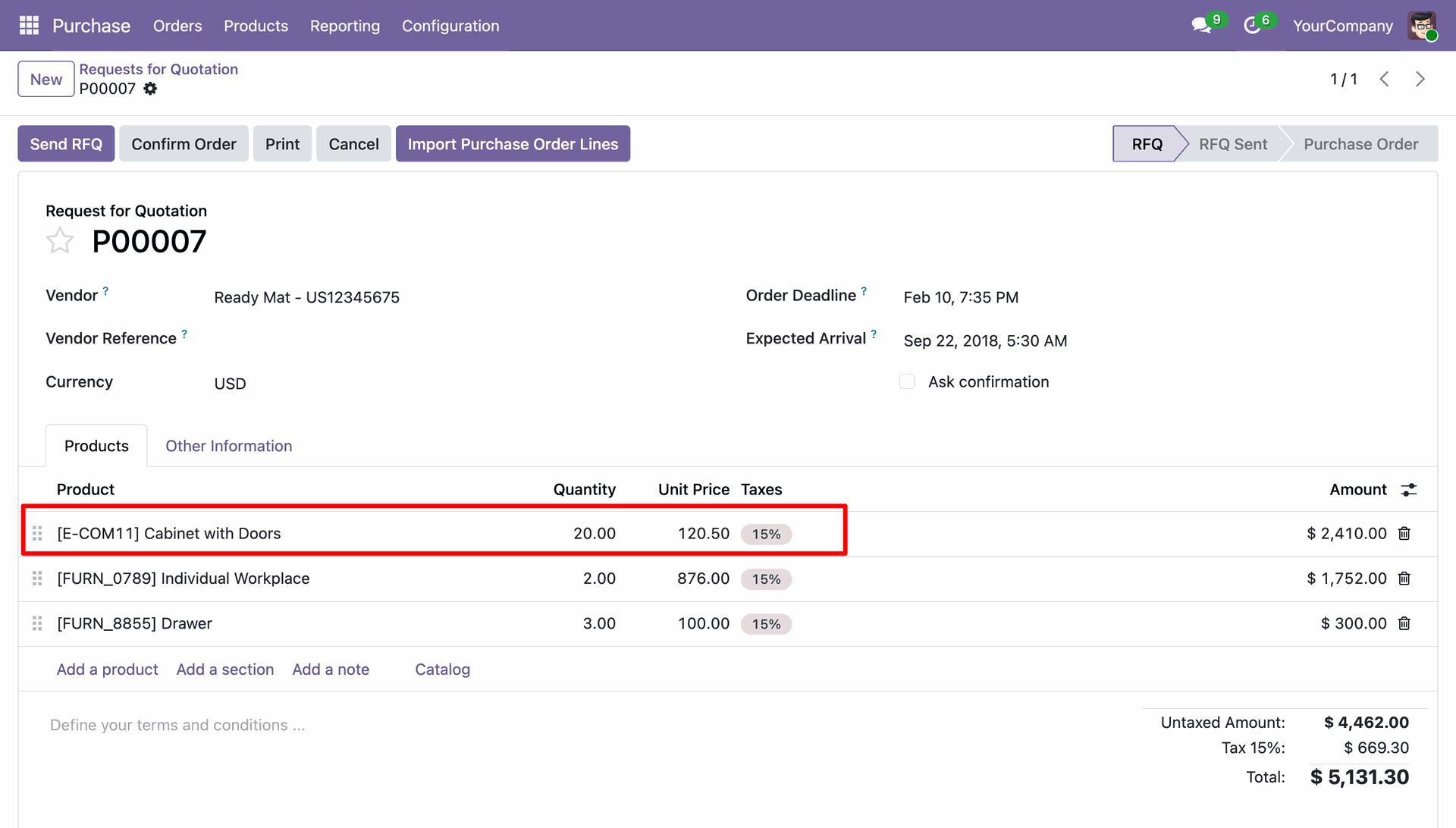
The following purchase order lines are imported.
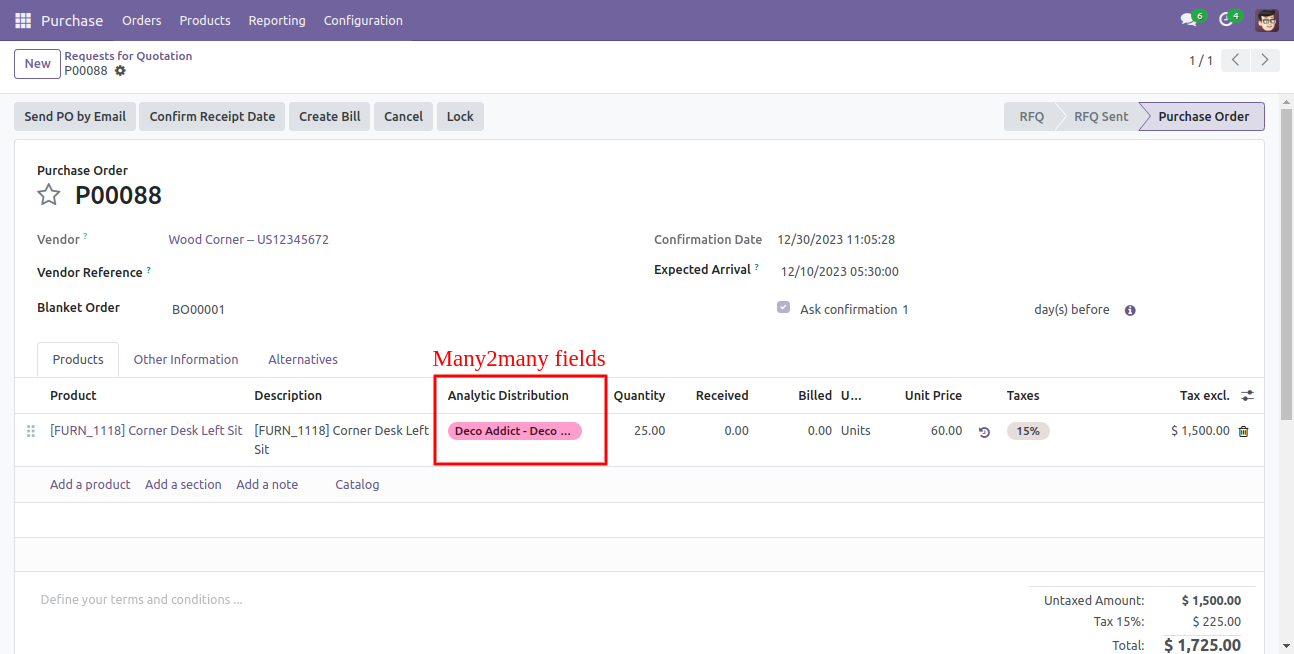
Purchase order line import from CSV/XLS sheets with many2many.
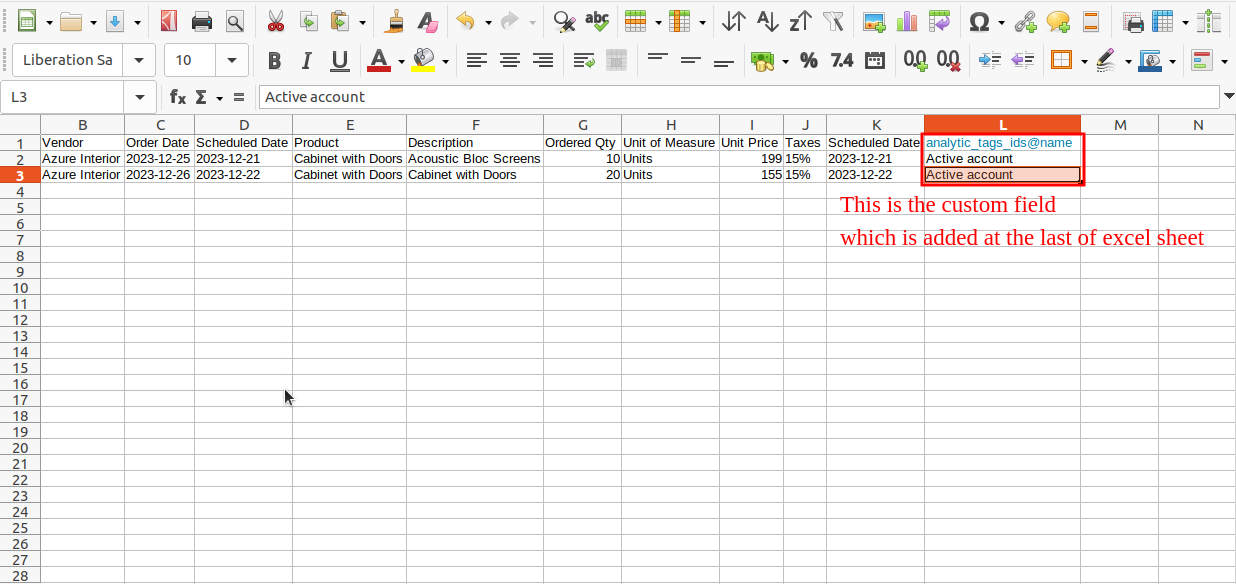
Your CSV file must match like below and add custom fields after the last column.
About Fields
| Column | Purchase Order Line Model | Field Name | Description | Required |
|---|---|---|---|---|
| A | Purchase (purchase.order.line) | Product | Define the Product. | Yes |
| B | Purchase (purchase.order.line) | Description | Define the Description. | Yes |
| C | Purchase (purchase.order.line) | Quantity | You have to write a Quantity here. | No |
| D | Purchase (purchase.order.line) | Unit of Measure | Take the same name as ERP in the "UOM". | Yes |
| E | Purchase (purchase.order.line) | Unit Price | You have to write a Unit Price here. | Yes |
| F | Purchase (purchase.order.line) | Taxes | Taxes are separated by comma(,). You have to provide tax here. | No |
| G | Purchase (purchase.order.line) | Delivery Date | Define the Delivery Date. | Yes |
| H | Purchase (purchase.order.line) | Custom Fields | You can import custom fields from here. Please go to the "Custom Fields" tab for more details. | No |
General Notes:
1)
Don't remove the column from the sample sheet given, you can leave an empty column if the
column is not the required type. You can see the table above for that.
2)
Don't change the sample sheet column sequence.
3)
Please don't use excel if you don't know the very well sheet formatting which is given in
the sample sheet. Use CSV for hassle-free import without format issue. If you want to use
excel and want to clear the format
then please check this video.
4)Add Custom Fields or Non-Exist Standard odoo fields at the end, For adding those
fields pls check the custom fields section.
Custom Fields / Non Existing Standard Fields
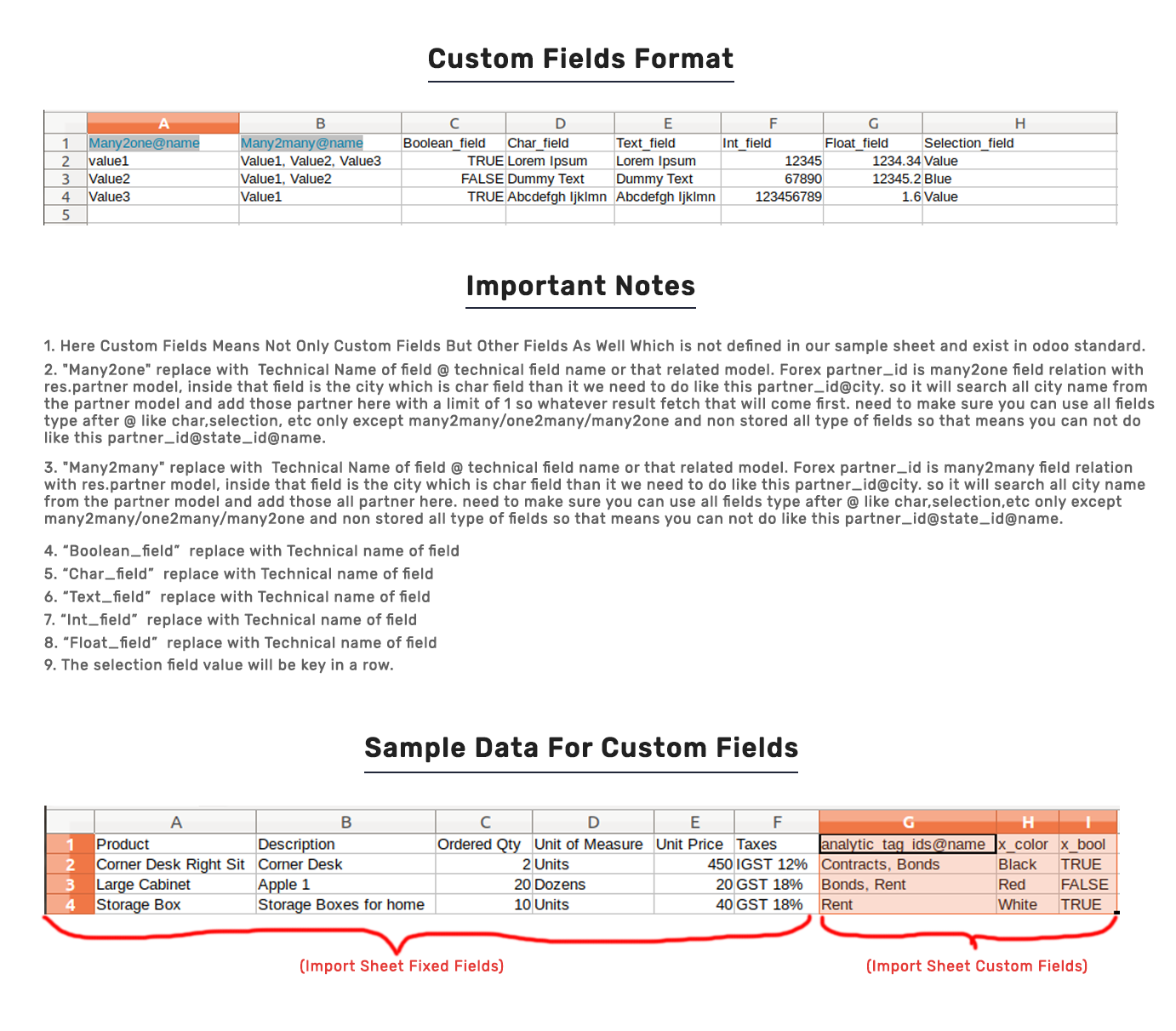
Do you want to import fields which is created by any custom modules, odoo studio, or standard odoo fields which are not present inside the sample sheet provided in the module? You can add all those kinds of fields in the sheet at the end after the sample sheet fields it means from column "Q".
Videos
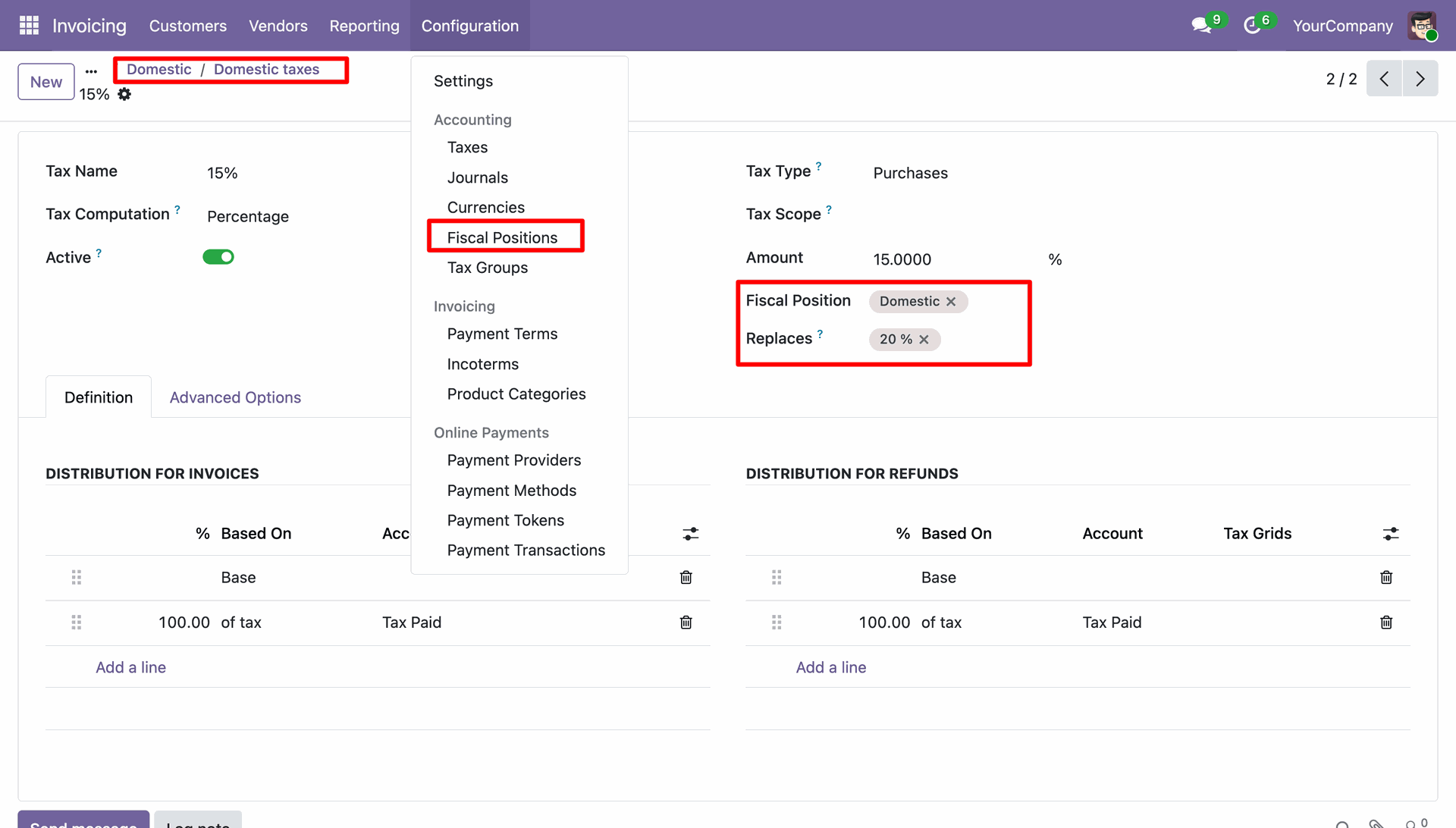
Go to the Invoicing ==> Configurations ==> Fiscal Positions
In the tax form view, add Fiscal Position and Replaces
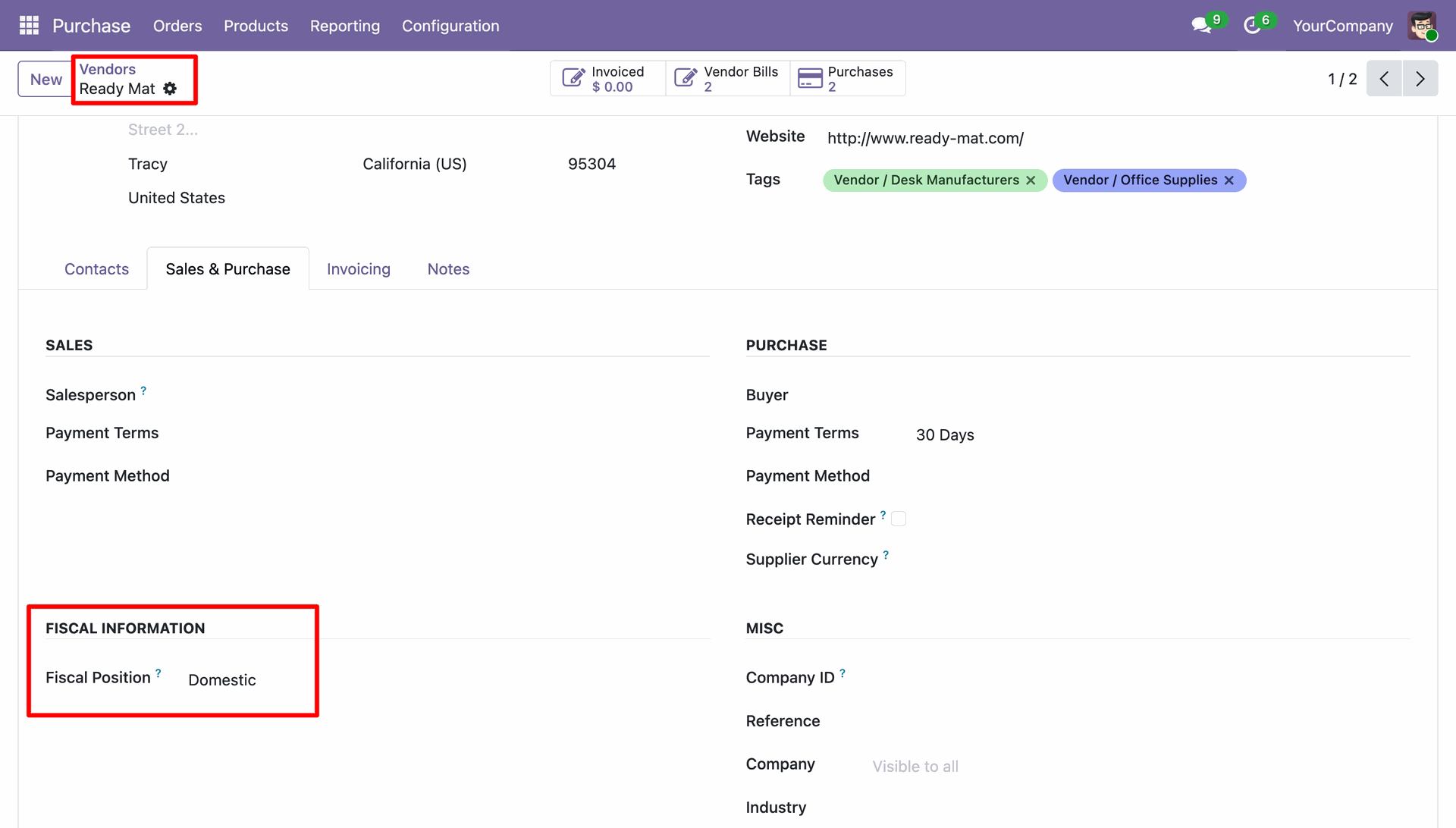
Here we set the Fiscal Position: Domestic under the 'Sales & Purchase' tab.
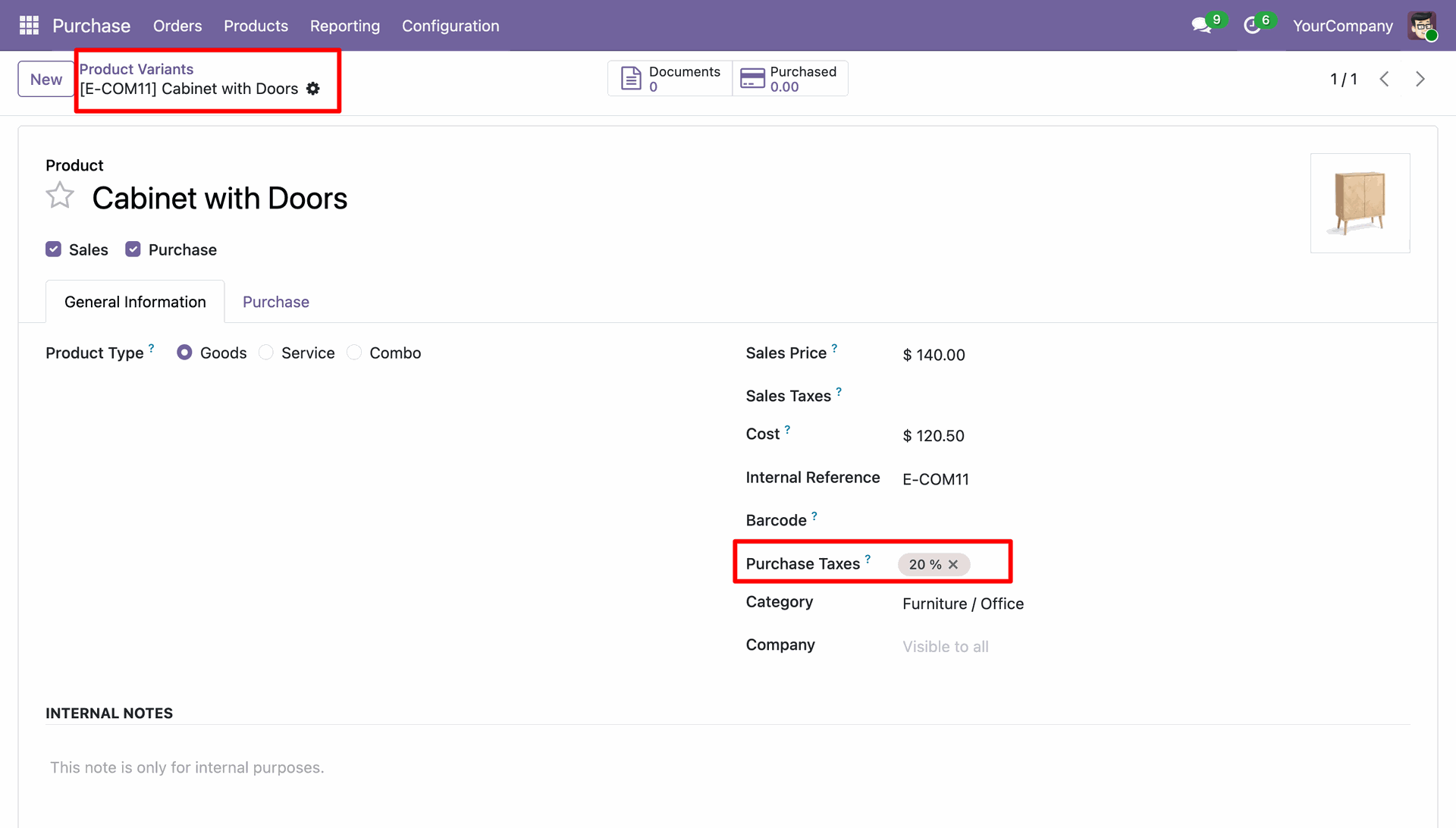
Here, we have applied a 20% tax to the 'Cabinet with Doors' product.
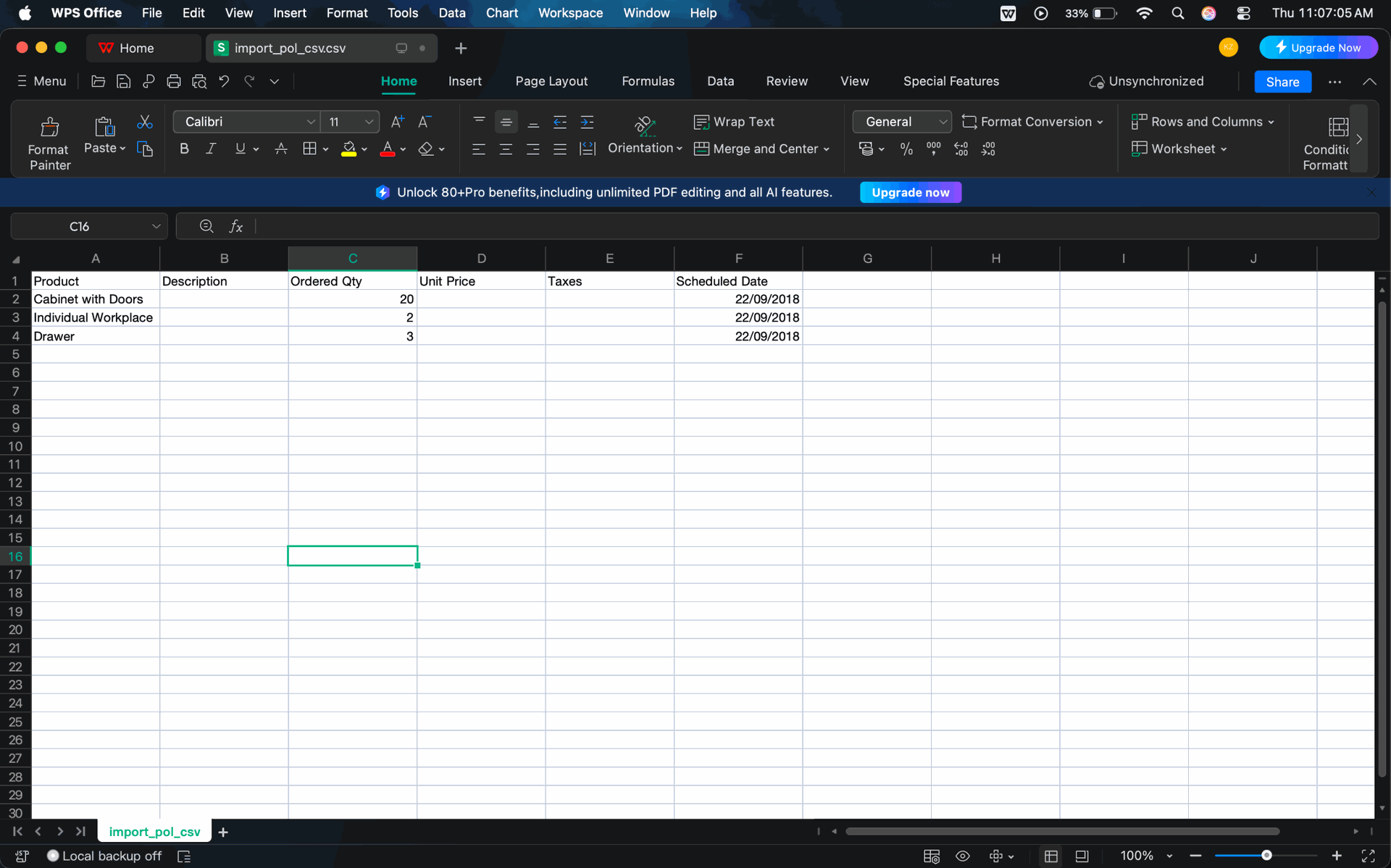
In the XLS file, we have not set a tax on the 'Cabinet with Doors' product.
Note: If no tax is specified in the CSV file, it will automatically apply the
products default purchase tax.
After that, if the vendor has a Fiscal Position configured with tax mapping rules,
it will replace the original tax based on those rules. For example, if a product has a
default 20%
purchase tax and the vendor is assigned a 'Domestic' Fiscal Position that maps 20% to 15%,
then it will
automatically replace the 20% tax with 15% on the Purchase Order, if no tax was specified in
the CSV file.
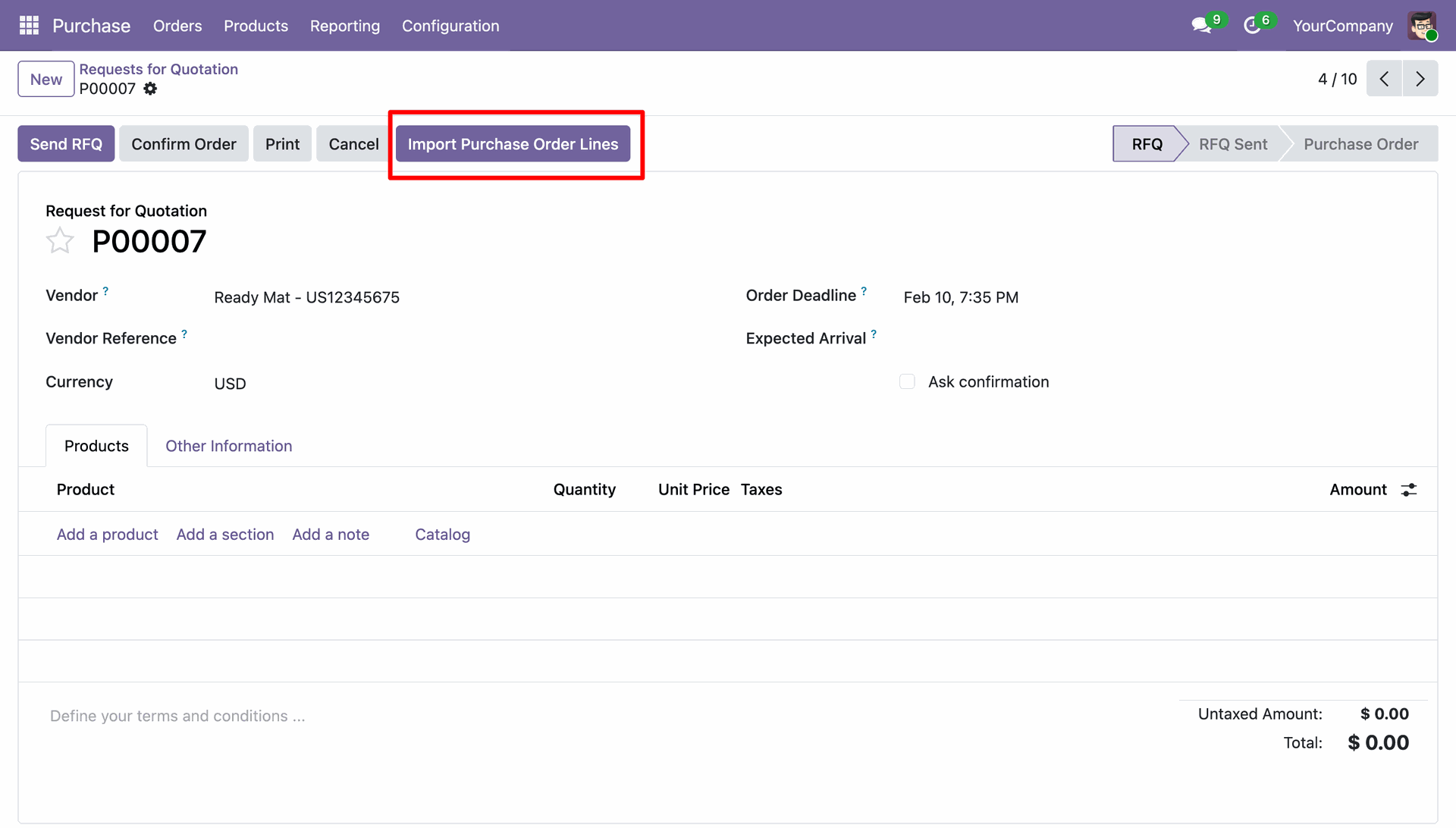
Click on the 'Import Purchase Order Lines'.
Add details and click on the 'Apply' button.
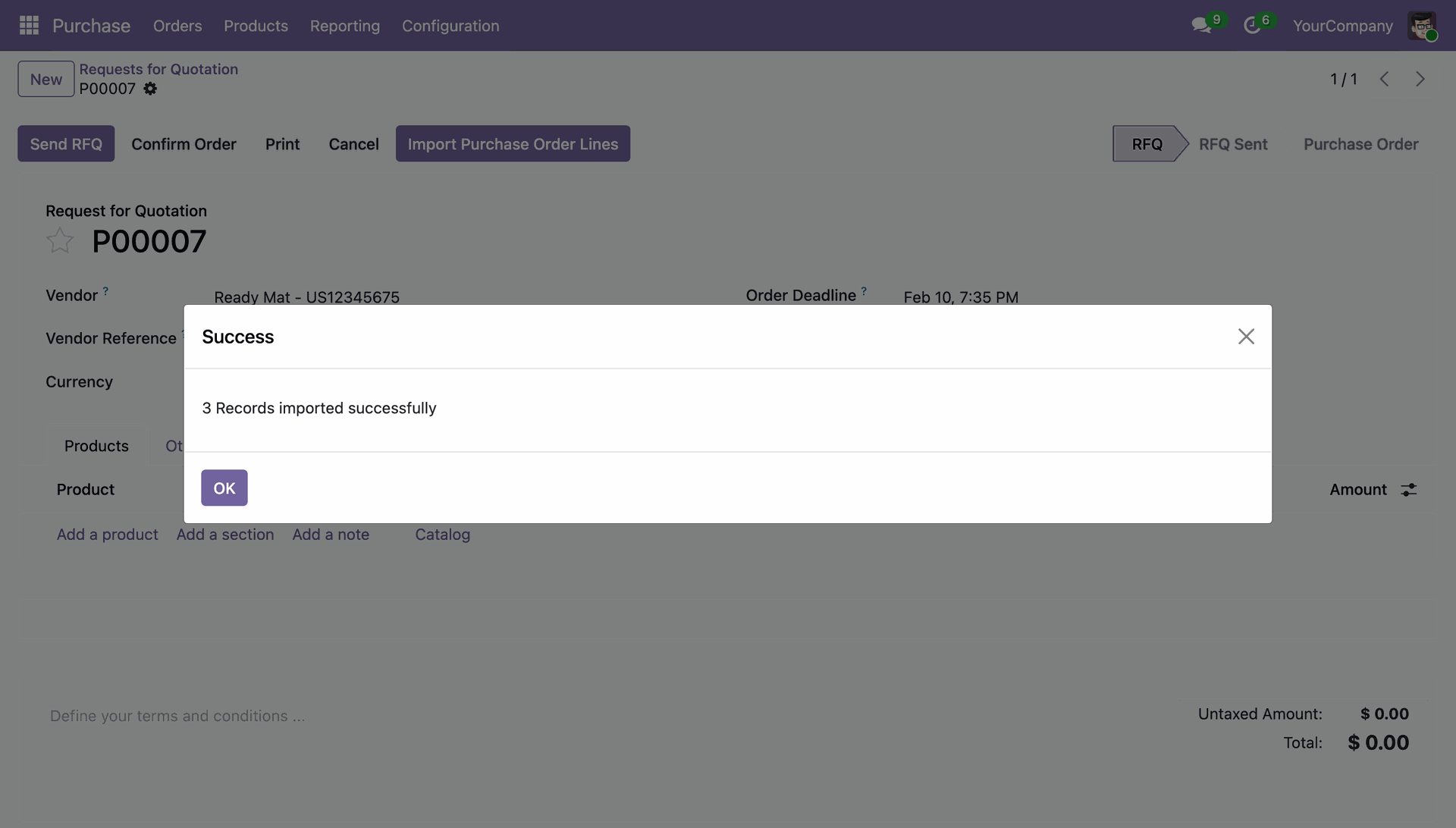
Success message looks like below it shows successfully imported records.
The following records are imported.
Here, you can see that the 'Cabinet with Doors' product tax has been updated to 15% based on
the Fiscal Position.
Version 20.0.1.0.0 | Released on : 15th September 2026
- Yes, this app works perfectly with Odoo Enterprise (Odoo.sh & Premise) as well as Community.
- No, this application is not compatible with odoo.com(odoo saas/Odoo Online)
- Yes, to test this module, please contact us at sales@softhealer.com.
- Please contact us at sales@softhealer.comto request customization.
- Yes, we provide free support for 365 days from the date of purchase.
- Yes, you will receive lifetime free updates for the version of the module you purchased.
- Yes, you need to install (xlrd) library.
- Yes, for version 12 and above, you need to purchase the module separately for each version you intend to use.
- No, exchanges or refunds are not allowed. Please make sure to select the correct version before purchasing.
- You can contact us at support@softhealer.com for language translation support. We use Google Translator tools to provide translations in multiple languages, so the accuracy may vary. We welcome your suggestions to help improve translations.
Discover Our Latest Apps