












Import POS Order from CSV/Excel

Softhealer's Import POS Order module simplifies your workflow by allowing you to import Point of Sale orders directly from CSV or Excel files. Whether you're migrating data or updating records, this tool supports product identification by name, barcode, or internal reference. It handles bulk imports and order lines efficiently, ensuring a seamless integration with your Odoo POS system.

Features

Import POS Orders from CSV
Easily import Point of Sale orders using CSV files.

Import POS Orders from Excel
Seamlessly import Point of Sale orders from Excel (XLS/XLSX) files.

Flexible Product Identification
Import products based on Name, Internal Reference, or Barcode.
Bulk Order Import Support
Import multiple POS orders simultaneously, saving time and effort.

Automatic Order Line Integration
Automatically import all order lines associated with the POS orders.

Automatic Customer Creation
Automatically create customers during import if they do not already exist.

Customer Import Mapping
Import customers using their name, reference, or ID for accurate order mapping.
Frontend POS Data Import
Import POS data directly from the POS frontend interface.

Discount Application on Order Lines

Automatically apply discounts to order lines when specified in the Excel or CSV file.

Automated Order State Updates
Automatically set order state as paid/invoiced if fully paid, or keep it in the new stage for partial payments through imports.
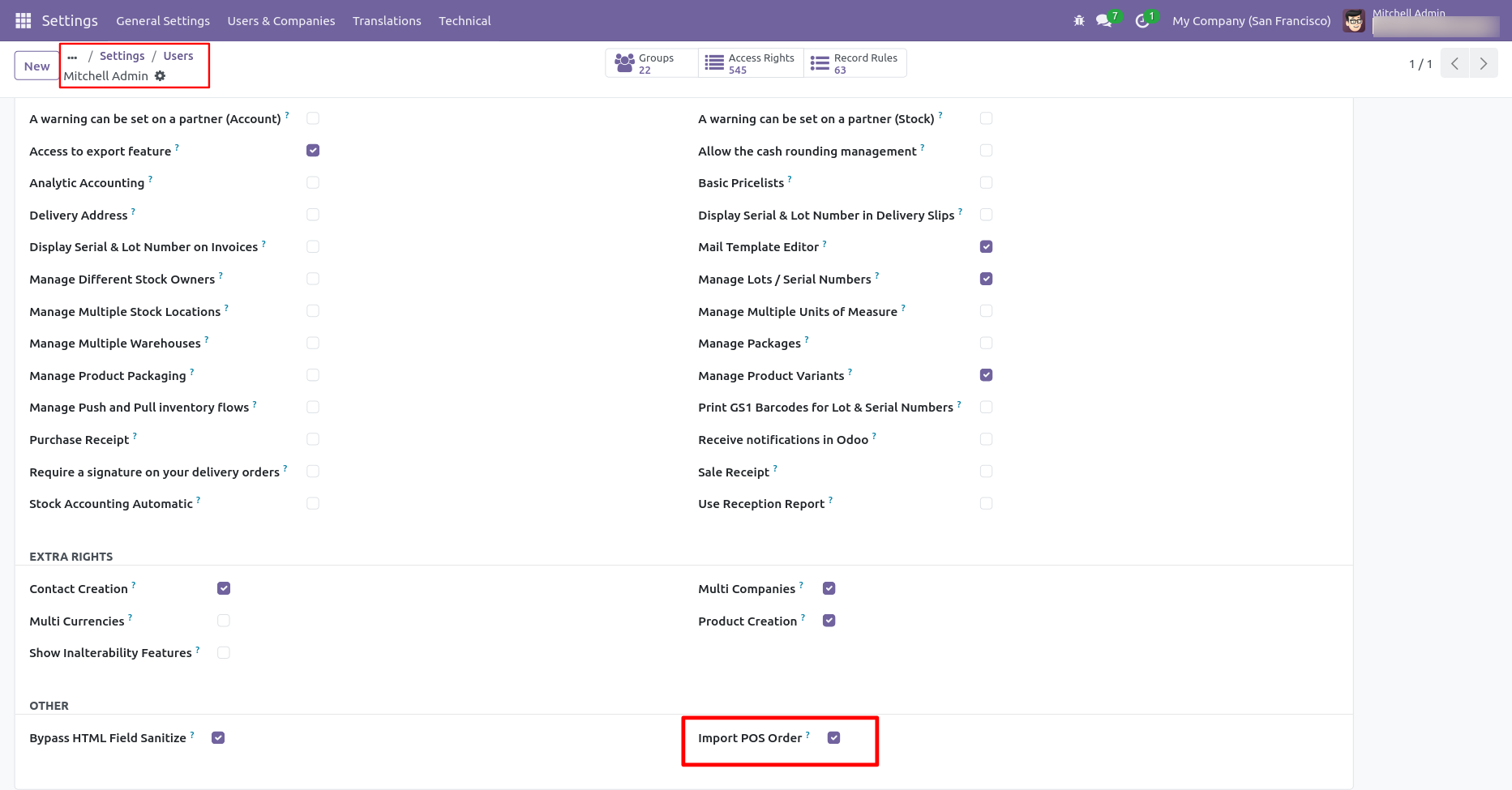
Enable the Import POS Orders feature in Odoo to effortlessly import orders from CSV or Excel files.
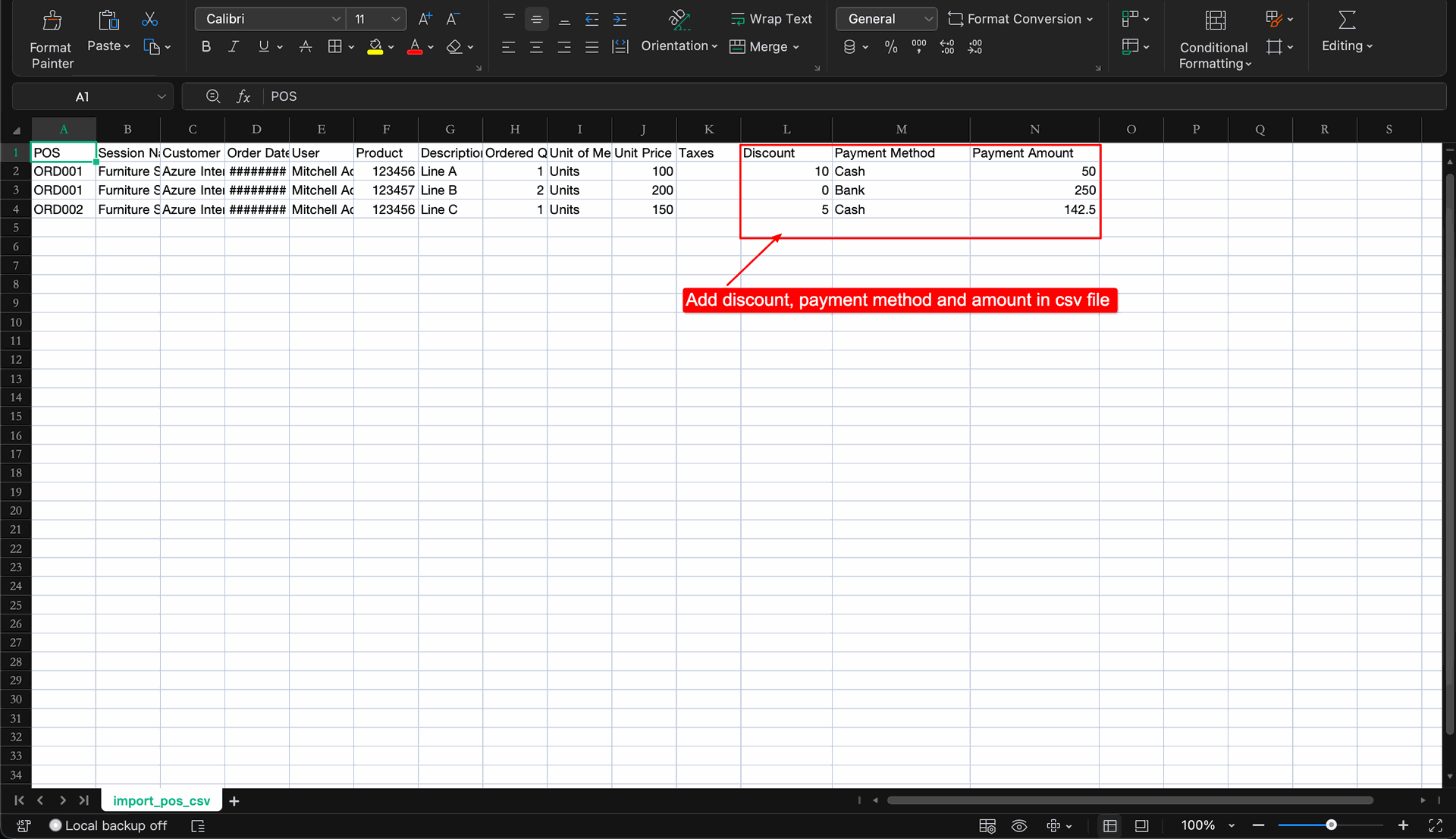
CSV file with POS order details.
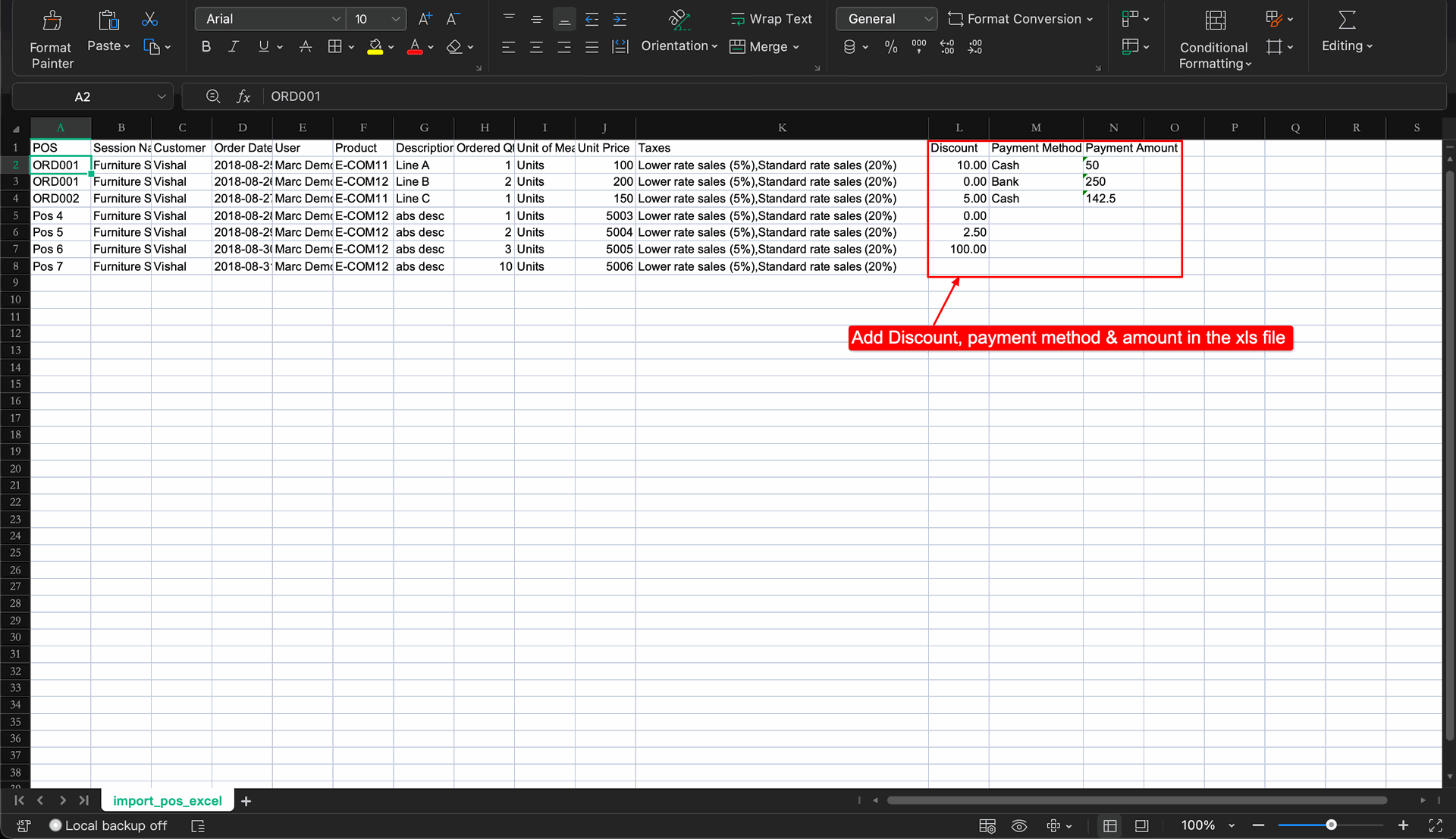
Excel file with POS order details.
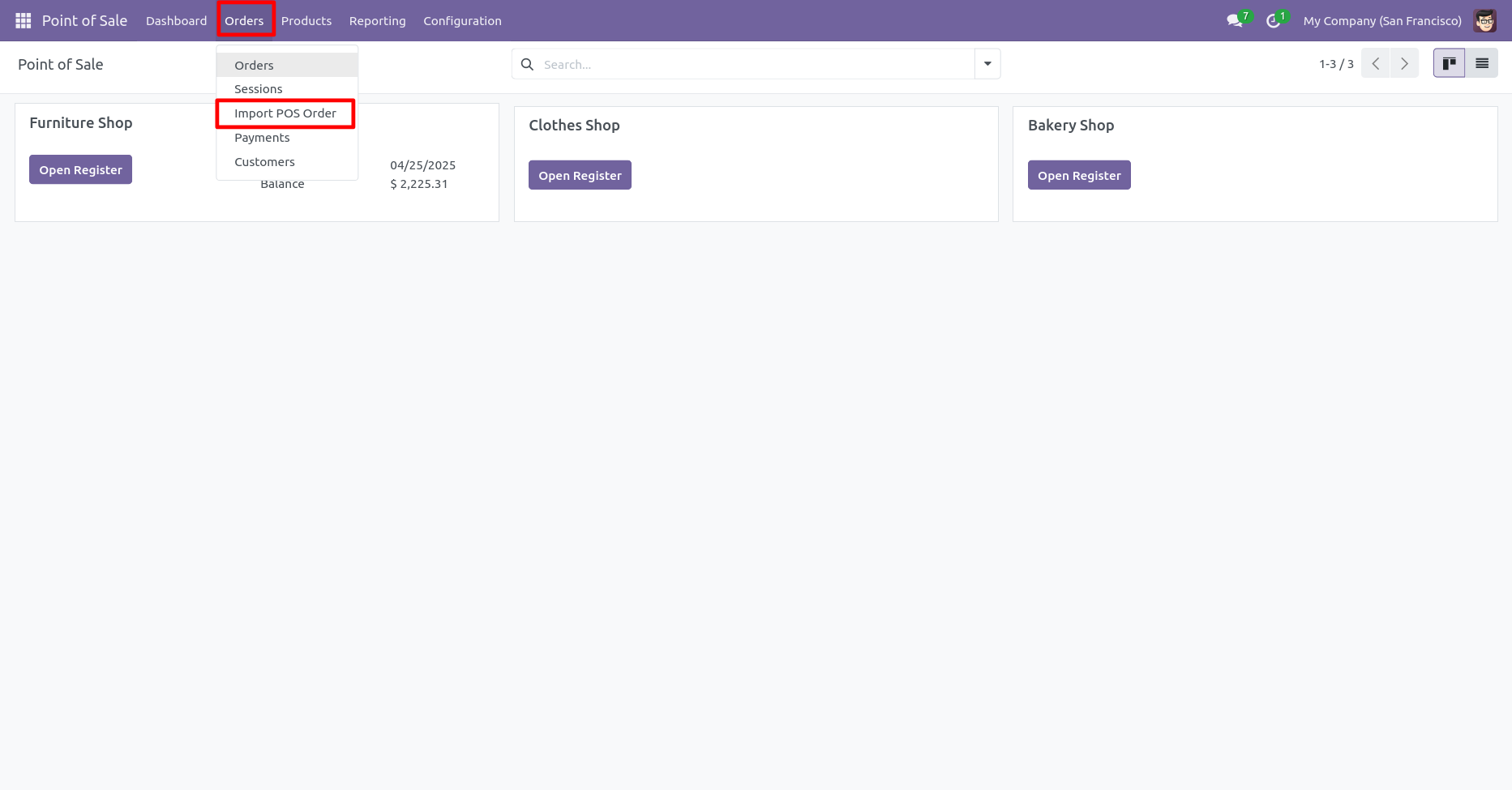
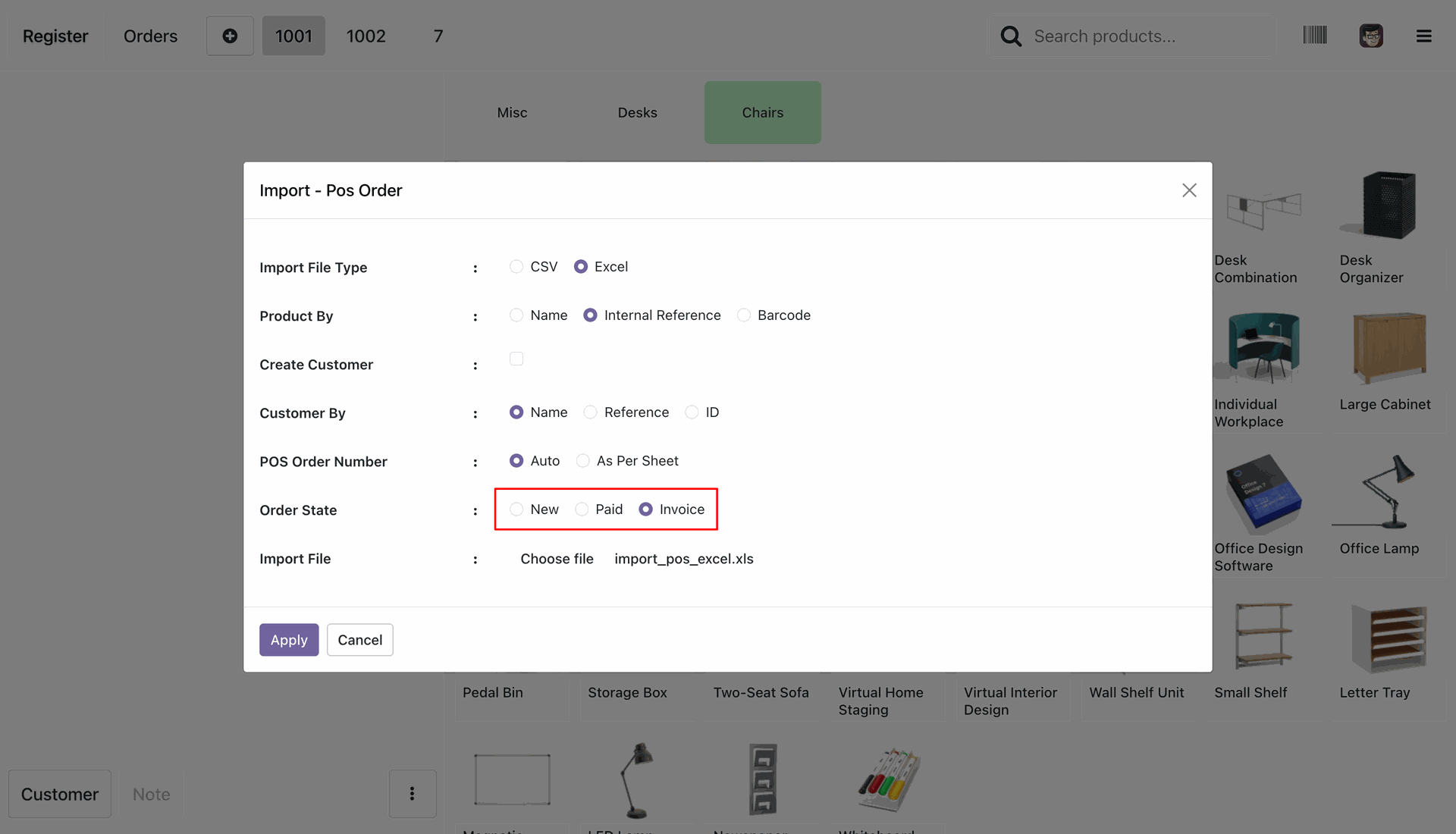
In POS navigate to Orders and click on Import POS Orders to import orders from CSV or Excel file in POS backend.
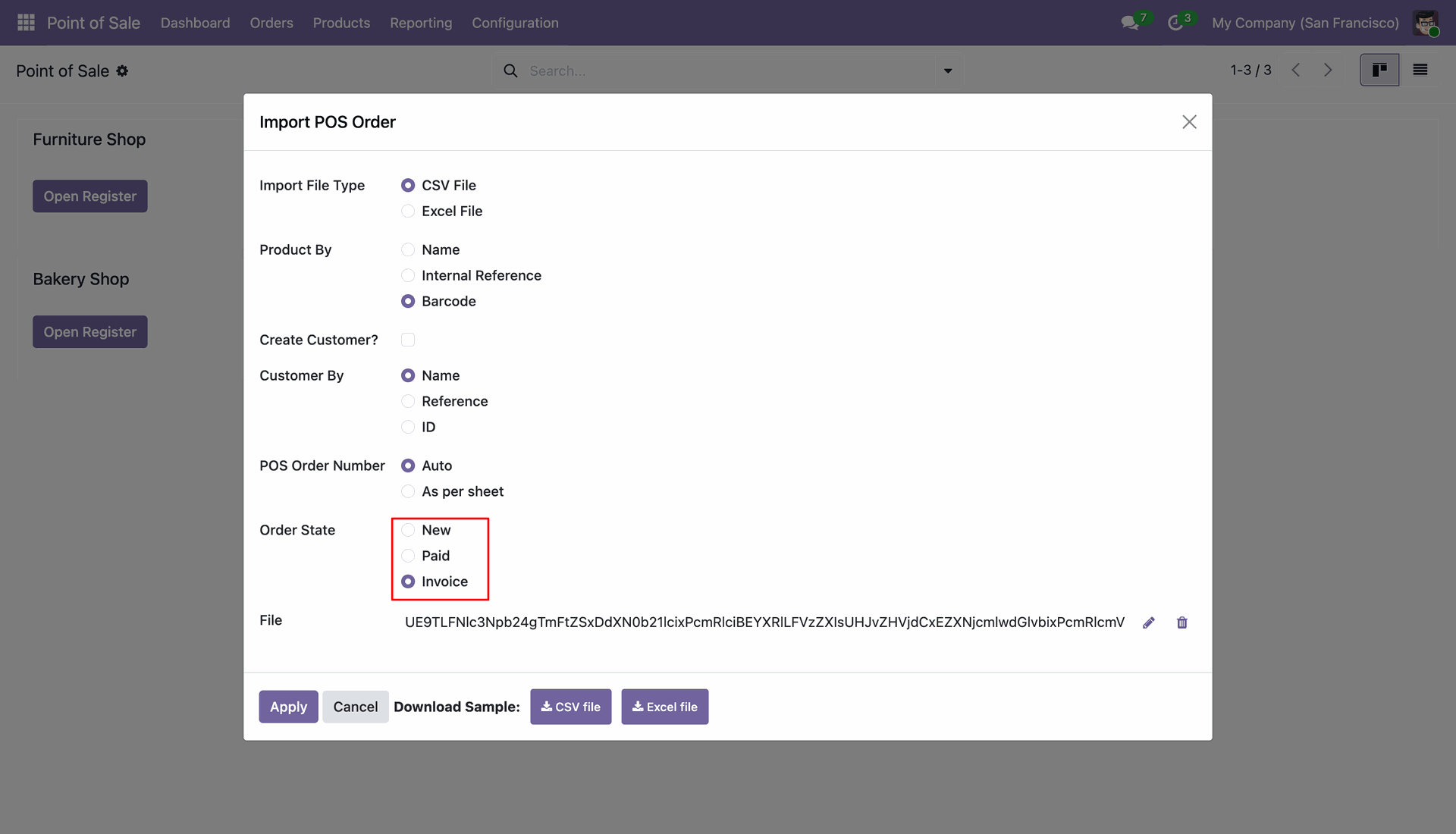
Select the File Type, Producy By, Checkbox to create a customer if not created, Customer By, POS Order number, Order State and upload the CSV or Excel file to import POS orders.
Orders imported successfully with all the details.
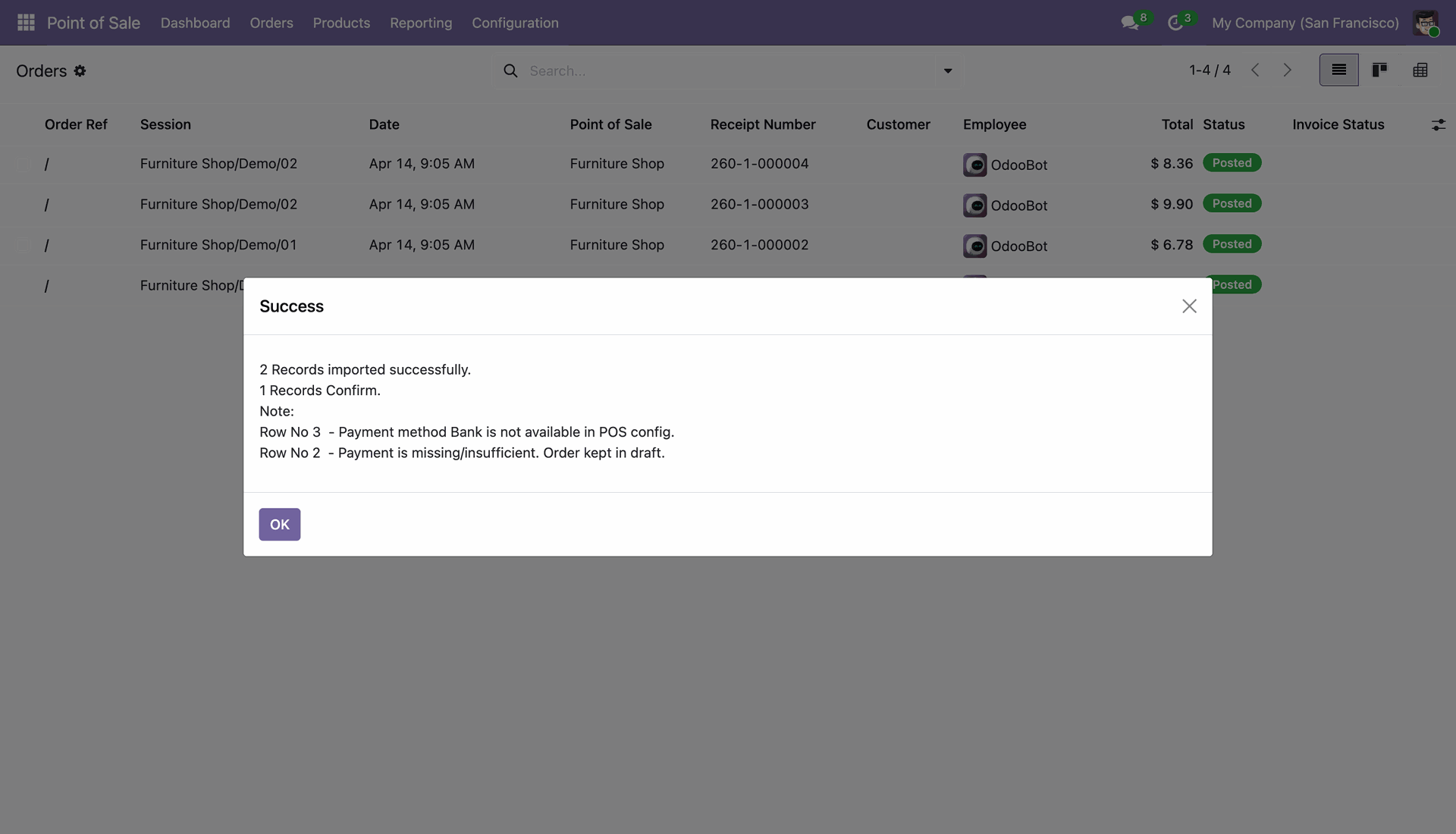
Discounts are also imported in the POS order lines when specified in the CSV or Excel file.
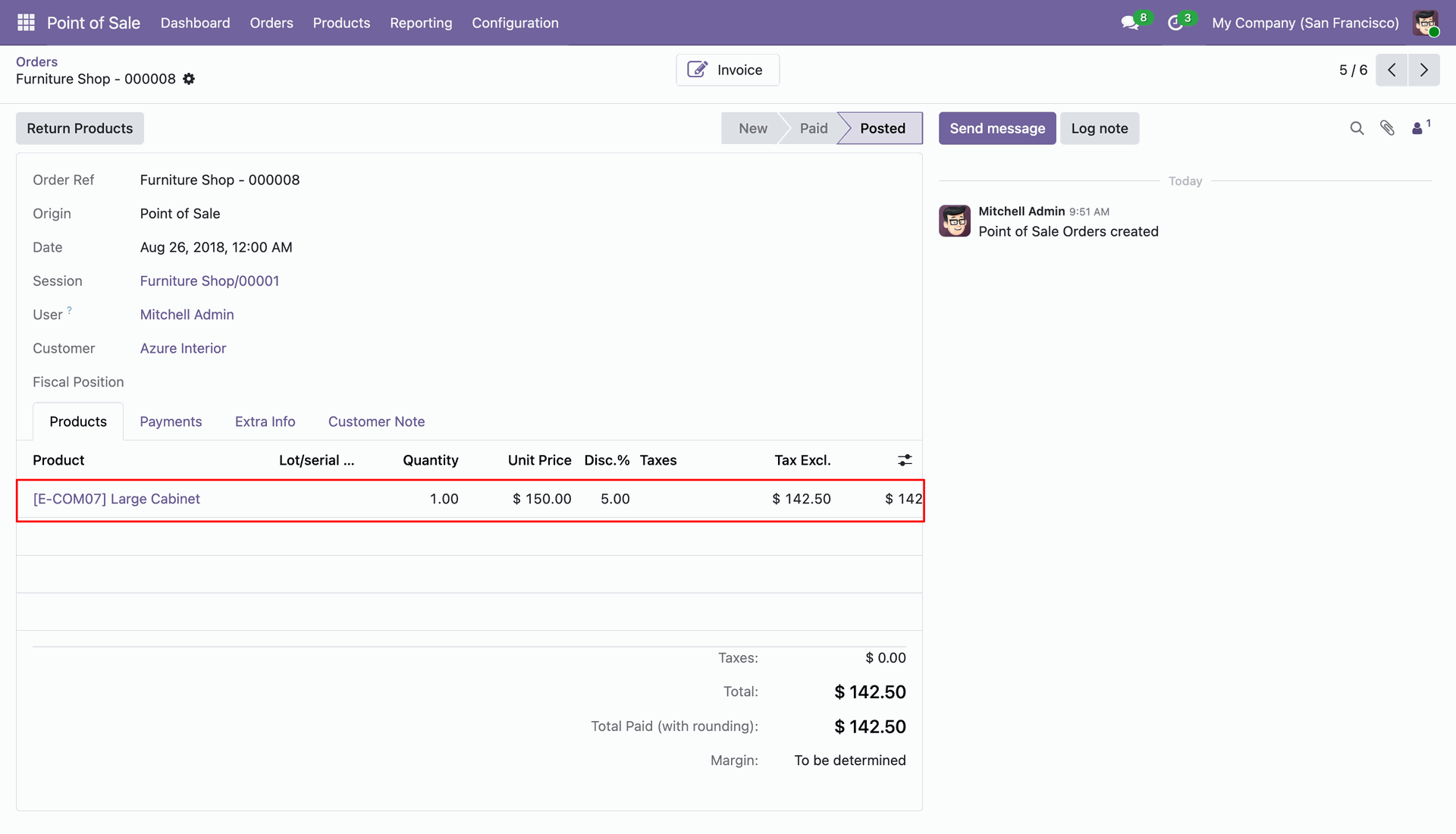
Payments are also imported and order state is automatically set as paid/invoiced if the order is fully paid, otherwise it will be in the new stage for partial payments through imports.
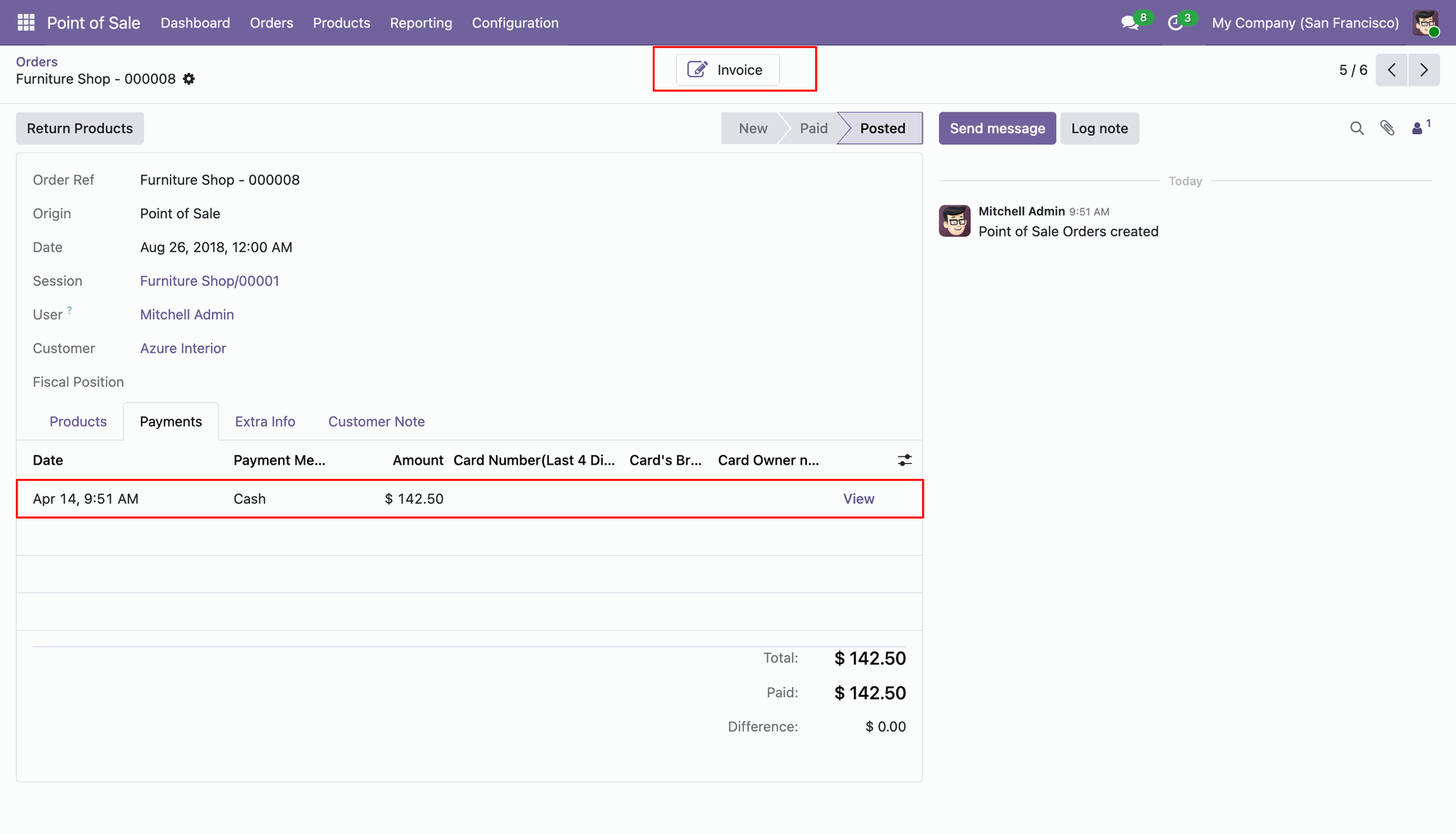
A partially paid order imported through CSV/Excel file with order state in the new stage.
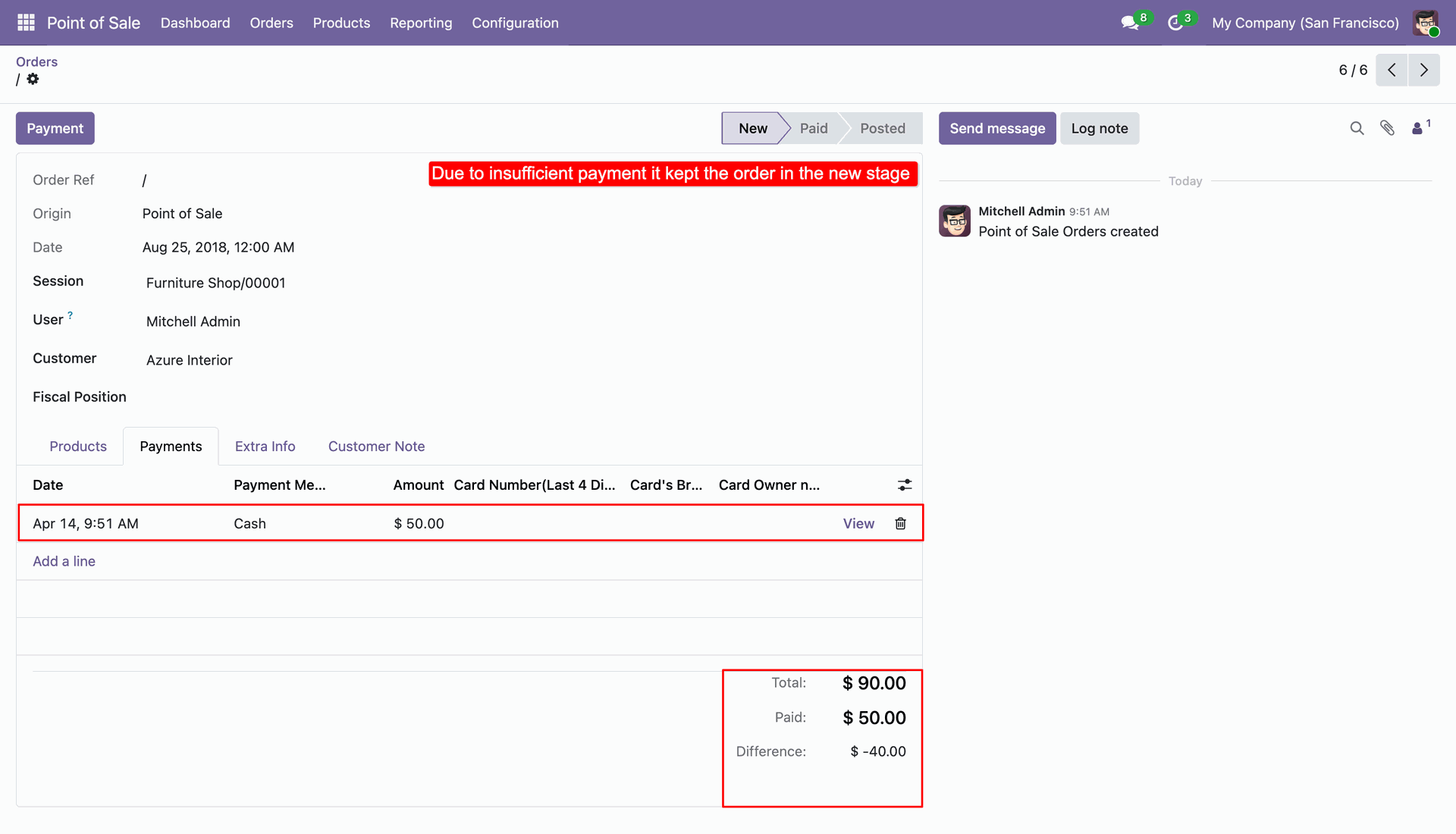
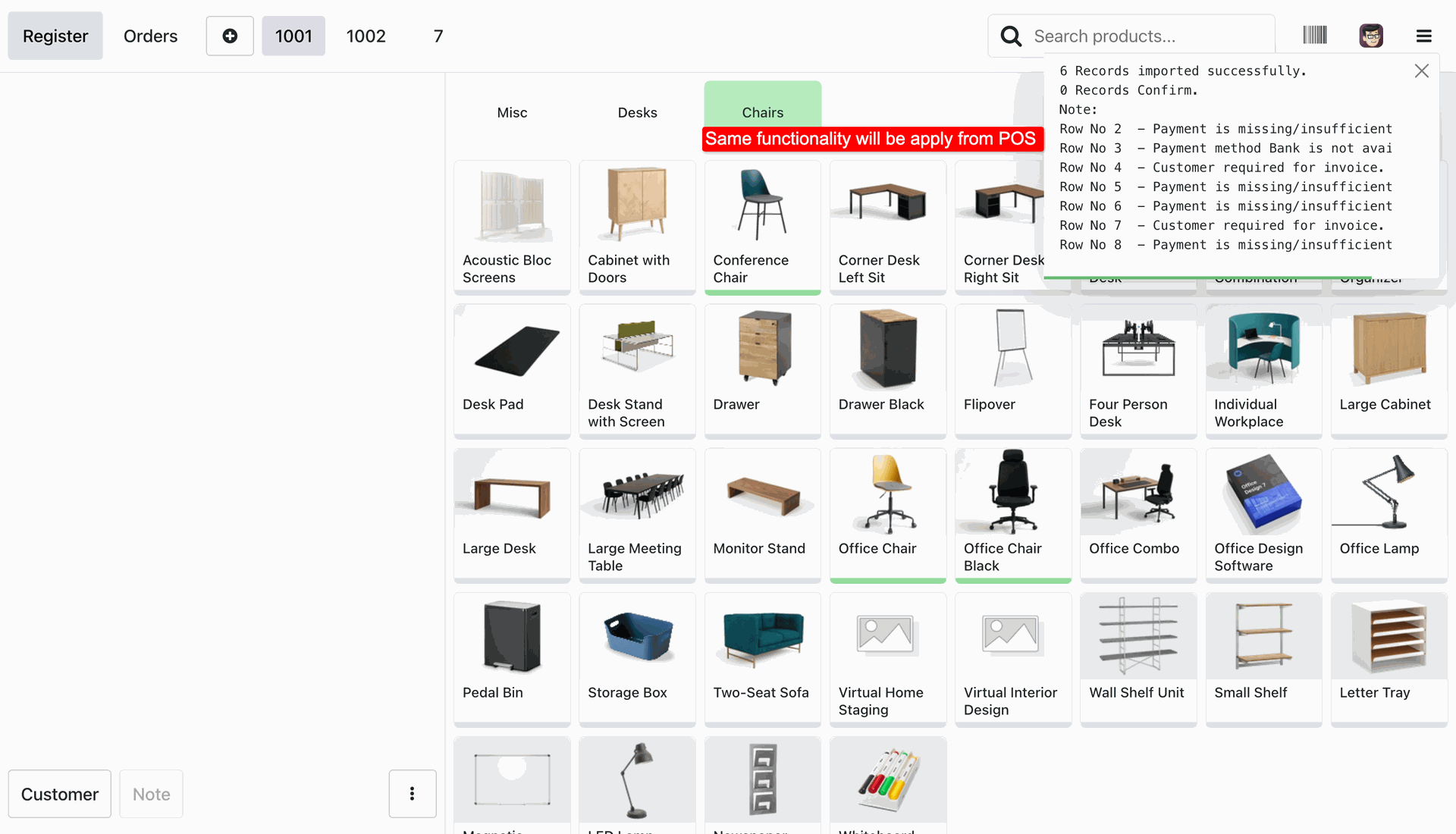
Importing an order in frontend POS view.
A popup showing the order is imported successfully in frontend POS view.
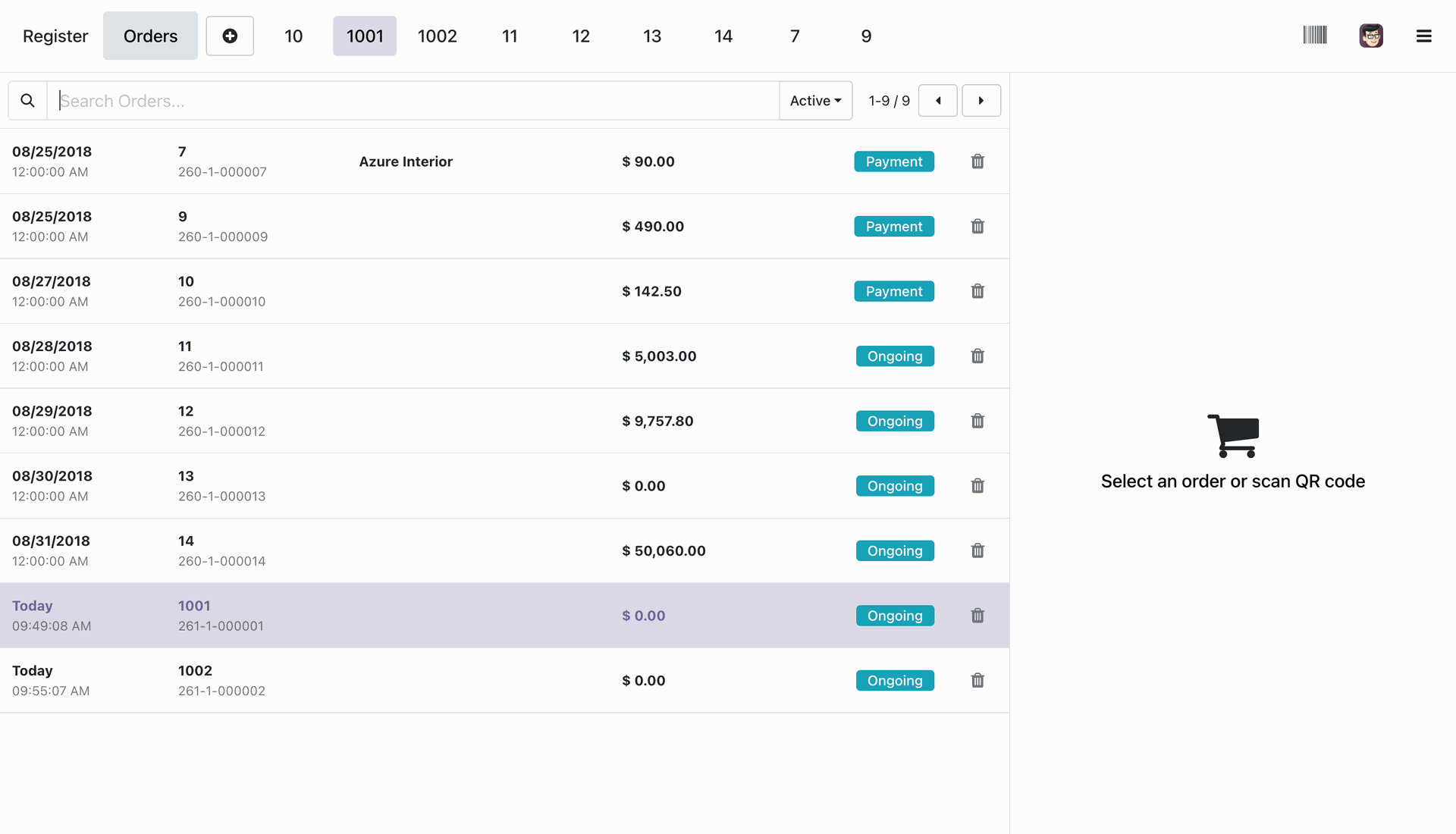
Order details in frontend POS view after importing through CSV/Excel file.
About Fields
| Column | POS Model | Field Name | Description | Required |
|---|---|---|---|---|
| A | Orders (pos.order) | Order Ref | You have to write a POS Order name here. | Yes |
| B | Orders (pos.order) | Session | You have to write a Session Name here. | Yes |
| C | Orders (pos.order) | Customer | Define the Customer. | No |
| D | Orders (pos.order) | Date | Define the Date. | Yes |
| E | Orders (pos.order) | Cashier | Define the Cashier. | No |
| F | Orders (pos.order.line) | Product | Define the Product. | Yes |
| G | Orders (pos.order.line) | Description | You have to write a Description here. | No |
| H | Orders (pos.order.line) | Quantity | You have to write a Quantity here. | No |
| I | Orders (pos.order.line) | Unit of Measure | Take the same name as ERP in the "UOM". | Yes |
| J | Orders (pos.order.line) | Subtotal | You have to write a Subtotal here. | Yes |
| K | Orders (pos.order.line) | Taxes | Taxes are separated by comma(,). You have to provide tax here. | No |
General Notes:
1)
Don't
remove
the
column
from
the
sample
sheet
given,
you
can
leave
an
empty
column
if
the
column
is
not
the
required
type.
You
can
see
the
table
above
for
that.
2)
Don't
change
the
sample
sheet
column
sequence.
3)
Please
don't
use
excel
if
you
don't
know
the
very
well
sheet
formatting
which
is
given
in
the
sample
sheet.
Use
CSV
for
hassle-free
import
without
format
issue.
If
you
want
to
use
excel
and
want
to
clear
the
format
then
please
check
this
video.
Version 20.0.1.0.0 | Released on : 15th September 2026
- Yes, this app works perfectly with Odoo Enterprise (Odoo.sh & On-Premise) as well as Community.
- No, this application is not compatible with odoo.com(odoo saas/Odoo Online).
- Please Contact Us at sales@softhealer.com to request customization.
- Yes, you will get free update for lifetime.
- No, you don't need to install additional libraries.
- For version 12 or upper, you will need to purchase the module for each version that you want to use.
- Yes, we provide free lifetime support for the version you purchased.
- No, We do not provide any kind of exchange.
Discover Our Latest Apps