












Import Lot-Serial Picking From CSV/Excel File

This module imports lot/serial picking from CSV/Excel files in a single click. You can transfer a lot/serial pickings from one location to other locations. When you transfer lot/serial picking, you have the option to create a lot/serial on the destination location. You can import custom fields from CSV or Excel.

Related Modules
Features
- Easy to import lot/serial picking from CSV/Excel file.
- You can transfer a lot/serial pickings from one to other locations.
- Easy to import custom fields.
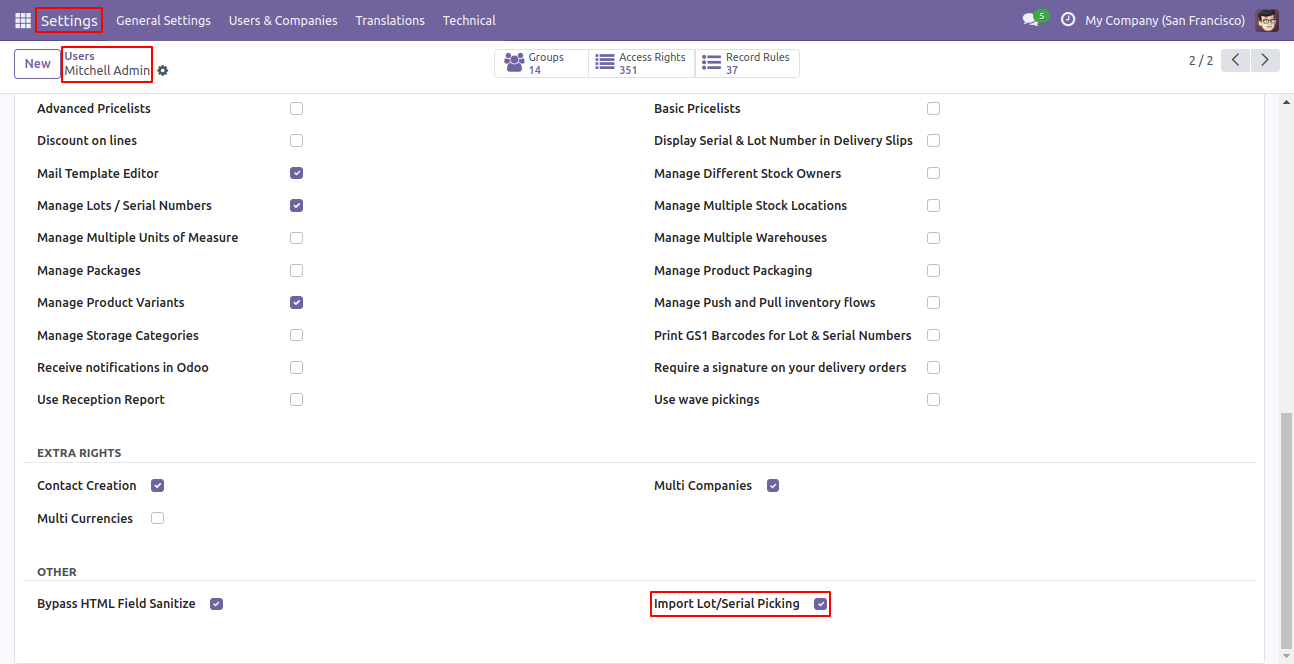
Tick the group 'Imports Lot/Serial Picking'.
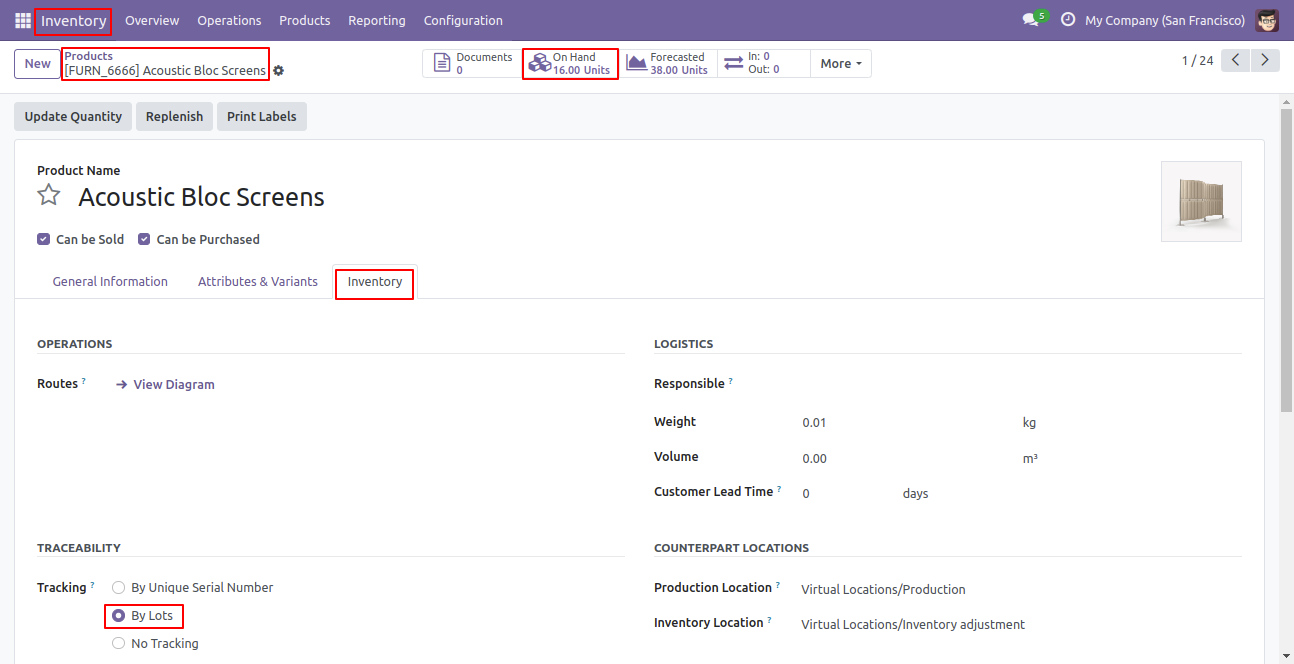
Select 'By Lots' in Acoustic Bloc Screens product and on hand qty is 0(Zero) now.
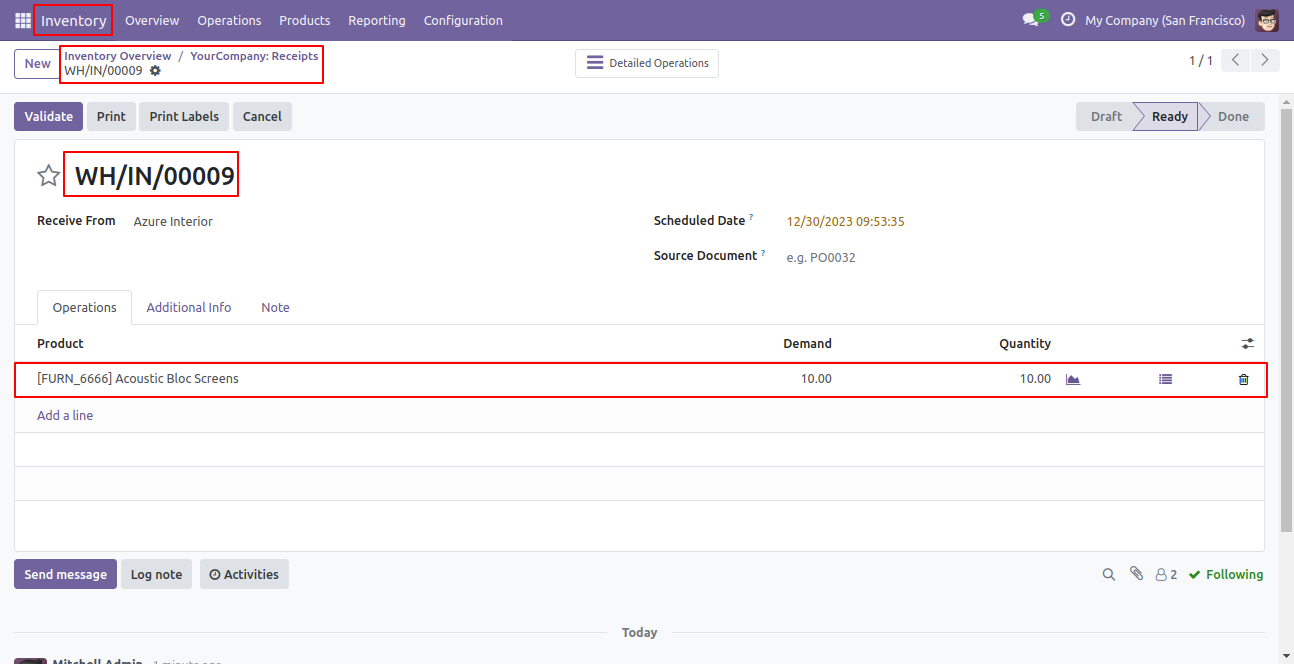
Acoustic Bloc Screens product demand qty is 10(Ten) and our done qty is 0(Zero). So we import lot/serial using the smart button that button is given besides 'Done QTY'.
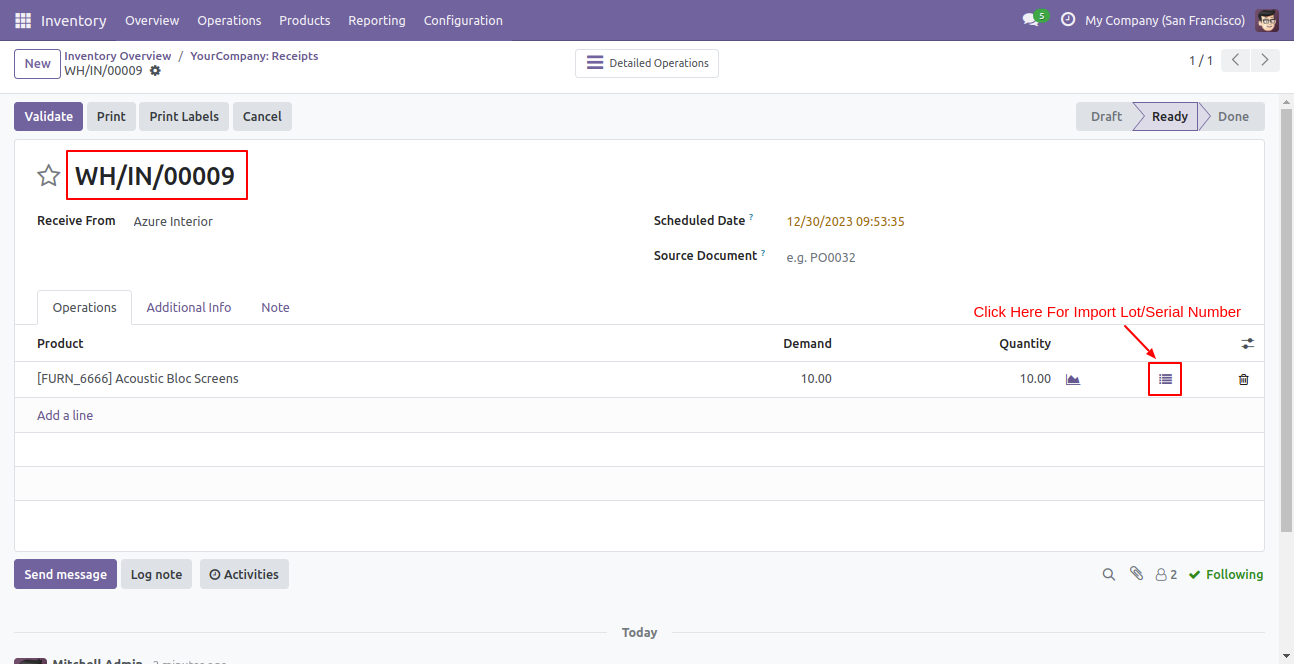
After pressing that button this wizard opens, press the 'Import Lot/Serial' button.
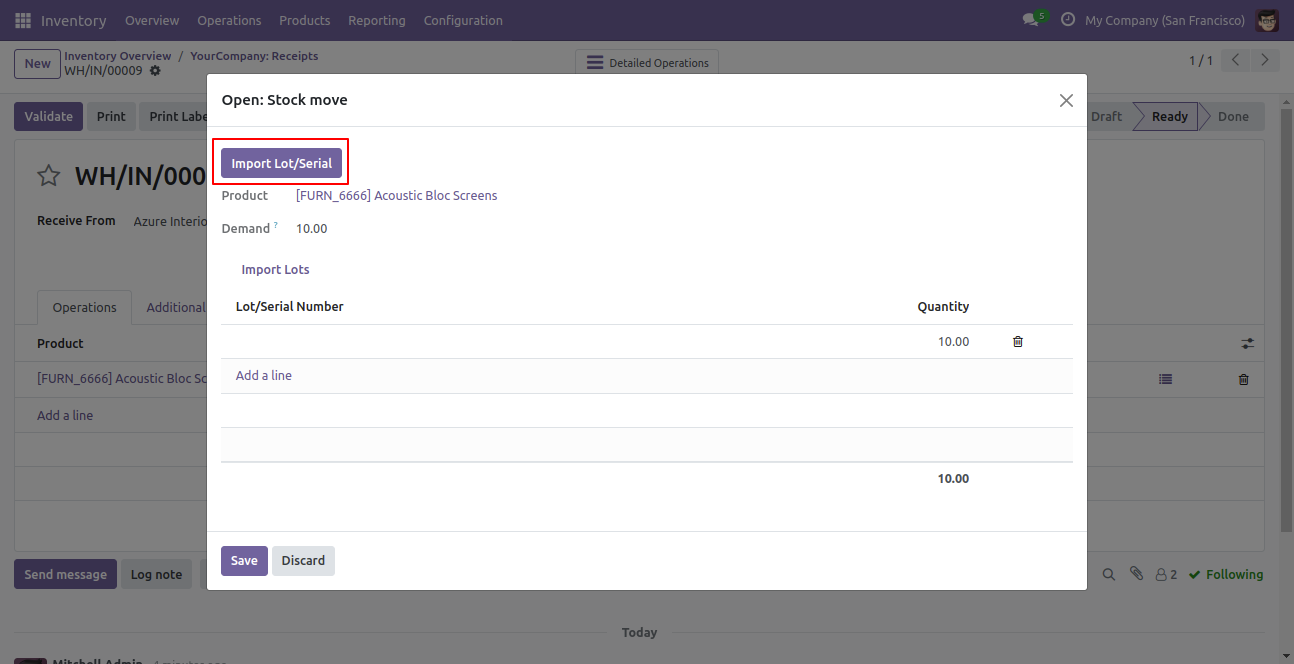
Select the import file type, choose the file type & select lot/serial type, and press the 'Apply' button.
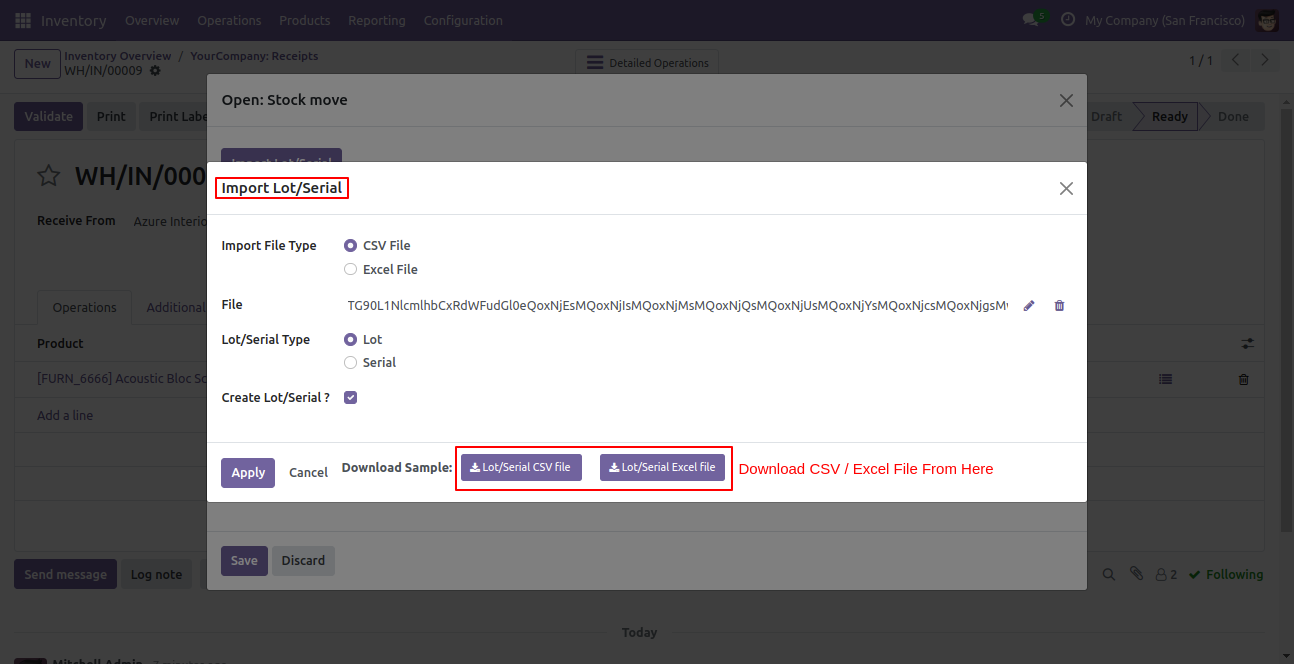
Success message looks like below.
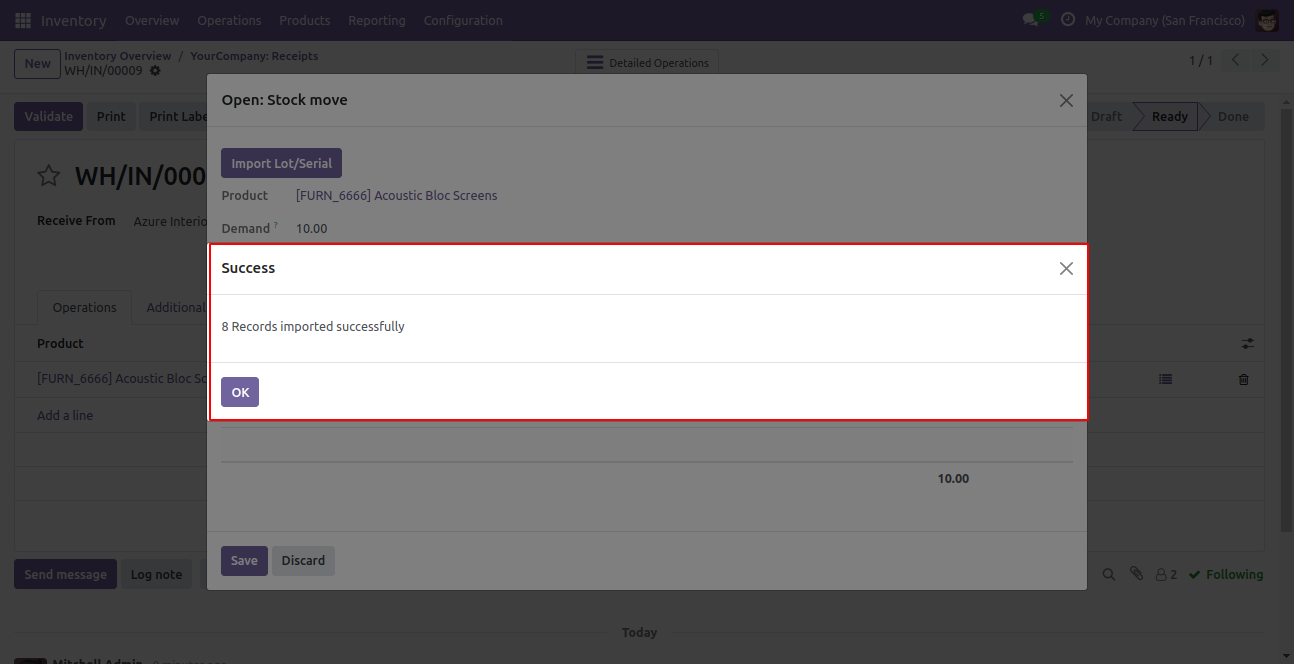
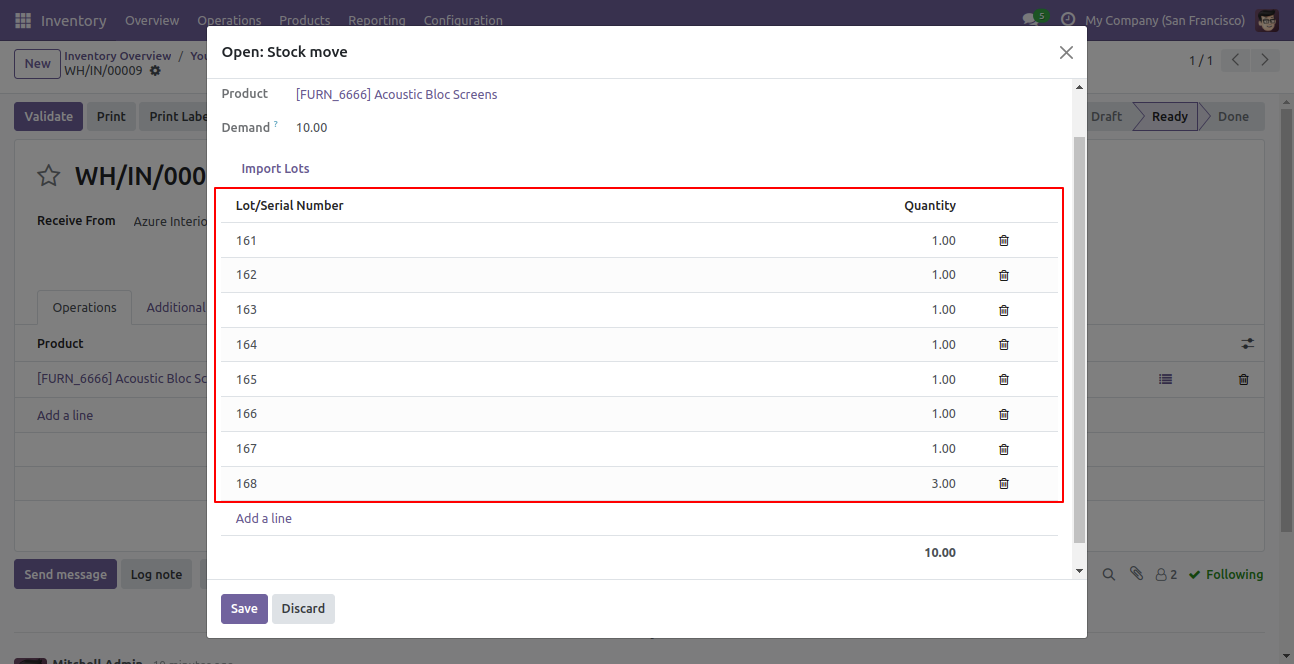
Stock move pop-up.
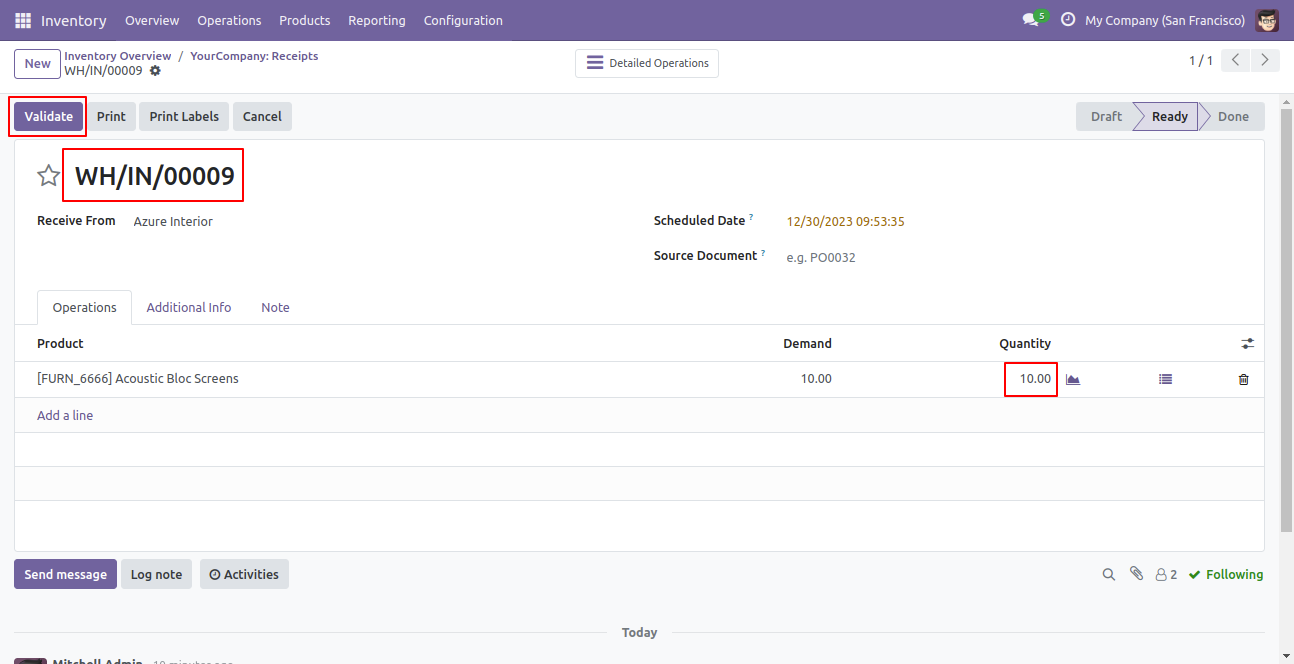
Now we press the 'Validate' button and our stage is changed from ready to done.
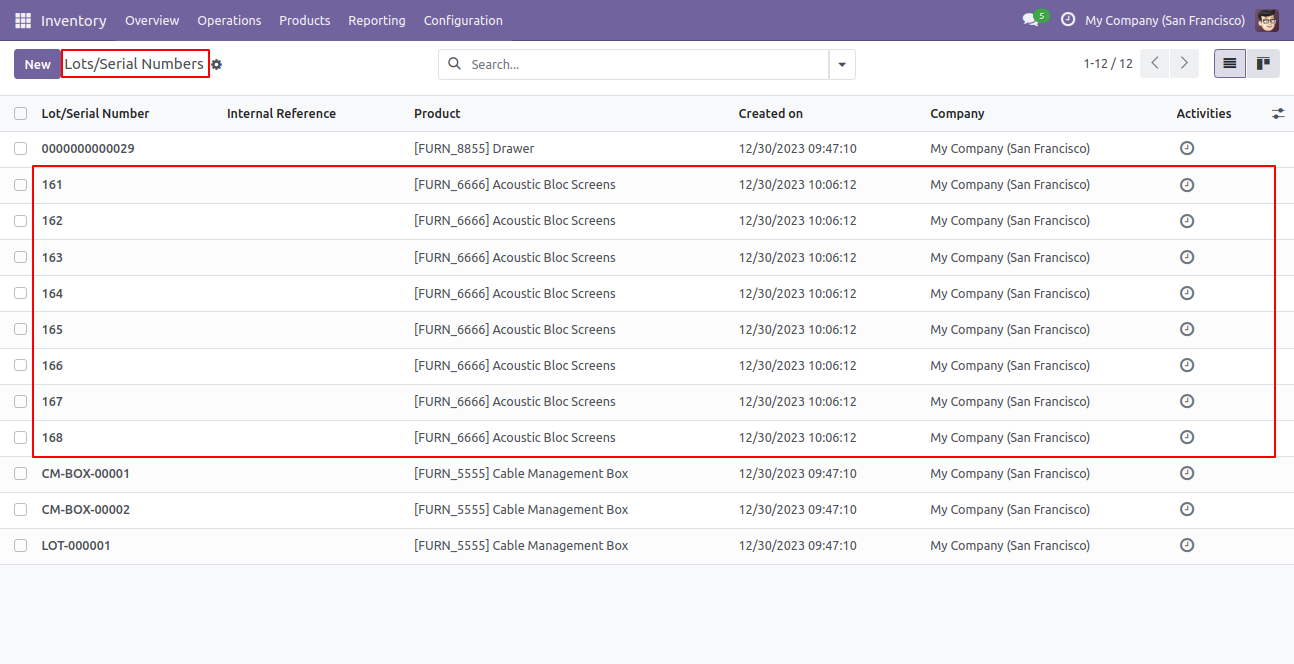
Lot/Serial Numbers list view with imported lot/serial picking.
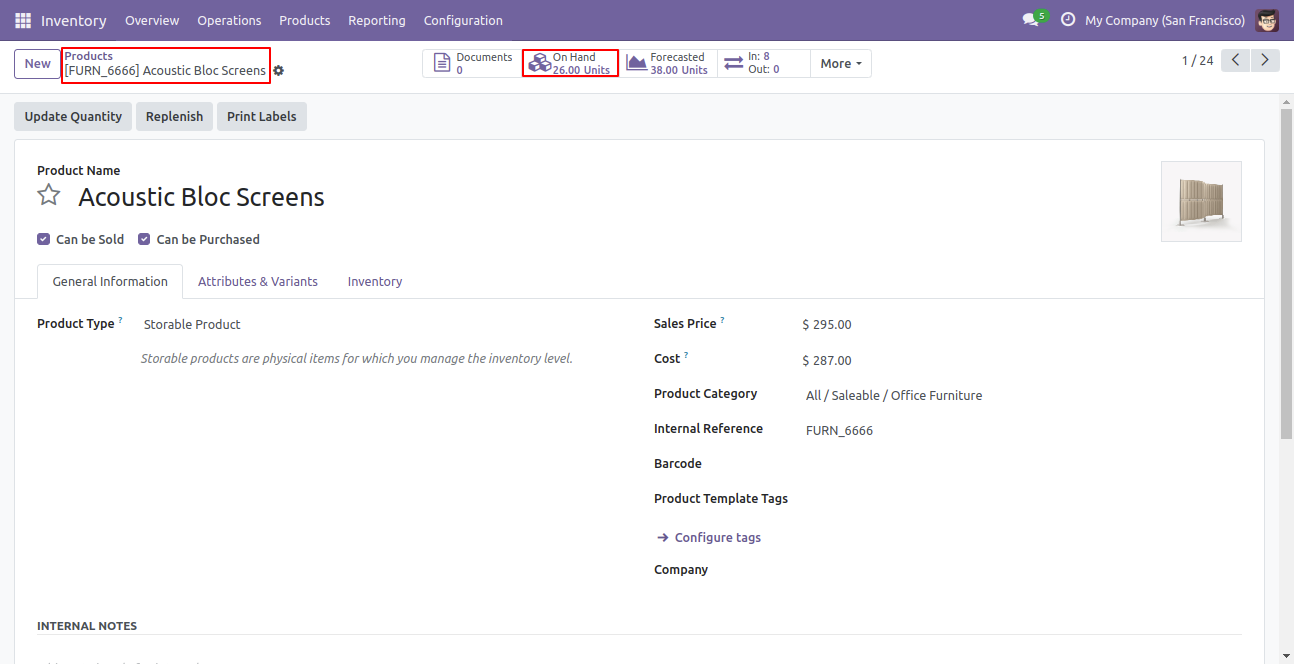
Now the Acoustic Bloc Screens product on hand qty is changed.
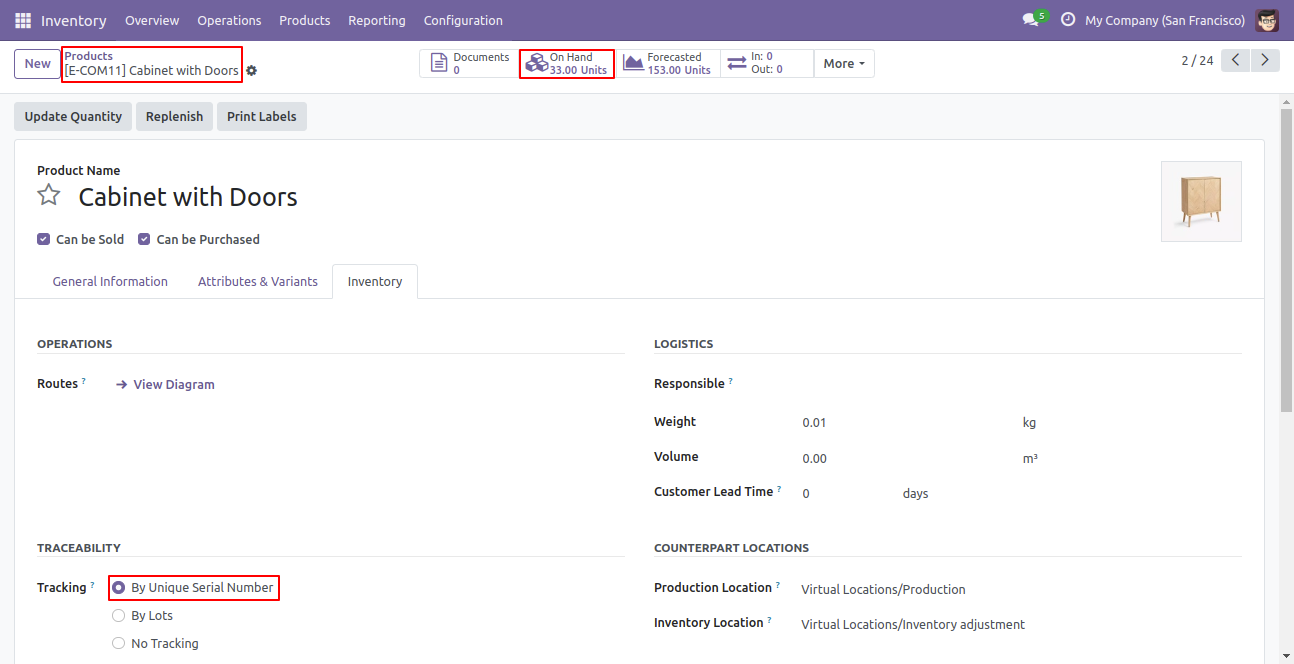
Select 'By Unique Serial Number' in Cabinet with doors product and the on-hand qty is 0(Zero) now.
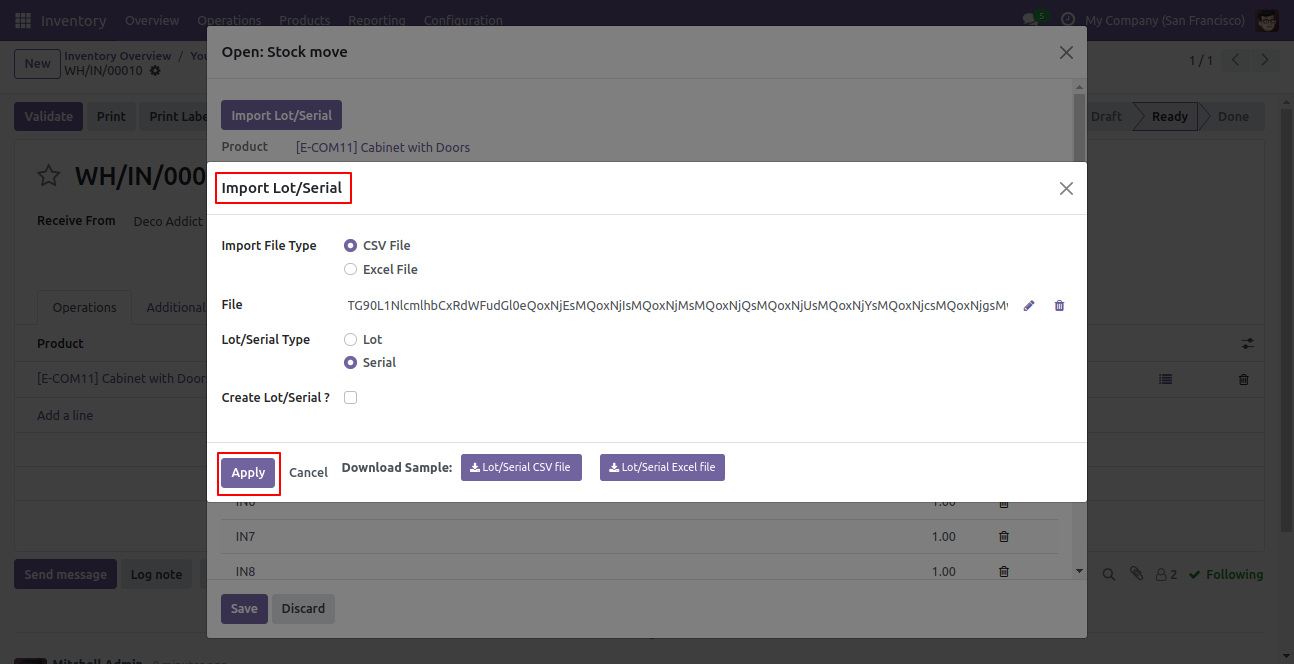
Select the import file type, choose the file type & select lot/serial type, and press the 'Apply' button.
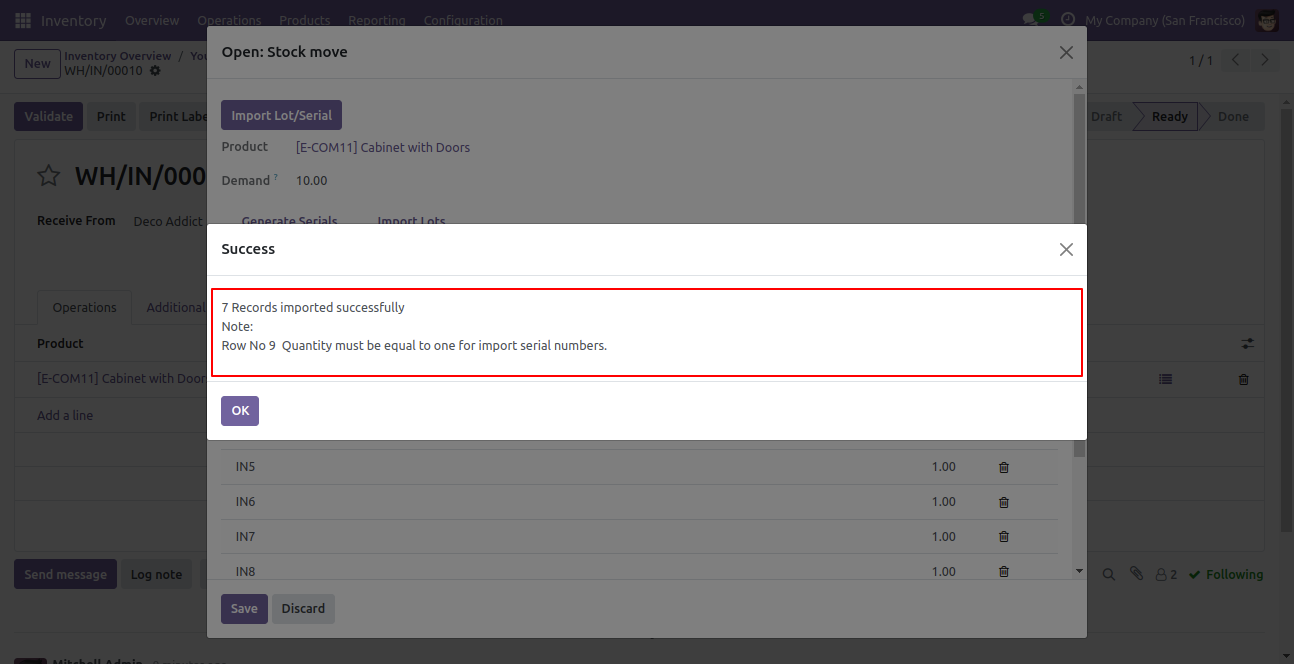
Success message looks like below. If you choose the 'Lot' in the lot/serial type and your product traceability is the Serial then it generates an alert for that and also If you choose the 'Serial' in the lot/serial type and your product traceability is a Lot then it generates an alert.
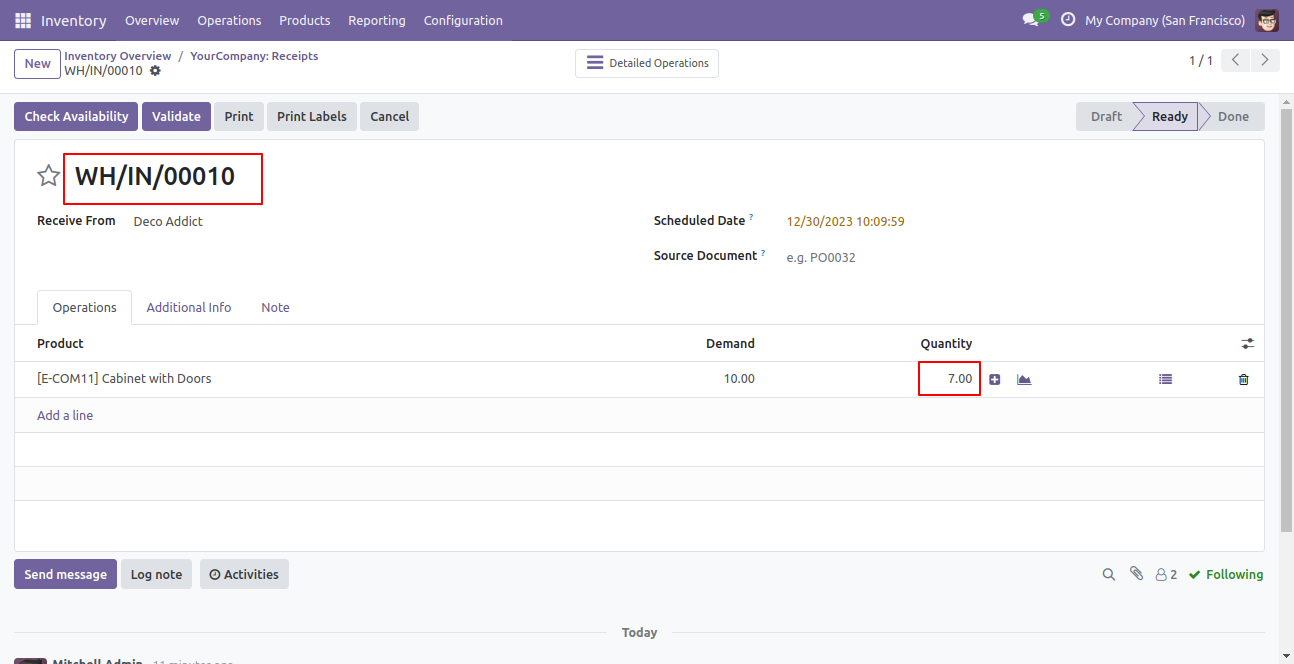
Stock move operation wizard with the imported lot/serial picking.
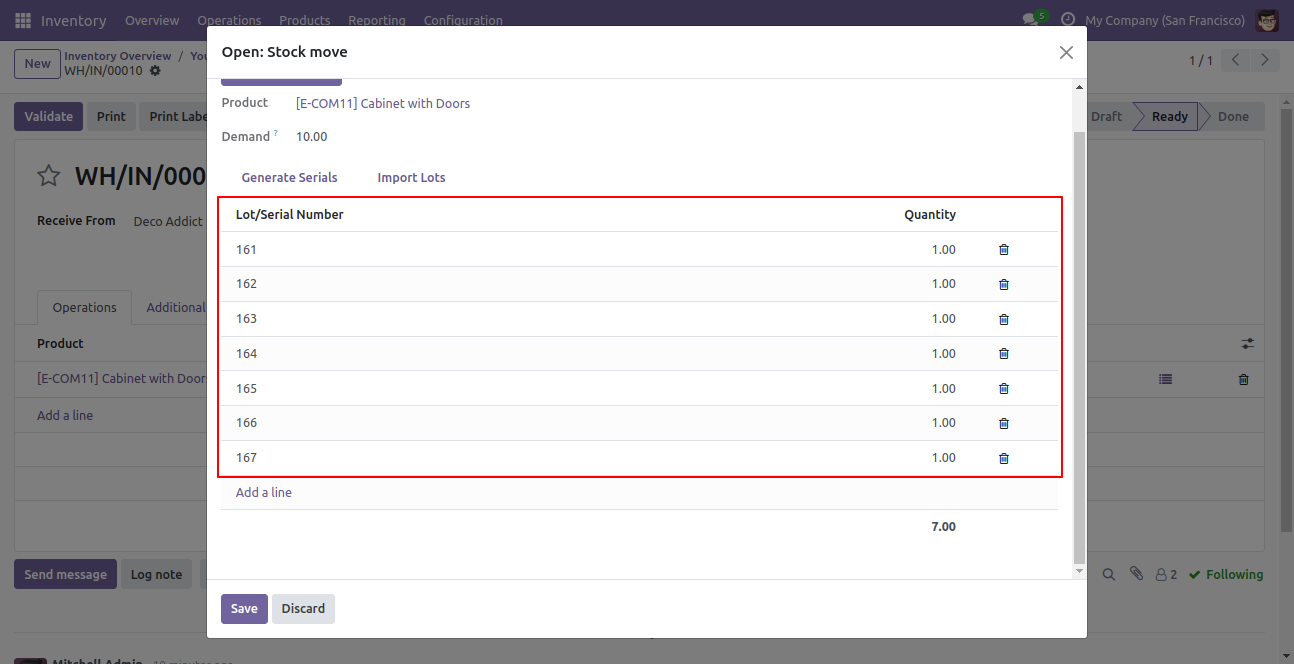
Total QTY is visible here.
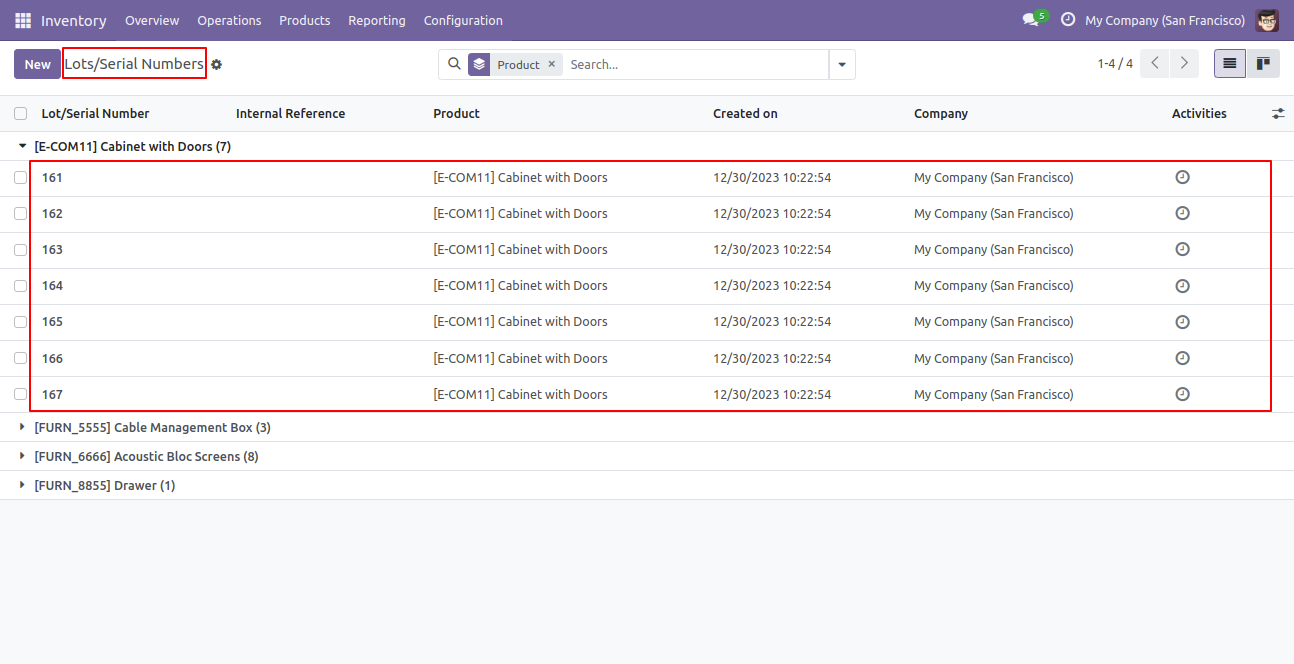
Lot/Serial Numbers list view with imported lot/serial picking.
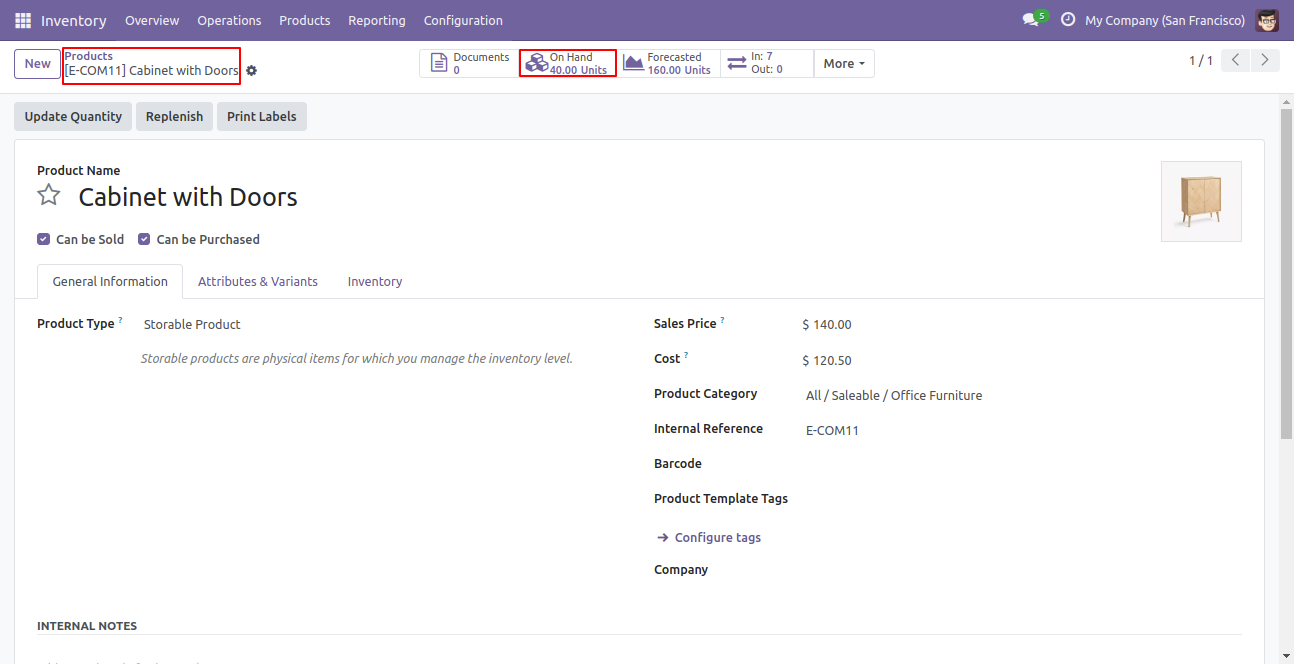
Now the Cabinet With doors product on hand qty is changed.
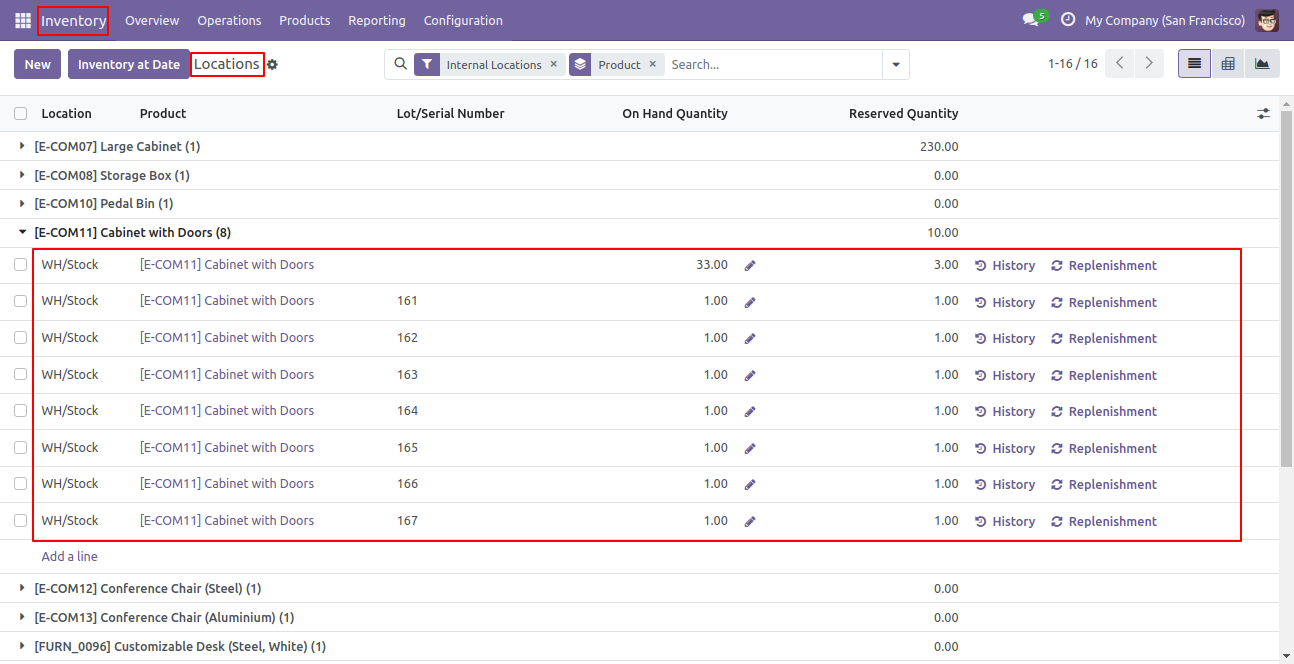
The 'Location' list view looks like this.
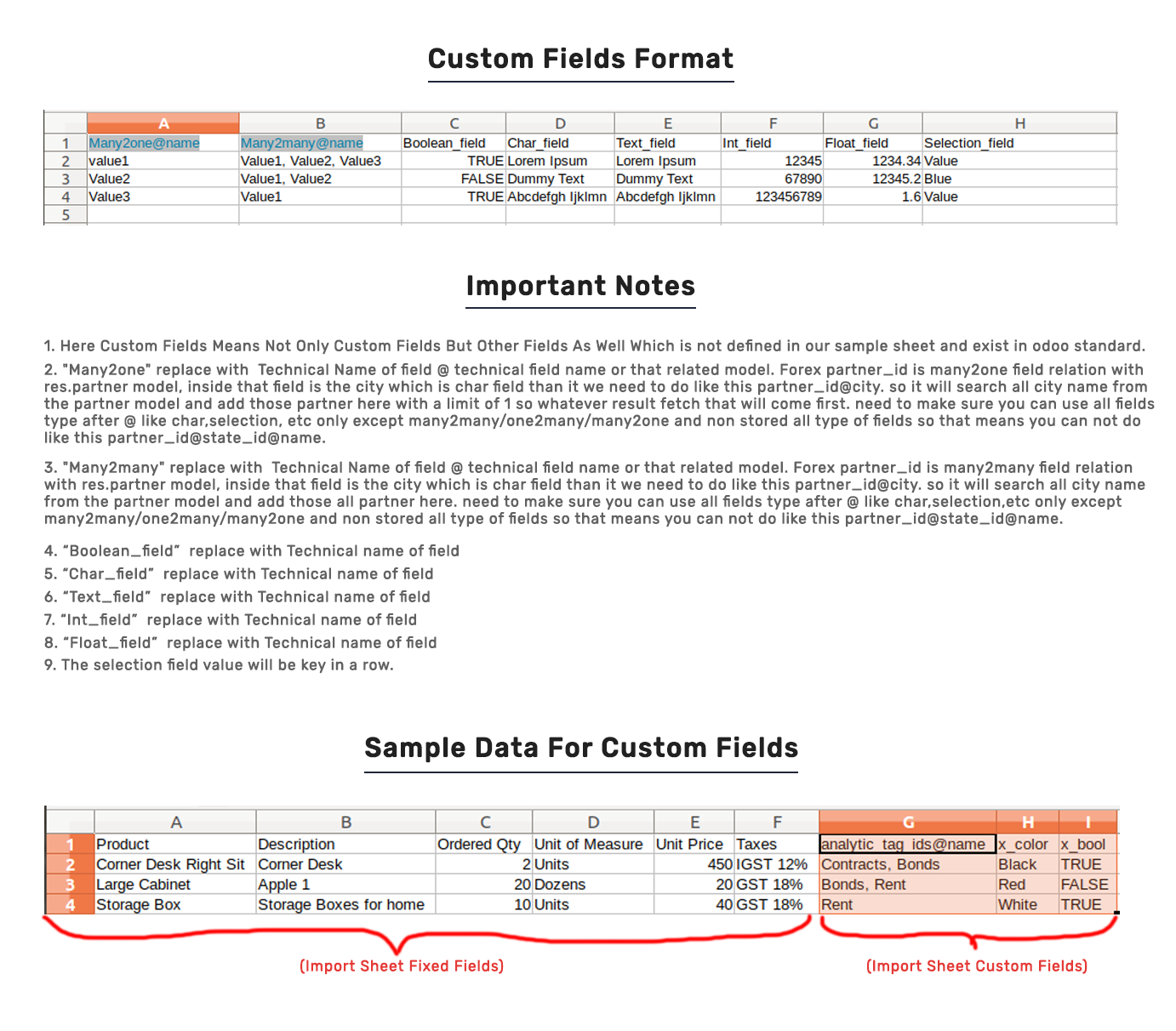
Custom Fields / Non Existing Standard Fields
Do you want to import fields which is created by any custom modules, odoo studio, or standard odoo fields which are not present inside the sample sheet provided in the module? You can add all those kinds of fields in the sheet at the end after the sample sheet fields it means from column "Q".
Videos
Version 19.0.1 | Released on : 18th September 2025
- Yes, this app works perfectly with Odoo Enterprise (Odoo.sh & Premise) as well as Community.
- No, this application is not compatible with odoo.com(odoo saas/Odoo Online)
- Yes, to test this module, please contact us at sales@softhealer.com.
- Please contact us at sales@softhealer.comto request customization.
- Yes, we provide free support for 365 days from the date of purchase.
- Yes, you will receive lifetime free updates for the version of the module you purchased.
- No, there is no need to install any additional libraries.
- Yes, for version 12 and above, you need to purchase the module separately for each version you intend to use.
- No, exchanges or refunds are not allowed. Please make sure to select the correct version before purchasing.
- You can contact us at support@softhealer.com for language translation support. We use Google Translator tools to provide translations in multiple languages, so the accuracy may vary. We welcome your suggestions to help improve translations.
Discover Our Latest Apps