










Google Tasks Integration with Odoo

This module seamlessly integrates your Google Tasks with Odoo. By syncing tasks between Google and Odoo, you can efficiently manage your project activities in one platform. Say goodbye to switching between applications, and enjoy a unified workflow that boosts productivity, saves time, and ensures your team stays on the same page.
Features
Google API Configuration
Configure Google API credentials, authentication details, and redirect URL to connect Odoo with Google Tasks.

Odoo to Google Sync
Export Odoo projects and tasks to Google Tasks and create corresponding task lists and tasks in the connected Google account.
Google to Odoo Sync
Import Google task lists and tasks into Odoo and create corresponding projects and tasks from Google Tasks.
Task List Synchronization
Synchronize task lists between Odoo and Google Tasks while maintaining their remote IDs and synchronization information.
Odoo to Google Task Management
Create, rename, complete, and delete tasks from Google Tasks and synchronize these changes in Odoo tasks.
Google to Odoo Task Synchronization
Manage synchronized Google Tasks from Odoo with support for creating, updating, and deleting task records.
Synchronization Queues
Process Google task list and task synchronization through dedicated queues and review the synchronization state of records.
Synchronization Logs
Track Google Tasks synchronization activities with detailed logs, including operation status, descriptions, and responses.

Workflow
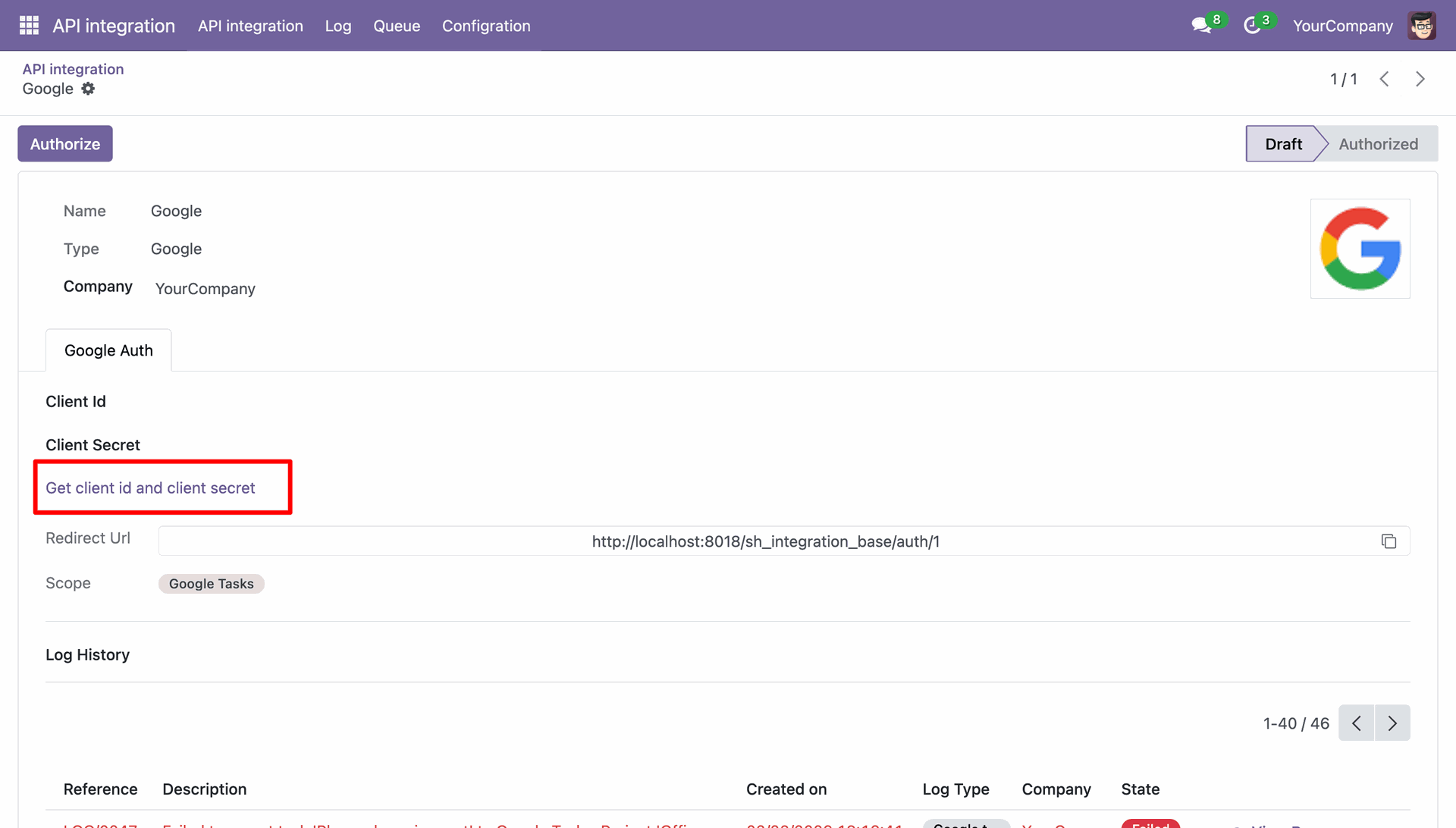
Click on the "Get client id and client secret" to get redirected to the Google Projects.
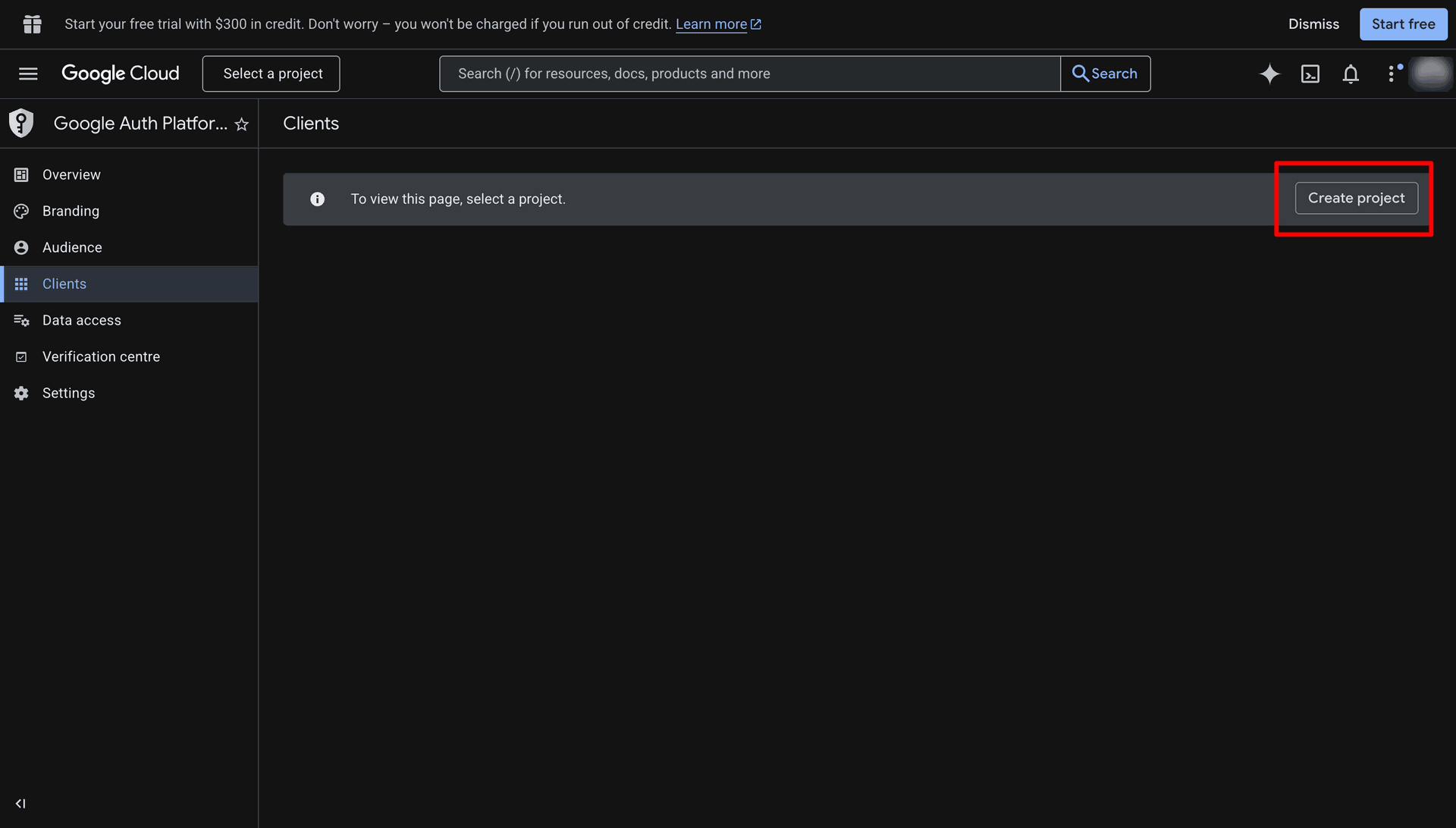
Click on create project.
Enter Project Name, Organisation and Parent Resource and click Create.
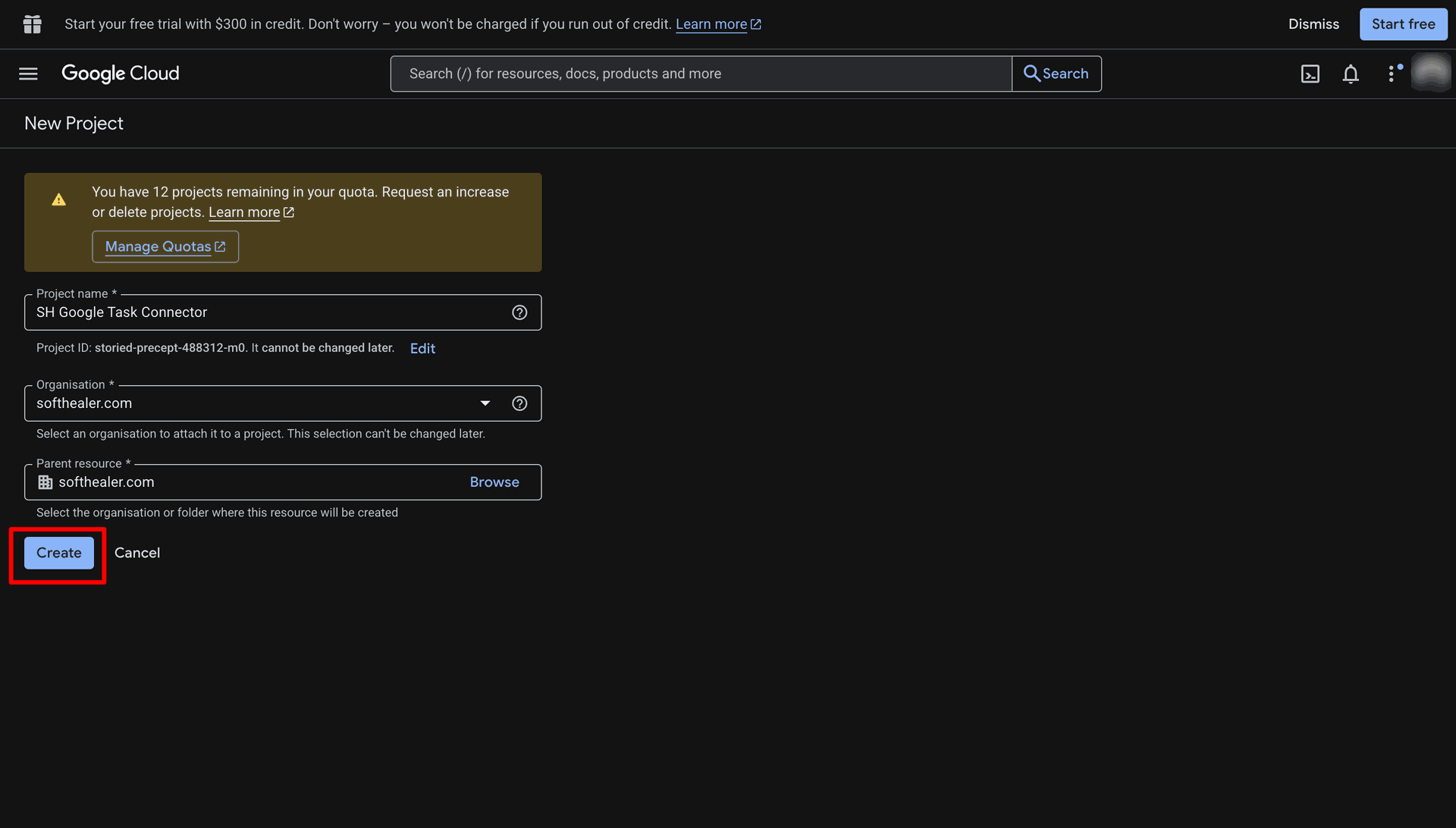
The notification stating that the project is created.
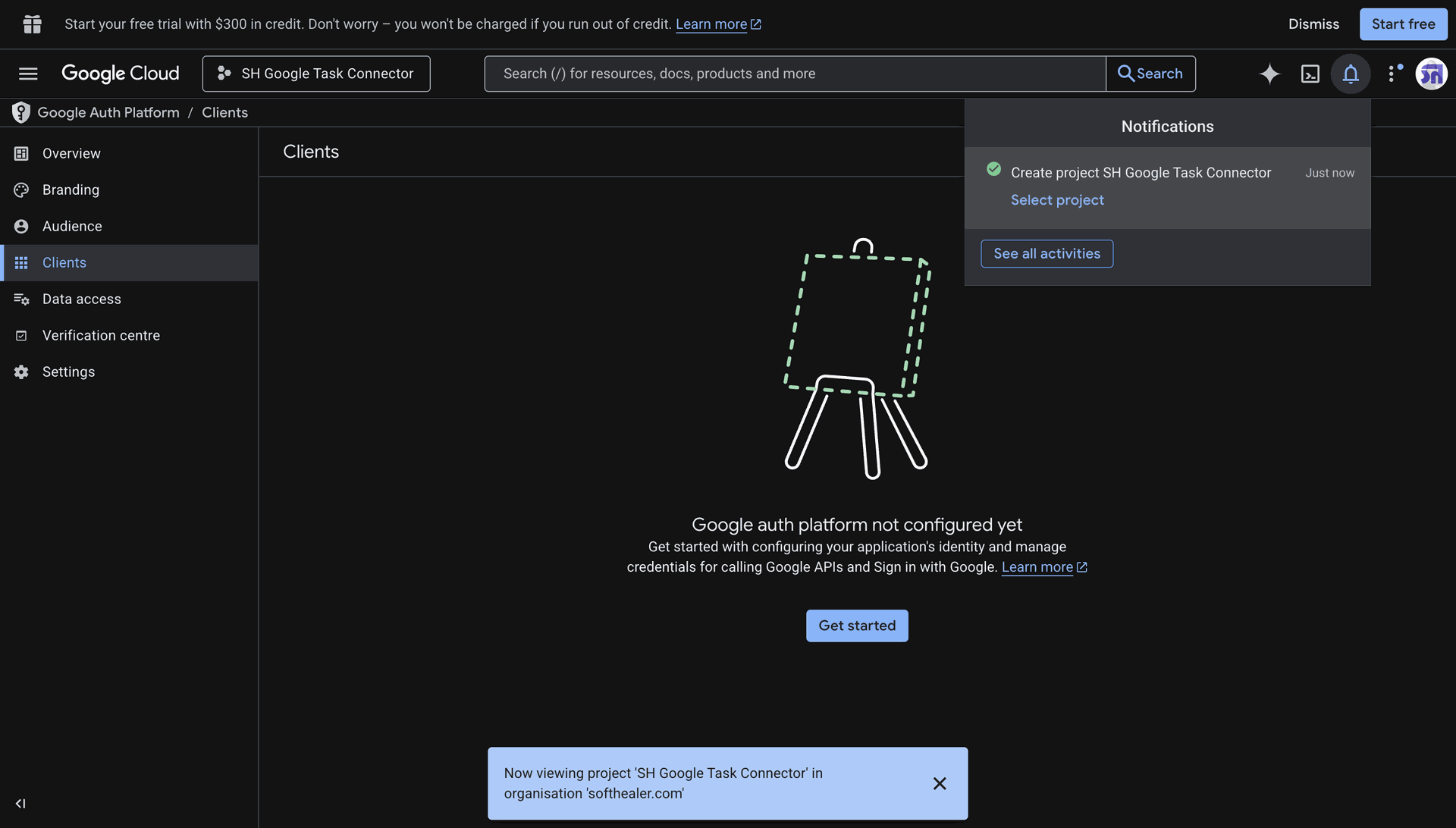
Click on Get Started.
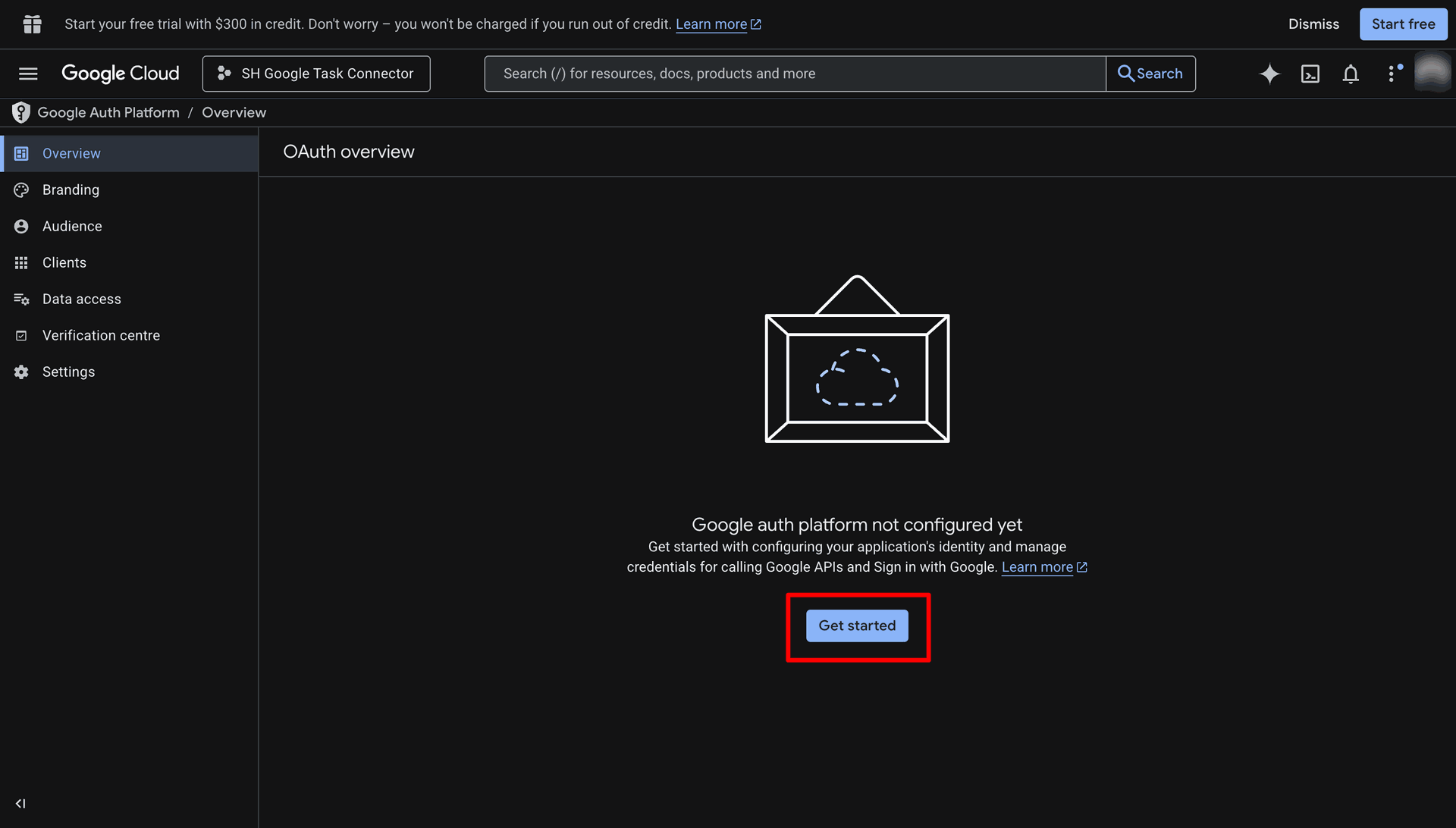
Enter App Name and User Email.
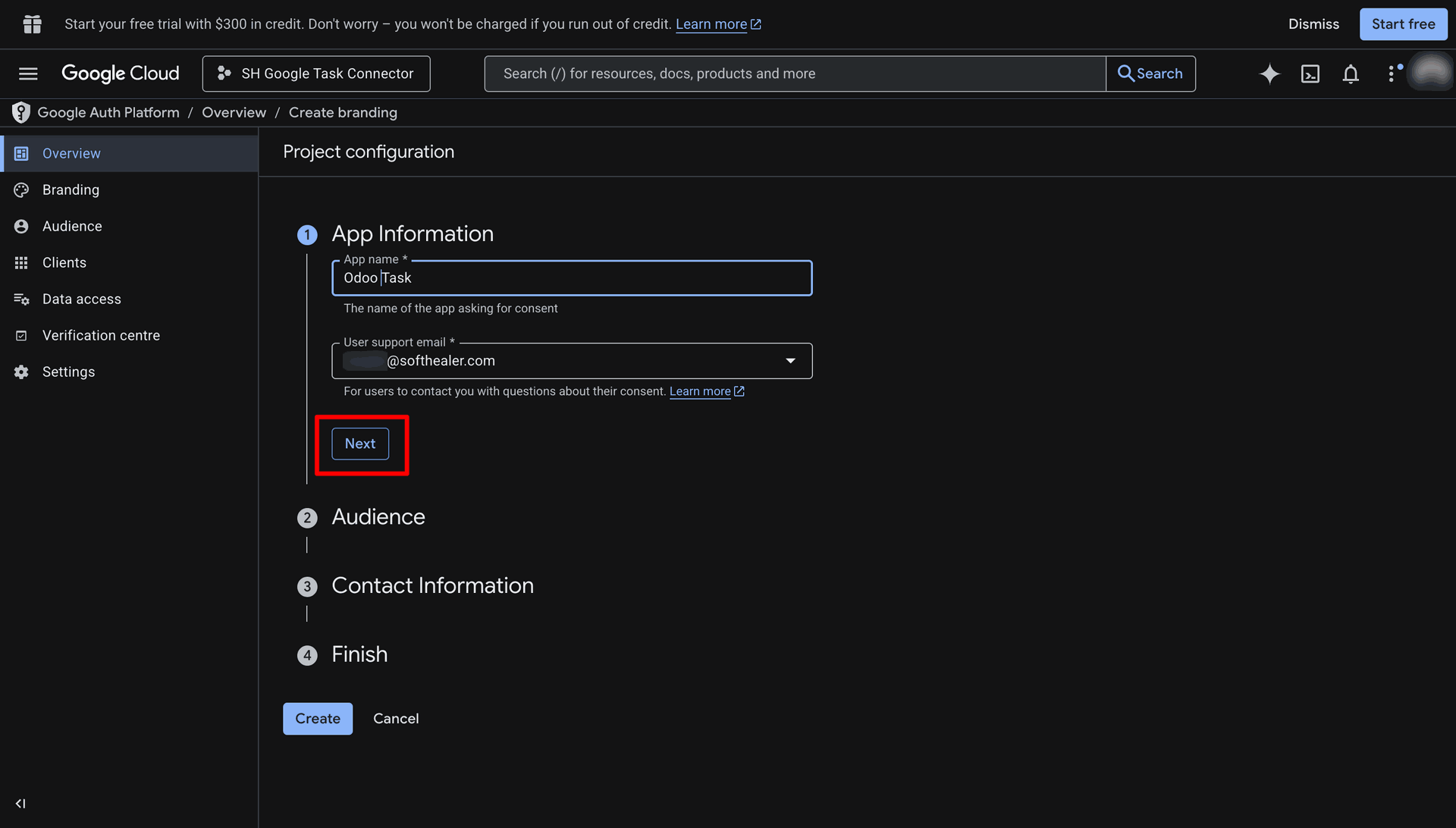
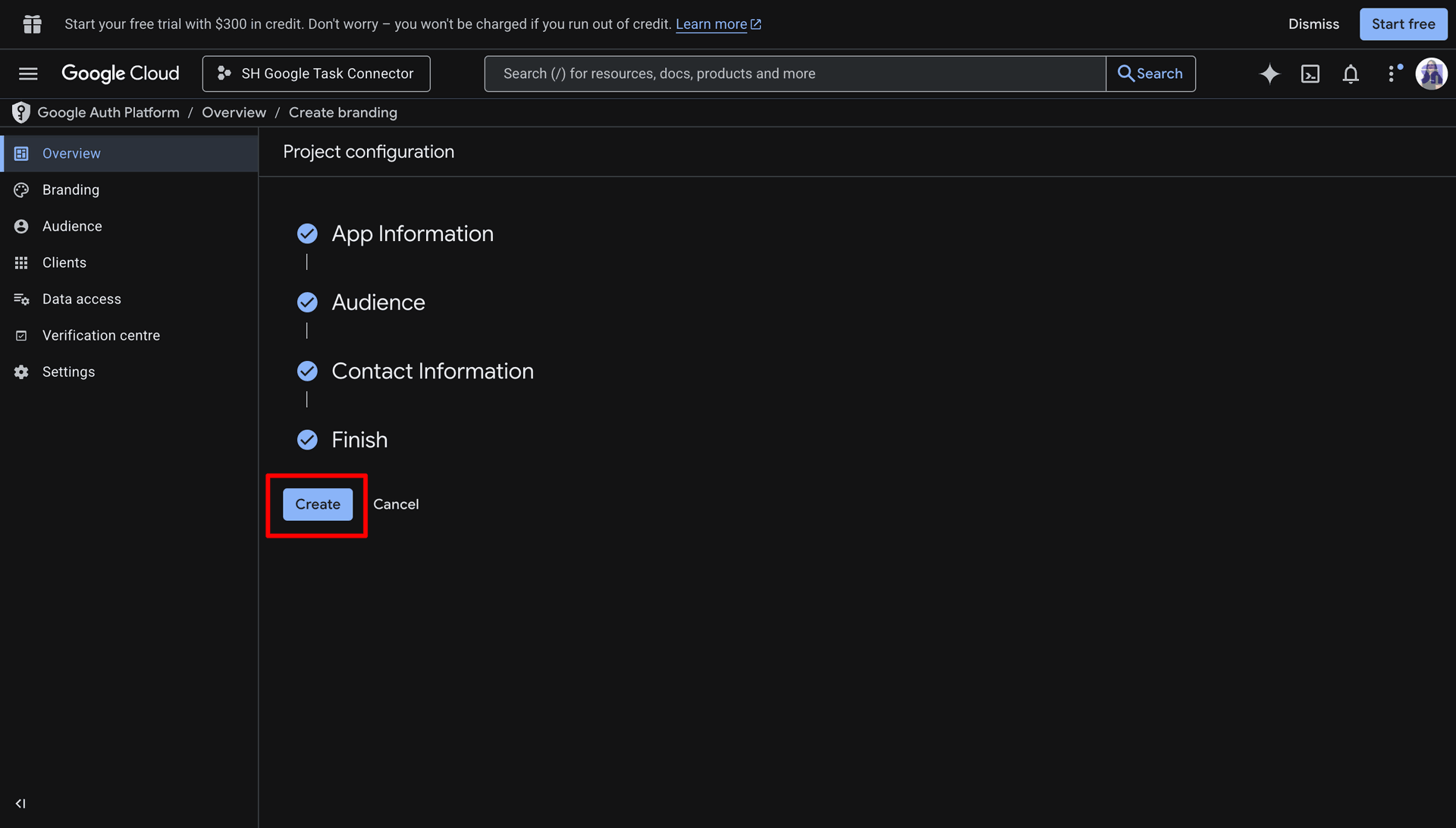
Click on Create to create Auth Overview Configuration.
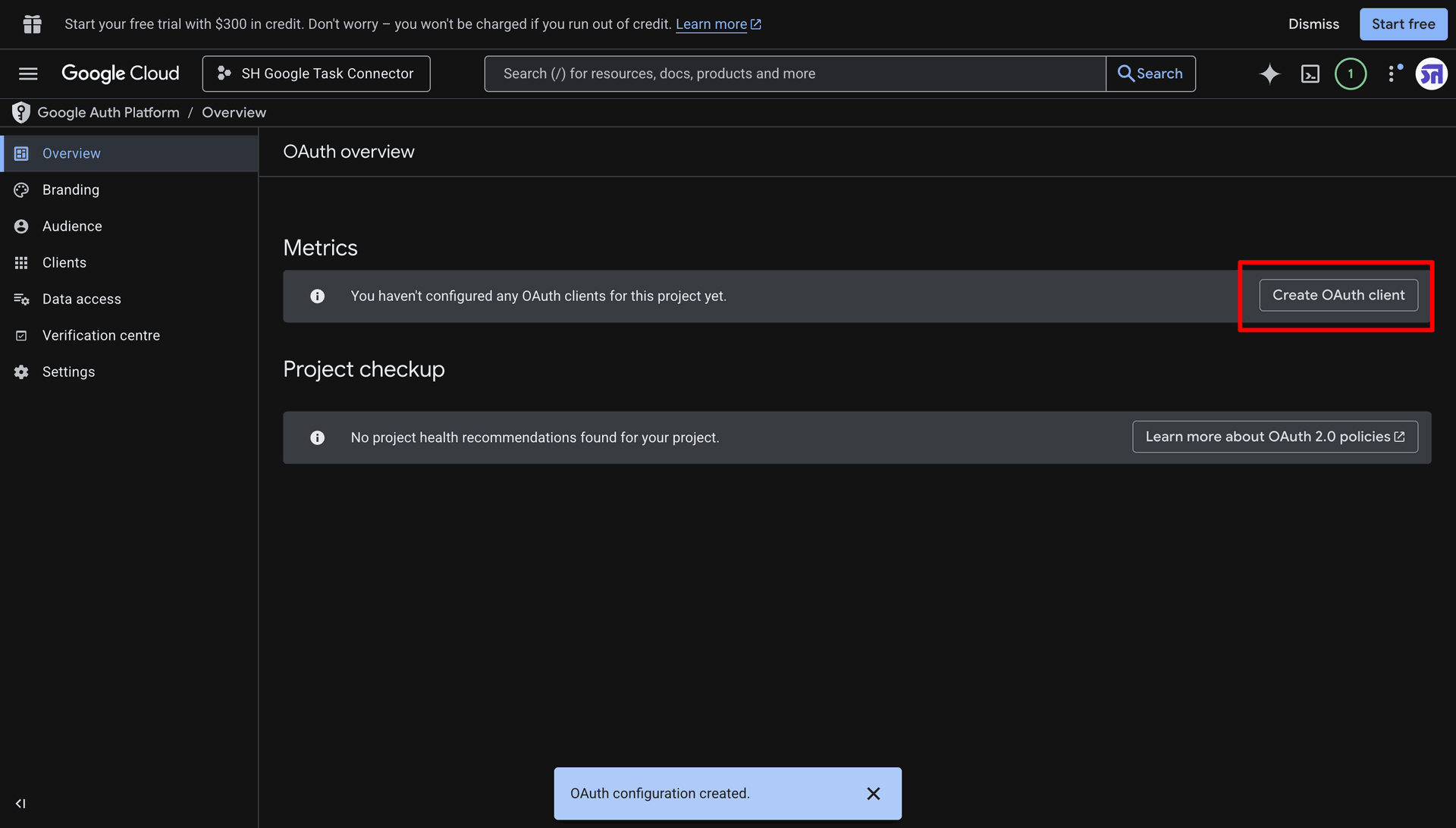
Click on Create OAuth client to create it.
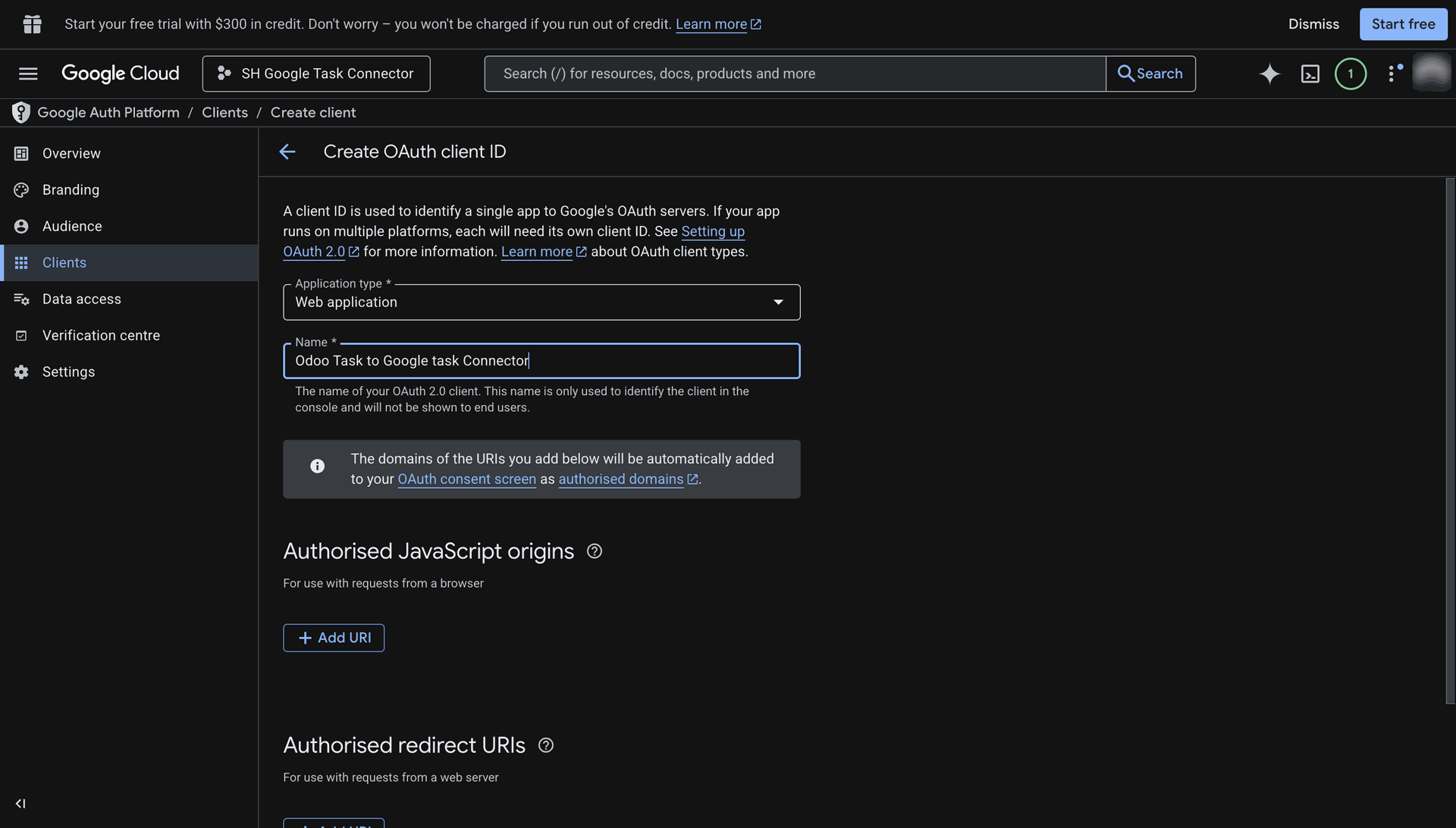
Select the Application Type and write its name.
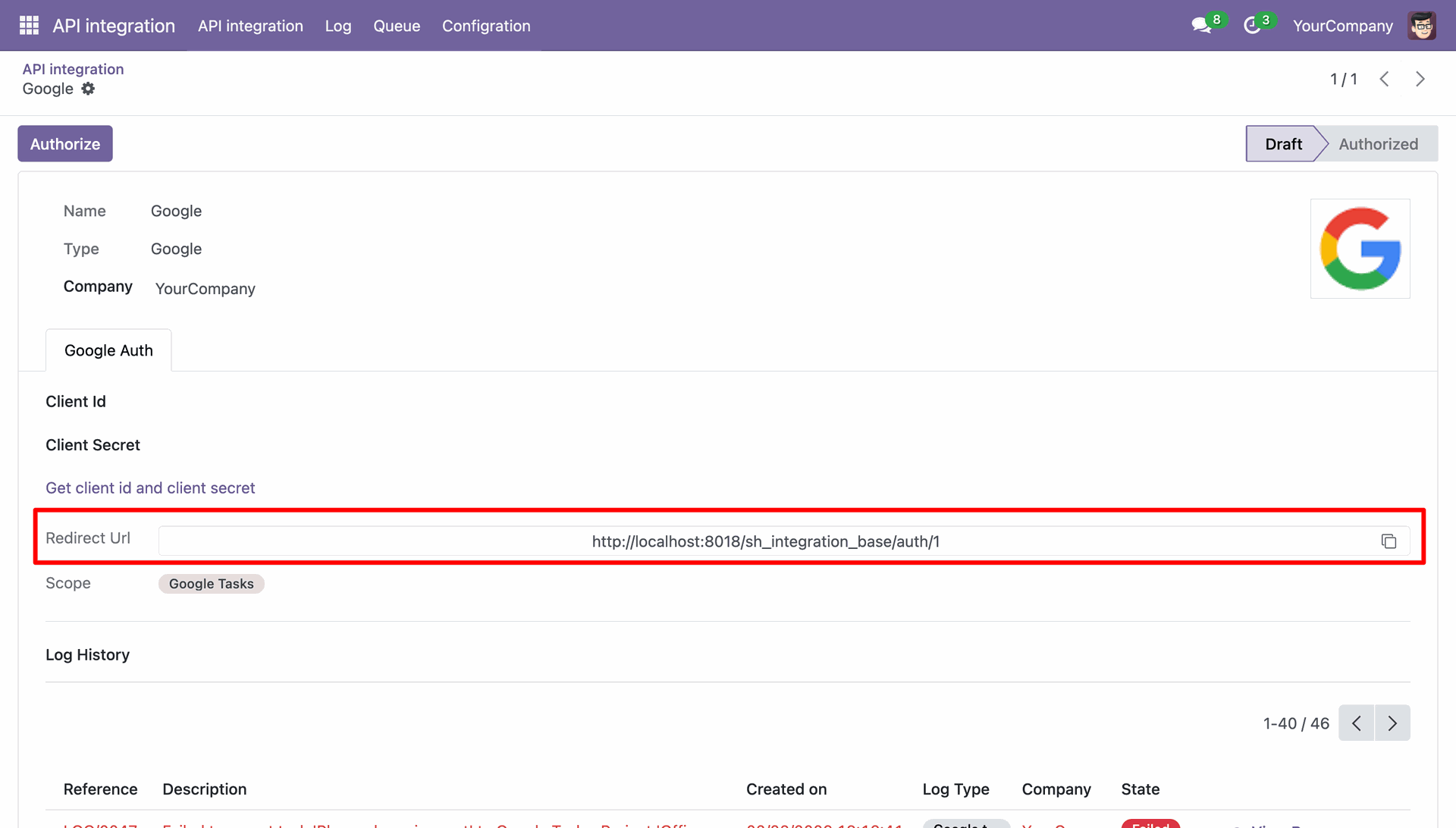
Copy the redirect URL from the Google API Integration in Odoo.
Paste the URL in the Authorised redirect URLs.
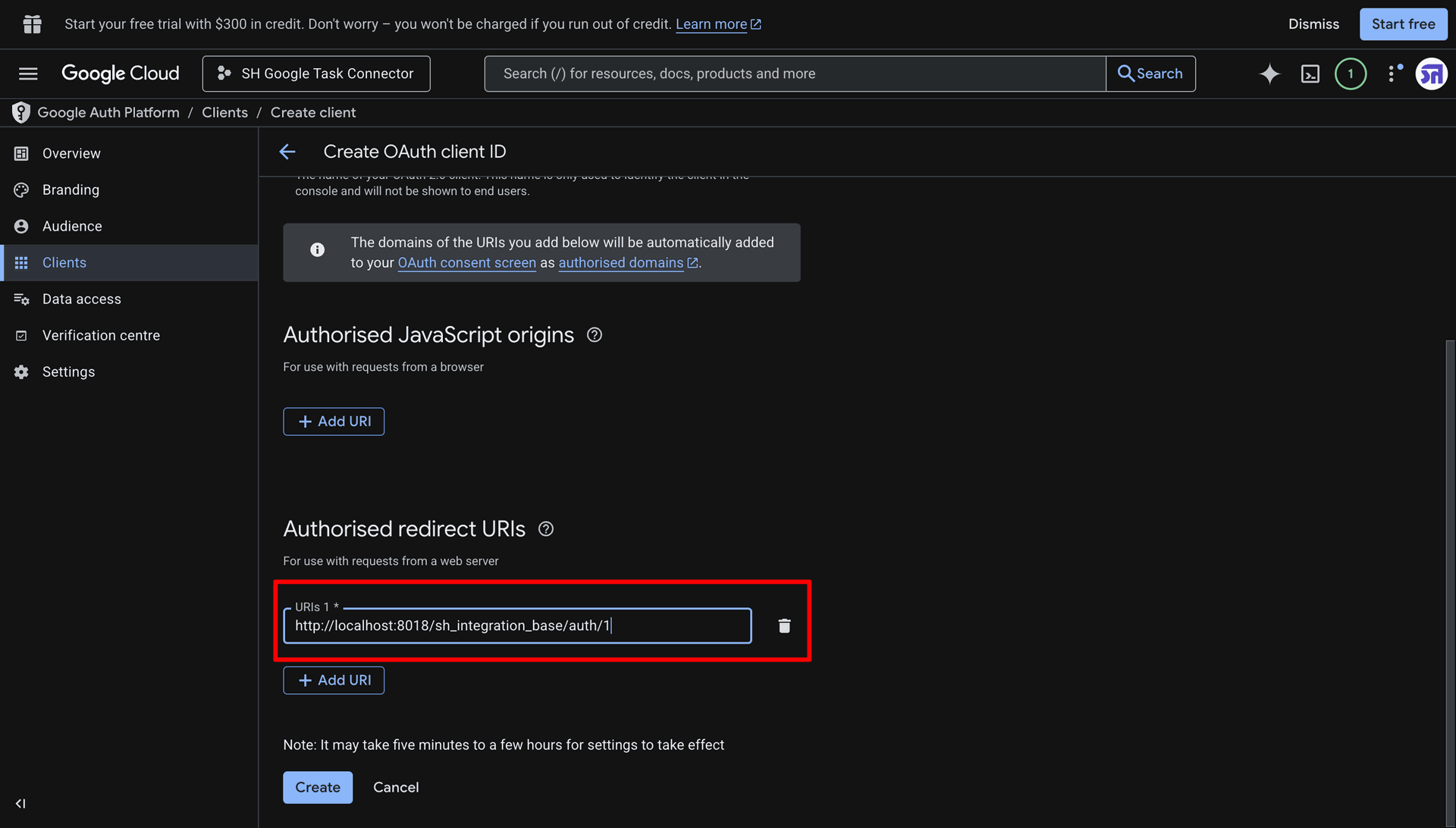
Now click Create and copy the Client ID and Client Secret.
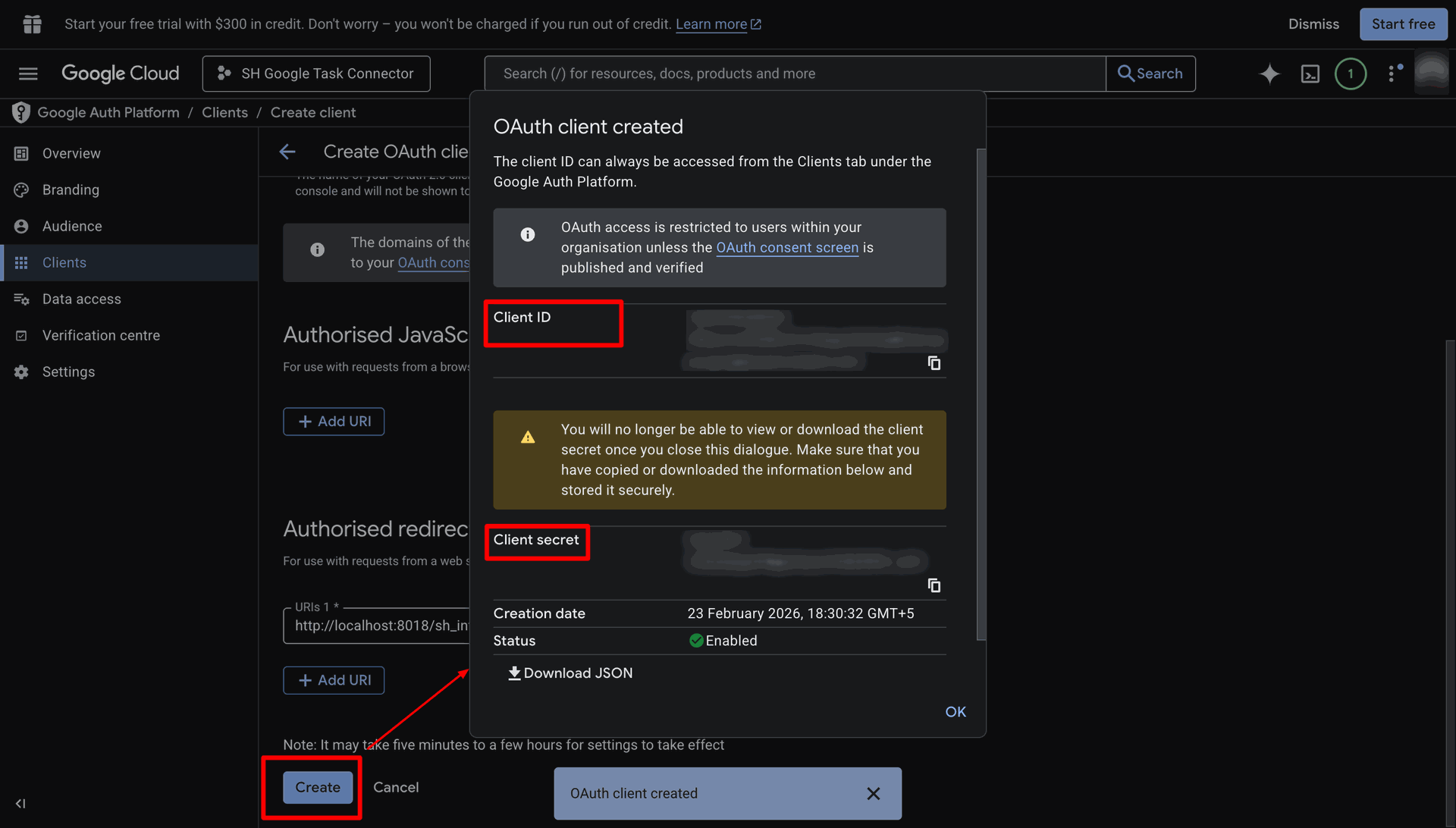
Now paste the Client Id and Client Secret in the Odoo API Integreation.
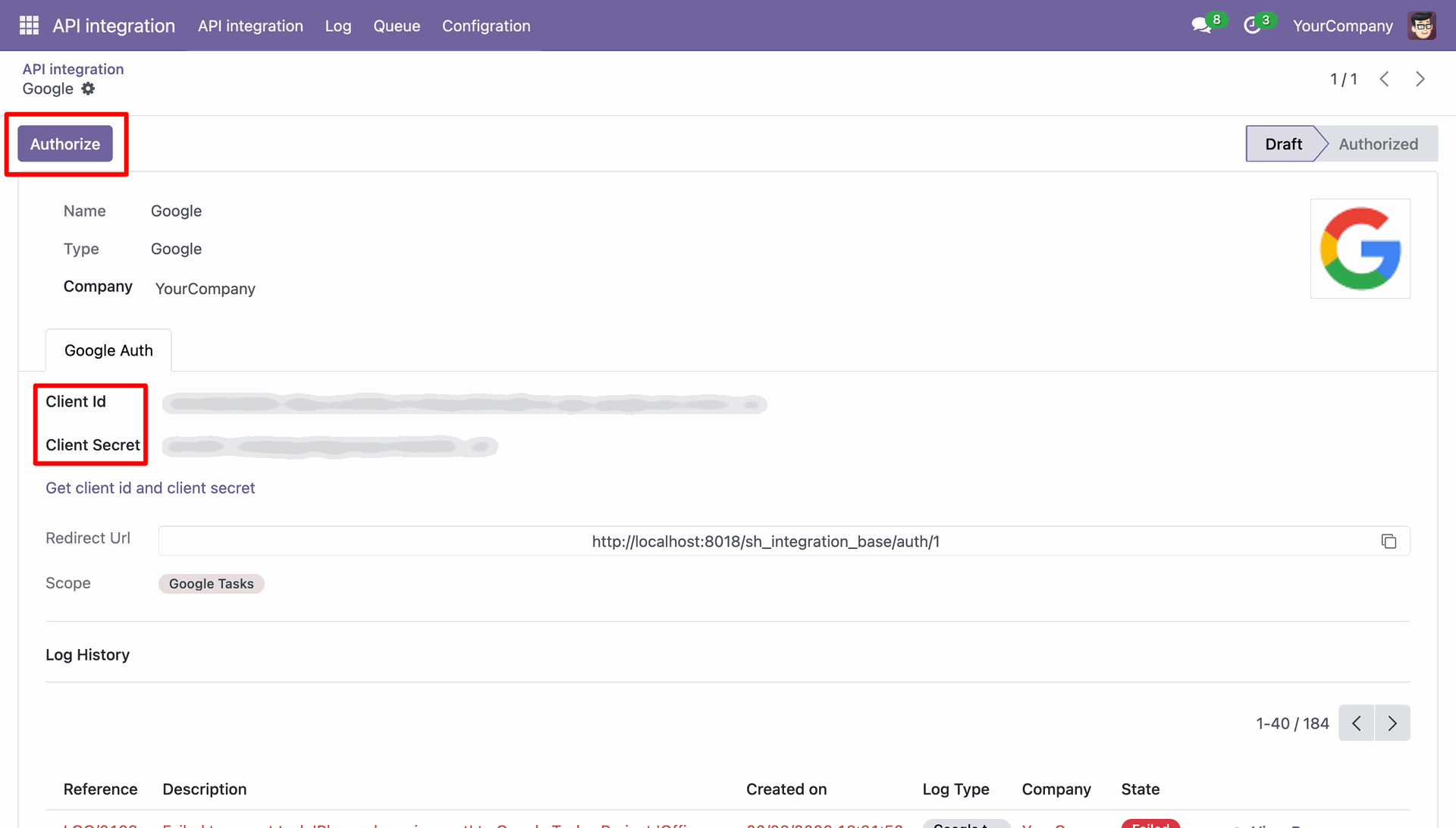
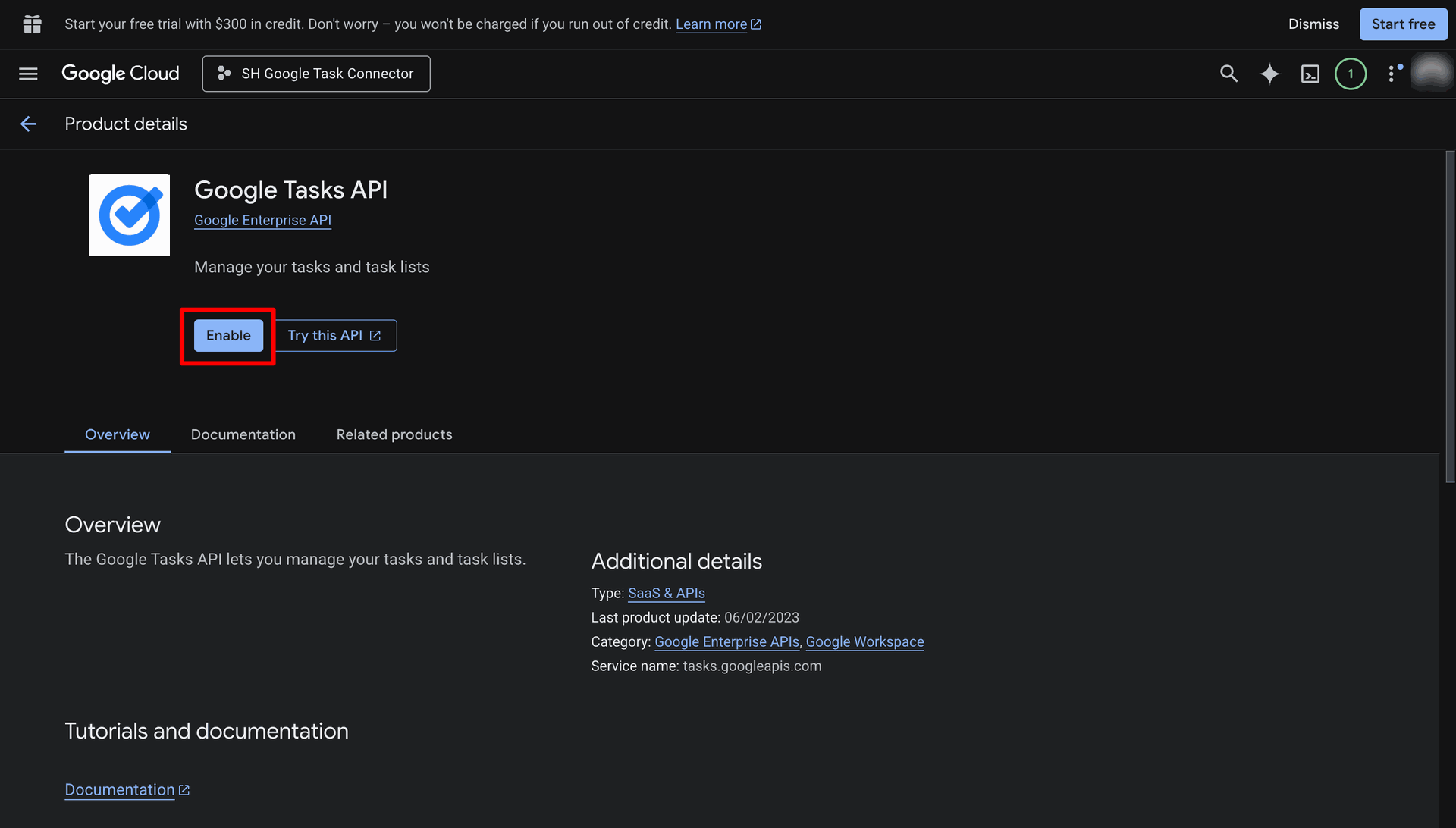
Navigate to the Google Tasks API.
Enable the Google Tasks API.
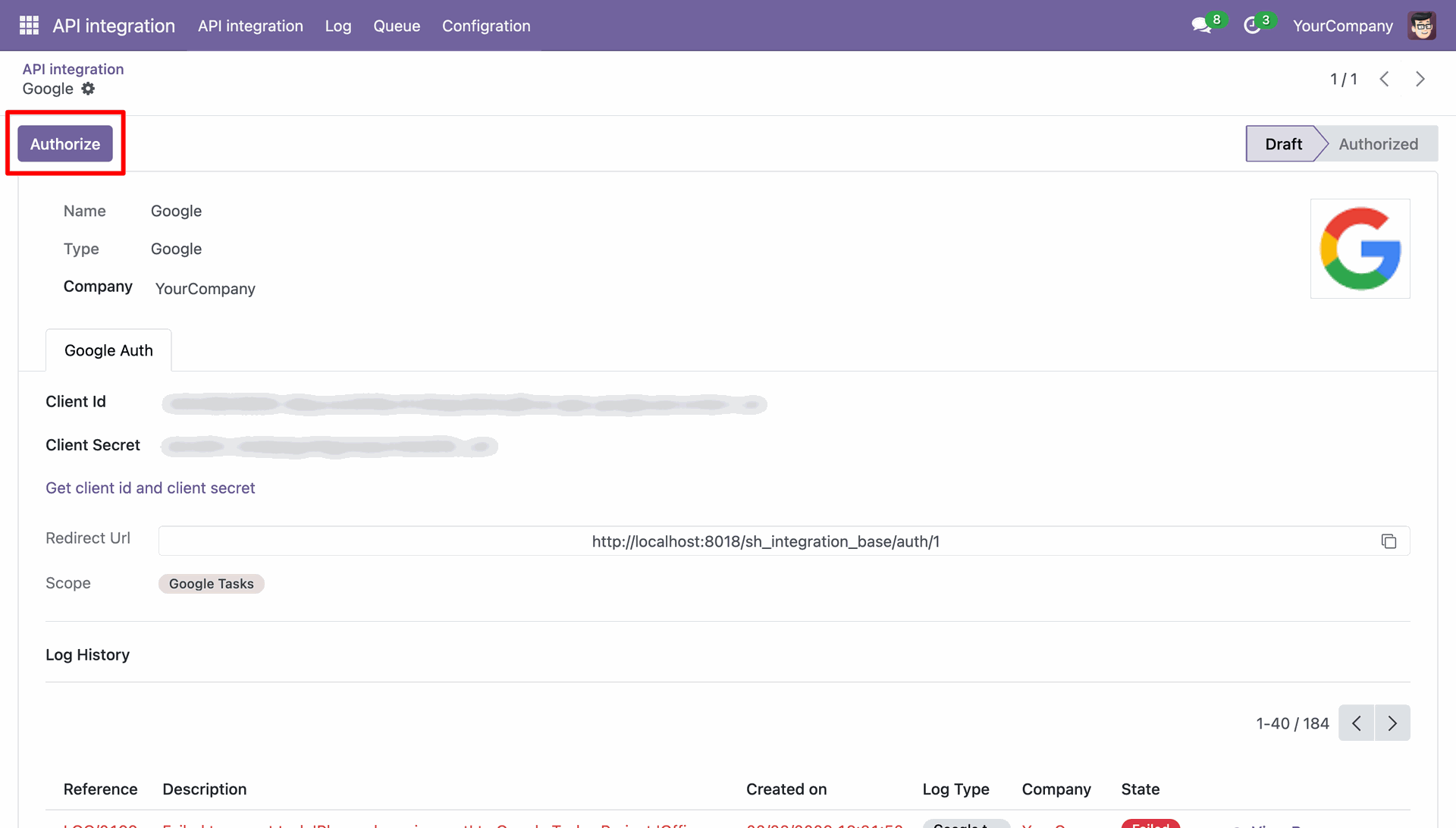
Once enabled the now click Authorize.
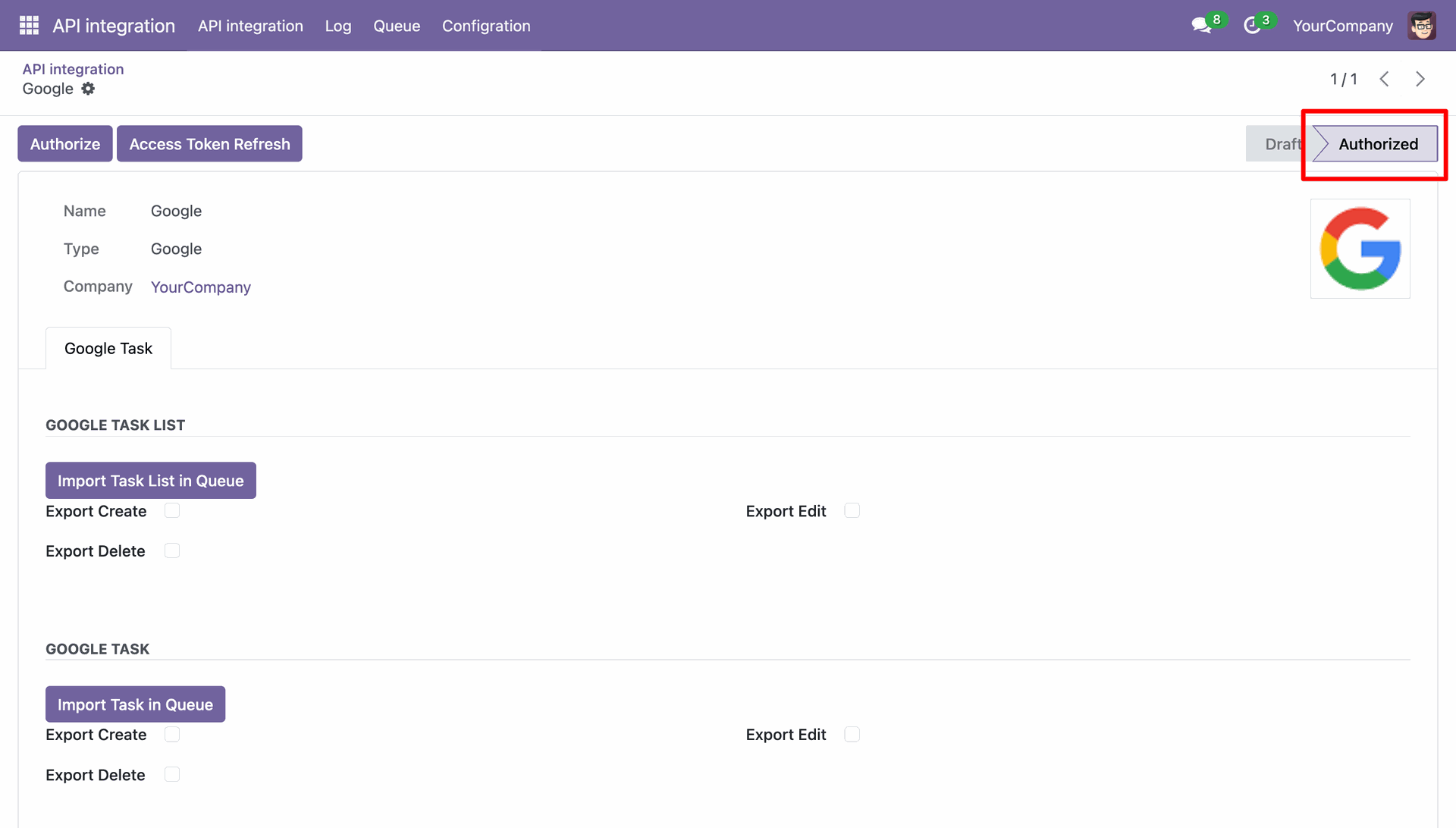
State changed to Authorized.
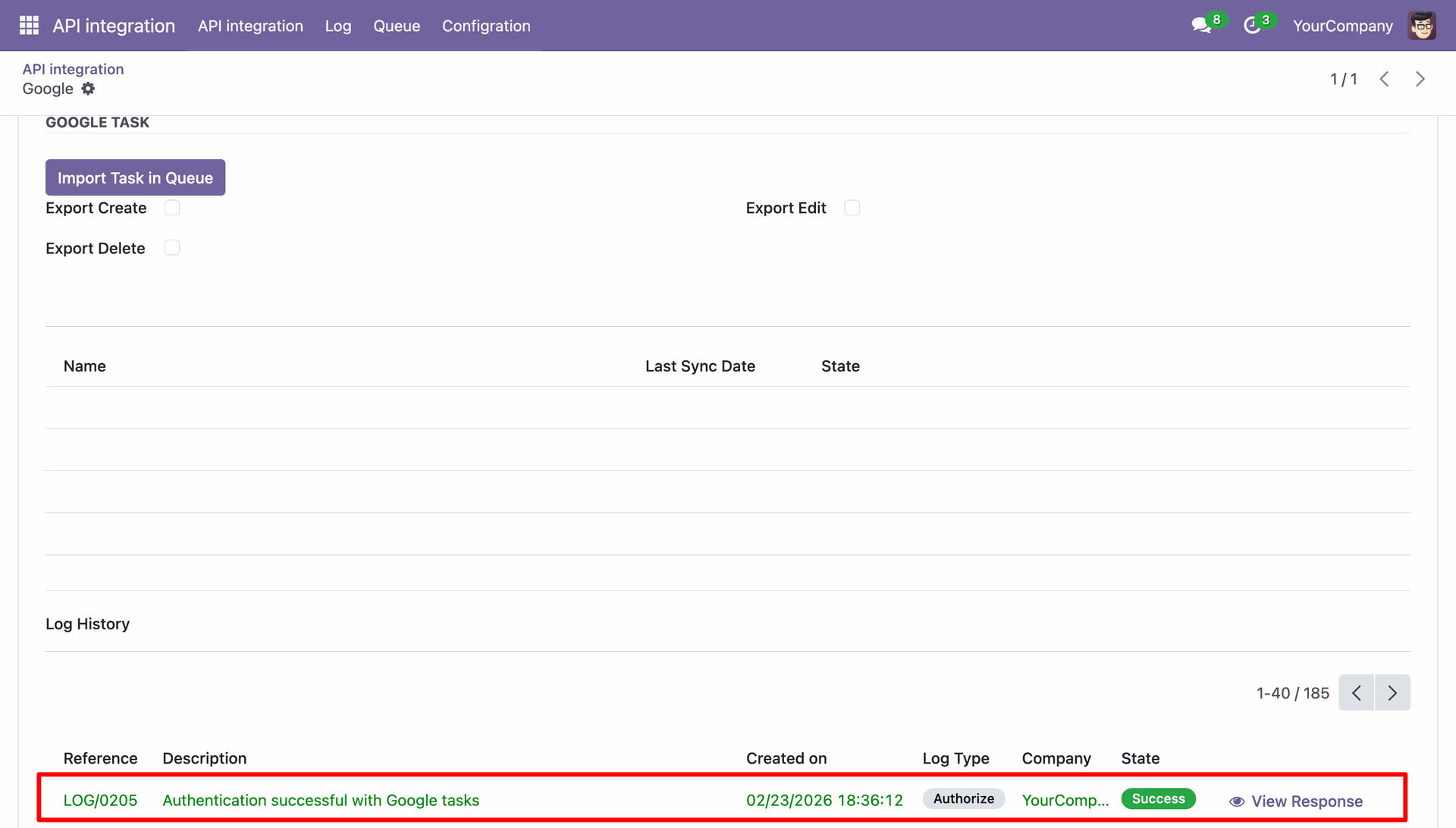
Authorization successful log.
Workflow
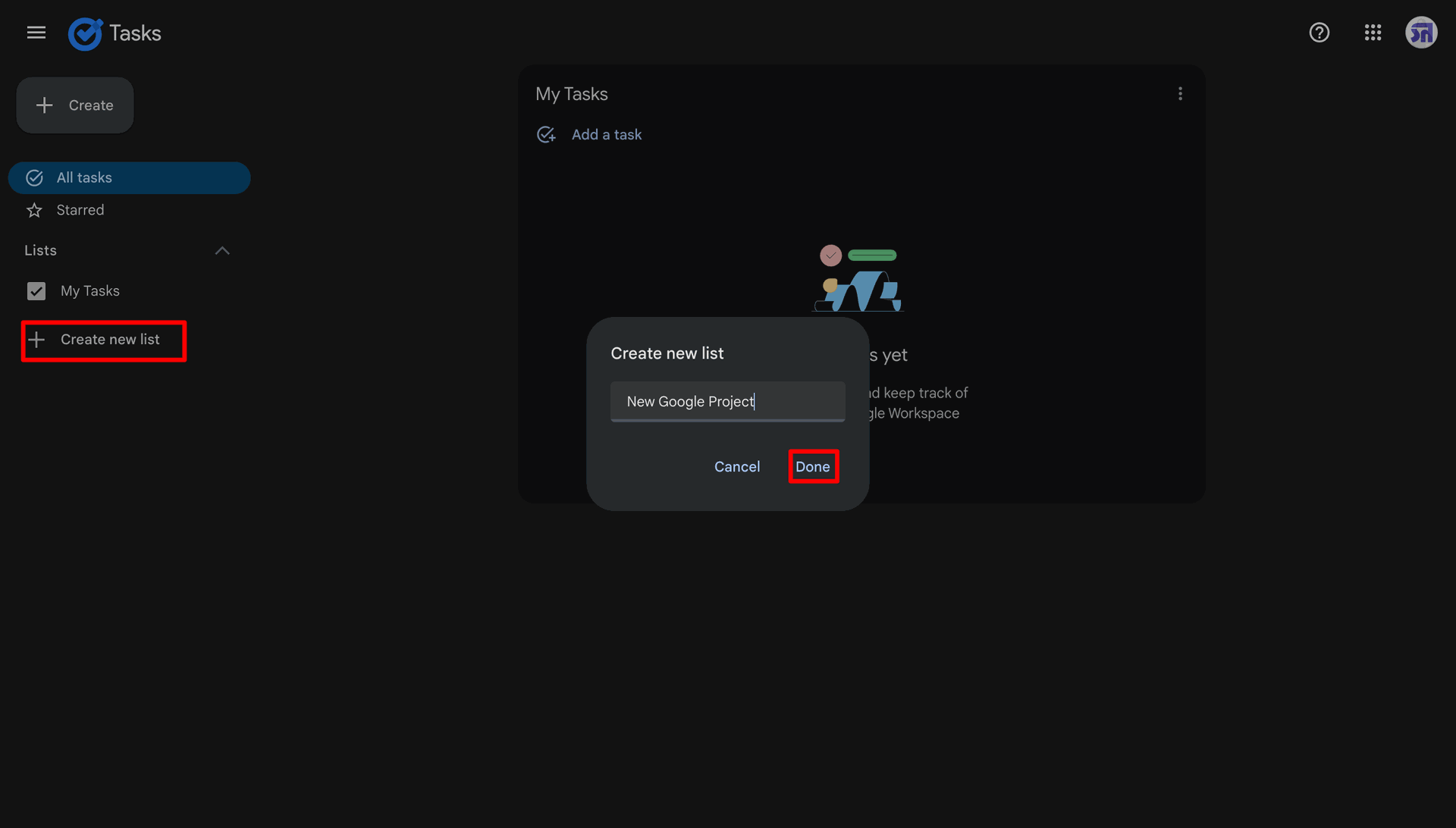
Creating a new Project named New Google Project.
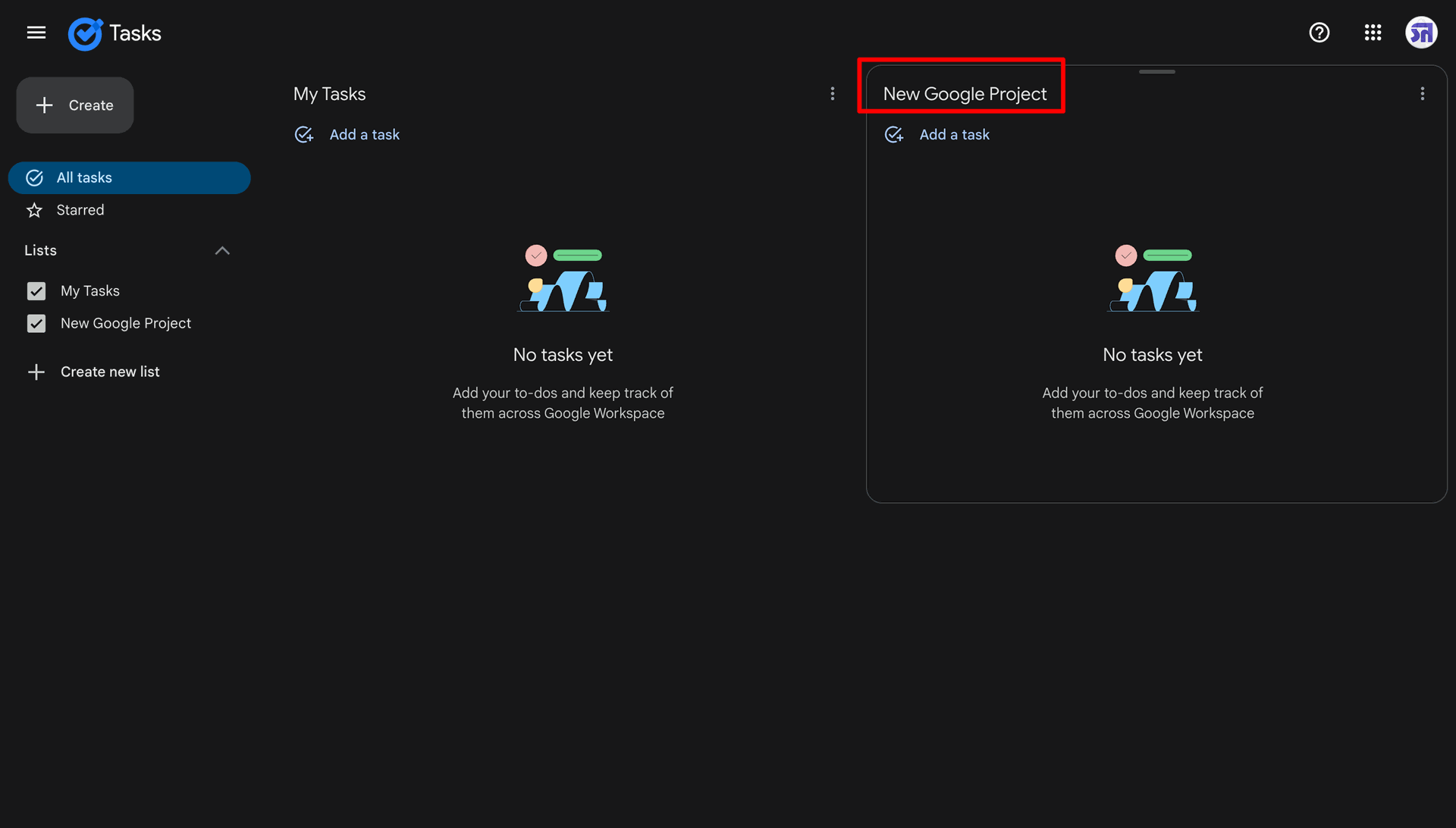
New Google Project created.
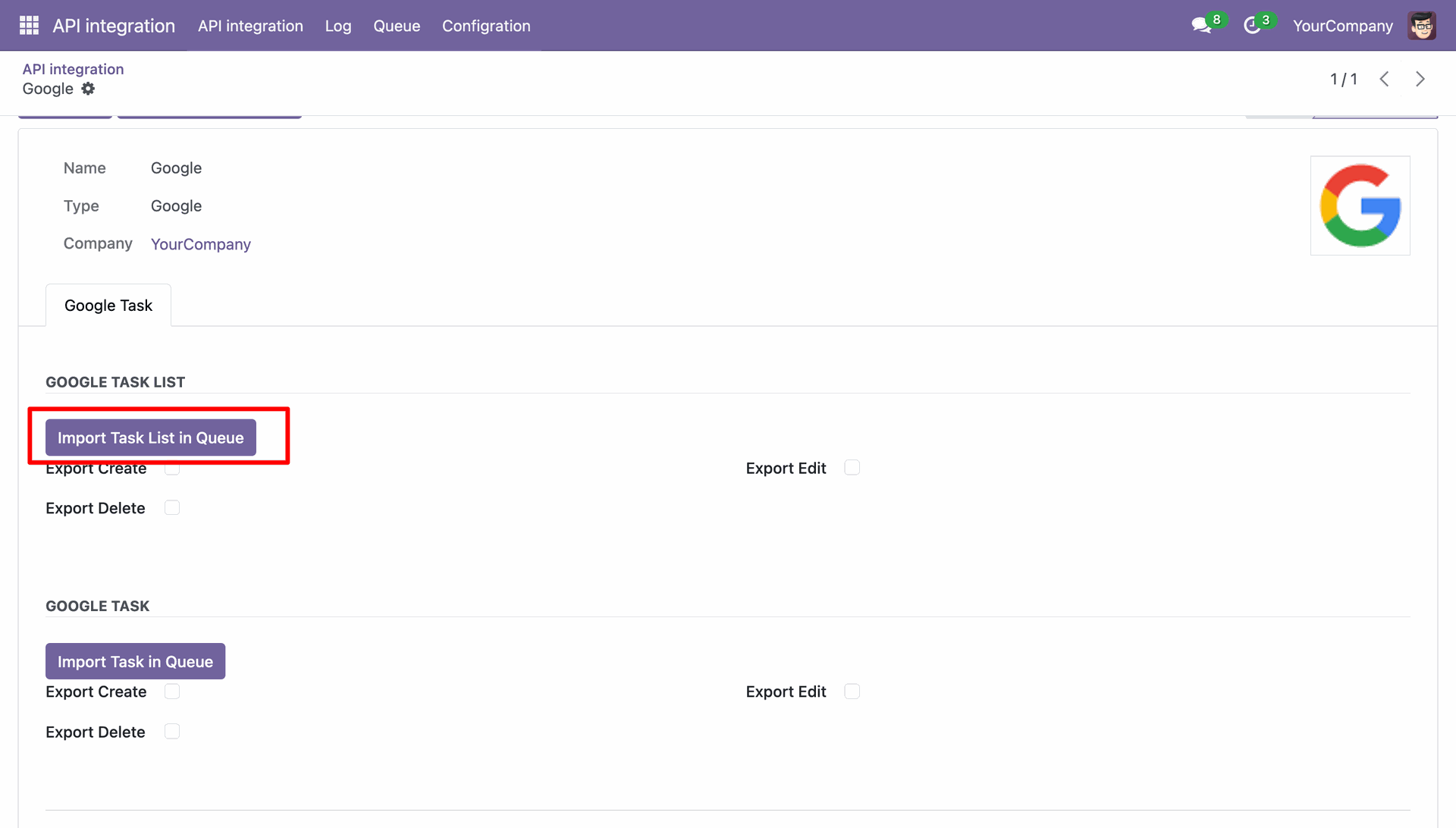
Click on Import Task List in Queue to import Projects from the Google Projects.
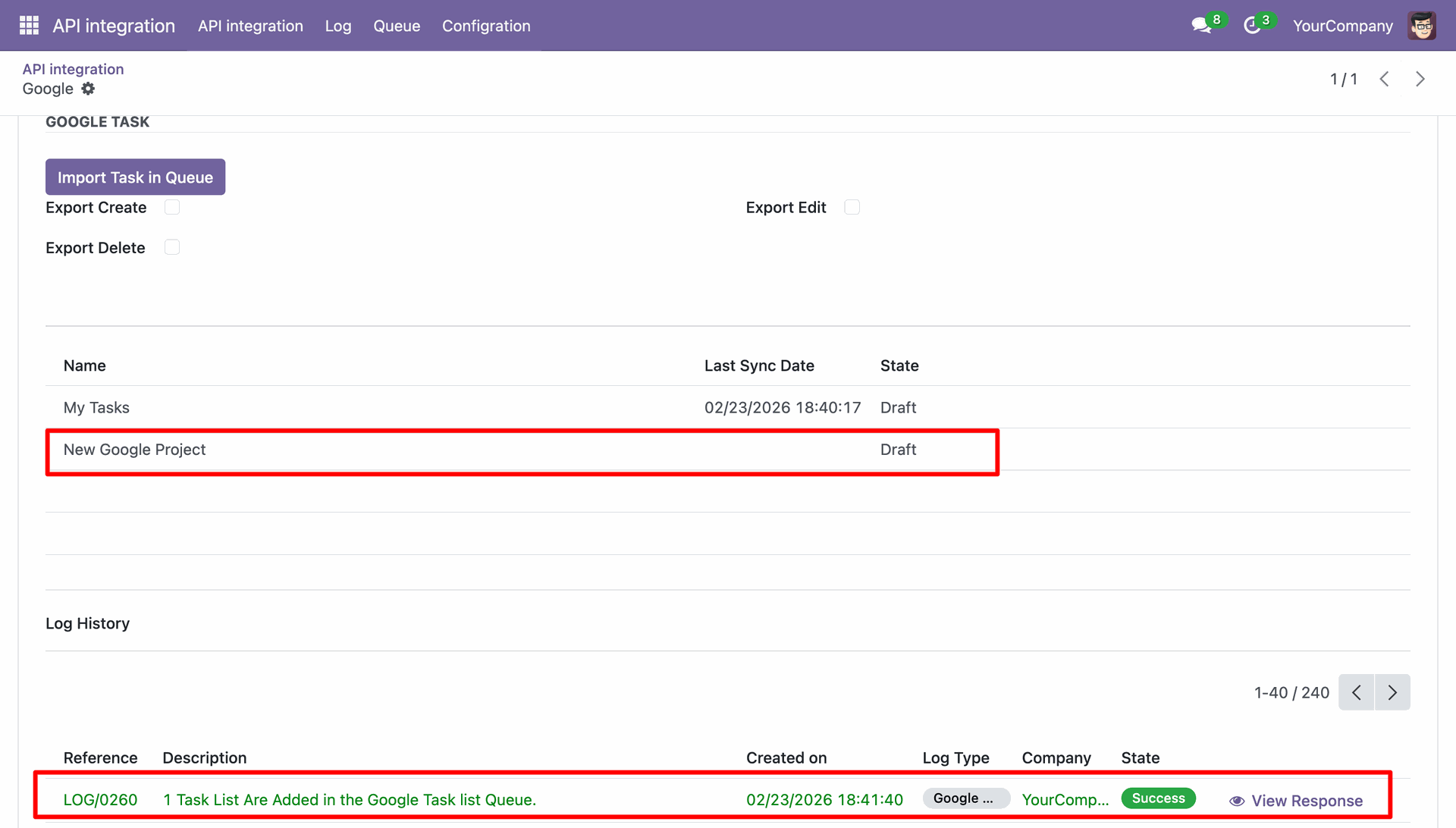
New projects imported from the Google Project along with the logs created.
Navigate to the Google Task List Queue.
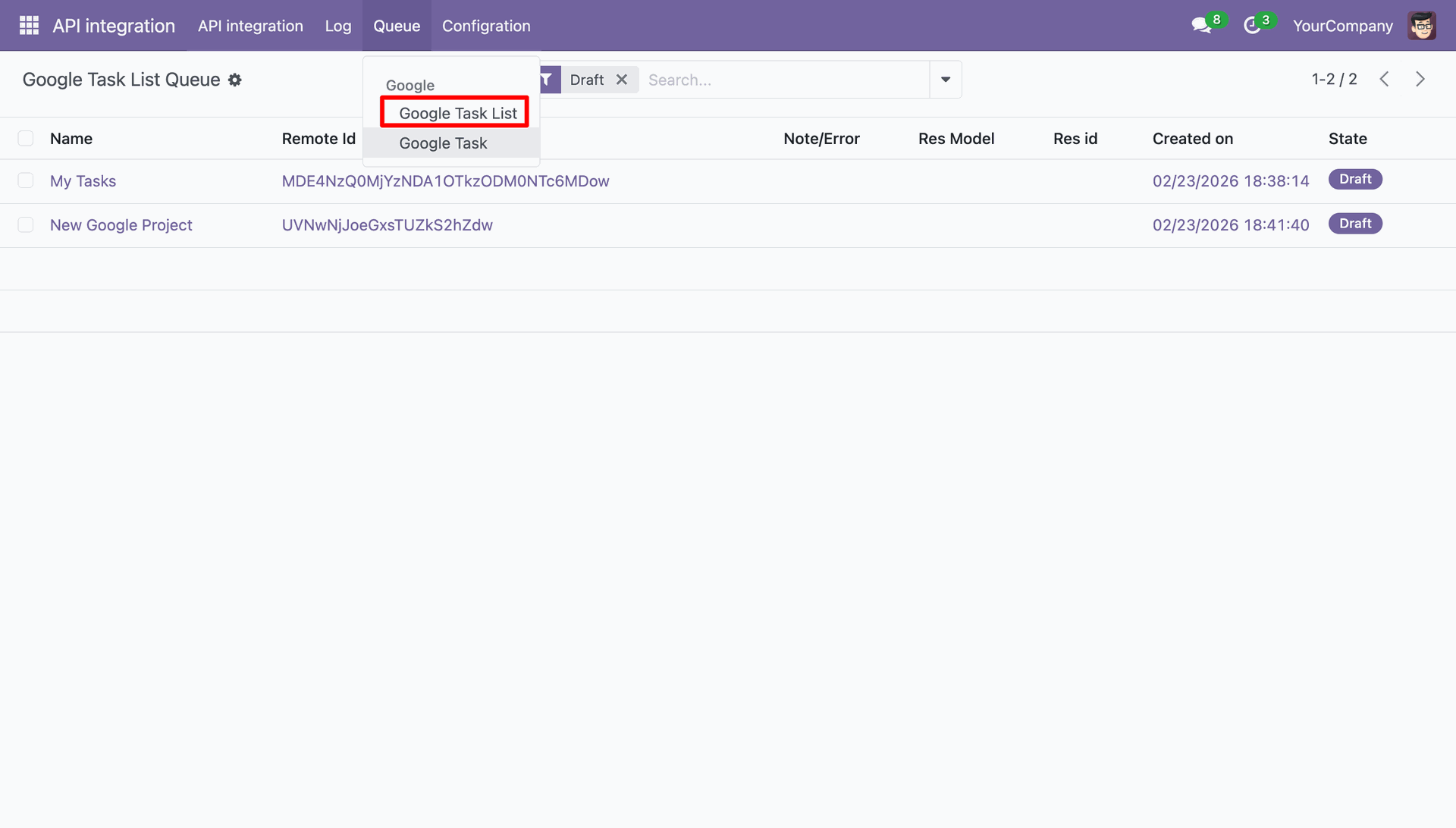
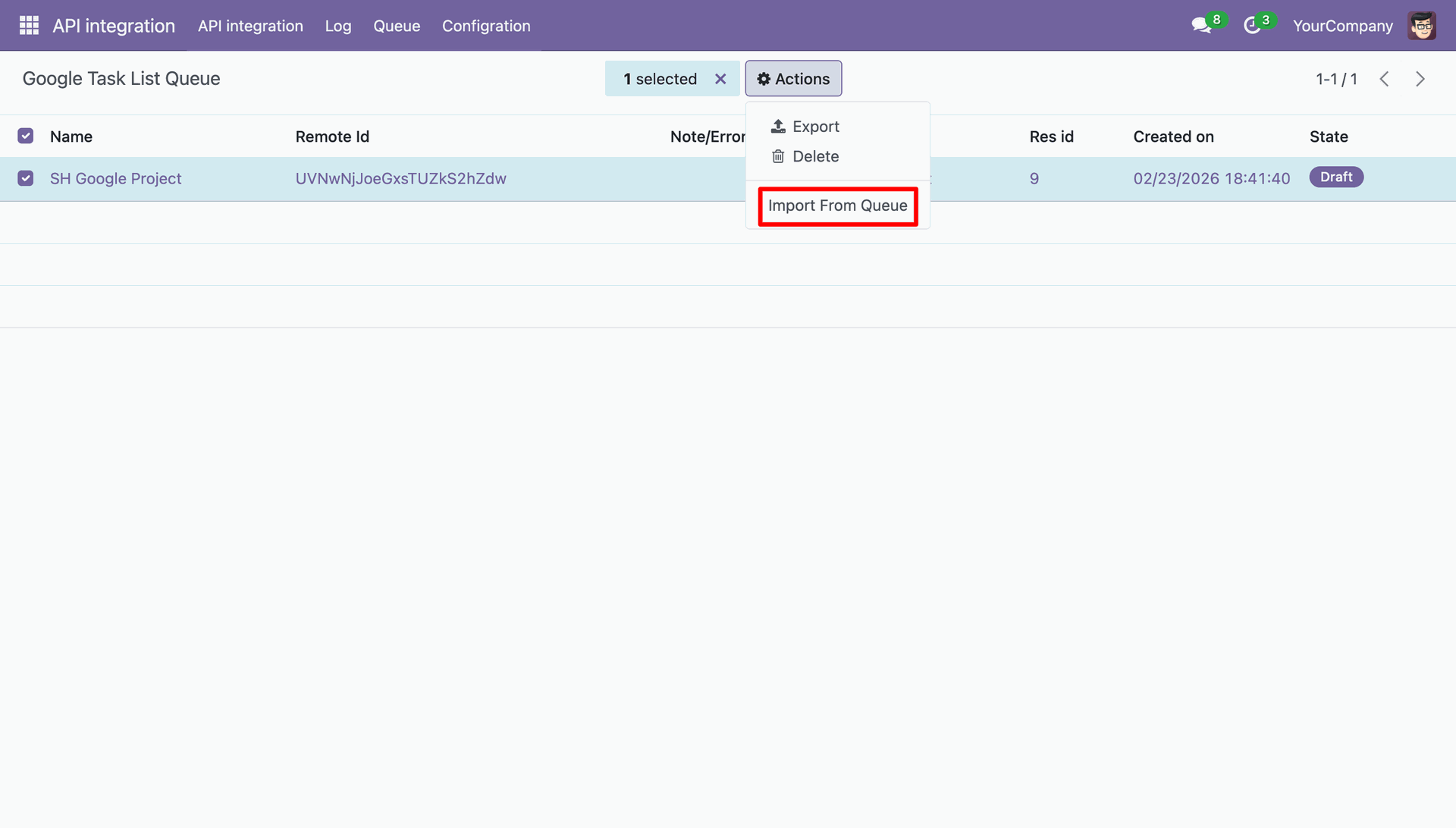
Select all the records and click Import From Queue which were in draft state.
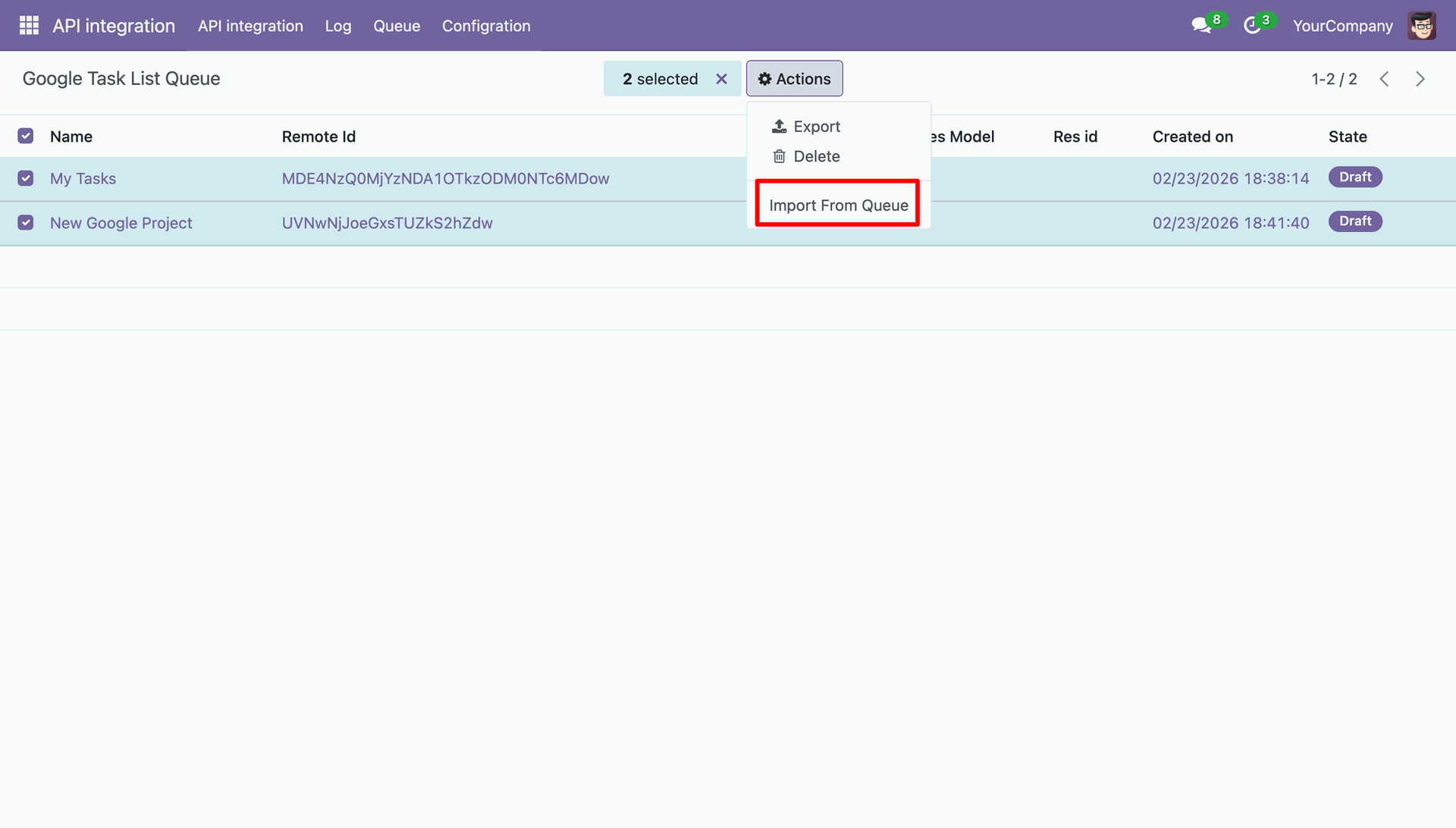
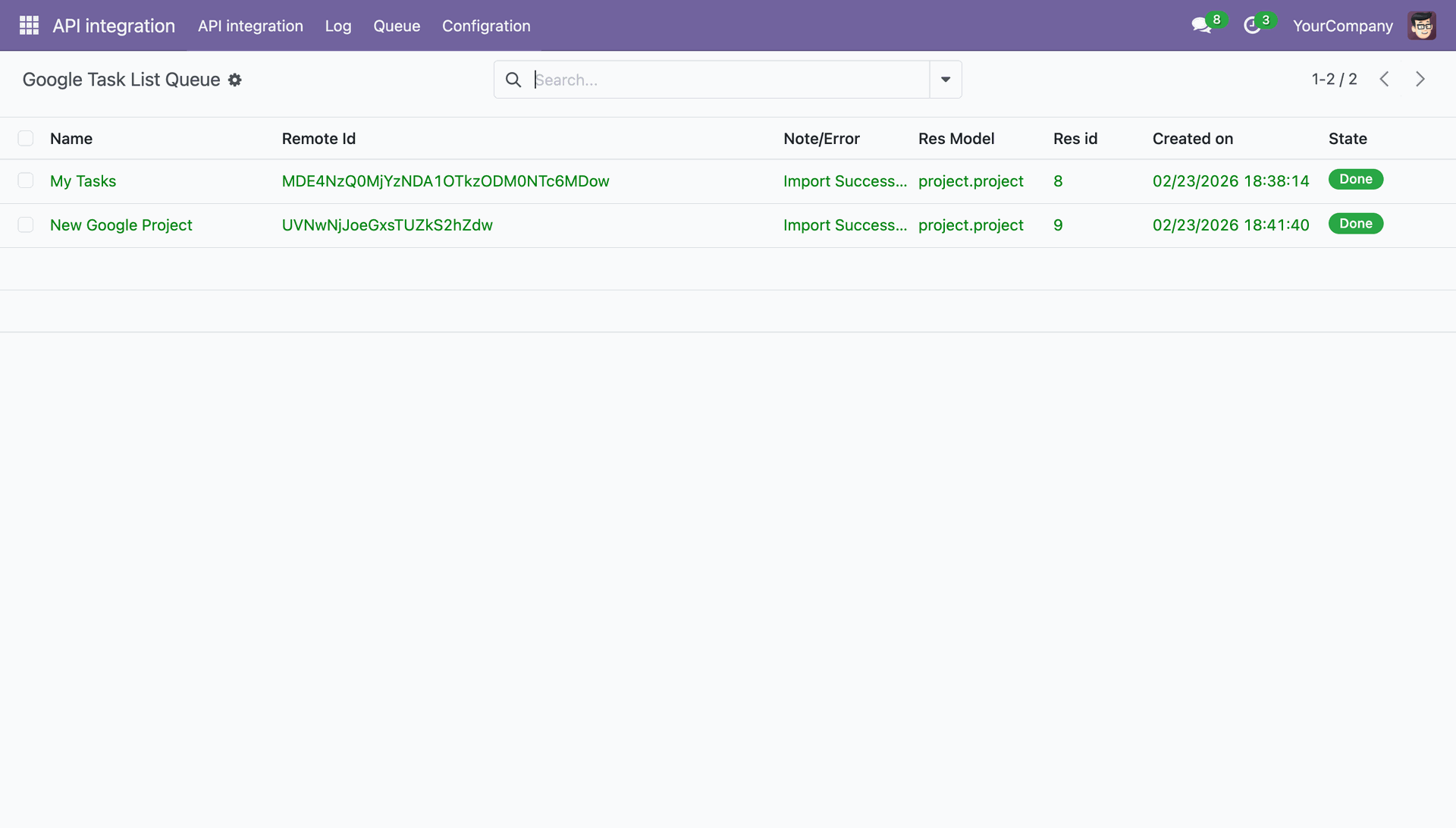
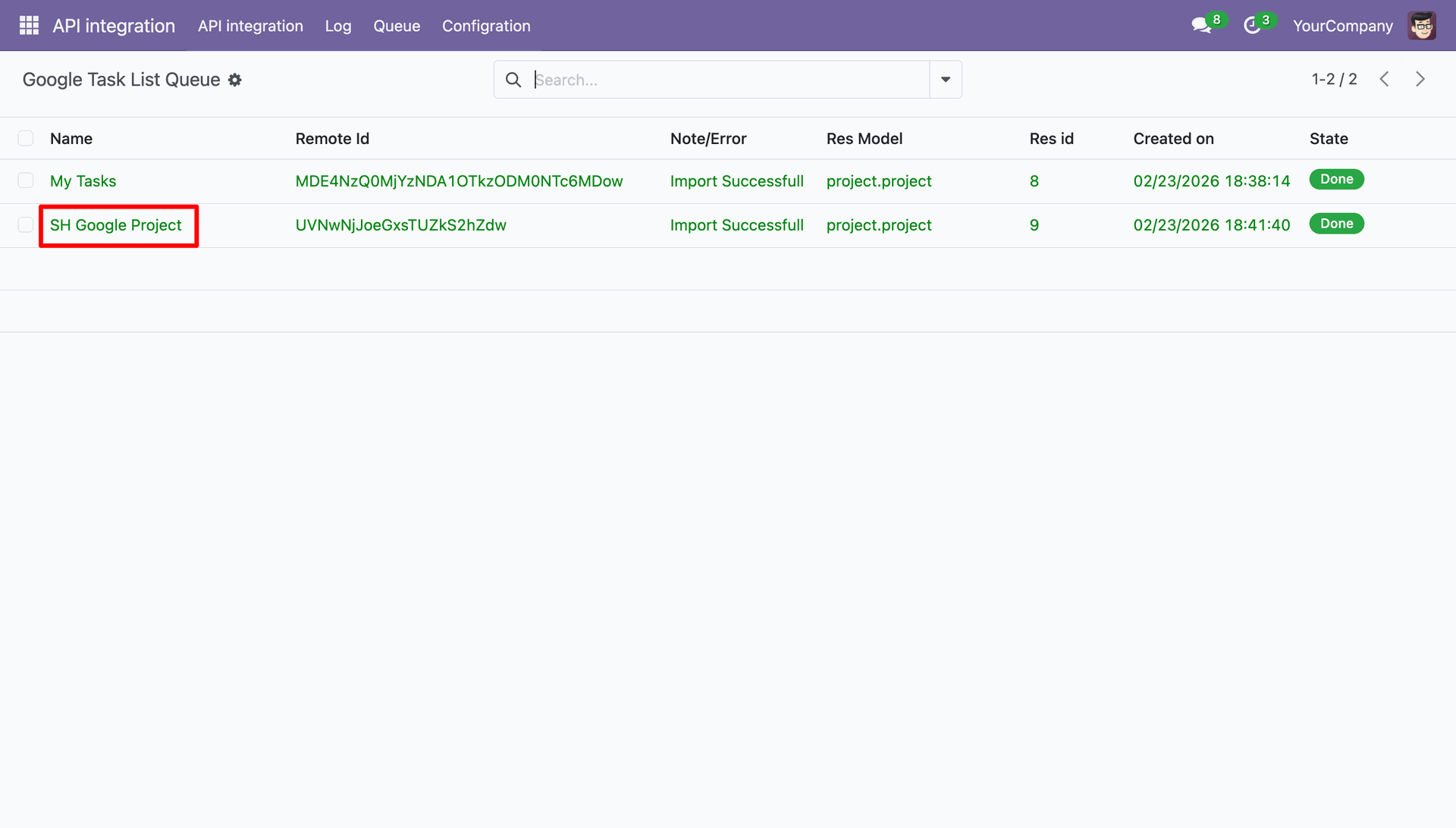
Projects were successfully imported and moved to done state.
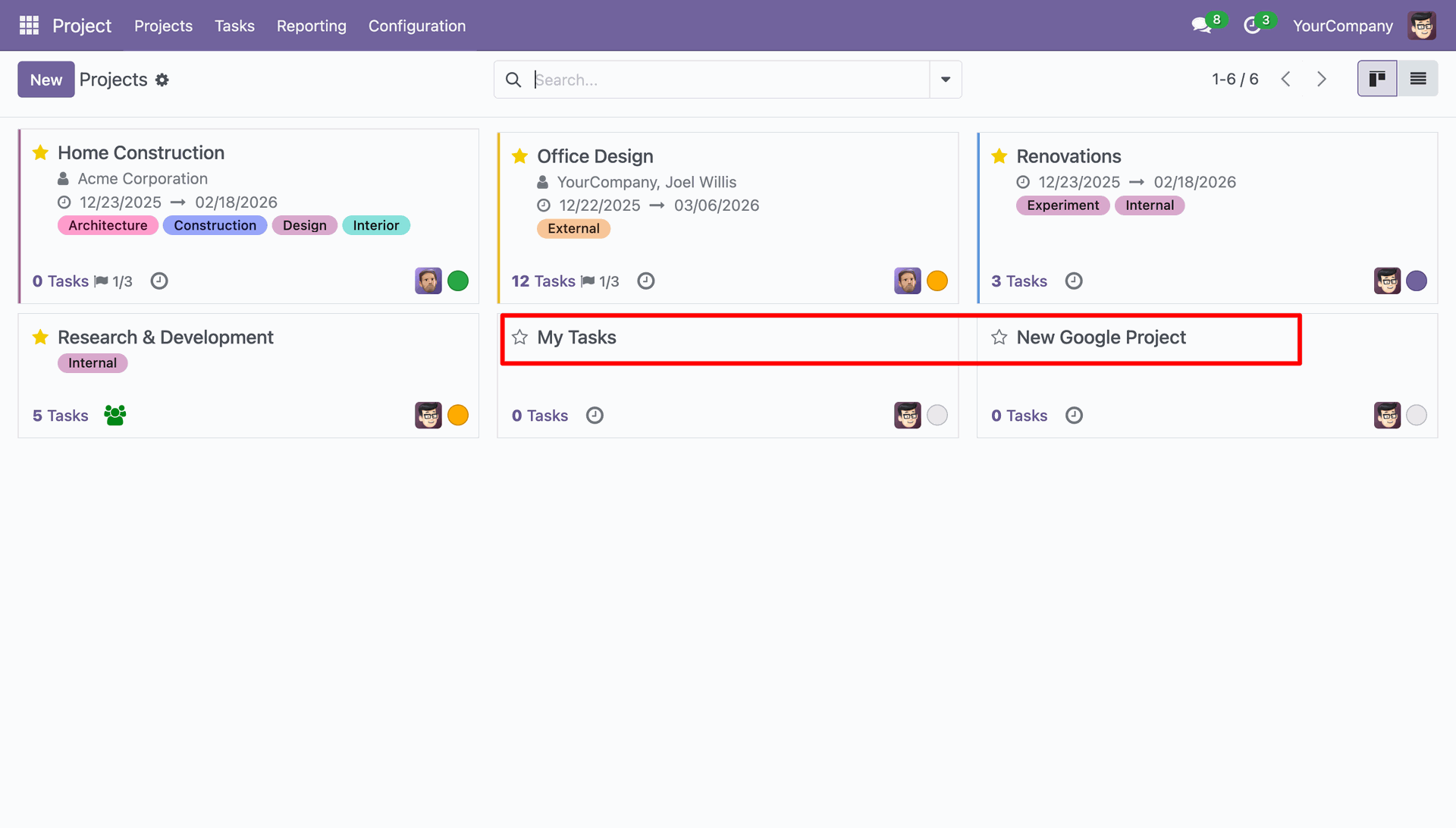
Navigate to Projects in Odoo and we can see that the Projects have been imported.
Click Add a task in the Google Project.
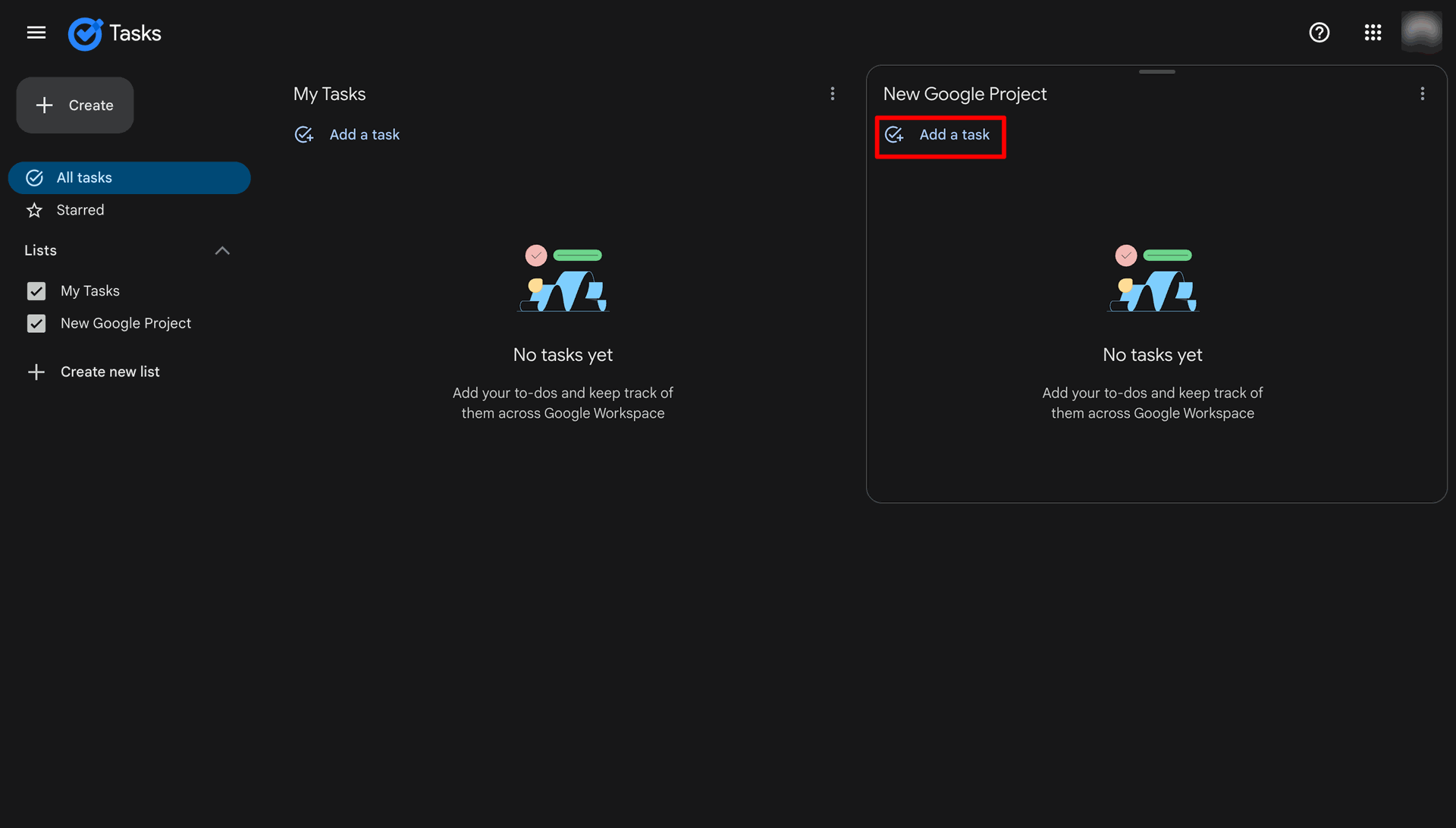
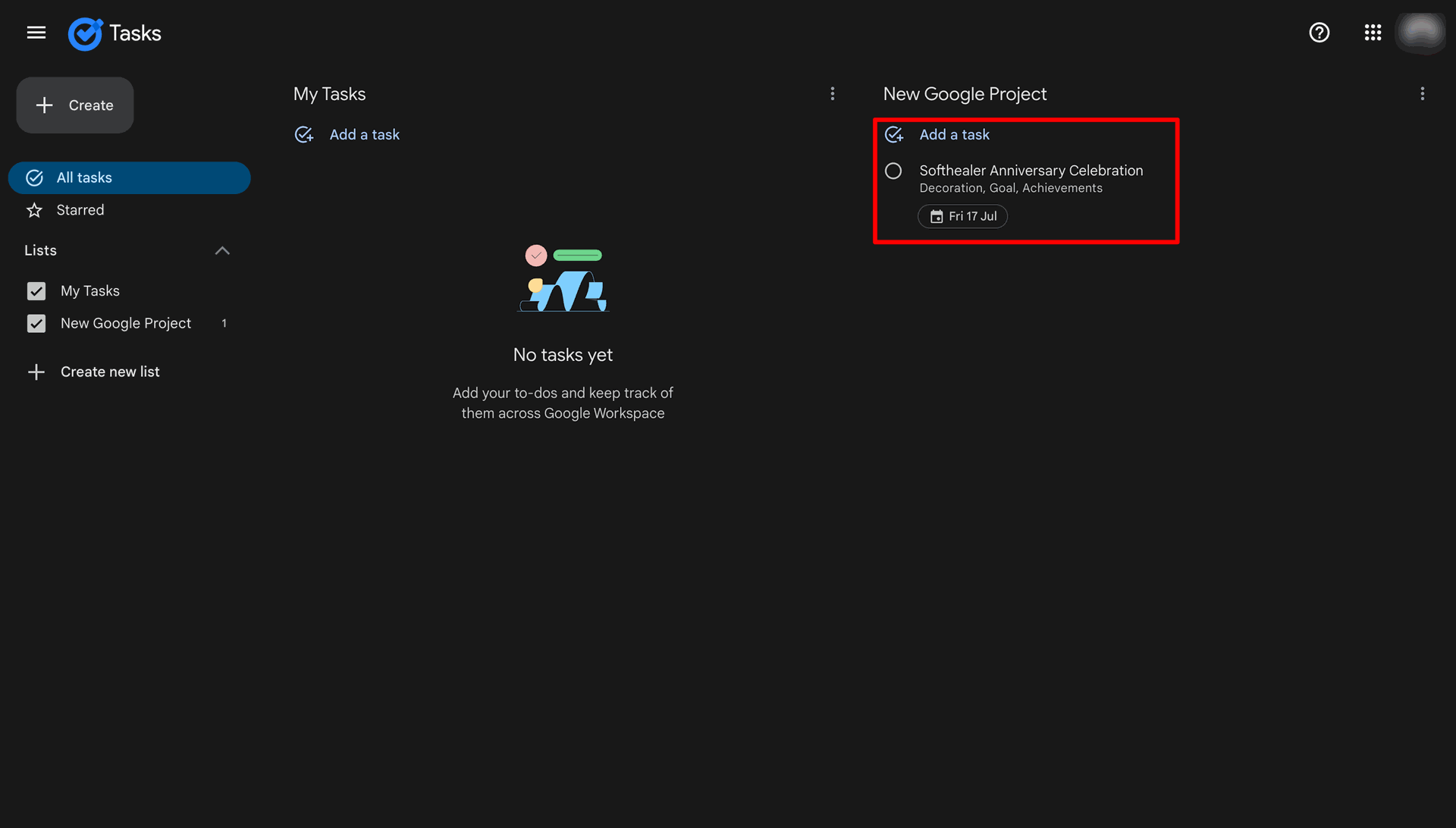
A new task added.
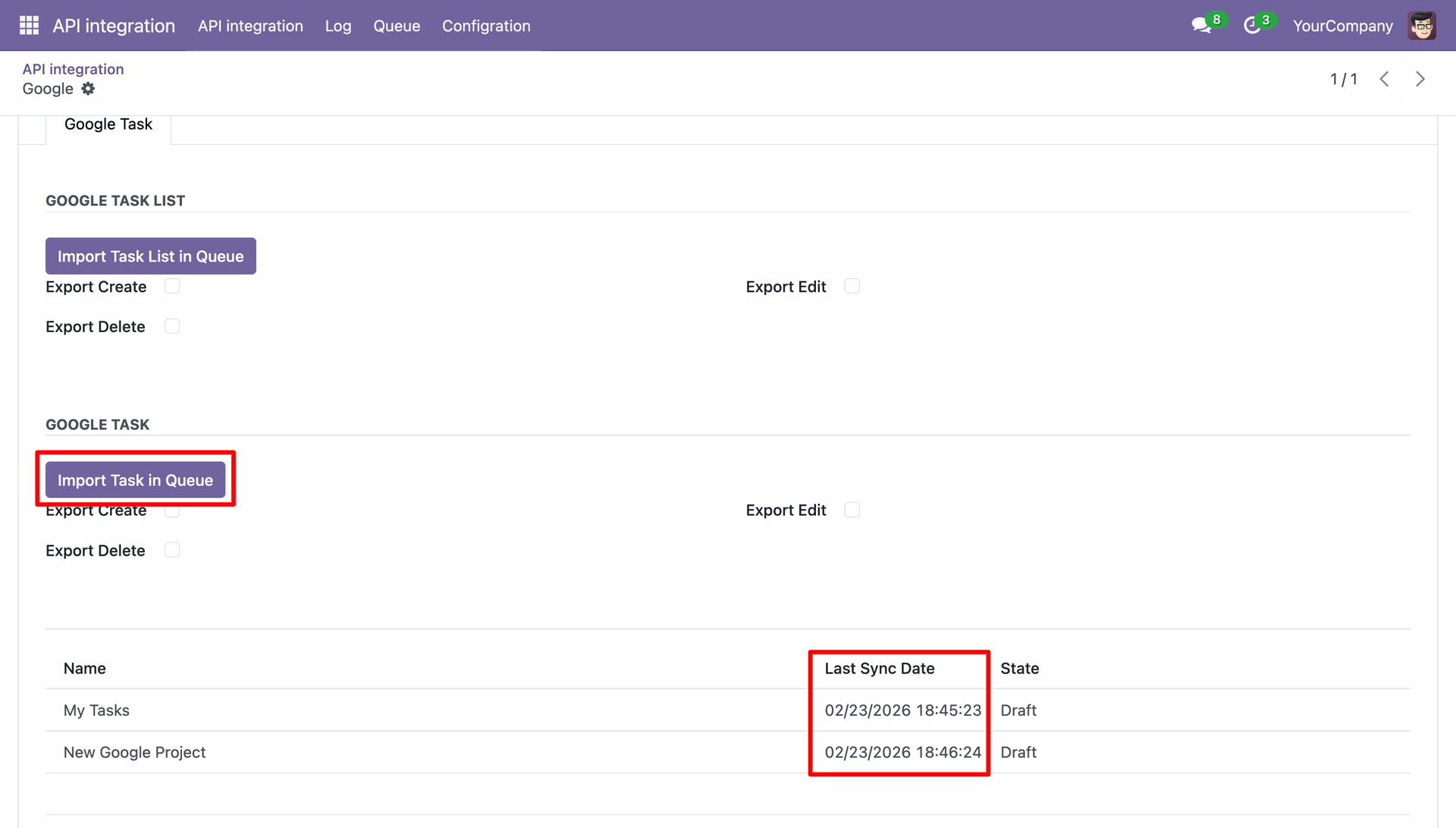
Click Import Task in Queue.
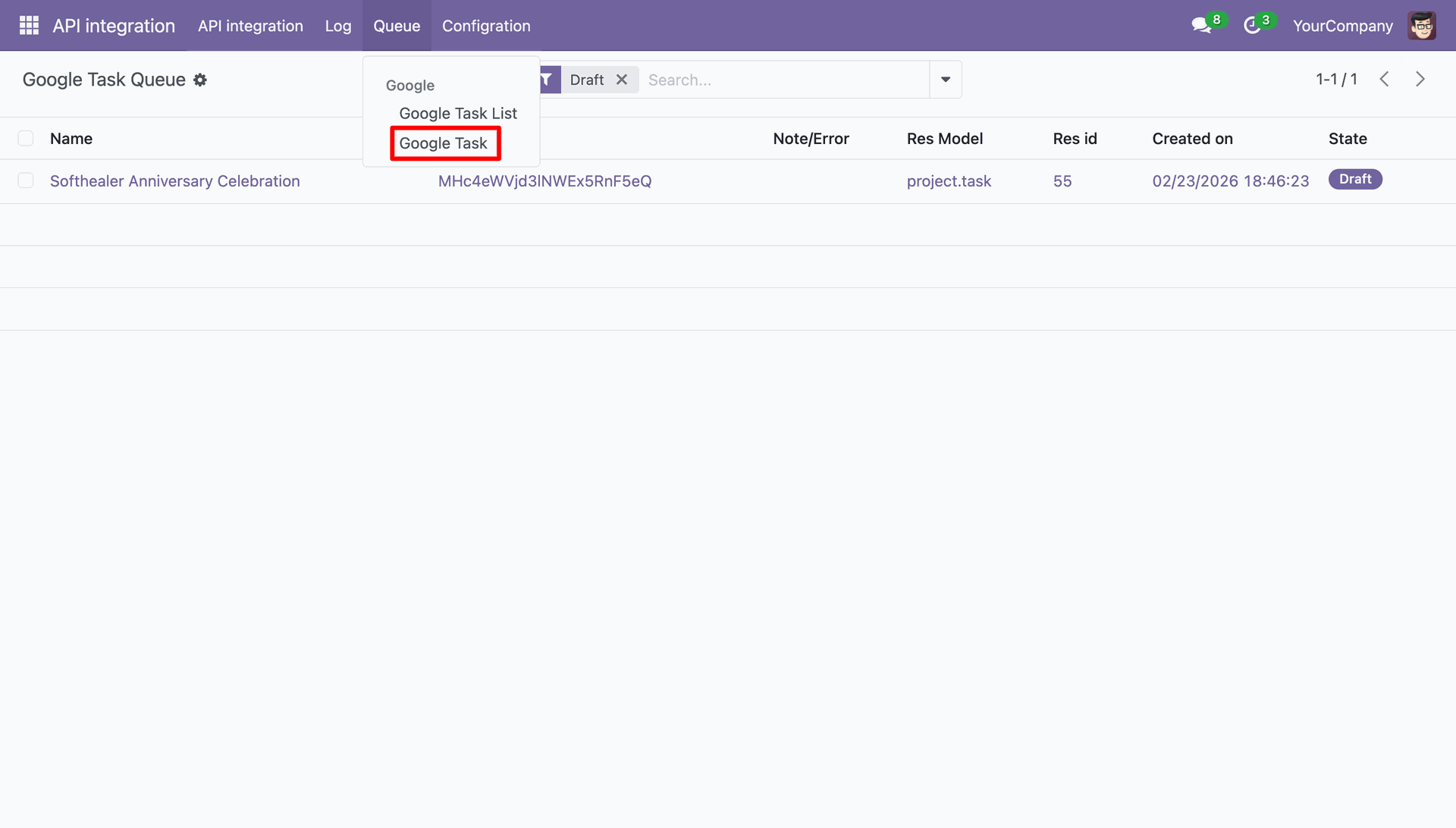
Now navigate to Google Task in Queue.
Select the record and then click Import From Queue in the action menu.
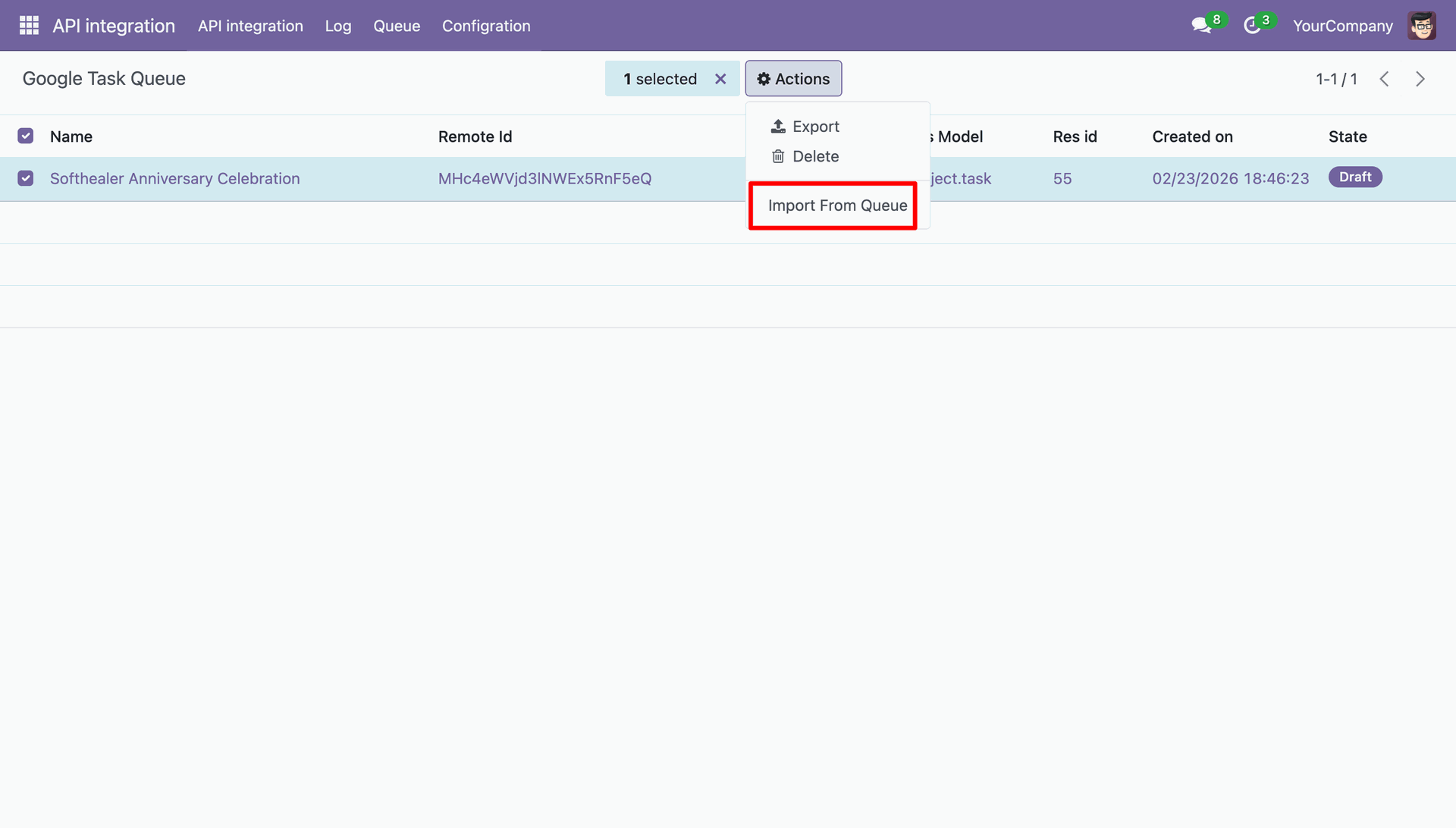
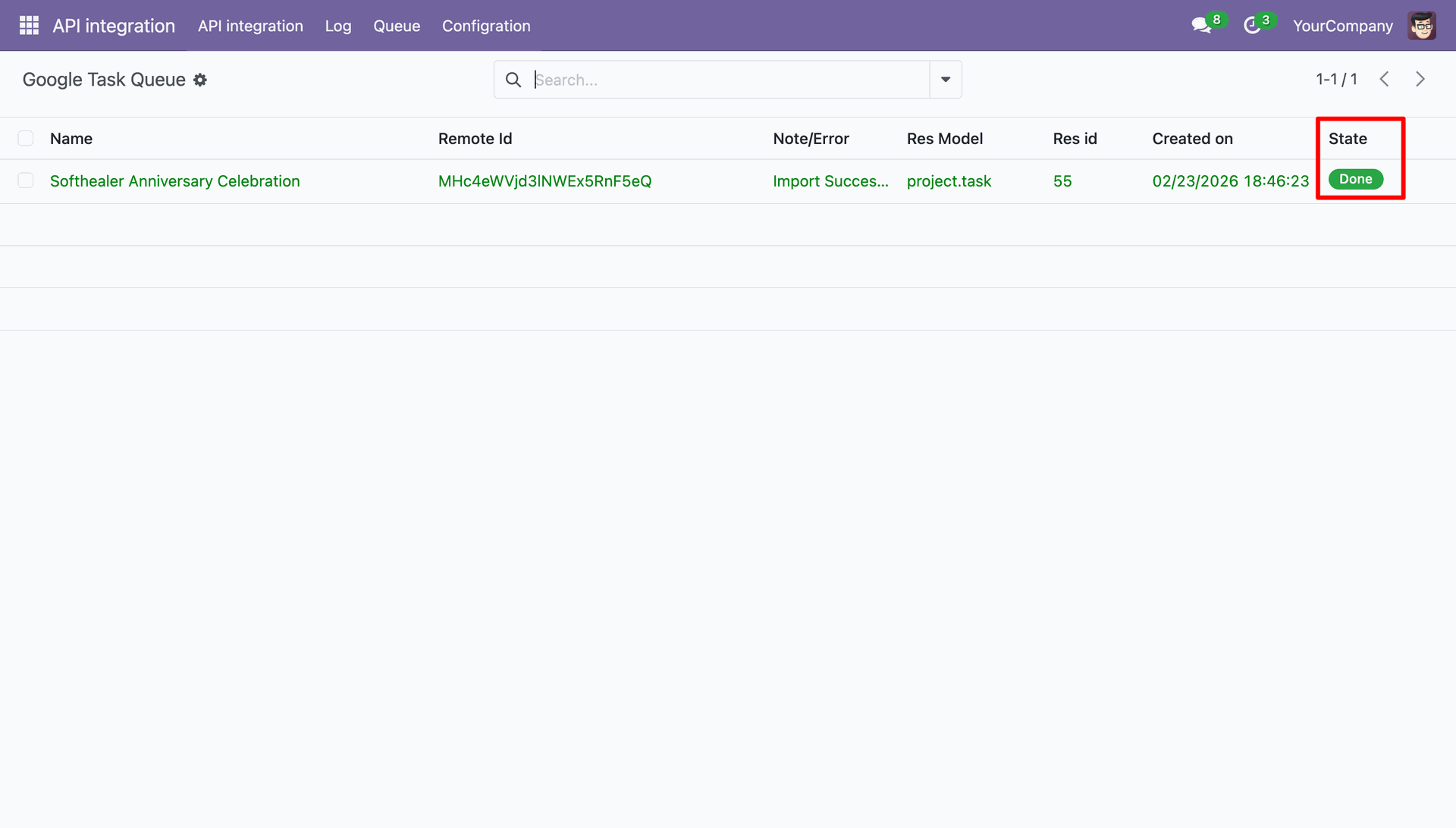
Tasks were successfully imported.
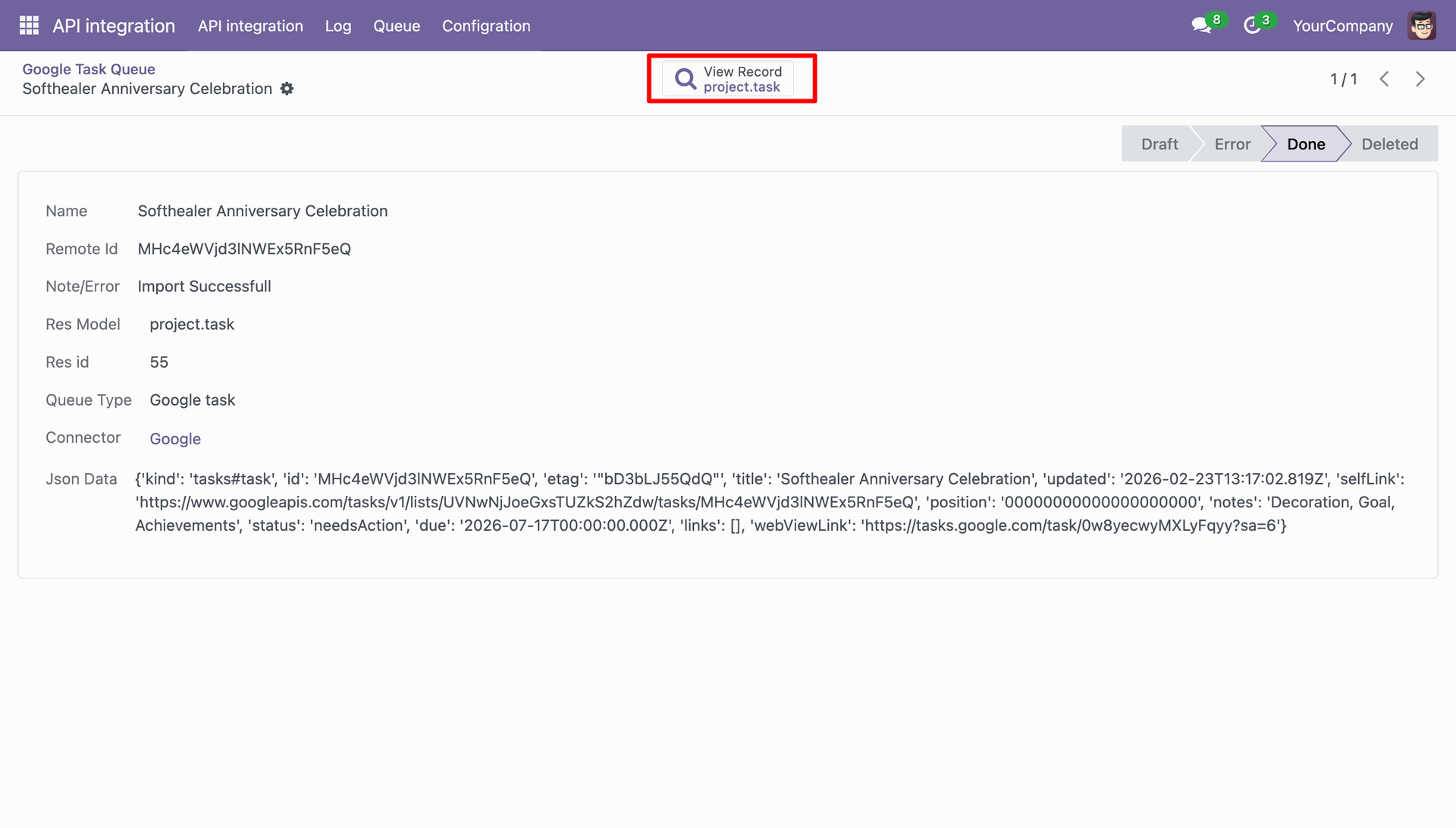
Google Task Queue form view which was successfully imported.
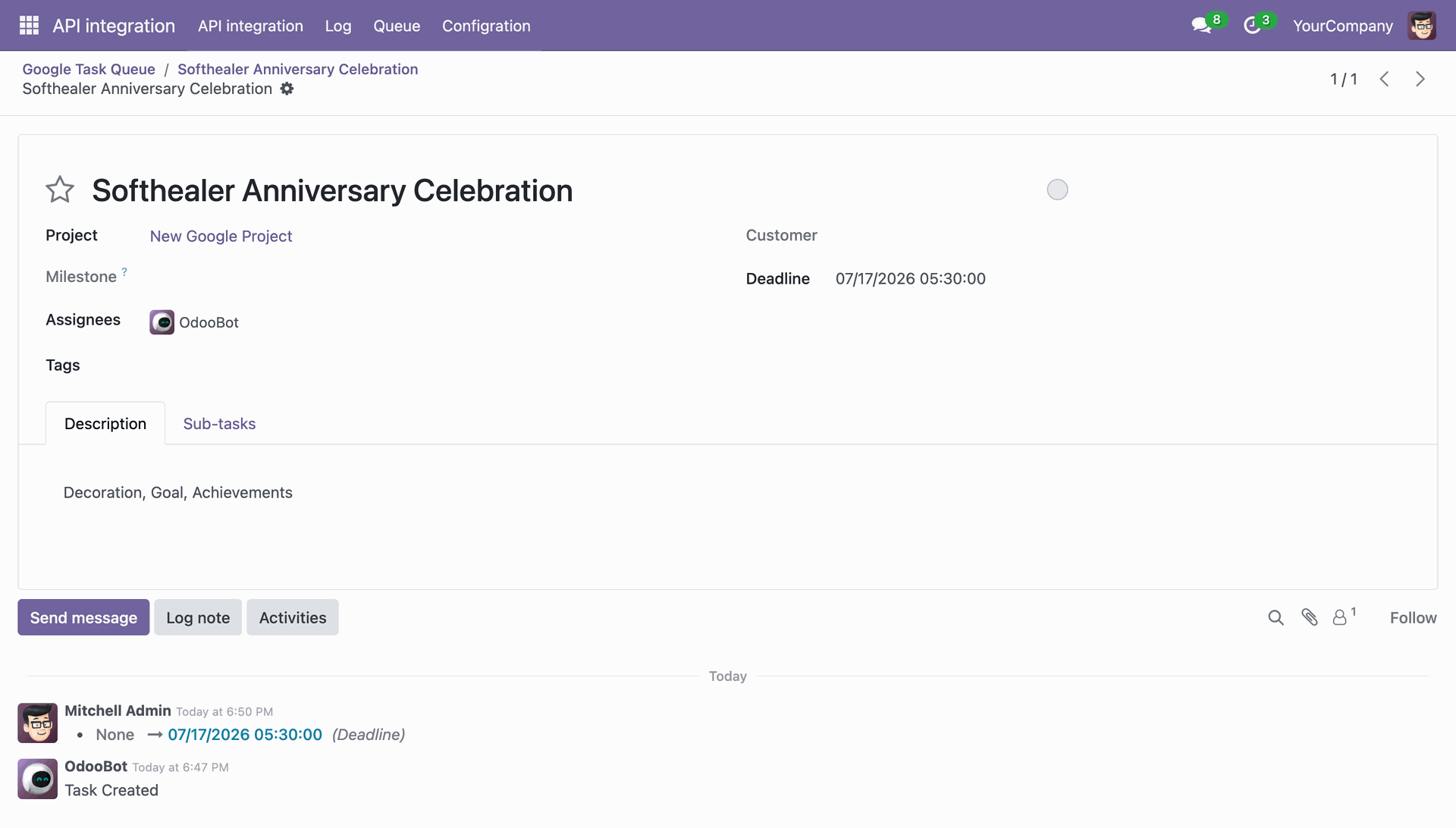
Imported Task from view.
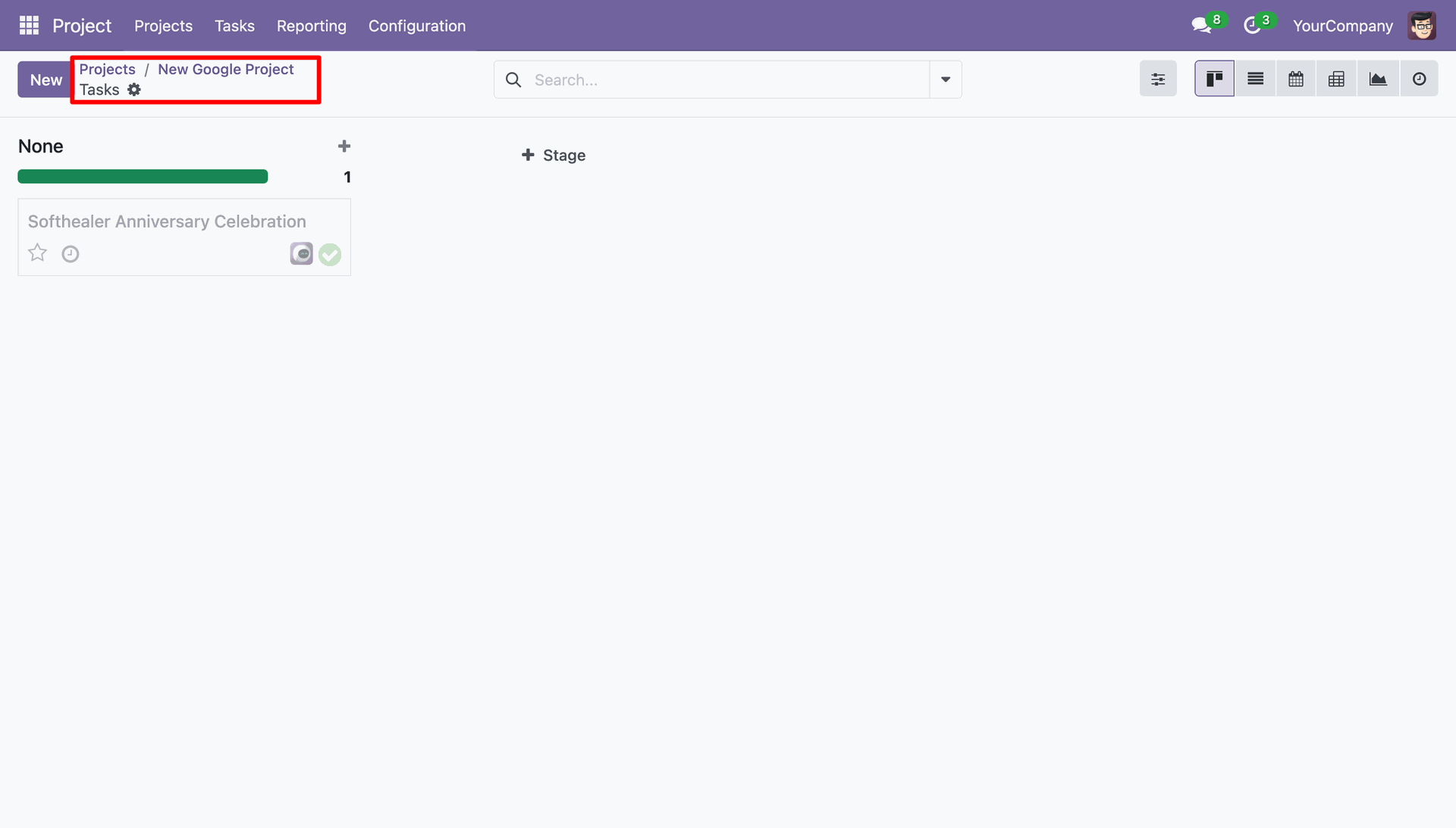
In the Odoo projects, we can see that the 1 Tasks were added.
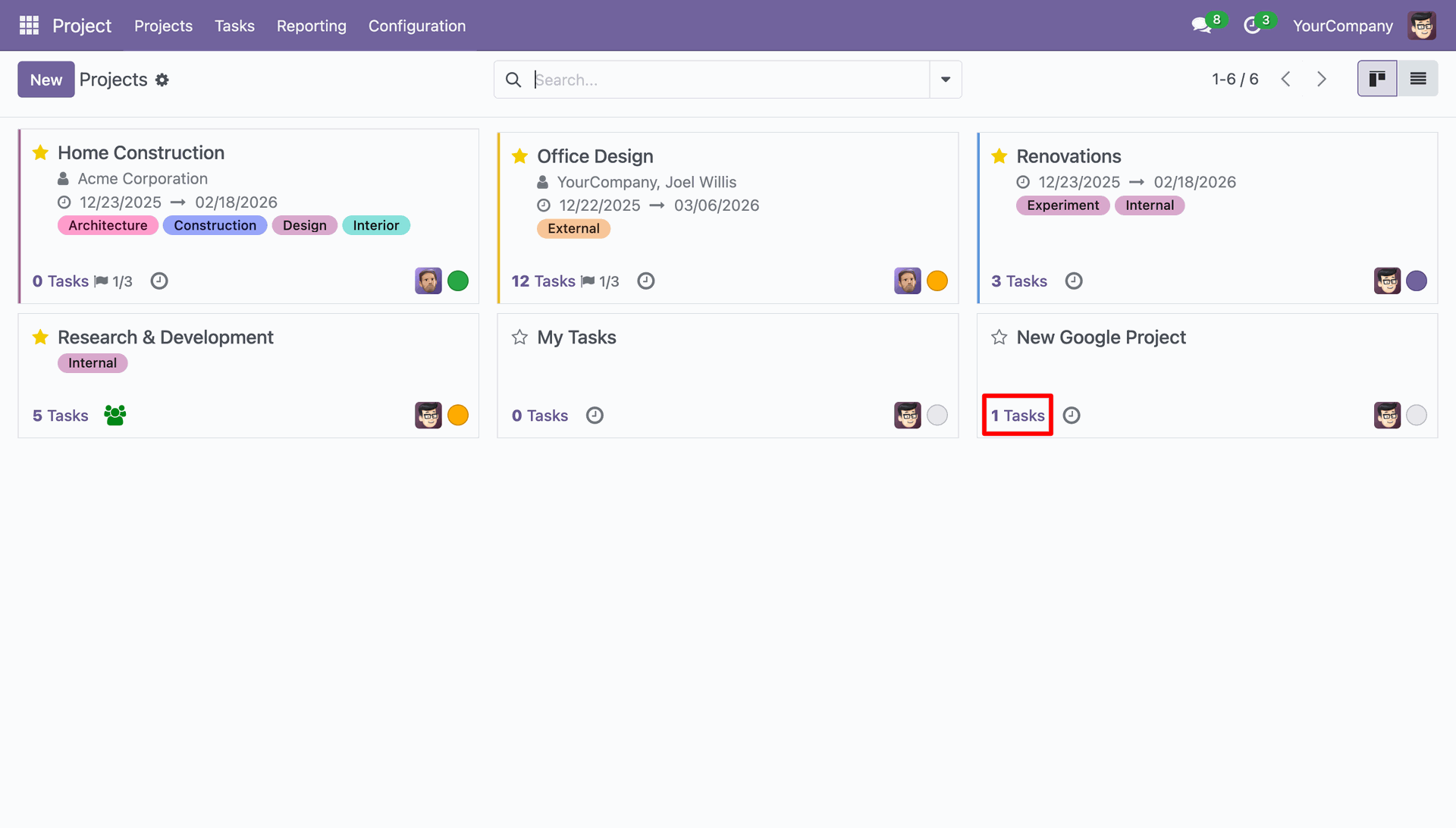
Kanban View of the task imported.
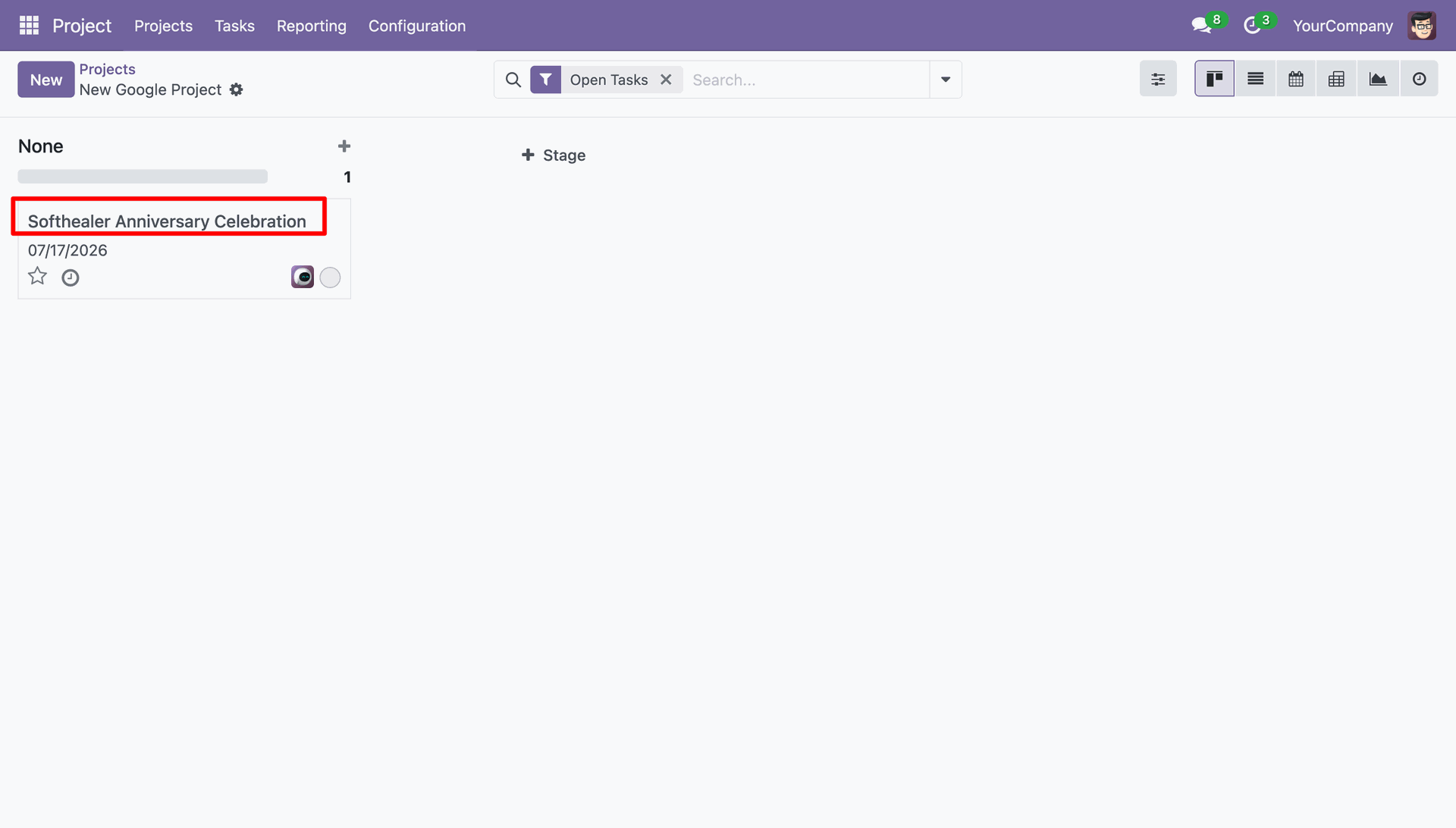
Task imported along with the Deadline and description.
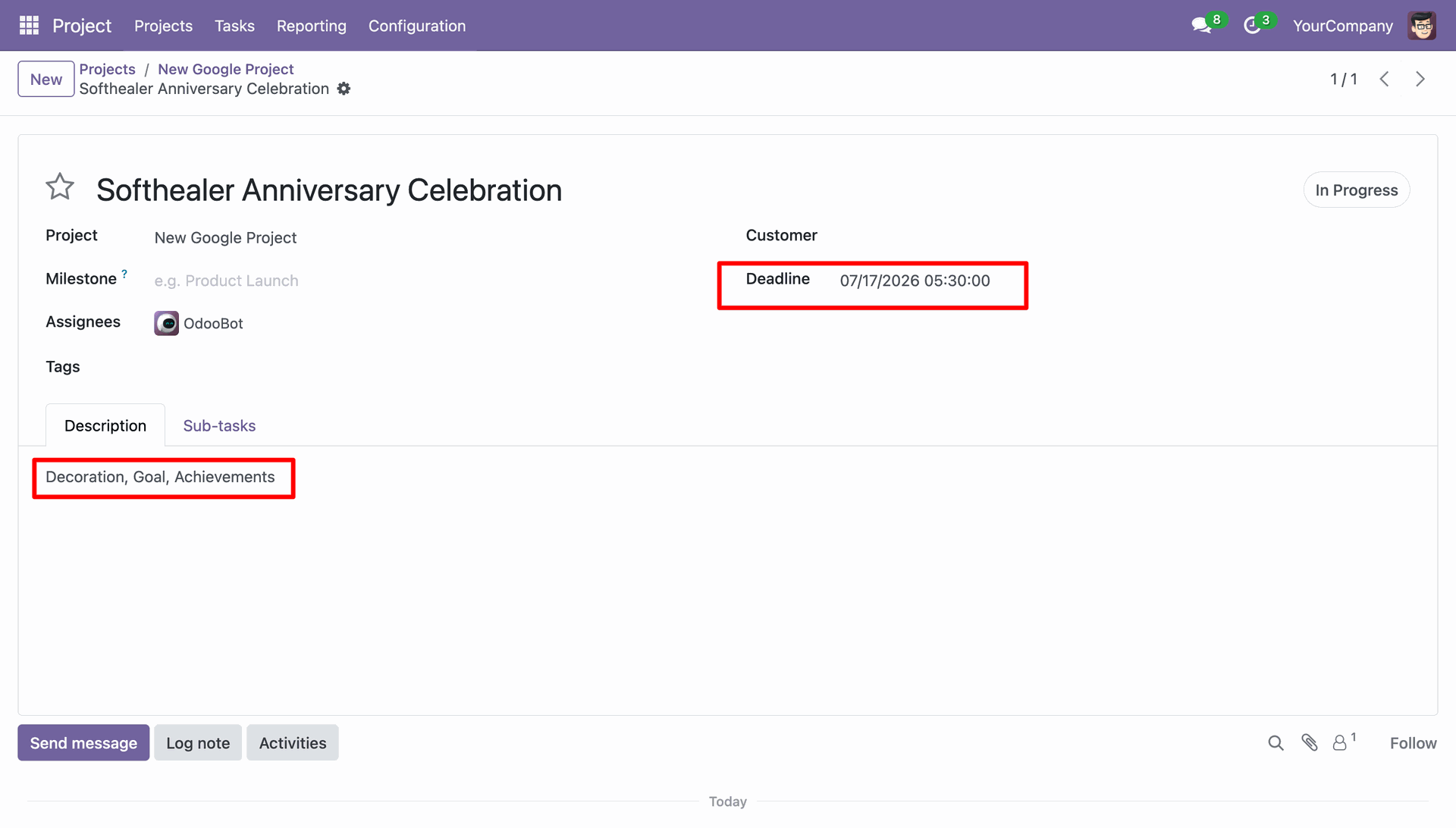
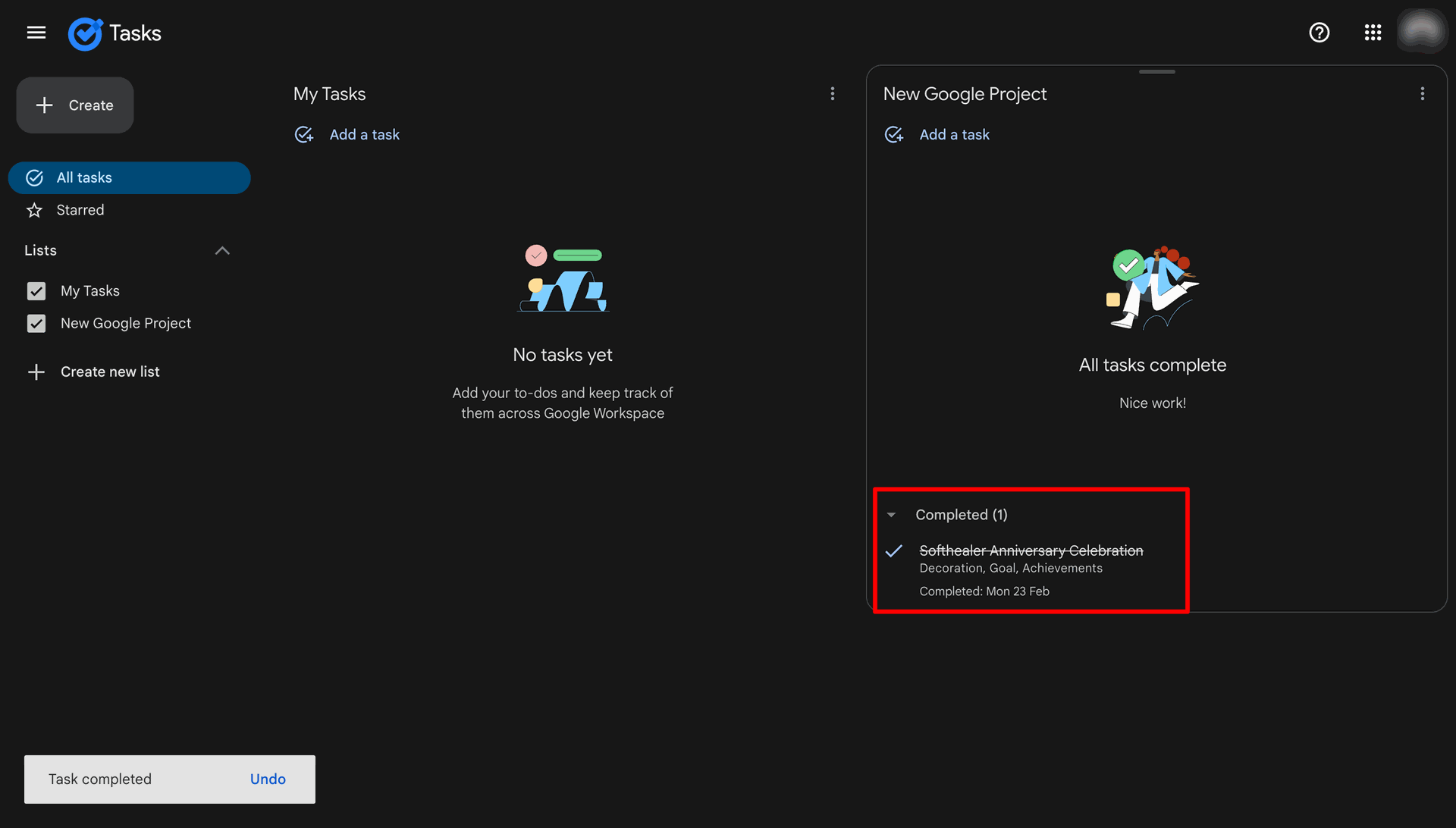
Marking the task as completed.
Task can be viewed under the Completed tab.
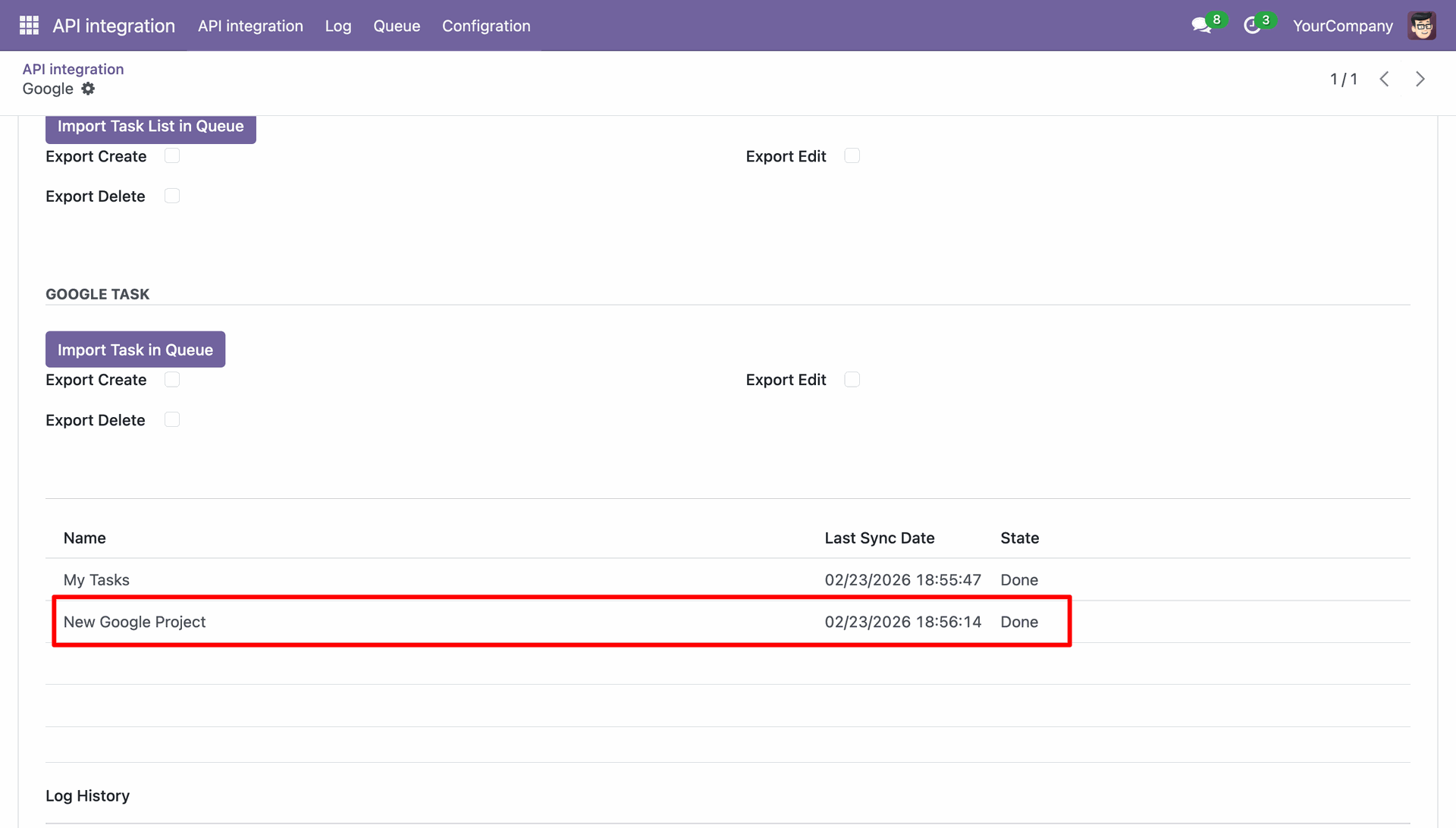
Task log last sync in Odoo.
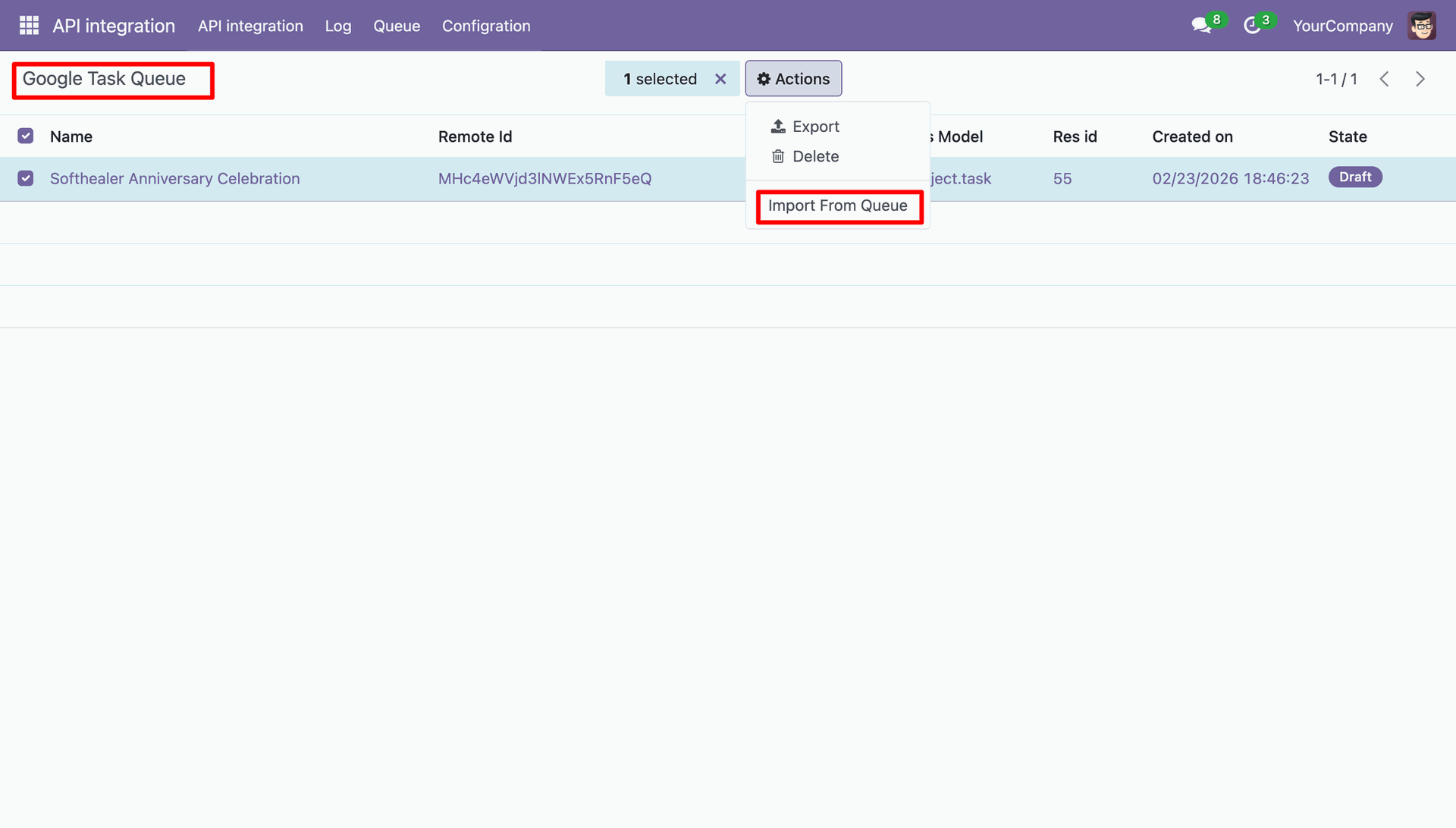
Navigate to Google Task Queue select the record and click Import From Queue in the action menu.
Google Task Queue imported record moved to done state.
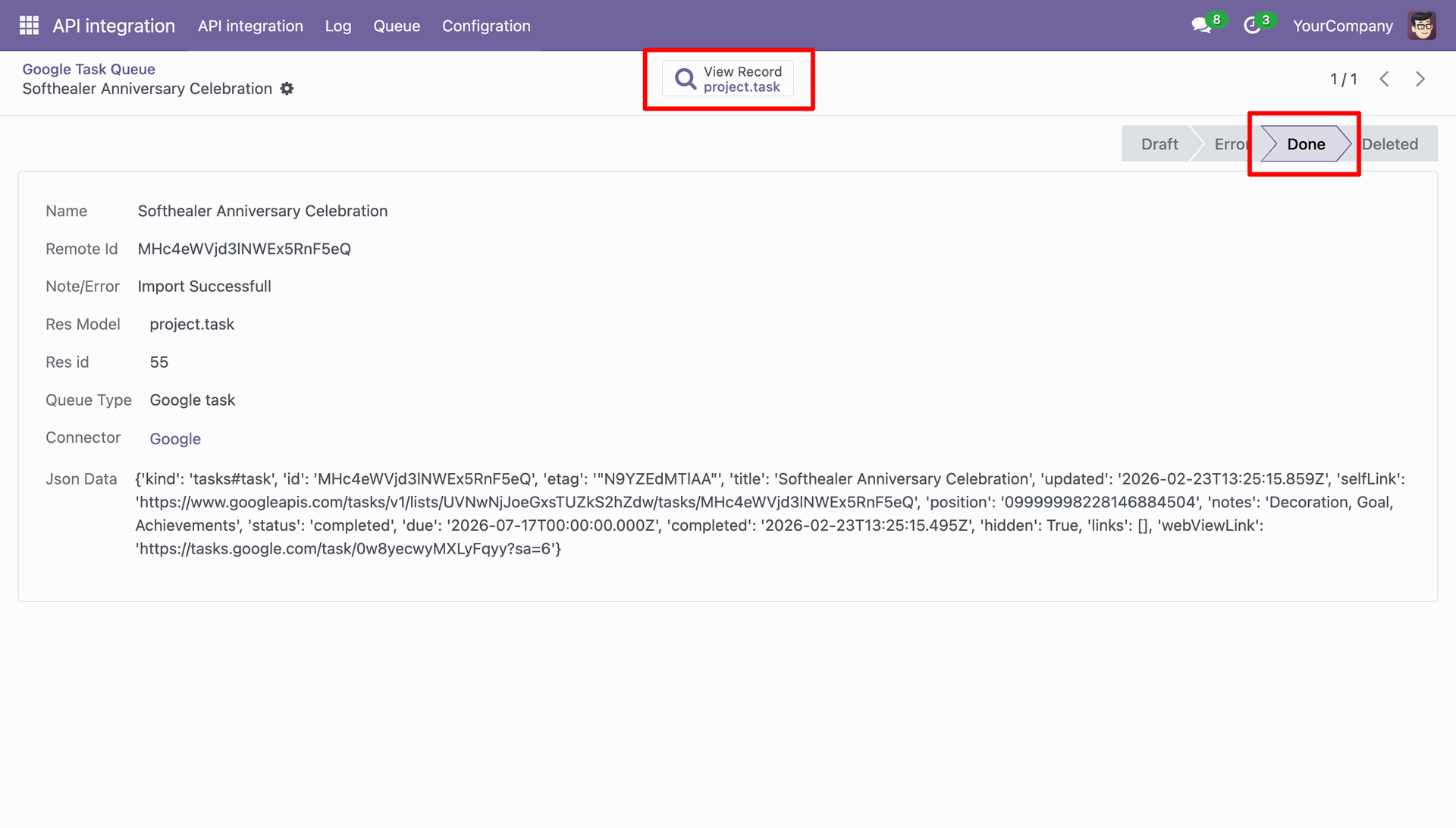
Task completed marked with a green tick in the Task from view.
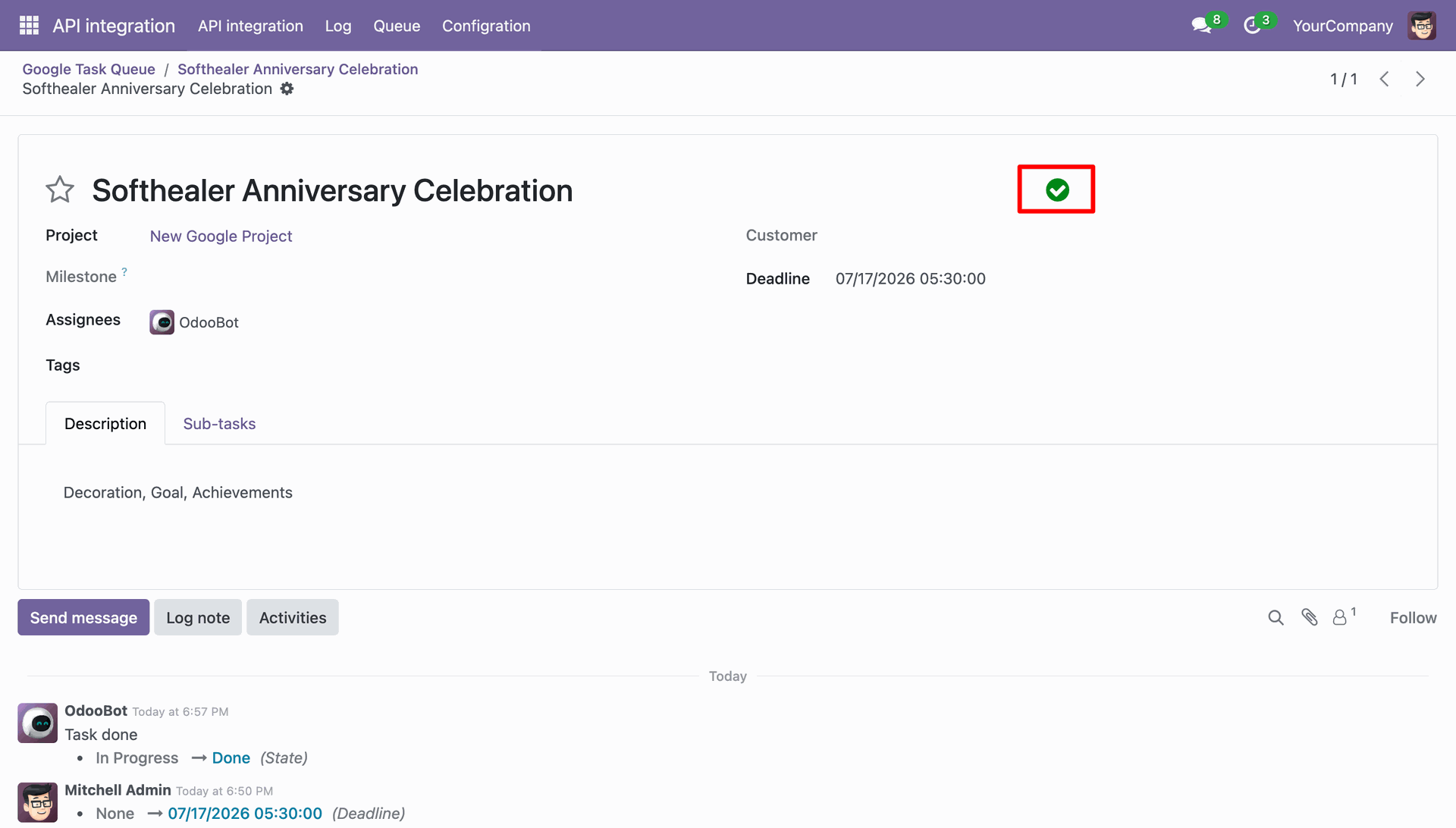
Kanban view of the Task stating the task completed with a green tick.
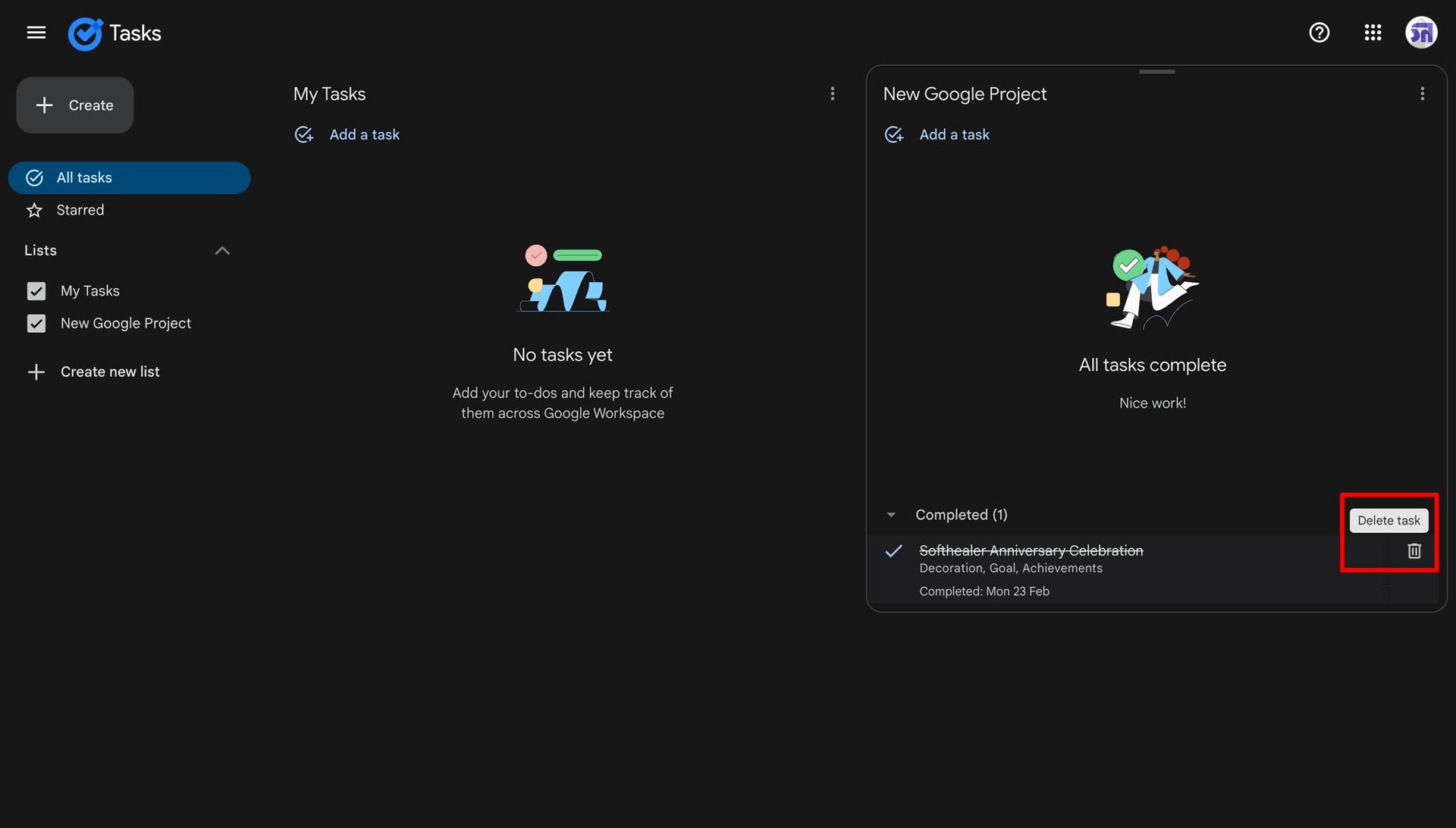
To delete the task in the Google project click the dustbin icon.
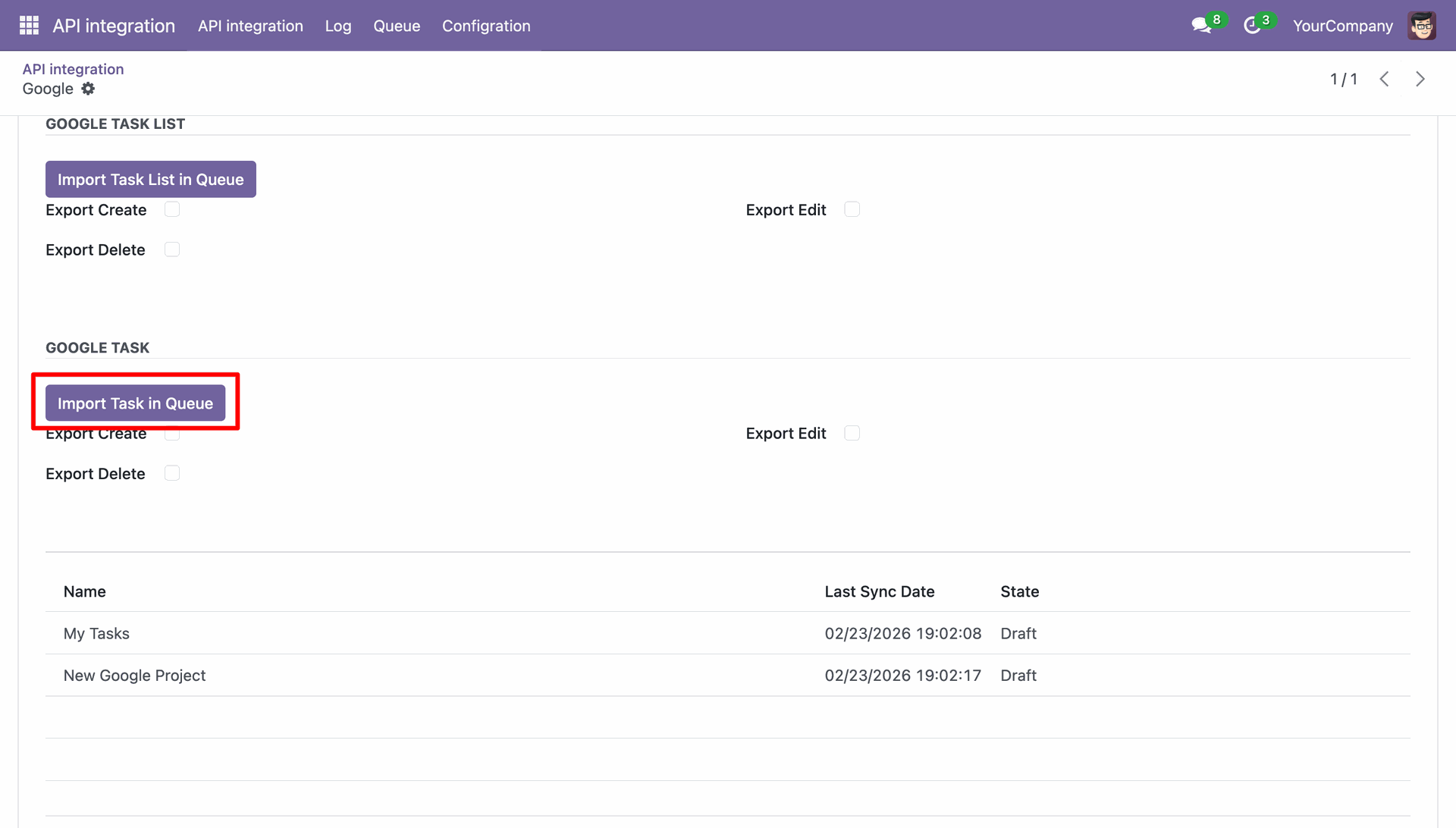
Click the Import Task in Queue to beging syncing.
Navigate to Google Task Queue and select the records and Click Import From Queue in the action menu.
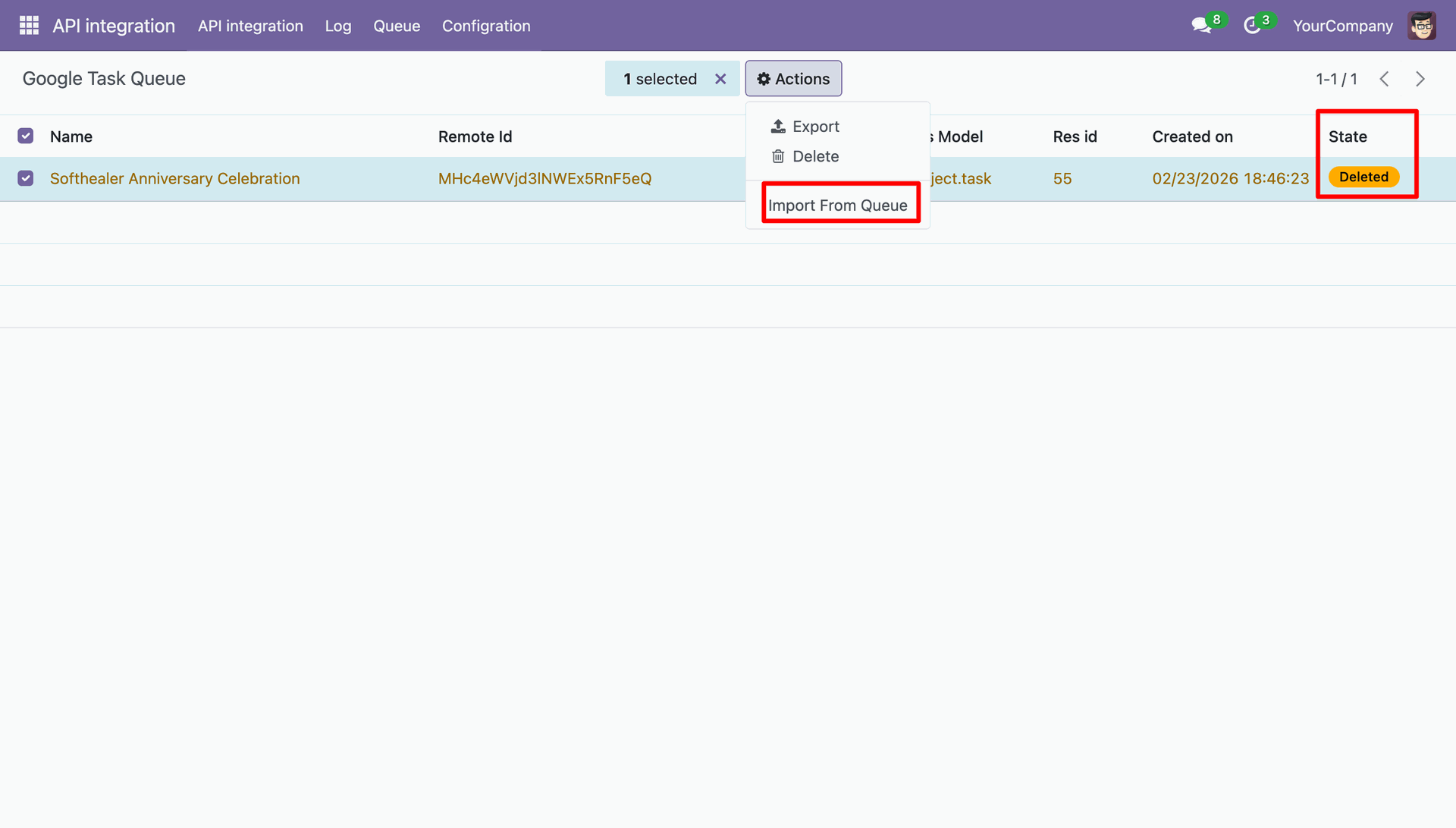
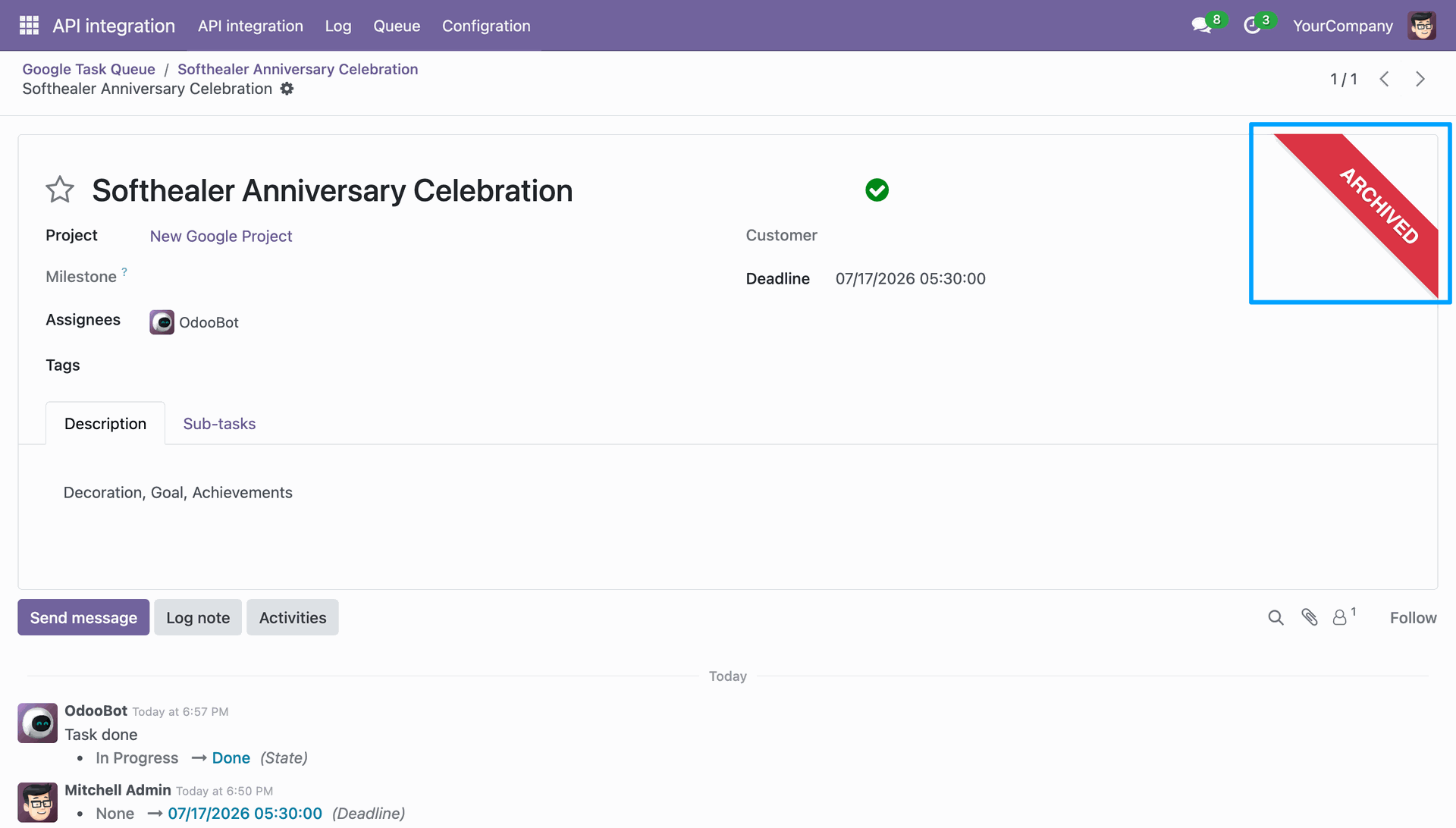
Task form view stating that the record has benn archived.
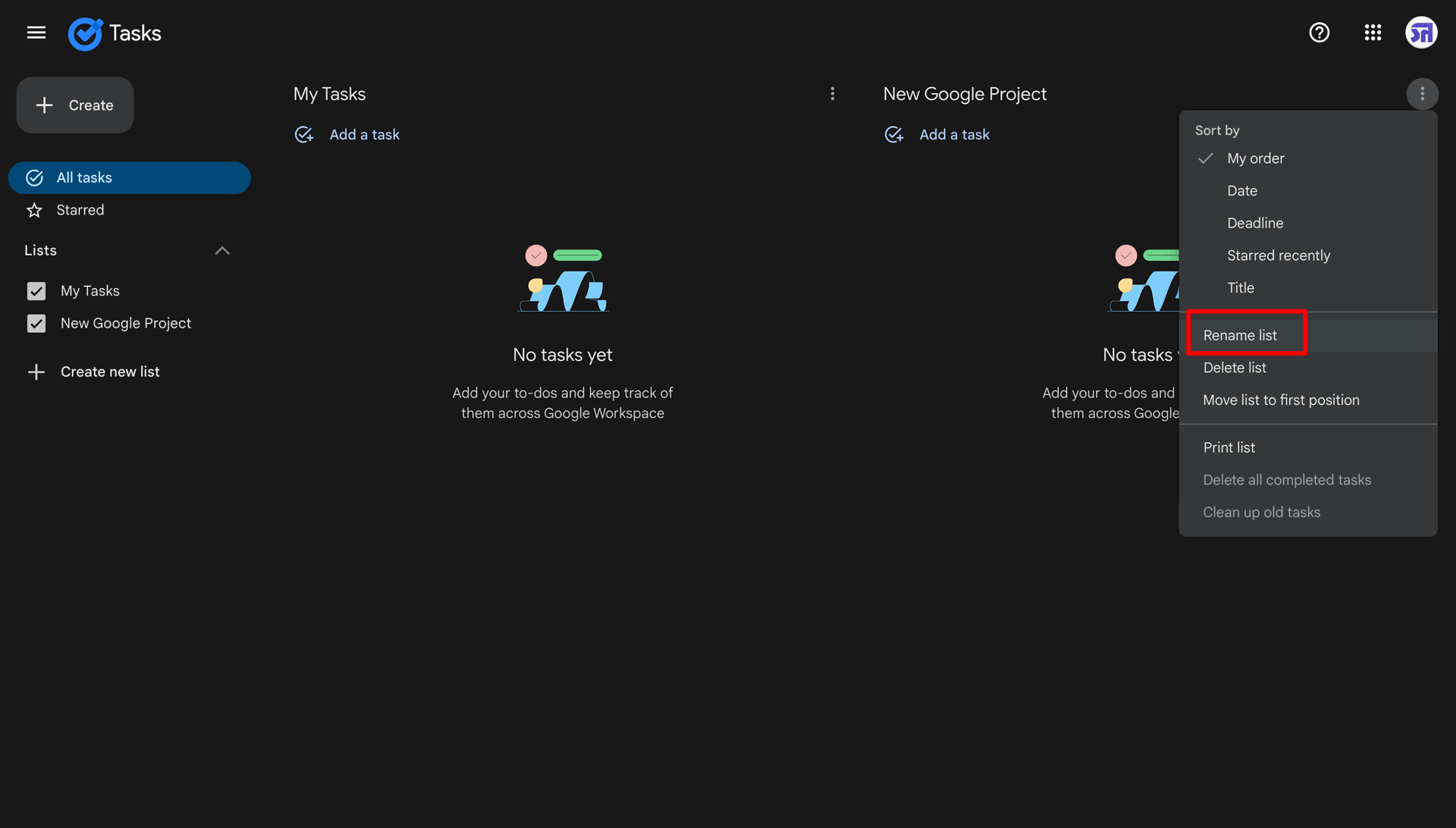
To rename the project click the three dot icon and click the Rename list.
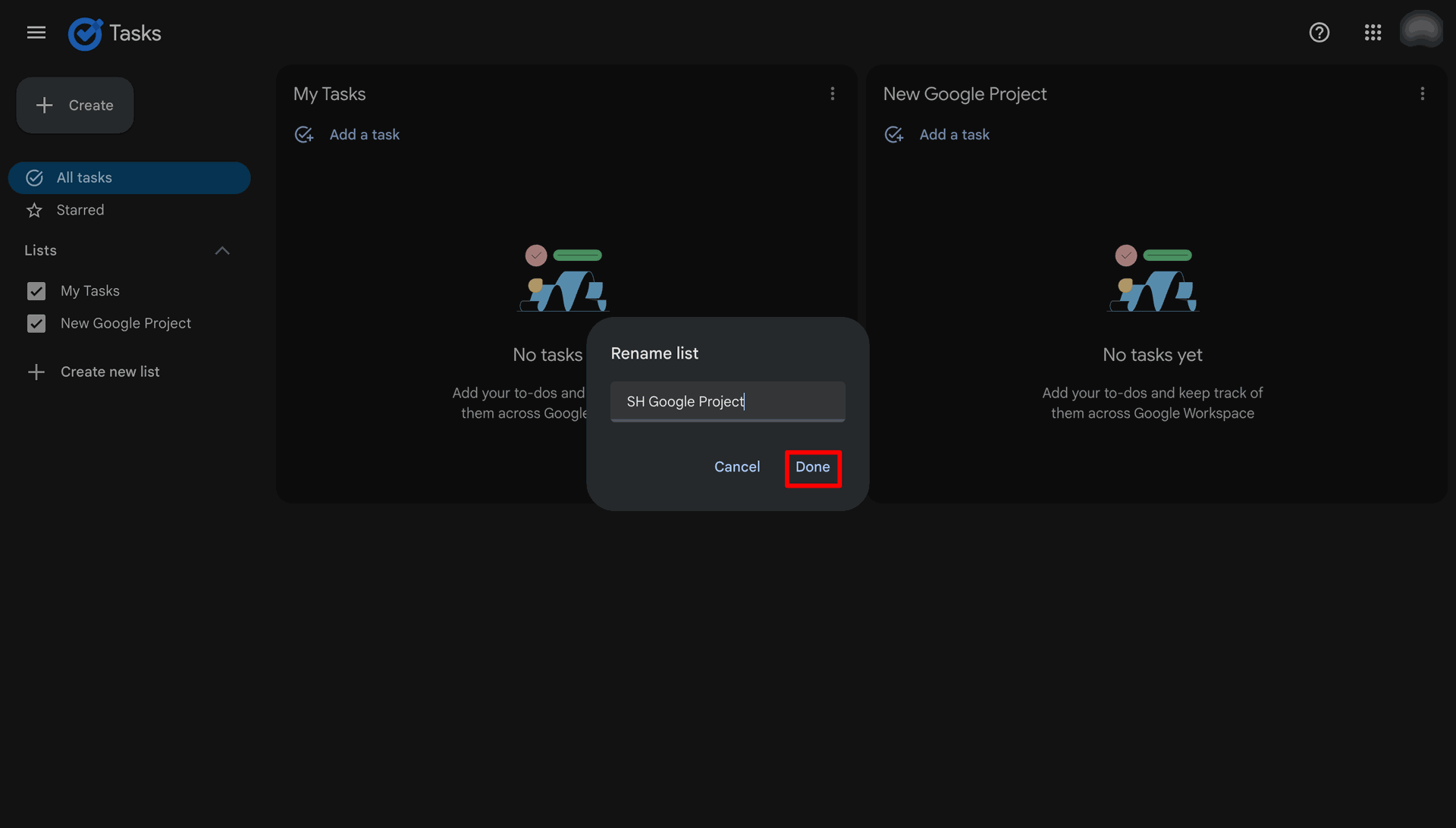
Enter the new project name.
Import the project and syncing the records.
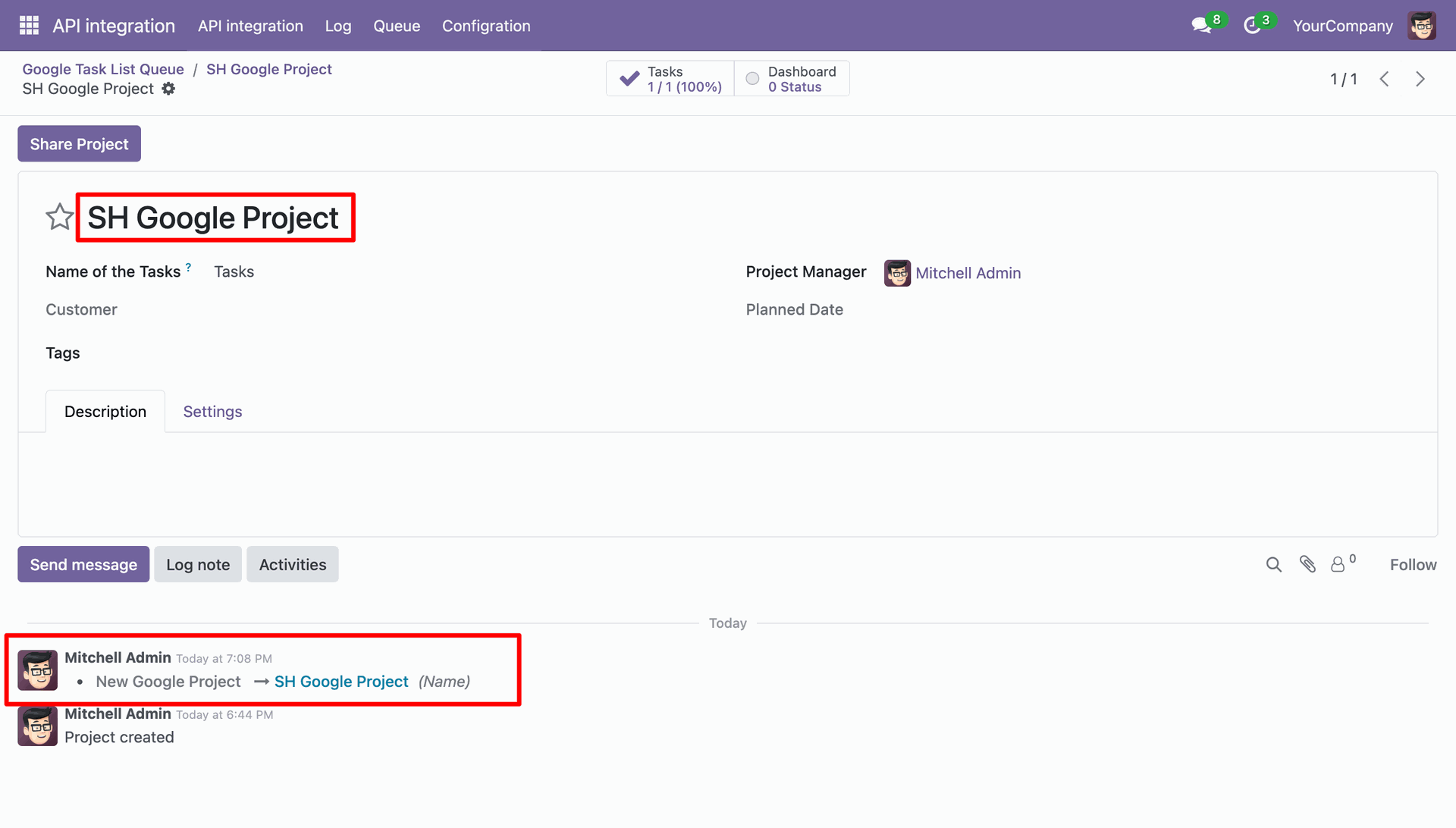
Project name updated.
Task form view with the updated name and updation log.
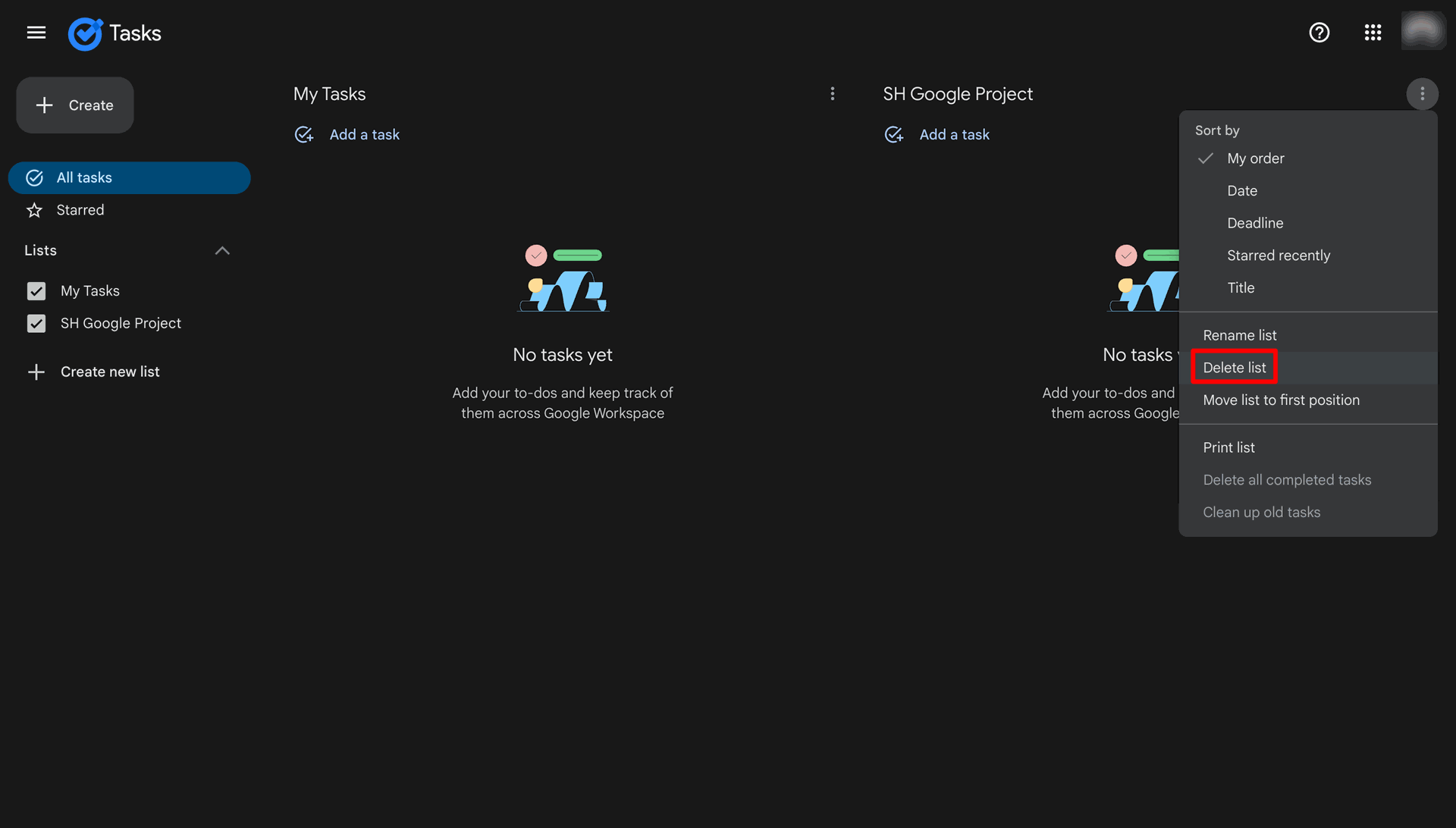
Click the Delete list to delete the project.
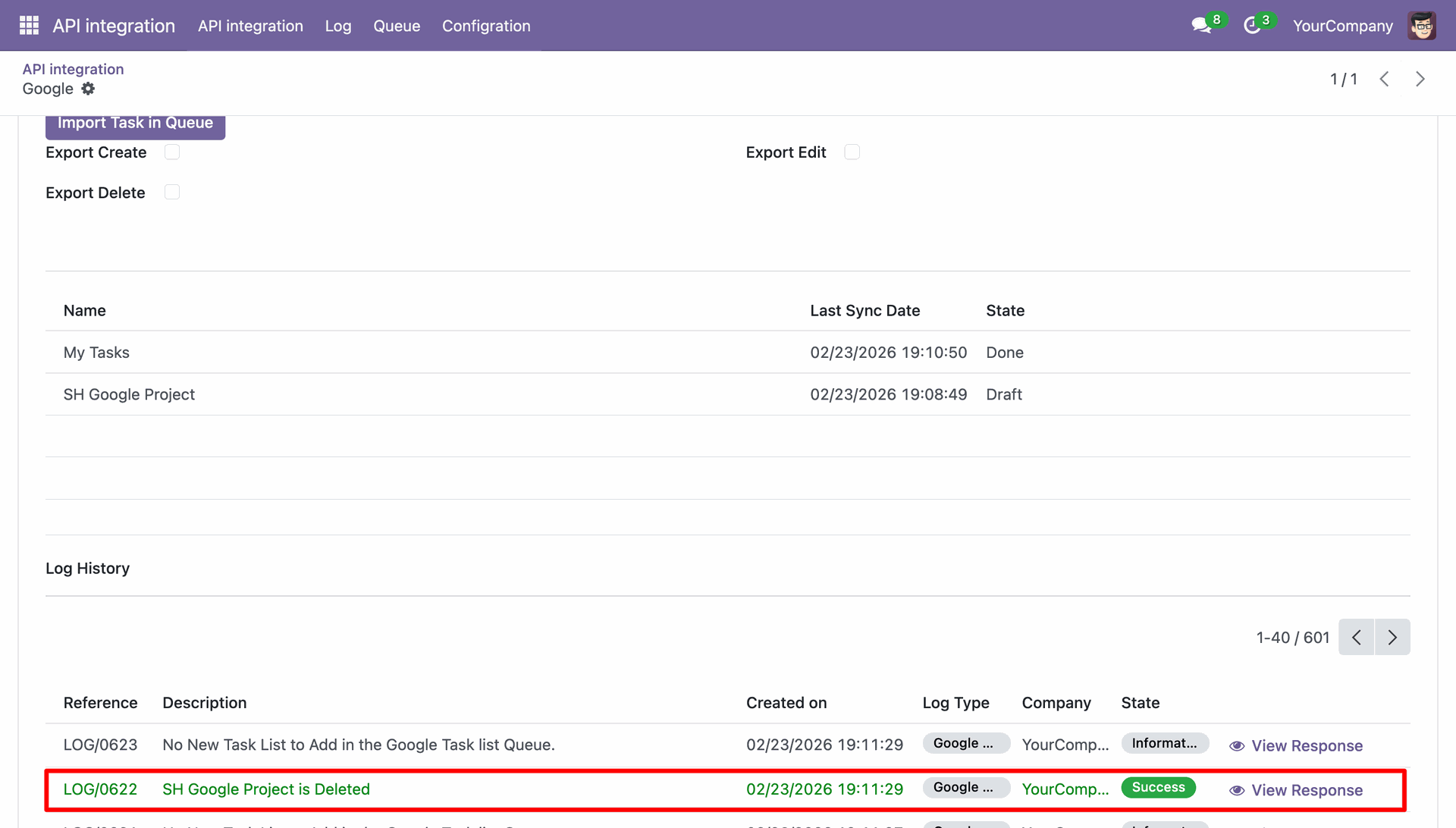
Log in the Odoo stating that the project have been deleted.
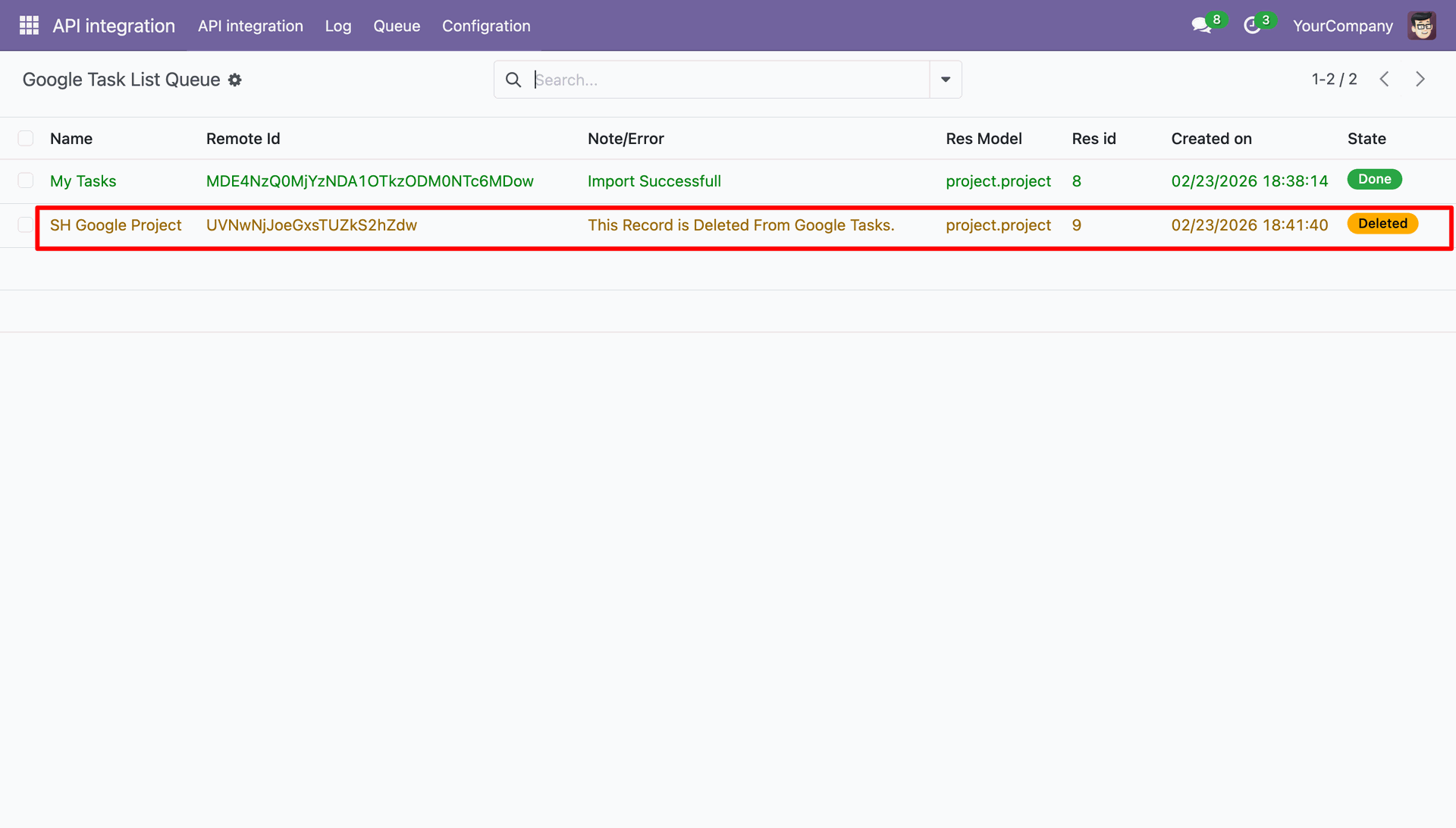
Google Task List Queue stating that the project have been deleted.
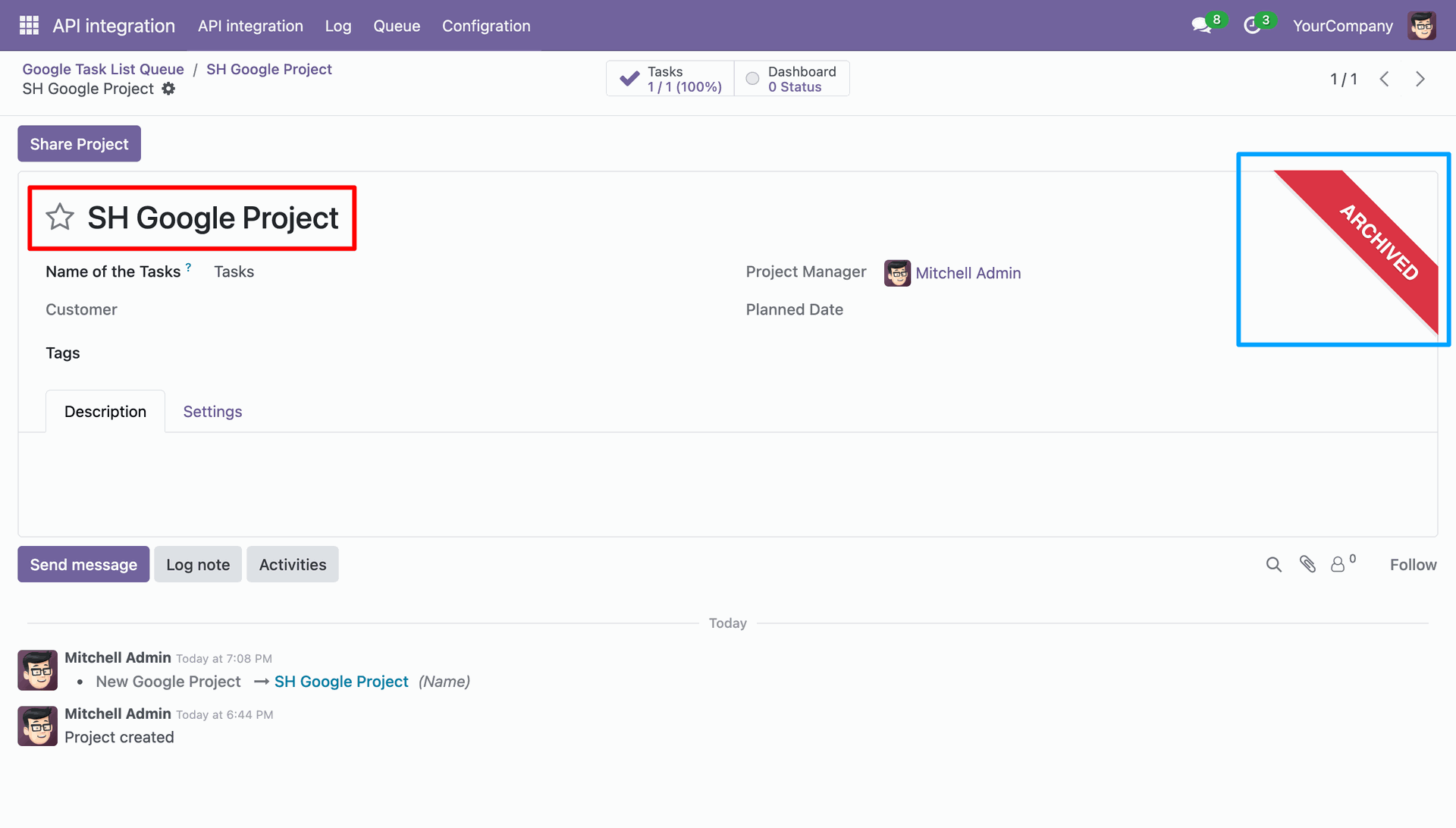
The project have been Archived upon deletion.
Workflow
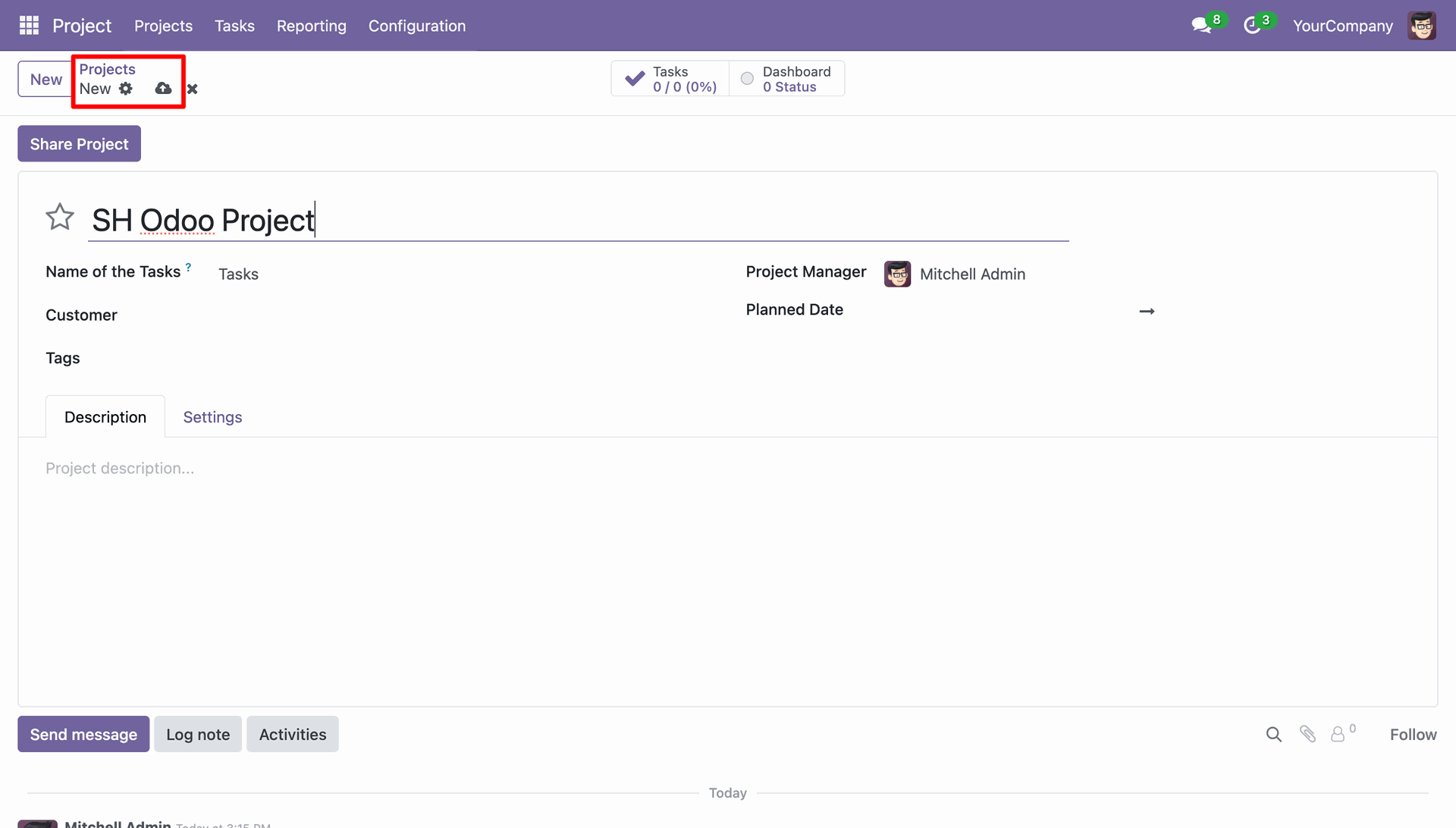
Creating a new Project in Odoo.
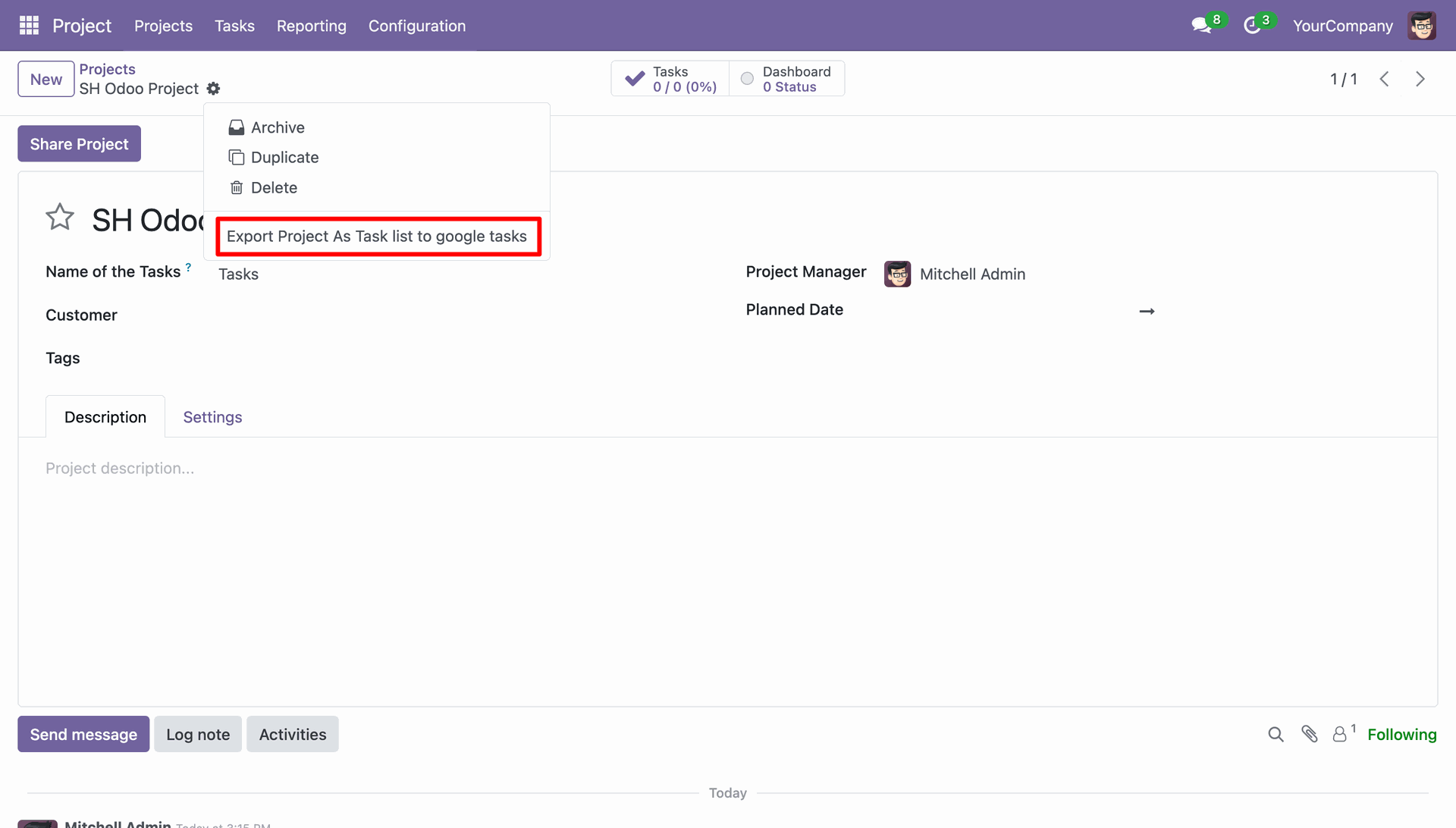
Click on the Export Project as Task List to Google Tasks to export projects.
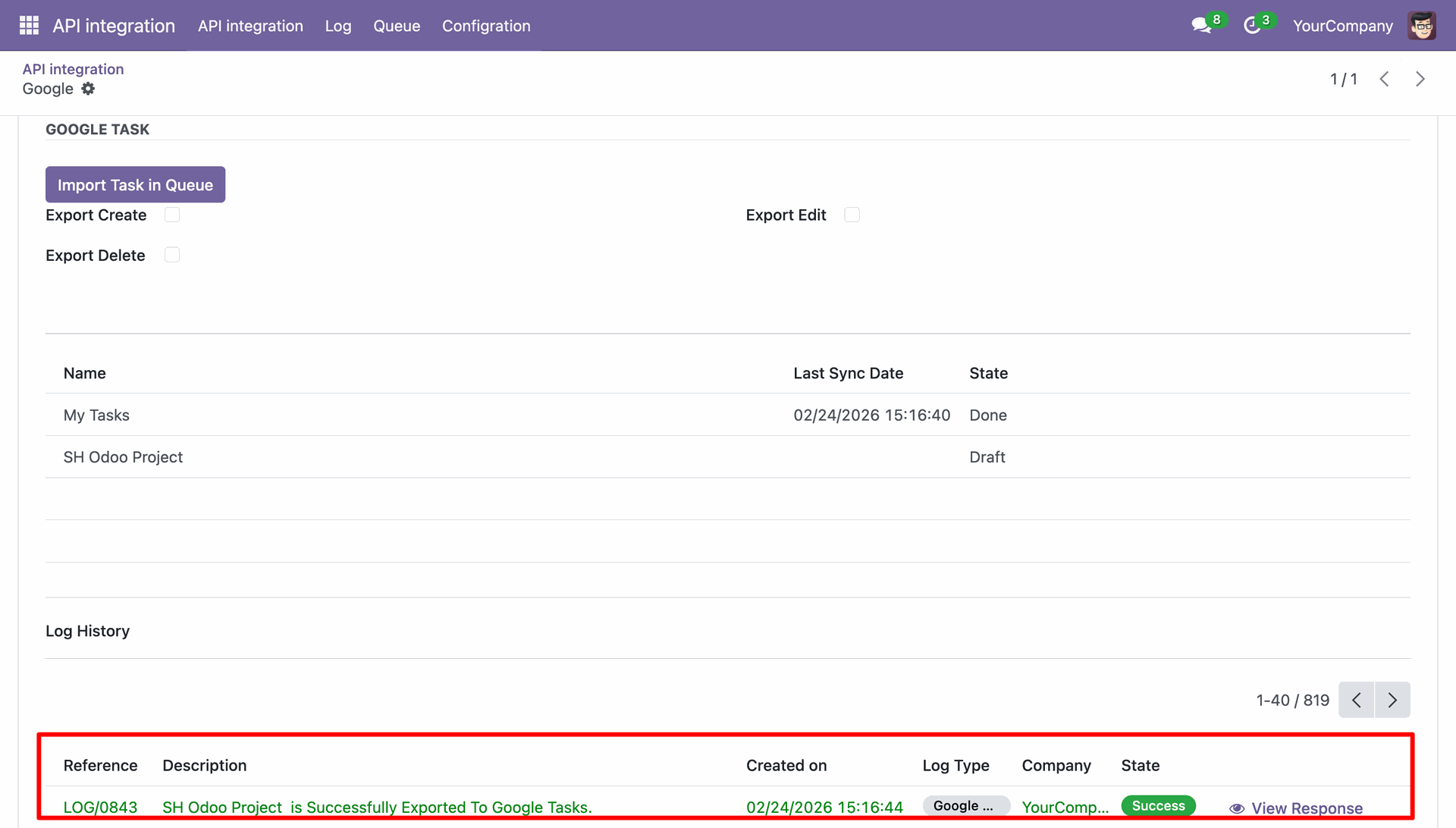
Log stating that the project is successfully exported.
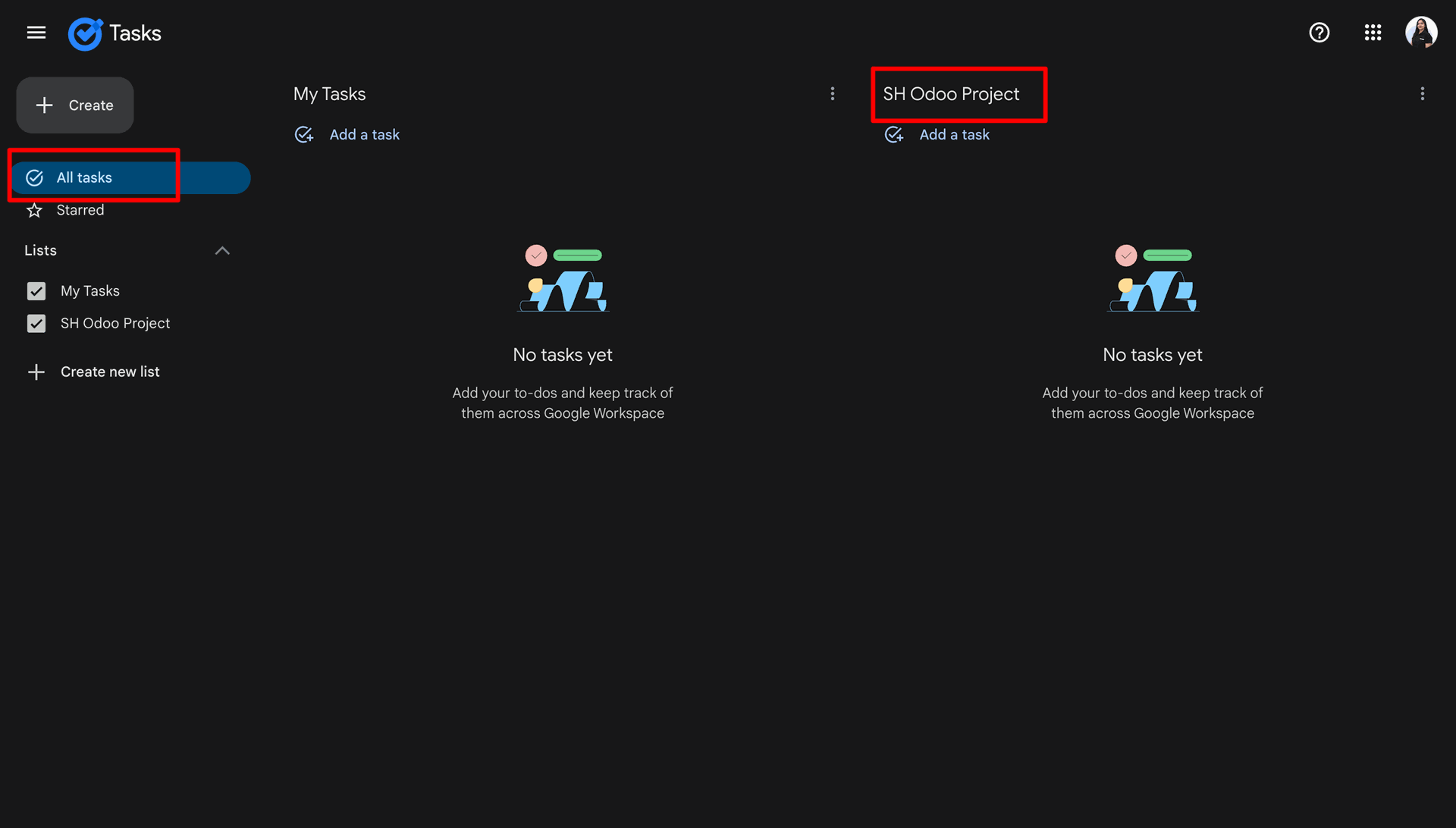
In the Google Projects we can see that the Projects have been synced successfully.
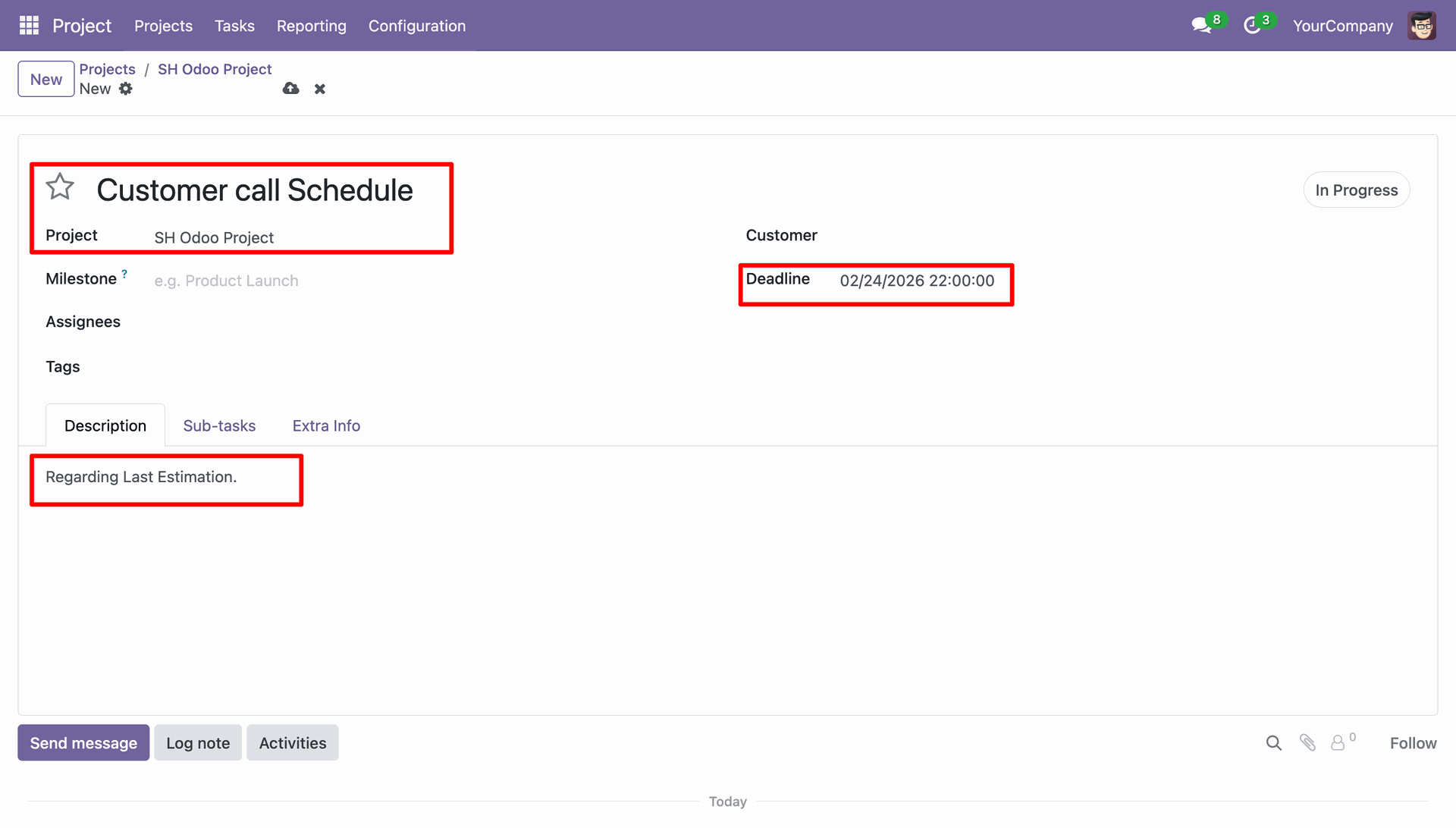
Creating a new task in Odoo.
Exporting the task to google tasks.
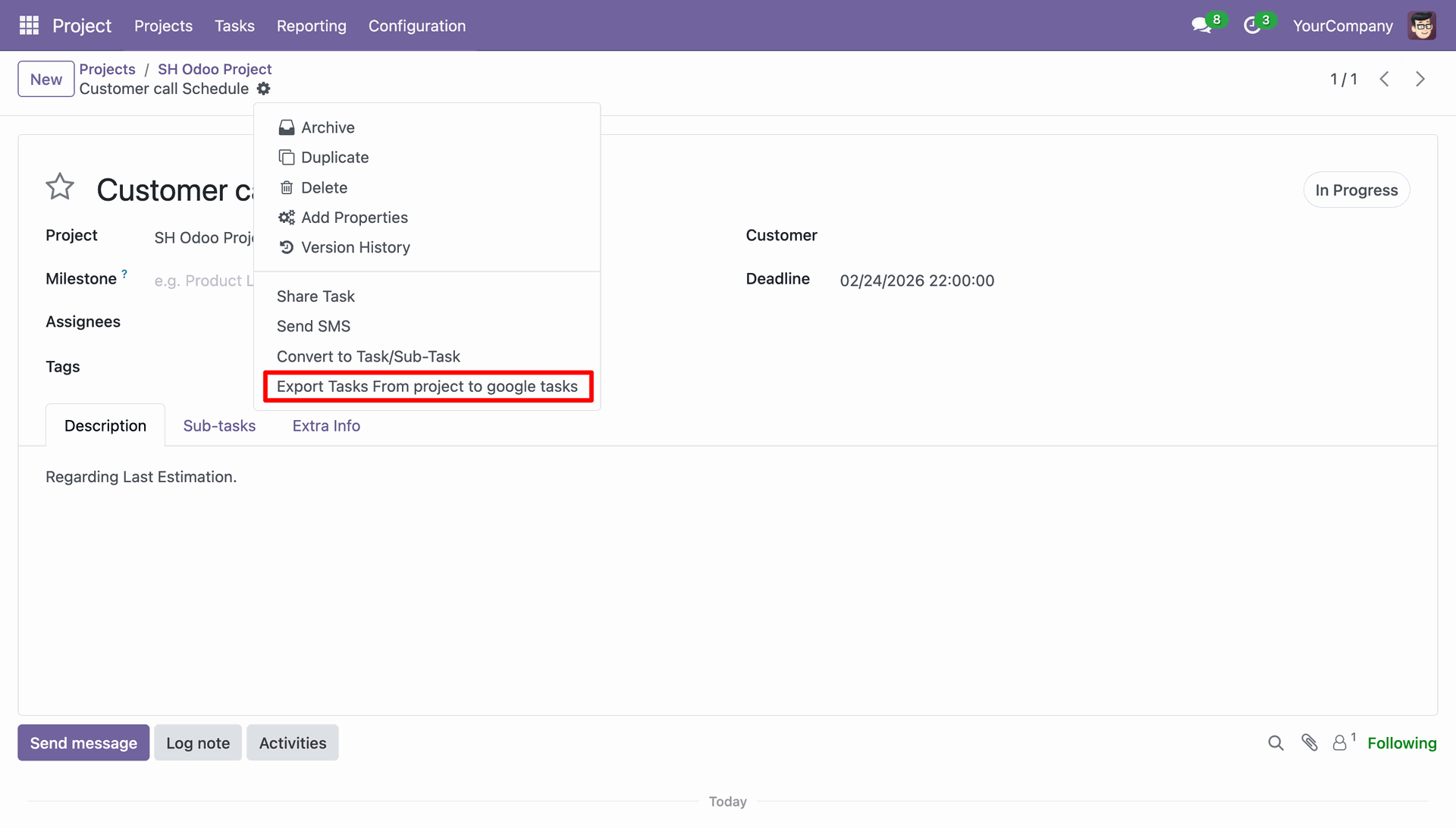
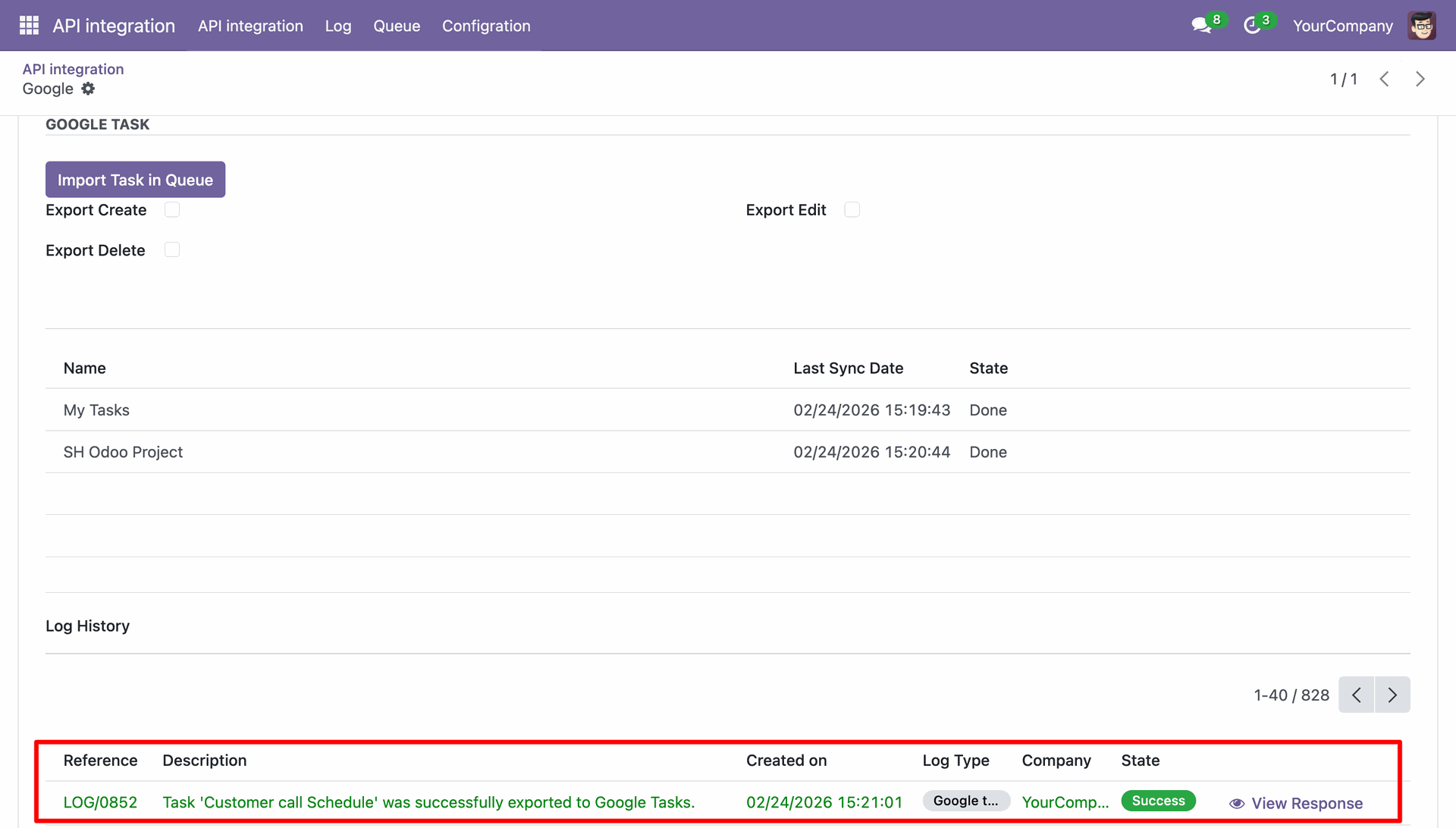
Log generated stating that the task was successfully exported.
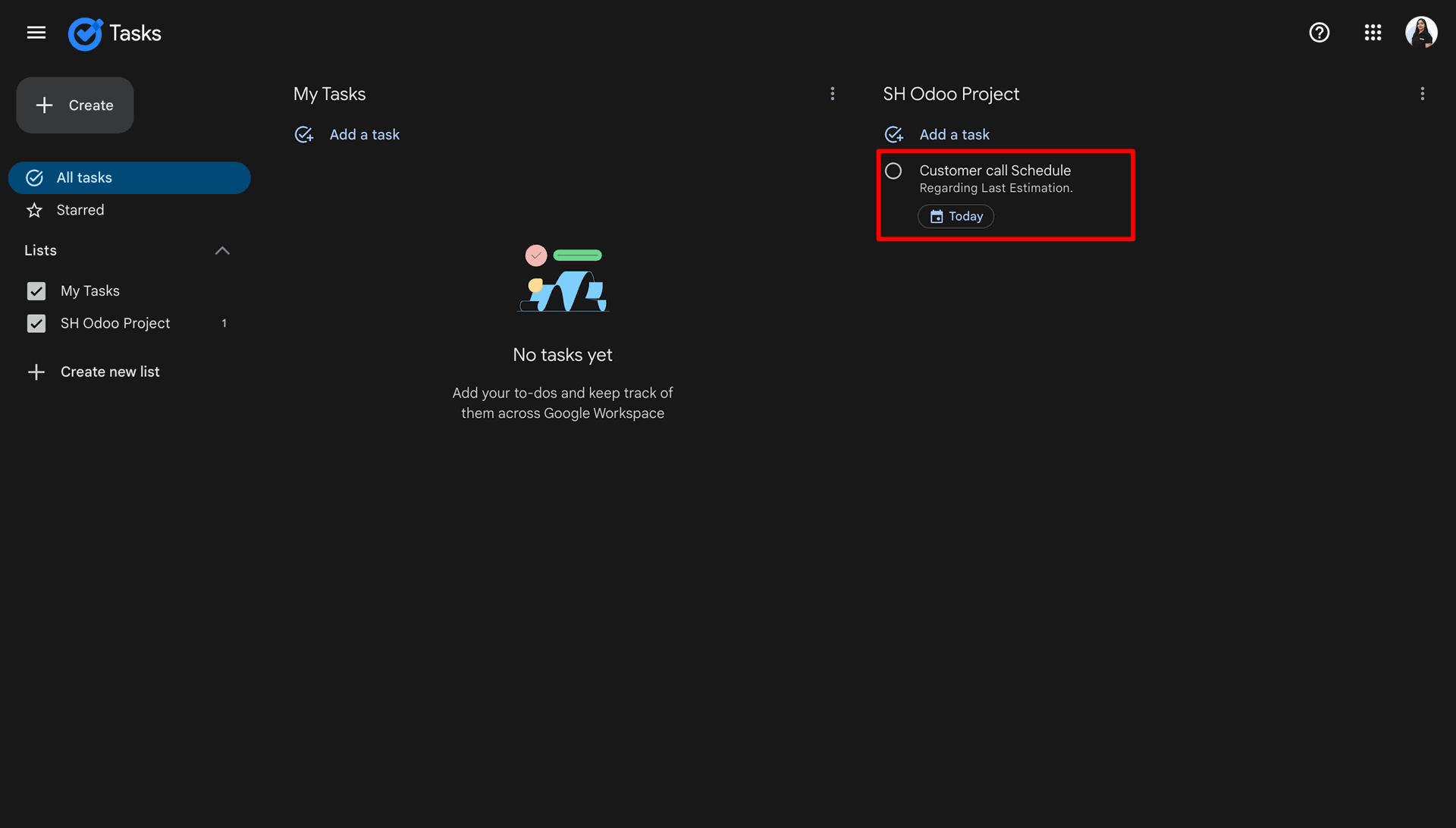
In google we can see that the tasks were synced successfully.
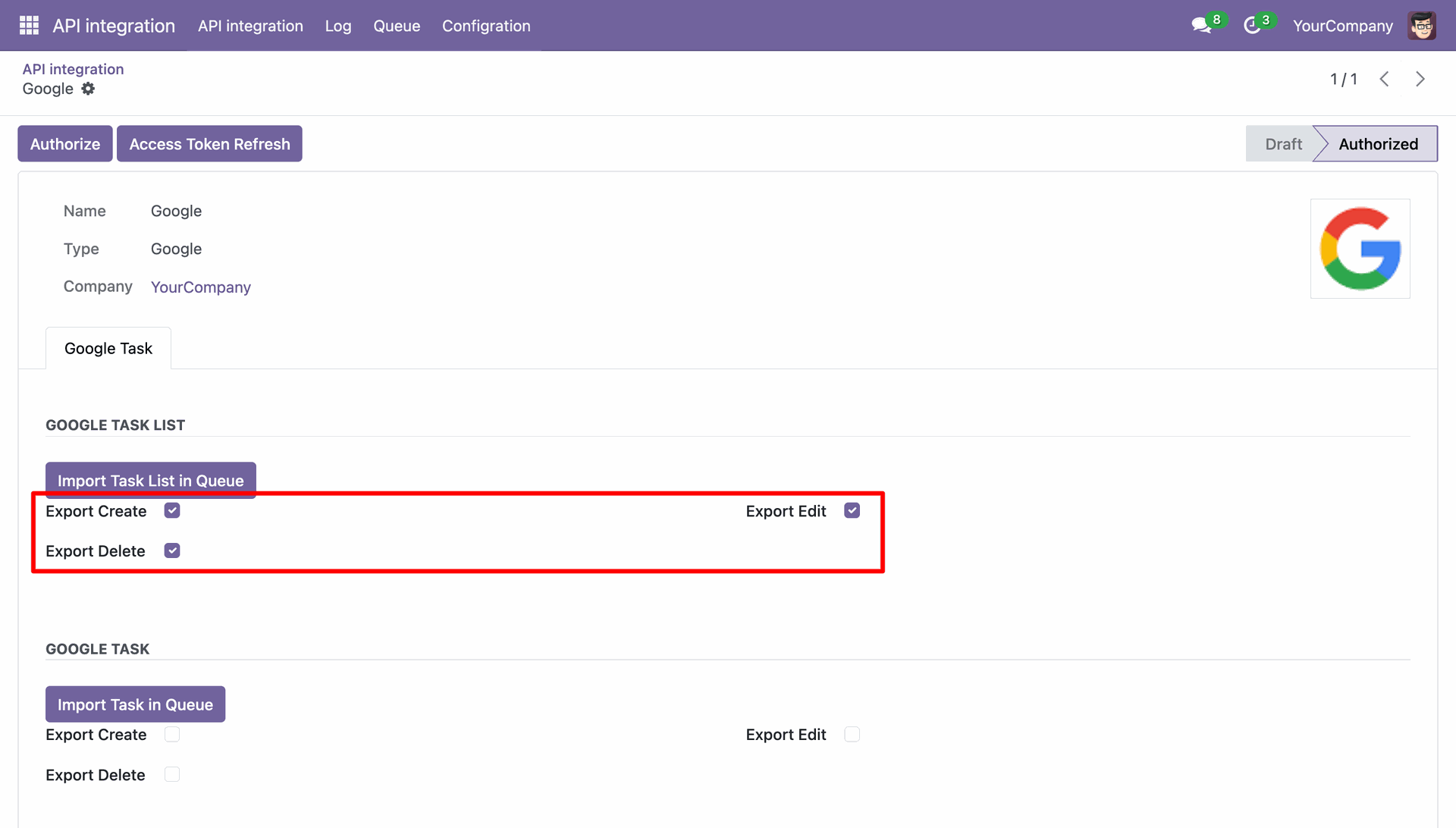
In the Google Task List enable the Export Create, Export Edit and Export Delete.
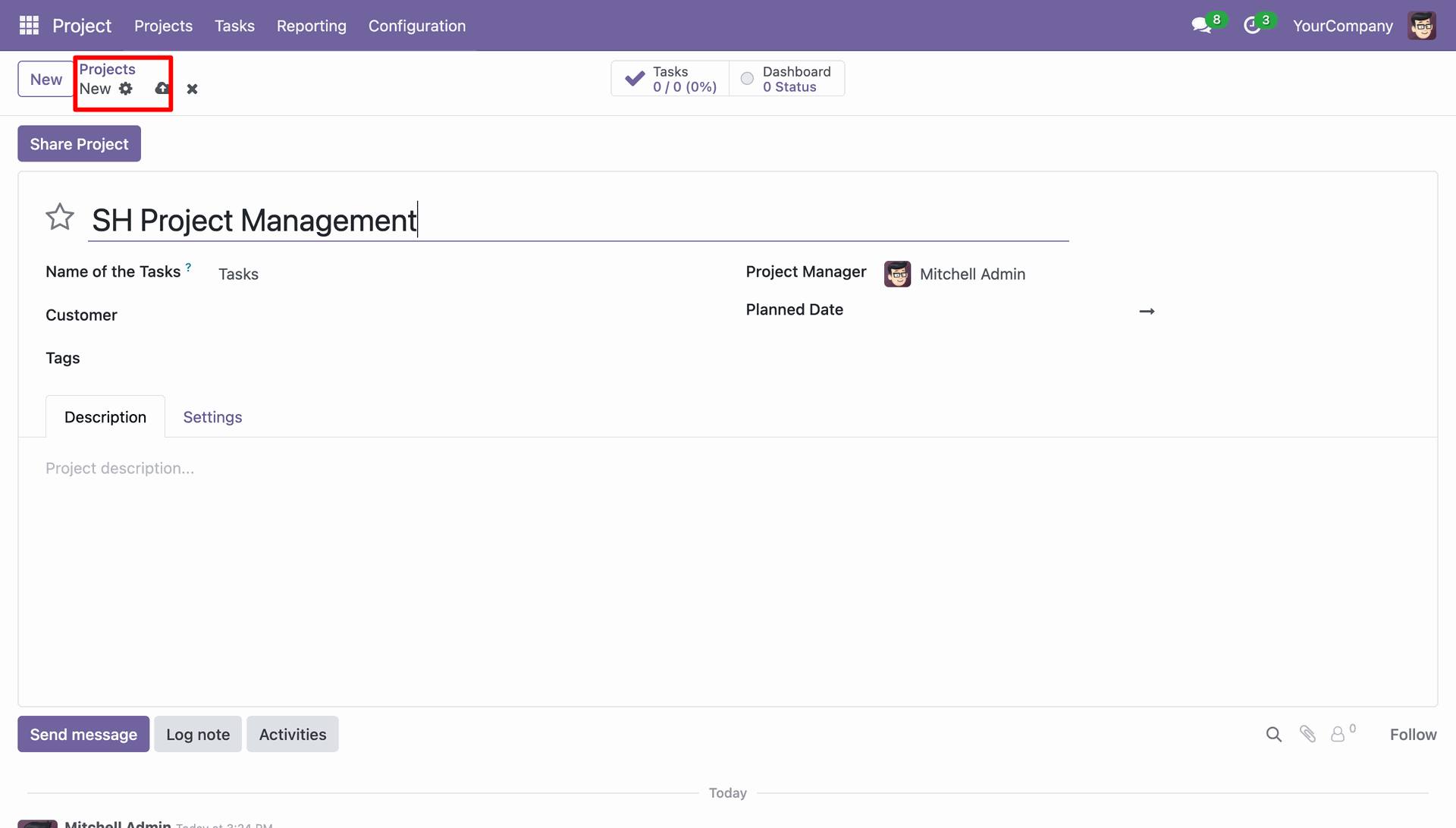
Creating a new project in Odoo.
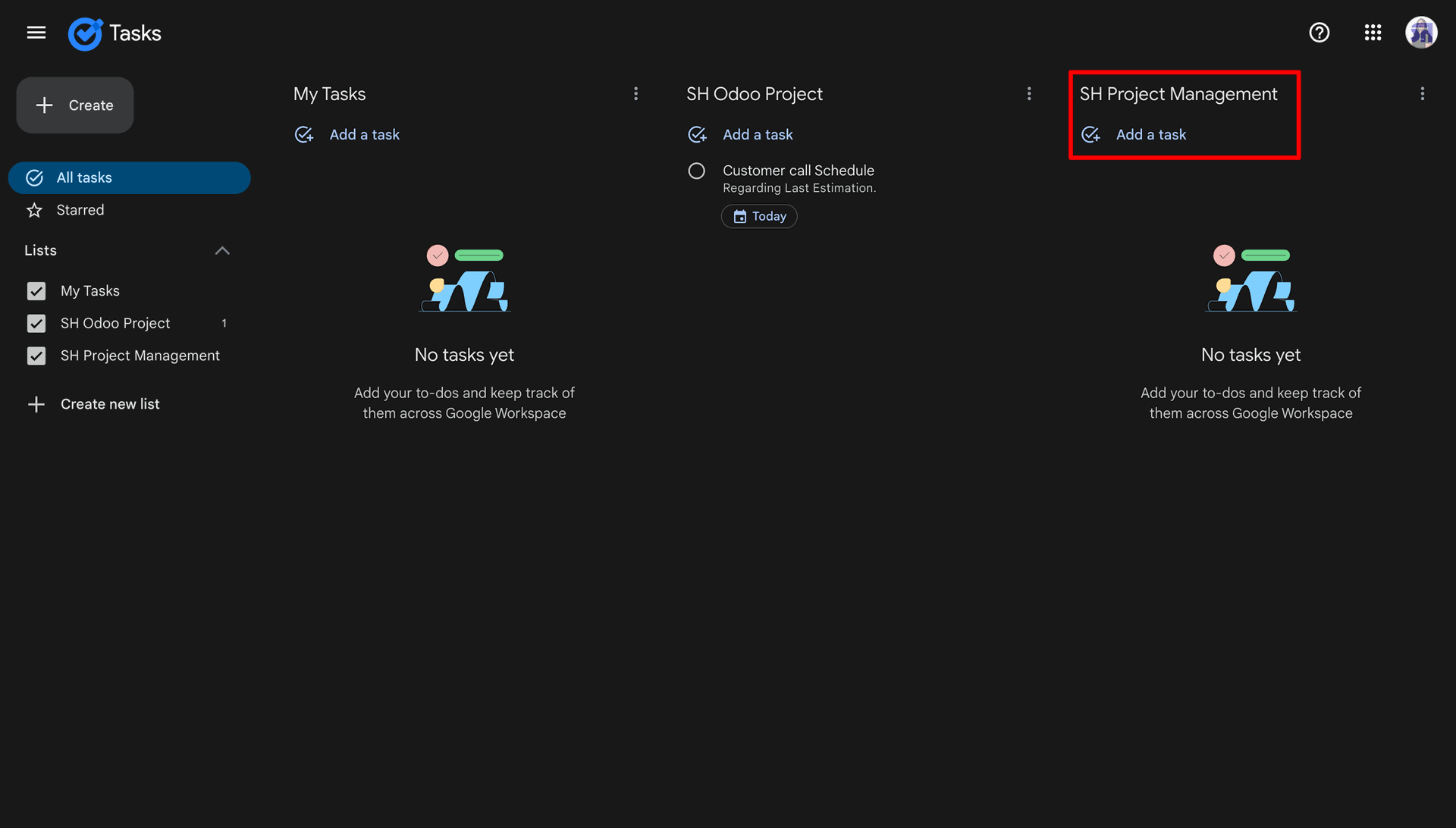
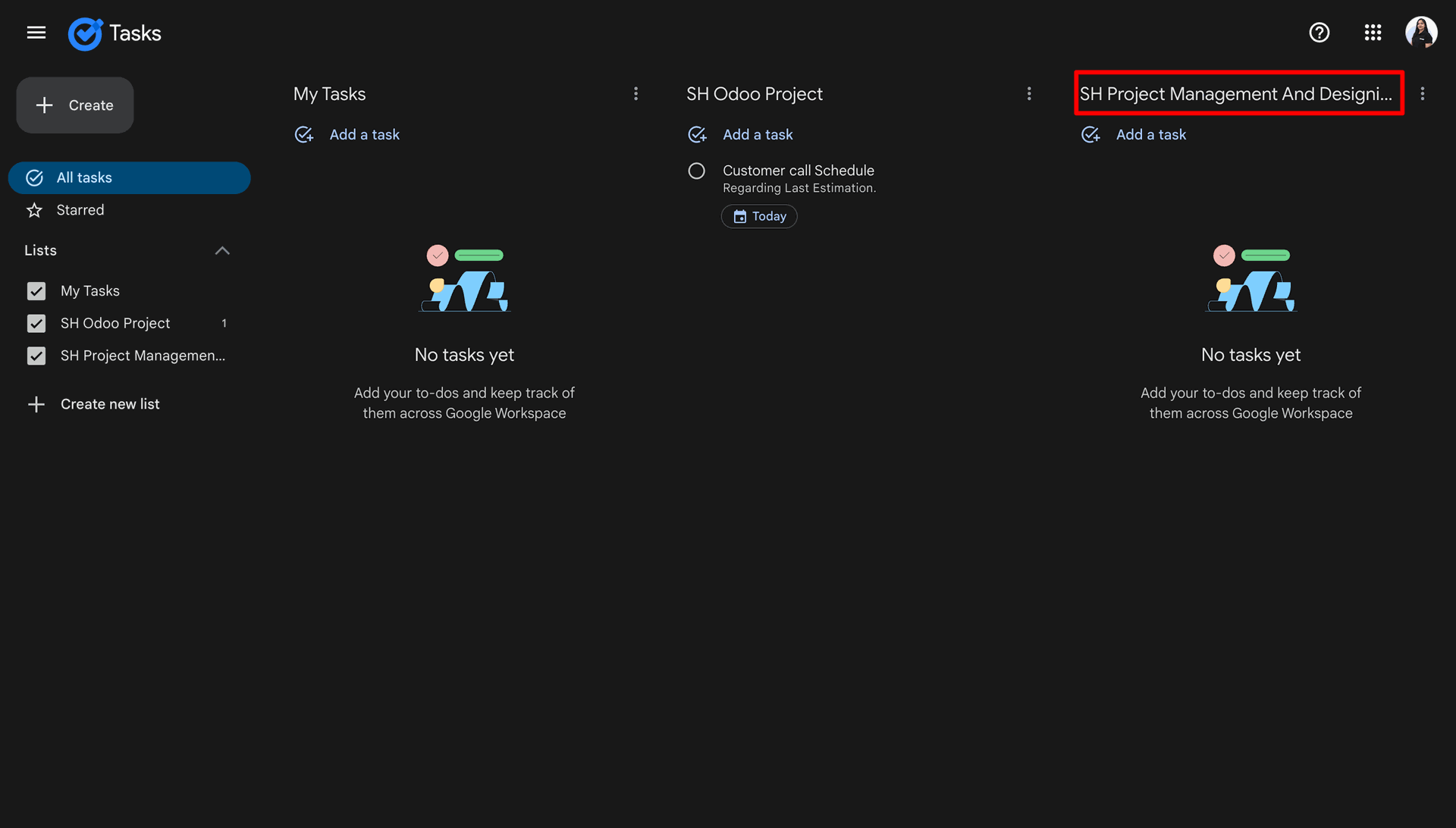
Project created in the Google Tasks as well.
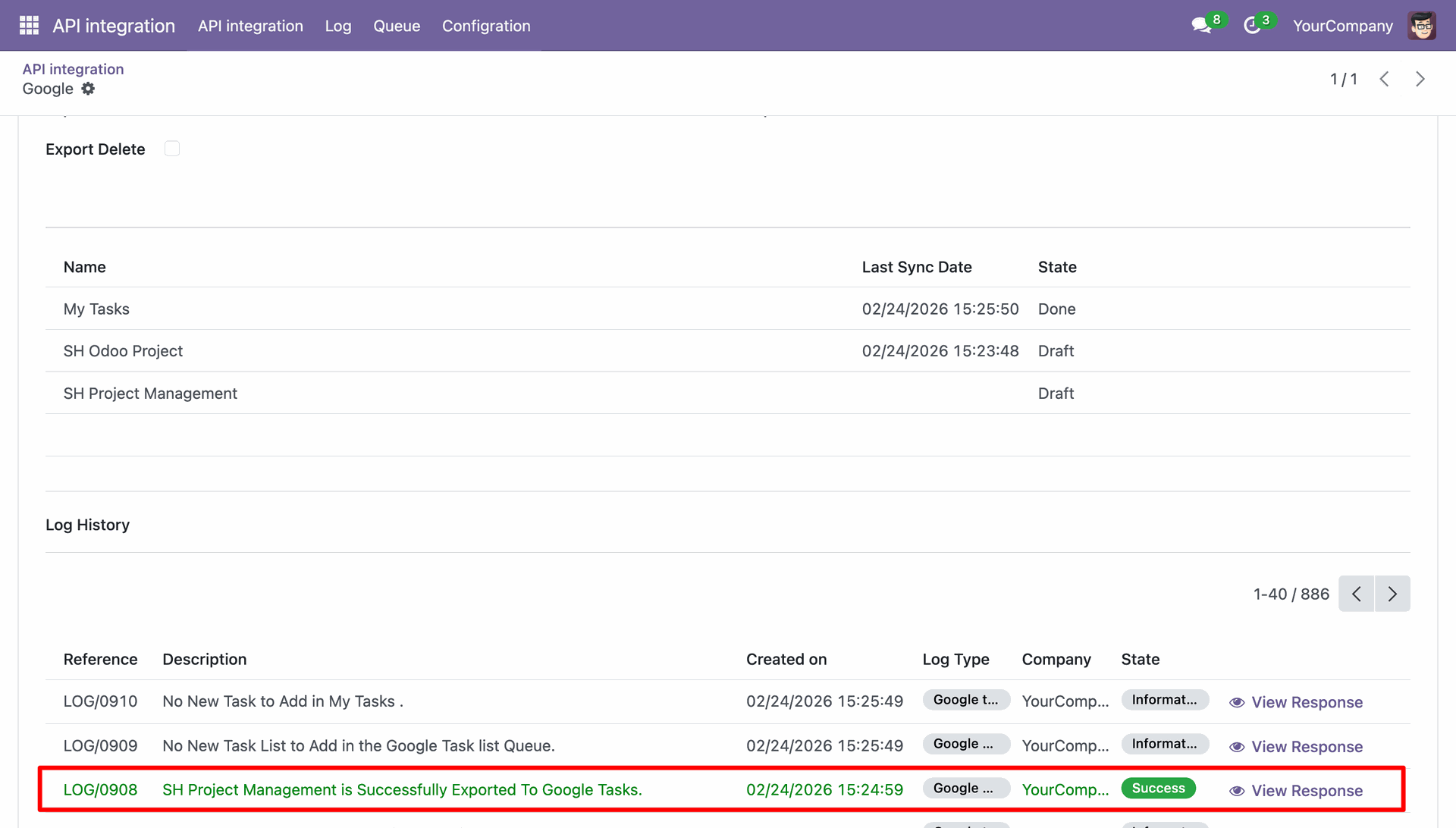
Log stating that the project is successfully exported.
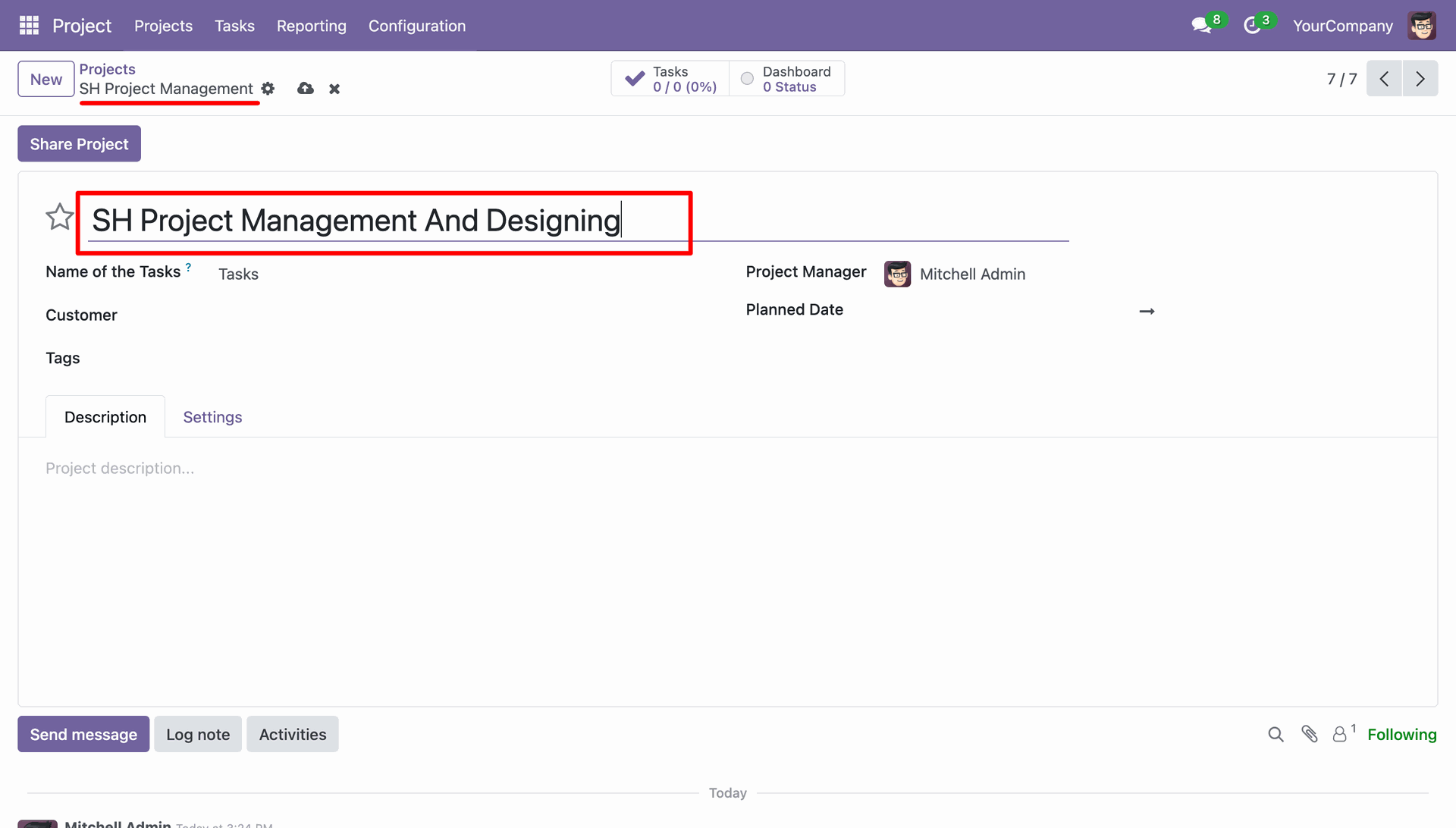
Renaming the project.
Project name renamed in the Google Task well.
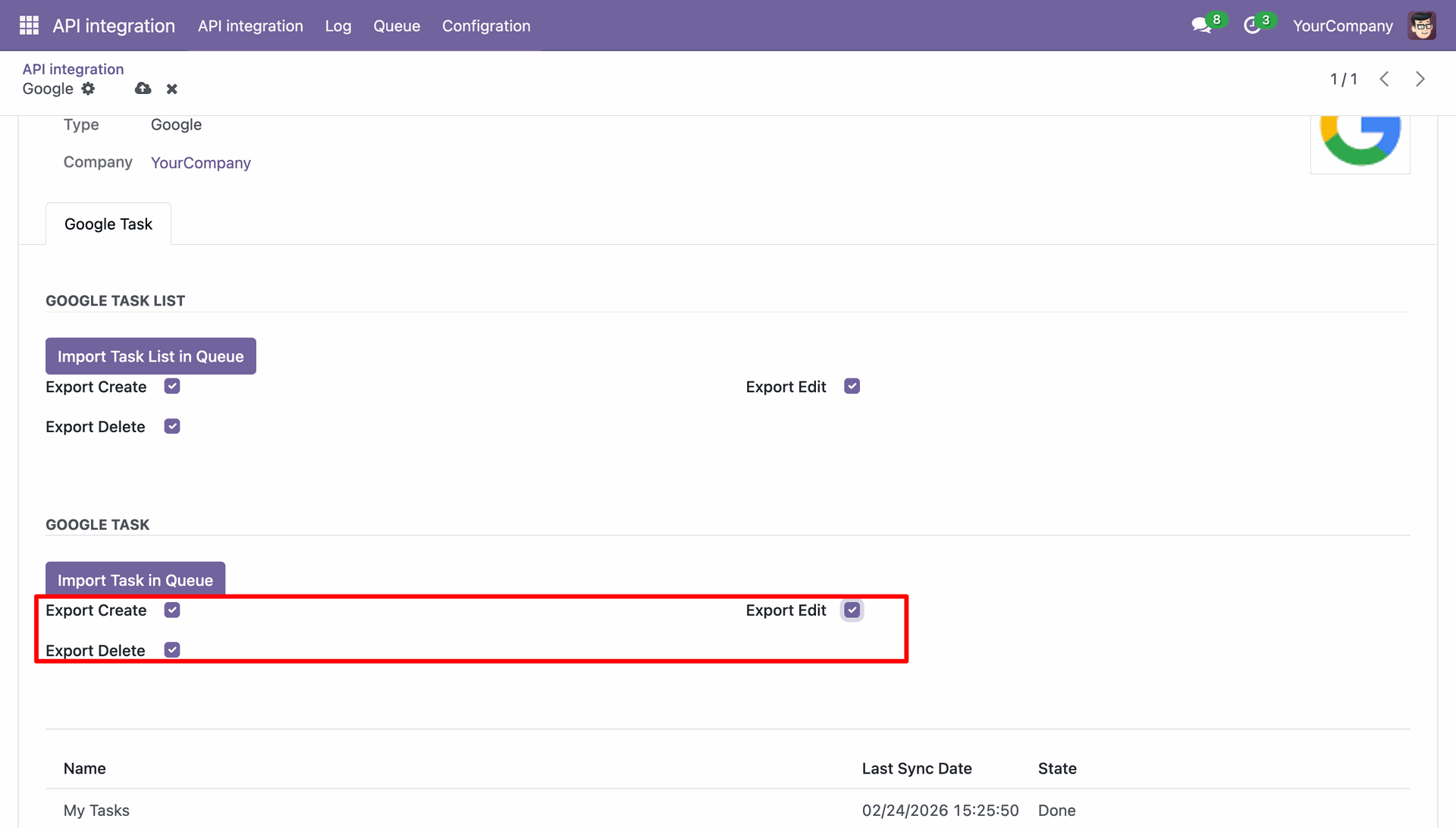
Enable the Export Create, Export Edit and Export Delete in the Google Task Tab in Odoo.
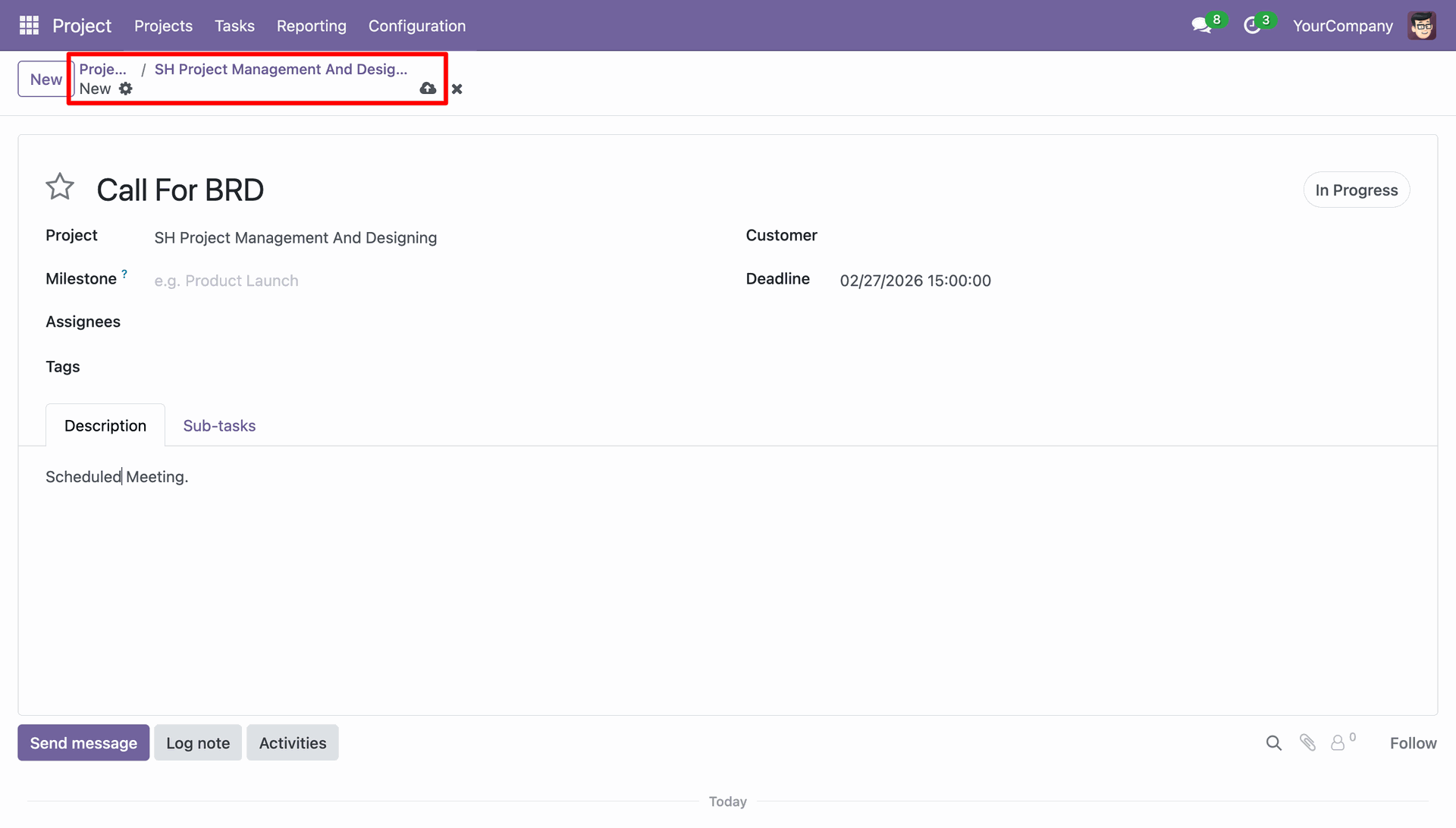
Creating a task in the project in Odoo.
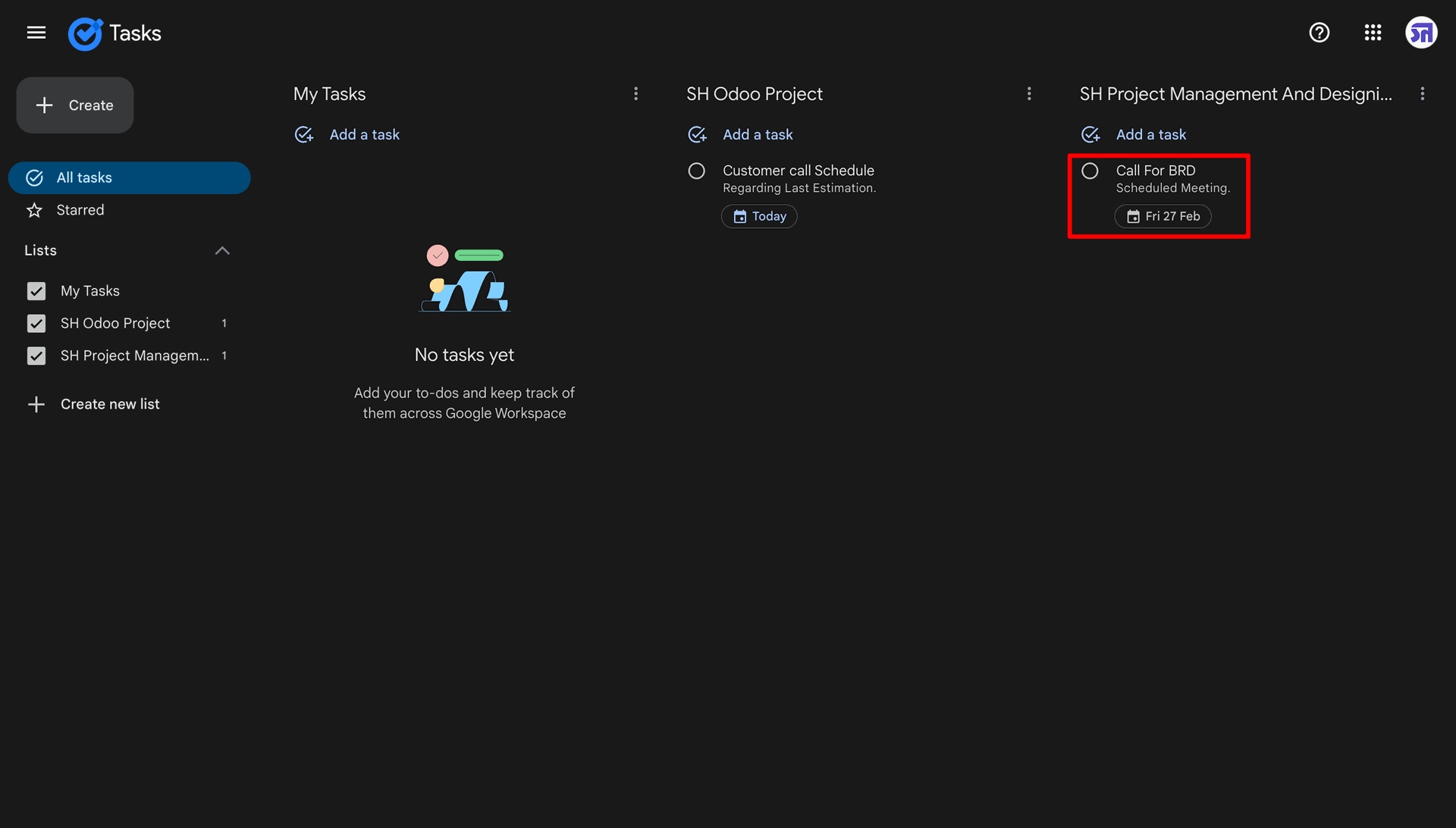
Task synced successfully in the Google Tasks as well.
Renaming the task in Odoo.
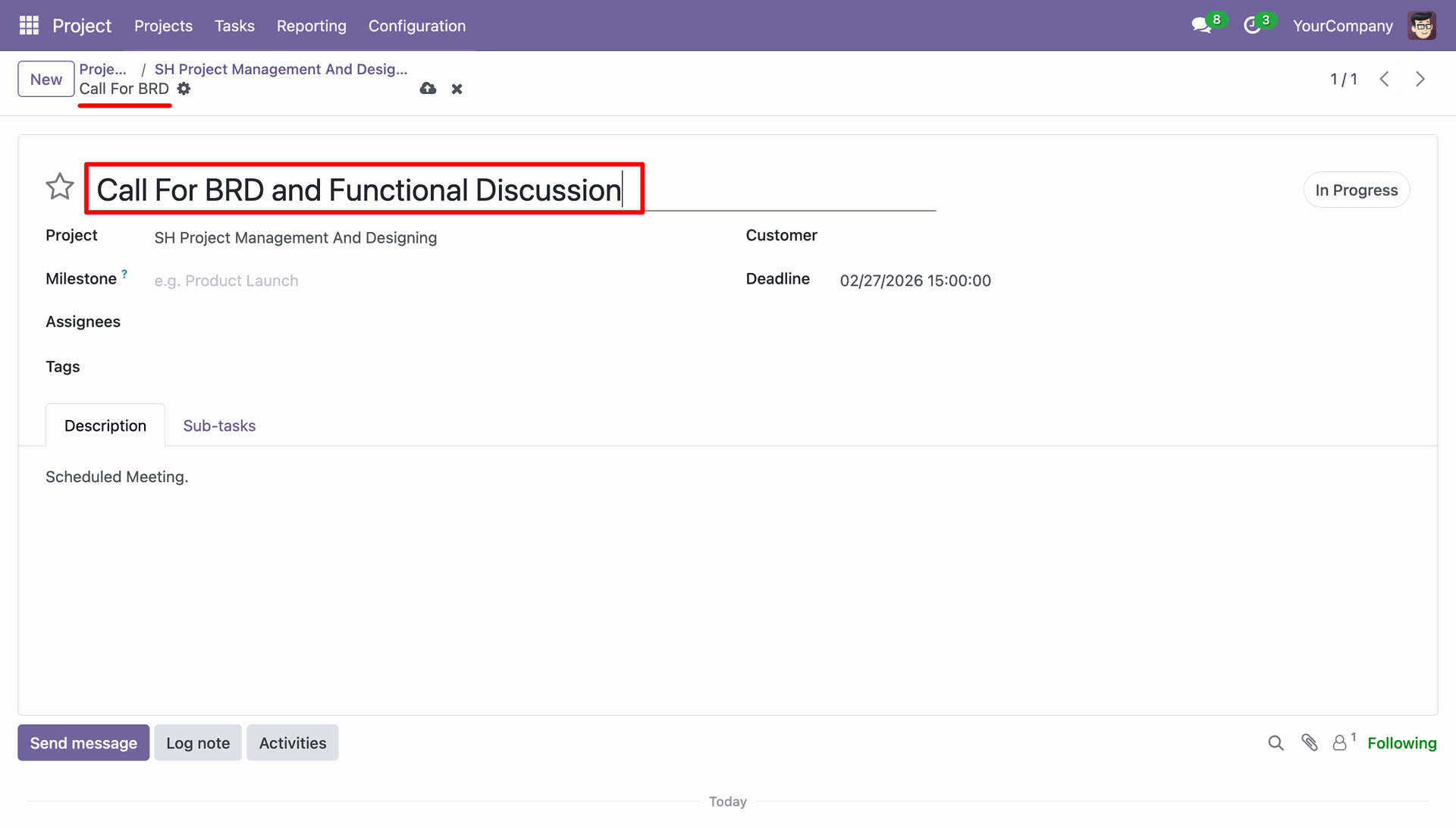
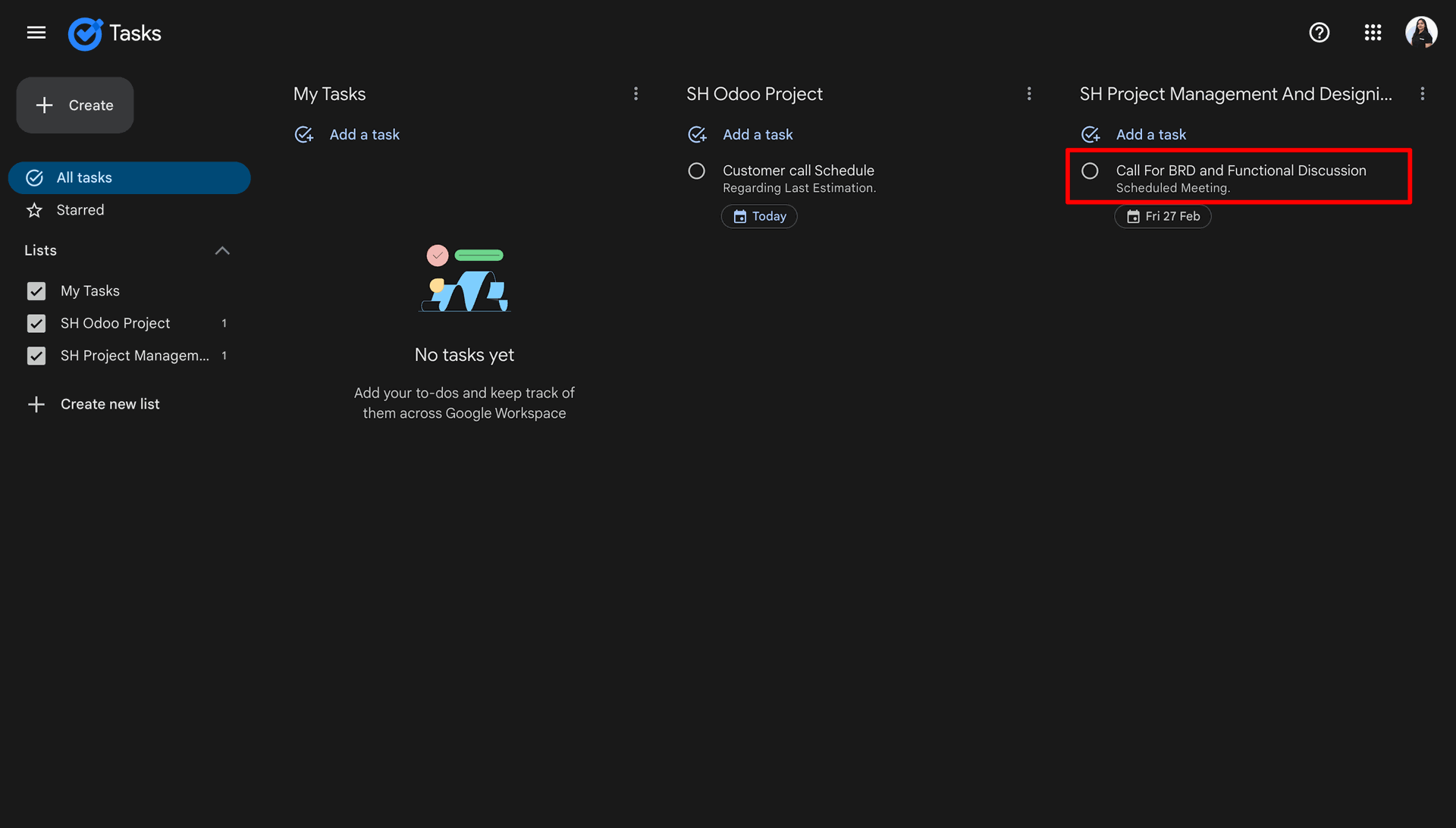
Task name renamed in the Google Tasks as well.
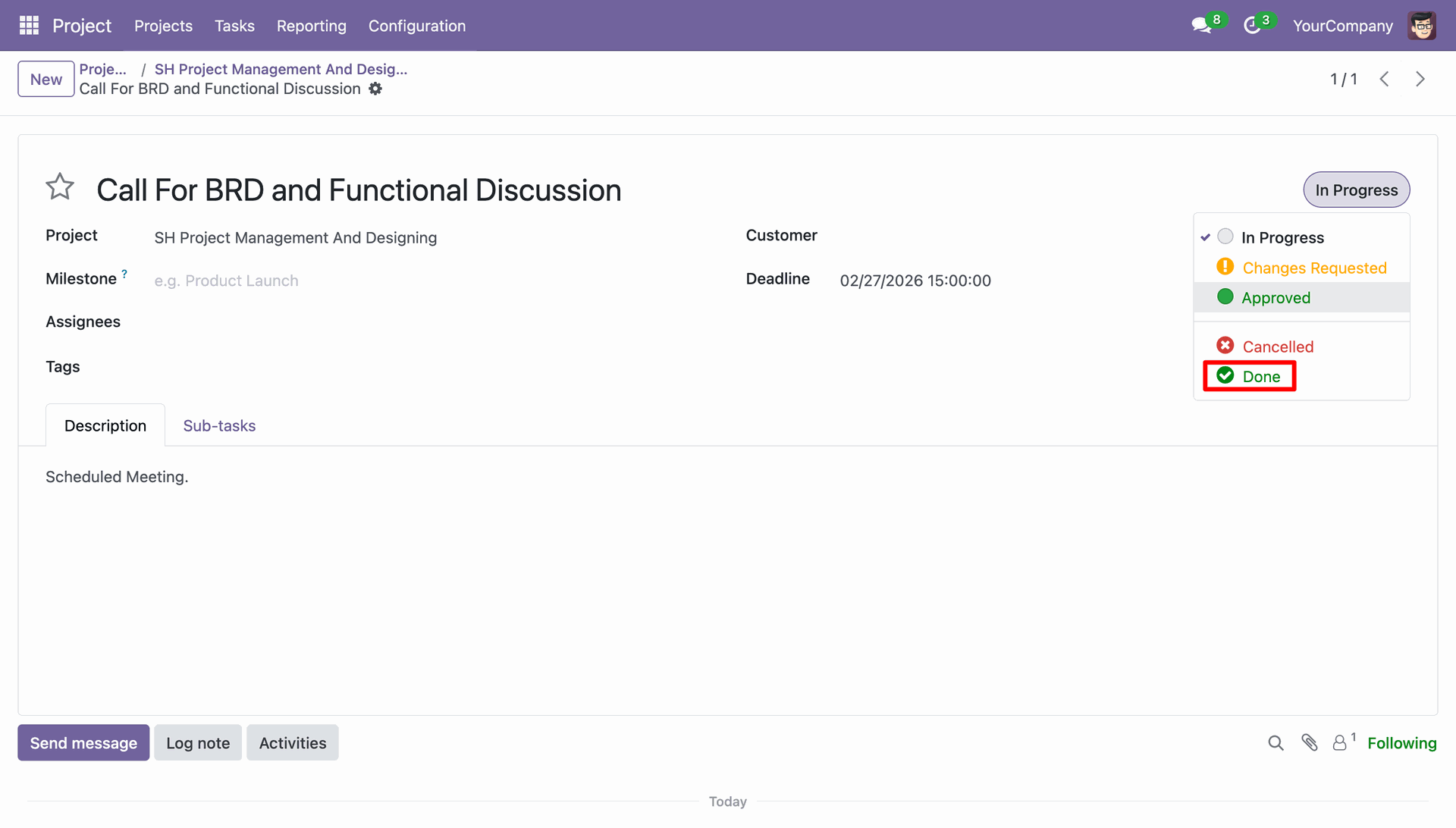
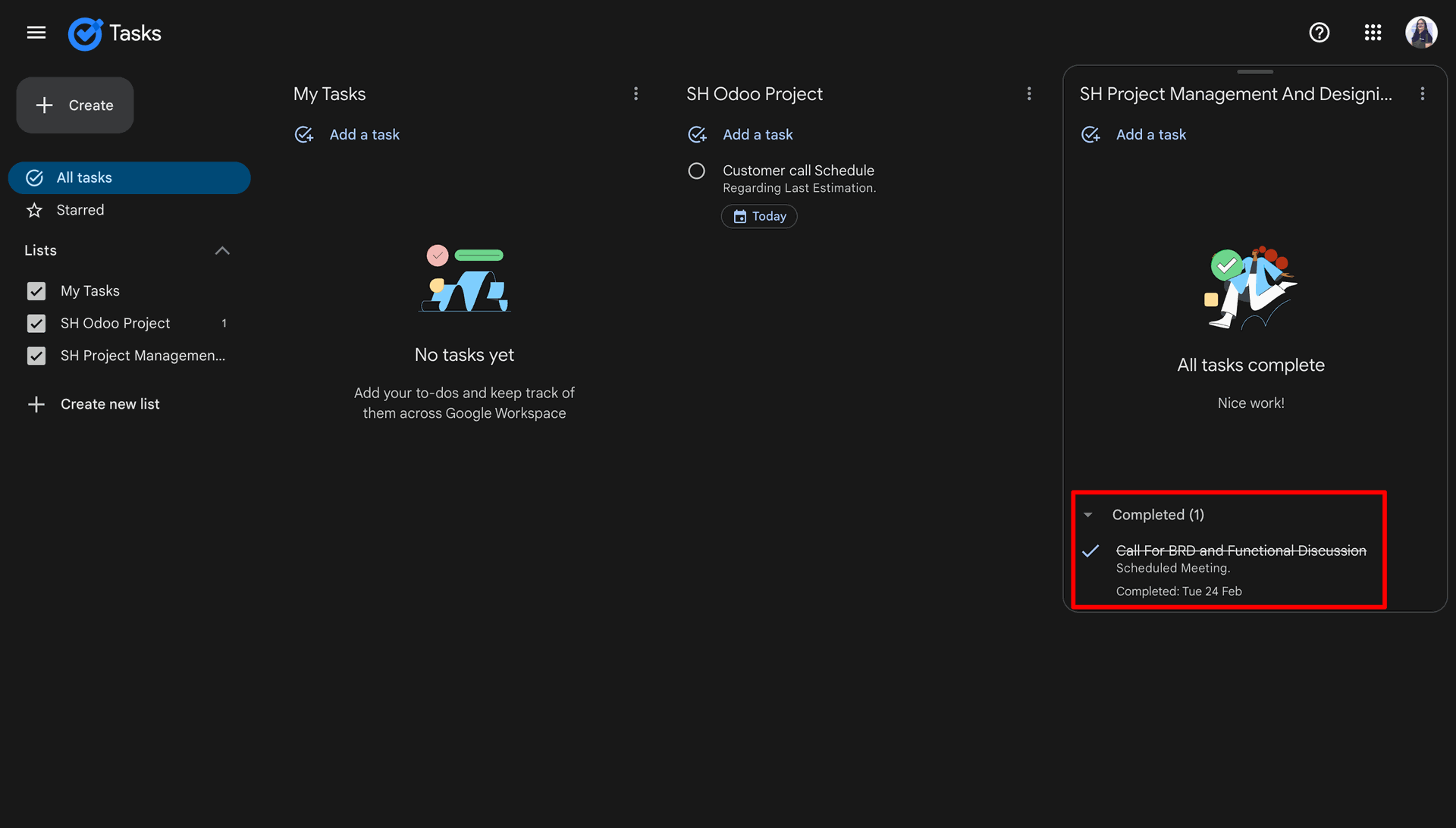
Changing the state from In Progres to Done in Odoo.
Task moved to completed state as well in the Google Tasks.
Deleting the task from the Odoo.
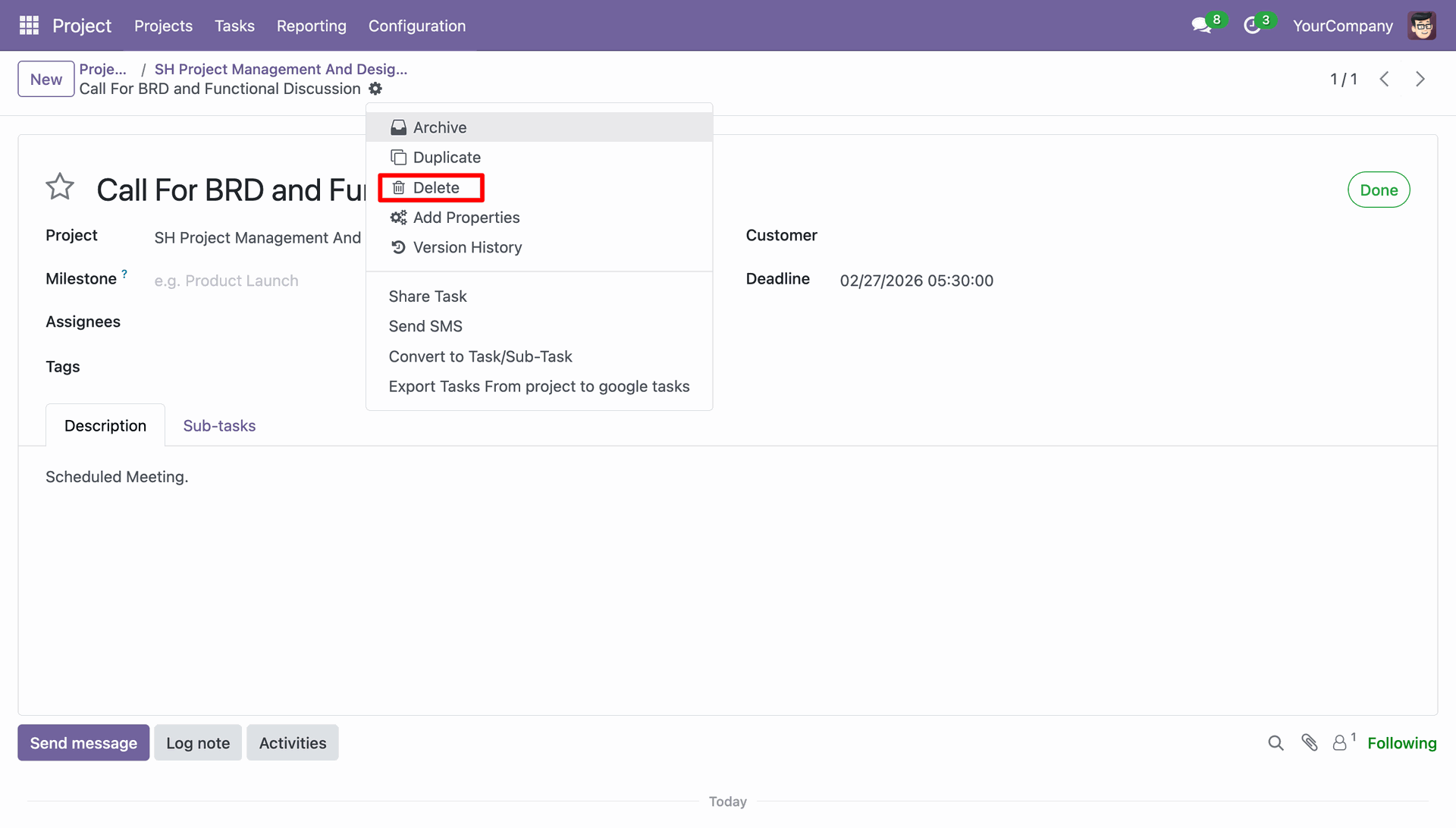
Task deleted from the Google Tasks as well.
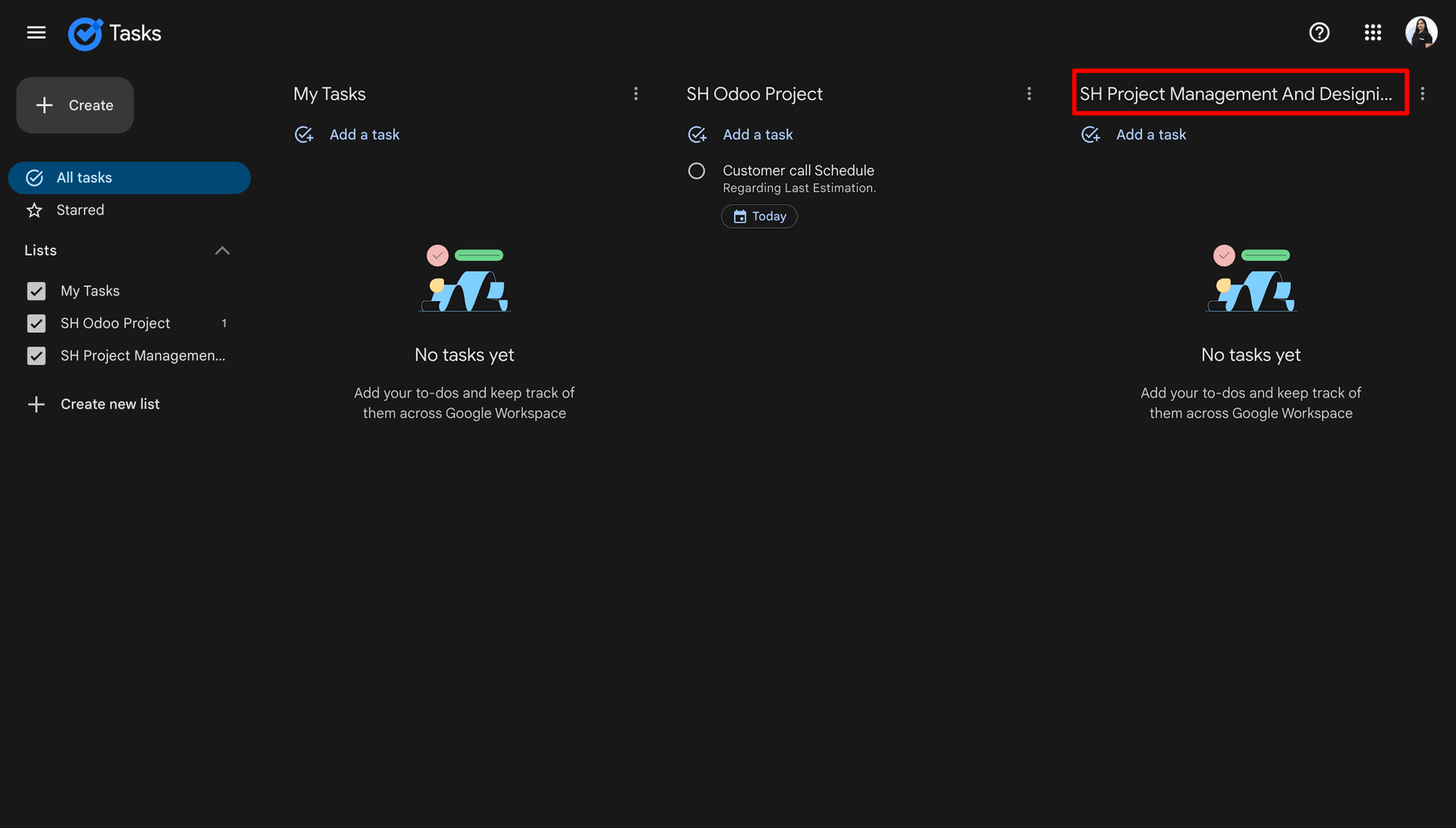
Delete the project from the Odoo.
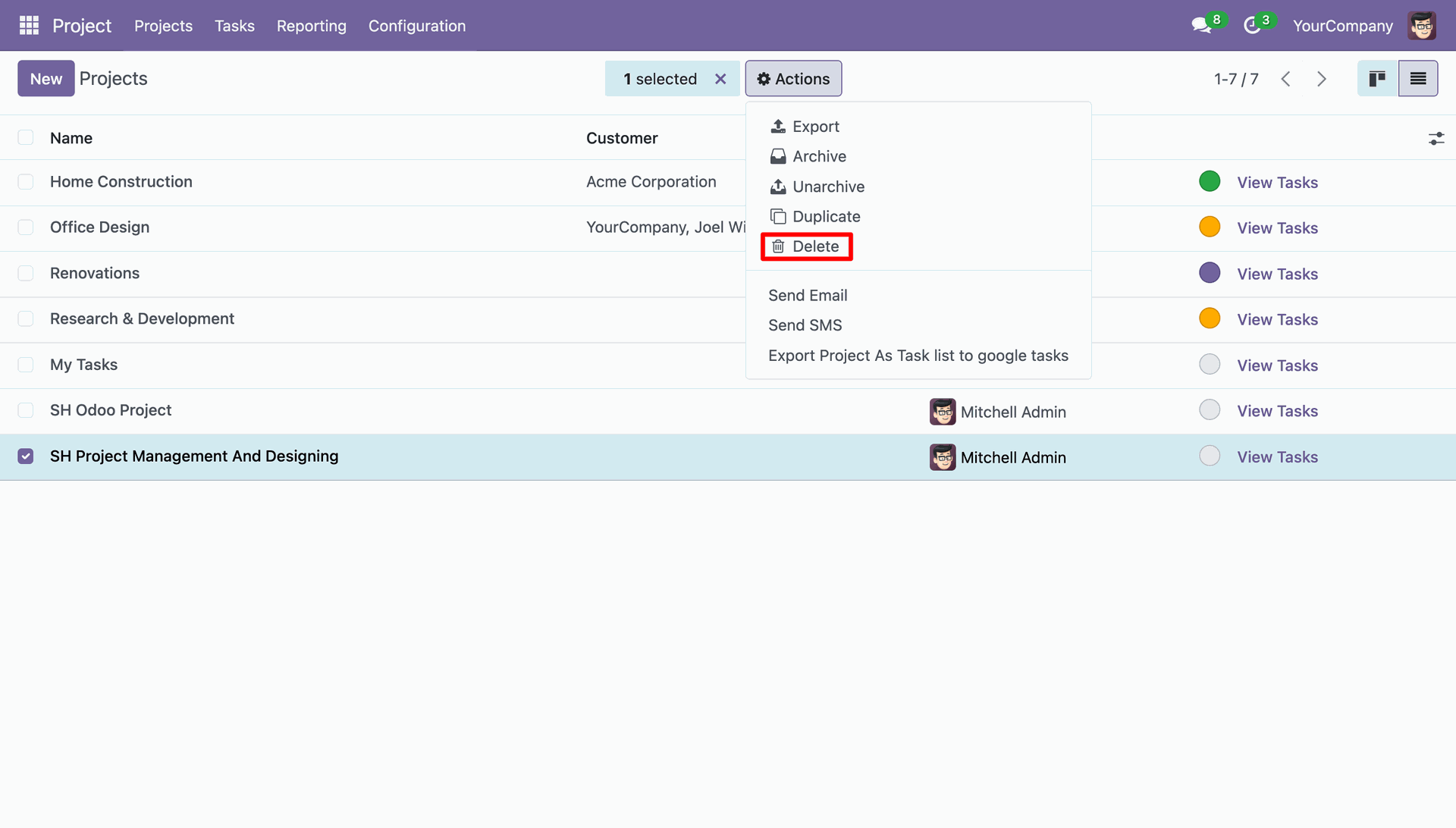
Project deleted from the Google Tasks as well.
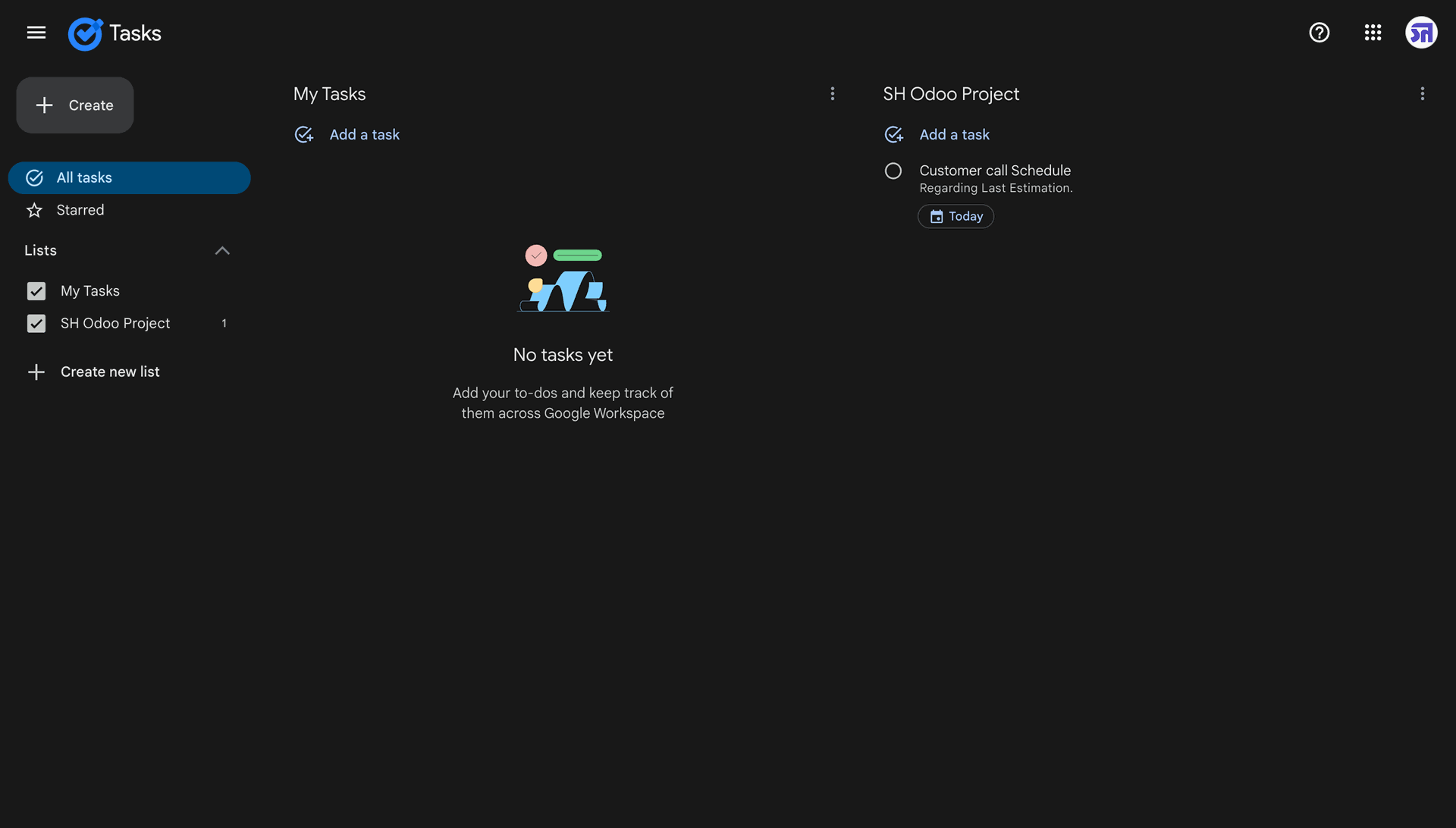
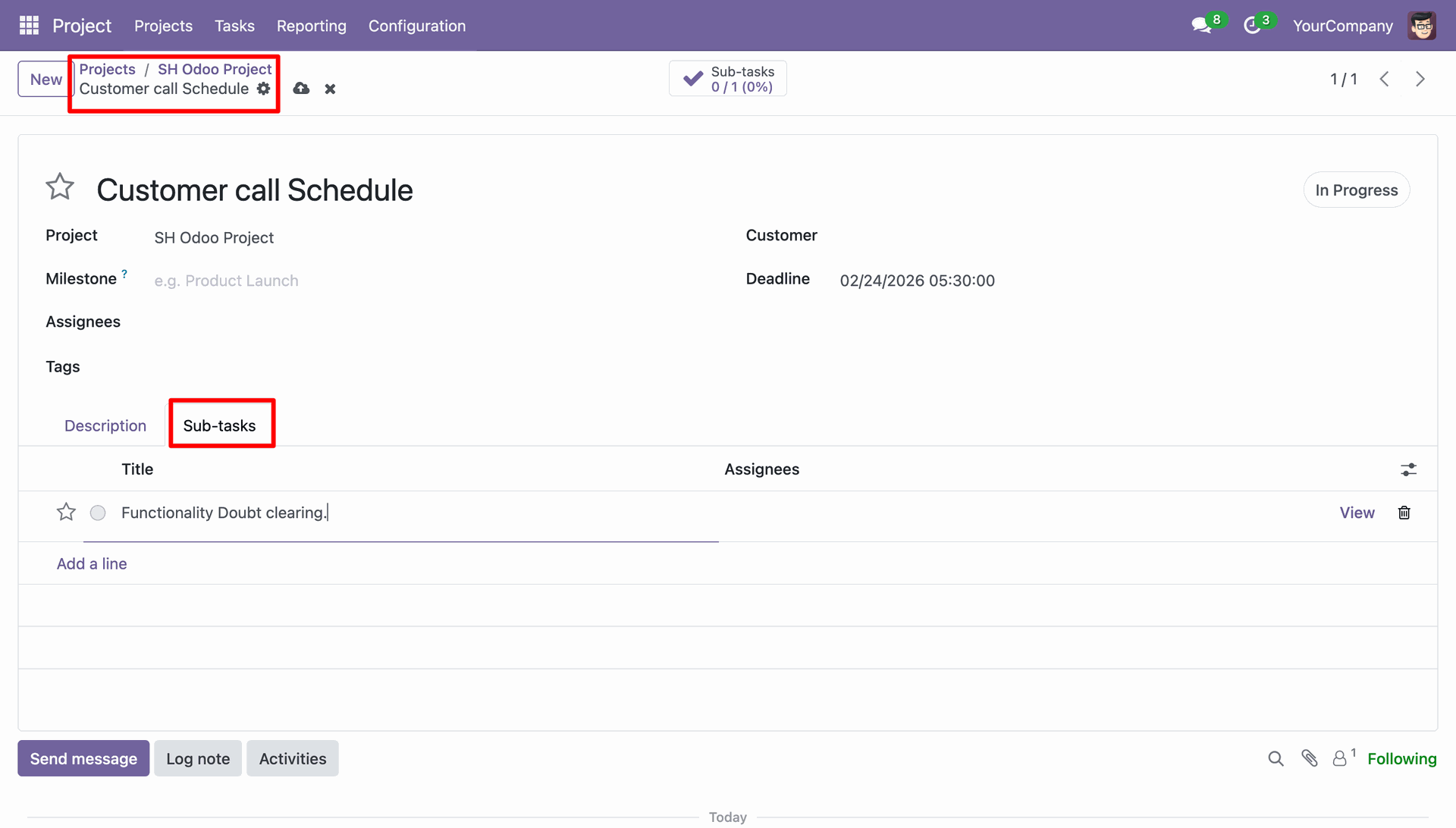
Creating a sub-tasks in Odoo.
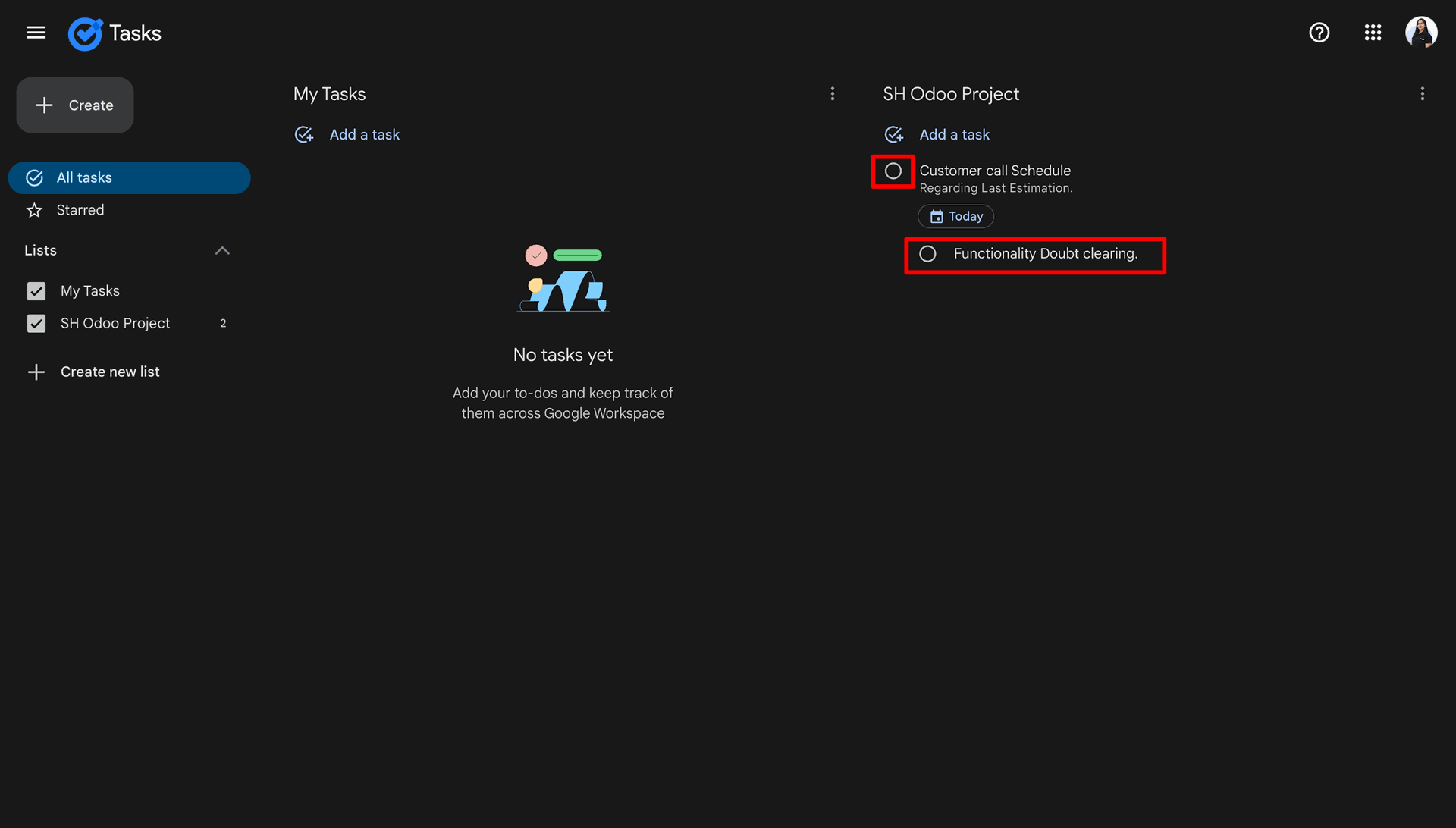
Subtasks synced successfully in the Google Tasks project.
Version 18.0.1.0.0 | Released on : 14th September 2026
- Yes, this app works perfectly with Odoo Enterprise (Odoo.sh & On-Premise) as well as Community.
- No, this application is not compatible with odoo.com(odoo saas/Odoo Online).
- Please Contact Us at sales@softhealer.com to request customization.
- Yes, you will get free update for lifetime.
- No, you don't need to install additional libraries.
- For version 12 or upper, you will need to purchase the module for each version that you want to use.
- Yes, we provide free support for 365 days.
- No, We do not provide any kind of exchange.
Discover Our Latest Apps