












Google Tag Manager

The Google Tag Manager module empowers Odoo users to seamlessly integrate GTM with their website. It tracks essential GA4 events such as product views, cart additions, checkout progress, and successful purchases. Boost your marketing insights by capturing precise user behavior data and managing tracking scripts without modifying code, ensuring a robust analytics setup for your Odoo store.

Related Modules
Features

GTM Configuration
Enter your GTM Container ID per website easily from the Odoo Website Settings.

GA4 Event Tracking
Track essential GA4 events like page views user engagement and website interactions.

Ecommerce Analytics
Capture ecommerce activity including product views cart actions and purchase-related data.

Better SEO Analytics
Measure visitor behavior and website engagement data to evaluate SEO performance.
Odoo Website Settings for GTM Configuration
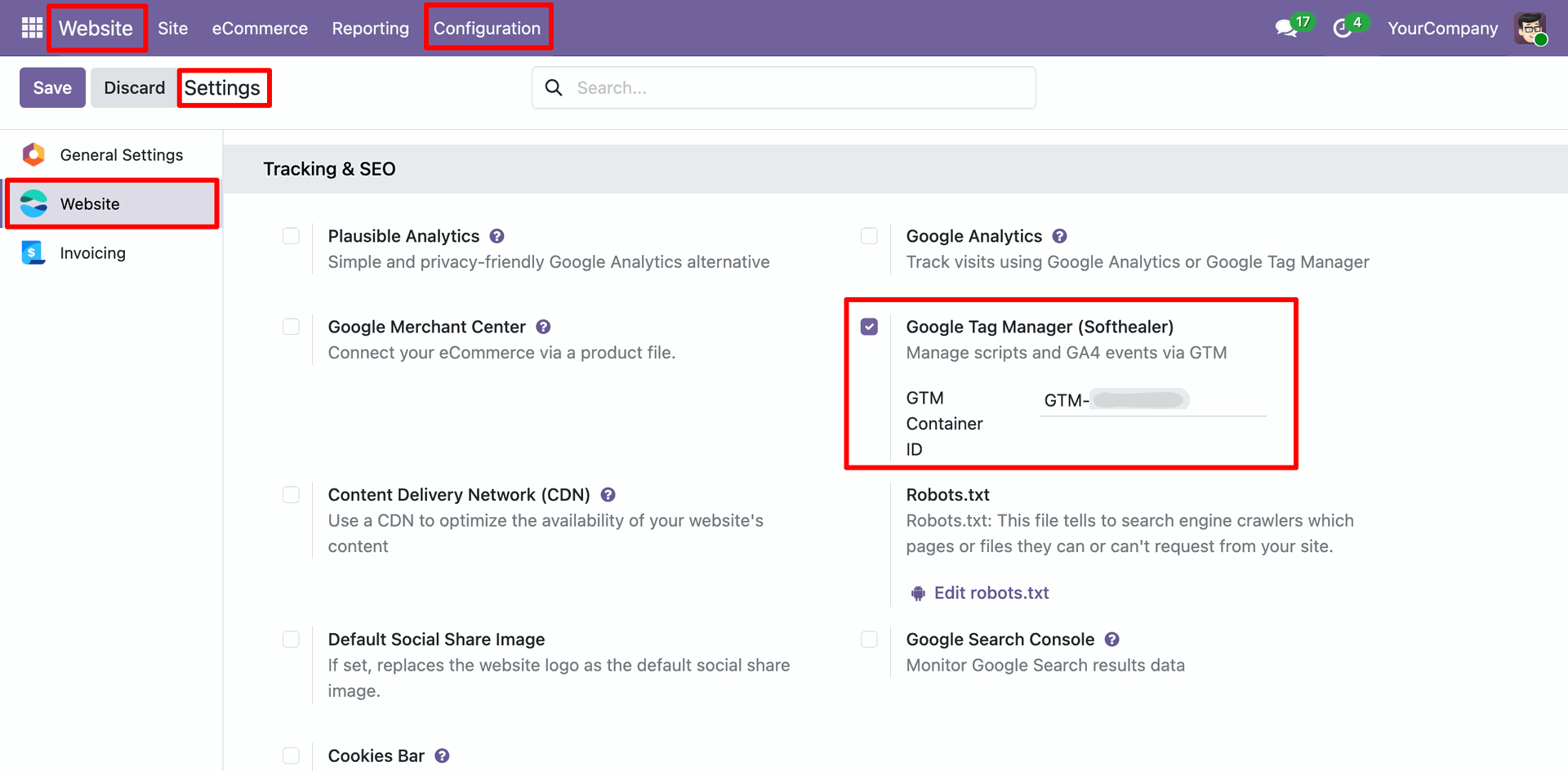
Entering Container ID
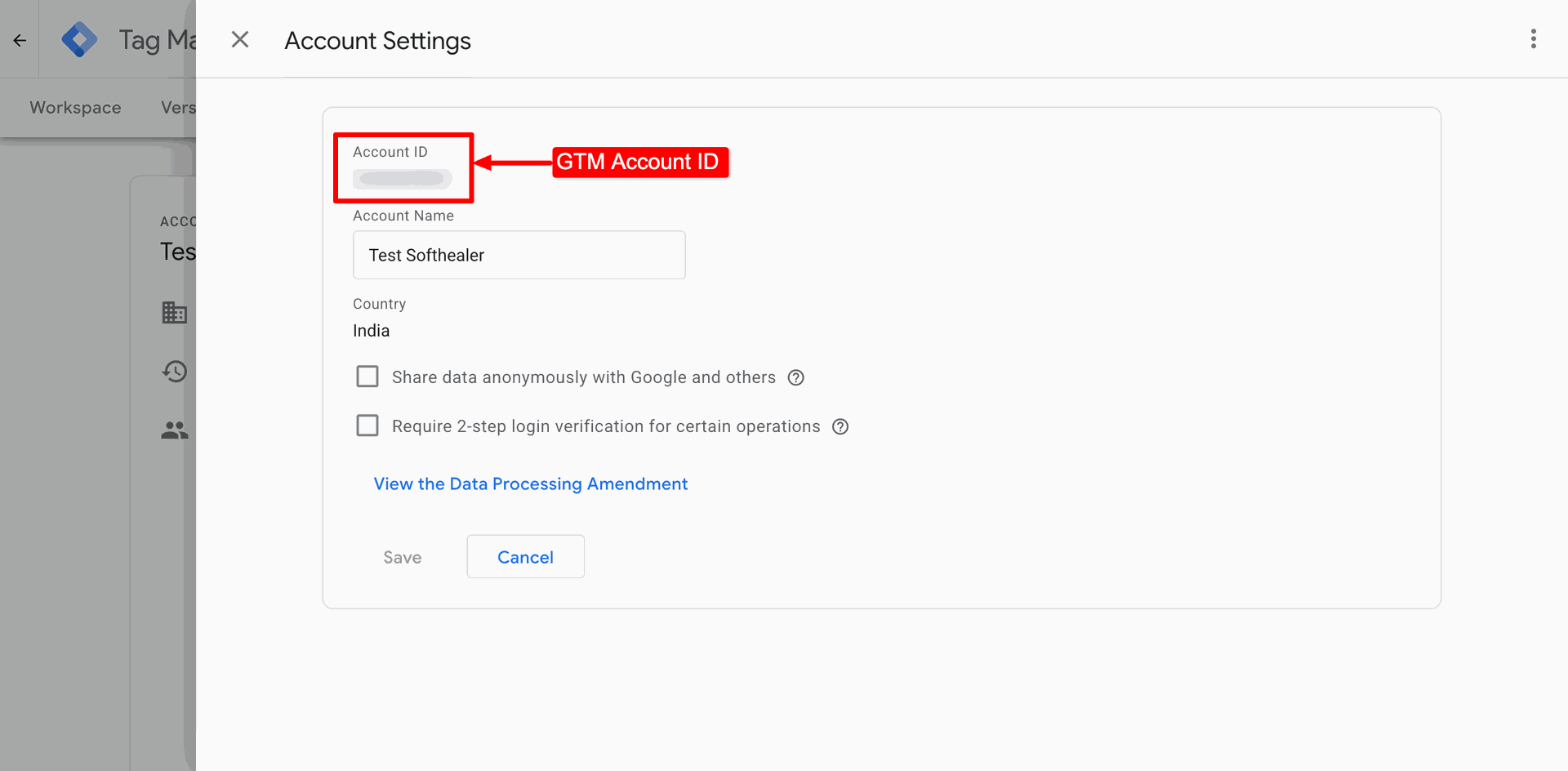
Navigating to Account Settings in Google Tag Manager to identify and copy the unique GTM Account ID.
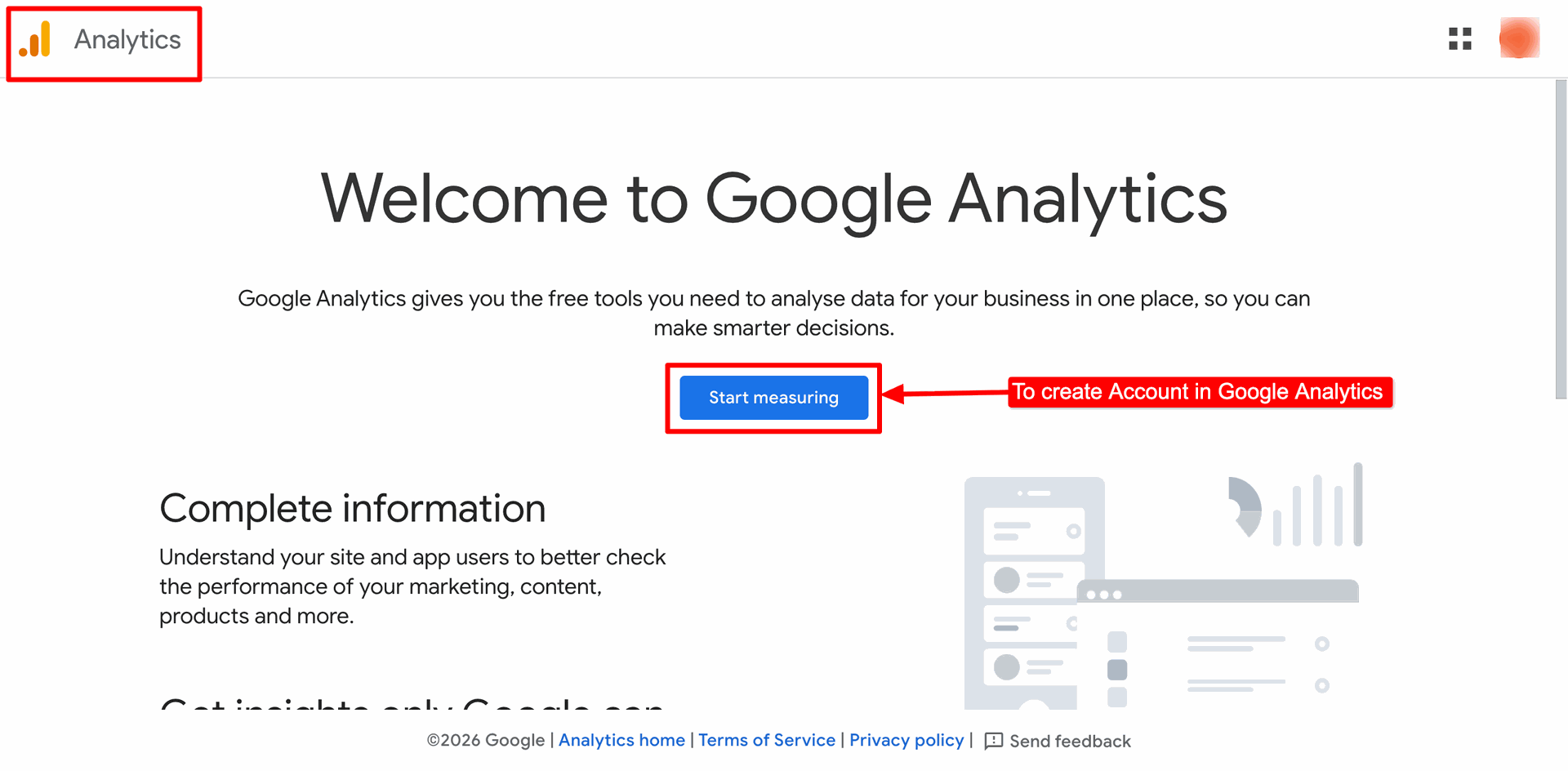
Selecting the Start measuring button on the Google Analytics landing page to begin the account creation process.
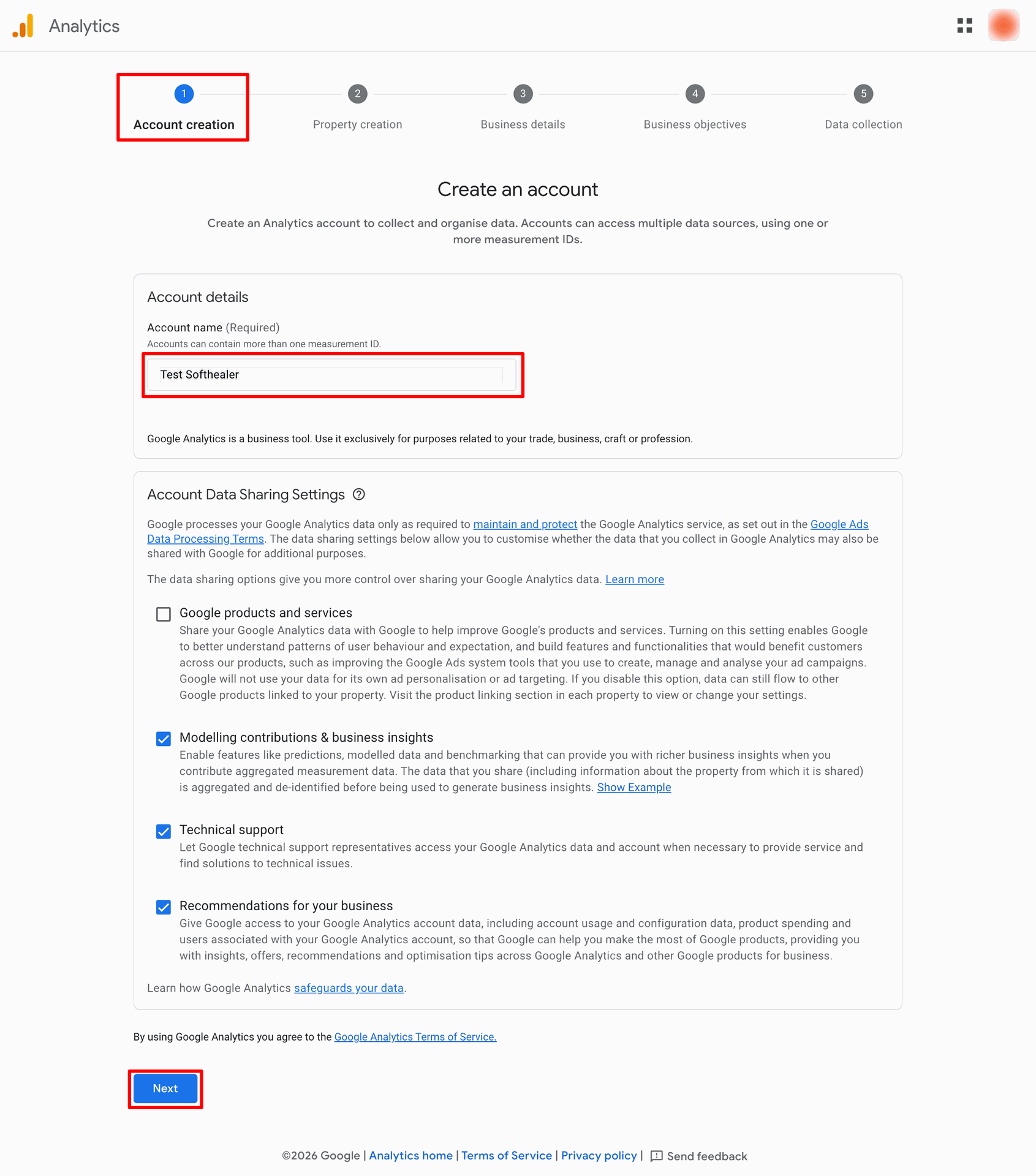
Entering the account name as Test Softhealer and configuring data sharing settings before proceeding to the Next step of the Google Analytics setup.
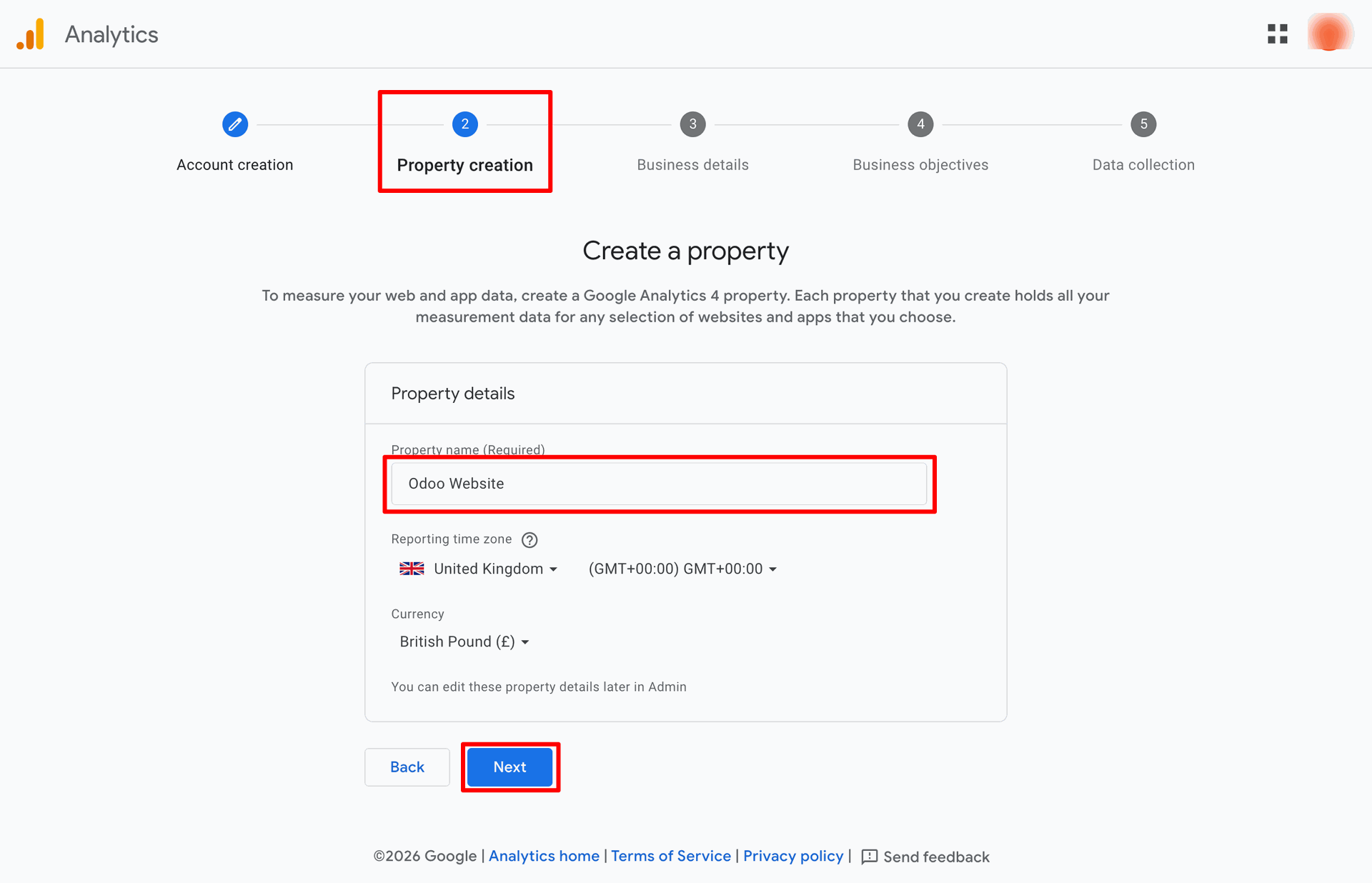
Naming the property Odoo Website and setting the reporting time zone and currency before clicking Next to proceed with the Google Analytics 4 setup.
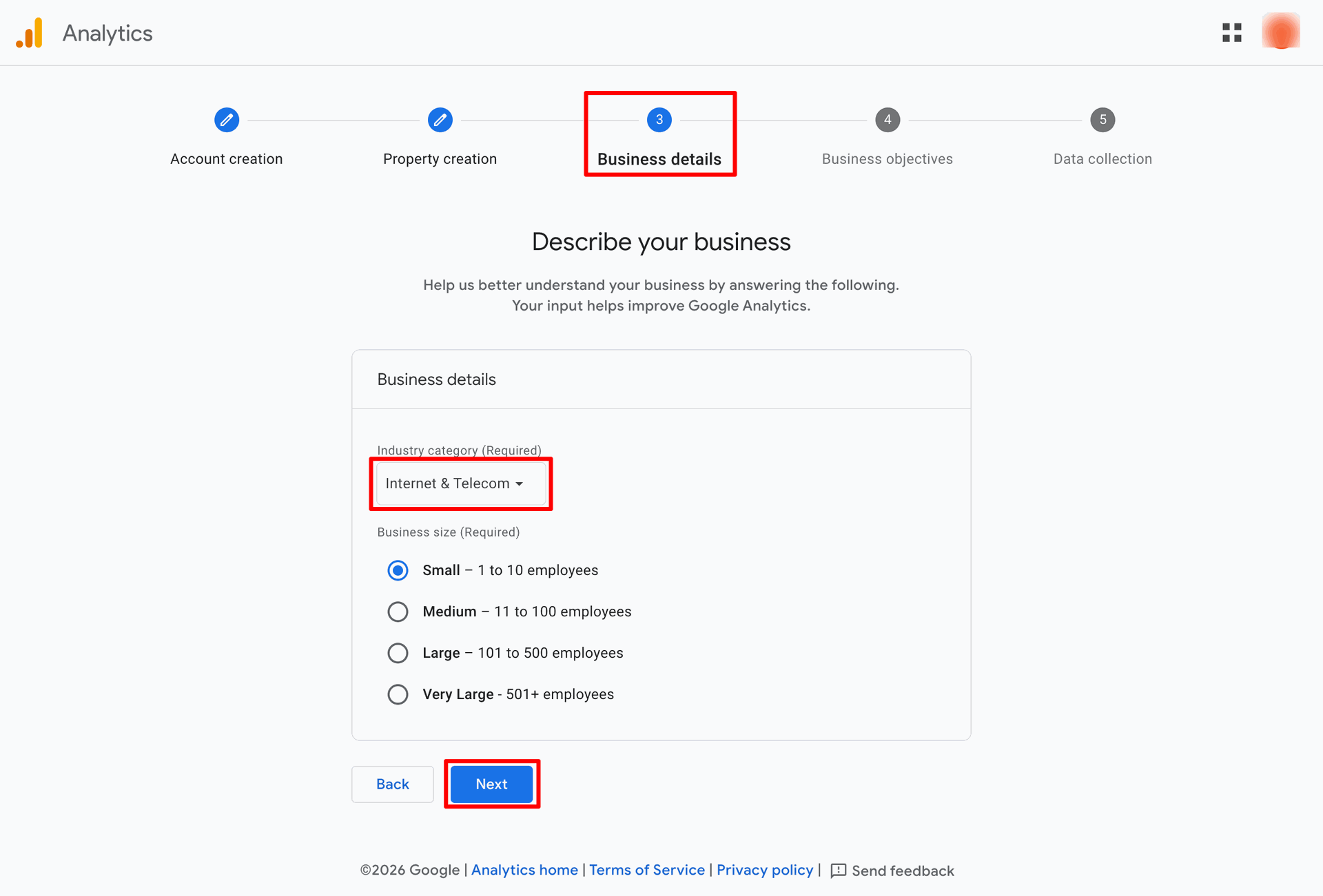
Selecting the Internet & Telecom industry category and identifying the business size as Small before clicking Next to continue the setup process.
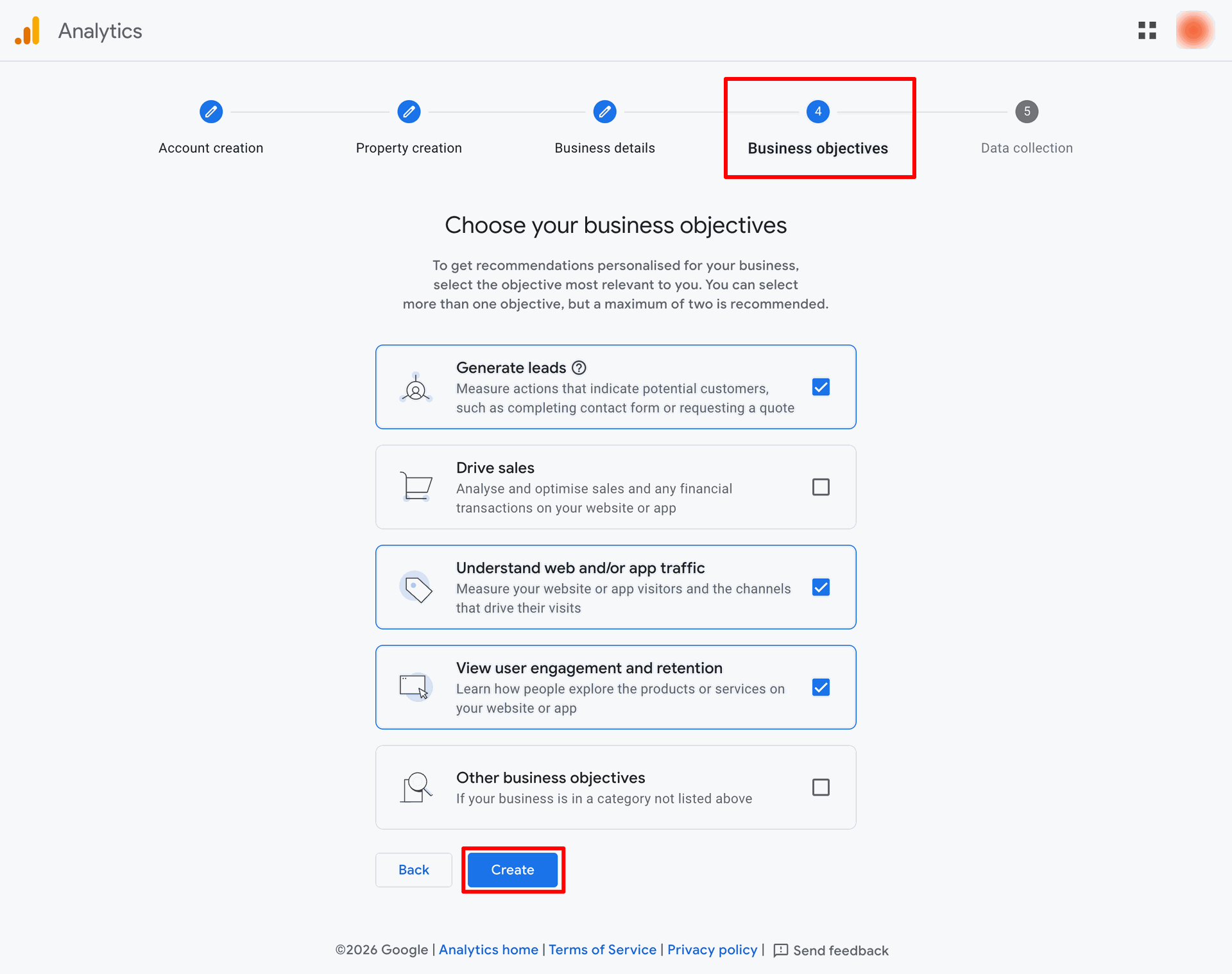
Selecting primary goals such as Generate leads, Understand traffic, and View engagement before clicking Create to finalize the setup.
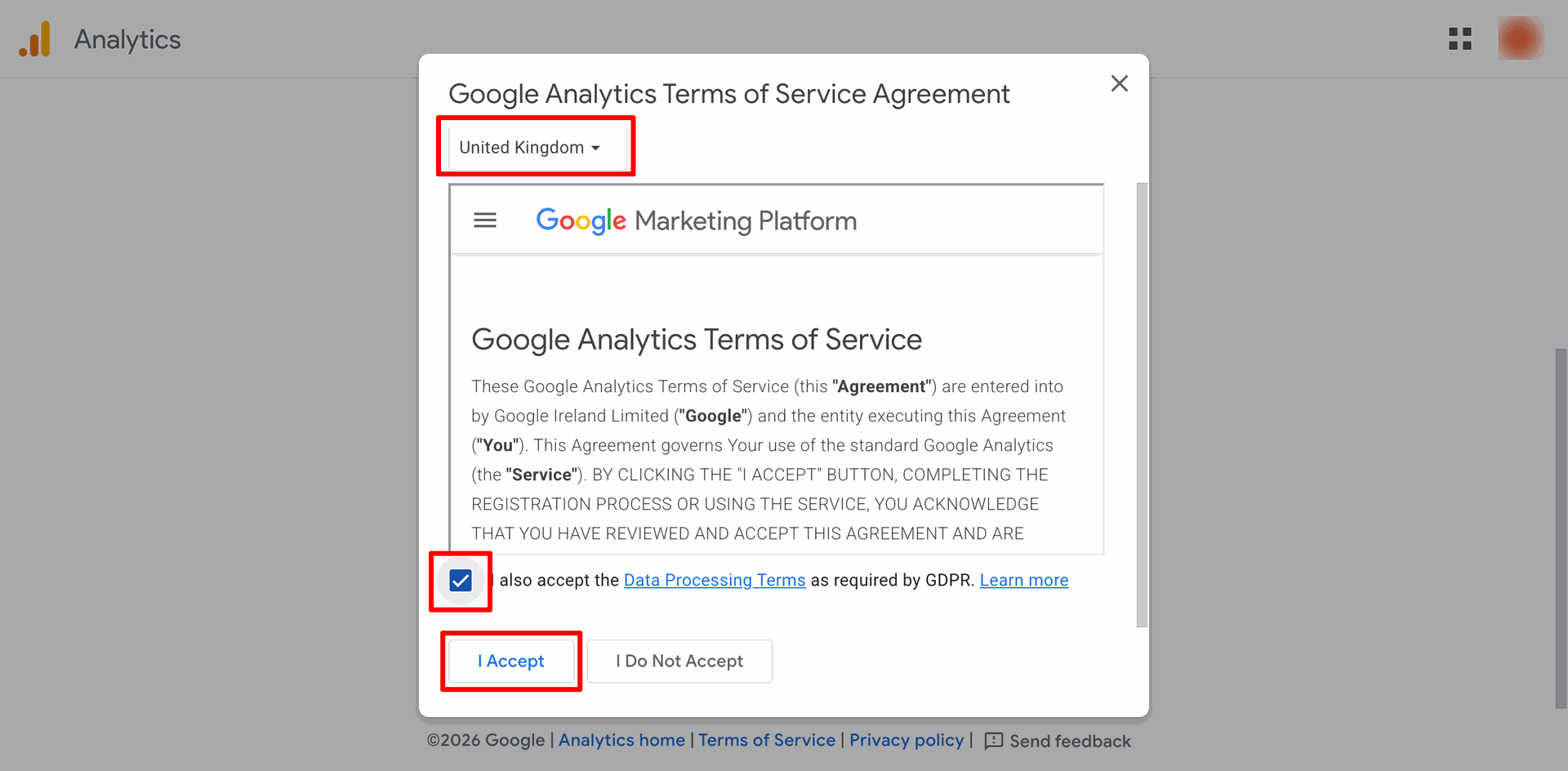
Reviewing the Google Analytics Terms of Service and selecting I Accept to agree to the Data Processing Terms.
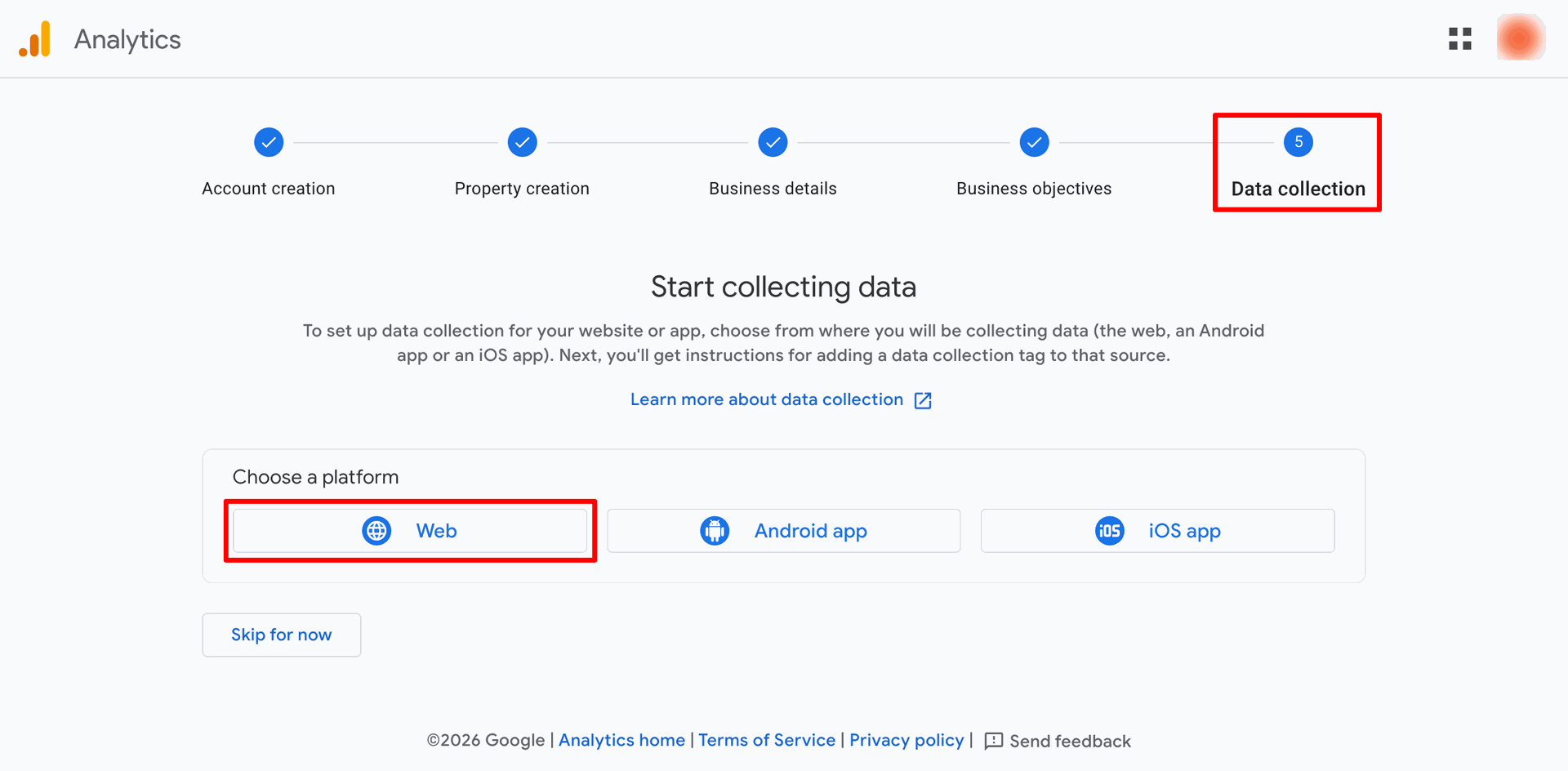
Selecting the Web platform to begin setting up a data collection tag for a website in the final stage of the Google Analytics configuration.
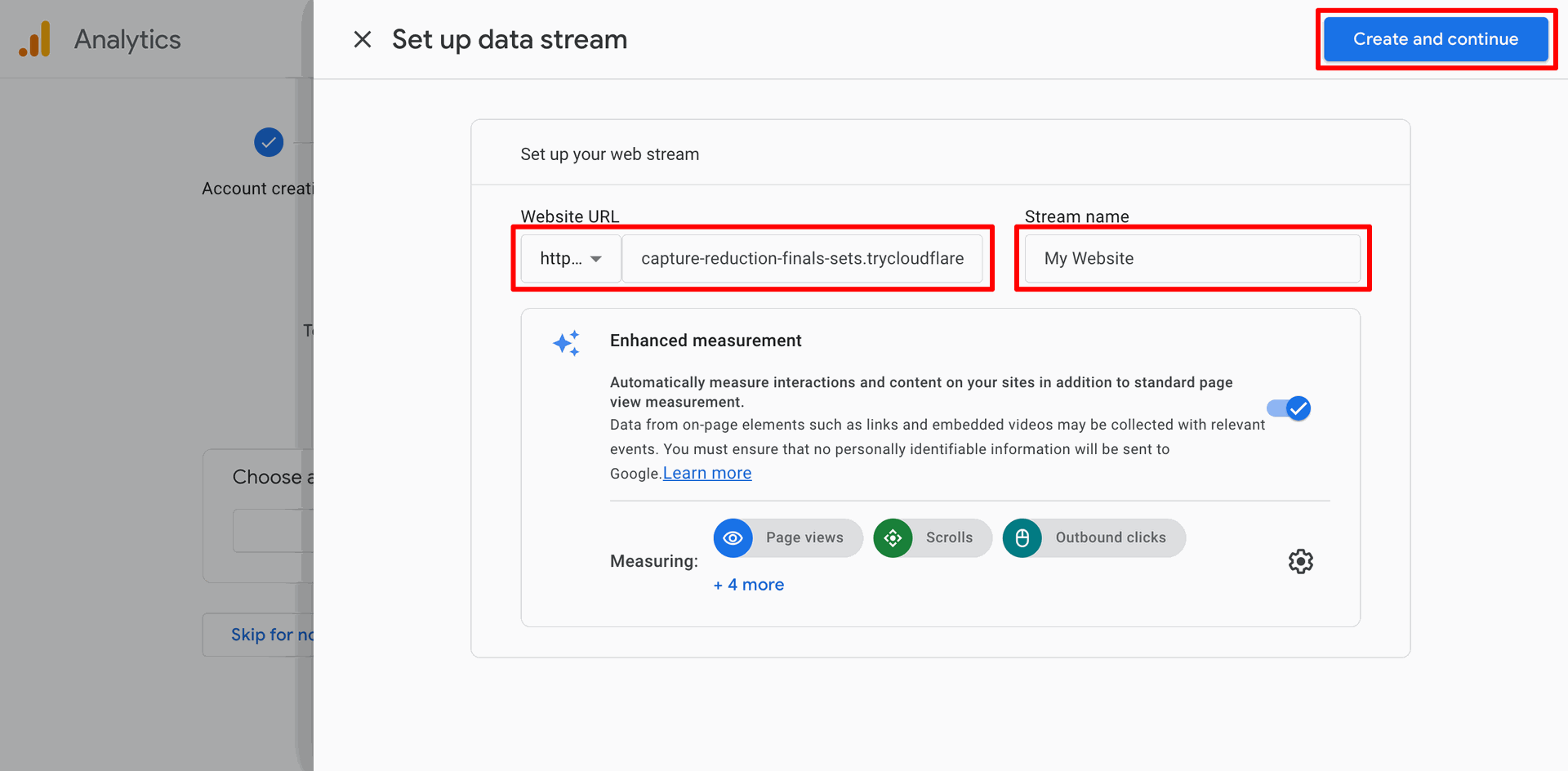
Inputting the Website URL and Stream name before clicking Create and continue to establish a new web data stream.
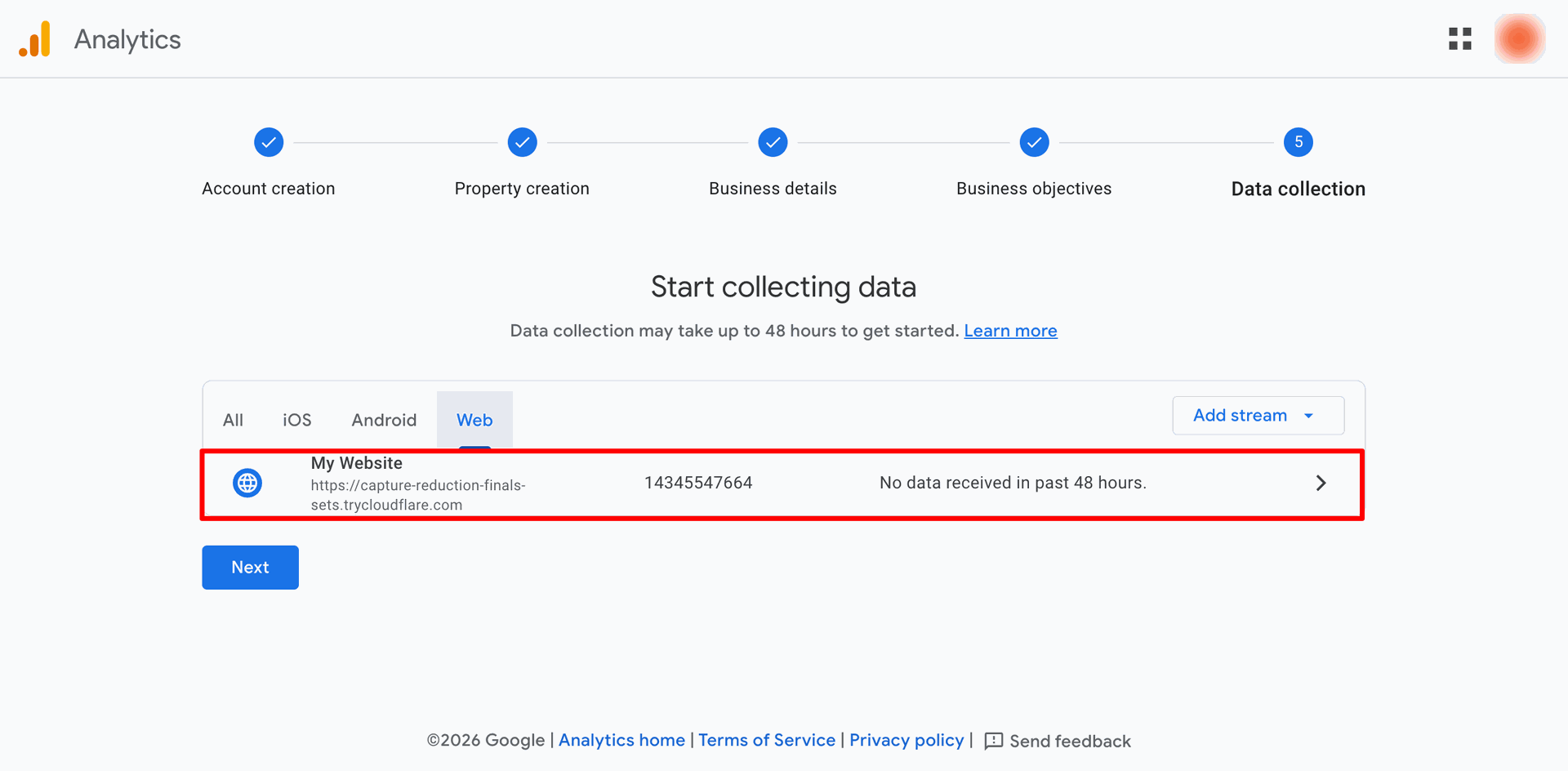
Reviewing the newly created web stream for My Website and clicking Next to proceed, noting that data collection may take up to 48 hours to begin.
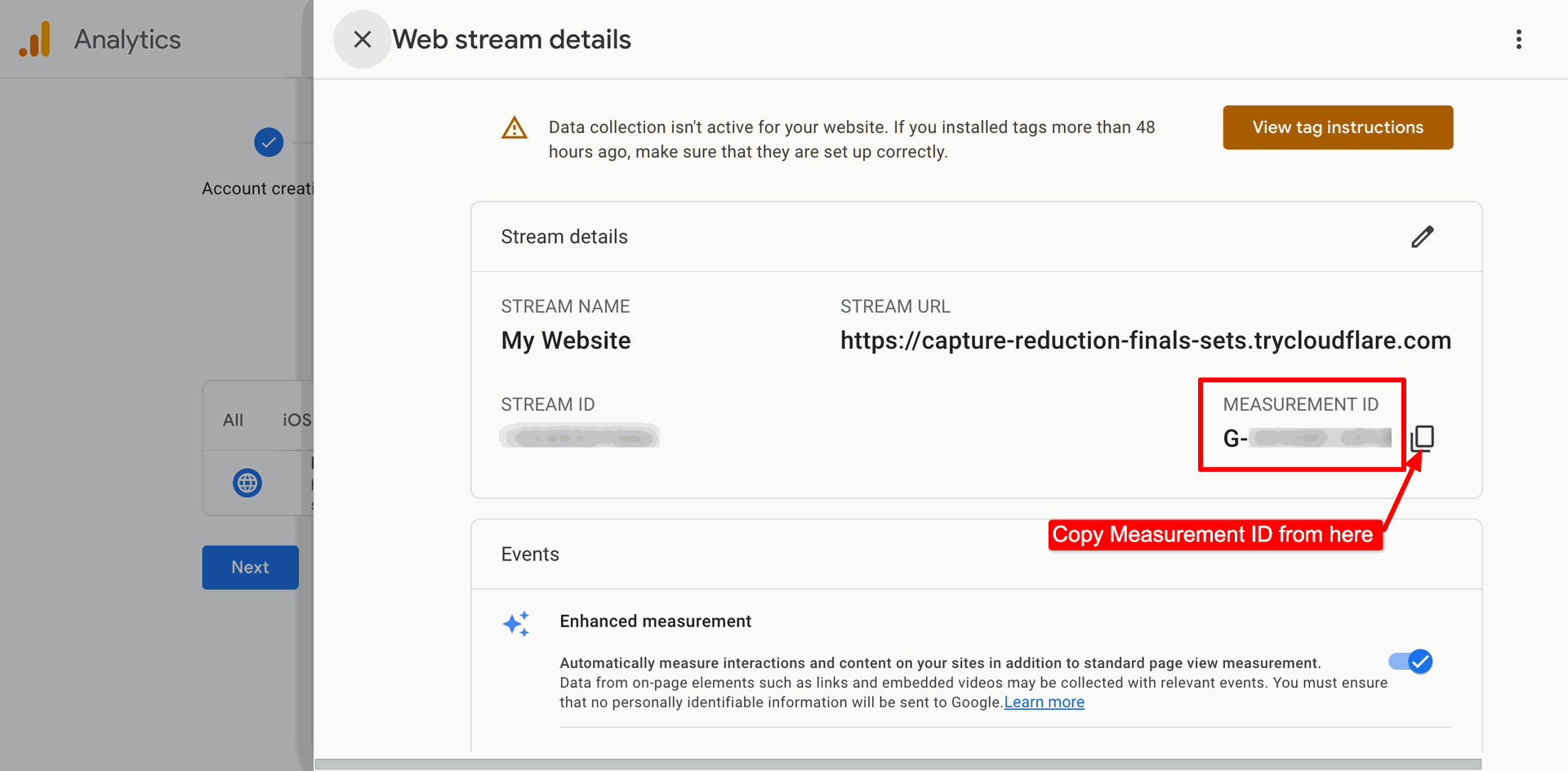
Copying the Measurement ID from the Web stream details panel to facilitate integration with external tracking tools or website configurations.
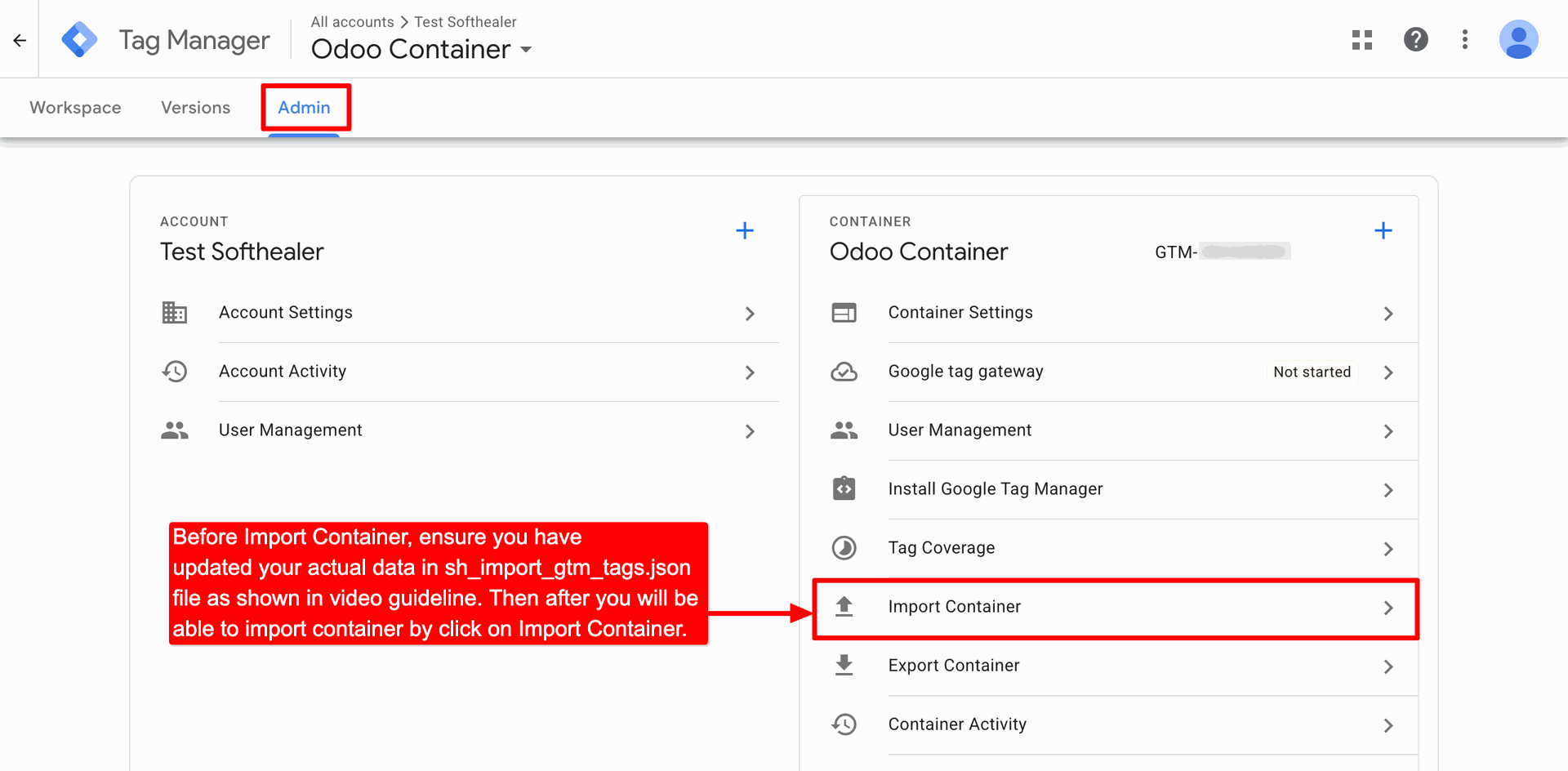
Navigating to the Admin tab to select Import Container, ensuring the configuration file is updated with current data before proceeding.
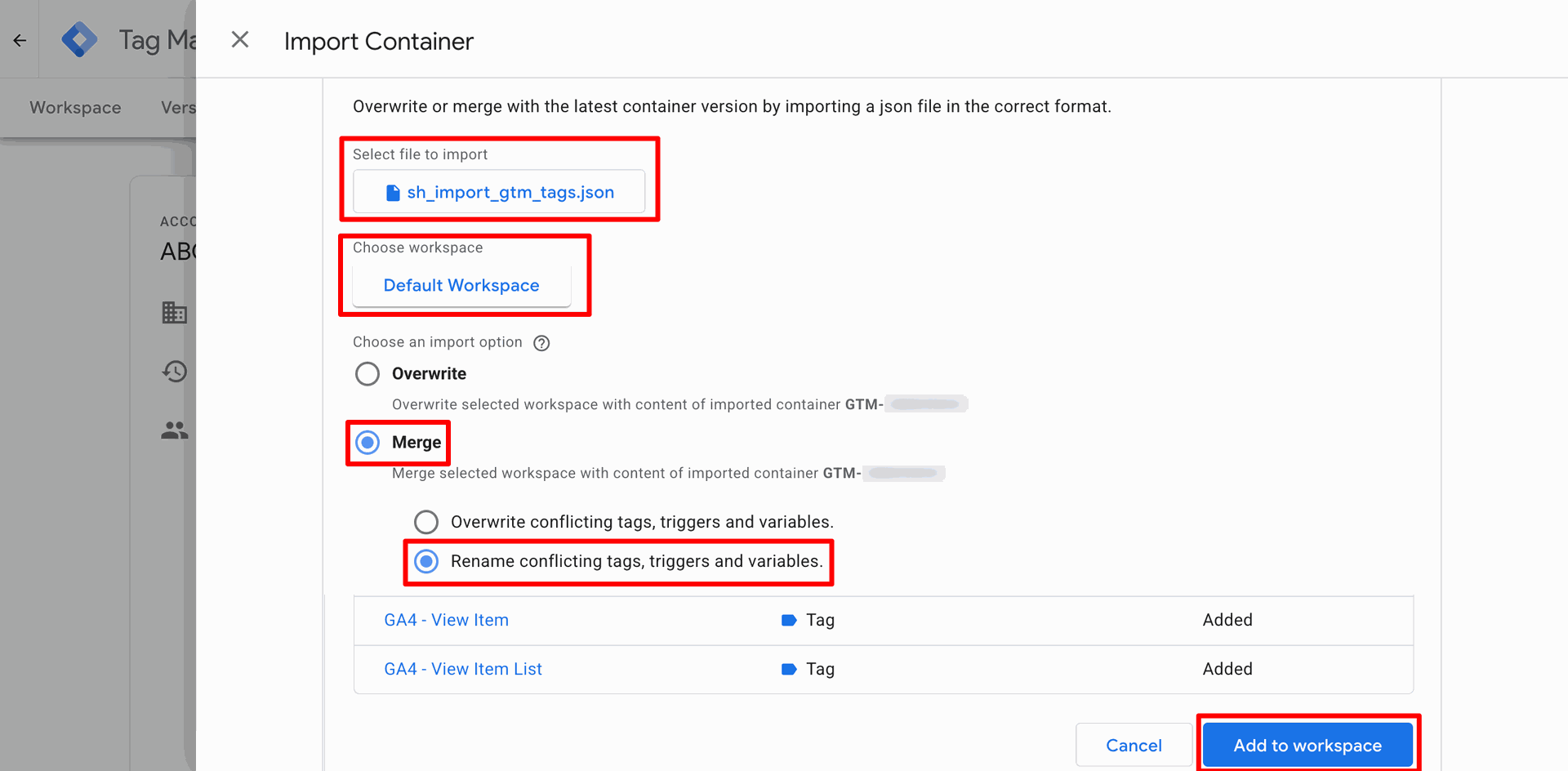
Selecting the sh_import_gtm_tags.json file and choosing the Merge option to add new tags to the Default Workspace.
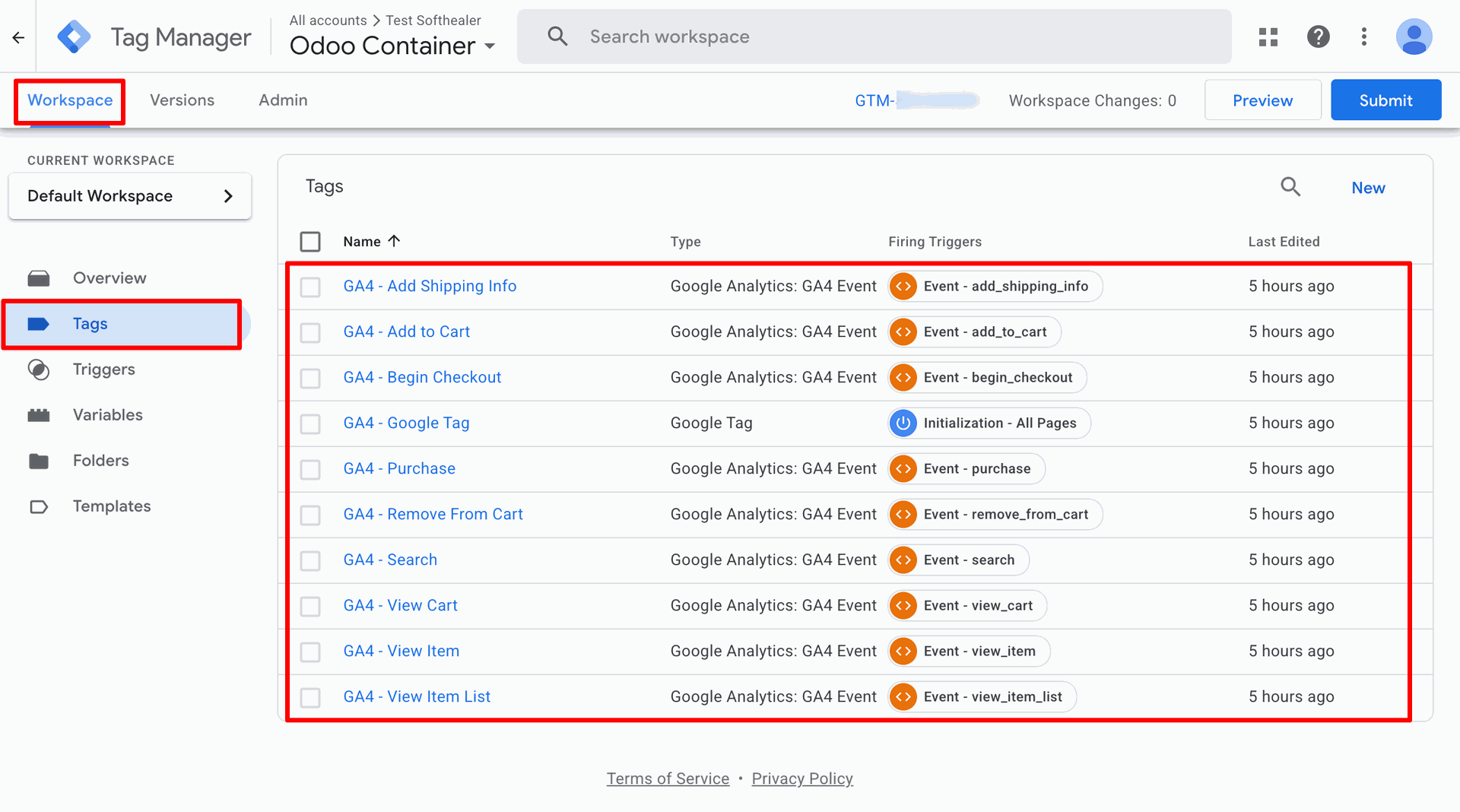
Reviewing a list of newly imported GA4 Events within the Tags section of the Default Workspace before submission.
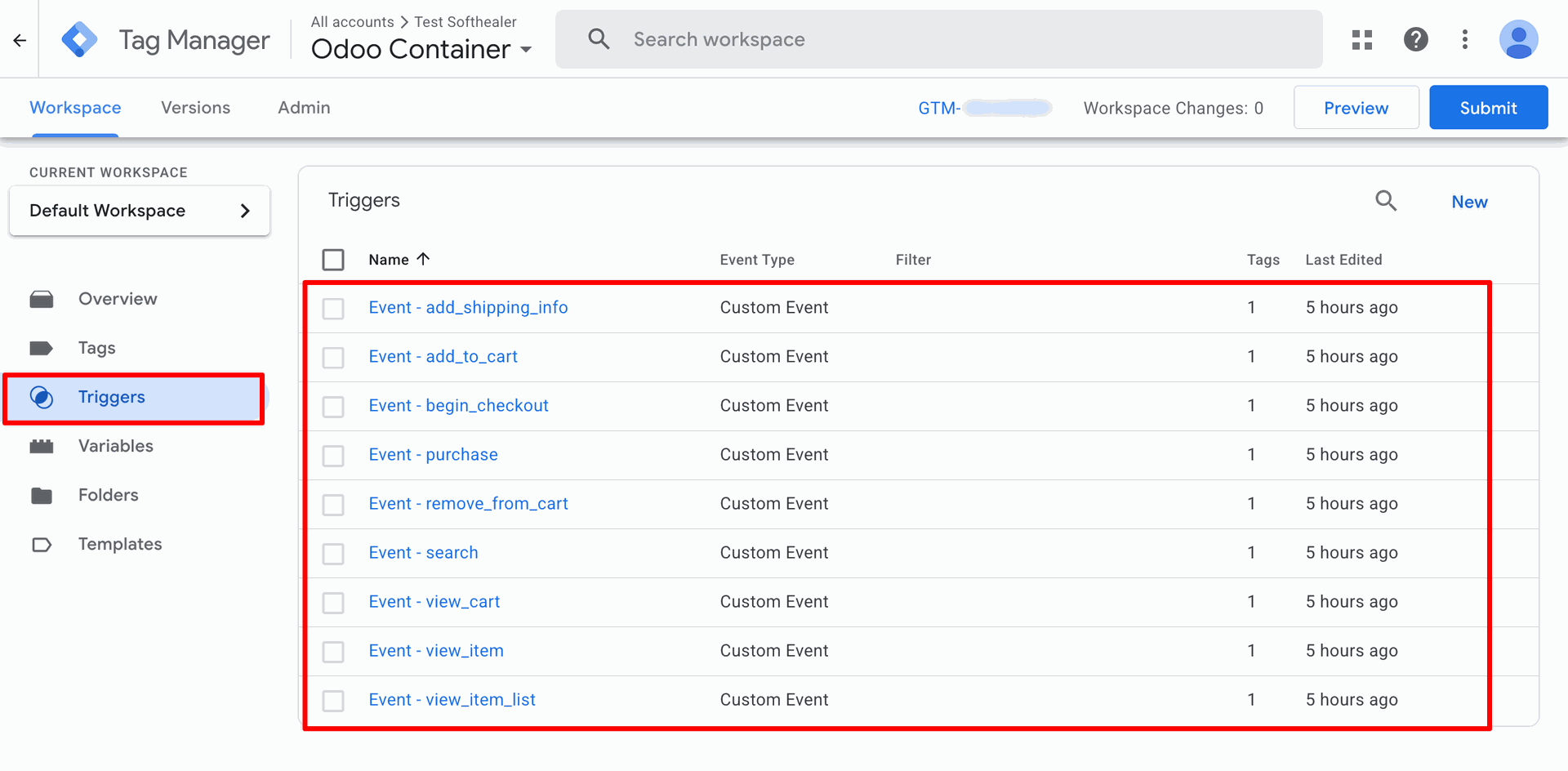
Reviewing the list of Custom Event triggers within the Triggers section of the Google Tag Manager workspace.
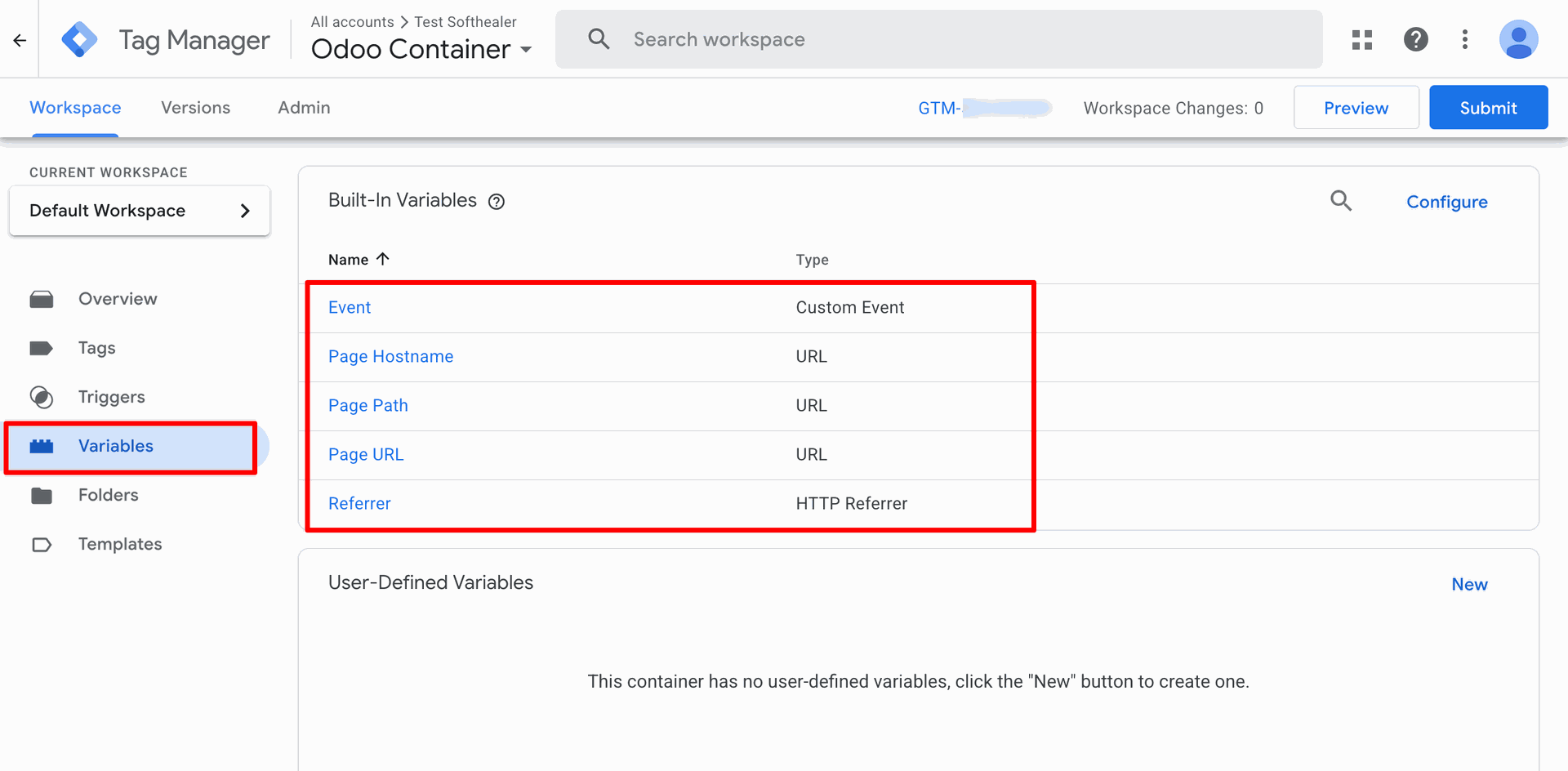
Navigating to the Variables tab in the Google Tag Manager workspace to review and configure active Built-In Variables.
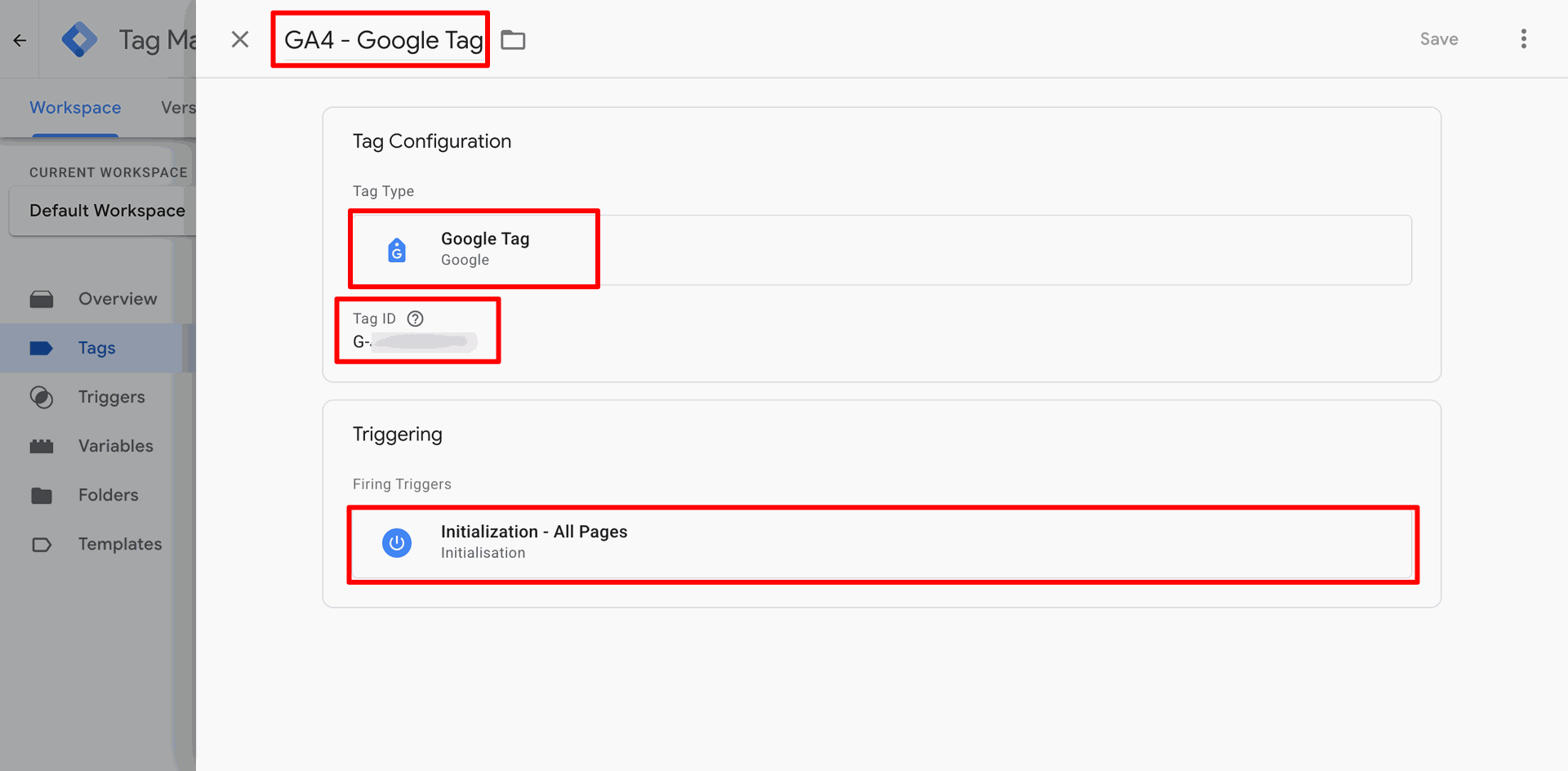
Configuring the GA4 - Google Tag in the workspace by inputting the unique Tag ID and setting the firing trigger to Initialization - All Pages.
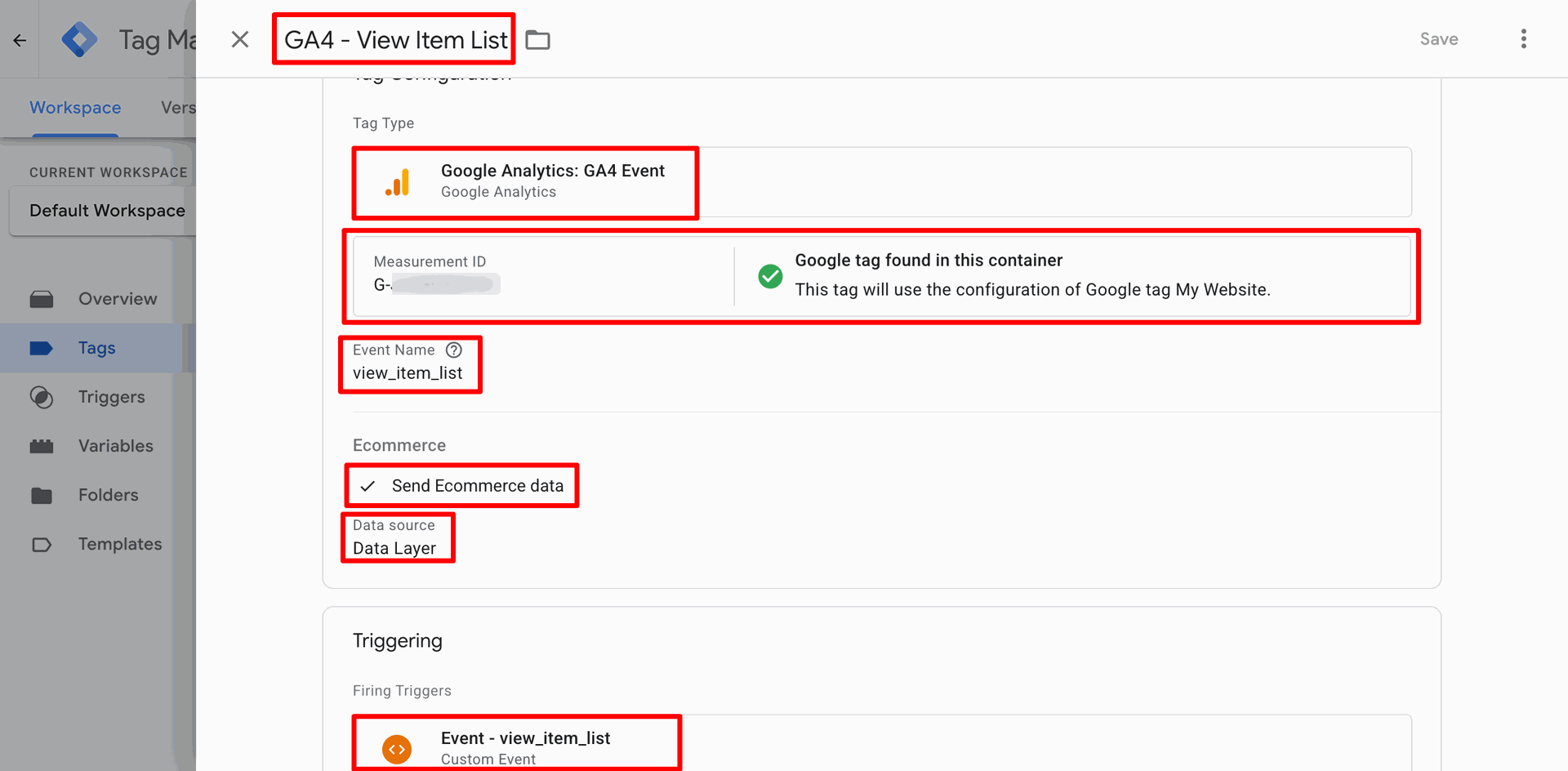
Configuring the GA4 - View Item List event by linking the Measurement ID and enabling ecommerce data collection from the Data Layer.
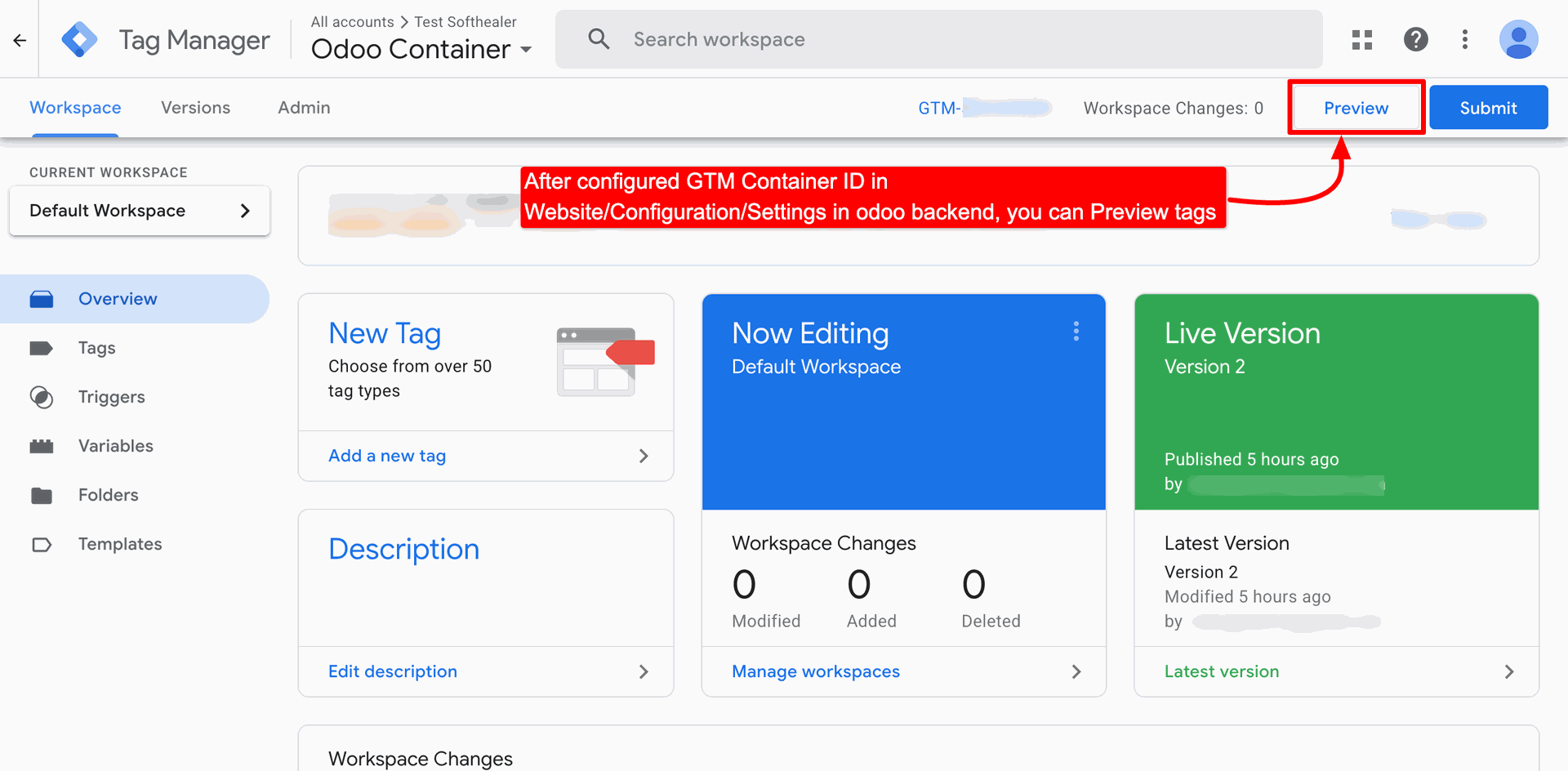
Accessing the Preview mode in Google Tag Manager to test tag configurations after integrating the GTM Container ID with the Odoo backend.
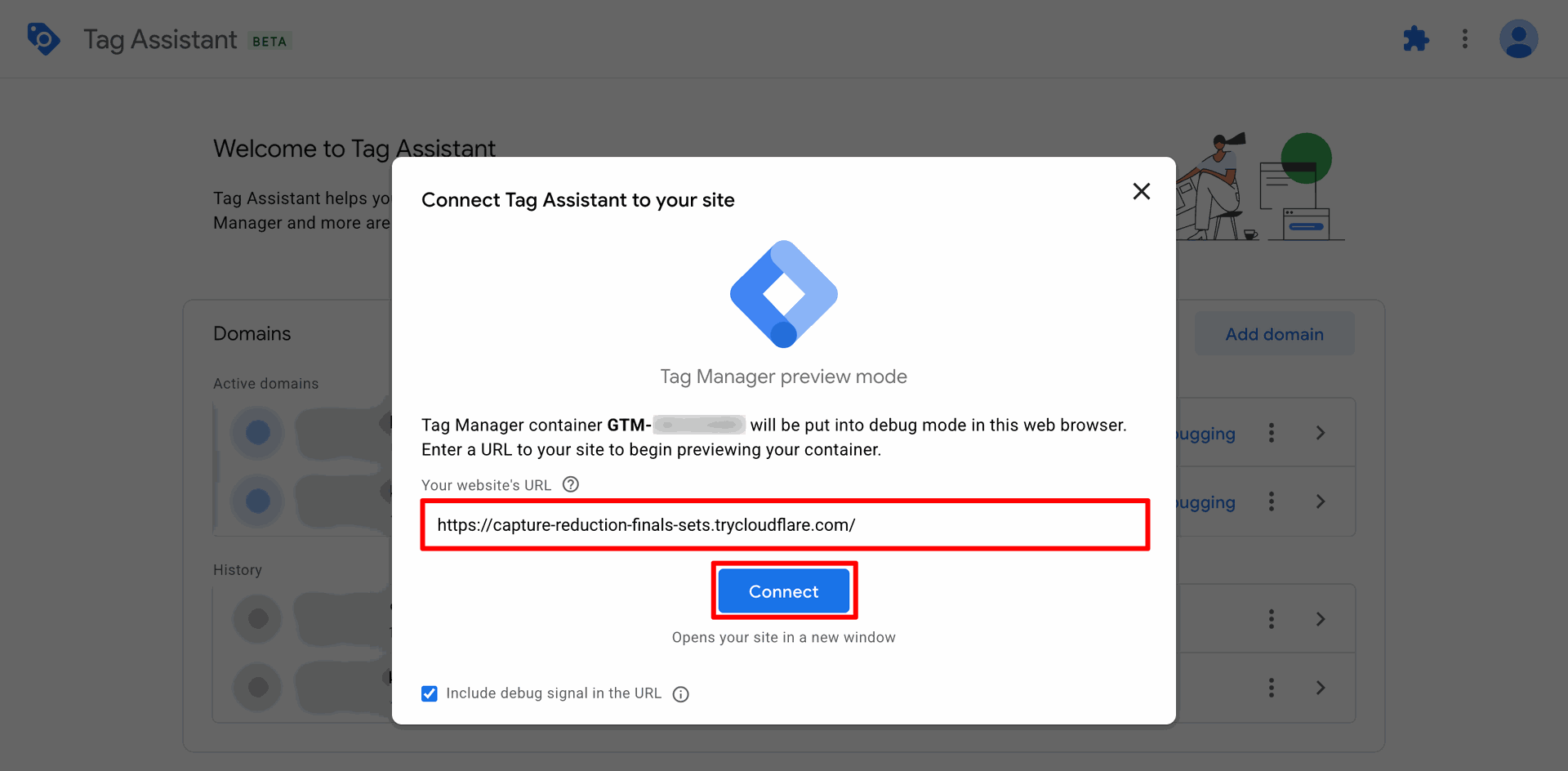
Entering the website URL and clicking Connect to initiate the Google Tag Manager preview and debug mode for the specified container.
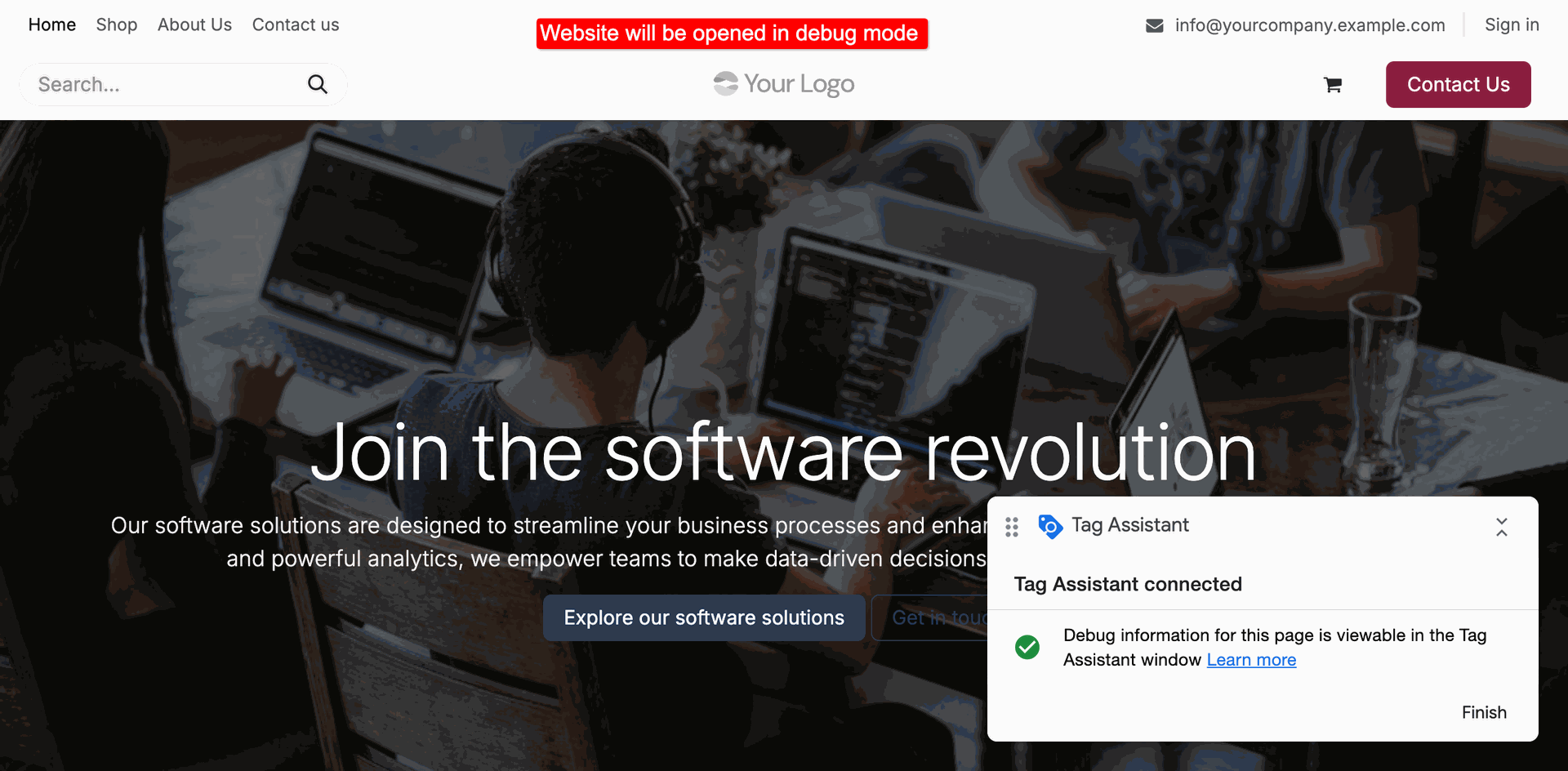
Monitoring a live website in debug mode to verify that Google Tag Assistant is successfully connected and capturing data events.
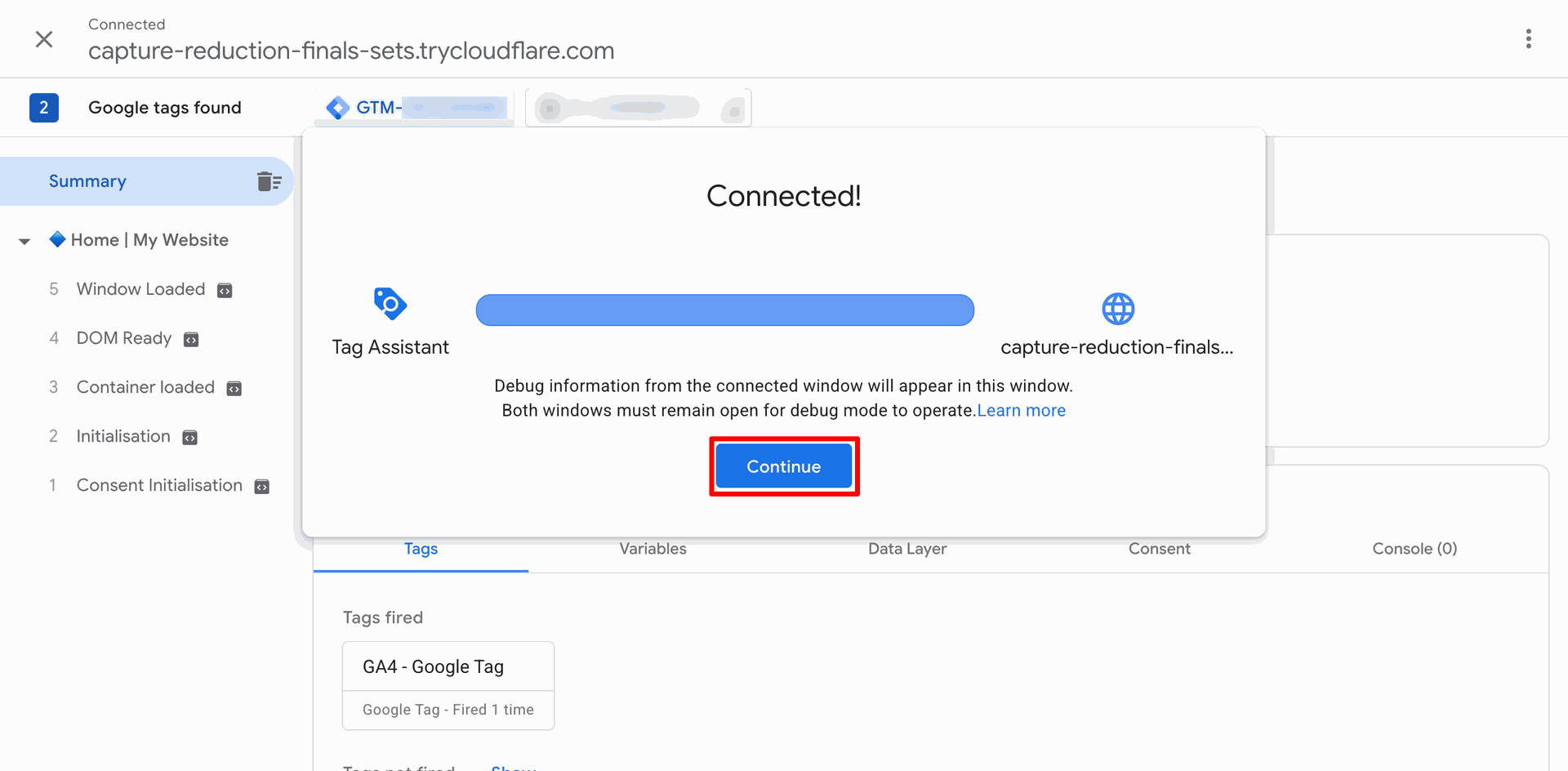
Clicking Continue on the Tag Assistant confirmation window to view real-time debug information and verify that the GA4 - Google Tag has successfully fired.
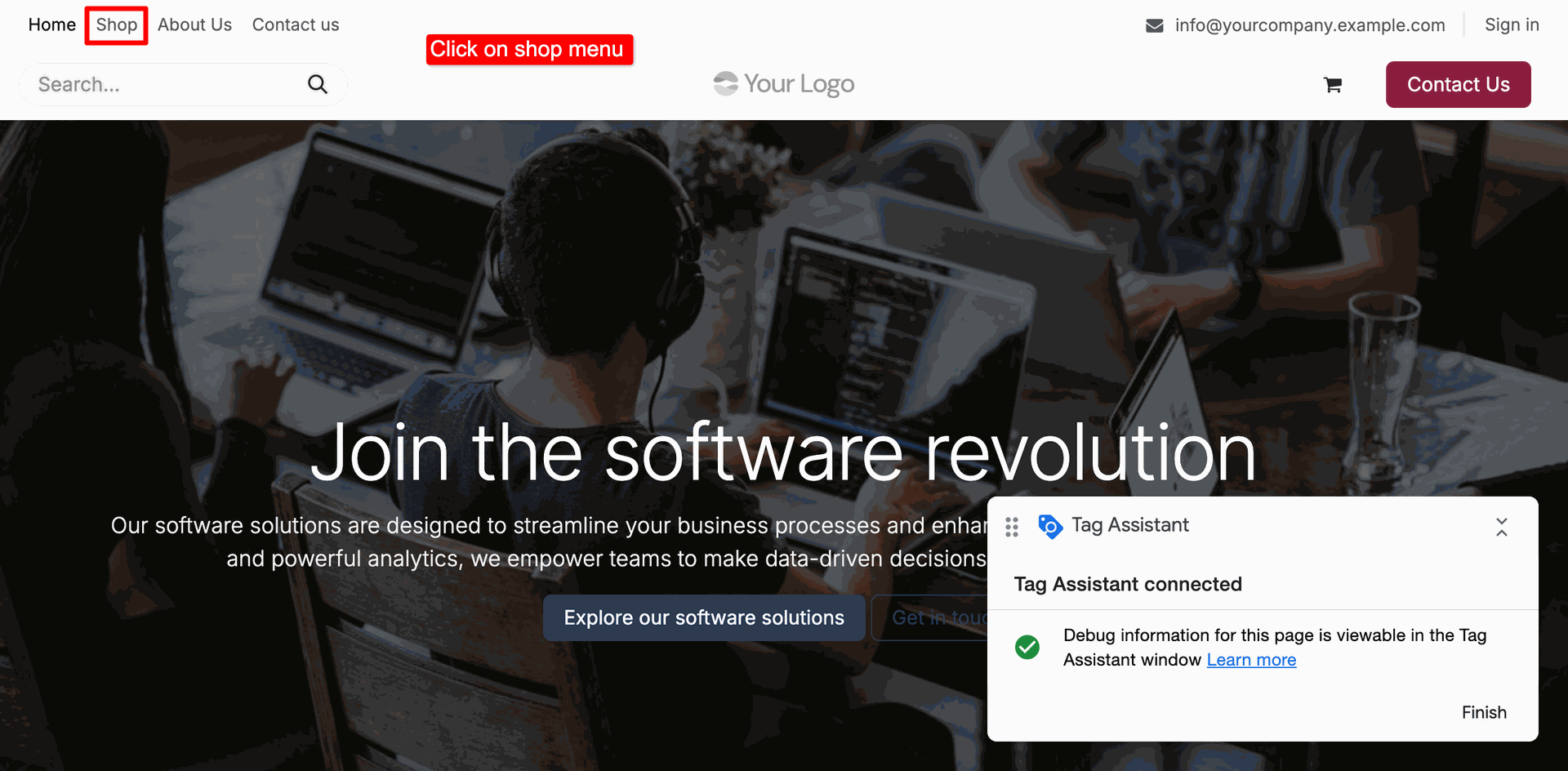
Navigating to the Shop menu on the live website to trigger and test e-commerce event tags through the connected Tag Assistant.
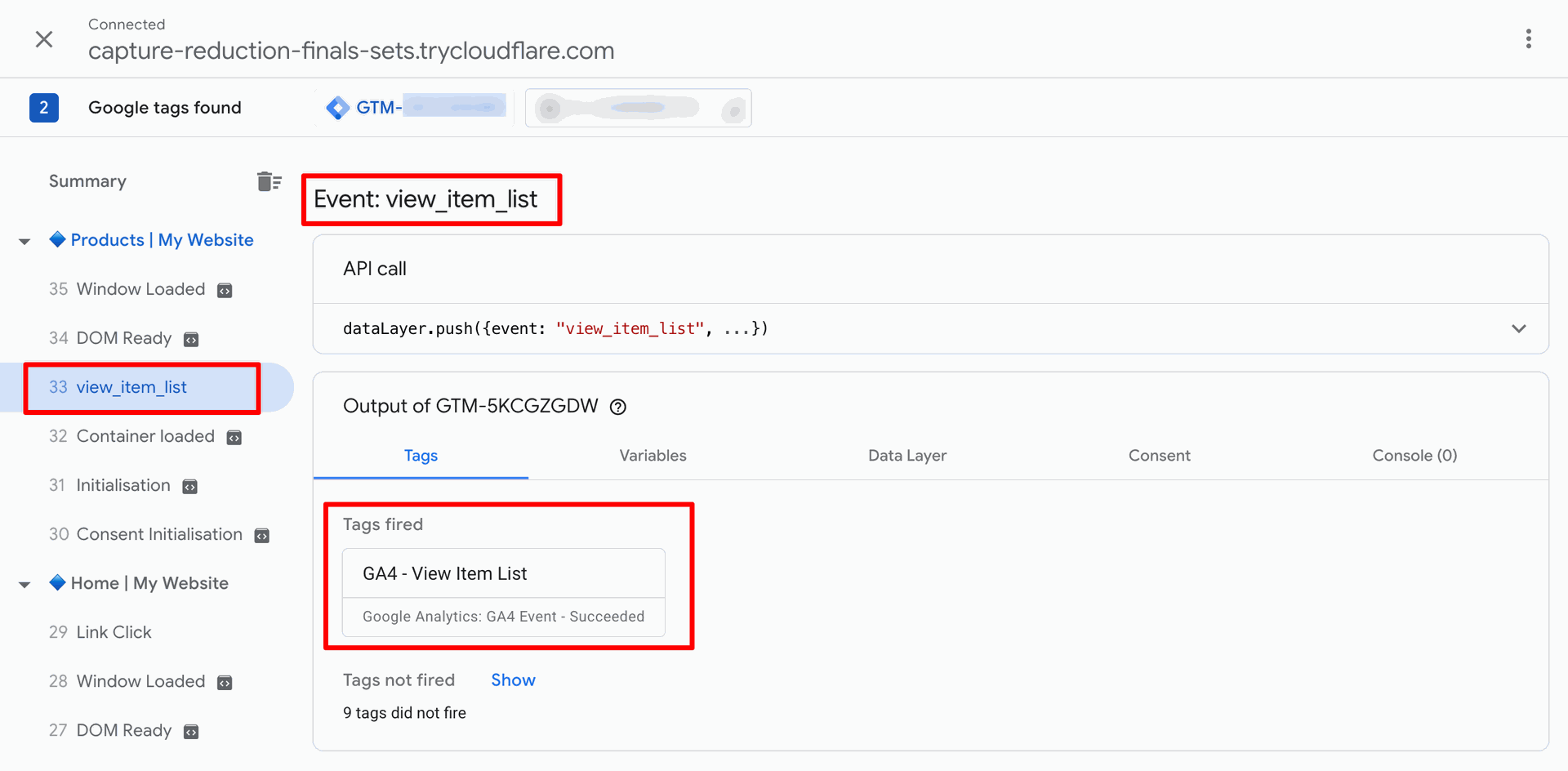
Monitoring the view_item_list event in Tag Assistant to confirm that the corresponding GA4 - View Item List tag fired successfully on the Products page.
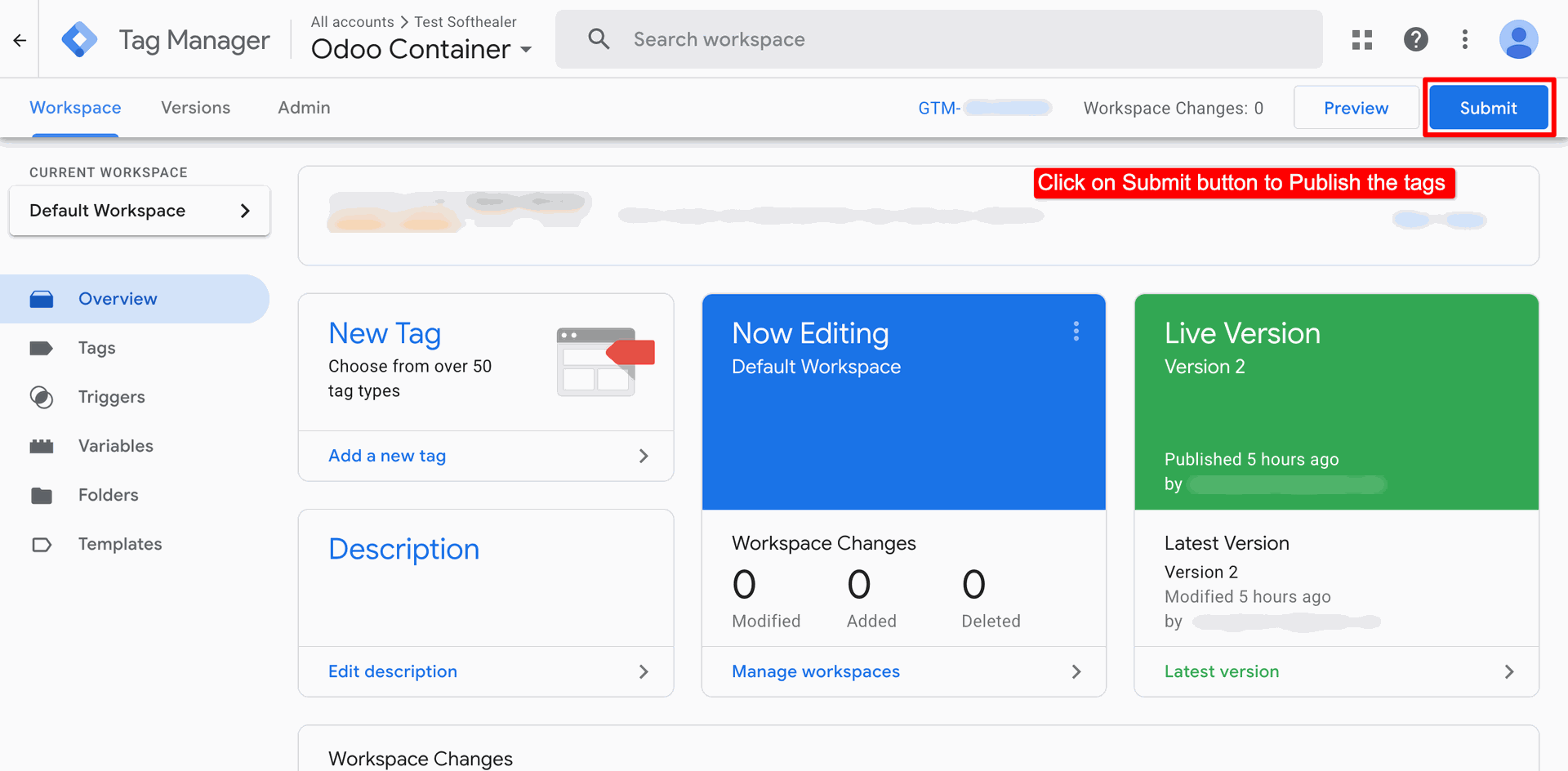
Clicking the Submit button in the Google Tag Manager workspace to publish the latest tag configurations to the live site.
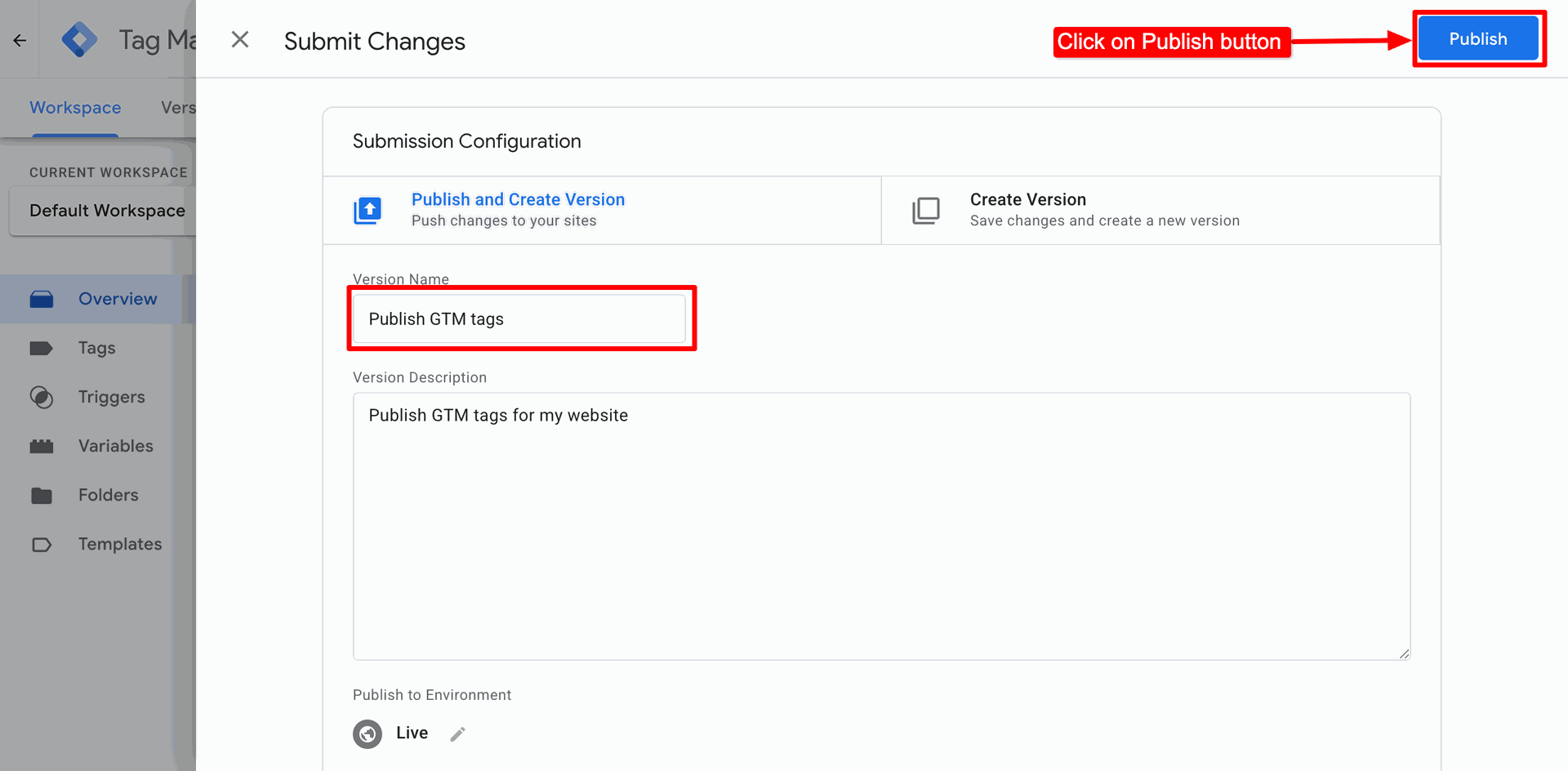
Entering a version name and description, then clicking the Publish button to push tag changes to the live website.
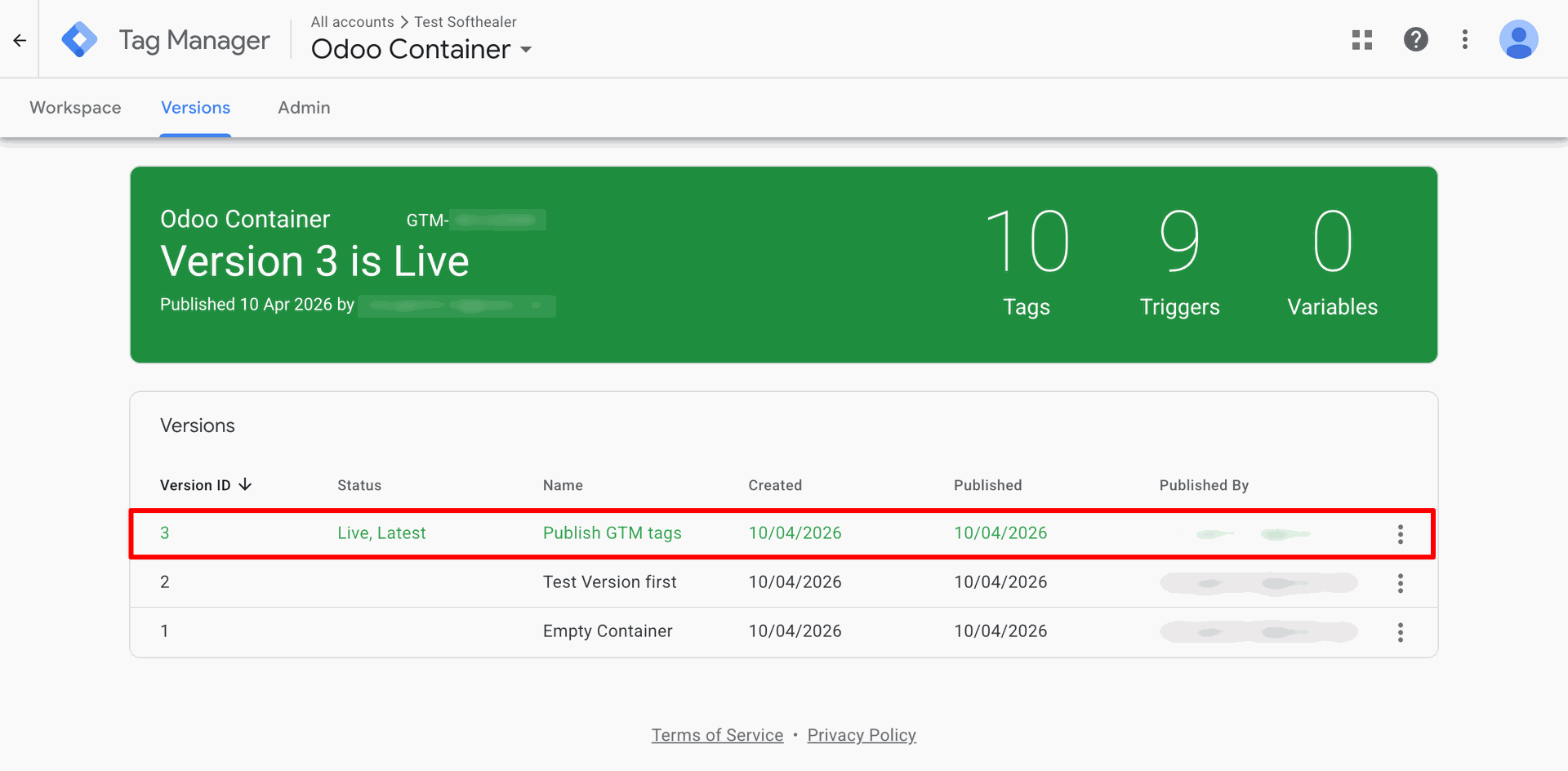
Reviewing the version history in the Versions tab to confirm that Version 3 is successfully live and containing the published GTM tags.
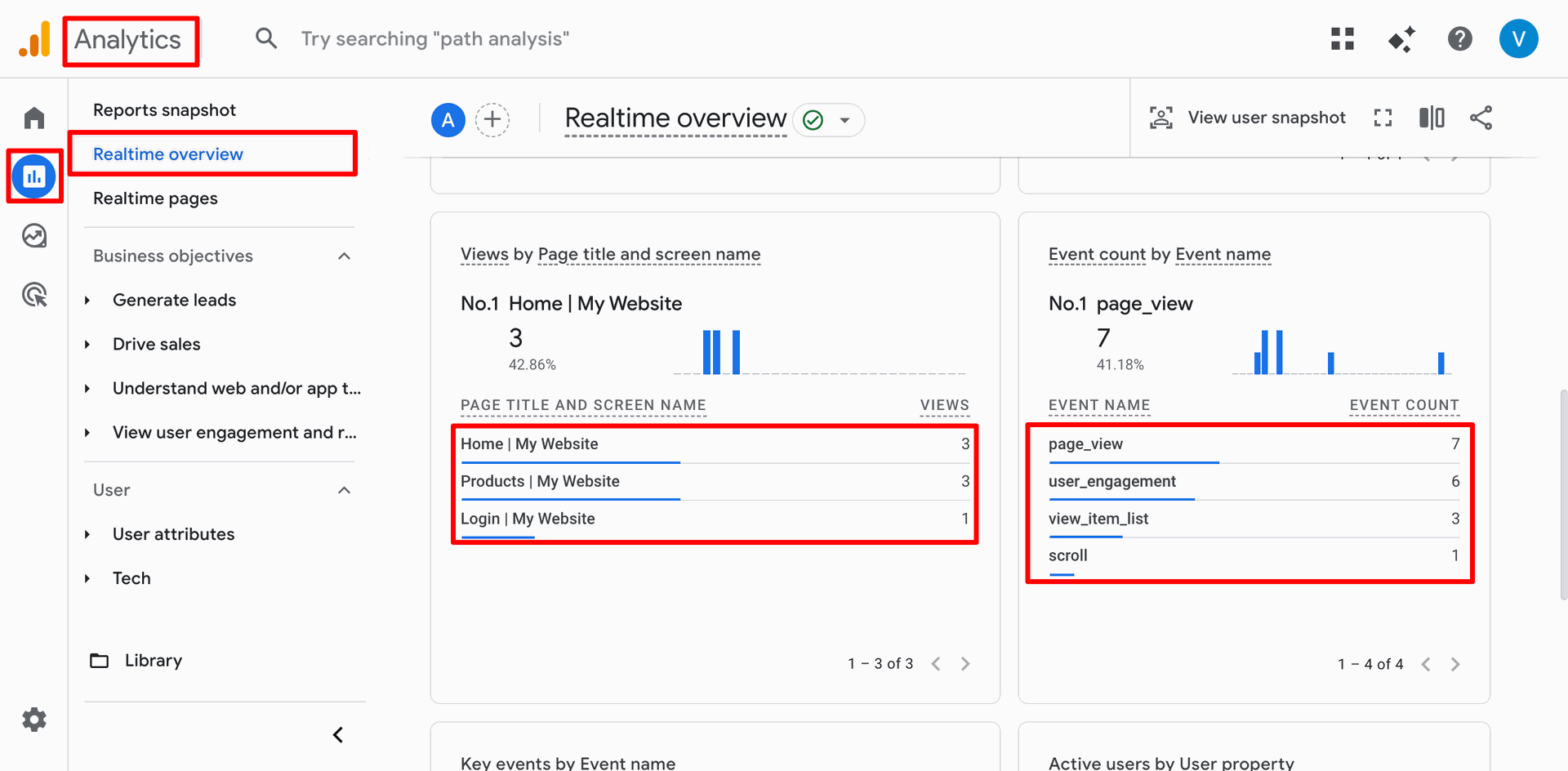
Monitoring live user activity in the Realtime overview to track current page views on the Home, Products, and Login pages.
Version 19.0.1.0.0 | Released on : 13th July 2026
- Yes, this app works perfectly with Odoo Enterprise (Odoo.sh & Premise) as well as Community.
- No, this application is not compatible with odoo.com(odoo saas/Odoo Online)
- Yes, to test this module, please contact us at sales@softhealer.com.
- Please contact us at sales@softhealer.com to request customization.
- Yes, we provide free support for 365 days from the date of purchase.
- Yes, you will receive lifetime free updates for the version of the module you purchased.
- No, there is no need to install any additional libraries.
- Yes, for version 12 and above, you need to purchase the module separately for each version you intend to use.
- No, exchanges or refunds are not allowed. Please make sure to select the correct version before purchasing.
- You can contact us at support@softhealer.com for language translation support. We use Google Translator tools to provide translations in multiple languages, so the accuracy may vary. We welcome your suggestions to help improve translations.
Discover Our Latest Apps