










GoHighLevel Odoo Connector

Establish a bidirectional, real-time connection between Odoo and GoHighLevel. Synchronize users, contacts, opportunities, and tasks seamlessly. With an interactive sync dashboard, secure webhook receivers, and queue processing. This connector keeps Odoo and GoHighLevel in perfect harmony, preventing duplicate records and enabling efficient workflow automation.
Key Features
Import Operations (GoHighLevel → Odoo)

Import Contacts
-
 Name
Name
-
Email
-
Phone Number

Import Opportunities
-
Opportunity Name & value
-
Fetch all pipelines & stages
-
One-click auto-map CRM stages

Import Tasks
-
Task Title & Description
-
Due Date
-
Link to Contact

Import Users
-
Name, Email & Phone Number
-
Auto-creates Odoo User Login
Export Operations (Odoo → GoHighLevel)

Export Contacts
-
Name
-
Email
-
Phone Number

Export Opportunities
-
Opportunity Name & value
-
Fetch all pipelines & stages
-
One-click auto-map CRM stages

Export Tasks
-
Task Title, Description & Due Date
-
Link to Synced Contact
Automation, Dashboards & Core Infrastructure

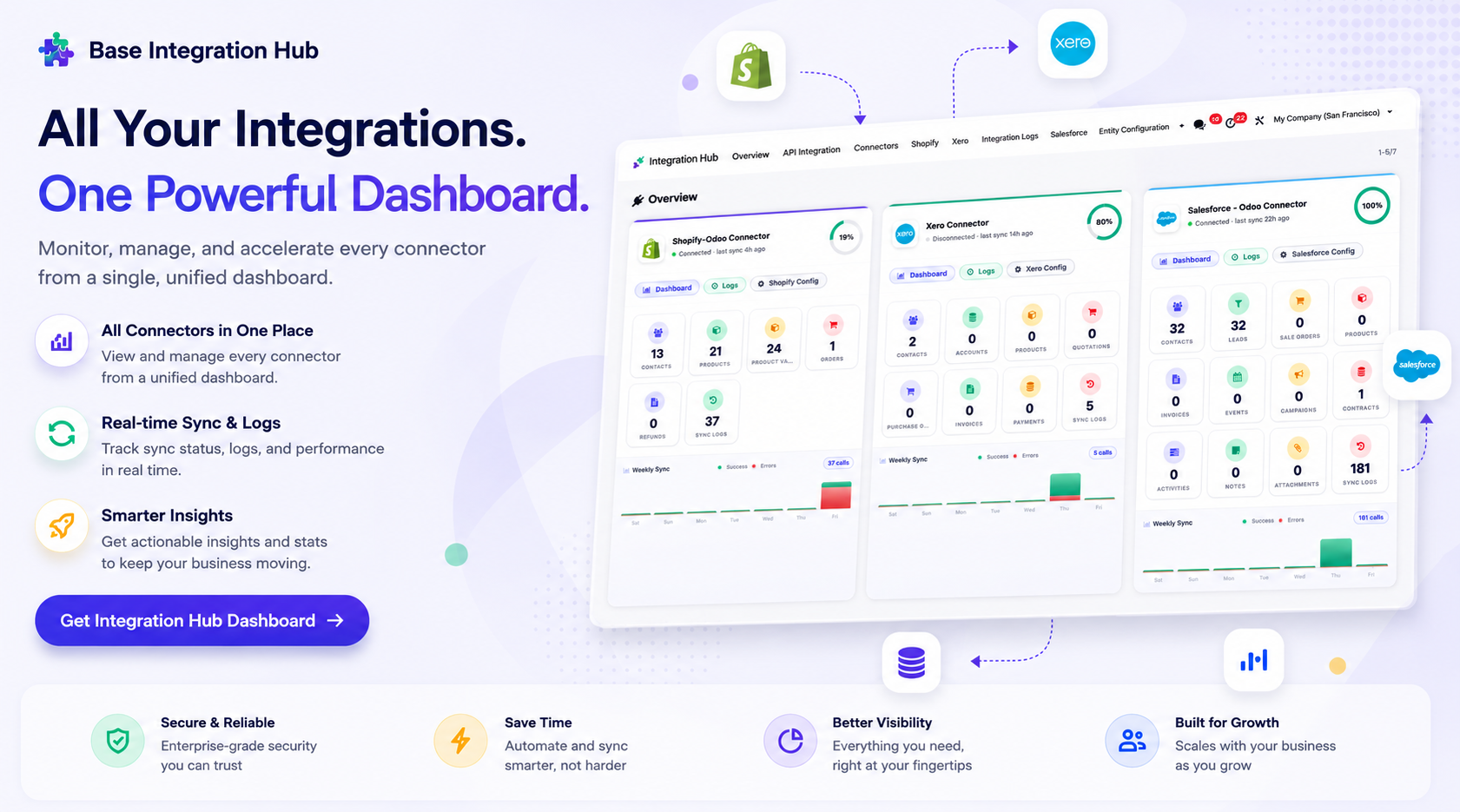
Integration Hub Dashboard
-
Manage all Odoo integrations from one centralized dashboard.
-
Monitor connectors, view sync activity, and track logs.
-
Get real-time insights across every integration.

Interactive Sync Dashboard
-
Per-entity synced / pending counts
-
Recent activity log feed
-
Health checks & recommendations
-
Quick access to records, logs & queue

Queue-Based Processing
-
Process synchronization jobs through queues for reliable and efficient data handling.

Synchronization Logs
-
Track
every synchronization activity with detailed logs, including successful and failed
operations.

Workflow
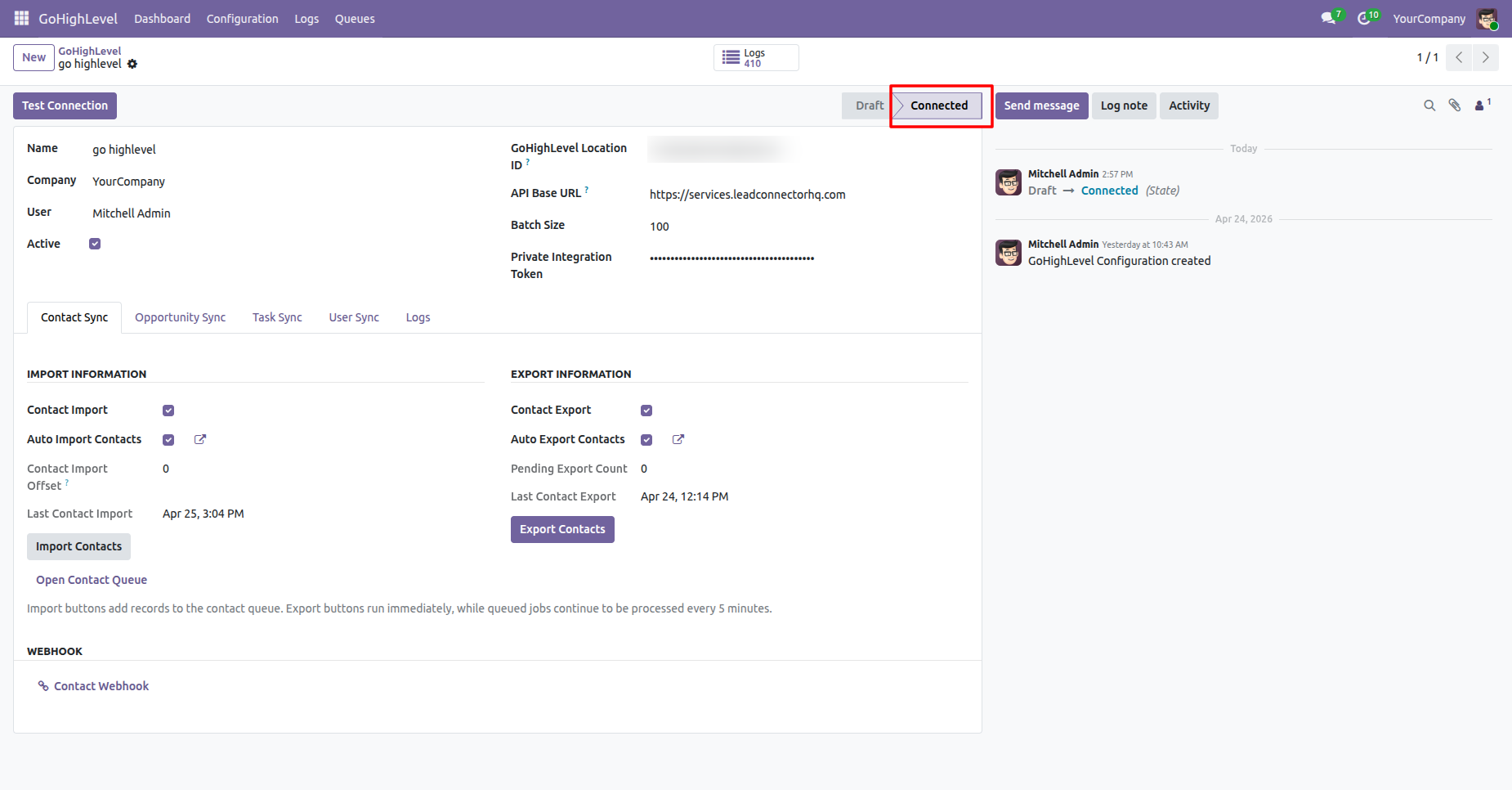
Review the configuration status to ensure the GoHighLevel connection is set to Connected state.
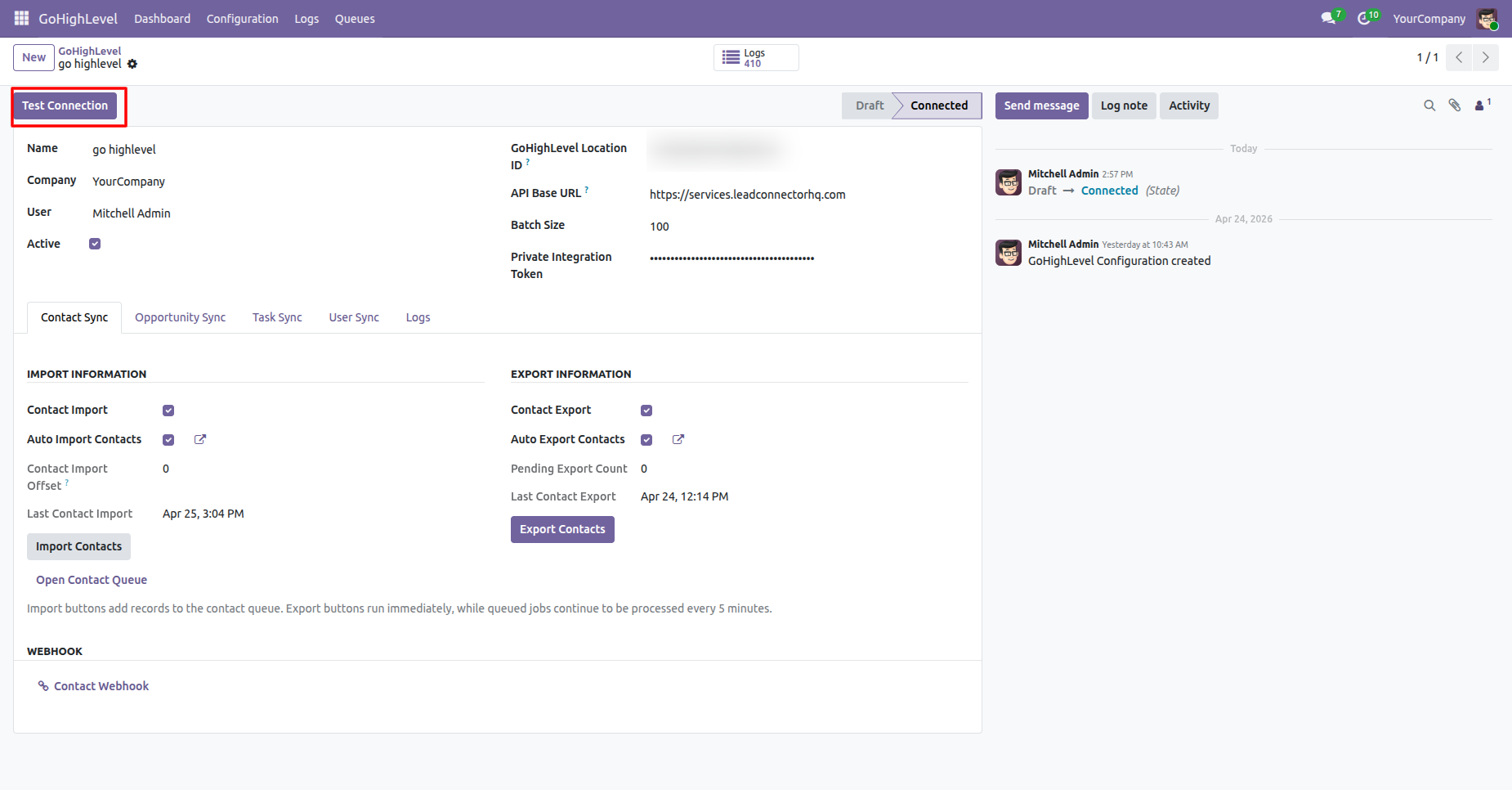
Click Test Connection to verify API credentials and establish communication with GoHighLevel server.
Workflow
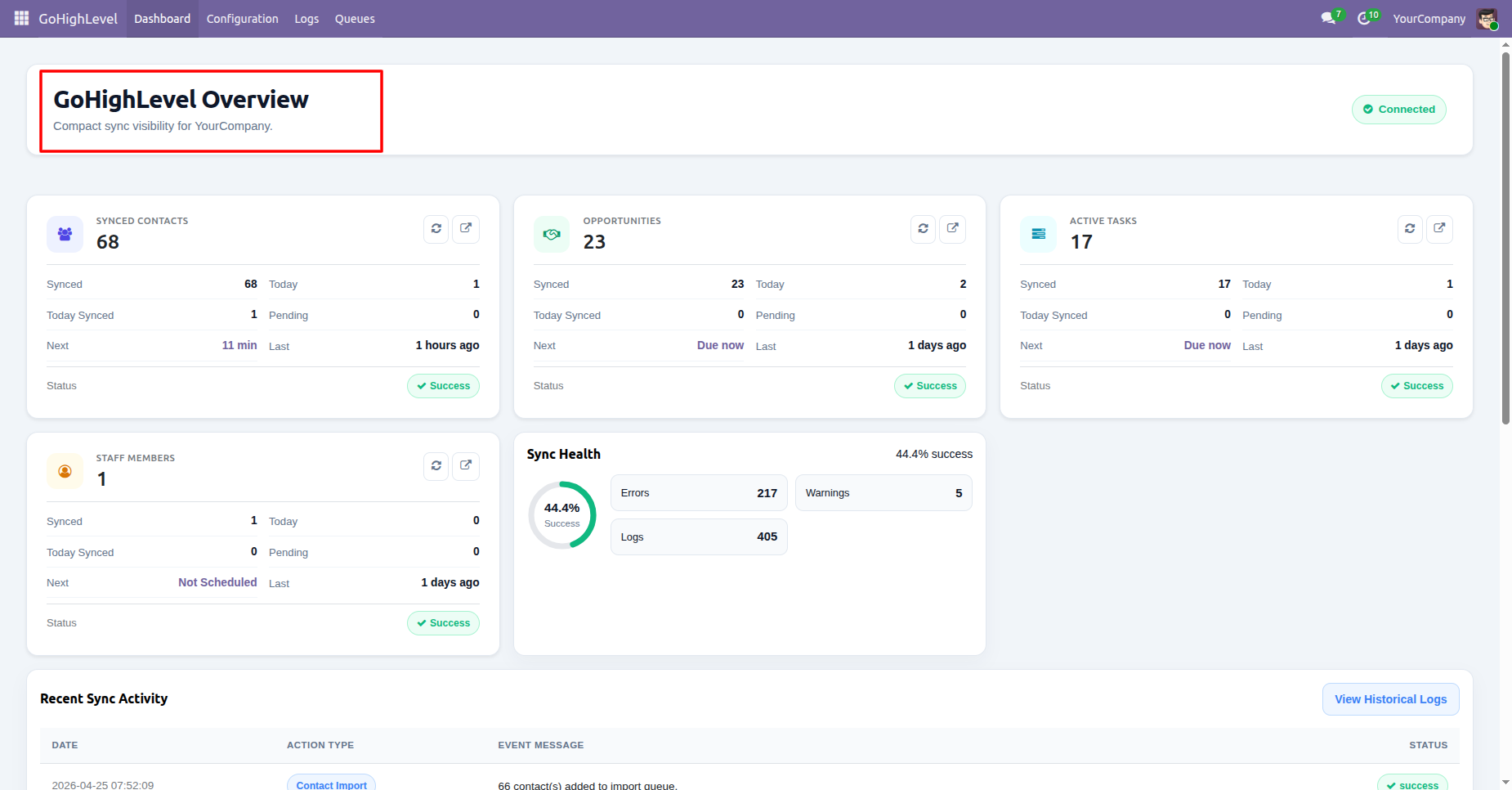
Open the GoHighLevel overview dashboard to monitor total synced records and integration health status.
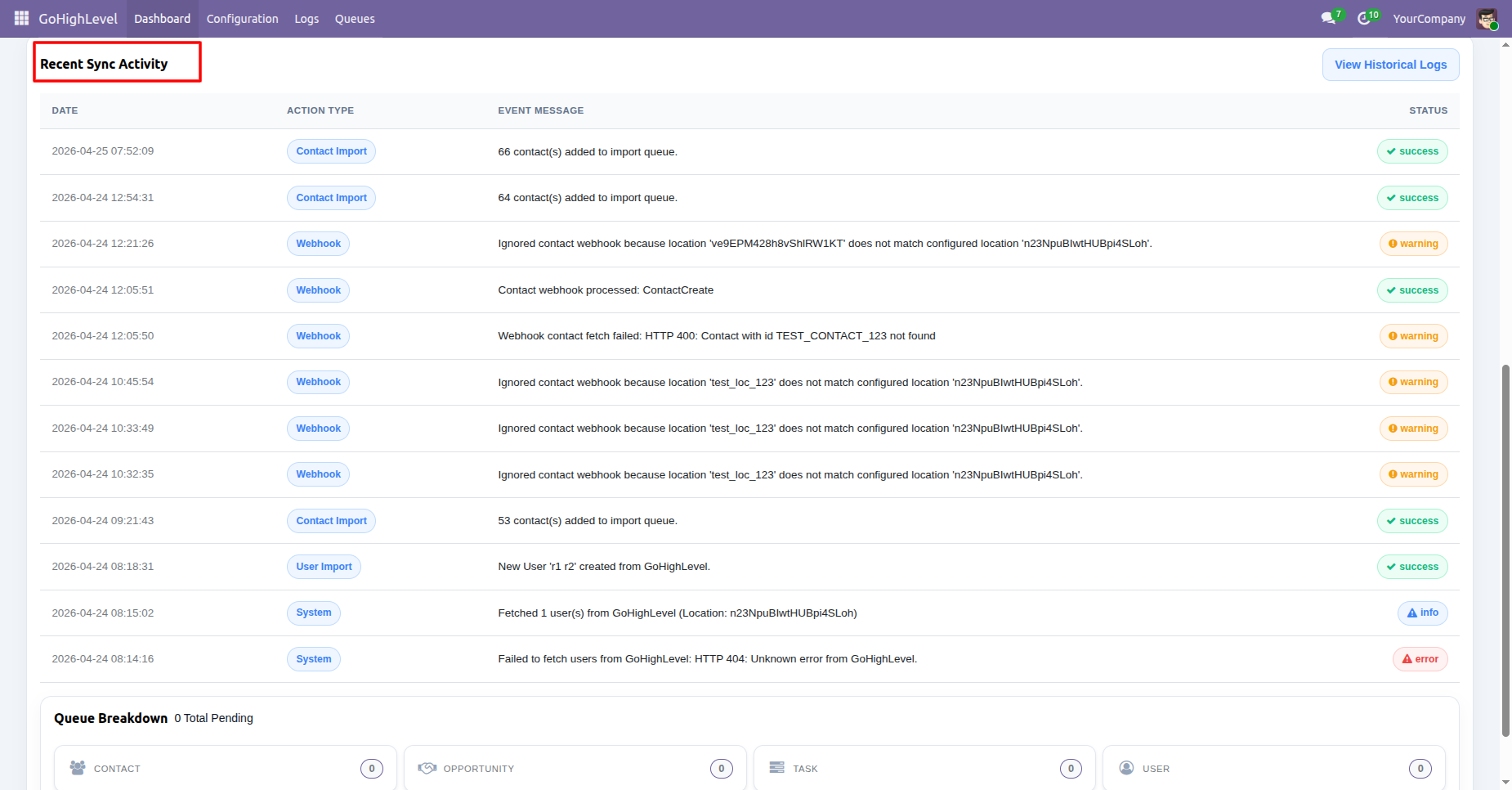
View recent sync activity records to check event messages and execution statuses across operations.
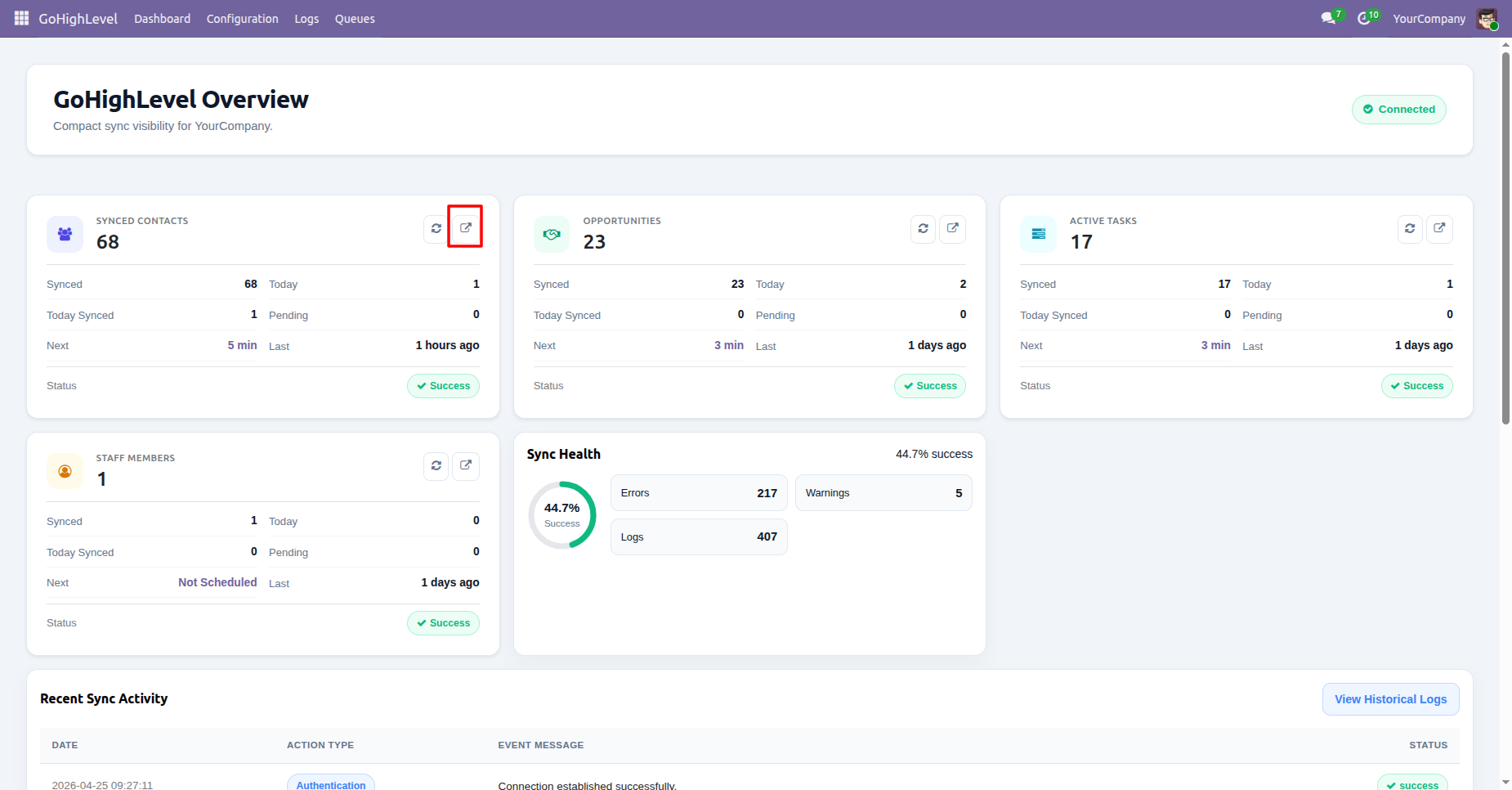
Click the external link icon on the synced contacts card to navigate to contacts.
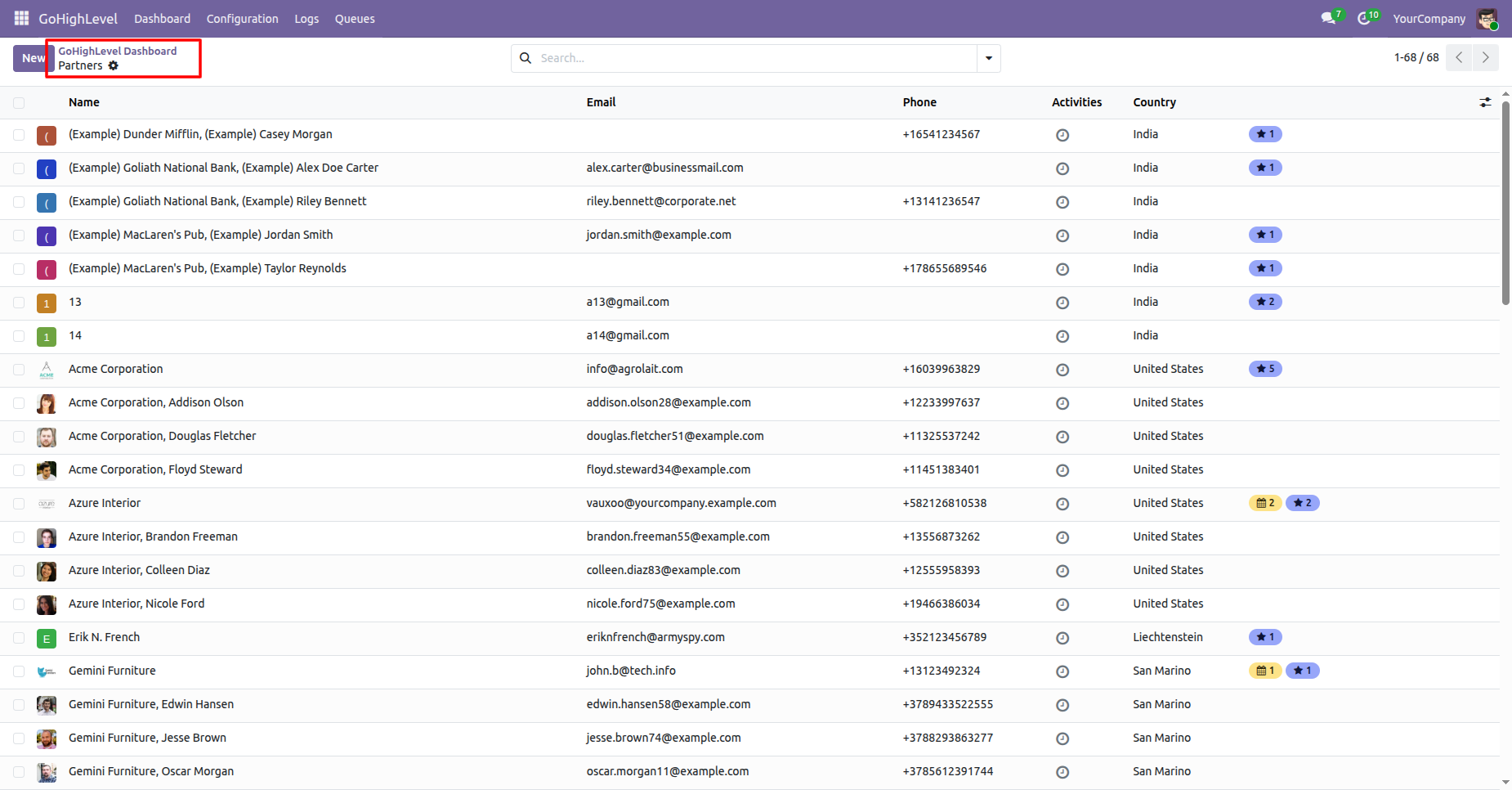
Access the partners list view from the dashboard to view synchronized contacts and email addresses.
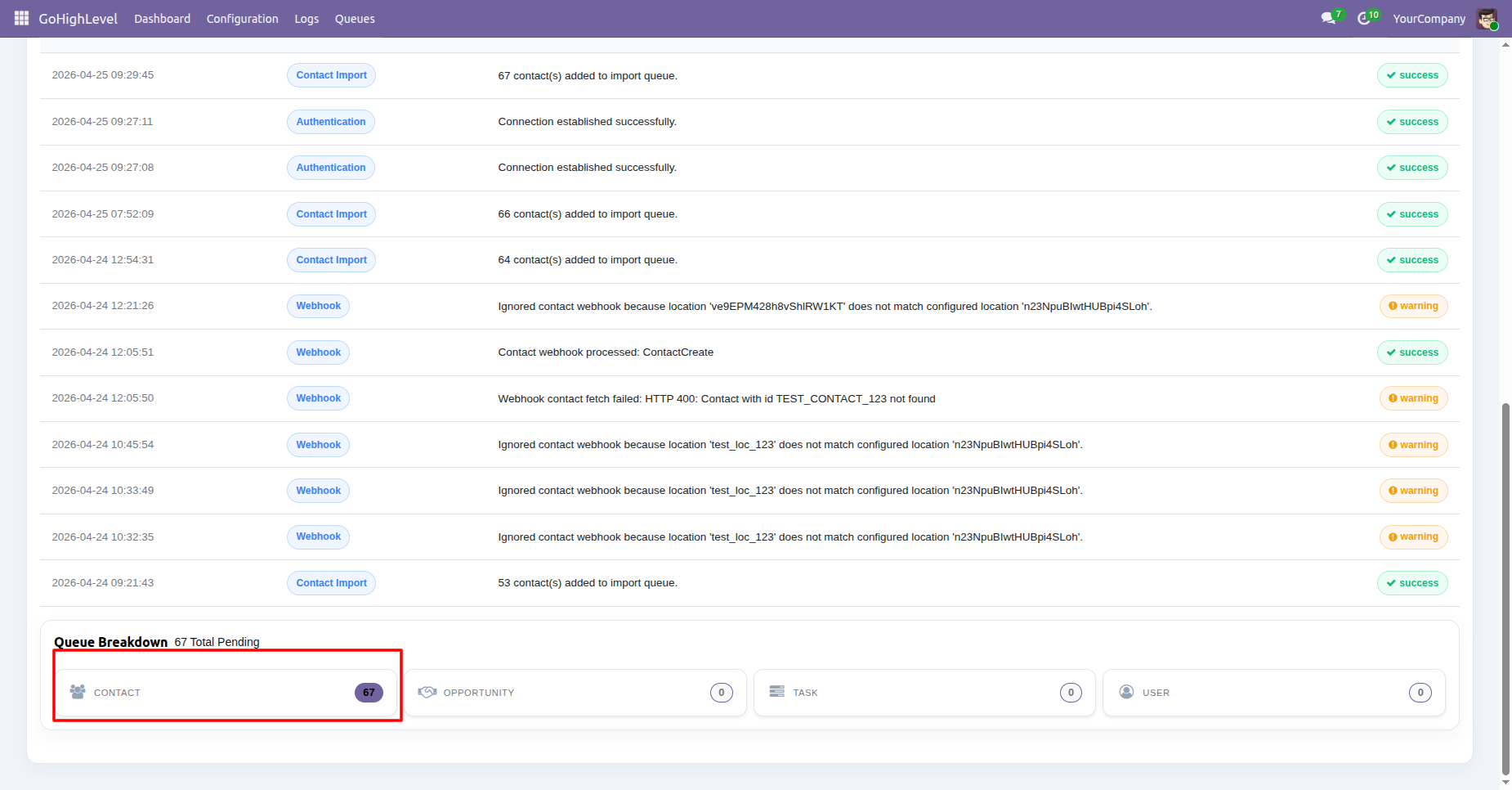
Check the queue breakdown section to monitor pending contact synchronization count.
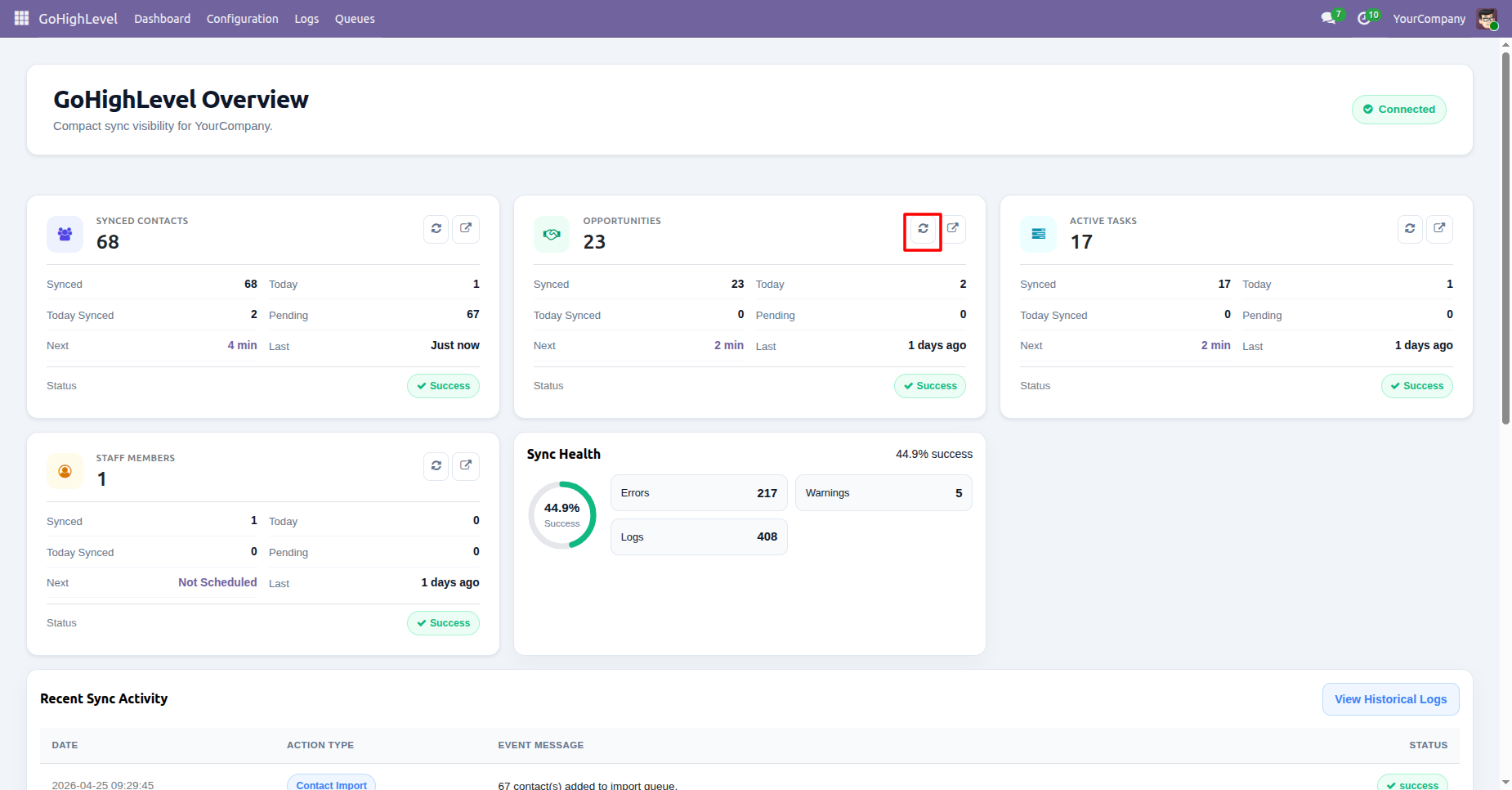
Press the refresh button on the opportunities card to trigger an immediate opportunity synchronization.
Confirm the notification message displaying successful initiation of the opportunity synchronization background job.
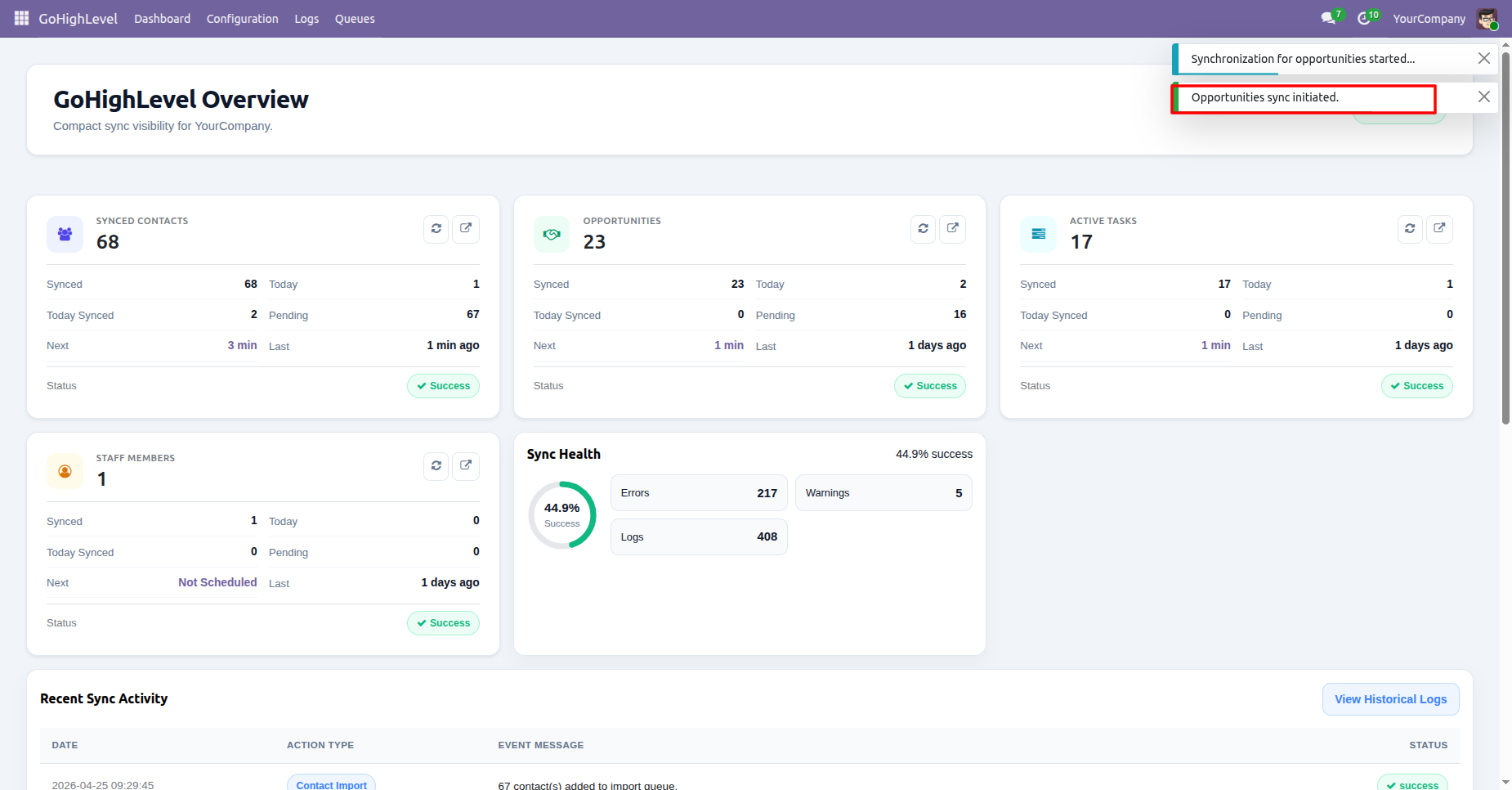
Centralized dashboard to manage and monitor all connectors from one place. Quickly access sync summary, activity logs, and configuration controls with improved visibility.
Workflow
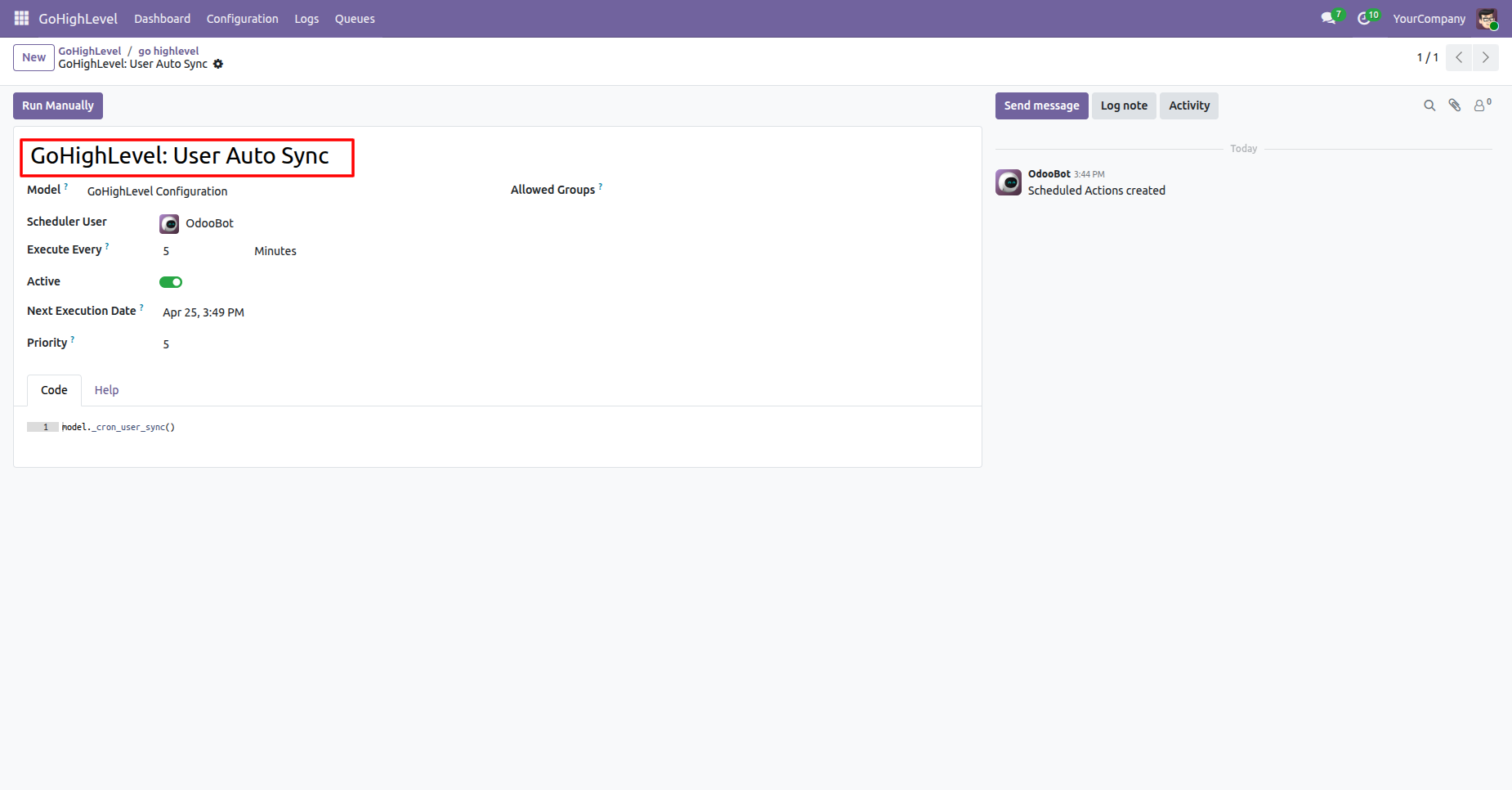
Configure scheduled action parameters for user auto sync to automate background user updates.
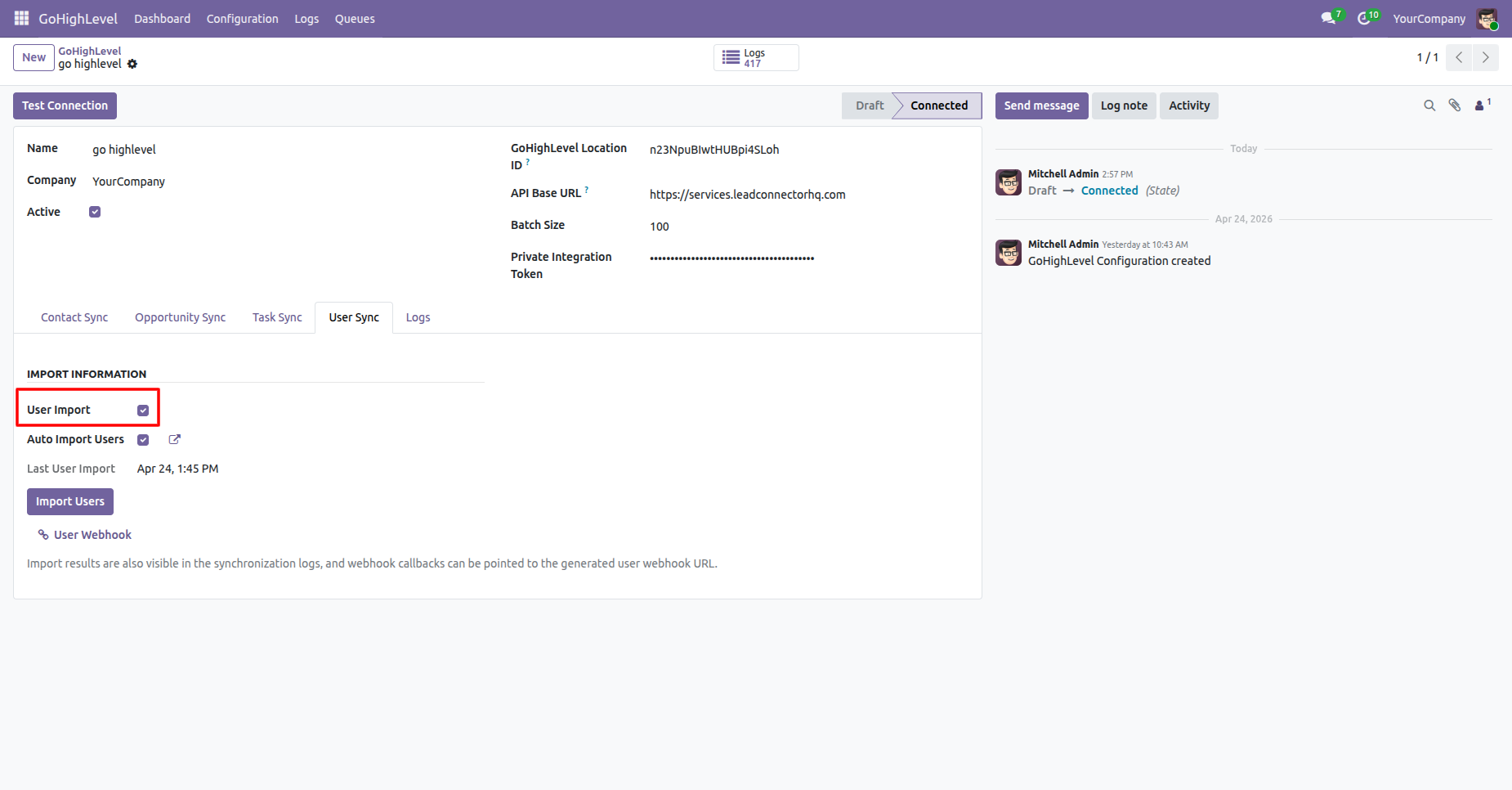
Enable the User Import option under the User Sync tab to allow user profile fetching.
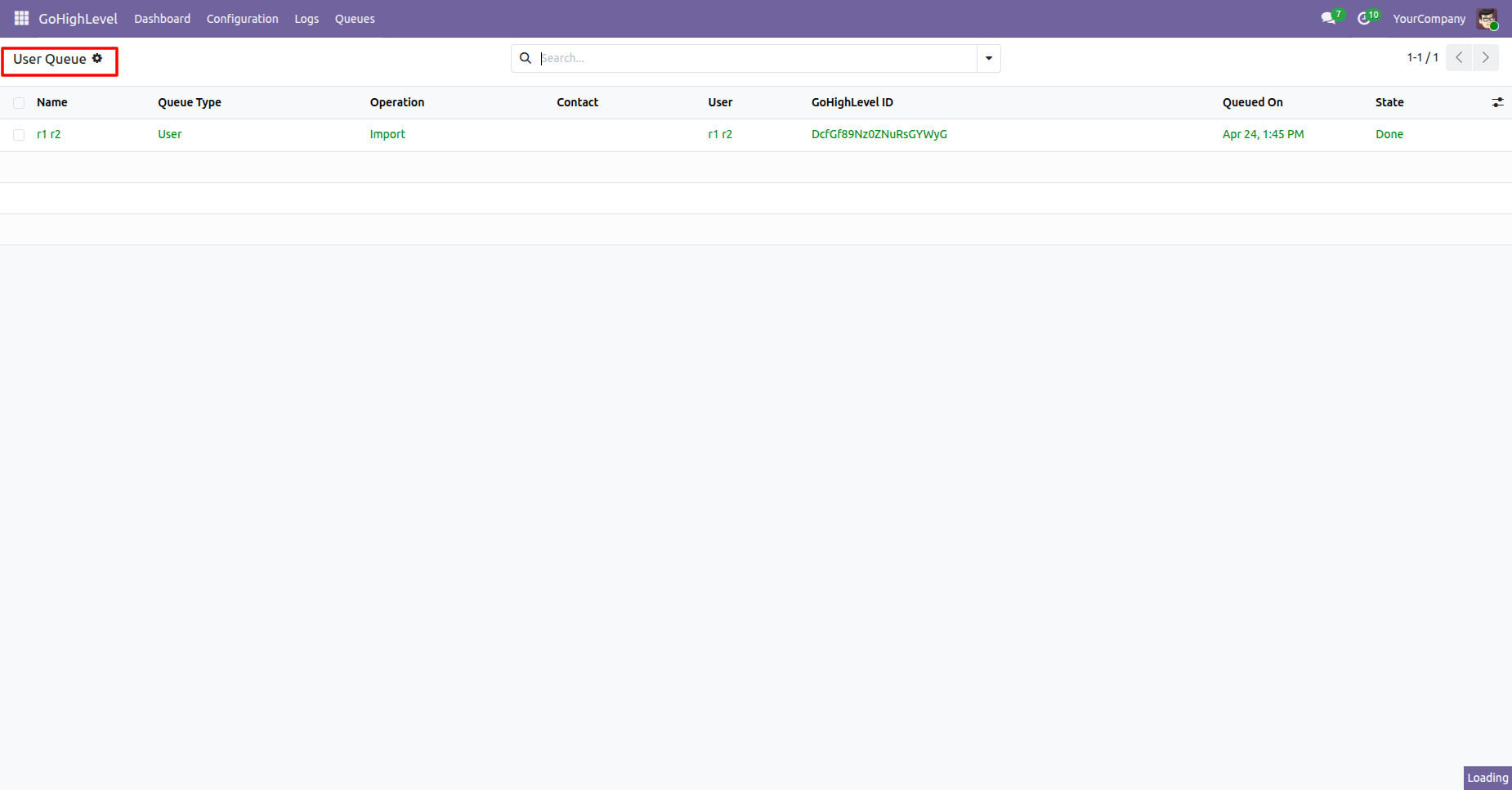
Open the user queue view to inspect queued user records, operation types, and execution states.
Review system log entries to confirm fetched user data and location ID details.
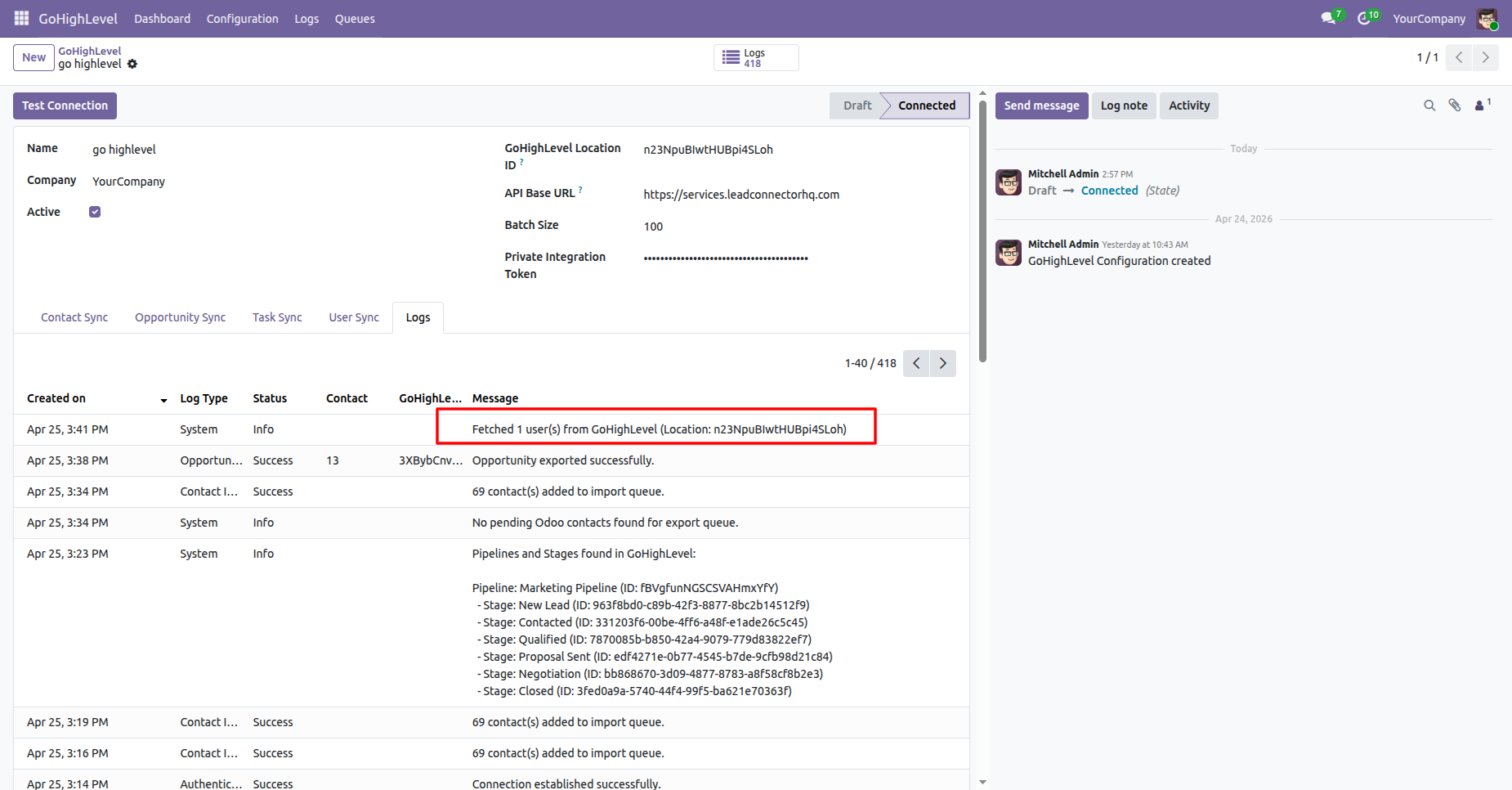
Workflow
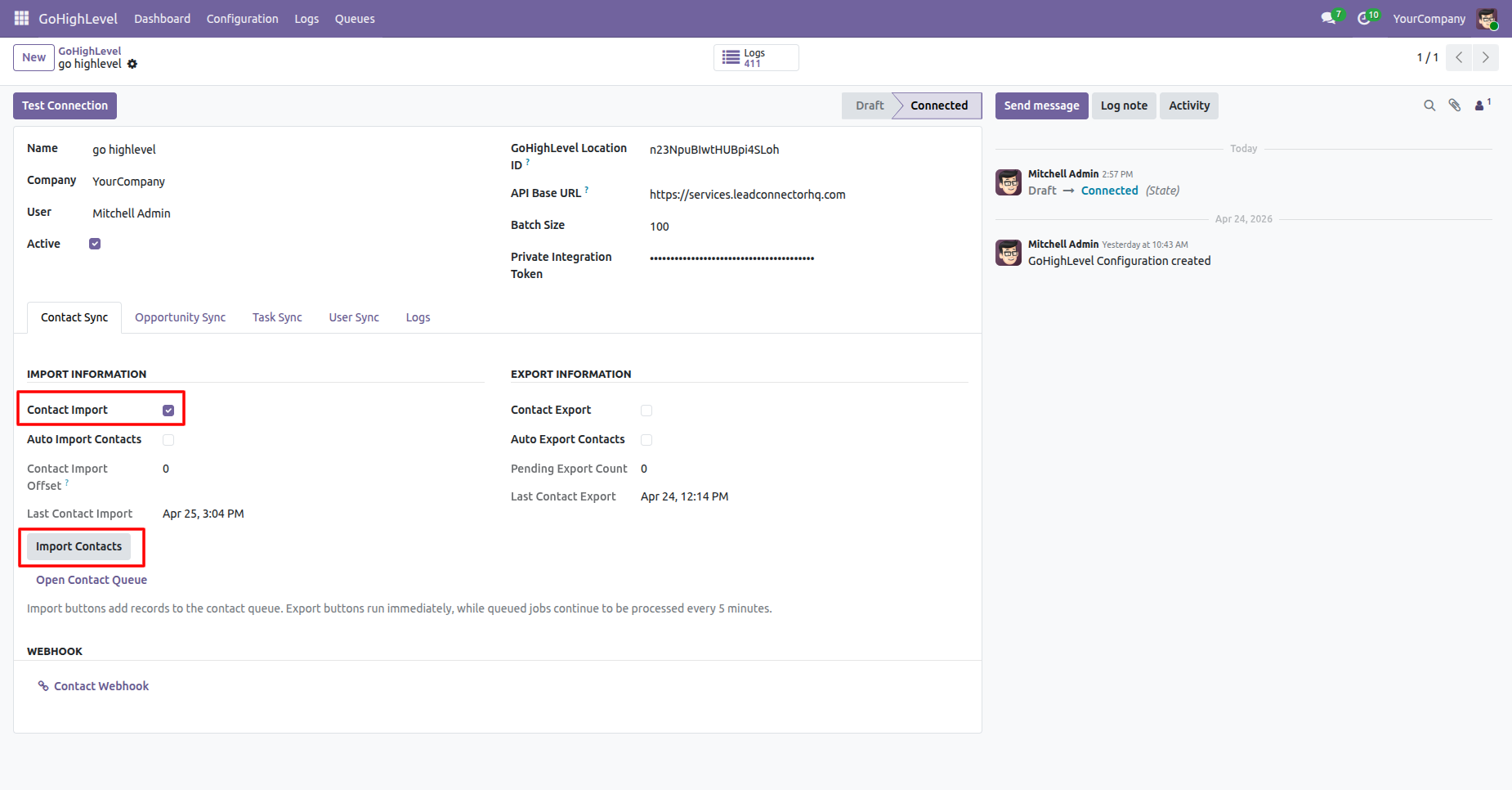
Select Contact Import and click Import Contacts to queue contact records from GoHighLevel.
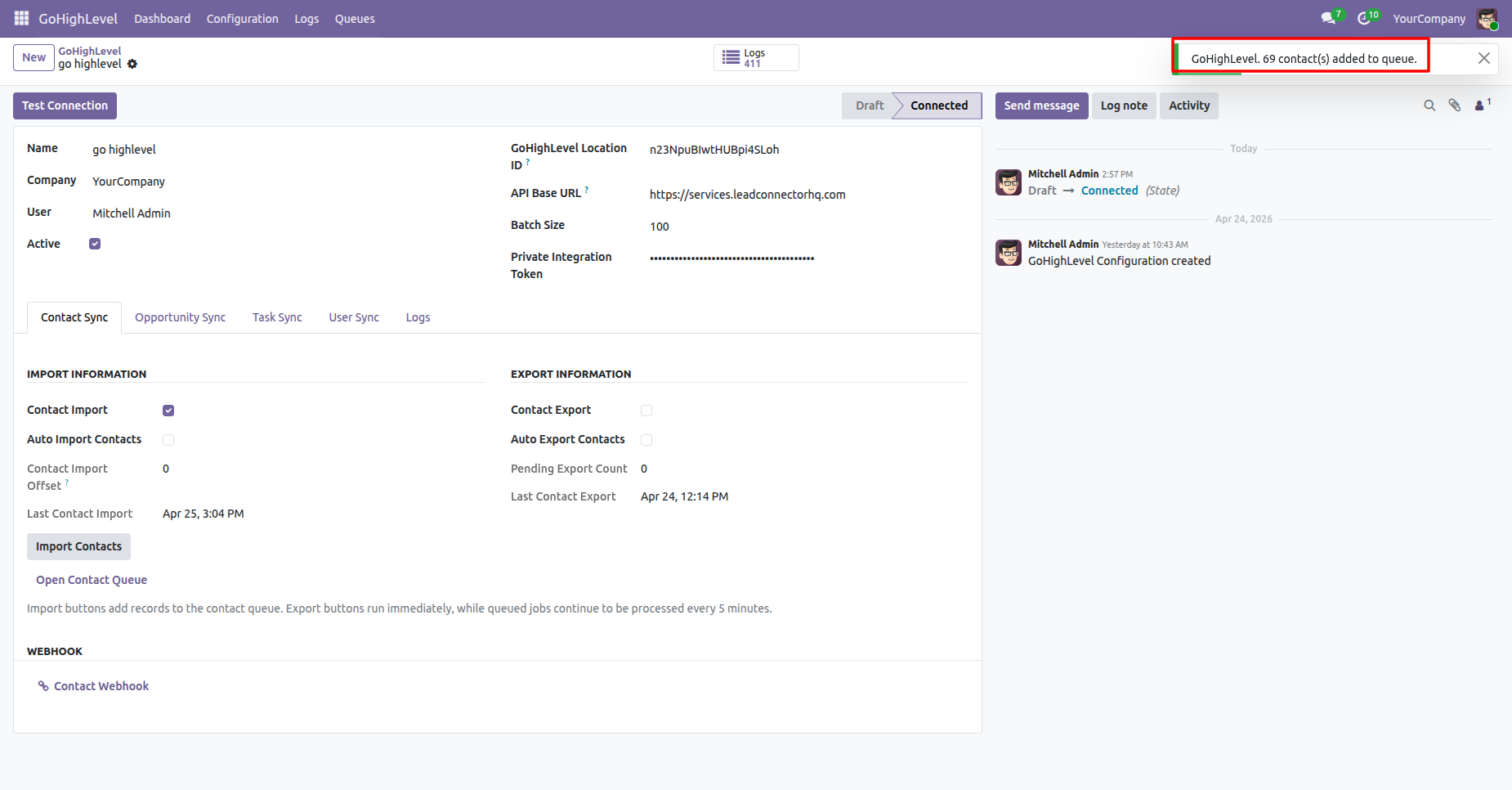
Verify the toast alert confirming that contact records were successfully added to the import queue.
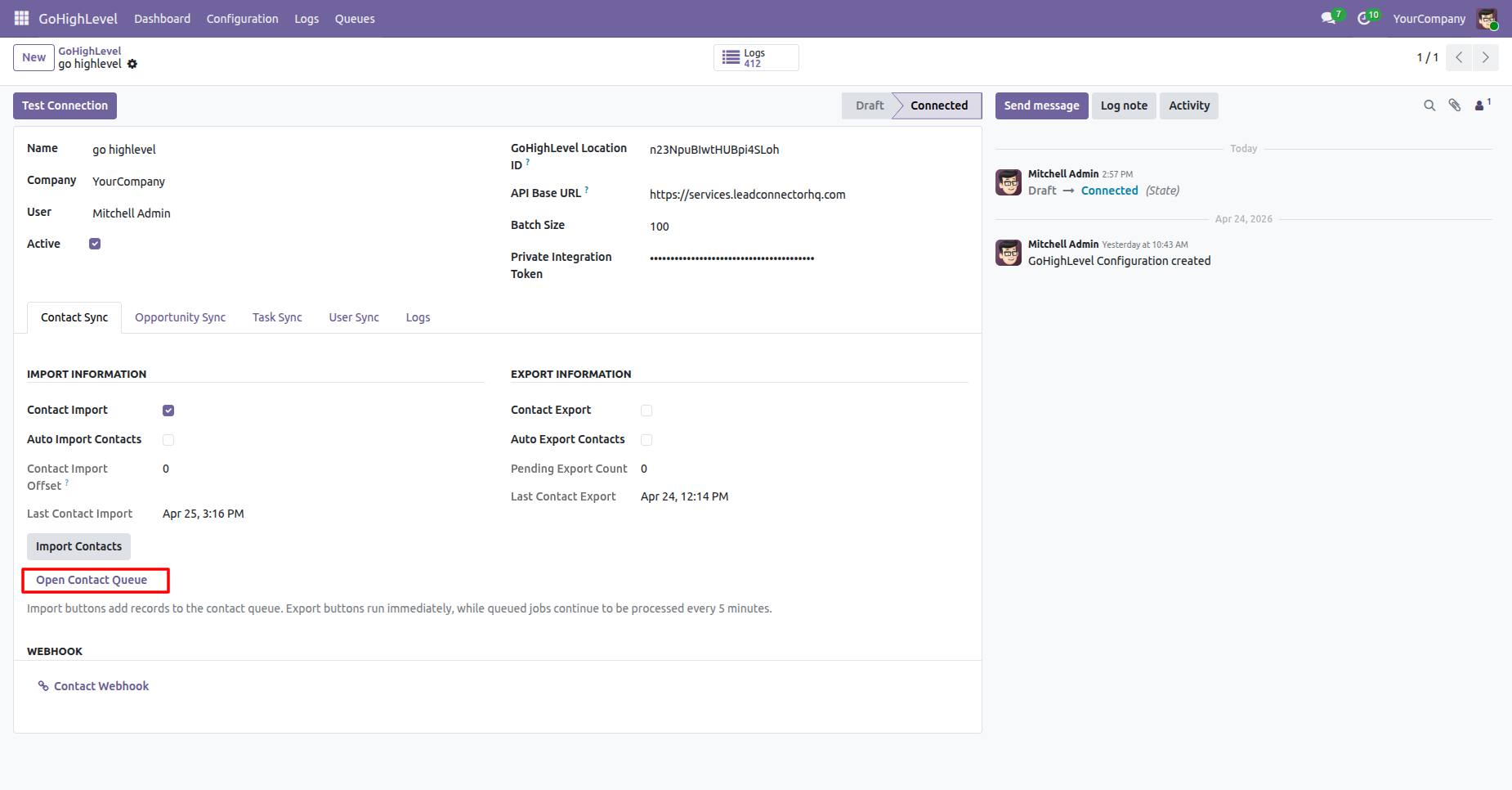
Click Open Contact Queue to navigate directly to the list of queued contact records.
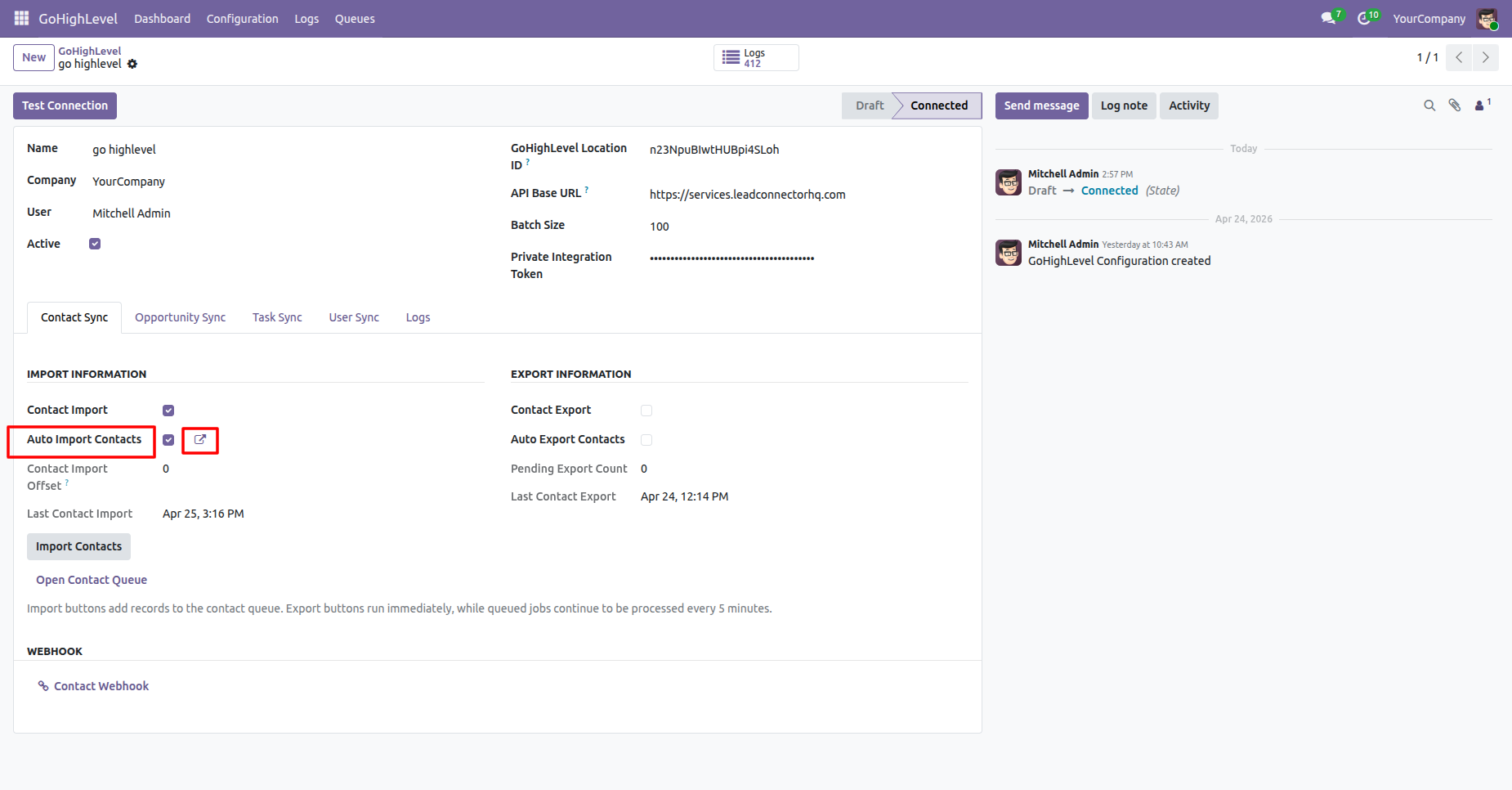
Toggle Auto Import Contacts or click the shortcut link to open automated contact sync settings.
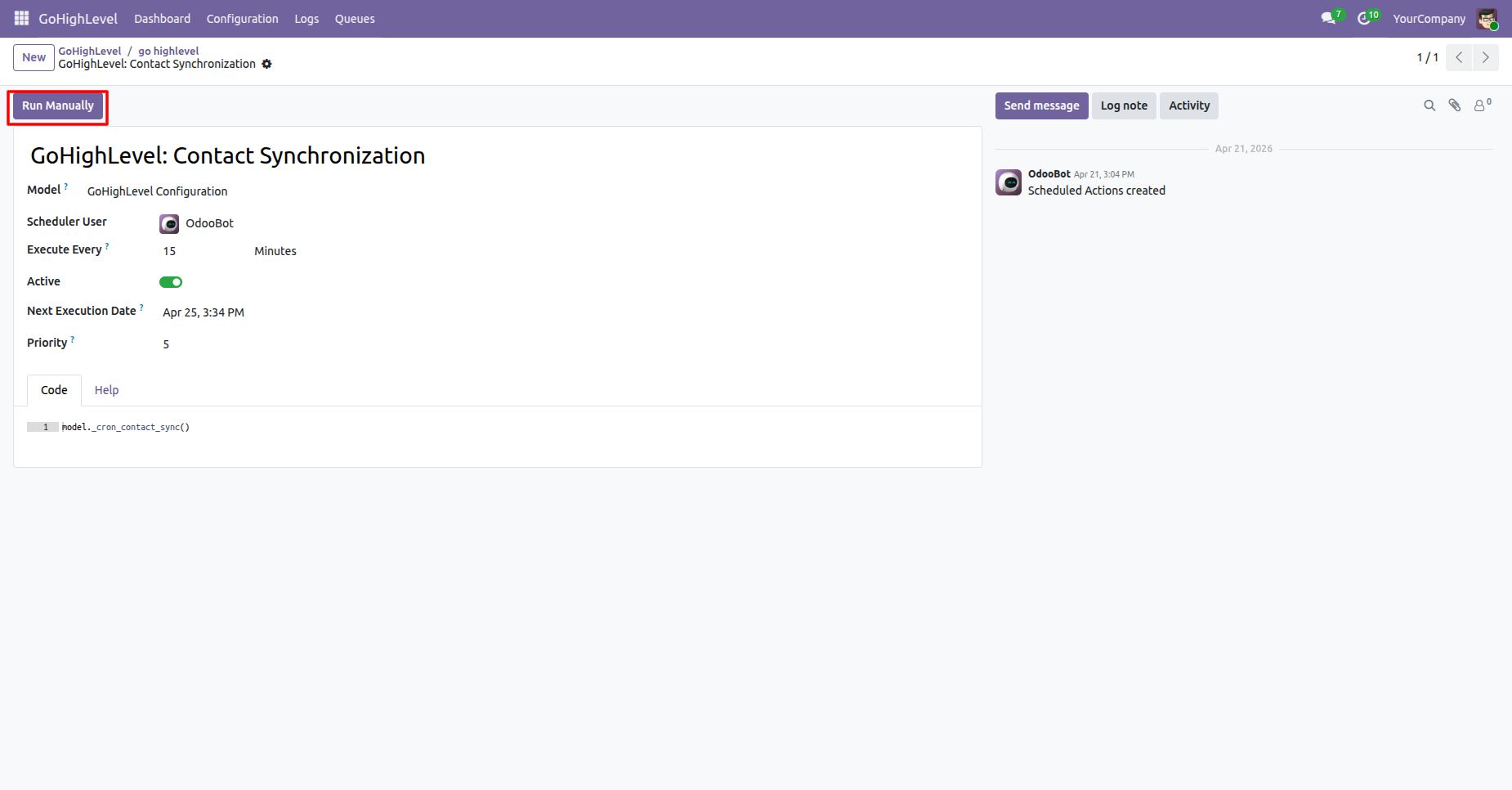
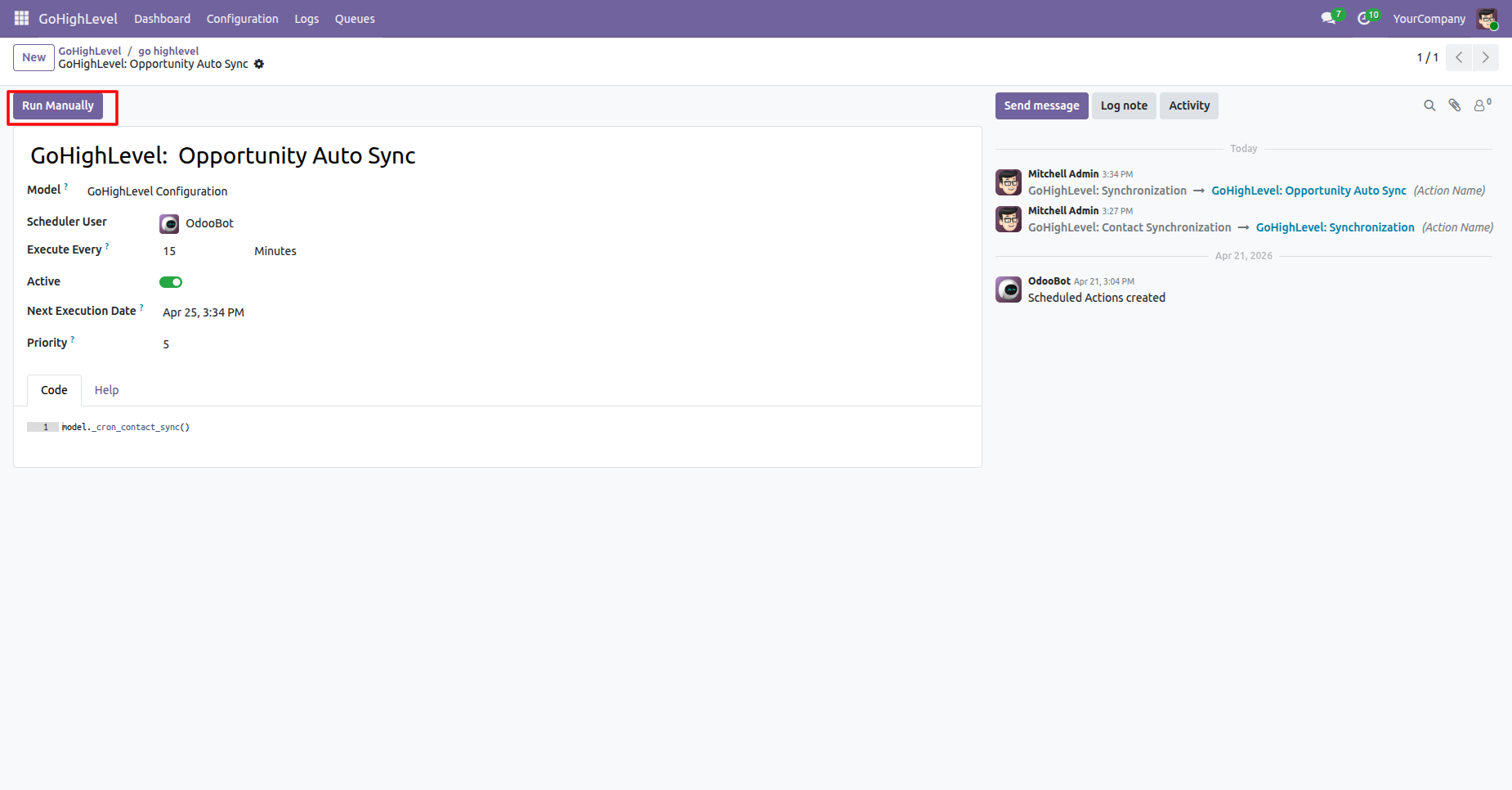
Press Run Manually on the scheduled action form to execute immediate background contact synchronization.
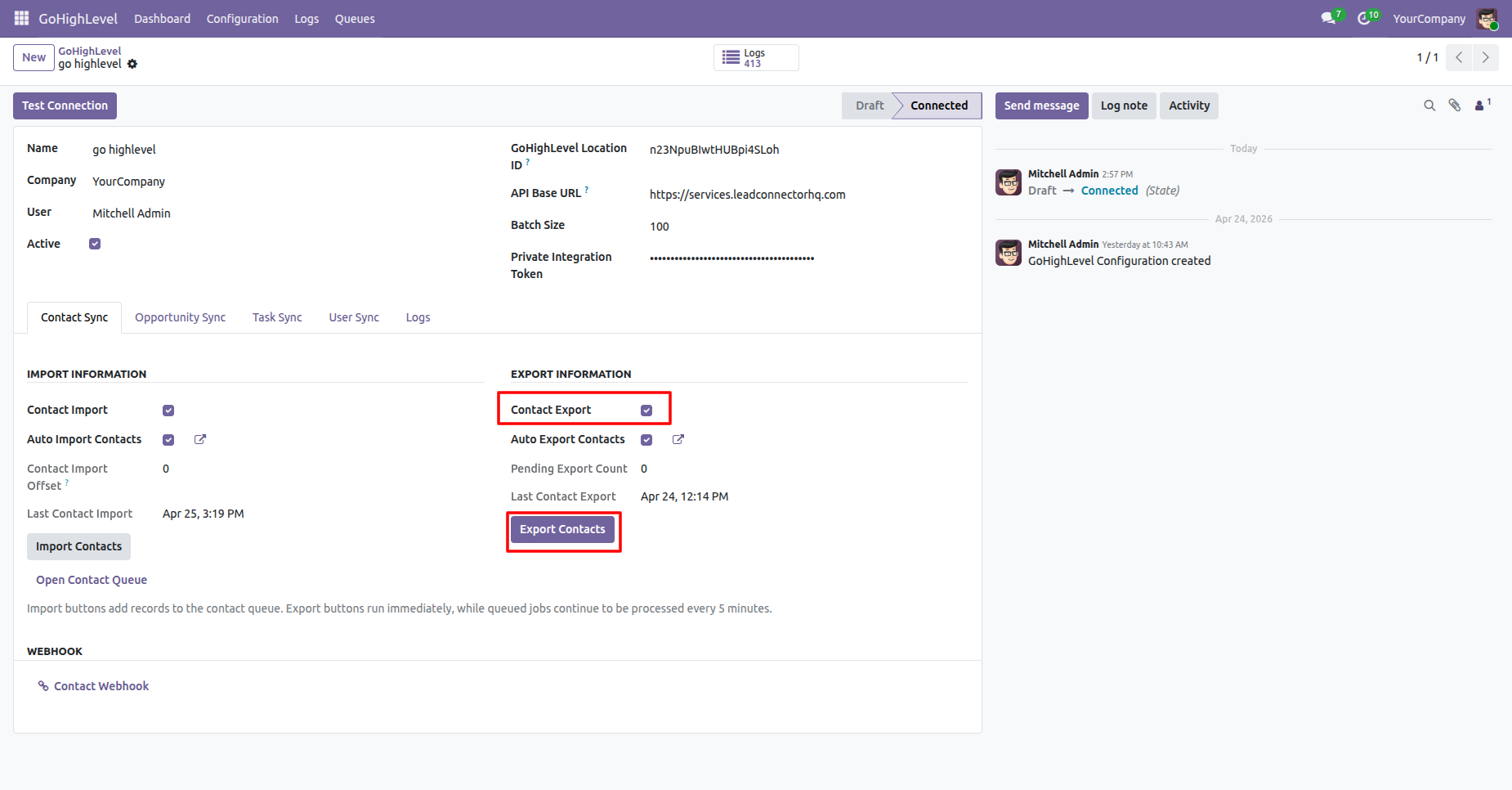
Select Contact Export and click Export Contacts to send Odoo contact updates to GoHighLevel.
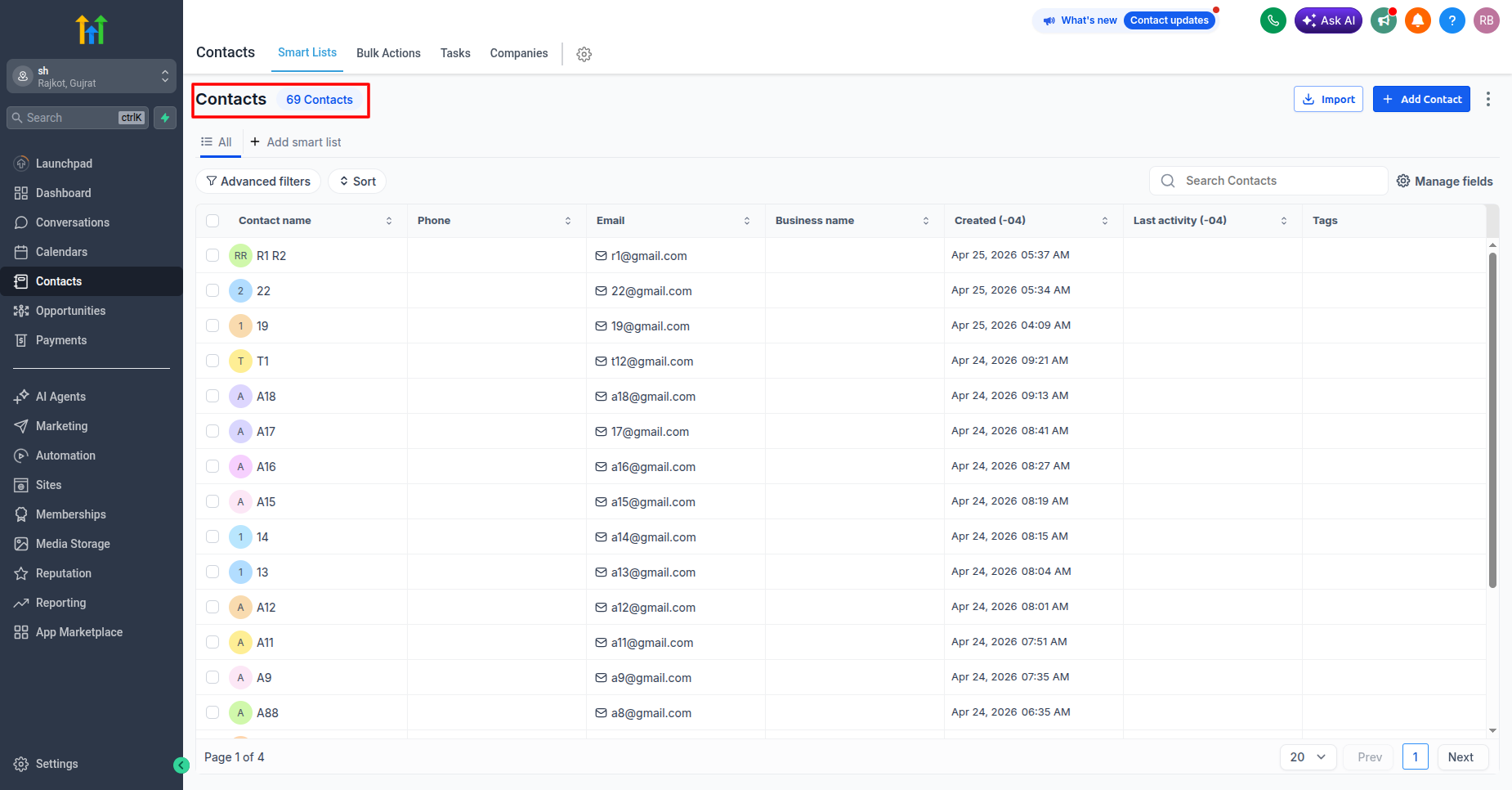
Inspect the GoHighLevel contacts list to confirm total synchronized contacts and email address entries.
Check the contact queue list to review individual contact import jobs and completion status.
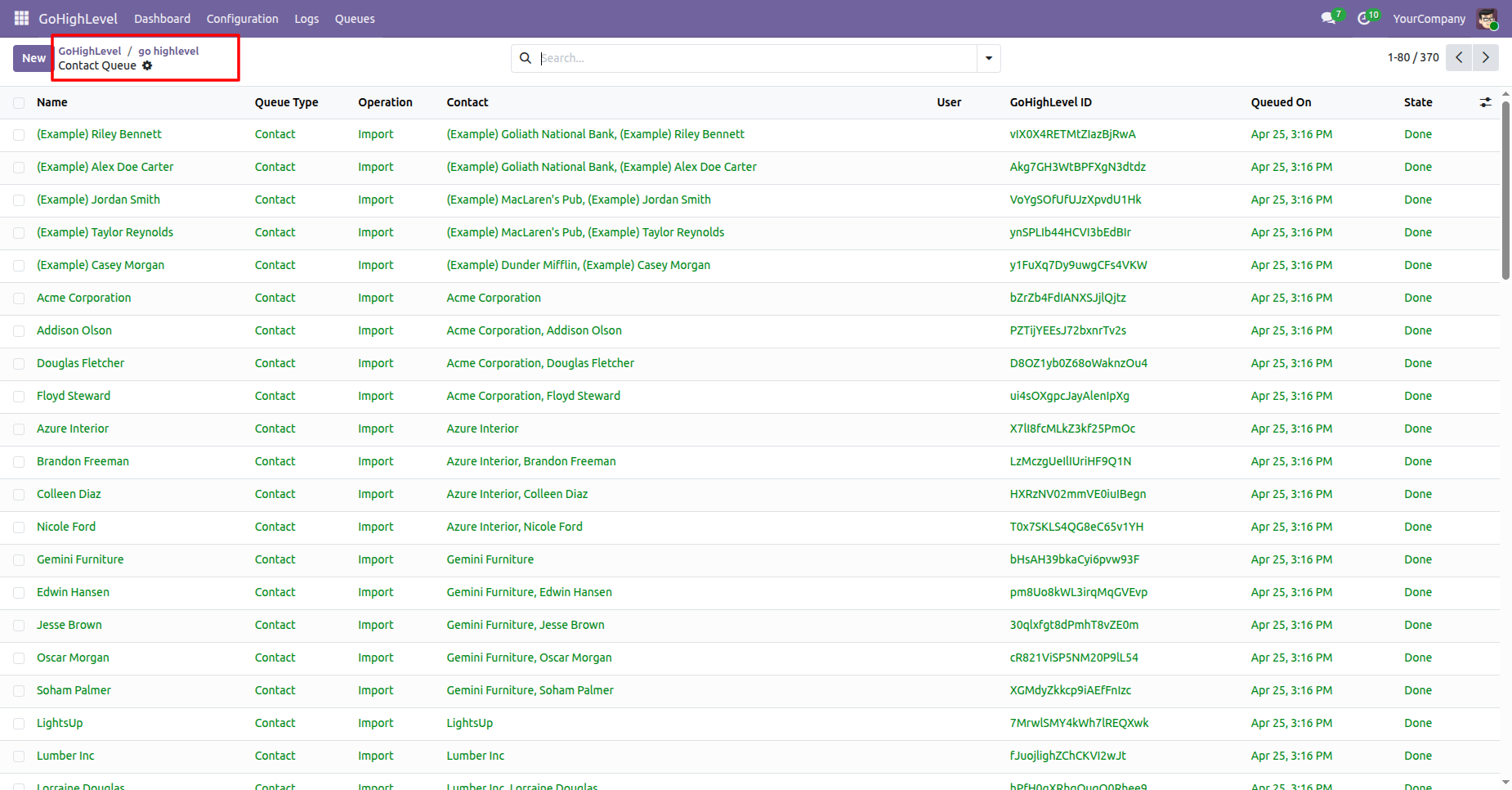
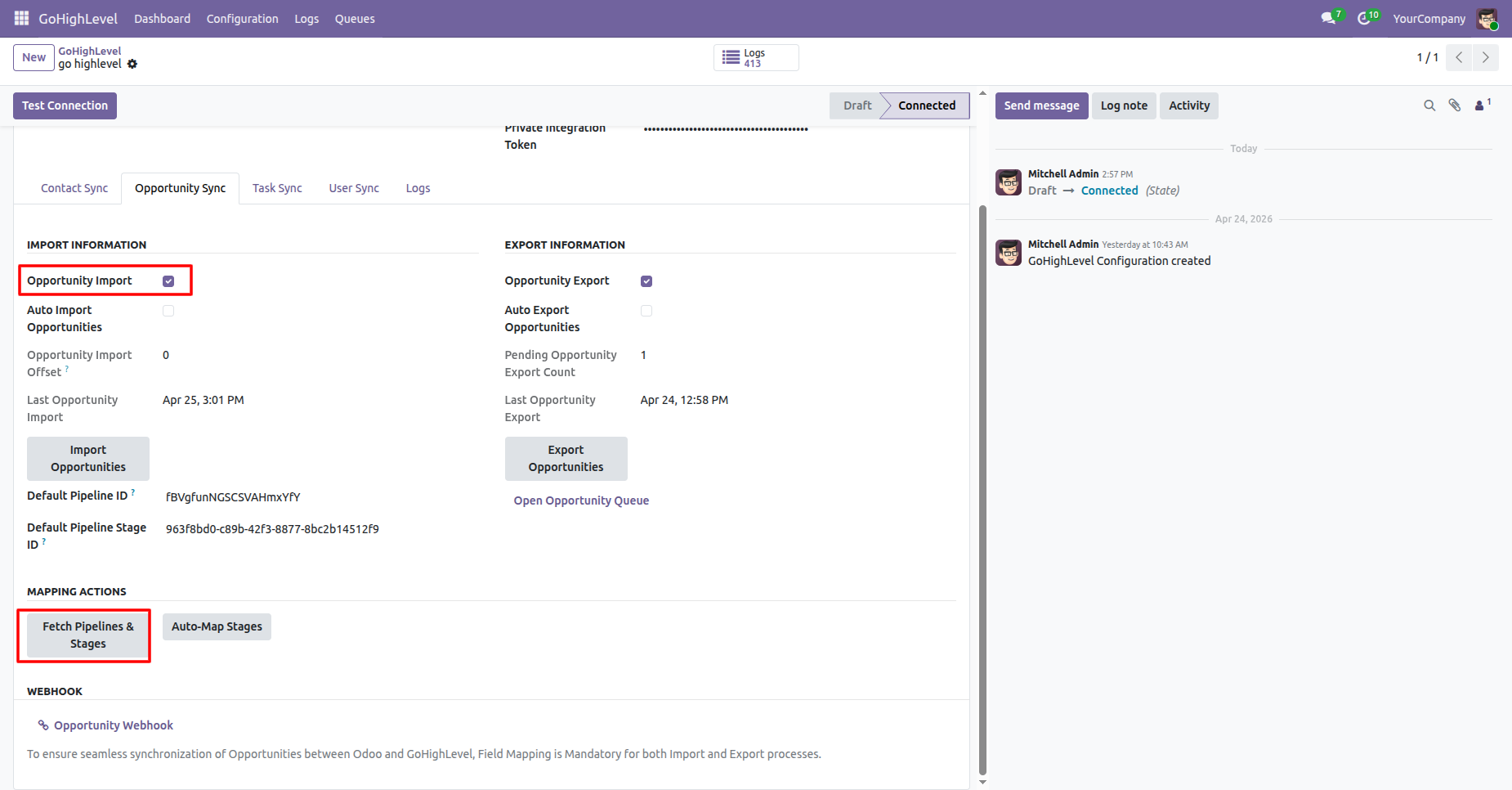
Workflow
Click Fetch Pipelines & Stages to pull pipeline structures and stage definitions from GoHighLevel.
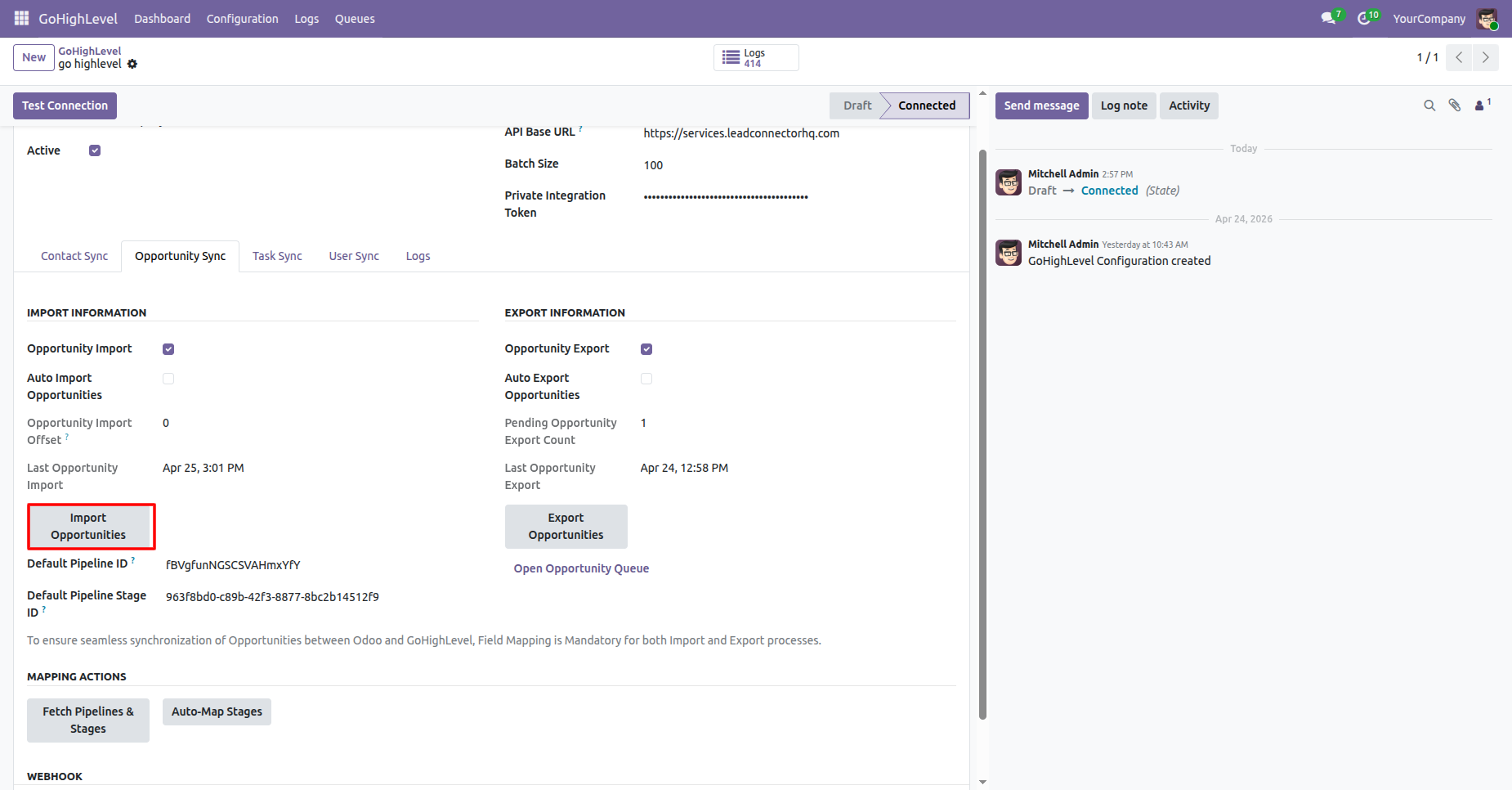
Click Import Opportunities to fetch sales pipeline deal records from GoHighLevel into Odoo.
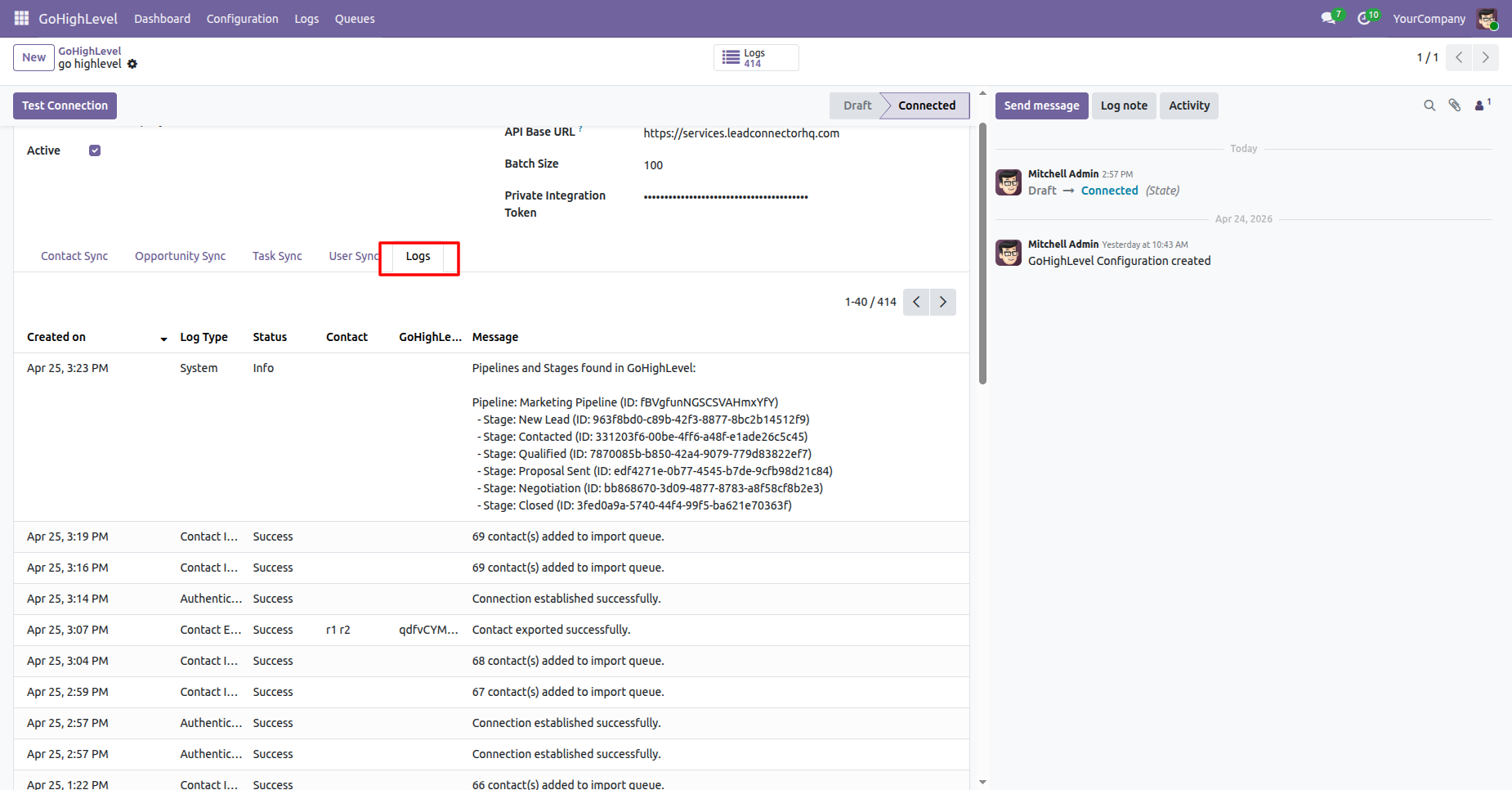
Switch to the Logs tab to view retrieved pipeline names and stage ID mappings.
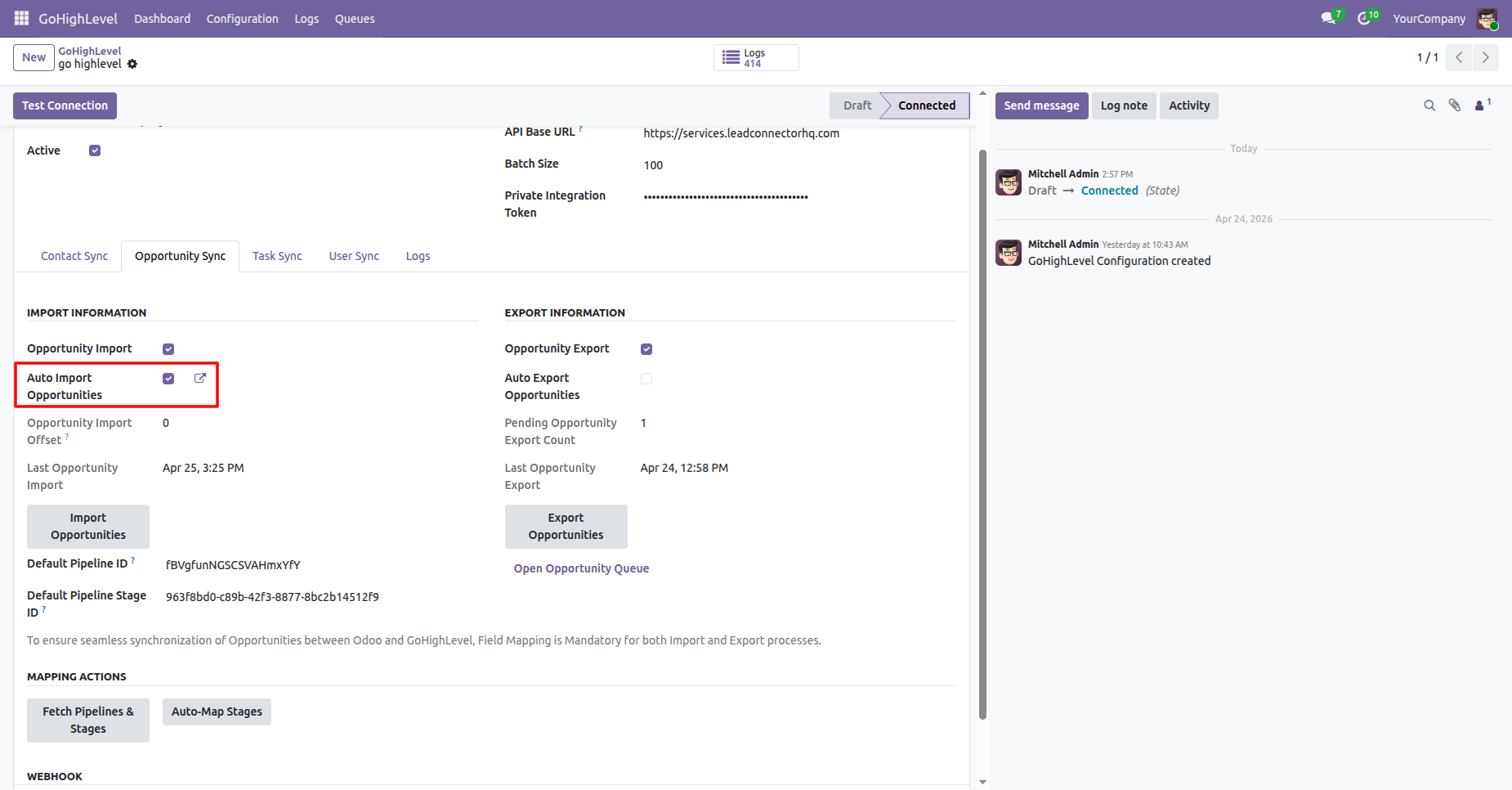
Enable Auto Import Opportunities or click the external link to view scheduled opportunity cron settings.
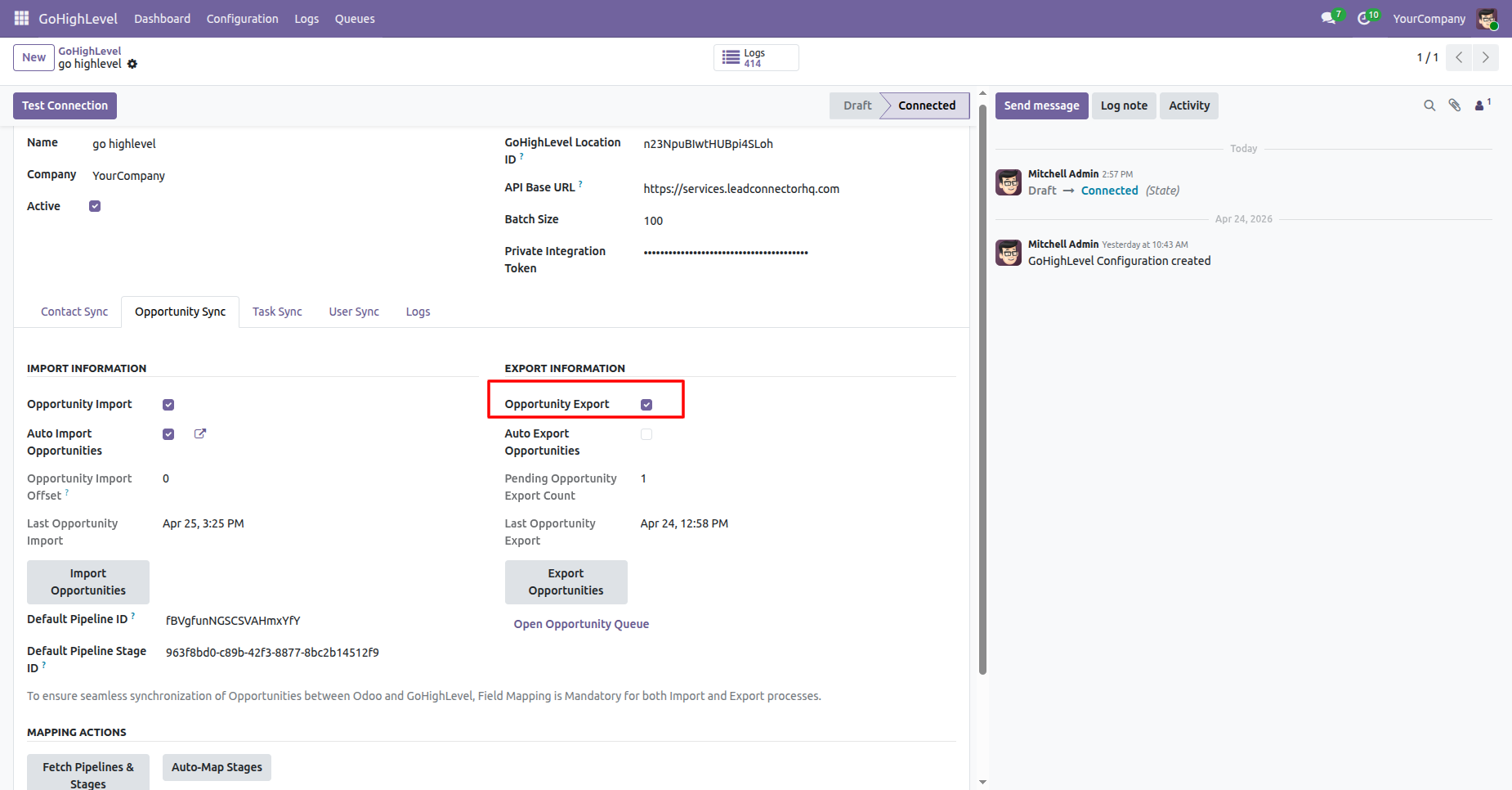
Check the Opportunity Export box to allow sending Odoo CRM pipeline opportunities to GoHighLevel.
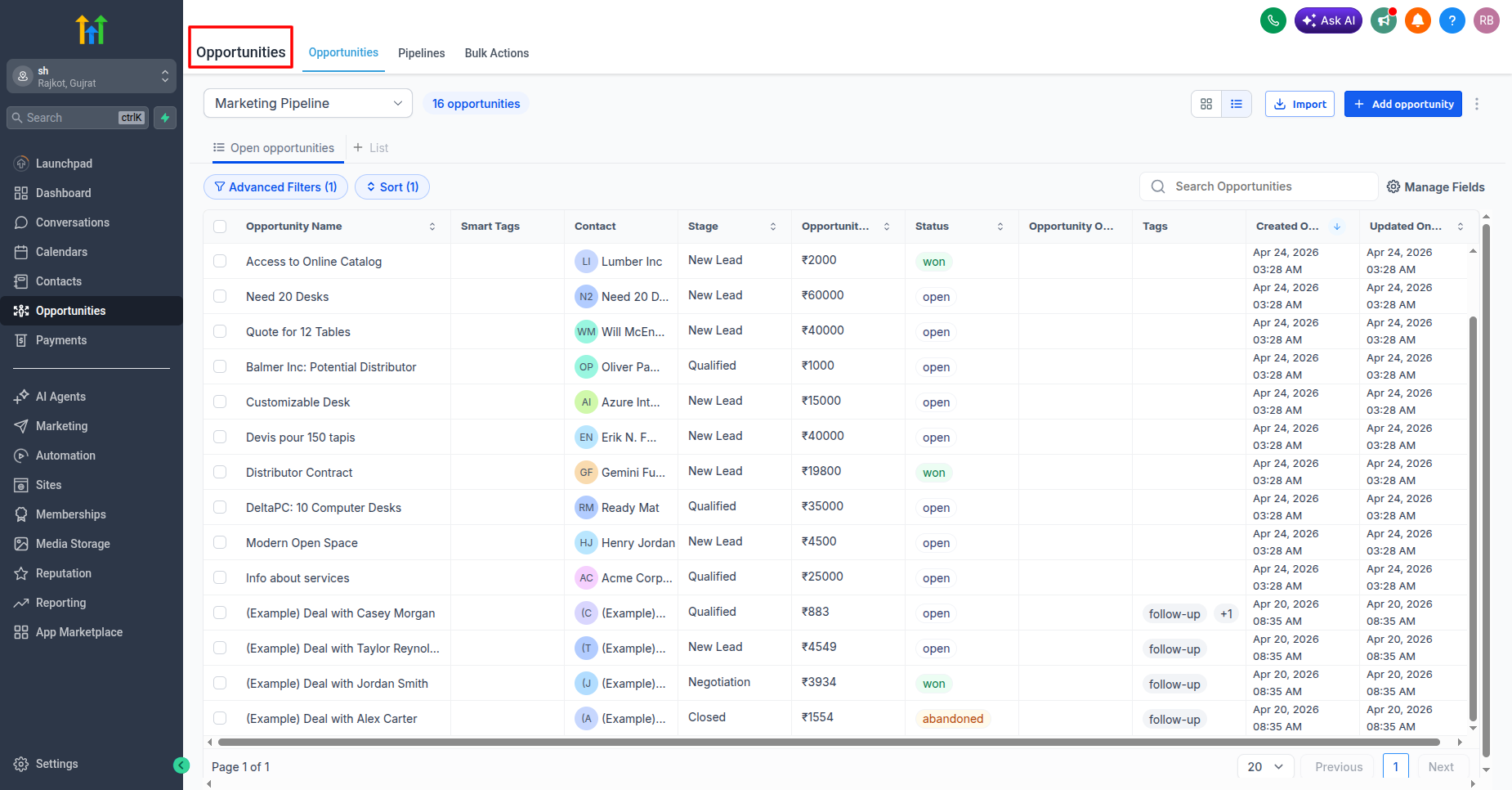
View the GoHighLevel opportunities table.
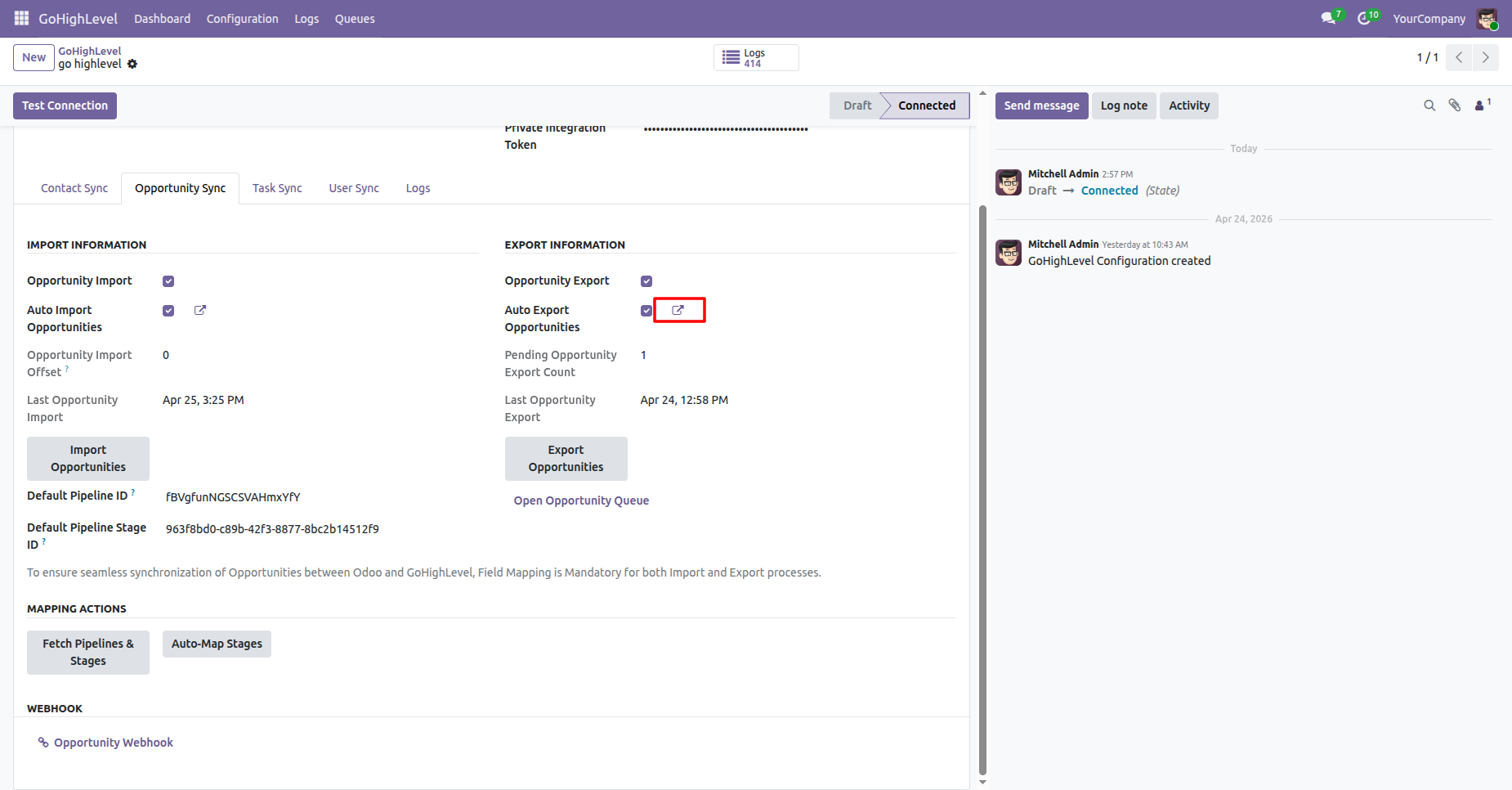
Click the link icon next to Auto Export Opportunities to configure automated export scheduled actions.
Execute Run Manually on the opportunity scheduled action form to process opportunity synchronization instantly.
Workflow
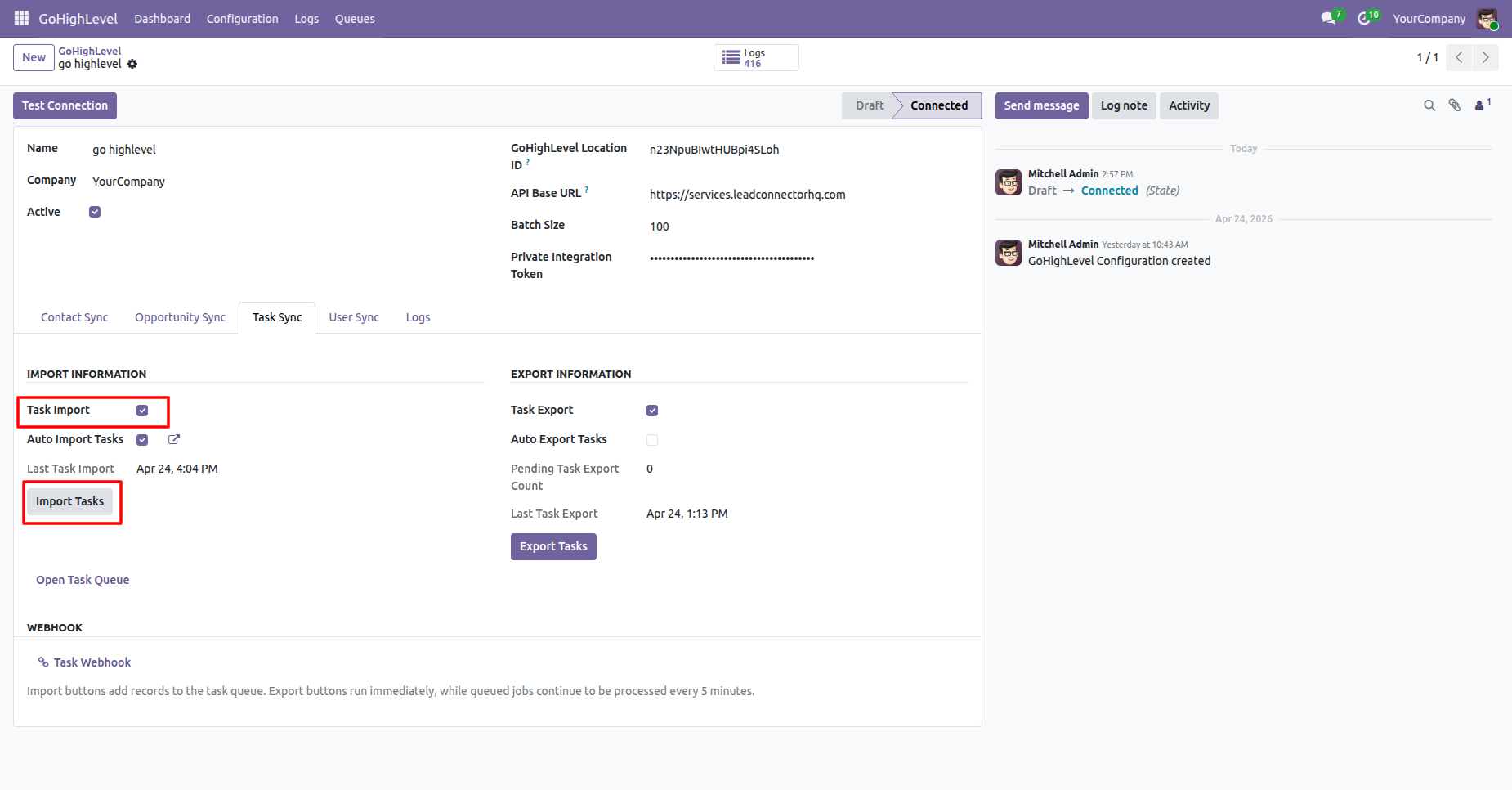
Select Task Import and click Import Tasks to pull task records into the synchronization queue.
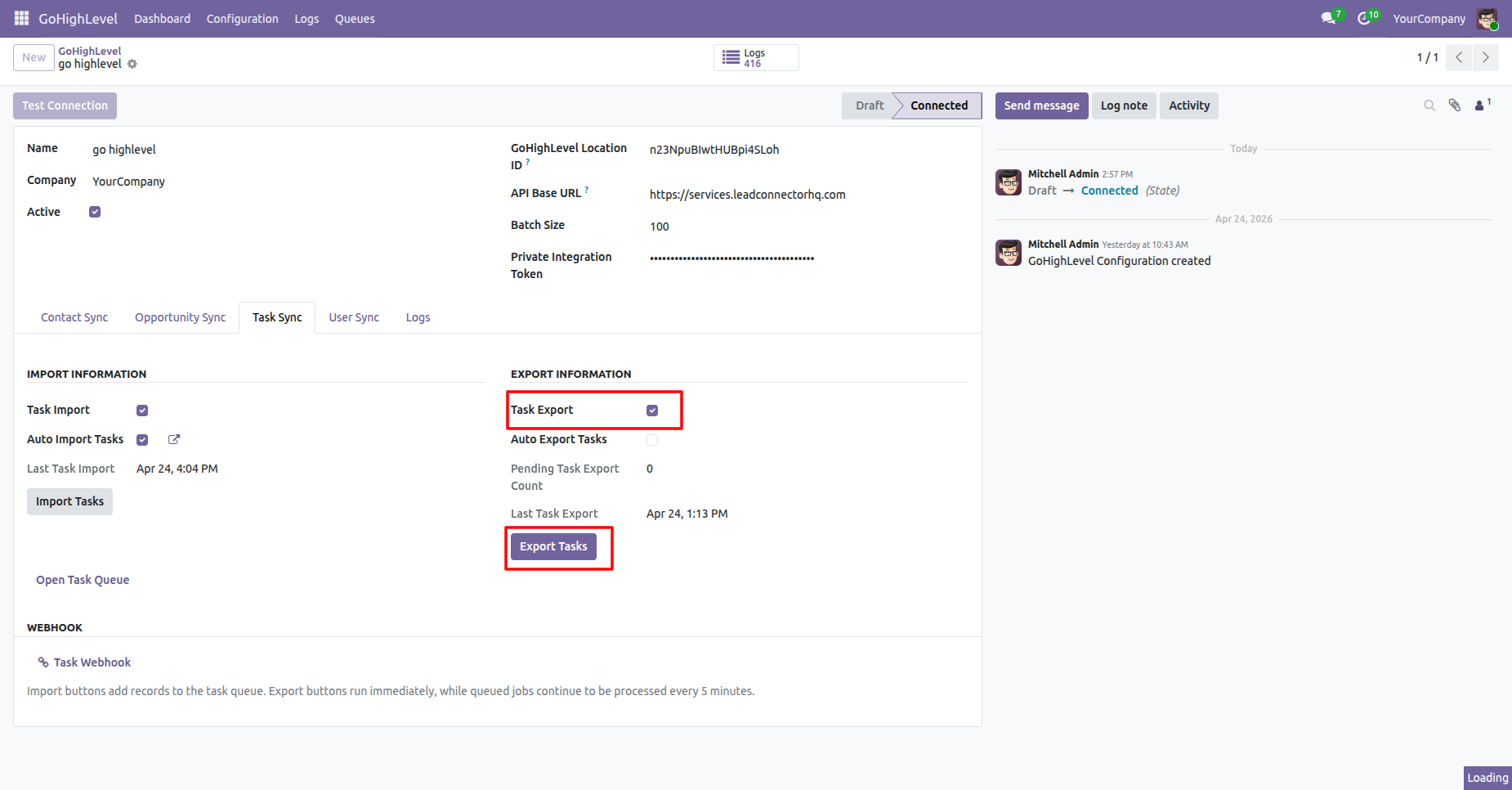
Check Task Export and click Export Tasks to push pending Odoo task items to GoHighLevel.
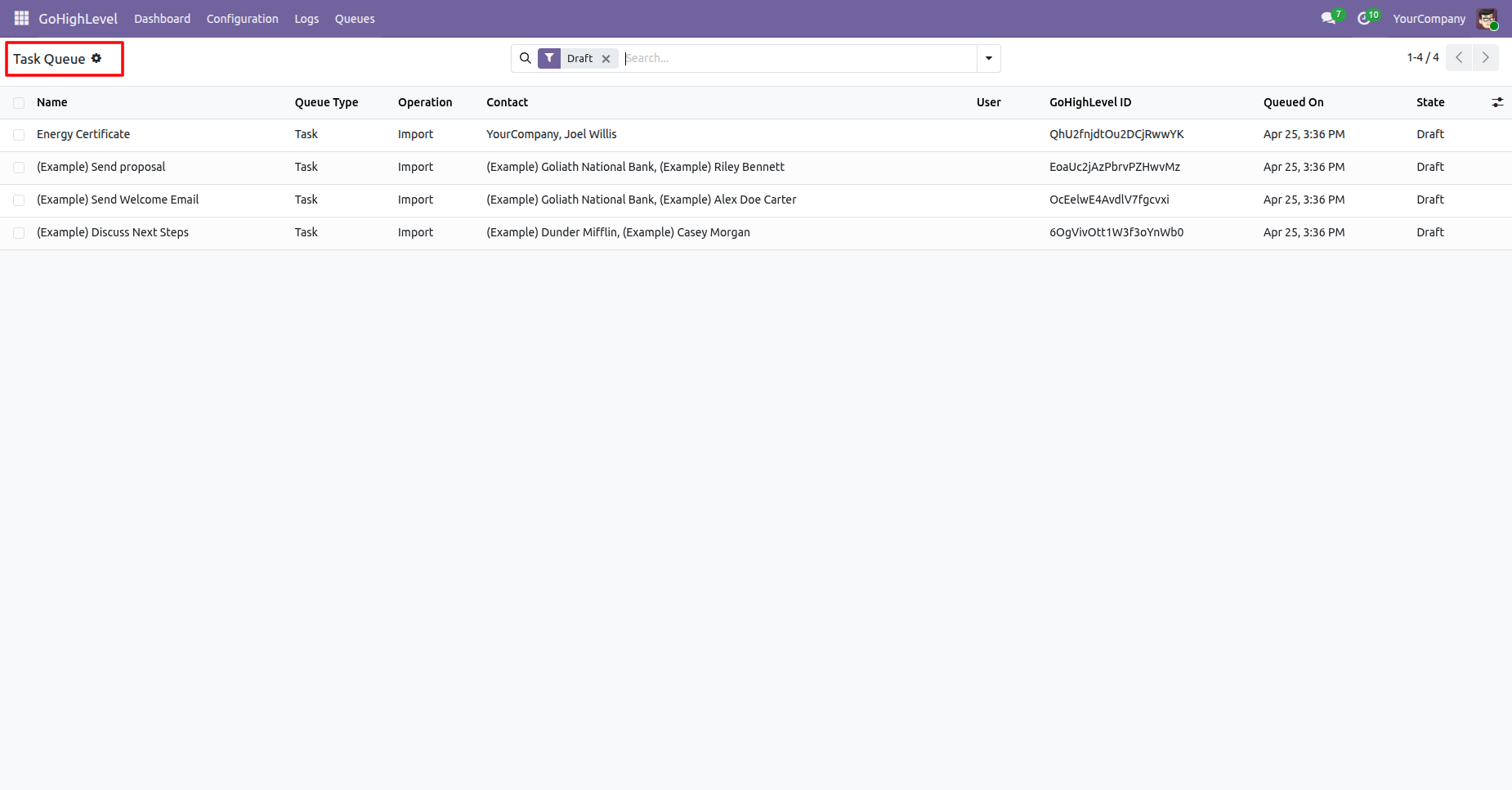
Access the Task Queue list to inspect queued task operations, associated contacts, and processing states.
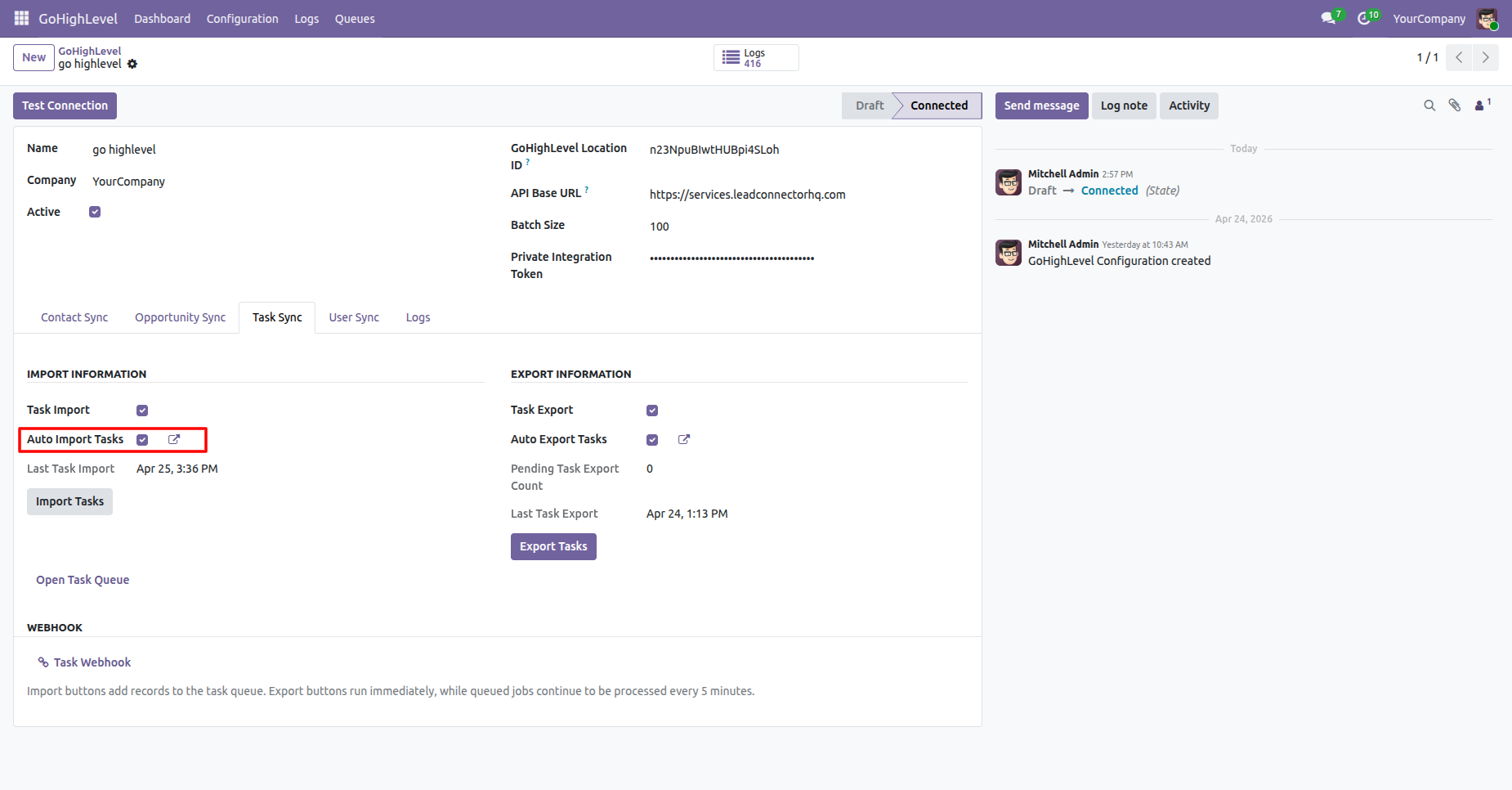
Enable Auto Import Tasks to periodically fetch new tasks from GoHighLevel on a scheduled cron.
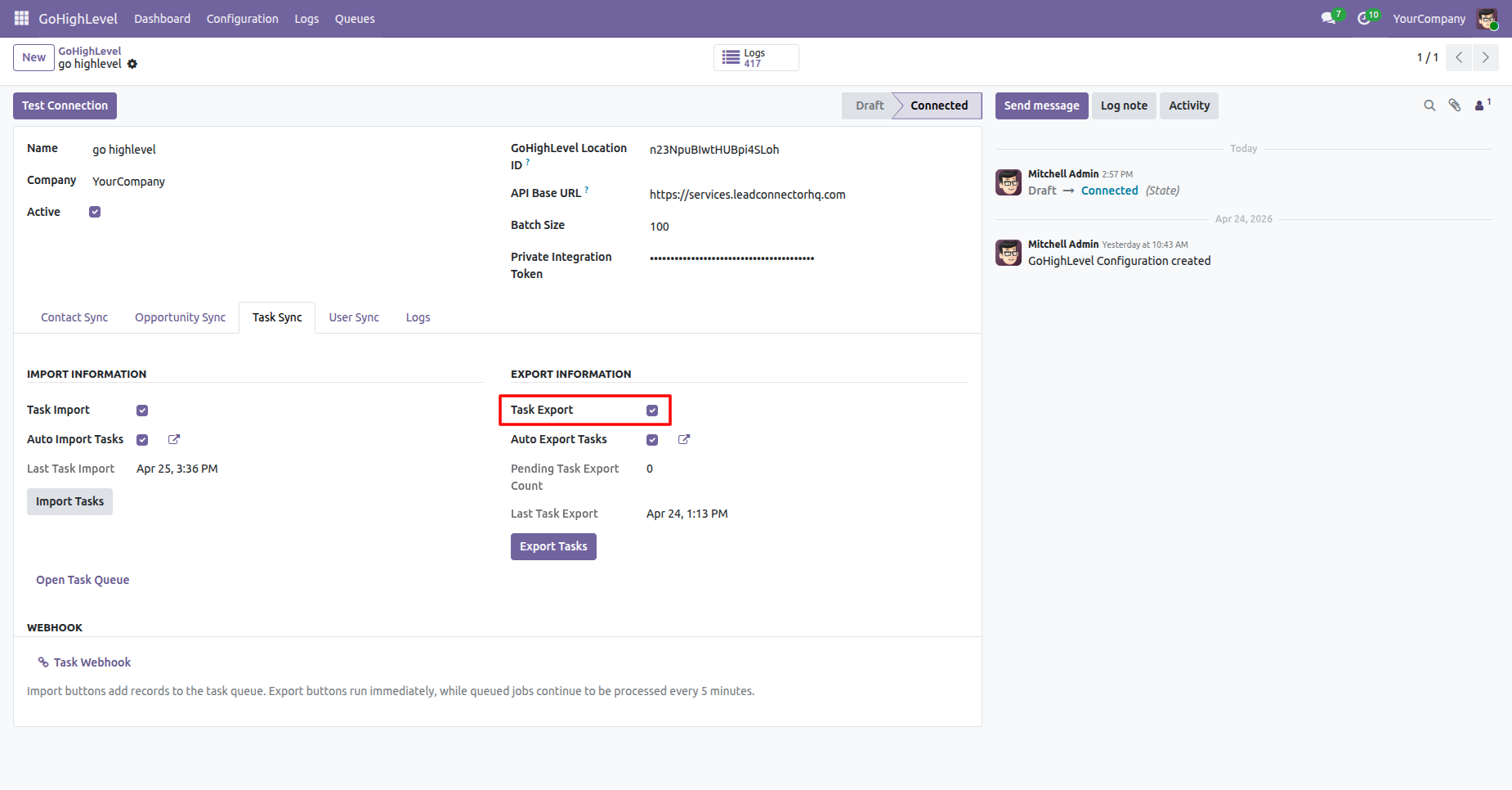
Check Task Export to enable synchronization of outbound task records from Odoo to GoHighLevel.
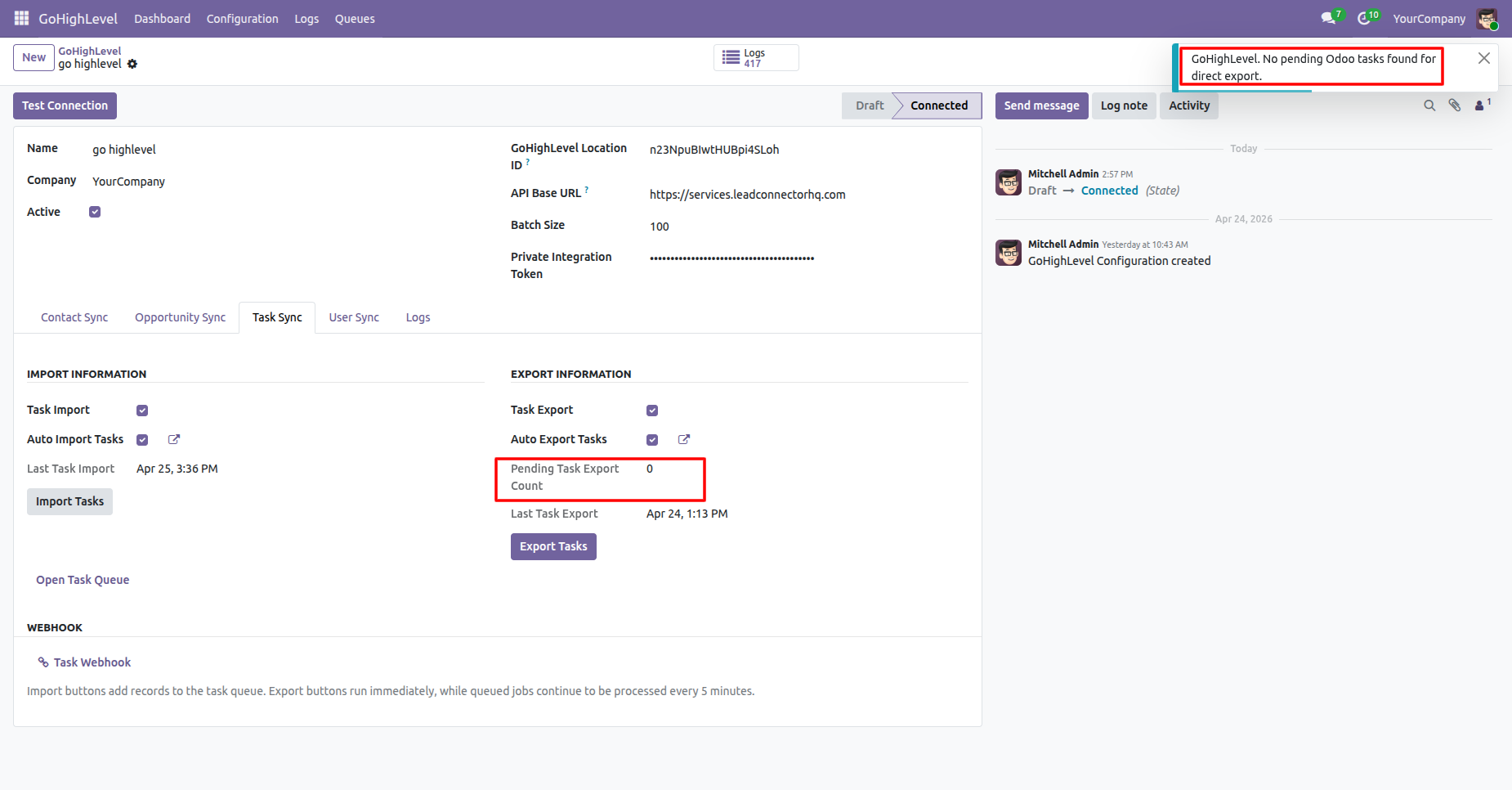
Observe the notification banner confirming that no pending Odoo task records were found for export.
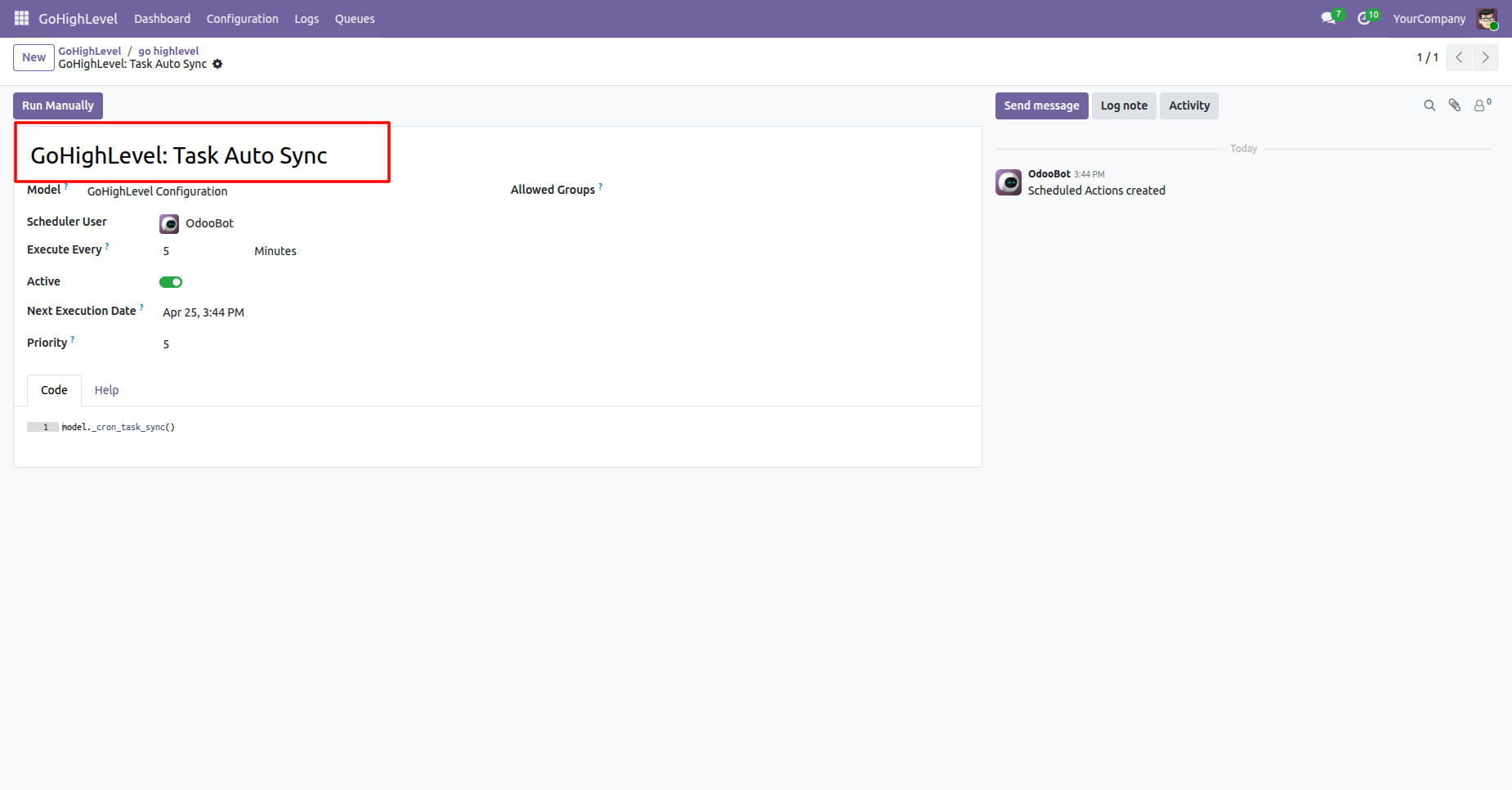
Review scheduled action configuration settings for automated task synchronization execution interval.
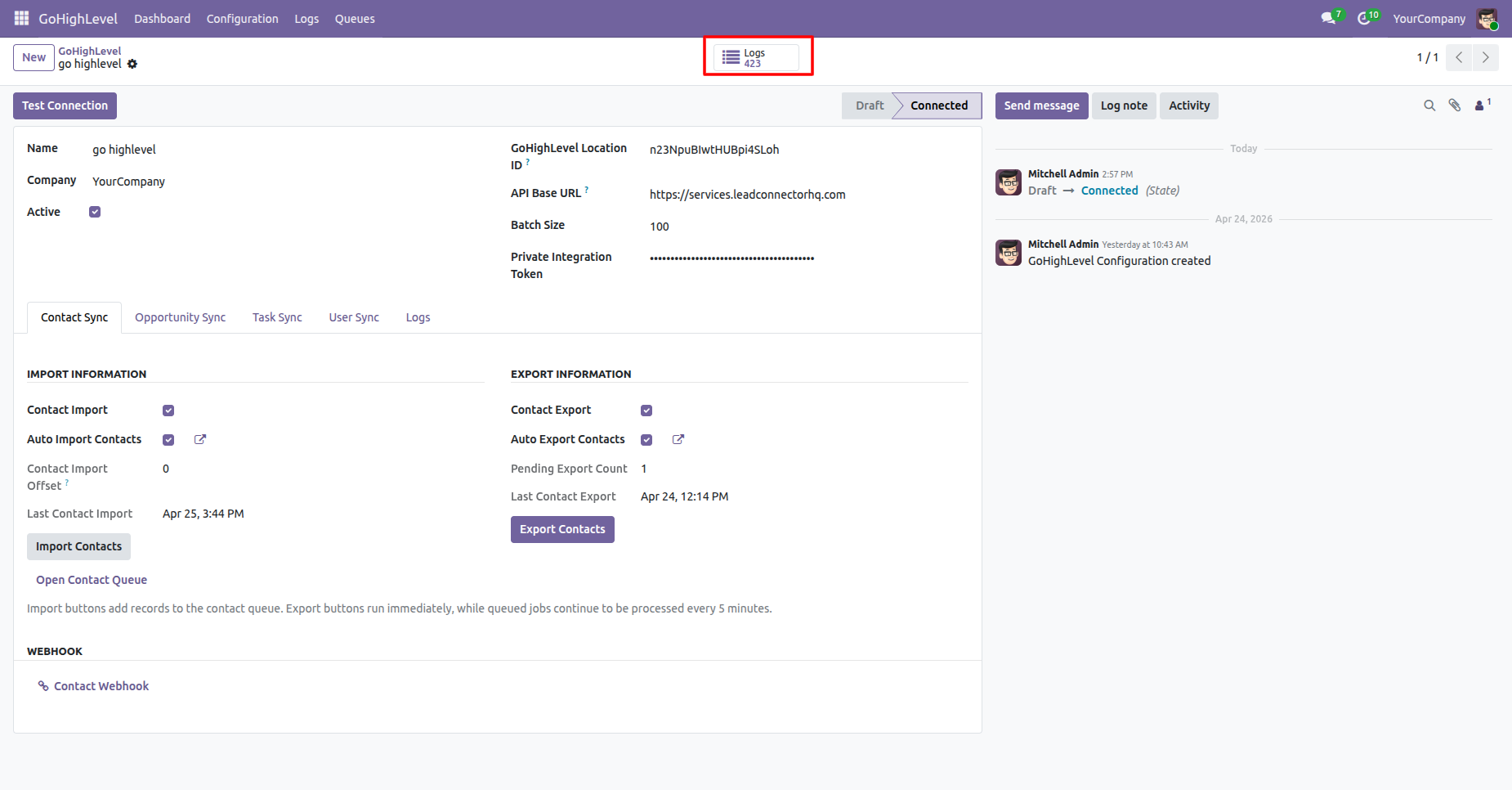
Click the Logs stat button on the configuration view to open all integration history records.
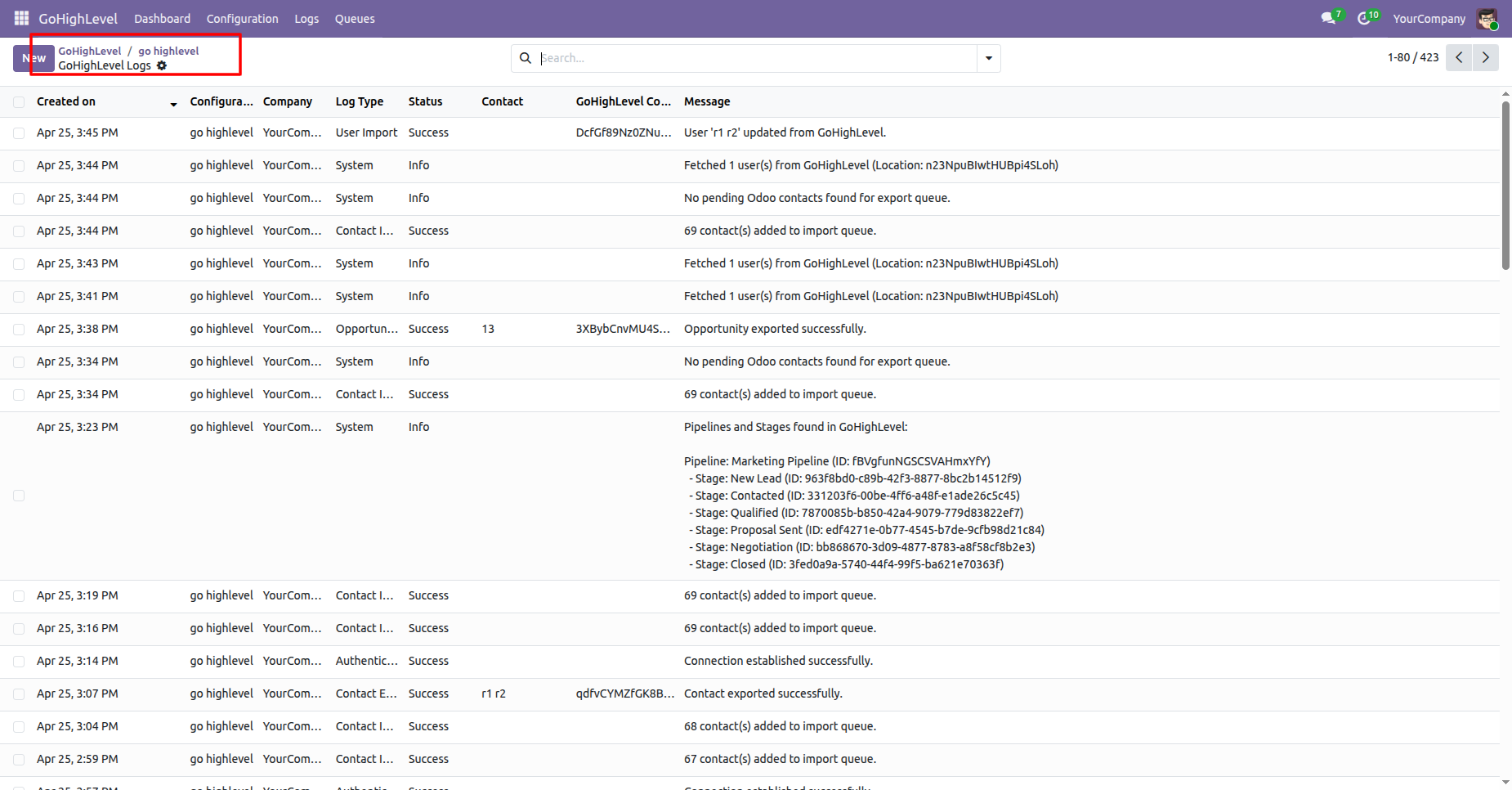
Review the detailed integration logs list to analyze operation timestamps, statuses, and system messages.
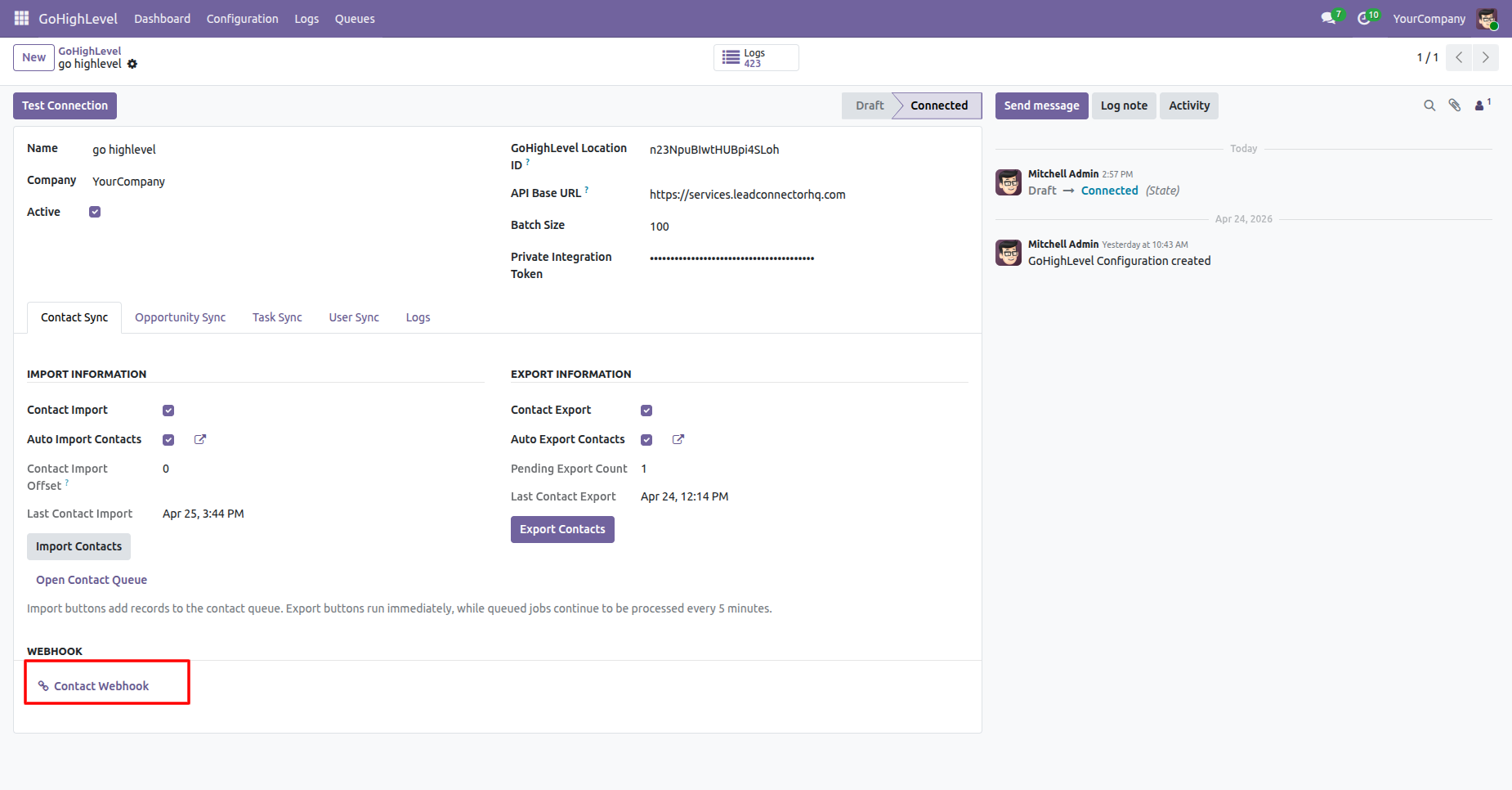
Click Contact Webhook to generate and copy the webhook URL for real-time contact events.
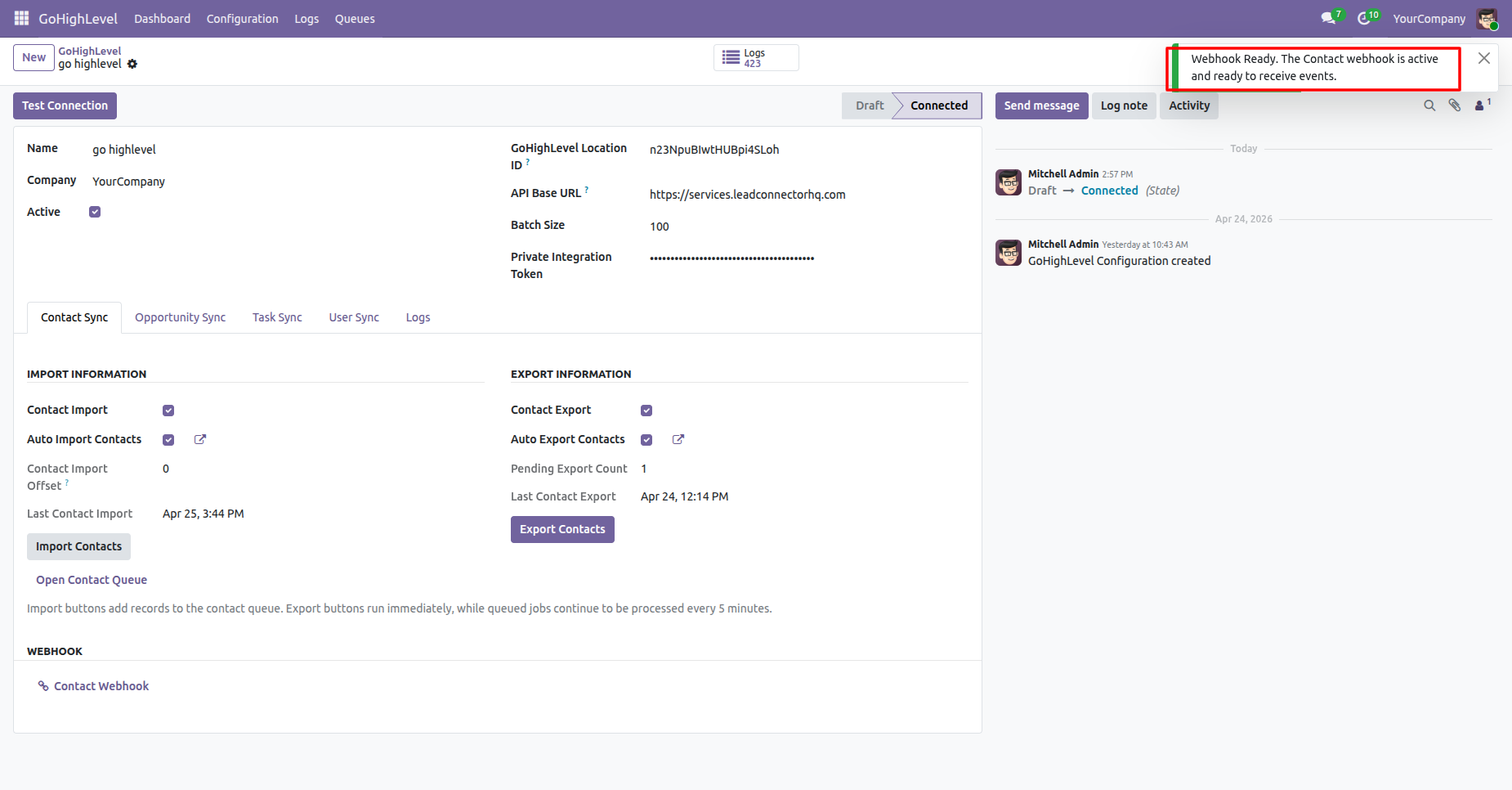
Verify the notification confirming that the contact webhook receiver is active and ready for events.
Version 18.0.1.0.0 | Released on : 10th September 2026
- Yes, this app works perfectly with Odoo Enterprise (Odoo.sh & Premise) as well as Community.
- No, this application is not compatible with odoo.com(odoo saas/Odoo Online)
- Yes, to test this module, please contact us at sales@softhealer.com.
- Please contact us at sales@softhealer.com to request customization.
- Yes, we provide free support for 365 days from the date of purchase.
- Yes, you will receive lifetime free updates for the version of the module you purchased.
- No, there is no need to install any additional libraries.
- Yes, for version 12 and above, you need to purchase the module separately for each version you intend to use.
- No, exchanges or refunds are not allowed. Please make sure to select the correct version before purchasing.
- You can contact us at support@softhealer.com for language translation support. We use Google Translator tools to provide translations in multiple languages, so the accuracy may vary. We welcome your suggestions to help improve translations.
Discover Our Latest Apps