












Global Custom Fields

Currently, in odoo, you can't create dynamic custom fields and tabs. This module is useful to create and add a dynamic field & dynamic tab in any form view without any technical knowledge.

Features

Access Rights
Only Authorized users can add custom fields and tabs.
Add Fields in Any Form View
Lets you add custom fields globally across any form view in Odoo.

Add Tabs in Any Form View
Allows creation of custom tabs on any Odoo form without technical knowledge.
Easy Field & Tab Positioning
Provides control over where custom fields and tabs are shown on forms.

Advanced Field & Tab Filtering
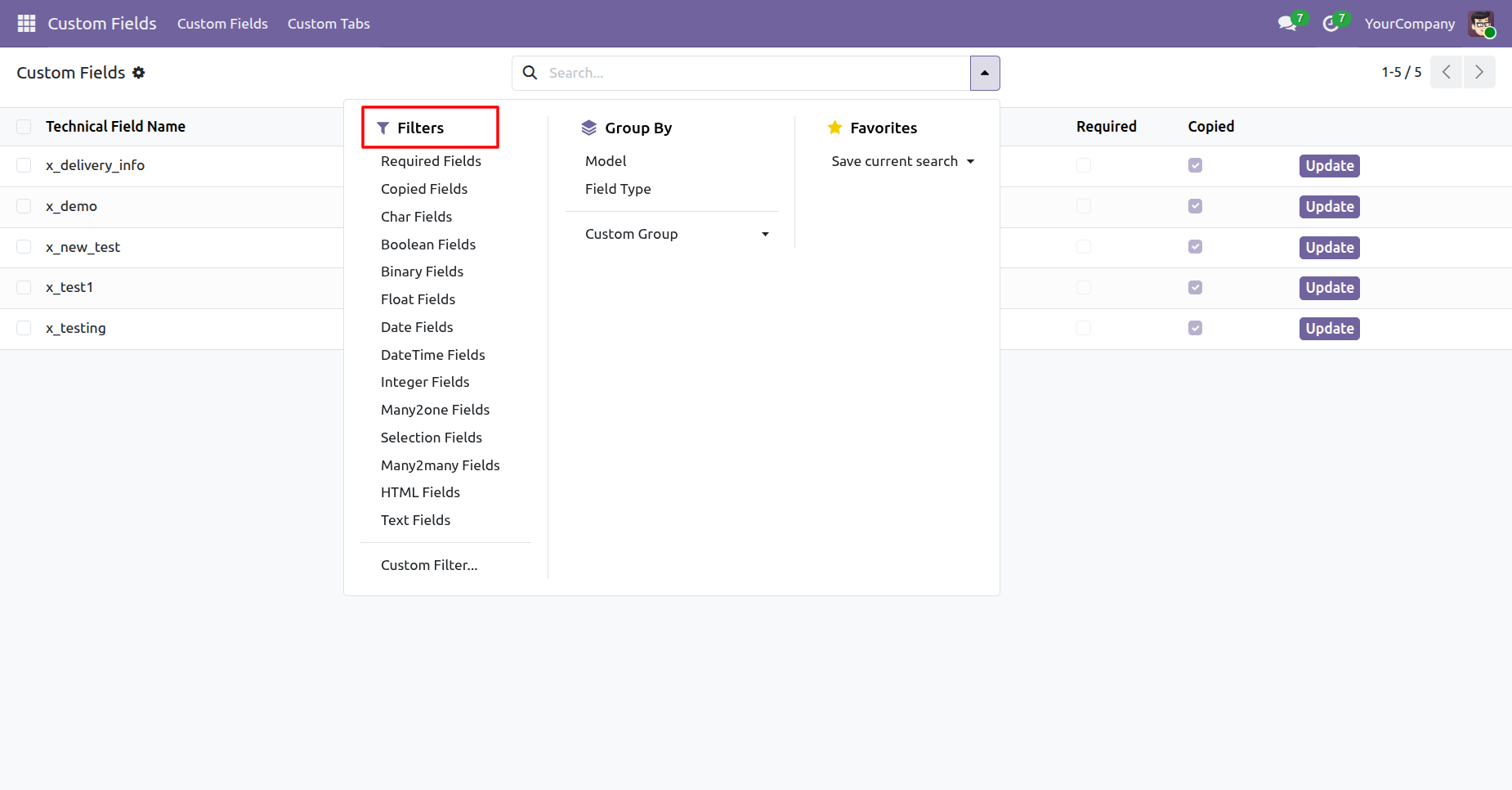
Filter custom fields and tabs by type or behavior, including Required, Copied, Char, Boolean, Binary, Float, Date, DateTime, Integer, Many2One, Selection, Many2Many, HTML, and Text fields.
Edit/Delete Any Fields
Lets you update or remove custom fields easily via the UI.

Mass Custom Field Deletion
Delete multiple custom fields at once directly from the list view.

Quick Field & Tab Updates
Update any fields and tabs directly using the Update button for faster changes.
Custom Grouping & Filters
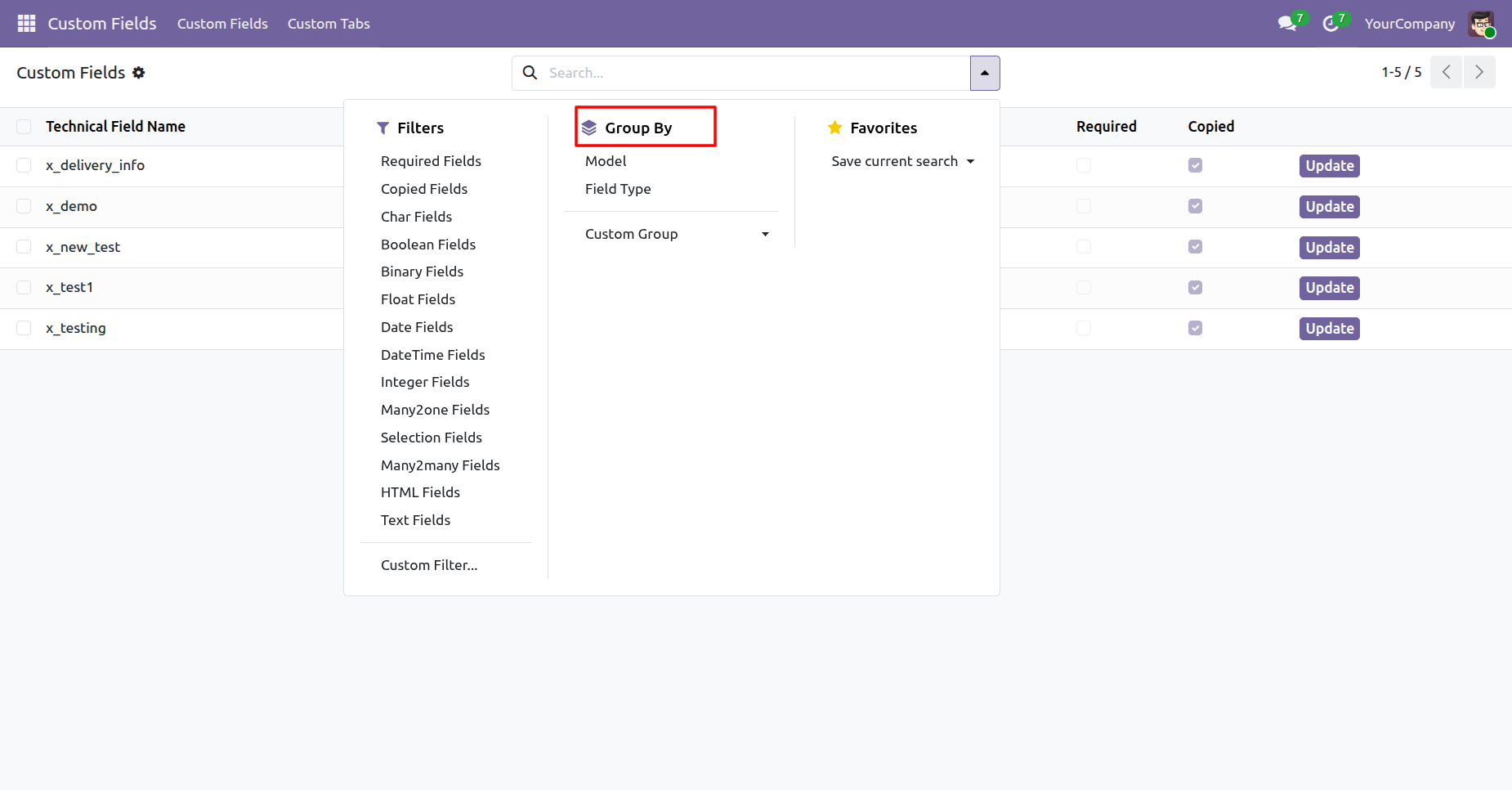
Group custom fields and tabs by model and field type, and create custom filters or custom groups for improved organization.
Make Custom Field Required
Easily mark any newly created custom field as mandatory to ensure users must provide a value before saving the record.
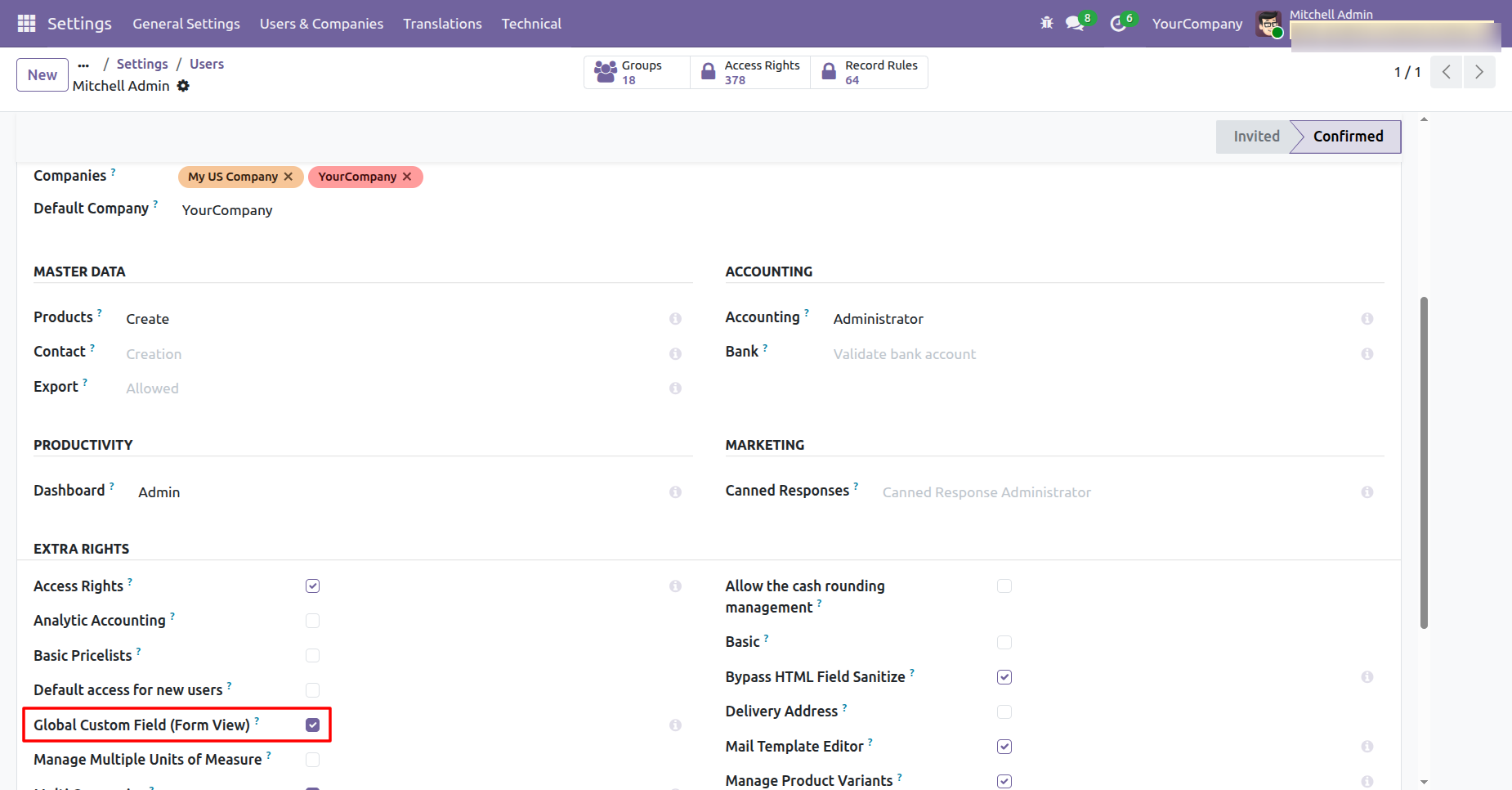
User setting: Tick 'Global Custom Field (Form View)' option.
Go to action and select the 'create custom field' option for create global custom fields and select the 'create custom tab' option for create global custom tabs.
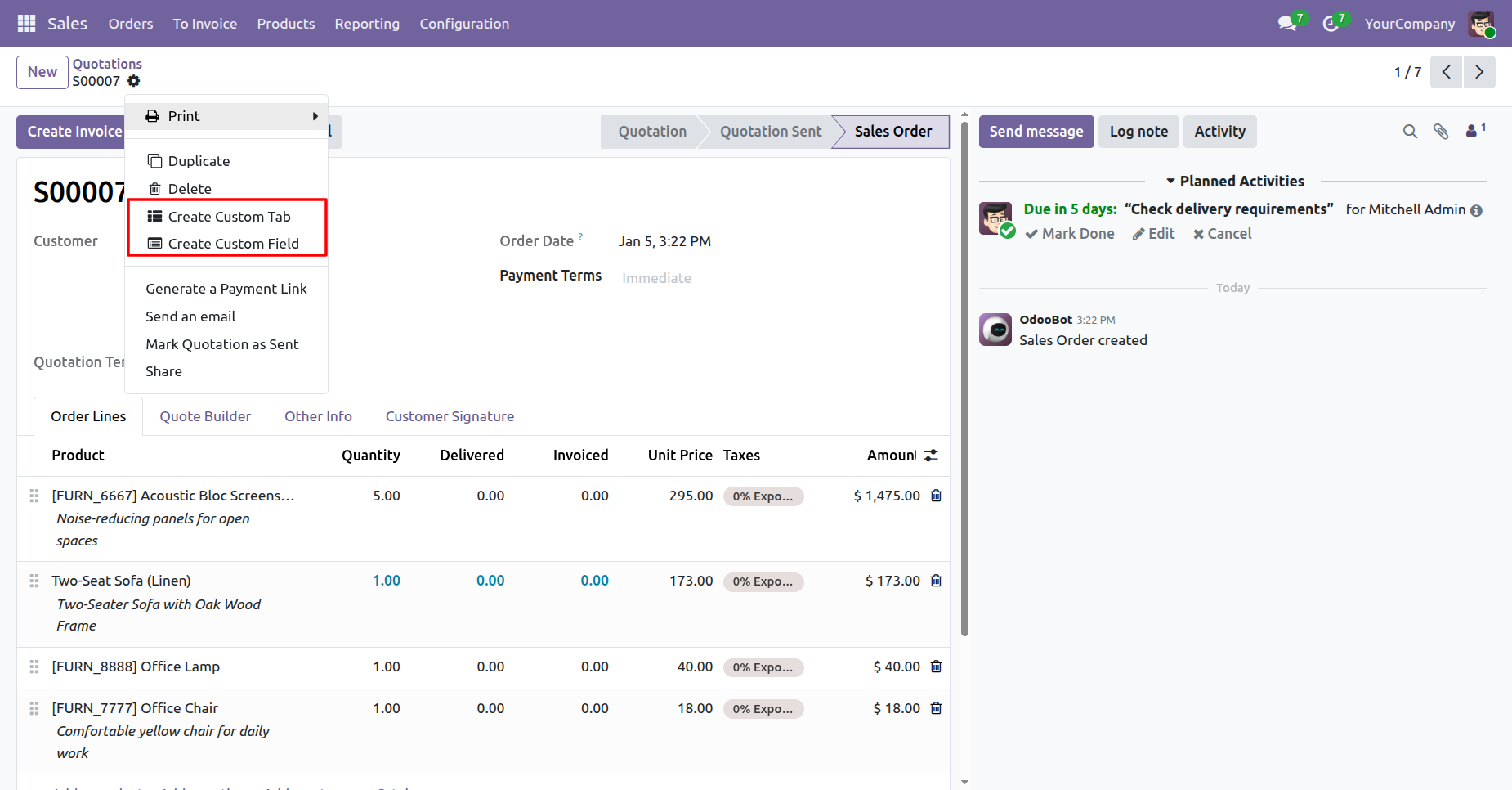
Click on the 'Create Custom Tab' option to create a custom tab.
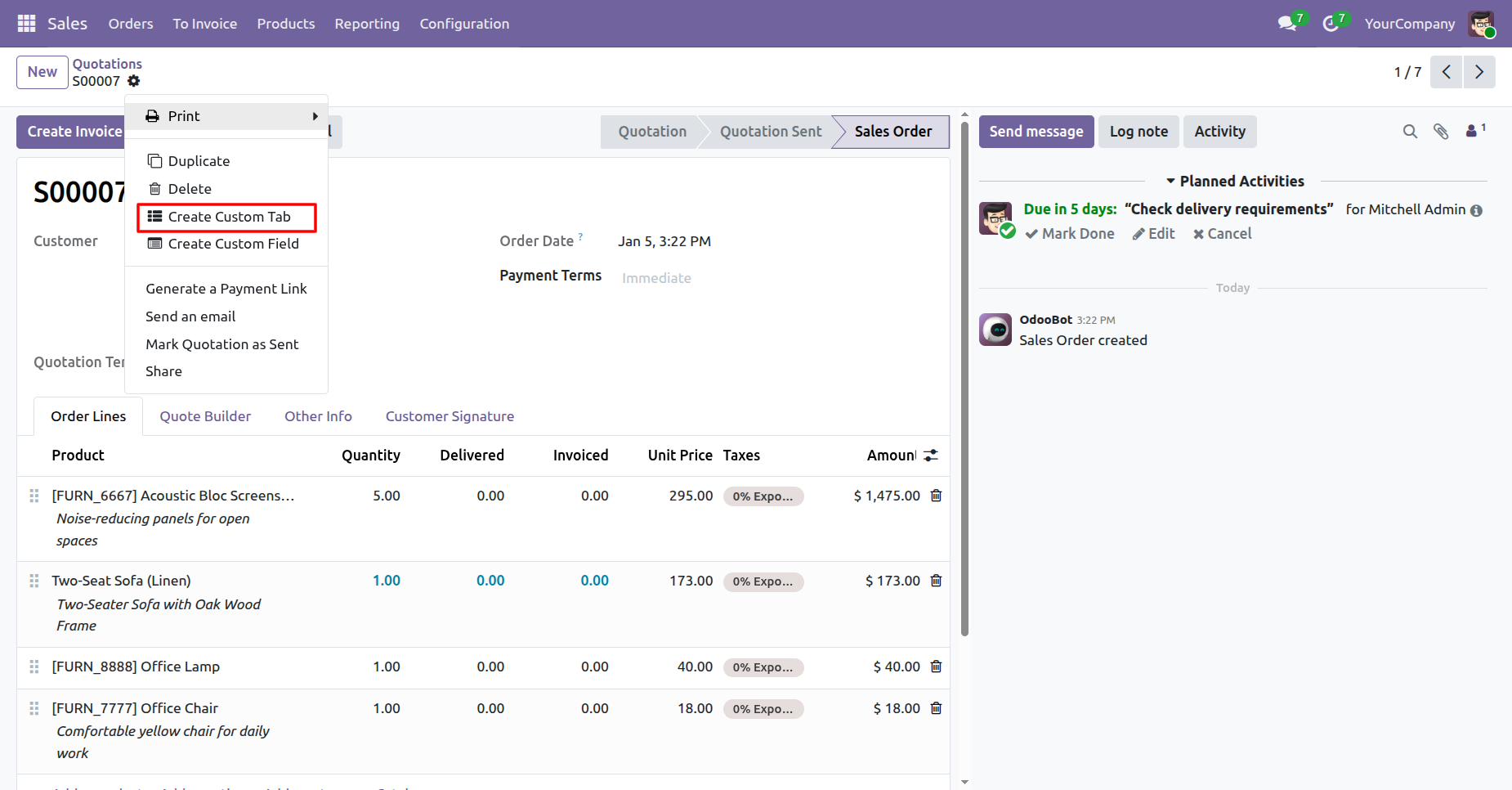
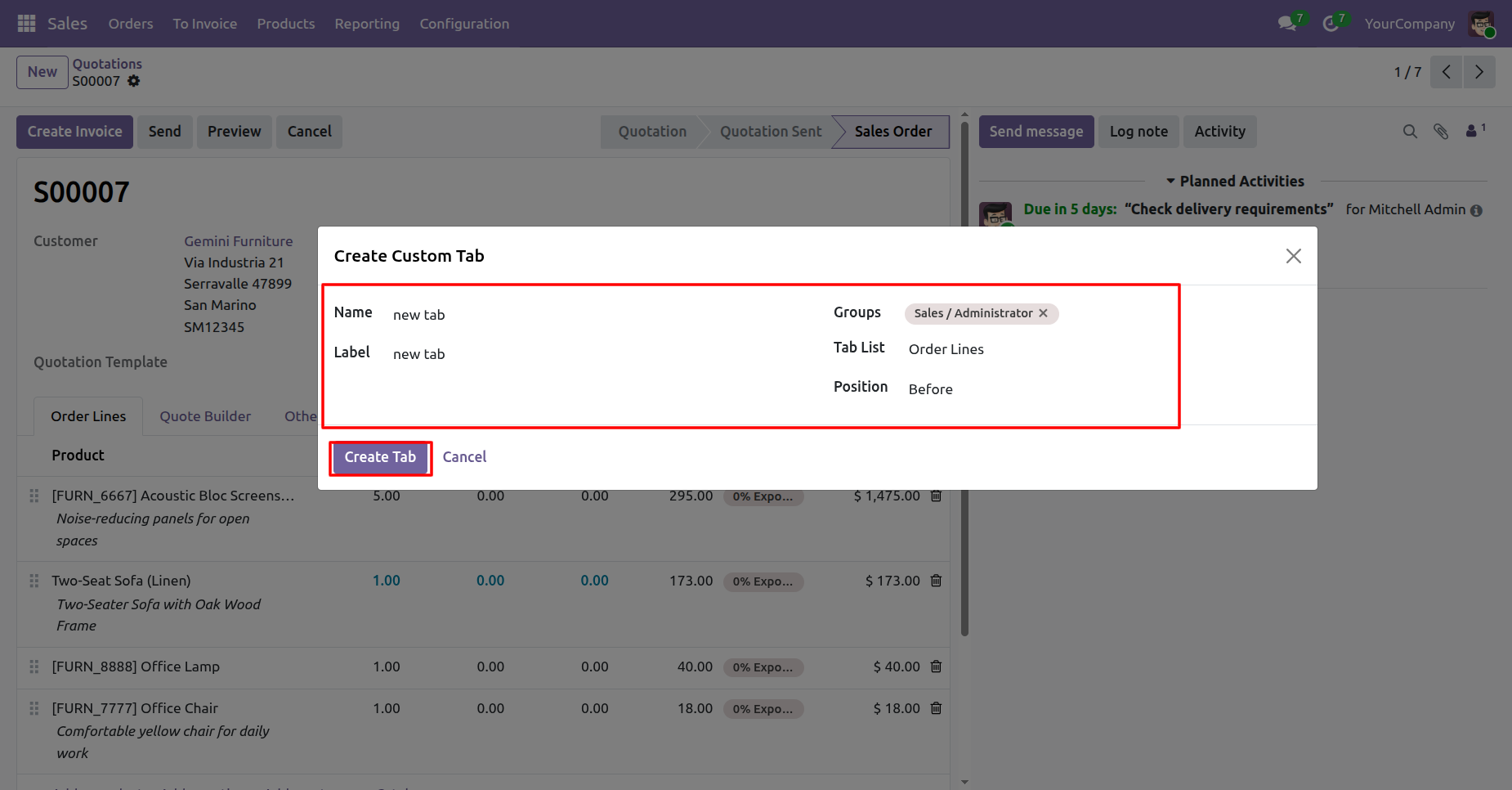
After that, the 'Create Custom Tab' wizard will appear.
Add the required details and click on the 'Create Tab' button.
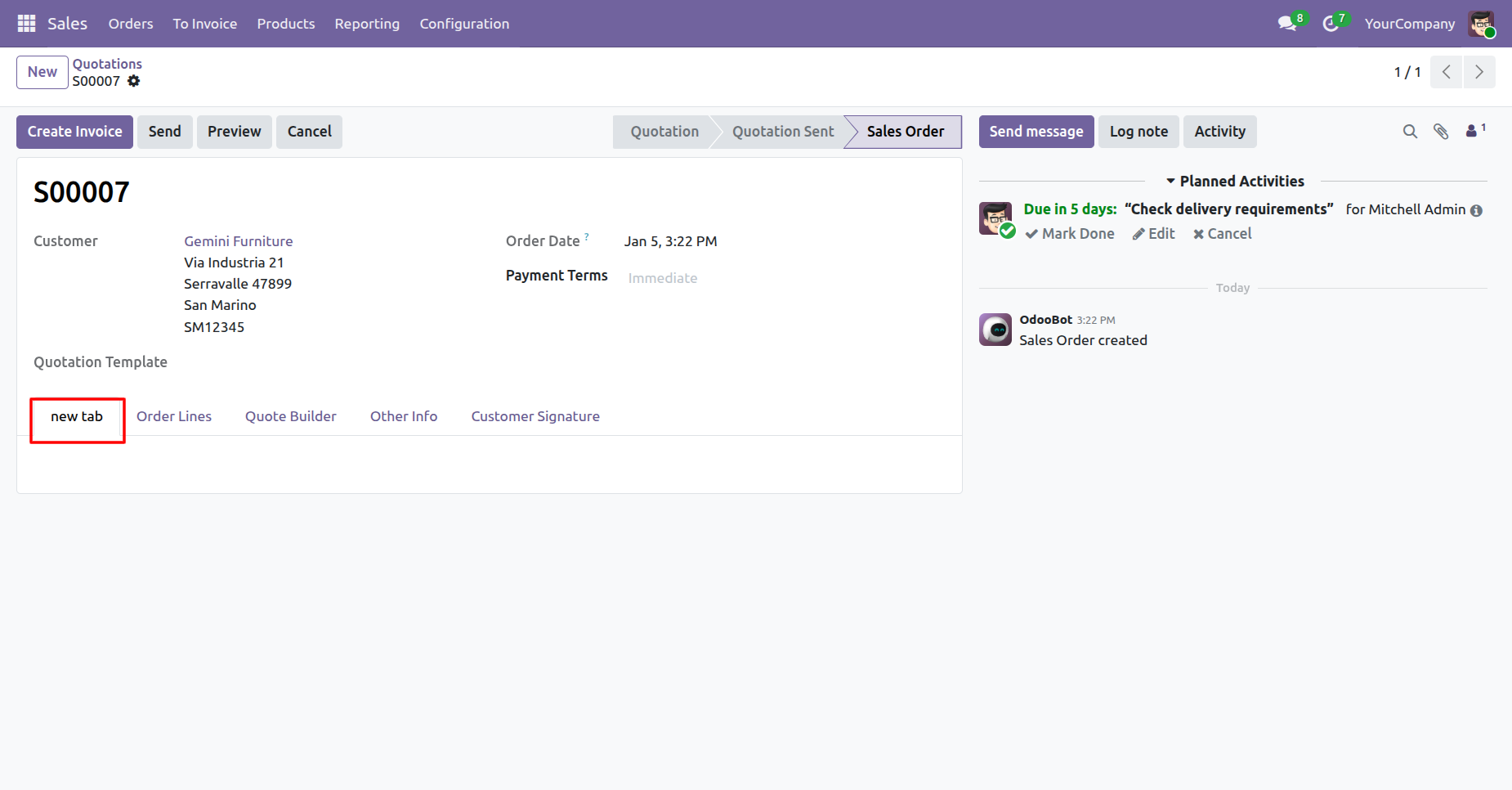
Here, you can see that the 'new tab' has been created.
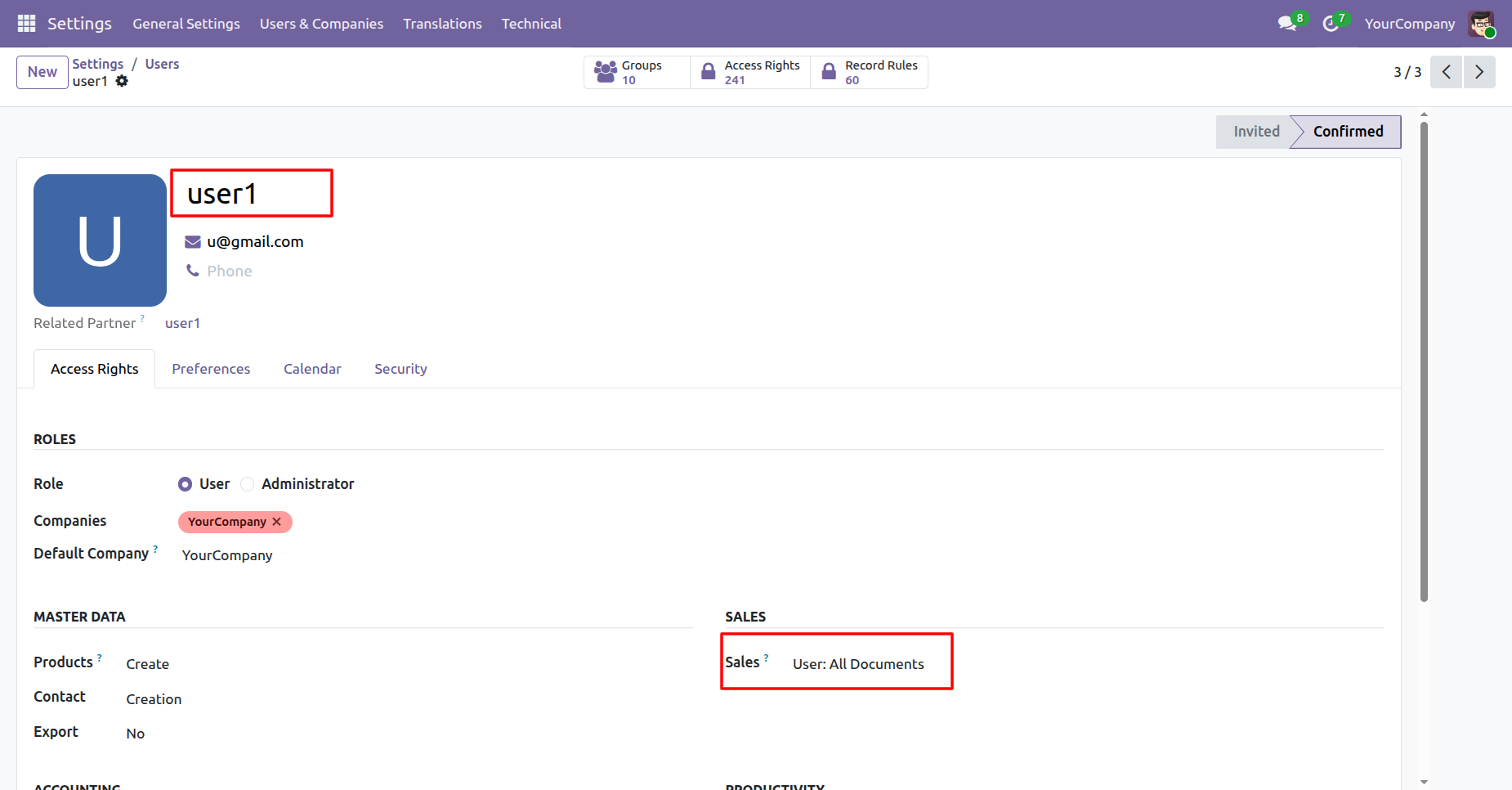
Go to User Settings and assign Sales: User - All Documents to User1.
The newly created tab is not visible to User1.
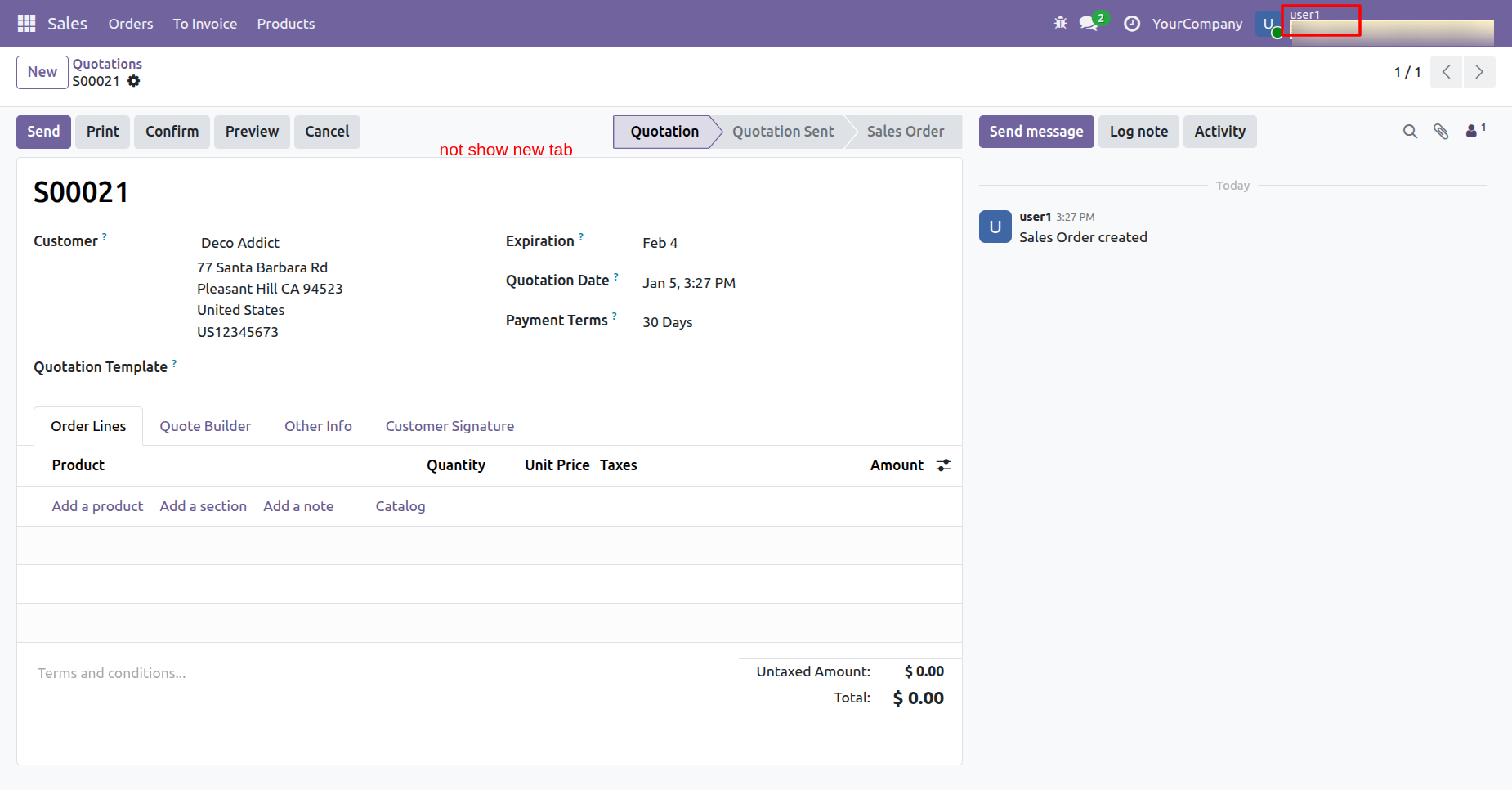
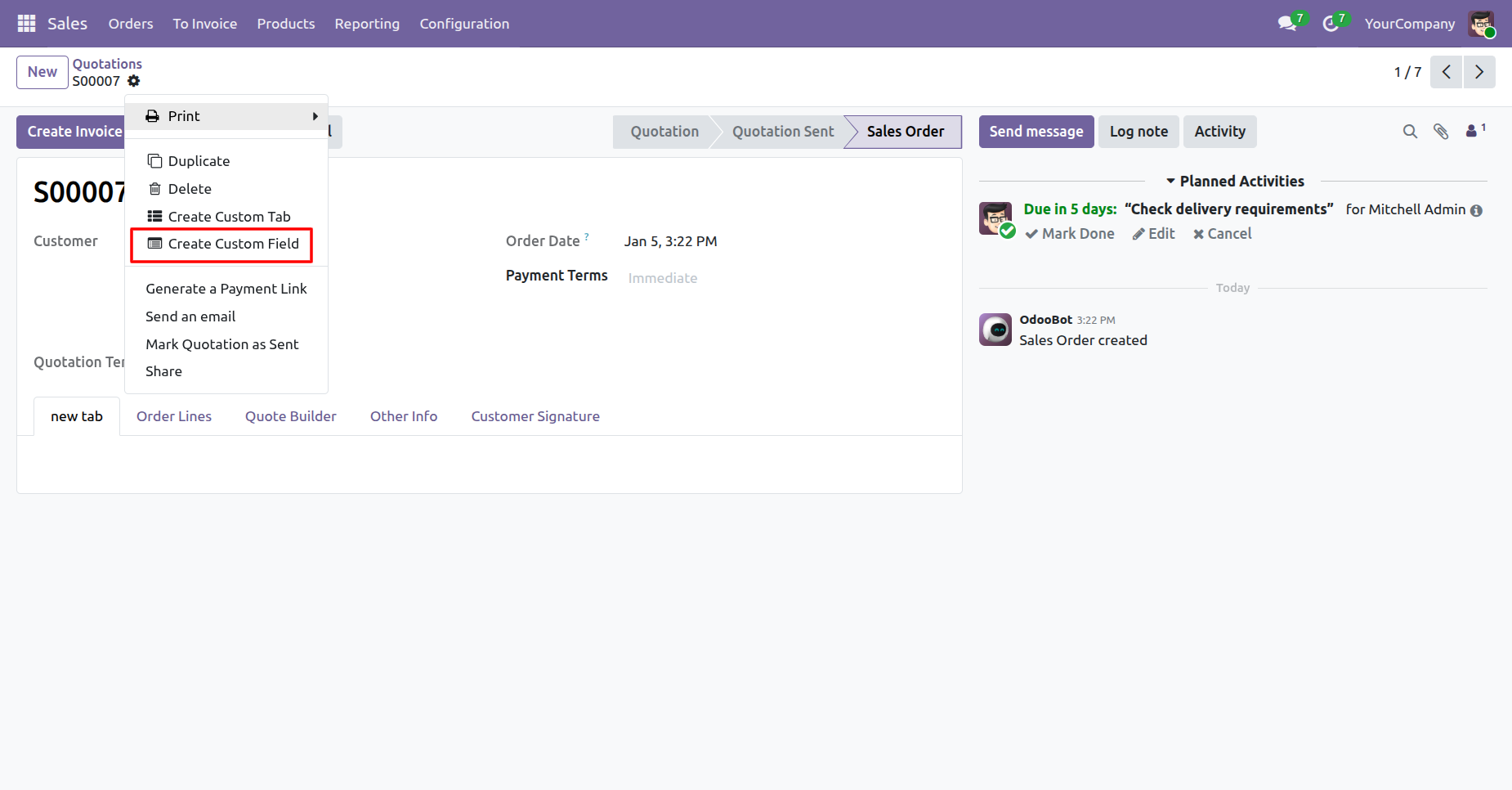
Click on the 'Create Custom Field' option to create a custom field.
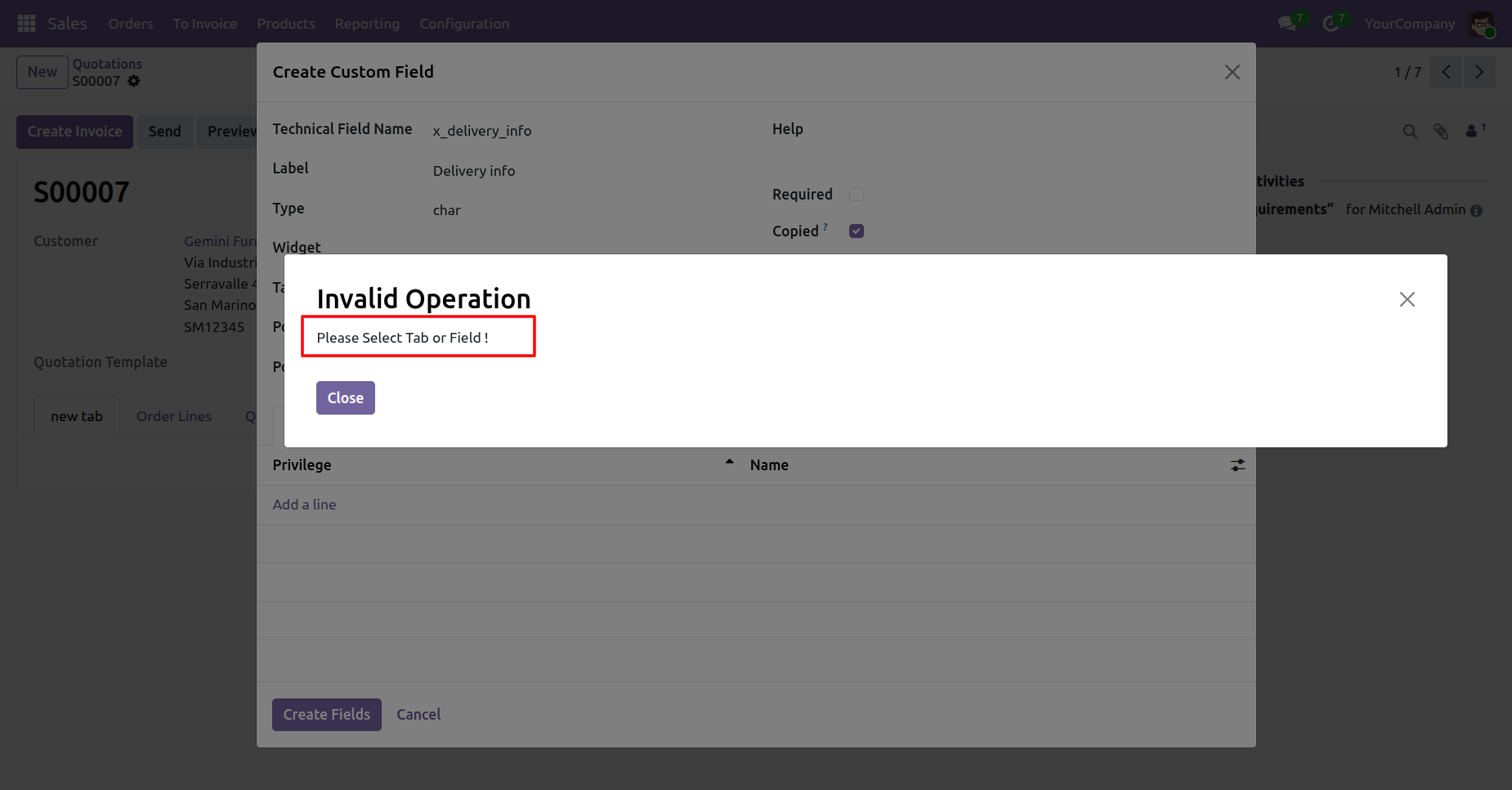
If you try to create a field without selecting the Tab List or Position field, this warning popup will appear.
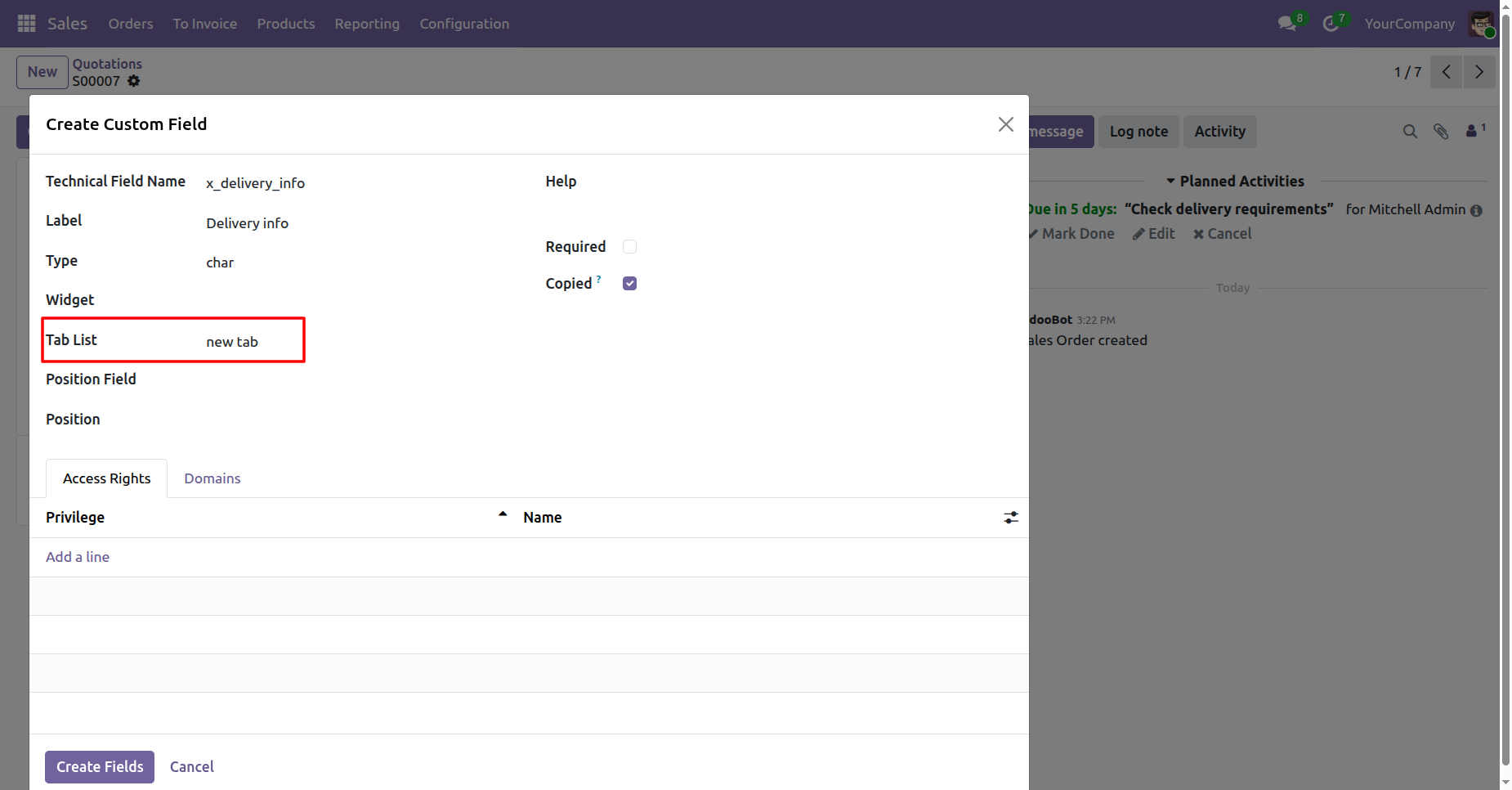
Add a tab list and click on the 'Create Field' button.
Here, you can see that the 'Delivery info' field has been created.
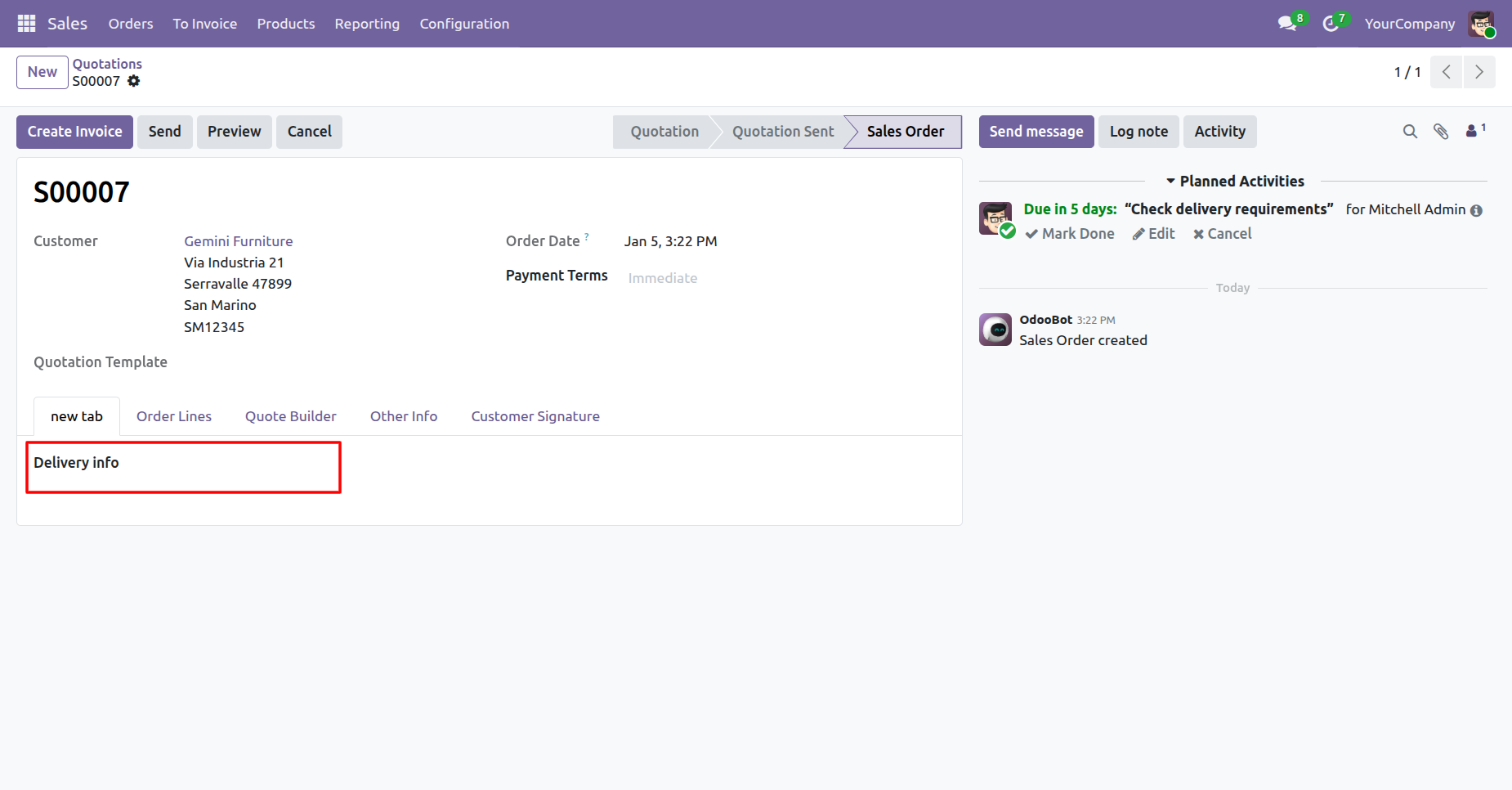
Menu and tree view of the 'Custom Fields'.
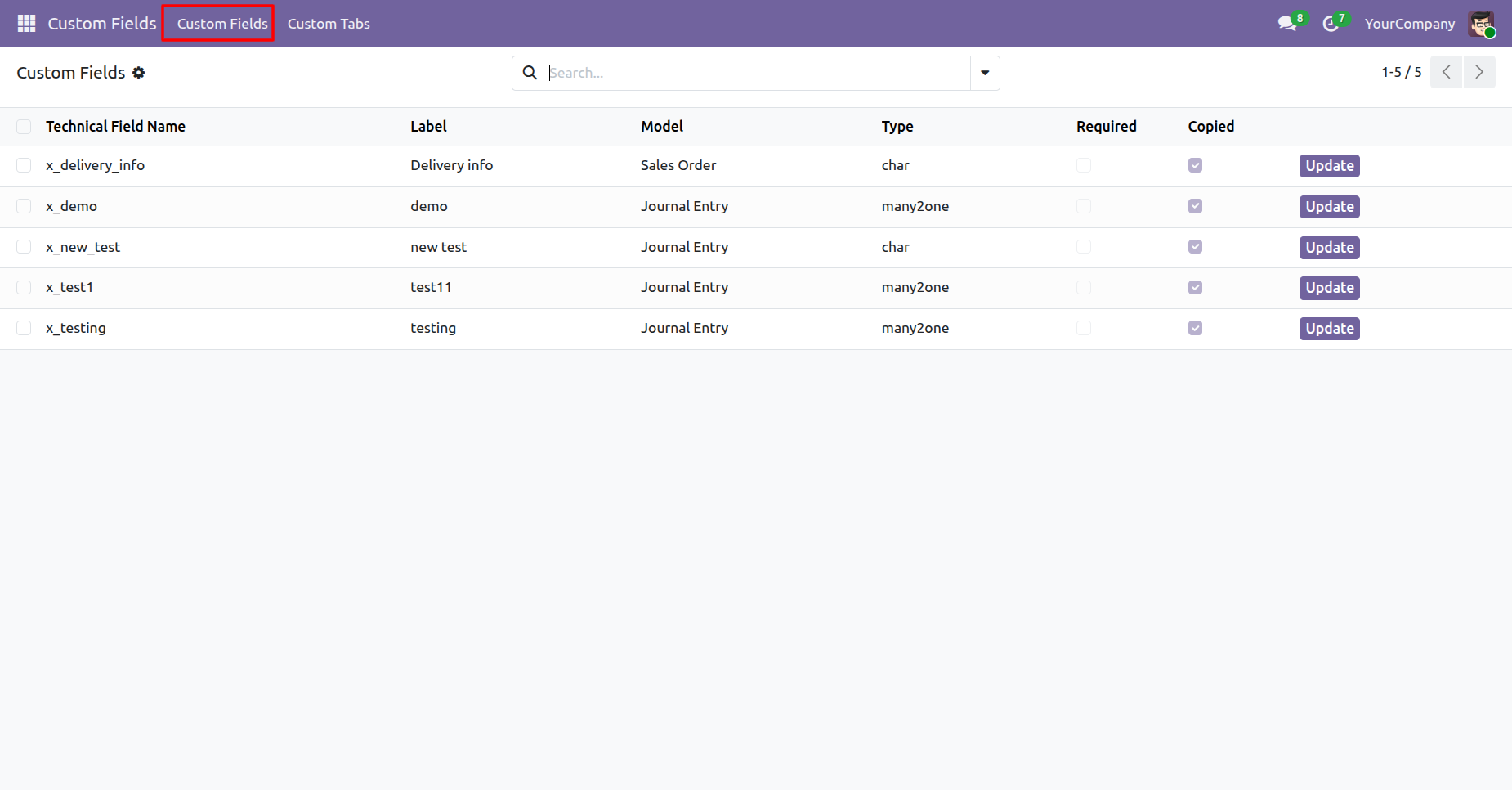
You can update fields from the 'Update' button.
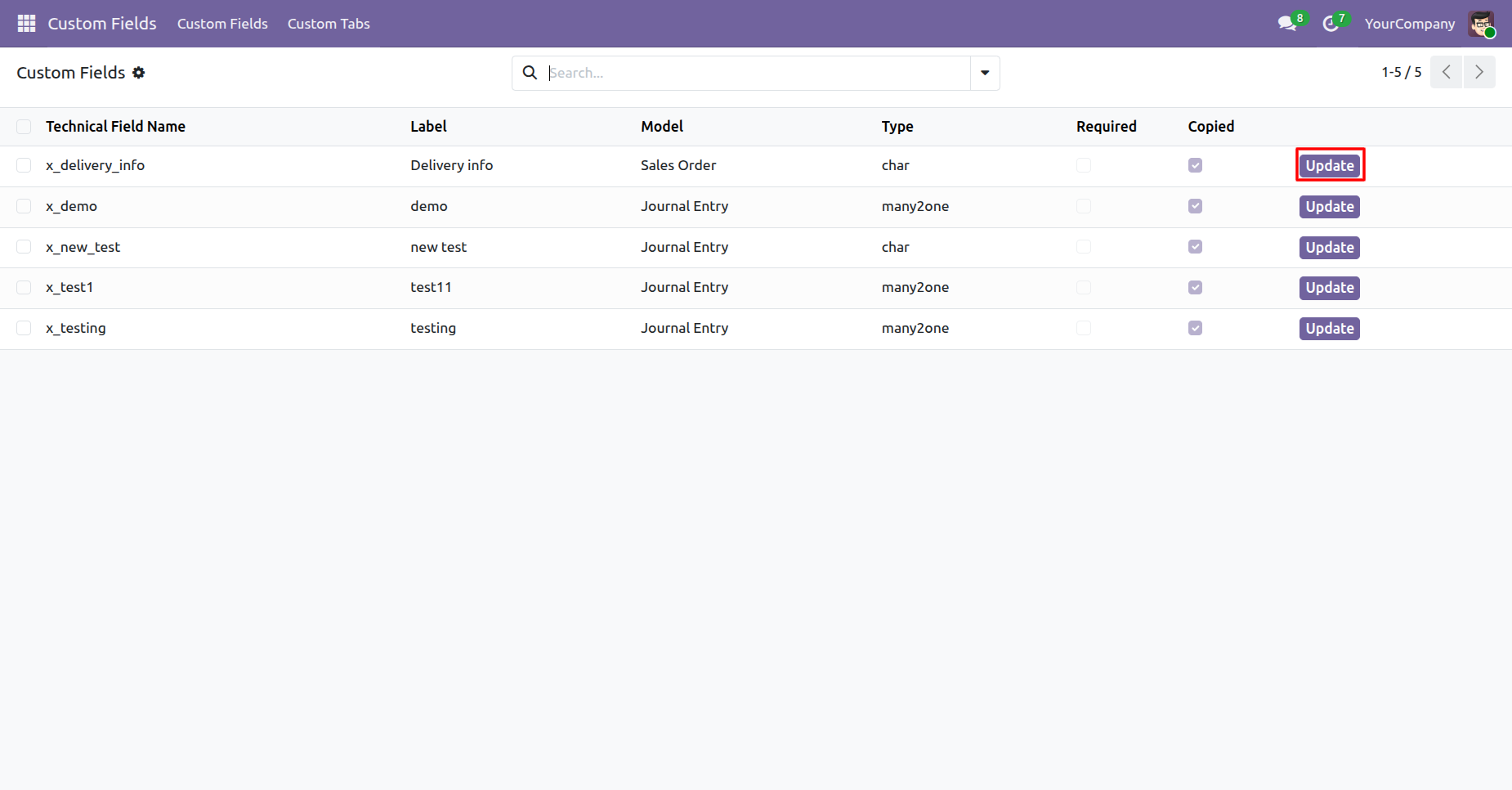
Update details and click on the 'Save' button.
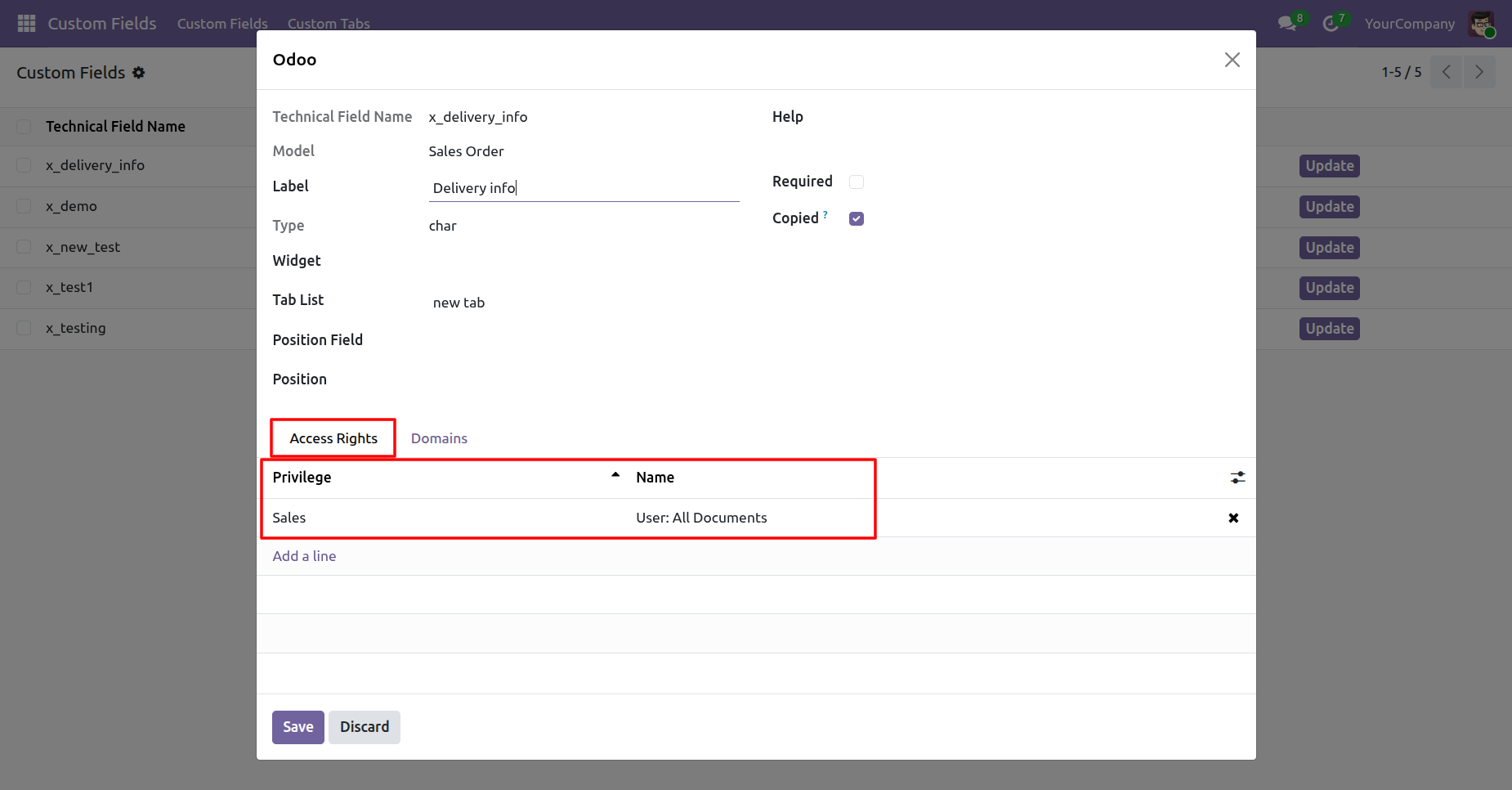
Go to User Settings and assign Sales: User - All Documents to User2.
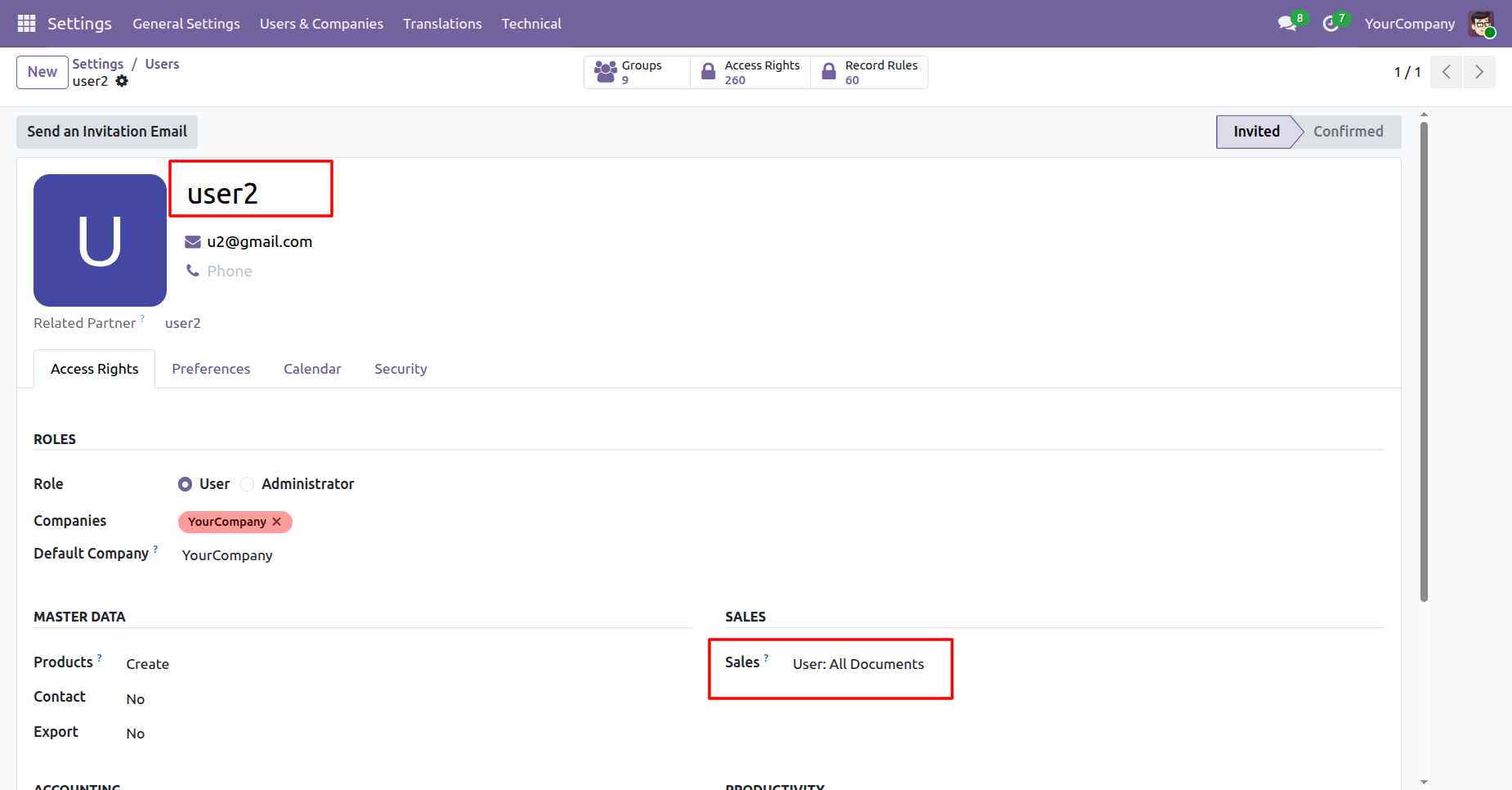
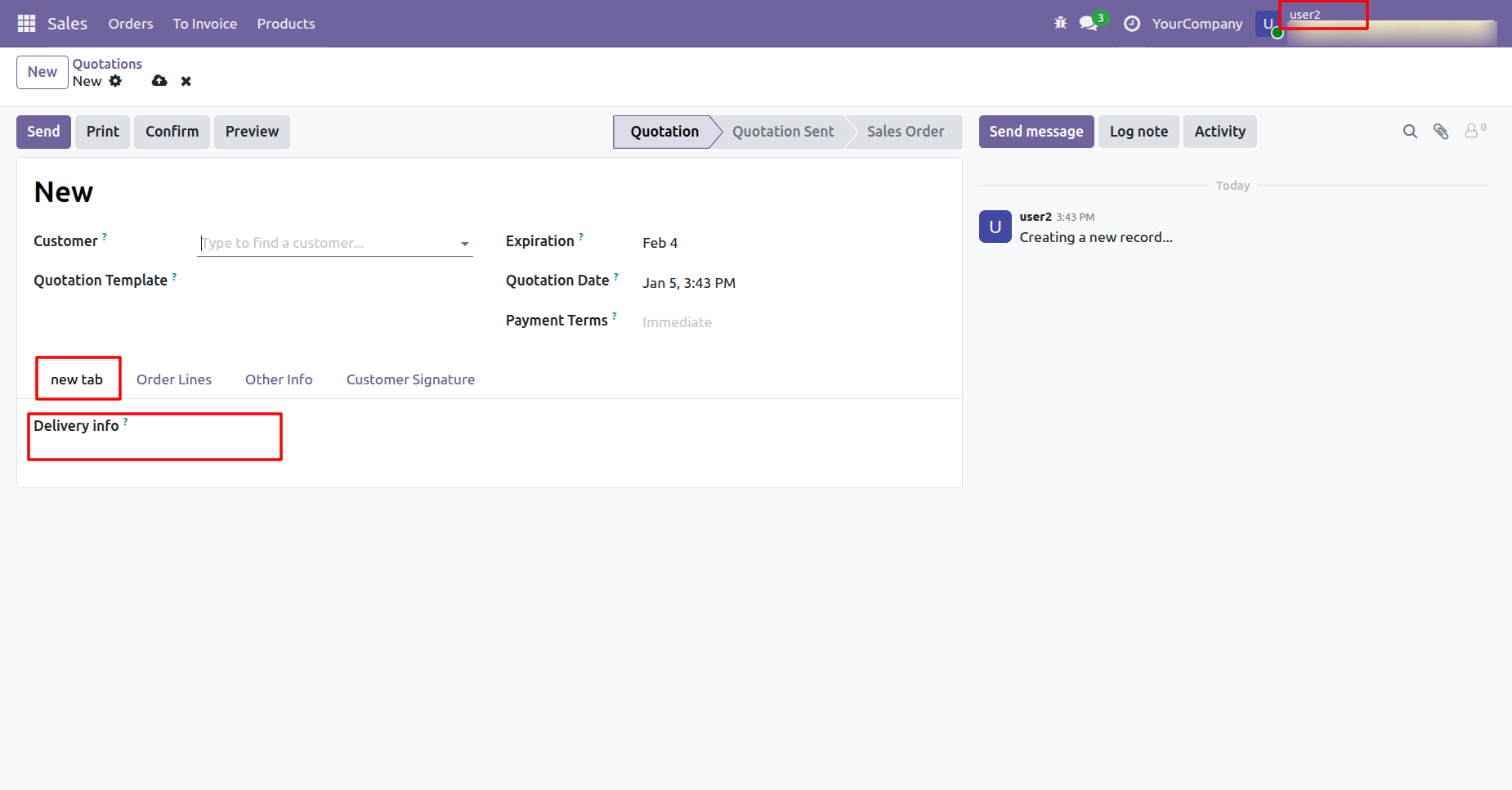
Here you can see the updated field.
You can filter custom fields & tabs using any of the provided custom filter list.
You can group by custom fields & tabs using any of the provided custom group by list.
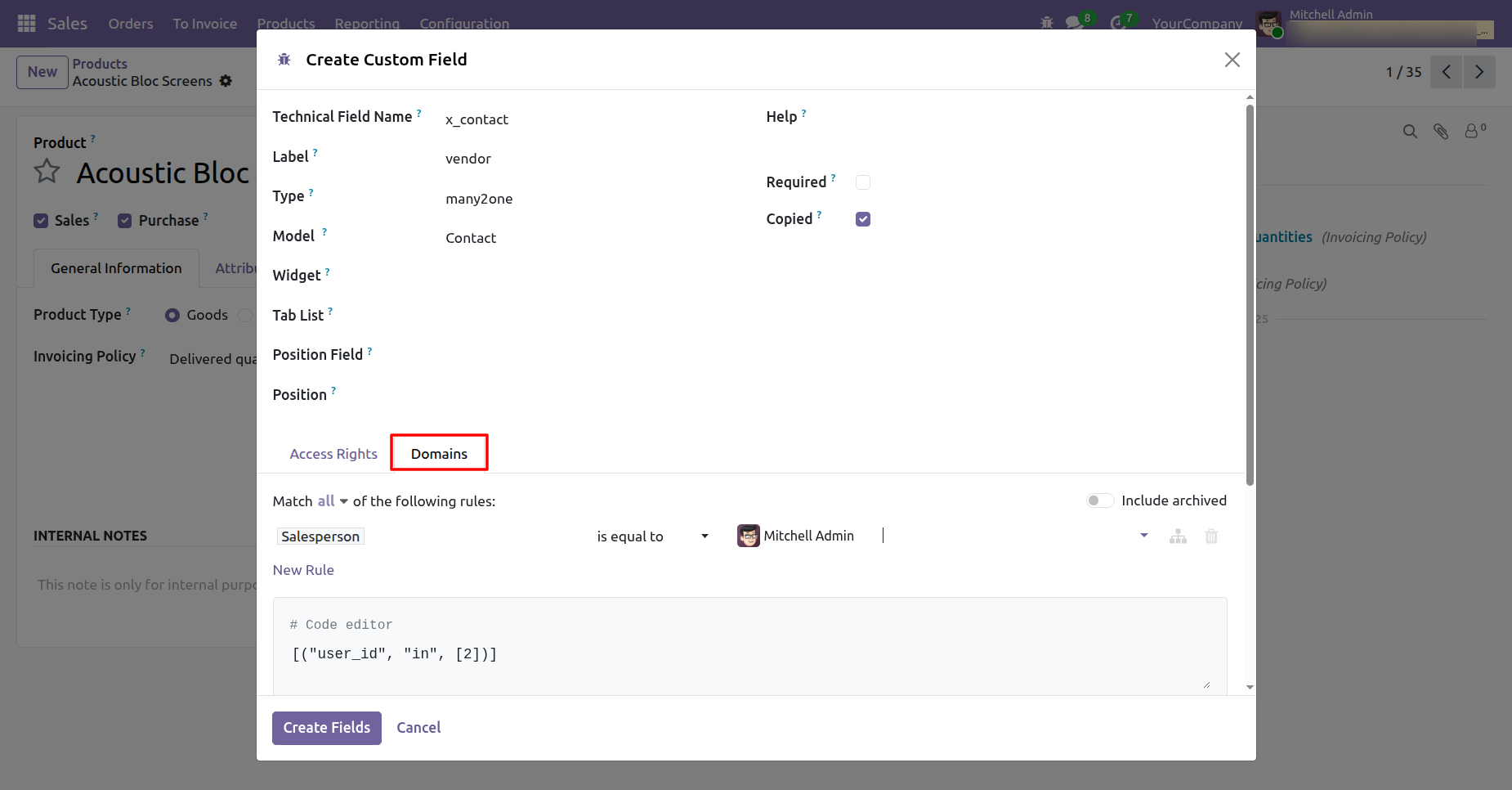
Add domain for the custom field.
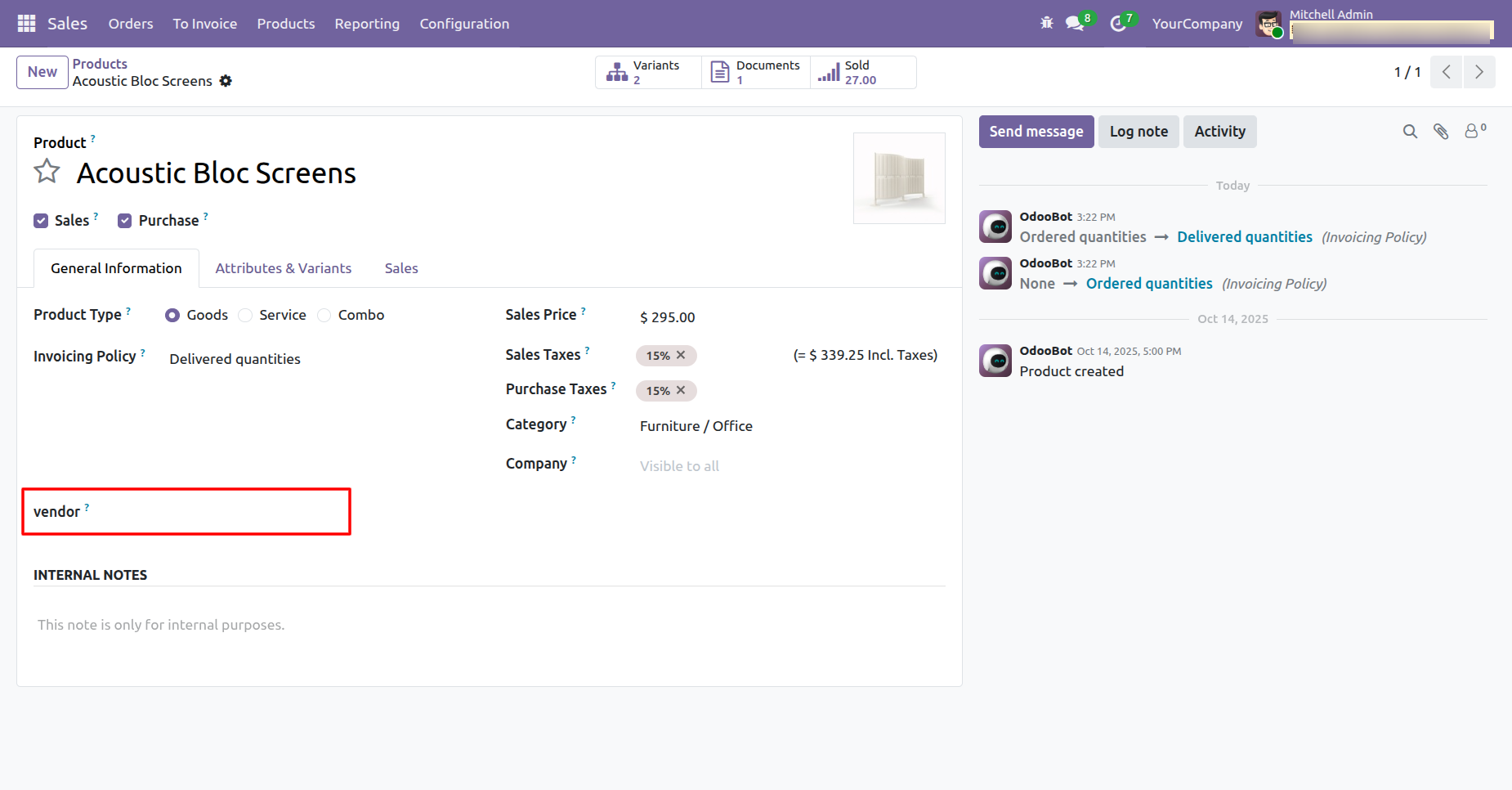
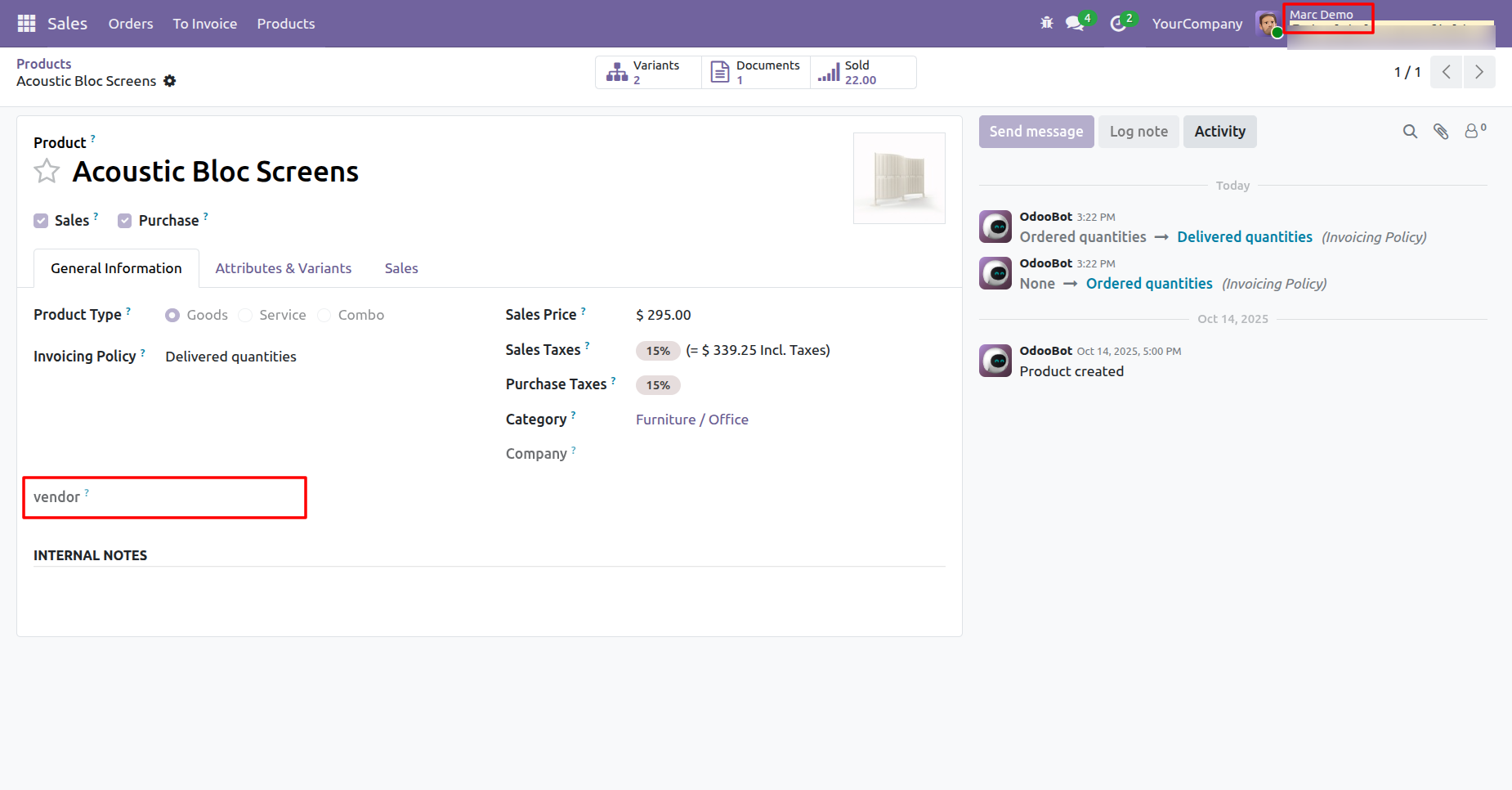
Here, you can see that the 'vendor' field has been created.
Version 20.0.1.0.0 | Released on : 15th September 2026
- Yes, this app works perfectly with Odoo Enterprise (Odoo.sh & Premise) as well as Community.
- No, this application is not compatible with odoo.com(odoo saas/Odoo Online)
- No, currently it does not work if the product type is selected as a combo product. For more details, please contact our support team at support@softhealer.com.
- Yes, to test this module, please contact us at sales@softhealer.com.
- Please contact us at sales@softhealer.comto request customization.
- Yes, we provide free support for 365 days from the date of purchase.
- Yes, you will receive lifetime free updates for the version of the module you purchased.
- No, there is no need to install any additional libraries.
- Yes, for version 12 and above, you need to purchase the module separately for each version you intend to use.
- No, exchanges or refunds are not allowed. Please make sure to select the correct version before purchasing.
- You can contact us at support@softhealer.com for language translation support. We use Google Translator tools to provide translations in multiple languages, so the accuracy may vary. We welcome your suggestions to help improve translations.
Discover Our Latest Apps