













Global Custom Fields

Currently, in odoo, you can't create dynamic custom fields and tabs. This module is useful to create and add a dynamic field & dynamic tab in any form view without any technical knowledge.

Features

Access Rights
Only Authorized users can add custom fields and tabs.
Add Fields in Any Form View
Lets you add custom fields globally across any form view in Odoo.

Add Tabs in Any Form View
Allows creation of custom tabs on any Odoo form without technical knowledge.
Easy Field & Tab Positioning
Provides control over where custom fields and tabs are shown on forms.

Advanced Field & Tab Filtering
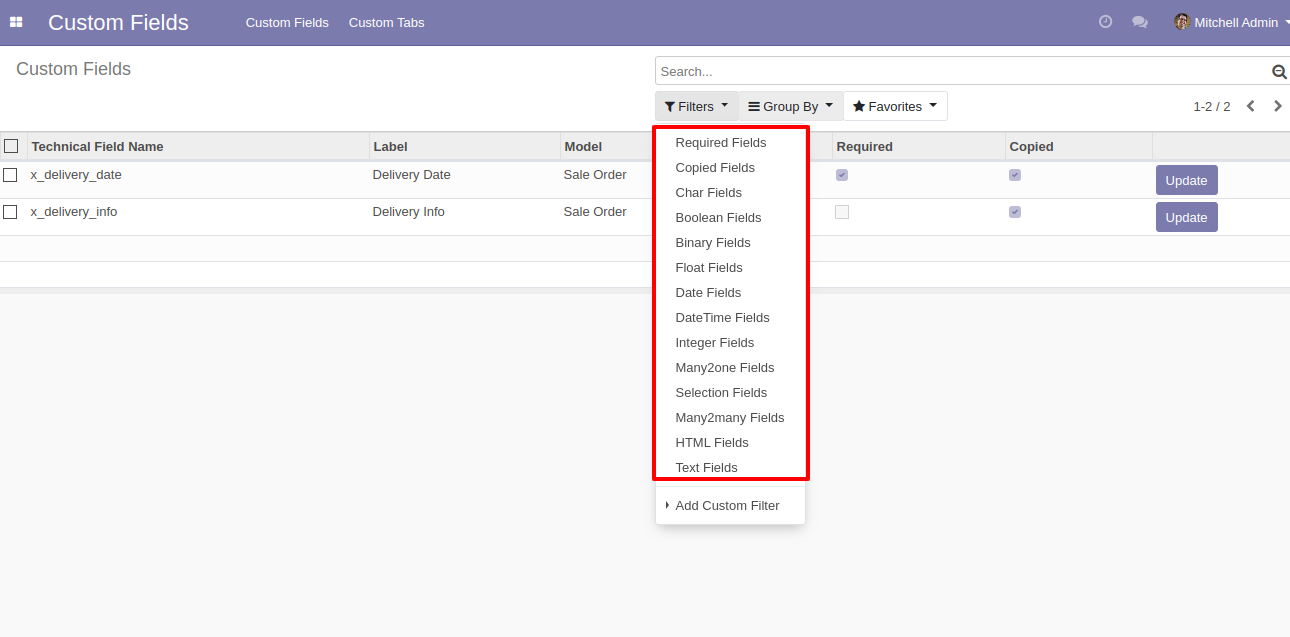
Filter custom fields and tabs by type or behavior, including Required, Copied, Char, Boolean, Binary, Float, Date, DateTime, Integer, Many2One, Selection, Many2Many, HTML, and Text fields.

Edit/Delete Any Fields
Lets you update or remove custom fields easily via the UI.

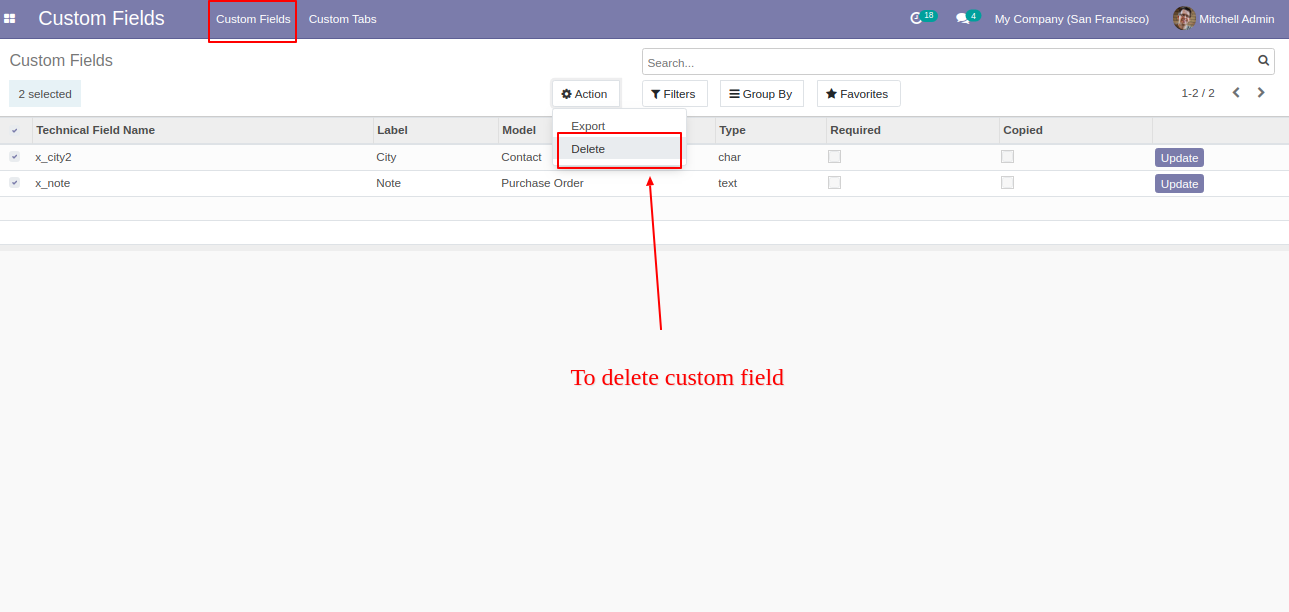
Mass Custom Field Deletion
Delete multiple custom fields at once directly from the list view.

Quick Field & Tab Updates
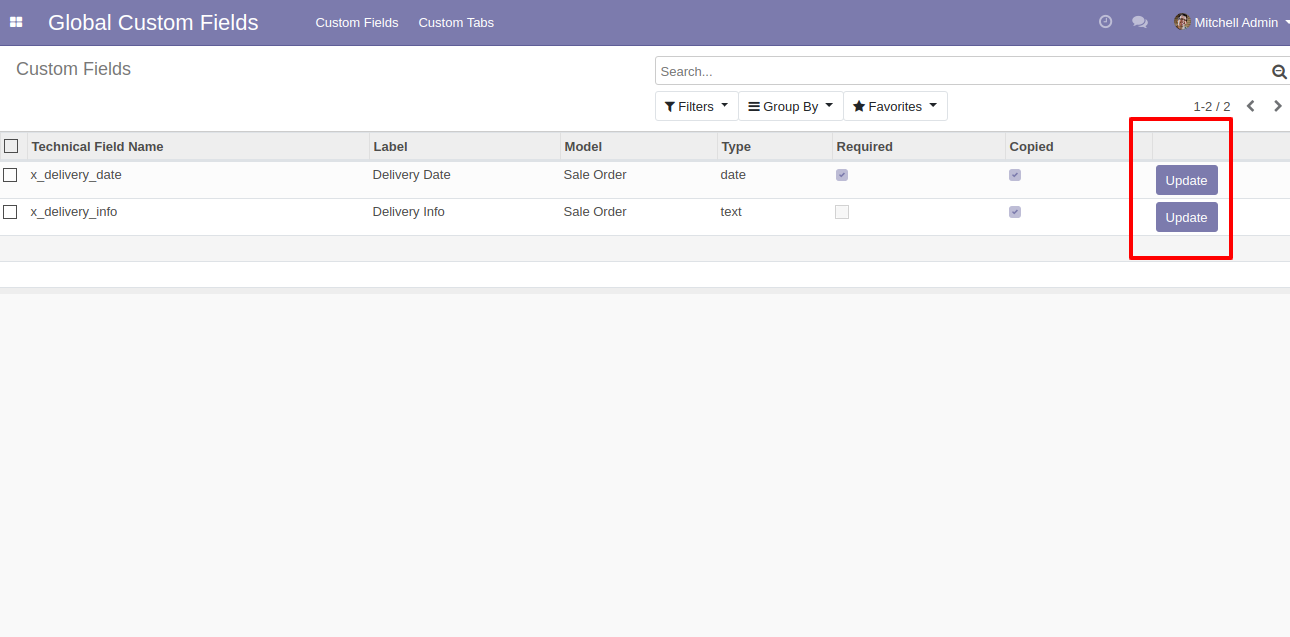
Update any fields and tabs directly using the Update button for faster changes.

Custom Grouping & Filters
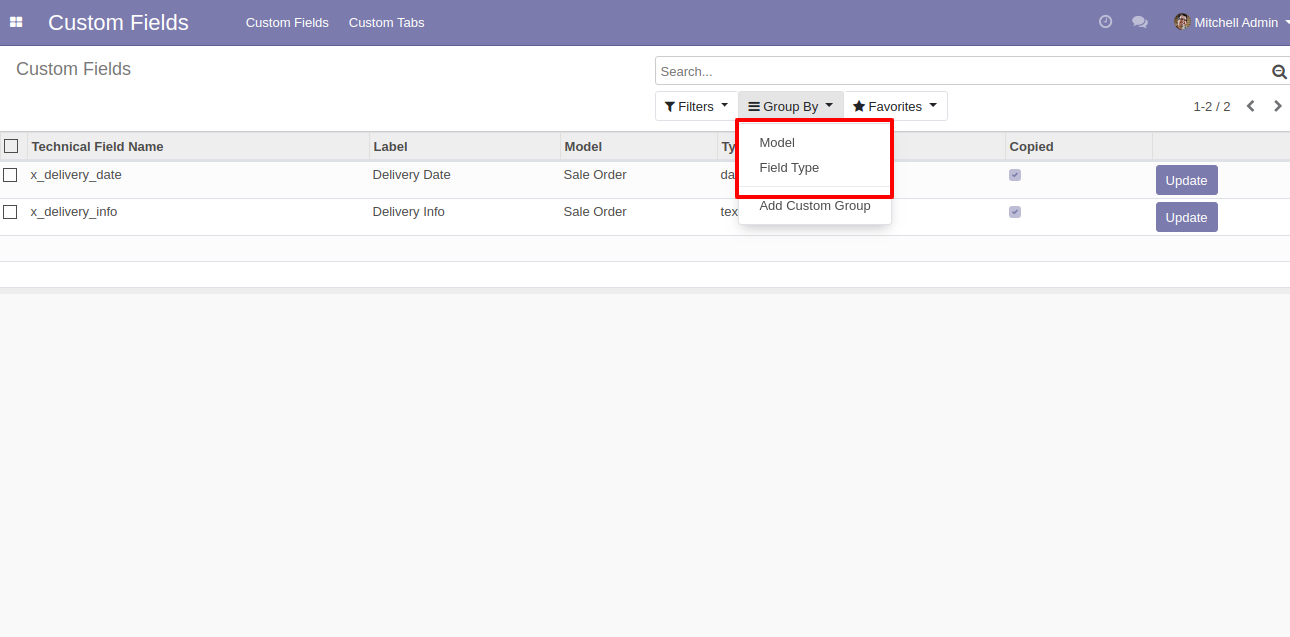
Group custom fields and tabs by model and field type, and create custom filters or custom groups for improved organization.

Make Custom Field Required
Easily mark any newly created custom field as mandatory to ensure users must provide a value before saving the record.
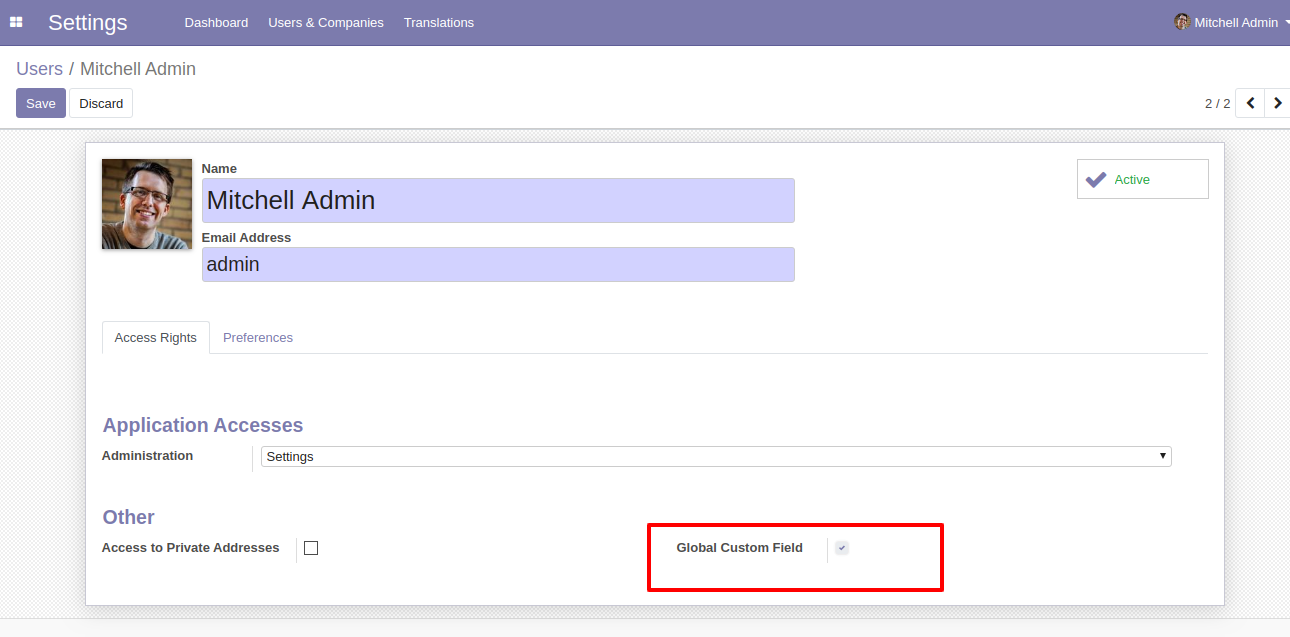
User setting: Tick 'Global Custom Field' option.
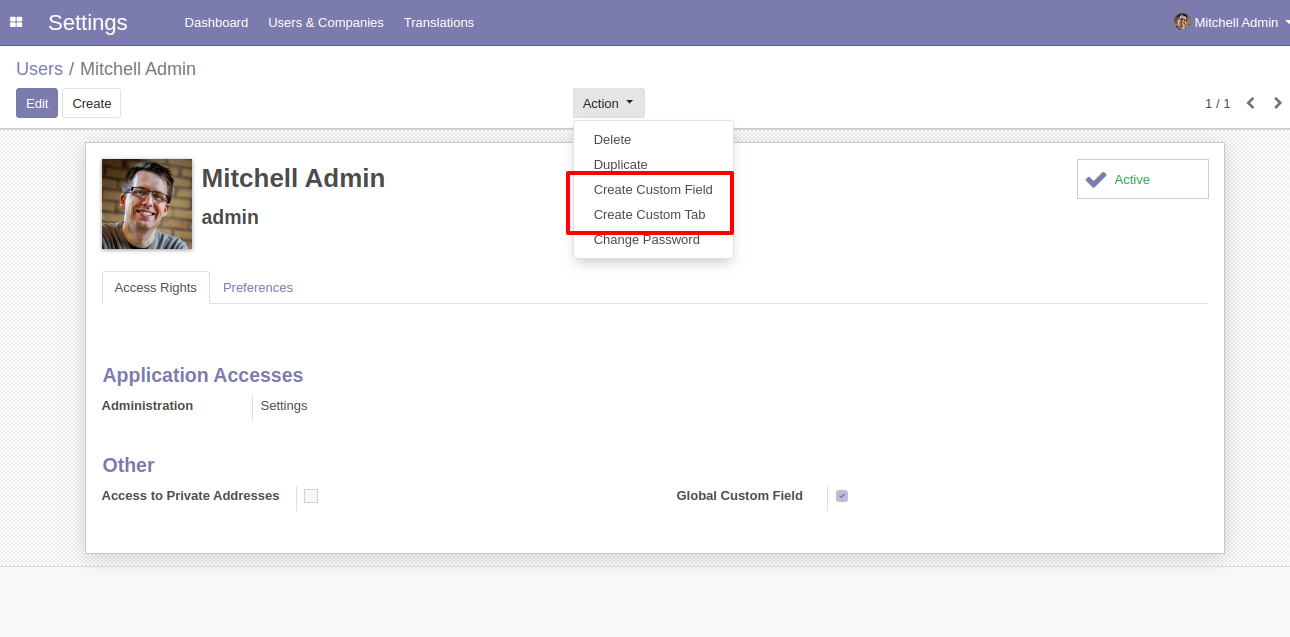
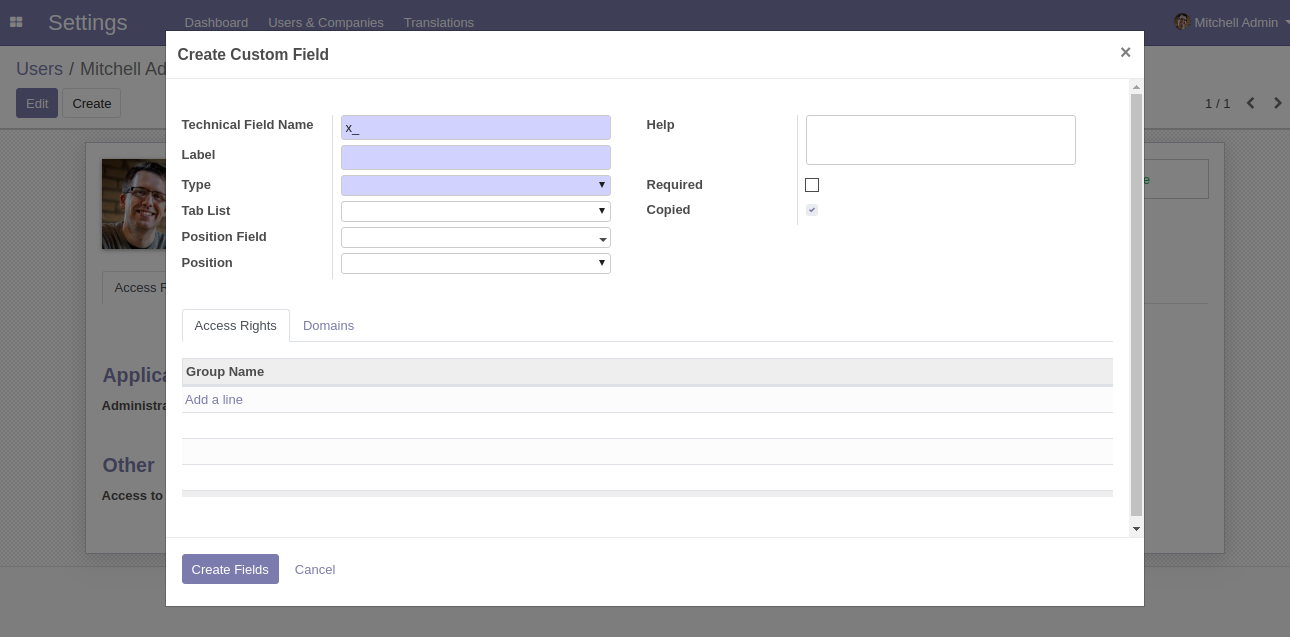
Go to action and select the 'create custom field' option for create global custom fields and select the 'create custom tab' option for create global custom tabs.
Assign Field Id, Label, Type, Position Field Name, Tab List, Position, Field Help, Set Required or not, field copy or not, and Set Field Access Rights group-wise into Pop Up and click on 'Create Field' button.
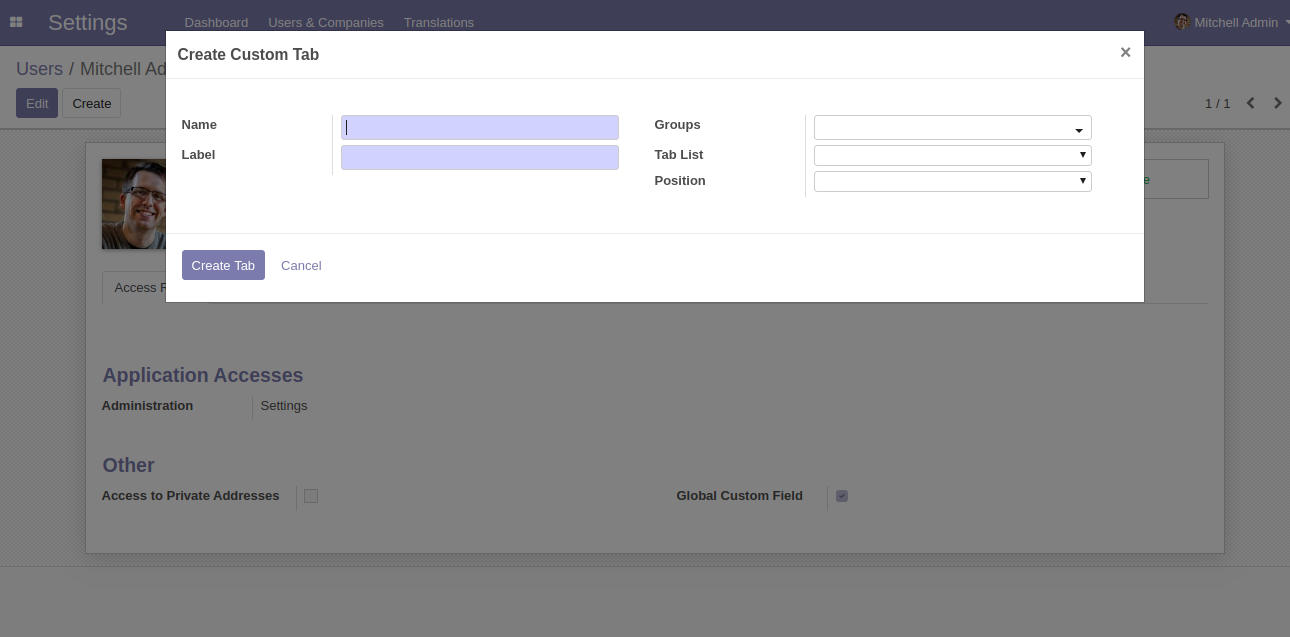
You can set tab name, label, groups, tab, and position and click 'Create Tab'.
You can update fields & tabs from the 'Update' button.
You can update 'Required or not, field copy or not' option when you update field & tab.
You can filter custom fields & tabs using any of the provided custom filter list.
You can group by custom fields & tabs using any of the provided custom group by list.
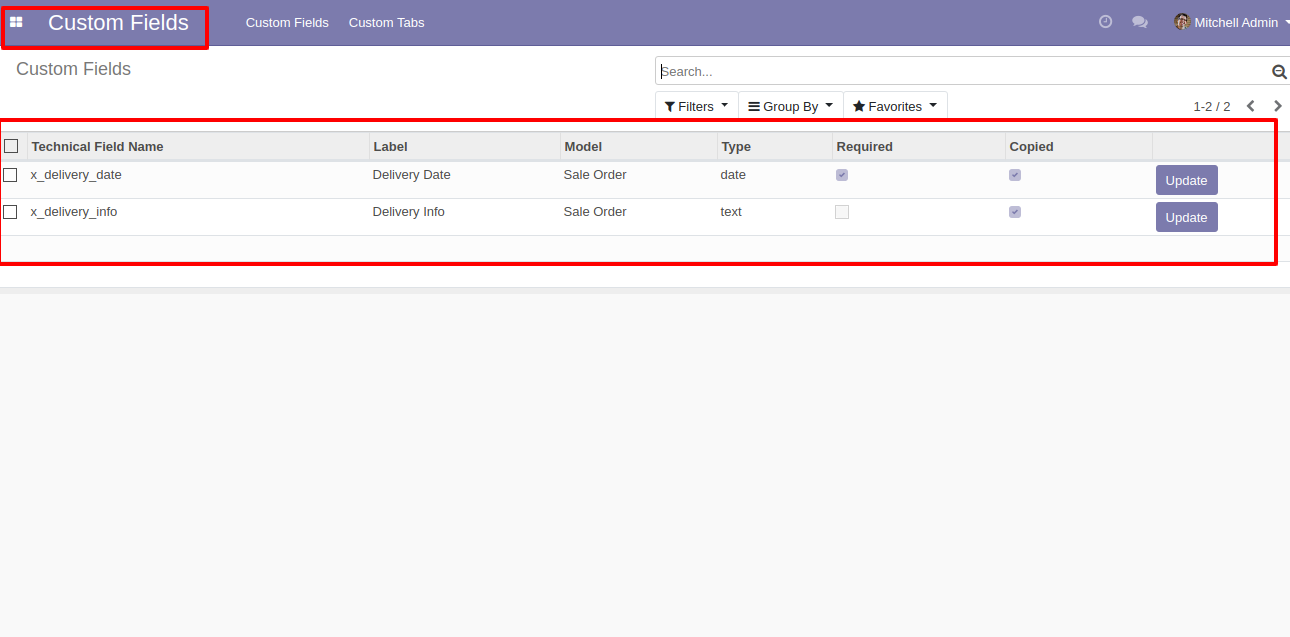
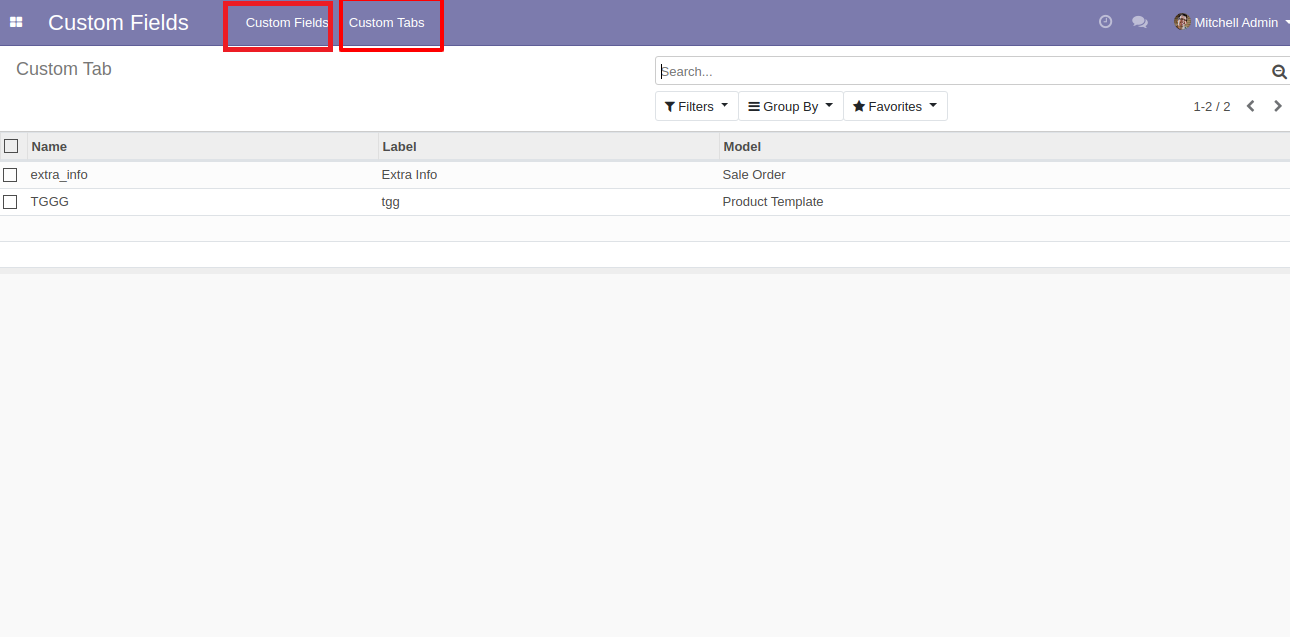
You can see custom fields & custom tabs from the menu.
Select custom fields from the list view and delete using action.
Version 18.0.1 | Released on : 26th September 2024
- Yes, this app works perfectly with Odoo Enterprise (Odoo.sh & On-Premise) as well as Community.
- No, this application is not compatible with odoo.com(odoo saas/Odoo Online).
- No, currently it does not work if the product type is selected as a combo product. For more details, please contact our support team at support@softhealer.com.
- Please Contact Us at sales@softhealer.com to request customization.
- Yes, you will get free update for lifetime.
- No, you don't need to install addition libraries.
- For version 12 or upper, you will need to purchase the module for each version that you want to use.
- Yes, we provide free support for 365 days.
- No, We do not provide any kind of exchange.
