











Freight Management System

Do you use a business solution from sale to delivery and you want to manage your freight? Here it is our this module which has key features like transporter details,Vehicle information, routes information, with delivery order details. It will manage your all transport entries.

Features
- Easy to define user groups.
- Easy to create transporter details with vehicles and it's driver details.
- Easy to manage all freights Air, Road, Ocean.
- Easy to define routes.
- Easy to define locations.
- Defnie transporter in sale order.
- Define routes and transporter vehicle in delivery order.
- Easy to set parcel numebr in delivery order.
- Transport details on delivery slip.
- Easy to track transport status with its different kind of state like start, waiting, in progress, cancel, done.
- Transport Details on portal for portal user with sorting, filter, group by and search also.
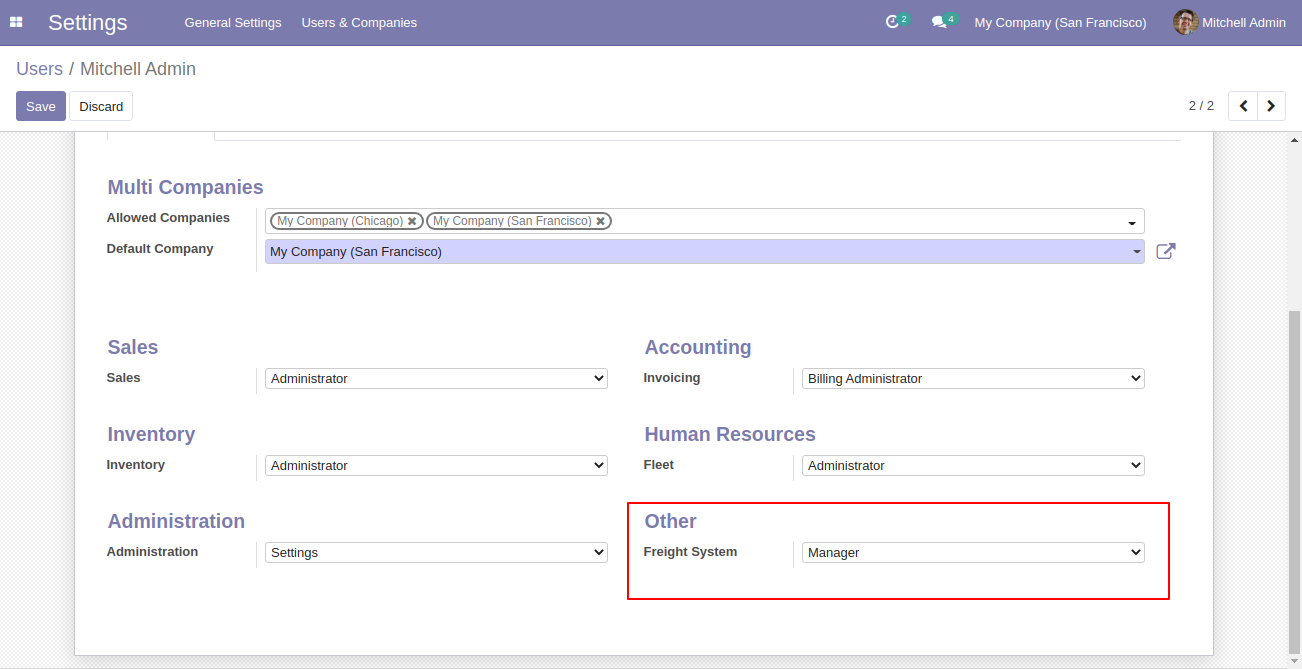
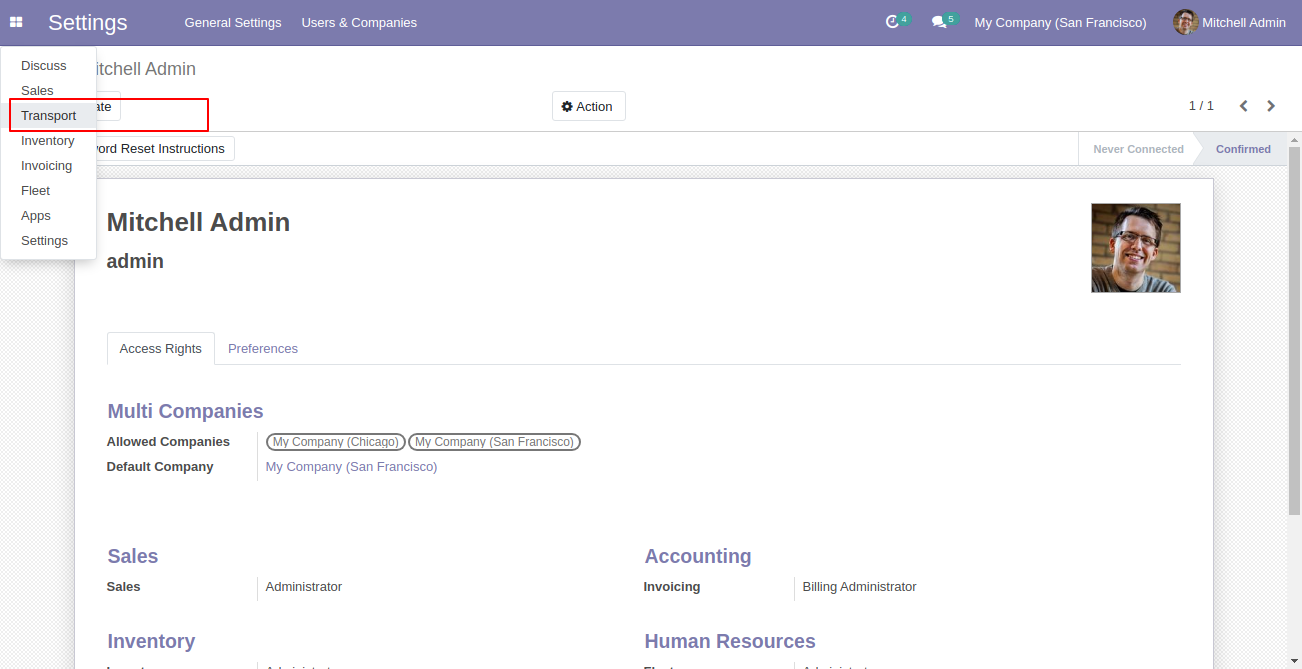
Goto user setting and set user group Freight Management 'Manager'.
Click on 'Transport' Menu.
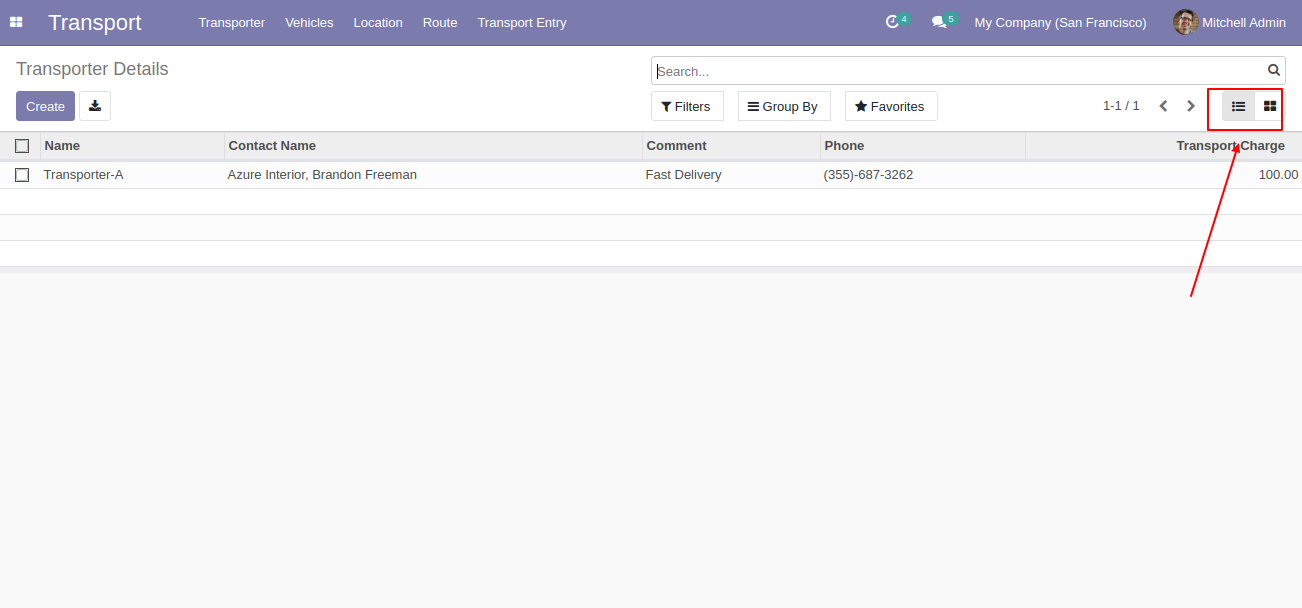
Transport tree view.
Transport form view. Here you can create transporter details. and select transport type 'Land'.
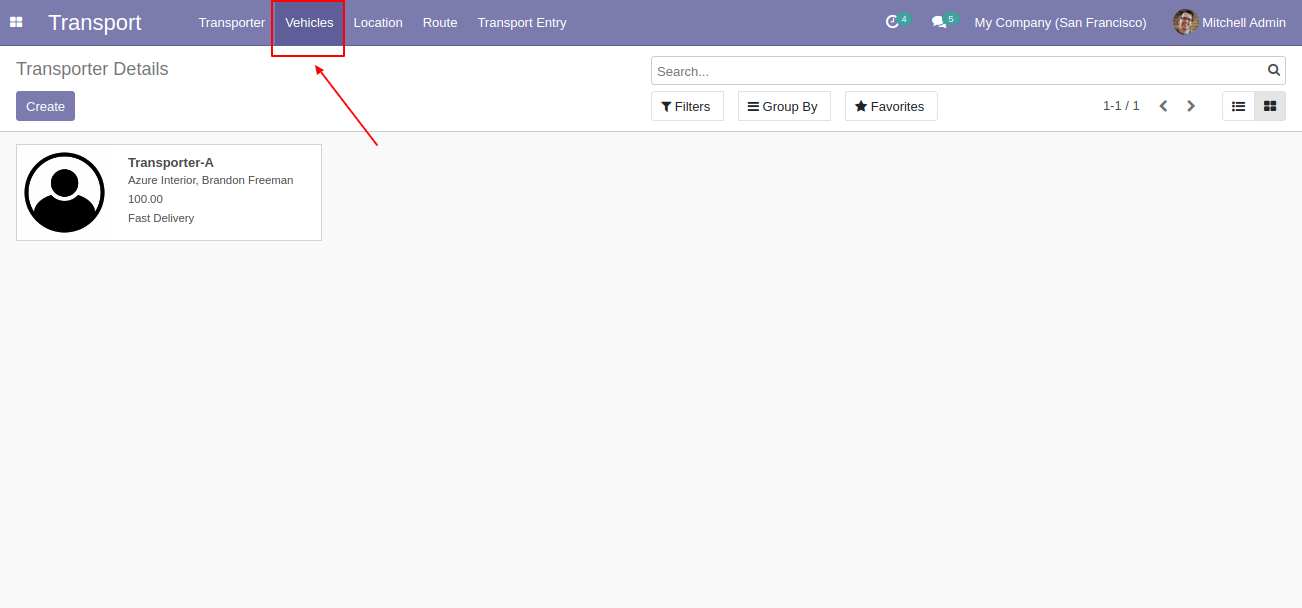
Transporter Detail kanban View.
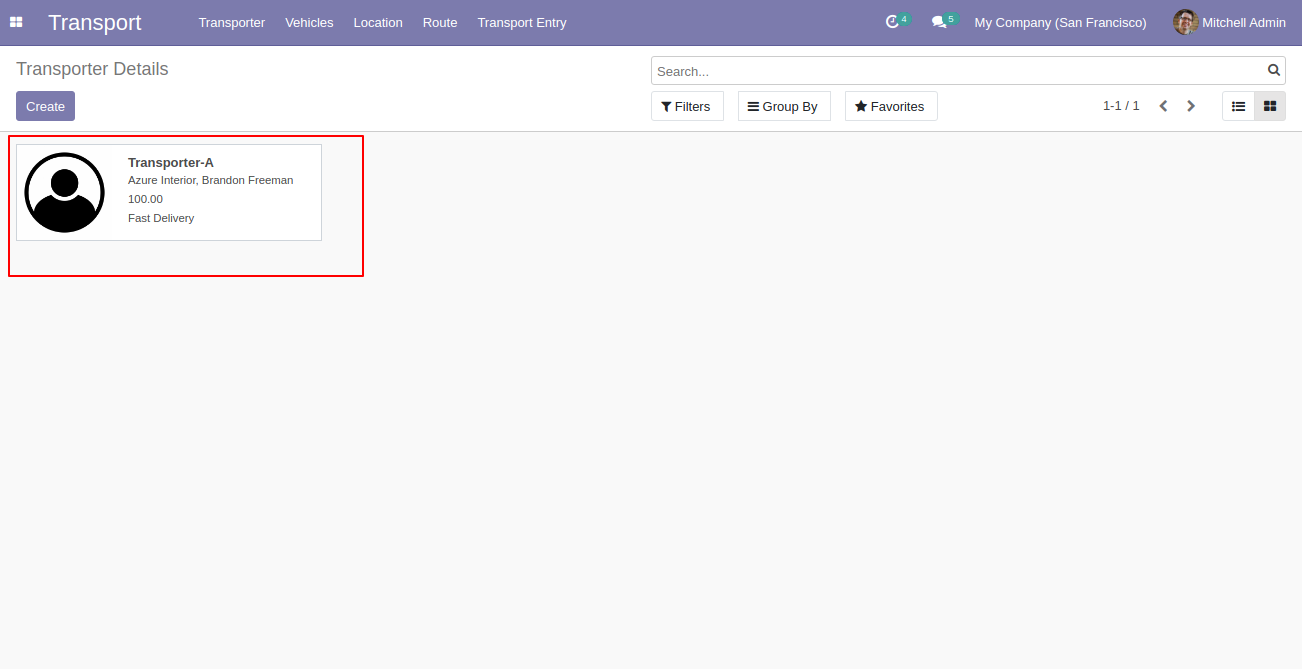
'Vehicles' menu and kanban view.
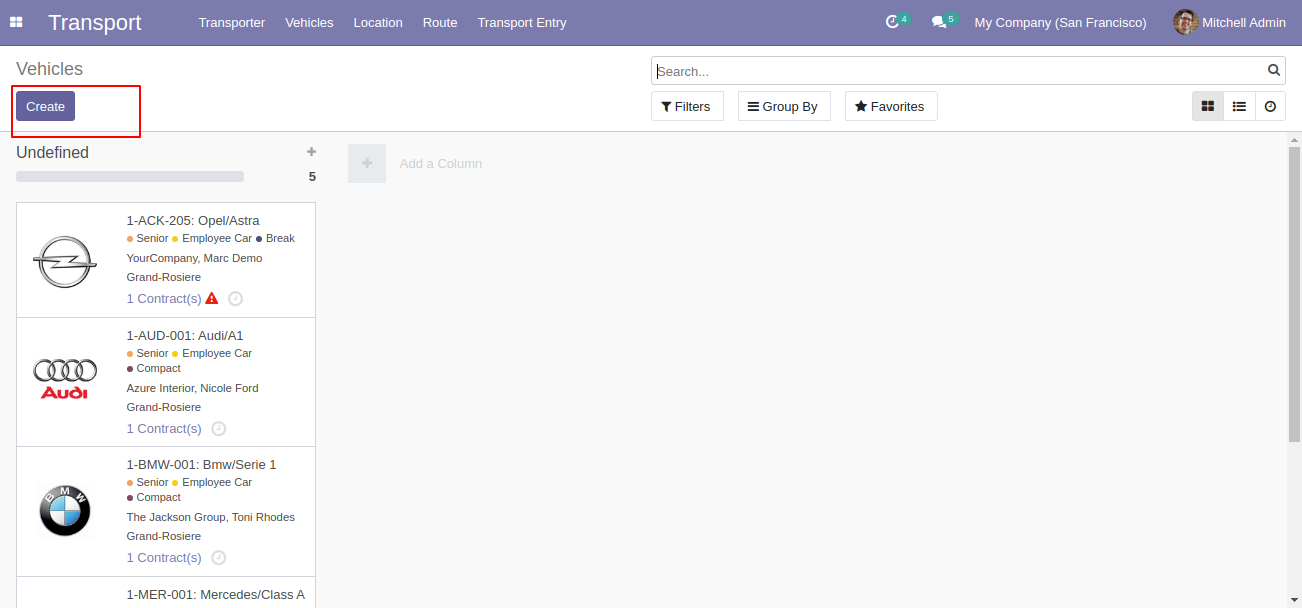
Vehicles form view. Here you can create a vehicles.
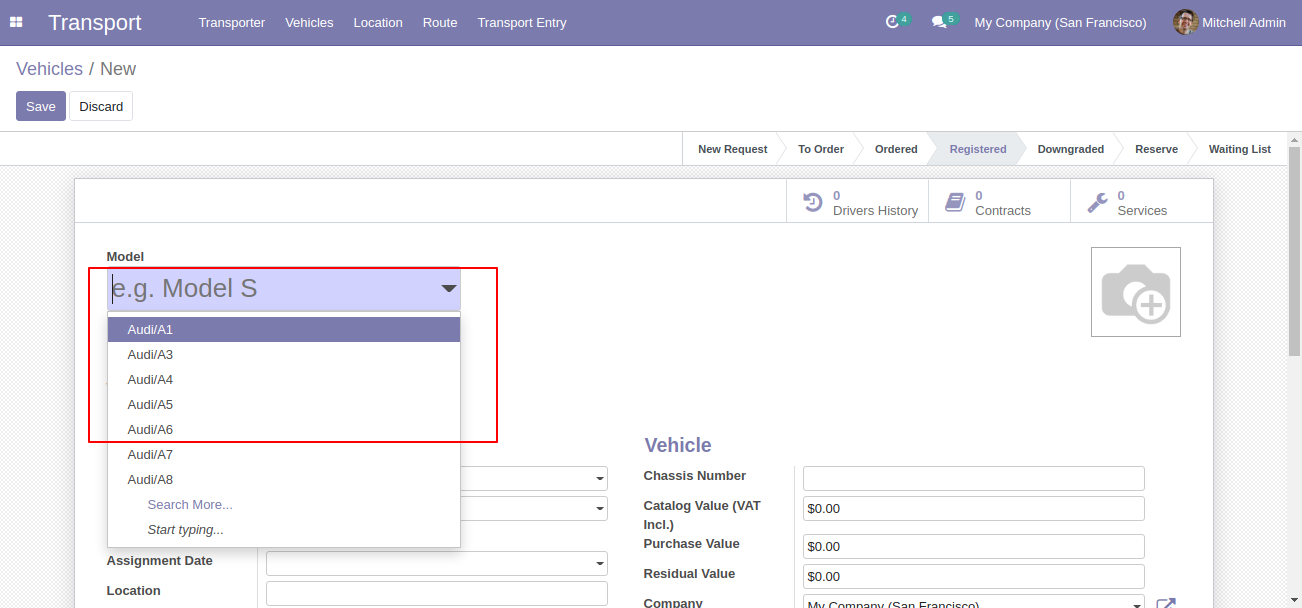
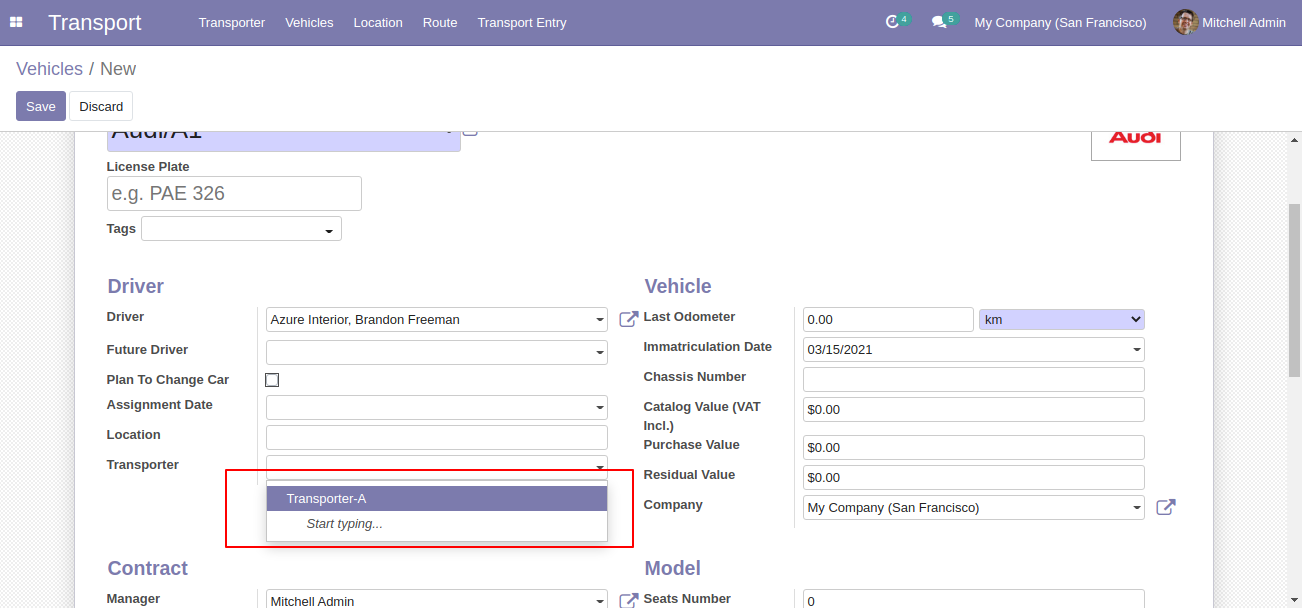
You can select transporter name in vehicles details.
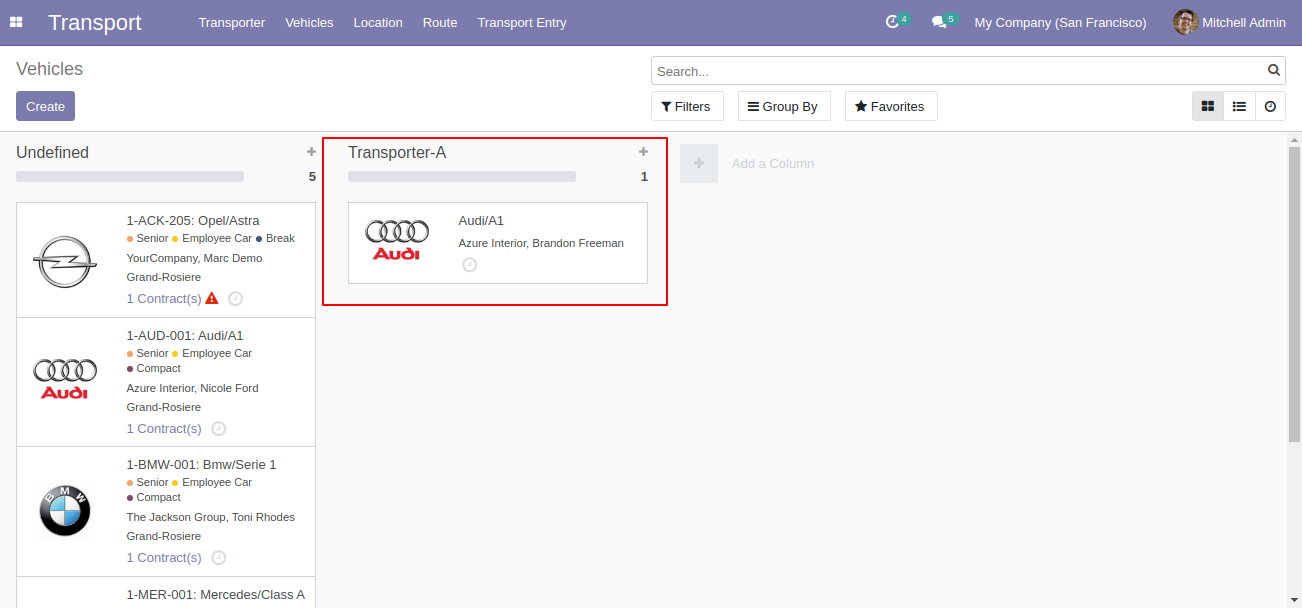
'Vehicles' kanban view with Transporter group.
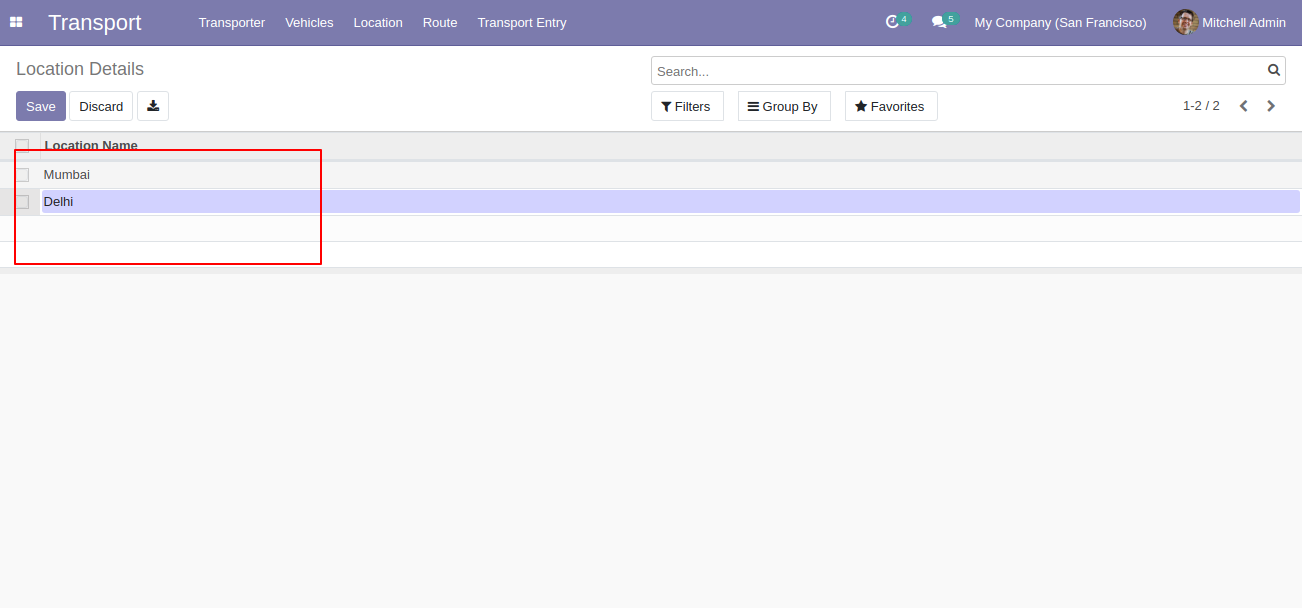
'Location' menu and tree view.
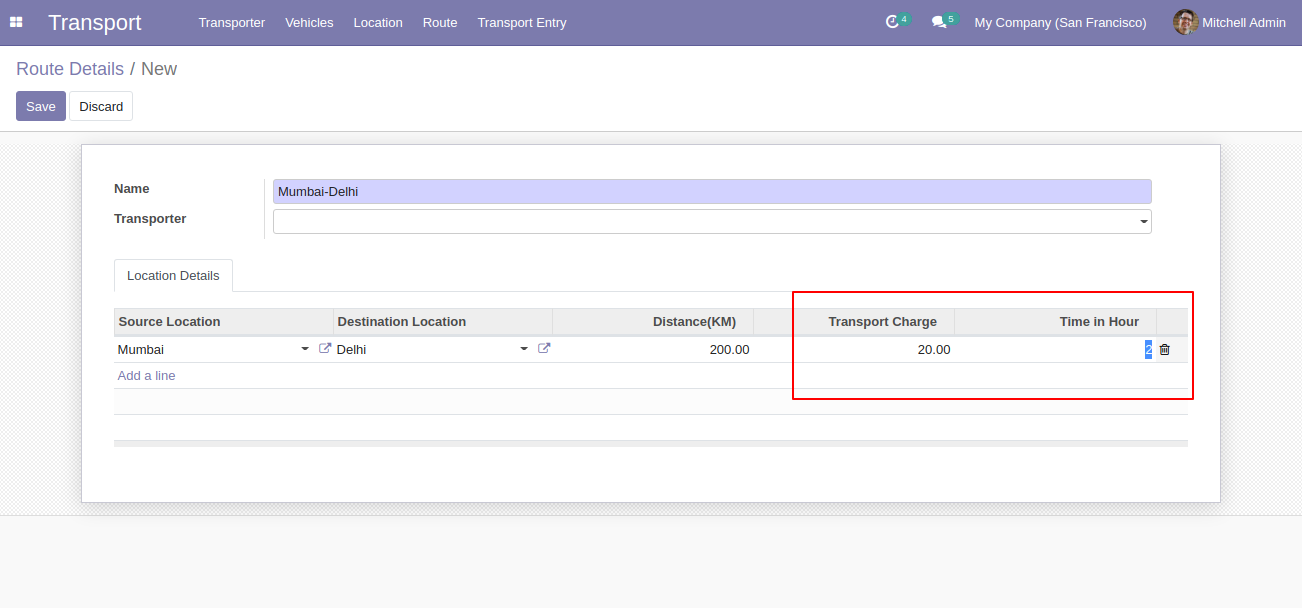
In Route menu, you can define the specific routes with distance, charges, time as well.
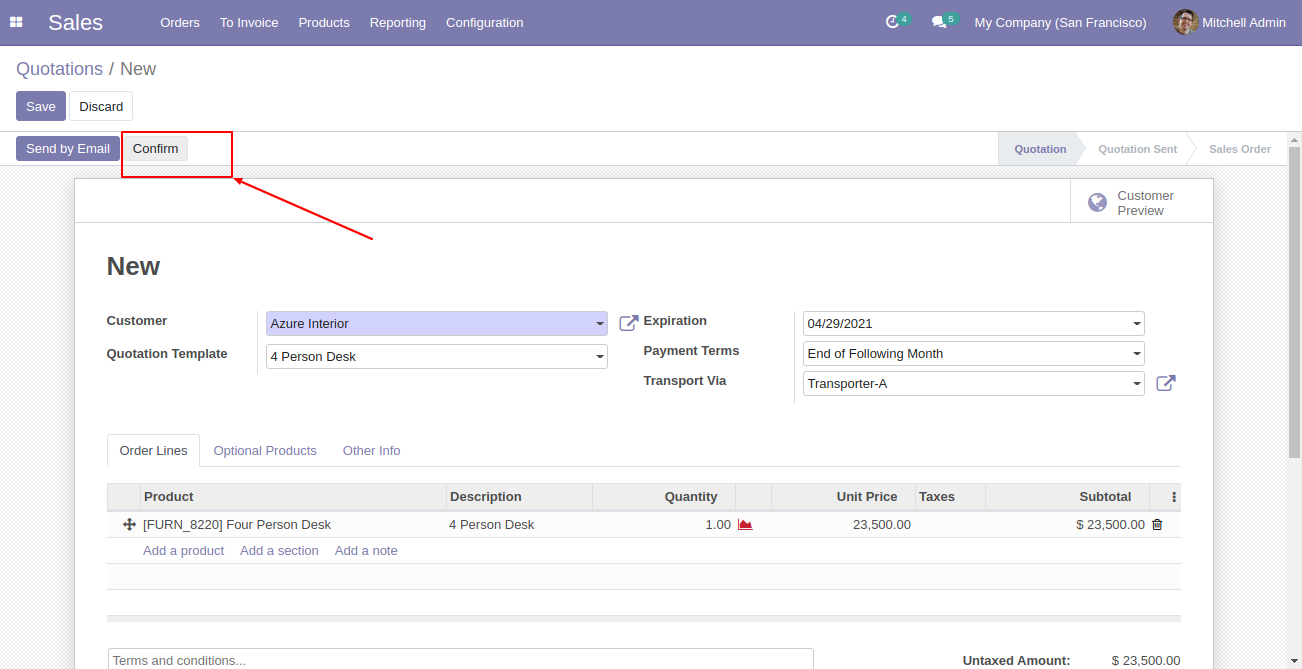
In Sale order, just select the appropriate transporter, and make delivery order.
Now go to the delivery order, and select route, LR Number, and Vehicle.
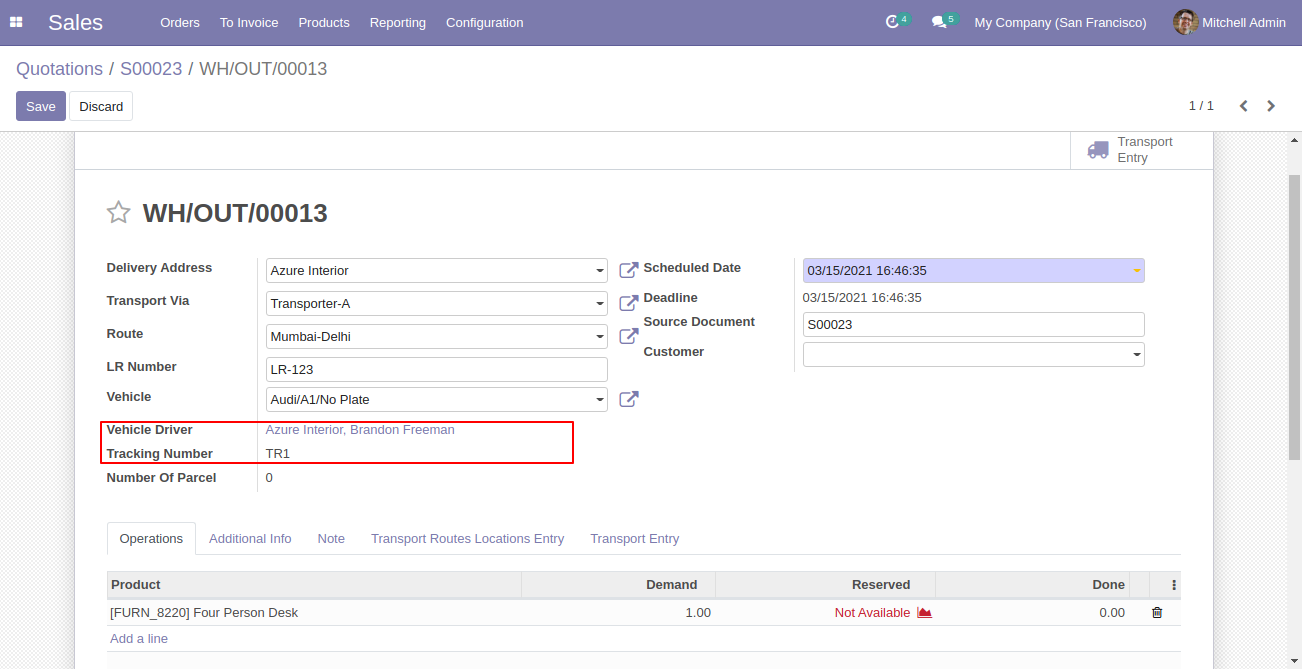
You can see the details of transport route location entry and time as well.
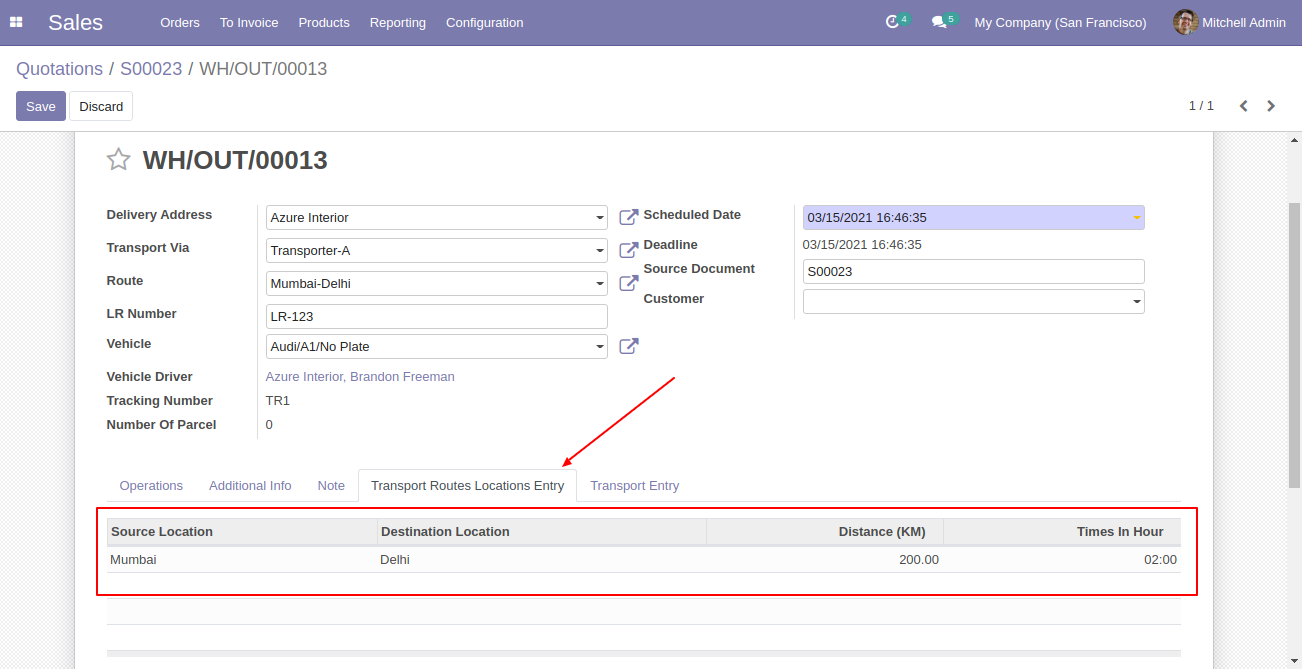
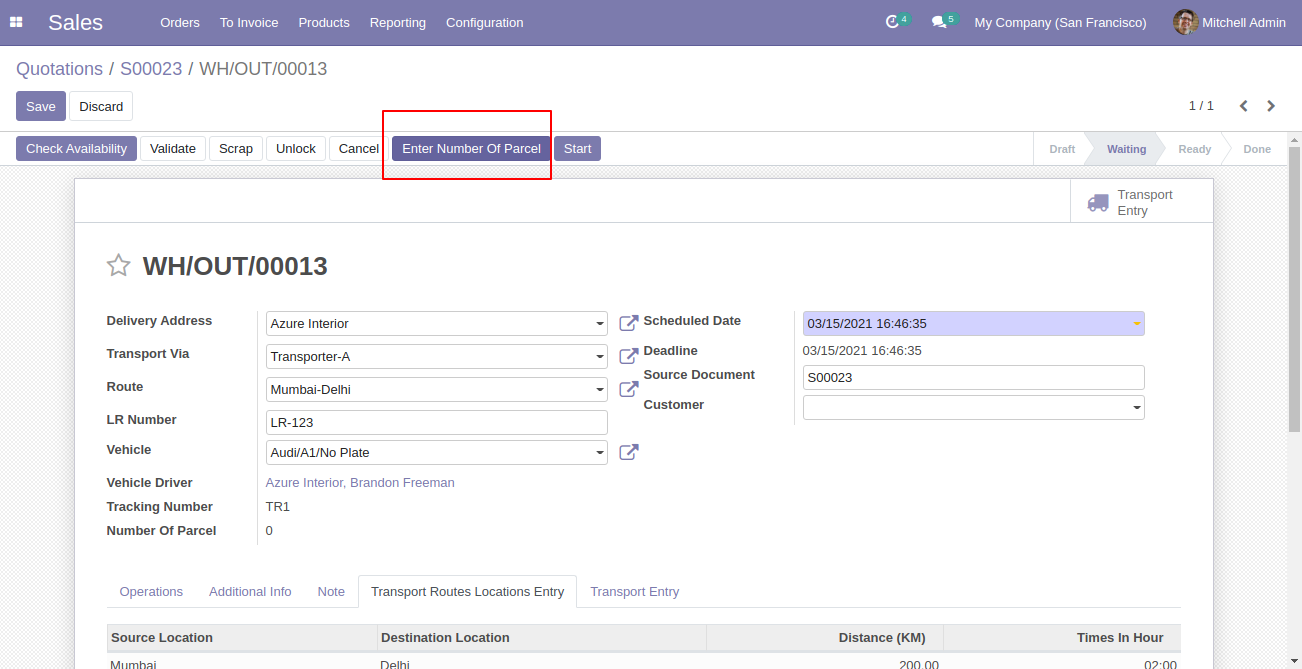
Now click on 'Enter Number of Parcel'.
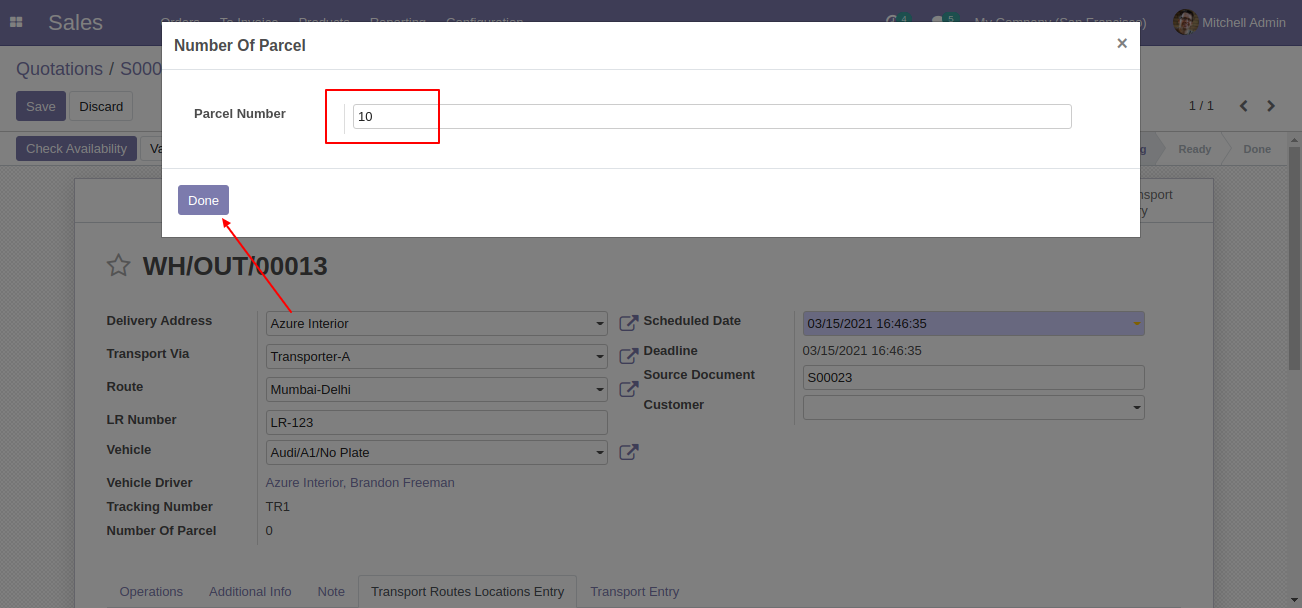
Here you have to add the number of parcels.
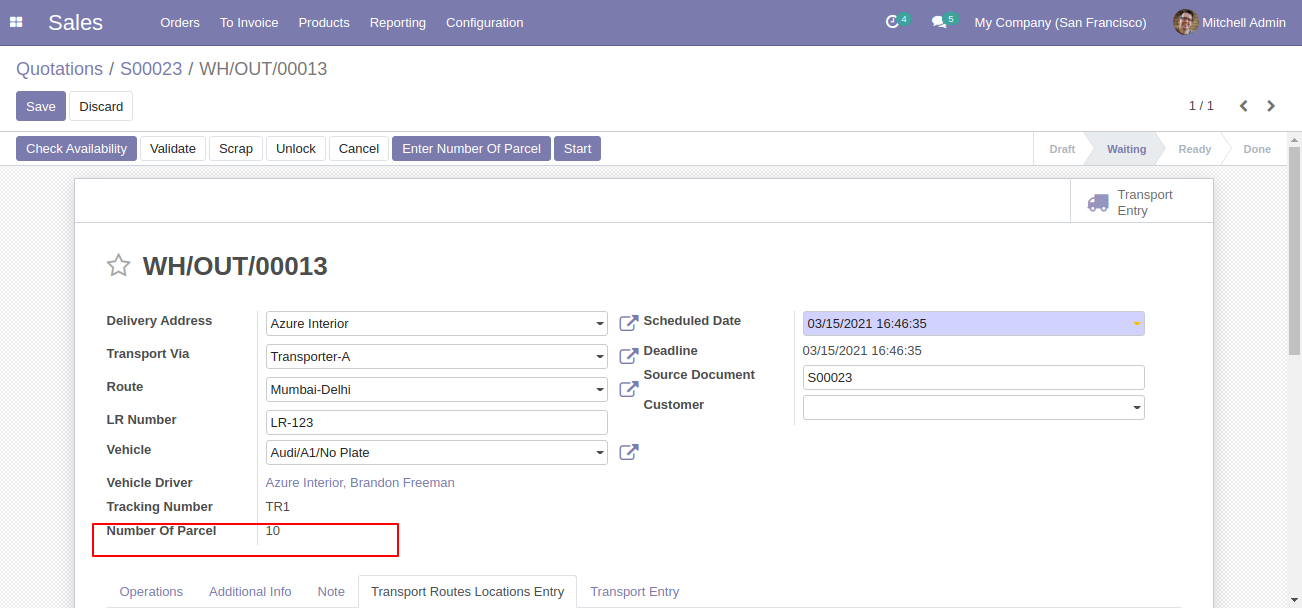
You can see the parcel number in delivery order form view.
Now click on 'Start'. That means your parcel is on the way to delivery.
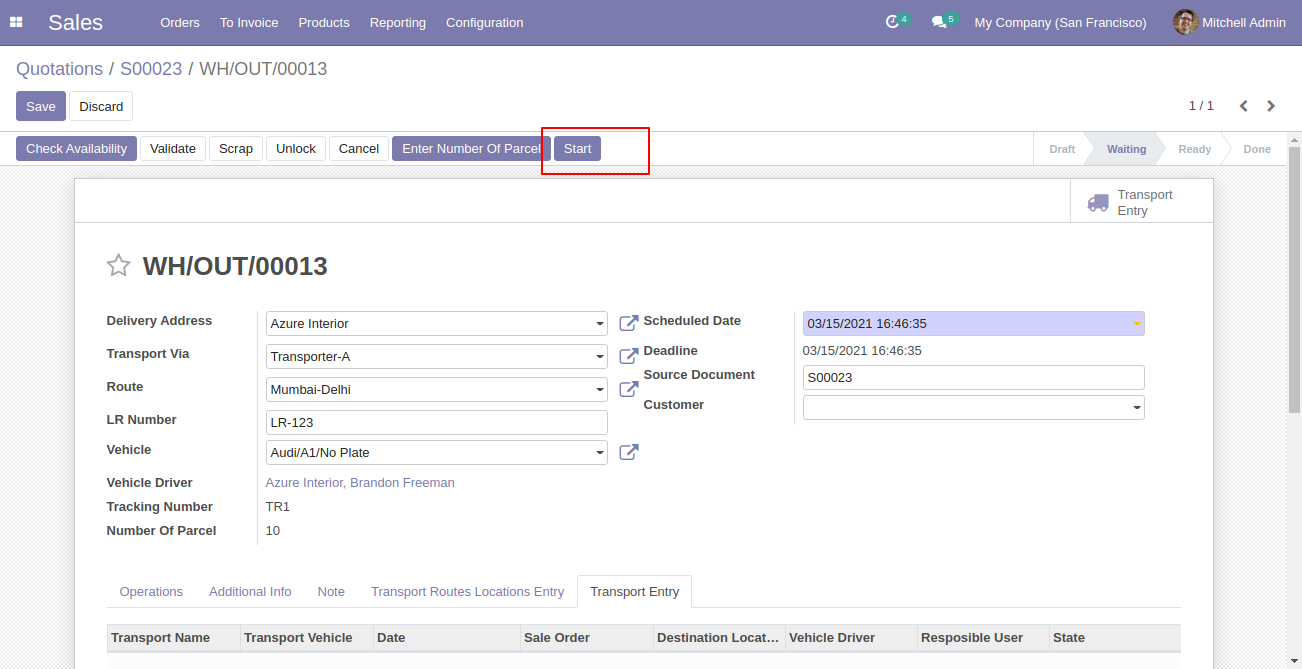
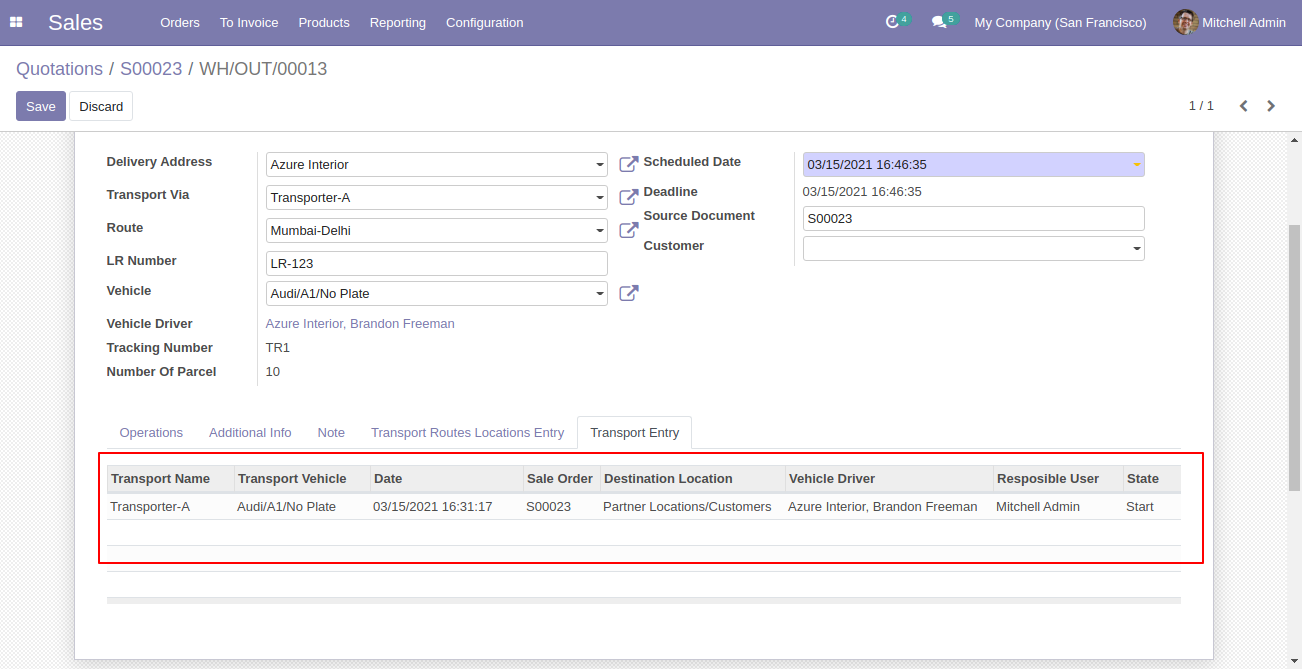
You can see the transport entry in delivery order form view.
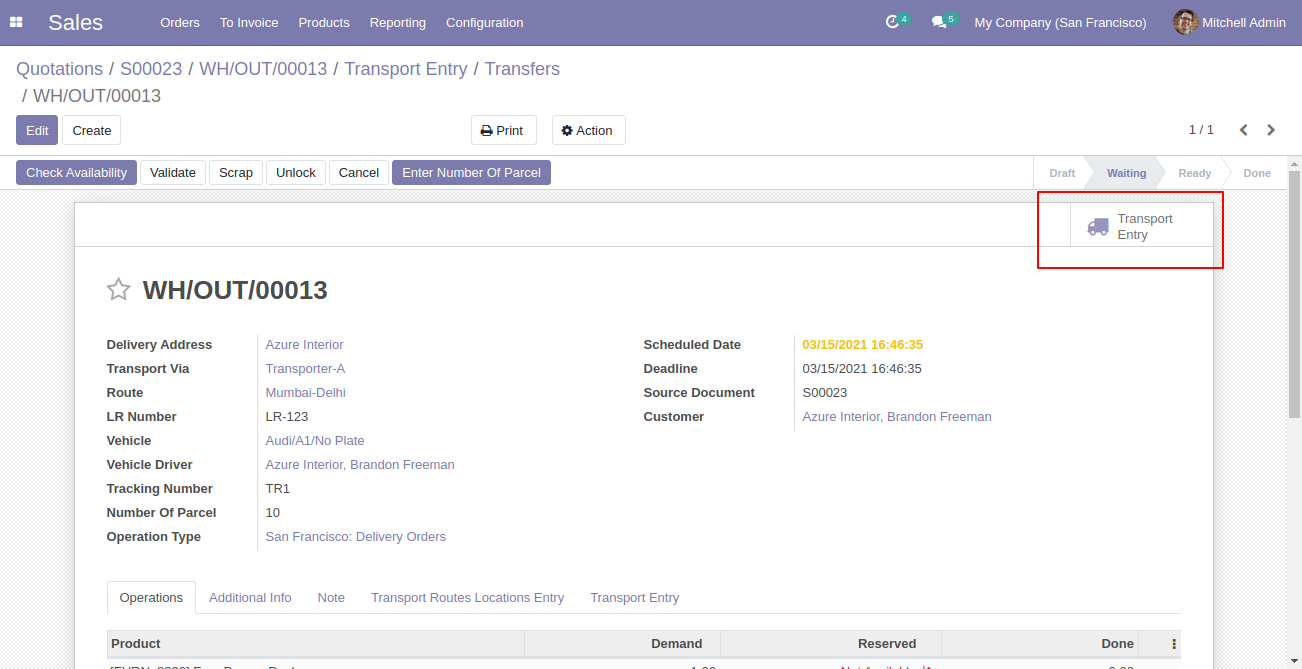
You have another smart button to see the list of transport entries. Just click on it.
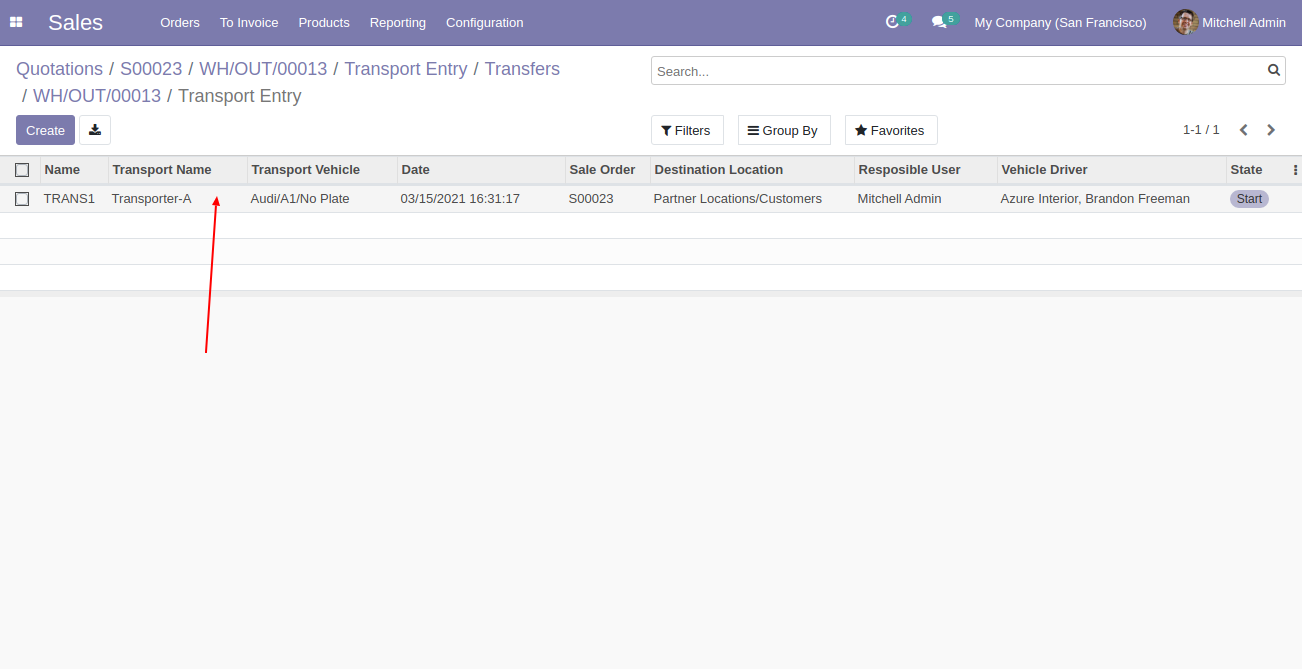
Transport Entry List View.
After start transport it will set on 'In Progress' state, Click on 'Halt' if driver stay for halt it will automatically set on 'Waiting' state.
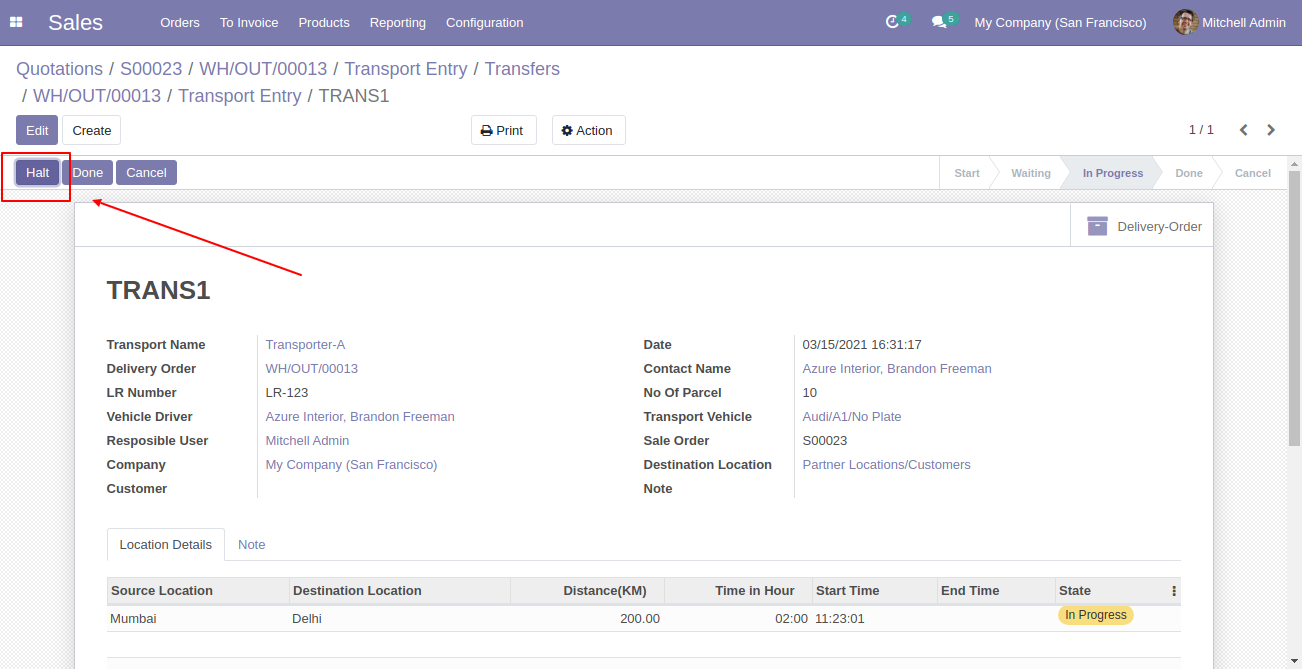
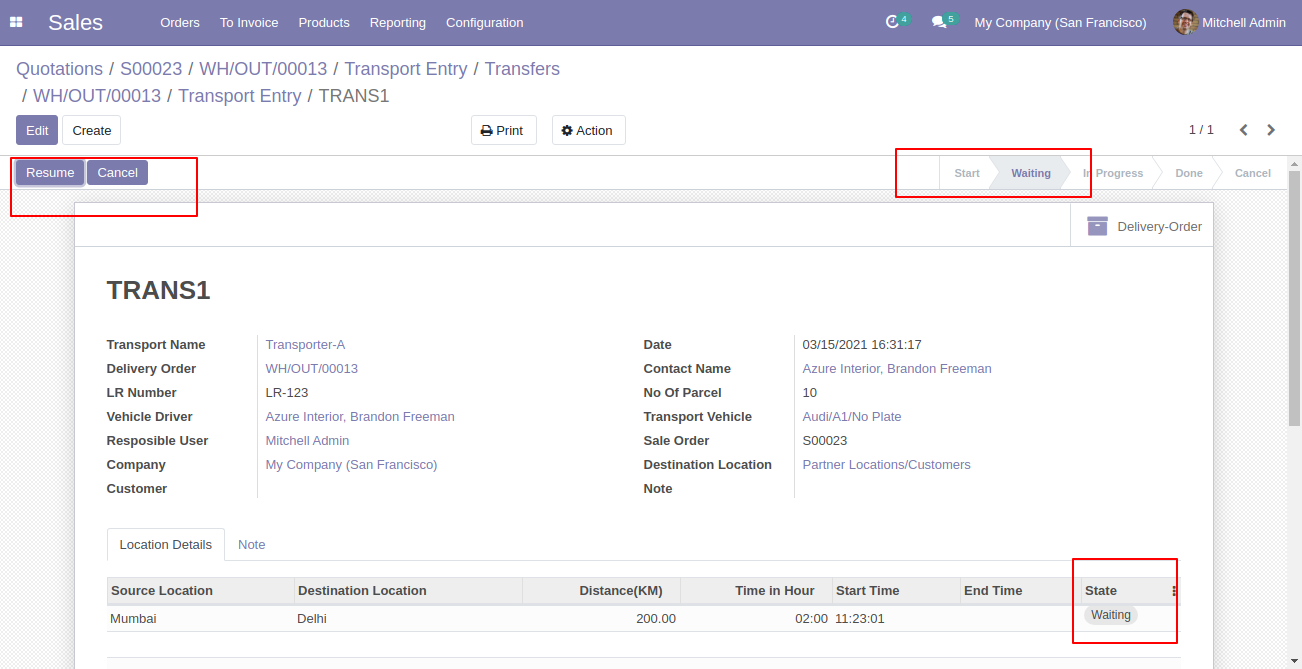
After complete halt you have to click on resume for resume delivery.
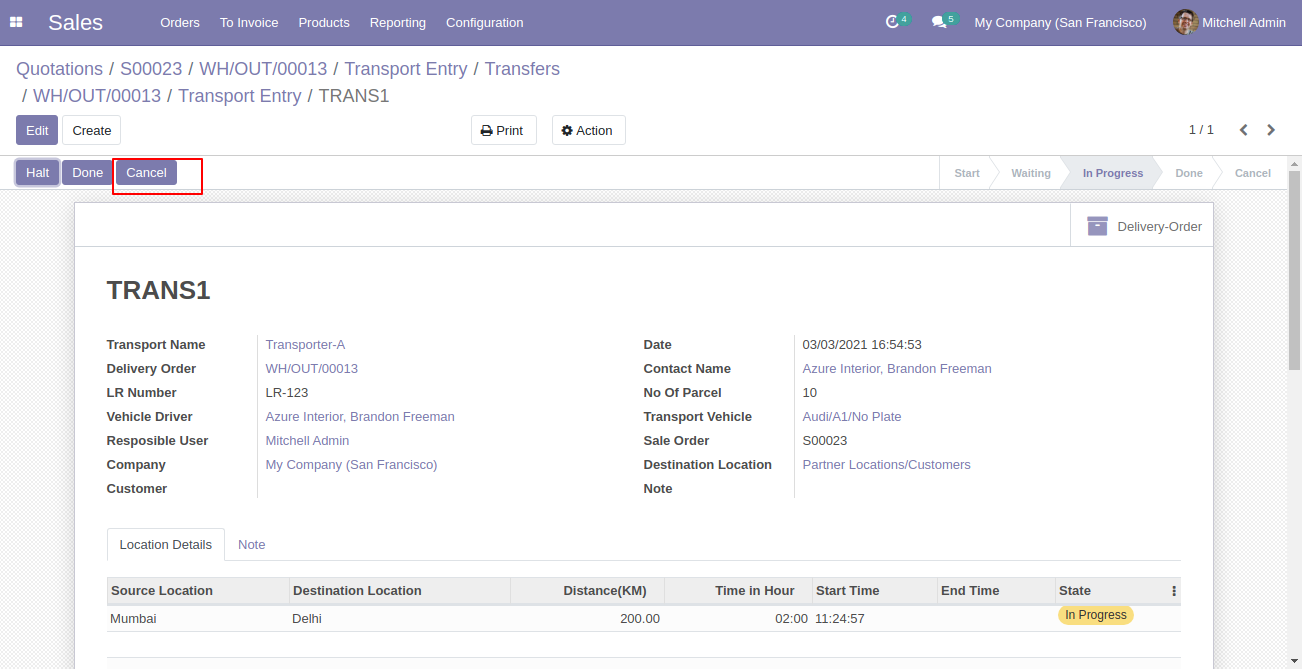
If any reason to cancel delivery, Just click on 'Cancel'.
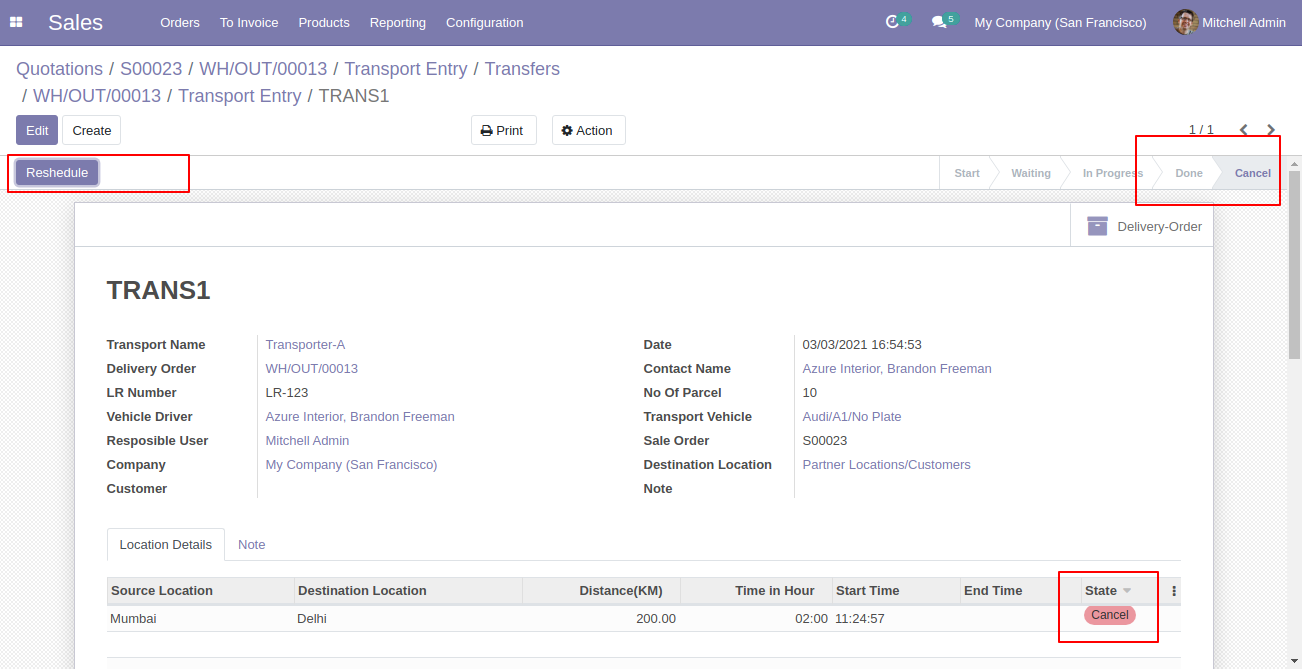
You can reschedule cancel transport, just click 'Reschedule'.
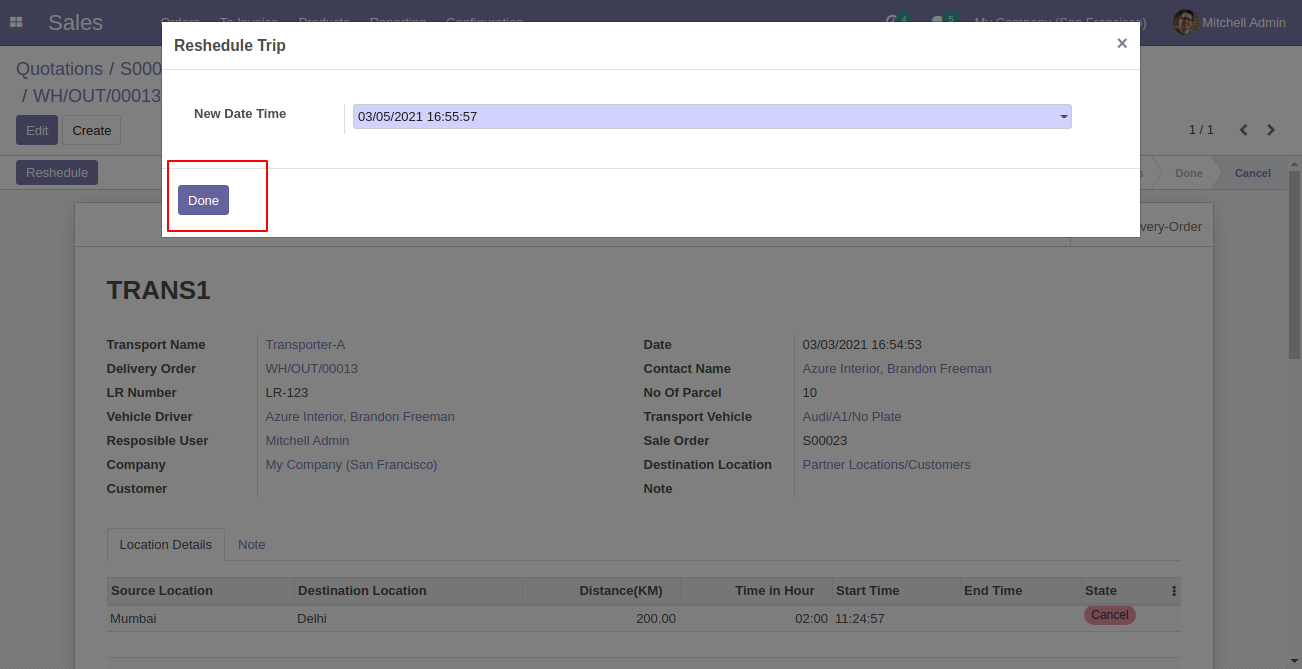
After click on 'Reschedule' this popup will pop out, here you have to set the reschedule date.
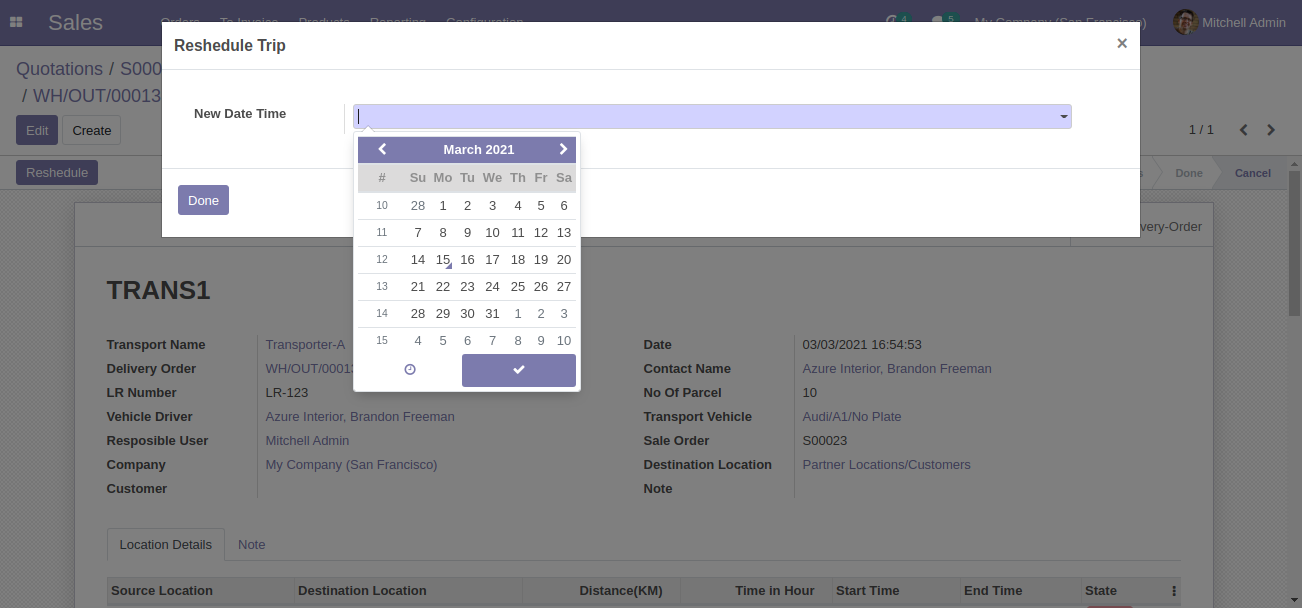
After reschedule the transport, it will automatically set on 'Start' stage.
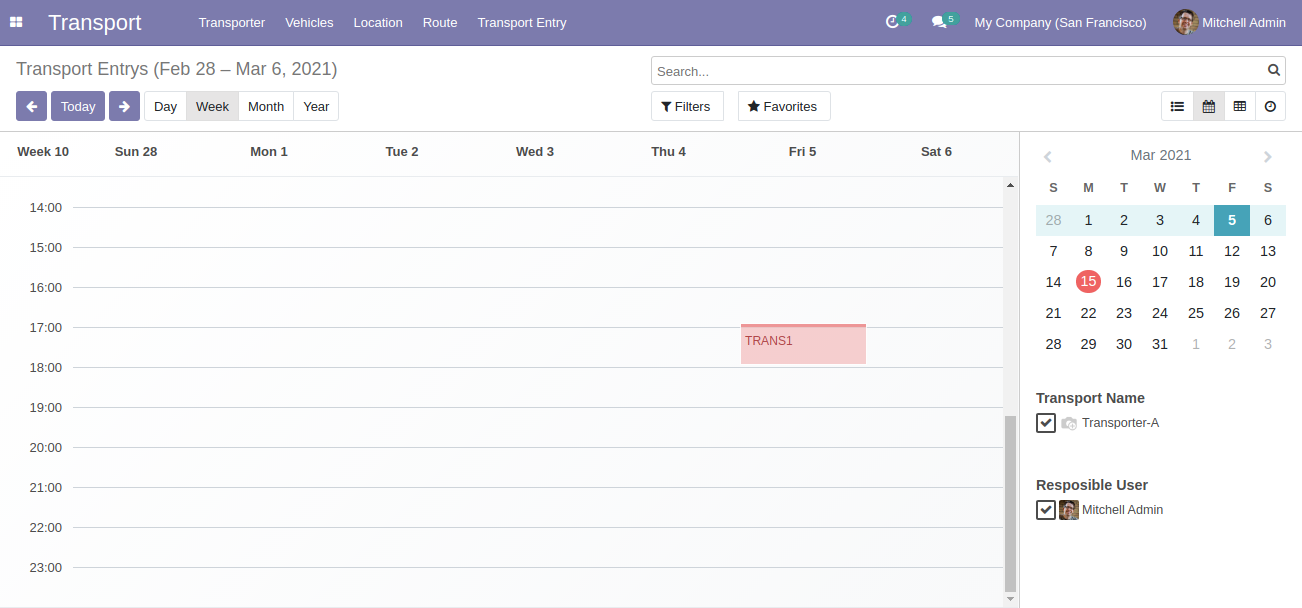
Transport Entry Calender View.
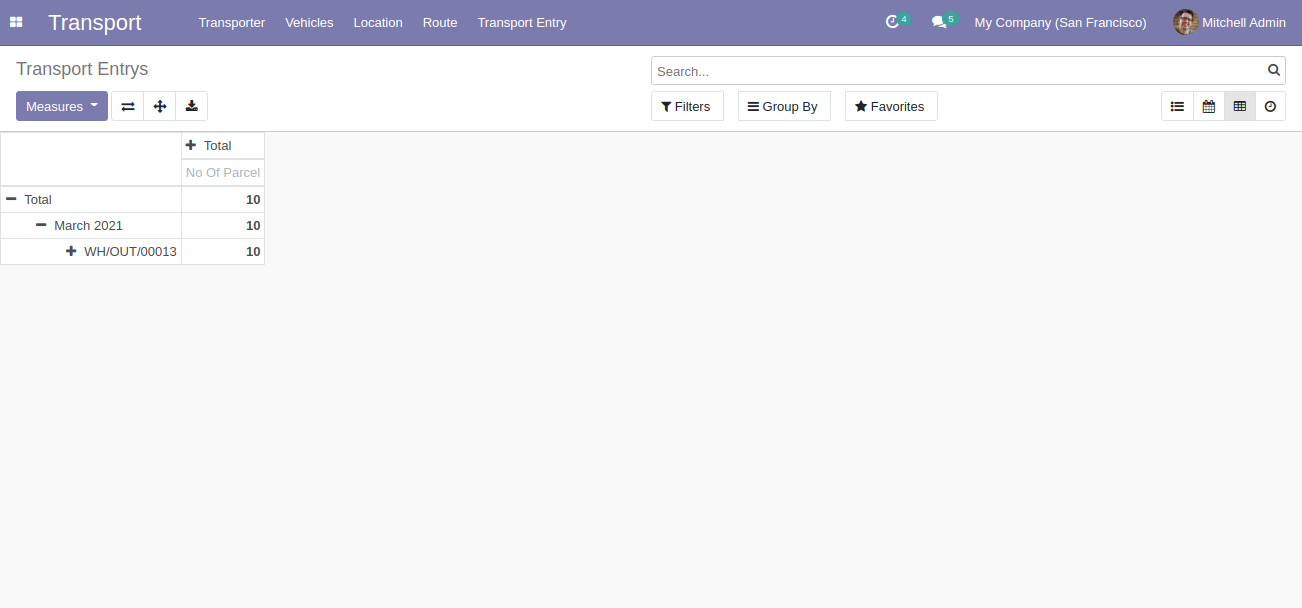
Transport Entry Pivot View.
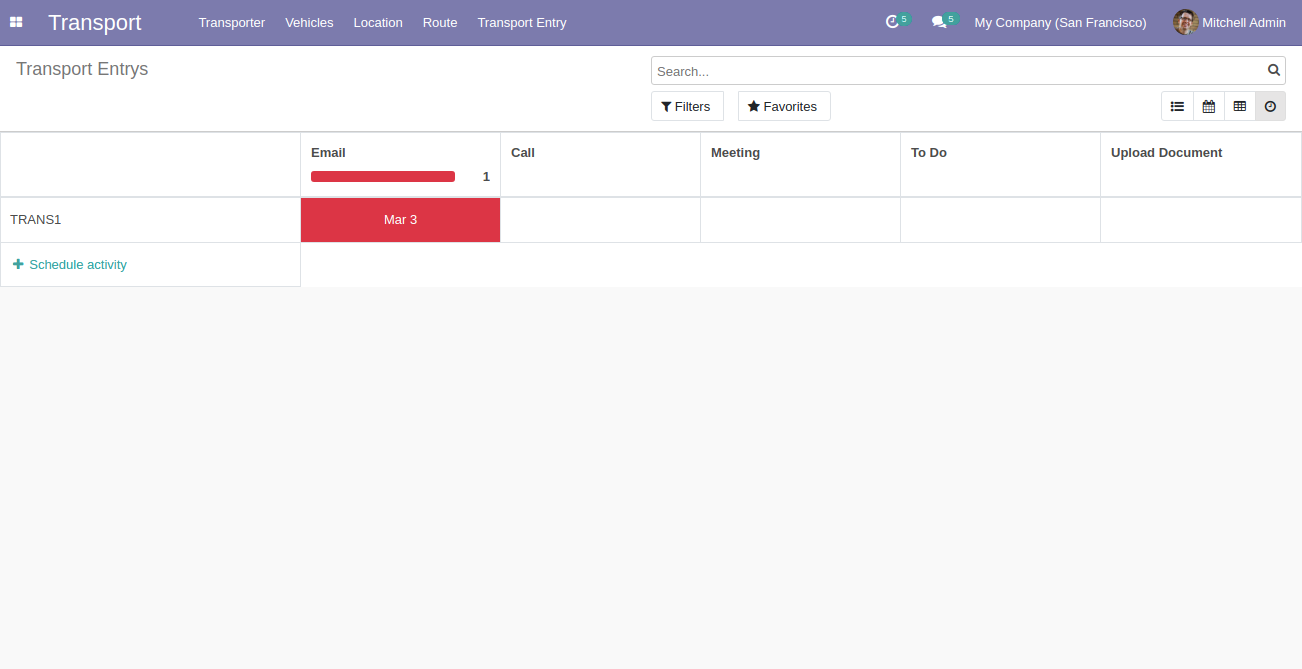
Transport Entry Schedule Activity View.
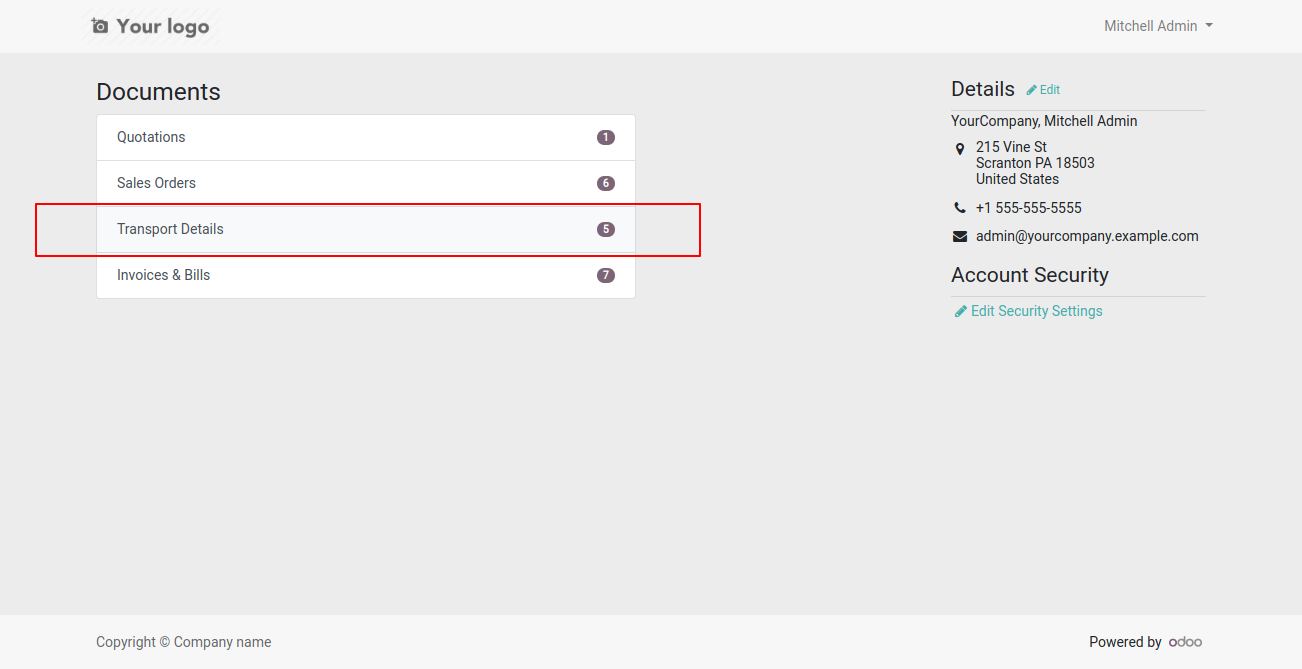
Transport Details on portal.
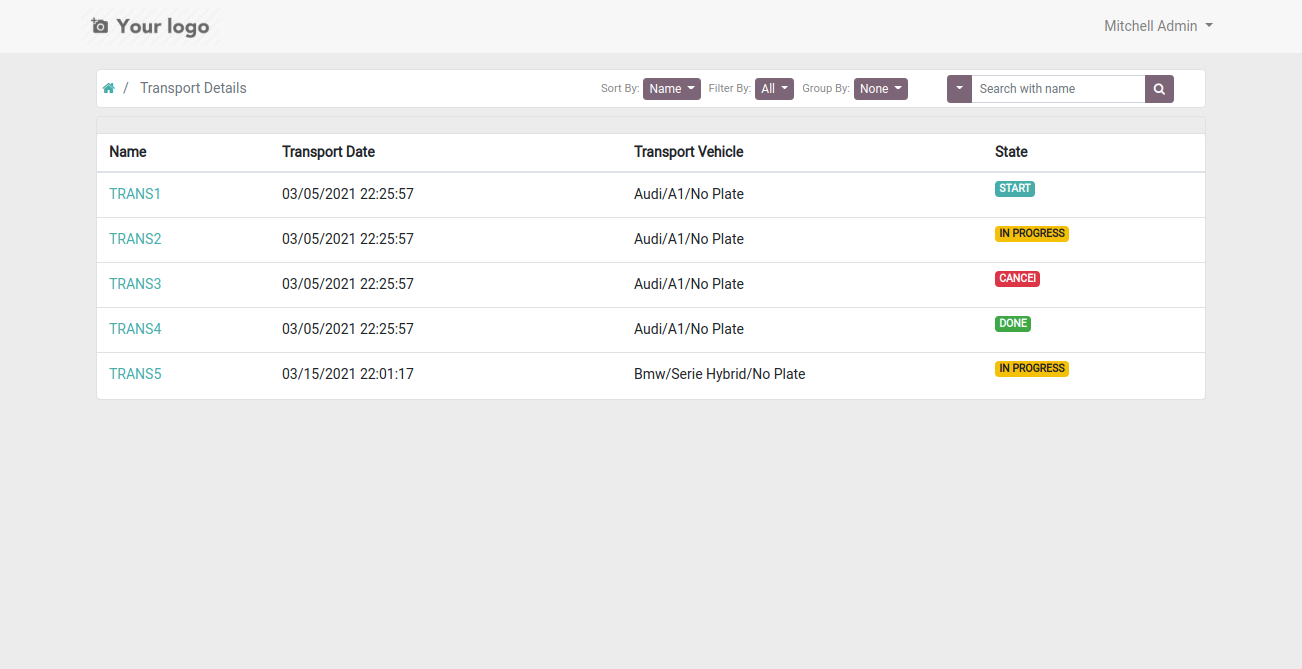
Transport Details list view on portal.
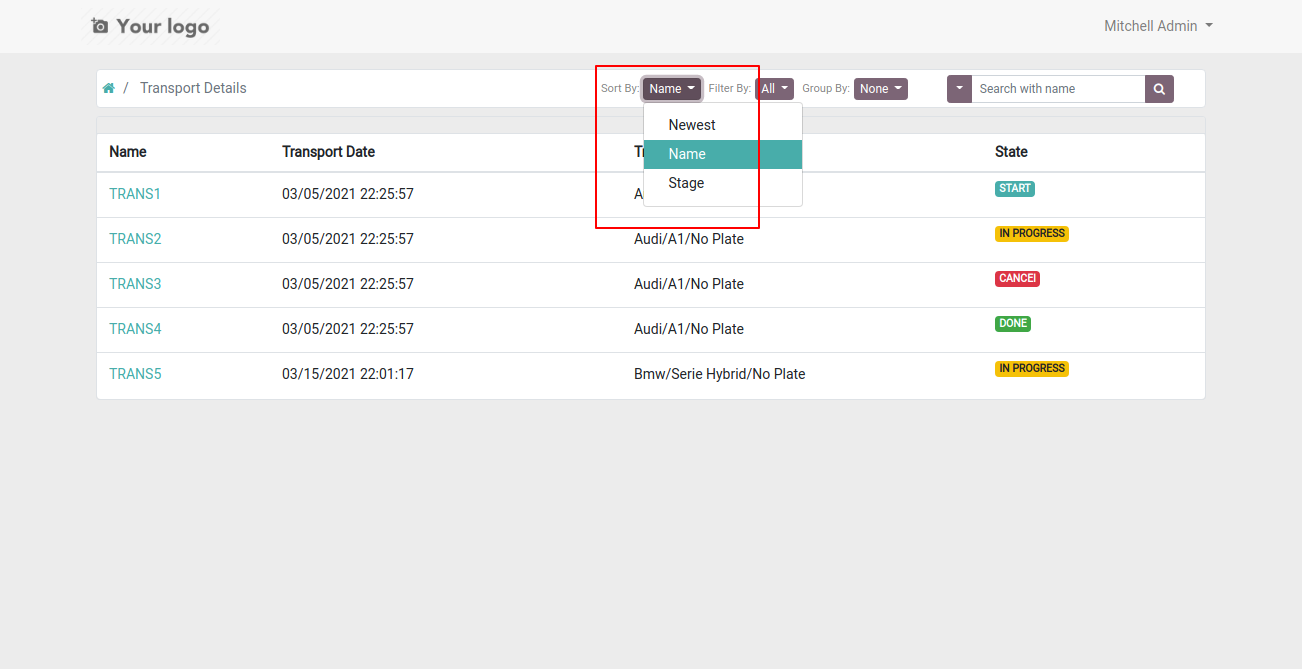
Sort by Name, Newest, and Stage.
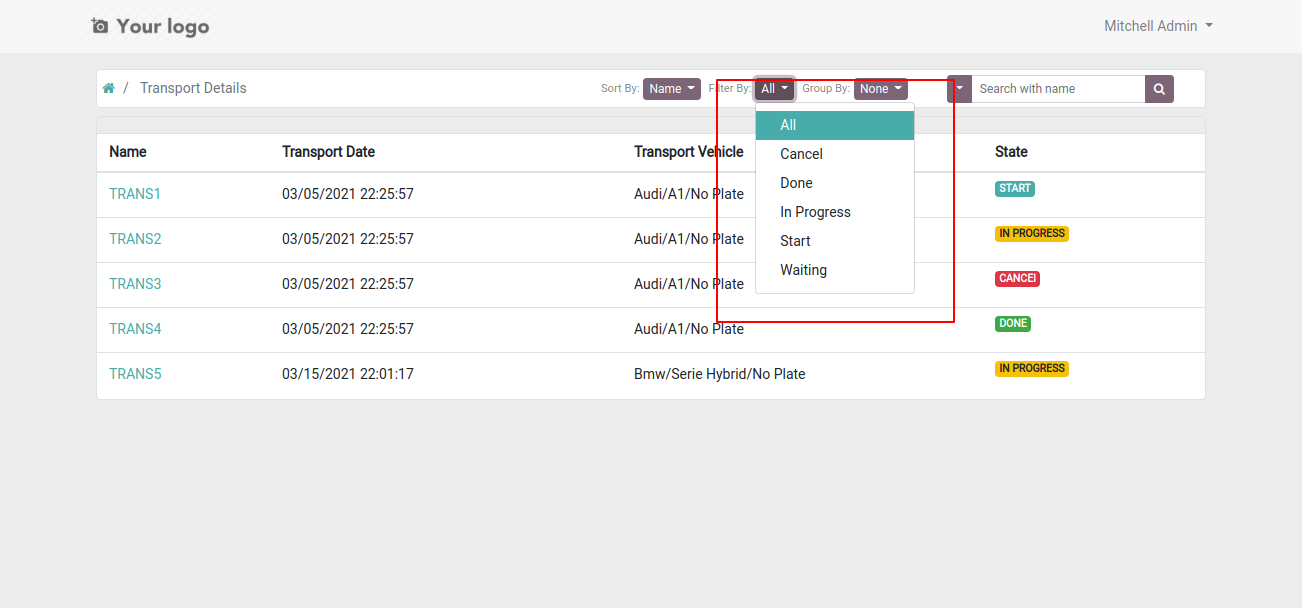
Filter by Start, In Progress, Waiting, and Cancel Stage.
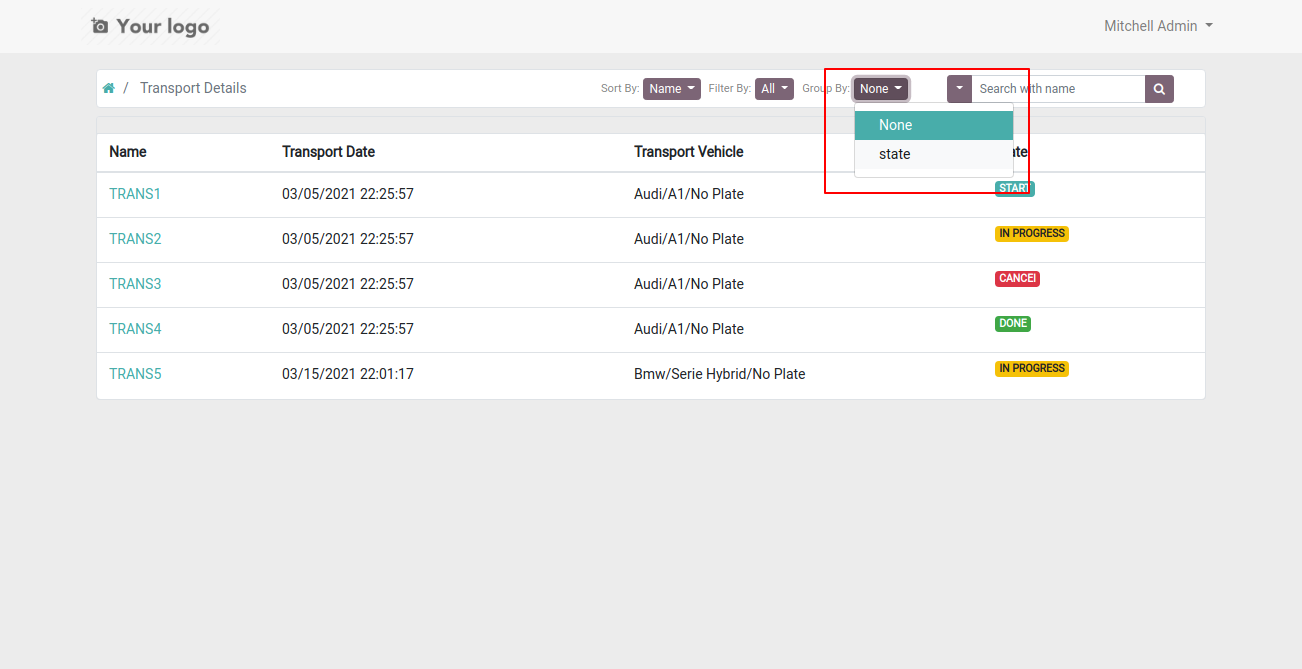
Group by State.
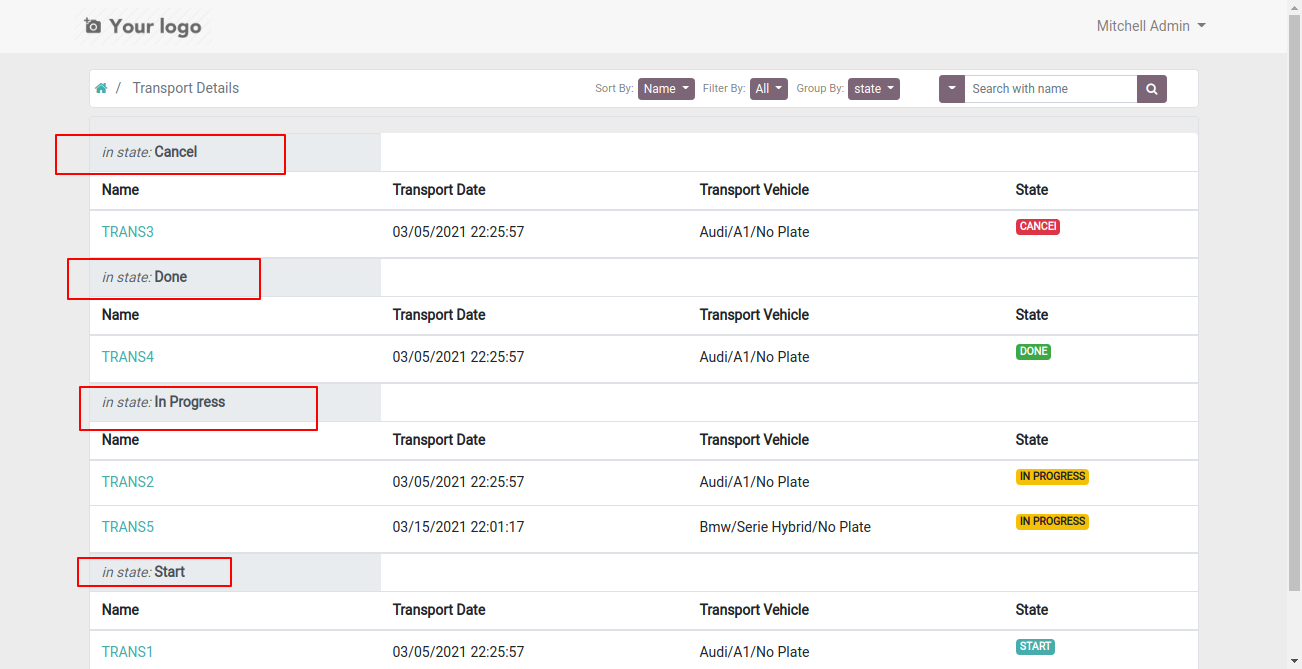
Group by example.
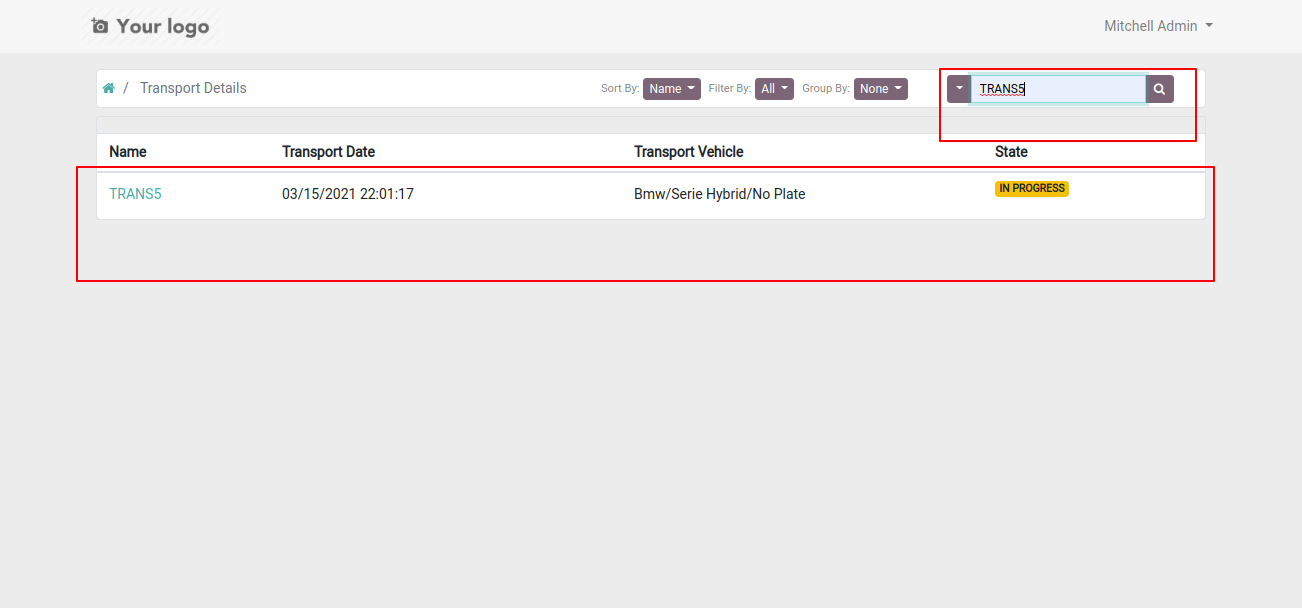
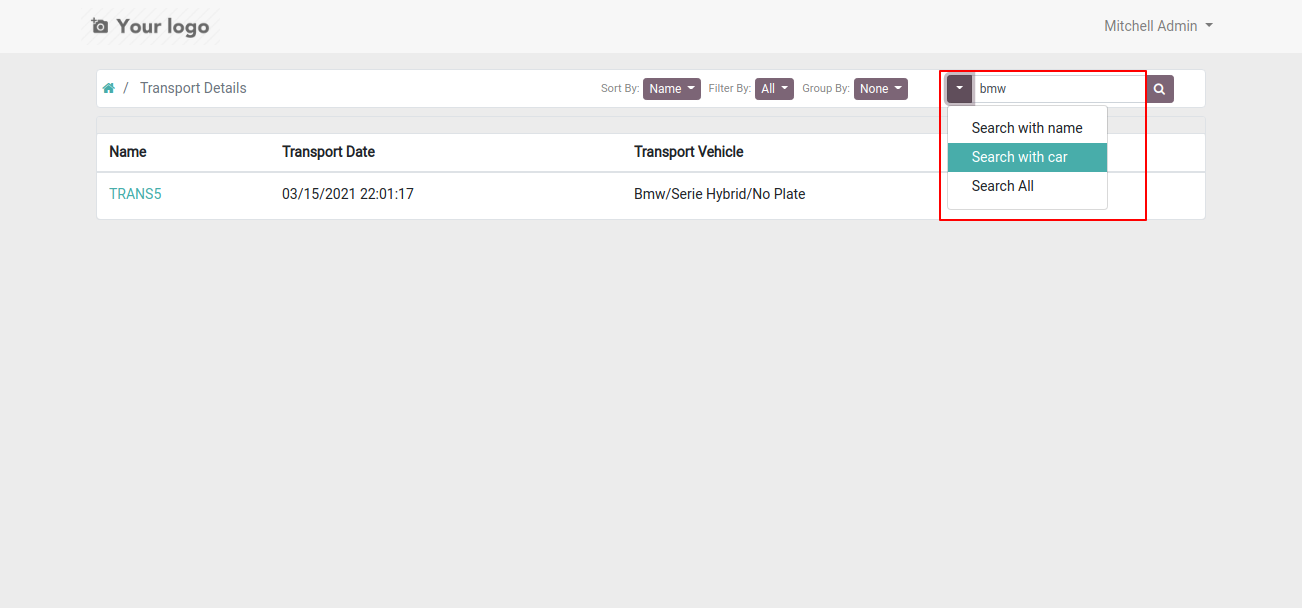
You can search with Name, Car.
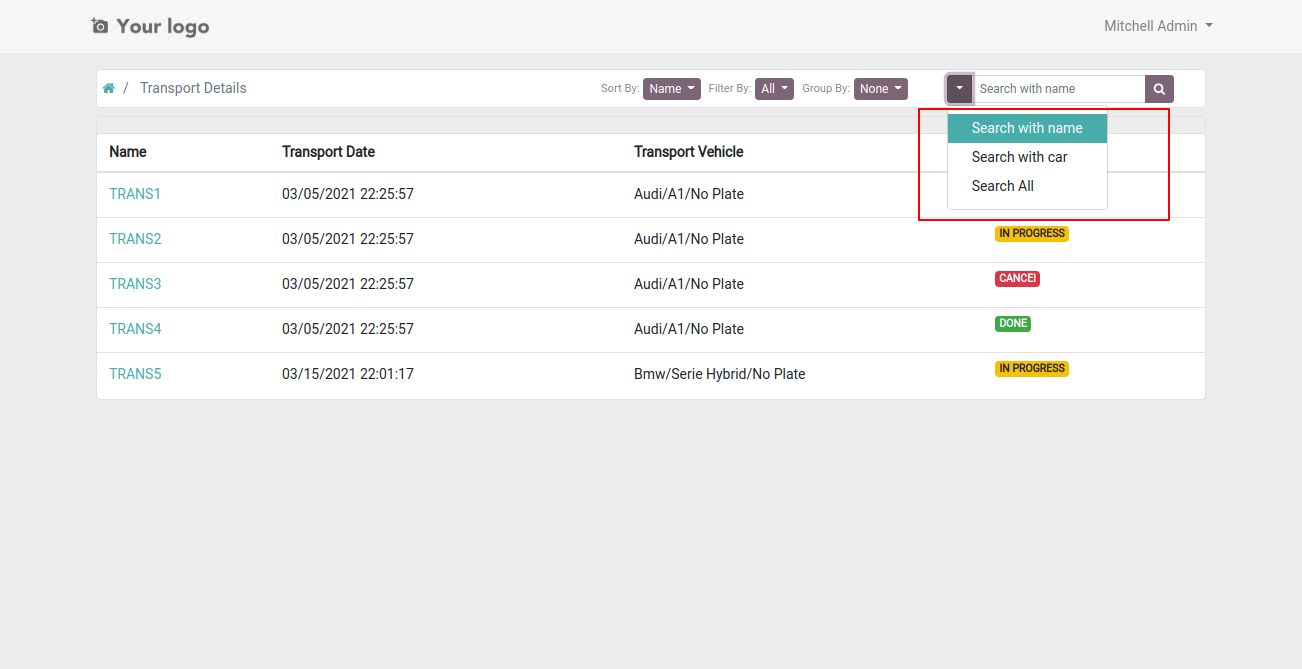
Search By Name.
Search By Car Name.
Version 19.0.1 | Released on : 19th September 2025
- Yes, this app works perfectly with Odoo Enterprise (Odoo.sh & Premise) as well as Community.
- No, this application is not compatible with odoo.com(odoo saas/Odoo Online)
- Yes, to test this module, please contact us at sales@softhealer.com.
- Please contact us at sales@softhealer.comto request customization.
- Yes, we provide free support for 365 days from the date of purchase.
- Yes, you will receive lifetime free updates for the version of the module you purchased.
- No, there is no need to install any additional libraries.
- Yes, for version 12 and above, you need to purchase the module separately for each version you intend to use.
- No, exchanges or refunds are not allowed. Please make sure to select the correct version before purchasing.
- You can contact us at support@softhealer.com for language translation support. We use Google Translator tools to provide translations in multiple languages, so the accuracy may vary. We welcome your suggestions to help improve translations.
Discover Our Latest Apps