

 Easy to Manage
 Dedicated Support
















 Scan to email sales





Franchise Management System

Franchise Management System streamlines franchise operations by managing franchise applications, franchisees, store units, audits, agreements, royalty management, reports, and the Portal. Manage business workflows from one centralized platform.
Features

Franchise Dashboard
Monitor key franchise activities, expiring agreements, and overdue royalties from a centralized executive dashboard.

Region Management
Configure regions and assign regional managers to maintain area expansion oversight.

Document Management
Define required document types with mandatory and active status controls for streamlined document management.

Checklist Management
Standardize store onboarding procedures and audit evaluations using customizable compliance checklist templates.

Audit Configuration
Set up evaluation categories to organize audit criteria and maintain a structured approach to franchise compliance inspections.

Role Management
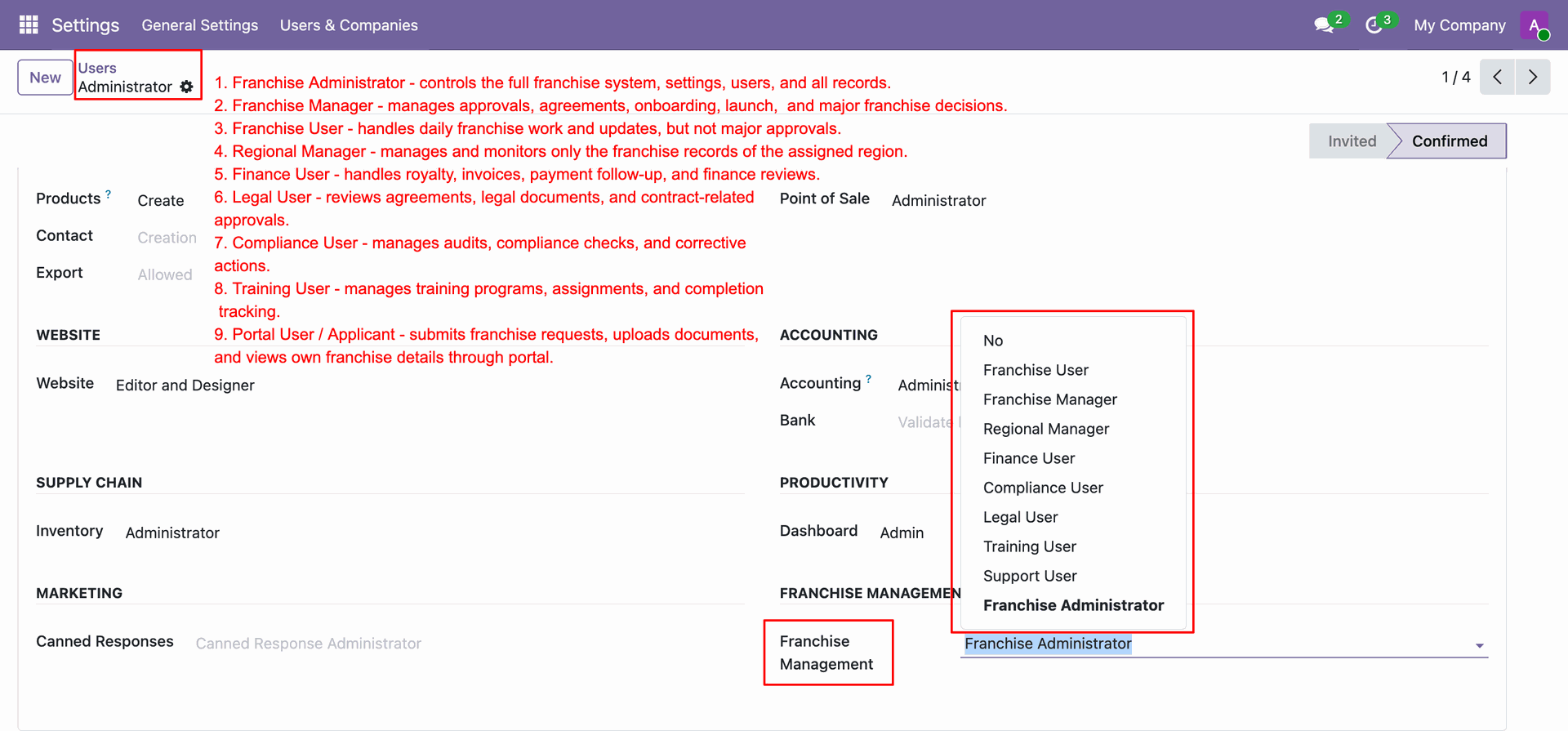
Assign granular user security roles, including Franchise Manager, User, Regional Manager, Compliance User & many more.

Franchise Plan
Define franchise plans with initial fees, security deposits, required documents, and payment frequency.

Franchise Application
Process applicant candidates through structured evaluation stages from screening and background checks to final board approval.

Franchise Unit
Manage and monitor franchise store units while keeping their operational status organized throughout the business lifecycle.

Portal Application
Allow prospective partners to submit franchise applications online and track real-time application status in their customer portal.

Royalty Management
Calculate percentage or fixed royalties automatically and generate accounting customer invoices directly.

Support Management
Handle franchisee store queries and technical support tickets with priority assignment, status tracking, and chatter logs.

Franchise Reporting
Gain deep operational visibility using interactive pivot tables and graphical charts.

Workflow
Click Dashboard to open the executive overview of all franchise operations.
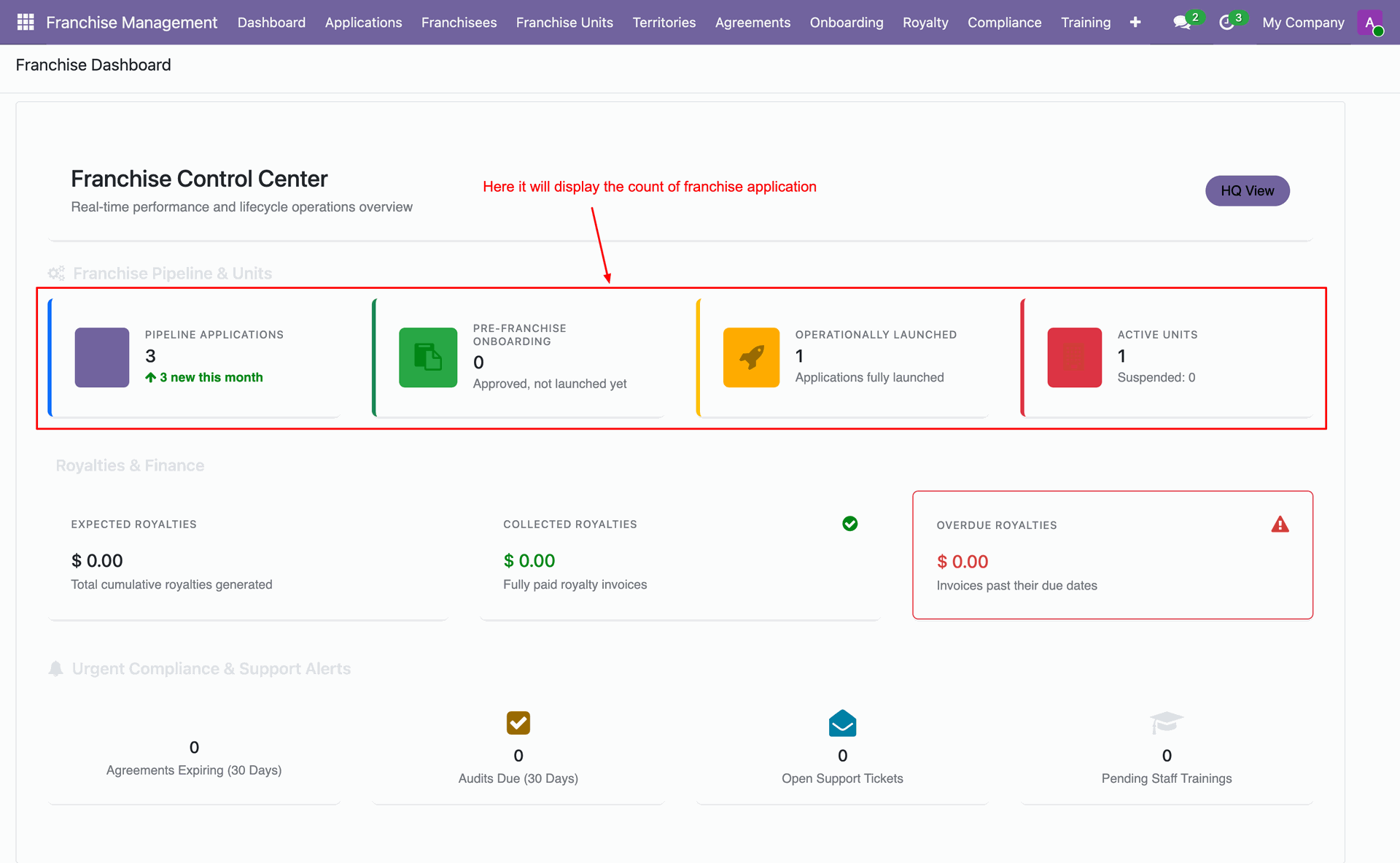
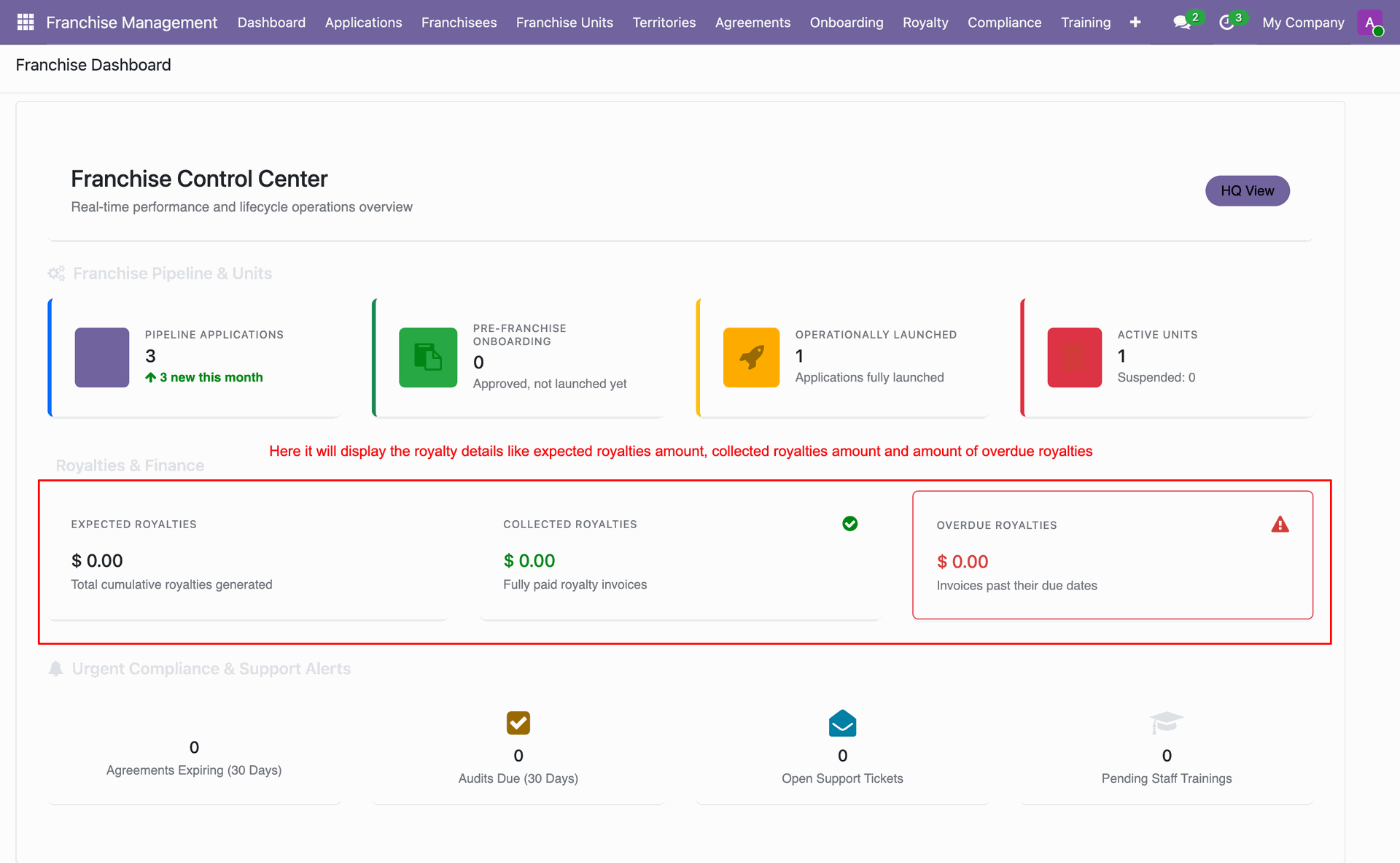
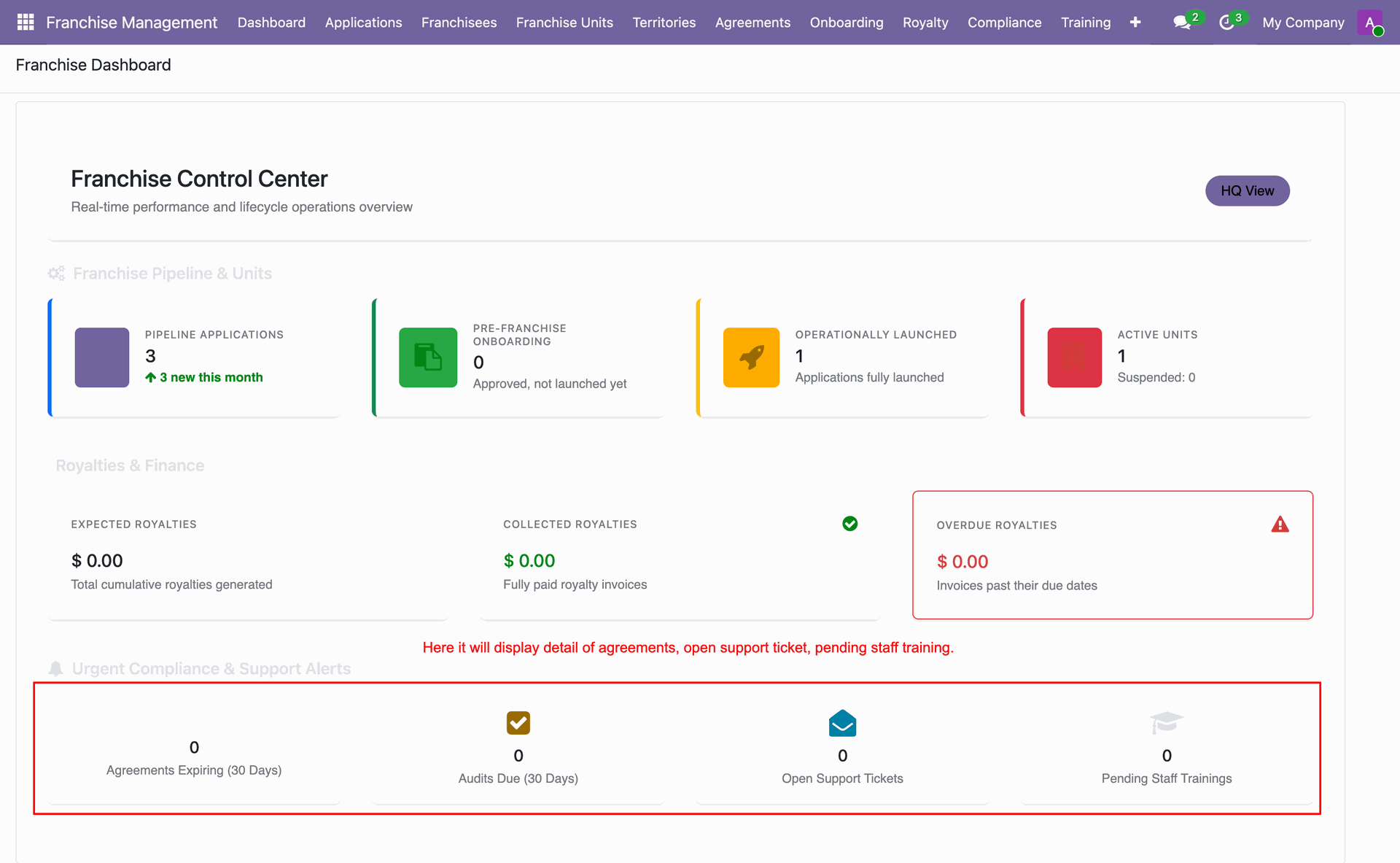
Monitor real-time metrics for total applications, active units, expiring agreements, and overdue royalties.
Workflow
Navigate to Configuration > Regions.
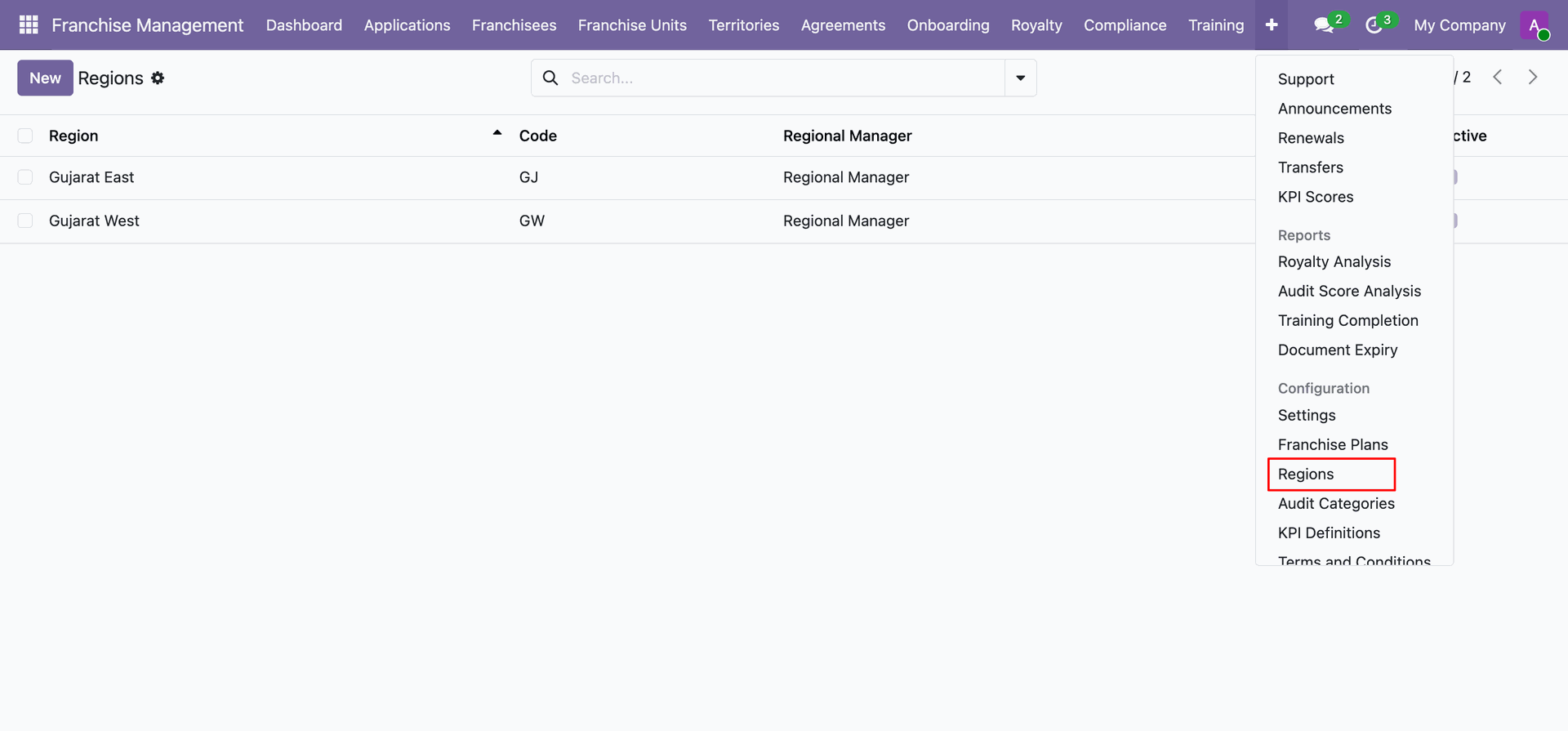
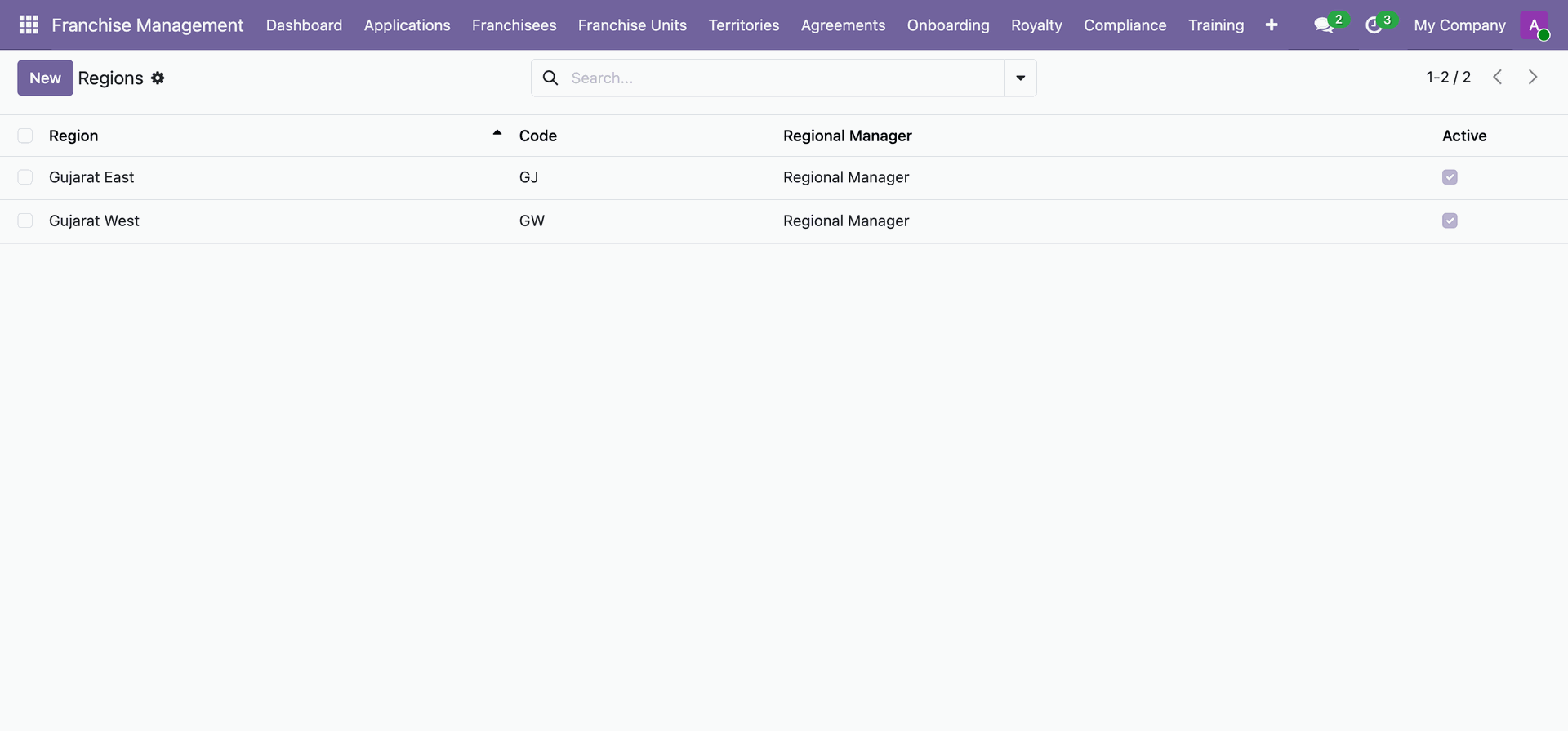
View the complete list of configured regions along with assigned regional managers, unique codes, and status.
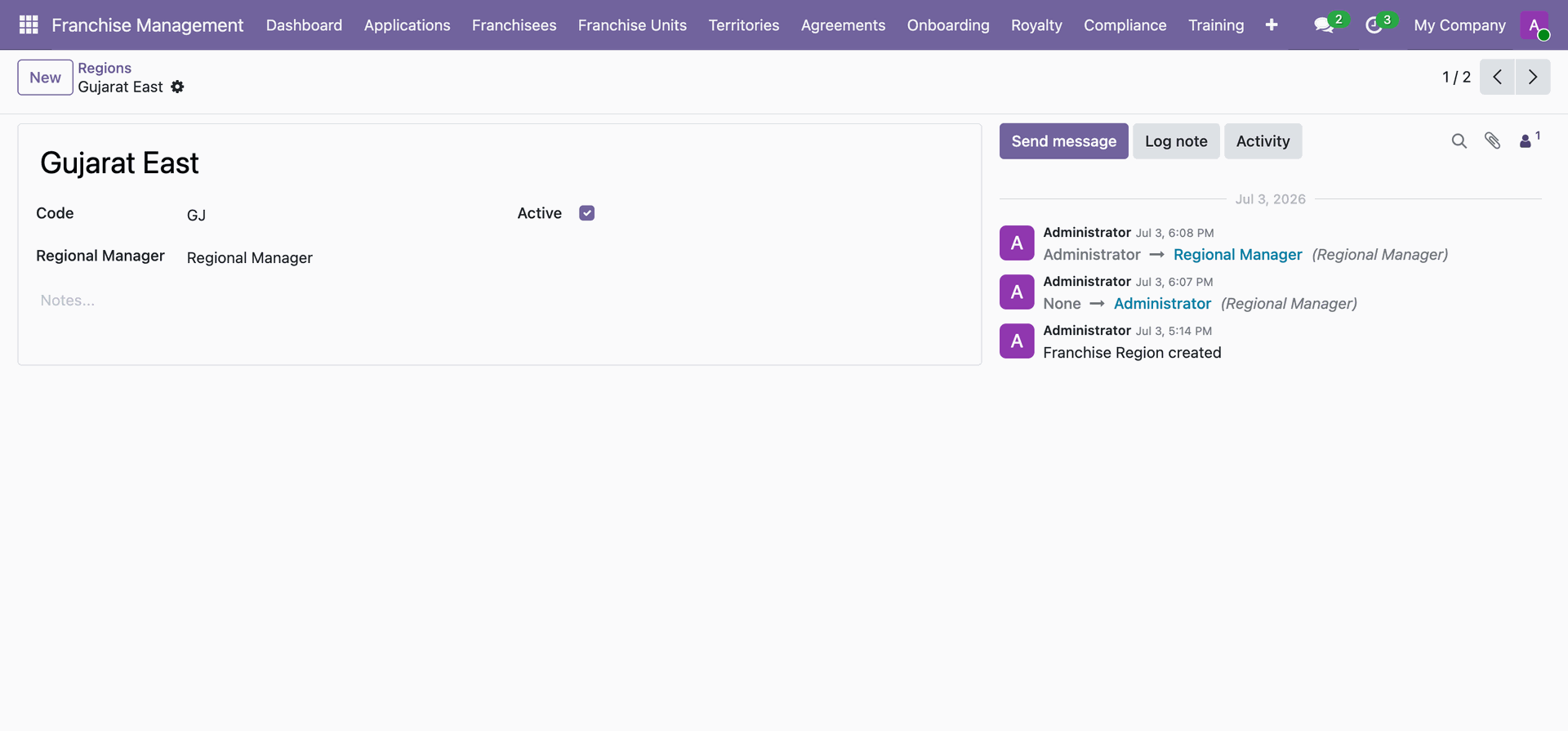
Configure region parameters including region name, unique code, assigned manager, and operational notes.
Workflow
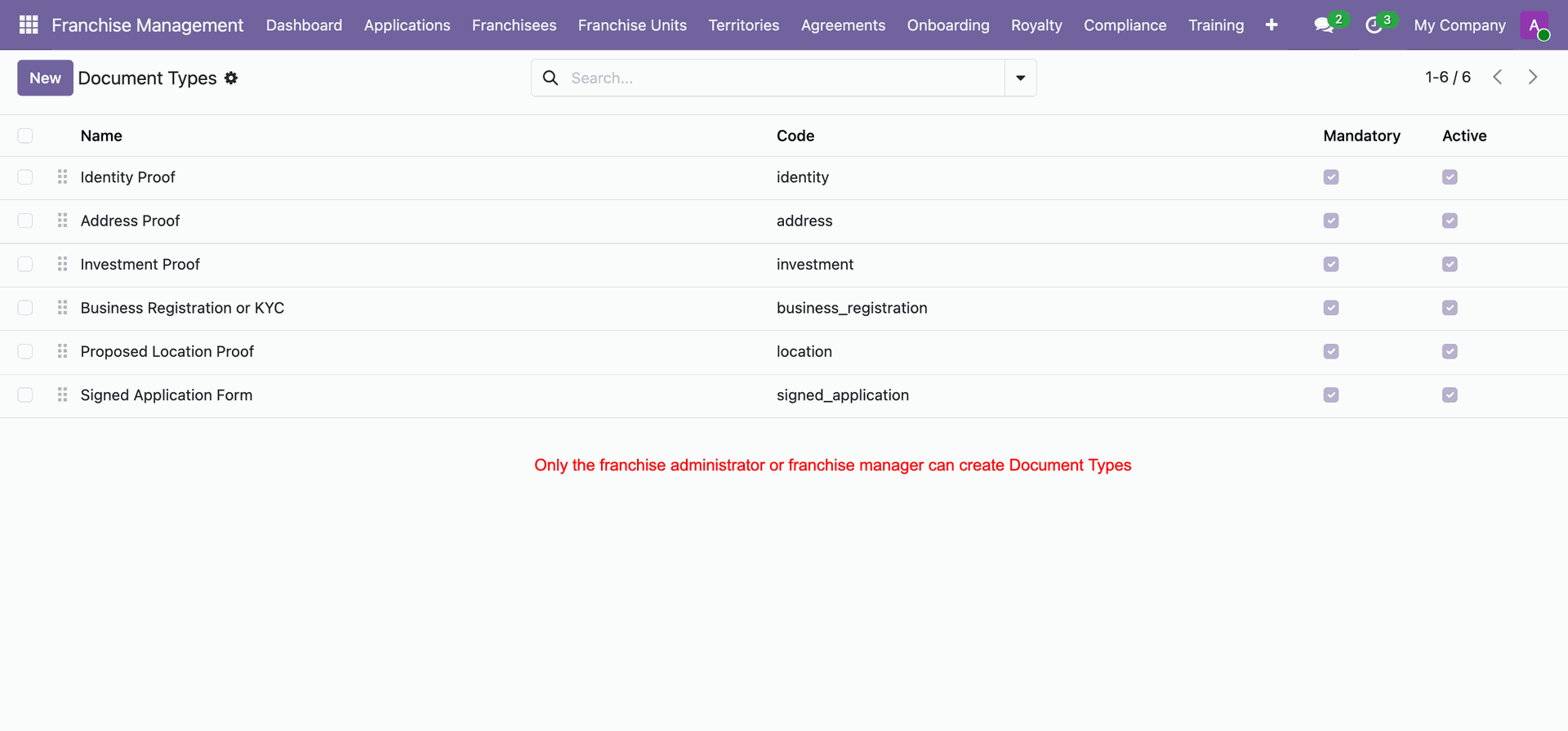
Select Document Types under the Configuration menu.
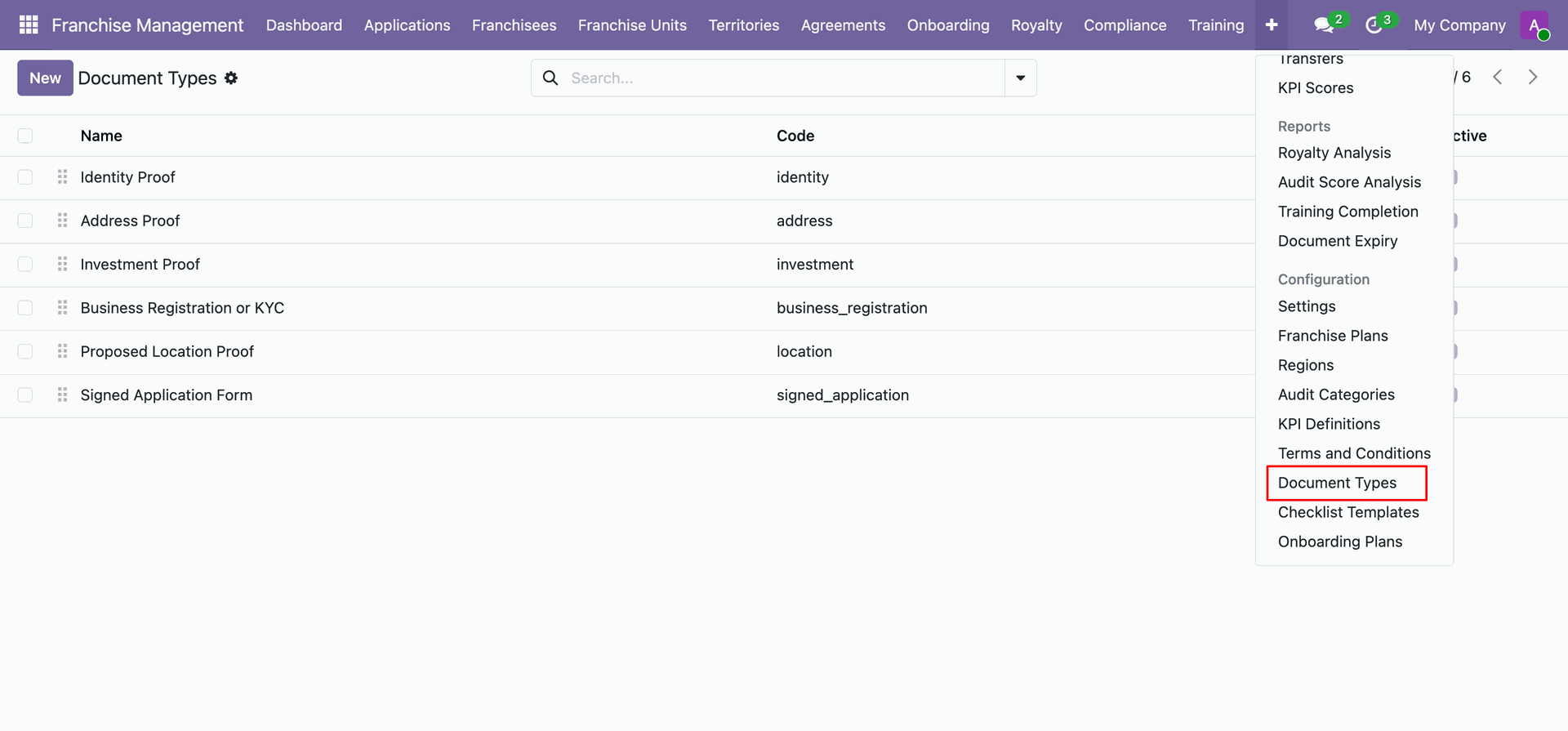
View all registered document types along with mandatory requirements.
Workflow
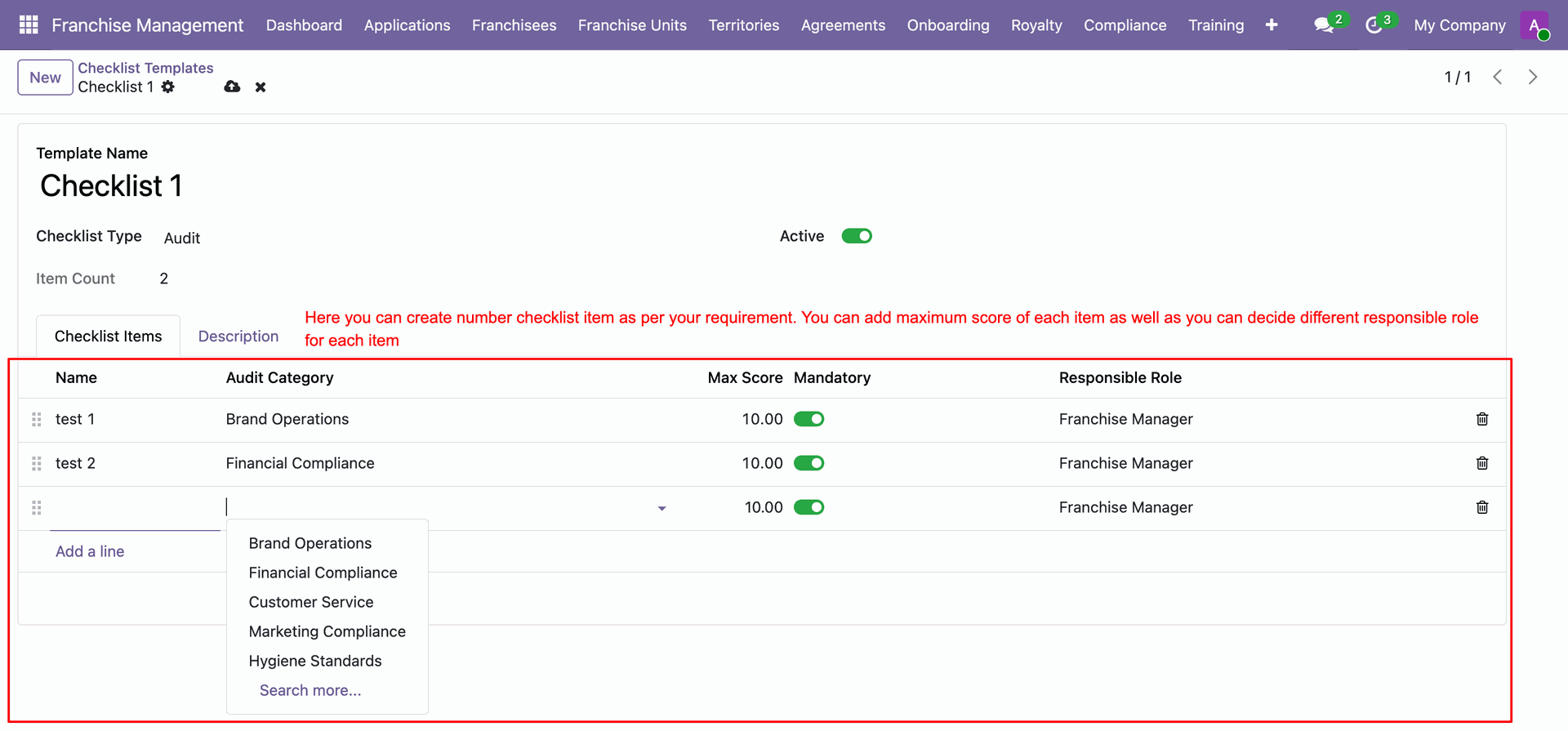
Access Checklist Templates from the Configuration menu.
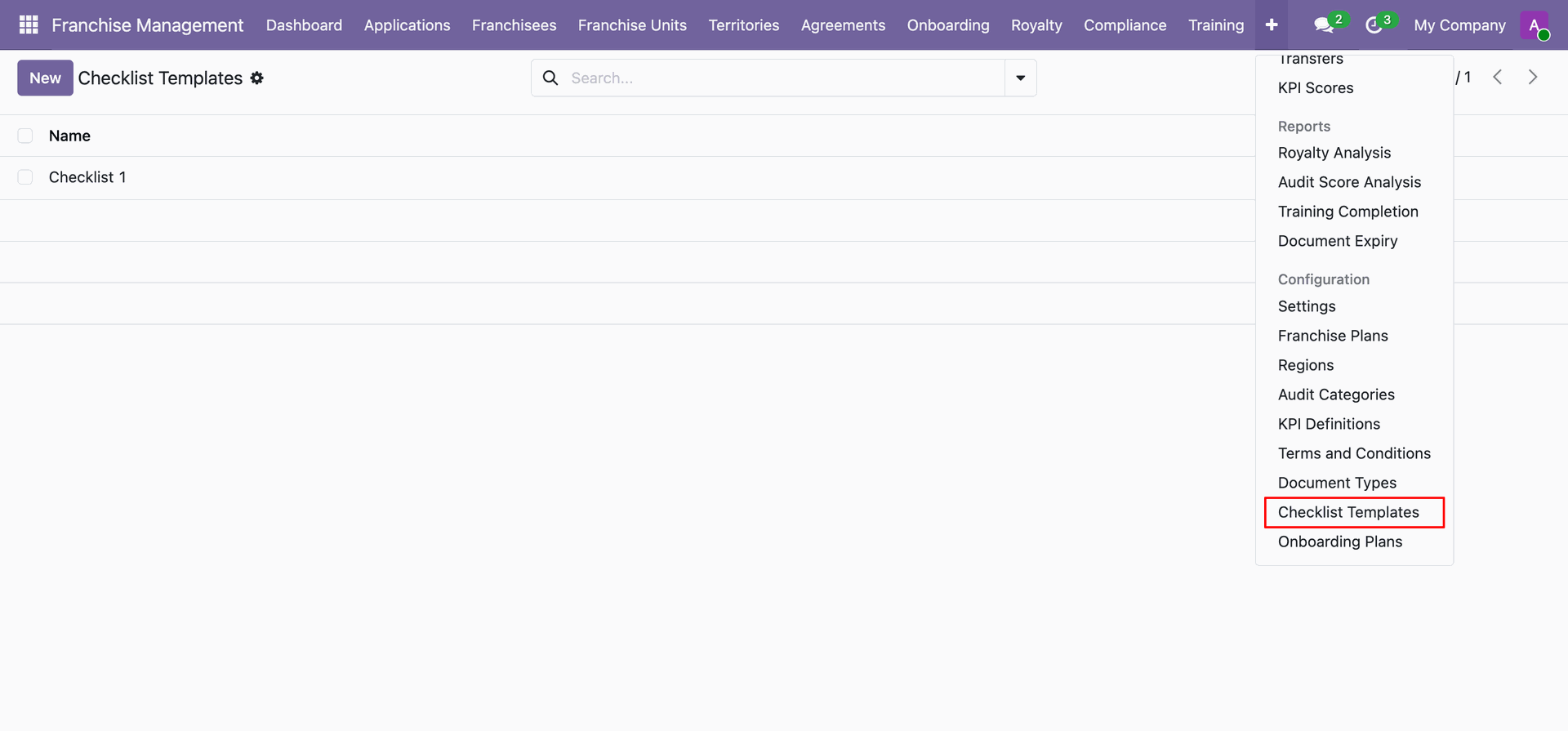
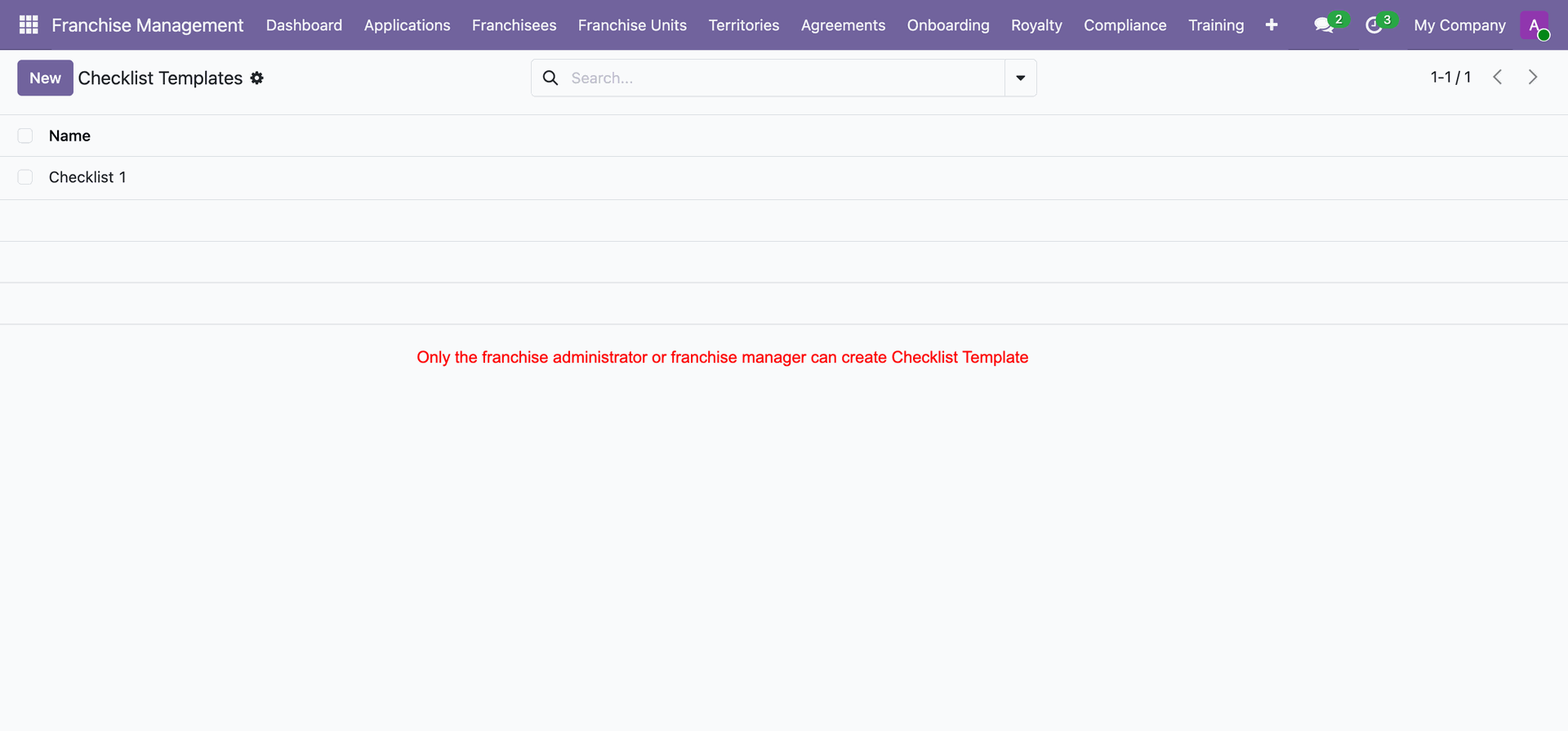
View all created checklist templates.
Configure template details and add specific verification items required for franchise compliance.
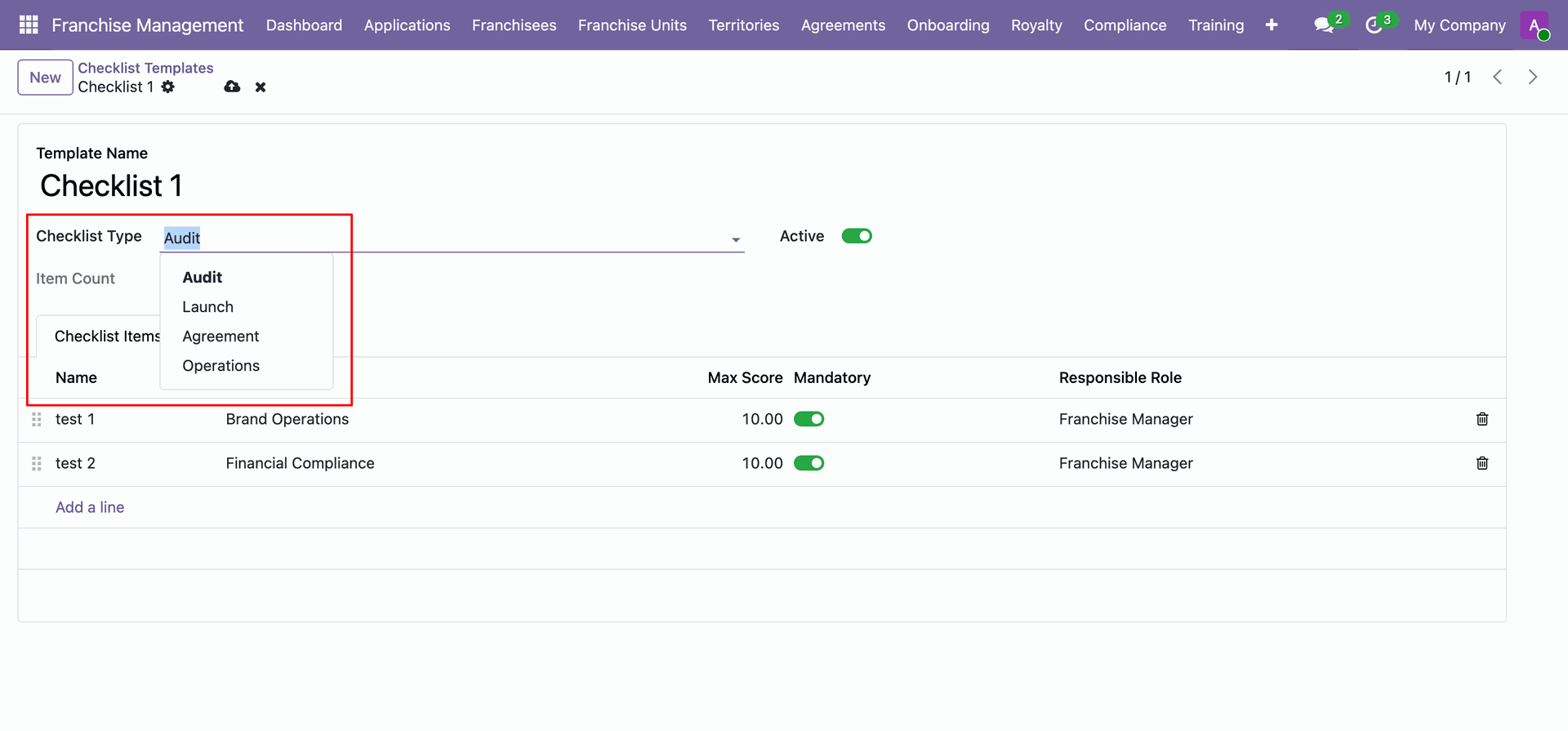
Add individual checklist items specifying sequence, mandatory status, and audit category.
Workflow
Click on Audit Categories under Configuration.
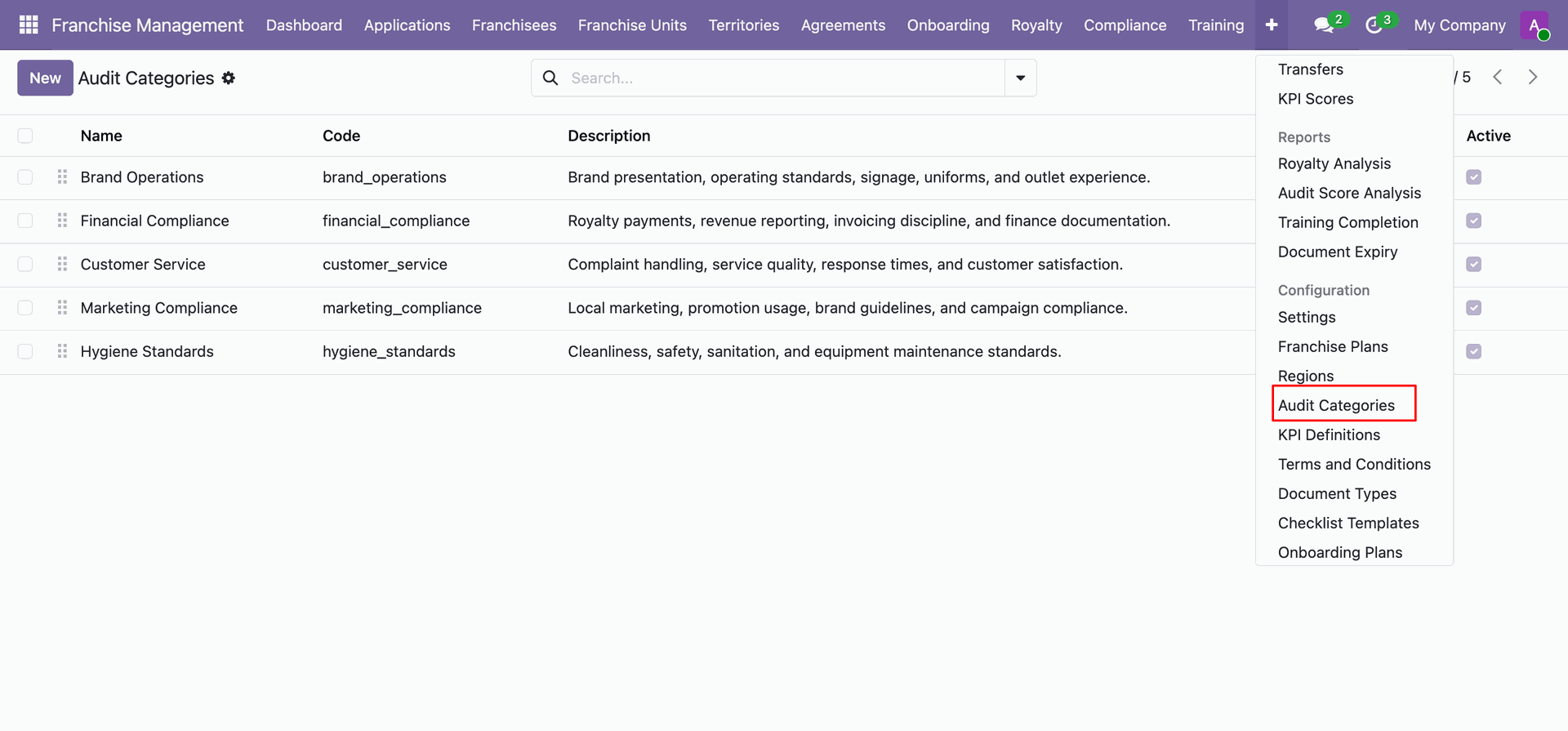
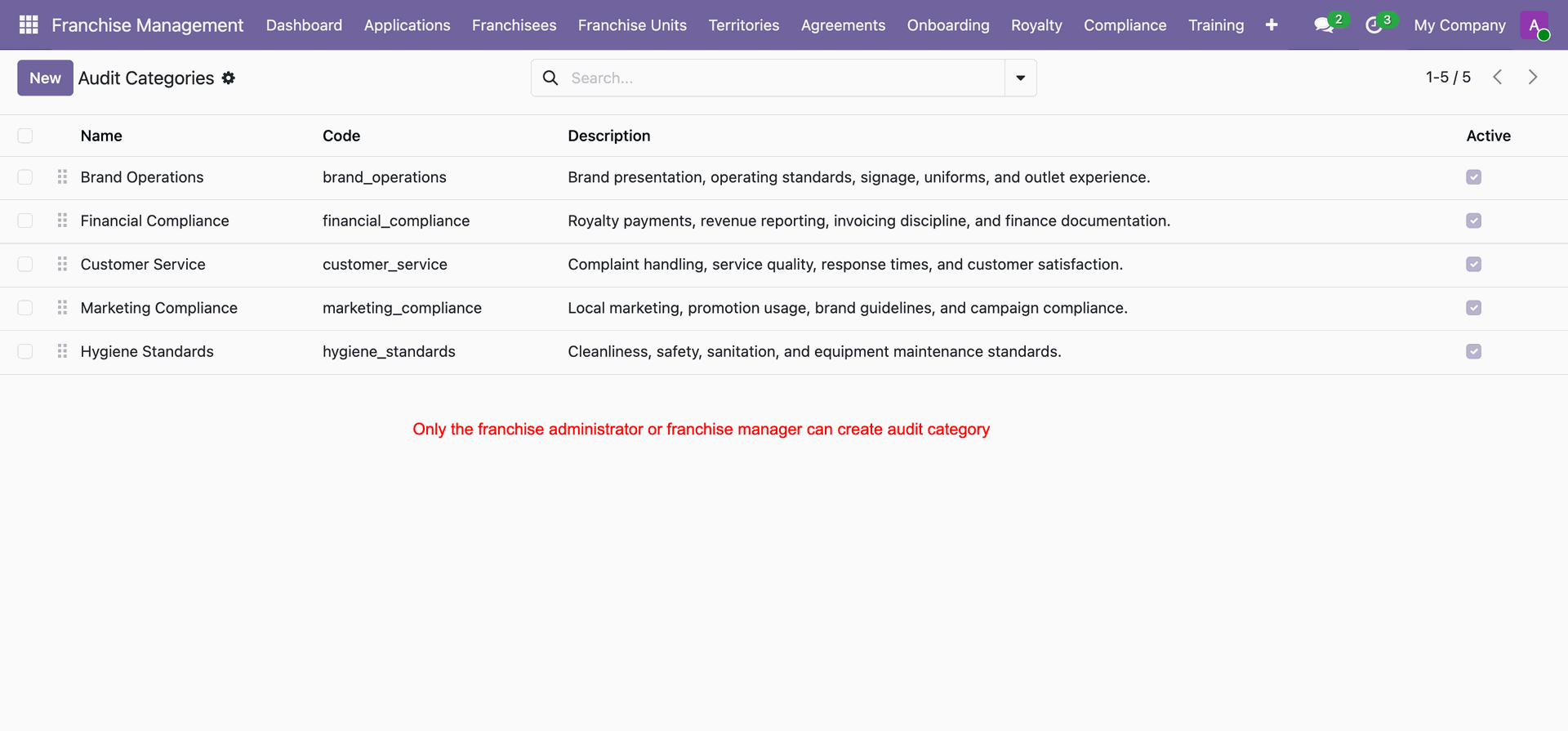
Create and manage audit categories for compliance scoring.
Workflow
Assign granular user access roles such as Franchise Manager, User, Finance Officer to manage permissions.
Workflow
Select Franchise Plans under Configuration.
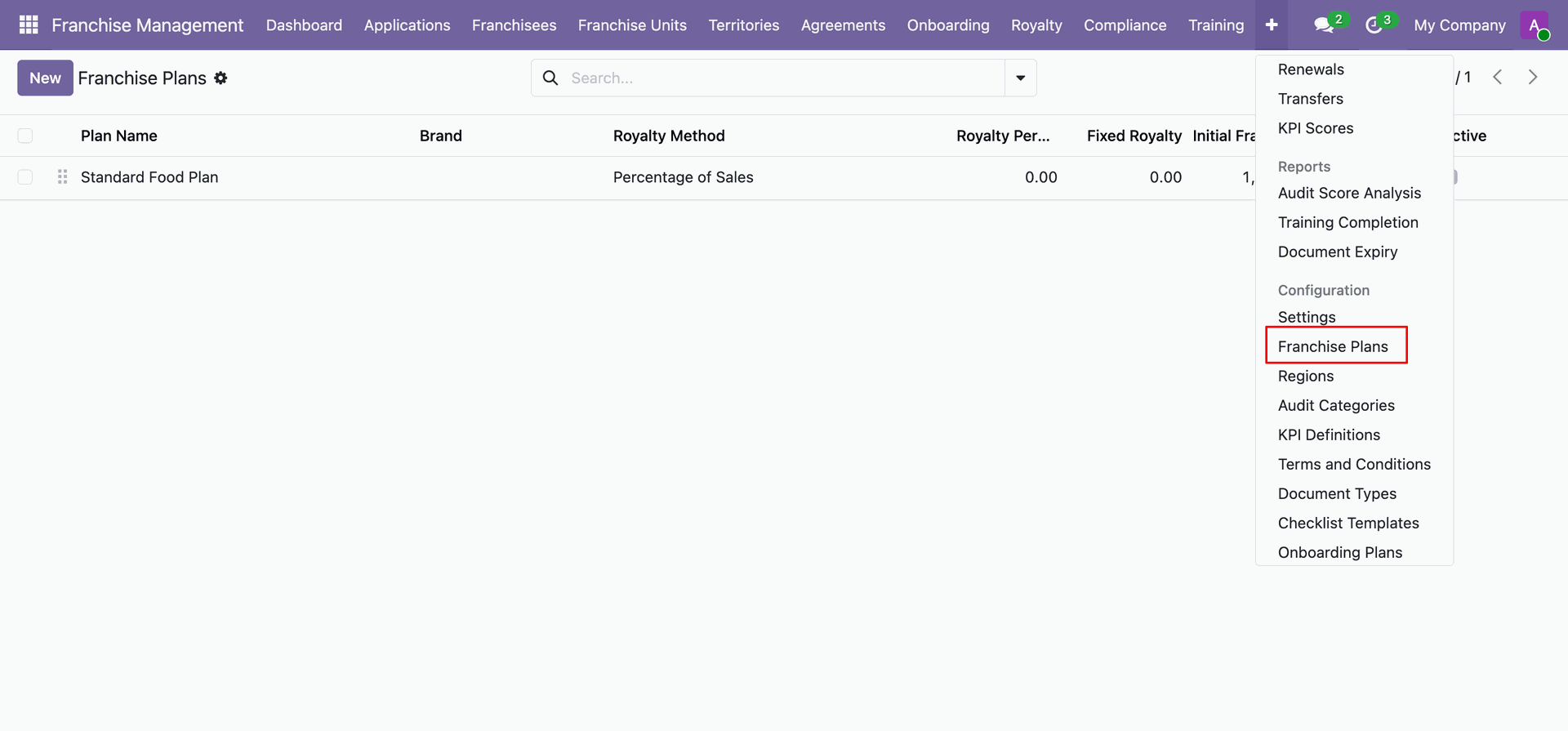
View all configured franchise plans with their respective royalty methods, and security deposits.
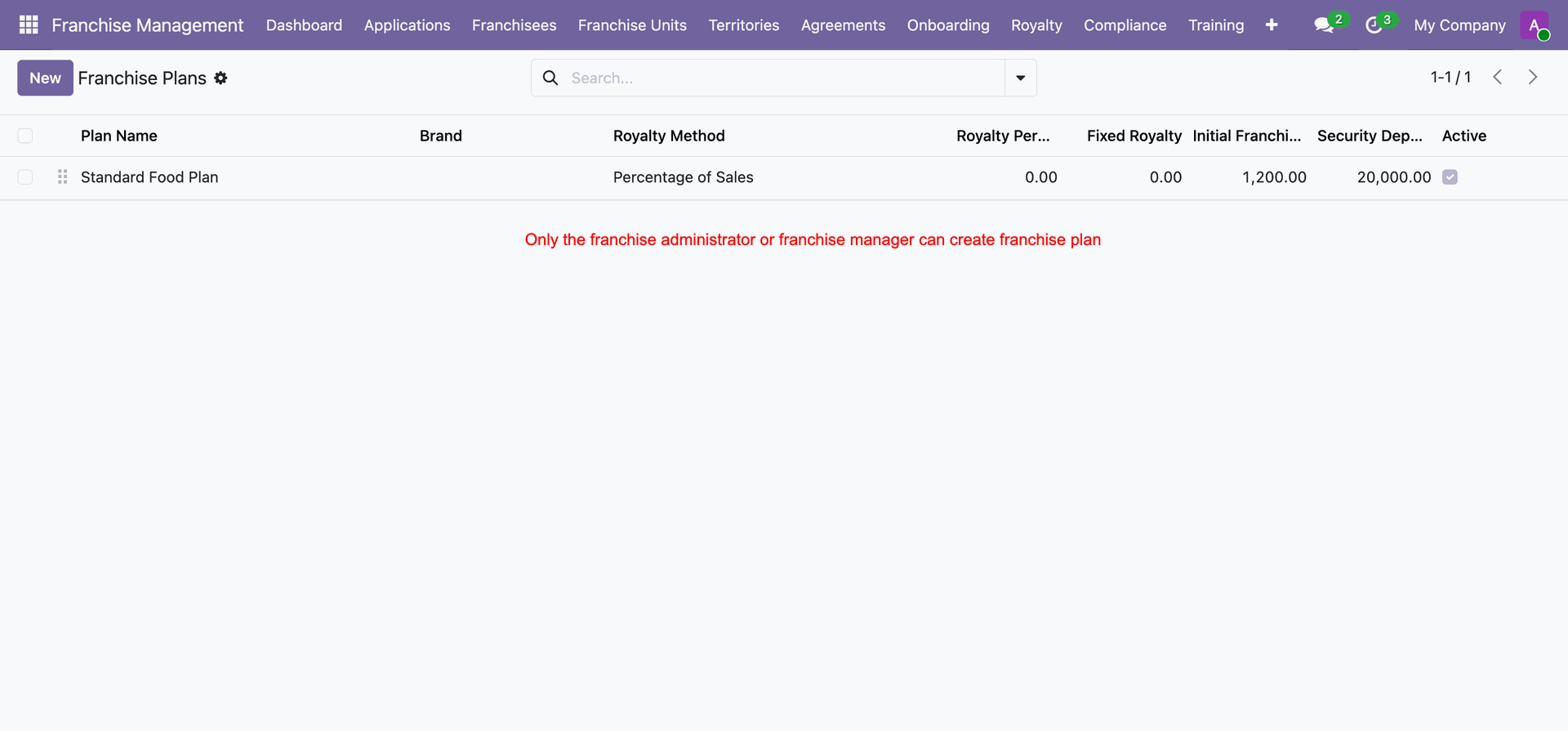
Configure plan parameters including initial fee, security deposit, technology fee, and other details.
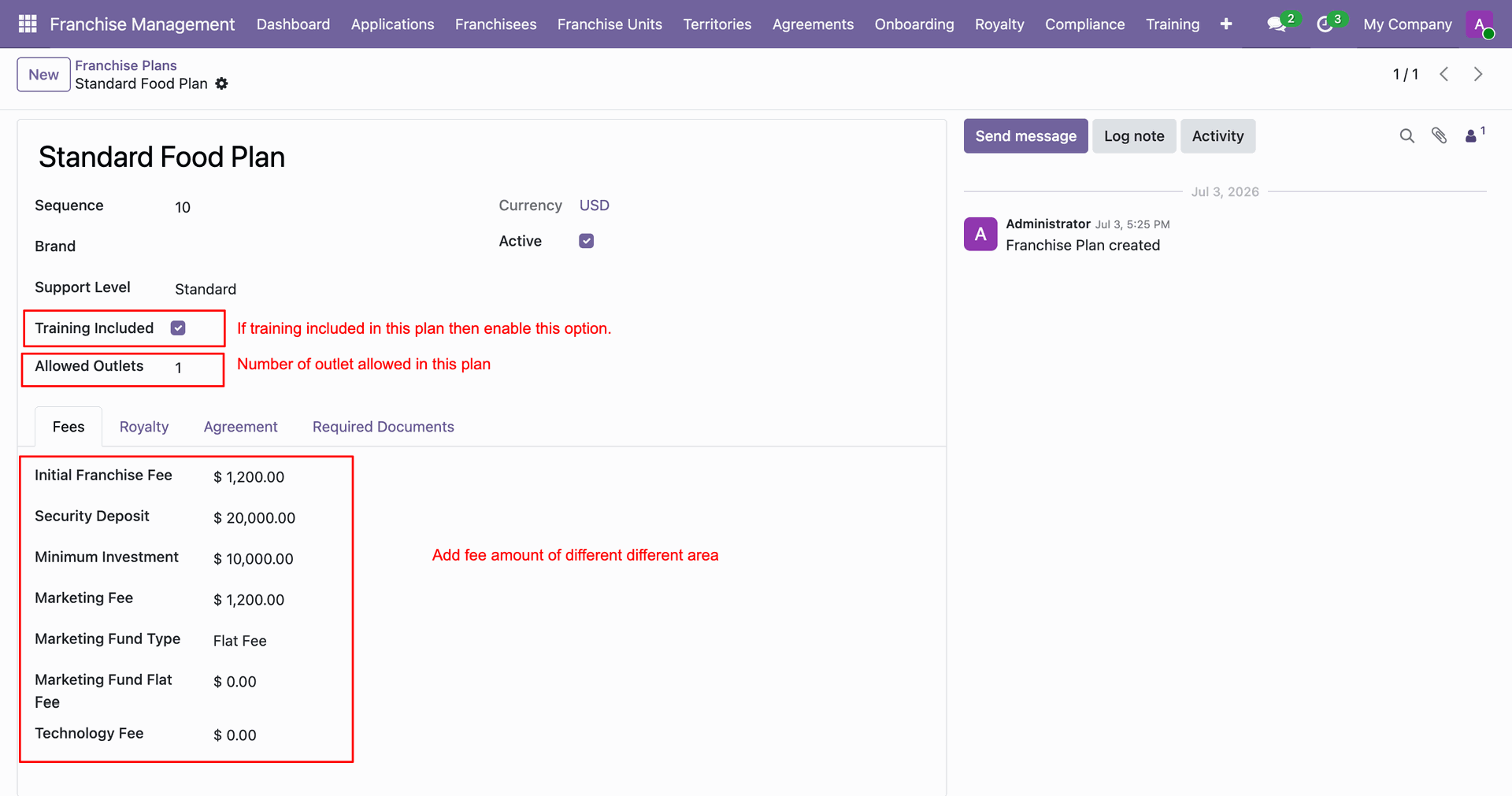
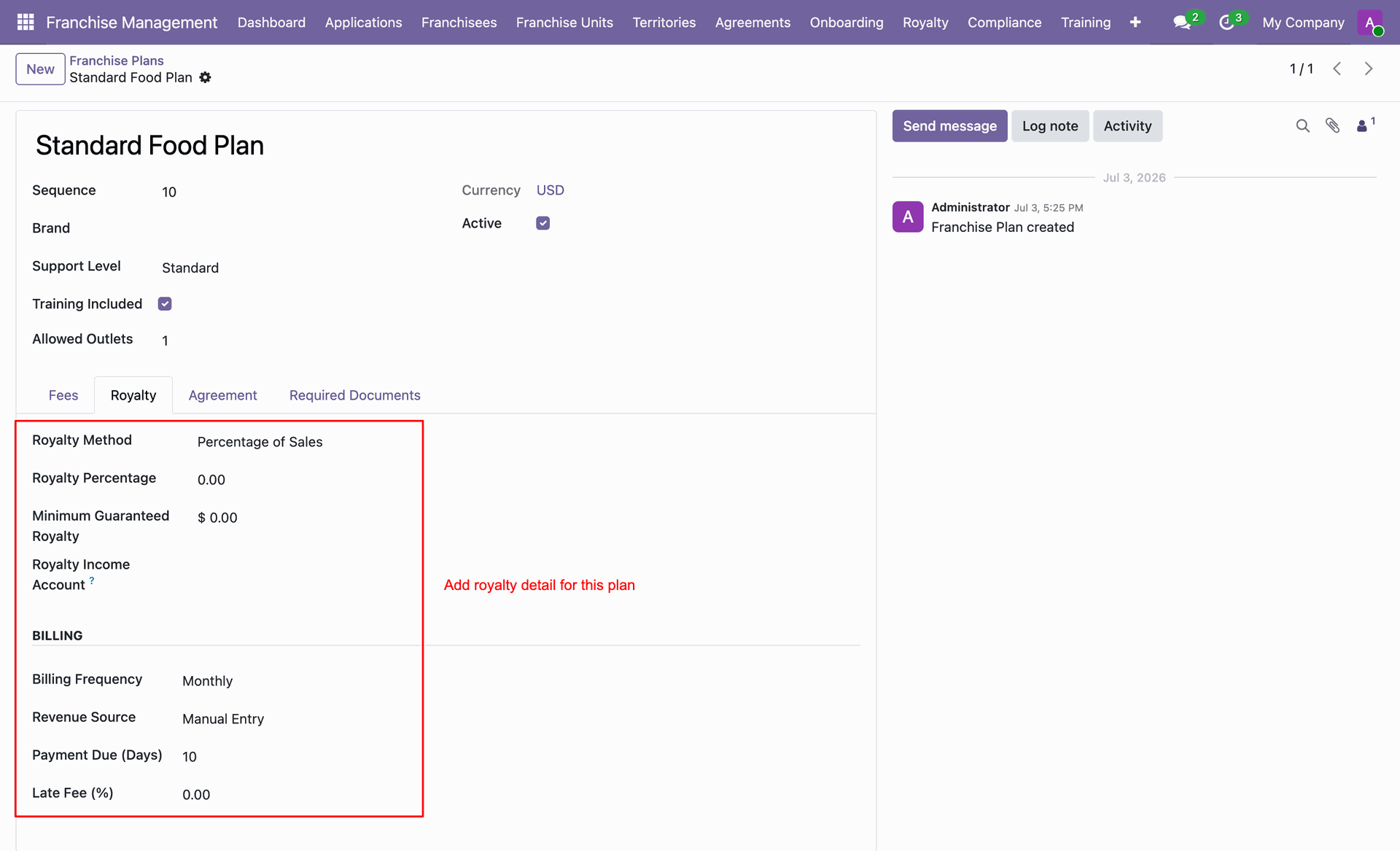
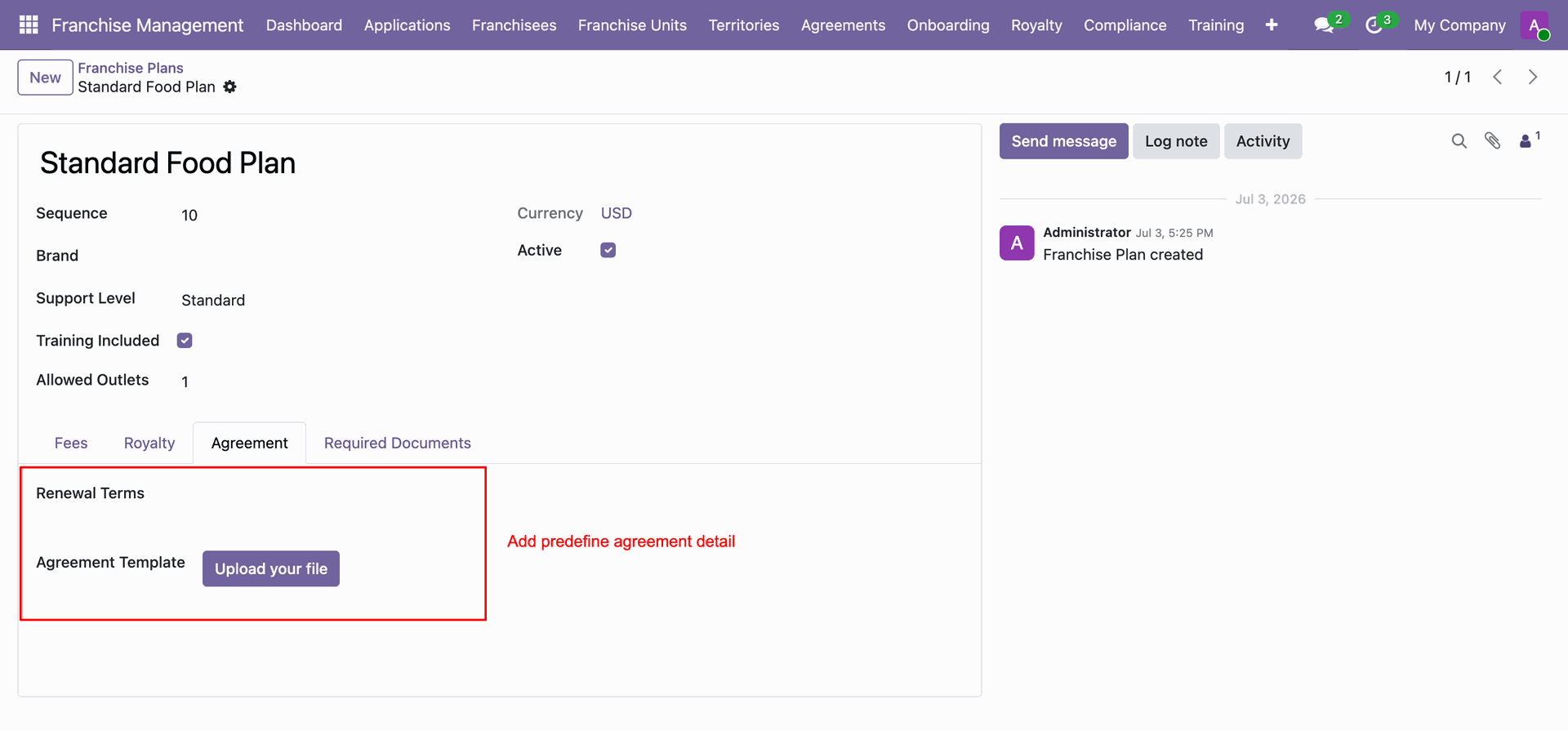
Upload default agreement templates.
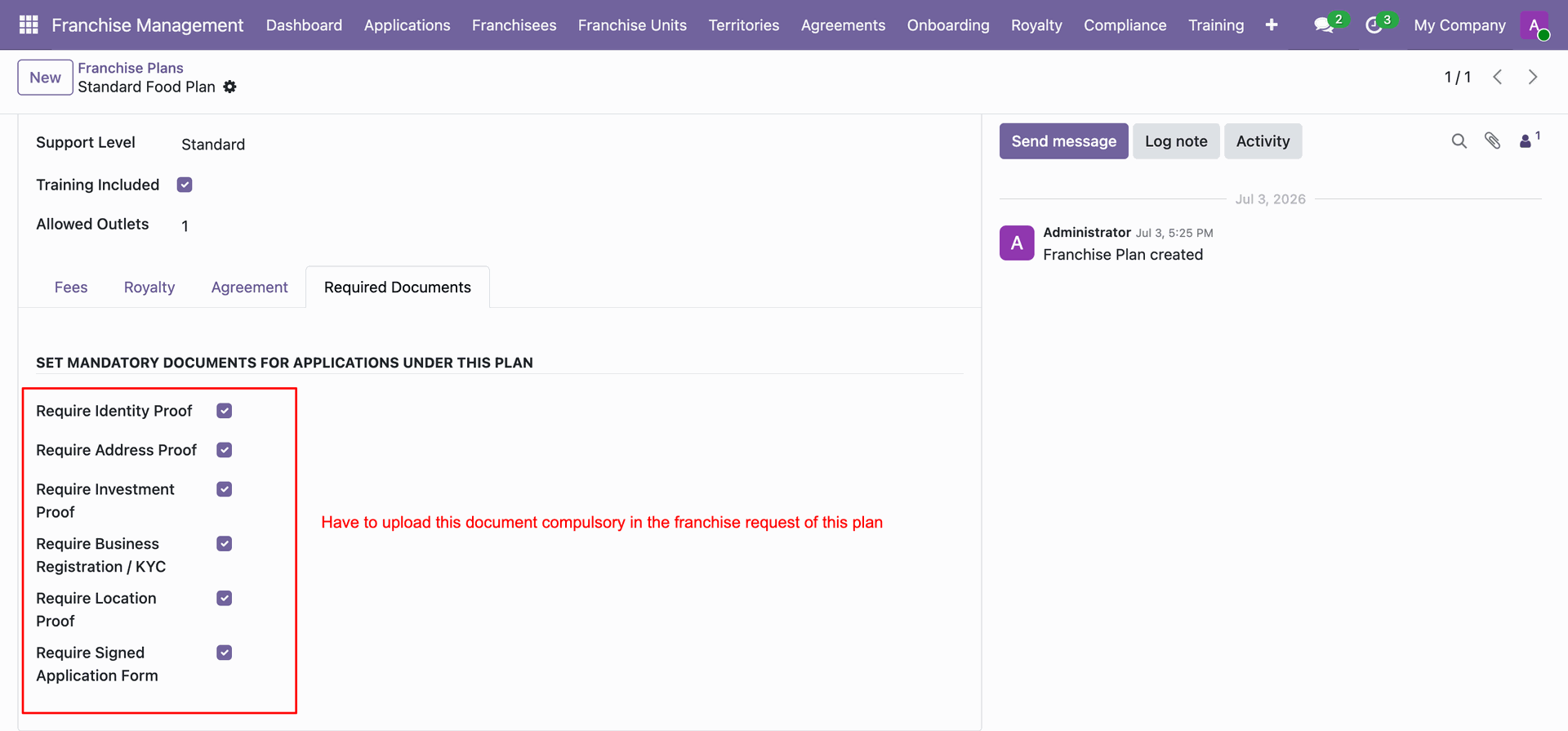
Set up specific mandatory documents.
Workflow
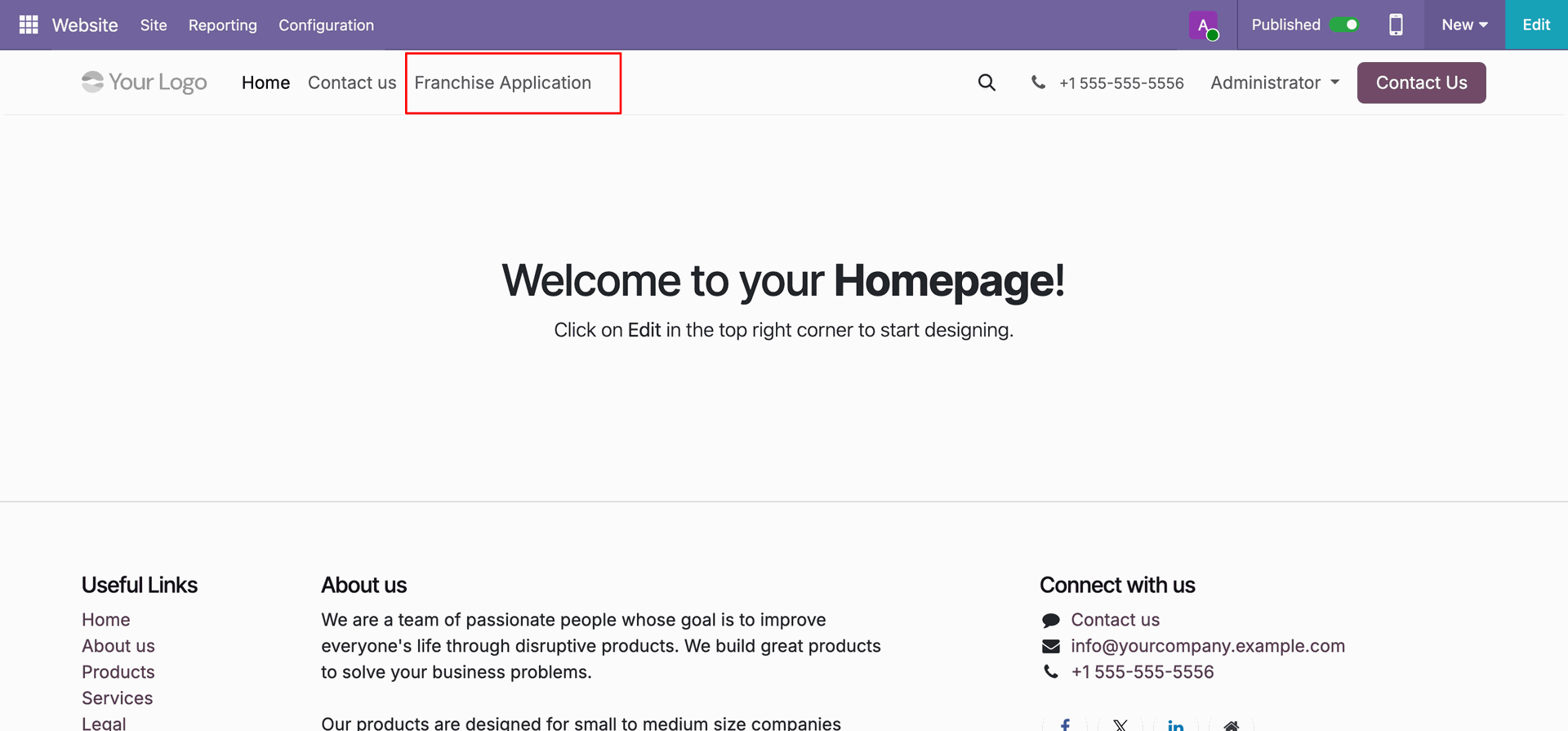
Click Franchise Application menu on top navigation bar to submit a new inquiry form.
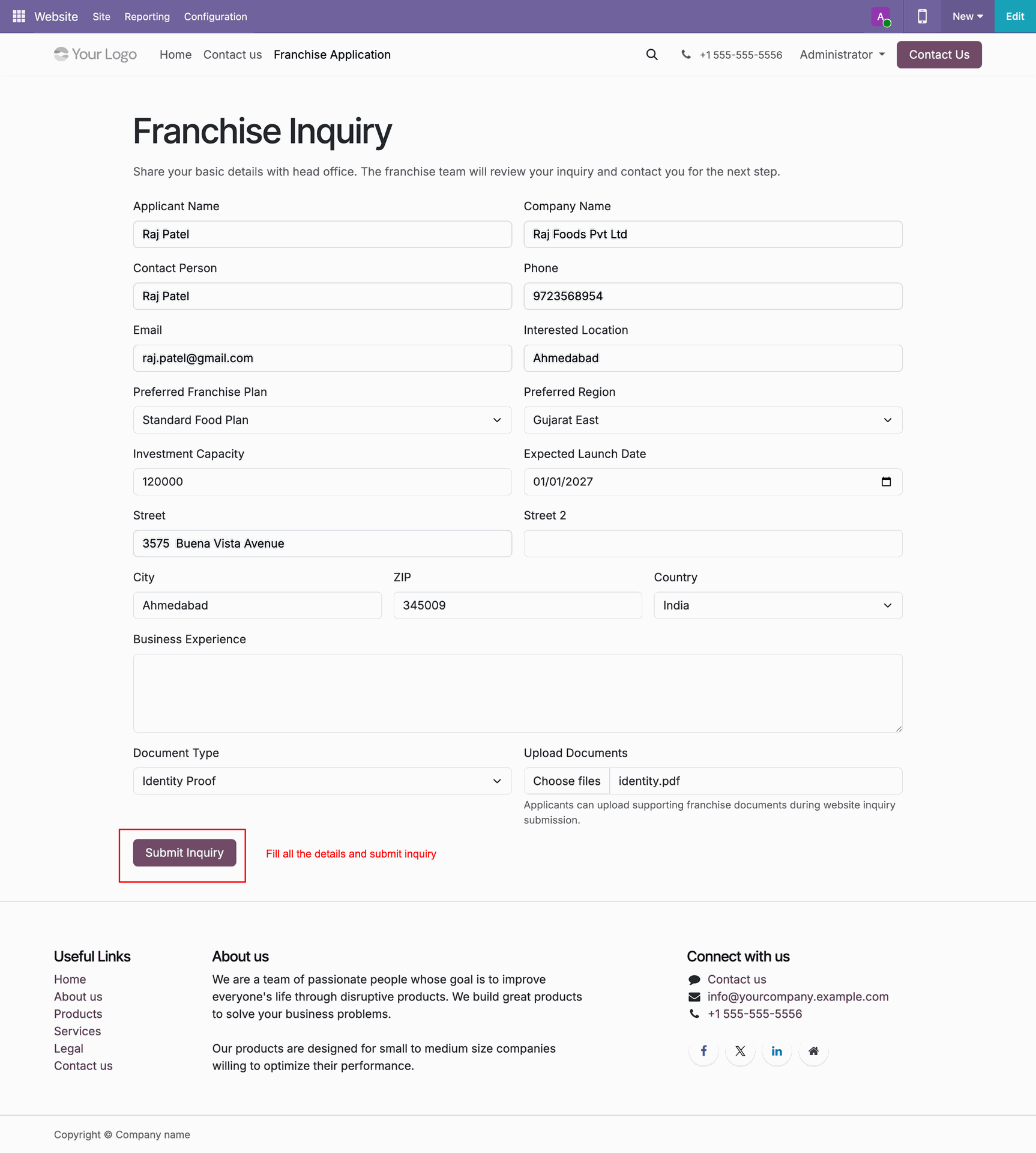
Complete candidate contact details and click Submit Inquiry button to submit the application form.
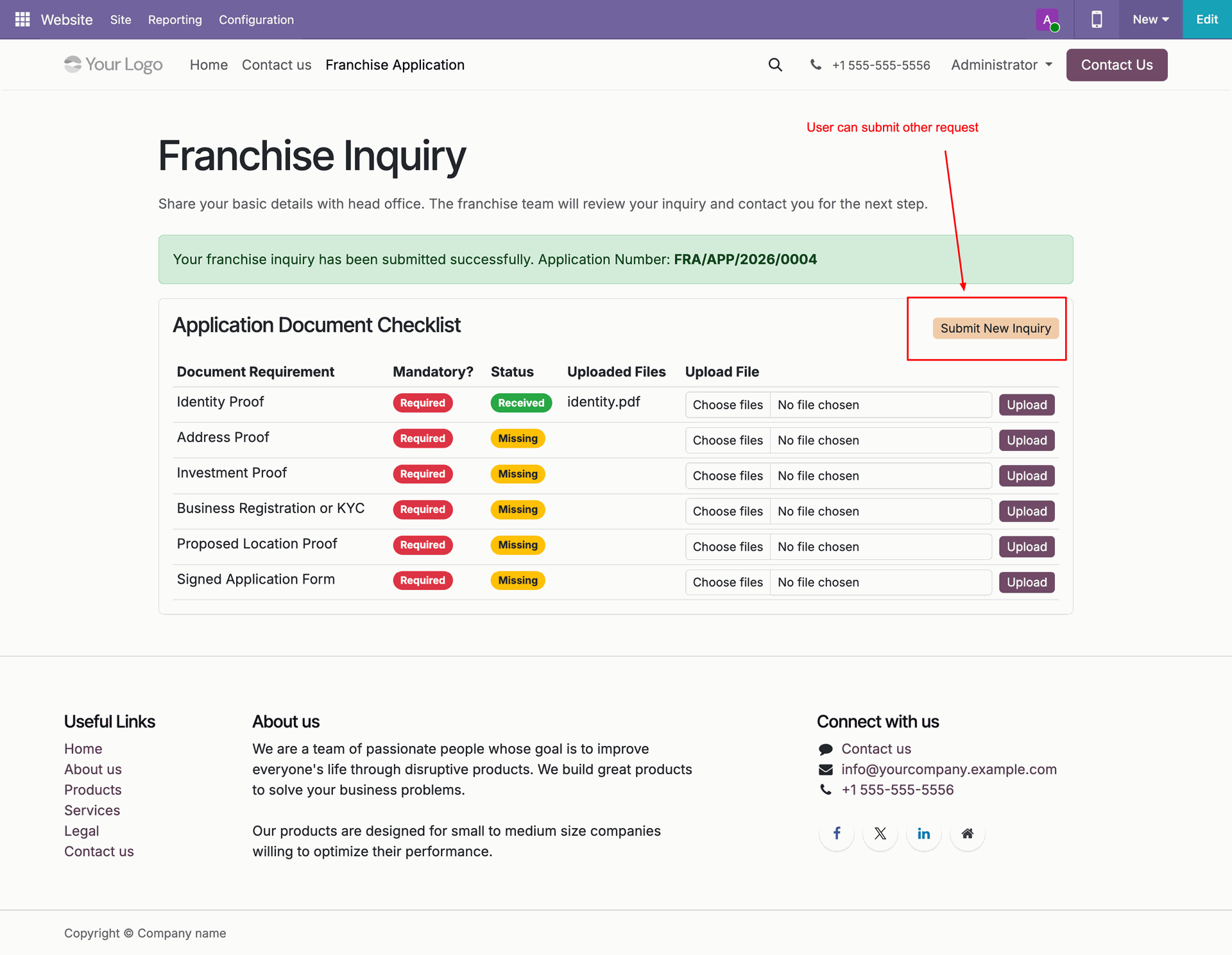
Click Submit New Inquiry button to submit another query.
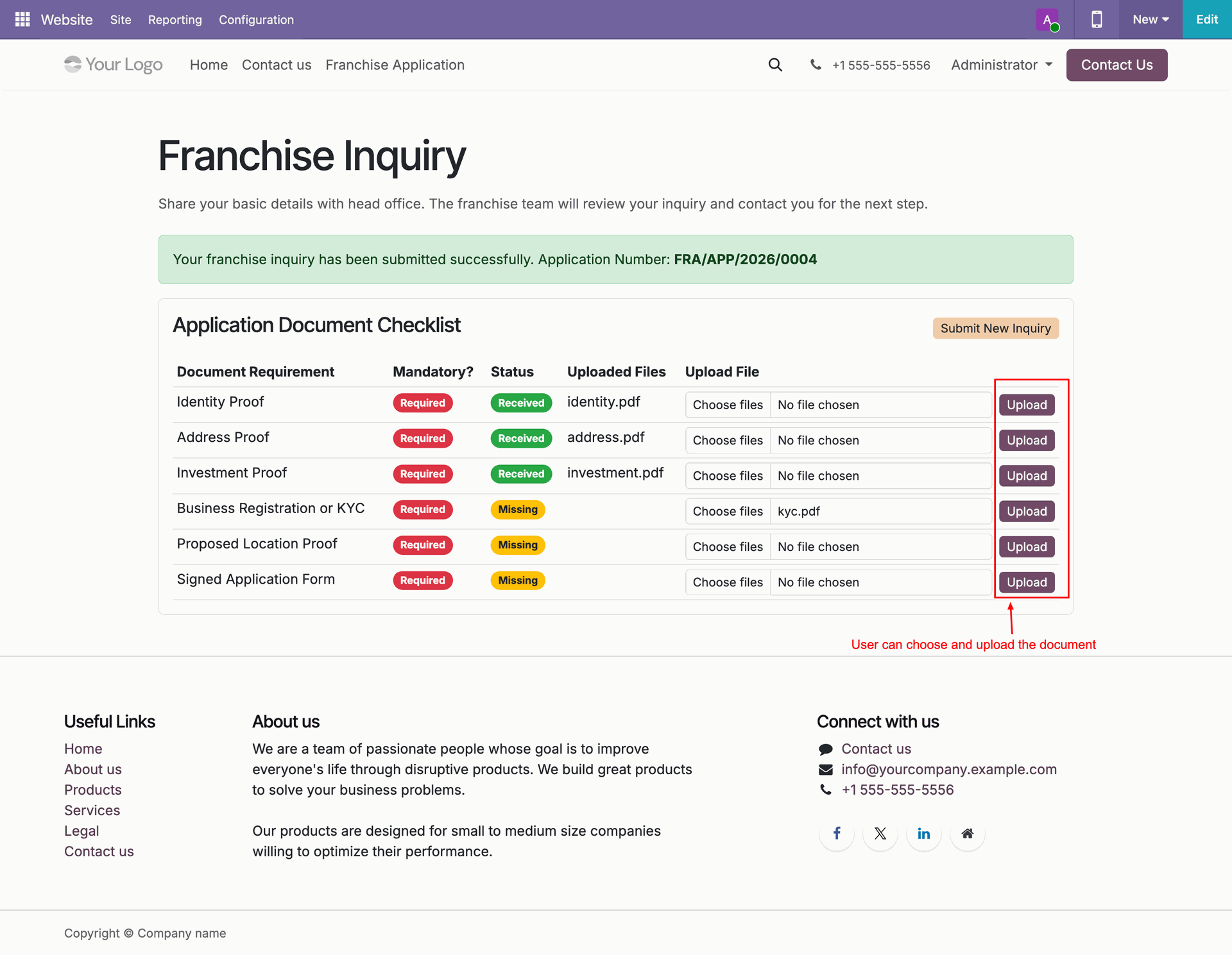
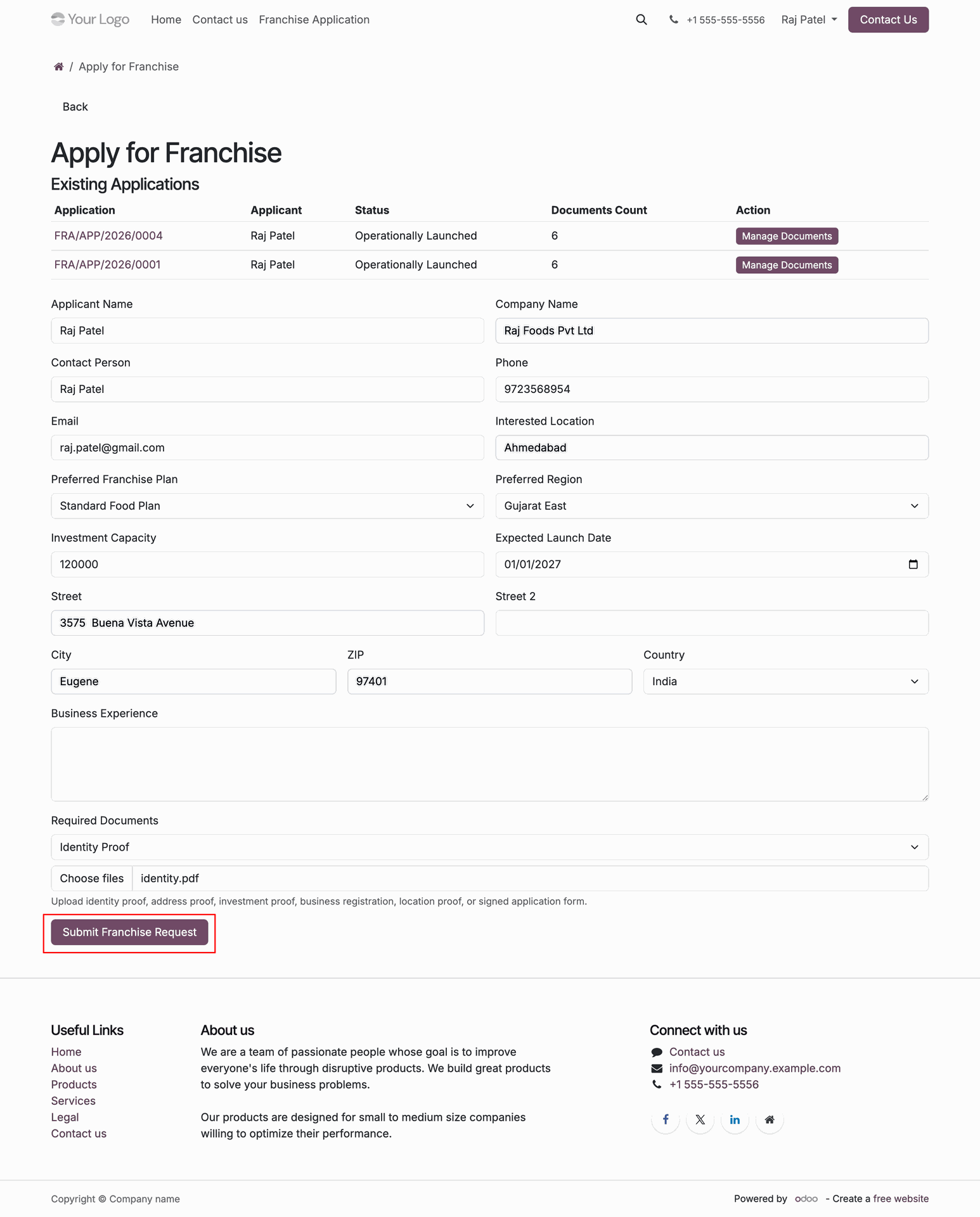
Use Upload buttons in document table to attach required identification and business documents.
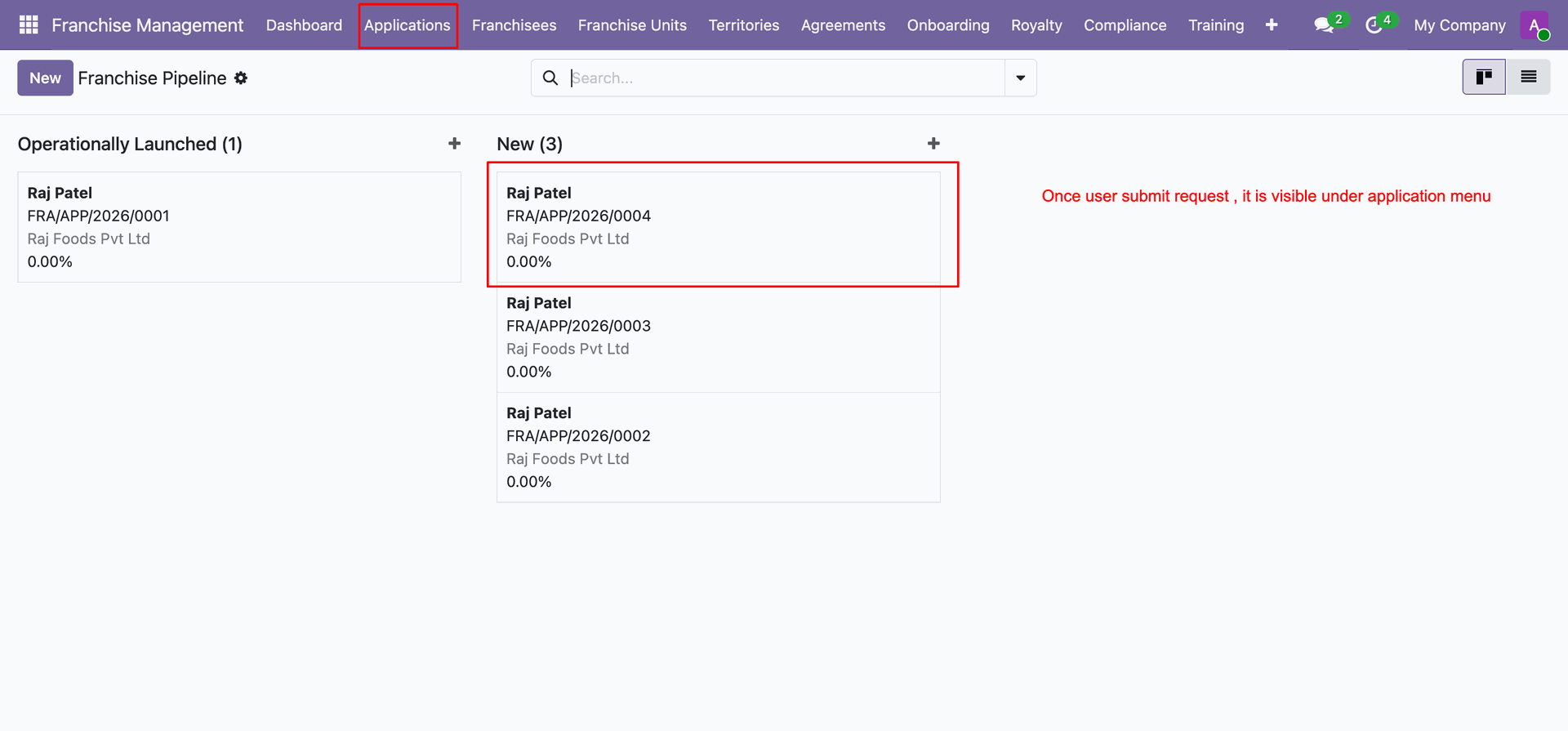
Select newly submitted application card from Kanban view under New column stage.
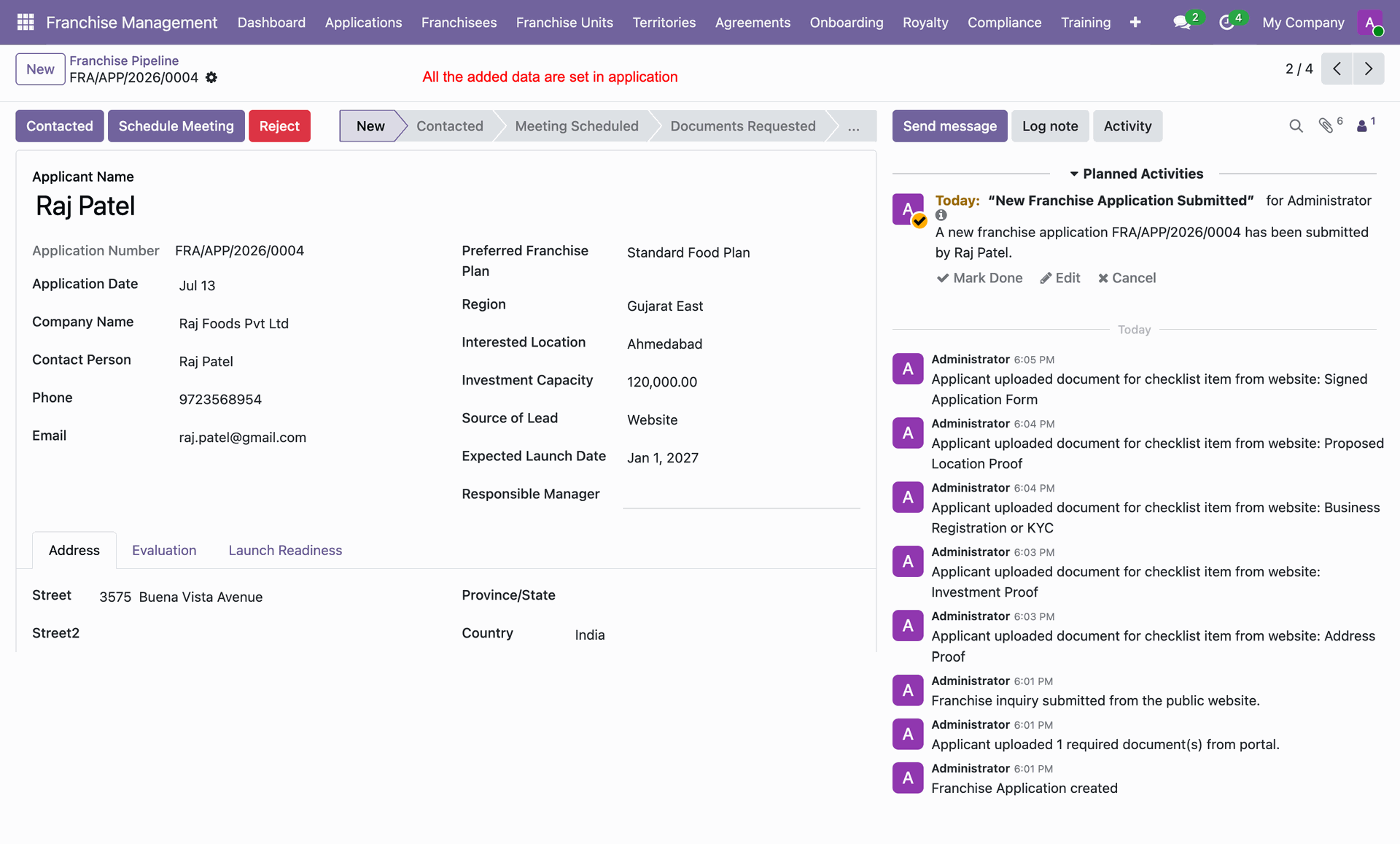
Review applicant details and tracked chatter communication on the application form view.
Check uploaded applicant identification and business documents under the Evaluation tab.
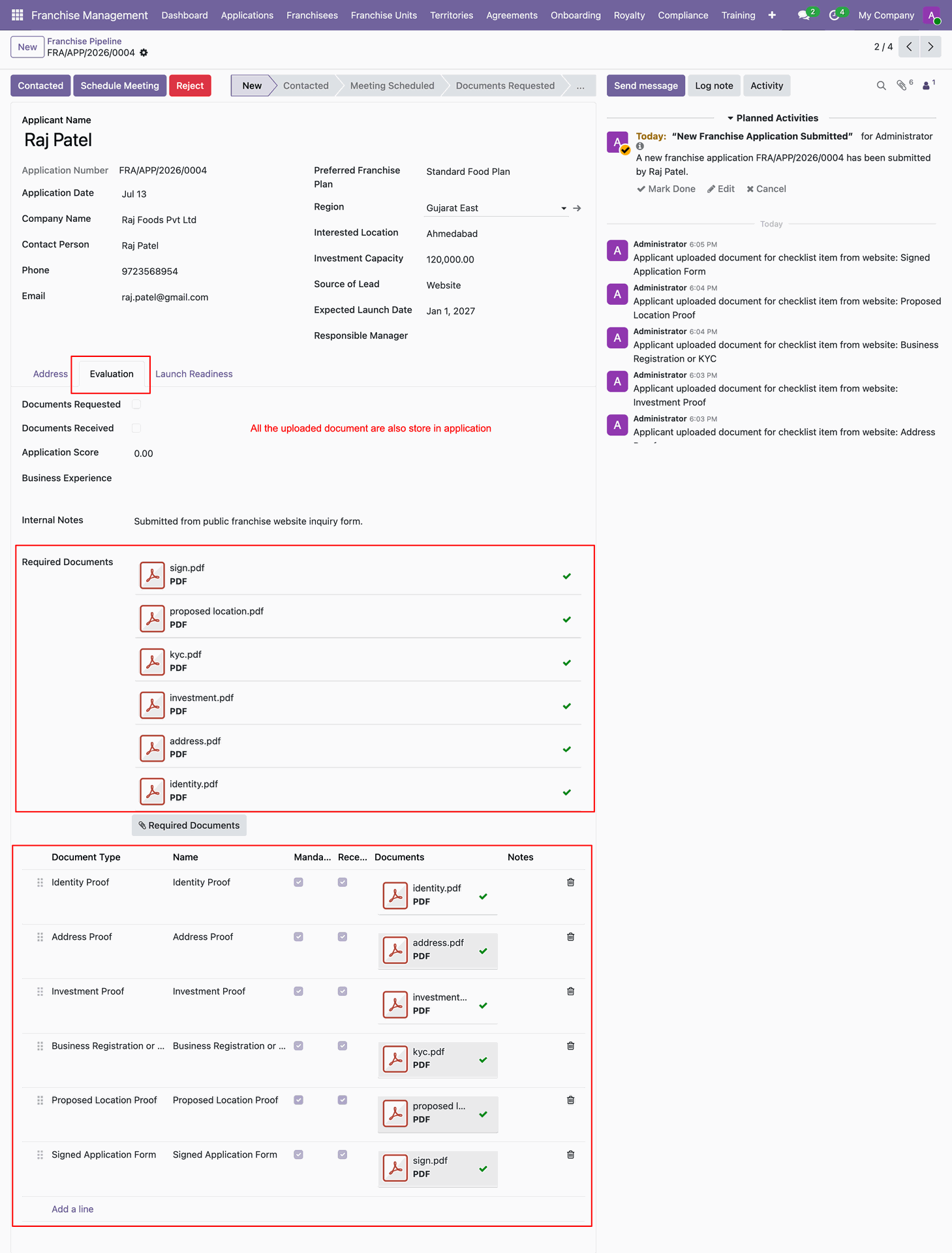
Click Contacted button to transition application status after initial contact with applicant.
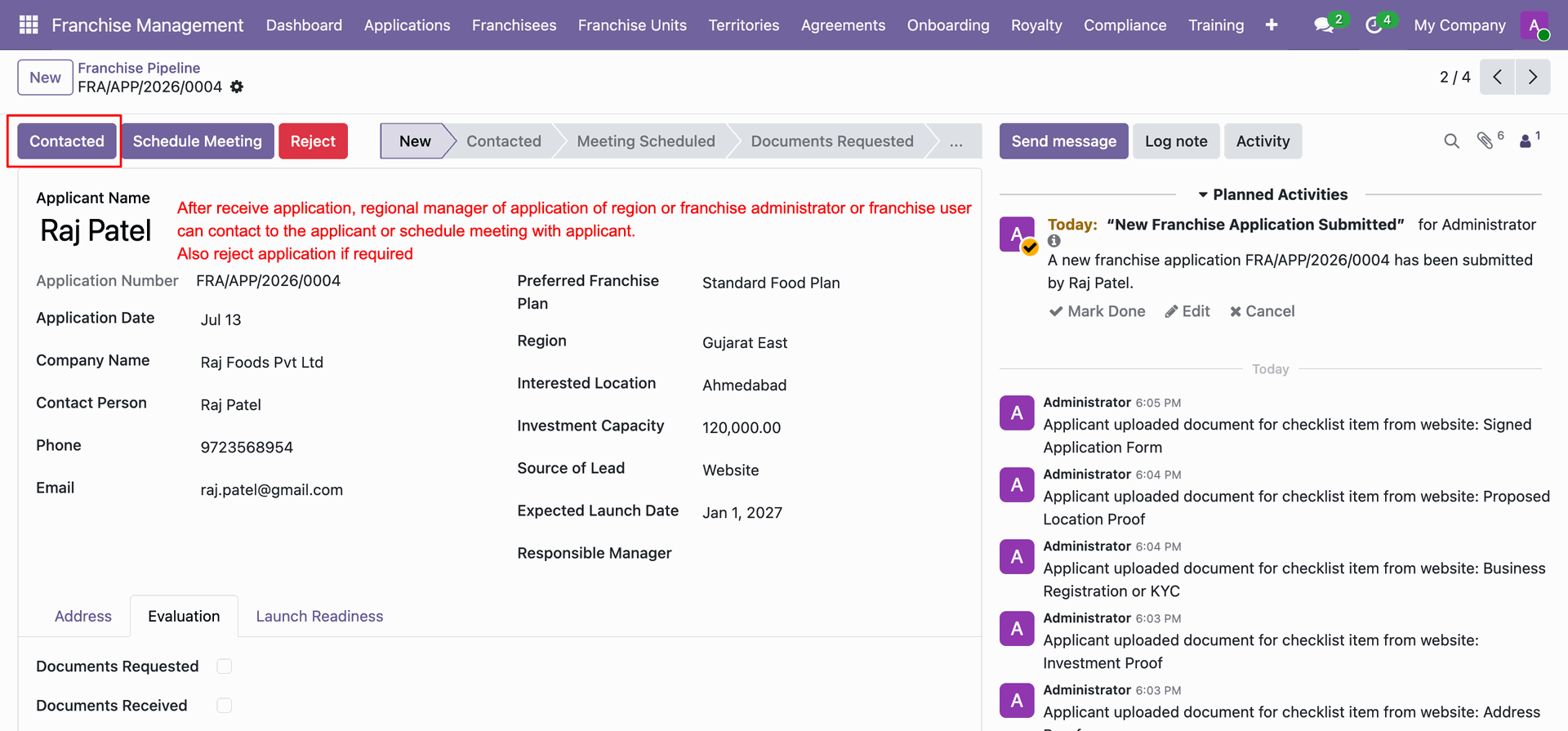
Click Schedule Meeting button while in Contacted stage to arrange applicant interview session.
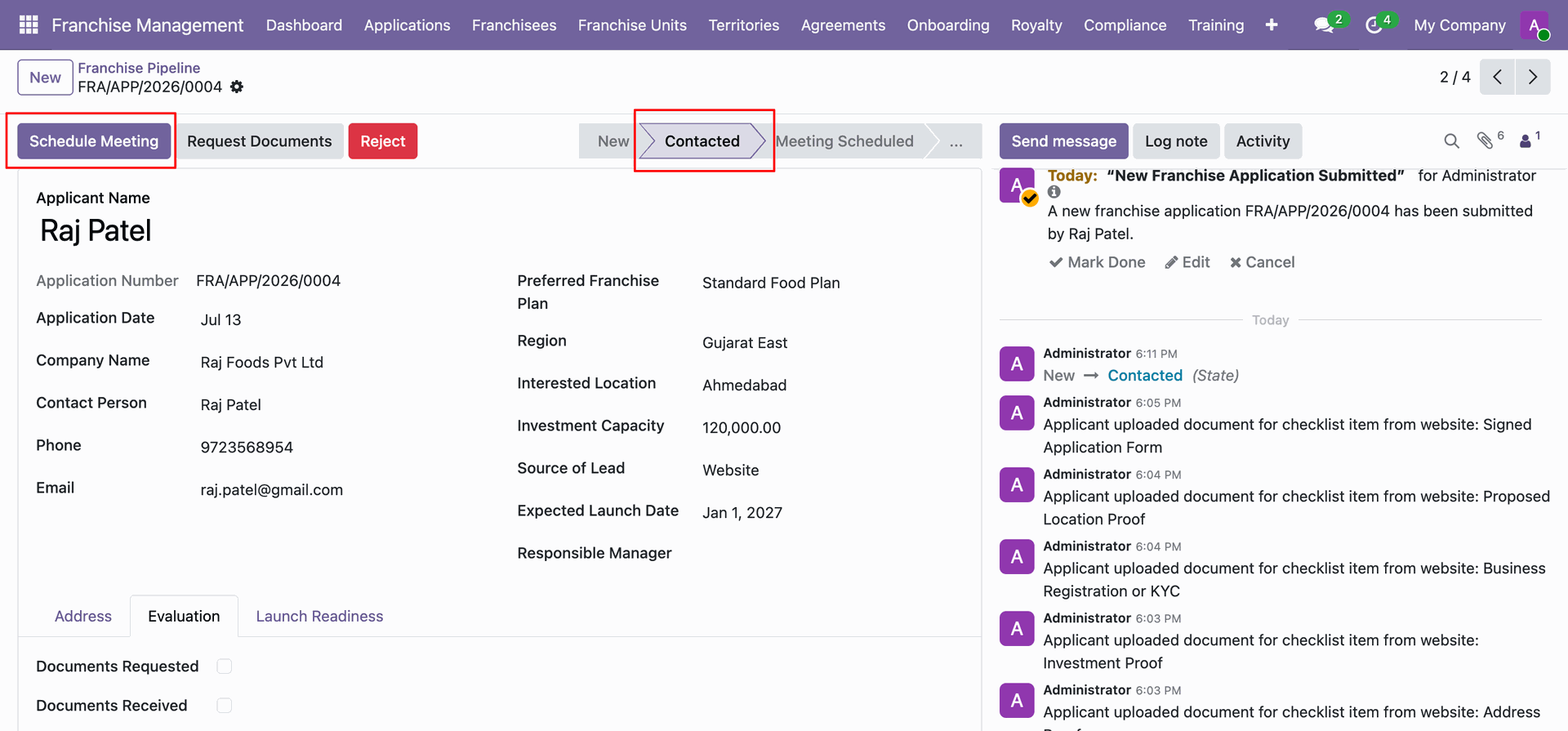
Click Request Documents button after meeting completion to request required franchisee verification files.
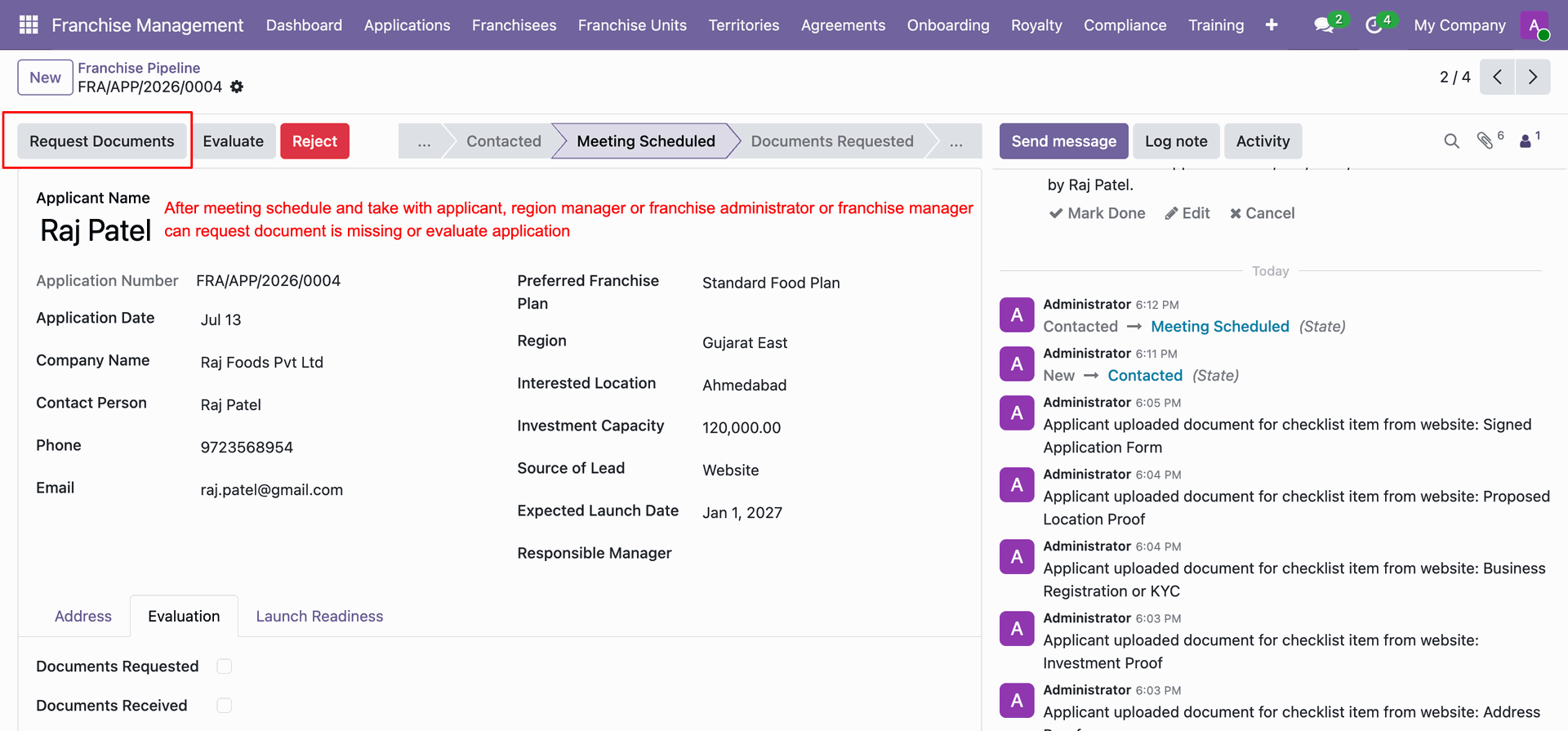
Click Documents Received once all requested verification files are submitted by applicant.
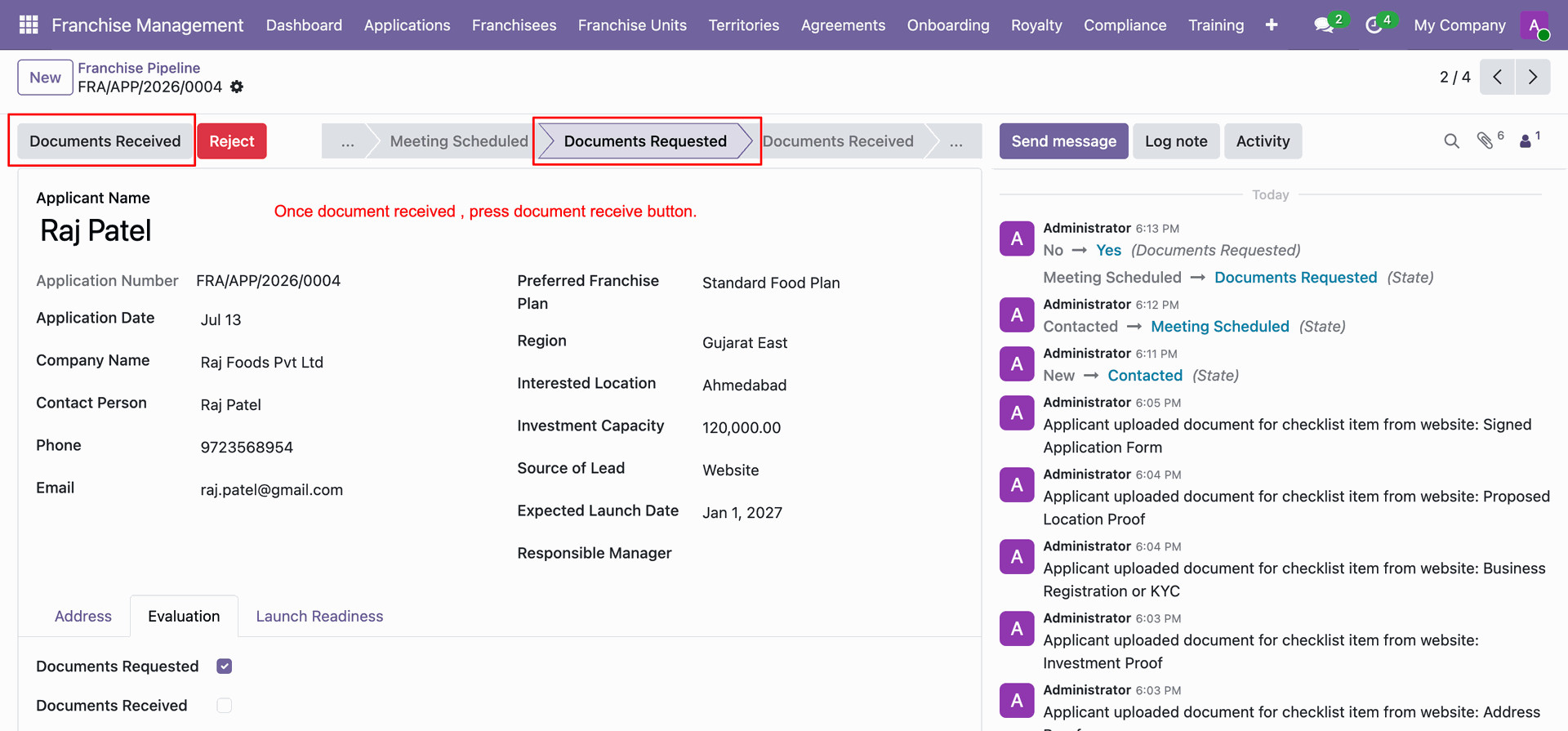
Click Evaluate to move the franchise application into document and profile evaluation stage.
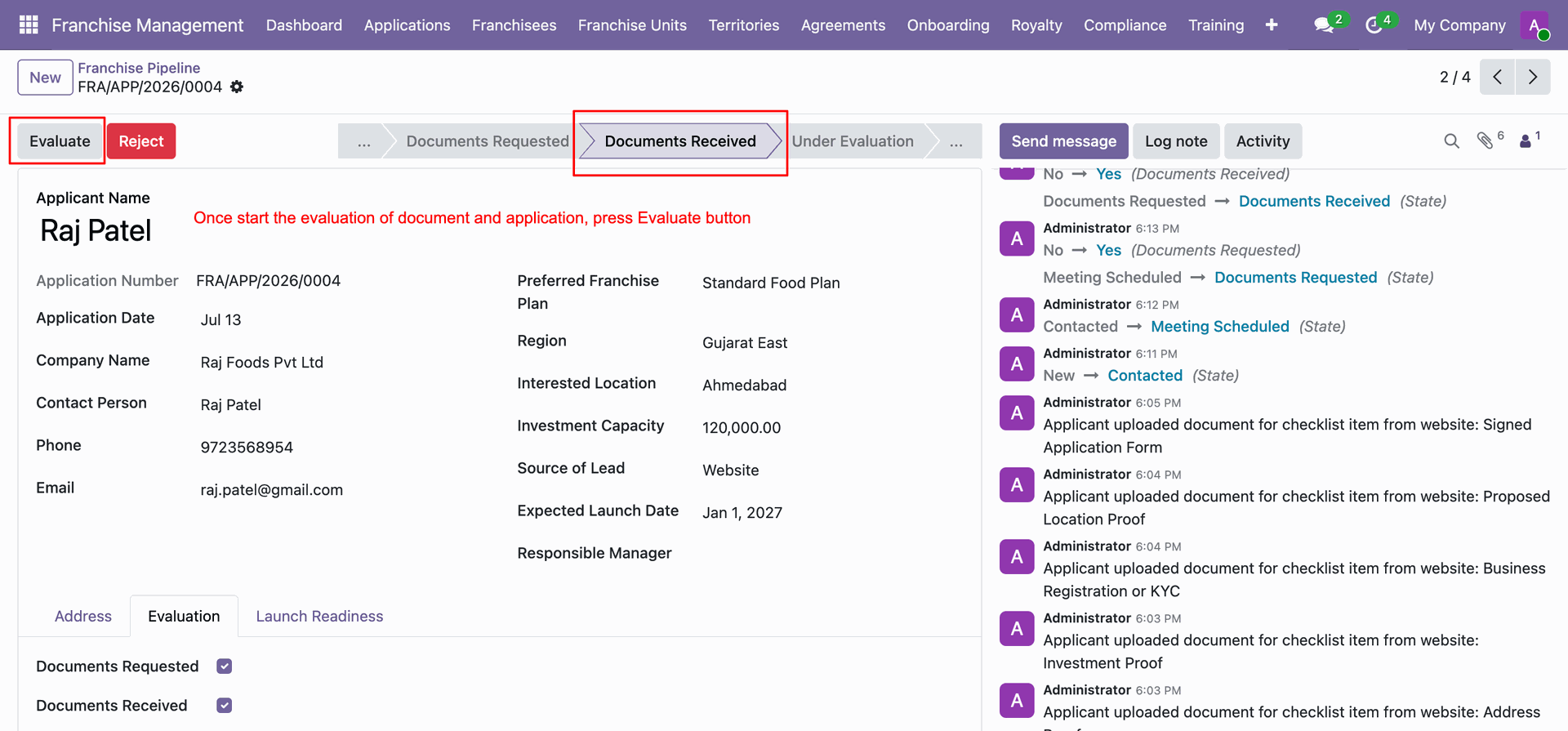
Click Approve for Onboarding to confirm candidate qualification and initiate onboarding process.
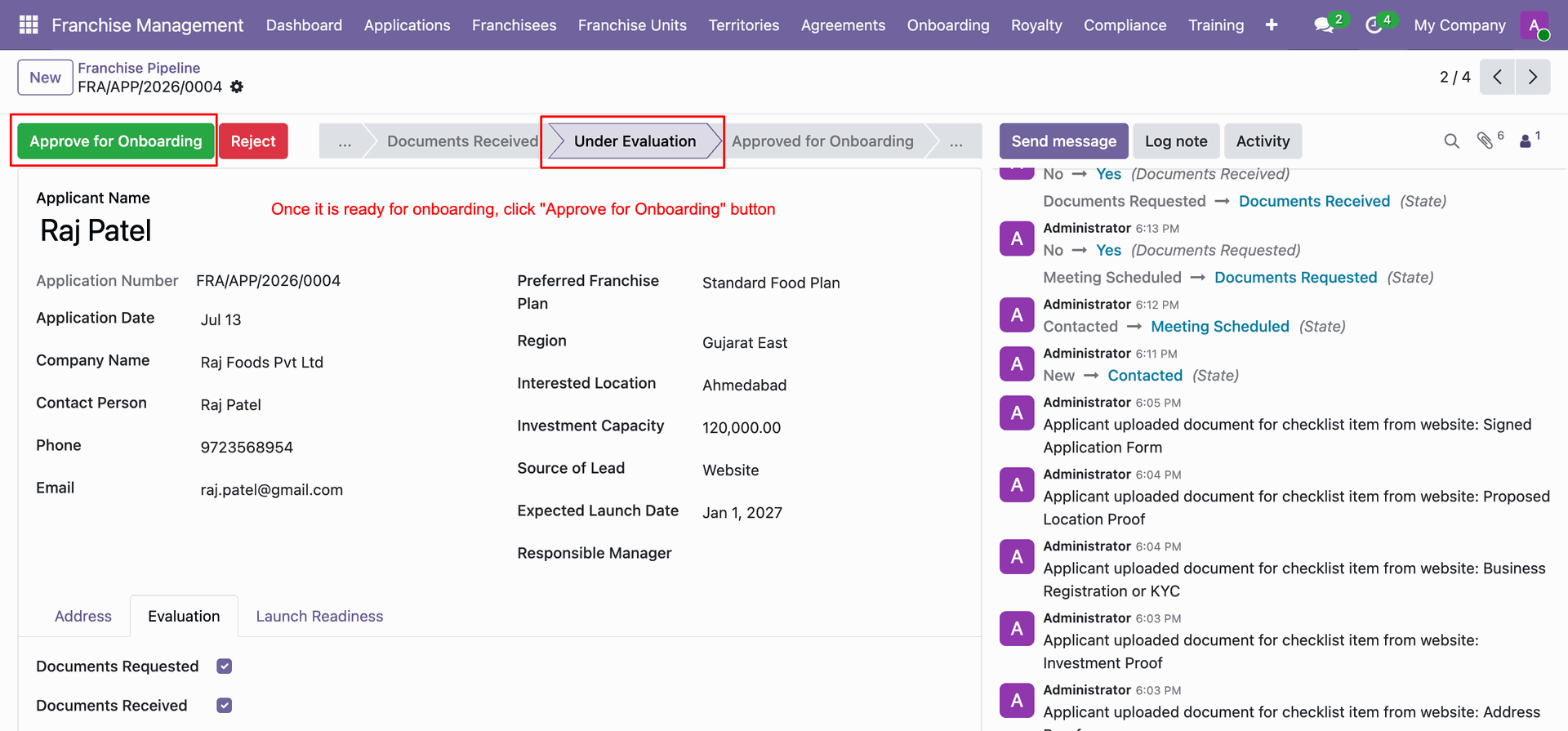
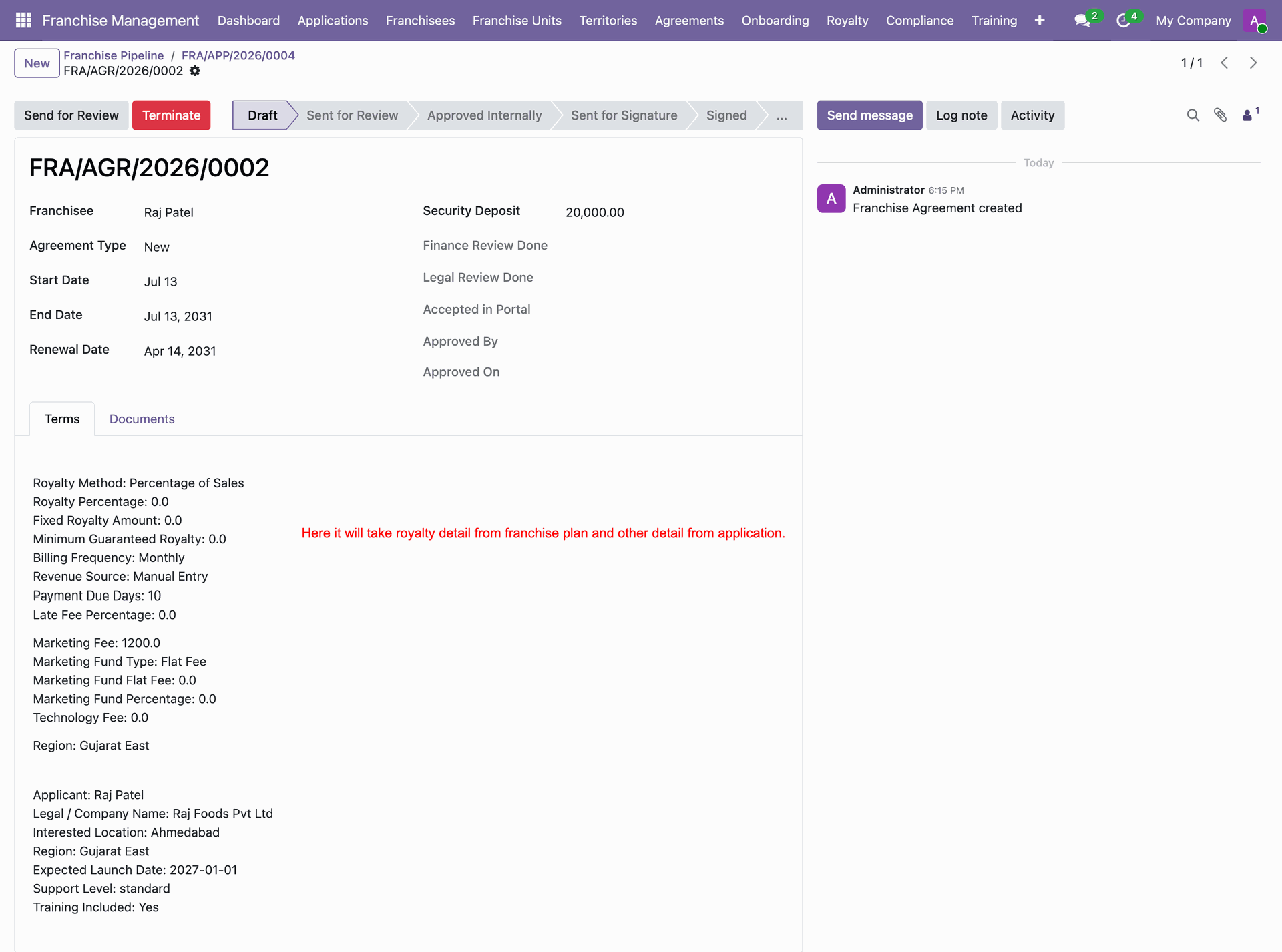
Click Agreement smart button to access auto-generated franchise agreement for approved application.
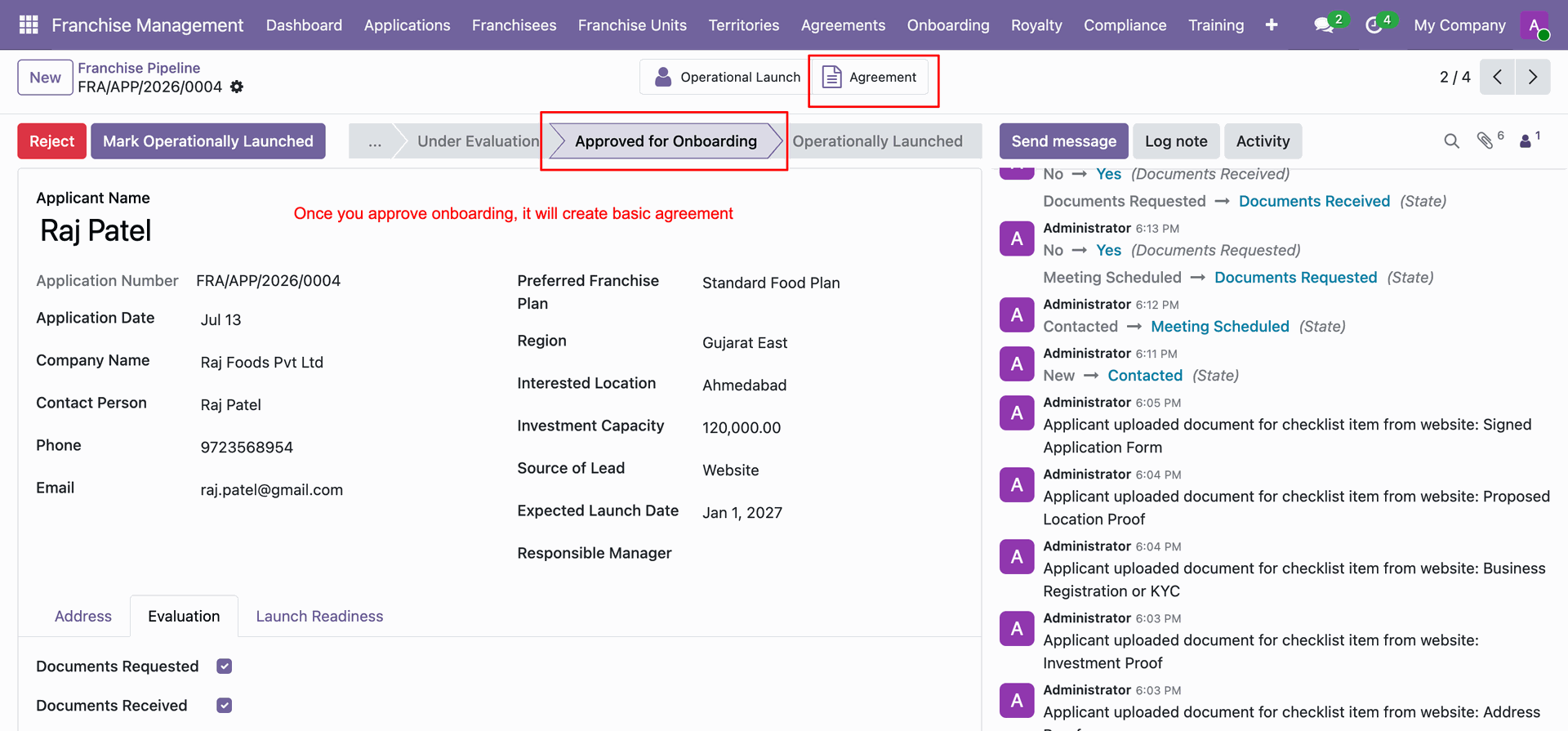
Review auto-populated agreement terms, royalty rates, and applicant details.
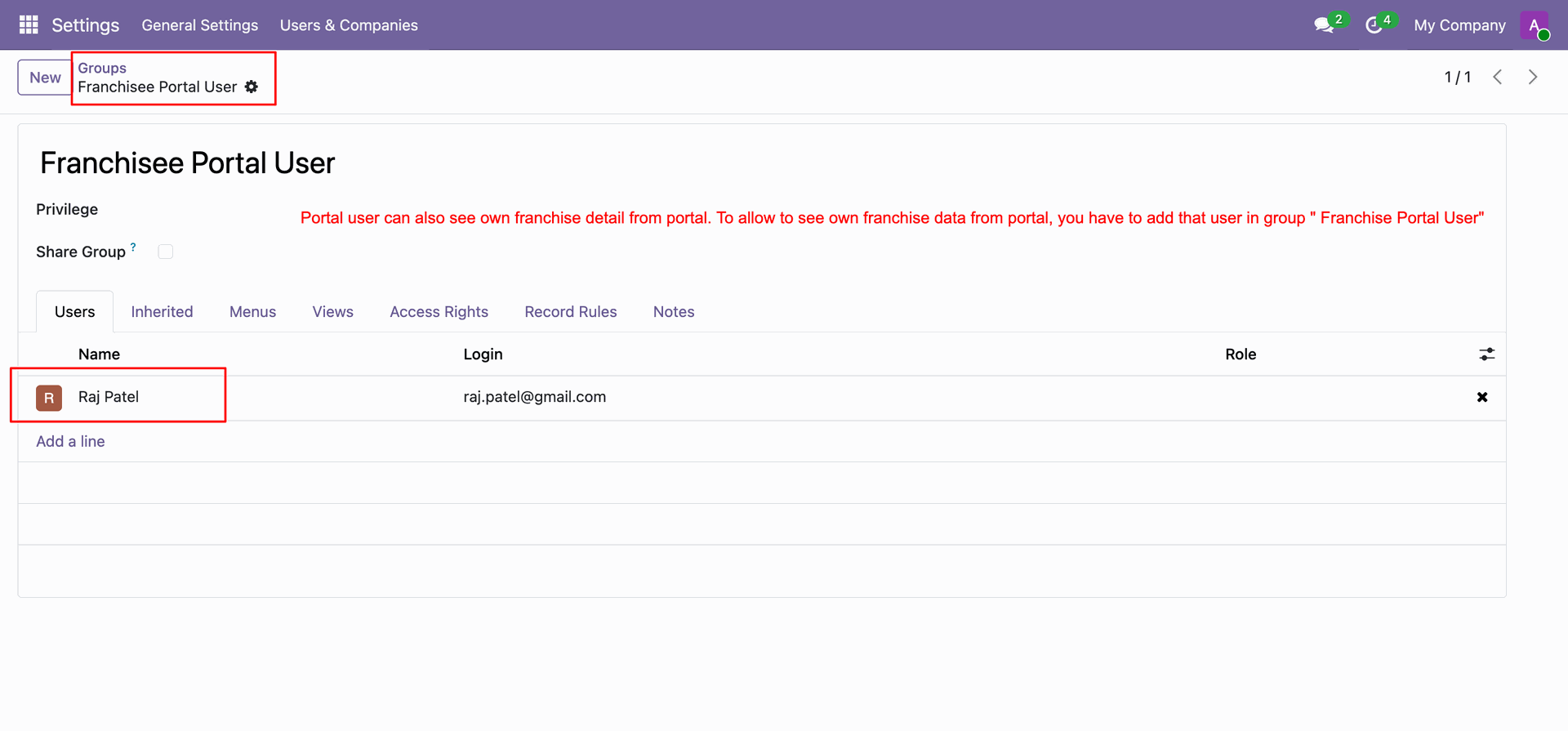
Assign candidate user to Franchisee Portal User group under user security group settings.
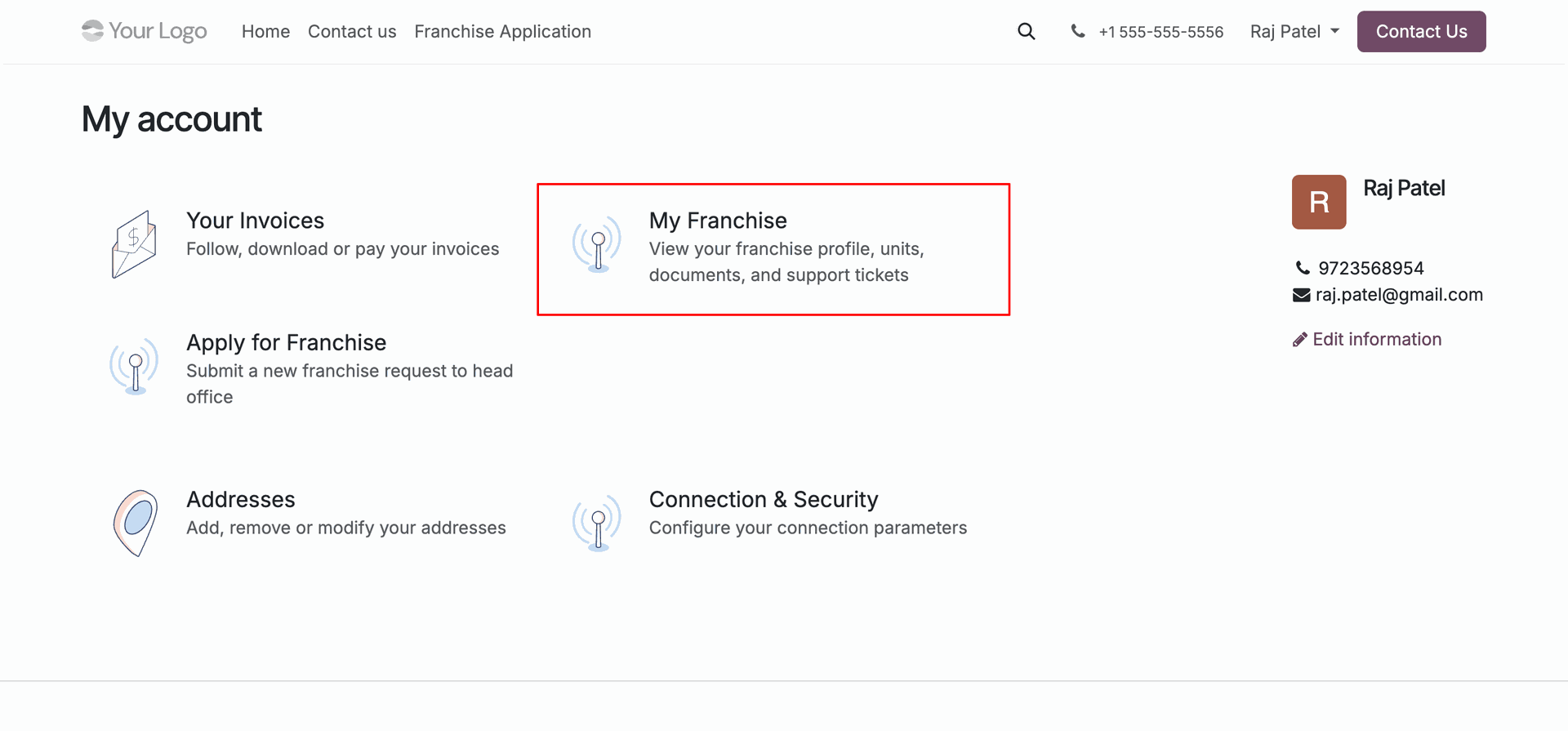
Open My Franchise portal section to access applicant profile.
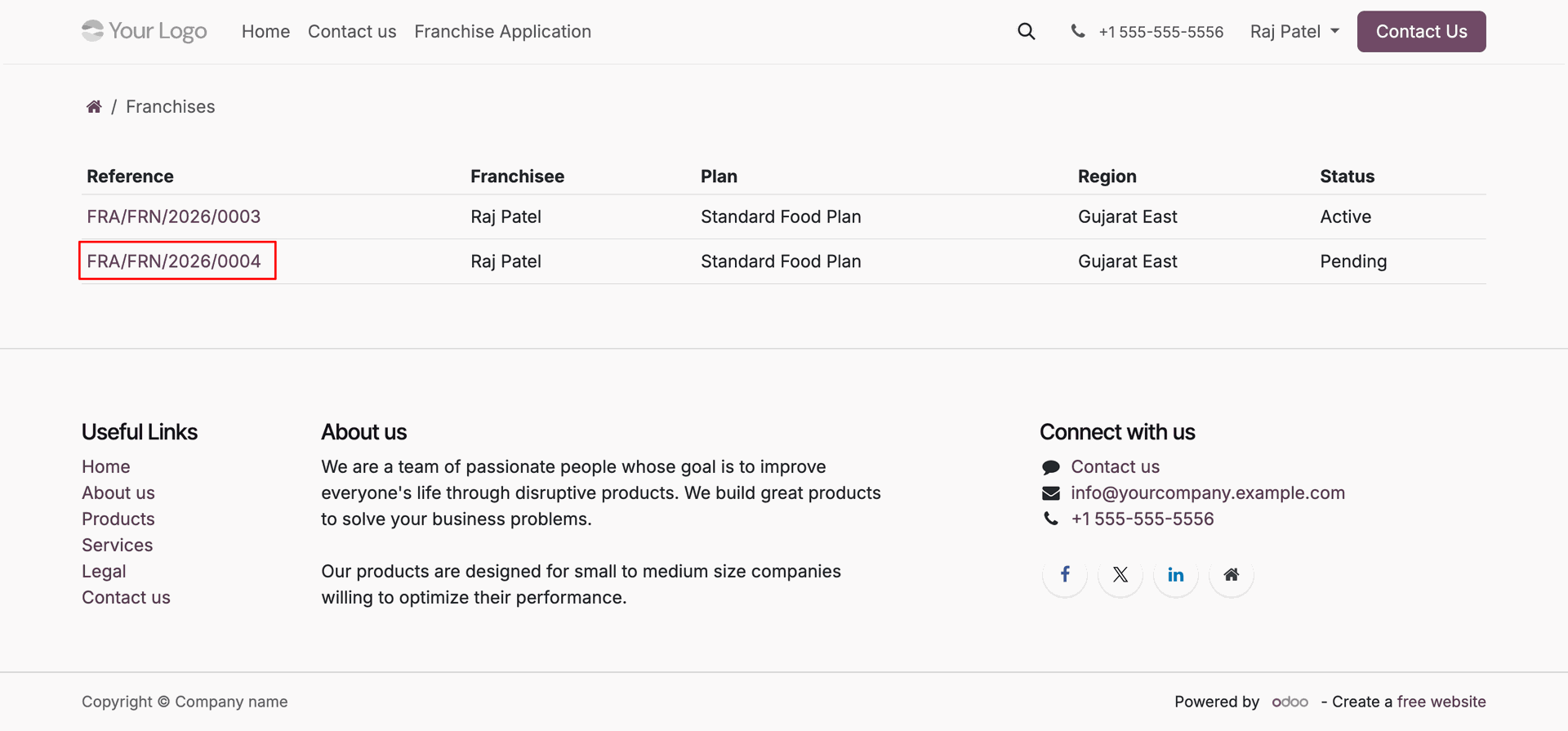
Select franchise reference line from customer portal list view to inspect record details.
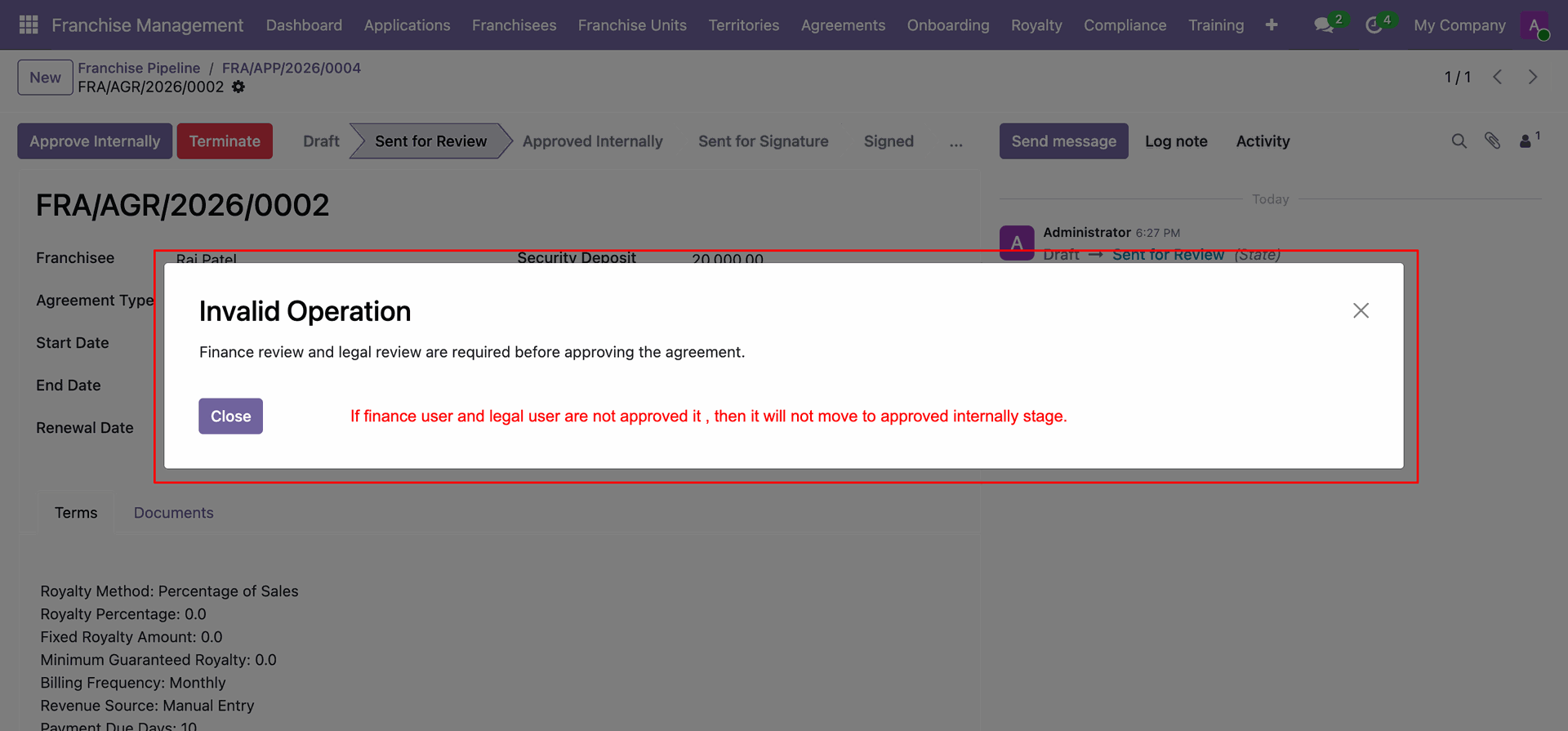
View detailed franchise status, agreement terms, compliance scores, and submit portal support tickets.
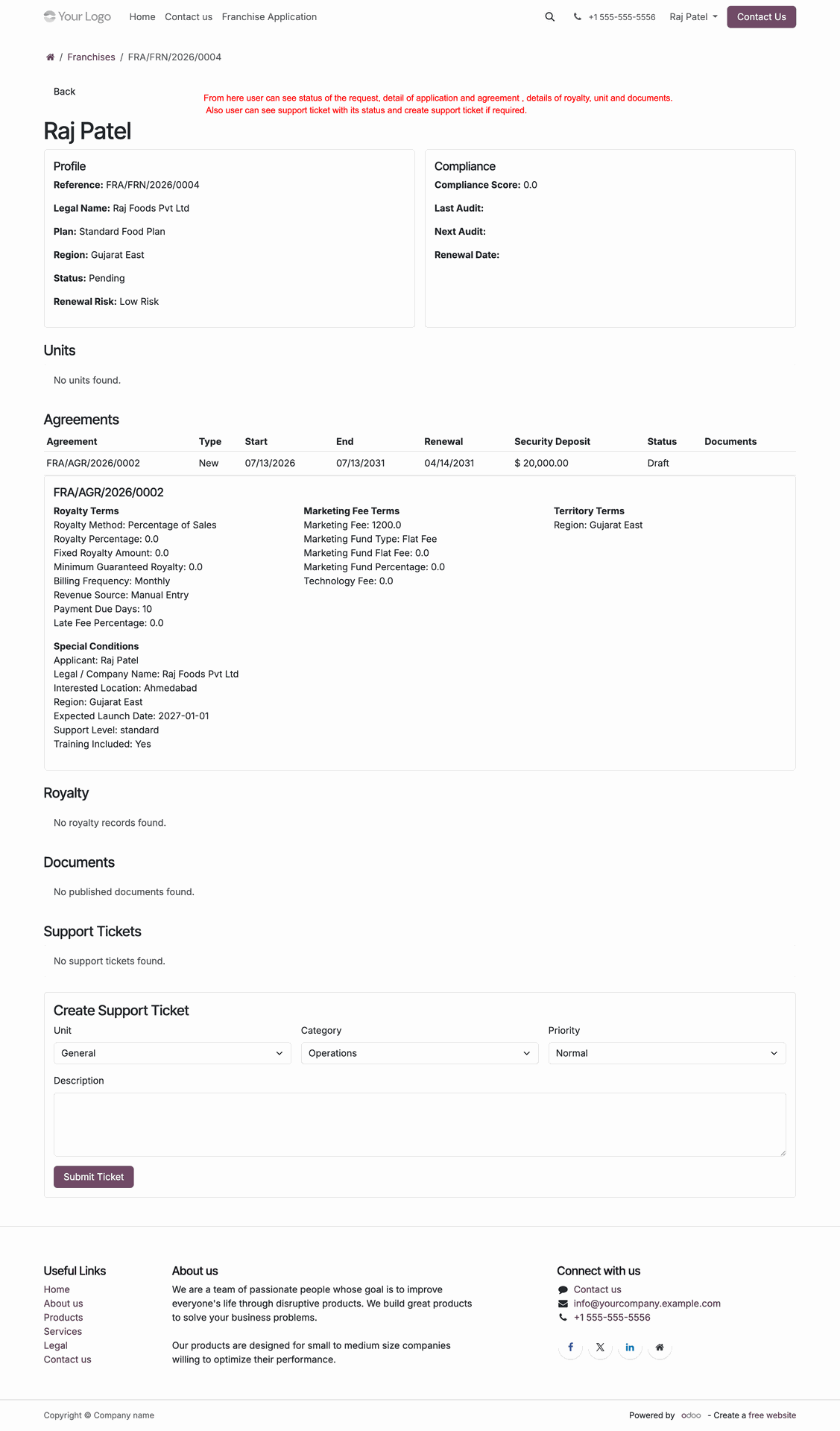
Click Send for Review to transmit drafted agreement contract to applicant for review.
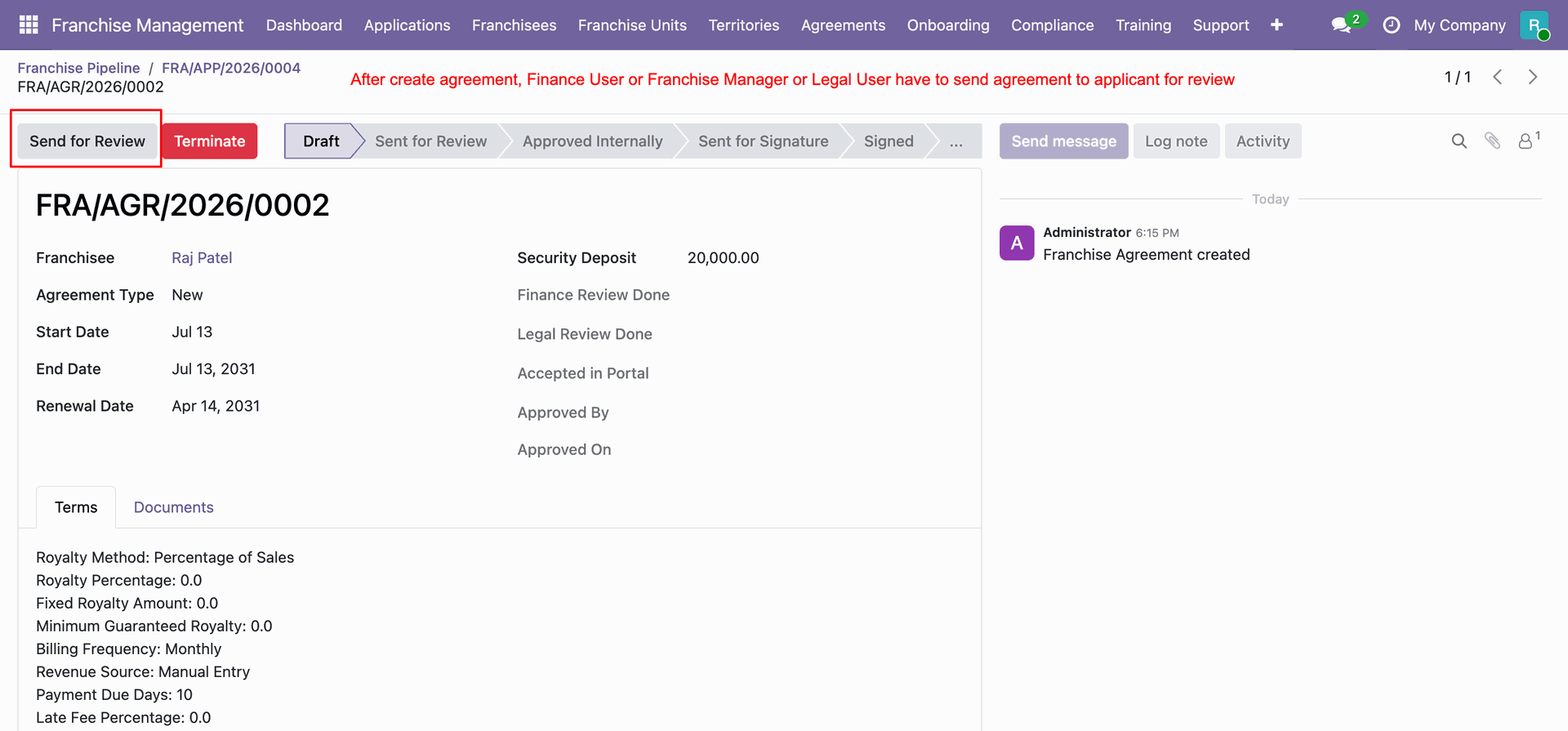
Click Approve Internally to process internal departmental verification for the agreement contract.
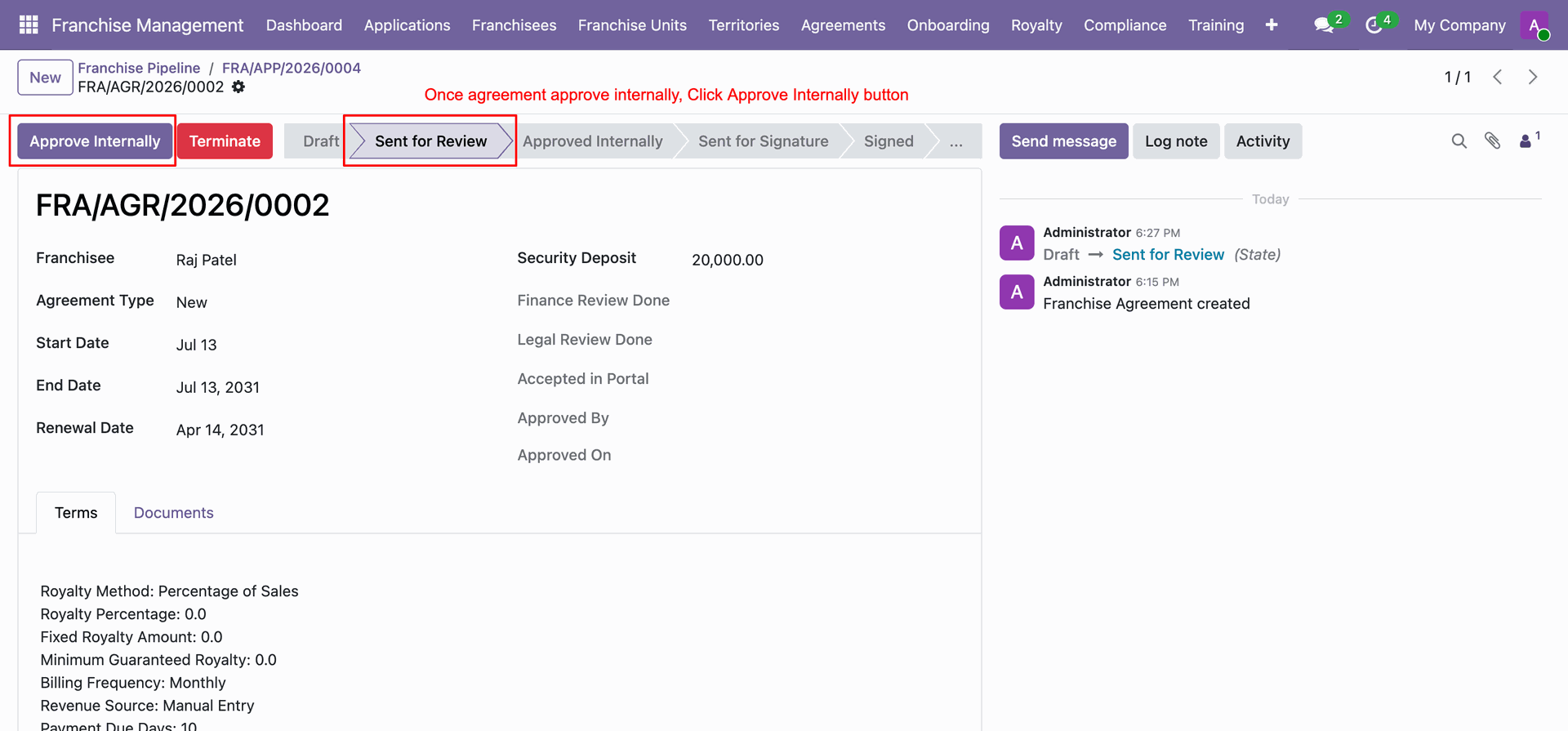
View validation prompt requiring finance and legal team approvals prior to internal agreement authorization.
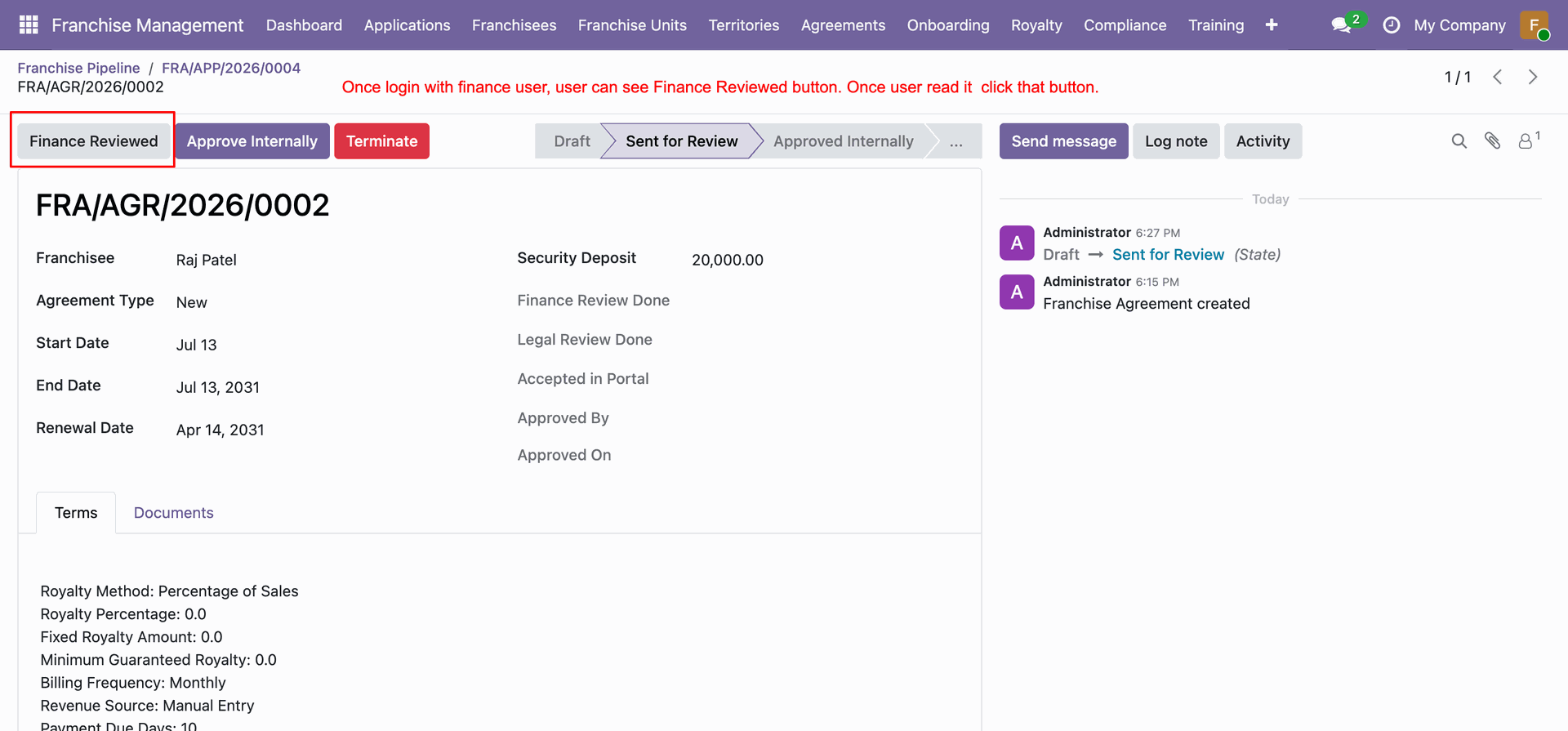
Click Finance Reviewed while logged in as finance team member to validate financial terms.
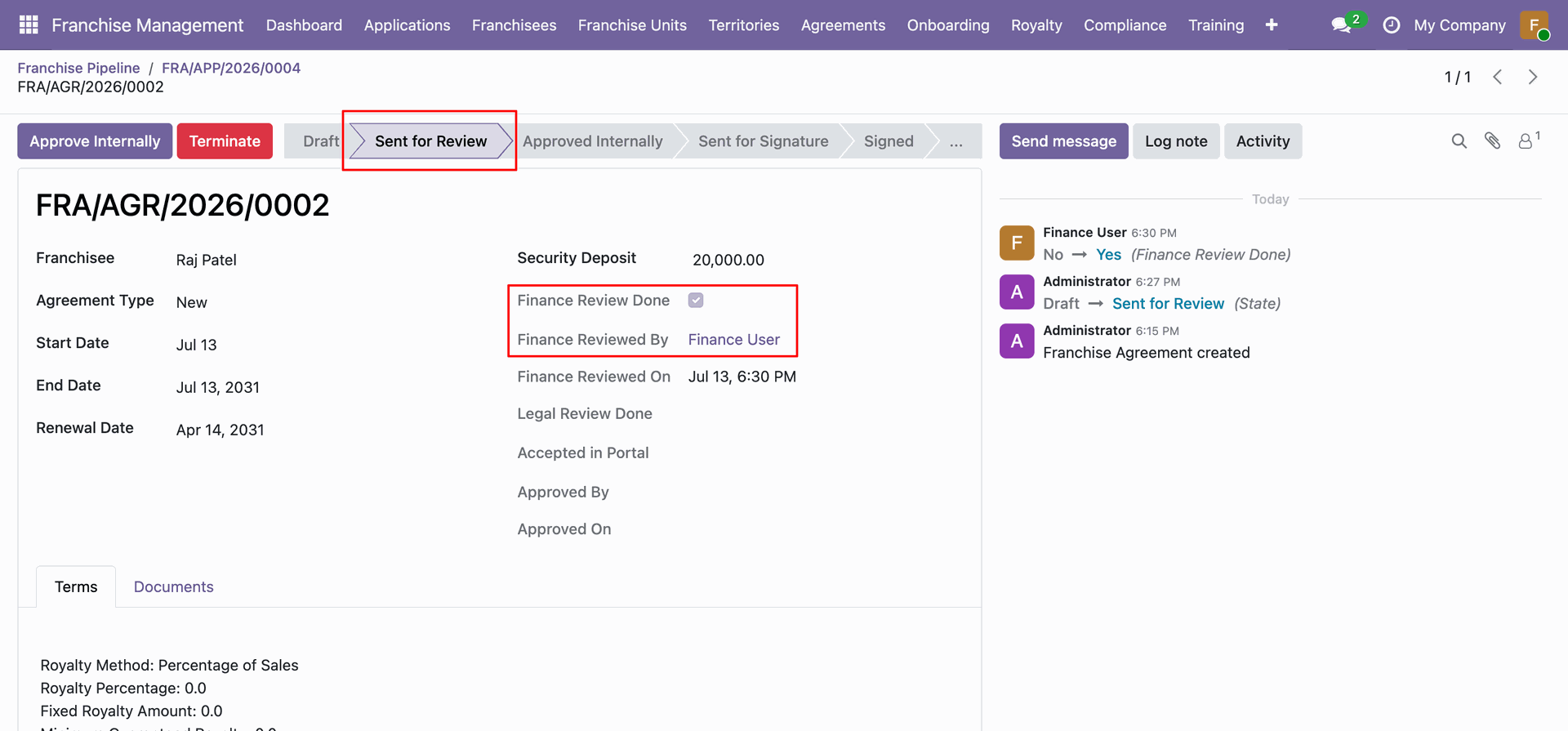
Verify completed finance review details and reviewer user assignment on agreement form.
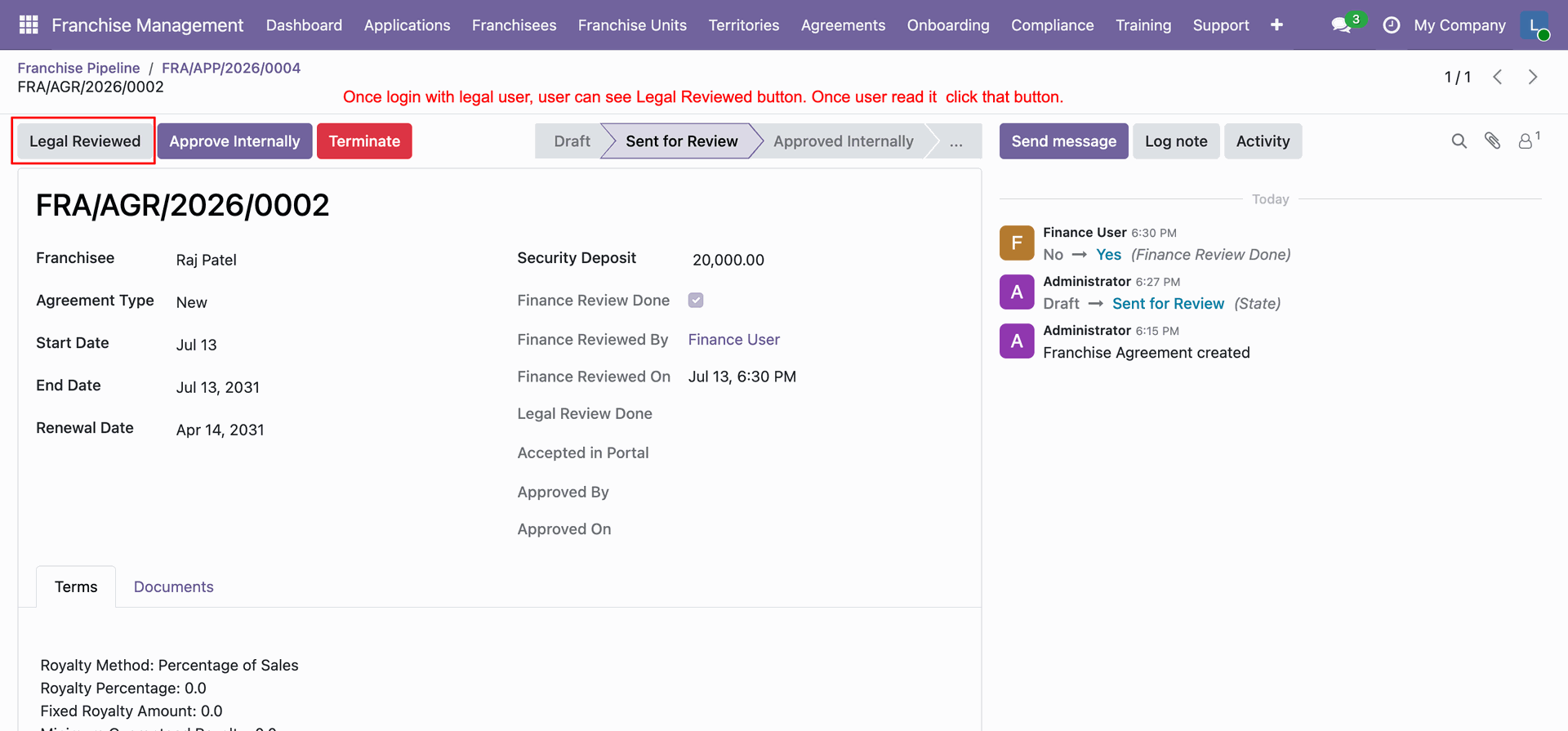
Click Legal Reviewed while logged in as legal team user to complete legal verification.
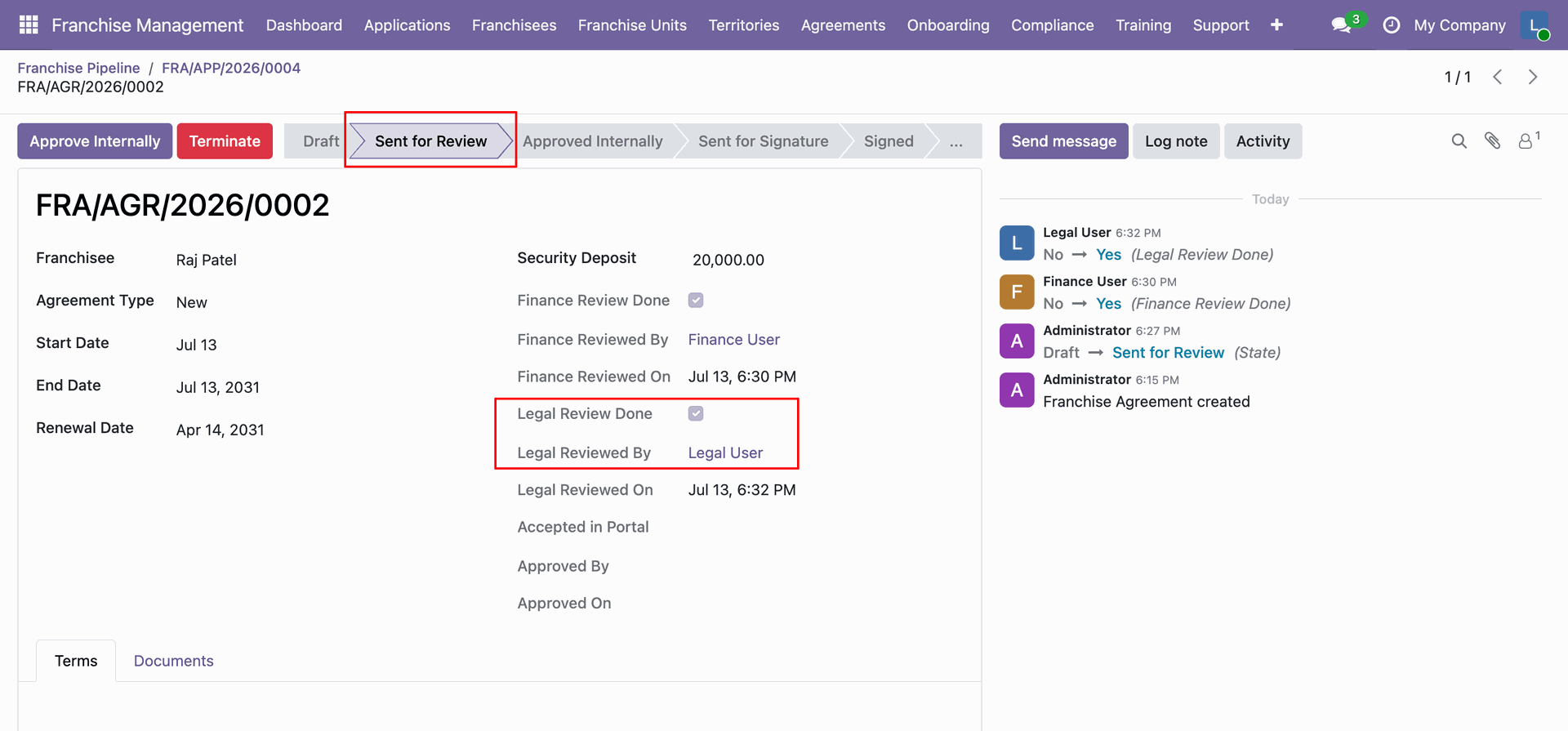
Review updated agreement form displaying confirmed legal review status and legal reviewer details.
Click Approve Internally once both finance and legal department approvals are recorded.
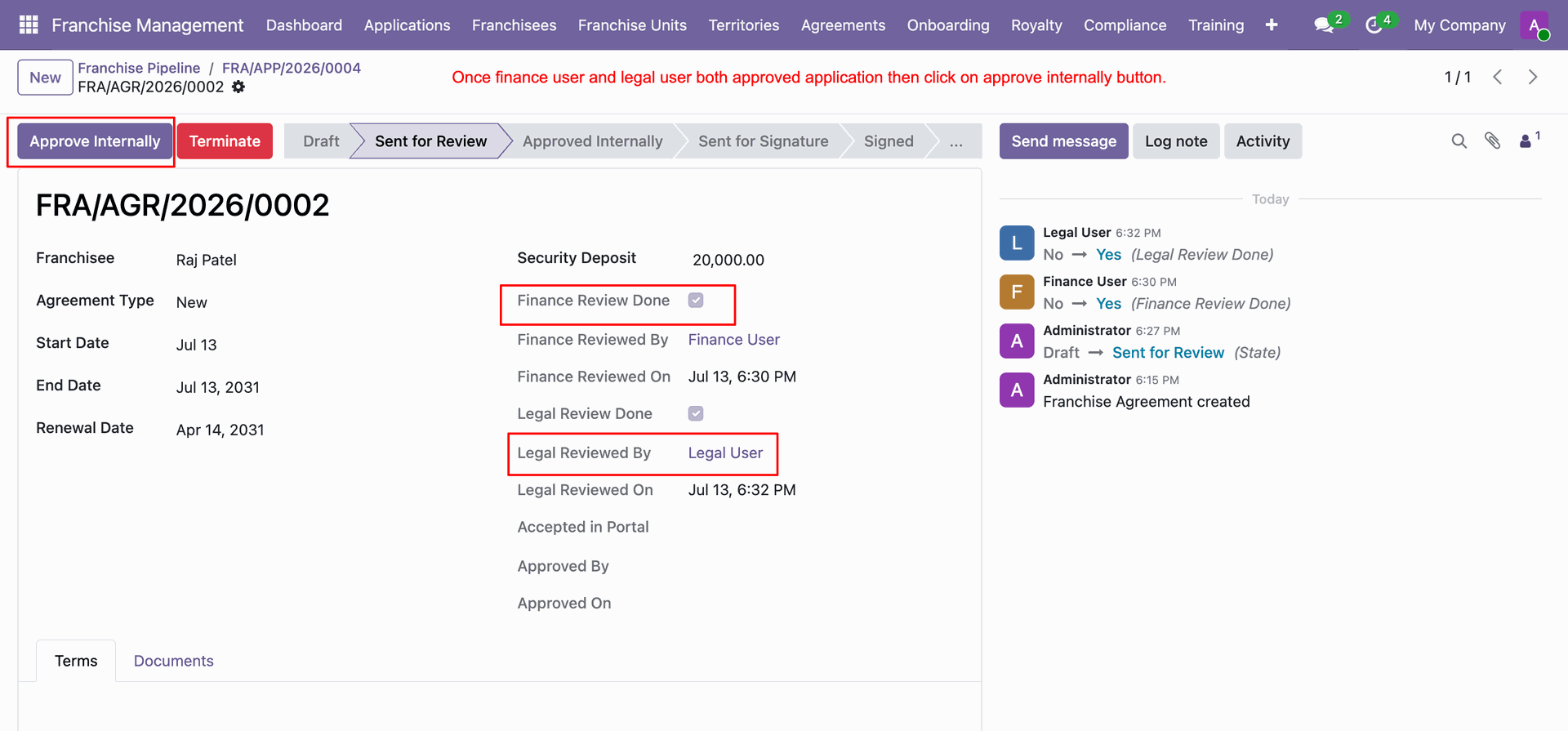
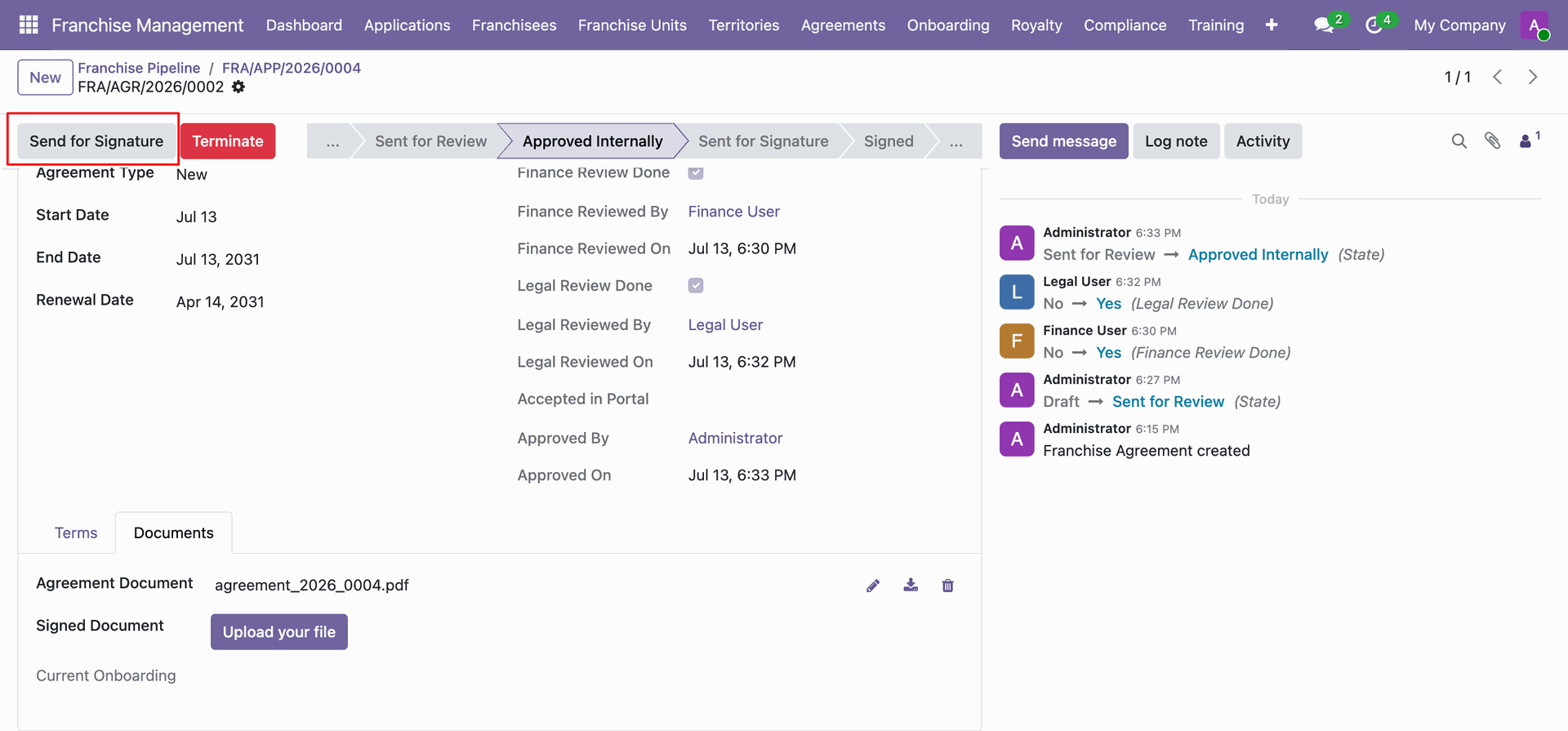
Click Send for Signature to transition internally approved agreement to candidate signature stage.
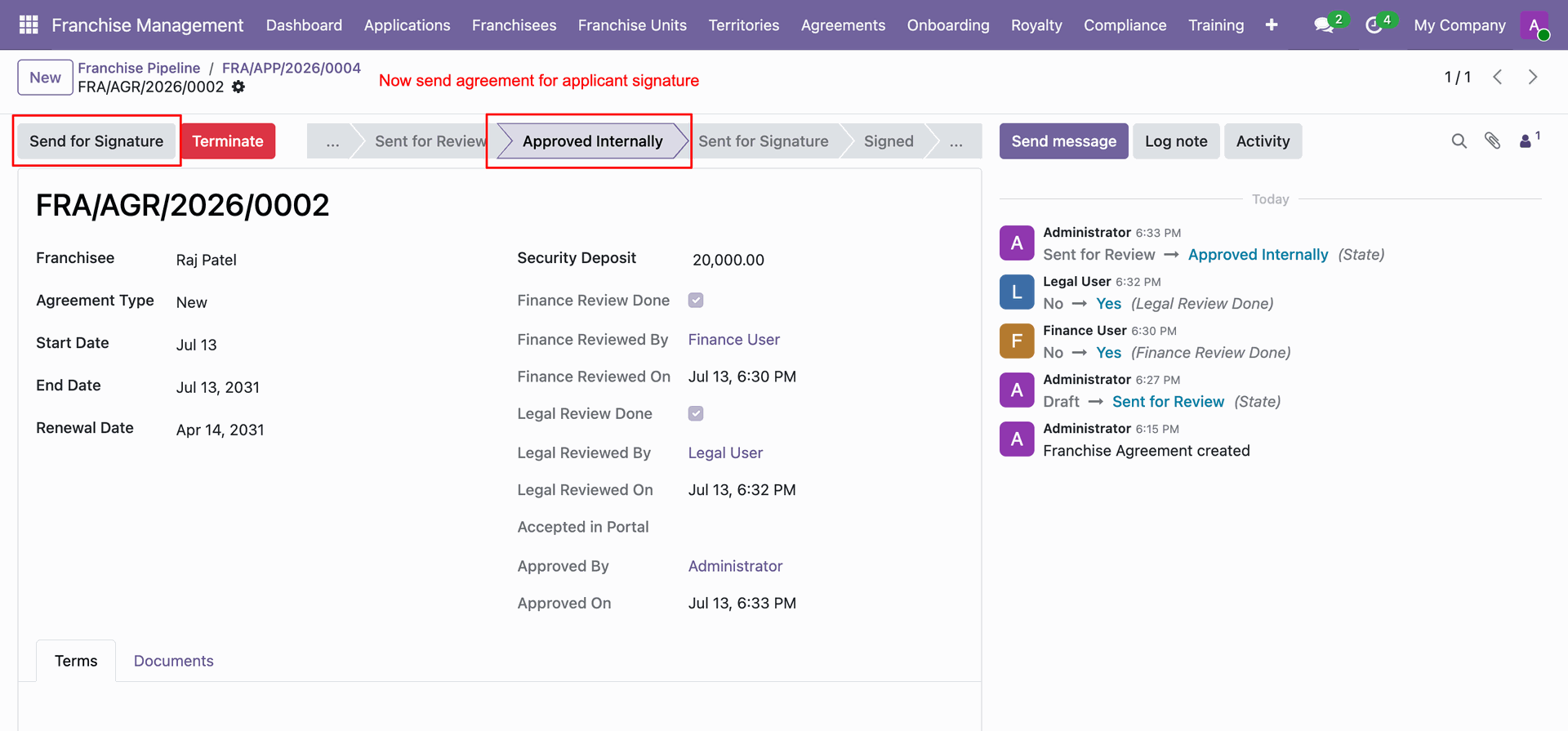
View validation error reminding users to attach formal agreement document before sending for signature.
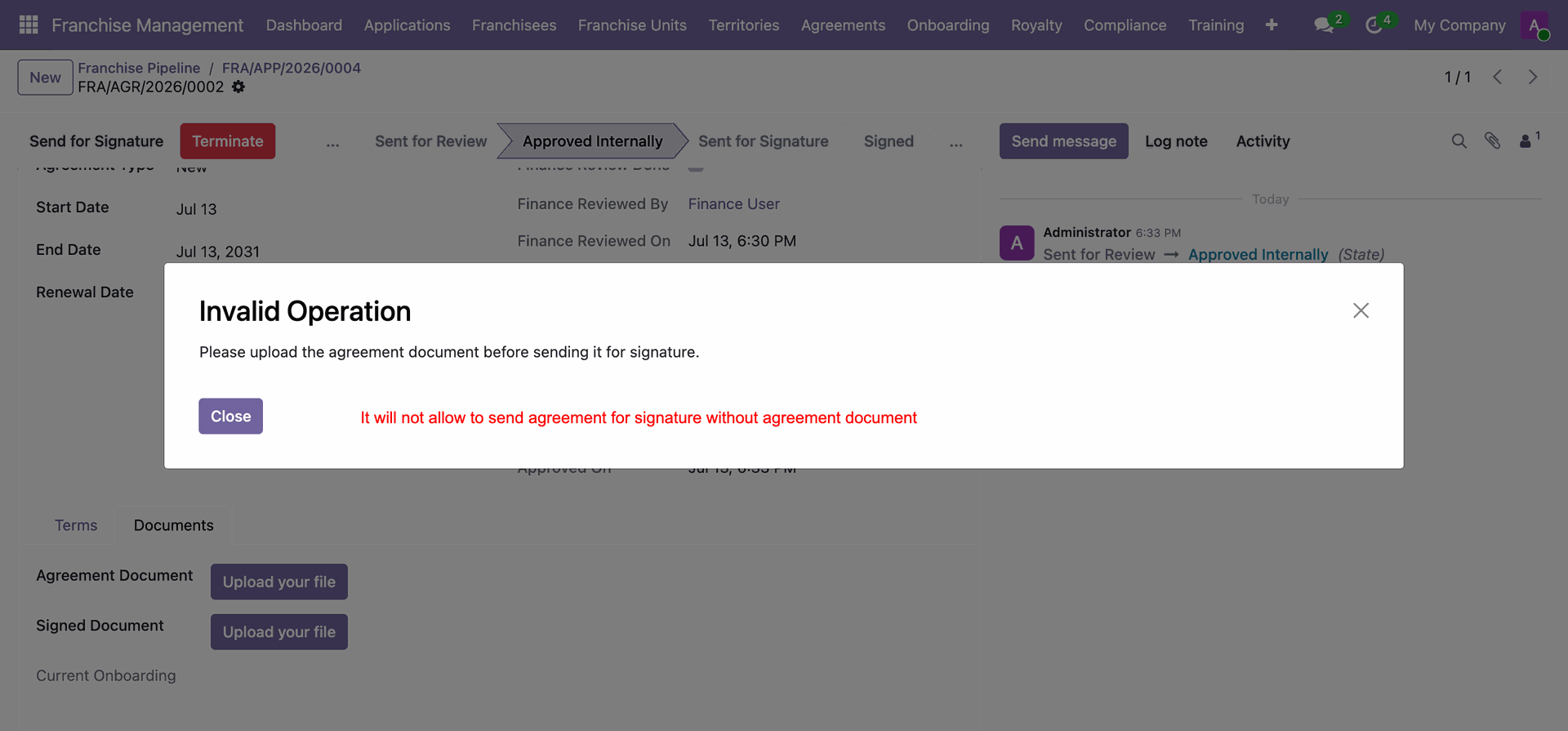
Click Upload your file under Documents tab to attach agreement contract document.
View uploaded agreement PDF file attached under agreement documents section.
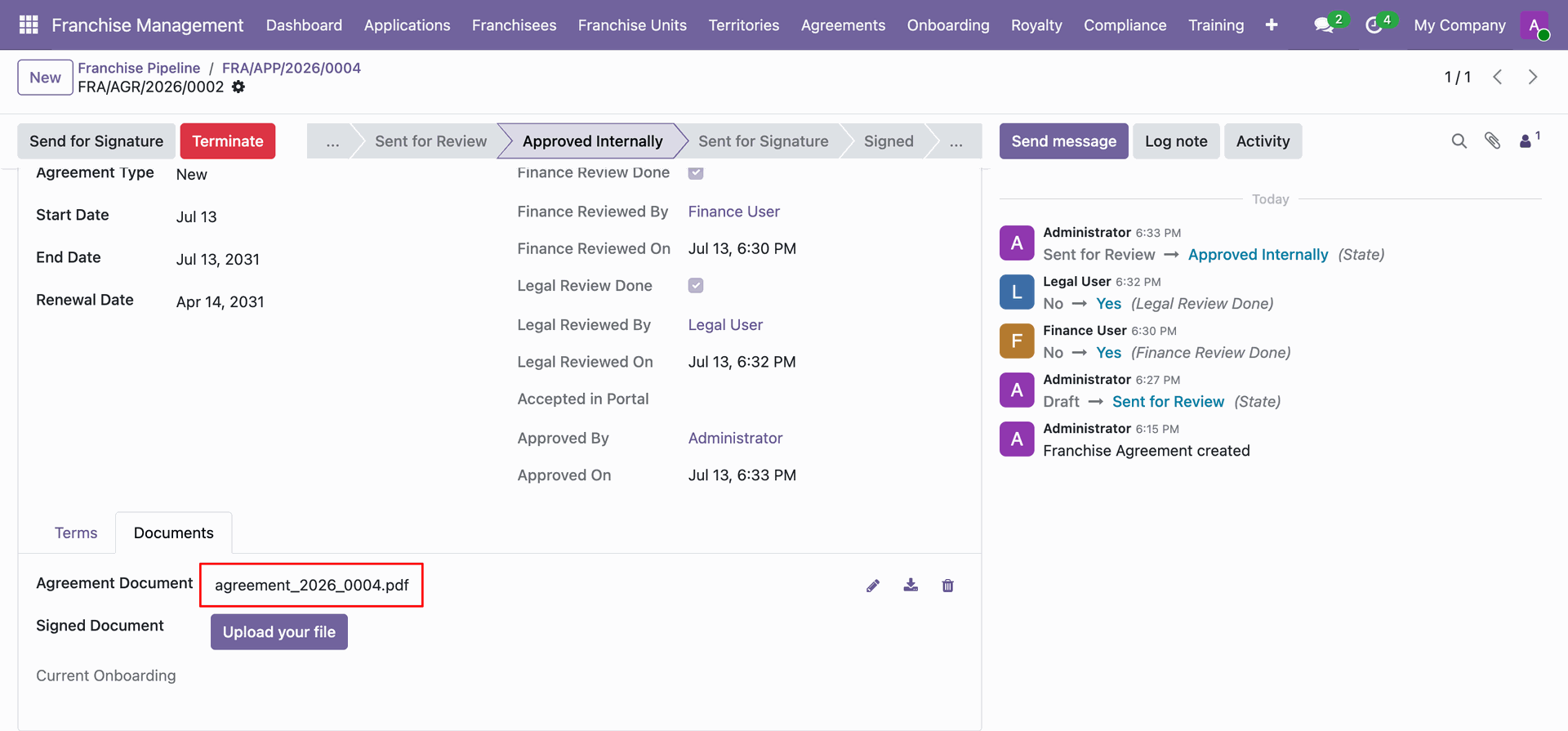
Click Send for Signature once official agreement PDF document has been attached.
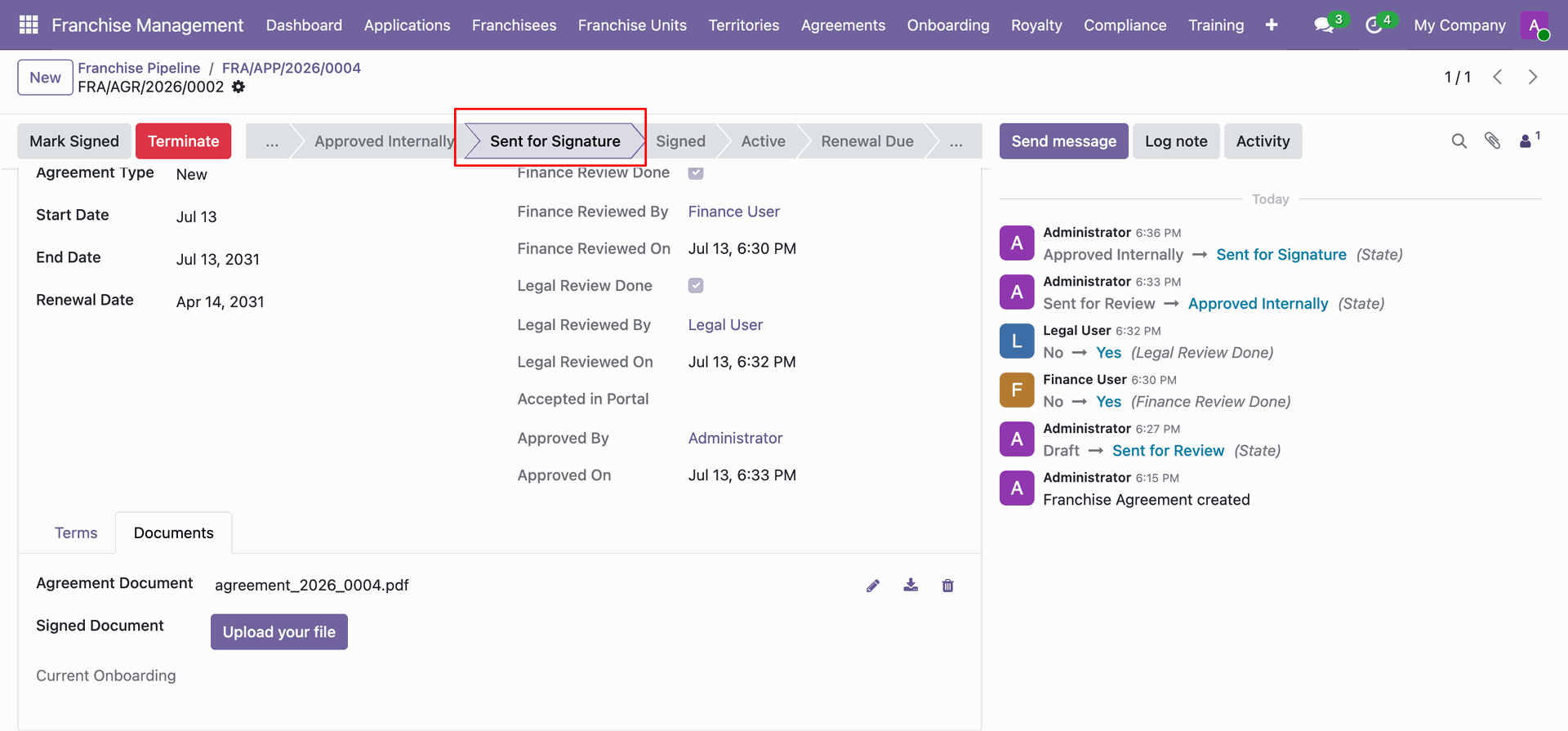
Confirm agreement status transition to Sent for Signature stage for candidate action.
Download agreement, upload signed copy, and click Accept Agreement Terms from franchisee portal.
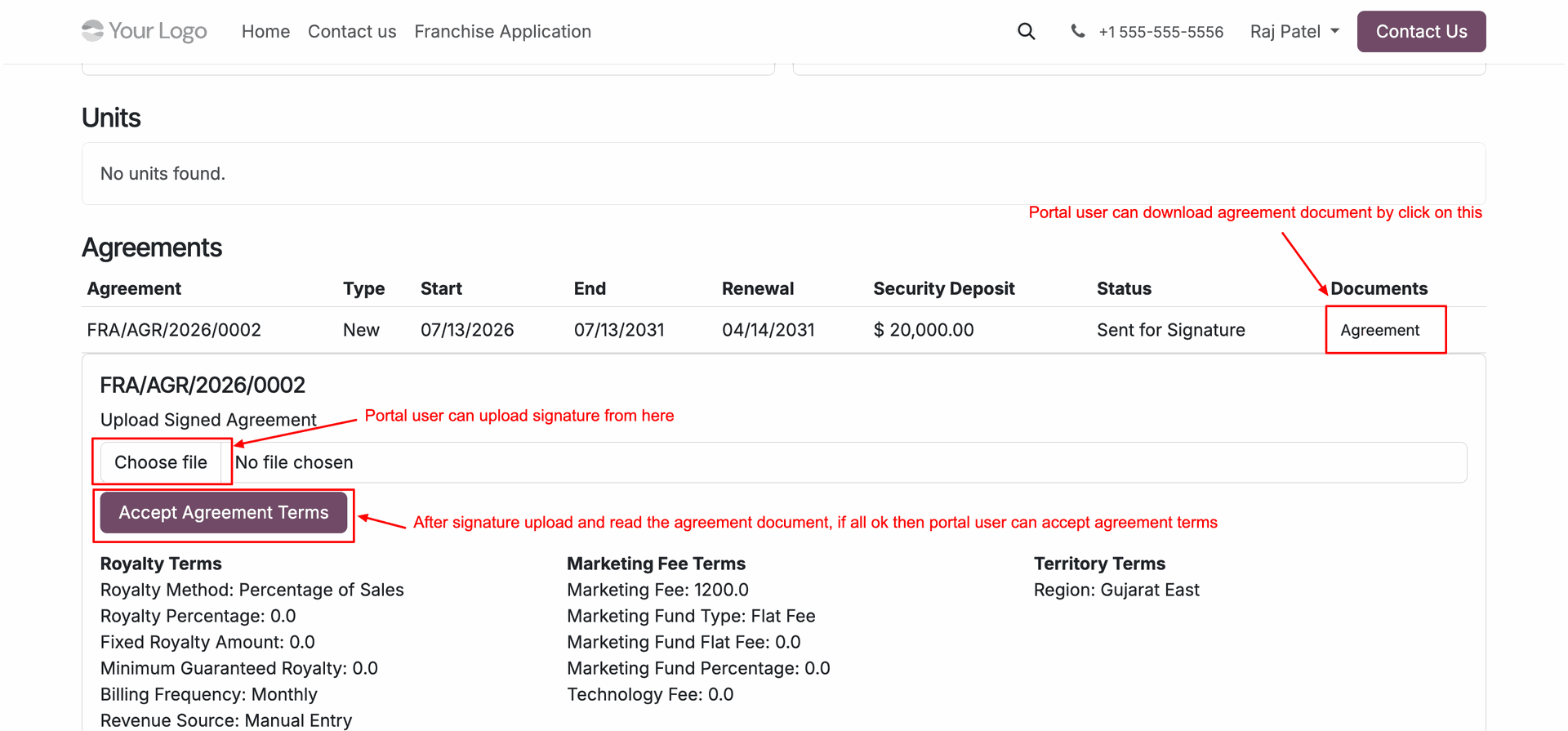
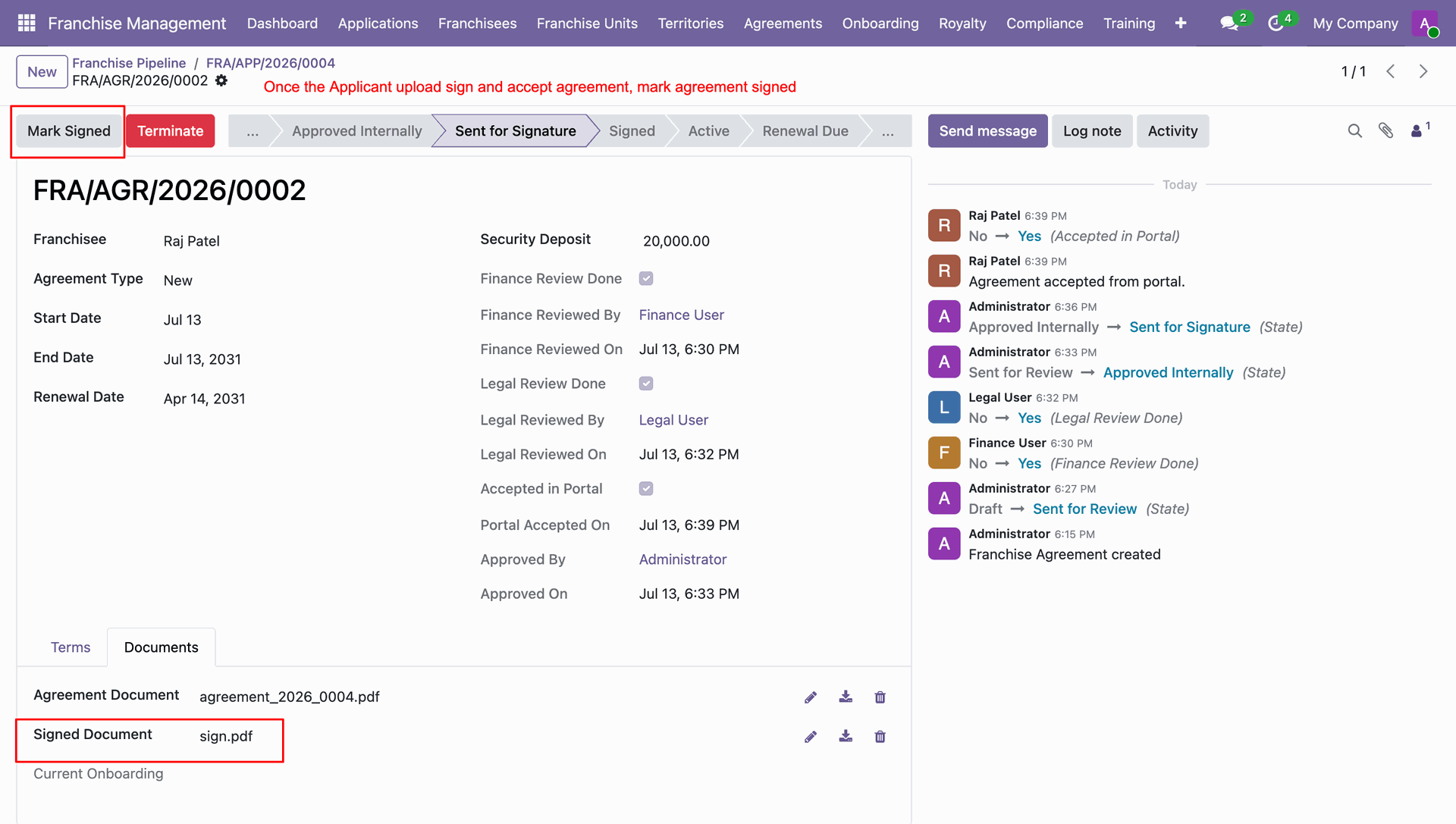
Click Mark Signed after franchisee uploads signed document copy via customer portal.
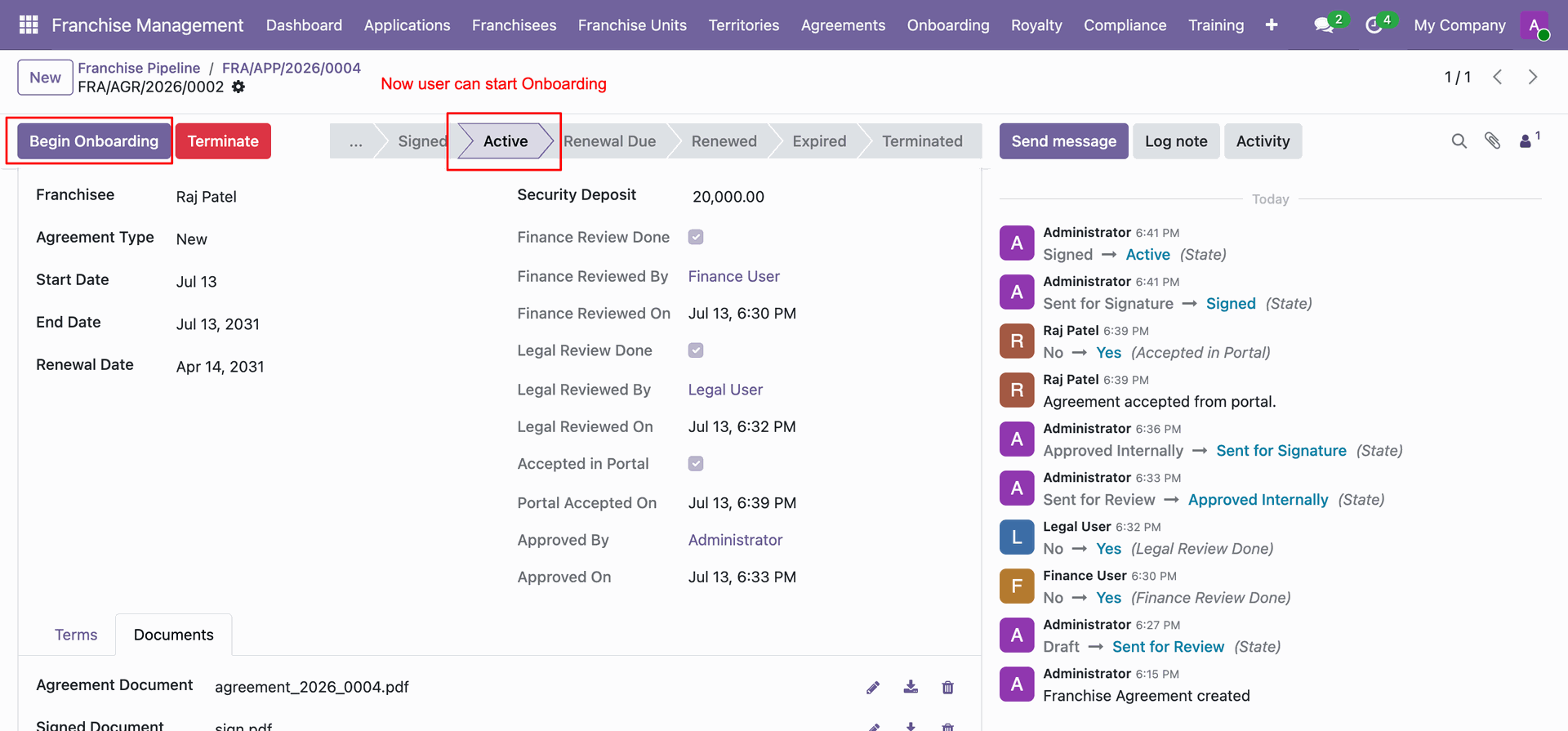
Click Begin Onboarding on active agreement to launch operational onboarding workflow.
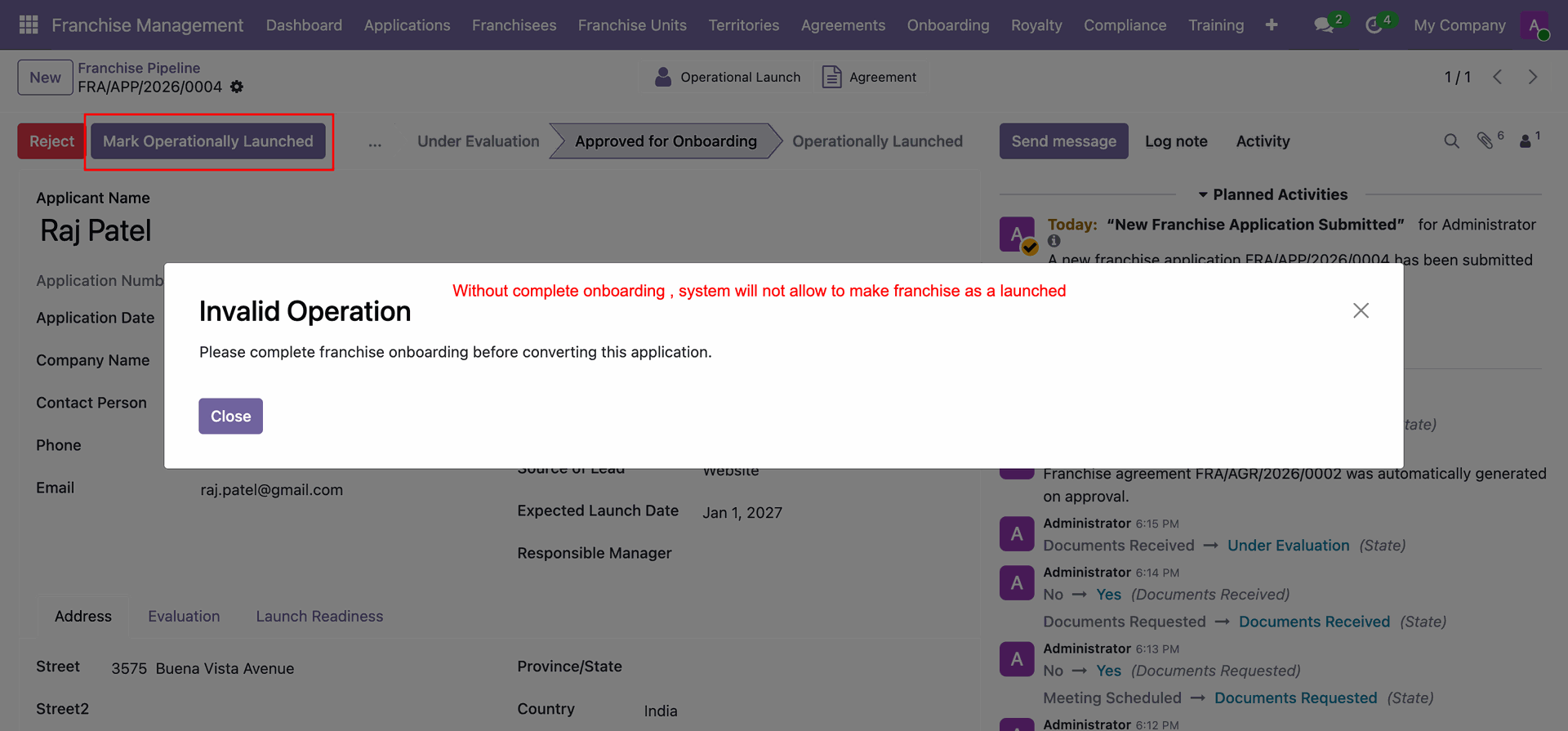
View validation error blocking launch conversion until all onboarding checklist activities are completed.
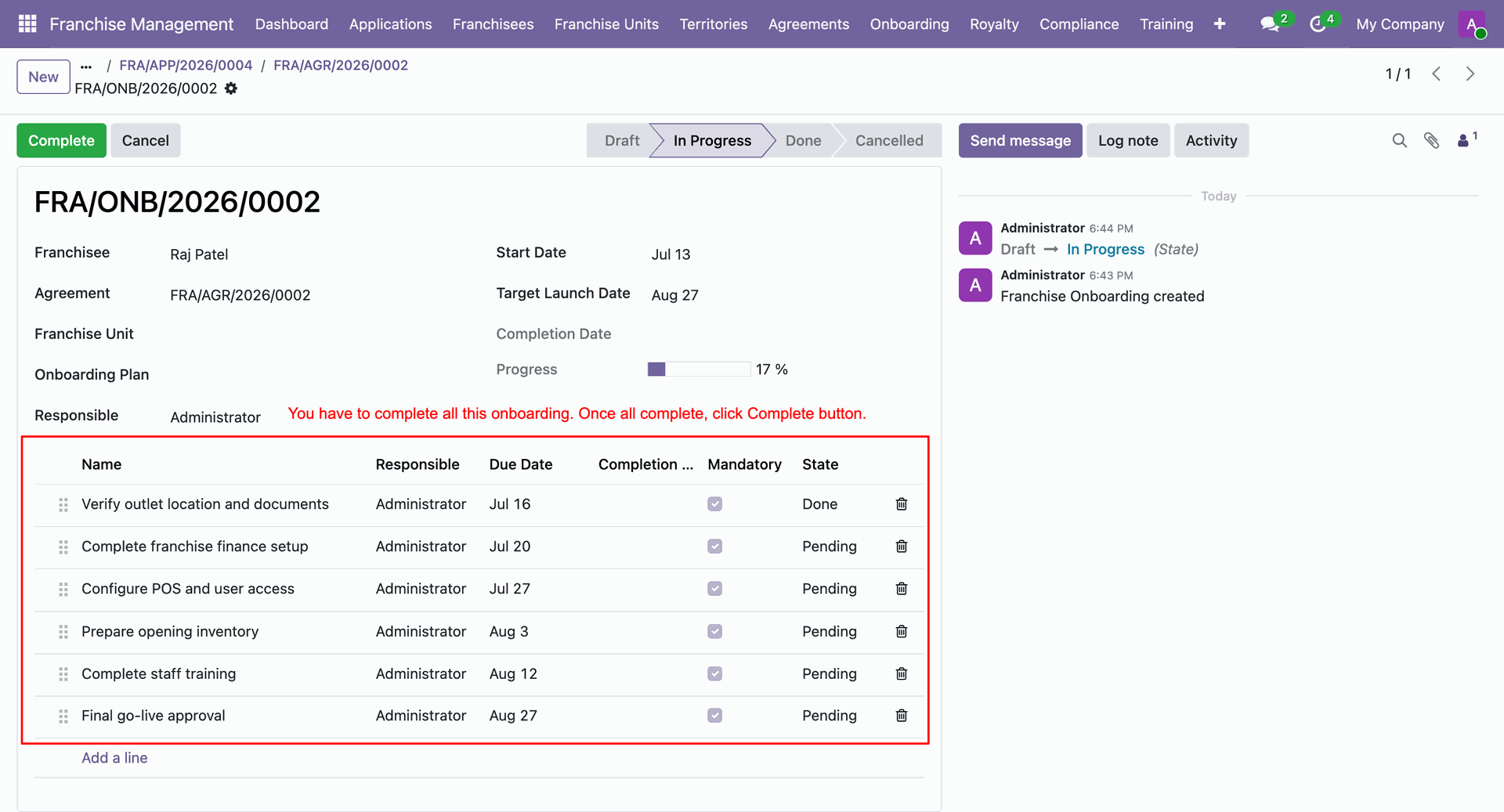
Complete each required onboarding checklist item assigned across operational setup stages.
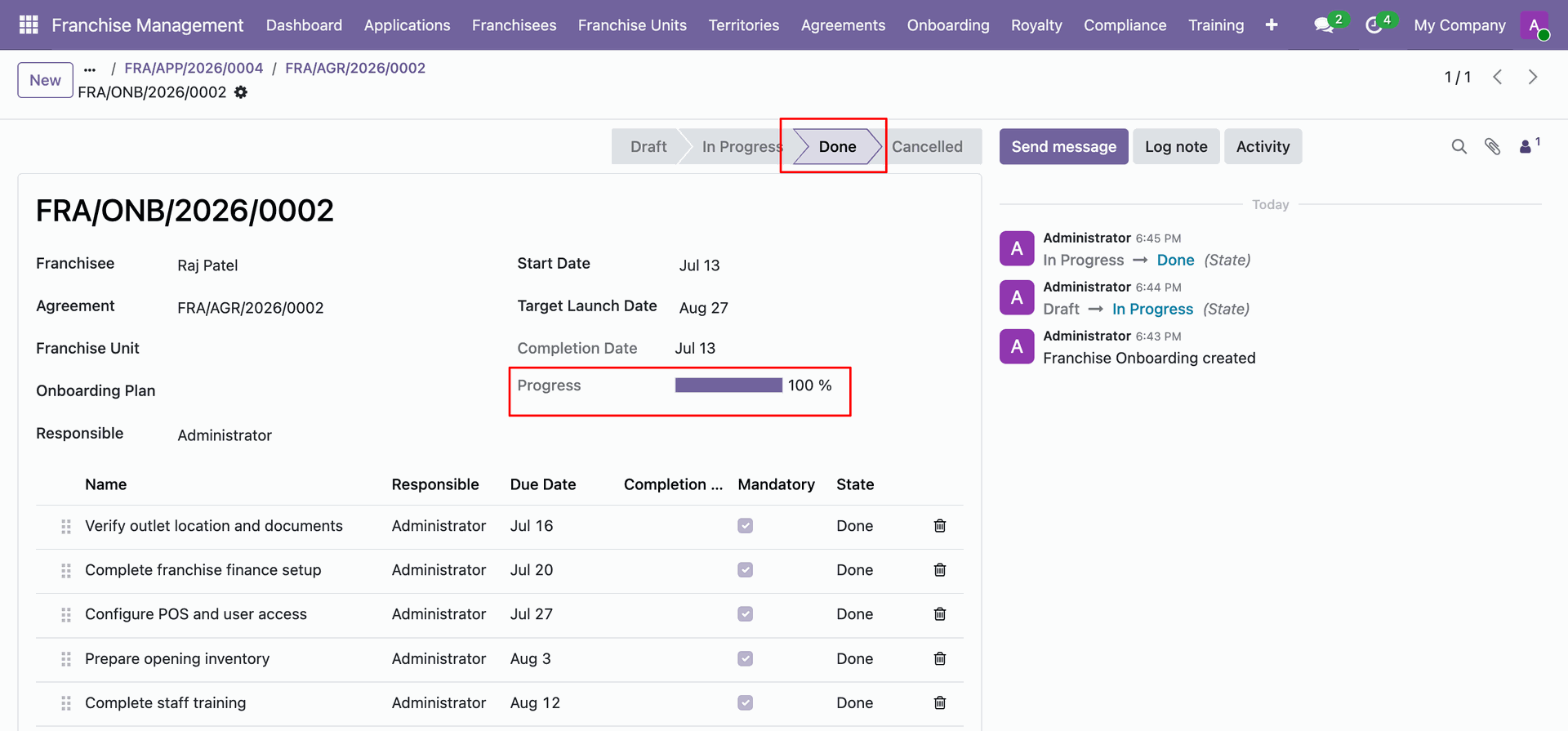
Monitor 100% completion progress bar once all onboarding checklist tasks are finalized.
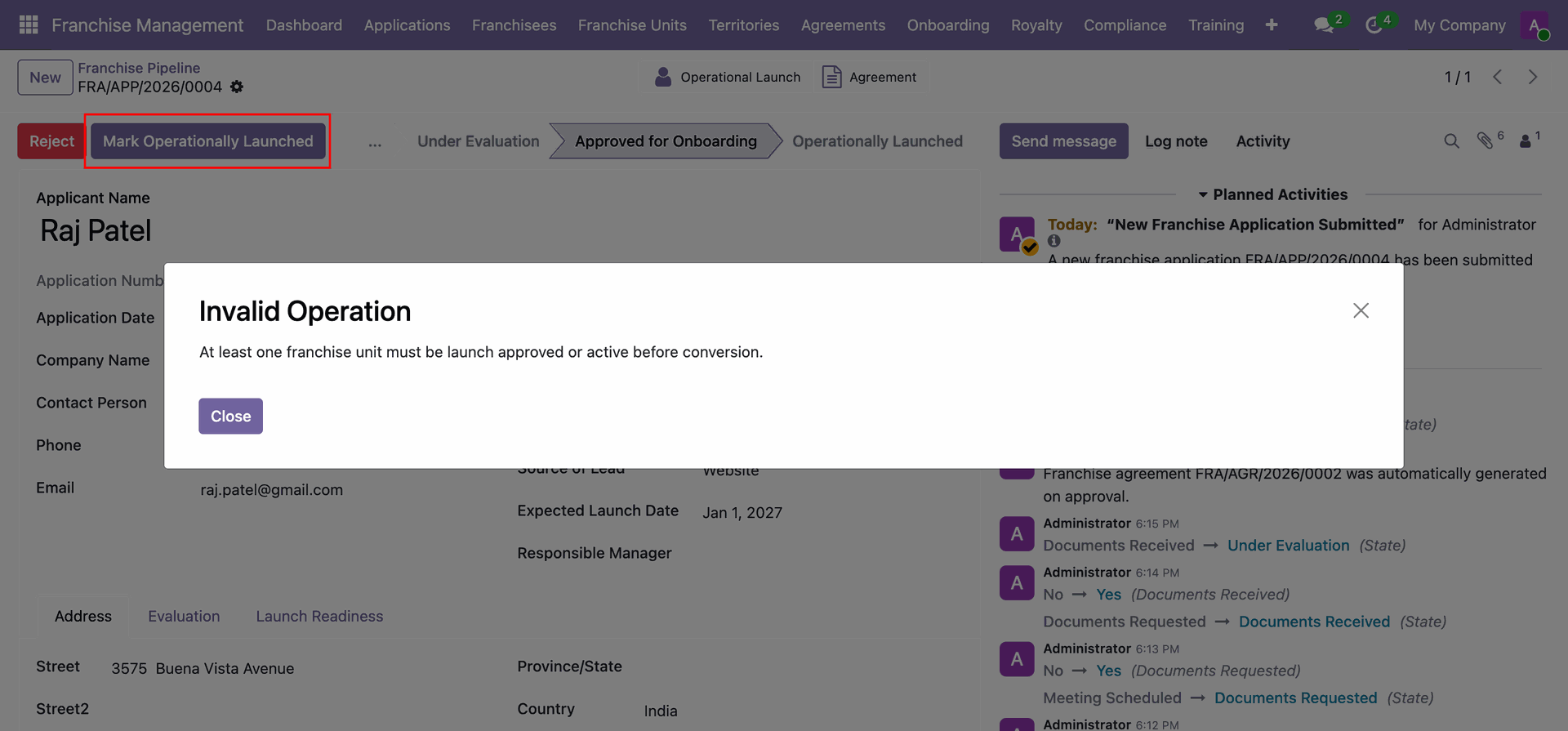
Review system alert requiring at least one approved franchise unit before marking launch complete.
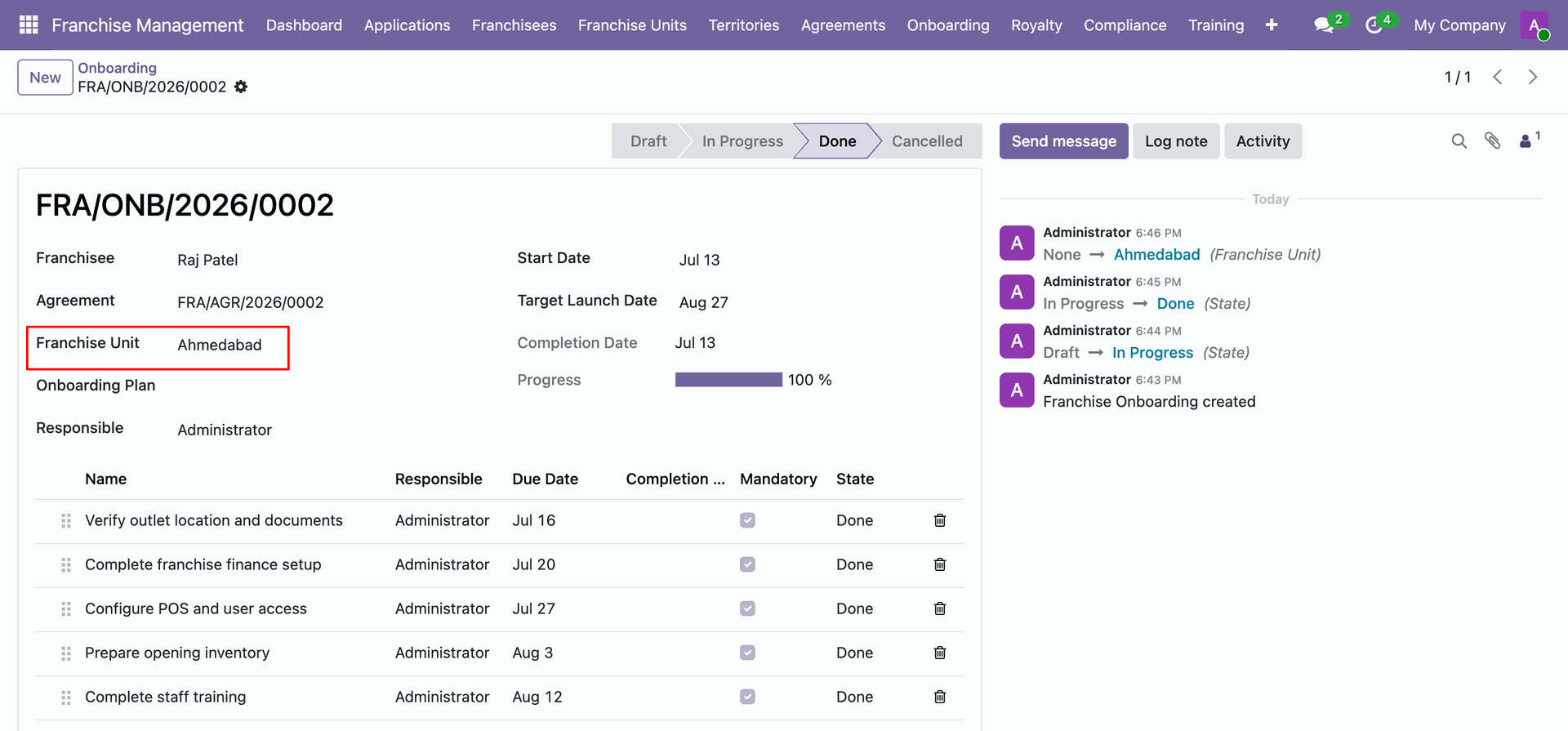
Click Franchise Unit field link to open newly created unit record.
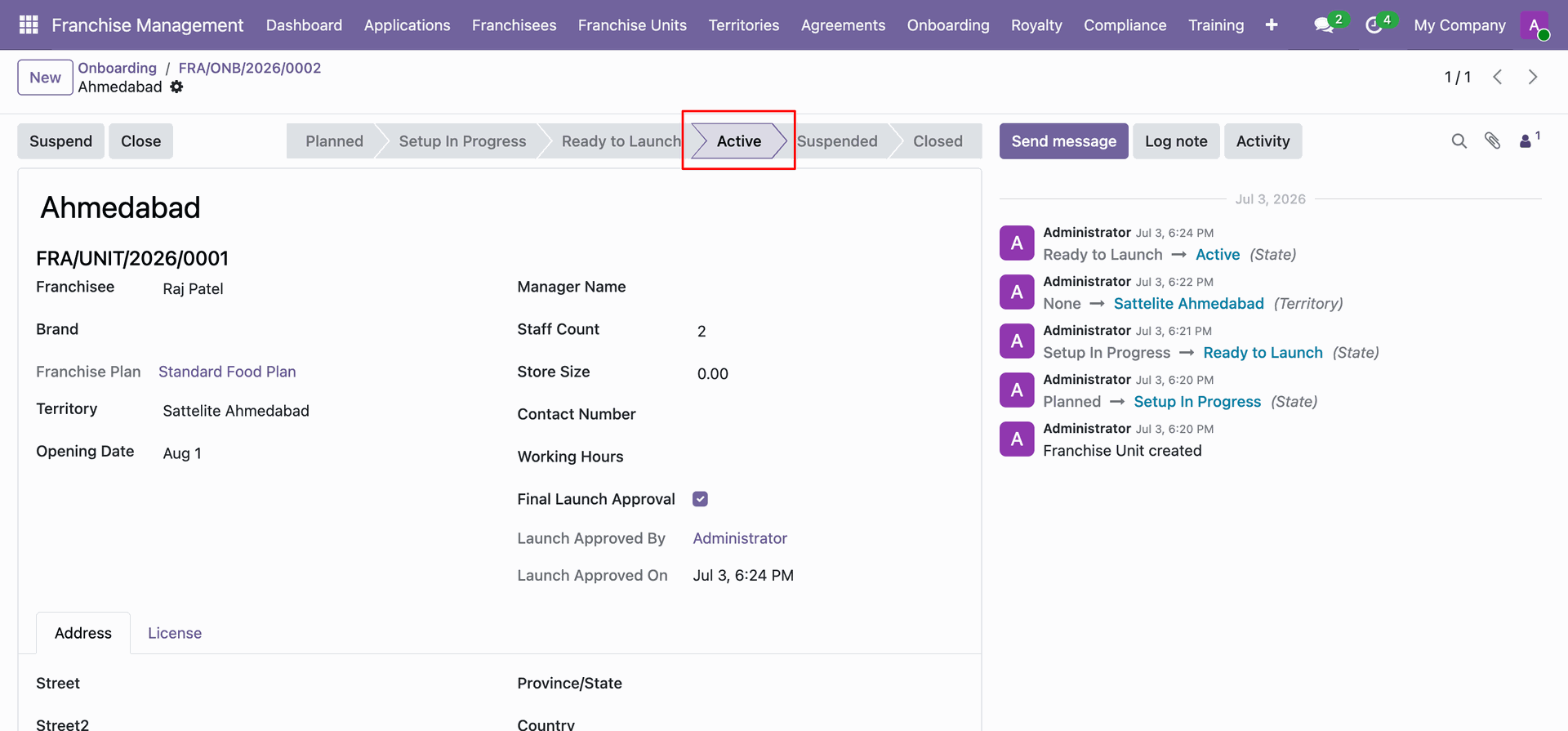
Confirm that franchise unit status has been successfully set to Active stage.
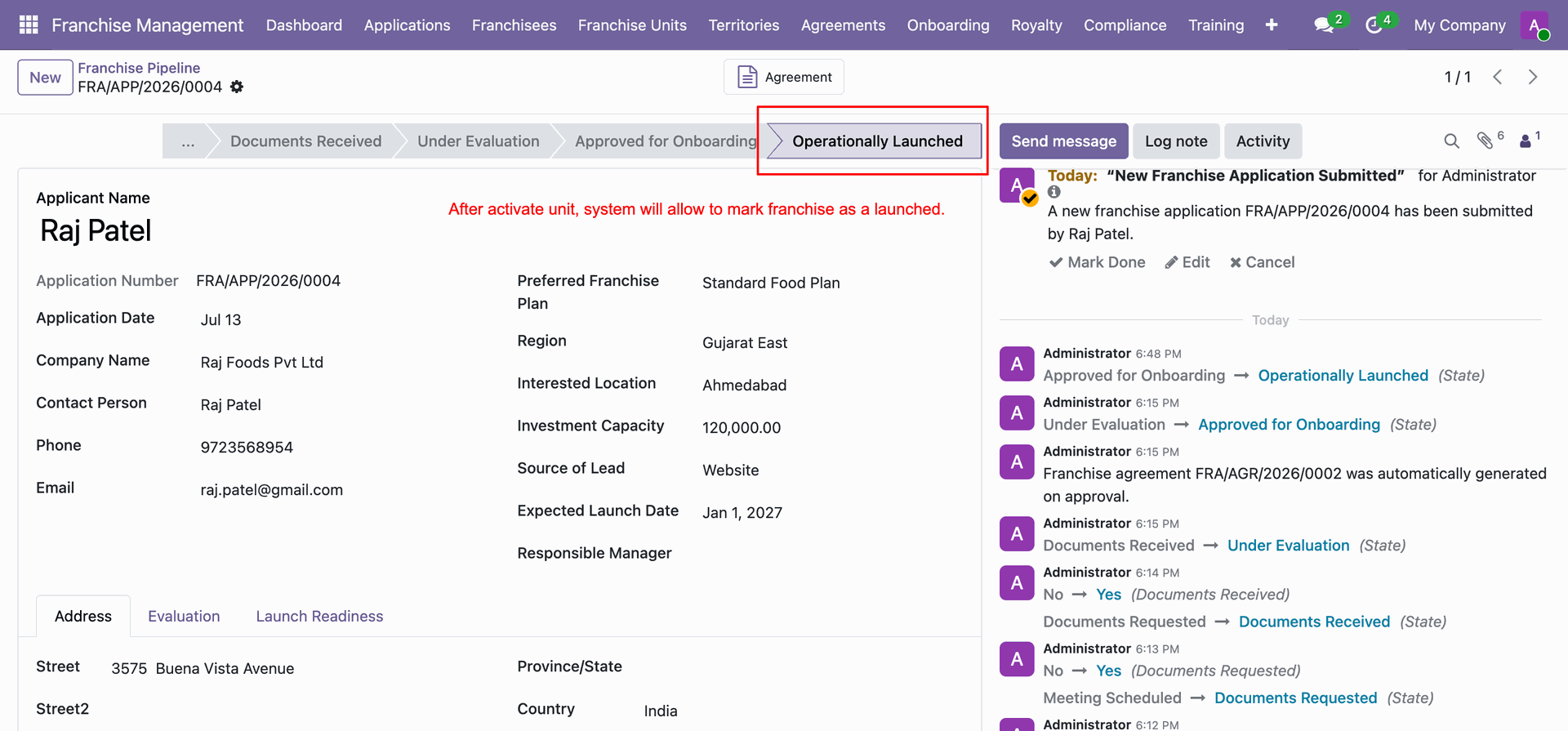
Verify application status updating to Operationally Launched after activating franchise unit.
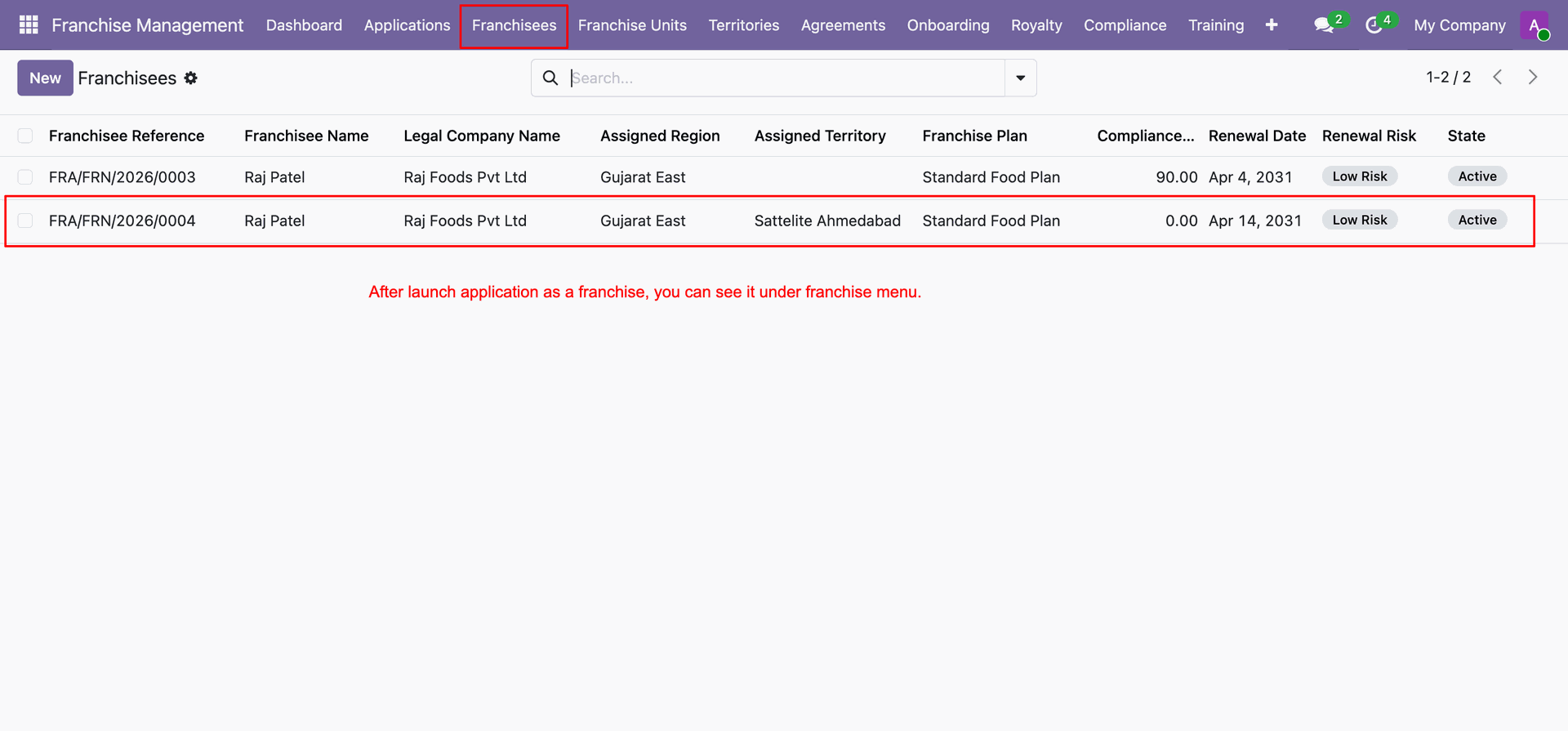
View newly converted active franchisee record listed under Franchisees main menu.
Workflow
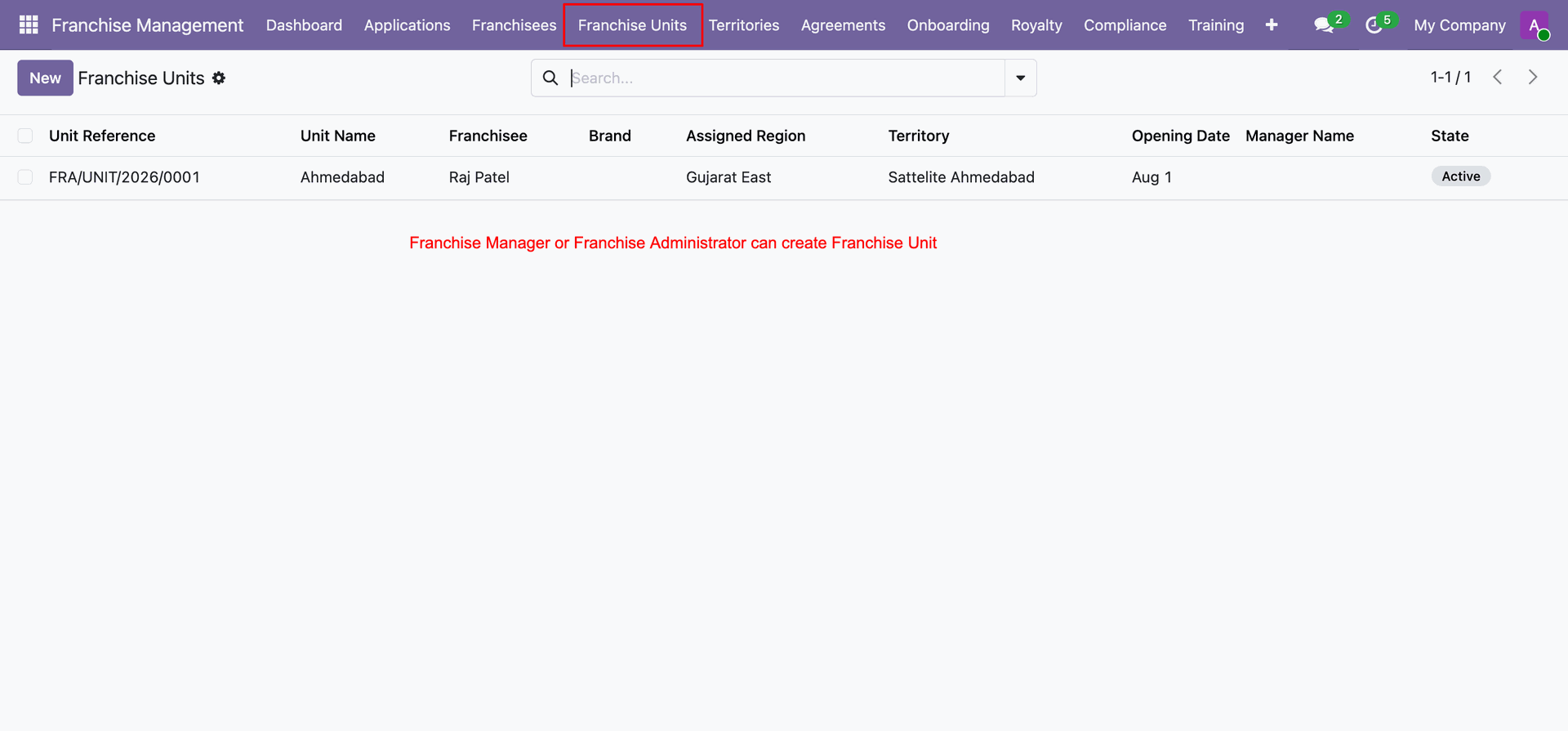
Click Franchise Units on the main navigation menu to manage store locations.
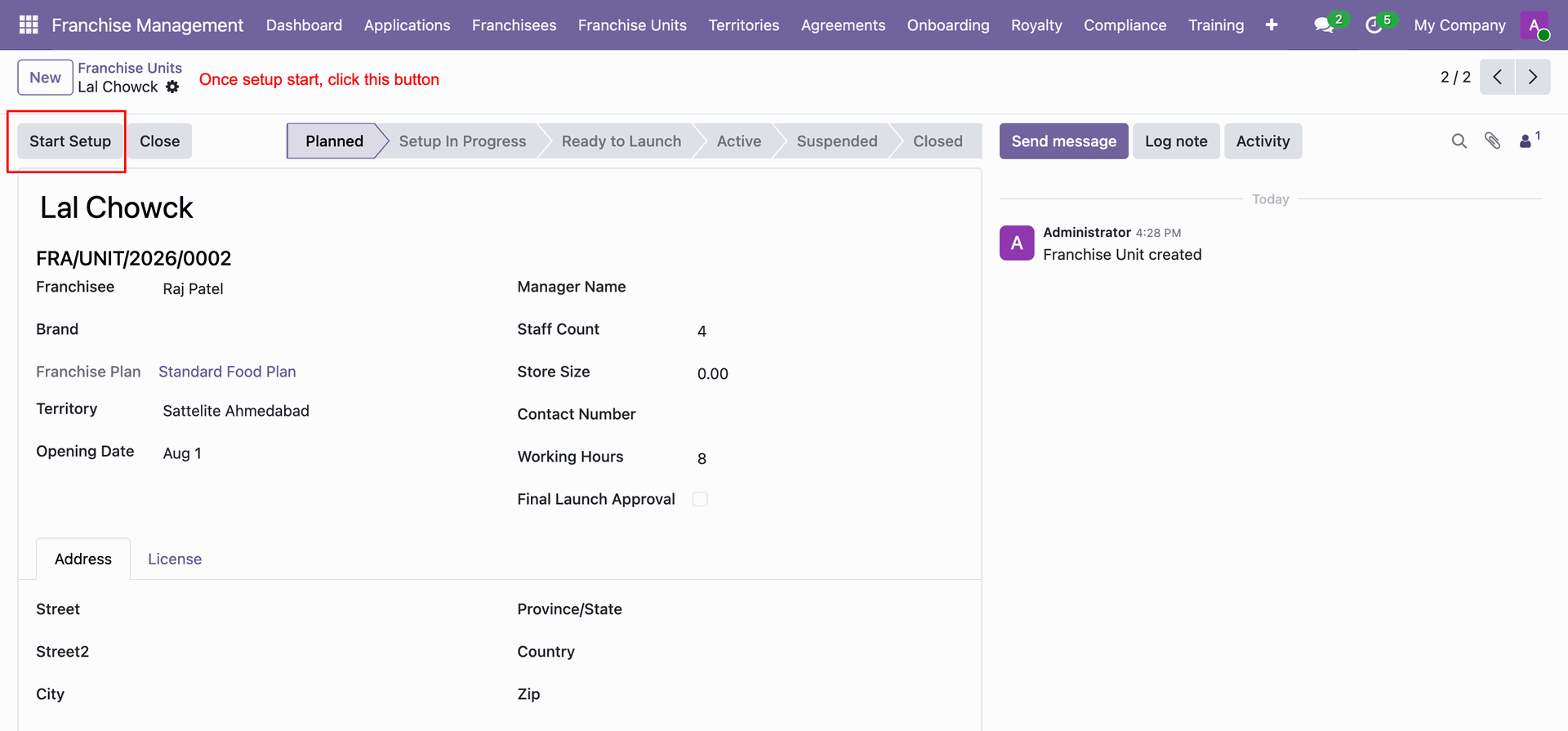
Click Start Setup on a planned unit record to initiate location preparation.
Click Ready to Launch button once unit setup tasks are fully completed.
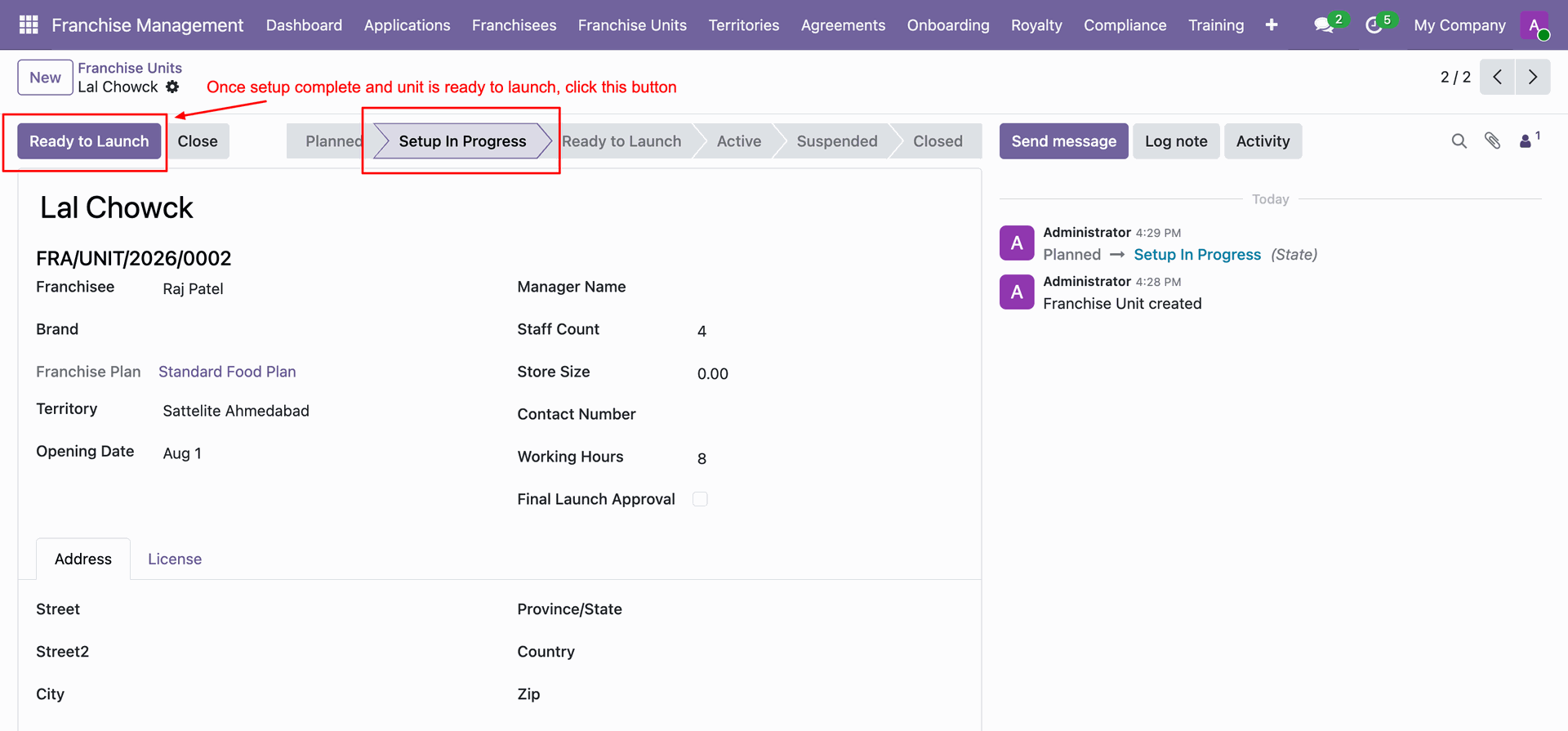
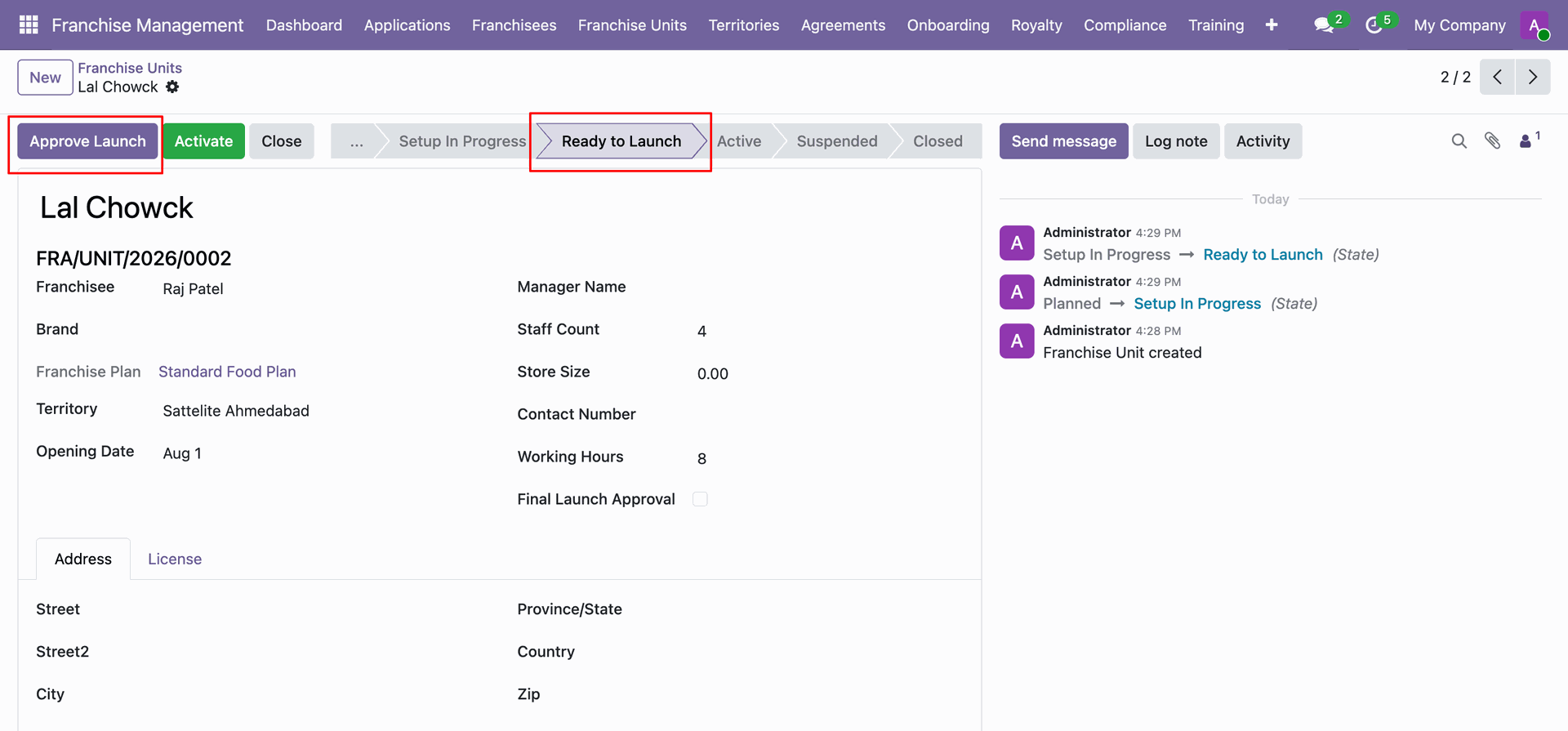
Click Approve Launch button after audit and onboarding completion to authorize opening.
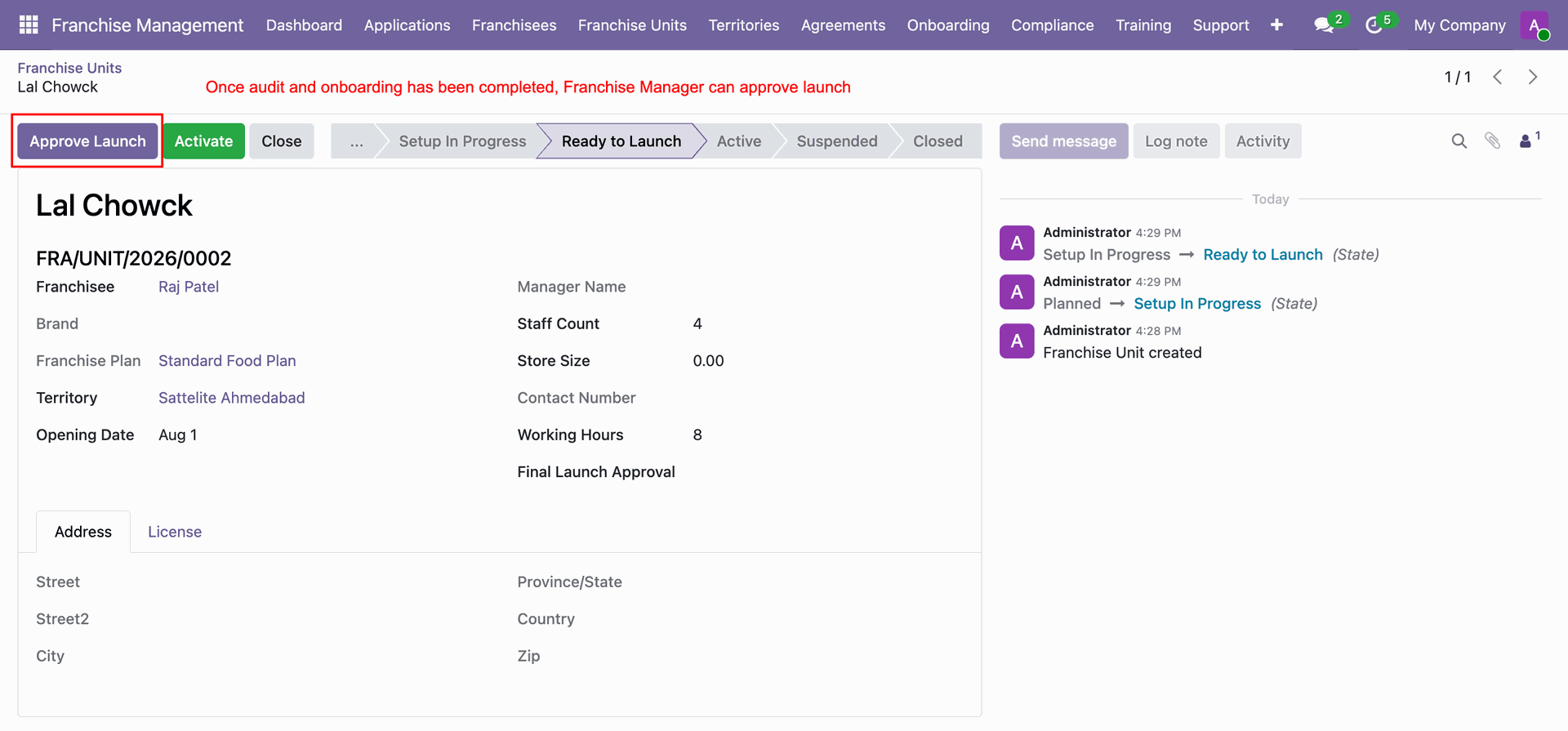
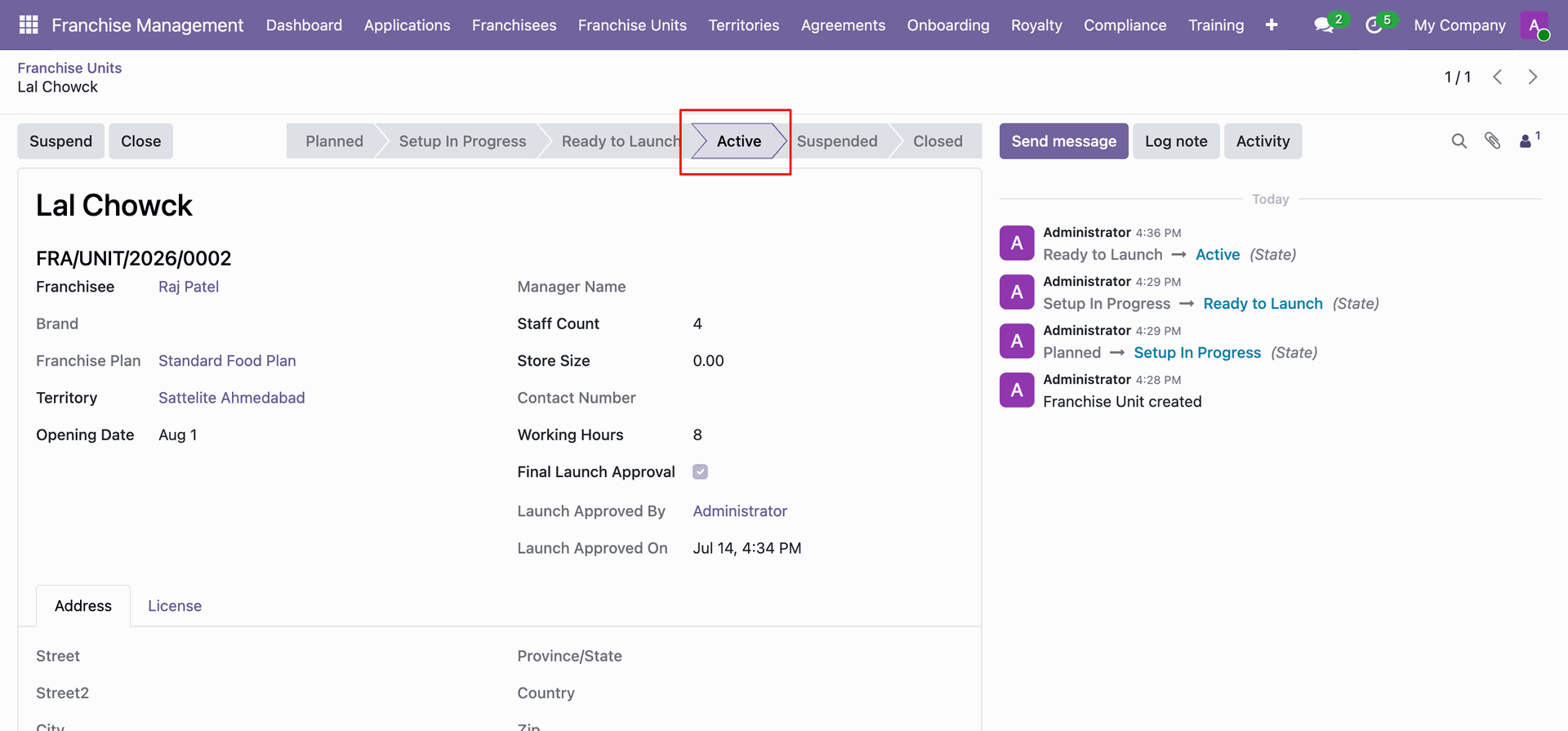
Click Activate button following launch approval to set store status to Active.
Verify that the franchise unit status has successfully updated to Active stage.
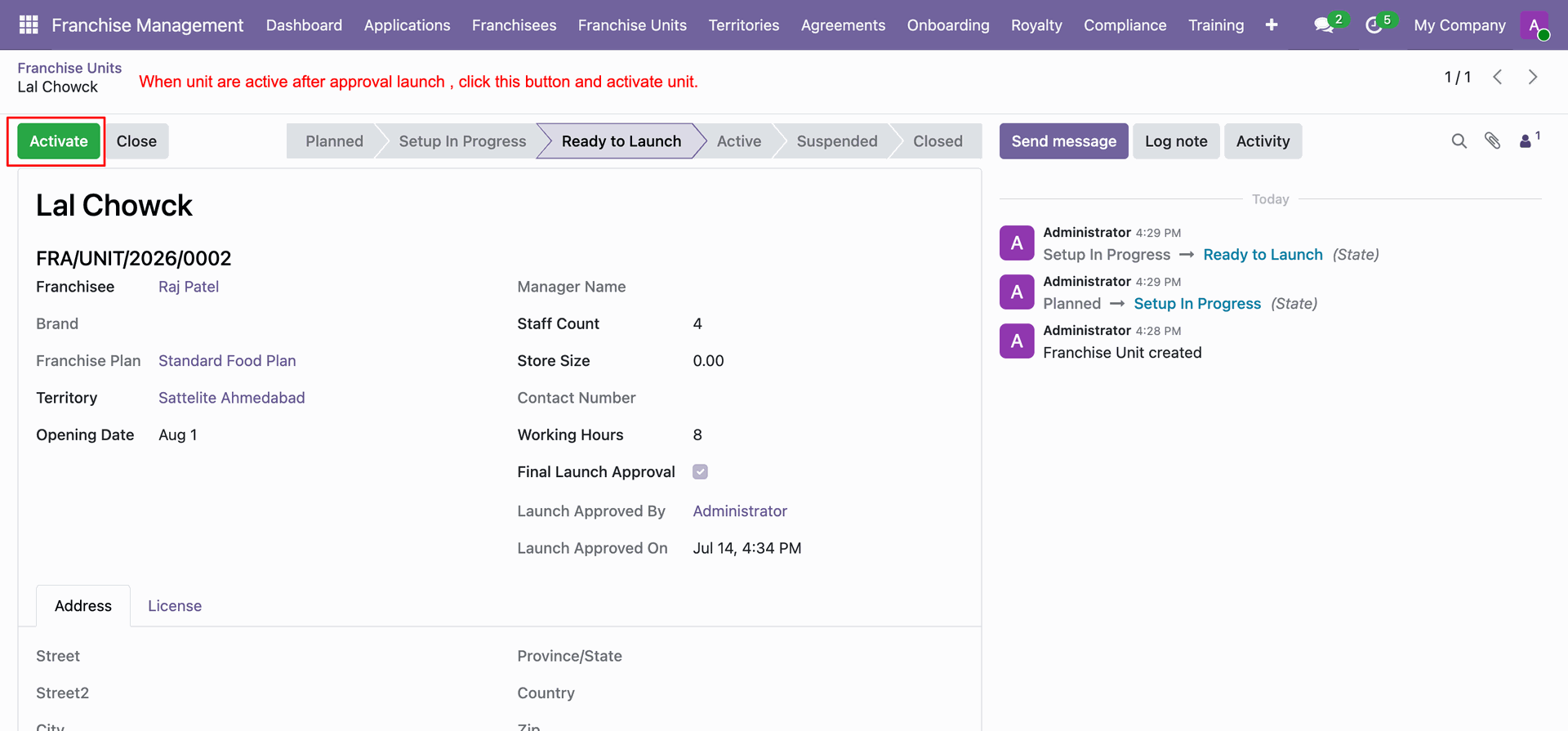
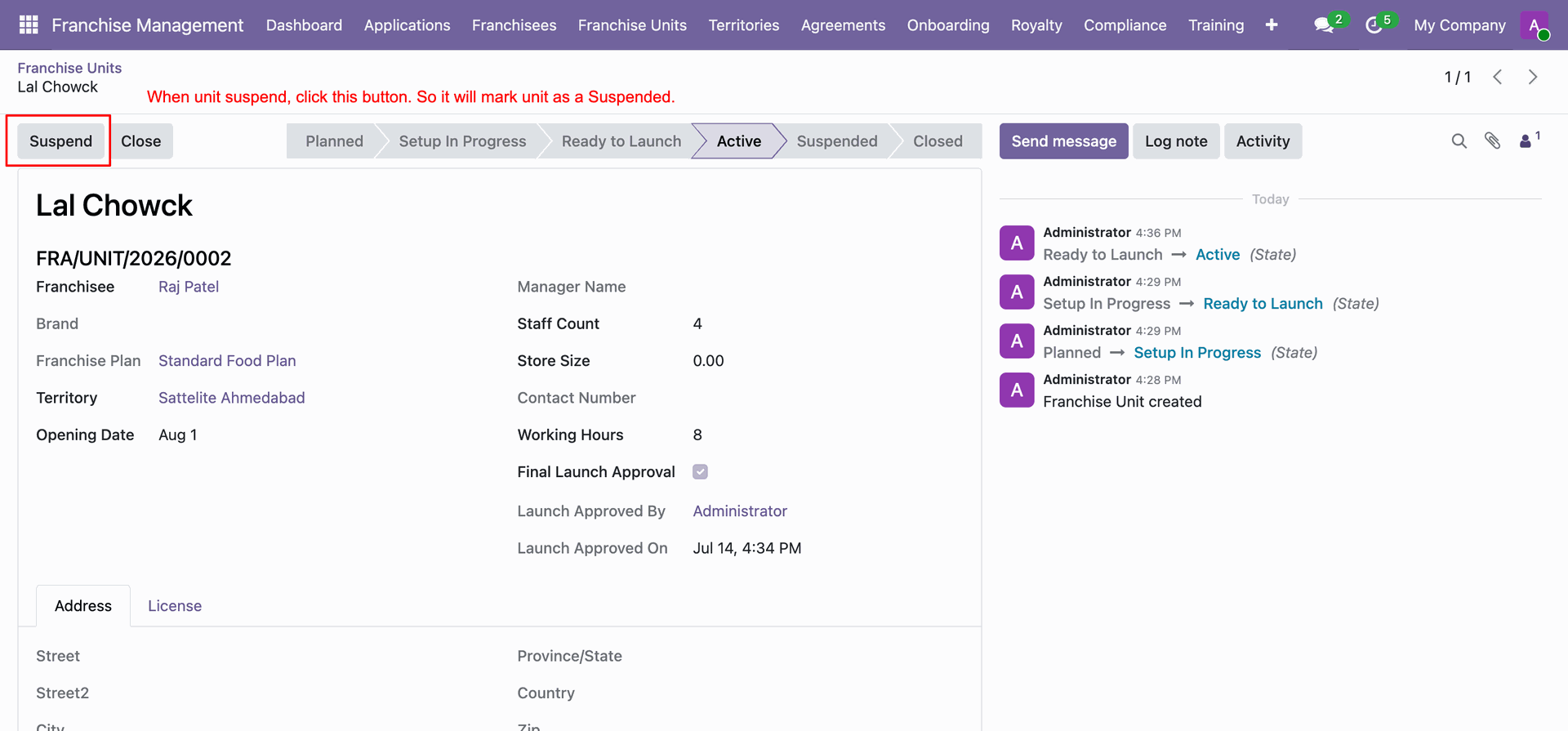
Click Suspend button to halt store operations and change status to Suspended.
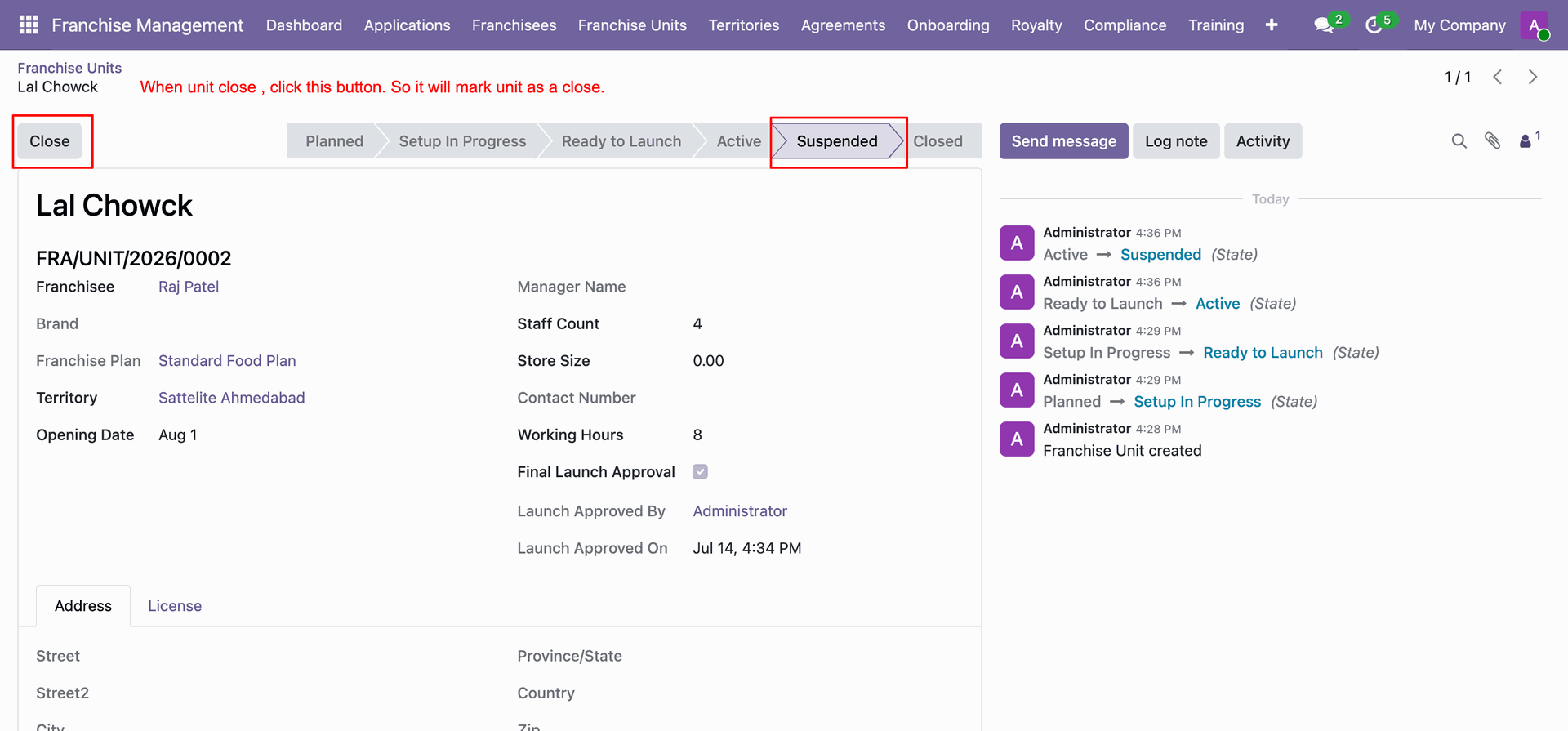
Click Close button on a suspended unit record to finalize store shutdown.
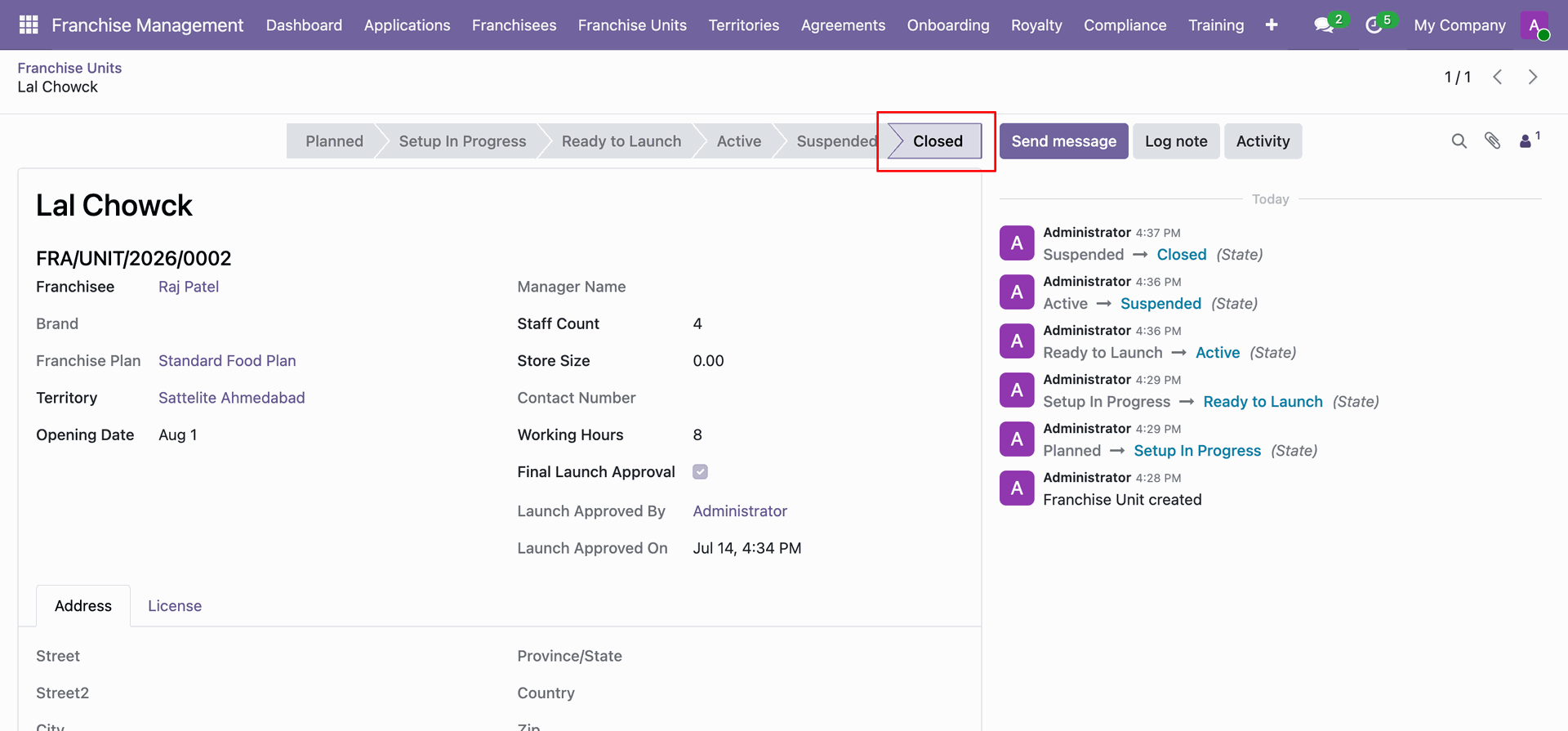
Confirm franchise unit status transition to Closed after complete operational shutdown.
Review the updated closed unit record displaying final state history in chatter.
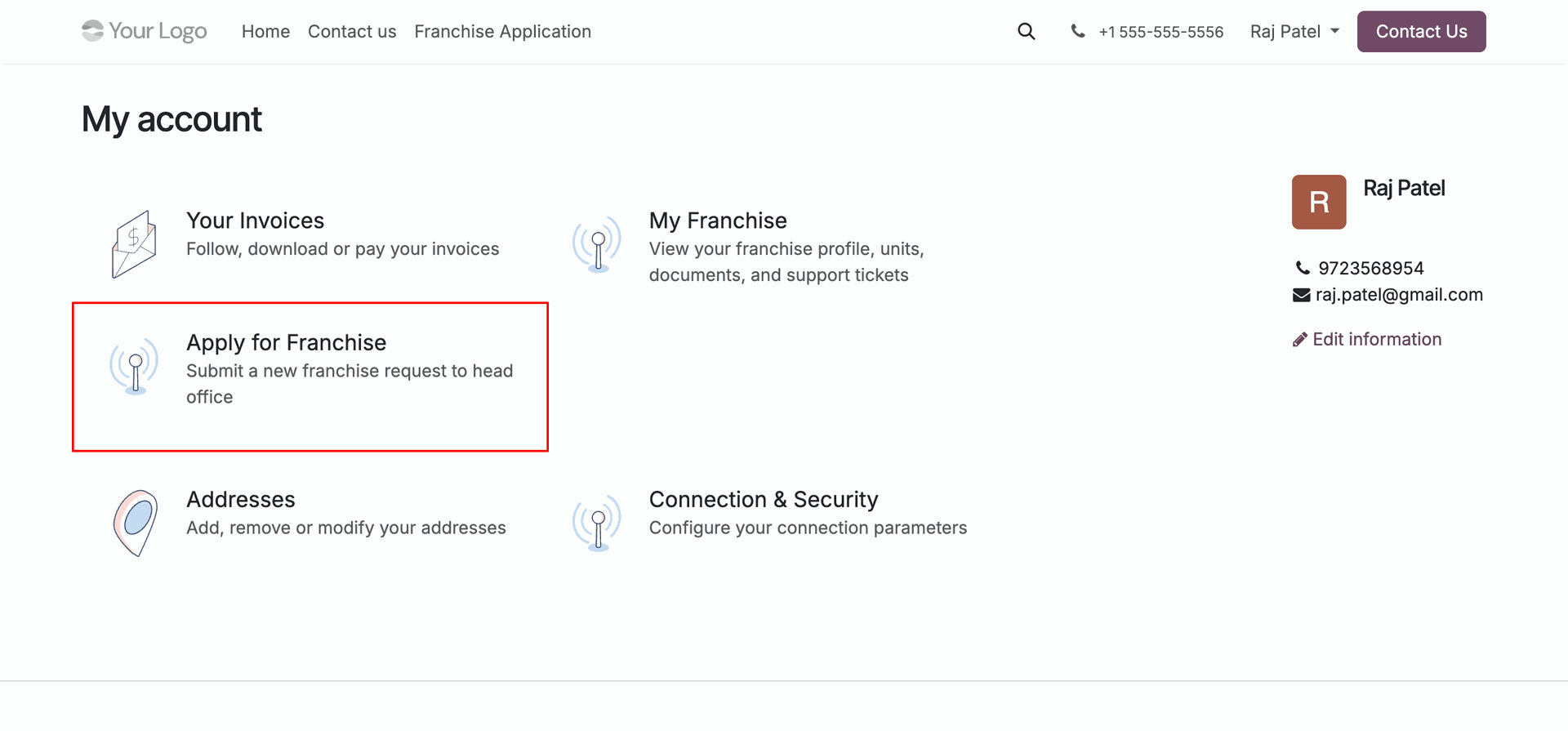
Access the public website portal where prospective partners can apply for a franchise.
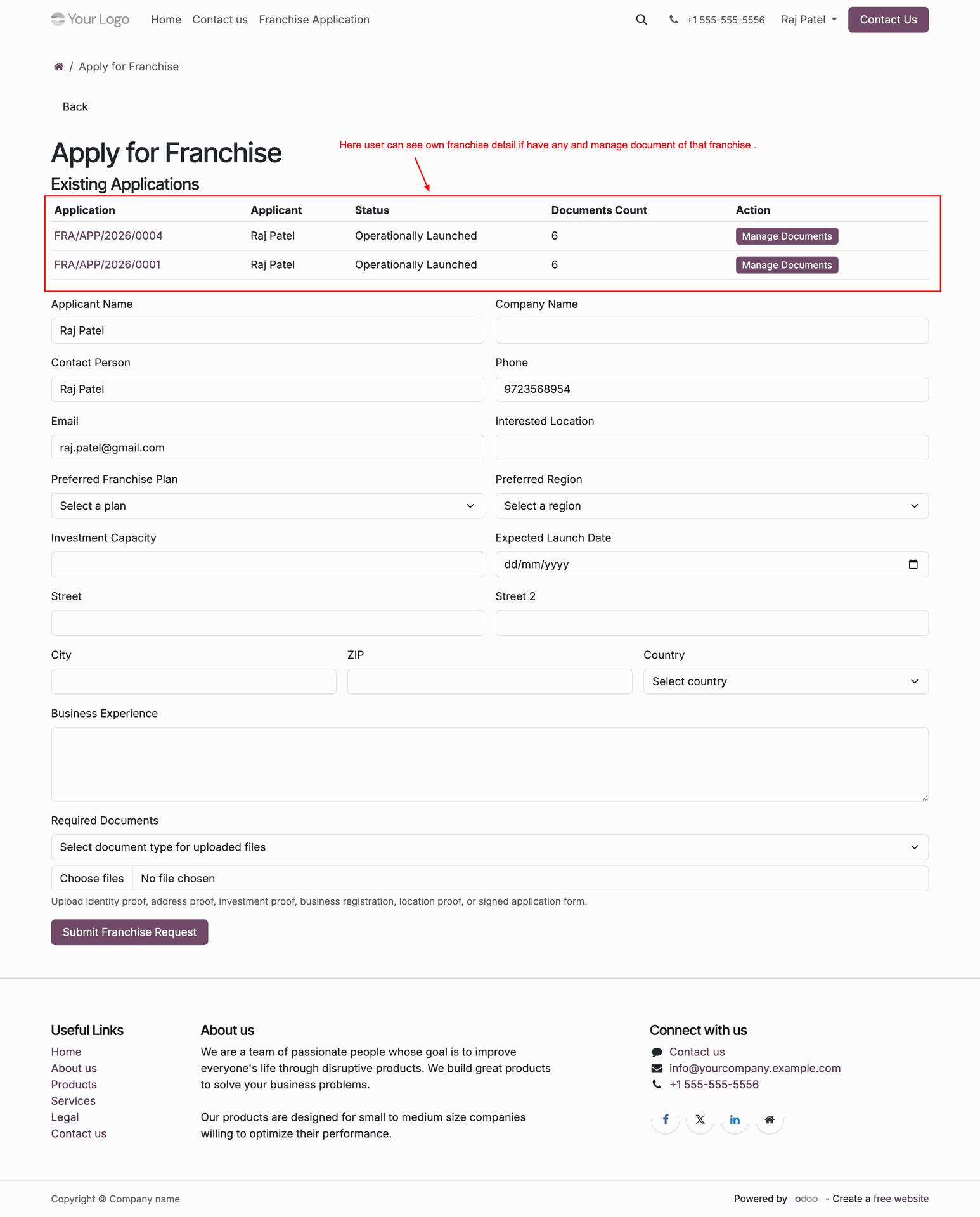
Fill out prospective applicant details, contact info, experience, and proposed store location online.
Receive instant application submission confirmation with a unique tracking reference number.
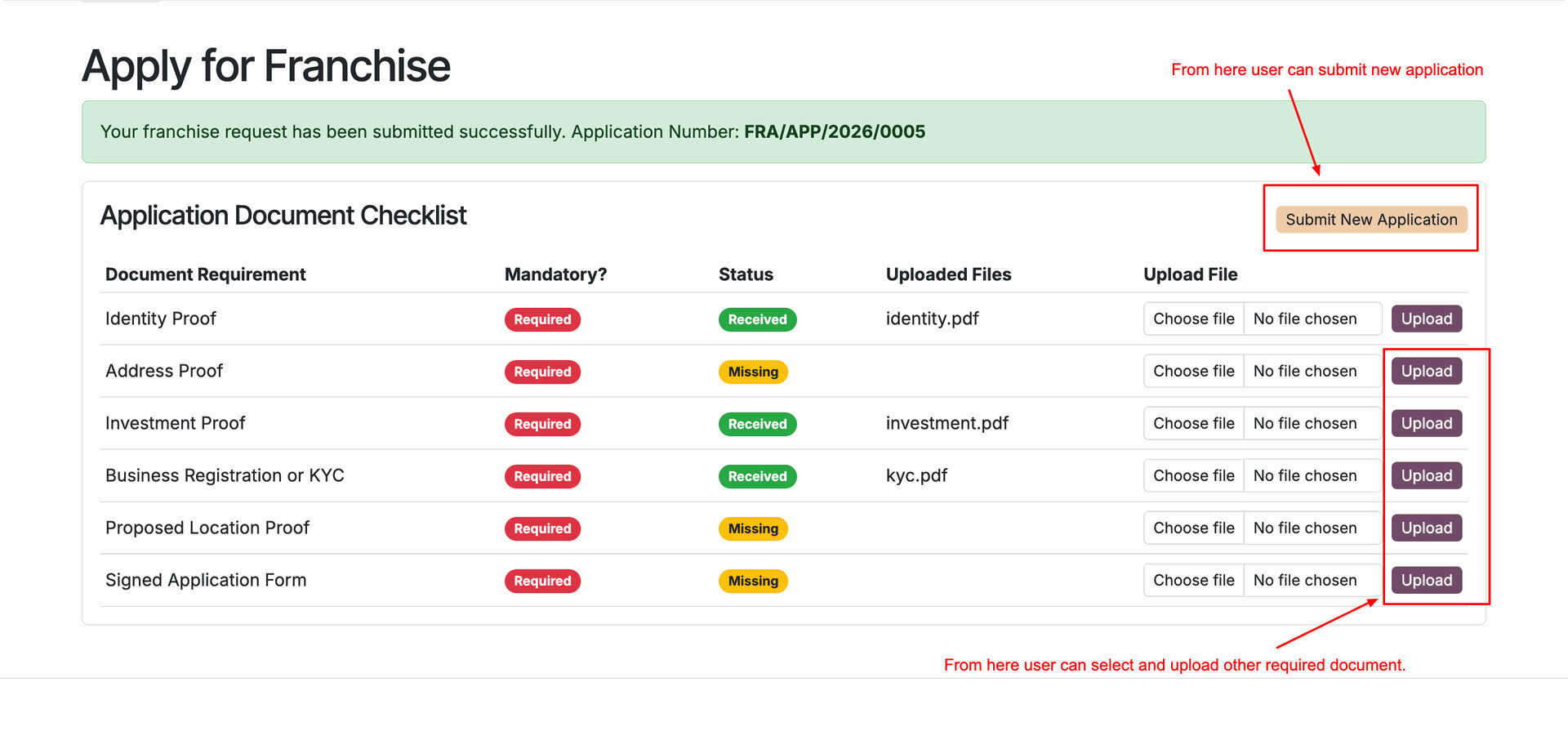
Applicants can log into their customer portal to track application status and review communications.
Workflow
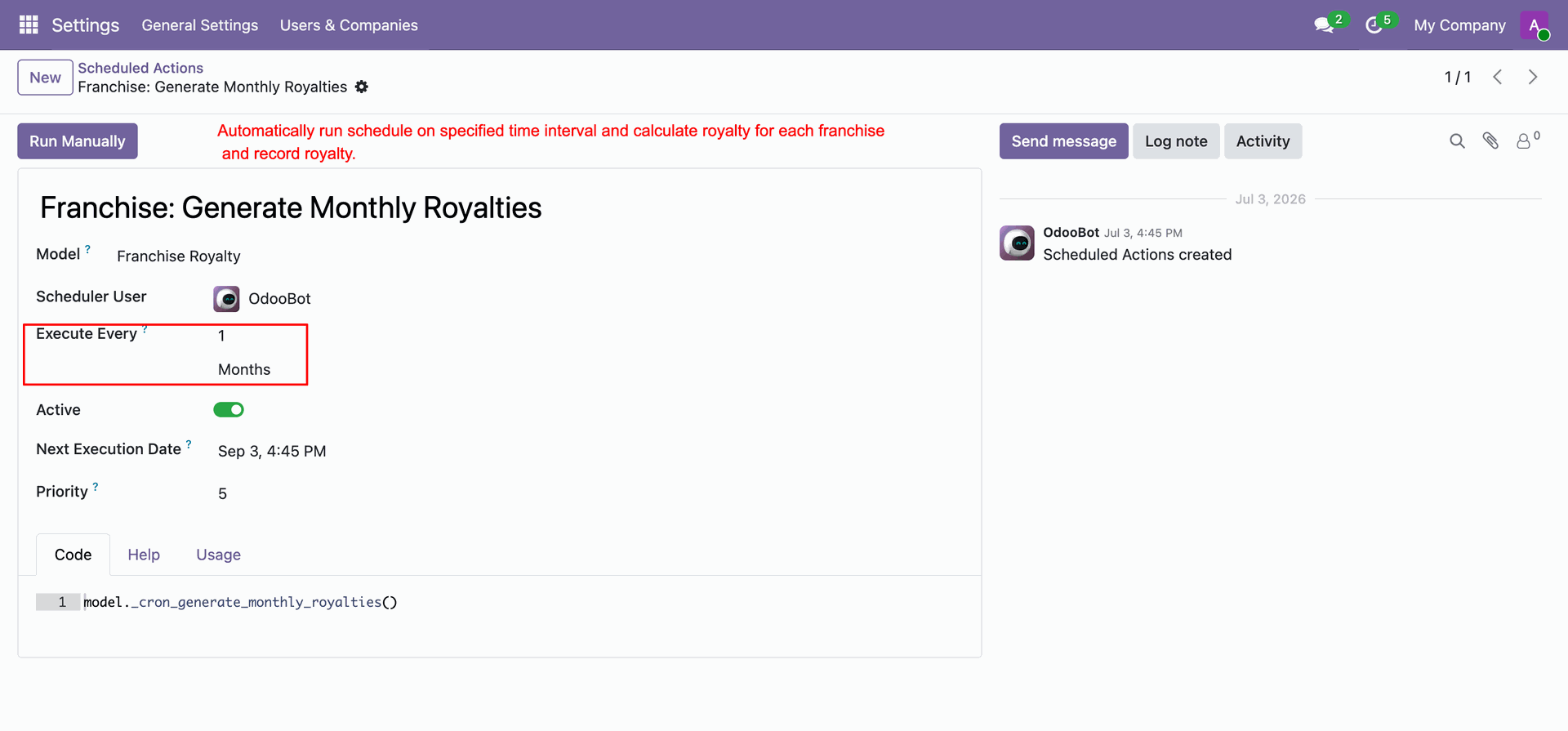
Configure scheduled action to automatically generate monthly royalty records for franchise units.
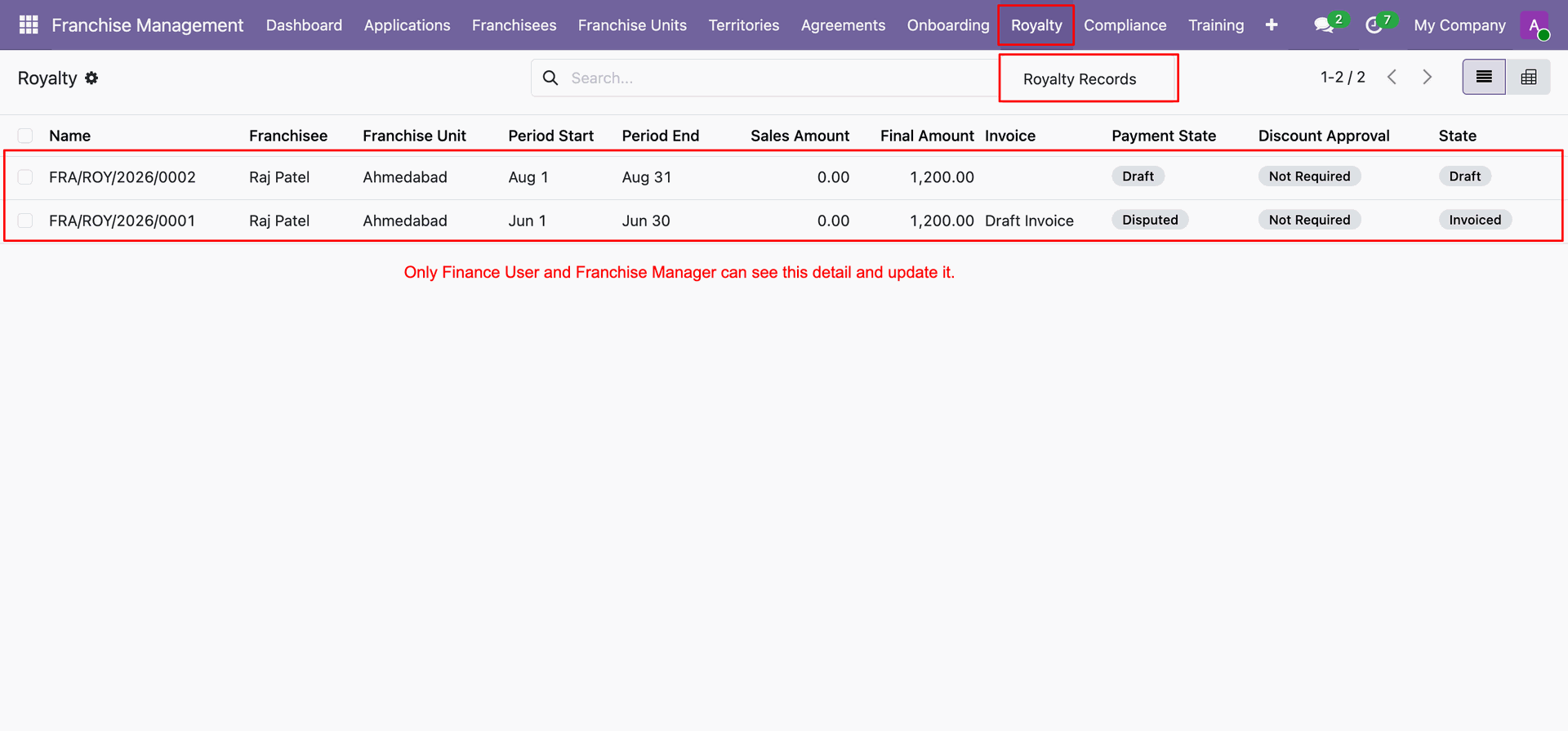
View generated royalty records list displaying franchise unit period dates and amounts.
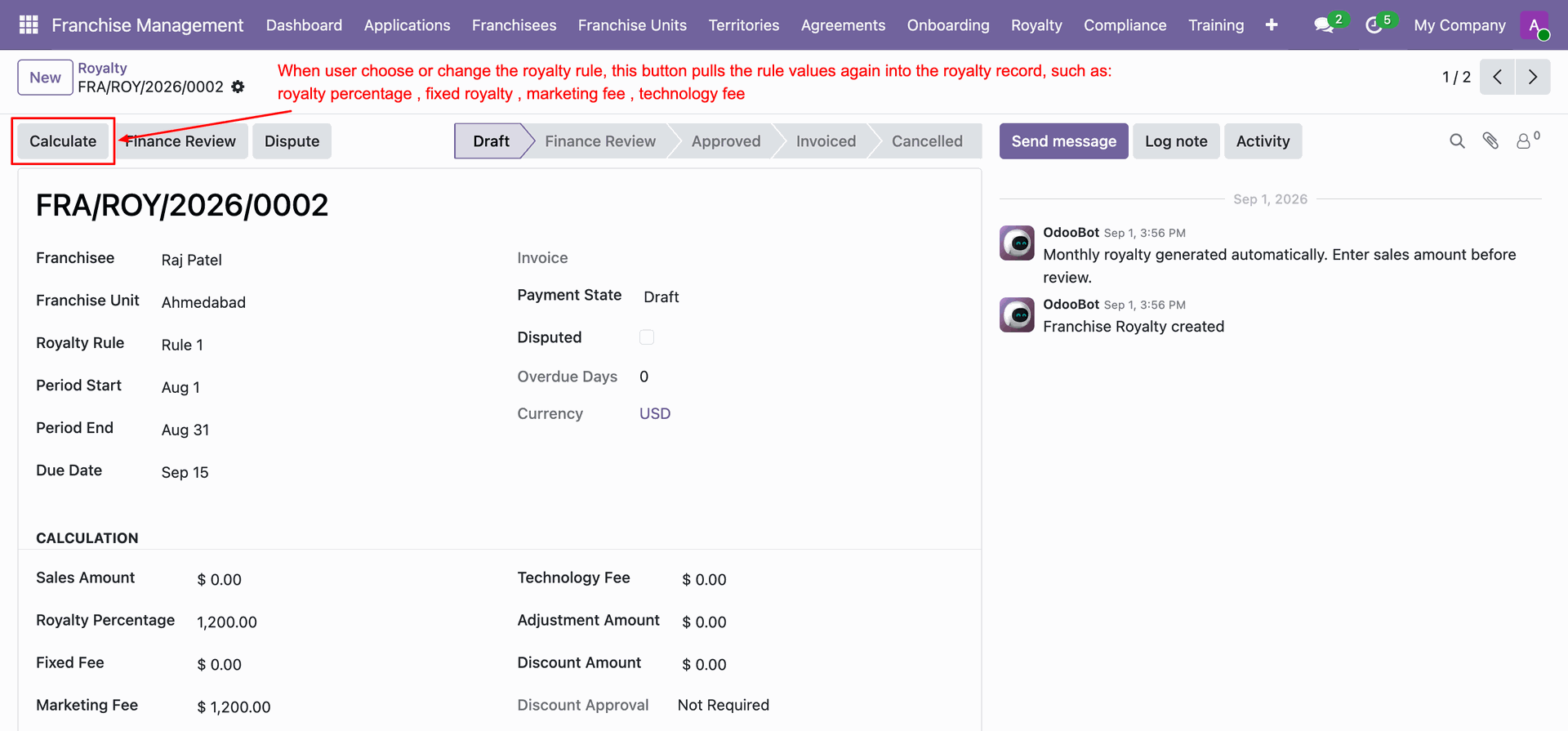
Click Calculate button to pull and apply updated royalty rule rates to record.
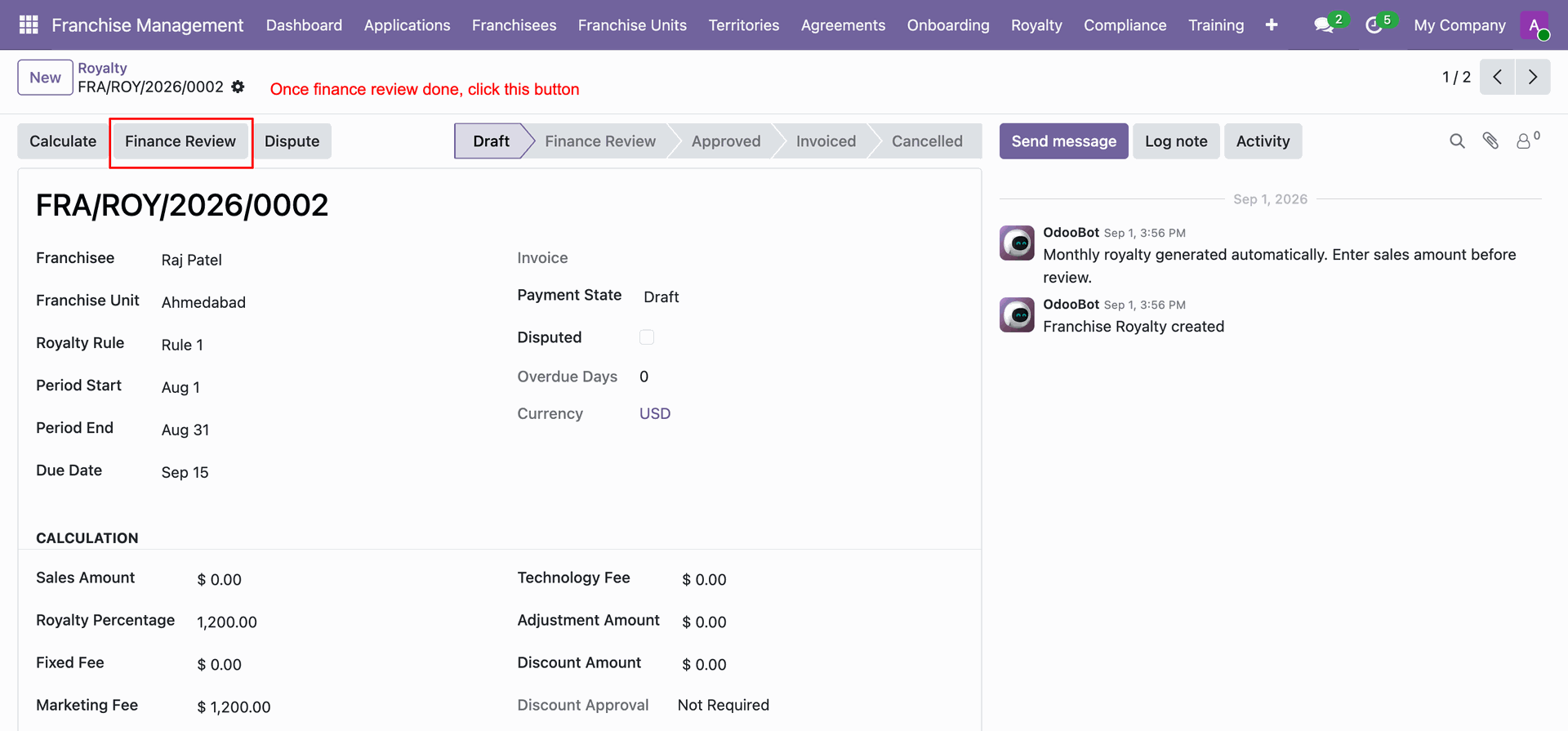
Click Finance Review button to submit the calculated royalty record for review.
Click Approve button after reviewing royalty calculations to confirm the payment details.
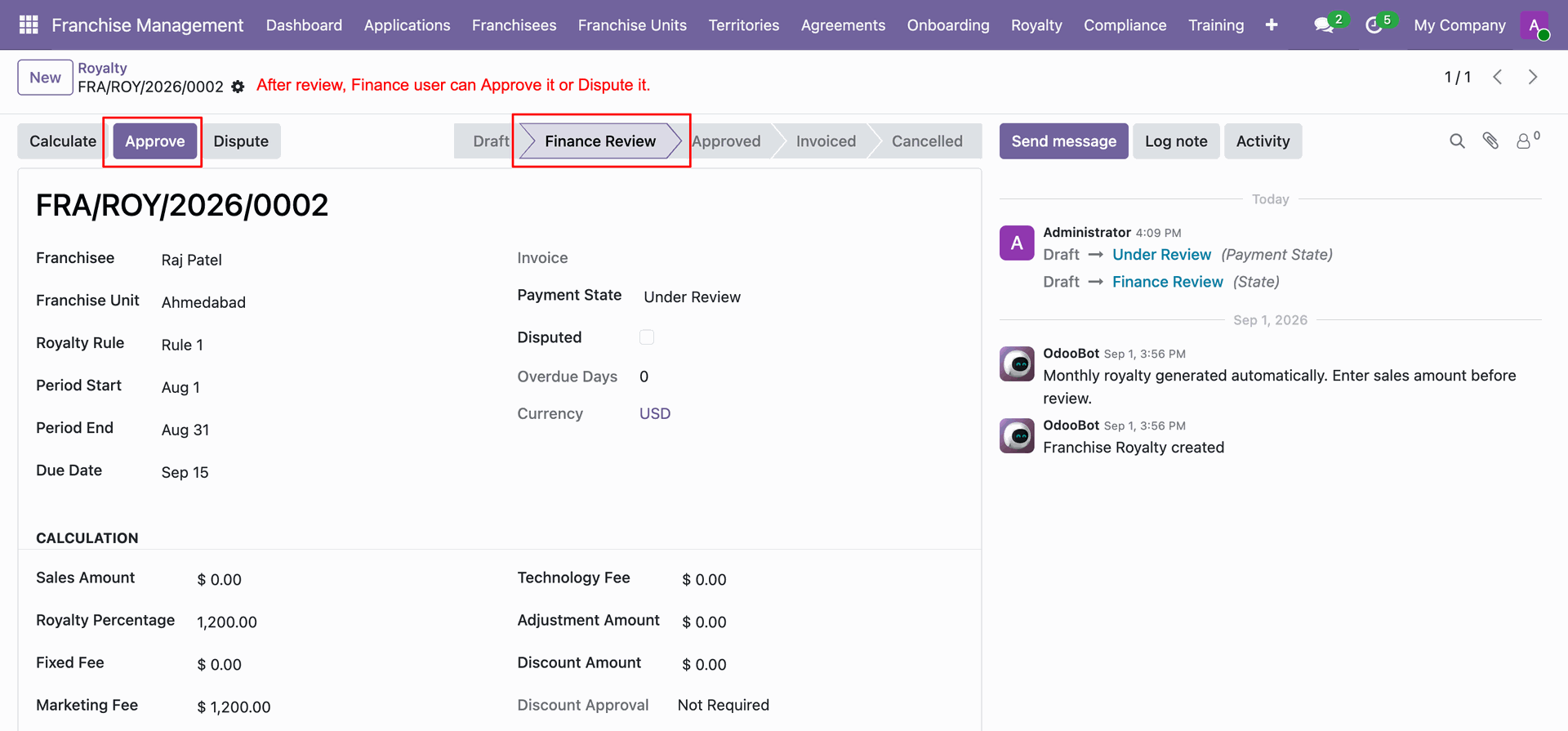
Click Create Invoice button on an approved royalty record to generate customer invoice.
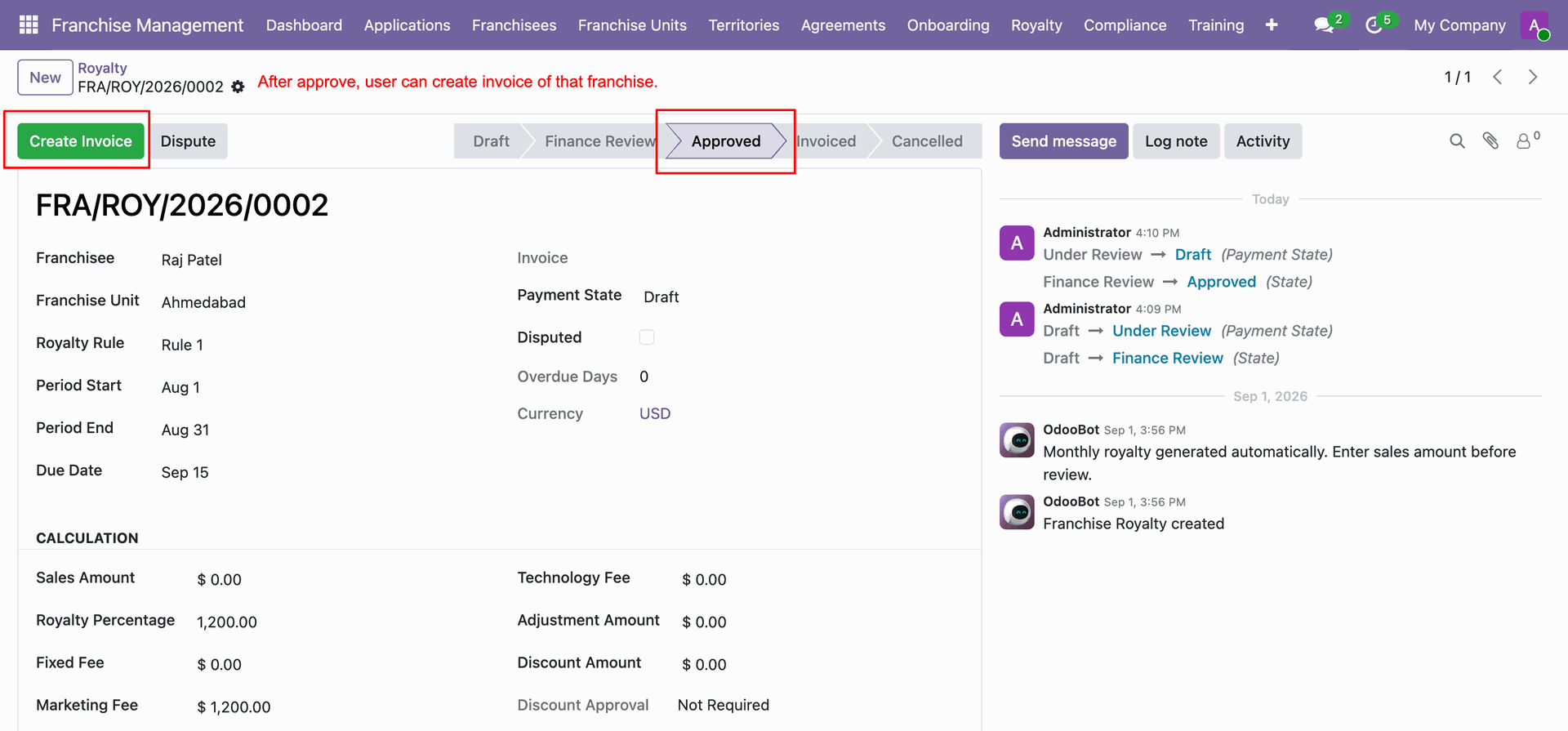
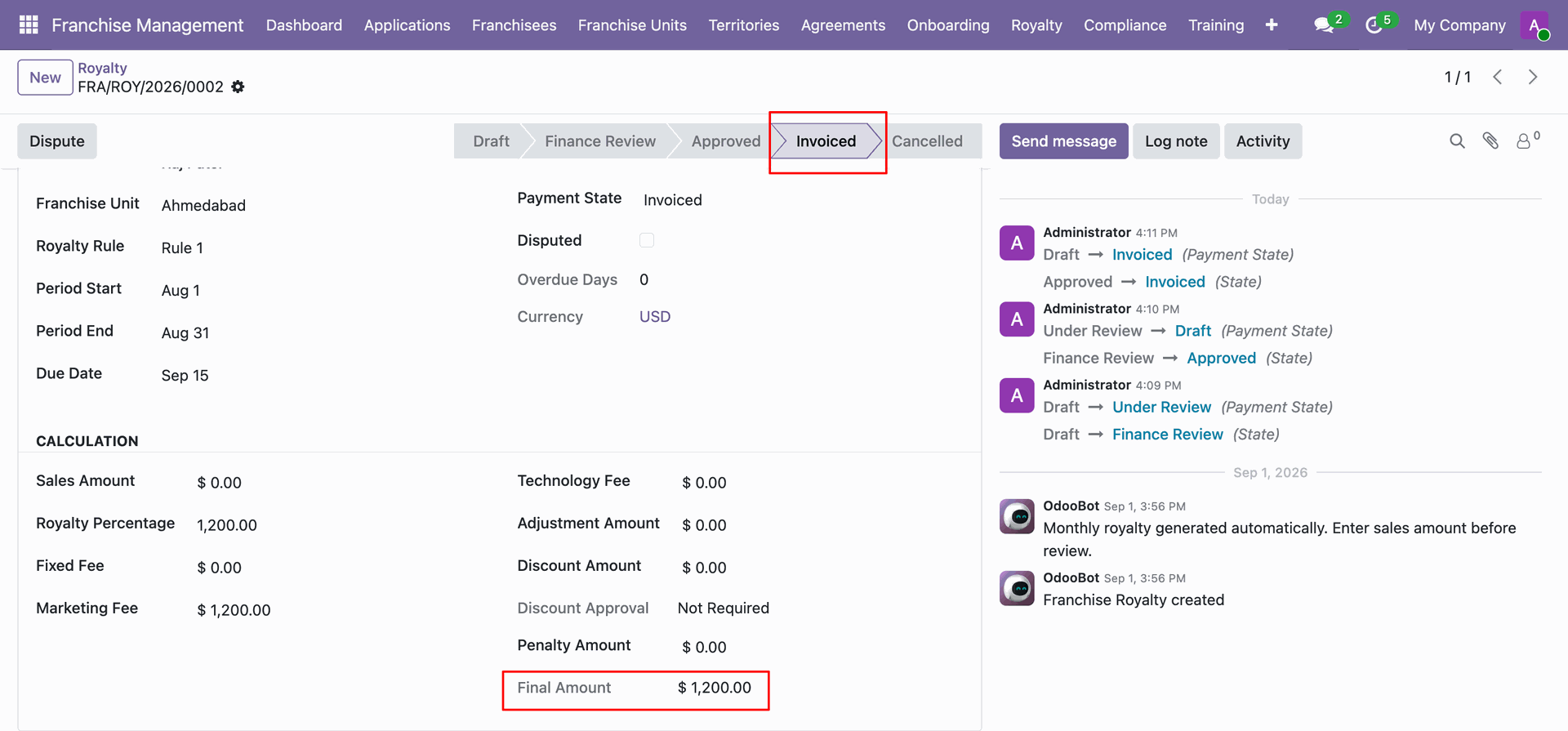
Verify that the royalty record status changes to Invoiced with final calculated amount.
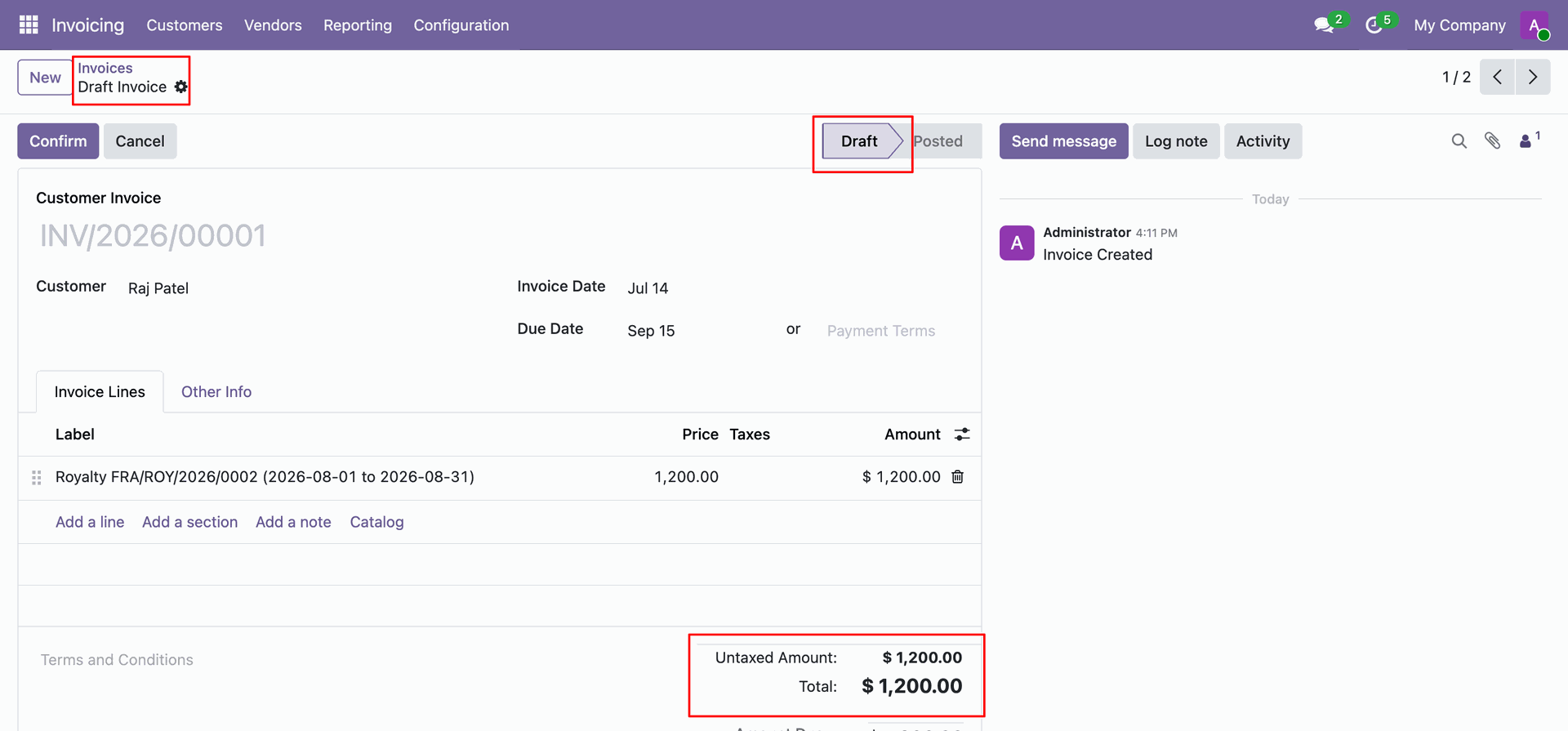
Review generated draft customer invoice showing royalty line item details and totals.
Access action gear menu on royalty form to select and print Royalty Statement.
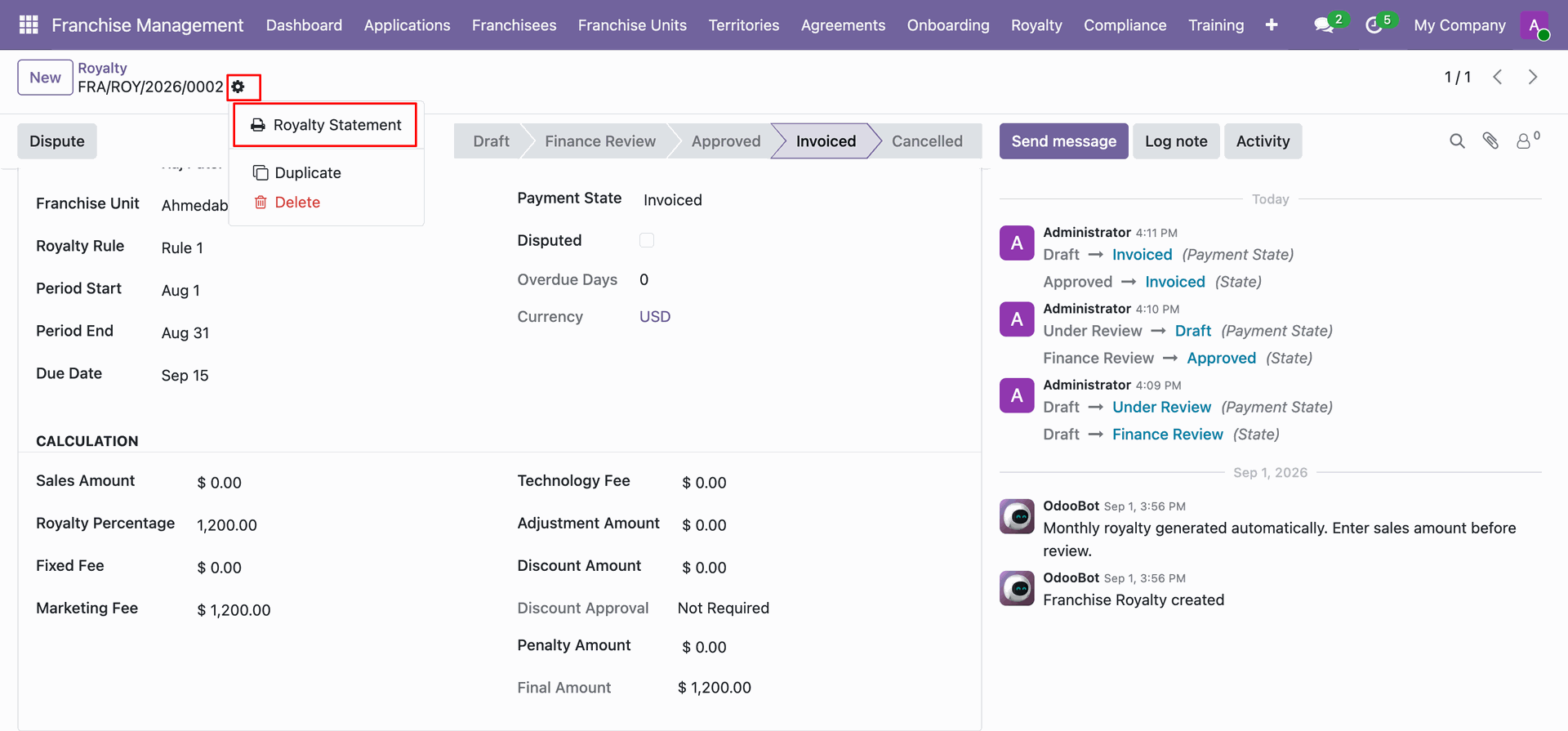
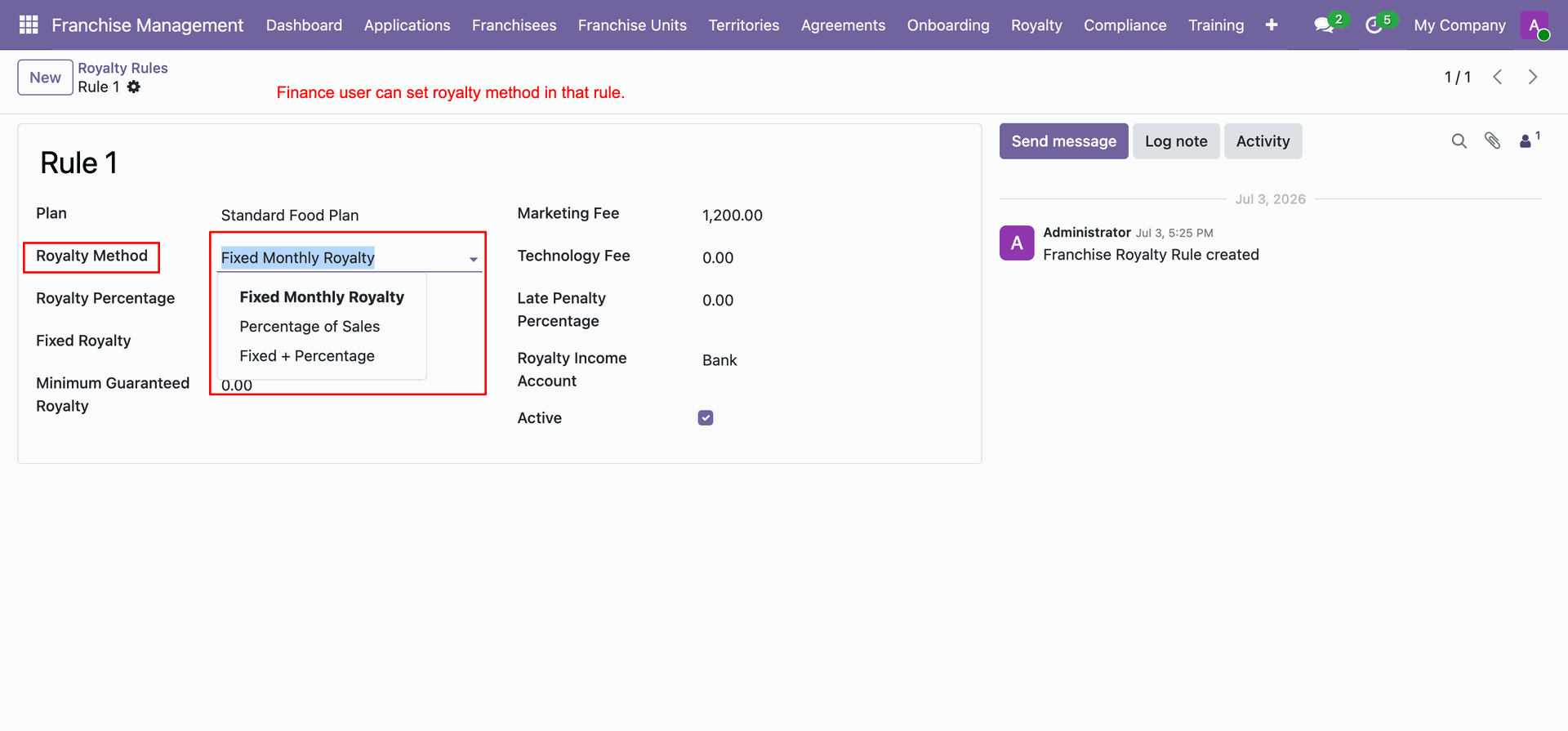
Generate and print formal PDF Royalty Statement report for official franchisee record-keeping.
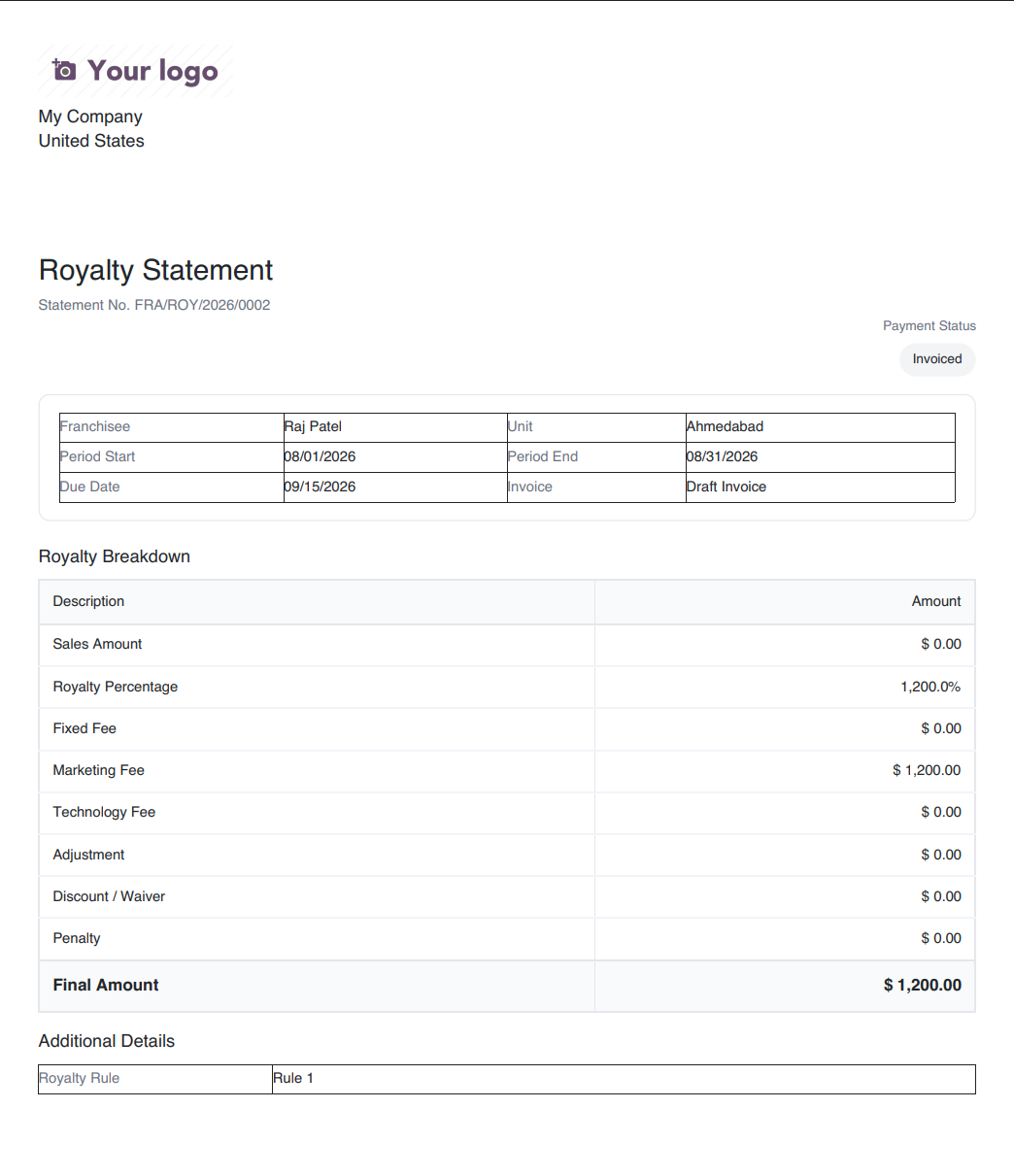
Select multiple royalty records in list view to batch print Royalty Statements.
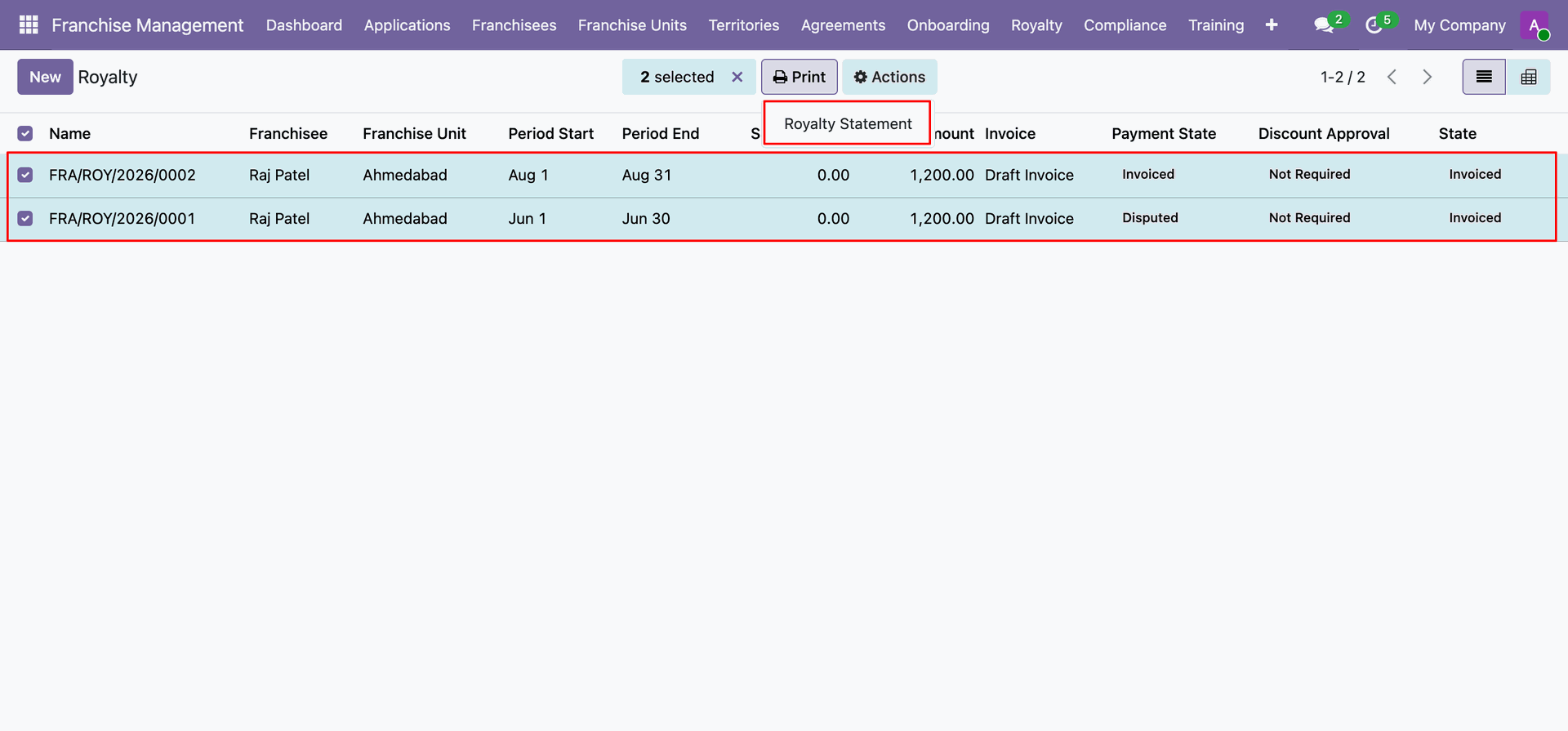
Preview printed Royalty Statement.
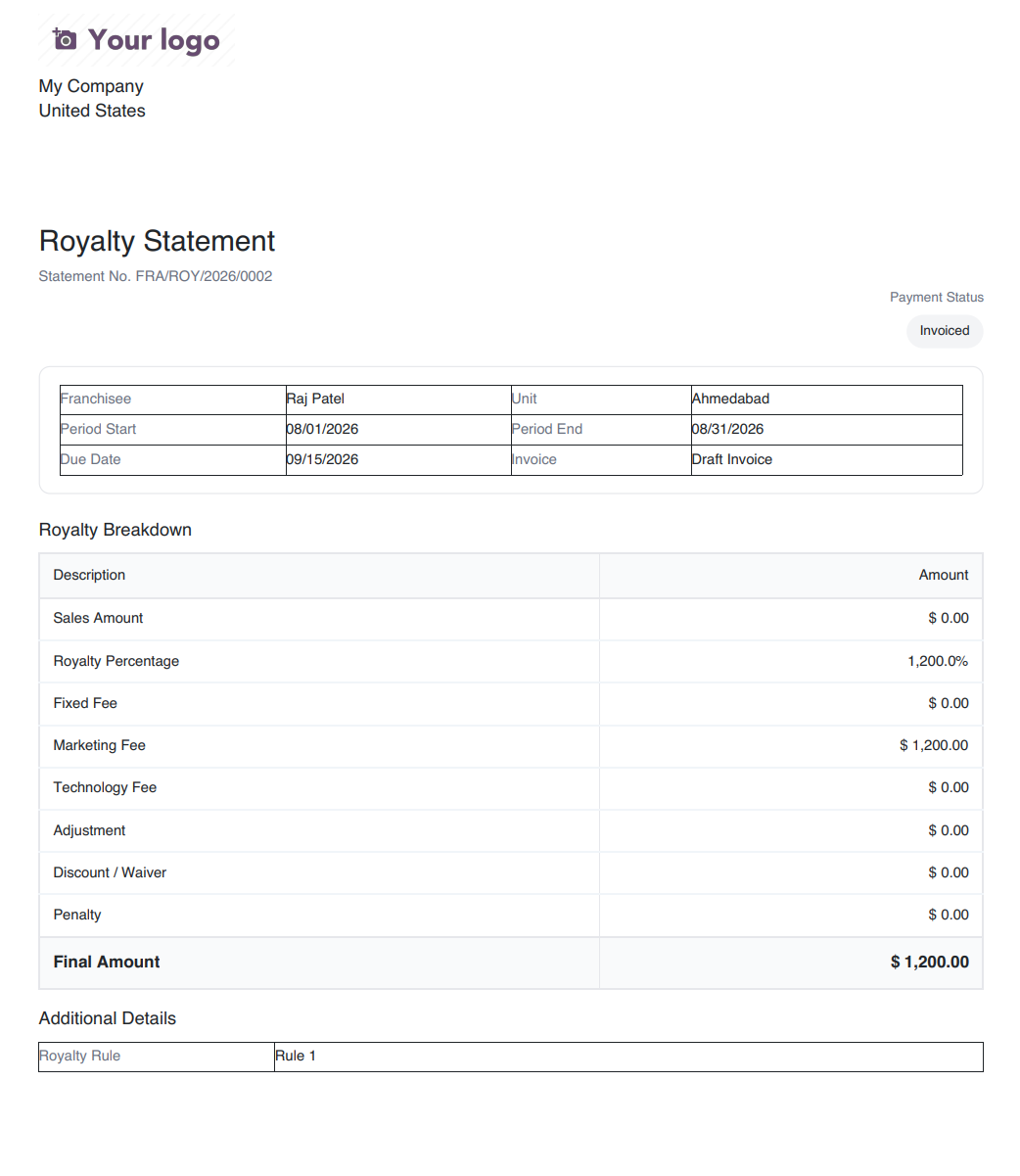
View printed Royalty Statement displaying Disputed status and complete fee calculation details.
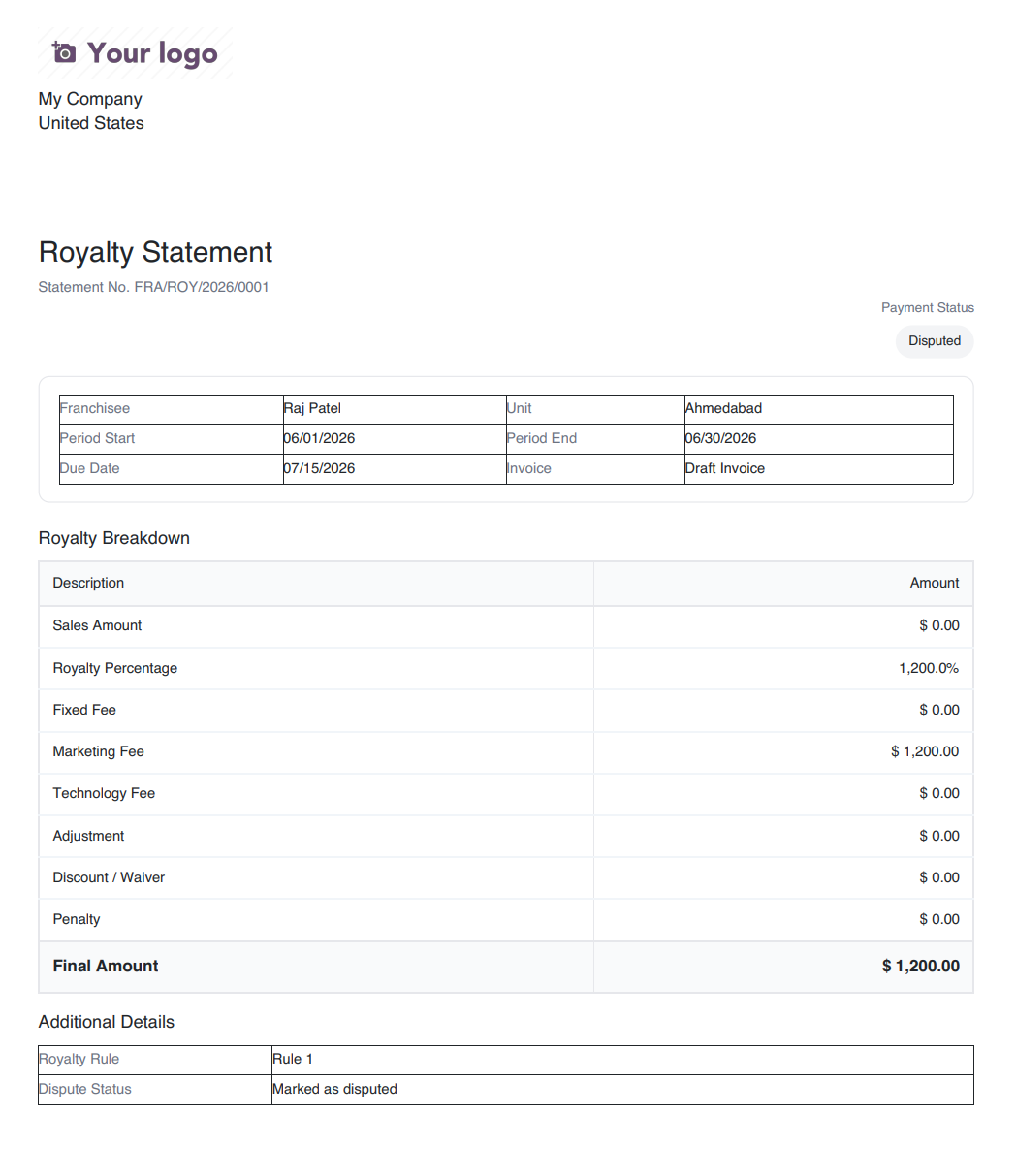
Select Royalty Rules from top menu dropdown to manage franchise calculation rules.
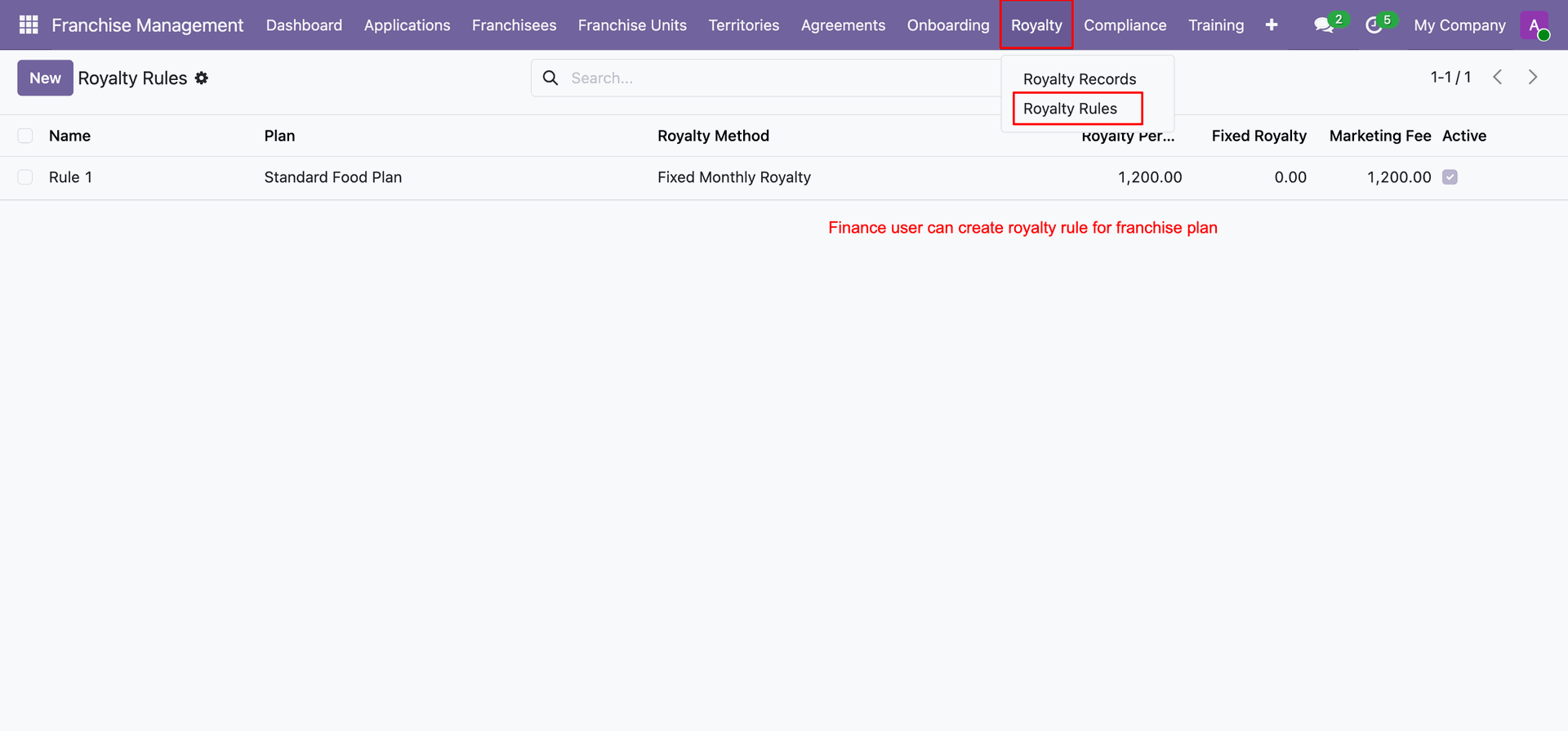
Define fixed marketing fees, technology fees, and income accounts on royalty rule form.
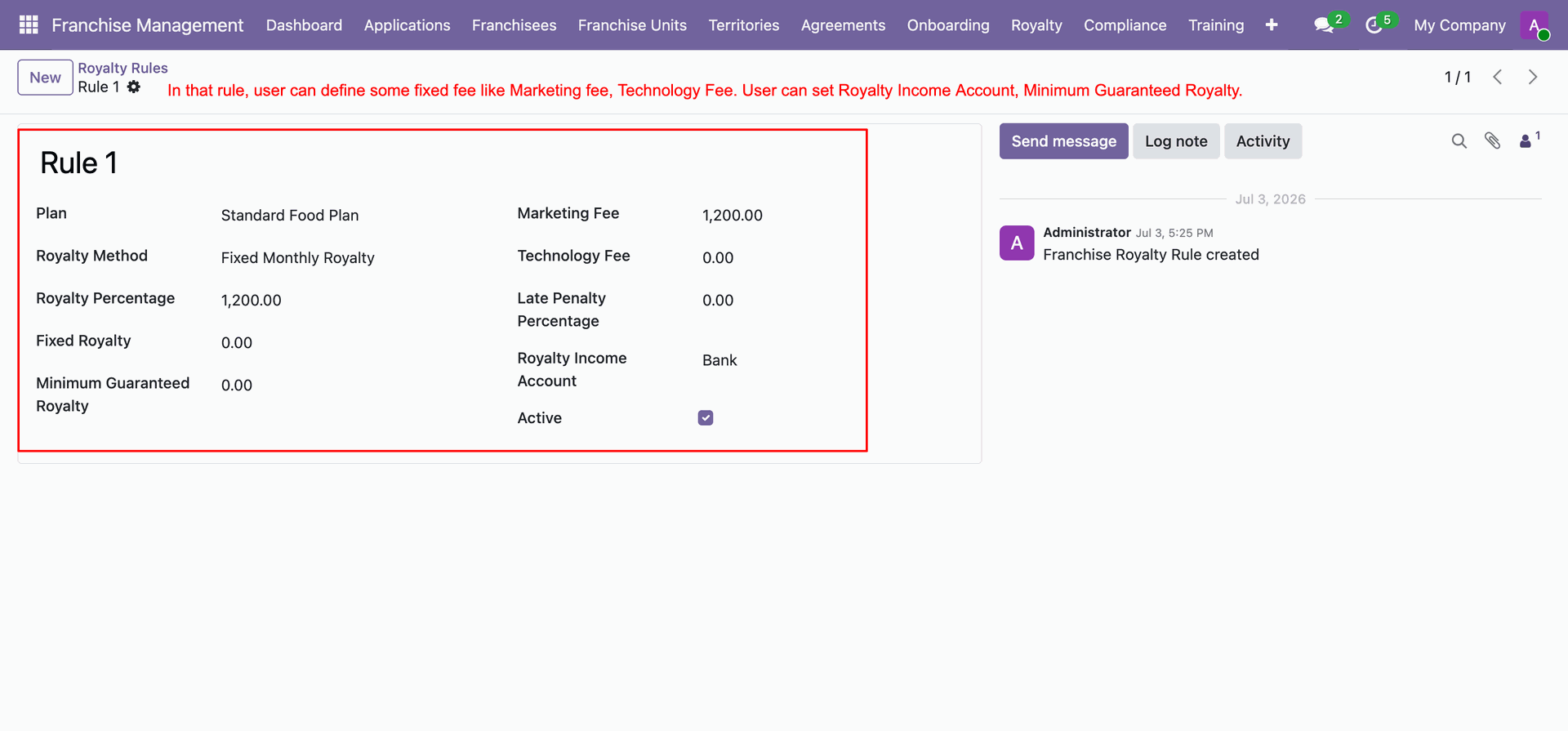
Select calculation method such as Fixed Monthly Royalty or Percentage of Sales.
Workflow
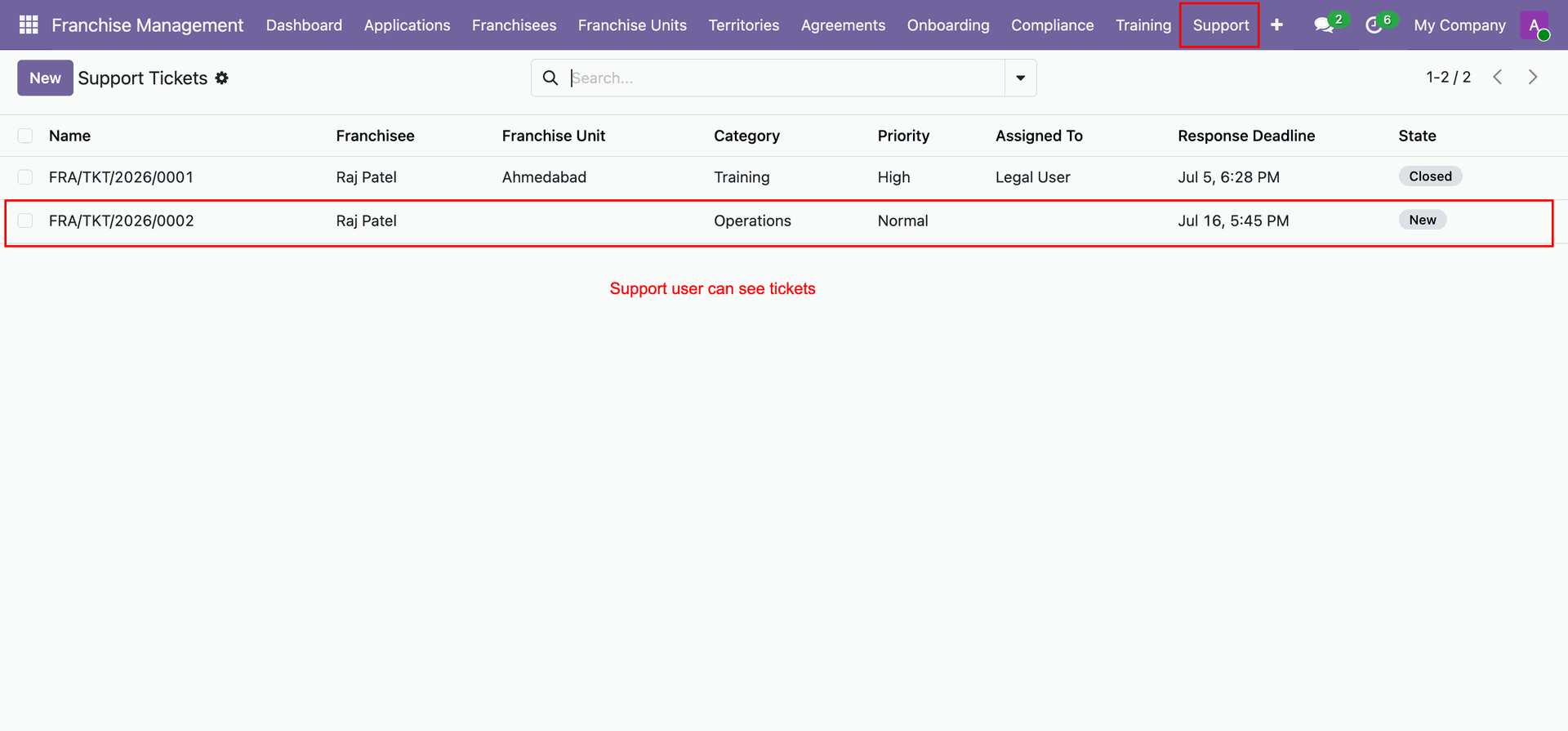
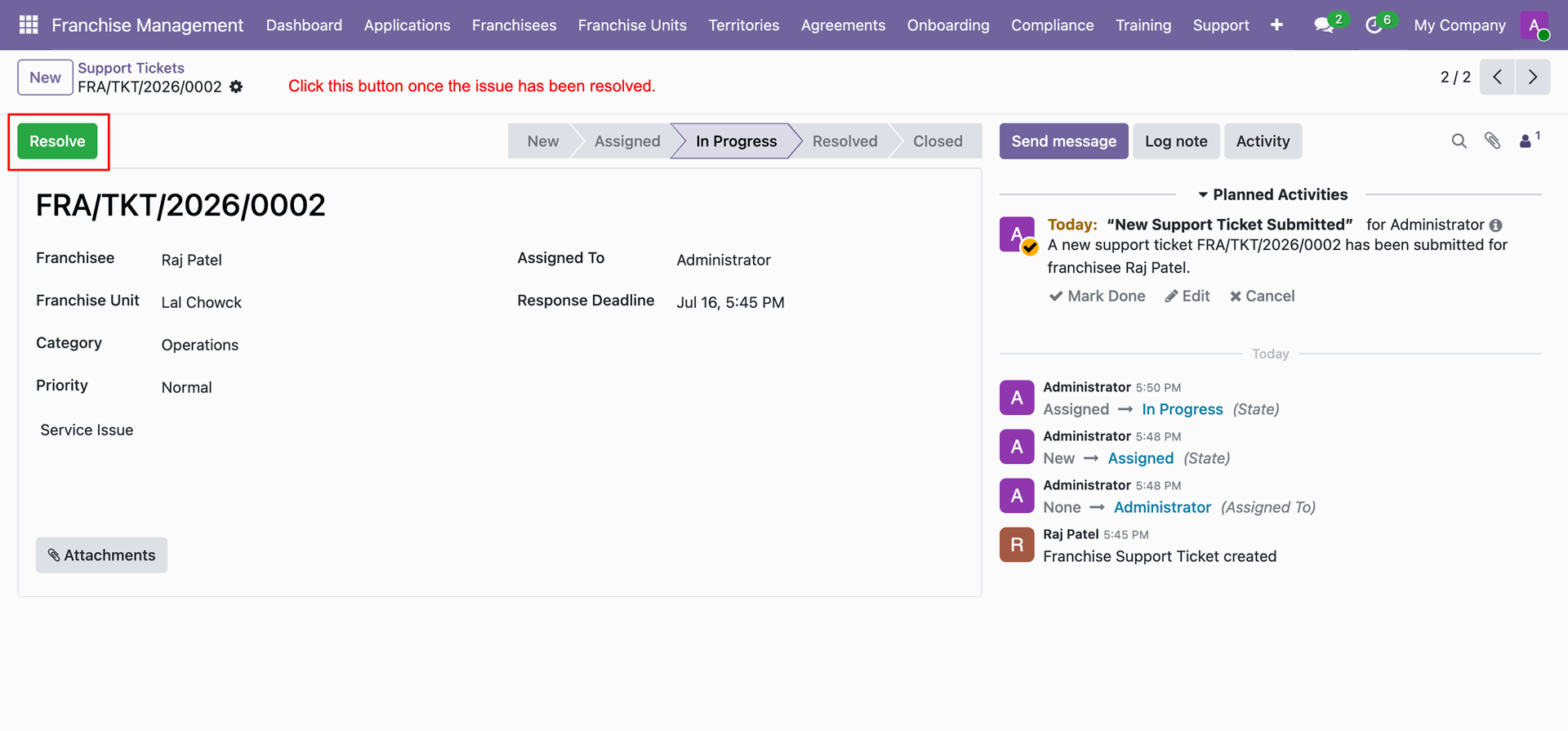
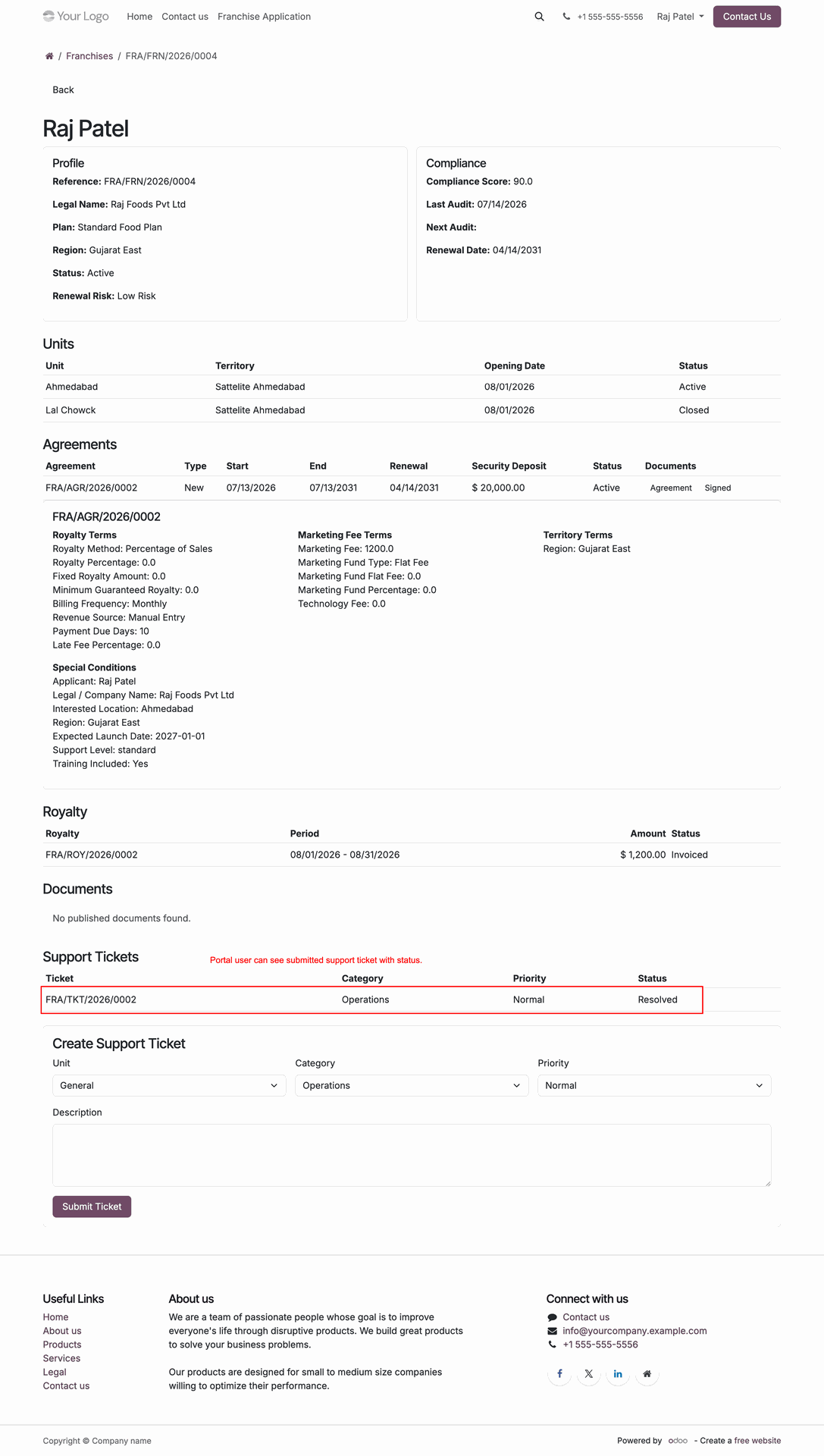
Access Support Tickets to manage unit queries.
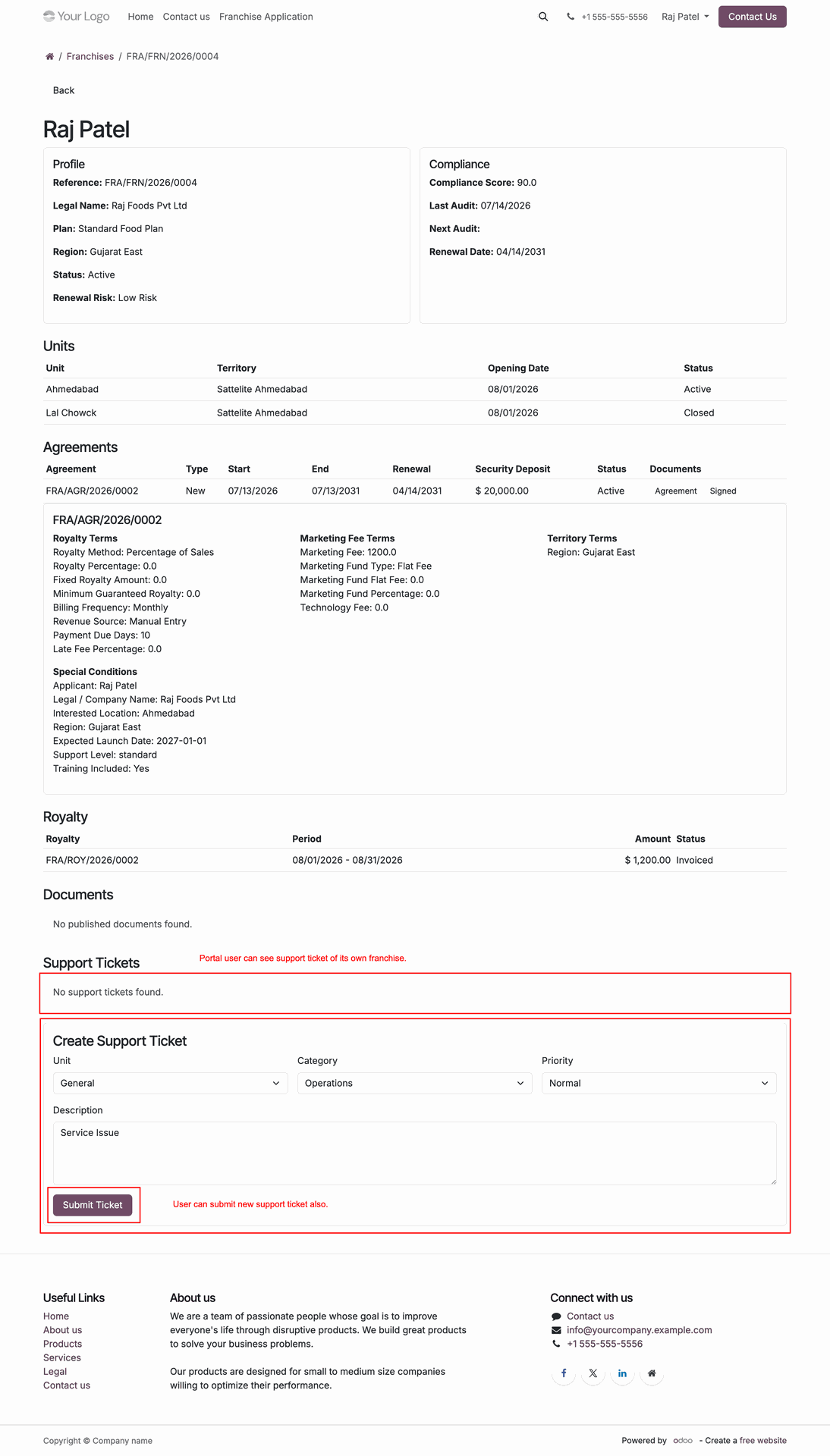
View all logged franchise support tickets with priority badges, assigned users, and current stage.
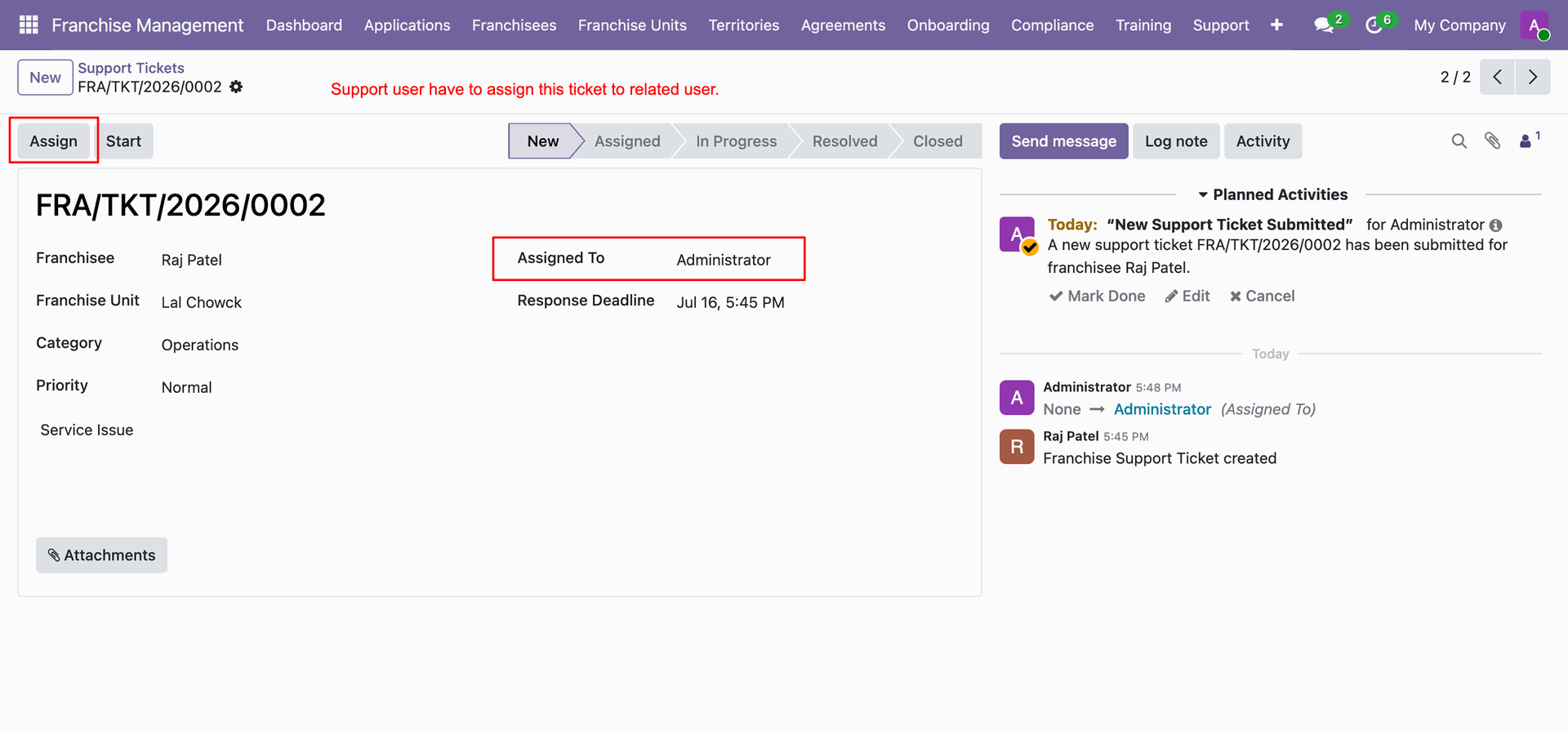
Create or inspect support tickets with category classification, urgency priority, and attachments.
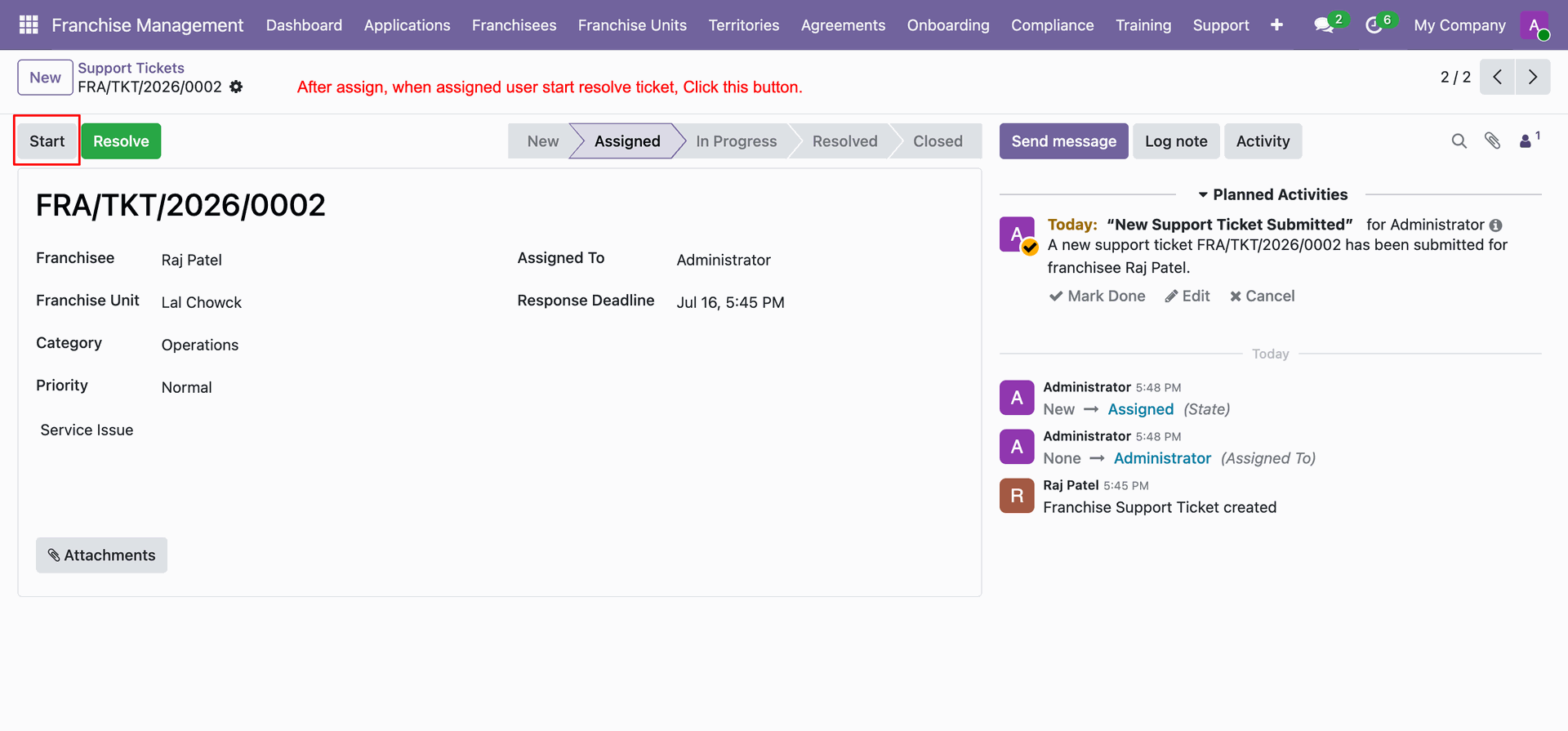
Update ticket status from Draft to In Progress, Pending, or Resolved as work progresses.
Record resolution details and mark the ticket as closed upon successful issue resolution.
Workflow
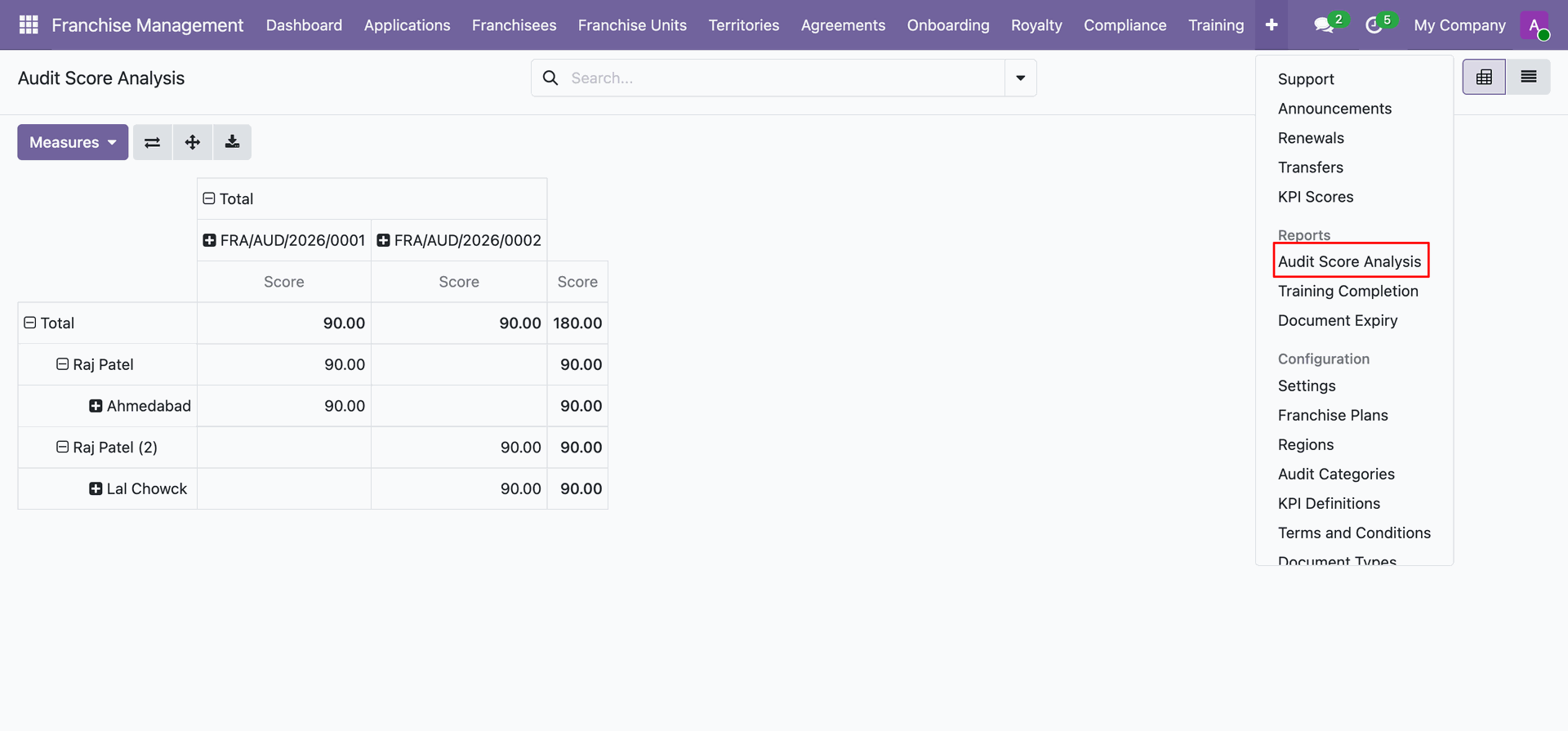
Navigate to the Reports menu to access analytical insights.
Compare royalty collections by interactive pivot tables.
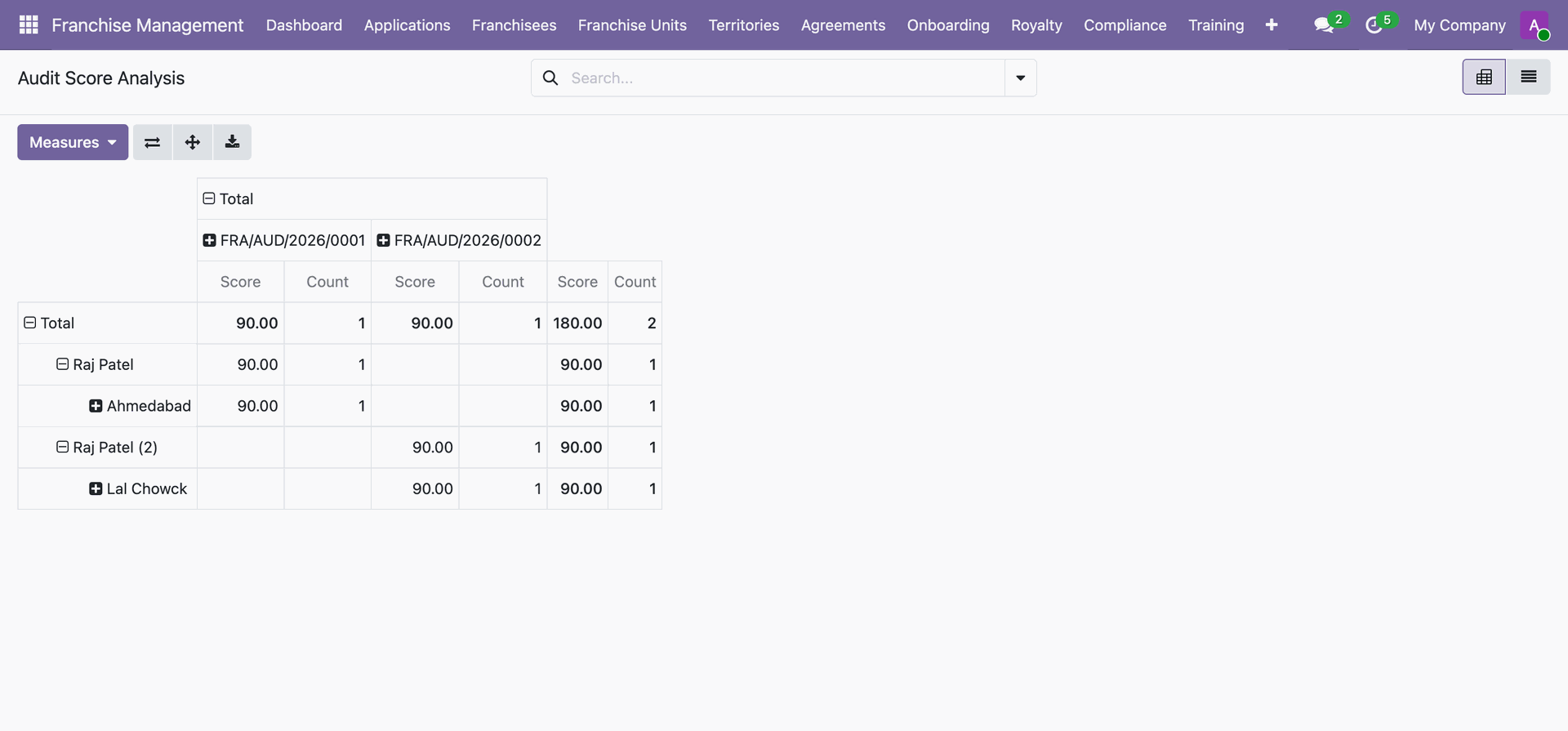
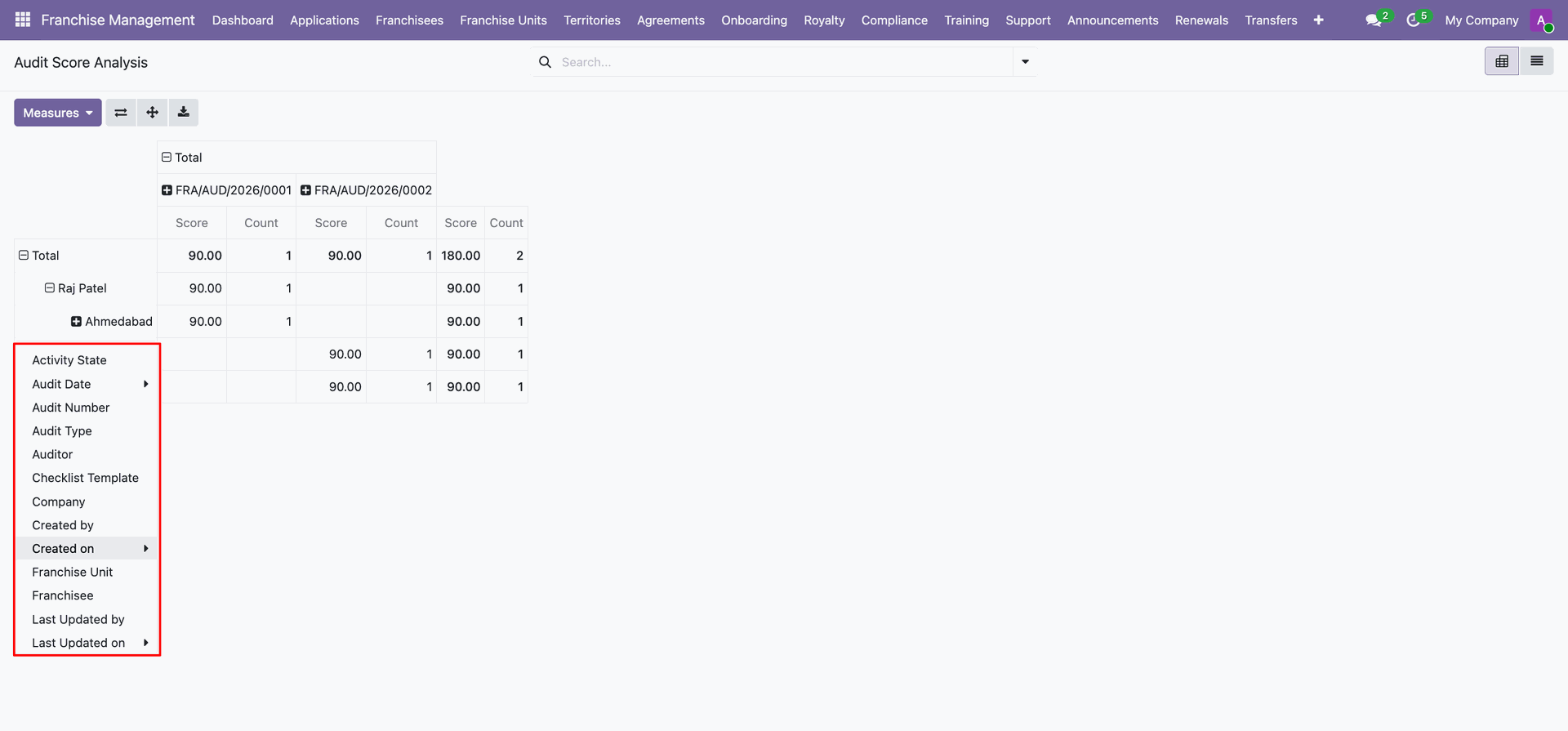
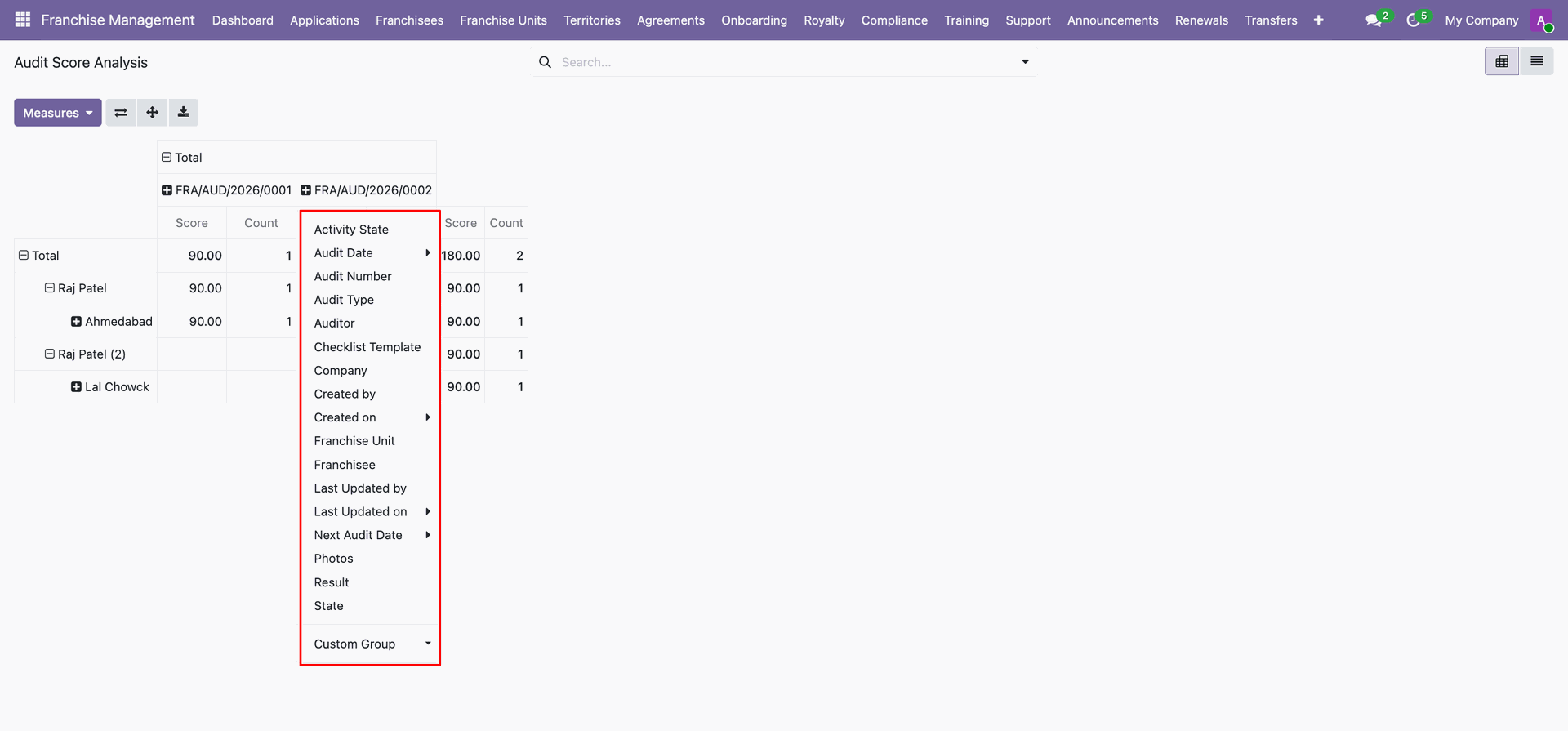
Analyze average compliance scores.
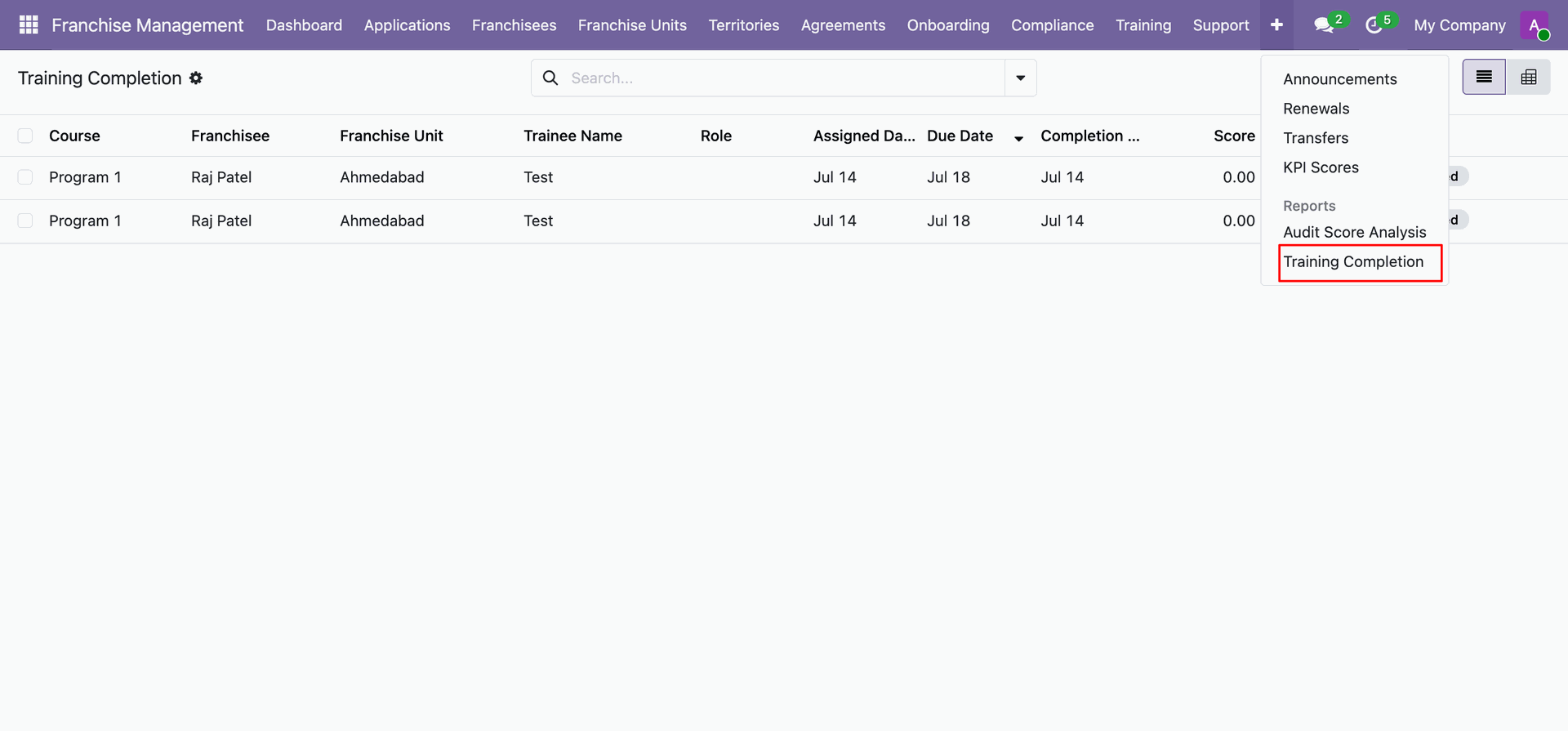
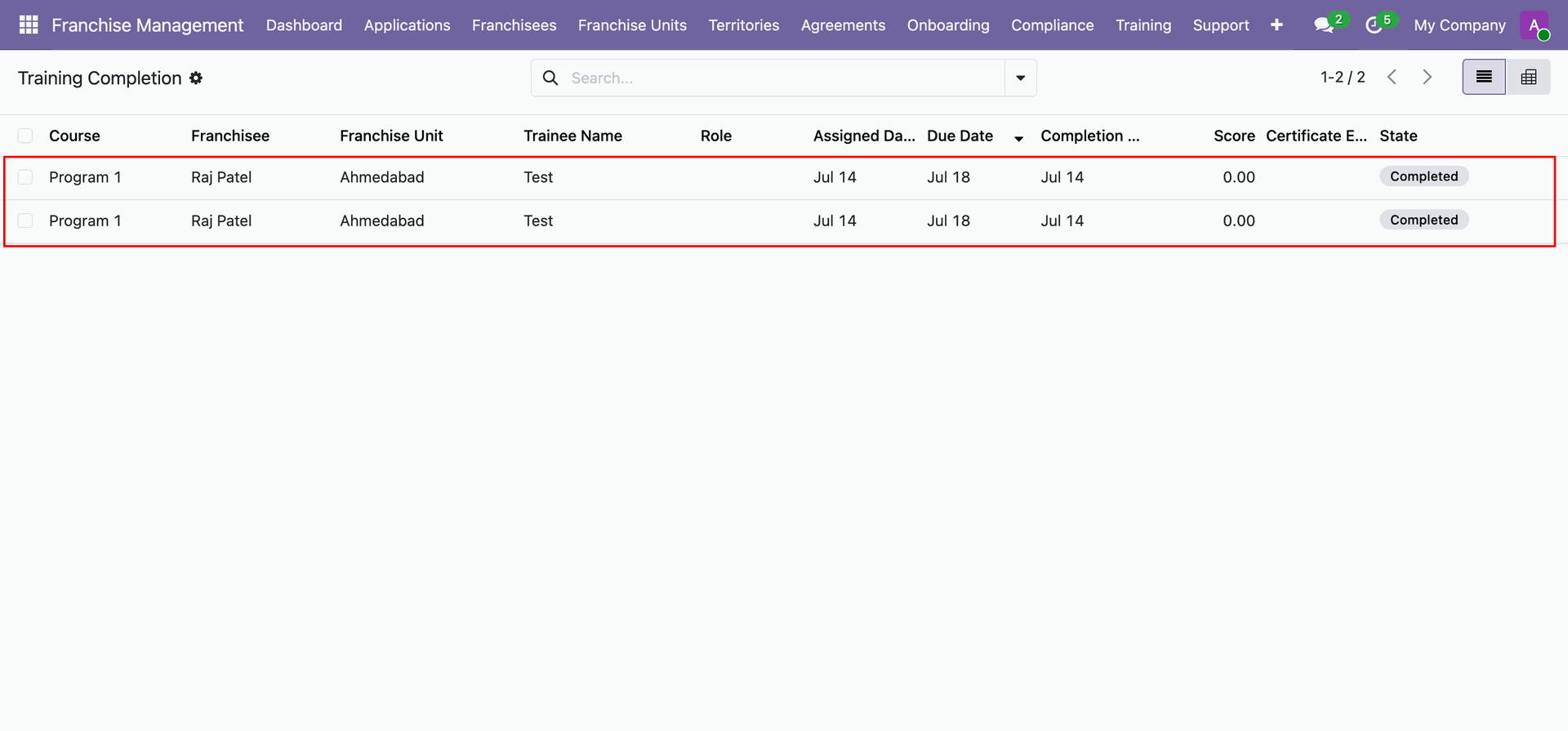
Track franchisee staff training completion rates and assignment progress.
Version 19.0.1.0.0 | Released on : 13th August 2026
- Yes, this app works perfectly with Odoo Enterprise (Odoo.sh & Premise) as well as Community.
- No, this application is not compatible with odoo.com(odoo saas/Odoo Online)
- Yes, to test this module, please contact us at sales@softhealer.com.
- Please contact us at sales@softhealer.com to request customization.
- Yes, we provide free support for 365 days from the date of purchase.
- Yes, you will receive lifetime free updates for the version of the module you purchased.
- No, there is no need to install any additional libraries.
- Yes, for version 12 and above, you need to purchase the module separately for each version you intend to use.
- No, exchanges or refunds are not allowed. Please make sure to select the correct version before purchasing.
- You can contact us at support@softhealer.com for language translation support. We use Google Translator tools to provide translations in multiple languages, so the accuracy may vary. We welcome your suggestions to help improve translations.
Discover Our Latest Apps