












Examination System

This module is useful for the basic examination system. You can easily create questions and define marks(correct answer marks, wrong answer marks & skipped answer marks) for the questions. The examinee can log in and perform an exam from the separate exam page (survey page). You can also create image type questions. Easily define notes for the questions which will be displayed after submitting the exam as a hint.

Hot Features
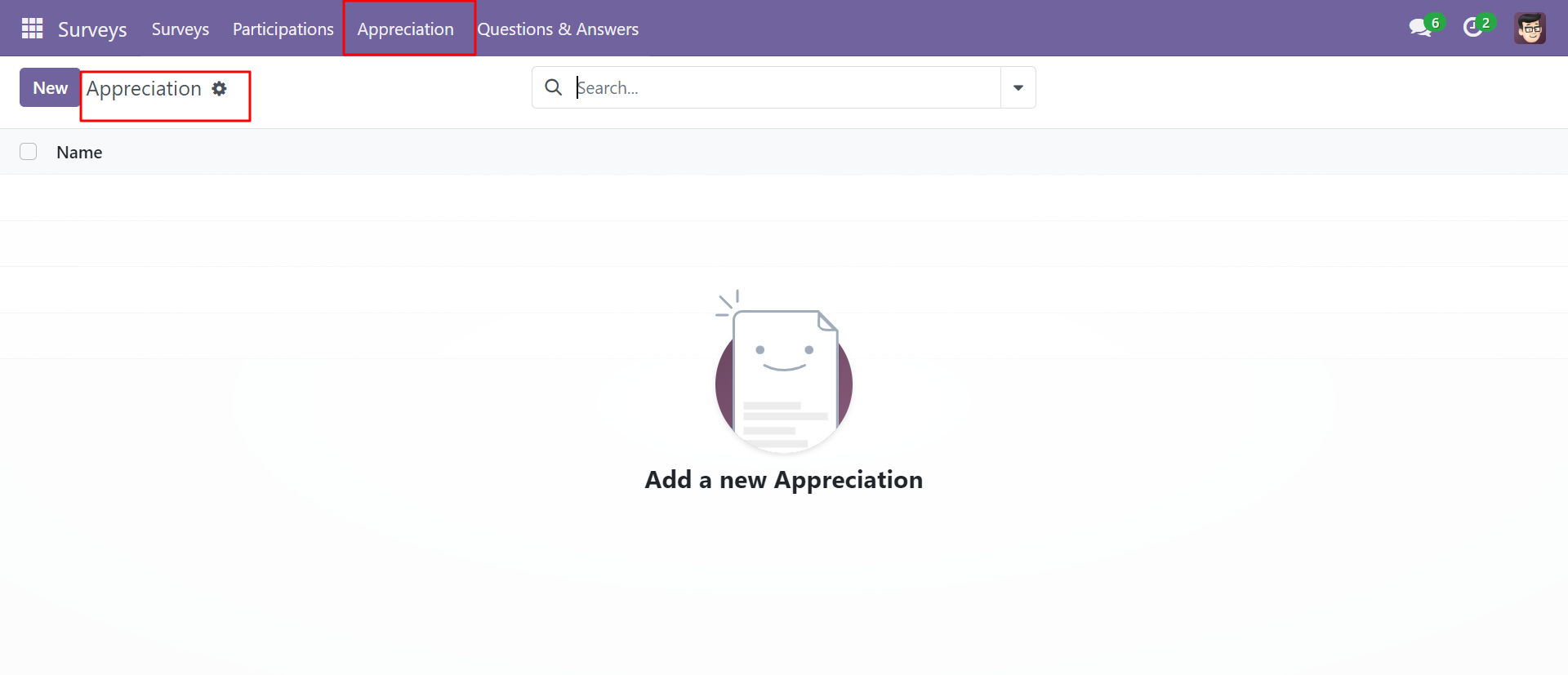
Appreciation list view, appreciation manage from here.
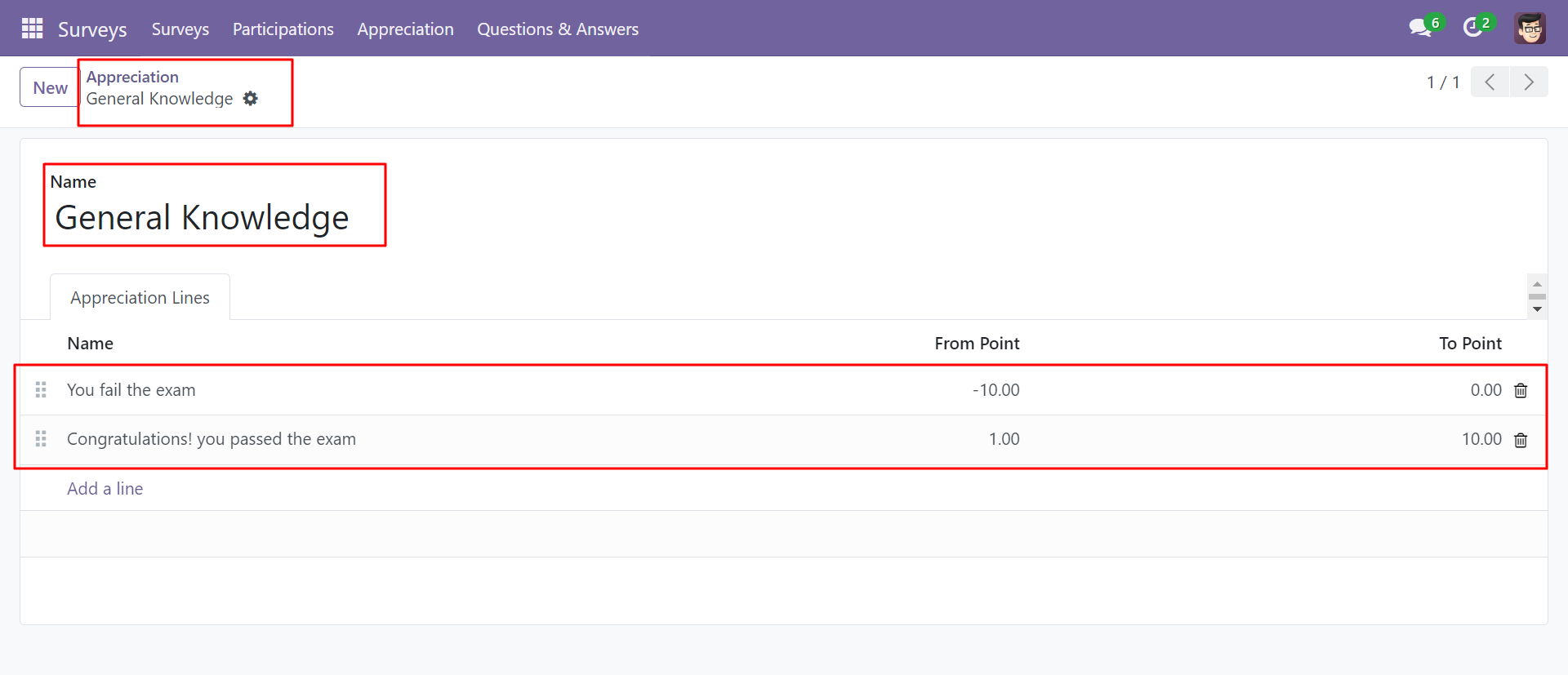
The appreciation form view looks like this.
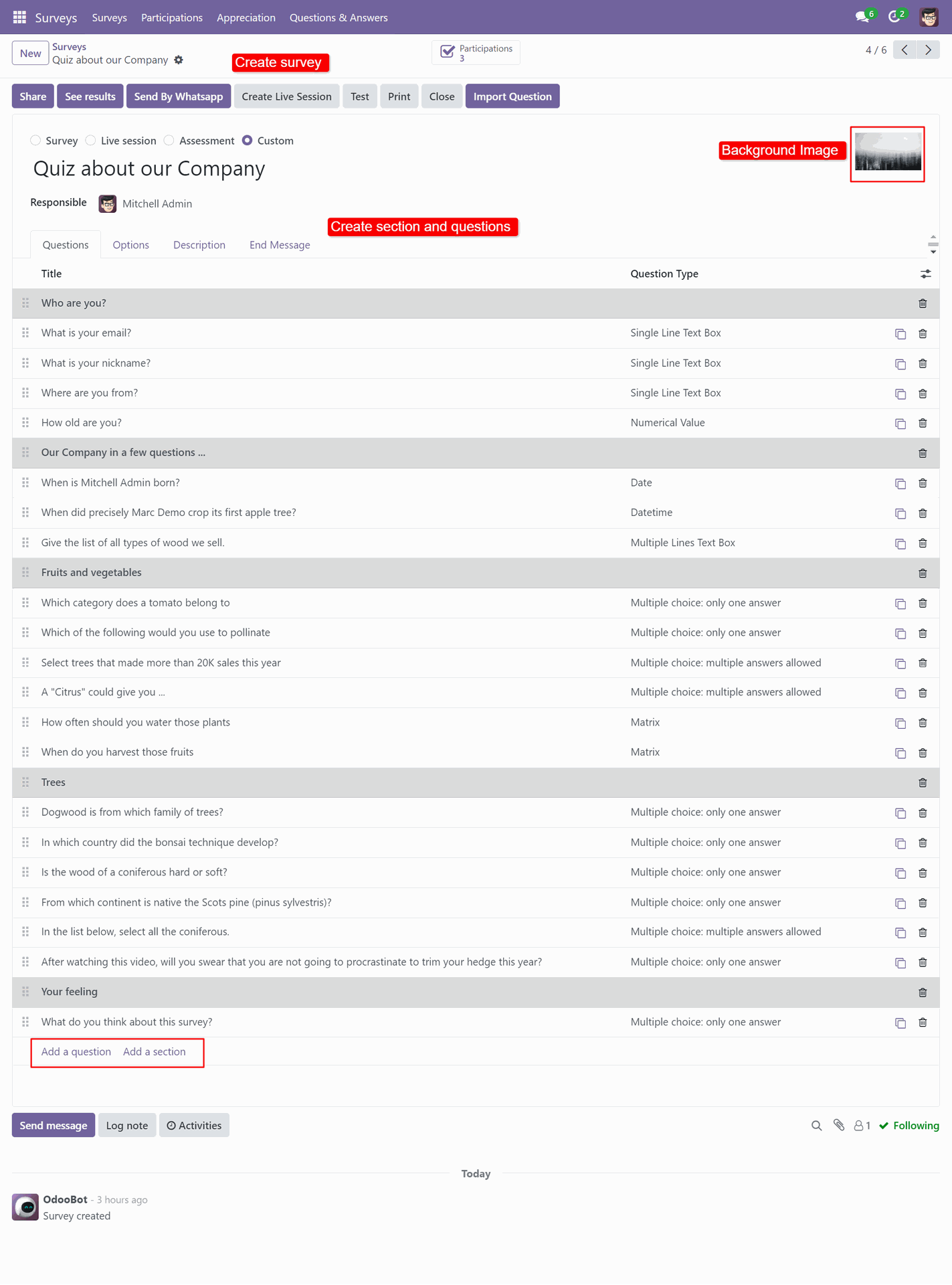
The exam form view, you can create sections and questions here.
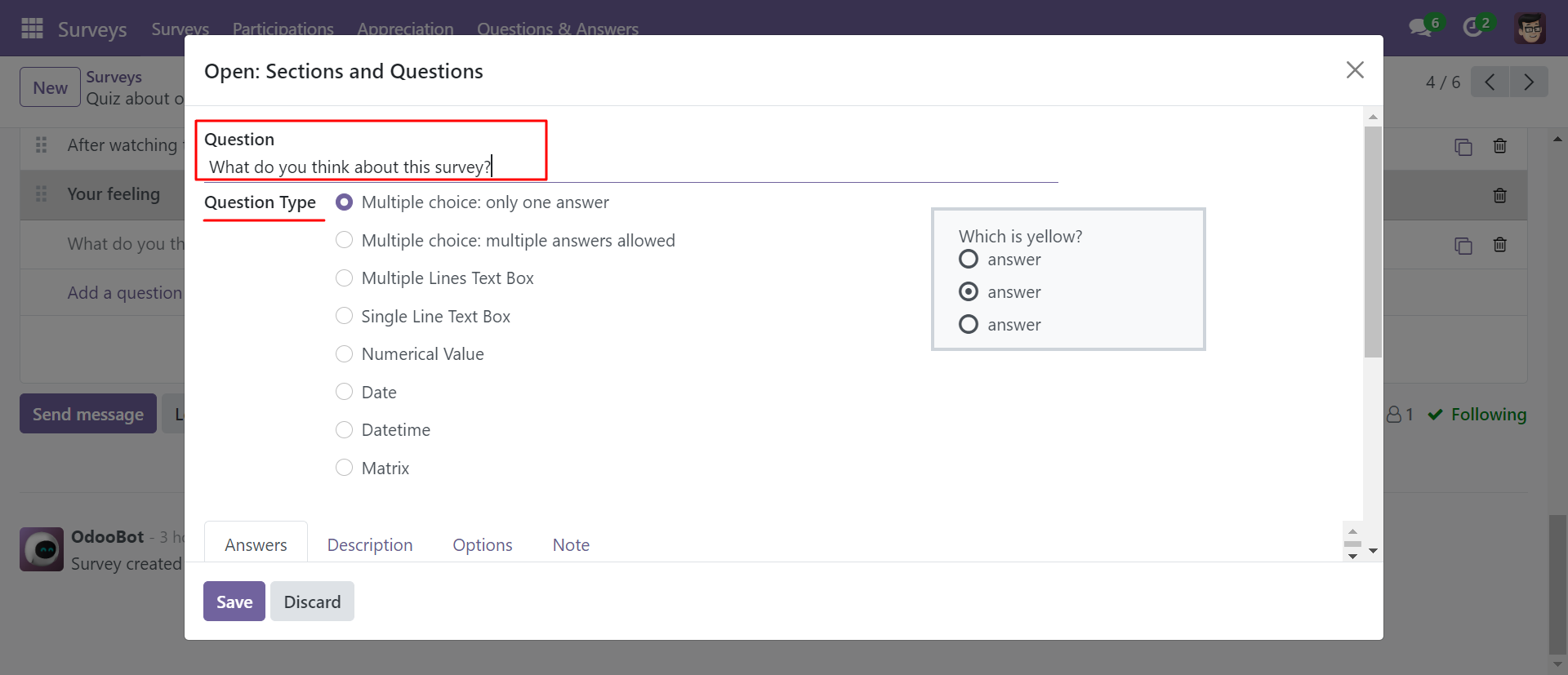
The sections and questions popup, In the question type, multiple choice: only one answer supported.
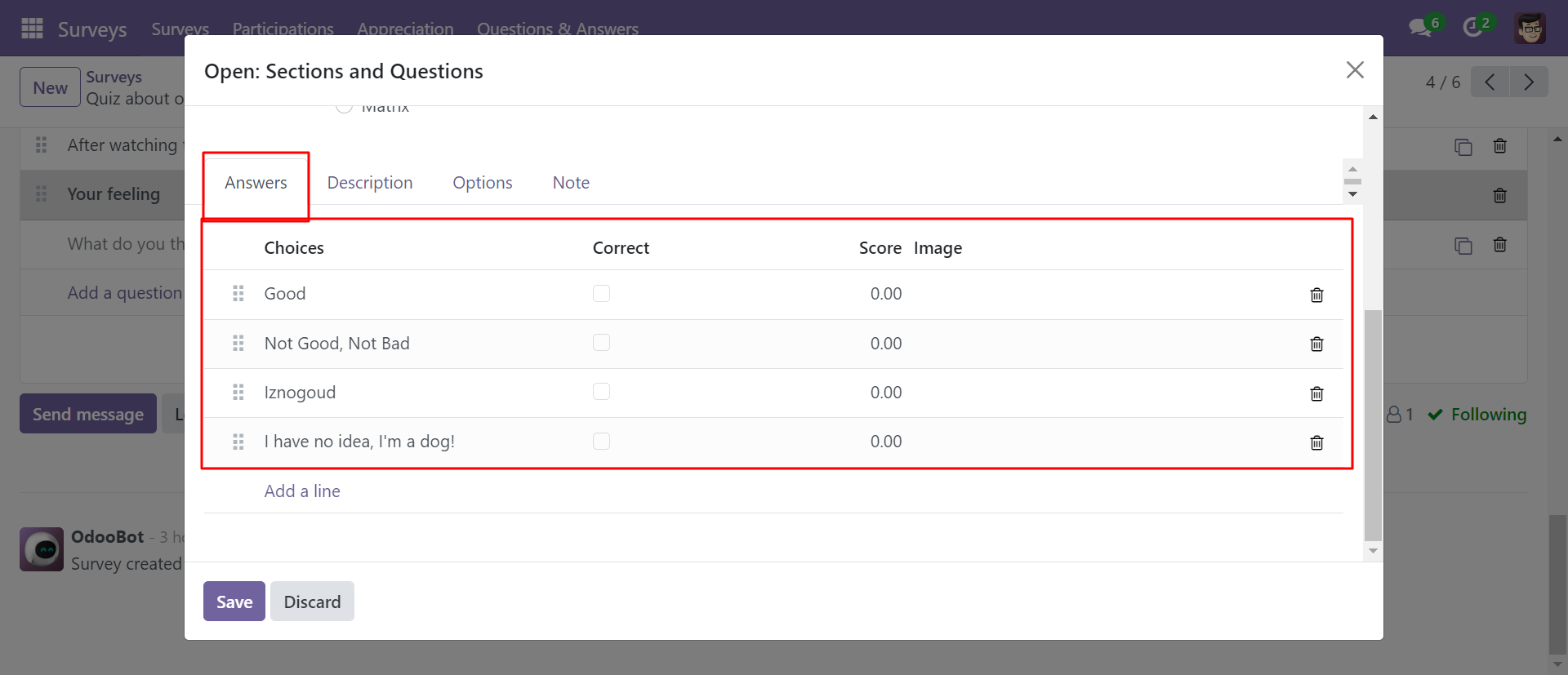
You can set answers in the Answers tab.
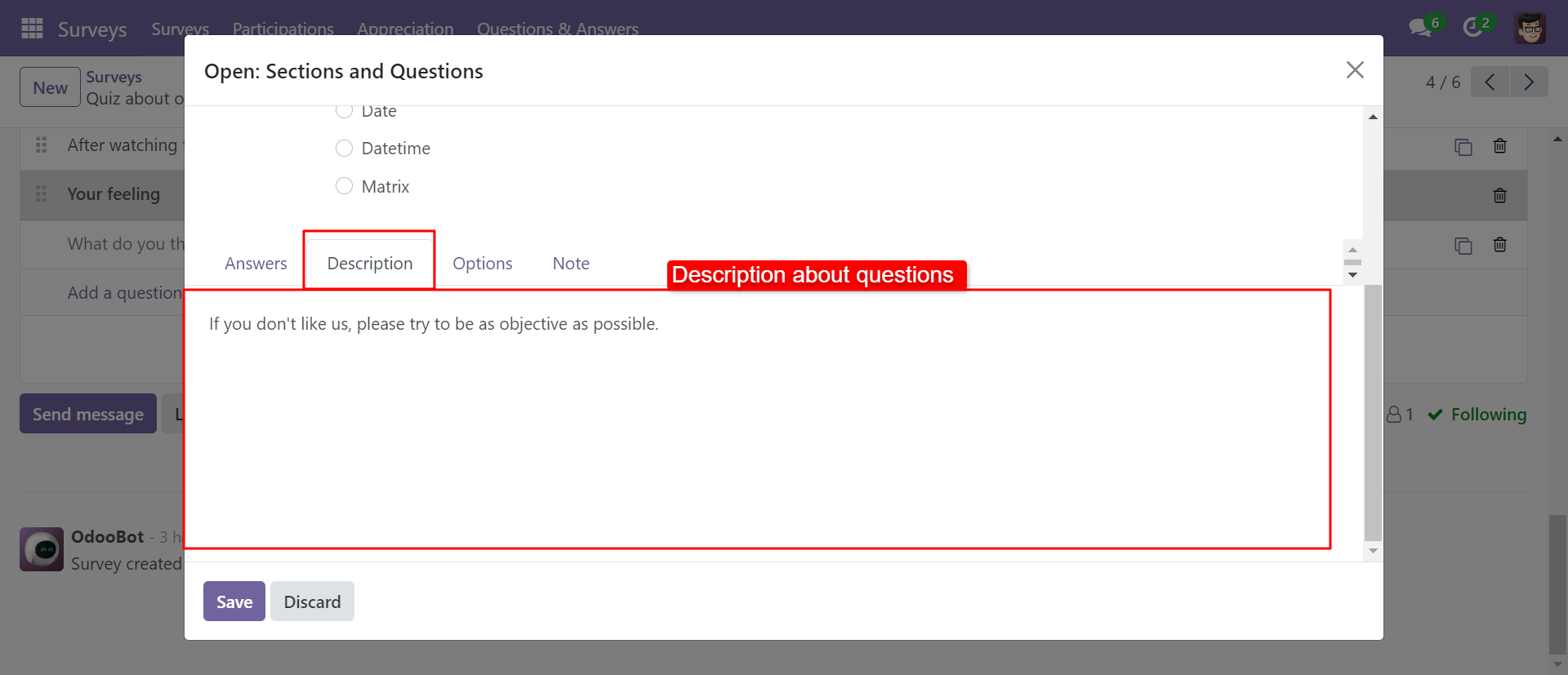
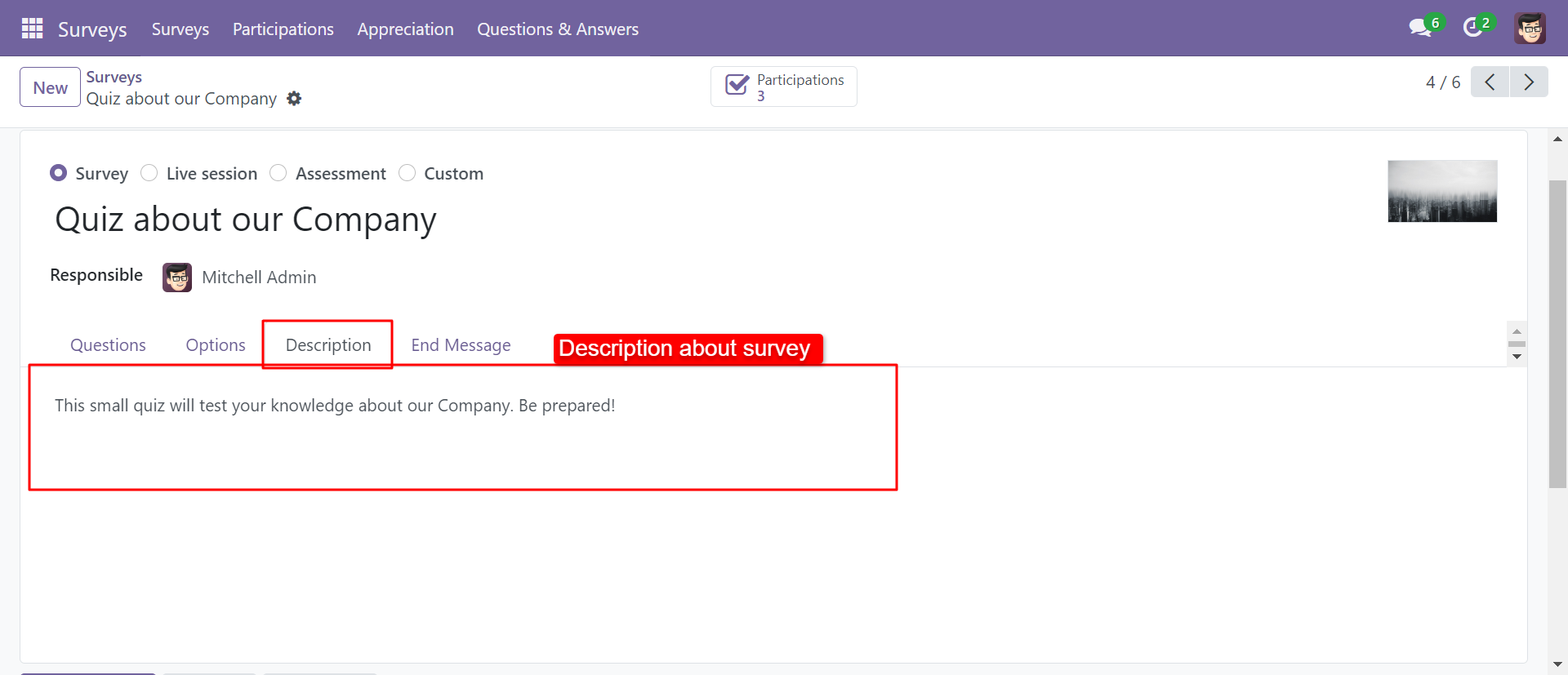
In the exam form view, you can write the exam description in the description tab.
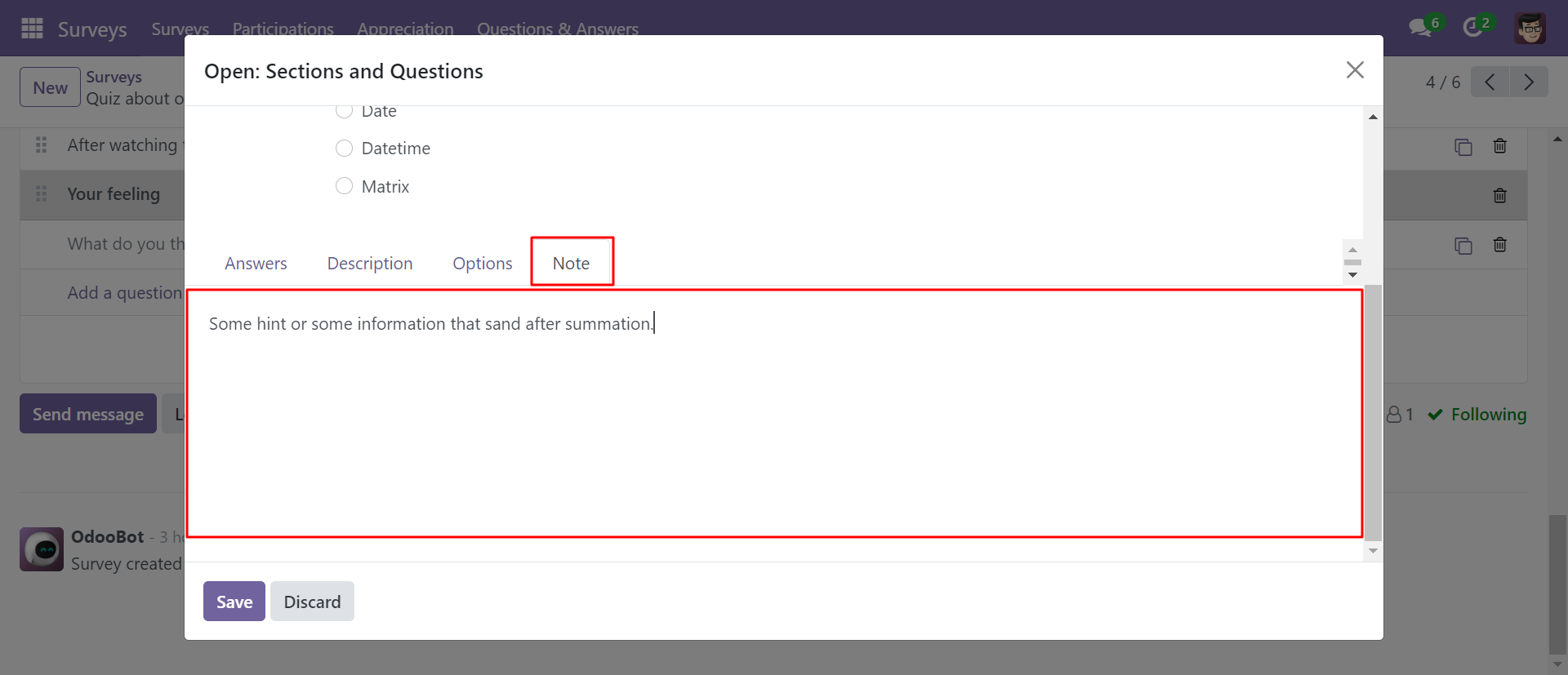
In the 'Note' tab you can set a hint of that question that will be displayed after submitting the exam.
In the exam form view, you can write the exam description in the description tab.
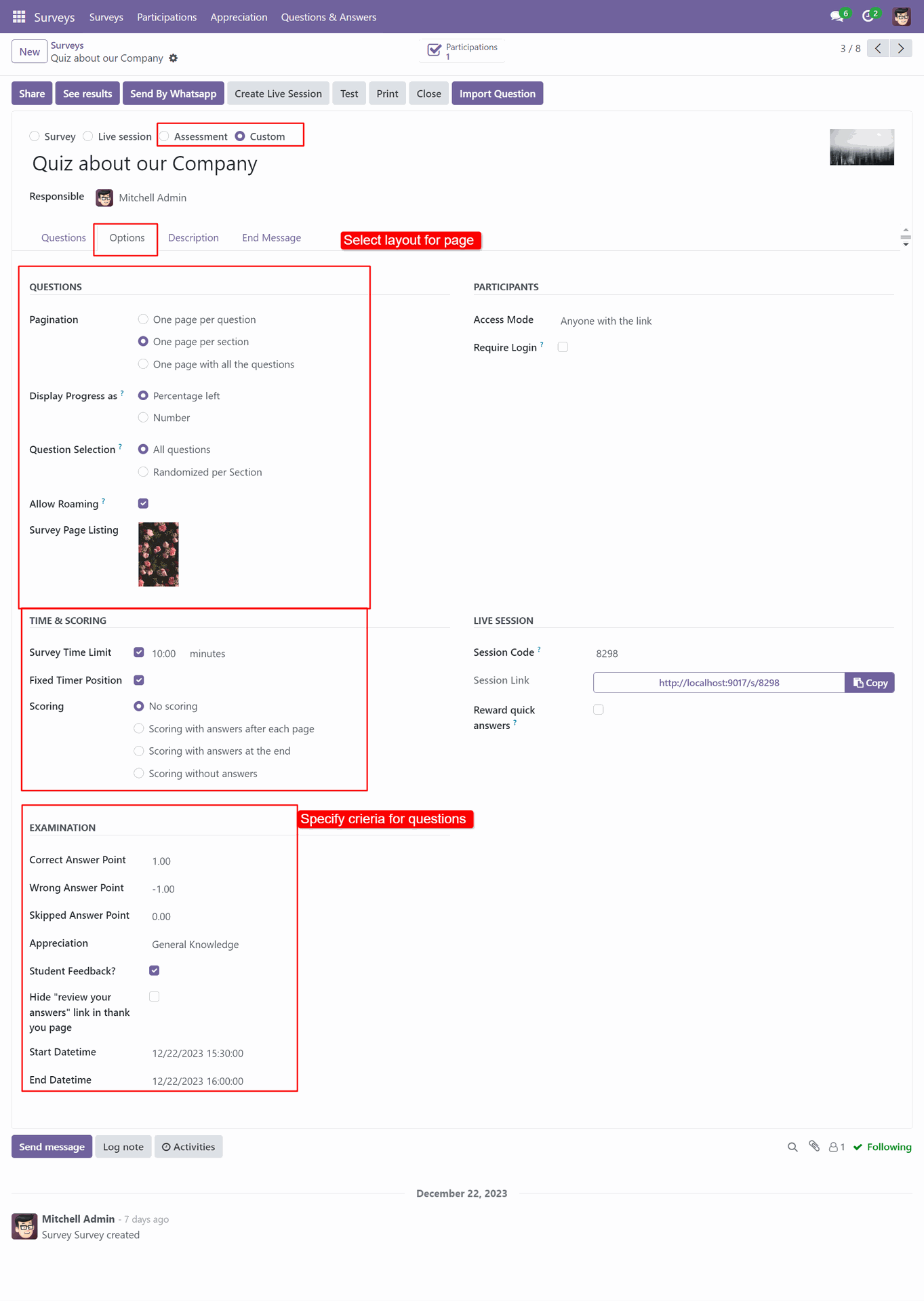
In the exam form view, you can choose the page layout and question criteria in the options tab.
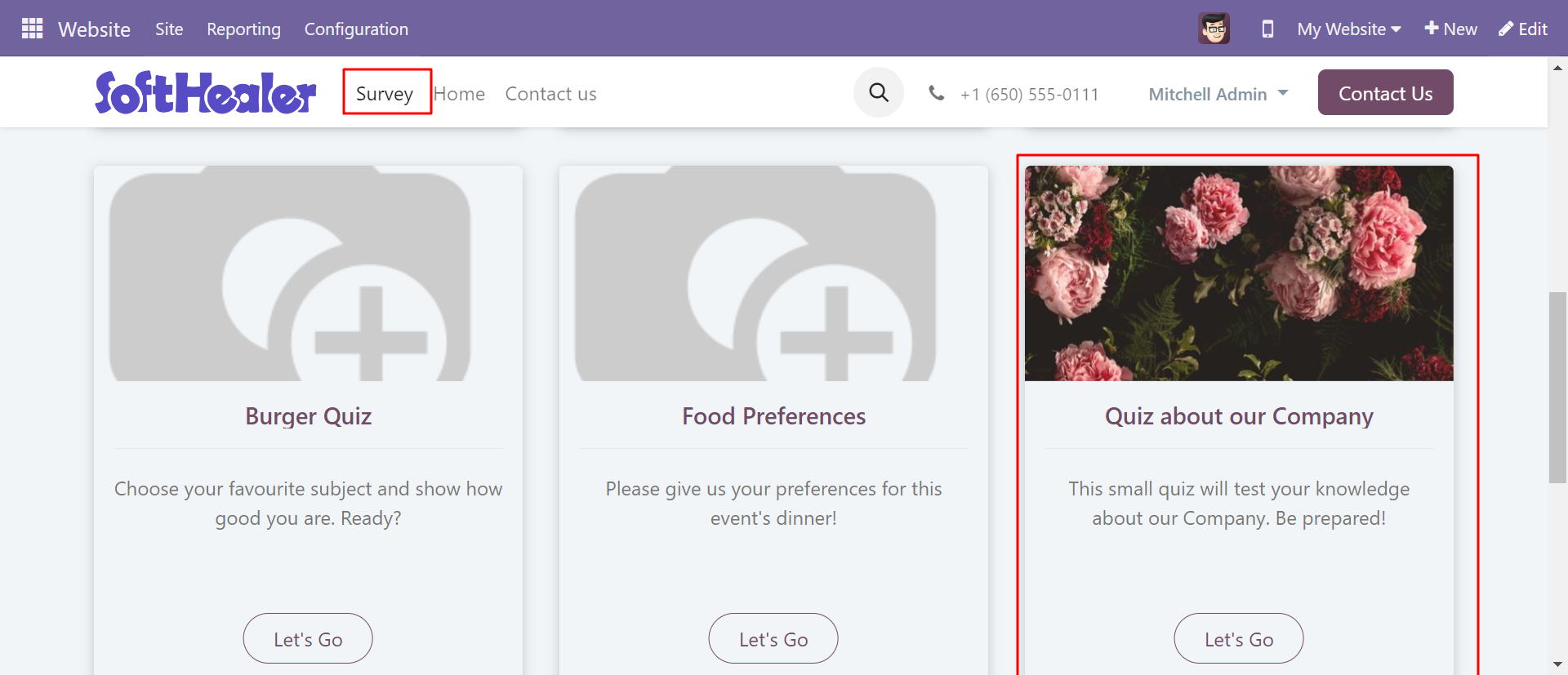
Examination page on the website.
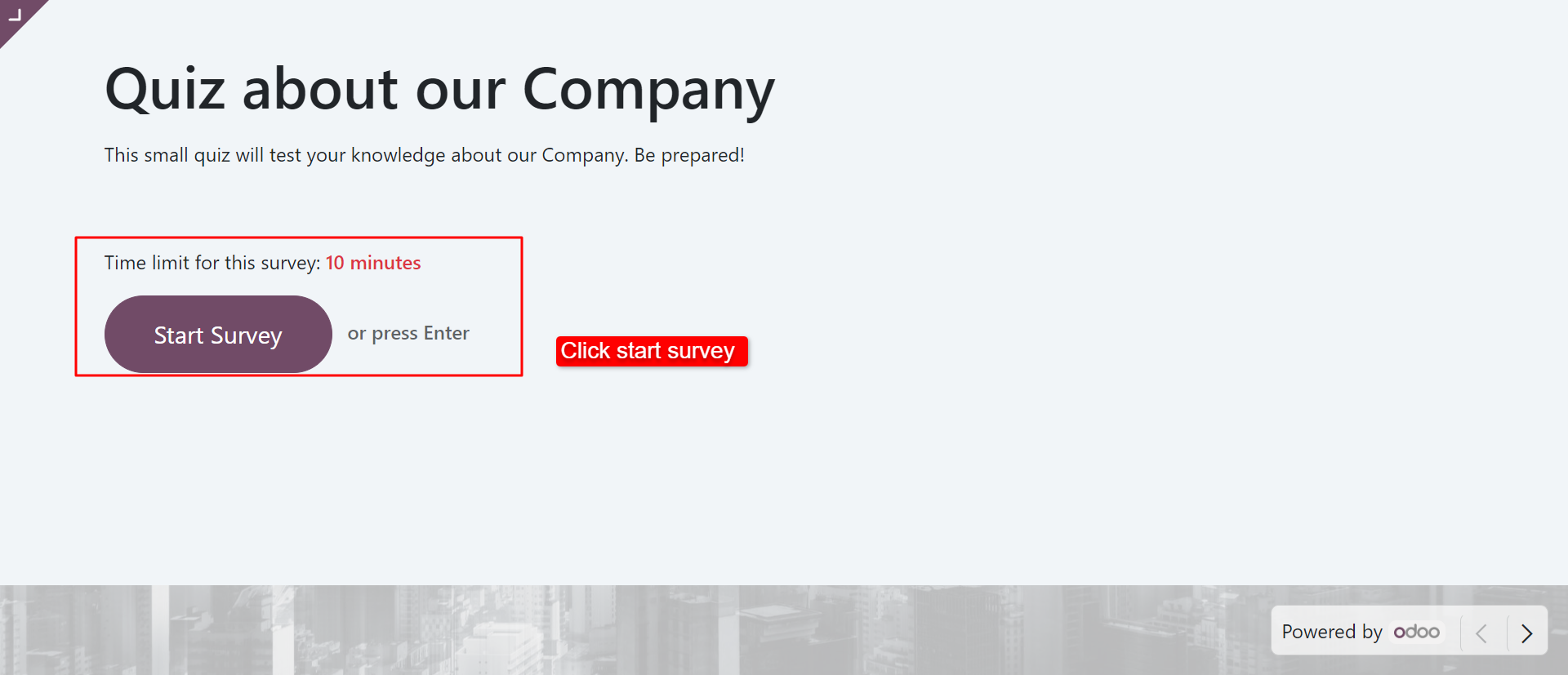
Click 'Start Survey' to start the examination.
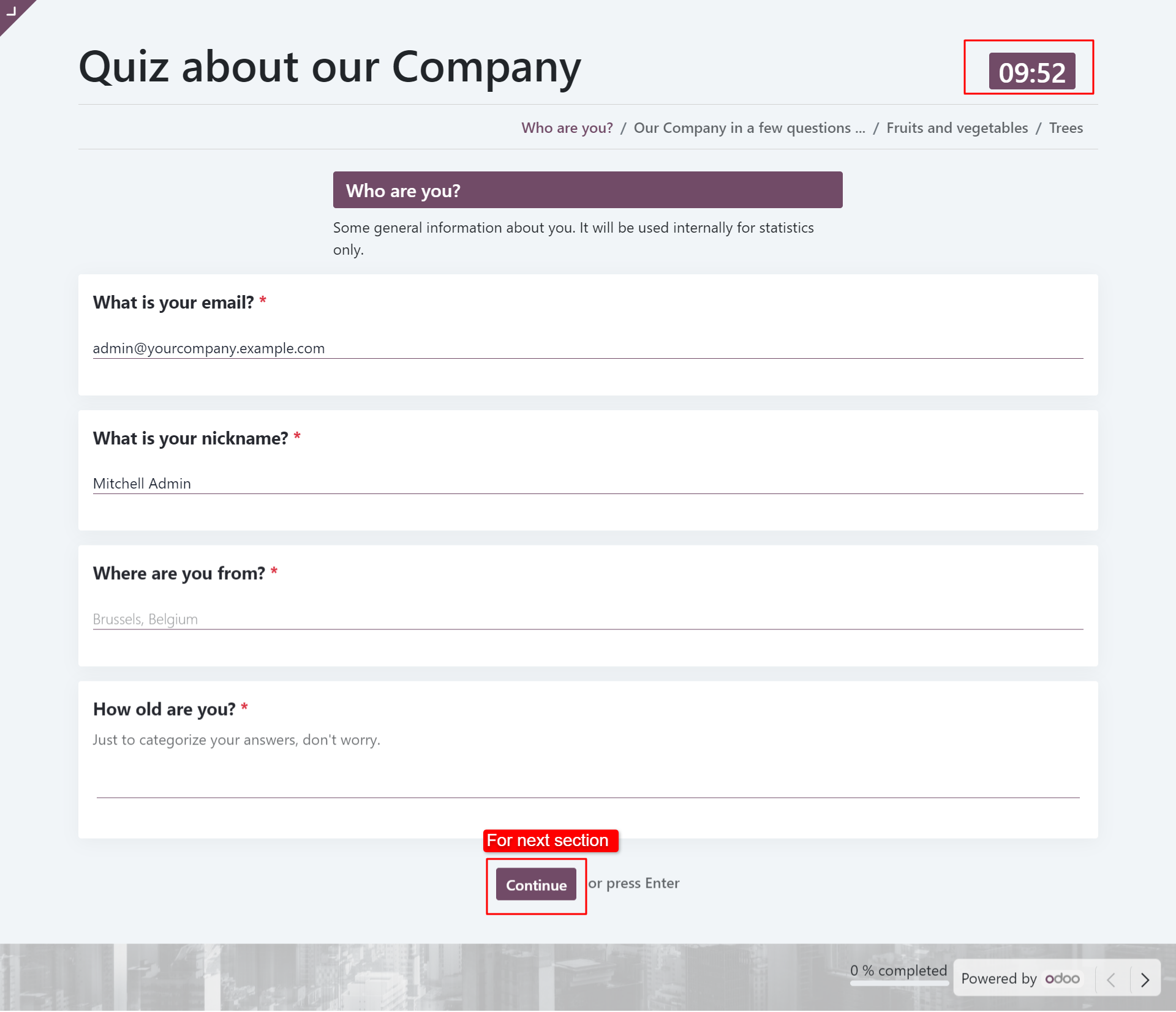
The examinee has to finish the exam with the time limit that displays on the timer, after that press the 'Submit' button.
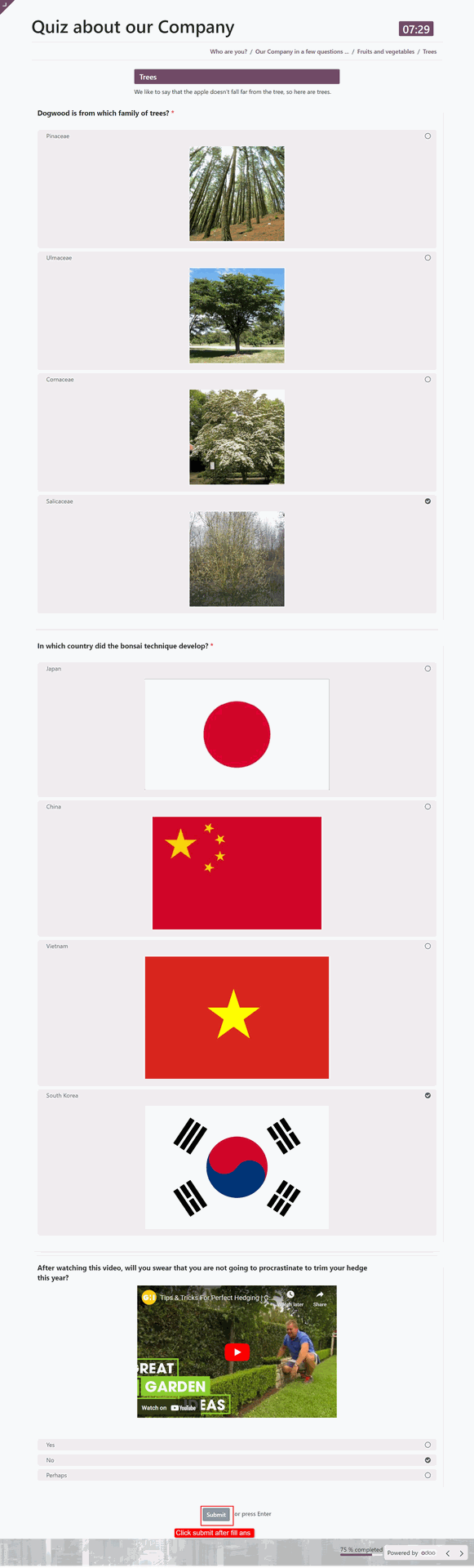
Fillup the answers and 'Submot' it.
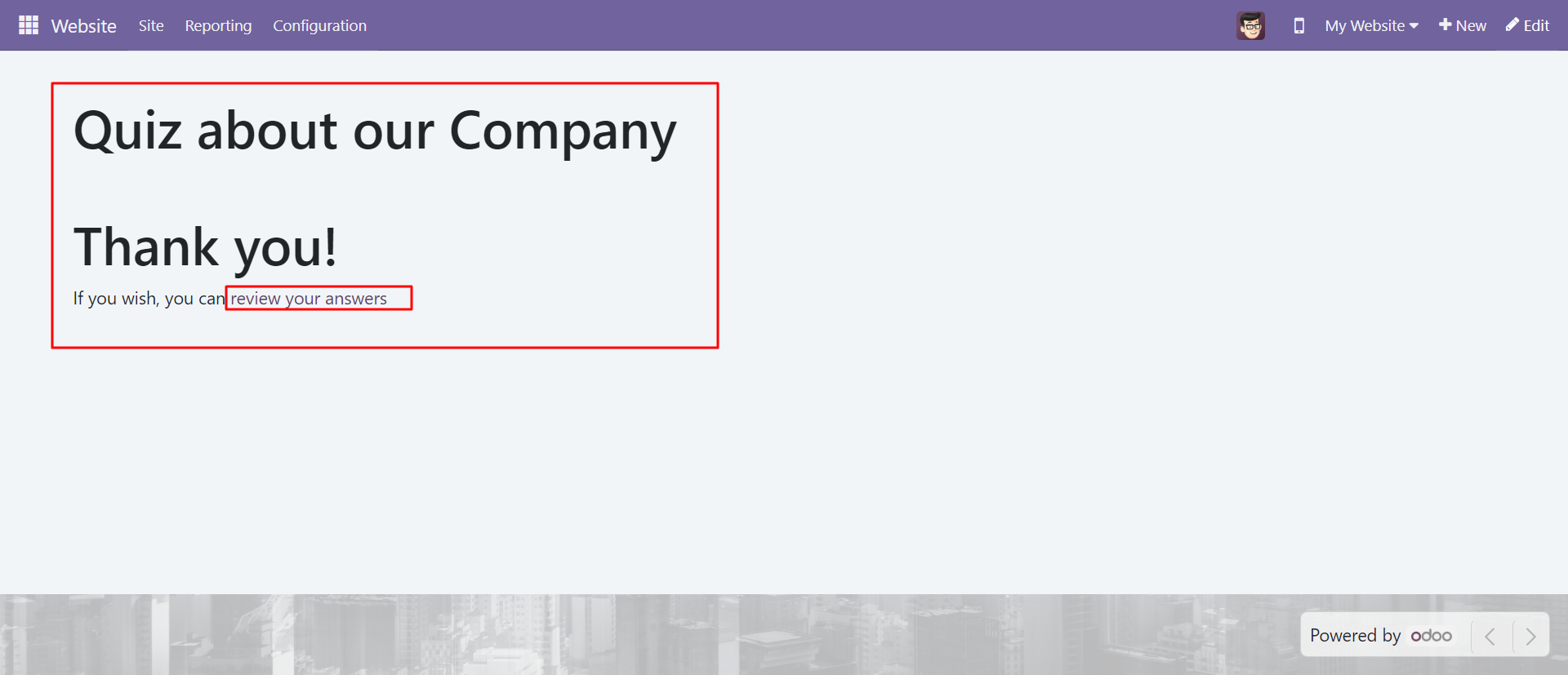
The examinee can review question-answers from the review.
The review page looks like this, The examinee can give feedback from the survey page.

The participations list view from the 'Participations' smart button.
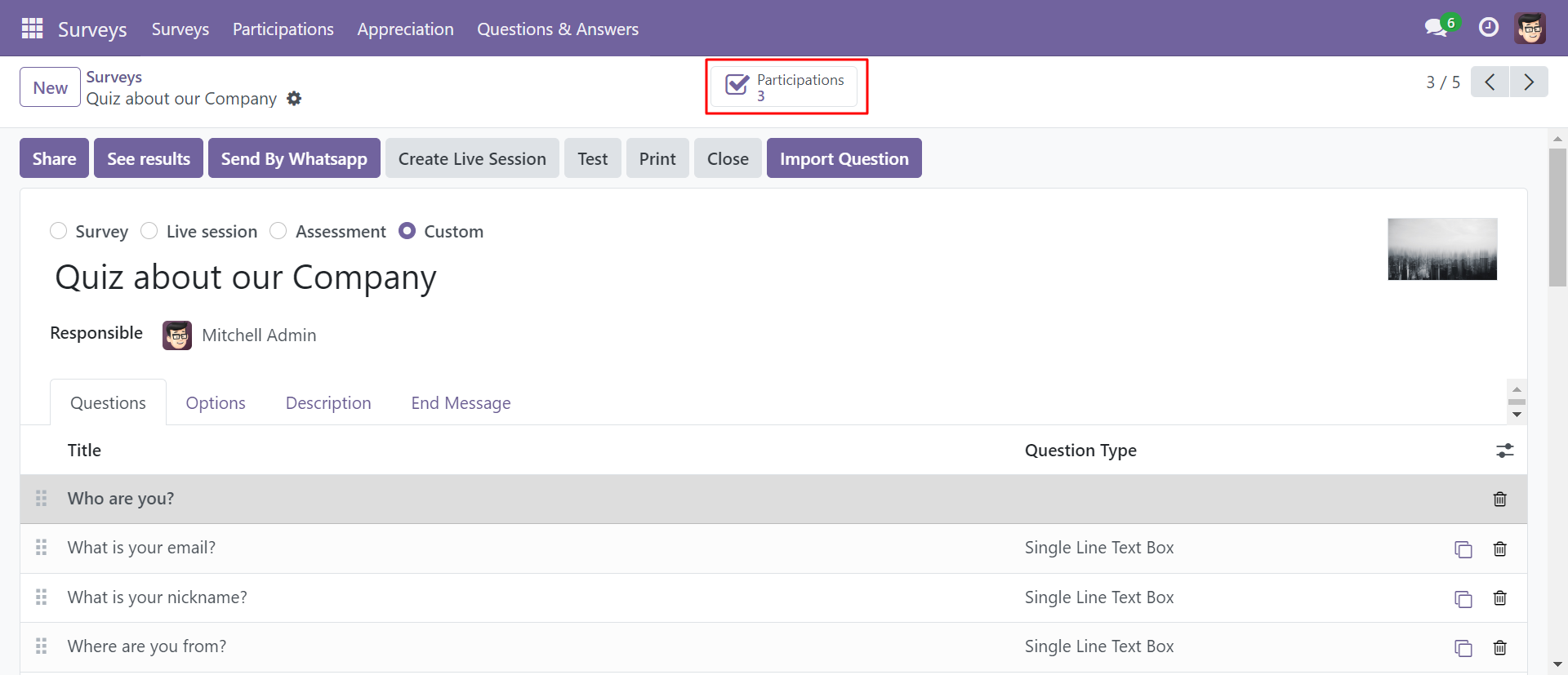
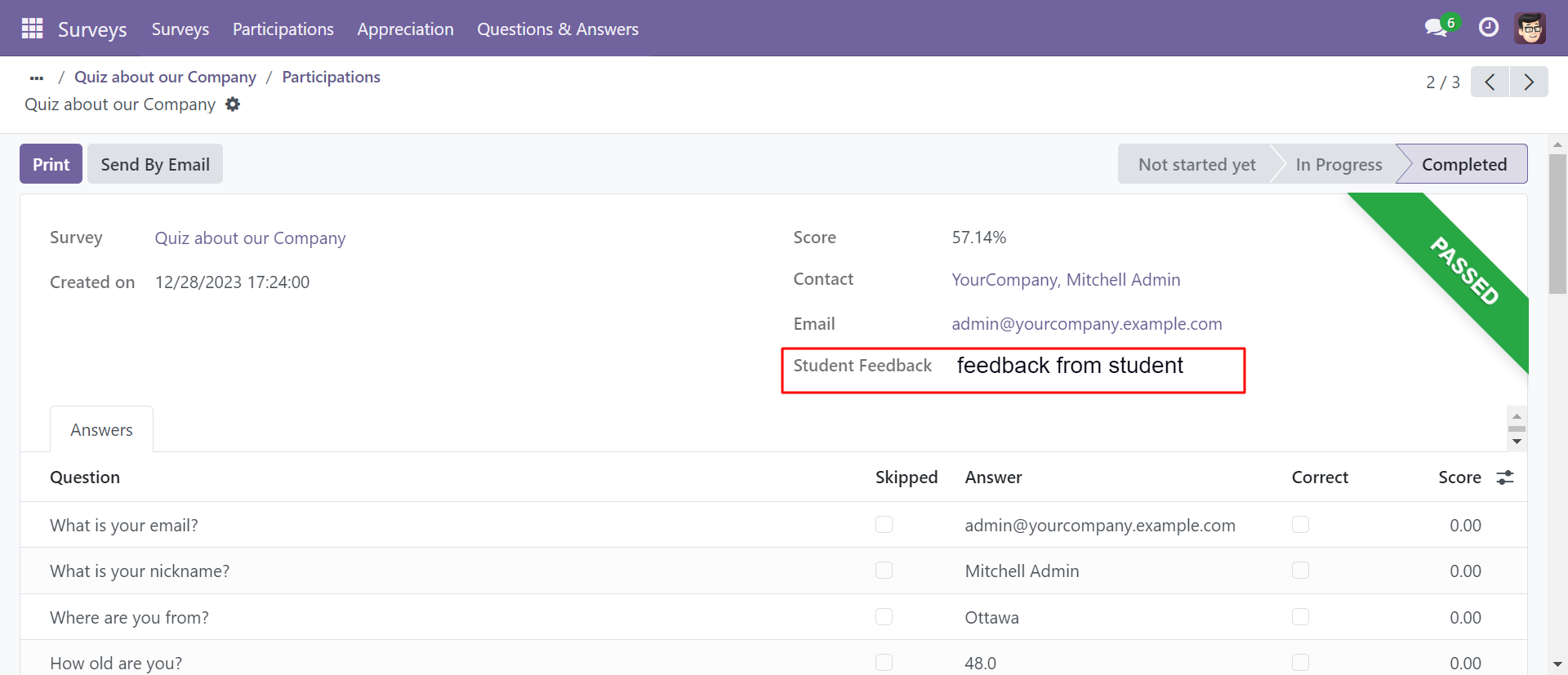
The examinee answer at the backend with the feedback.
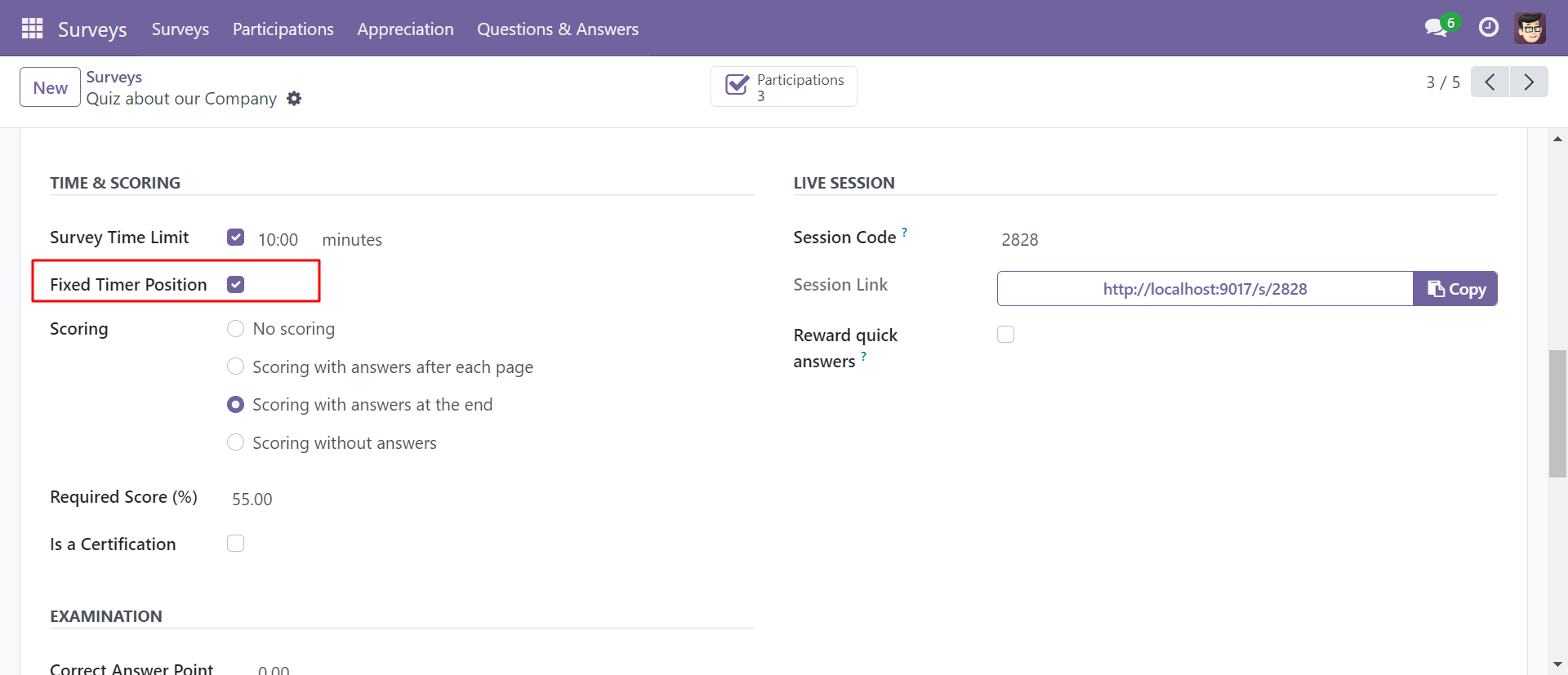
You can fix the timer position by enabling 'Fixed Timer Position'.
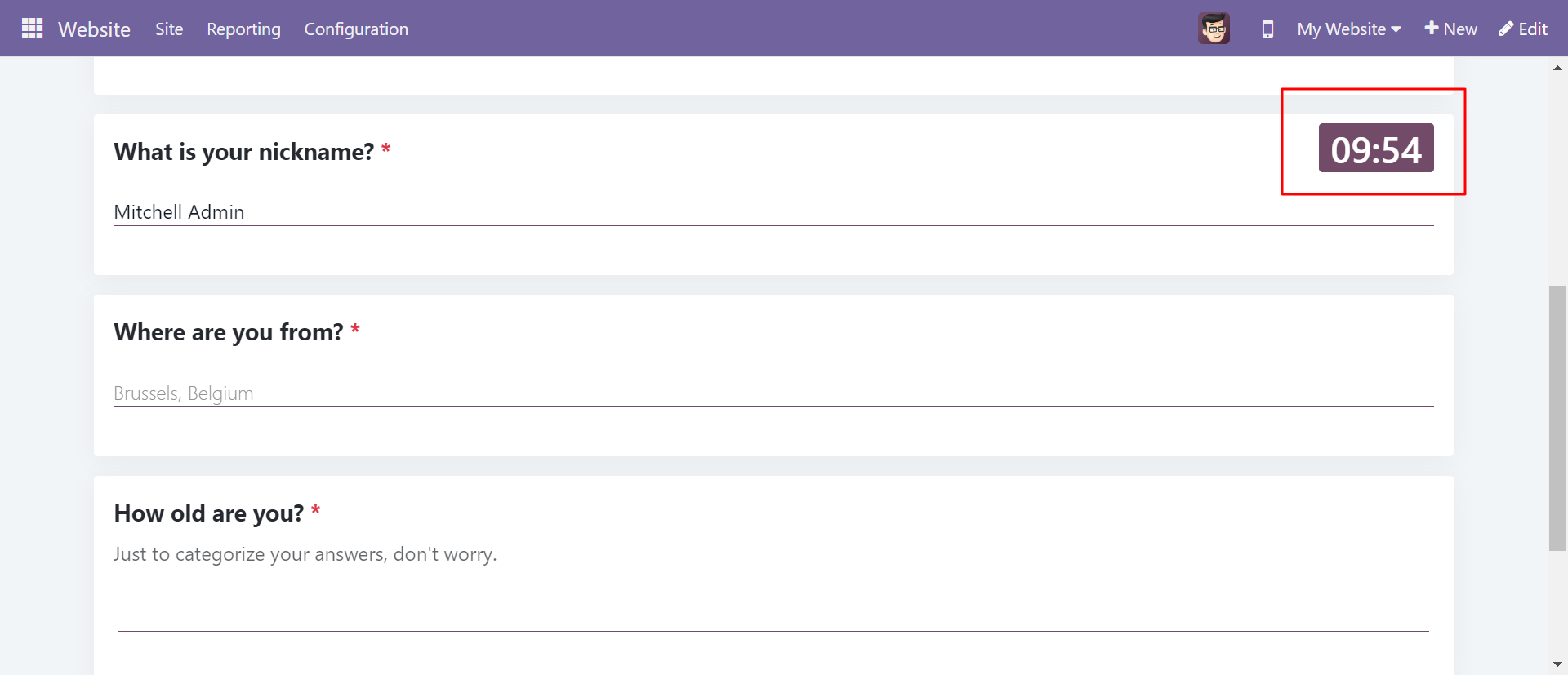
Timer with a fixed position on the survey page.
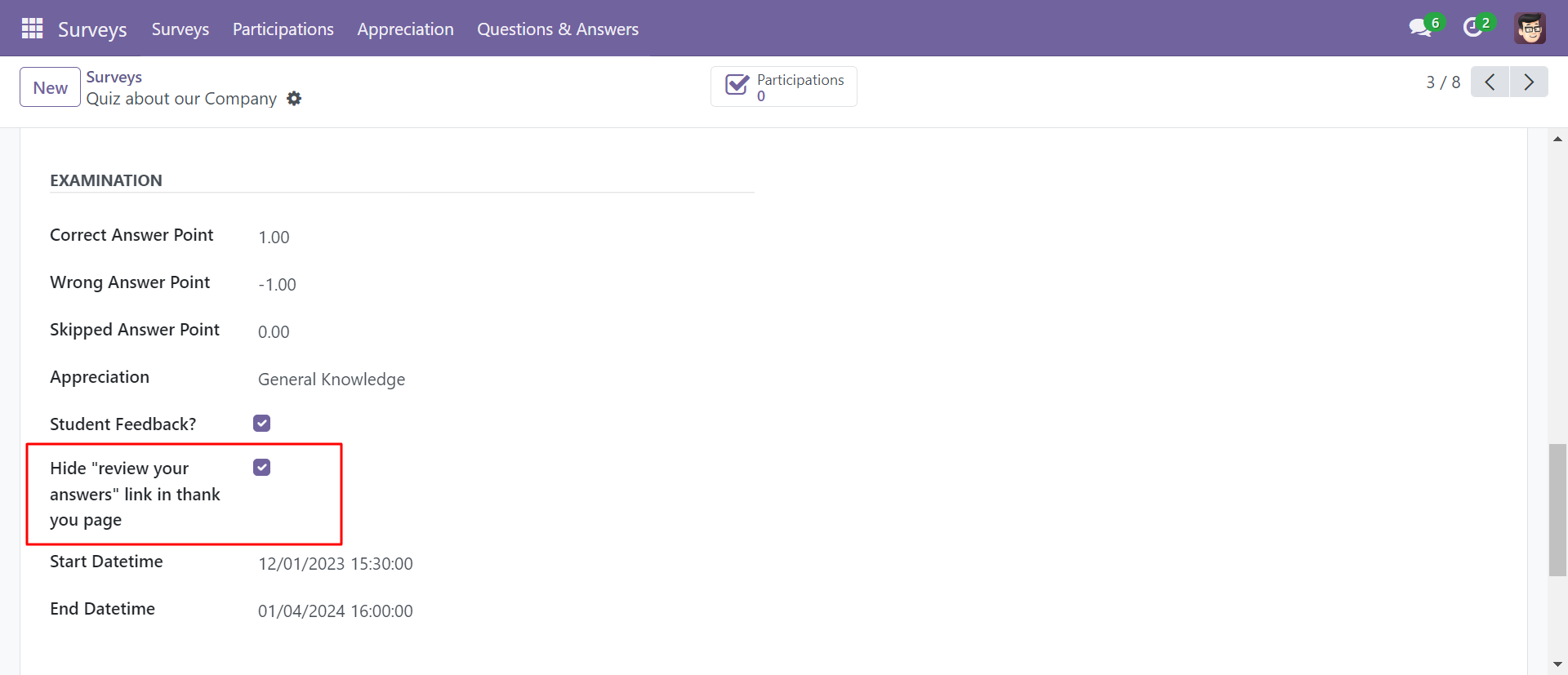
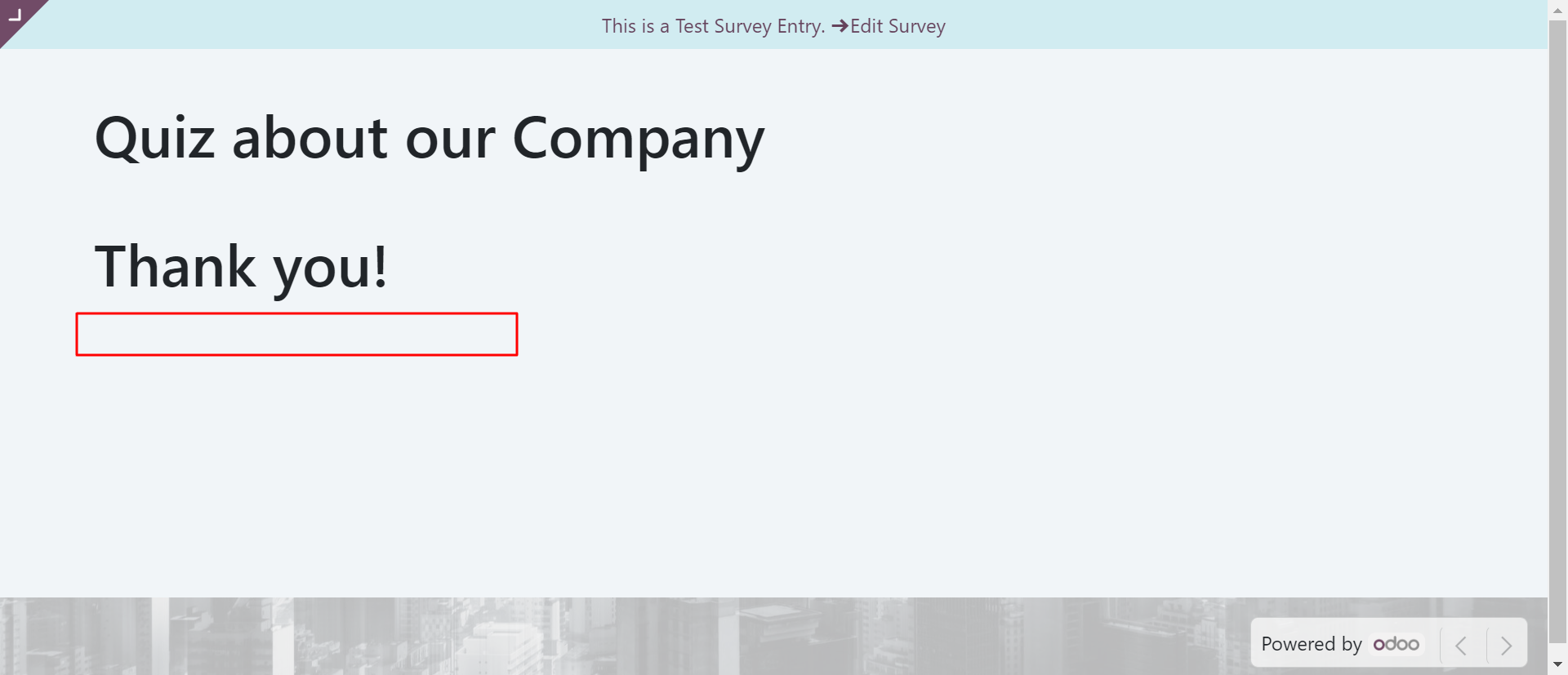
You can hide/show the review answer link from enabling this.
The review question-answers link is hidden from the review page.
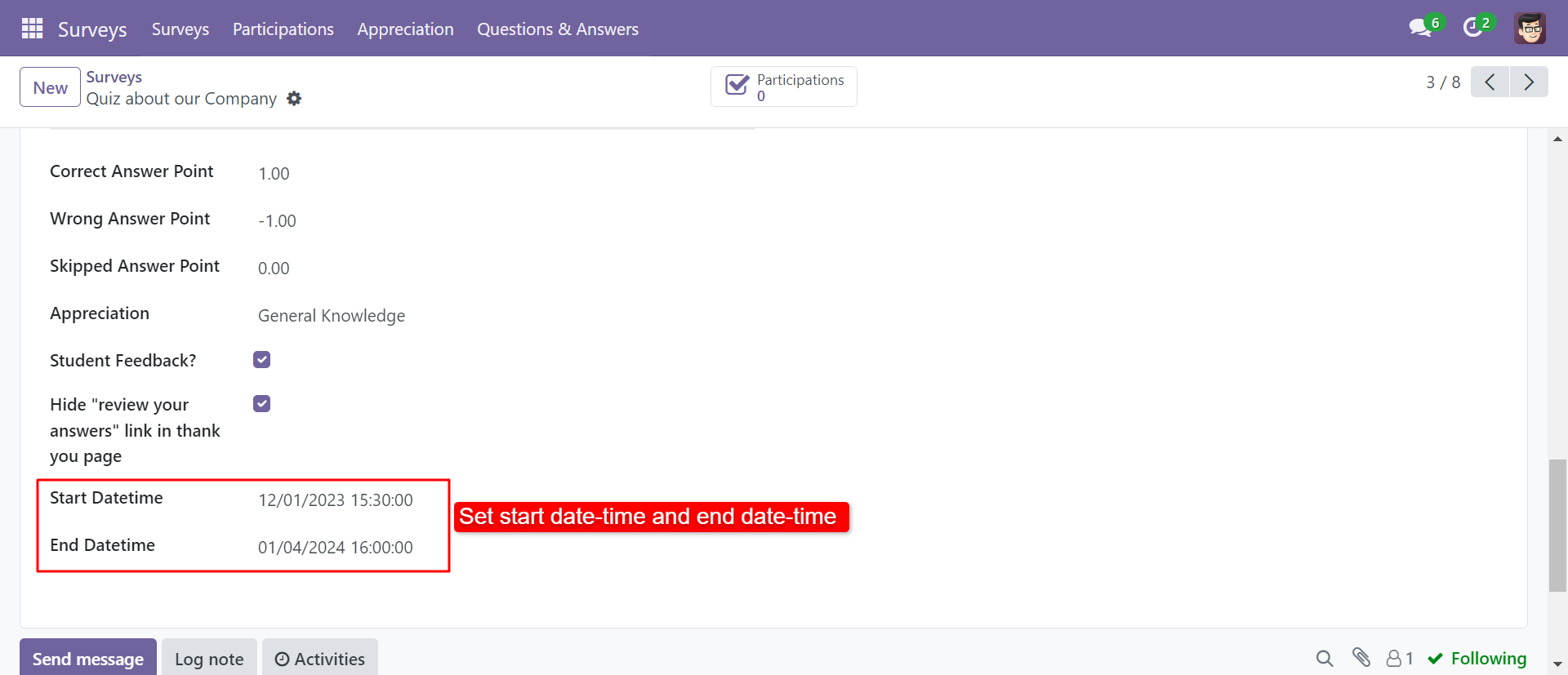
You can show survey start & end datetime on the survey page.
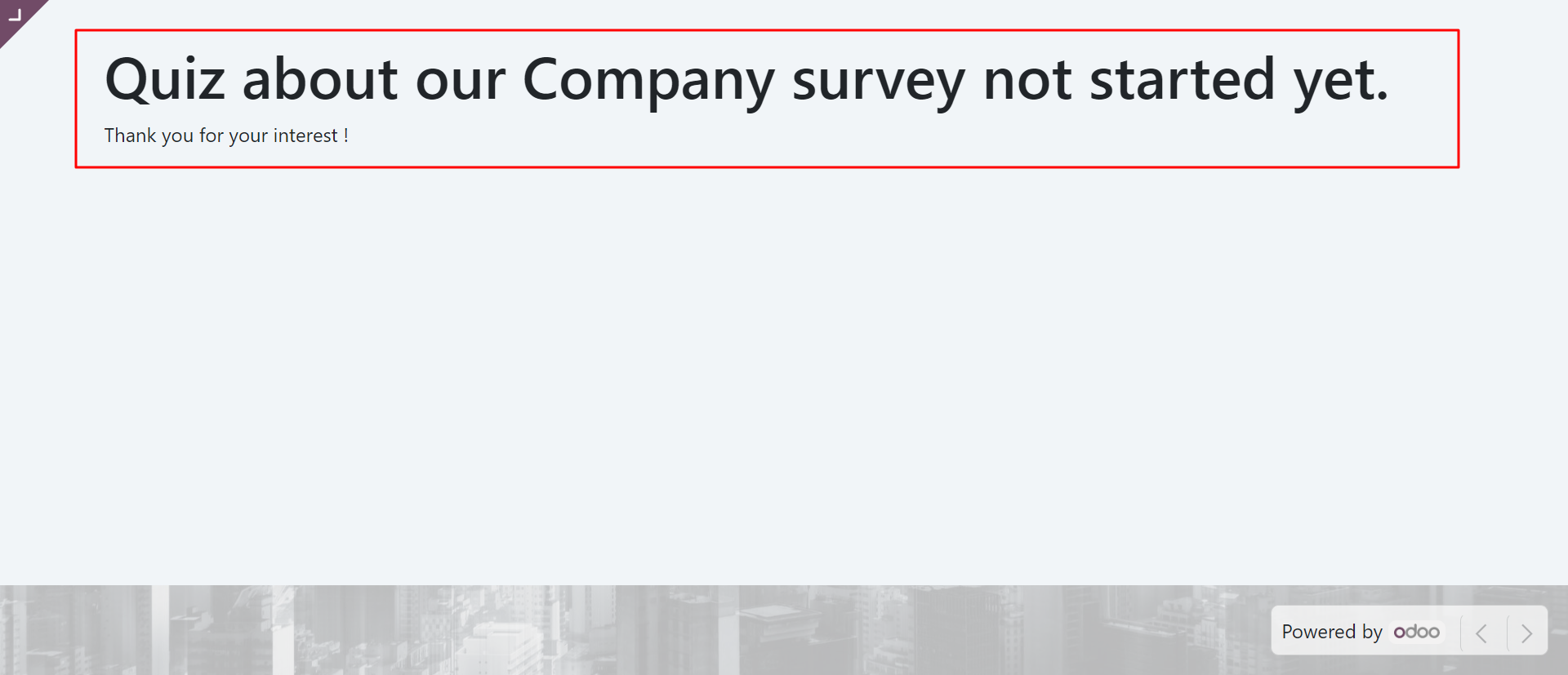
It shows survey start & end datetime on the survey page like this.
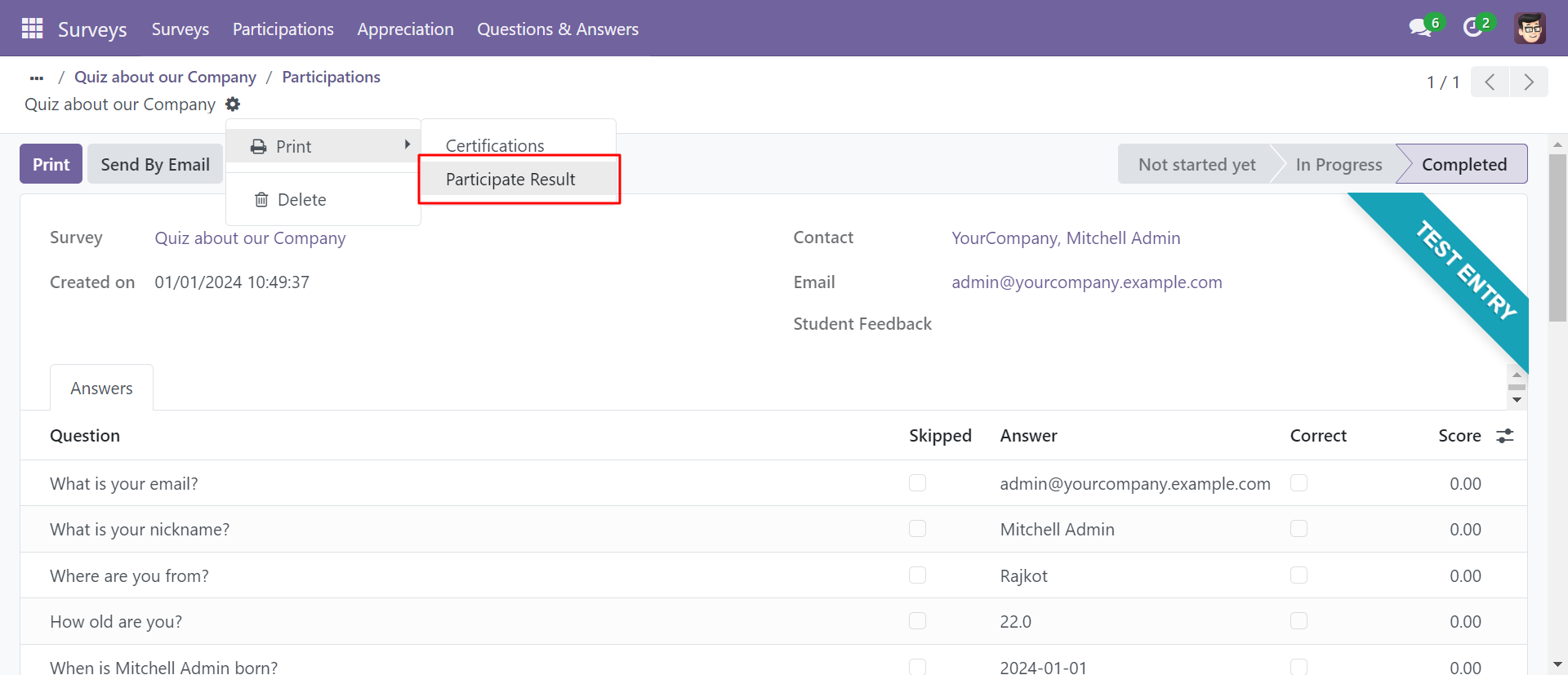
You can print the participant result report.
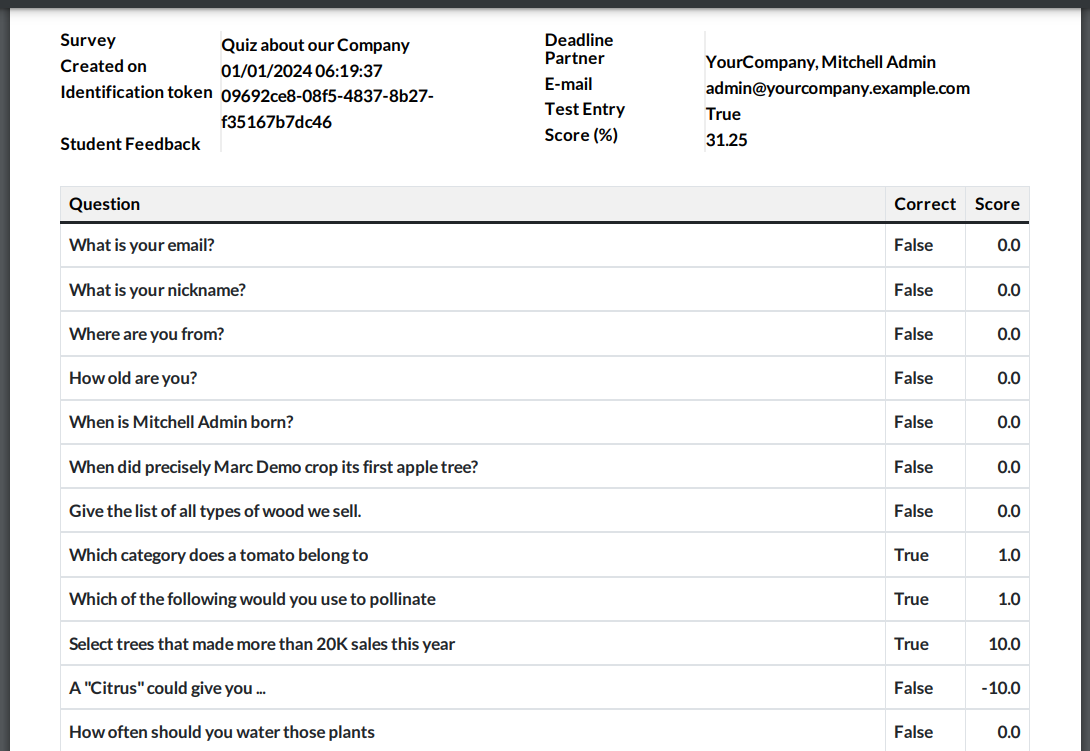
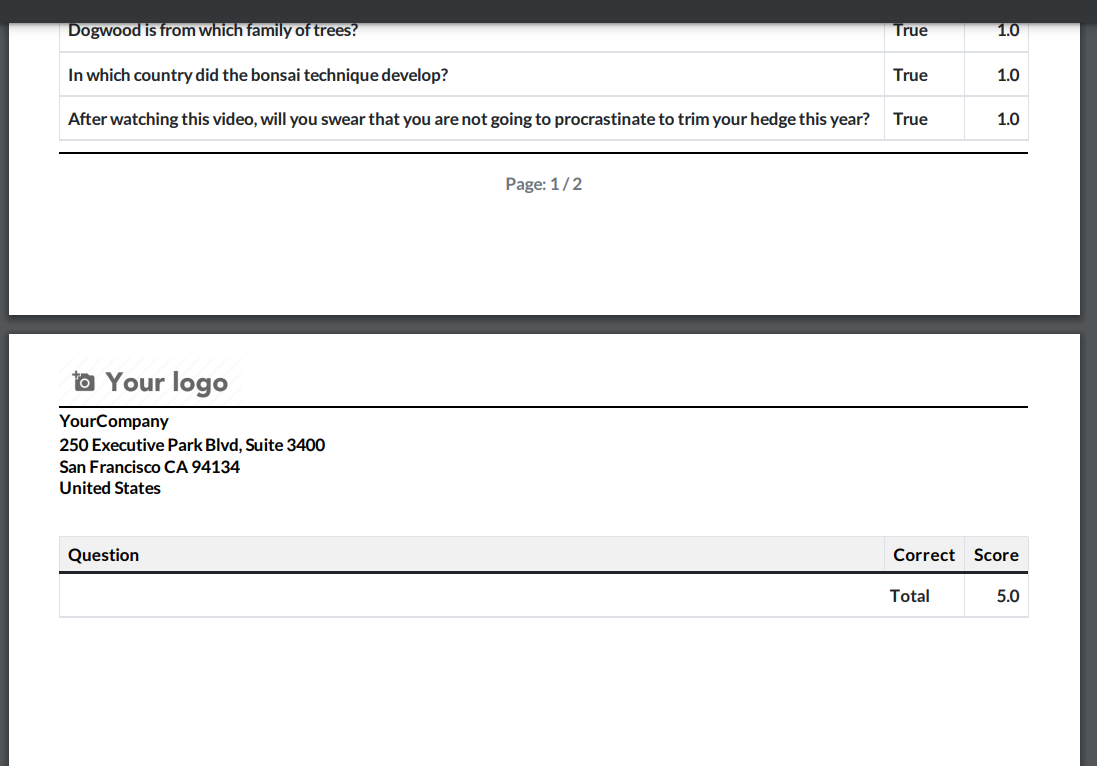
The participant result report looks like this.
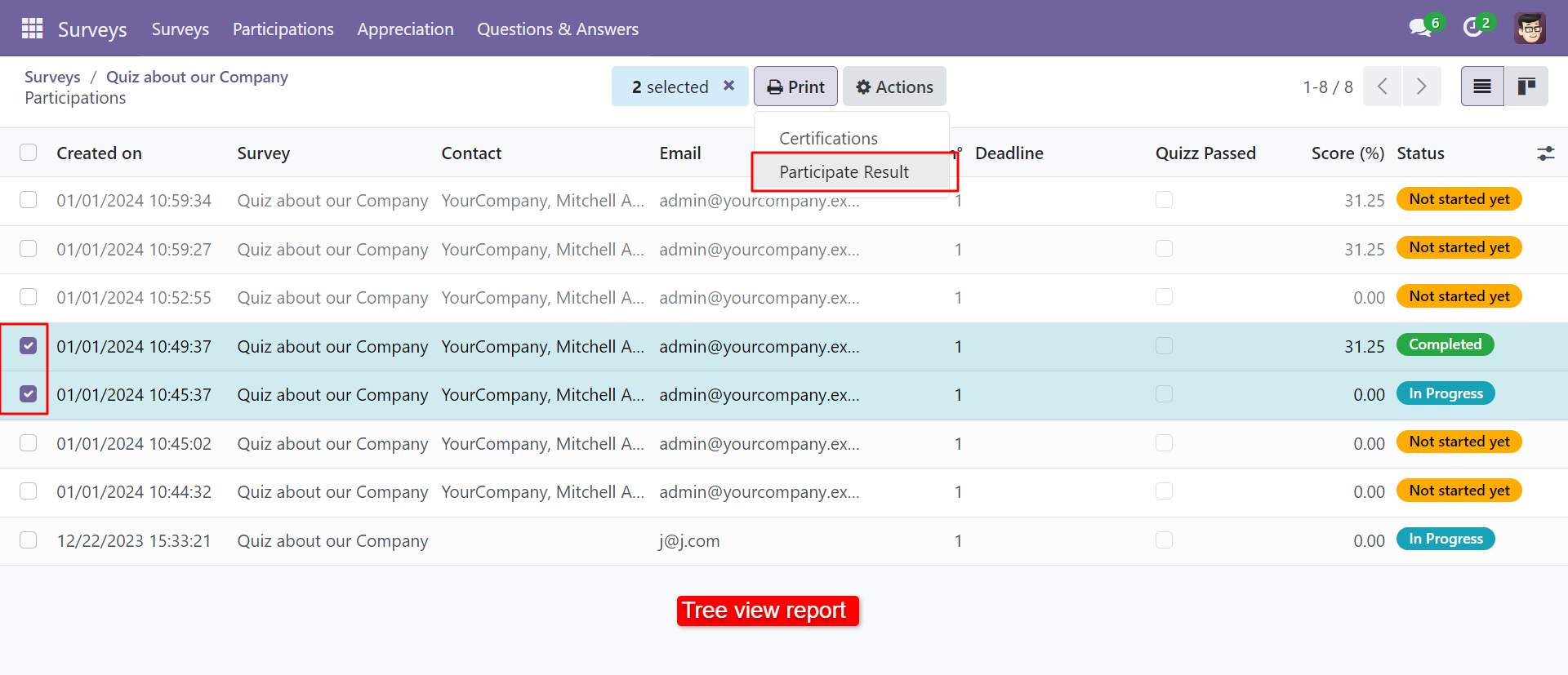
You can print participant results from the list view.
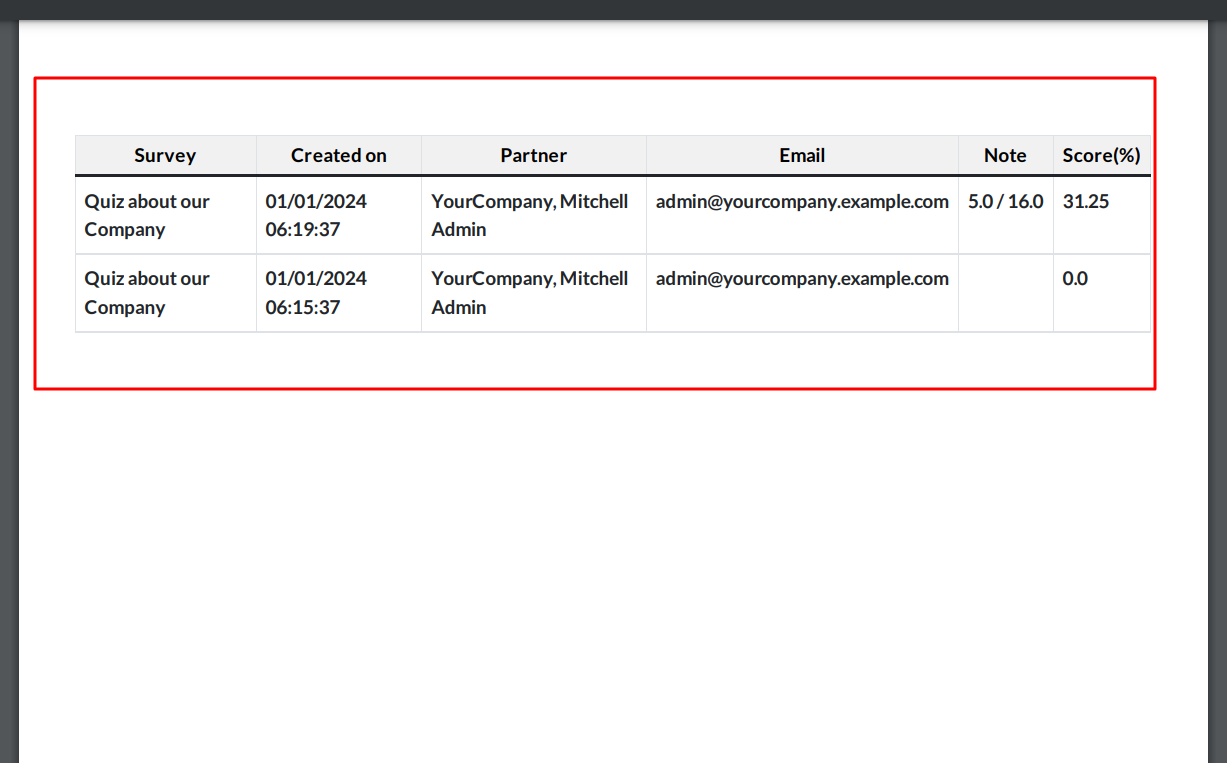
The participant's result report looks like this.
You can send participant results from the email.
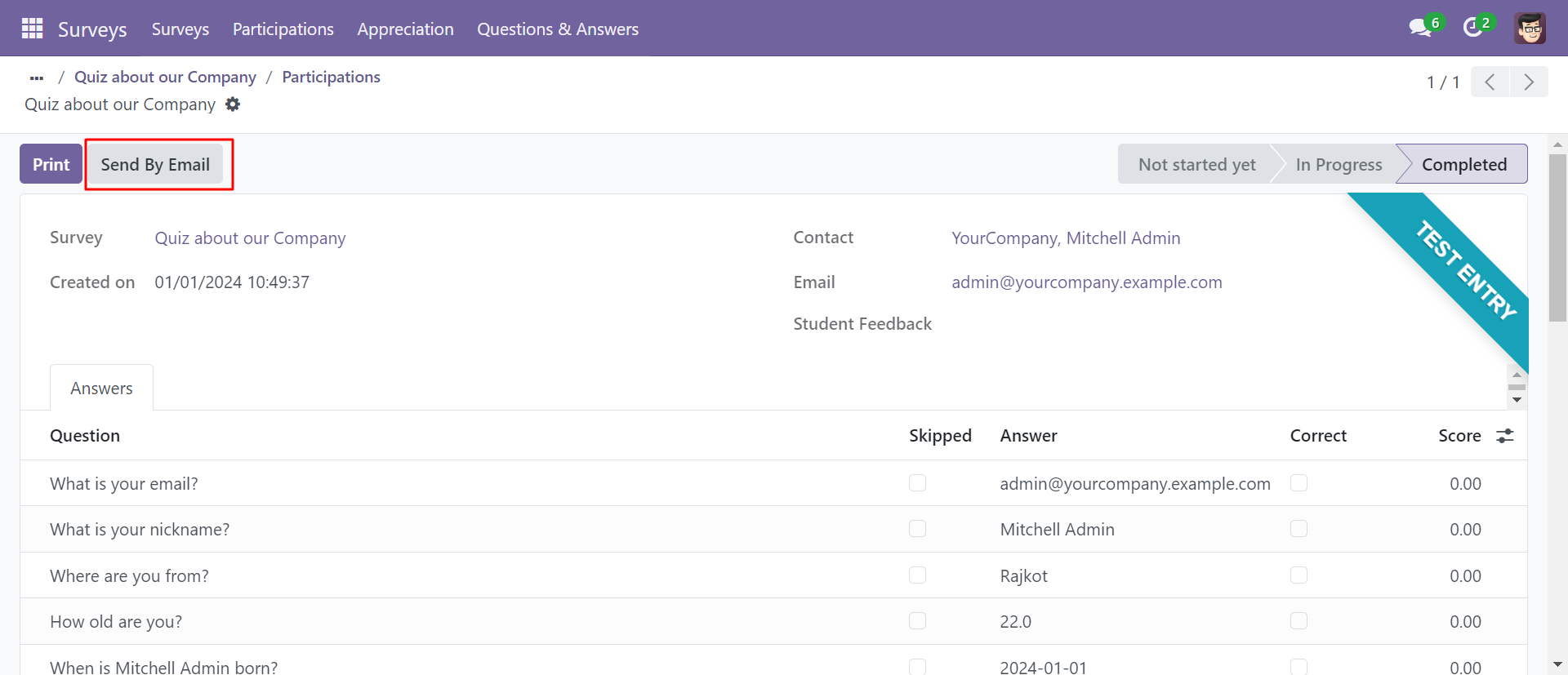
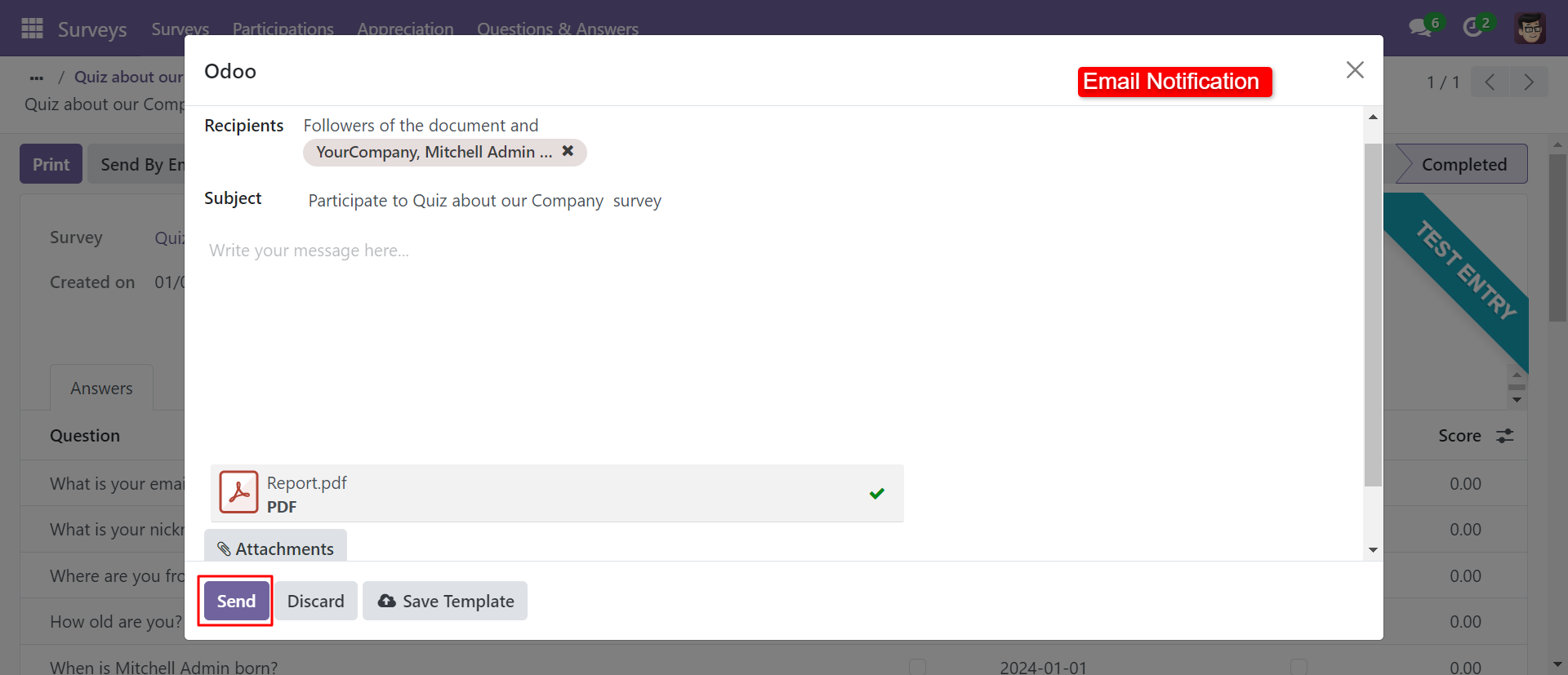
After pressing the 'Send By Email' button you can send the participant result by email.
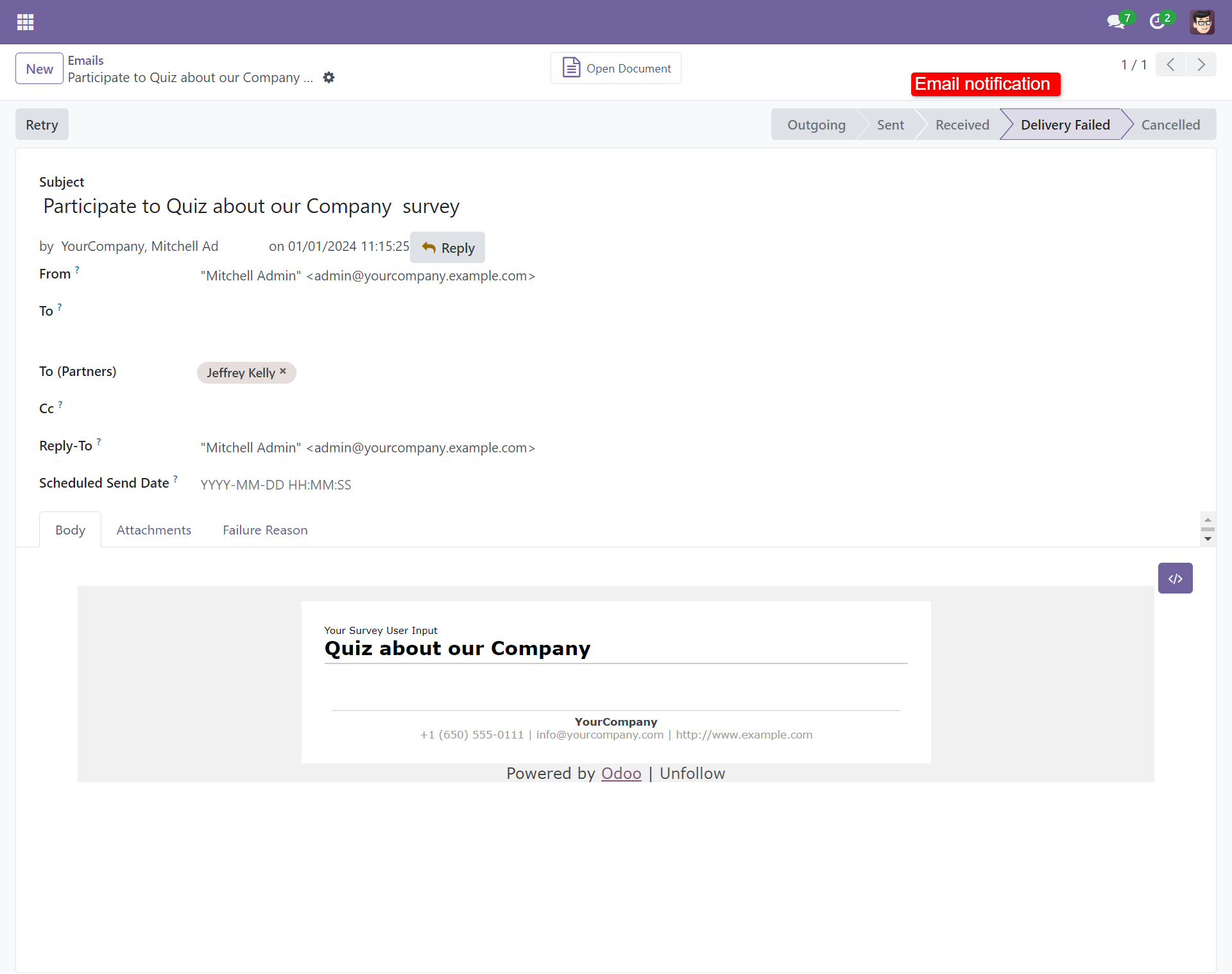
The participant result sent by email.
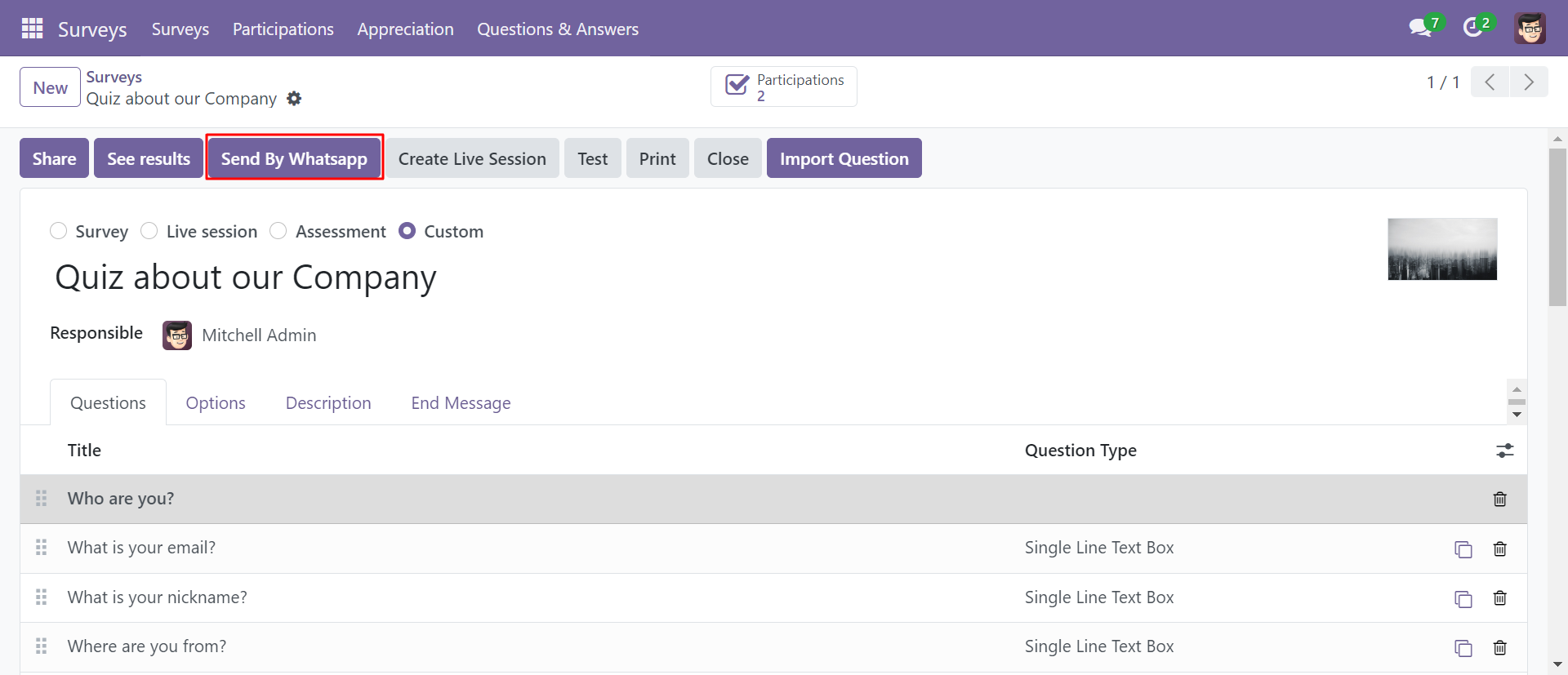
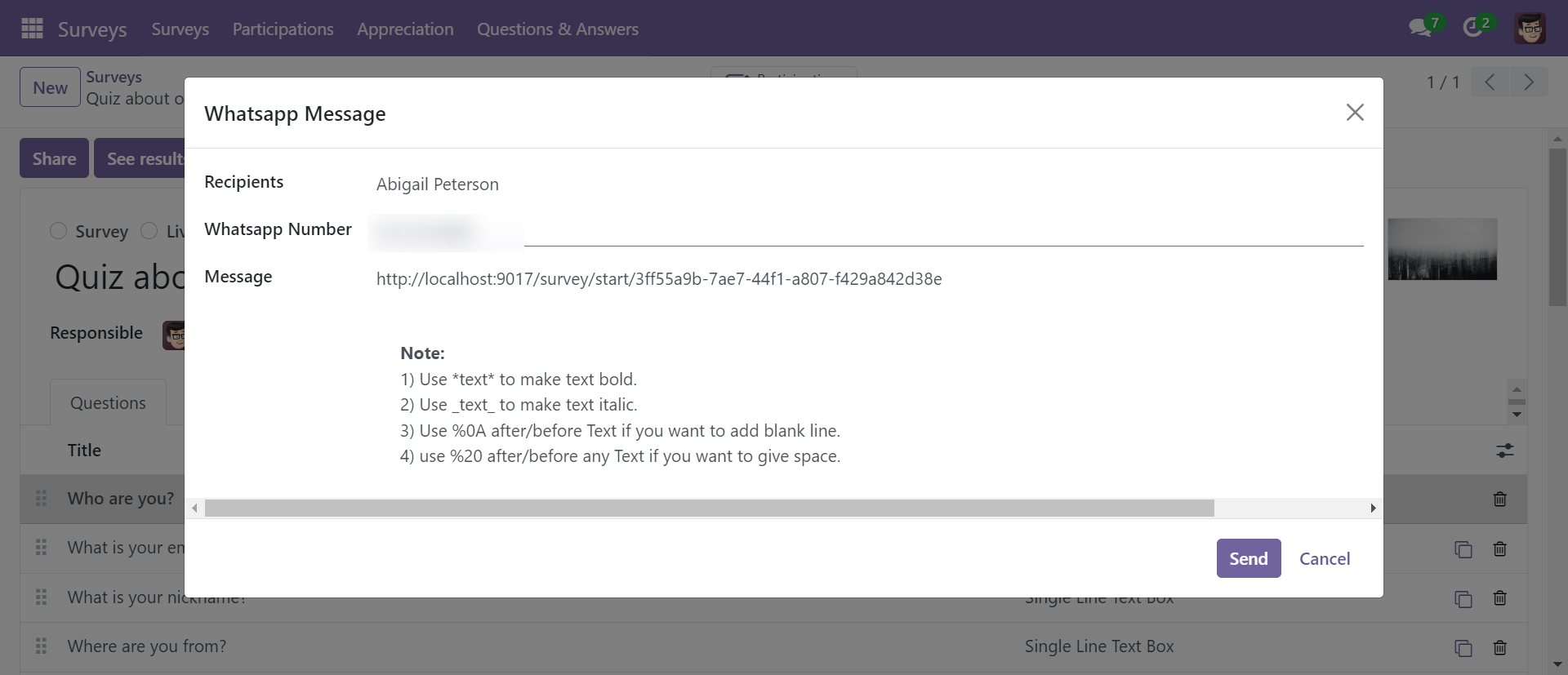
You can send a survey by WhatsApp.
After pressing the 'Send By WhatsApp' button, this wizard opens, selects the recipients and enters details, and then sends the survey by WhatsApp.
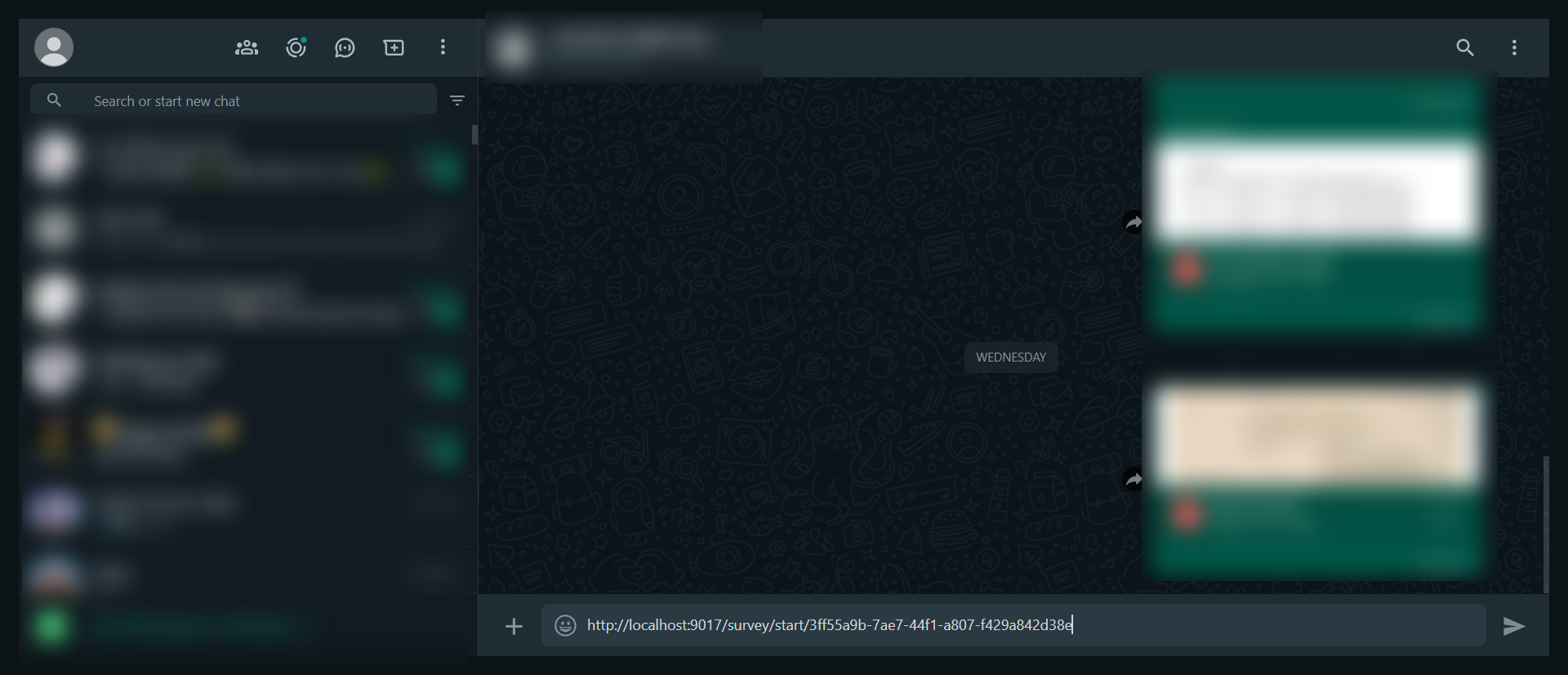
The survey sent by WhatsApp.
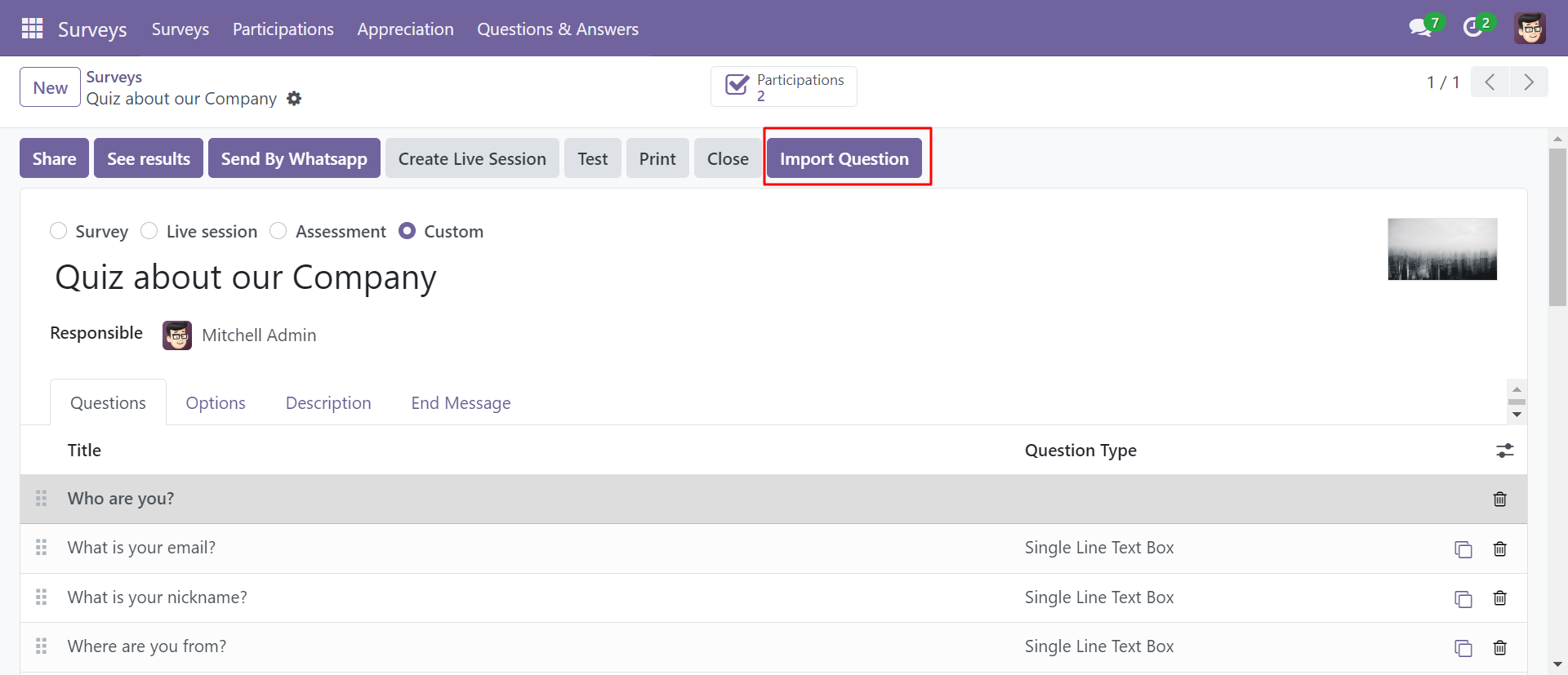
You can import questions from the Excel/XLS/XLSX file using the 'Import Question' button.
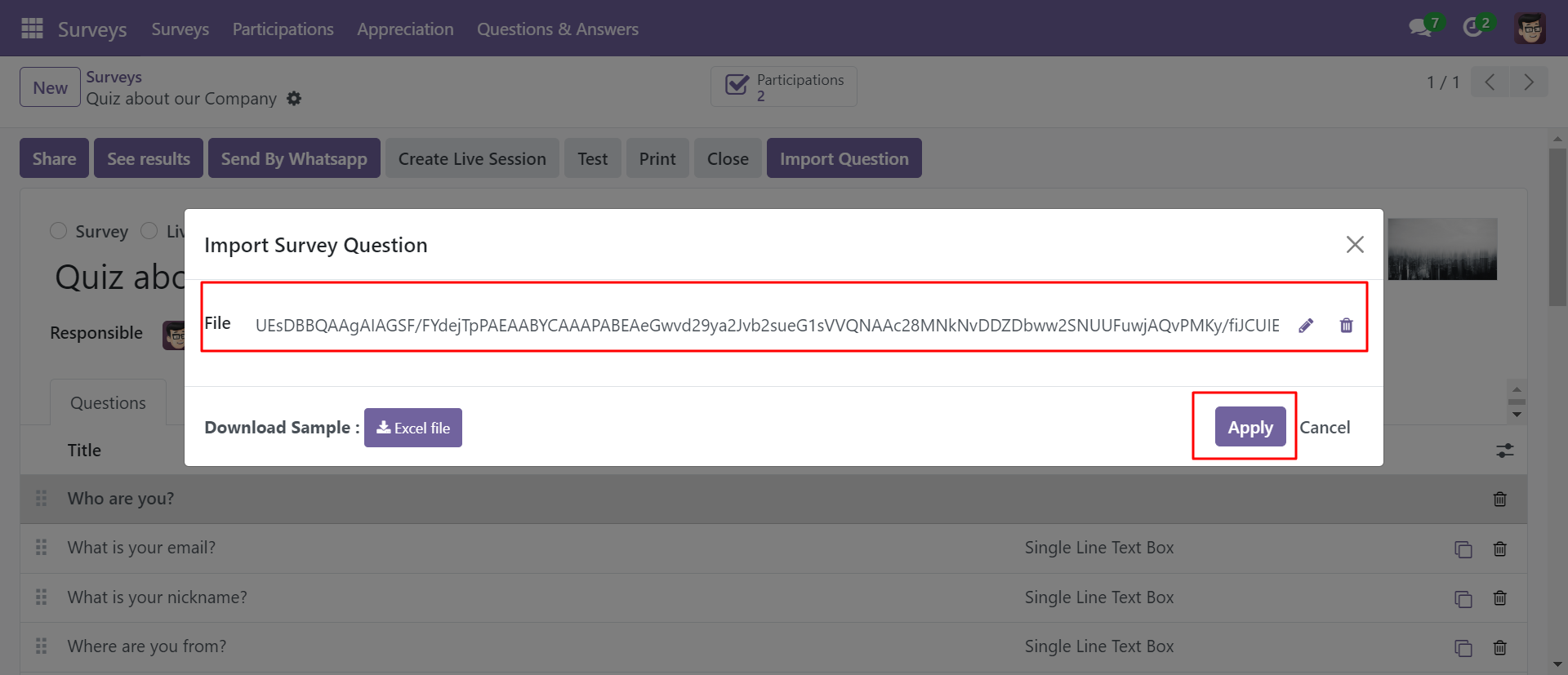
Select the file and then press the 'Apply' button, you can download the file using the 'Download' button.
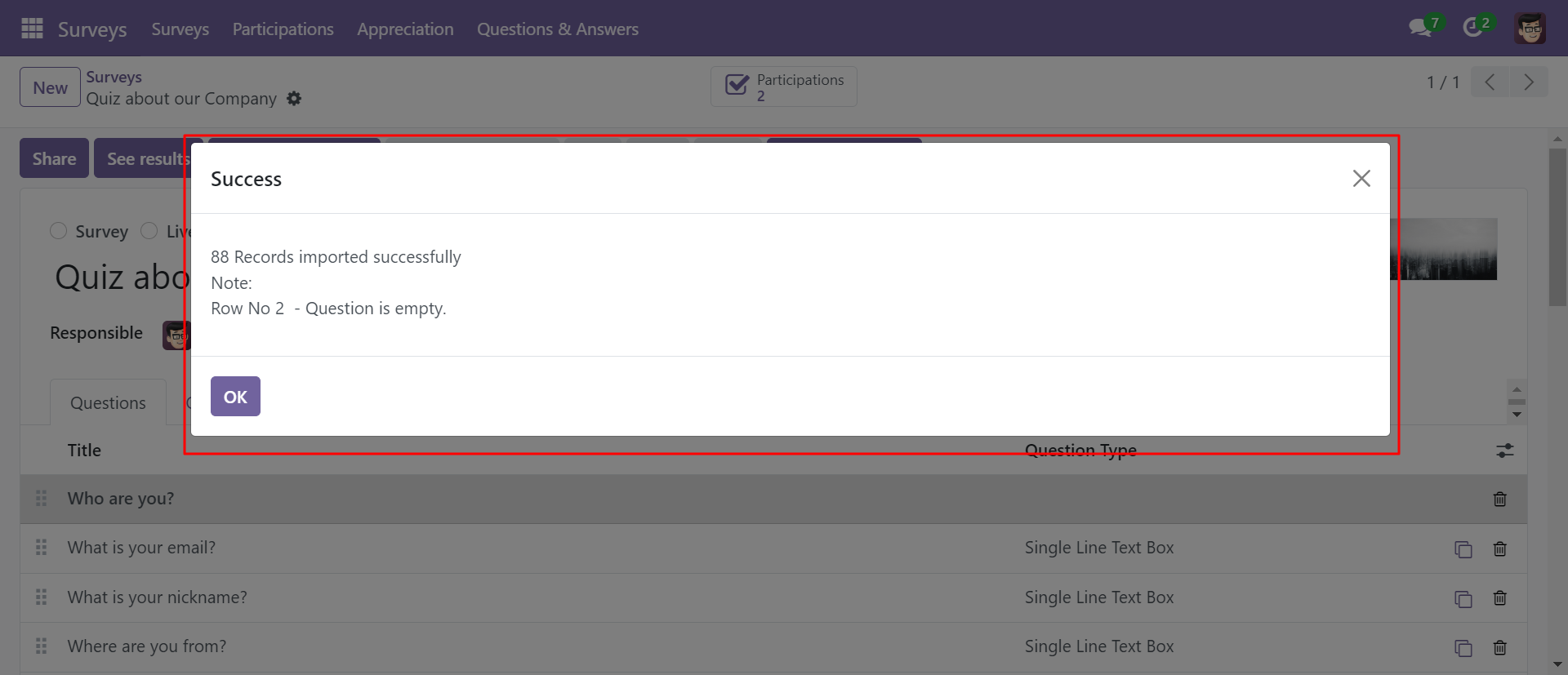
Success message looks like this.
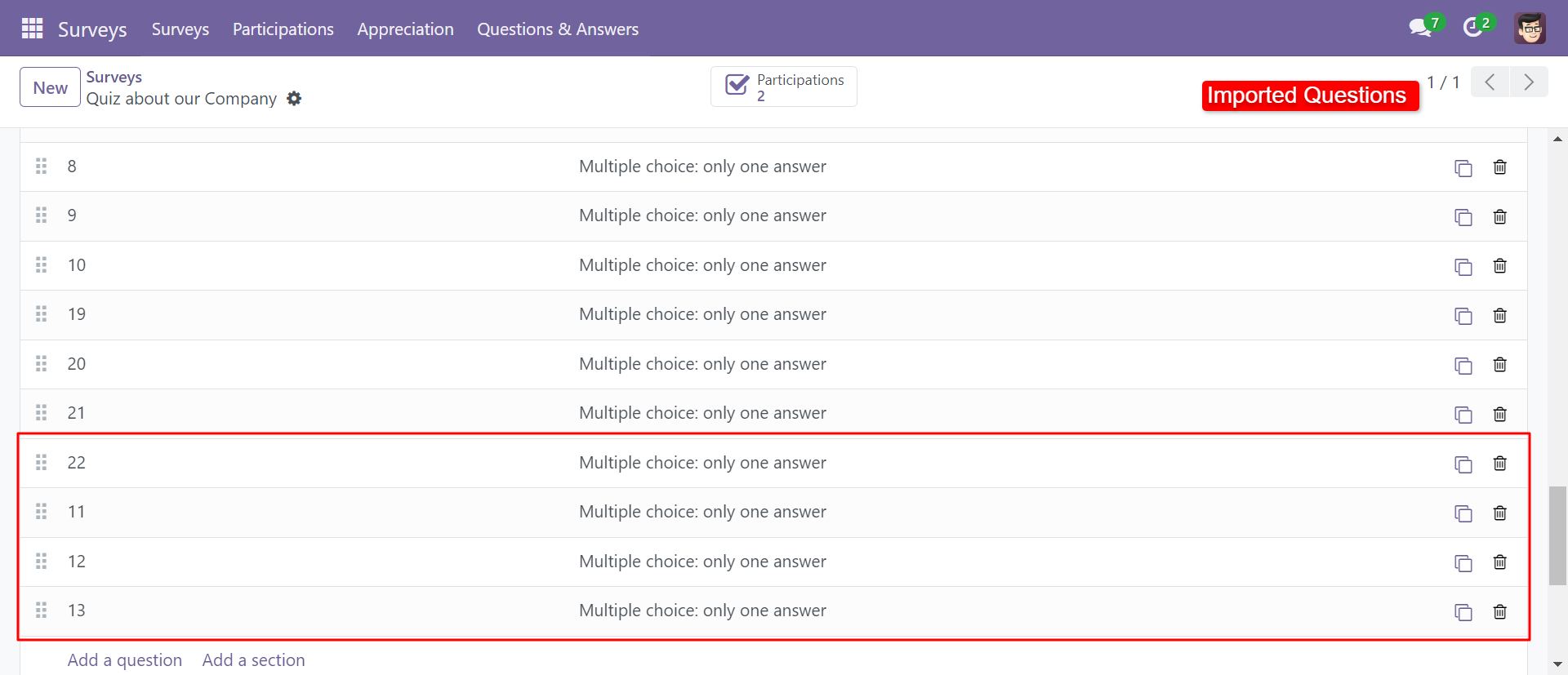
Questions imported.
Version 20.0.1.0.0 | Released on : 15th September 2026
- Yes, this app works perfectly with Odoo Enterprise (Odoo.sh & Premise) as well as Community.
- No, this application is not compatible with odoo.com(odoo saas/Odoo Online)
- Yes, to test this module, please contact us at sales@softhealer.com.
- Please contact us at sales@softhealer.com to request customization.
- Yes, we provide free support for 365 days from the date of purchase.
- Yes, you will receive lifetime free updates for the version of the module you purchased.
- No, there is no need to install any additional libraries.
- Yes, for version 12 and above, you need to purchase the module separately for each version you intend to use.
- No, exchanges or refunds are not allowed. Please make sure to select the correct version before purchasing.
- You can contact us at support@softhealer.com for language translation support. We use Google Translator tools to provide translations in multiple languages, so the accuracy may vary. We welcome your suggestions to help improve translations.
Discover Our Latest Apps