
Employee Overtime - Enterprise Edition

This module helps manage employee overtime in payslips. Employees can request overtime, which their managers can approve or reject. Managers receive email notifications for new requests and must decide whether to approve them. If a request is rejected, the manager provides a reason, and the employee is notified. Overtime hours are also calculated and included in payslips.

Workflow
- Step 1: Allocate managers to employees.
- Step 2: The manager creates "Overtime Types" according to your organisation.
- Step 3: The employee creates a request, based on time(From-To) overtime hours calculated automatically.
- Step 4: The manager gets an email notification when the request is created.
- Step 5: The manager will be able to approve/reject requests. If rejected then you have to give a valid reason.
- Step 6: The employee gets an email notification when the request is approved/rejected.
- Step 7: Go to payroll settings and set overtime configurations.
- Step 8: Compute overtime in payslips.
Features
- Easy to manage & analyse employee overtime.
- An employee can easily create their overtime request.
- Managers can easily approve or reject the overtime request.
- The manager/employee gets an email notification when the request is created/approved/rejected.
- Easy to config overtime for weekdays or weekends.
- If the request is rejected then it generates a popup for reason.
- Overtime hours are also calculated and included in payslips.
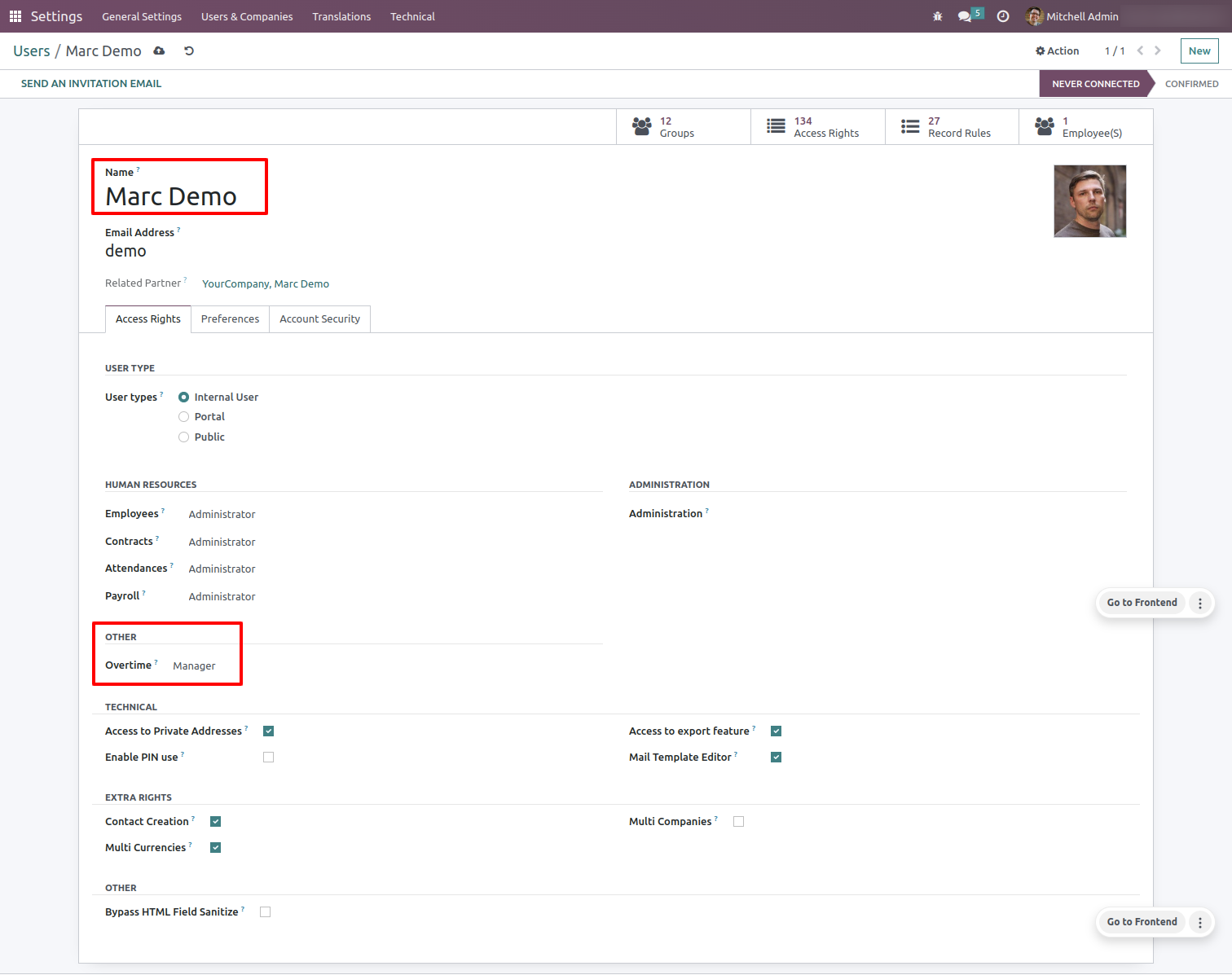
Go to the user settings and Set manager access rights in the overtime.
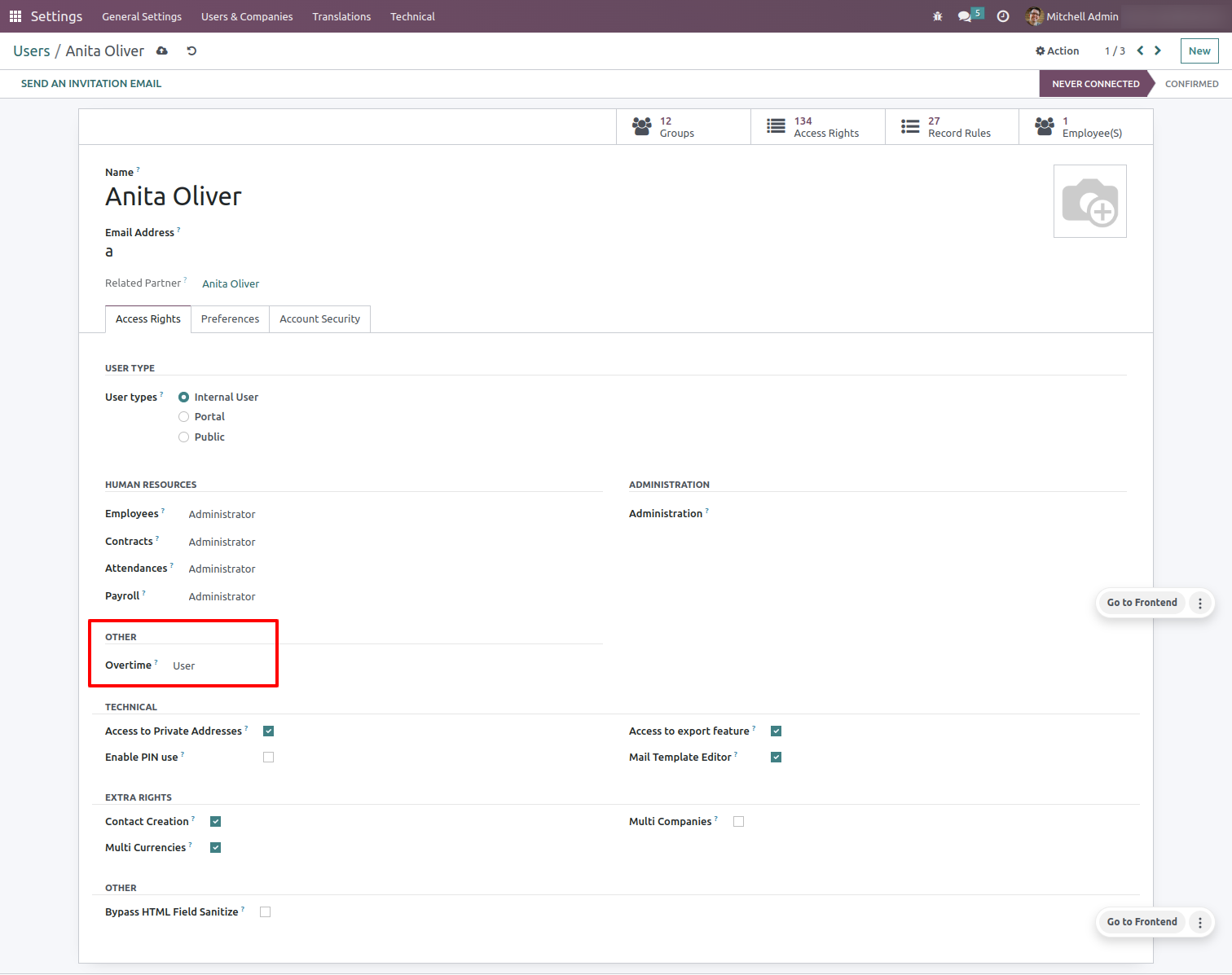
Go to user settings and set user access in the overtime.
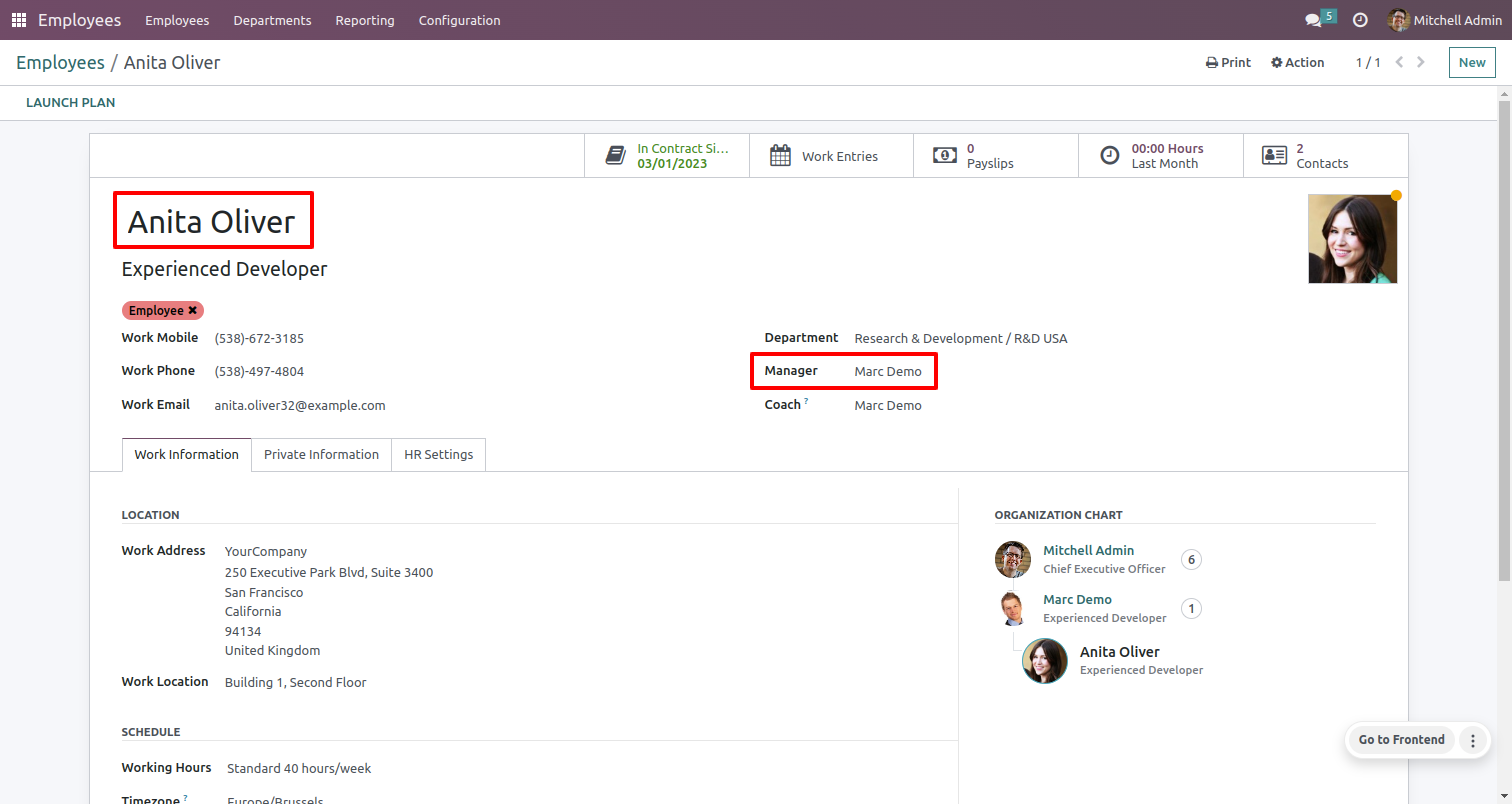
Set managers for employees.
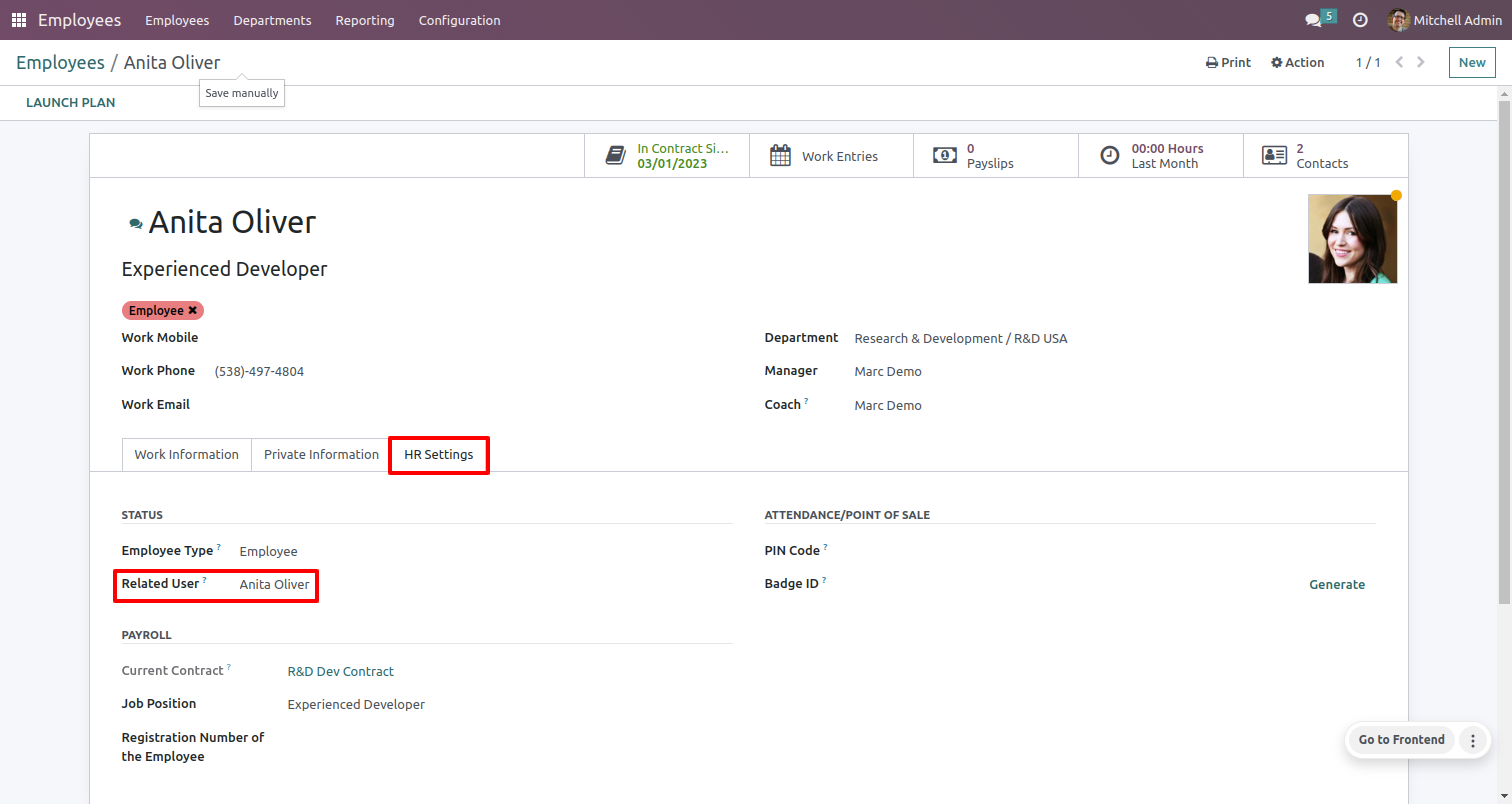
Select the related user.
You can open the form view of the overtime request from the overtime menu of the attendance.
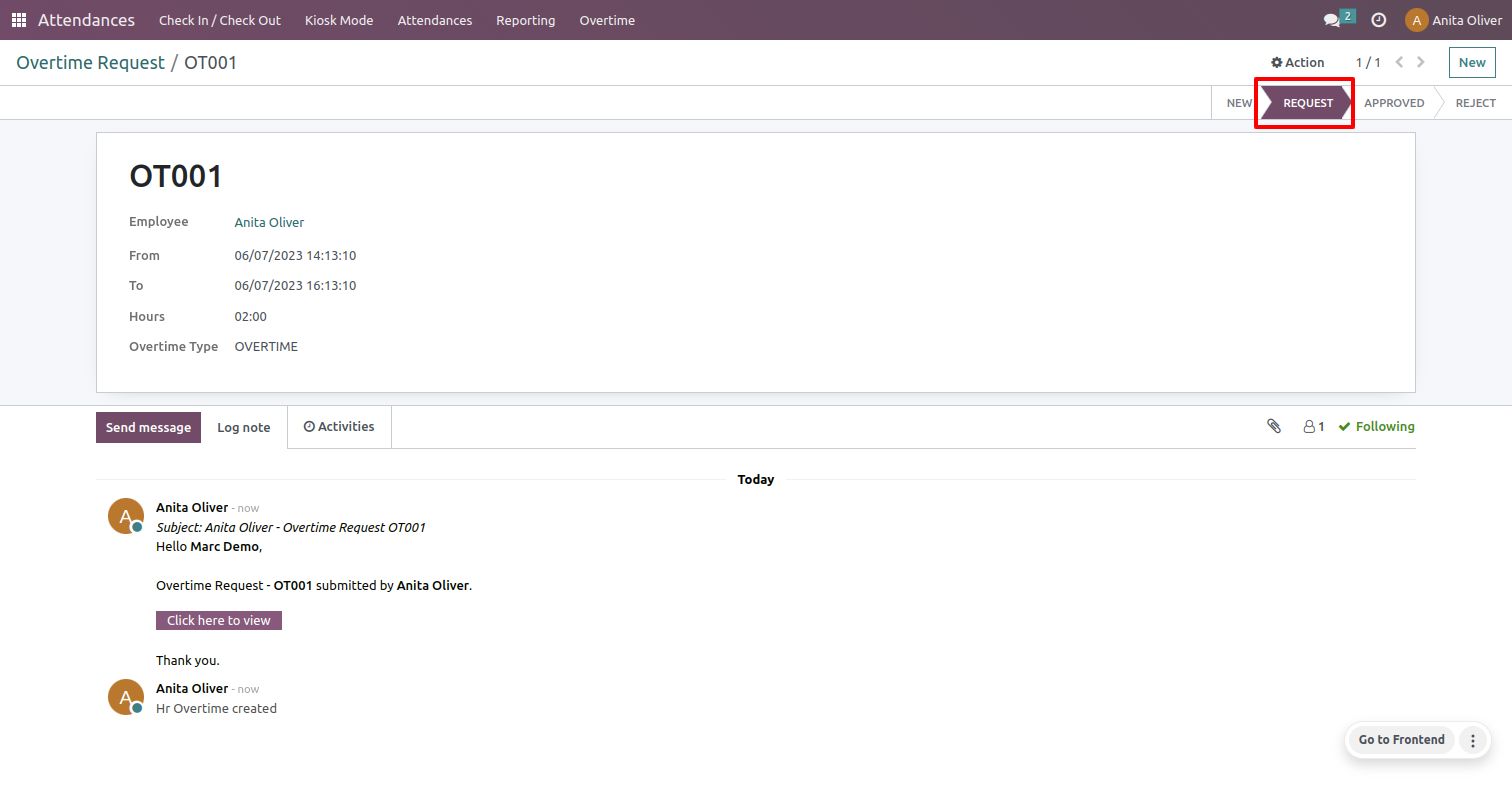
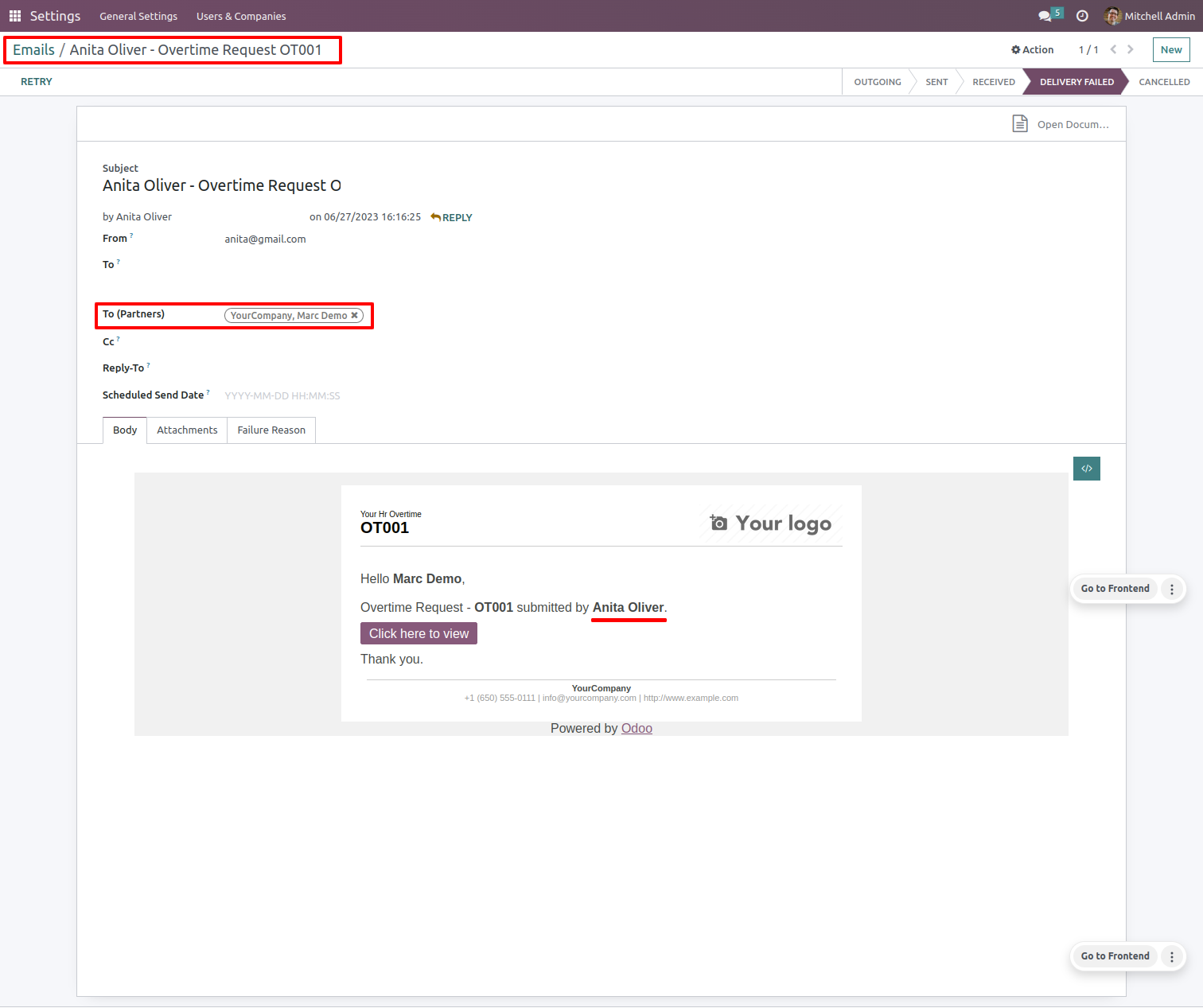
The manager gets an email notification when the request is created.
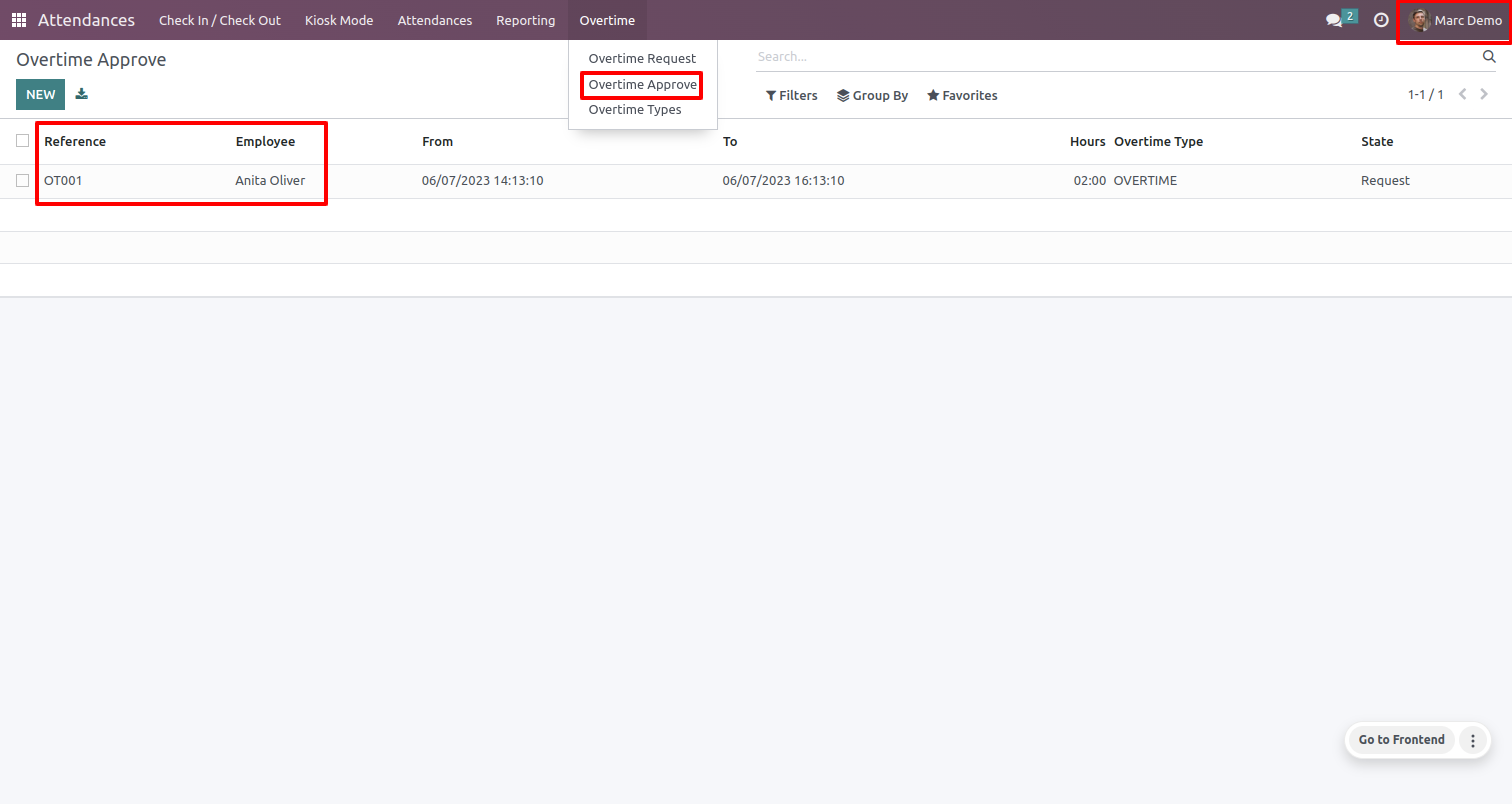
Open the overtime approved list view from the overtime menu of the attendance.
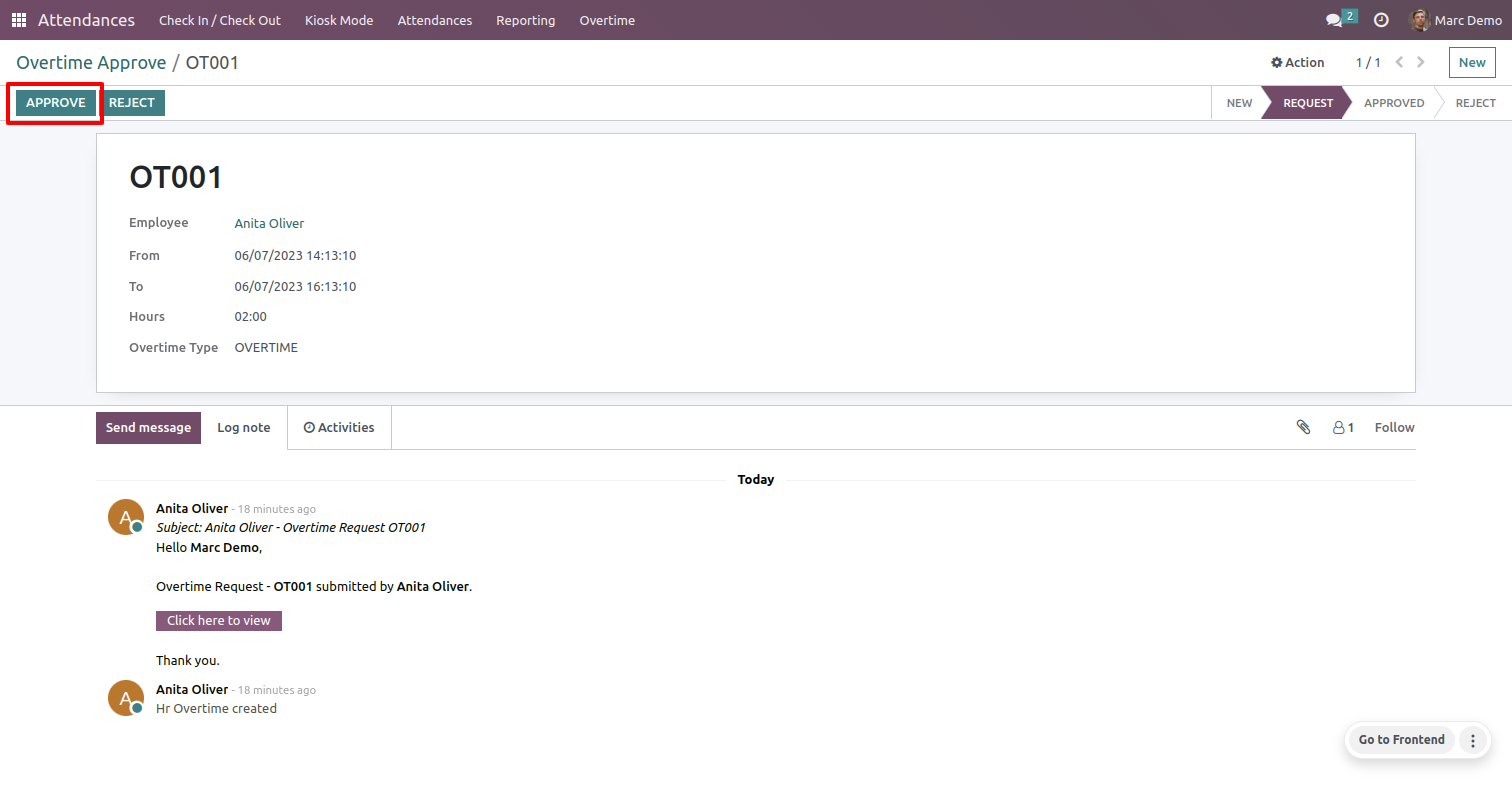
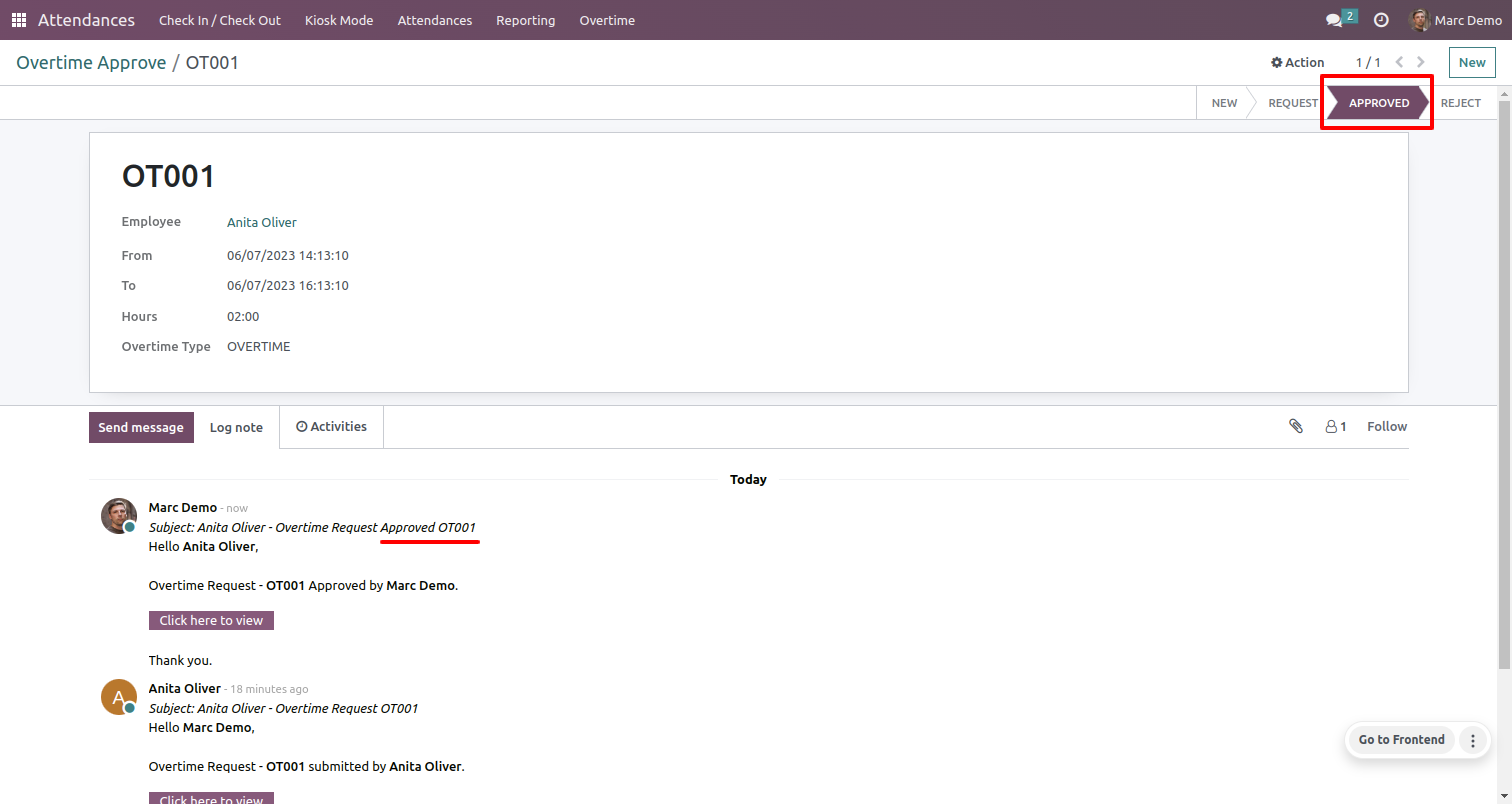
Form view of the overtime approval. To approve a request, click on the 'Approve' button.
You can see the request is in the Approved stage.
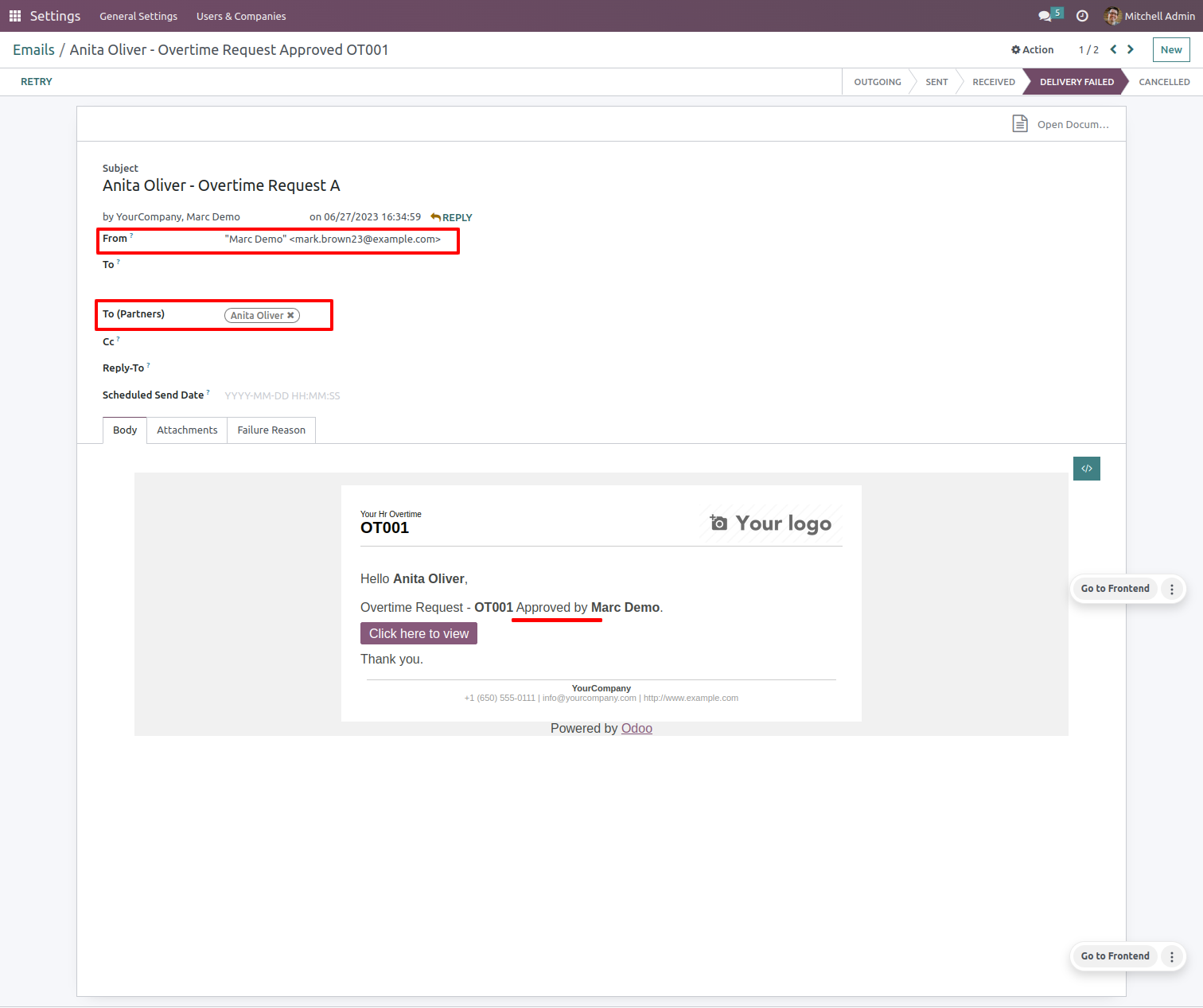
The employee gets an email notification when the request is approved.
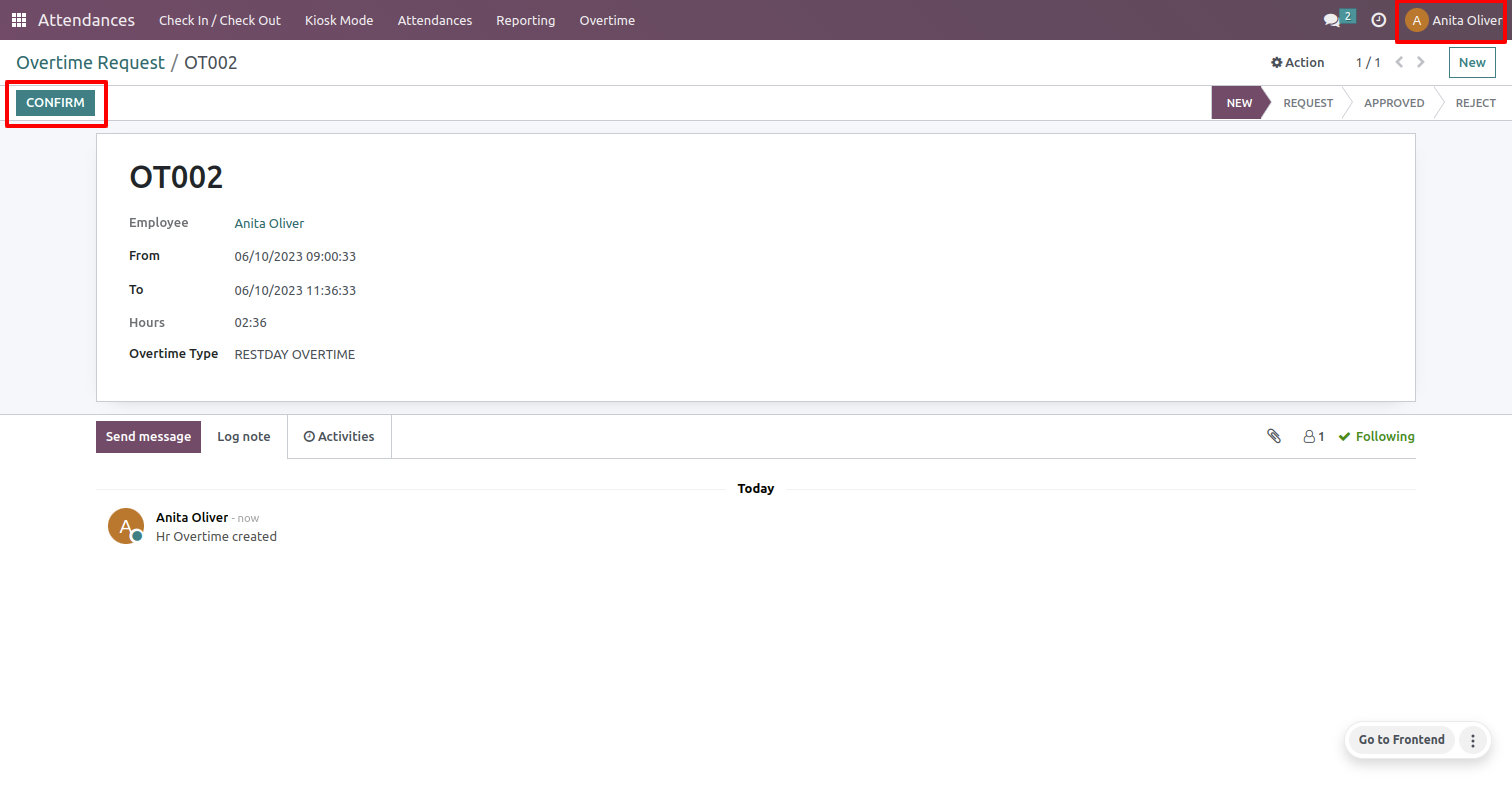
Create a new overtime request.
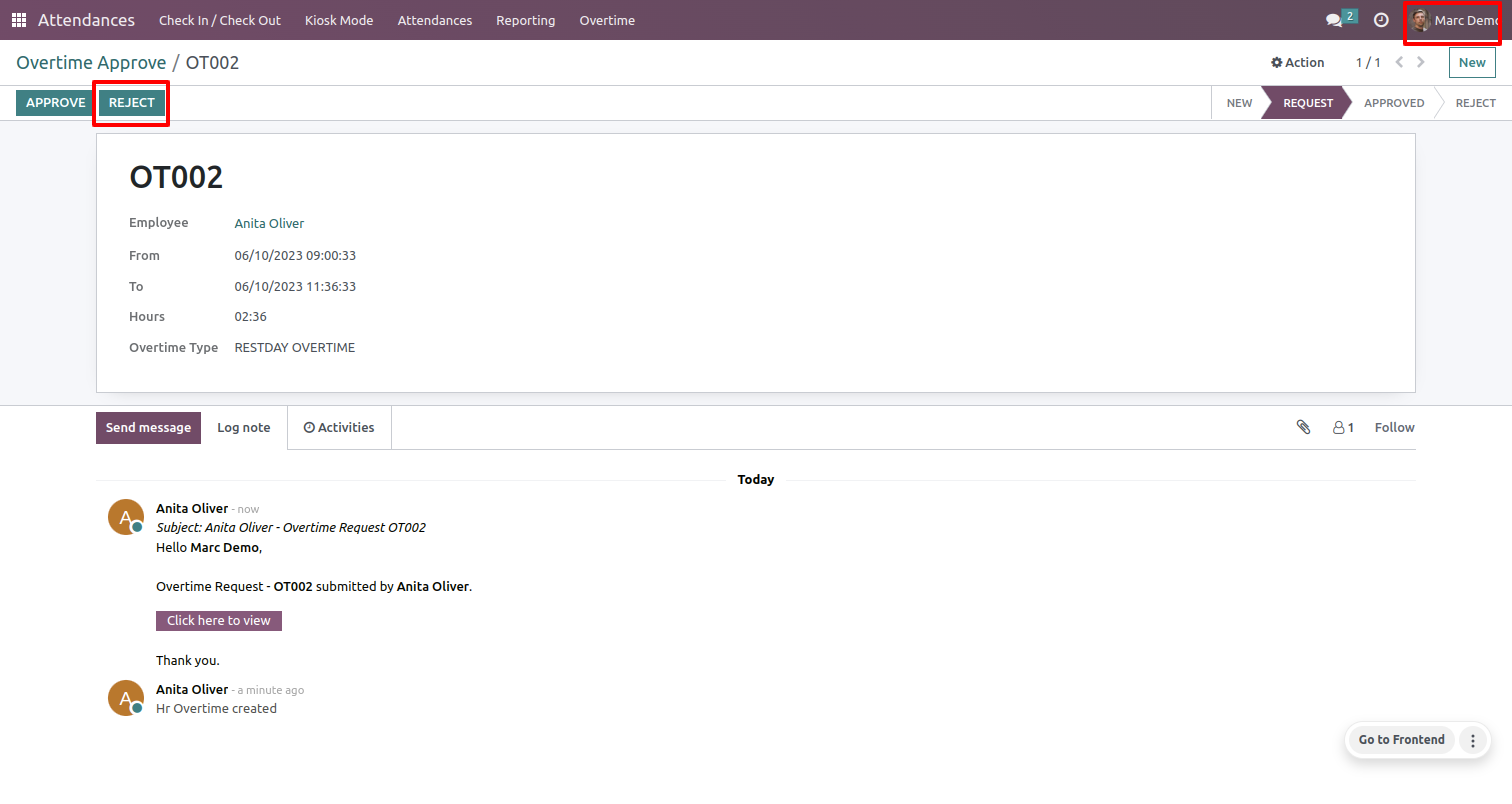
To reject the request, the manager can click on the 'Reject' button.
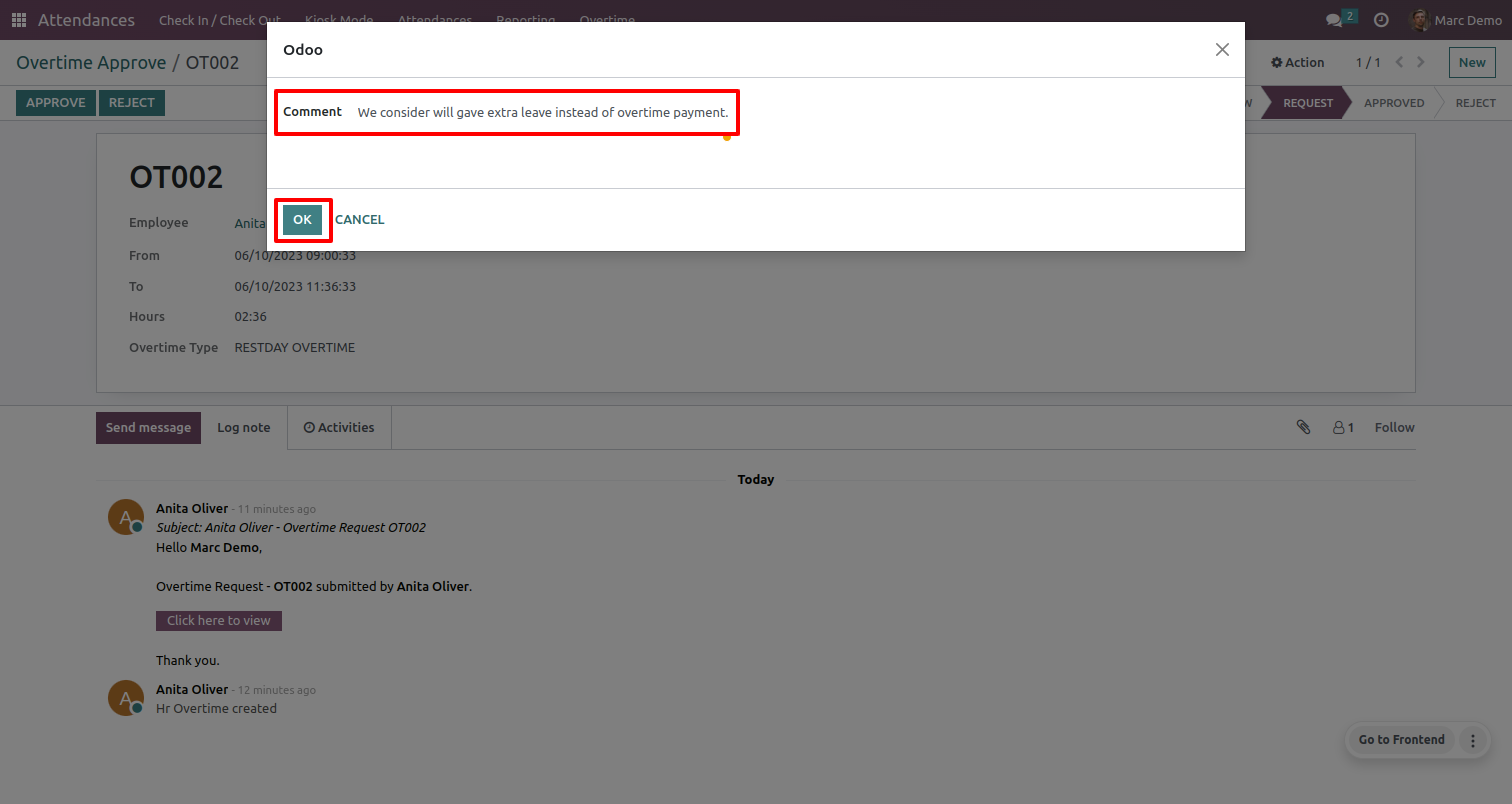
When the manager rejects the request, they must provide a reason for the rejection.
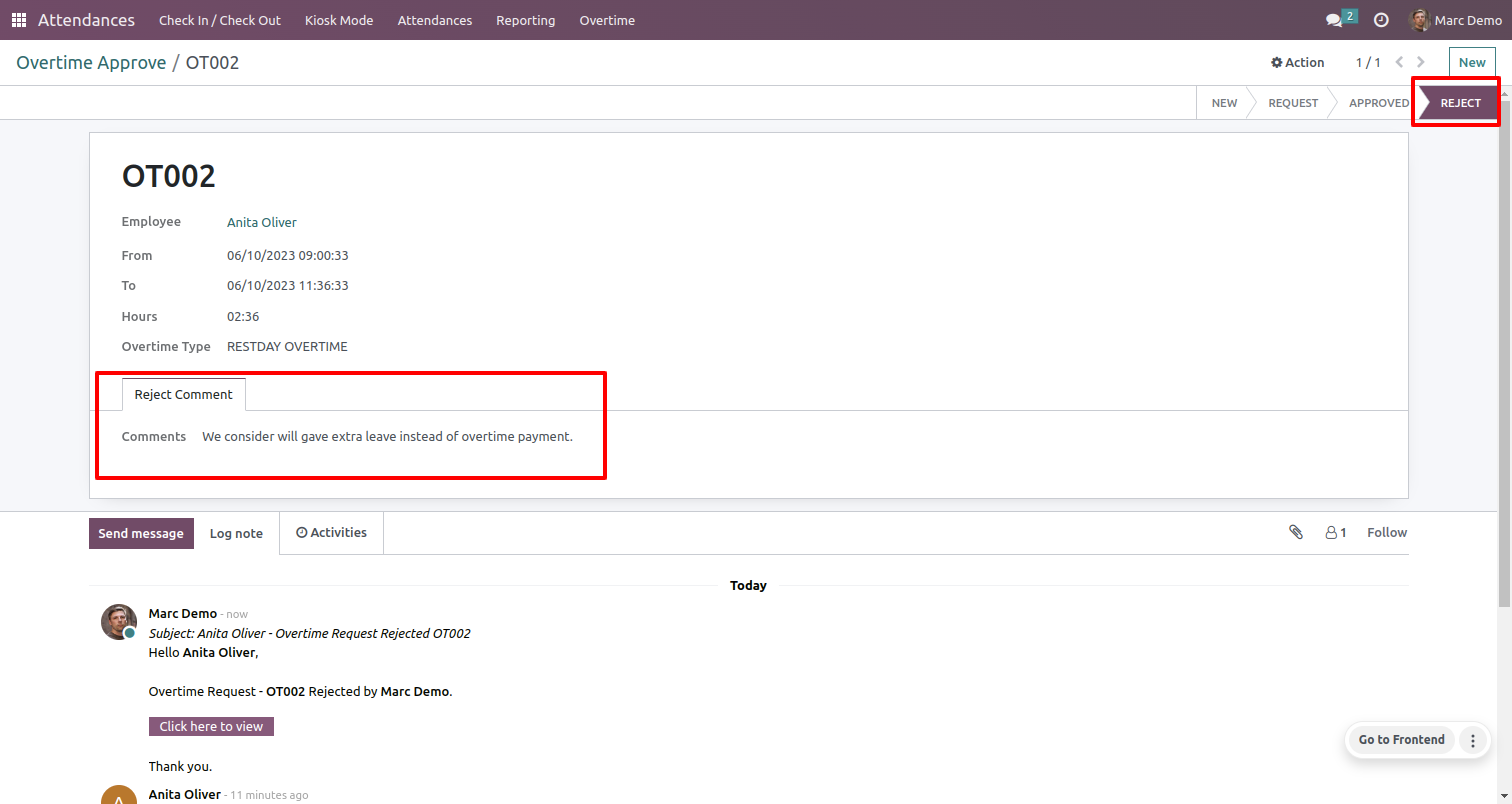
The employee can see the reason for the rejected request.
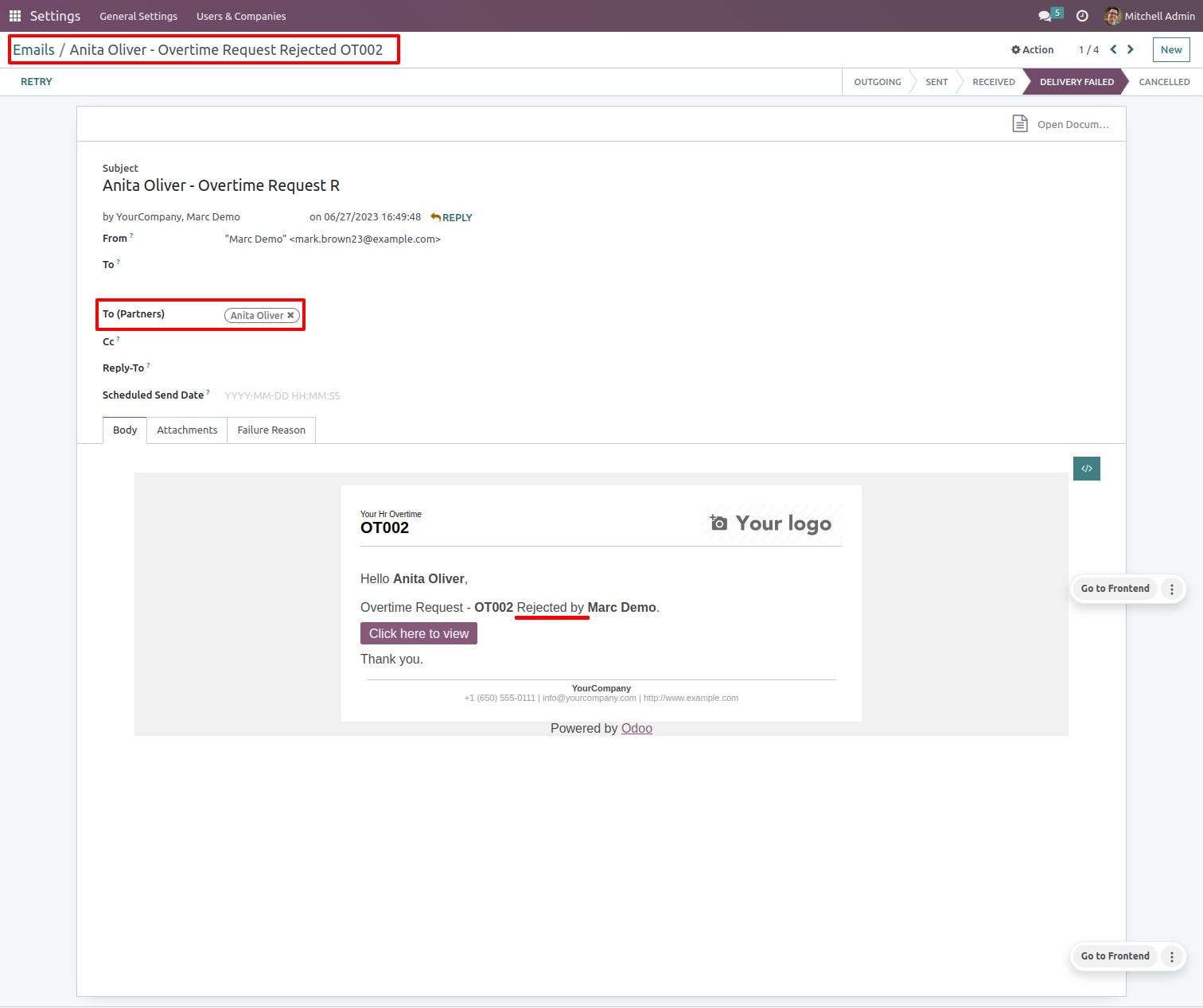
The employee gets an email notification when the request is rejected.
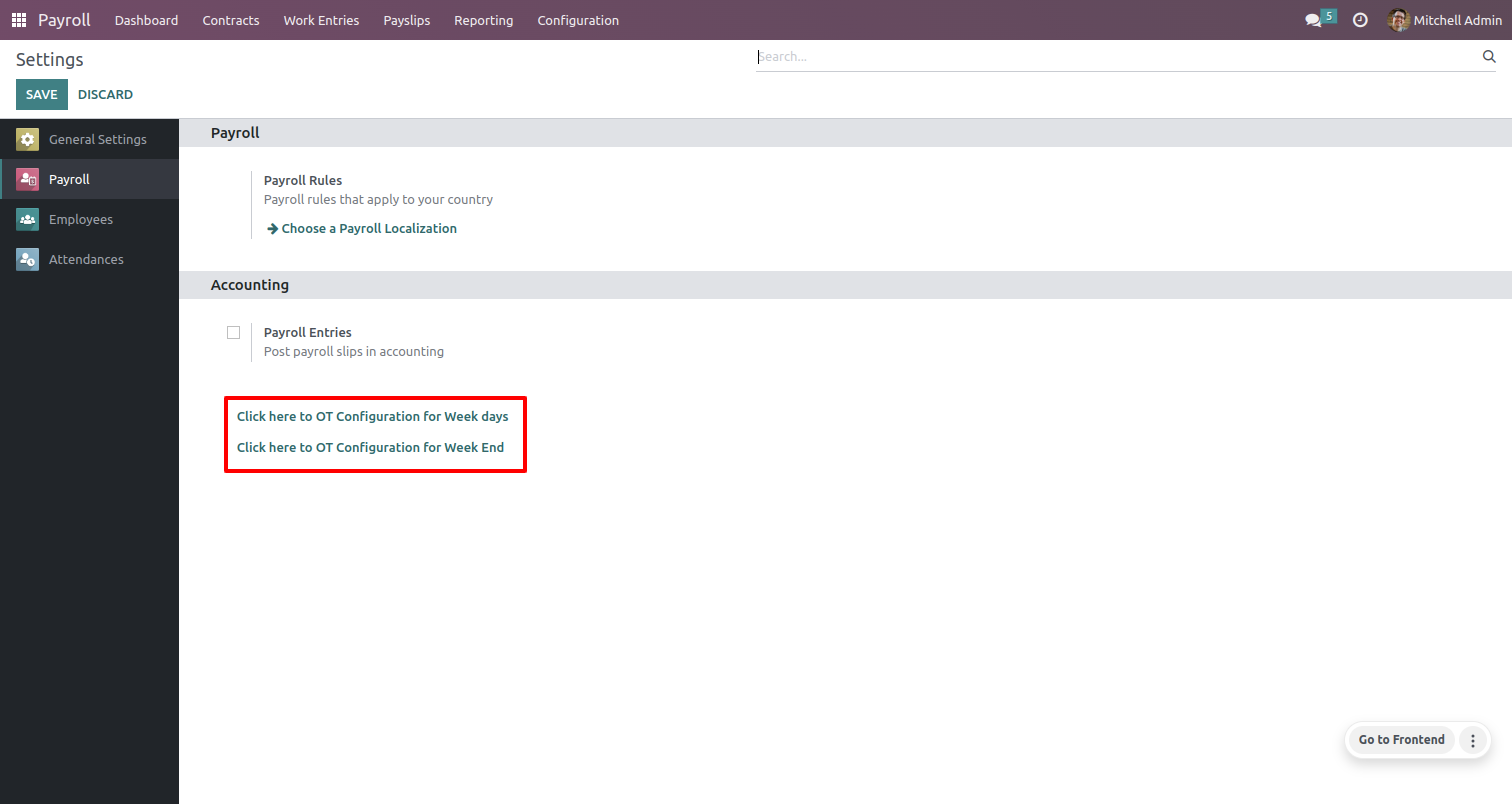
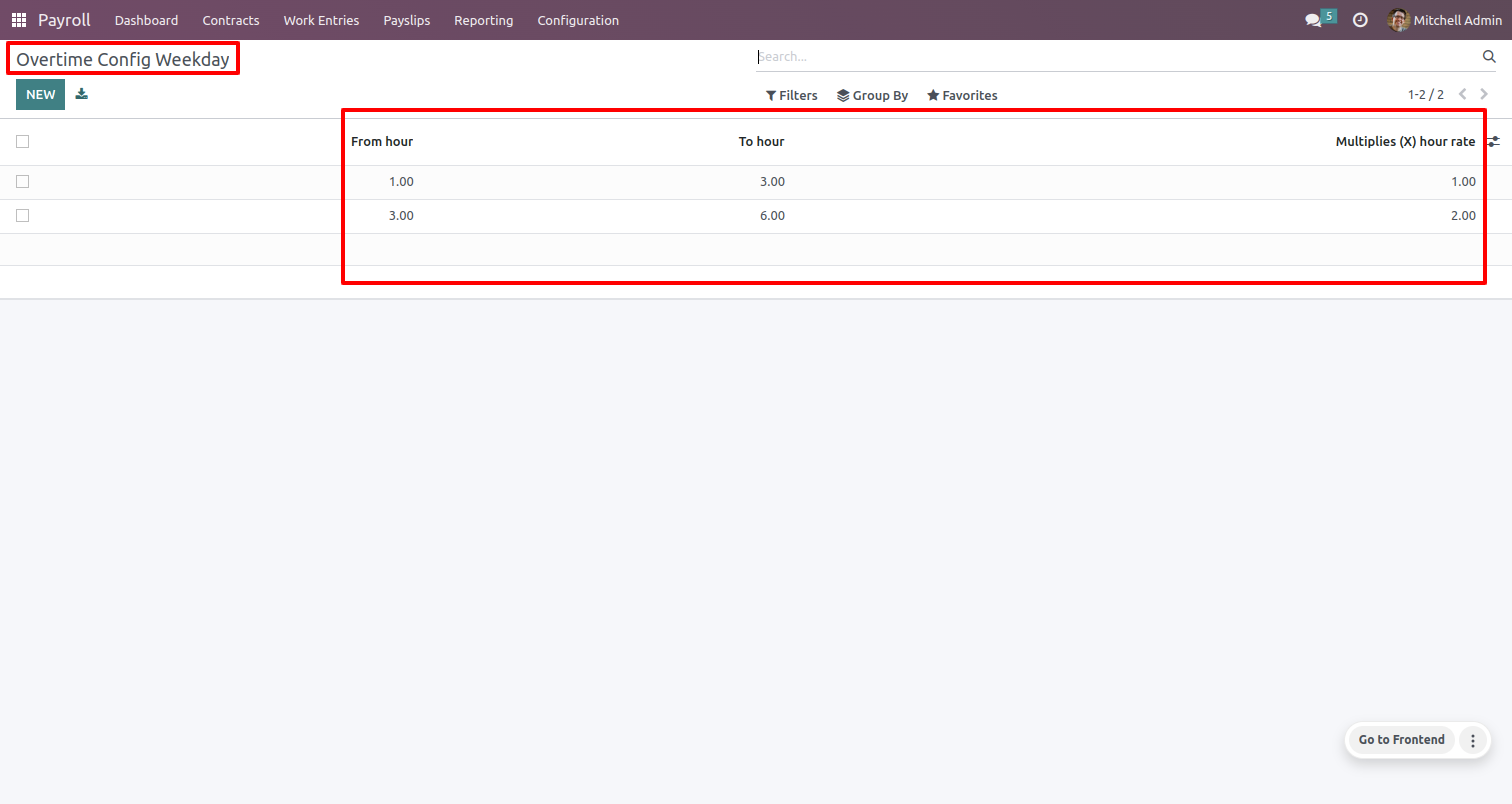
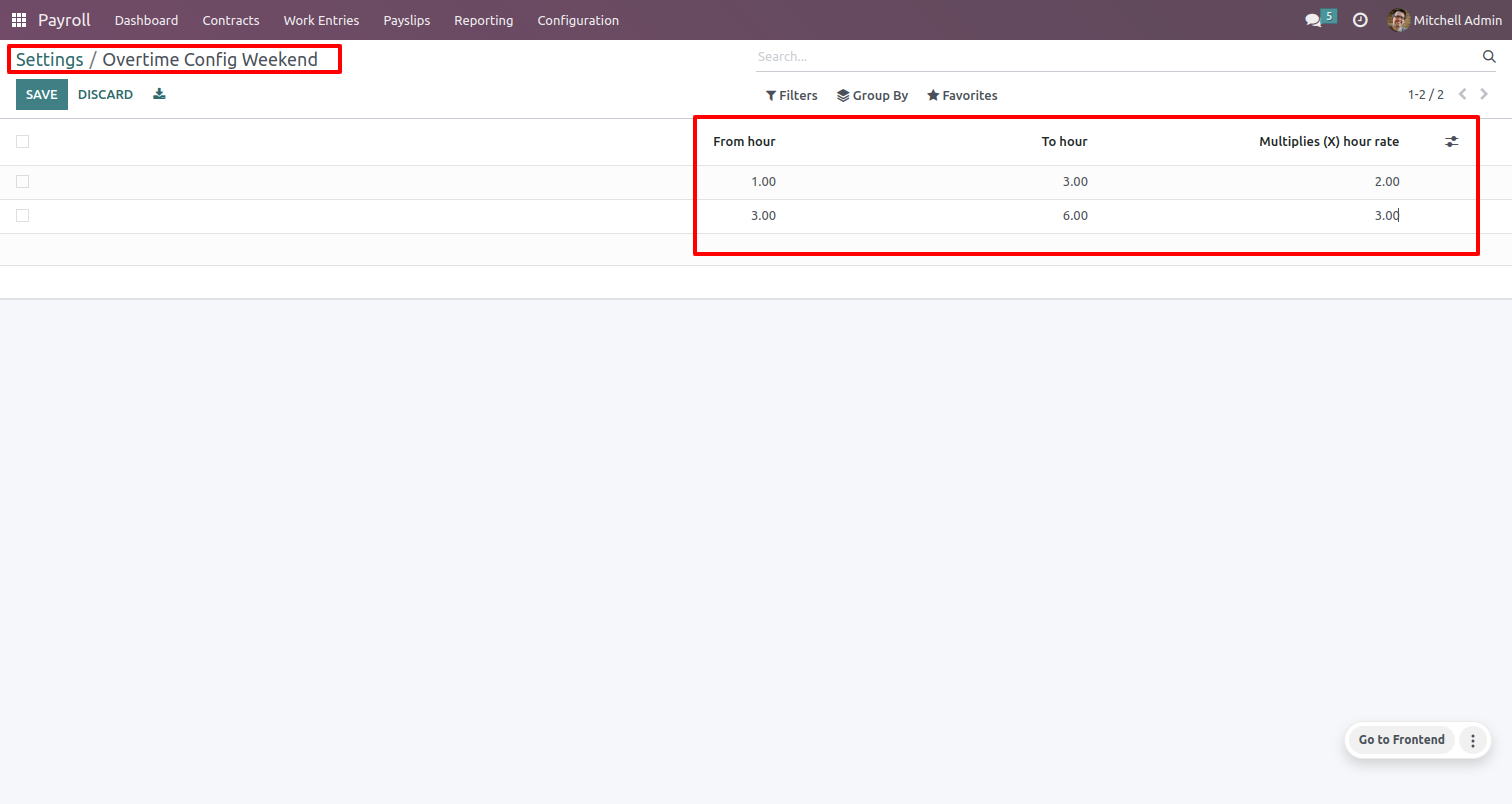
Go to the payroll setting. Here, you can see two OT(Overtime) configurations, for weekdays and weekends.
List view of the overtime config weekdays.
List view of the overtime config weekend.
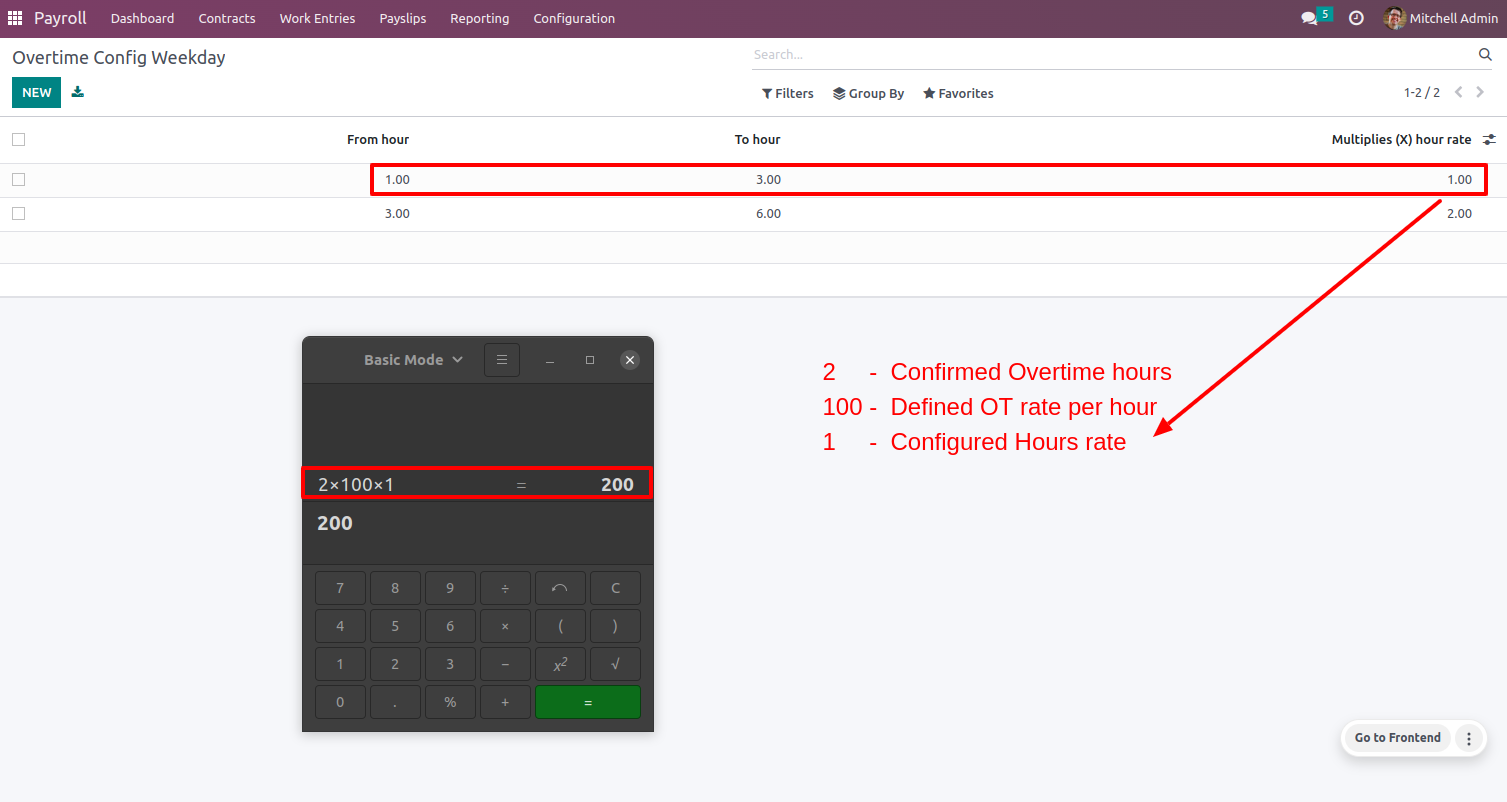
The list view of the overtime configuration for weekdays displays the hourly rate that has been set.
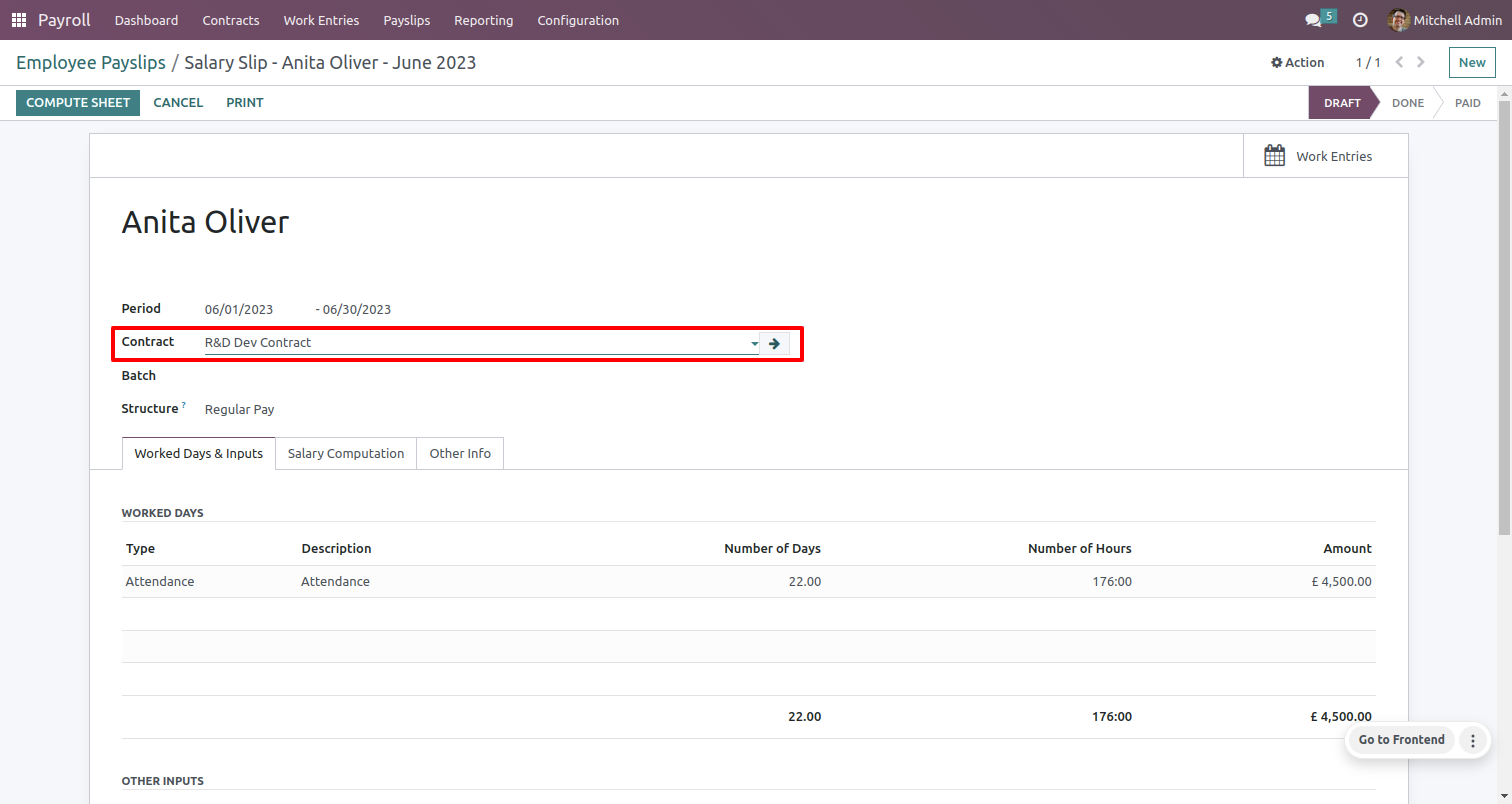
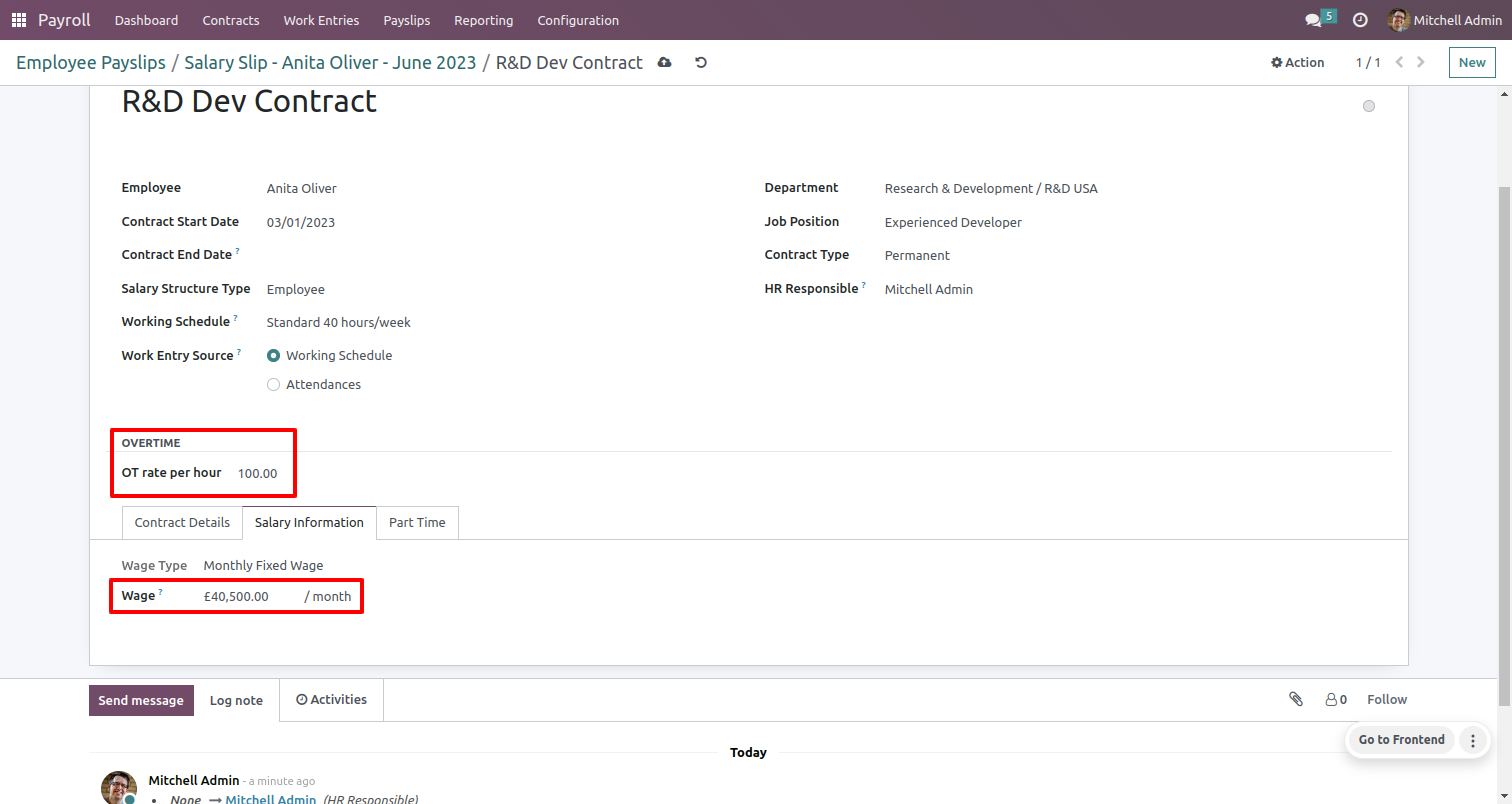
Select the contract in the employee payslip form.
You can see the salary details in the salary information tab and the overtime rate in the contract.
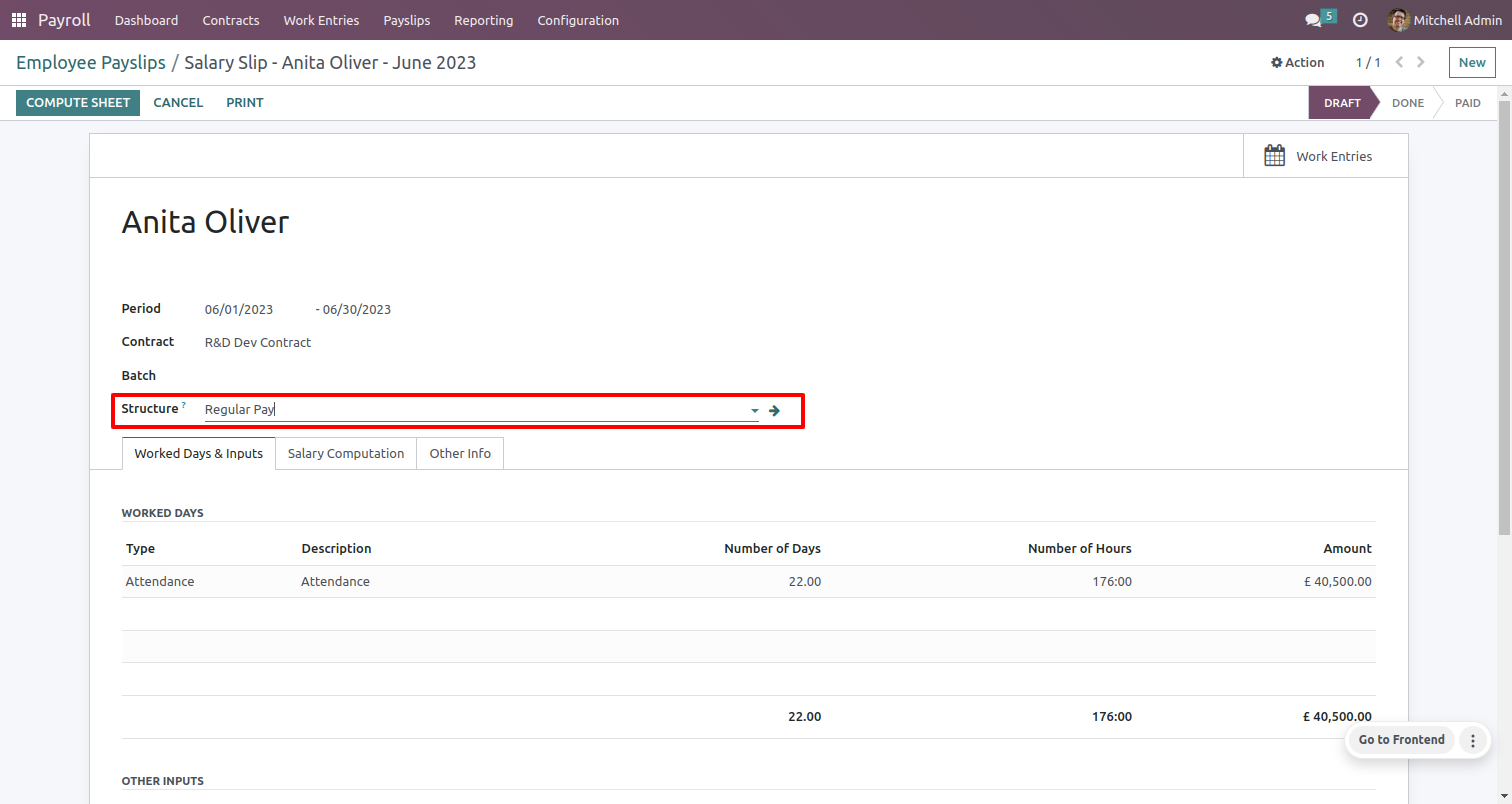
Select the salary structure.
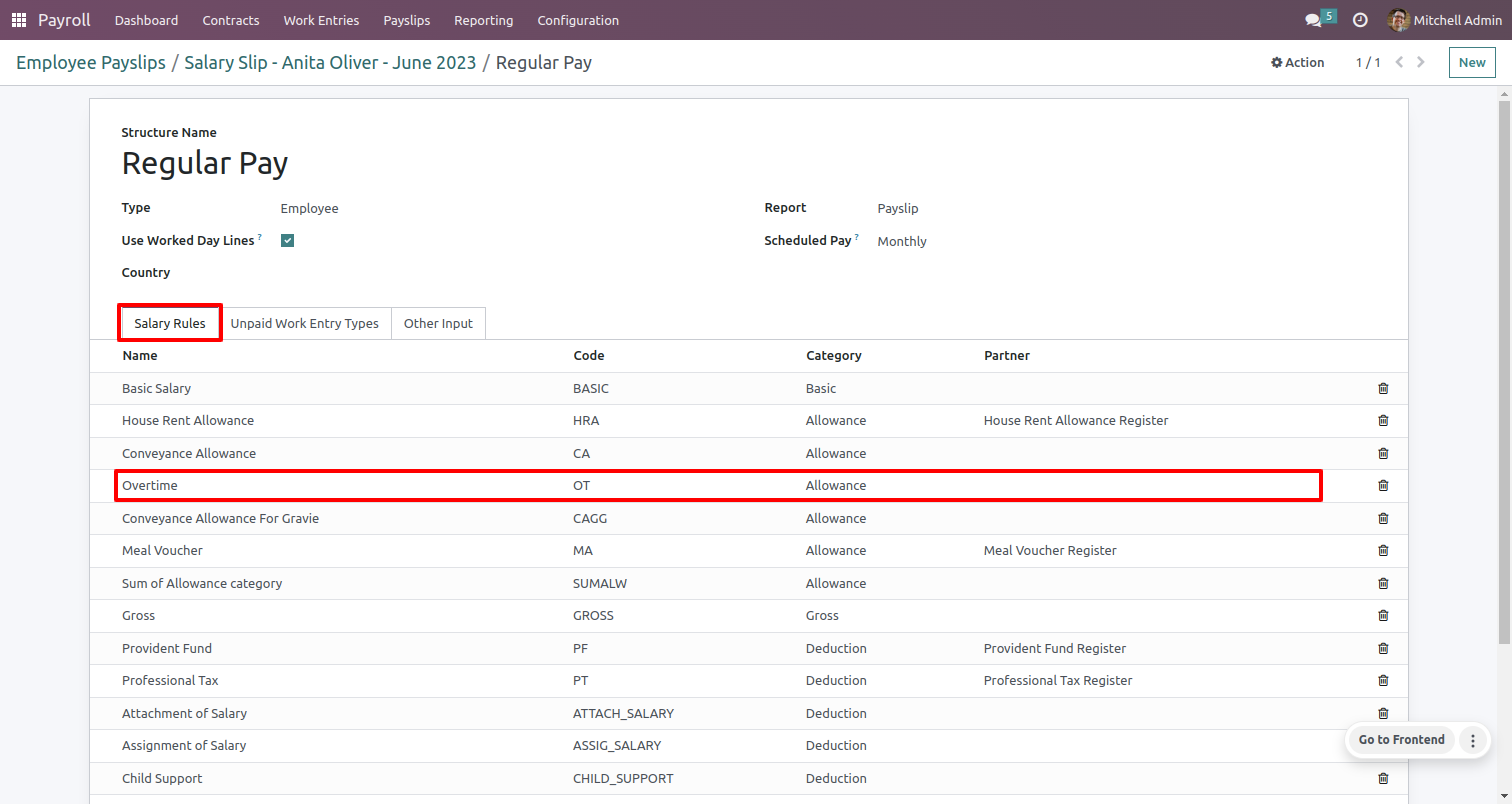
You can see the overtime rule added in the salary rules tab.
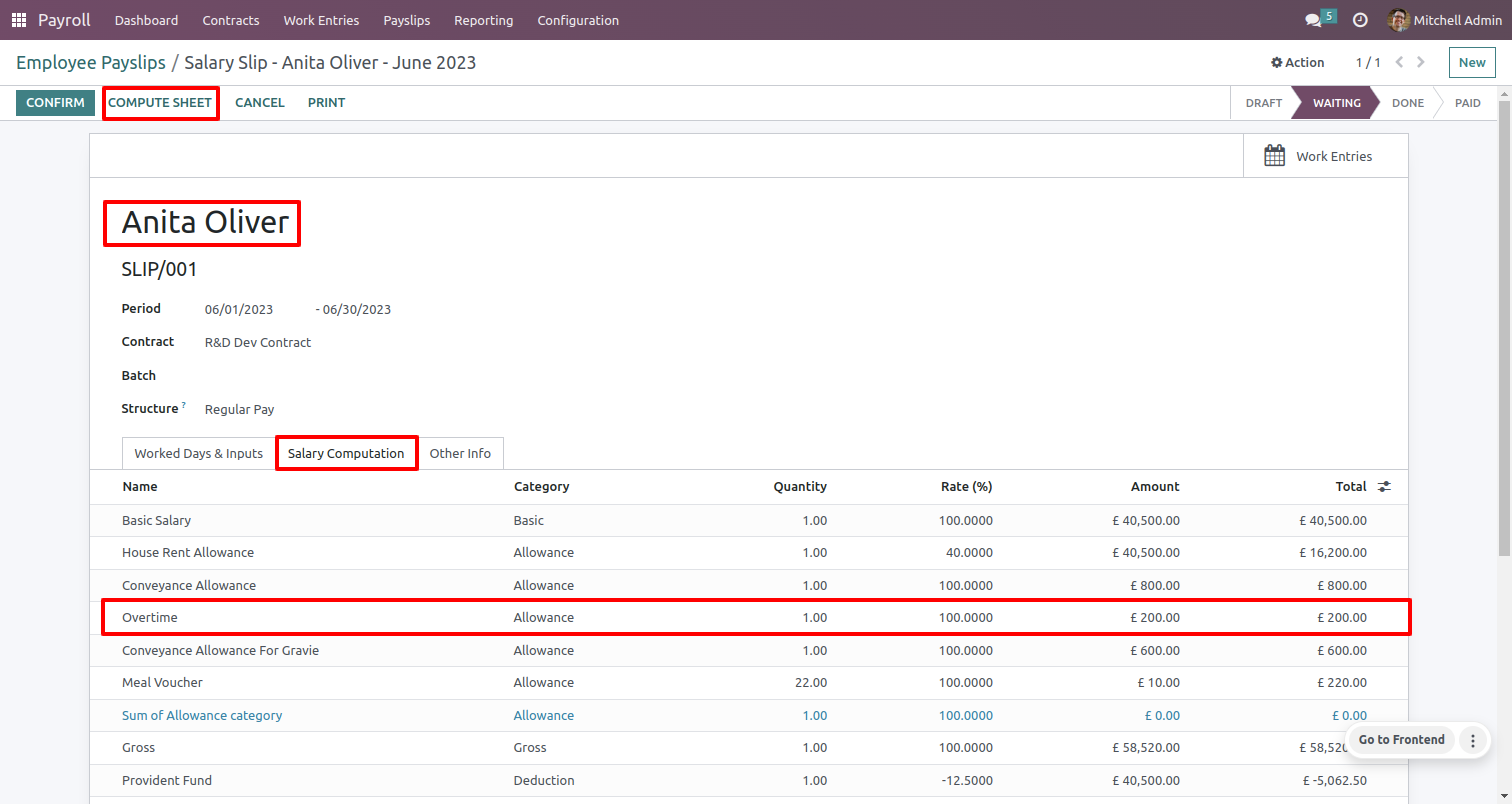
To calculate the salary computation, click on the 'Compute Sheet' button.
Version 17.0.1.0.0 | Released on : 20th February 2026
- This app only works perfectly with Odoo Enterprise (Odoo.sh & Premise).
- No, this application is not compatible with odoo.com(odoo saas/Odoo Online)
- Yes, to test this module, please contact us at sales@softhealer.com.
- Please contact us at sales@softhealer.com to request customization.
- Yes, we provide free support for 365 days from the date of purchase.
- Yes, you will receive lifetime free updates for the version of the module you purchased.
- No, there is no need to install any additional libraries.
- Yes, for version 12 and above, you need to purchase the module separately for each version you intend to use.
- No, exchanges or refunds are not allowed. Please make sure to select the correct version before purchasing.
- You can contact us at support@softhealer.com for language translation support. We use Google Translator tools to provide translations in multiple languages, so the accuracy may vary. We welcome your suggestions to help improve translations.
