












Detrack Shipping Integration

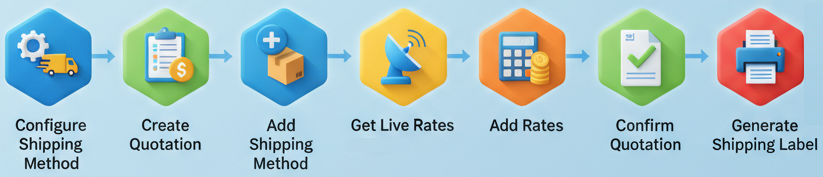
The Detrack Shipping Integration module connects your Odoo system directly with Detrack to automate your complete shipping workflow. From quotation to delivery, every step is streamlined with real-time communication. Users can add shipping methods, fetch accurate live rates, confirm orders, generate Detrack labels, track shipments, and cancel shipments directly from Odoo without switching platforms. This integration reduces manual effort, improves dispatch accuracy, and ensures a smooth, fast, and reliable order-to-shipment process for businesses of any size.
Related Modules
Key Features
Features

Detrack Integration
Real-time Detrack integration for instant data sync between Odoo and Detrack.
Instant Rate Calculation
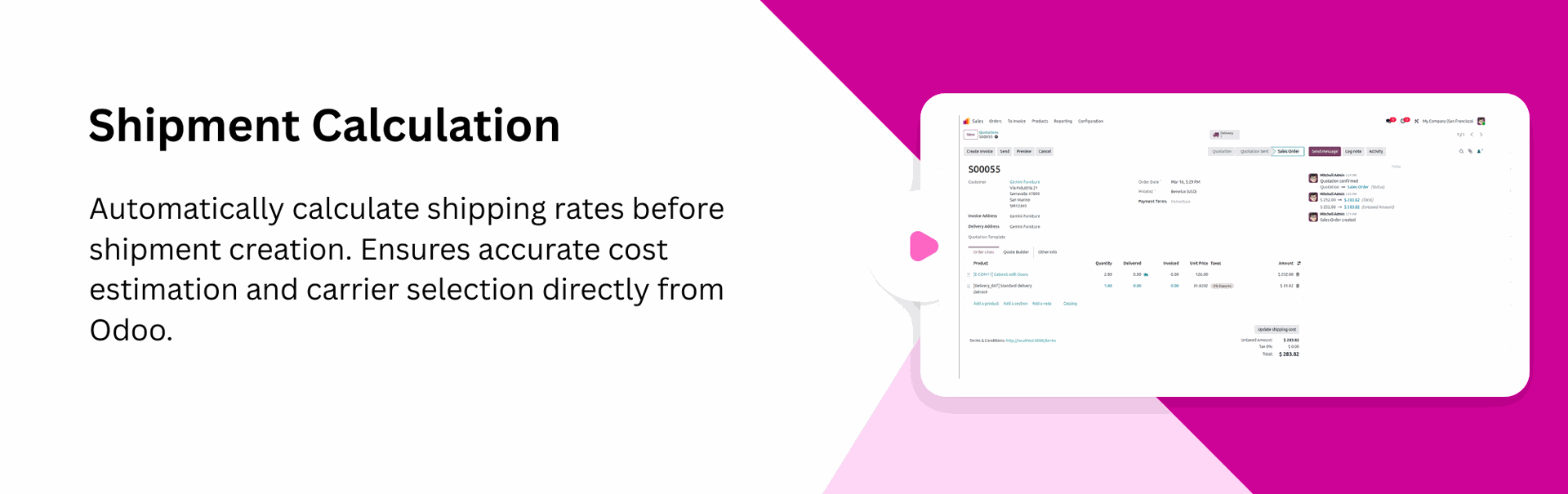
Automatic rate fetching to provide live Detrack shipping prices during Quotation creation.

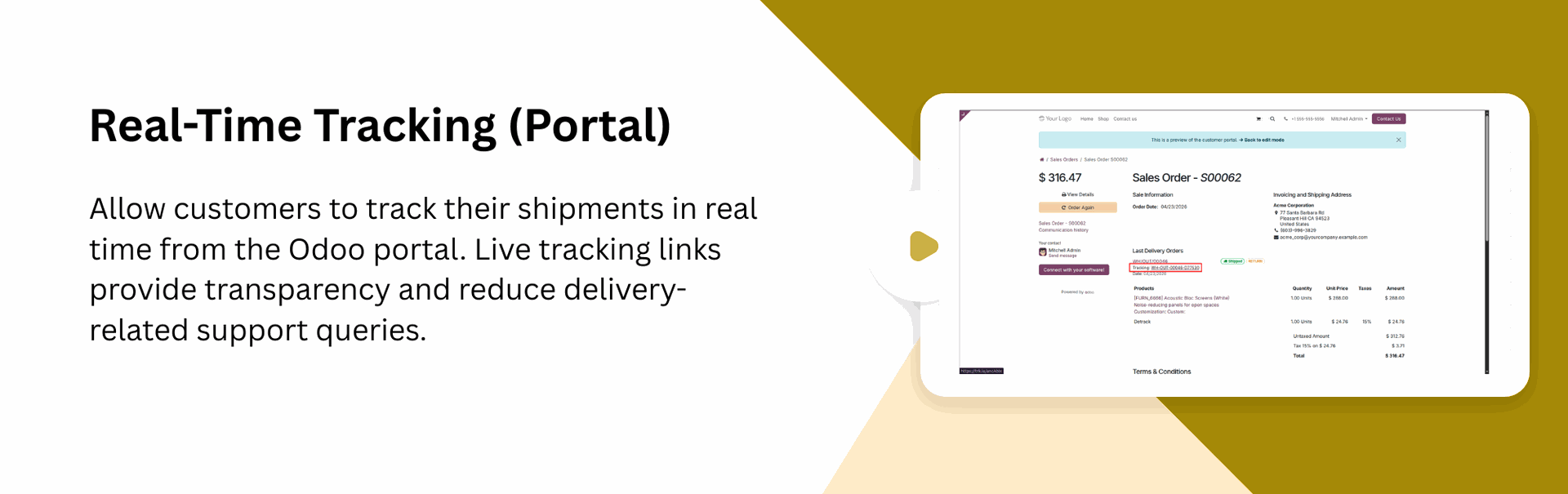
Real-time Tracking (Backend & Portal)
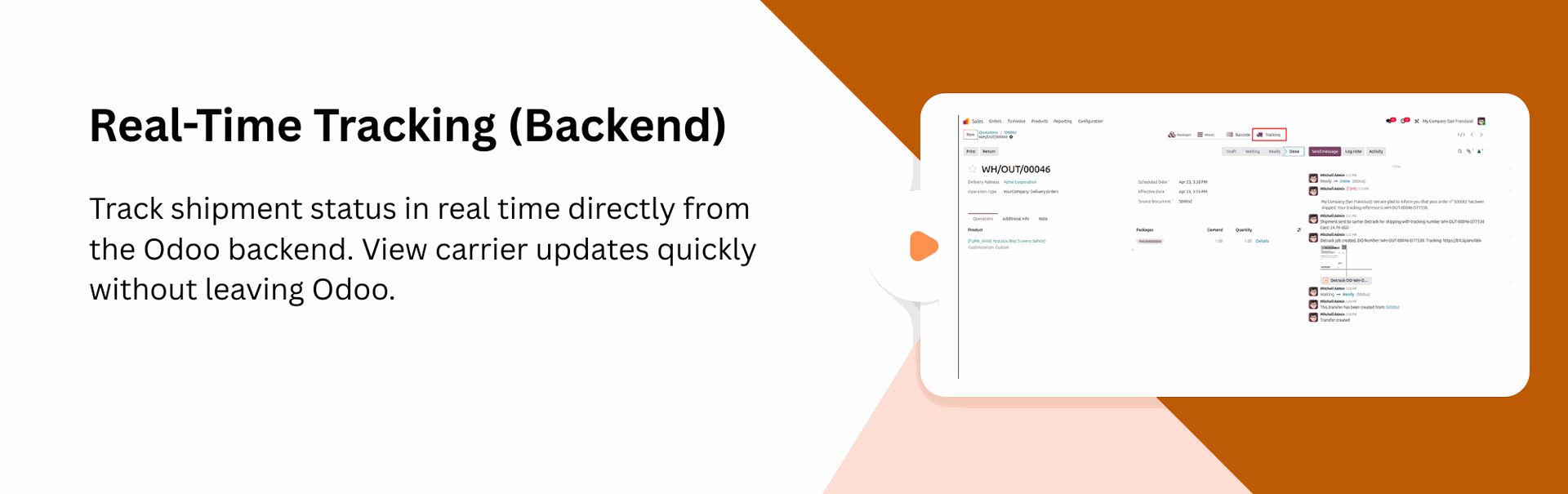
Track shipments in real-time within Odoo, admins can monitor deliveries from the backend, while customers can track from portal.
Detrack Standard Delivery with Rule-Based Pricing
Configure Detrack standard delivery using flexible rules and weight-based conditions to automatically calculate shipping charges.
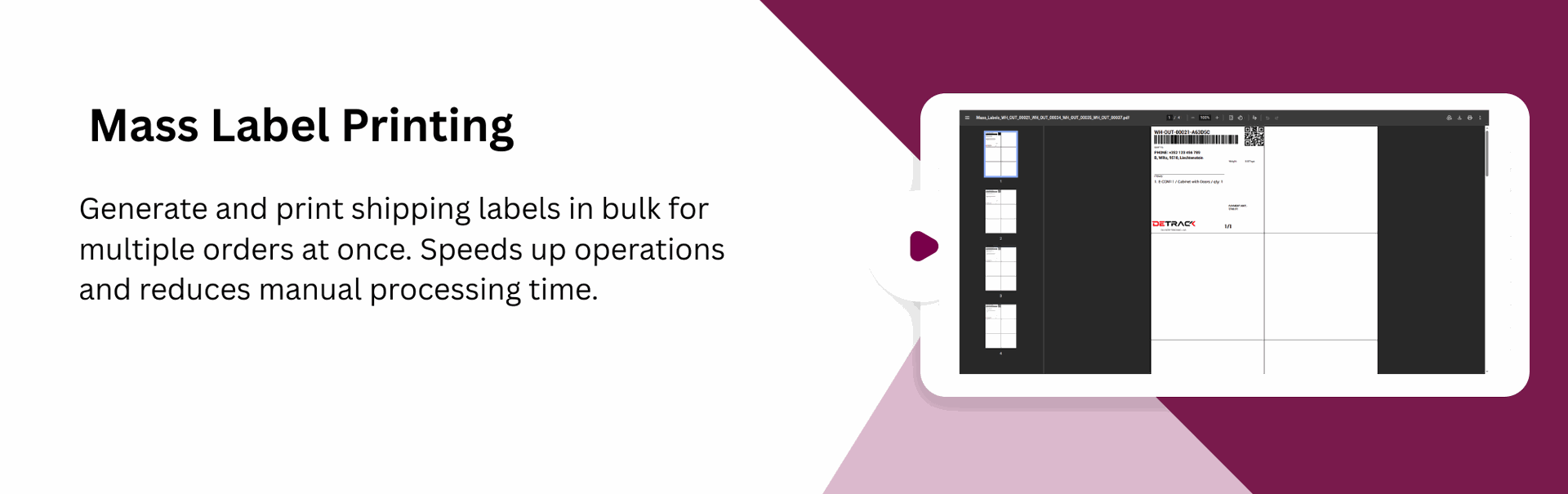
Generate Mass Shipping Labels
Generate multiple shipping labels in one action directly from Odoo, allowing you to process bulk delivery orders faster.

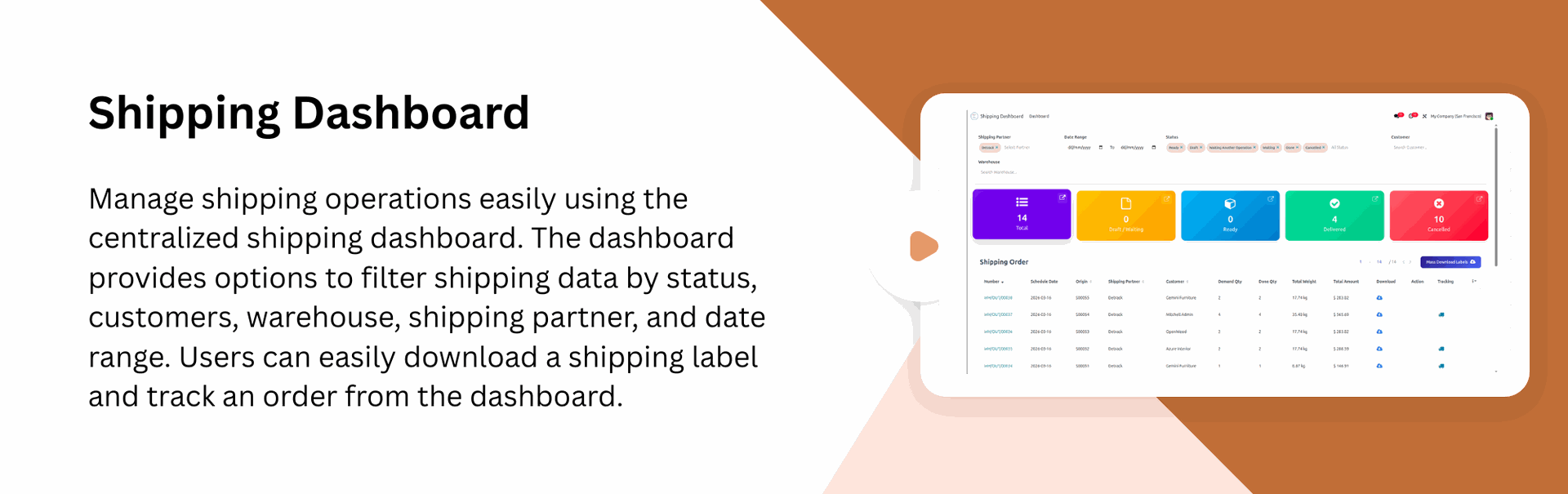
Shipping Dashboard
Get a centralized view of all shipping activities in one place. The dashboard provides quick operational insights.
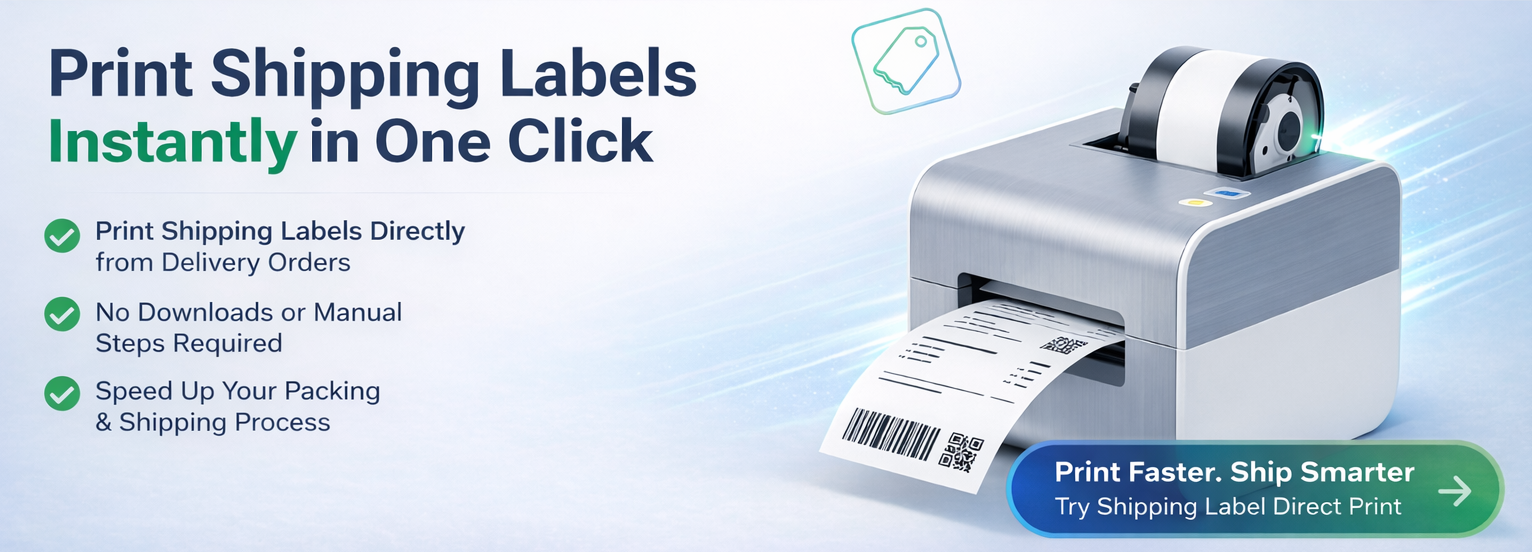
Generate Shipping Labels
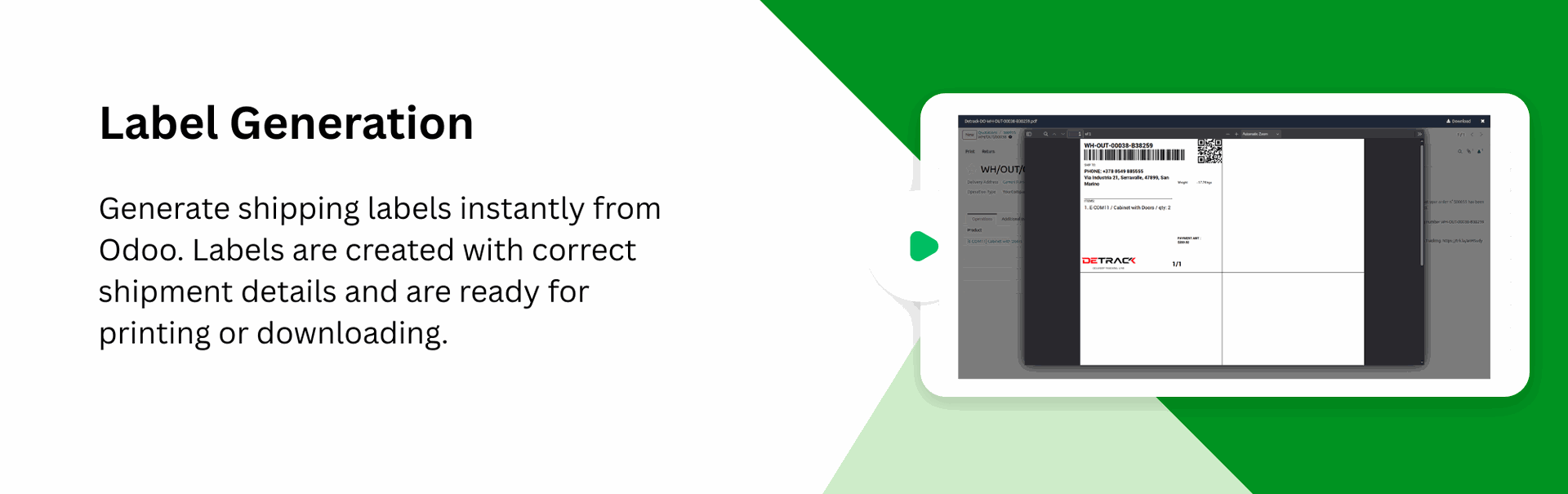
One-click label generation and download for seamless Detrack shipment processing.

Attach Details in Chatter
Automatically attach generated label PDFs and tracking details in Chatter.
Multiple Package Management
Multiple package handling to create and manage several packages within one shipment.
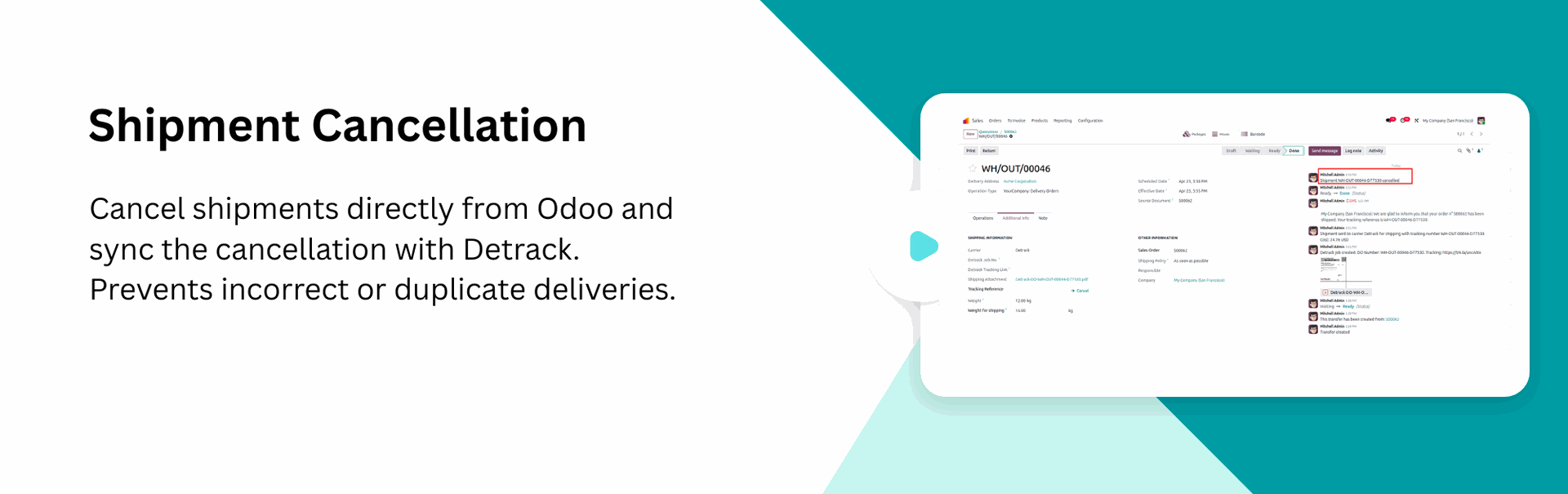
Cancel Shipment
Cancel Detrack shipments instantly from Odoo to avoid incorrect deliveries and maintain accurate shipping records.
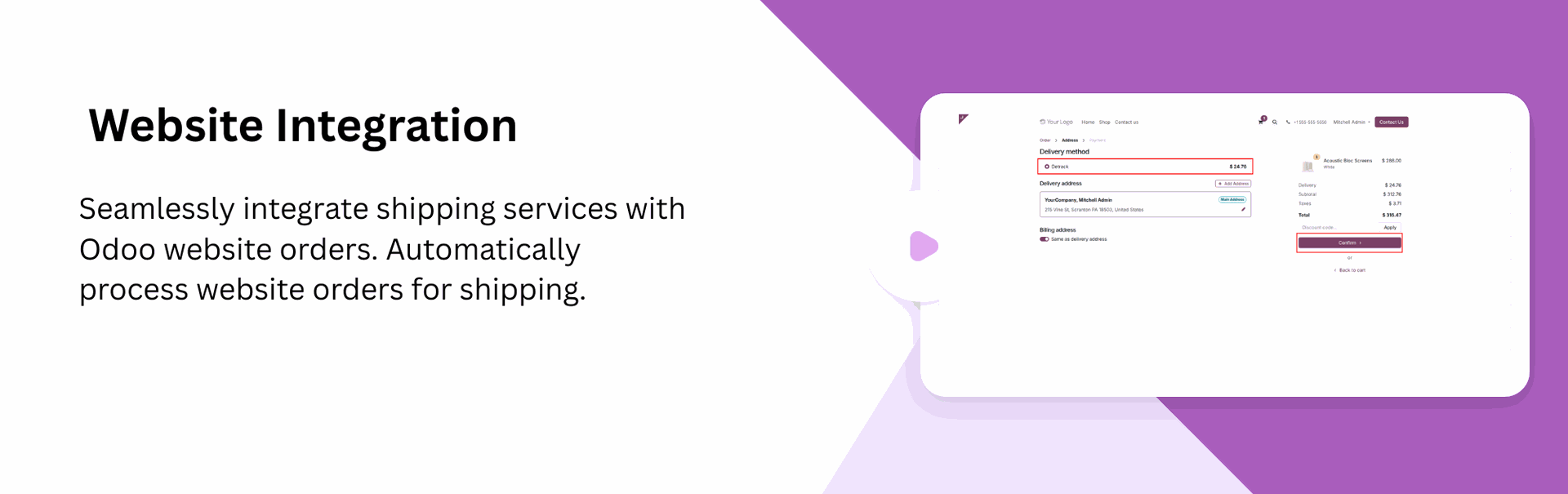
Compatible with Odoo Website and Backend
Allow admins to manage Detrack shipping from the backend while customers can select Detrack during website checkout.
Test and Production
Environment Support

Get a Support both Test and Production environments within the module.
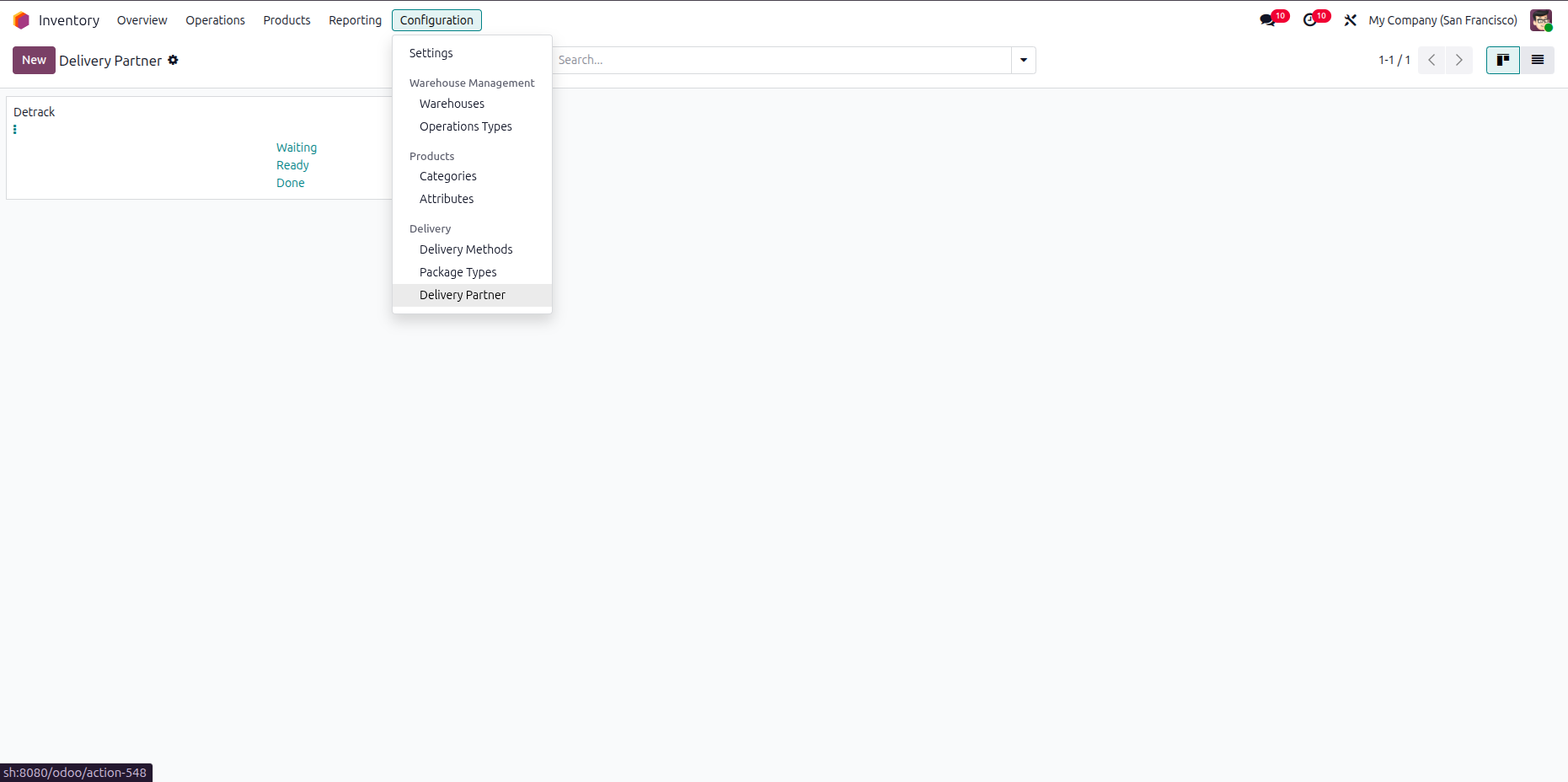
Go to the Configuration ==> Delivery Partner.
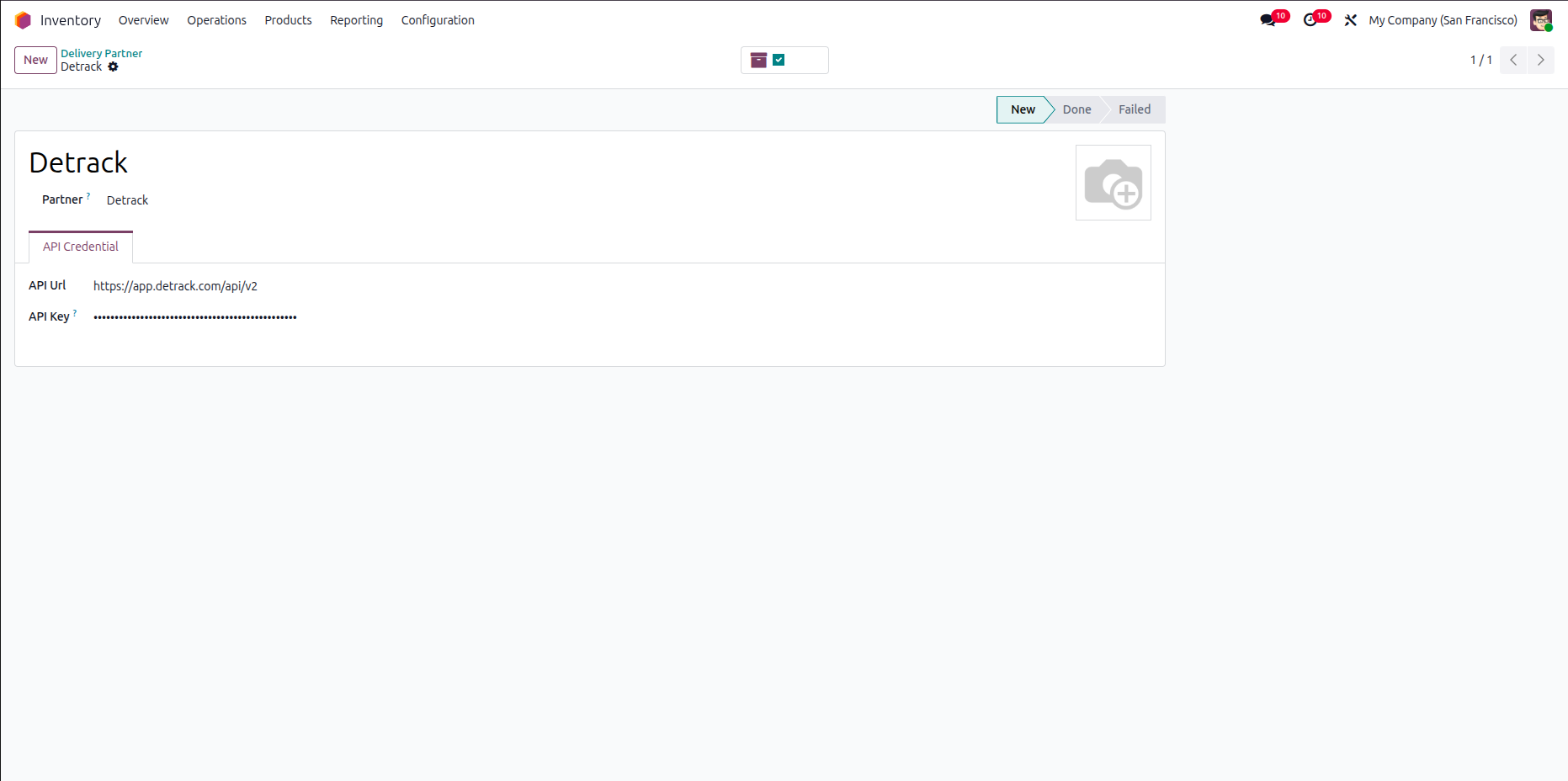
Fill in your Detrack credentials for proper API authentication.
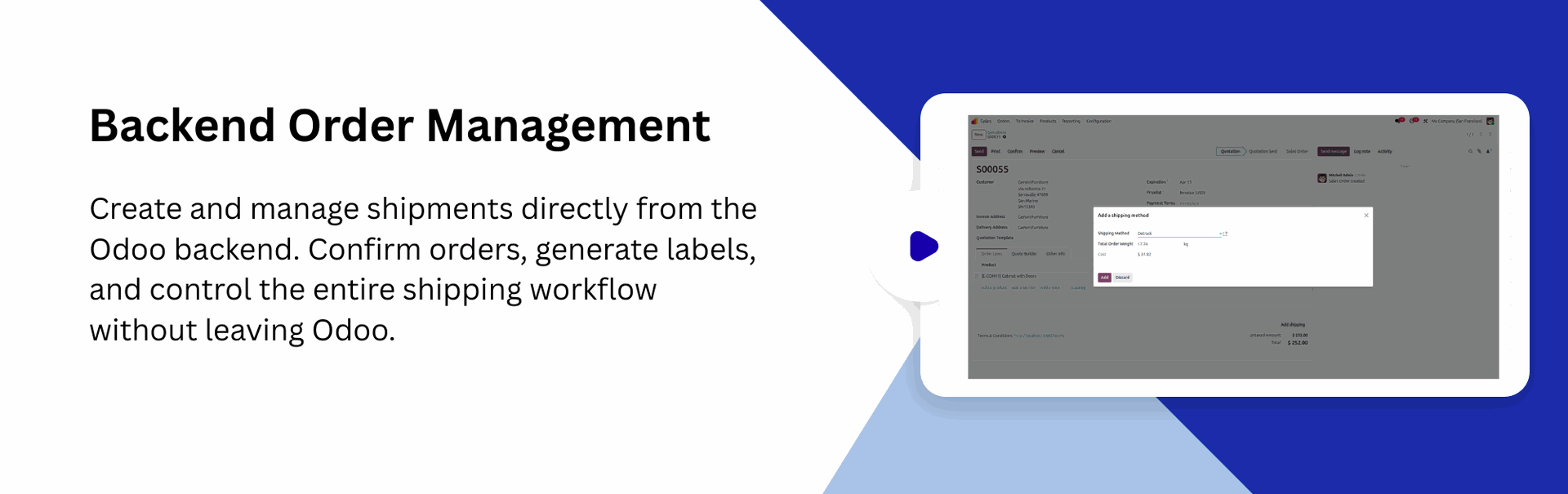
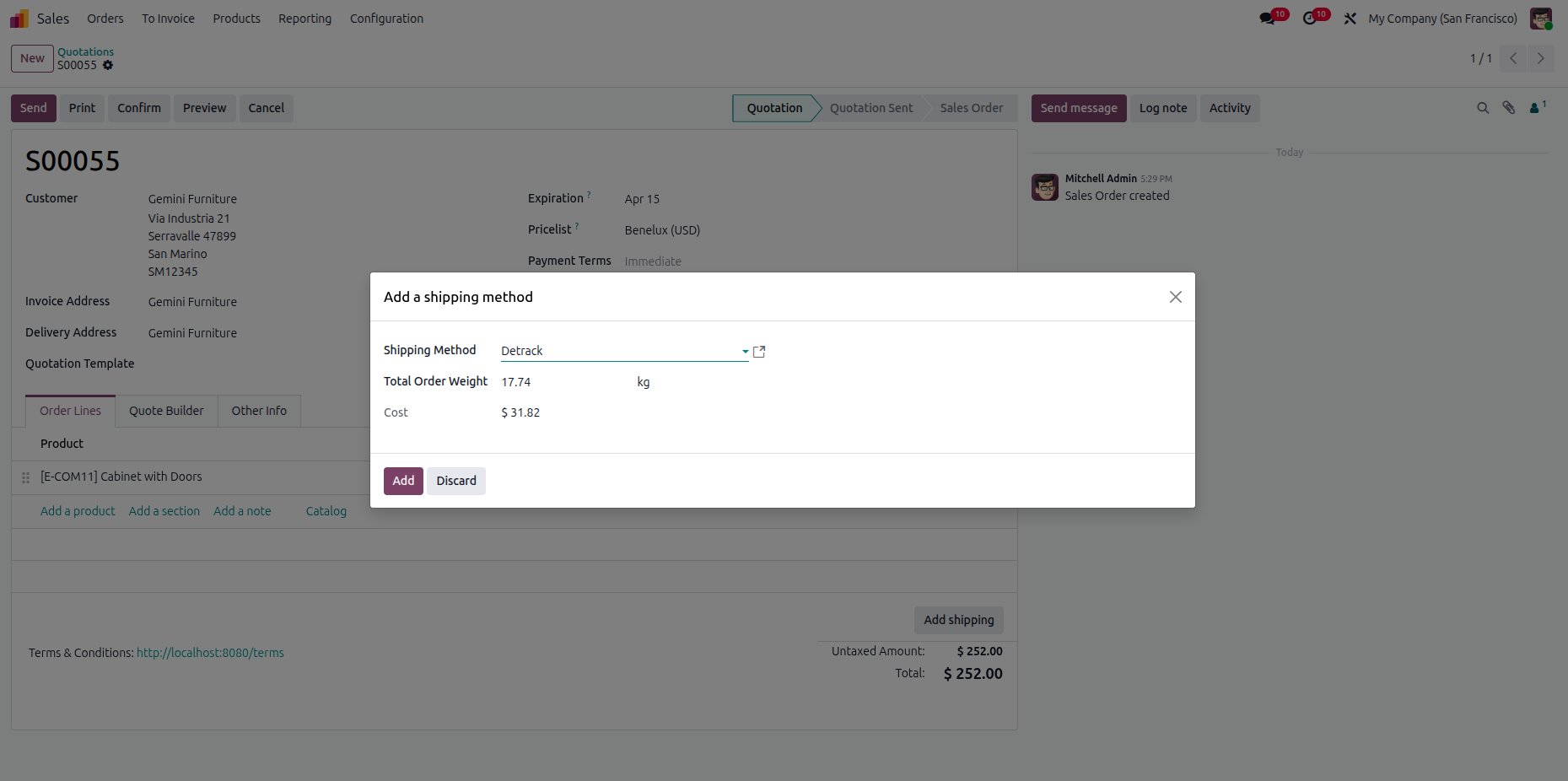
Create a quotation and click on the "Add Shipping" button. After that, "Add a Shipping Method" wizard will appear. Enter the details and click on the "Add" button to add Detrack shipping rate in the quotation.
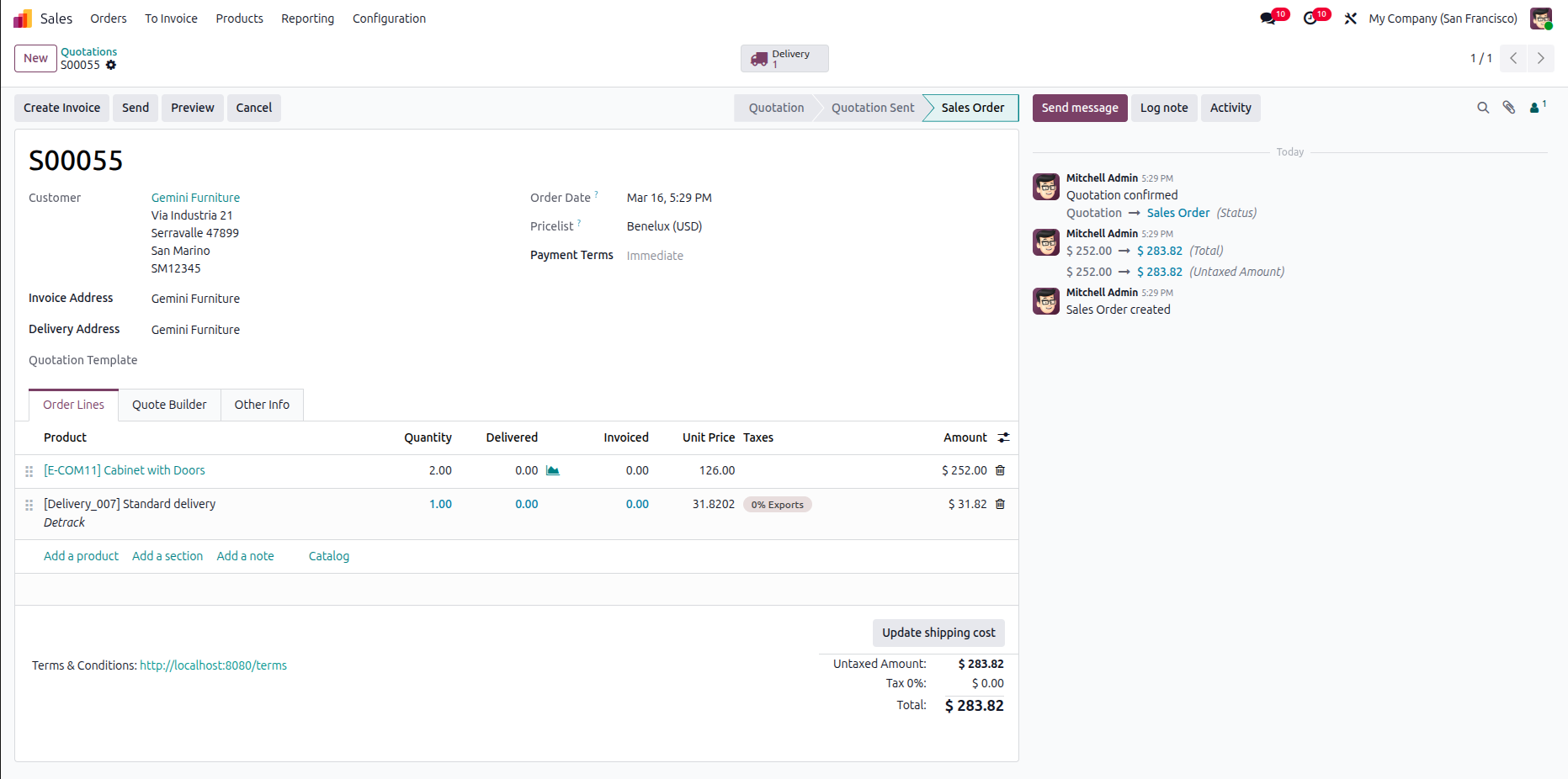
Shipping rate in the quotation.
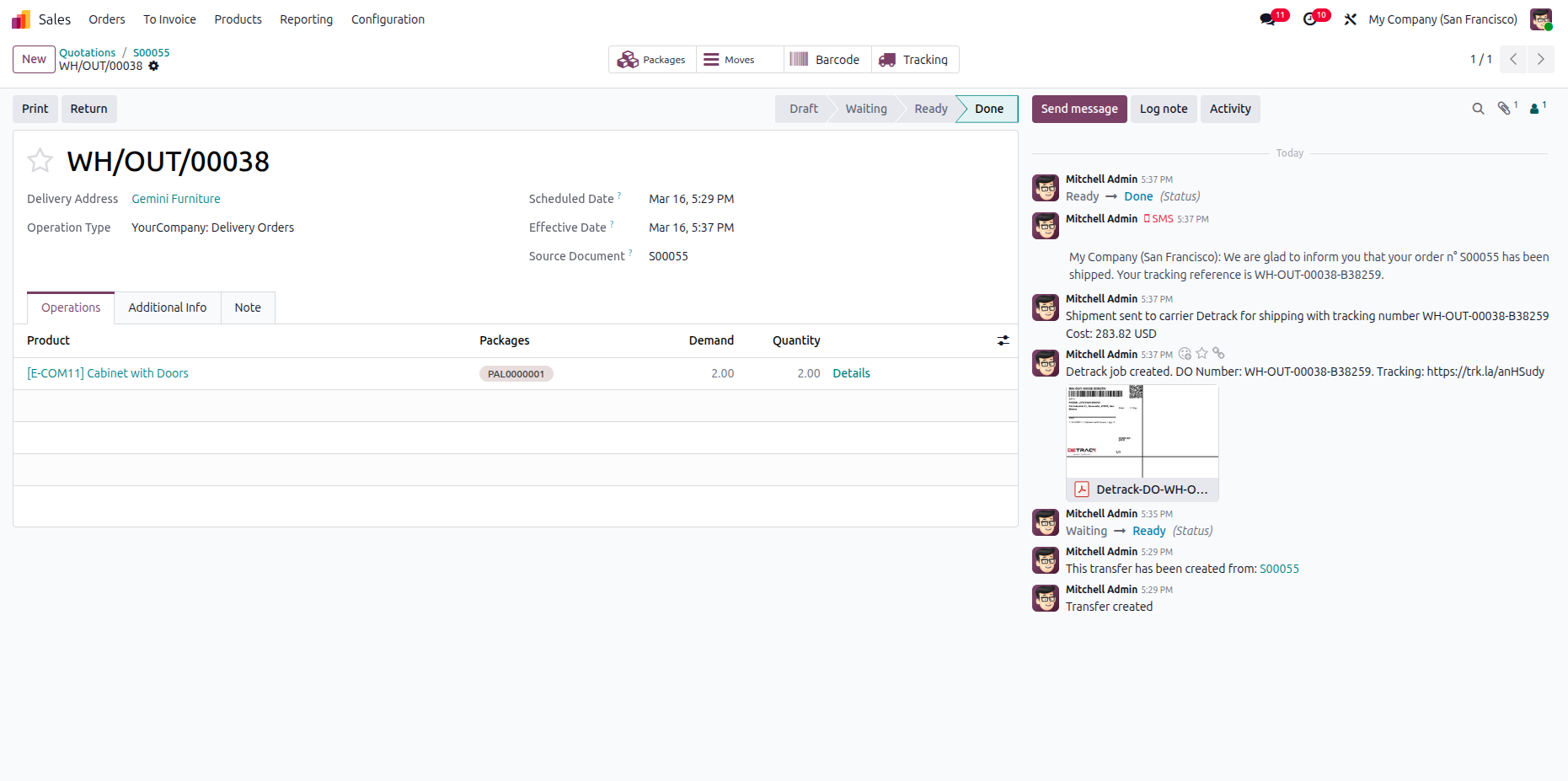
The label is attached in the chatter for download.
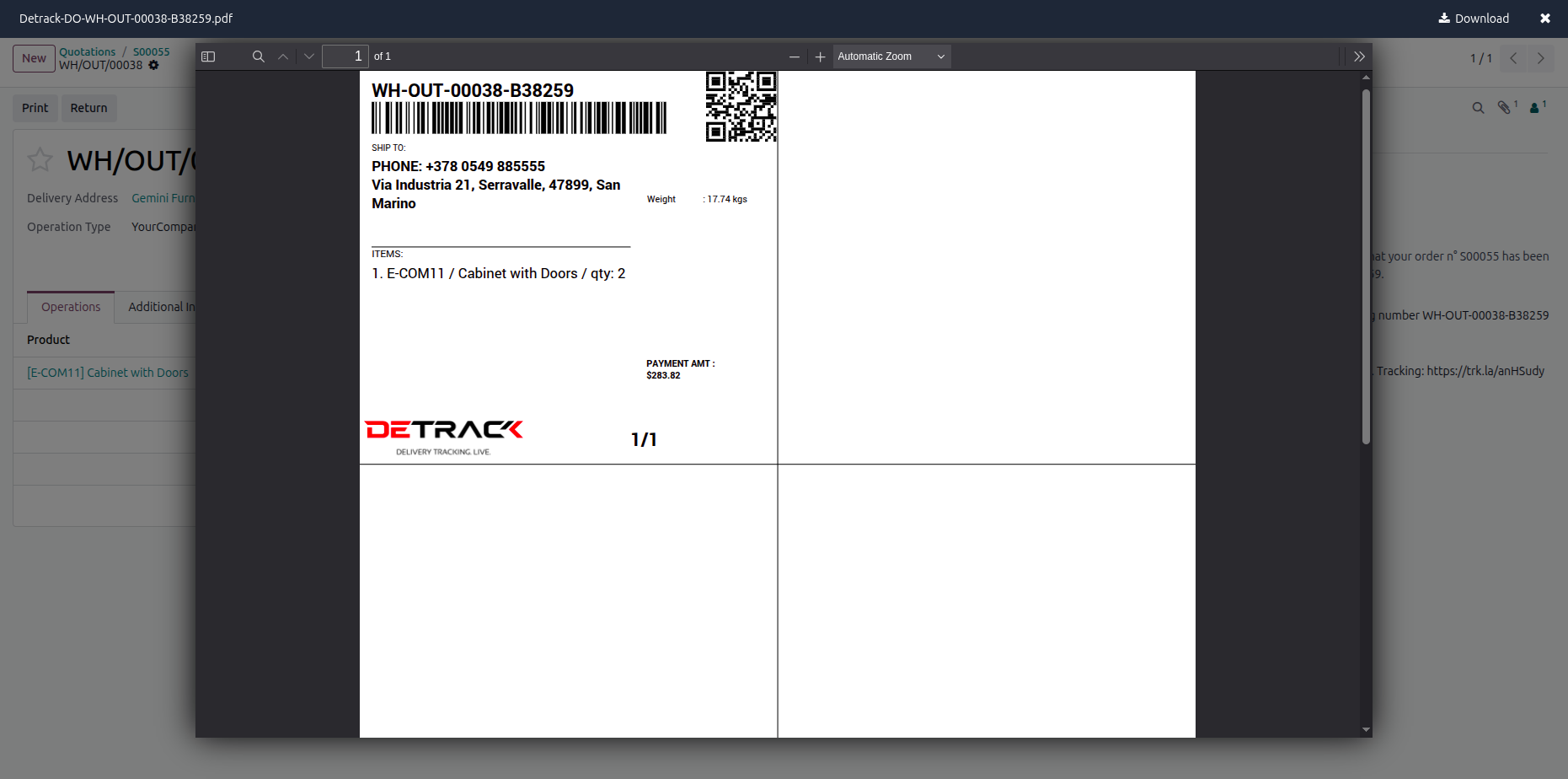
PDF view of the shipping label.
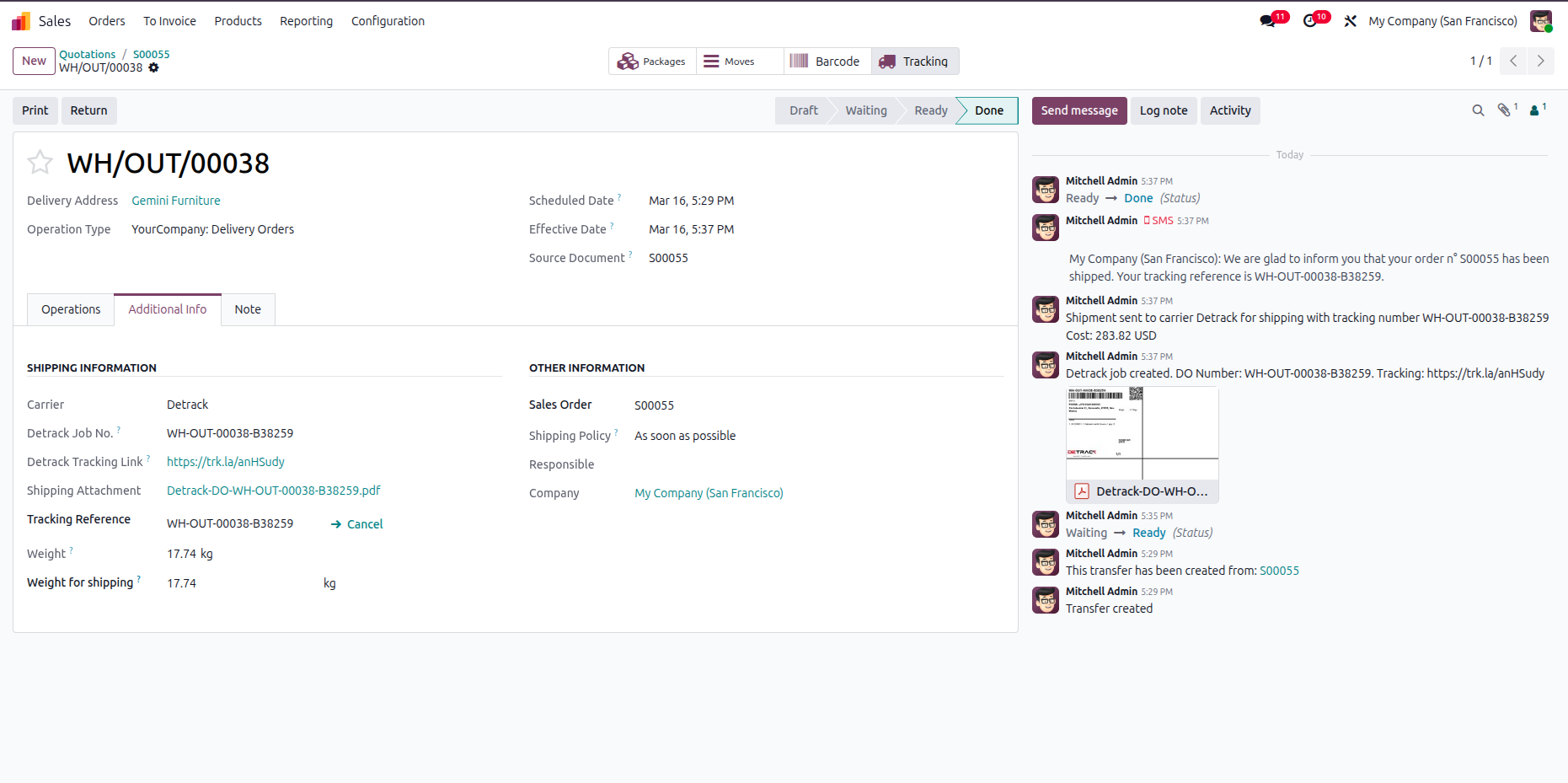
Click on tracking to track the shipment.
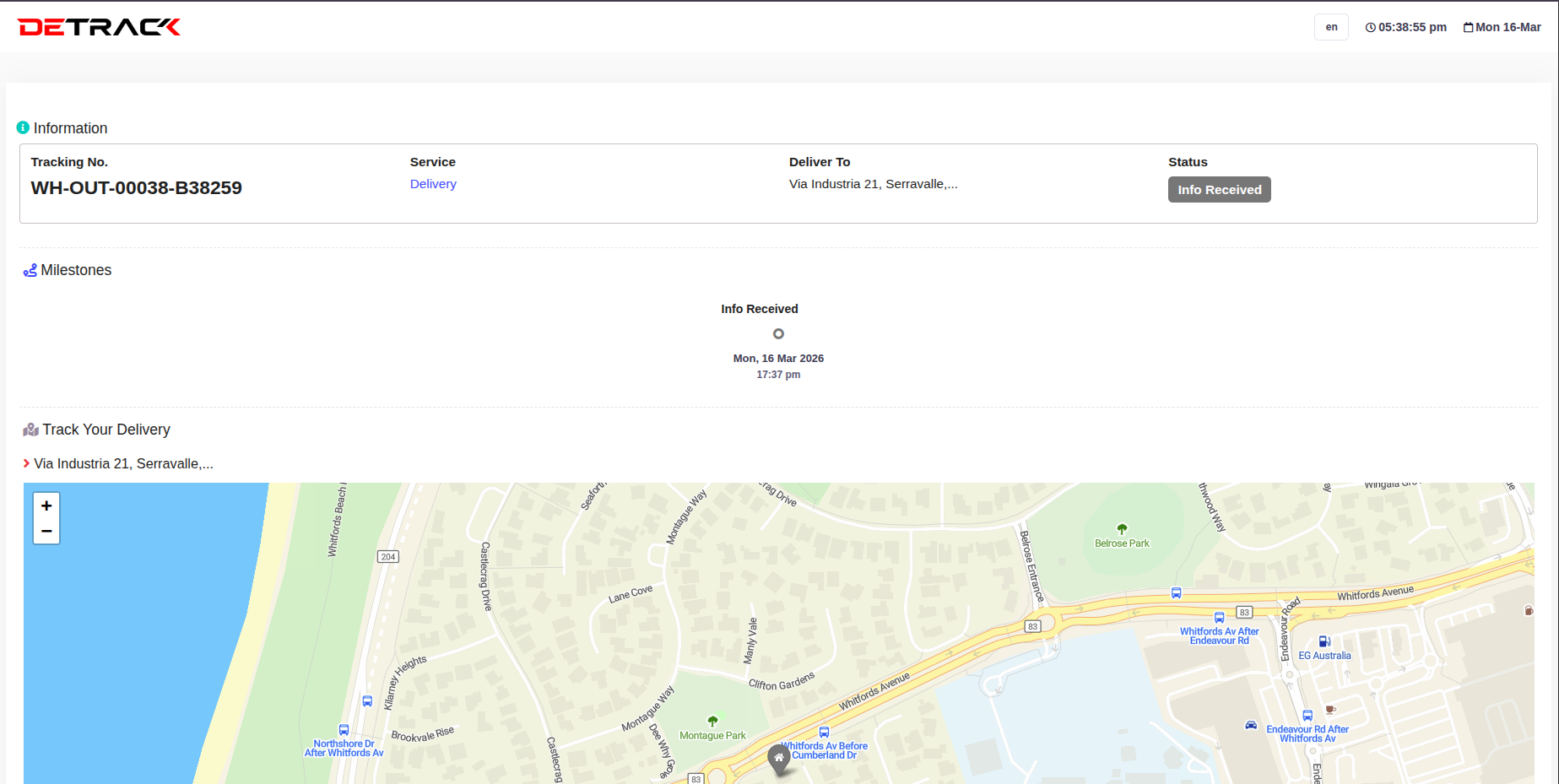
You can track the shipment using the tracking number.
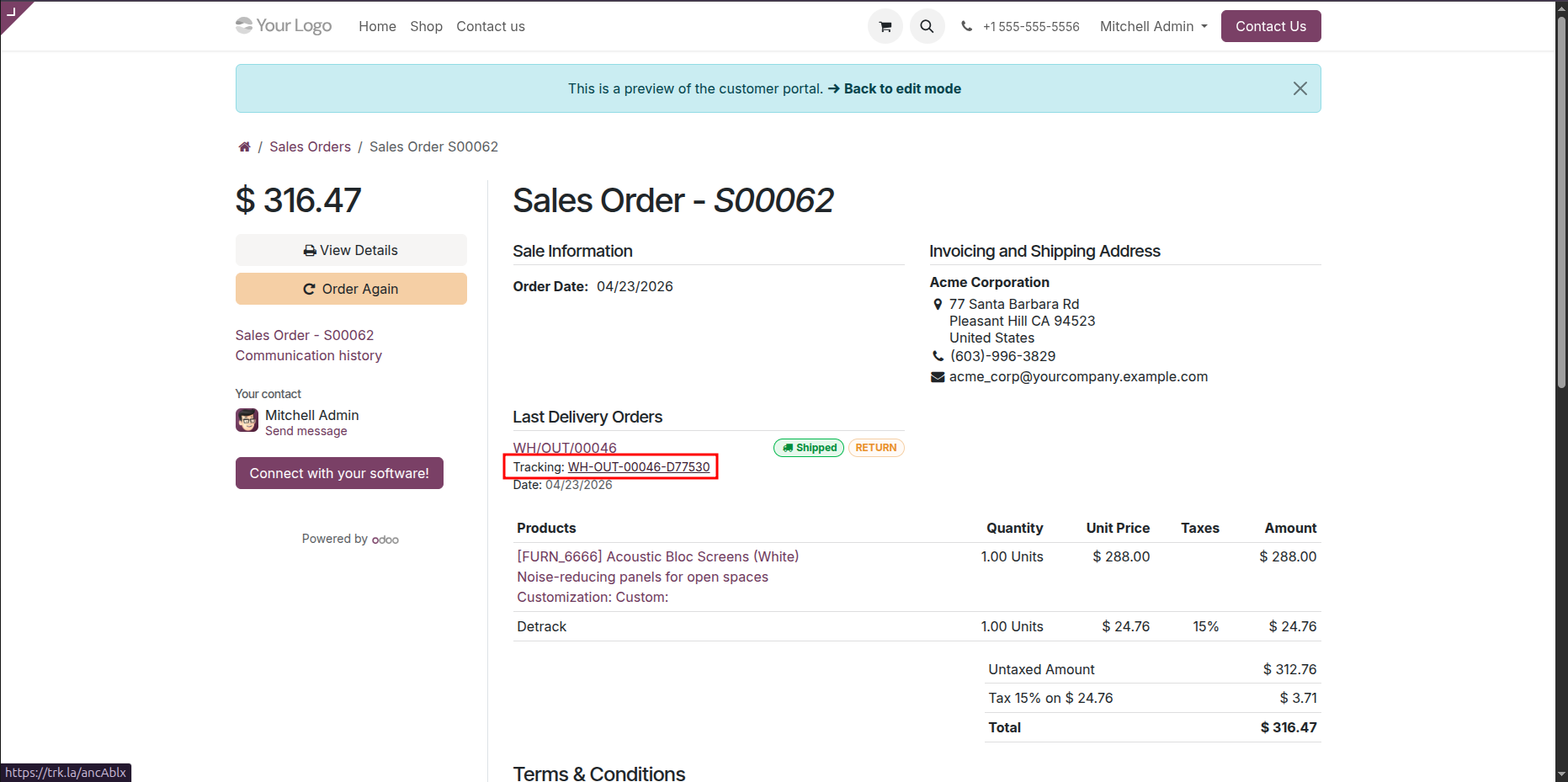
Website order with tracking details.
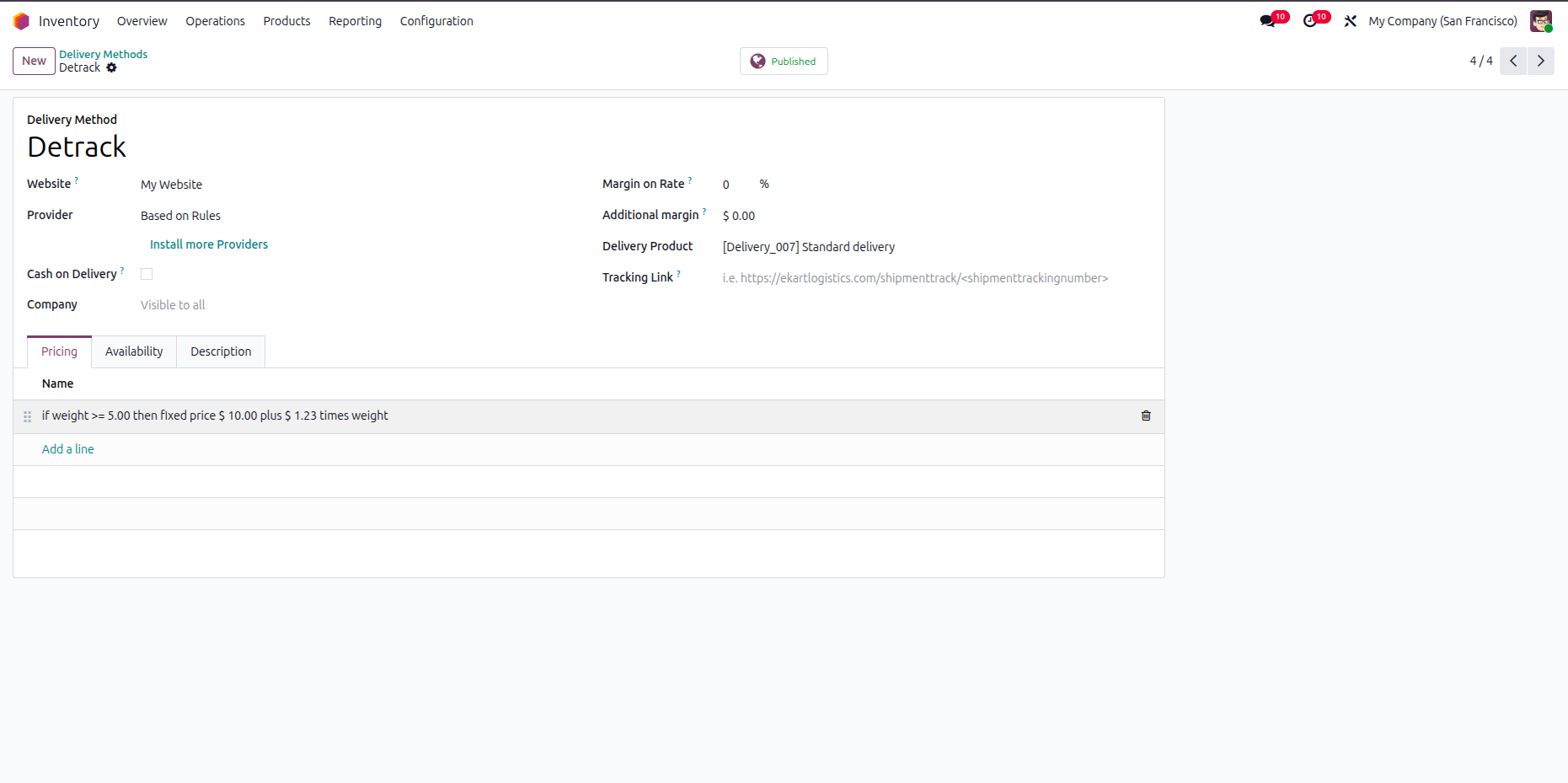
You can set pricing rules in the delivery method.
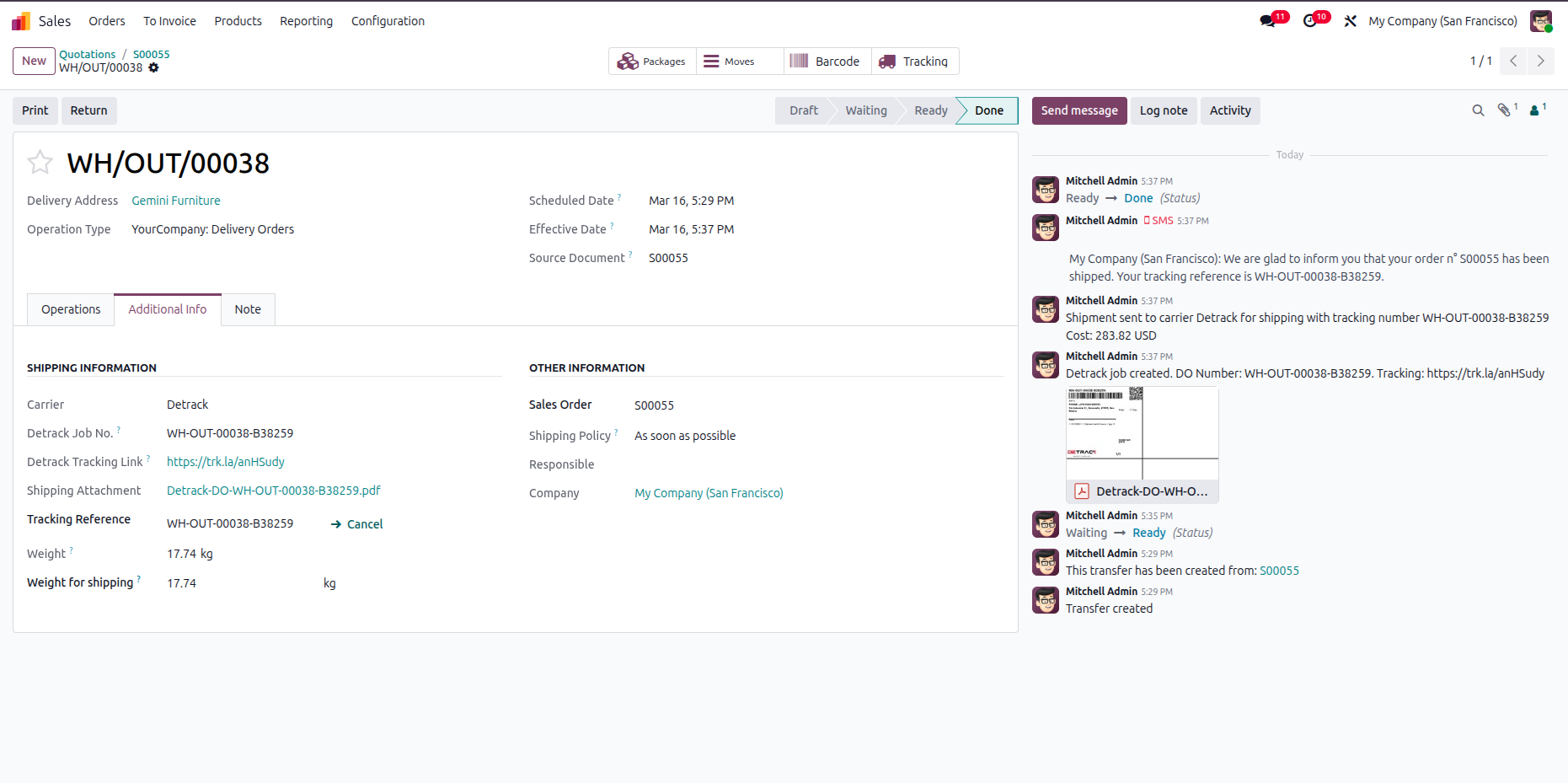
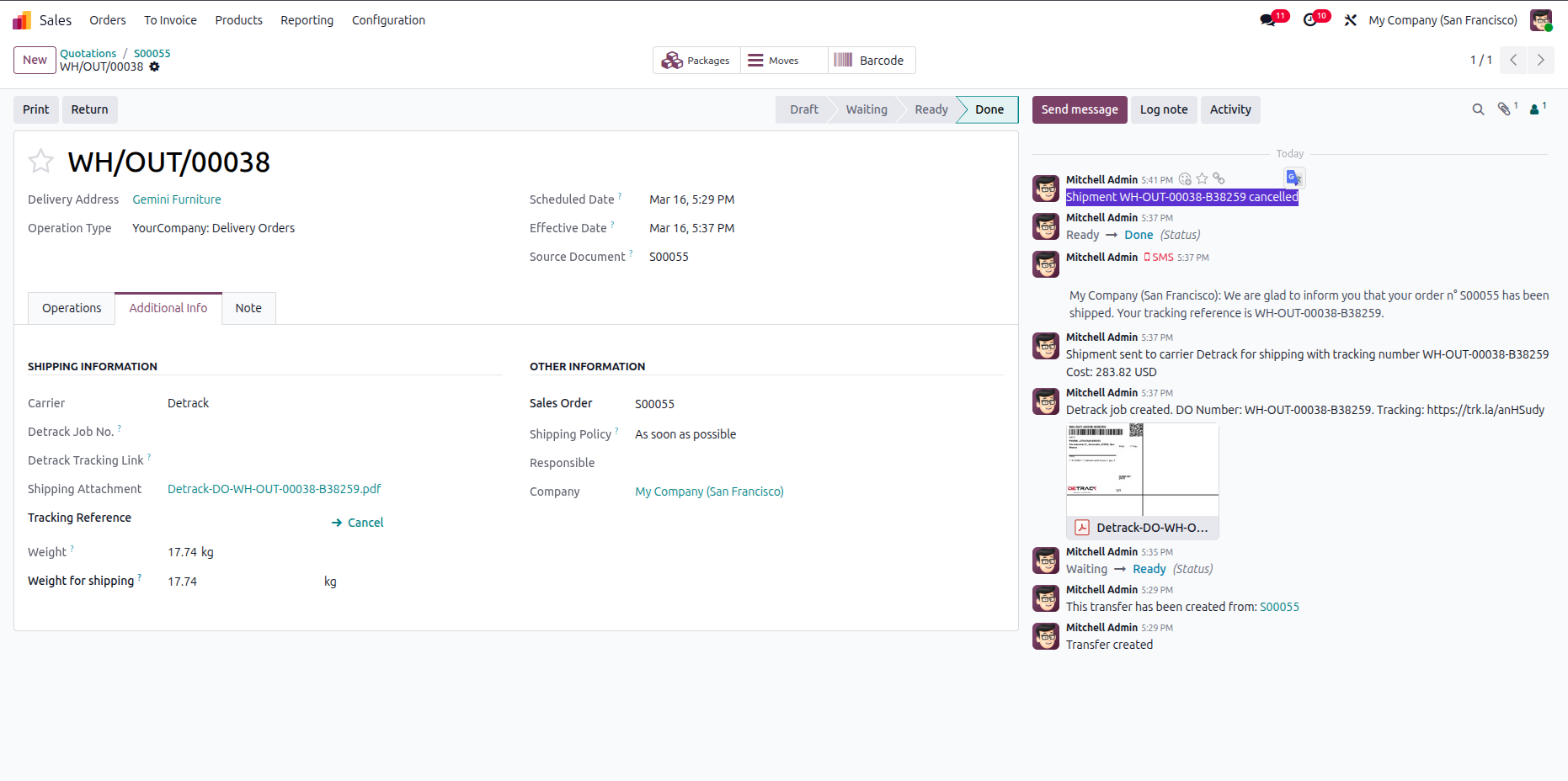
Click "Cancel" to cancel the shipment.
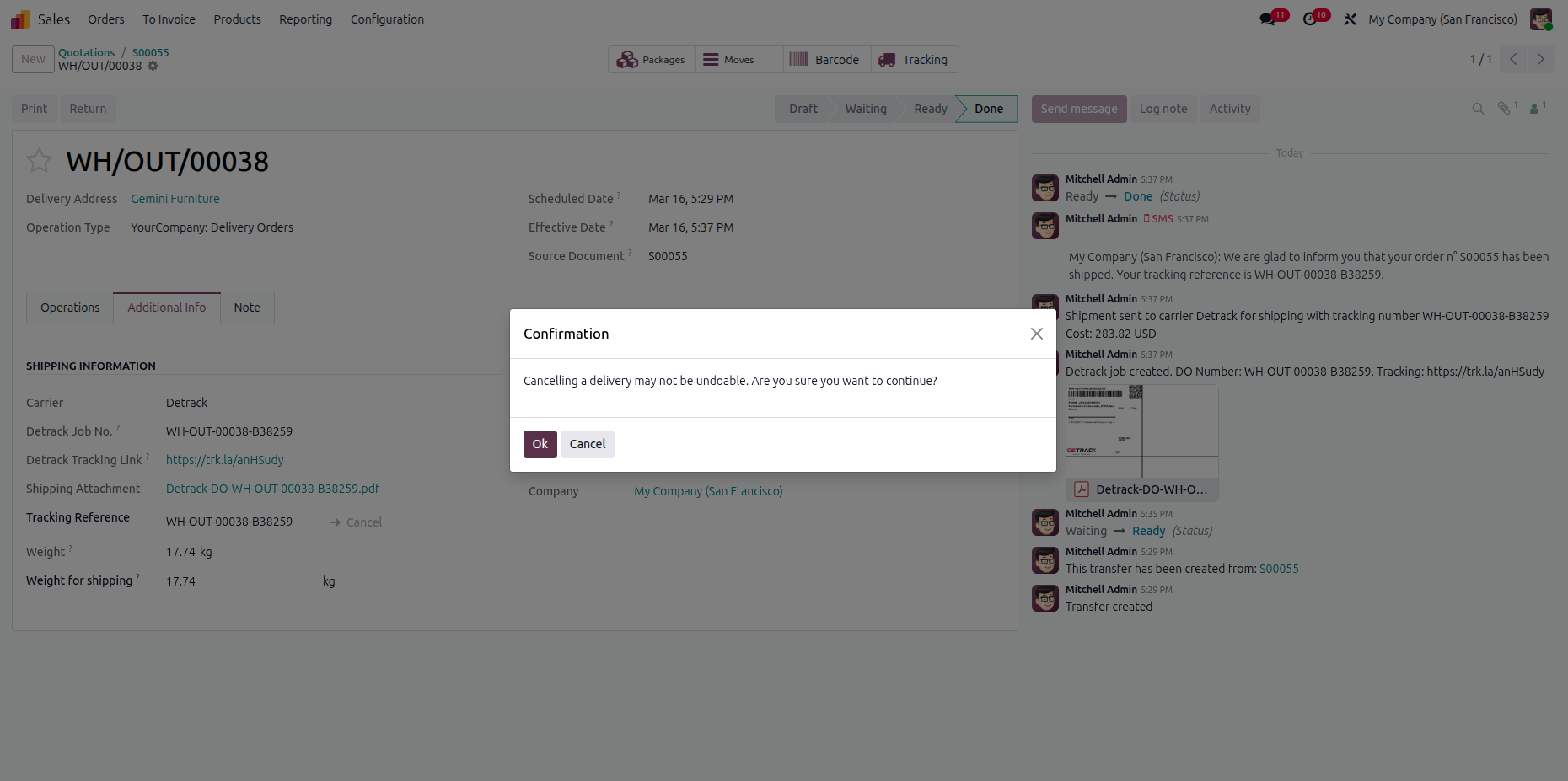
It will open popup, click 'OK'.
Shipment cancelled with a chatter message.
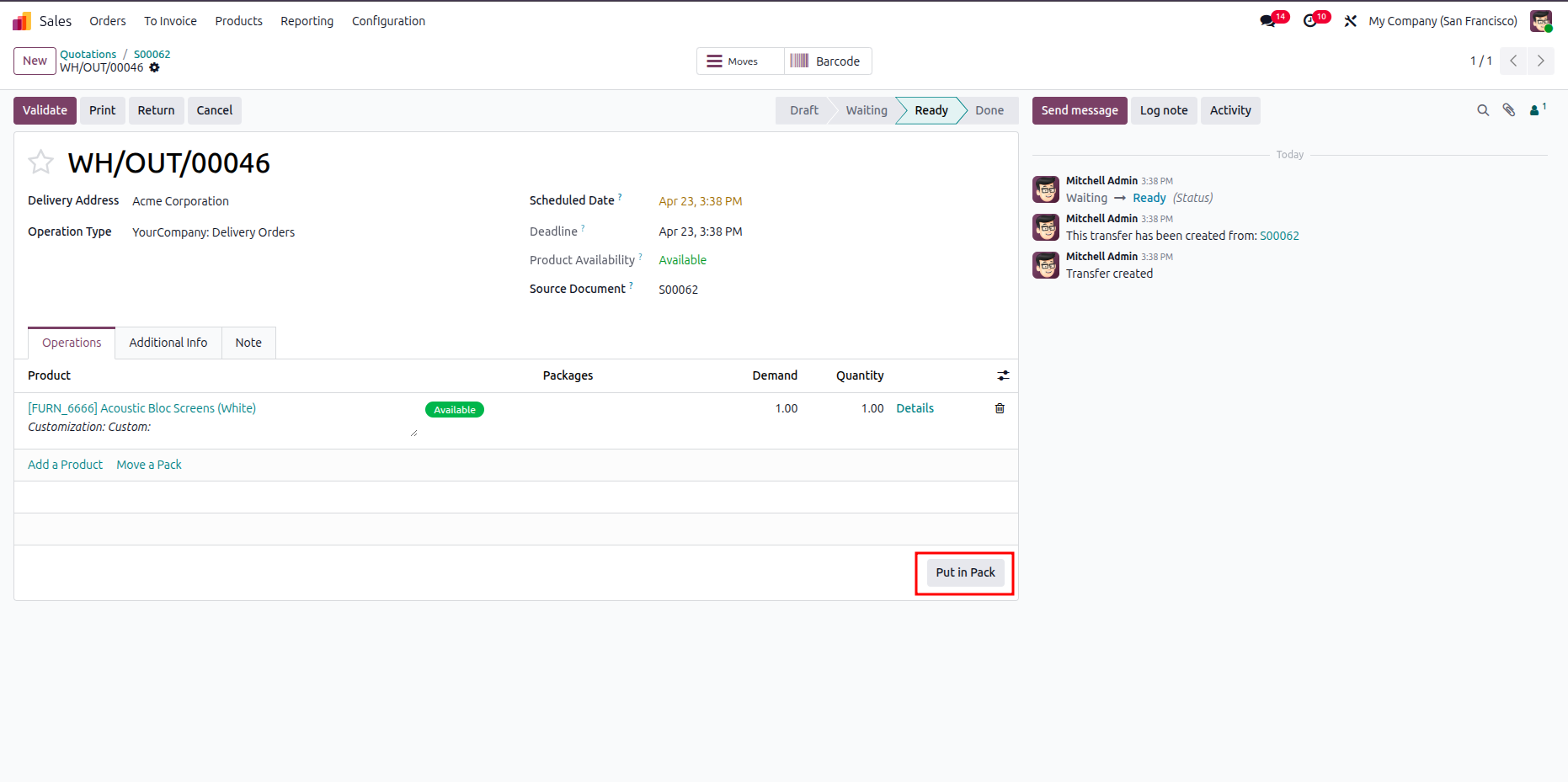
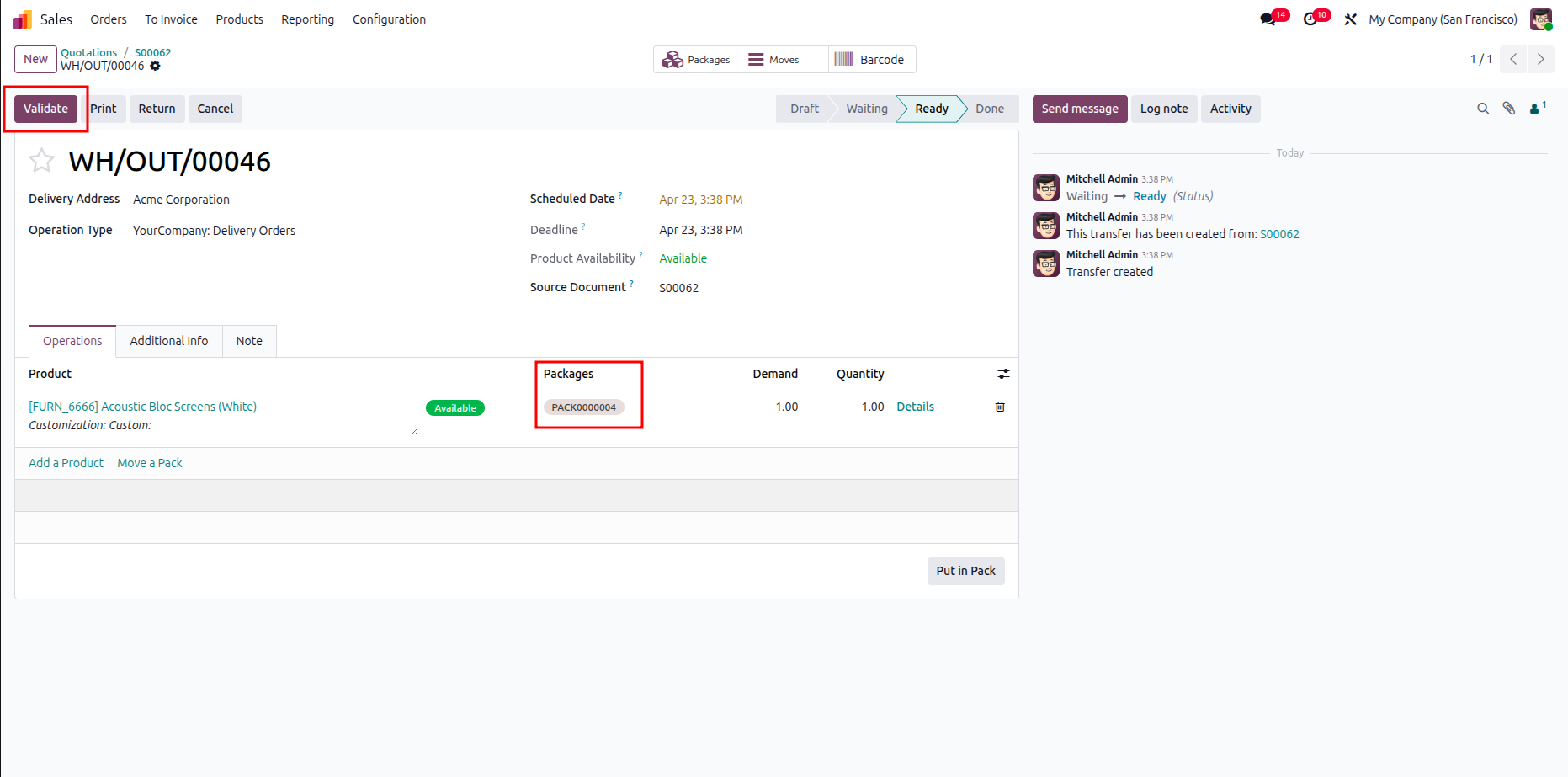
In the delivery order, click "Put In Pack".
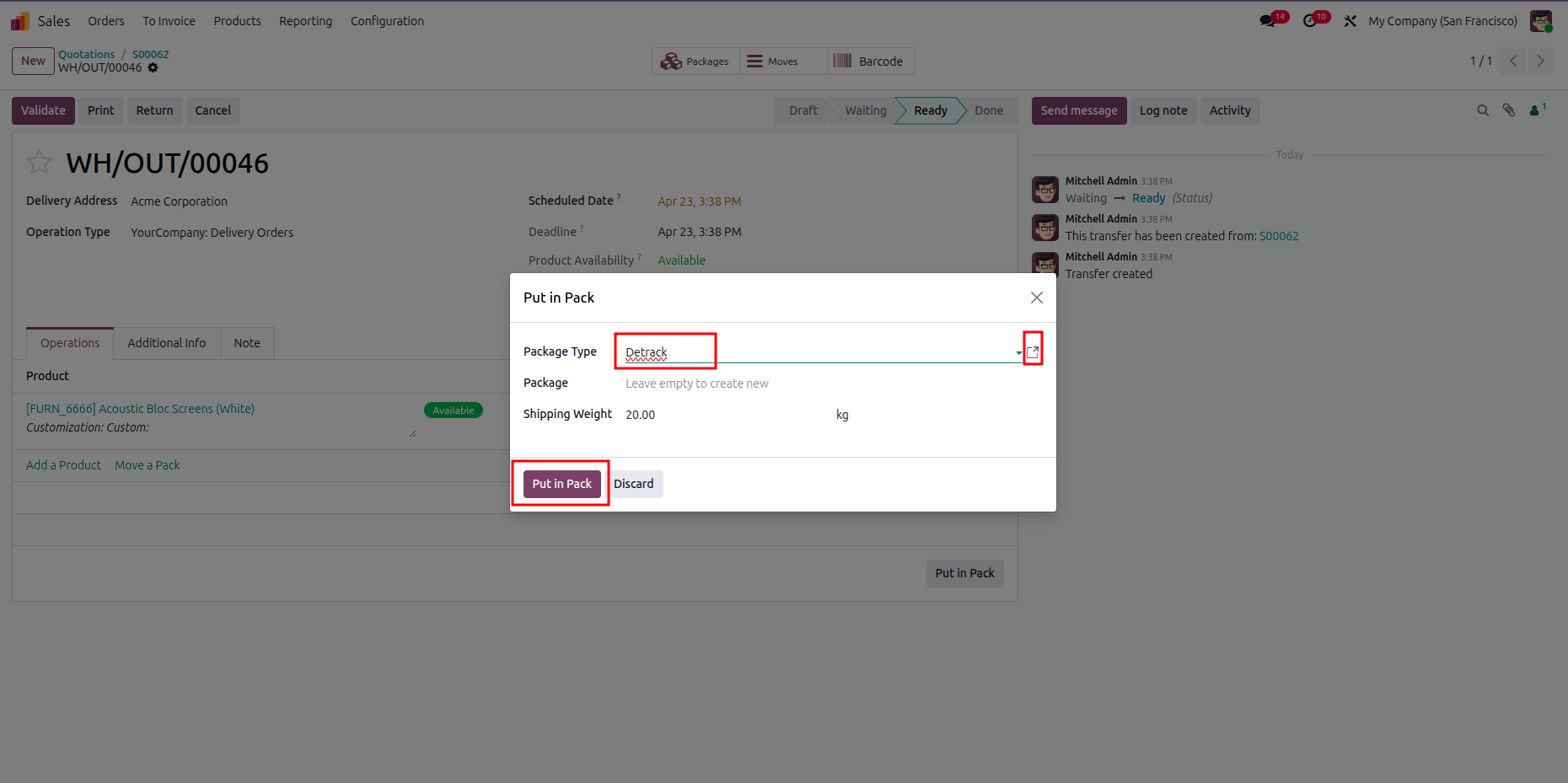
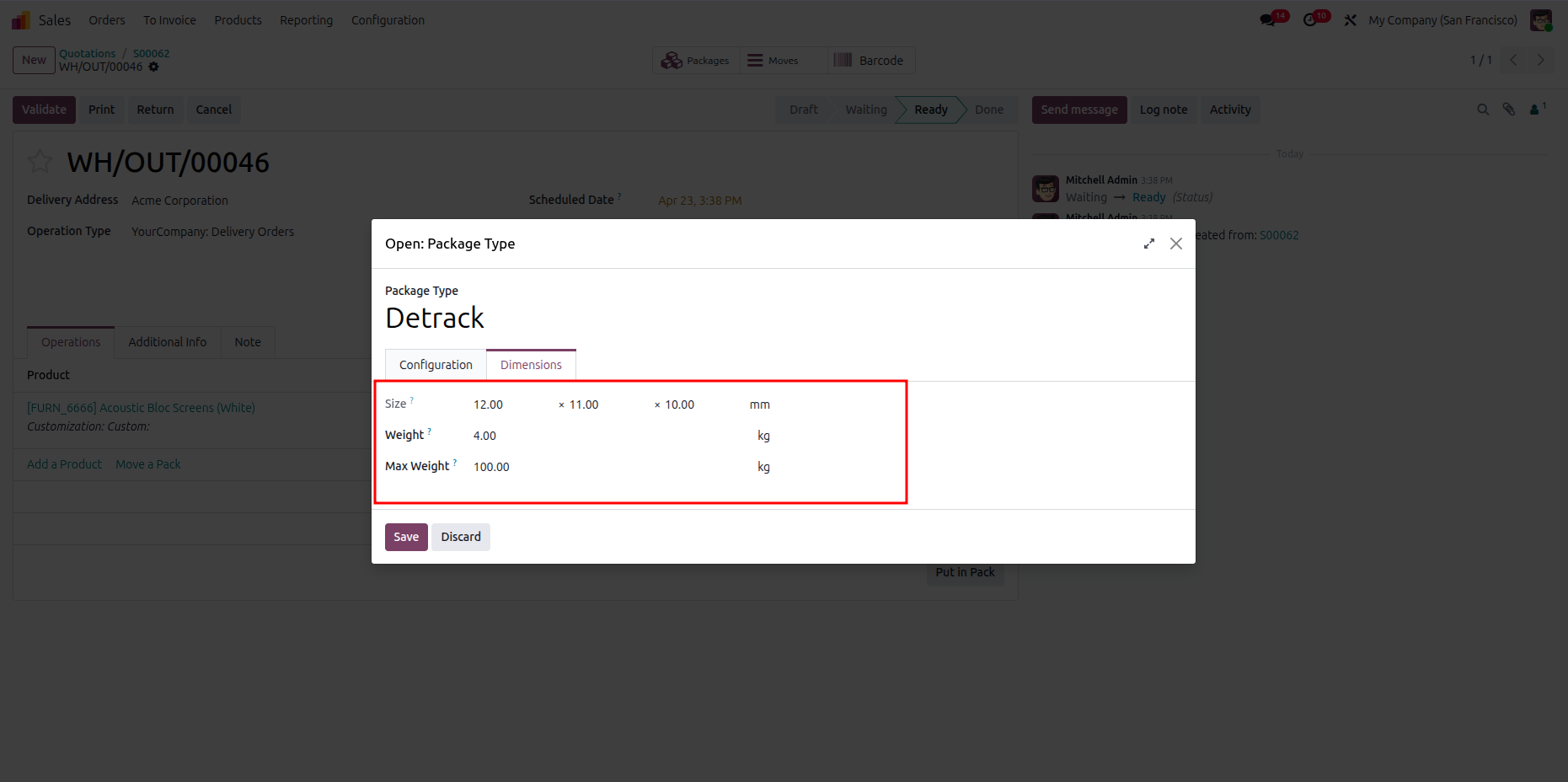
Add package details by selecting the Detrack delivery package type to prepare for label generation and shipment processing. Click on the arrow to open the detailed wizard.
Define the Detrack Package by specifying its details to ensure accurate shipment calculation.
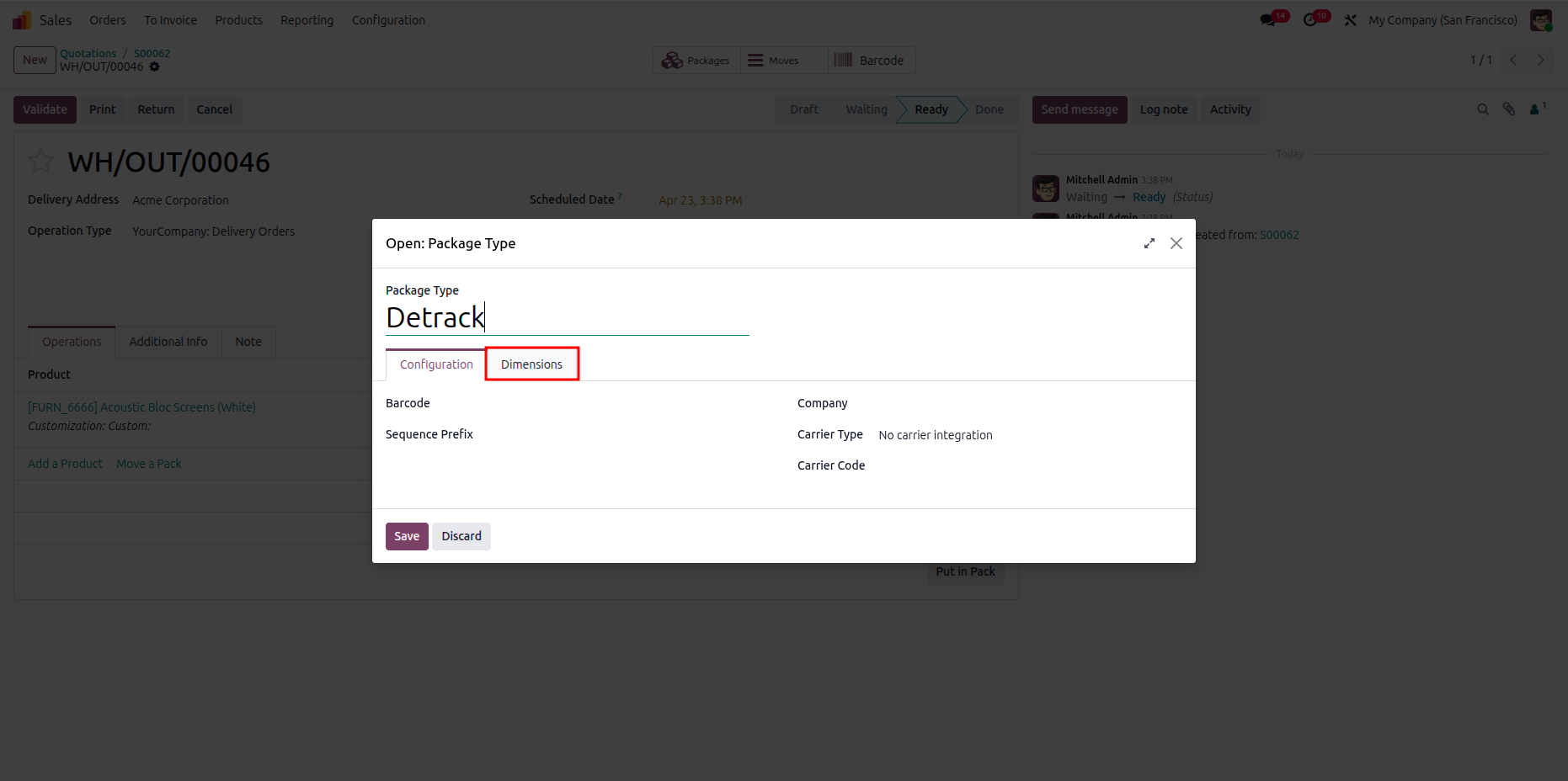
Enter the required details, specify its dimensions, weight, and all details, and click "Save".
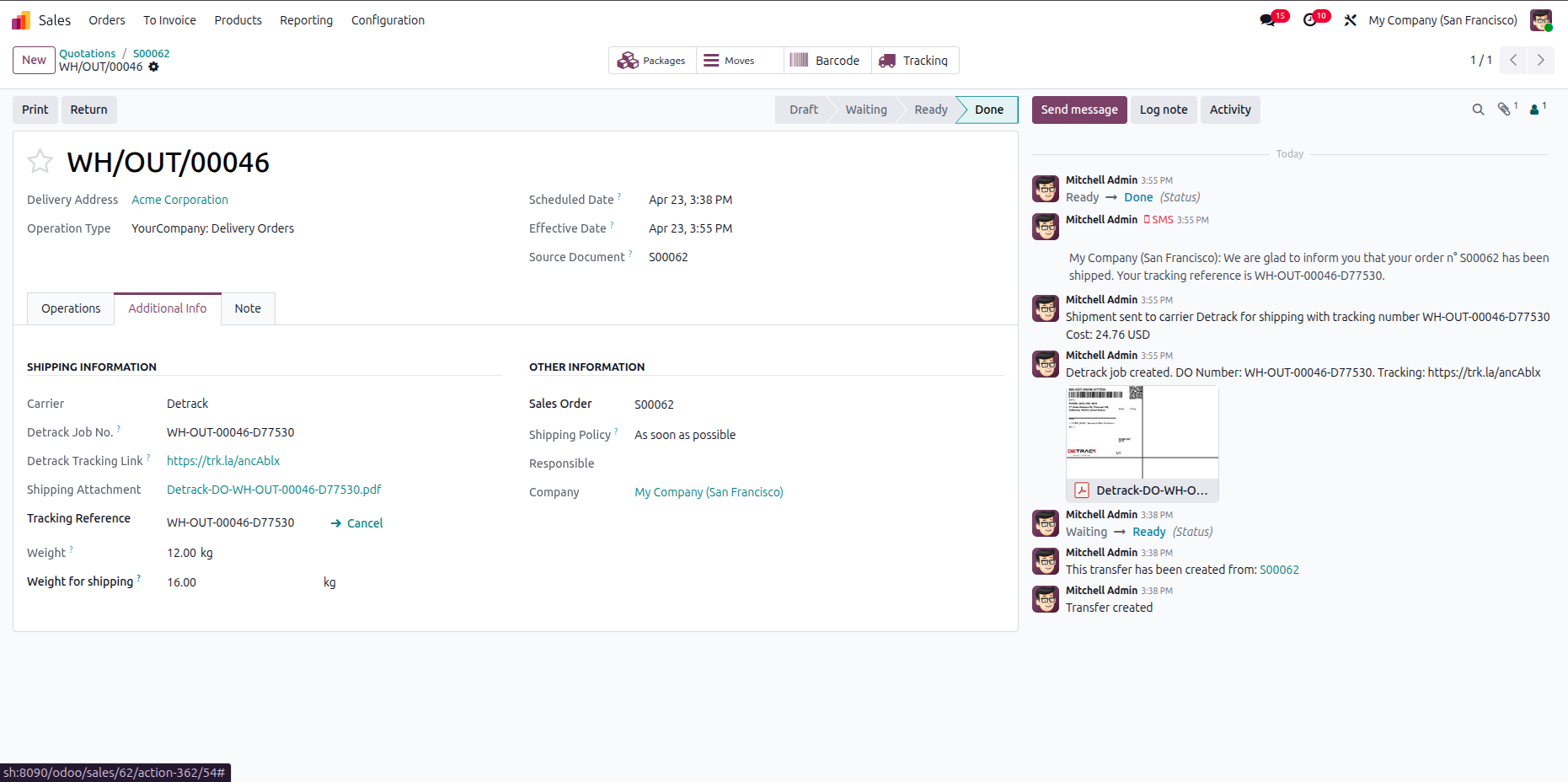
The delivery order with details. It displays the Shipping Information under the Additional Info tab after generating the label.
Select Detrack delivery method.
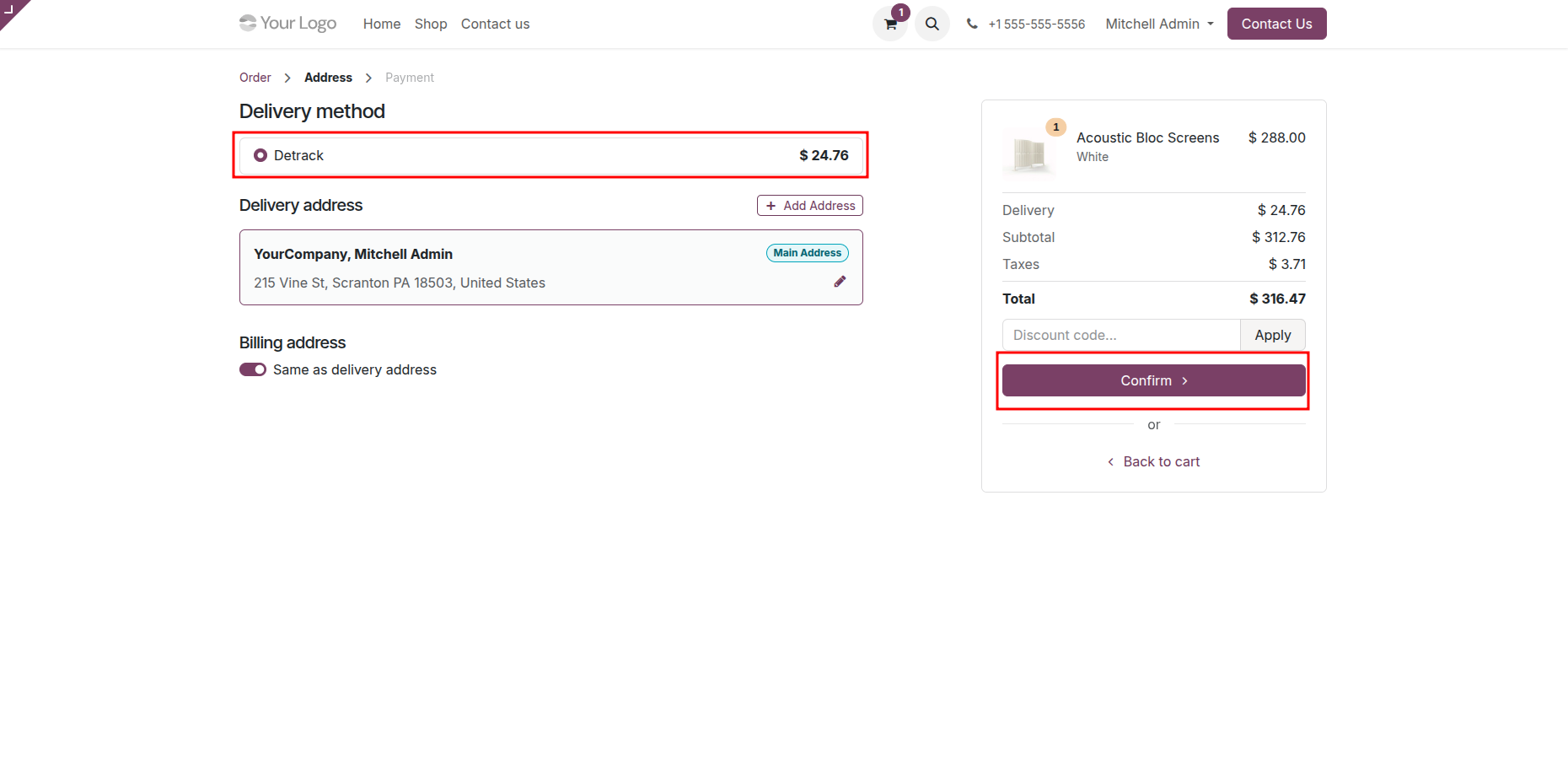
Checkout done successfully.
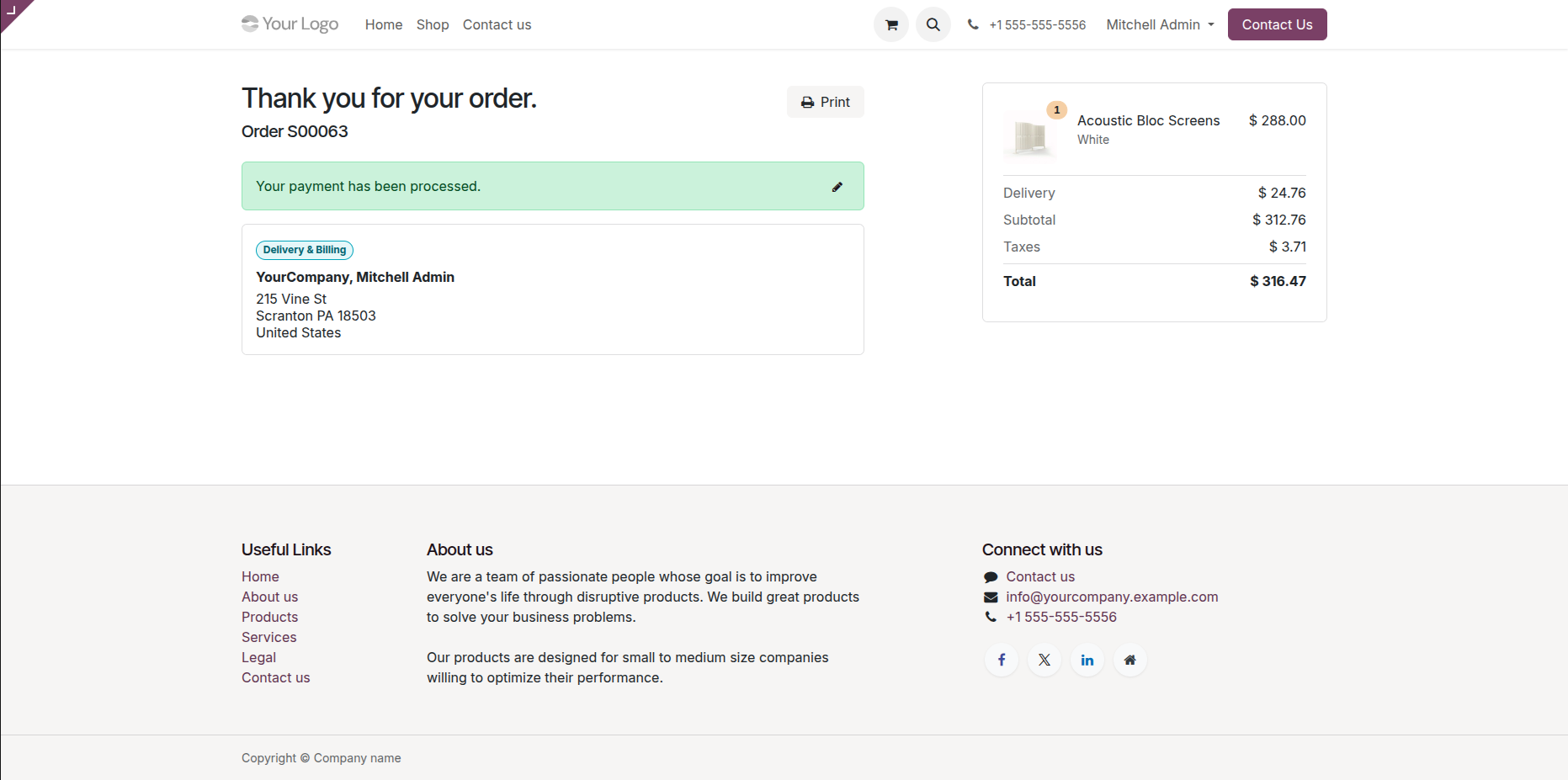
Backend order created with all details.
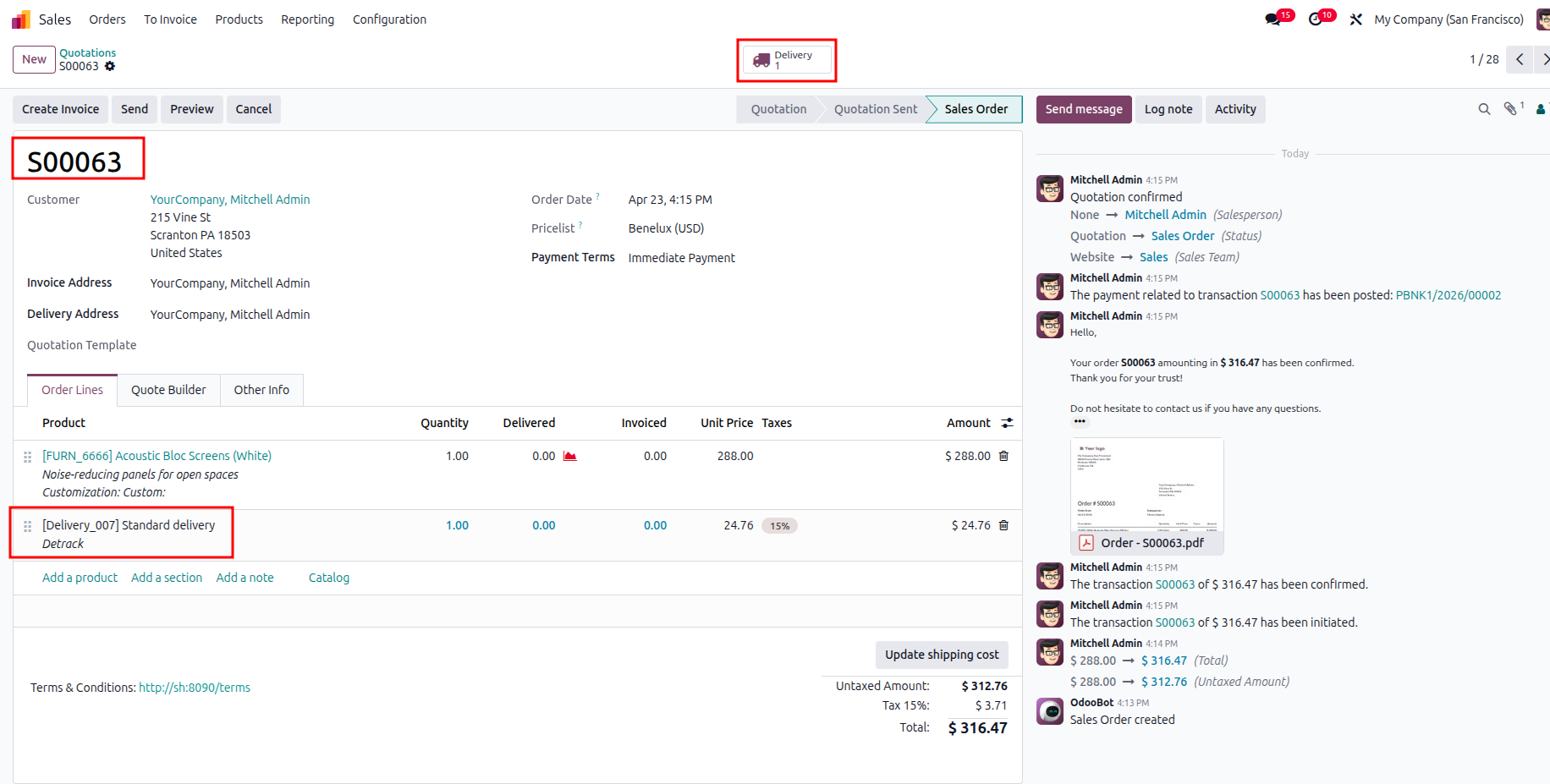
The delivery order with details in the backend. It displays the Shipping Information under the Additional Info tab after generating the label. In the log note, it shows that the shipping label was successfully generated, along with a downloadable PDF link.
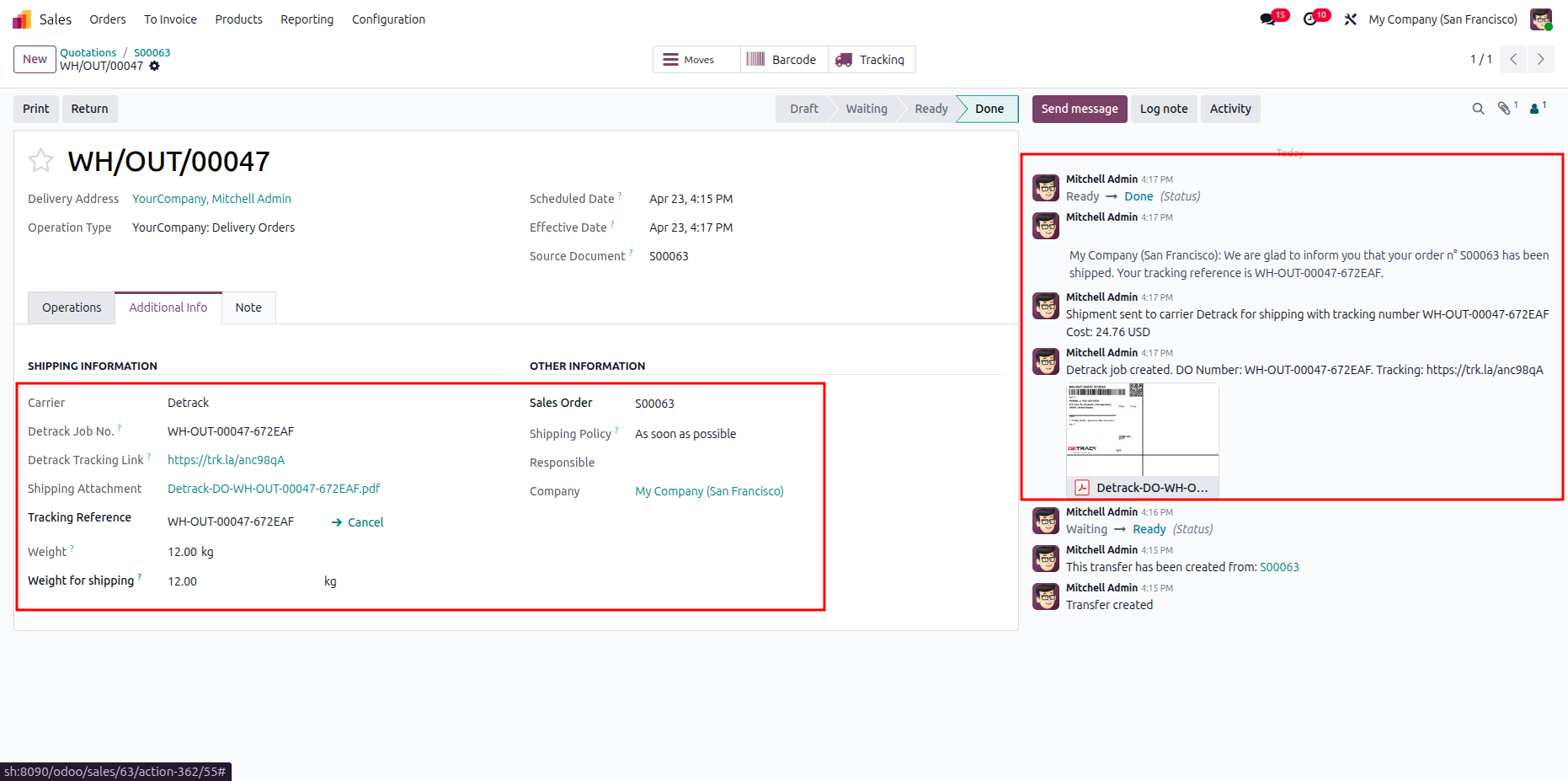
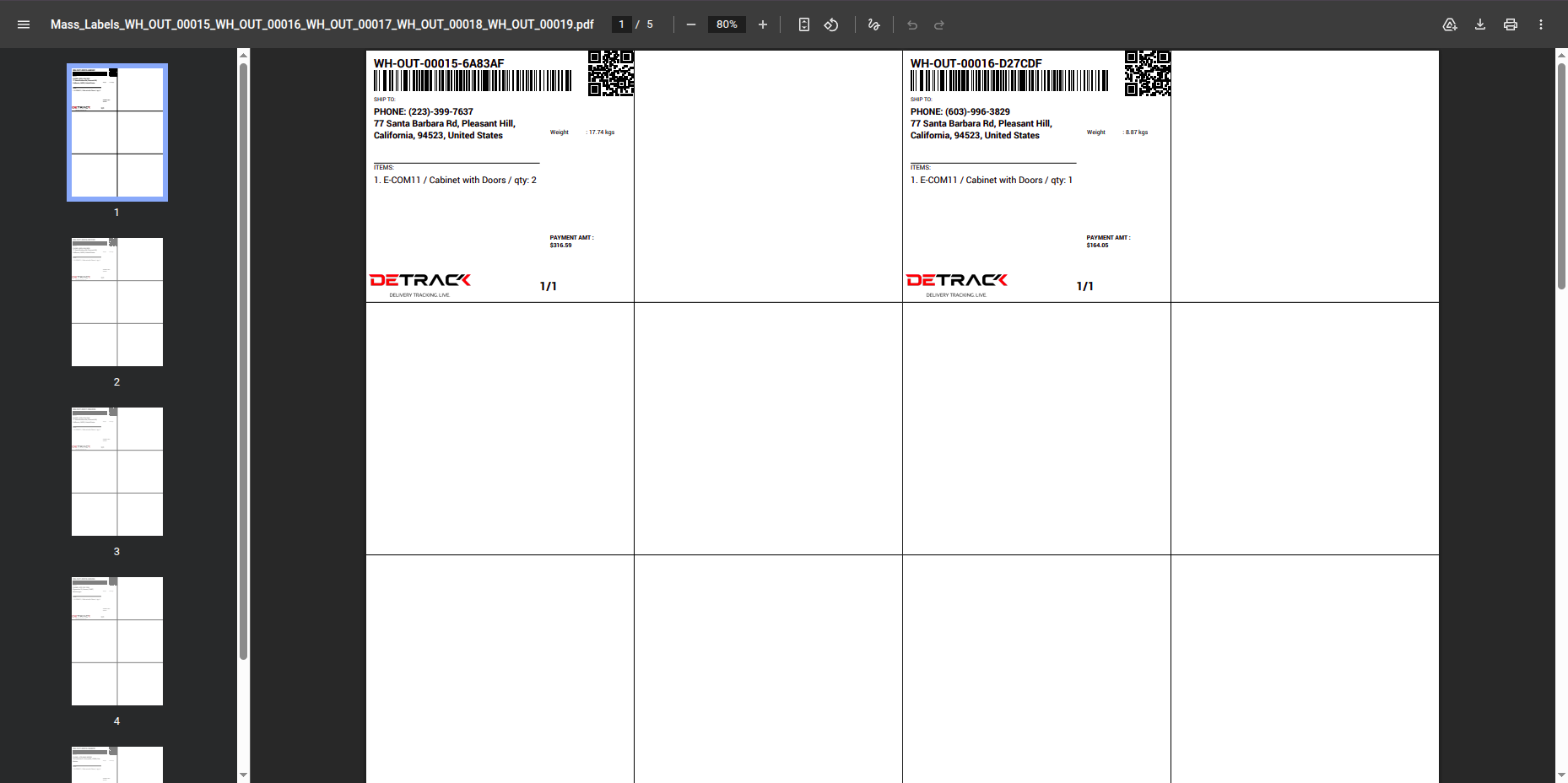
Select deliveries and click Action -> Mass Label Printing.
Labels generated.
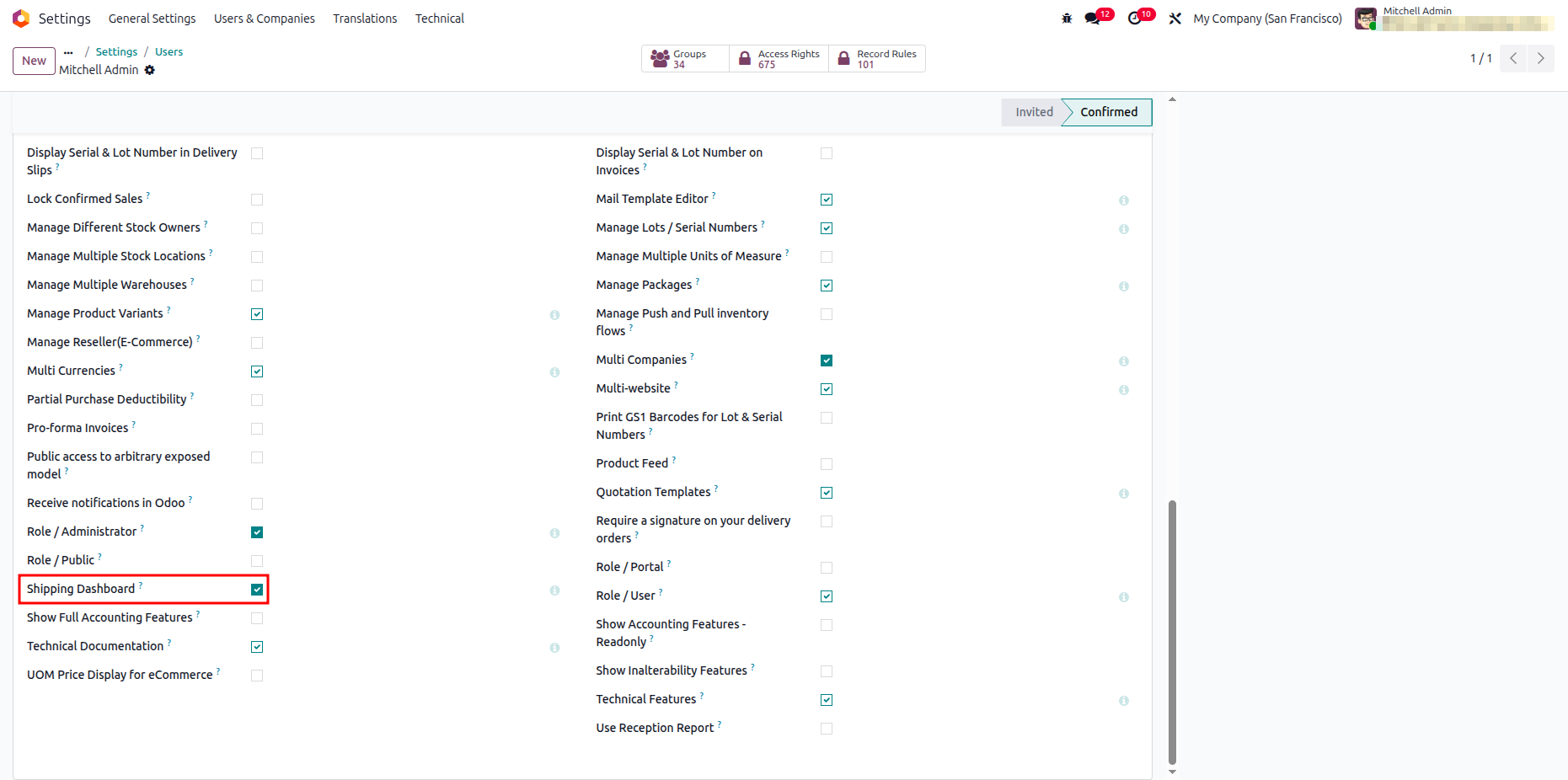
Enable 'Shipping Dashboard'.
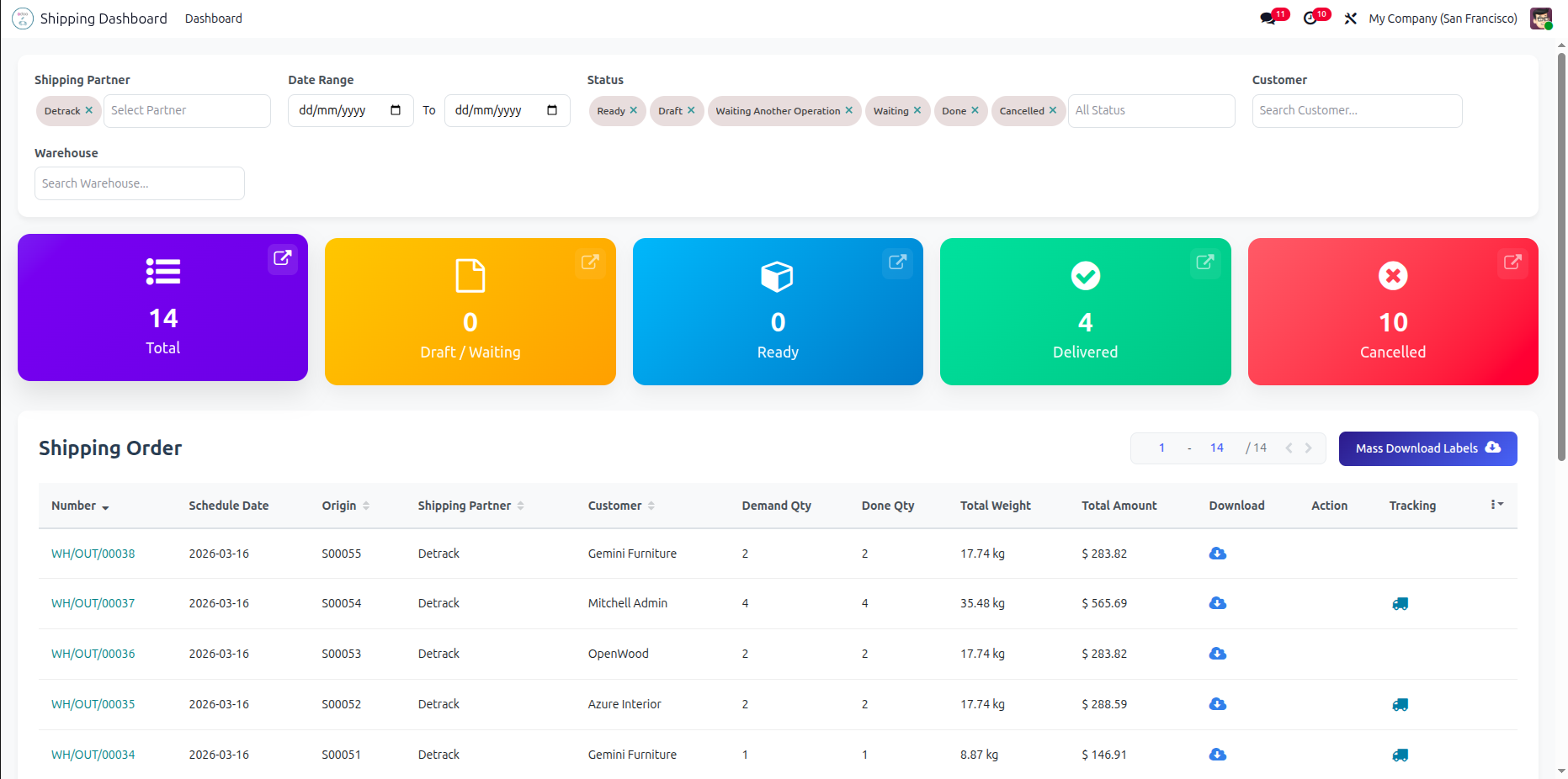
Filter the Shipping Dashboard by a specific Shipping Partner, such as Detrack.
Combine a specific Date Range with your Shipping Partner filter to narrow
down
dashboard metrics and isolate delivery records processed within a targeted
timeframe.
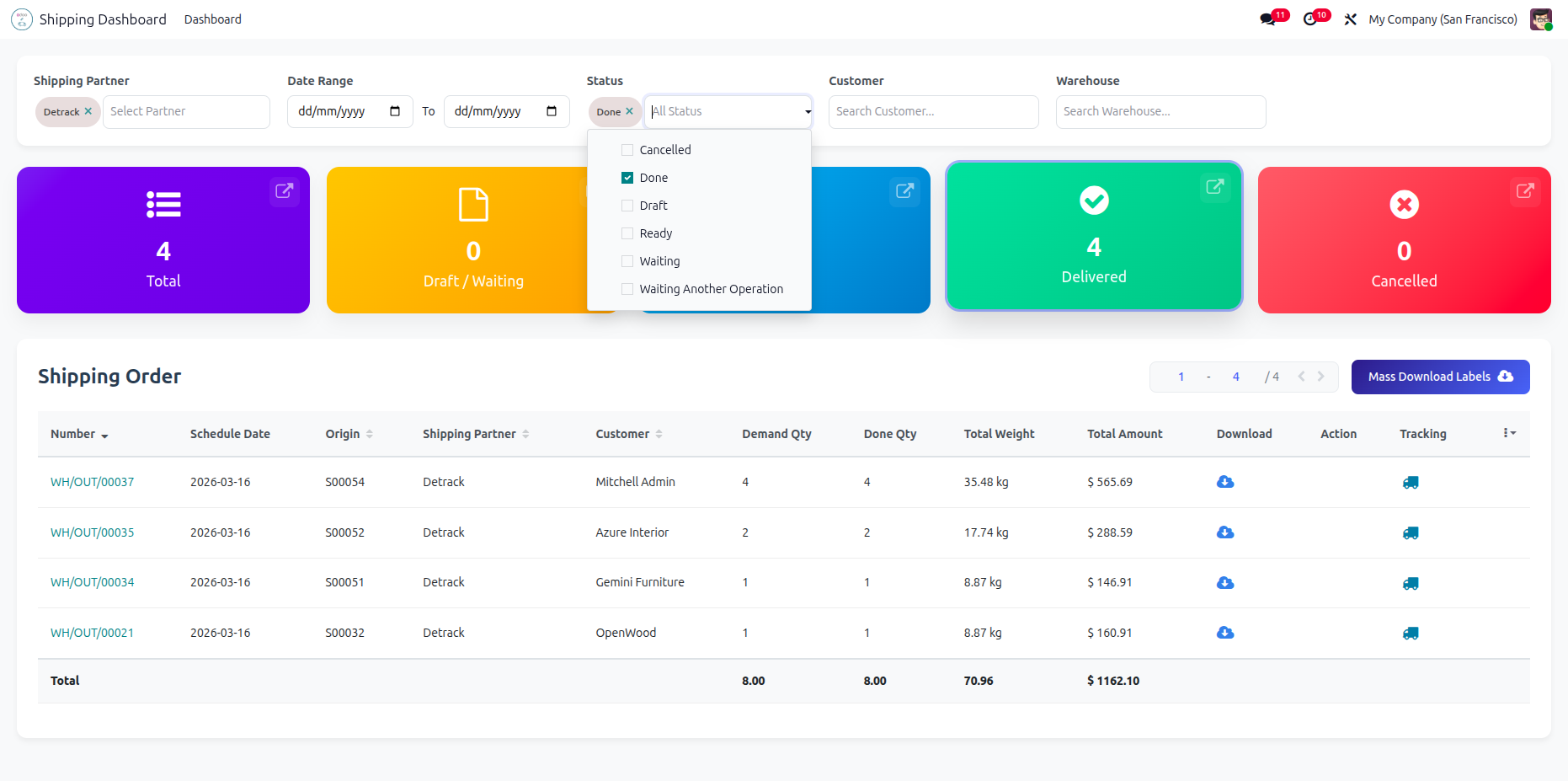
You can select shipping status from the drop-down.
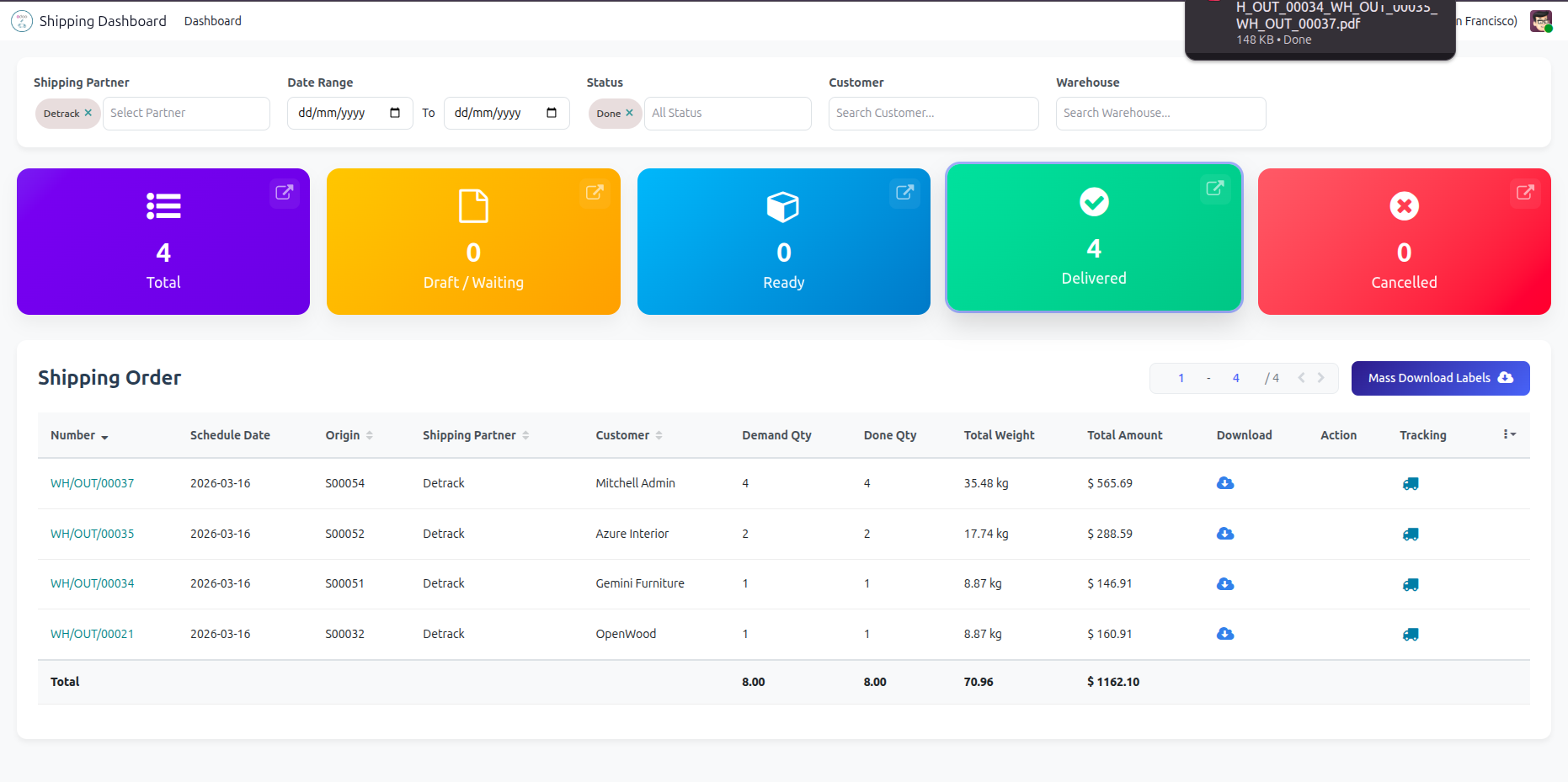
Click 'Mass Download
Labels' to download all at single click, You can download and track shipping from
the dashboard.
You can select customers from the drop-down.
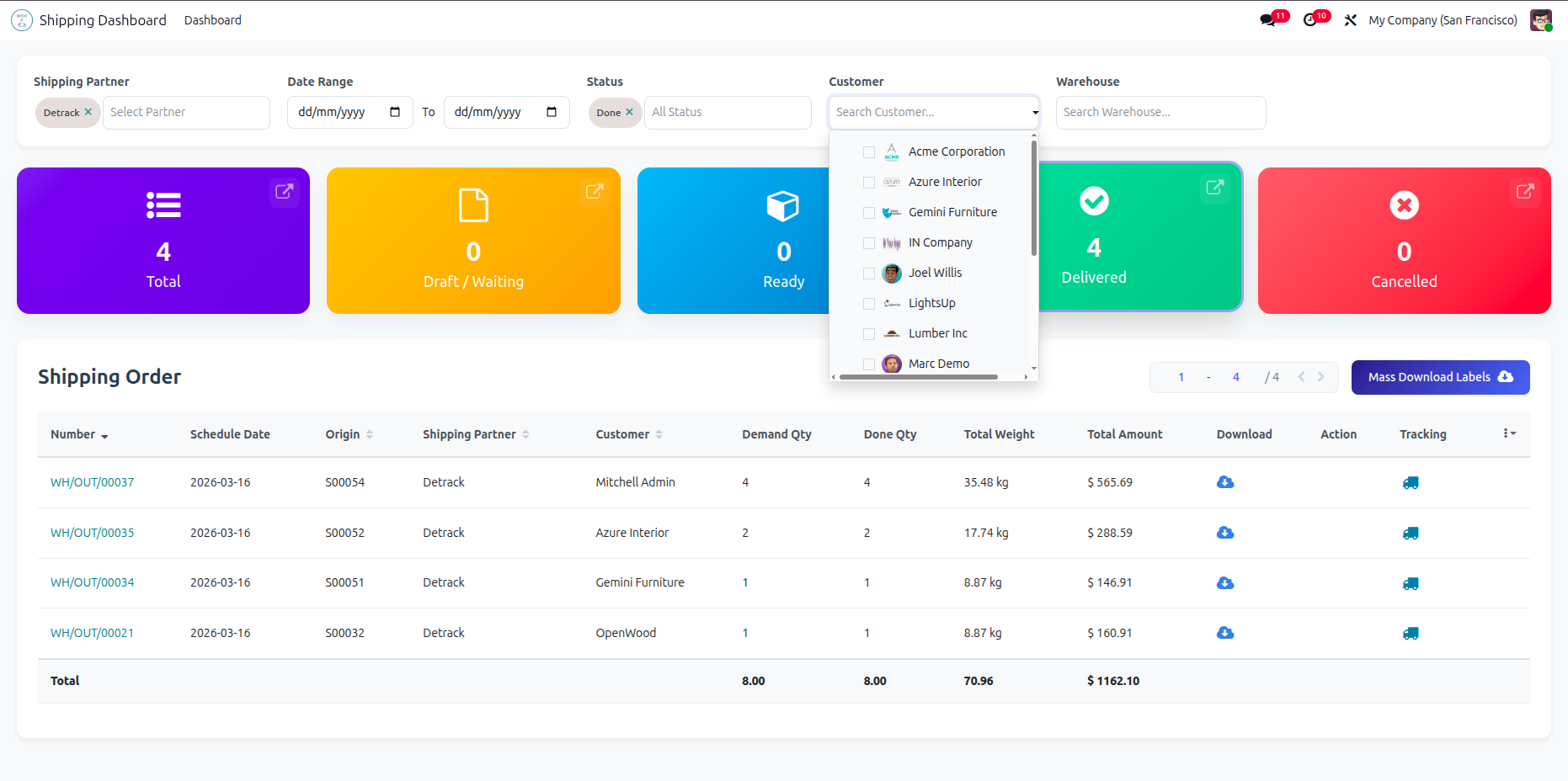
You can select warehouse from the drop-down.
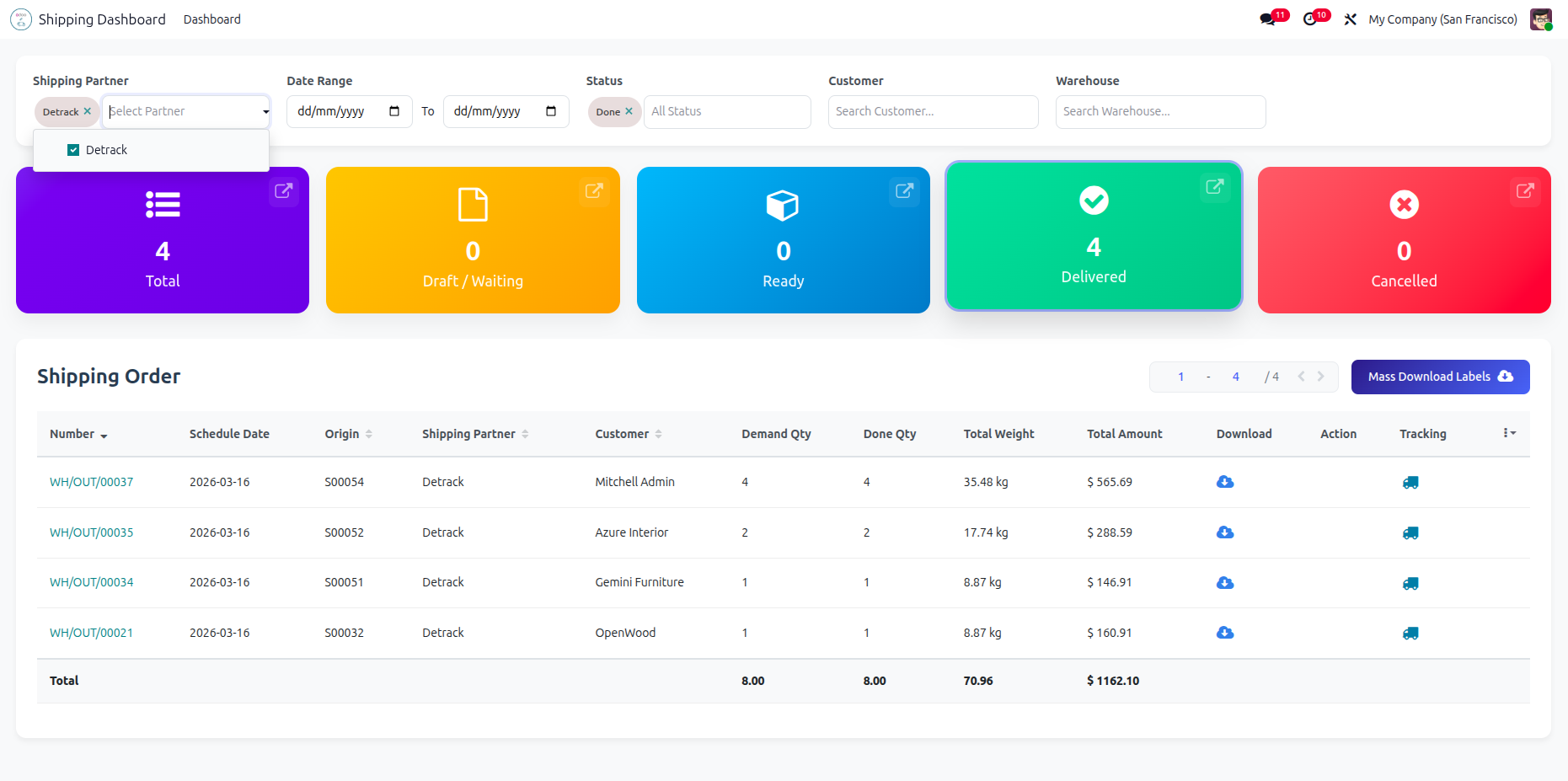
By clicking on a particular status, it shows its own details only on the dashboard. You can open particular orders from a status.
Version 19.0.2.0.0 | Released on : 29th Jun 2026
Version 19.0.1.0.0 | Released on : 30th April 2026
- Yes, this app works perfectly with Odoo Enterprise (Odoo.sh & Premise) as well as Community.
- No, this application is not compatible with odoo.com(odoo saas/Odoo Online)
- Yes, to test this module, please contact us at sales@softhealer.com.
- Please contact us at sales@softhealer.comto request customization.
- Yes, we provide free support for 365 days from the date of purchase.
- Yes, you will receive lifetime free updates for the version of the module you purchased.
- No, there is no need to install any additional libraries.
- Yes, for version 12 and above, you need to purchase the module separately for each version you intend to use.
- No, exchanges or refunds are not allowed. Please make sure to select the correct version before purchasing.
- You can contact us at support@softhealer.com for language translation support. We use Google Translator tools to provide translations in multiple languages, so the accuracy may vary. We welcome your suggestions to help improve translations.
Discover Our Latest Apps