




CRM Dashboard

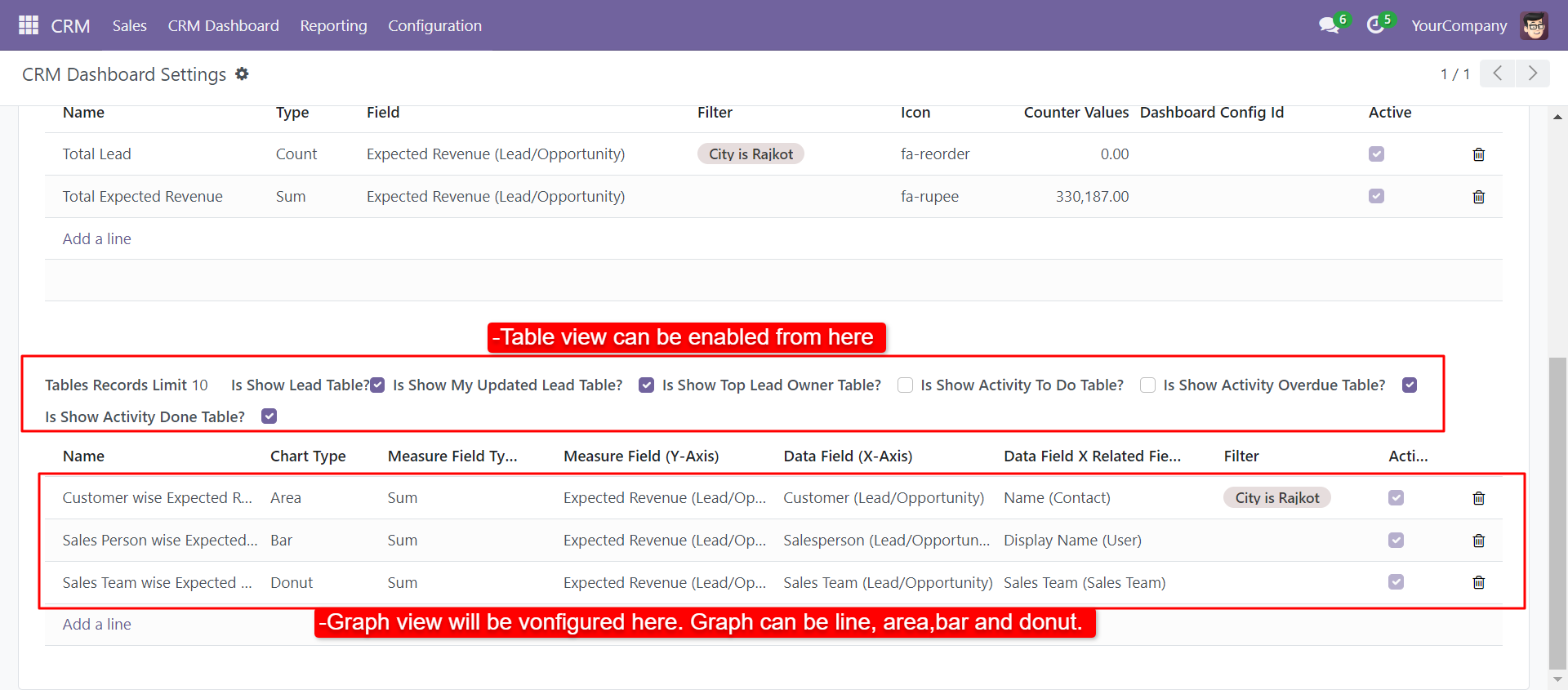
A CRM dashboard is a type of graphical user interface that often provides at-a-glance views of key performance indicators relevant to a particular objective or business process of CRM. This module helps you to build your own CRM dashboard. You can modify the CRM dashboard as your requirement. The main aim of making this dashboard is multi-company if you have multiple companies so you can manage your all companies in one dashboard. This module provides shortcuts, counters, charts, tables. You can easily customize counters as per choice. Also, you can set charts of the CRM sales team, customer, etc. This dashboard provides a filter, so you can easily see data of any lead. In dashboard setting some checkboxes like 'LeadTable', 'My Updated Lead ', 'Top Lead Owner', 'Activity To Do', Activity Overdue', 'Activity Done' also you can set the limit of display record in the table.

Hot Features
Features
- The main feature of this dashboard is Multi-Company. You can use this dashboard for your multiple companies at a time.
- You can easily define particular CRM details in table form by using filters like.
-
Filter for Sessions Record.
Select Company: If you have more than one company so you need to select a company.
Days Filter: In this filter select a day, which days record you want to see. There are different type of day filter like Today, Current Week, Previous Week, Current Month, Previous Month, Current Year, Previuos Year, Custome(Add Date as per your choice). -
Dashboard Setting.
Activity Overdue:Here you can see the overdue activities.
Activity To Do:This option shows a list of activity which need to do.
Lead Table:This option shows only the lead table from your filter.
My Updated Lead:This option show list of lead which is recently updated.
Top Lead Owner:This option shows Top lead from your filter.
Activity Done:This option shows done activity.
- Easy to find the icon for menu using icon picker also you can search for the icon in the popup view of icon picker.
- Easy to set menu with the icon.
- Easy to customize a menu.
- Easy to customize counters with icons.
- You can set a different style of charts.
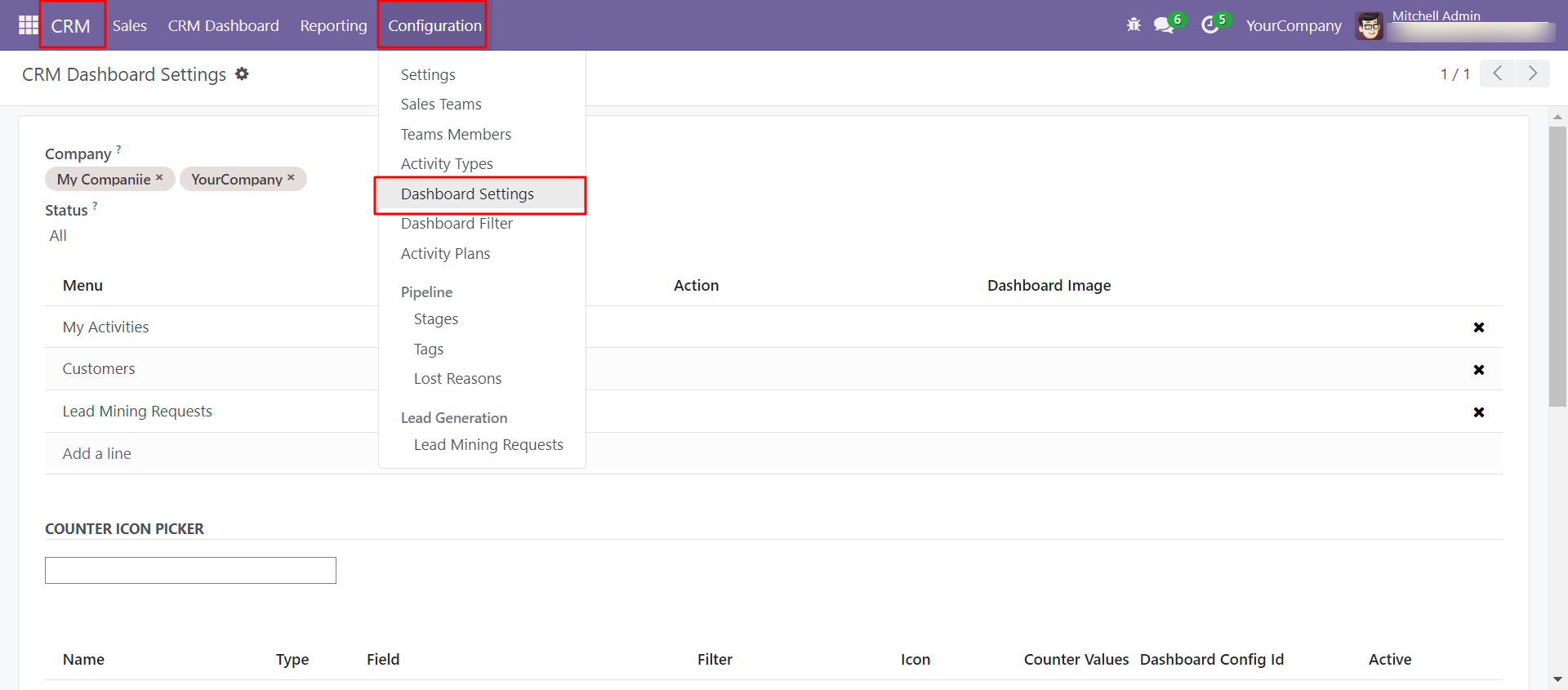
Inside CRM, configuration click 'Dashboard Settings'.
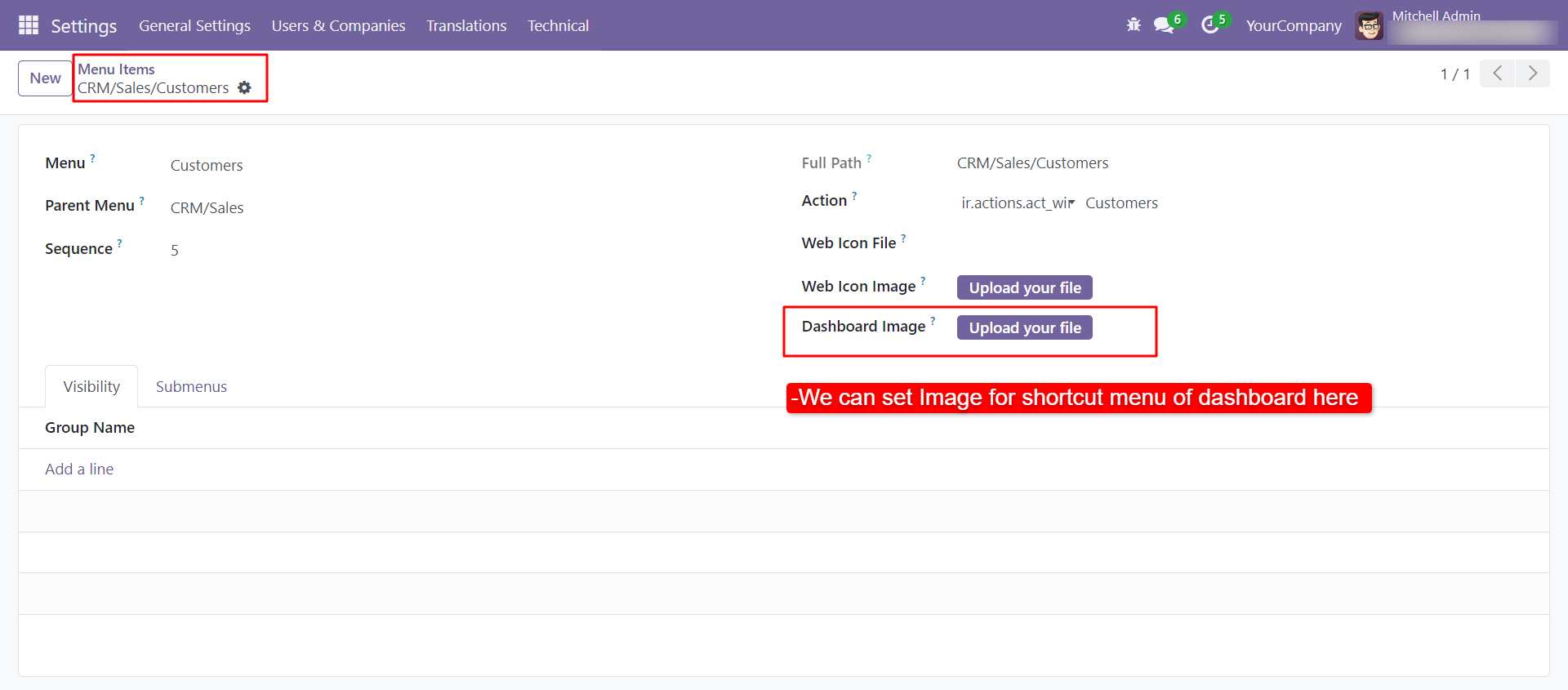
Inside the dashboard, you can add multi-company, status(Lead, Opportunity & All), days filter(Today, Current Week, Previous Week, Current Month, Previous Month, Current Year, Previous Year & You can add a date as per your choice), menu items as many you want.
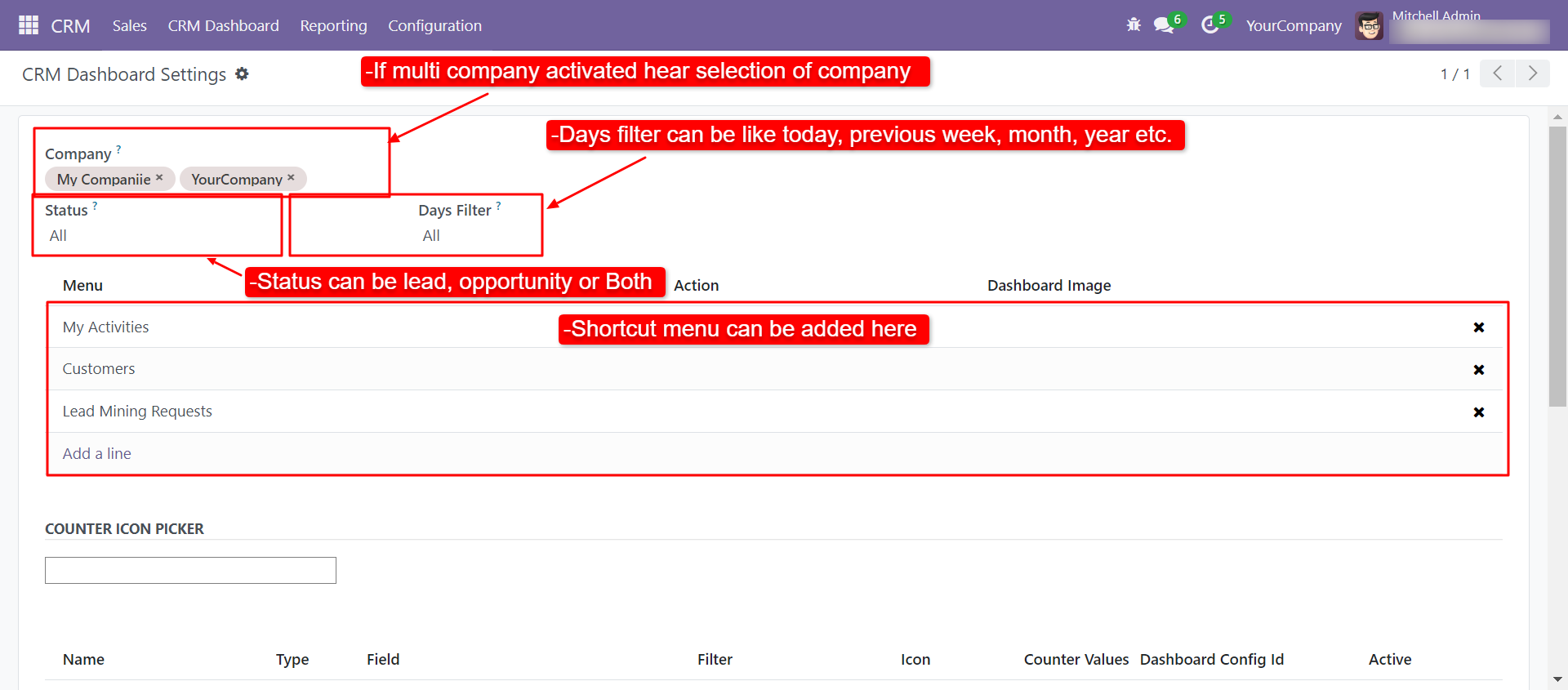
You can set an image of your choice for that menu in 'Dashboard Image'.
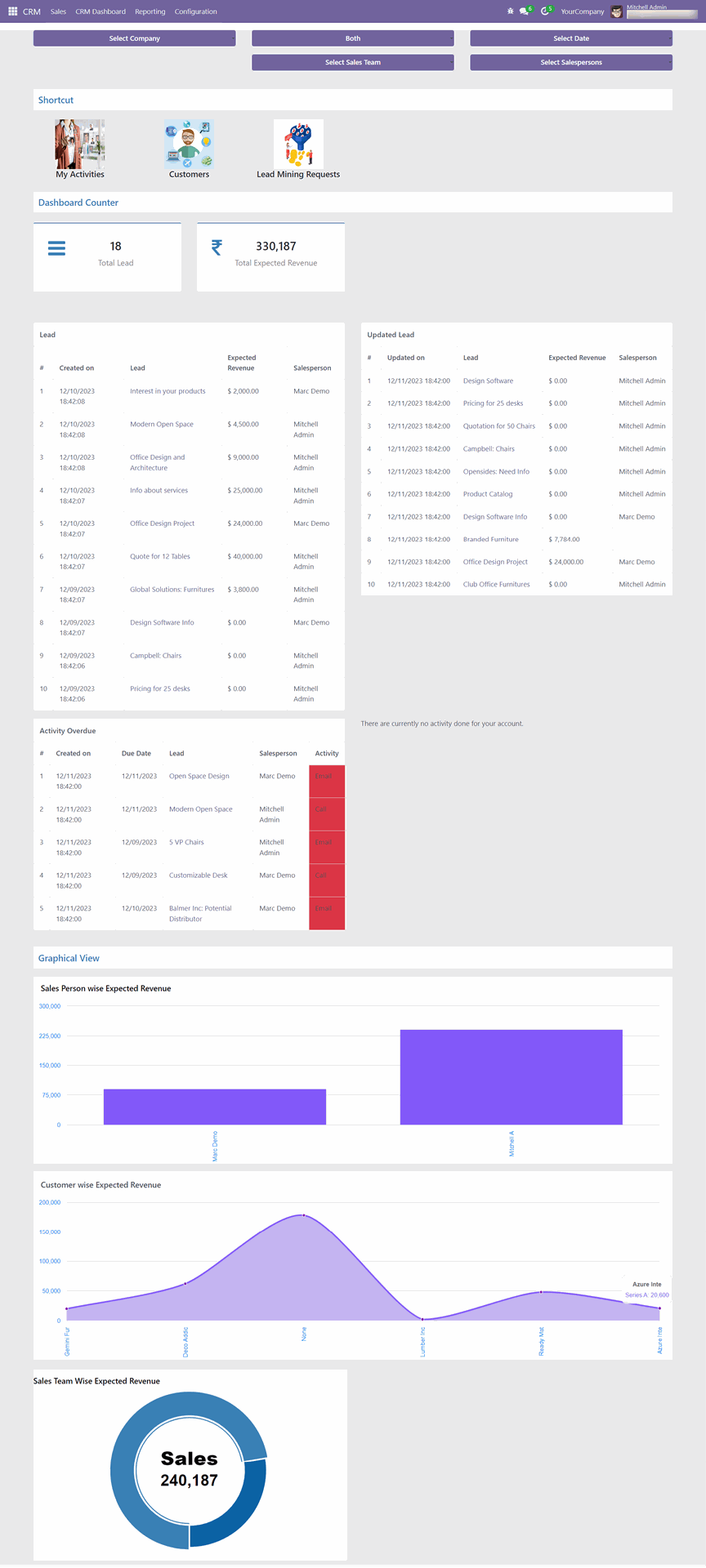
The 'Dashboard' looks like this.
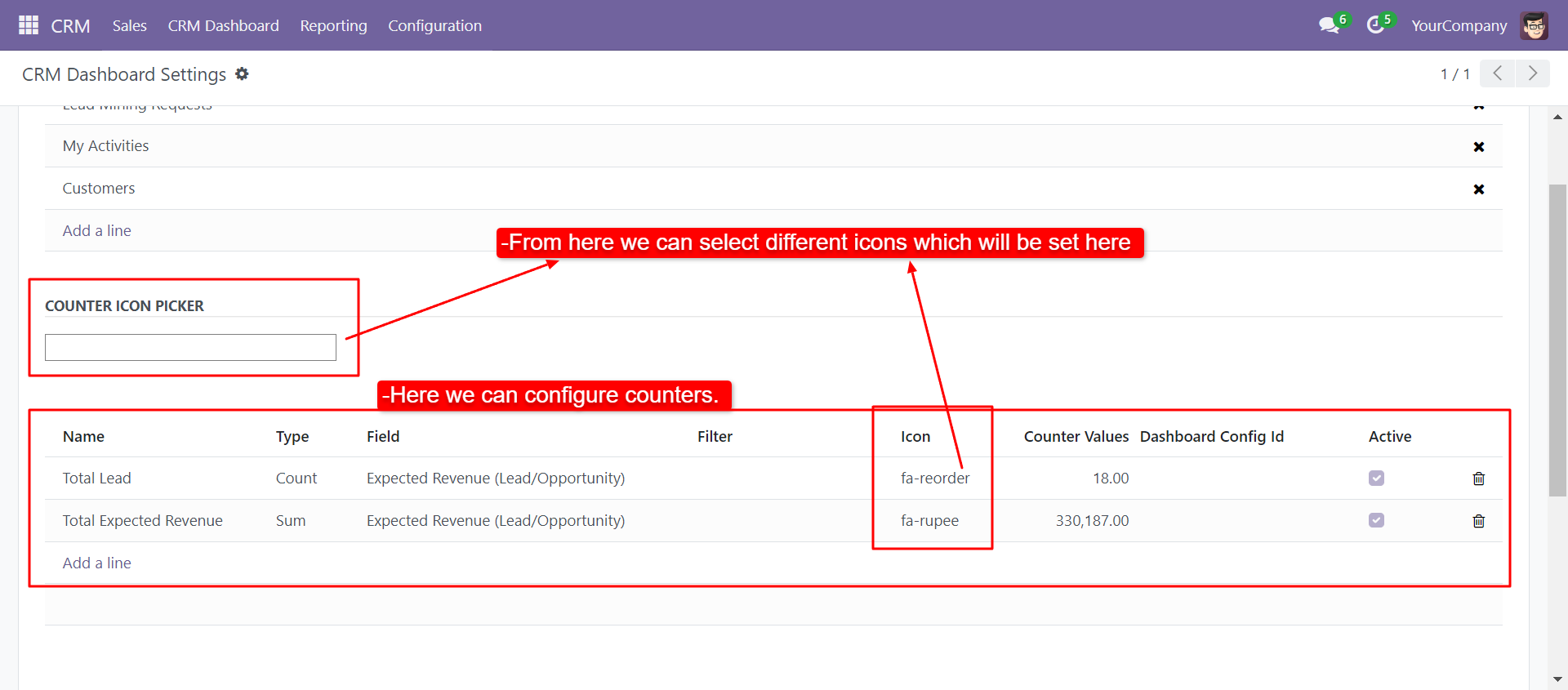
Create a counter for the CRM dashboard gives them one name that will be visible to the user. You can select a filter for the counter and charts. Then add an icon for the counter otherwise you can search icon string from icon picker. You can activate/deactivate or delete any counter that you do not require.
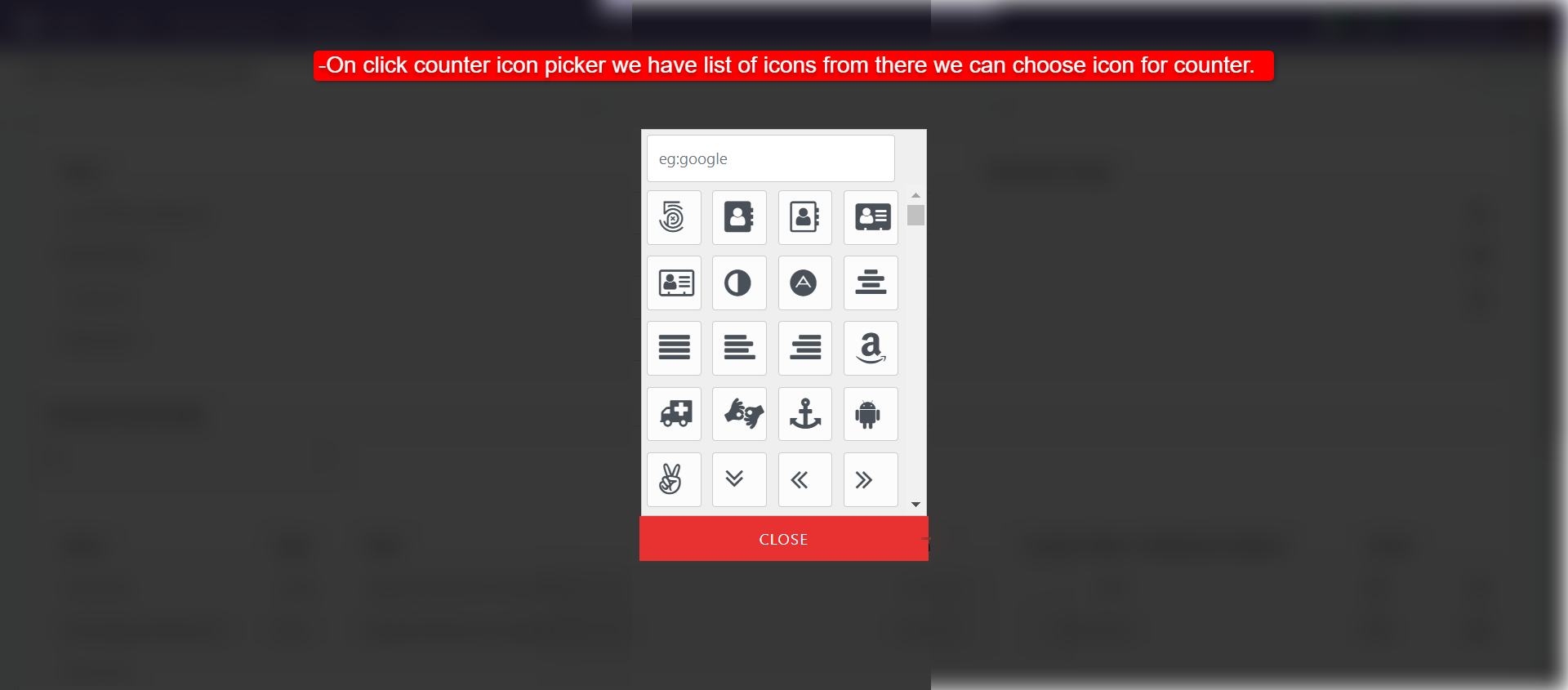
Icon Picker: On Click of that input field popup opens, you can choose any icon or search icon on google.
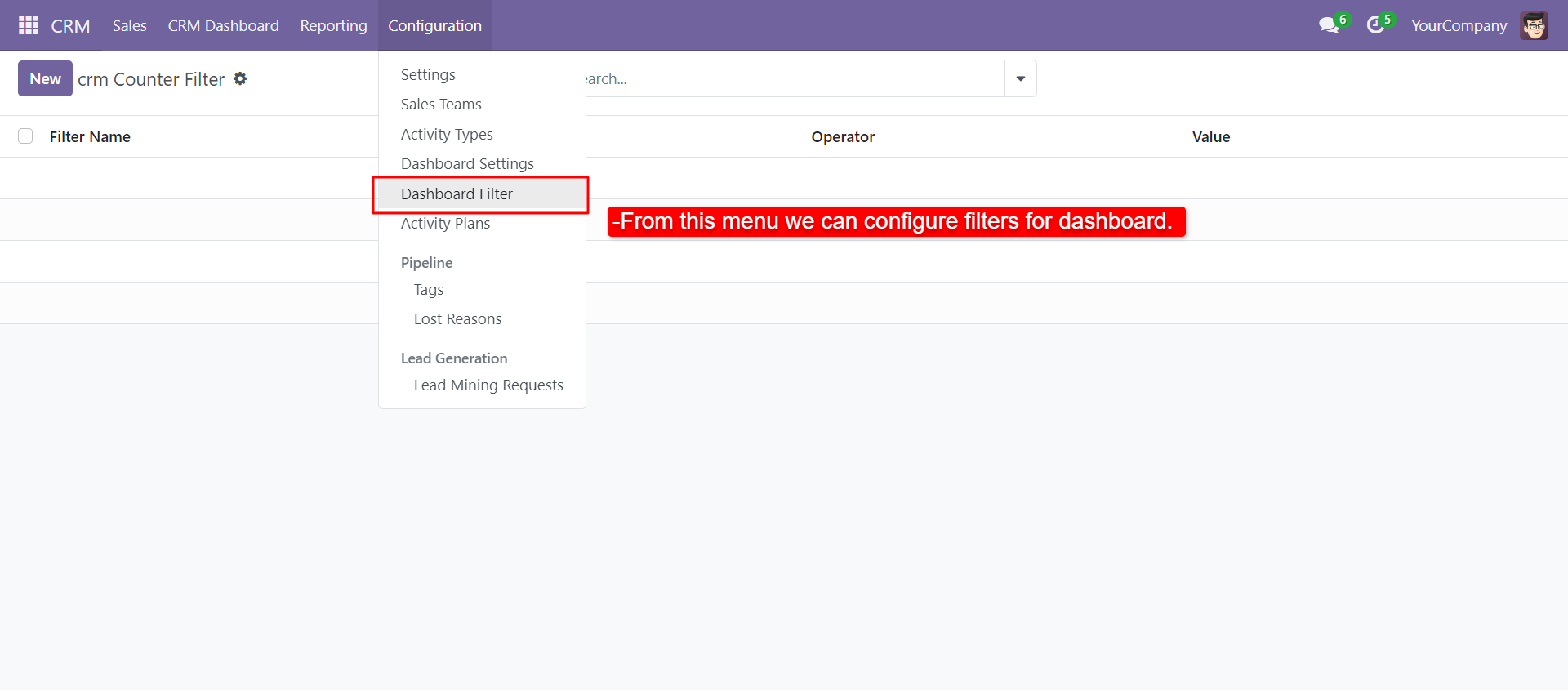
Inside CRM, configuration click 'Dashboard Filter'.
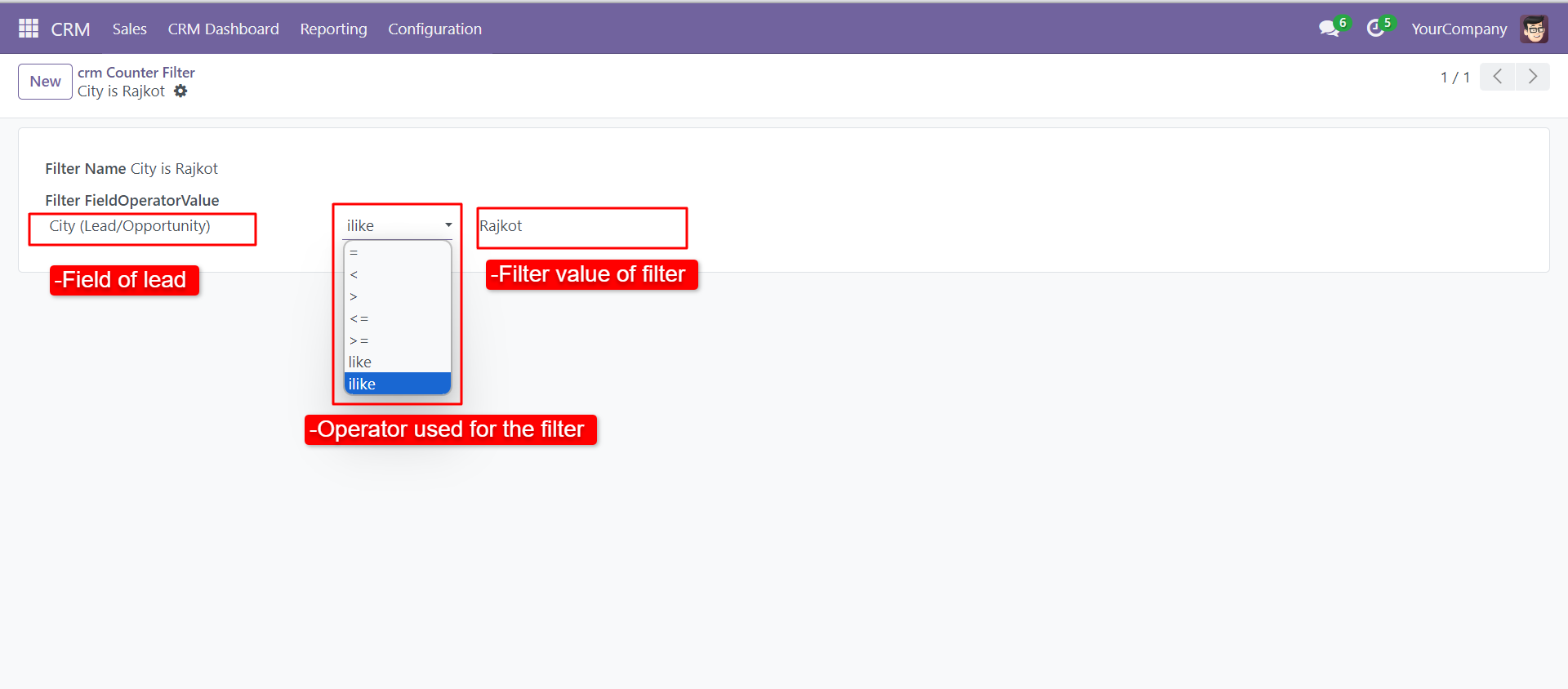
Create the dashboard filter for the counter. Give a filter name, that will be visible to you. Set field on which you want to apply a filter, select the appropriate operator & give value to check with the filter field.
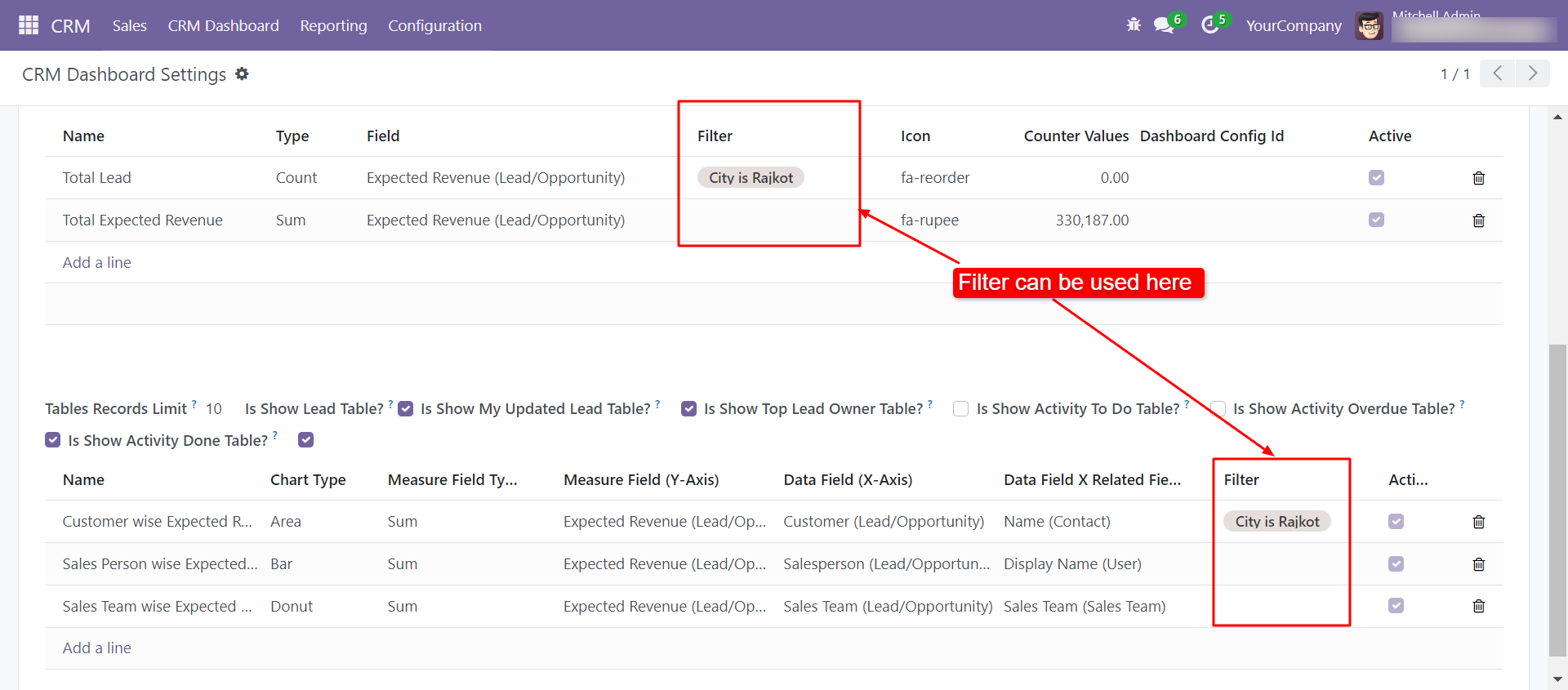
A filter can be used here.
Based on filter records updated, 'Shortcuts' and 'Counters' looks like below. You can also set a comma-separated counter value
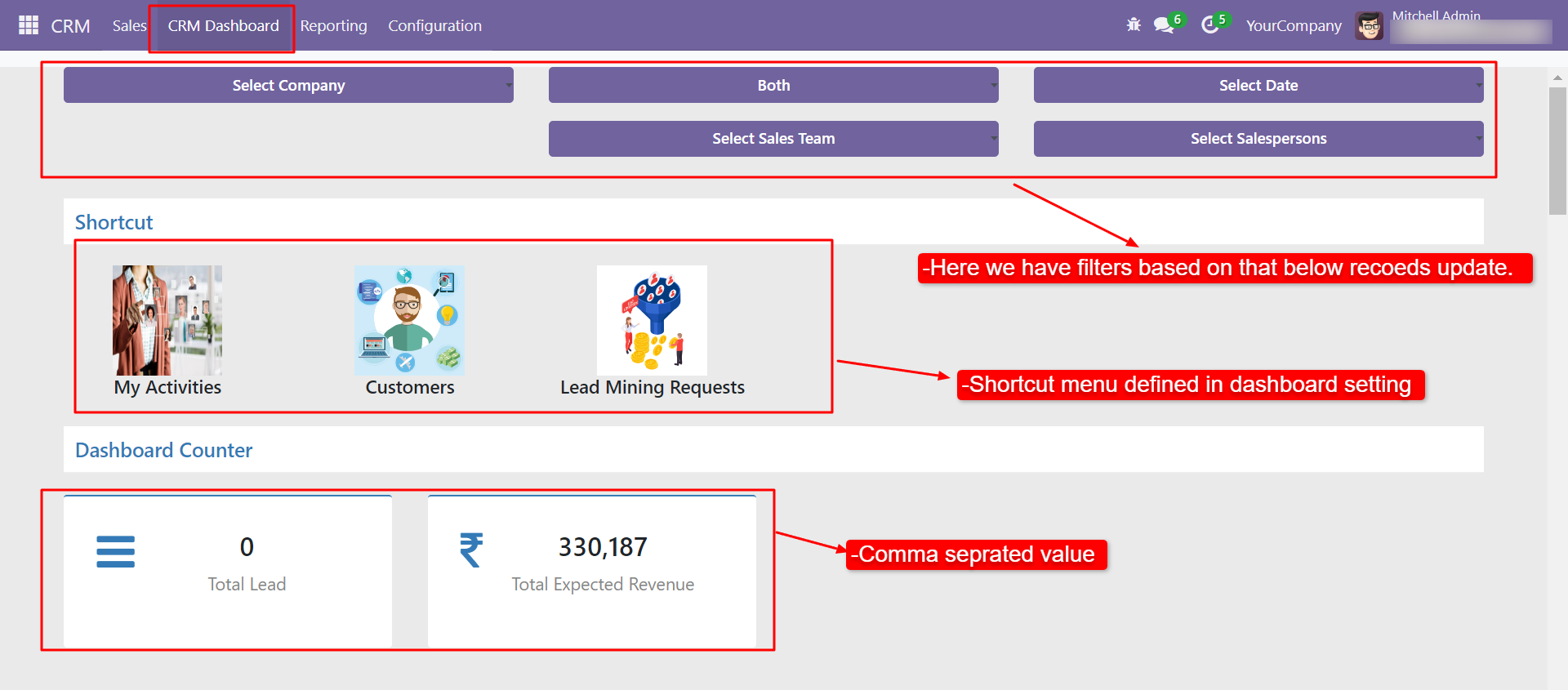
Table view and graph view configured from here.
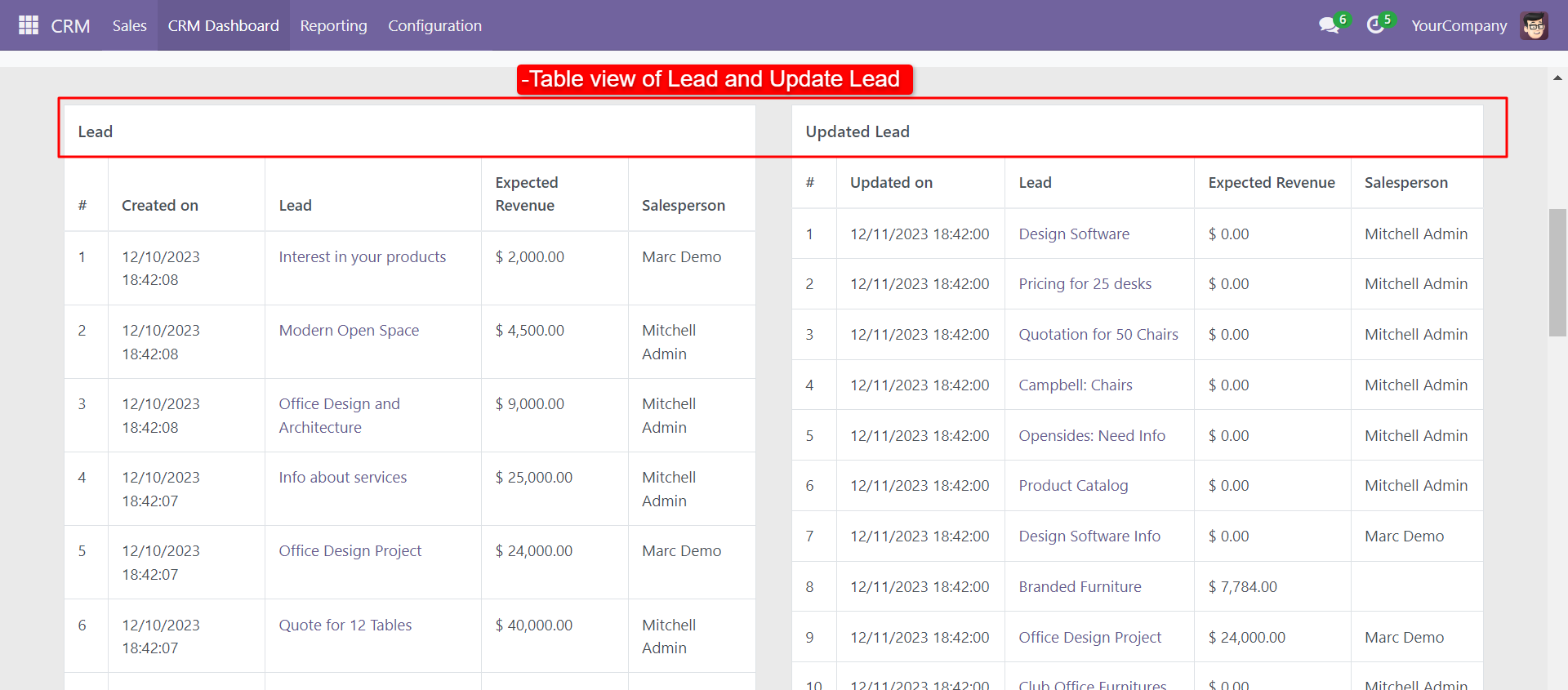
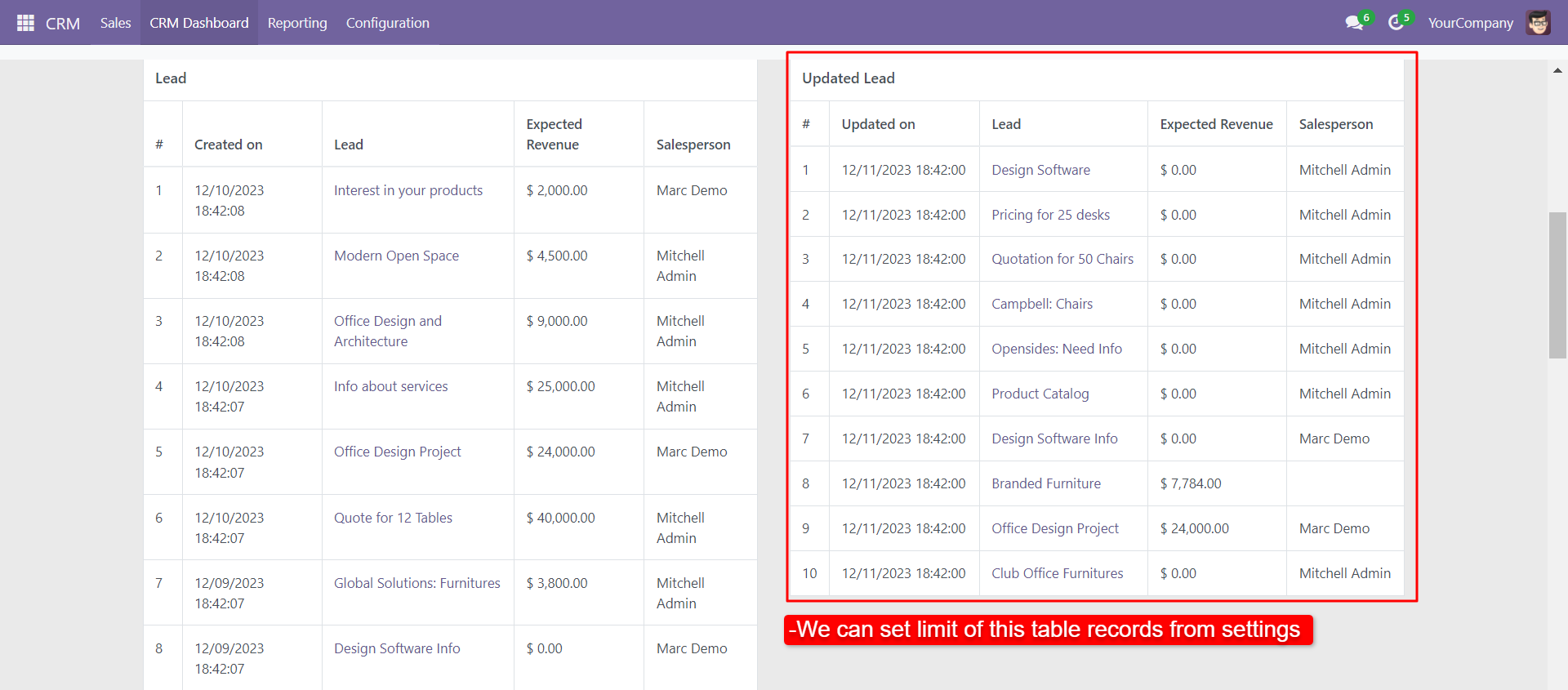
Based on the filter and configuration 'Lead' and 'Updated Lead' table view looks like below.
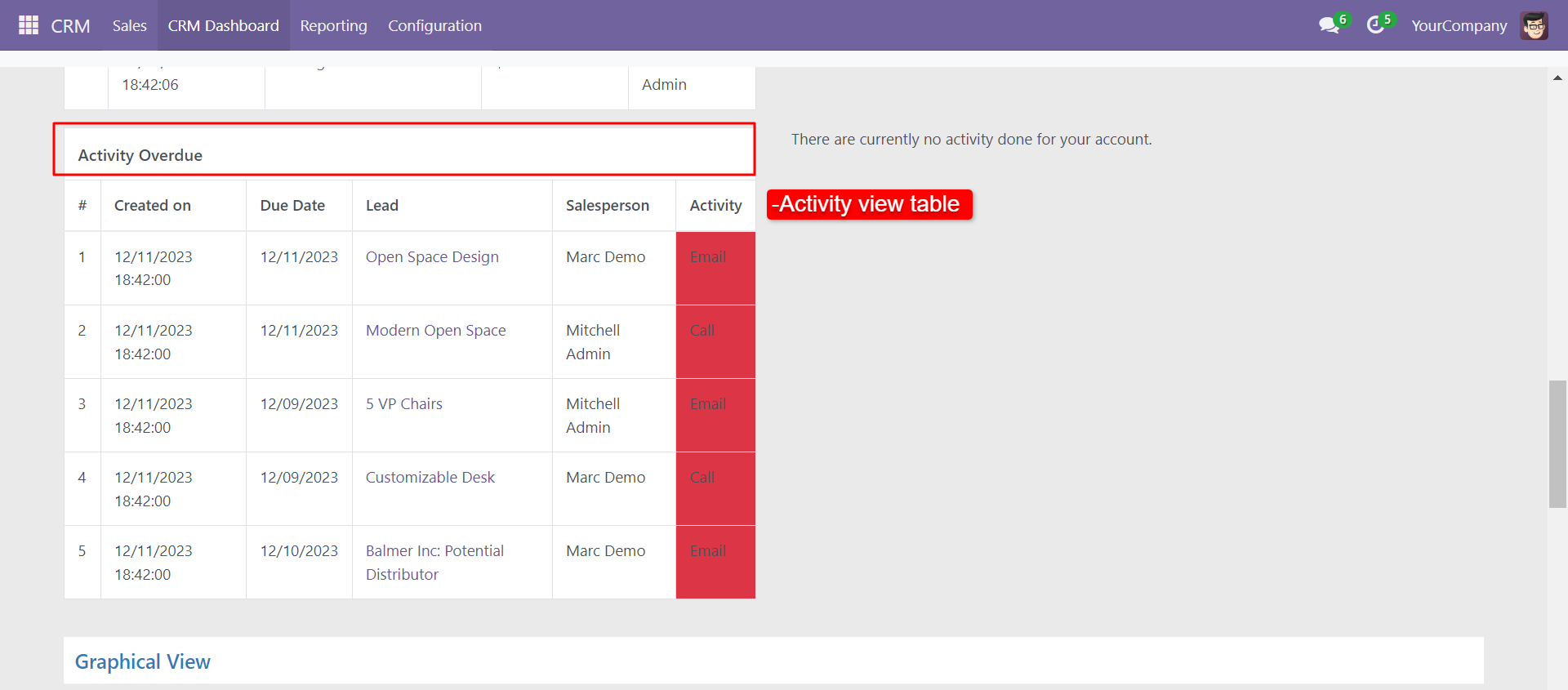
'Activity Overdue' table view looks like below.
You can add a table record limit.
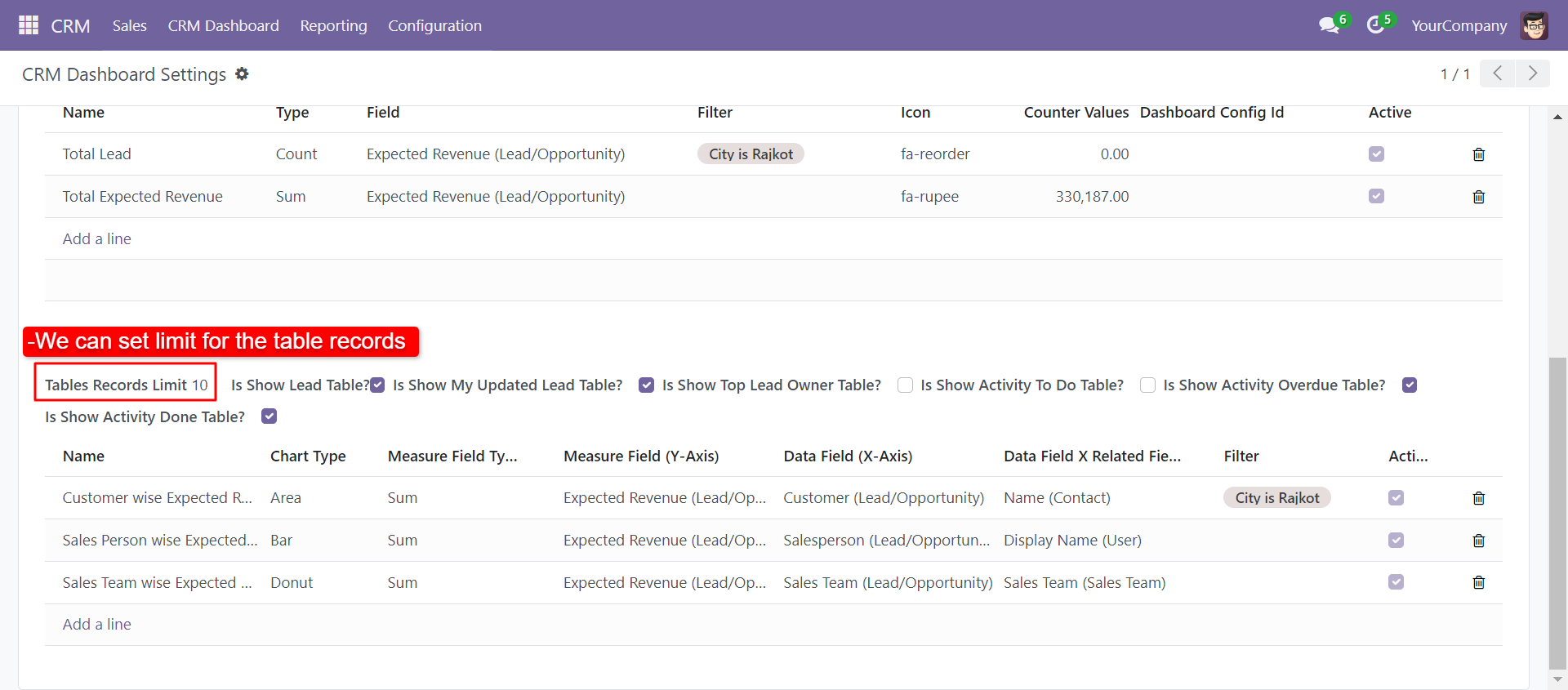
You can add a table record limit from the settings also.
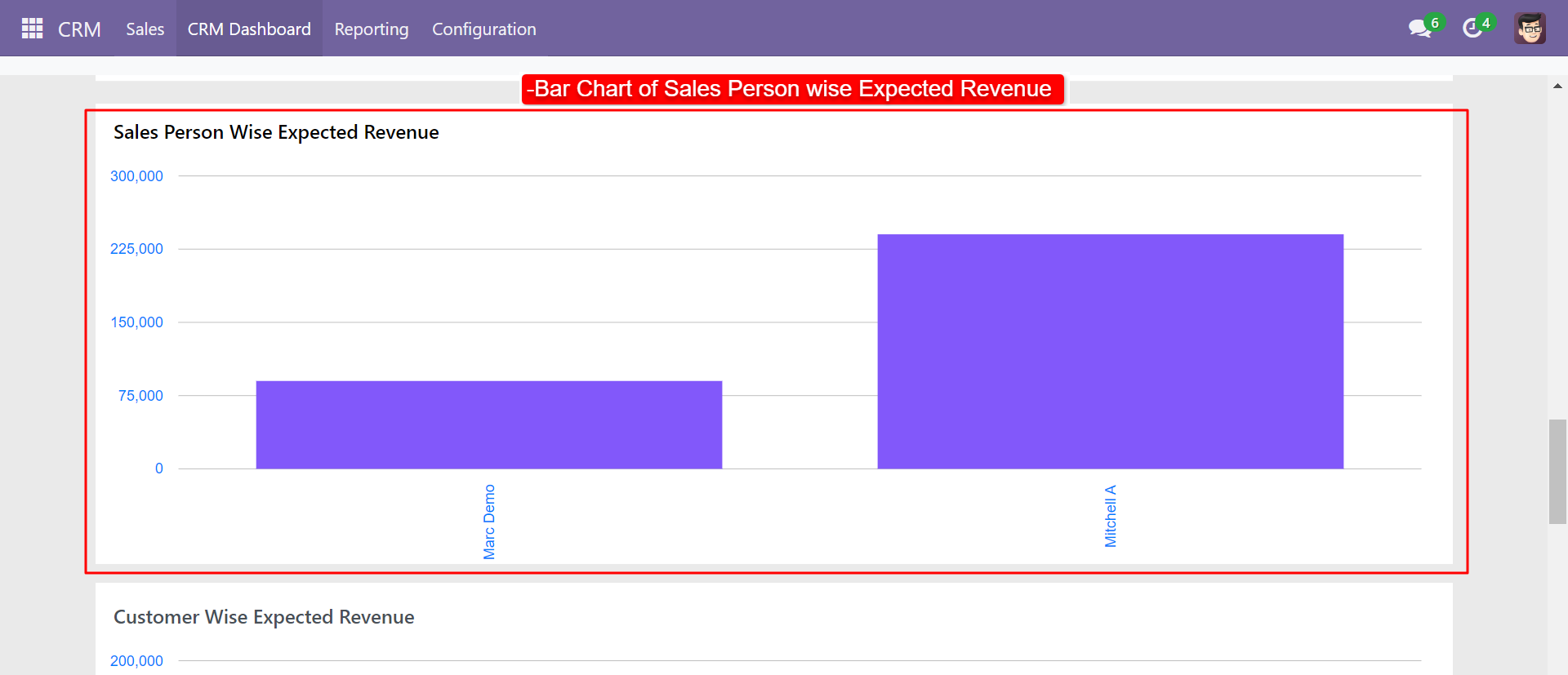
Bar chart of the salesperson wise expected revenue.
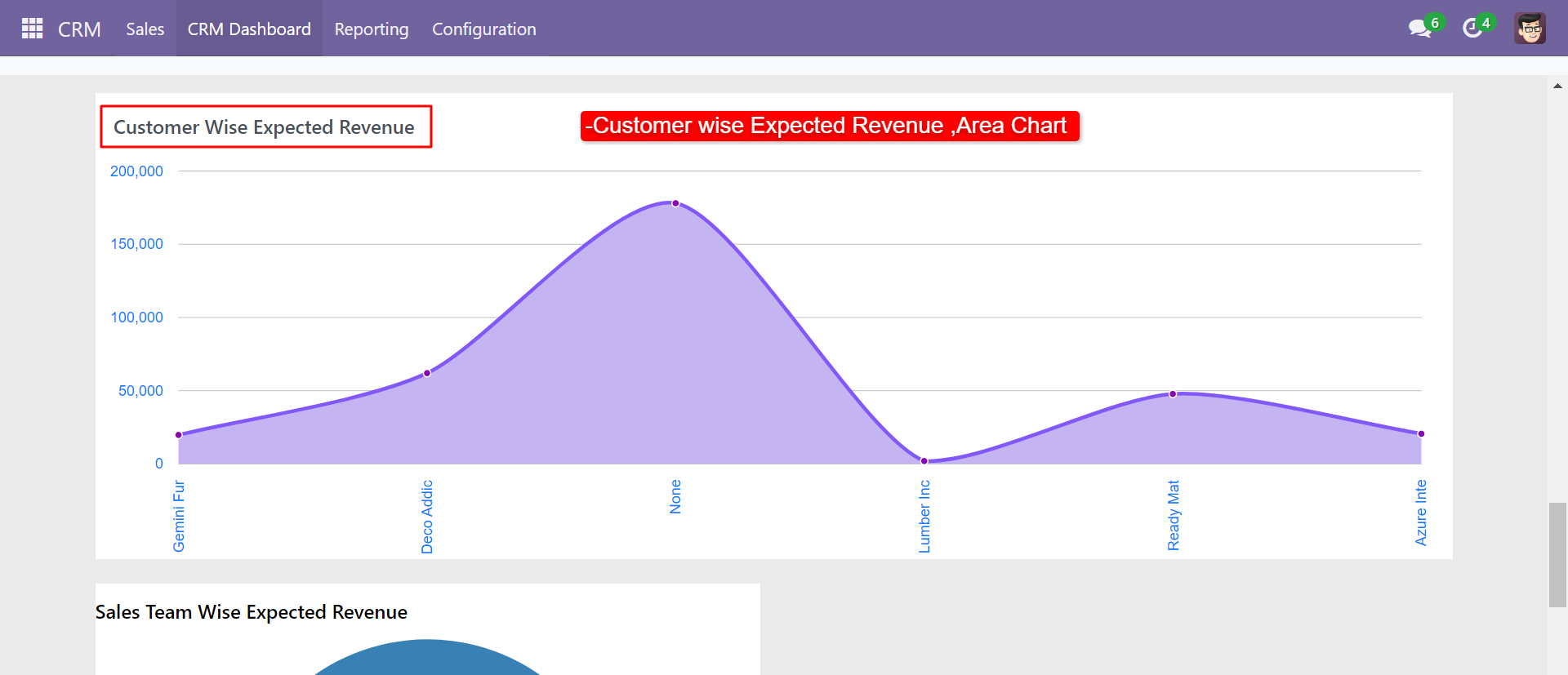
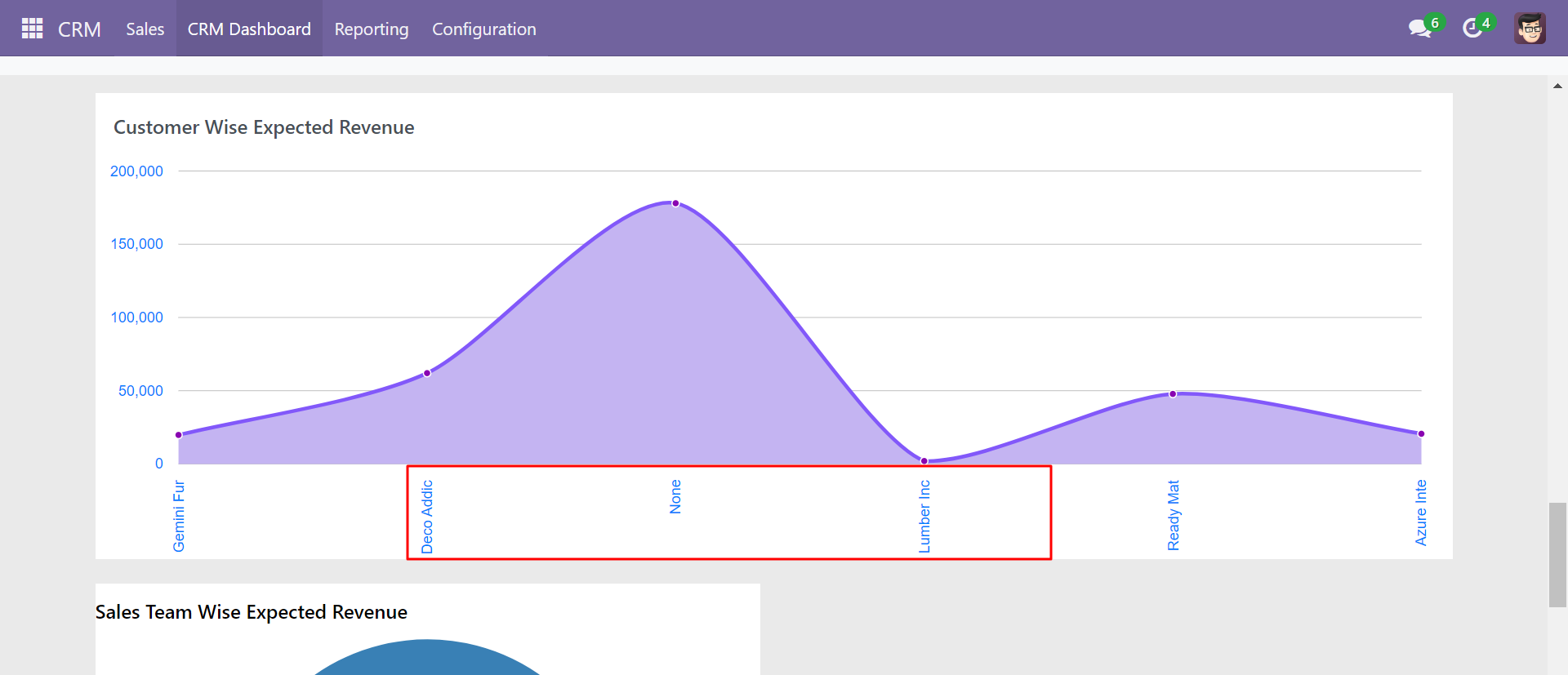
Area chart of the customer wise expected revenue.
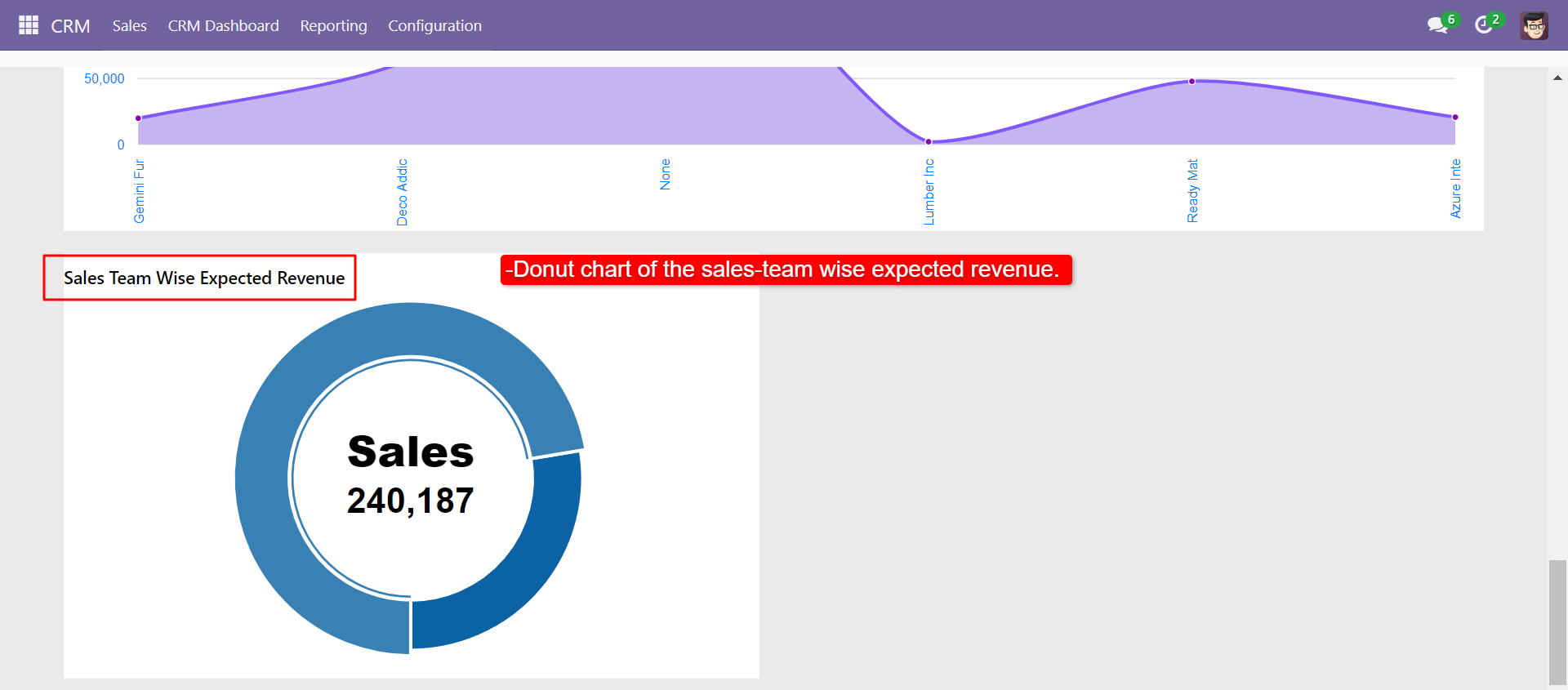
Donut chart of the sales-team wise expected revenue.
Area chart of the customer wise expected revenue.
Version 20.0.1.0.0 | Released on : 15th September 2026
- Yes, this app works perfectly with Odoo Enterprise (Odoo.sh & Premise) as well as Community.
- No, this application is not compatible with odoo.com(odoo saas/Odoo Online)
- Yes, to test this module, please contact us at sales@softhealer.com.
- Please contact us at sales@softhealer.com to request customization.
- Yes, we provide free support for 365 days from the date of purchase.
- Yes, you will receive lifetime free updates for the version of the module you purchased.
- No, there is no need to install any additional libraries.
- Yes, for version 12 and above, you need to purchase the module separately for each version you intend to use.
- No, exchanges or refunds are not allowed. Please make sure to select the correct version before purchasing.
- You can contact us at support@softhealer.com for language translation support. We use Google Translator tools to provide translations in multiple languages, so the accuracy may vary. We welcome your suggestions to help improve translations.
Discover Our Latest Apps