











Contact Color Code

The Contact Color Categories module enhances Odoo contact management by allowing users to assign
customizable color codes to contacts for quick visual identification. Users can create multiple color
categories and configure automated rules to assign colors based on conditions such as country, tags, or
other contact attributes, while also supporting manual assignment from the contact form. Color indicators
are displayed consistently across List, Form, and Kanban views and can also appear next to contact names
in related documents like Sales Orders. An interactive color widget allows users to view color details on
hover and update assignments instantly, ensuring contacts remain clearly organized and easy to recognize
at a glance.

Features

Custom Color Code Configuration
Define unlimited color codes with custom names, HEX color values, and sequence order to classify contacts efficiently.

Color Indicators in List View
Display assigned color codes directly in the Contacts list view for quick visual identification and easy scanning.

Automated Color Assignment Rules
Create dynamic rules using filters to automatically assign color codes when contacts are created or updated.

Color Visibility in Form View
Assigned color codes are clearly shown on the contact form, ensuring instant visibility of contact categorization.

Manual Color Assignment
Users with access rights can manually add or remove multiple color codes from the contact form as needed.

Interactive Color Widget
Use an interactive color widget that displays color details on hover and allows quick editing via a popover.

Kanban View Color Indicators
Show color dots or tags on contact Kanban cards for fast recognition and better visual grouping.

Access Control & Permissions
Restrict color code and rule management to administrators, while allowing other users to view assigned colors.
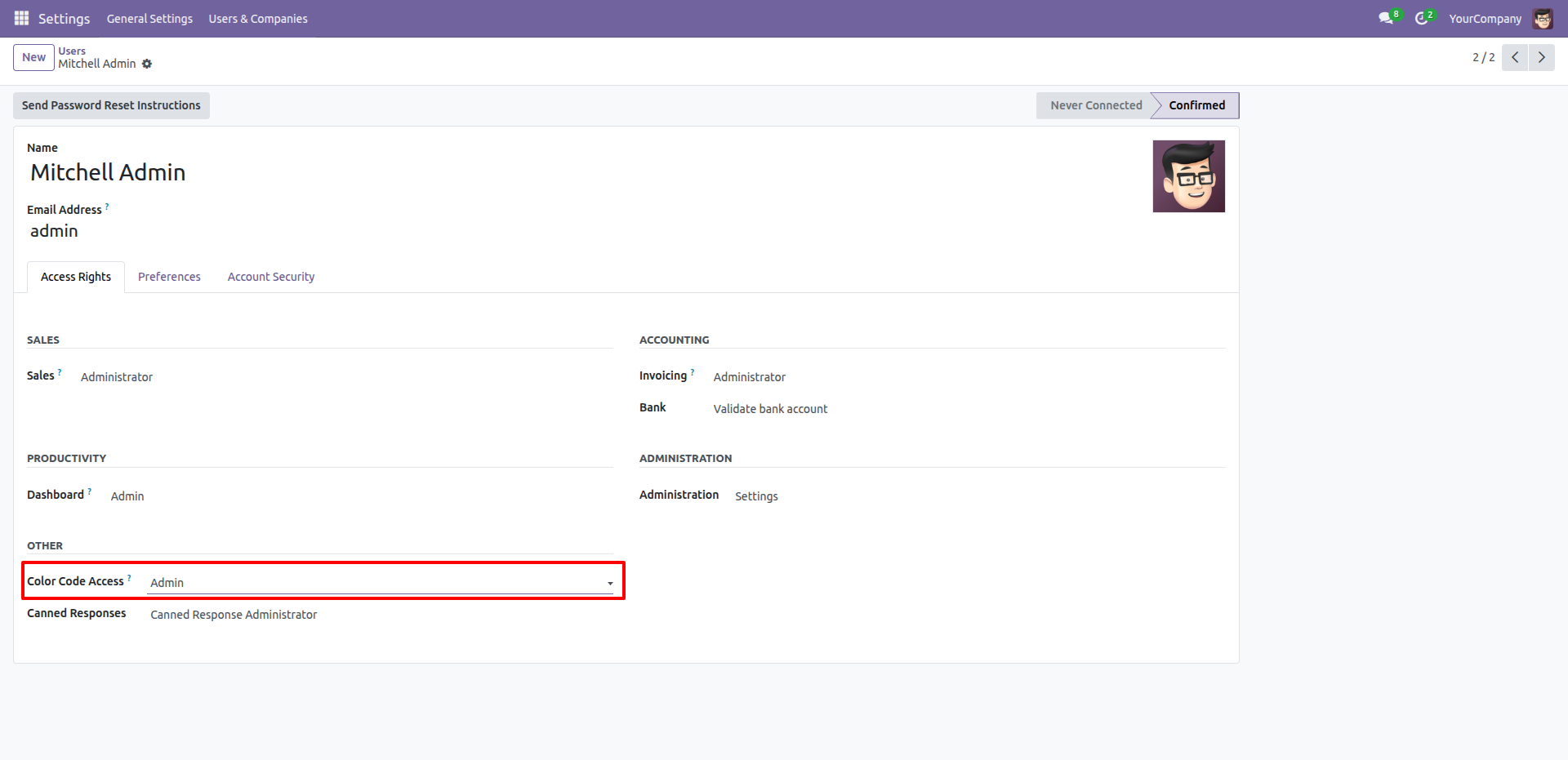
In the User profile under Access Rights, locate the 'Other' section and set Color Code Access to Admin to enable advanced permissions.
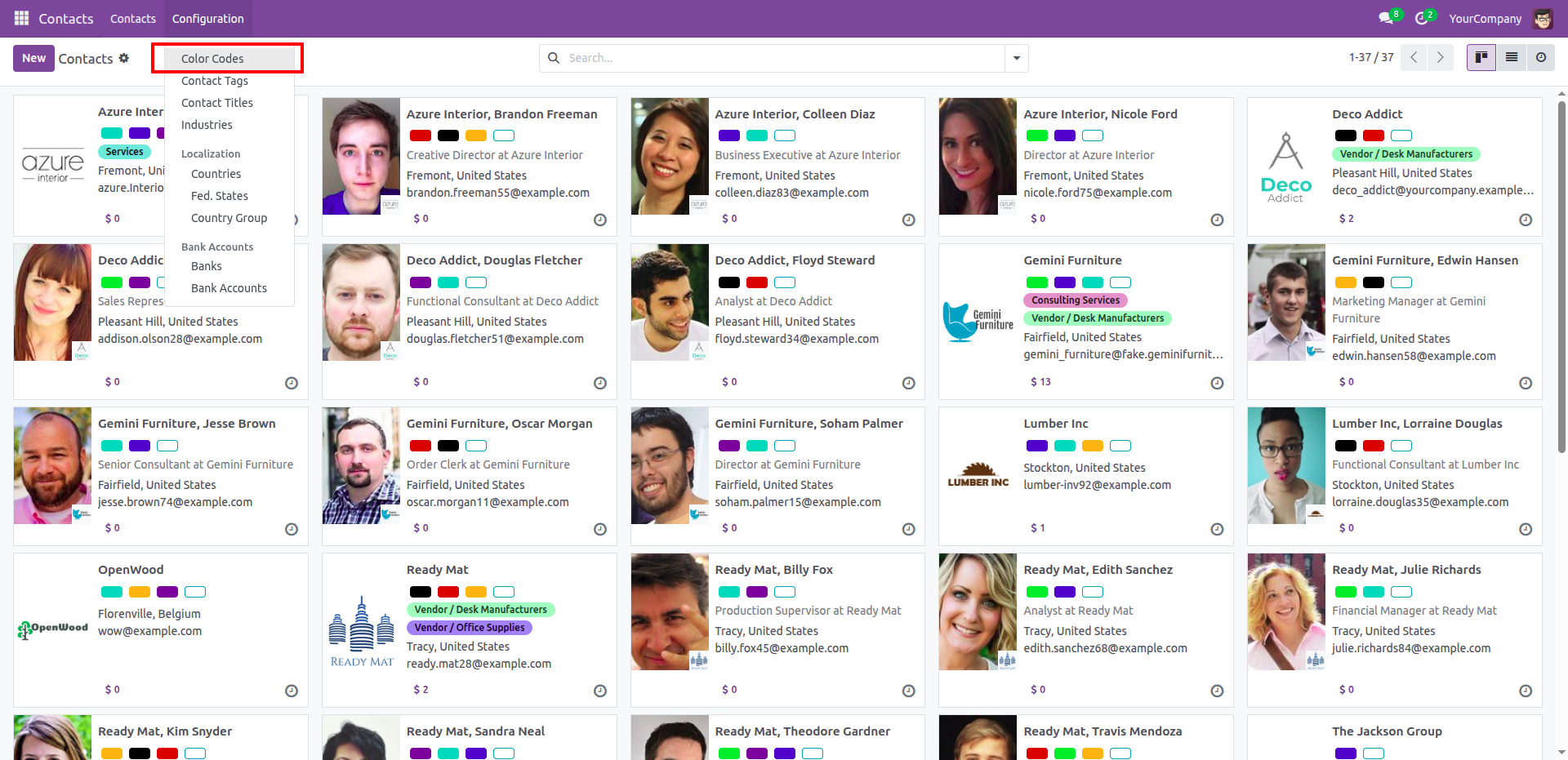
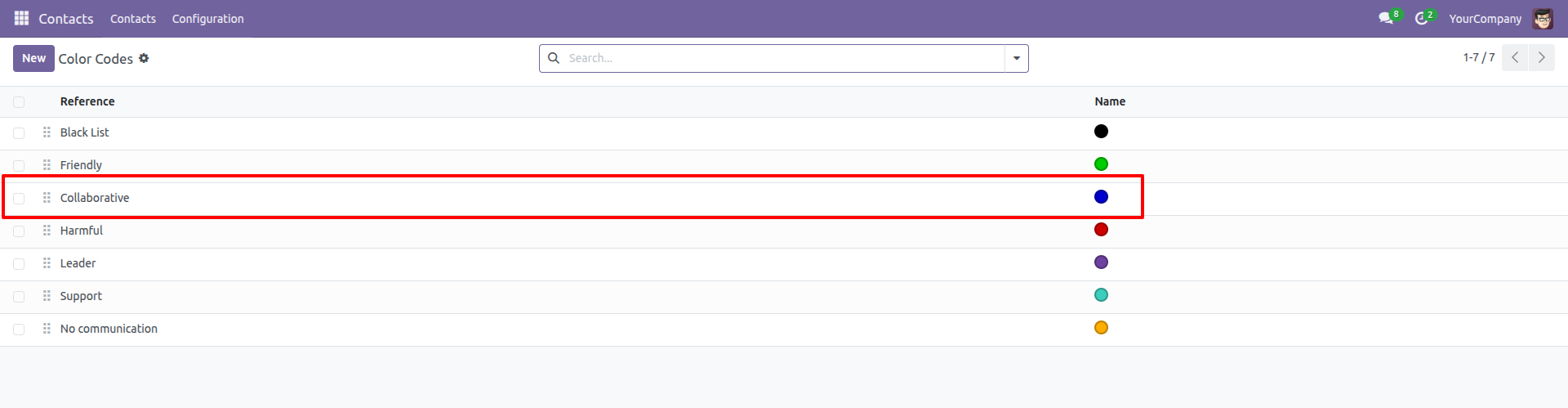
Navigate to Configuration > Color Codes to access the setup menu for managing contact color categories in Contacts.
In the Color Codes configuration list, users can define and review the specific meanings assigned to color markers, such as the highlighted Collaborative status associated with the blue indicator.
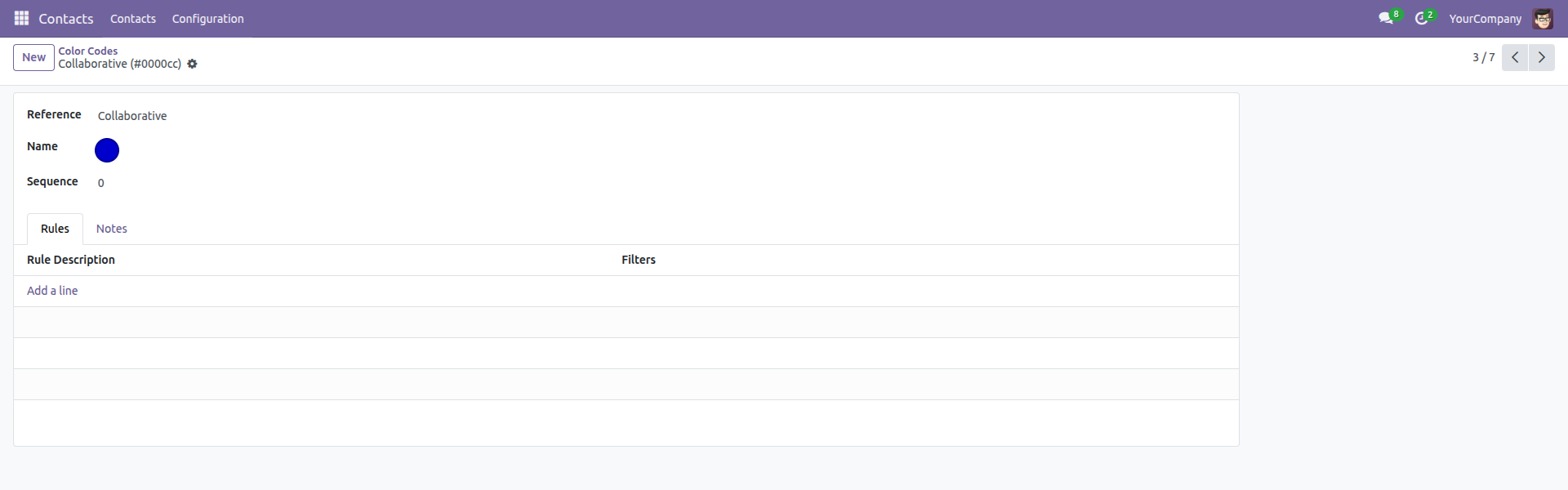
The Color Code form view allows administrators to customize the Reference label, the visual color indicator, and establish specific application rules.
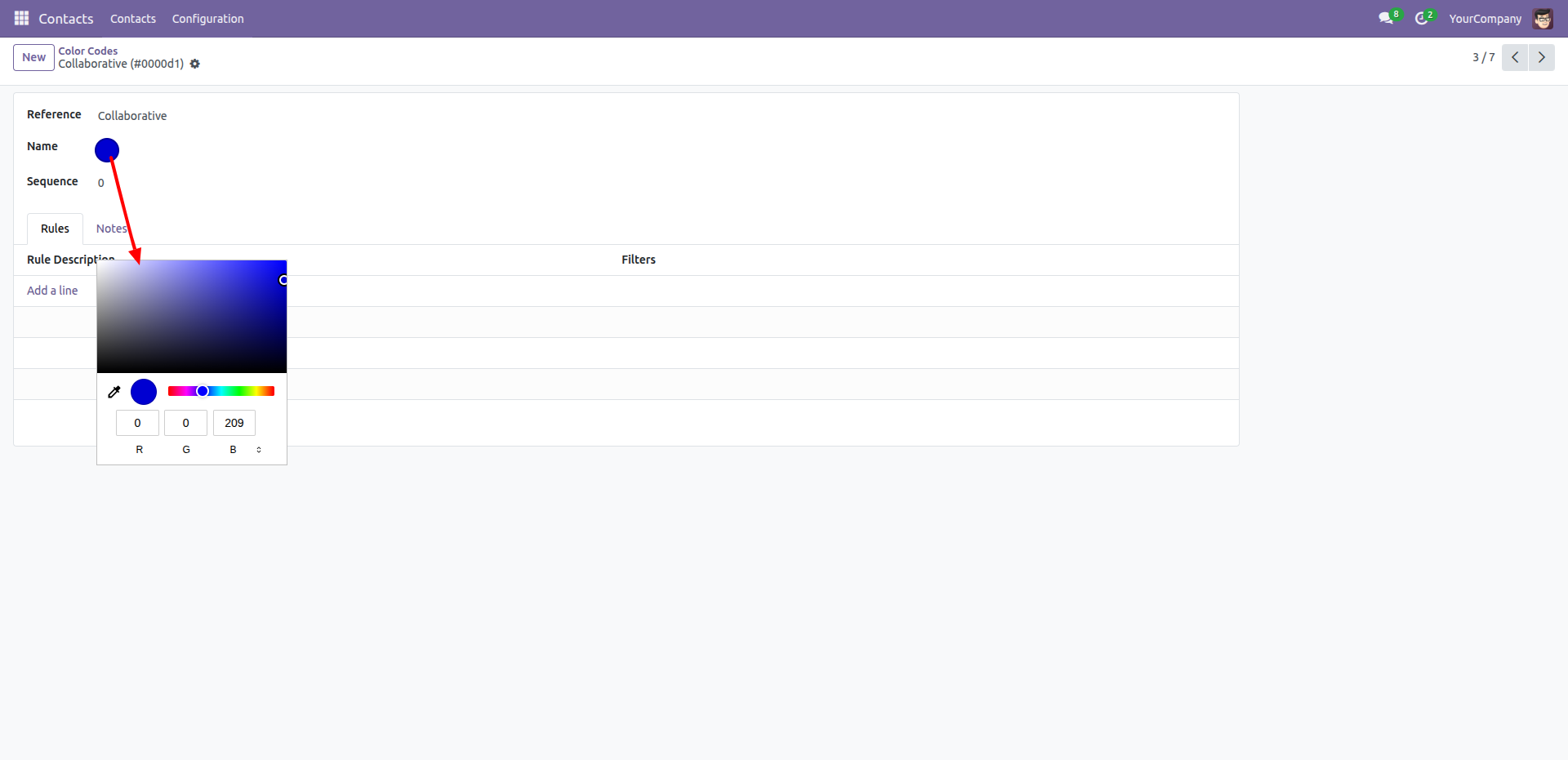
Clicking the color dot in the Name field opens the Color Picker, allowing for precise color selection via visual tools or direct RGB input.
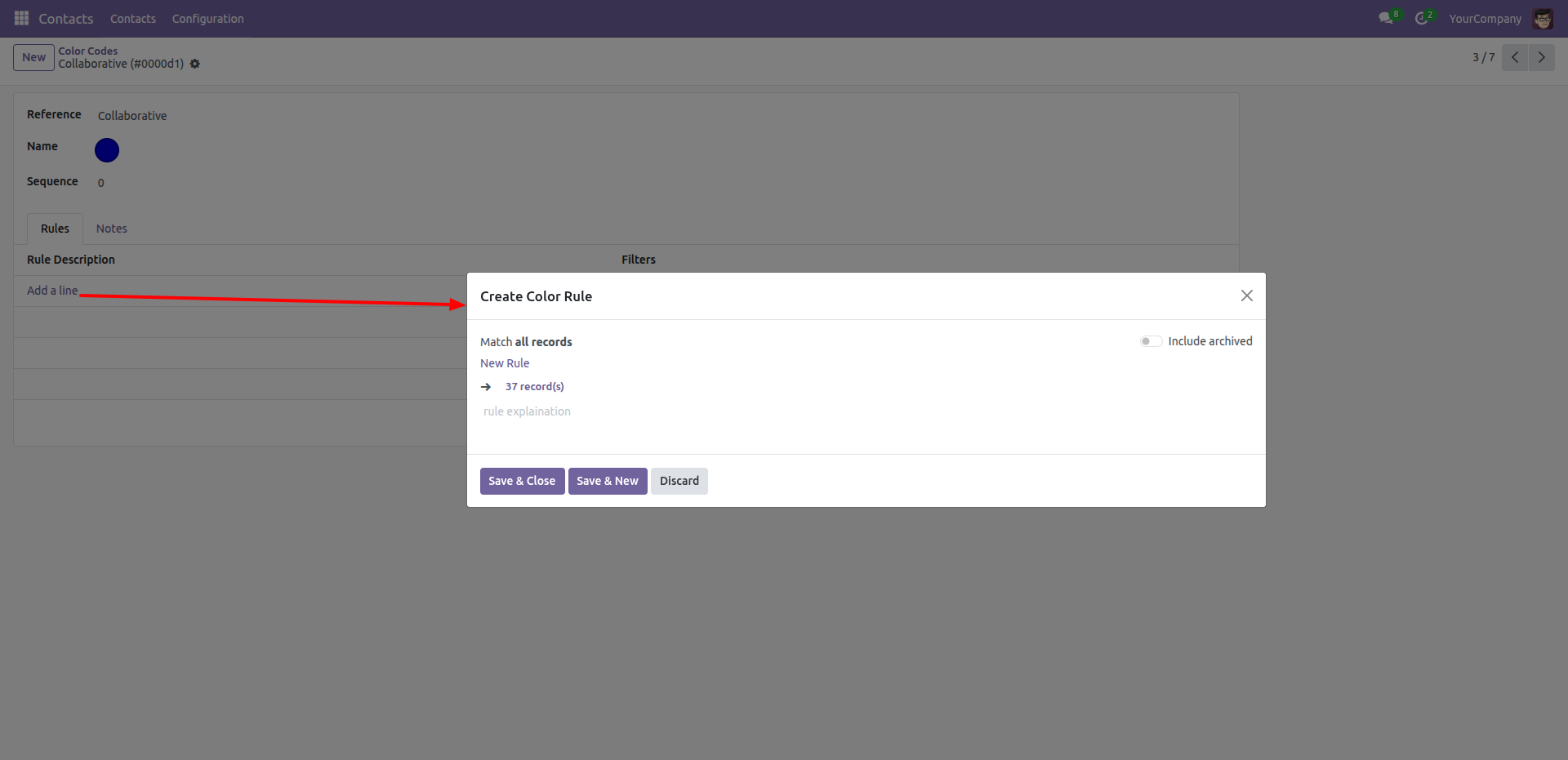
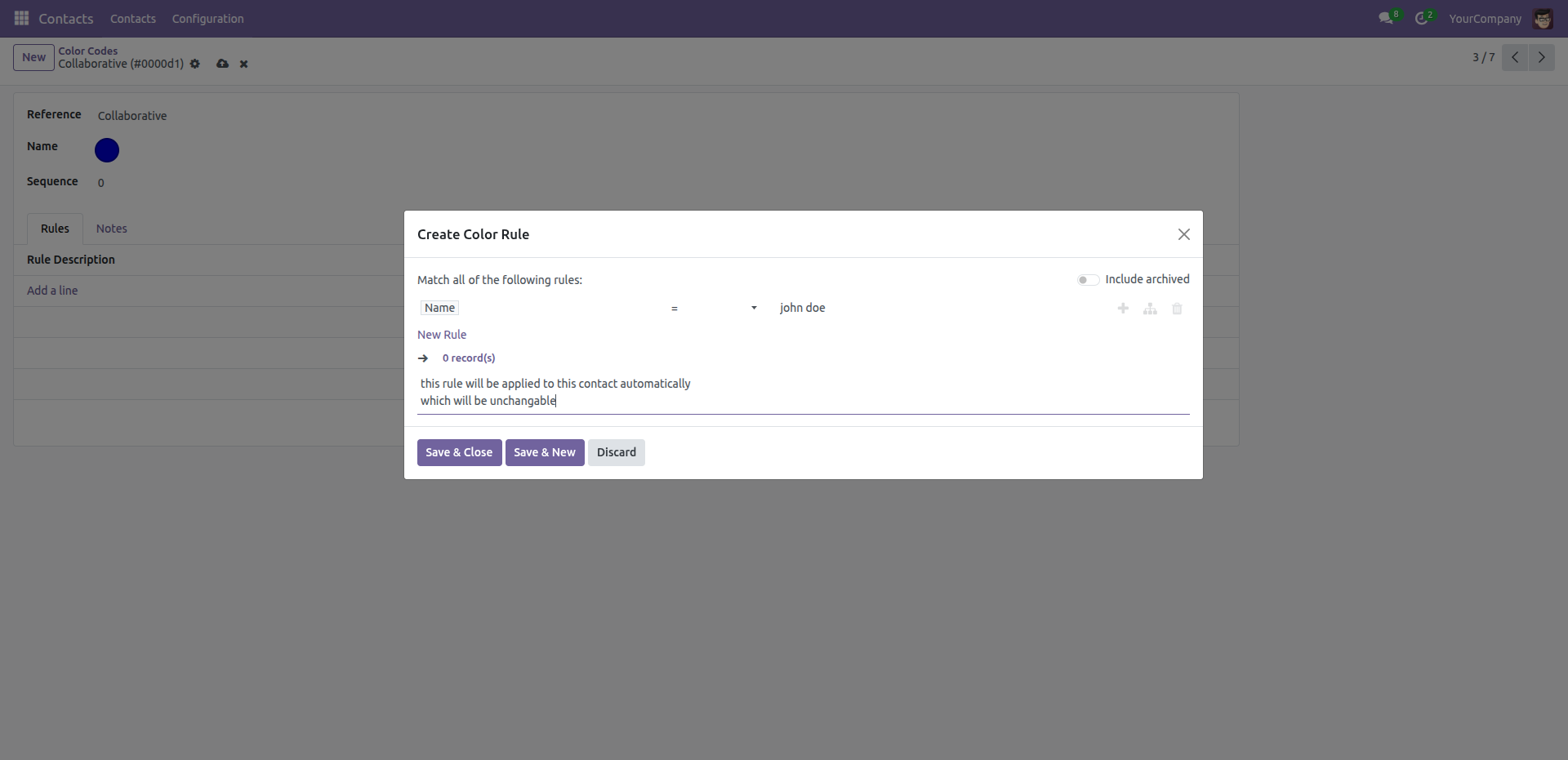
Clicking Add a line opens the Create Color Rule popup, allowing administrators to define the specific conditions (domain) required for a record to inherit this color code.
Configure specific conditions in the domain builder (e.g., Name = John Doe) and add a descriptive note to document how the color rule will be applied to contacts.
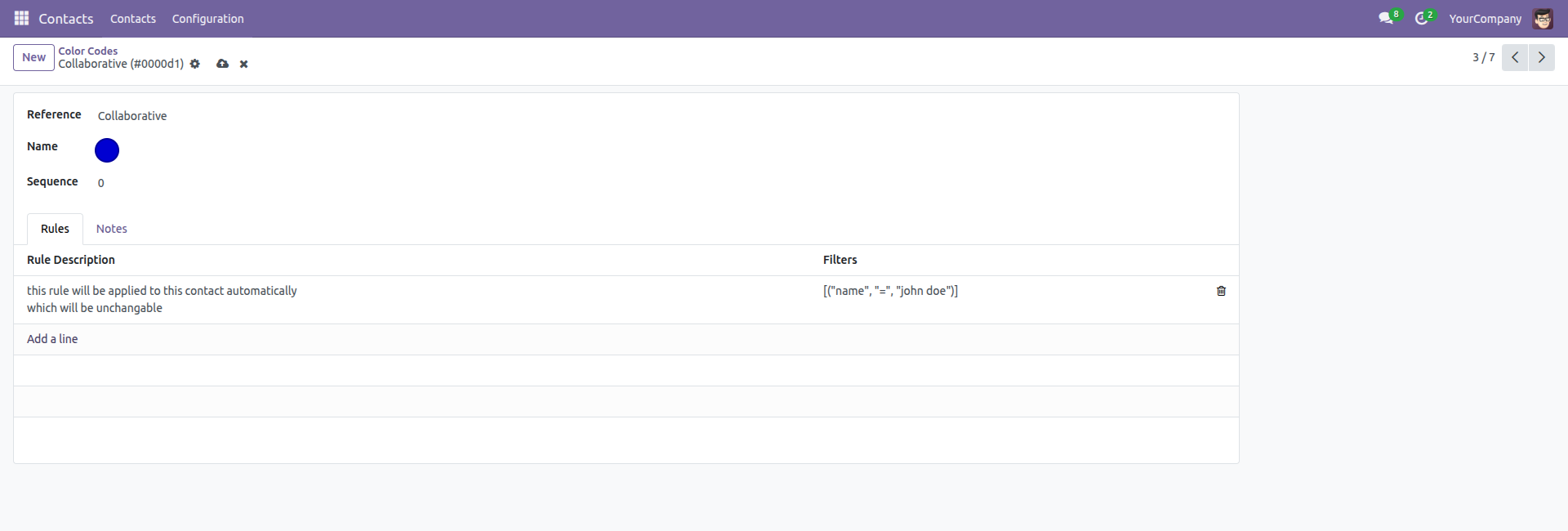
The Rules tab lists all active conditions, displaying the user-friendly description alongside the technical filter domain (e.g., [("name", "=", "John Doe")]) for easy verification.
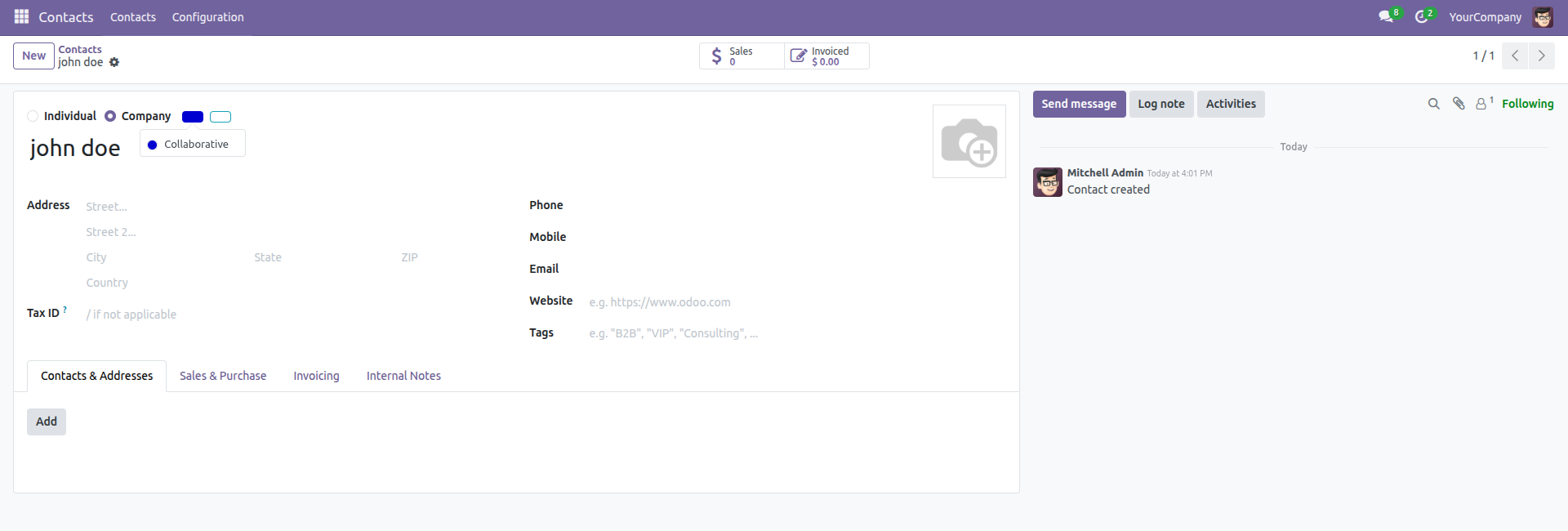
The contact record for 'John Doe' automatically displays the Collaborative badge, verifying that the color rule logic is active and functioning correctly.
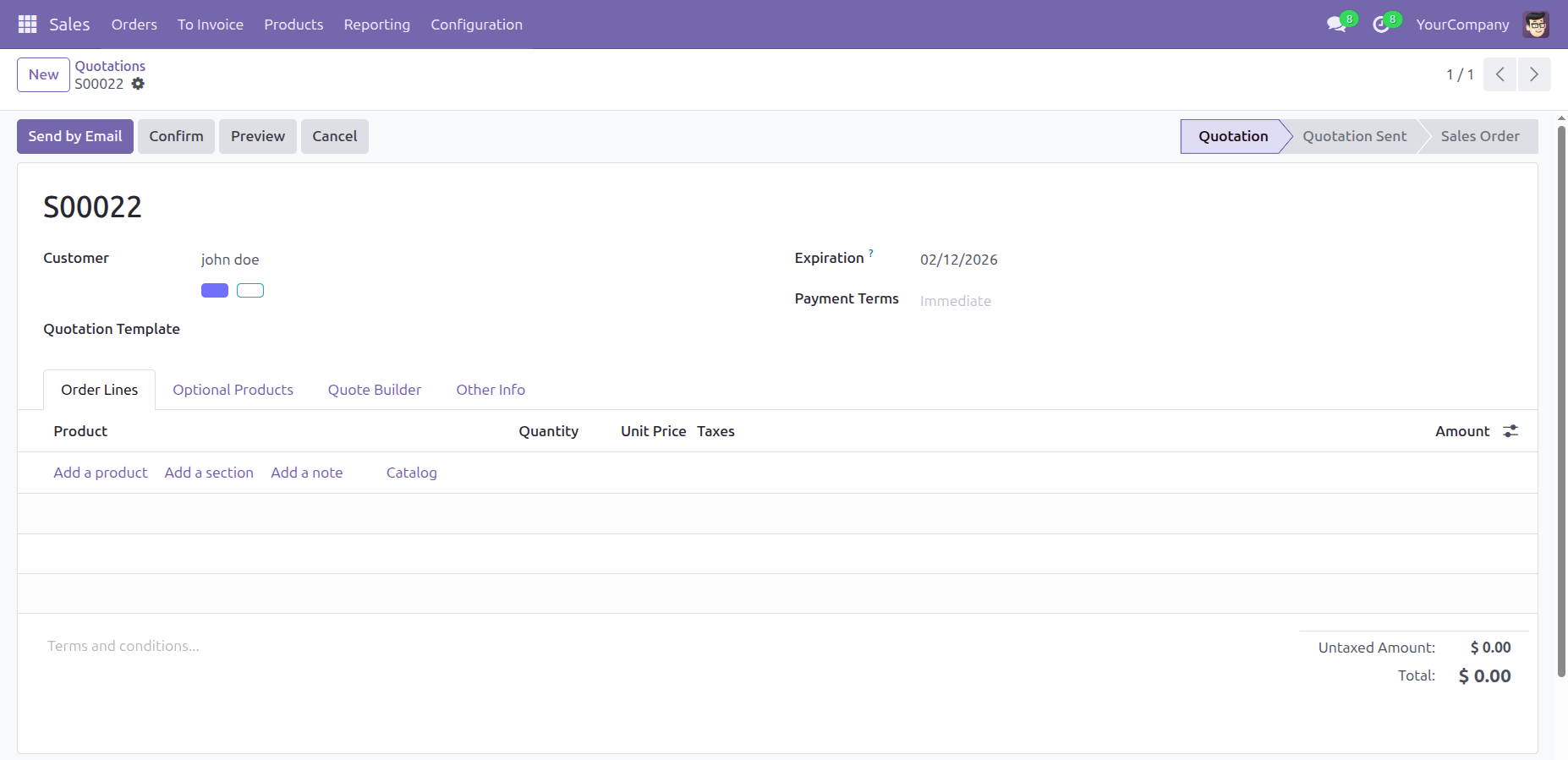
Customer color codes are propagated to the Sales Quotation view, allowing users to see status indicators directly on the order form for immediate context.
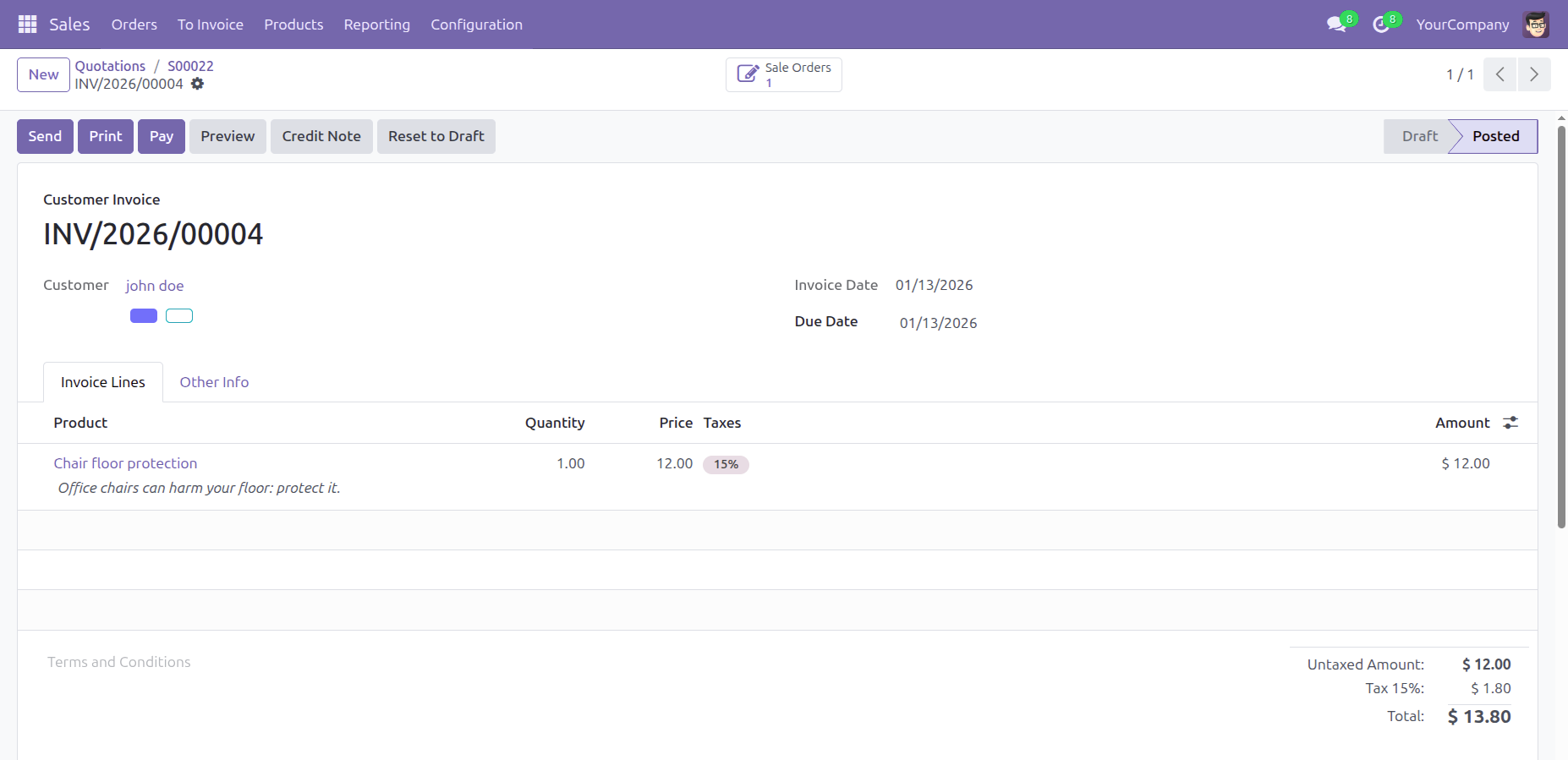
Customer color codes persist on the Customer Invoice, providing accounting users with immediate visual context about the partner directly on the invoice.
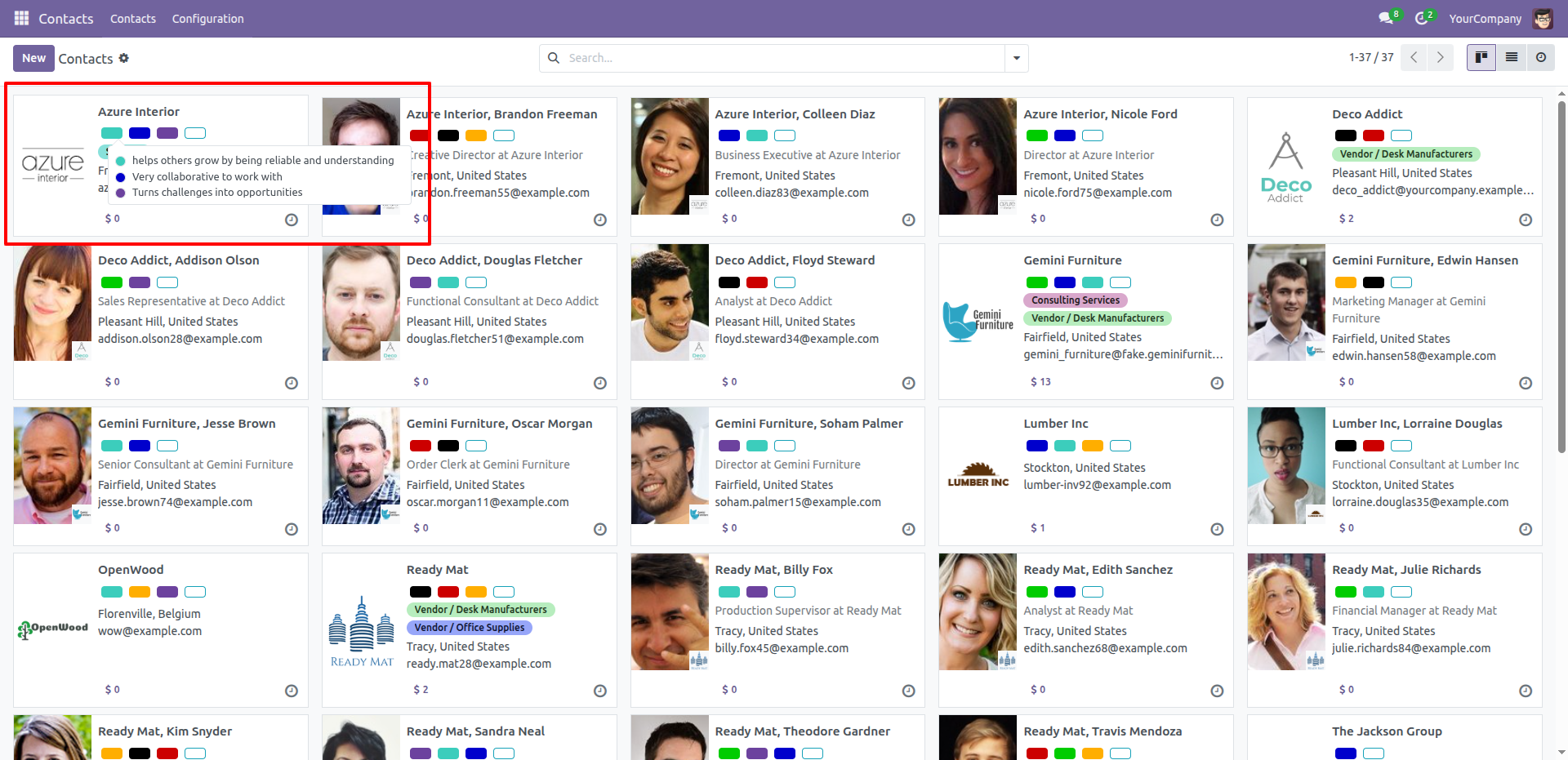
In the Kanban view, hovering over the color markers on a contact card displays a tooltip with the full description of the assigned status.
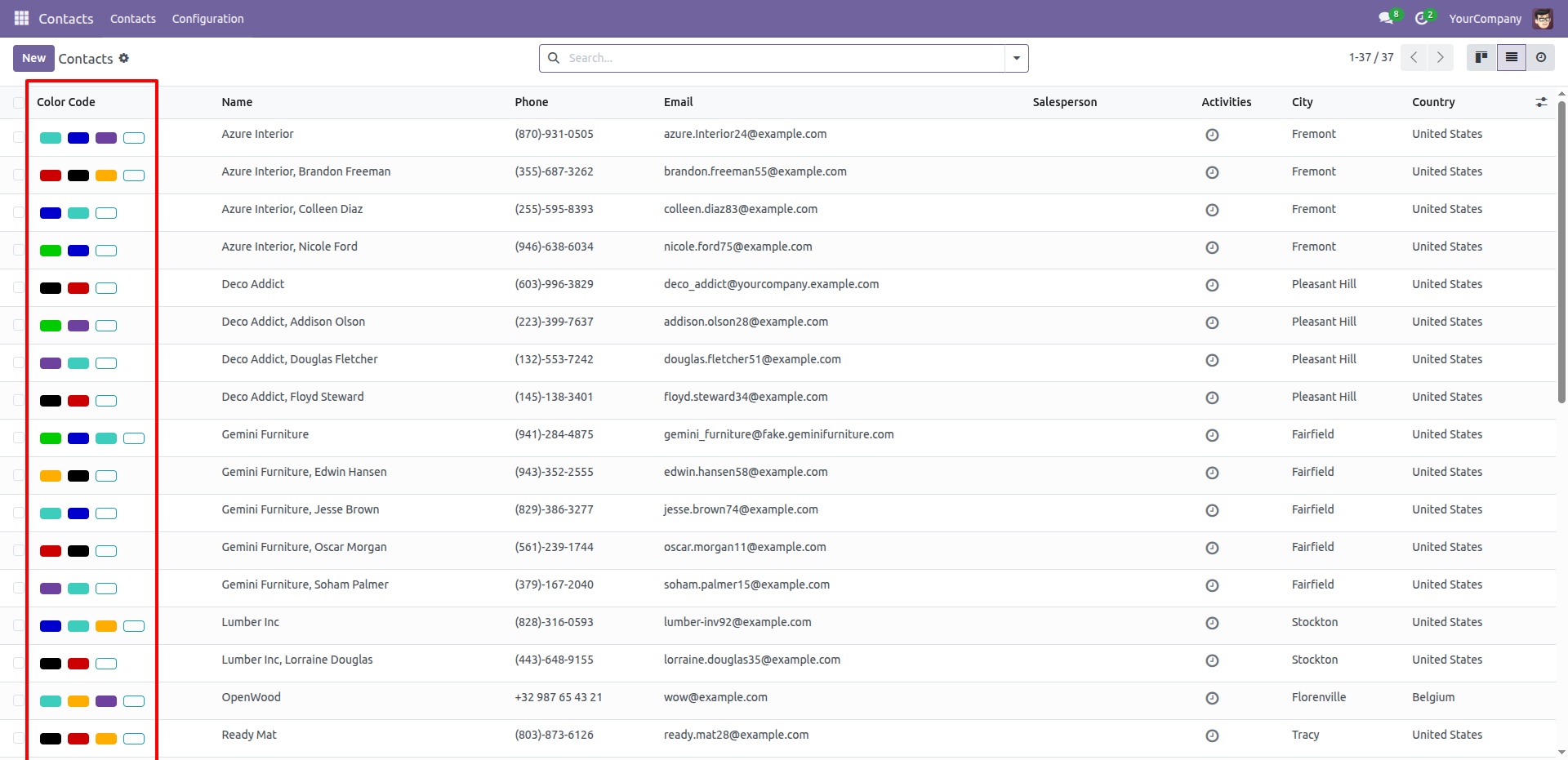
The Contacts list view includes a dedicated Color Code column, allowing users to quickly access the status of multiple records via their visual indicators.
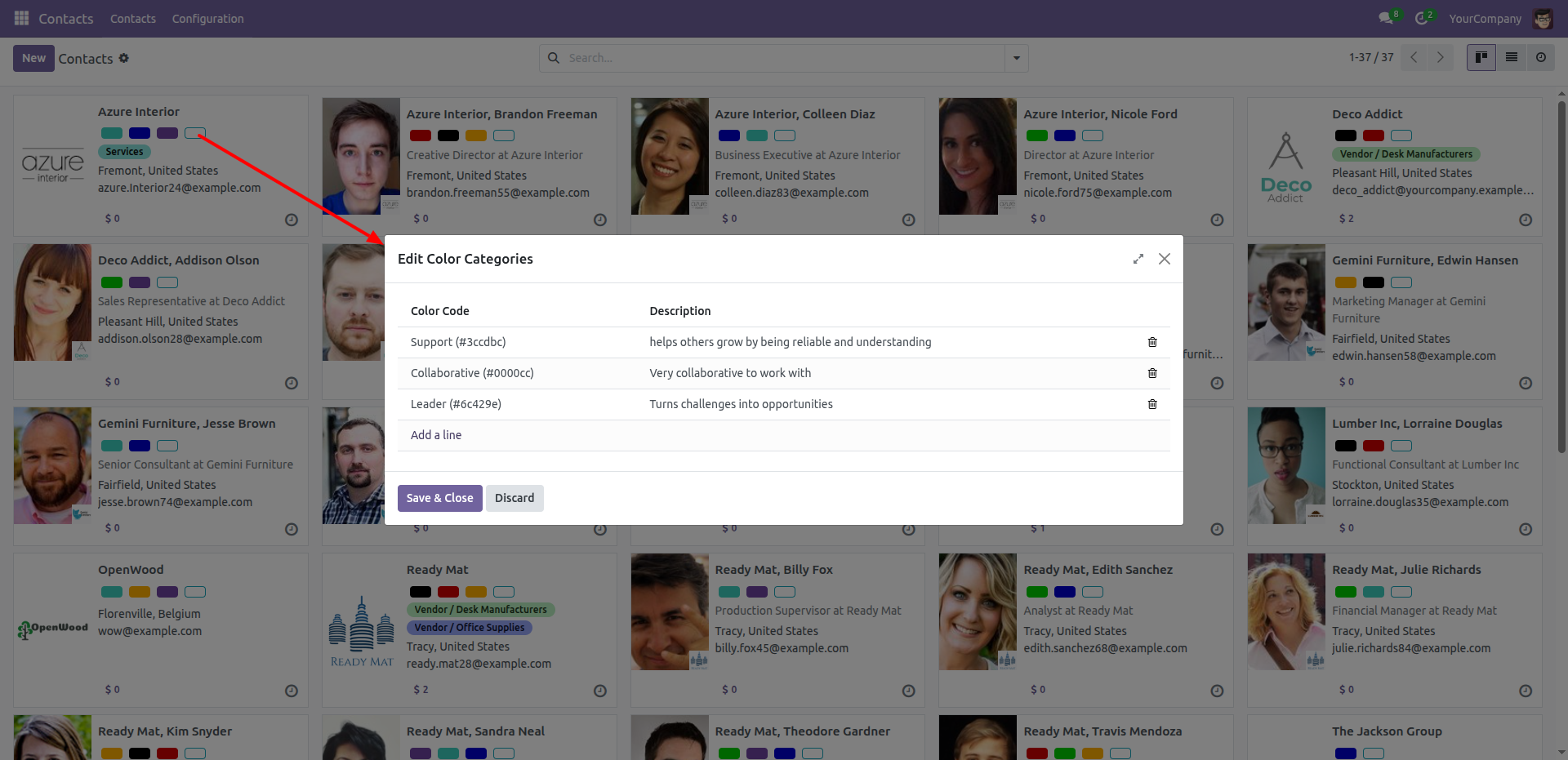
Clicking the color dots on a Kanban card opens the Edit Color Categories window, allowing for the direct addition or removal of status tags for that specific contact.
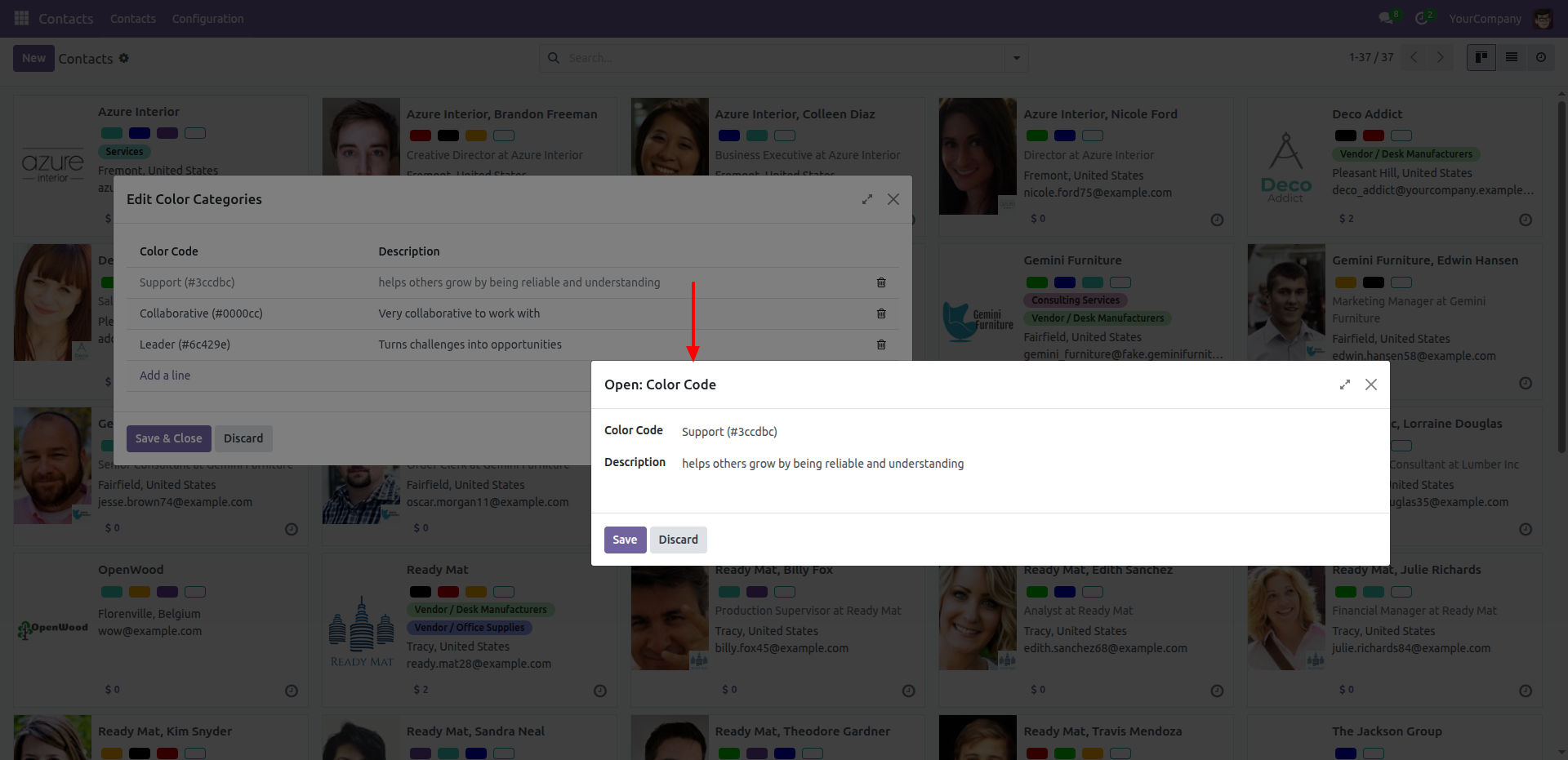
Select a specific line item to open the detailed editor, allowing for updates to the Description text associated with that color code.
Version 19.0.1 | Released on : 13th January 2026
- Yes, this app works perfectly with Odoo Enterprise (Odoo.sh & Premise) as well as Community.
- No, this application is not compatible with odoo.com(odoo saas/Odoo Online)
- Yes, to test this module, please contact us at sales@softhealer.com.
- Please contact us at sales@softhealer.comto request customization.
- Yes, we provide free support for 365 days from the date of purchase.
- Yes, you will receive lifetime free updates for the version of the module you purchased.
- No, there is no need to install any additional libraries.
- Yes, for version 12 and above, you need to purchase the module separately for each version you intend to use.
- No, exchanges or refunds are not allowed. Please make sure to select the correct version before purchasing.
- You can contact us at support@softhealer.com for language translation support. We use Google Translator tools to provide translations in multiple languages, so the accuracy may vary. We welcome your suggestions to help improve translations.
Discover Our Latest Apps