













Construction Management System - Advance

Our module is a comprehensive solution designed to streamline end-to-end construction operations. It helps manage projects, construction sites, stakeholders, equipment, documents, job costing, and billing from a centralized platform. With role-based management and smart navigation, the system improves operational efficiency, cost control, and project visibility, ensuring smooth execution from planning to completion.

Features

Job Cost Estimation
Define plot details and square footage rates to estimate construction costs by category.

Project Site Profiling
Create detailed construction site records with address information and location mapping.

Job Type Configuration
Define various construction job types to organize and manage project activities efficiently.

Contact Role Setup
Configure stakeholder roles such as owner, architect, engineer, contractor and project manager.

Equipment Type Management
Maintain equipment categories for machinery requests rentals and construction operations.

Construction Type Management
Create and manage residential commercial and industrial construction types for project classification.
Expense Type Configuration
Create expense categories to record and track construction related operational costs.

Document Type Management
Define document categories required for project approvals compliance and verification.

Document Template Setup
Create reusable document templates for project validation inspections and approvals.
Risk Category Management
Define project risk categories to improve monitoring mitigation and compliance tracking.
Job Estimation Categories
Configure estimation categories to calculate project costs across multiple construction activities.

Insurance Policy Configuration
Manage insurance policies and coverage details associated with construction projects.

Document Verification
Upload and validate project documents against required templates before work begins.
Equipment Hire Orders
Create machinery requests for project sites and generate linked purchase orders.

Raw Material Purchasing
Generate material requisitions and convert them into vendor purchase orders.

Labor Activity Tracking
Track workforce activities, supervisor assignments, shift costs, and vendor bills.

Extra Expenses Register
Record unexpected site expenses and generate accounting entries automatically.

Engineer Billing Management
Generate engineers bills from construction projects to accurately track professional service expenses and project costs.

Risk Assessment & Insurance Billing
Track project risks link insurance coverage monitor payment status and generate invoices directly from construction risk assessment records.
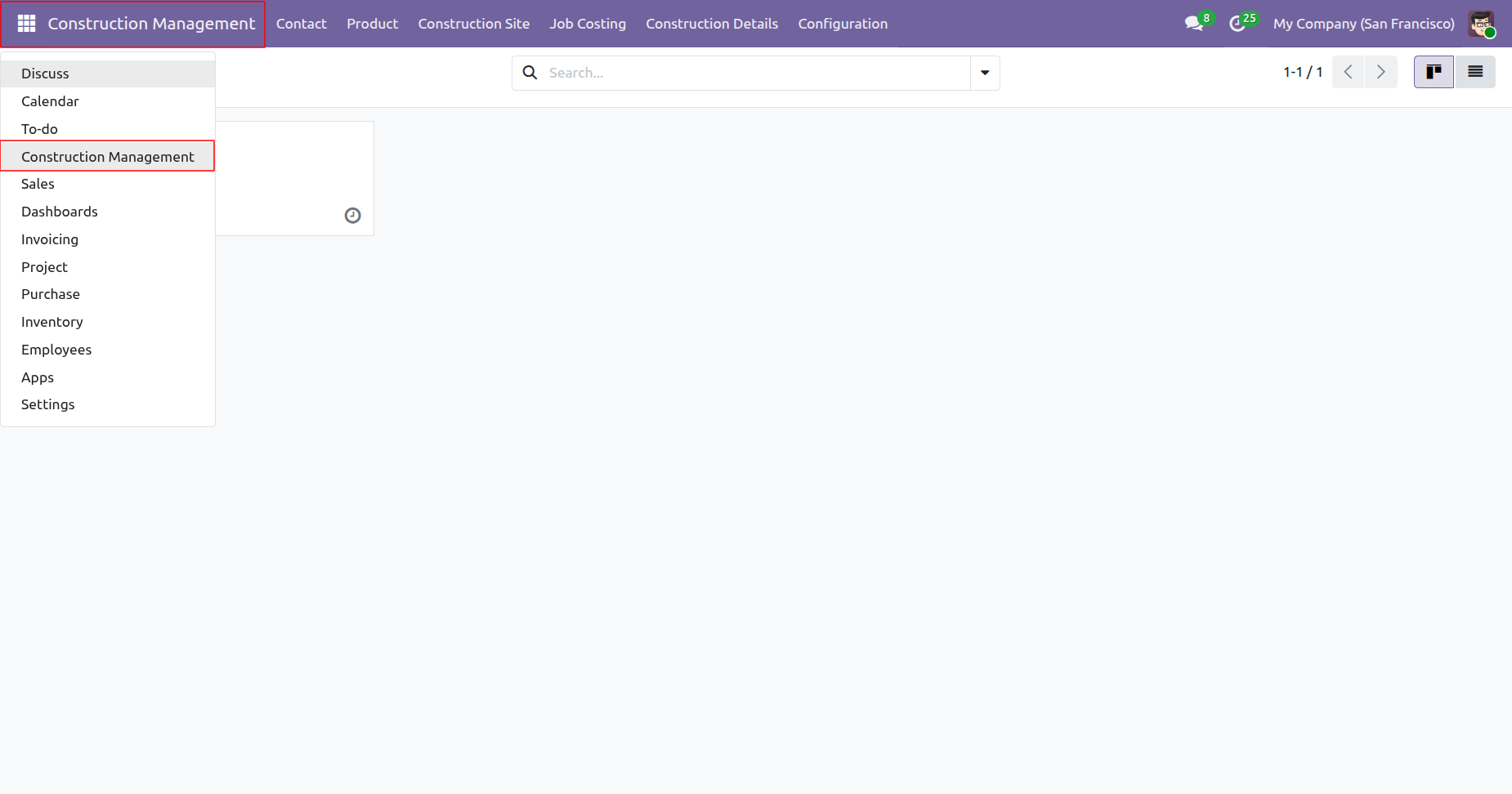
'Construction Management' menu.
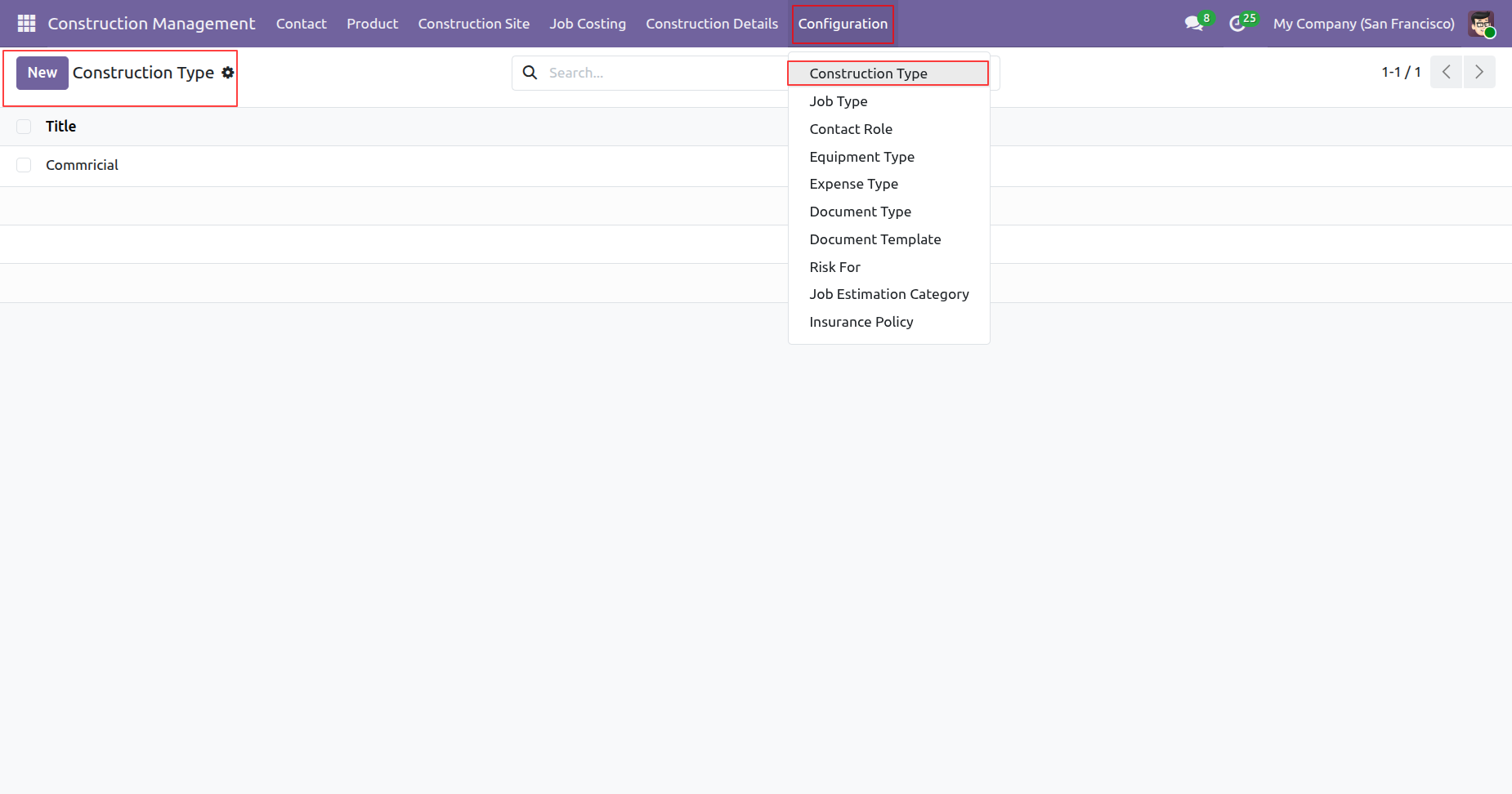
'Construction Type' menu and tree view.
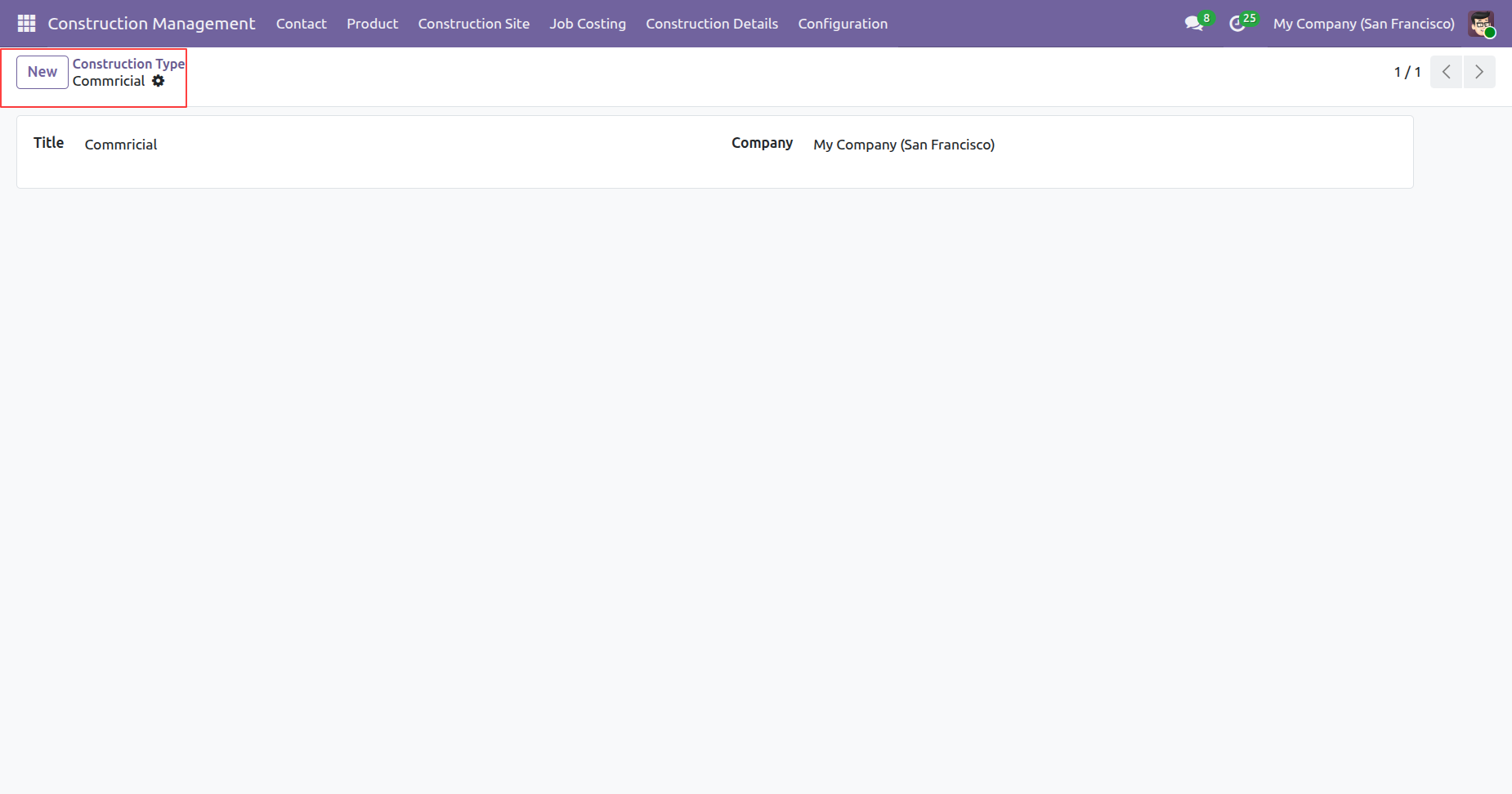
Form view of the 'Construction Type'.
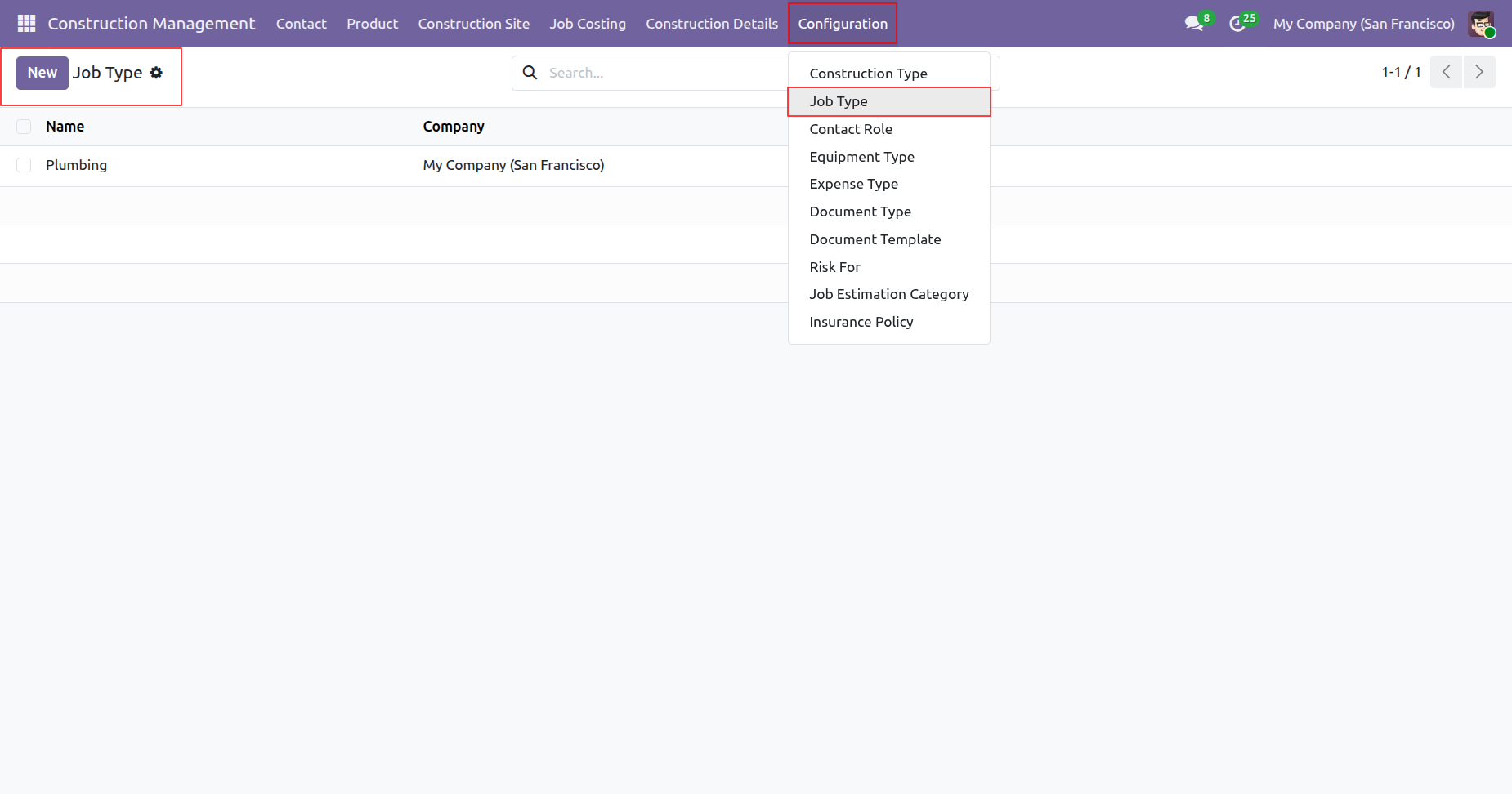
'Job Type' menu and tree view.
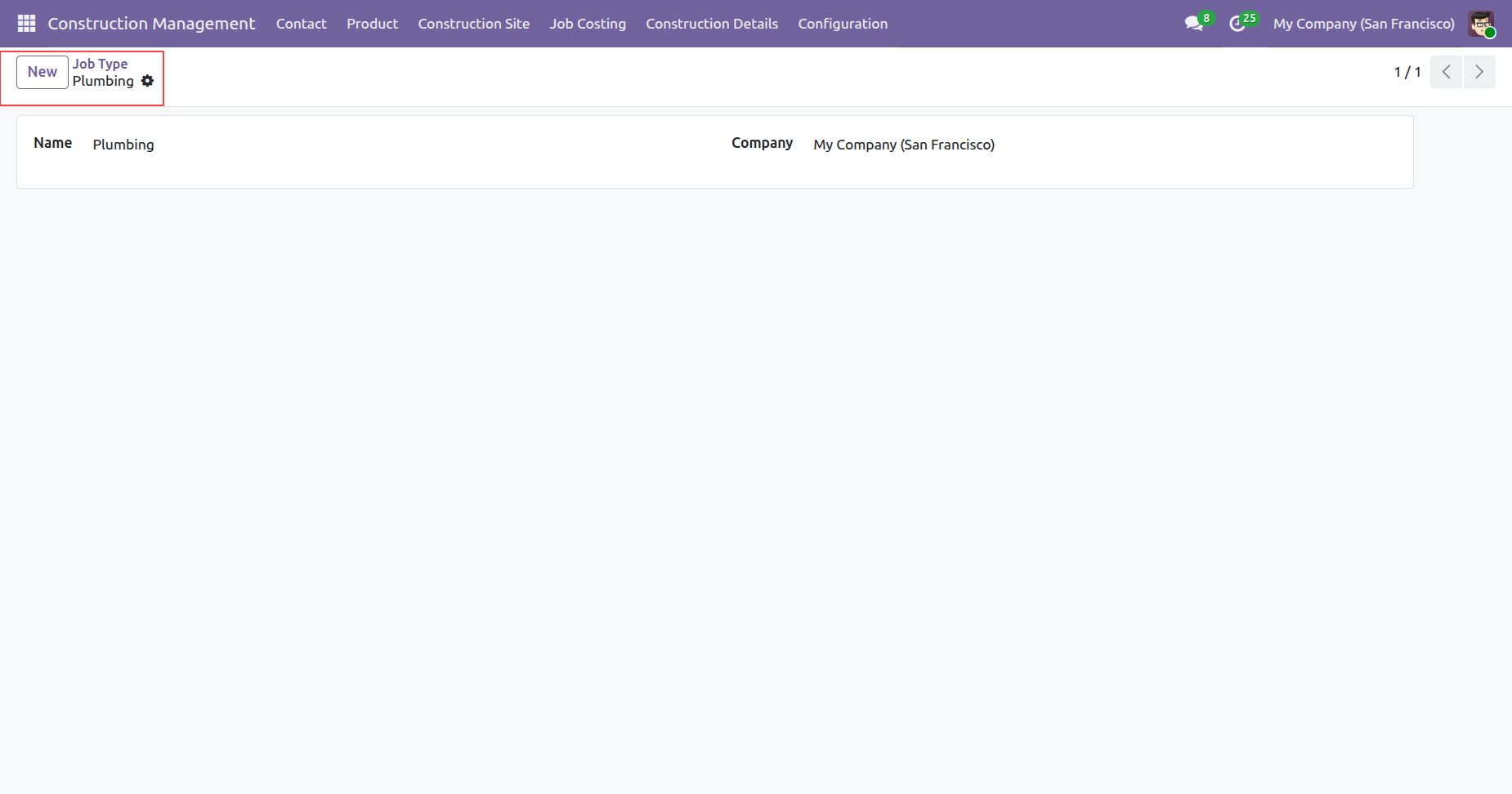
Form view of the 'Job Type'.
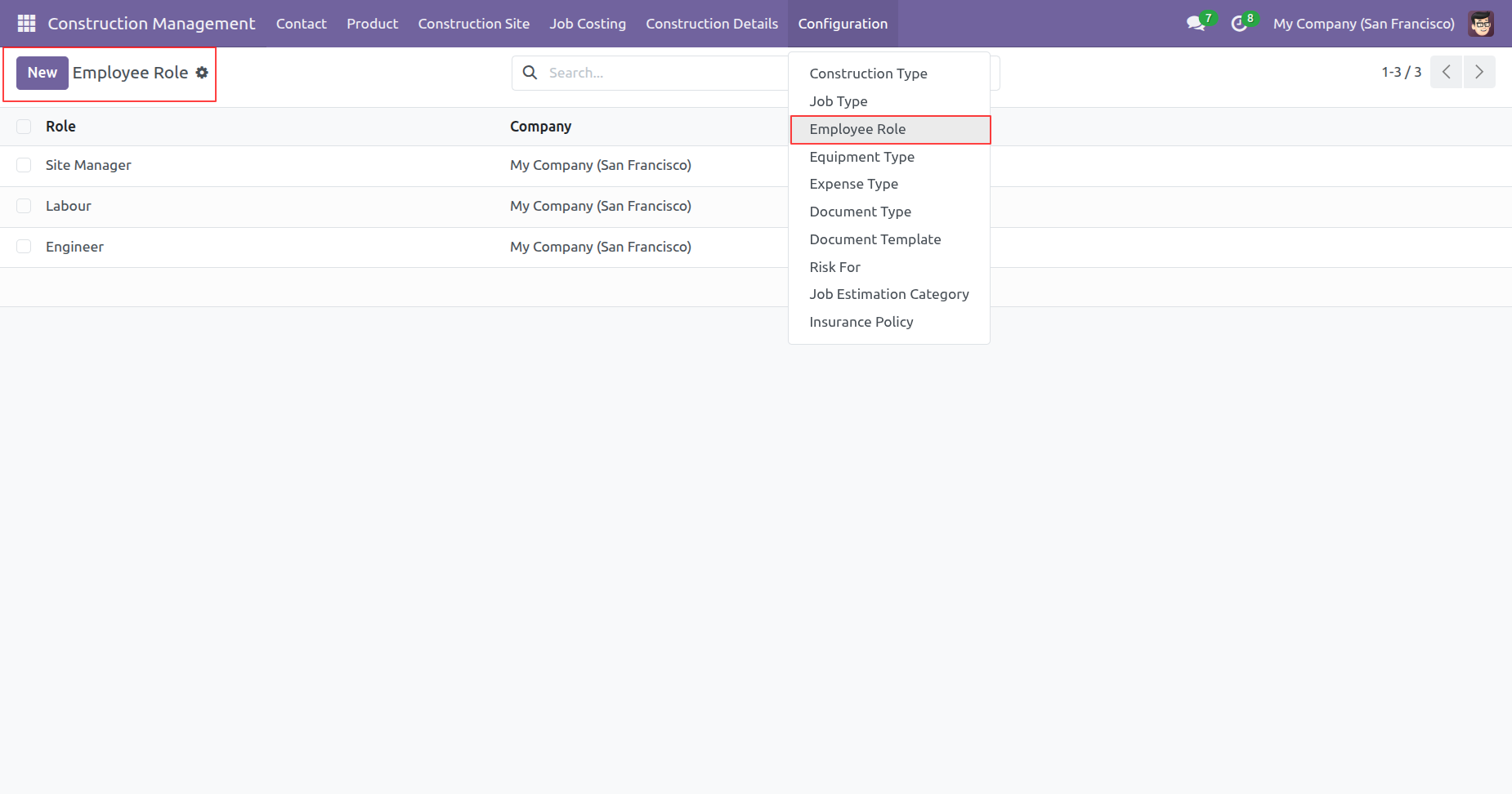
'Employee Role' menu and tree view.
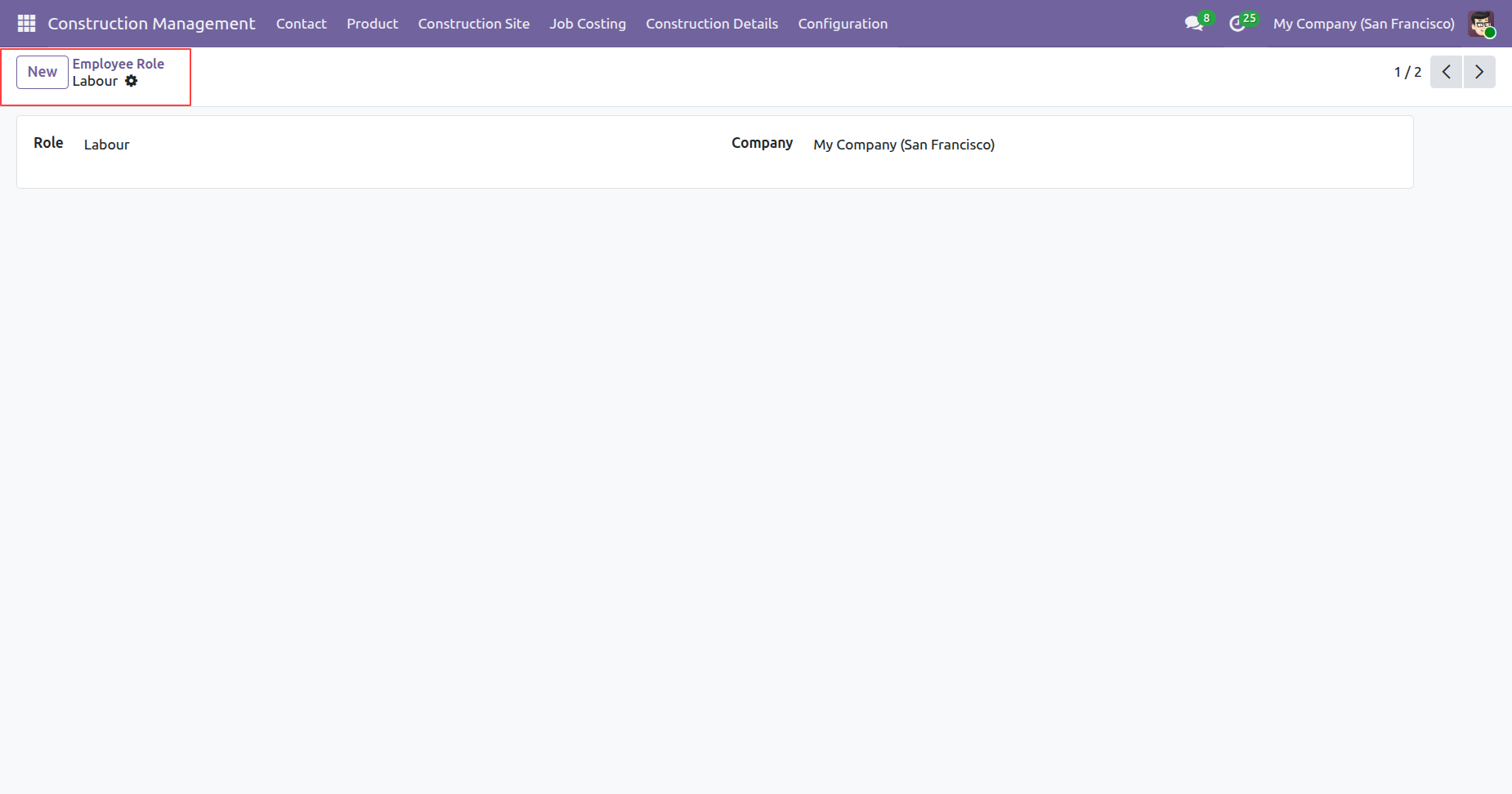
Form view of the 'Employee Role'.
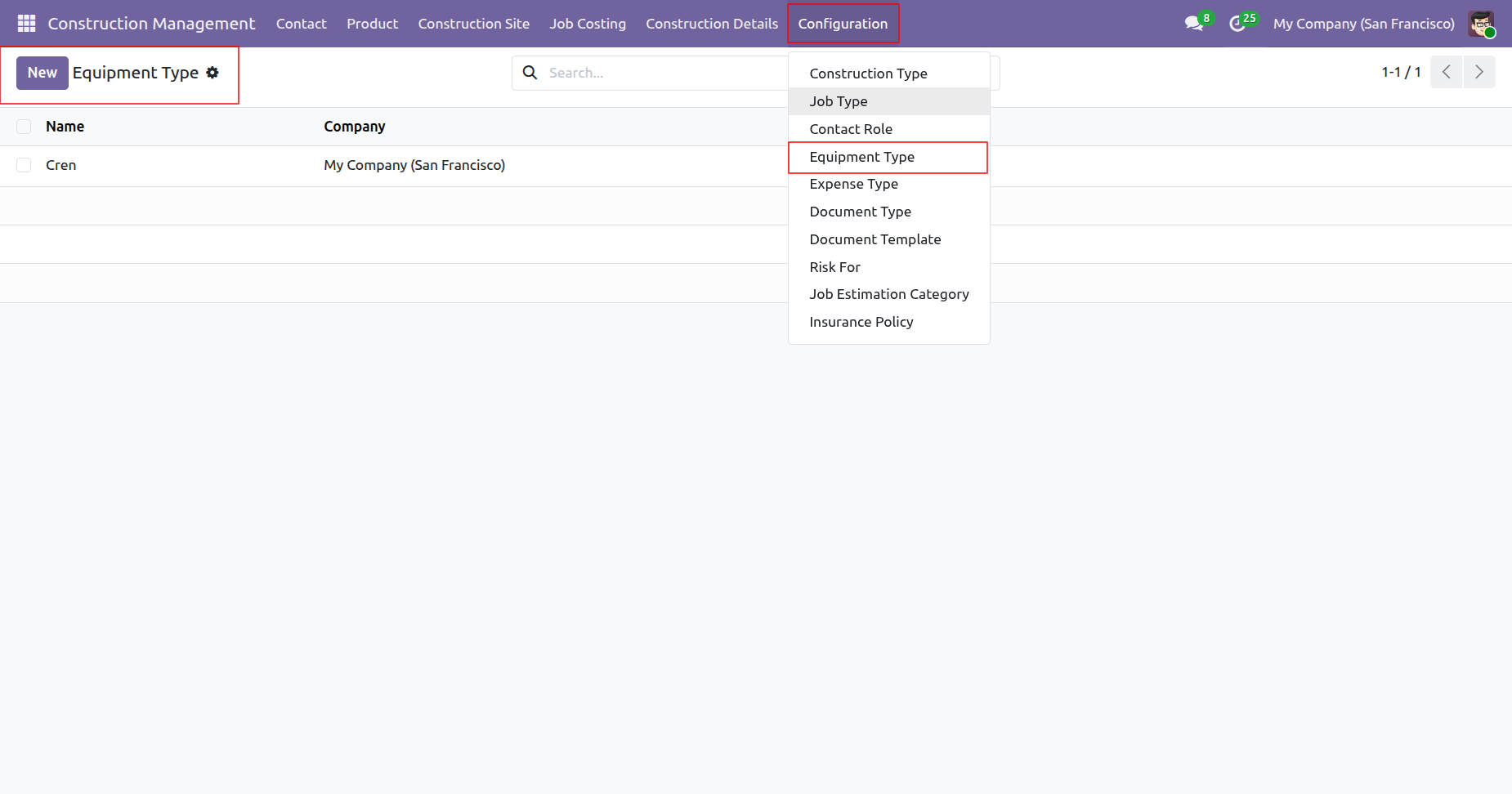
'Equipment Type' menu and tree view.
'Expense Type' menu and tree view.
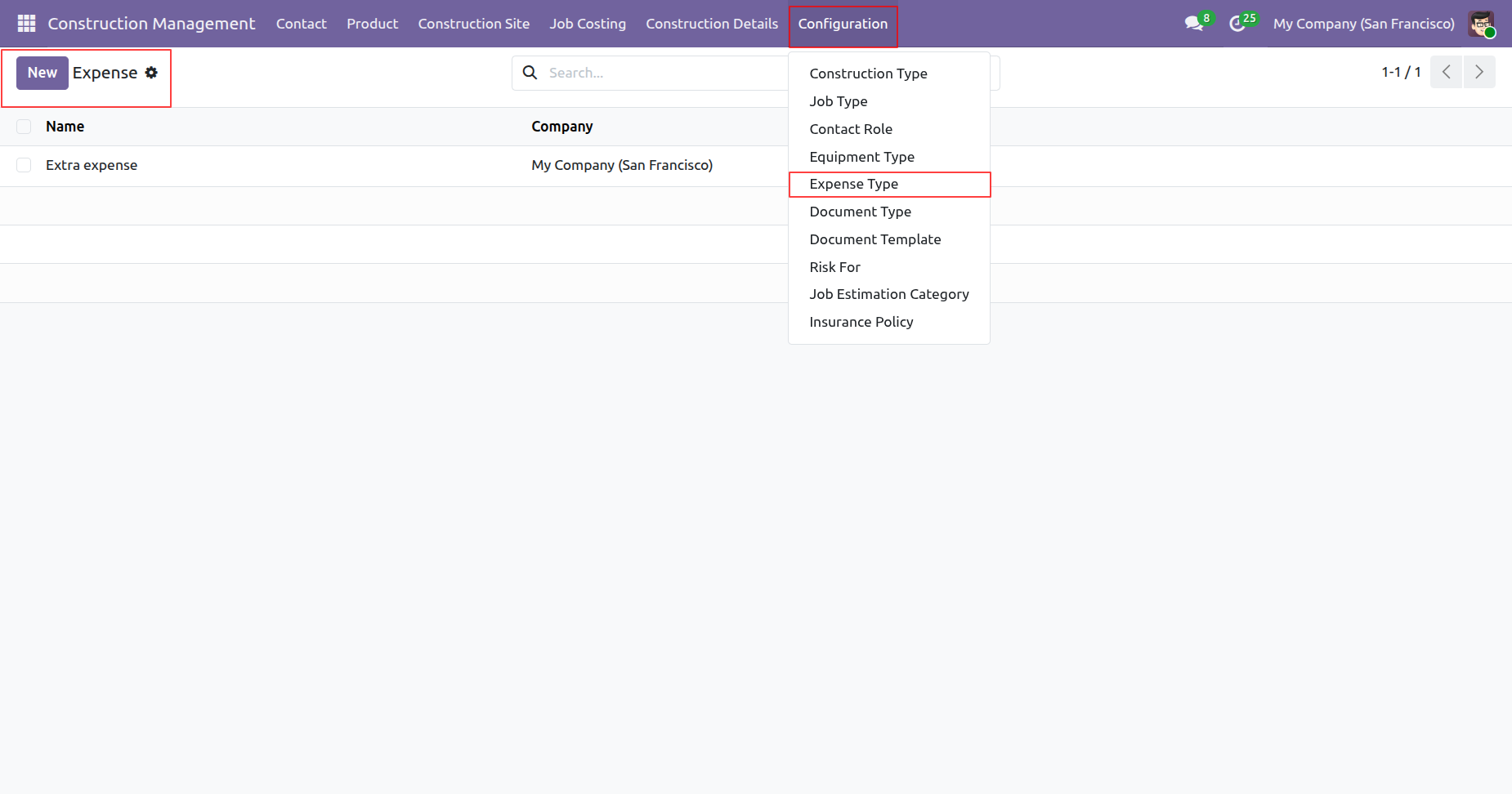
'Document Type' menu and tree view.
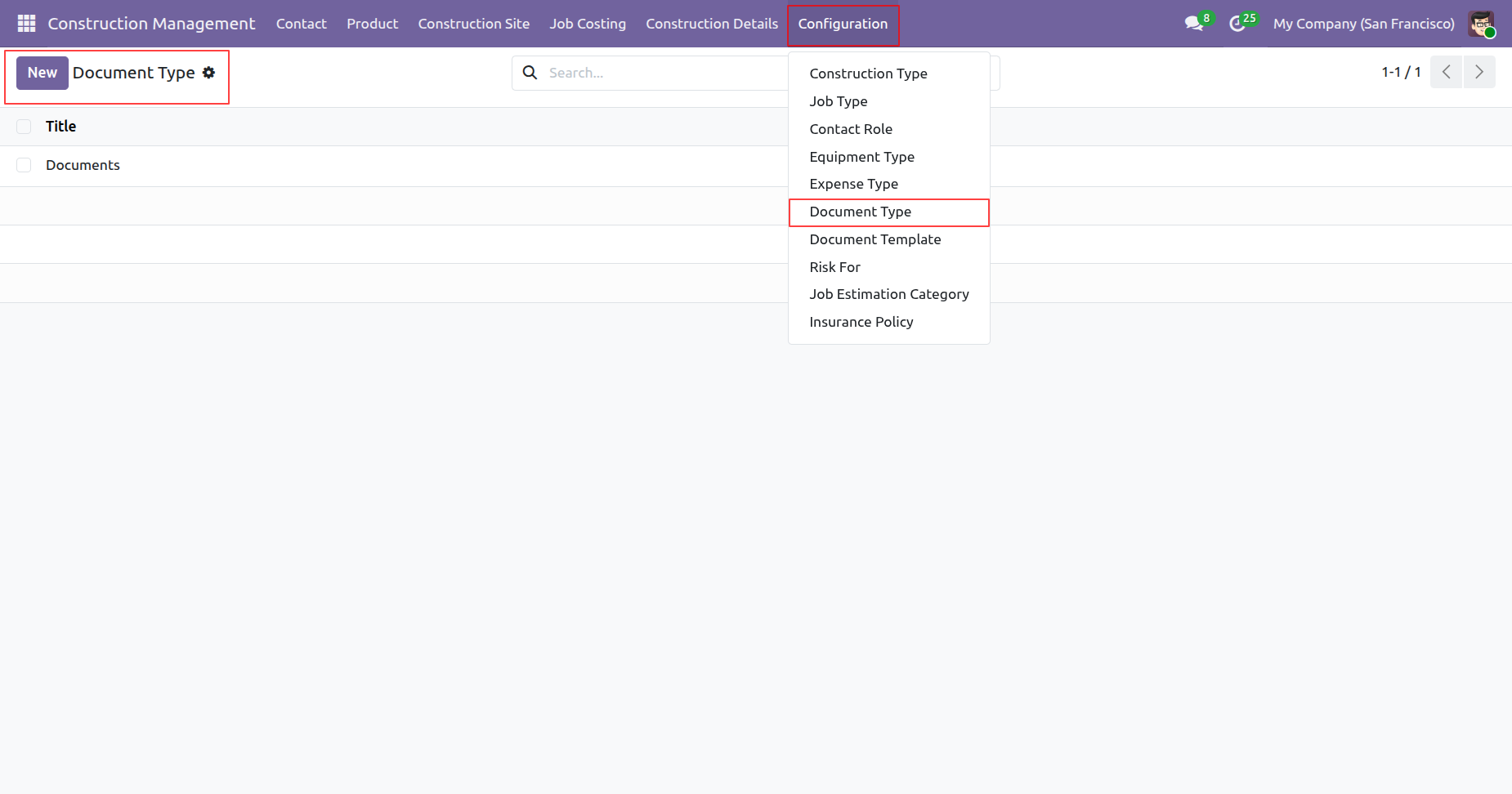
Form view of the 'Document Type'.
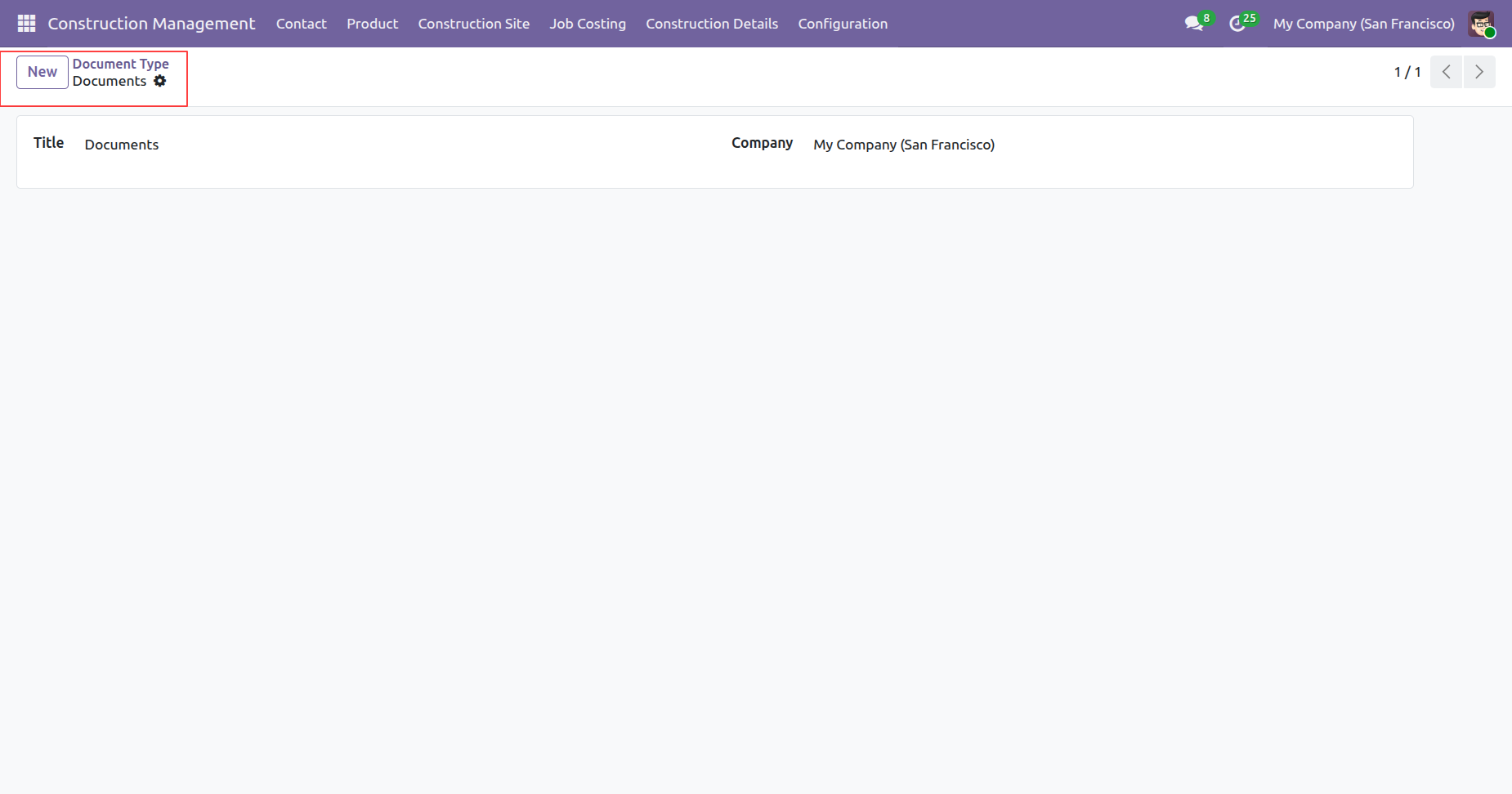
'Document Template' menu and tree view.
Form view of the 'Document Template'.
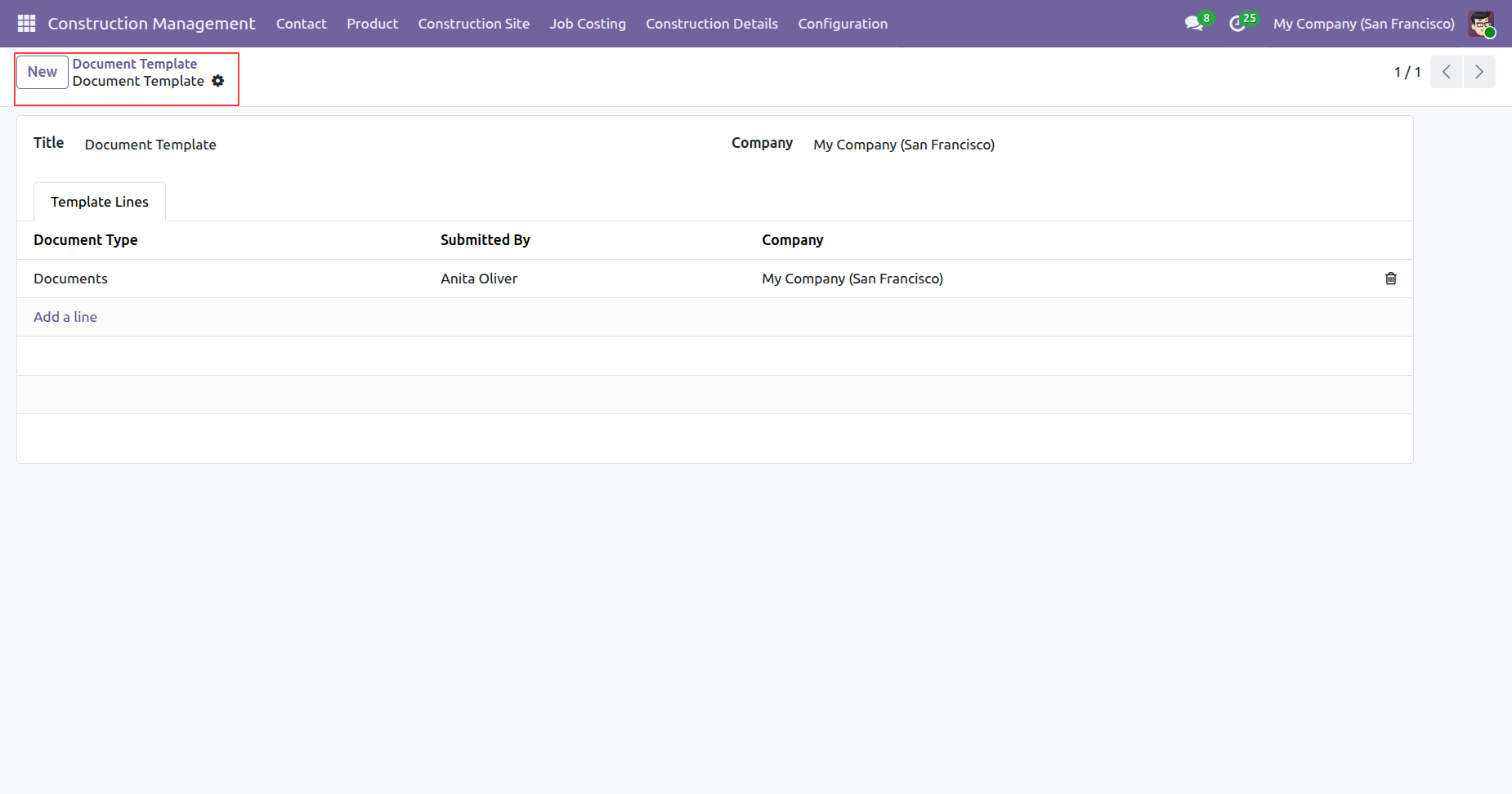
'Risk For' menu and tree view.
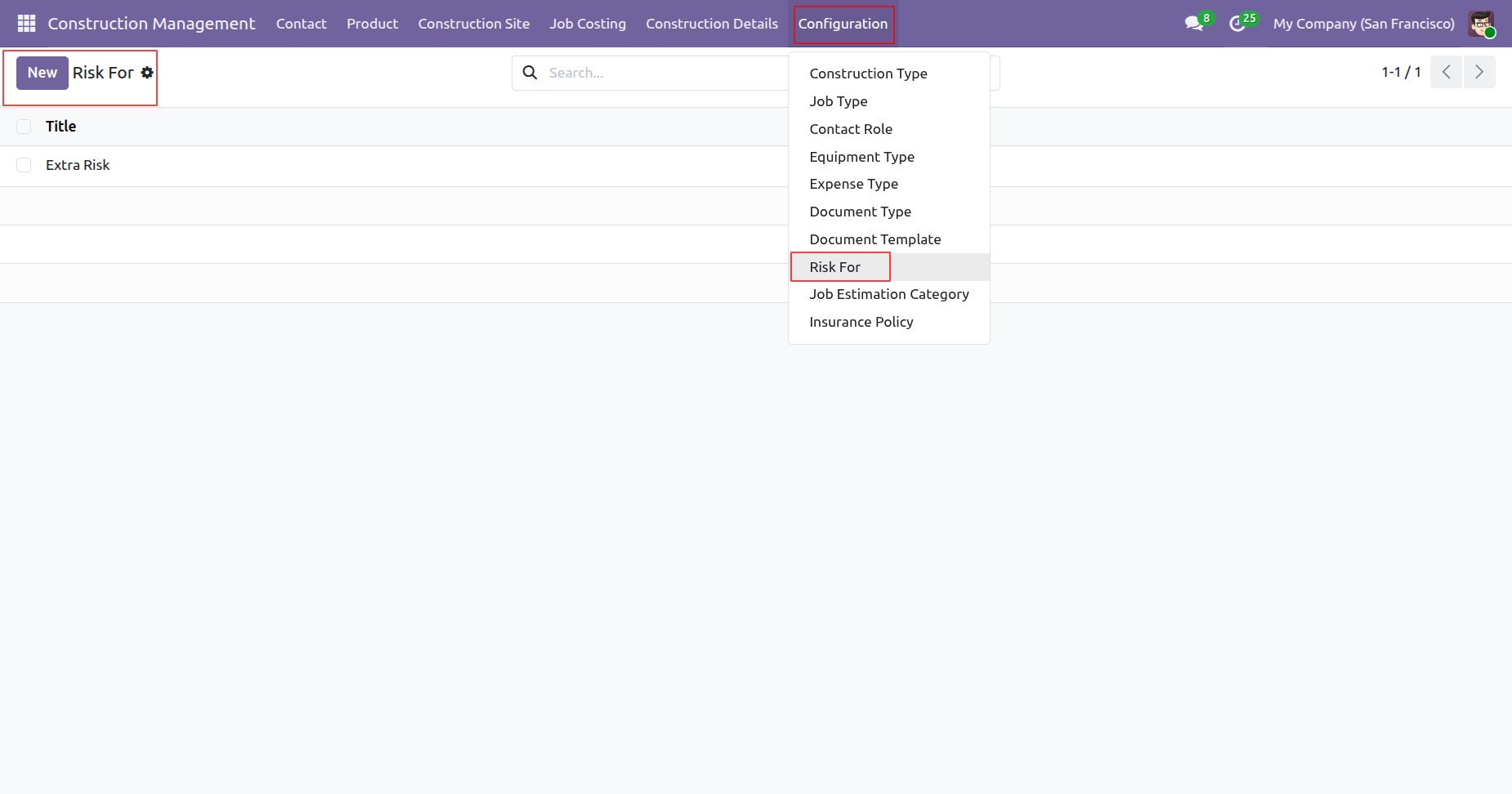
Form view of the 'Risk For'.
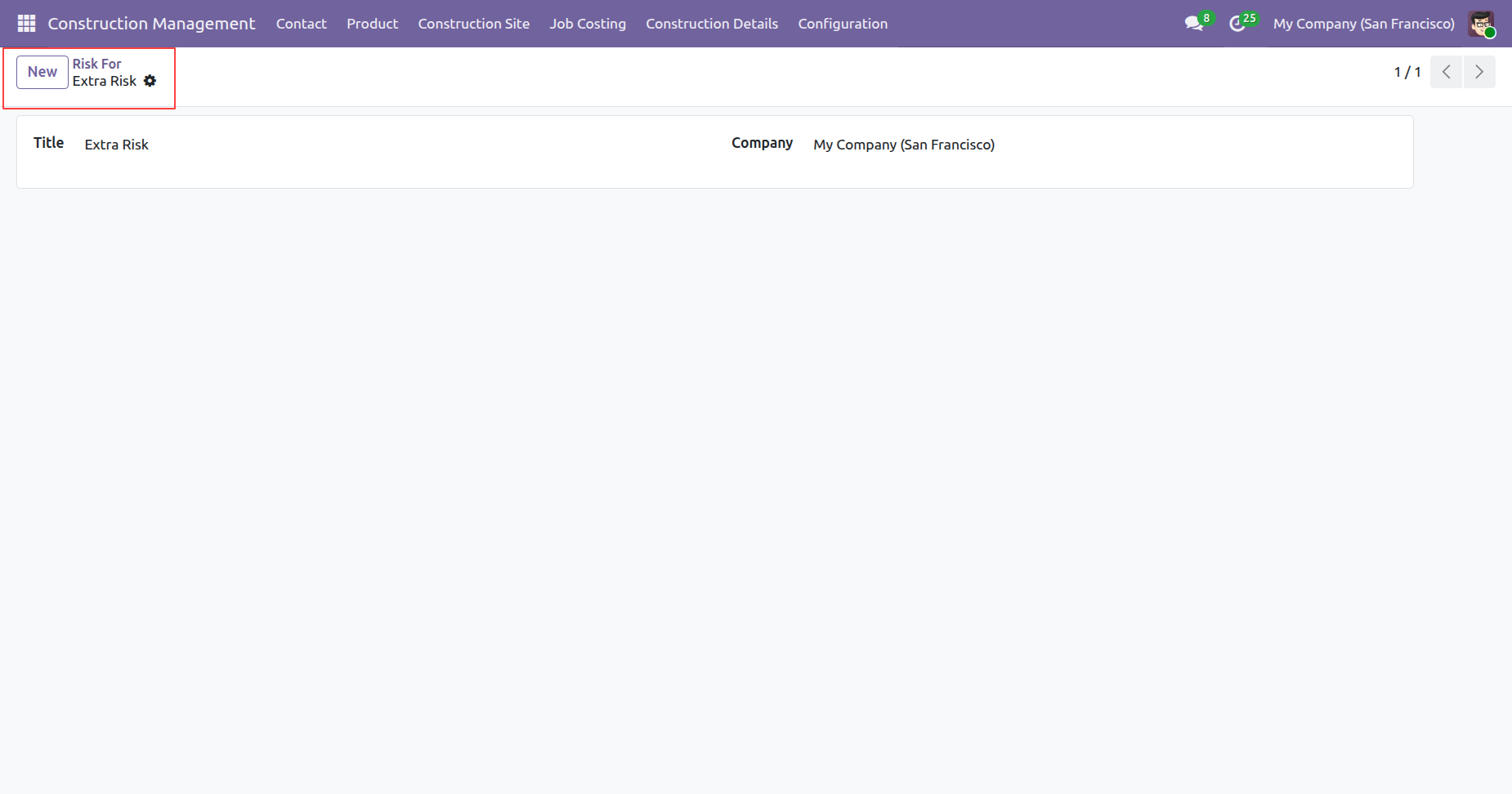
'Job Estimation Category' menu and tree view.
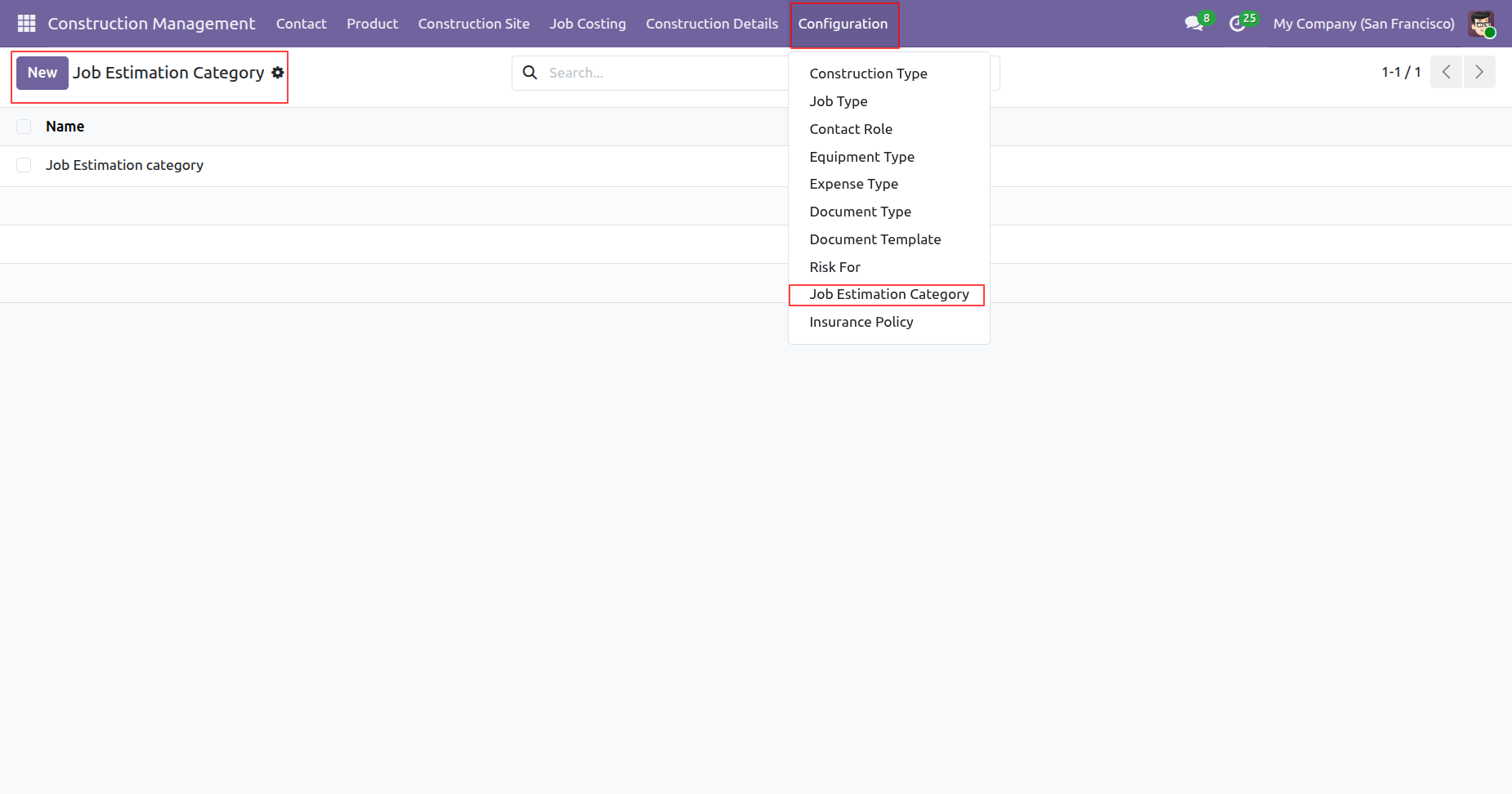
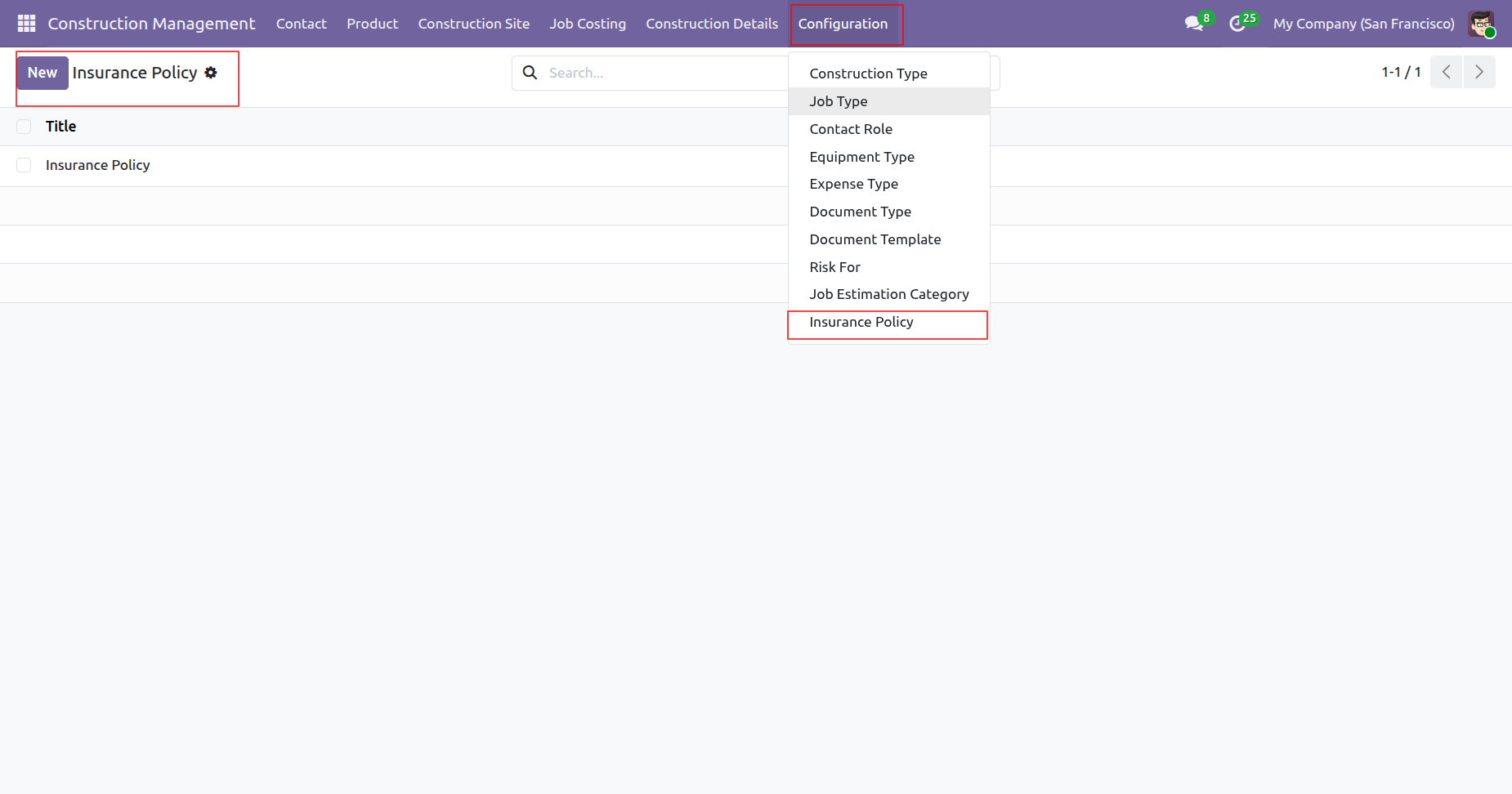
'Insurance Policy' menu and tree view.
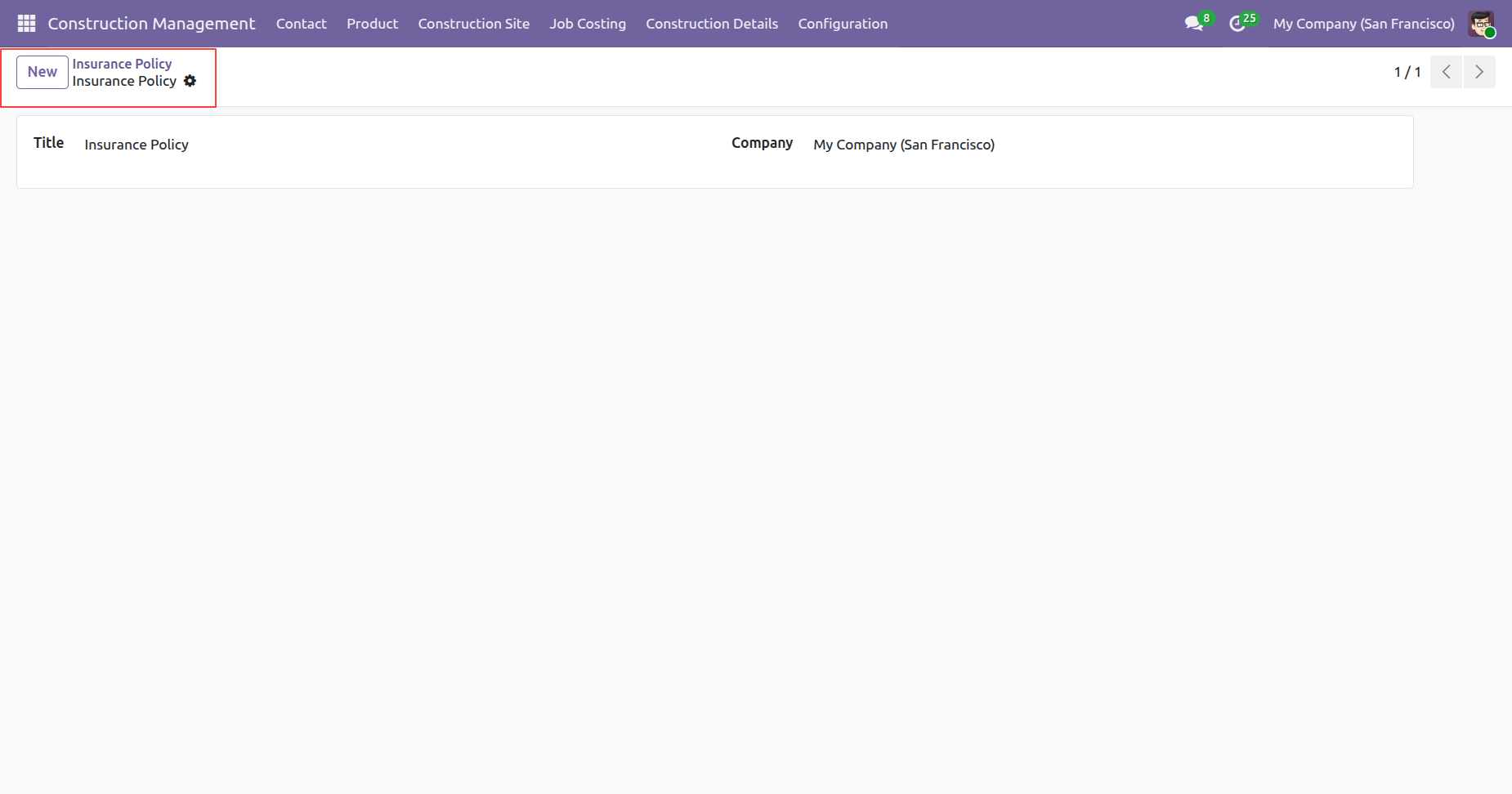
Form view of the 'Insurance Policy'.
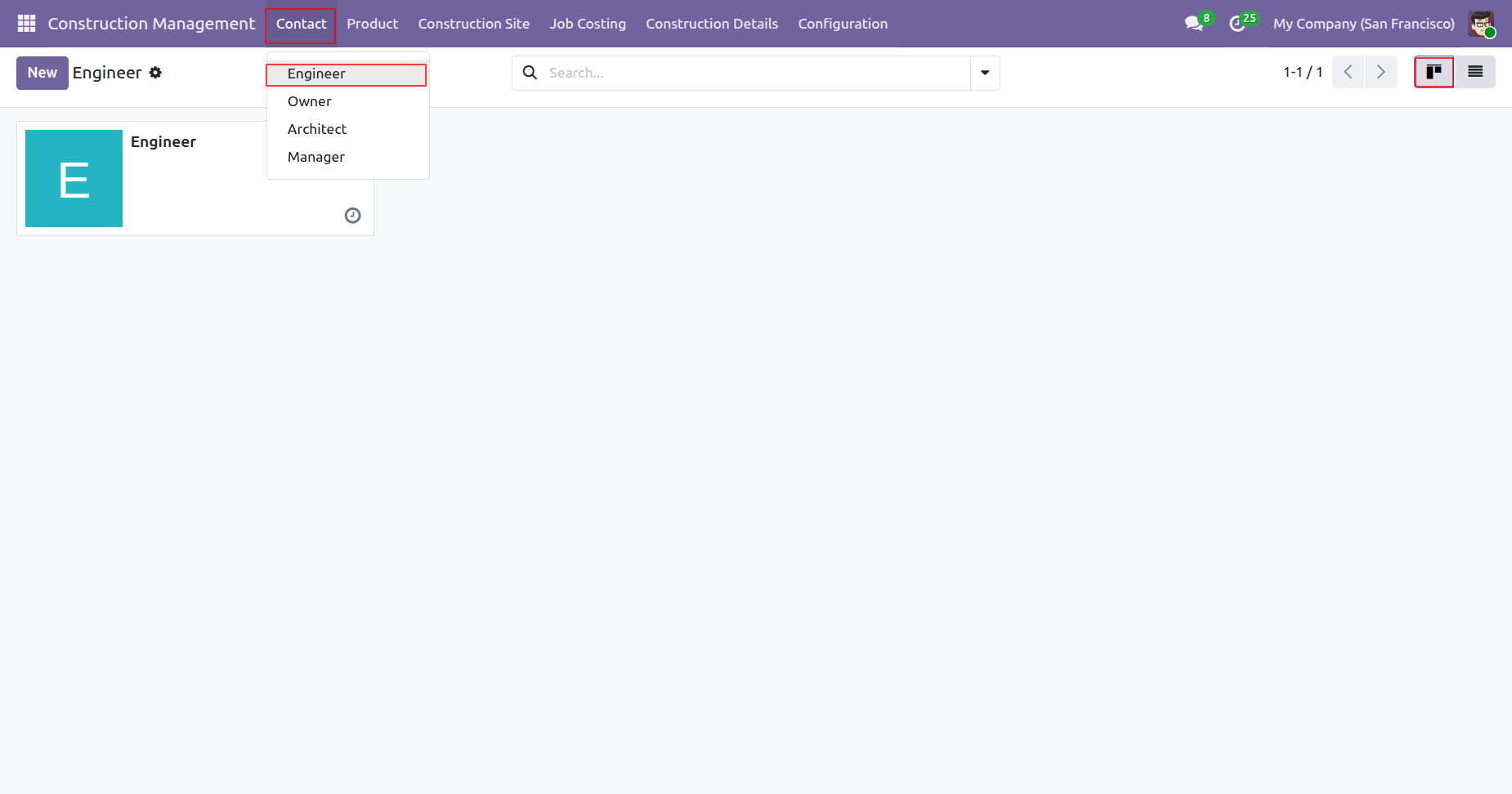
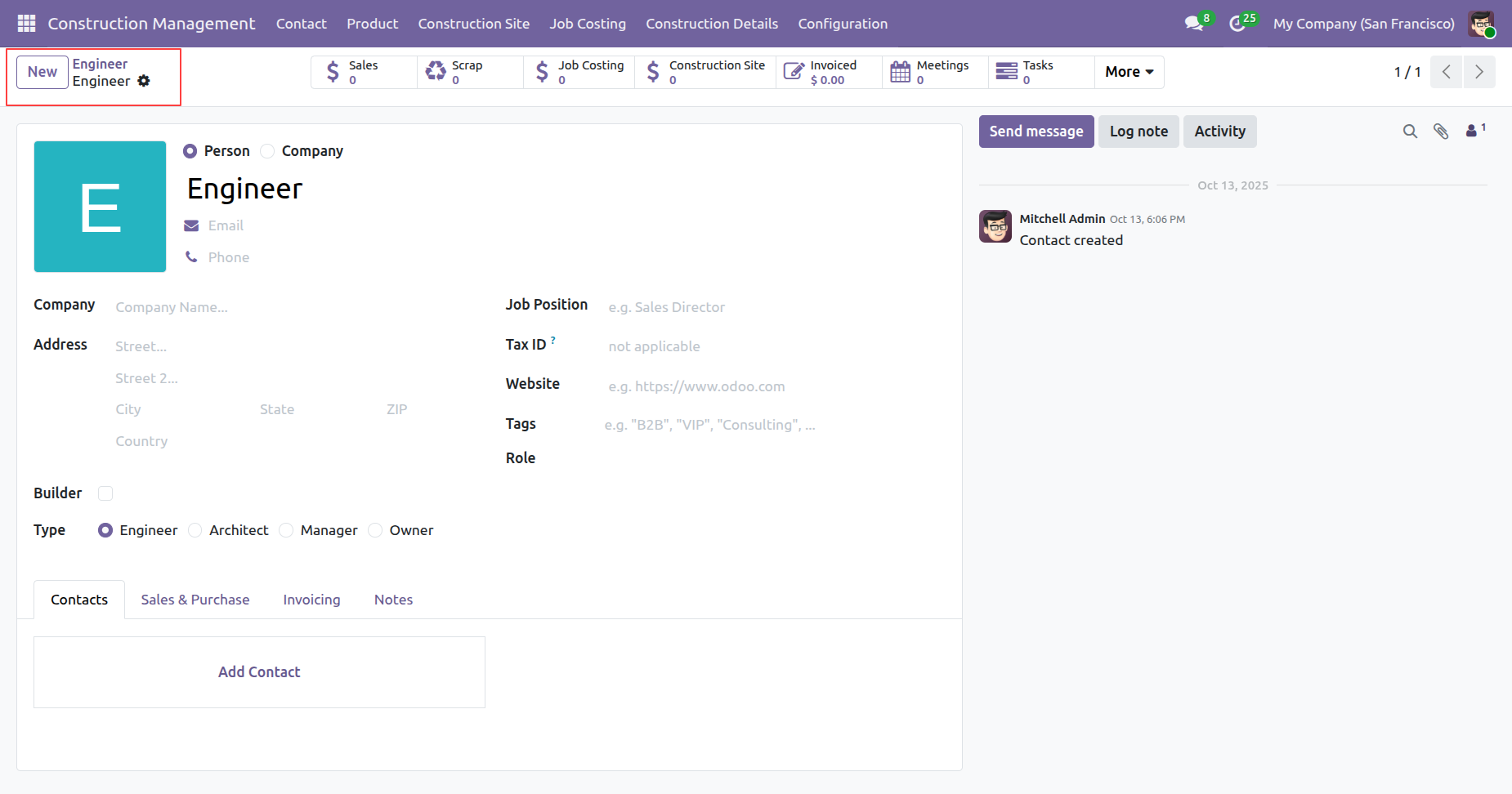
'Engineer' menu and kanban view.
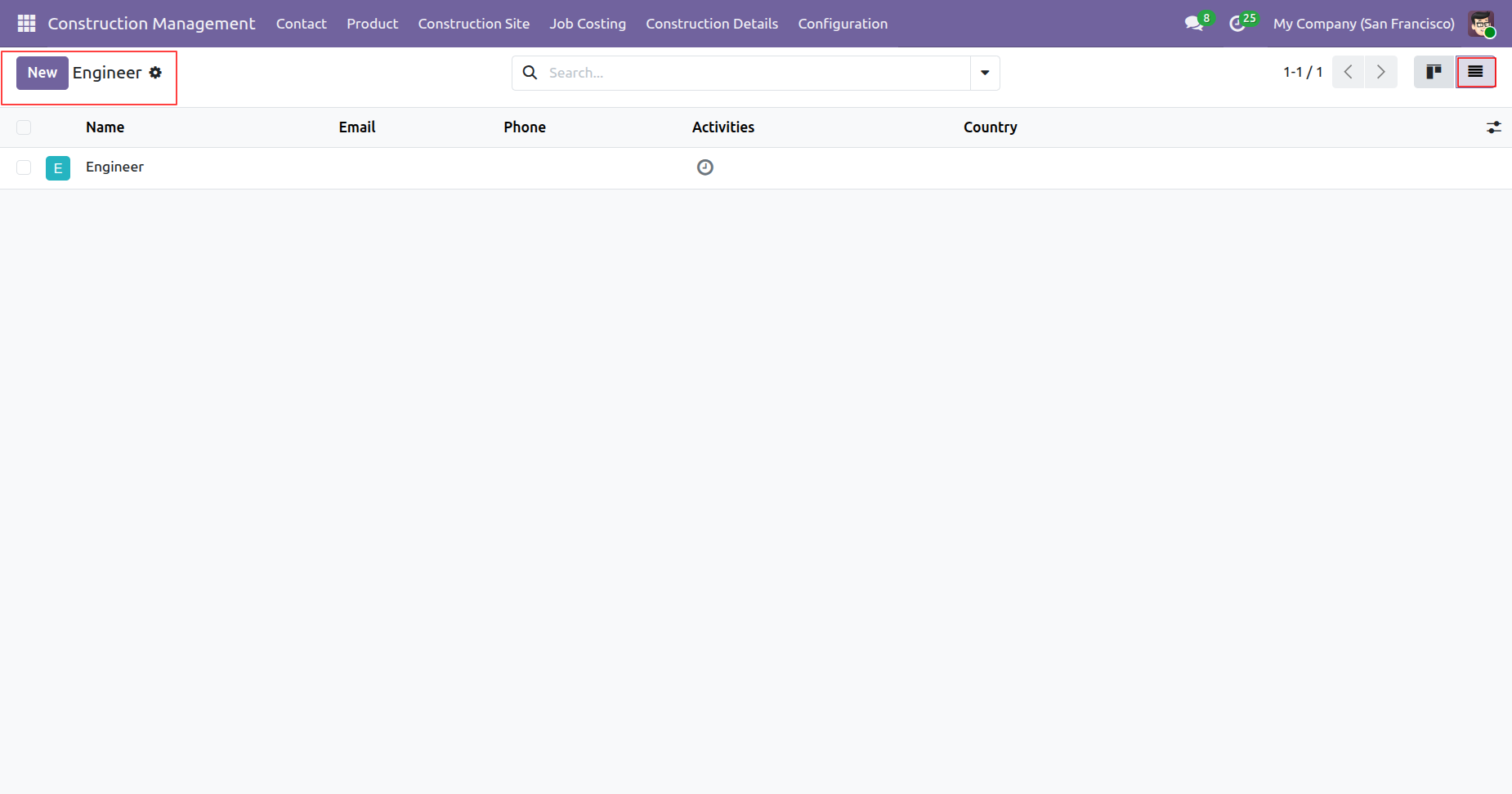
Tree view of the 'Engineer'.
Form view of the 'Engineer'.
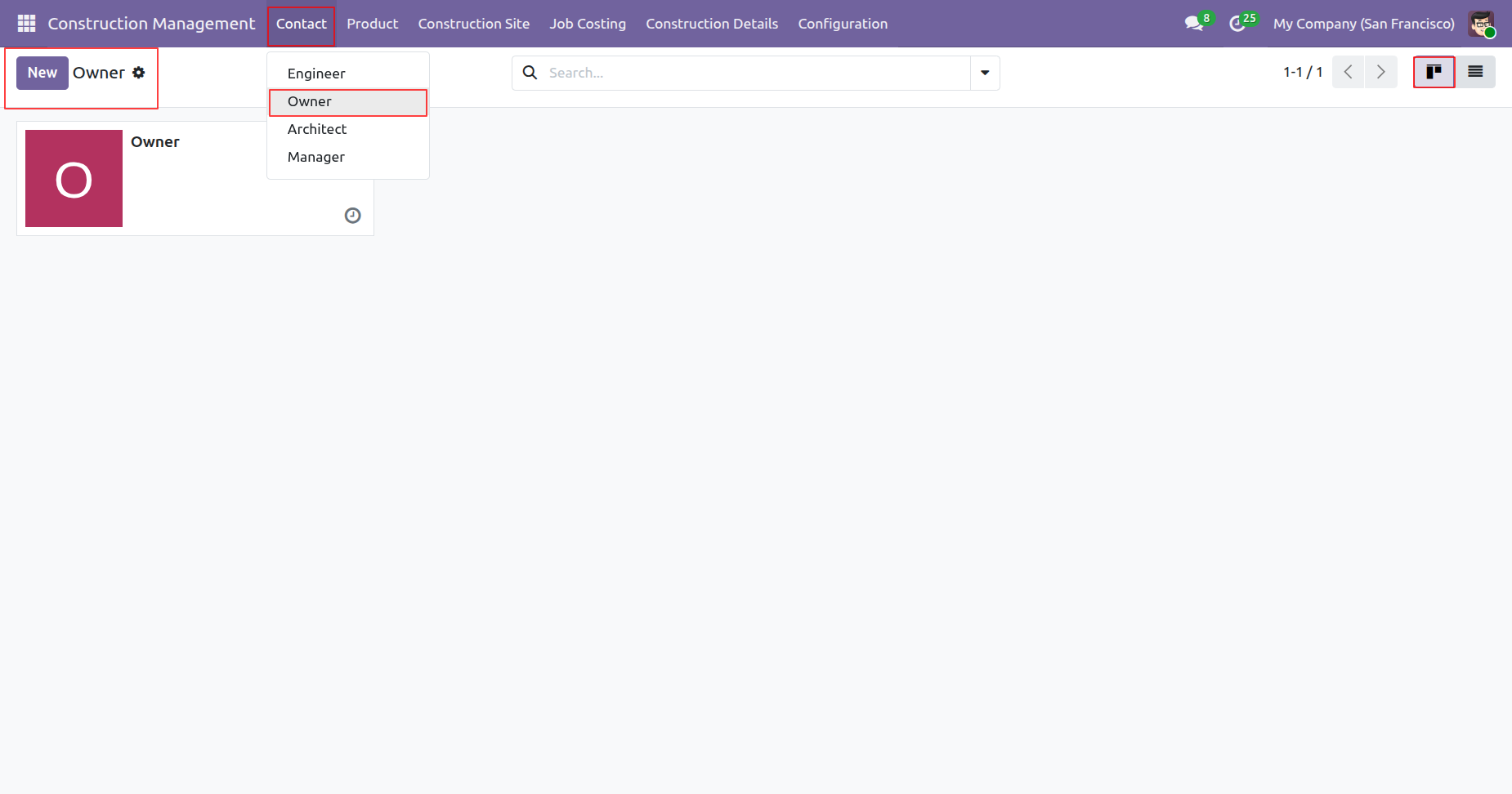
'Owner' menu and kanban view.
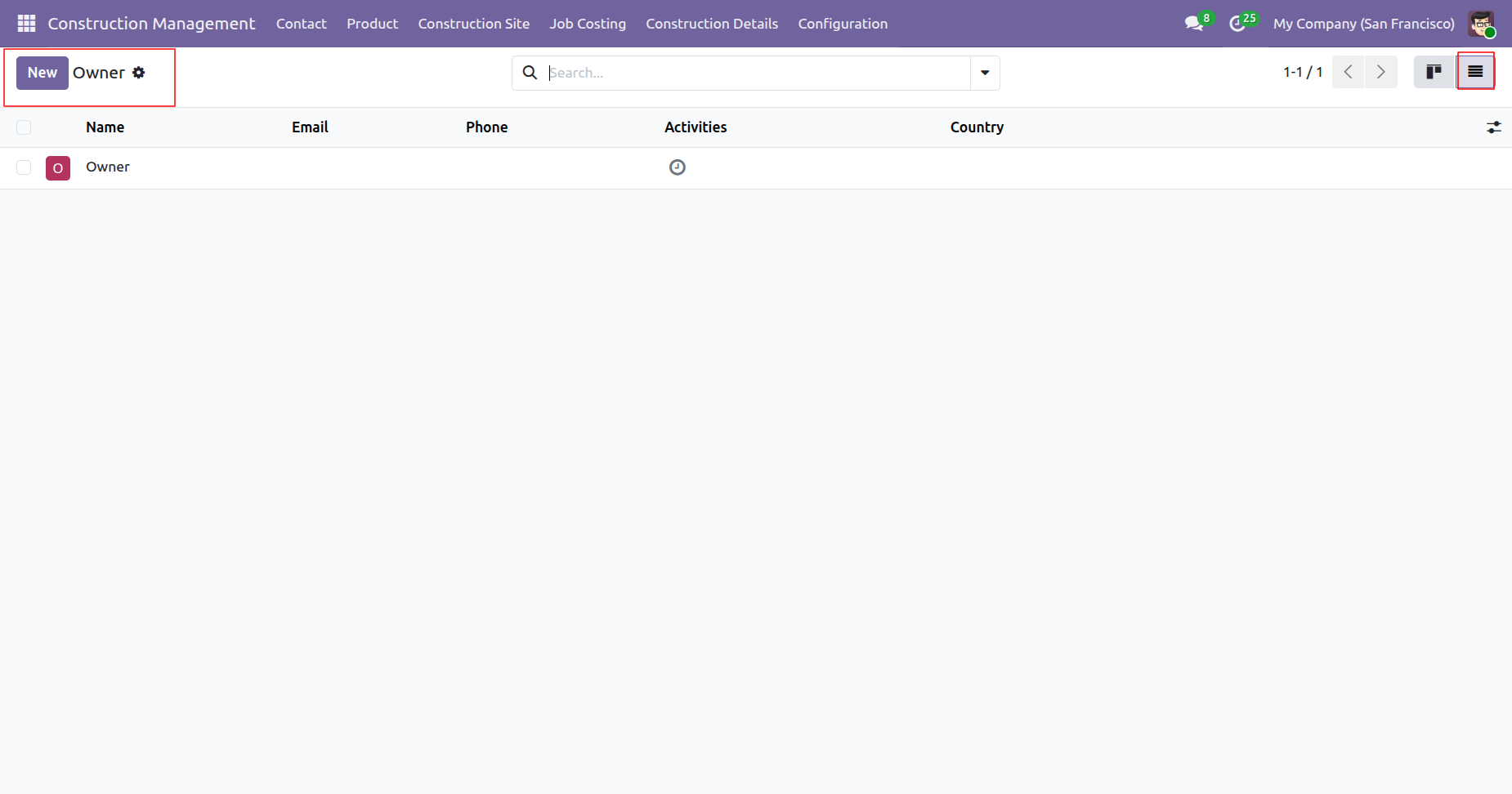
Tree view of the 'Owner'.
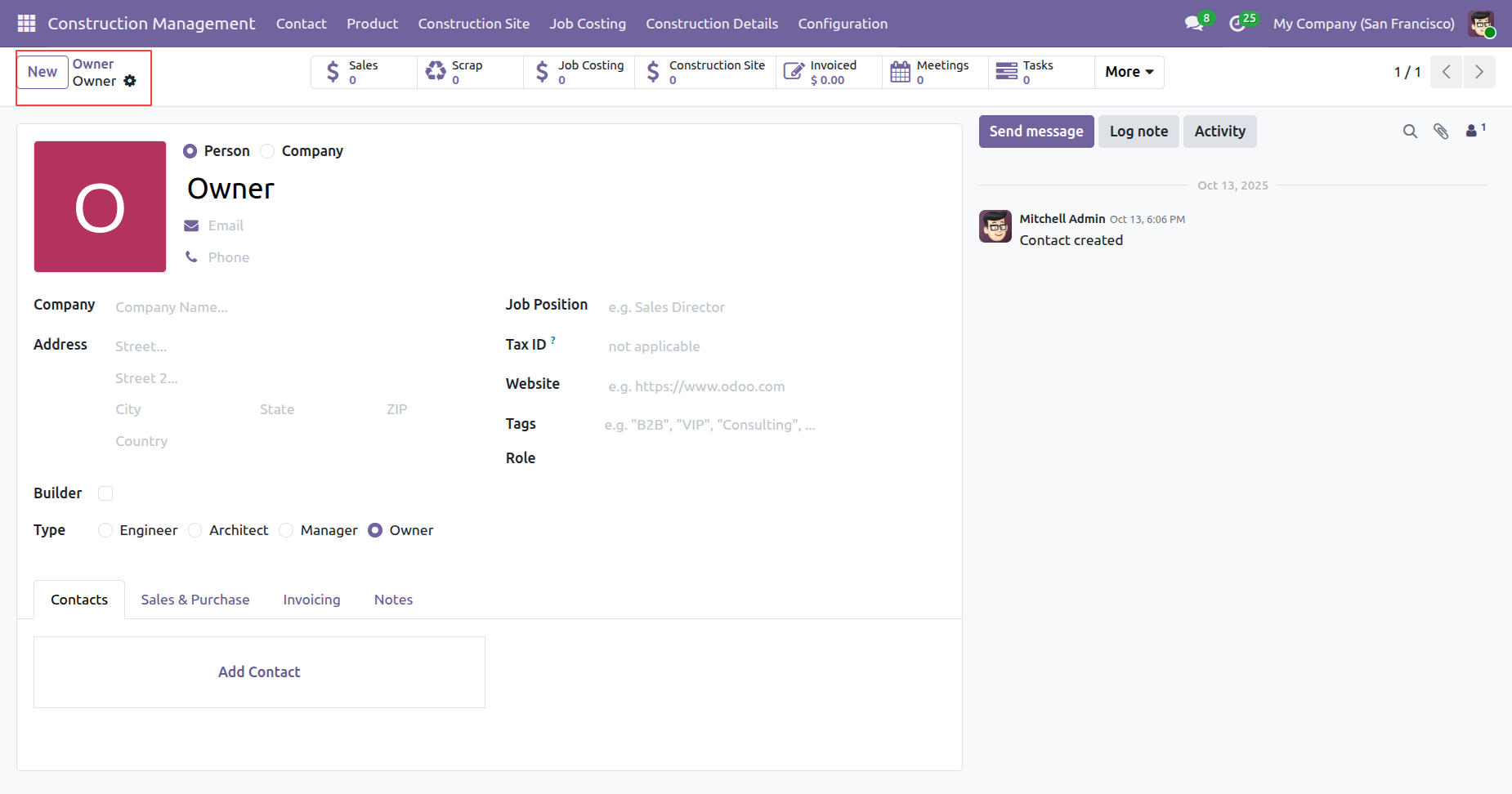
Form view of the 'Owner'.
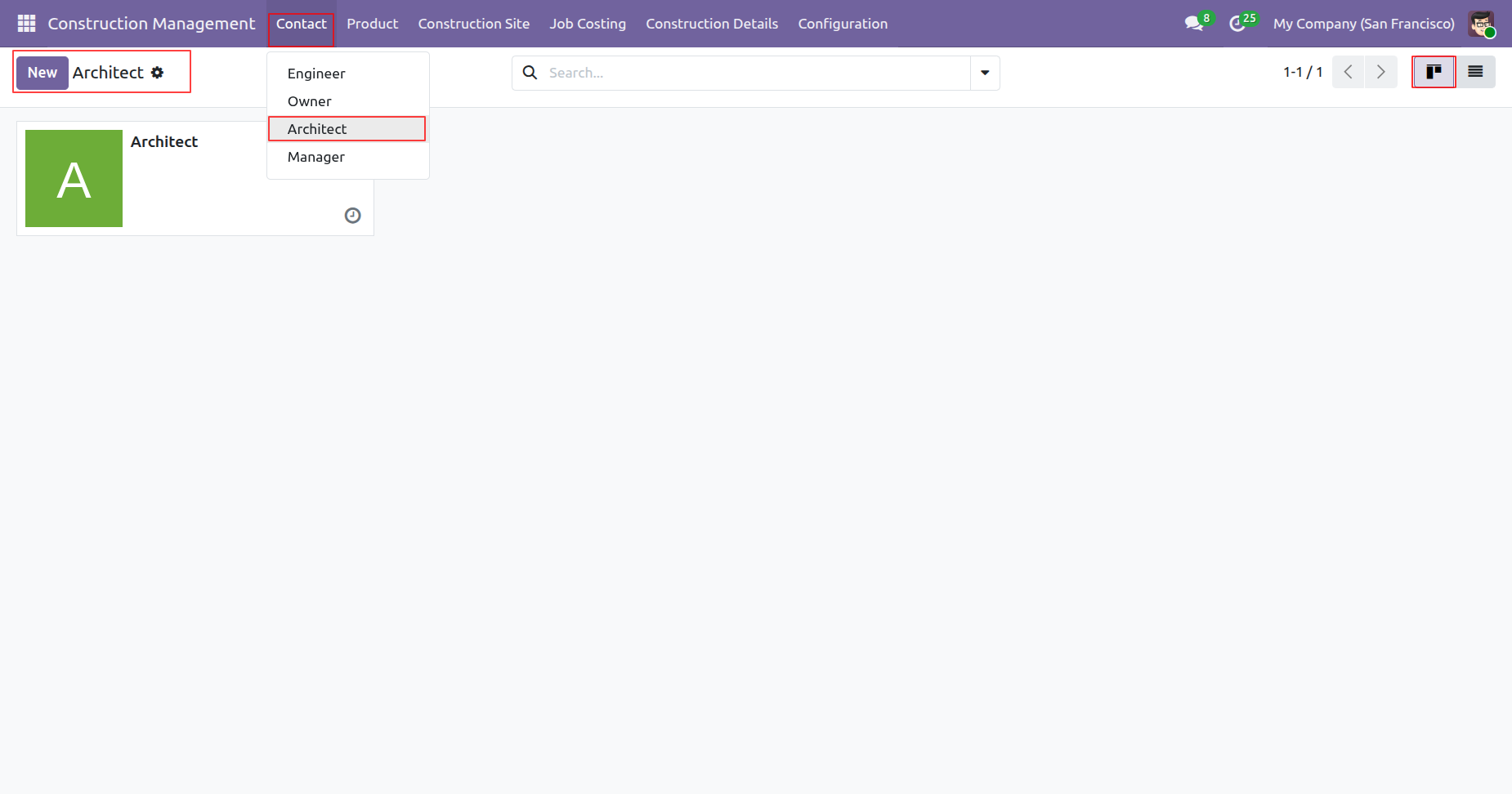
'Architect' menu and kanban view.
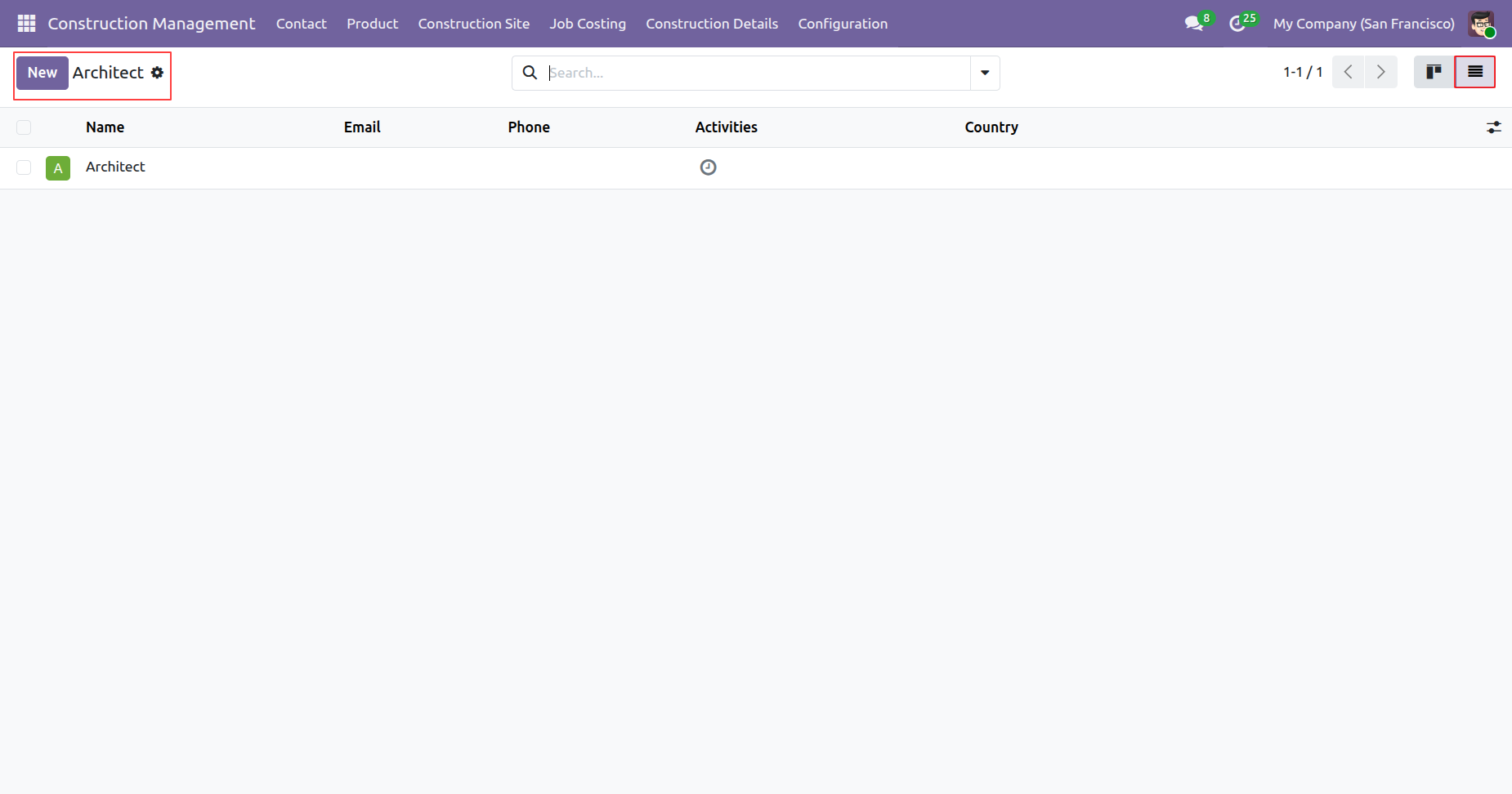
Tree view of the 'Architect'.
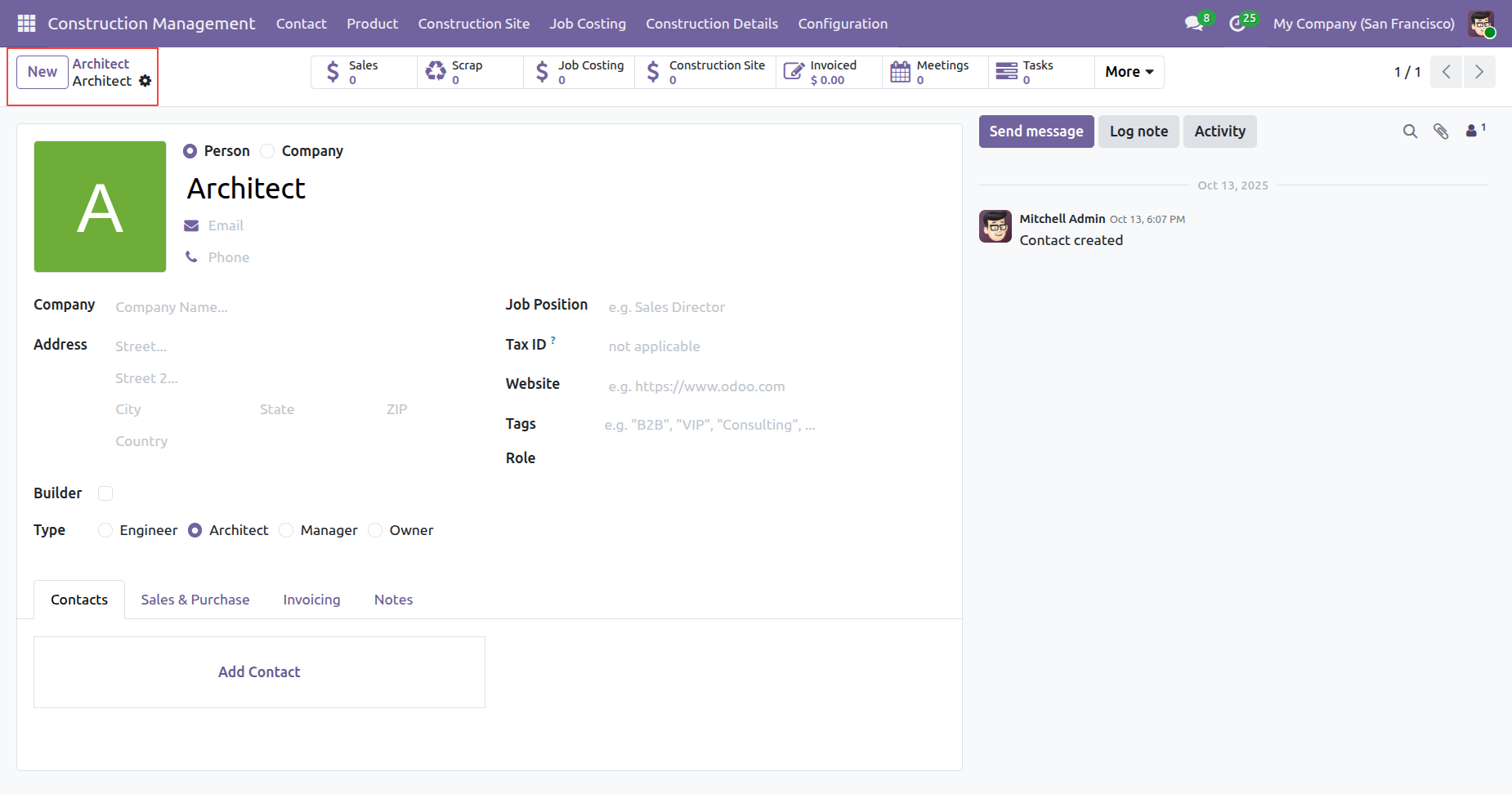
Form view of the 'Architect'.
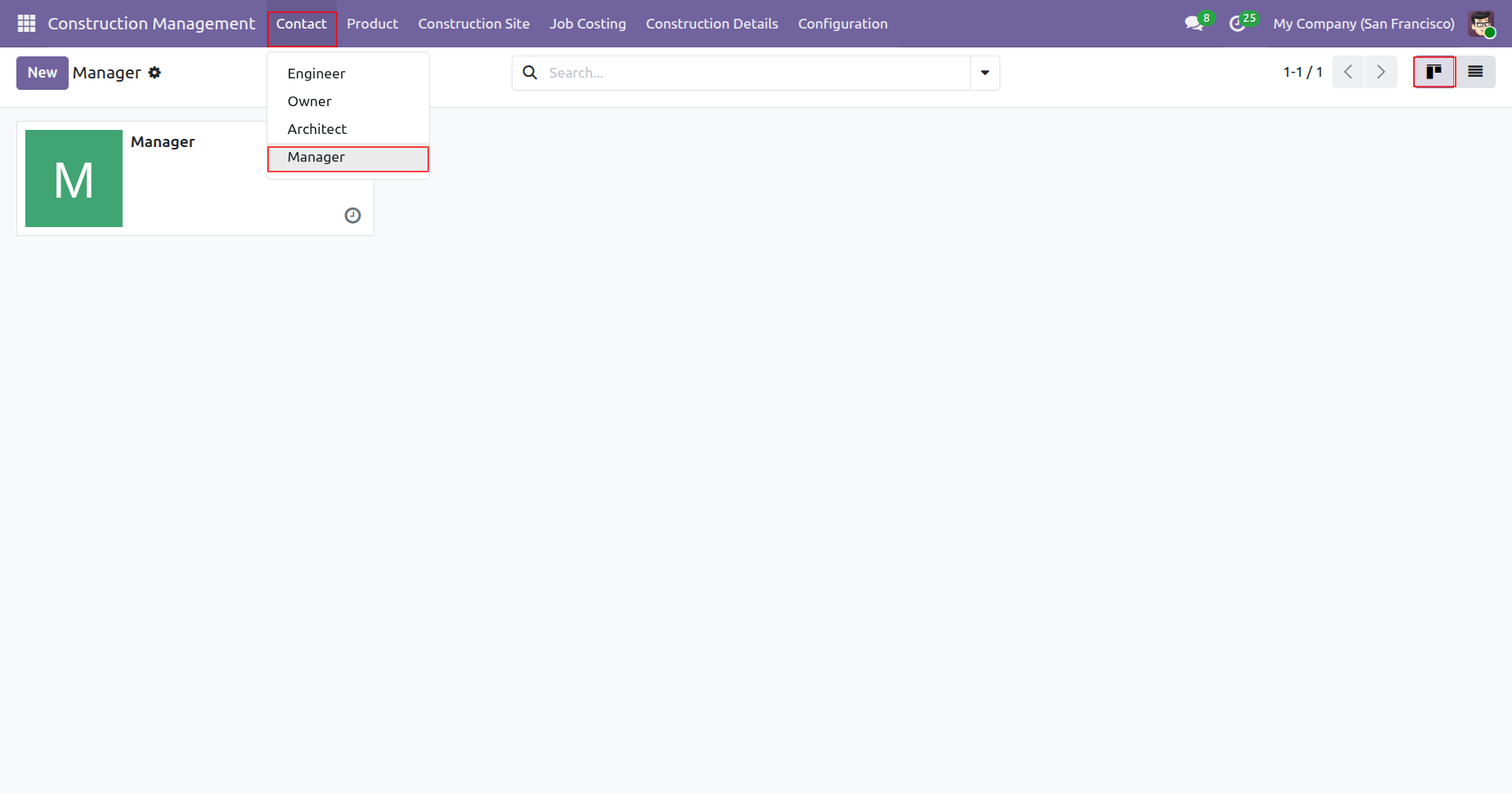
'Manager' menu and kanban view.
Tree view of the 'Manager'.
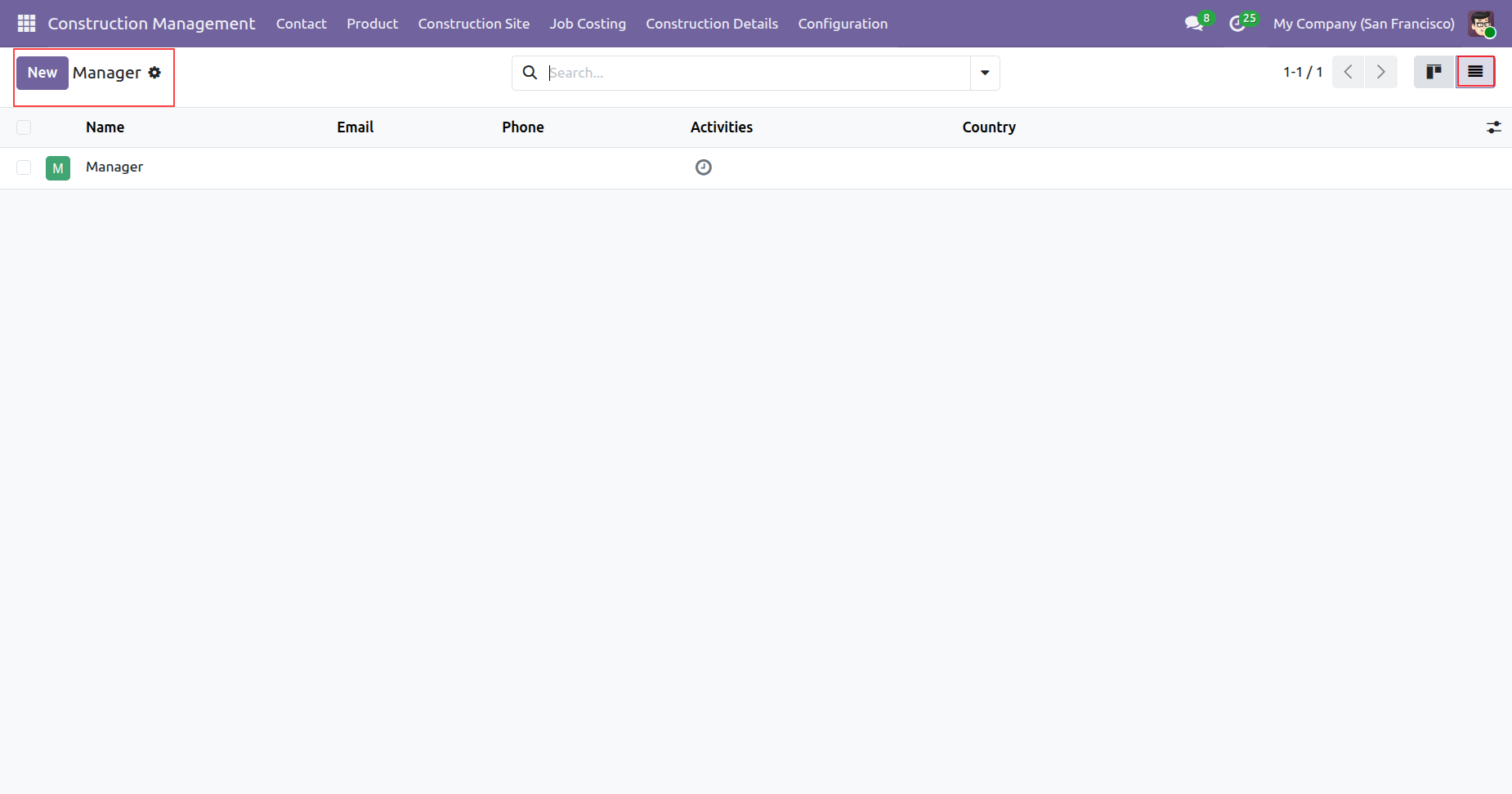
Form view of the 'Manager'.
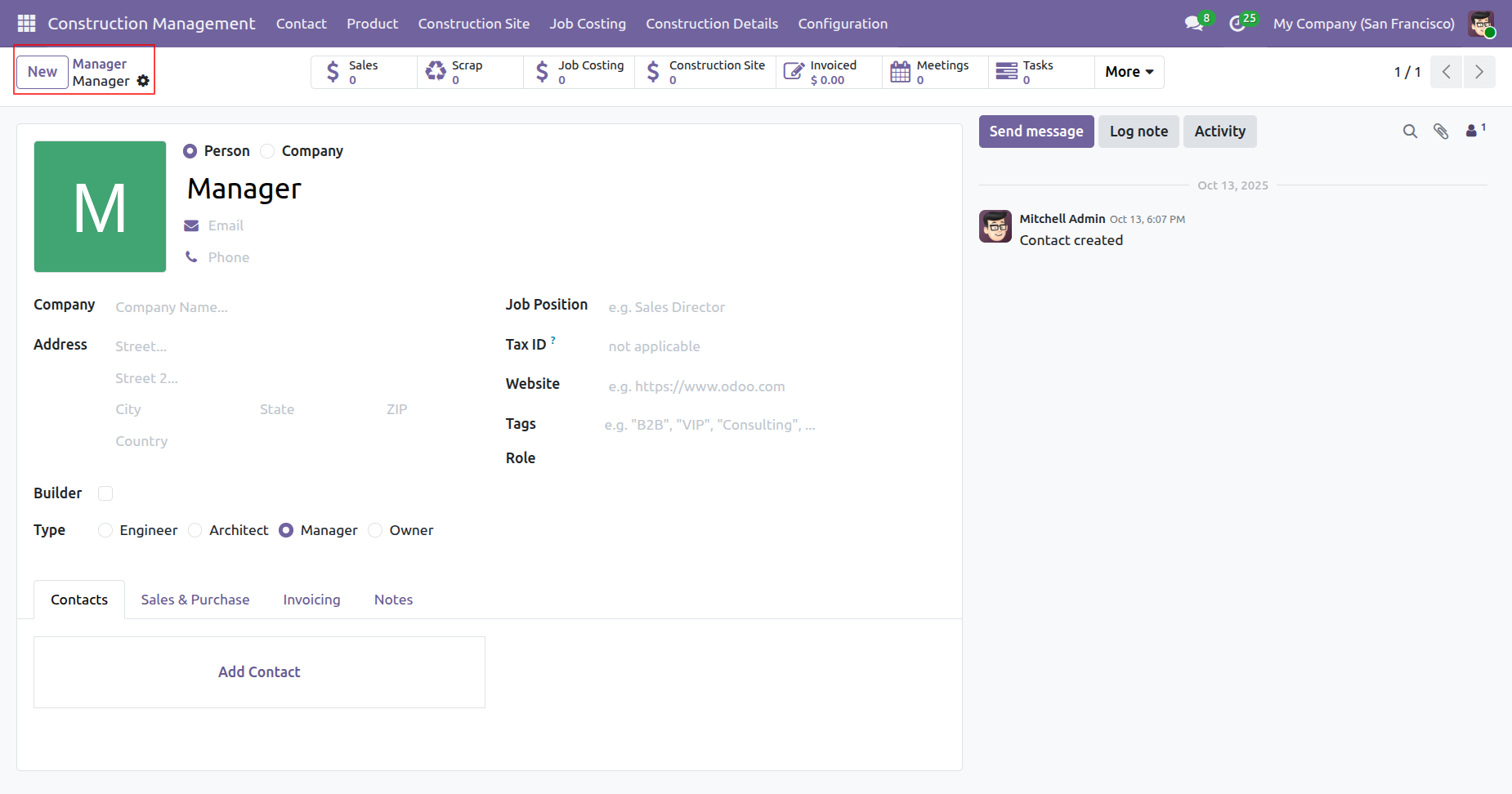
'Equipment' menu and kanban view.
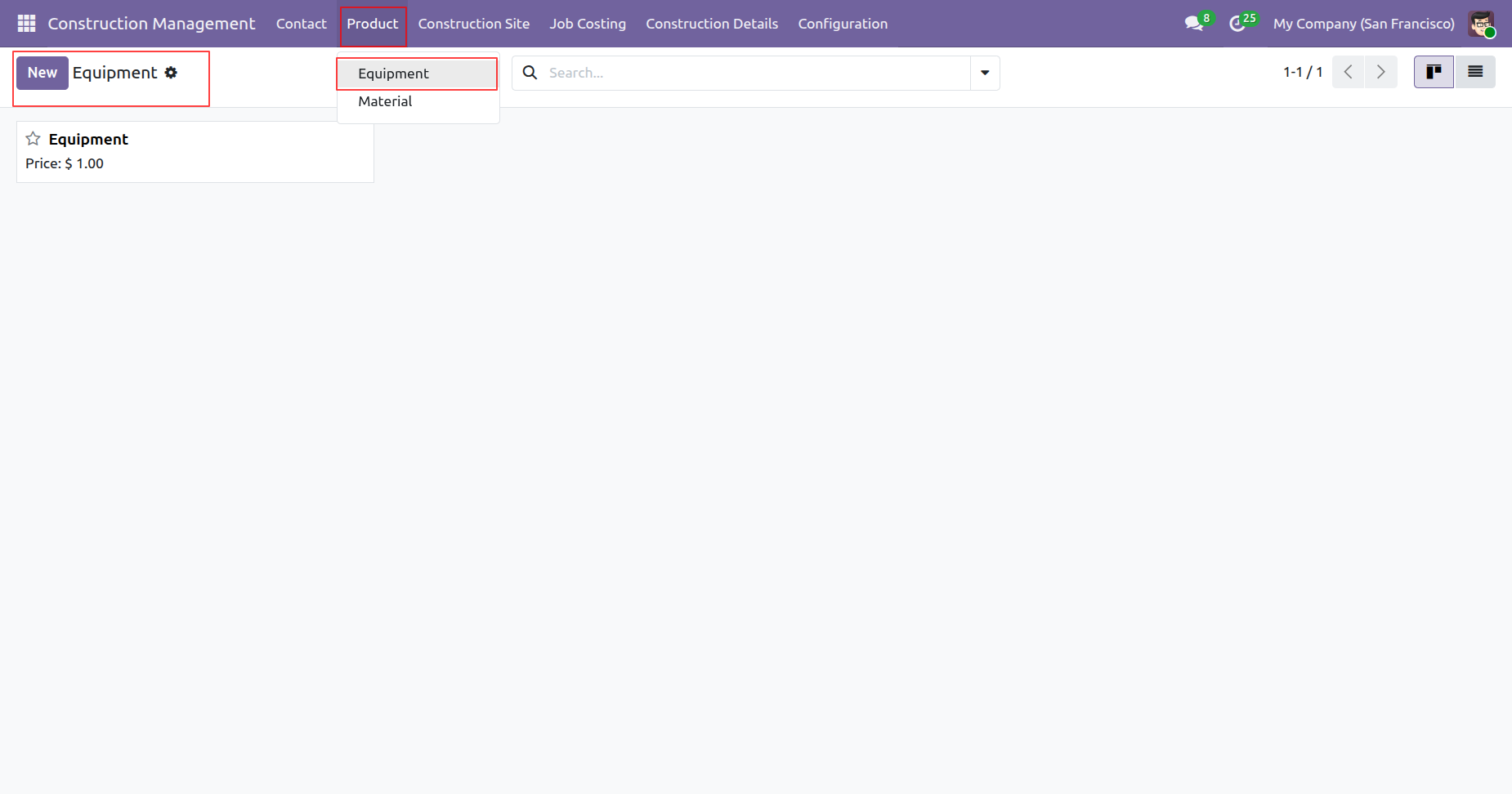
Tree view of the 'Equipment'.
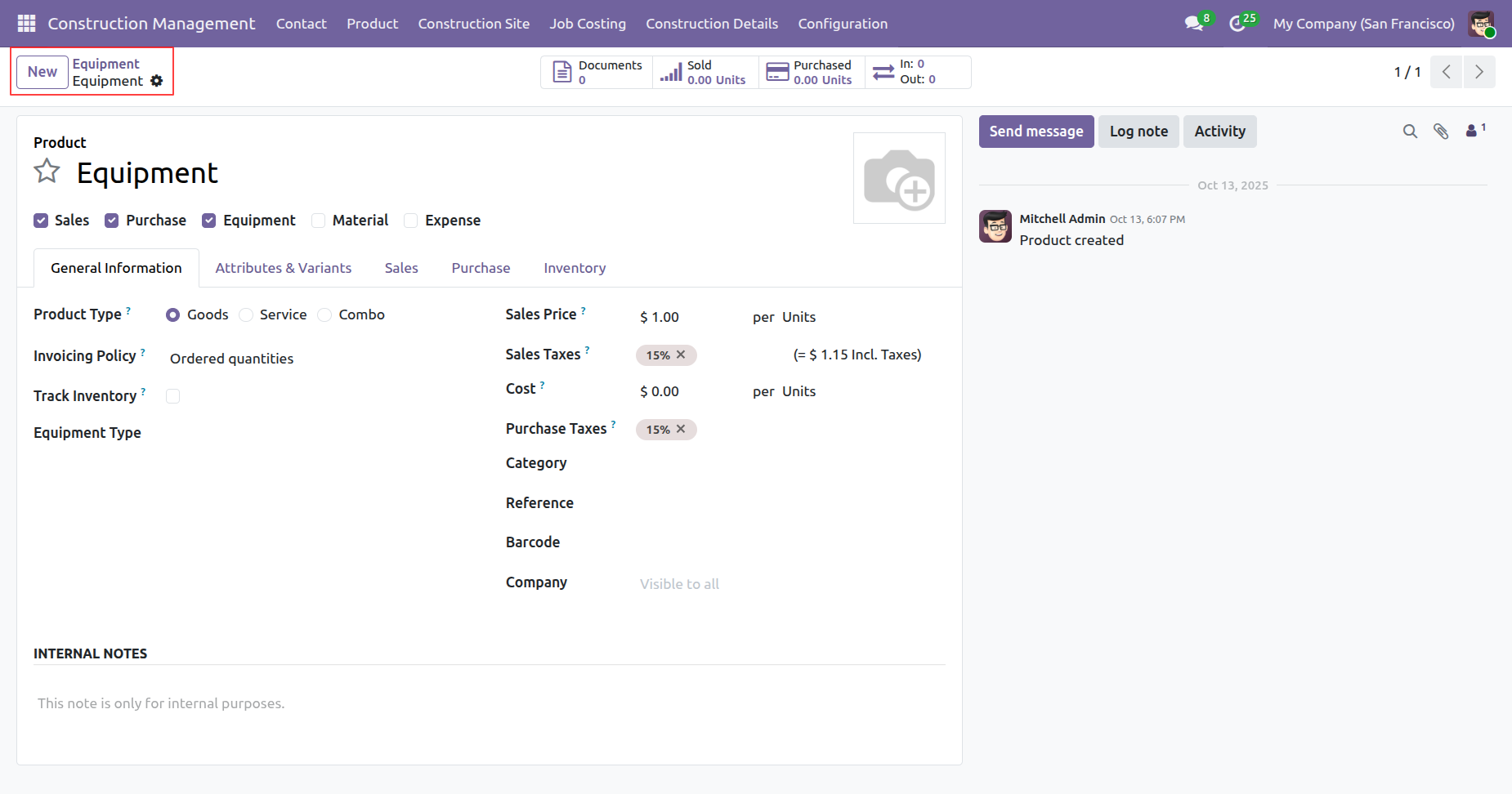
Form view of the 'Equipment'.
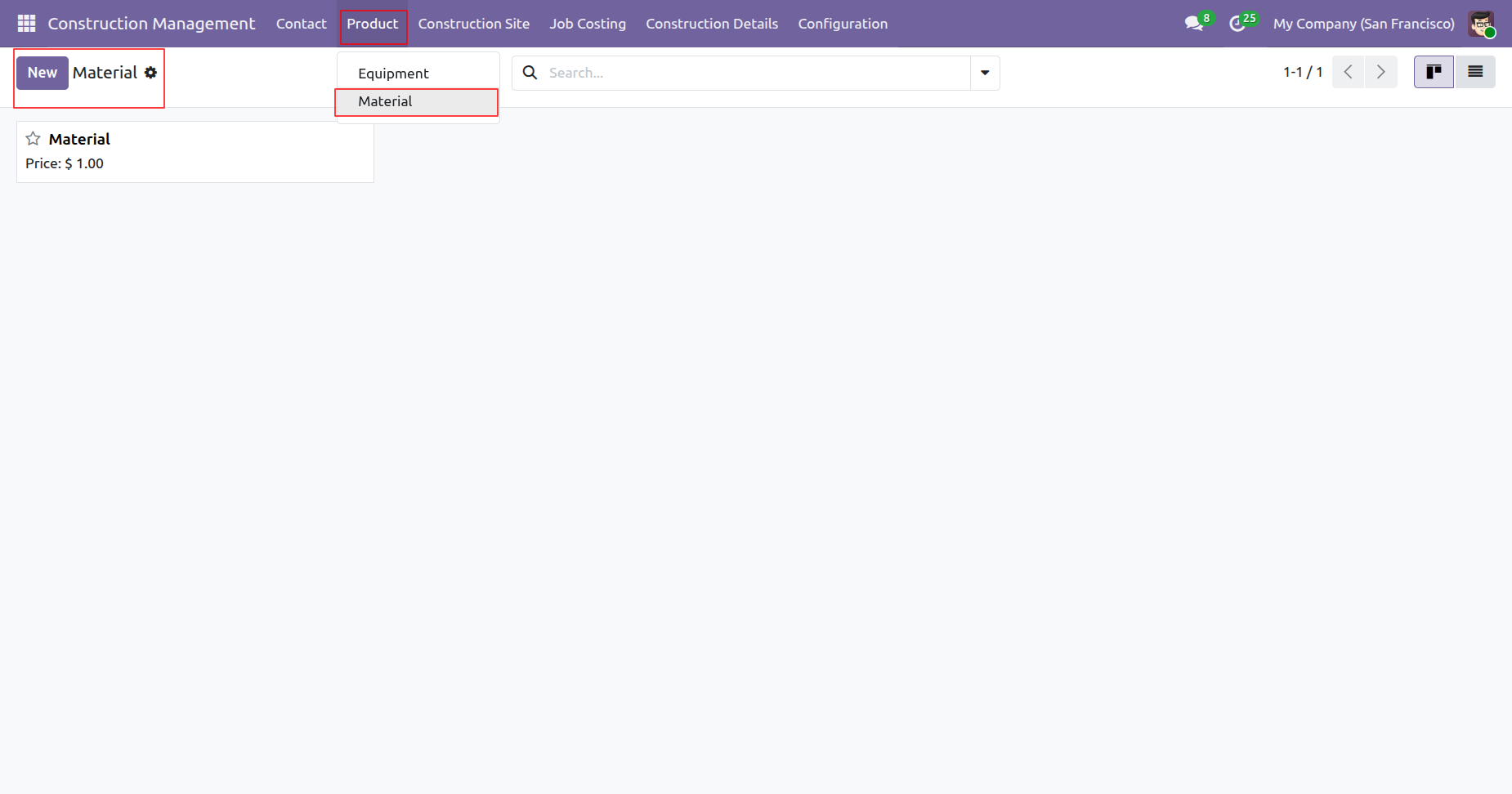
'Material' menu and kanban view.
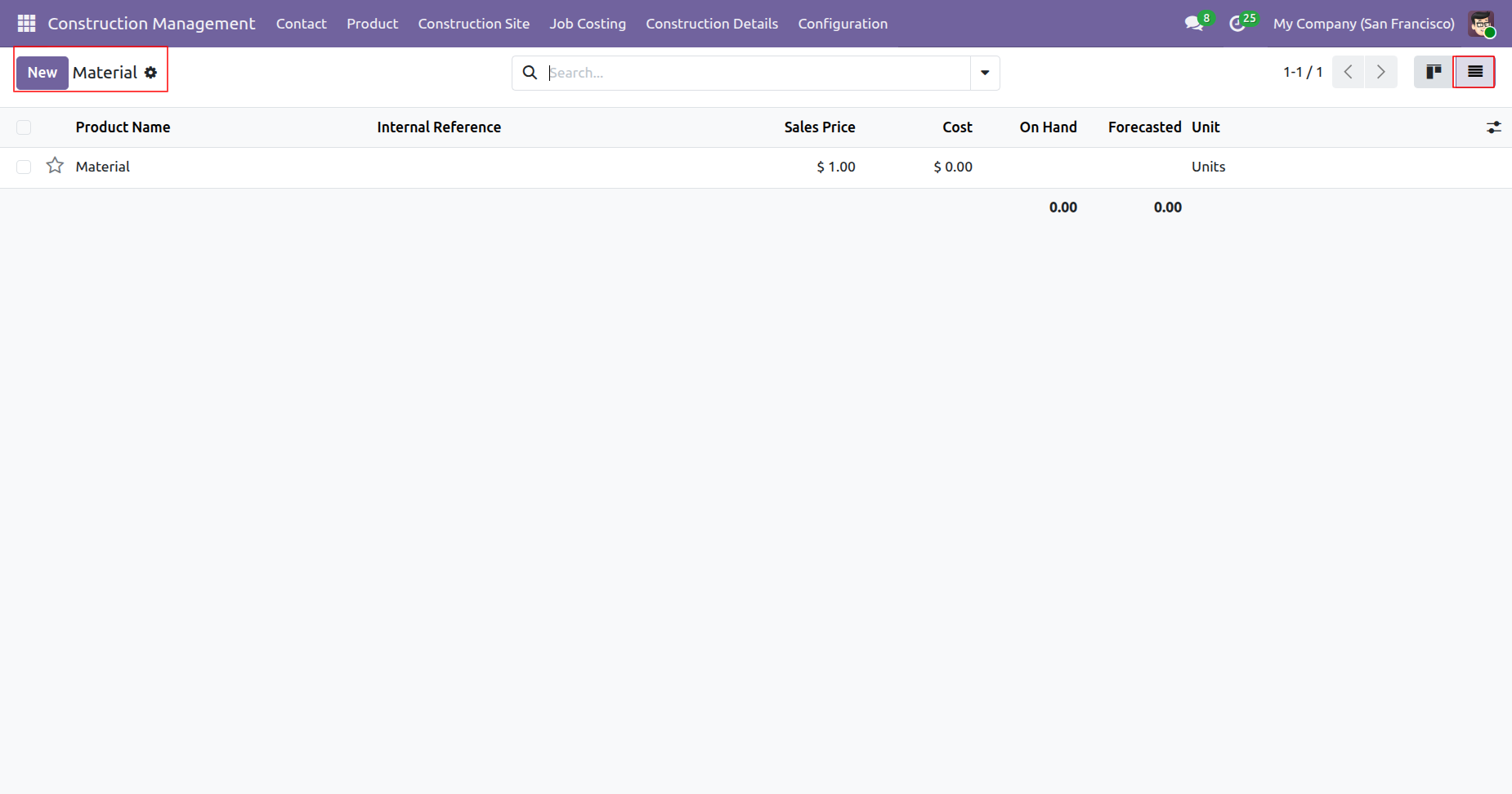
Tree view of the 'Material'.
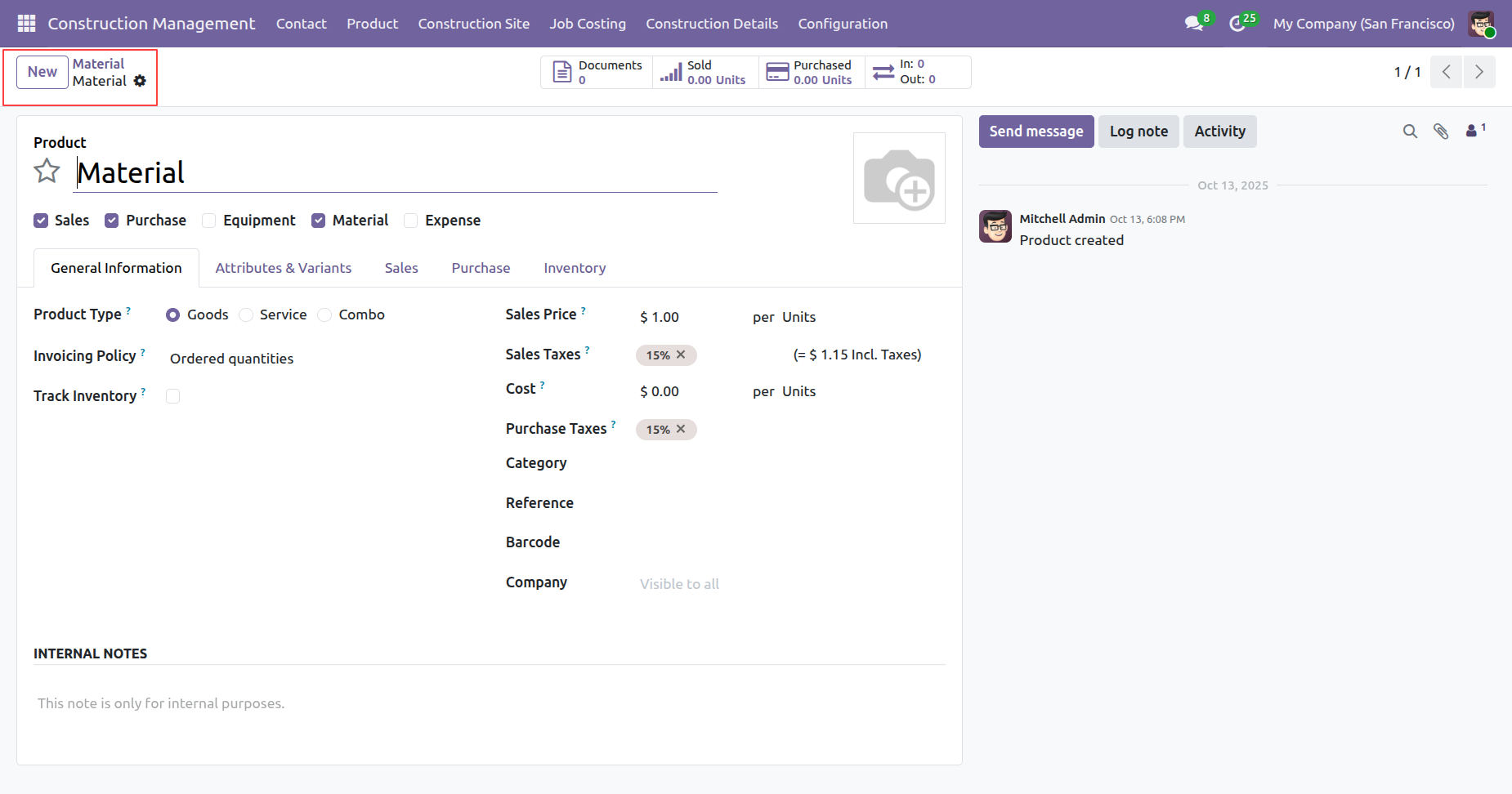
Form view of the 'Material'.
'Construction Site' menu and kanban view.
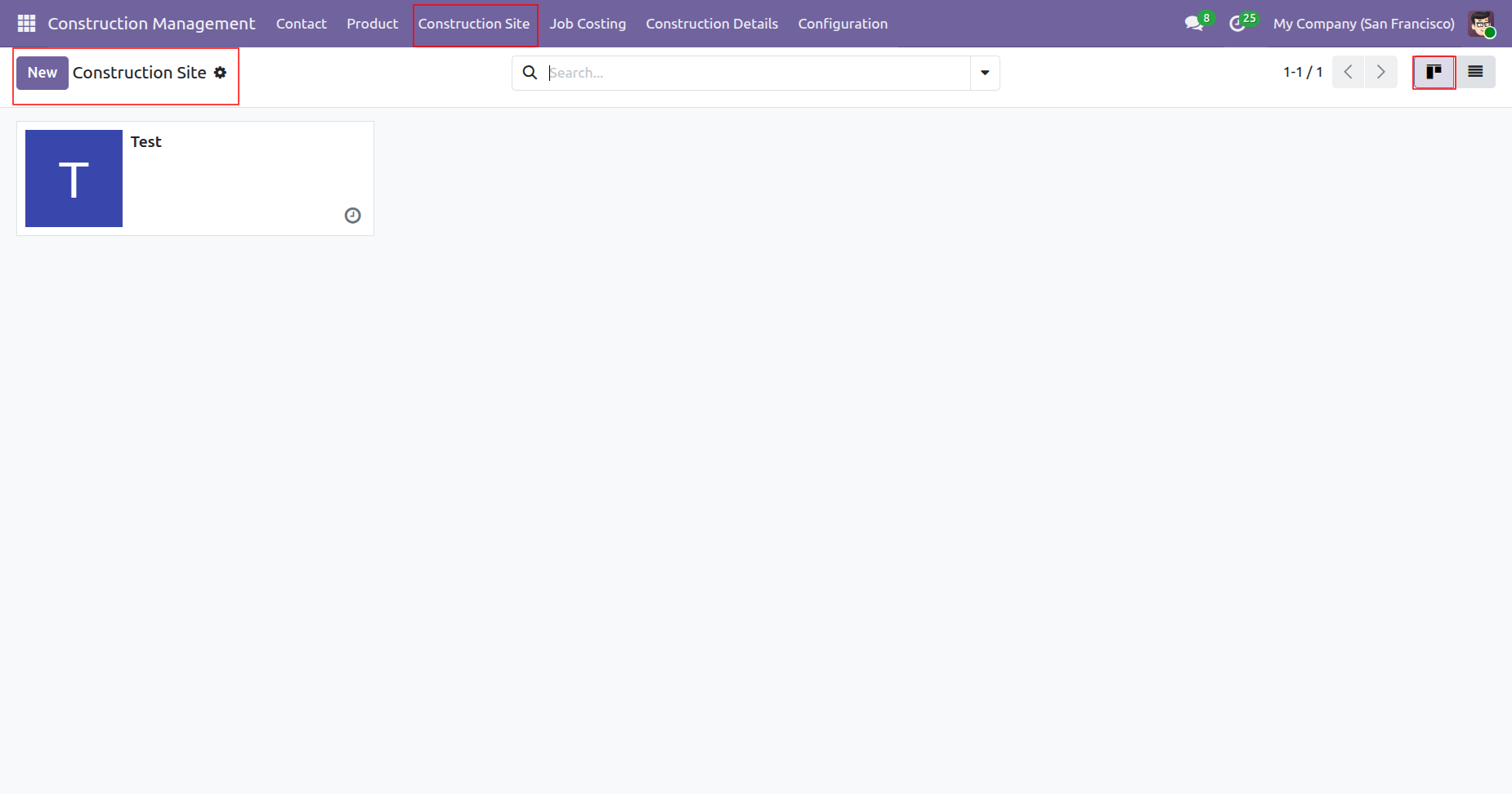
Tree view of the 'Construction Site'.
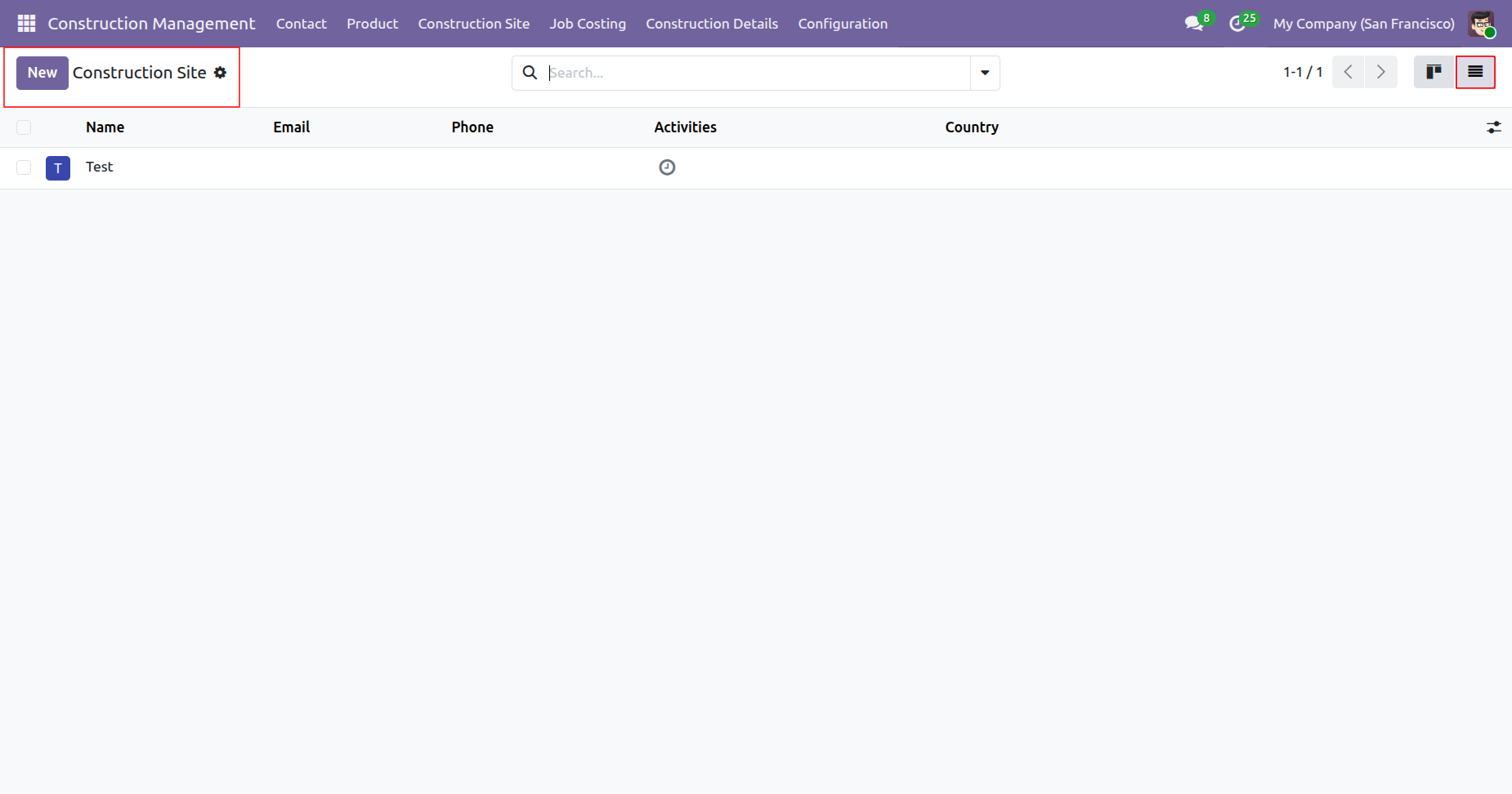
Form view of the 'Construction Site'.
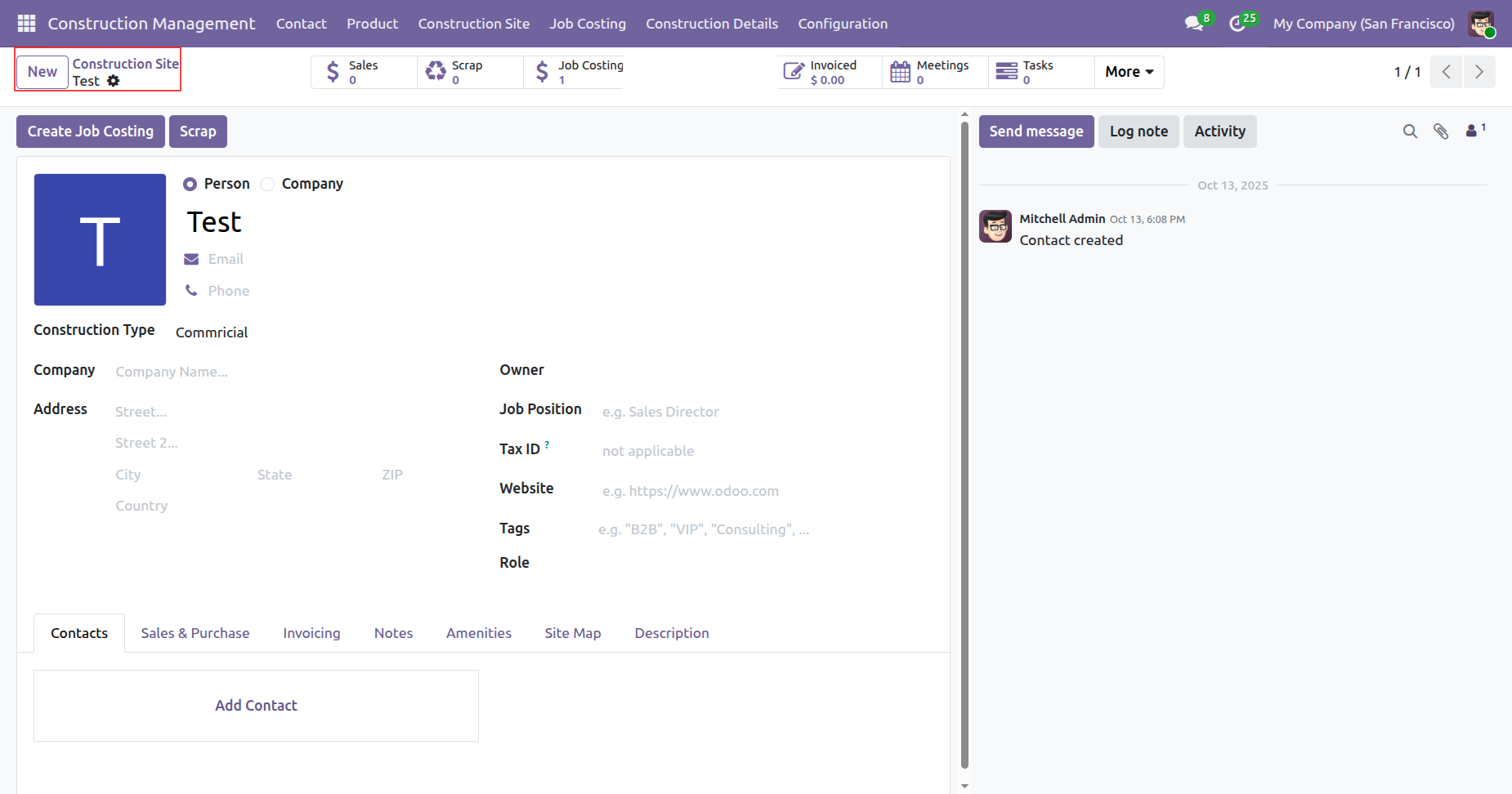
To view the job costing for the construction side, click on the 'Job Costing' smart button.
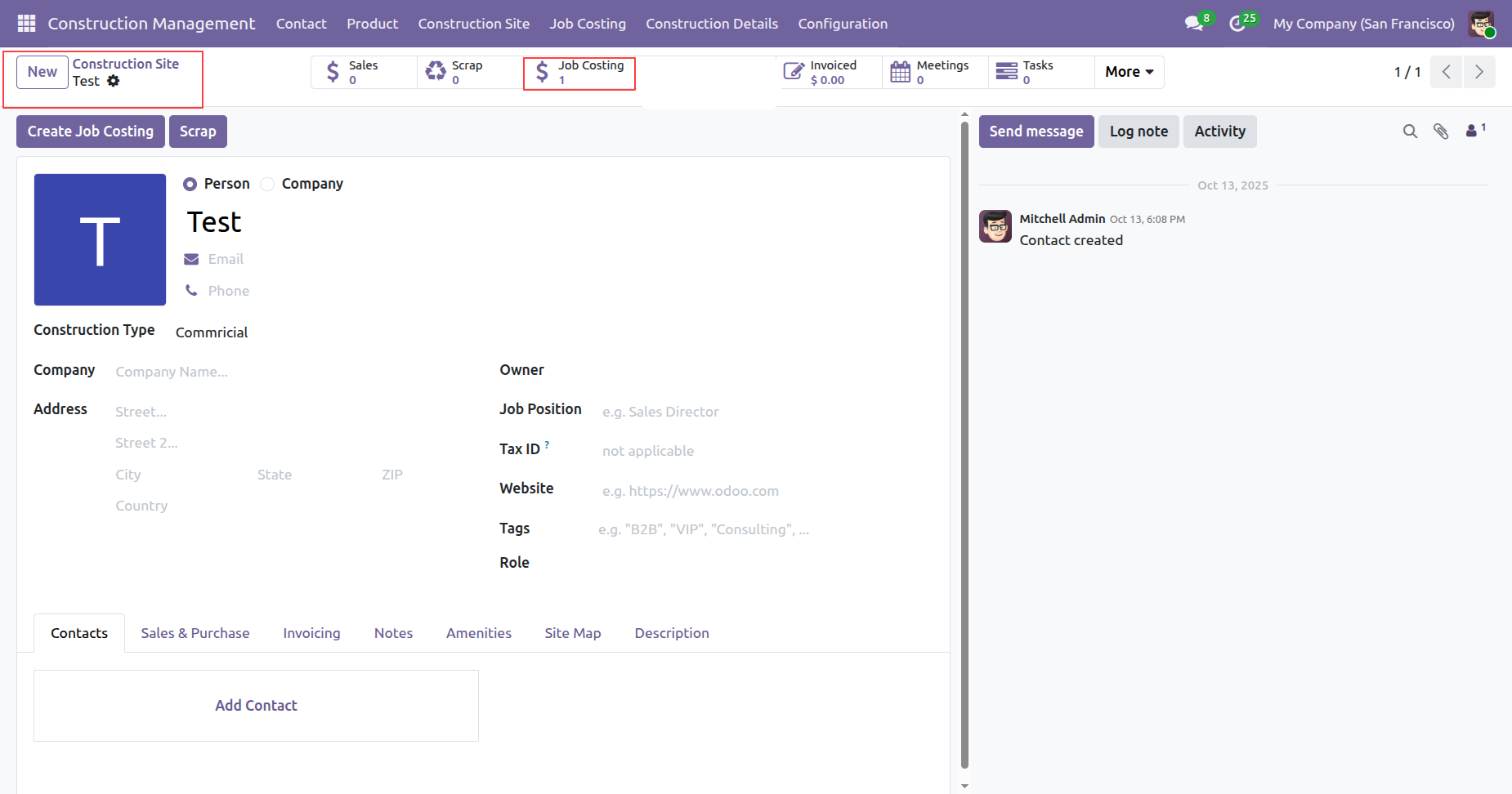
After that, you will be redirected to the 'Job Costing' list.
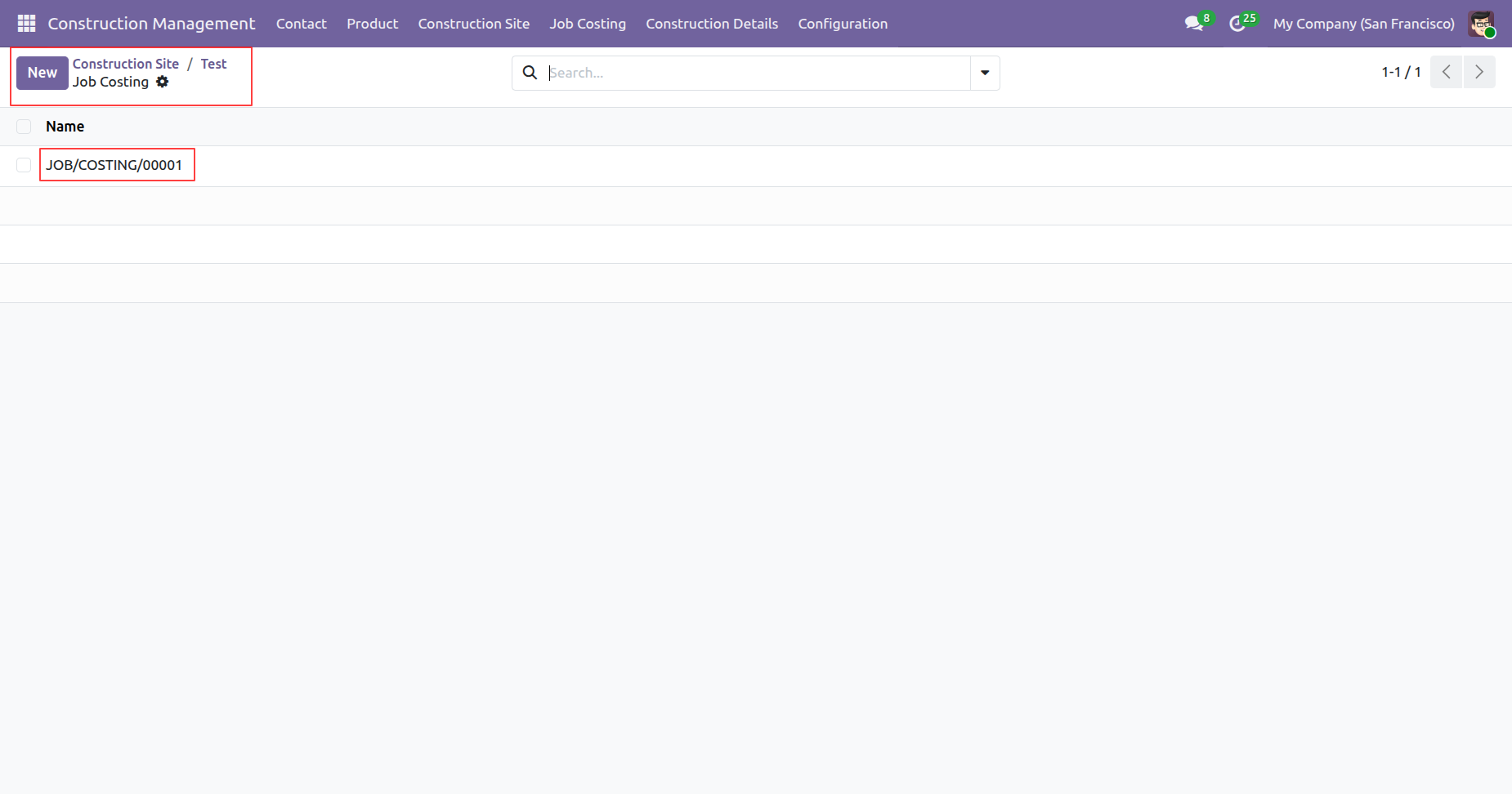
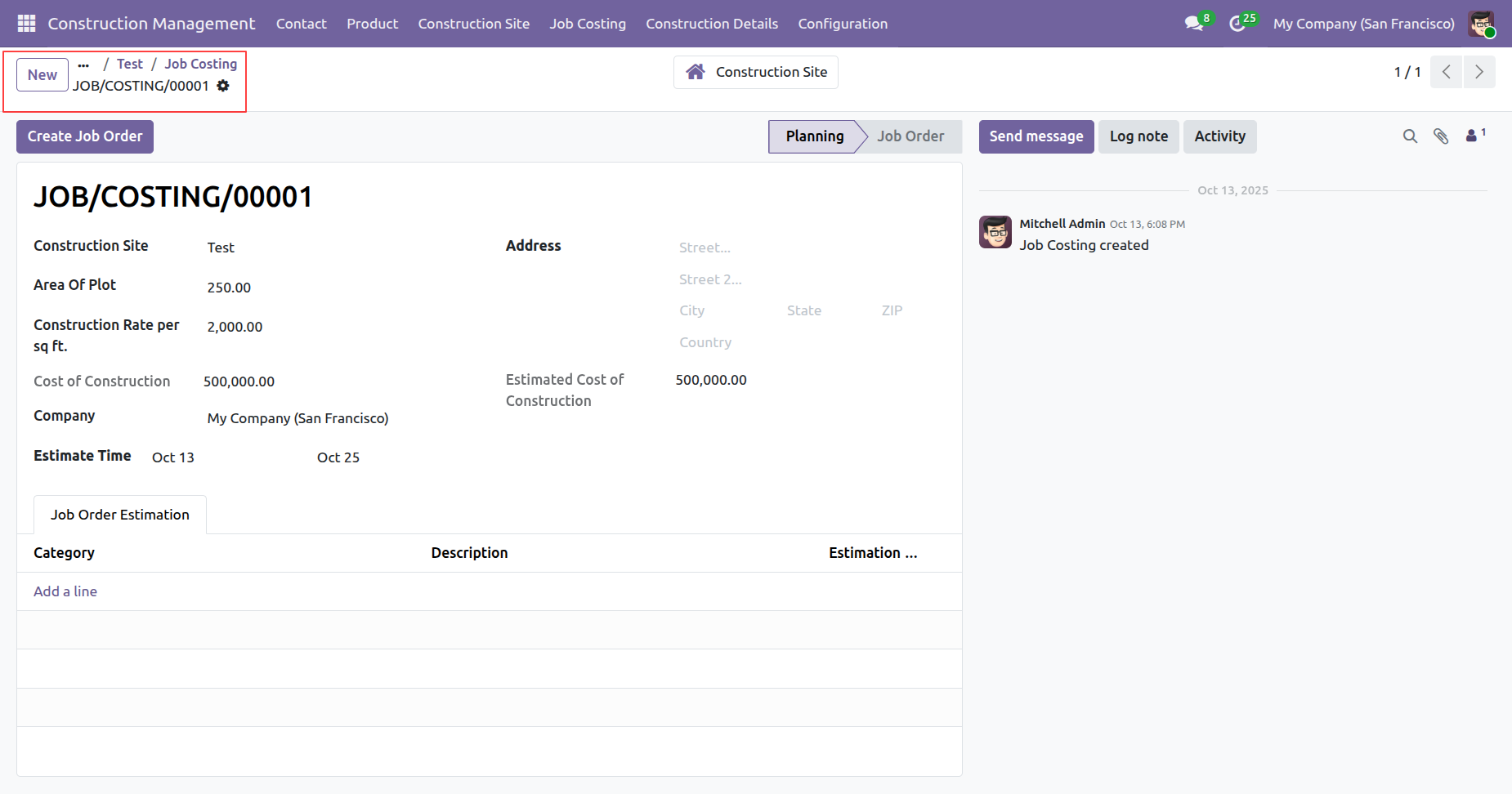
Form view of the 'Job Costing'.
When a ticket is created that time customer will notify via email.
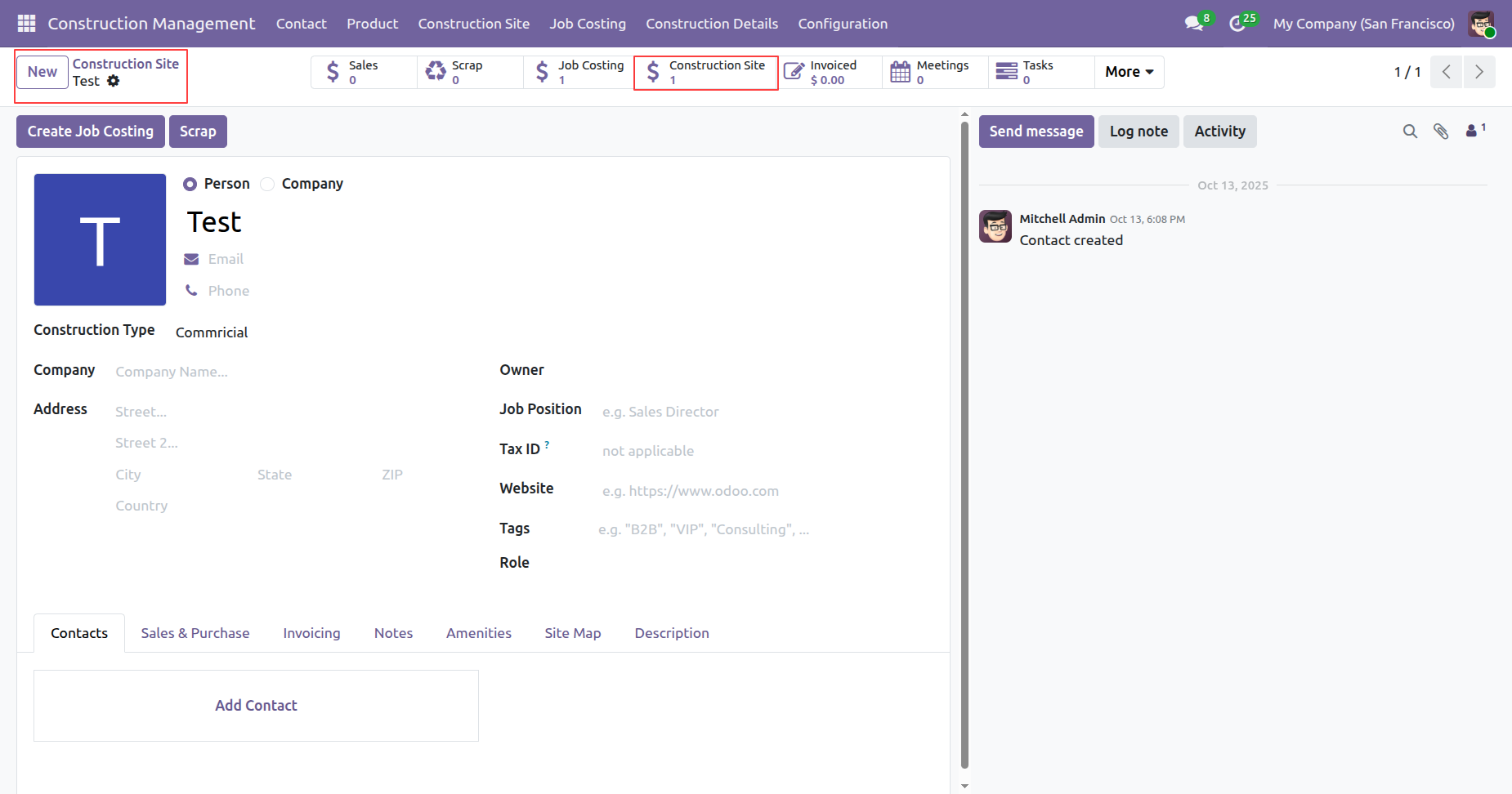
'Job Costing' menu and tree view.
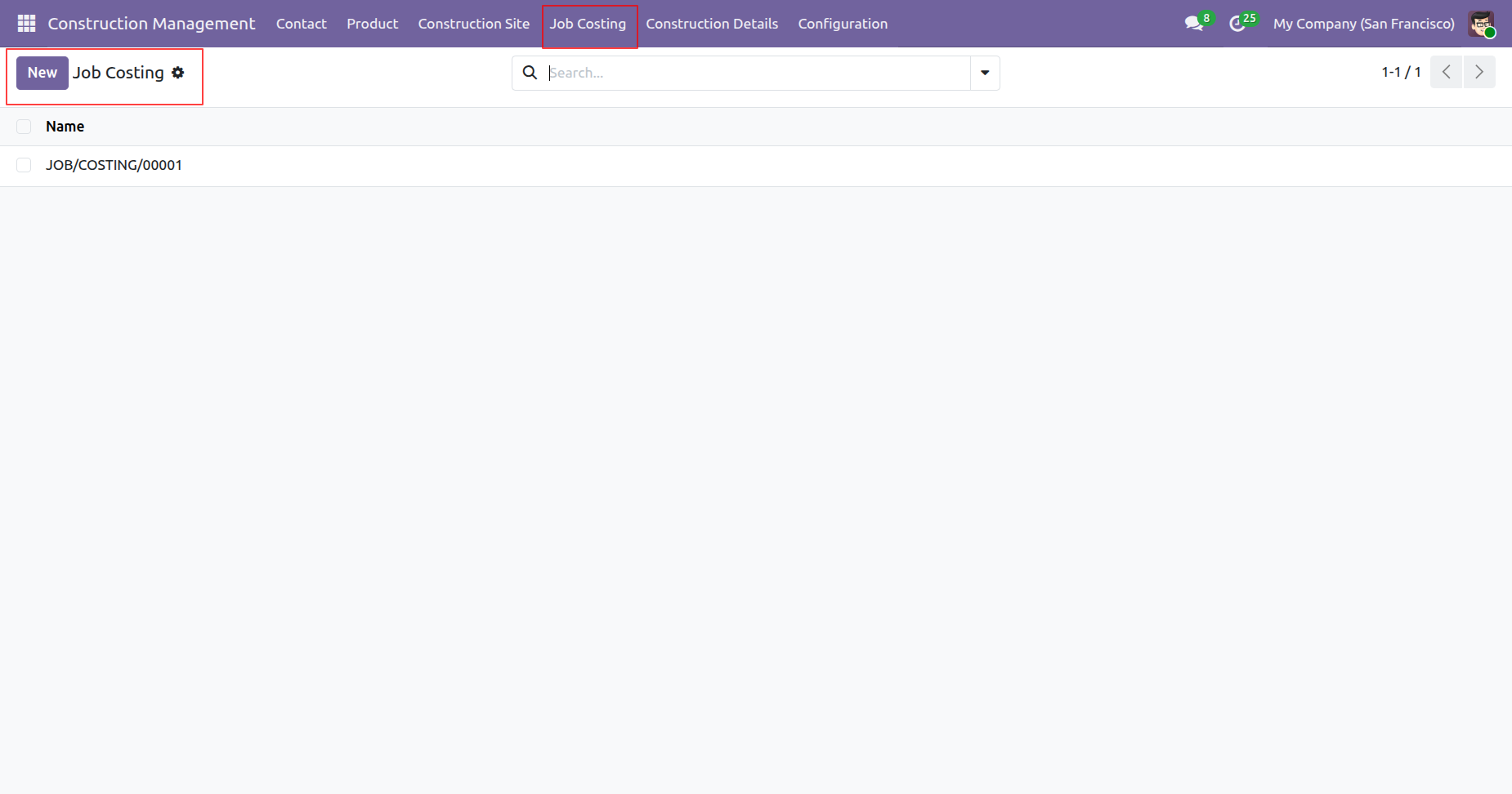
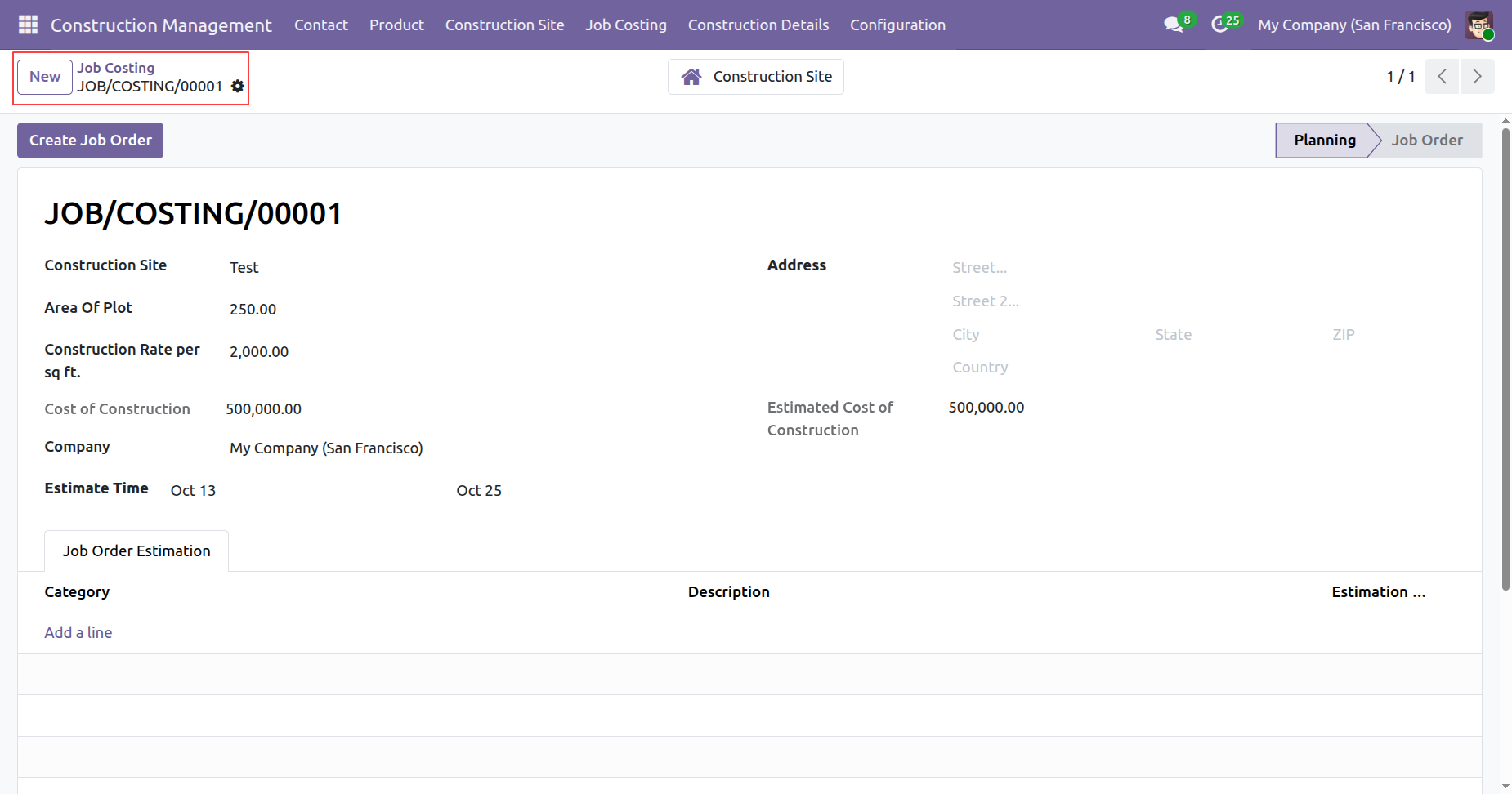
Form view of the 'Job Costing'.
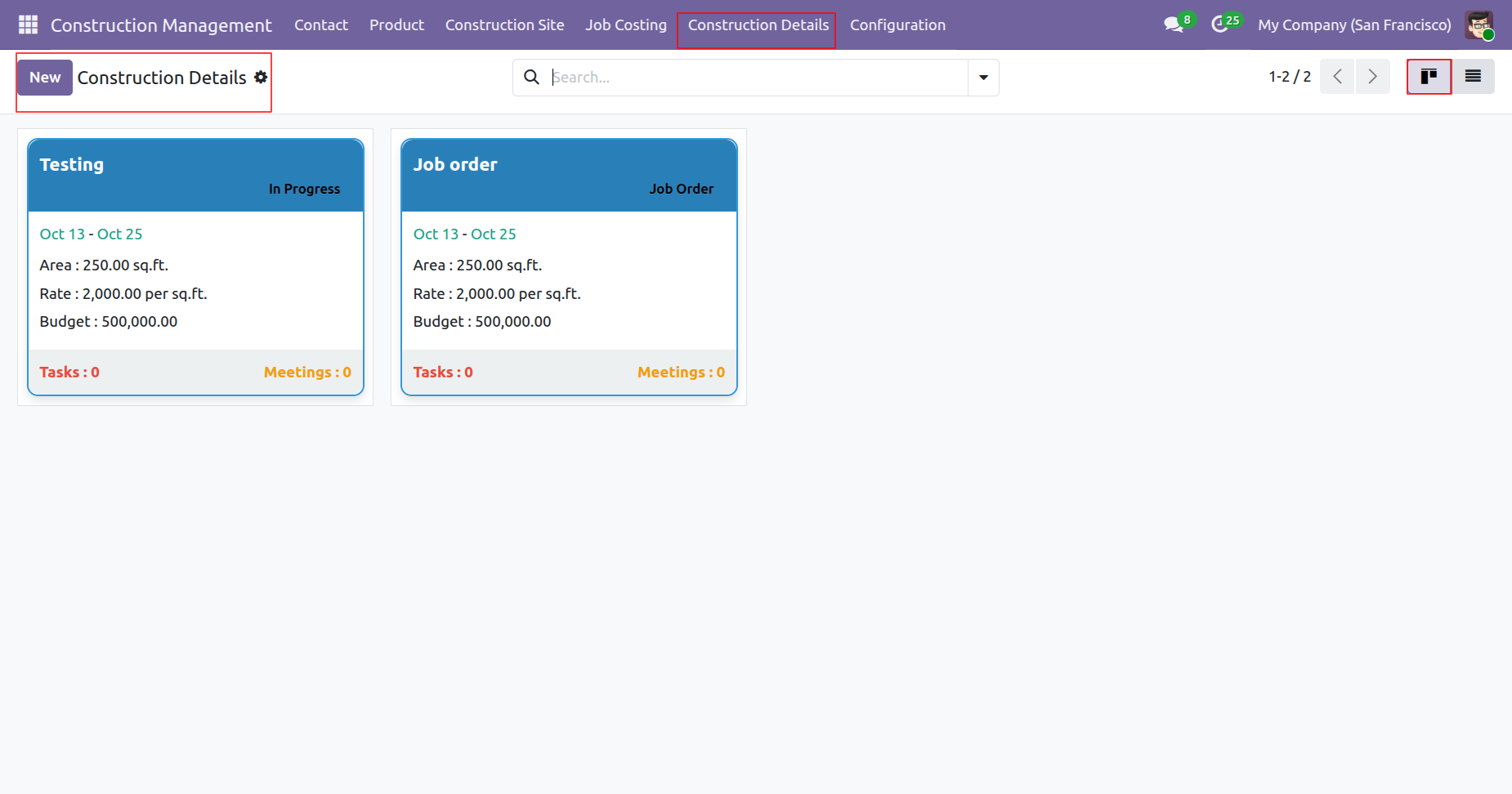
'Construction Details' menu and kanban view.
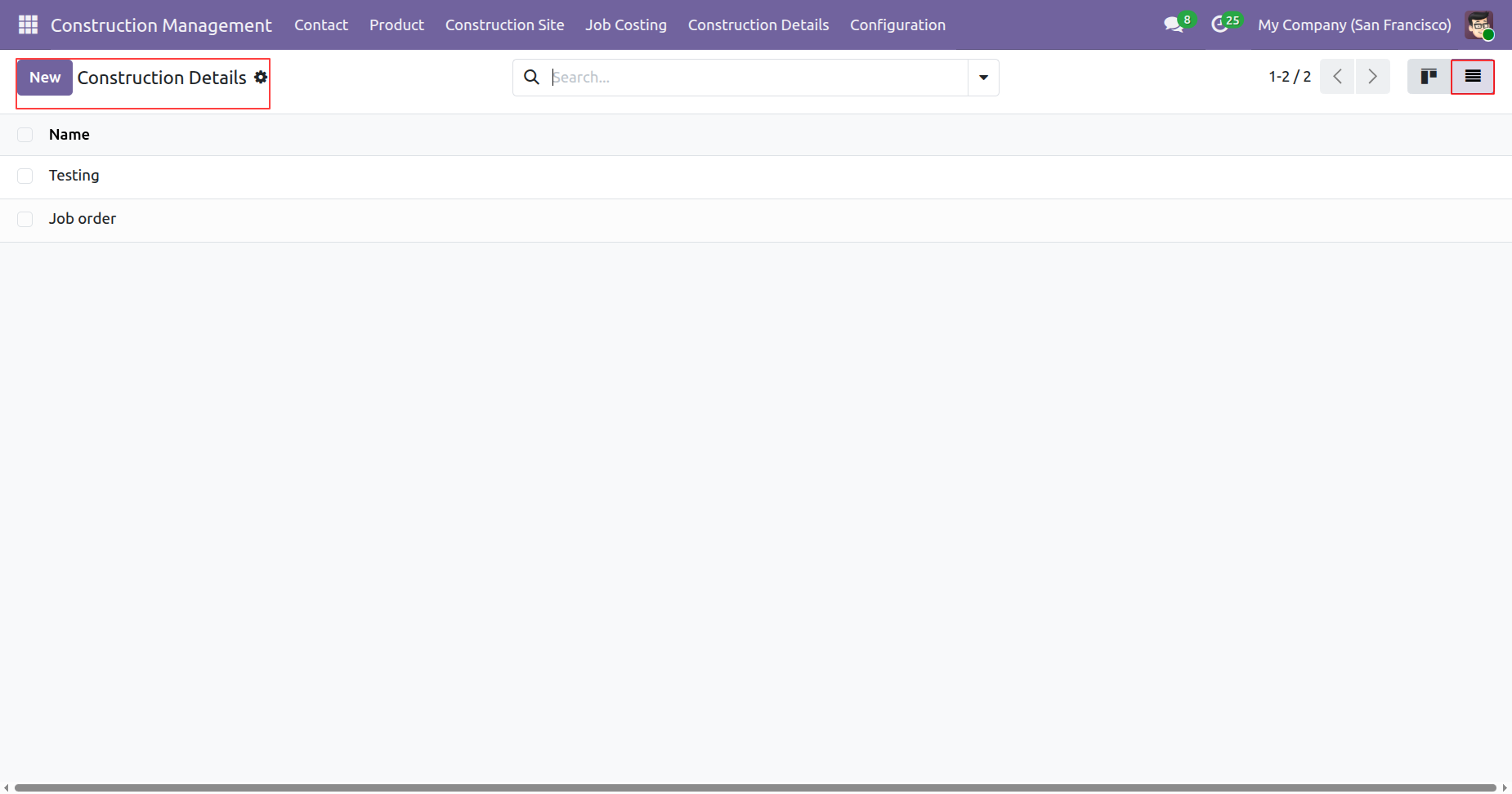
Tree view of the 'Construction Details'.
The construction details are now in the 'Job Order' stage.
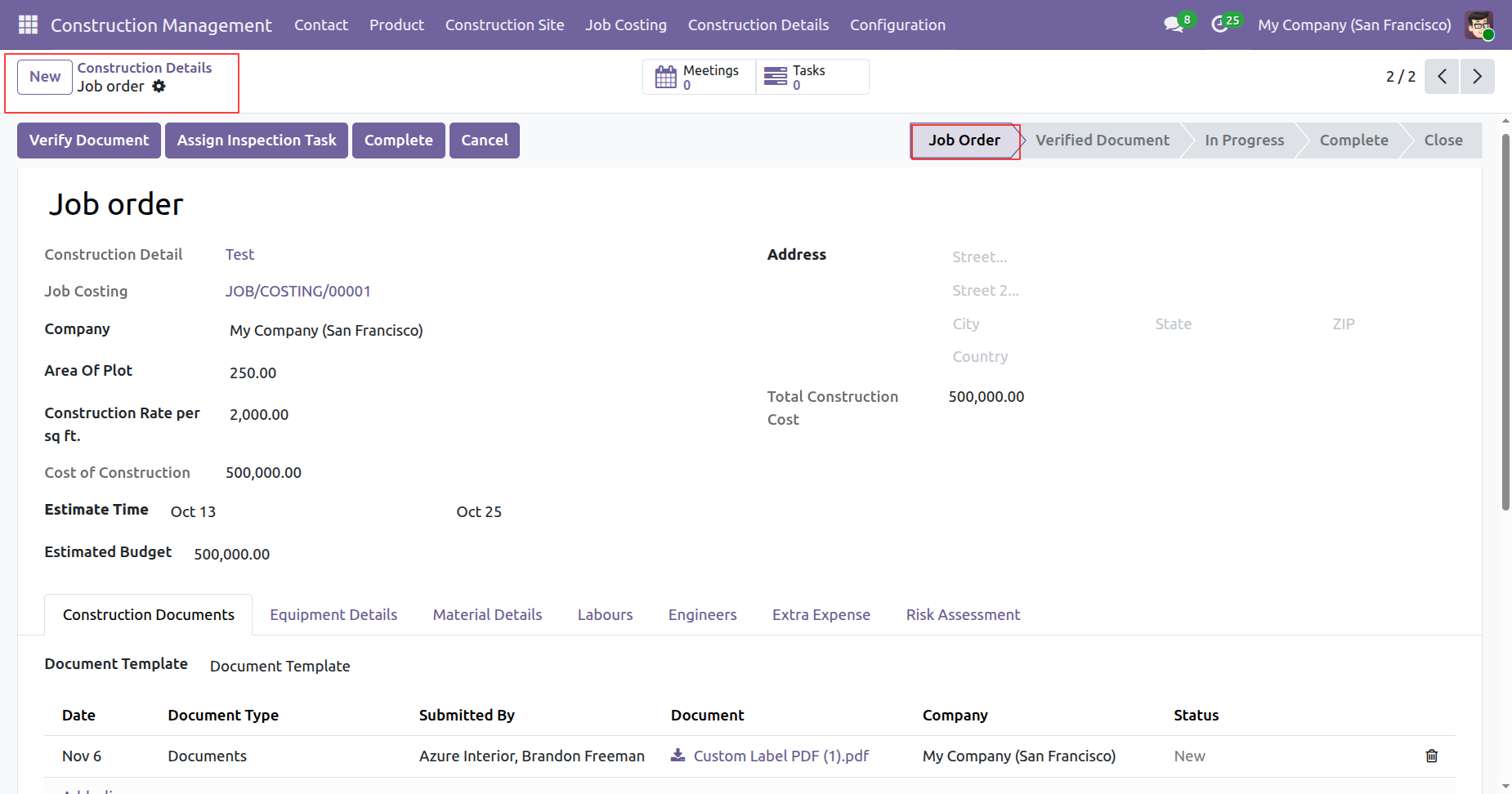
Click on the 'Verify Document' button.
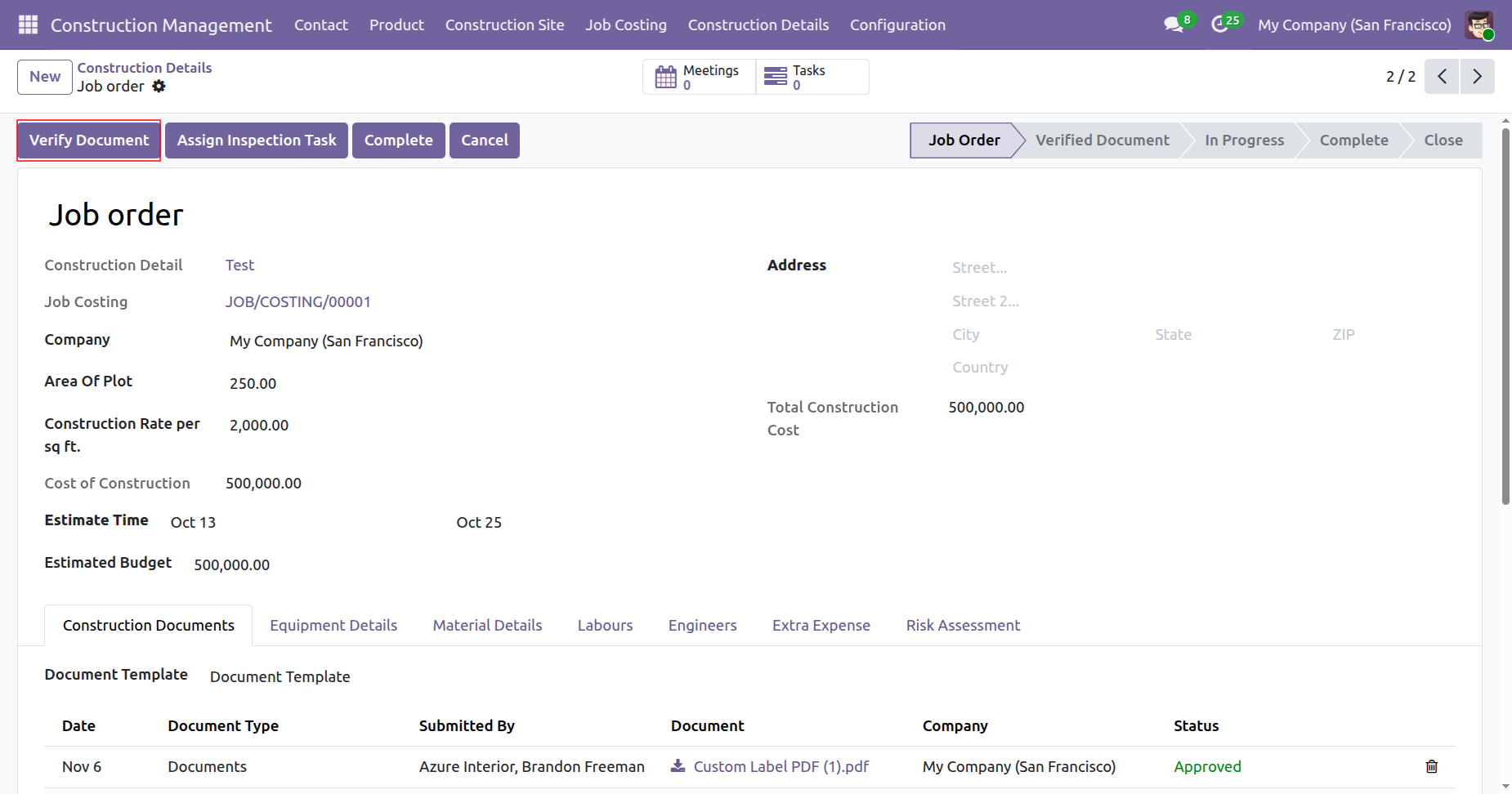
The job order is in the 'Verify Document' stage.
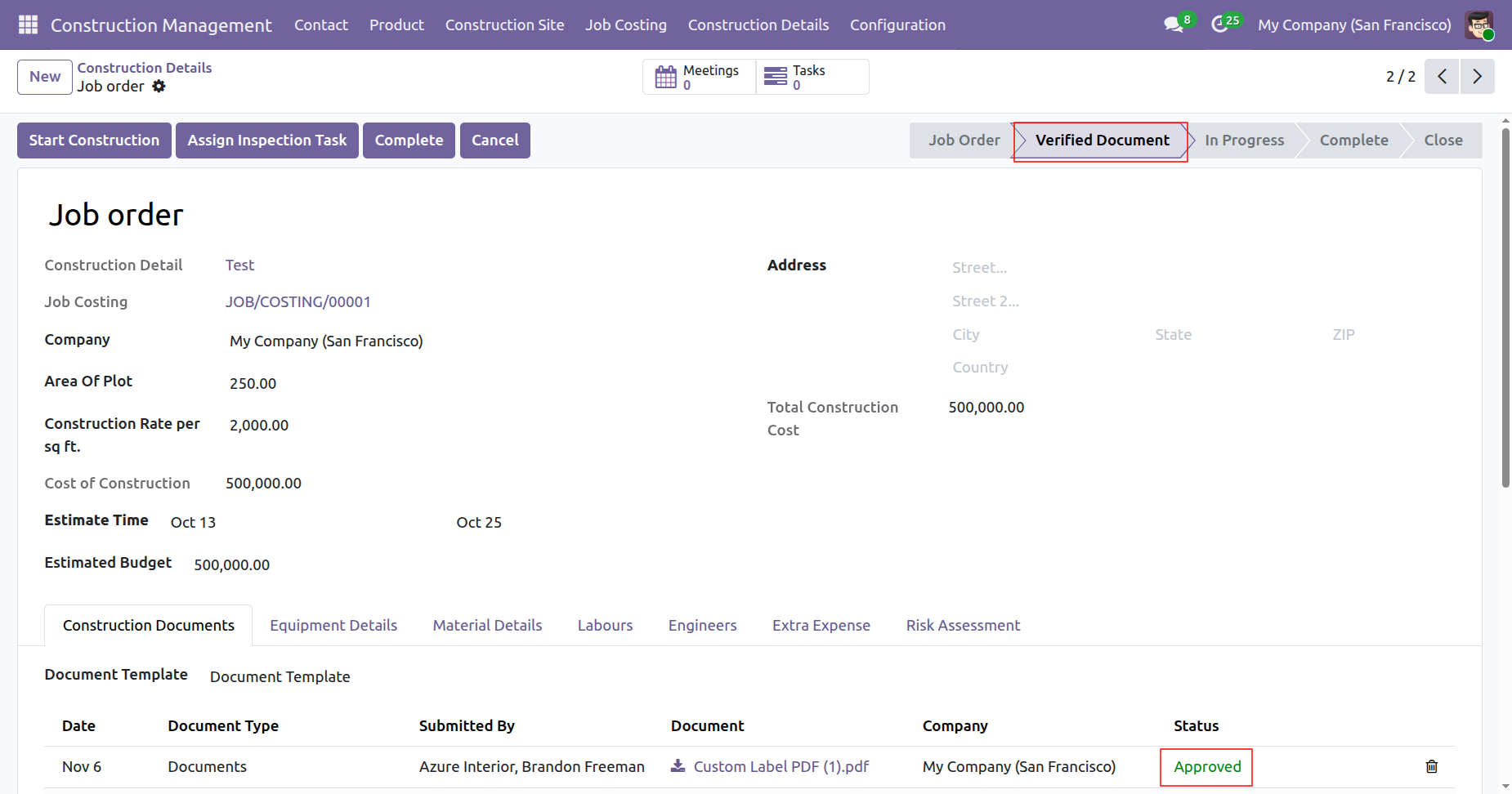
Click on the 'Start Construction' button.
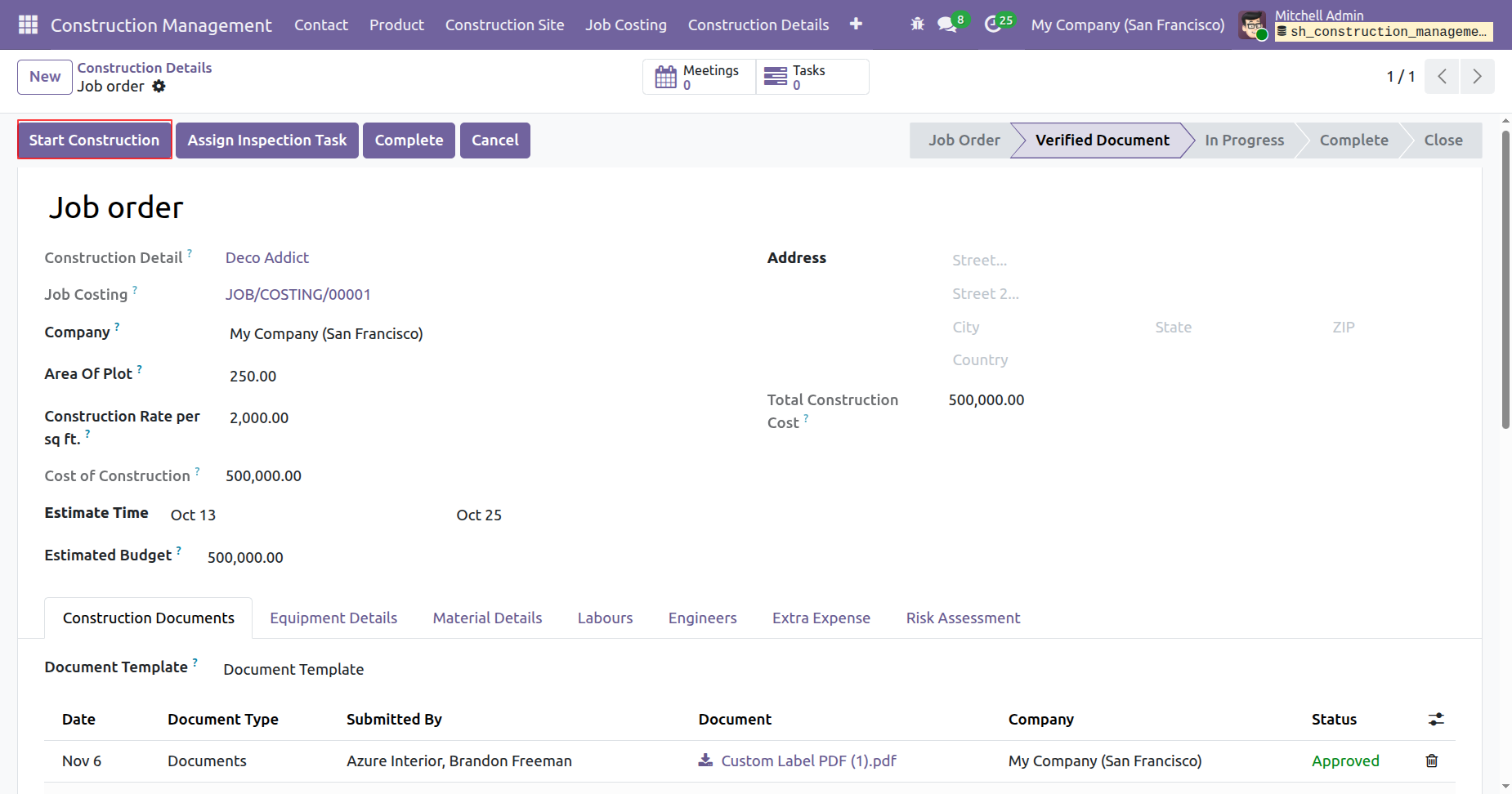
The job order is in the 'In Progress' stage.
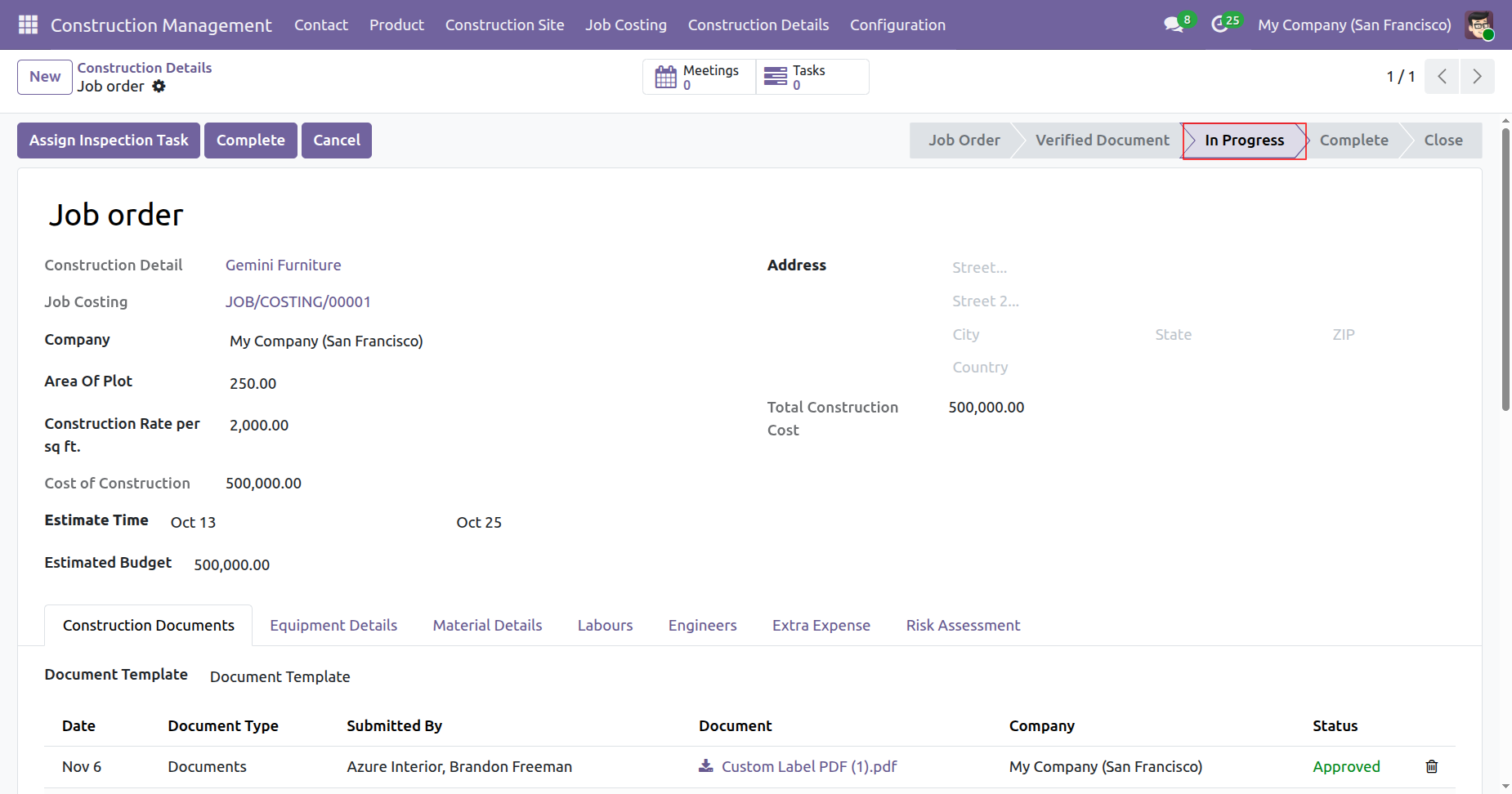
Click on the 'Complete' button.
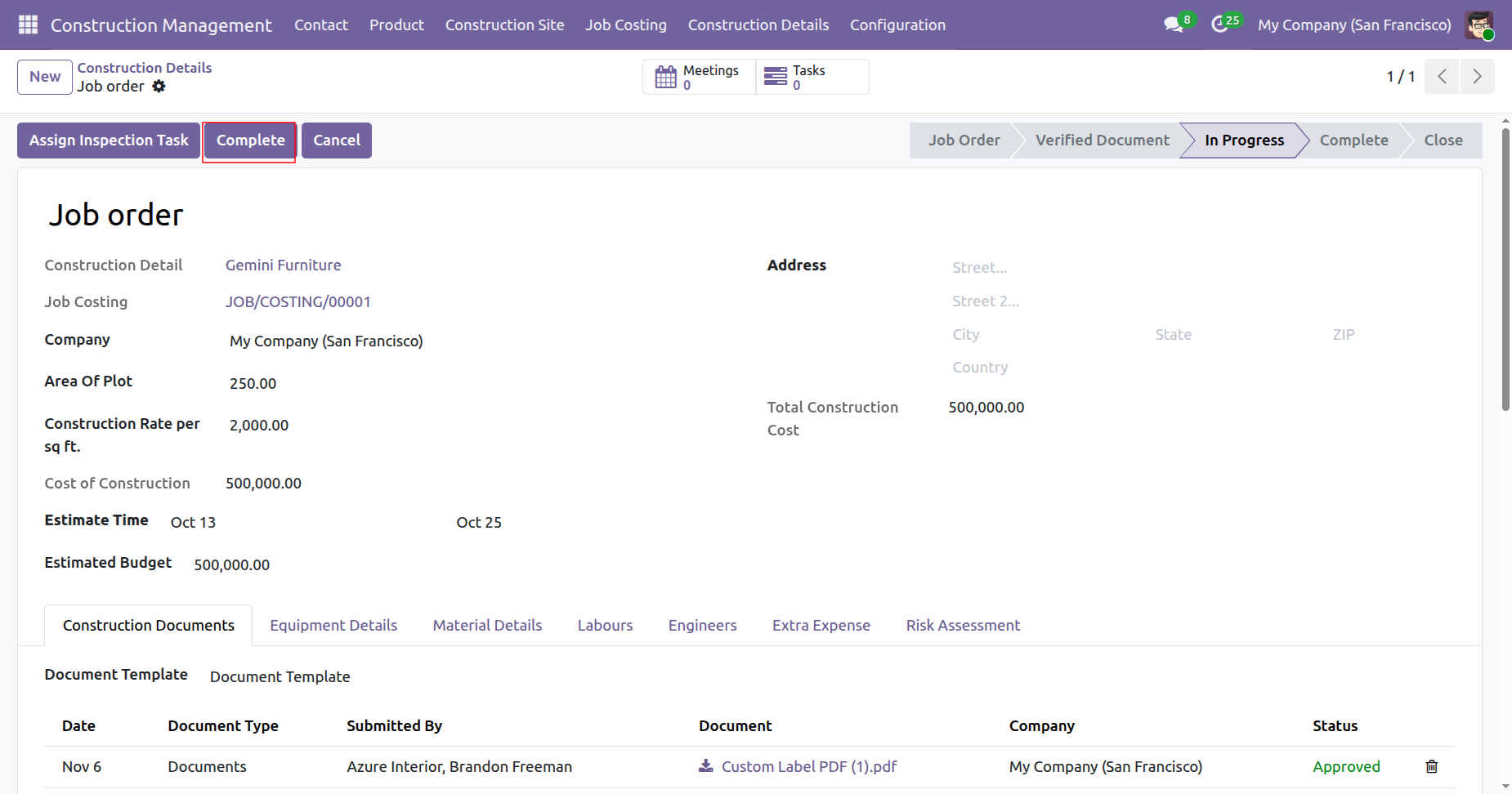
The job order is in the 'Complete' stage.
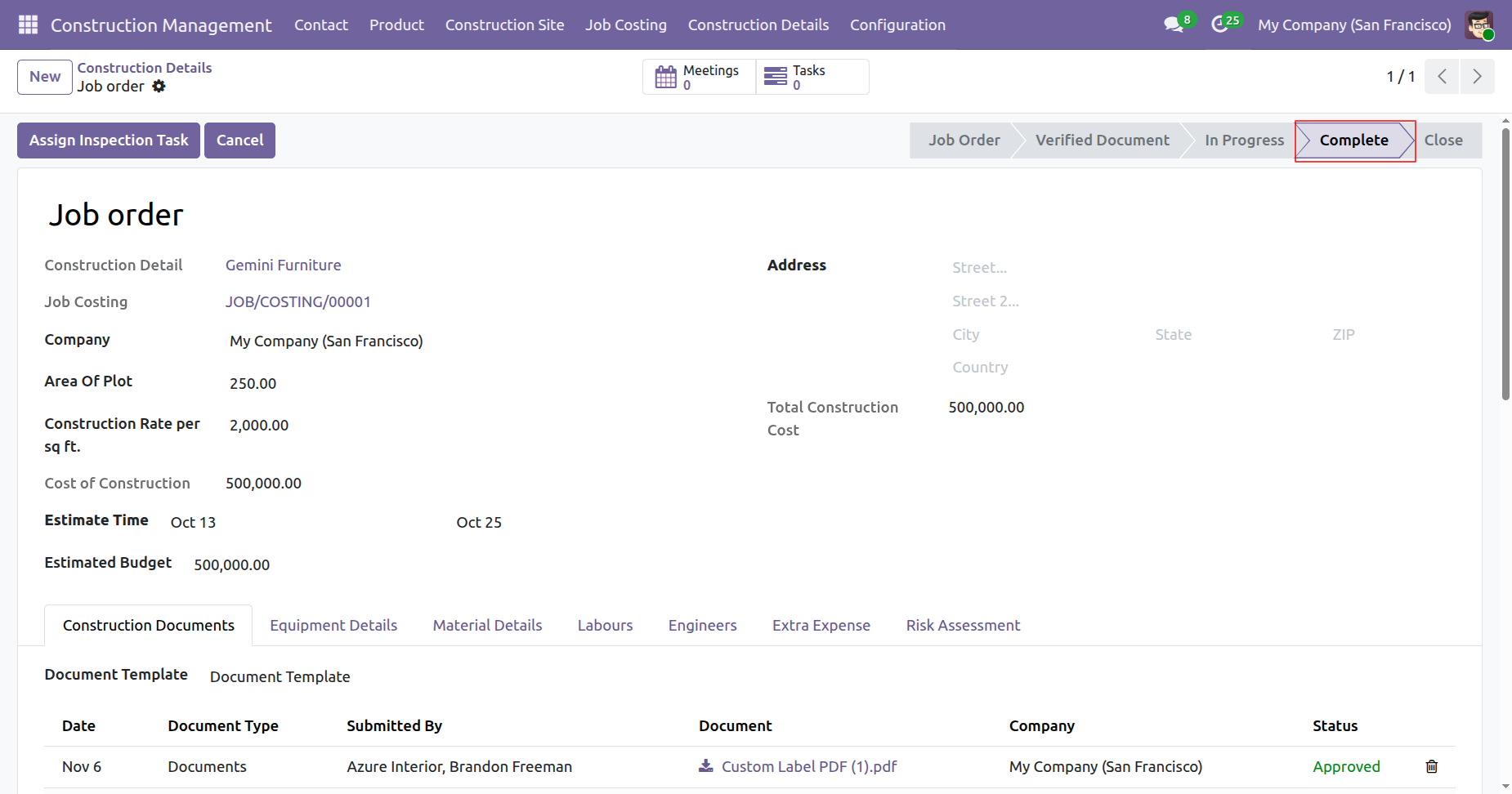
To cancel the job order, click on the 'Cancel' button.
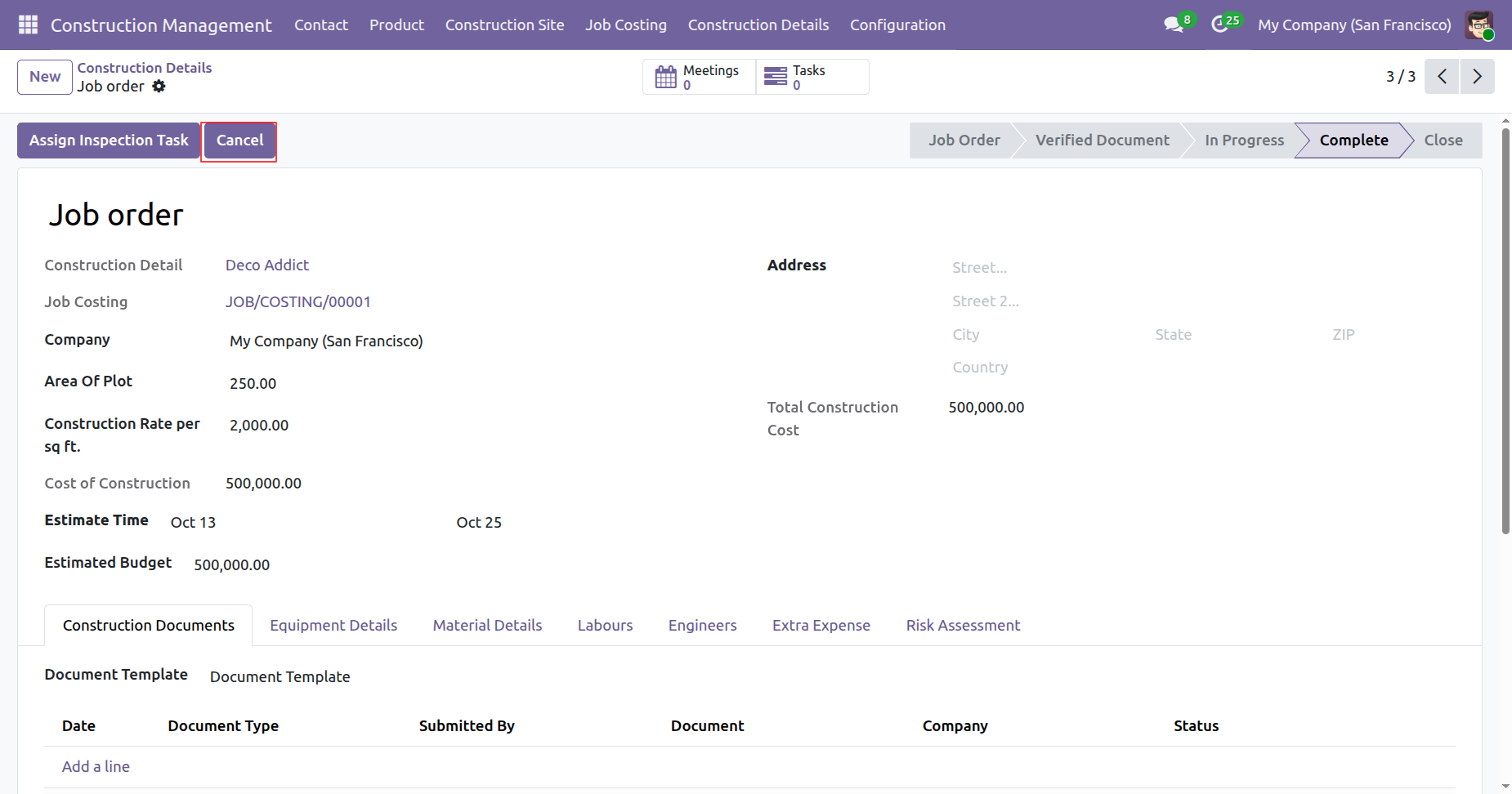
The job order is in the 'Close' stage.
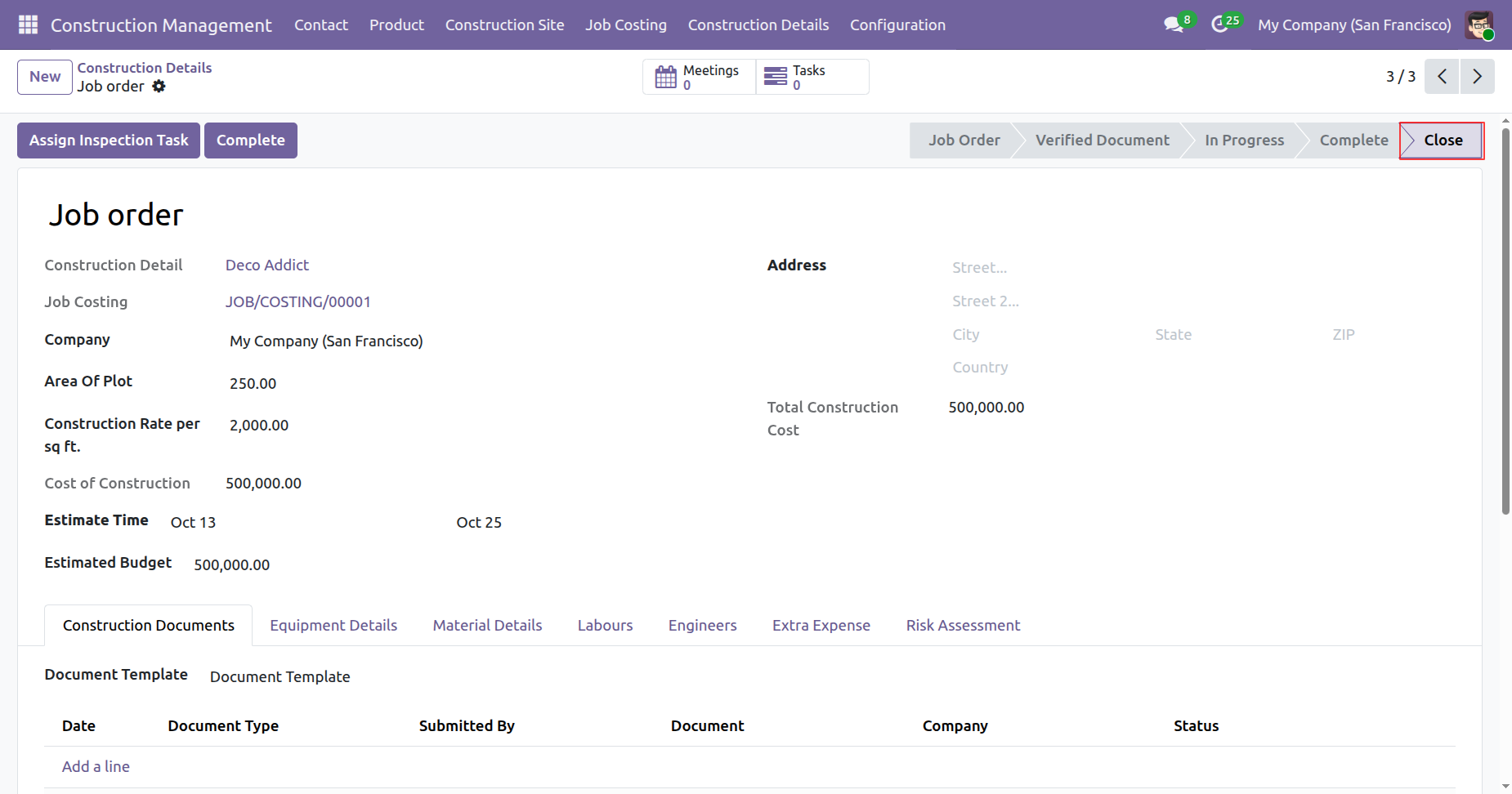
Click on the 'Tasks' smart button to view the related tasks.
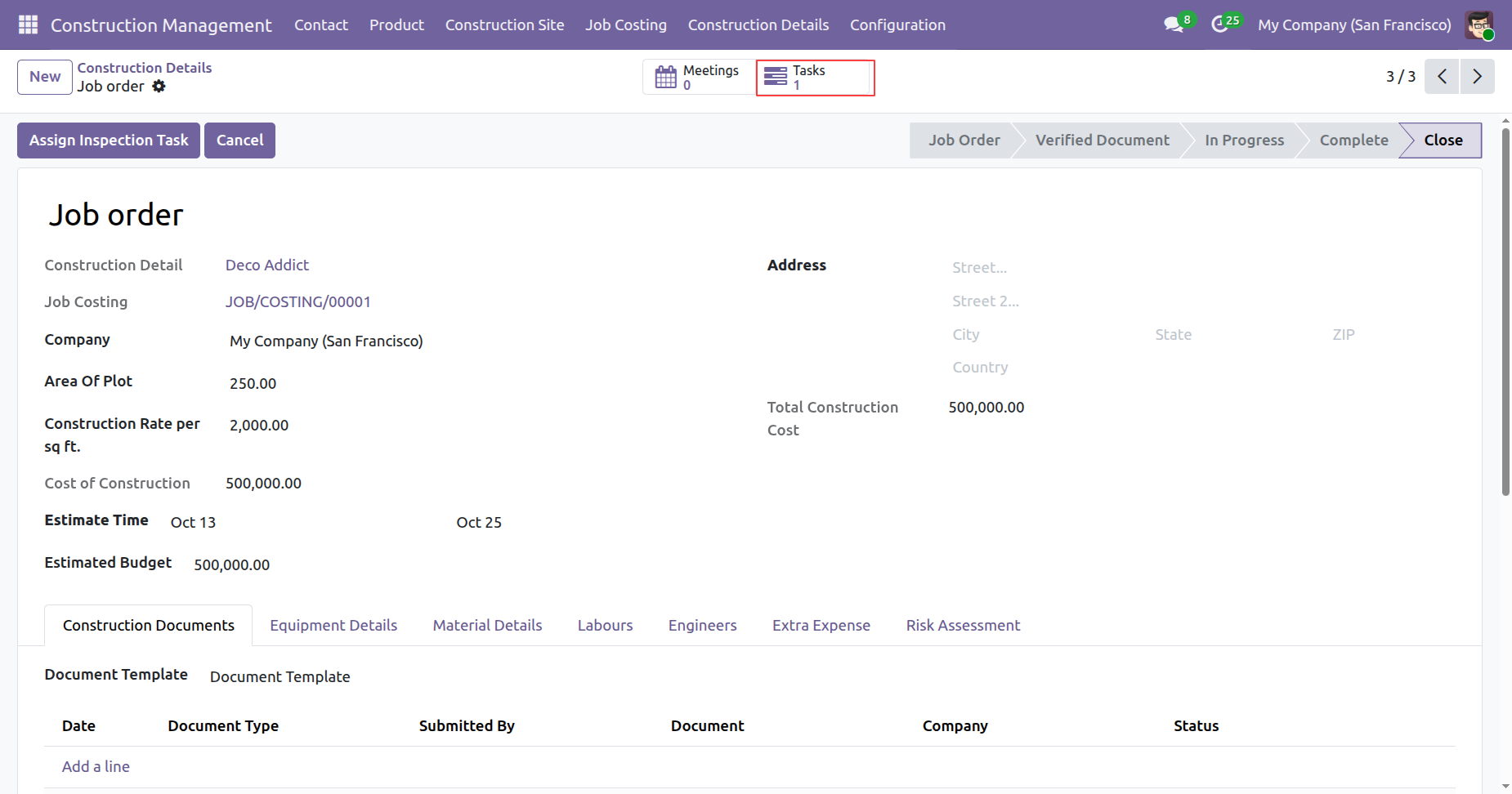
Tree view of the tasks.
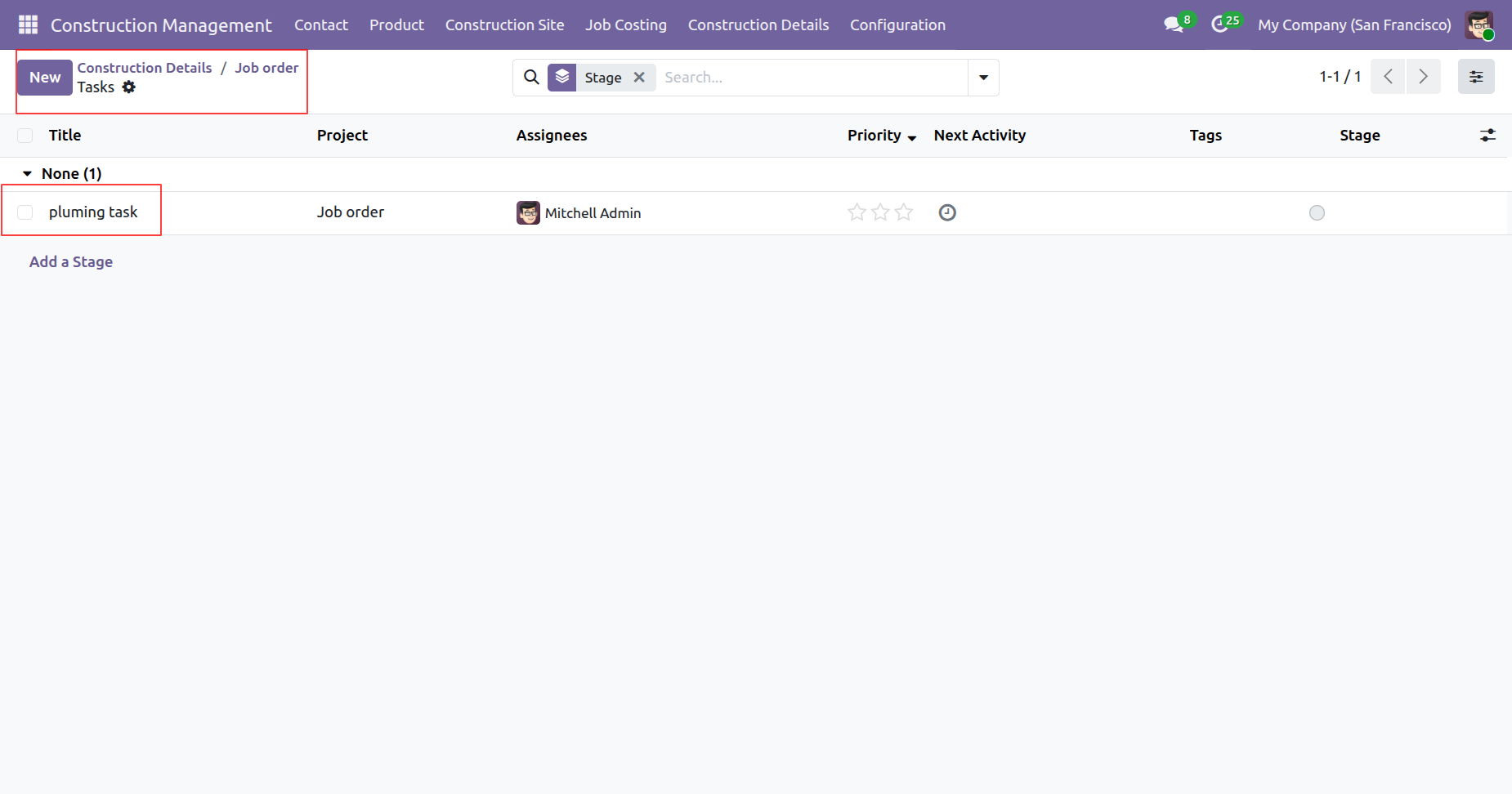
Form view of the tasks.
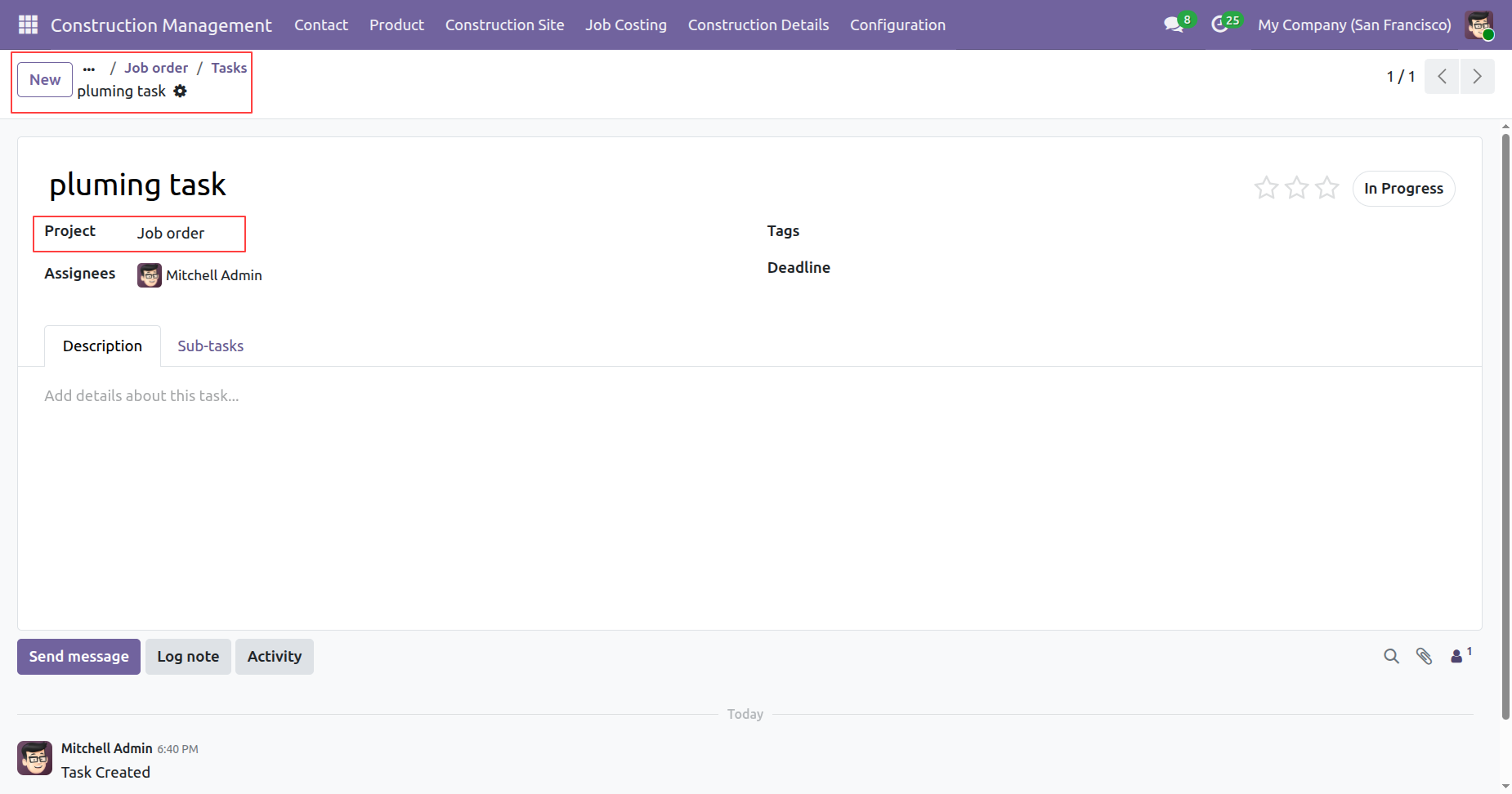
You can view the created Job Order project in the projects tree view.
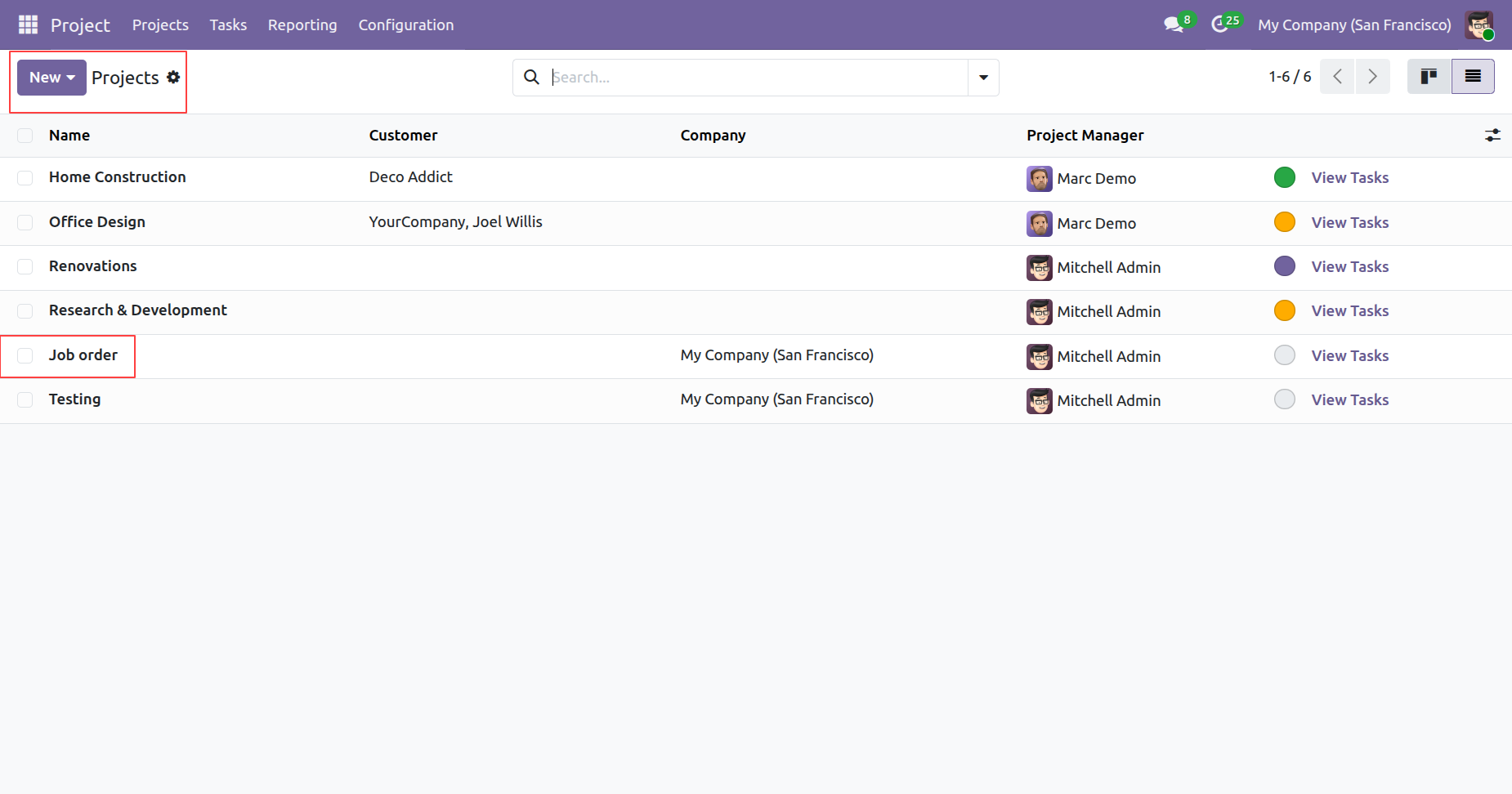
Click on the 'Tasks' smart button to view the related tasks.
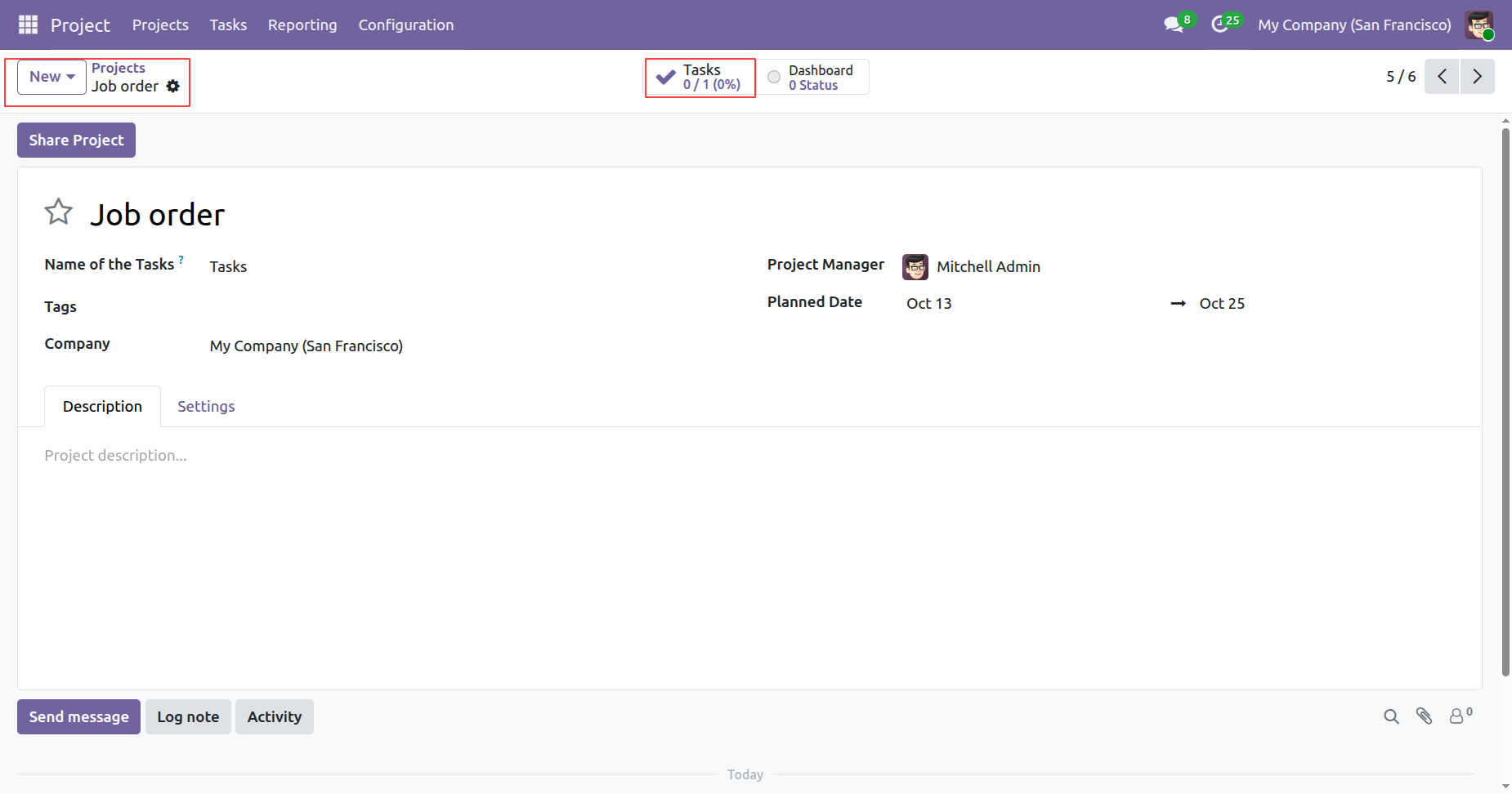
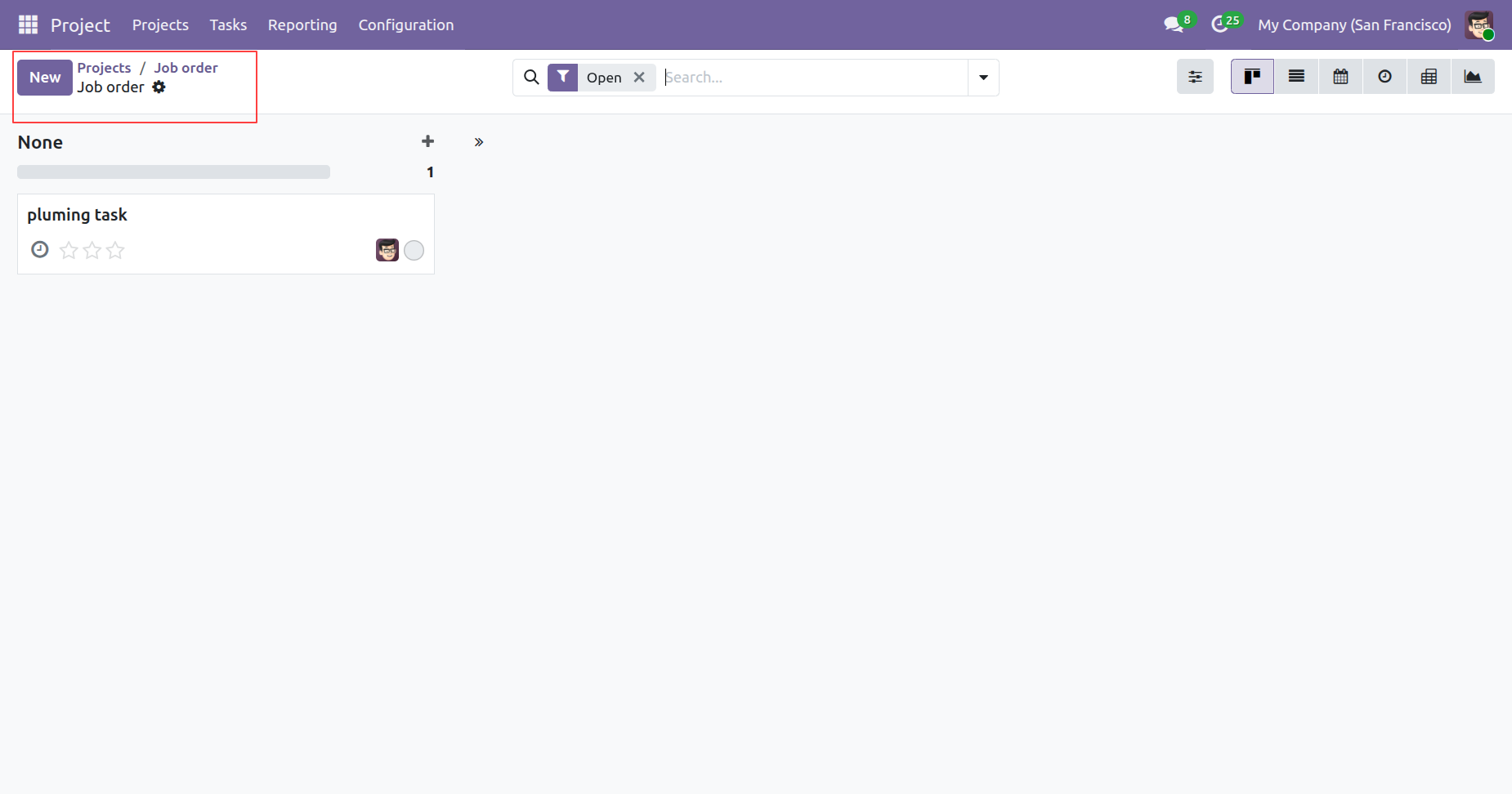
Tree view of the tasks.
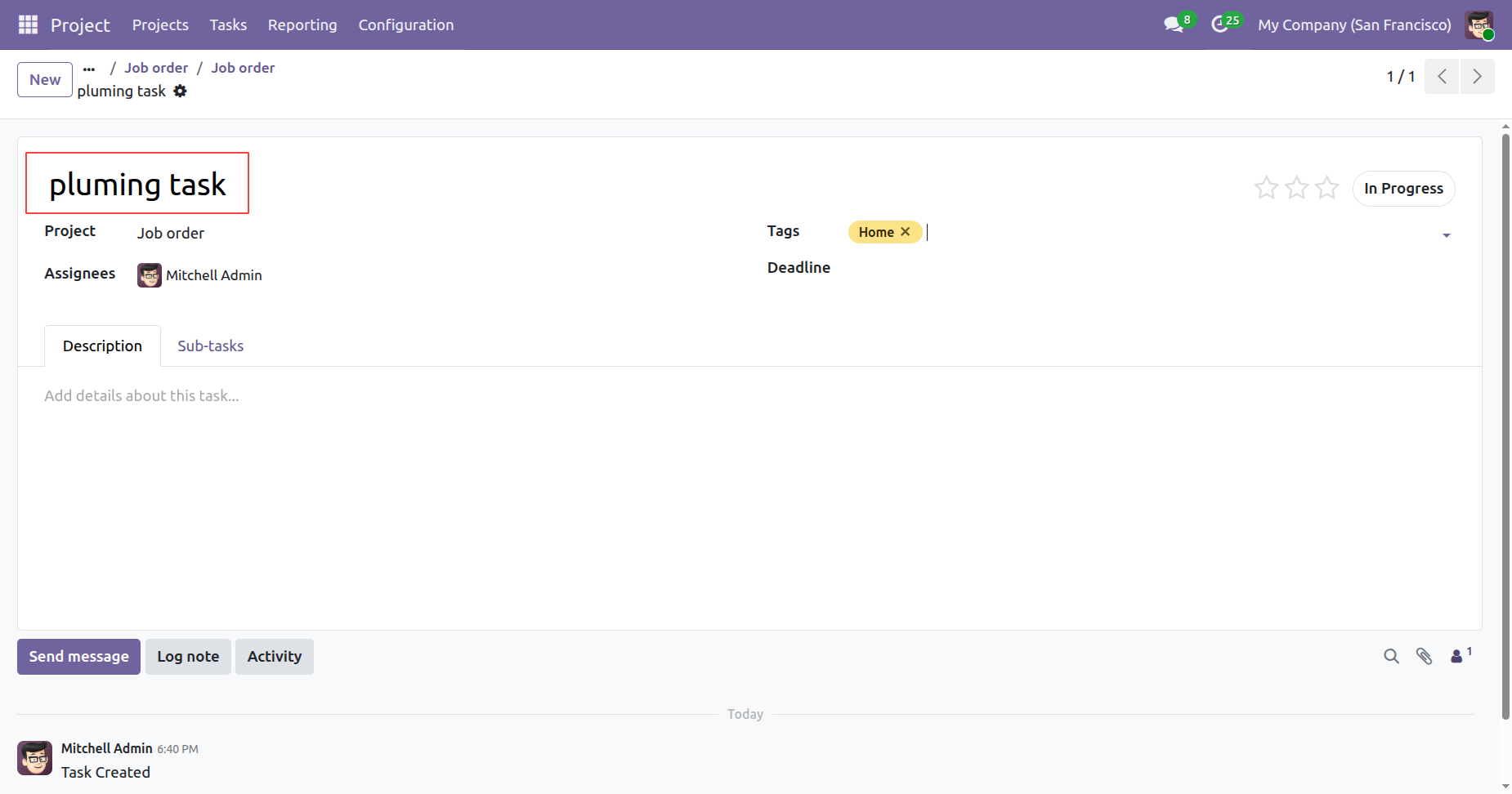
Form view of the tasks.
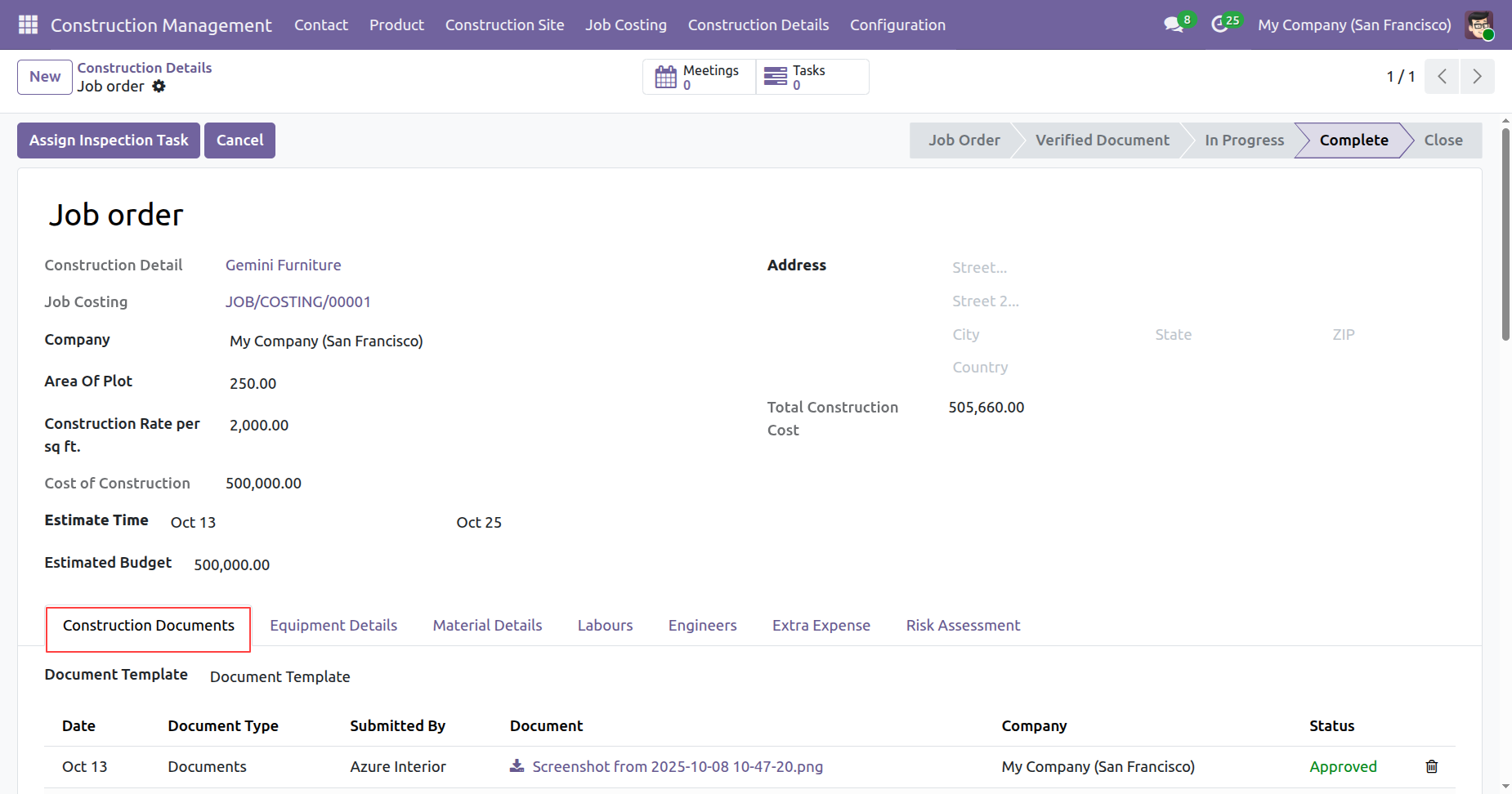
You can view the construction documents under Construction Documents tab.
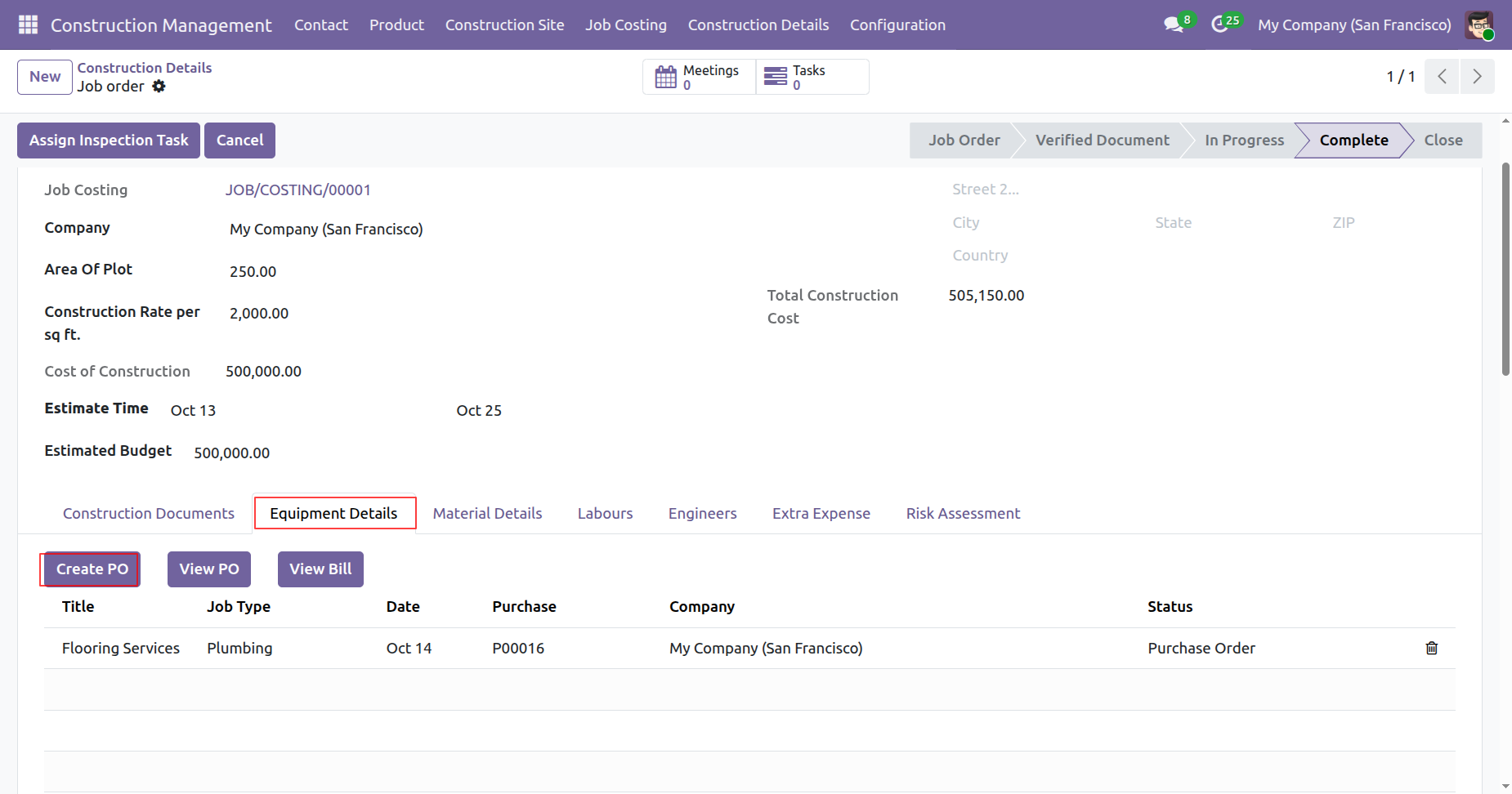
To create a PO, click on the 'Create PO' button under Equipment Details tab.
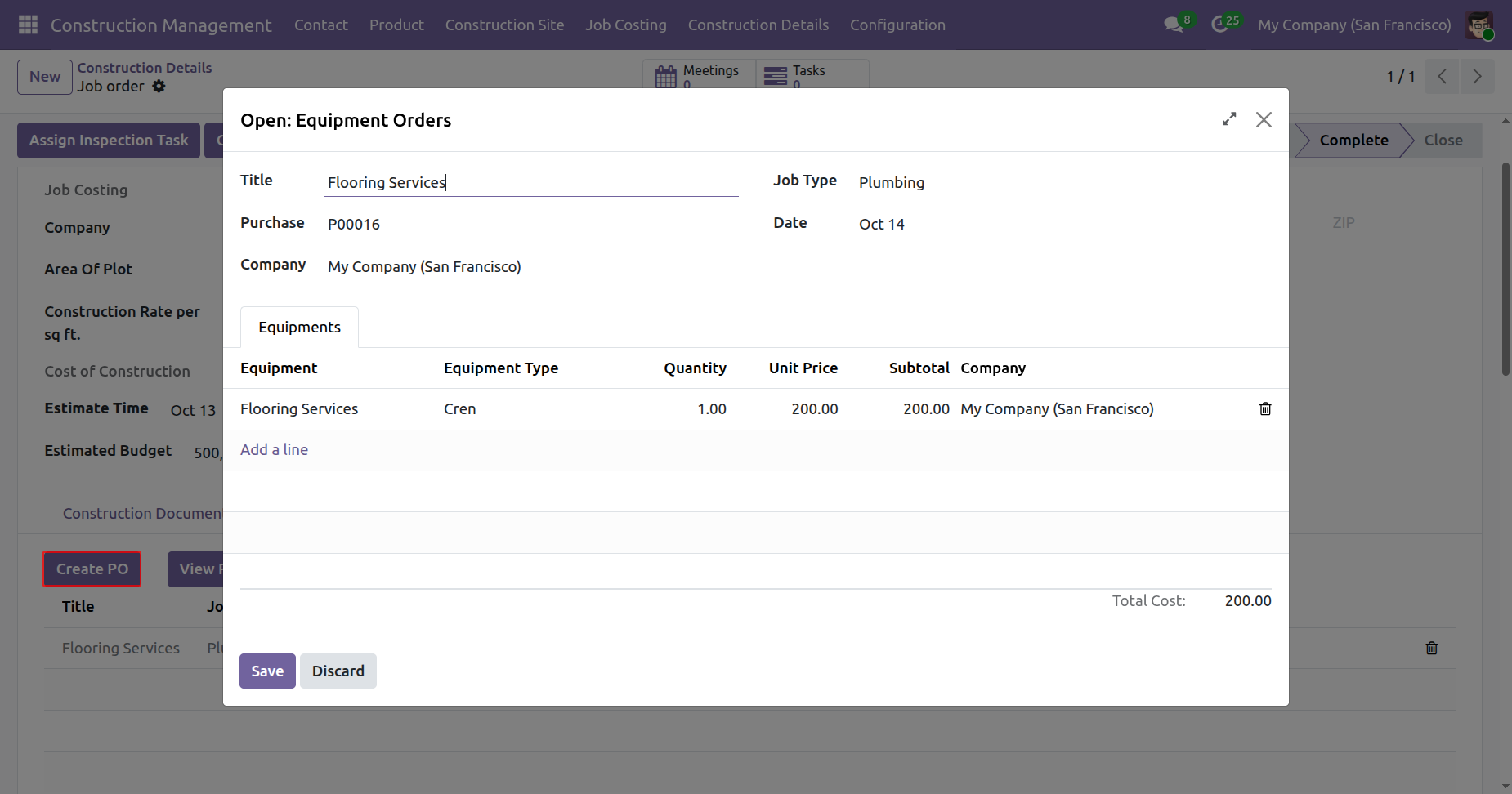
Add details and click on the 'Save' button.
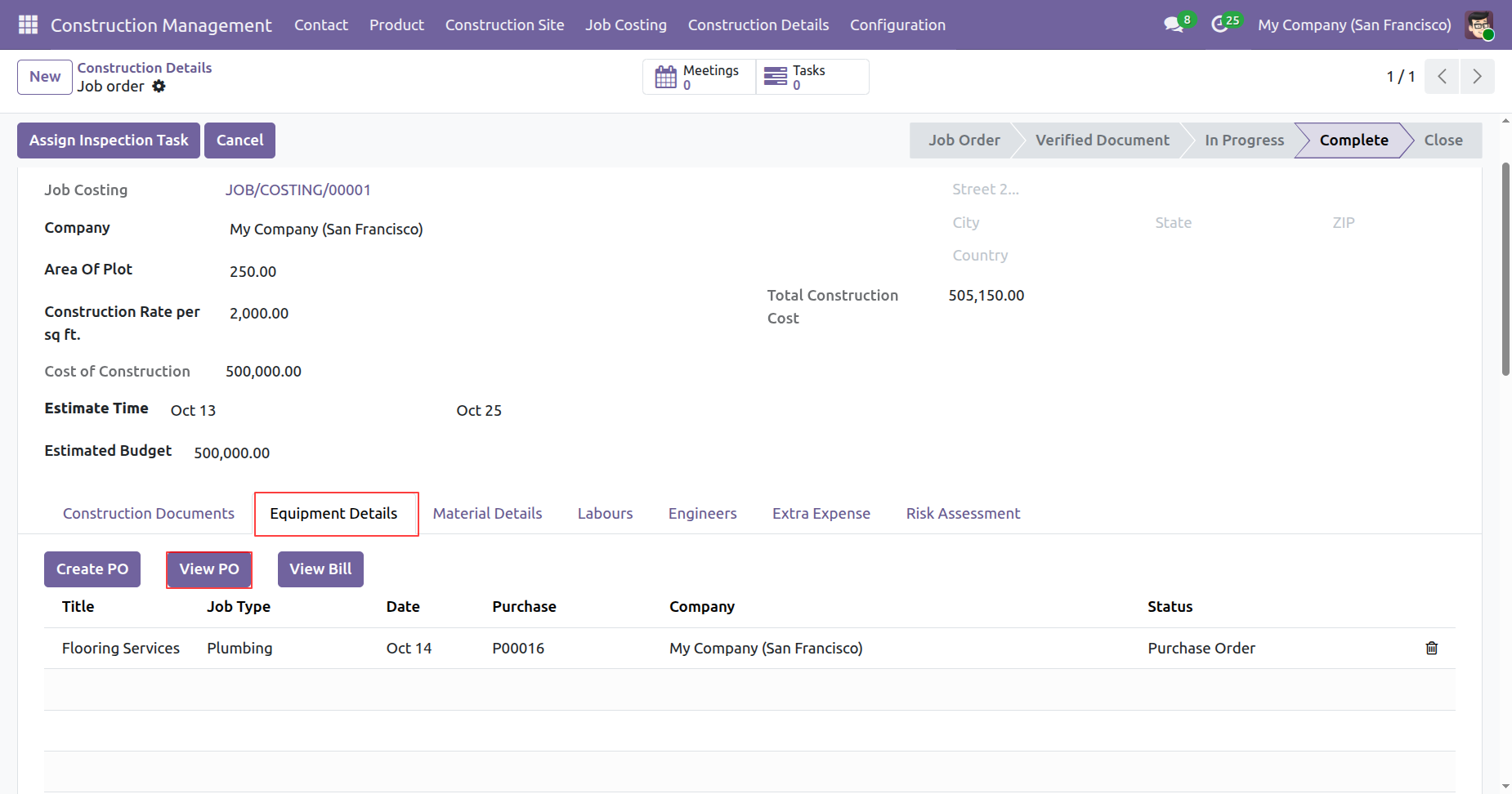
To view a PO, click on the 'View PO' button under Equipment Details tab.
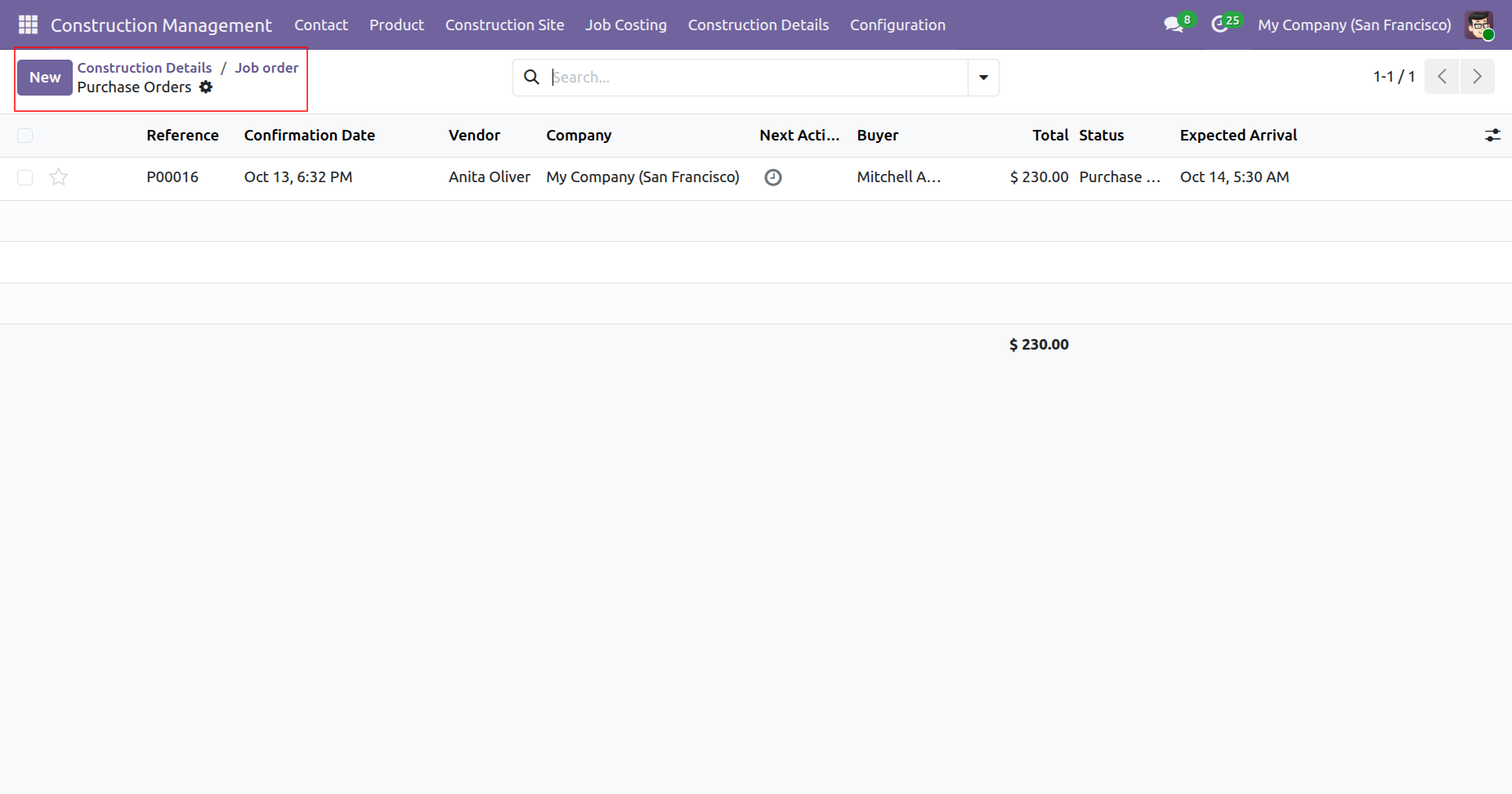
Tree view of the purchase porders.
Form view of the purchase porders.
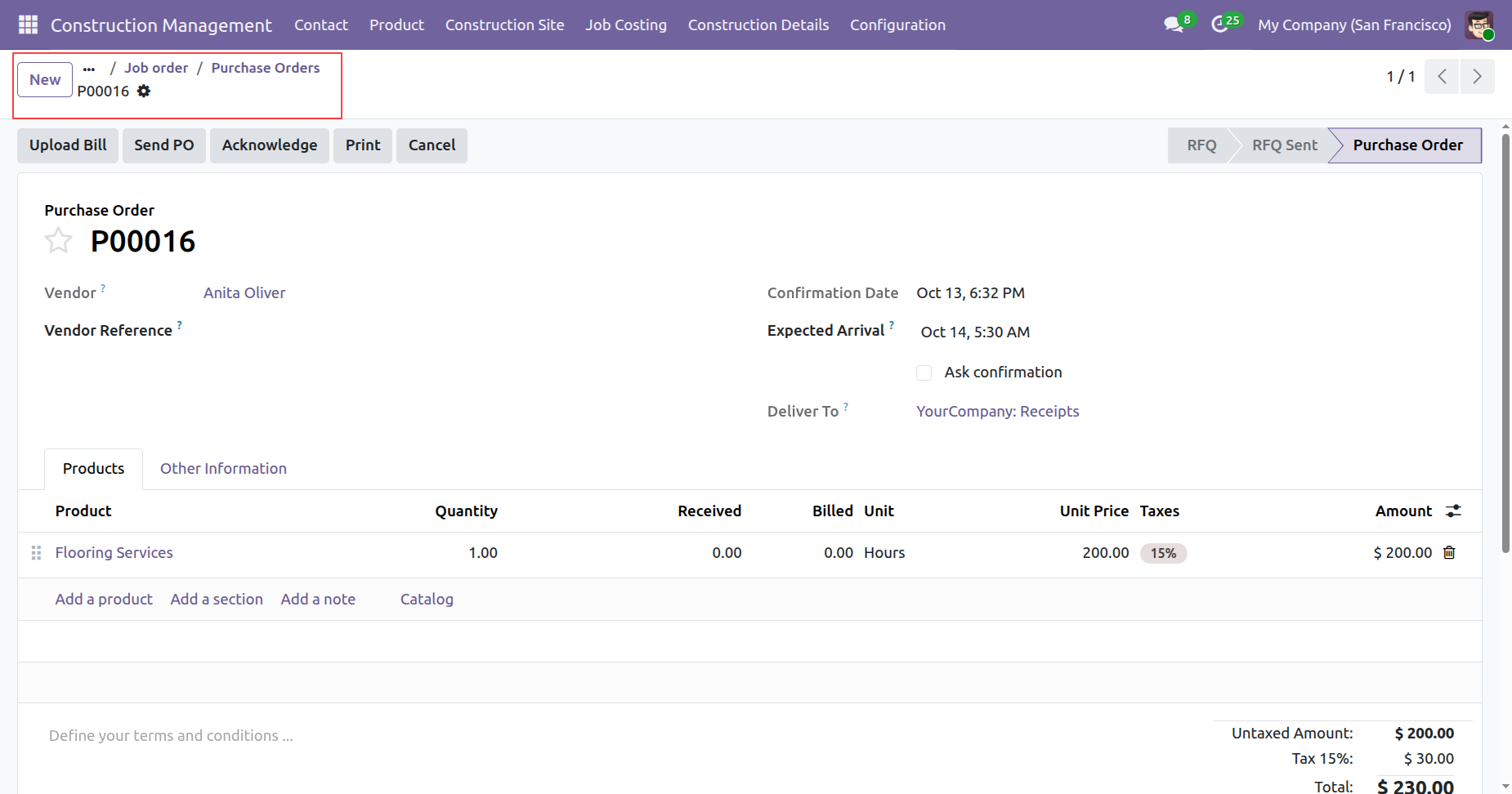
Click on the 'Upload Bill' button.
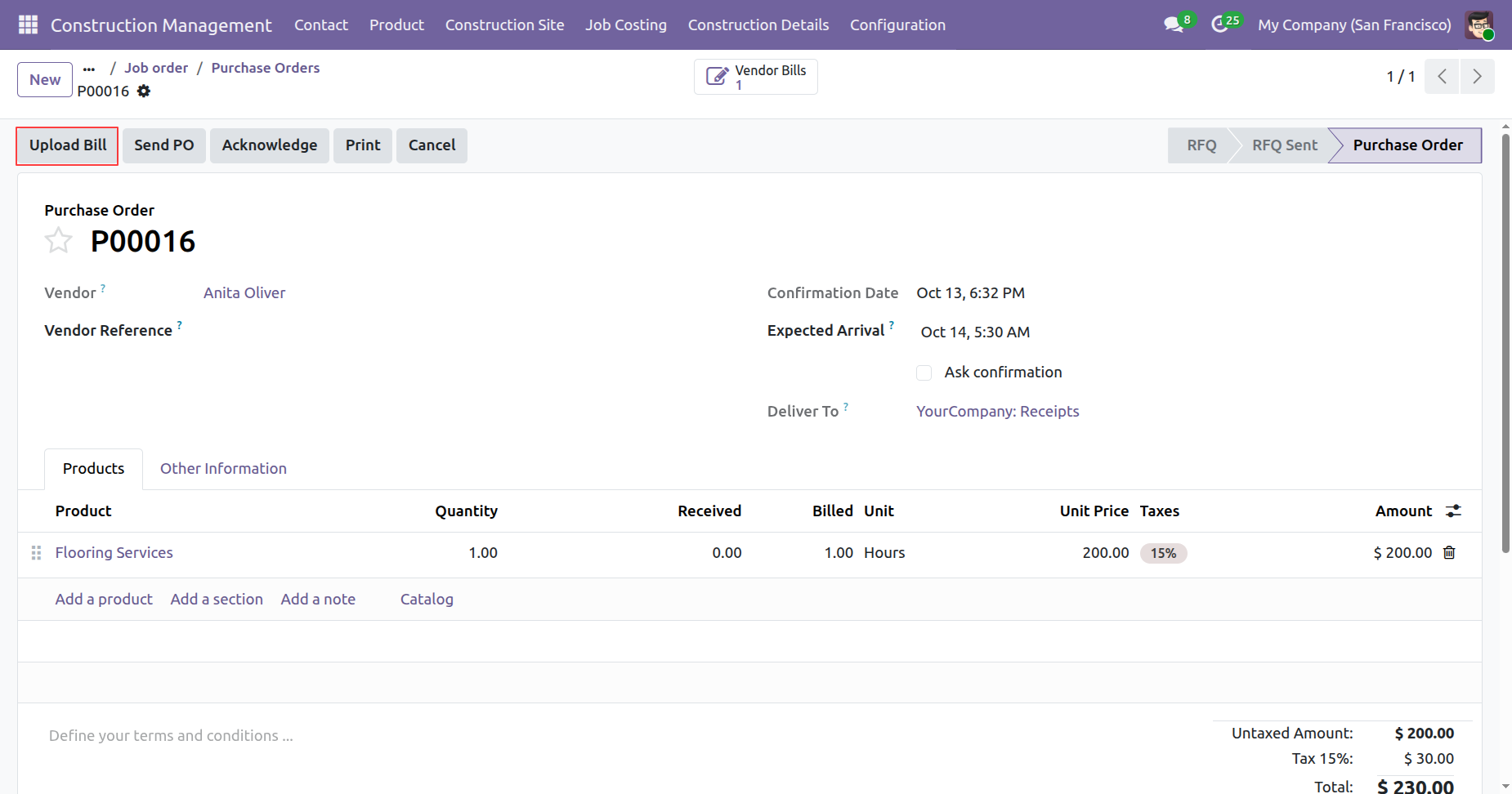
Confirm the bill.
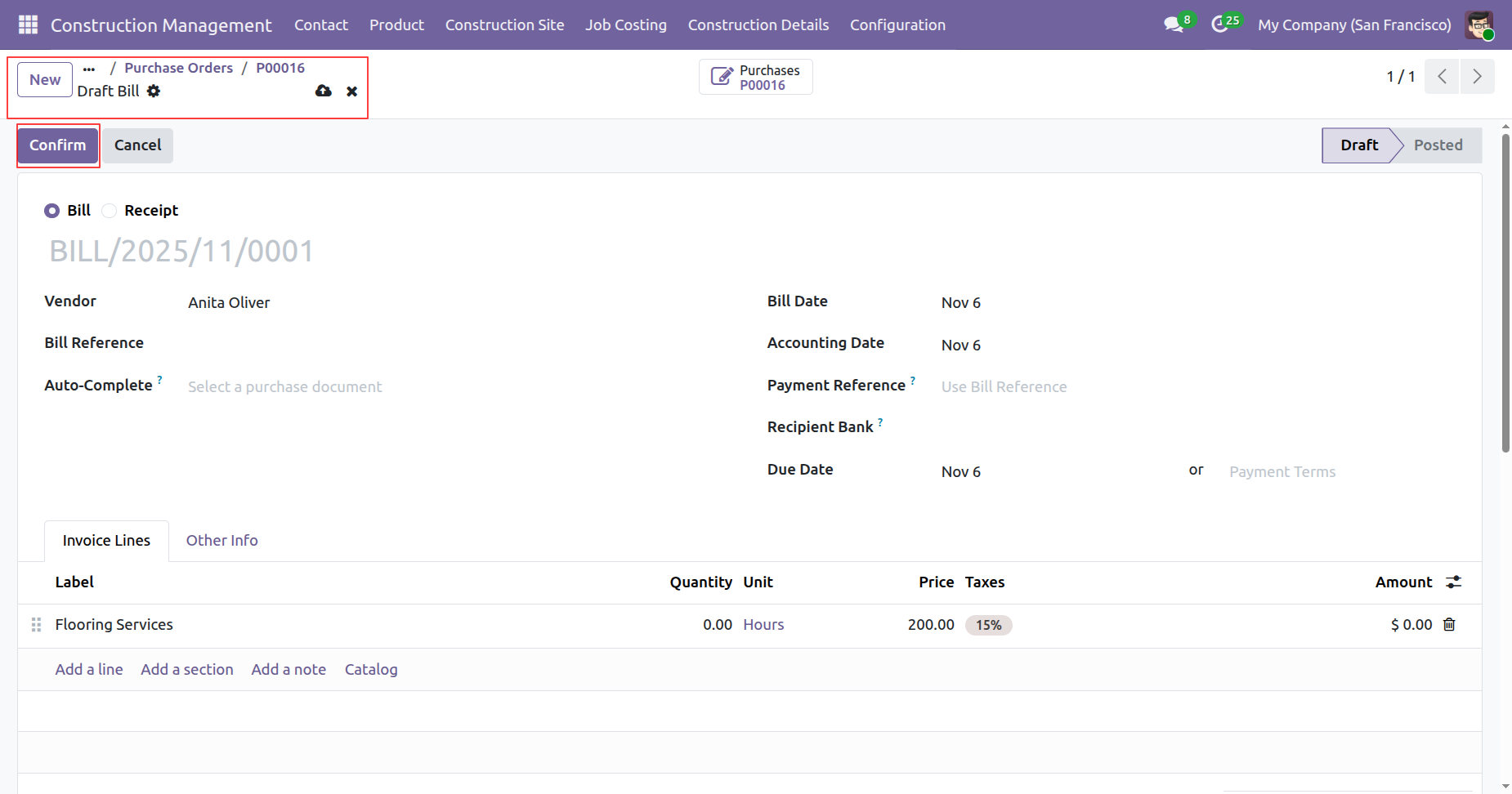
To view the bill, click on the 'View Bill' button under Equipment Details tab.
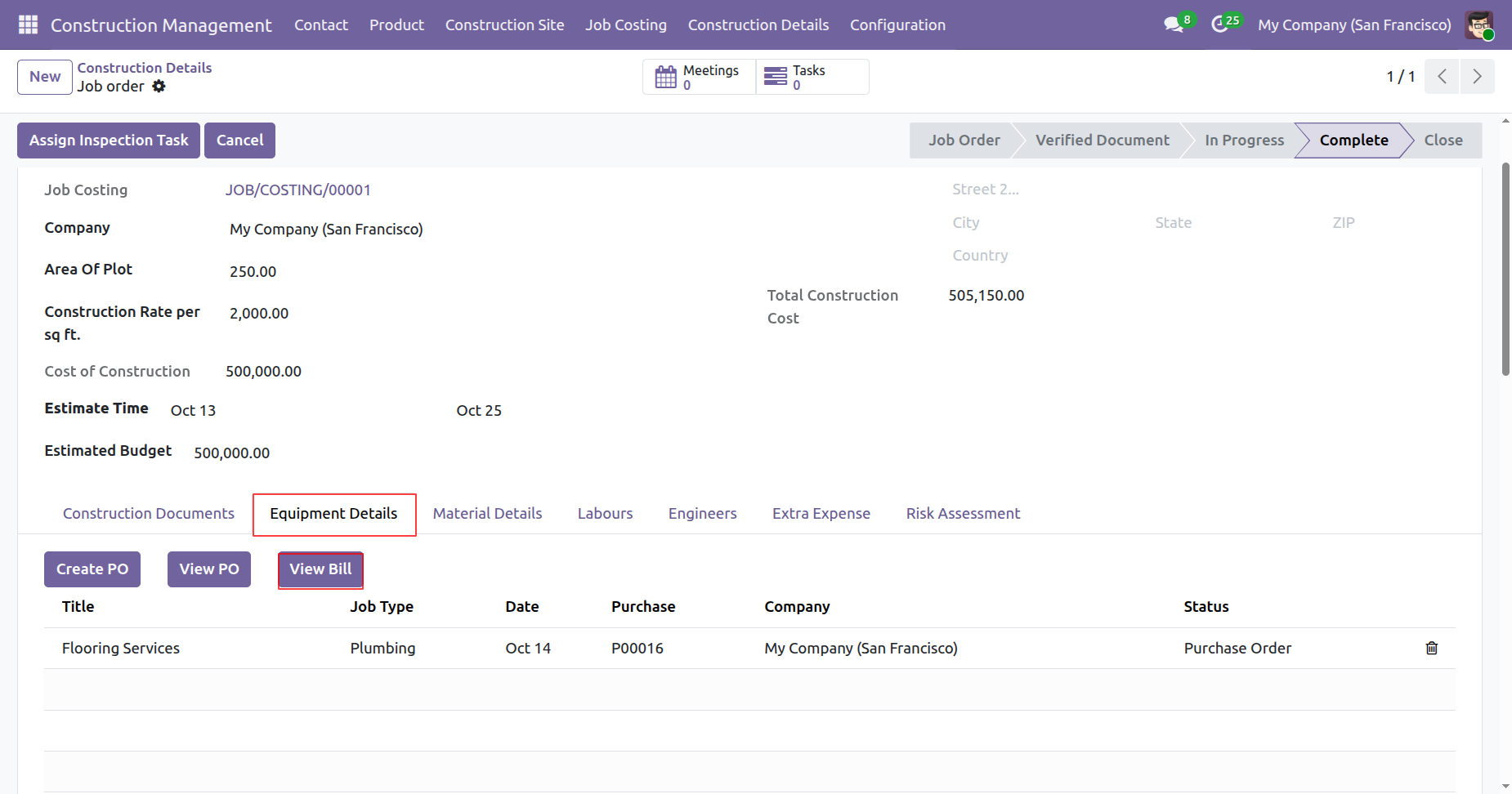
Tree view of the bills.
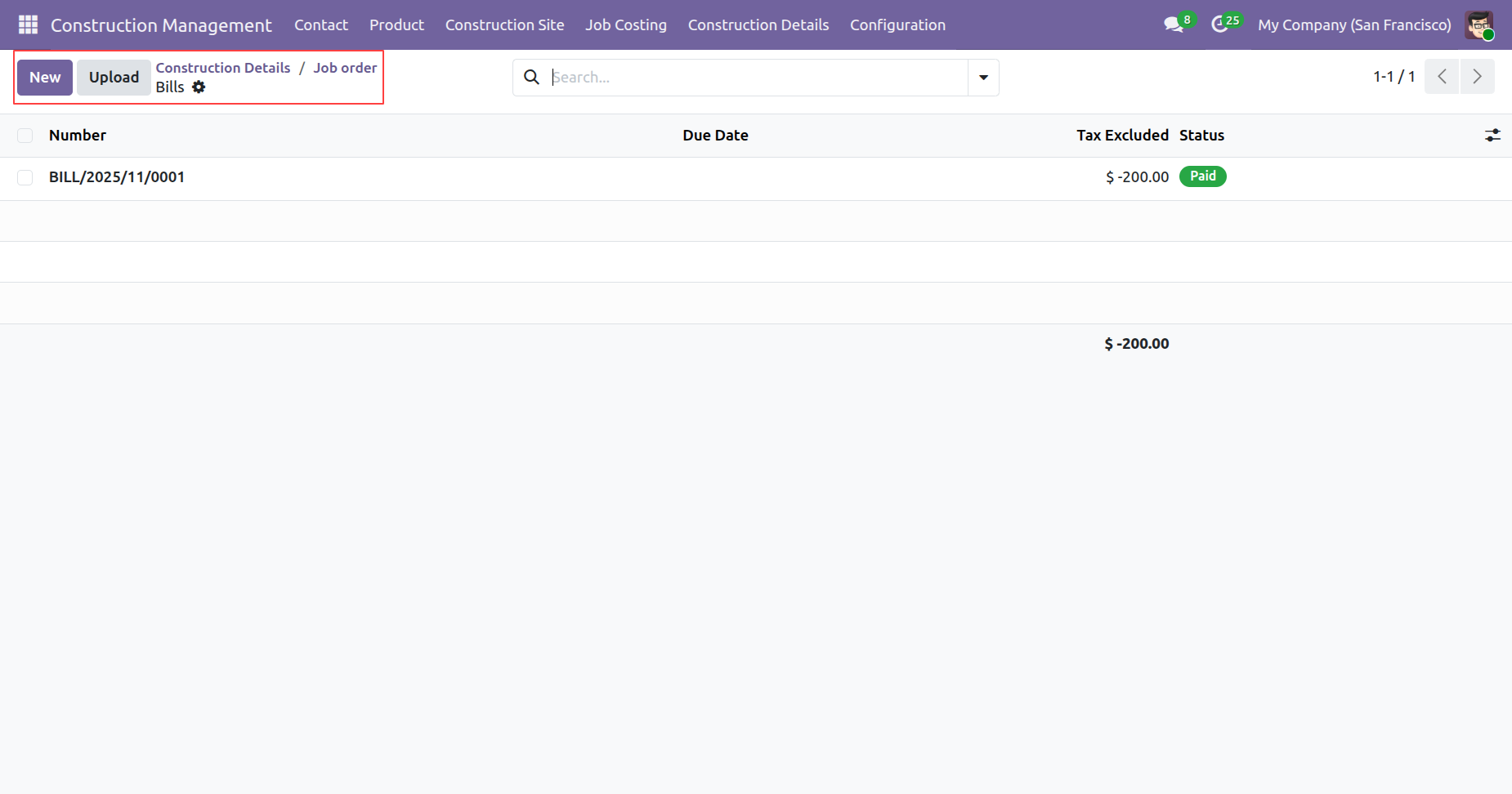
Form view of the bills.
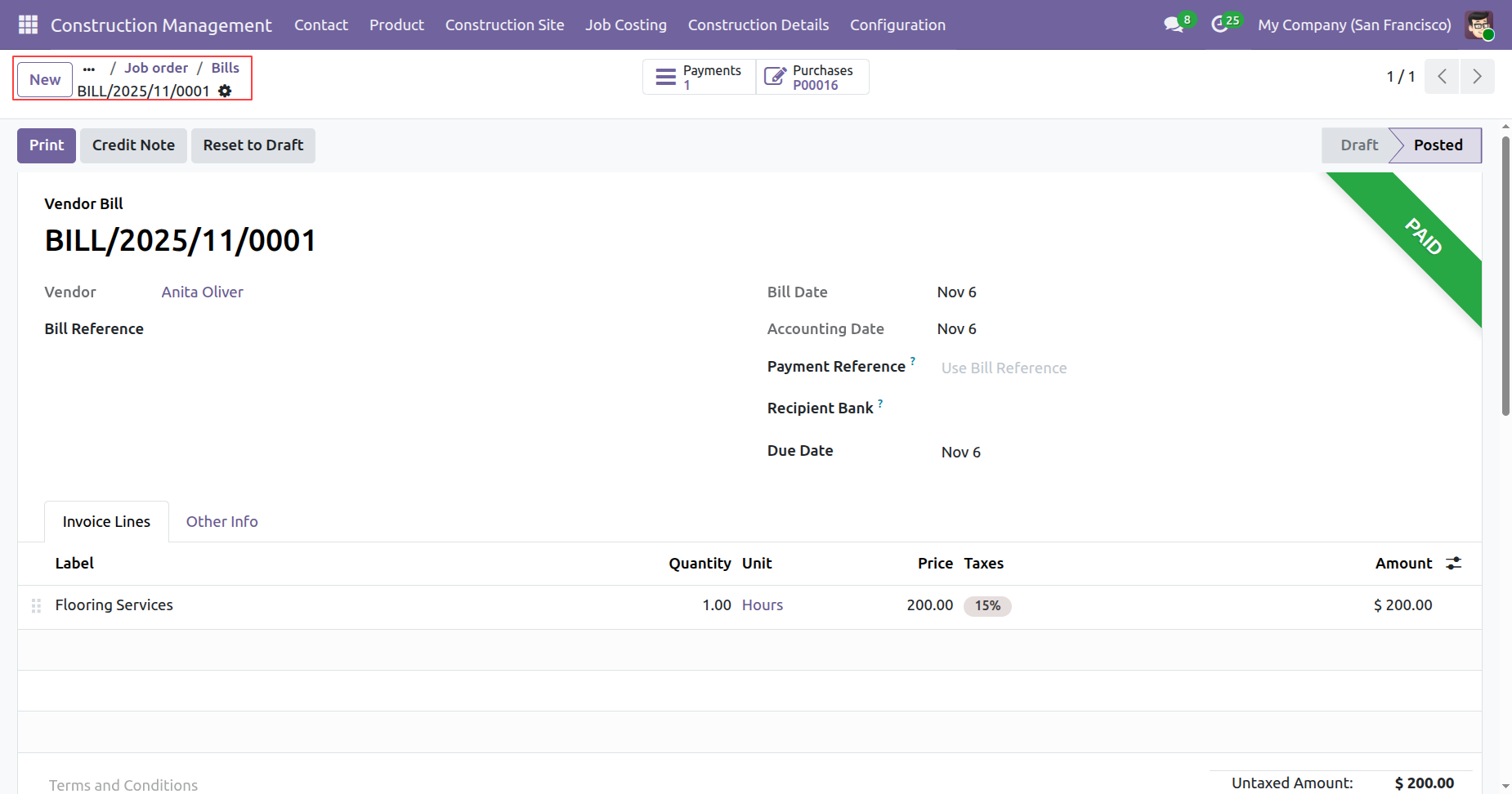
To create a PO, click on the 'Create PO' button under Material Details tab.
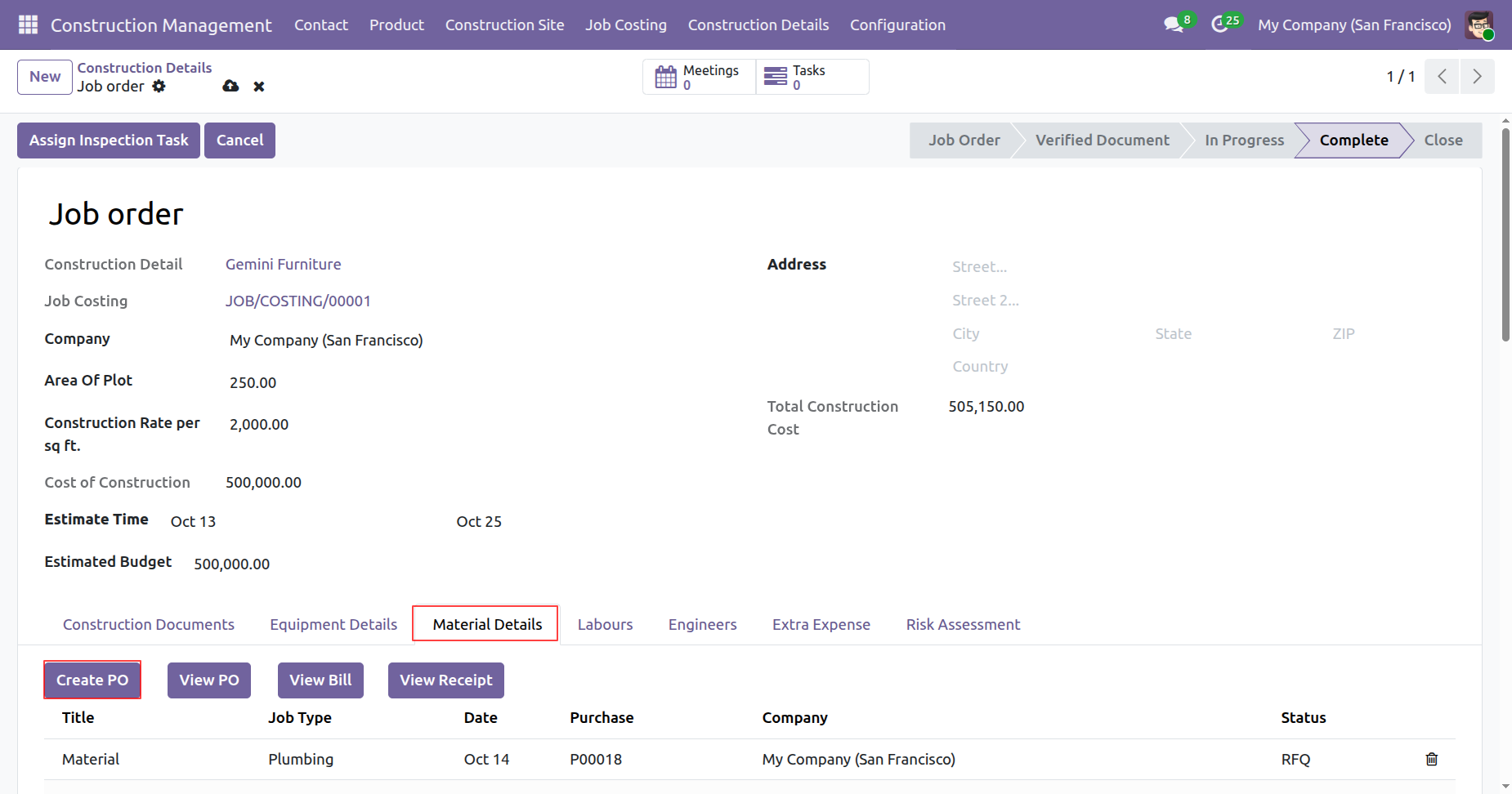
Add details and click on the 'Save' button.
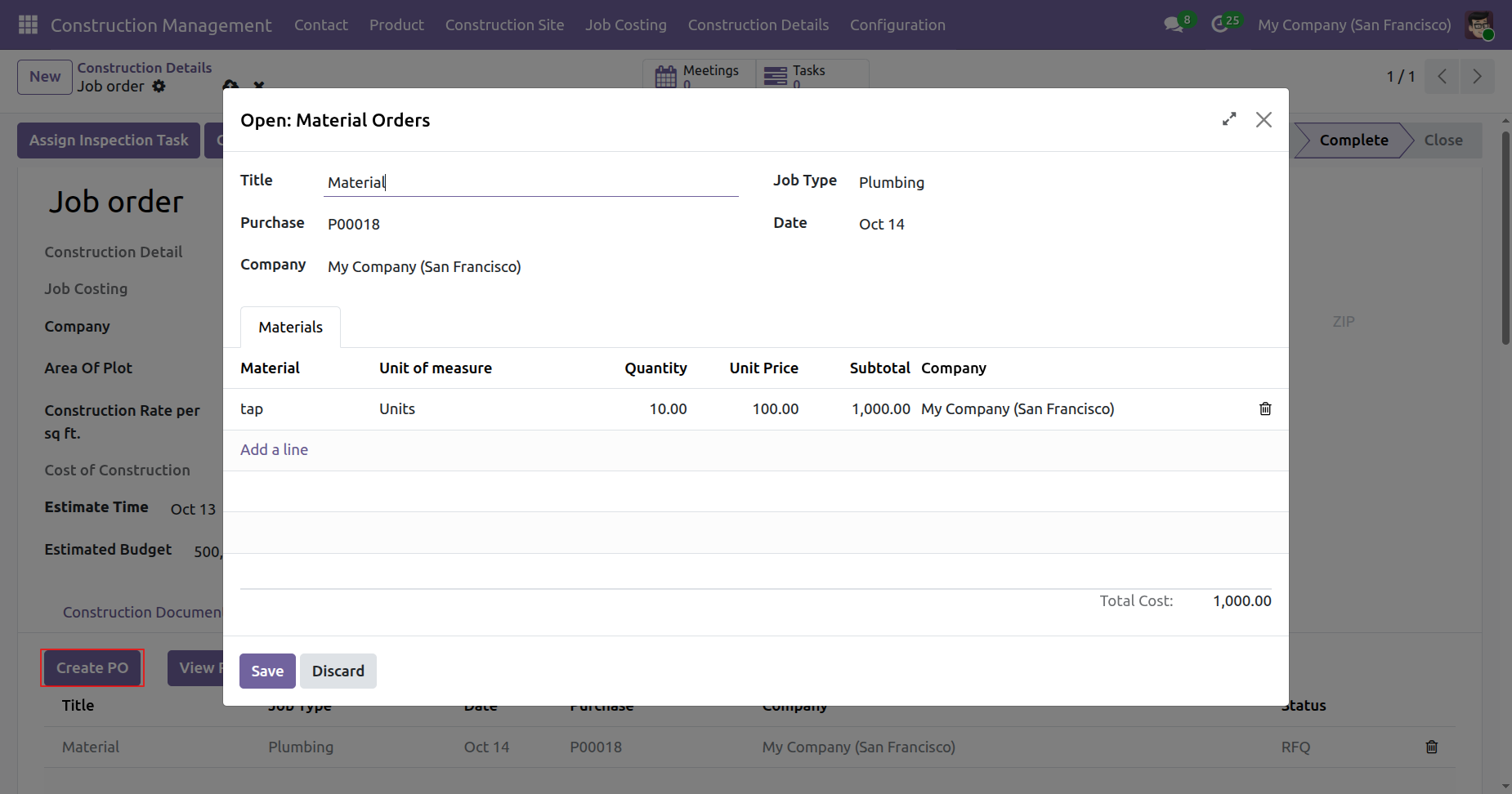
To view a PO, click on the 'View PO' button under Material Details tab.
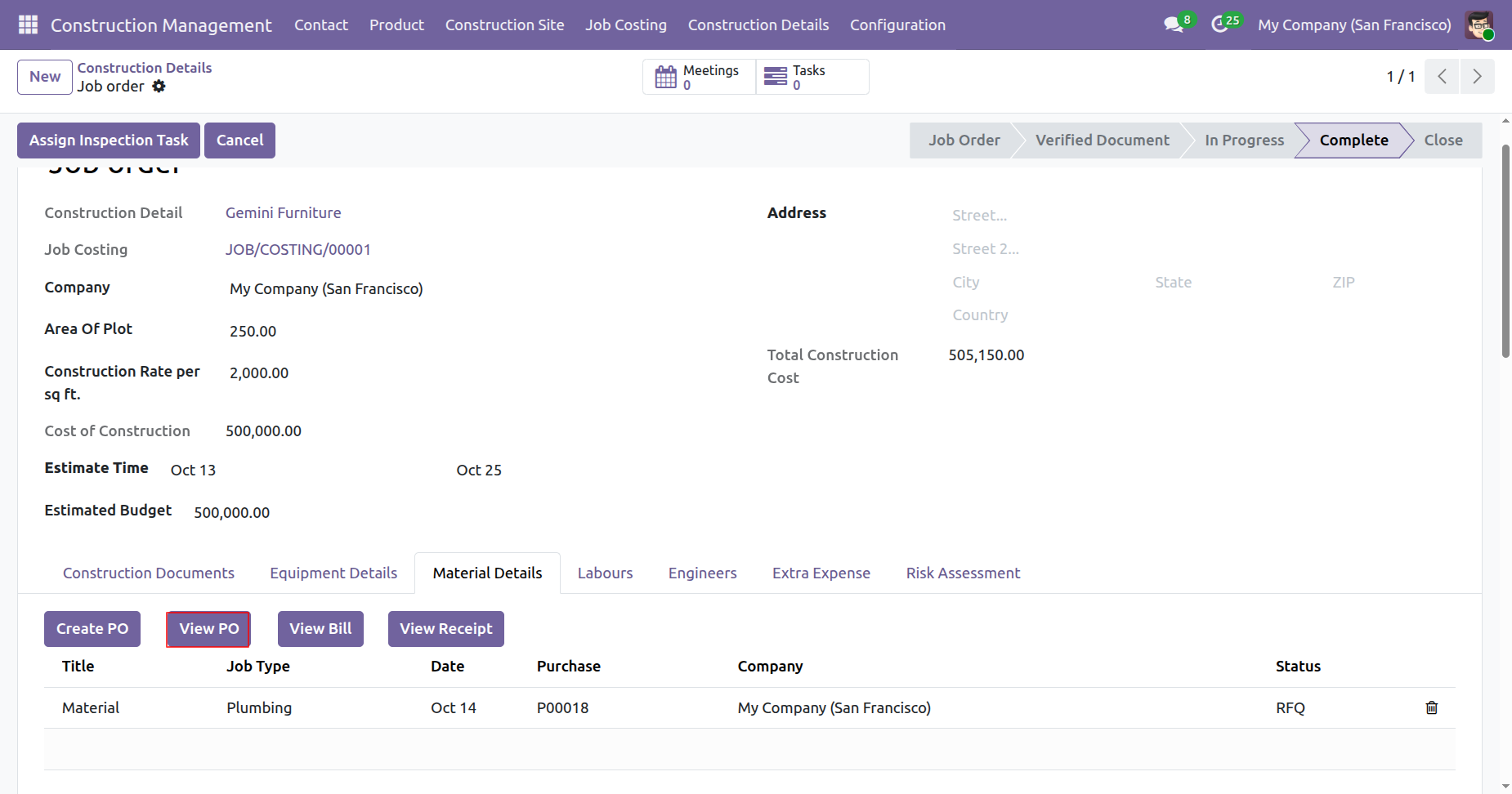
Tree view of the purchase porders.
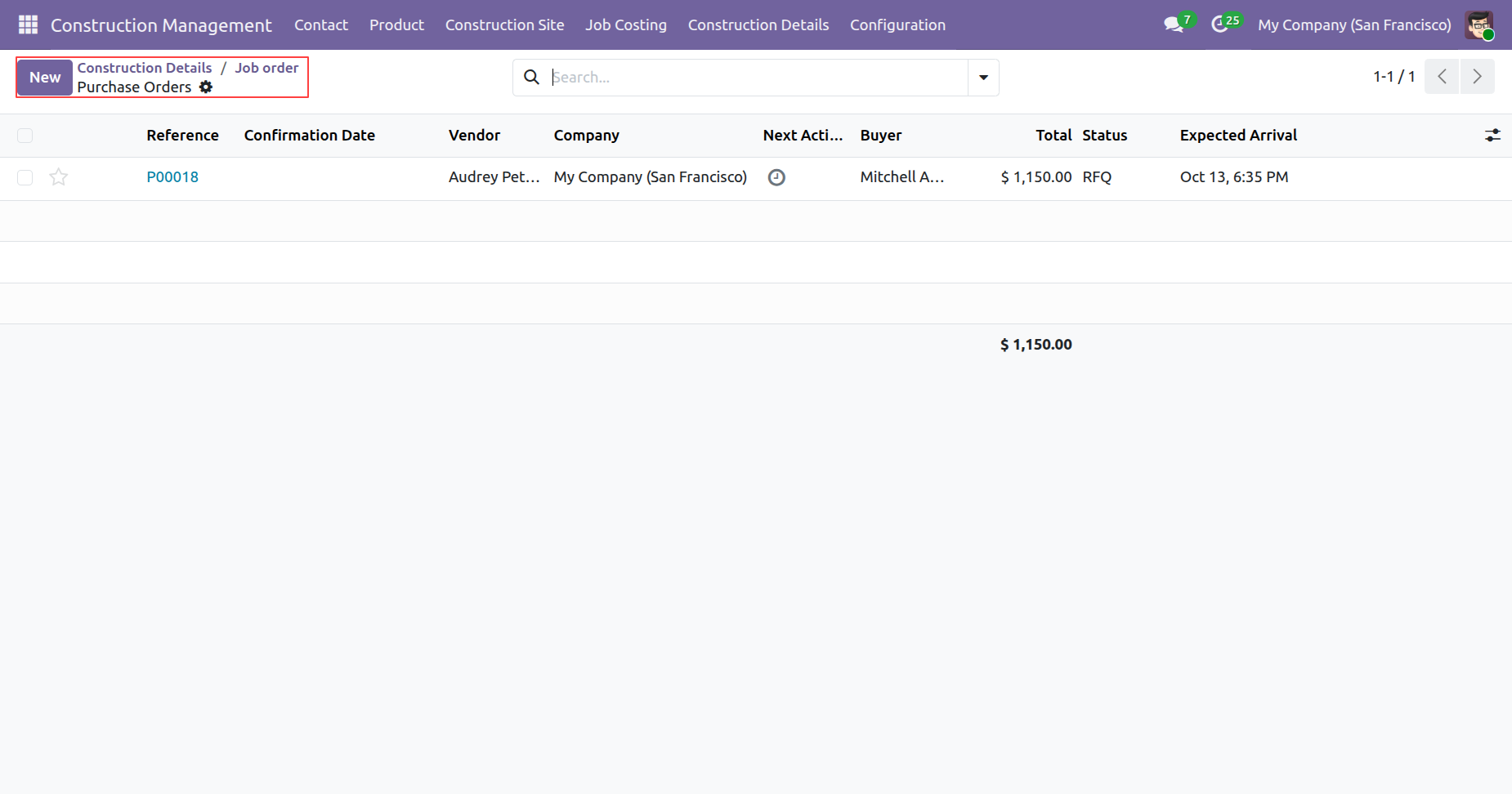
Form view of the purchase porders.
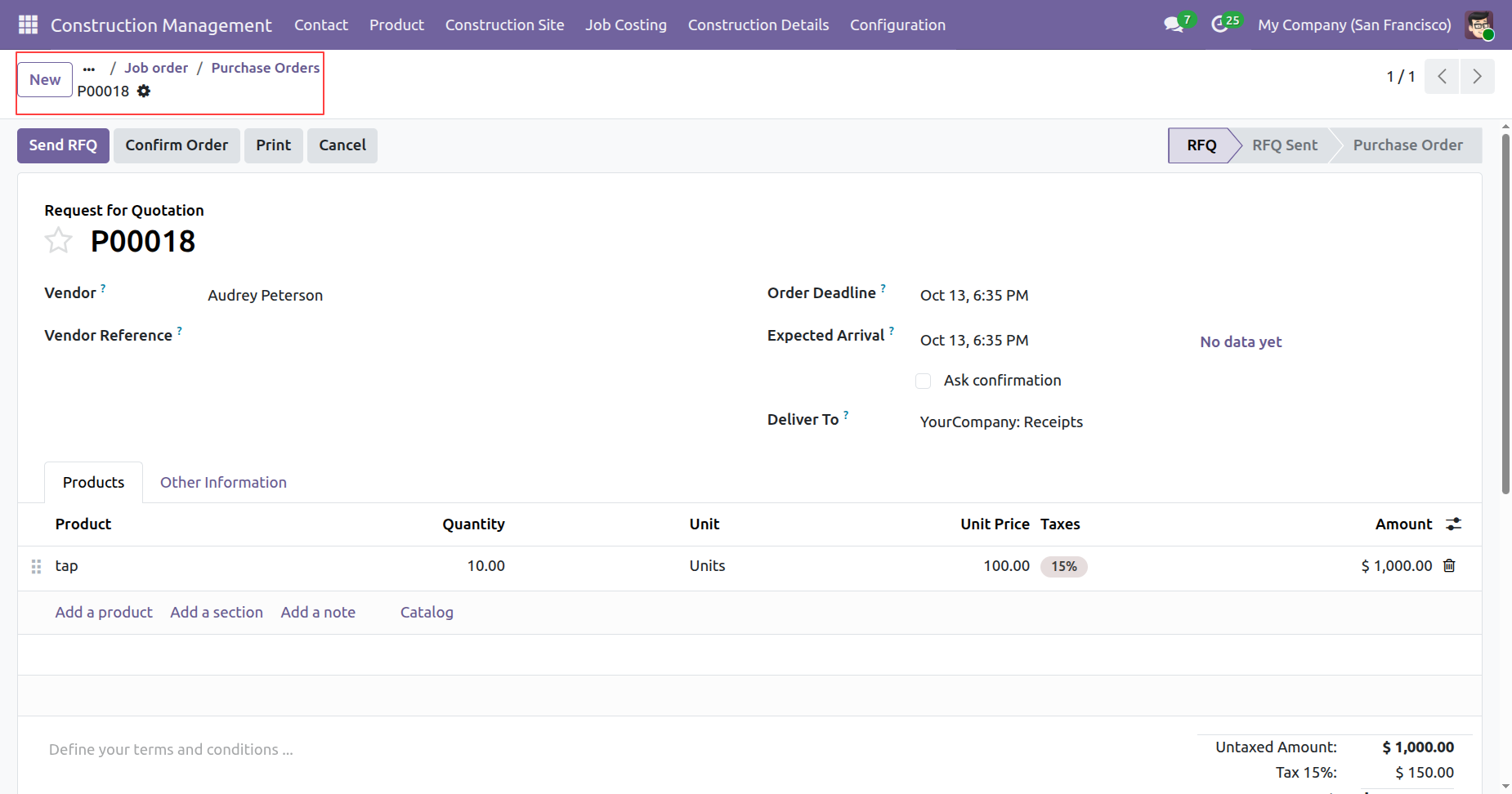
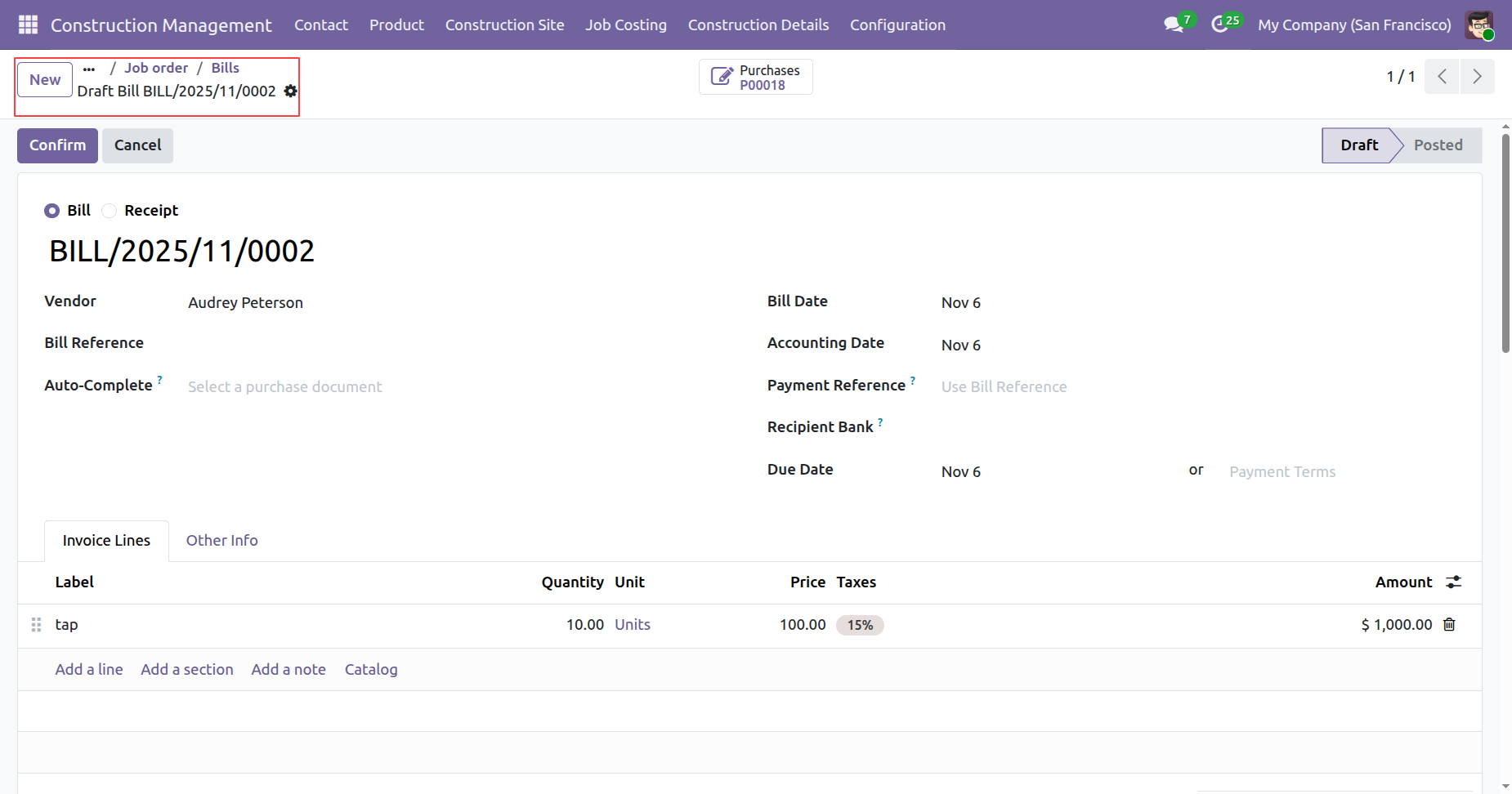
To view the bill, click on the 'View Bill' button under Material Details tab.
Form view of the bills.
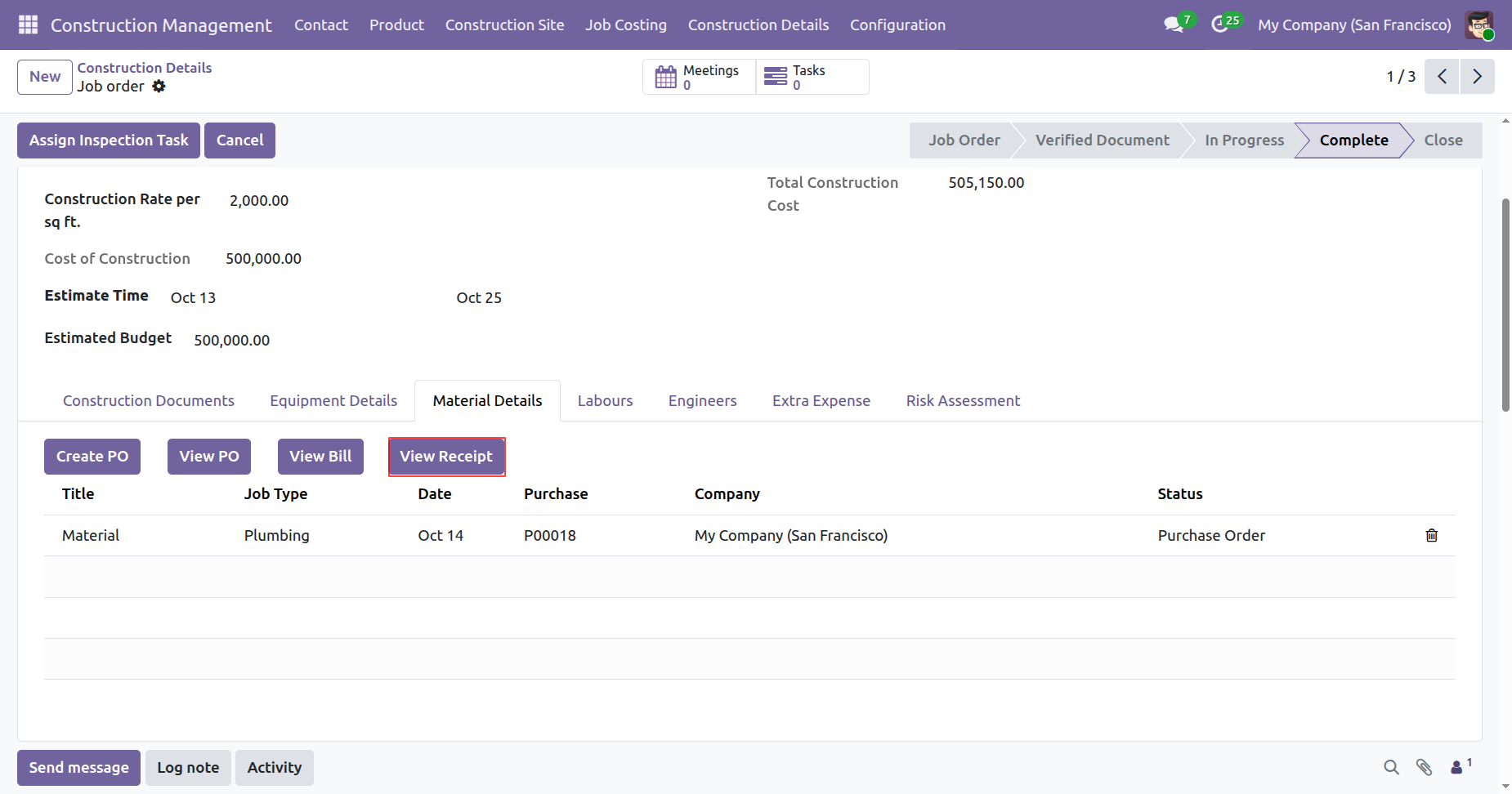
To view the receipt, click on the 'View Receipt' button under Material Details tab.
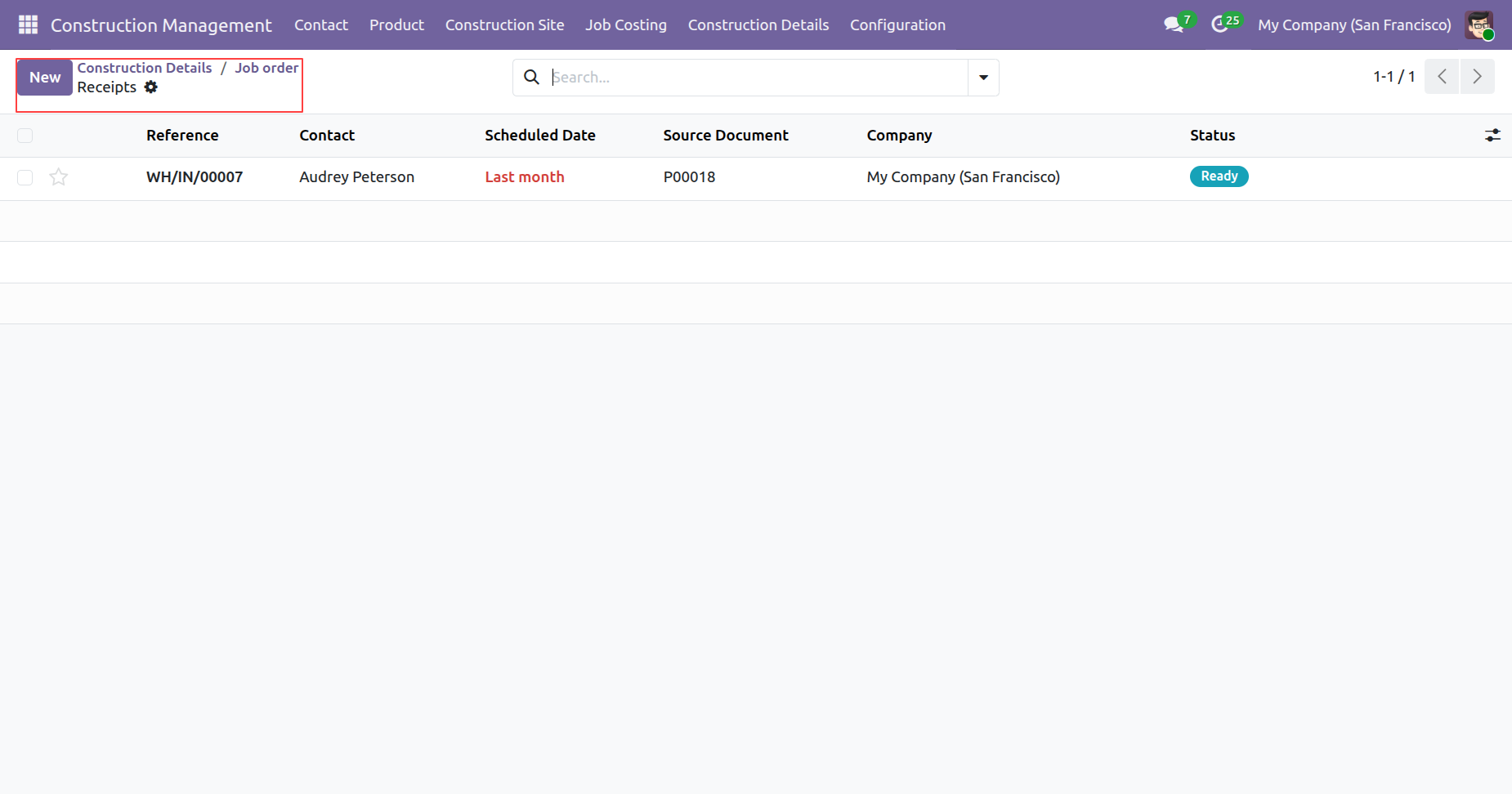
Tree view of the receipts.
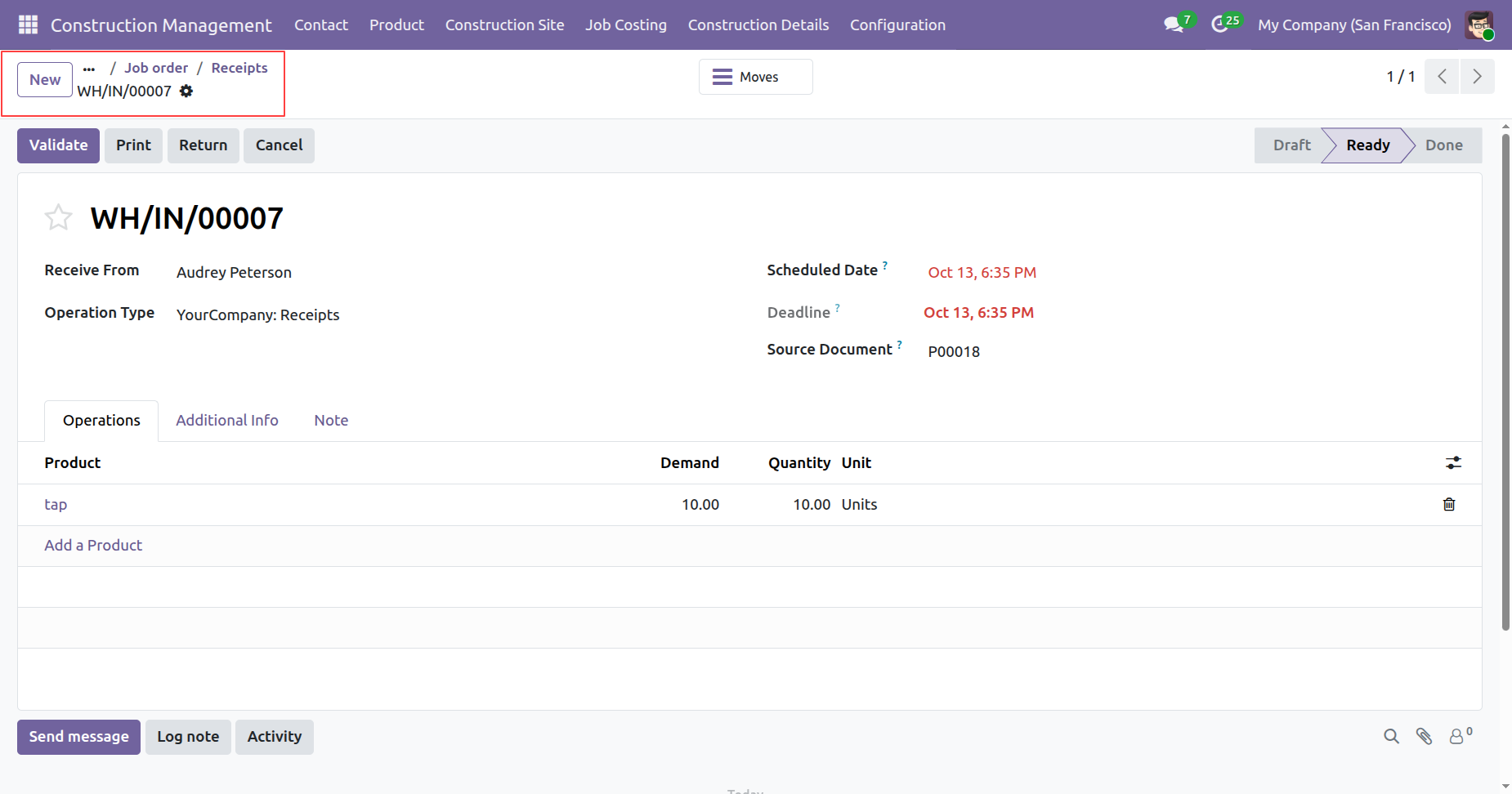
Form view of the receipts.
To Create a Bill, click on the 'Create Bill' button under Labours tab.
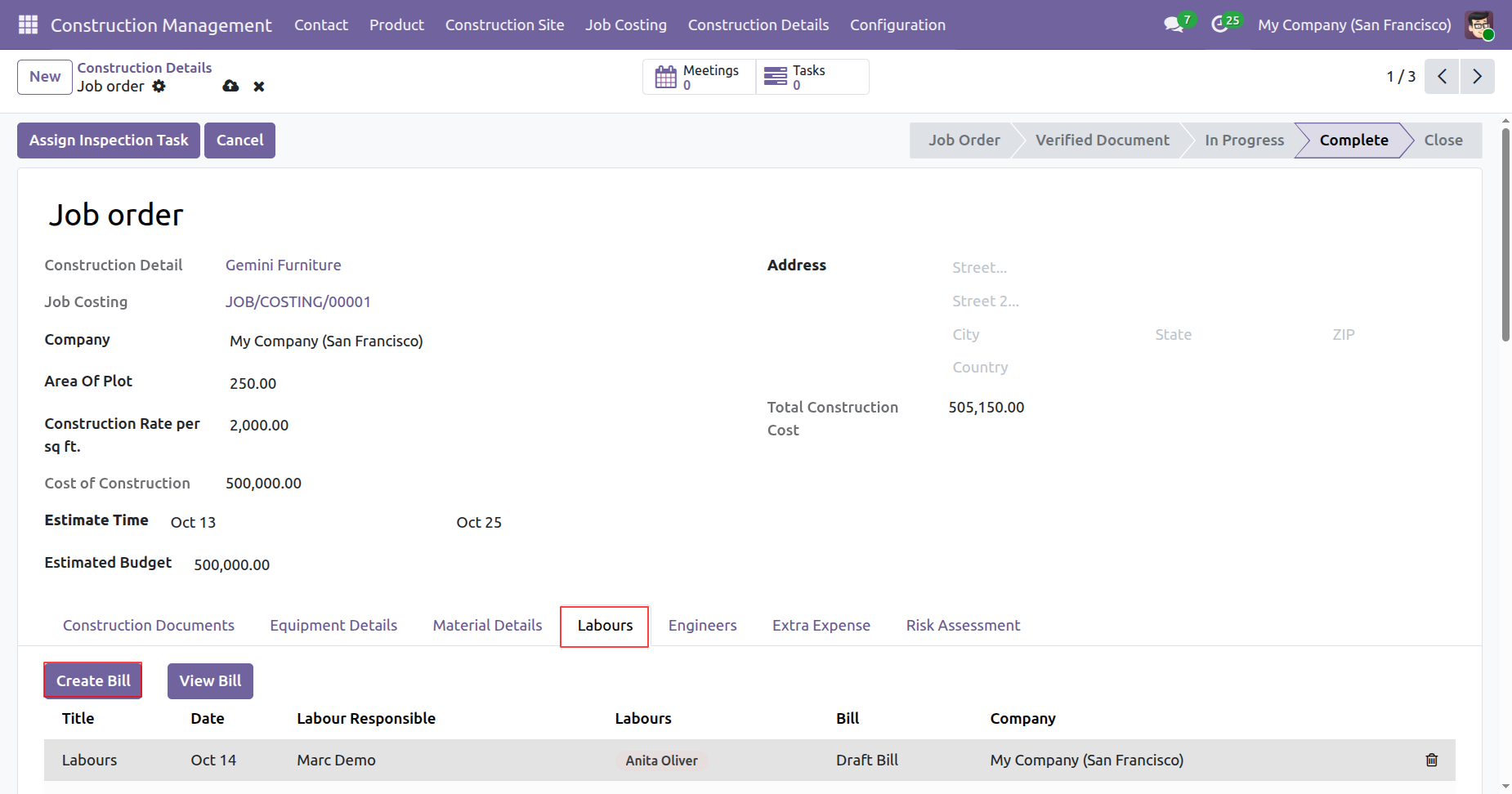
Add details and click on the 'Save' button.
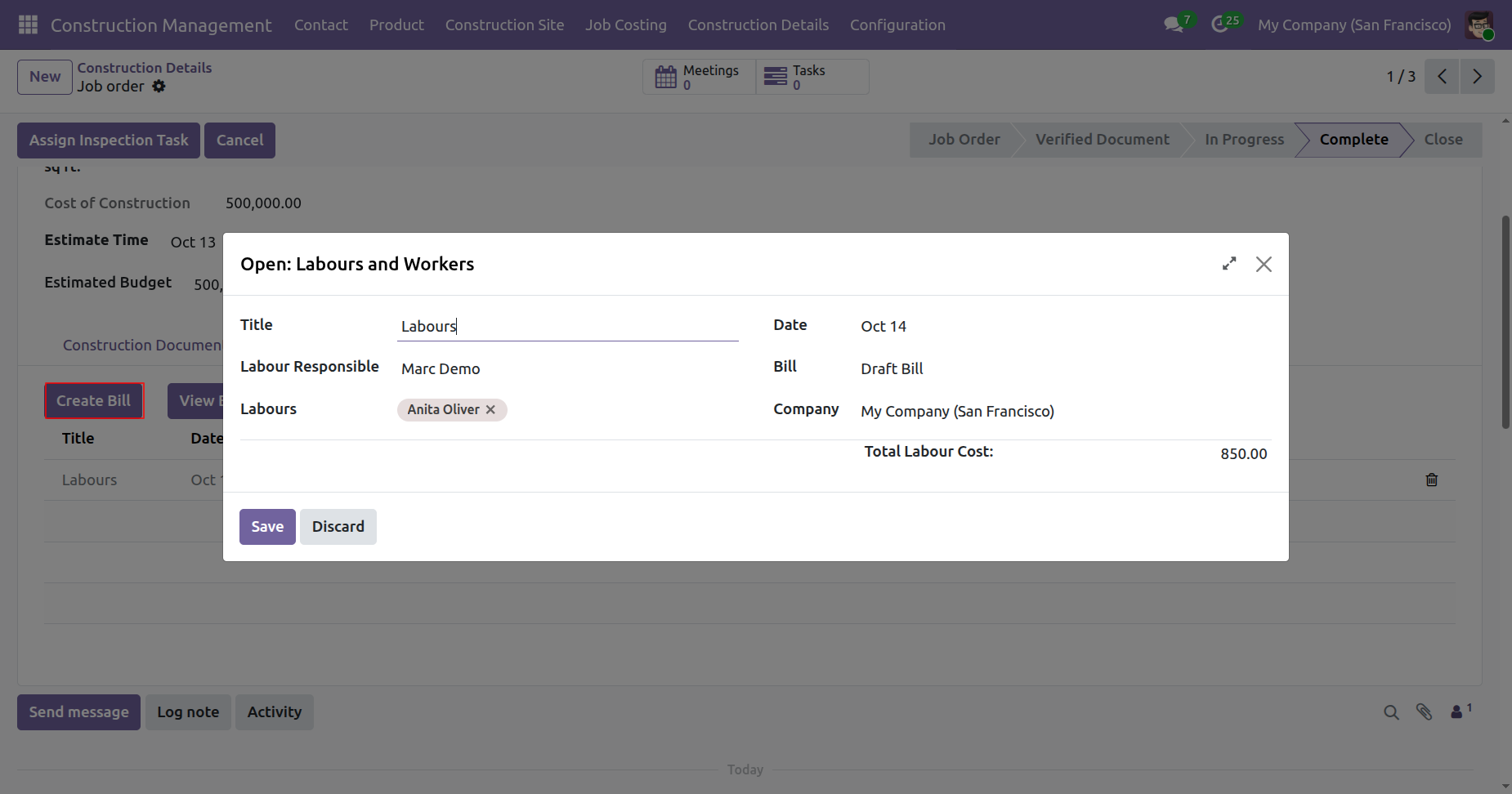
To View a Bill, click on the 'View Bill' button under Labours tab.
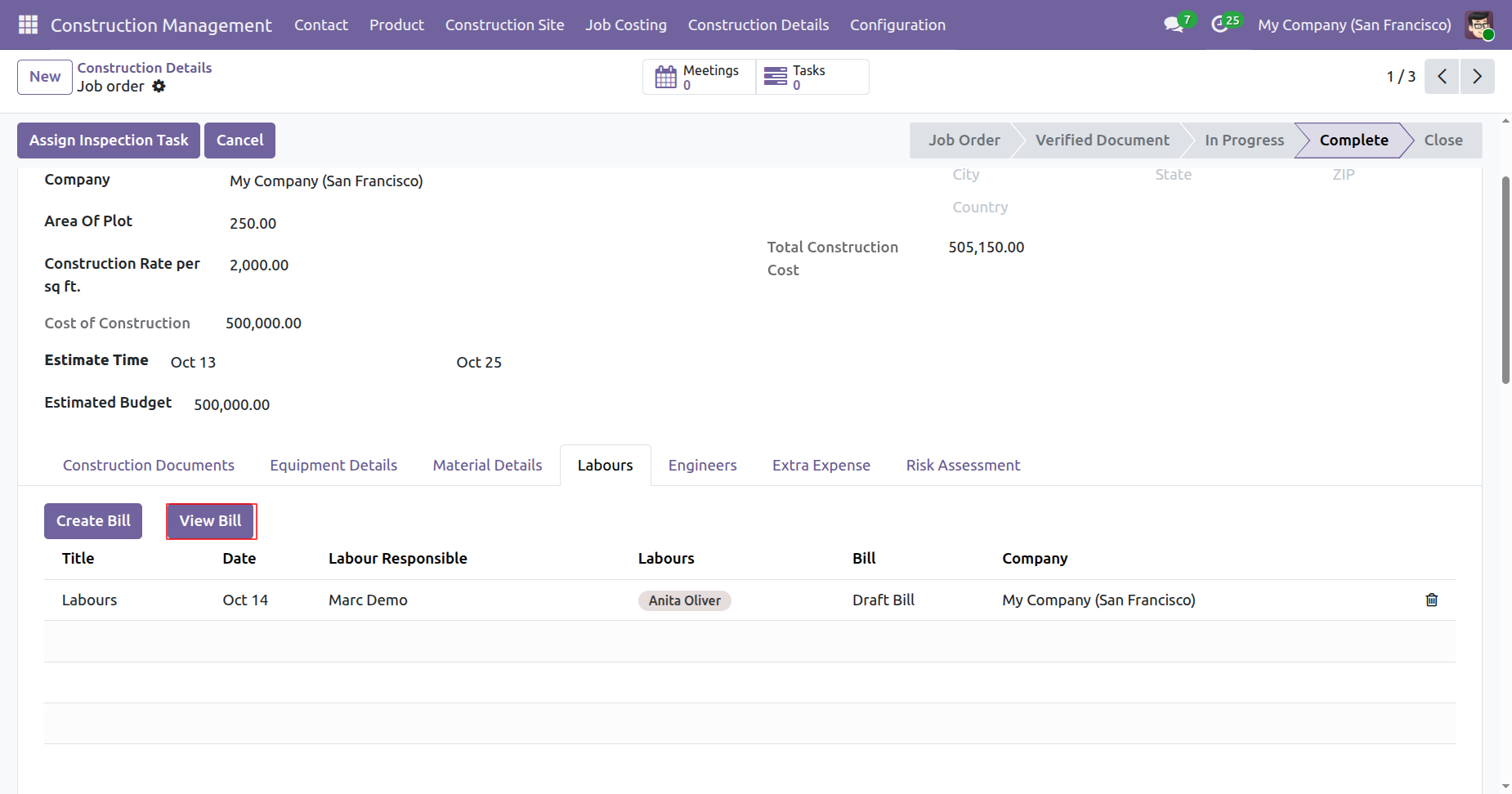
Tree view of the bills.
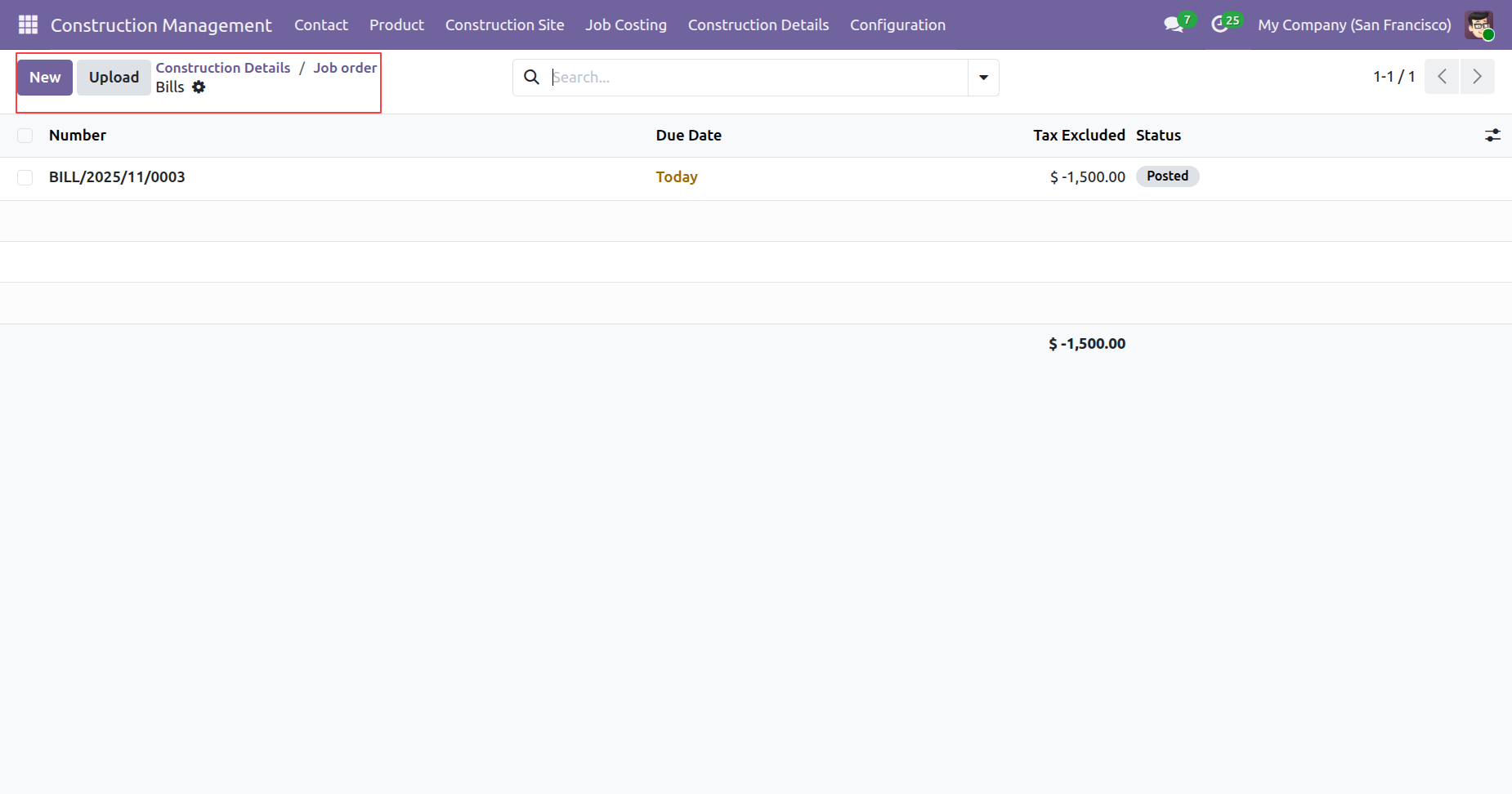
Form view of the bills.
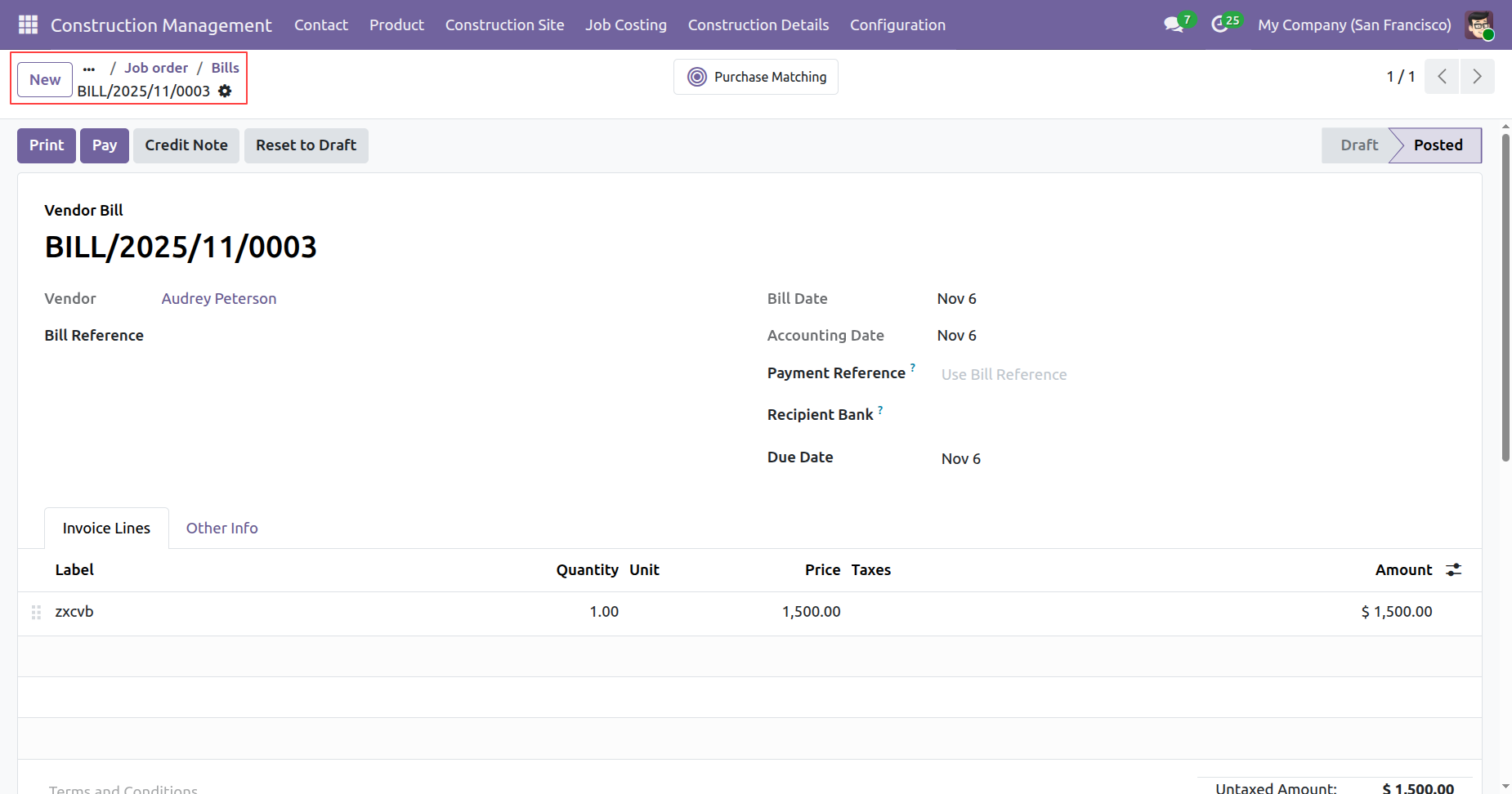
To Create a Bill, click on the 'Create Bill' button under Engineers tab.
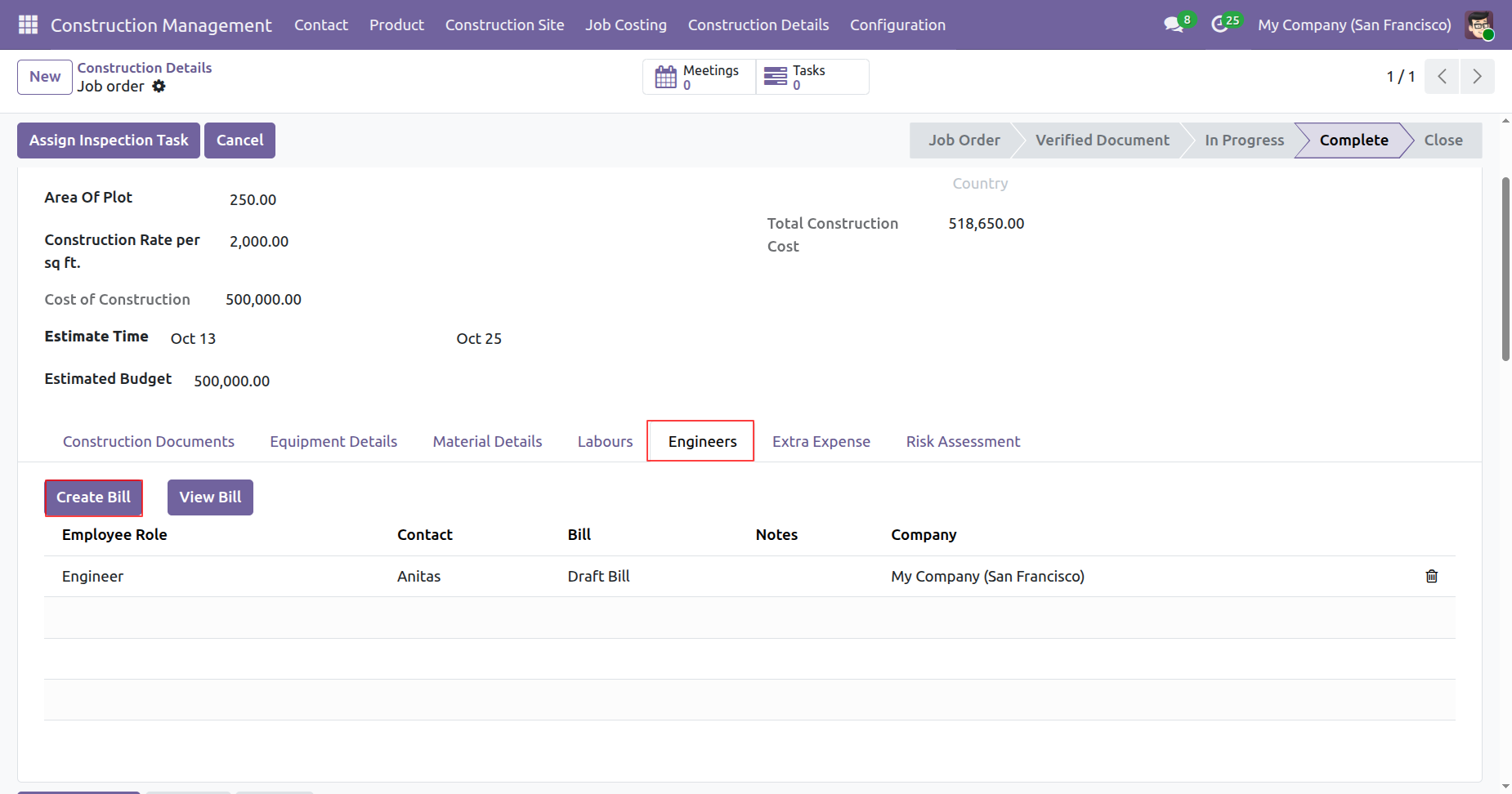
Add details and click on the 'Save' button.
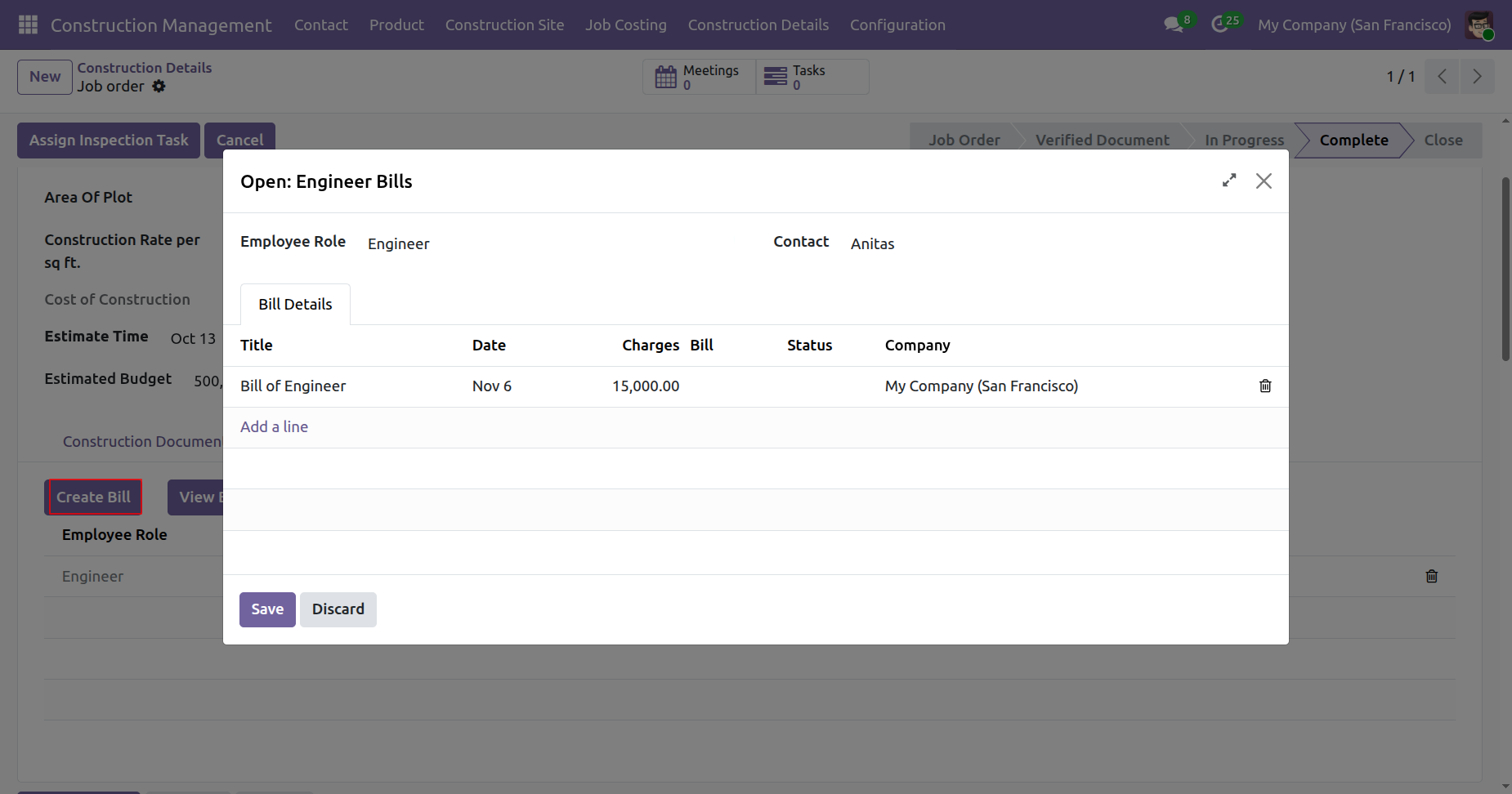
To View a Bill, click on the 'View Bill' button under Engineers tab.
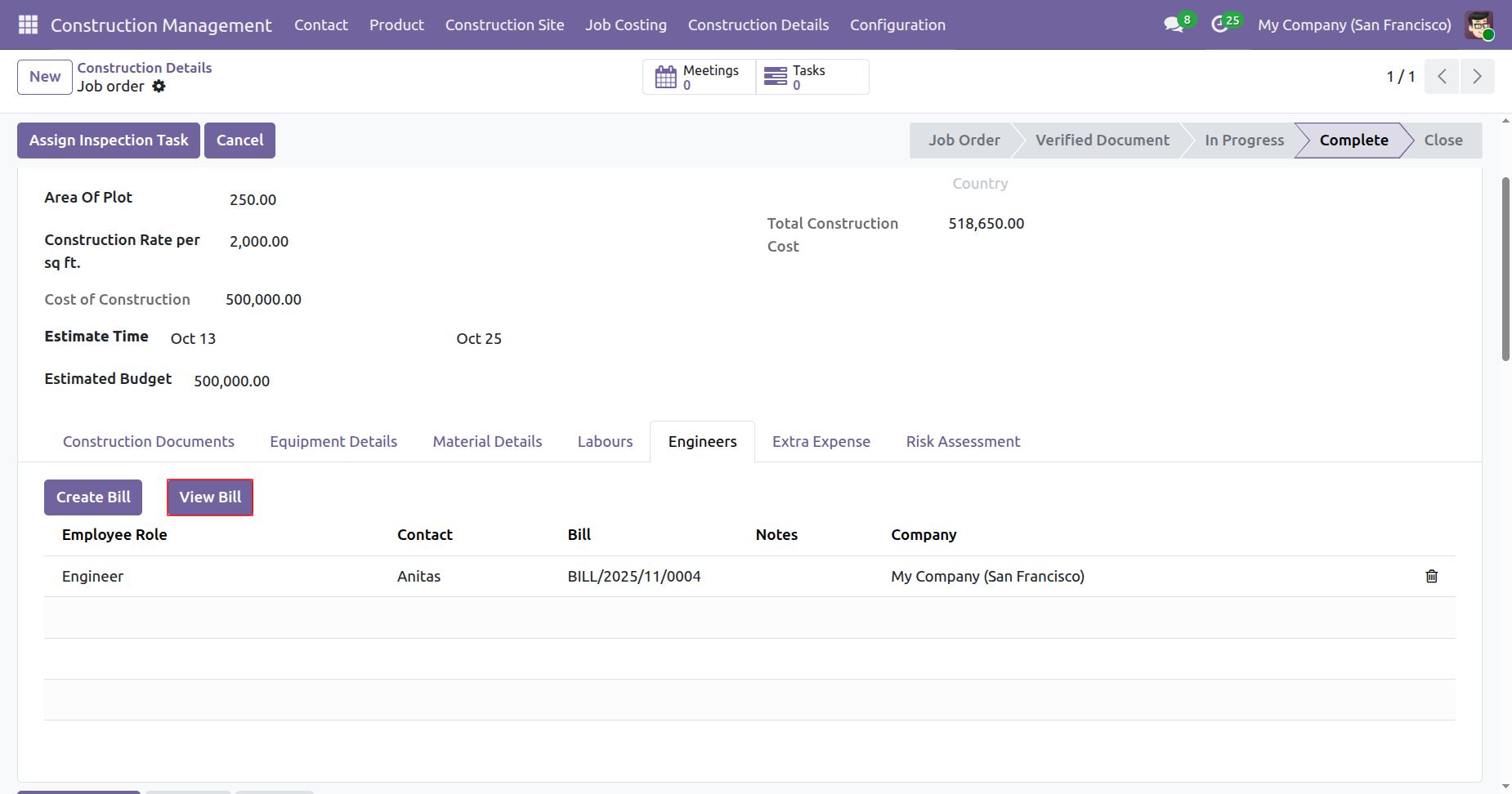
Tree view of the bills.
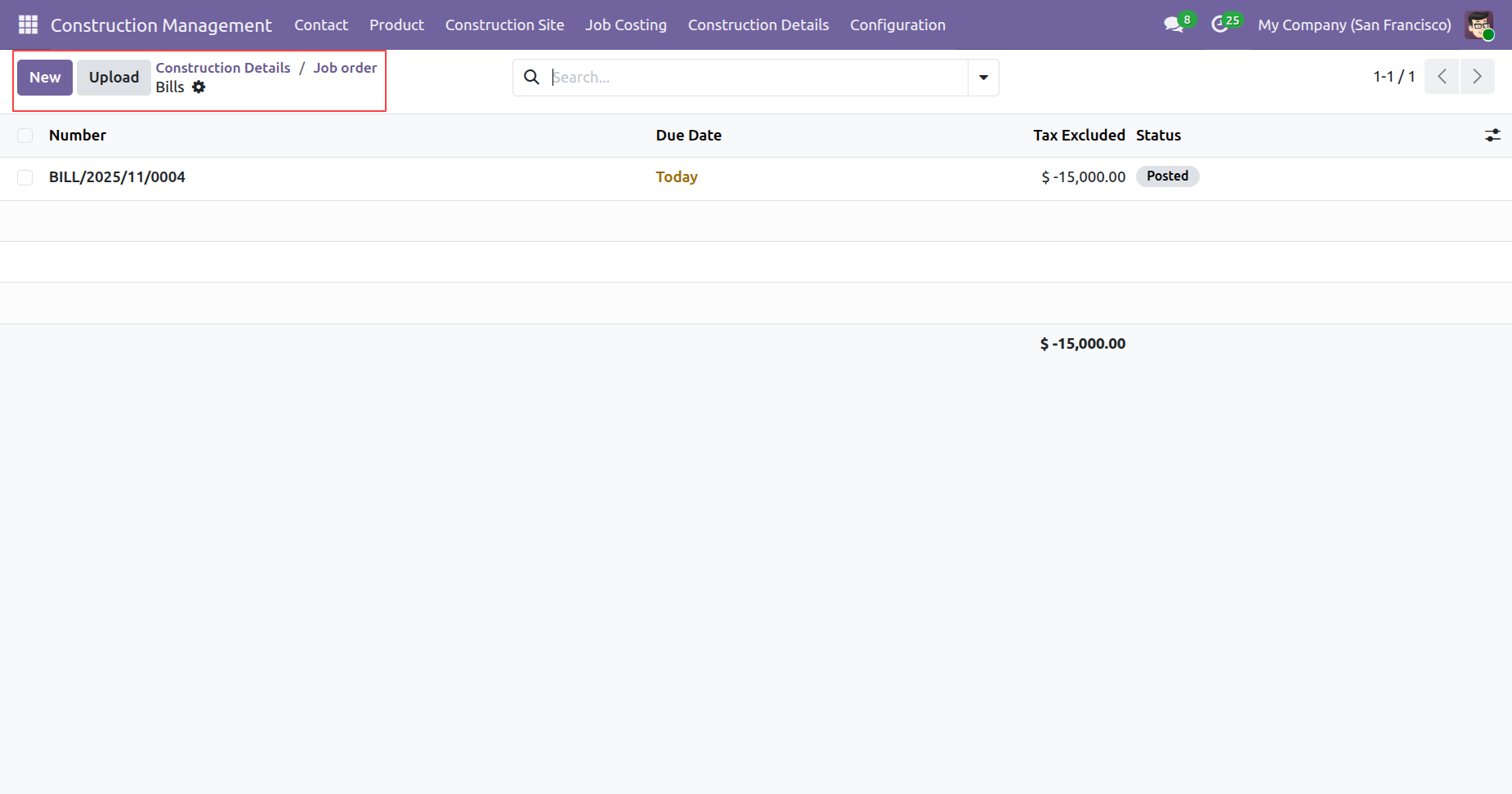
Form view of the bills.
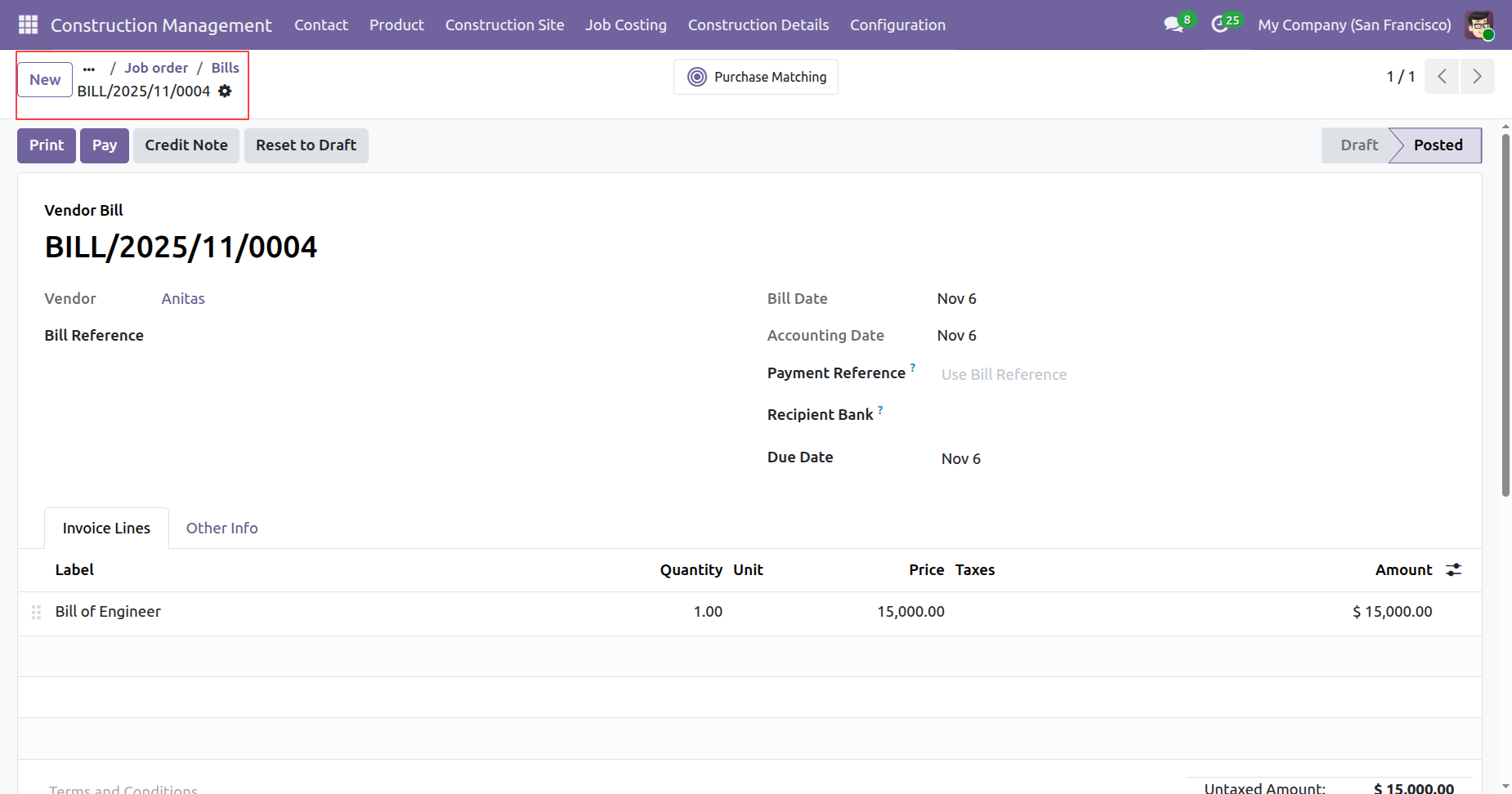
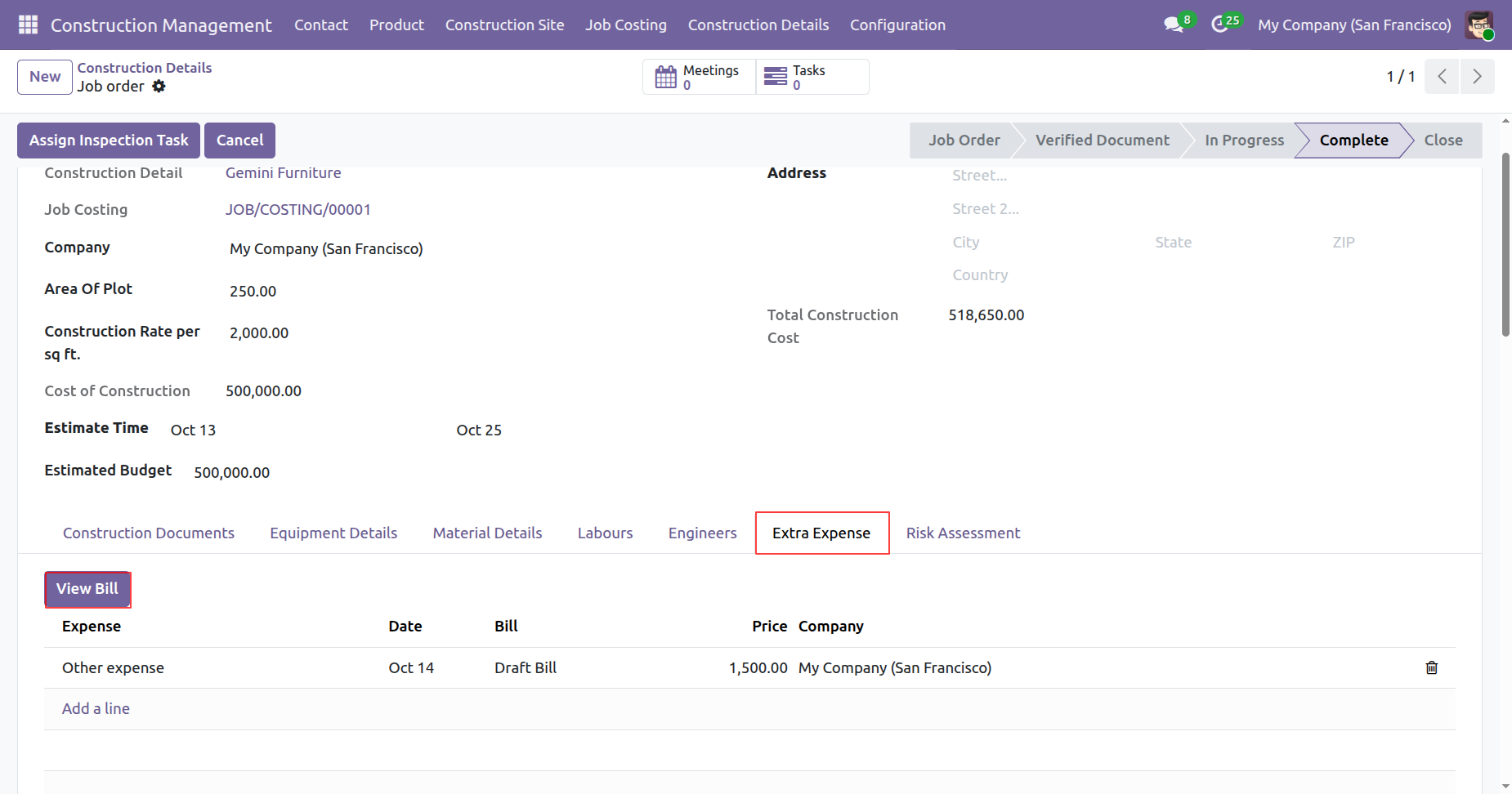
To View a Bill, click on the 'View Bill' button under Extra Expense tab.
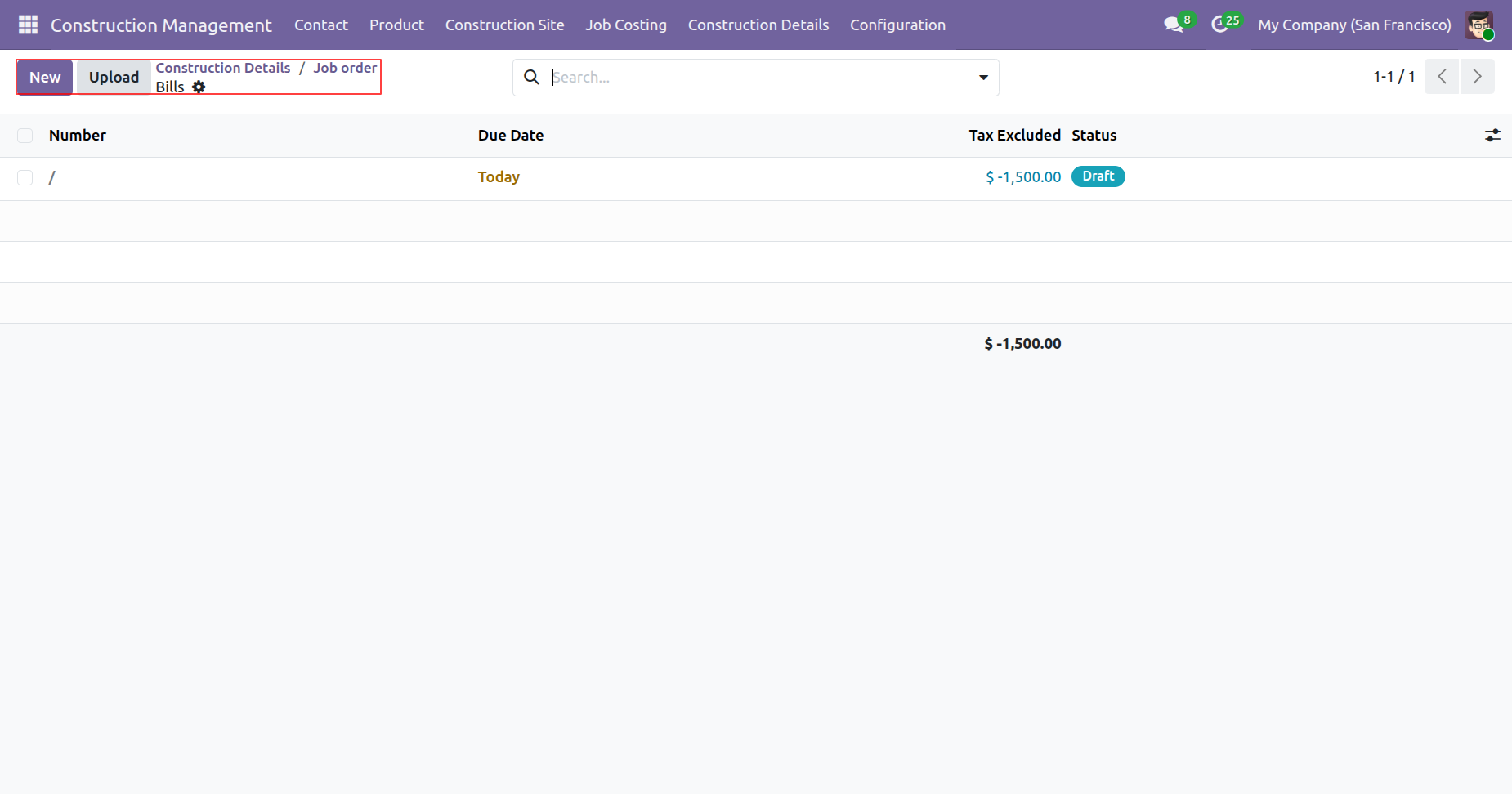
Tree view of the bills.
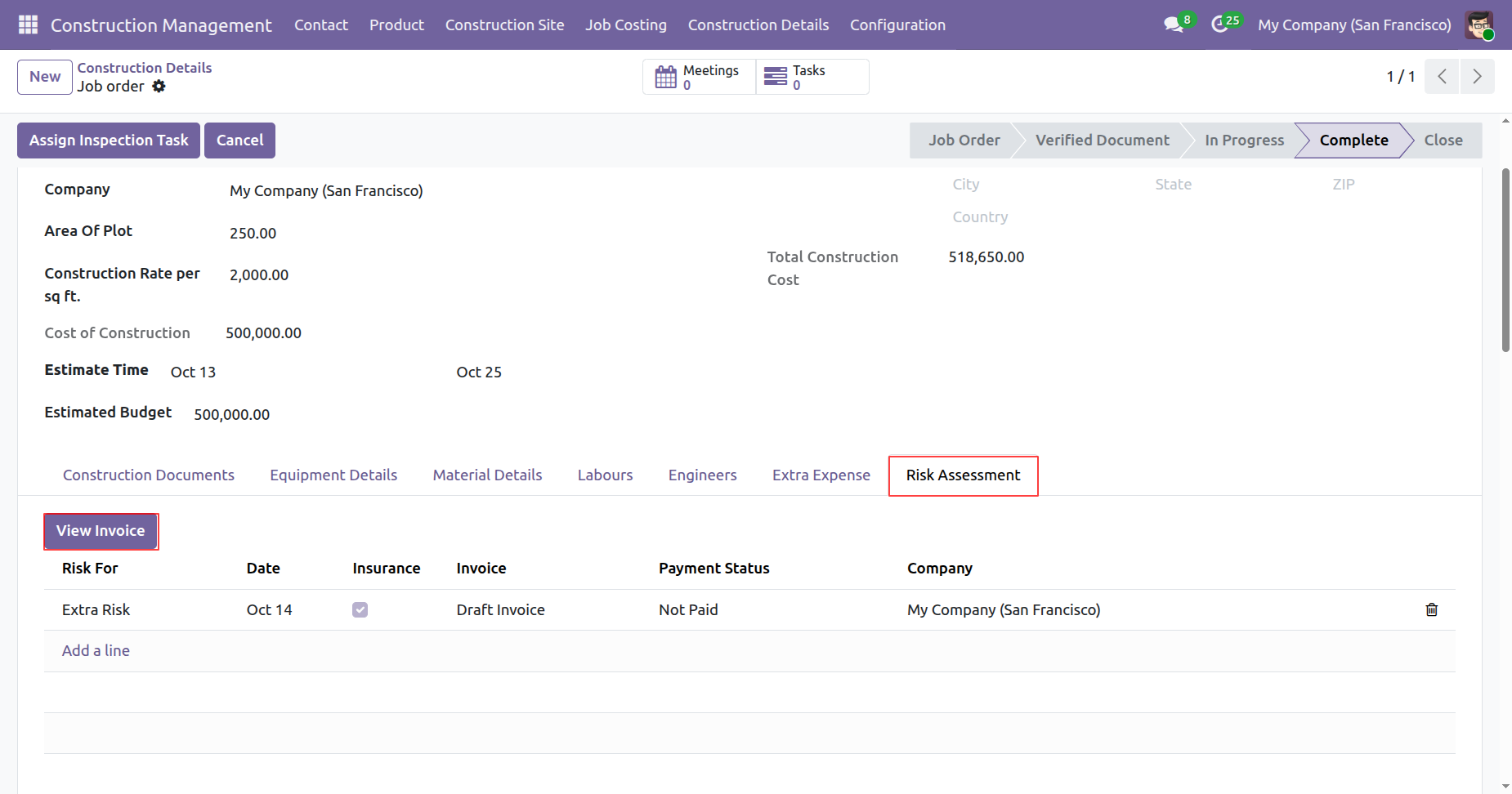
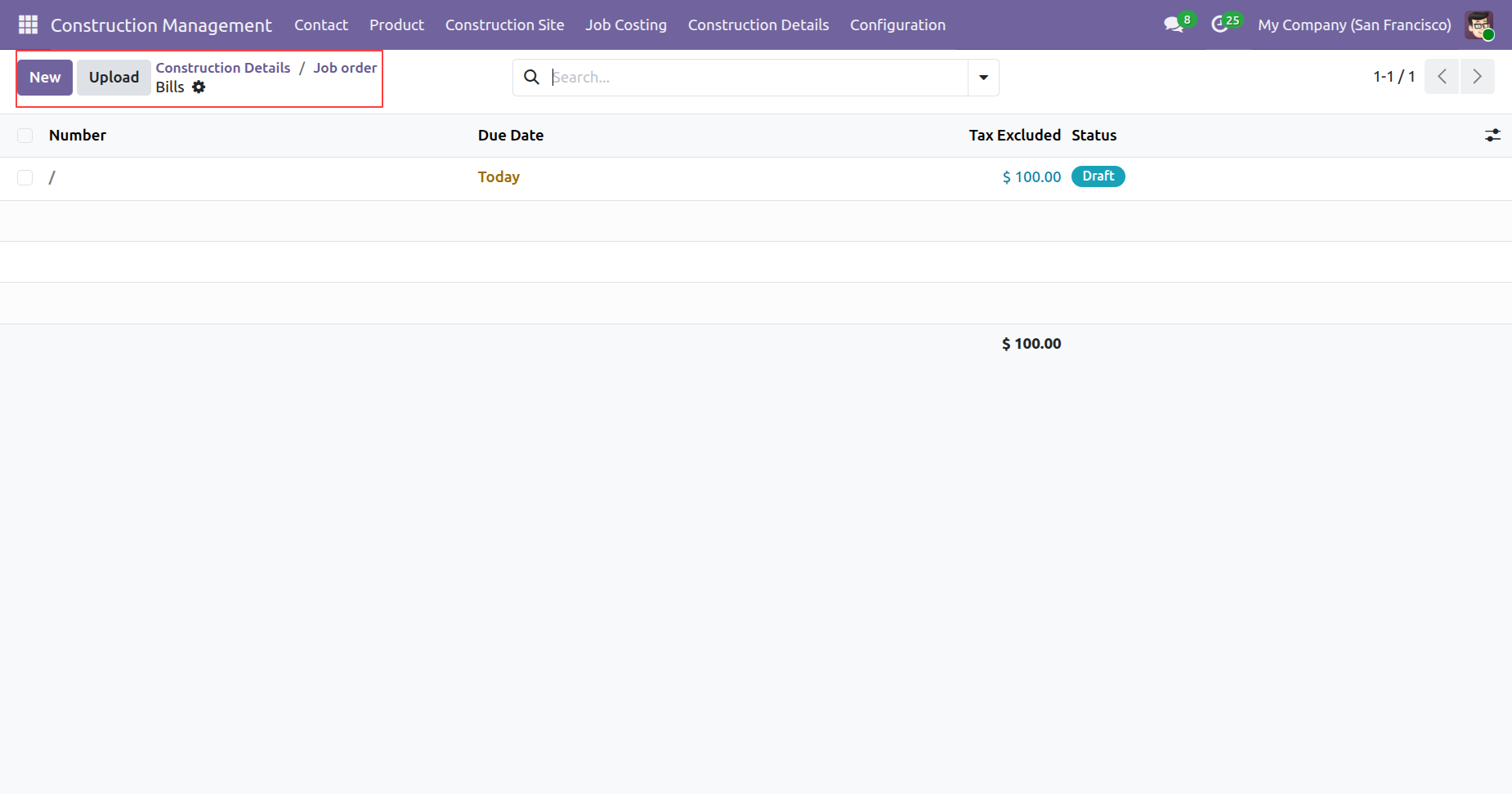
To View a Invoices, click on the 'View Invoice' button under Risk Assessment tab.
Tree view of the invoices.
Version 18.0.1.0.0 | Released on : 08th July 2026
- Yes, this app works perfectly with Odoo Enterprise (Odoo.sh & On-Premise) as well as Community.
- No, this application is not compatible with odoo.com(odoo saas/Odoo Online).
- Please Contact Us at sales@softhealer.com to request customization.
- Yes, you will get free update for lifetime.
- No, you don't need to install additional libraries.
- For version 12 or upper, you will need to purchase the module for each version that you want to use.
- Yes, we provide free support for 100 days.
- No, We do not provide any kind of exchange.
