










Cardknox Payment Integration

The Cardknox Payment Provider module seamlessly integrates your Odoo store with the Cardknox payment gateway, enabling fast and secure online payments. It enhances the checkout experience with customizable payment status messages and automatic notifications, while offering full multi-website compatibility so each site can manage its own payment settings. The module also supports processing refunds directly from Odoo for smoother cancellations and maintains complete transaction history for easy tracking, with accurate conversions. Additionally, customers can securely pay through a dedicated self-service payment portal, ensuring a reliable and convenient payment experience for your e-commerce business.
Related Modules
Key Features
Features
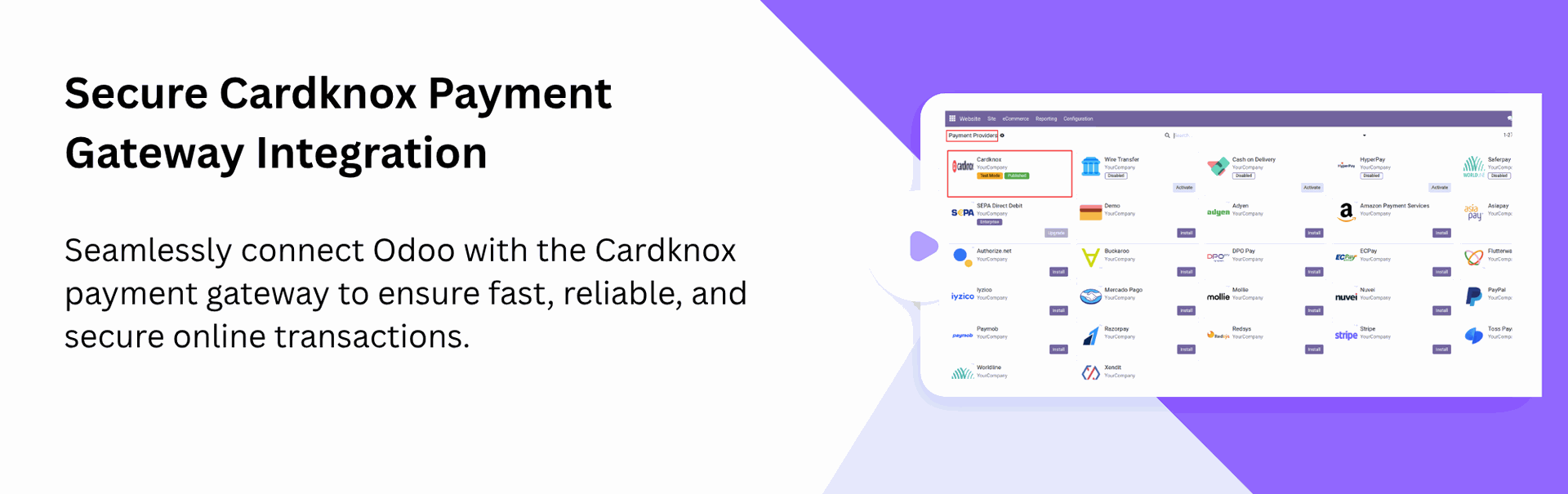
Secure Cardknox Payment Gateway Integration
Connect your store with Cardknox for fast and secure payment processing.
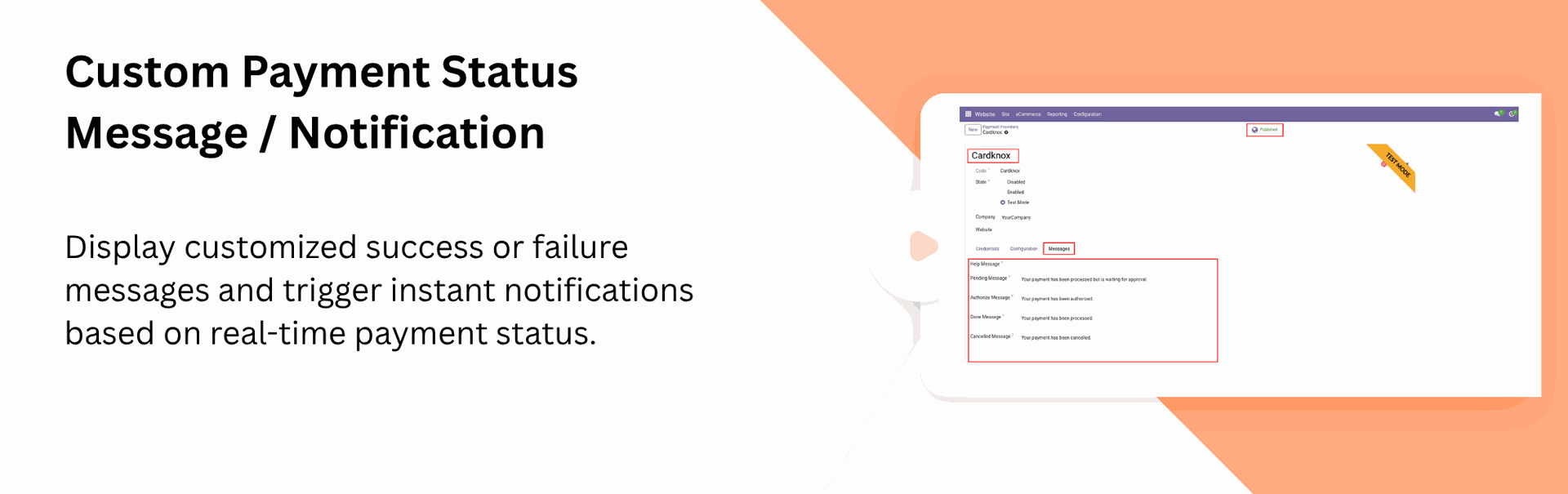
Custom Payment Status Message / Notification
Show personalized success/failure messages and send notifications after each payment update.
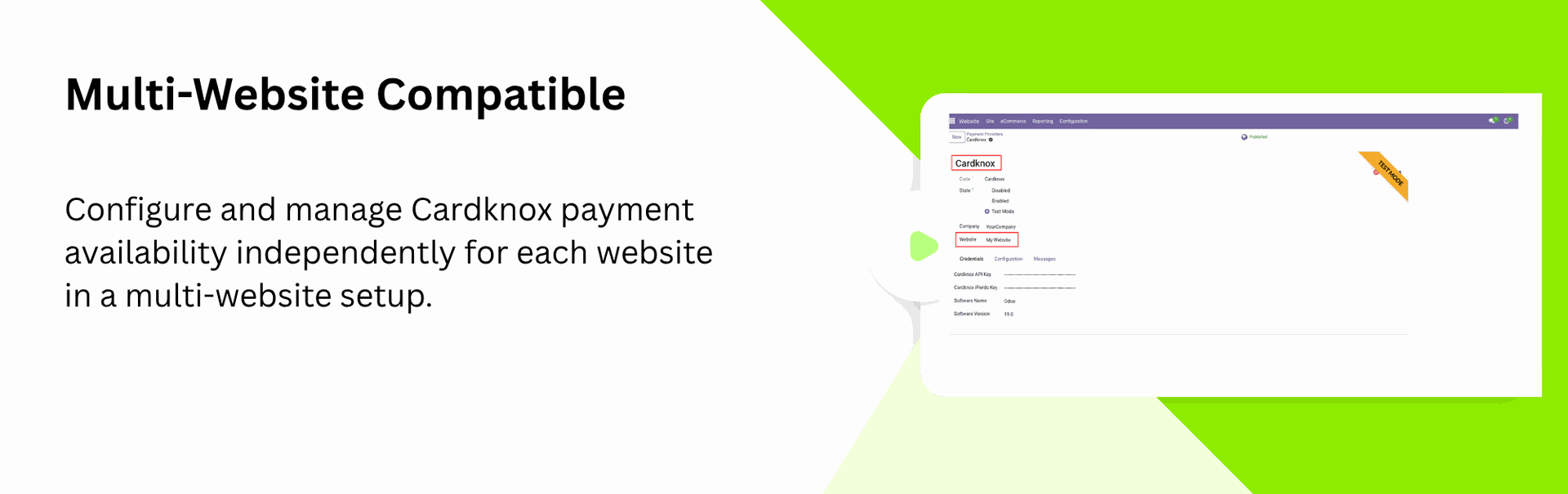
Multi-Website Compatible
Enable payment methods separately for each website in a multi-website environment.
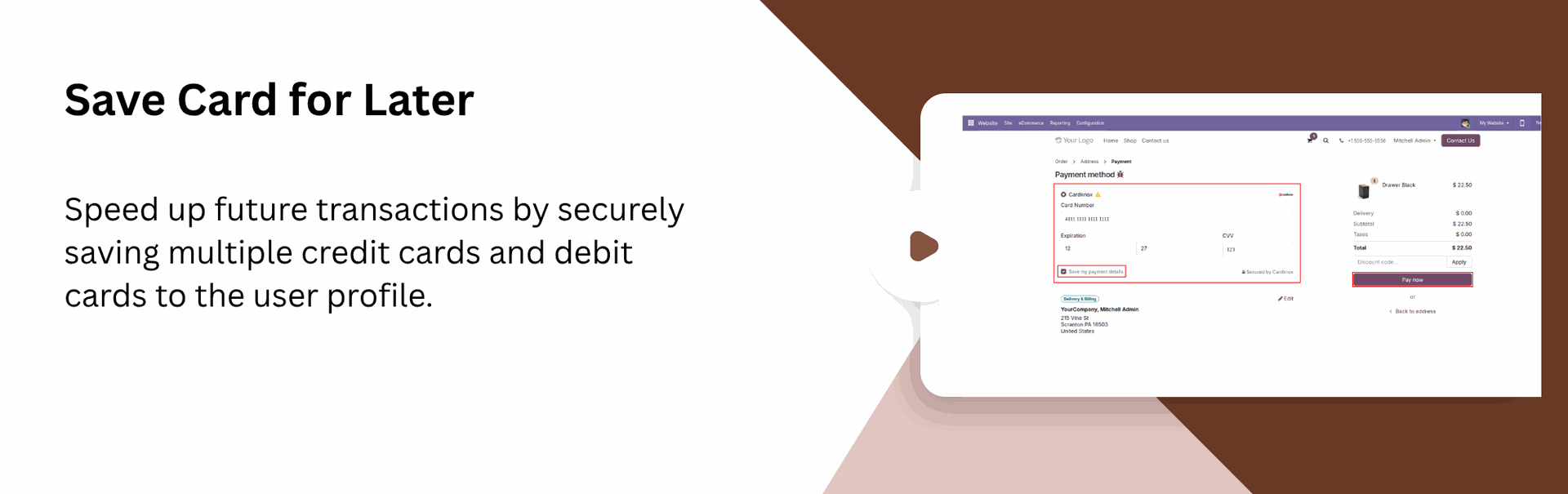
Save Card for Later
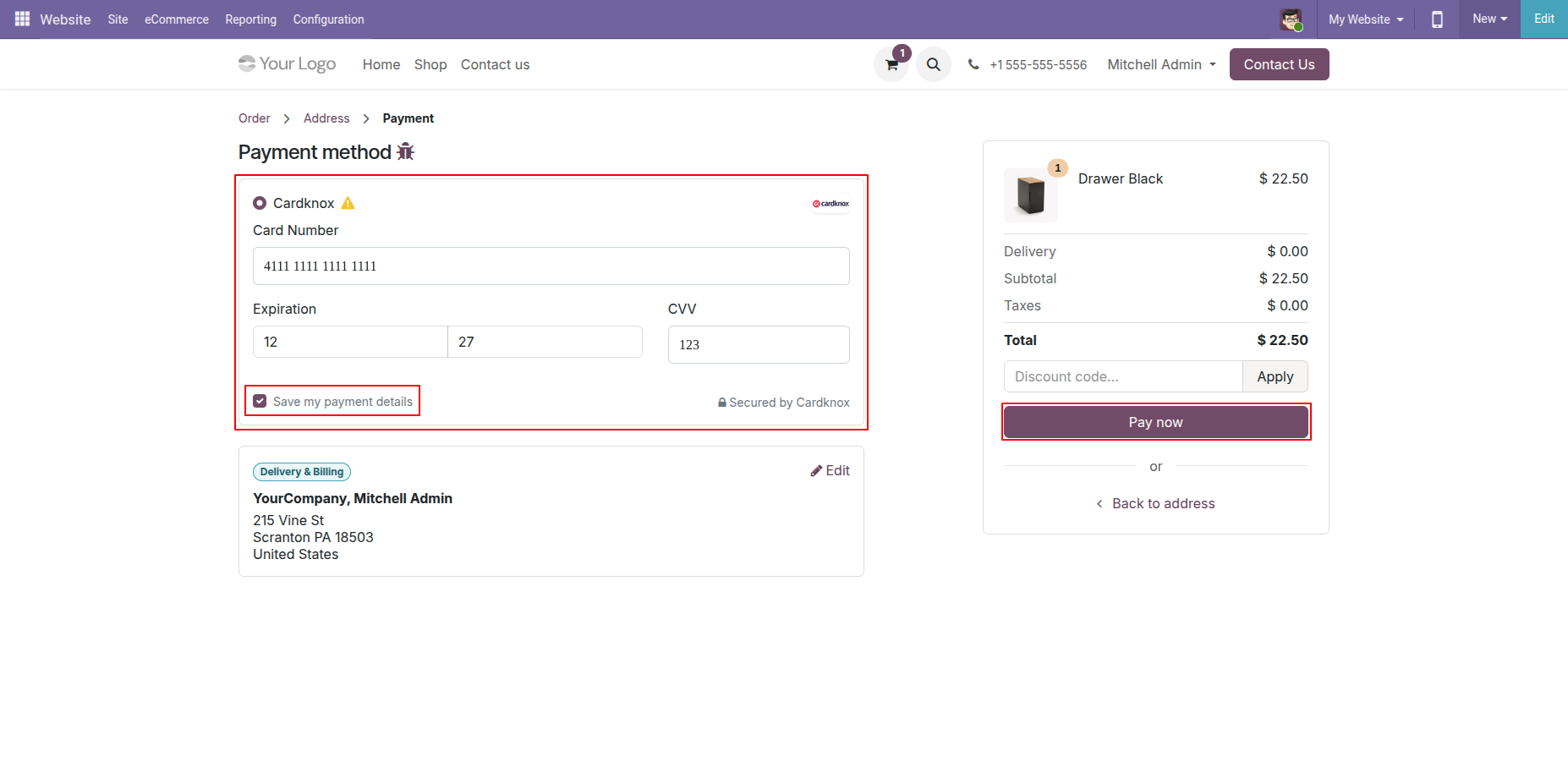
Securely save customer card details for faster and more convenient checkouts on future purchases.
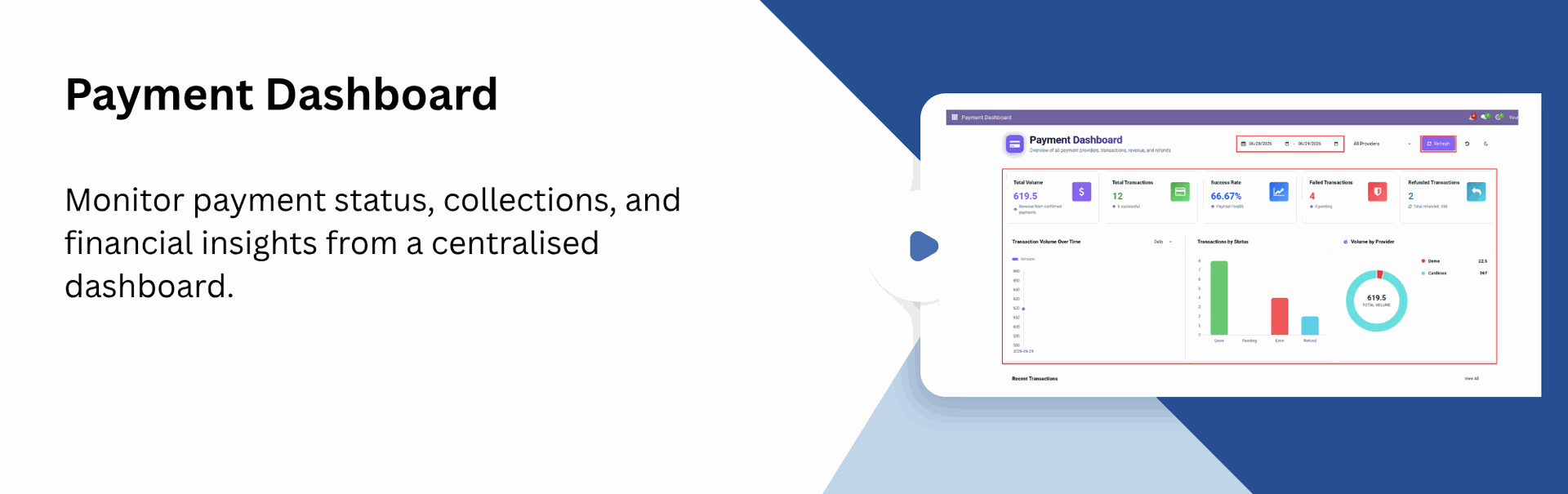
Payment Dashboard
Monitor payment status, collections, and financial insights from a centralized dashboard.
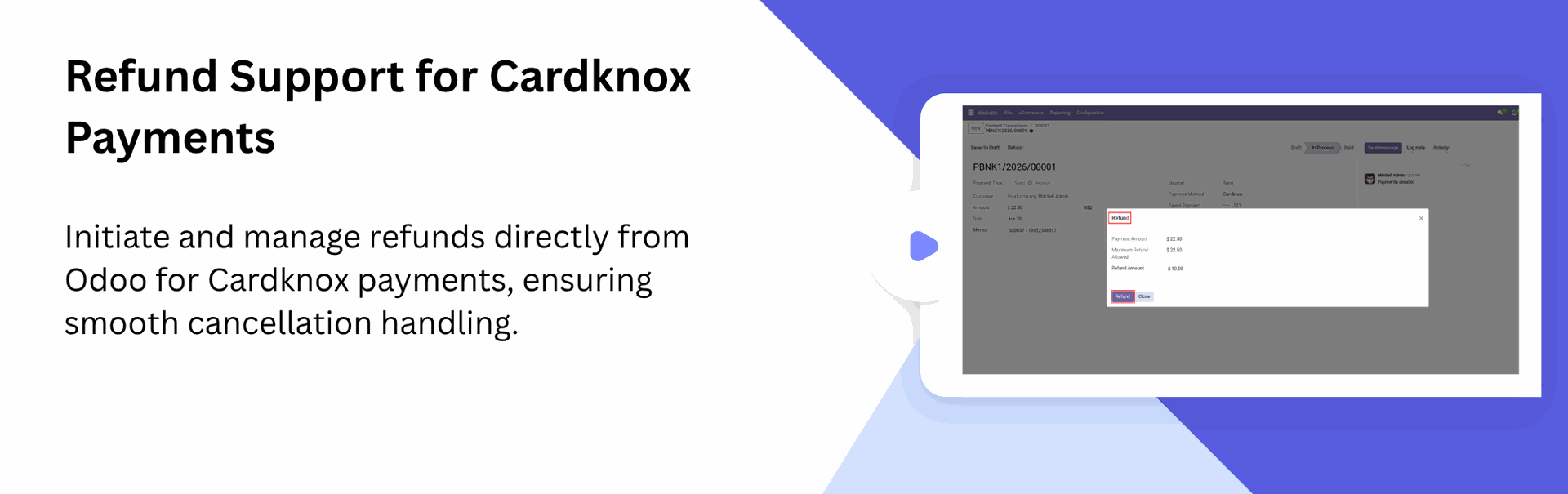
Refund Support for Cardknox Payments
Process refunds directly from Odoo for any order paid through Cardknox. Ensuring smooth handling of cancellations.
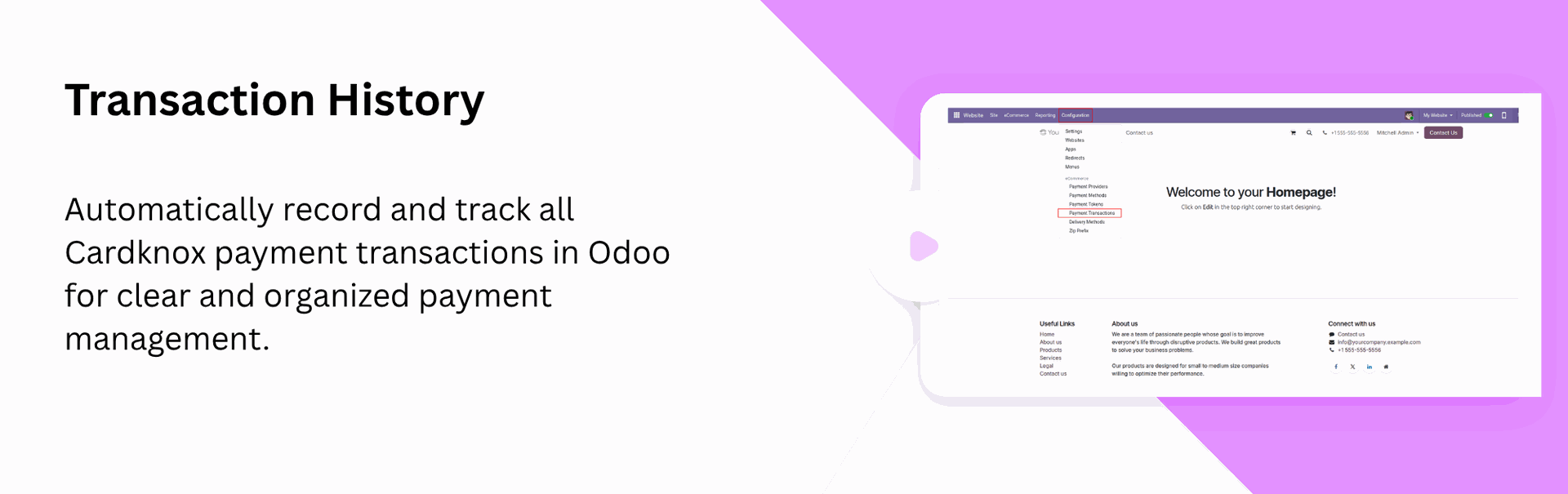
Transaction History
Maintain a transaction history in Odoo for all payments processed through Cardknox, making payments straightforward.
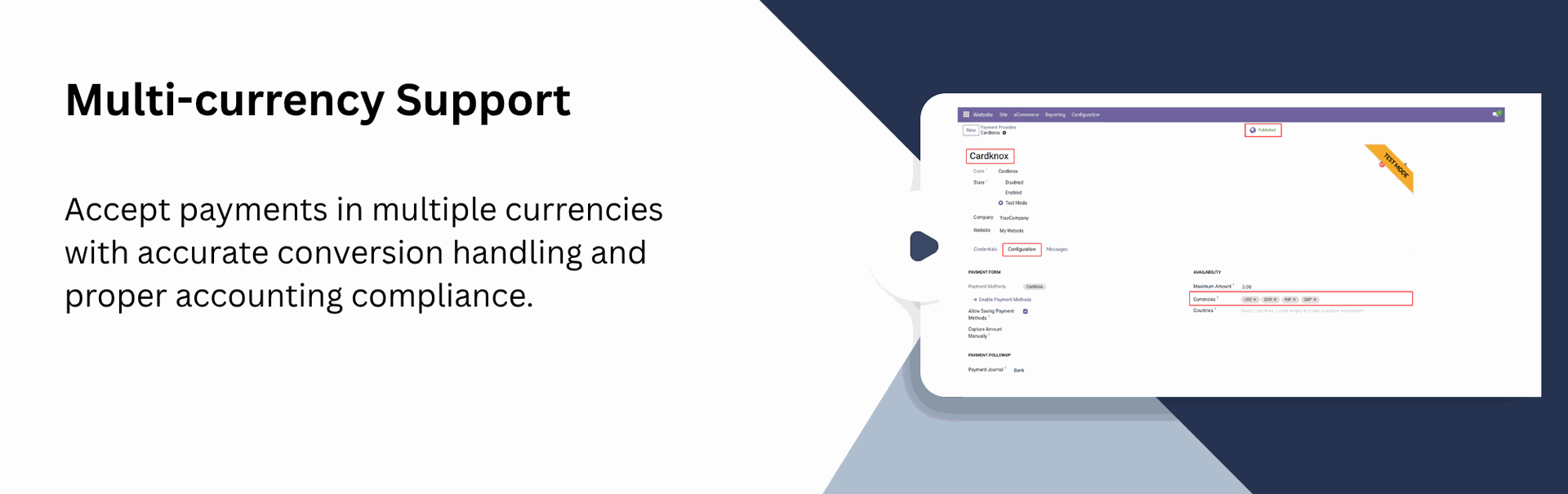
Multi-currency Support
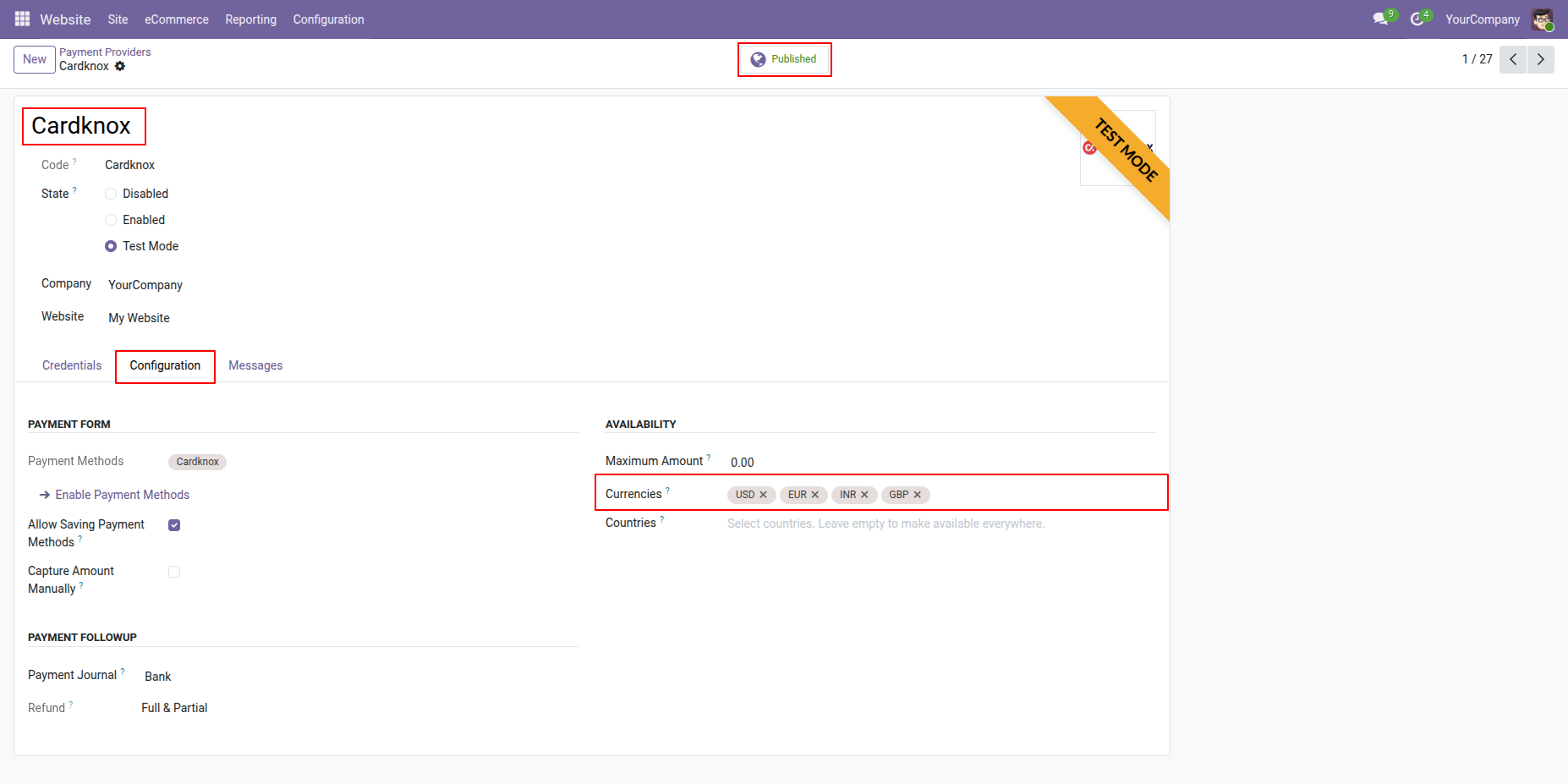
Accept and process payments in multiple currencies with accurate conversions and compliant accounting.
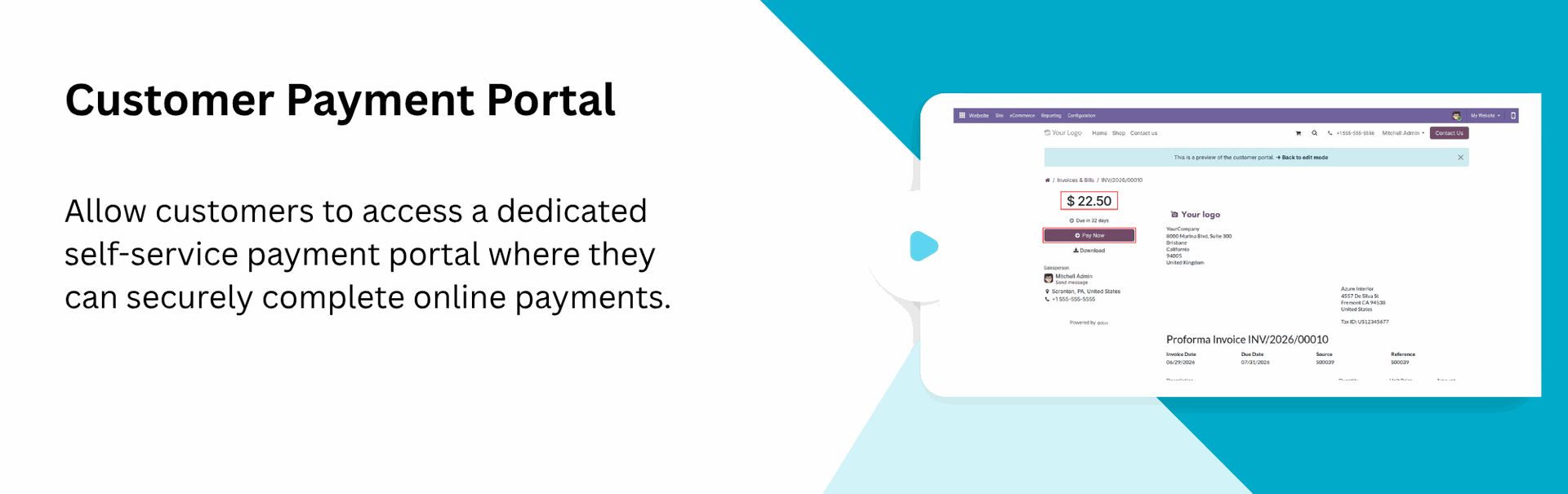
Customer Payment Portal
Let customers pay online securely through a self-service payment portal.
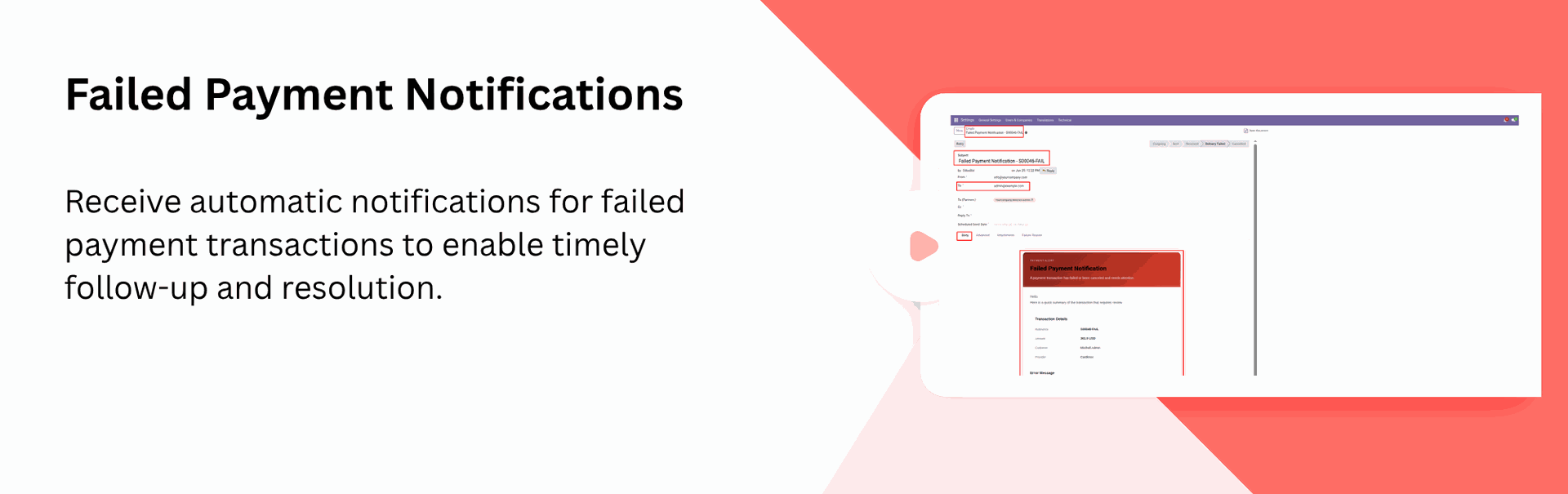
Failed Payment Notifications
Receive automatic notifications for failed payment transactions to enable timely follow-up and resolution.
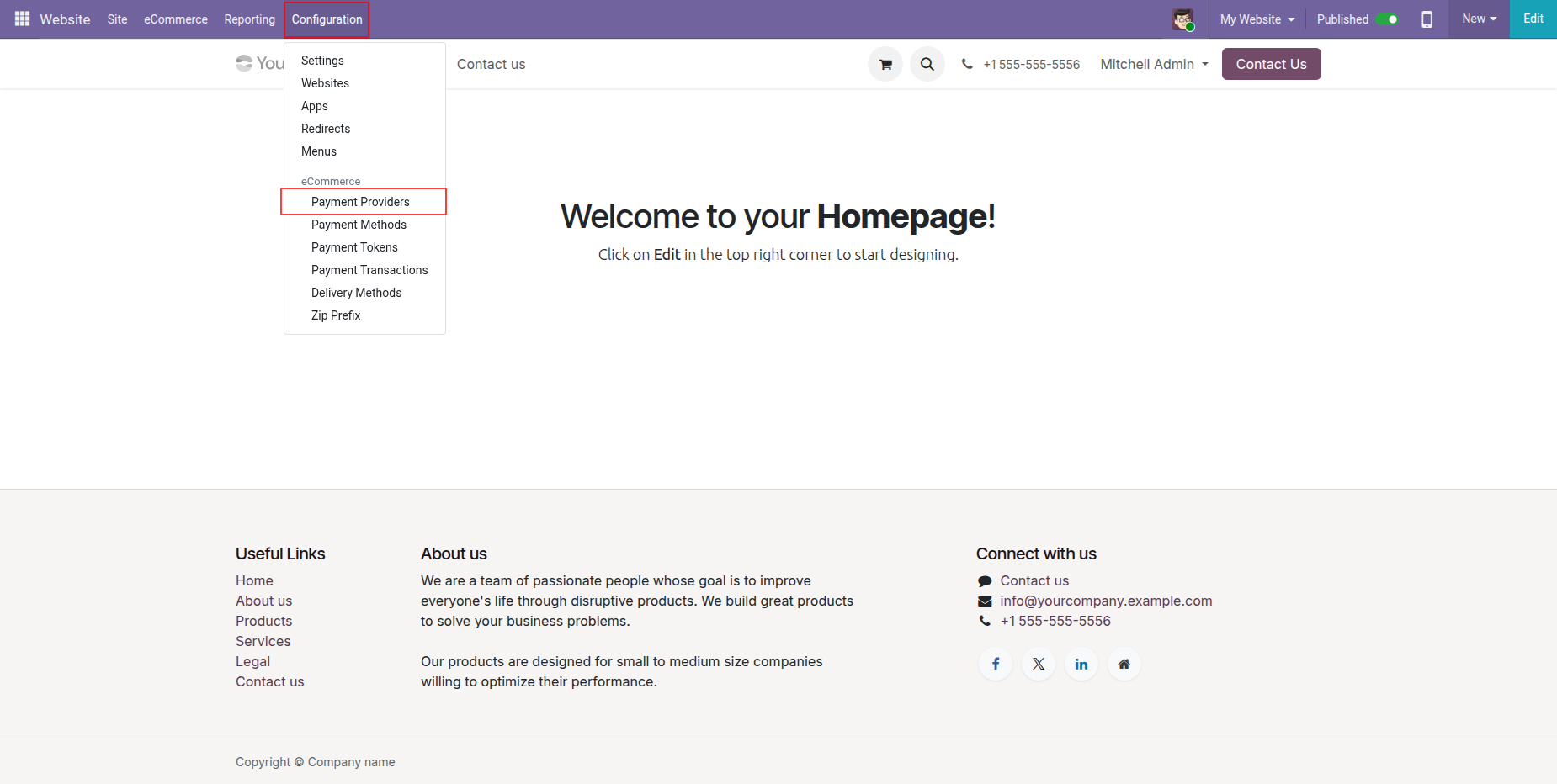
Go to Website -> Configuration -> Payment Providers to access Cardknox settings.
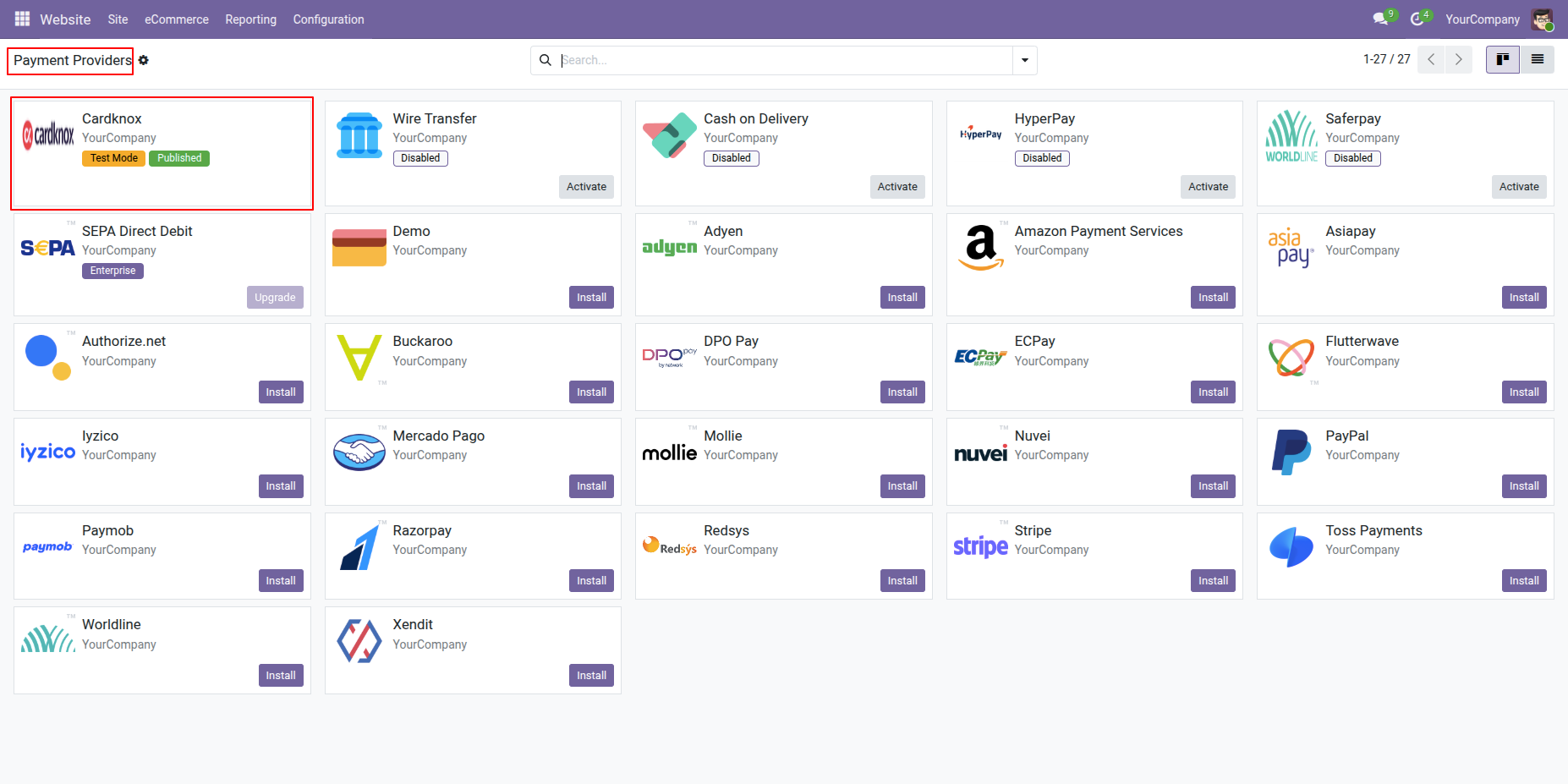
Select Cardknox from the list of available payment providers.
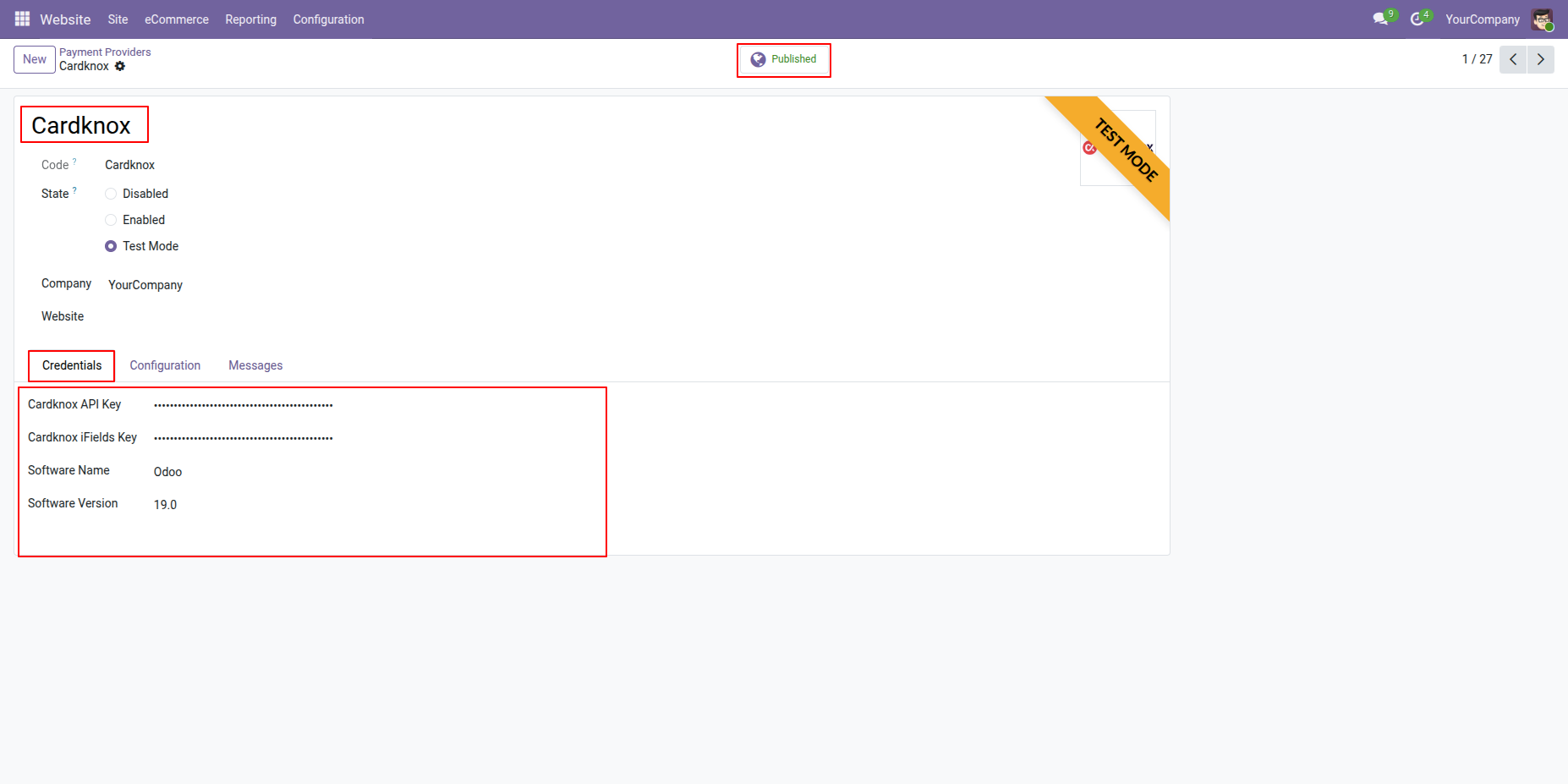
Enter your Cardknox credentials to enable payment processing.
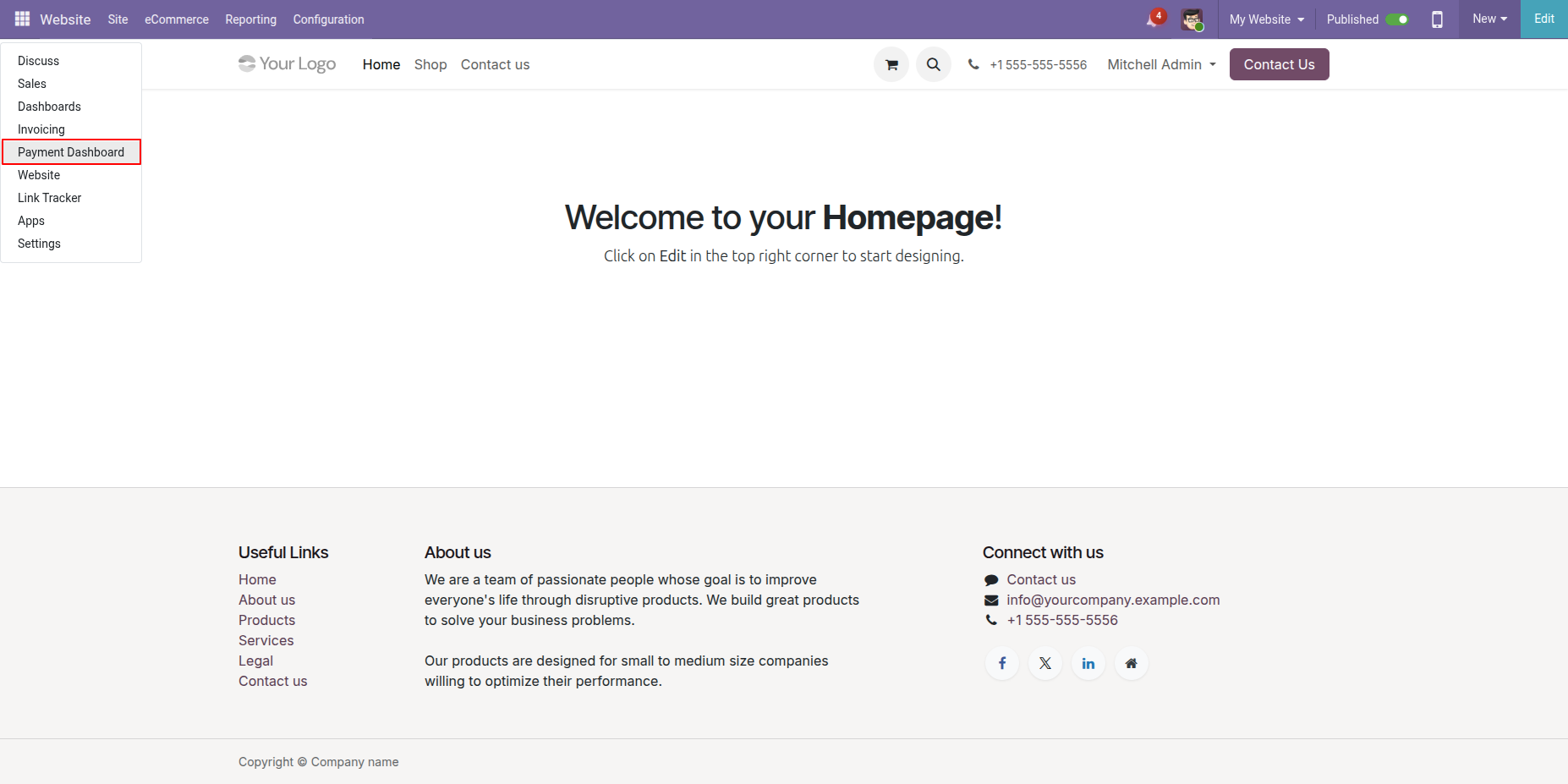
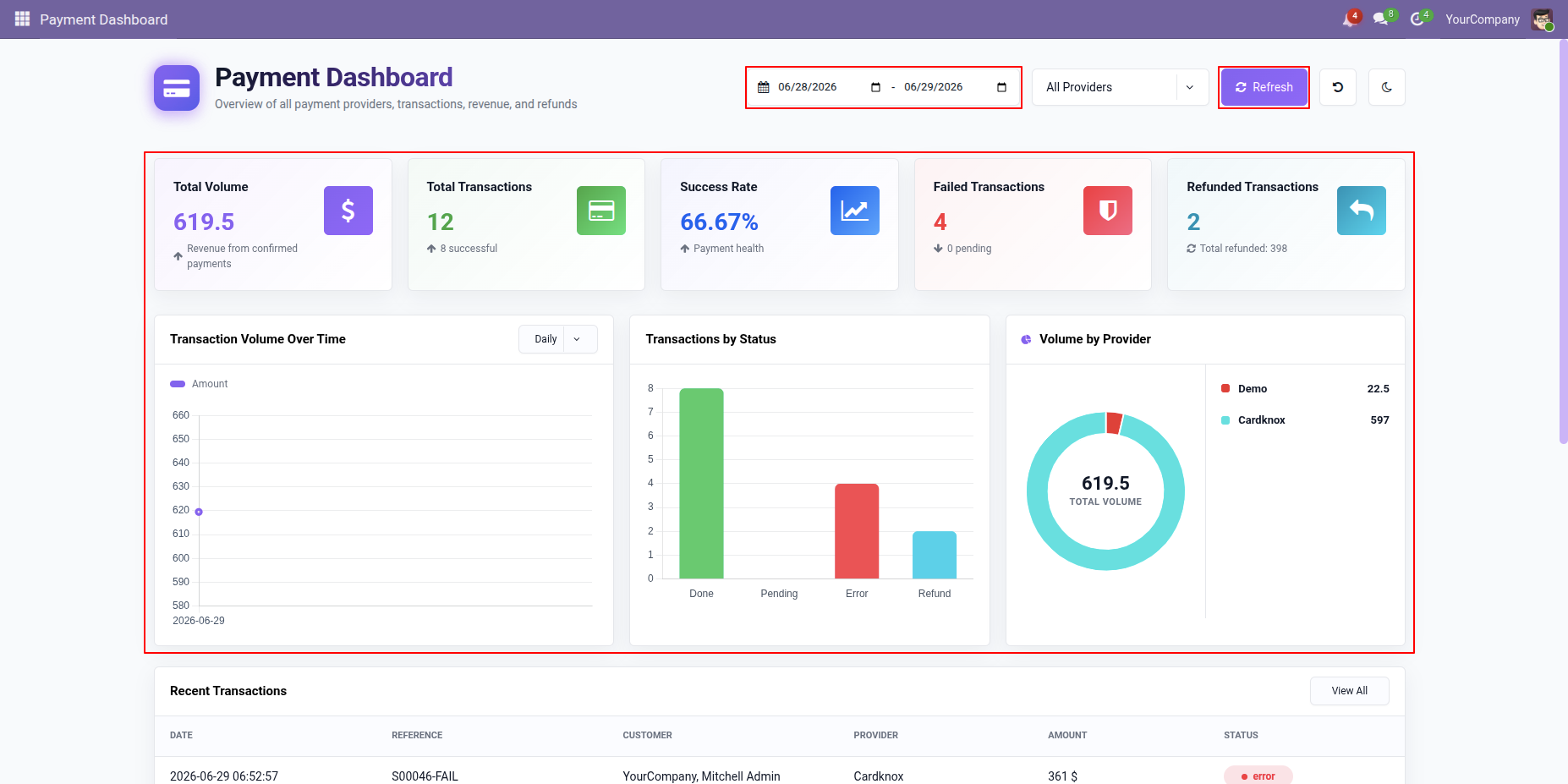
Go to the Payment Dashboard to view all payment records and their details.
Users can filter records by date range and refresh the dashboard to view the latest data.
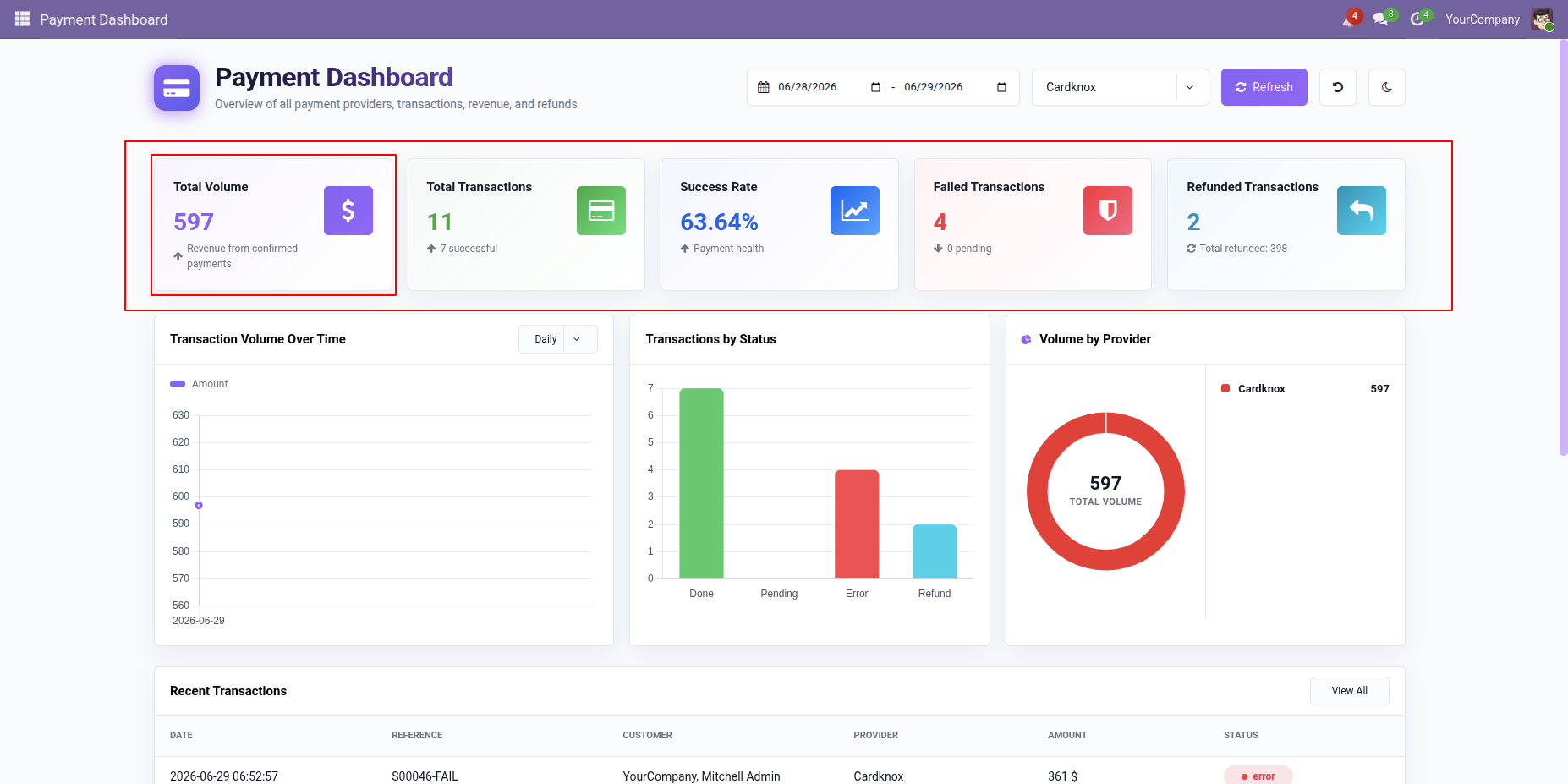
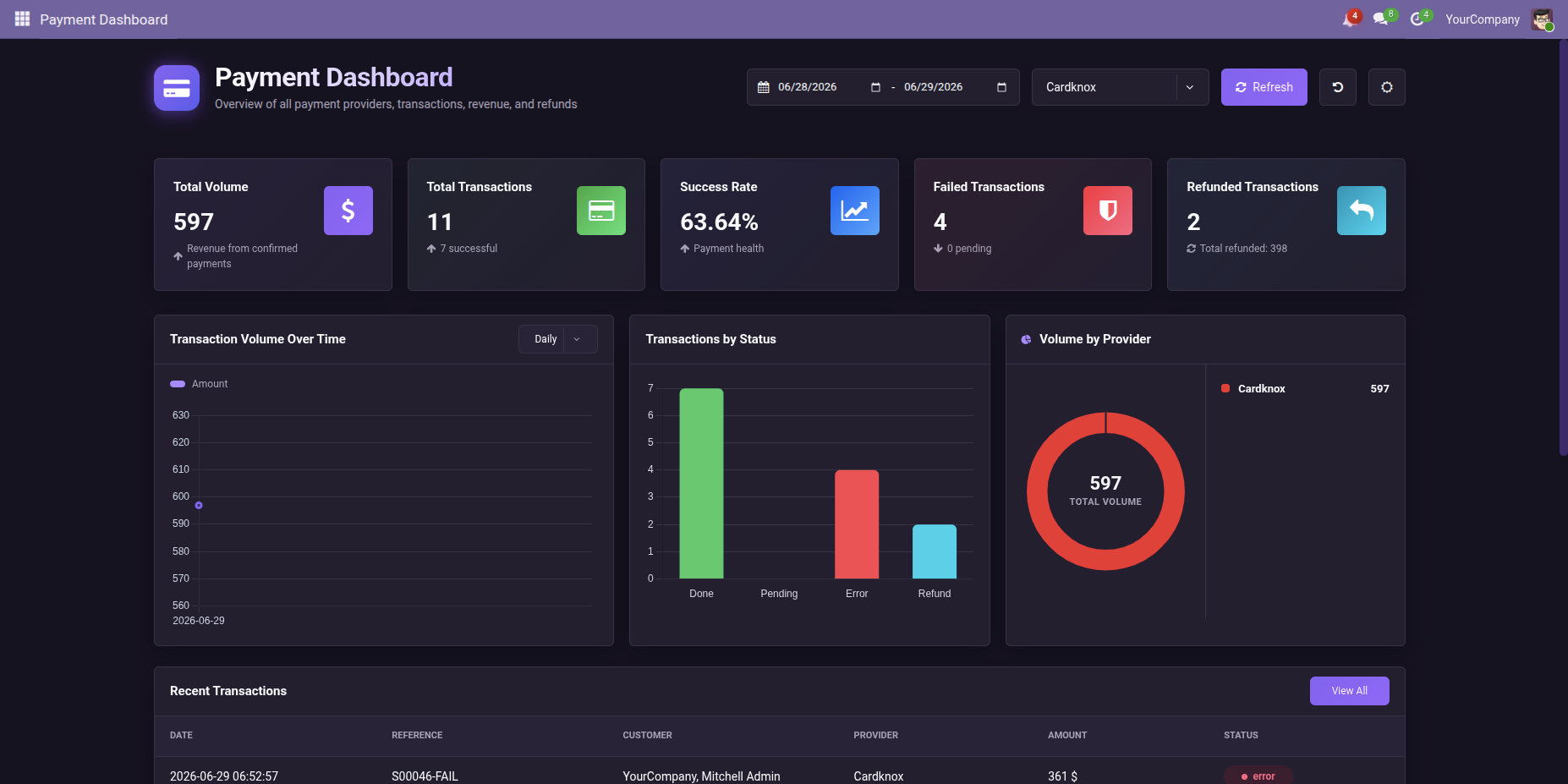
Users can view Total Volume, Total Transactions, Success Rate, Failed Transactions, and Refunded Transactions directly from the dashboard.
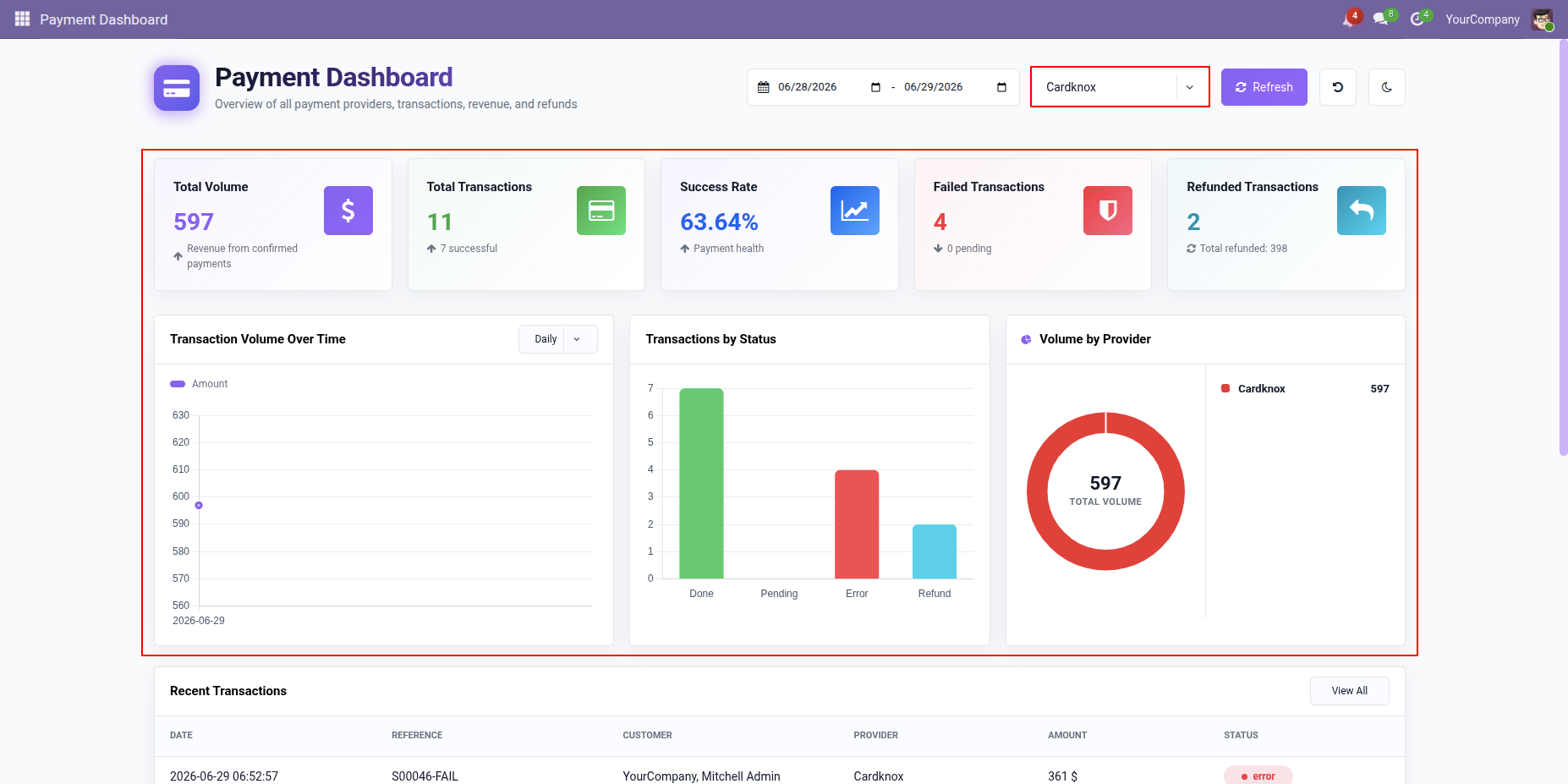
Users can view charts for Transaction Volume Over Time, Transactions by Status, and Volume by Provider directly from the dashboard.
Recent transaction history can be viewed directly from the dashboard. Click the View button to see the detailed transaction history.
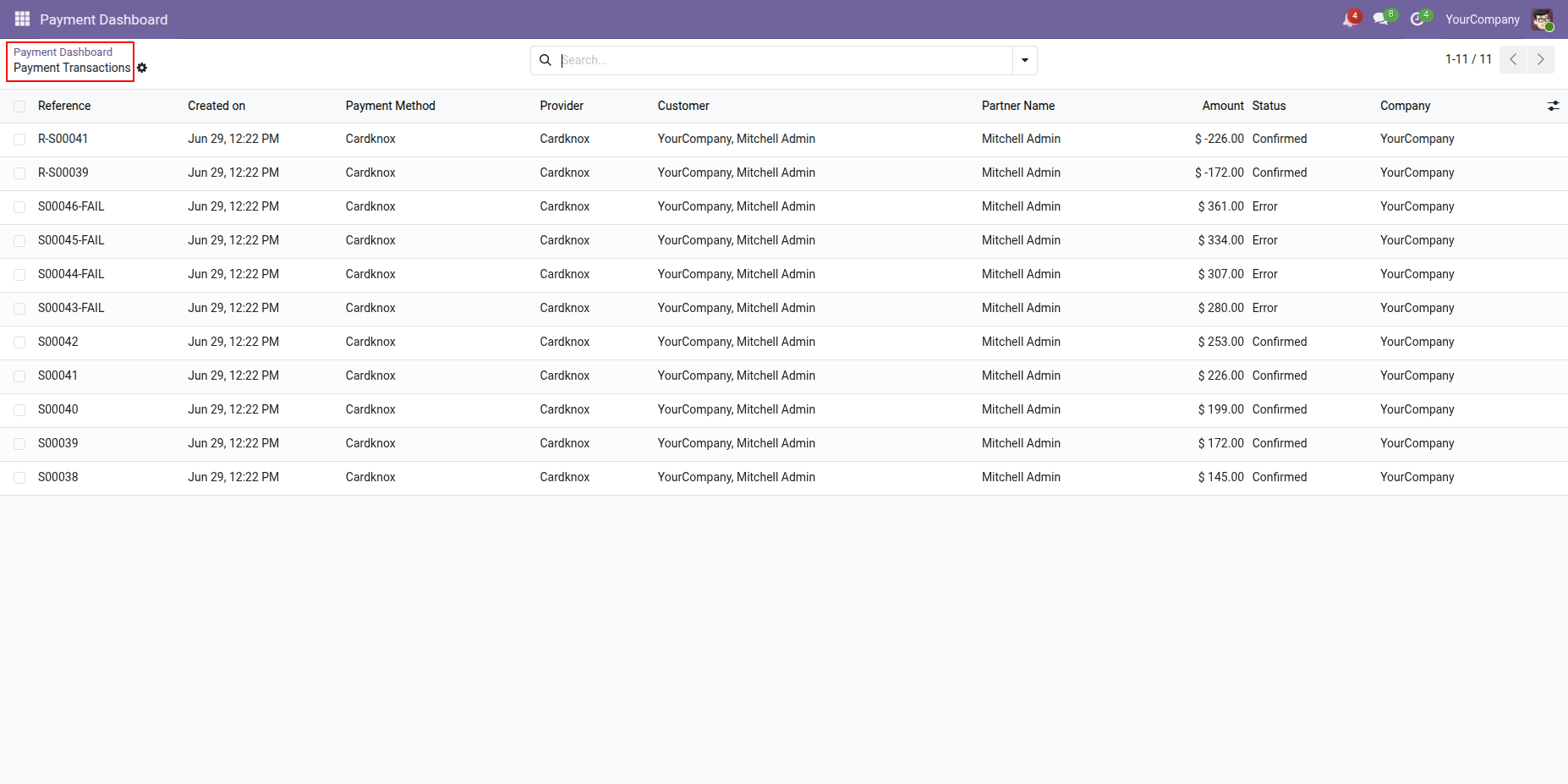
By clicking the View All button on the dashboard, users can open the Payment Transactions list view and access all transaction records.
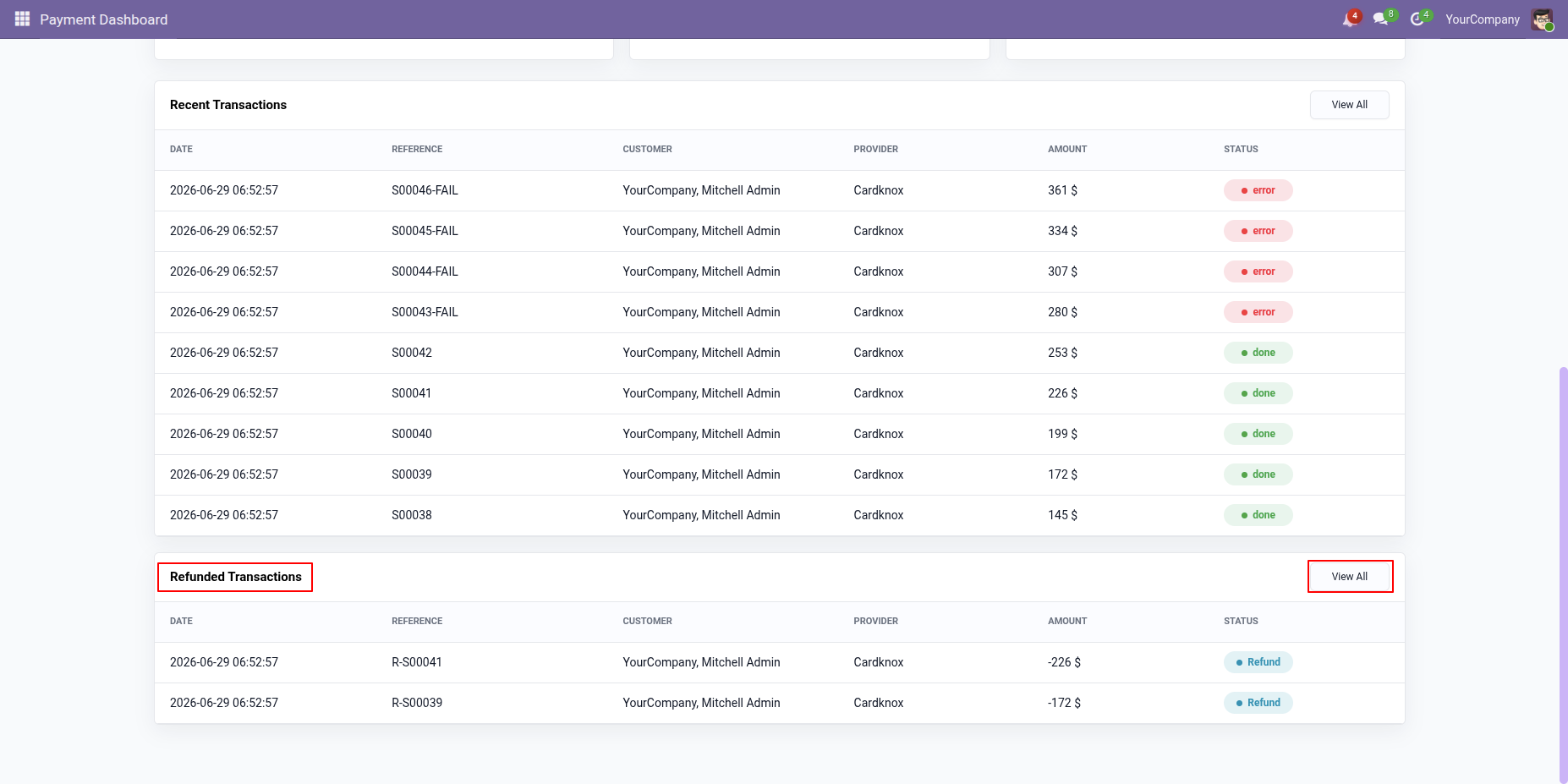
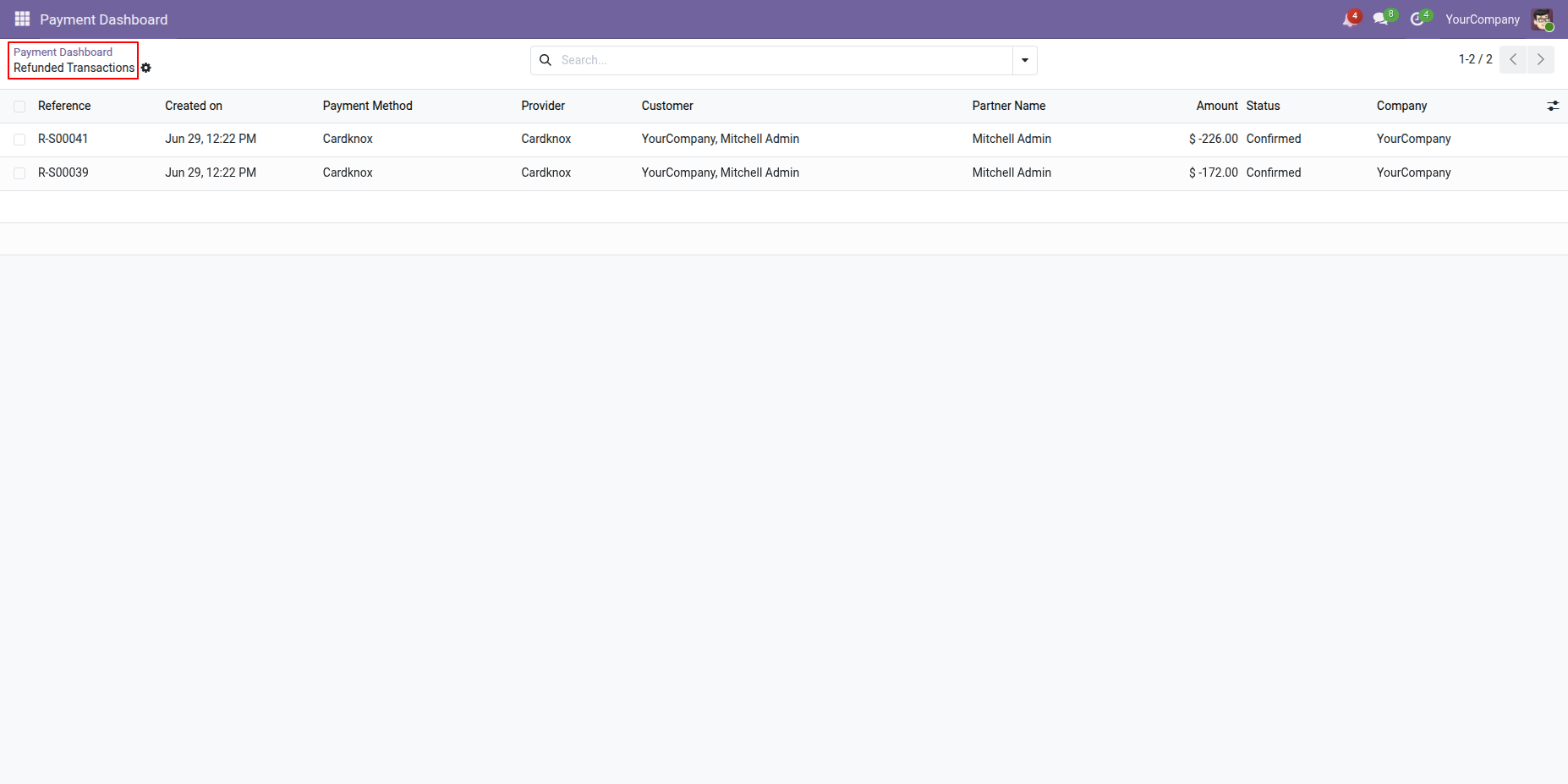
Refunded transaction history can be viewed directly from the dashboard. Click the View button to see the detailed refund transaction history.
Users can view the dashboard in Night Mode.
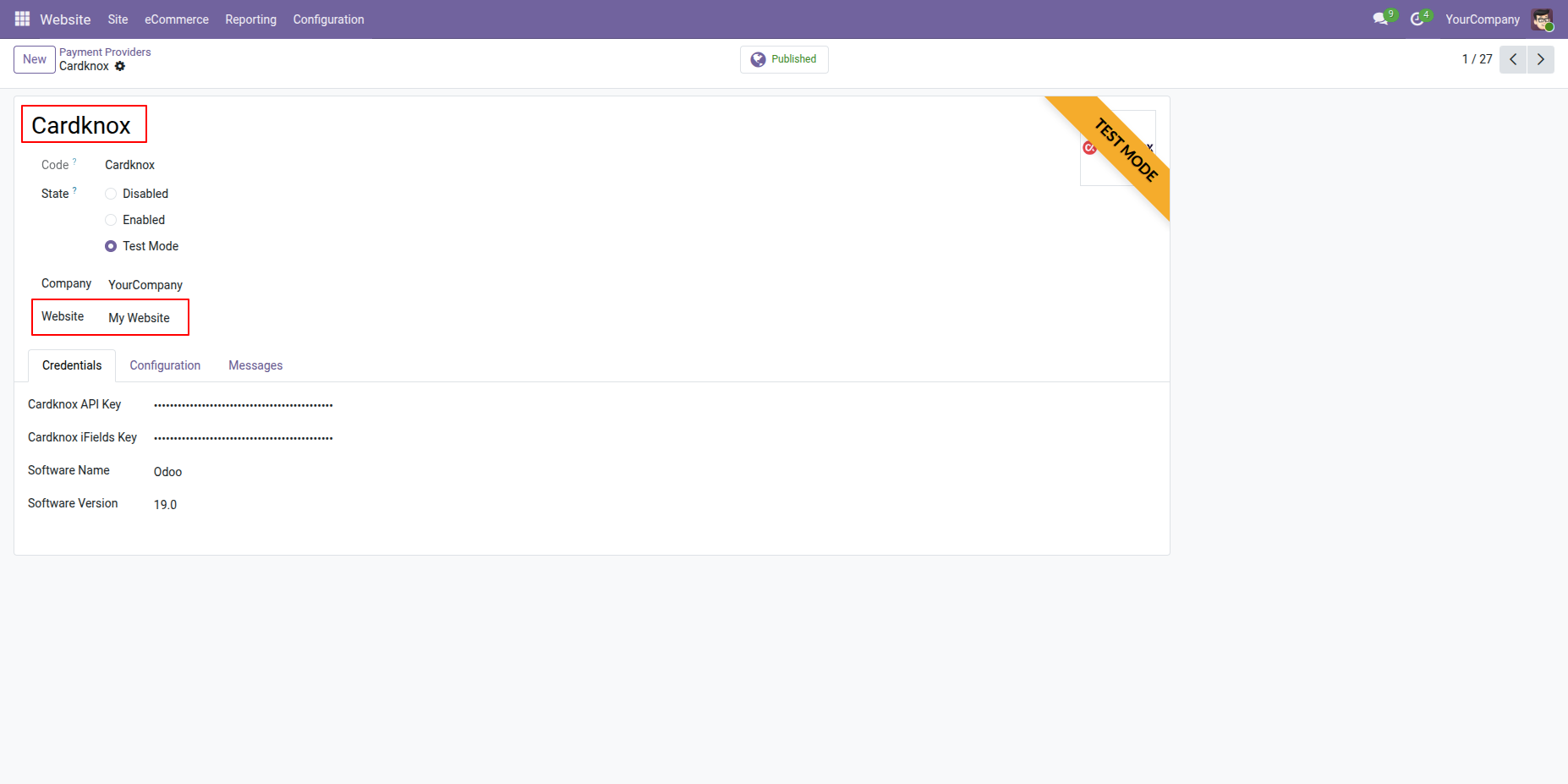
Enable Cardknox Payments across multiple Odoo websites.
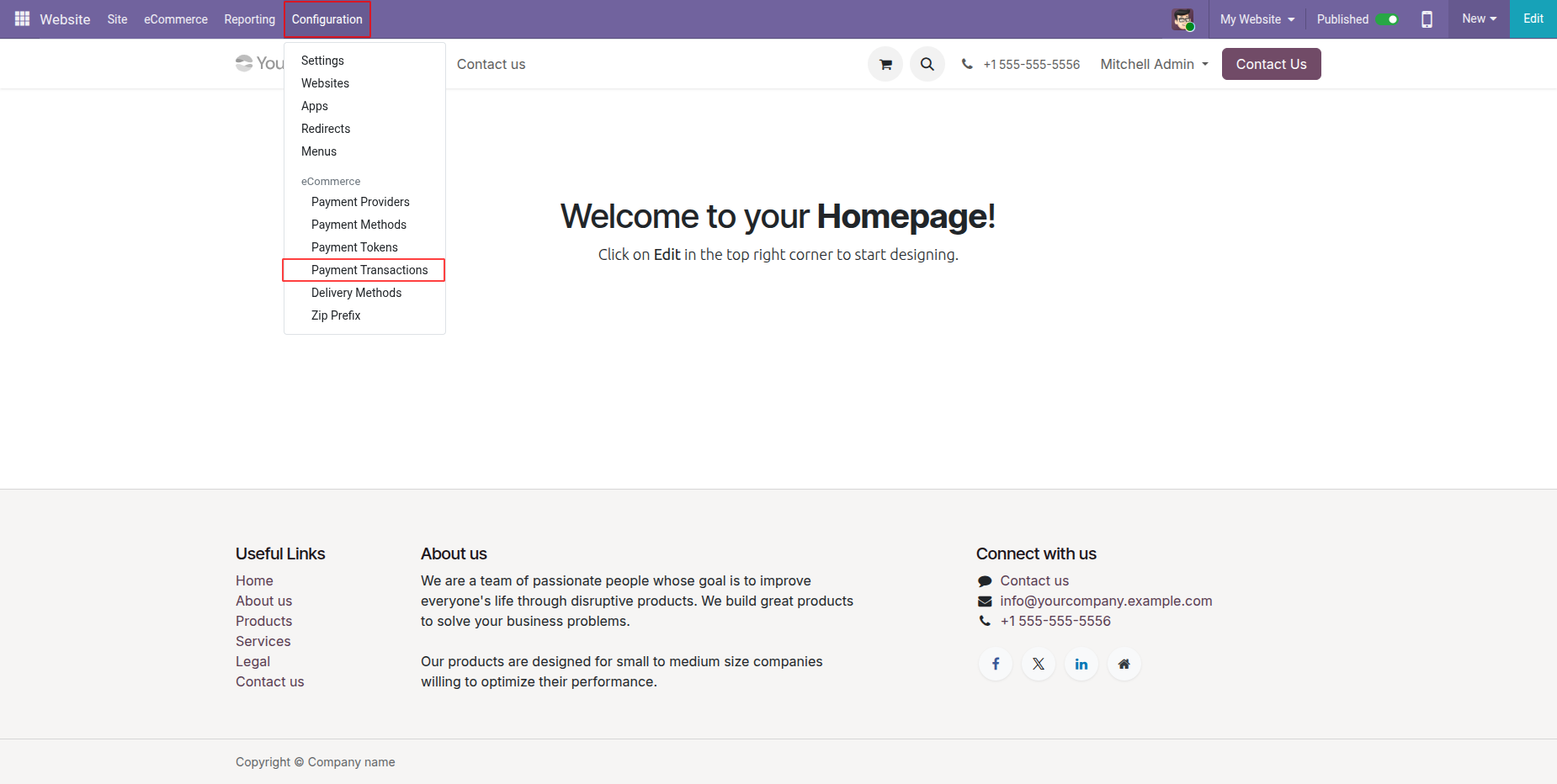
Now go to the "Configuration" => "Payment Transactions".
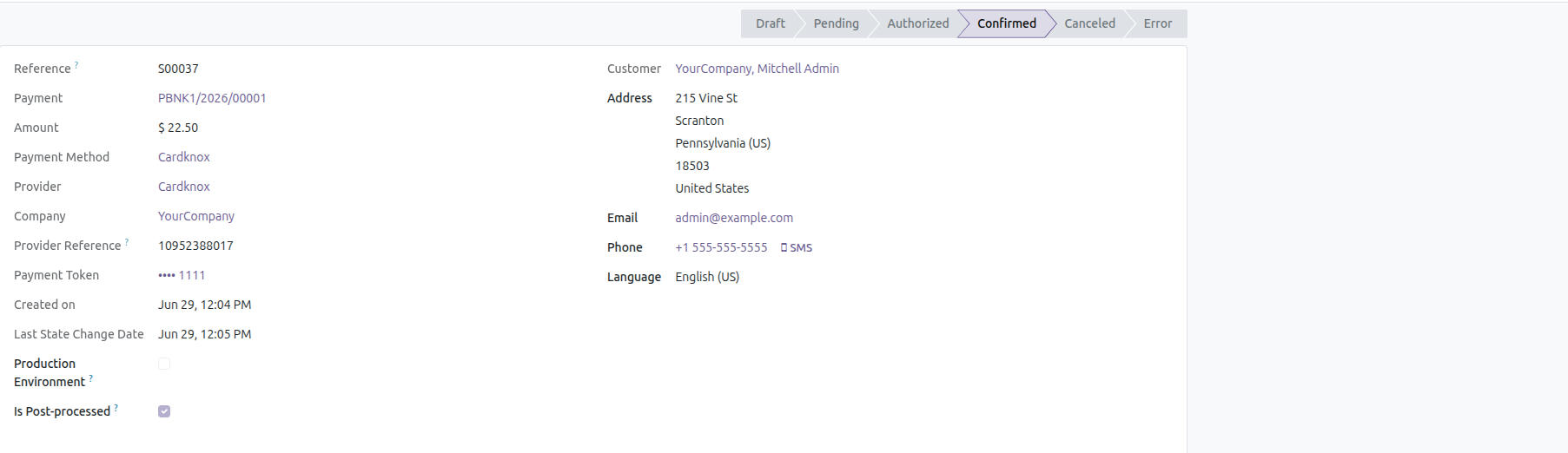
Payment transaction form view with all details.
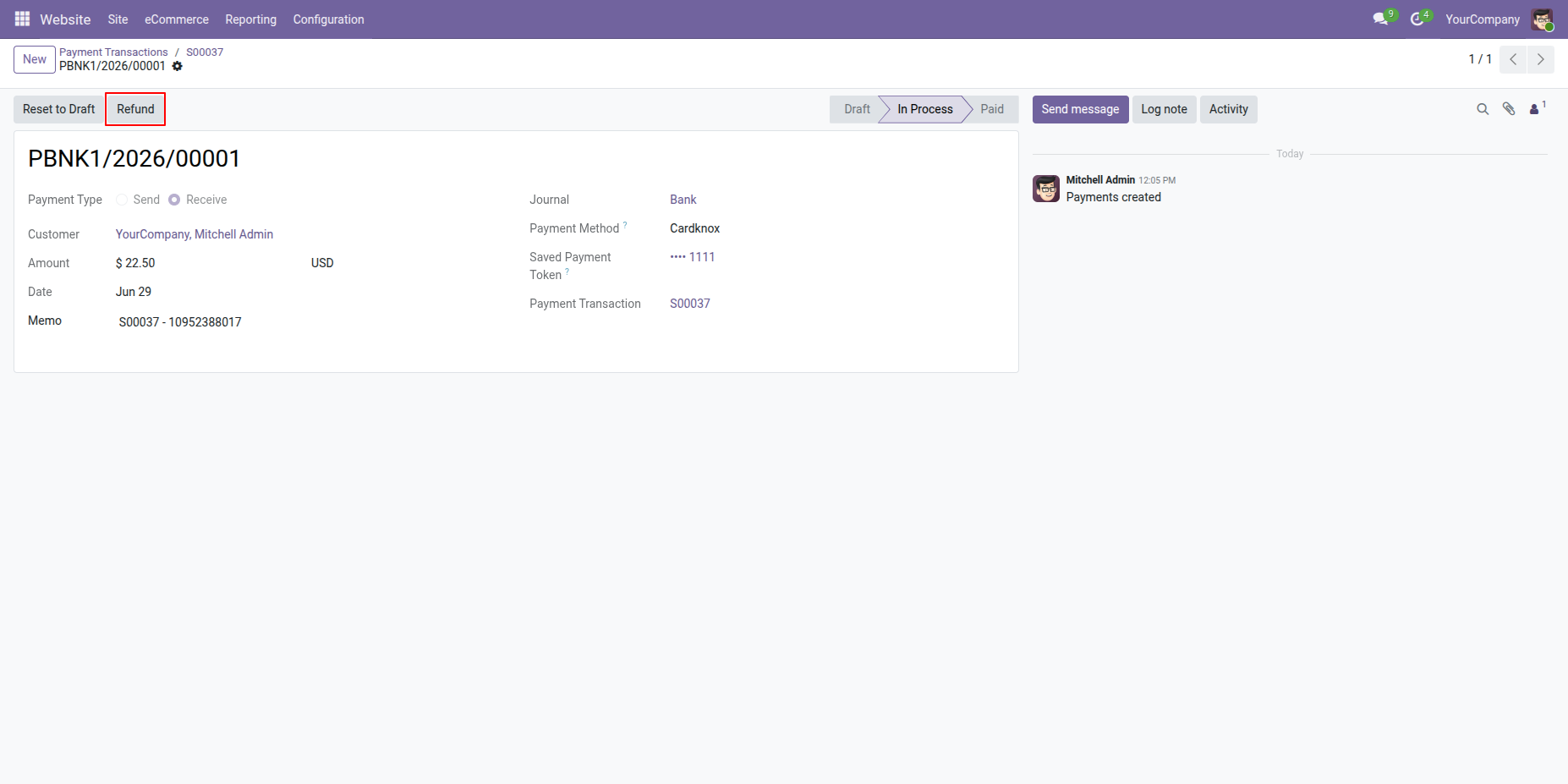
Press "Refund" to make a refund order.
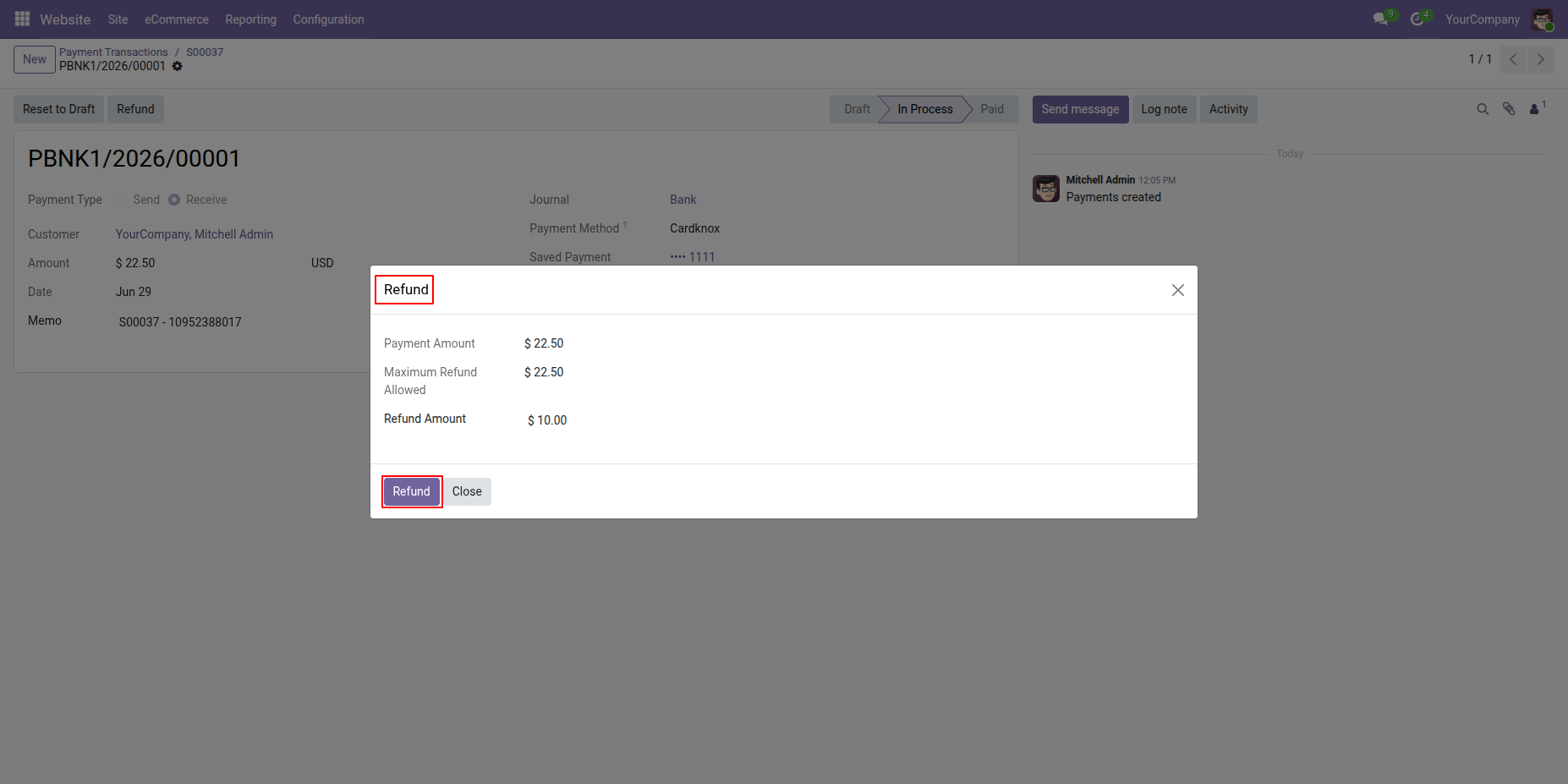
The"Refund" pop-up with details, click "Refund".
Payment transactions form view with refund details.
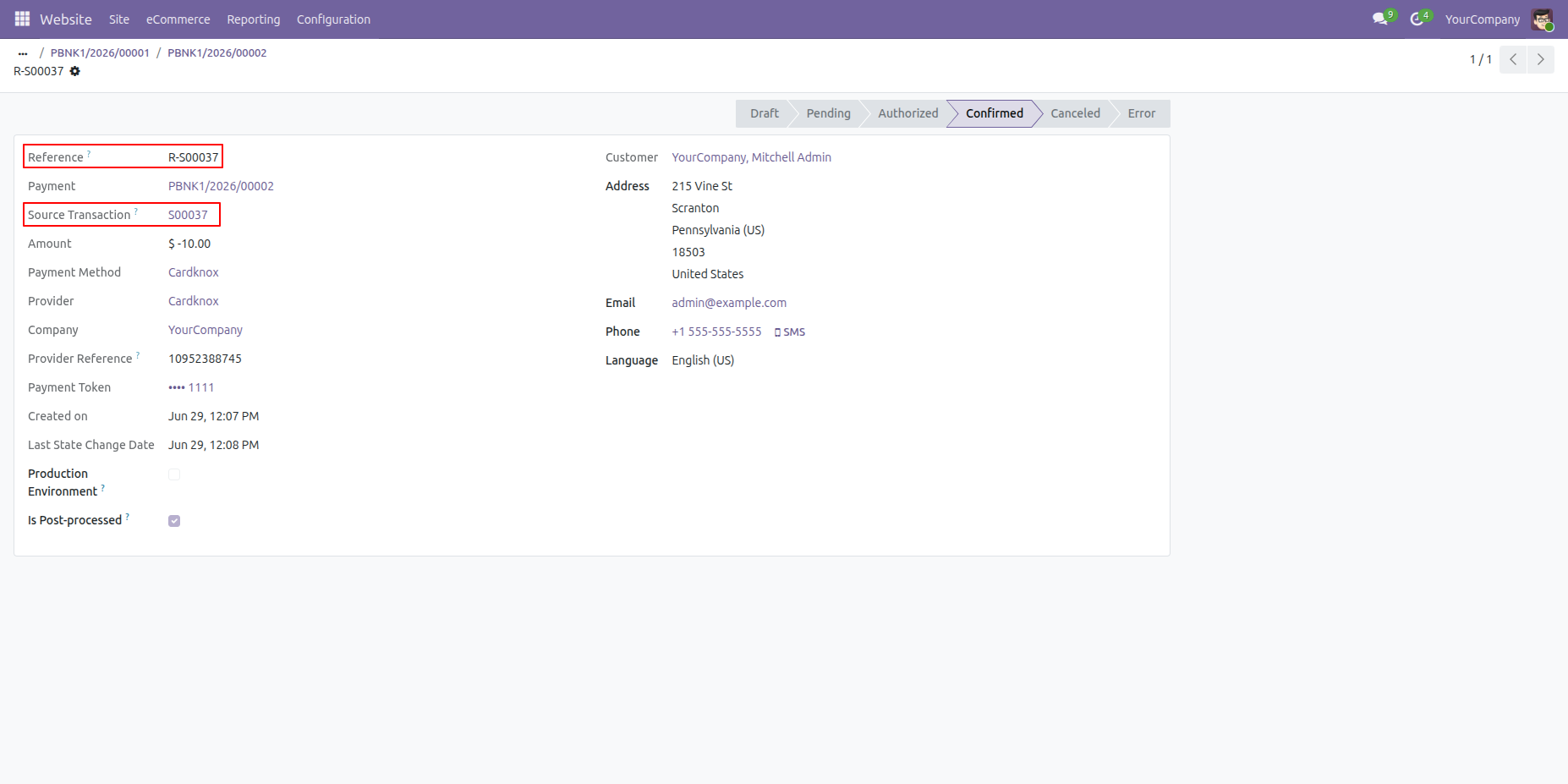
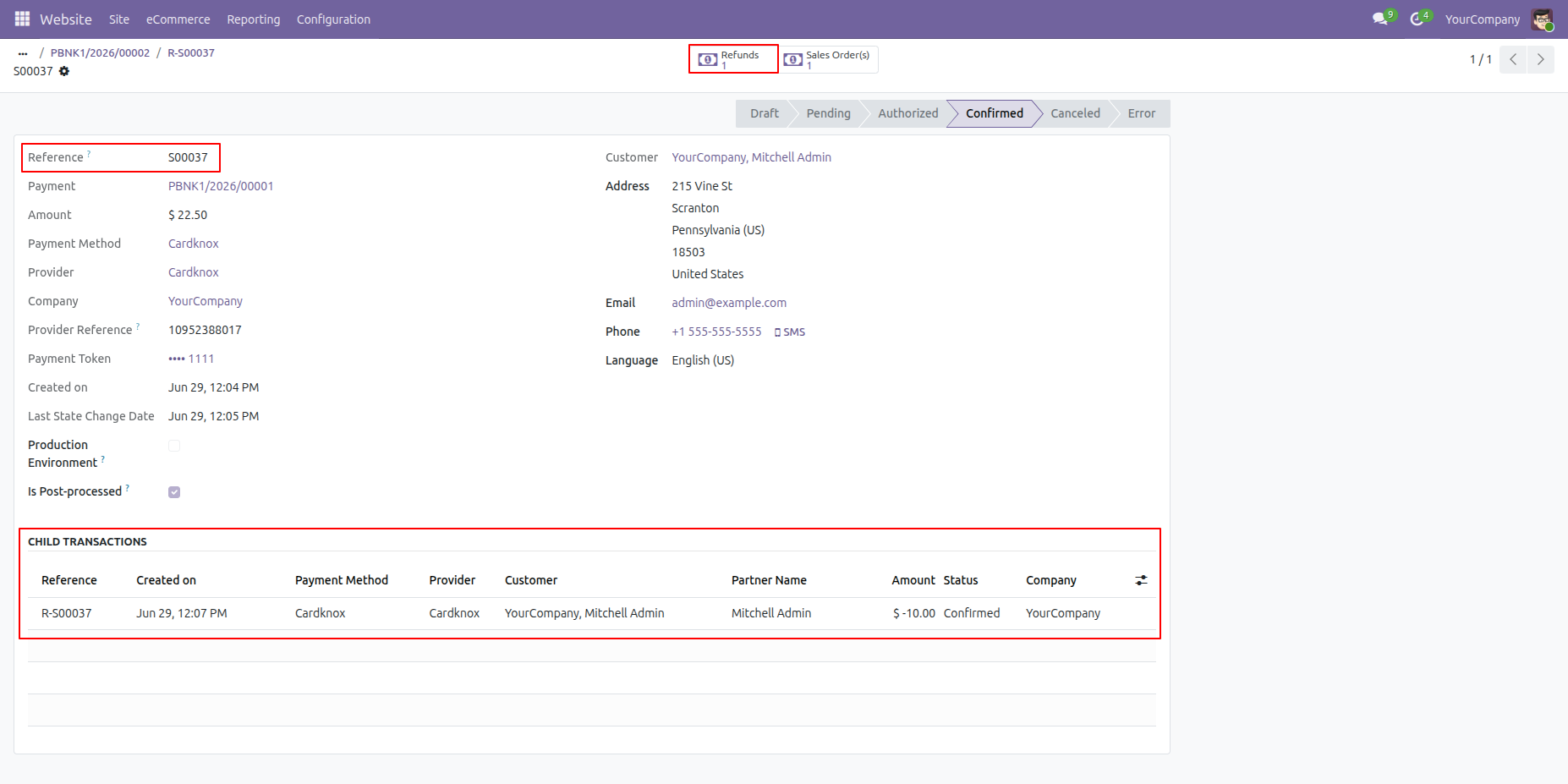
Child transaction details in the payment transaction order.
Multi-Currency Support for Cardknox Payments.
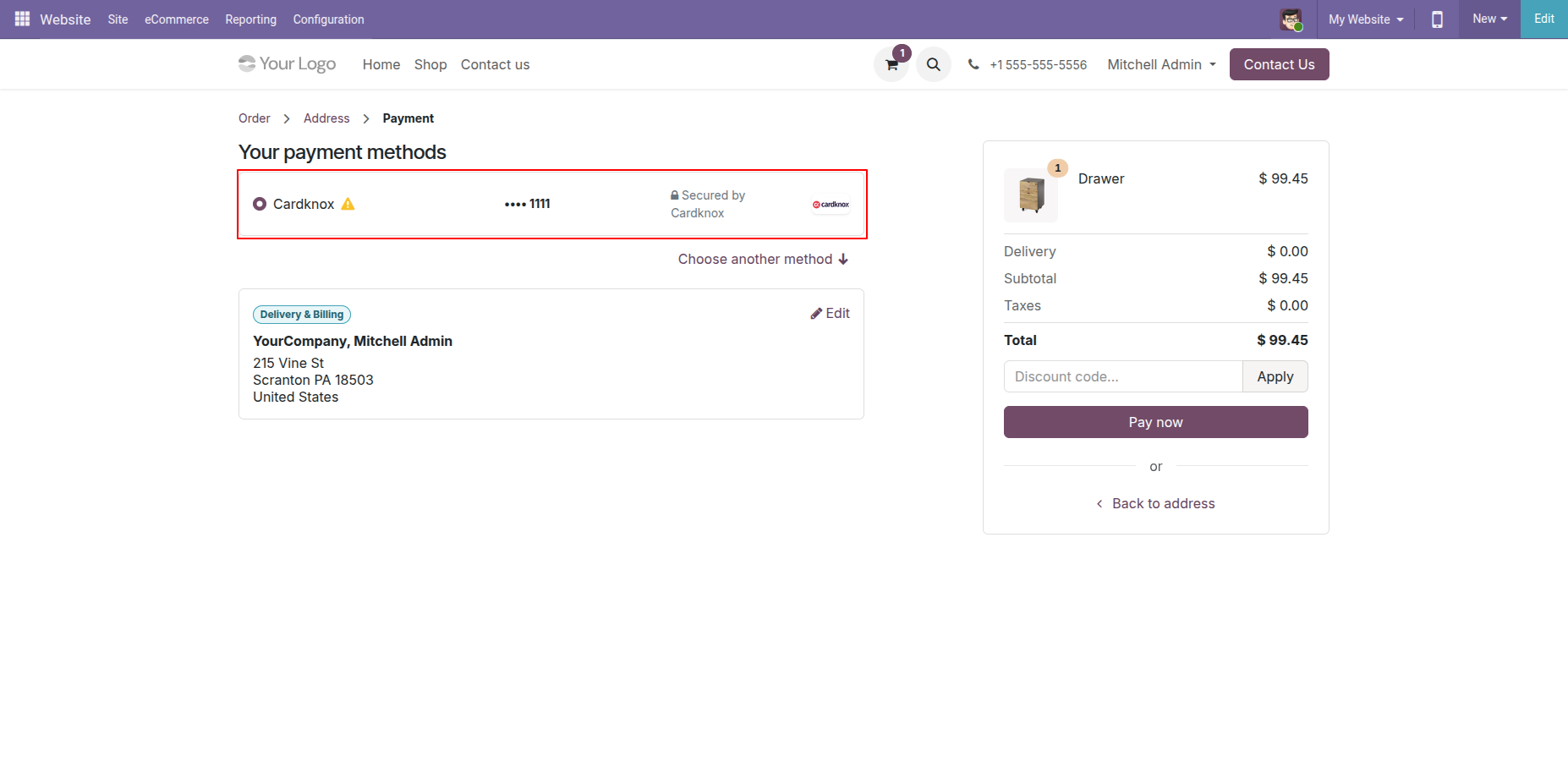
Enable Save my payment details option for customers to save their card information for future purchases.
Saved Payment Details for the Cardknox payments.
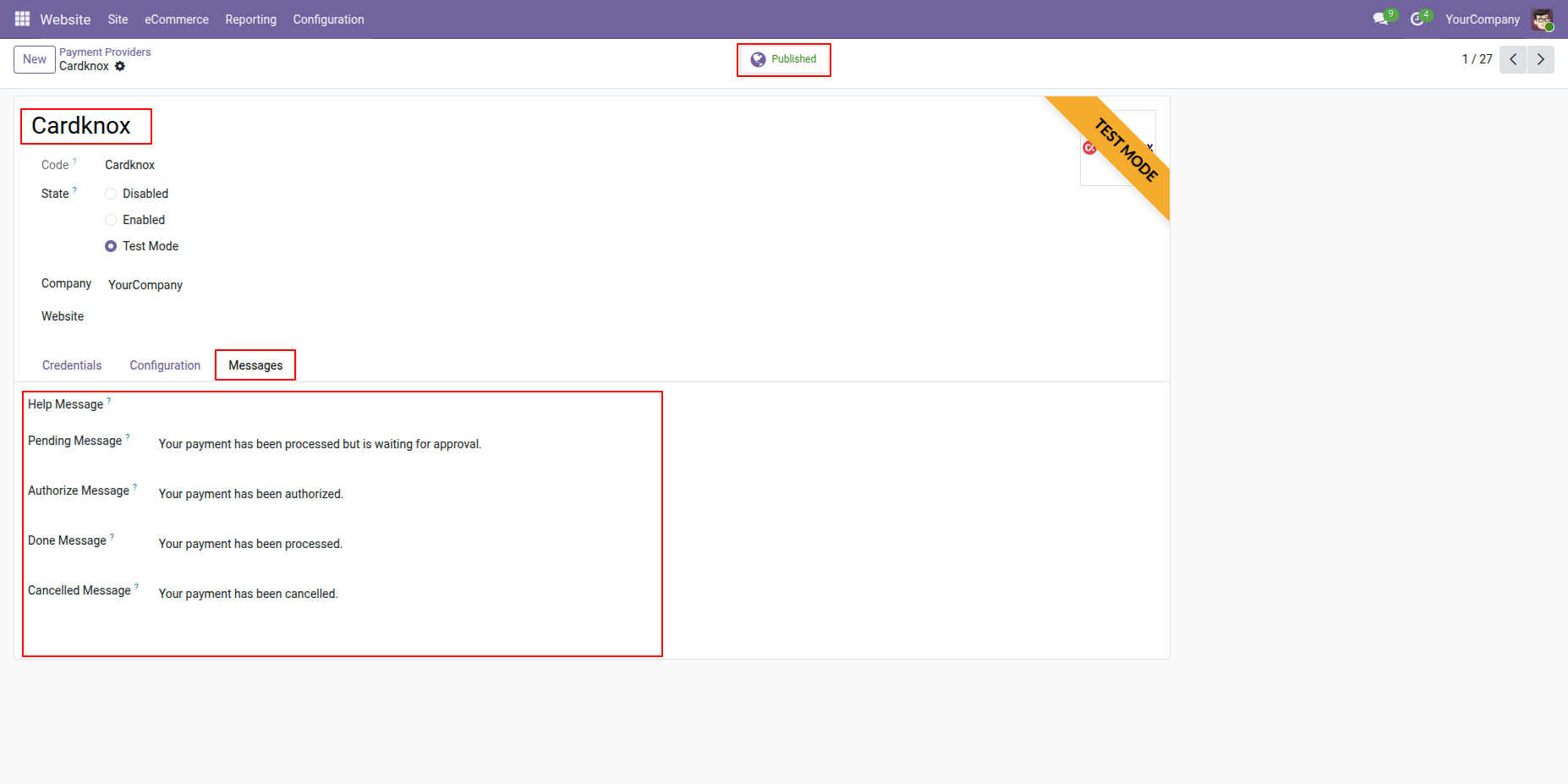
You can set custom payment messages.
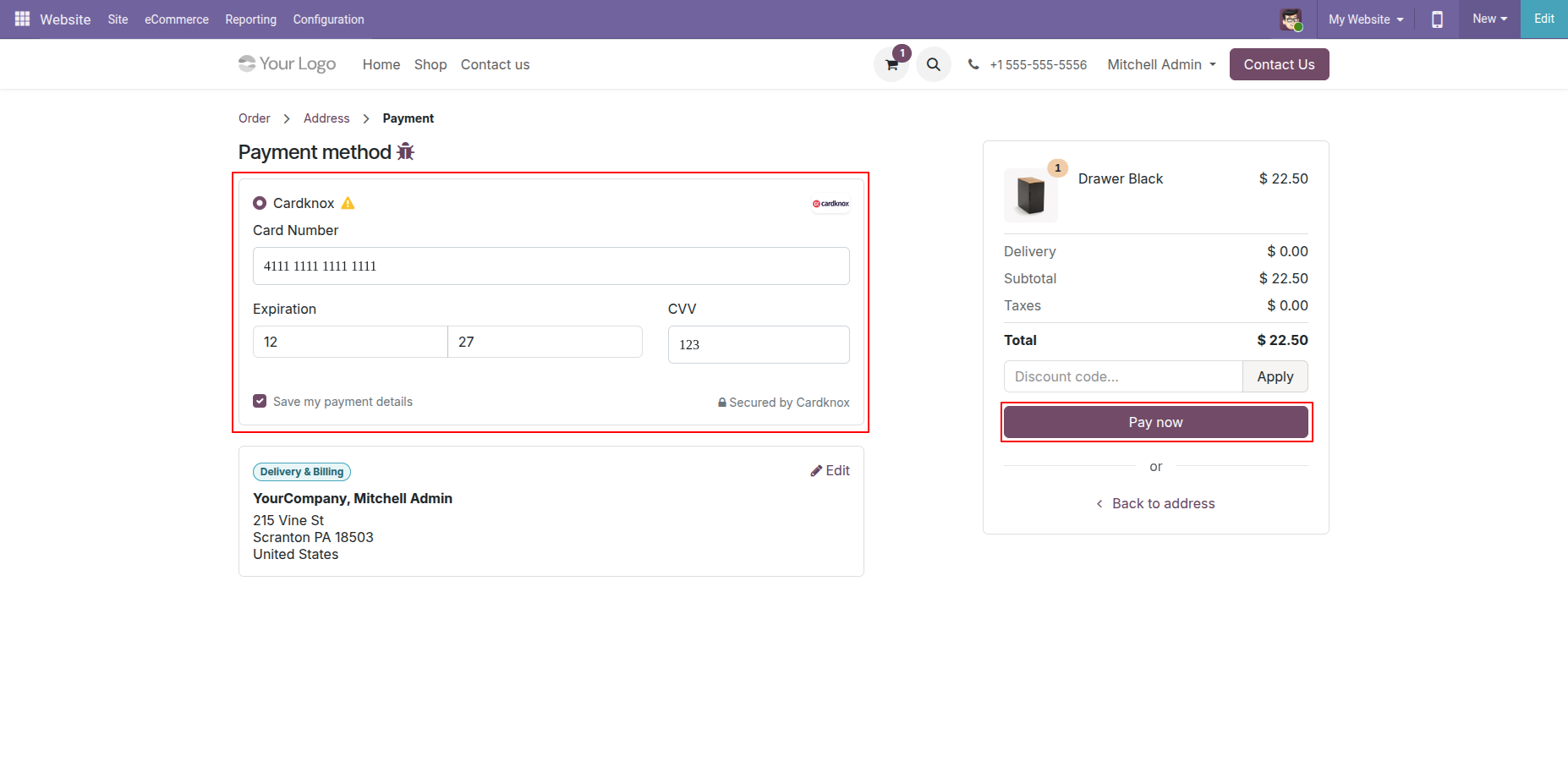
Select "Cardknox" in checkout and click "Pay Now".
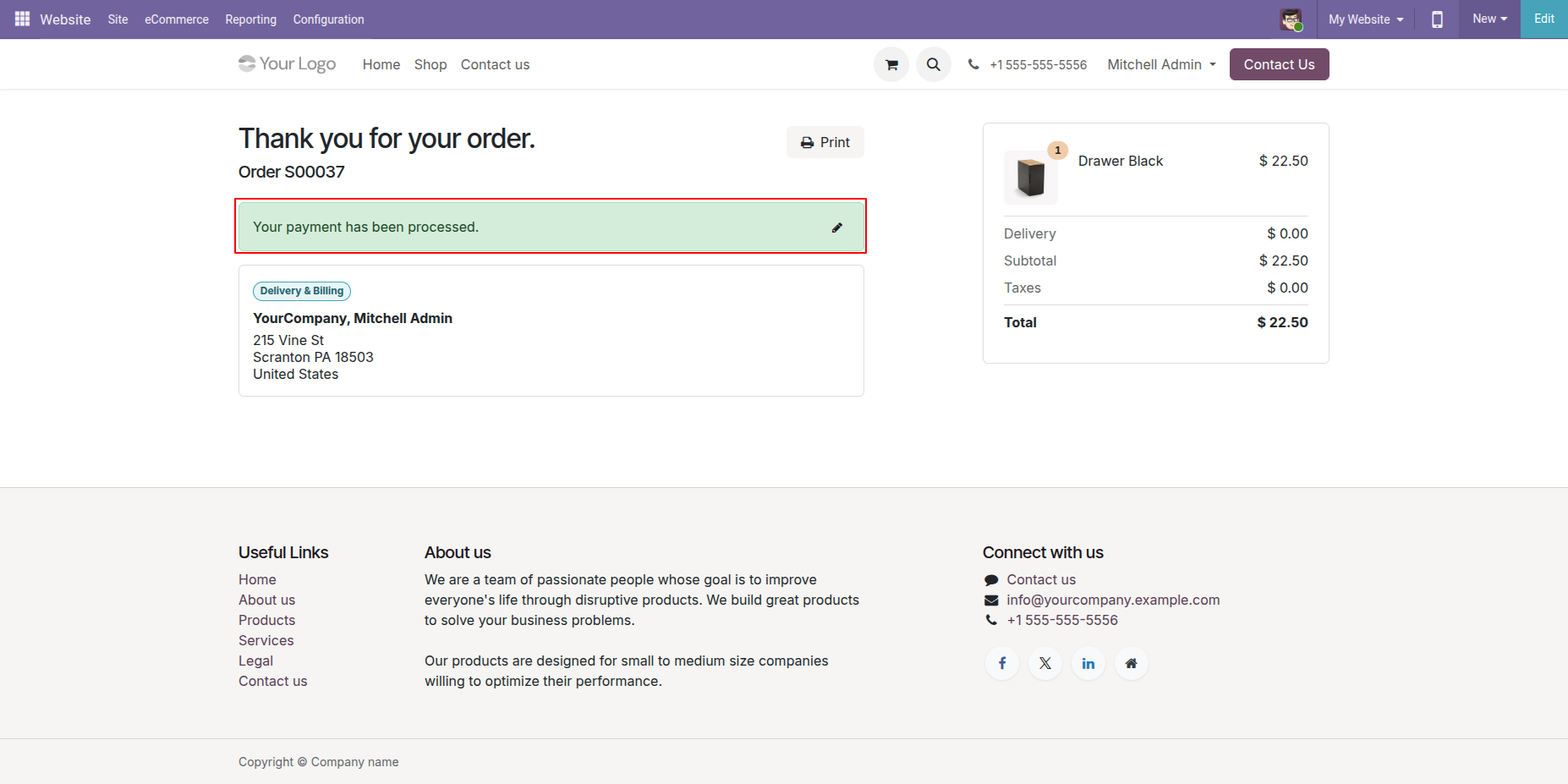
Once payment is done, it shows an order confirmation message.
Click the Pay Now button at the portal for portal payment.
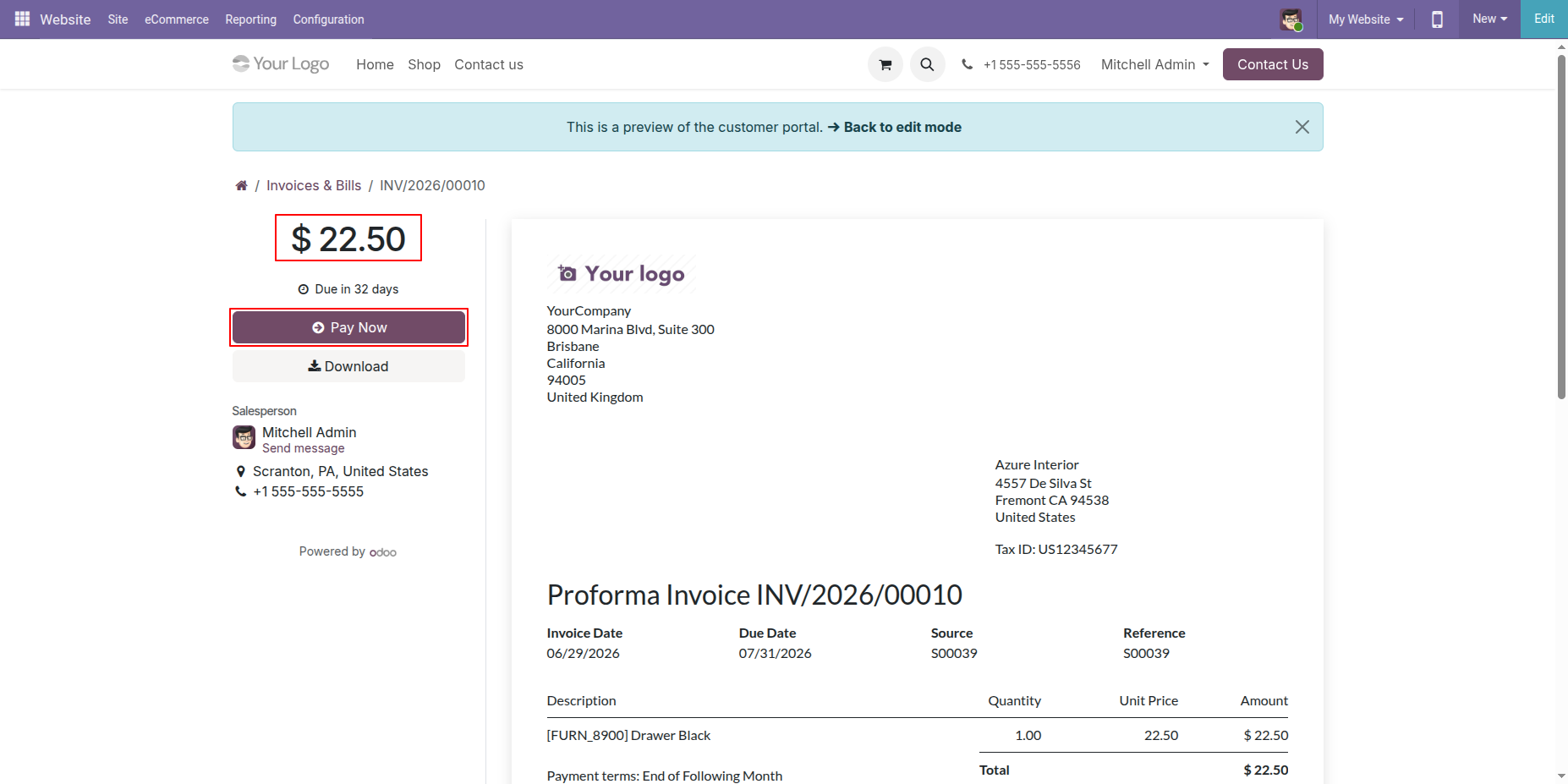
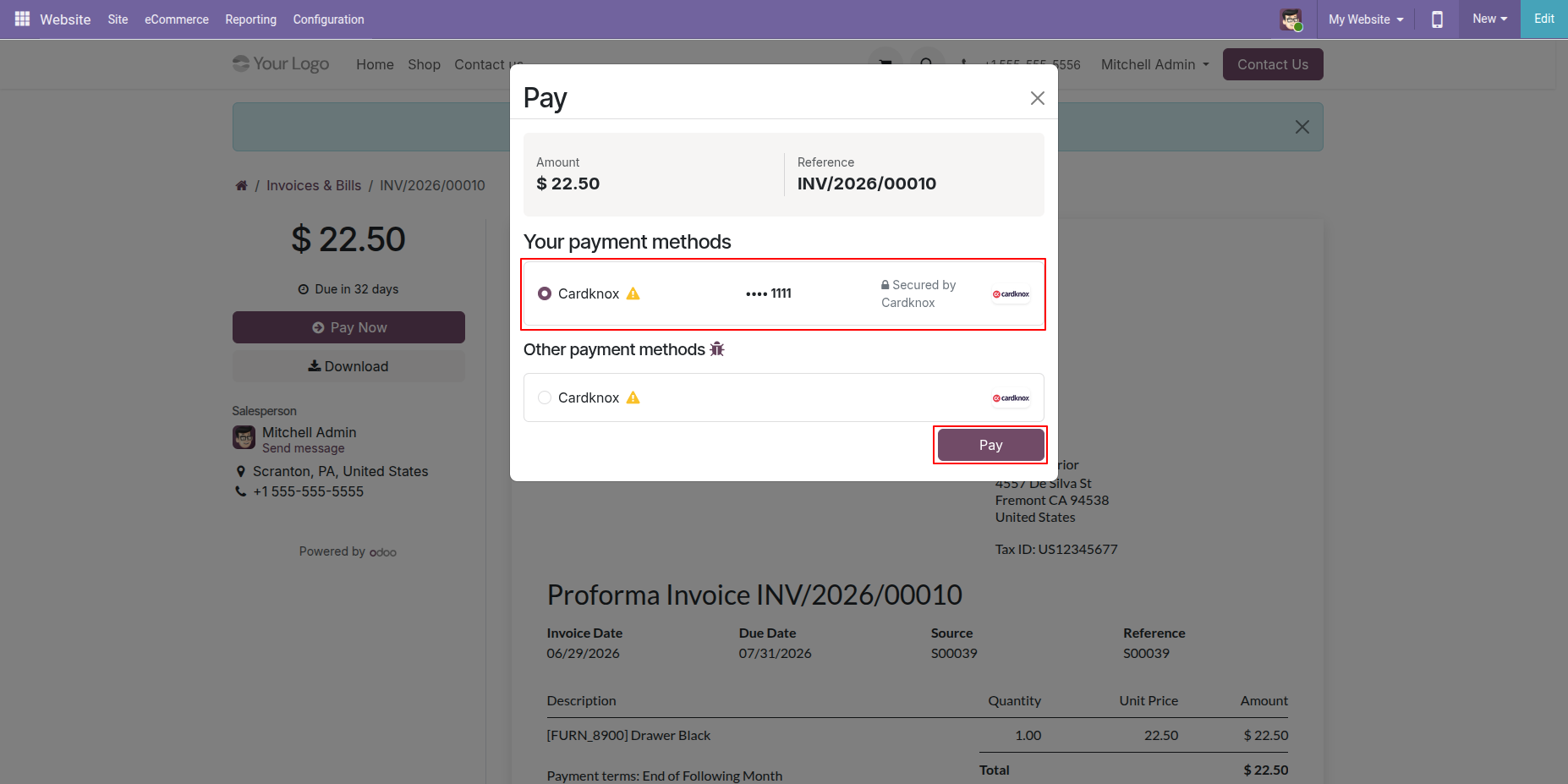
Select "Cardknox" in checkout and click "Pay".
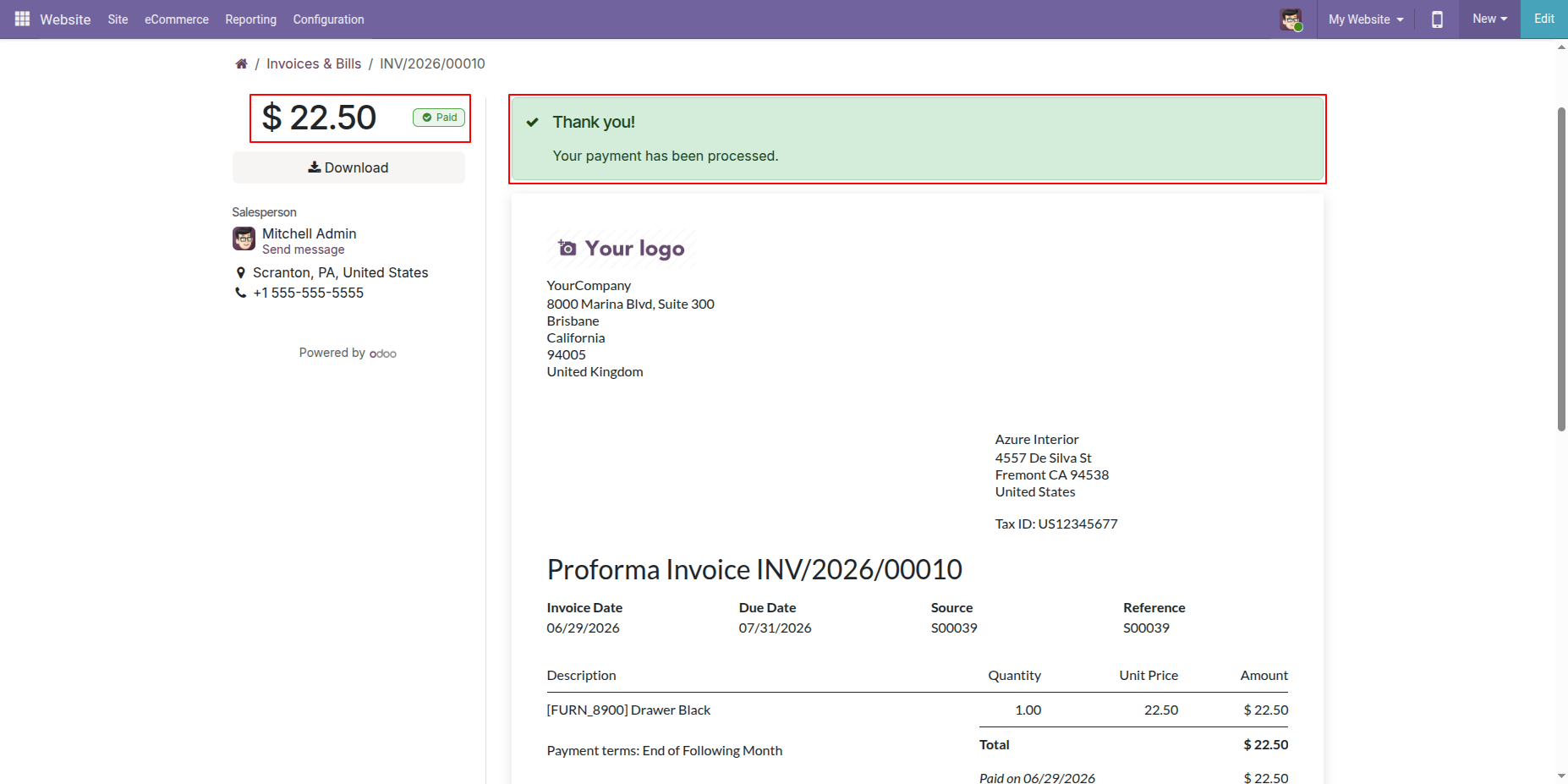
Once payment is done, it shows an order confirmation message.
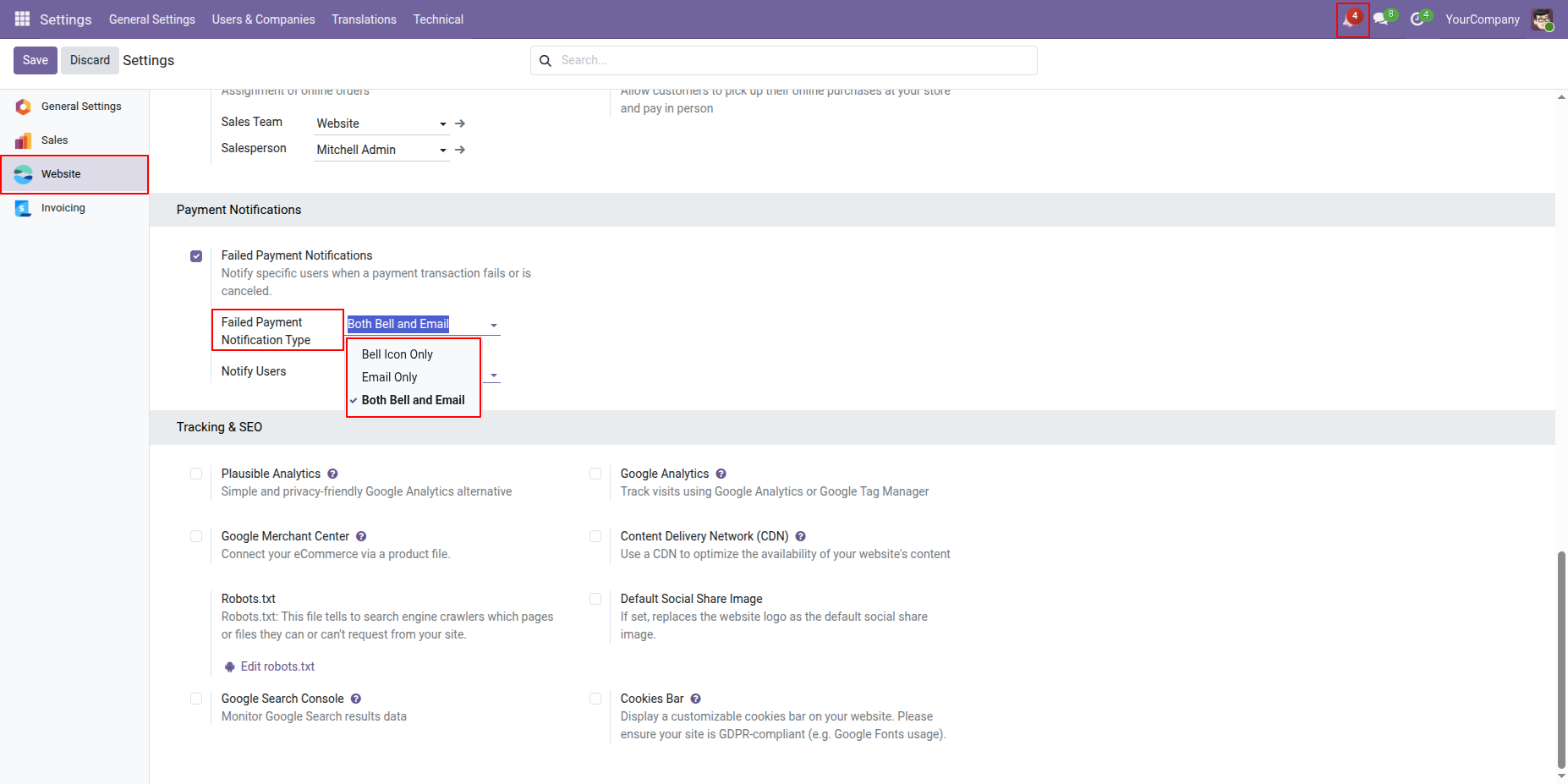
Go to the Website General Settings and enable the Failed Payment Notification option to receive notifications whenever a payment transaction fails.
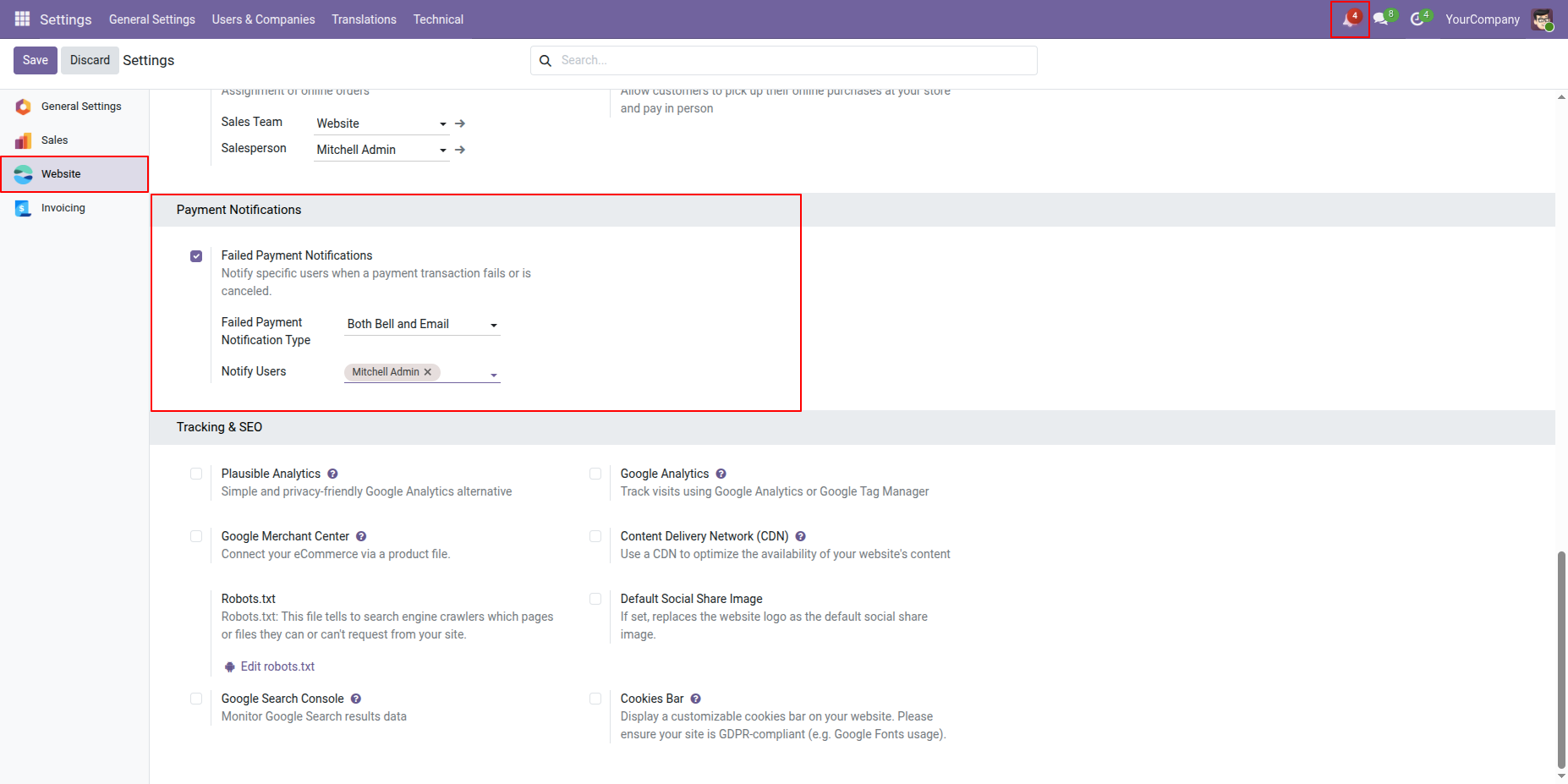
Configure the Failed Payment Notification Type by selecting one of the following options: Bell Icon Only, Email Only, or Both Email and Bell Icon.
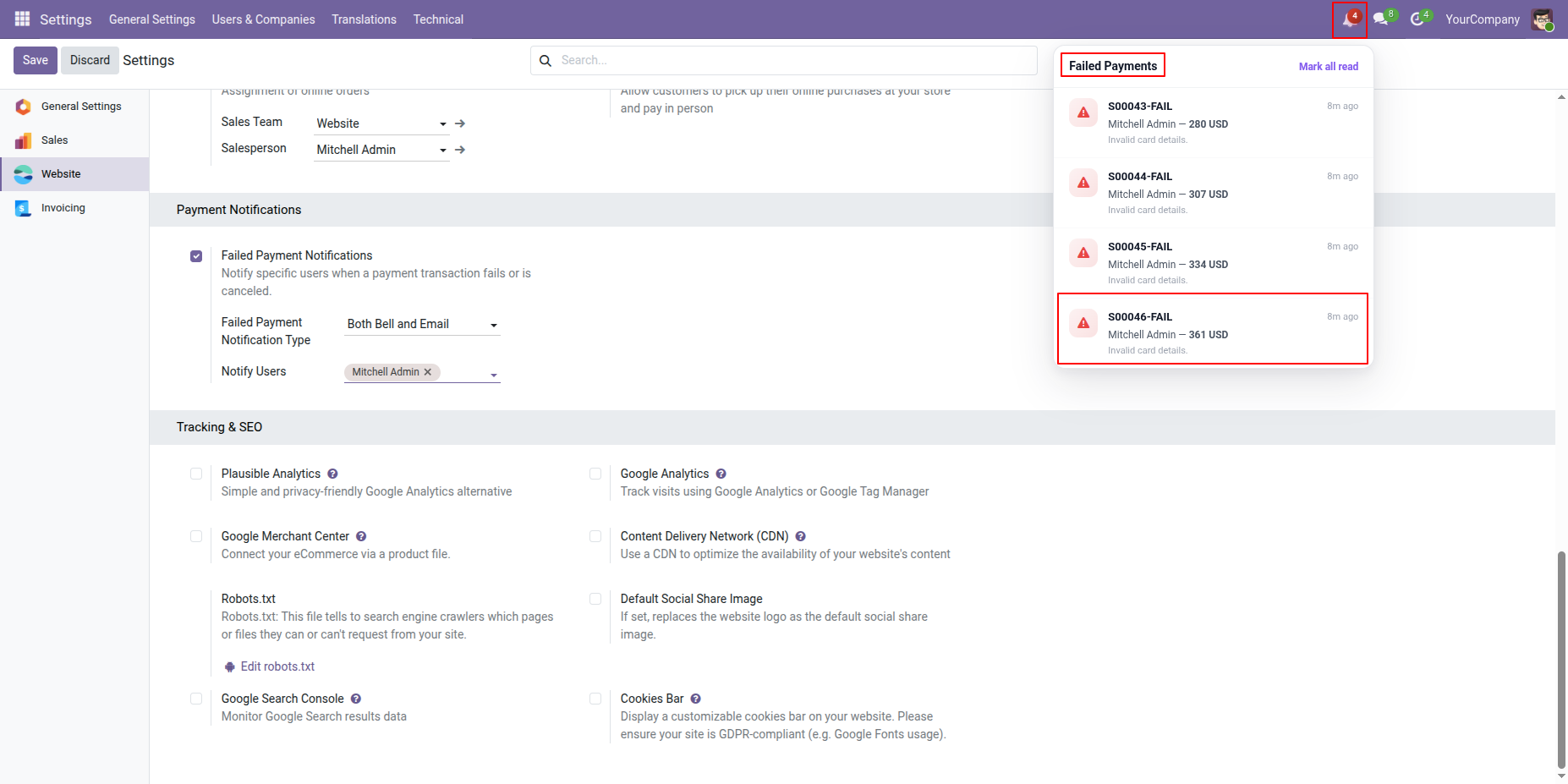
Failed payment notifications can be viewed from the Bell Icon when the notification type is set to Bell Icon Only or Both Email and Bell Icon.
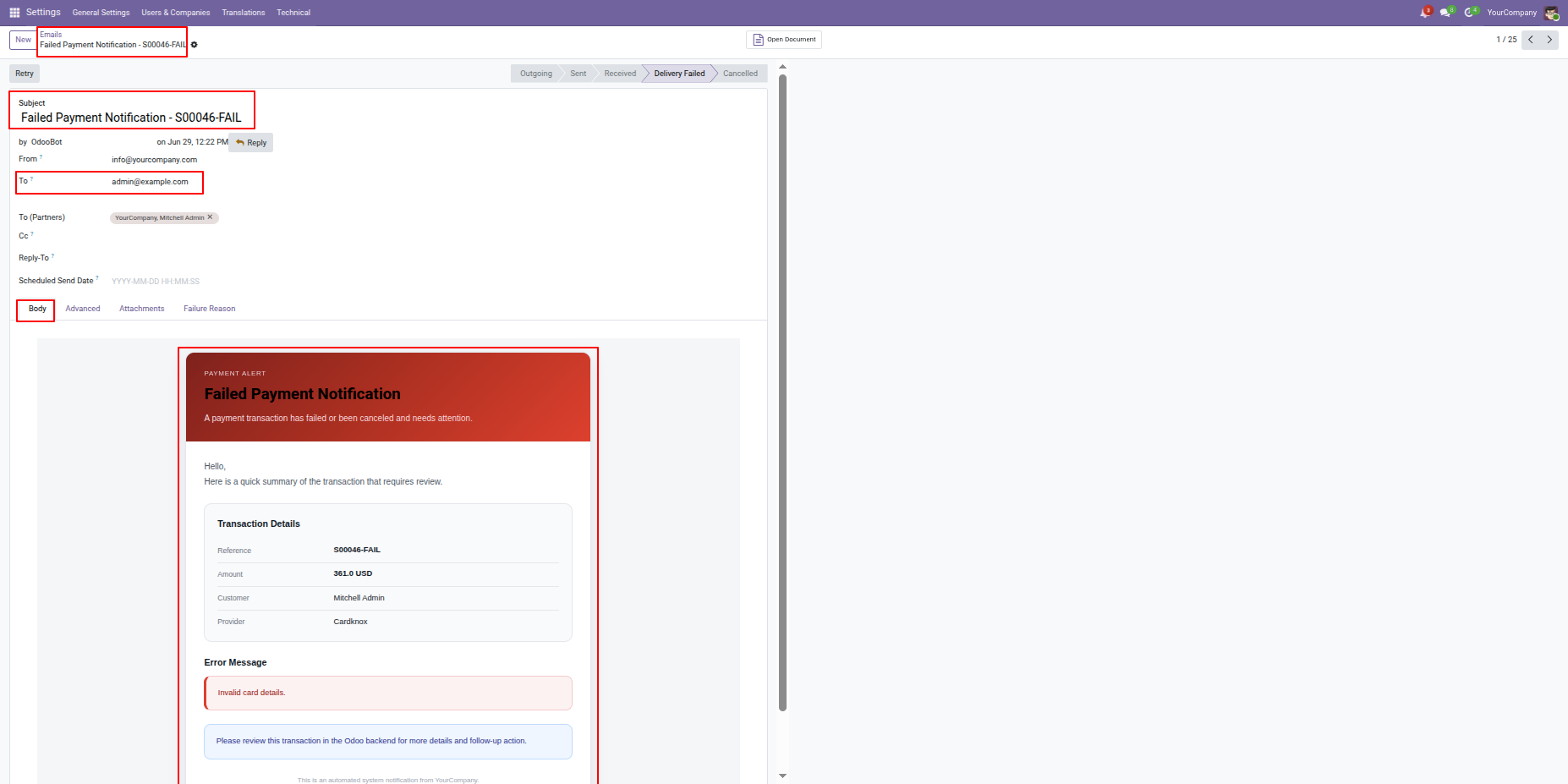
Users will receive an email containing the failed payment details and related transaction information.
Version 19.0.1.0.0 | Released on : 11th August 2026
- Yes, this app works perfectly with Odoo Enterprise (Odoo.sh & On-Premise) as well as Community.
- No, this application is not compatible with odoo.com(odoo saas/Odoo Online).
- Please Contact Us at sales@softhealer.com to request customization.
- Yes, you will get free update for lifetime.
- No, you don't need to install additional libraries.
- For version 12 or upper, you will need to purchase the module for each version that you want to use.
- Yes, we provide free lifetime support for the version you purchased.
- No, We do not provide any kind of exchange.
Discover Our Latest Apps