












Bill of Entry with Dynamic Expense & Landed Cost

This module simplifies the complete Bill of Entry (BOE) process by providing a centralized system to record and manage import transactions efficiently. Create BOE records, capture shipment details, record customs duties and expenses. Integrated with landed cost and accounting, it enables users to generate financial entries directly from BOE records, ensuring accurate tracking of import expenses.

Features

Custom Duty & Import Cost Tracking
Define multiple duties, such as customs duty, additional charges, and taxes, while tracking the complete import cost, including product value and all applicable charges.

BOE Record Management
Easily create and manage Bill of Entry records to track all imported goods in a centralised system.
Import Product Configuration
Configure products with applicable customs duties to ensure accurate duty calculation during import processing.

Multi-Currency & Rate Management
Manage BOE transactions in multiple currencies and manually adjust exchange rates before confirmation to ensure accurate cost calculations.

Partner Duty Assignment
Assign duty payments against specific partners.

Automated Duty Calculation
Automatically compute duty amounts based on percentage rates or base values to minimise manual effort.

Landed Cost Allocation
Allocate import duties and additional charges as landed costs to update the actual product cost.

Accounting Integration
Link BOE charges directly with accounting entries and expense accounts for accurate financial tracking.

Multi-Product & Multi-Duty Handling
Manage multiple products and apply different duty structures within a single BOE record.

Direct Duty Payment
Make import duty payments directly from the BOE form and automatically generate corresponding payment entries.

Costing Method Integration
Integrate with FIFO and Average costing methods to ensure correct inventory valuation.
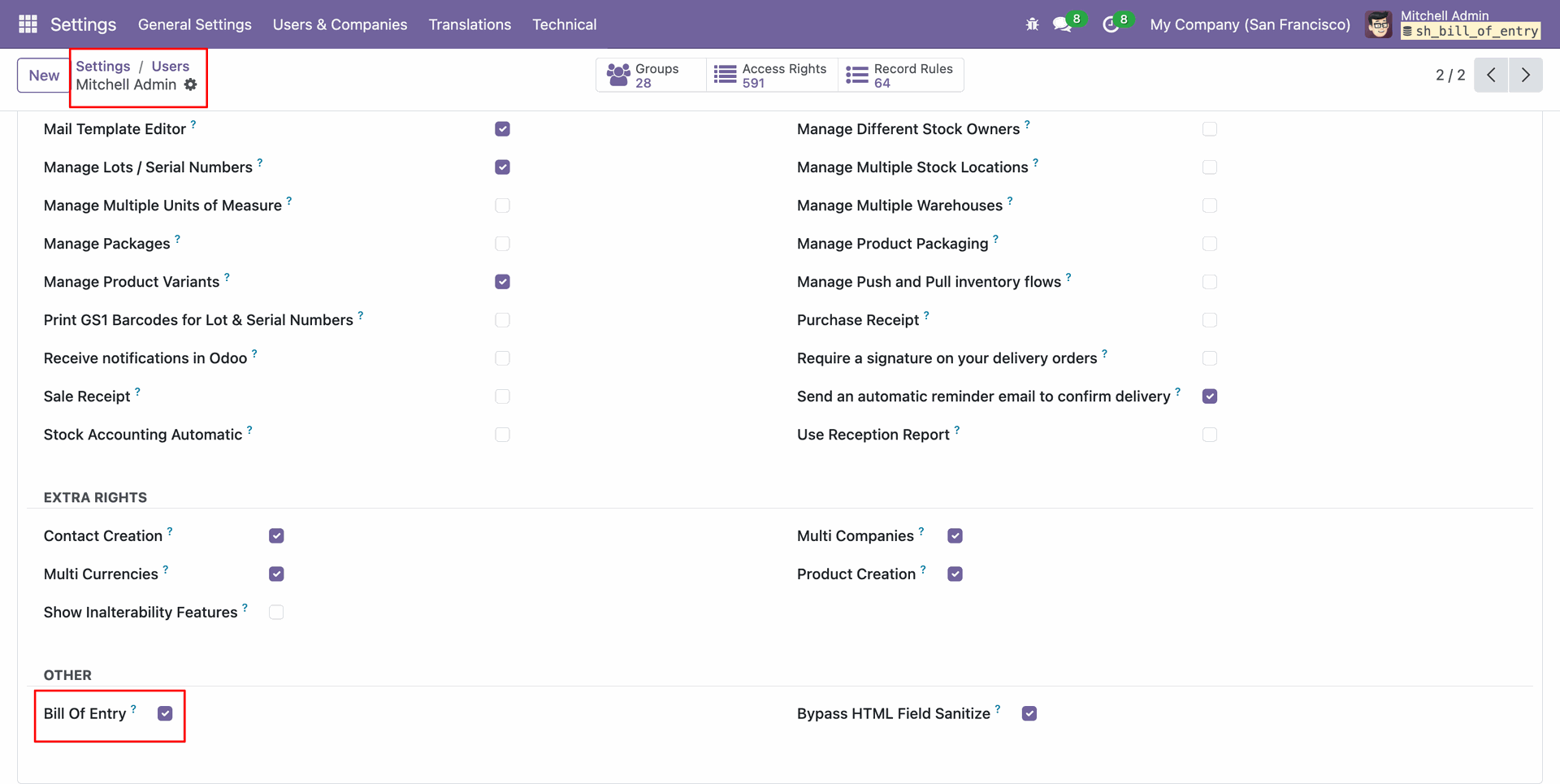
Enable "Bill of Entry" from user settings.
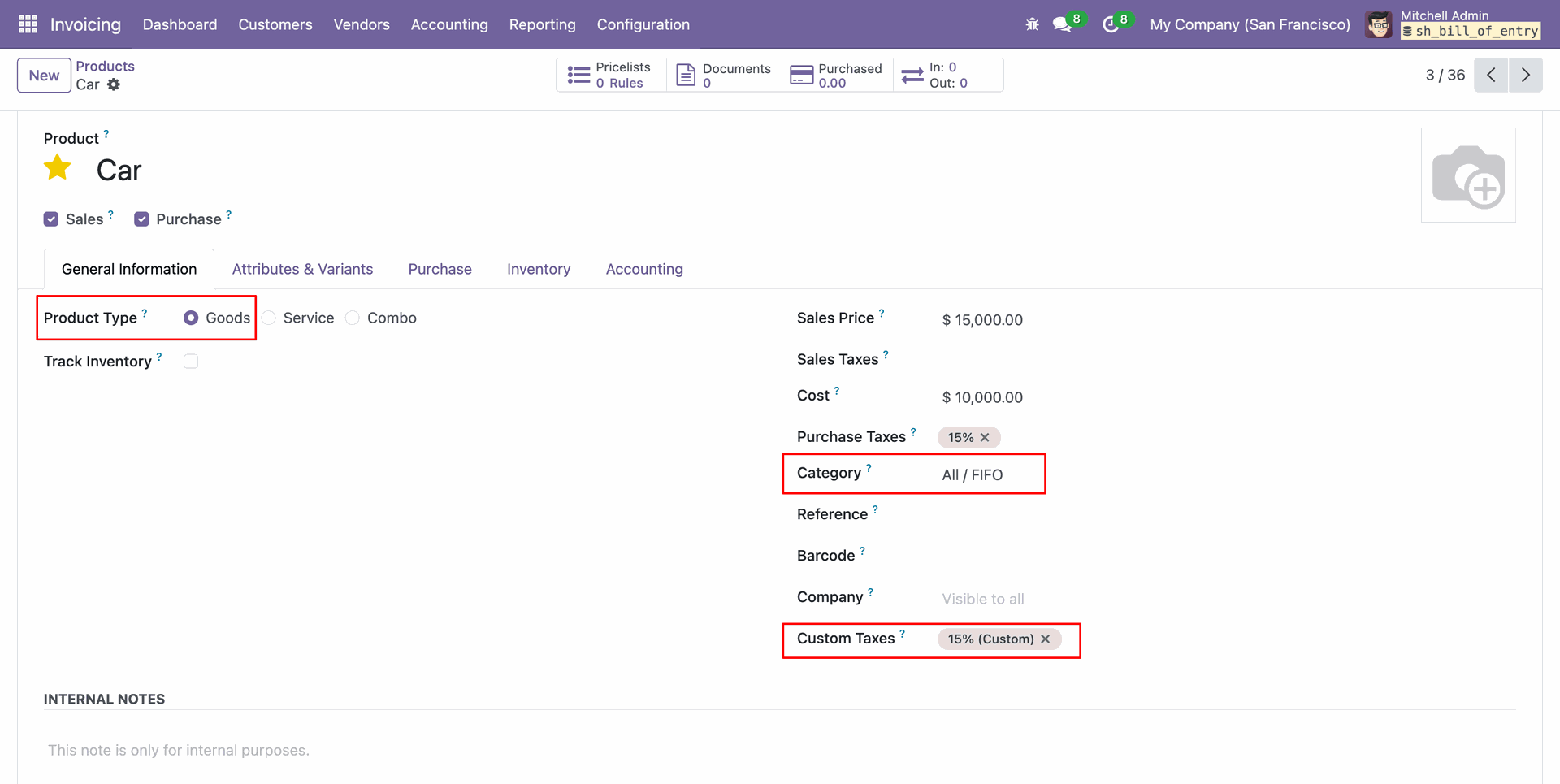
Create a goods type product set category, either FIFO or Average costing method and set custom tax rates.
Set the landed cost account in the accounting tab for the product.
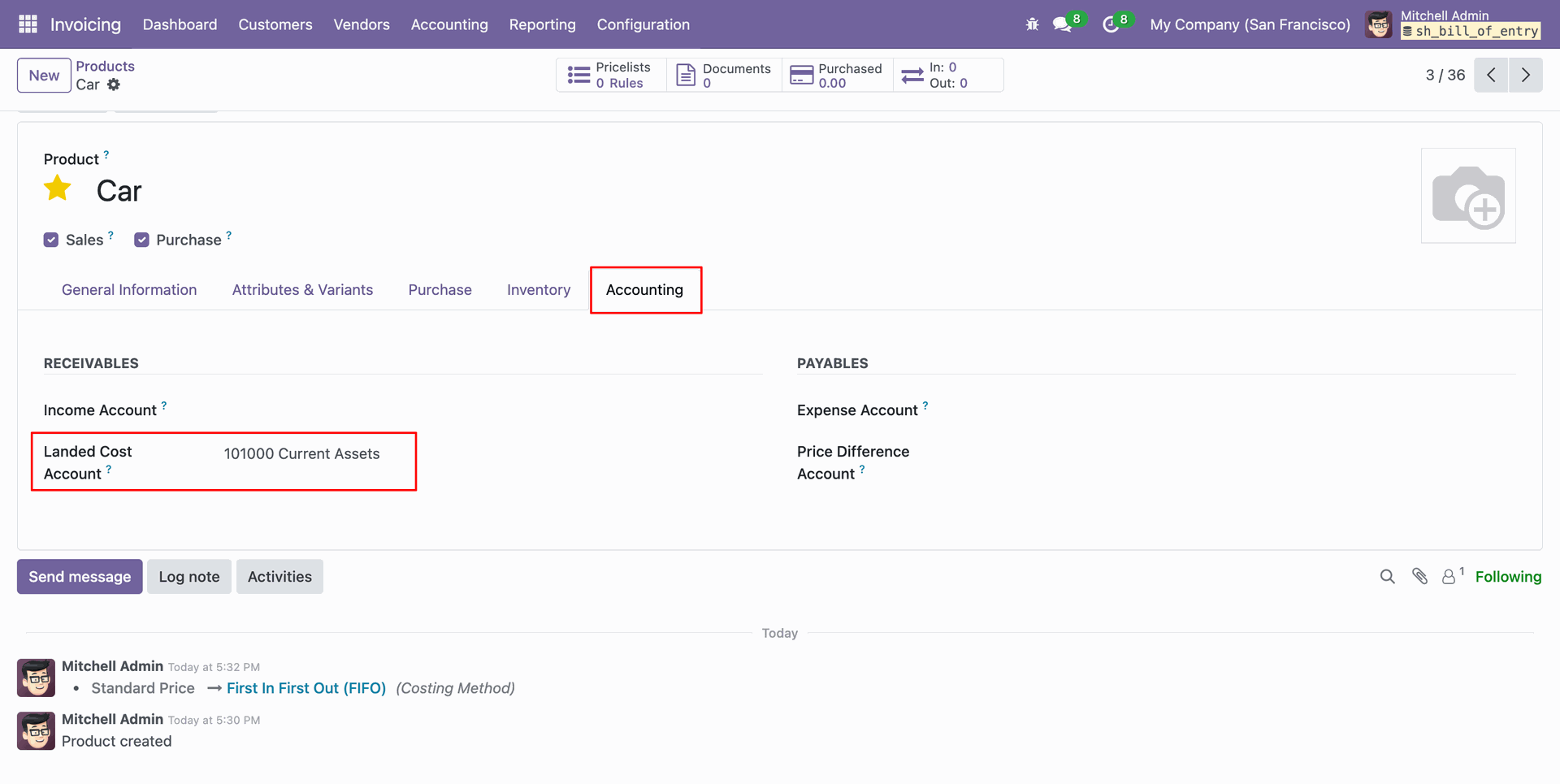
Create a custom duty serviceable product.
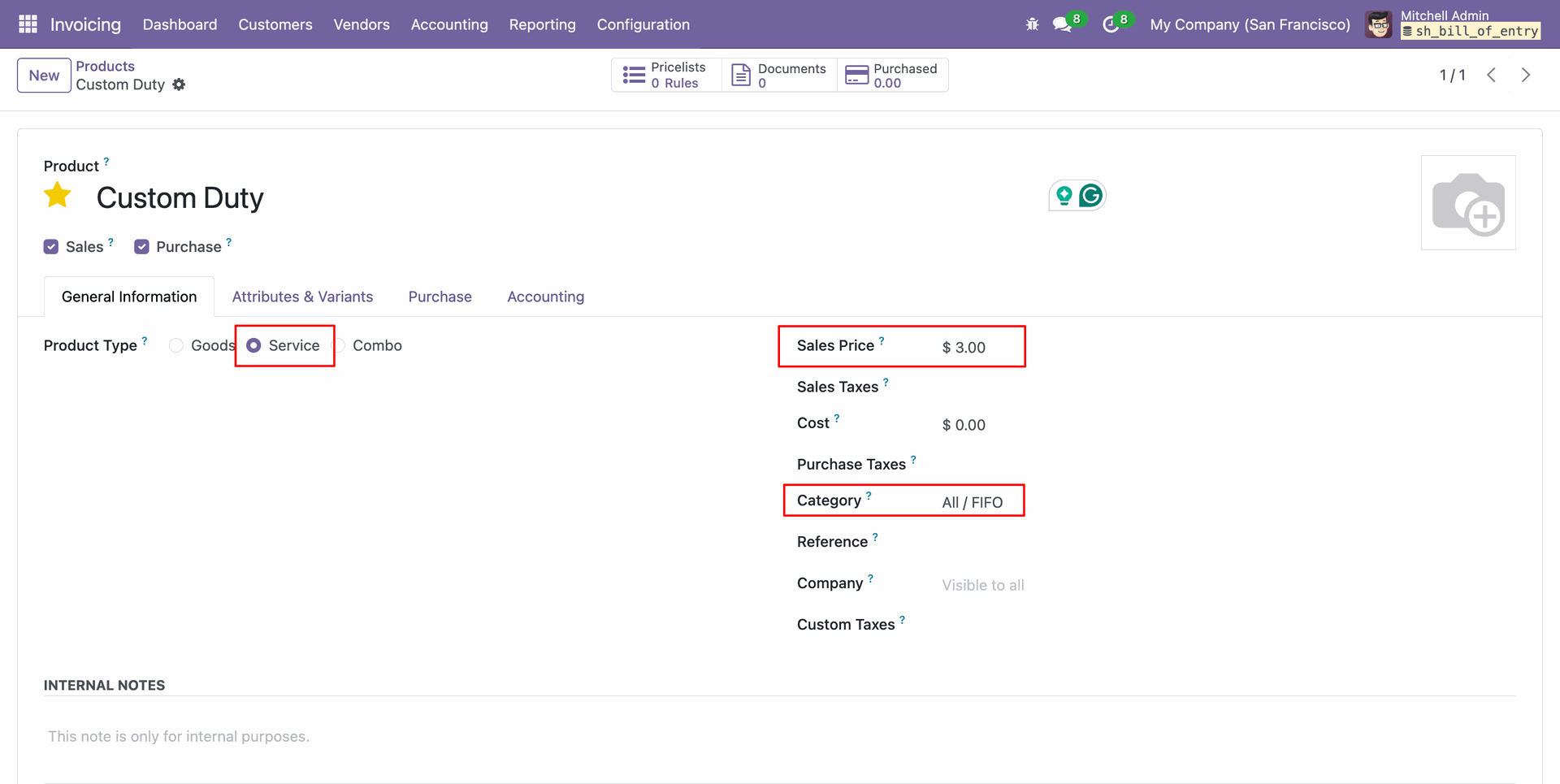
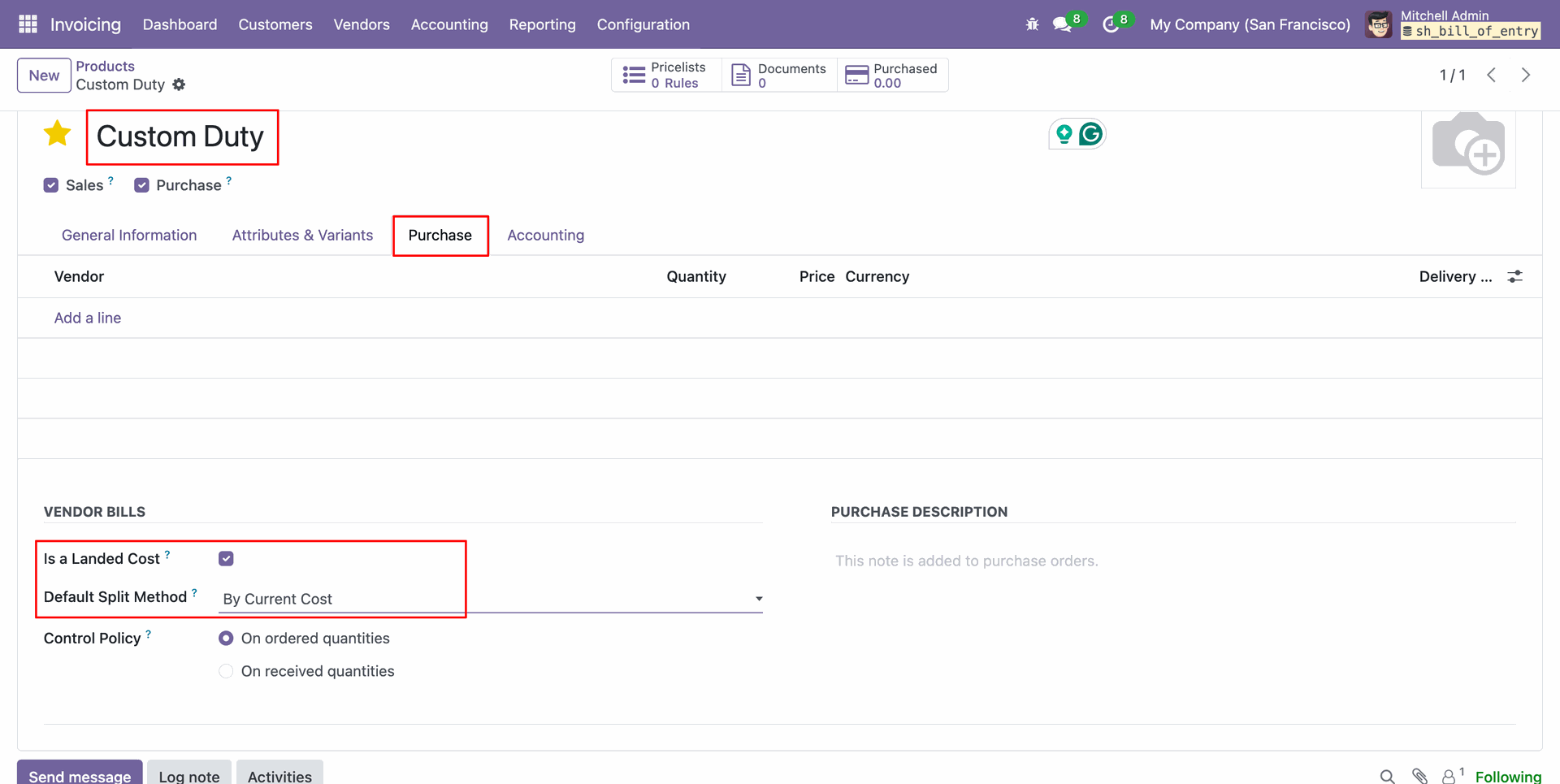
Enable is a landed cost boolean, and set the default split method in the purchase tab in the products form view.
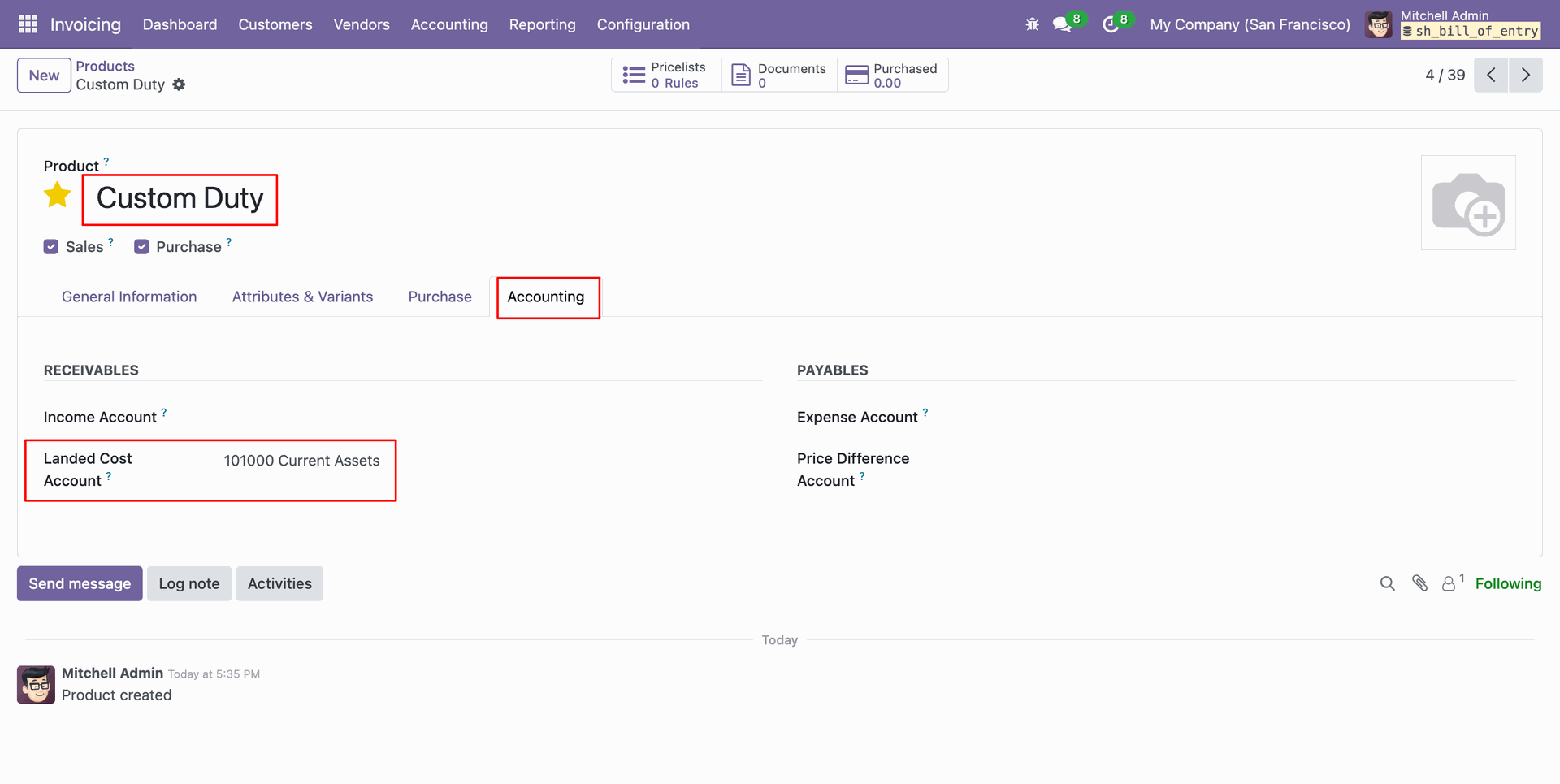
Set the landed cost account in the accounting tab for the product.
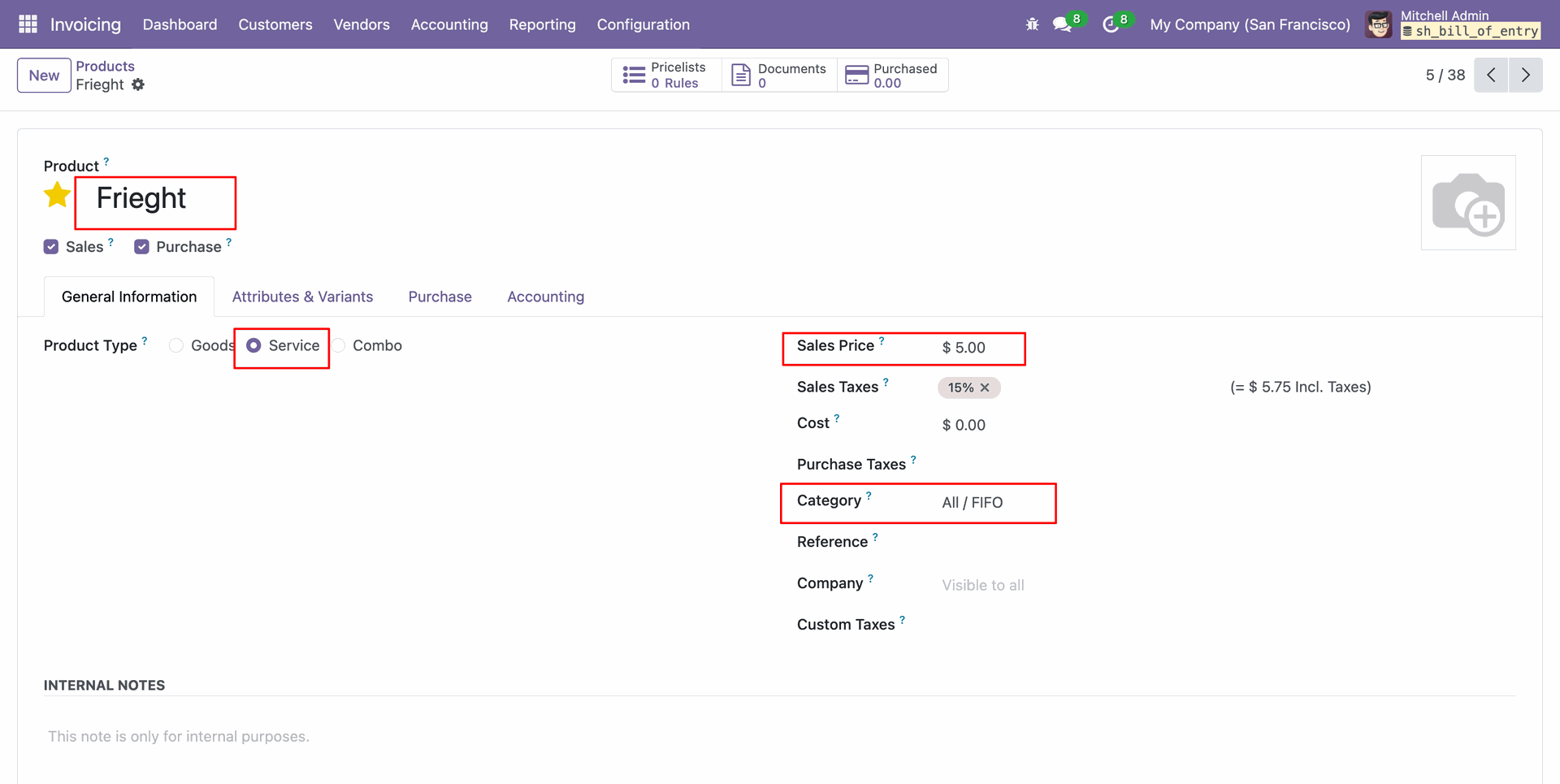
Create a Freight serviceable product.
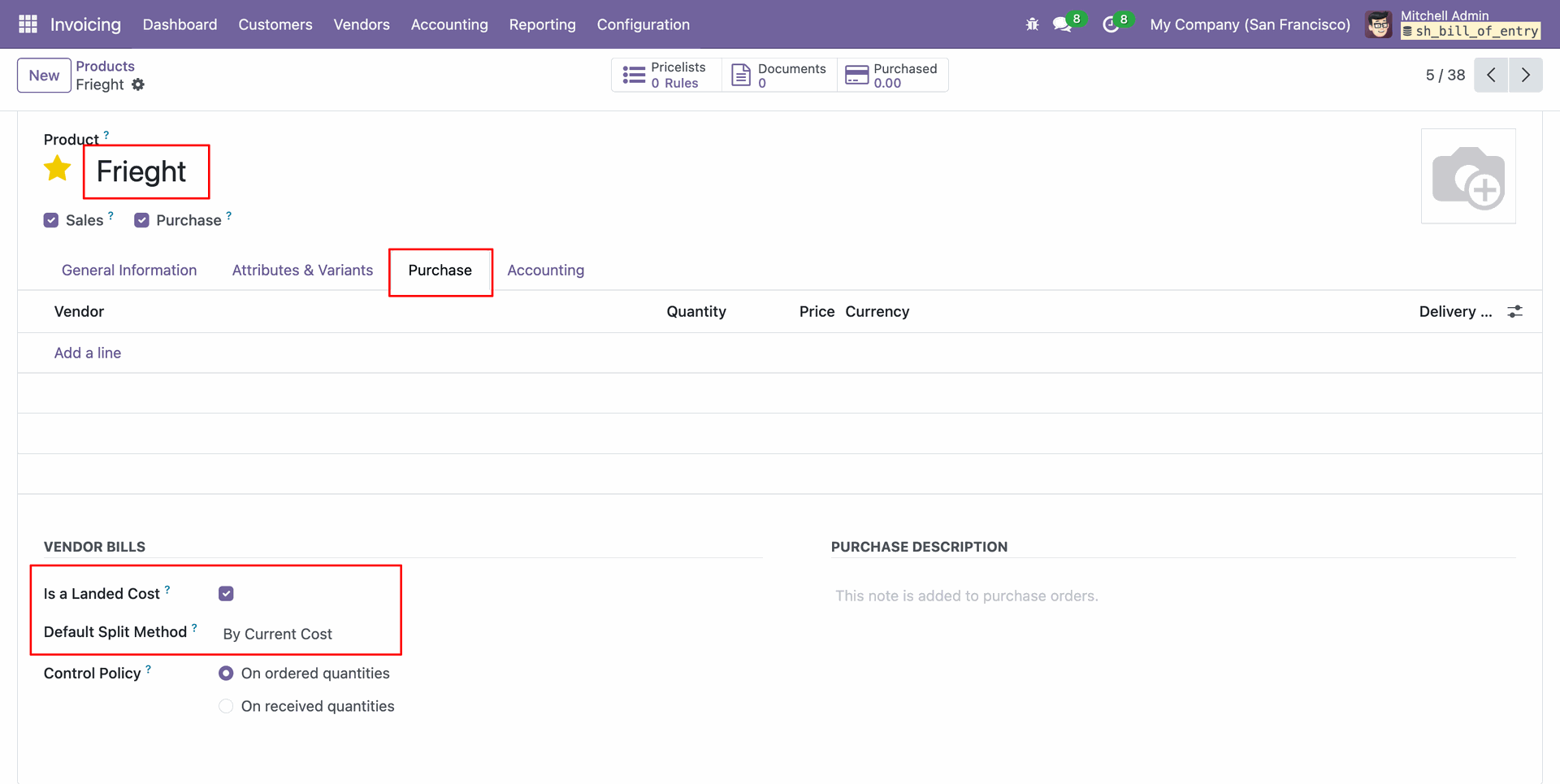
Enable is a landed cost boolean, and set the default split method in the purchase tab in the products form view.
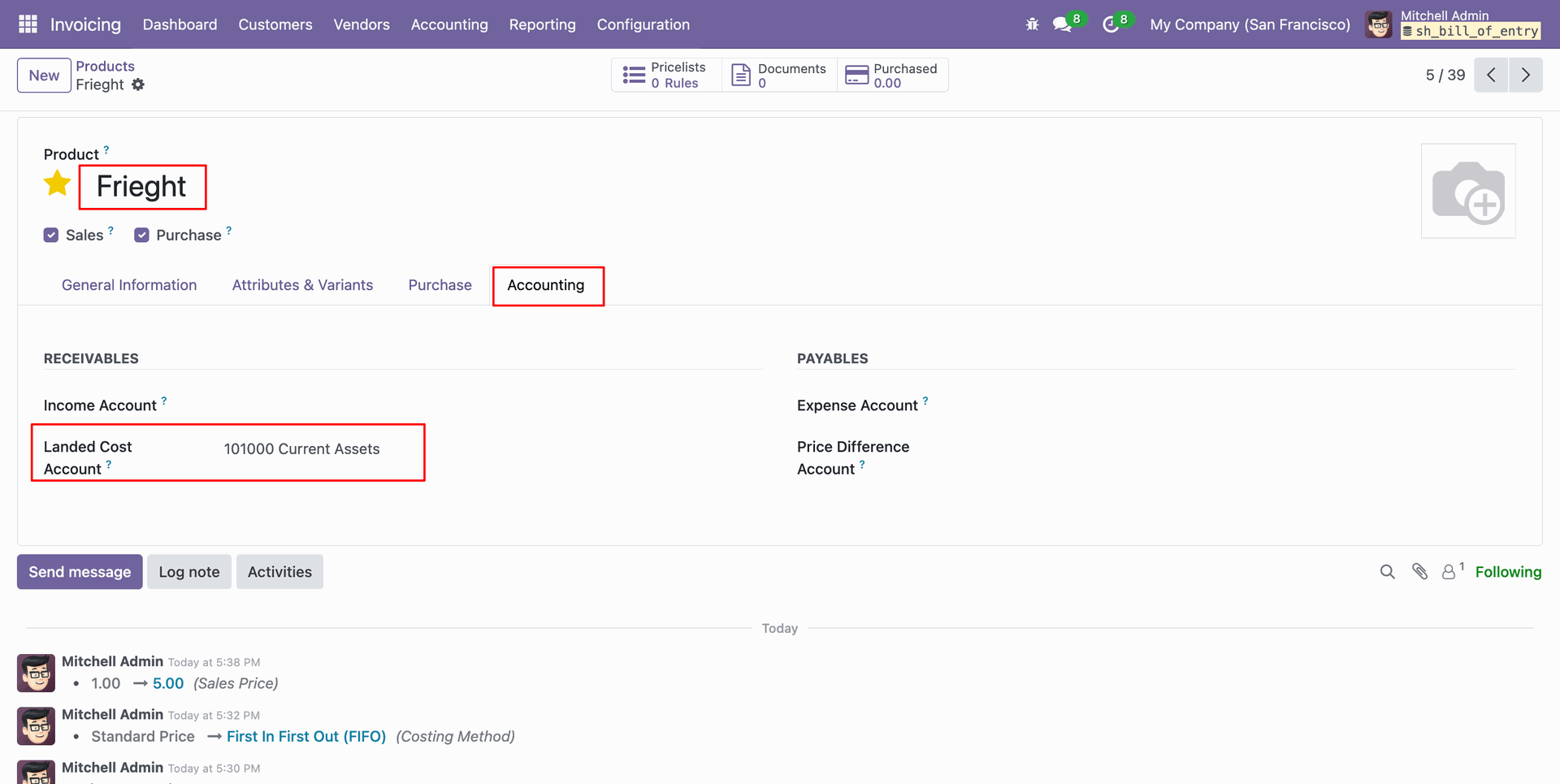
Set the landed cost account in the accounting tab for the product.
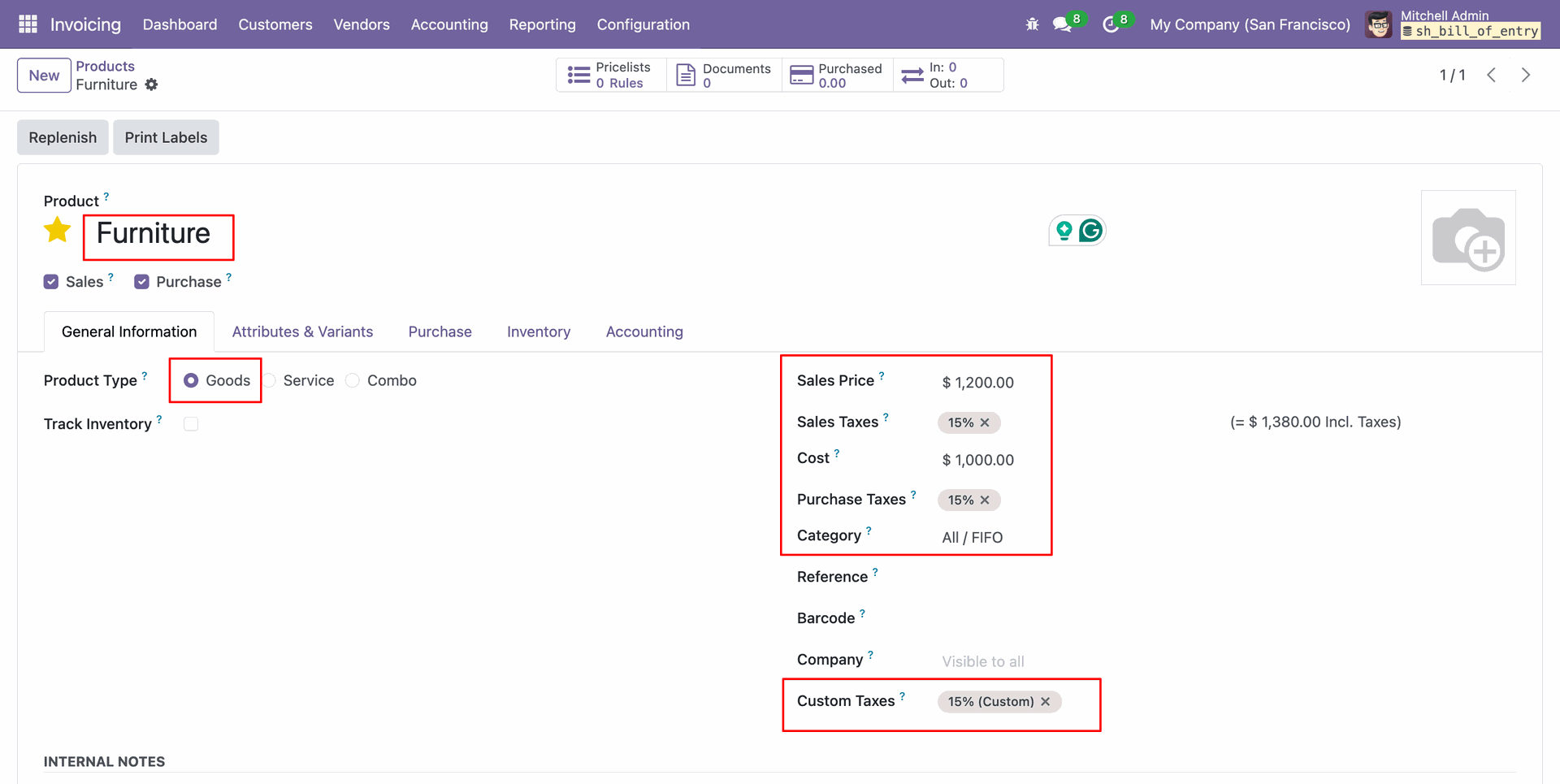
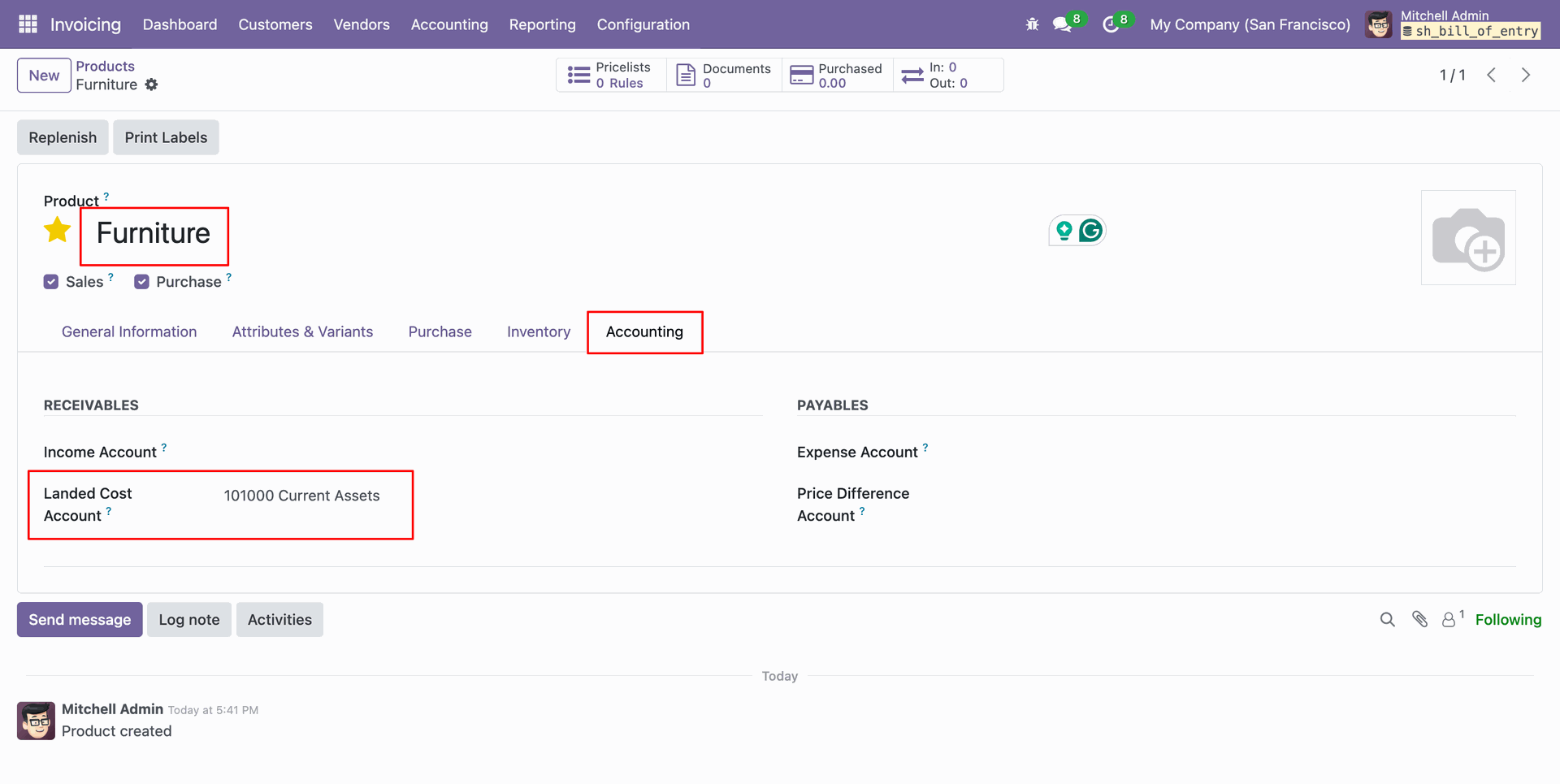
Create a Furniture Goods type product set category, either FIFO or Average costing method and set custom tax rates.
Set the landed cost account in the accounting tab for the product.
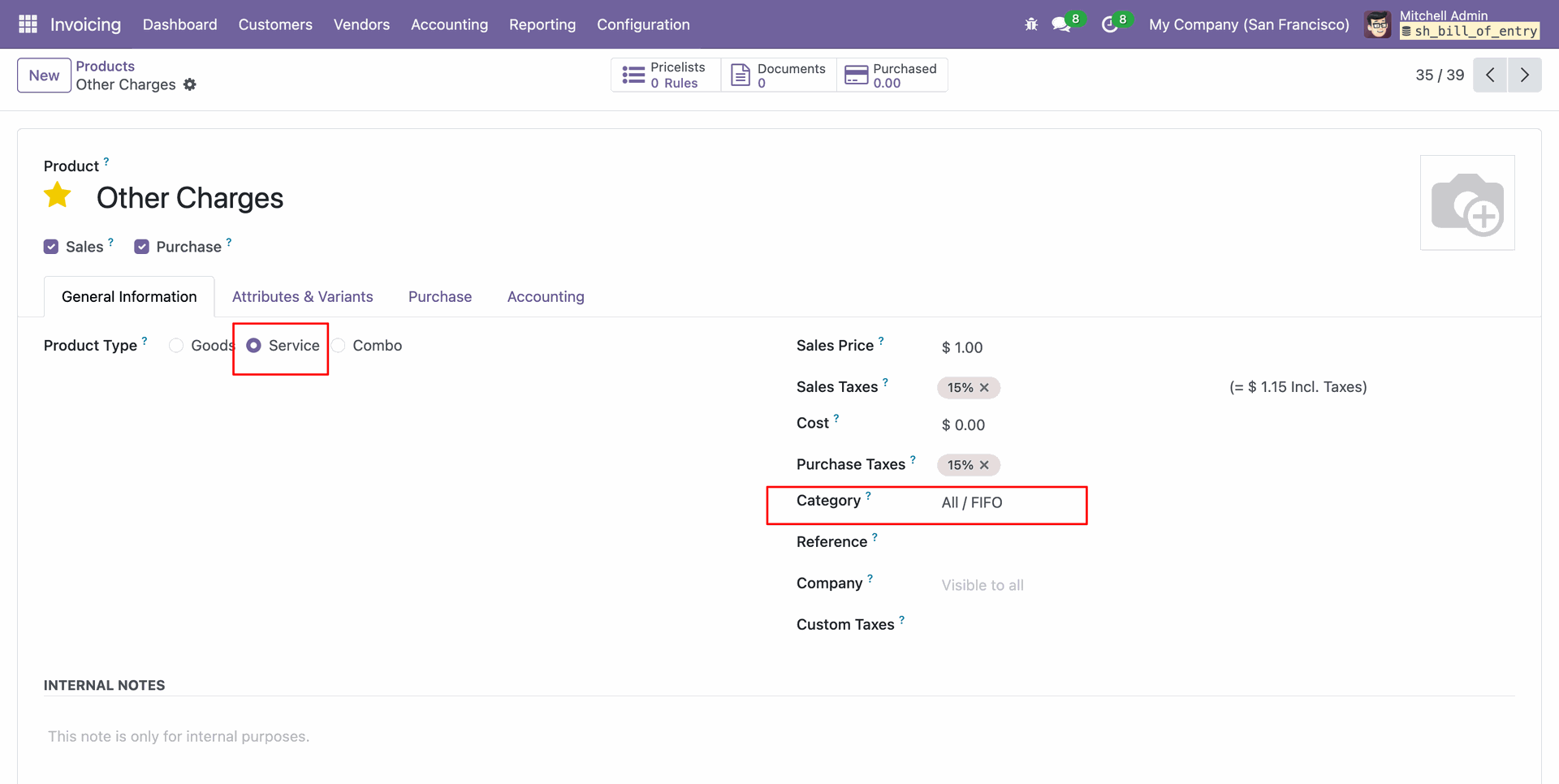
Create Other Charges servicable product.
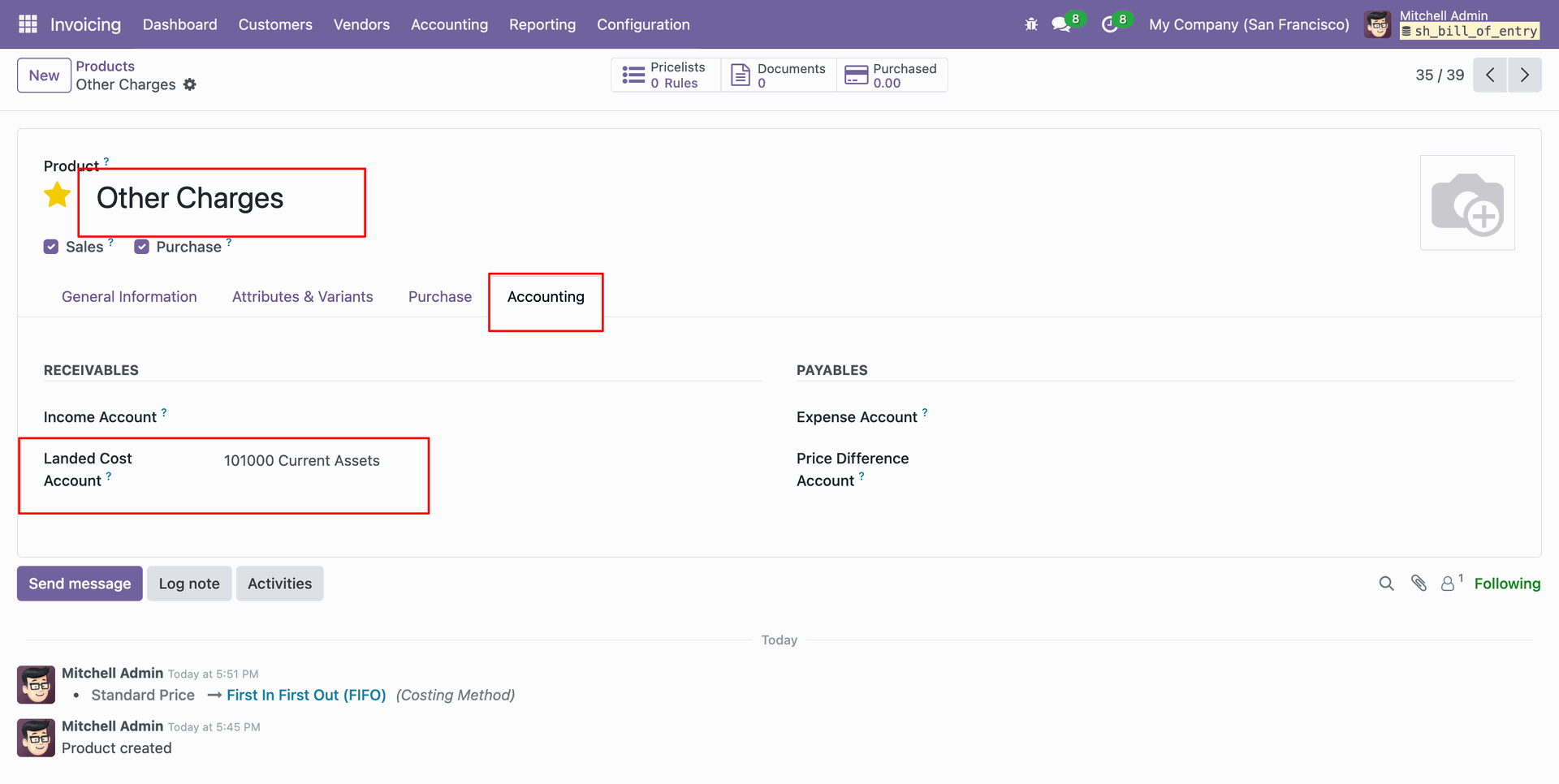
Set the landed cost account in the accounting tab from the product.
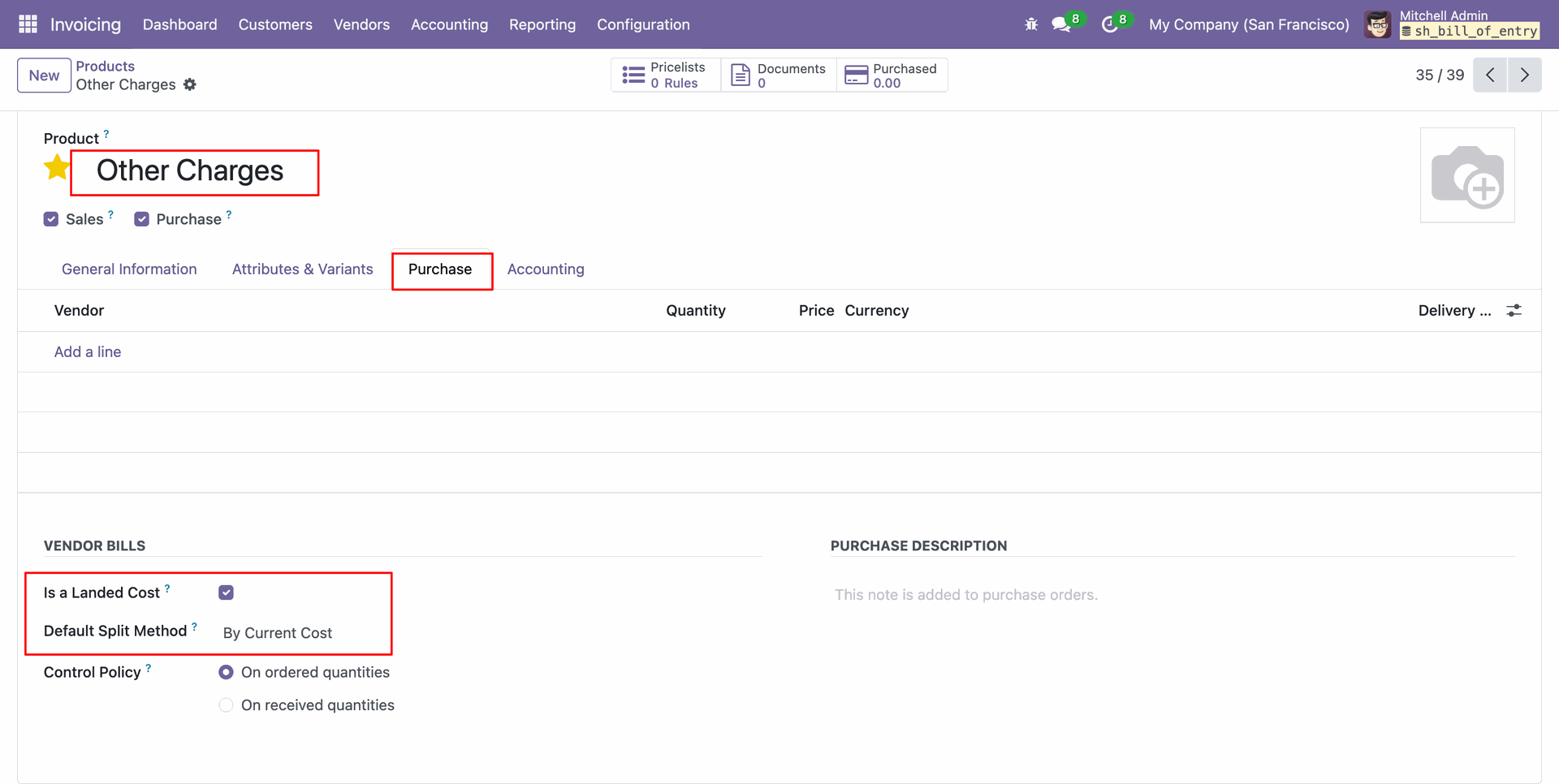
Enable is a landed cost boolean, and set the default split method in the purchase tab in the products form view.
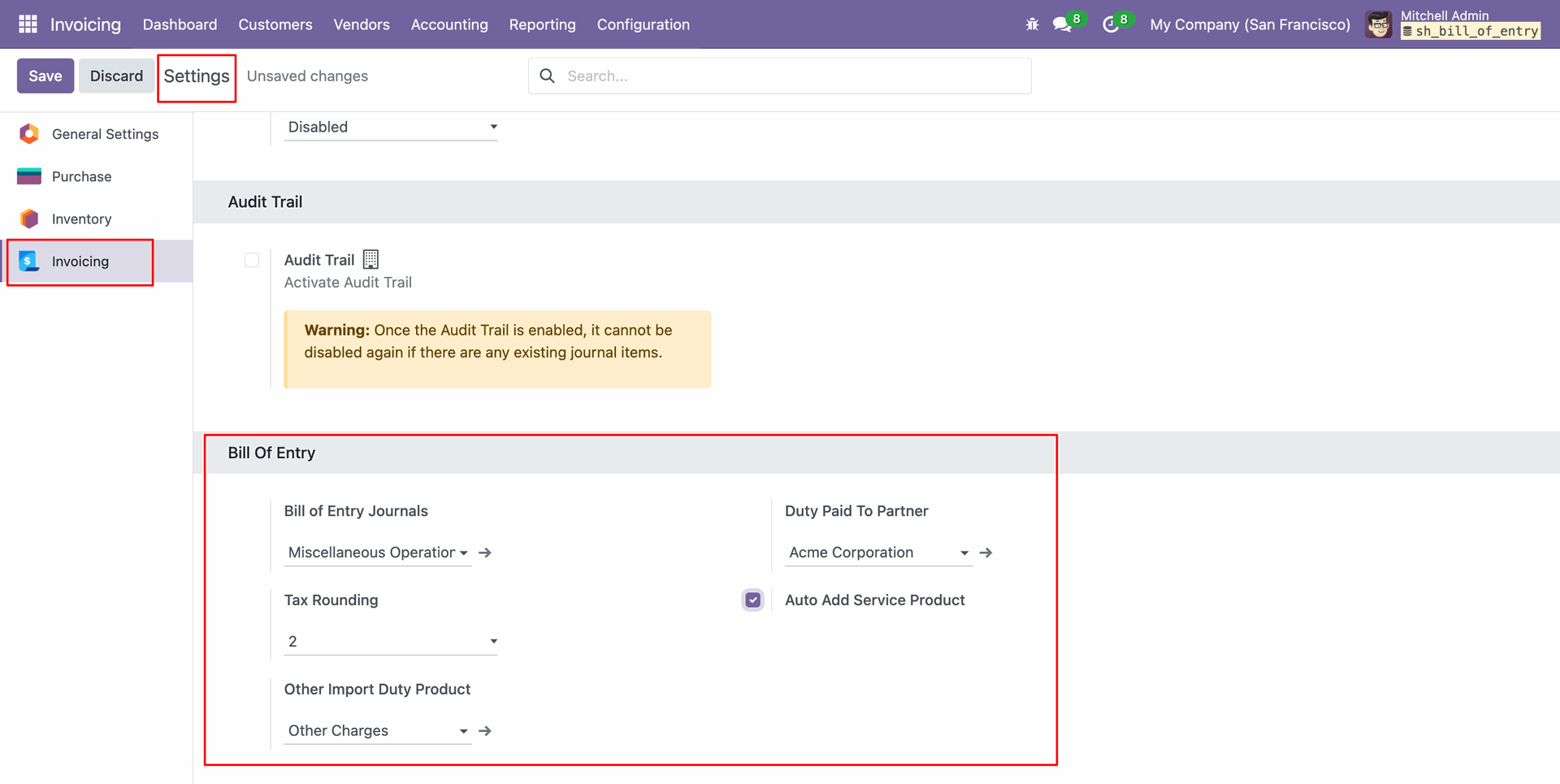
Go to invoice settings, select BOE journal, tax rounding value, other charges product as an other import duty, duty paid to partner and enable auto add service product.
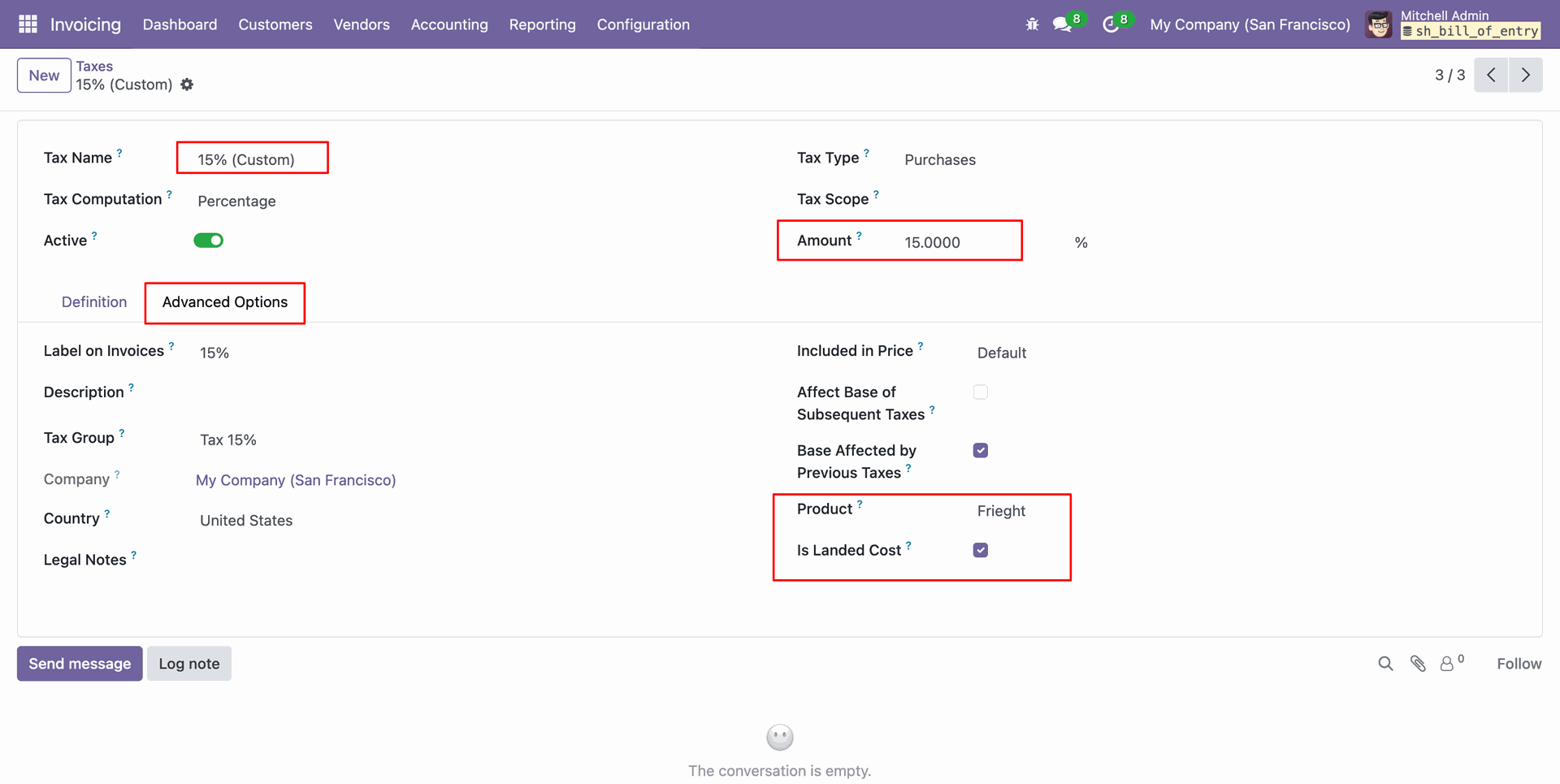
Go to invoicing settings, select the tax menu and create custom tax rules. Select a servicable product and enable the landed cost boolean from advance options in the tax form view.
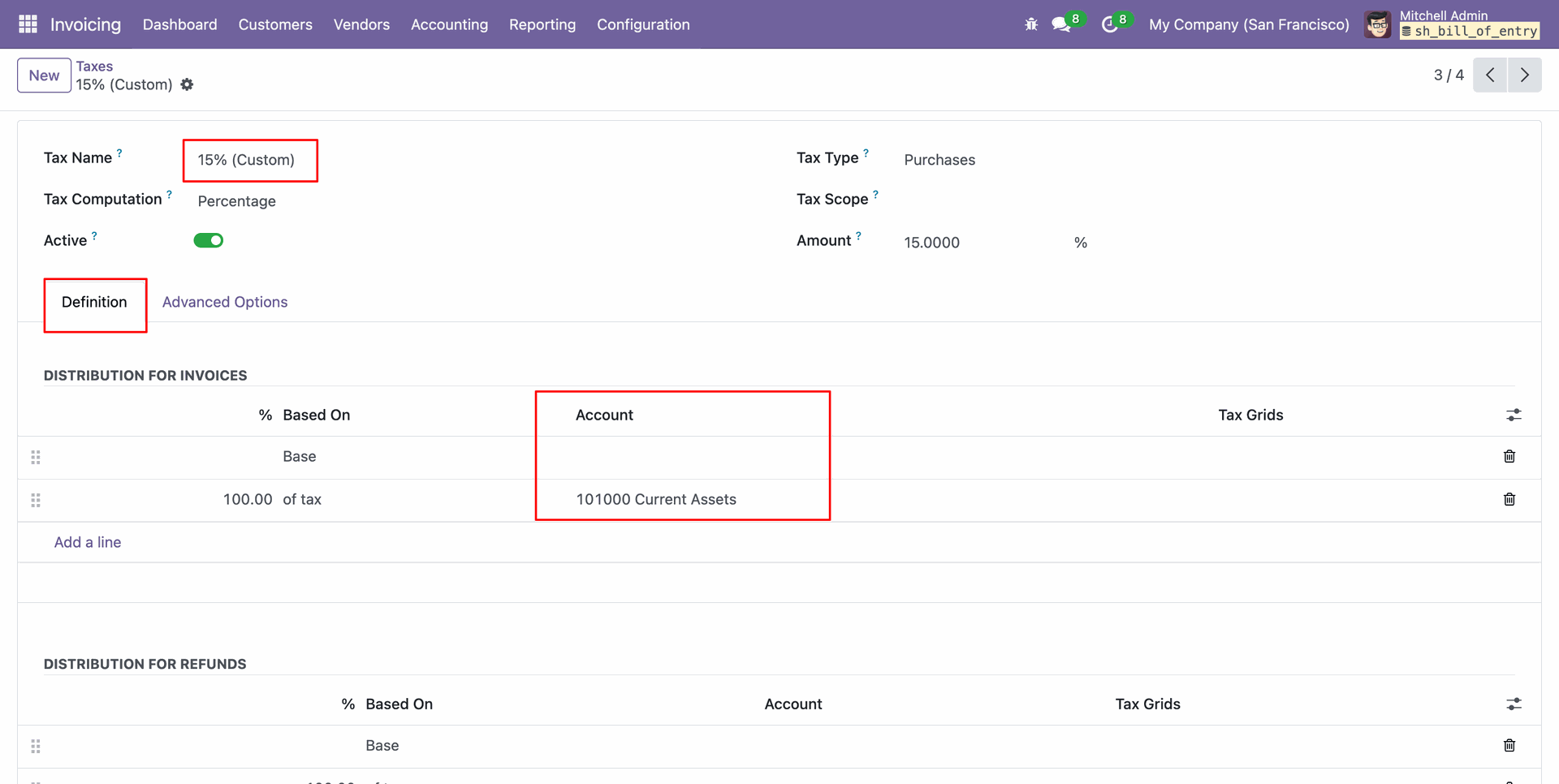
Select the custom tax account in the definition tab.
Go to the currencies menu under the invoicing configurations. Enable multi-currency.
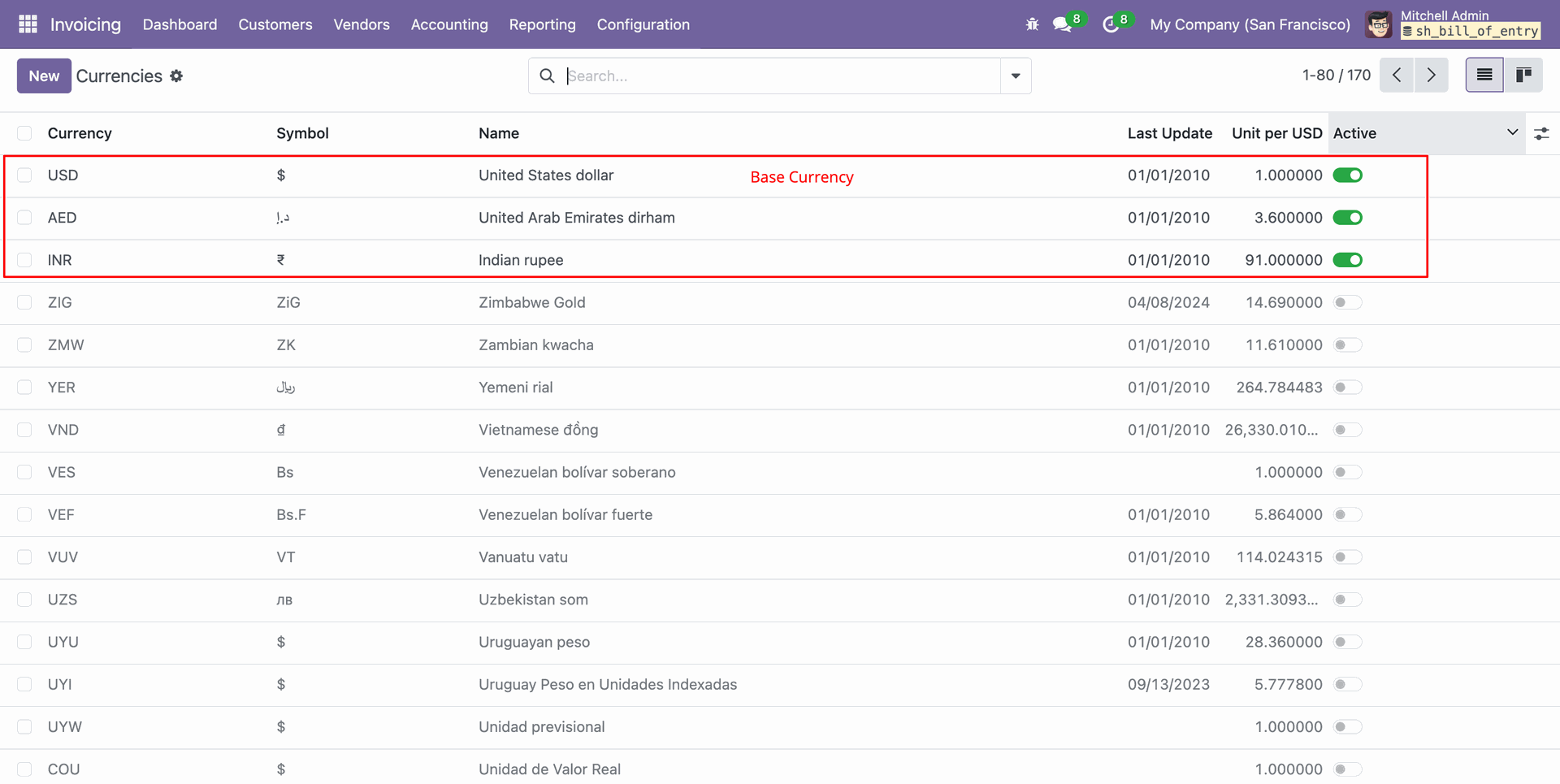
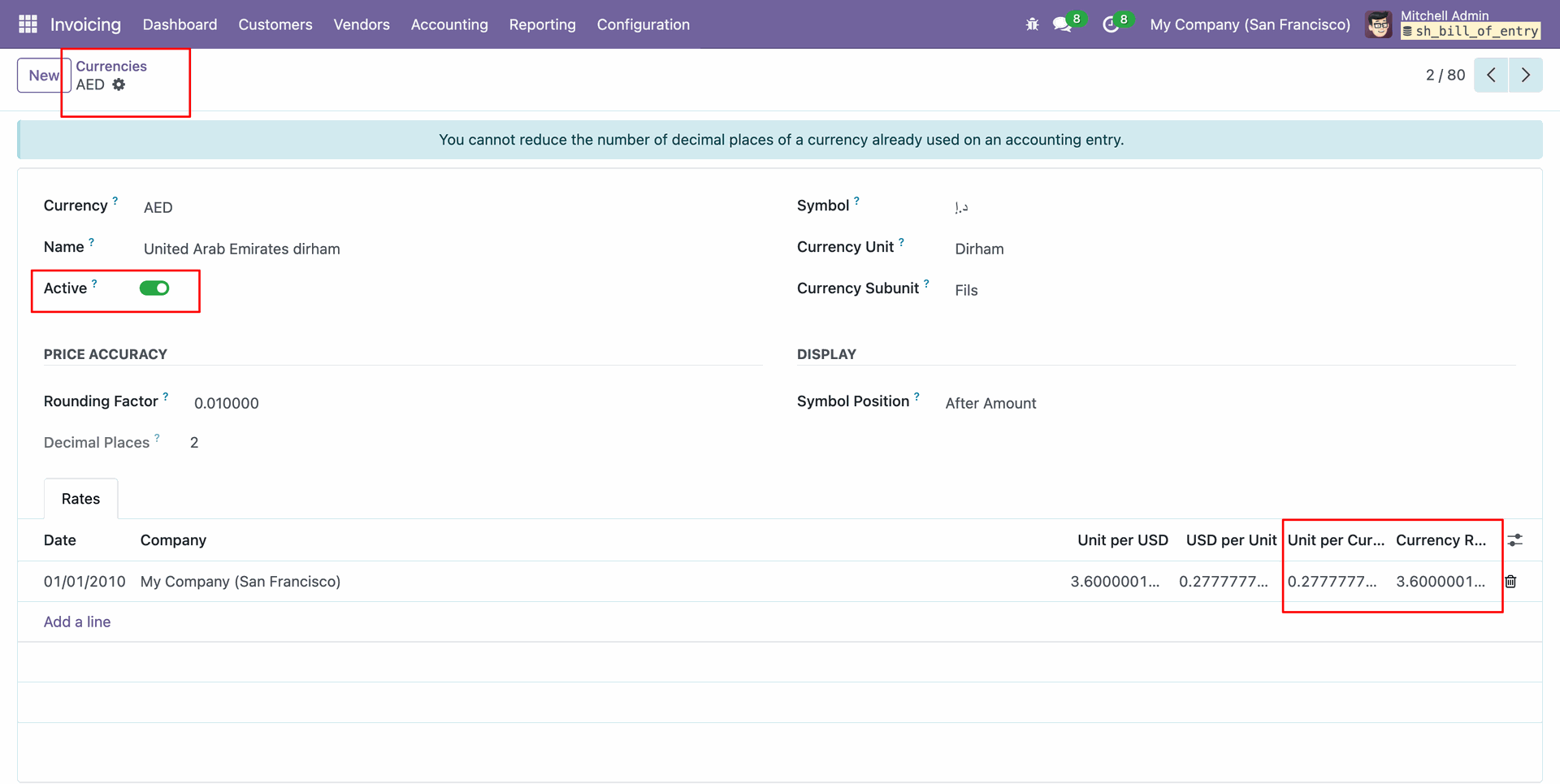
Set the Unit per Currency Rate and Currency per unit rate for the active currency.
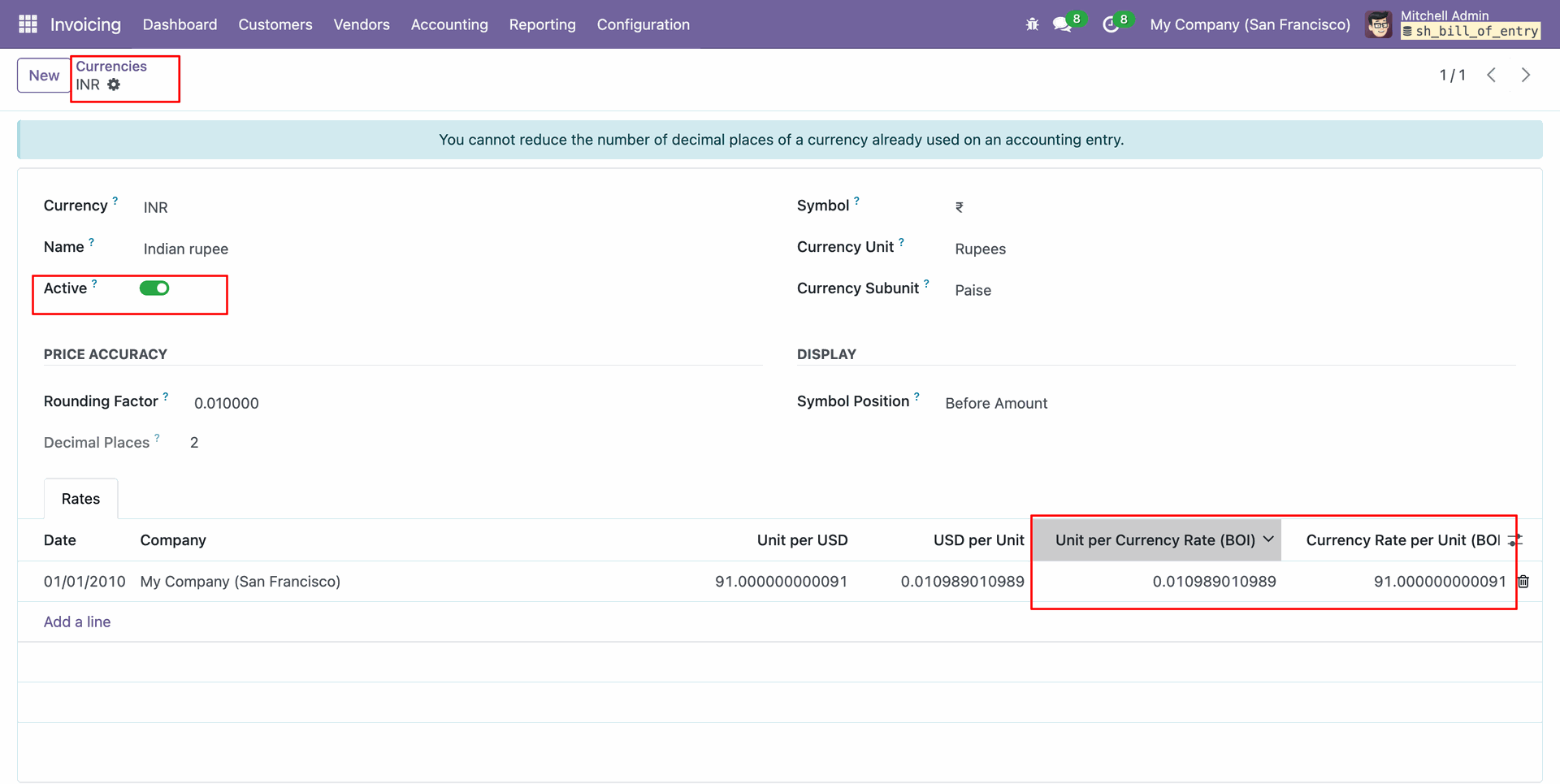
Set the Unit per Currency Rate and Currency per unit rate for all active currencies.
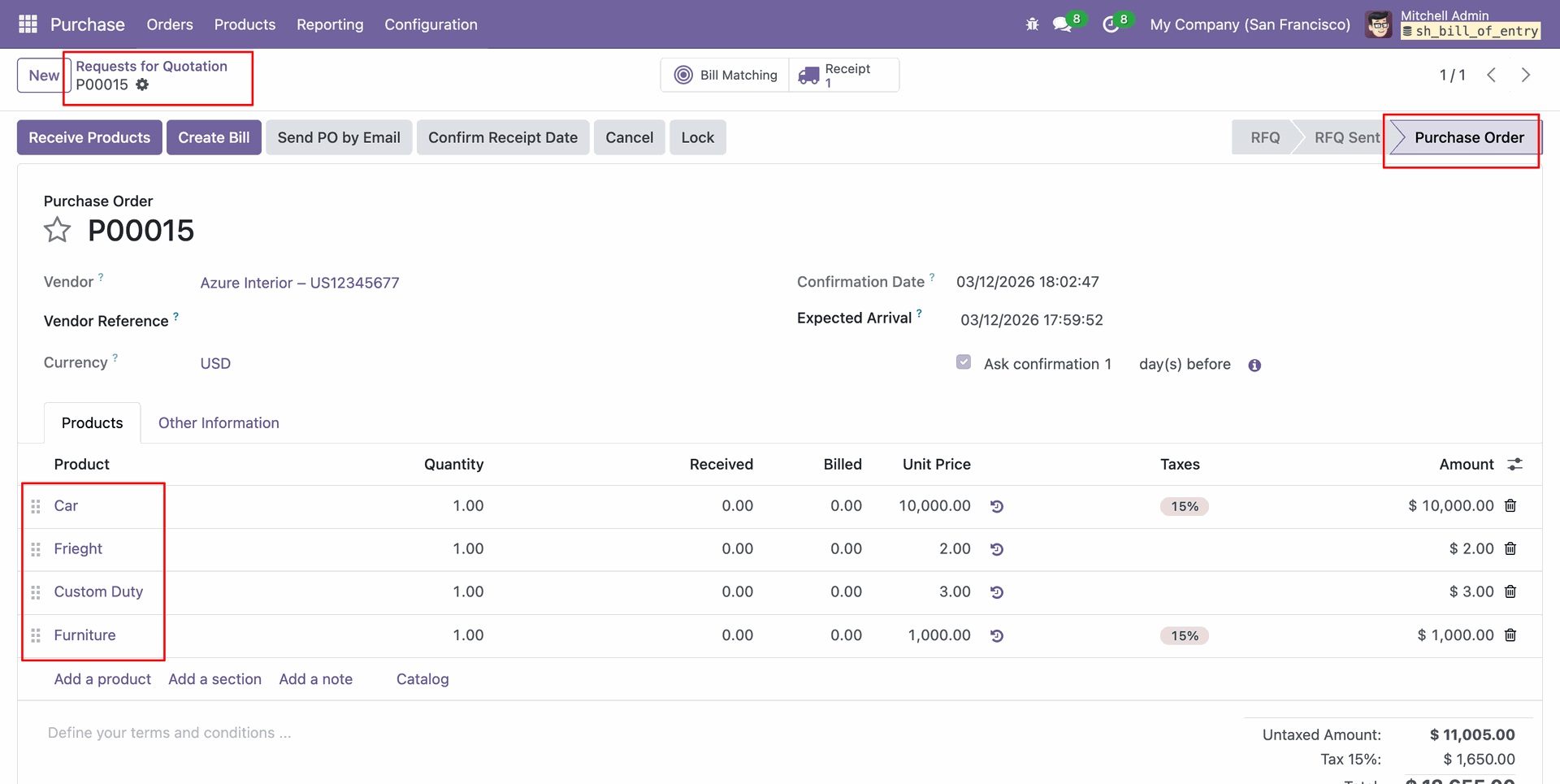
Create a PO and add Goods type product, freight and custom duty products in the orderlines.
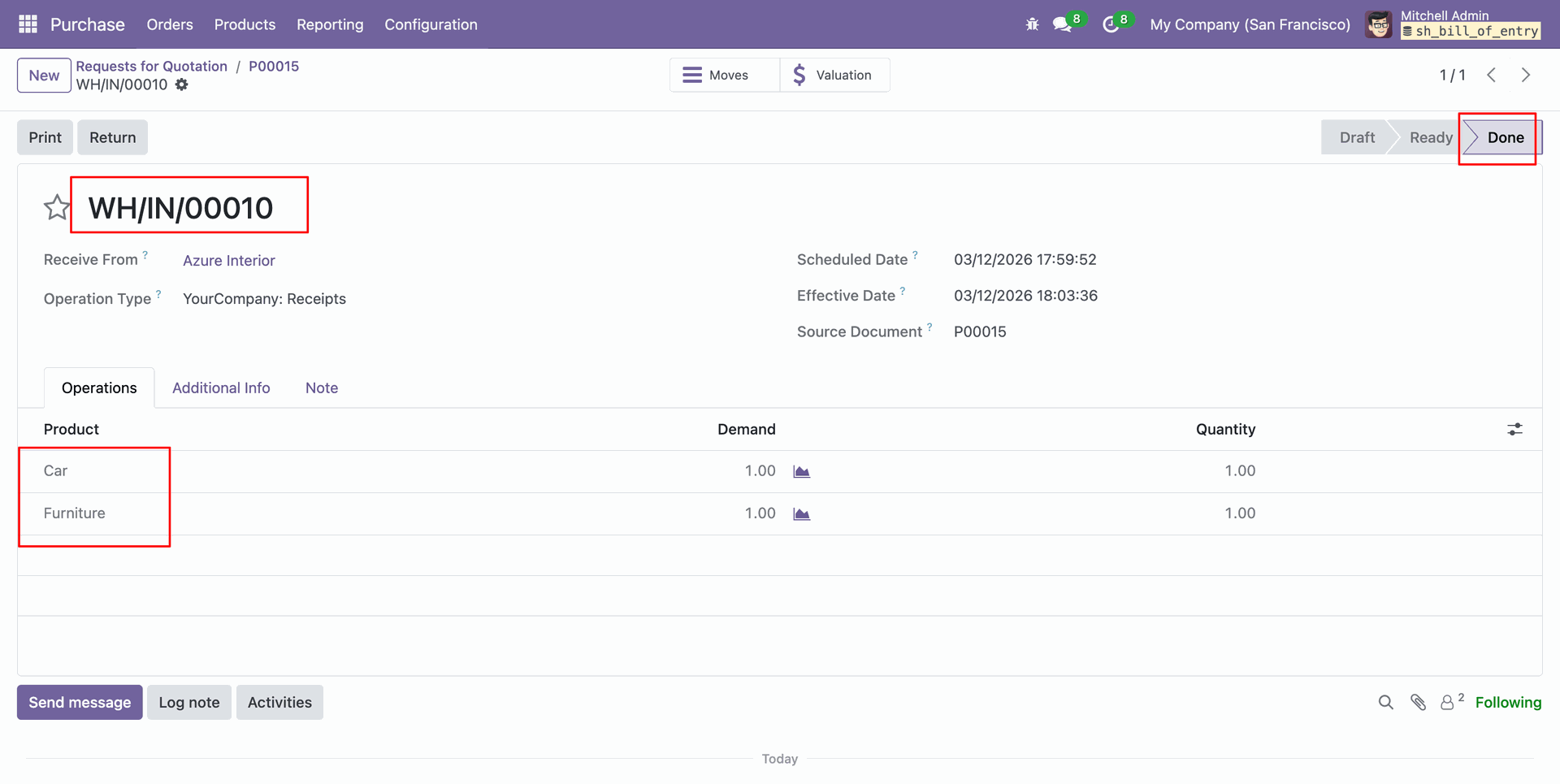
Validate the receipt.
Click on the Create Bill button from the PO.
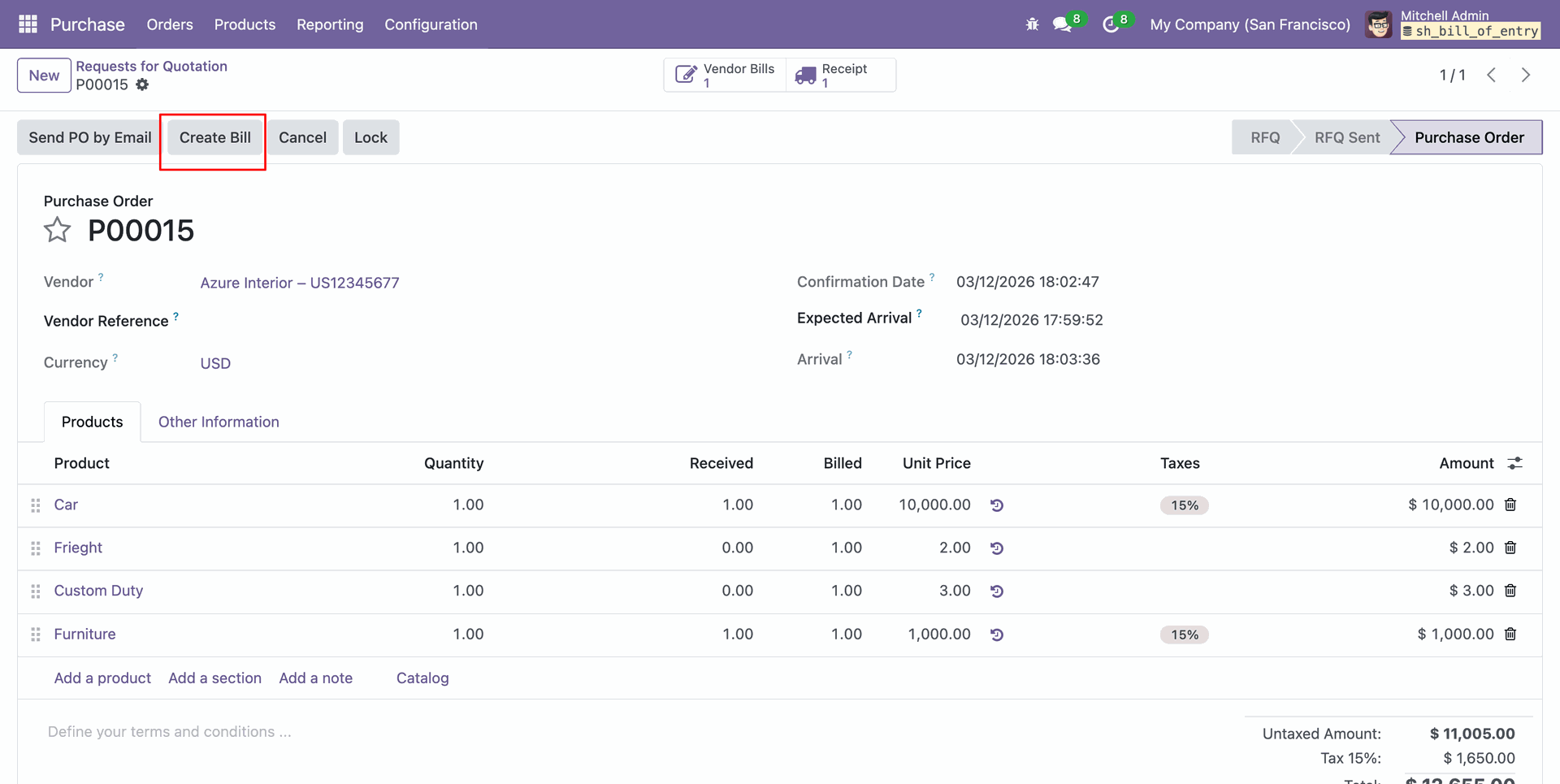
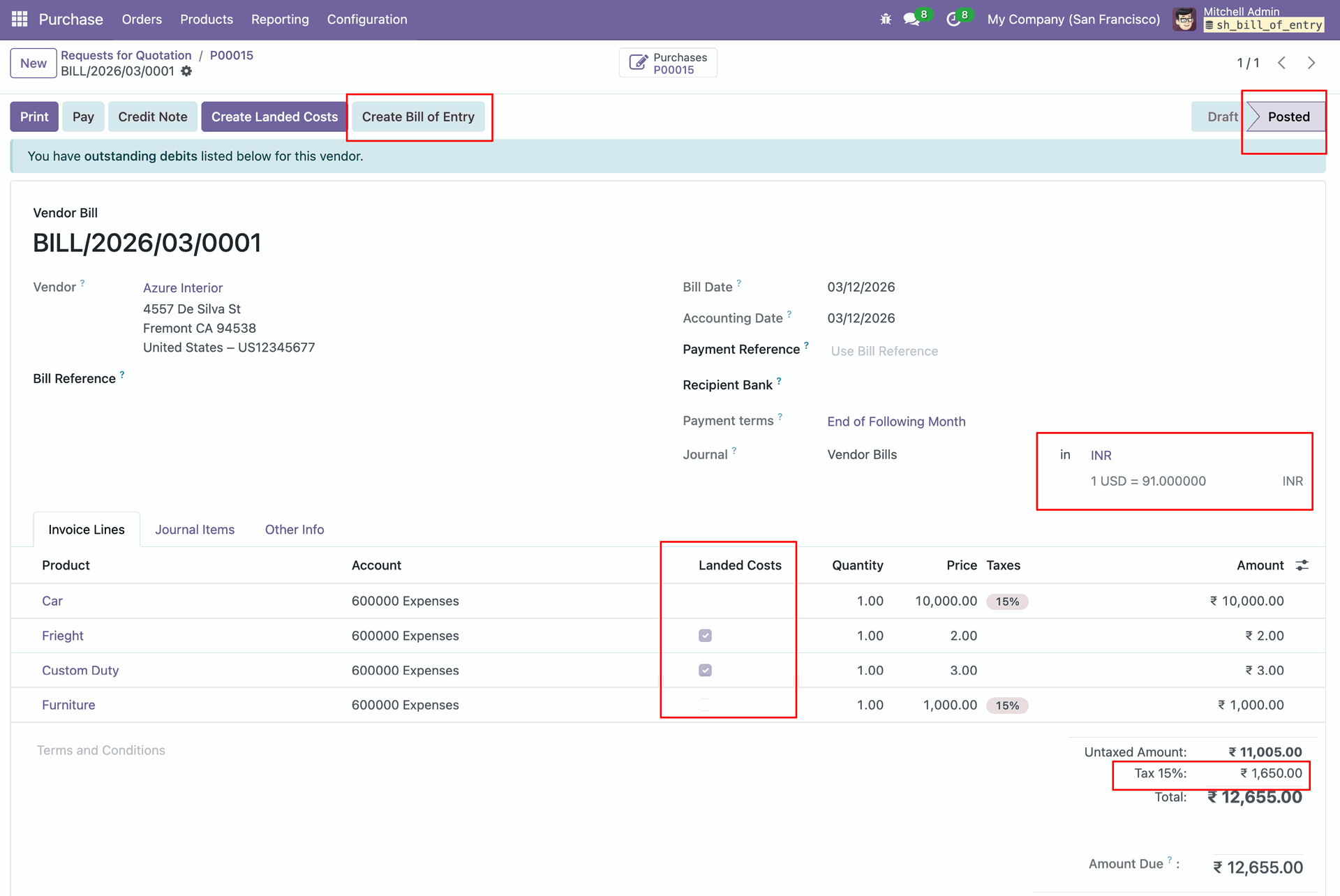
Post the bill and click on the " Create Bill of Entry " button. The user can update the currency rate from the bill.
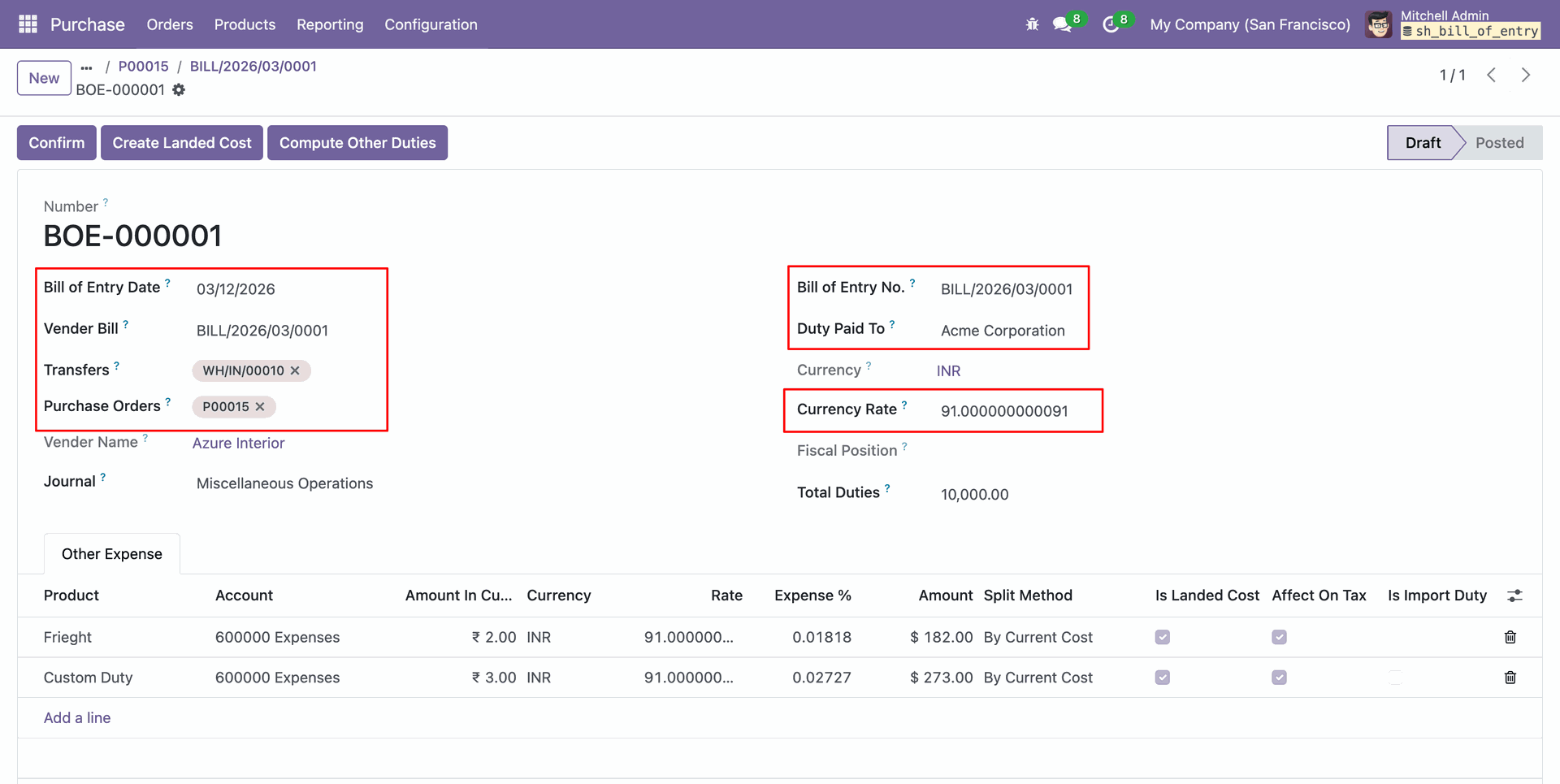
Created a bill of entry in draft stage, and the user can select transfer and bill date. Auto fetch PO and bill number and duty paid to the partner.
Product details in the bill of entry lines and expenses in the other expenses tab. Add the total duties amount and click on Compute Other Duties.
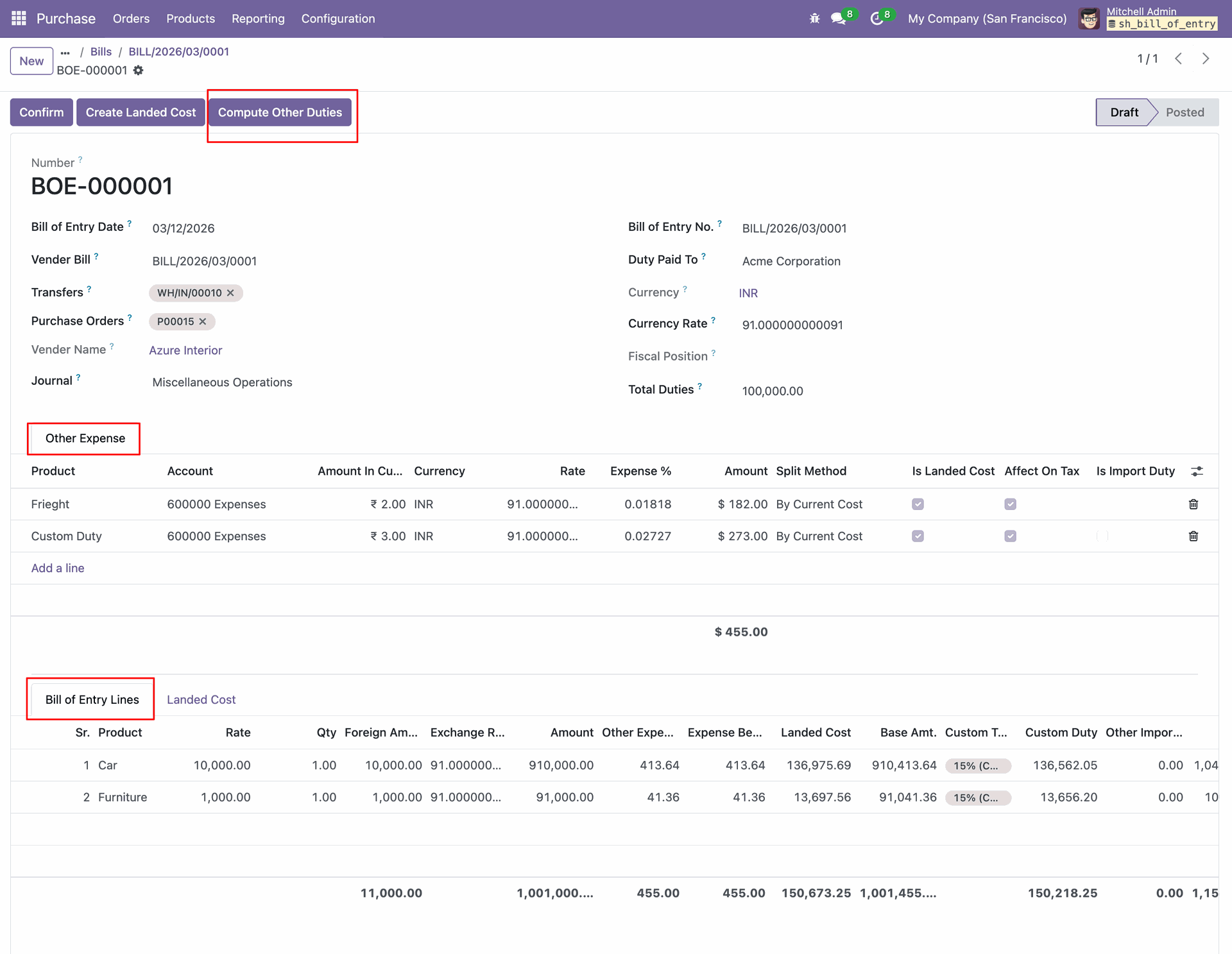
The user can set expenses in multi currency. By clicking on the other duties button, other
charges will auto-add based on the difference amount.
[ Total Duties - (Custom Duty + Tax Amount ) = Other Charges ]

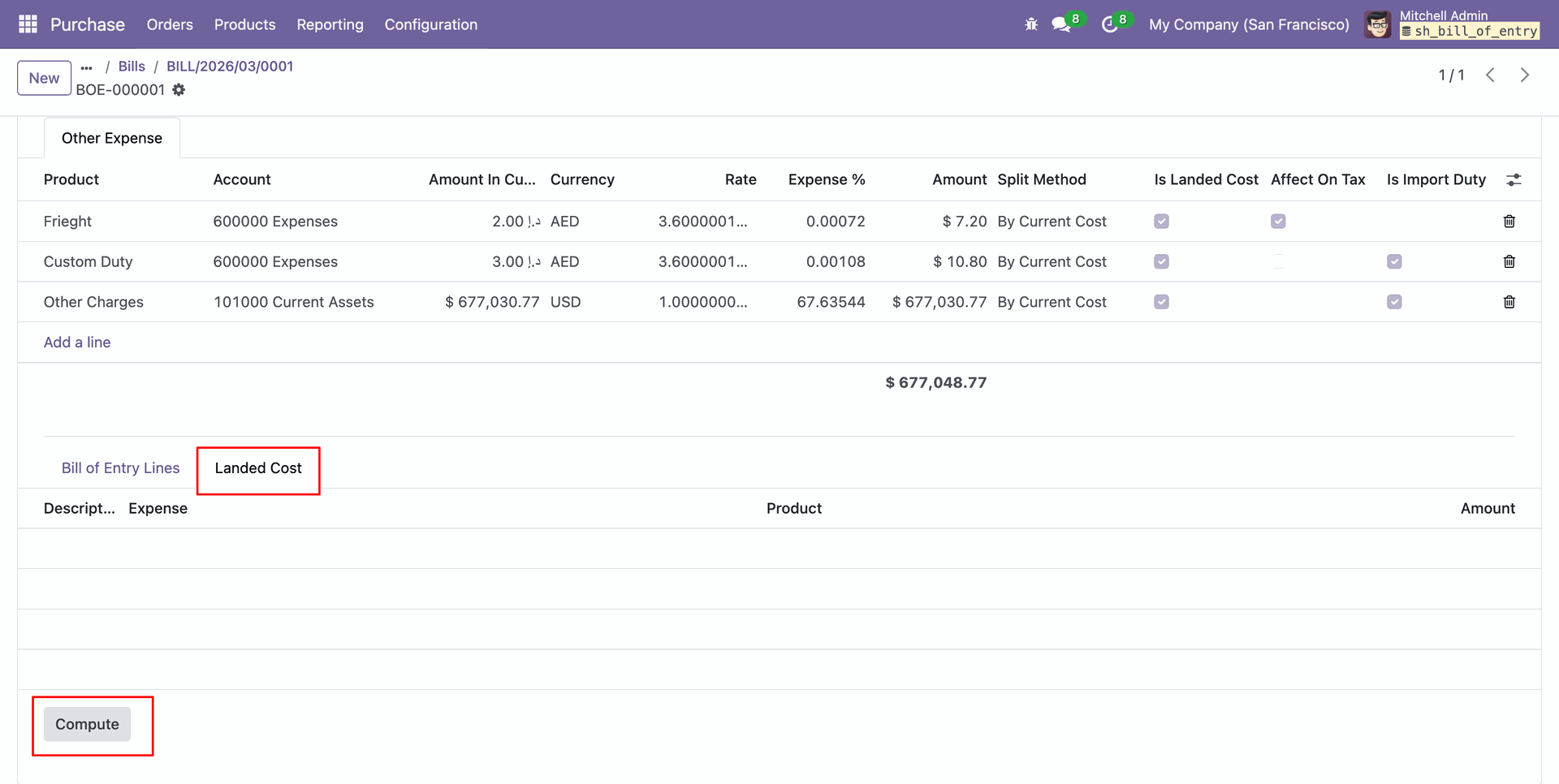
Click on the Landed Cost tab and click on the compute button.
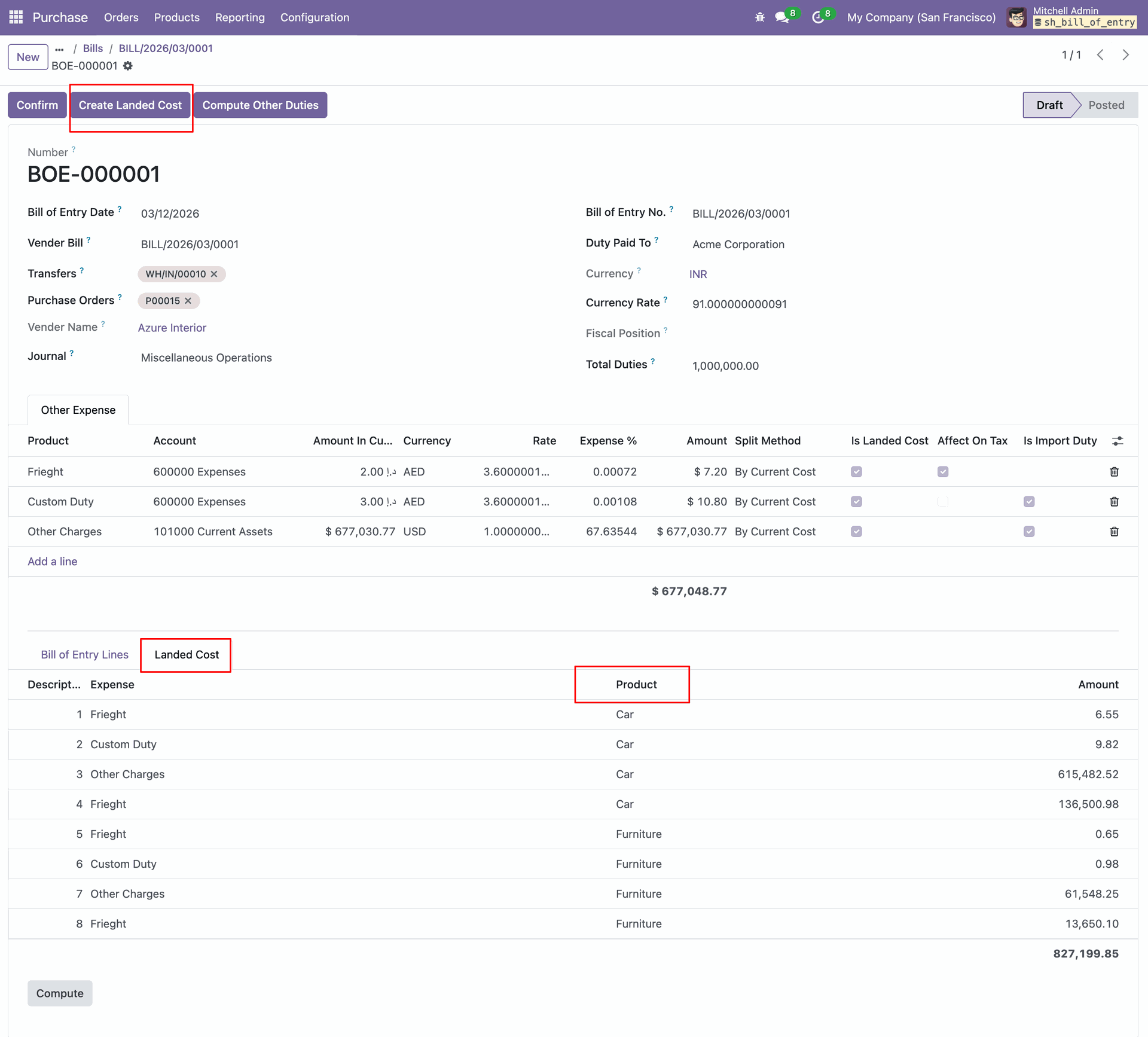
Landed cost will be added to the lines for each product. Click on the Create Landed Cost button from BOE.
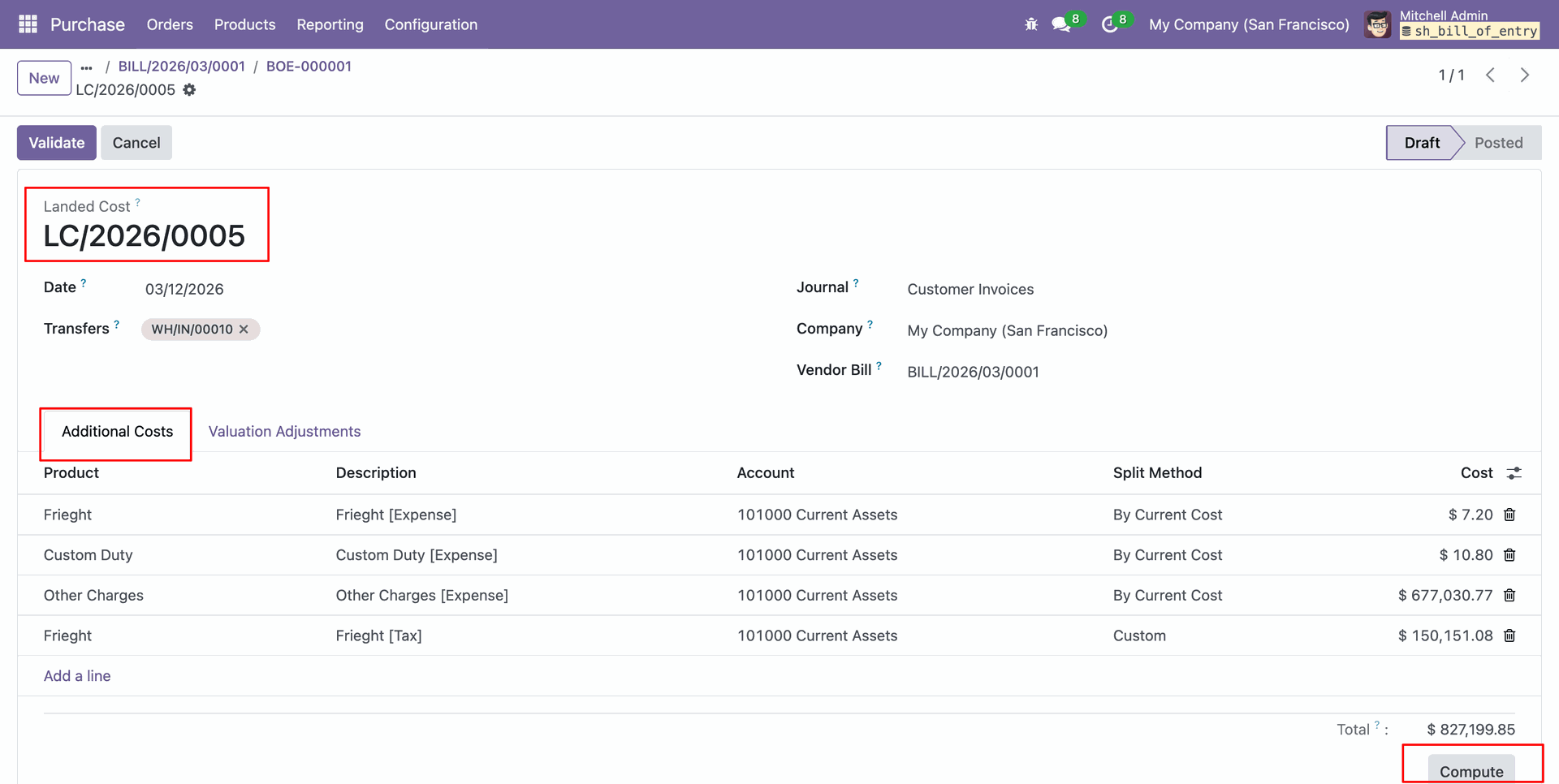
Landed Cost will be created in the draft stage, and click on the compute button from the Additional cost tab.
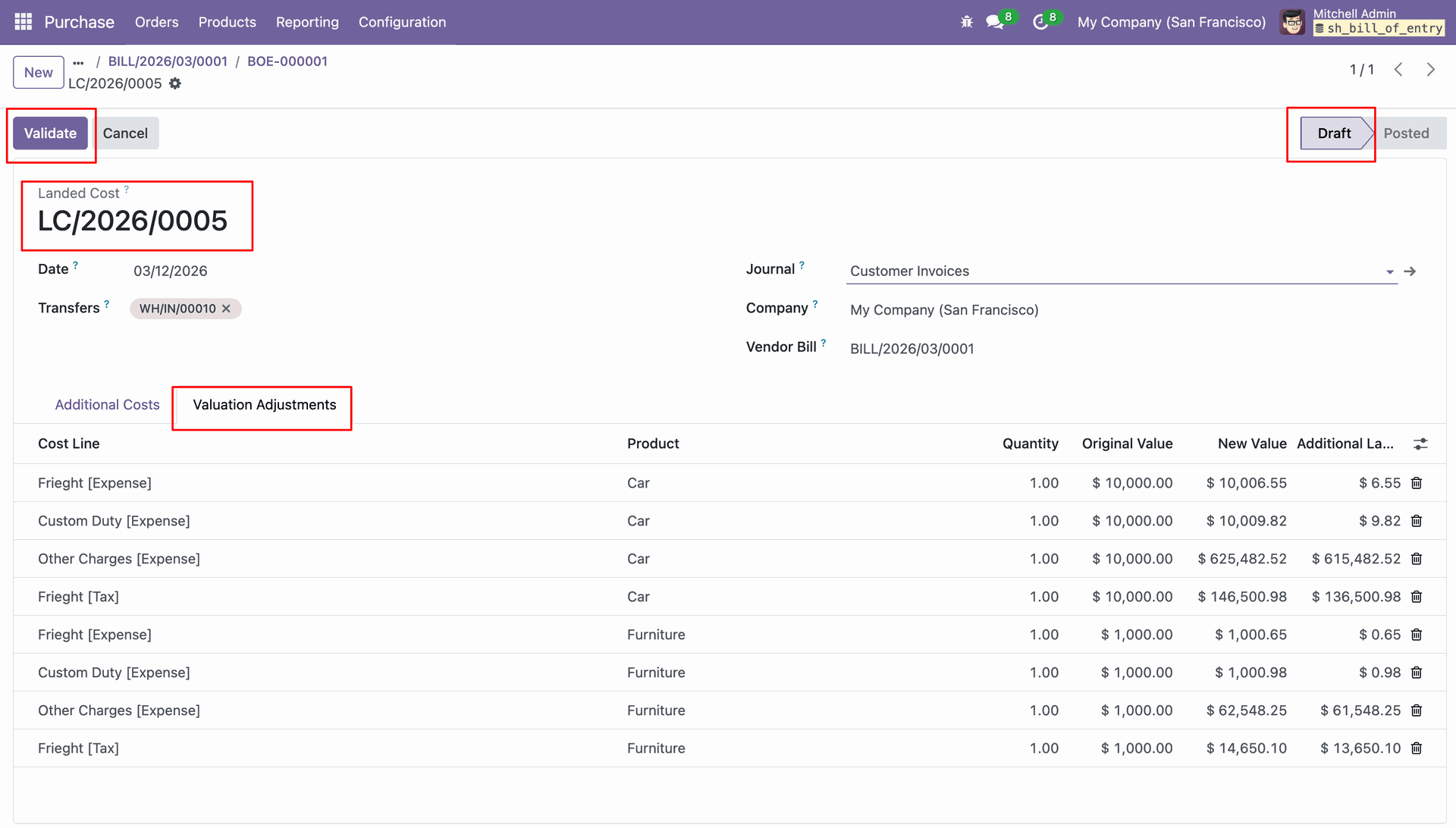
By clicking on the compute button, added landed cost valuations to the cost line under the valuation adjustments tab. Validate the landed cost.
Confirm the Bill of Entry, and the user can see the Landed cost smart button in the BOE.
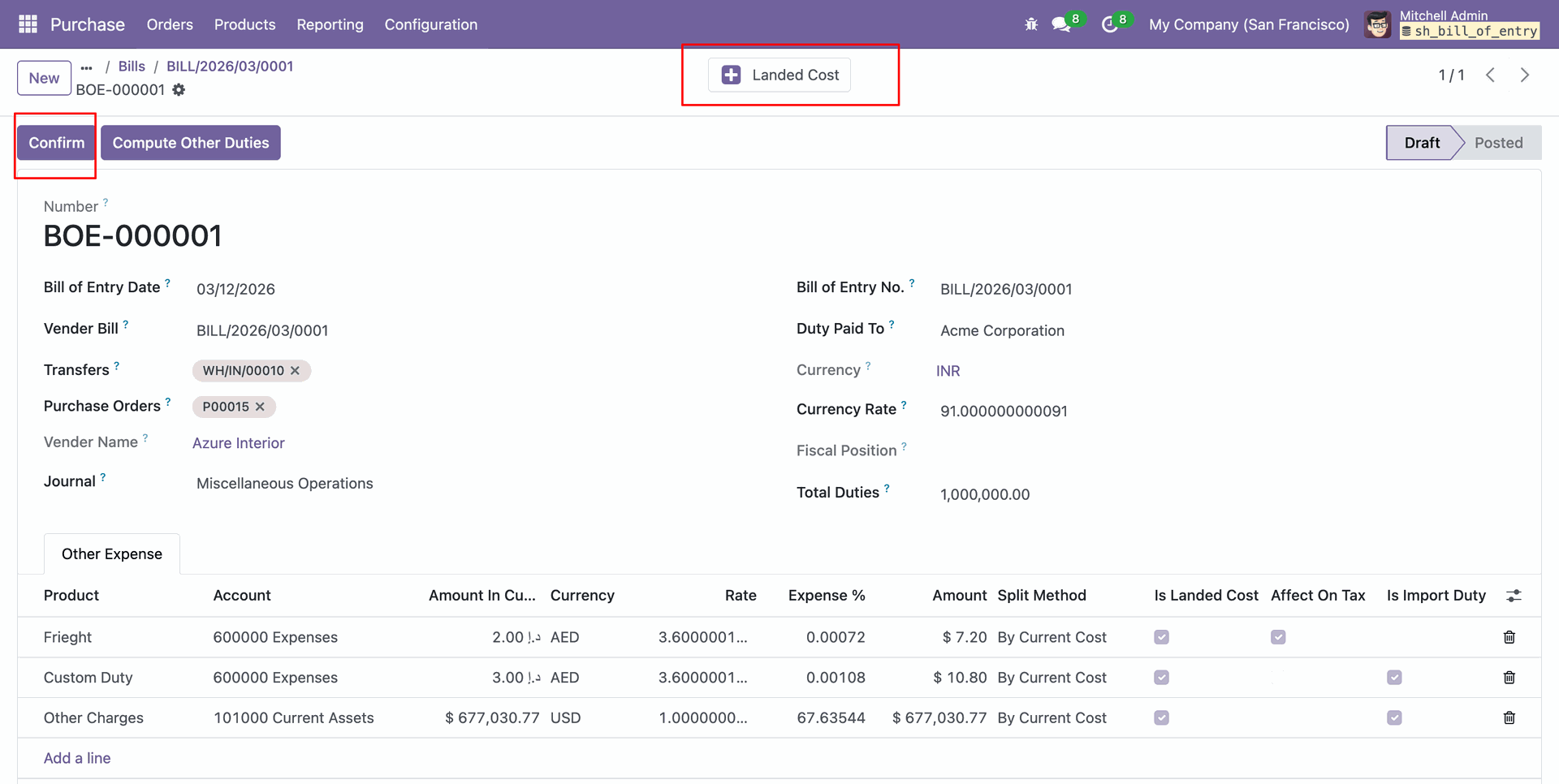
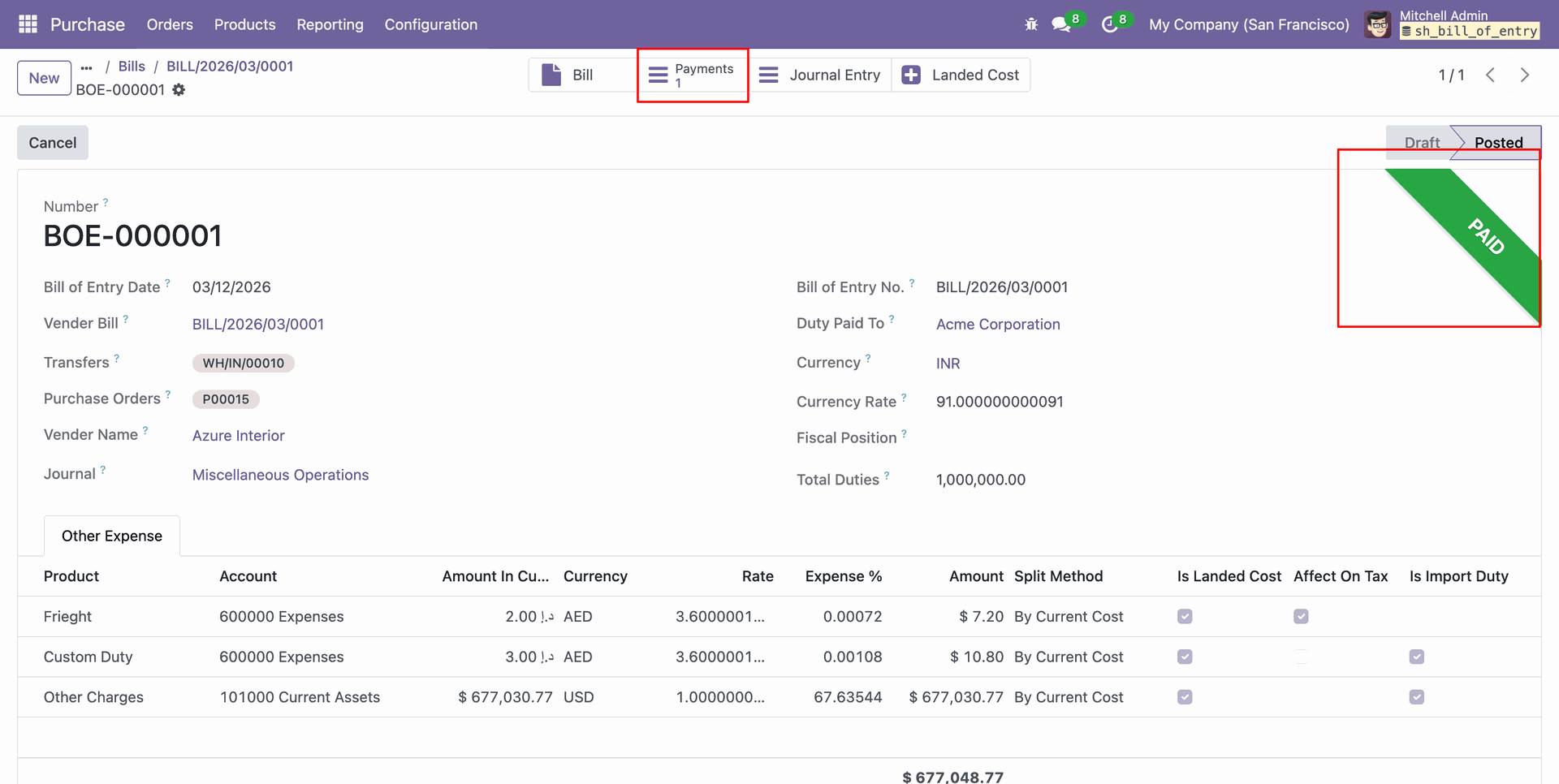
By confirming the BOE, the user can see the Bill and Journal entry smart button in the BOE form view. Register Payment for the total duty from BOE.
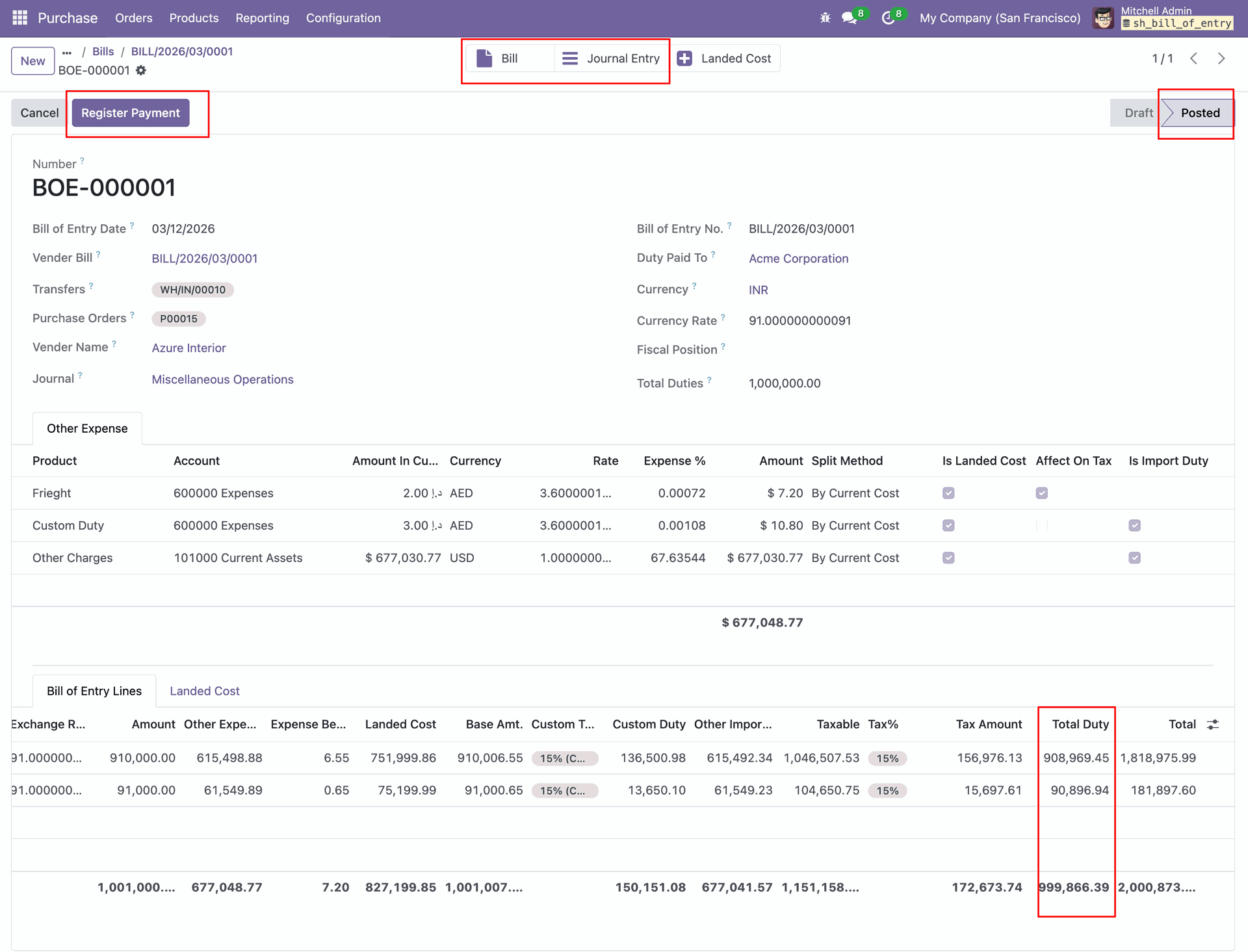
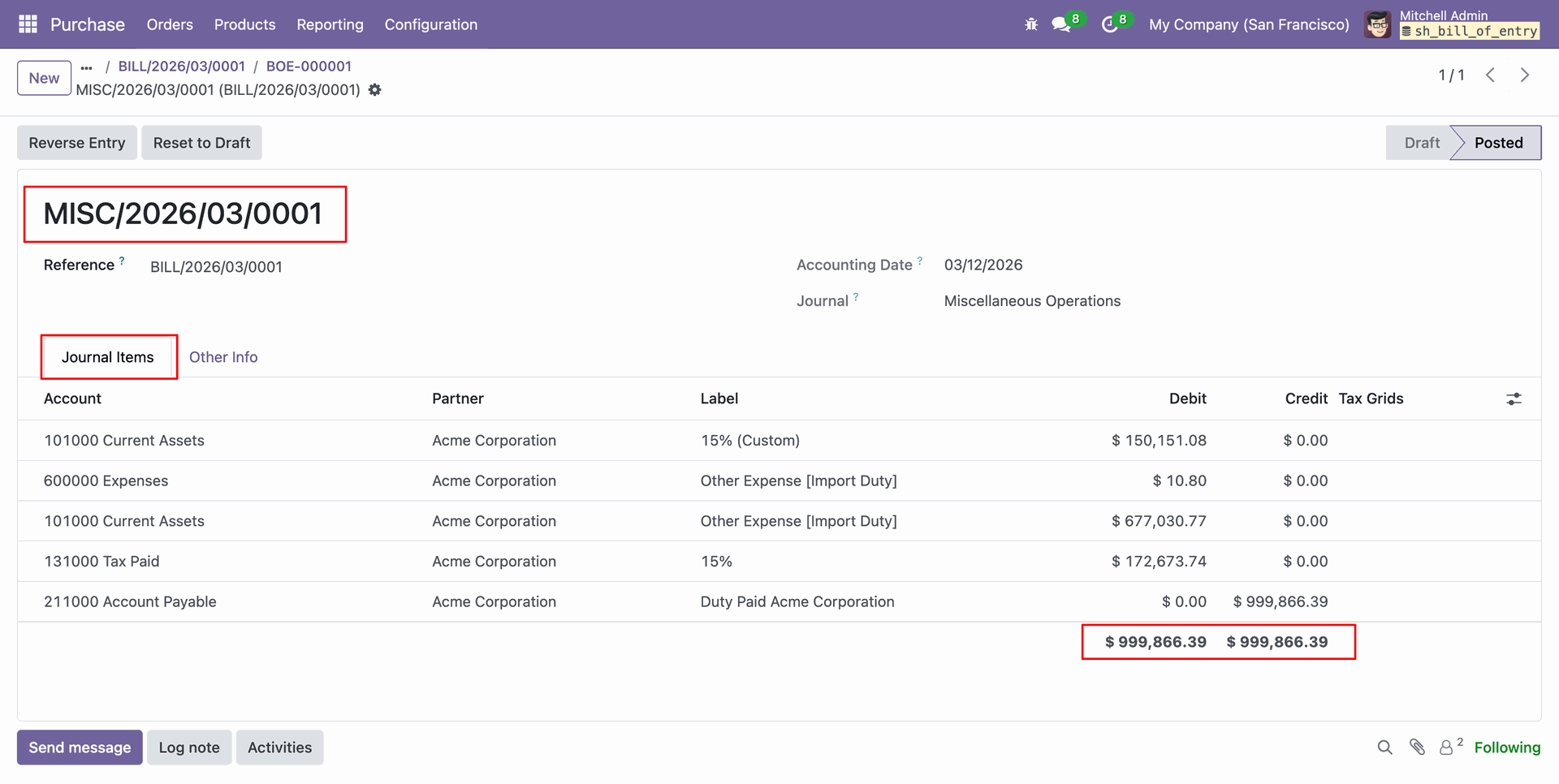
The user can see the created Miscellaneous journal entry from the Journal entry smart button from BOE.
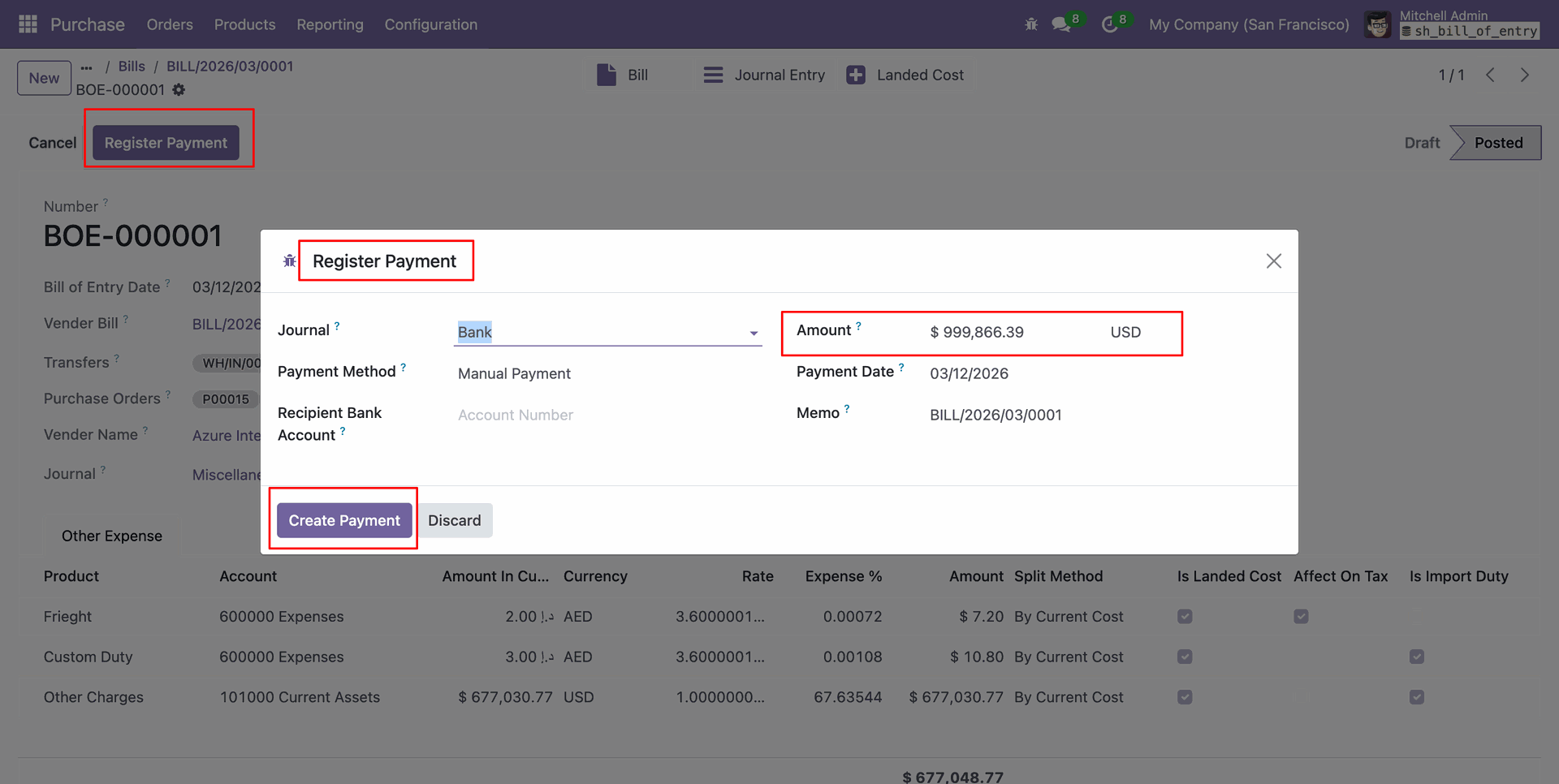
Pay the total duty from the BOE.
Linked the payment smart button in BOE.
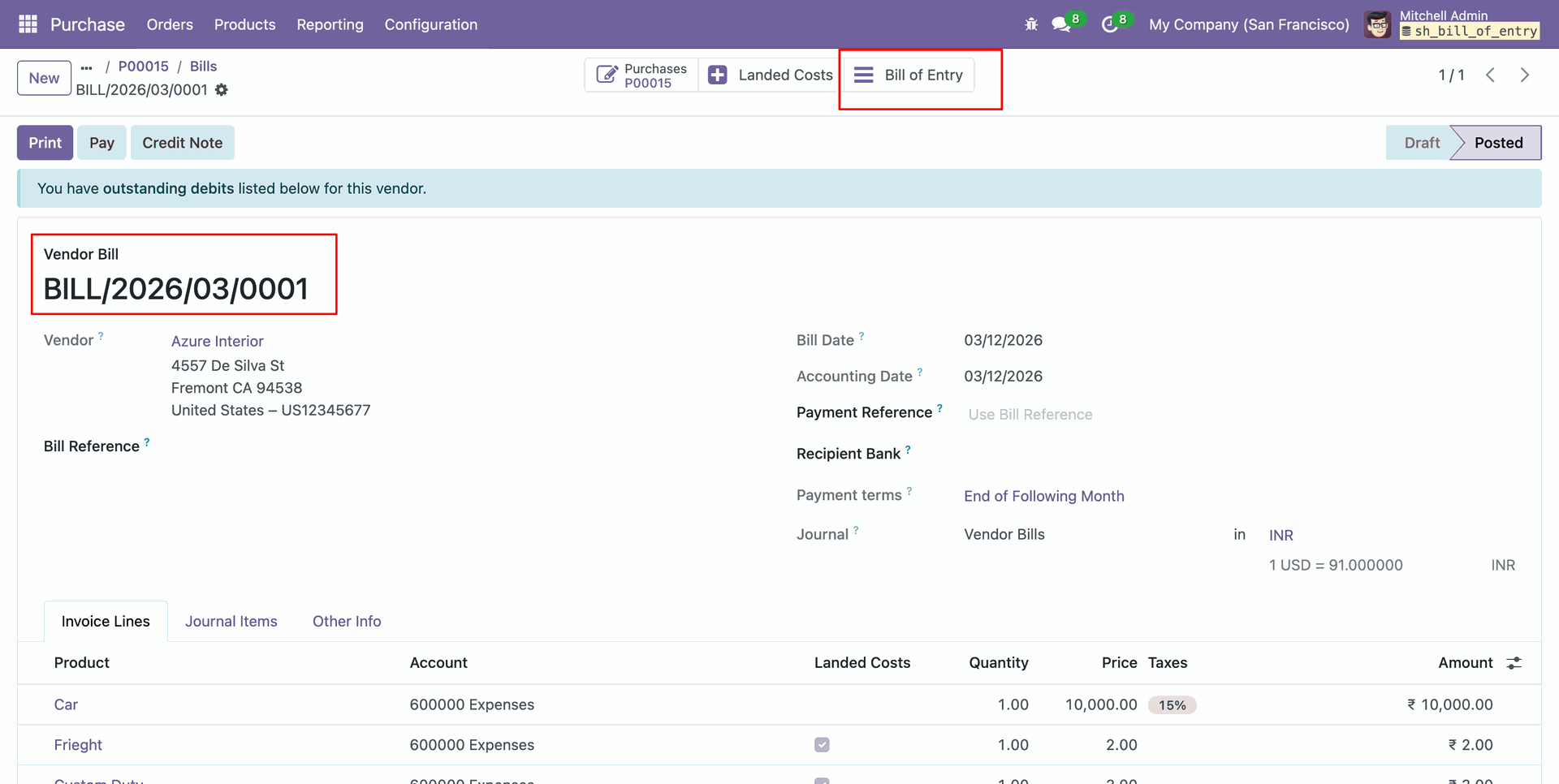
Go to the vendor bills, and the user can see the bill of entry smart button.
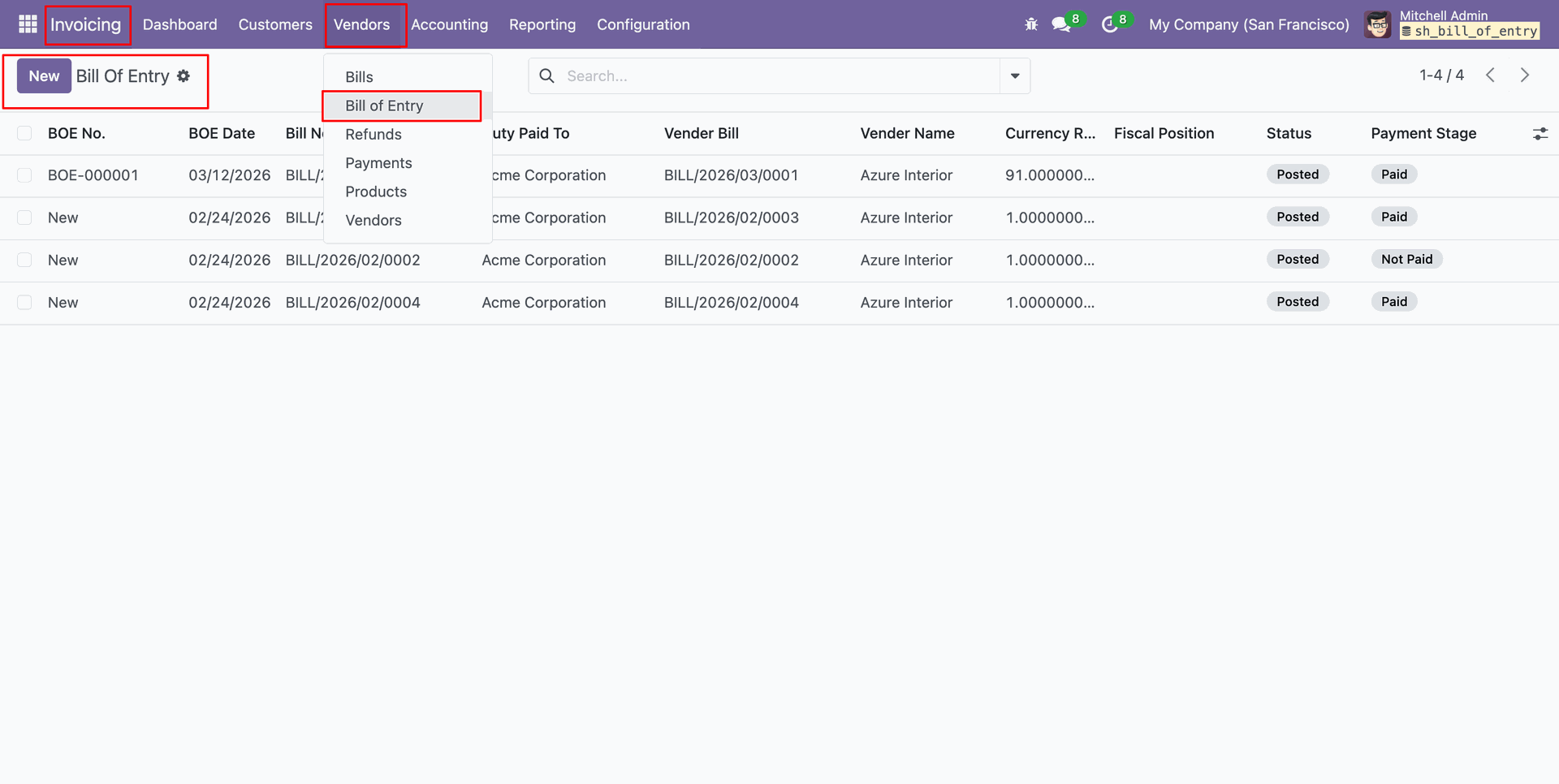
The user can create a Bill of Entry from the Bill of Entry menu under the Vendor menu from invoicing. Click on the New button.
Untick Auto add service products.
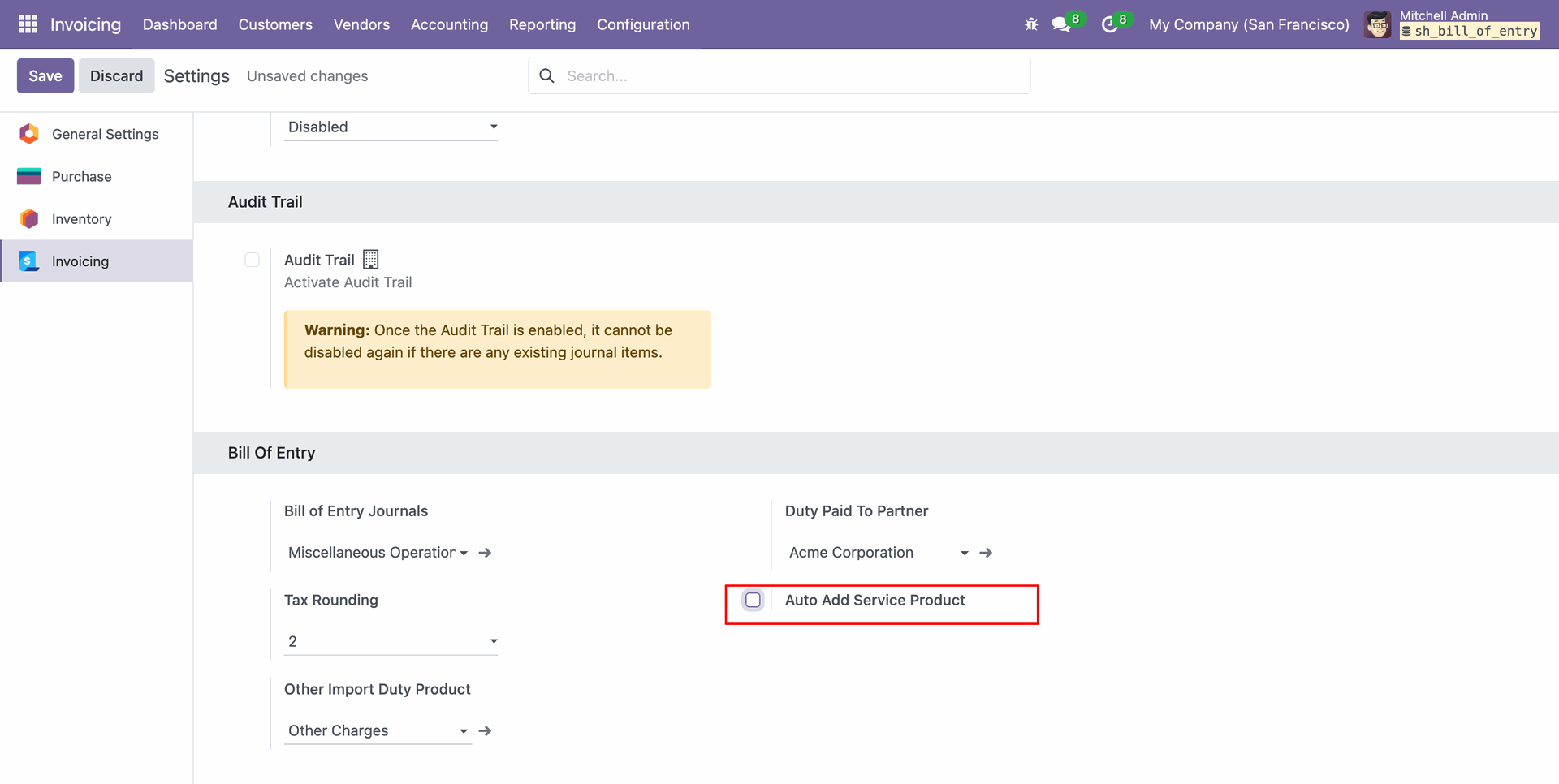
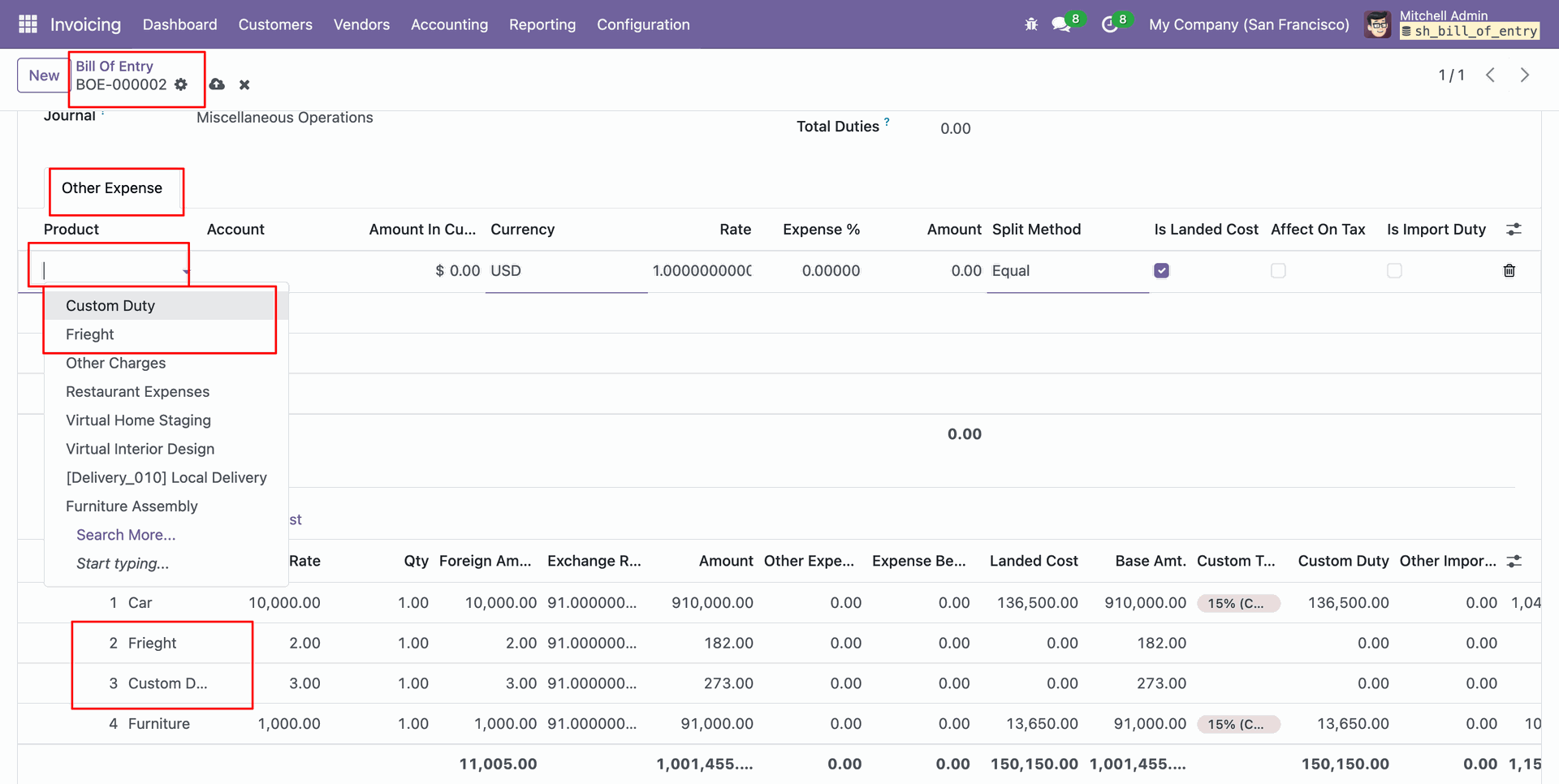
By unticking the boolean from settings, in the other expenses tab, the user needs to select duty products and other expenses manually
Version 19.0.1.0.0 | Released on : 16th April 2026
- Yes, this app works perfectly with Odoo Enterprise (Odoo.sh & Premise) as well as Community.
- No, this application is not compatible with odoo.com(odoo saas/Odoo Online)
- Yes, to test this module, please contact us at sales@softhealer.com.
- Please contact us at sales@softhealer.com to request customization.
- Yes, we provide free support for 365 days from the date of purchase.
- Yes, you will receive lifetime free updates for the version of the module you purchased.
- No, there is no need to install any additional libraries.
- Yes, for version 12 and above, you need to purchase the module separately for each version you intend to use.
- No, exchanges or refunds are not allowed. Please make sure to select the correct version before purchasing.
- You can contact us at support@softhealer.com for language translation support. We use Google Translator tools to provide translations in multiple languages, so the accuracy may vary. We welcome your suggestions to help improve translations.
Discover Our Latest Apps