












BigQuery Connector - Powerful Analytics for Instant Insights

The Odoo BigQuery Connector allows you to transfer your Odoo data into Google BigQuery for reporting, analytics and data warehousing. It provides a simple setup where you can connect your Google service account, select your dataset and move key business records from Odoo to BigQuery. This helps users analyse large volumes of Odoo data using BigQuerys powerful cloud-based processing.

Related Modules
Features

Connect Odoo with Google BigQuery
Easily configure your Google project, dataset and service account JSON key inside Odoo.

One Click Sync - One Click Data Transfer
A simple button lets you perform immediate data transfer without extra configuration.
Real-Time Data Sync
Instantly pushes updated Odoo data to keep all connected systems always up to date.
Select Odoo Models to Export
Choose which Odoo models (like Sales Orders, Products, Invoices, Customers etc.) you want to send to BigQuery.

Powerful Analytics Dashboard
Visualize your BigQuery data within Odoo using a dedicated, interactive dashboard.

Comprehensive Synchronization Logs
Track every data transfer with detailed logs, including success status and error messages.

Multi-Company Support
Manage and synchronize BigQuery integration separately for multiple companies within a single Odoo environment.
Export Odoo Data to BigQuery
Send data from Odoo into BigQuery for reporting and analytics, map them into BigQuery table columns.
Safe Data Transfer Using Google APIs
Communication with BigQuery uses trusted Google API endpoints for secure and reliable transfers.
User-Friendly Notifications
Shows clear alerts and messages to keep users informed without disrupting workflow.

Google Cloud Security
Uses Google-approved authentication through service account JSON for secure access.
Automated Data Synchronization
Schedule regular data transfers from Odoo to BigQuery using automated cron jobs.

Import BigQuery Data into Odoo
You can now import data directely from the BigQuery to Odoo and you can also create schedueled actions for the same.

Test Connection Functionality
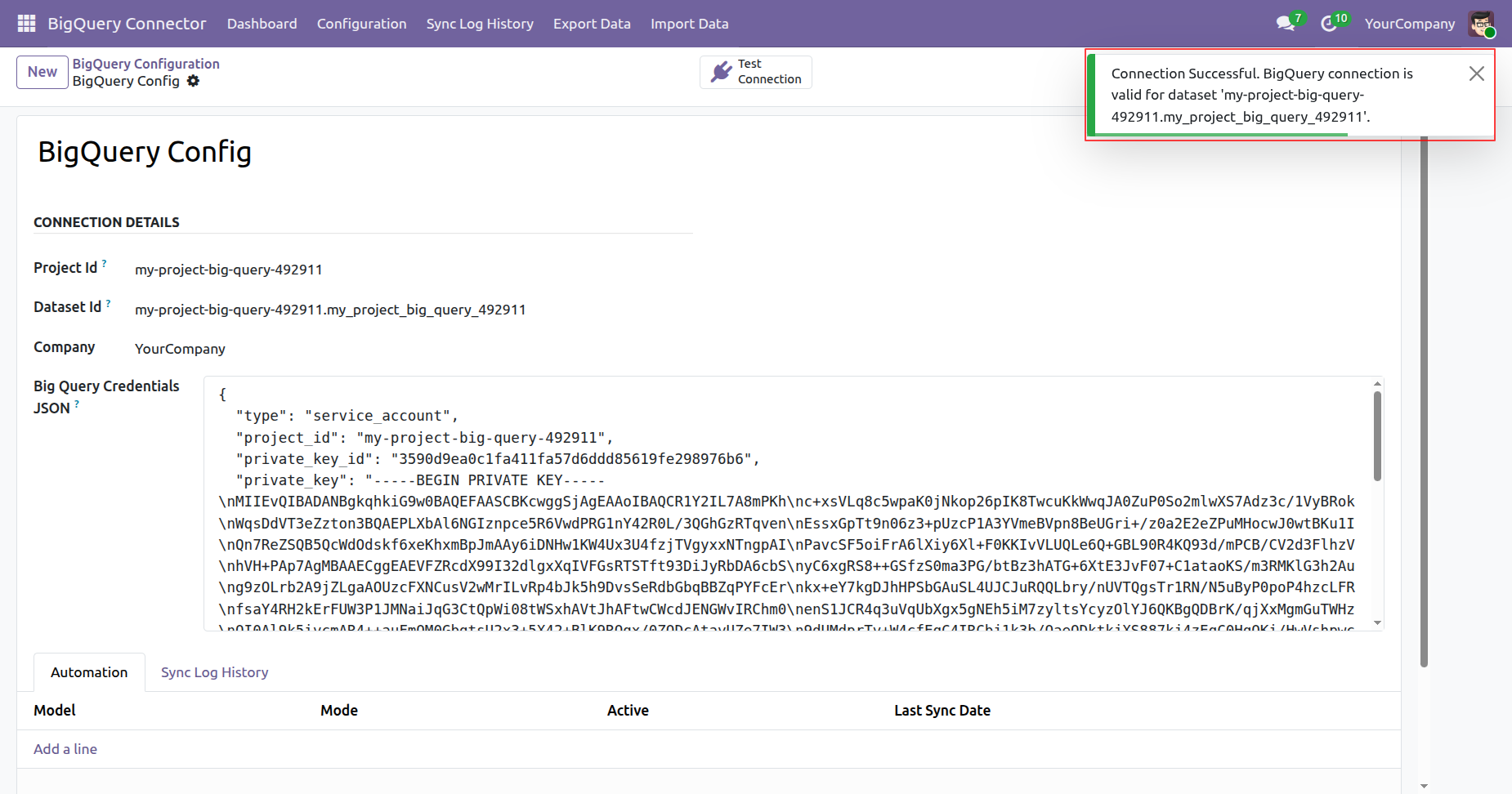
You can now also test the connection in the BigQuery Configuration by entering the required credentials.

Setup Help Alerts

Follow contextual setup guidance directly in BigQuery configuration to complete connection requirements with fewer setup errors.
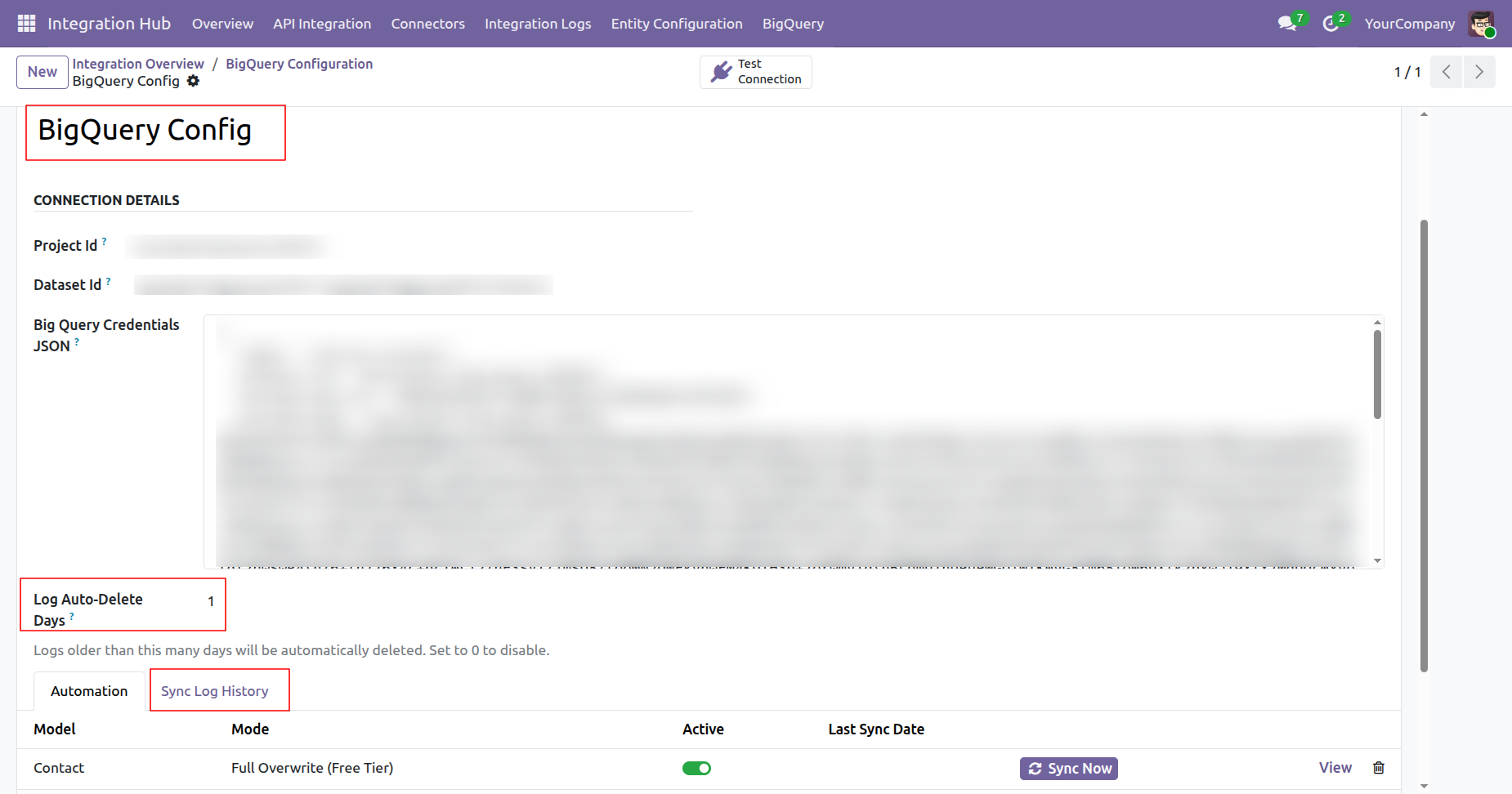
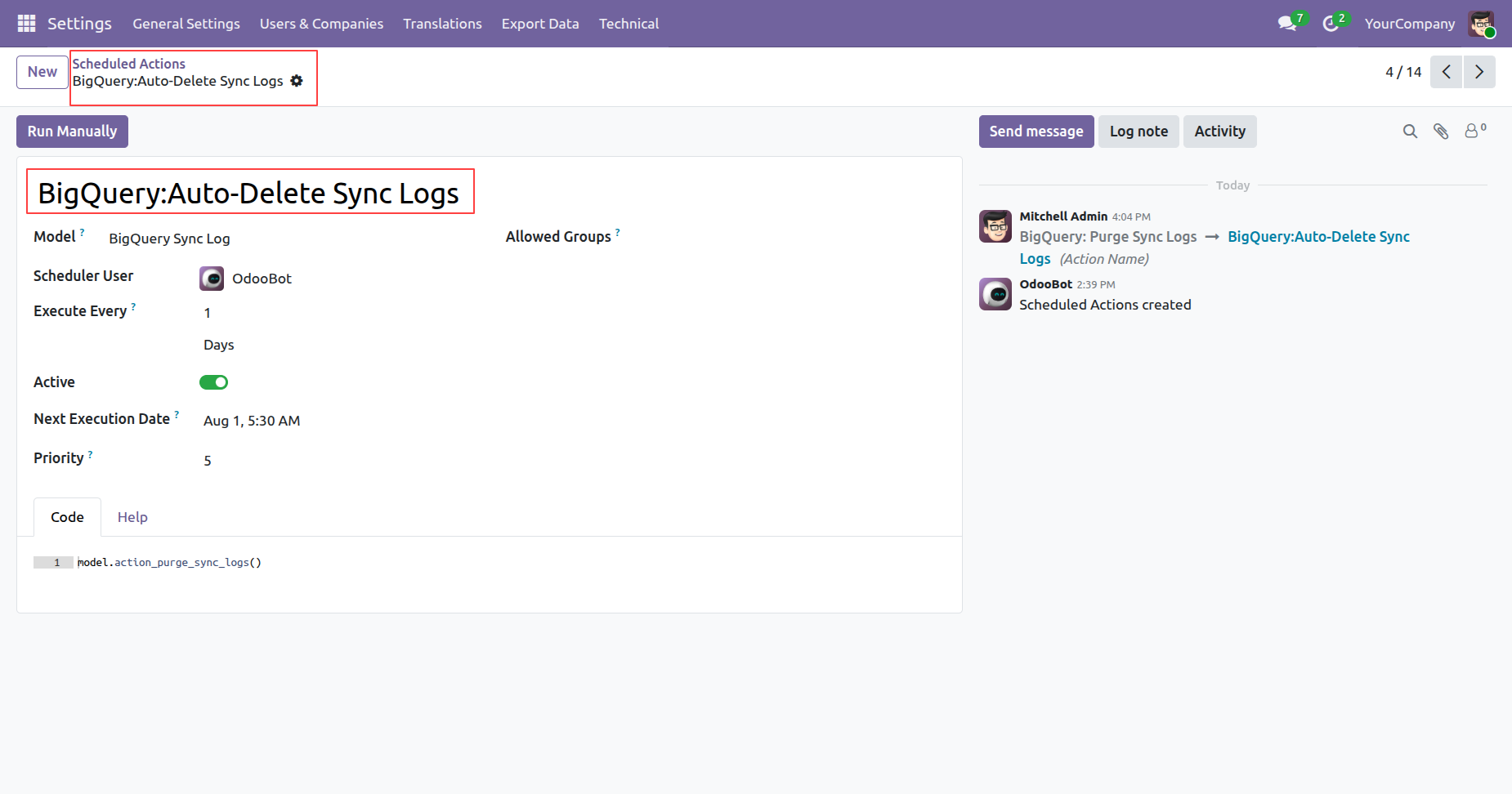
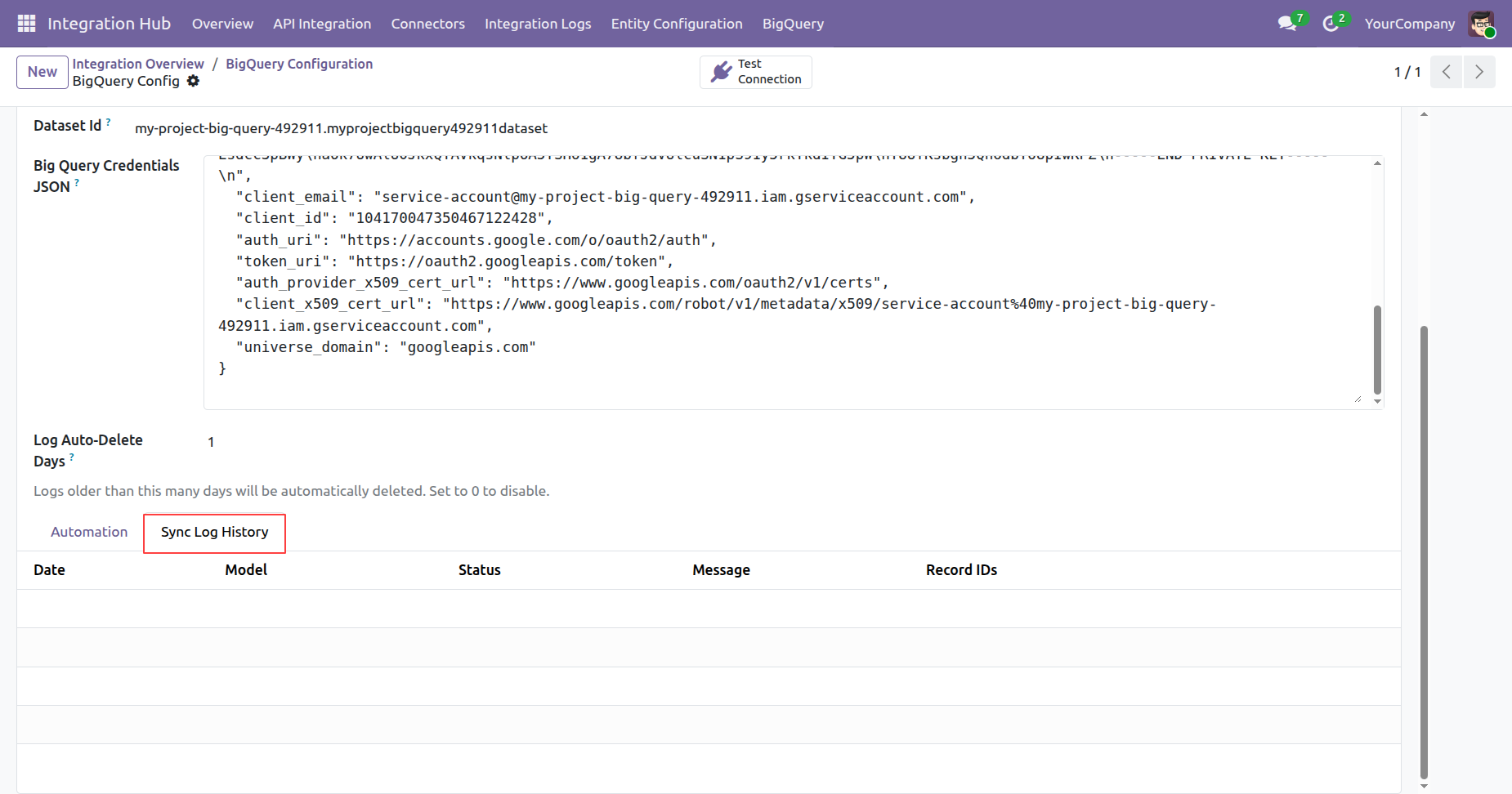
Log Auto-Delete
Automatically remove older sync logs based on the configured retention period for cleaner, manageable synchronization history.
Retry Sync Logs
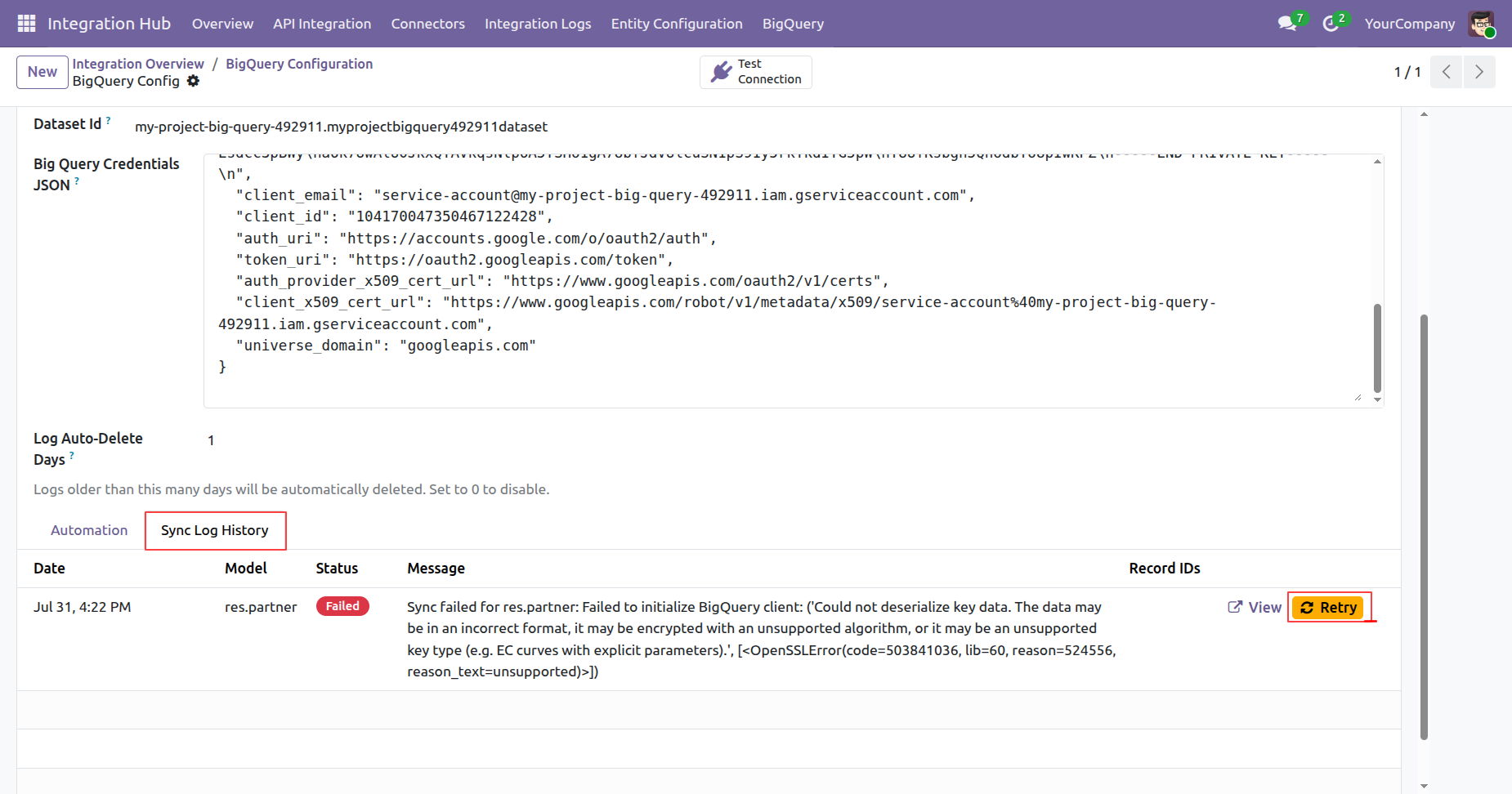
Retry failed or warning synchronization logs directly from Sync Log History to rerun the affected model export.

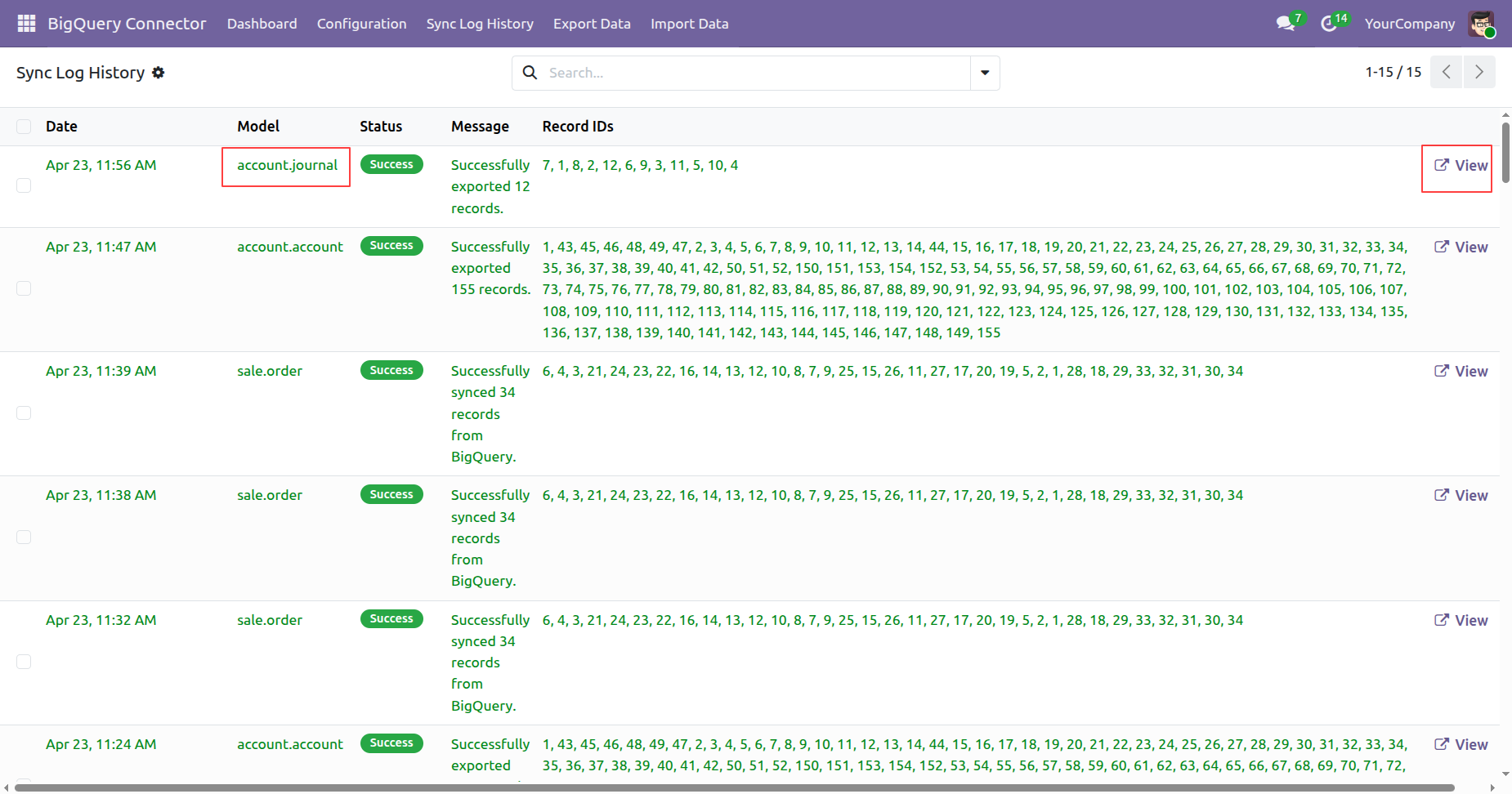
Sync Log History list view.
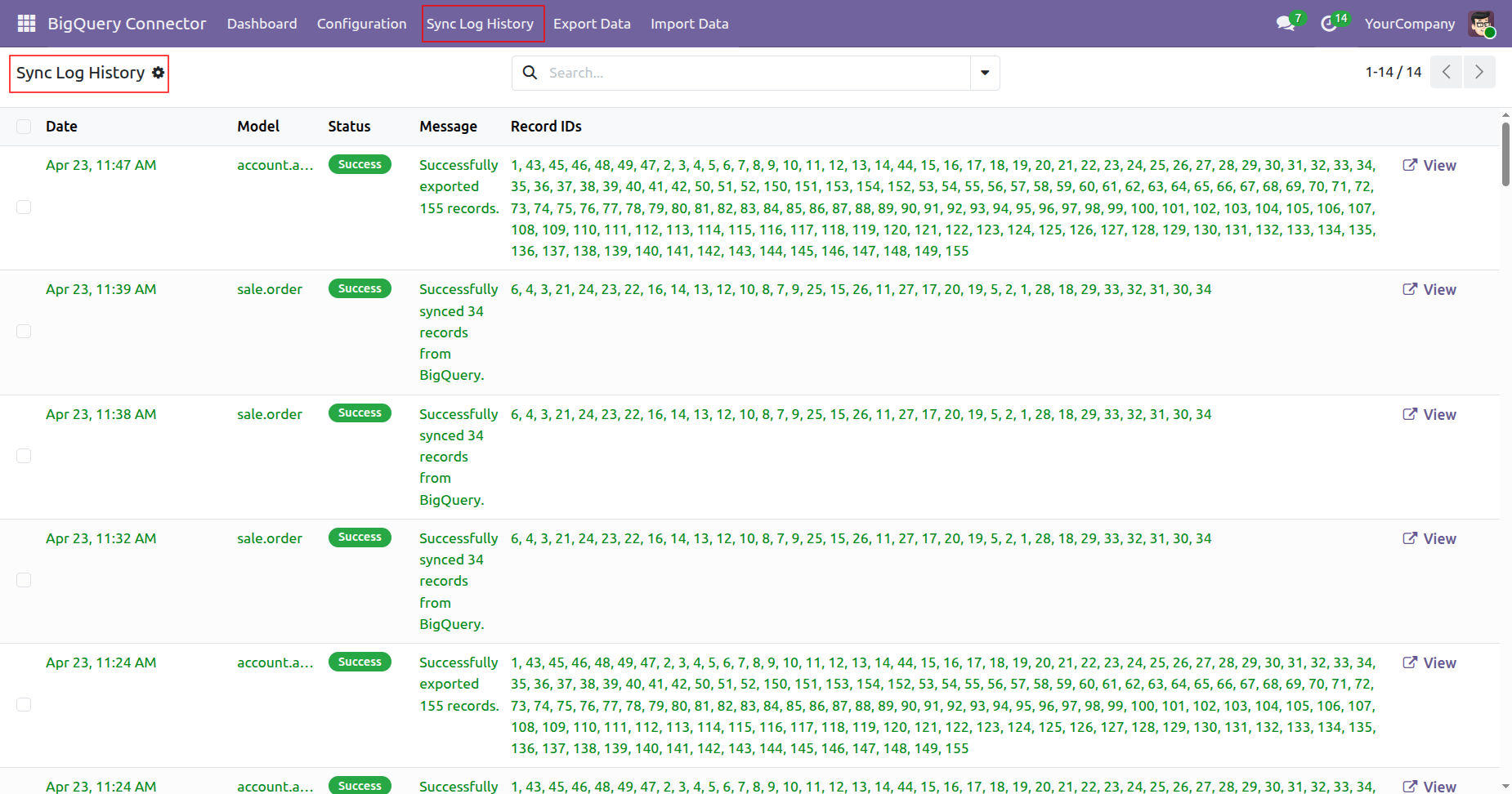
Click View button to view the list of records synced.
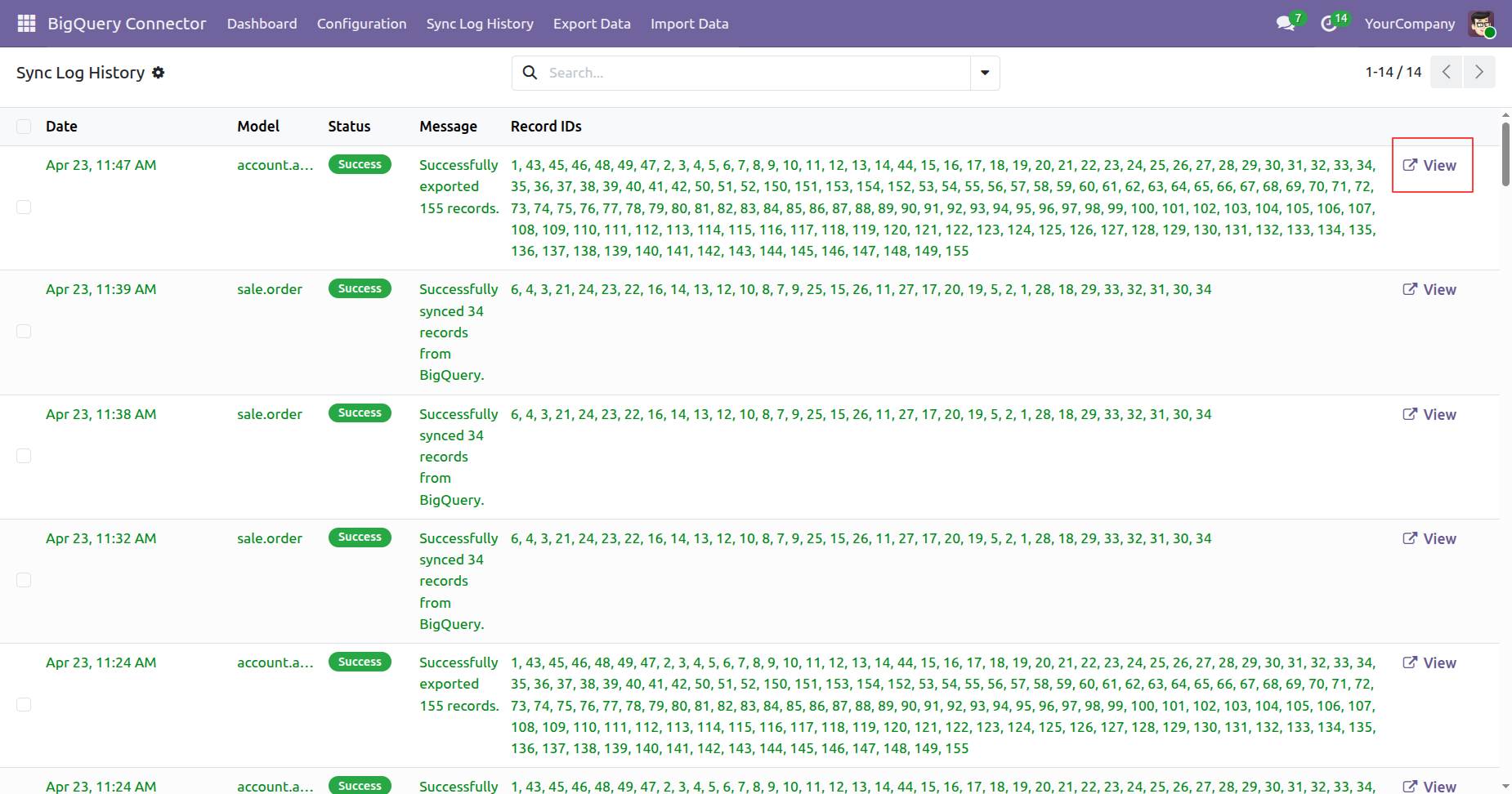
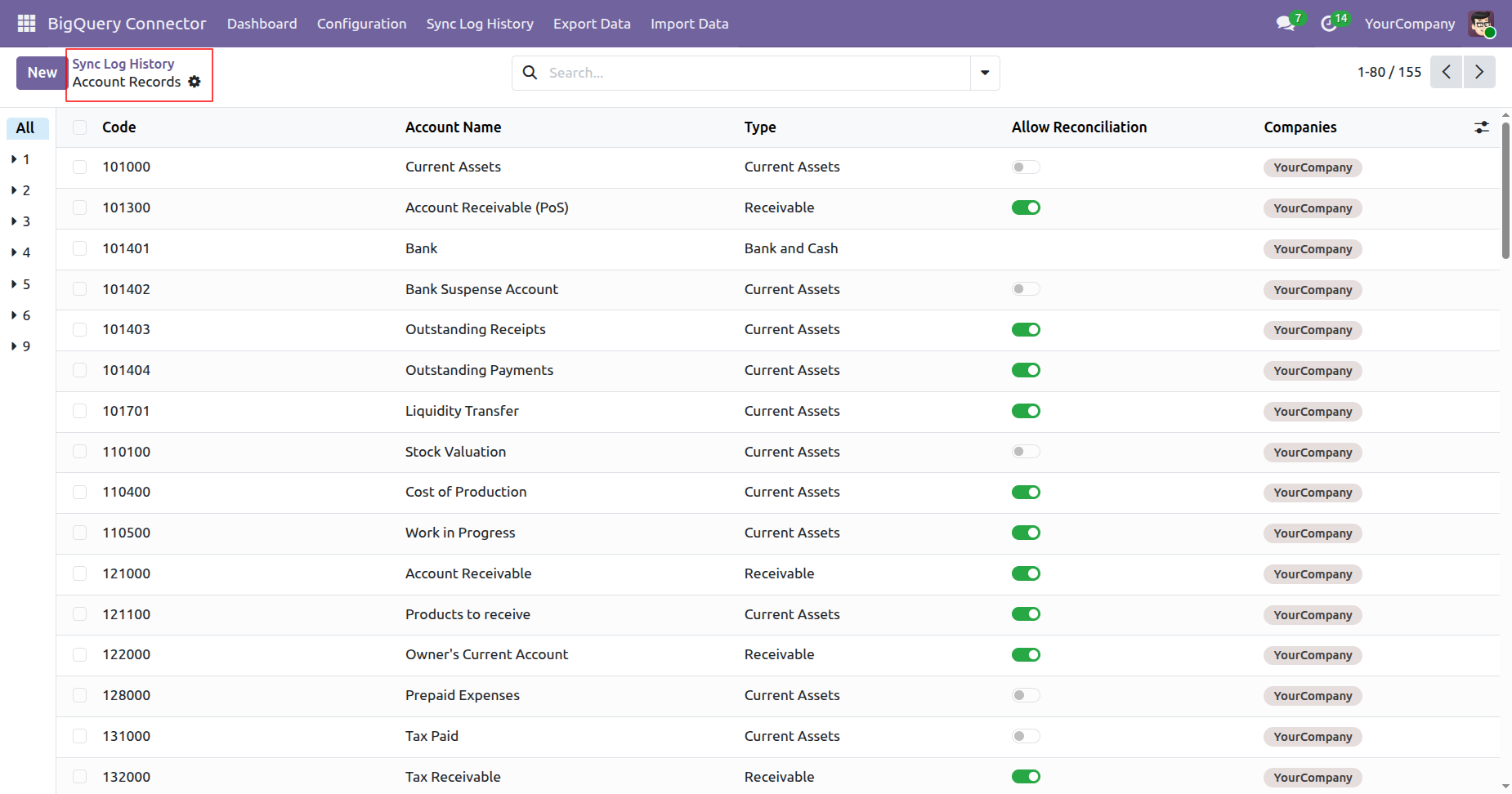
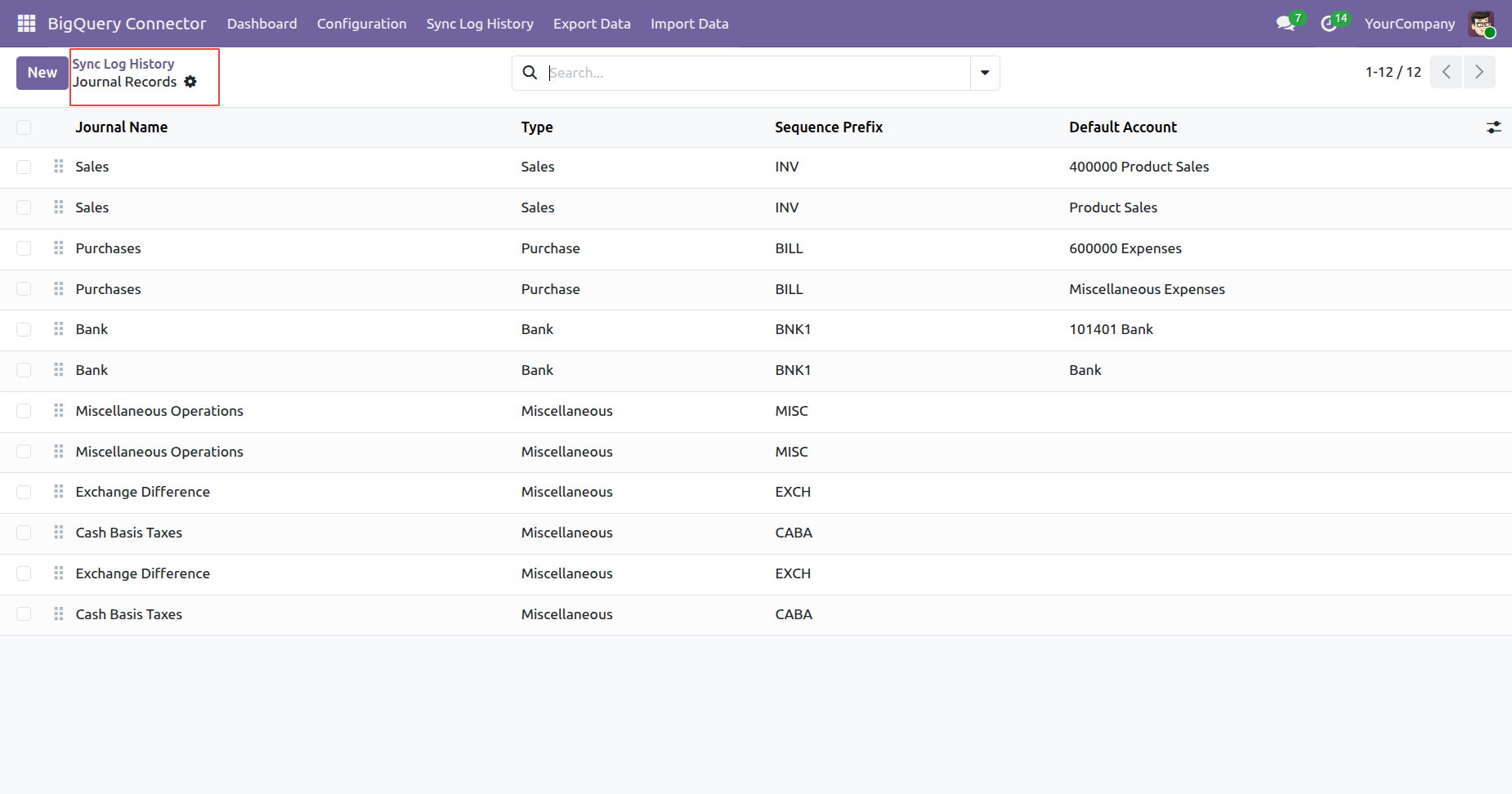
Sync Log History of the Account Records which were synced in the previous sync.
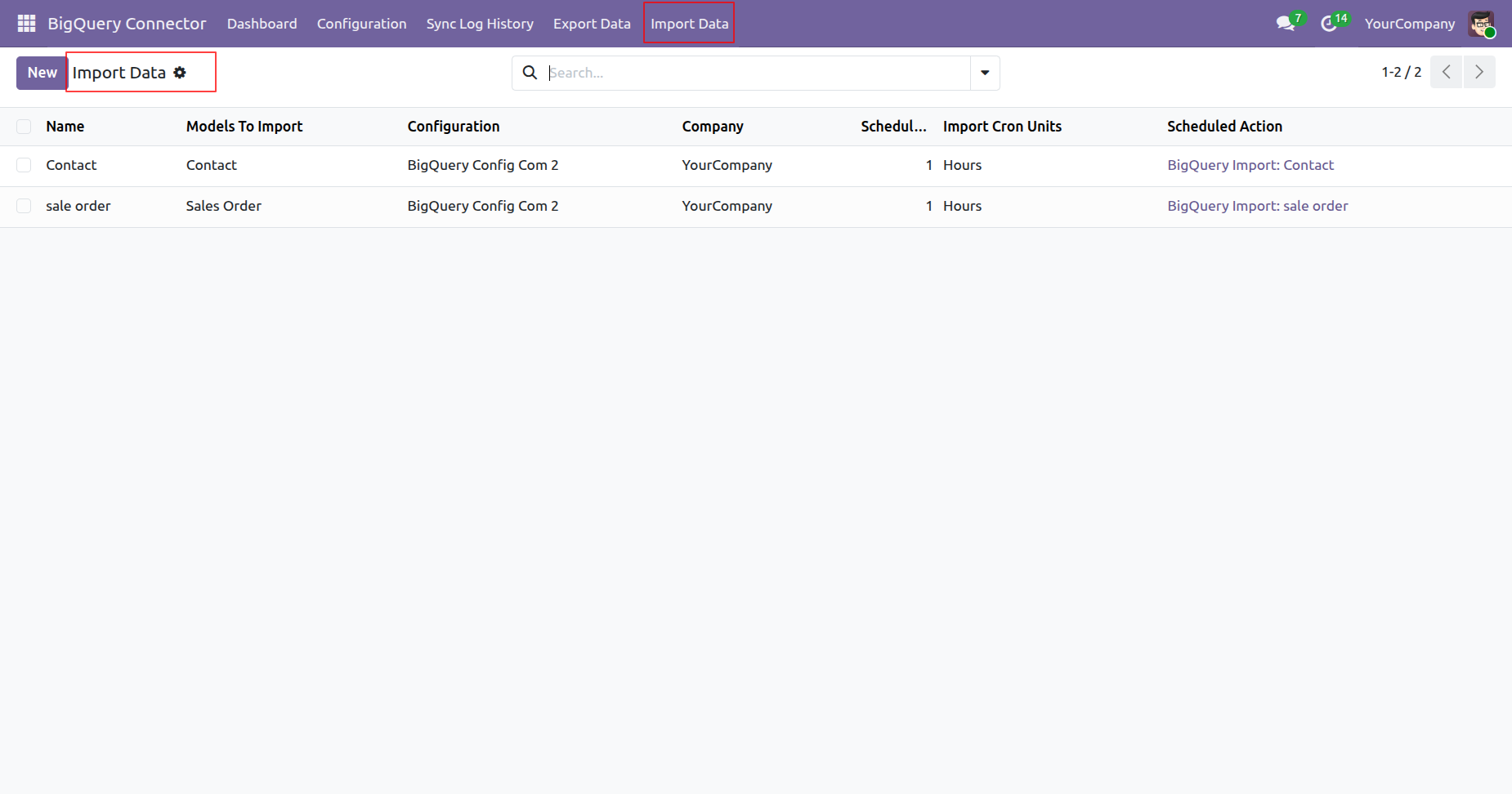
In the Import Data list view.
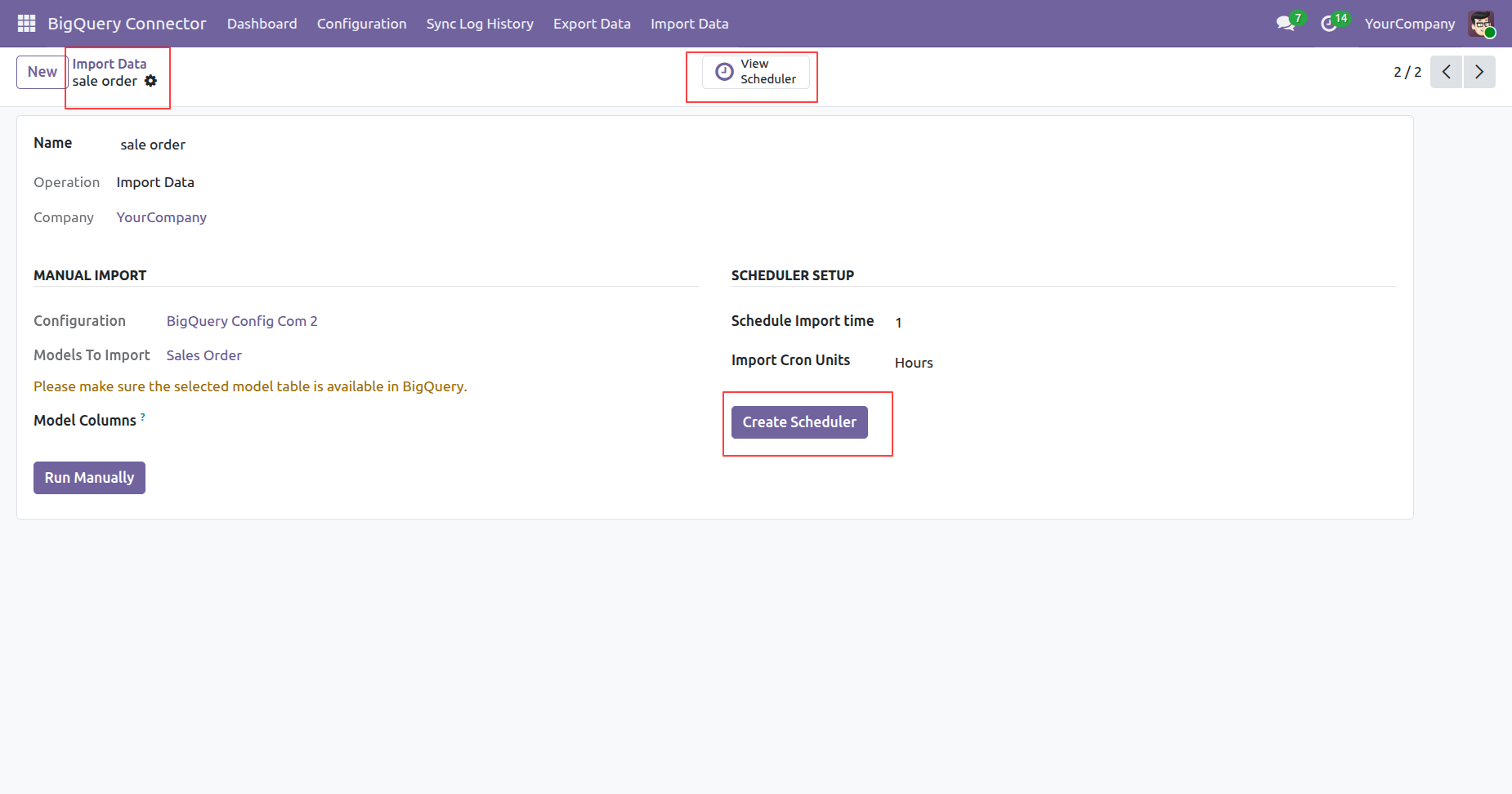
Viewing an import data record with scheduled import time.
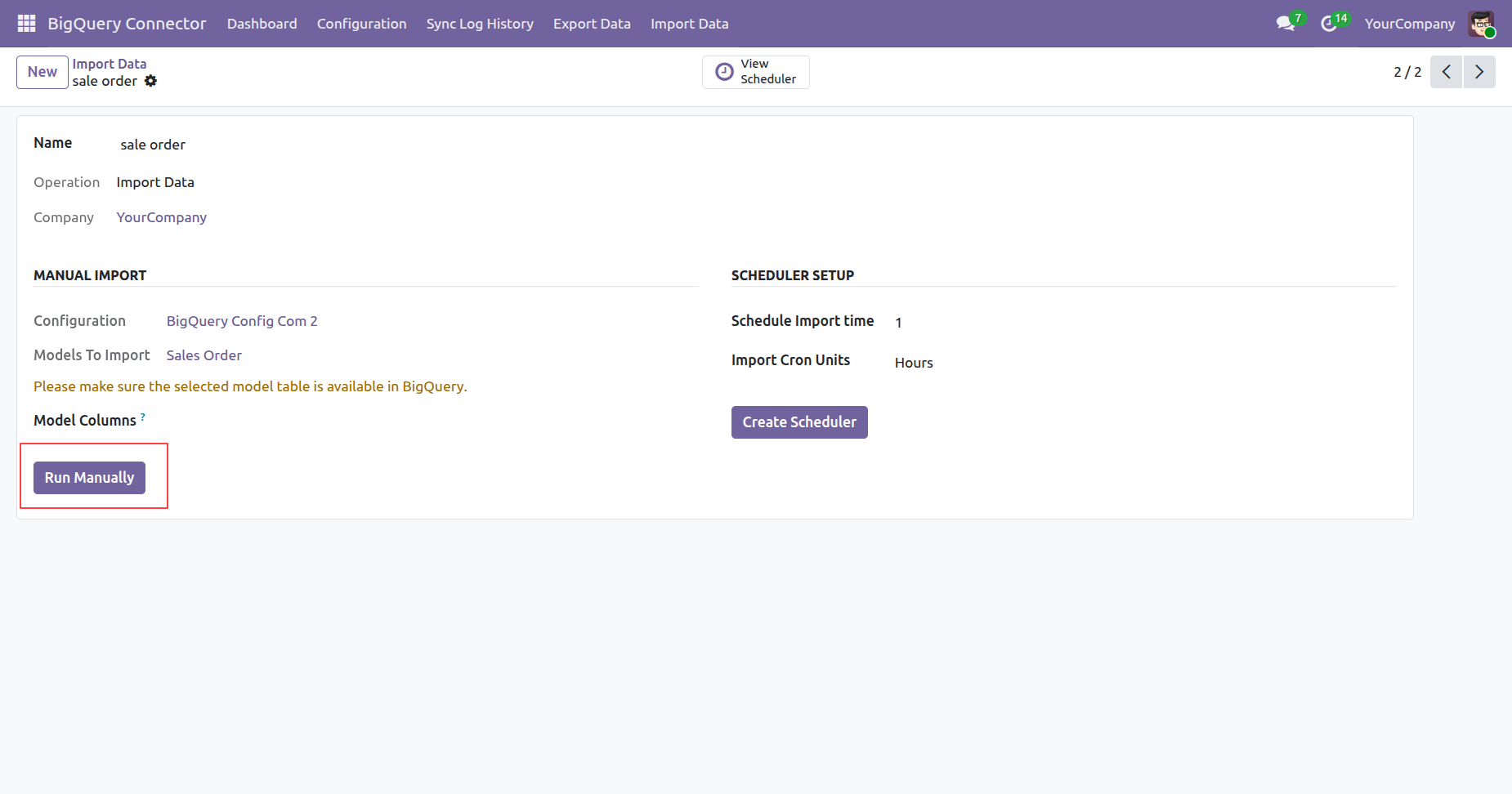
Click Run Manually to run Import data schedueled actions.
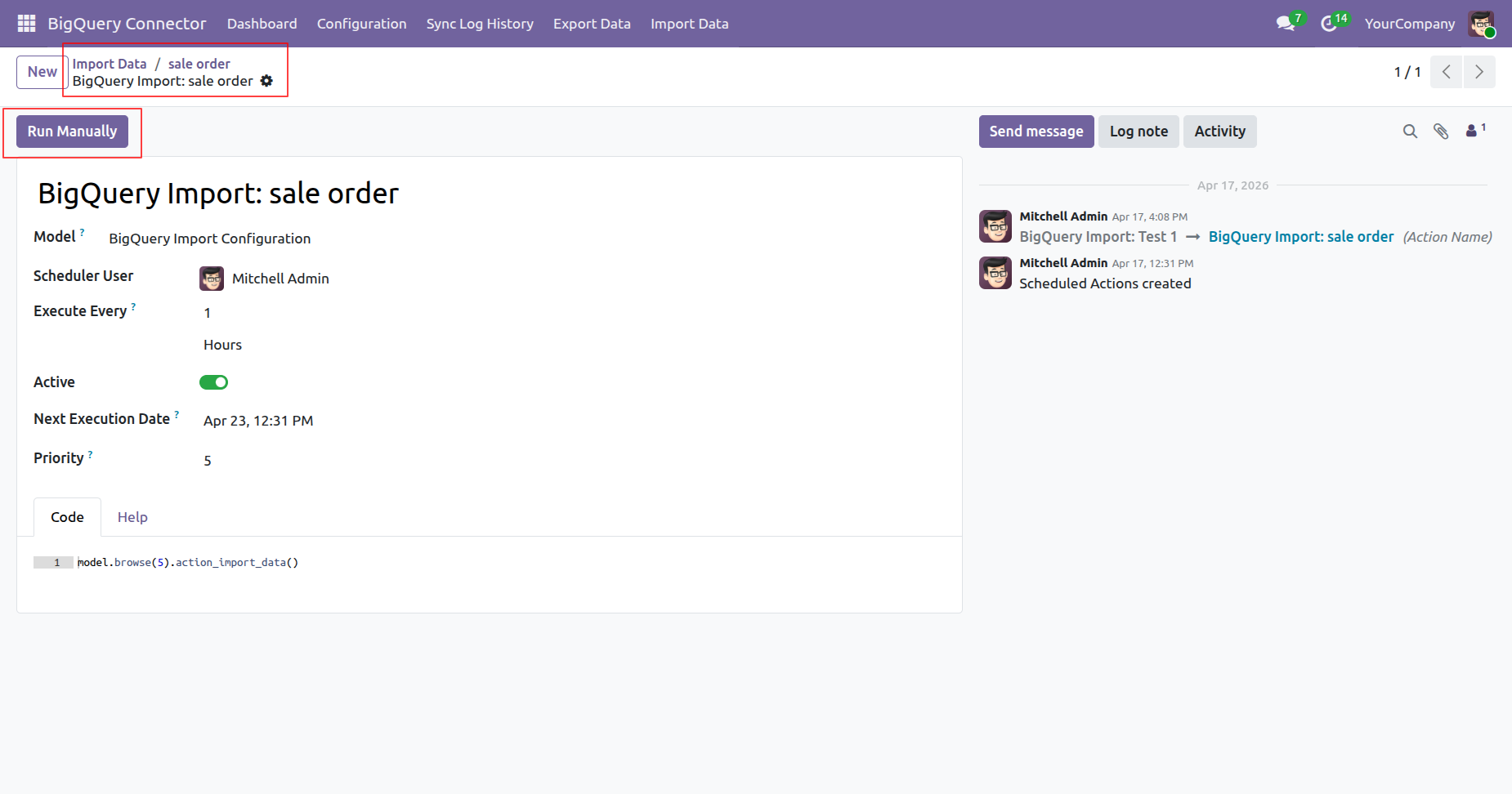
Click Run Manually in the Import Data to manually import the data.
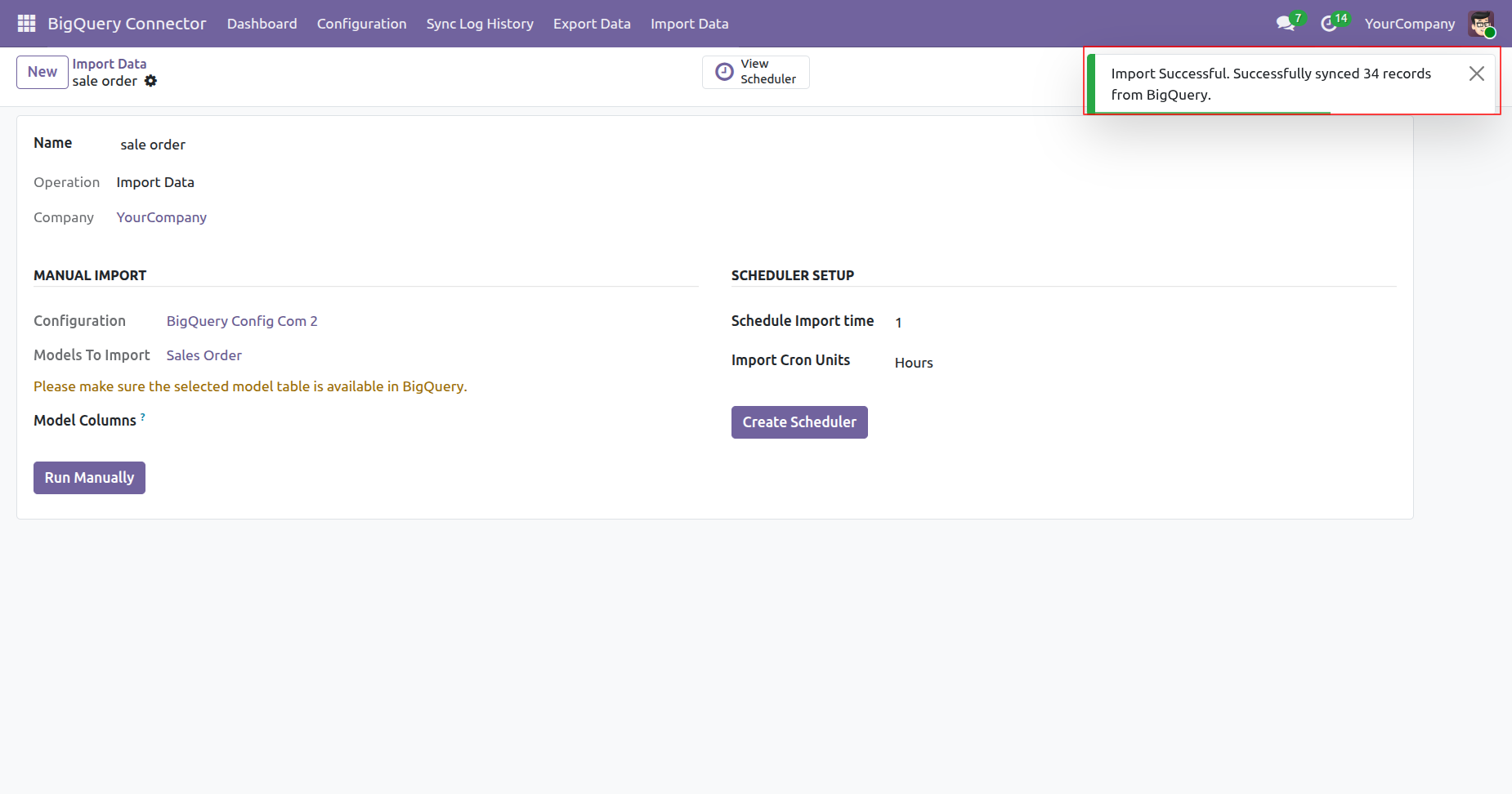
Message displaying the successful imports of the data.
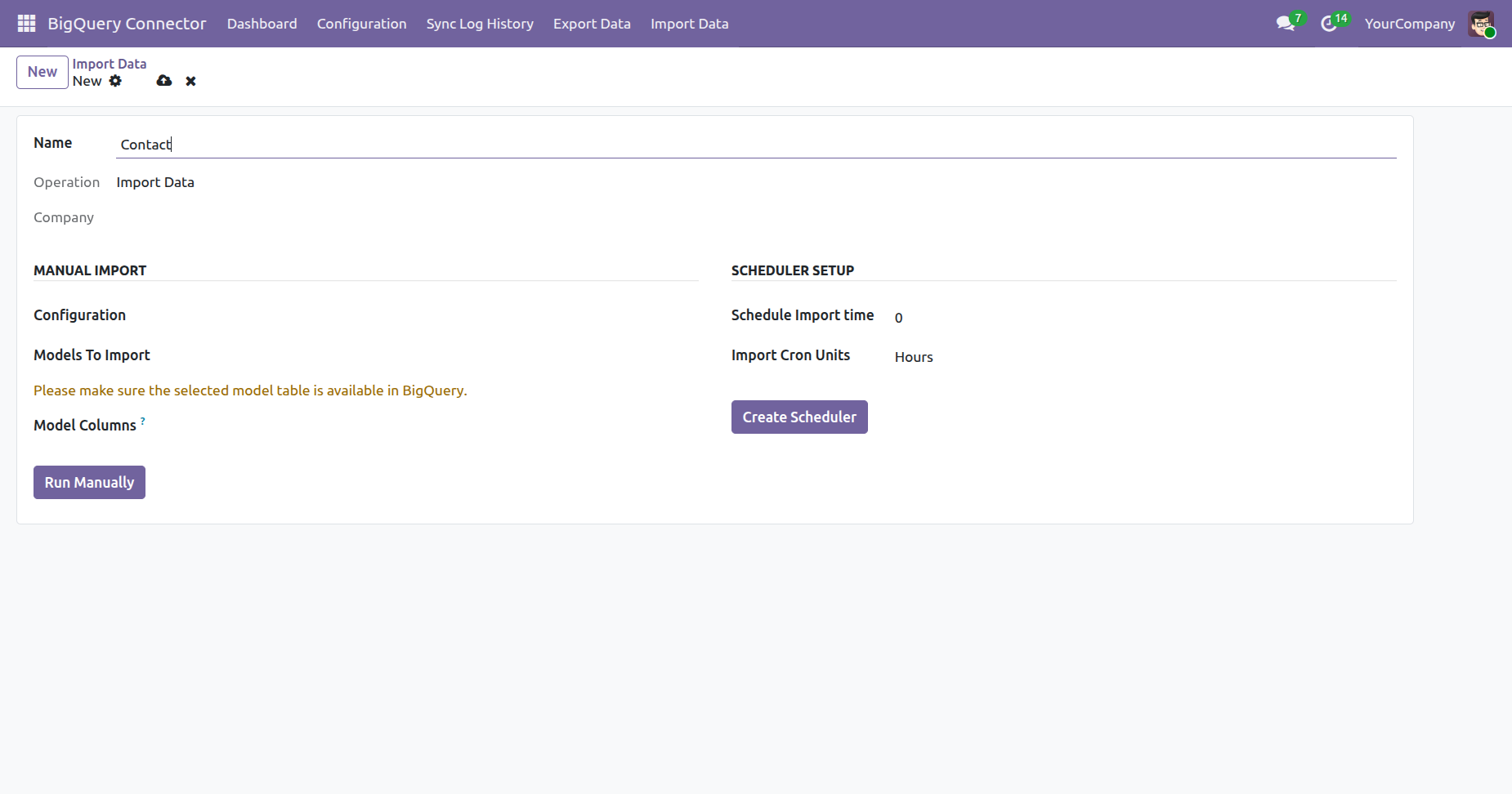
Creating a record for the Contacts imports whose record is already being created previously.
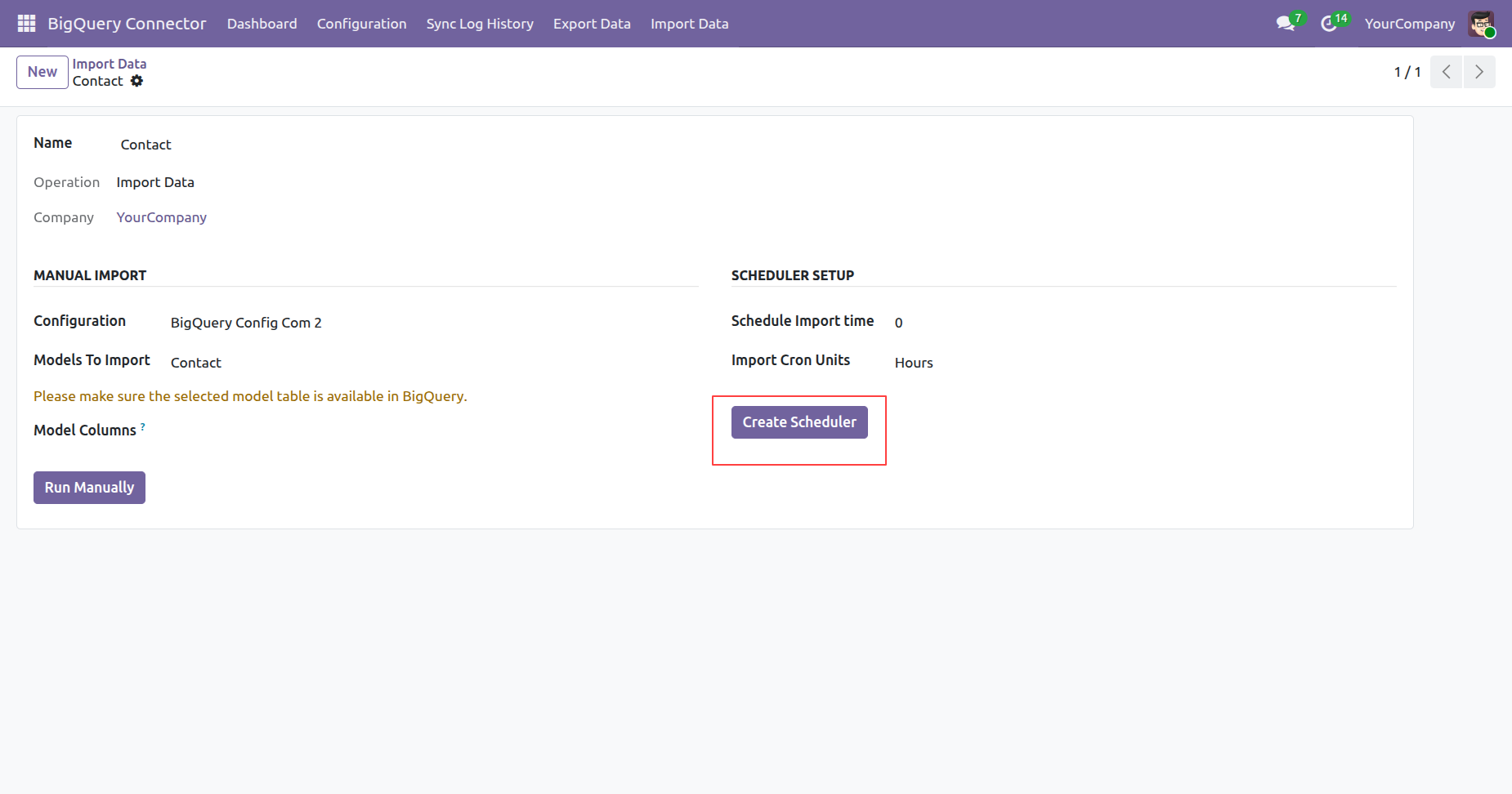
Now click to Create Schedueler.
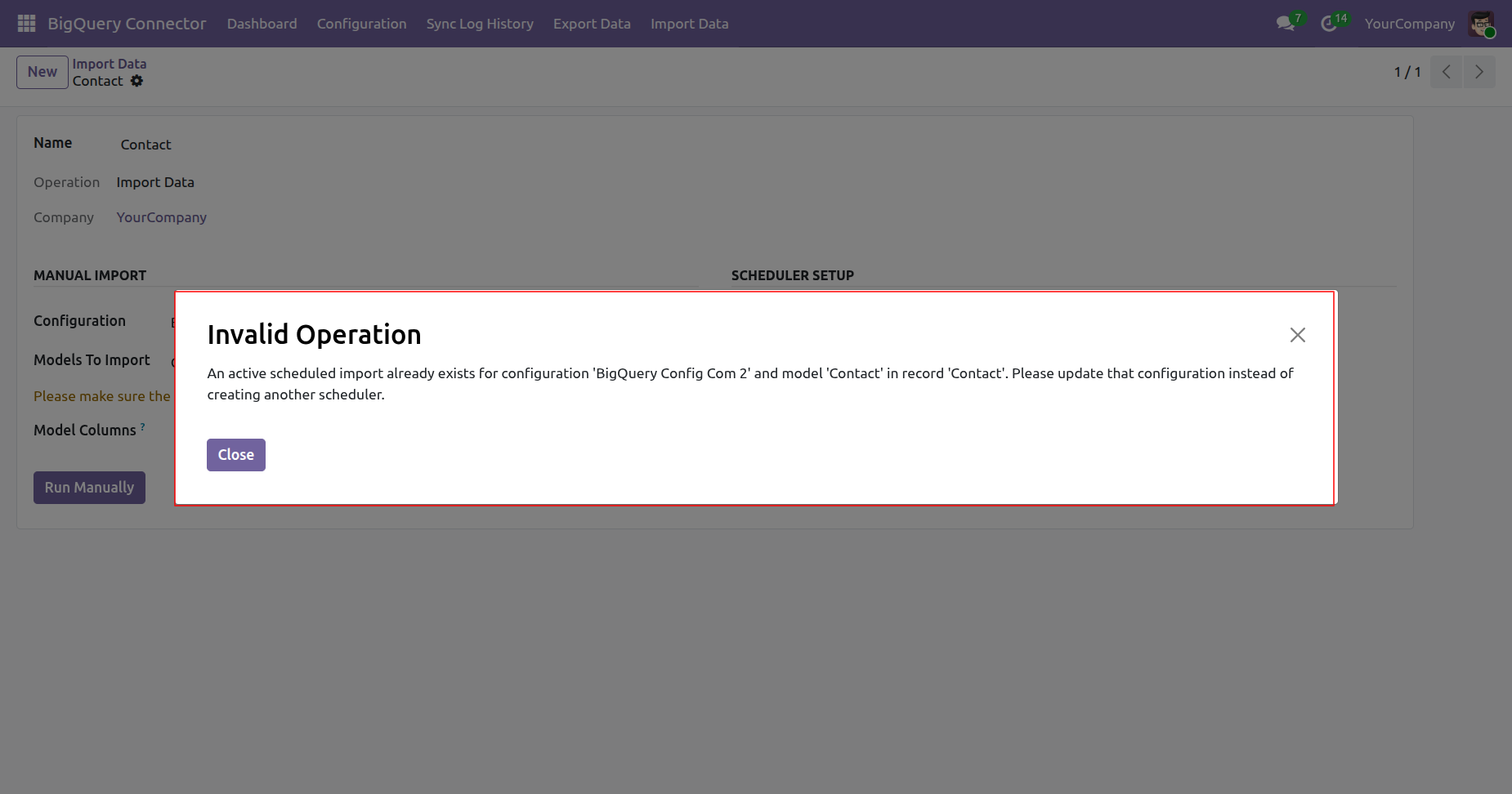
A pop-up of Invalid Operation indicated that an active schedueled import already exists for the same model, so update the configuration instead of creating a new one.
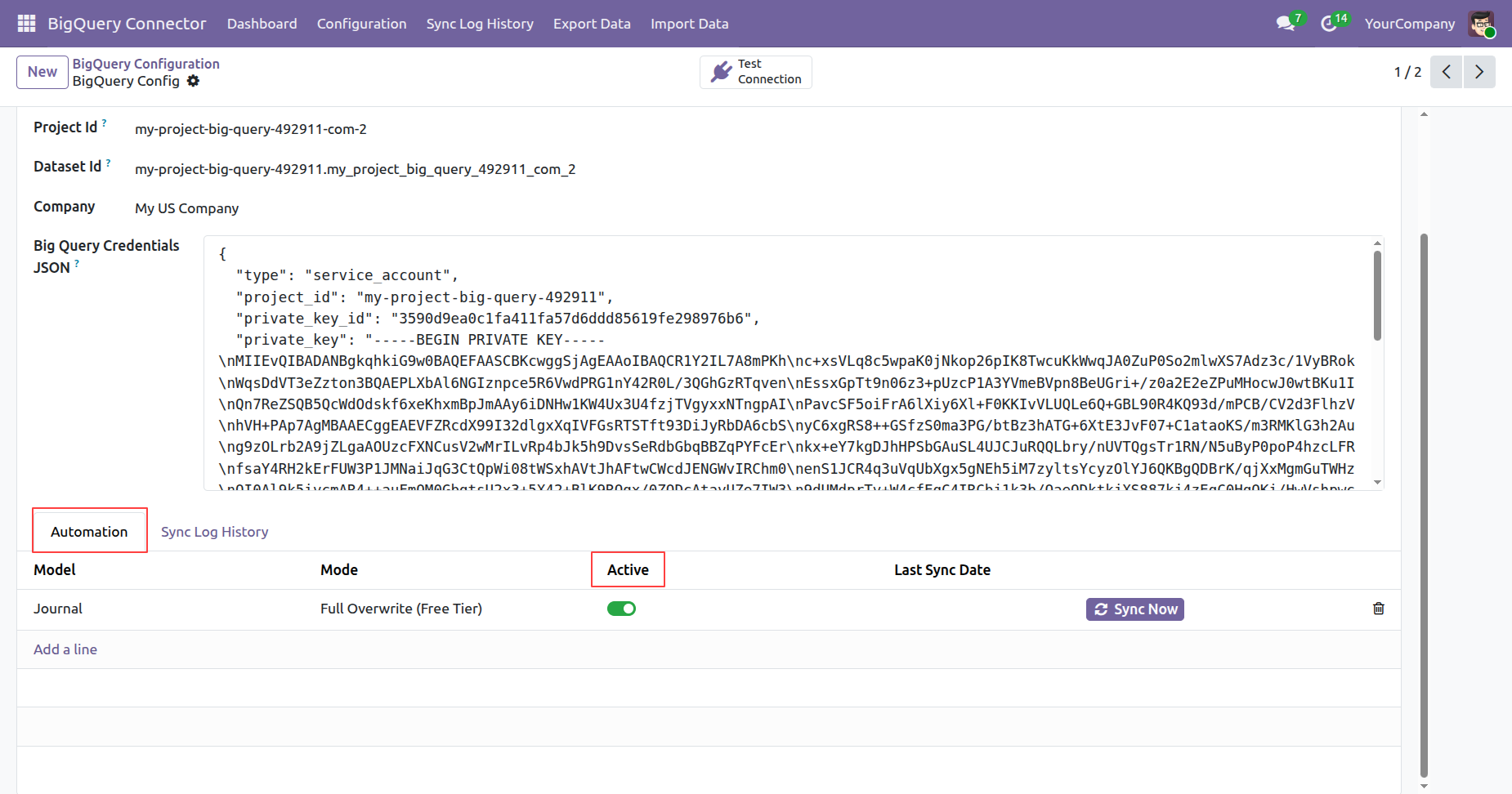
Activating the Automations for Journal model in the configuration .
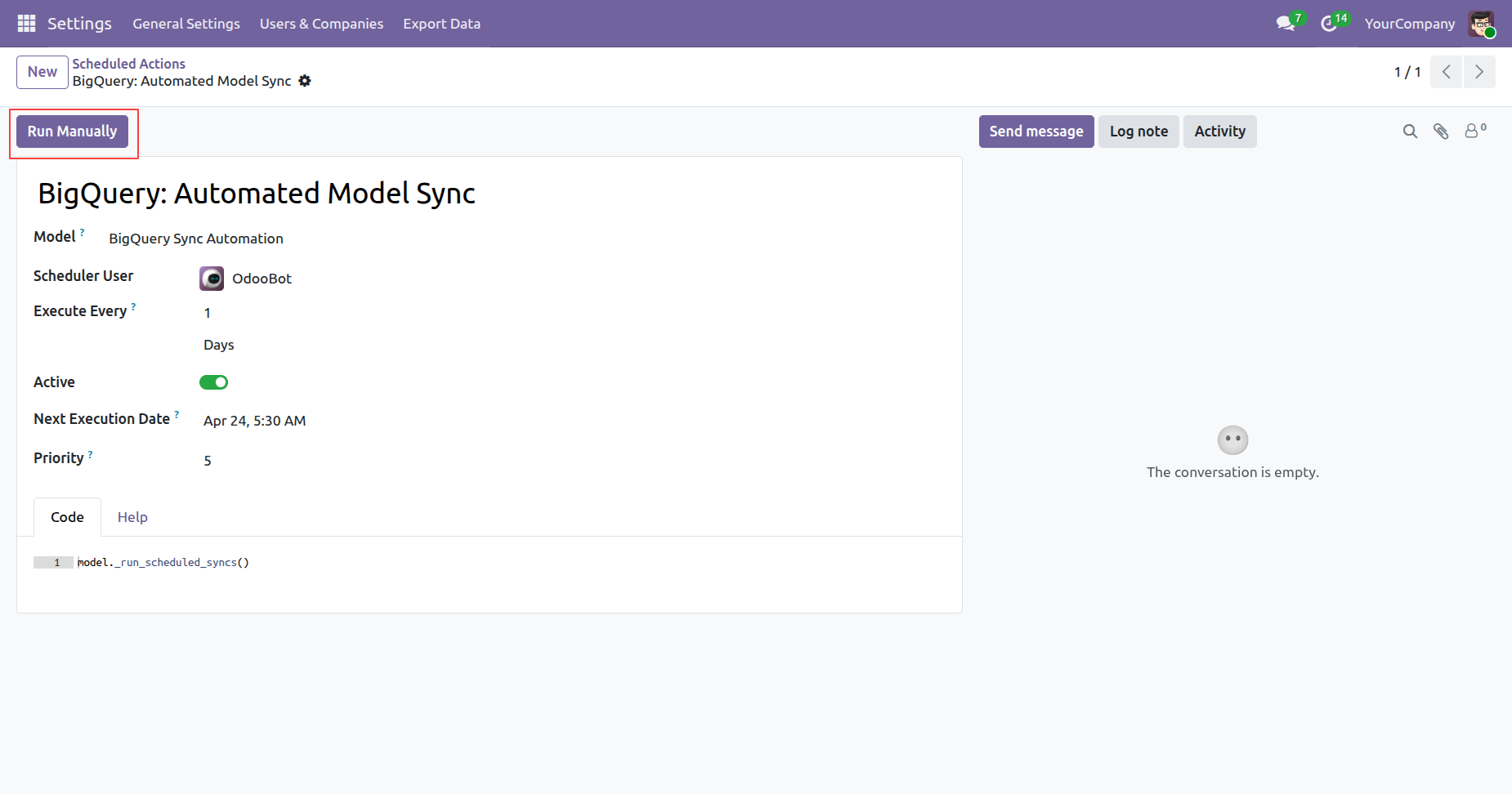
Click run manually to run the automation scheduled actions.
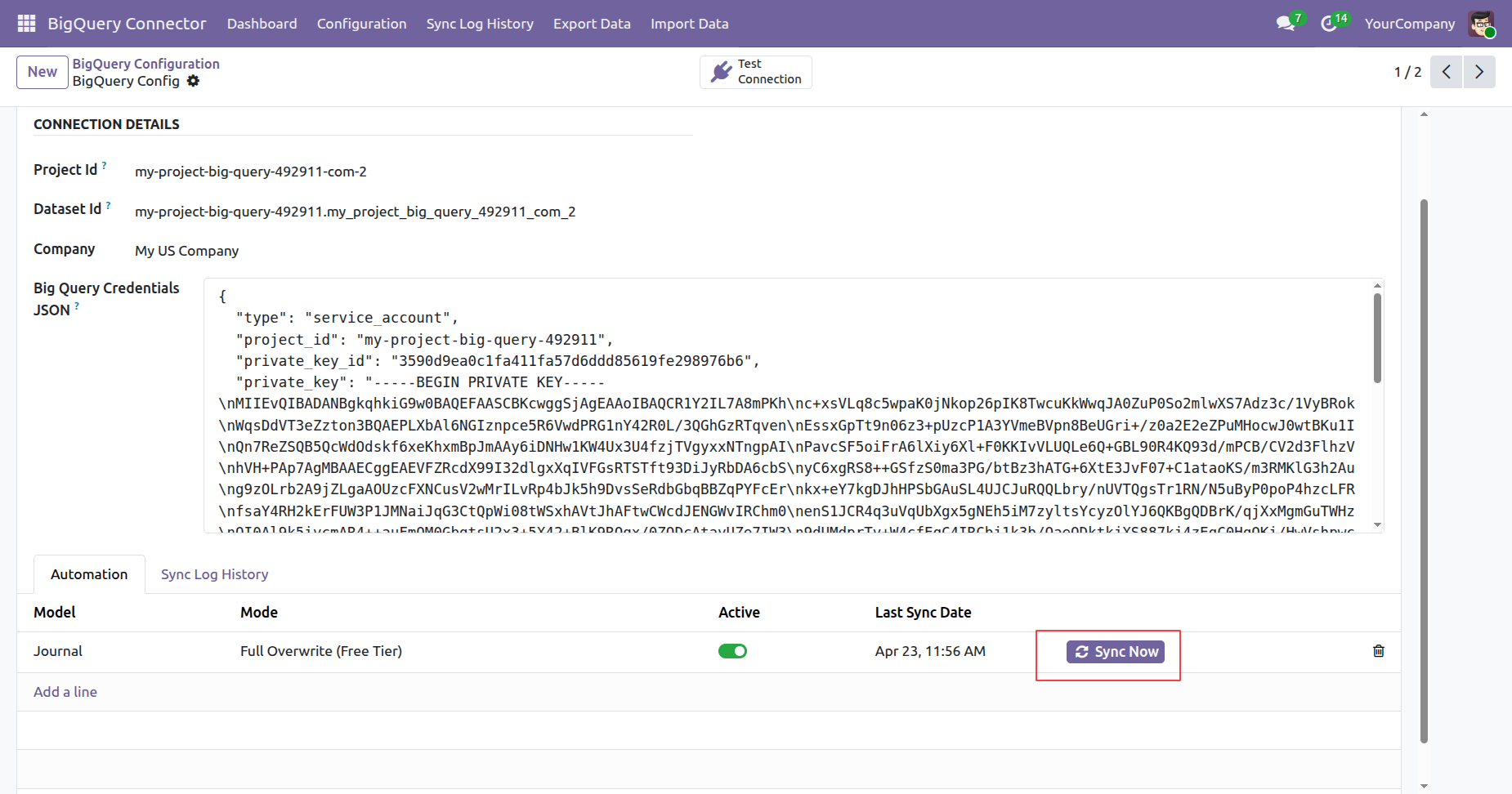
Click the Sync Now to sync the records.
Message in the sync log history defines that the records were successfully synced.
We can see that in the Sync Log History Journal Records list view.
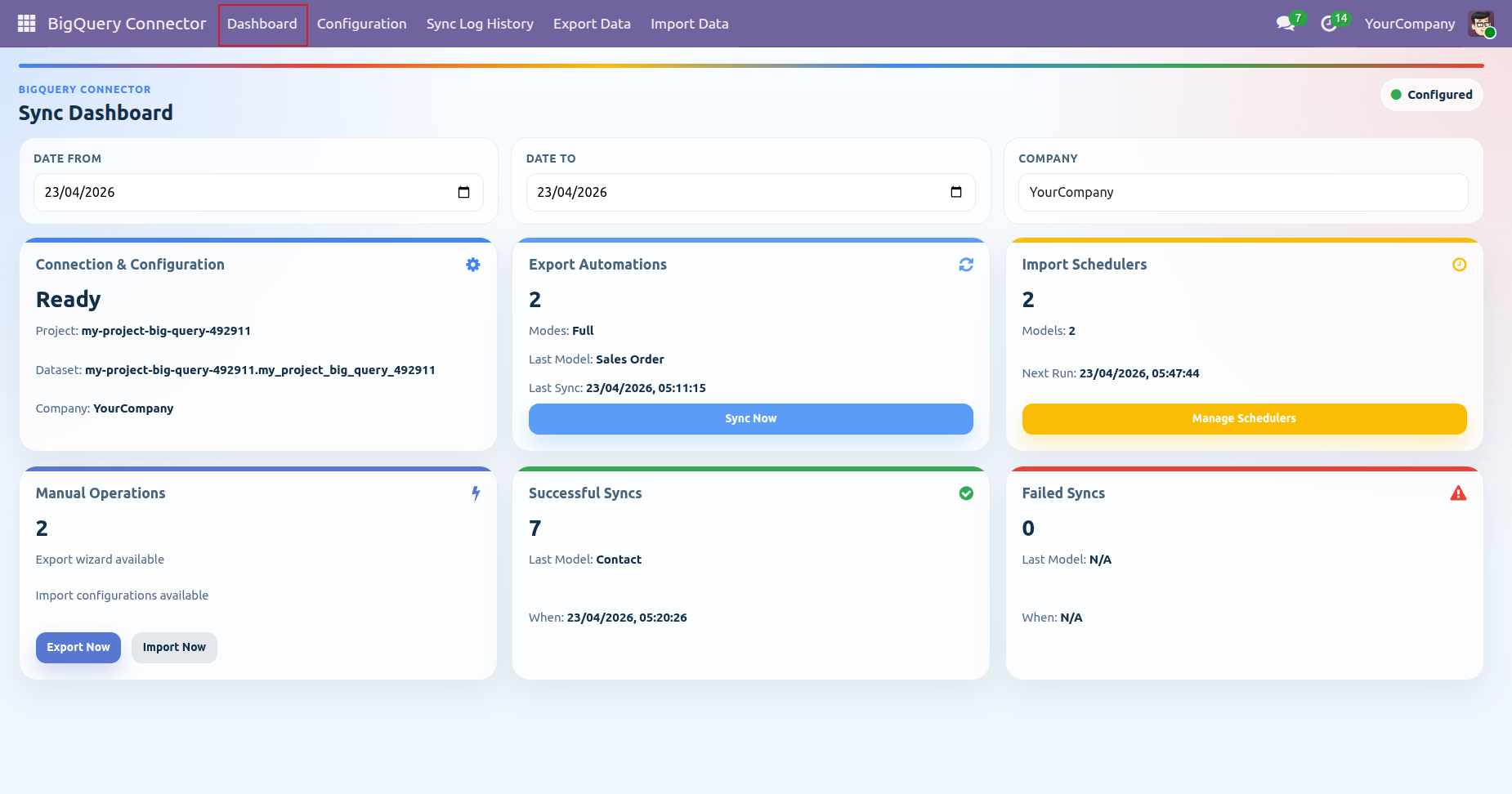
BigQuery Dashboard view.
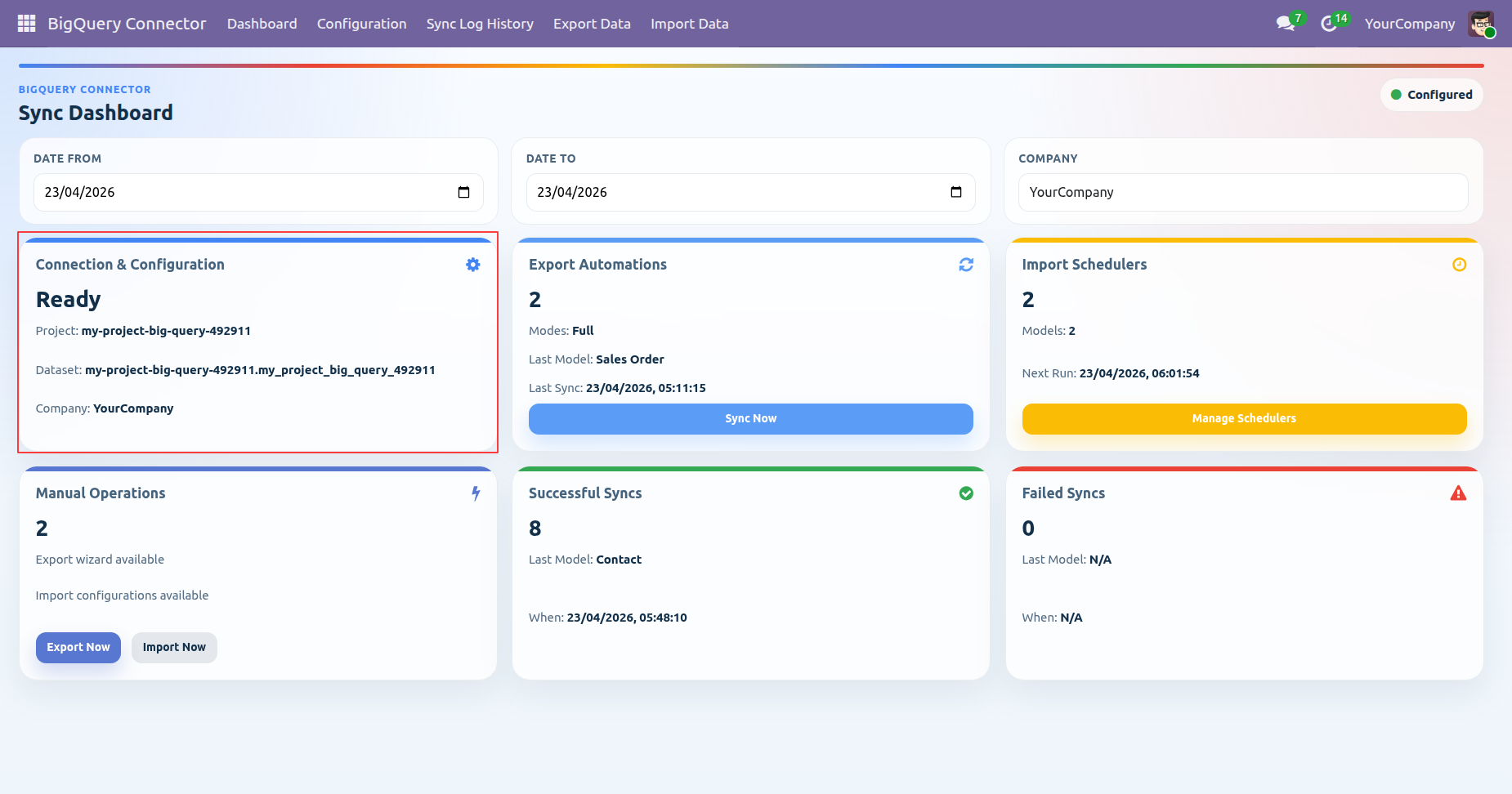
Highlighted the Connection & Configurations tab on the dashboard.
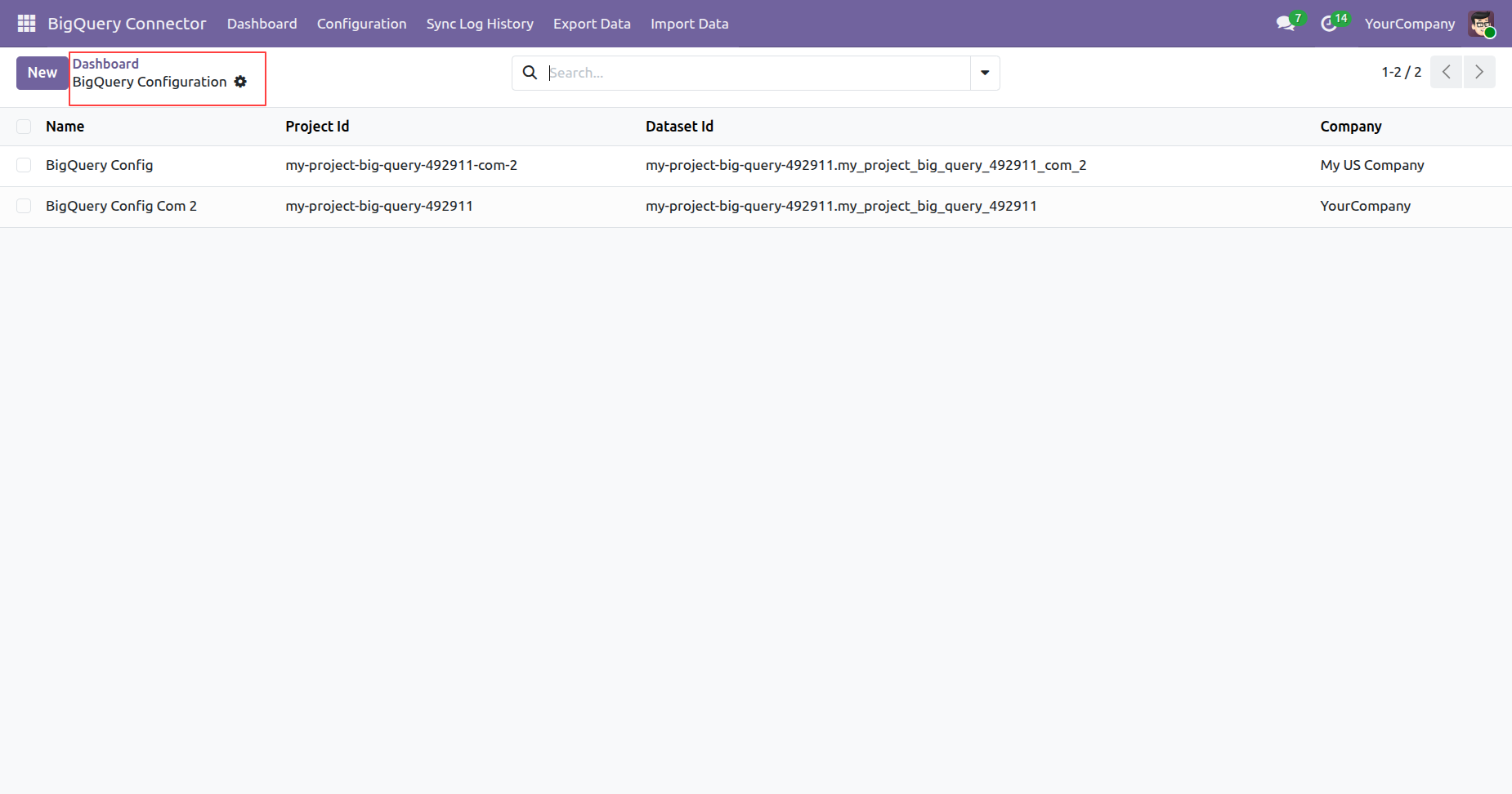
BigQuery configuration list view.
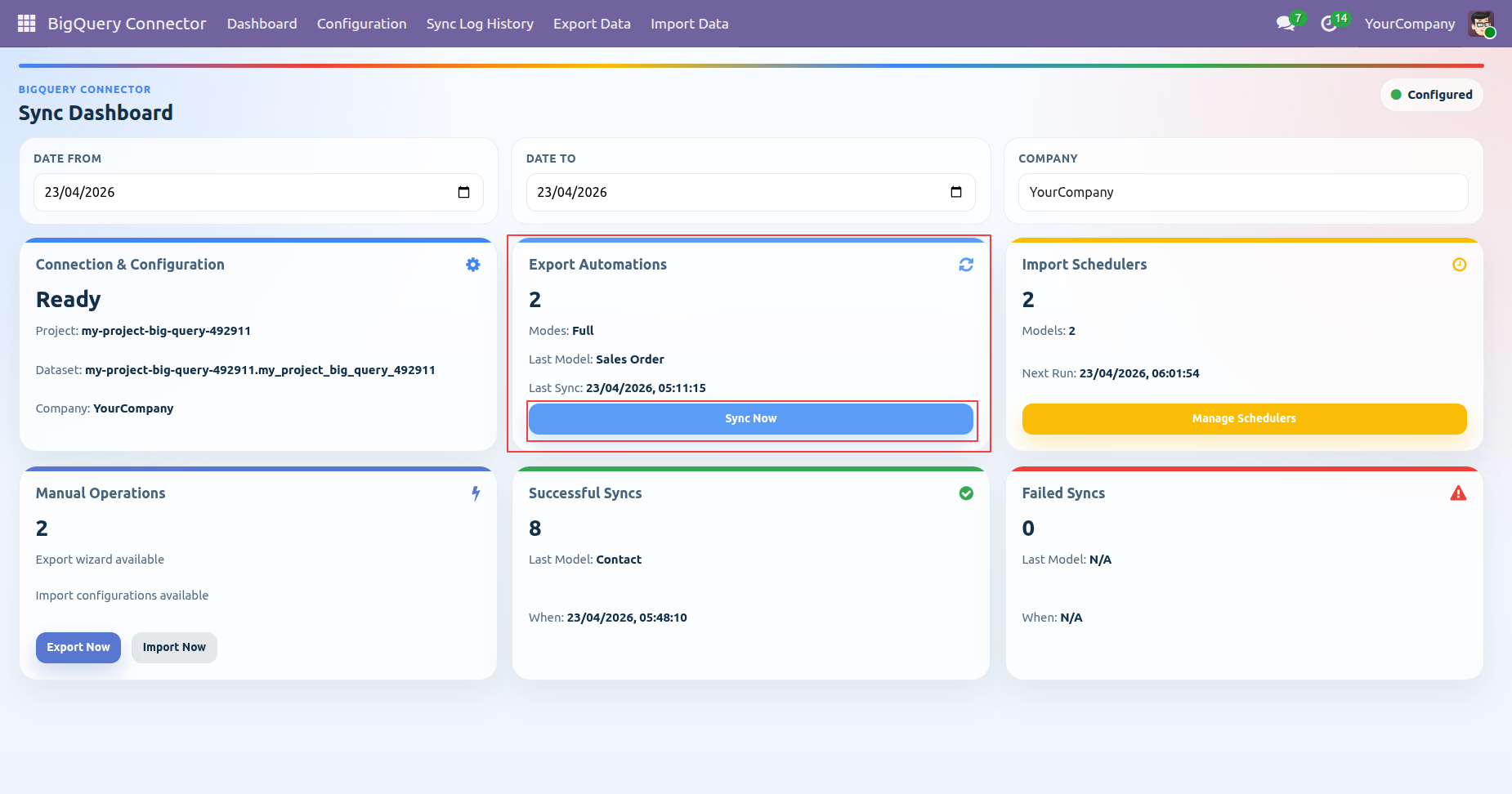
Highlighted the Export Automations tab on the dashboard to Sync records.
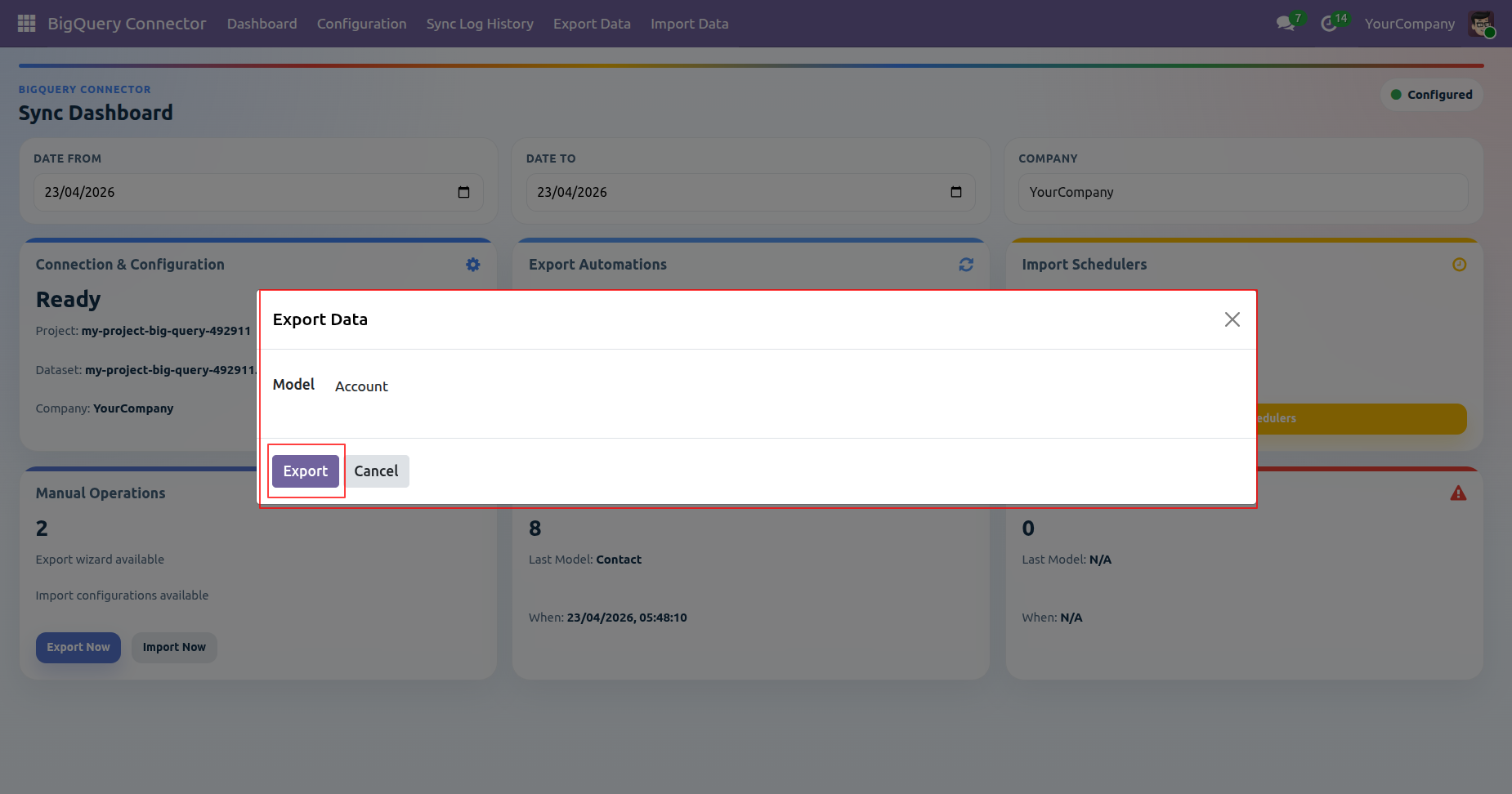
Select the model to Export Records.
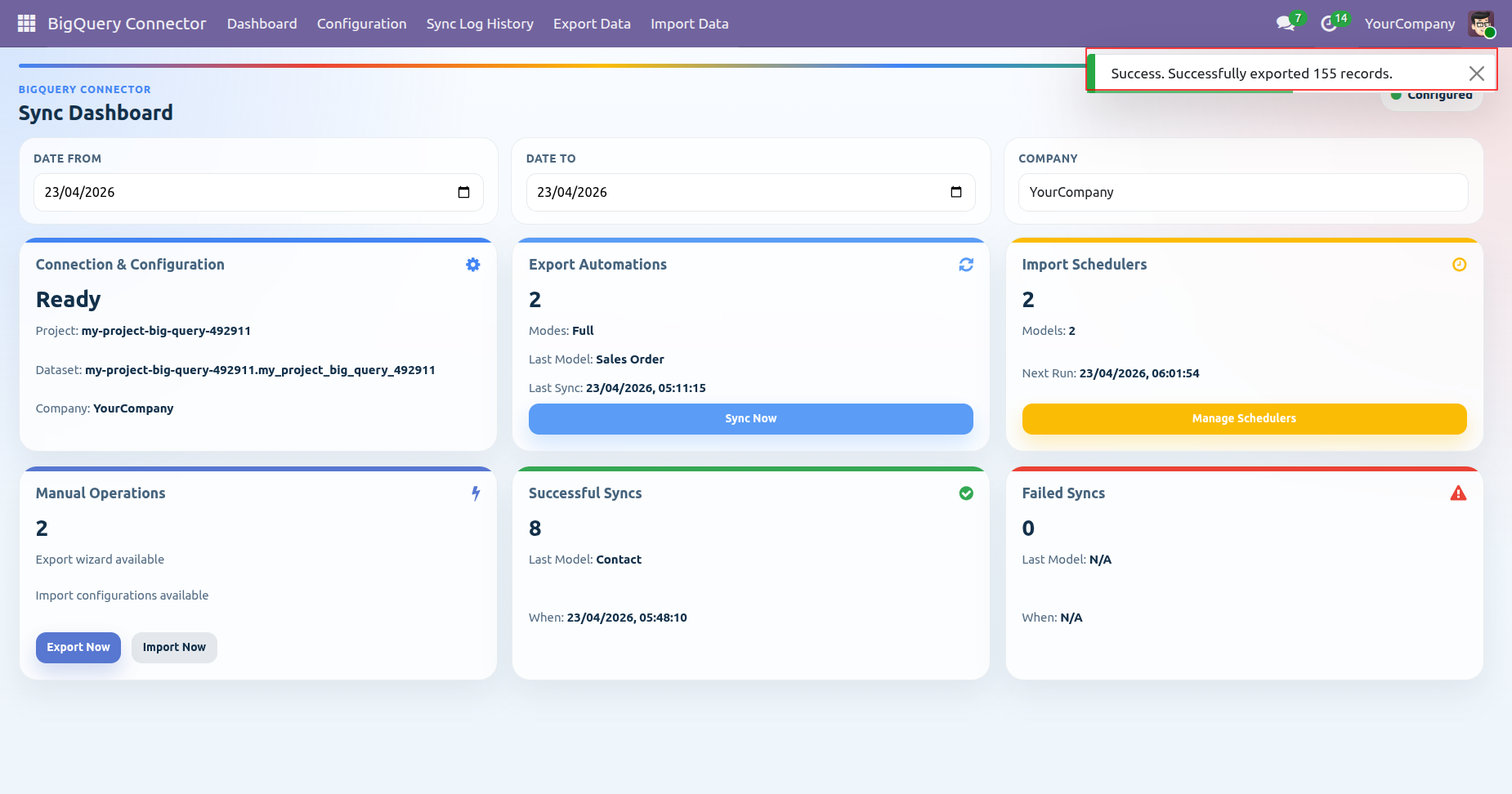
Successfully exported records.
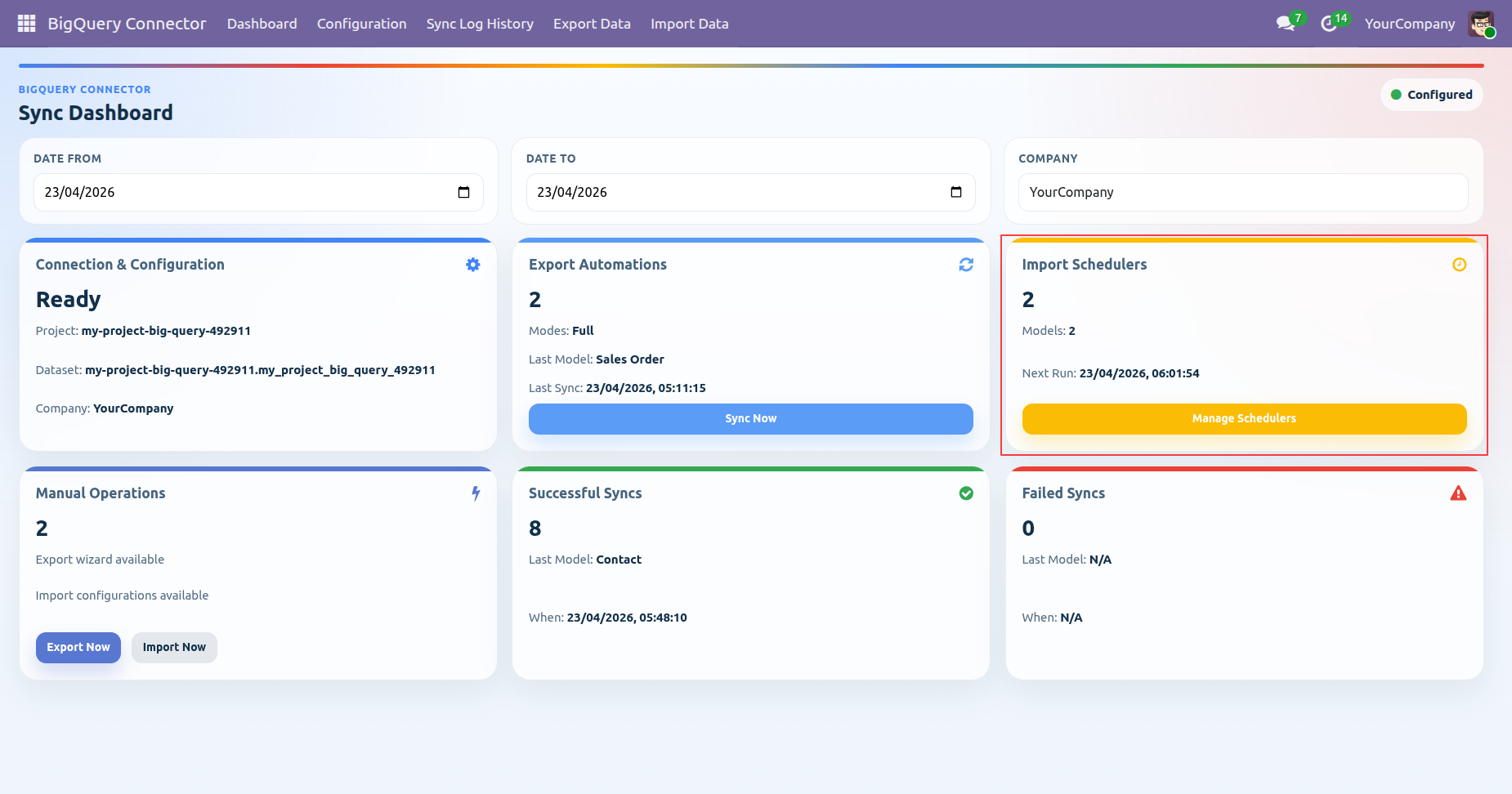
Highlighted the Import Schedulers tab on the dashboard.
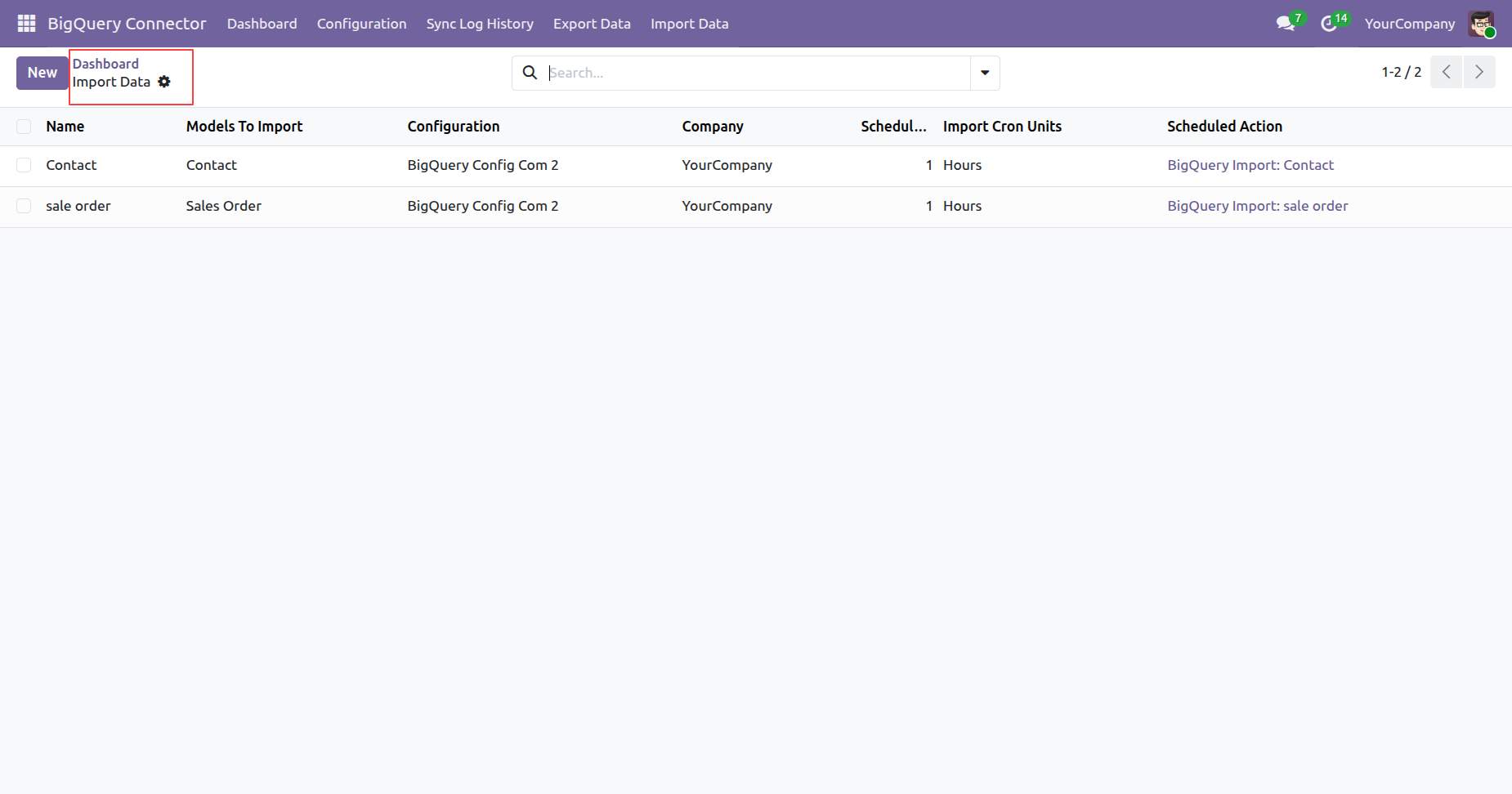
BigQuery dashboard import data list view.
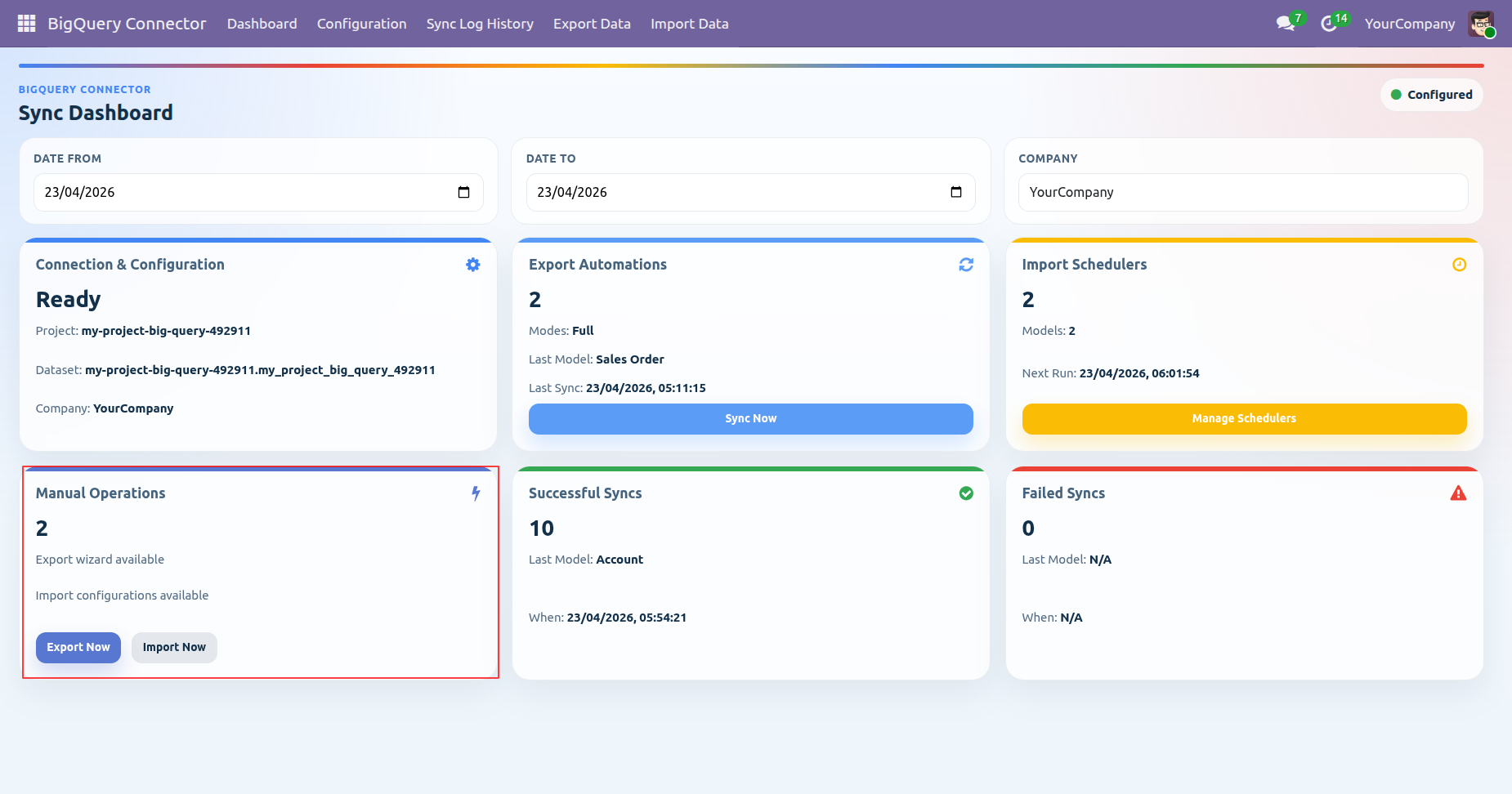
Highlighted the Manual Operations tab on the dashboard.
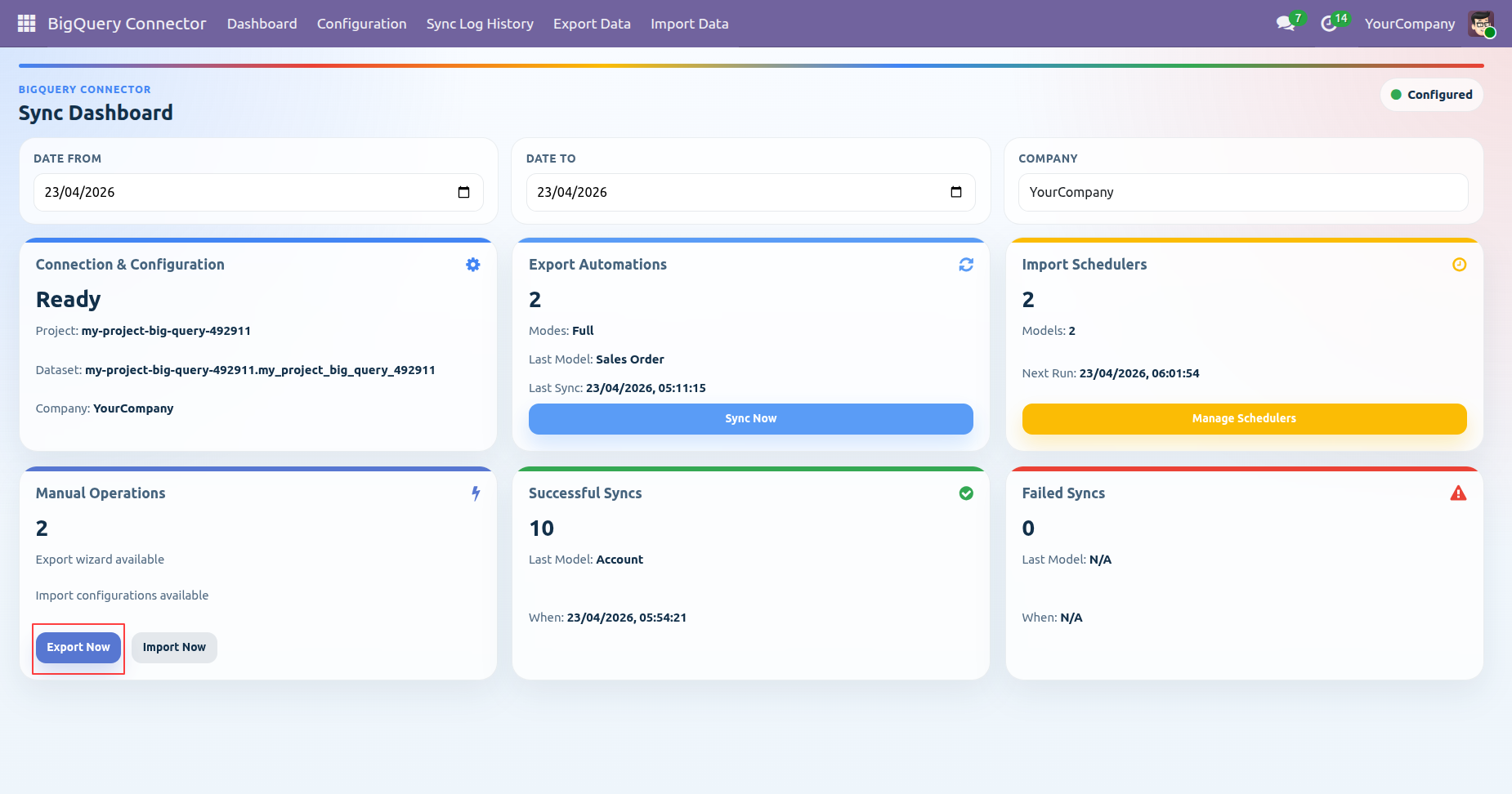
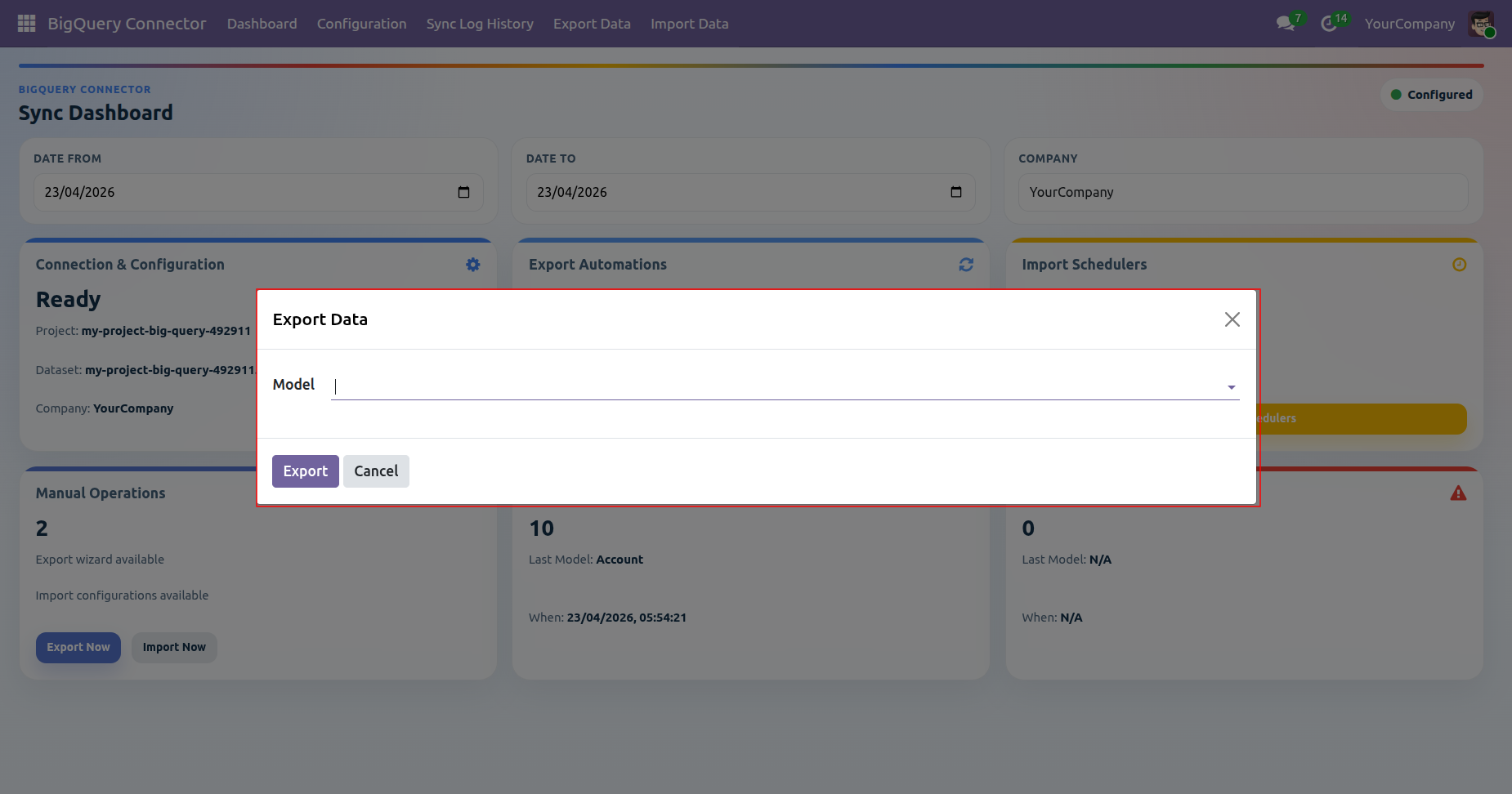
Click on the Export Now button.
Select the model to Export Data and click Export button.
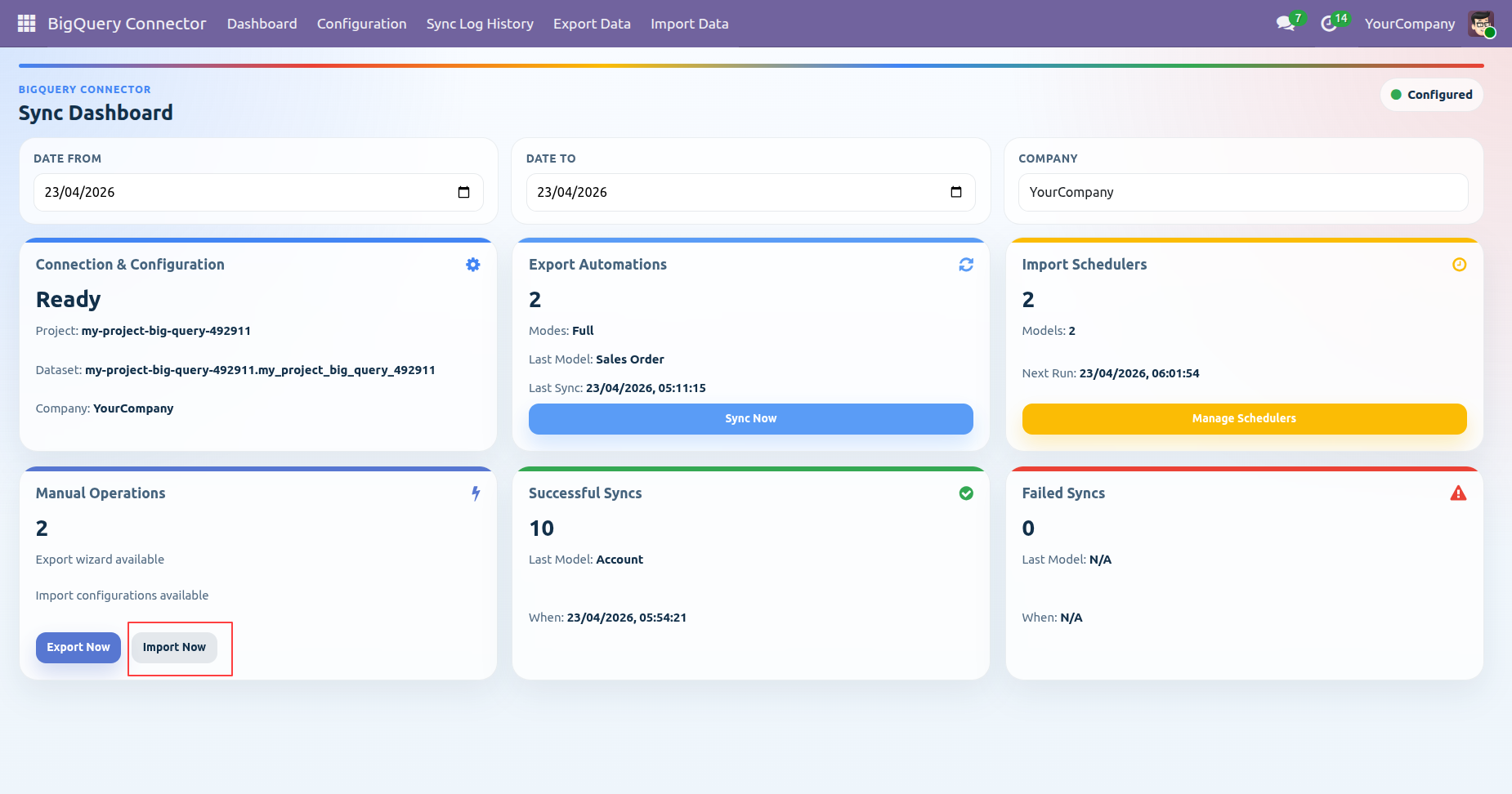
Click on the Import Now button to import records.
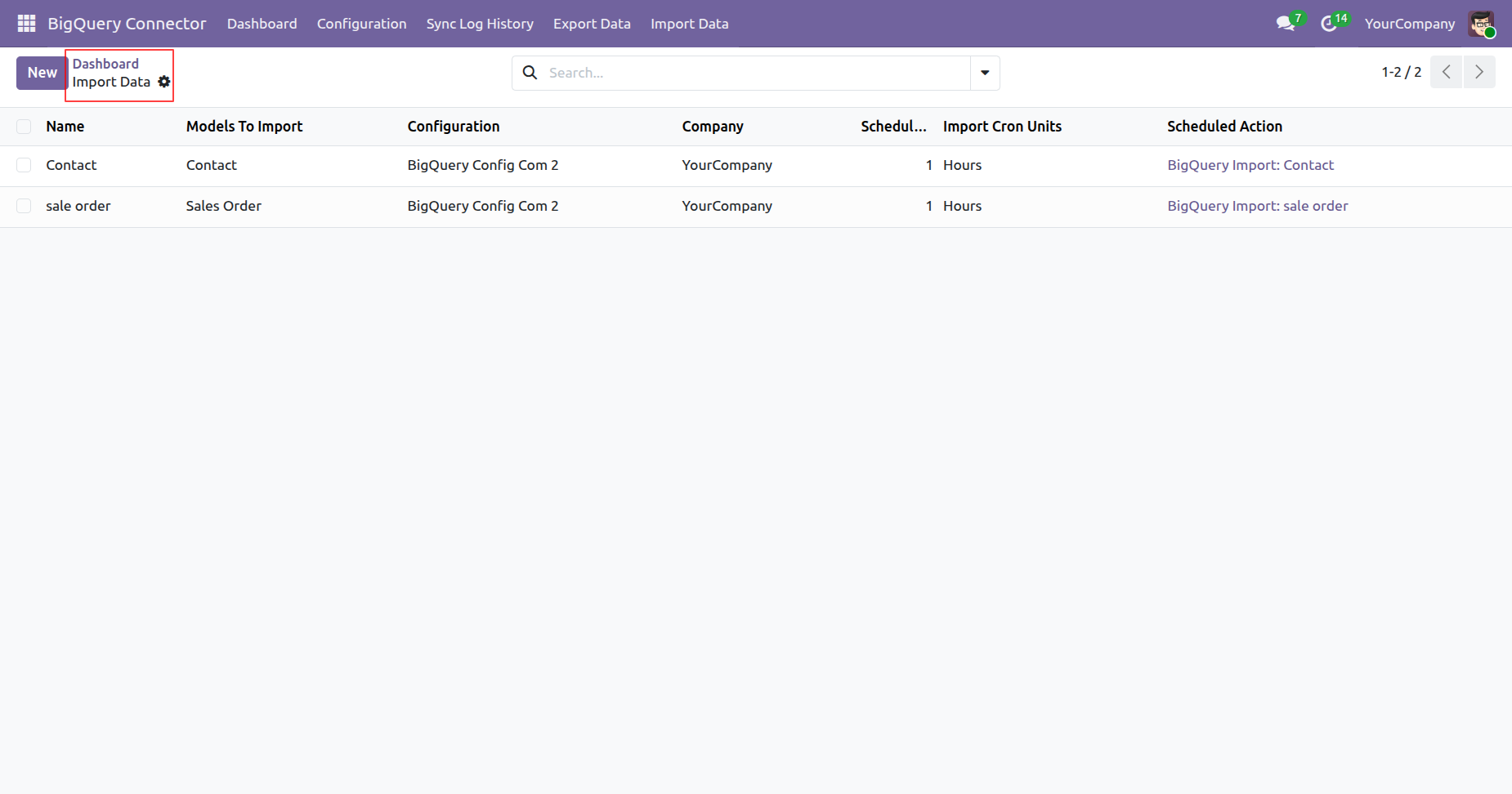
Imported data list view.
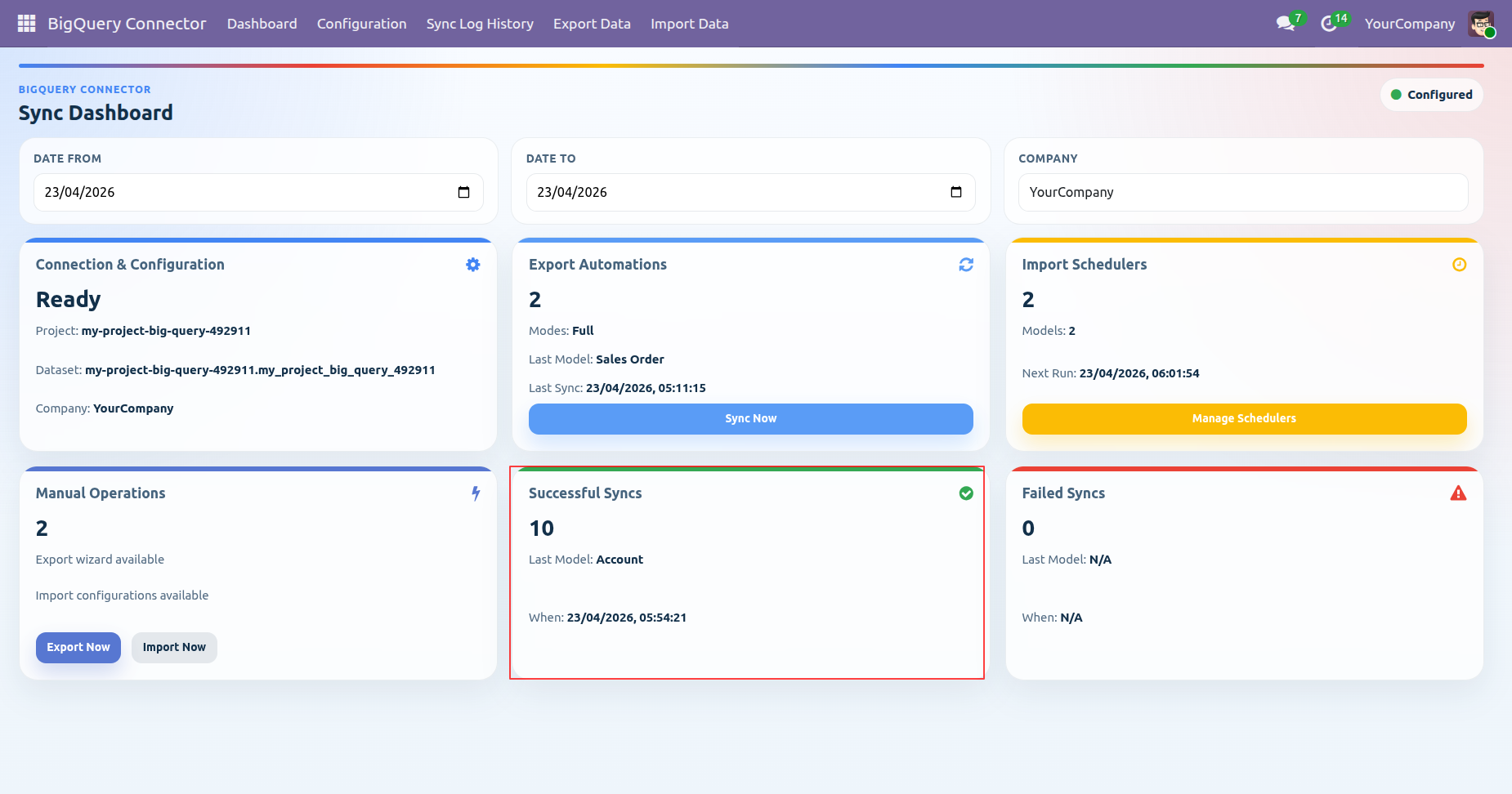
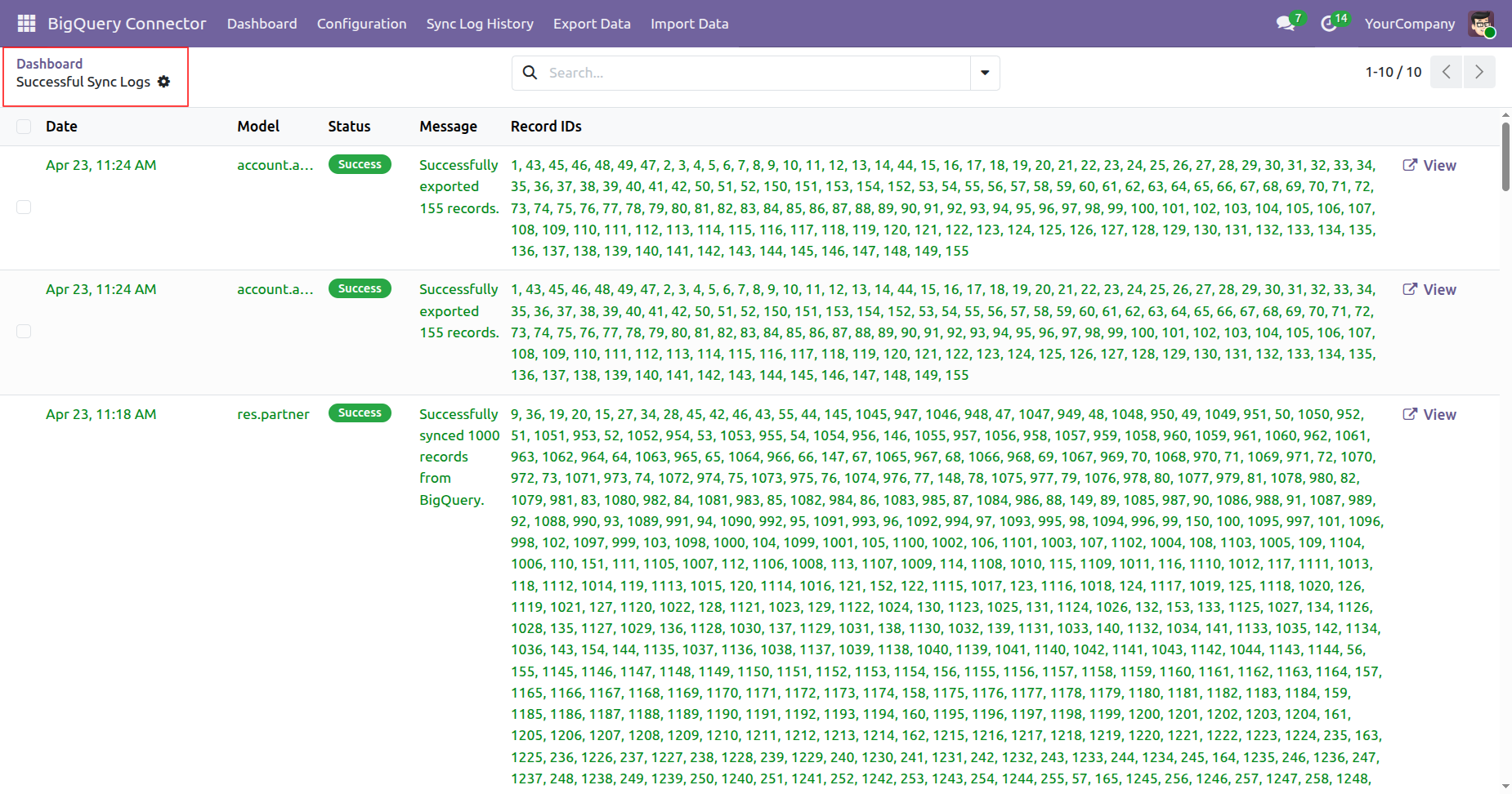
Highlighted the successful Syncs tab on the dashboard.
List view of the successful sync logs.
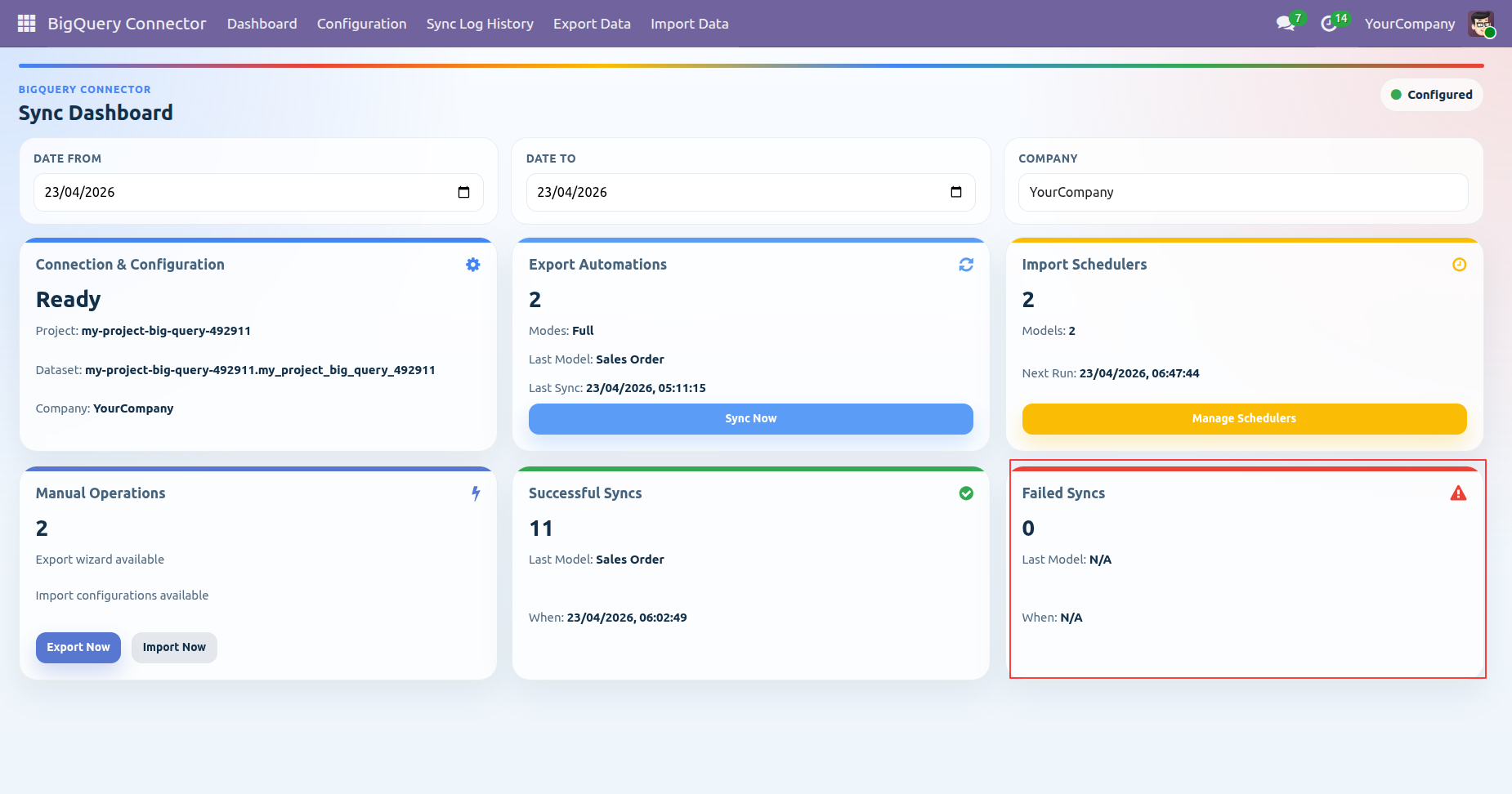
Highlighted the Failed Syncs tab on the dashboard.
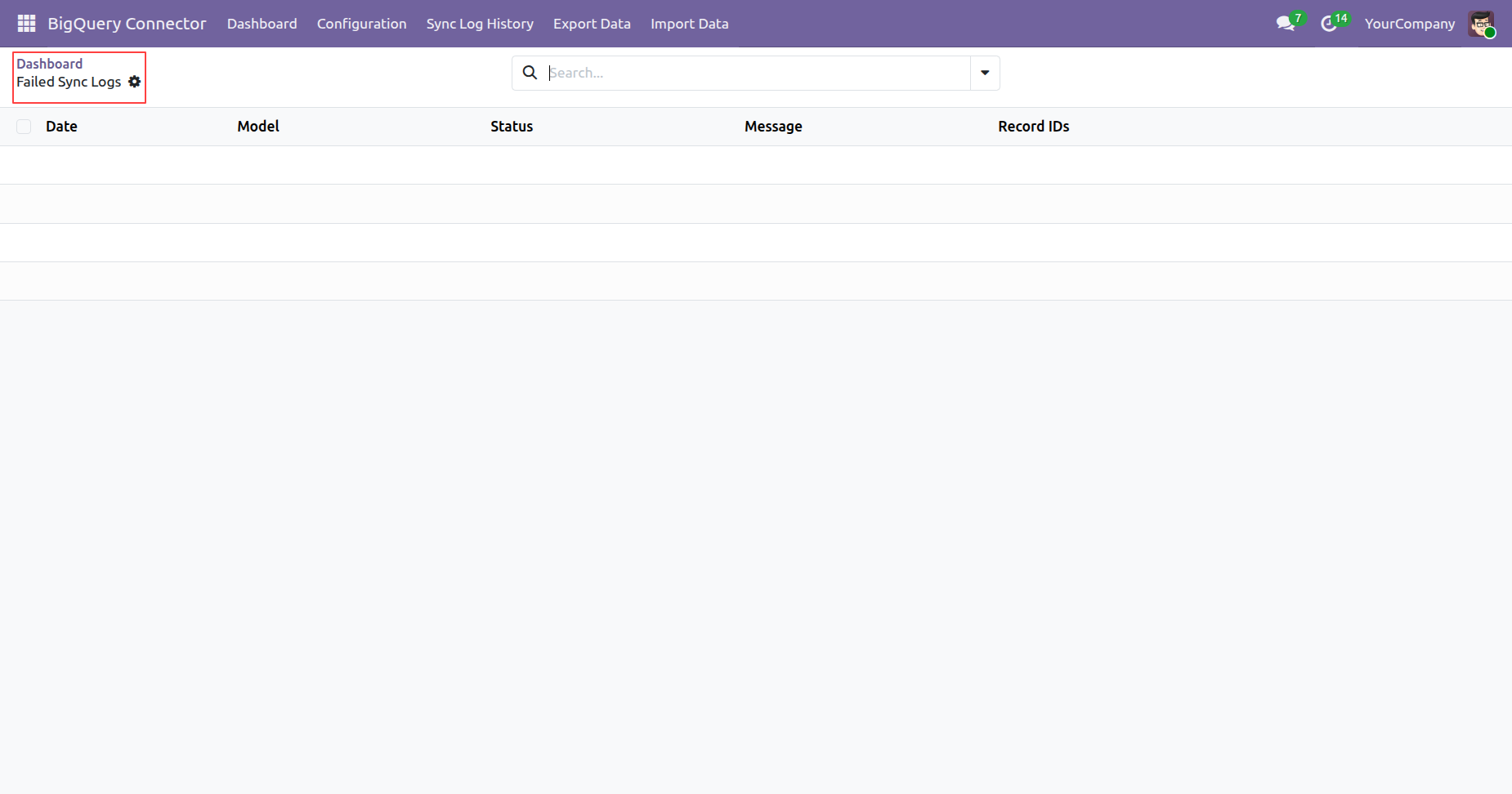
Failed Sync logs list view.
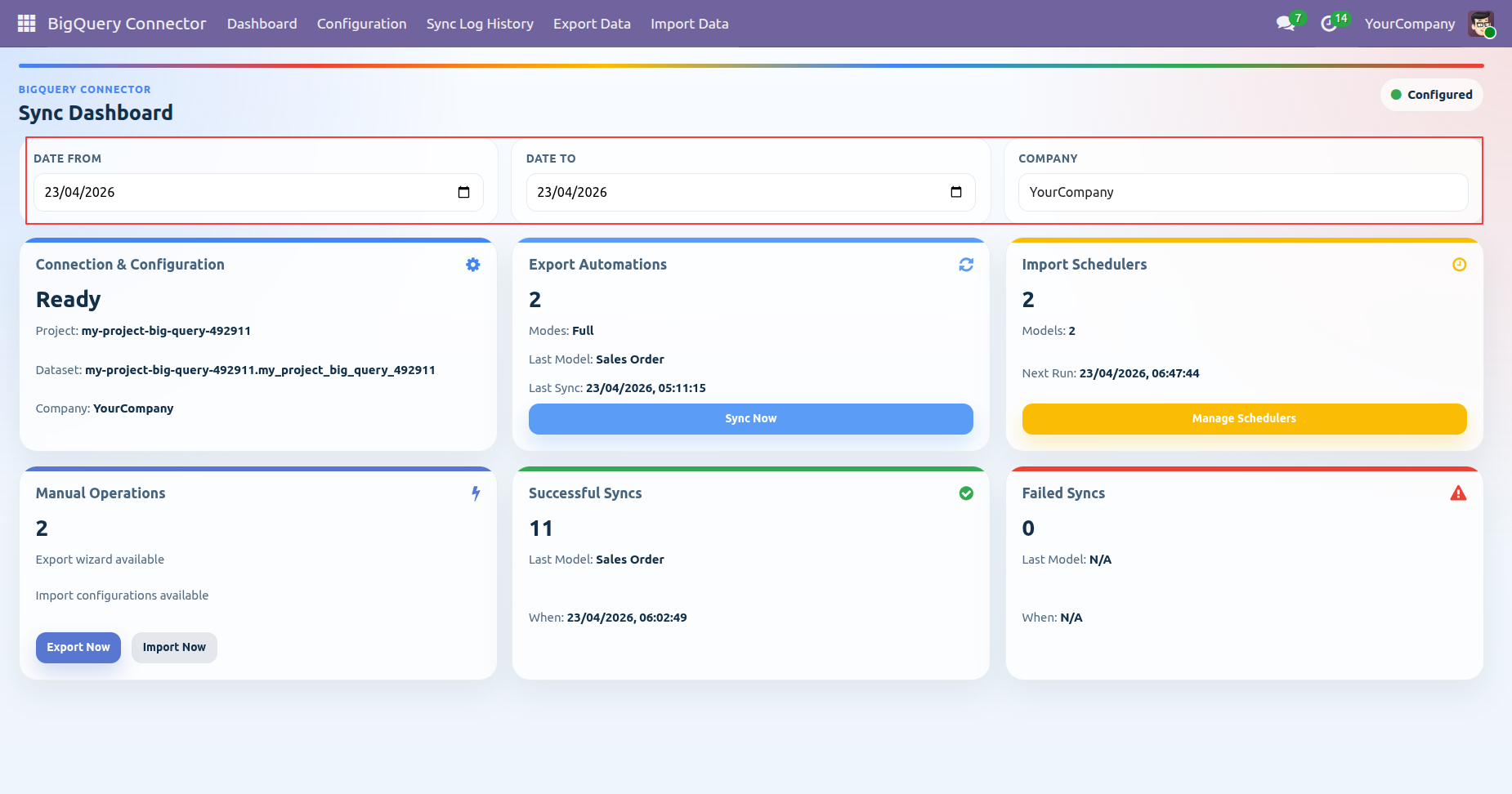
You can also select the date range and company to filter records on the sync dashboard.
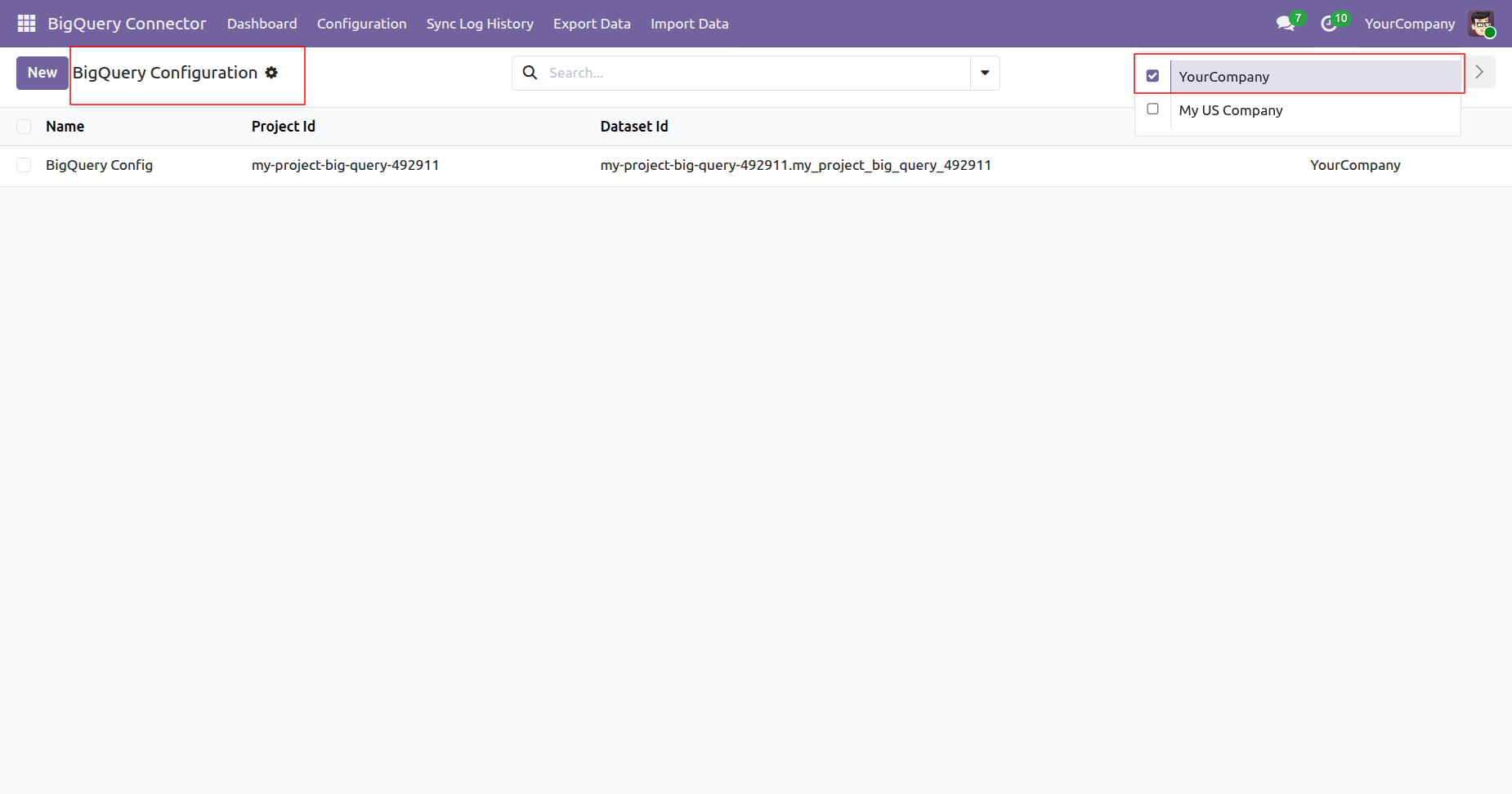
BigQuery Configurations for a specific company.
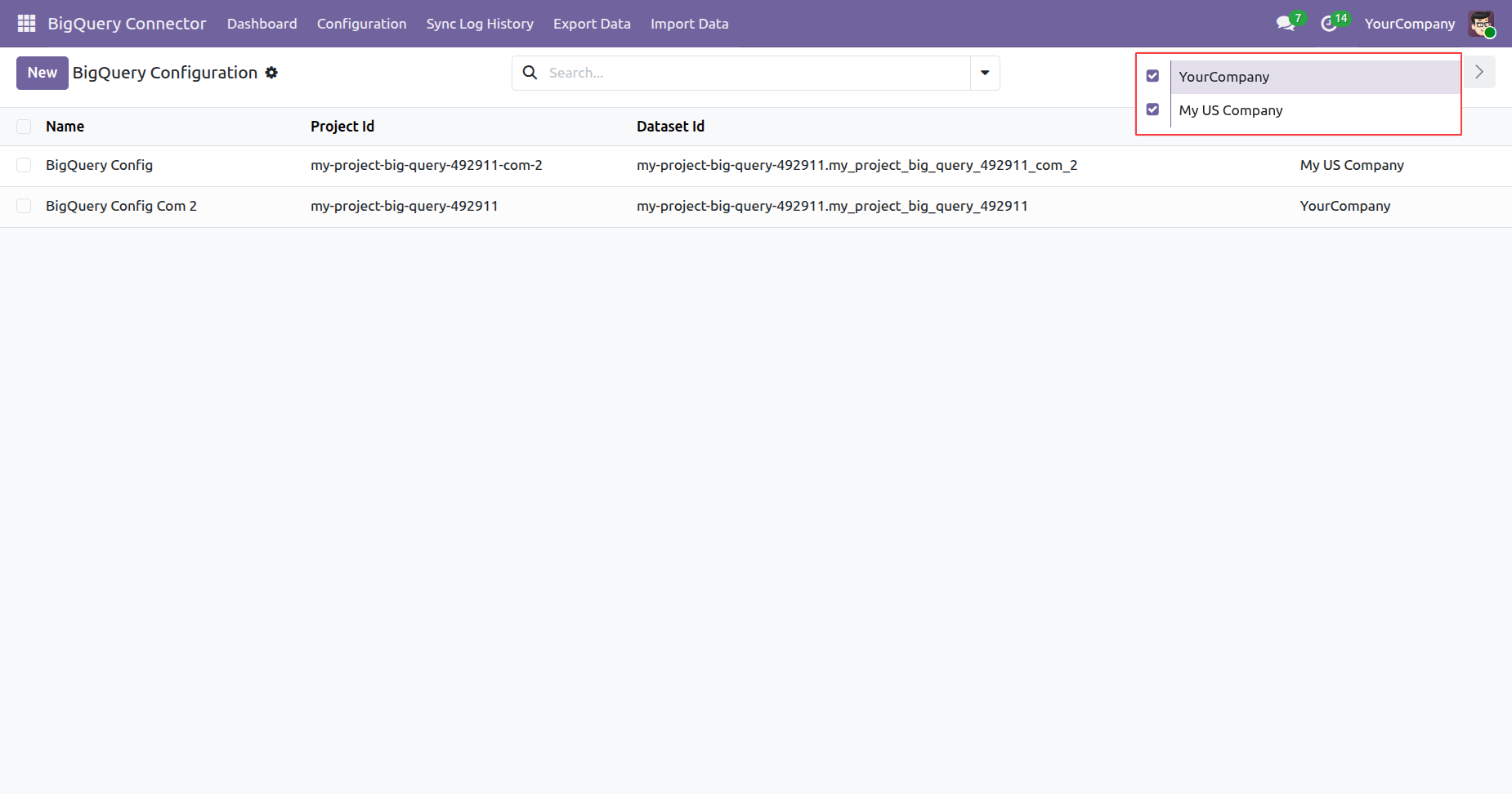
BigQuery Configuration for the multi-company.
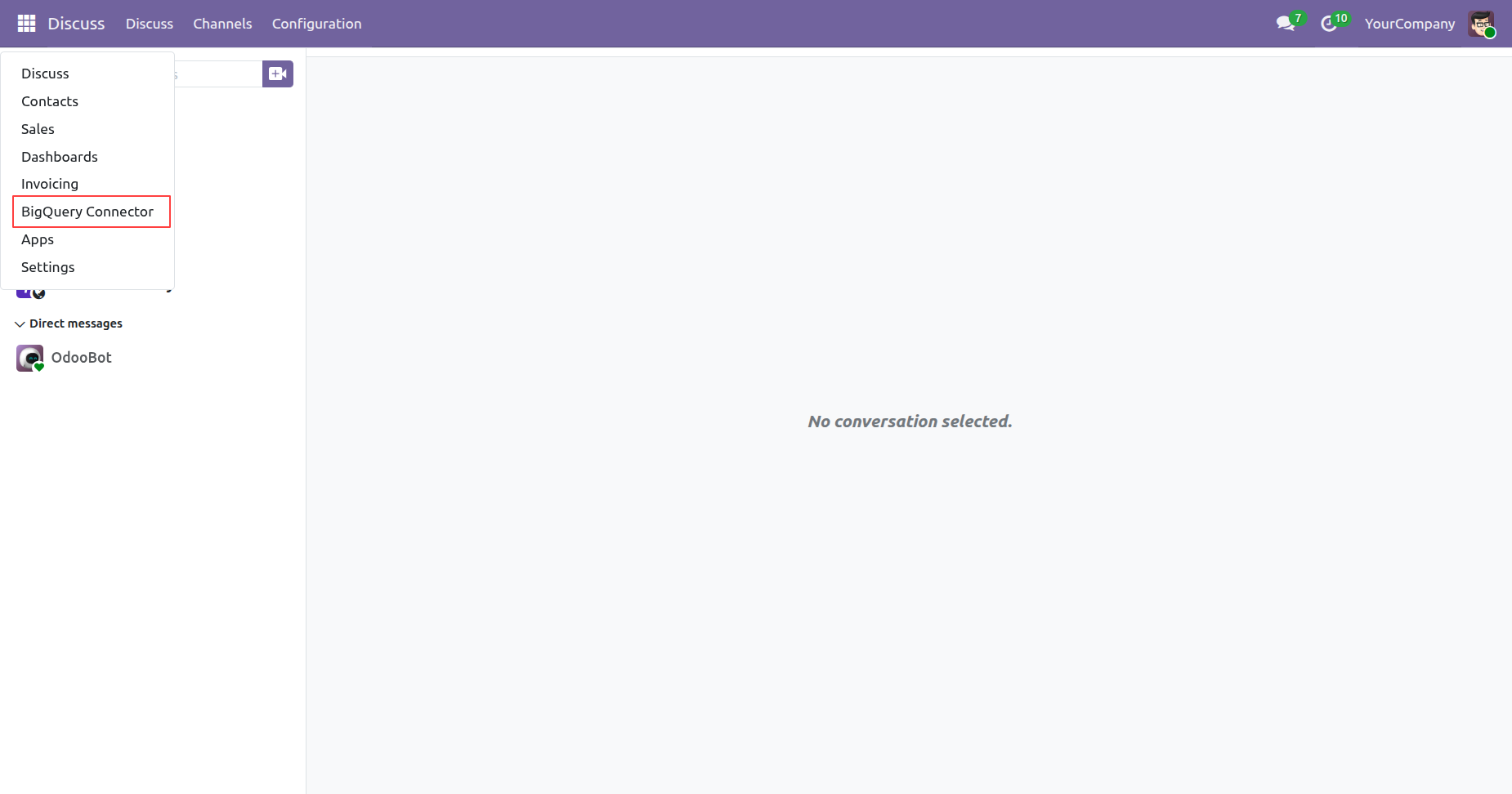
Goto BigQuery Connector.
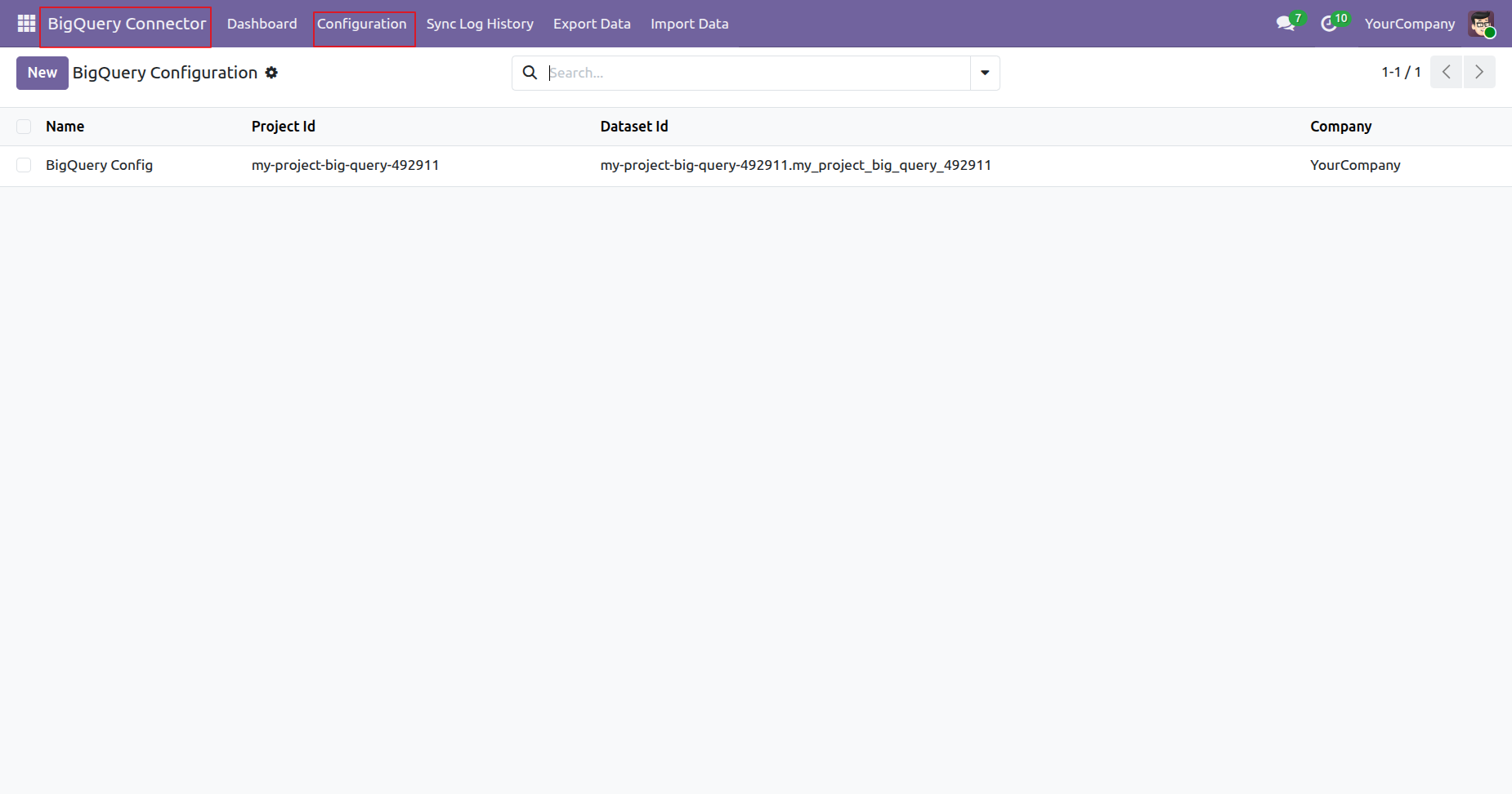
BigQuery Configurations.
Select a BigQuery configuration.
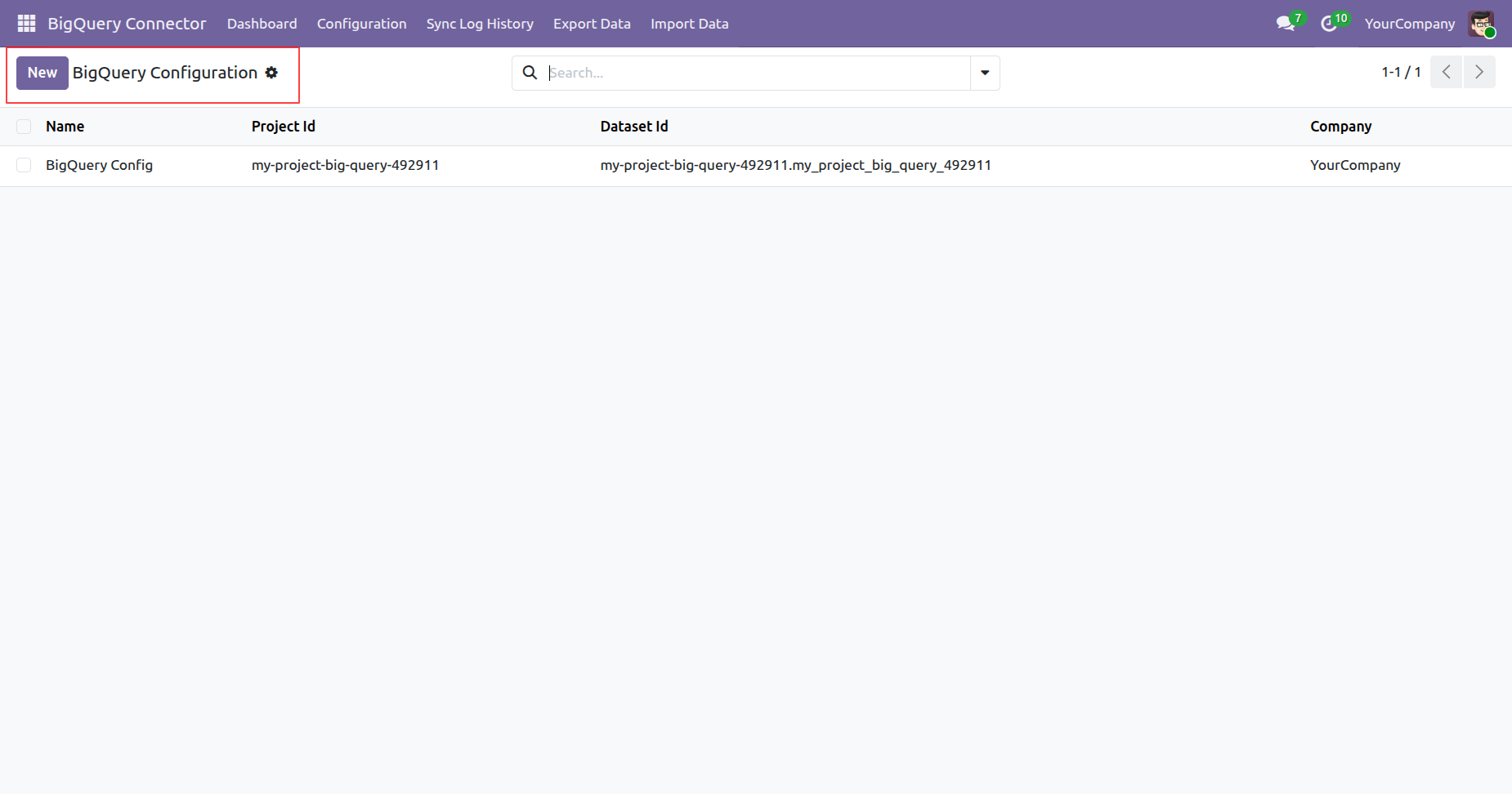
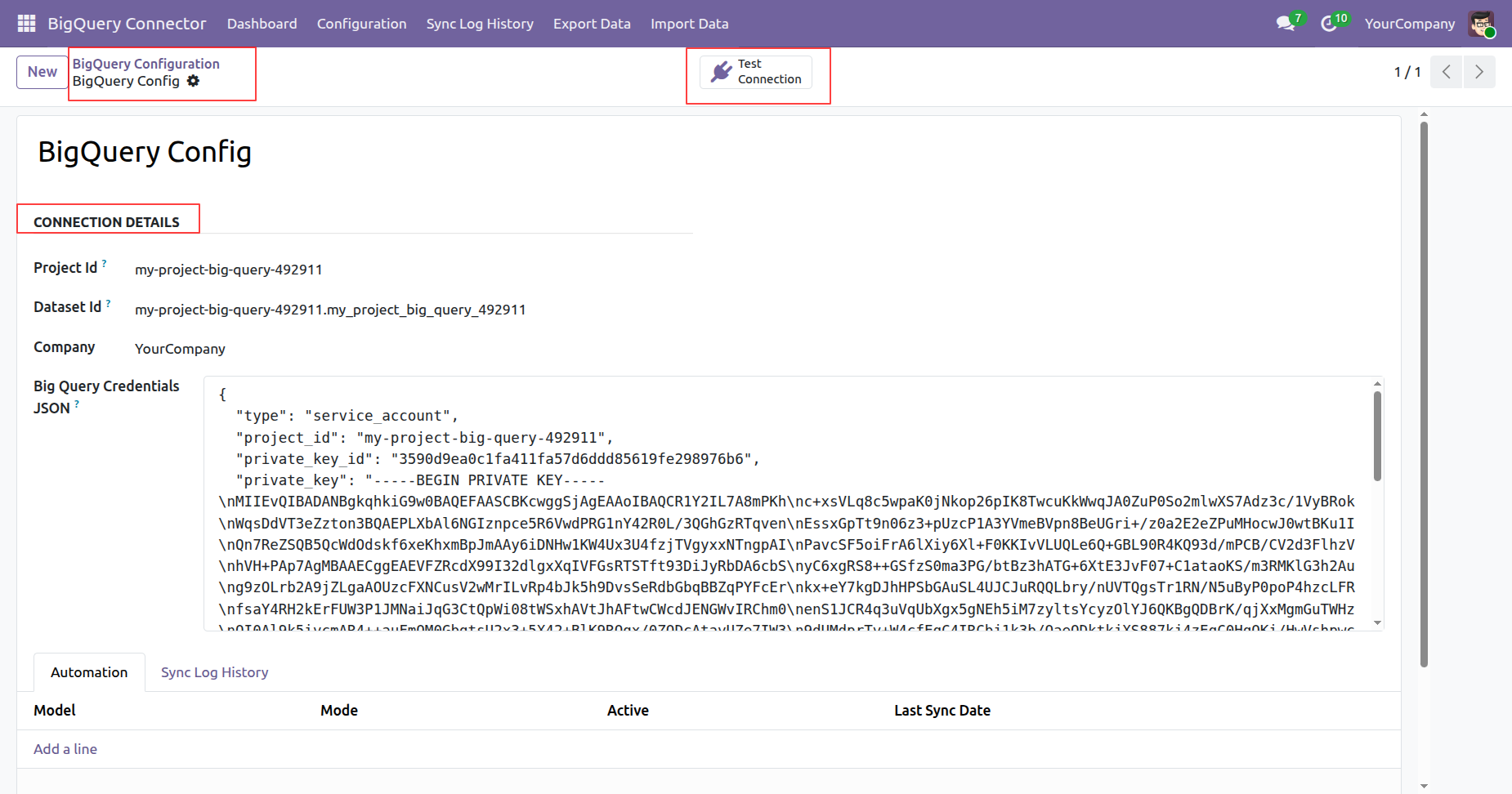
Enter the required credentials and click Test Connection to test the BigQuery connection.
Message of successful connection.
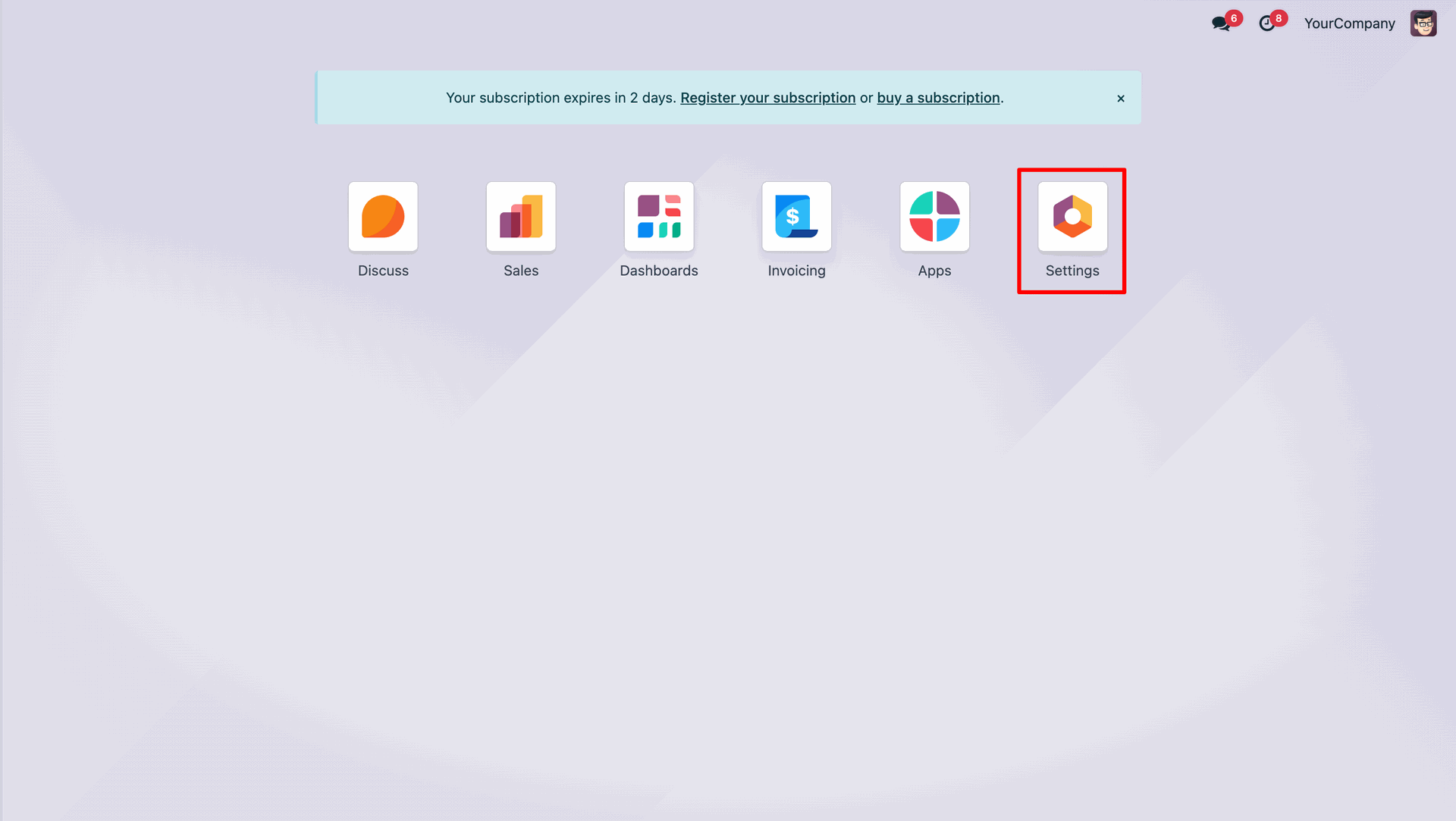
Go to the 'Settings'.
Go to the 'Big Query Connector'.
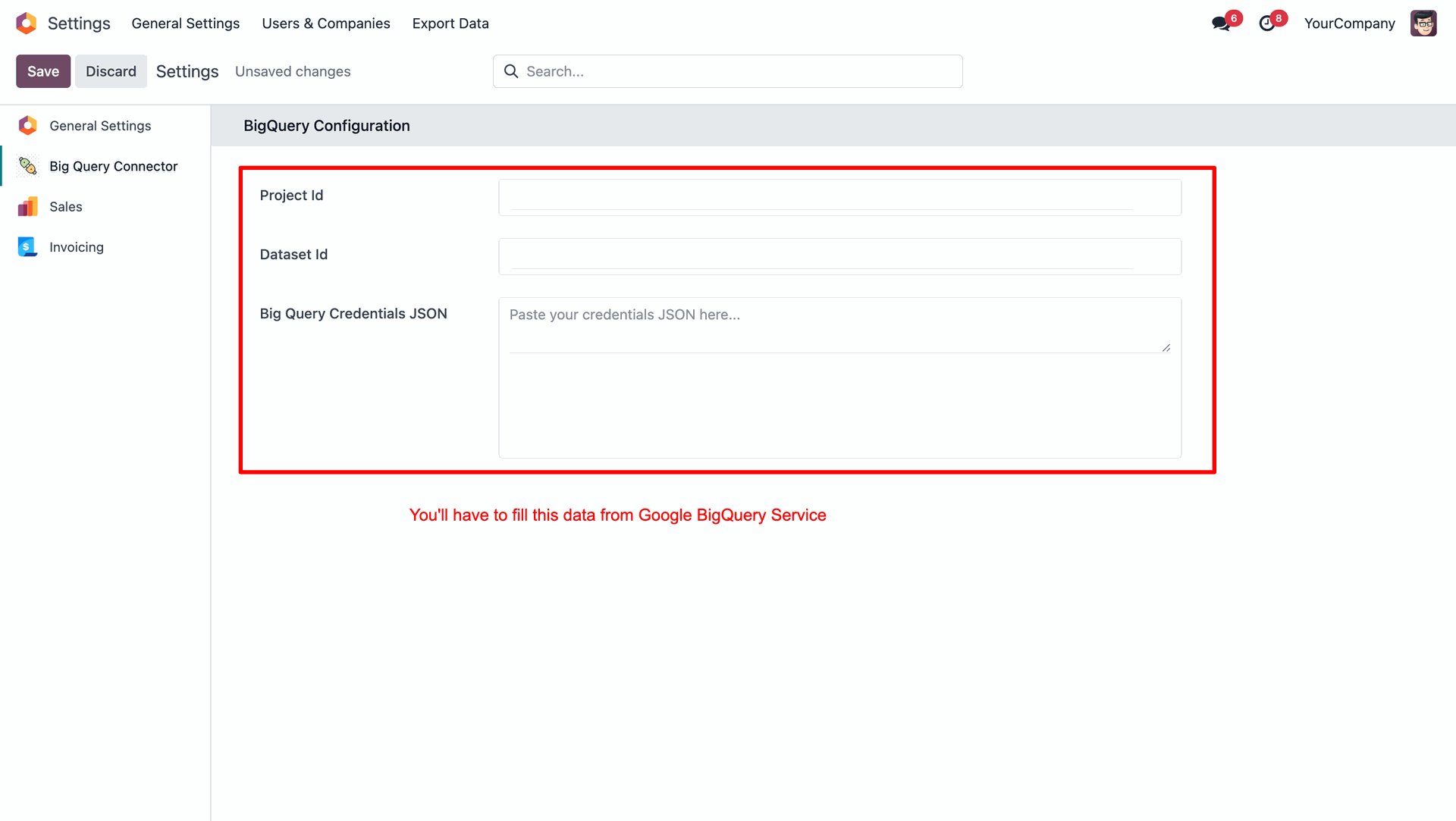
Fill the 'BigQuery Configuration' data.
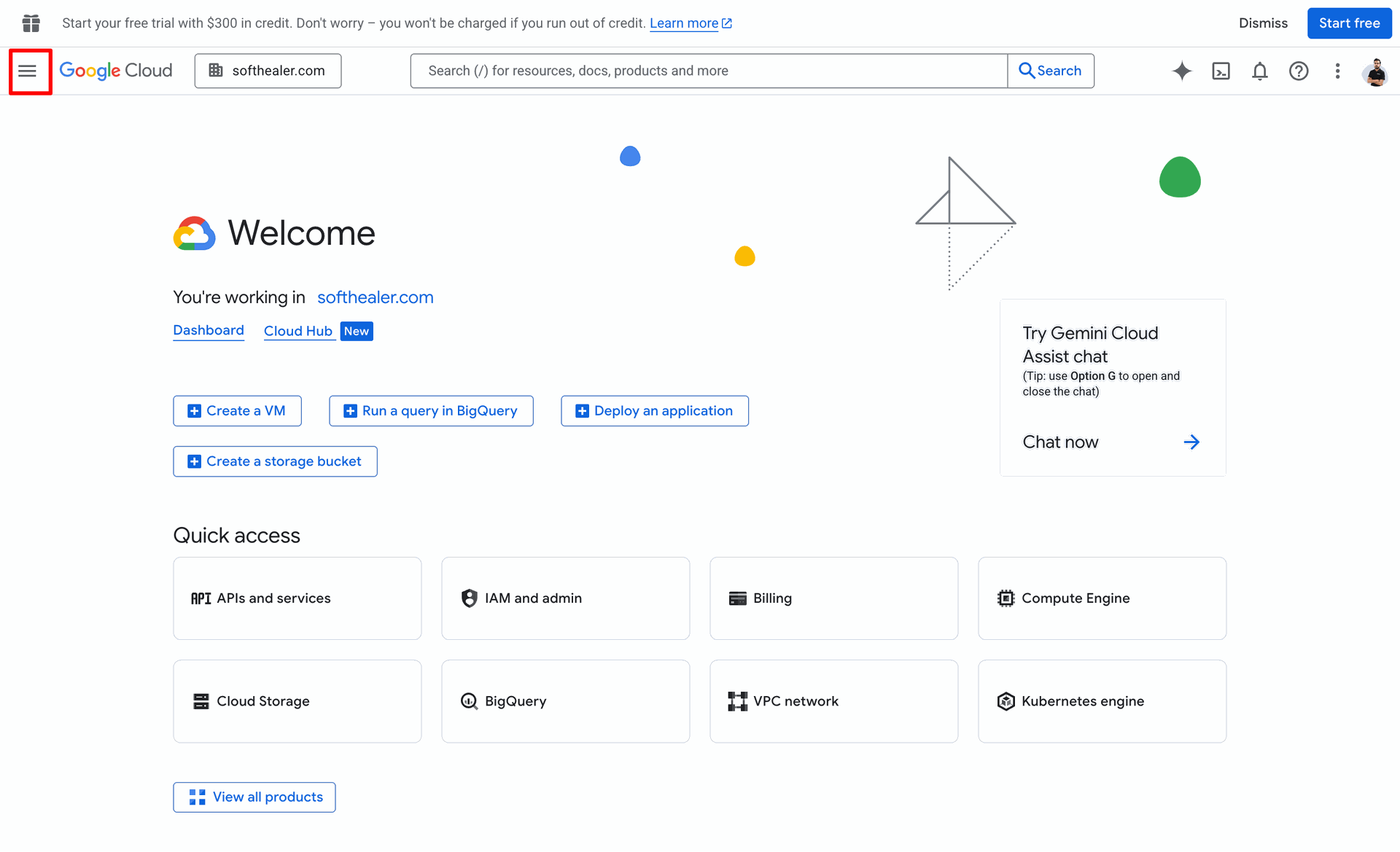
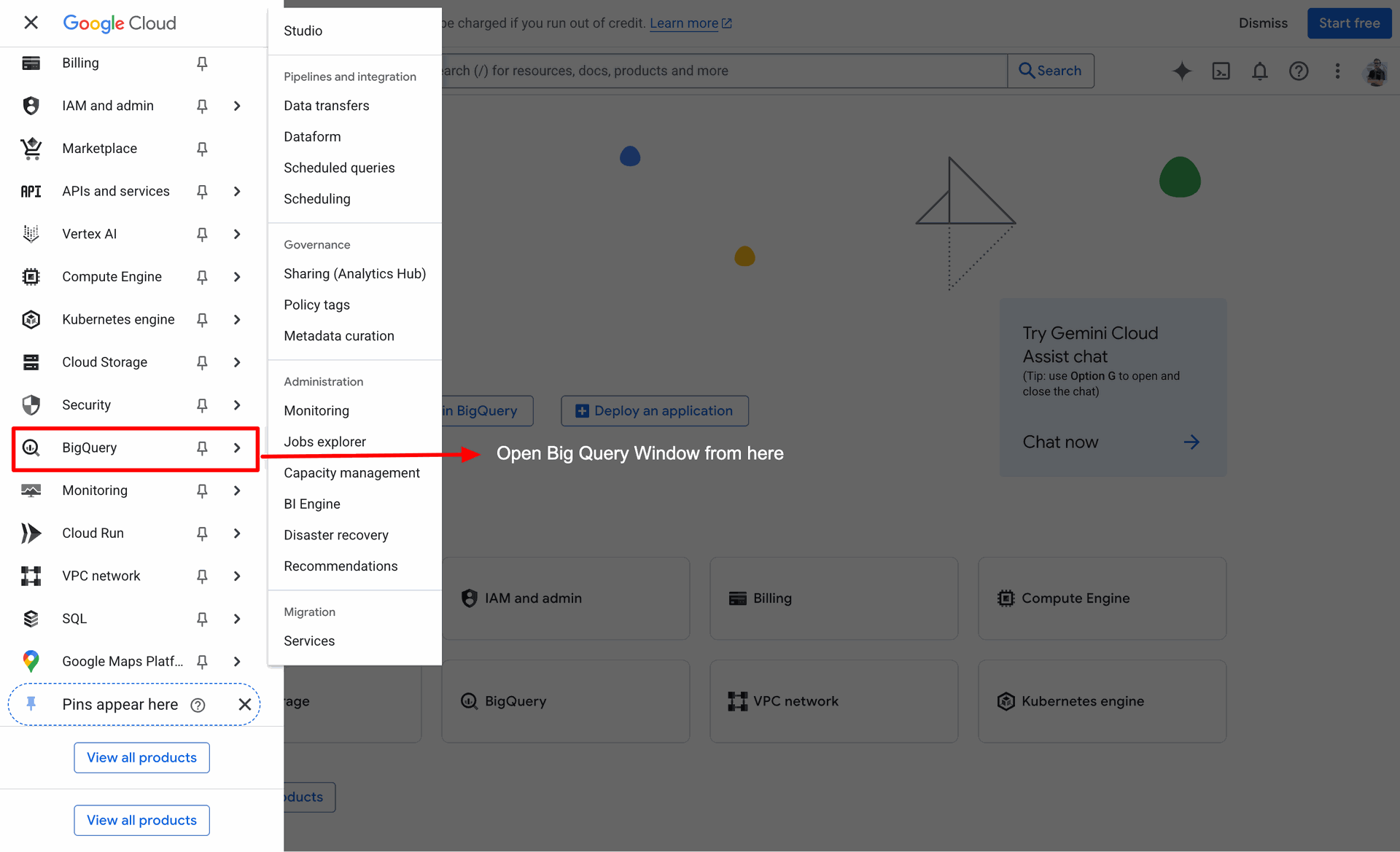
Click on the "BigQuery" from the Navigation menu.
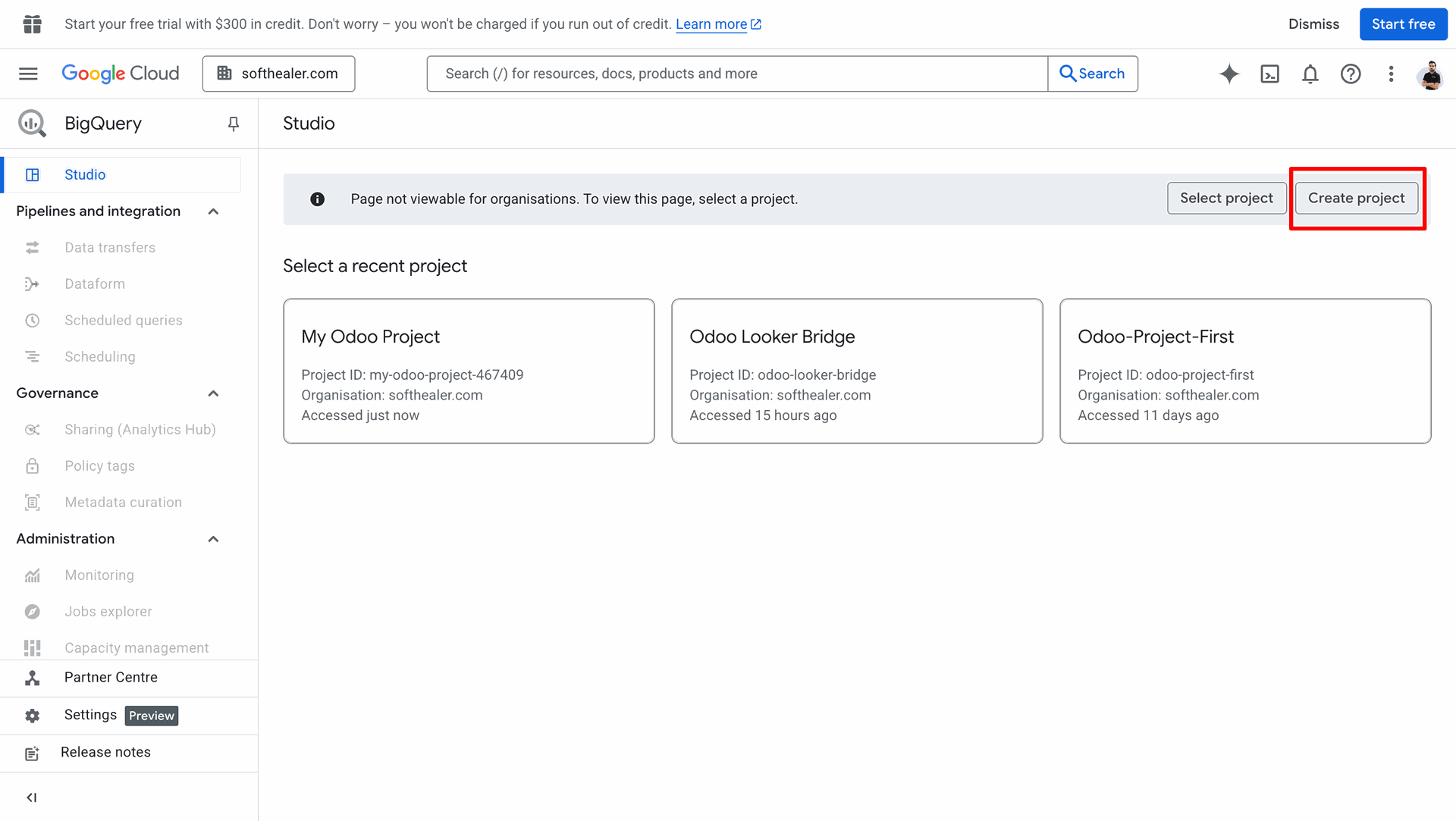
Click on the "Create Project" button to create a new project.
Click on the "Create dataset" from the three dot.
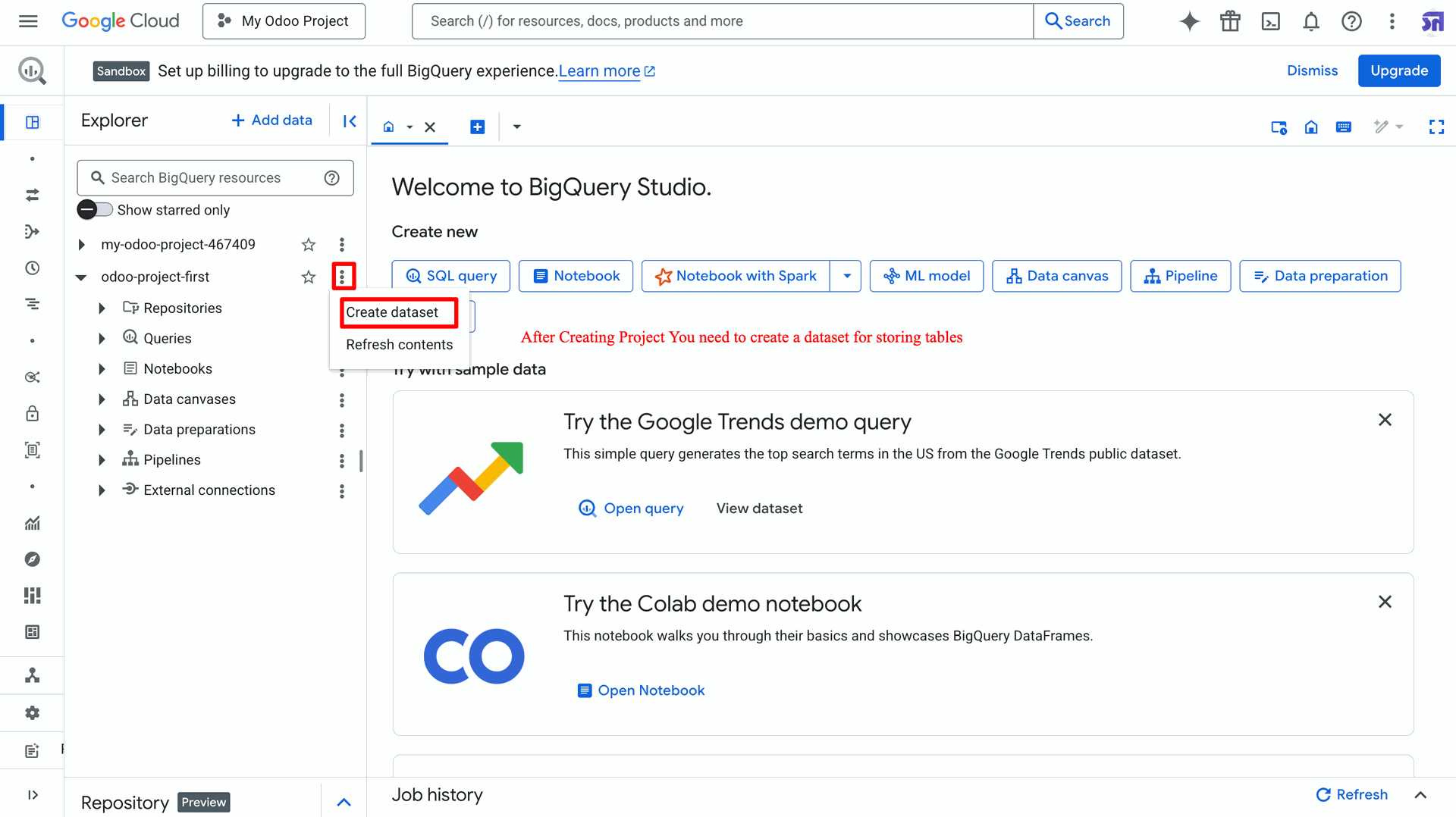
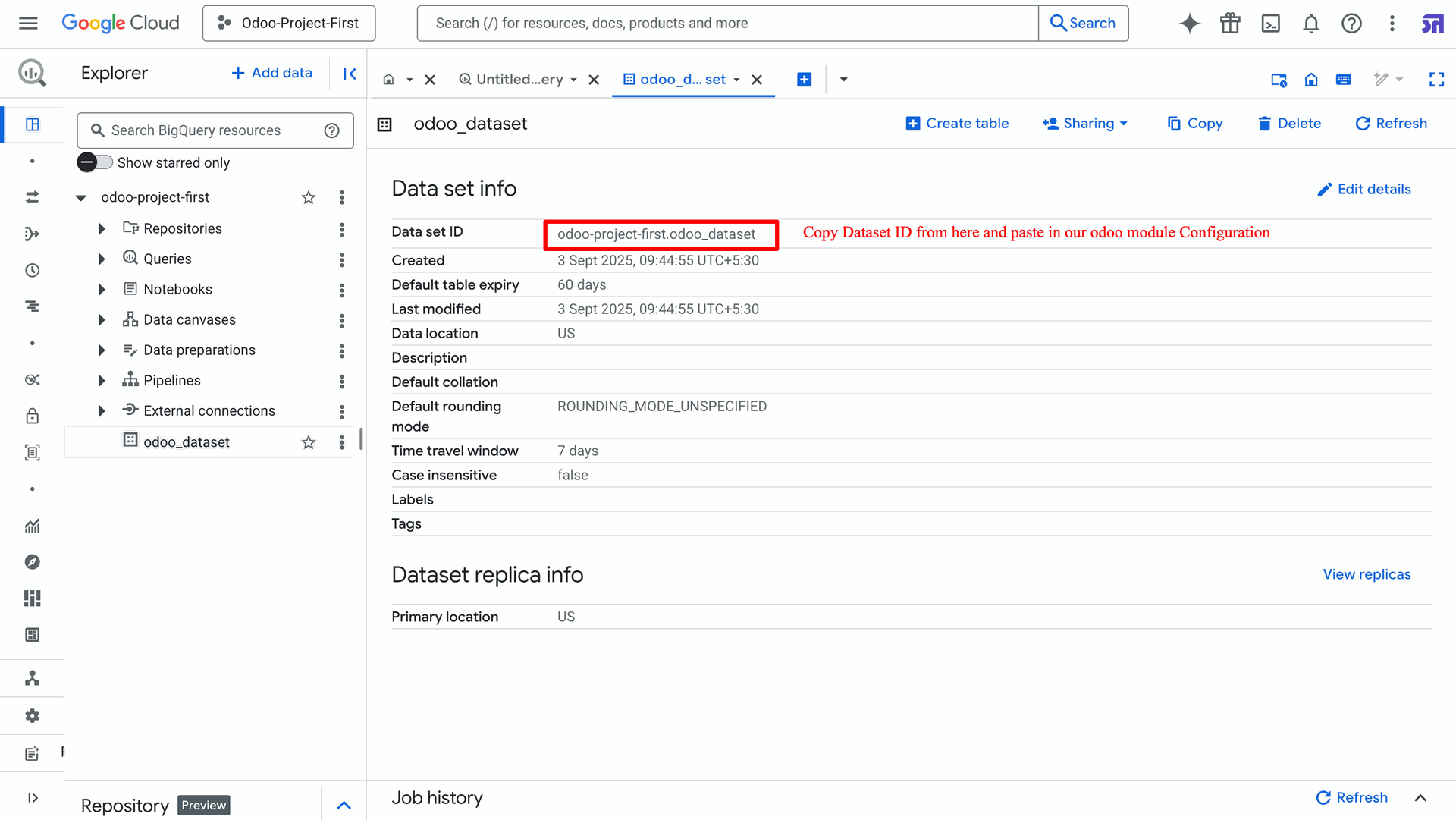
Here, you can see the created dataset ID. Copy it and paste it into the Odoo module's 'BigQuery Configuration'.
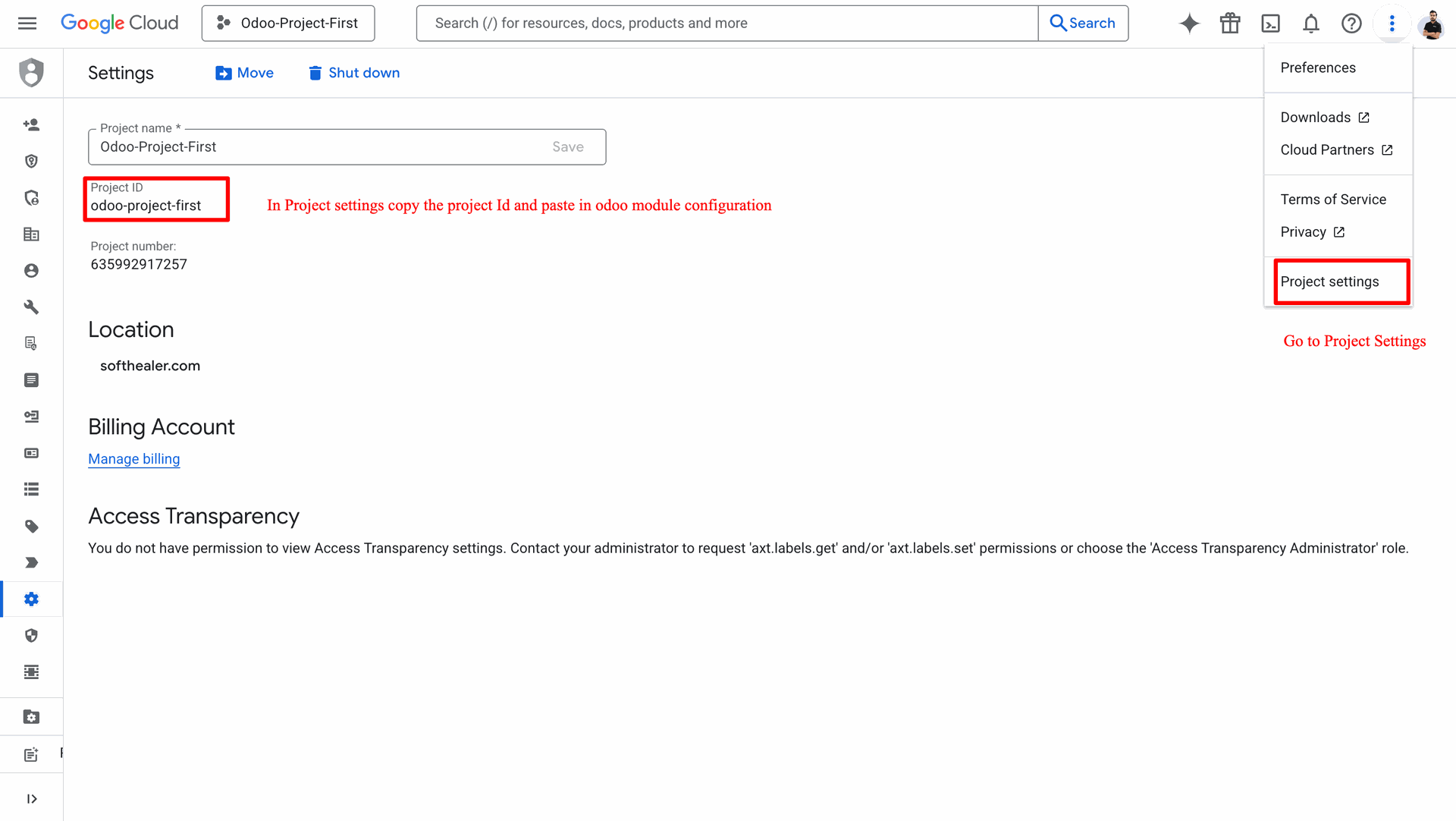
Copy the project ID and paste it into the Odoo module's 'BigQuery Configuration'.
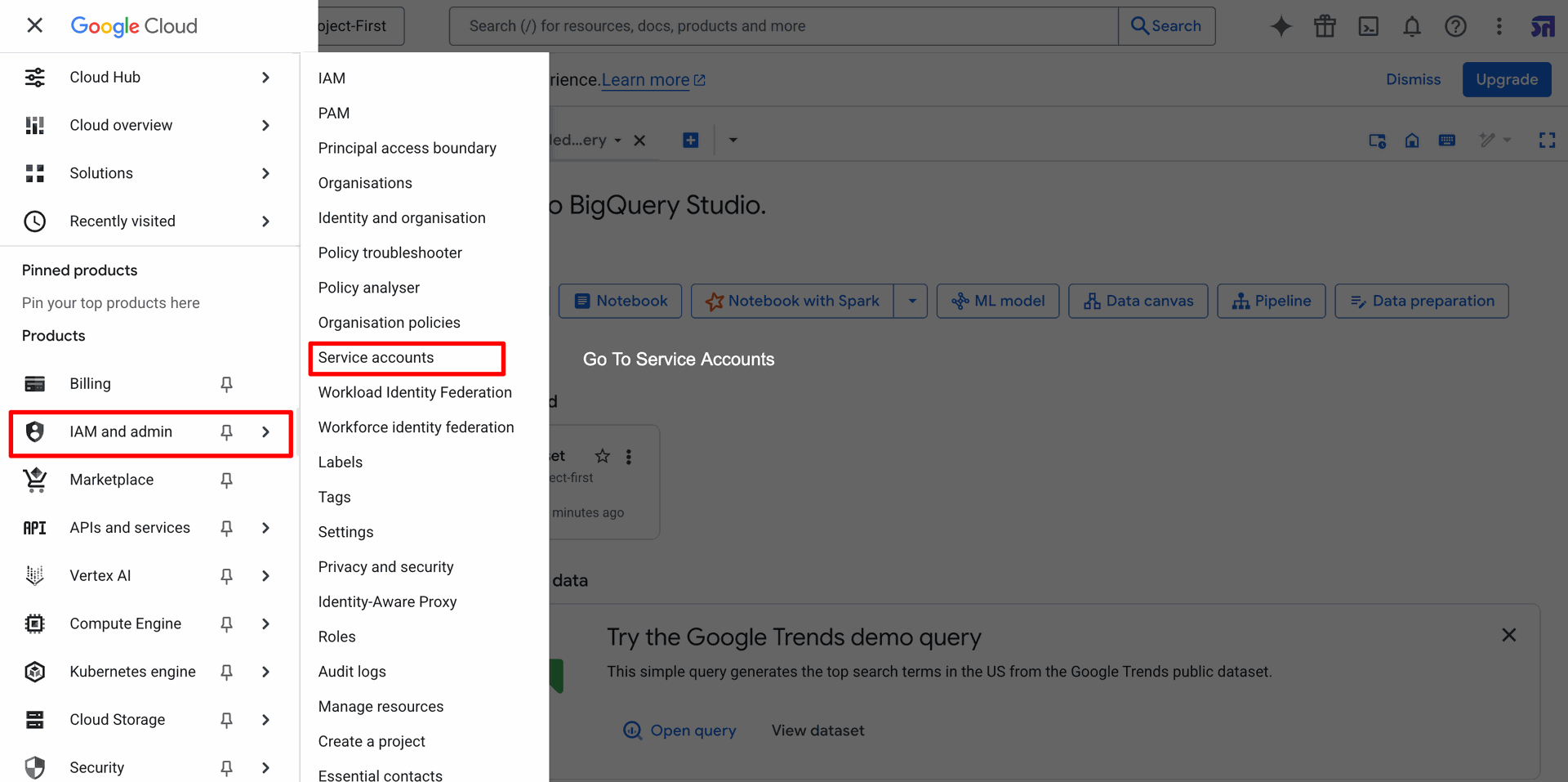
Go to the 'IAM and admin' ==> 'Service accounts'.
Click on the "Create Service Account" button to set up a new service account.
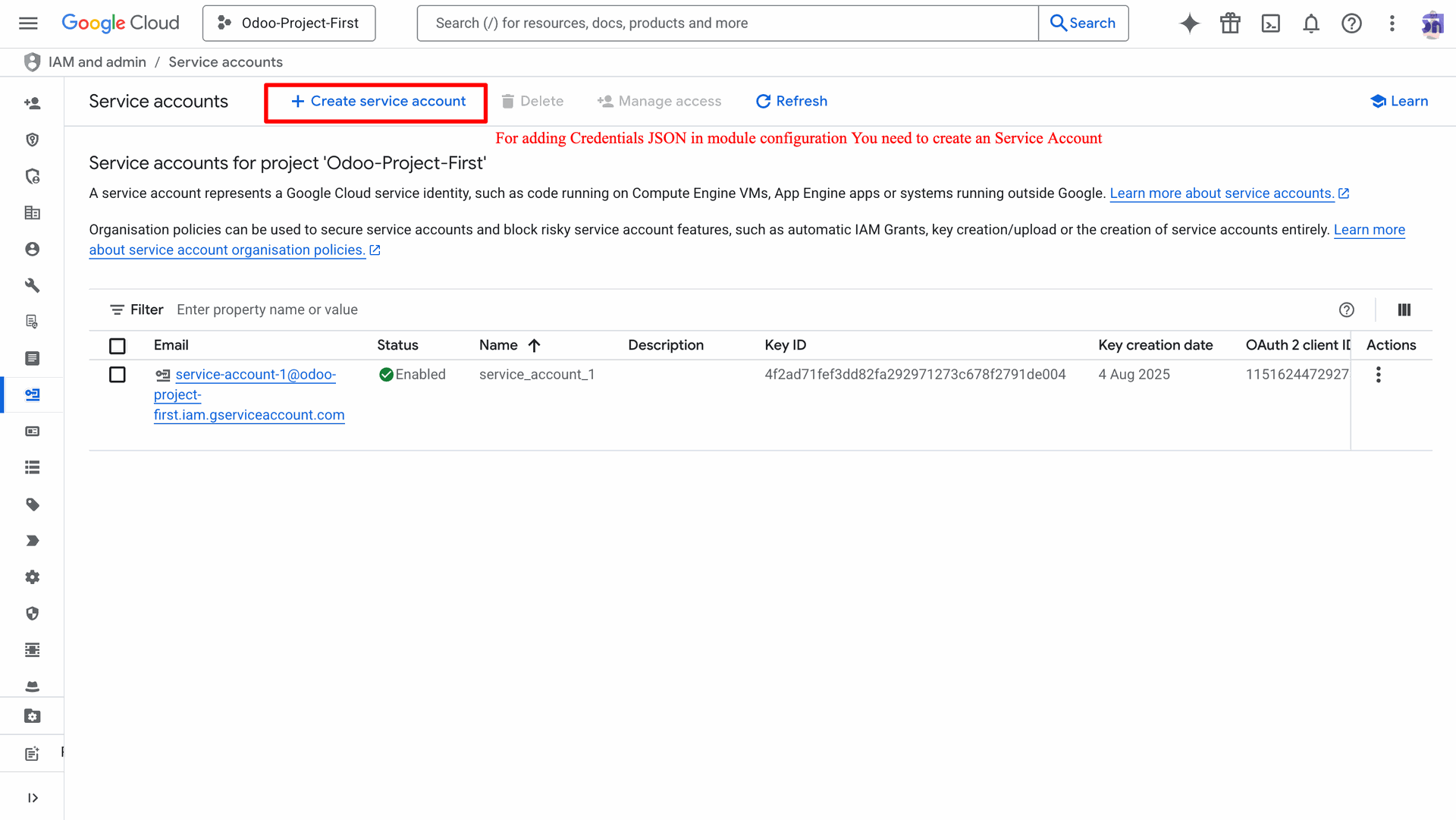
Click on the "Manage Keys" from the three dot.
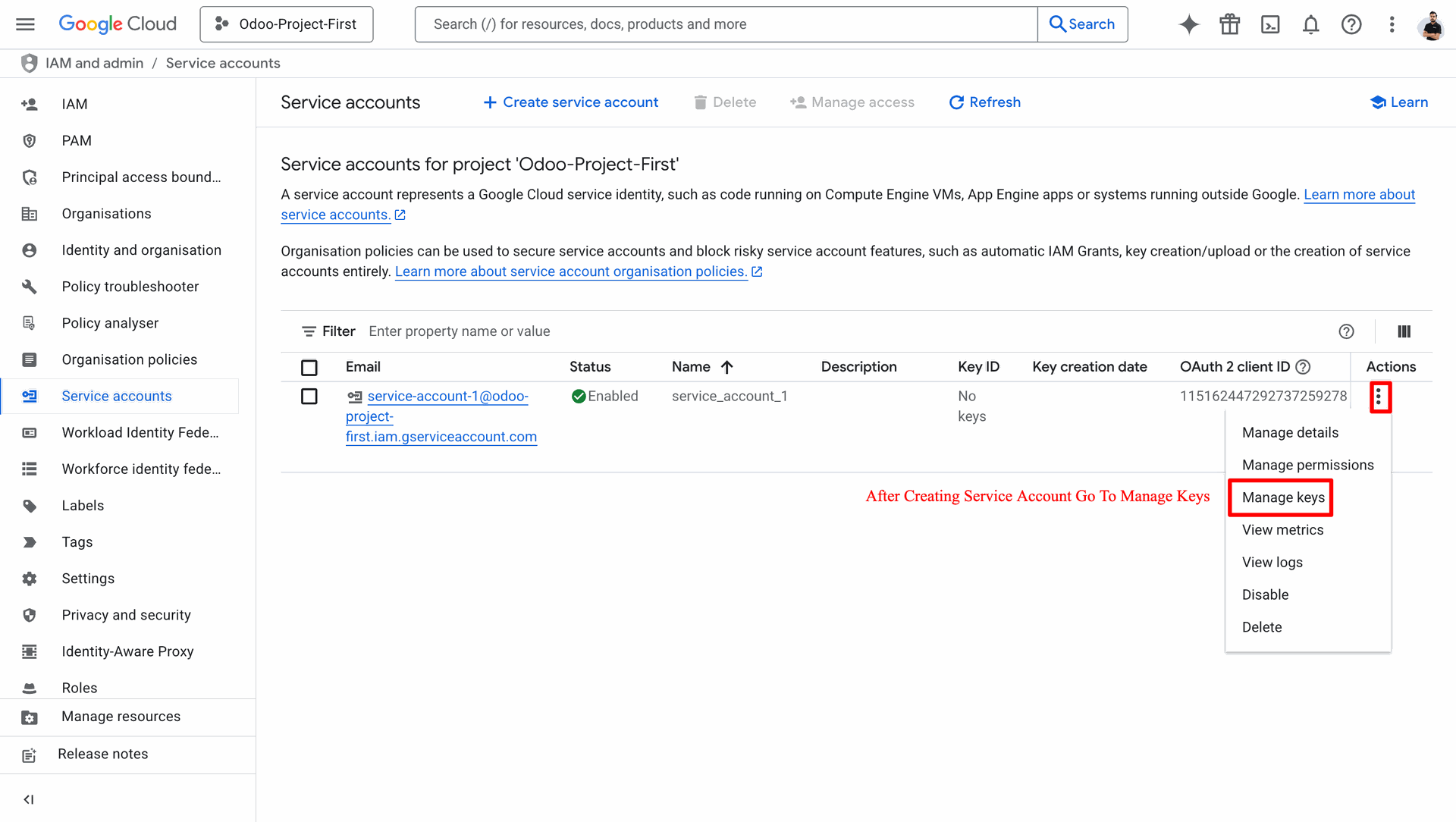
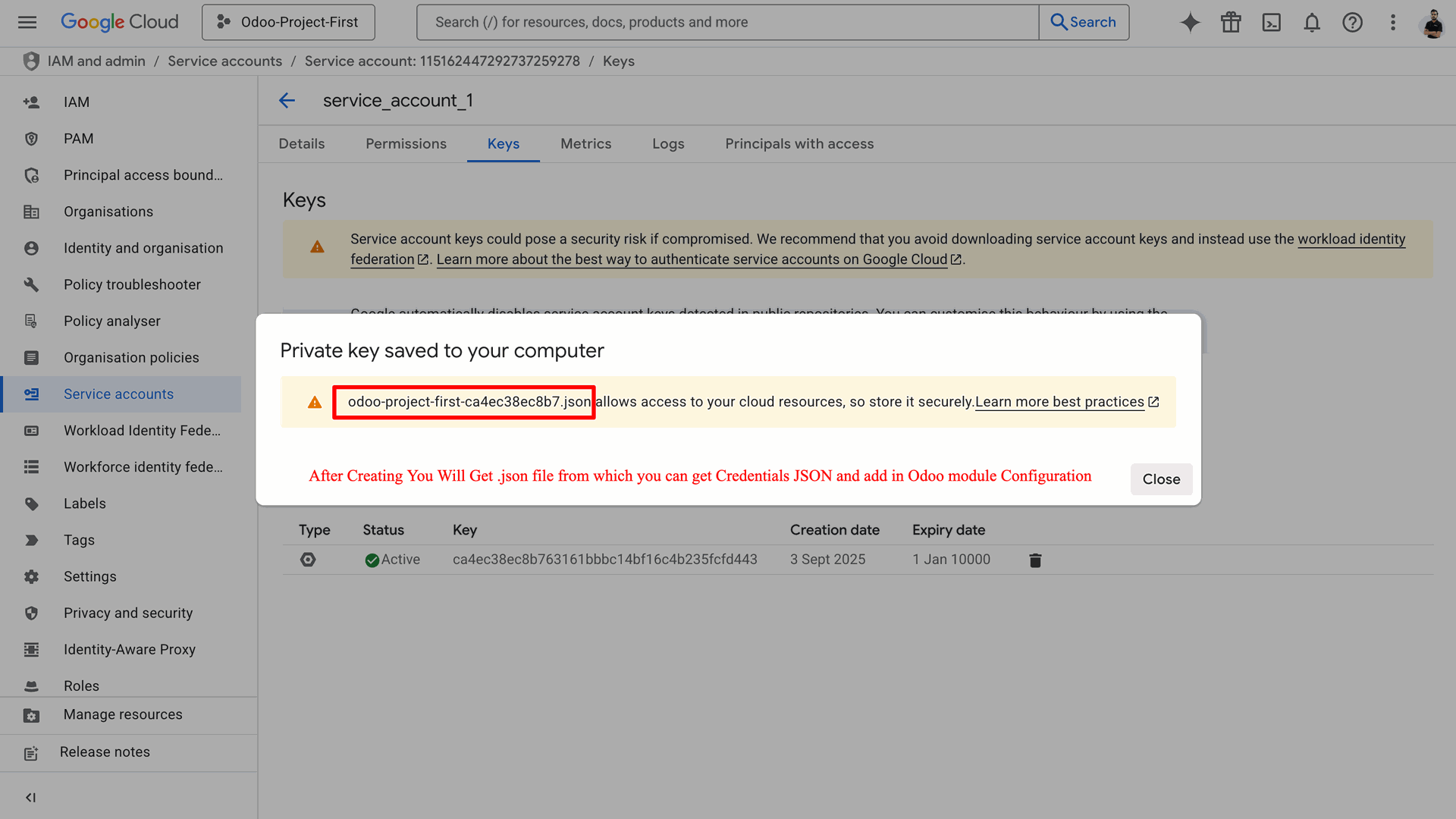
Under "Add Key", click on the "Create new Key".
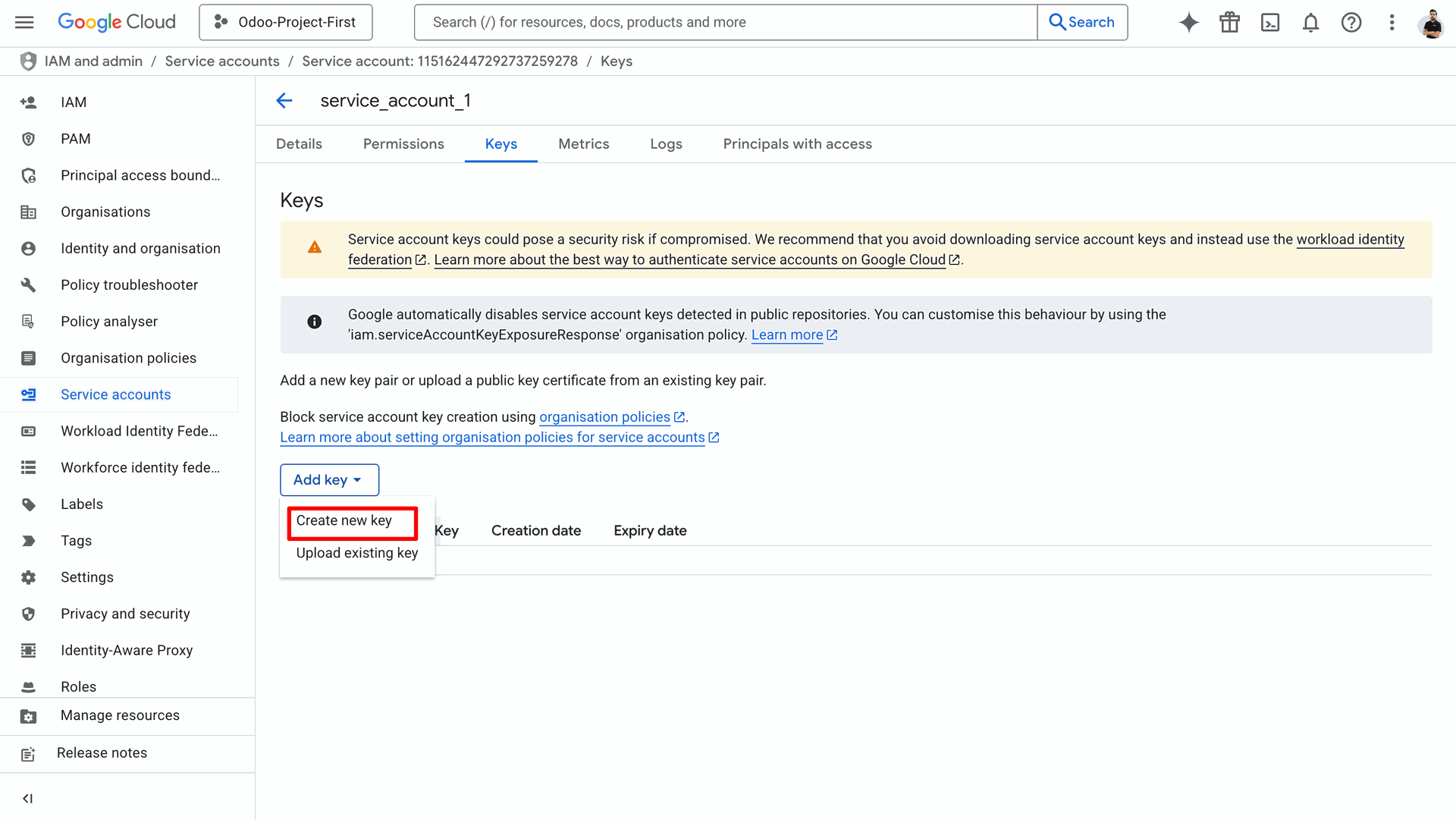
Choose the "JSON" key type and click on the "Create" button.
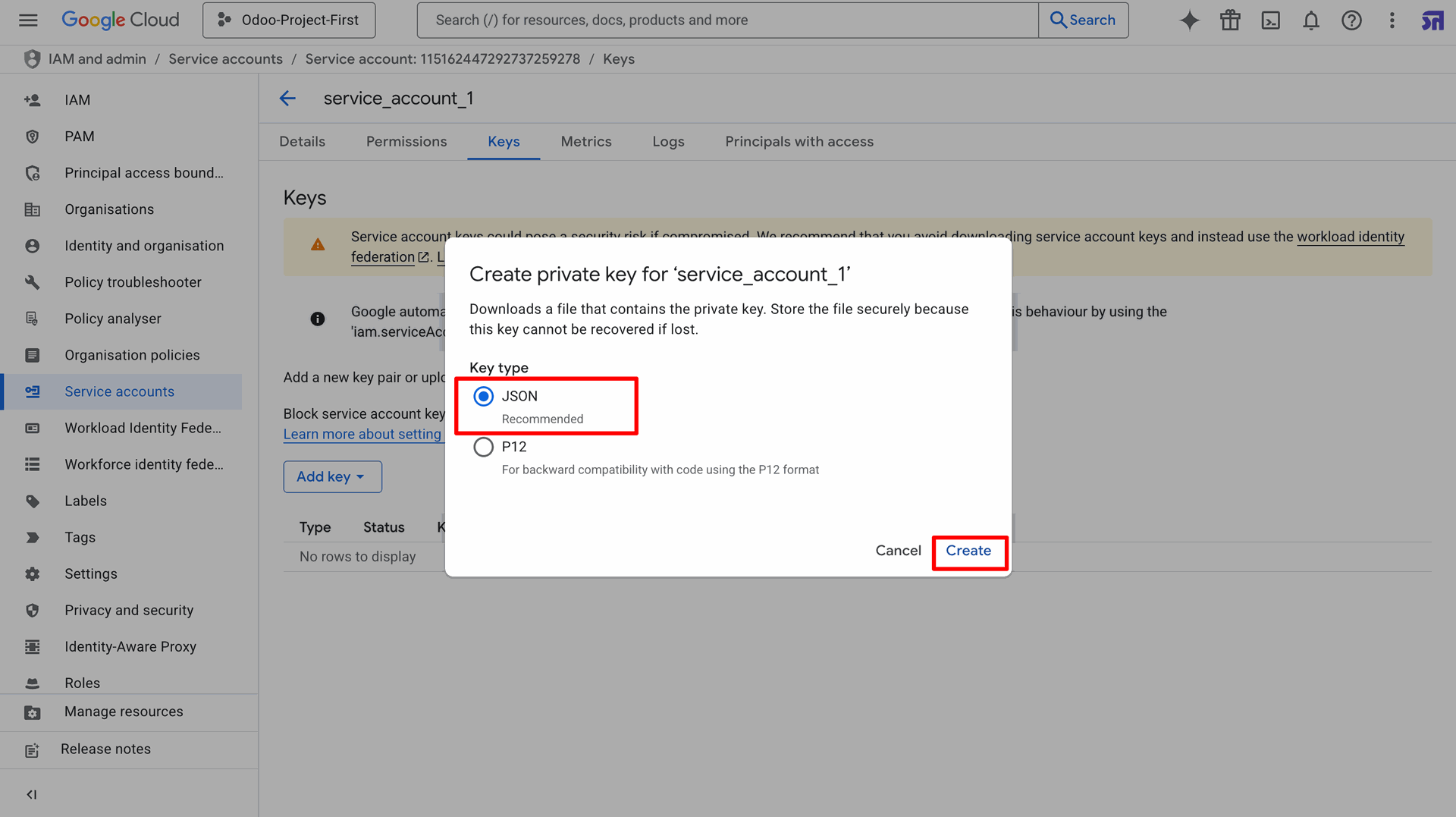
Here, you'll find the JSON file. Copy the JSON credentials from the link and add them to the Odoo module's 'BigQuery Configuration'.
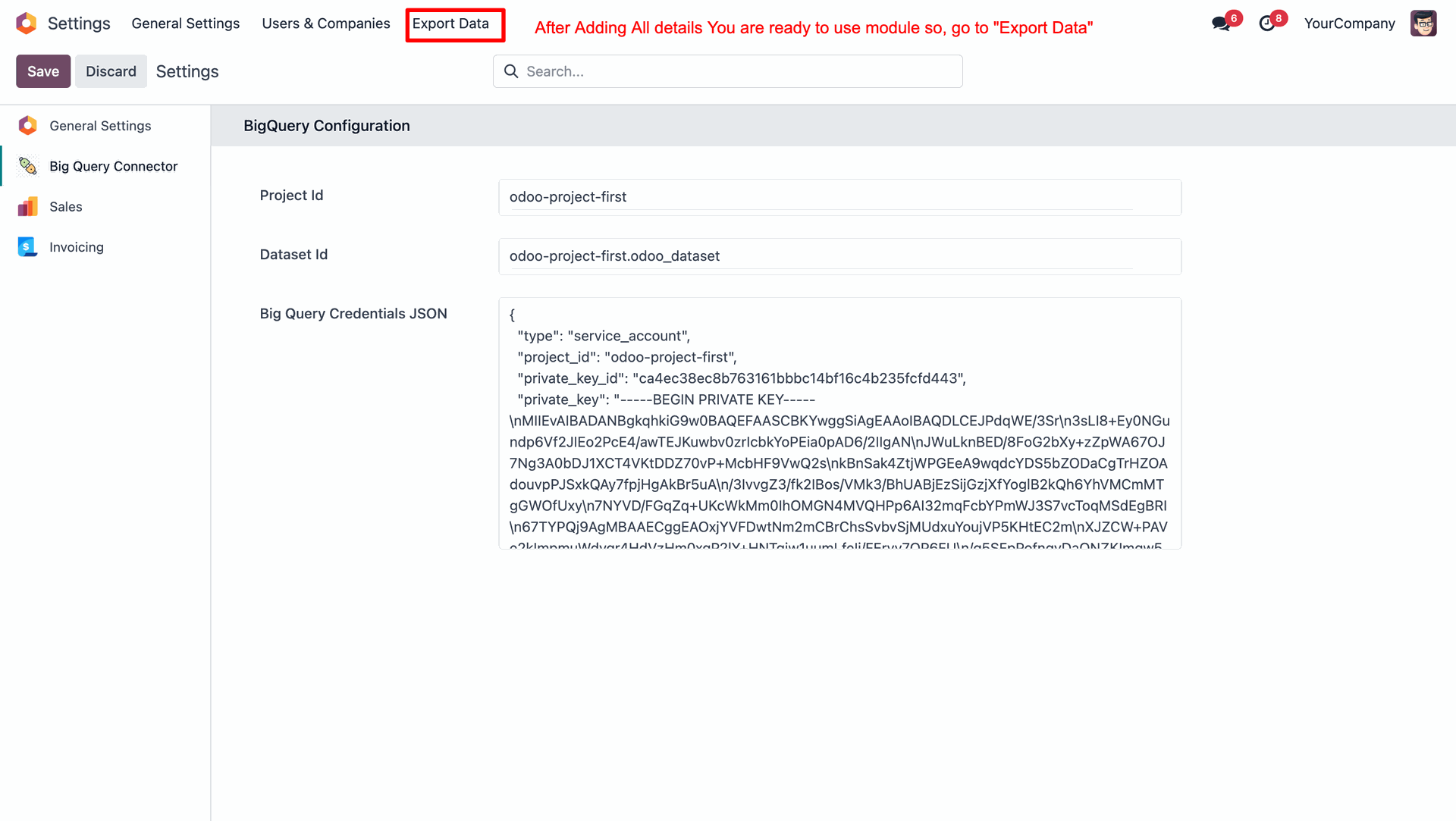
Go to the Export Data menu.
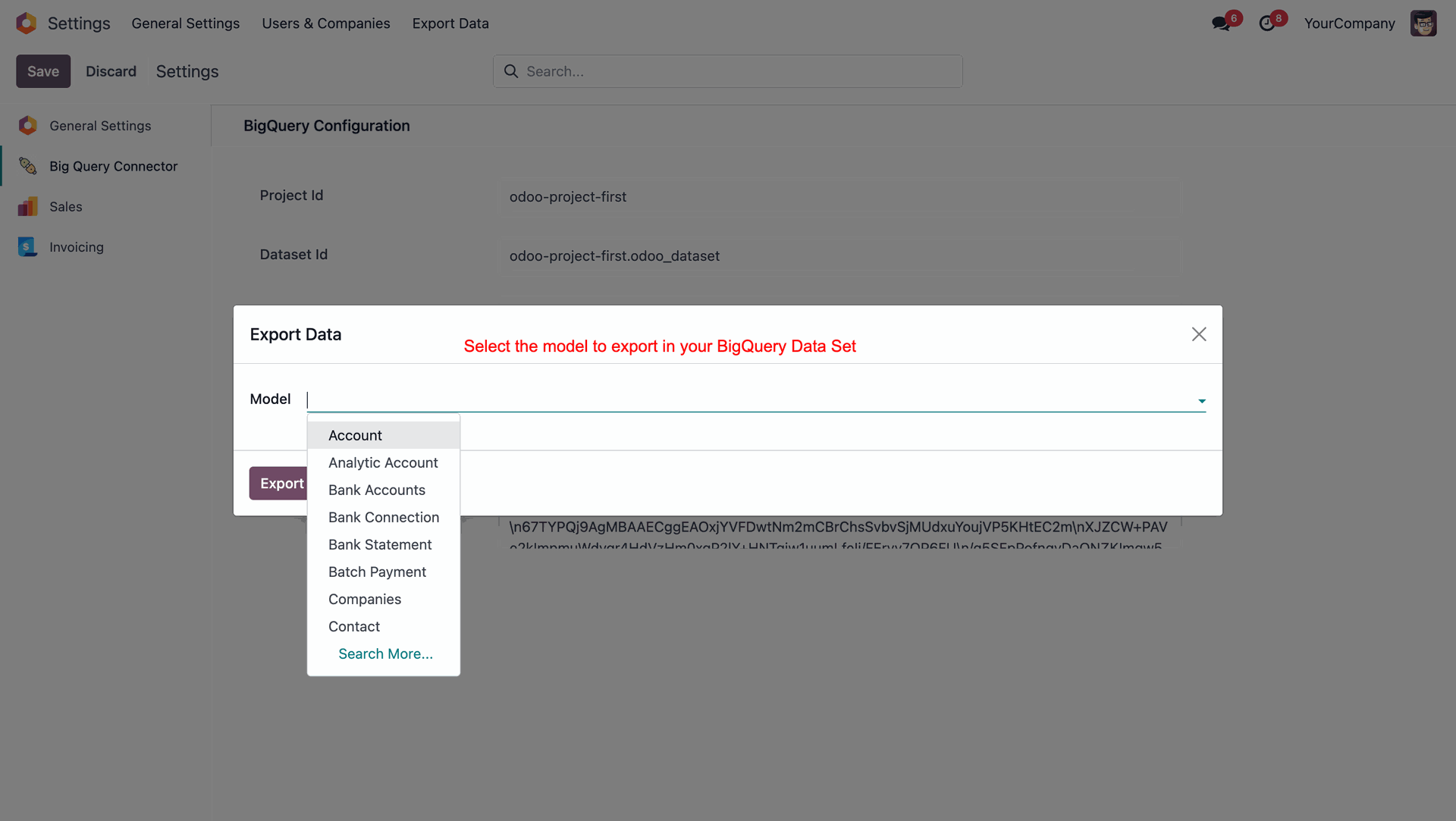
Select the model and click on the "Export" button.
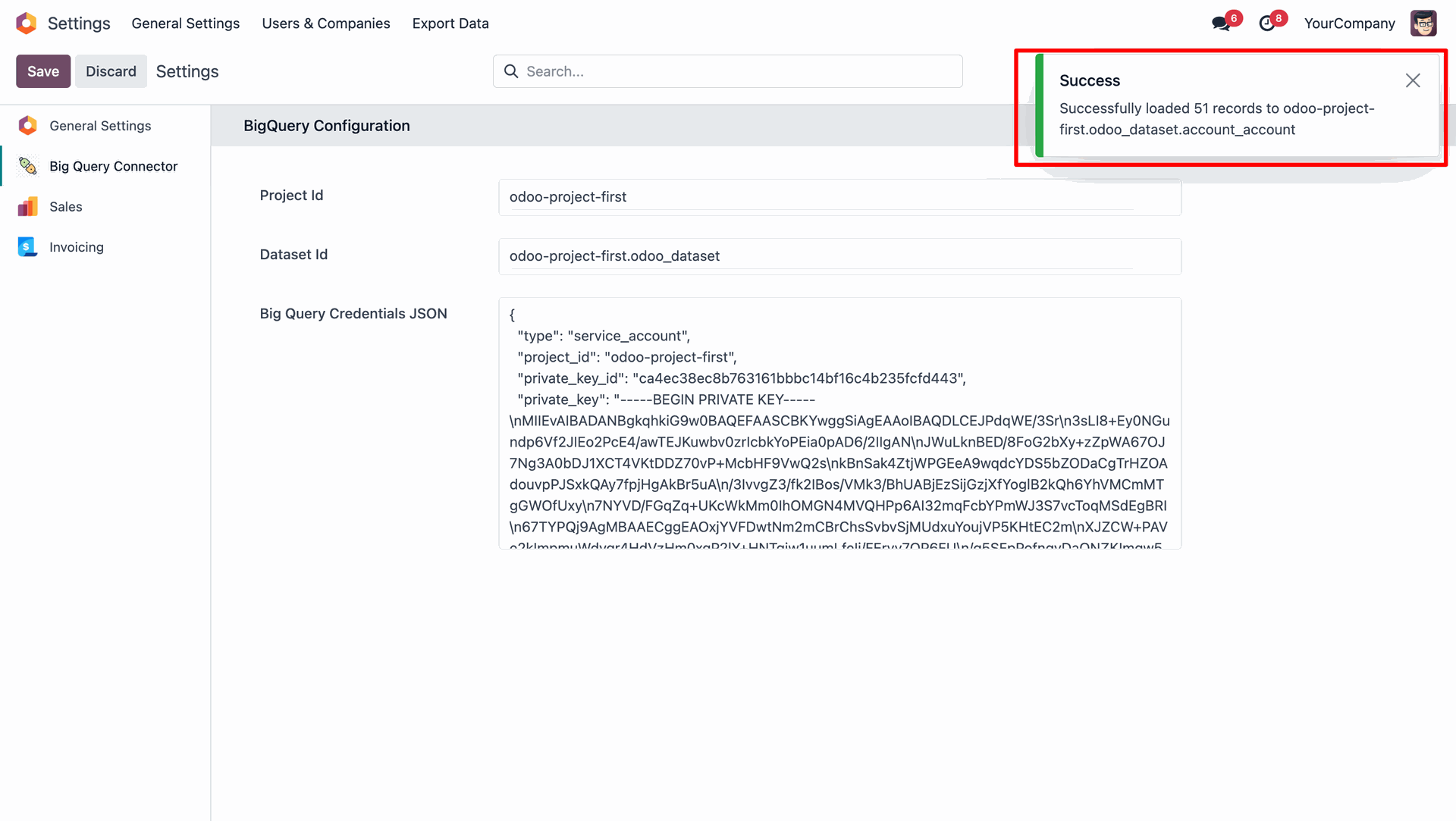
After the data is successfully exported, a "Success" pop-up will appear.
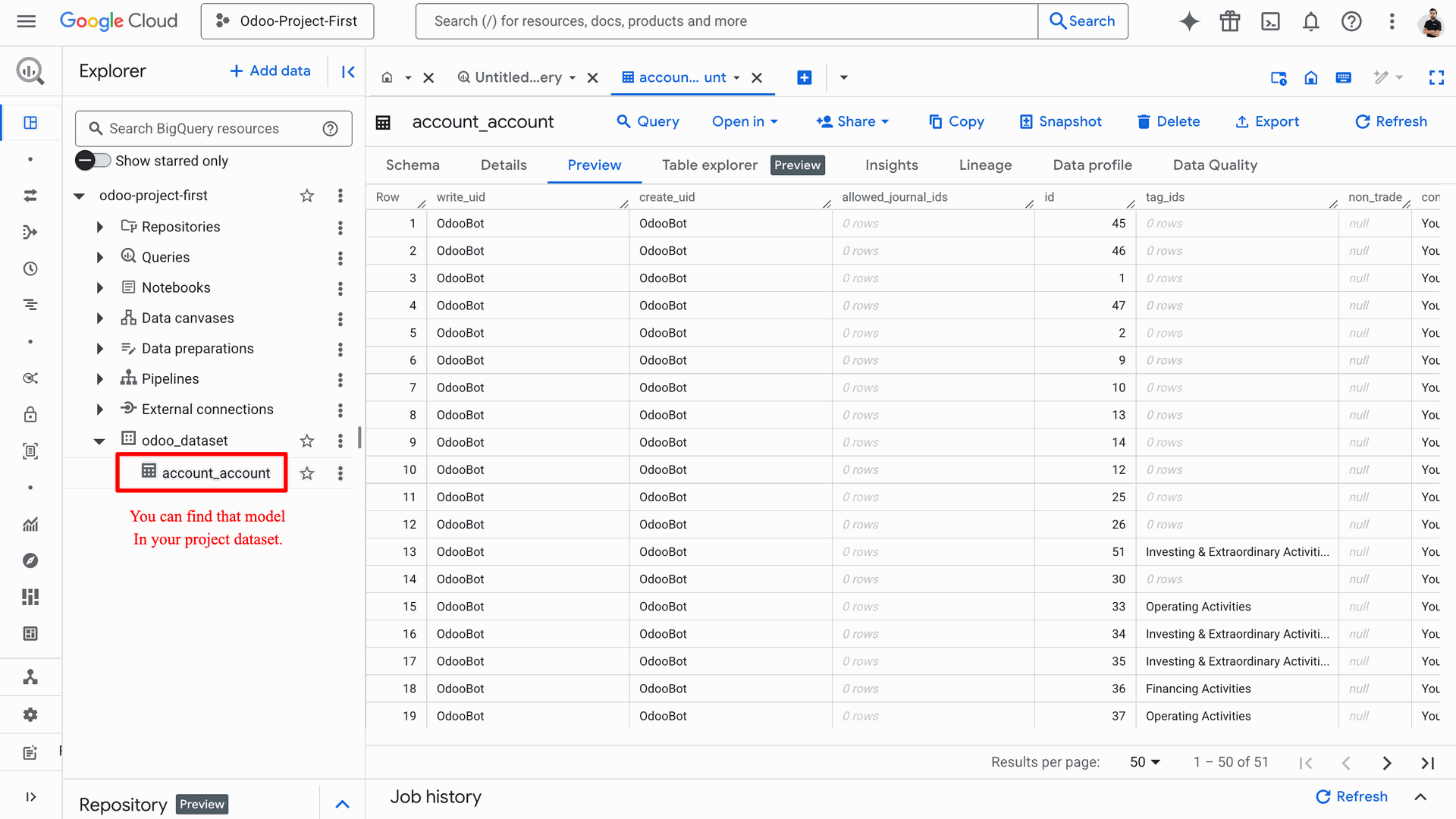
You can find the exported model in the project dataset.
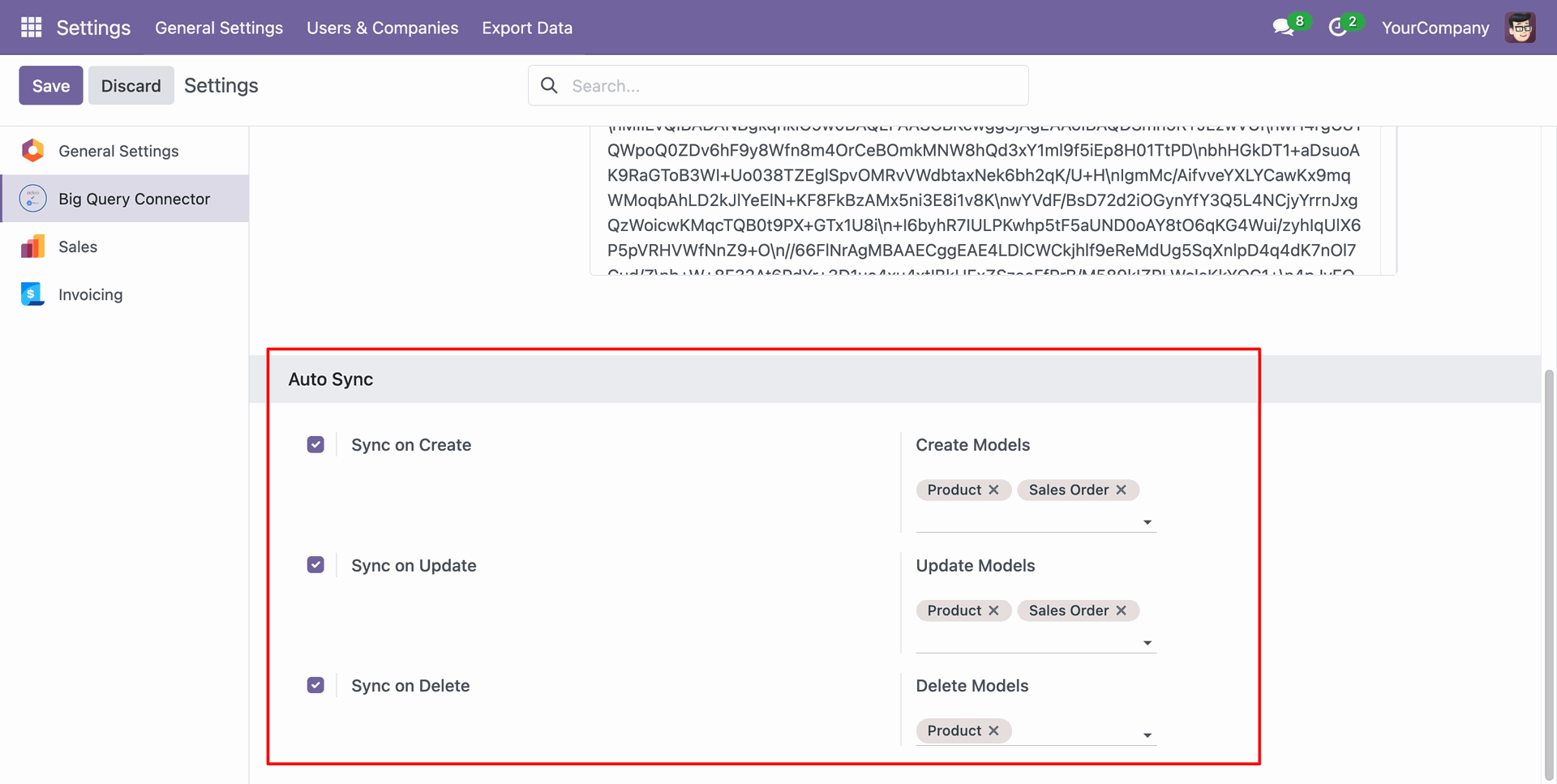
Go to BigQuery Connector Settings options like Sync on Create, Sync on Update,
and Sync on
Delete, and add the relevant models.
Note: Only data from the selected models is automatically synced from
Odoo to
BigQuery.
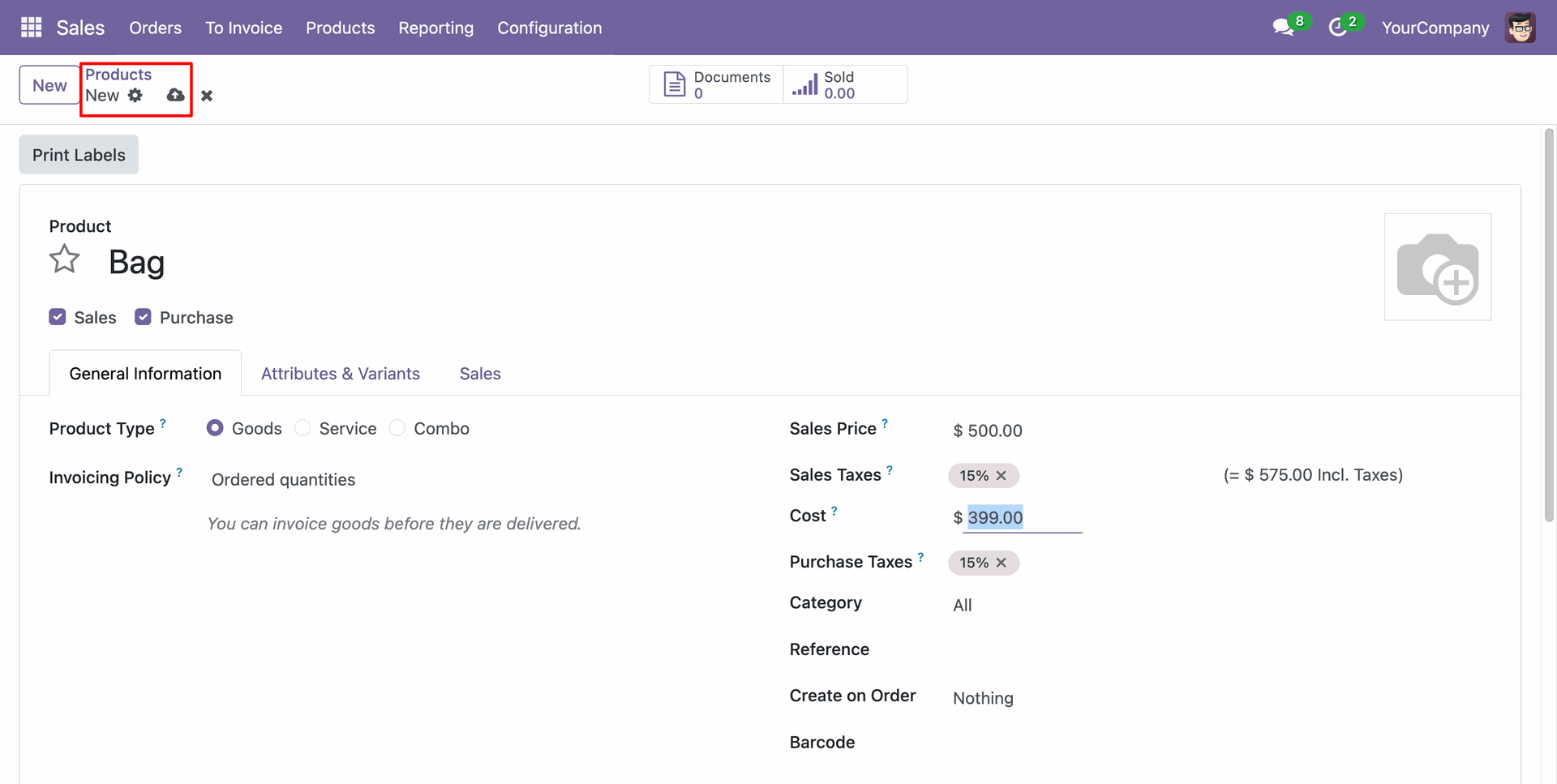
Create a new product (Bag).
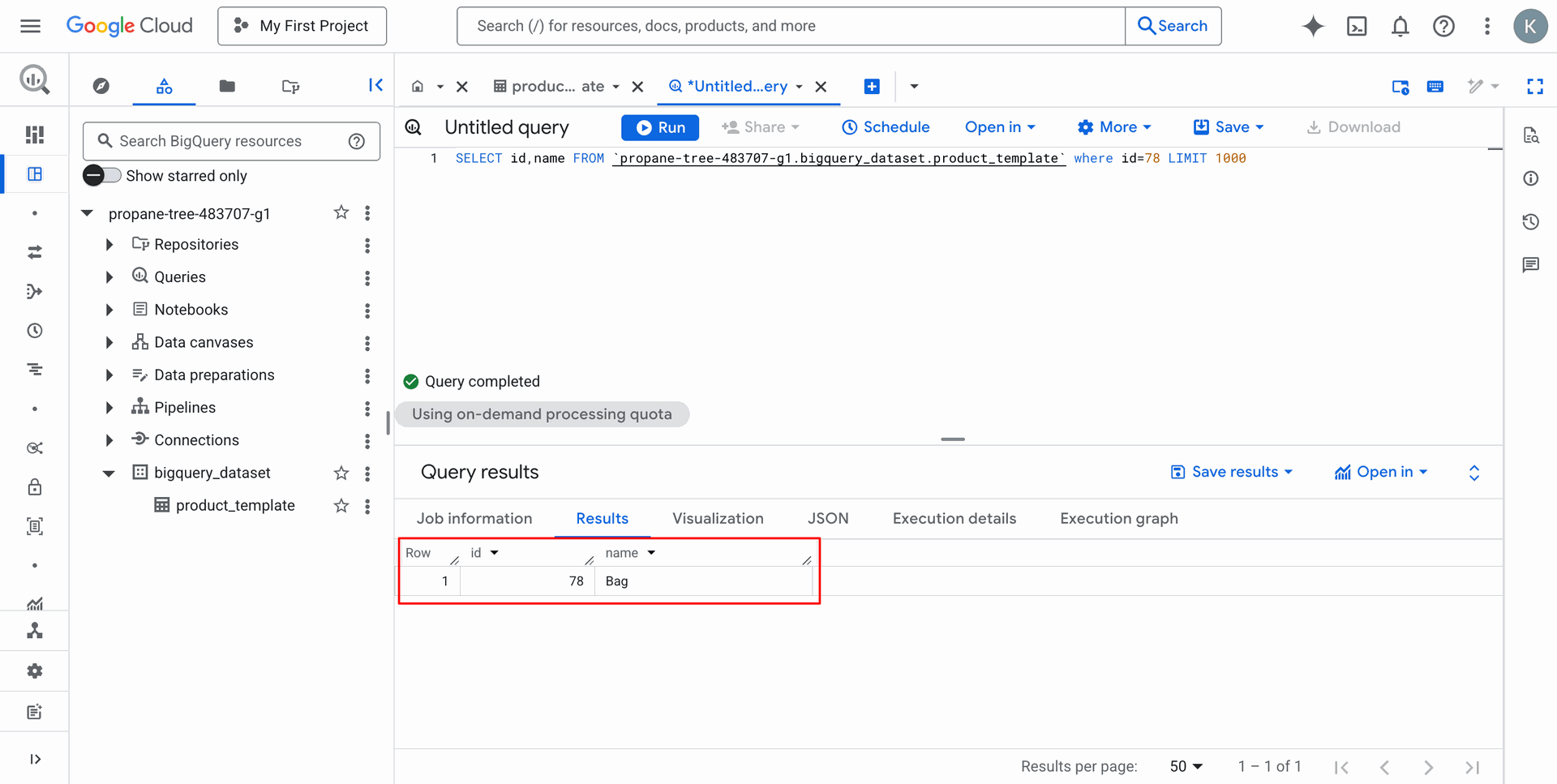
In BigQuery, you can see that the newly created product is automatically synced.
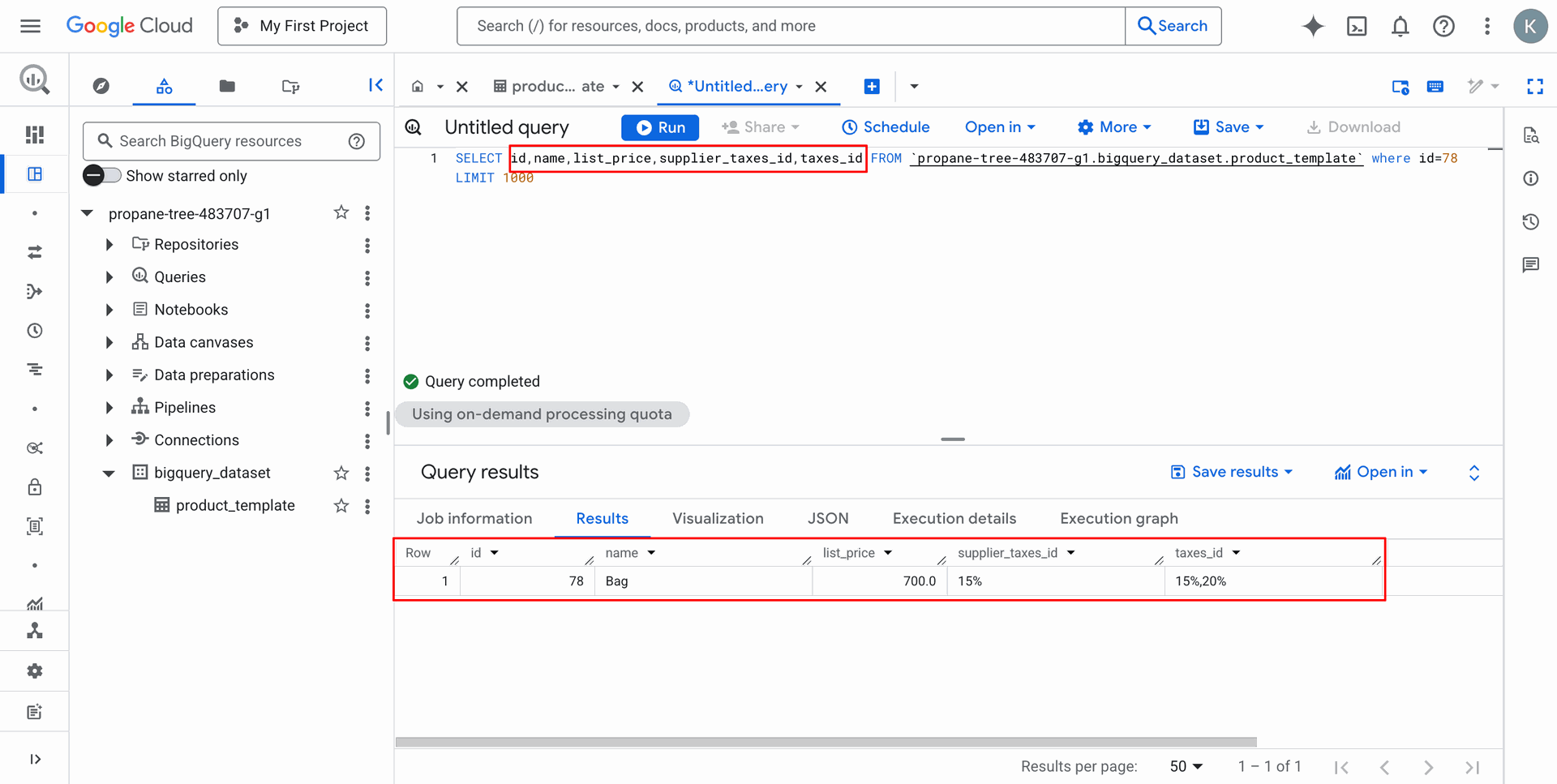
Add the sales price and taxes in Odoo.
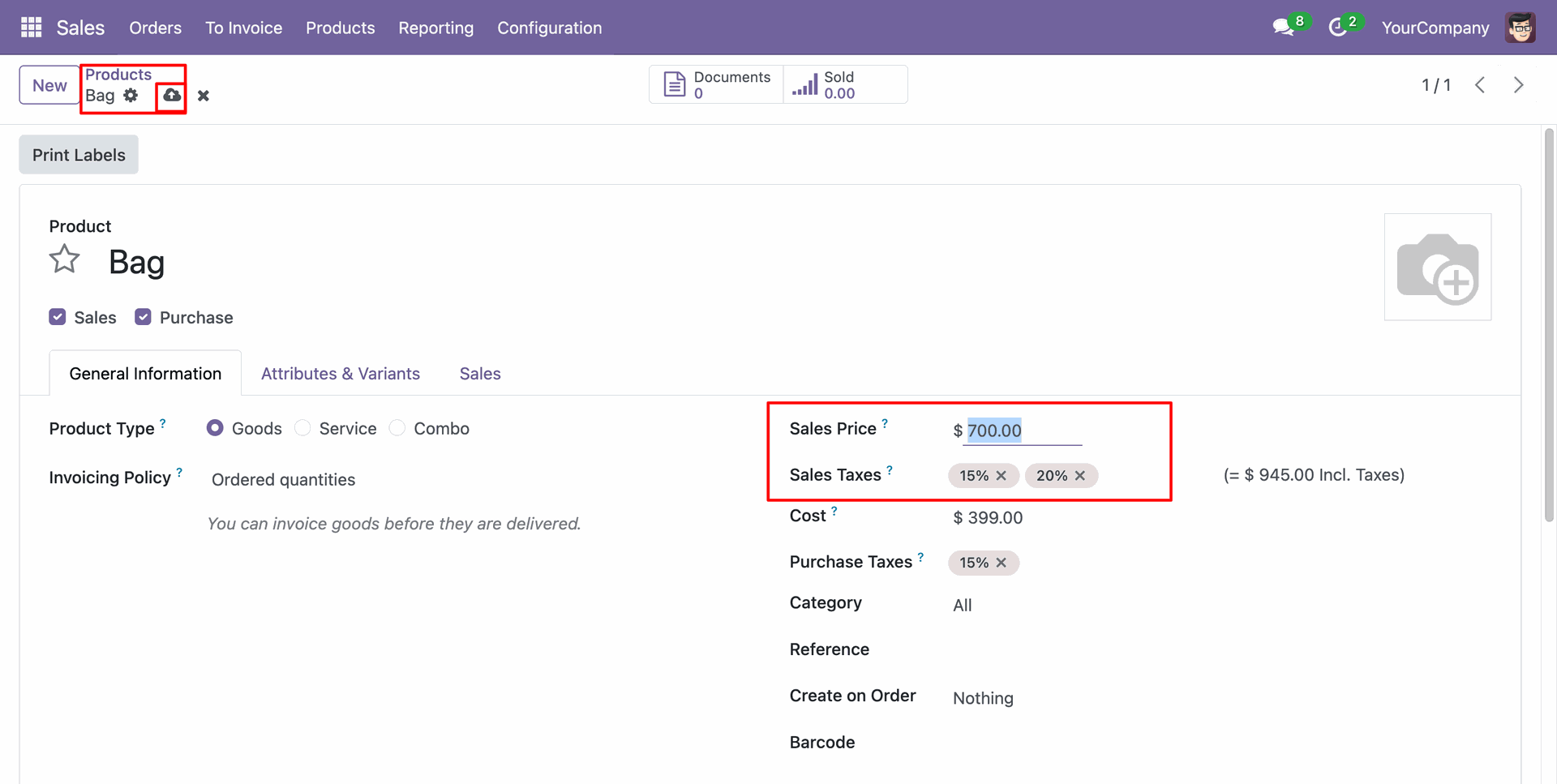
You can see that the sales price and taxes are automatically synced in BigQuery.
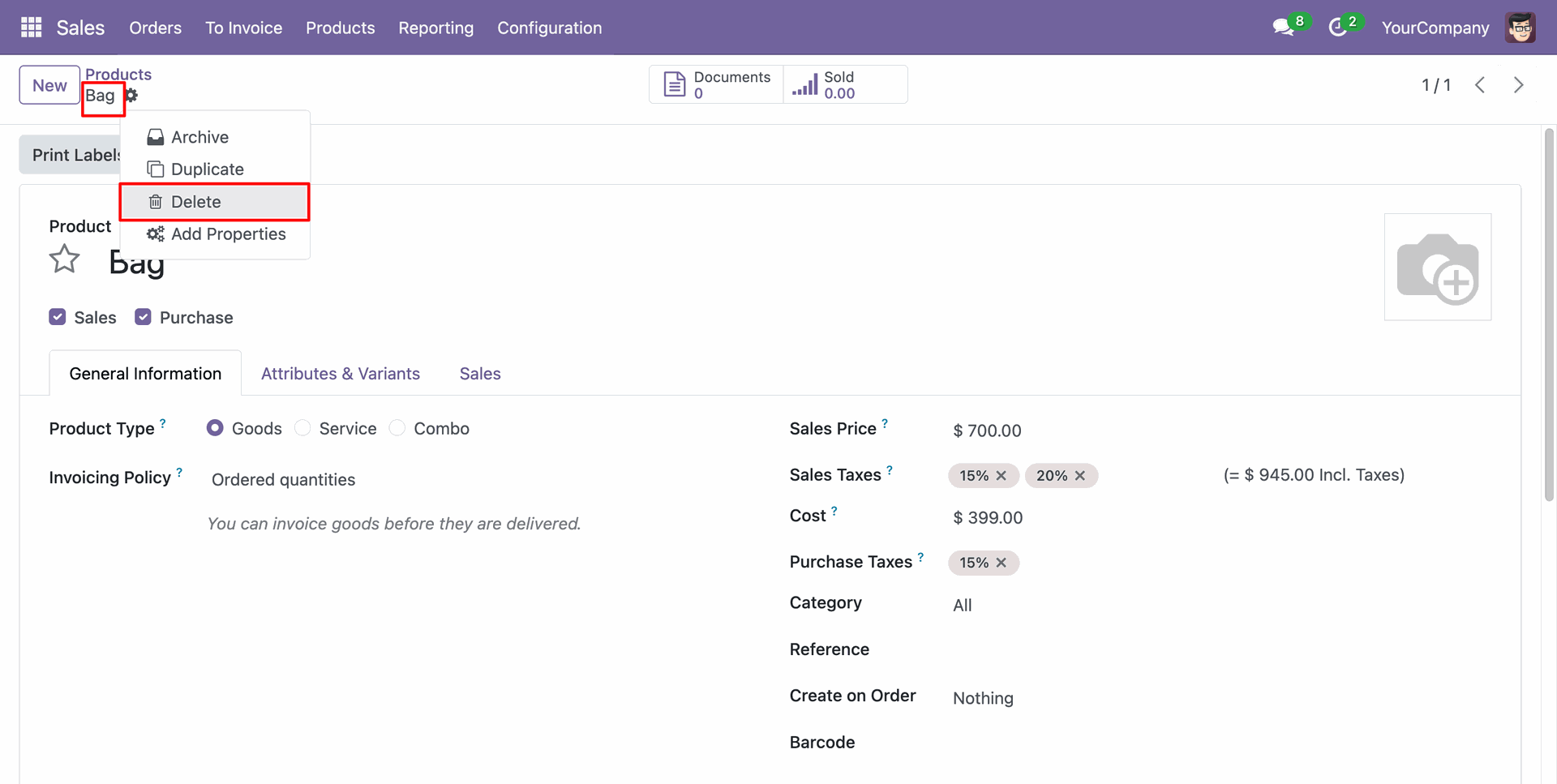
Delete the 'Bag' product from Odoo.
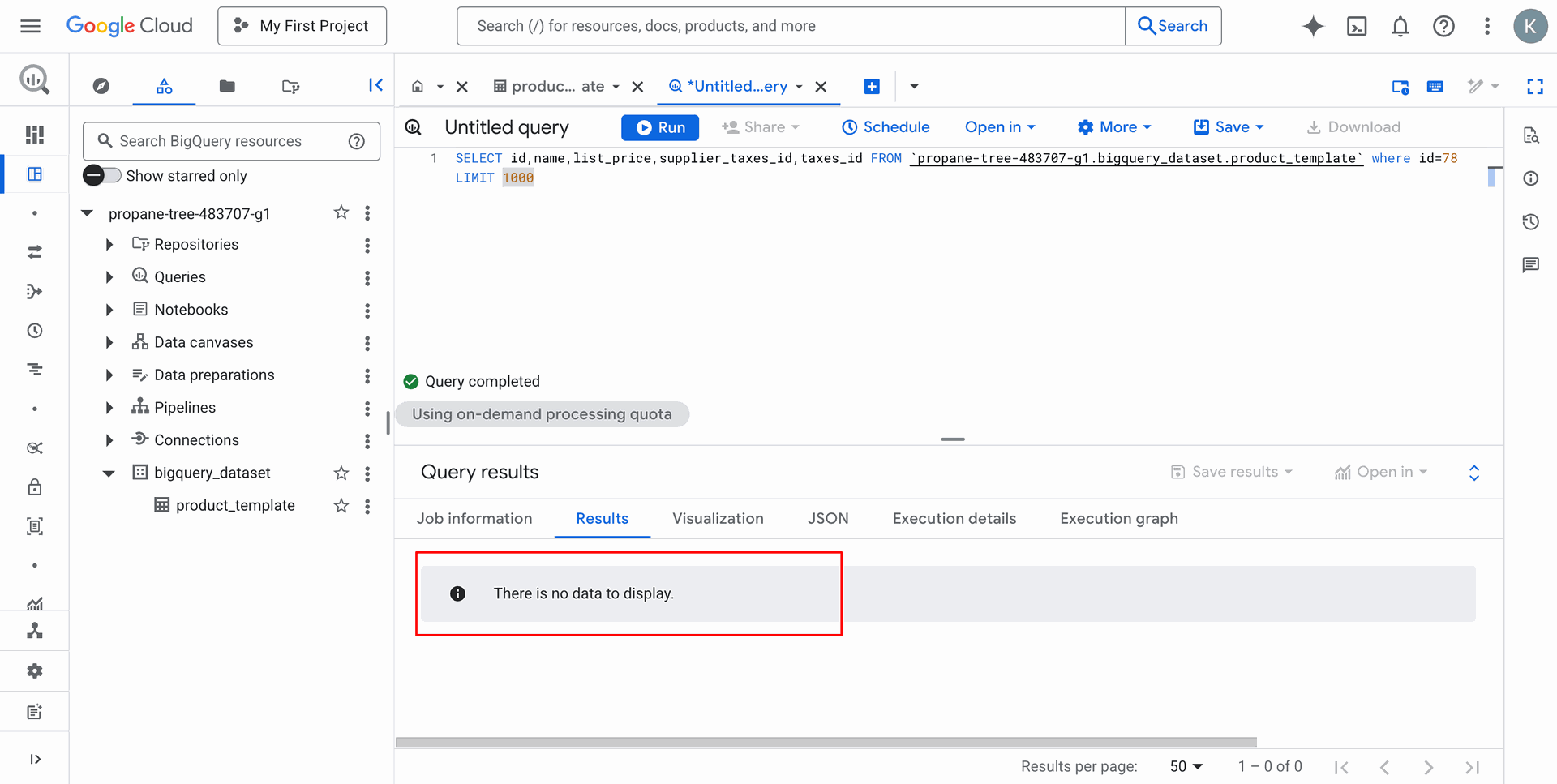
You can see that the 'Bag' product is automatically deleted from BigQuery.
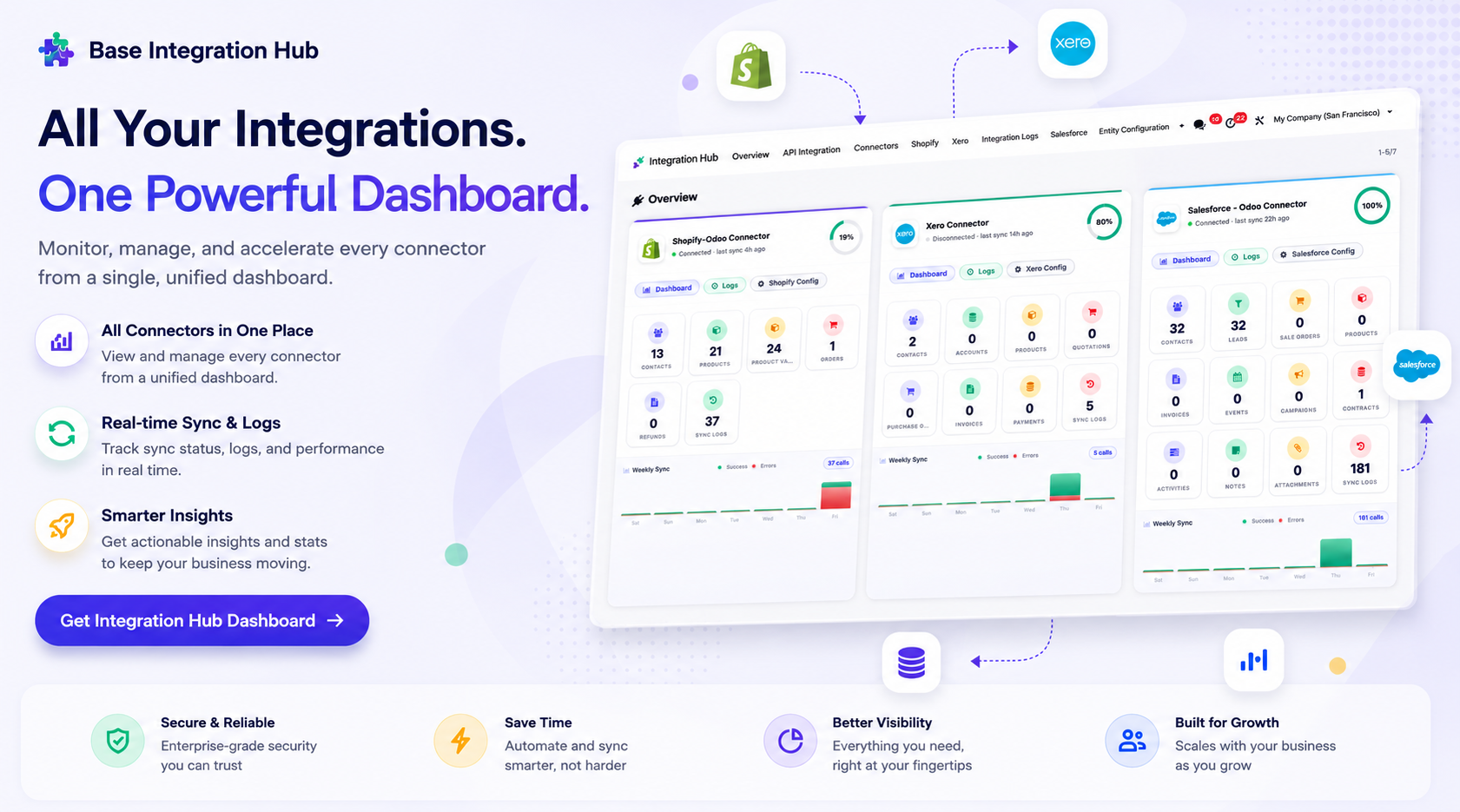
Centralized dashboard to manage and monitor all connectors from one place. Quickly access sync summary, activity logs, and configuration controls with improved visibility.
BigQuery Config form with the Log Auto-Delete Days field set to remove old sync logs.
Scheduled Action "BigQuery: Auto-Delete Sync Logs" runs daily to delete outdated log records automatically.
Sync Log History tab appears empty after old records were automatically deleted by the scheduler.
Sync Log History showing a failed record with the Retry button highlighted for manual resync.
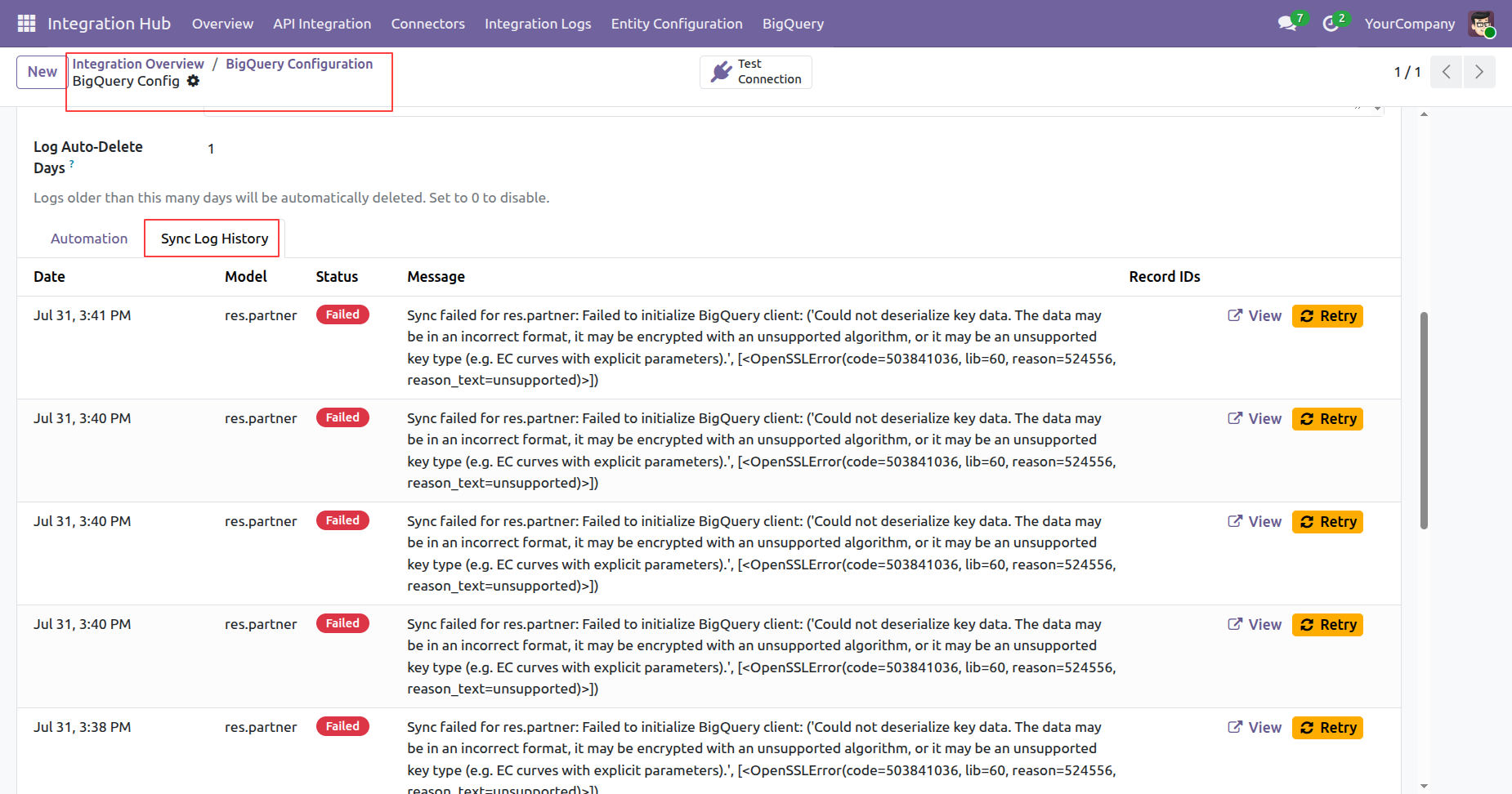
Multiple failed res.partner sync entries each display an individual Retry button in the log list.
Version 18.0.4.0.0 | Released on : 24th August 2026
Version 18.0.3.0.0 | Released on : 4th May 2026
Version 18.0.2.0.0 | Released on : 10th January 2026
Version 18.0.1.0.0 | Released on : 8th December 2025
- Yes, this app works perfectly with Odoo Enterprise (Odoo.sh & Premise) as well as Community.
- No, this application is not compatible with odoo.com(odoo saas/Odoo Online)
- Yes, to test this module, please contact us at sales@softhealer.com.
- Please contact us at sales@softhealer.comto request customization.
- Yes, we provide free support for 365 days from the date of purchase.
- Yes, you will receive lifetime free updates for the version of the module you purchased.
- Yes, need to add a 'google-cloud-bigquery' library.
- Yes, for version 12 and above, you need to purchase the module separately for each version you intend to use.
- No, exchanges or refunds are not allowed. Please make sure to select the correct version before purchasing.
- You can contact us at support@softhealer.com for language translation support. We use Google Translator tools to provide translations in multiple languages, so the accuracy may vary. We welcome your suggestions to help improve translations.
Discover Our Latest Apps