

 Easy to Manage
 Dedicated Support















 Scan to email sales



Better Trucks Shipping Integration

The Better Trucks Shipping Integration module connects your Odoo system directly with Better Trucks to automate your complete shipping workflow. From quotation to delivery, every step is streamlined with real-time communication. Users can add shipping methods, fetch accurate live rates, manage multiple packages, confirm orders, generate Better Trucks labels, track shipments, create return shipments, and cancel shipments directly from Odoo without switching platforms. This integration reduces manual effort, improves dispatch accuracy, and ensures a smooth, fast, and reliable order-to-shipment process for businesses of any size.

Related Modules
Key Features
Features

Better Trucks Integration
Real-time Better Trucks integration for instant data sync between Odoo and Better Trucks.
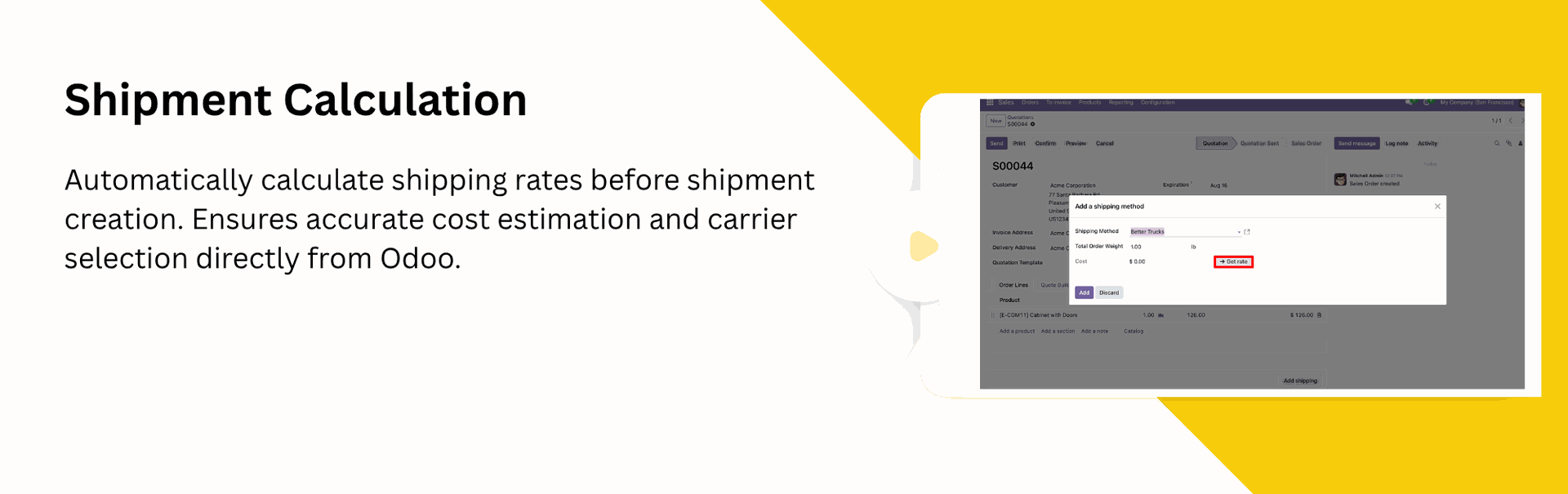
Instant Rate Calculation
Automatic rate fetching to provide live Better Trucks shipping prices during Quotation creation.

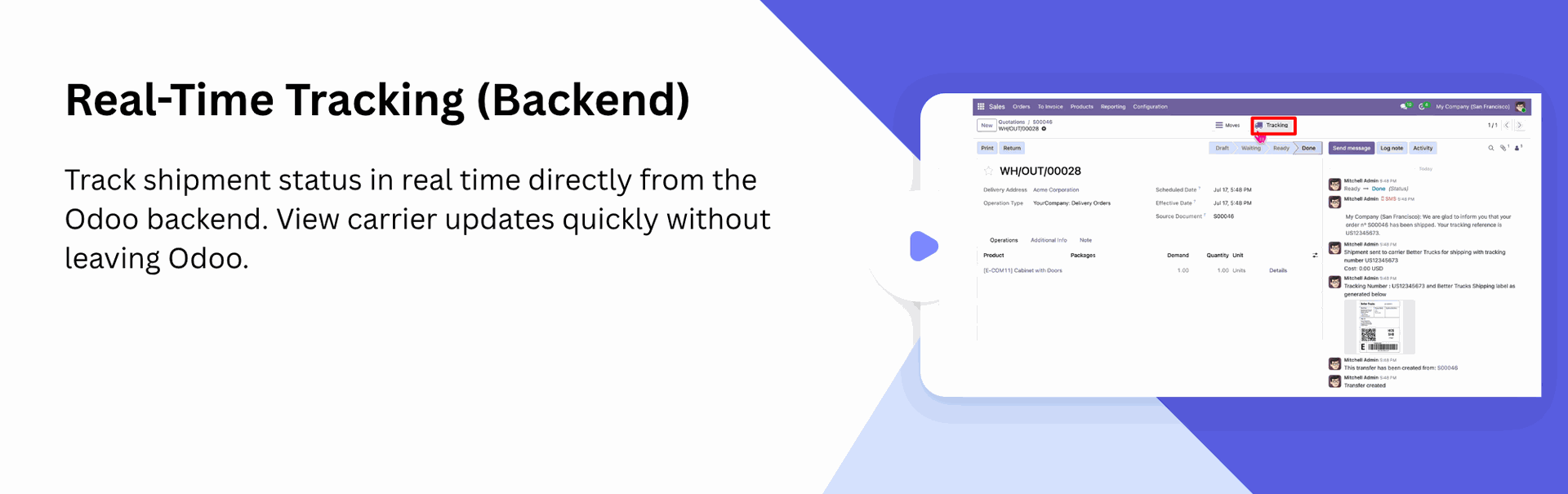
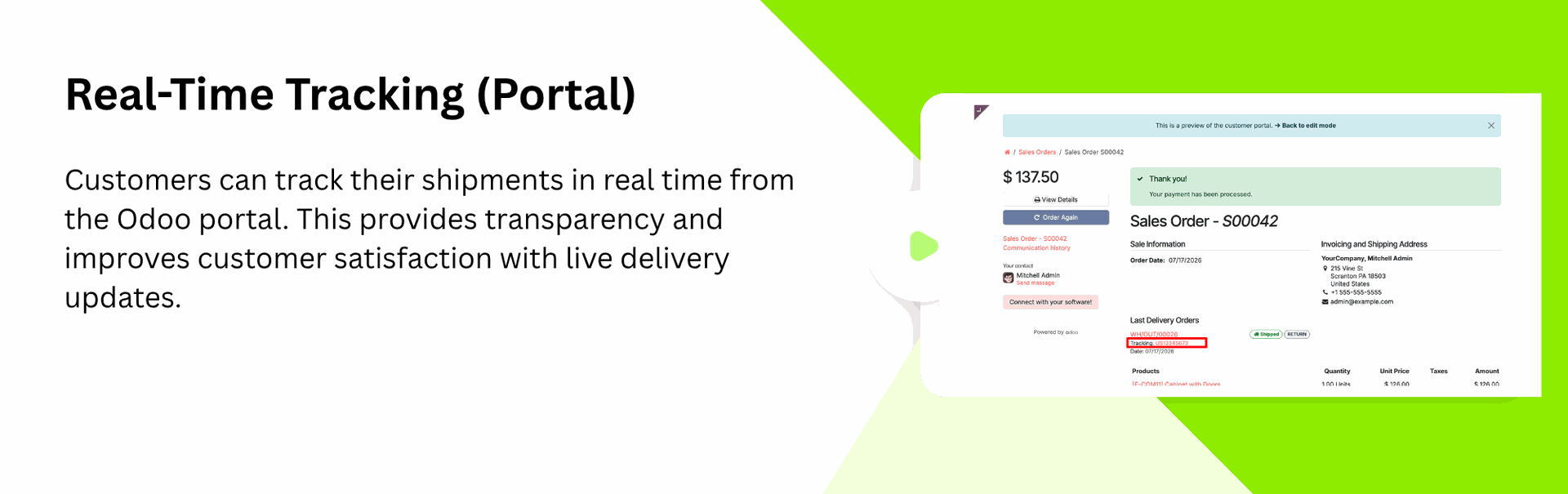
Real-time Tracking (Backend & Portal)
Track shipments in real-time within Odoo, admins can monitor deliveries from the backend, while customers can track from portal.
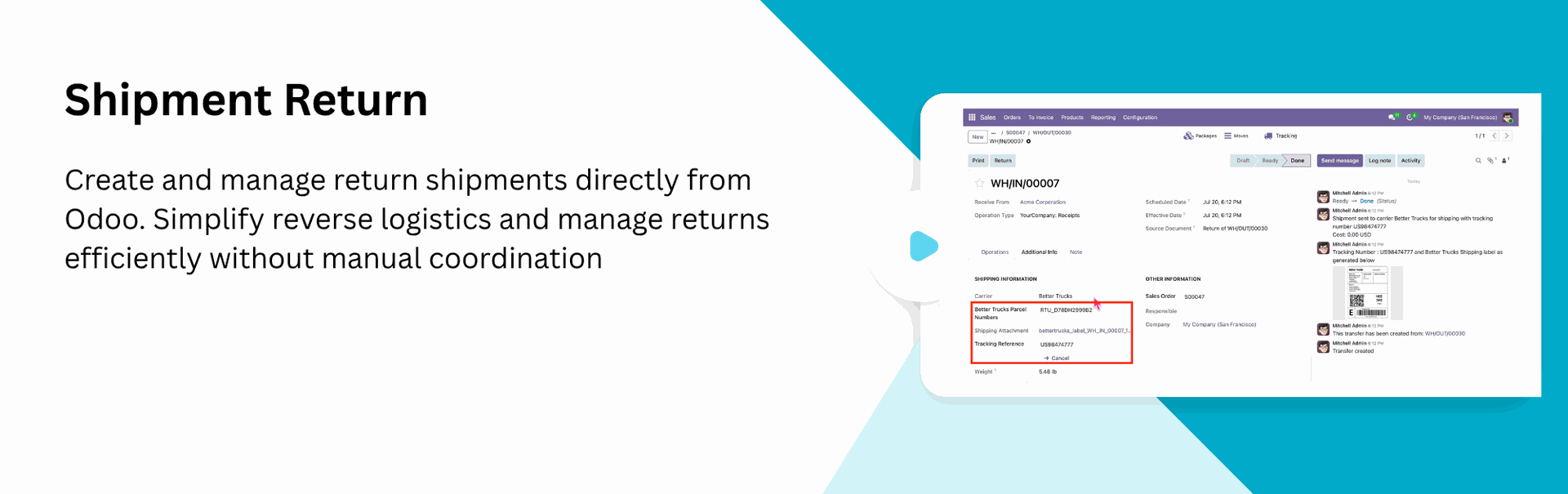
Return Shipment Management
Create and process Better Trucks return shipments directly from Odoo with a single click to ensure smooth and hassle-free reverse logistics.
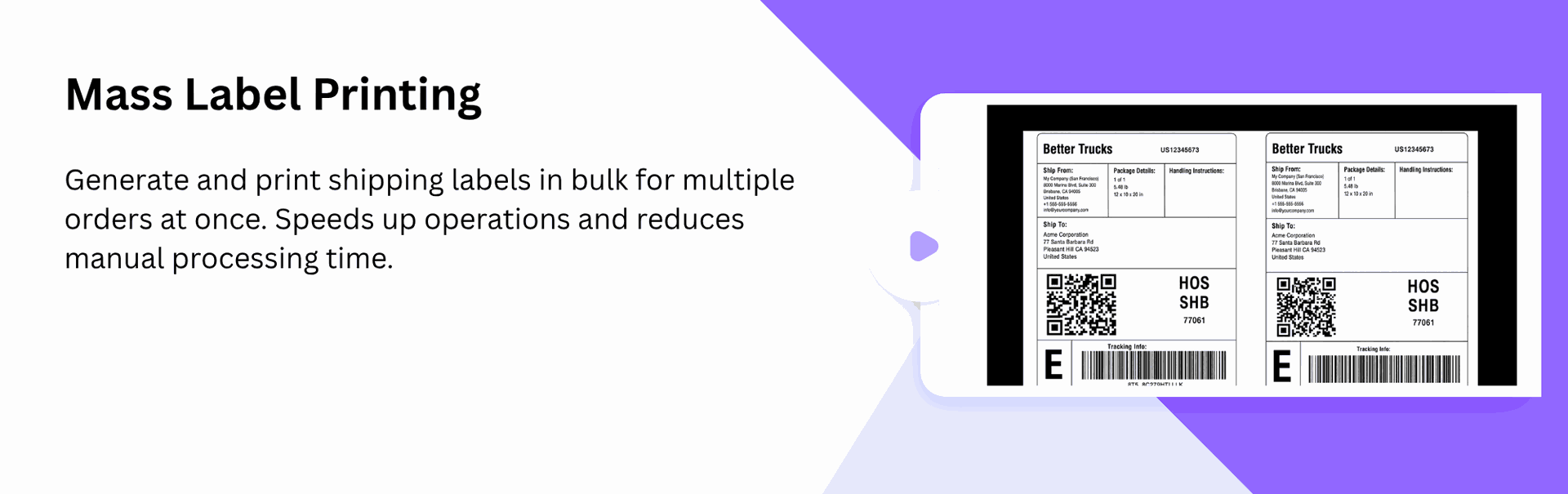
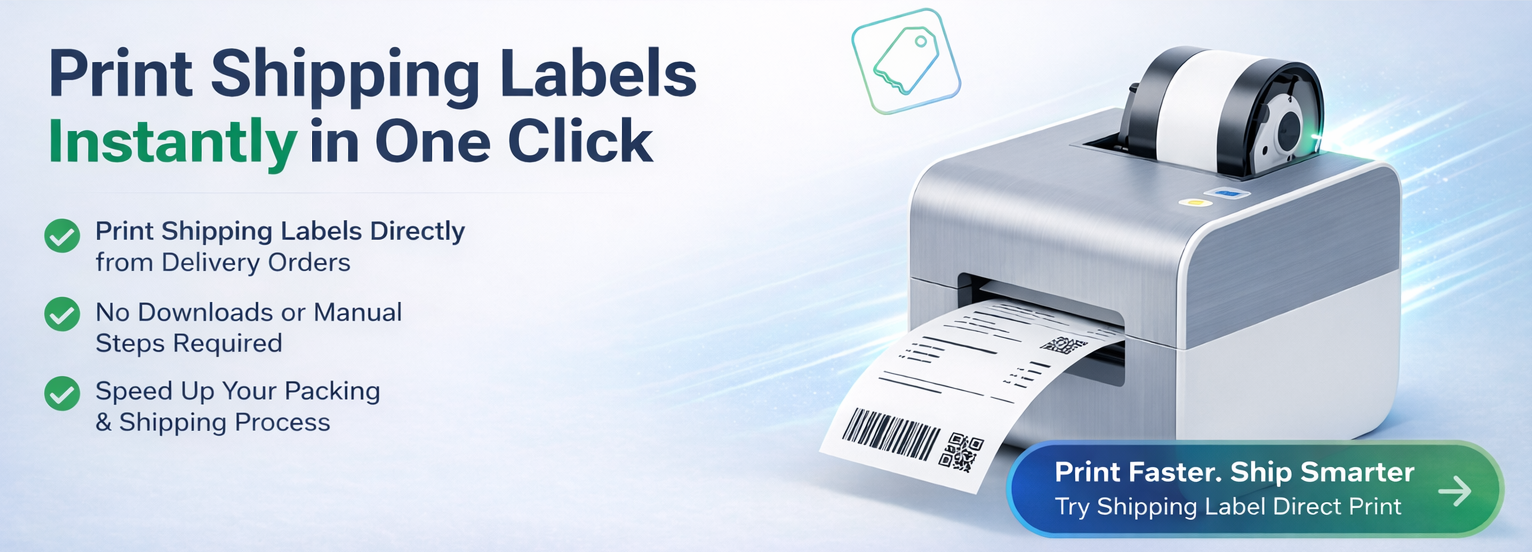
Generate Mass Shipping Labels
Generate multiple shipping labels in one action directly from Odoo, allowing you to process bulk delivery orders faster.
Support for Sandbox and Production Environments
You can connect and use both Sandbox and production environments, making it easy to check your setup safely before using it live.
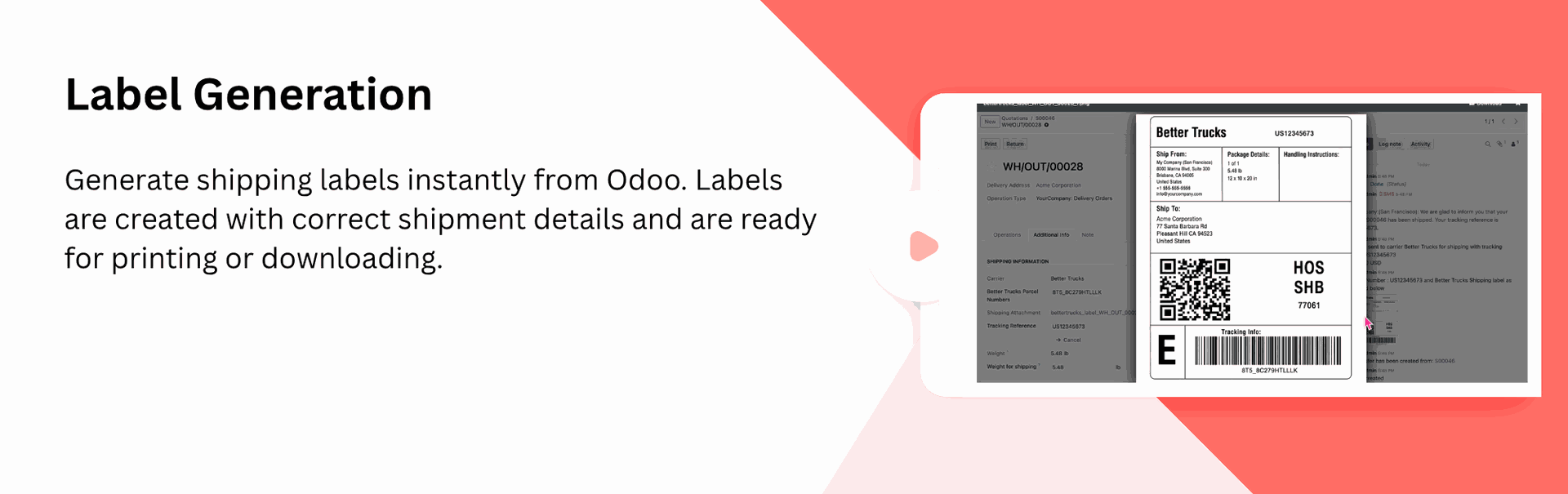
Generate Shipping Labels
One-click label generation and download for seamless Better Trucks shipment processing.
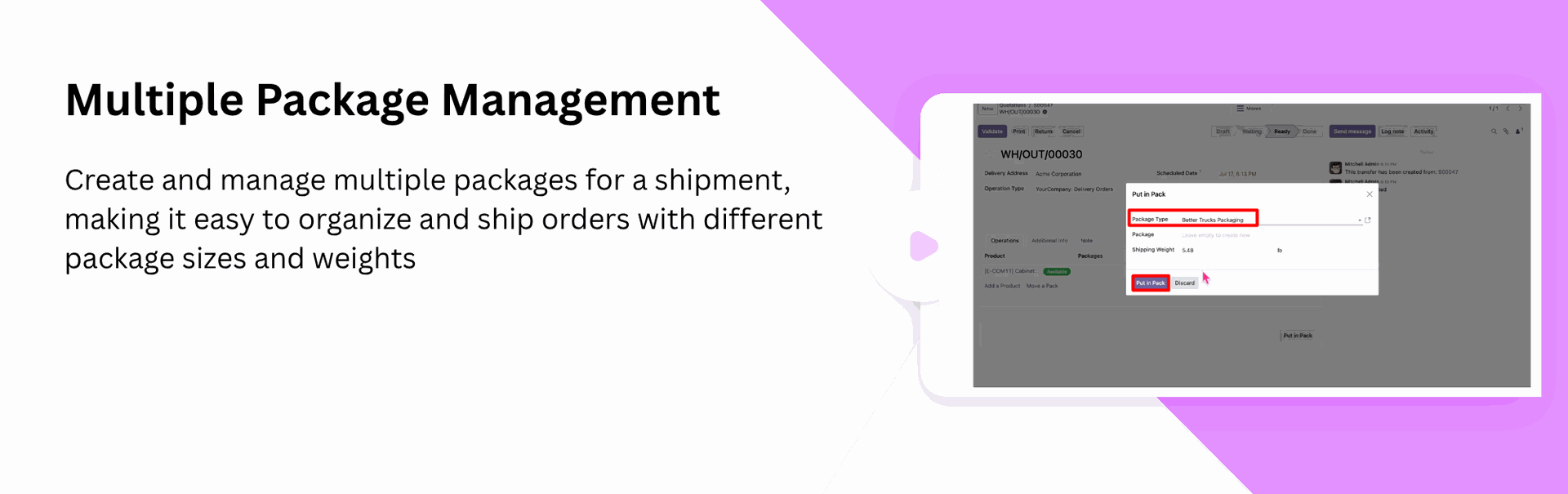
Multiple Package Management
Multiple package handling to create and manage several packages within one shipment.

Attach Details in Chatter
Automatically attach generated label PDFs and tracking details in Chatter.

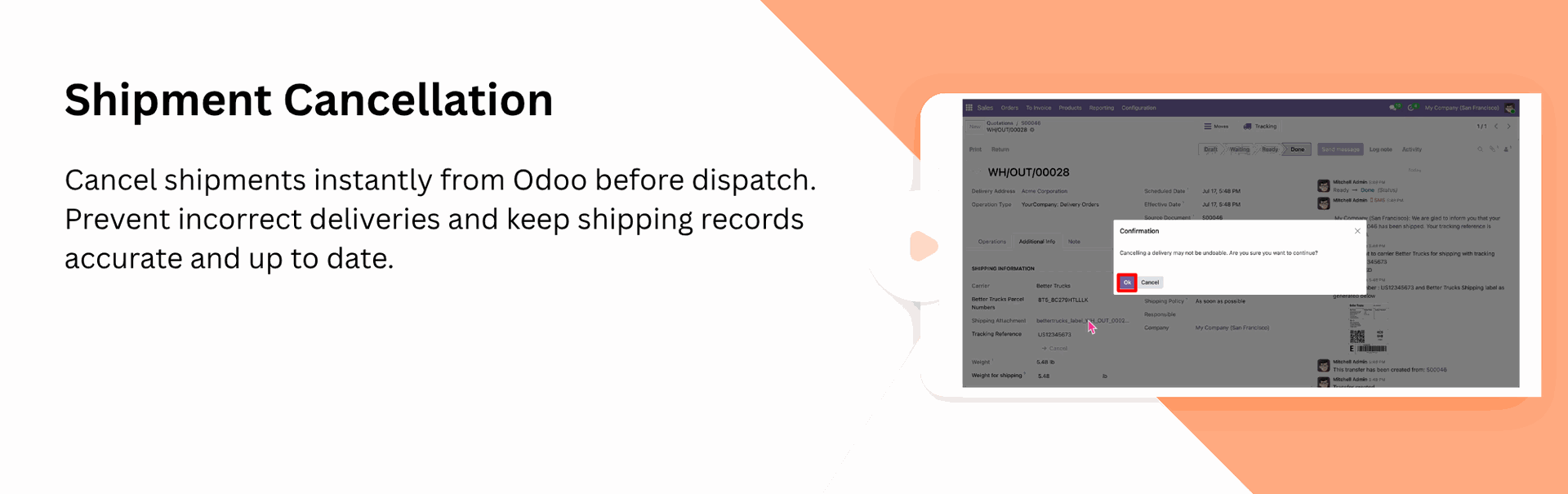
Cancel Shipment
Cancel Better Trucks shipments instantly from Odoo to avoid incorrect deliveries and maintain accurate shipping records.
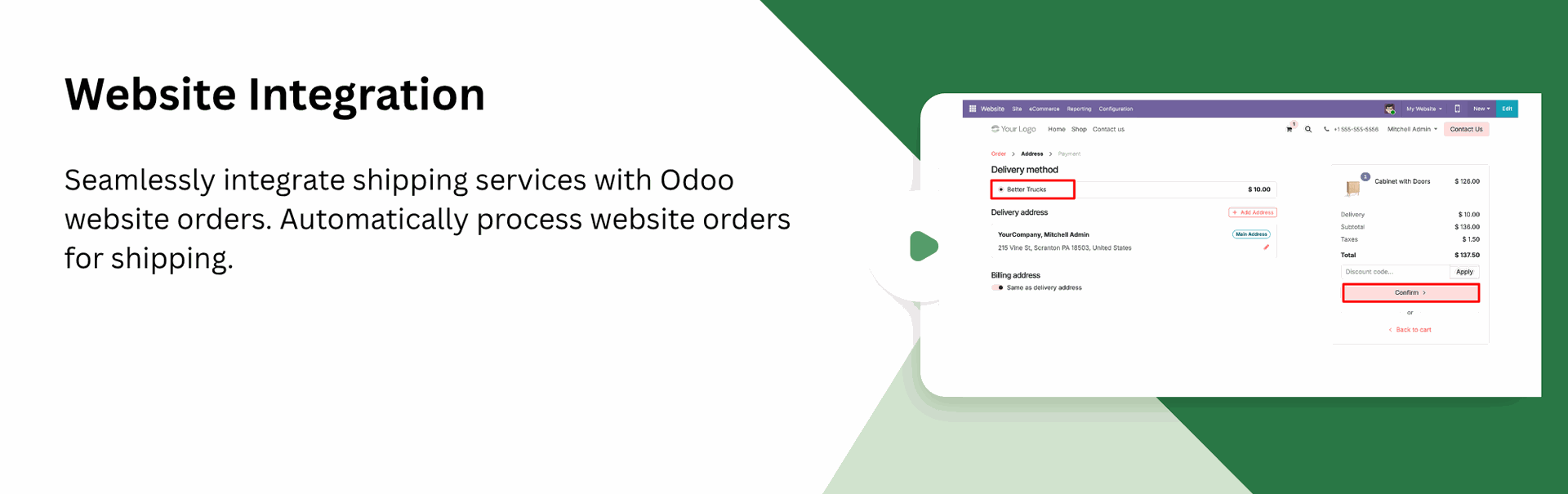
Compatible with Odoo Website and Backend
Allow admins to manage Better Trucks shipping from the backend while customers can select Better Trucks during website checkout.

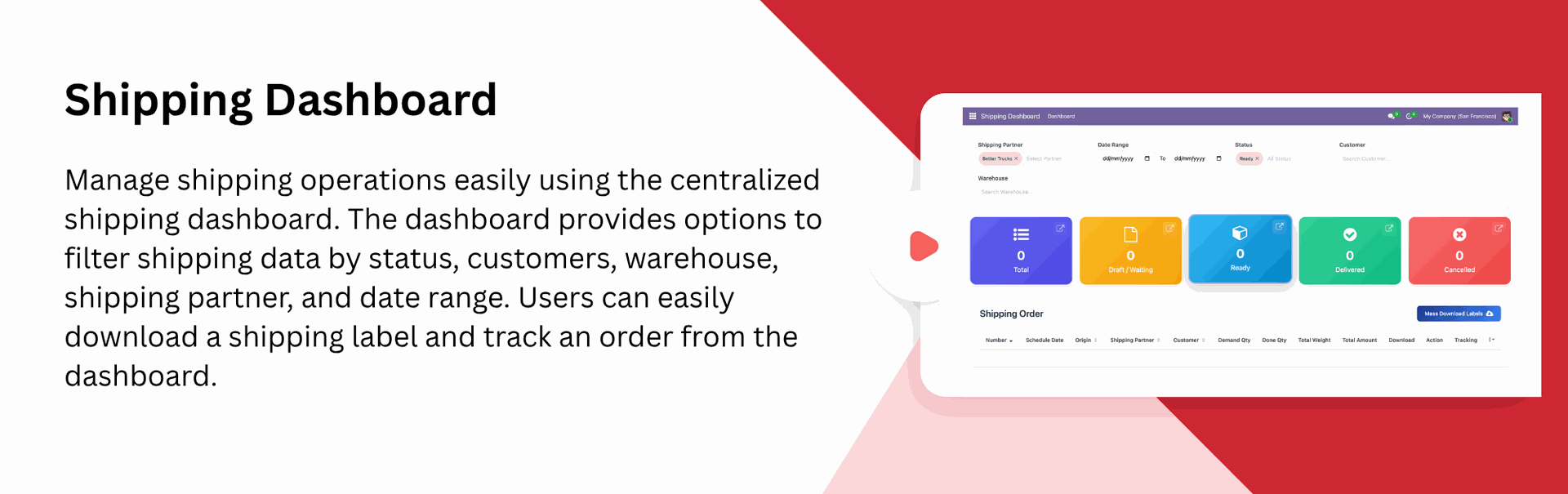
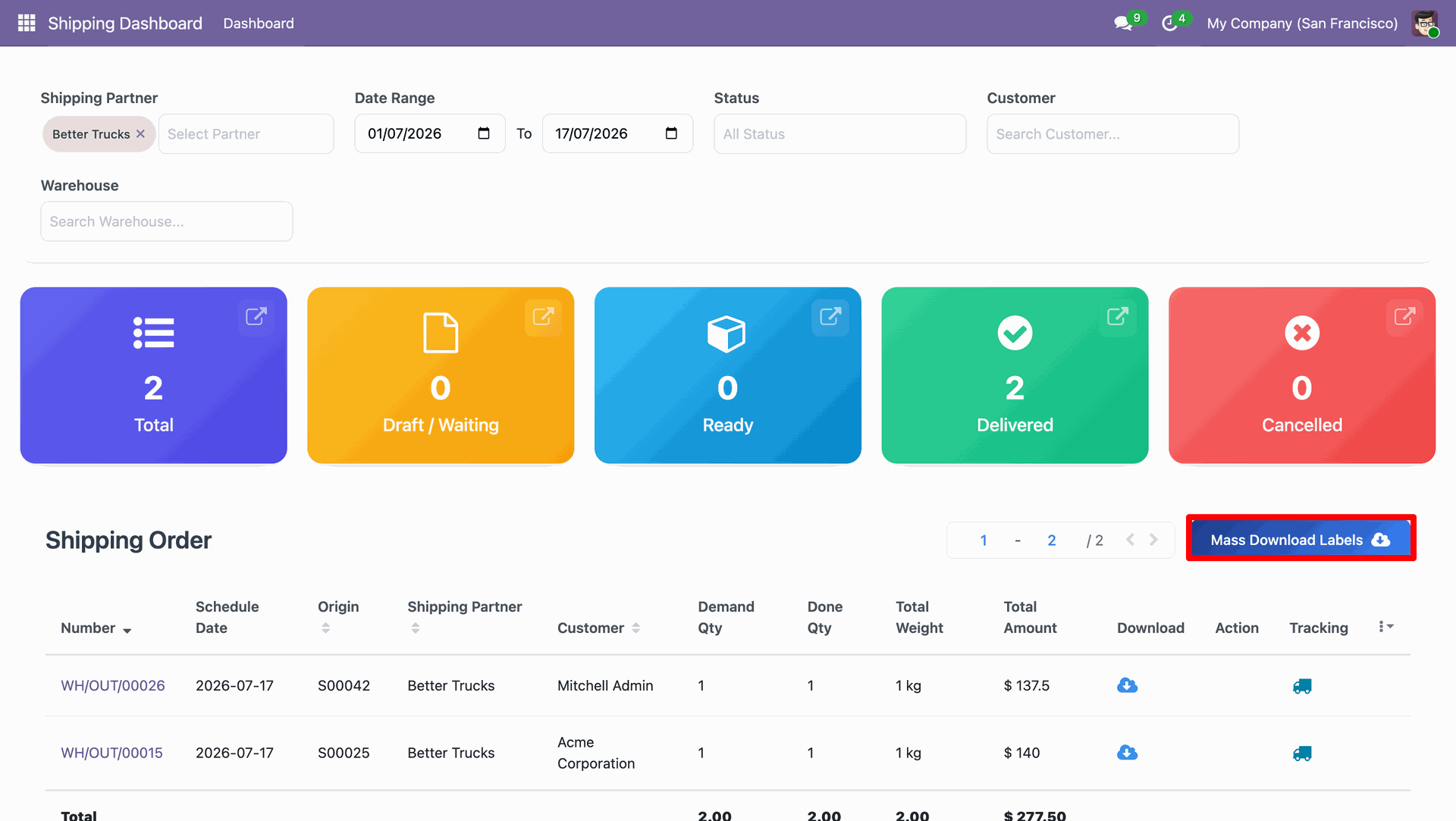
Shipping Dashboard
Get a centralized view of all shipping activities in one place. The dashboard provides quick operational insights.
Go to the Inventory ==> Delivery Partner.
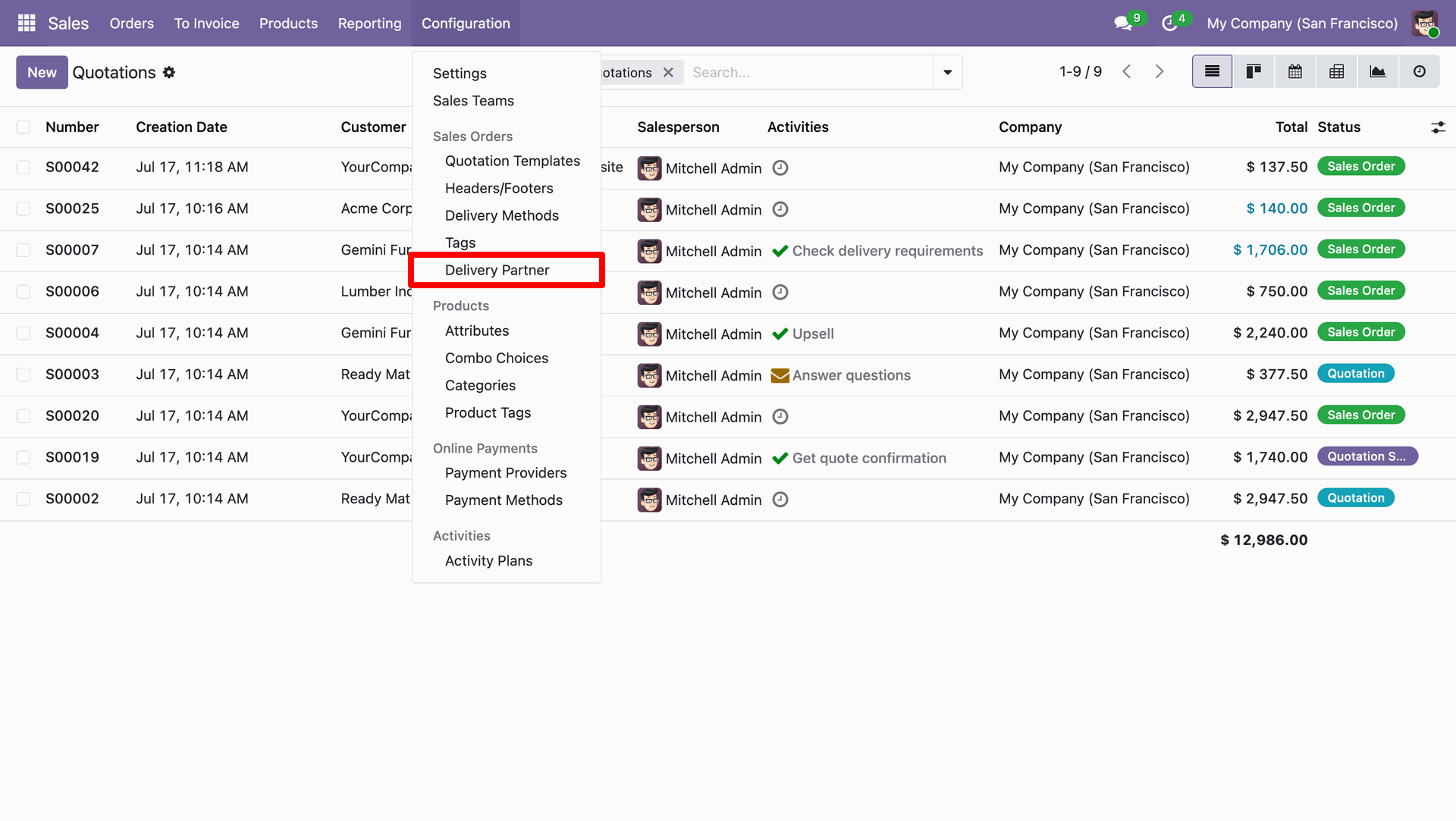
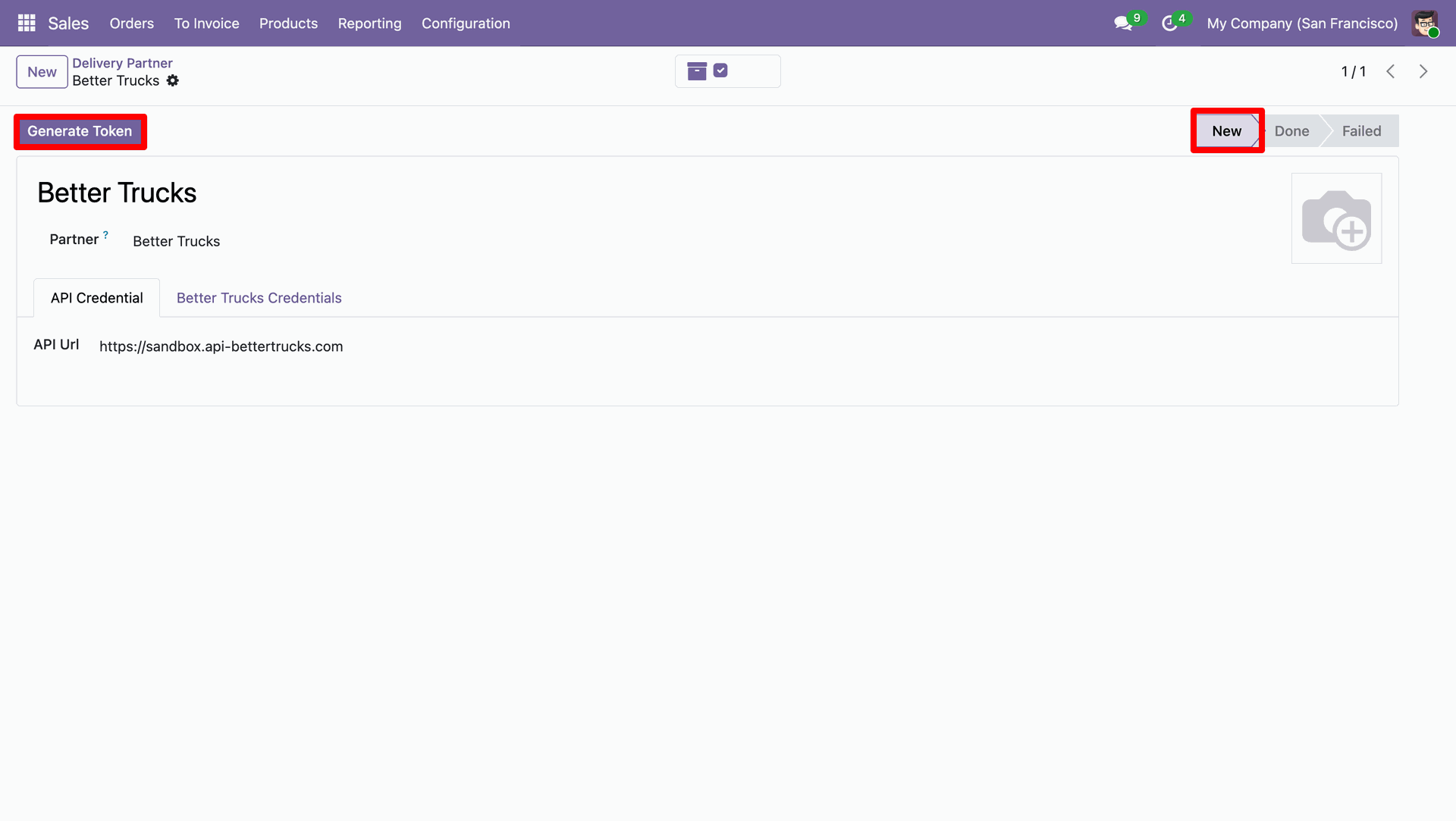
Click the "Generate Token" button to generate a token.
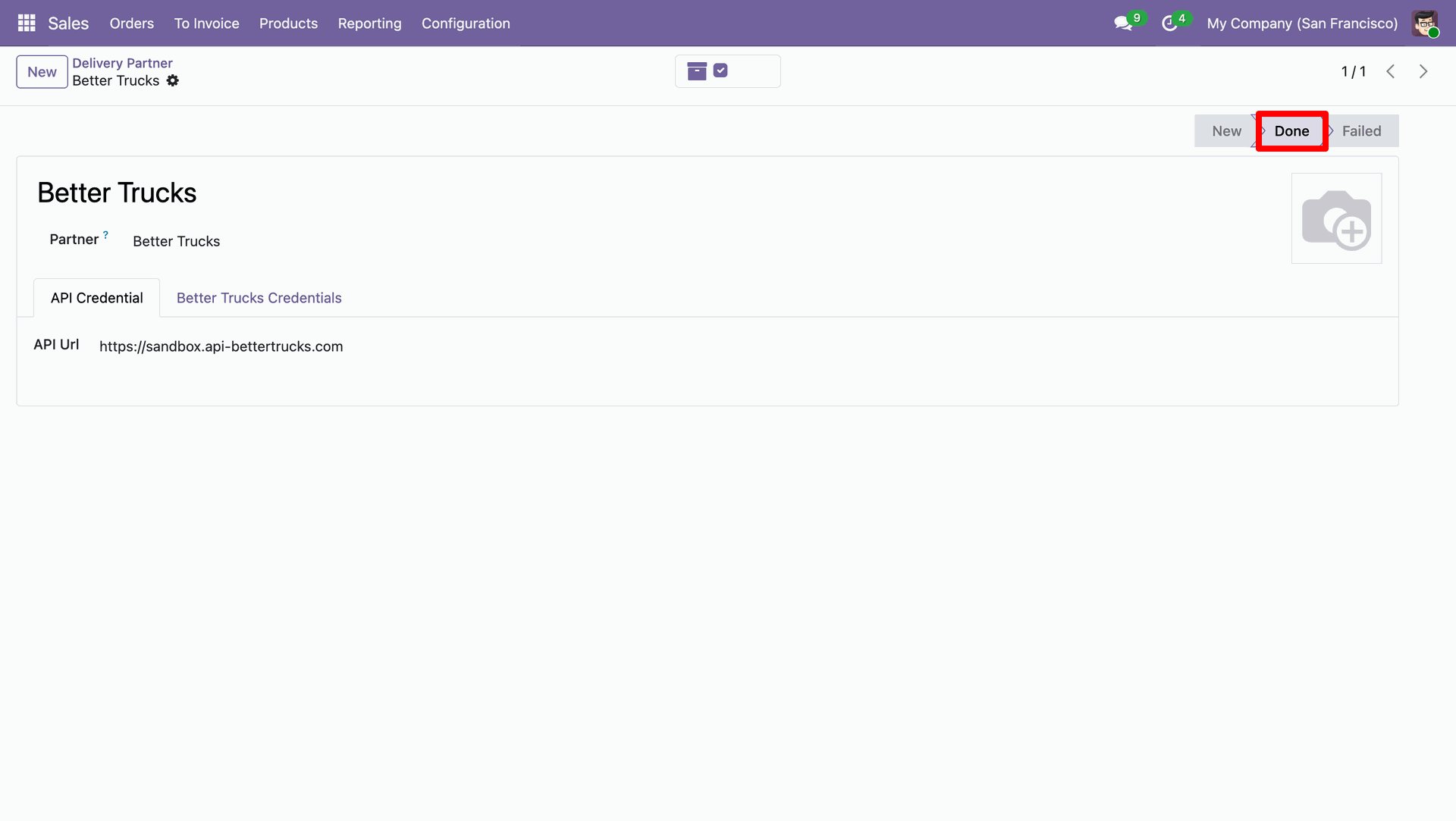
Fill in your Better Trucks credentials for proper API authentication.
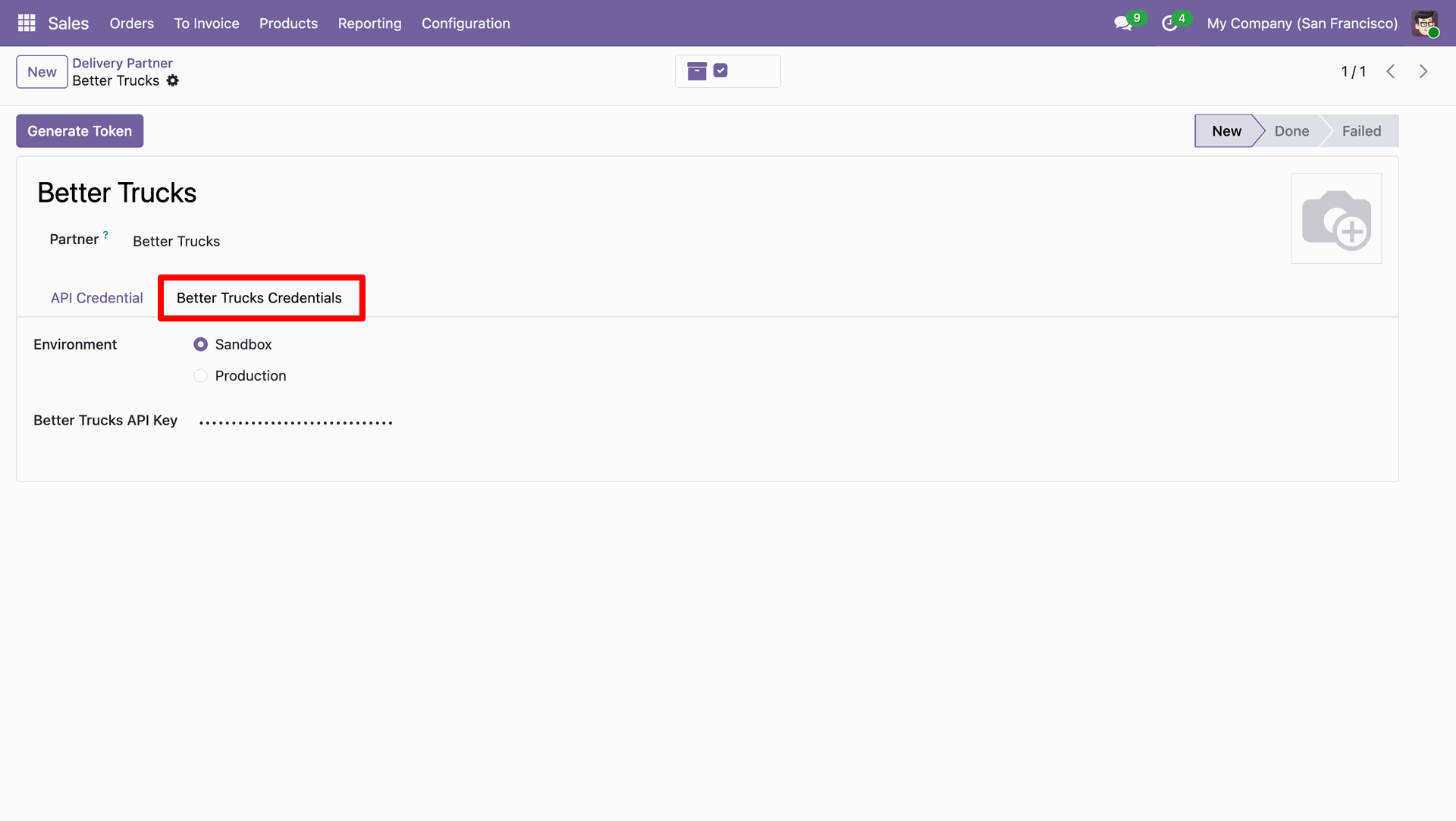
You can select the environment "Sandbox" or "Production".
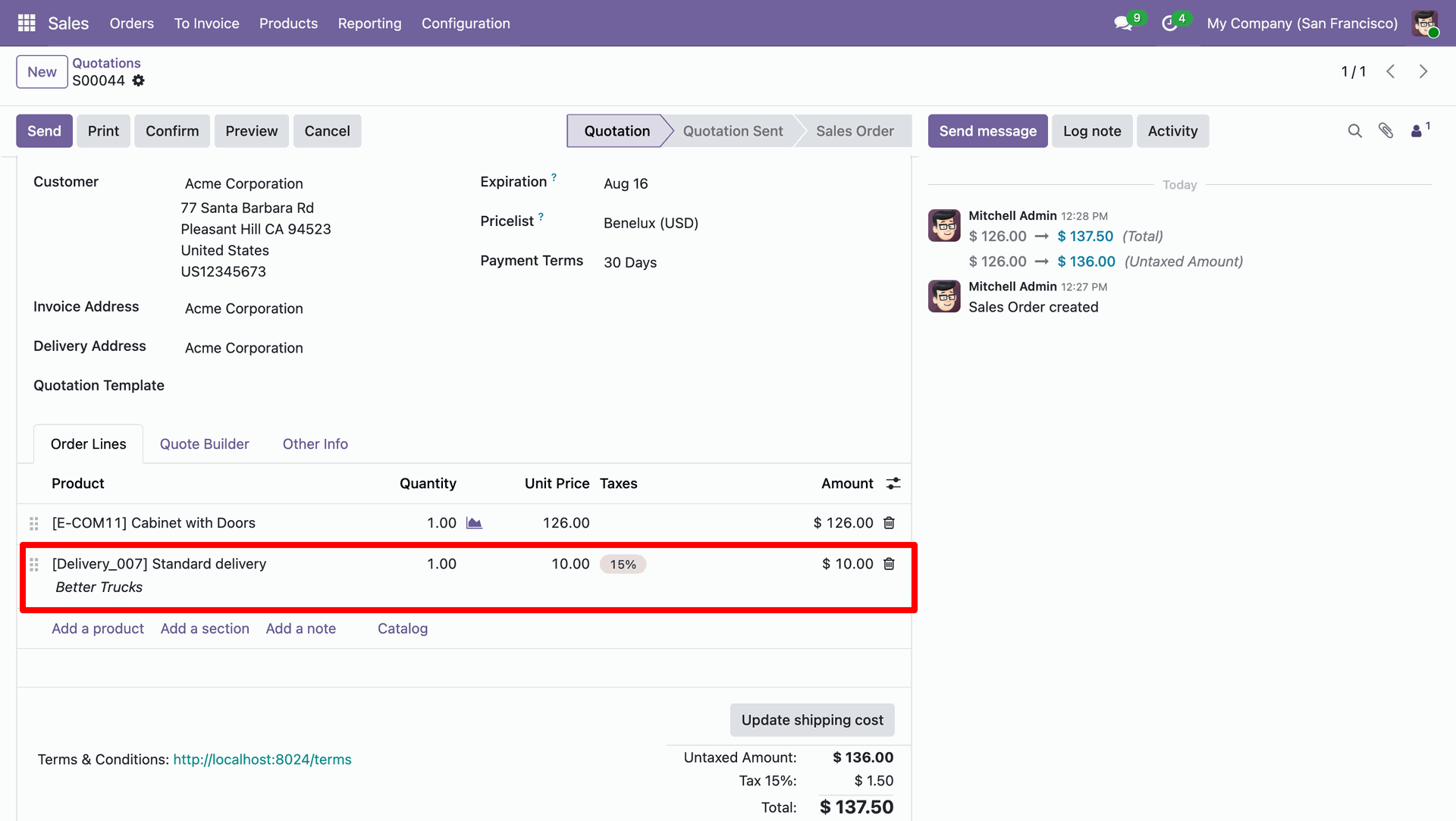
Create a quotation and click on the "Add Shipping" button. After that, "Add a Shipping Method" wizard will appear. Enter the details and click on the "Add" button.
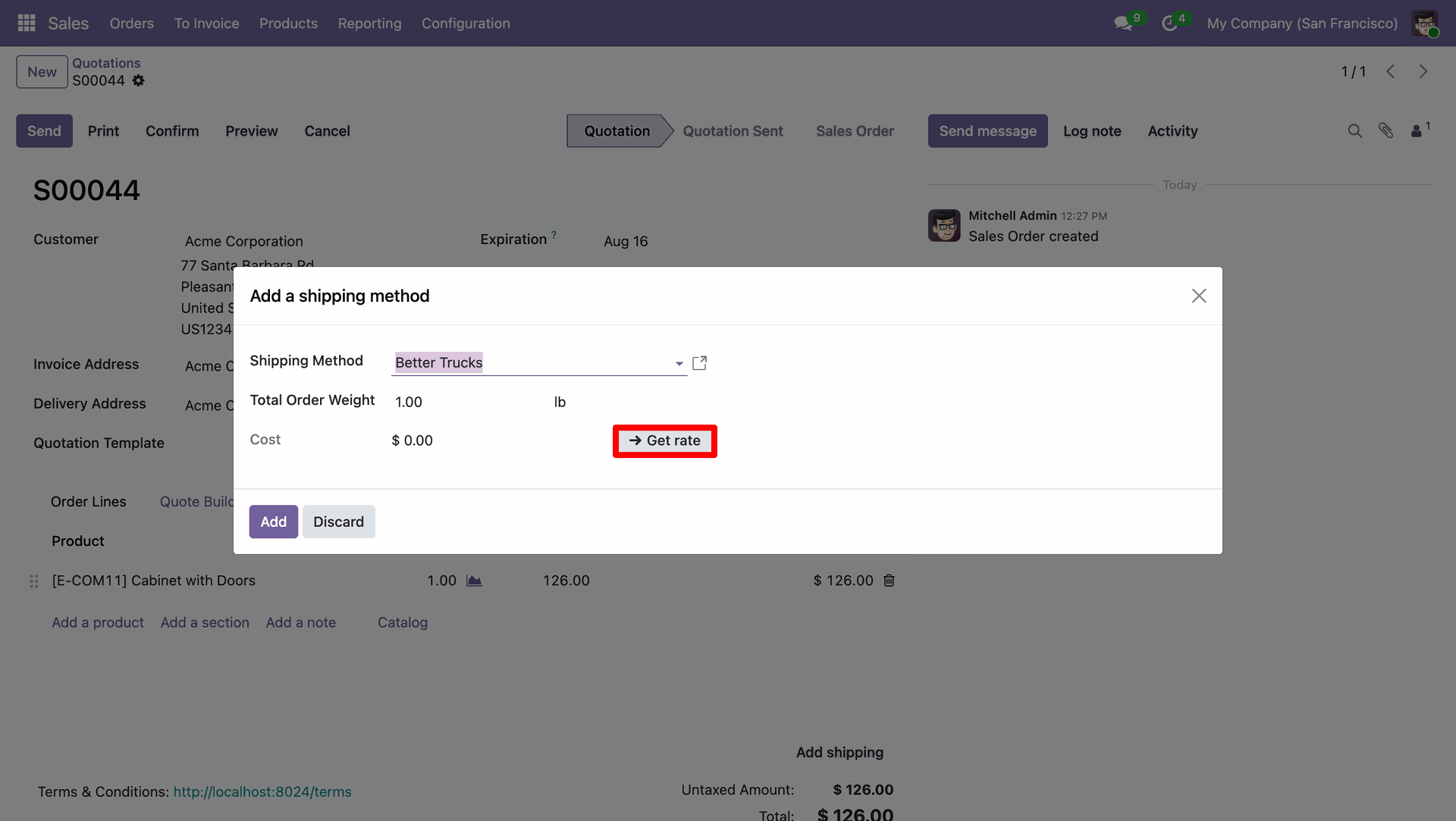
Better Trucks shipping rate in the quotation.
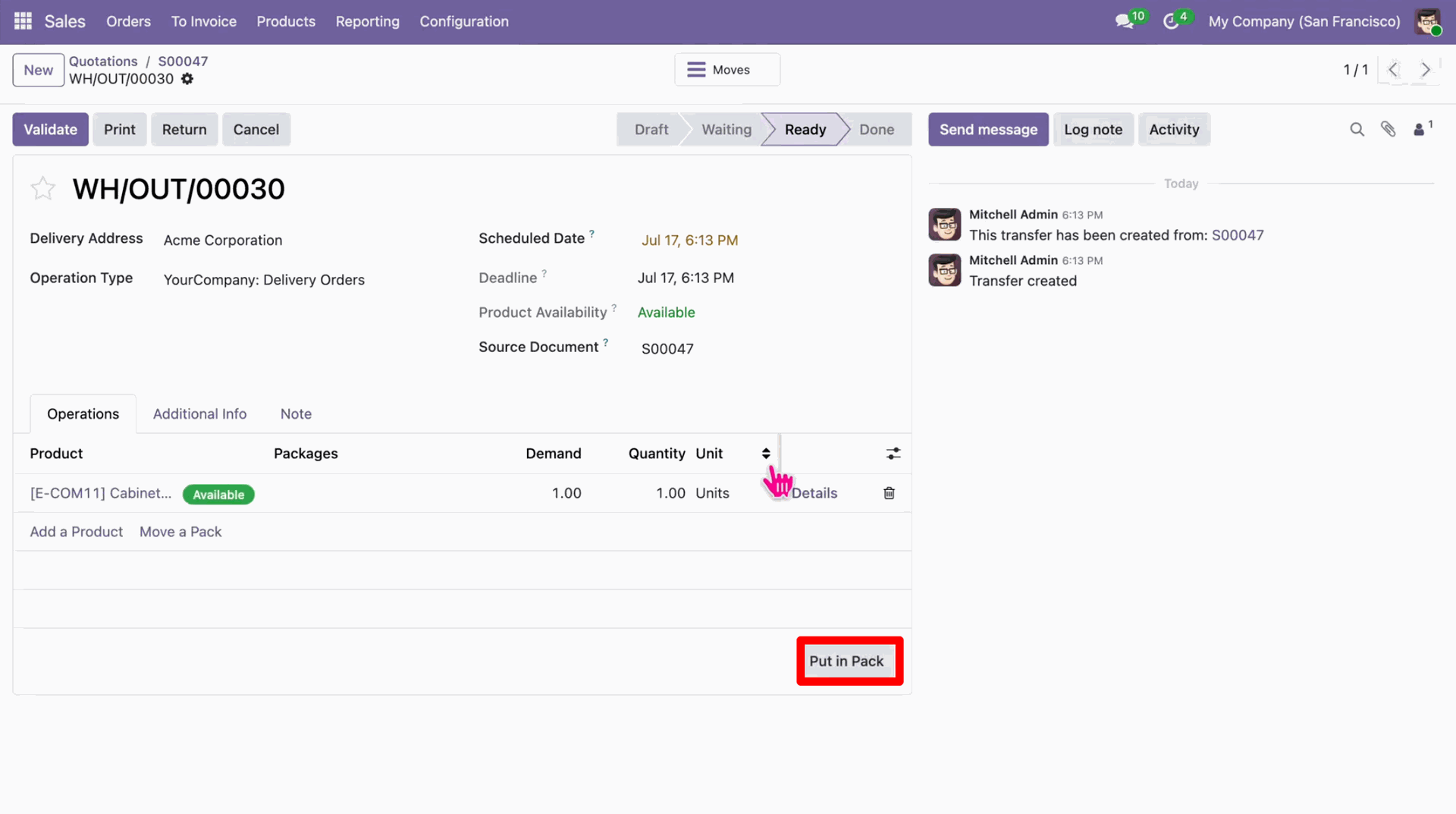
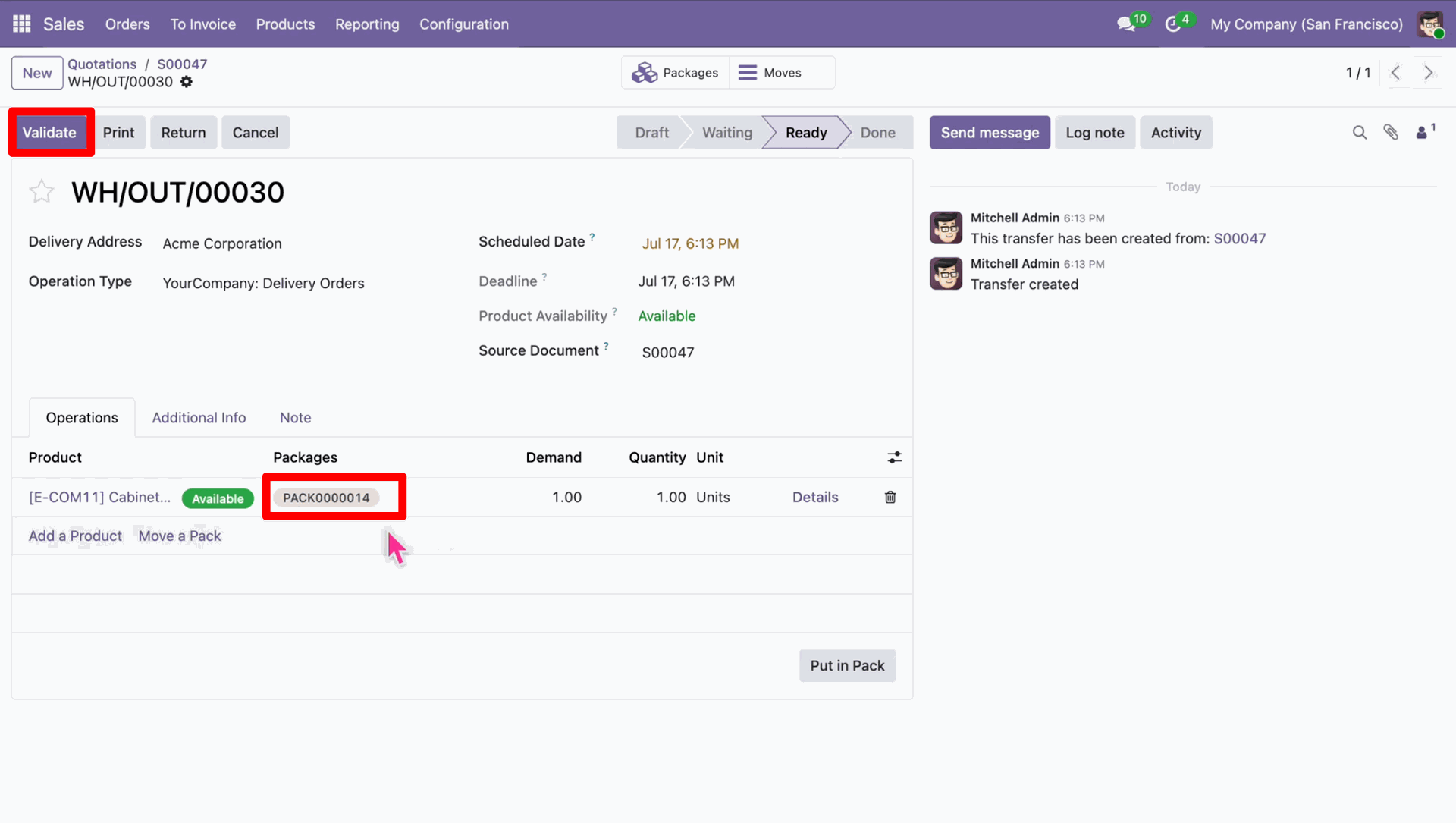
In the delivery order, click "Put In Pack".
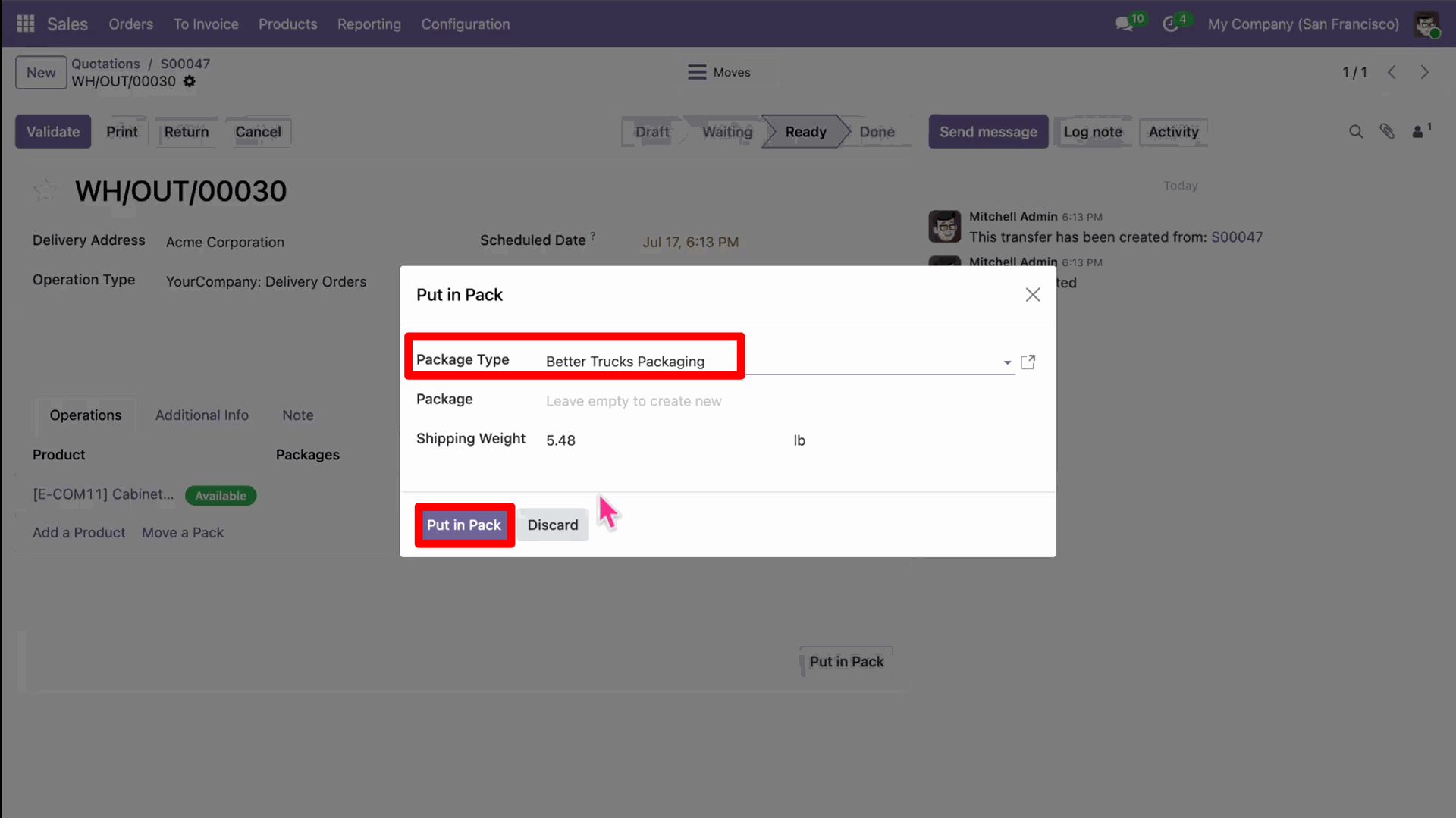
Add package details by selecting the Better Trucks delivery package type to prepare for label generation and shipment processing. Click on the arrow to open the detailed wizard.
The package is automatically created and displayed in the Packages column.
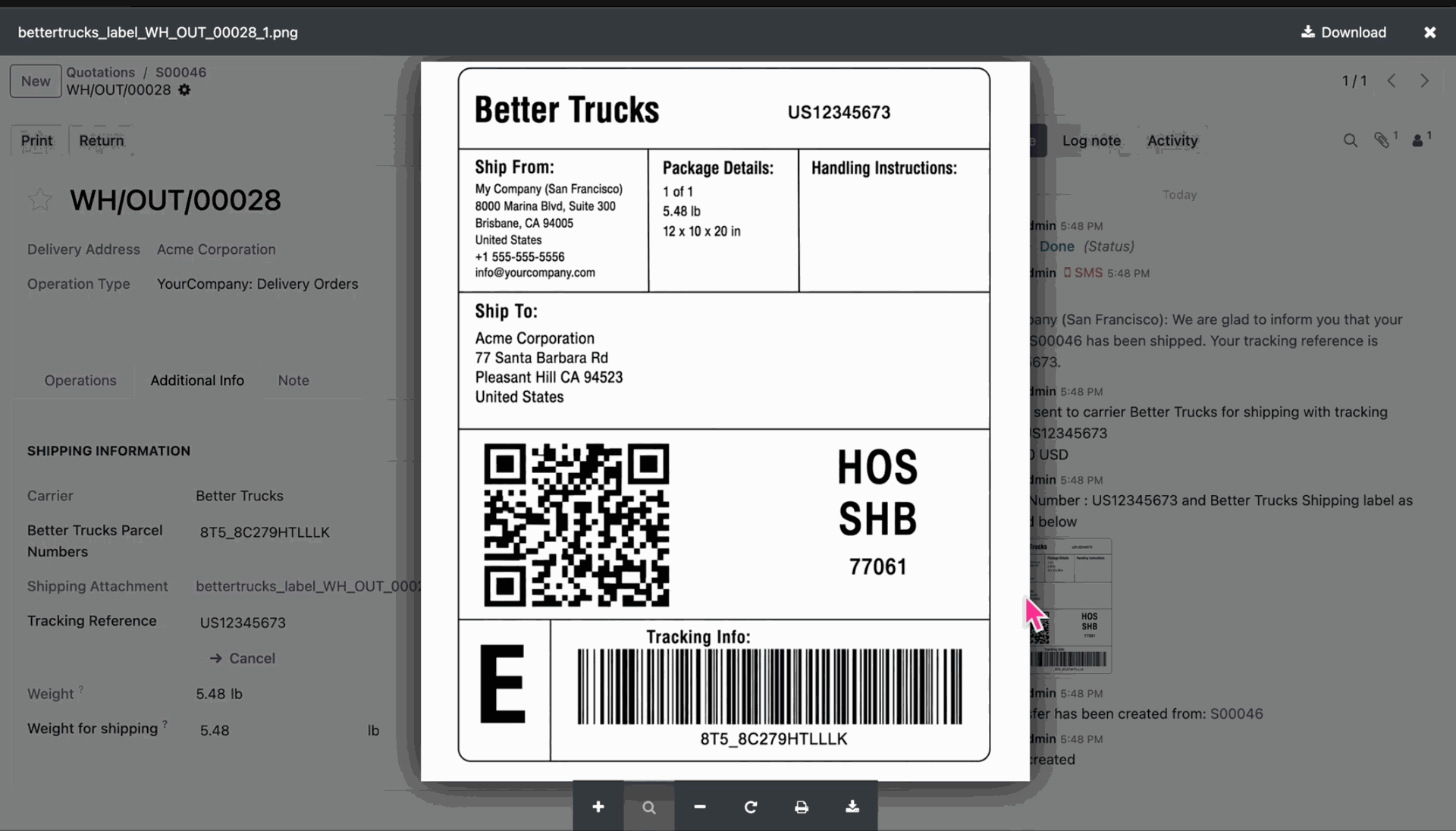
PDF view of the shipping label.
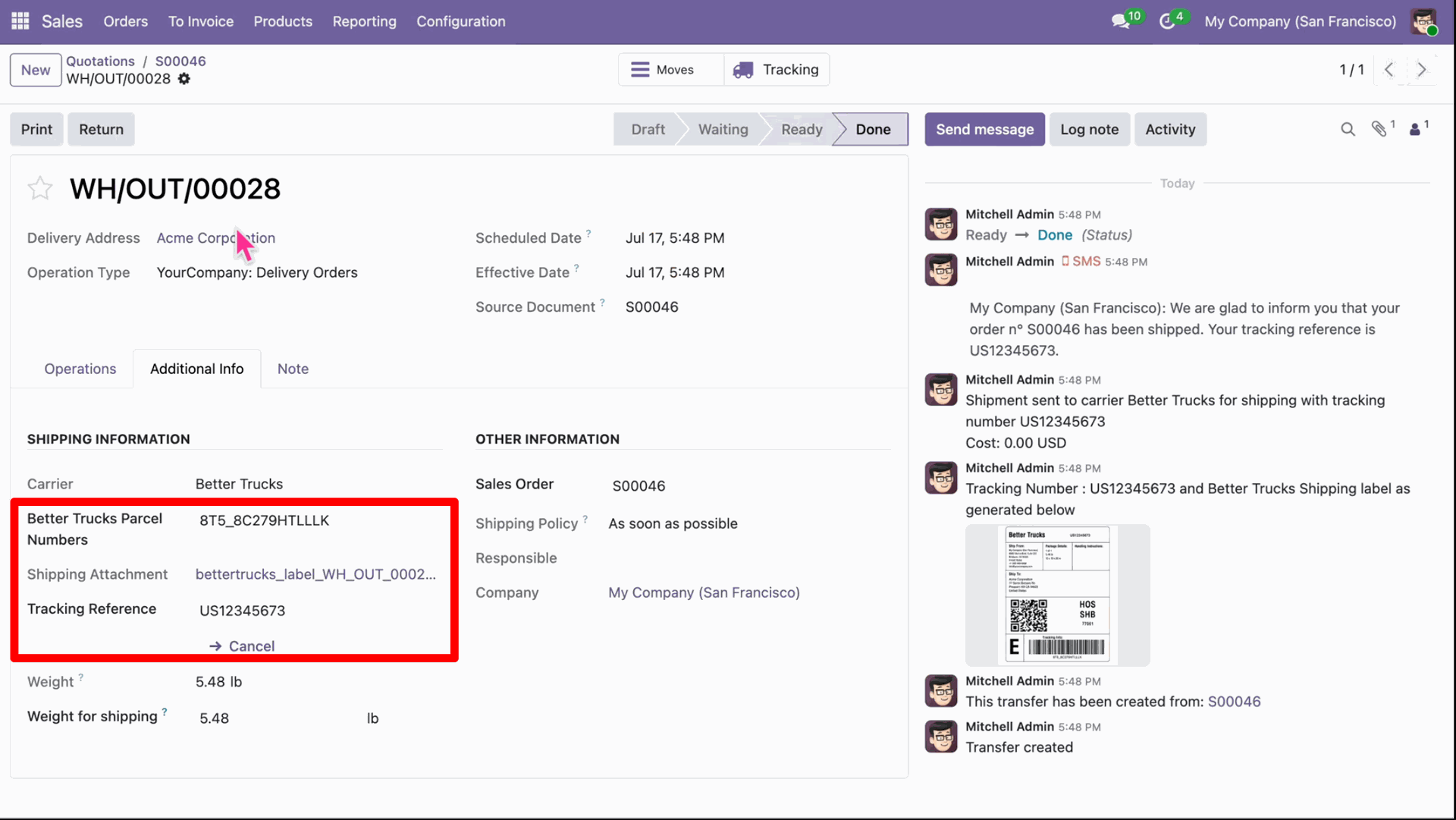
In the log note, it shows that the shipping label was successfully generated, along with a downloadable PDF link.
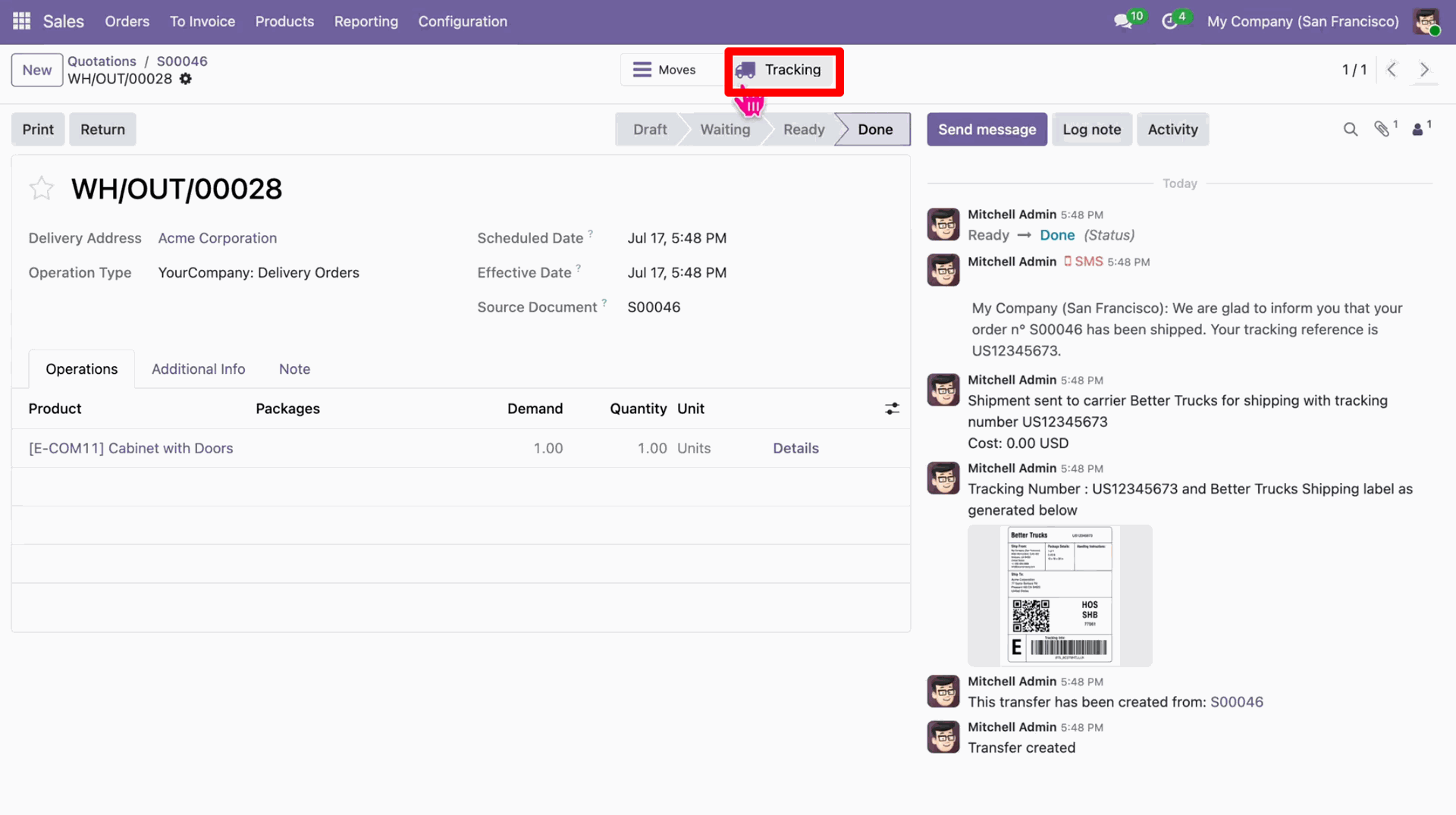
Click on tracking to track the shipment.
You can track the shipment using the tracking number.
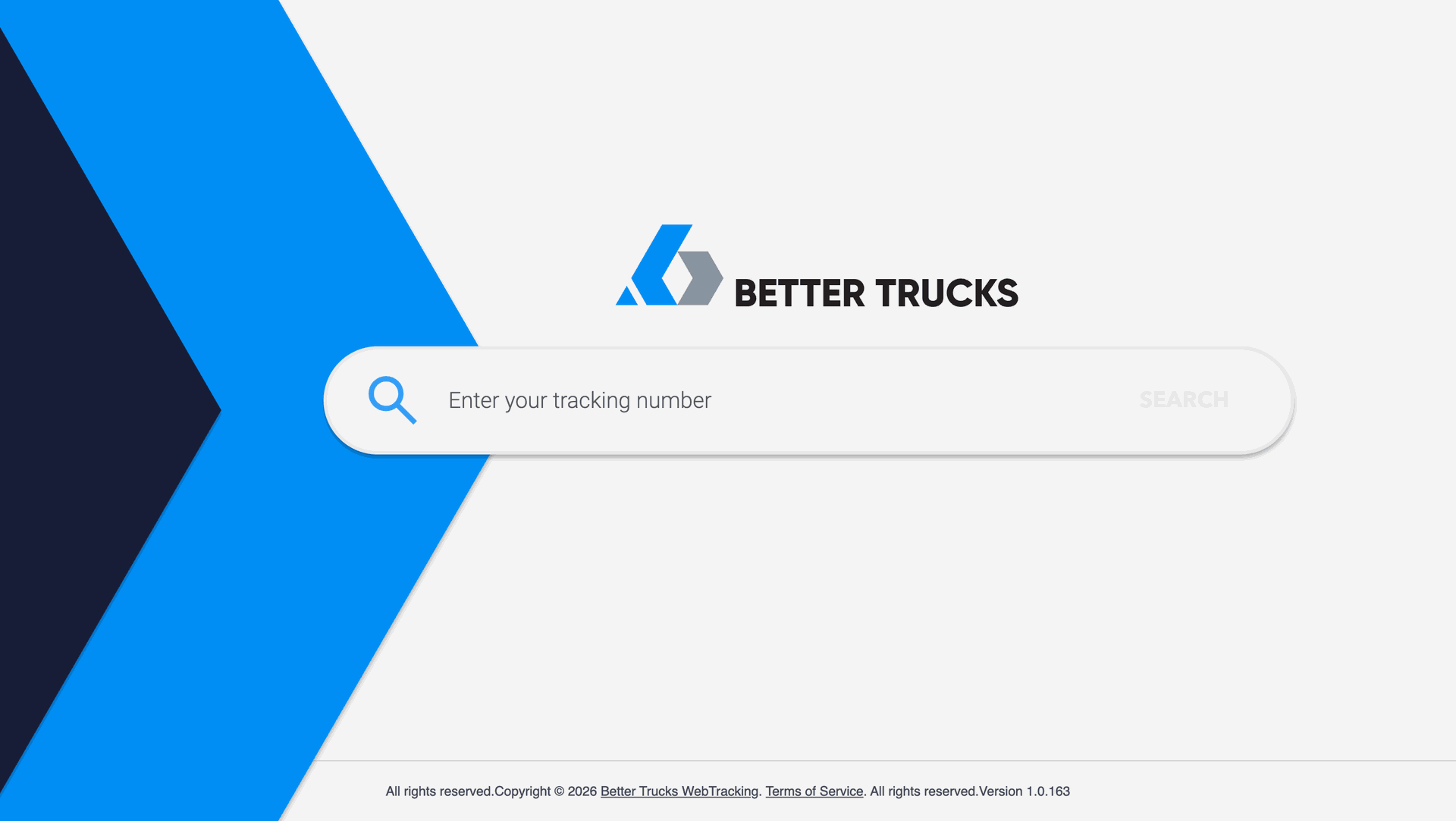
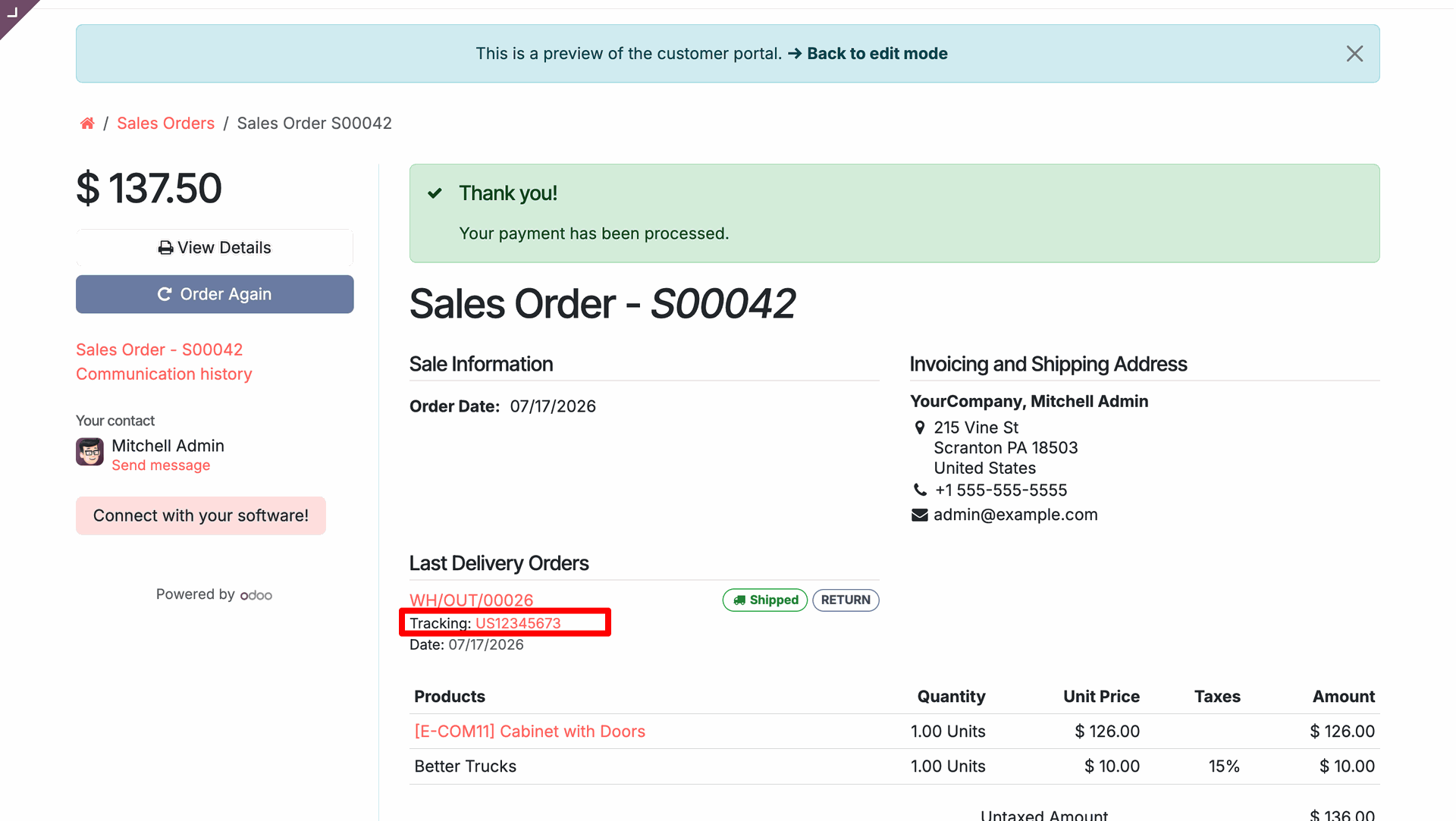
Website order with tracking details.
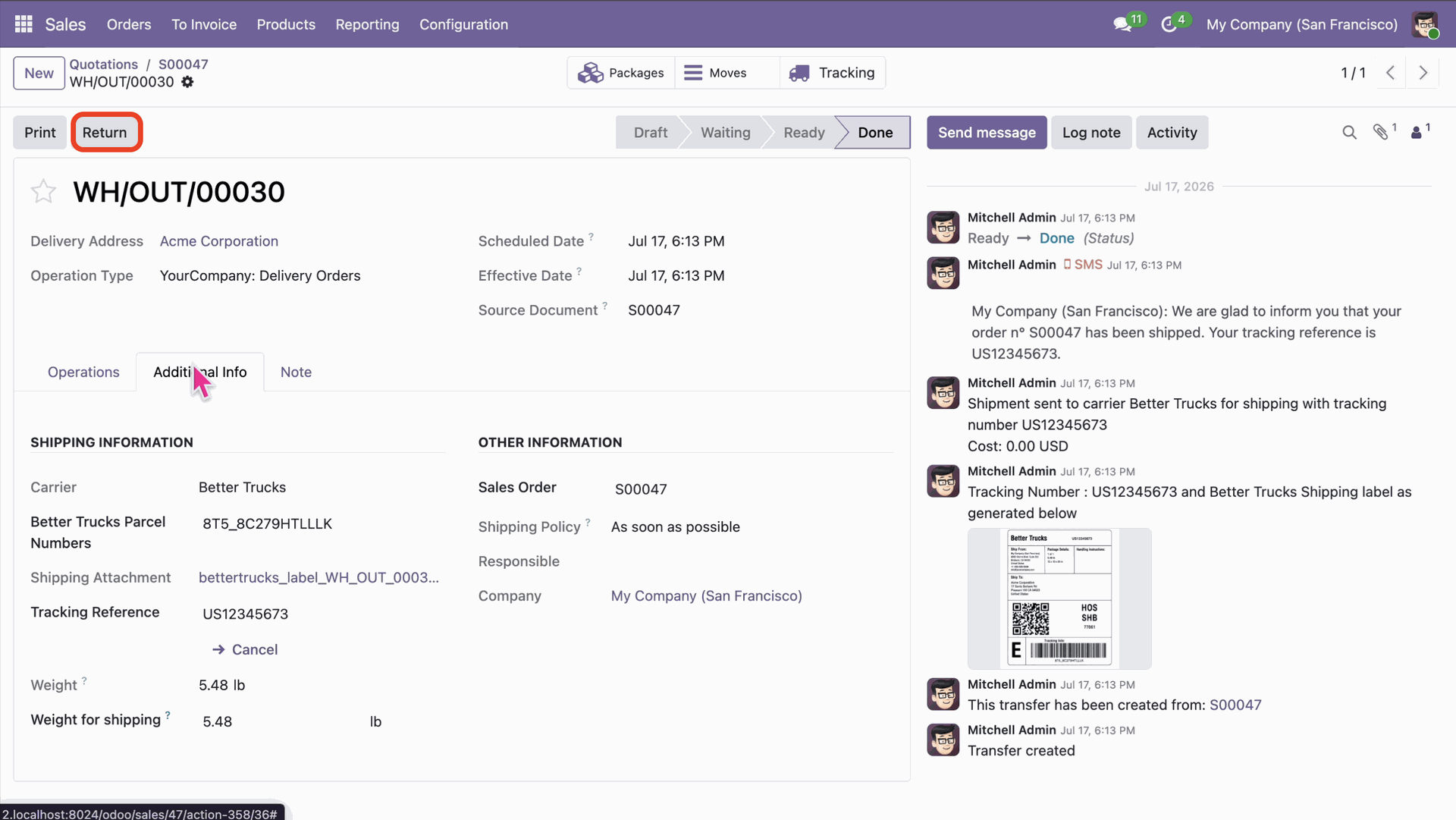
Click "Return" to return the shipment.
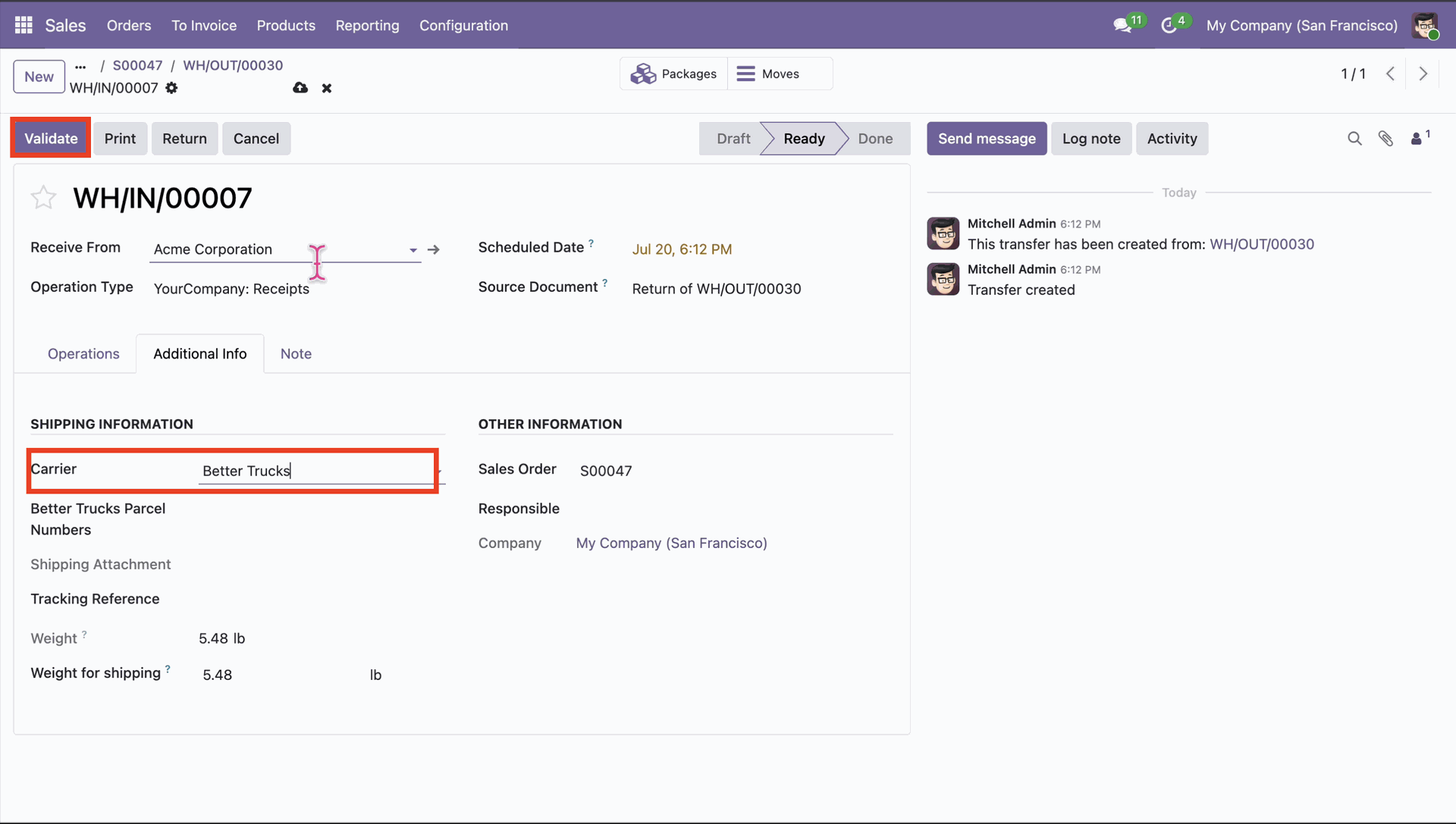
Select the carrier and validate.
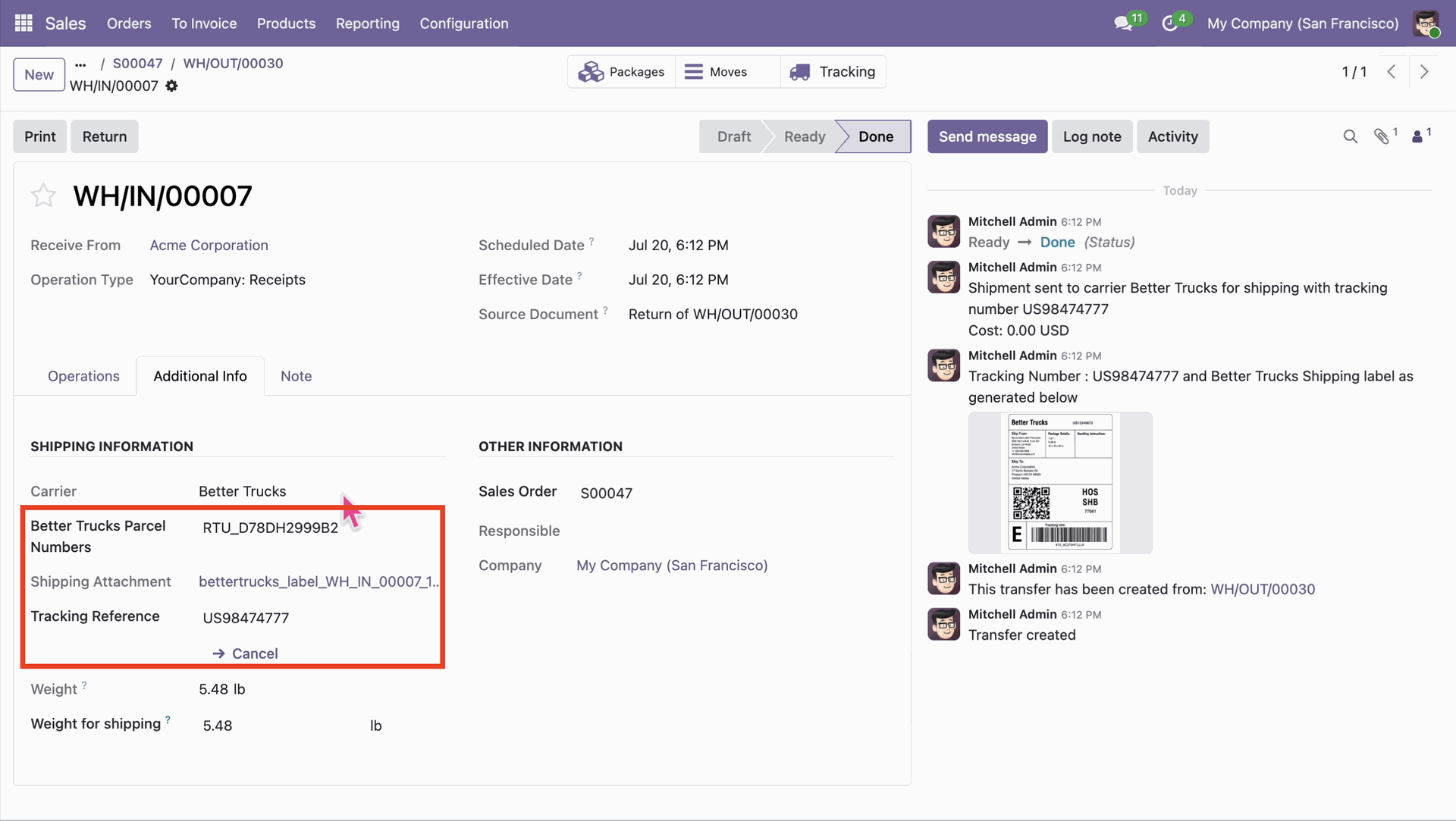
Shipment returned with parcel number and tracking reference.
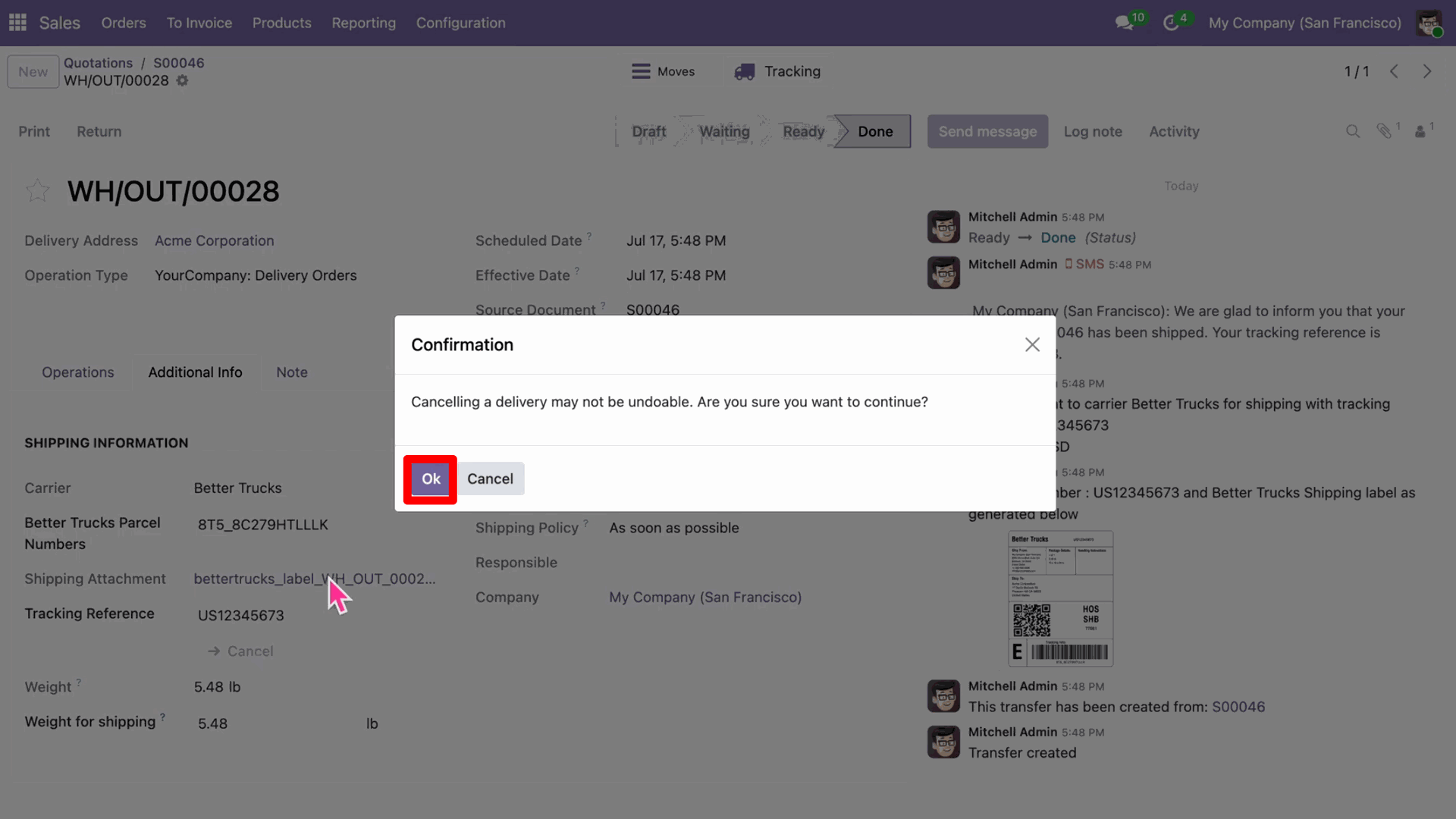
Click "Cancel" to cancel the shipment. It shows a pop-up for cancellation.
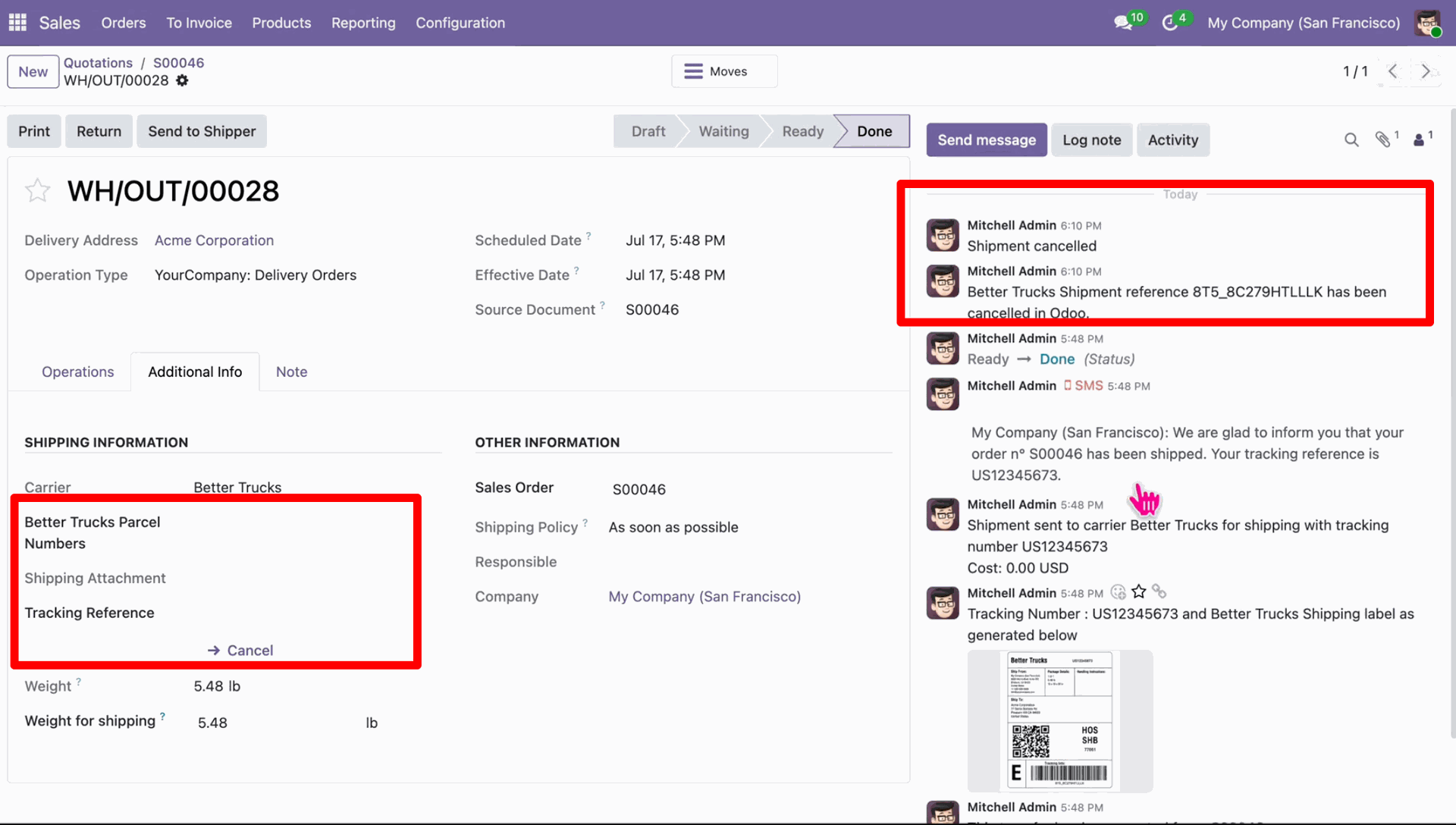
Shipment cancelled with a chatter message.
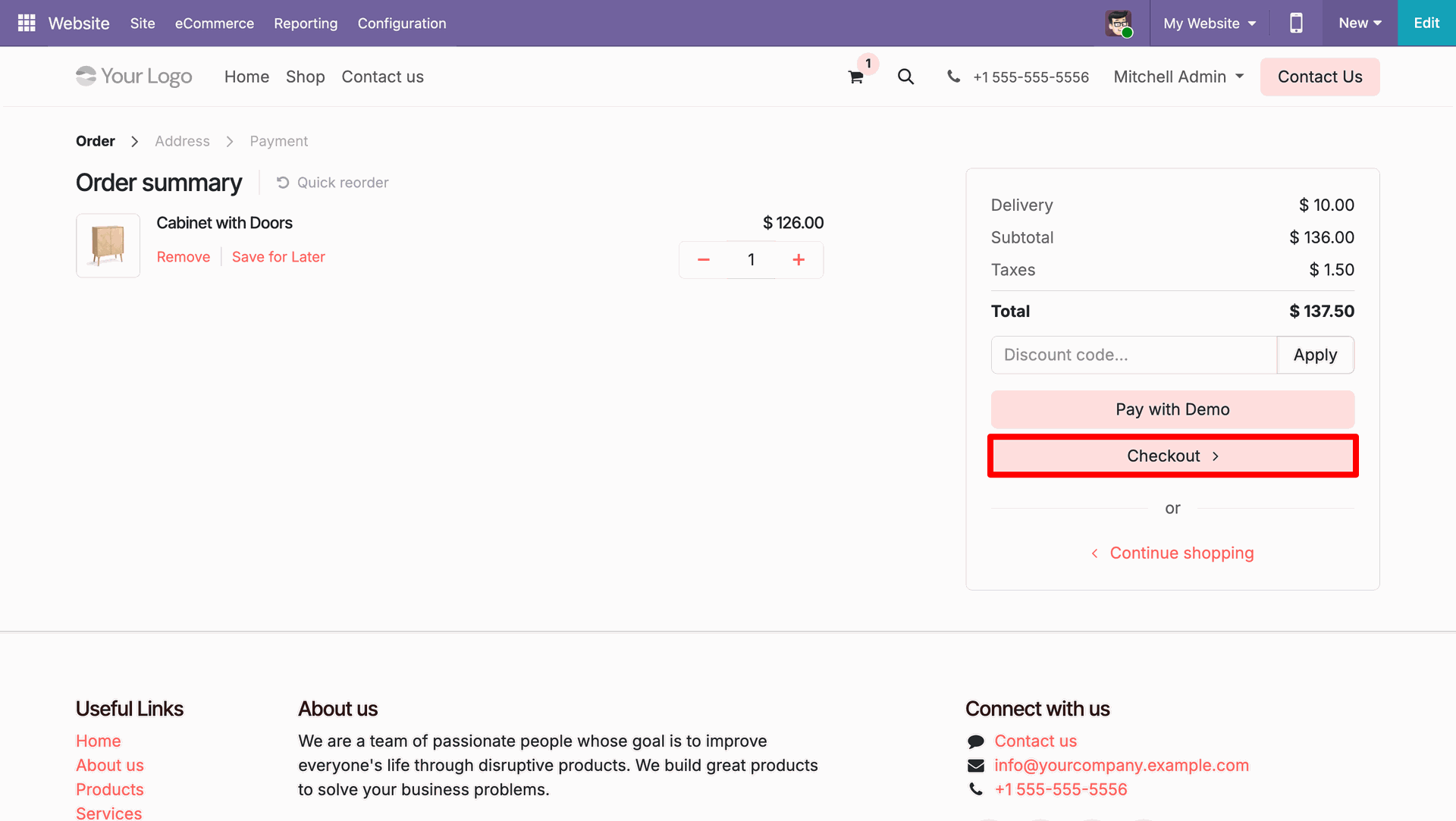
Select products and proceed to checkout.
Select Better Trucks delivery method.
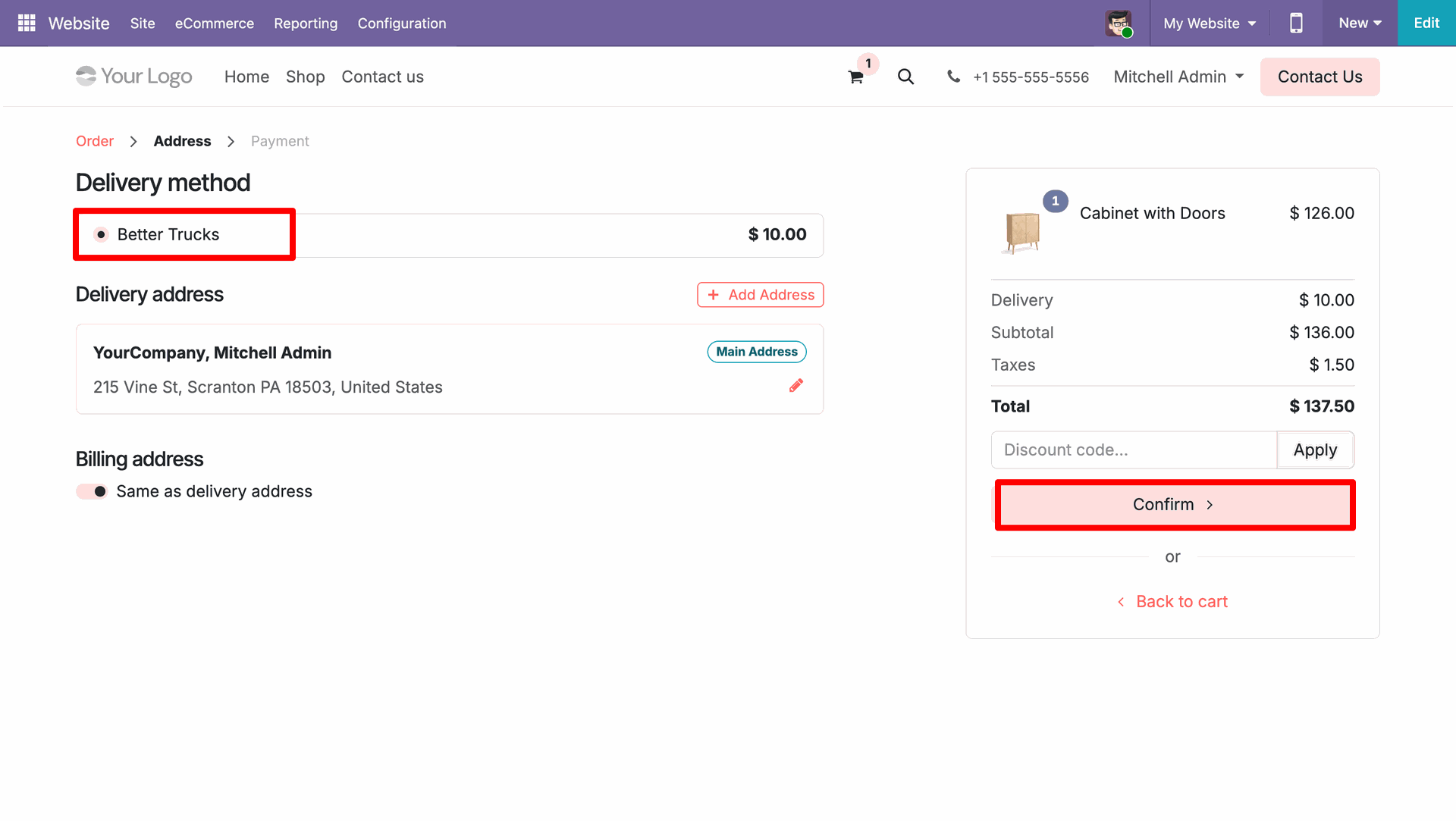
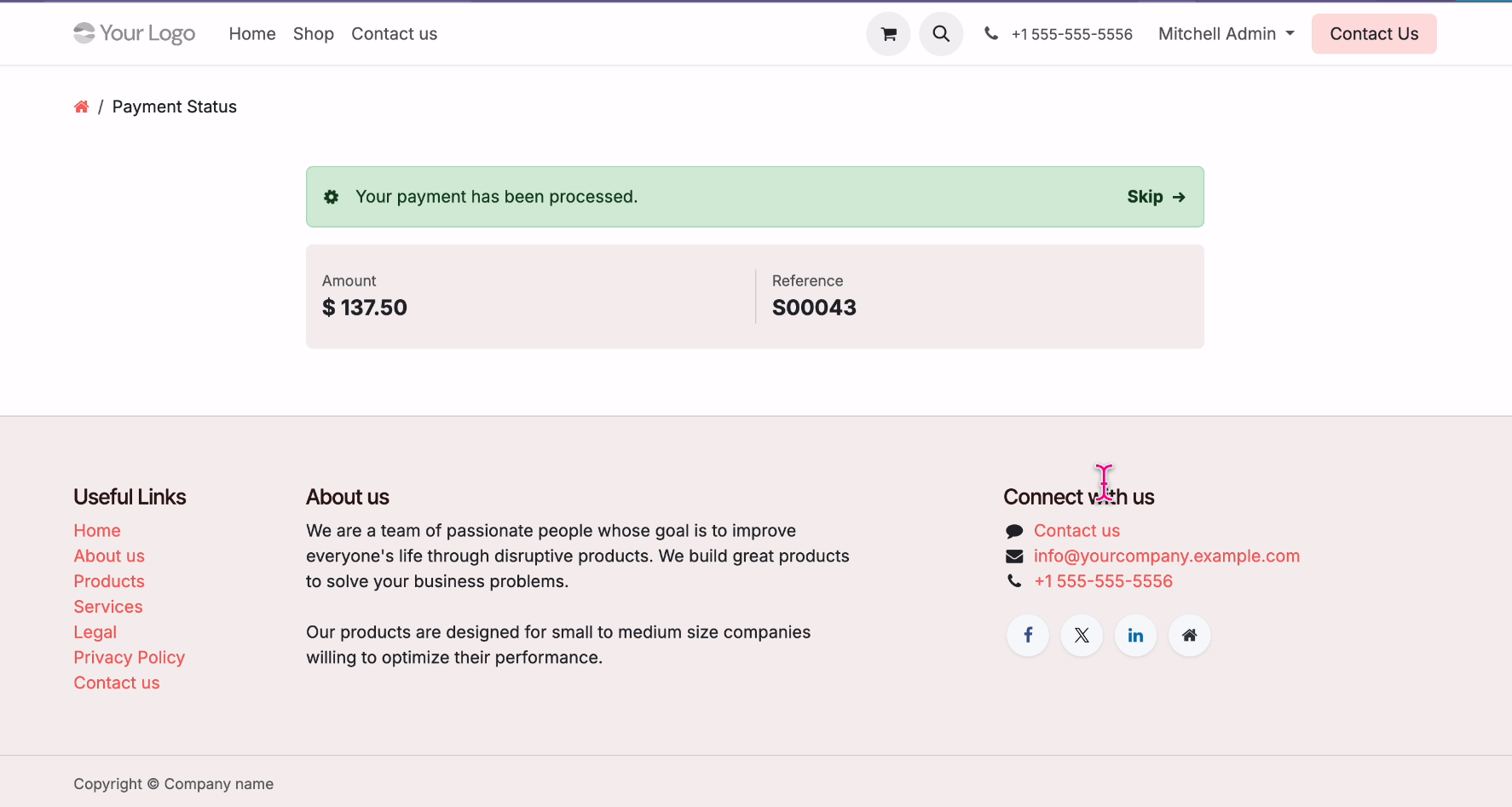
Checkout done successfully.
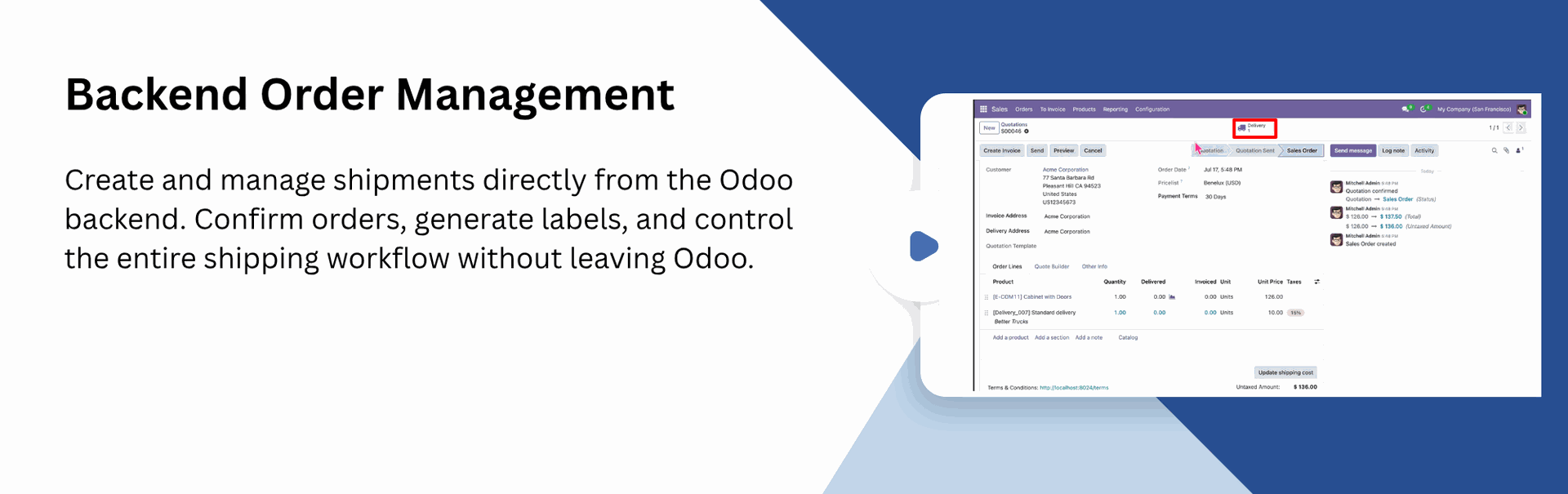
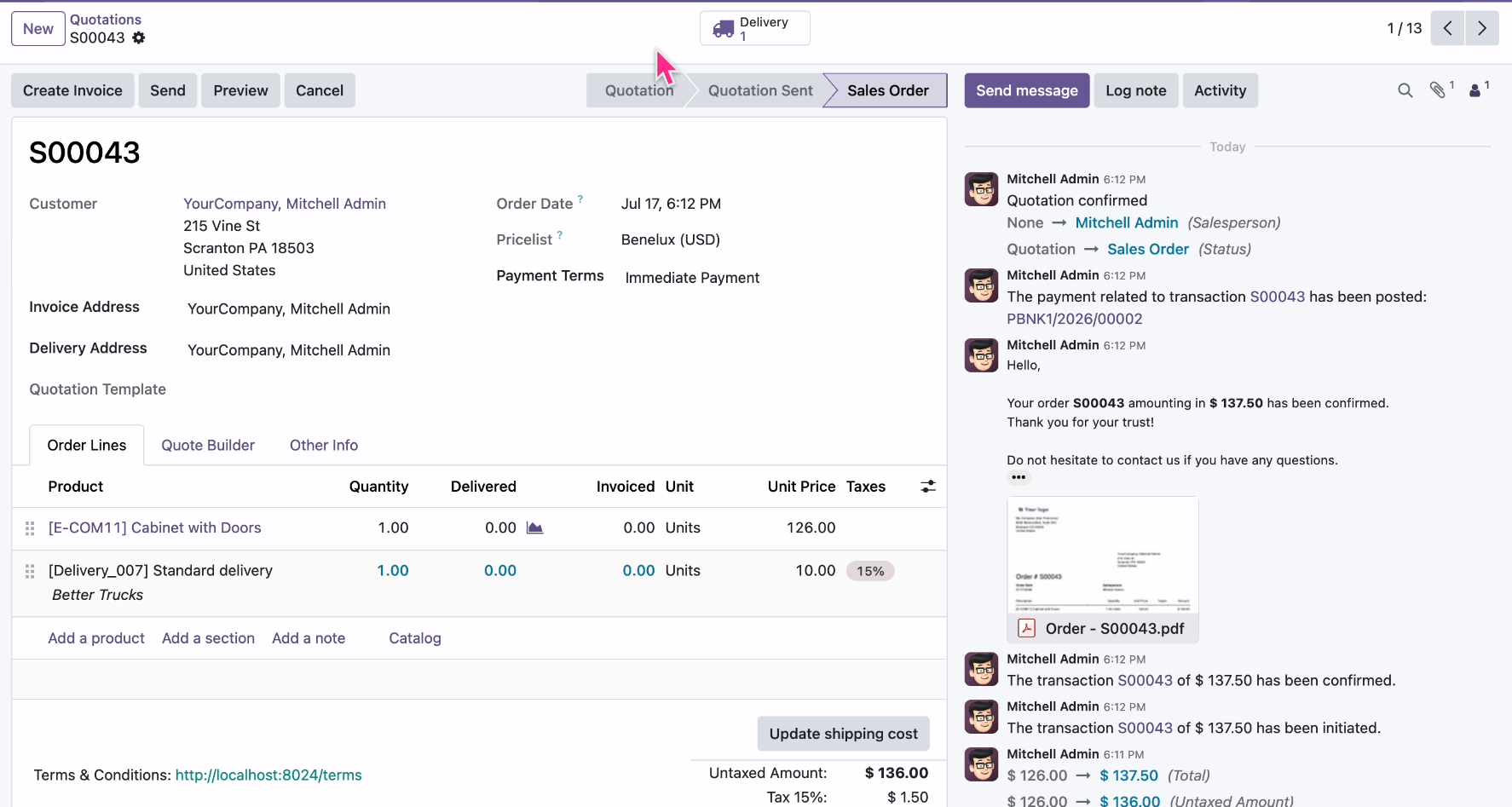
Backend order created with all details.
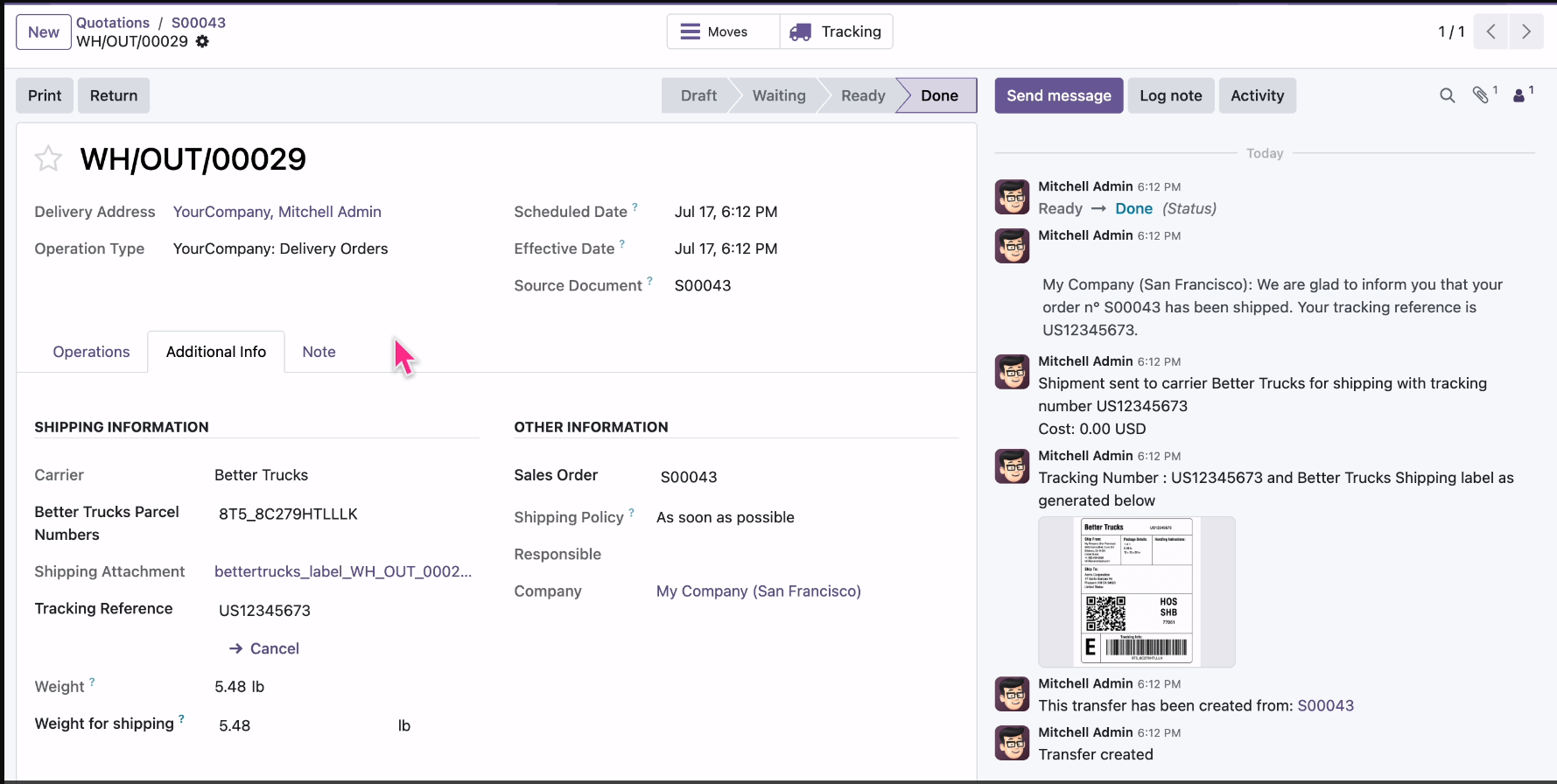
The delivery order with details in the backend. It displays the Shipping Information under the Additional Info tab after generating the label. In the log note, it shows that the shipping label was successfully generated, along with a downloadable PDF link.
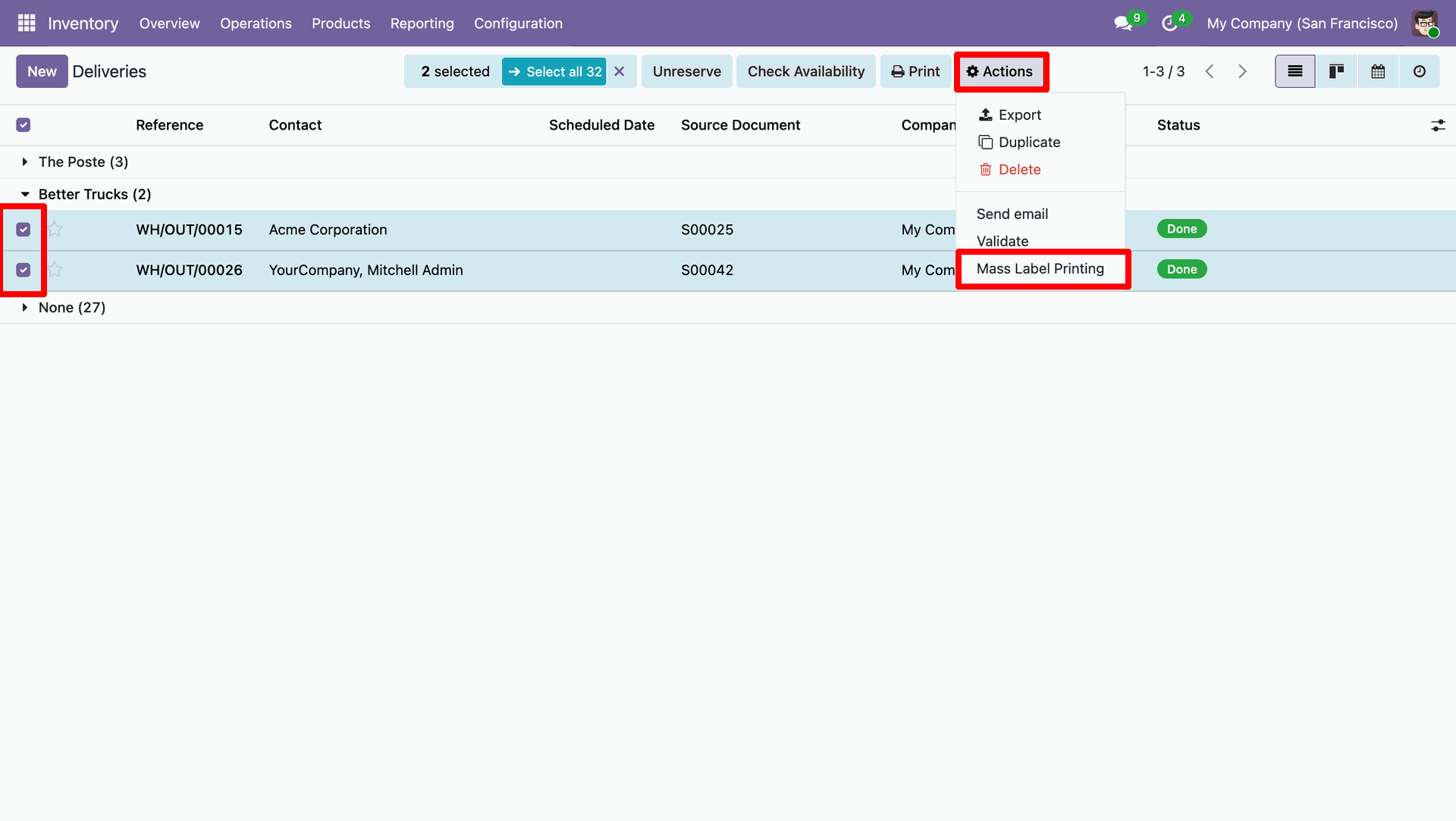
Select deliveries and click Action -> Mass Label Printing.
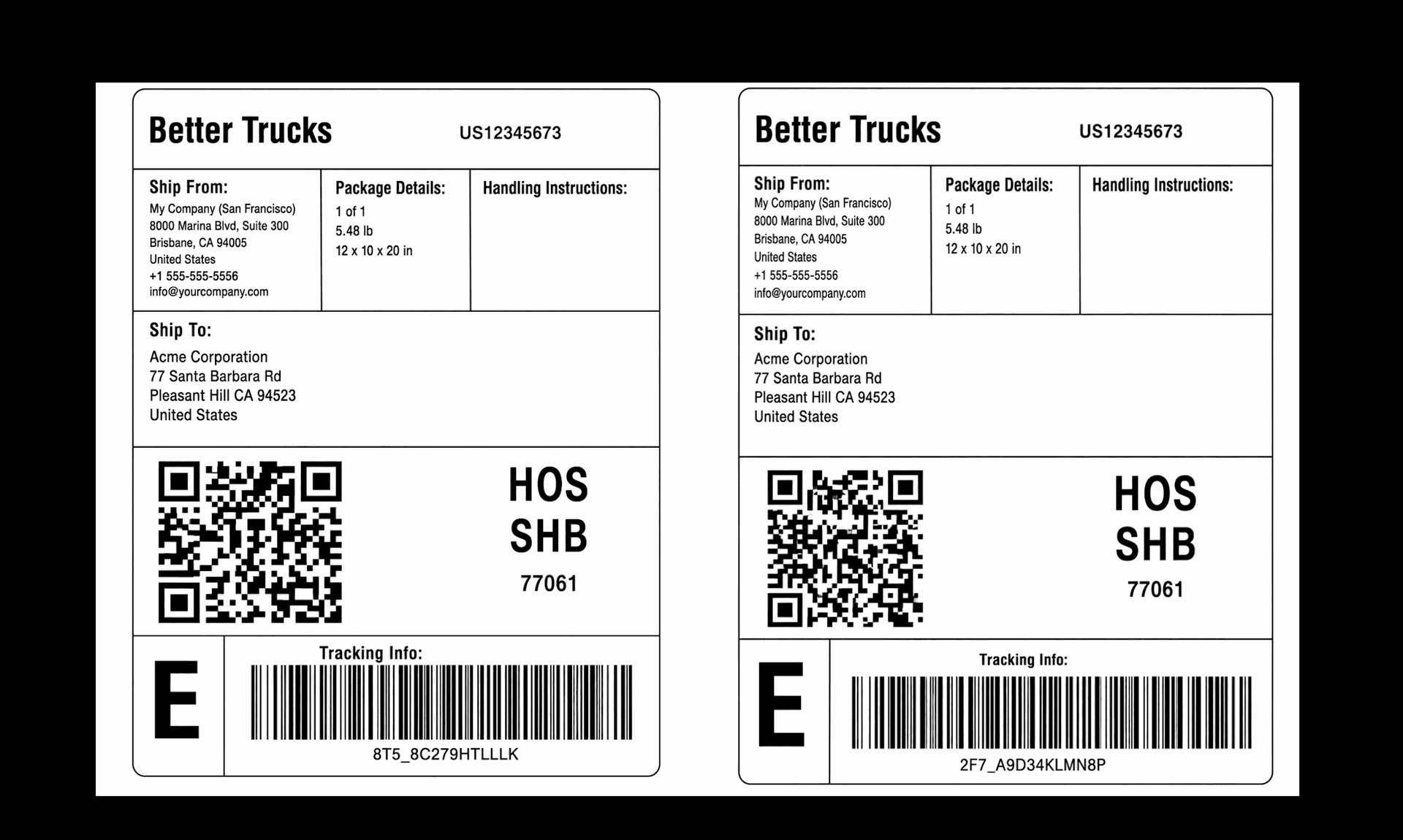
Labels generated.
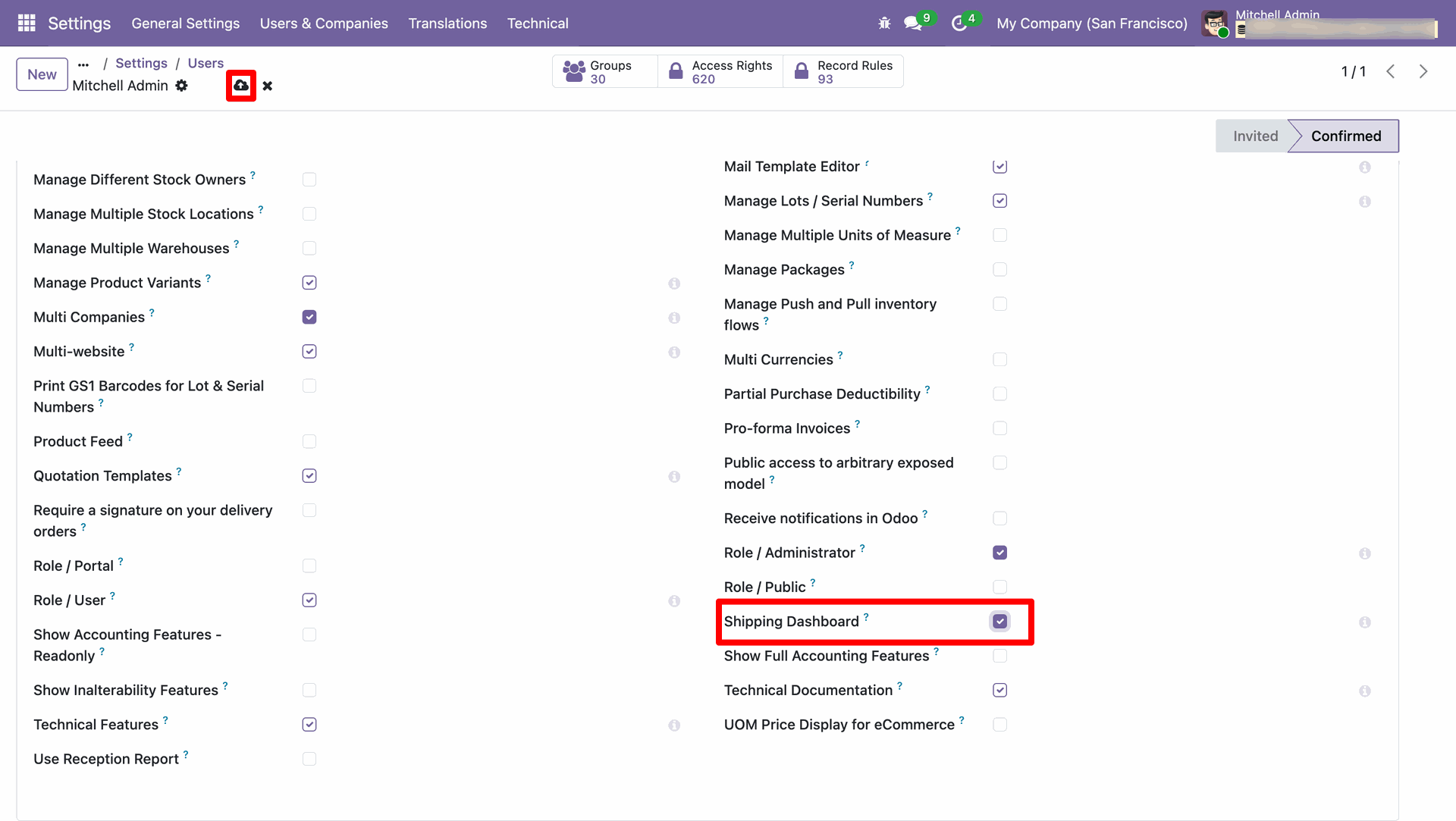
Enable 'Shipping Dashboard'.
Click 'Shipping Dashboard'.
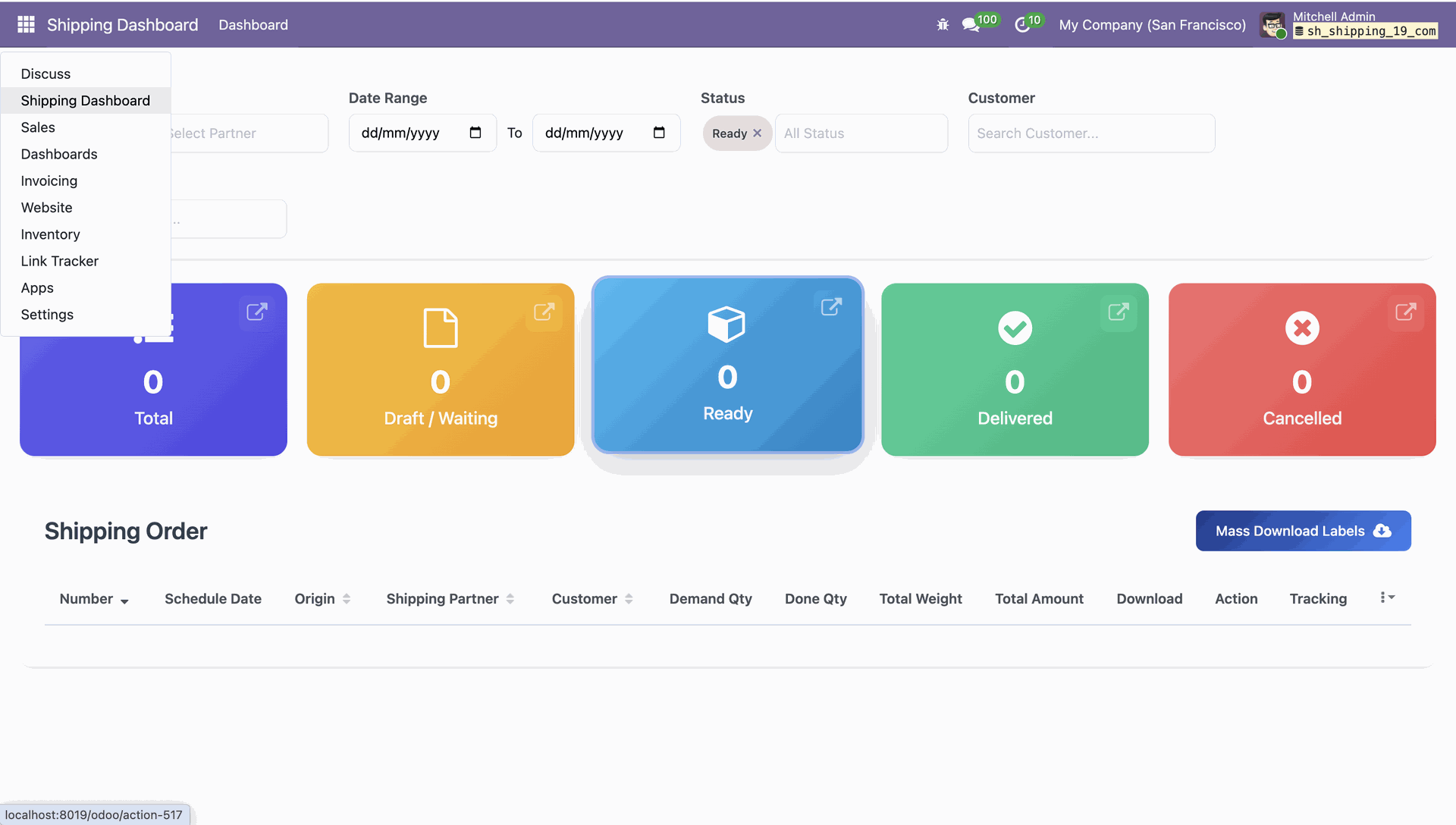
Dashboard view.
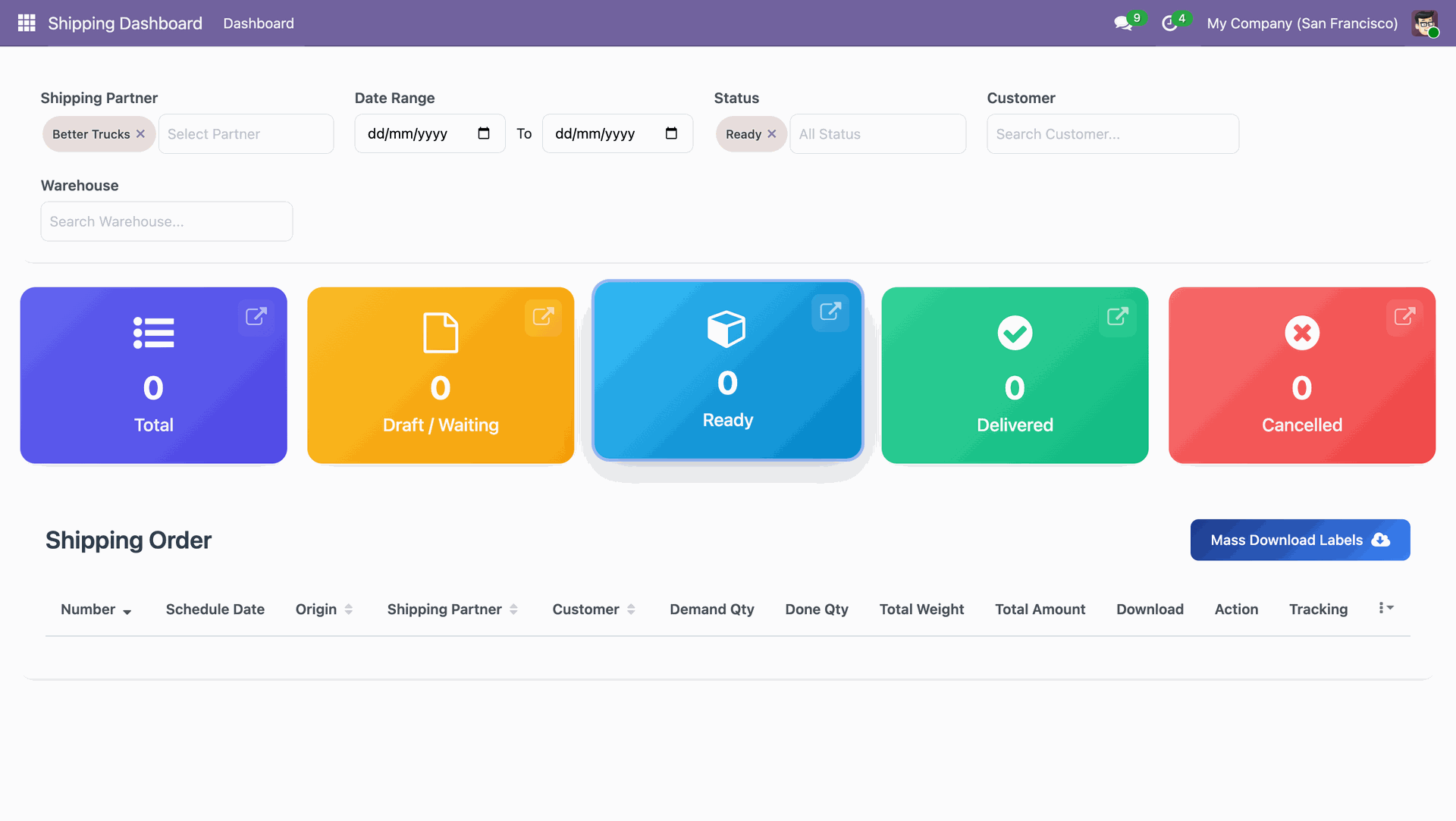
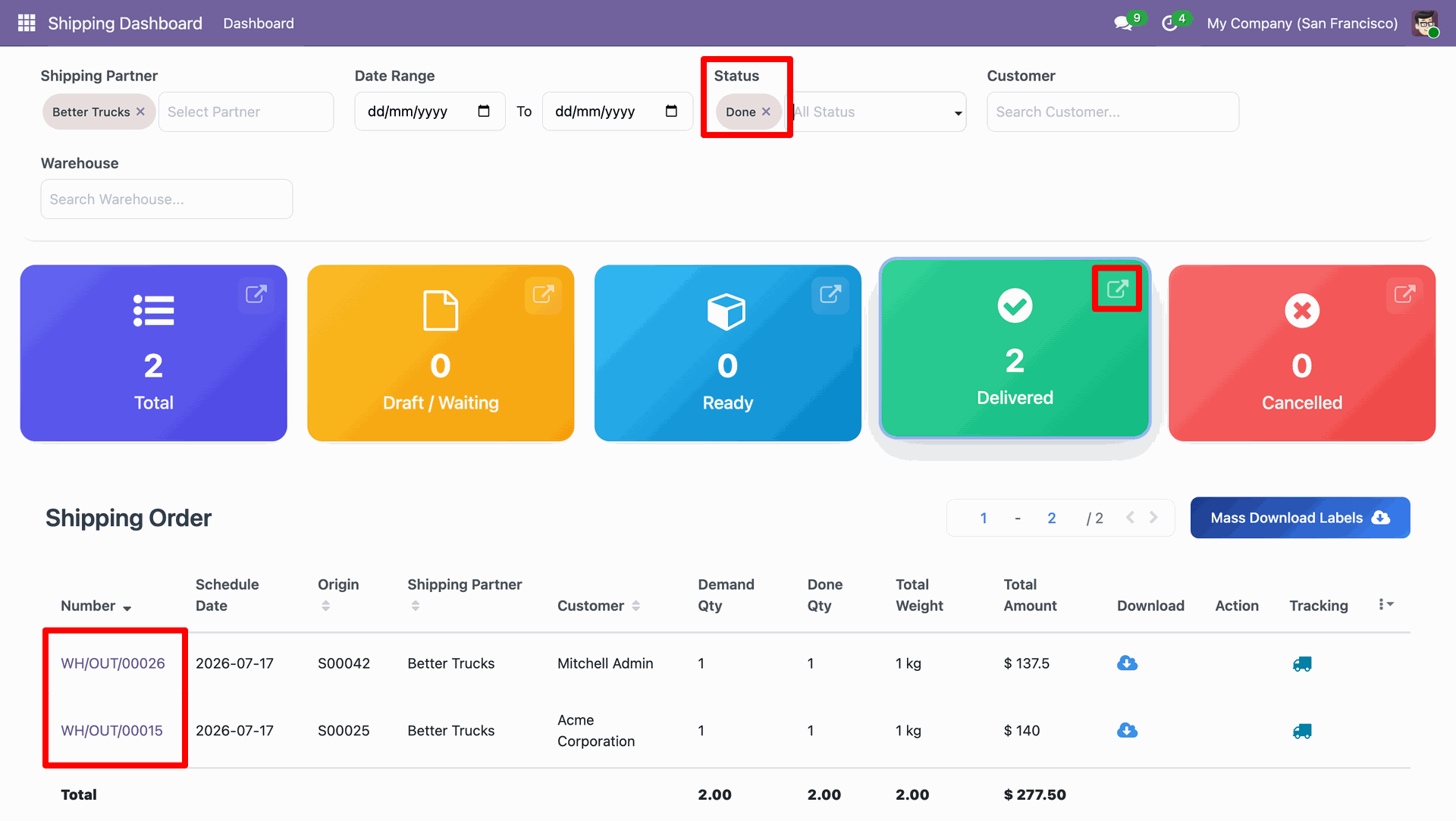
You can select shipping status from the drop-down.
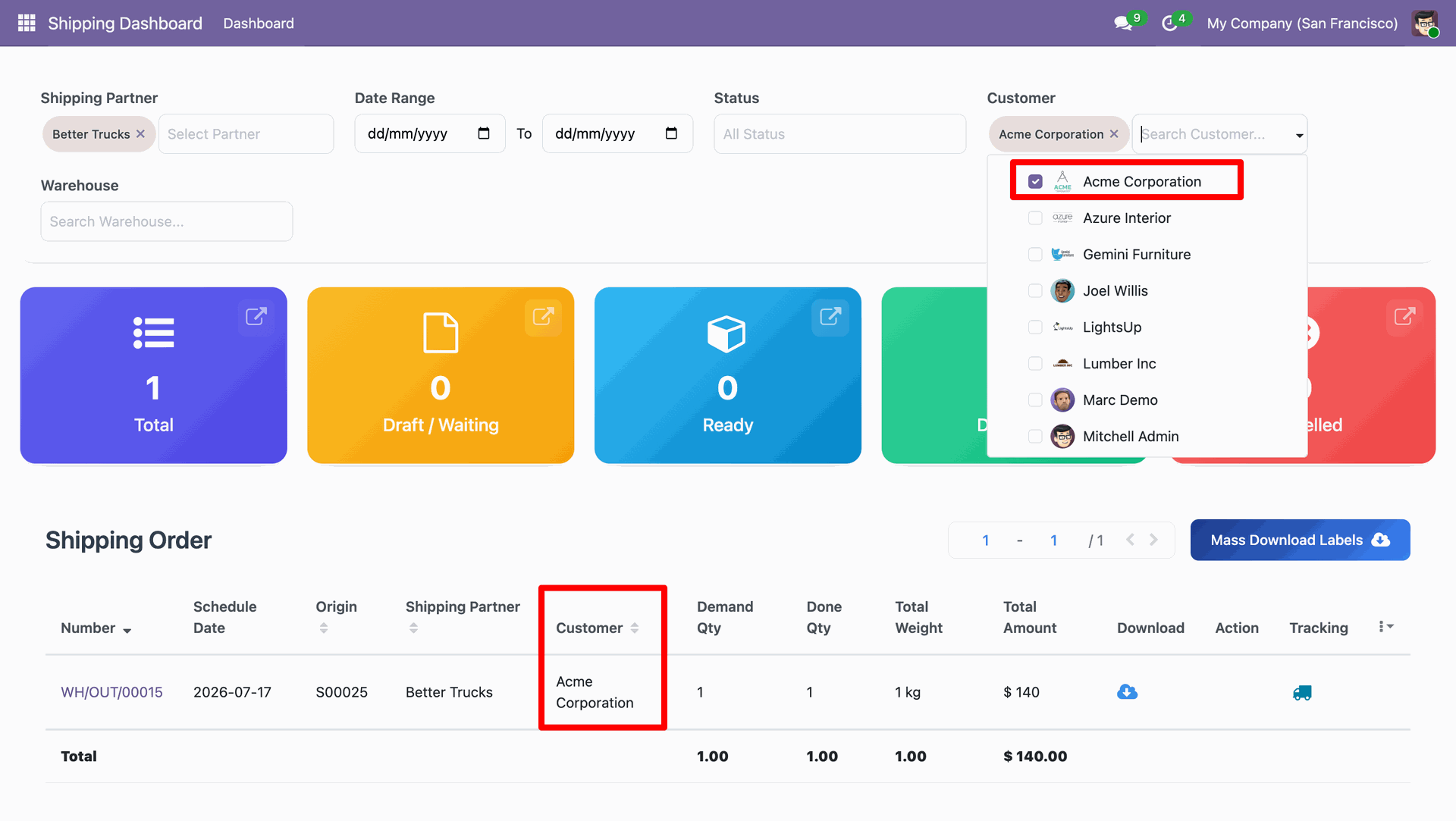
You can select customers from the drop-down.
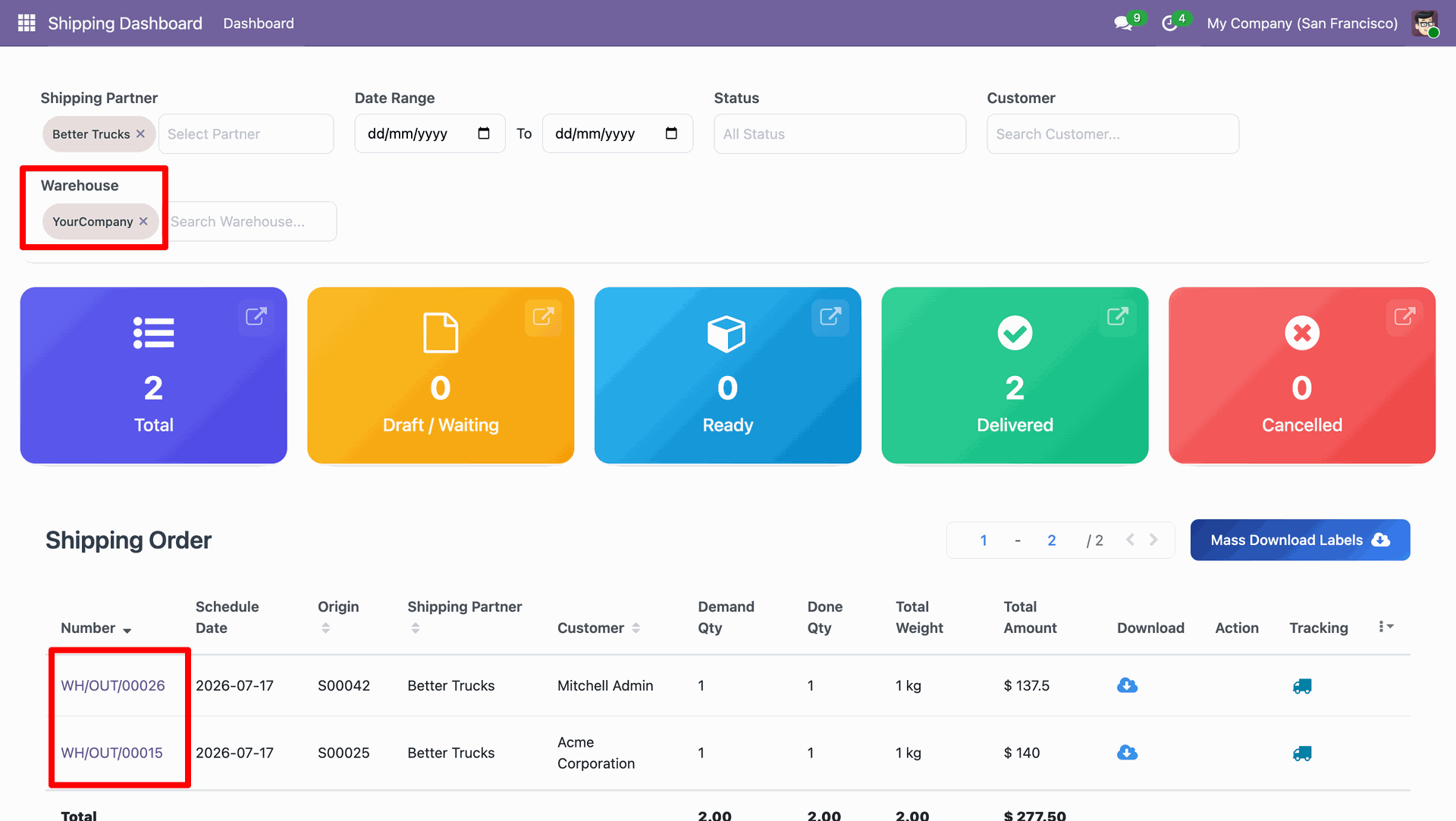
You can select warehouse from the drop-down.
Click 'Mass Download Labels' to download all at single click, You can download and track shipping from the dashboard.
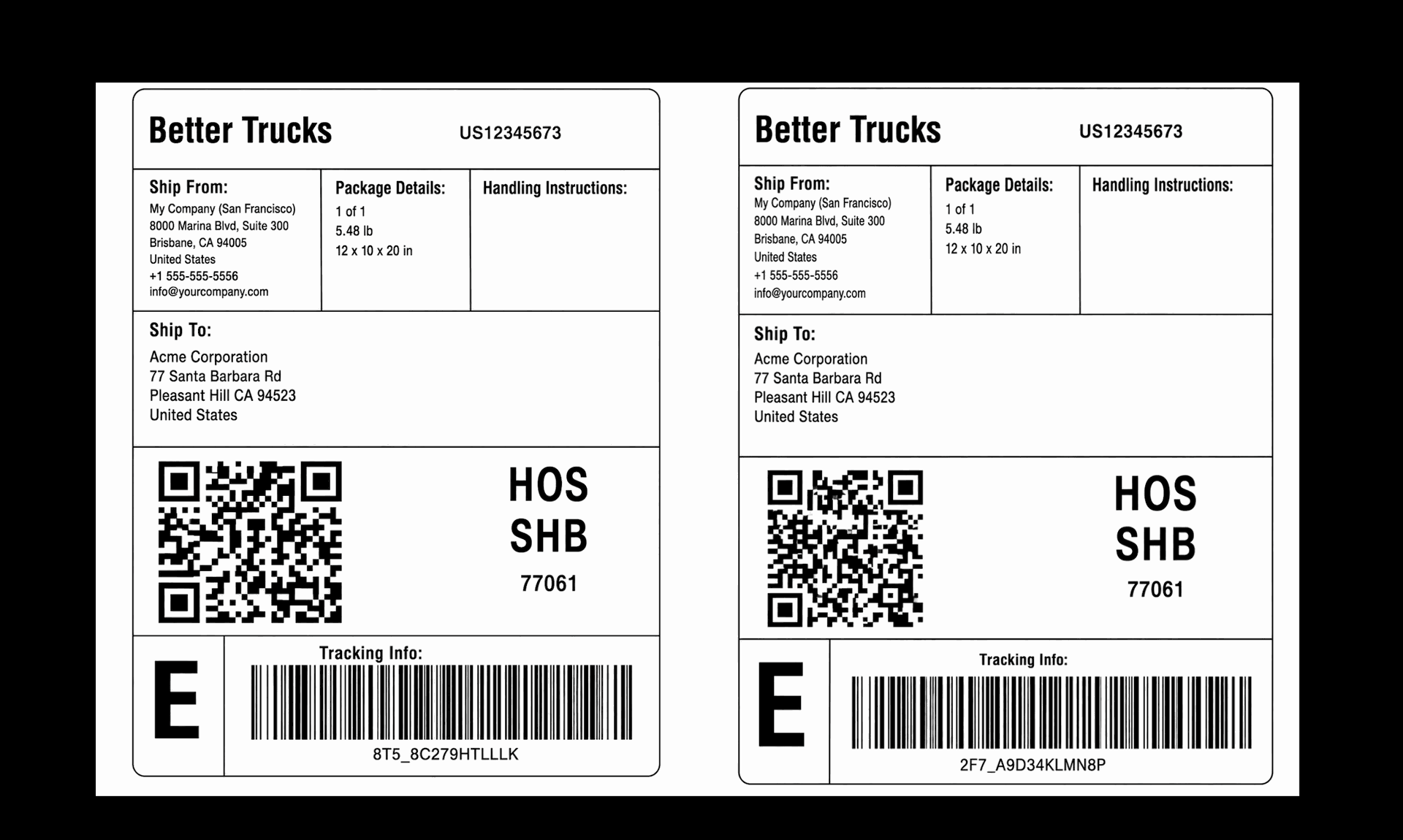
Labels downloaded.
Version 18.0.1.0.0 | Released on : 25th July 2026
- Yes, this app works perfectly with Odoo Enterprise (Odoo.sh & Premise) as well as Community.
- No, this application is not compatible with odoo.com(odoo saas/Odoo Online)
- Yes, to test this module, please contact us at sales@softhealer.com.
- Please contact us at sales@softhealer.comto request customization.
- Yes, we provide free support for 365 days from the date of purchase.
- Yes, you will receive lifetime free updates for the version of the module you purchased.
- No, there is no need to install any additional libraries.
- Yes, for version 12 and above, you need to purchase the module separately for each version you intend to use.
- No, exchanges or refunds are not allowed. Please make sure to select the correct version before purchasing.
- You can contact us at support@softhealer.com for language translation support. We use Google Translator tools to provide translations in multiple languages, so the accuracy may vary. We welcome your suggestions to help improve translations.
