













Bank Statement Reconciliation

This module helps you manage customer and vendor payments easily. You can register payments and reconcile them. In bank reconciliation, you can choose a payment which is in the ‘In Payment. stage. Plus, you can also check the remaining credit or debit amount for paid invoices.

Features
- Easily match bank statements with accounting records.
- Easy to reconcile the bank statement.
- Unreconciled & Reconciled closing balances update automatically when you reconciled the payment.
- Add and manage payment lines directly in the reconciliation form.
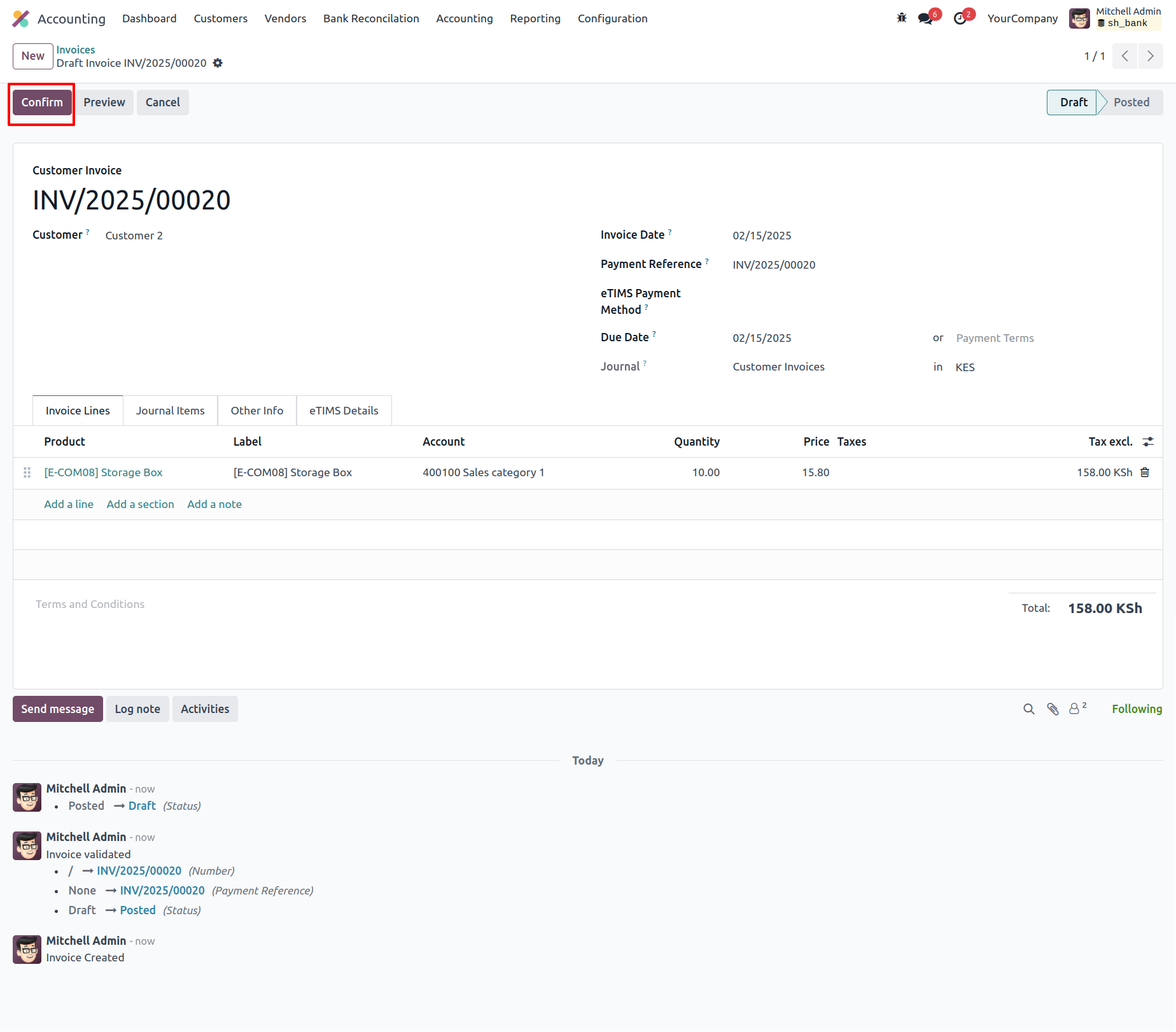
Generate an invoice and confirm it by clicking on the 'Confirm' button.
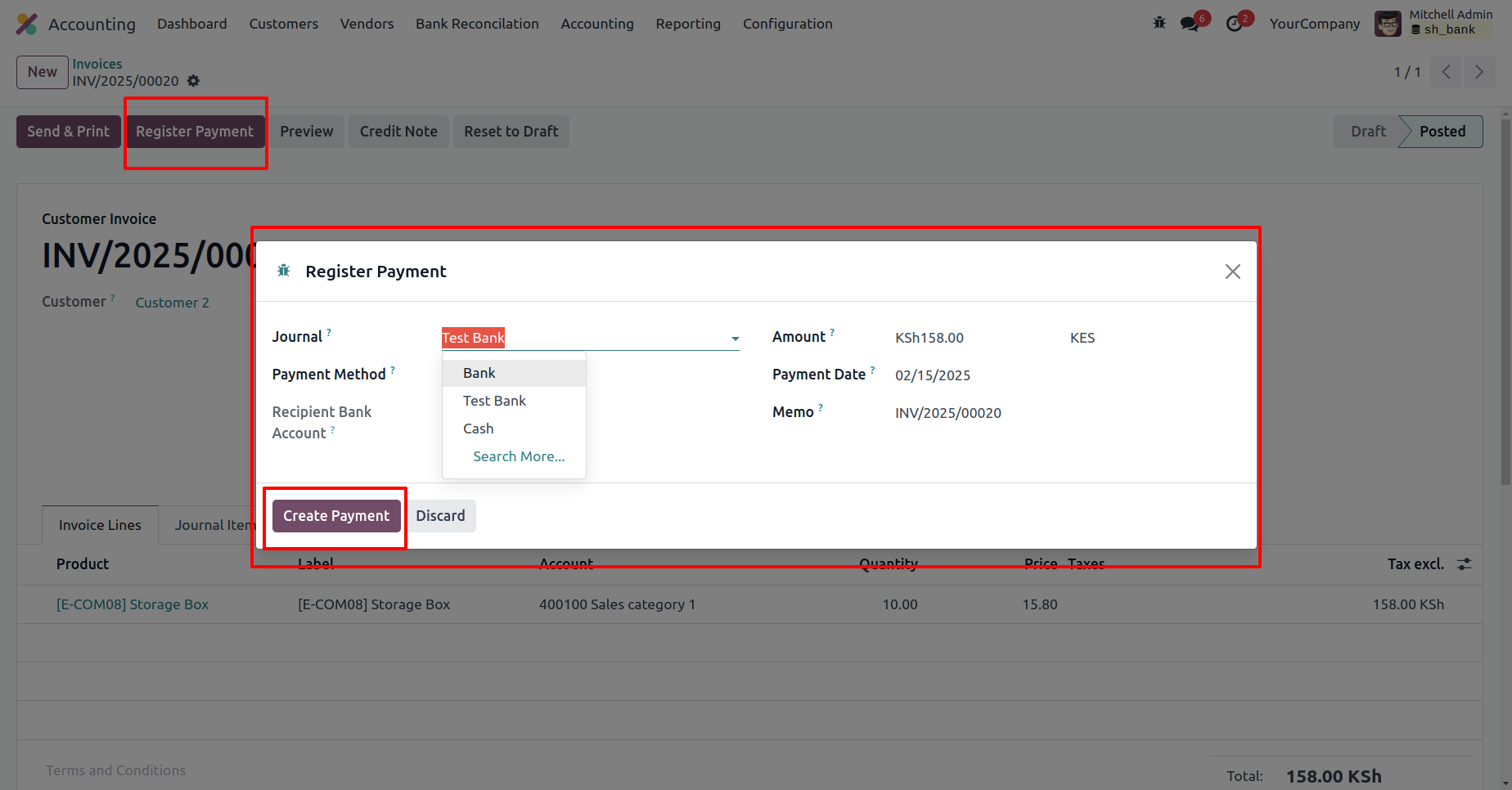
Click the 'Register Payment' button, enter the required details in the Register Payment wizard, and then click on 'Create Payment'.
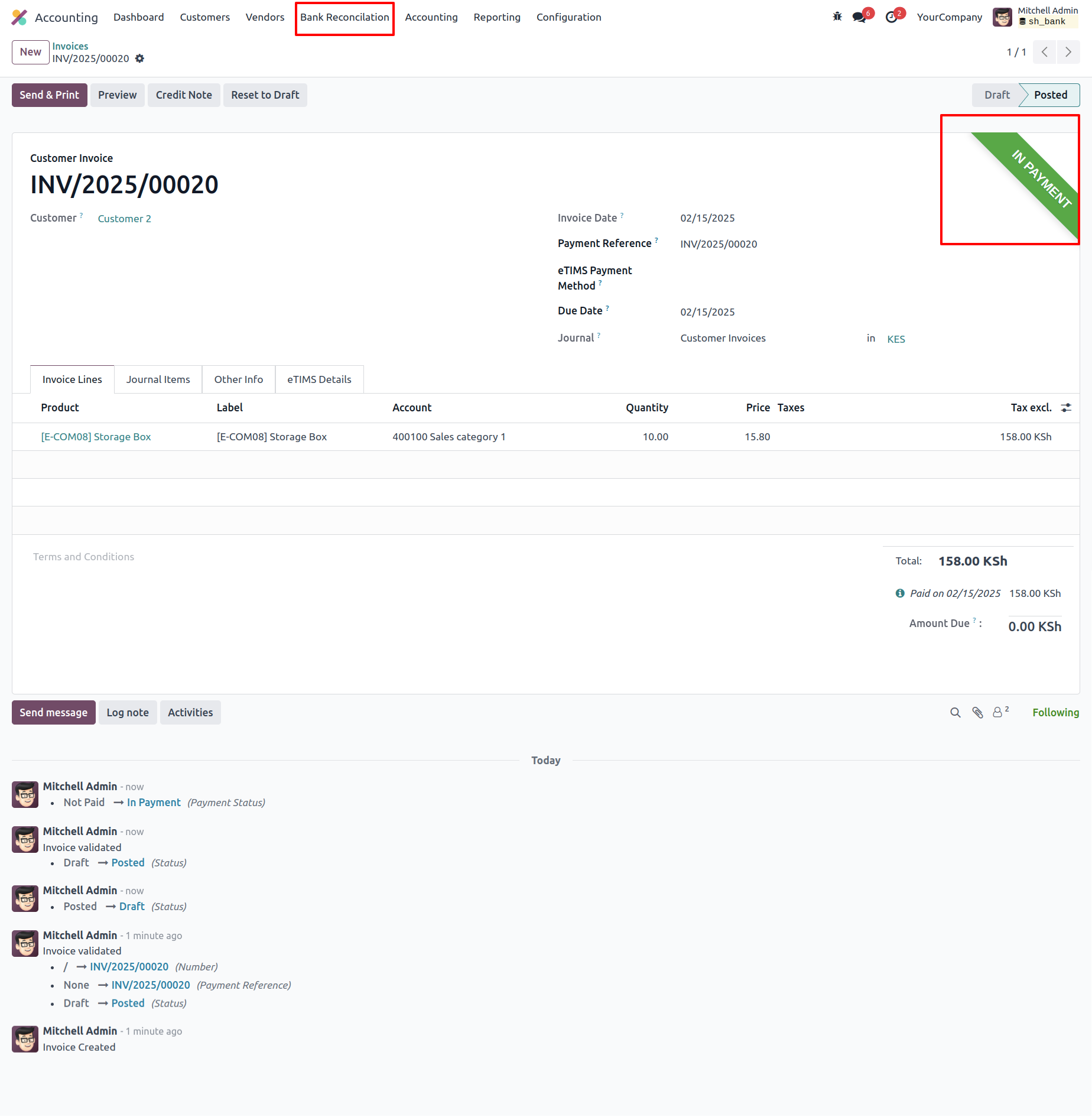
The invoice is currently in the 'In Payment' stage.
Go to the Bank Reconciliation menu, create a new Bank Reconciliation, and select the journal.
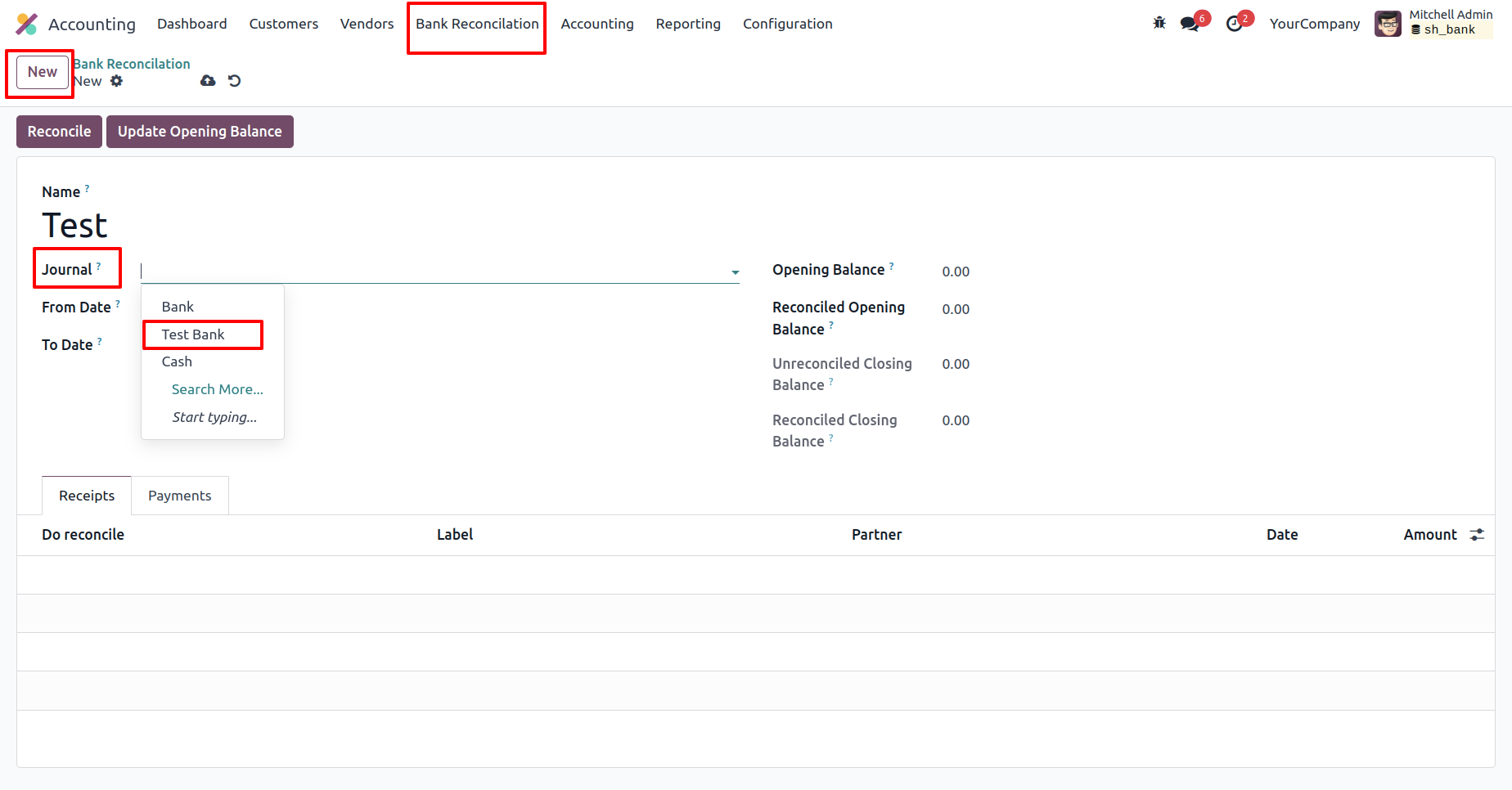
Enter the 'From' and 'To' dates and add receipts in the 'Receipts' tab.
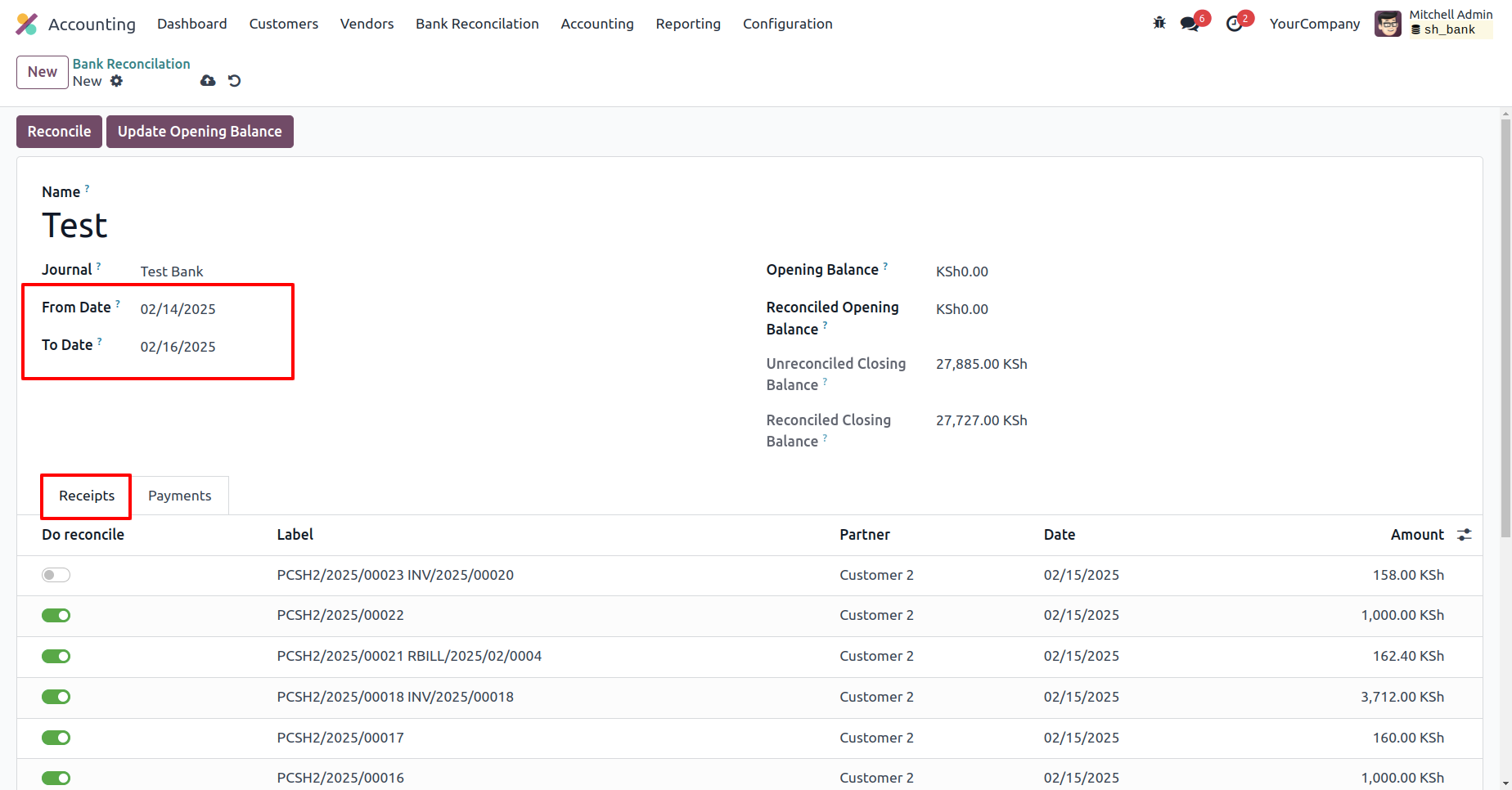
Enable the 'Do Reconciliation' boolean and click the 'Reconciliation' button.
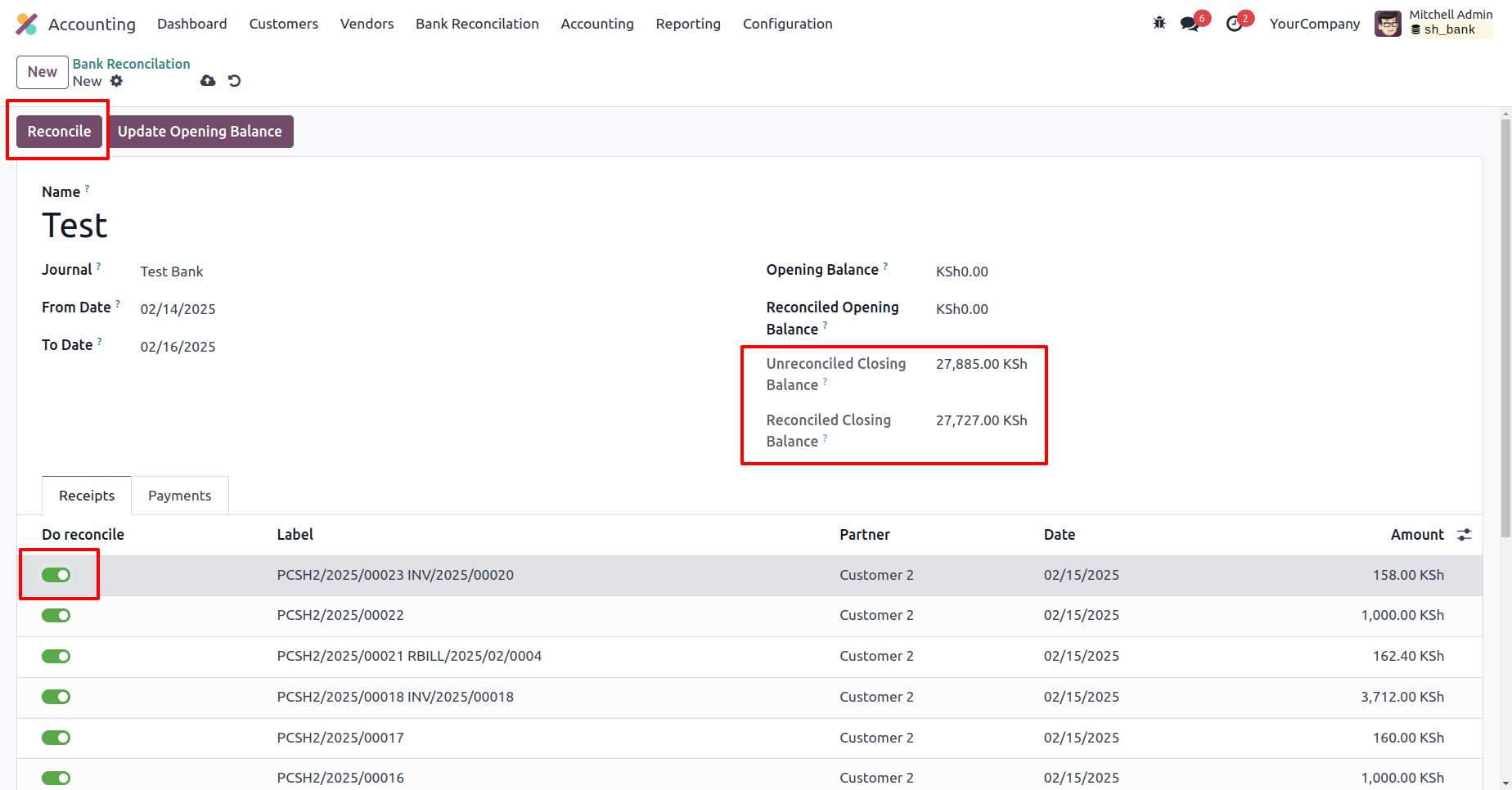
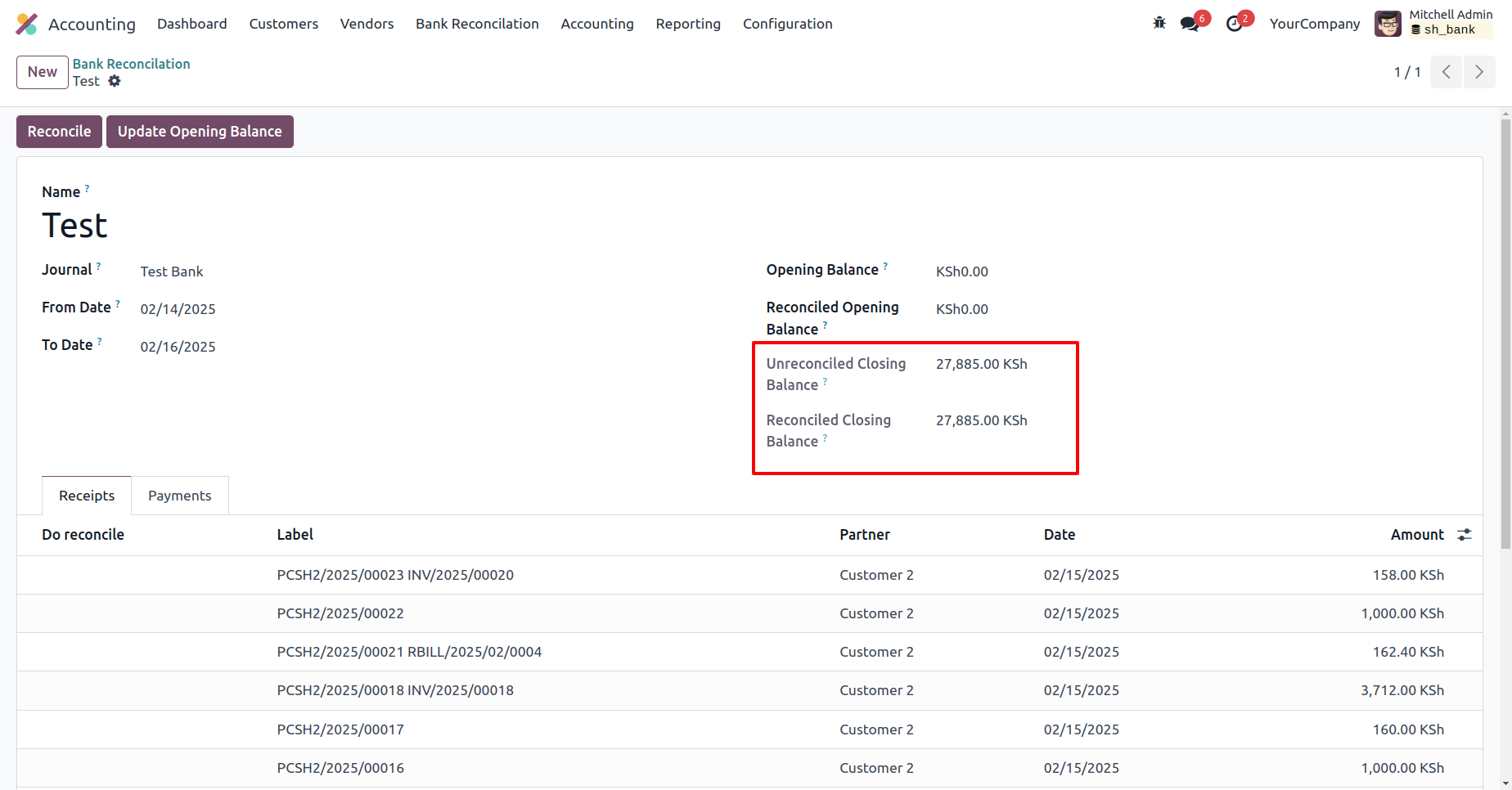
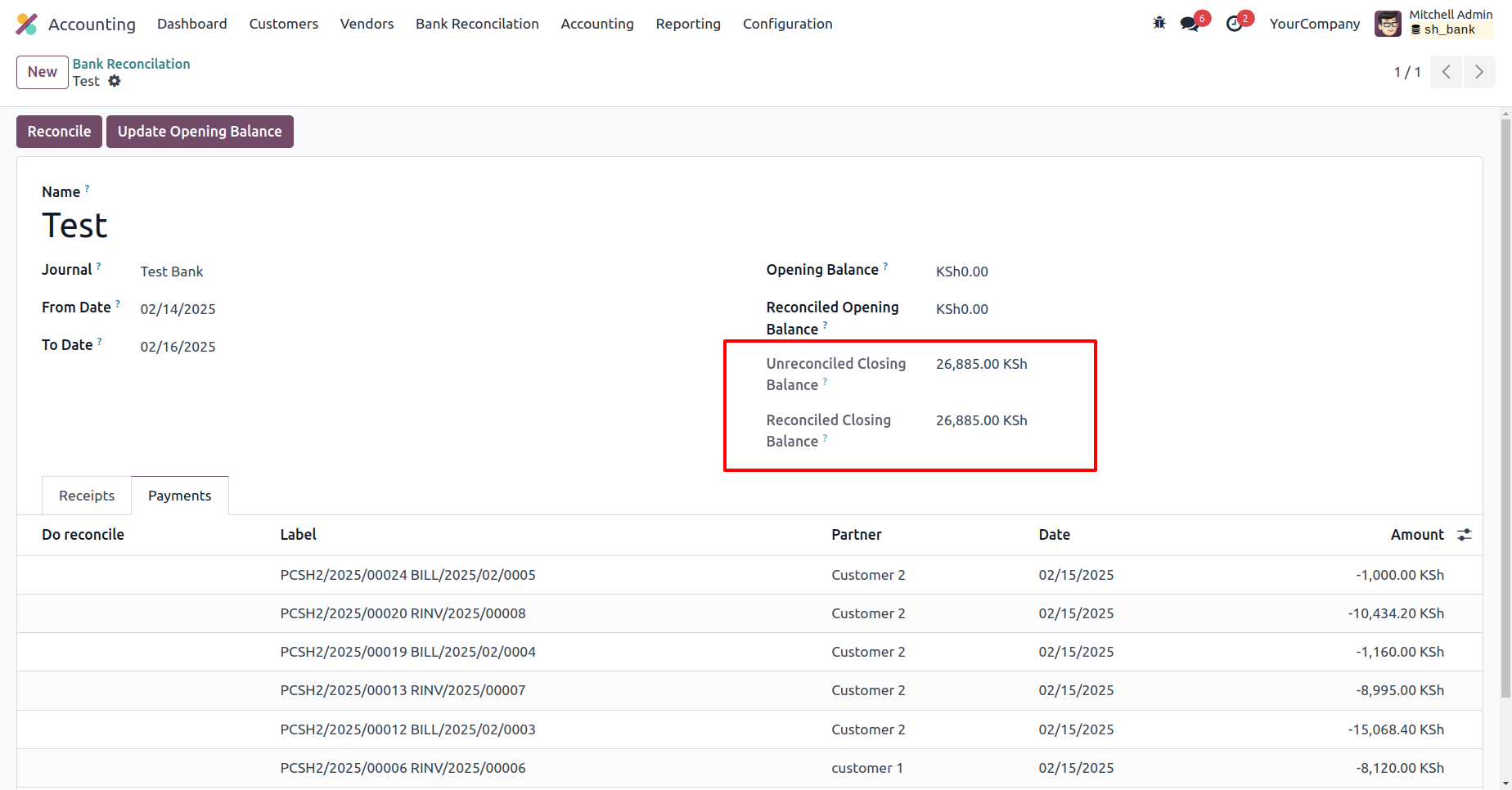
The reconciled closing balance has been updated.
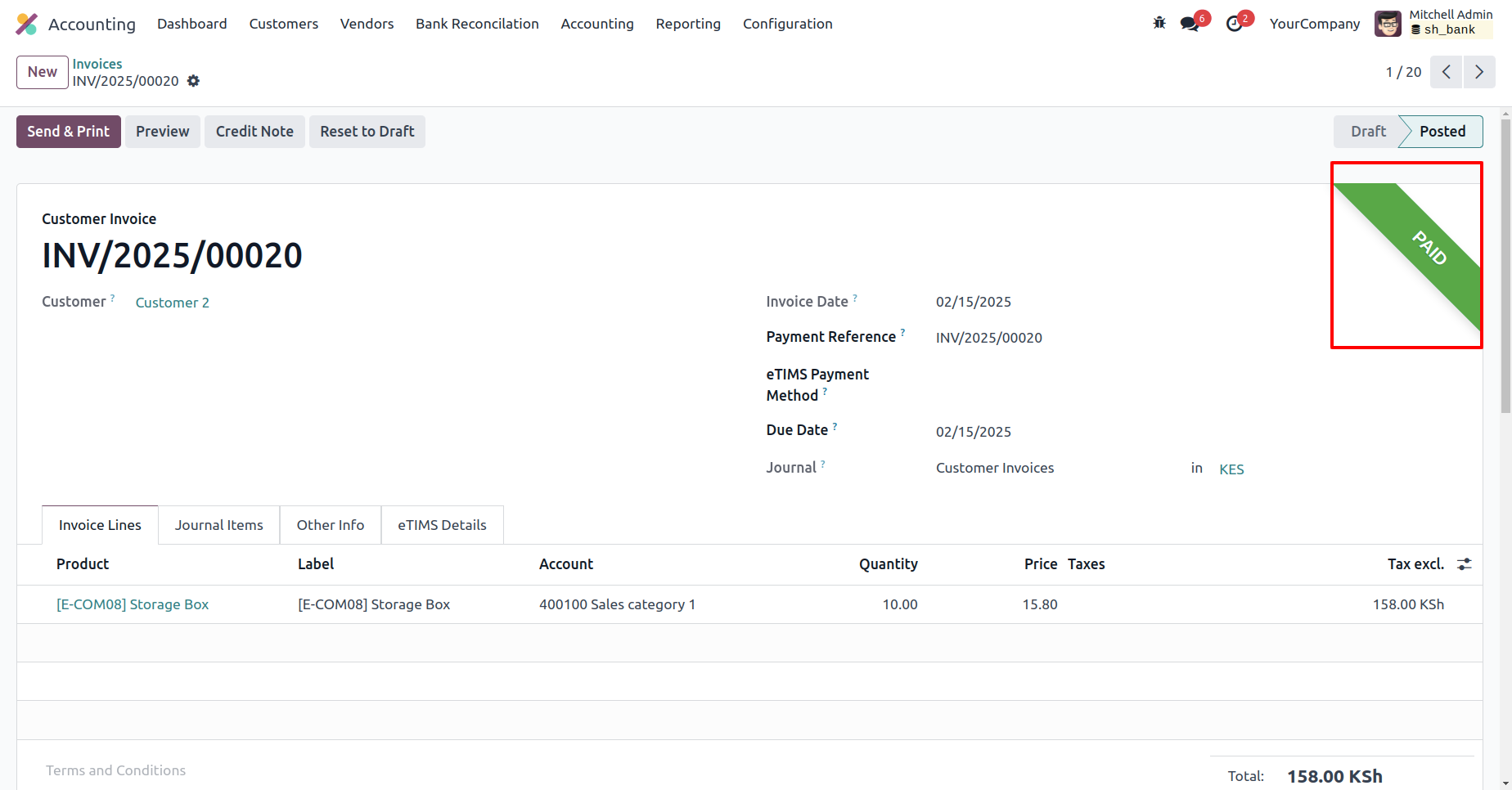
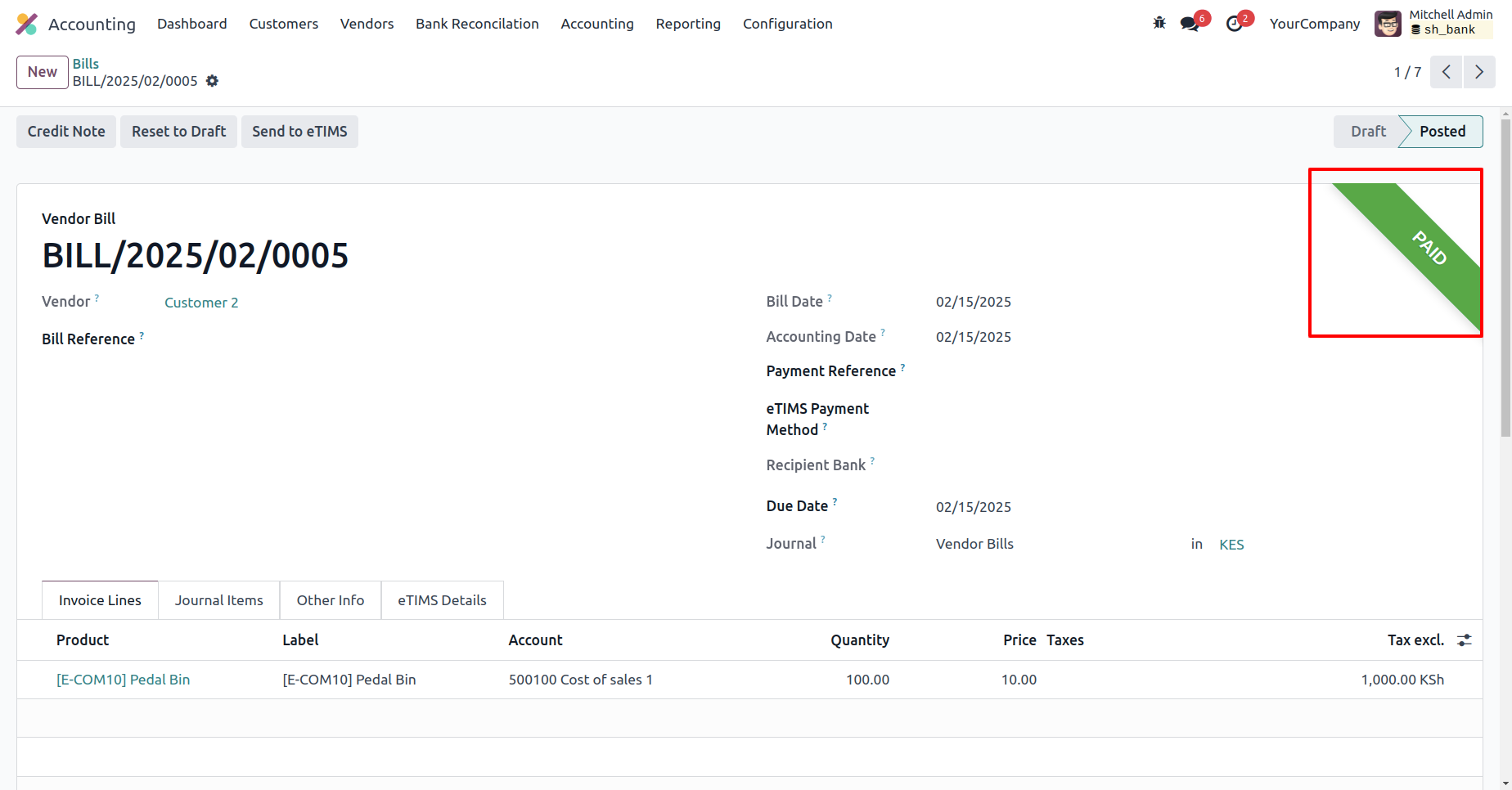
The invoice is now 'Paid'.
In the vendor bill form view, click the 'Confirm' button.
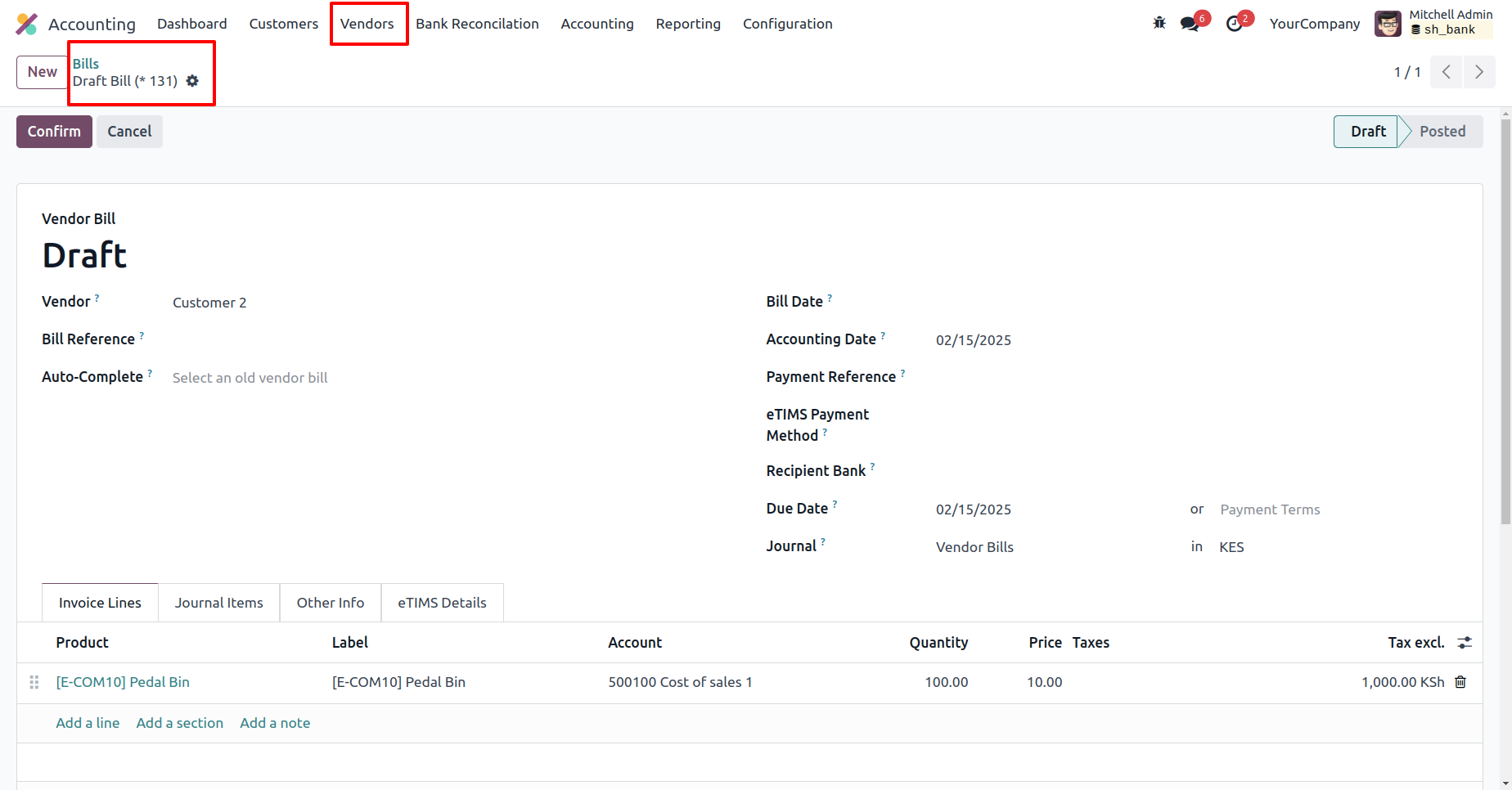
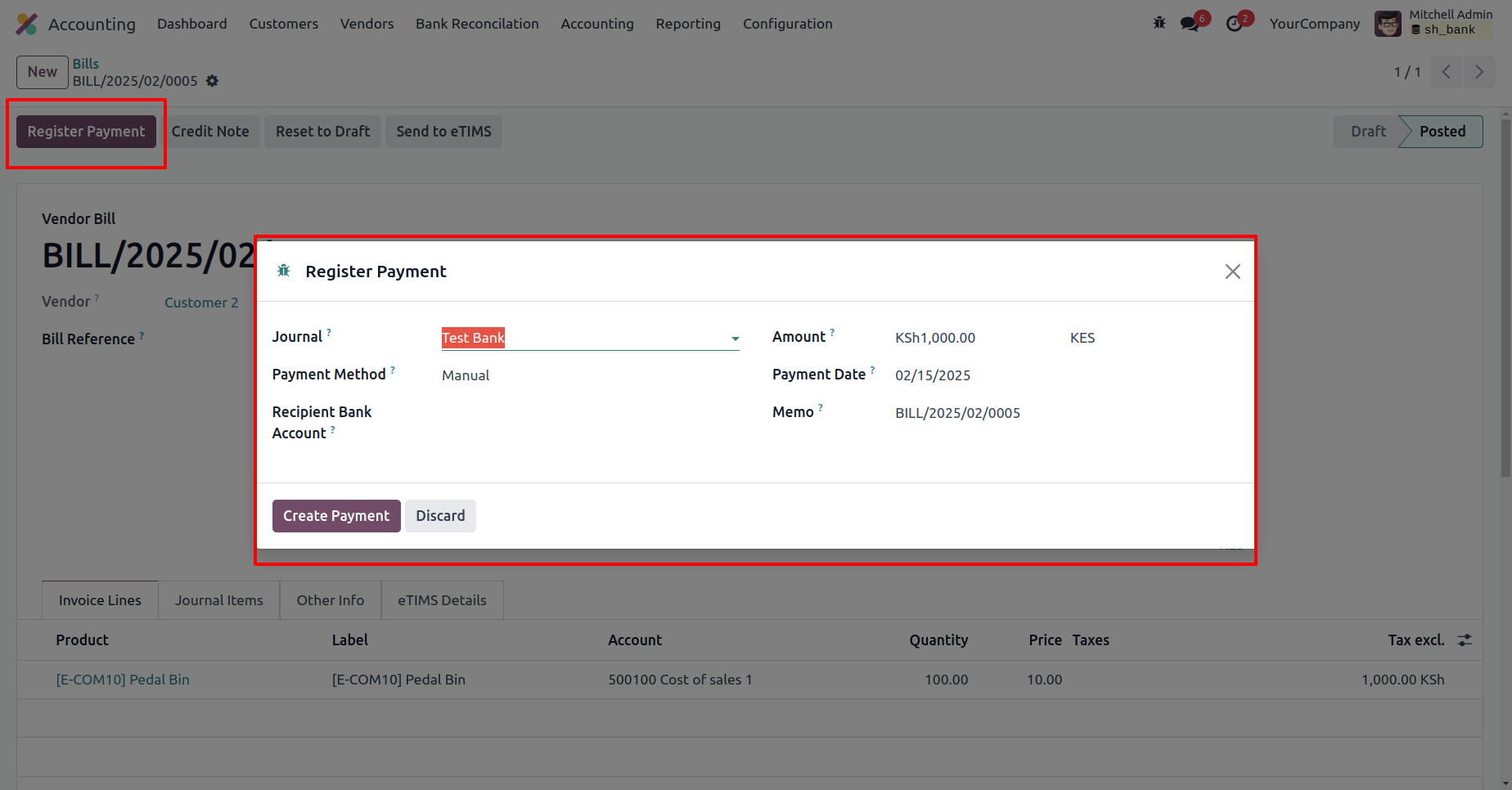
Click the 'Register Payment' button, enter the required details in the Register Payment wizard, and then click the 'Create Payment' button.
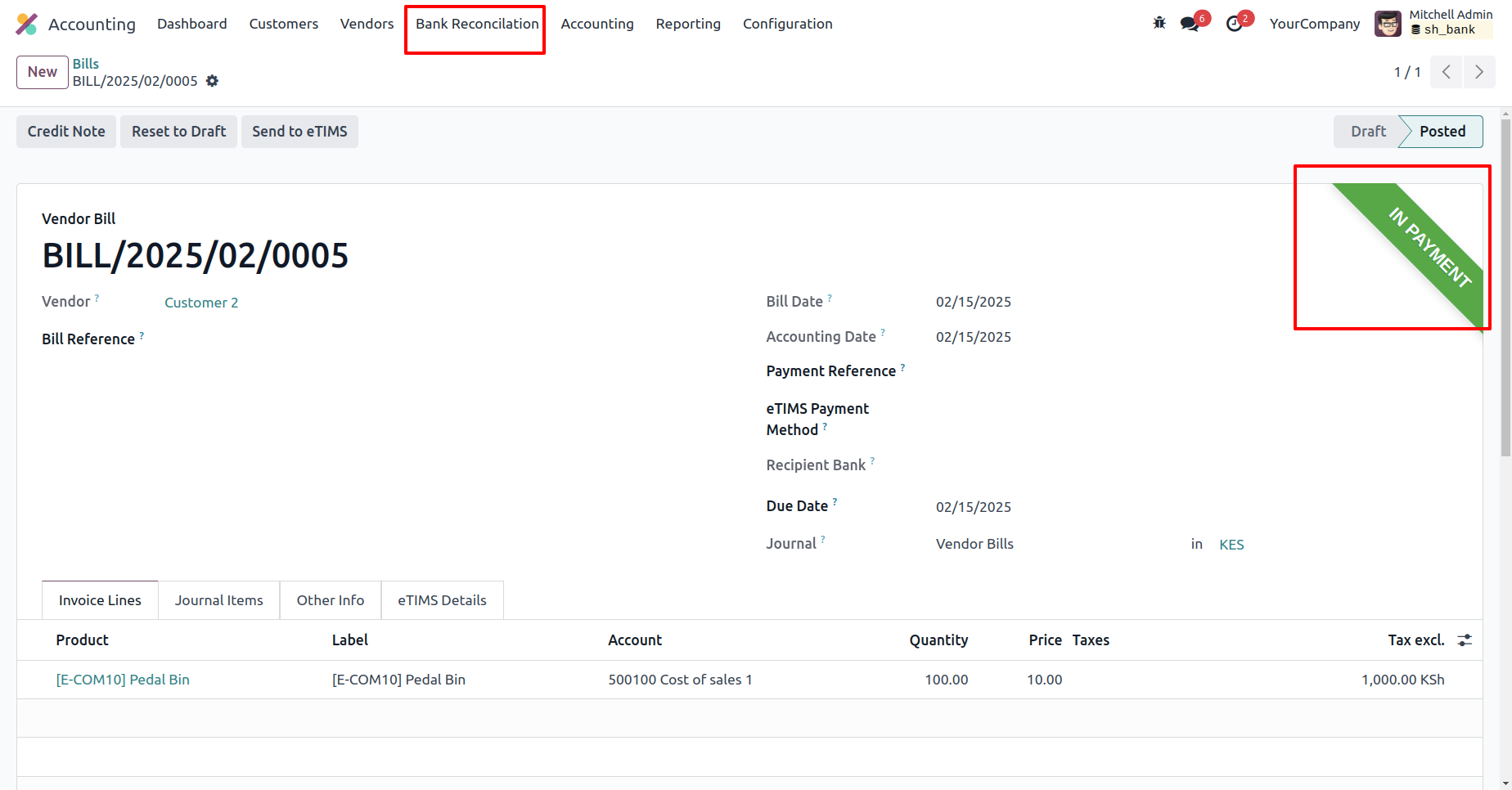
The bill is now in the 'In Payment' stage.
In the Bank Reconciliation form view, add lines in the 'Payments' tab.
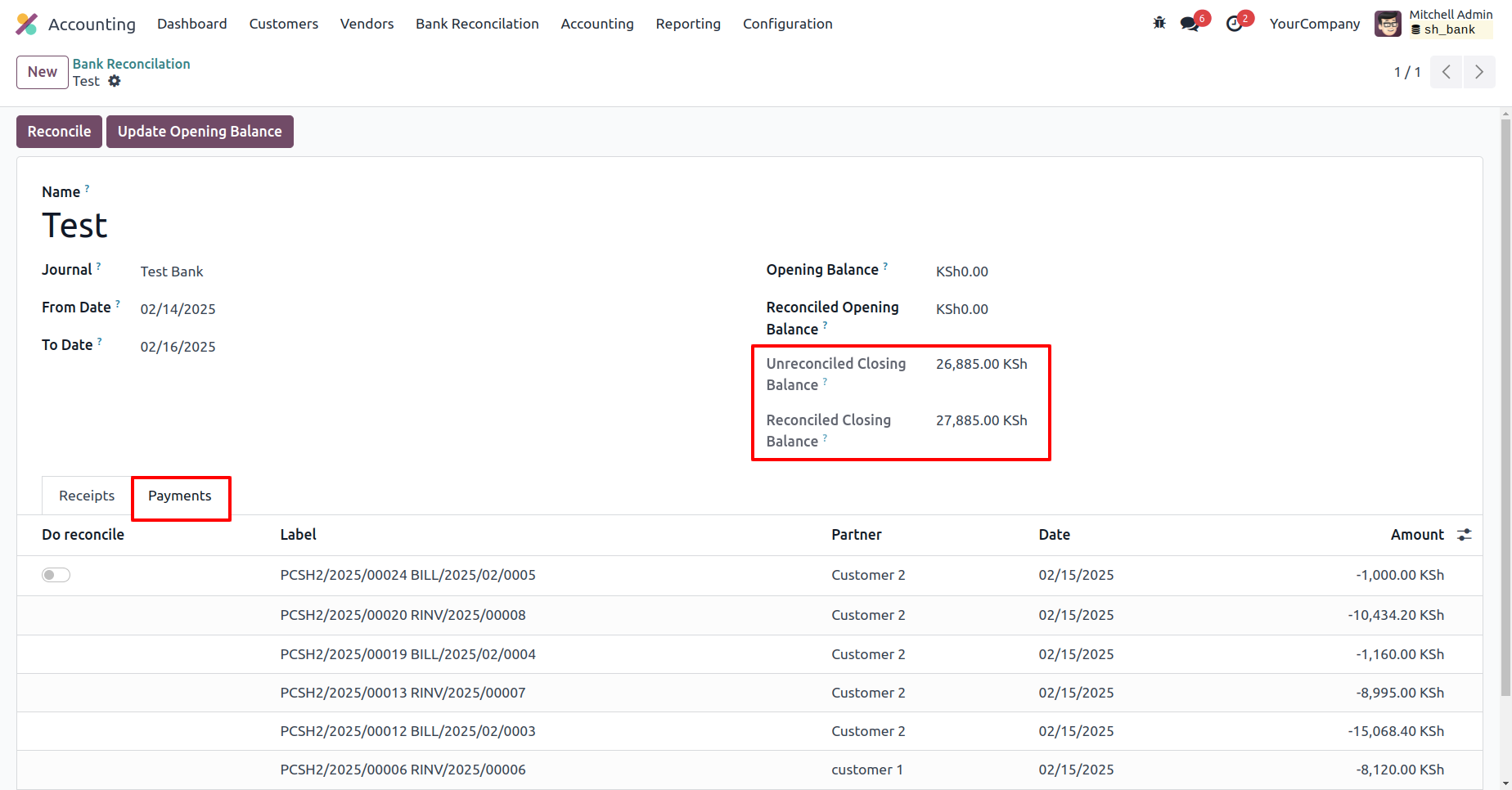
Enable the reconciliation label and click the 'Reconciliation' button.

The reconciled closing balance has been successfully updated.
The bill status is now marked as 'Paid.'
Version 18.0.4.0.0 | Released on : 8th December 2025
Version 18.0.3.0.0 | Released on : 28th November 2025
Version 18.0.2.0.0 | Released on : 7th November 2025
Version 18.0.1 | Released on : 17th April 2025
- This app works perfectly with Odoo Enterprise (Odoo.sh & On-Premise) only.
- In this module we have not consider cost method & cost price.
- No, this application is not compatible with odoo.com(odoo saas).
- Please Contact Us at sales@softhealer.comto request customization.
- Yes, we provide free support for 100 days.
- Yes, you will get free update for lifetime.
- No, you don't need to install addition libraries.
- Yes, You have to download module for each version (13,14,15) except in version 12 or lower.
- No, We do not provide any kind of exchange.
