












Bank Account Reconciliation - Community Edition

This module simplifies your financial workflow in Odoo by enabling quick and easy bank reconciliation
directly from your payments. Instead of navigating through complex menus, you can simply click the
"Reconcile" button on an individual payment form to instantly match it with a bank statement line. For
high-volume operations, the module also supports bulk reconciliation, allowing you to select multiple
payments from the list view and reconcile them all at once using the Reconcile action. Bank statements
and statement lines are created automatically, keeping your financial records accurate, organized, and up
to date while significantly reducing manual effort.

Features

One-Click Payment Reconciliation
Instantly reconcile individual payments(invoice & bill) directly from the payment form using a dedicated Reconcile button.
Intelligent Payment Matching
Automatically matches payment journal entries with generated bank statement lines for accurate reconciliation.
Multi-Payment Reconciliation
Select multiple payments from the list view and reconcile them all at once to save time.

Automated Bank Statement Generation
Bank statements and statement lines are created automatically during reconciliation.
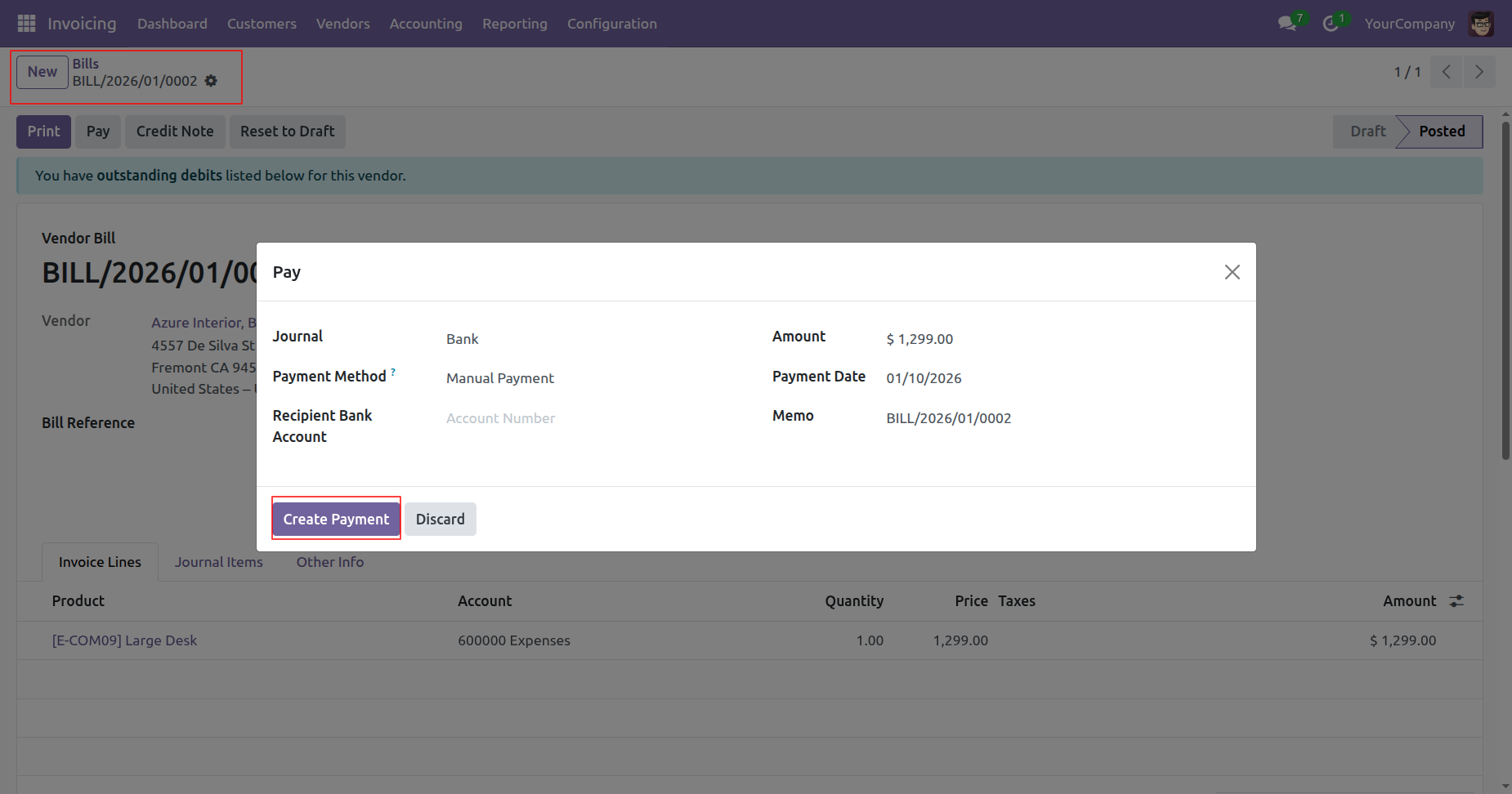
The user reviews the payment details for vendor bill BILL/2026/01/0002 and clicks the highlighted Create Payment button to complete the transaction process.
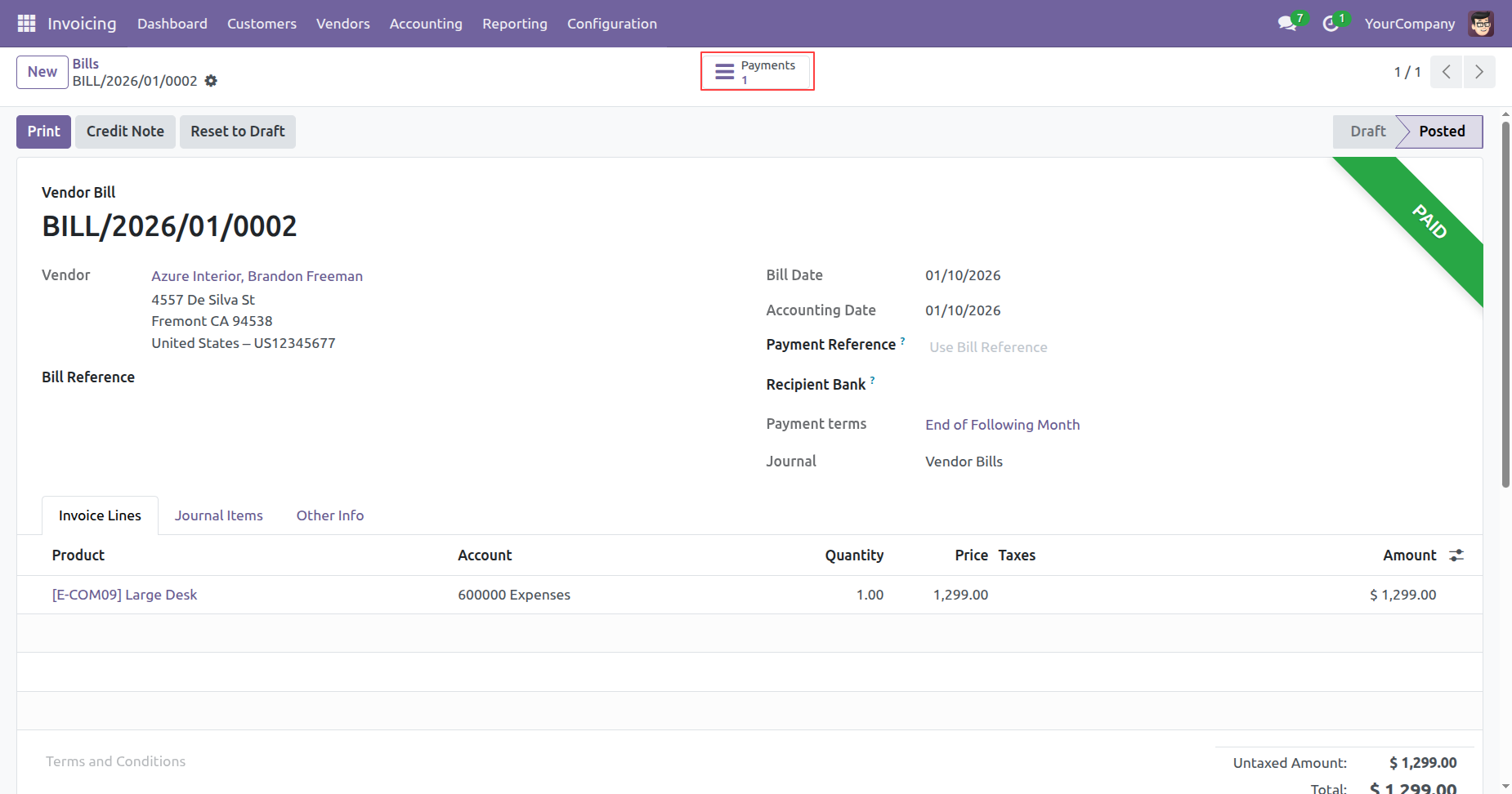
The bill is now marked as PAID, and the user can access the associated transaction details by clicking the highlighted Payments smart button.
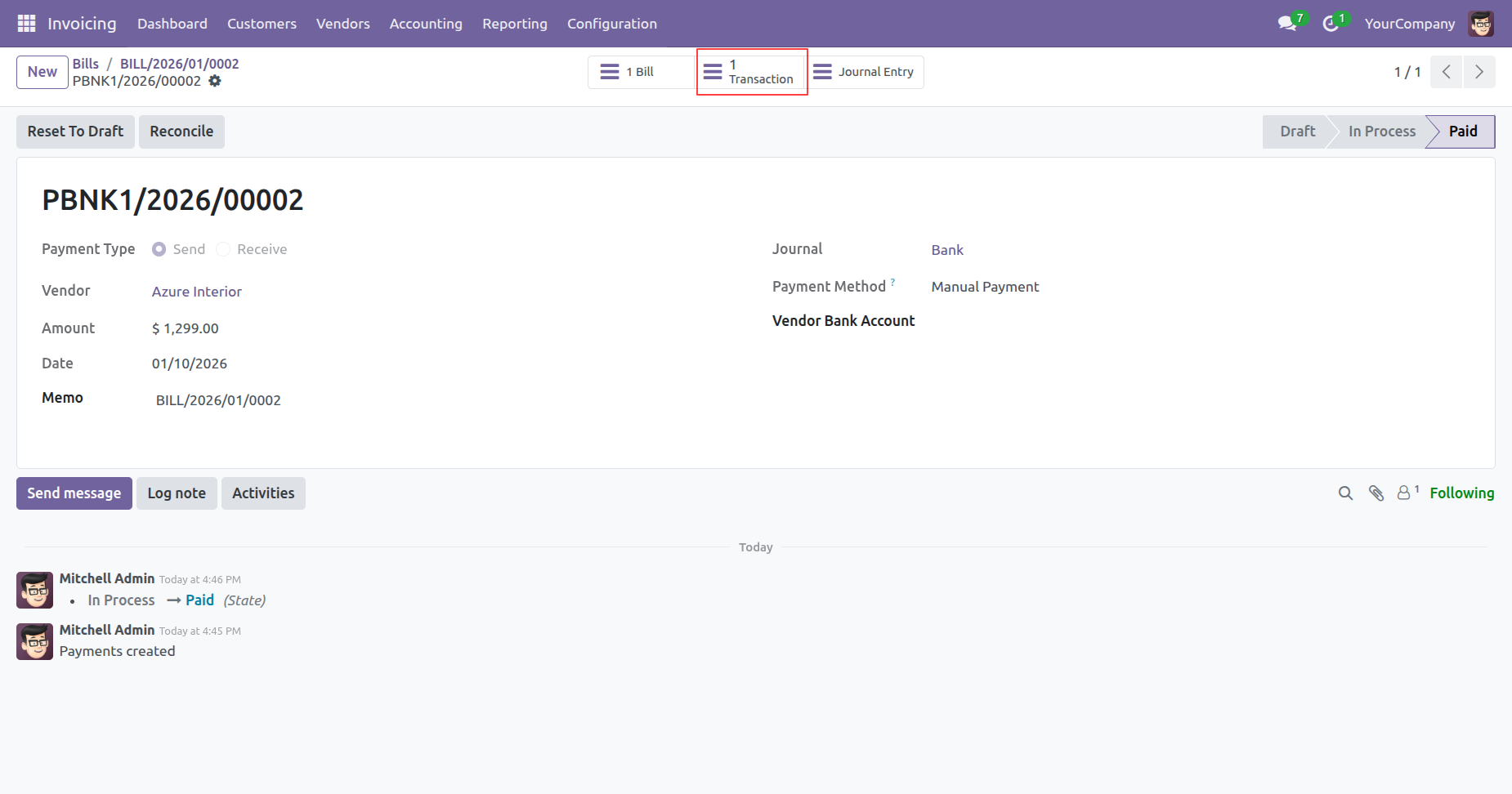
From the payment record view, the user clicks the highlighted Reconcile button to initiate the bank reconciliation process for the $1,299.00 transaction.

The payment status updates to Paid, and a highlighted 1 Transaction smart button appears, linking the payment to its newly created bank statement line.
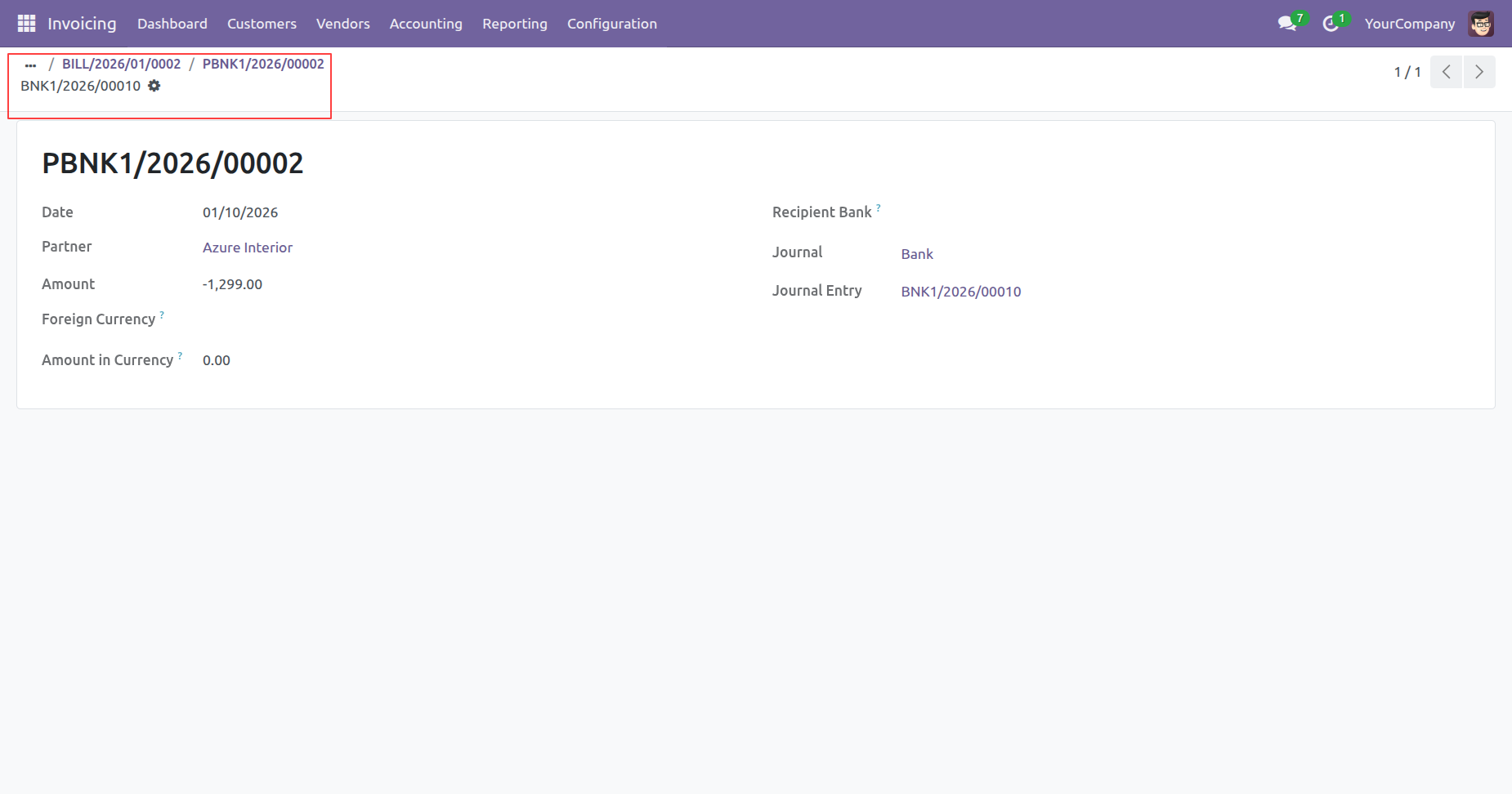
The highlighted breadcrumb demonstrates the system's full traceability, showing the direct link between the Vendor Bill, the Payment, and the final Bank Statement Line (BNK1/2026/00010).
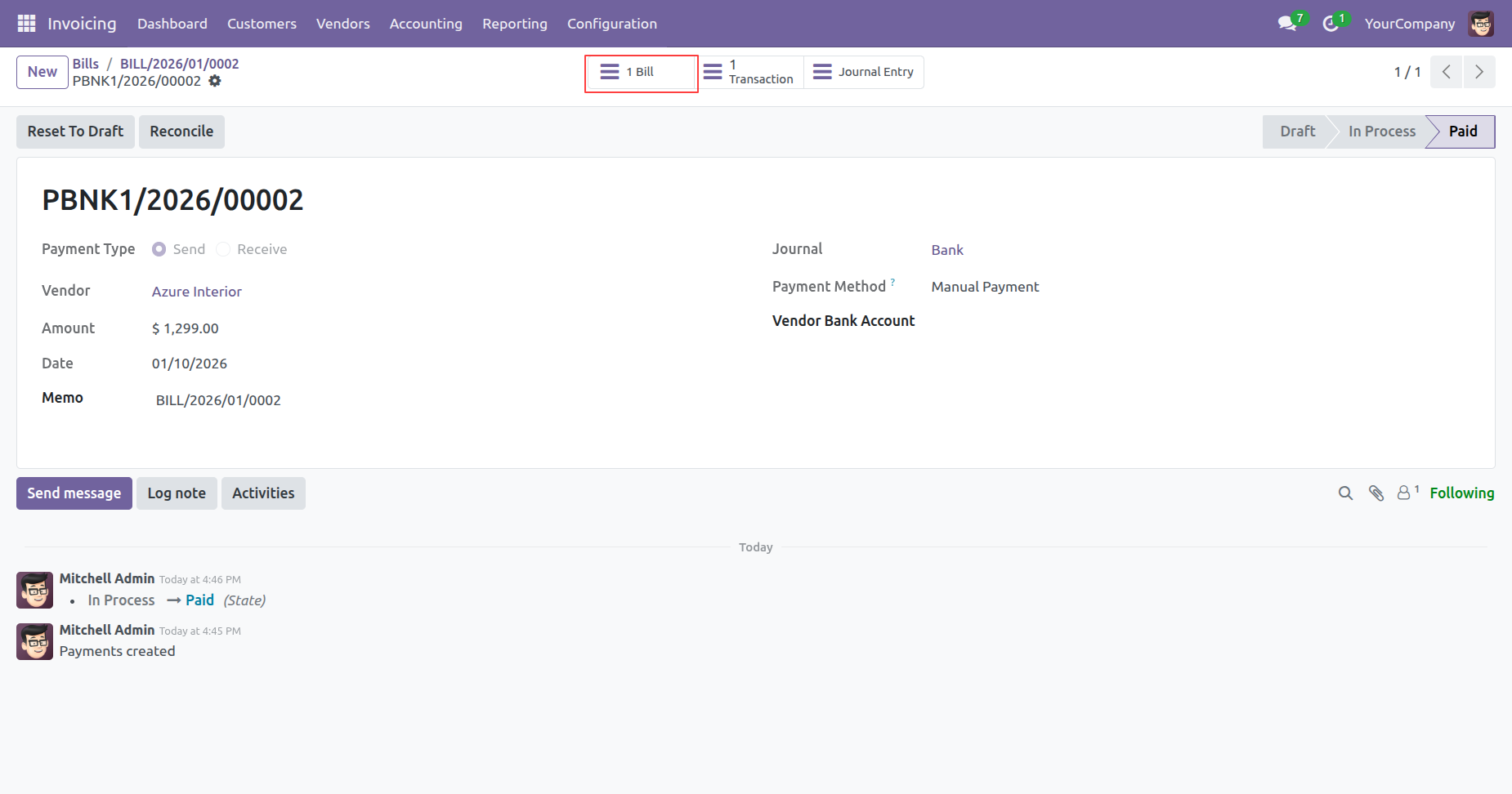
The highlighted 1 Bill smart button provides a direct link back to the original Vendor Bill, completing the cycle of traceability for the paid transaction.
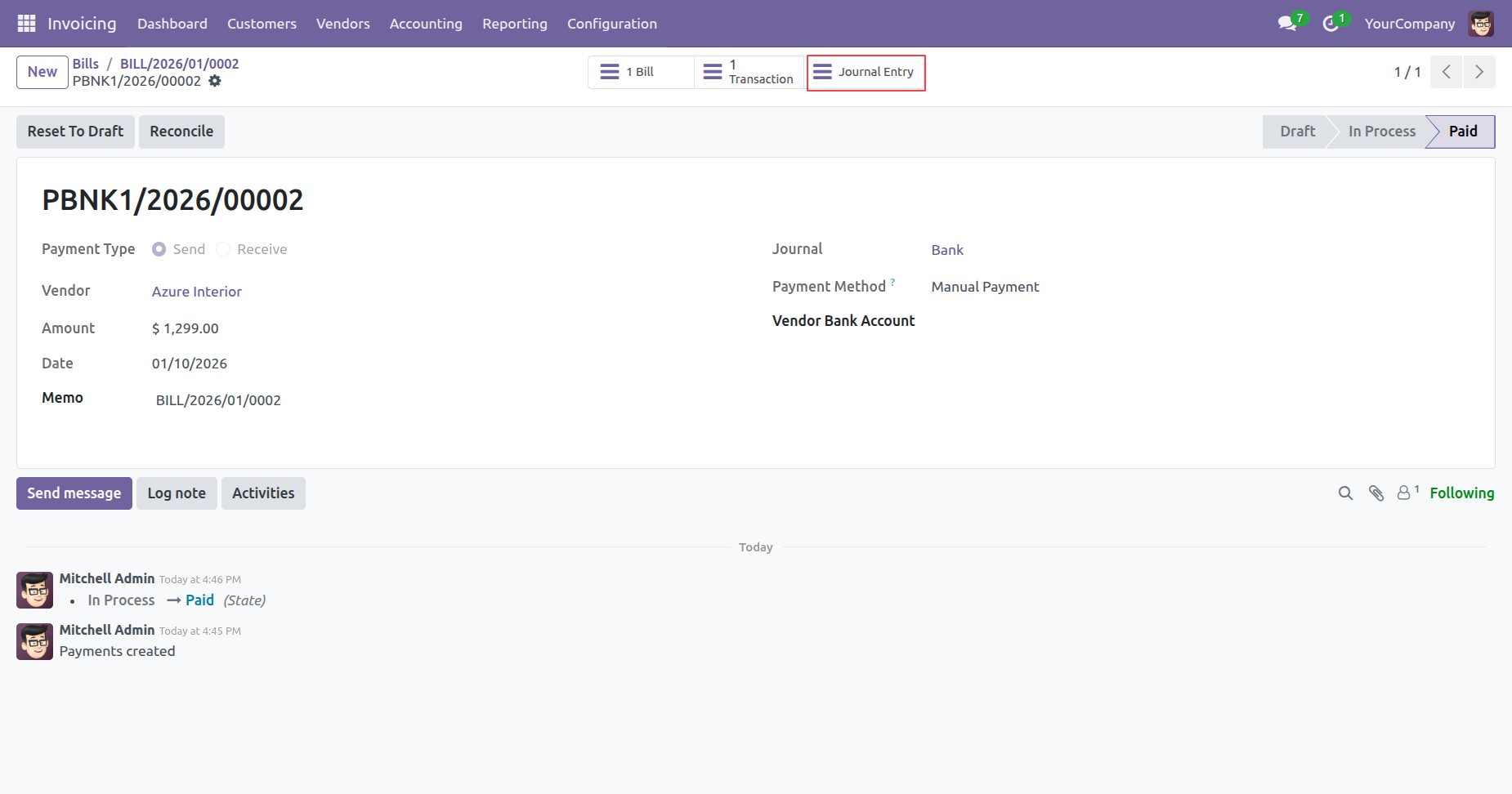
The highlighted Journal Entry smart button grants access to the underlying accounting records generated for the completed payment.
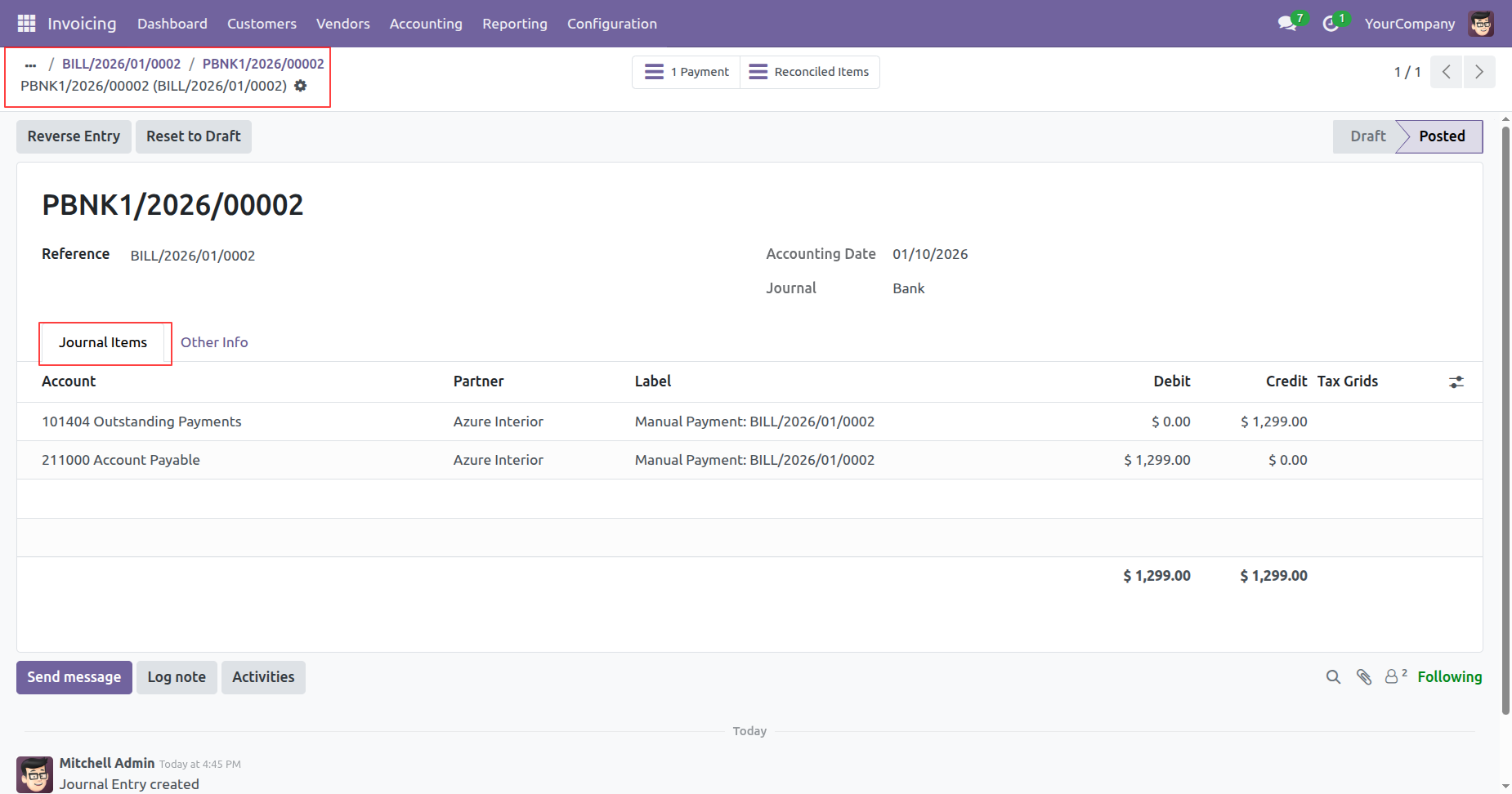
The Journal Items tab reveals the specific ledger entries, verifying the debit to Accounts Payable and the credit to Outstanding Payments linked to the original bill.
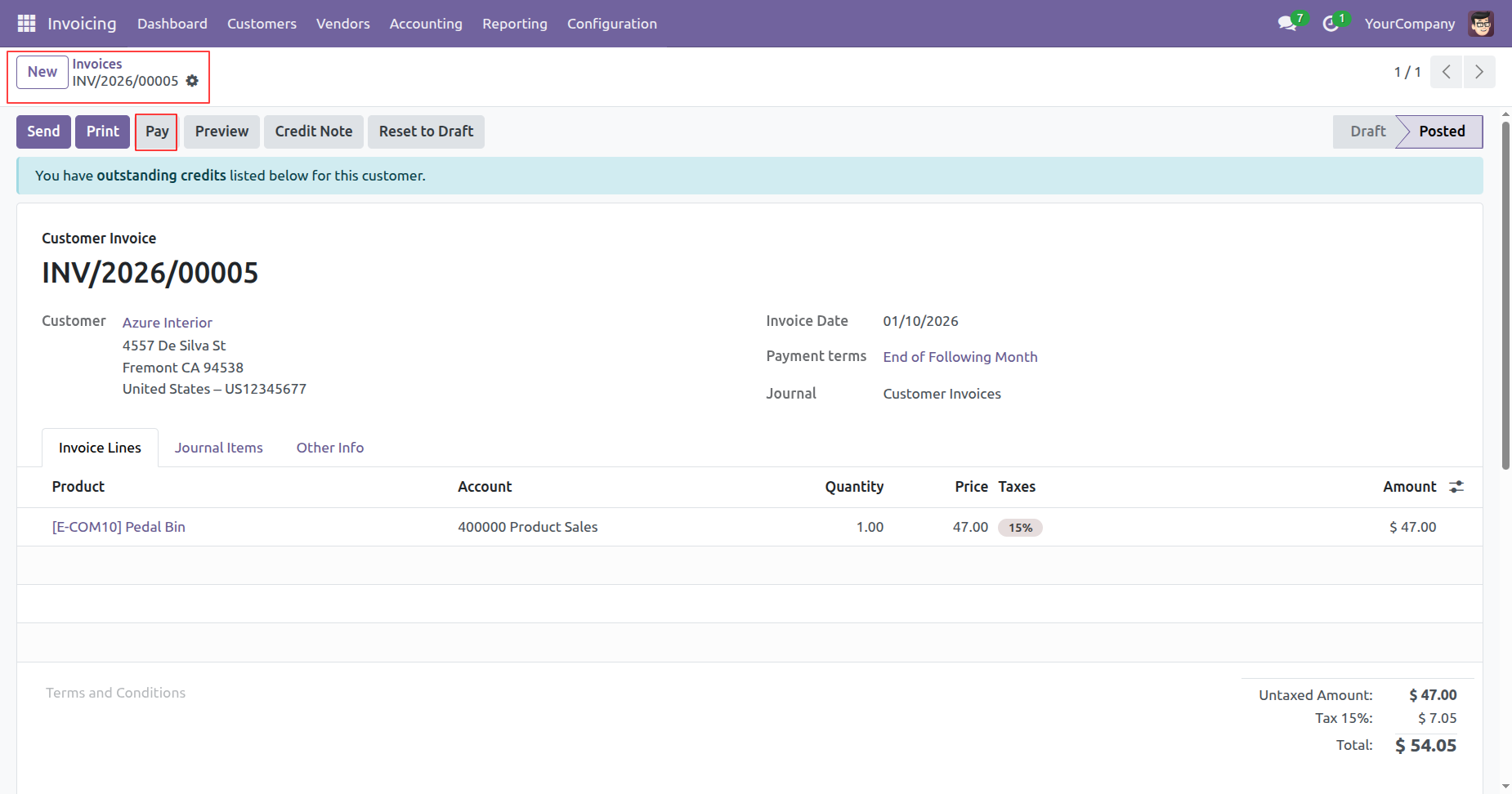
From the posted invoice view, the user clicks the highlighted Pay button to register the payment for the $54.05 due amount.
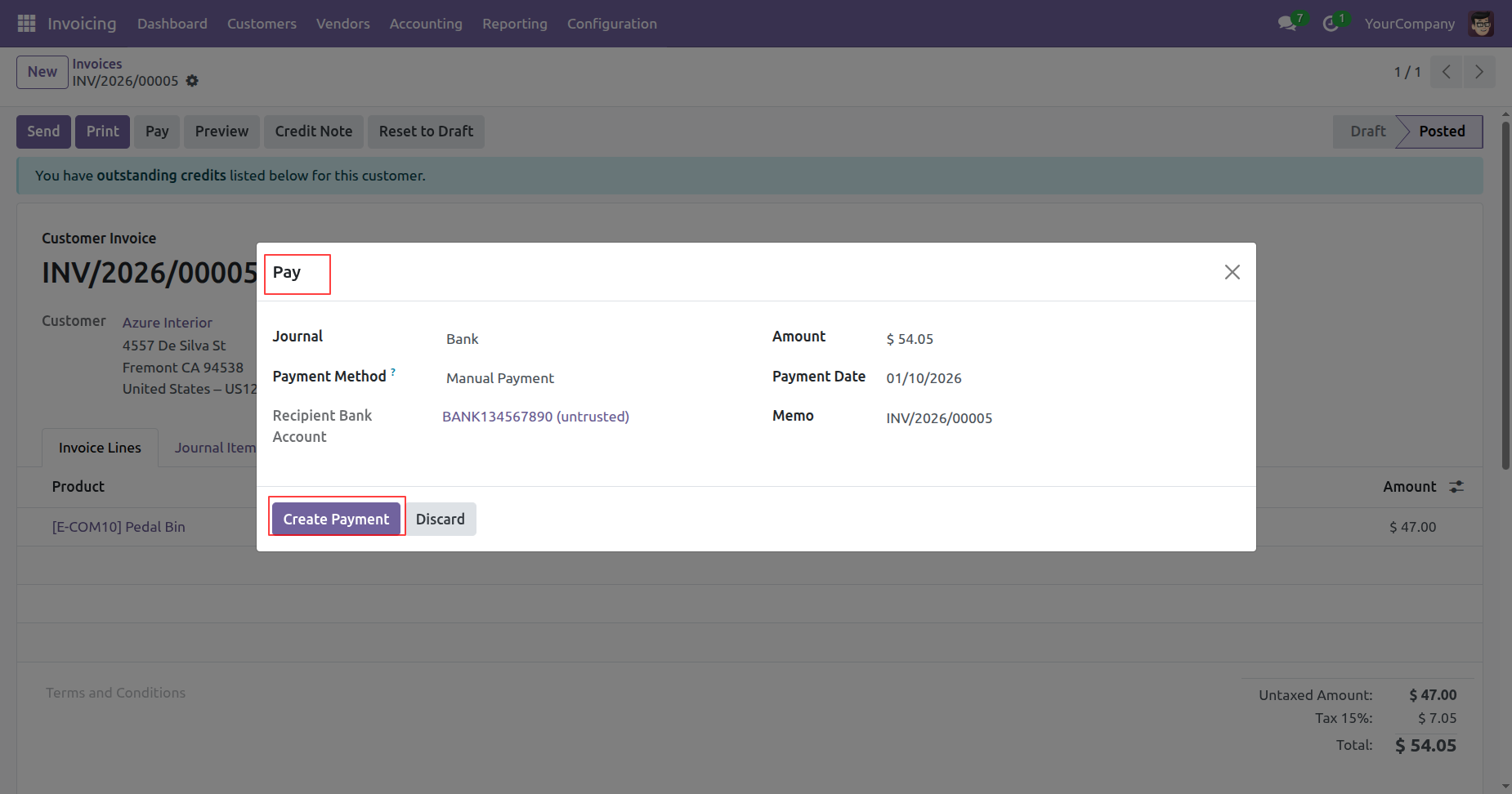
The user verifies the payment amount and details in the pop-up window and clicks the highlighted Create Payment button to officially record the incoming payment for the invoice.
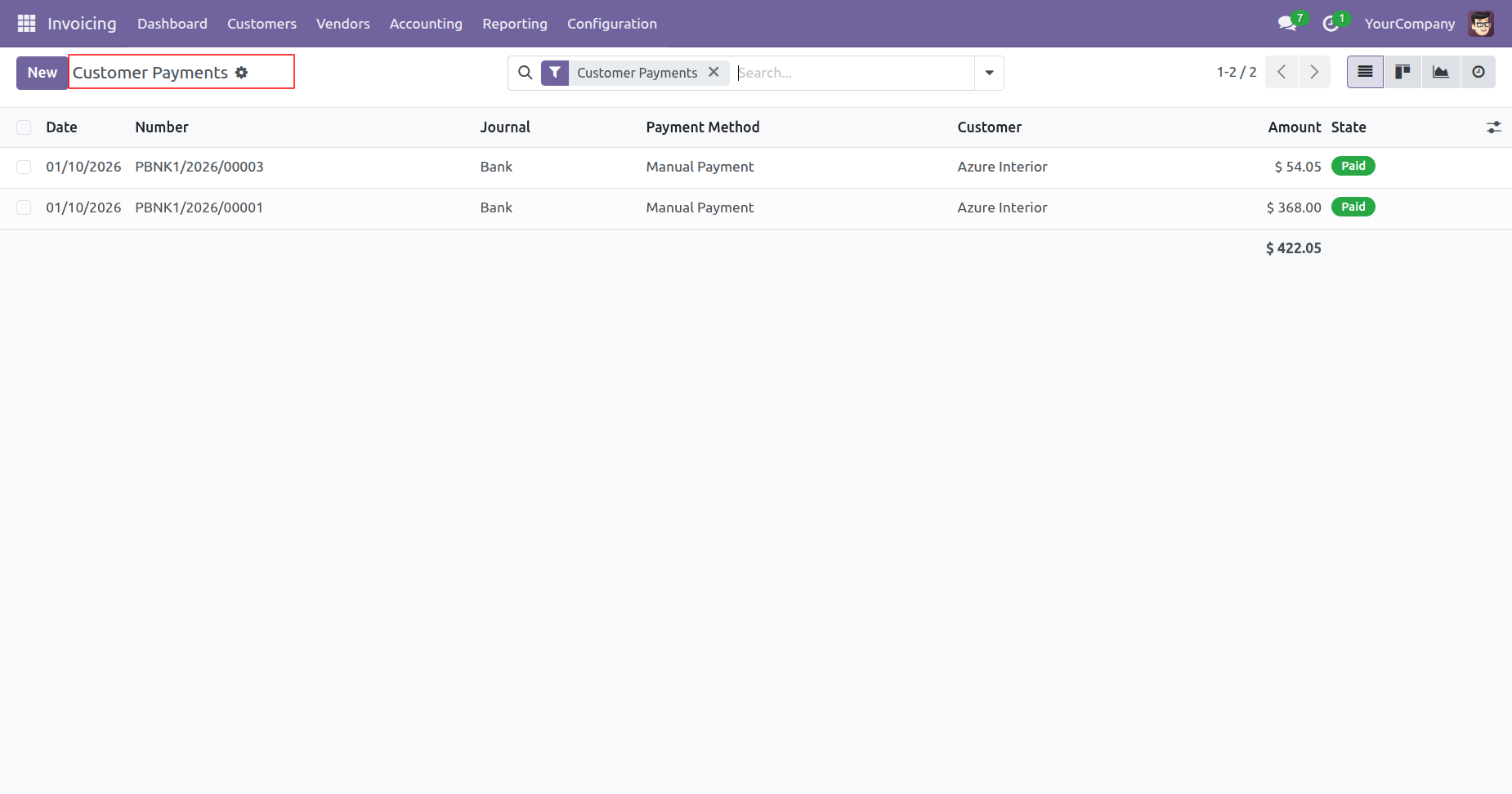
The Customer Payments list view confirms the successful registration of the $54.05 payment, showing it as a Paid record within the system's transaction history.
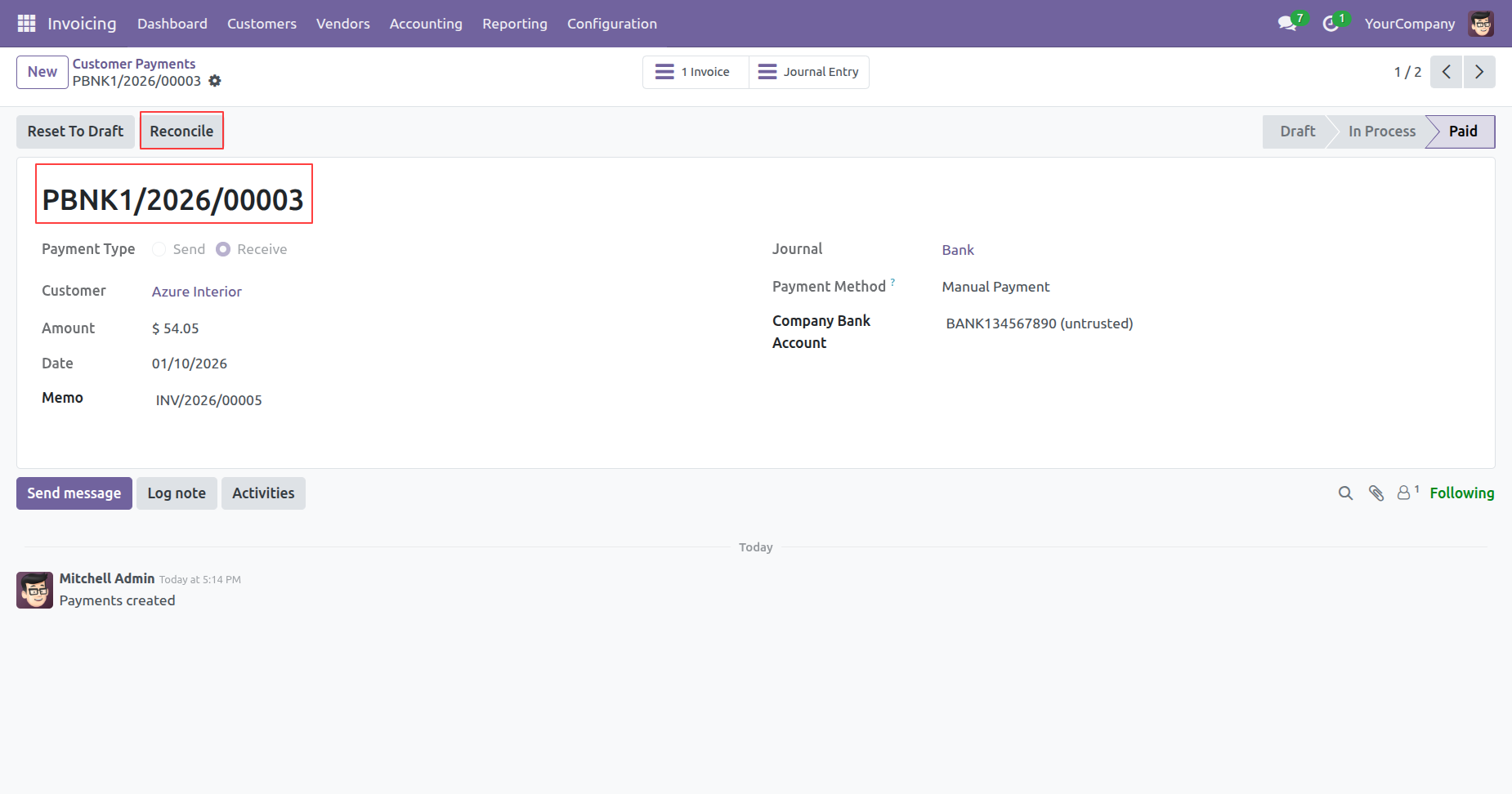
From the payment record view for PBNK1/2026/00003, the user clicks the highlighted Reconcile button to initiate the bank matching process for the $54.05 transaction.
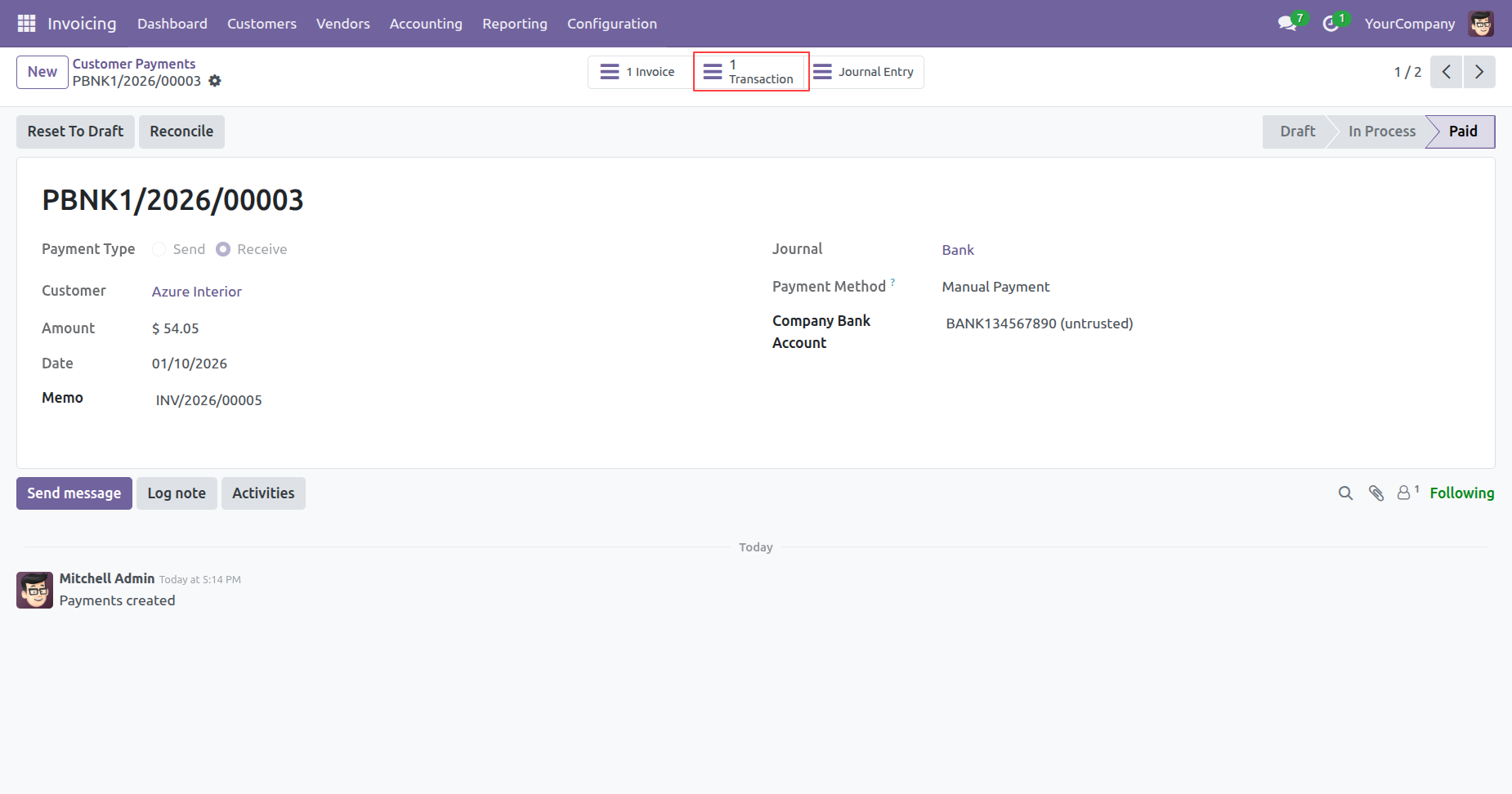
The payment is now marked as Paid, and the highlighted 1 Transaction smart button confirms the creation of a linked bank statement line for the incoming funds.
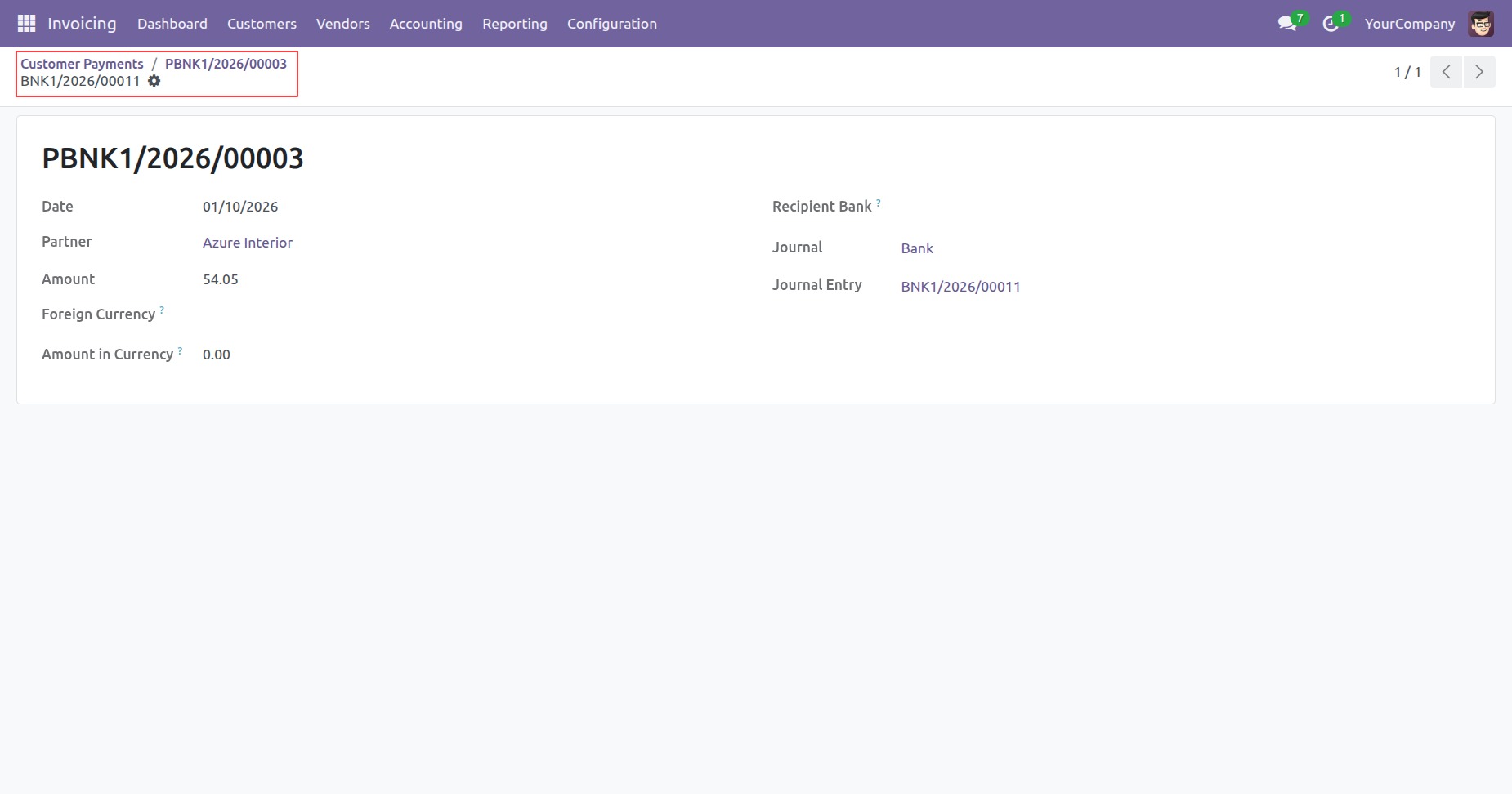
The highlighted breadcrumb verifies the link between the Customer Payment (PBNK1/2026/00003) and the generated Bank Statement Line (BNK1/2026/00011).
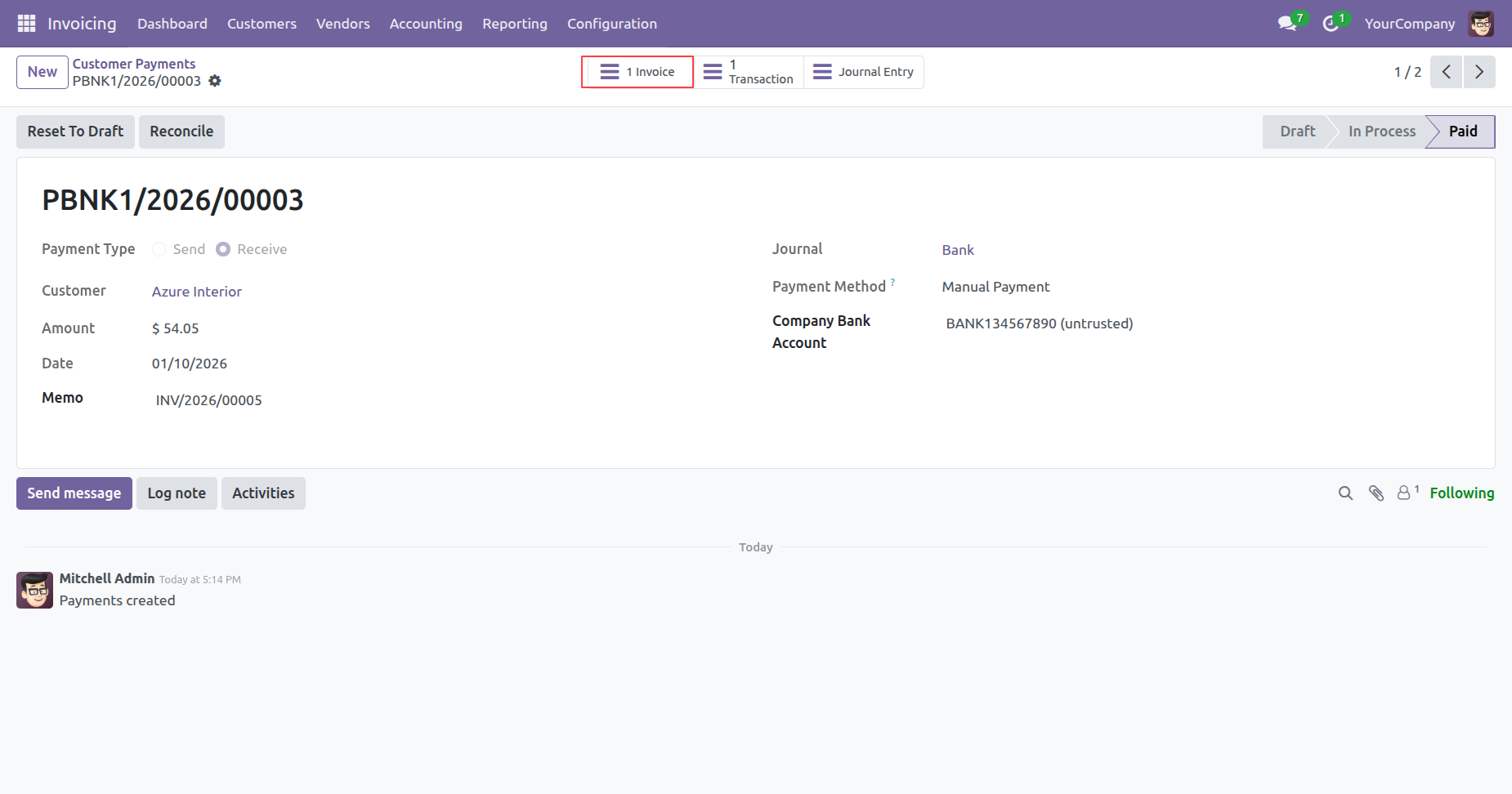
The highlighted 1 Invoice smart button provides a direct link back to the original Customer Invoice, completing the audit trail for the received payment.
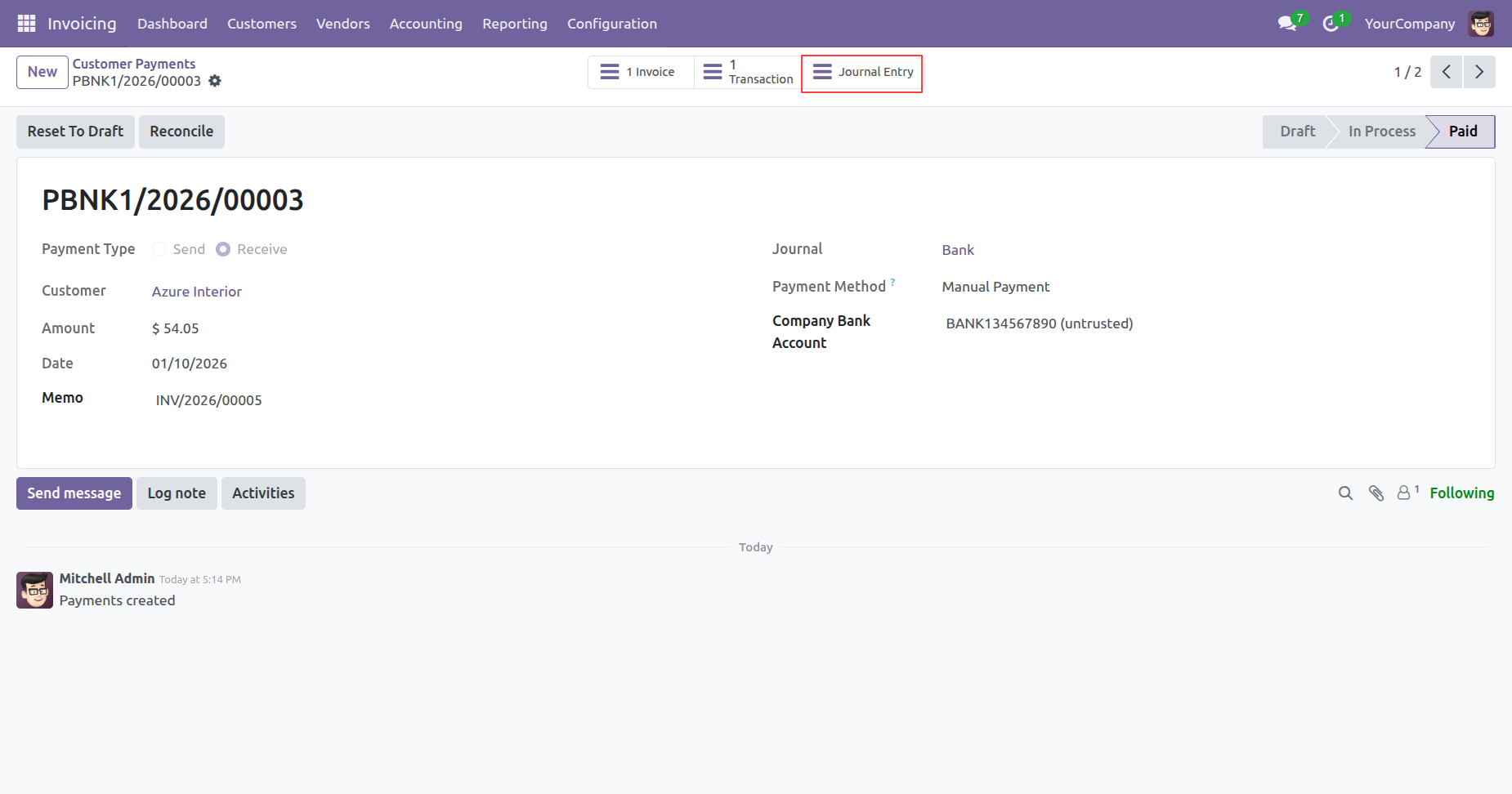
The highlighted Journal Entry smart button grants access to the underlying accounting records generated for the completed customer payment.
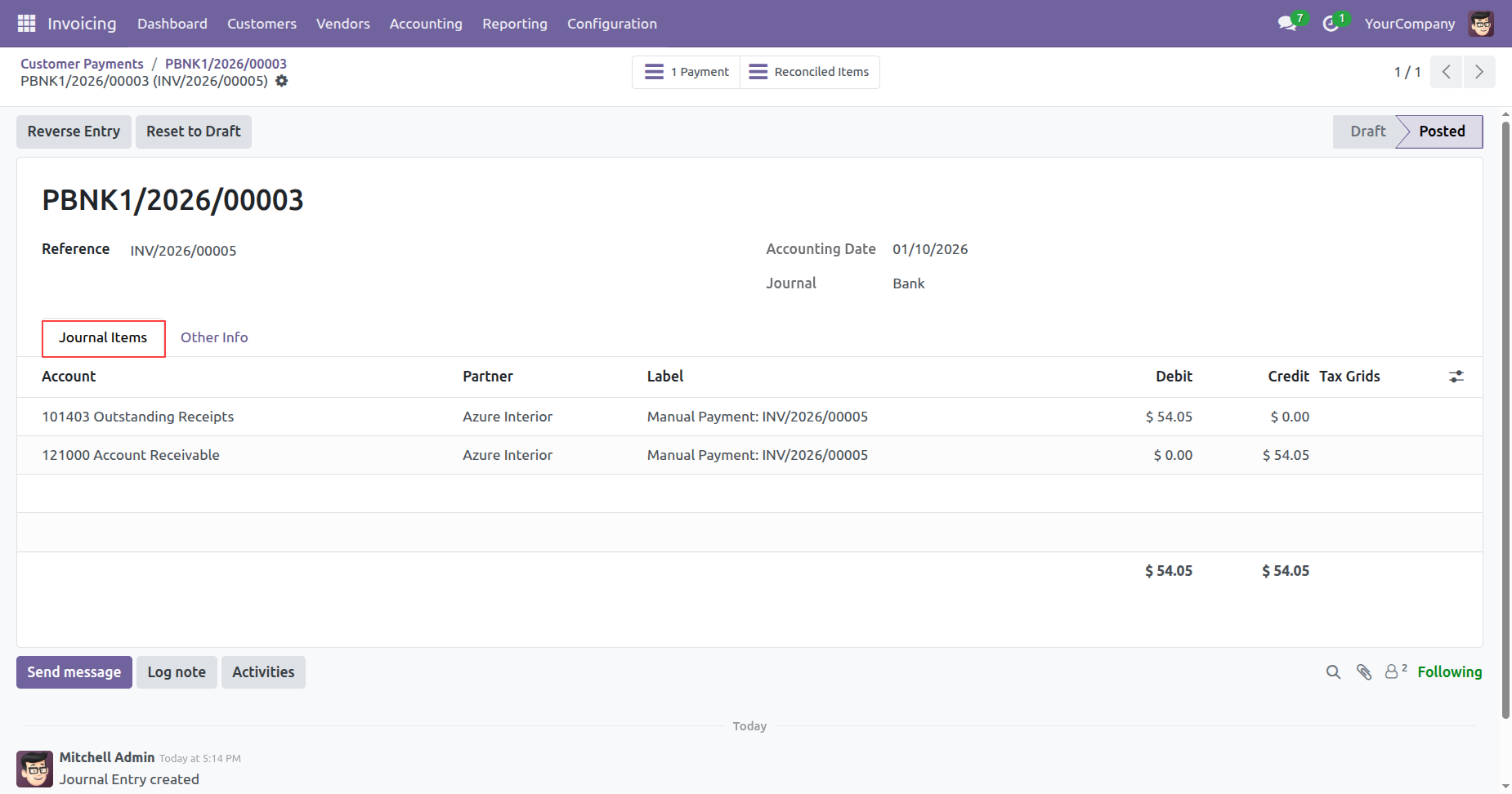
The Journal Items tab displays the specific ledger entries, verifying the debit to Outstanding Receipts and the credit to Accounts Receivable for the $54.05 payment.
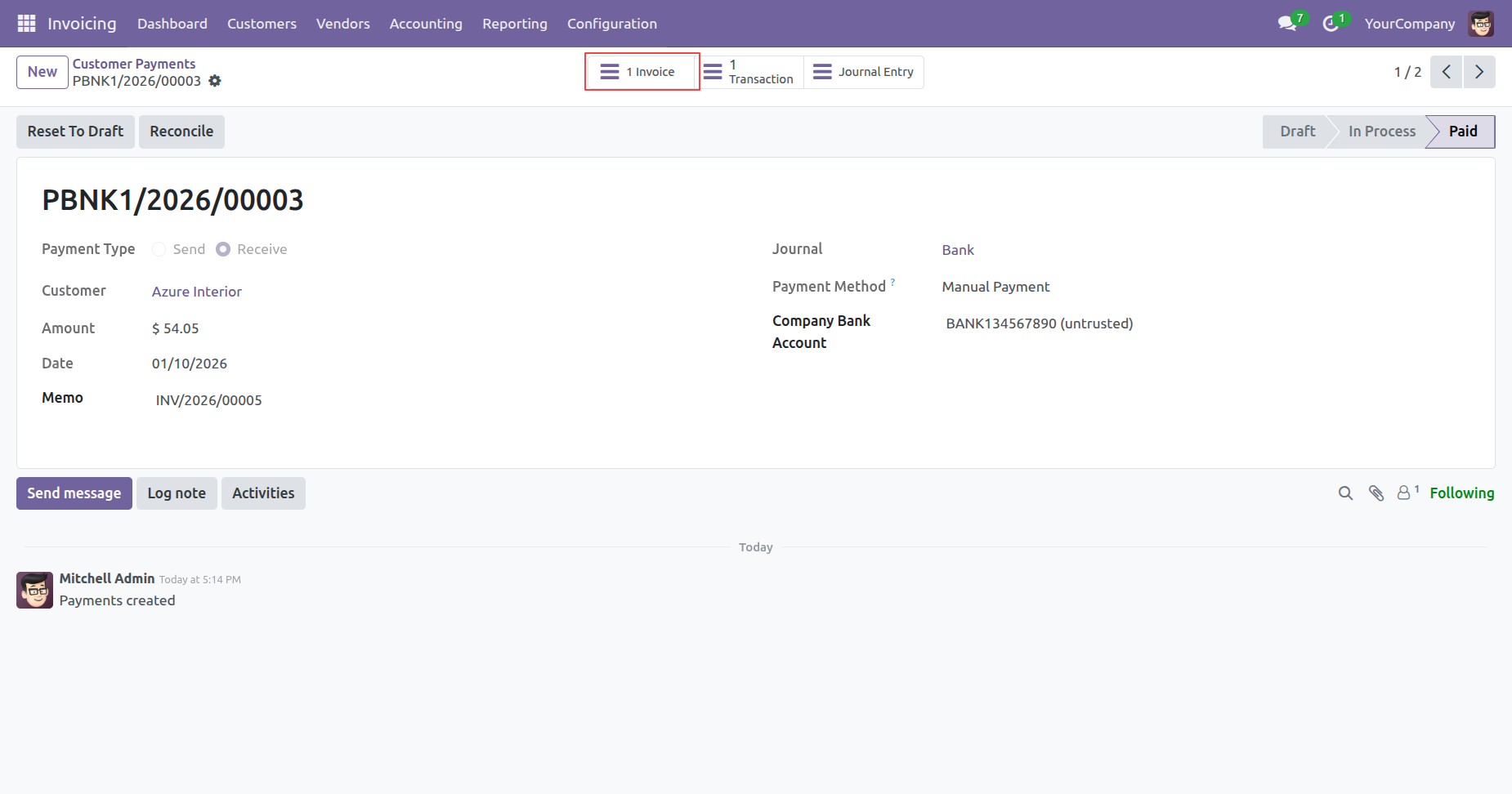
The highlighted 1 Invoice smart button allows the user to navigate directly back to the source invoice, ensuring full traceability of the paid transaction.
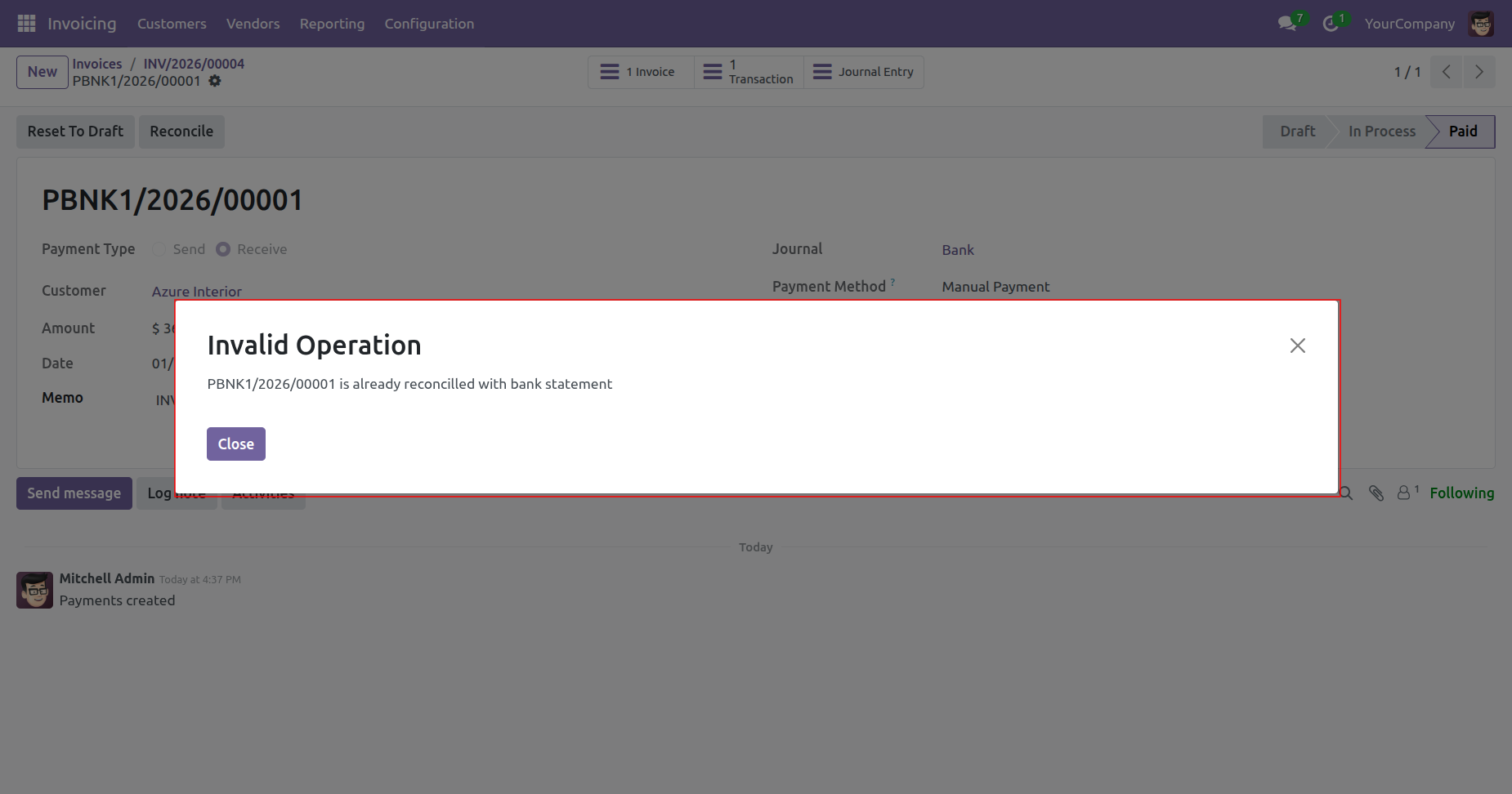
The system displays an Invalid Operation warning to prevent the user from reconciling a payment that is already successfully linked to a bank statement.
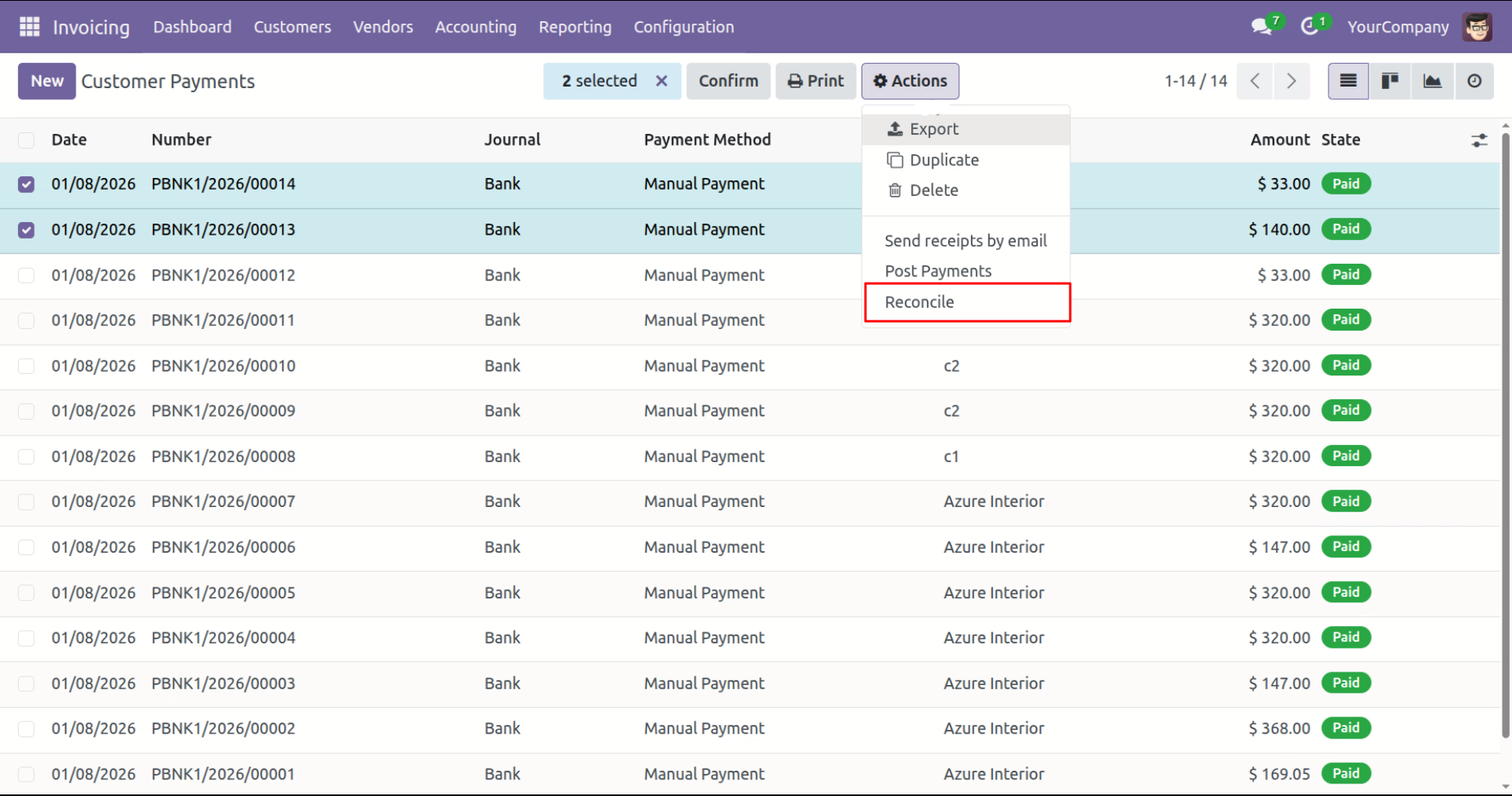
The user selects multiple records in the Customer Payments view and chooses Reconcile from the Actions dropdown menu to process the selected transactions.
Version 18.0.1 | Released on : 21st January 2026
- No, this app only works perfectly with Odoo Community Edition.
- No, this application is not compatible with odoo.com(odoo saas/Odoo Online)
- Yes, to test this module, please contact us at sales@softhealer.com.
- Please contact us at sales@softhealer.comto request customization.
- Yes, we provide free support for 365 days from the date of purchase.
- Yes, you will receive lifetime free updates for the version of the module you purchased.
- No, there is no need to install any additional libraries.
- Yes, for version 12 and above, you need to purchase the module separately for each version you intend to use.
- No, exchanges or refunds are not allowed. Please make sure to select the correct version before purchasing.
- You can contact us at support@softhealer.com for language translation support. We use Google Translator tools to provide translations in multiple languages, so the accuracy may vary. We welcome your suggestions to help improve translations.
Discover Our Latest Apps