












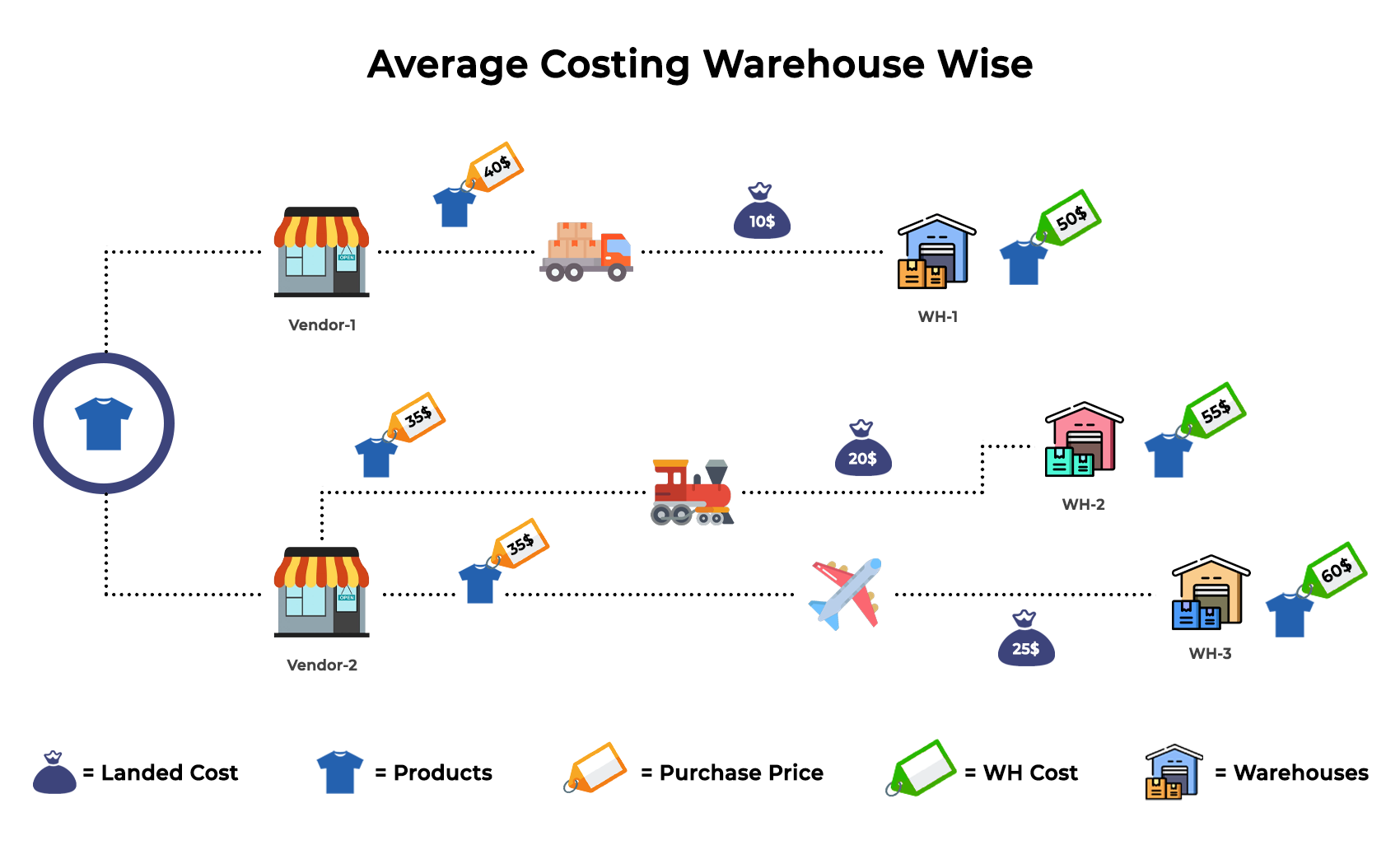
Nowadays in this fast forwarding world most of businesses who have storable products, they have multiple warehouses at different place. So the problem is one product have different landed cost and some service cost and company need to maintain demand of products at multi warehouses. At the end company are get different cost price of that products in each warehouses, and that things you can not manage in odoo. But Don't worry here we have solution for that. Our this app will help to manage your average costing warehouse wise.

Features


Configure Warehouse Average Costing
User has to enable configurations

Warehouse Wise Average Costing
Tracks and maintains separate average cost prices for products in each warehouse.

Warehouse Wise Inventory Valuation
Provides inventory valuation by warehouse, so you can view stock value at each warehouse independently
Warehouse Wise Costing Table in Products
Adds a dedicated costing table on the product form that shows cost details per warehouse.

Landed Cost in Internal Transfer
Allows landed costs (e.g., freight/shipping) to be accounted for even during internal stock transfers between warehouses.

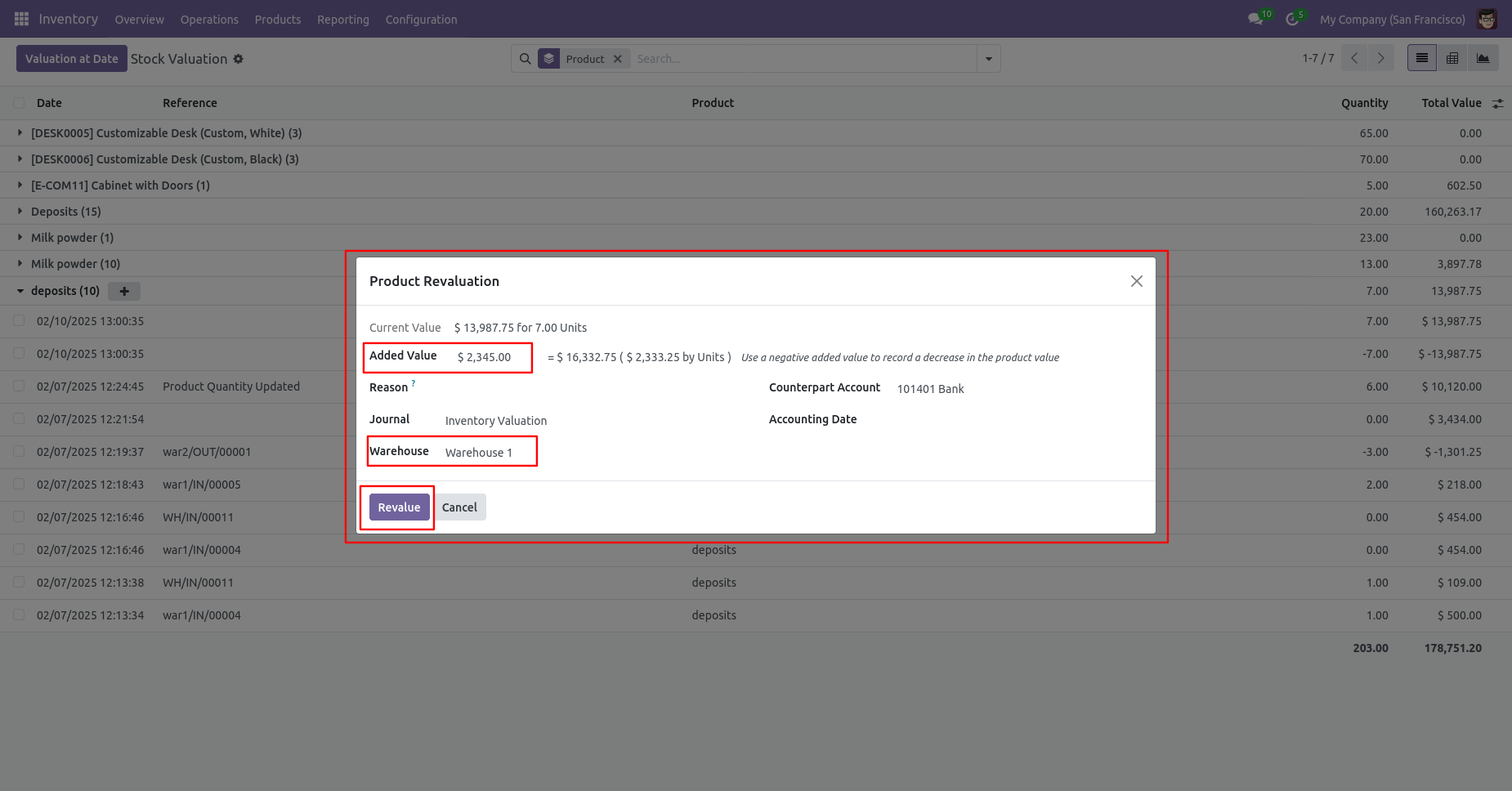
Warehouse Selection In Revaluation
Let you choose specific warehouses when performing manual inventory revaluations for accurate adjustments.

Warehouse Wise Purchase
Supports tracking and costing of purchase orders based on the warehouse selected at the time of procurement.

Warehouse Selection Field In RFQ
Adds a warehouse selection field to the RFQ/purchase order line, ensuring correct warehouse assignment early in the purchase process.

Warehouse Wise Stock Report
Generates stock reports broken down by each warehouse, helping you analyze inventory across all warehouses.

Cost Change History Report
Shows the history of cost changes for each product, allowing you to track pricing modifications over time.

Stock Valuation Summary Report
Generate detailed stock valuation reports with summarized inventory costing insights.

Warehouse Costing Dashboard
Monitor warehouse-wise inventory costs, stock value, and costing analytics from a centralized dashboard.

Multi-Company Warehouse Costing
Enable Warehouse-wise Costing for selected companies, or disable it to use standard Odoo costing.

Bulk Warehouse Cost Import & Export

Import or export warehouse costs in bulk to manage cost data quickly and efficiently.

Advanced Cost History Search & Filters
Search and filter cost history using multiple criteria to quickly find required cost records.

Go to the Reporting ==> Warehouse Wise Stock
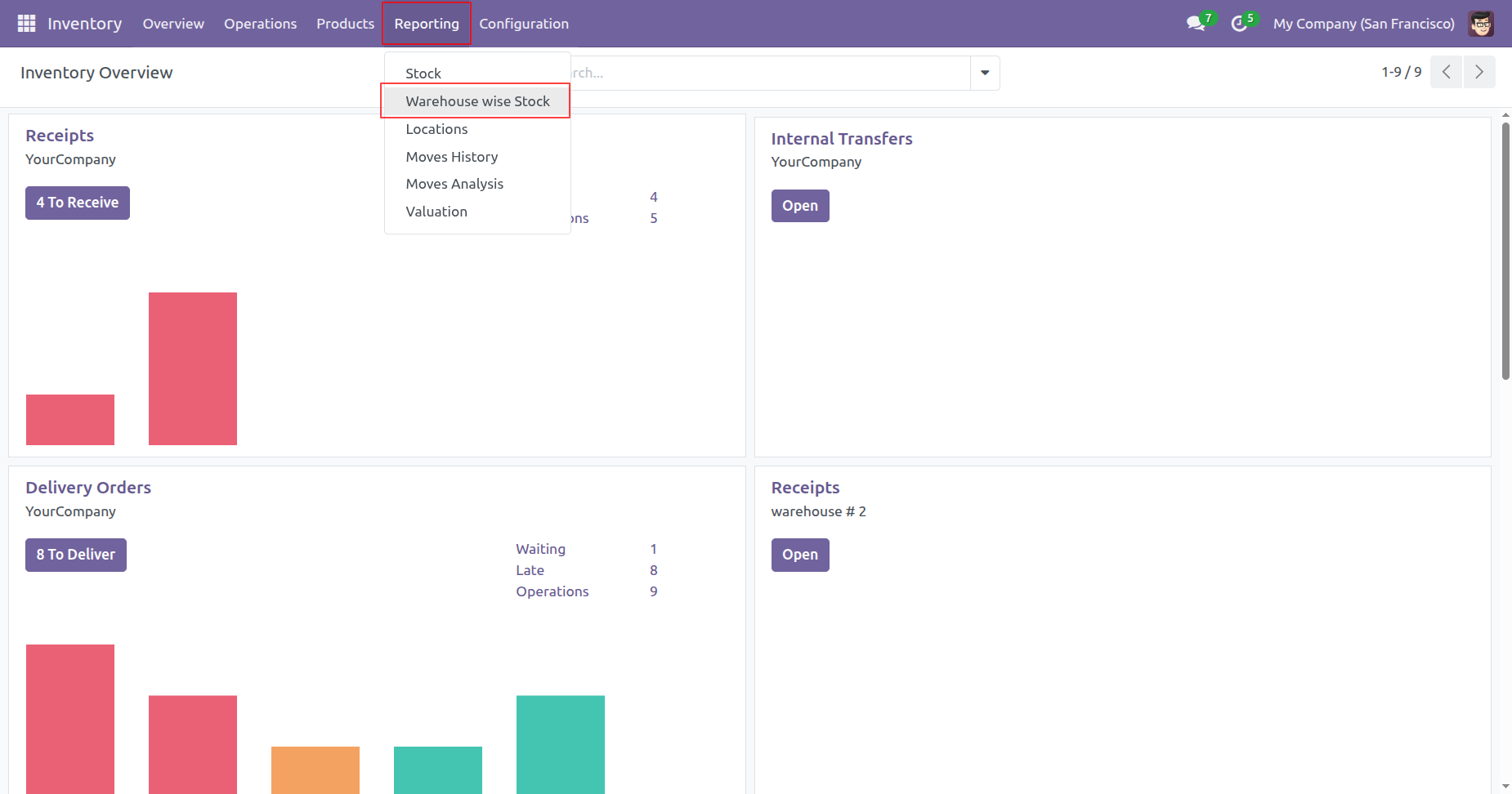
Tree view of the 'Warehouse Wise Stock'.
Here, you can see the default group-by option added.
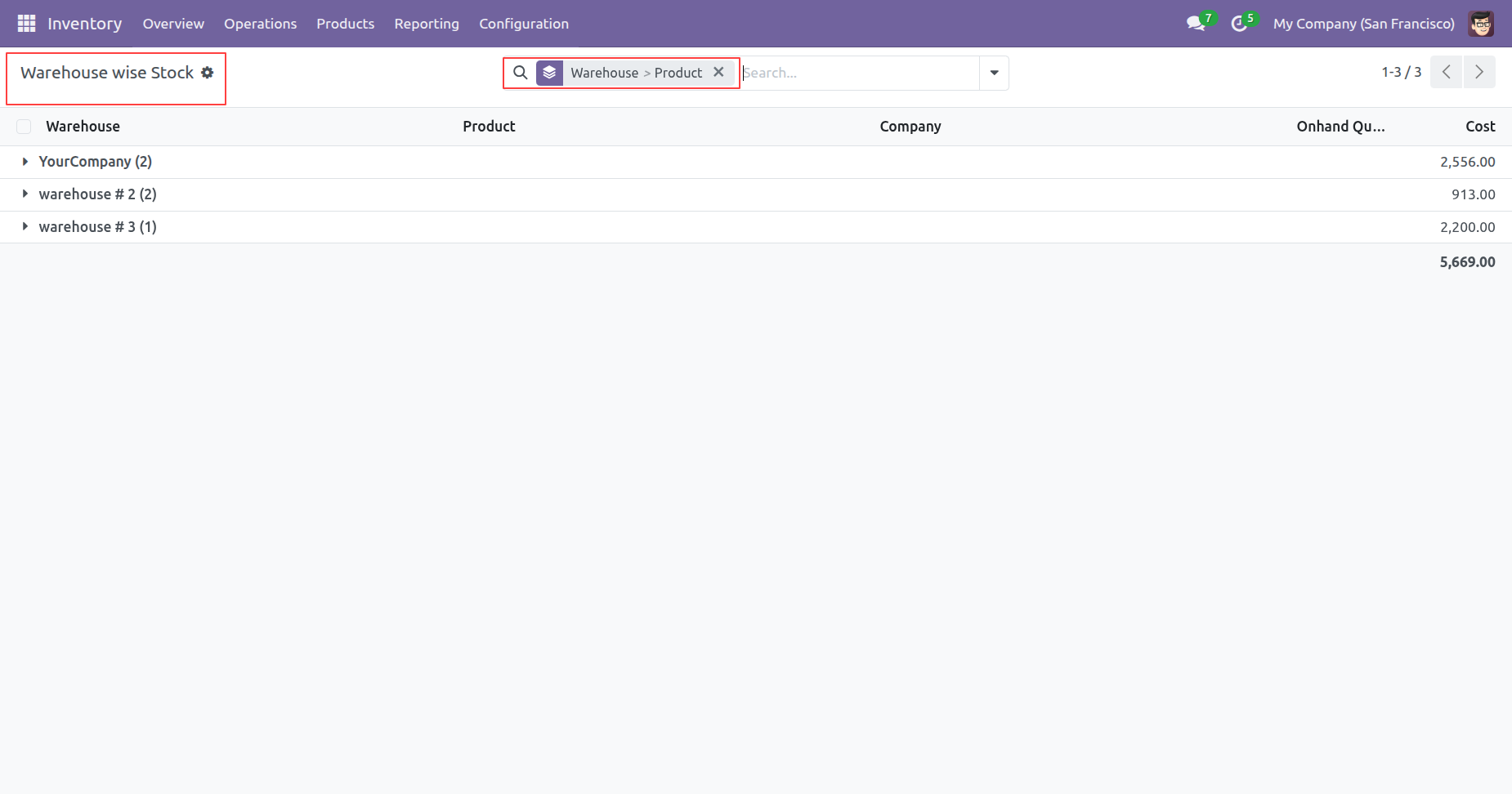
Tree view of the 'Warehouse Wise Stock'.
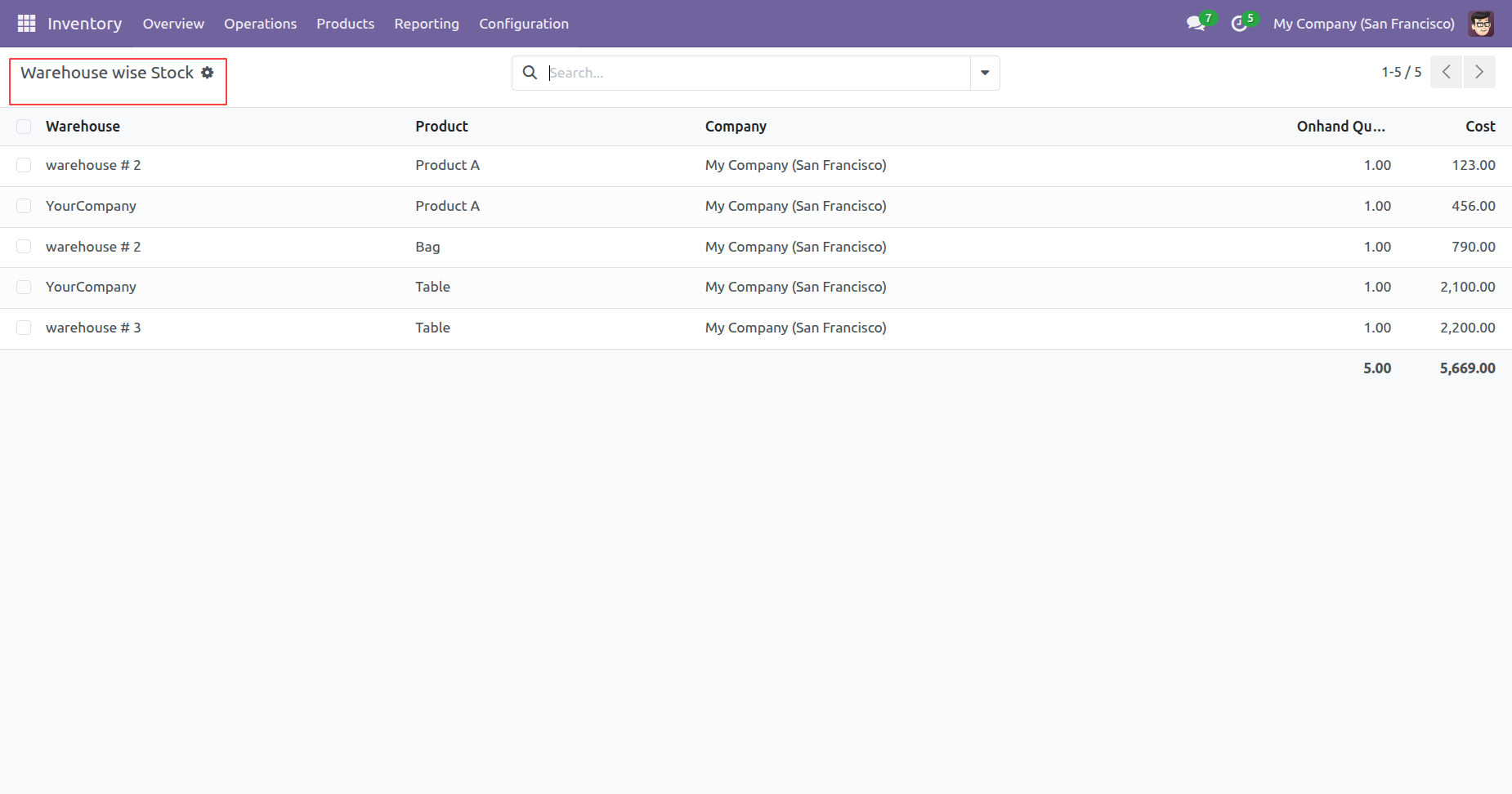
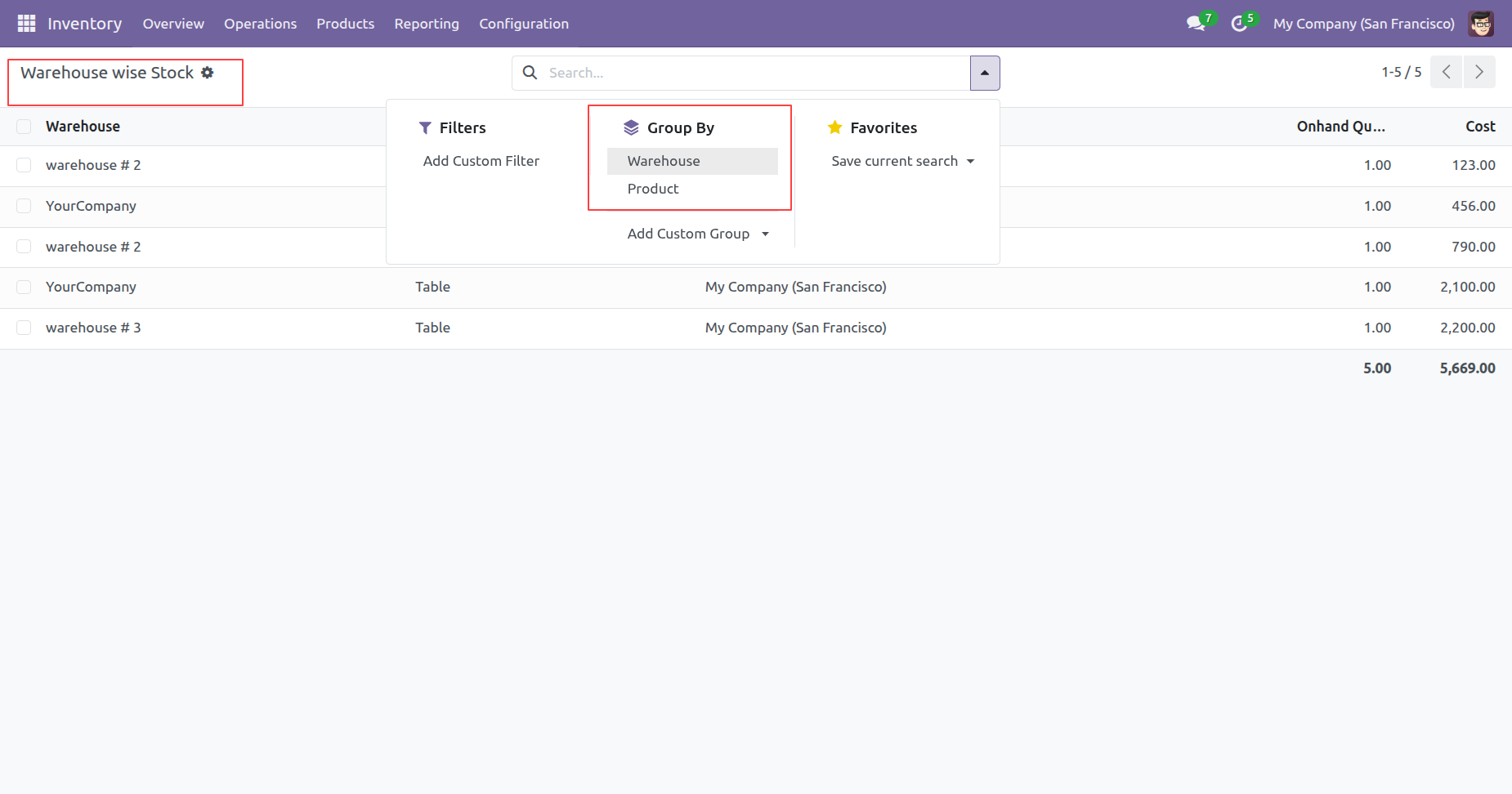
You can add a group by accoding to your need.
Here, we have grouped the data by Warehouse.
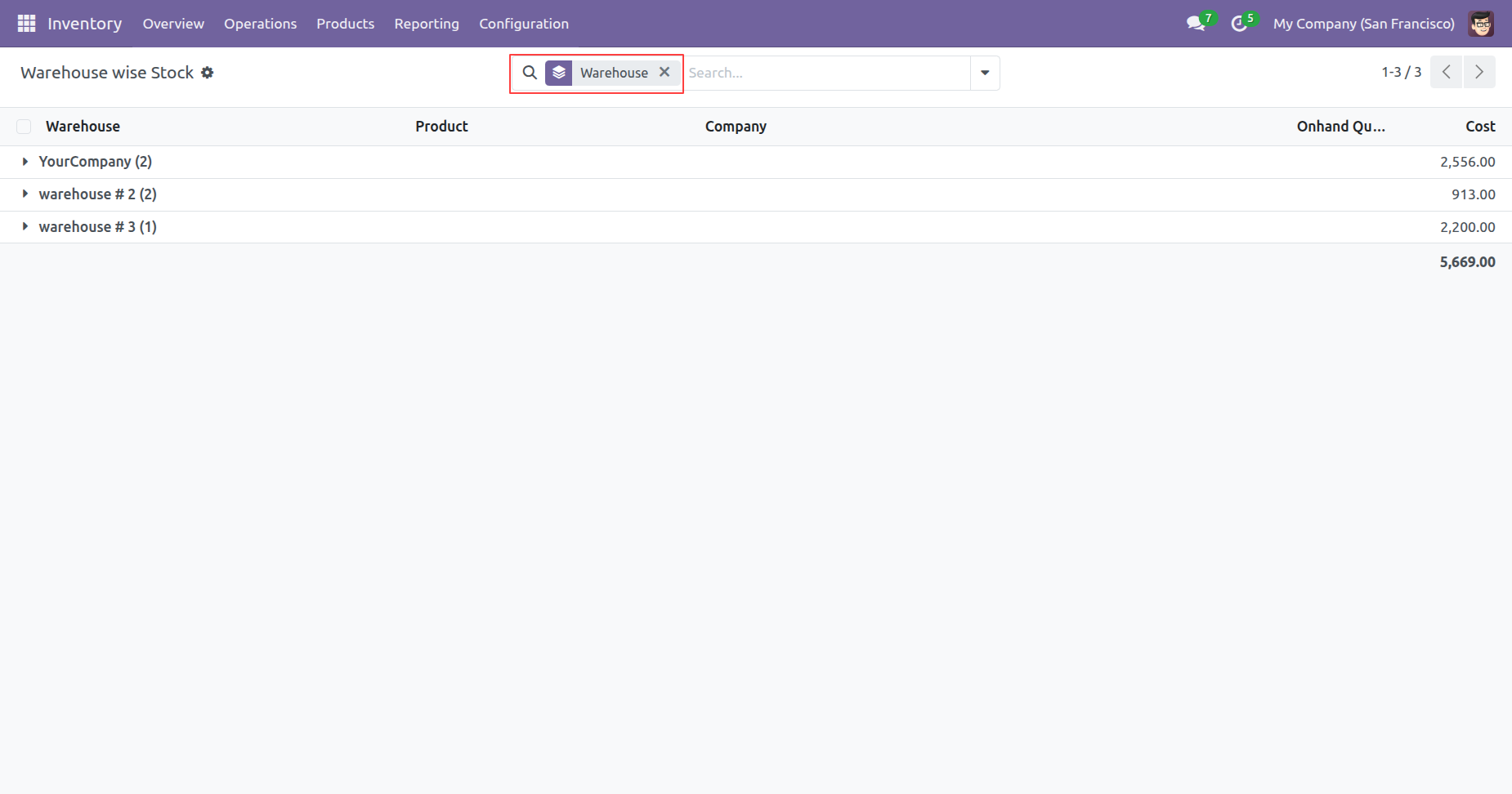
Here, we have grouped the data by Product.
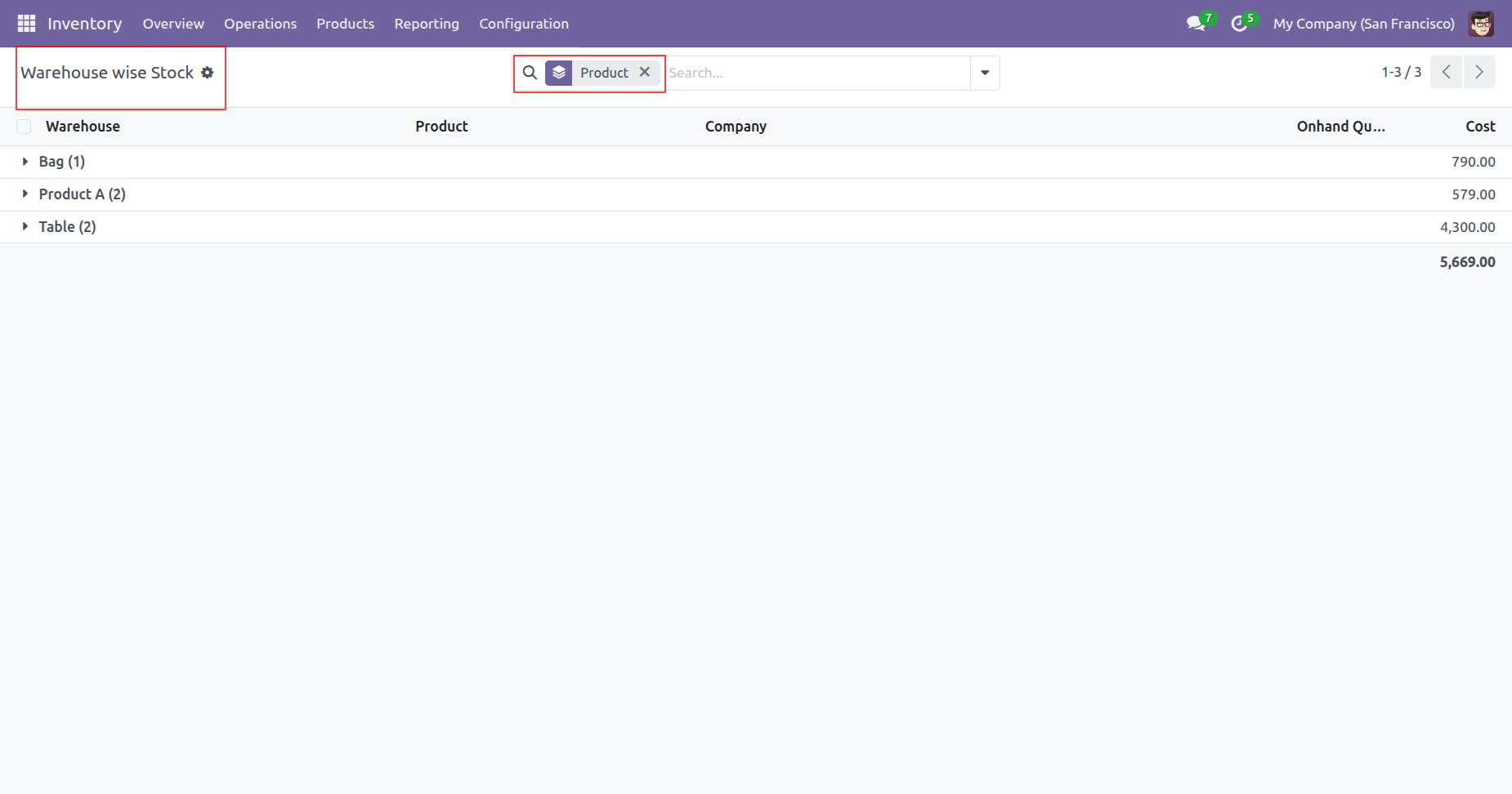
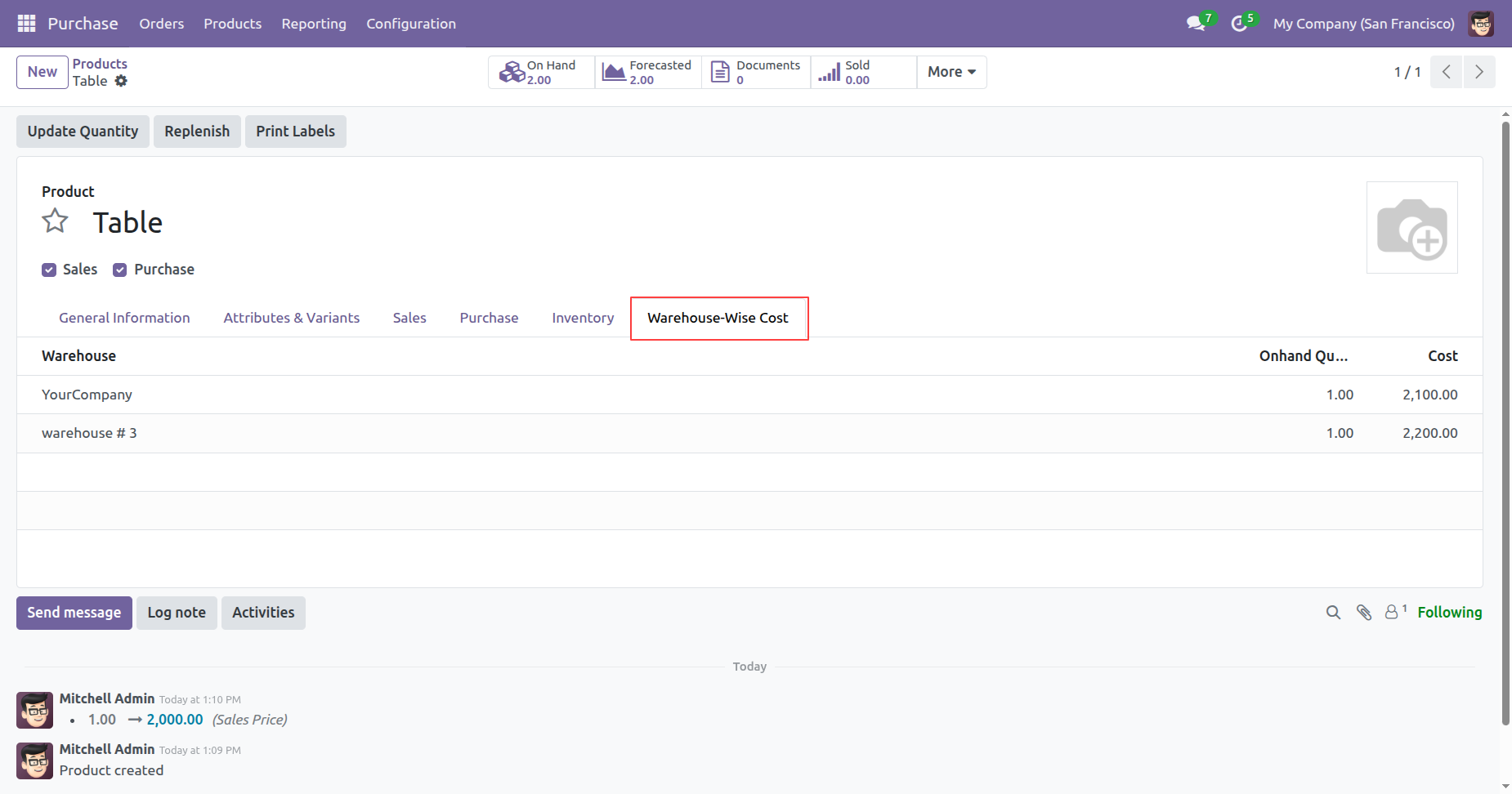
You can view the warehouse details under the 'Warehouse-Wise Cost' tab in the product form.
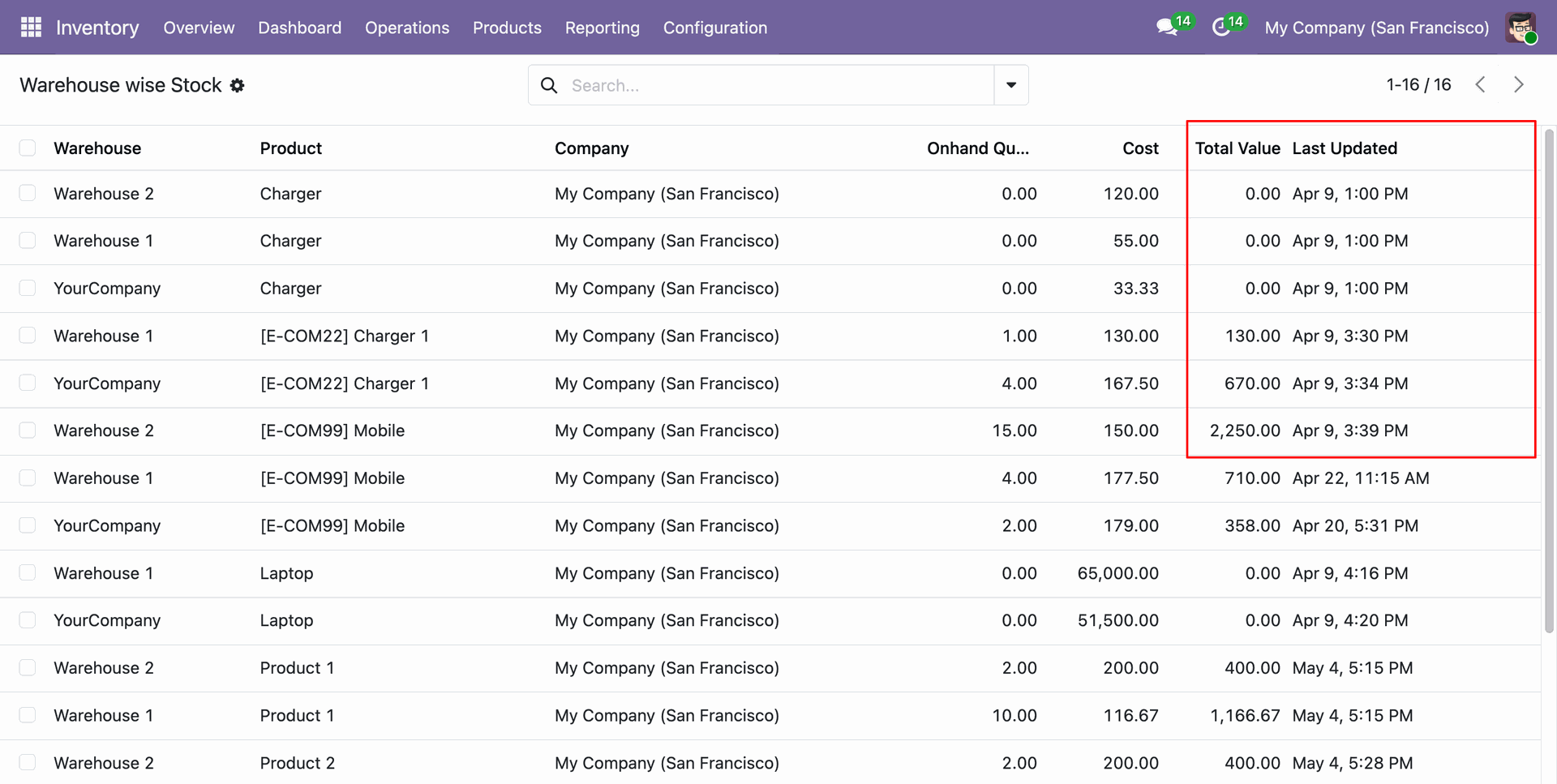
Warehouse Wise Cost Report Update
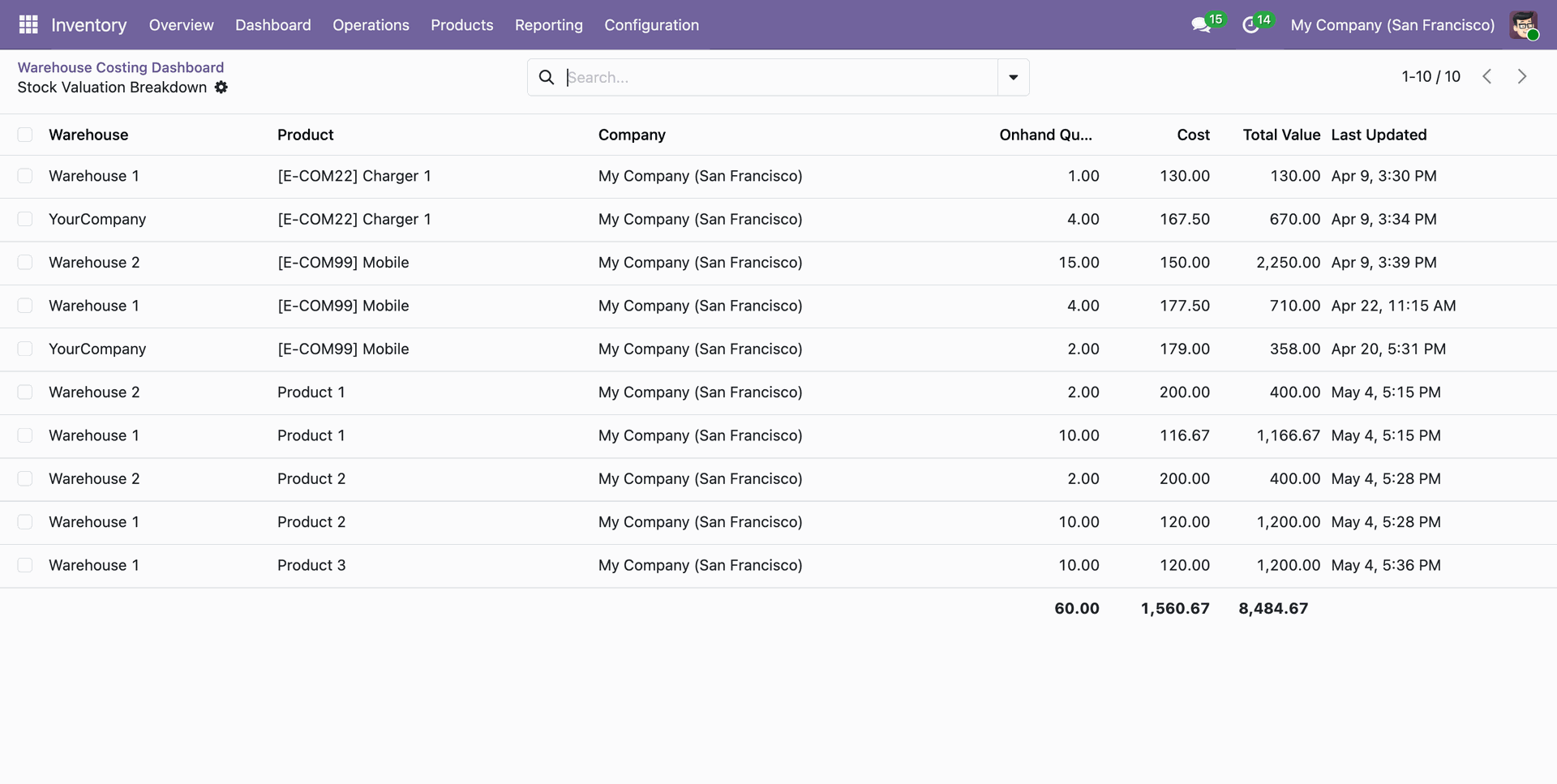
The Warehouse Wise Stock report provides a clear view of product costs, on-hand quantities, and total valuation across different warehouses, including the last update timestamp.
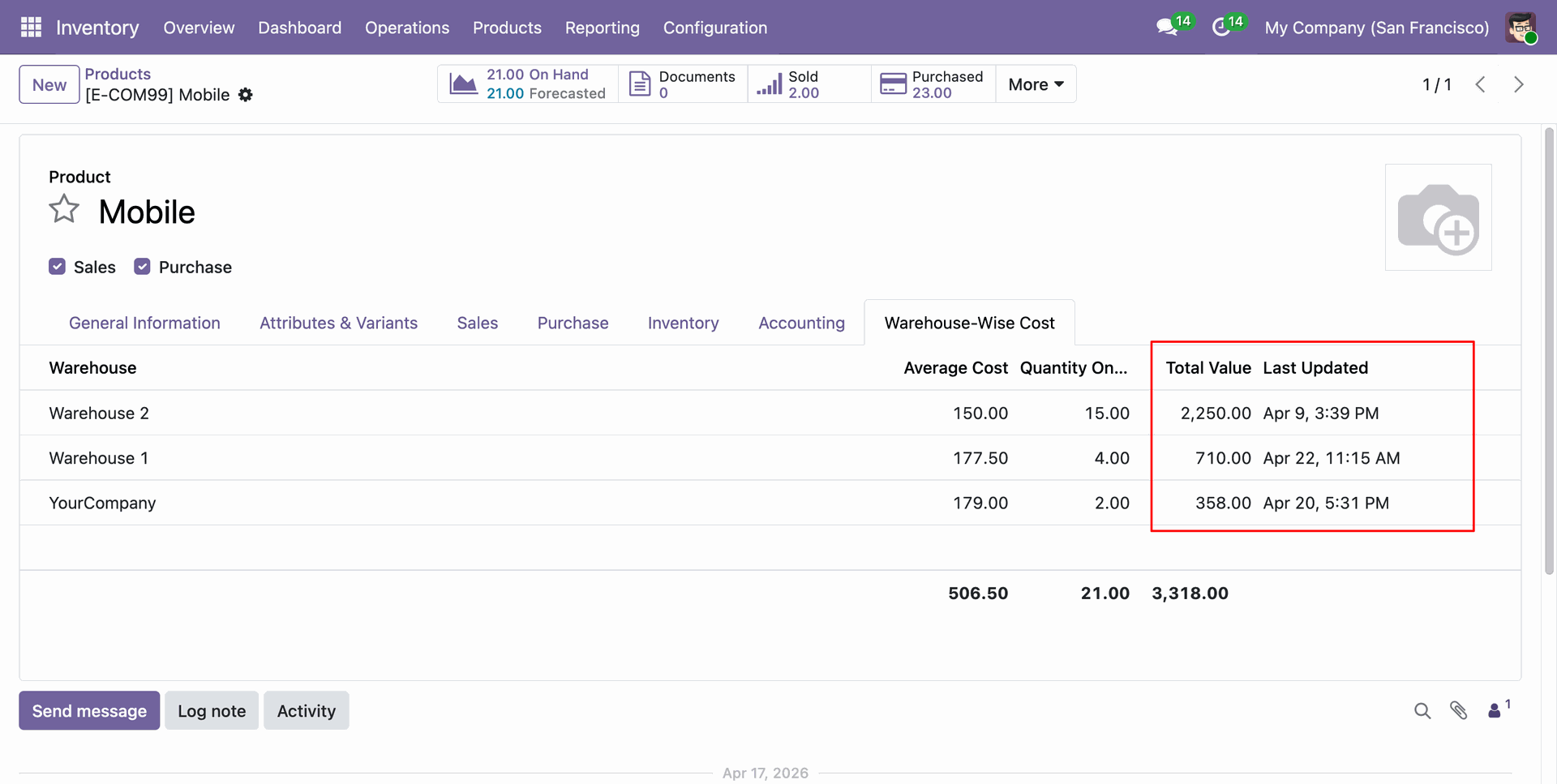
You can track the average cost and total valuation per warehouse directly from the 'Warehouse-Wise Cost' tab on the product form.
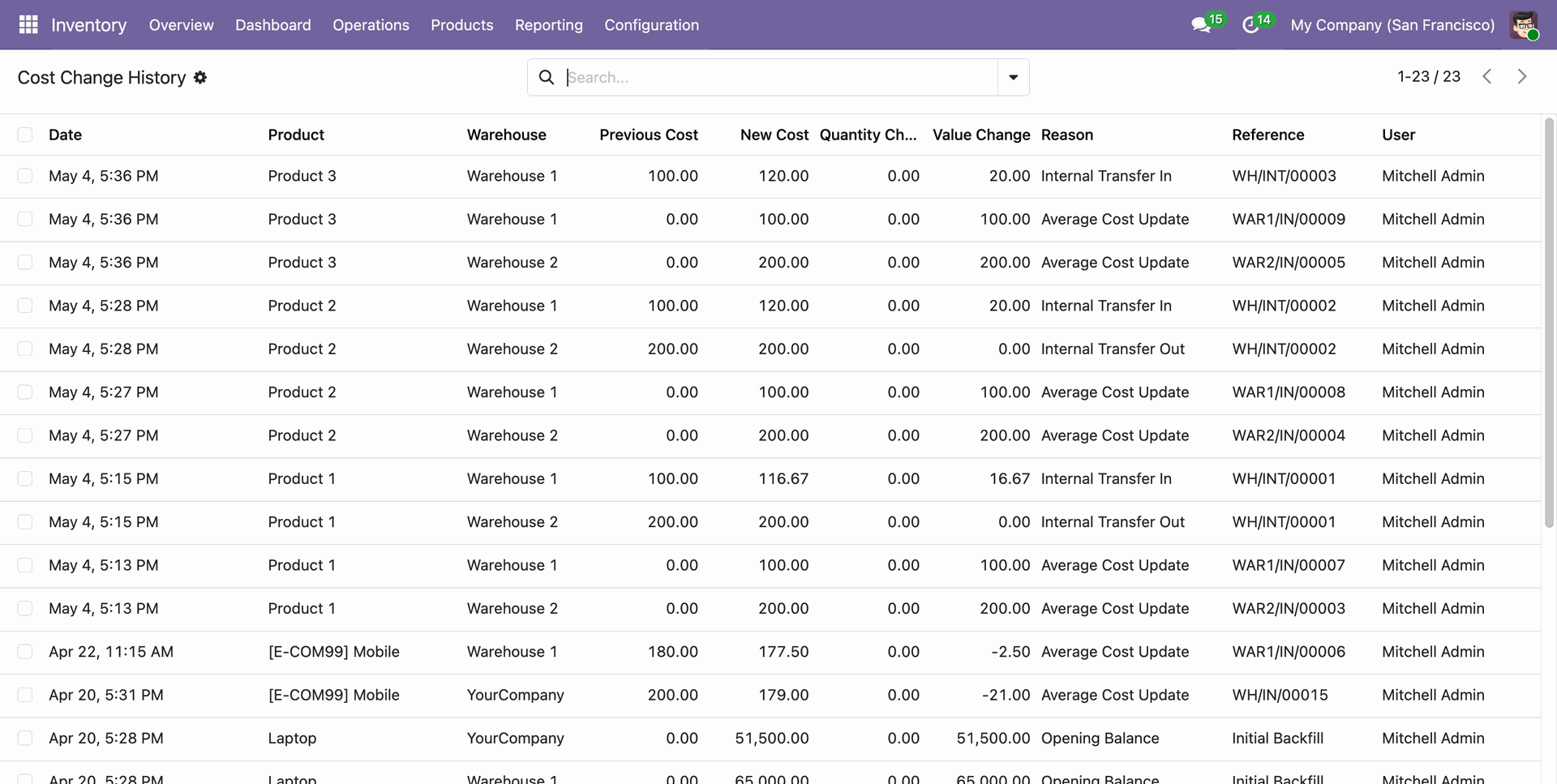
Navigate to Inventory > Reporting > Cost Change History to access a comprehensive log of all product cost adjustments.
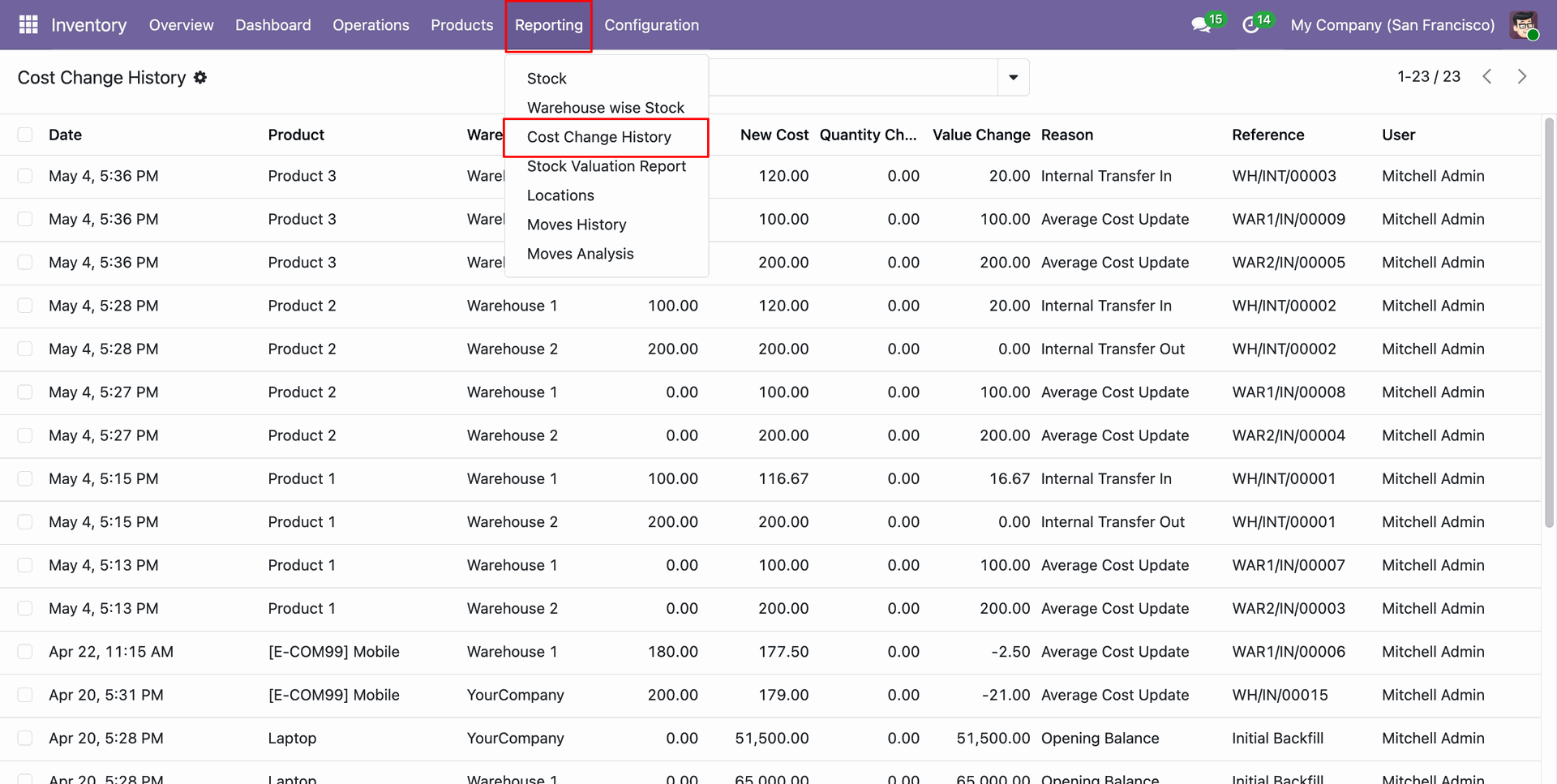
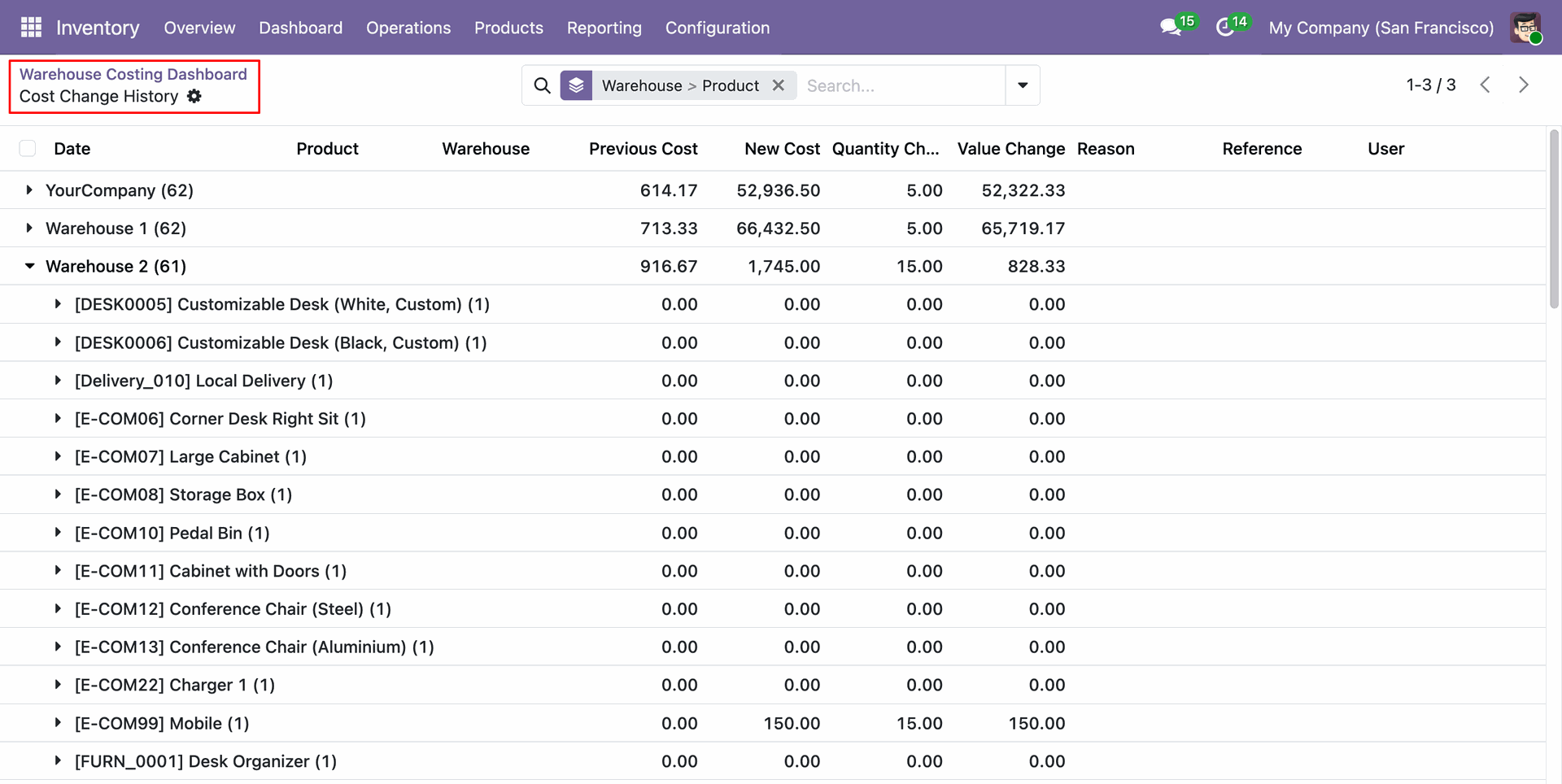
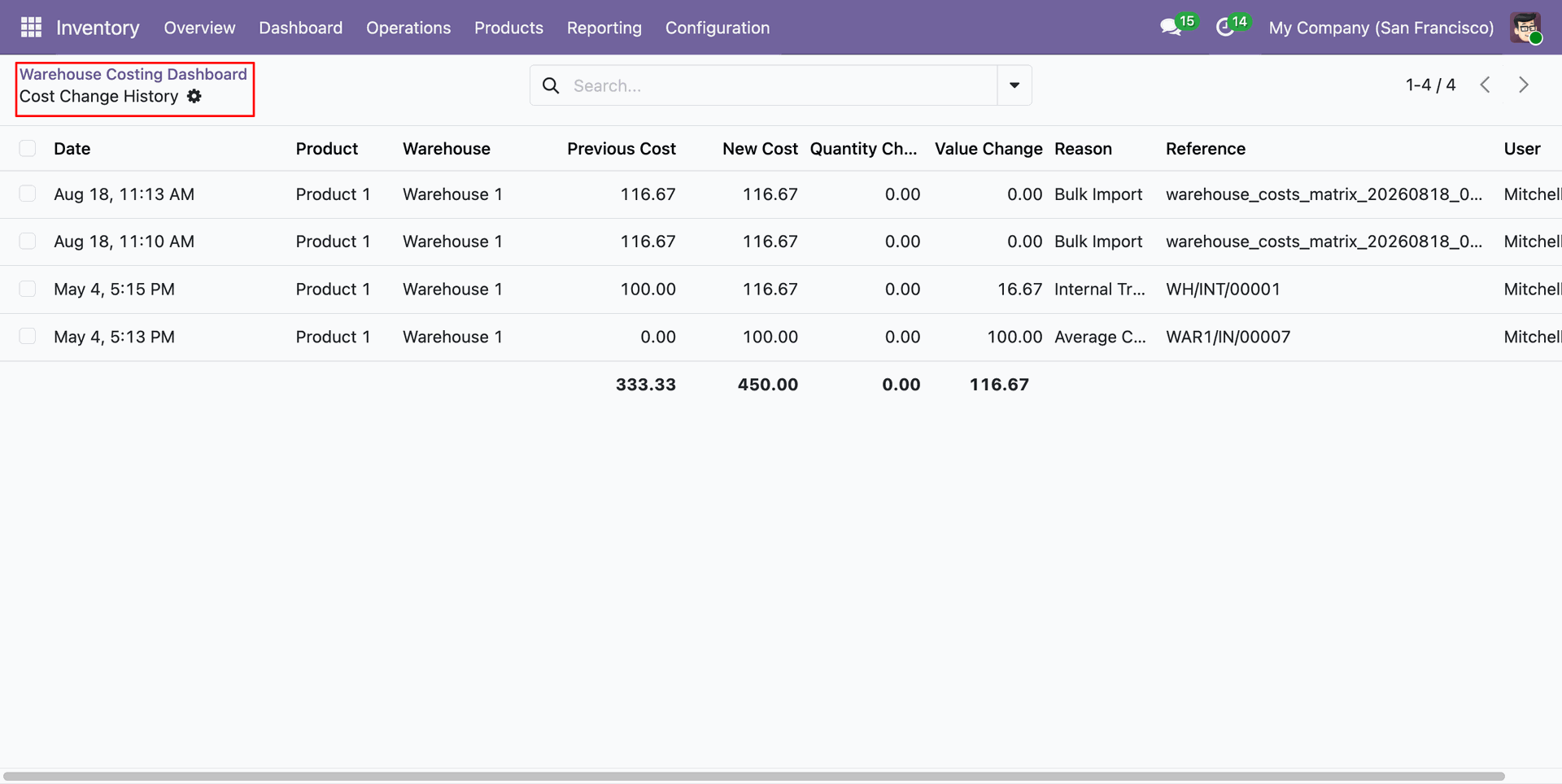
The report detailedly logs cost variations for each product and warehouse, capturing old and new costs, quantity, and valuation changes with reasons.
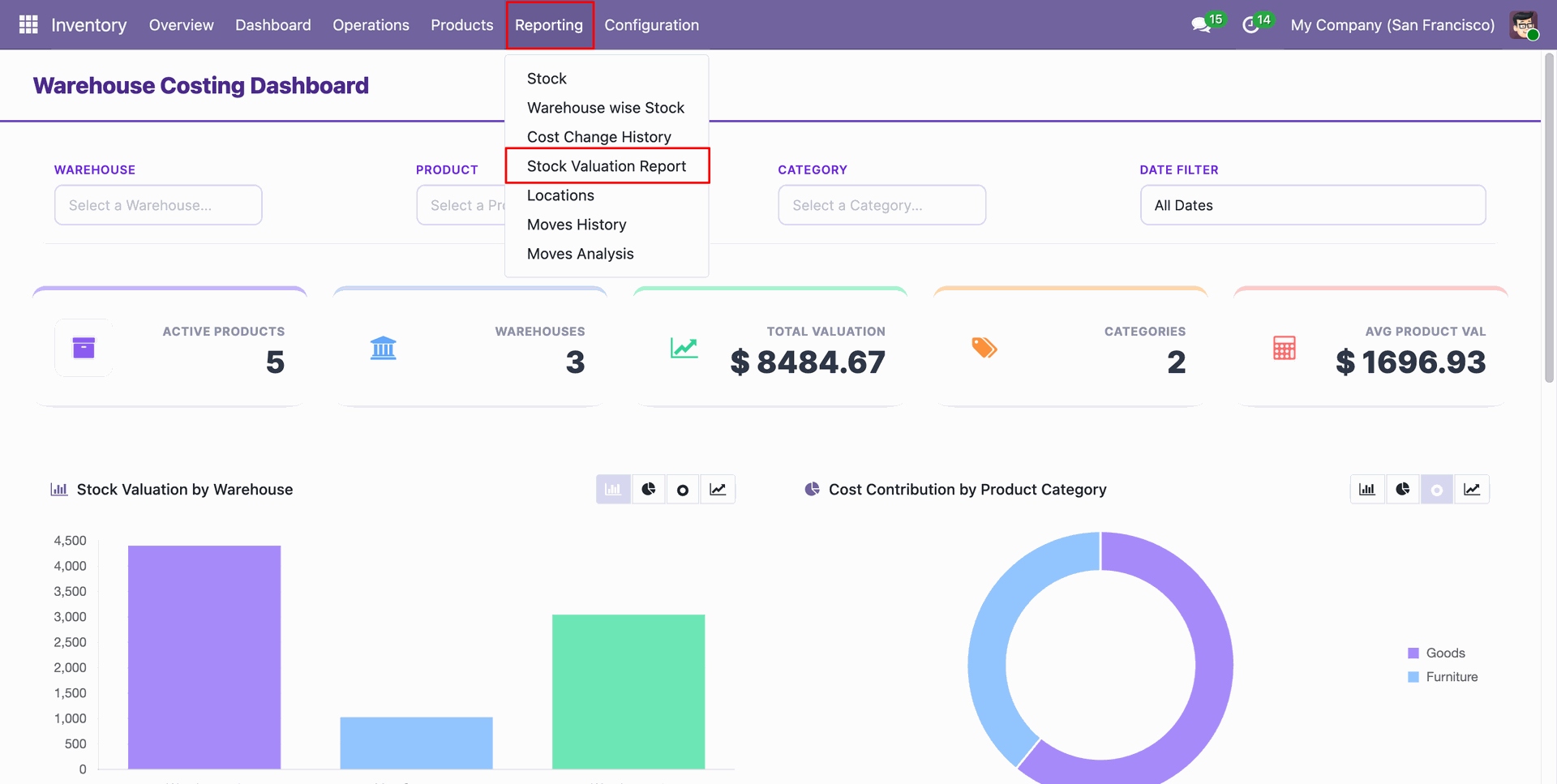
Access the Stock Valuation Report from the Inventory Reporting menu to generate detailed valuation insights.
Select the preferred Report Type, such as Summary Report, Detailed Report, or Warehouse Comparison, from the wizard.
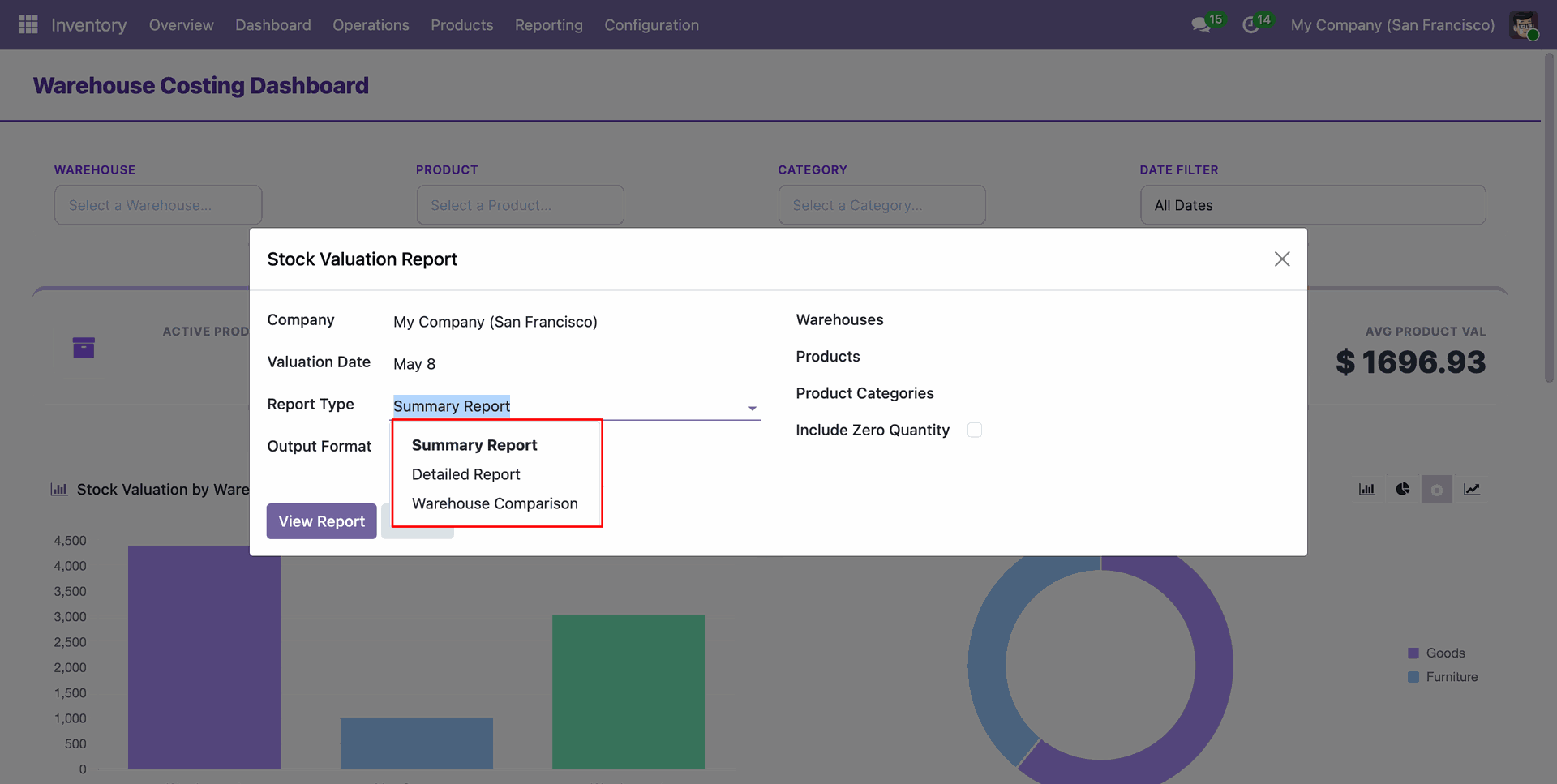
Choose the Output Format for your valuation report: direct View Report, PDF, or Excel download.
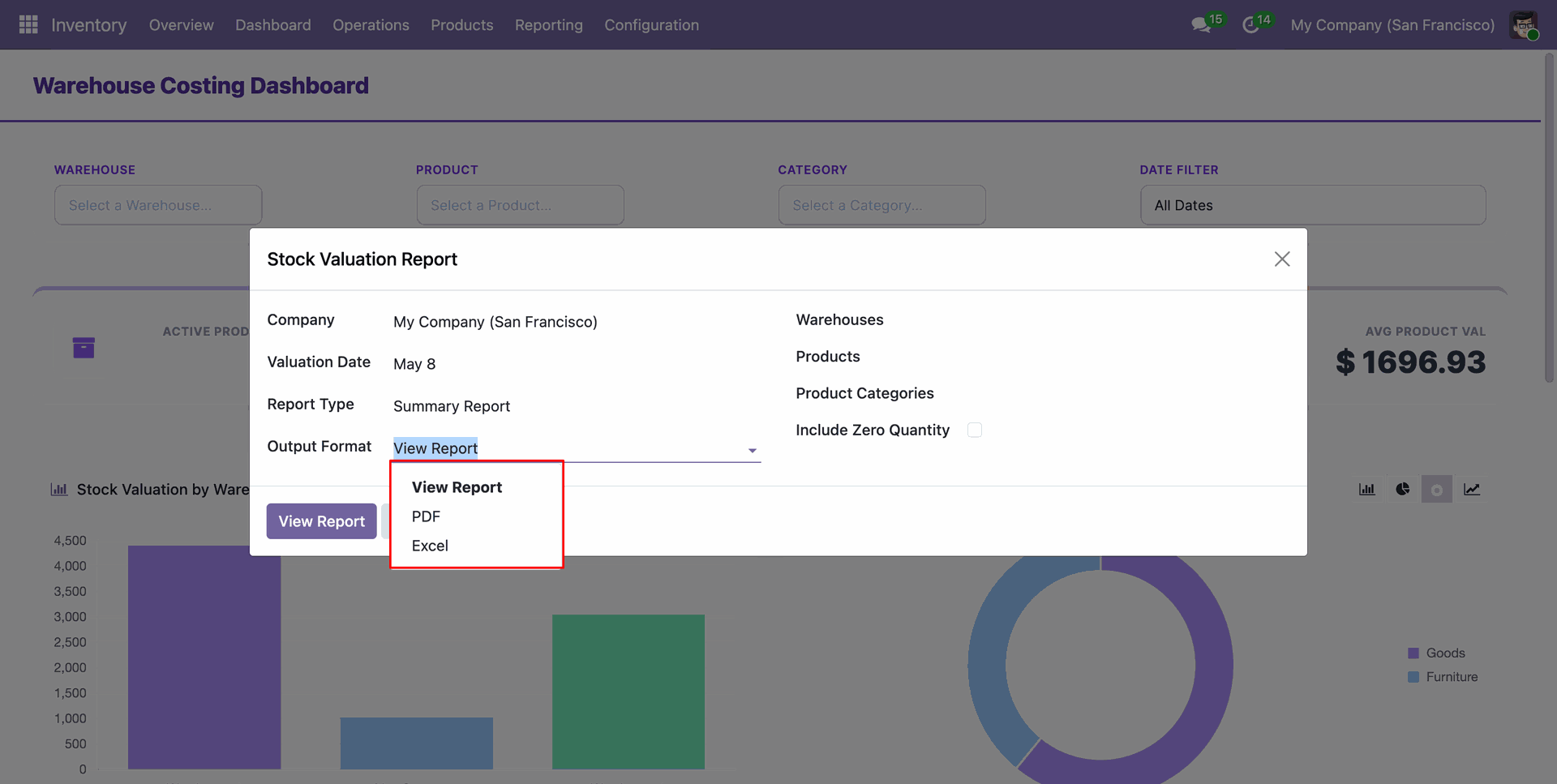
Select the report type summary report and format as PDF to get a concise overview of stock valuation by warehouse with selected products, categories and warehouses.
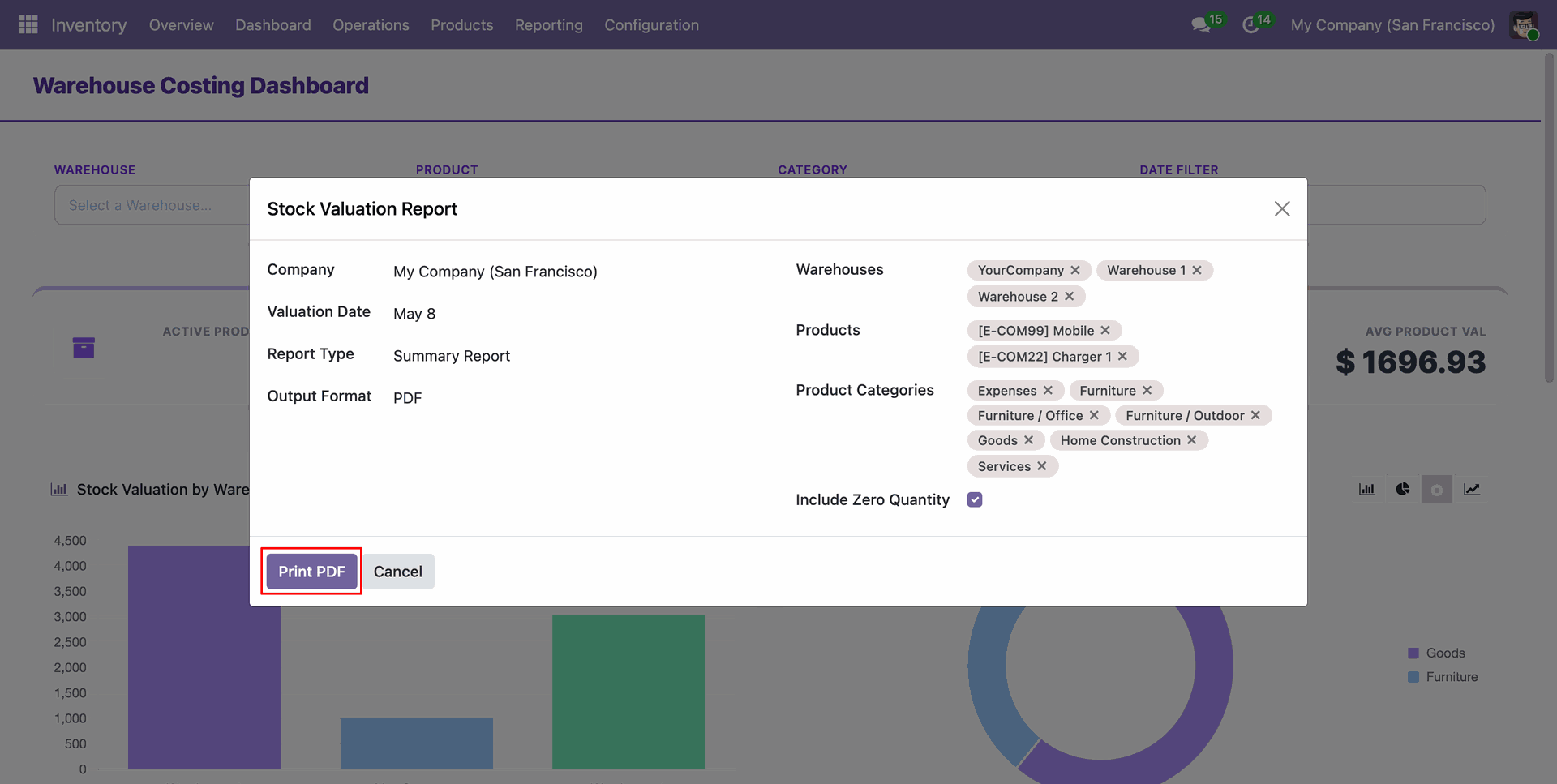
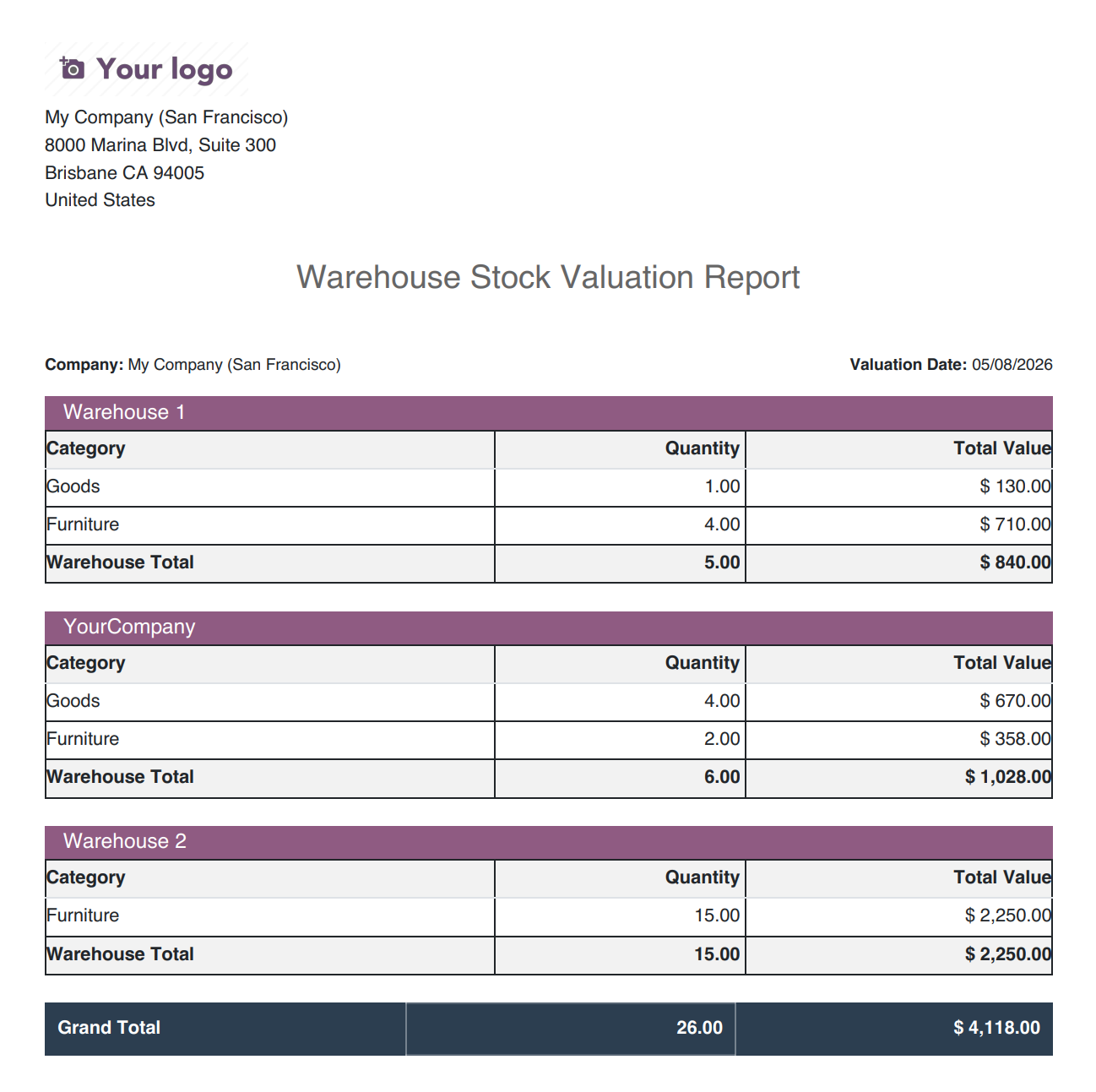
Printed Stock Valuation Summary Report with clear warehouse-wise valuation breakdowns and total values in PDF format.
Select the report type summary report and format as Excel to get a concise overview of stock valuation by warehouse with selected products, categories and warehouses.
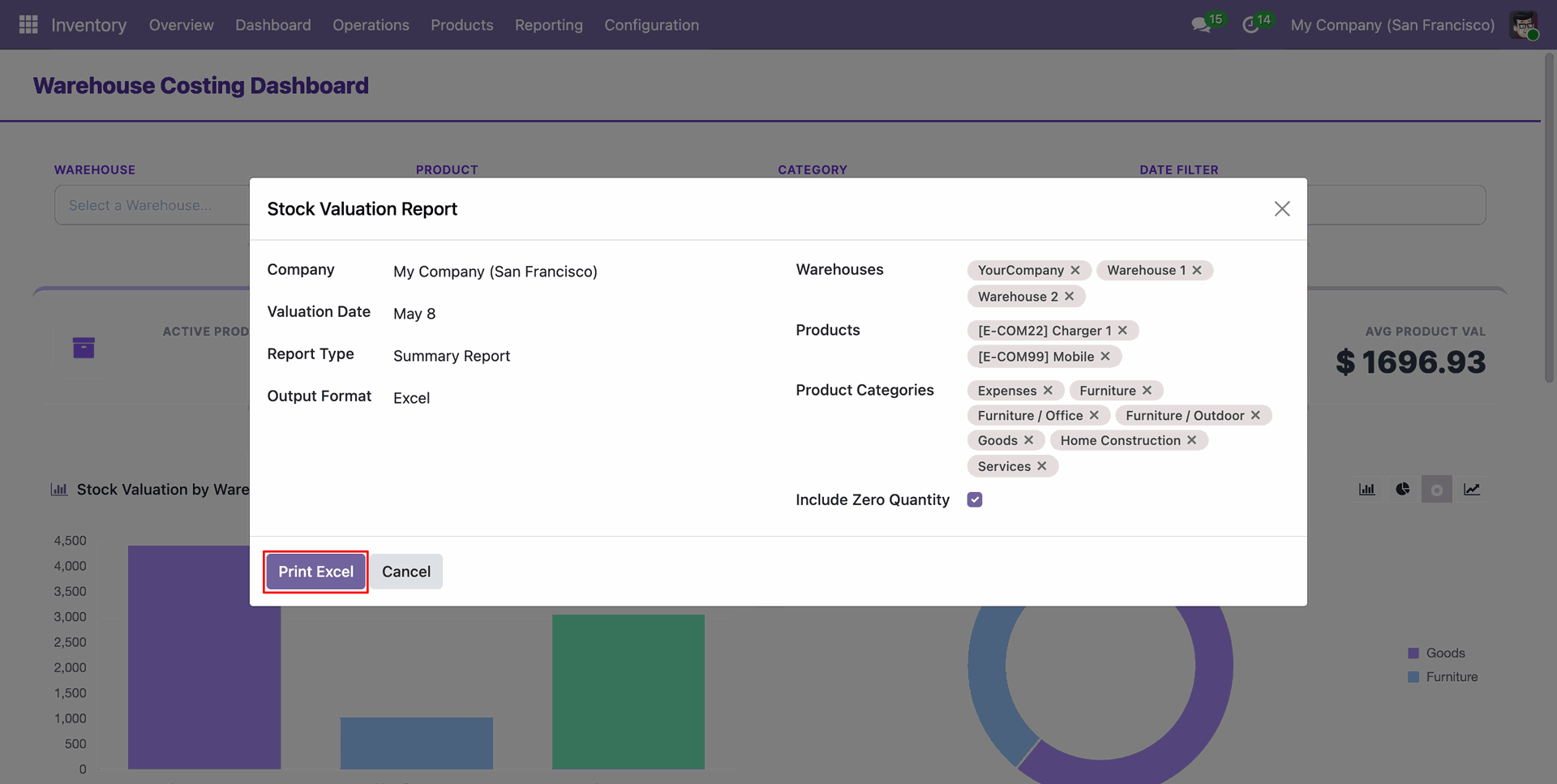
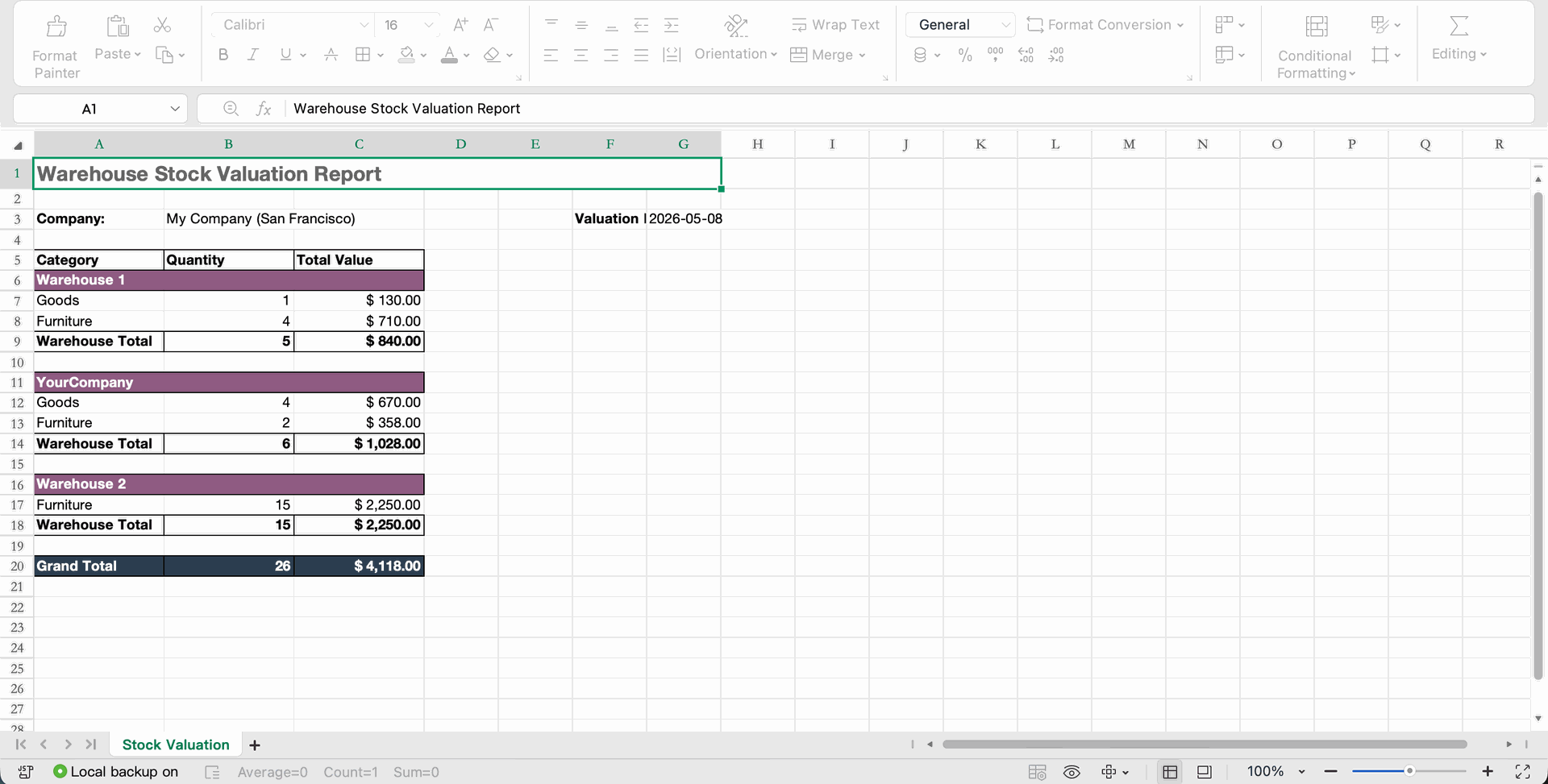
Printed Stock Valuation Summary with organized Excel report showing stock valuation grouped by warehouse and category.
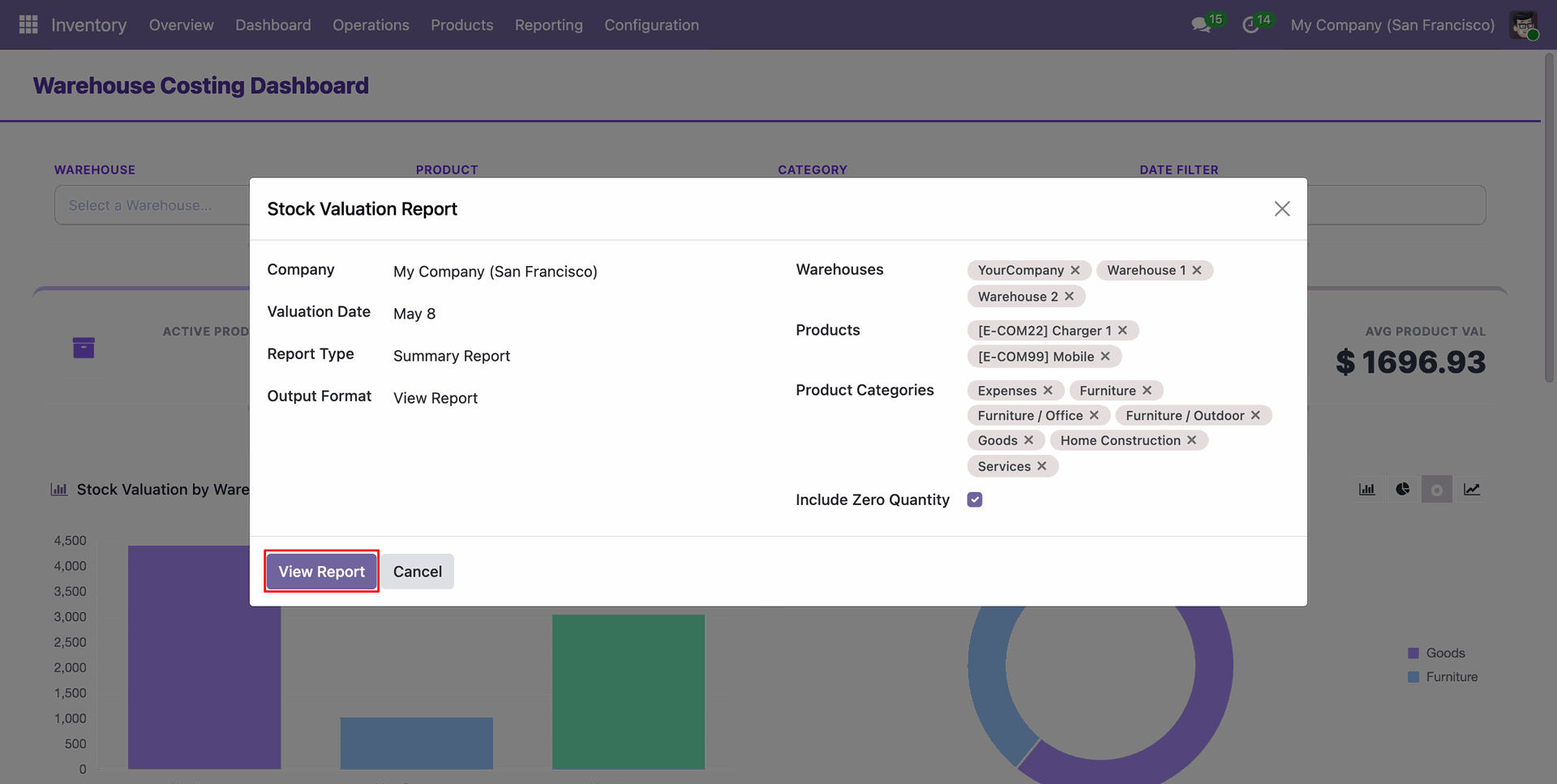
Select the report type summary report and format as View Report to get a concise overview of stock valuation by warehouse with selected products, categories and warehouses.
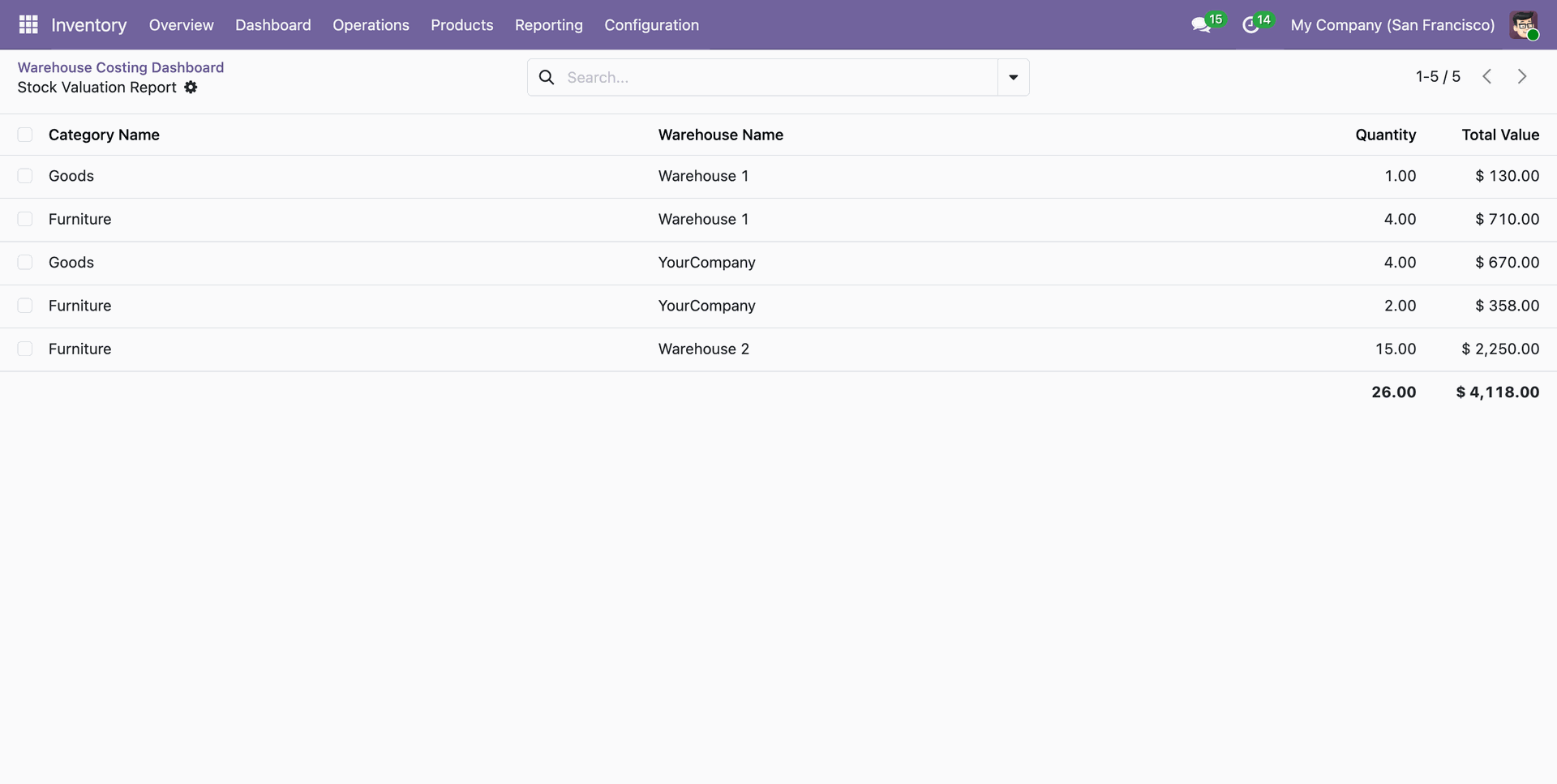
The Summary Report view provides an overview of stock quantities and total values per warehouse.
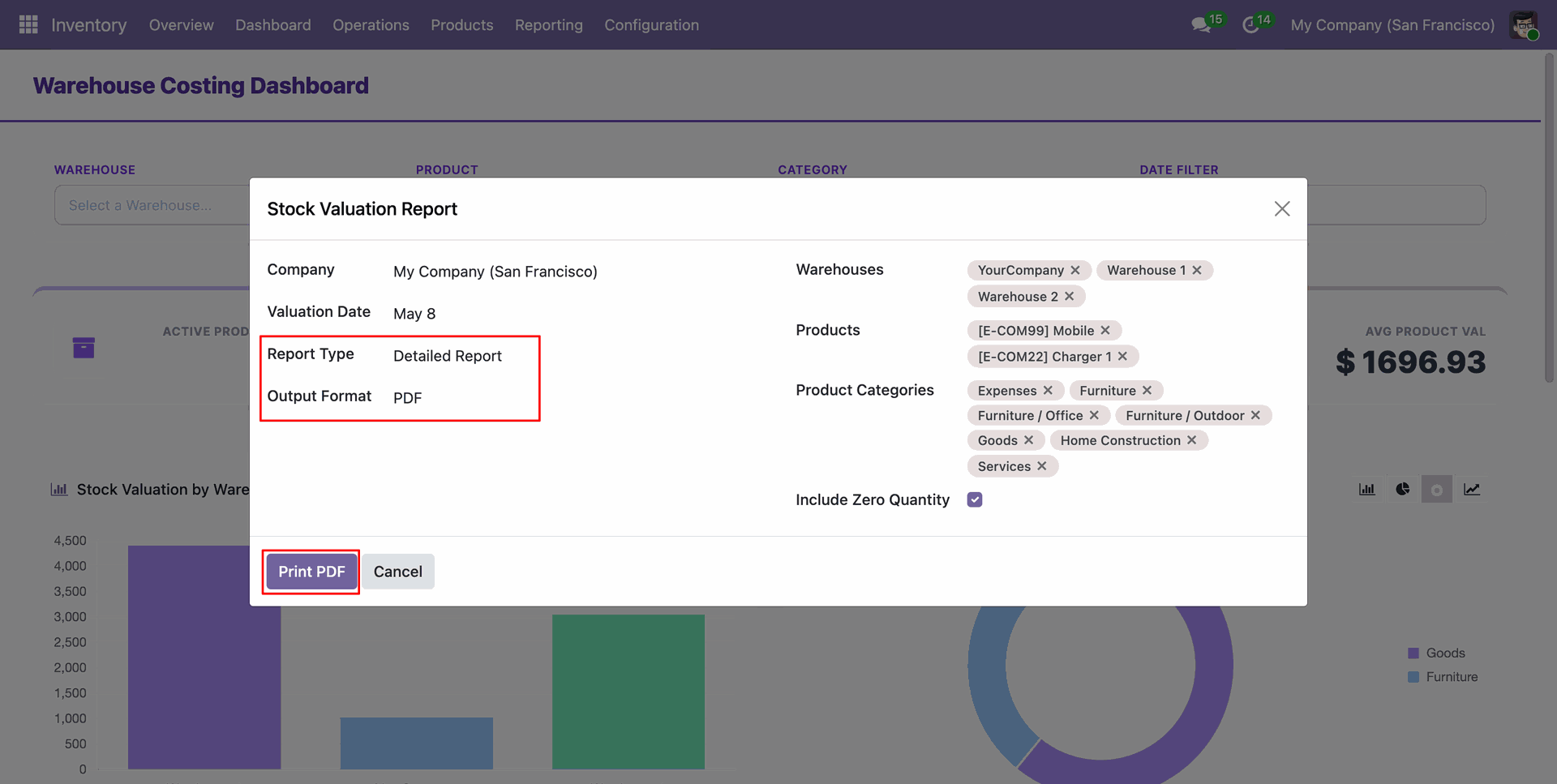
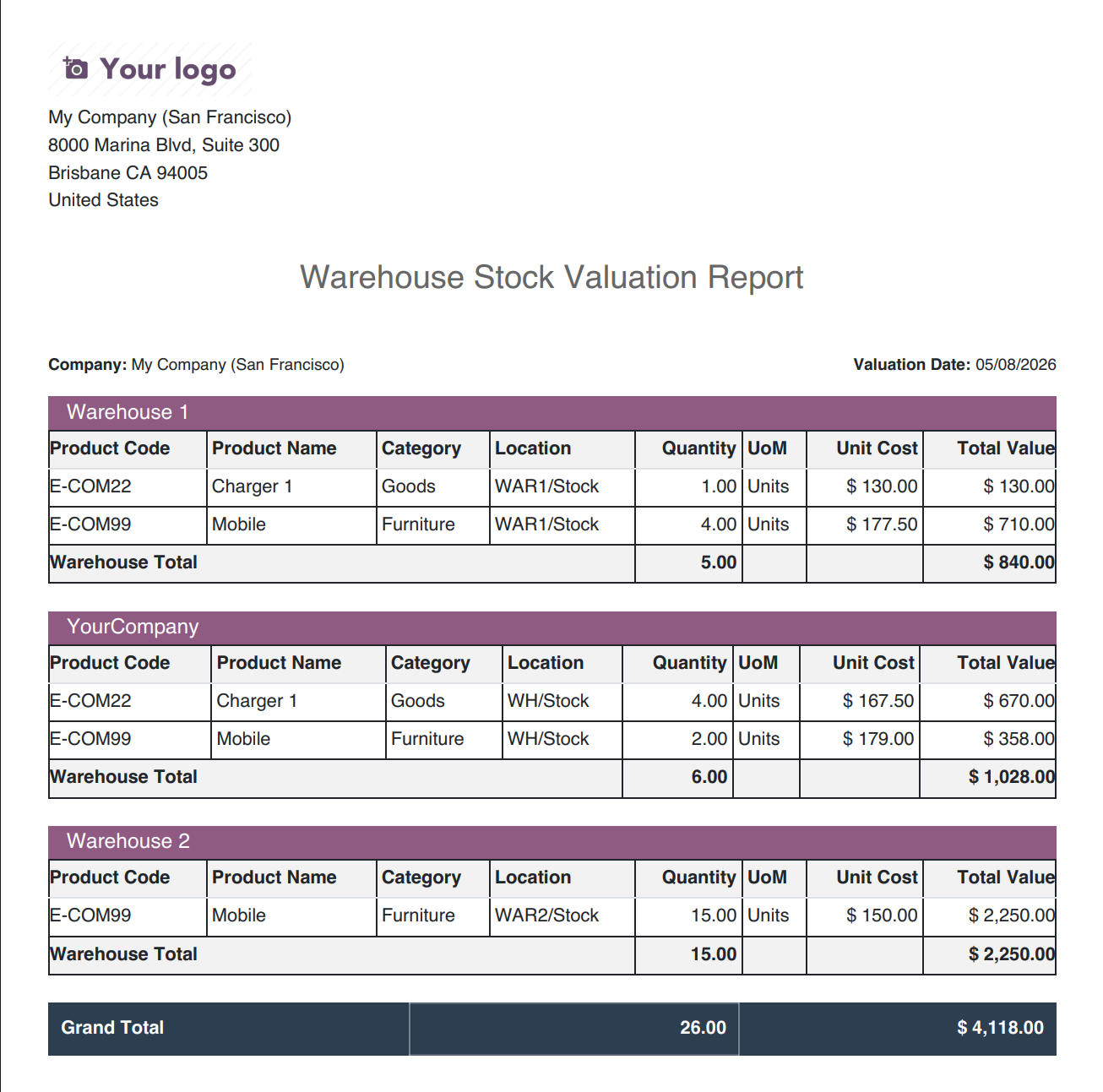
Use the Detailed Report to see transaction-level valuation data for more granular analysis.
Detailed PDF exports include comprehensive lists of products within each warehouse and their respective cost valuations in PDF format.
Select the report type detailed report and format as Excel to get a details of stock valuation by warehouse with selected products, categories and warehouses.
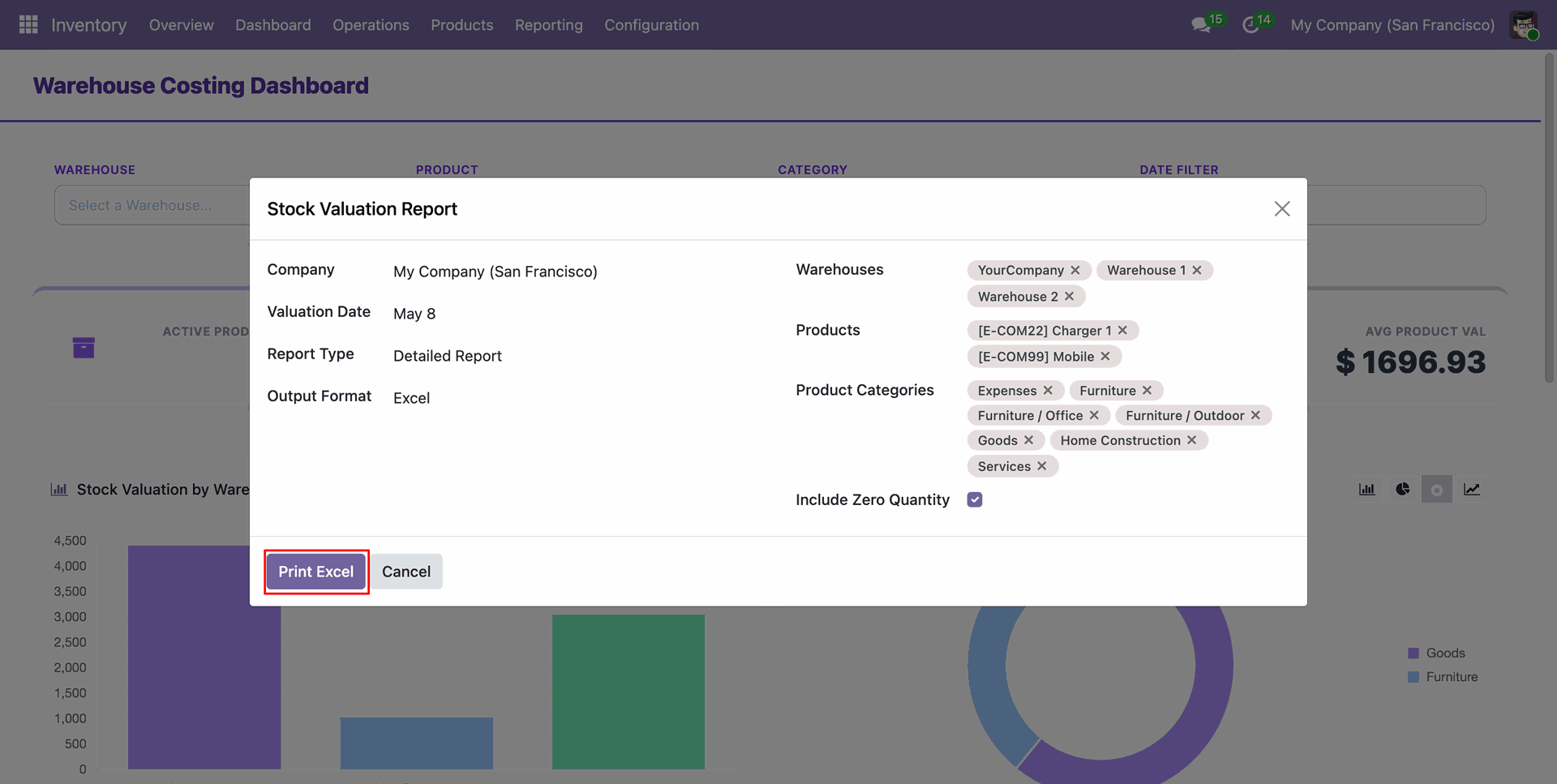
Detailed Excel exports include comprehensive lists of products within each warehouse and their respective cost valuations.
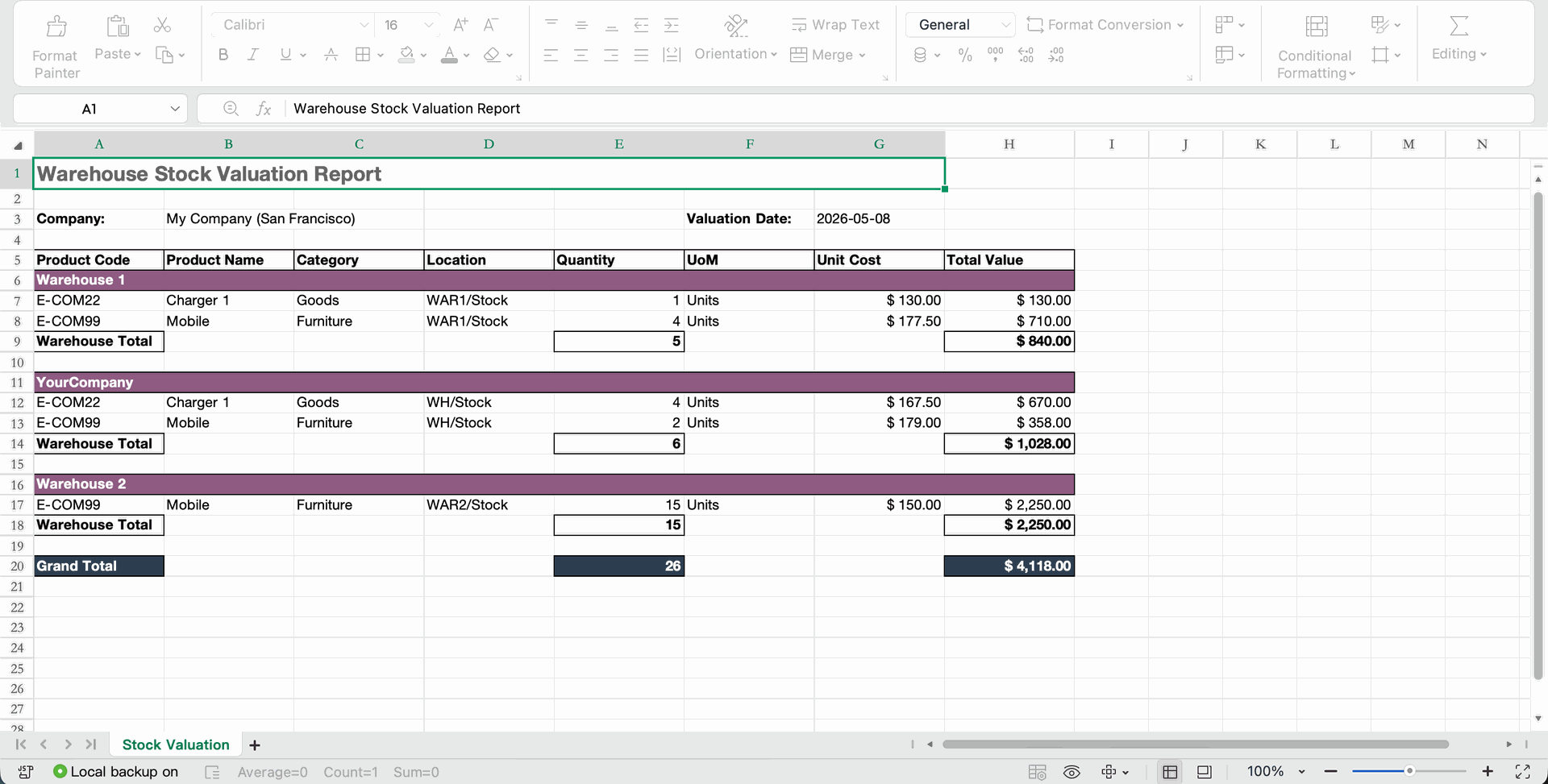
Select the report type detailed report and format as View Report to get a details of stock valuation by warehouse with selected products, categories and warehouses.
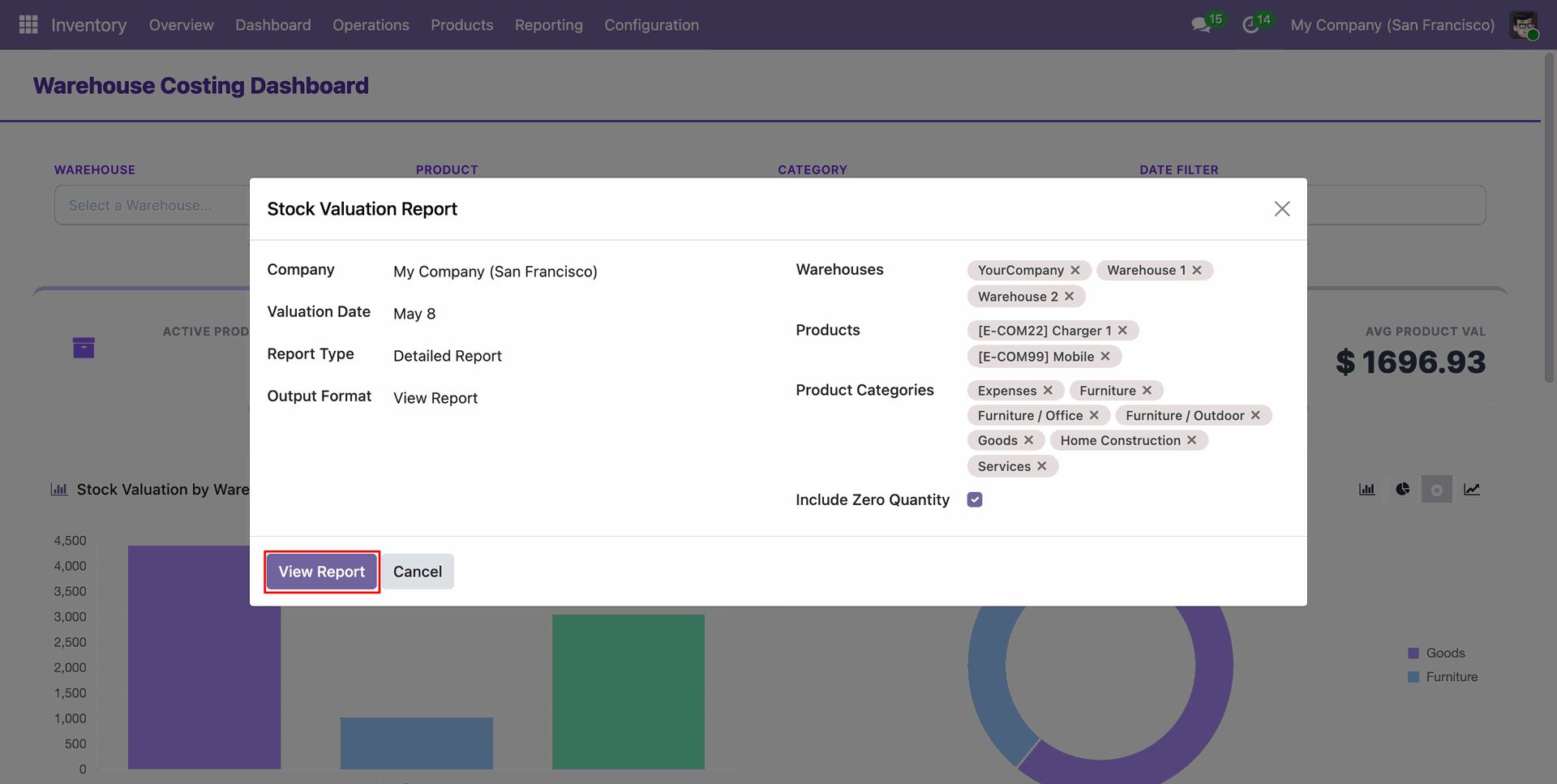
Analyze stock movements and their impact on warehouse-wise average costs through the detailed report view.
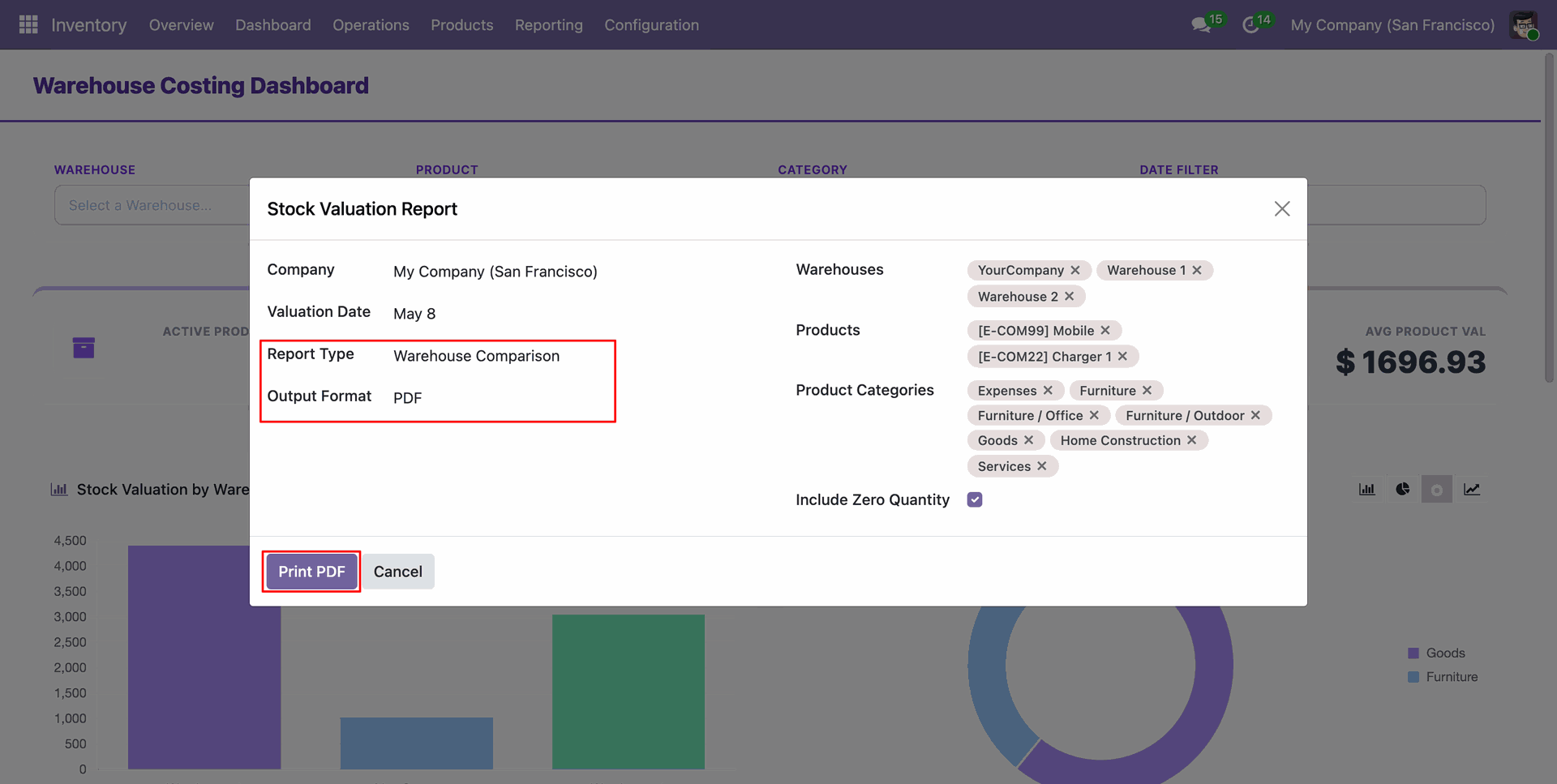
Select the report type Warehouse Comparison and format as PDF to compare a details of stock valuation with warehouse with selected products, categories and warehouses.
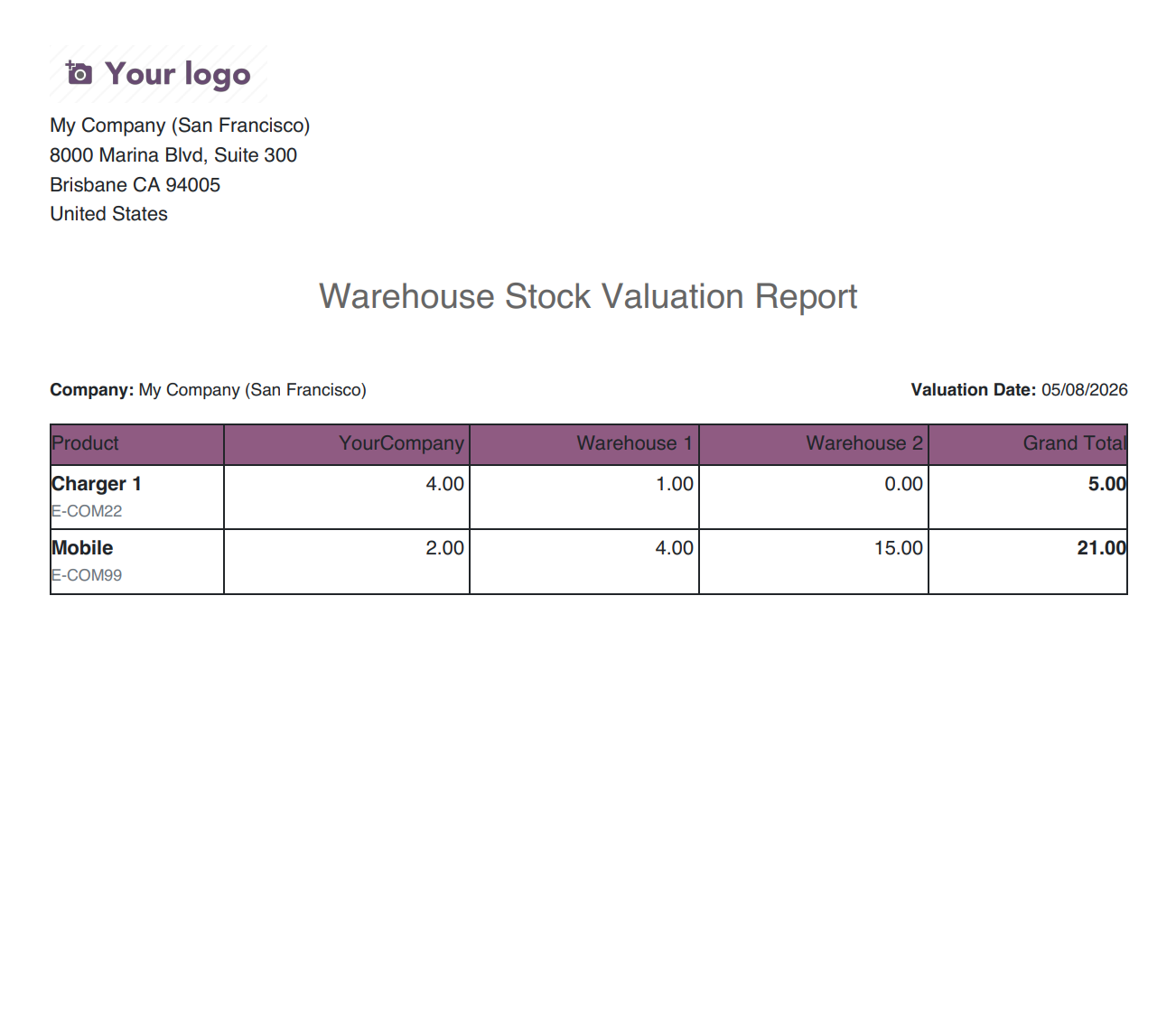
The Warehouse Comparison report allows you to analyze and compare stock values across multiple warehouses side-by-side in PDF format.
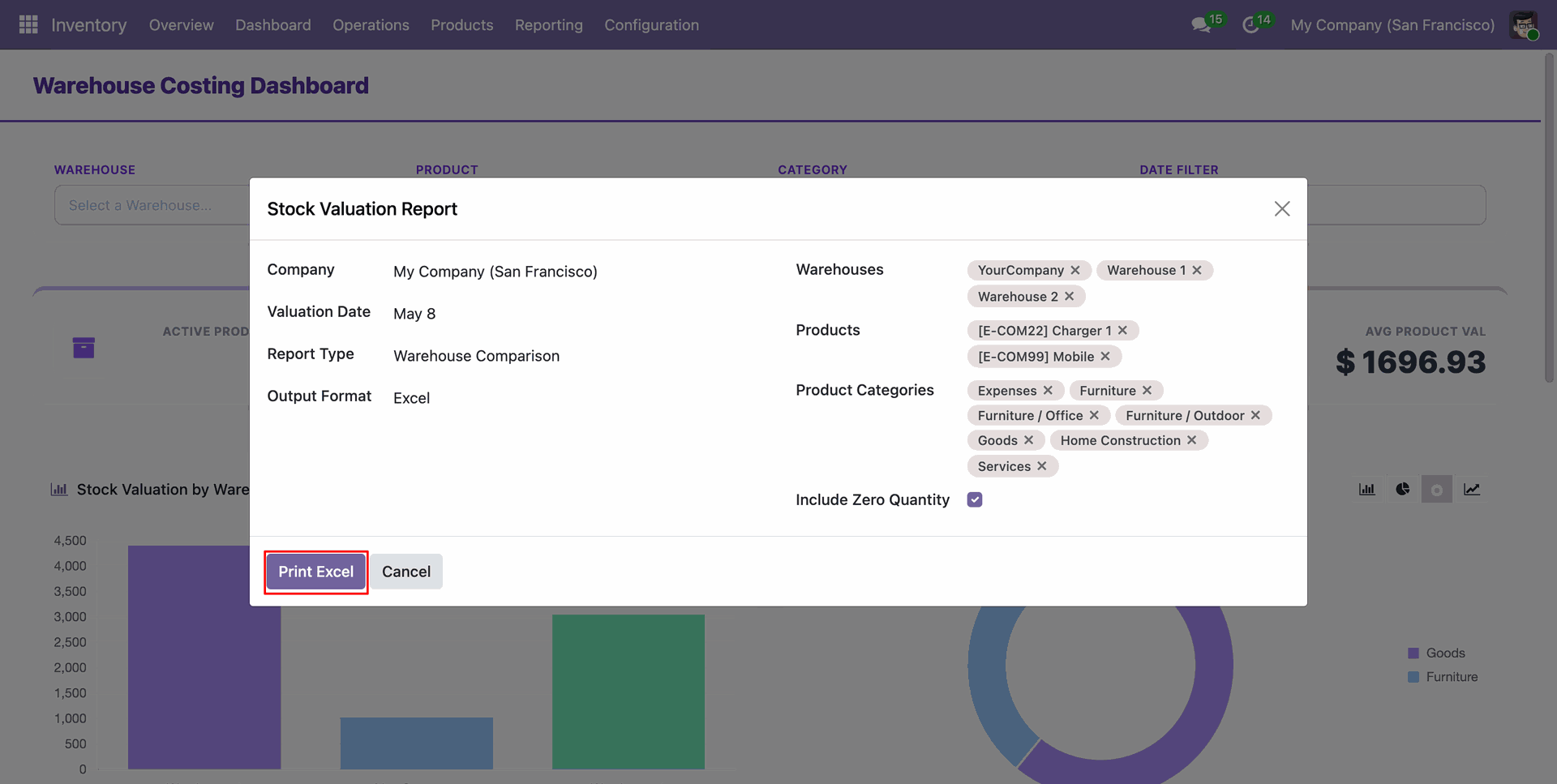
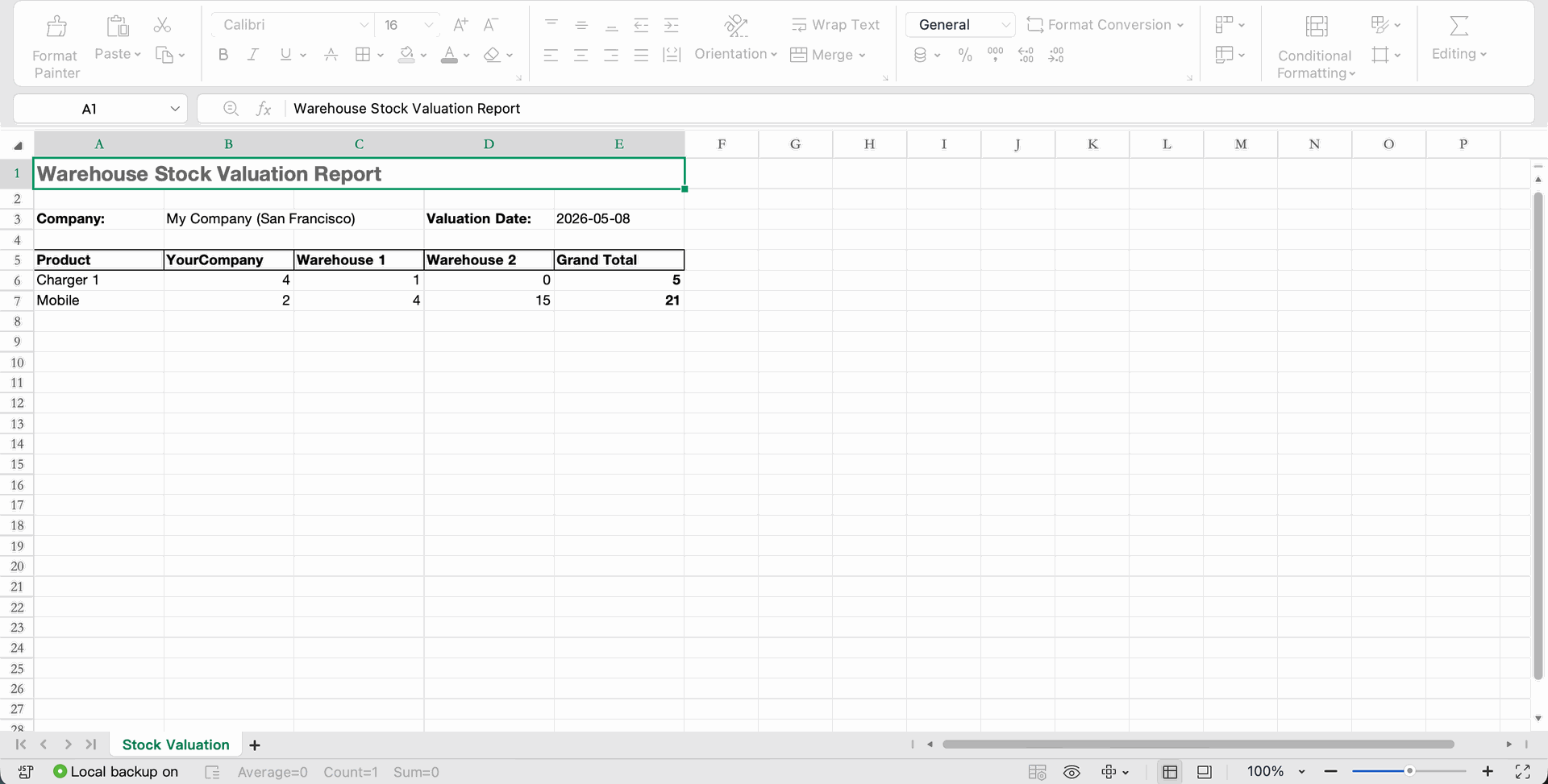
Select the report type Warehouse Comparison and format as Excel to compare a details of stock valuation with warehouse with selected products, categories and warehouses.
The Warehouse Comparison report allows you to analyze and compare stock values across multiple warehouses side-by-side in Excel format.
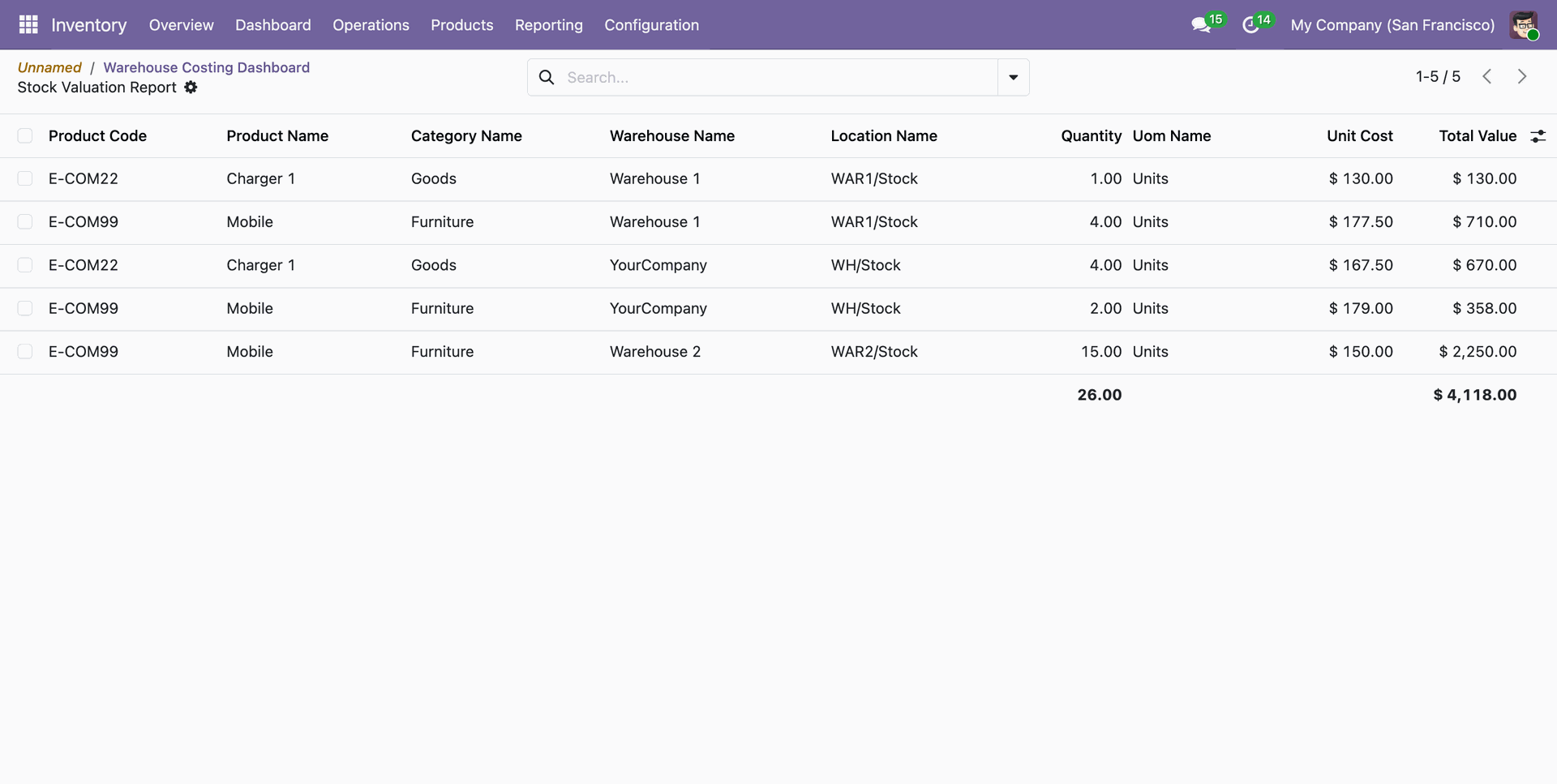
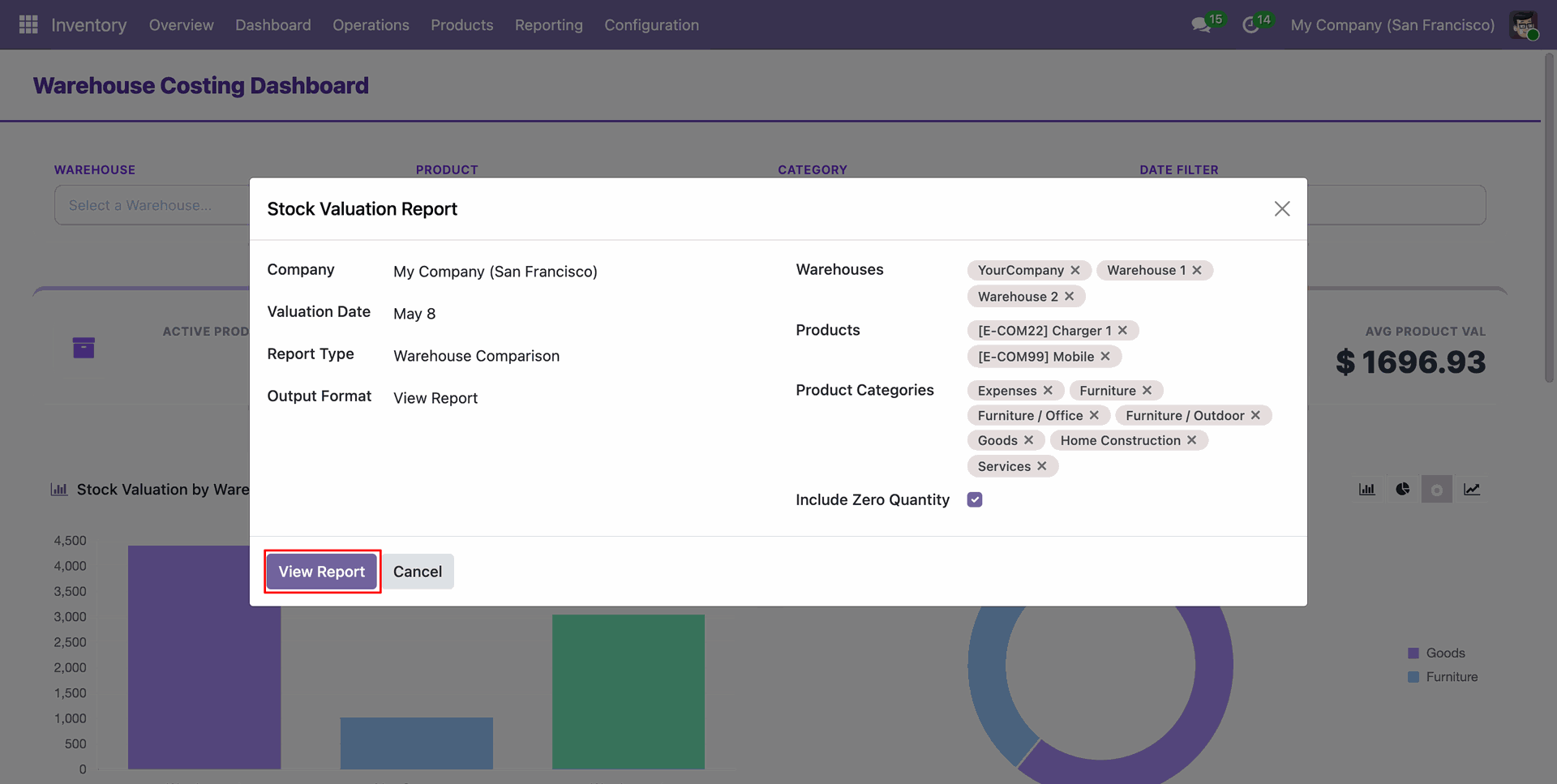
Select the report type Warehouse Comparison and format as View Report to compare a details of stock valuation with warehouse with selected products, categories and warehouses.
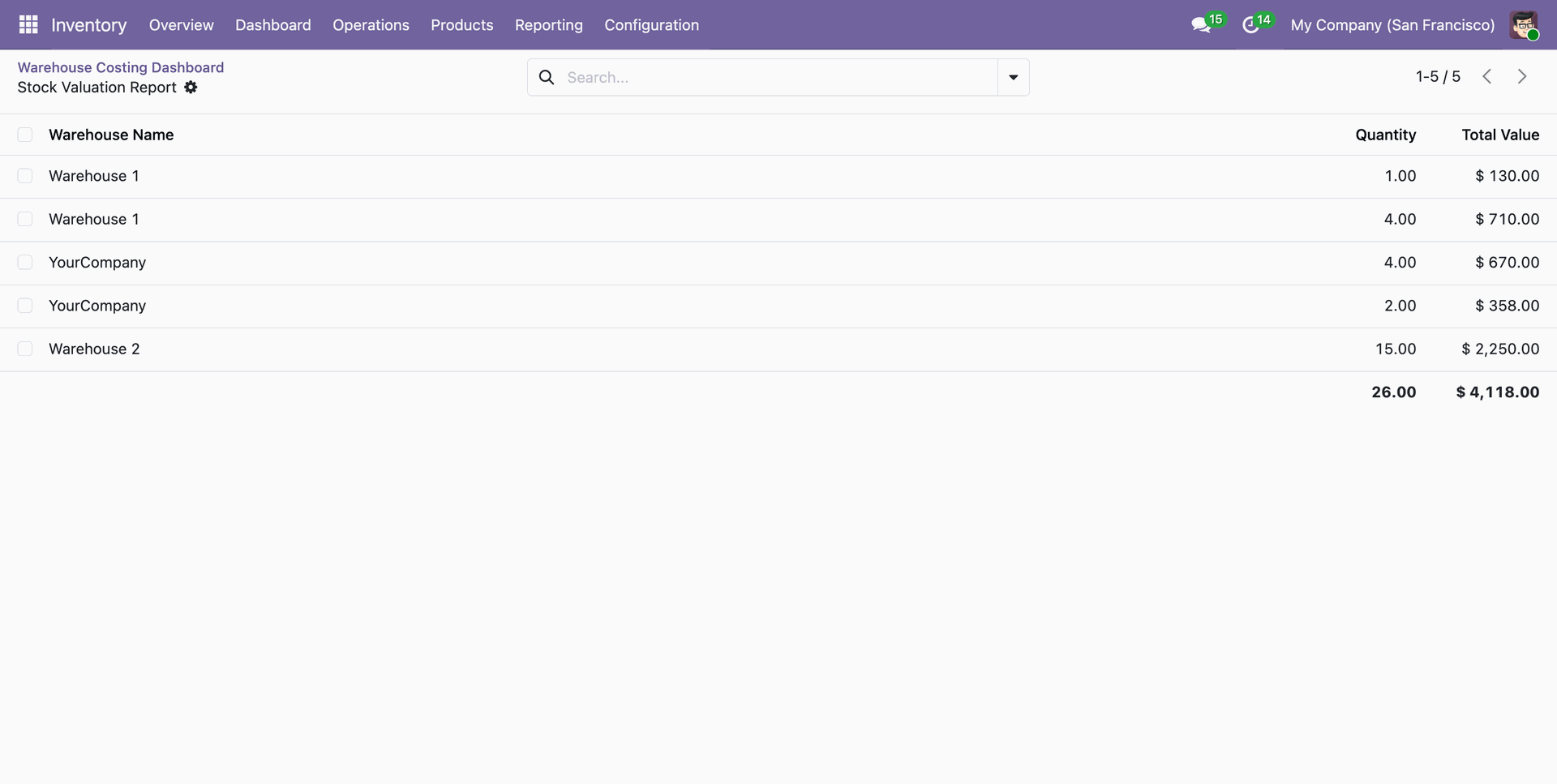
The Warehouse Comparison report allows you to analyze and compare stock values across multiple warehouses in View format.
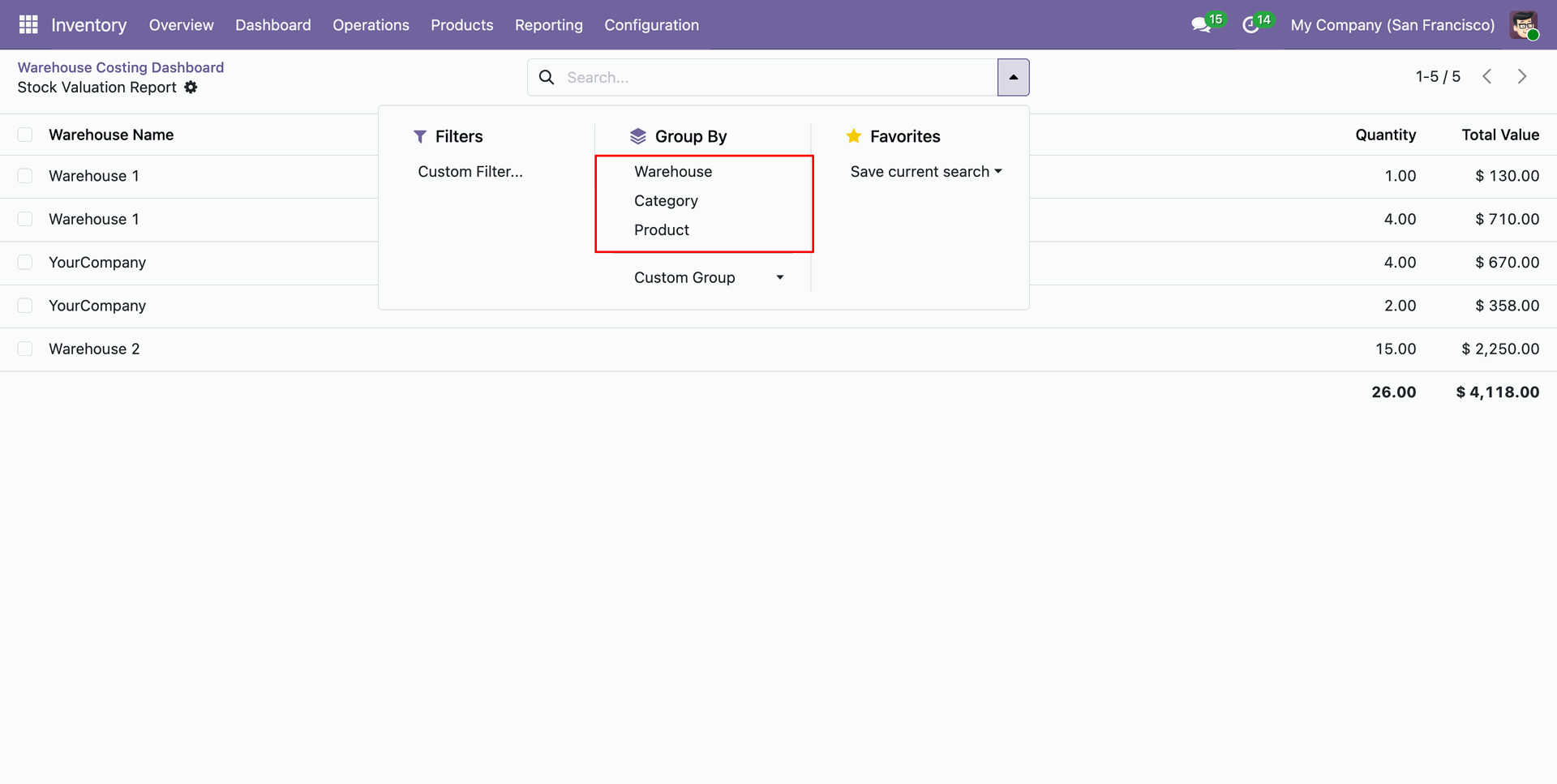
User can group the report by warehouse, product, or category to analyze the stock valuation data.
The Warehouse Costing Dashboard provides a comprehensive overview of your inventory's financial health with real-time KPIs and charts.
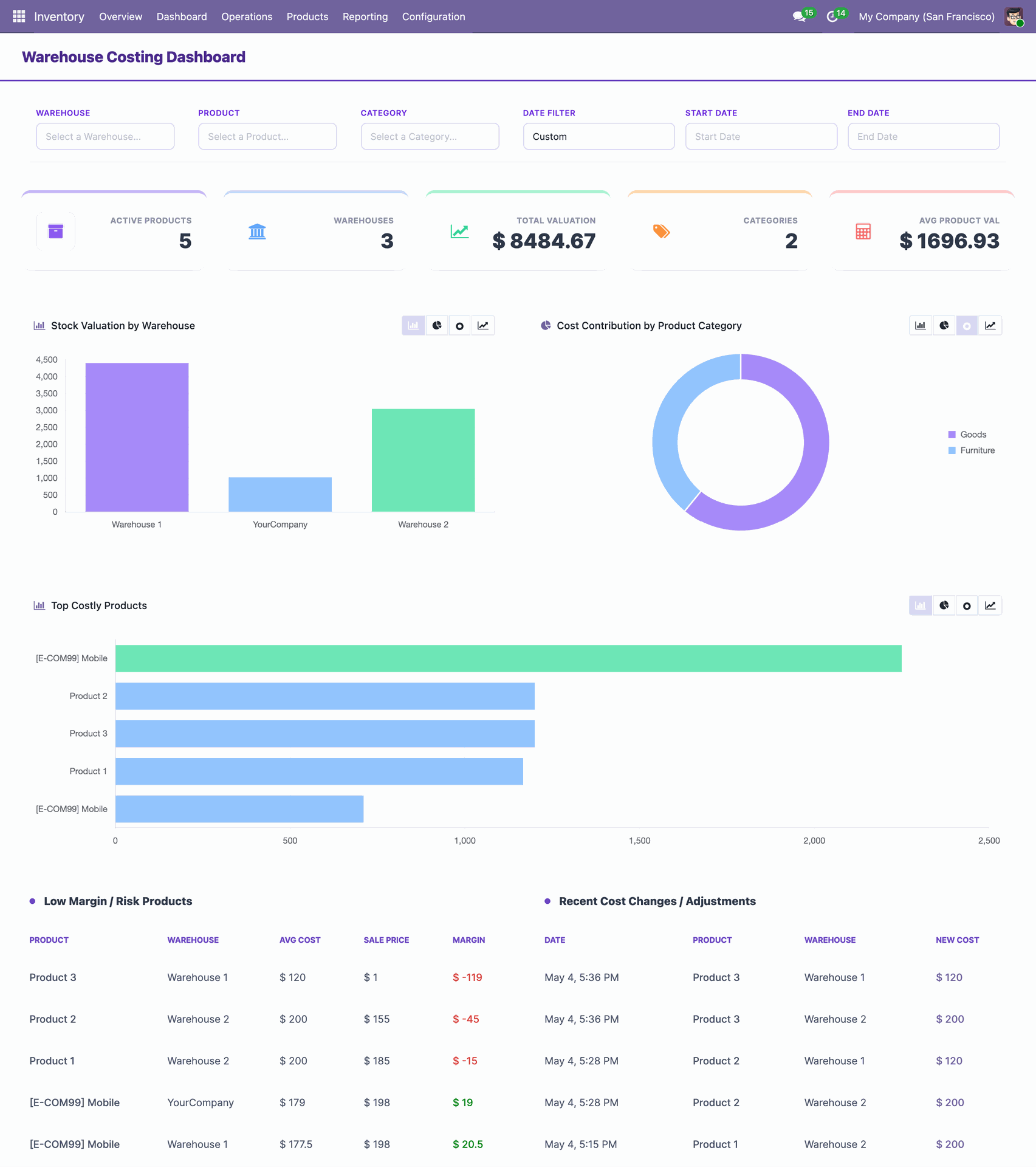
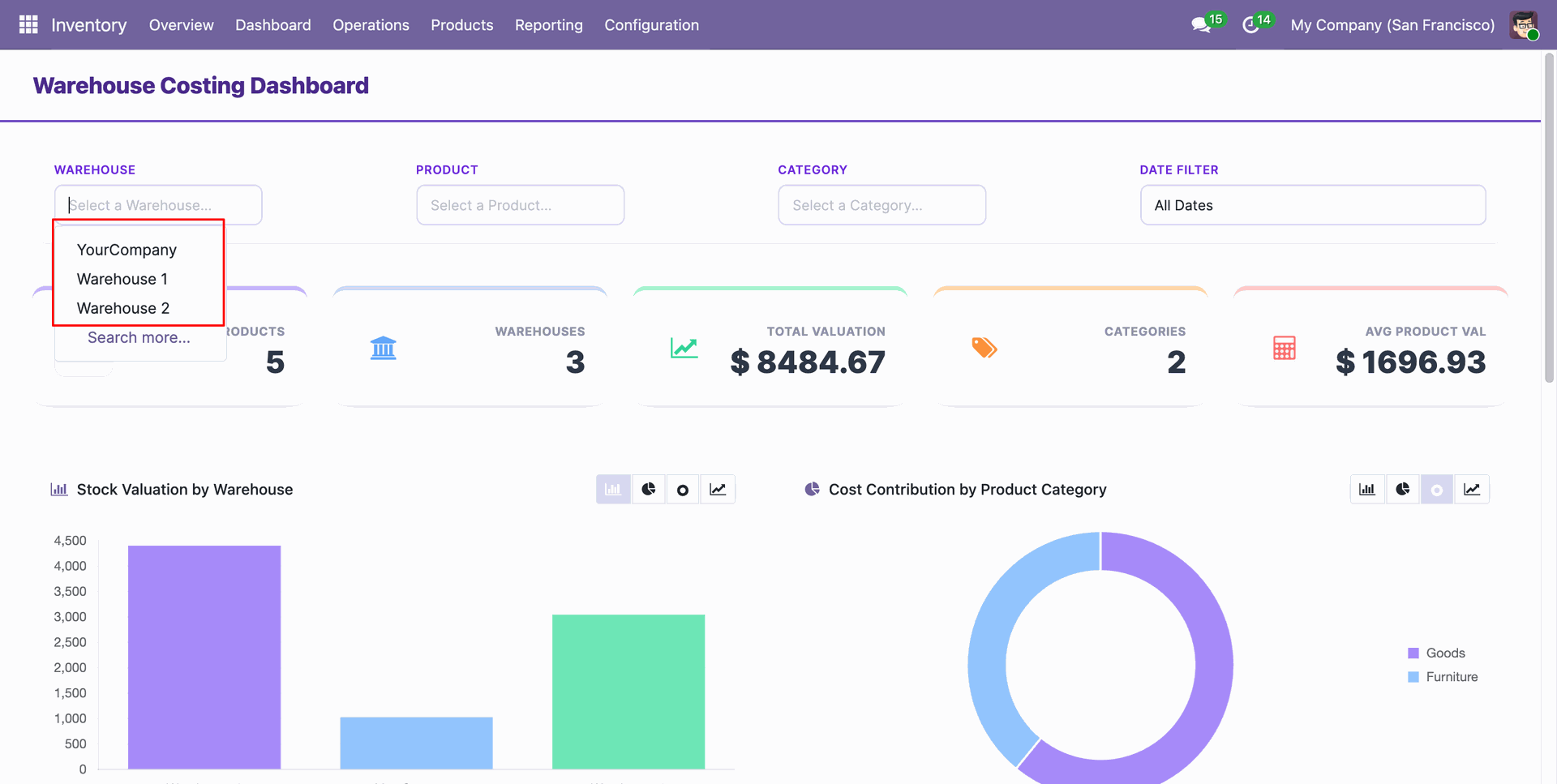
Apply dynamic filters by Warehouse, Product, Category, and Date range to drill down into specific costing data.
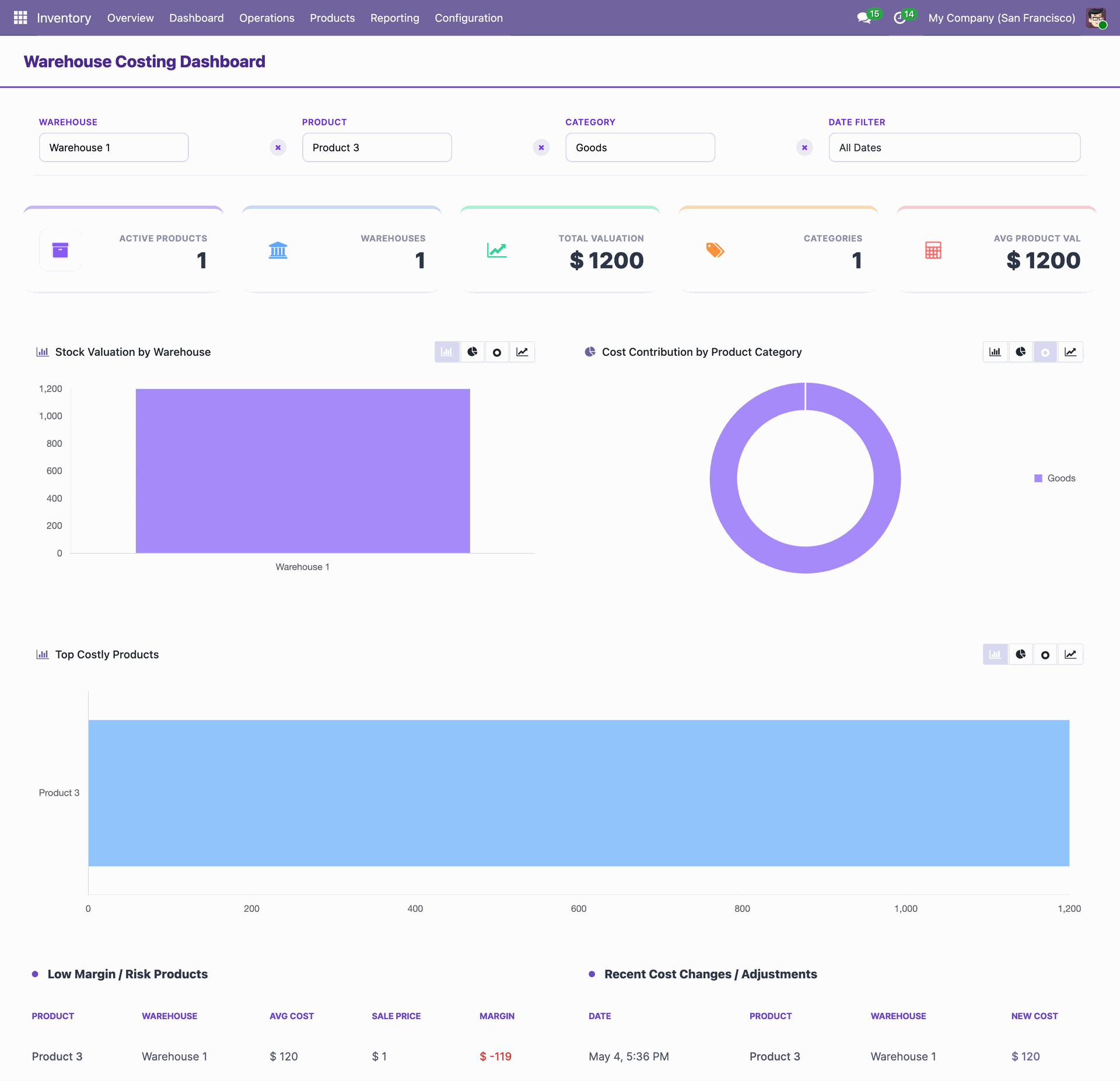
The dashboard updates dynamically as filters are applied, providing instant insights into subsets of your inventory.
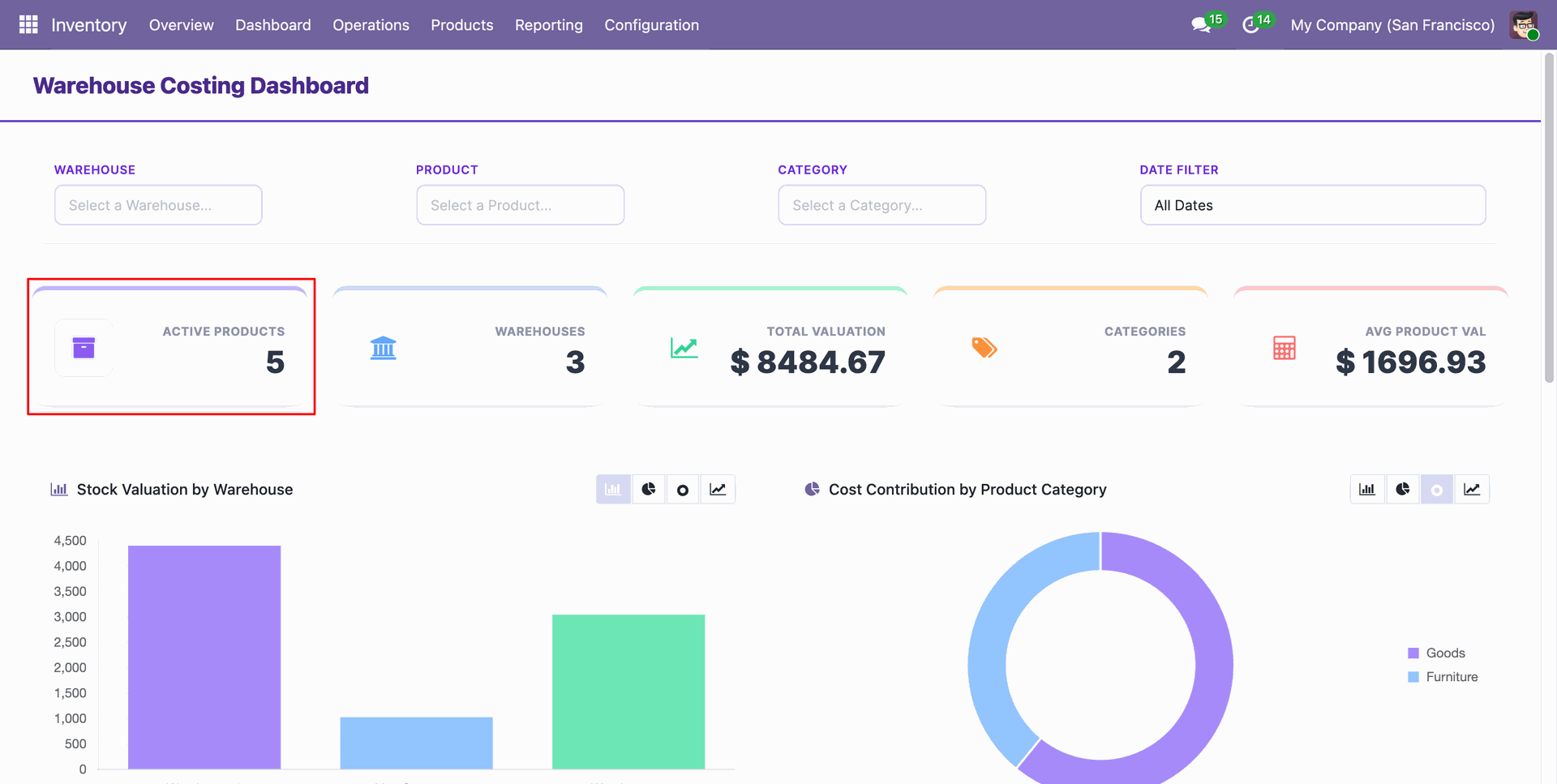
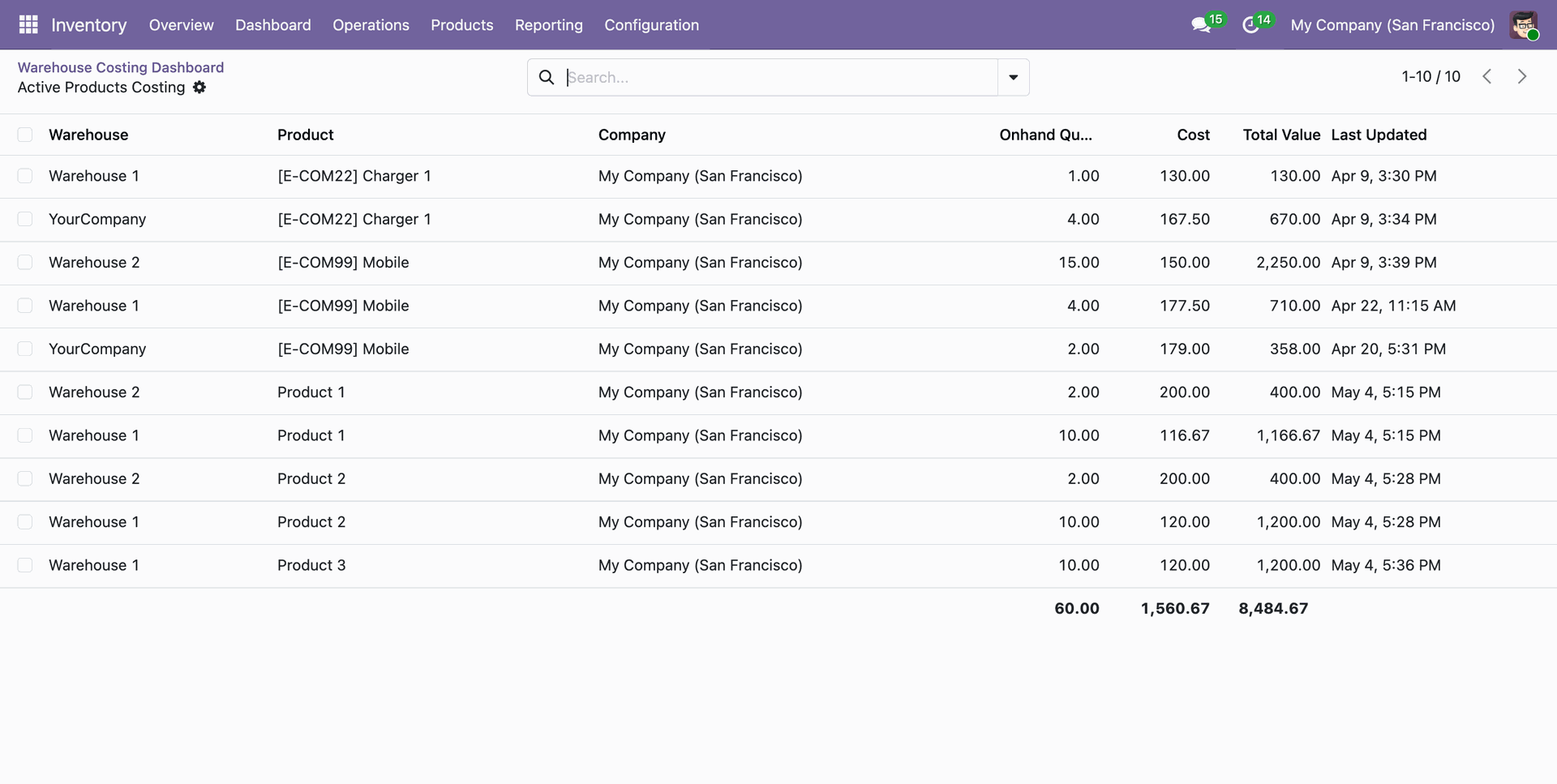
Click on the Active Product tile from the dashboard to view all active products.
All active products are visible in the list view from the dashboard.
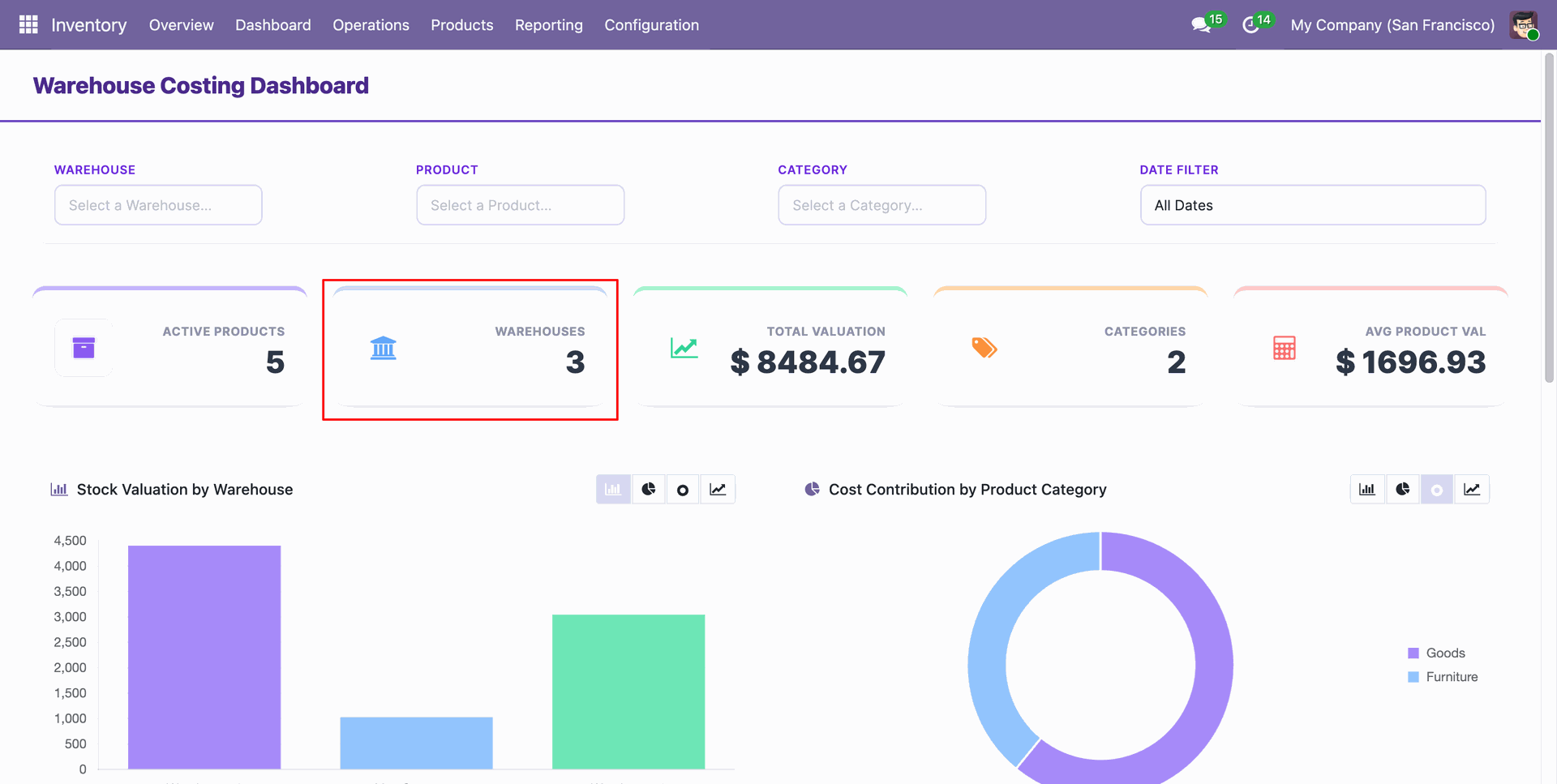
Click on the Warehouse tile from the dashboard to view all warehouses.
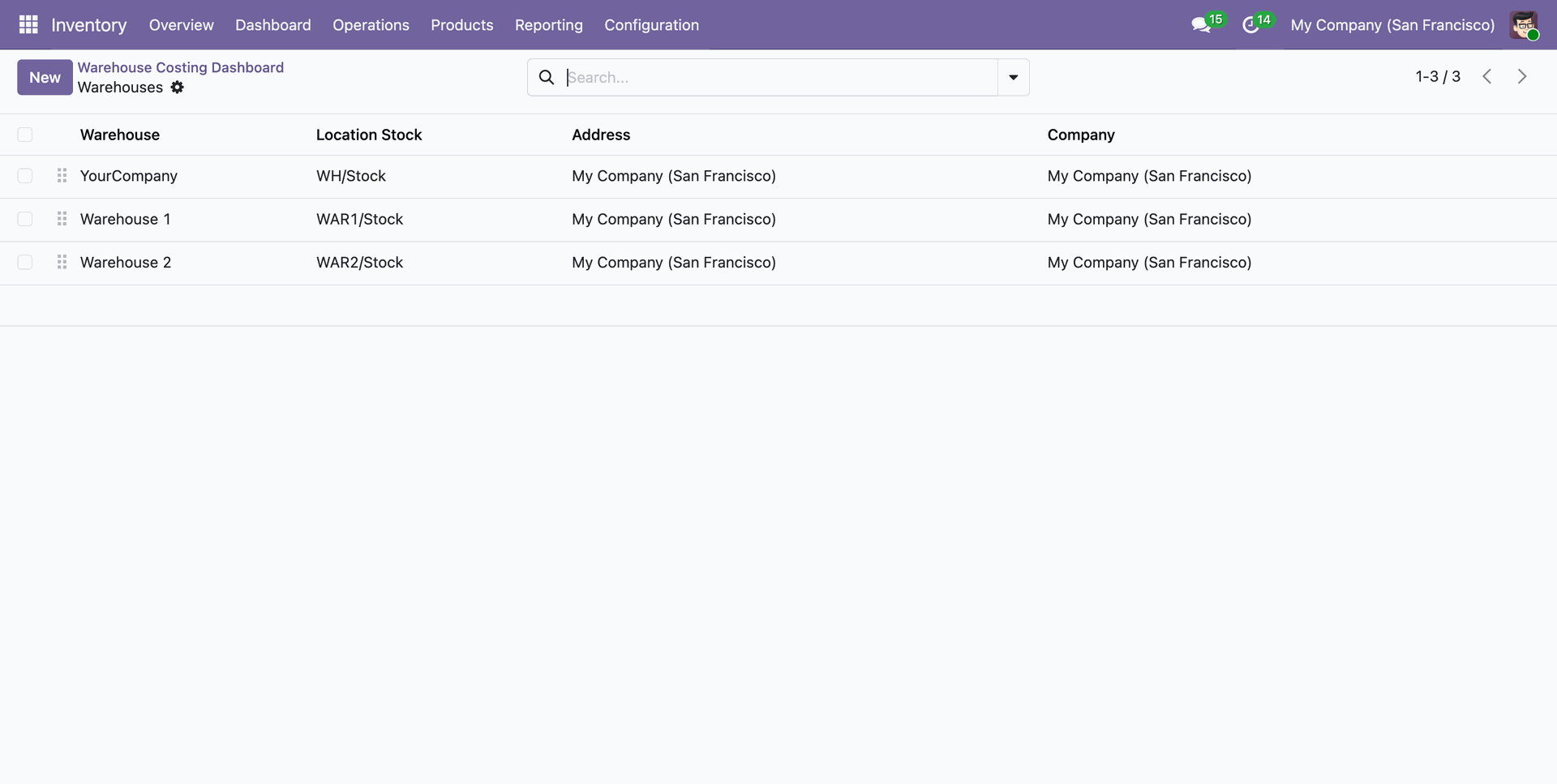
All warehouses are visible in the list view from the dashboard.
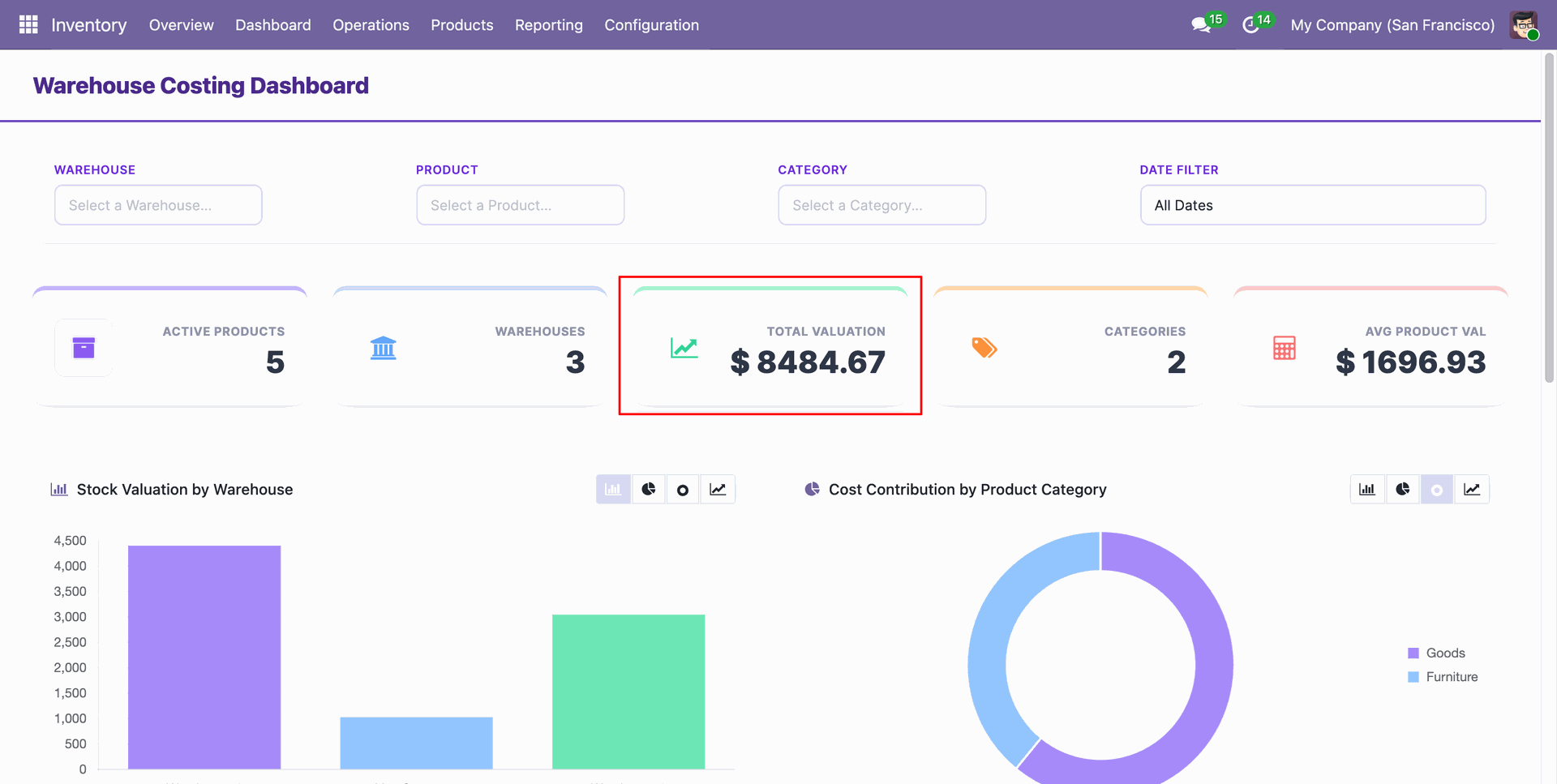
Click on the Total Valuation tile from the dashboard to view the total product valuation.
All active products and their total valuations are visible in the list view from the dashboard.
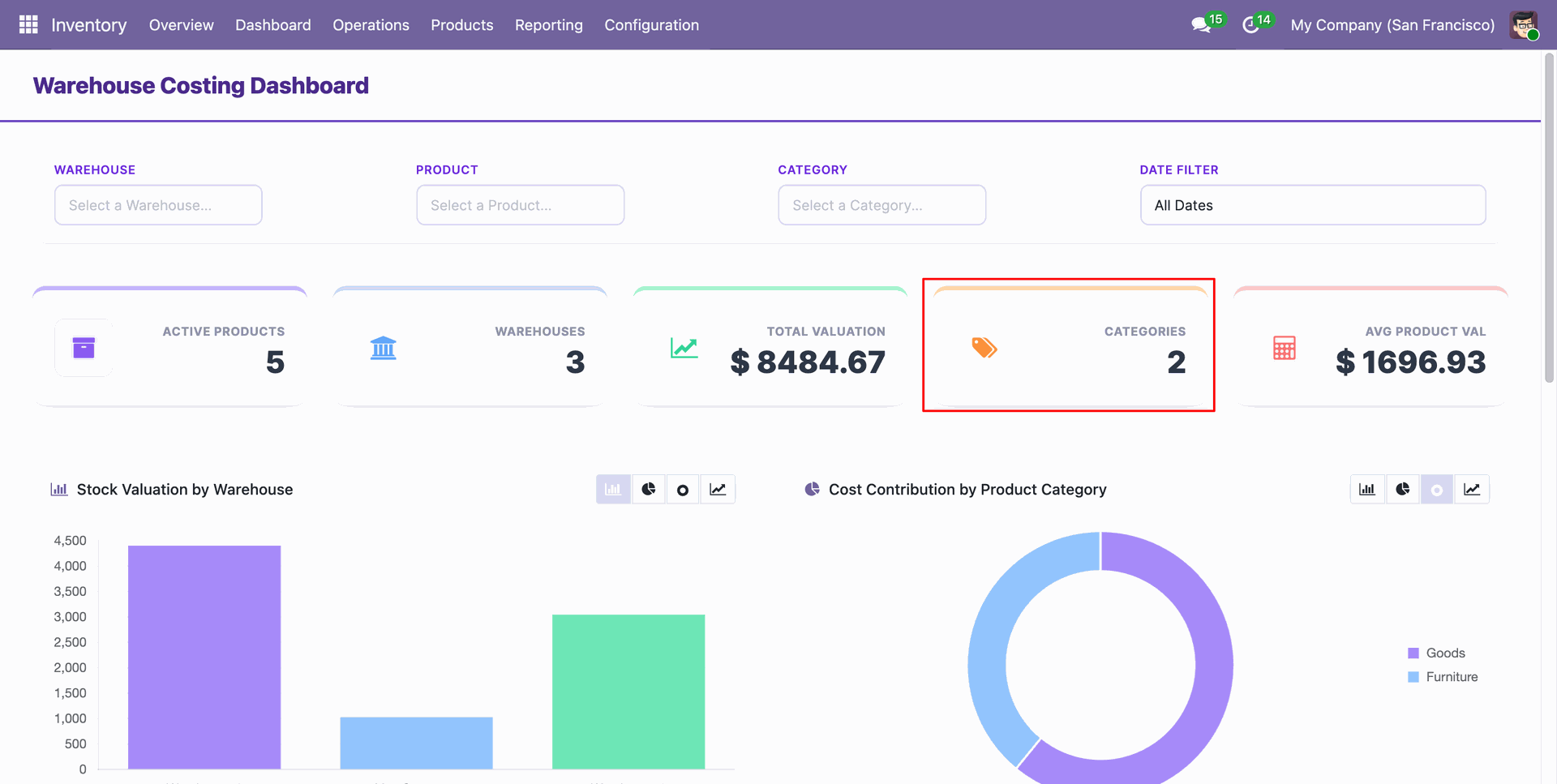
Click on the Category tile from the dashboard to view all categories for the active products.
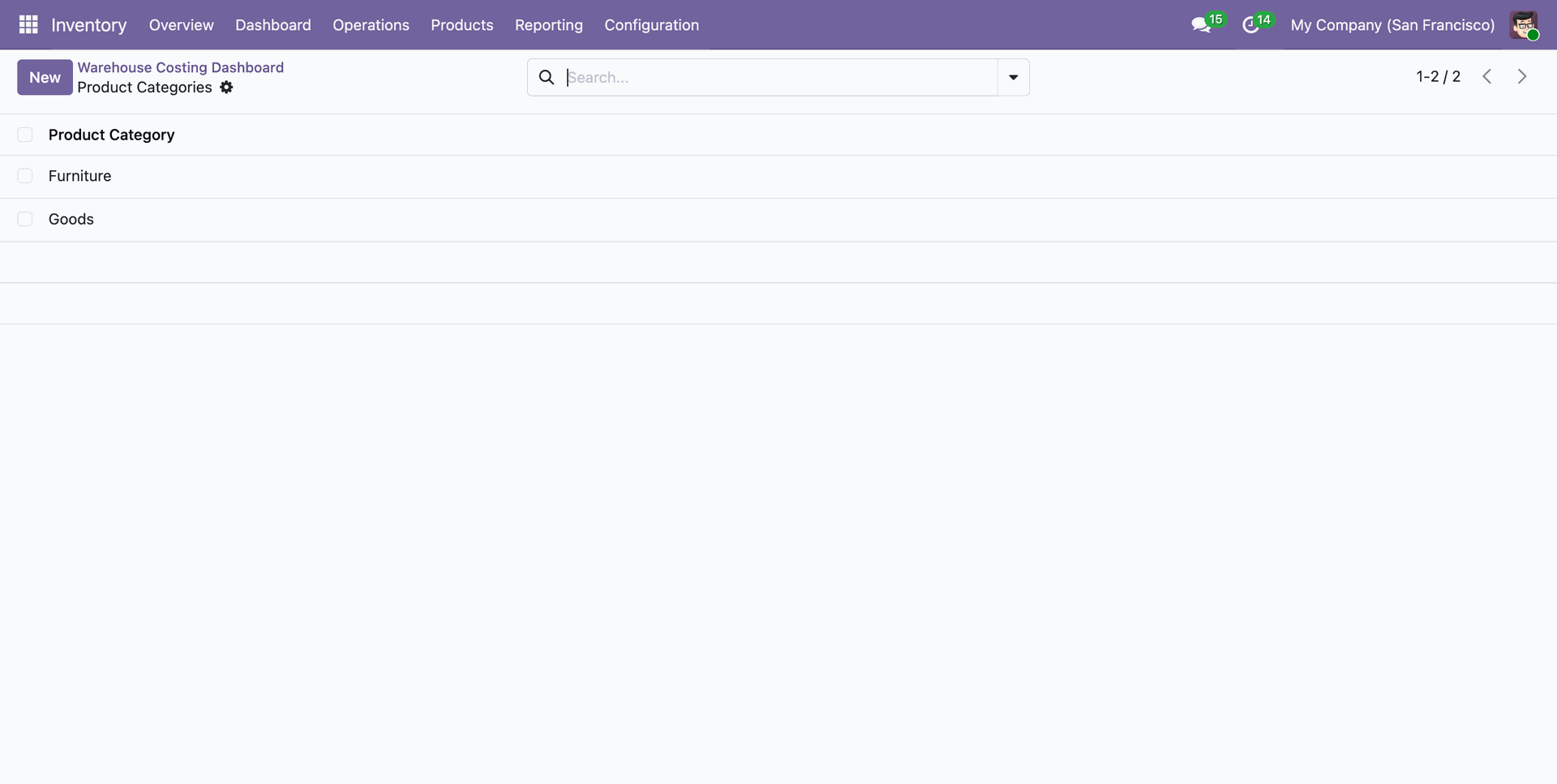
All active product categories are visible in the list view from the dashboard.
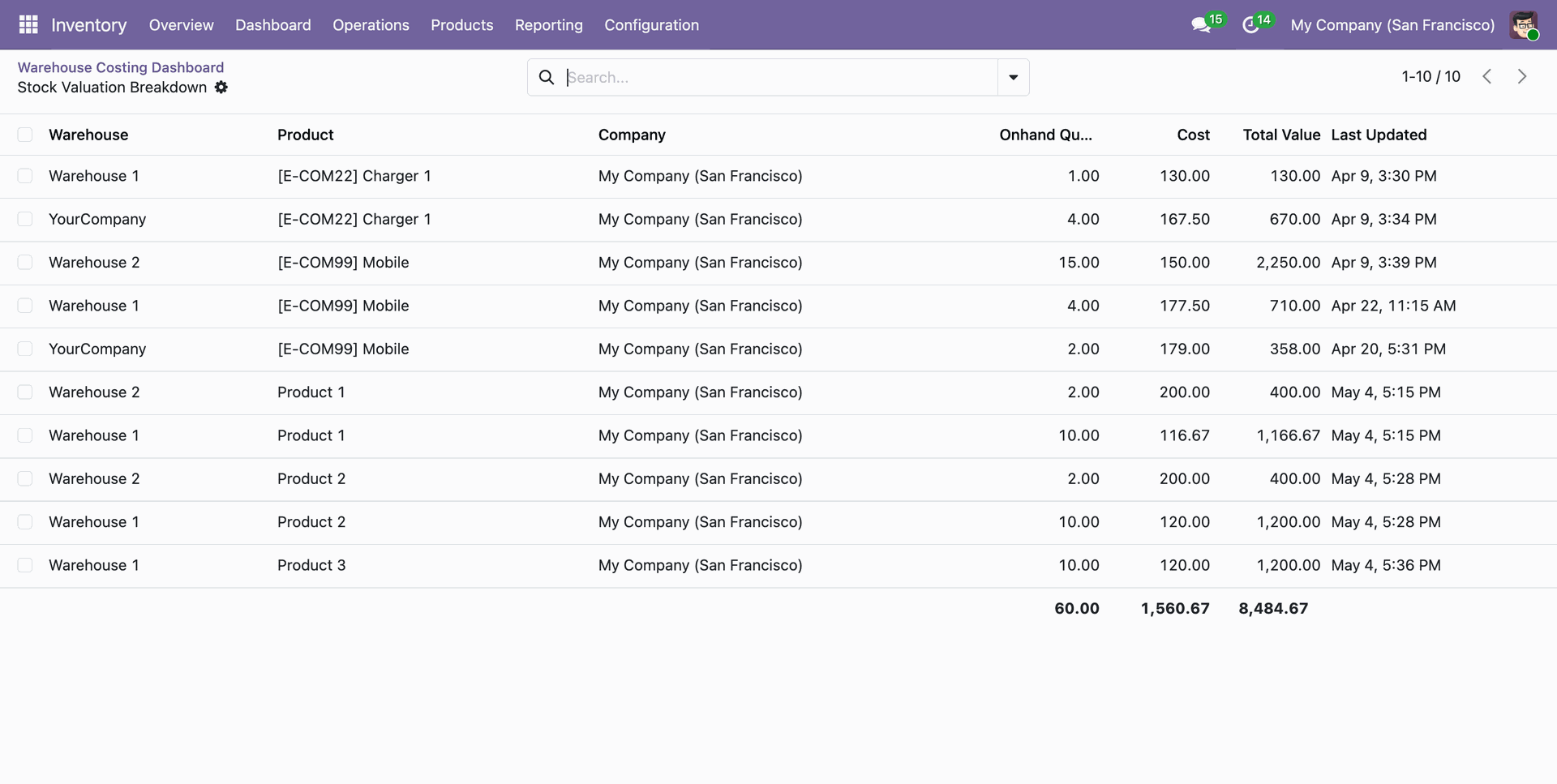
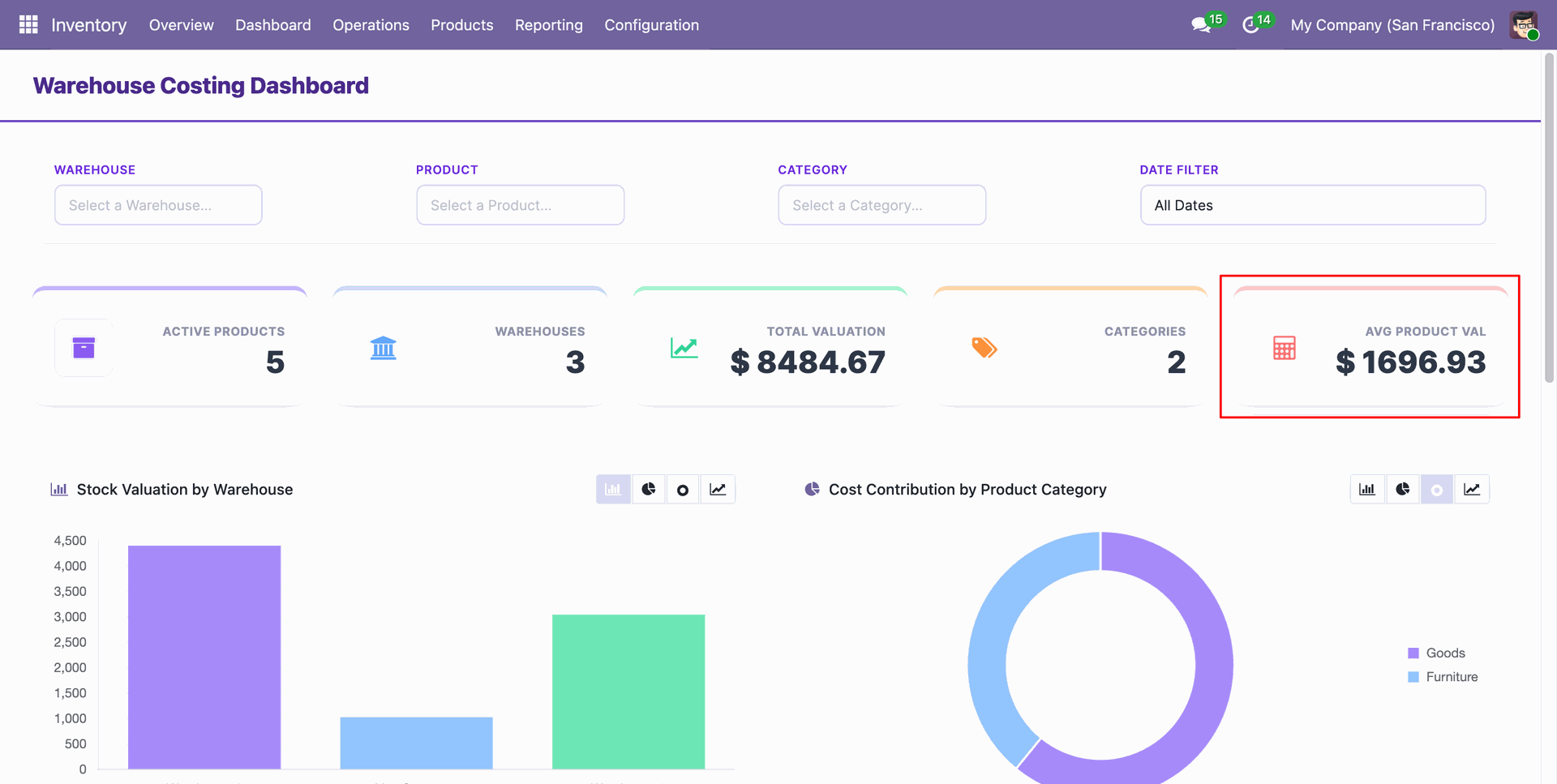
Click on the Average Product Valuation tile from the dashboard to view the average valuation breakdown for active products.
All active product valuation breakdowns are visible in the list view from the dashboard.
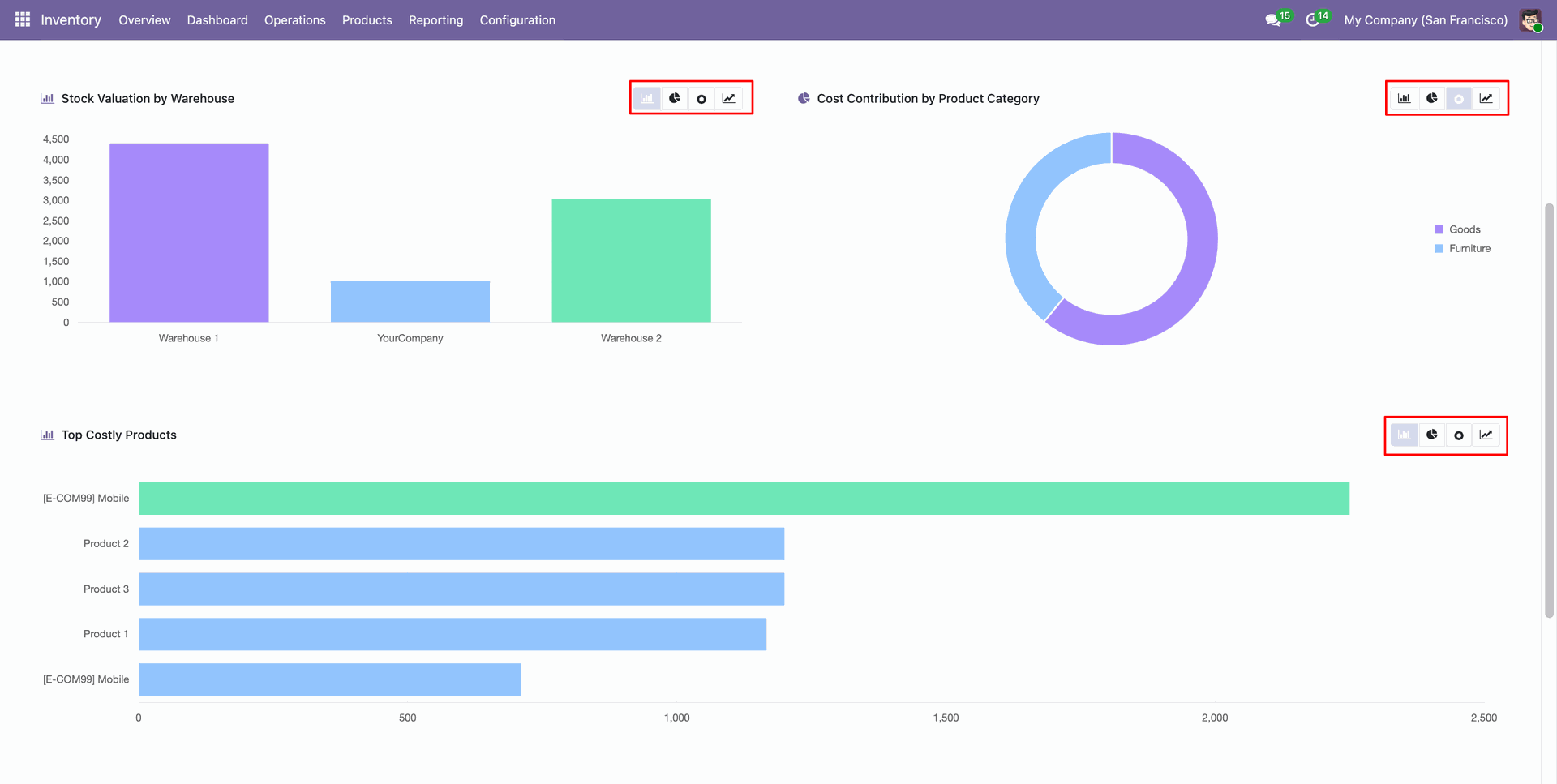
Switch between different chart types (Bar, Pie, Donut, Line) to visualize your costing data effectively.
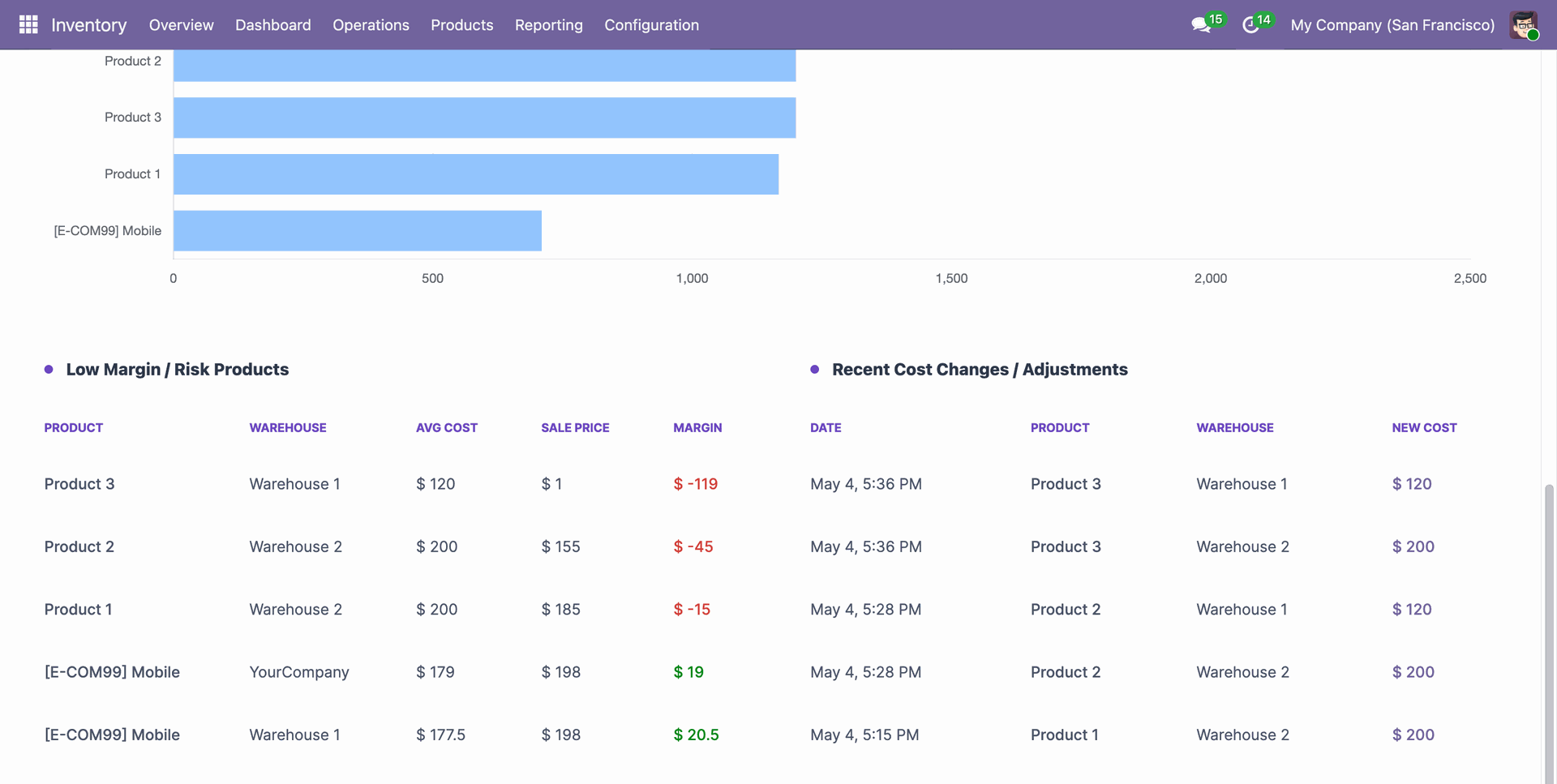
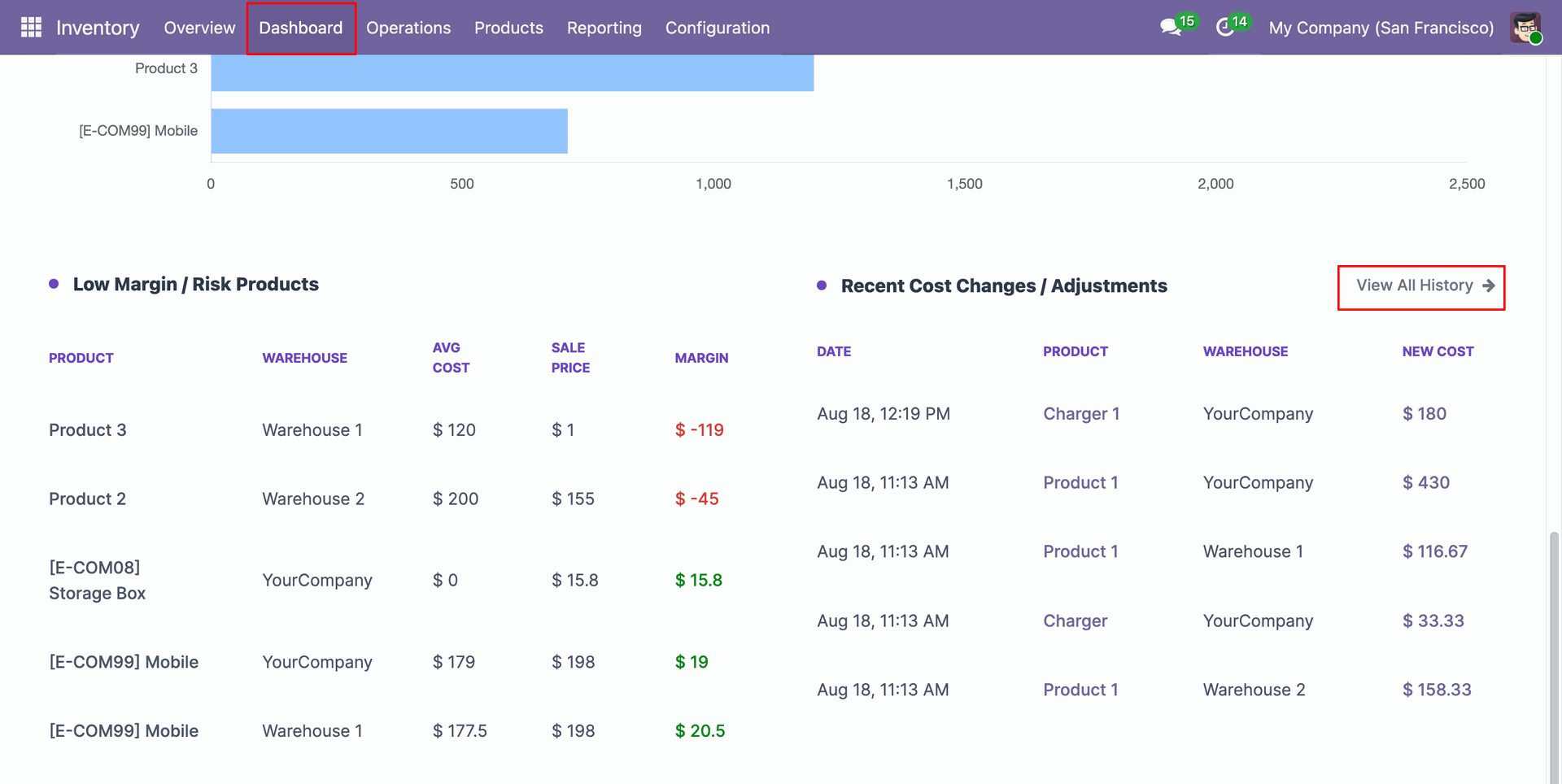
Track recent cost changes, adjustments, and low-margin or risk products directly from the dashboard for better pricing and procurement decisions.
First thing first, enable multi warehouse and locations.
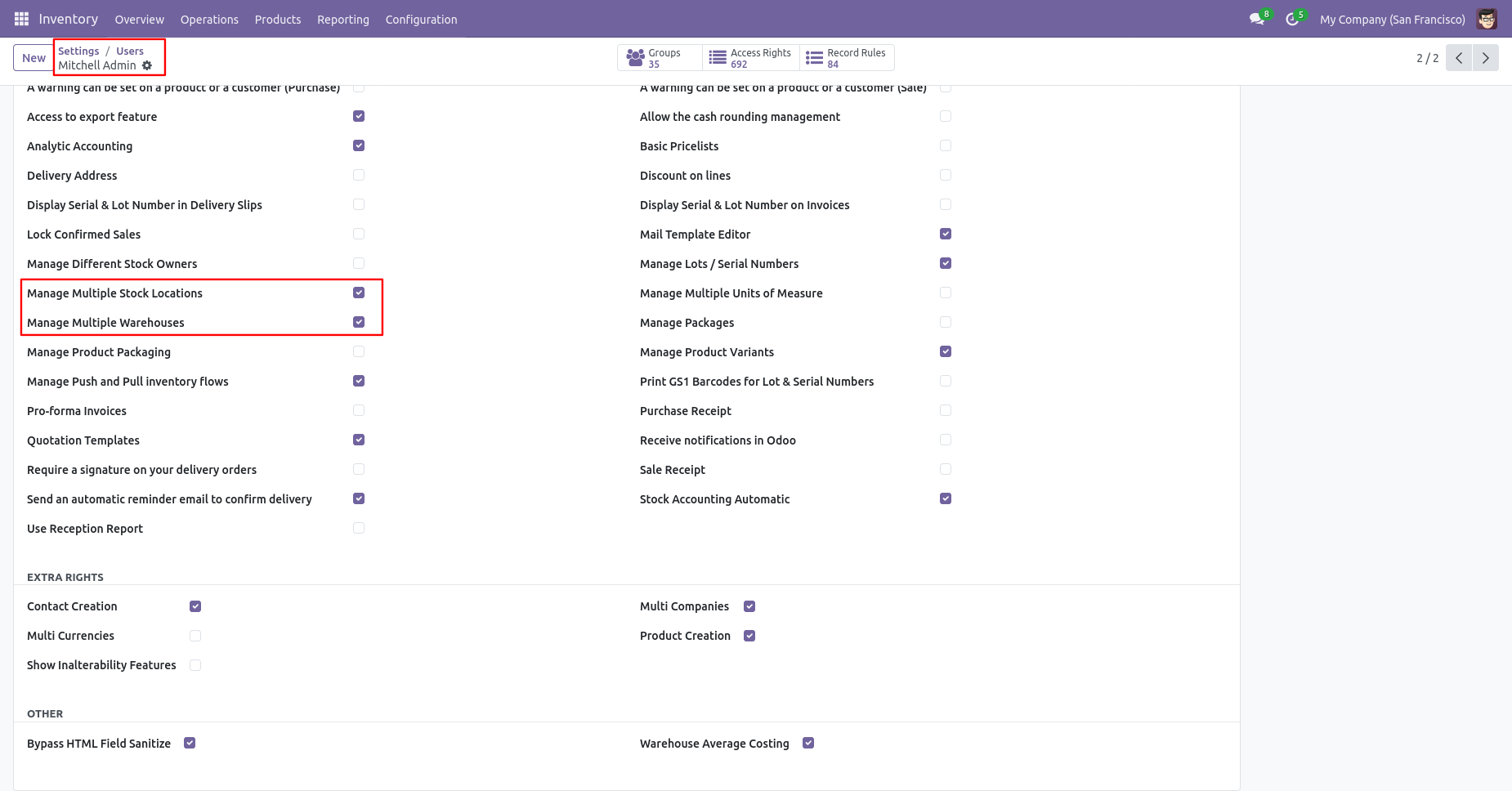
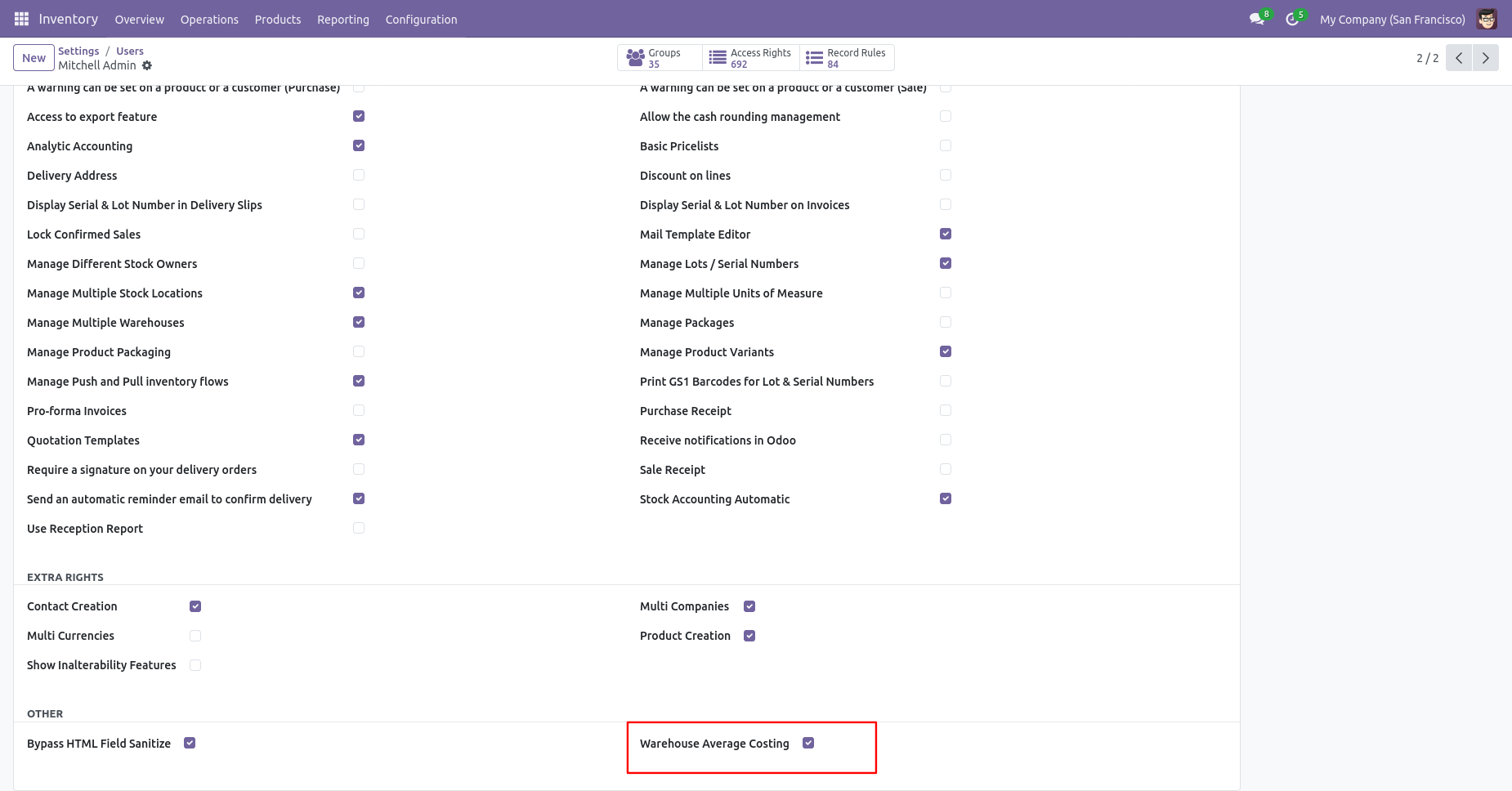
Enable Warehouse Average Costing to display warehouse wise costing in product form.
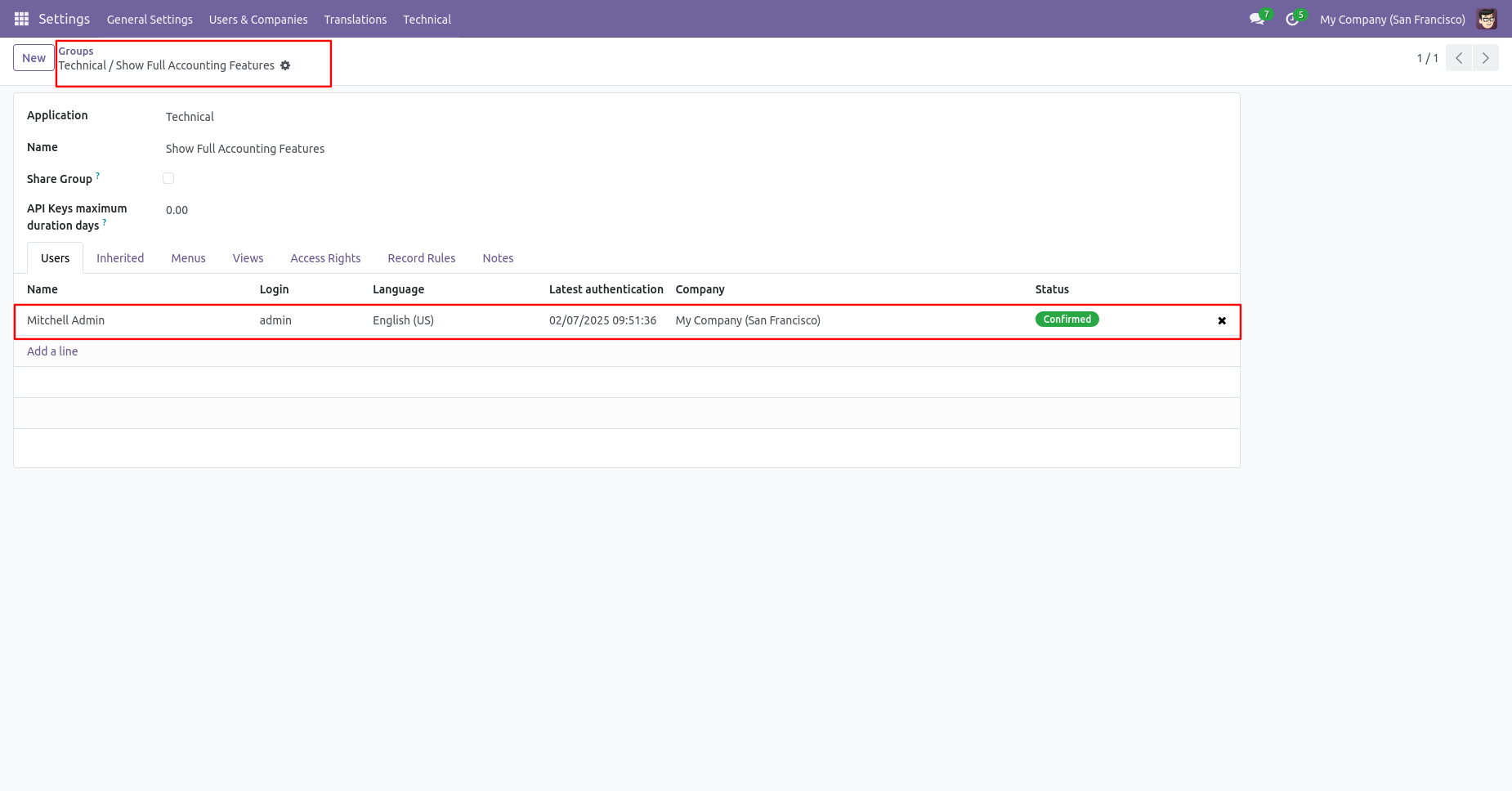
Assign Full Accounting Features to responsible users.
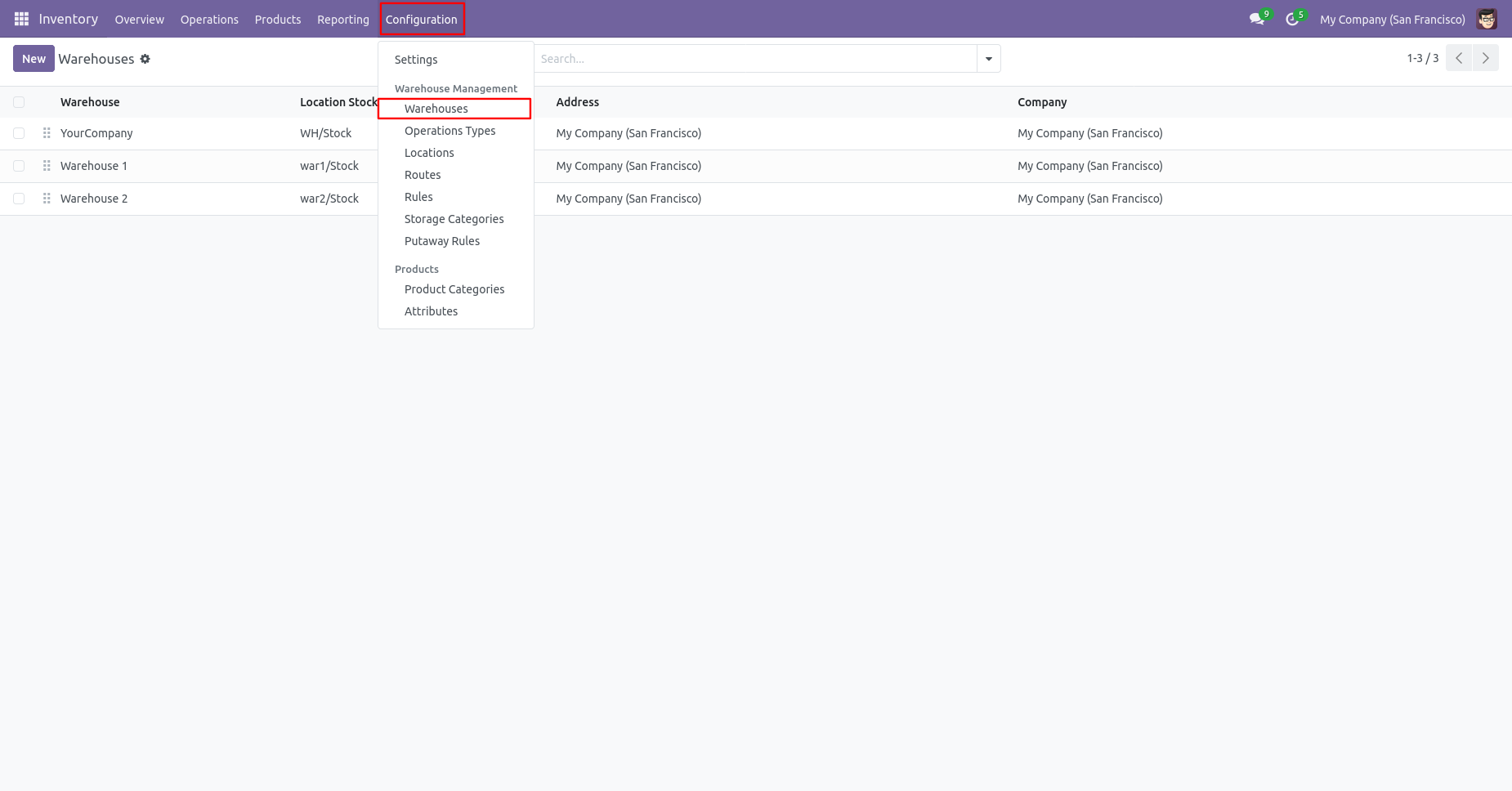
Click on the 'Warehouses' from the configuration menu.
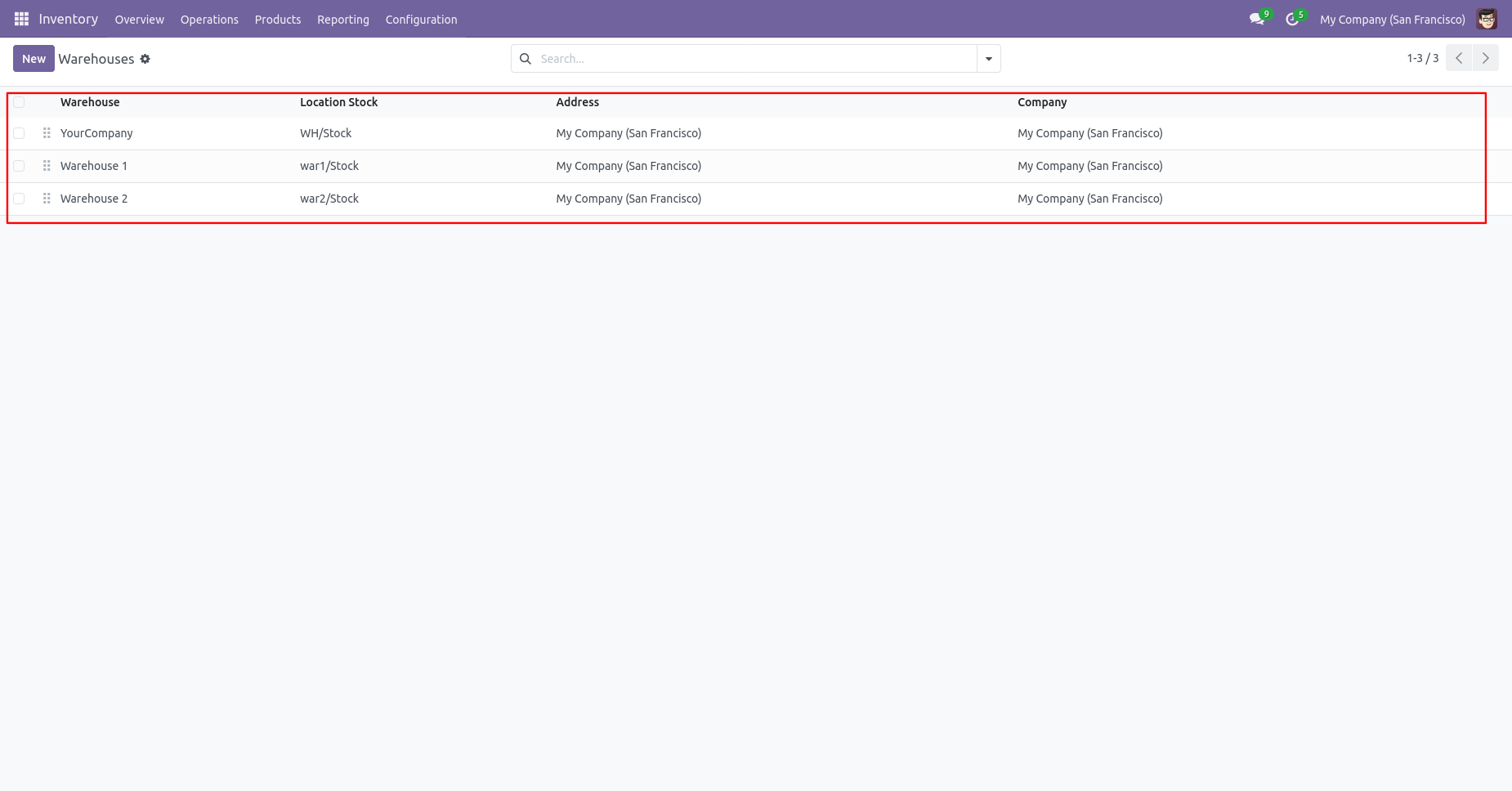
Create Multi Warehouses.
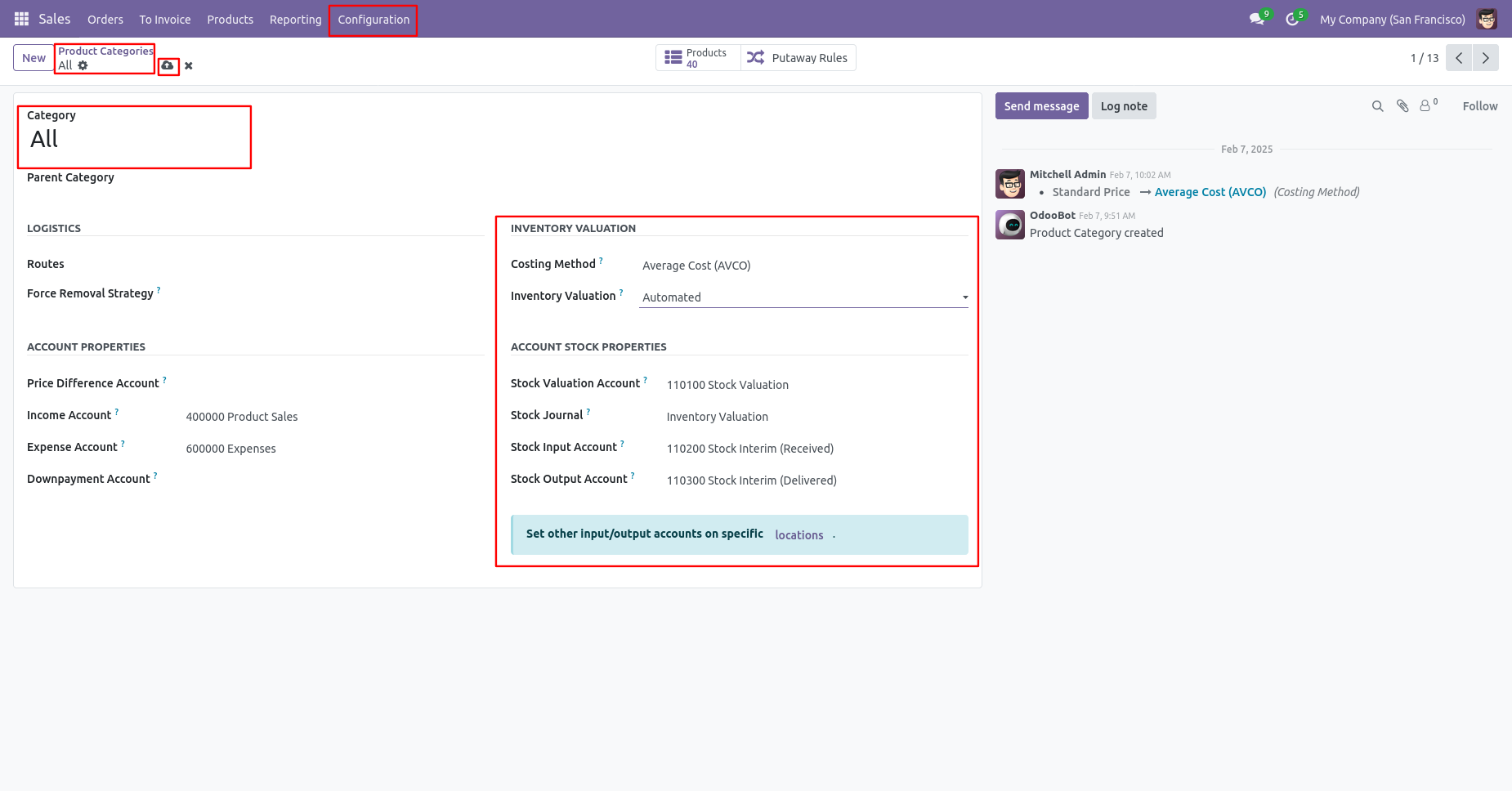
In Product Category, Costing Method : Average and Inventory Valuation : Automated.
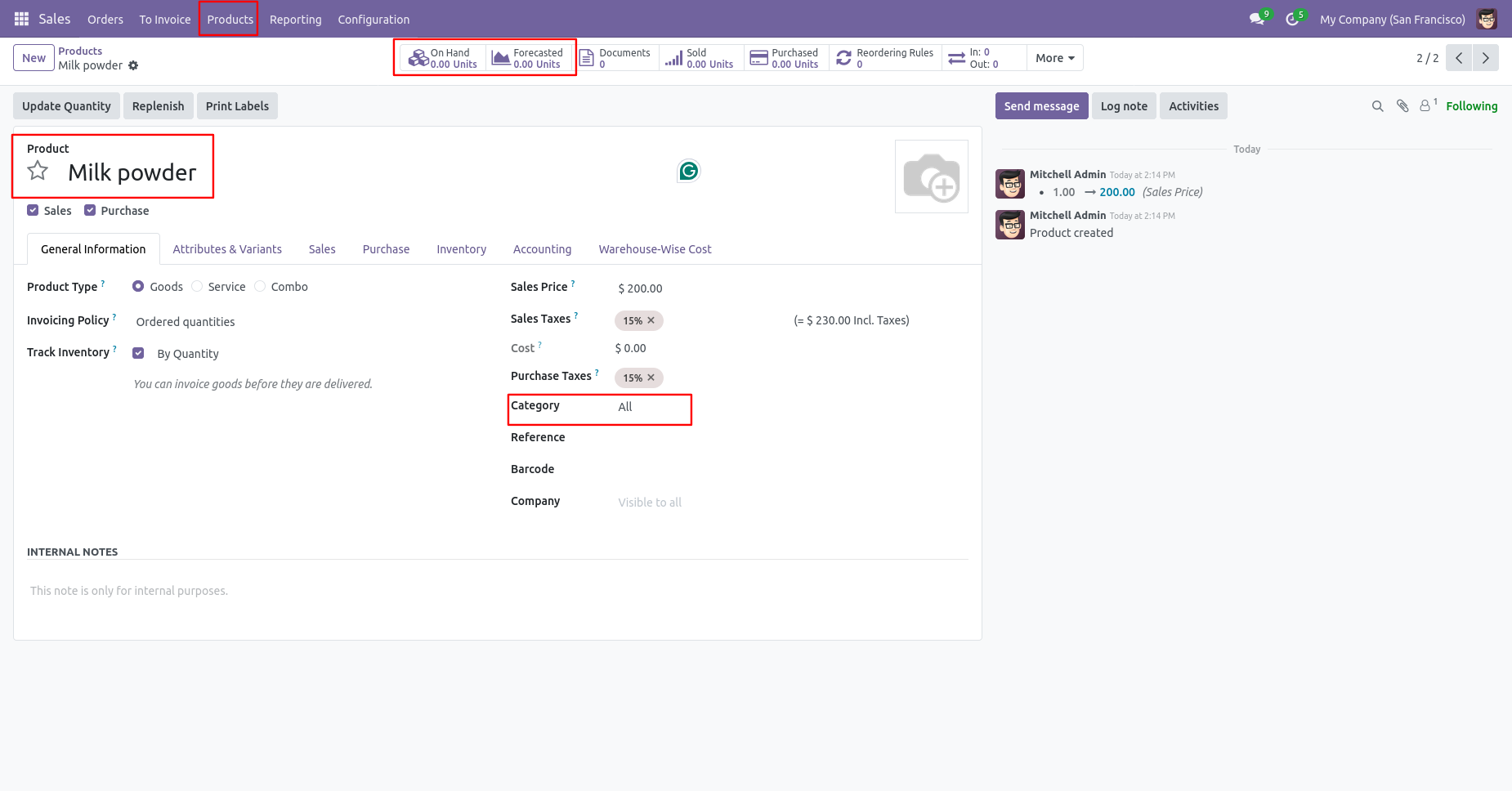
Create a product, make sure that is storable(Goods).
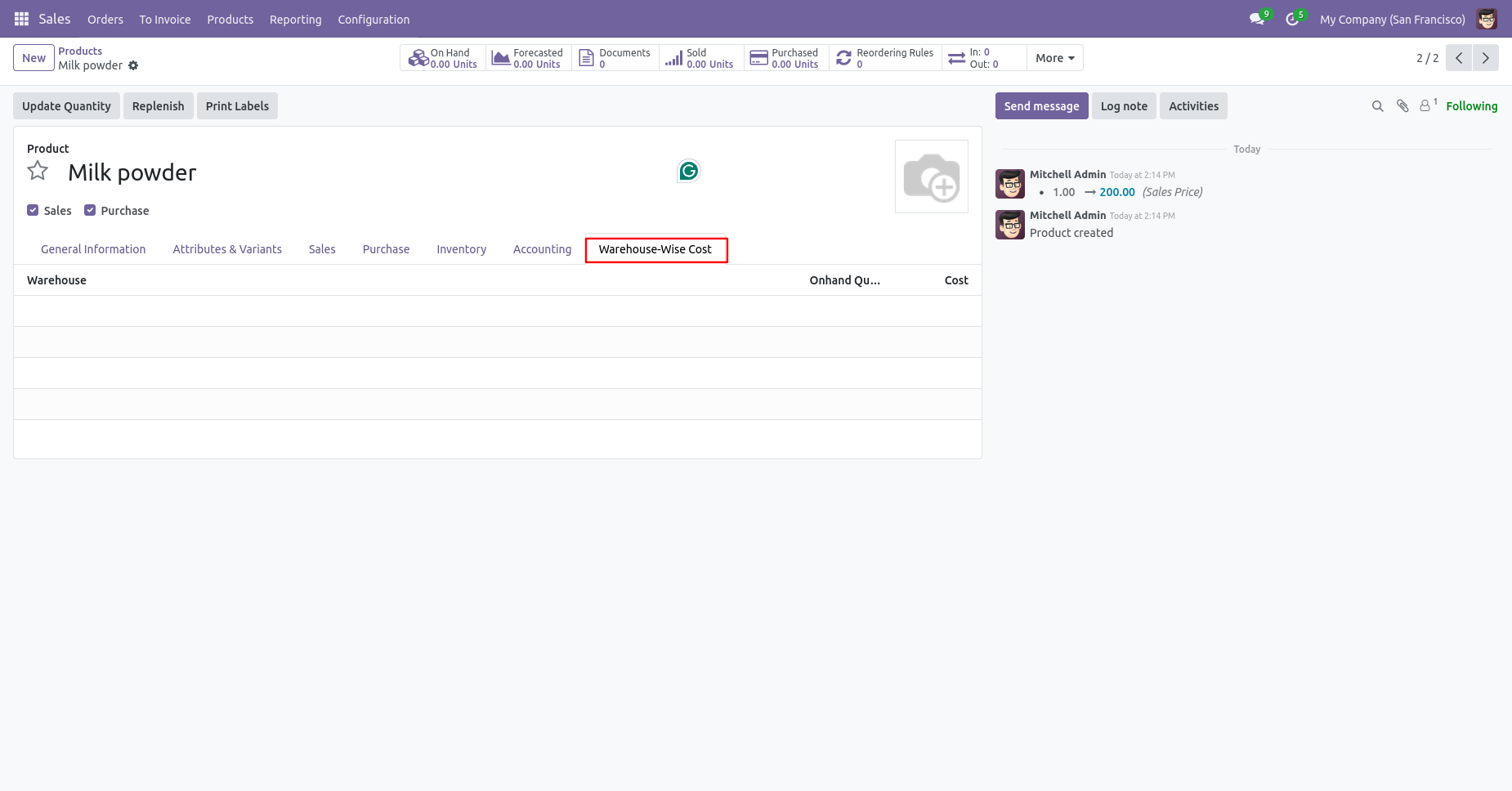
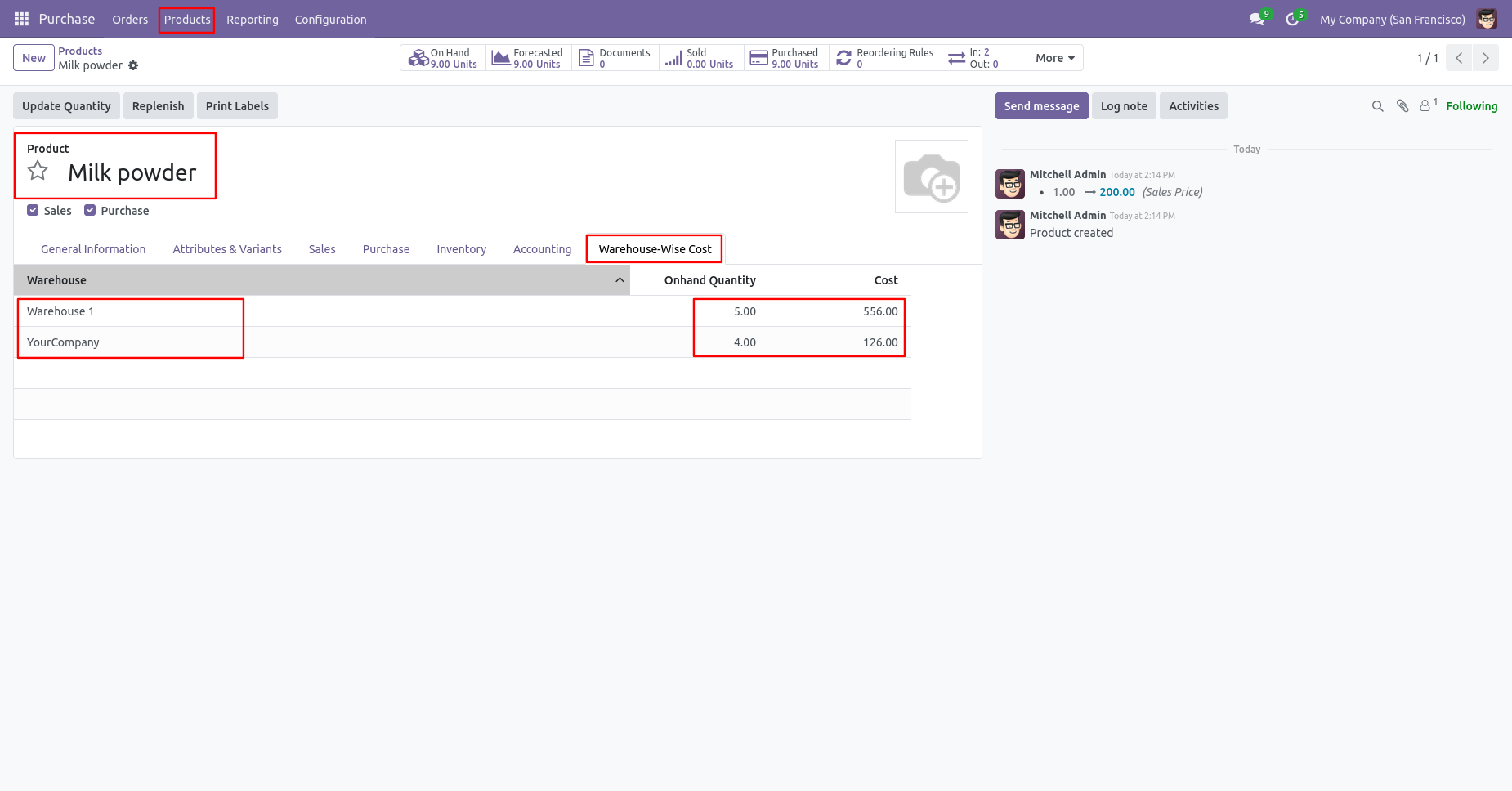
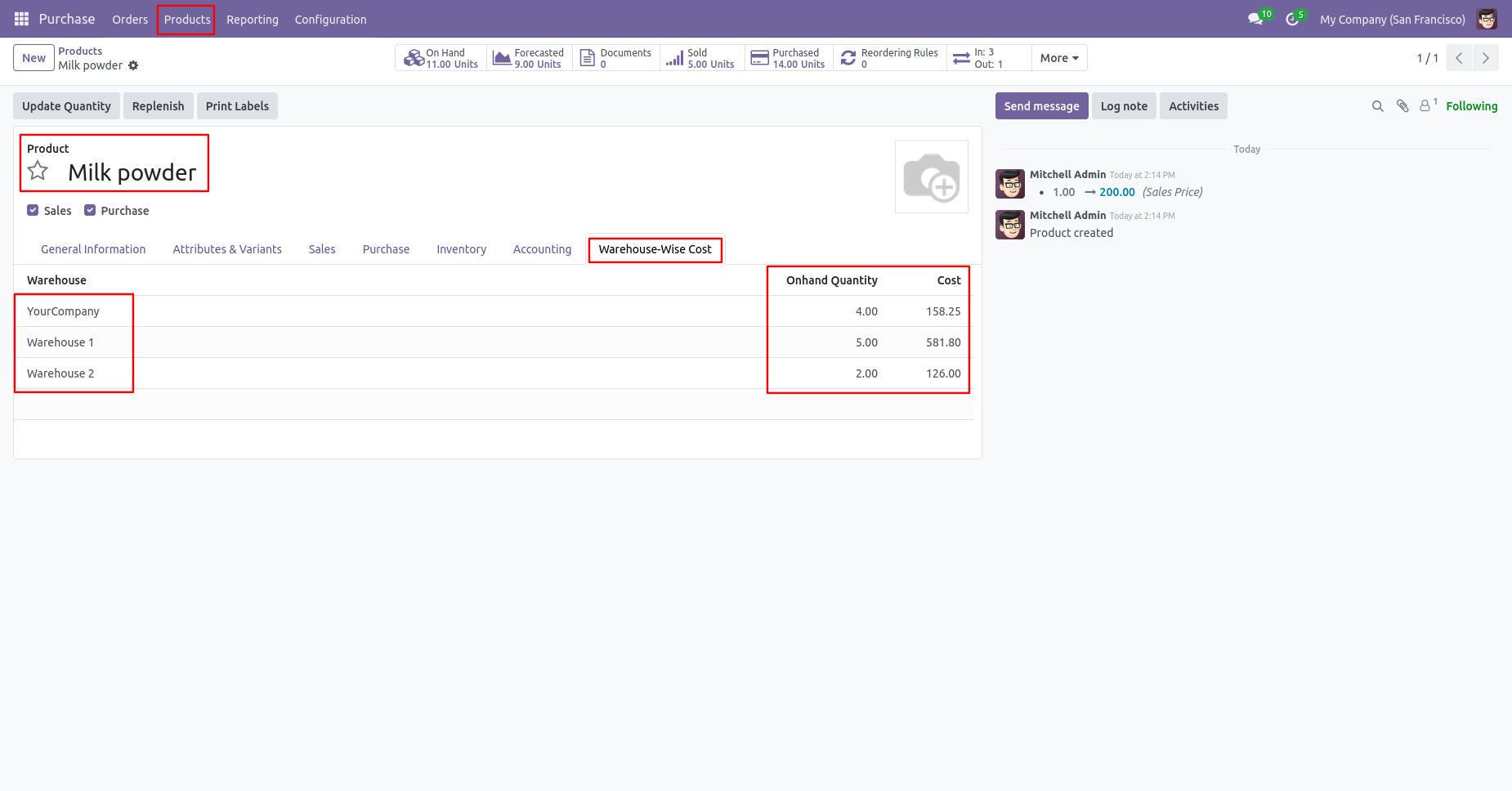
Warehouse wise costing tab inside the product. Here you find the warehouse wise cost of related products.
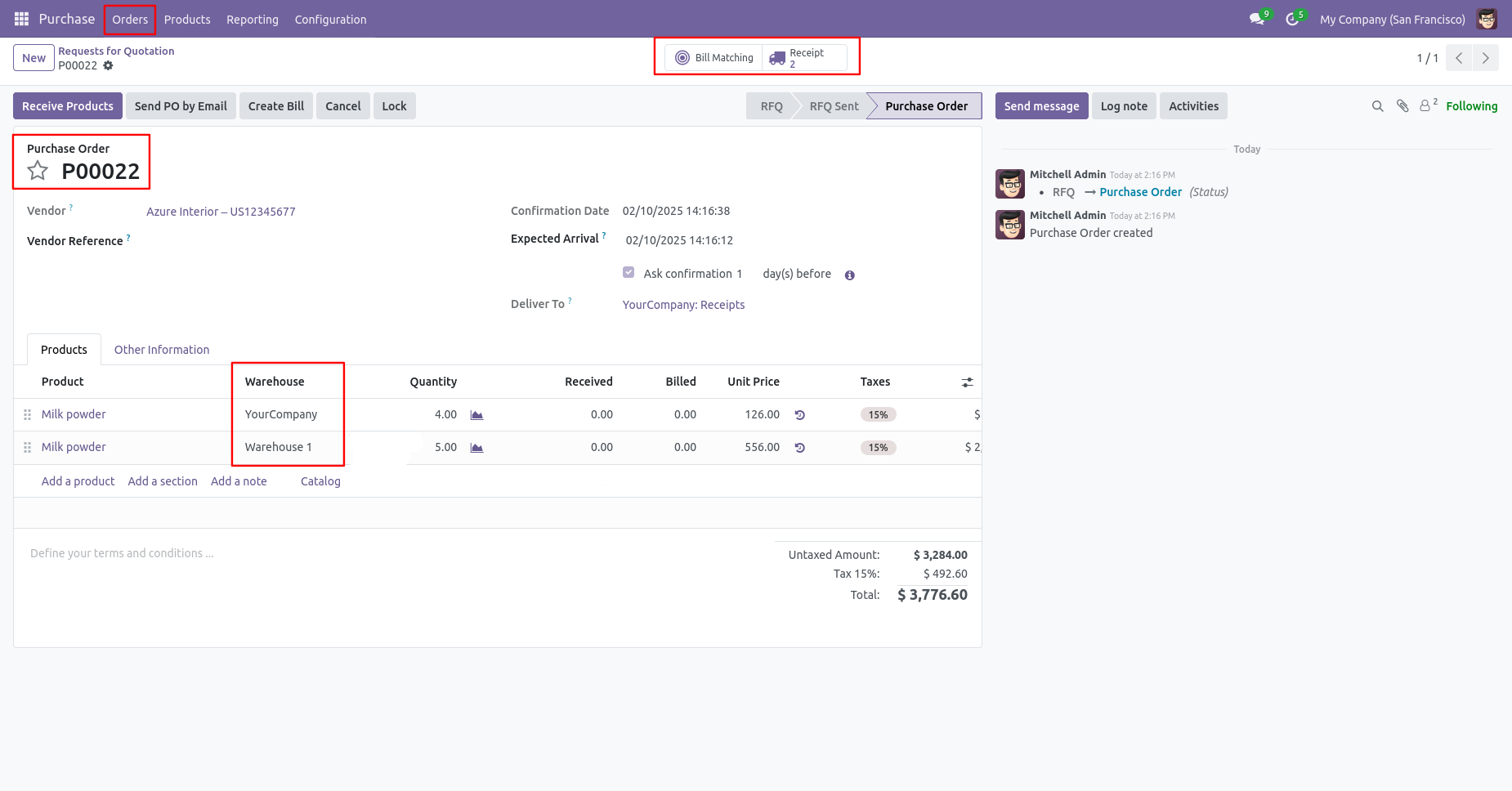
Create an PO. Make sure warehouse selection is correct in purchase order.
Tree view of Receipts.
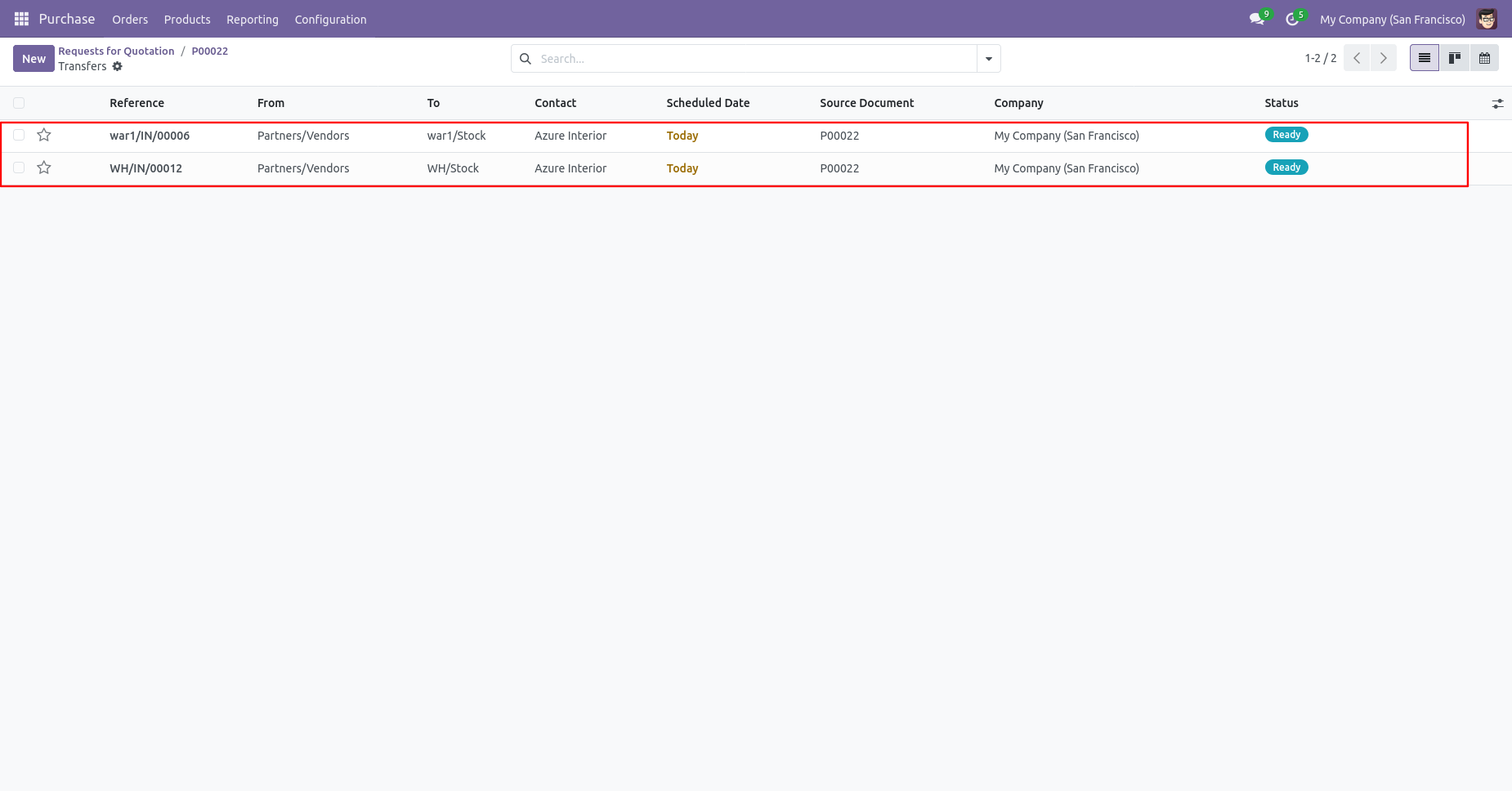
Receipts is in 'Ready' stage.
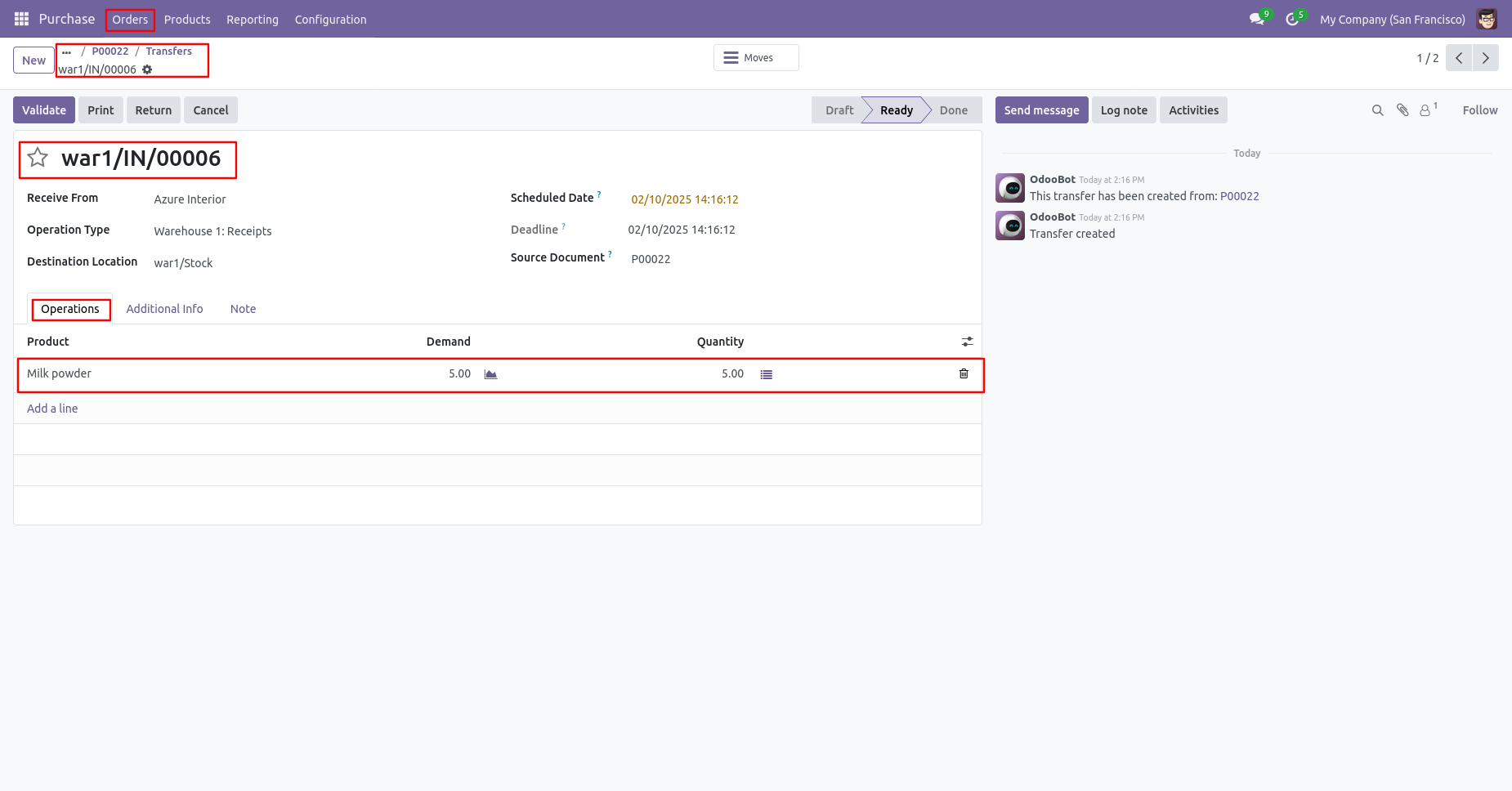
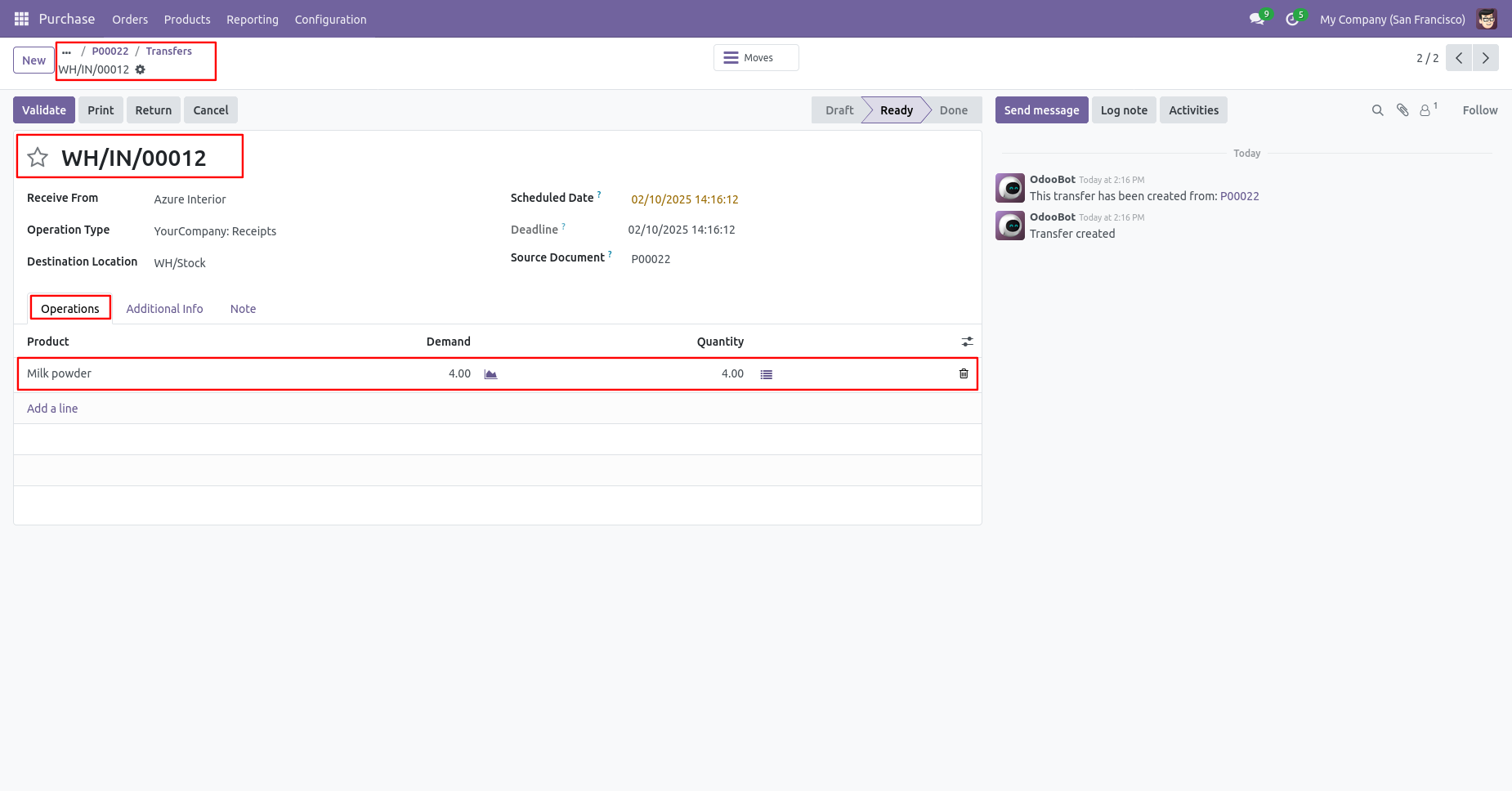
As you can see the costing price added in warehouse wise cost tab in that product.
Landed cost menu and tree view.
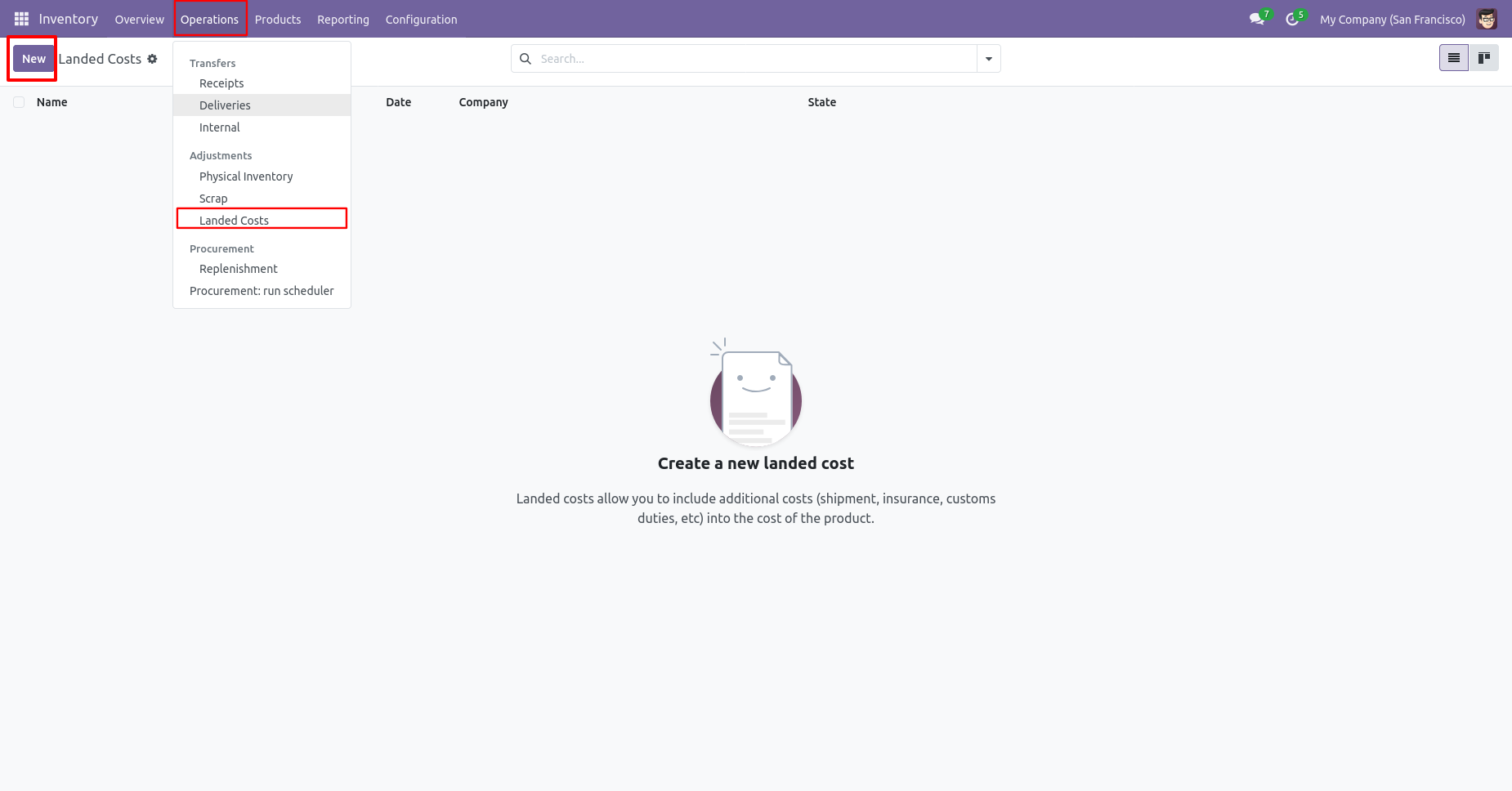
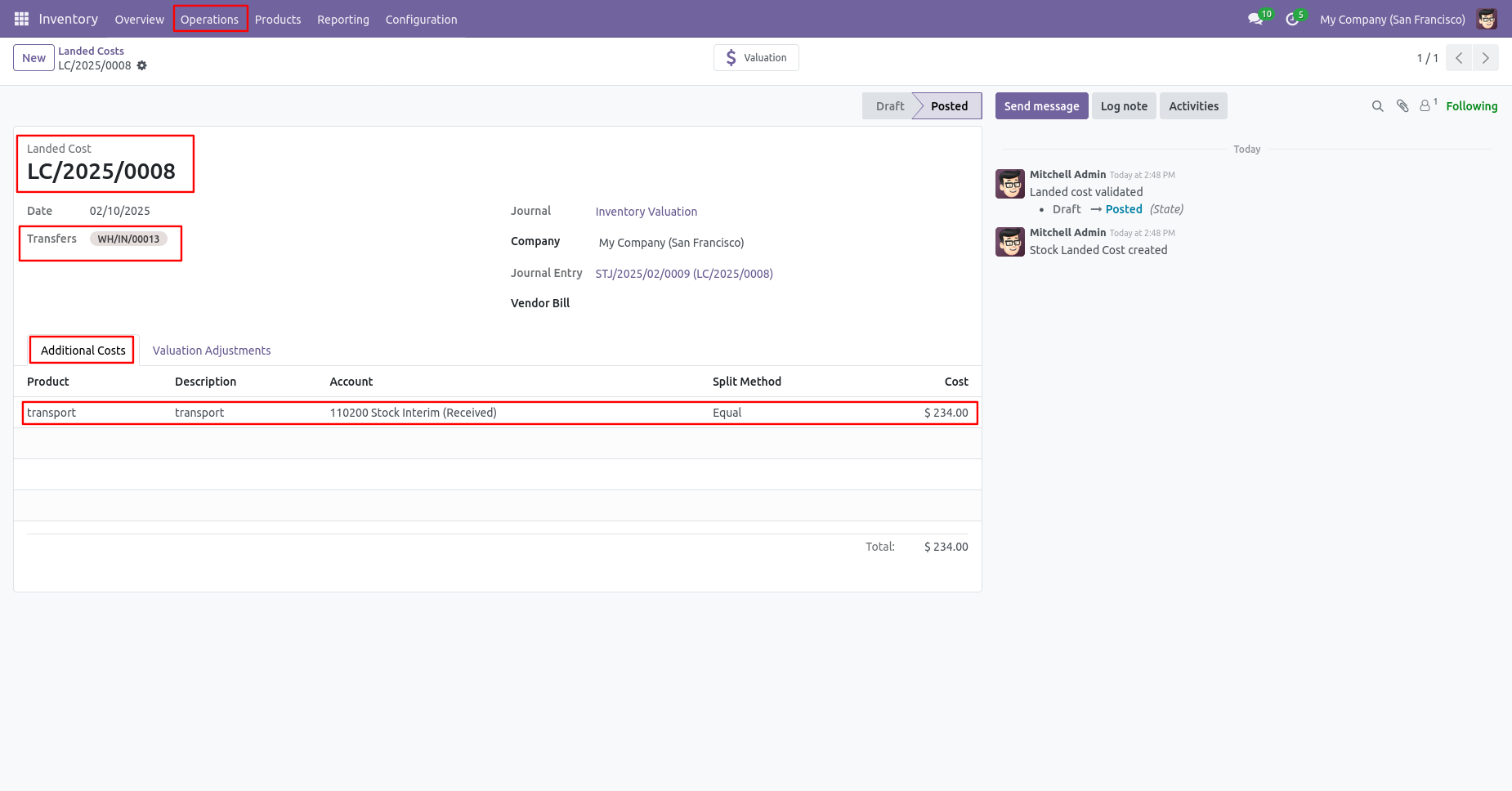
Now add some landed cost in purchased product.
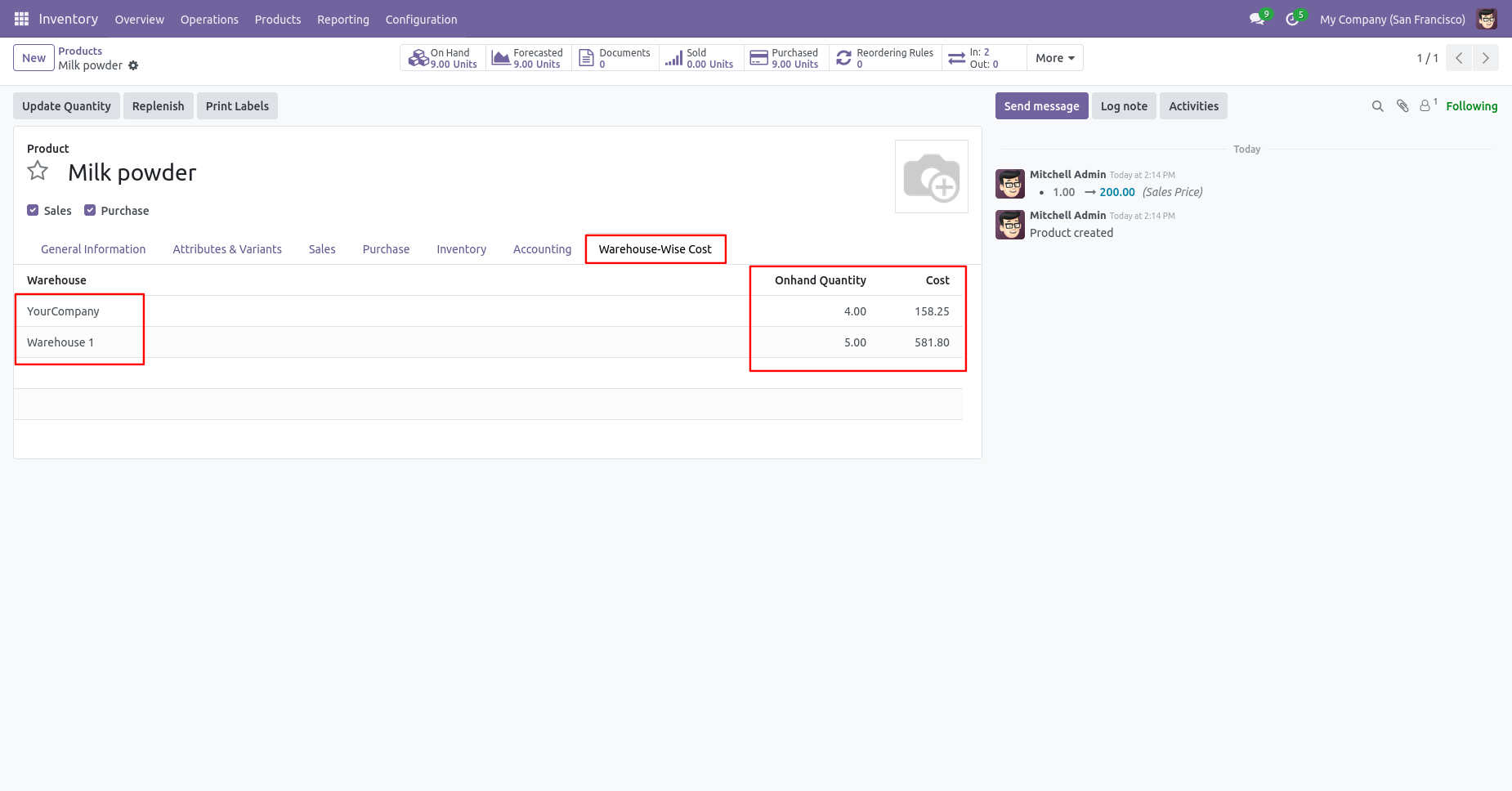
As you can see the cost price are updated.
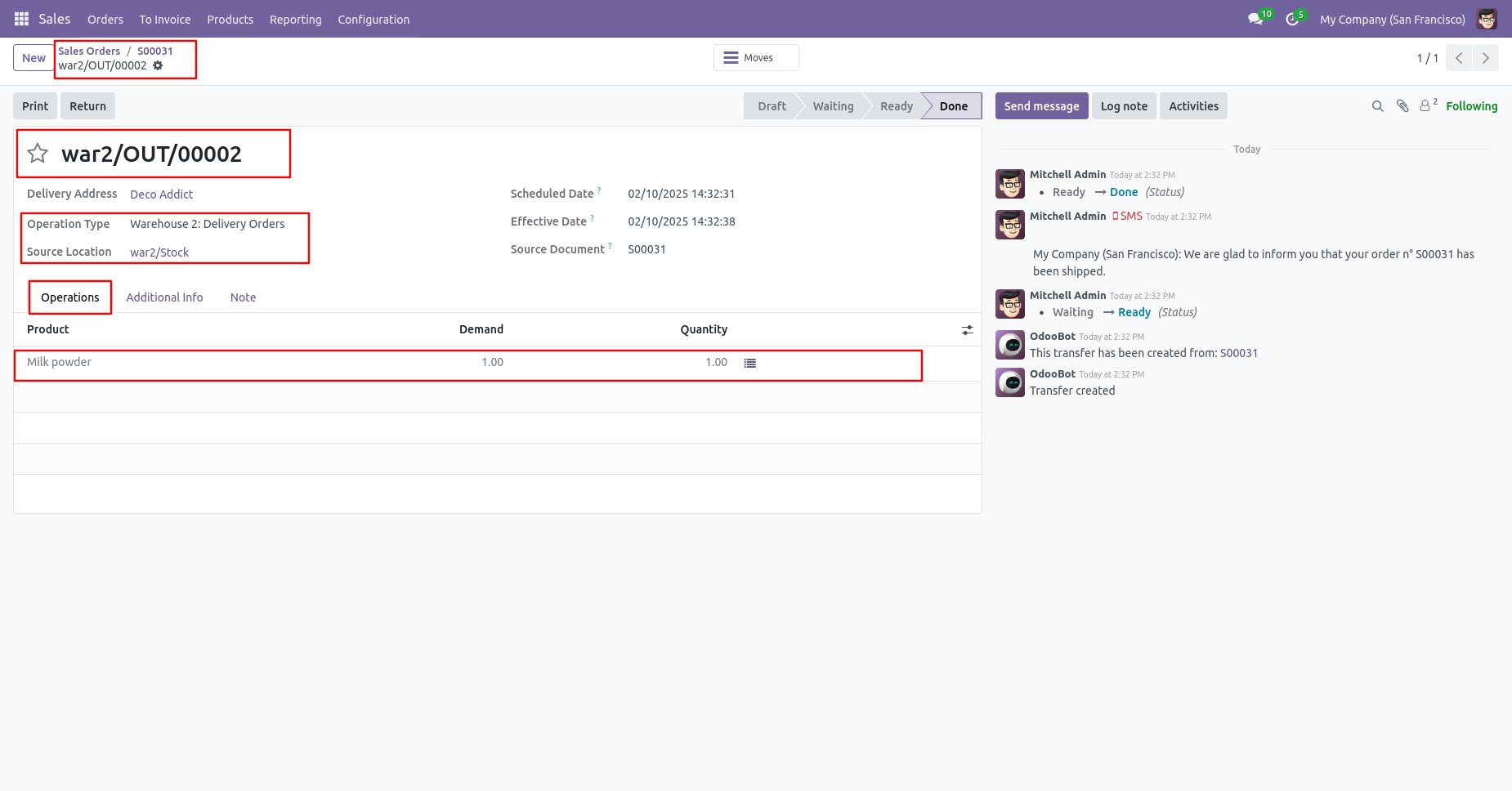
Now sale same product with different price and different warehouse.
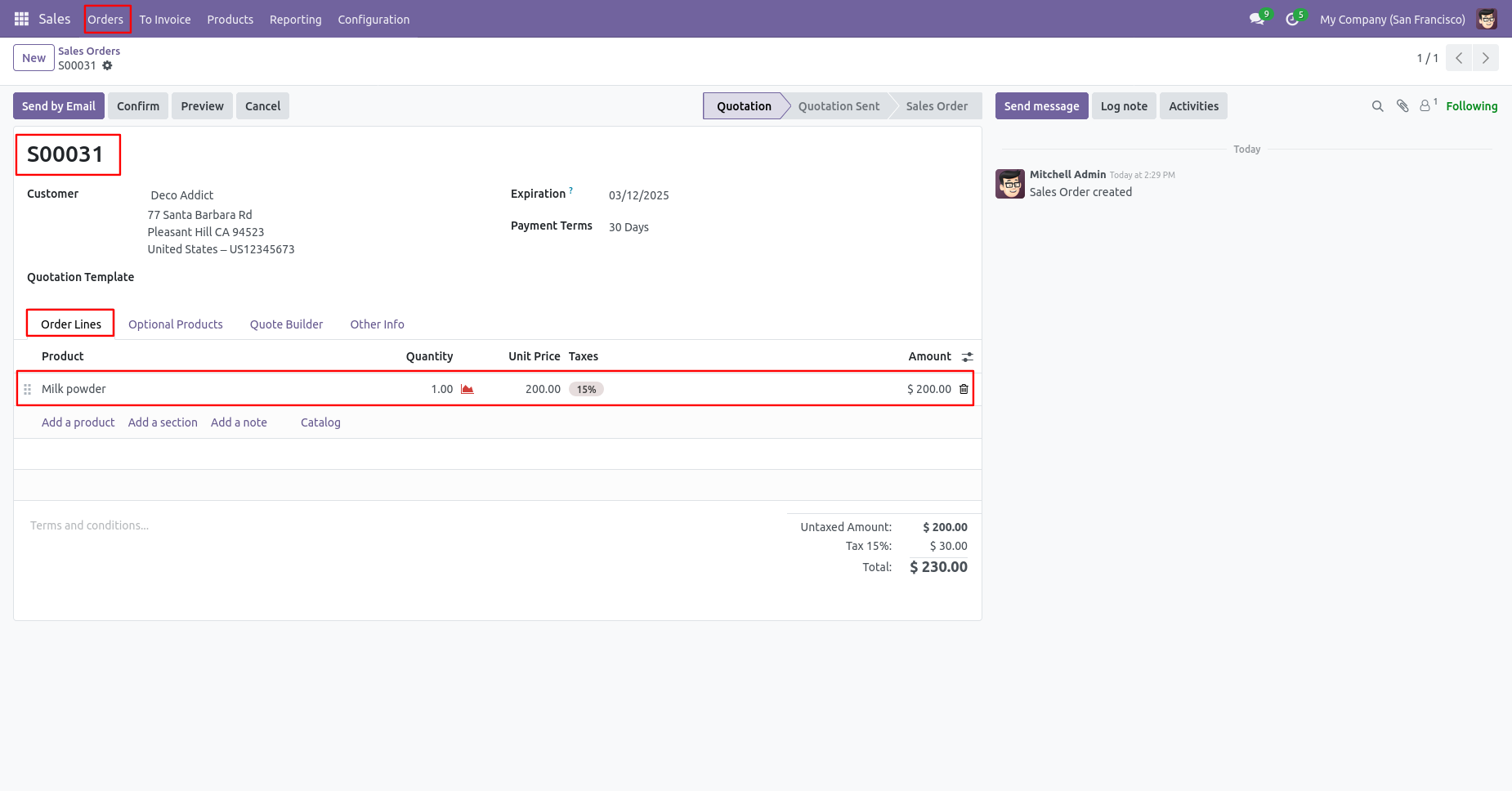
Different warehouse selection in sale order.
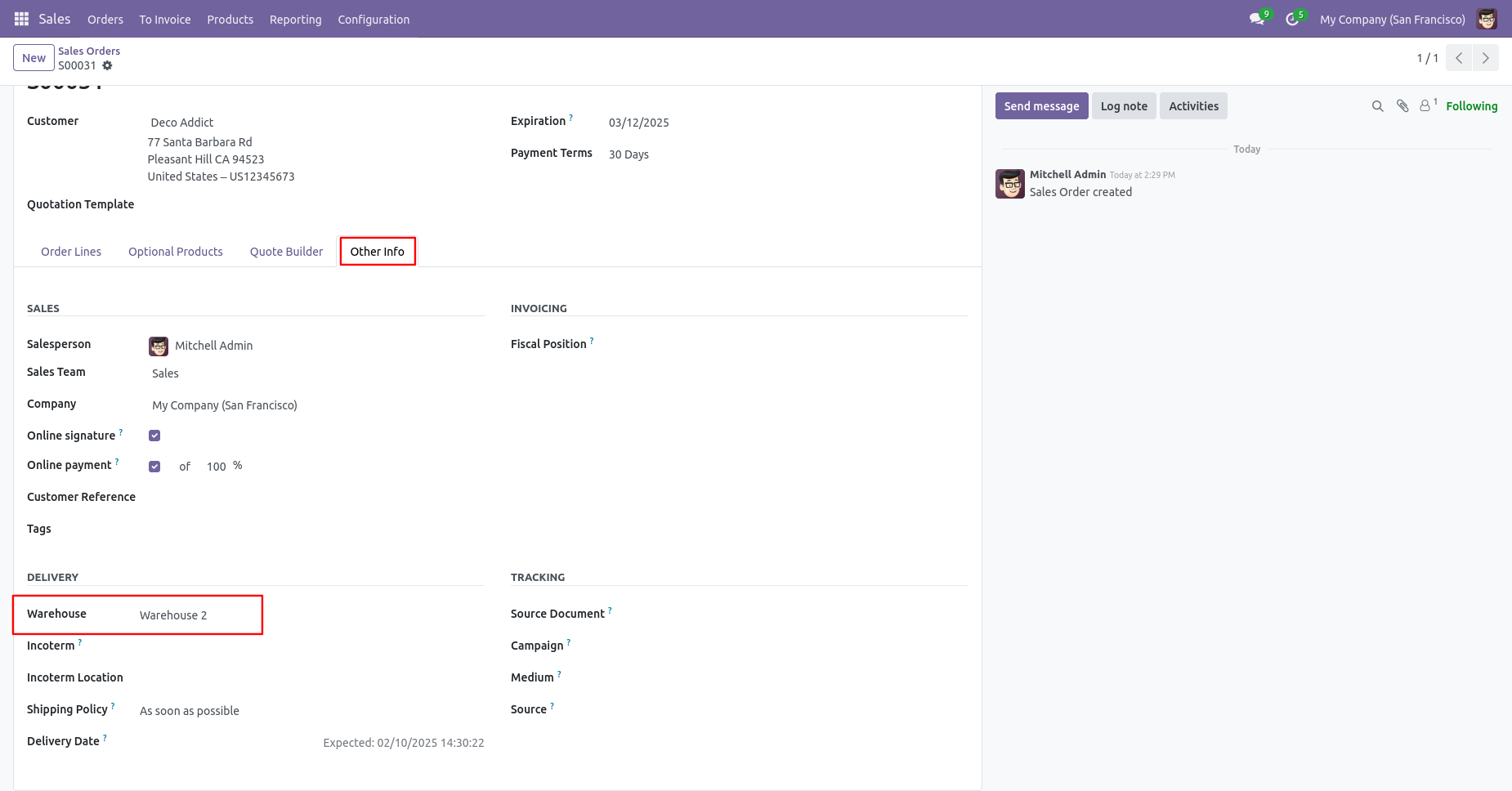
Warehouse selection in sale order.
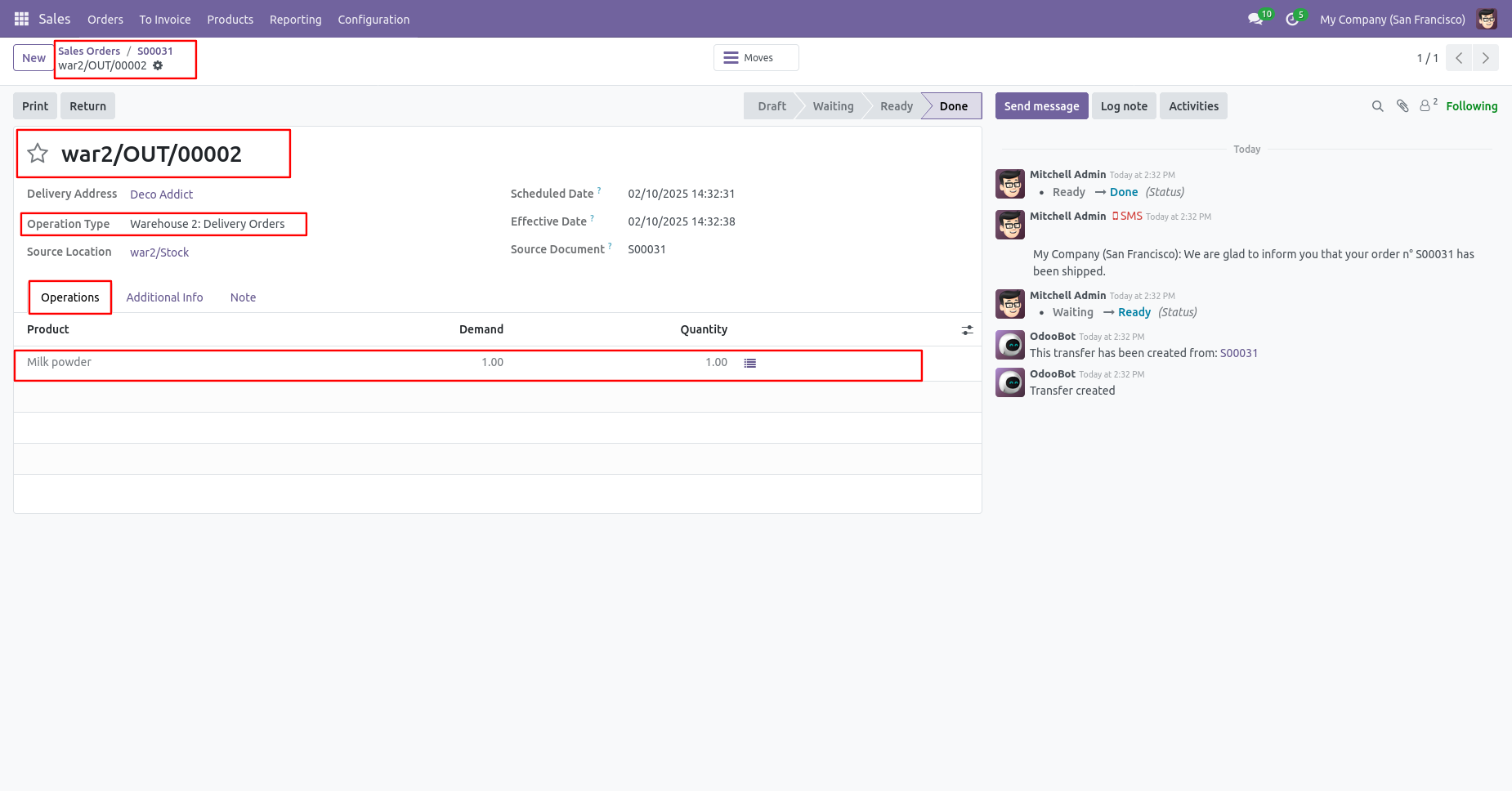
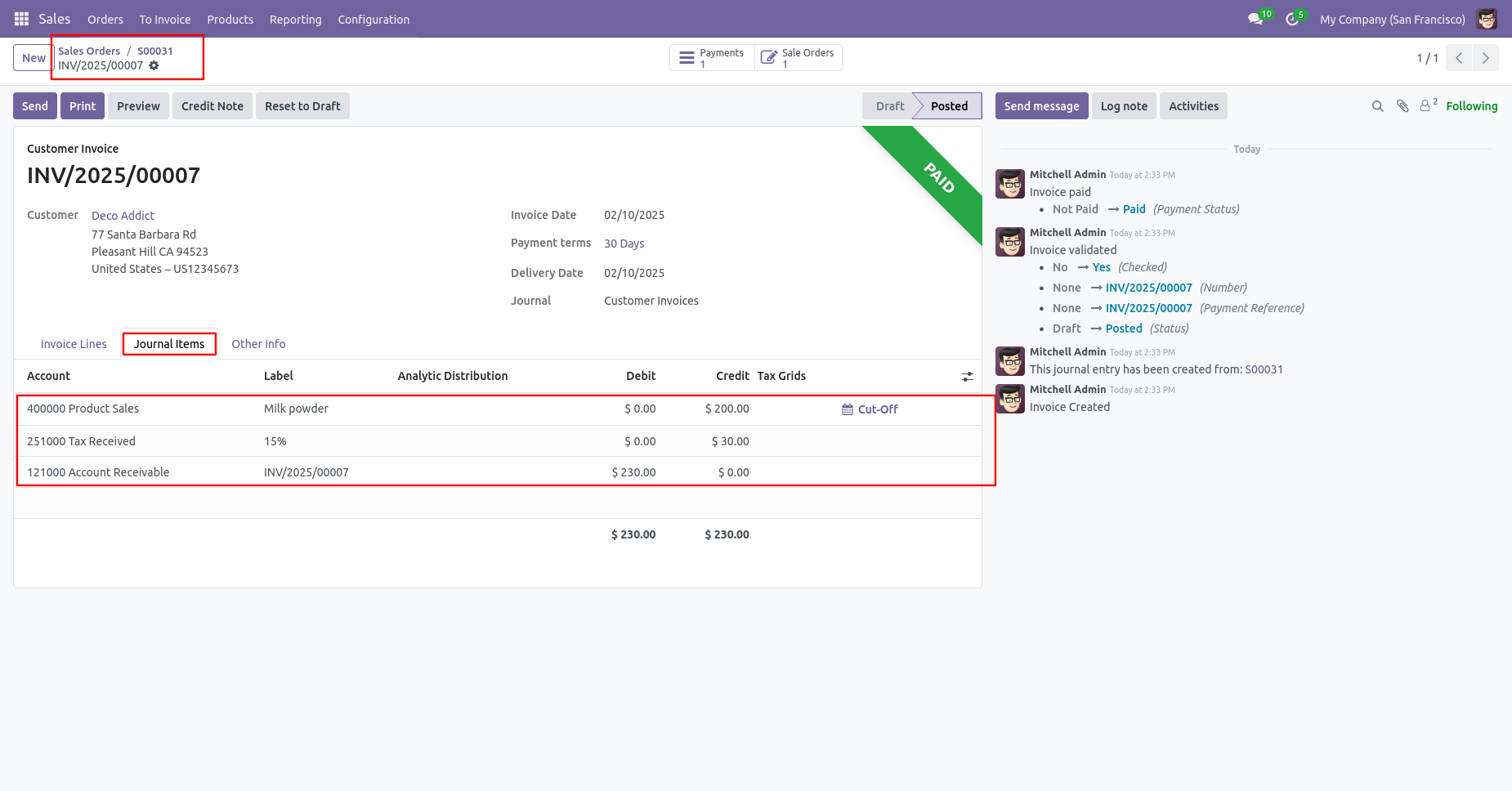
Make invoice for that sale order and check the journal entries.
Create another purchase order for same product but different price.
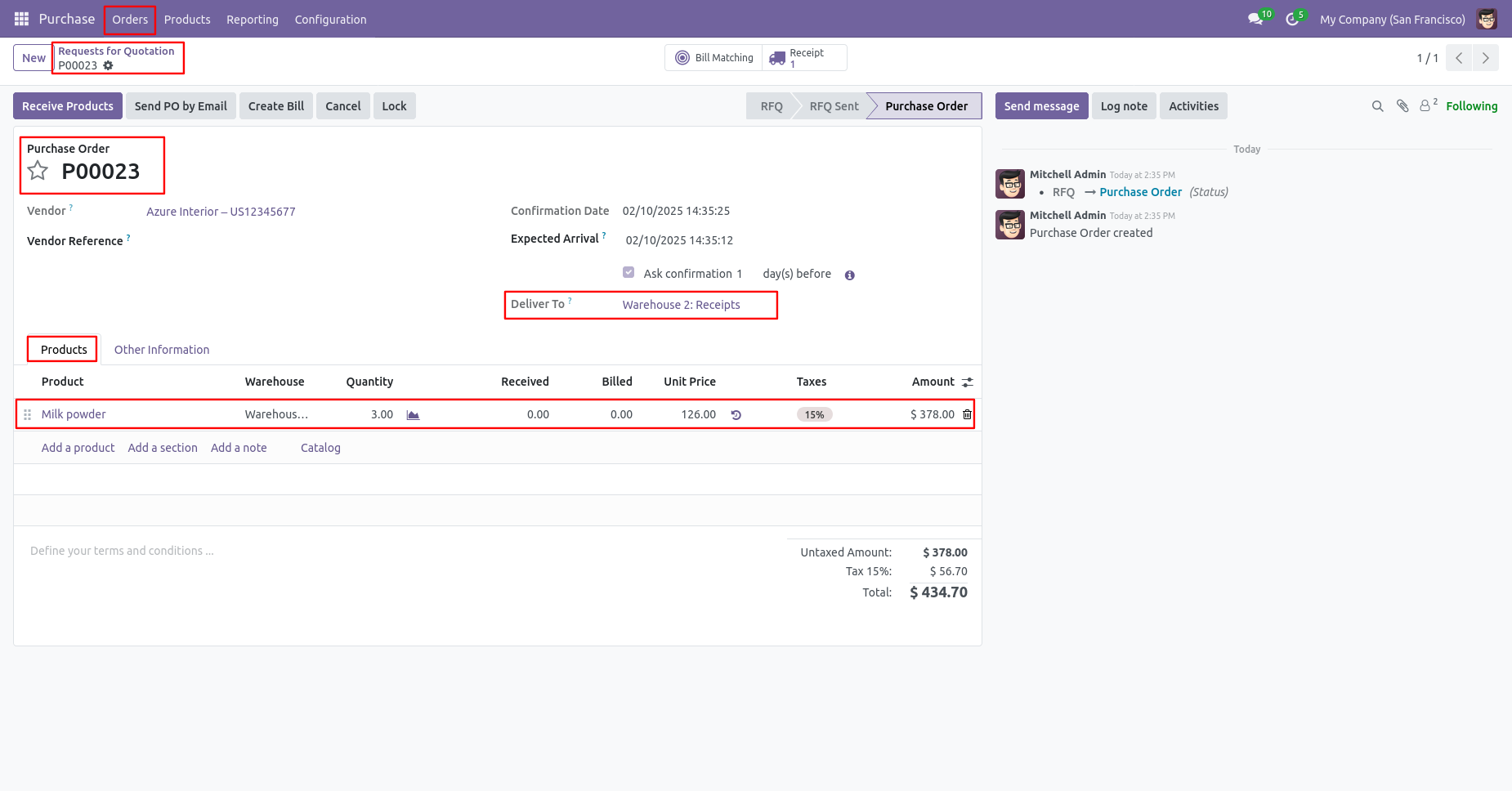
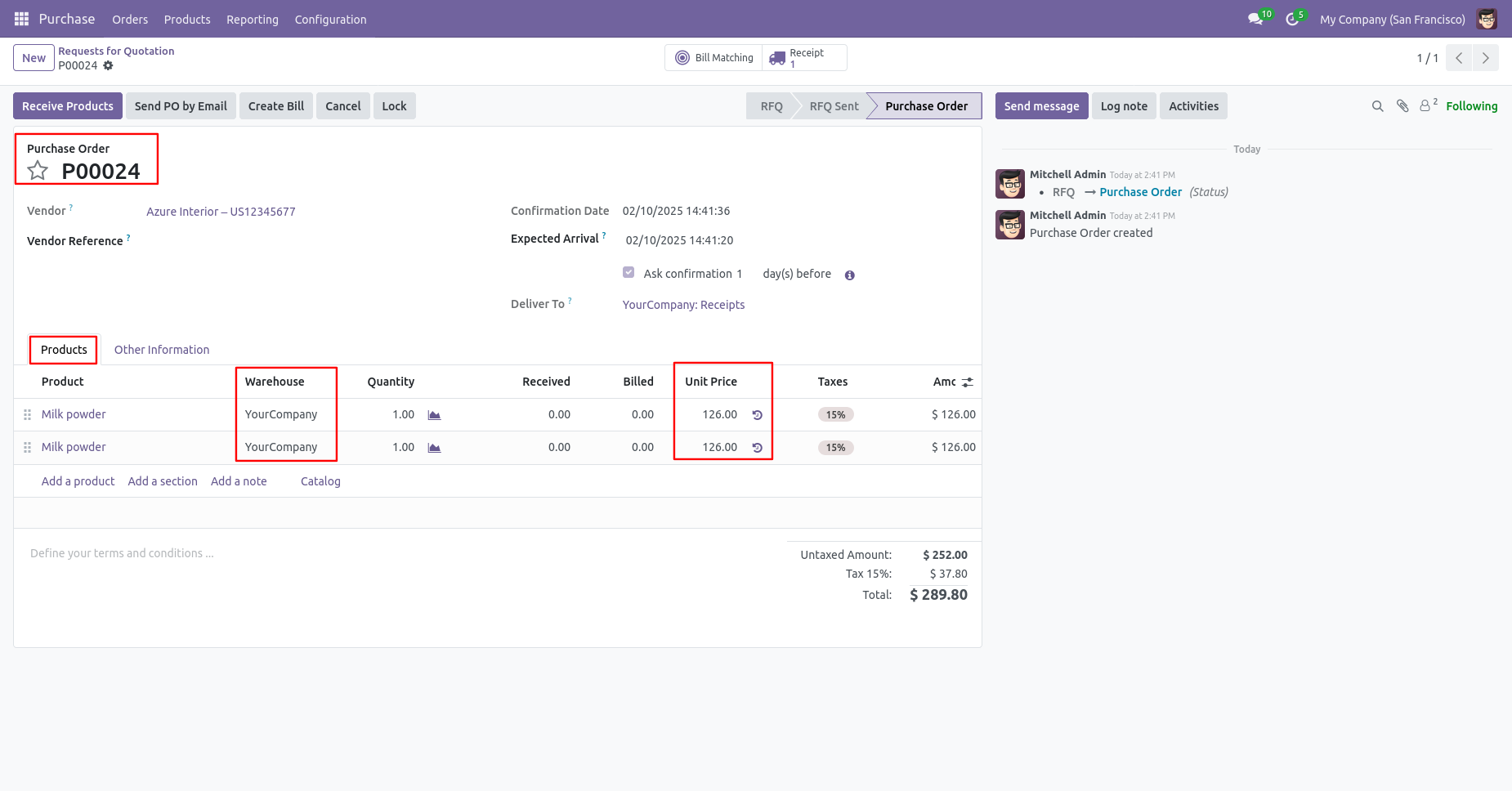
Warehouse selection in purchase order.
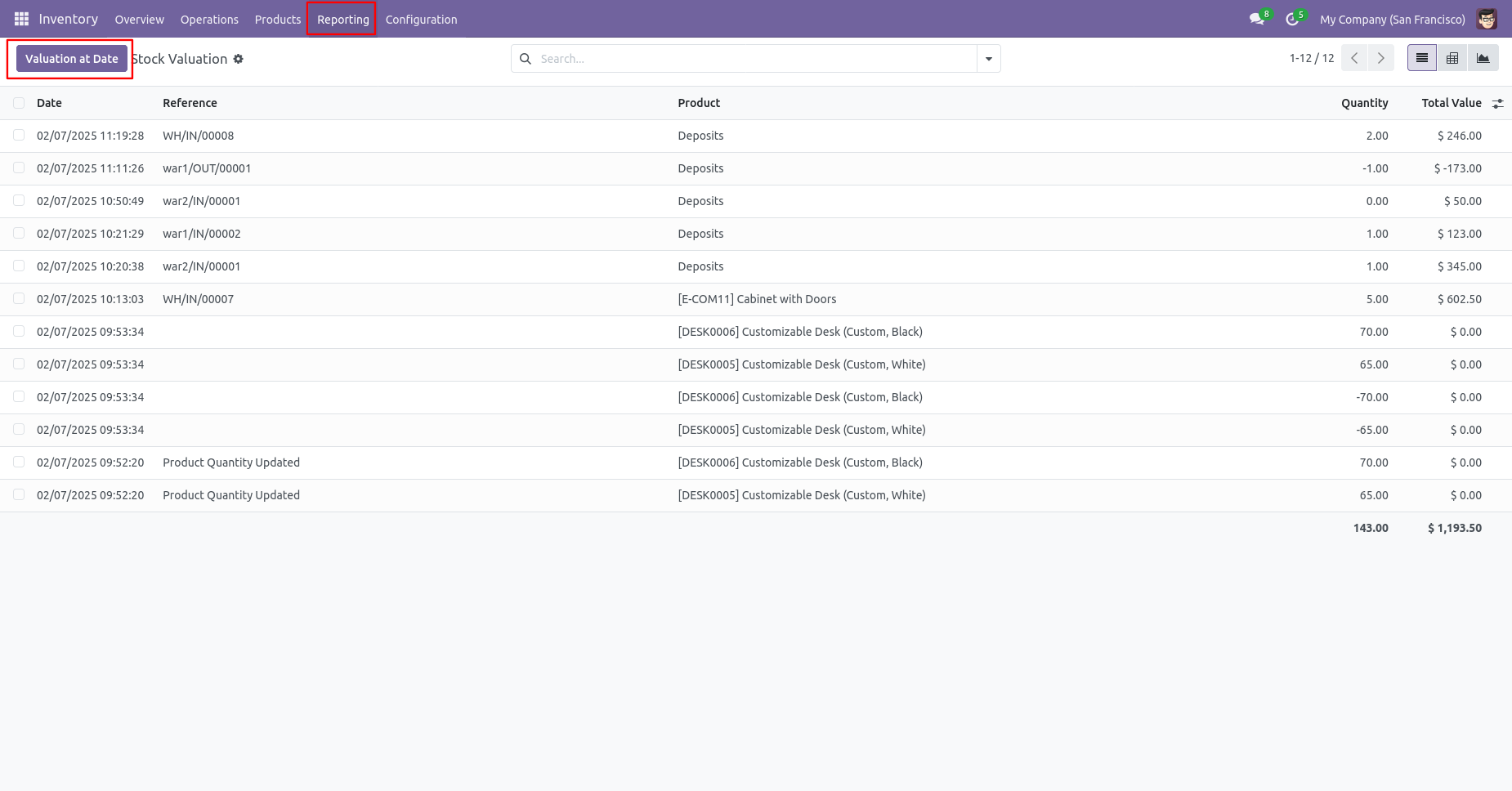
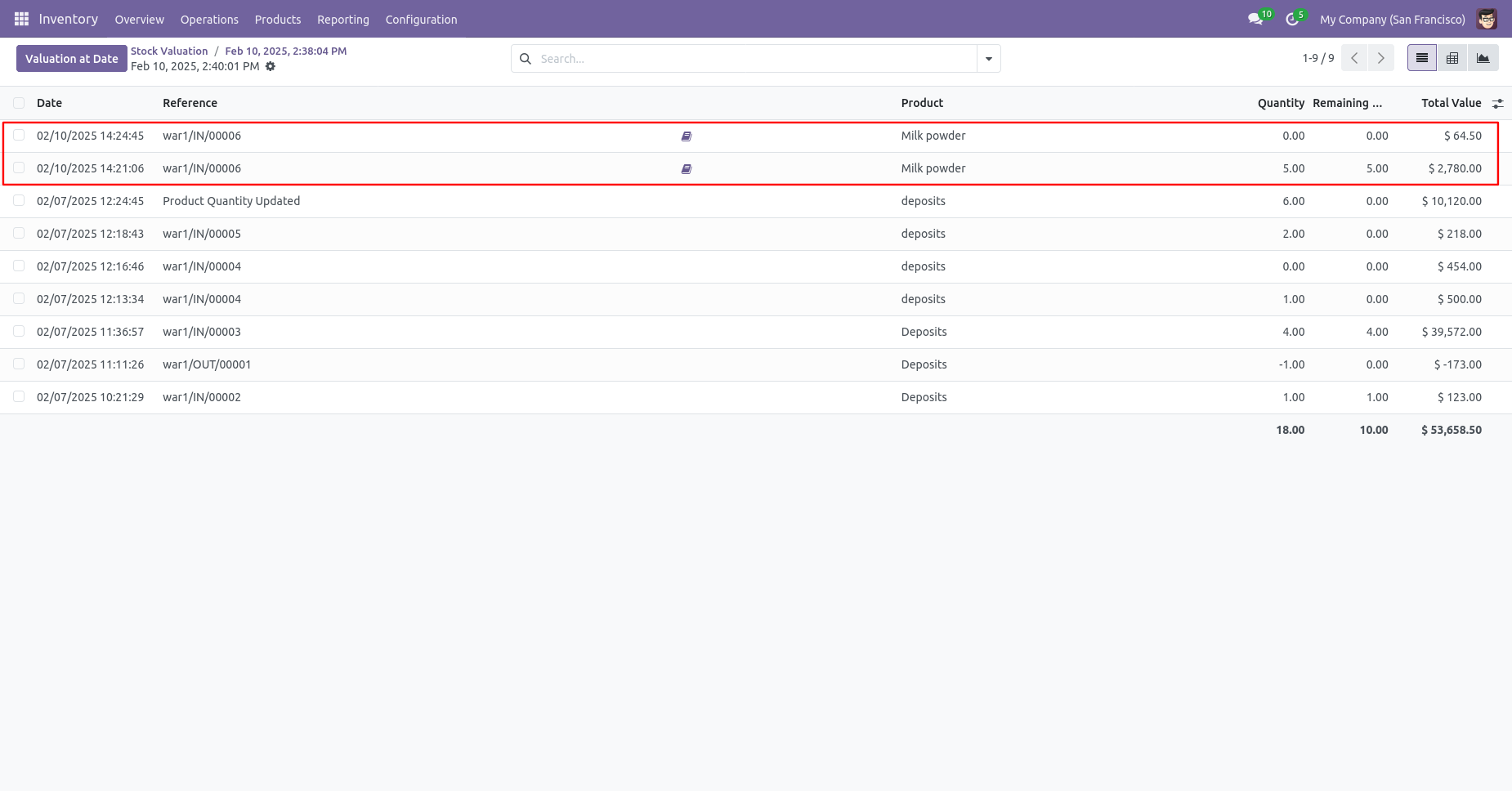
Tree view of stock valuation. Click on the 'Valuation At Date' button to check stock valuation.
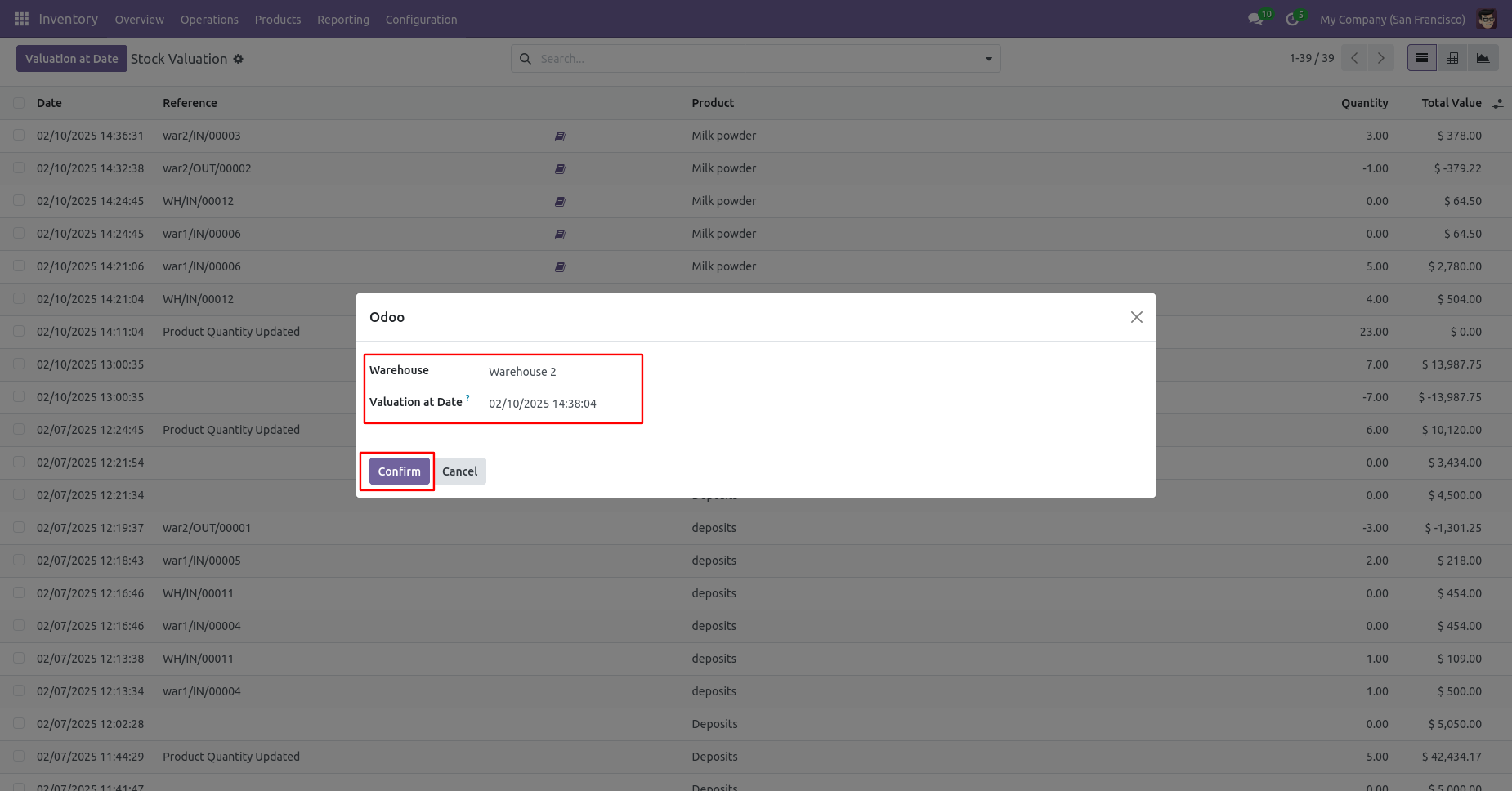
Just select date and warehouse and click on the 'Confirm' button.
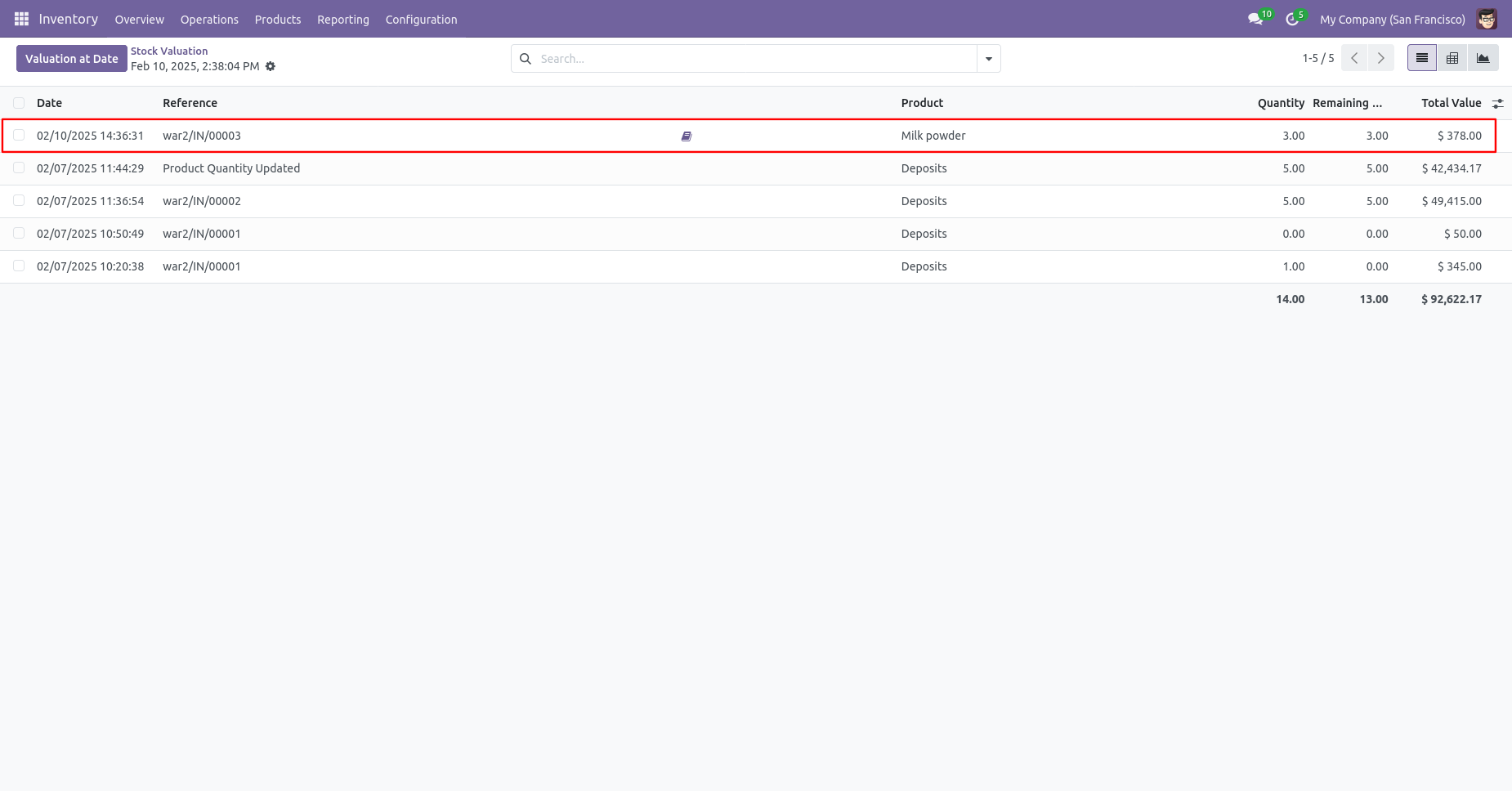
Valuation report for selected warehouse
Valuation report for another warehouse
Form view of the RFQ, you can select the warehouse in order lines.
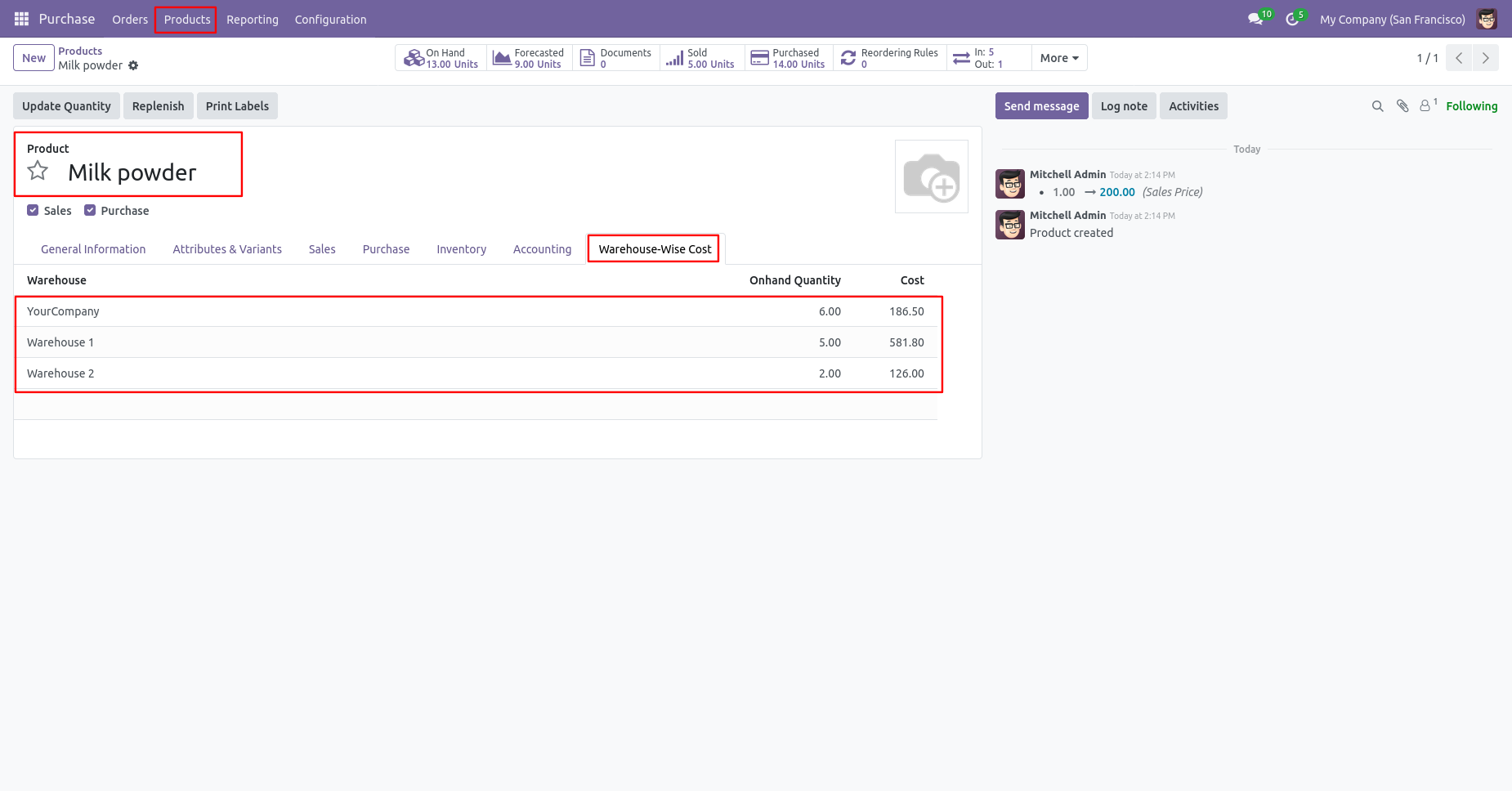
Warehouse-wise on-hand quantity and cost in the warehouse-wise cost tab.
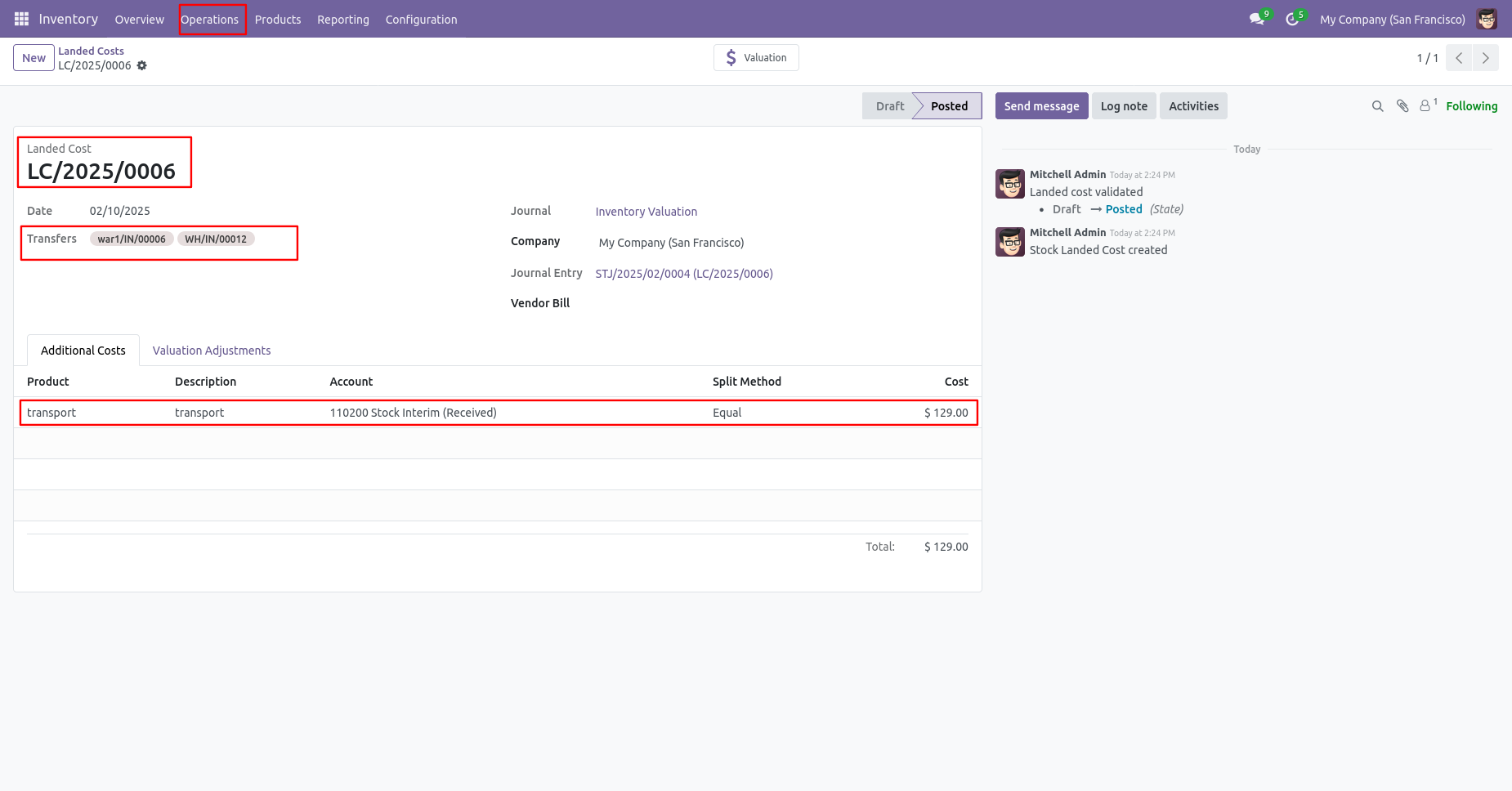
In the landed cost form view, you can view the transfer order number and product cost.
The source and destination warehouse locations are visible in the internal transfer order. Click on the selected product.
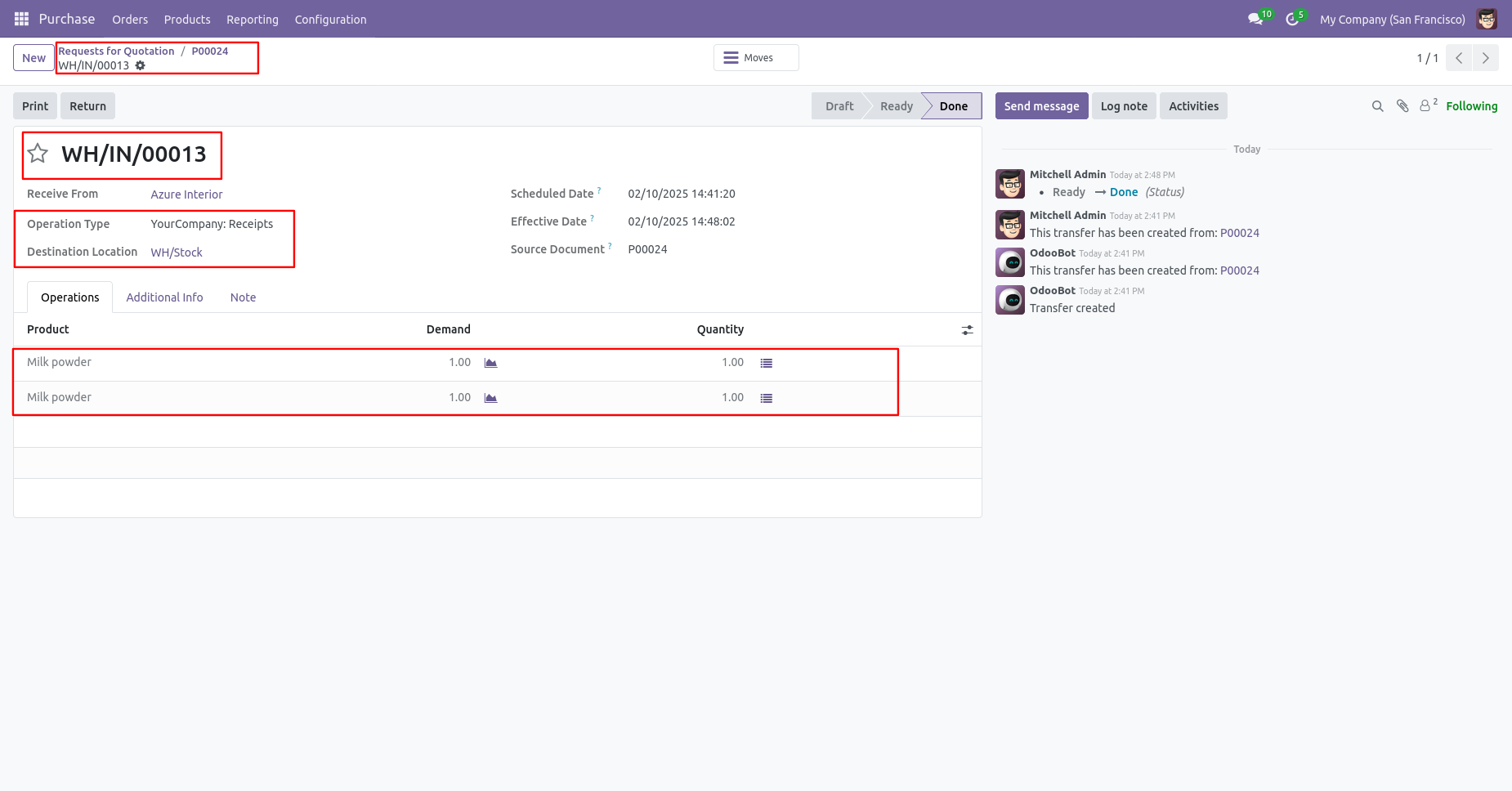
Product form view with warehouse, on-hand qty and cost.
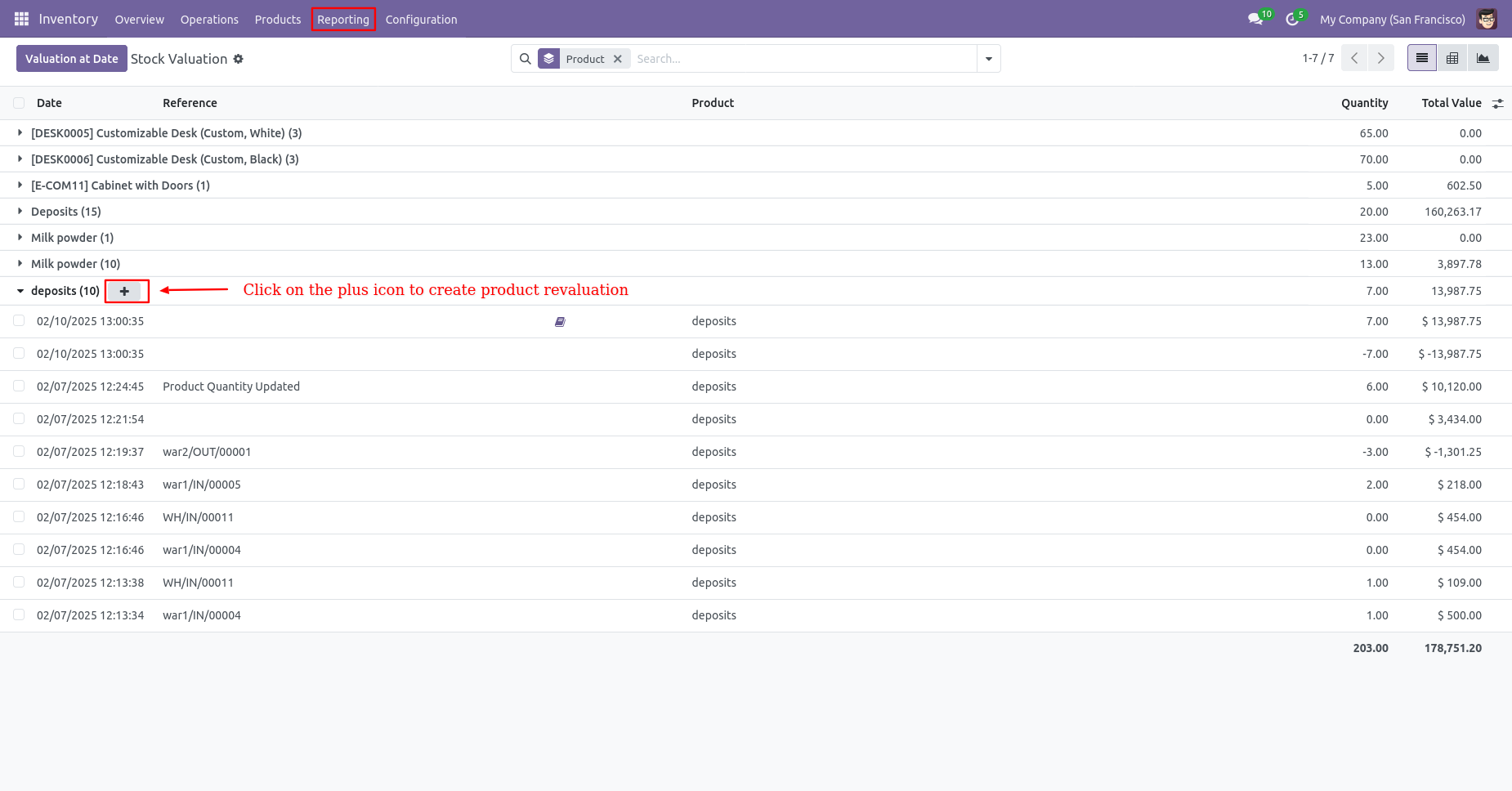
Tree view of the stock valuation, where warehouse2 is showcased. Click on the 'Pluse' icon.
Warehouse name is visible in the product revaluation wizard.
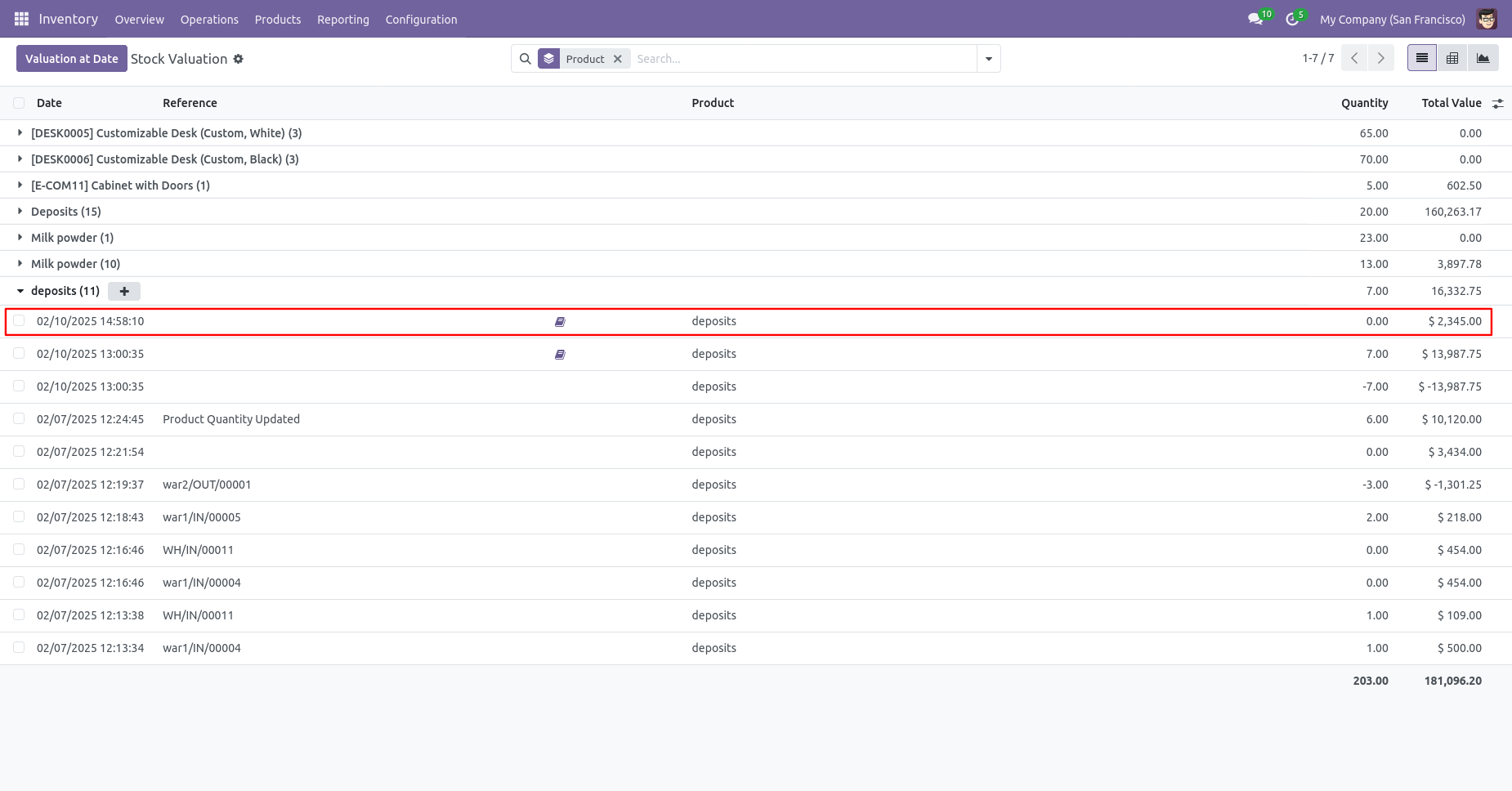
After making a manual valuation adjustment, the total value will changed.
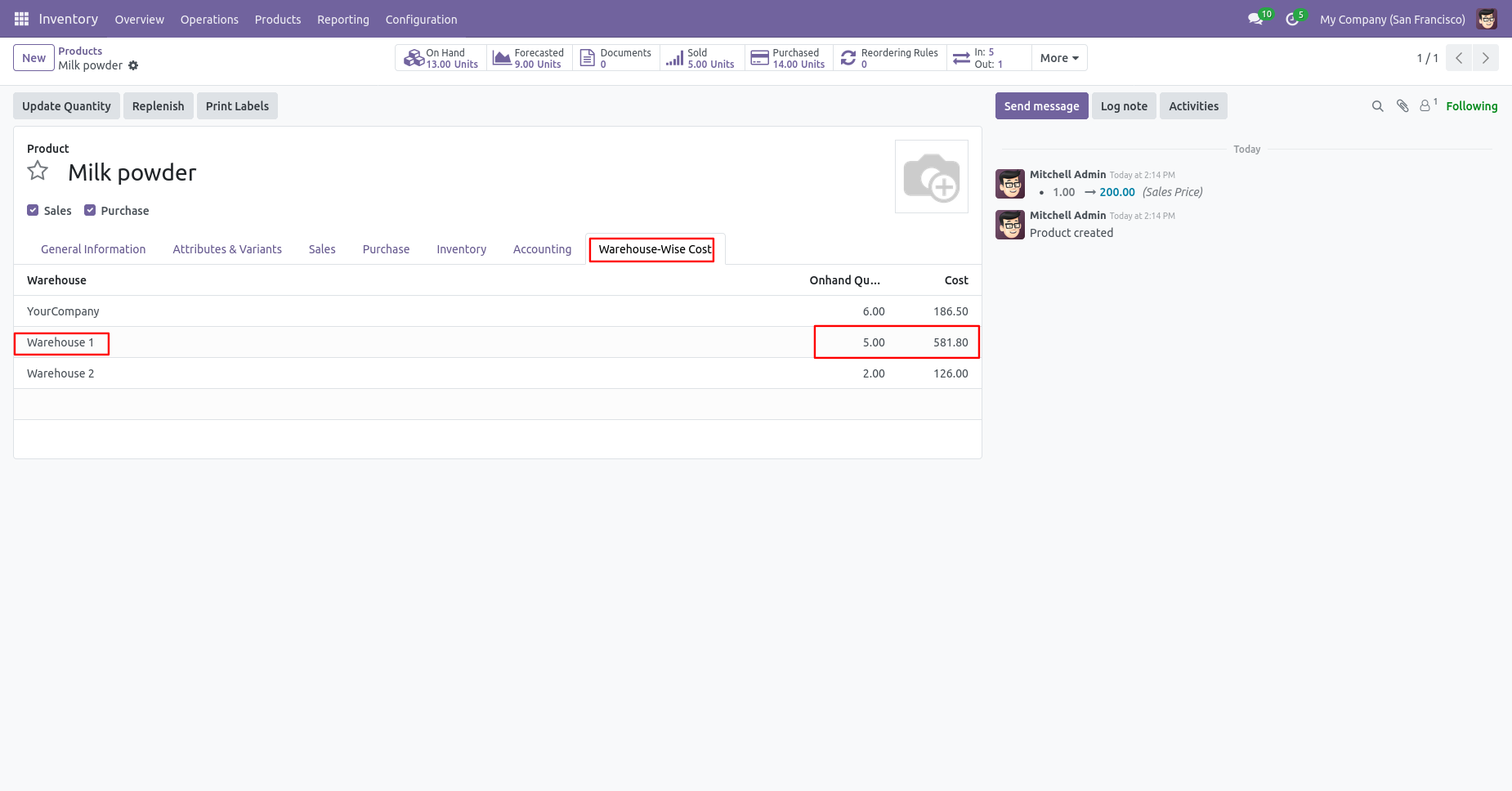
Product form view with on-hand qty and cost.
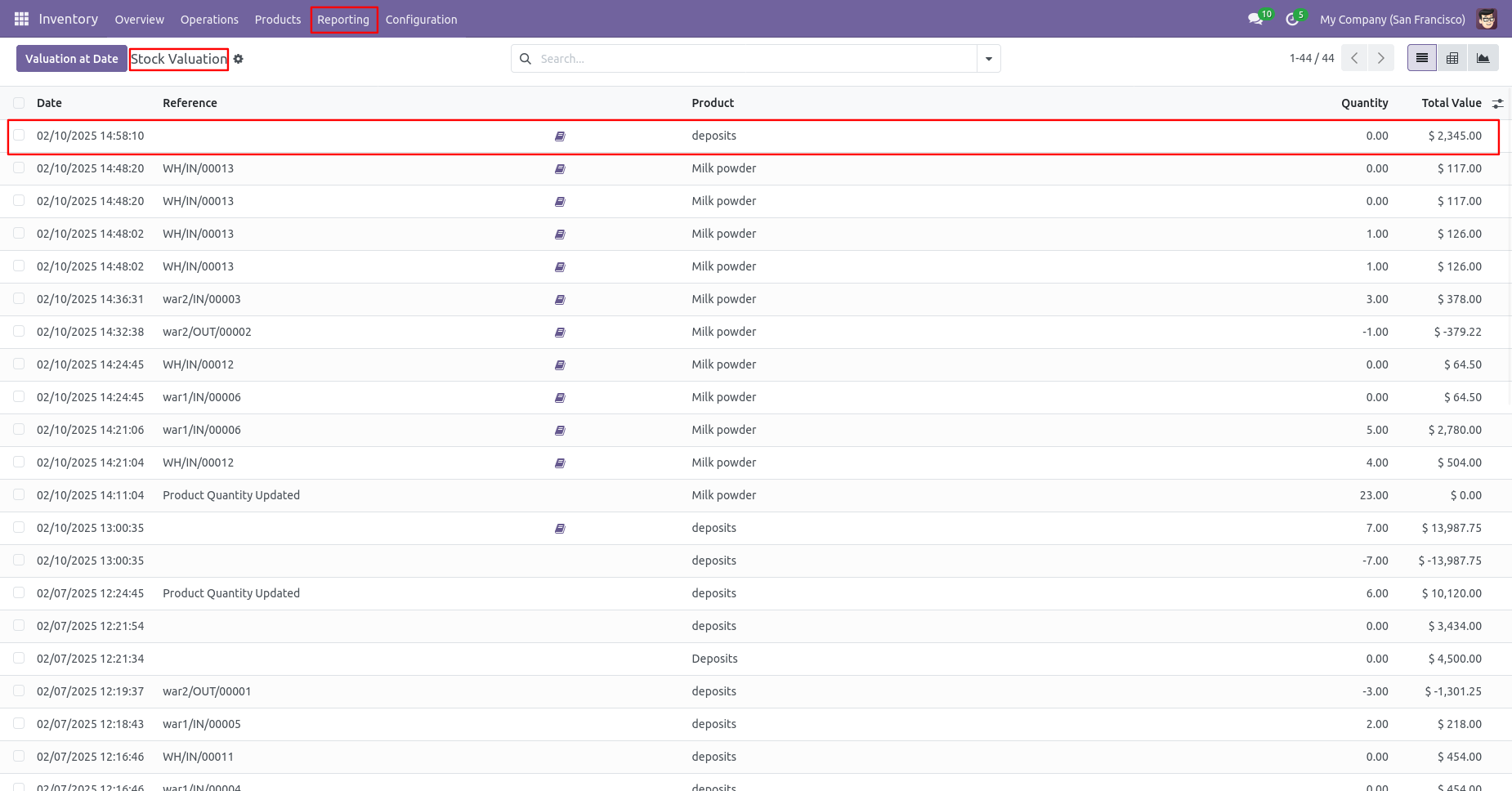
Tree of the stock valuation.
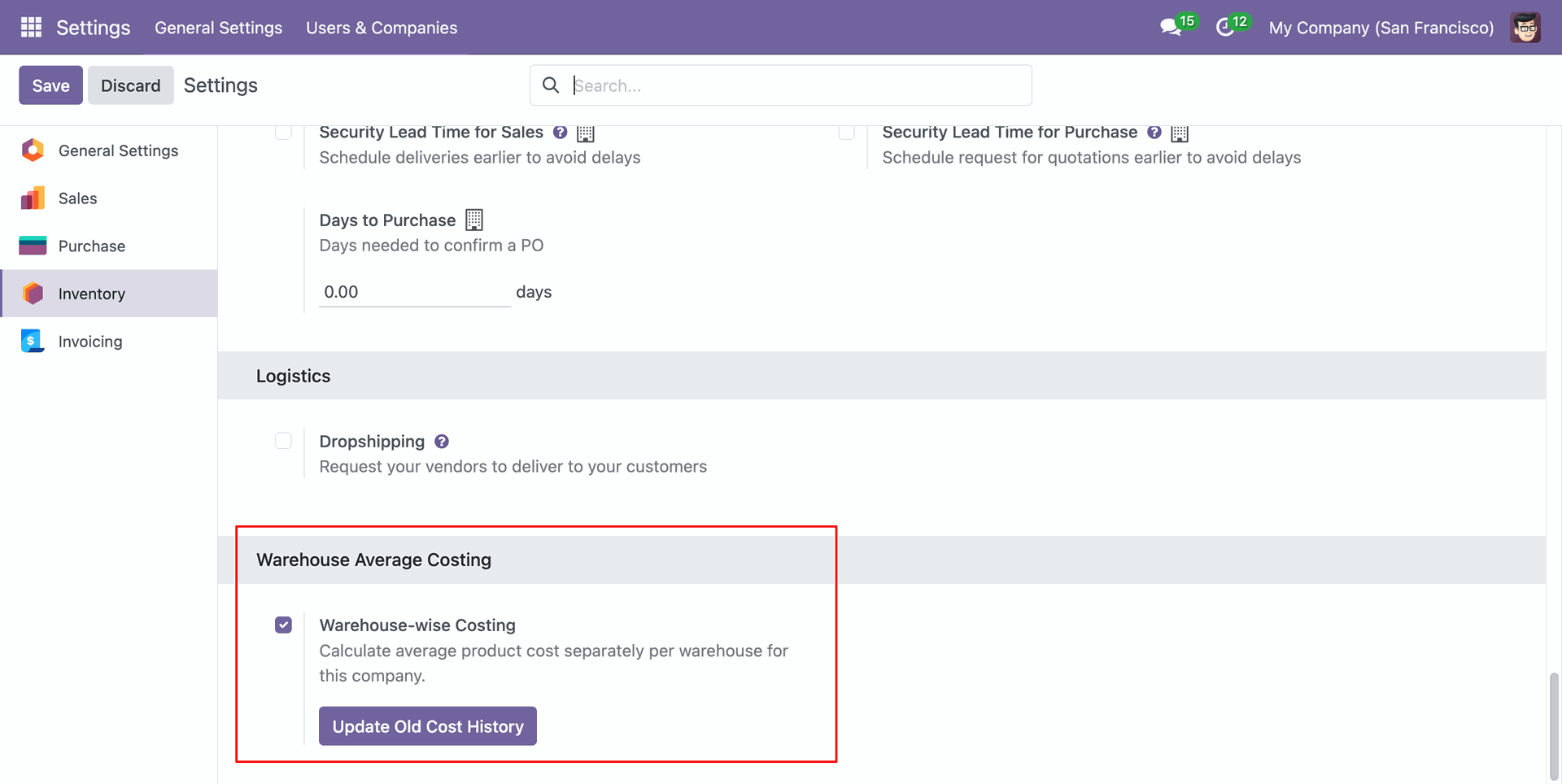
Enable Warehouse-wise Costing for the selected companies. When enabled, the module will follow the warehouse-wise costing workflow.
For existing records created before installing the module, click Update Old Cost History from the settings to update their cost history.
From the Inventory Dashboard, click on "View All History" under Recent Cost Changes / Adjustments.
View the complete Cost Change History. Cost Change History tree view showing records grouped by Warehouse and Product.
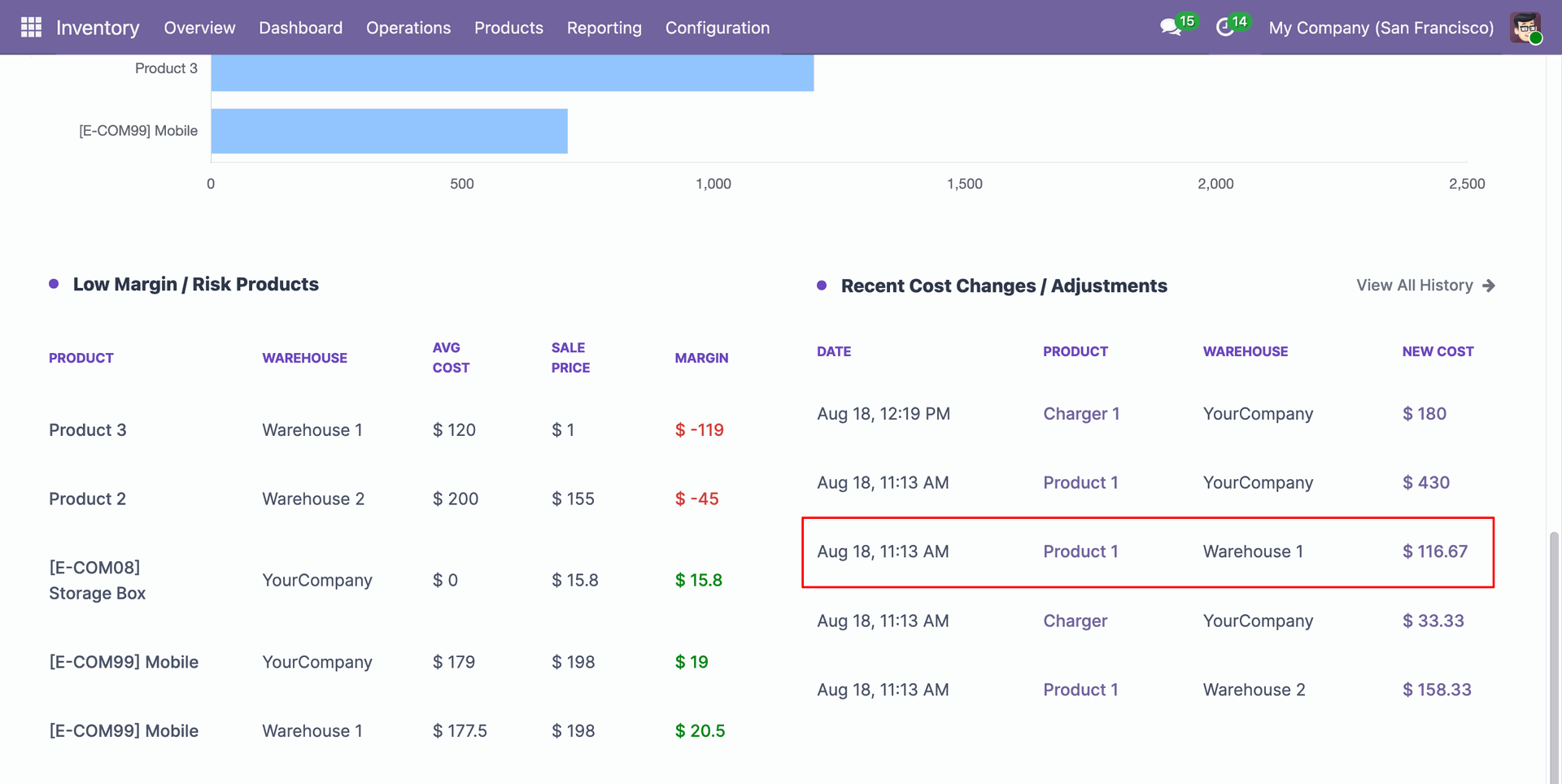
Click on single cost adjustment record from the dashboard to view the complete cost change history for that product.
Cost Change History list view displays the history for the selected product.
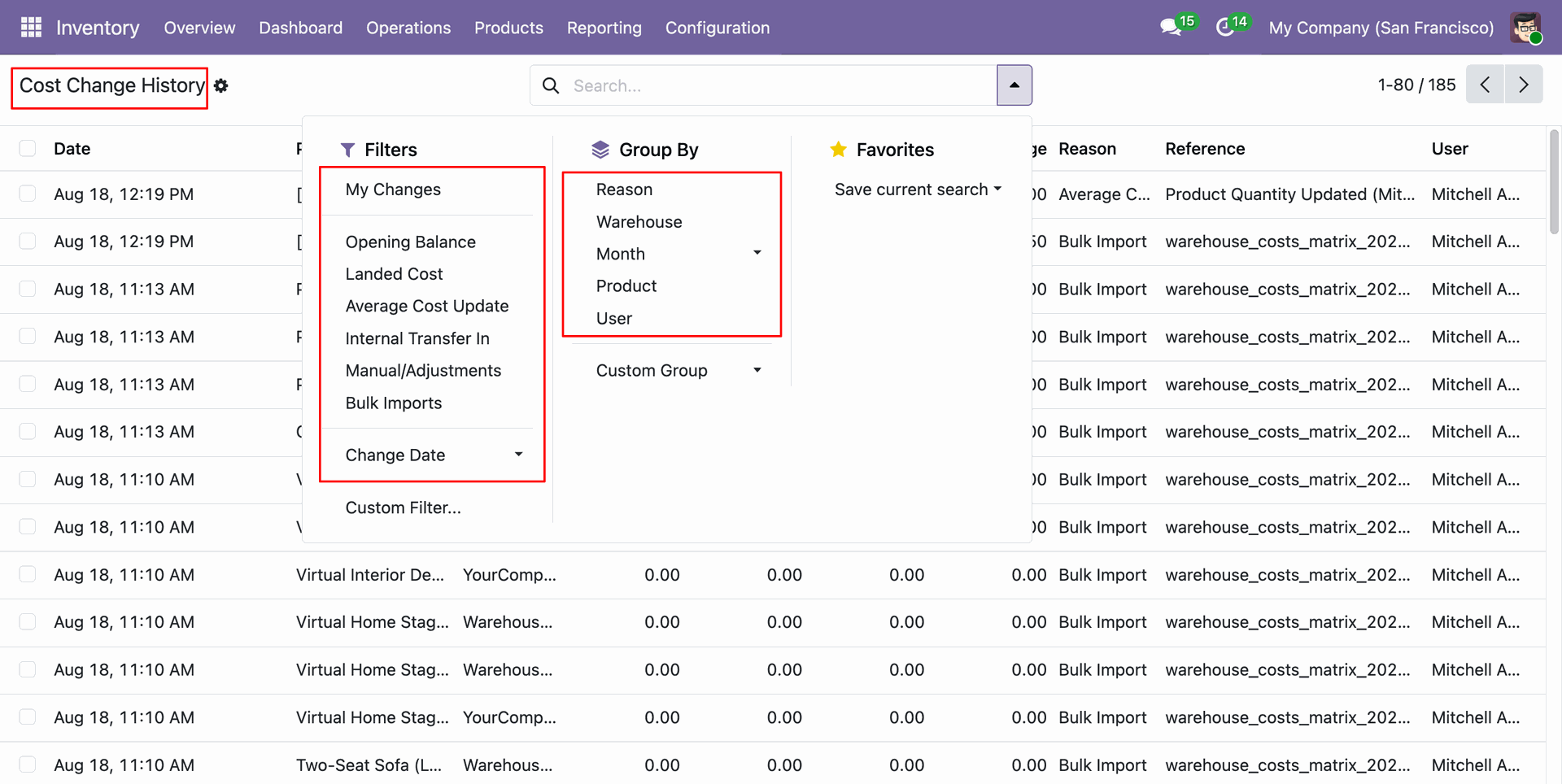
Use Advanced Filters and Group By options to find specific cost changes.
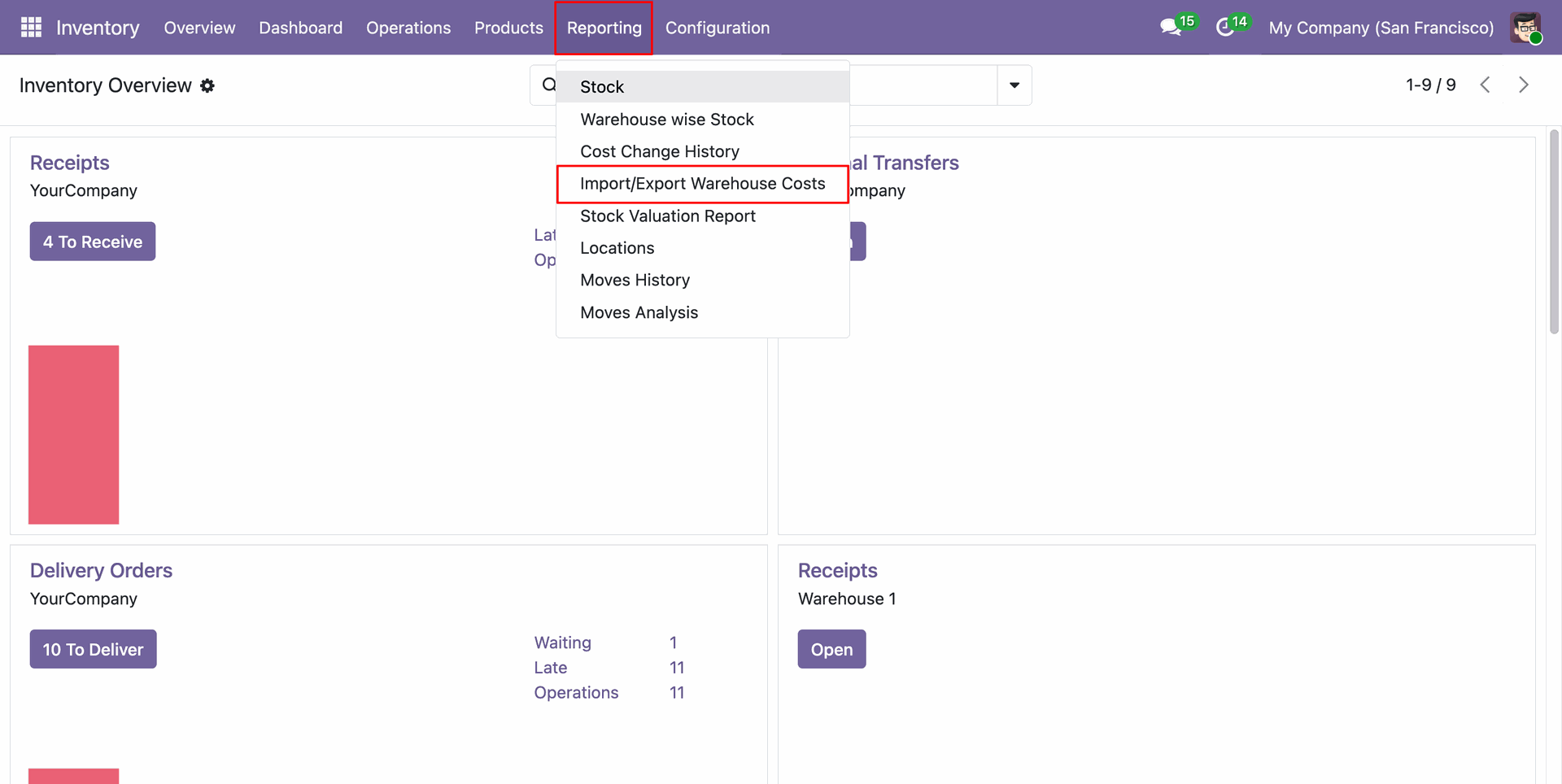
Navigate to Reporting > Import/Export Warehouse Costs menu.
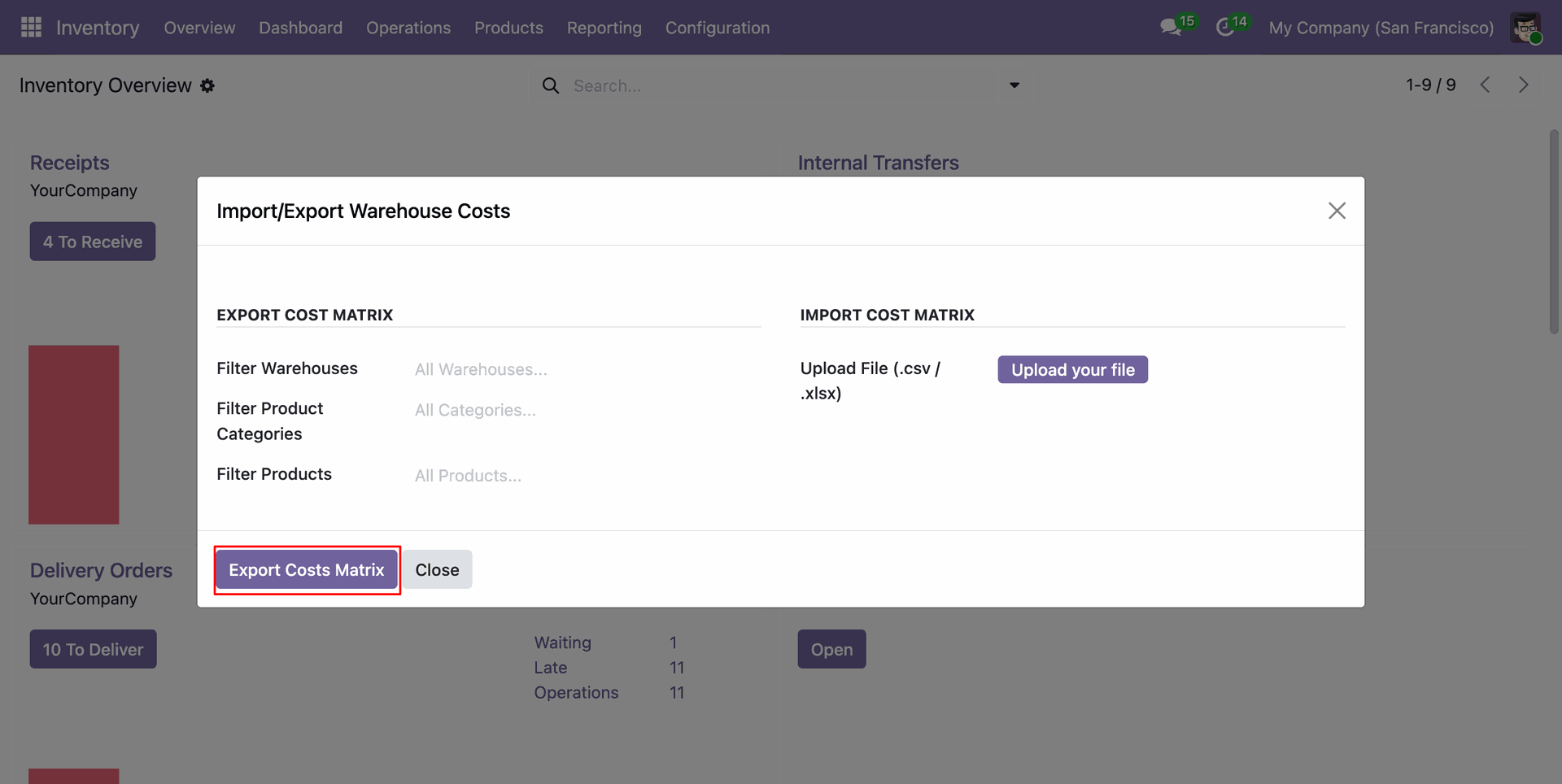
Use the wizard to Export Costs Matrix. You can filter by Warehouses, Product Categories, or Products.
The exported Excel file contains the Warehouse Costs Matrix with current costs for each warehouse.
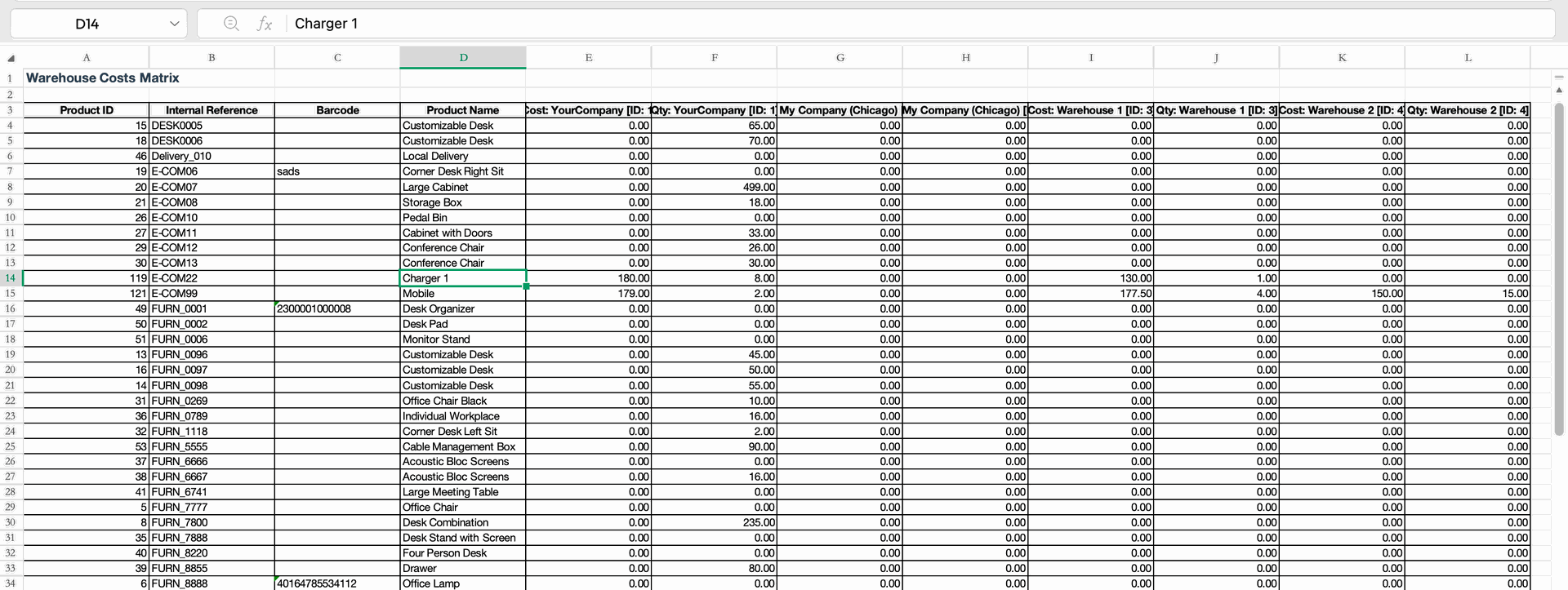
Update the costs directly in the respective warehouse columns in the Excel file.
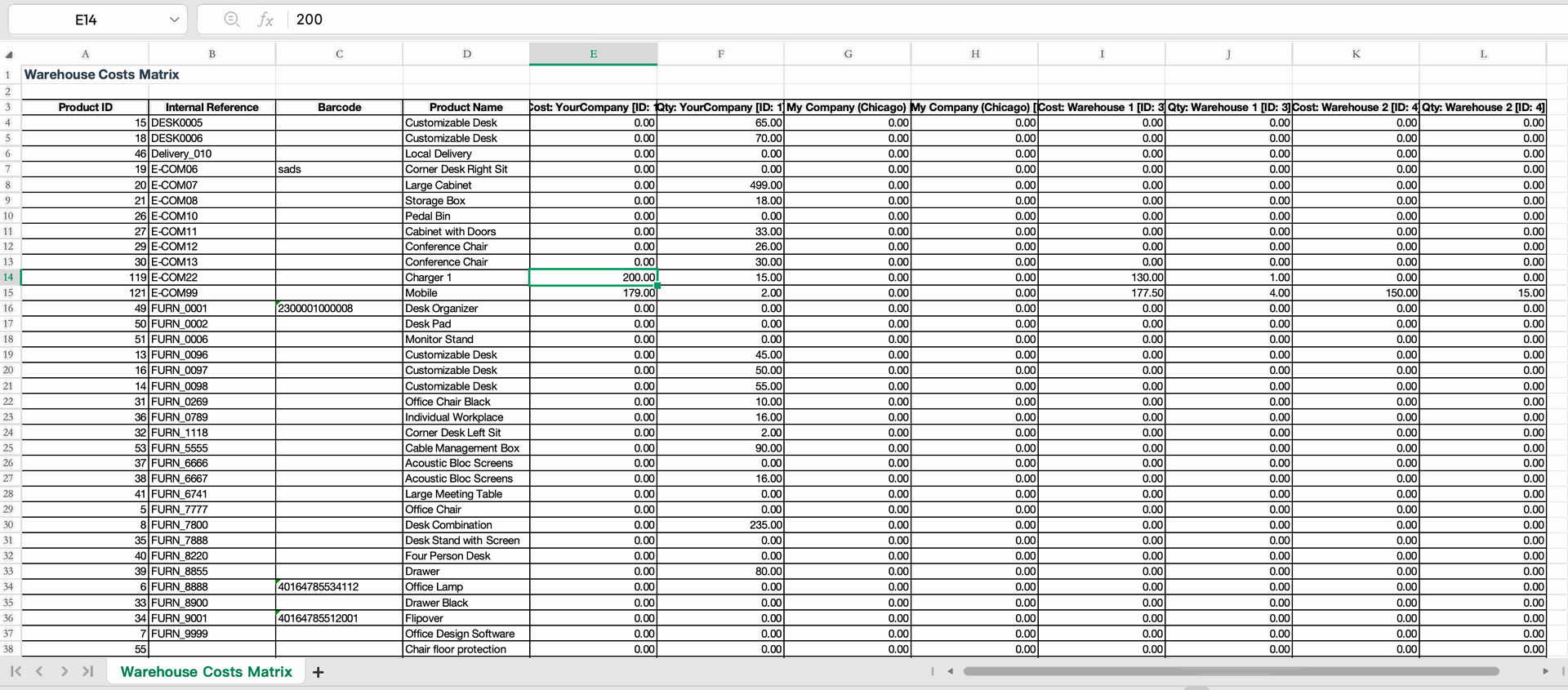
Upload the updated file and click "Import Warehouse Costs".
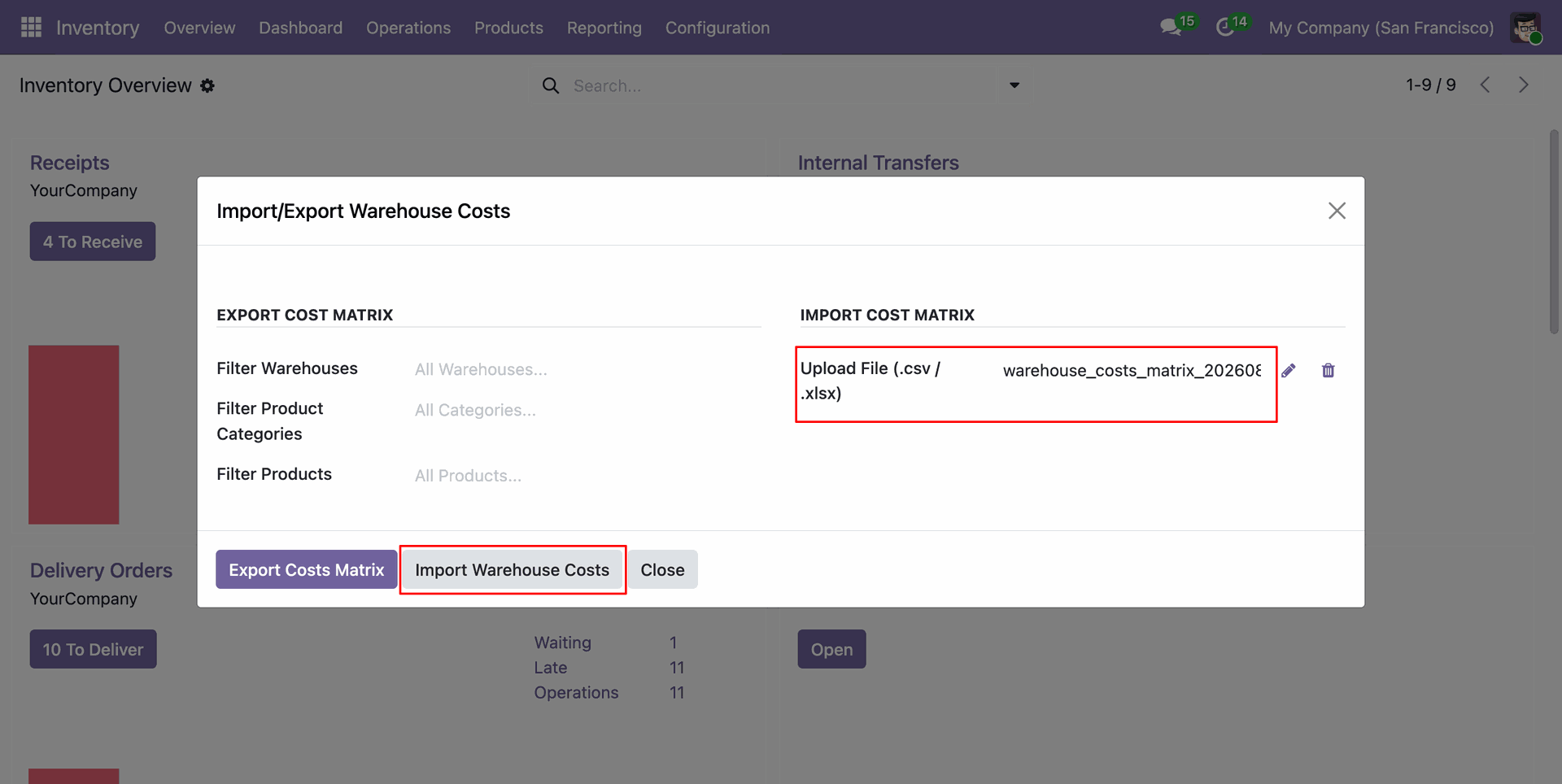
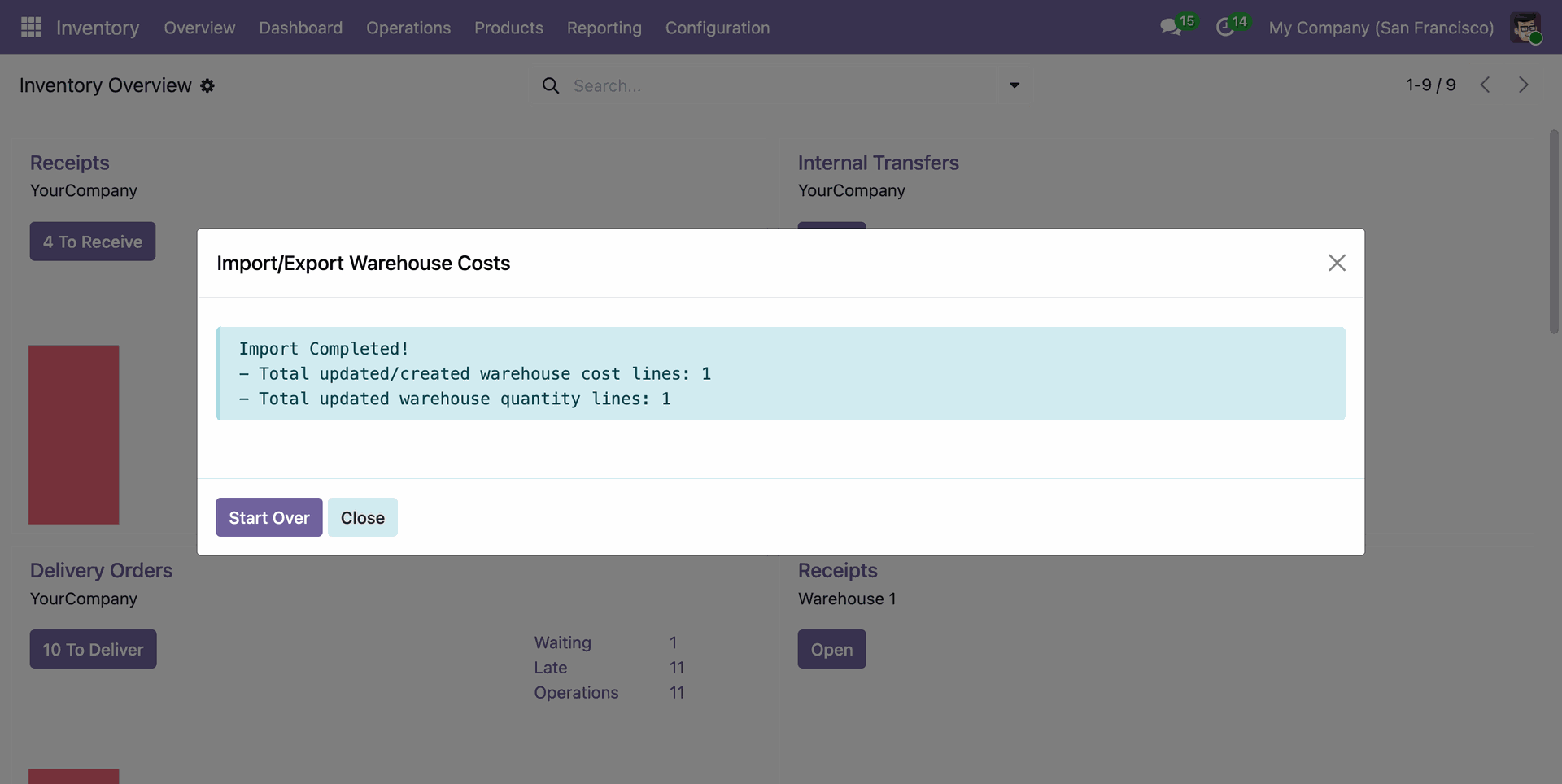
A success message shows the number of updated or created warehouse cost lines.
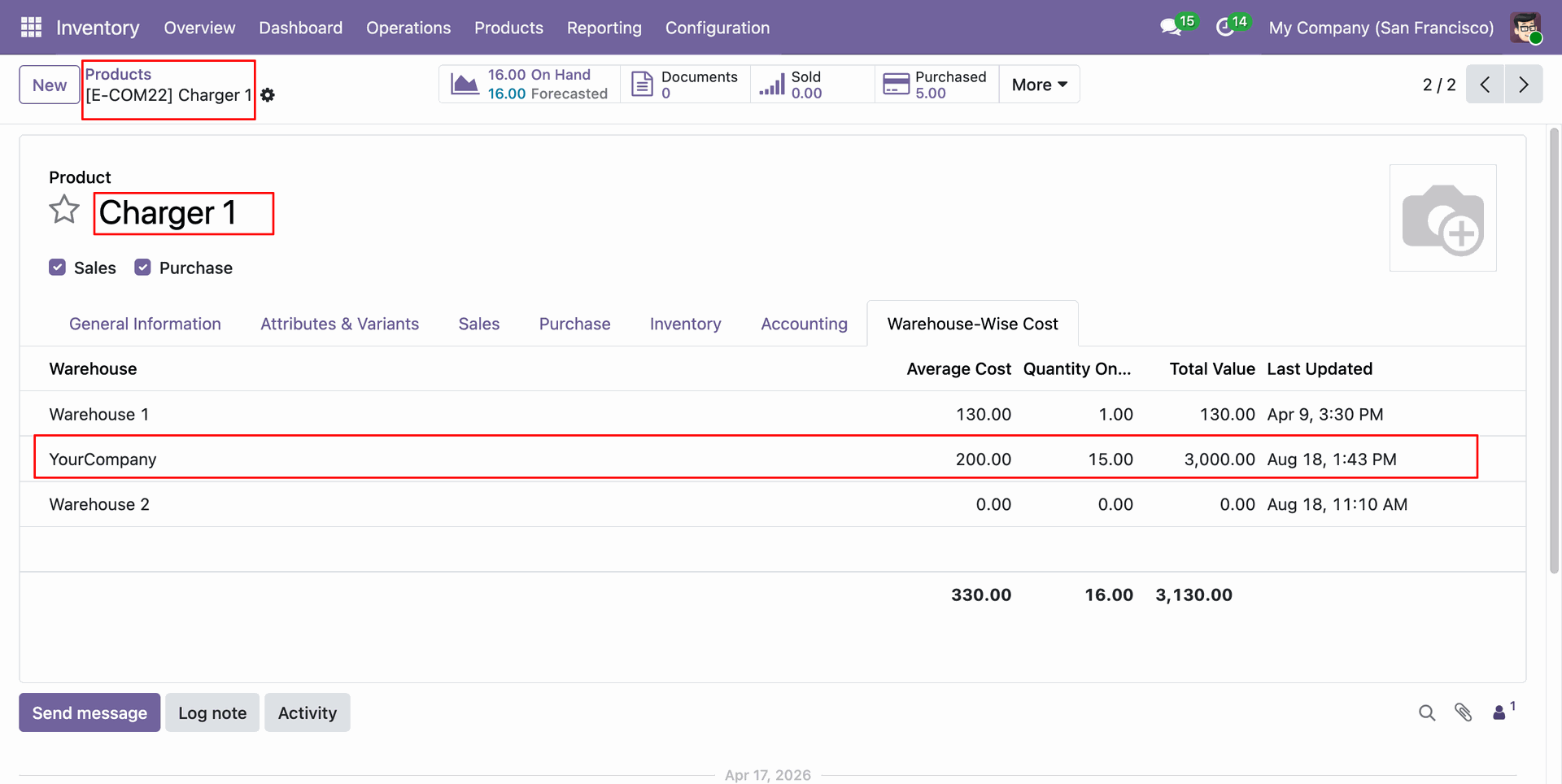
Product form view with updated and imported cost and qunatity.
Version 19.0.6.0.0 | Released on : 21st September 2026
Version 19.0.5.0.0 | Released on : 18th August 2026
Version 19.0.4.0.0 | Released on : 14th May 2026
Version 19.0.3.0.0 | Released on : 24th December 2025
Version 19.0.2.0.0 | Released on : 18th November 2025
Version 19.0.1.0.0 | Released on : 22nd September 2025
- Yes, this app works perfectly with Odoo Enterprise (Odoo.sh & Premise) as well as Community.
- No, this application is not compatible with odoo.com(odoo saas/Odoo Online)
- No, currently it does not work if the product type is selected as a combo product. For more details, please contact our support team at support@softhealer.com.
- Yes, to test this module, please contact us at sales@softhealer.com.
- Please contact us at sales@softhealer.comto request customization.
- Yes, we provide free lifetime support for the version you purchased.
- Yes, you will receive lifetime free updates for the version of the module you purchased.
- No, there is no need to install any additional libraries.
- Yes, for version 12 and above, you need to purchase the module separately for each version you intend to use.
- No, exchanges or refunds are not allowed. Please make sure to select the correct version before purchasing.
- You can contact us at support@softhealer.com for language translation support. We use Google Translator tools to provide translations in multiple languages, so the accuracy may vary. We welcome your suggestions to help improve translations.
Discover Our Latest Apps