












Alternative Products Management

Sometimes customers want a Certain product But we don't have enough stock of the product. Losing customers is a major problem for any small or big business. In many cases. This module helps to Show alternative products that increase sale ratings. Once need to define the product and automatically set it in other alternatives vice versa. If alternative products are stored in the different warehouses also shown here.


Related Modules
Features

Replace with Alternative Product
Easily replace an unavailable product with a configured alternative product.

Stock Availability Across Warehouses
View product stock available in other warehouses directly from the Sales Order.

Alternative Product Stock
Check the available quantity of alternative products from the Sales Order line.

Automatic Alternative Product Linking
Automatically create two-way (vice versa) alternative product relationships.

Warehouse-Based Alternative Product Detection

Detect stock availability of alternative products based on the selected warehouse in the Sales Order.

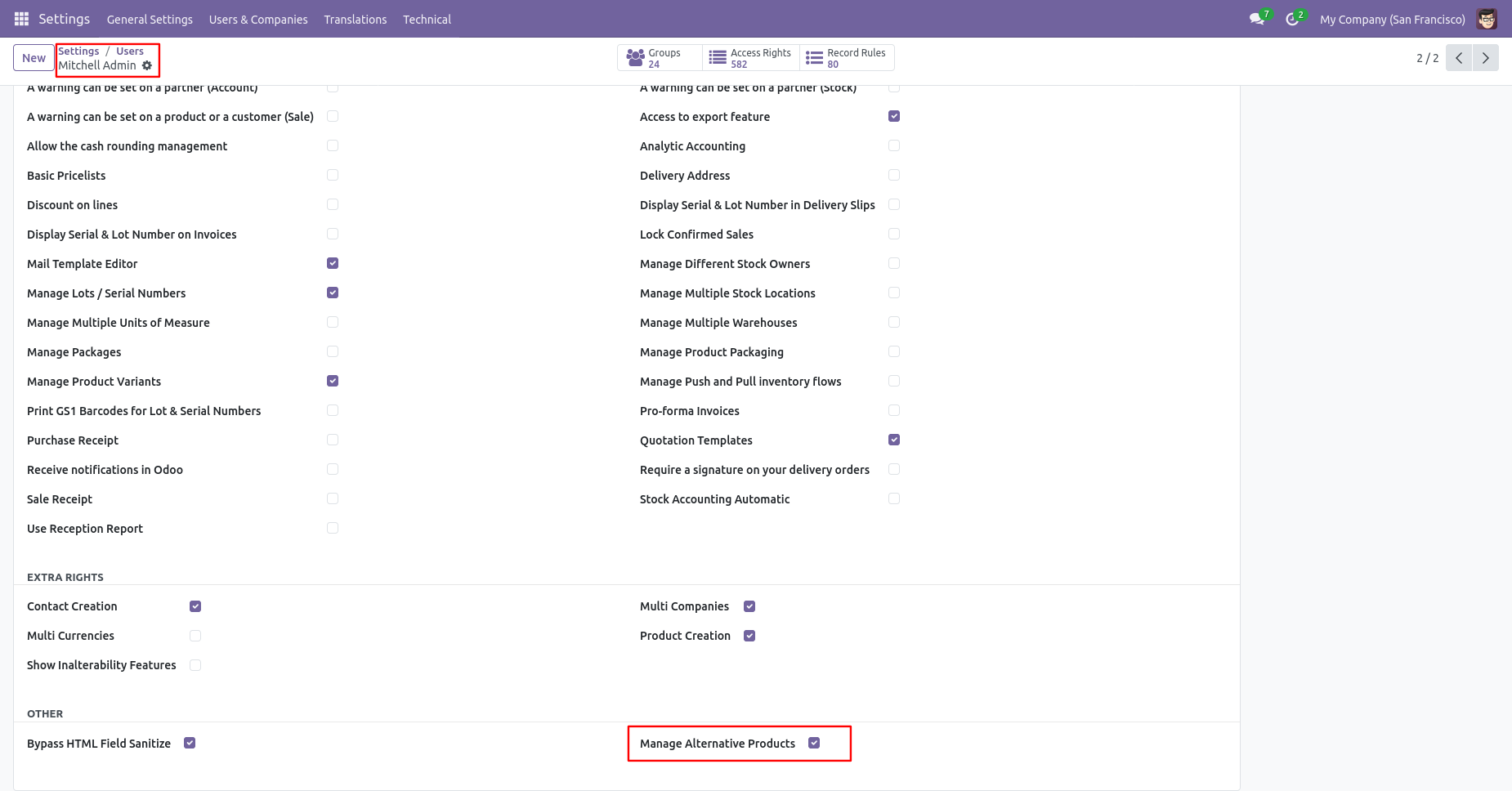
Enable 'Manage Alternative Products'.
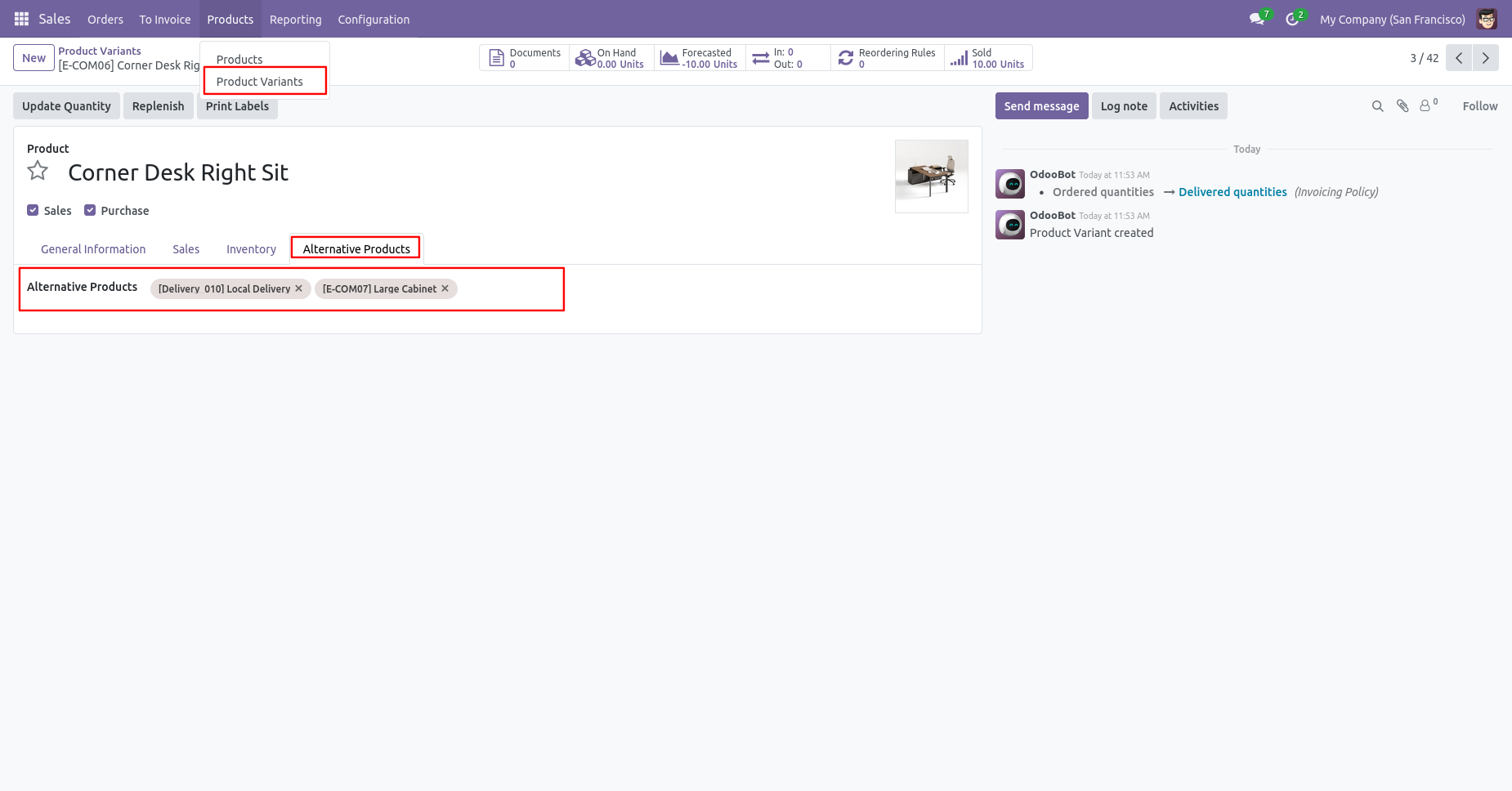
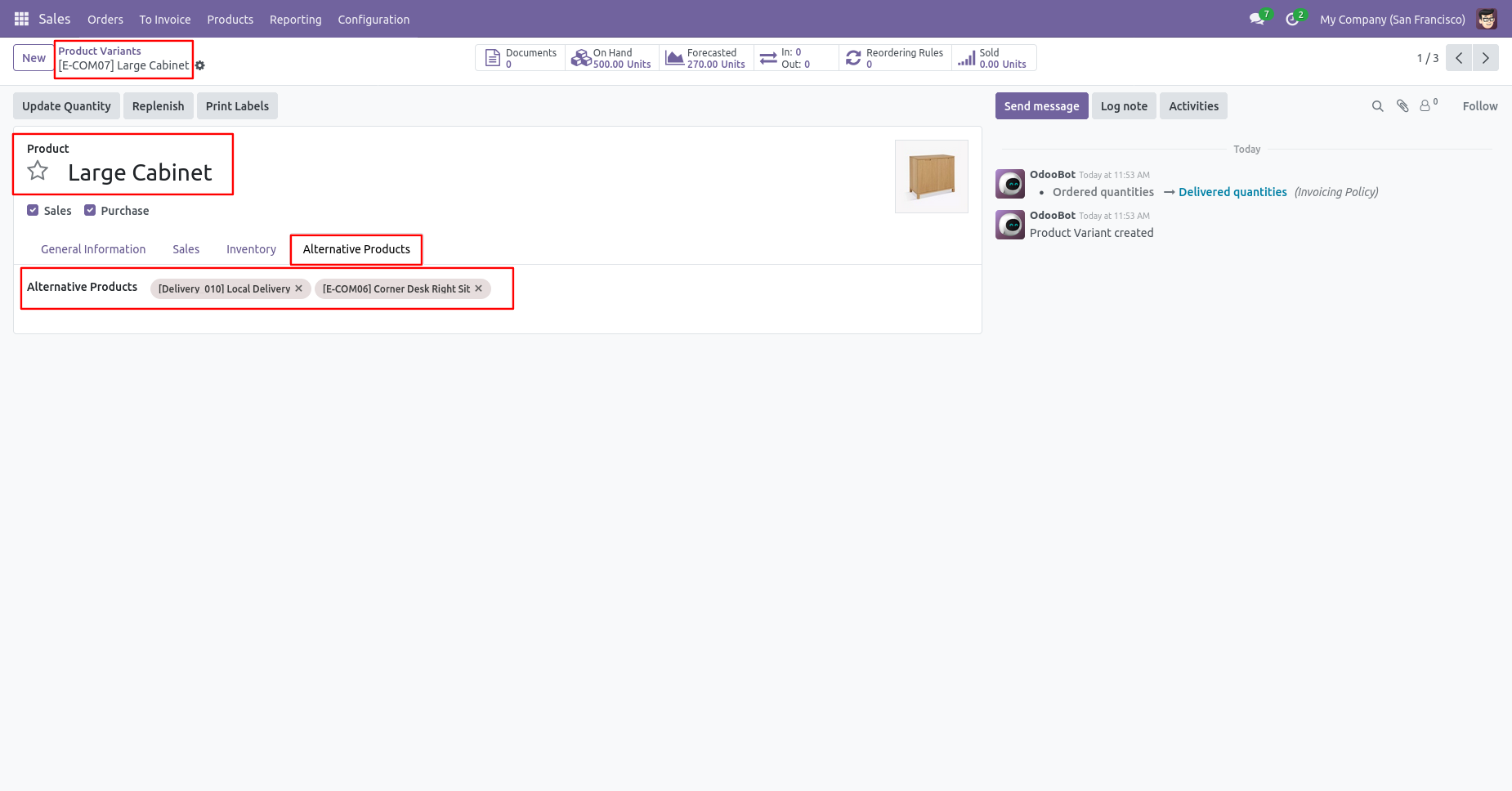
Set an alternative product in product variants.
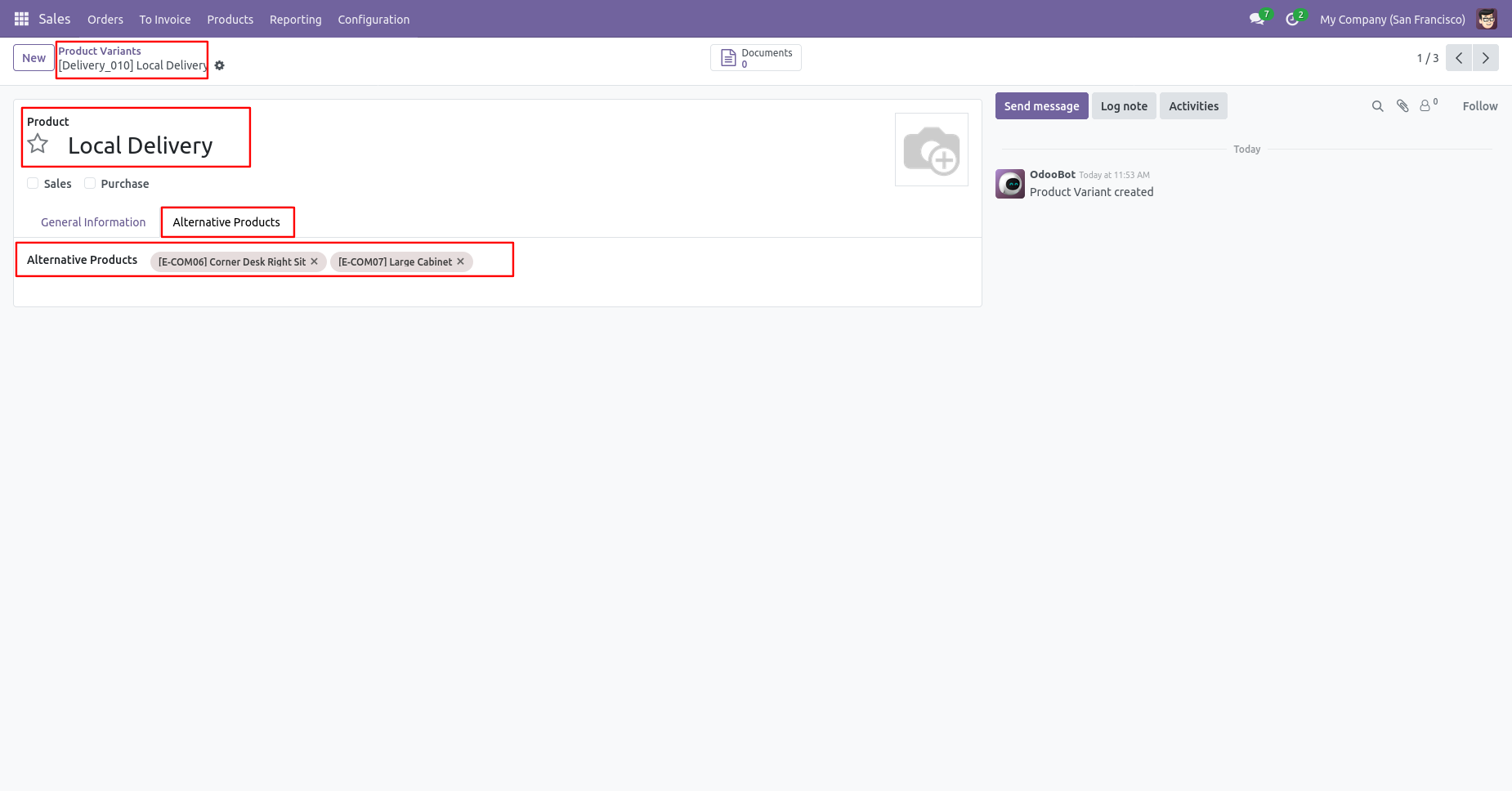
All products automatically set in each other alternative products.
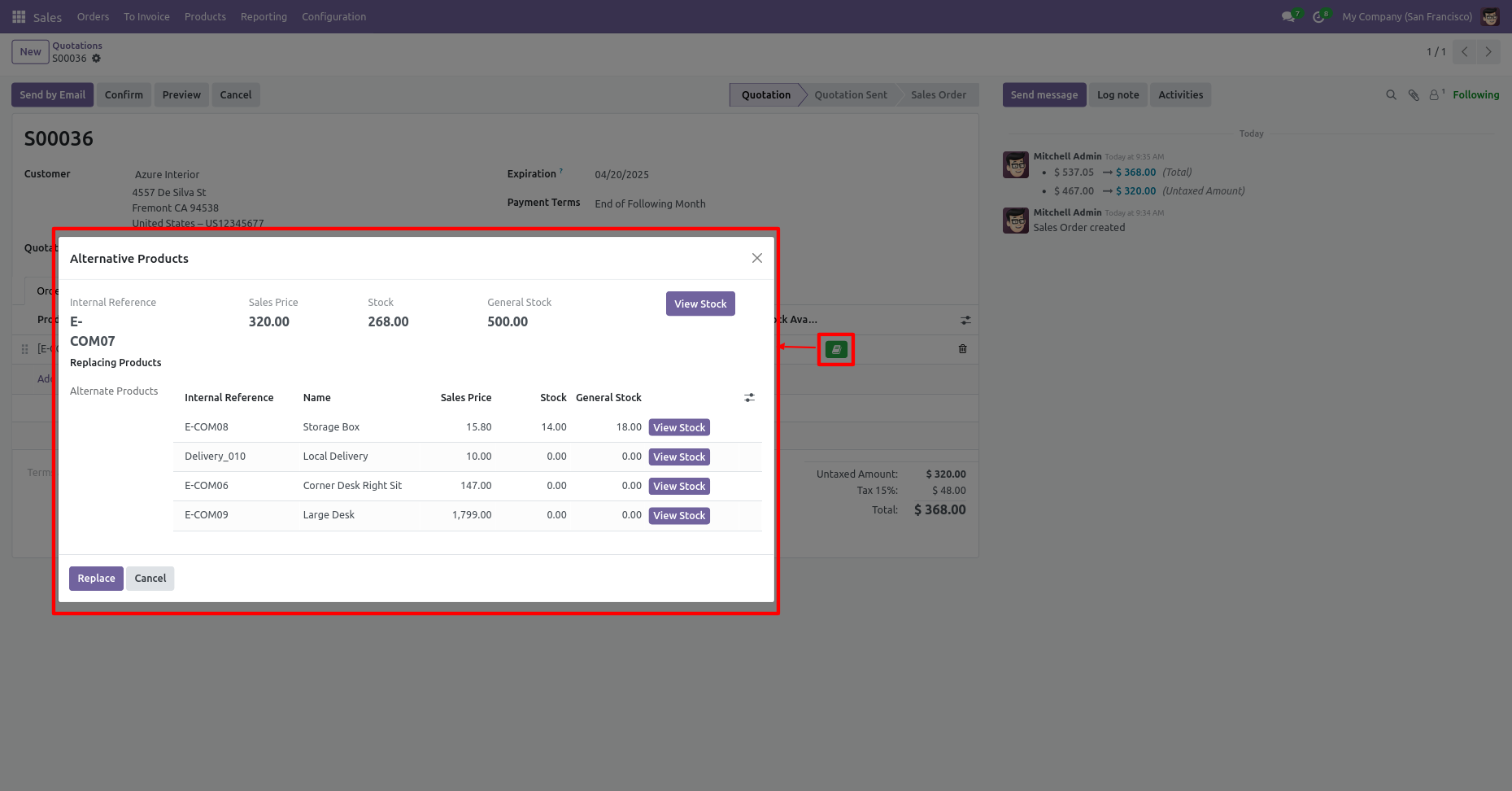
Just click here, and after that one popup will pop out where you can select alternative products.
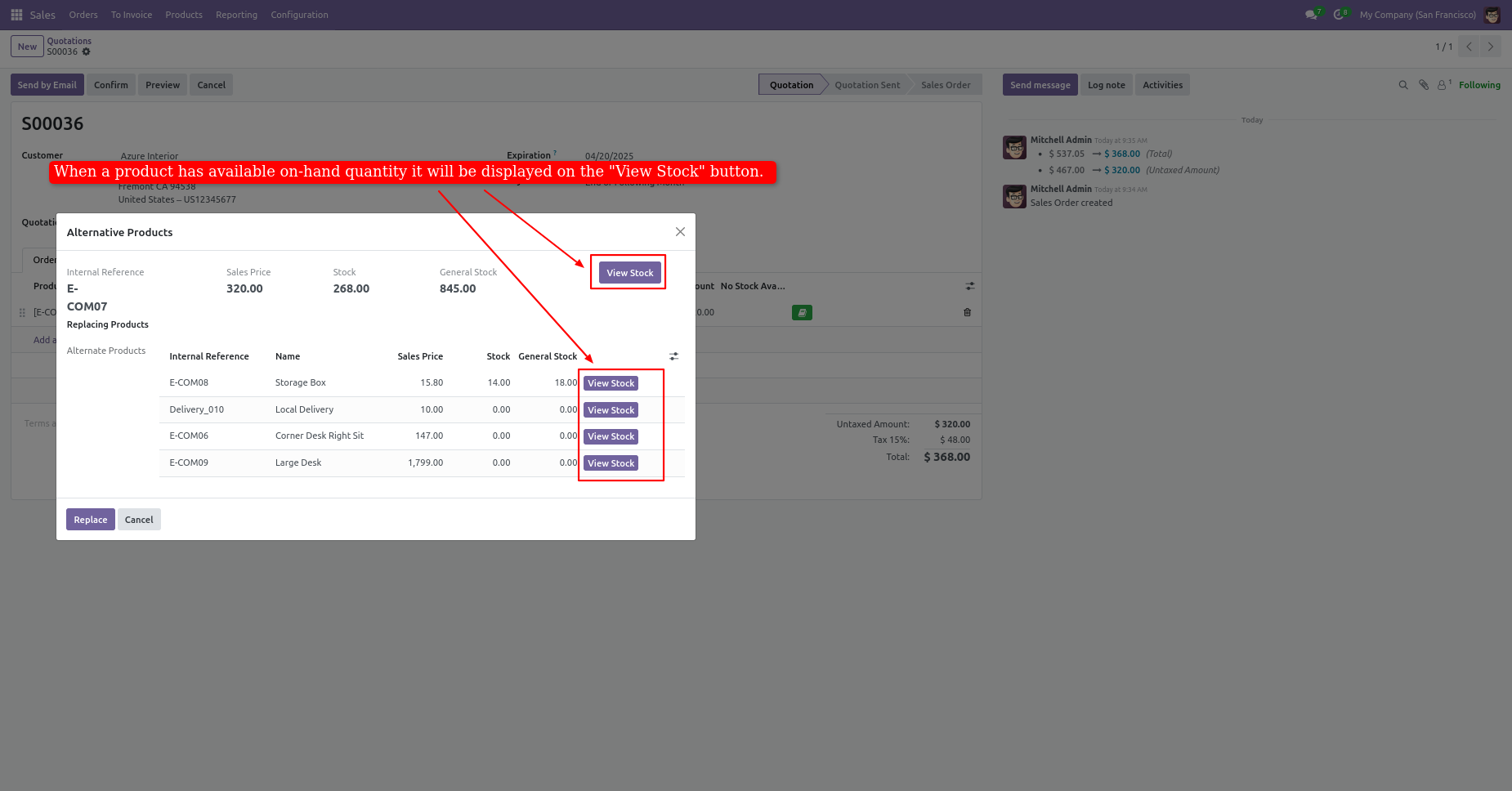
You can see the stock of the product from the 'View Stock' button.
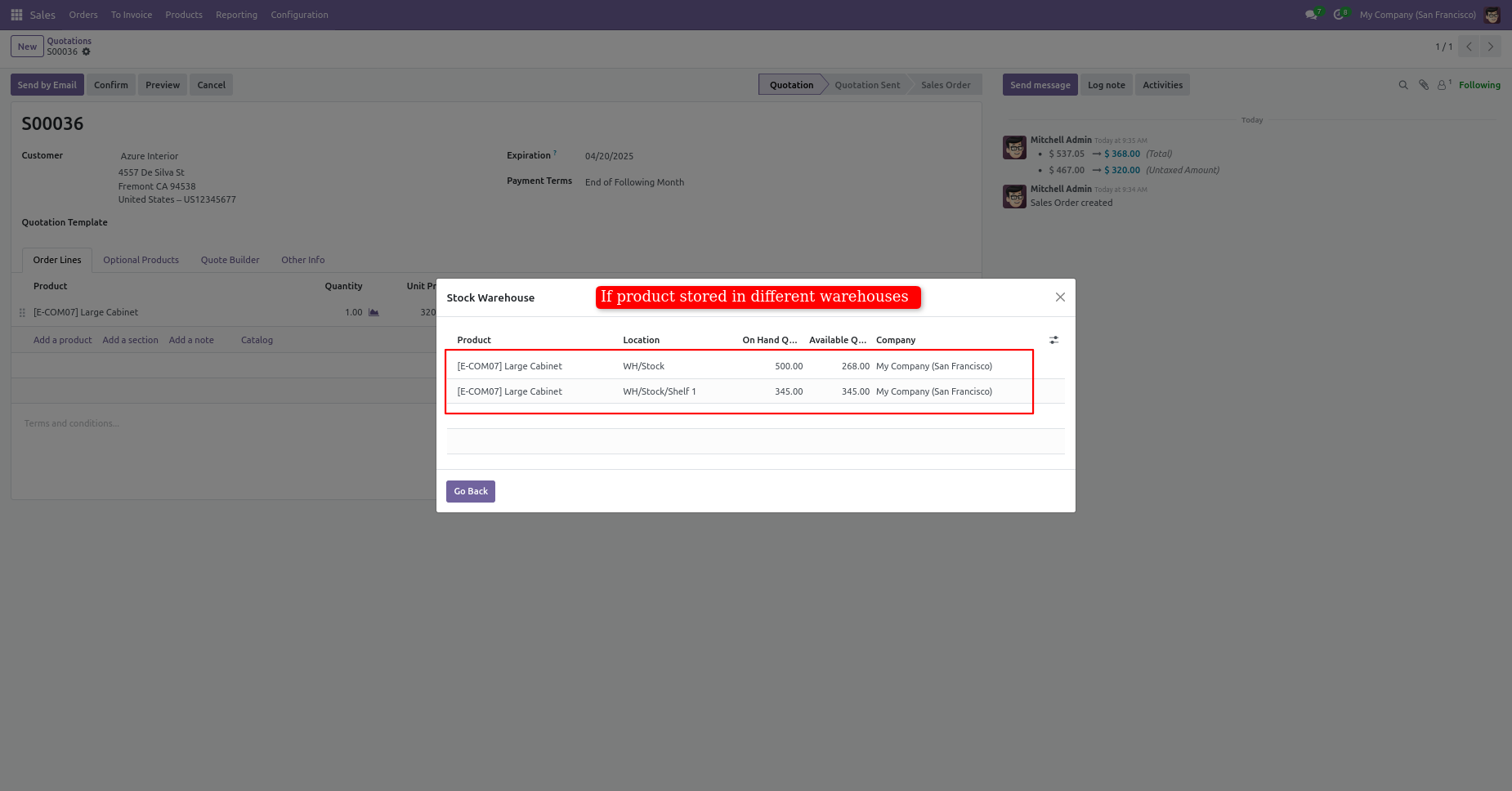
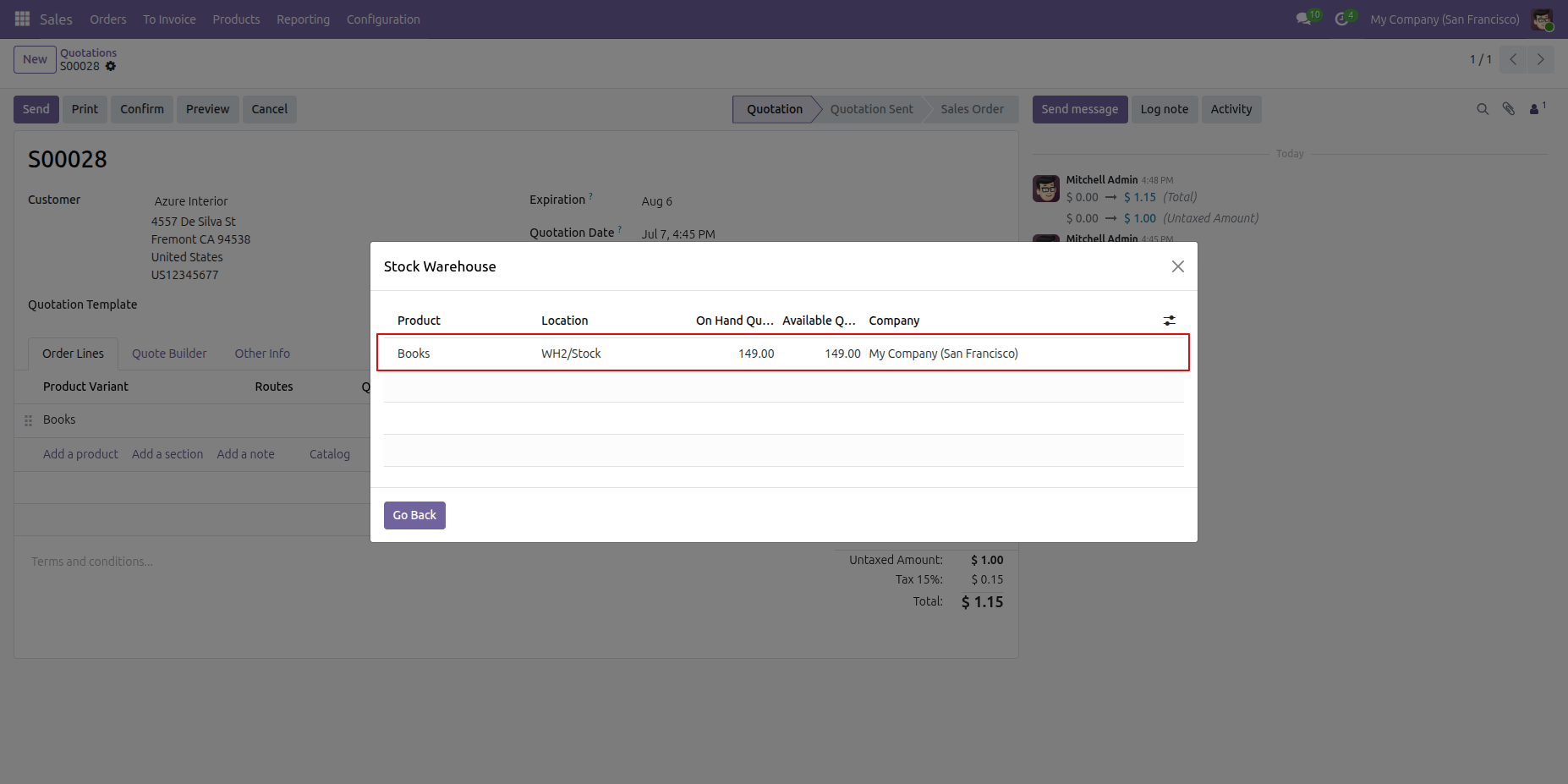
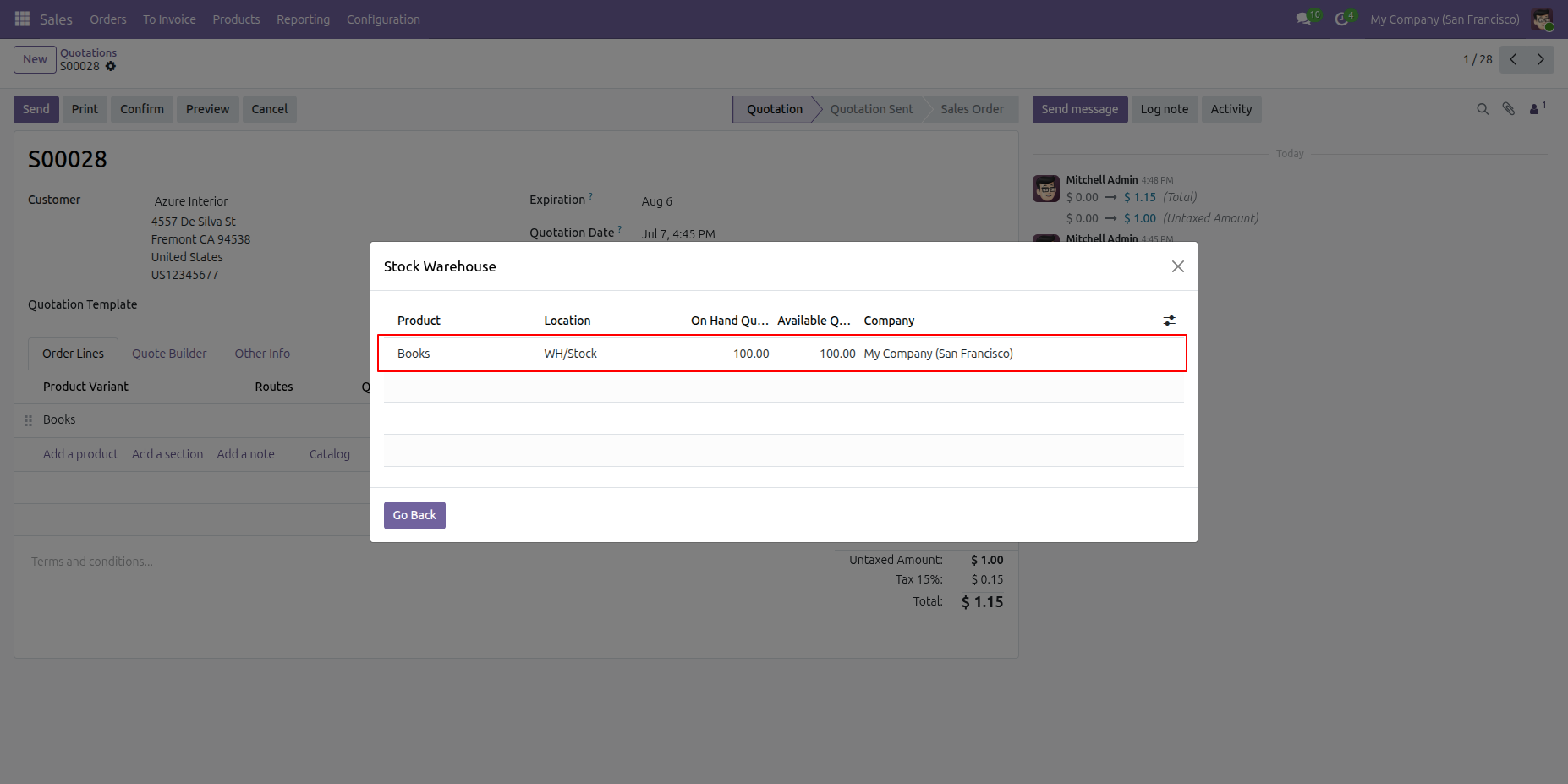
It shows product stock in different warehouses.
Select the product which you want to replace and click on the 'Replace' button.
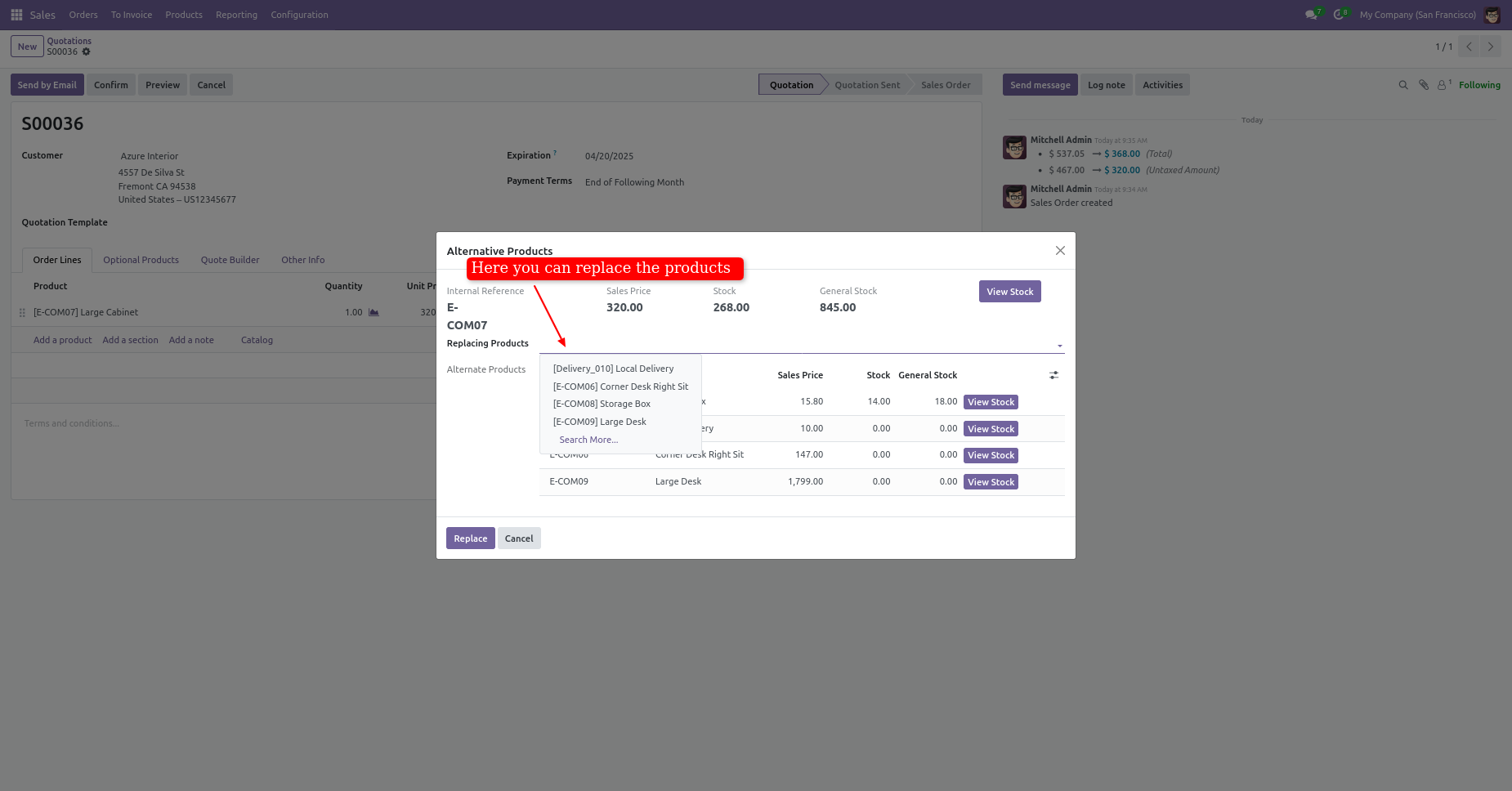
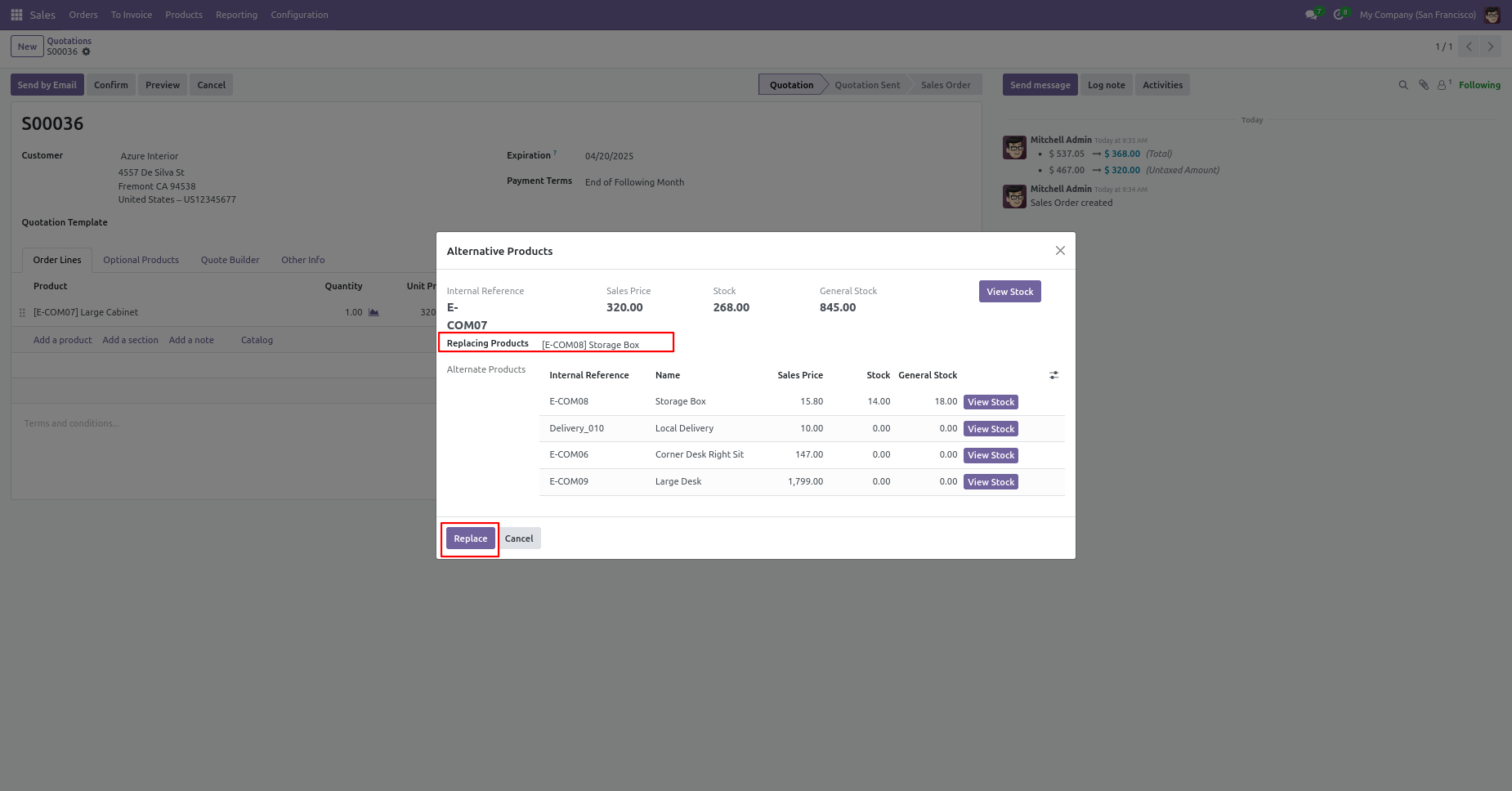
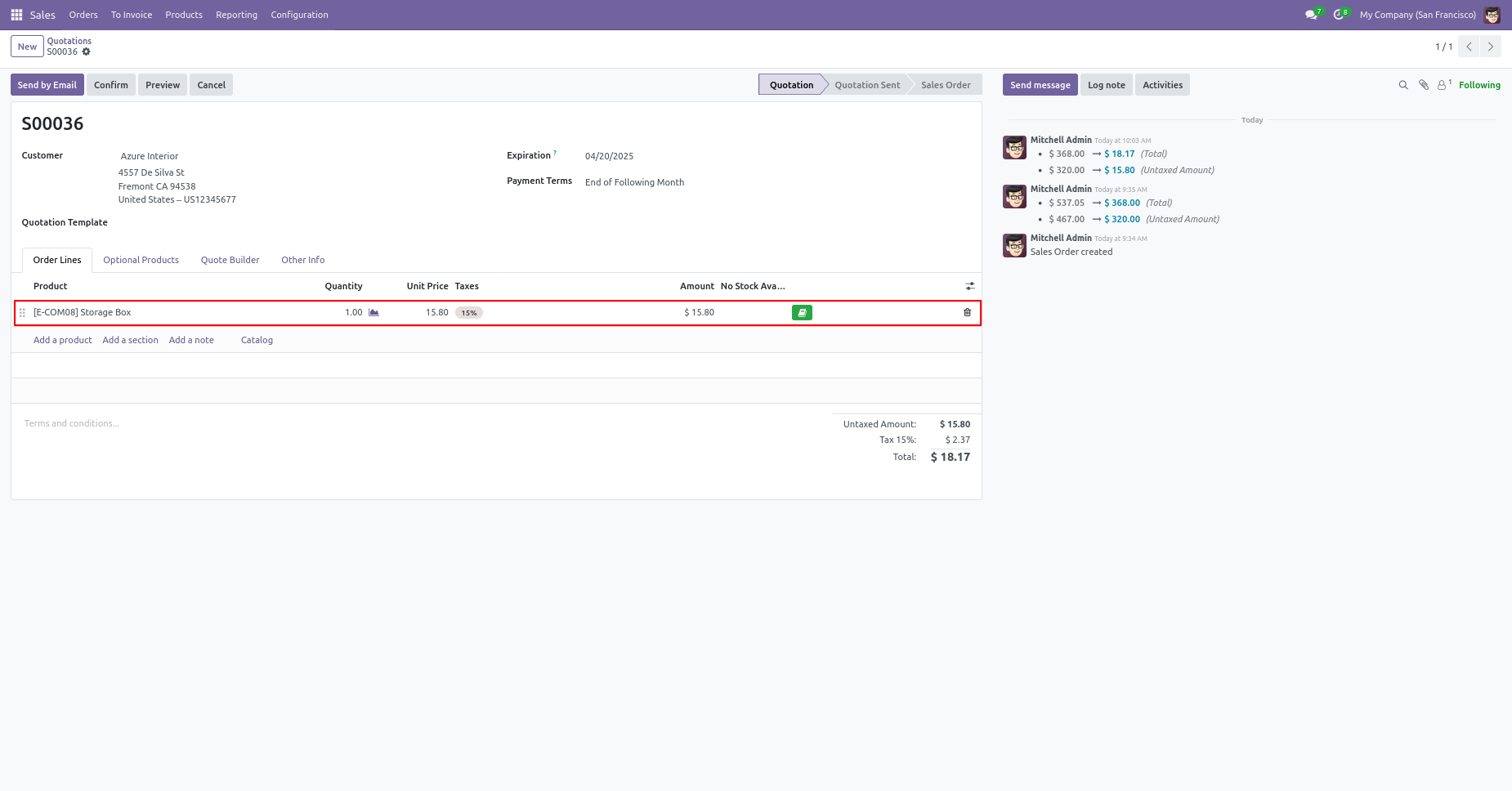
If you change products from the alternative products wizard then it also changes in the sale order line.
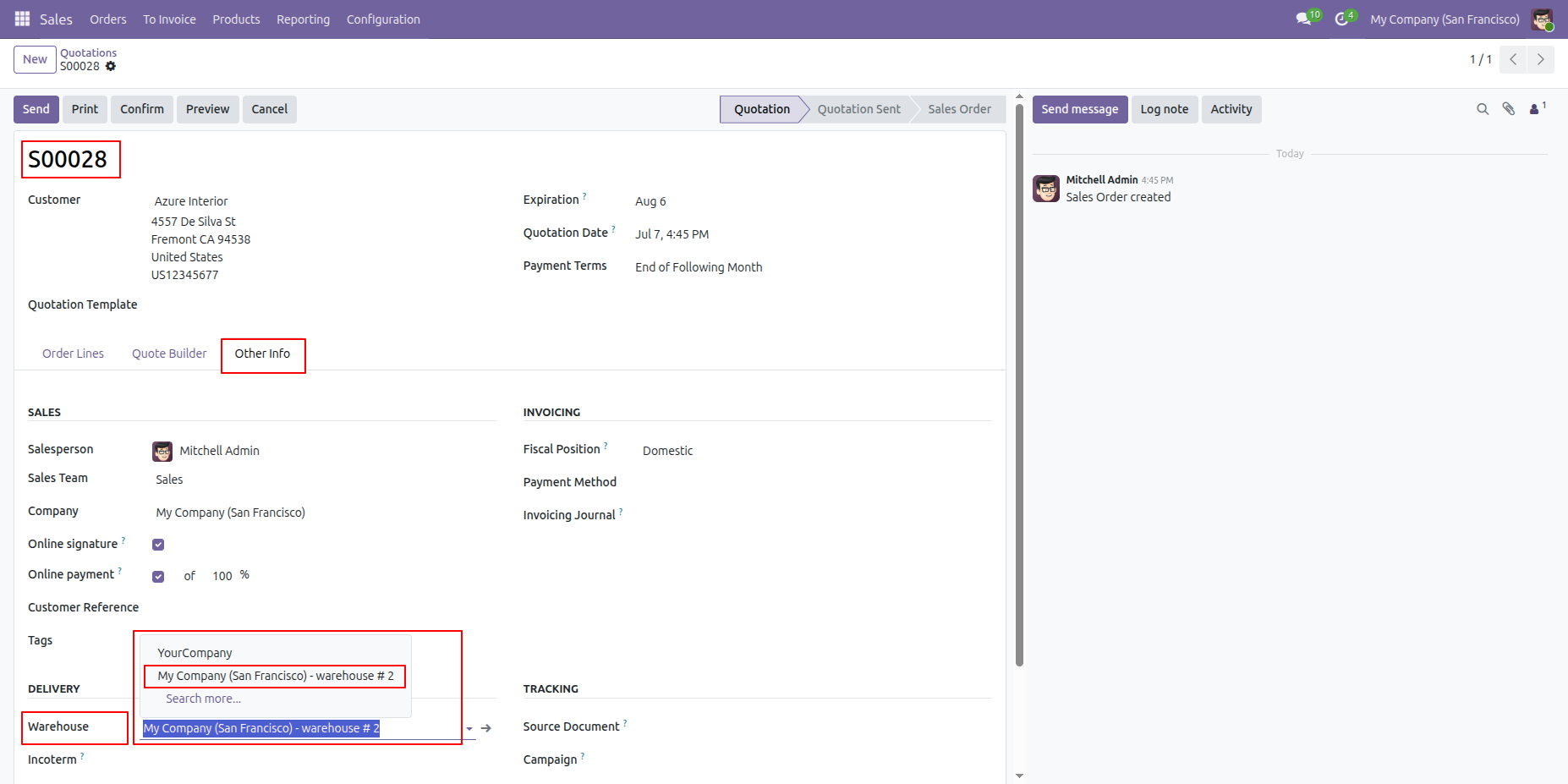
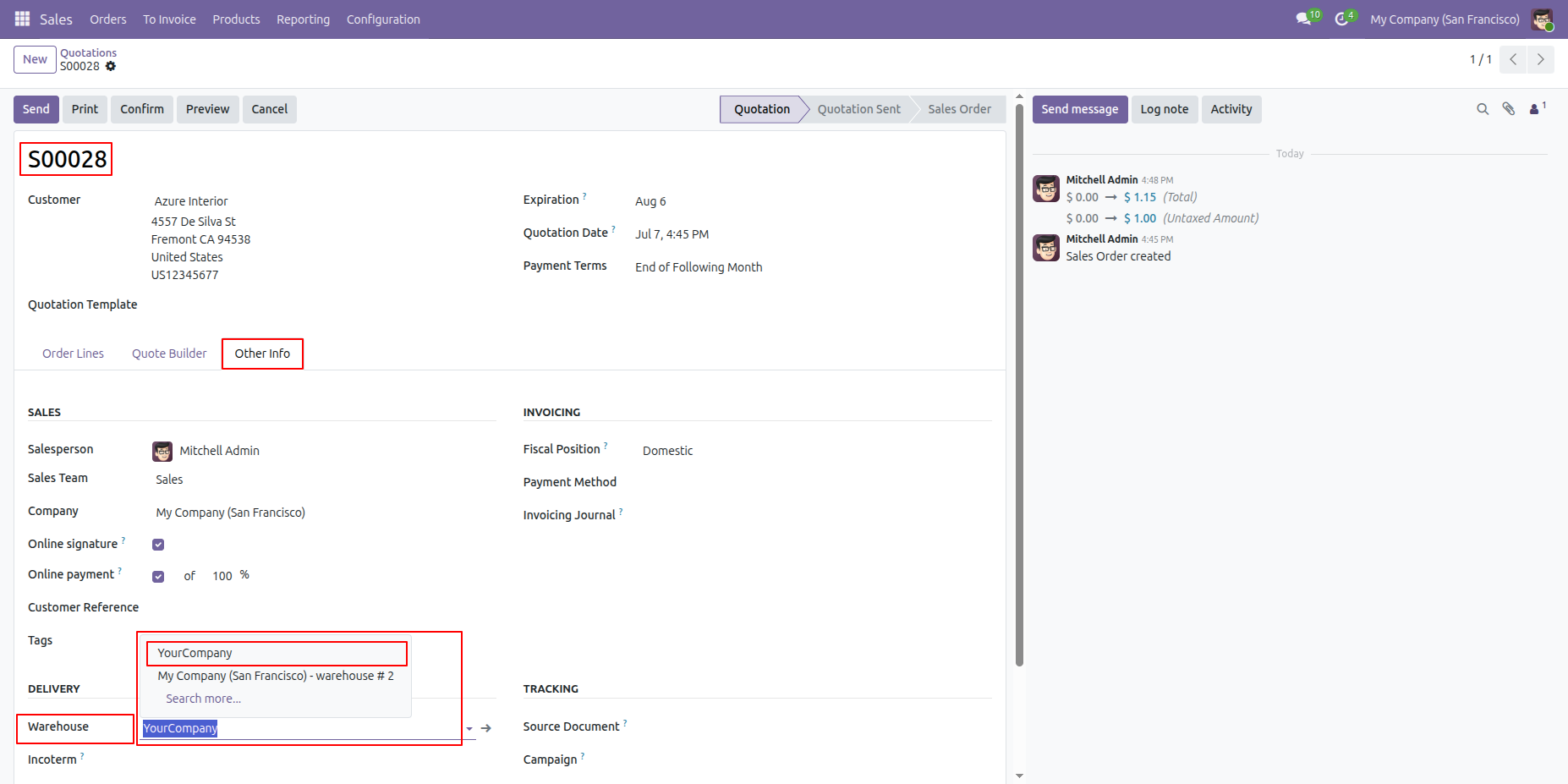
Create a Sales Order, then open the Other Information tab and select the required Warehouse.
If the selected product does not have sufficient stock in the chosen warehouse, a red stock indicator will be displayed on the corresponding Sales Order Line.
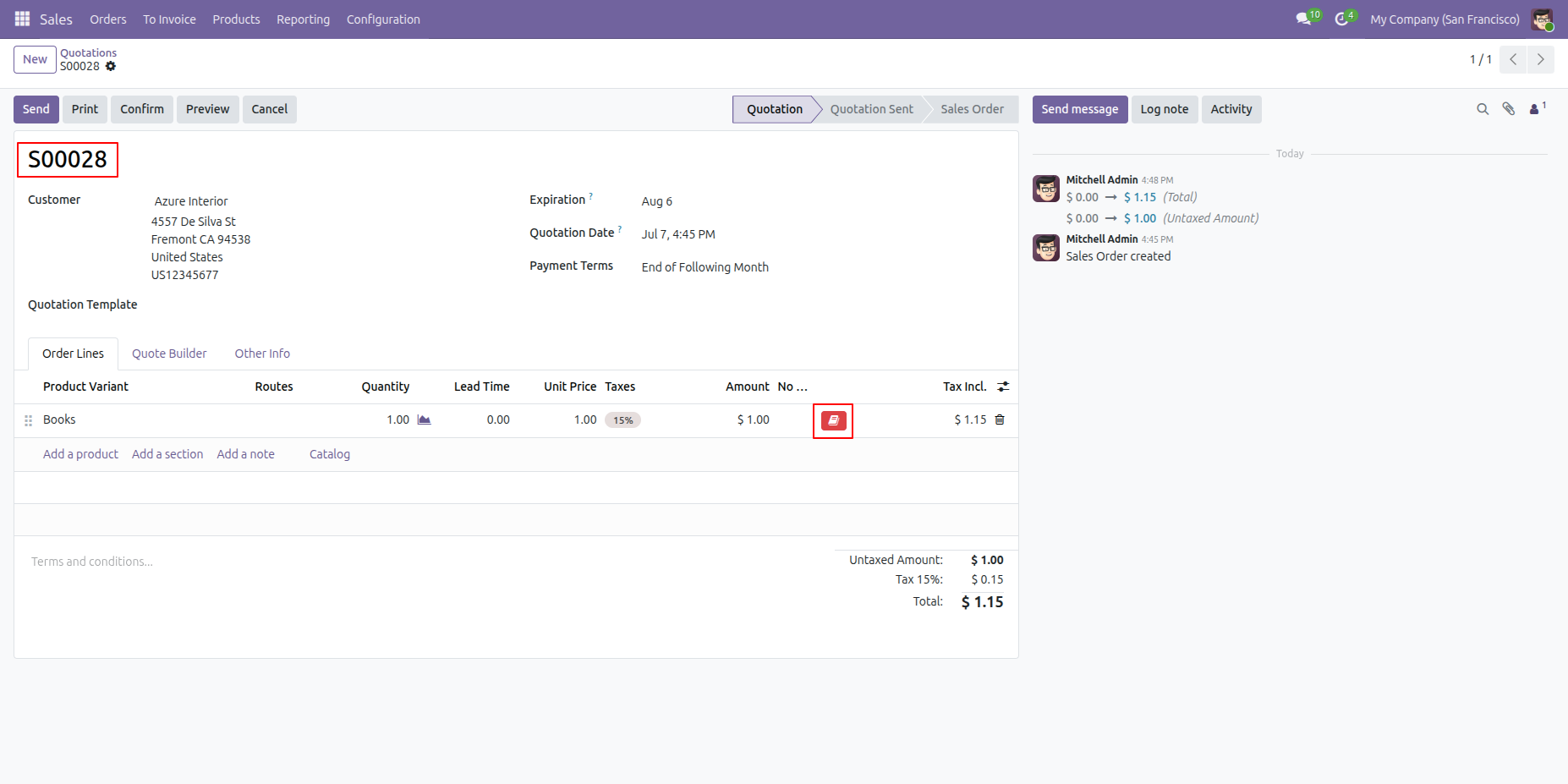
Click the red stock icon to open the Alternative Product wizard. Then click the View Stock button to check the available stock for the alternative products.
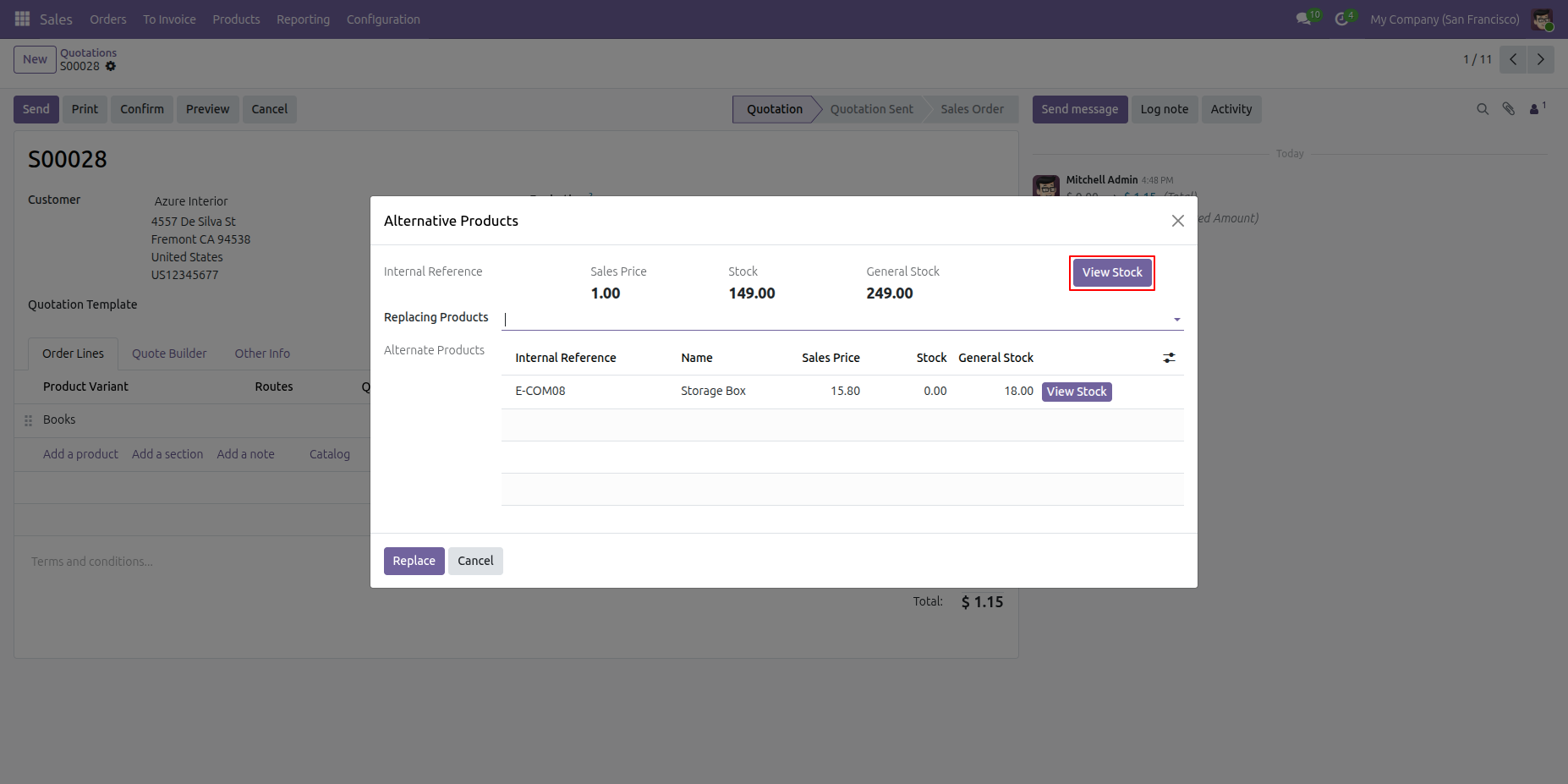
The Stock Warehouse wizard opens and displays the available stock across warehouses, helping users identify where the product is currently available.
Create a Sales Order, then open the Other Information tab and select the required Warehouse.
If the selected product have sufficient stock in the chosen warehouse, a Green stock indicator will be displayed on the corresponding Sales Order Line.
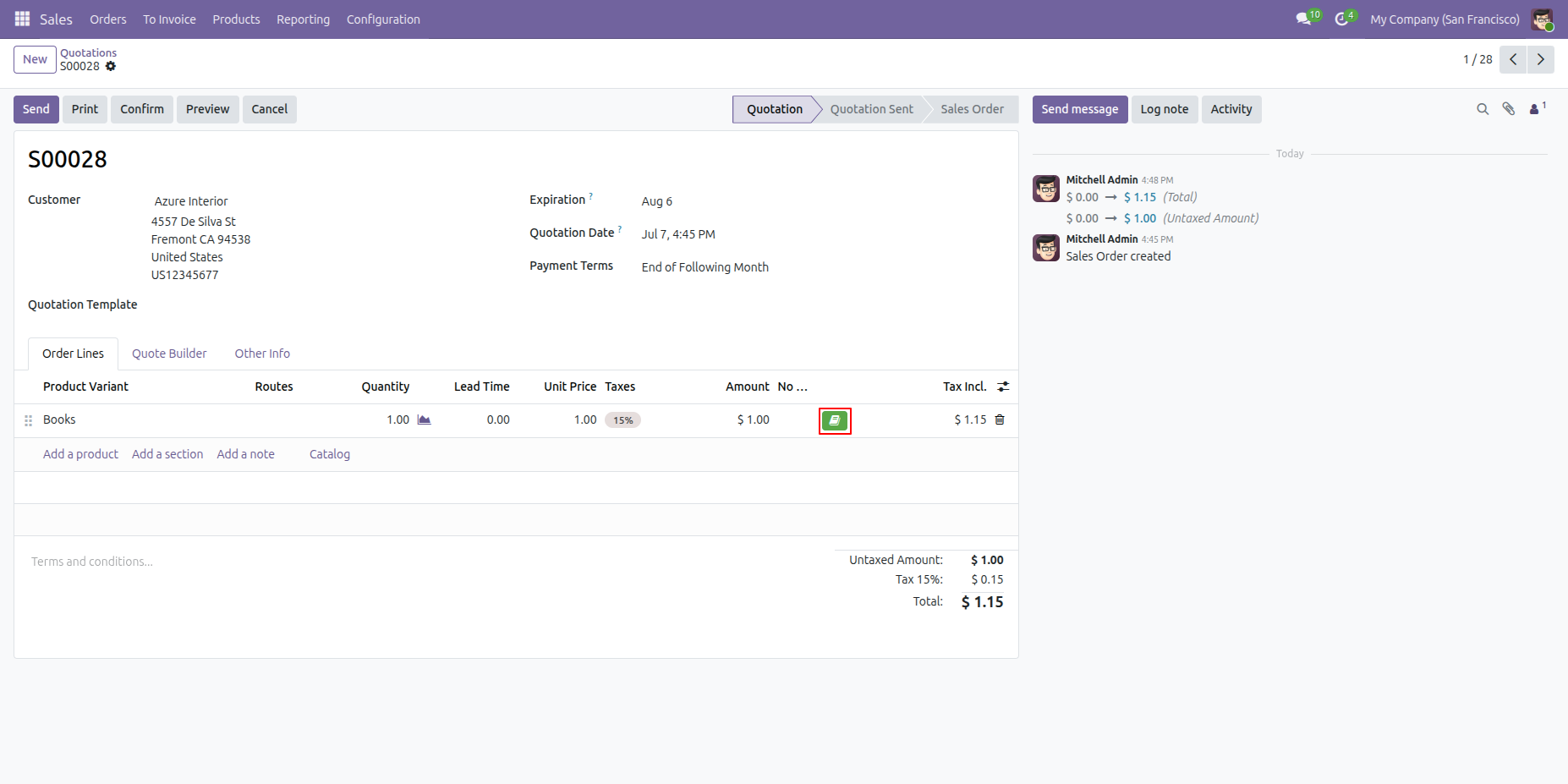
Click the Green stock icon to open the Alternative Product wizard. Then click the View Stock button to check the available stock for the alternative products.
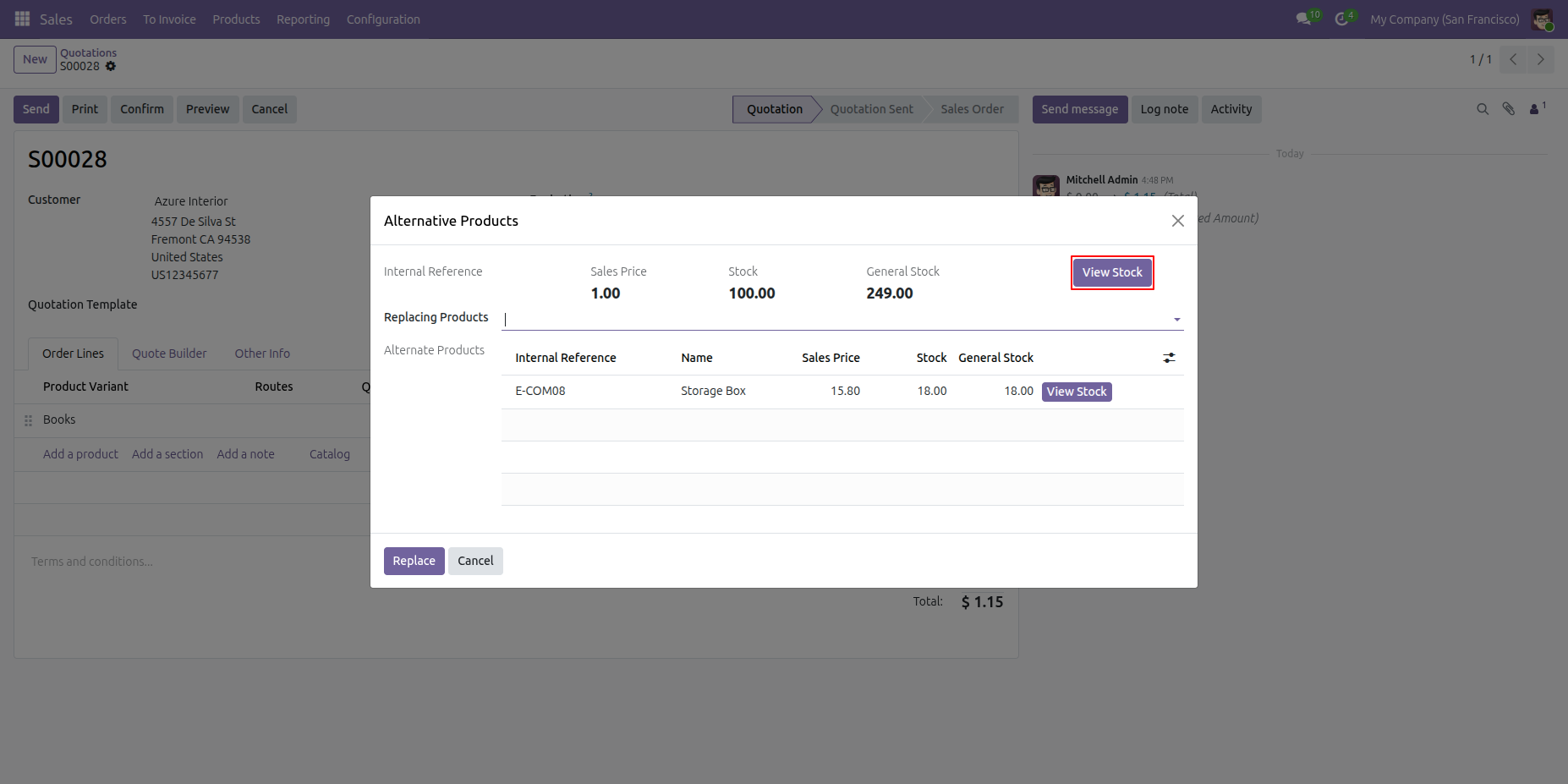
The Stock Warehouse wizard opens and displays the available stock across warehouses.
Version 18.0.4.0.0 | Released on : 8th August 2026
Version 18.0.3.0.0 | Released on : 17th March 2025
Version 18.0.2.0.0 | Released on : 30th January 2025
Version 18.0.1.0.0 | Released on : 2nd October 2024
- Yes, this app works perfectly with Odoo Enterprise (Odoo.sh & Premise) as well as Community.
- No, this application is not compatible with odoo.com(odoo saas/Odoo Online)
- No, currently it does not work if the product type is selected as a combo product. For more details, please contact our support team at support@softhealer.com.
- Yes, to test this module, please contact us at sales@softhealer.com.
- Please contact us at sales@softhealer.comto request customization.
- Yes, we provide free lifetime support for the version you purchased.
- Yes, you will receive lifetime free updates for the version of the module you purchased.
- No, there is no need to install any additional libraries.
- Yes, for version 12 and above, you need to purchase the module separately for each version you intend to use.
- No, exchanges or refunds are not allowed. Please make sure to select the correct version before purchasing.
- You can contact us at support@softhealer.com for language translation support. We use Google Translator tools to provide translations in multiple languages, so the accuracy may vary. We welcome your suggestions to help improve translations.
Discover Our Latest Apps