

 Easy to Manage
 Dedicated Support
















 Scan to email sales






All In One Stock Reports

Using our module, you can generate a comprehensive range of inventory reports, including the Non-Moving Products Report, FSN (Fast, Slow & Non-Moving) Inventory Report, Stock by Location, Stock Card Report, Product Attribute-Wise Stock Report, XYZ Inventory Report, Inventory Age & Age Breakdown Analysis, Inventory Out of Stock Report, Inventory Overstock Report, and Inventory FSN-XYZ Combined Analysis. Gain valuable insights into stock movement, inventory ageing, stock availability, excess inventory, product attributes, and demand variability to improve inventory management and make informed business decisions.
Related Modules


Features
- You can generate a non-moving product report.
- The report can be generated in PDF and XLS format.
- You can generate a report between any dates.
- Easy to print reports based on warehouse and location.
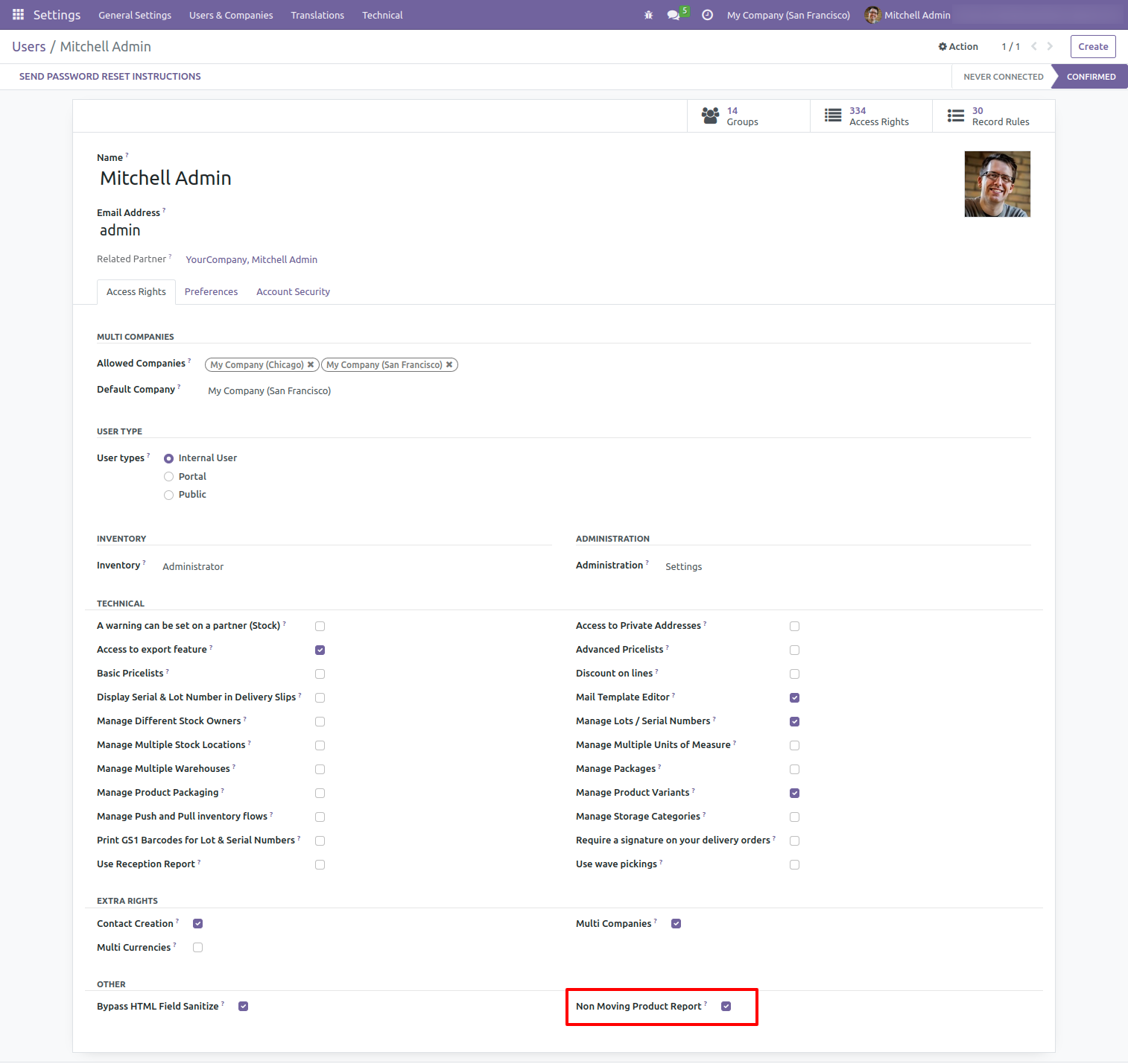
Enable non-moving product report.
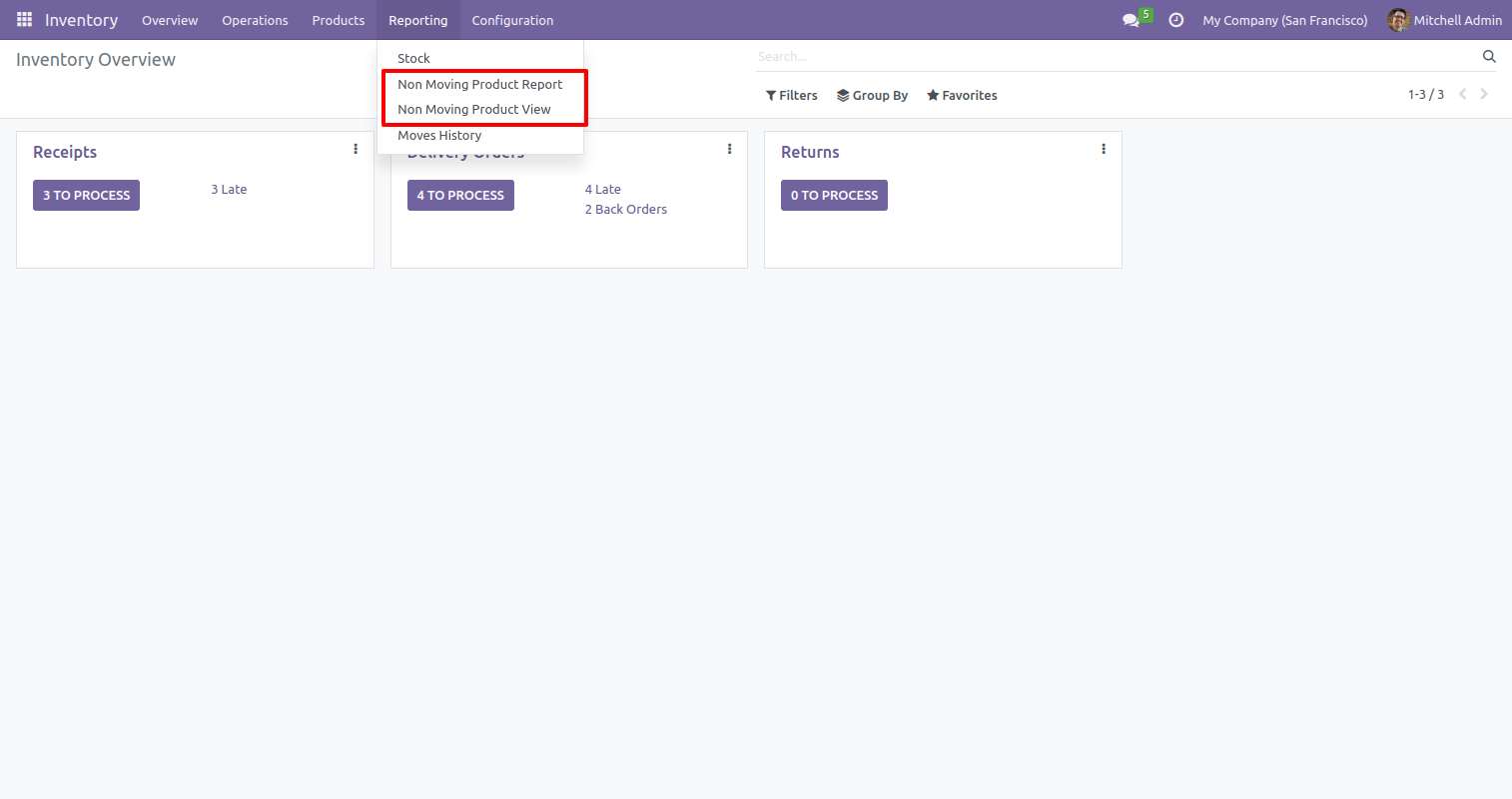
Two menus for non-moving product reports and views.
Non-Moving product report wizard, Here you have to add from date, to date, warehouse/location, and select products.
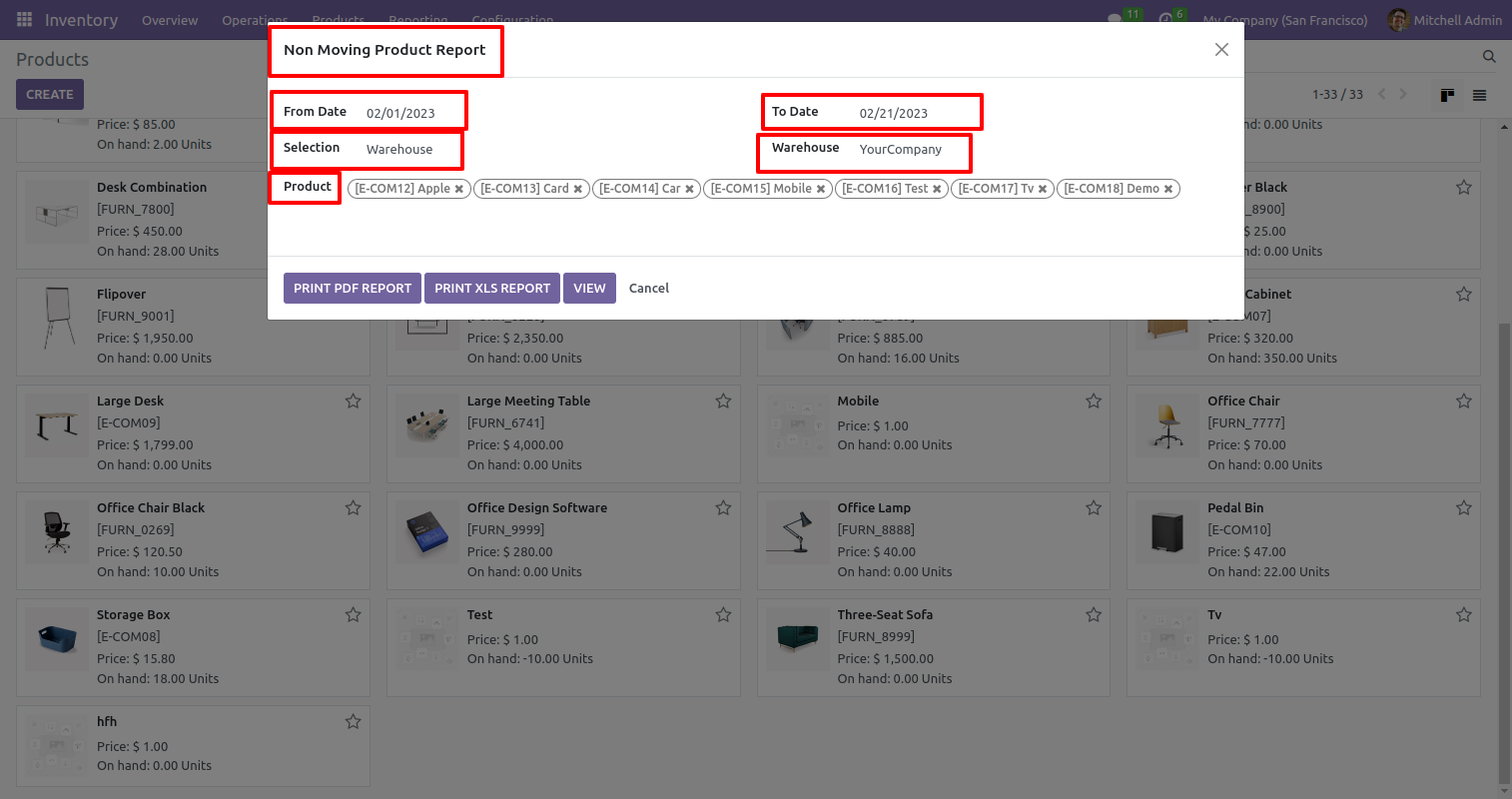
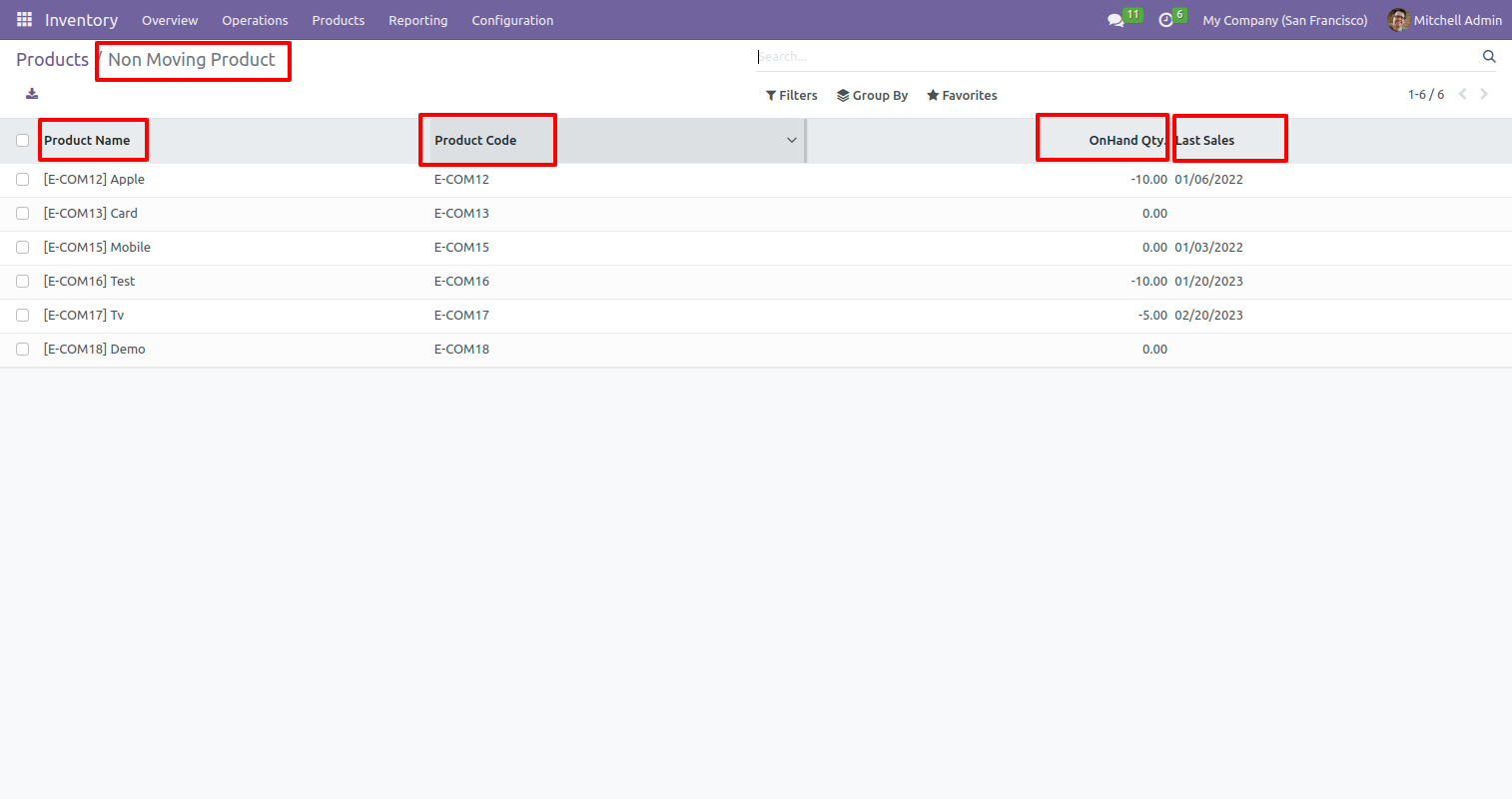
You can print PDF and XLS reports. Also, you can see the tree view of the report using the 'View' button.
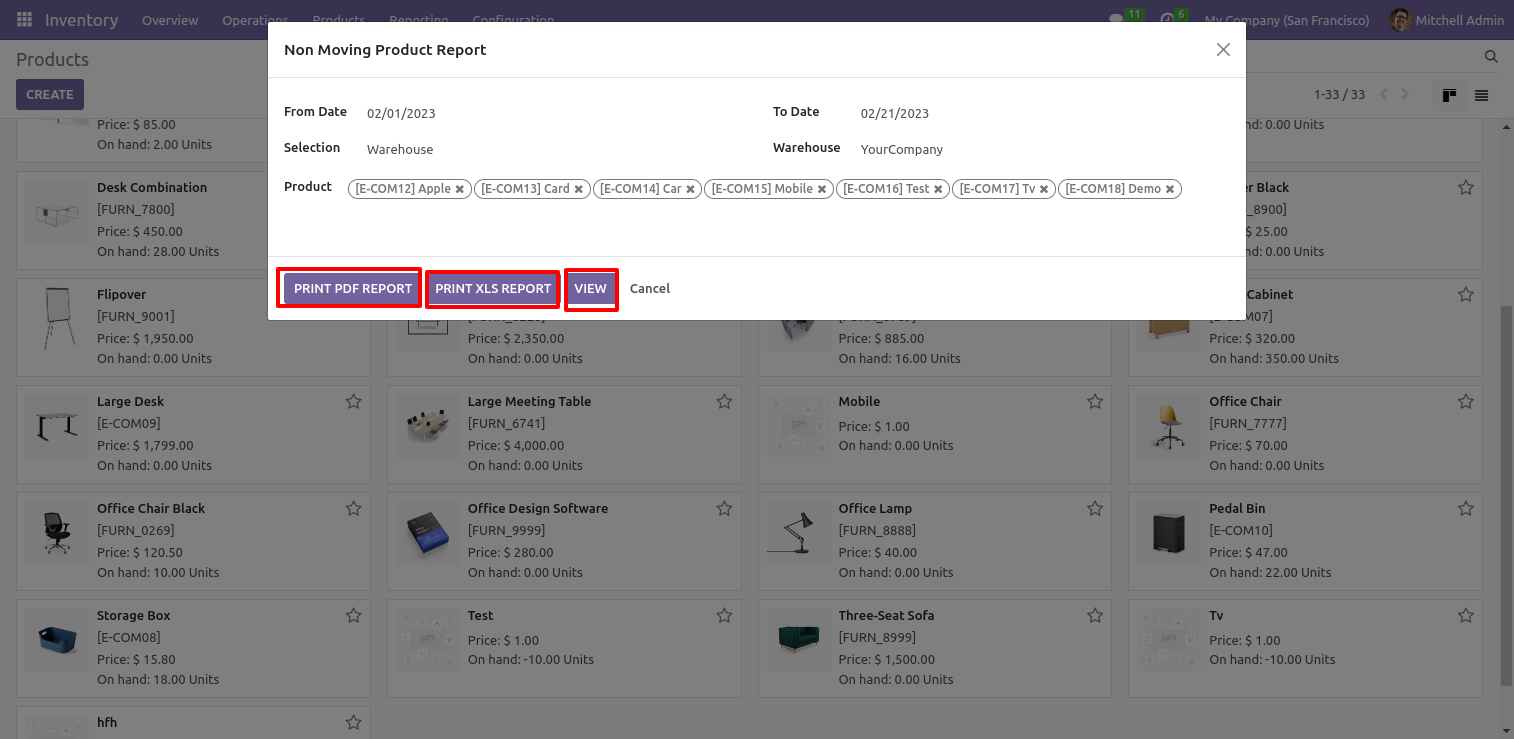
PDF Report.
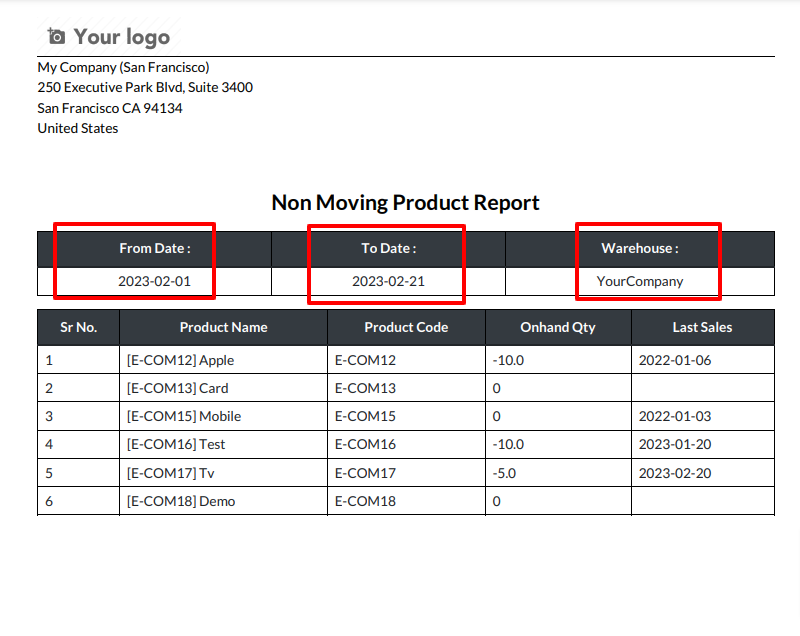
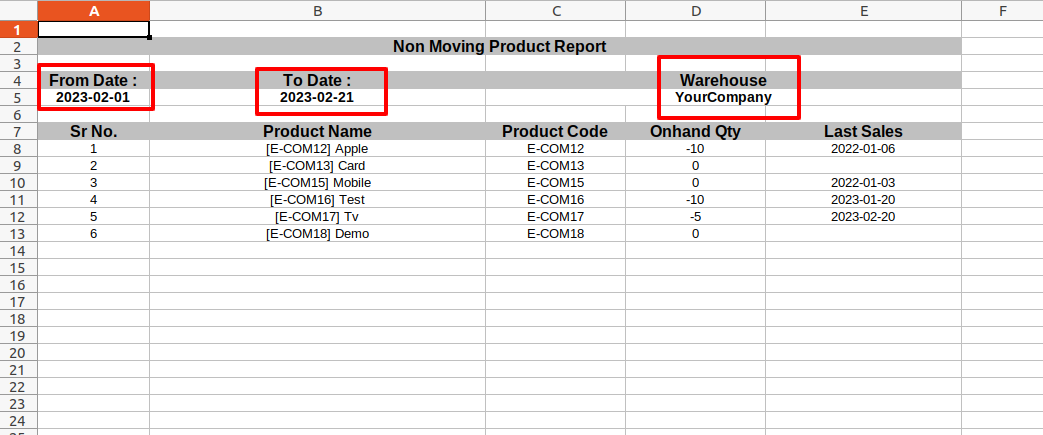
Excel Report.
Tree view of non-moving product report.
Features
- You can generate an FSN inventory report.
- Report can be generated in PDF and XLS format.
- You can generate report between any dates.
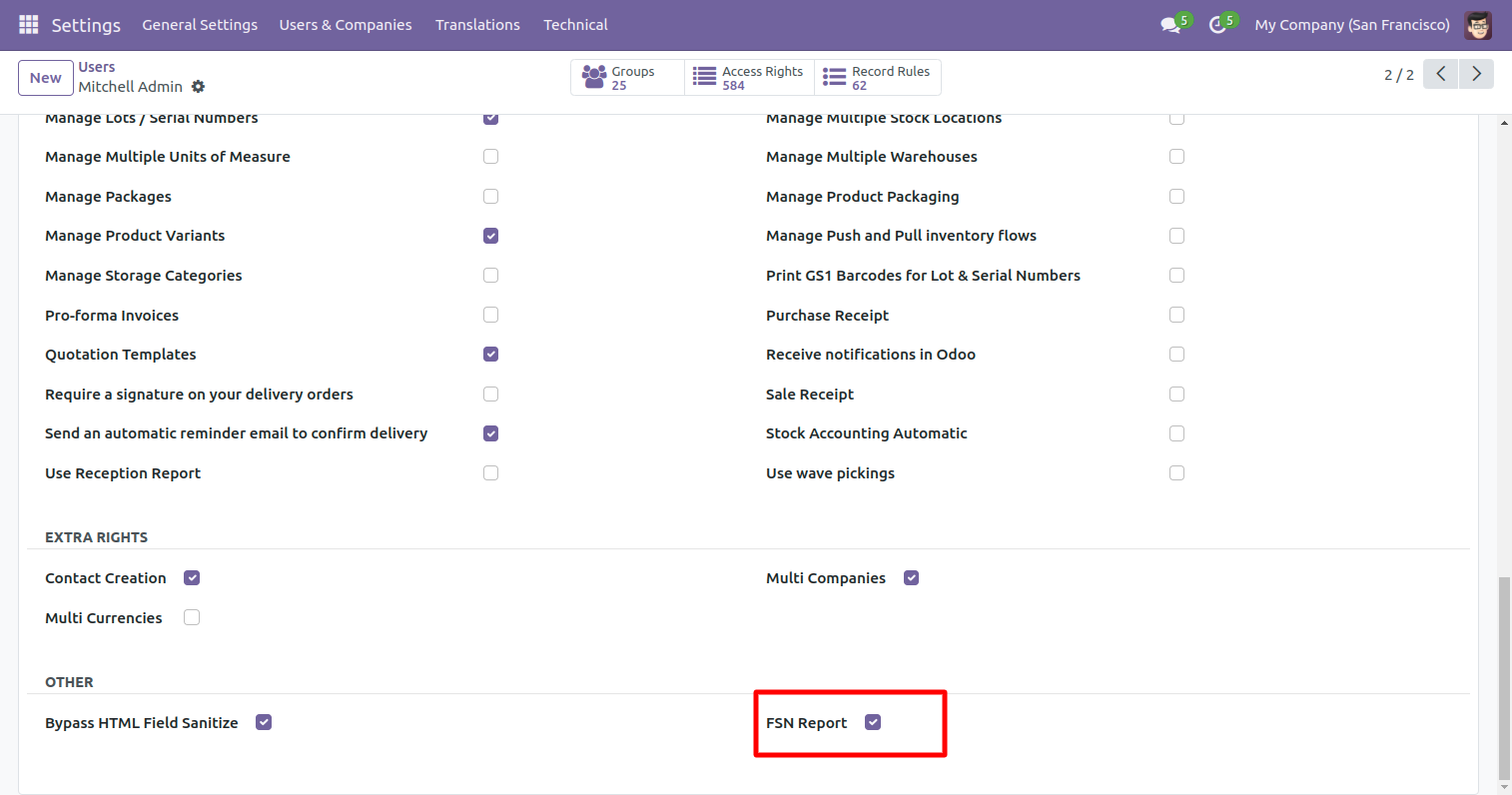
Go to the User enable 'FSN Report' Tick box.
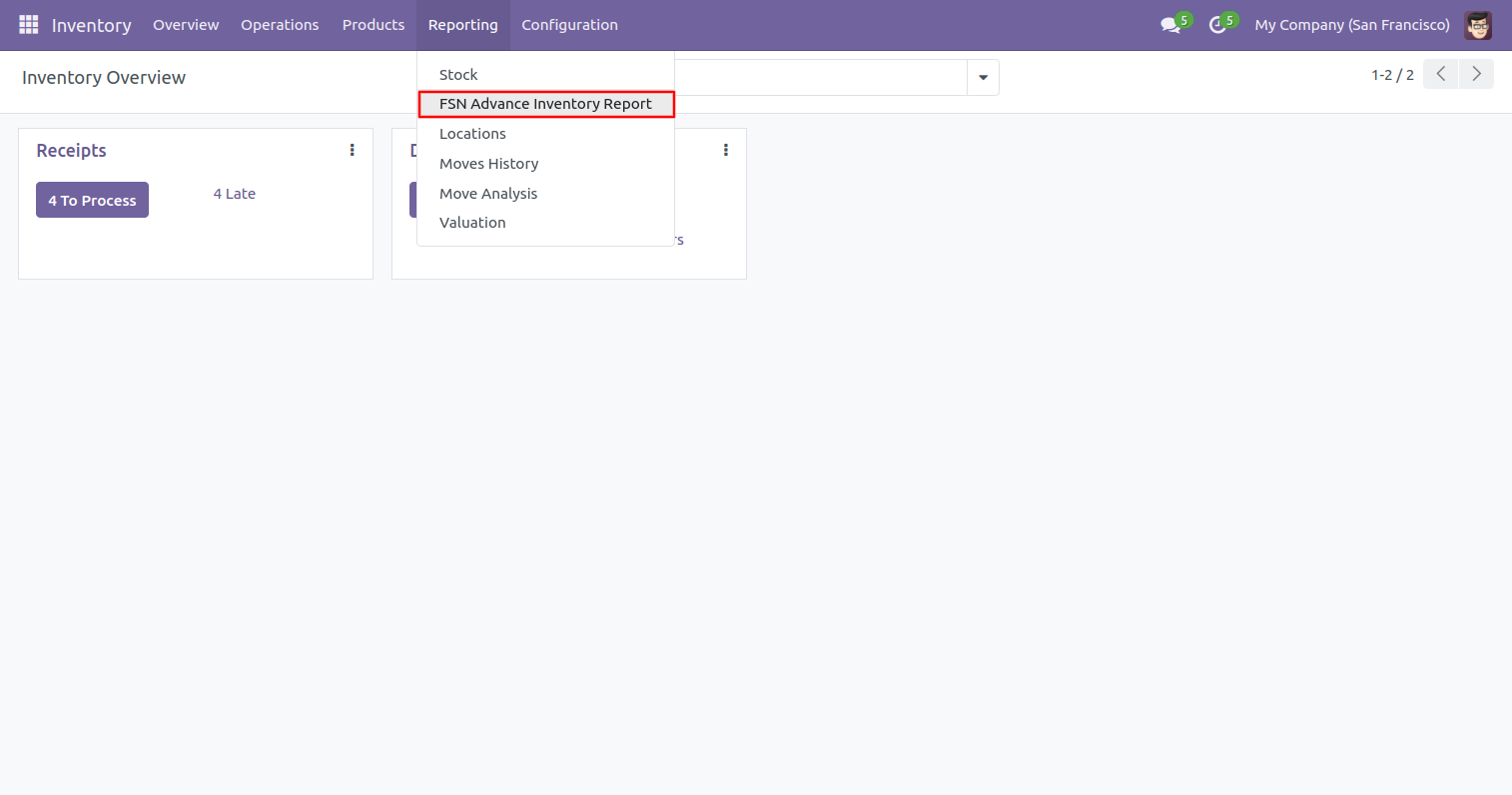
Go to the 'FSN Advance Inventory Report' menu.
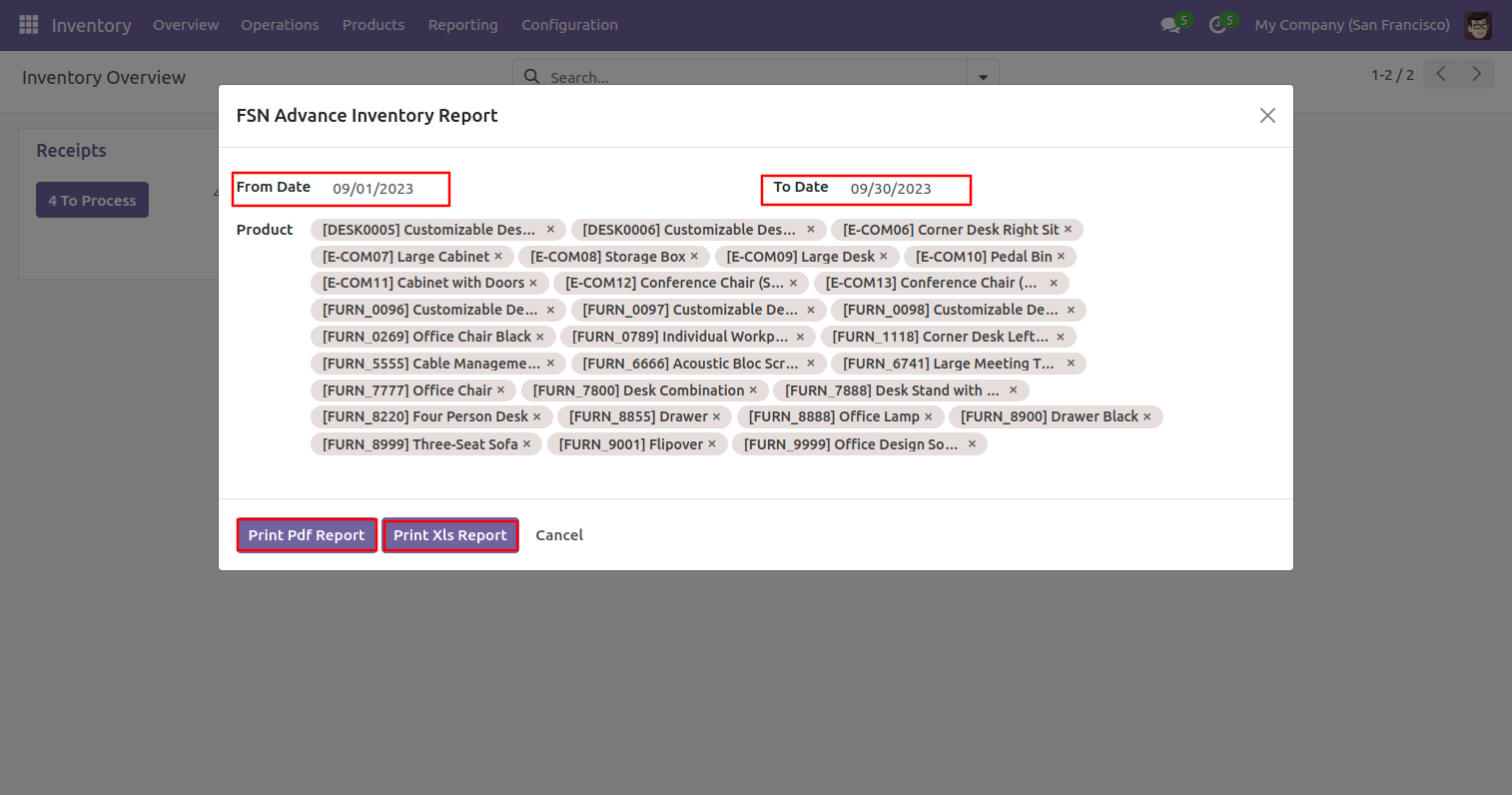
After that one wizard opens, fill the details, and press
the 'Submit' button.
Print XLS and PDF report.
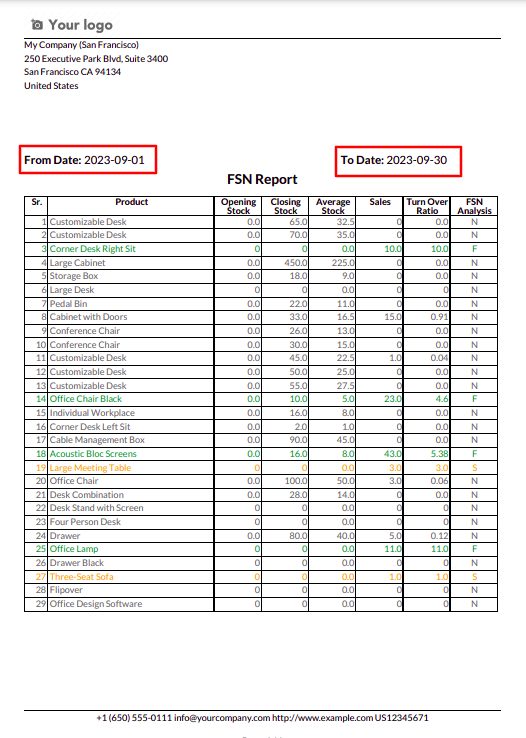
PDF report looks like this.
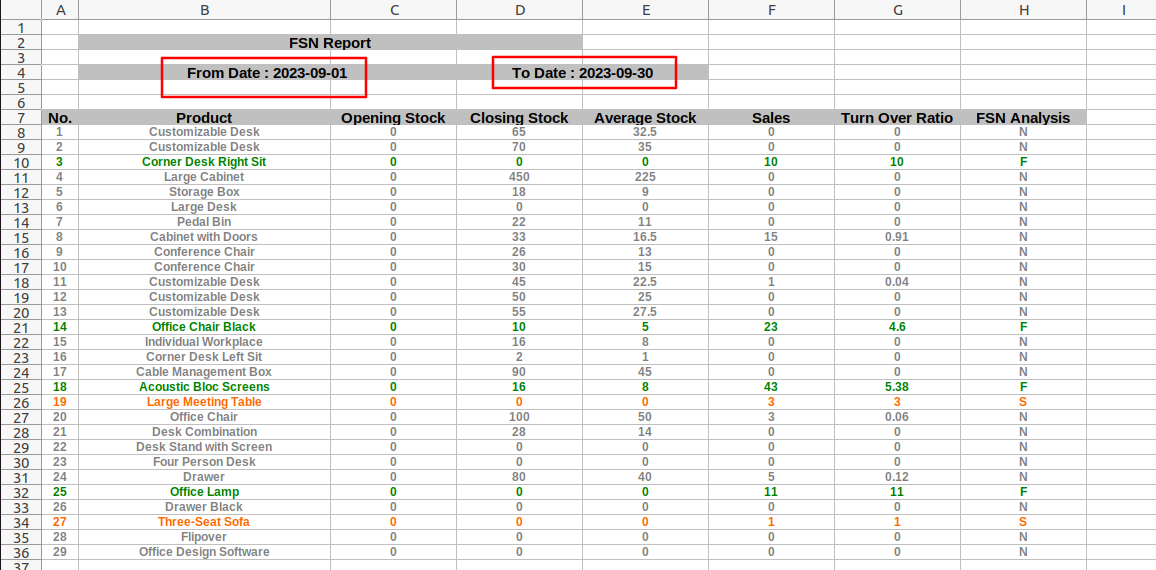
XLS report looks like this.
Features
- You can print stock by location XLS report.
- Easy to filter by from date and to date. Fetch stock by location from date and to date.
- Easy to track stock by location of products variant.
- Easy to print stock by location of products variant.
- Easy to track stock by location of the product template.
- Easy to print stock by location of products template.
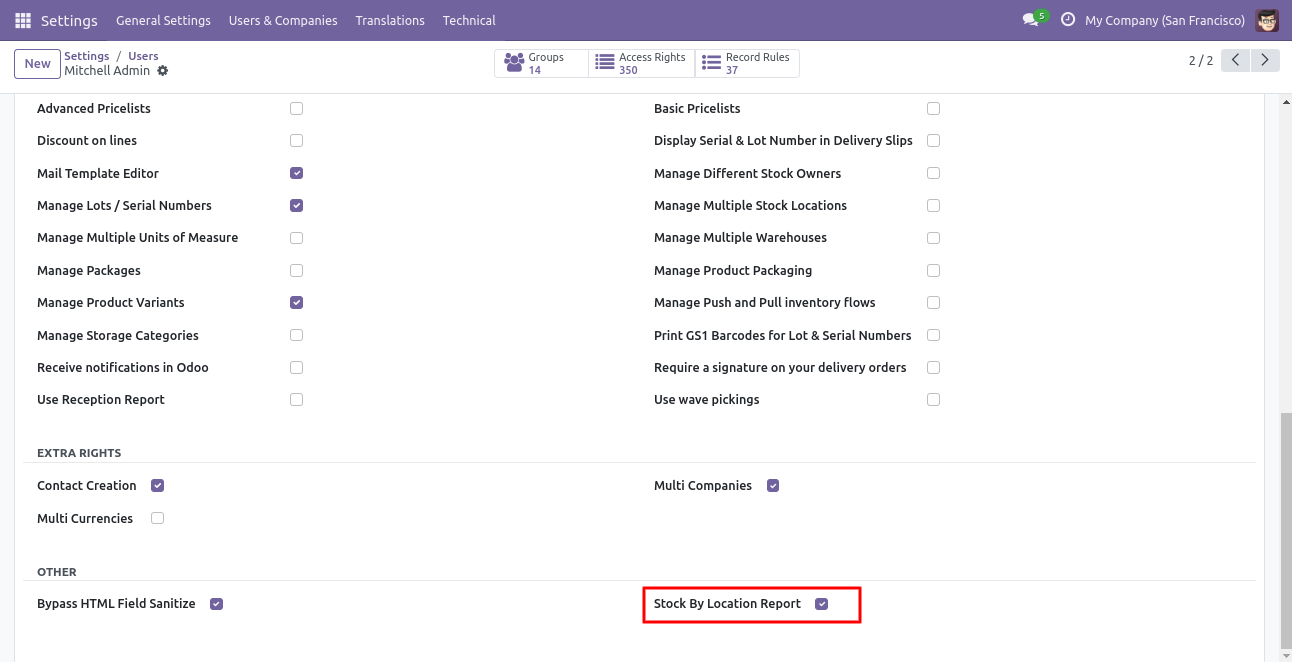
Goto user enable 'Stock By Location Report' feature.
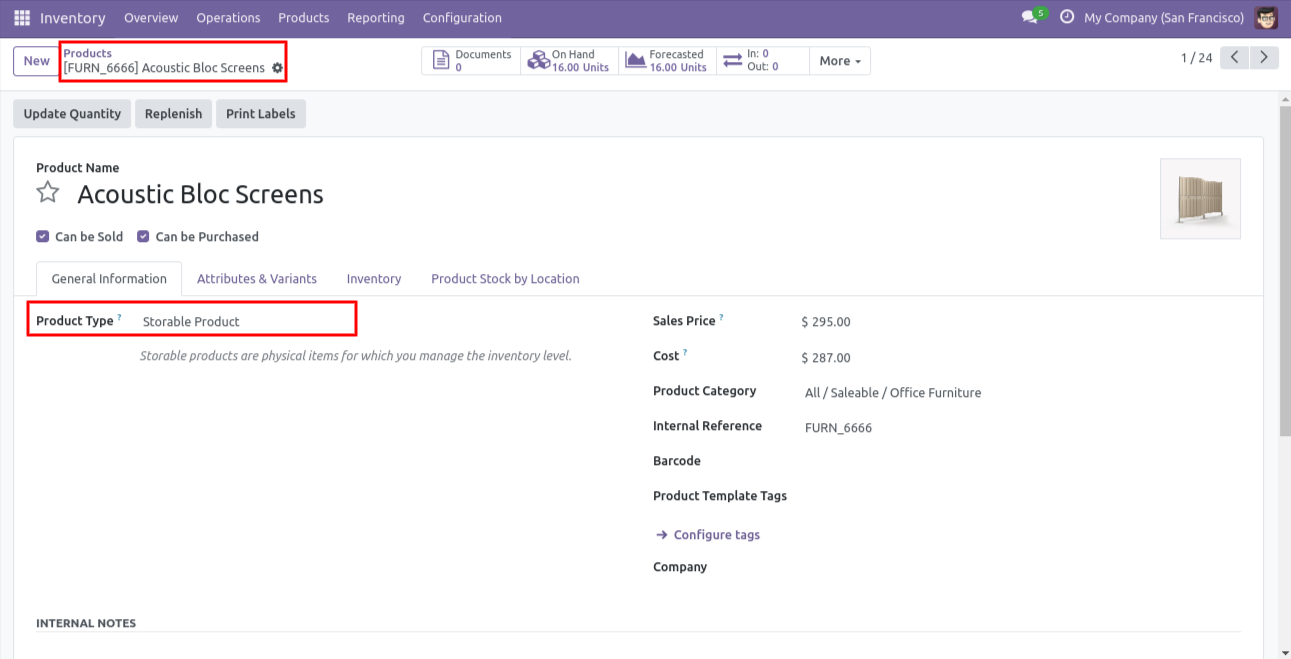
We can know location wise stock of product and its variants for Stockable type product.
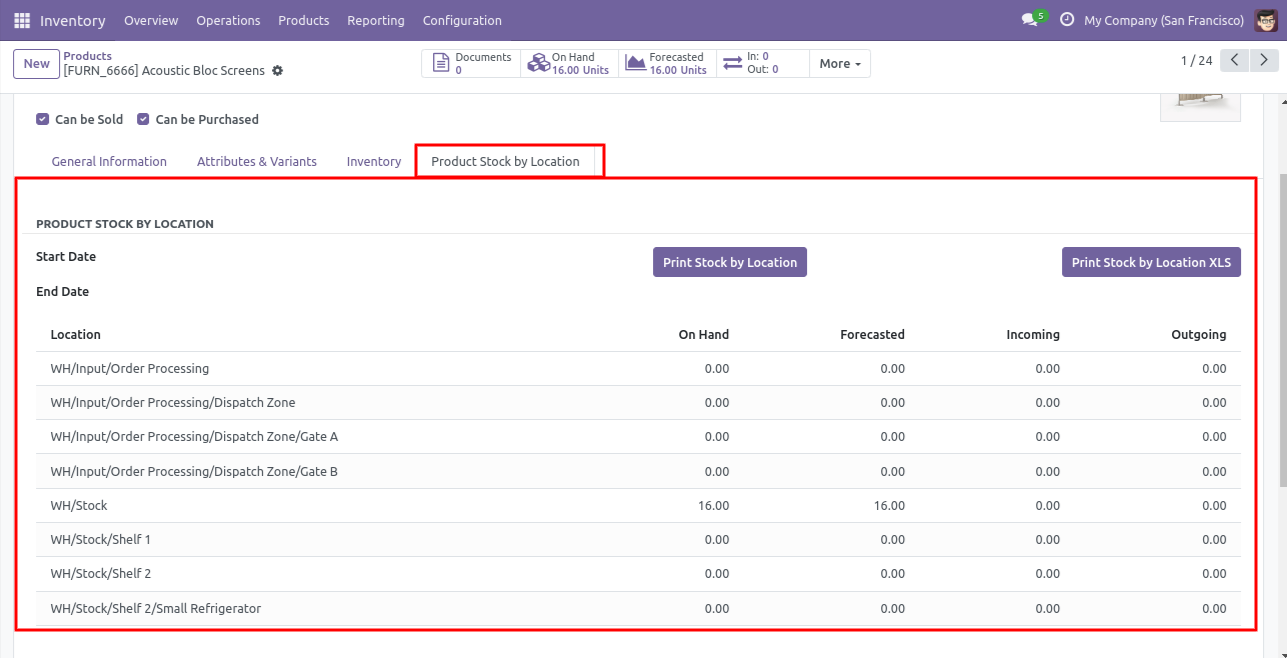
Location Wise Stock of Product by On Hand , Forecasted, Incoming and Outgoing Quantity.
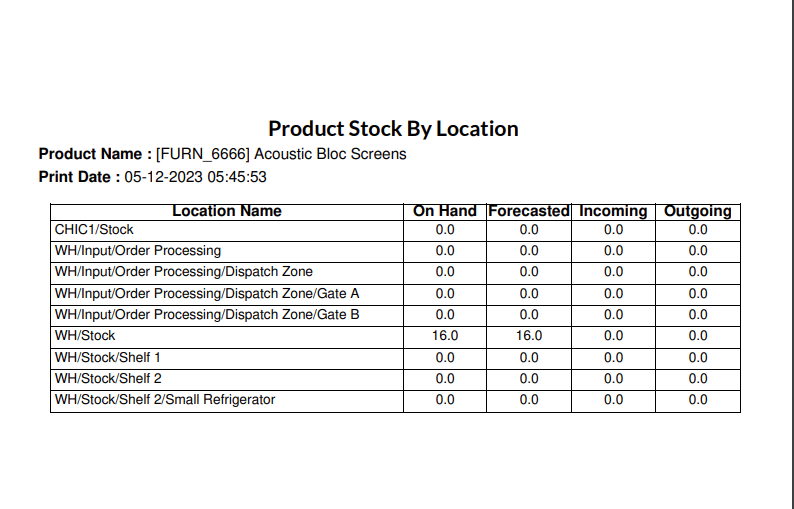
Pdf report for product showing stock by location at current time.
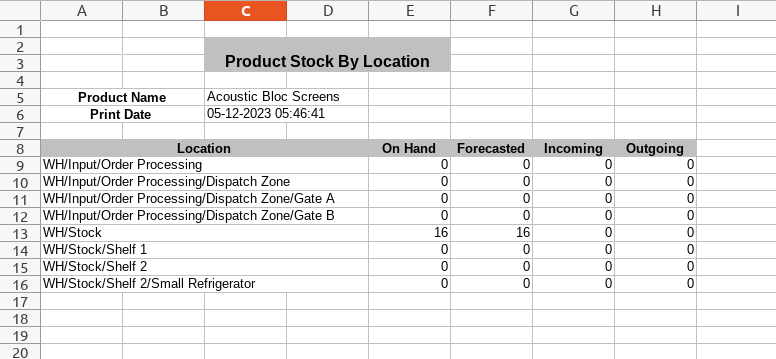
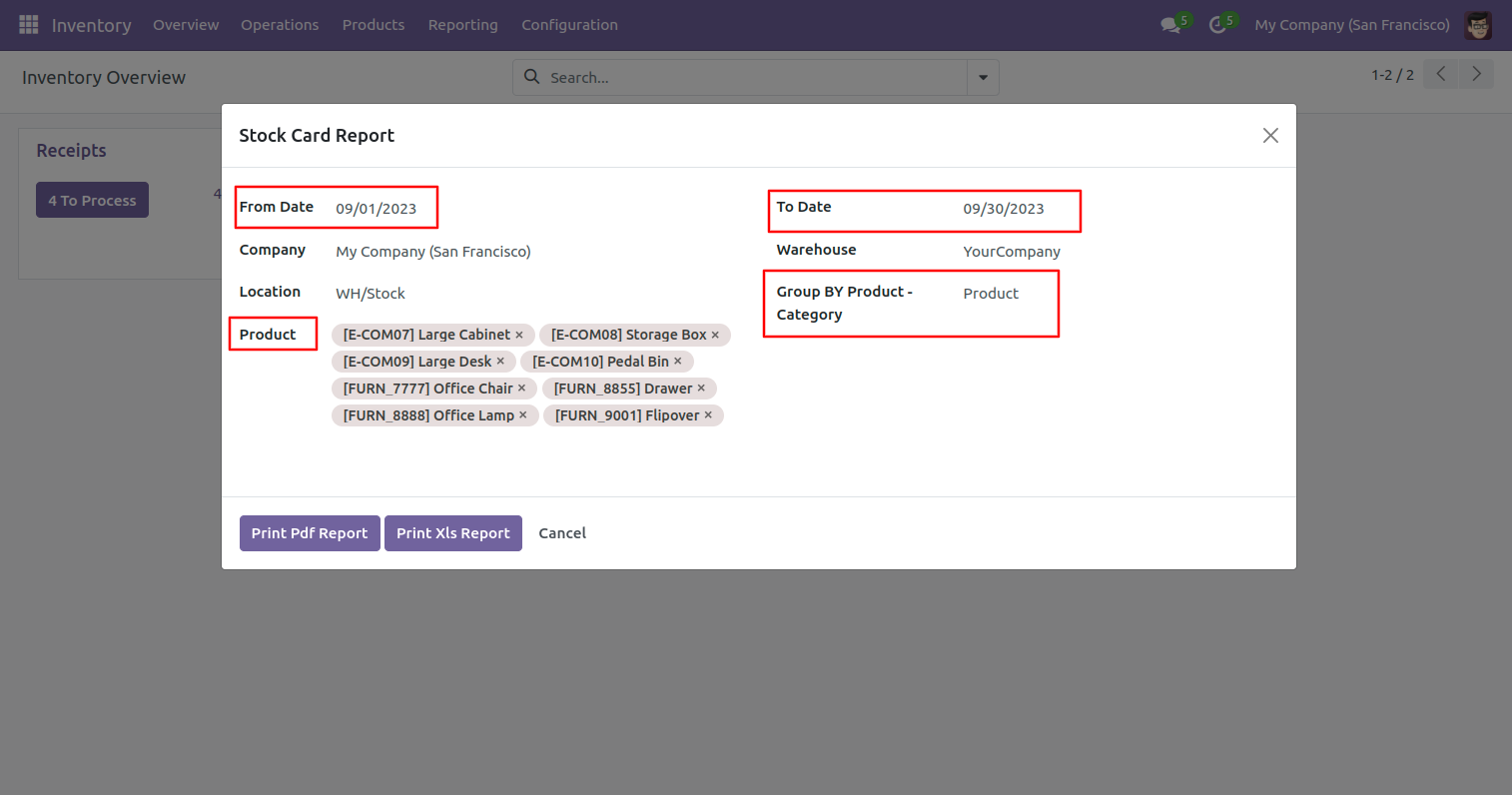
XLS report for product showing stock by location at current time.
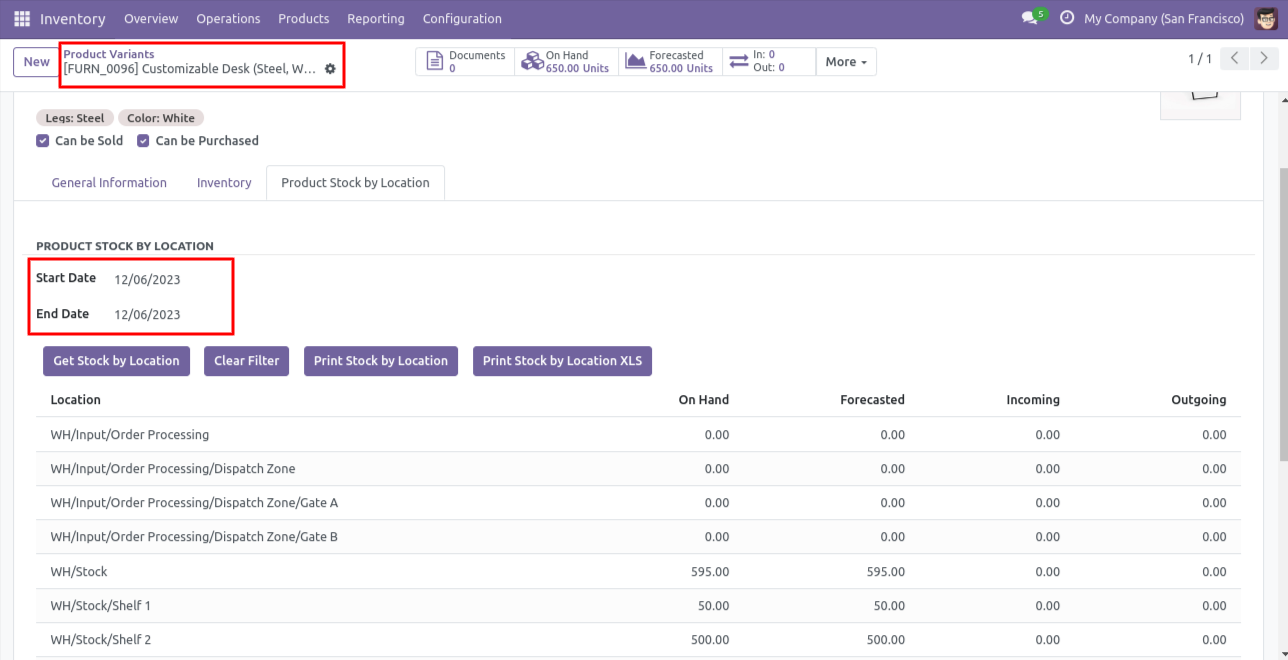
First product variant stock by location if no dates given than count from starts to till date.
On click of 'Print Stock by Location XLS' XLS report generated for each product variant separately.
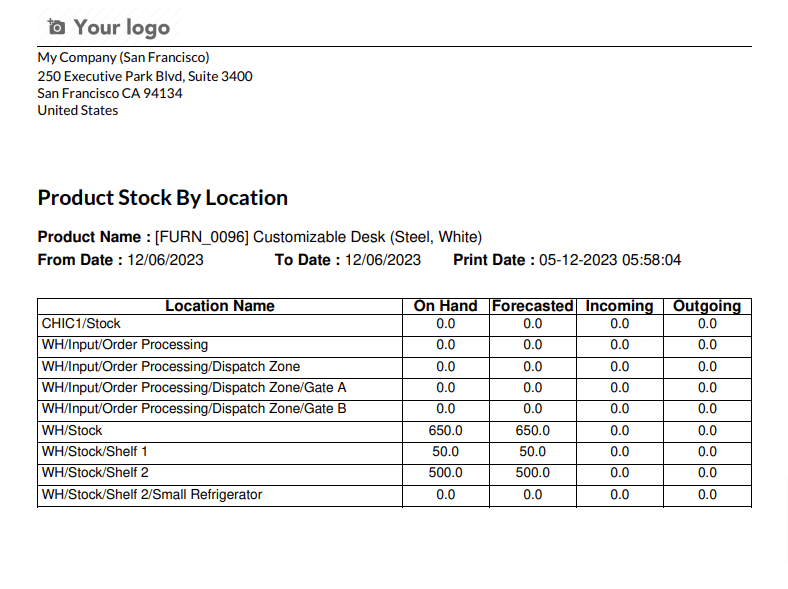
For second product variant,if start date and end date passed than click on 'Get Stock by Location' stock for that date range can be calculated.
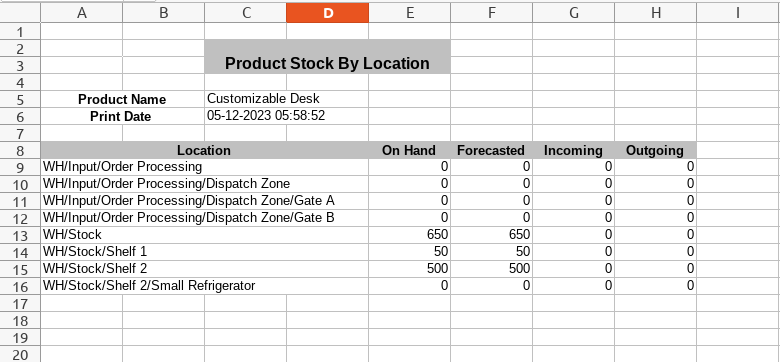
Goto users ==> Enable 'Stock Card Report'.
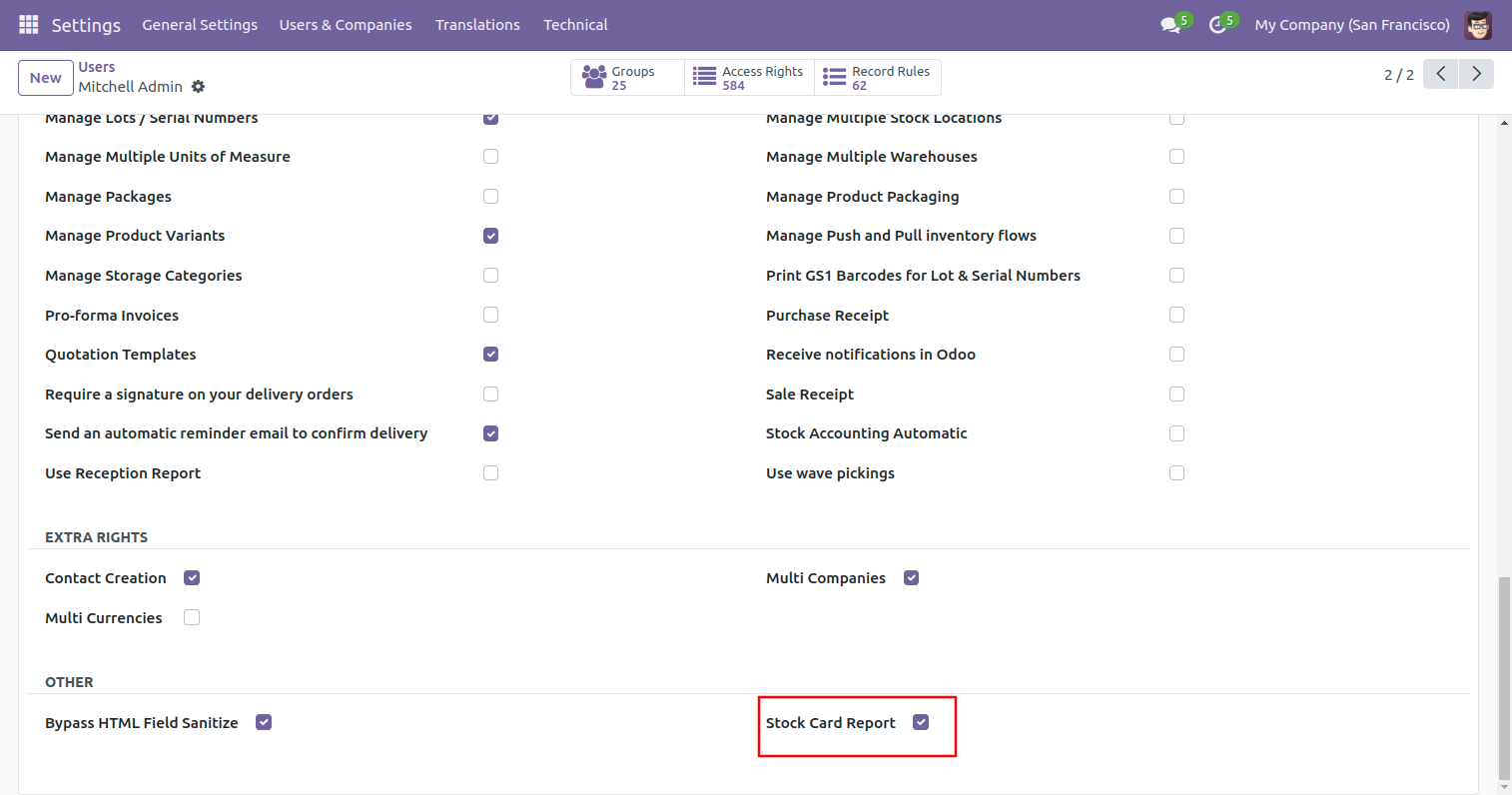
Goto inventory ==> Reporting ==> Stock Card Report.
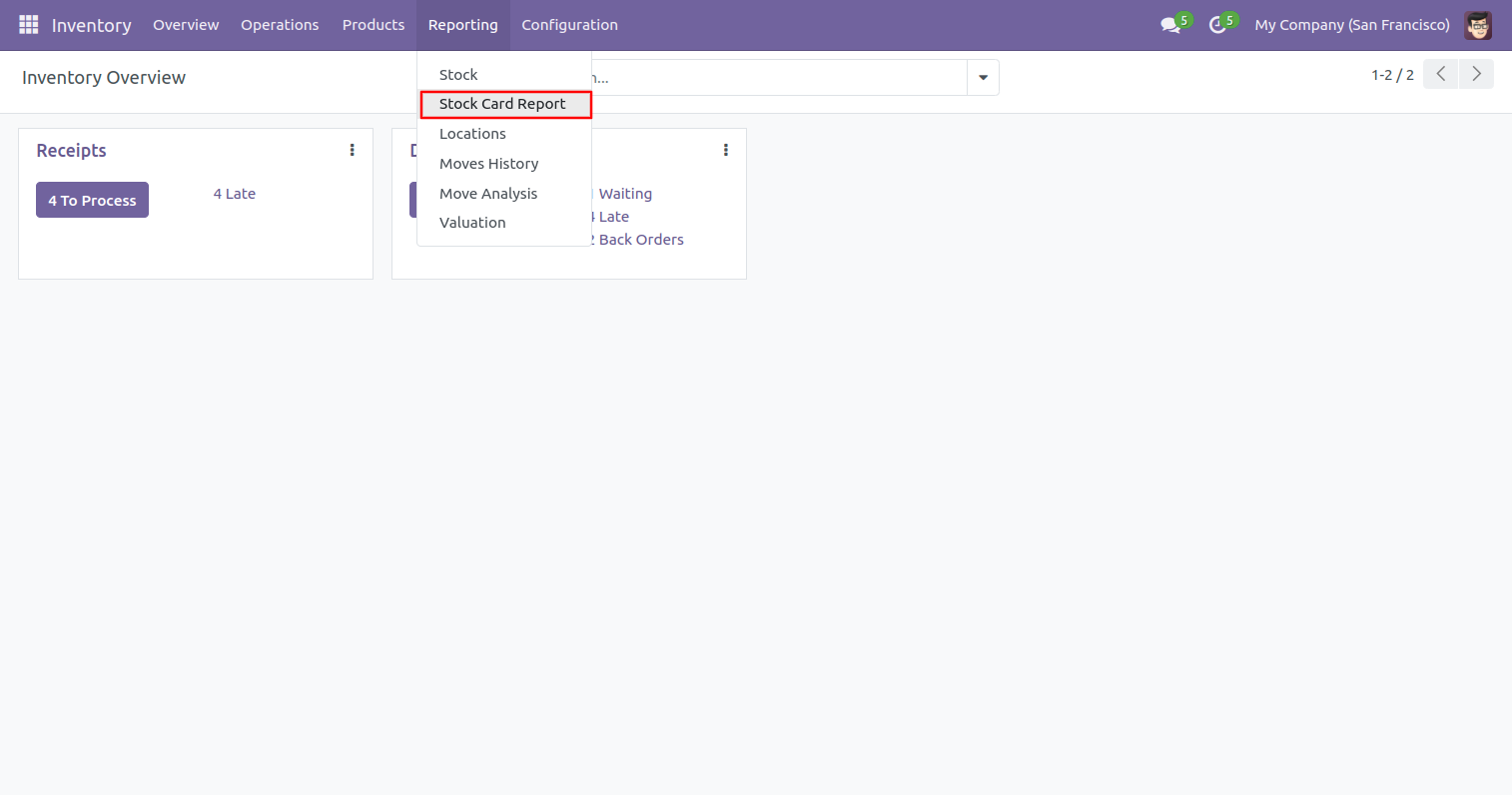
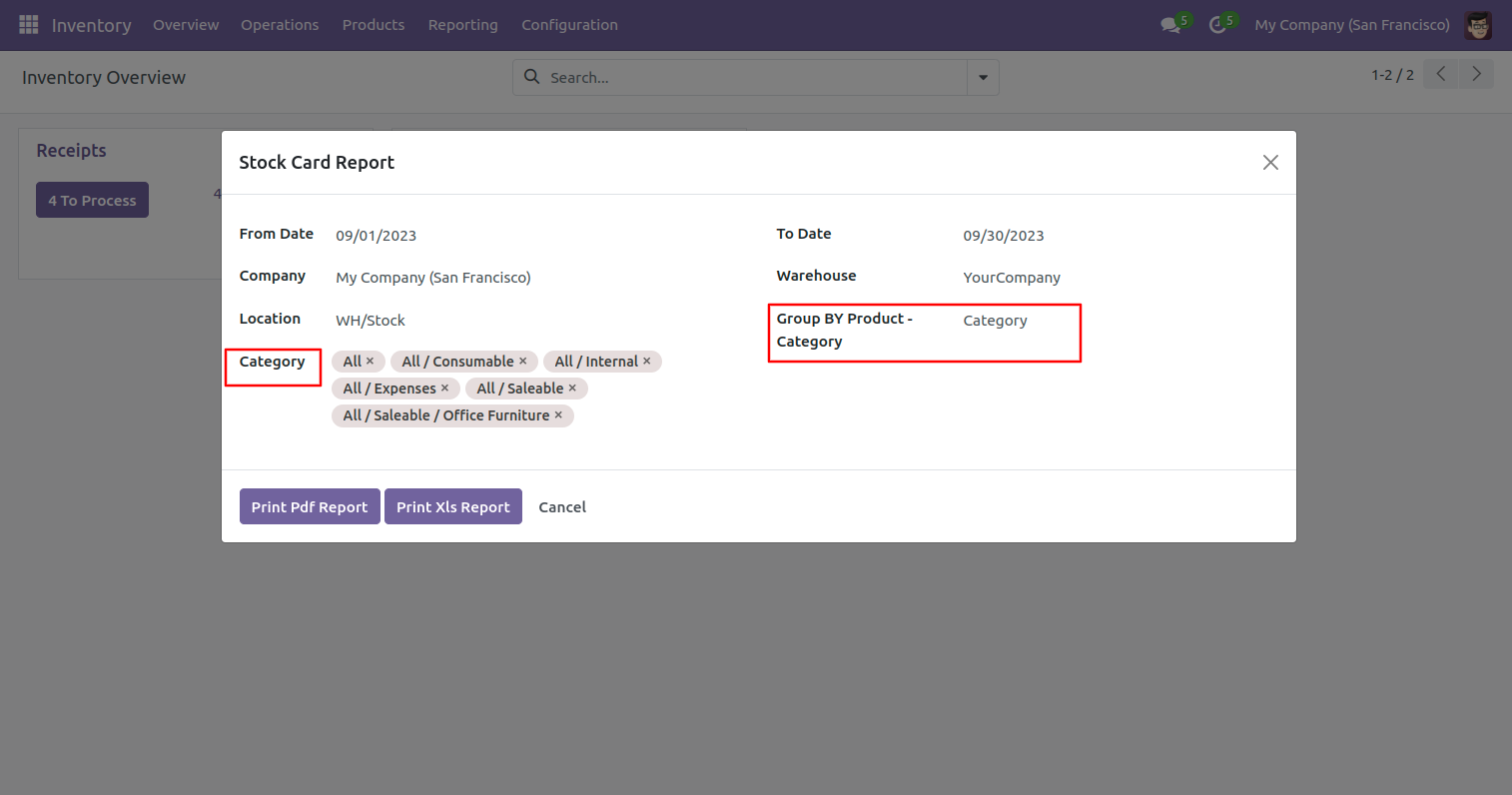
After that, In this wizard Select dates From - To options, select the group by product, and pick multiple products. Click on the 'Print' button.
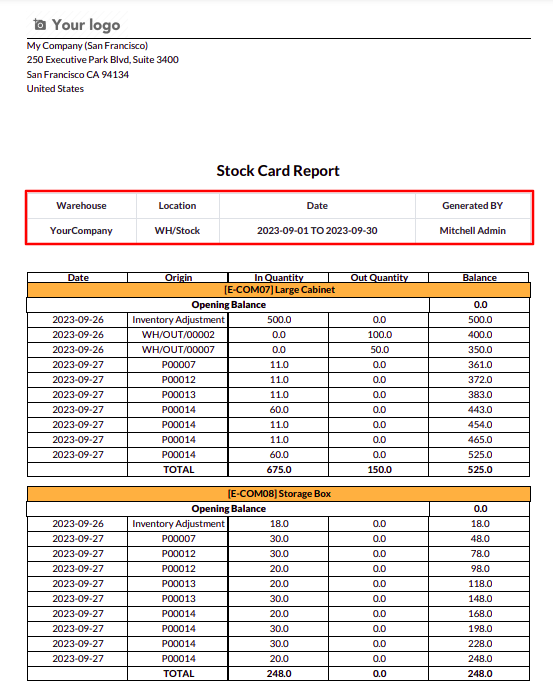
Product wise pdf report.
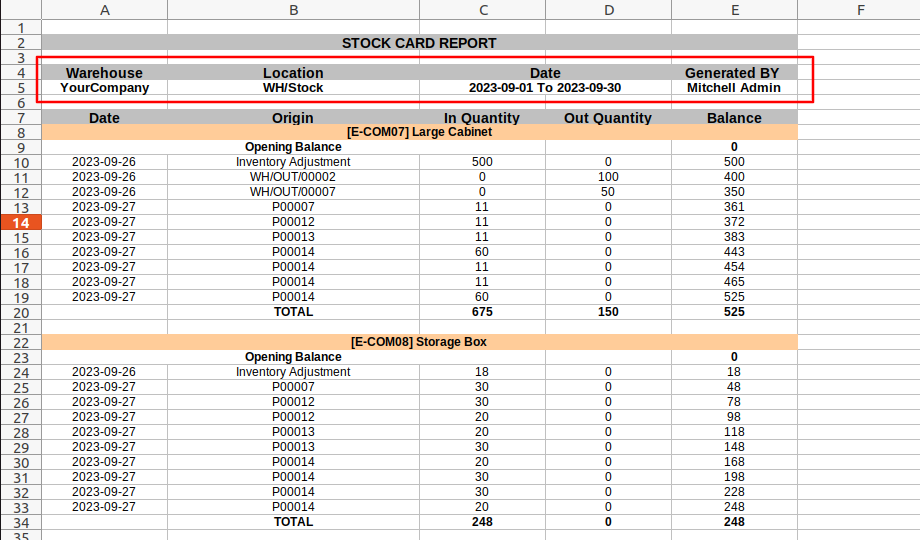
Product wise Excel report.
Here you have two options for grouping. Product & Product Category.
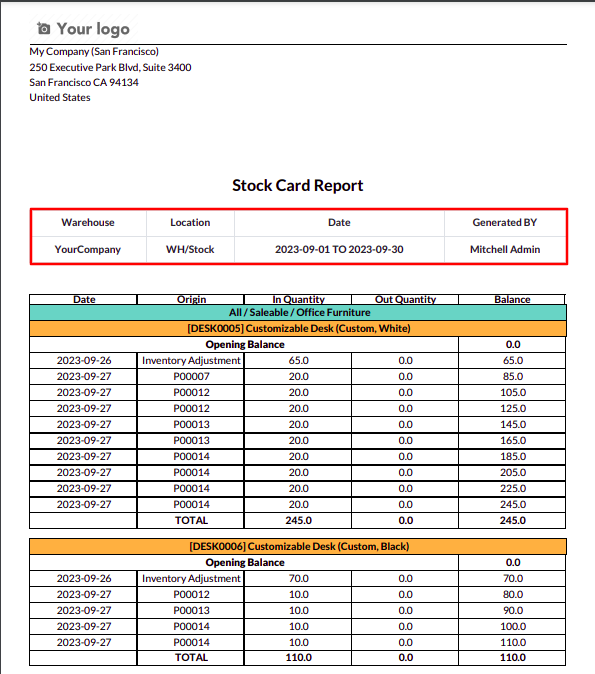
Category-wise pdf report.
Category-wise excel report.
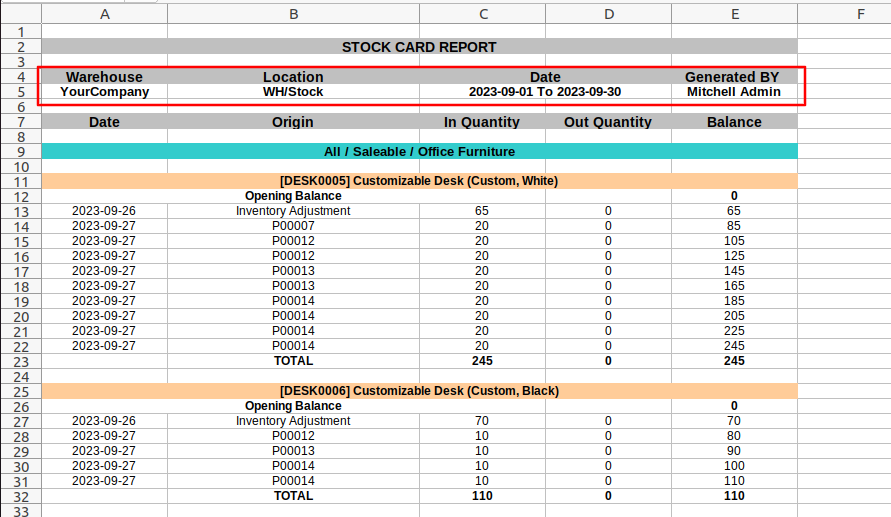
Features
- You can generate a stock product attribute report.
- You can generate reports between a specific date range.
- Easy to generate a report based on products or product categories.
- Report can be generated in the horizontal attributes and vertical attributes.
- Report can be generated in PDF and XLS format.
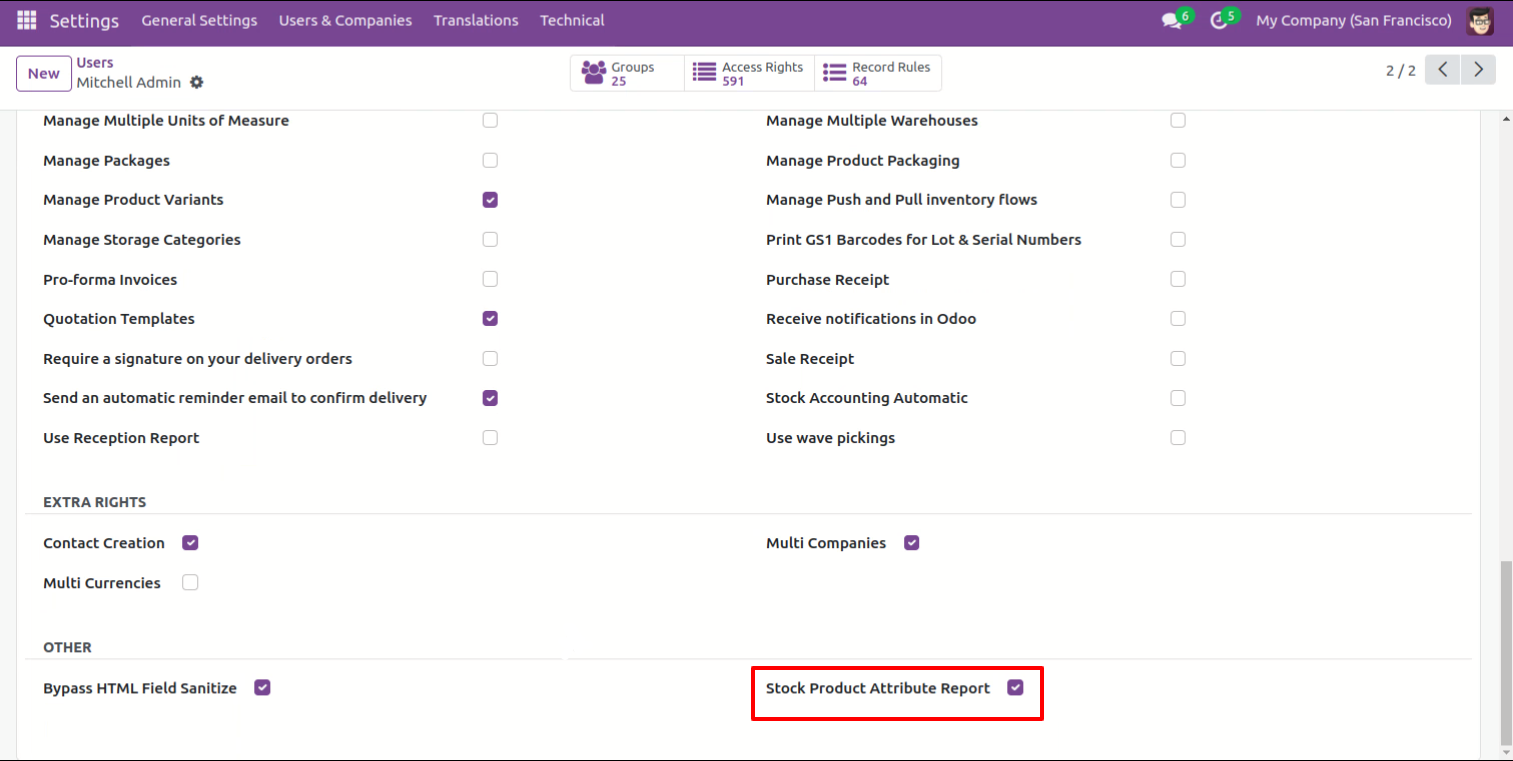
Go to users settings and tick 'Stock Product Attribute Report' option.
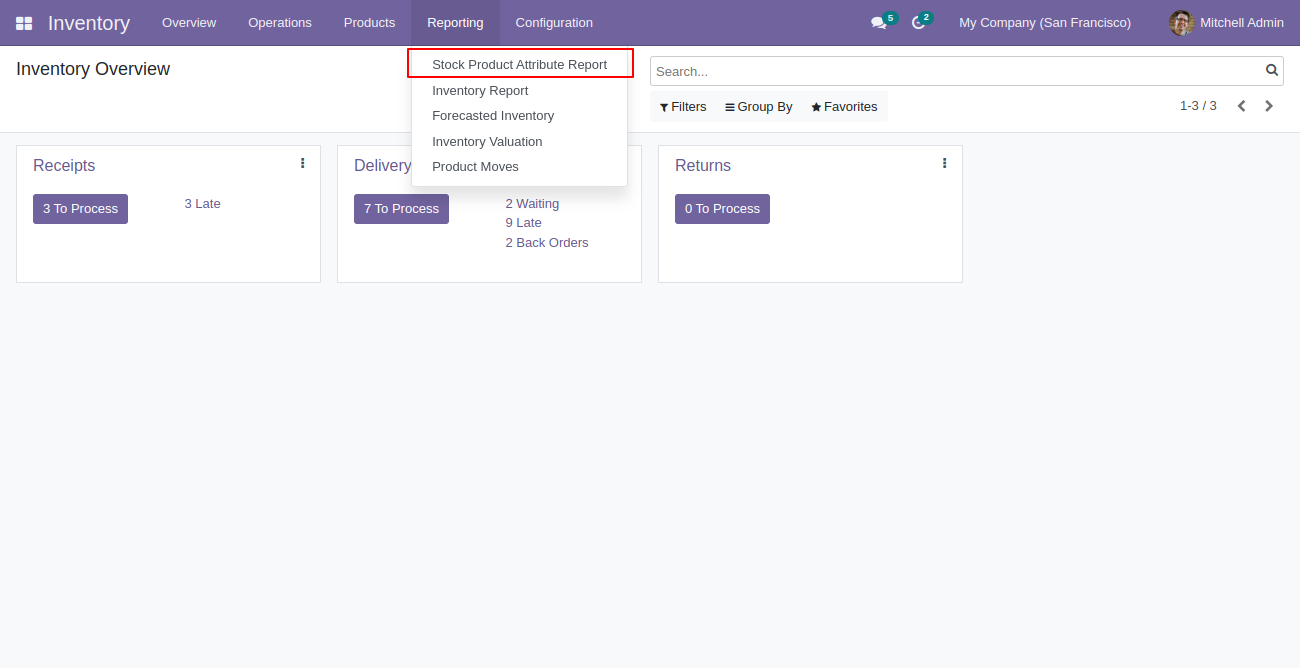
"Stock Product Attribute Report" menu.
"Stock Product Attribute Report" wizard, You can select specific dates for report.
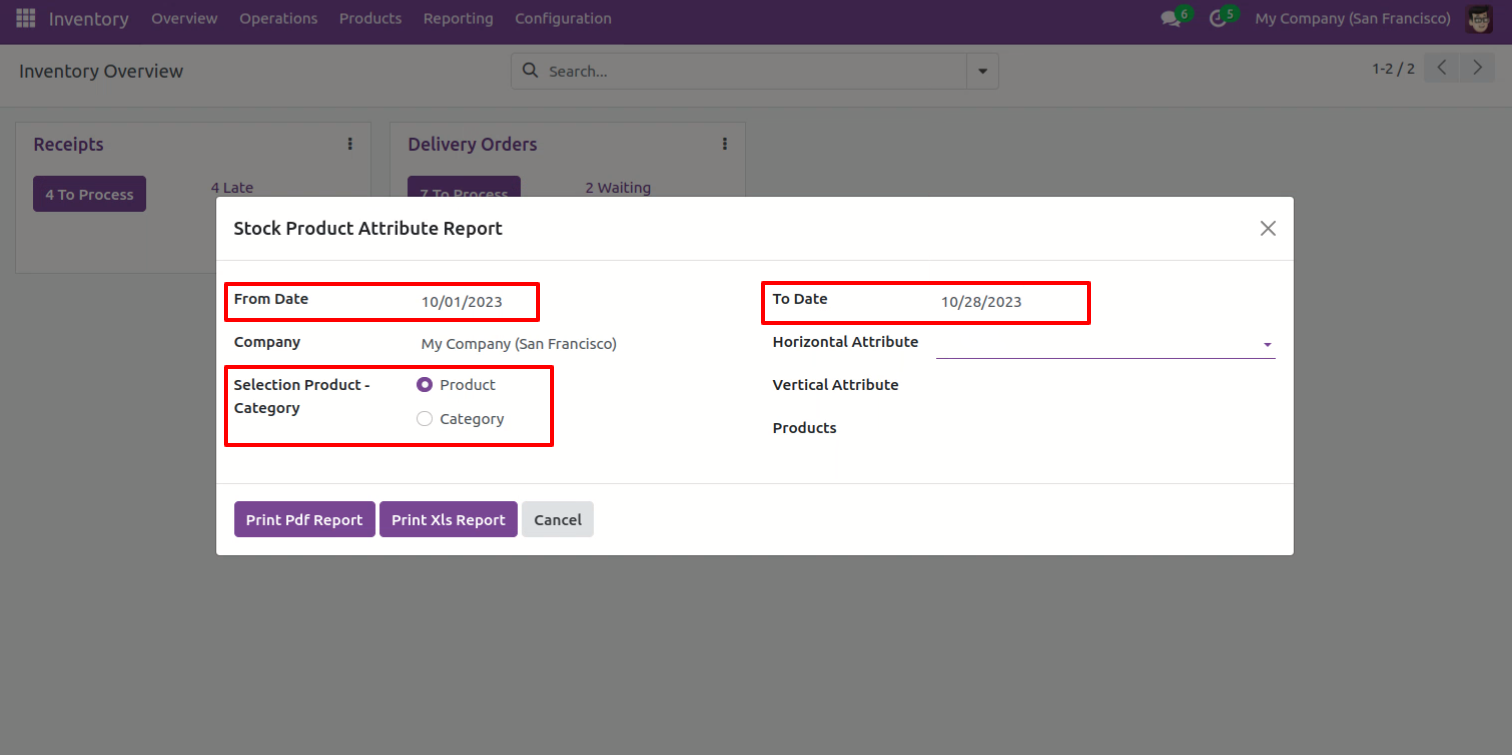
You can choose horizontal attributes and vertical
attributes.
You can print report based on products.
Report can be generated in PDF and XLS format.
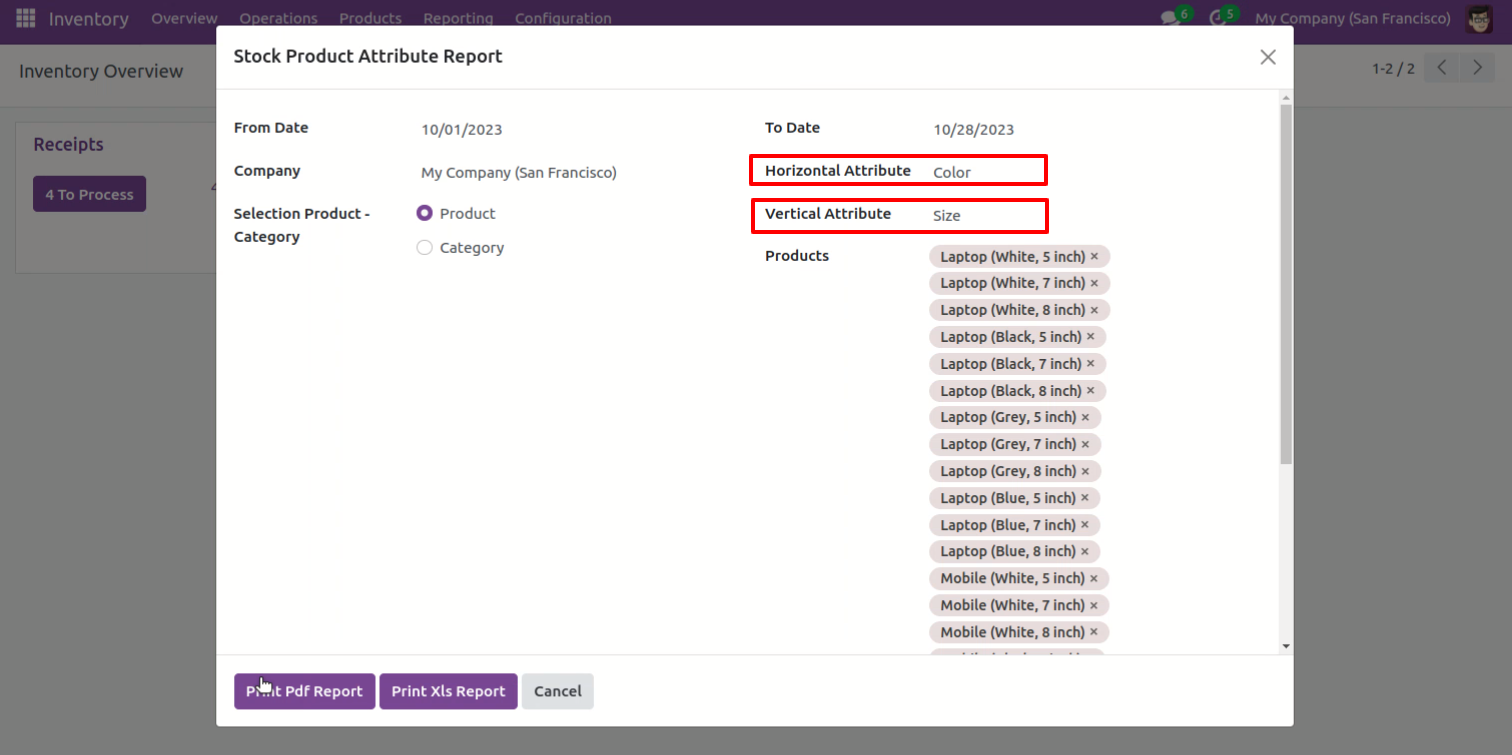
PDF report looks like this.
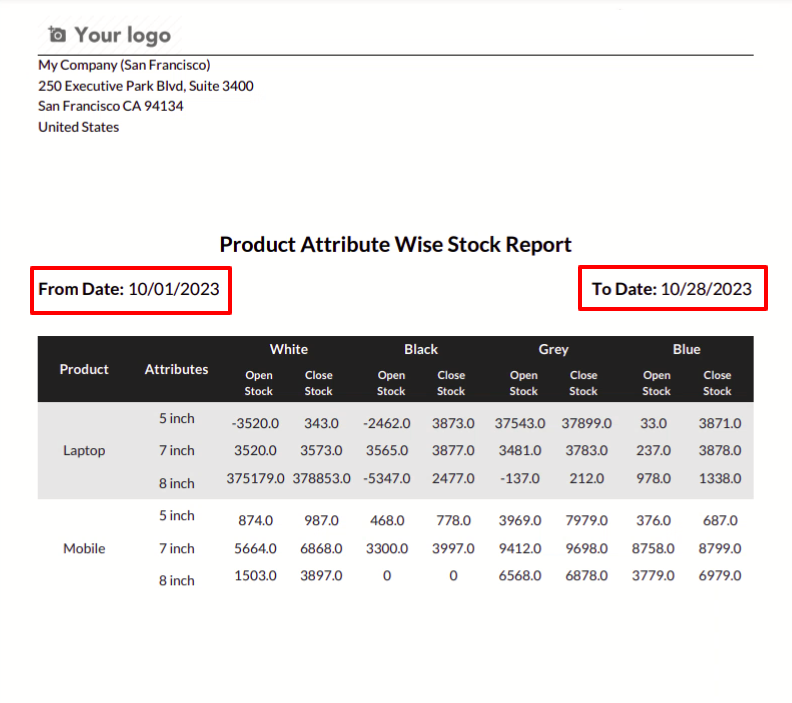
XLS report looks like this.
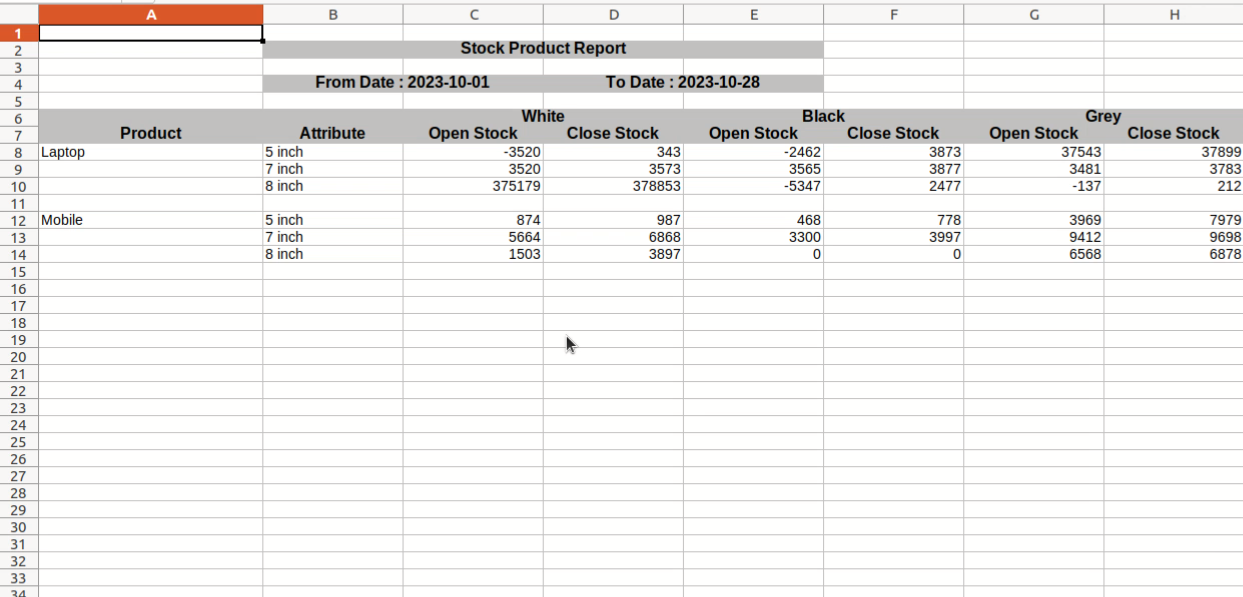
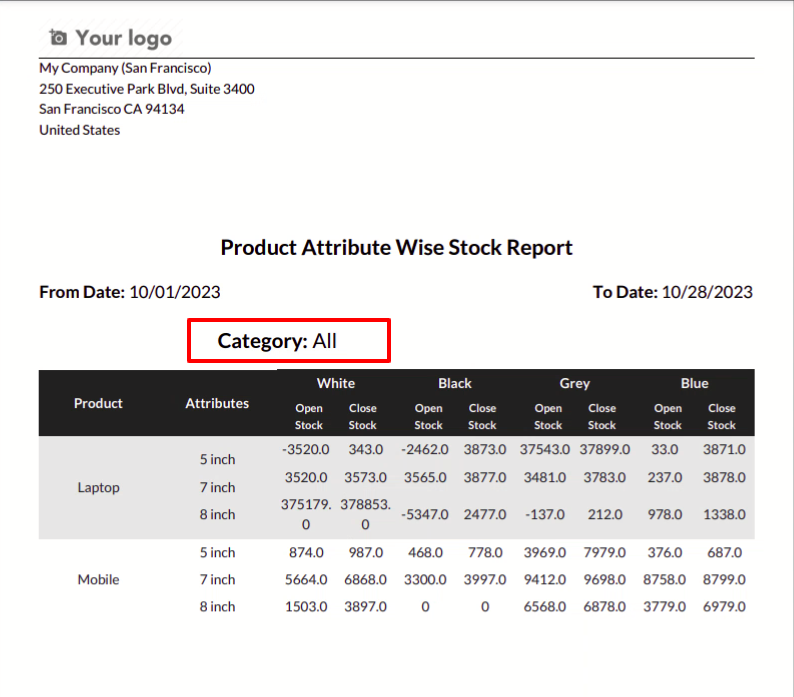
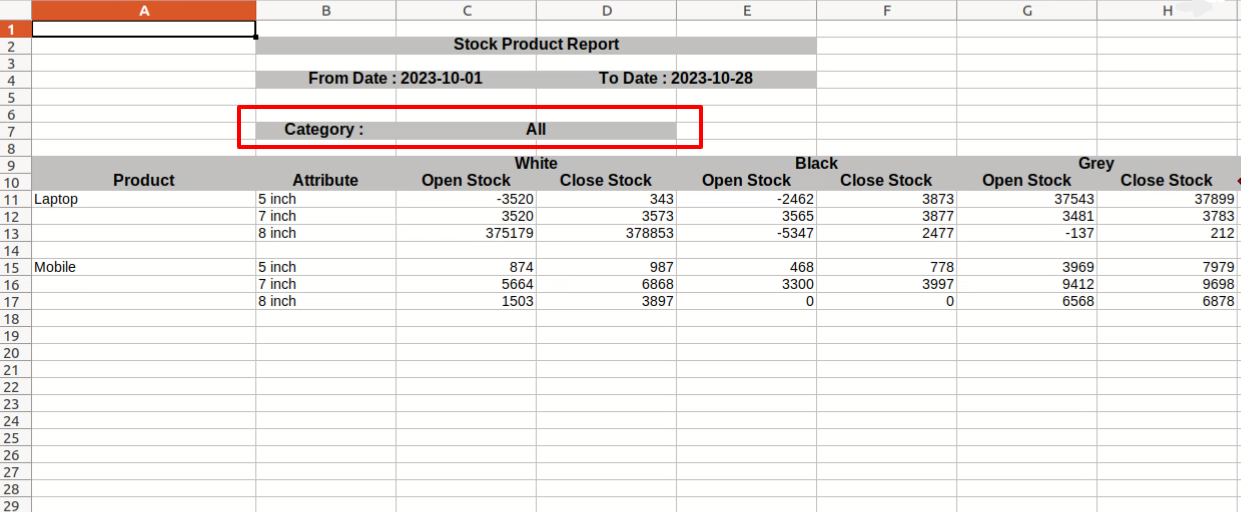
You can print report based on product categories.
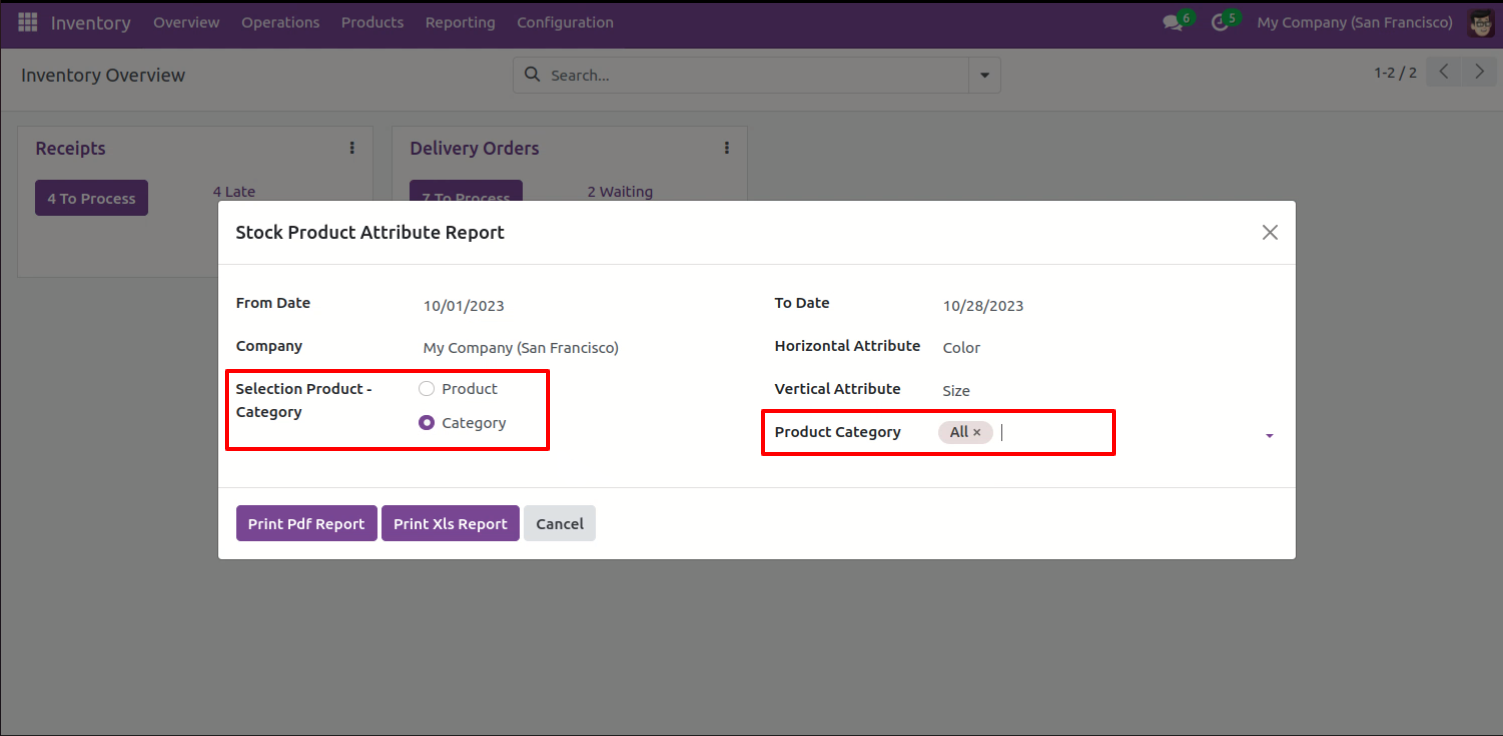
PDF report looks like this.
XLS report looks like this.
Features
- You can generate an XYZ inventory report.
- You can generate a report for any date and time.
- The report can be generated in PDF and XLS format.
- Easy to manage stock valuation.
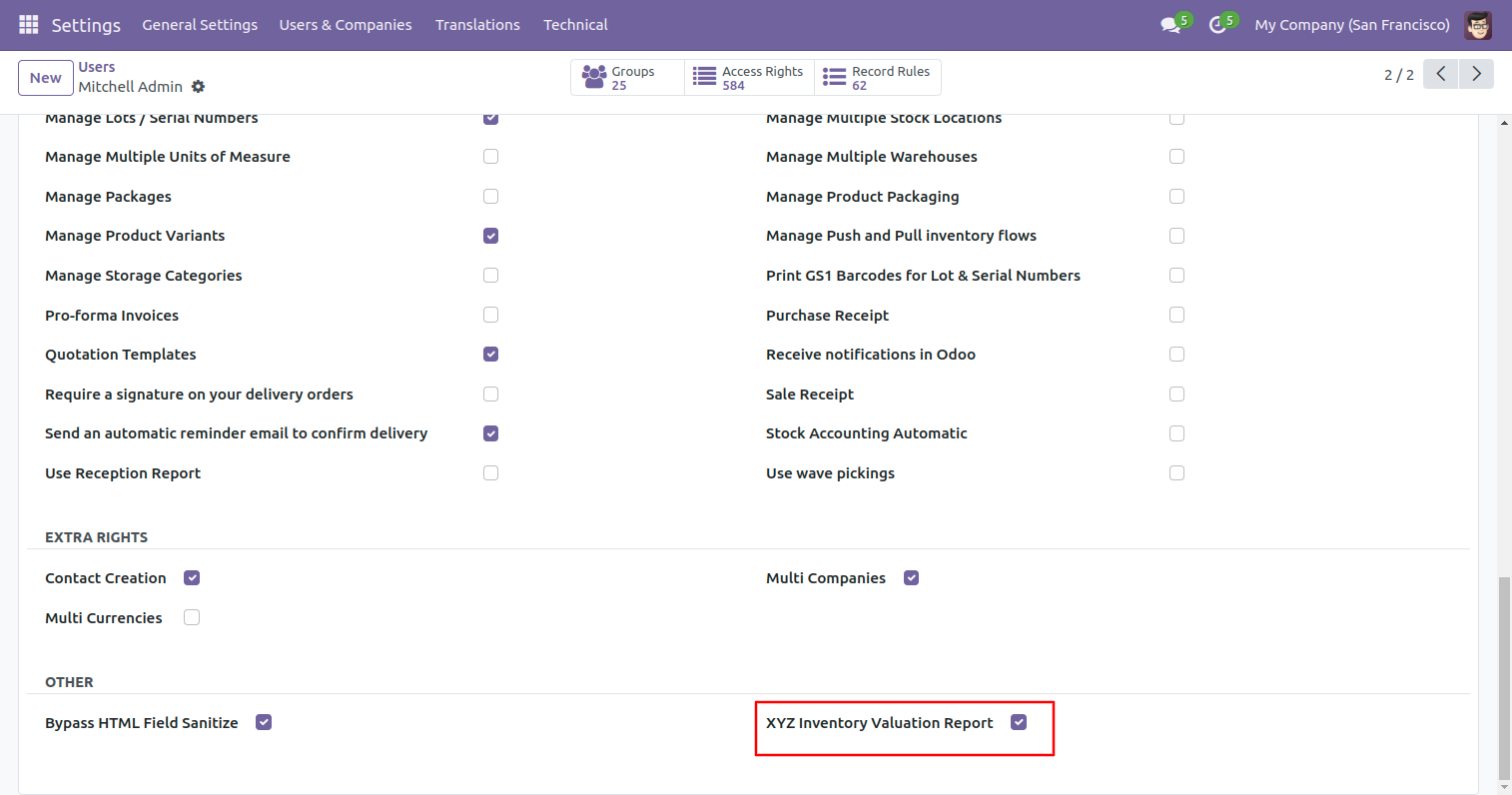
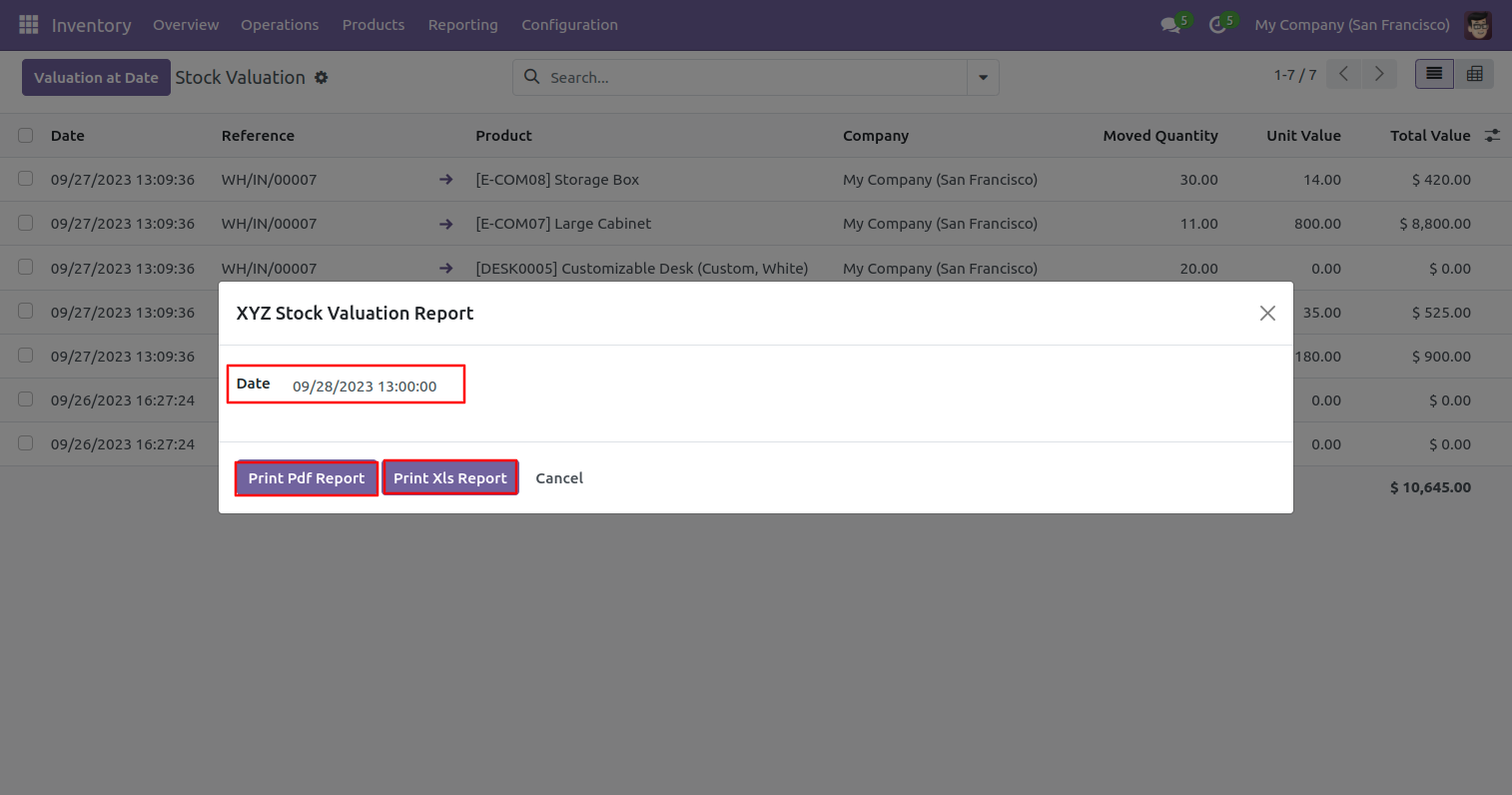
Go to the user and enable the 'XYZ Stock Valuation Report' Tick box.
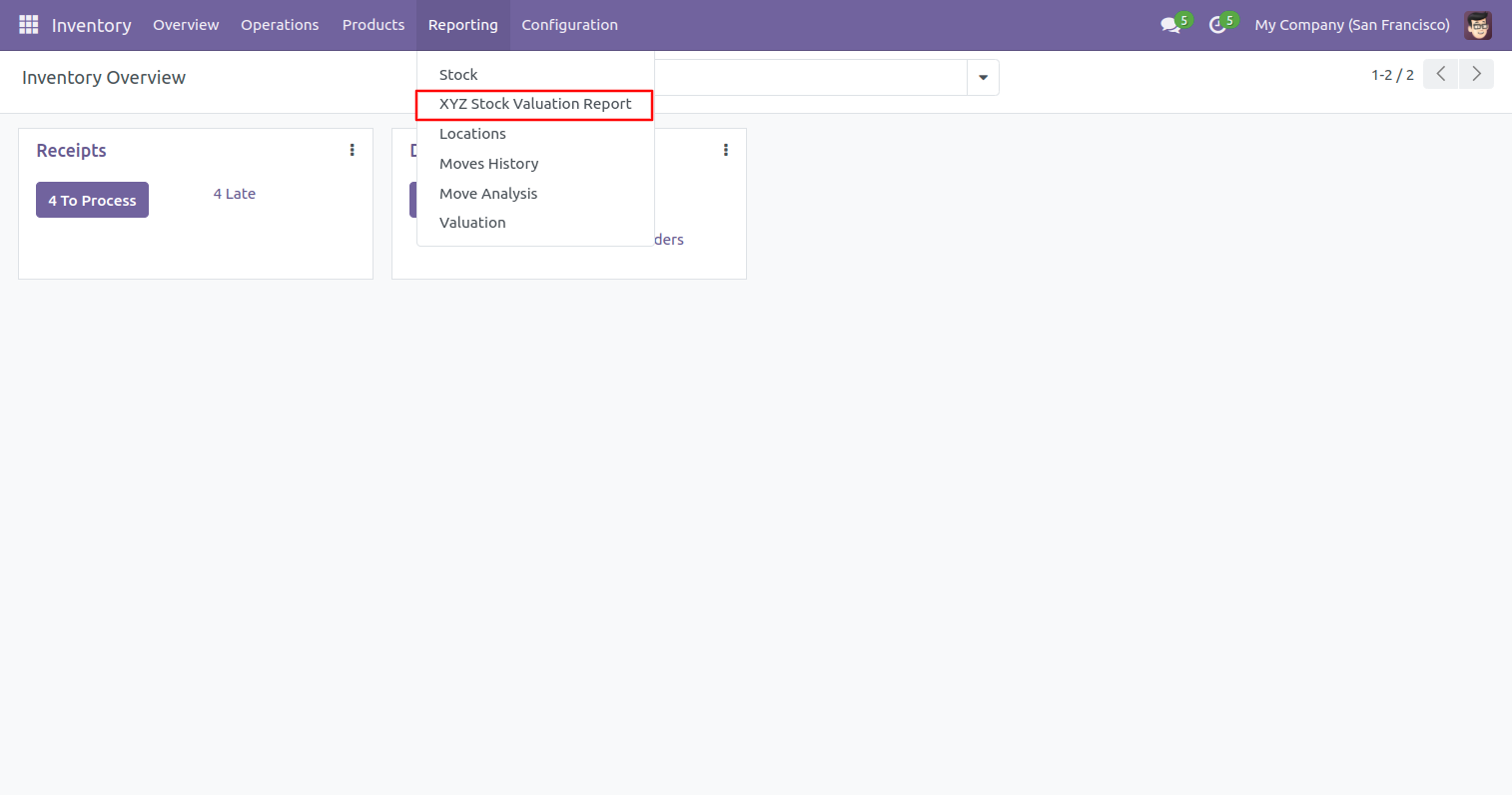
Go to the 'XYZ Stock Valuation Report' menu.
After that one wizard opens, Selects date-time, and prints report.
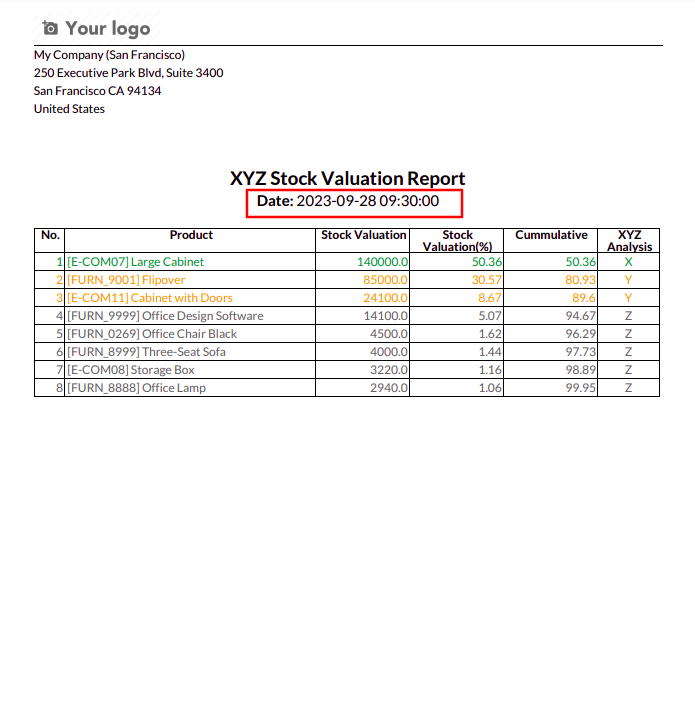
PDF report looks like this.
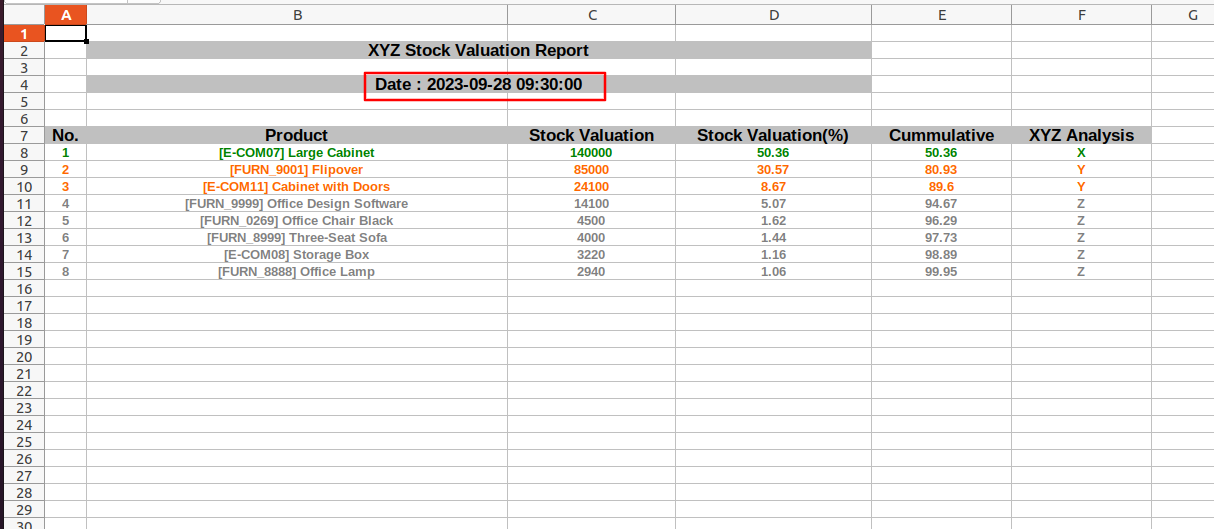
XLS report looks like this.
Features
- Analyze inventory age based on the duration products have been held in stock.
- Categorize inventory into different age groups for better stock monitoring.
- Identify old and slow-moving stock to reduce inventory holding costs.
- Gain insights into stock ageing patterns for effective inventory planning.
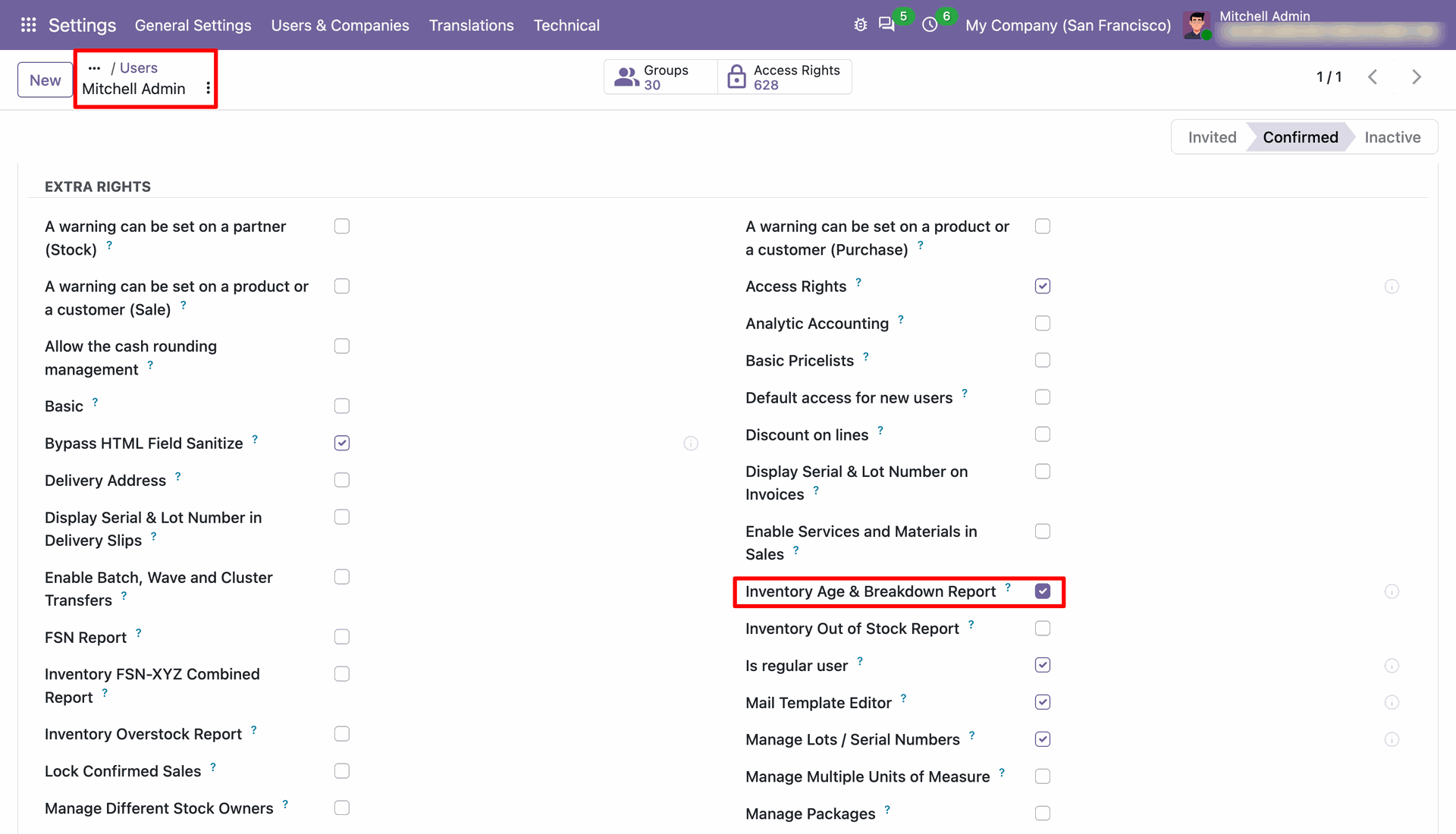
Open the user record in Settings to grant access to Inventory Age & Breakdown Analysis Report.
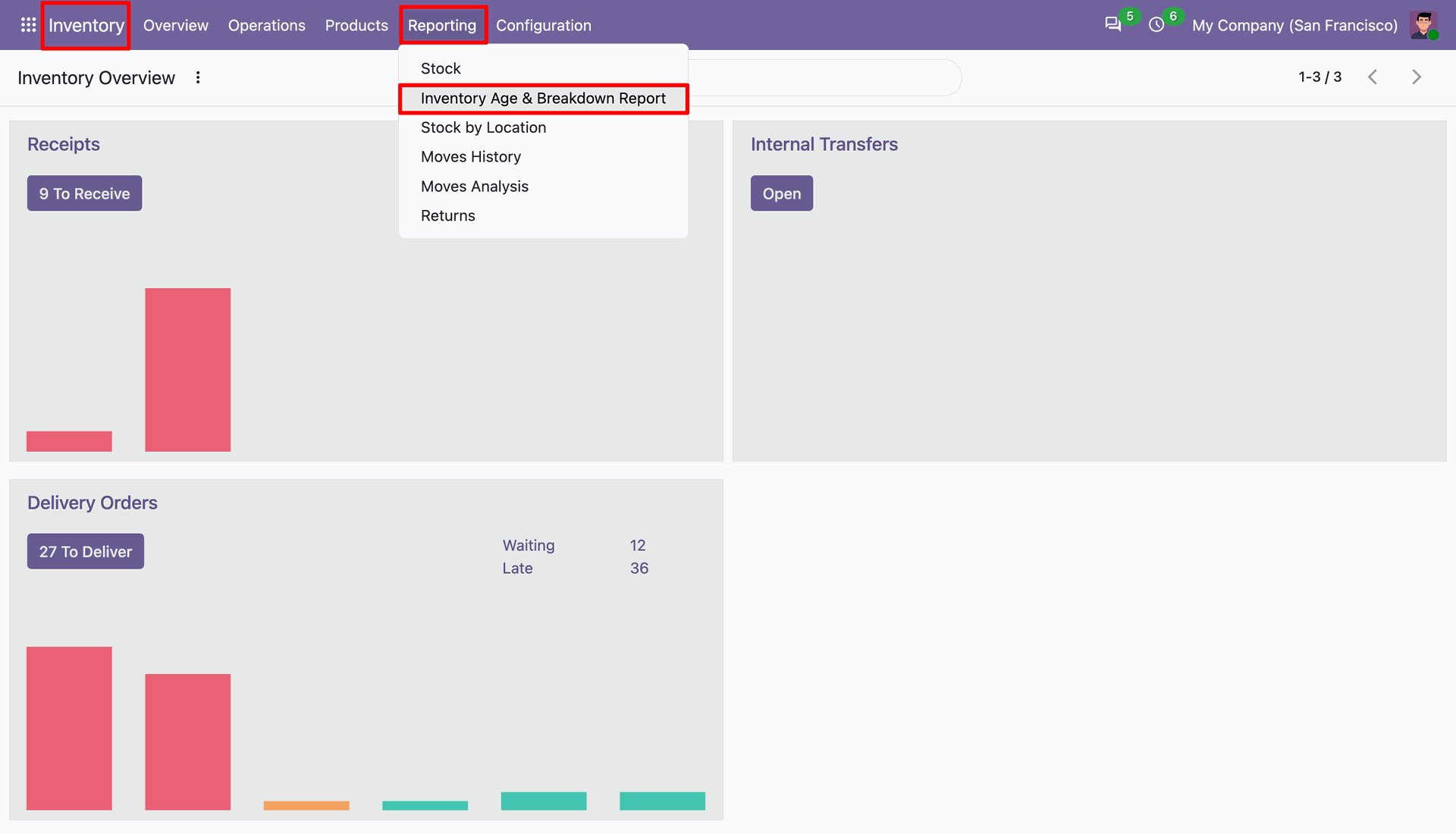
Use Inventory Reporting to open the Inventory Age & Breakdown Report from the stock dashboard.
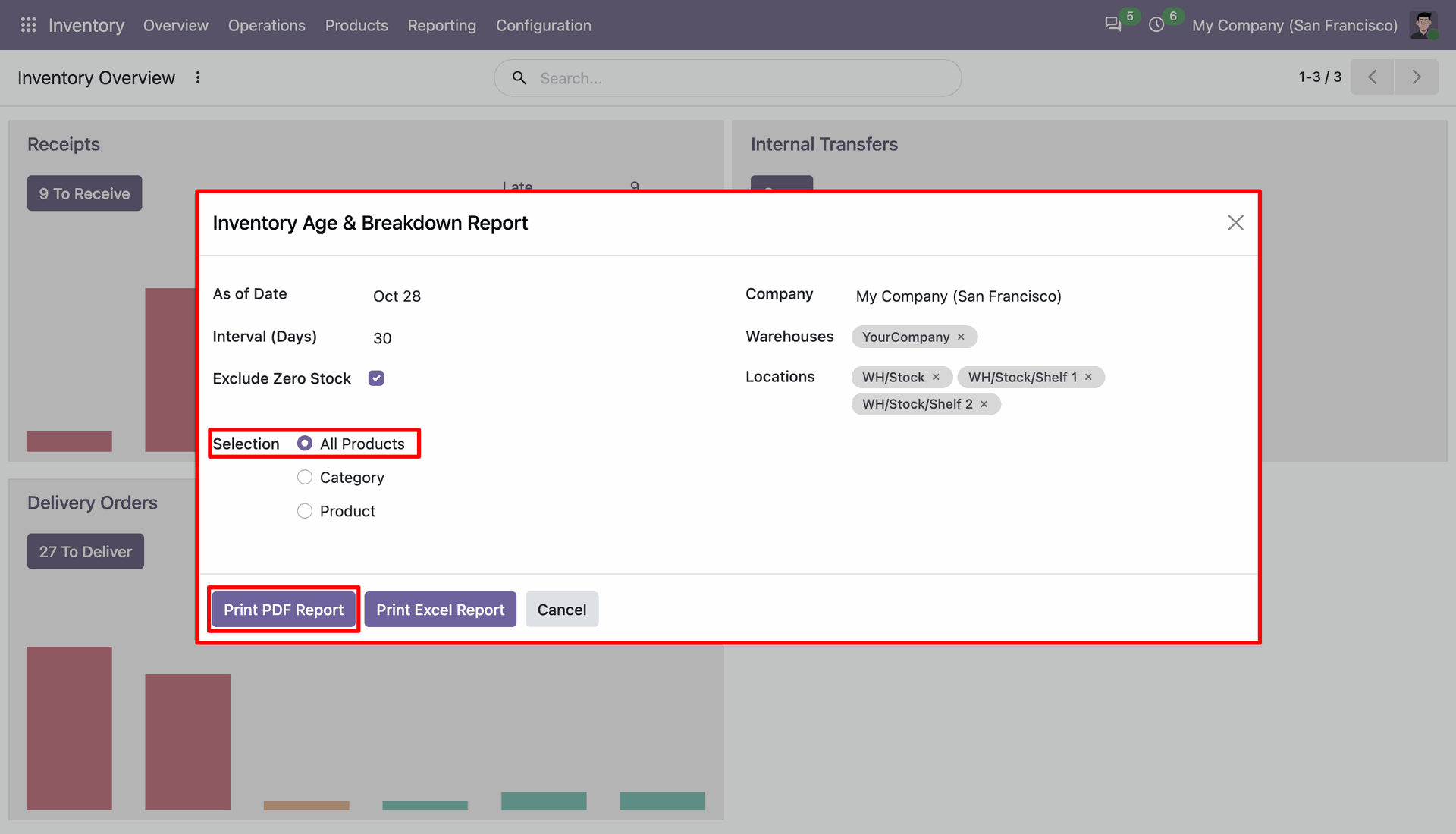
Set the report date and filters, then press Print PDF Report to view age-banded stock.
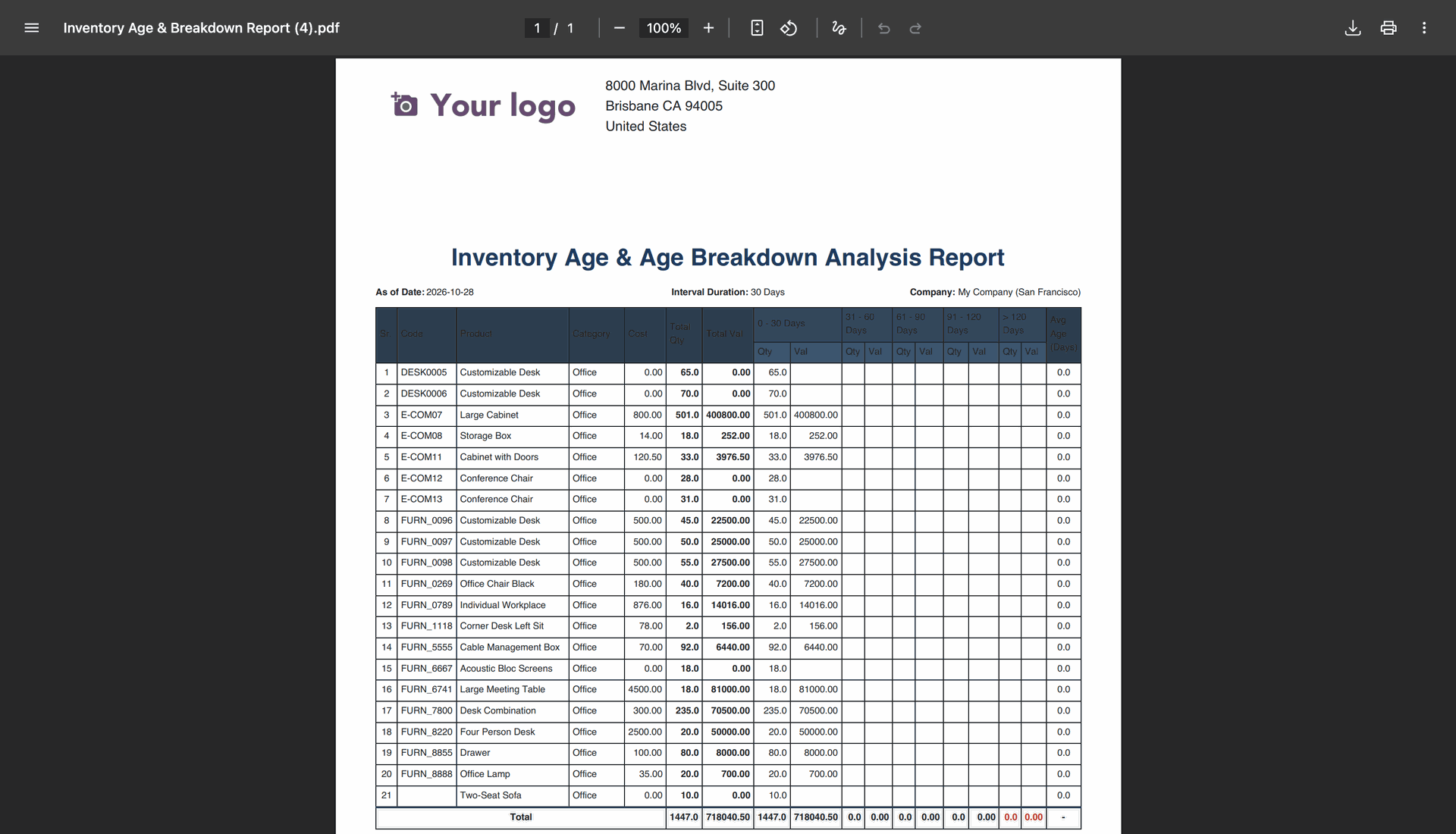
Review the PDF's age-bucket table, including product quantities, values, and average stock age.
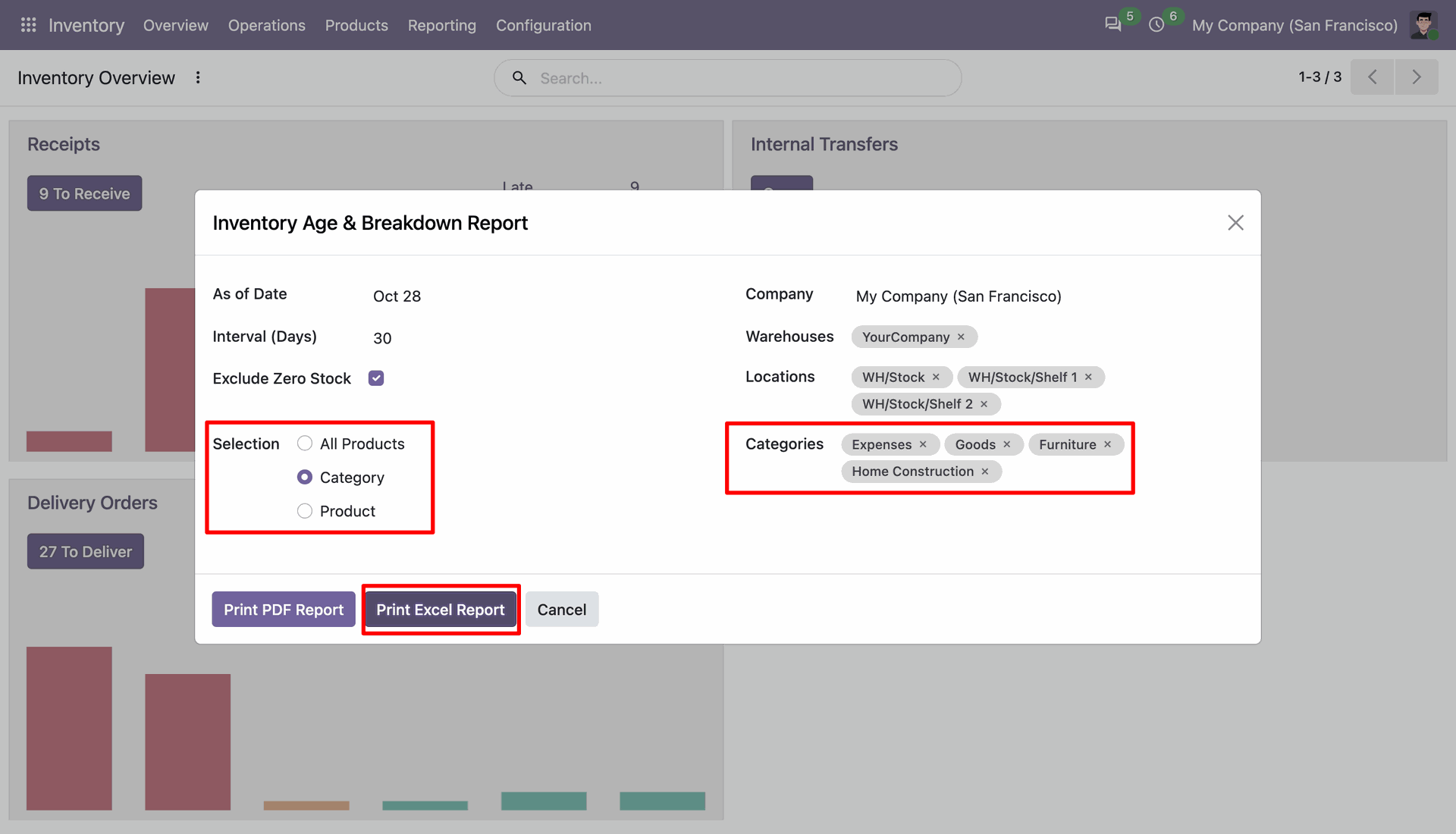
Choose categories and press Print Excel Report to export stock quantities by age interval.
Compare product quantities and values across the report's 30-day inventory age bands.
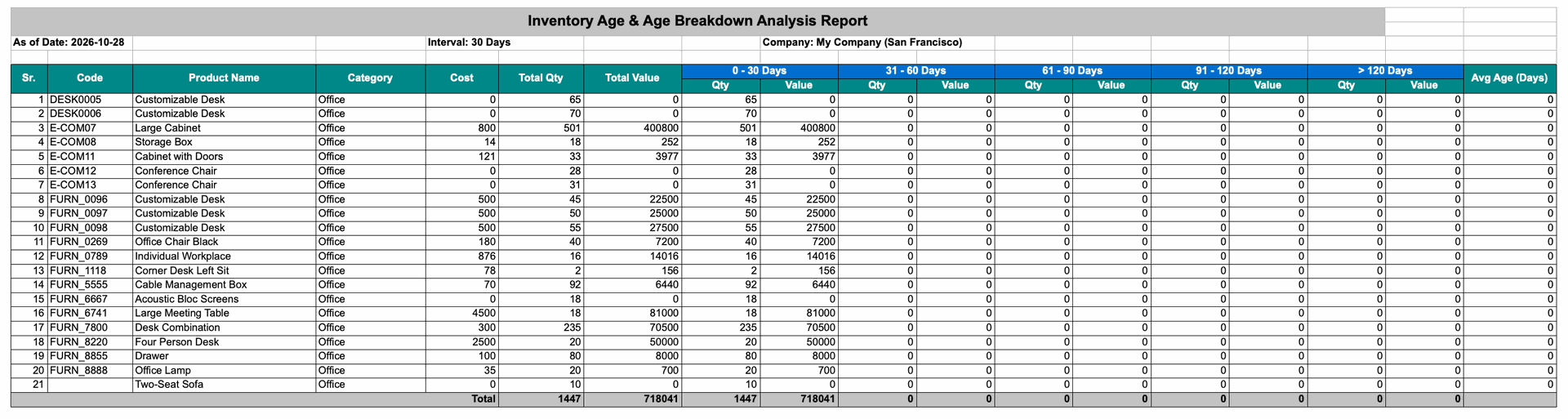
Select specific products, then press Print Excel Report to export their inventory age analysis.
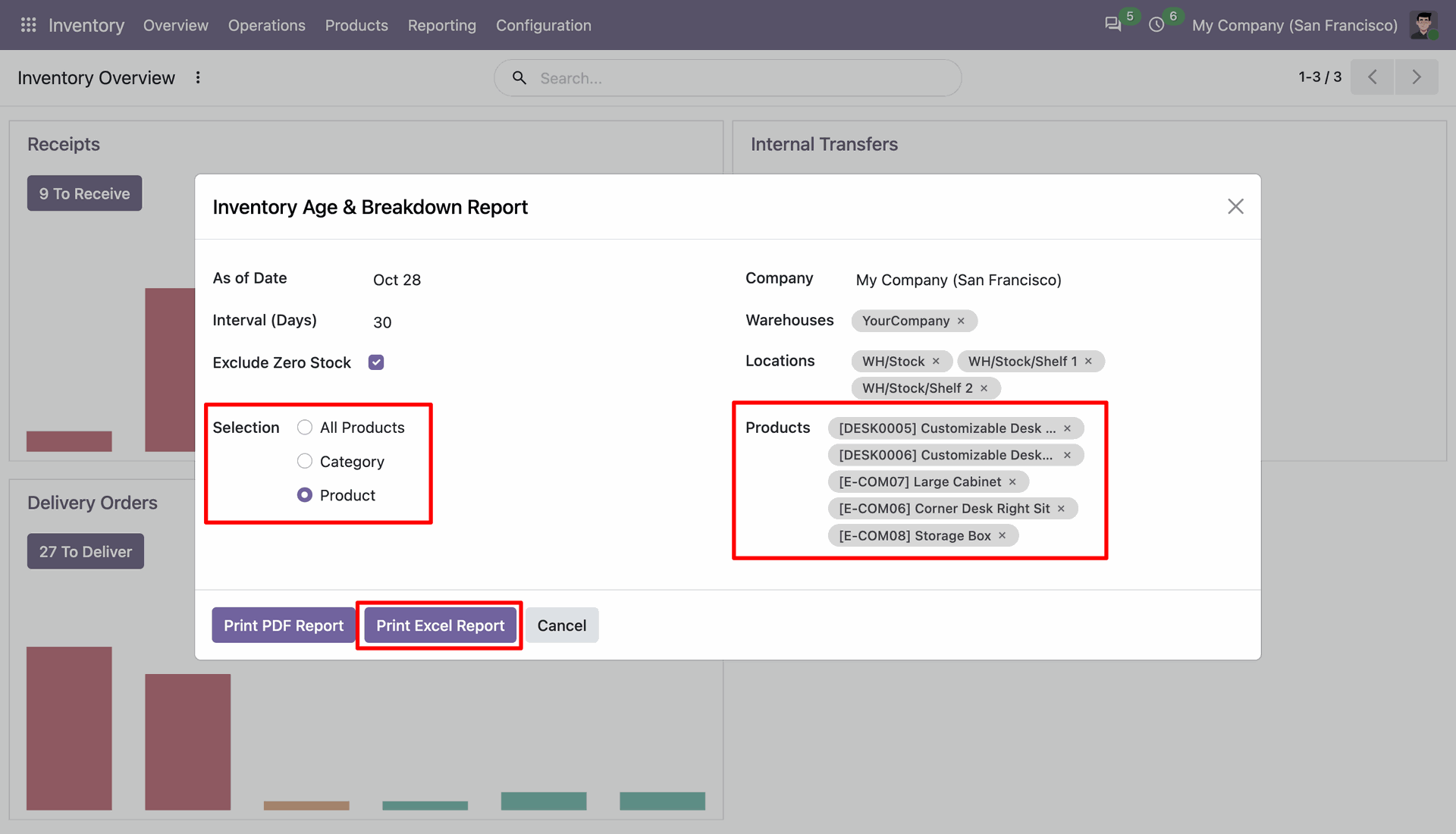
View selected product rows with stock quantities grouped across successive age intervals.

Features
- Identify products with zero available stock across your inventory.
- Monitor stock shortages and identify products requiring replenishment.
- Analyze out-of-stock products to avoid interruptions in business operations.
- Improve replenishment planning with clear stock availability insights.
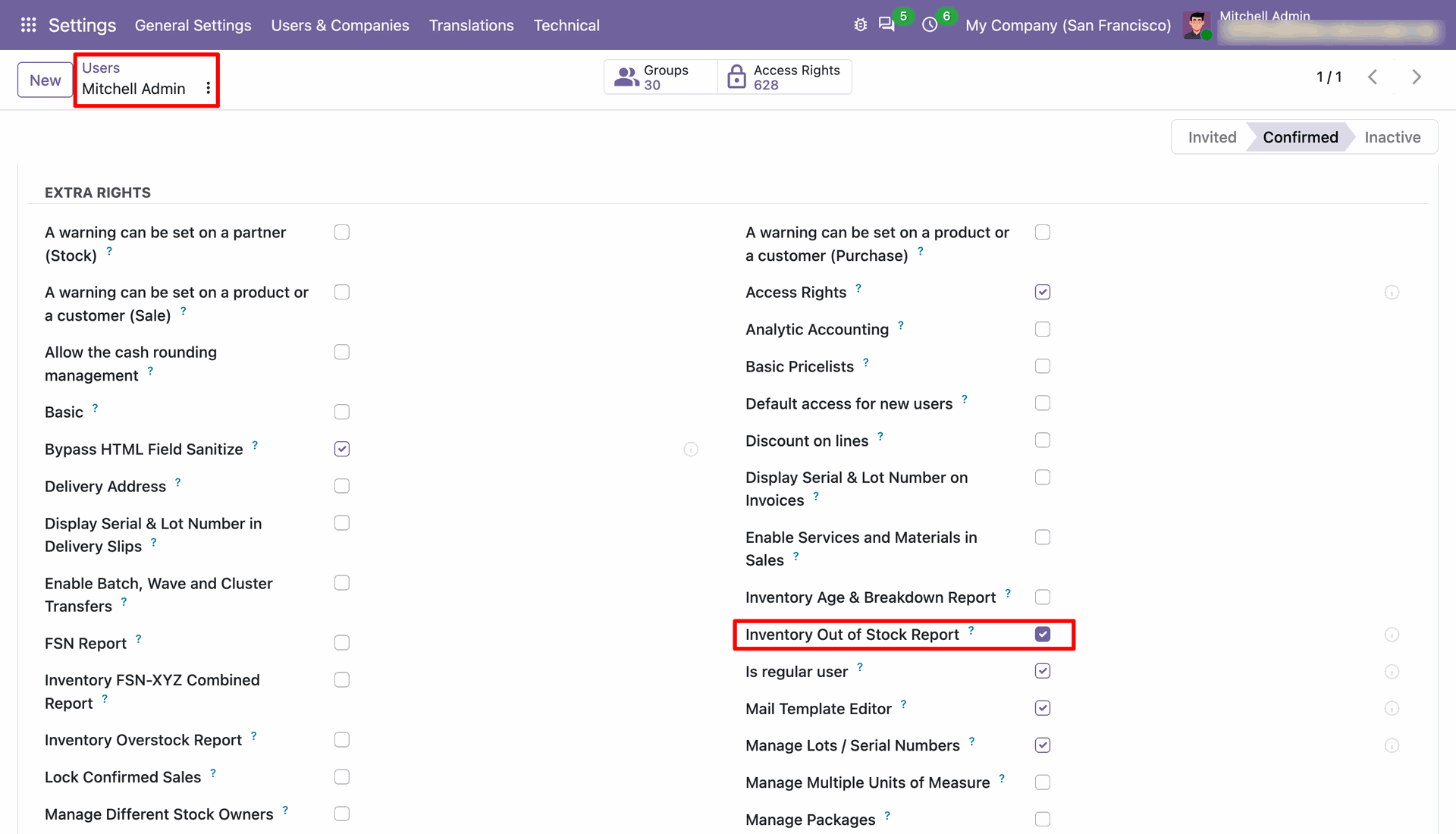
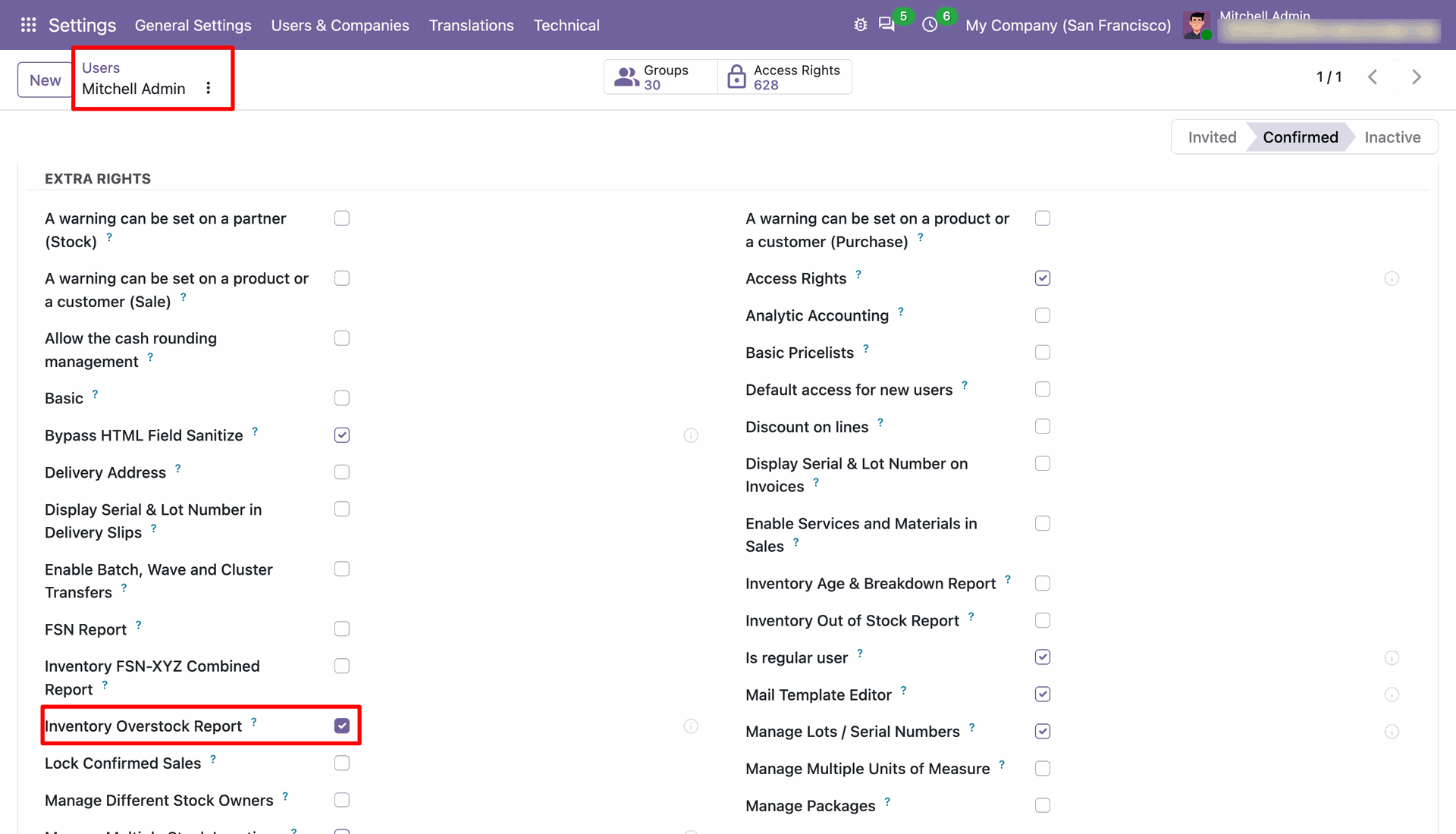
Open user access settings and enable the Inventory Out of Stock Report permission.
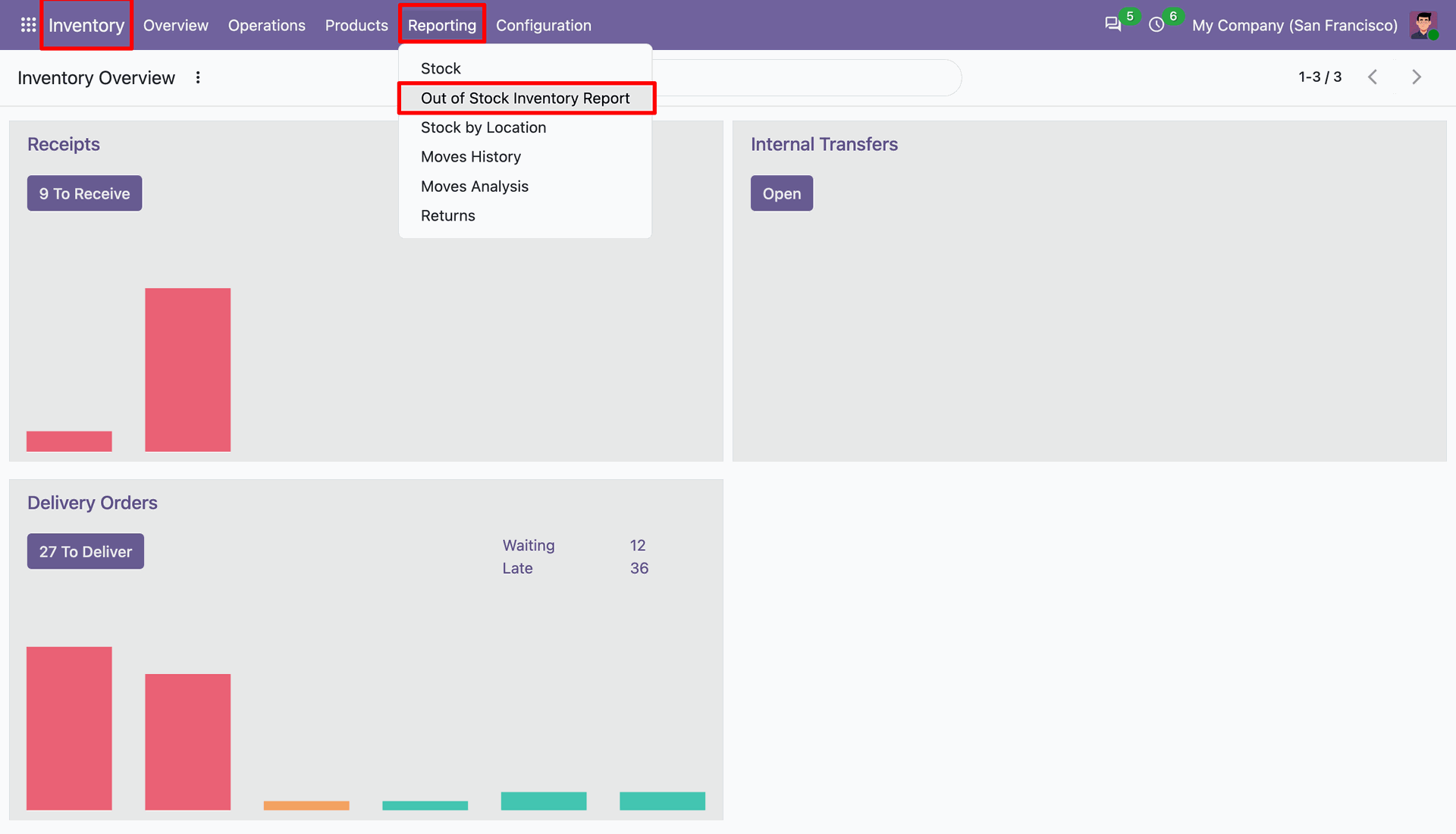
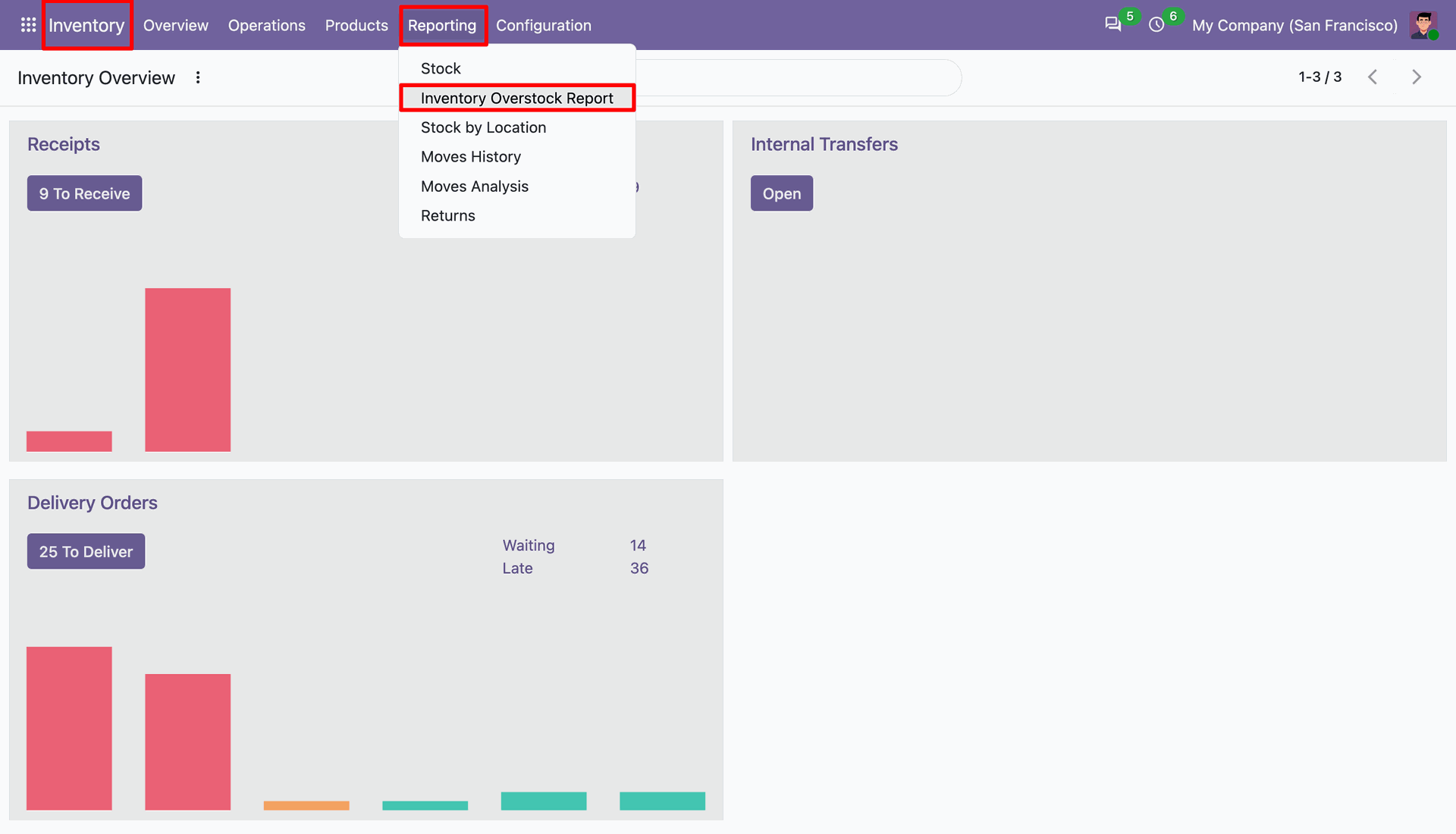
Choose Inventory Reporting and open the Out of Stock Inventory Report from its menu.
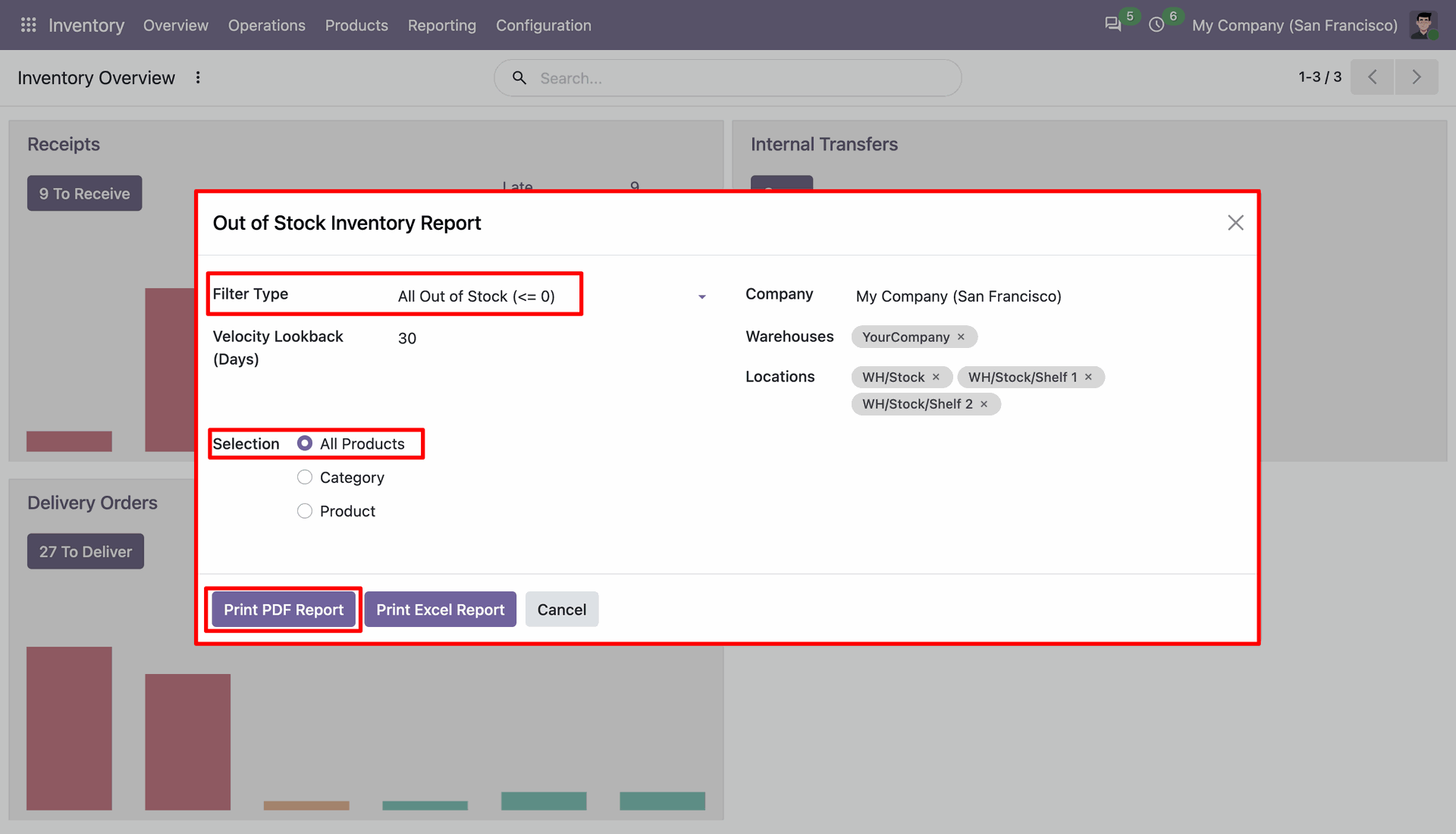
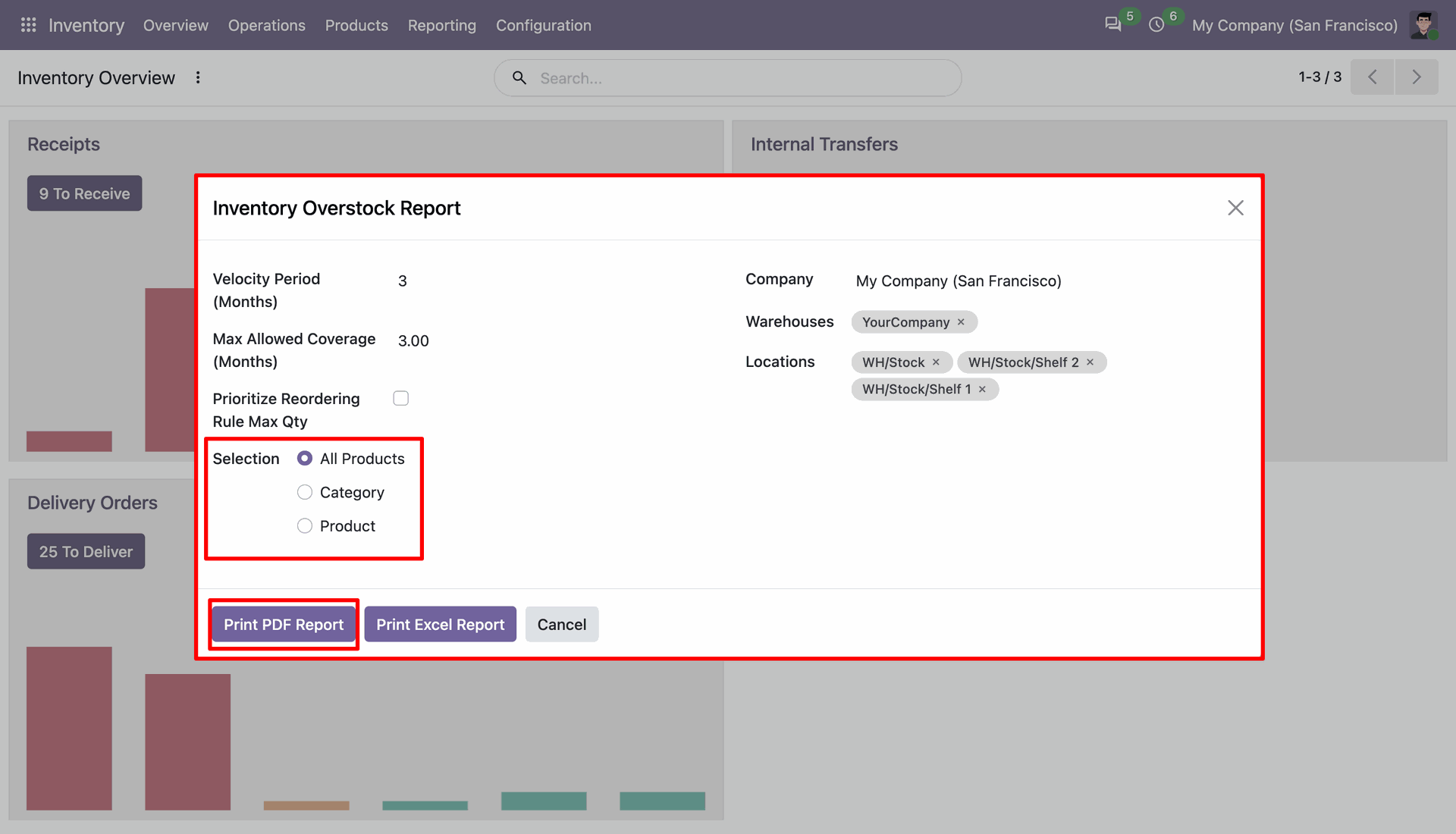
Choose a stock filter and press Print PDF Report to review matching out-of-stock products.
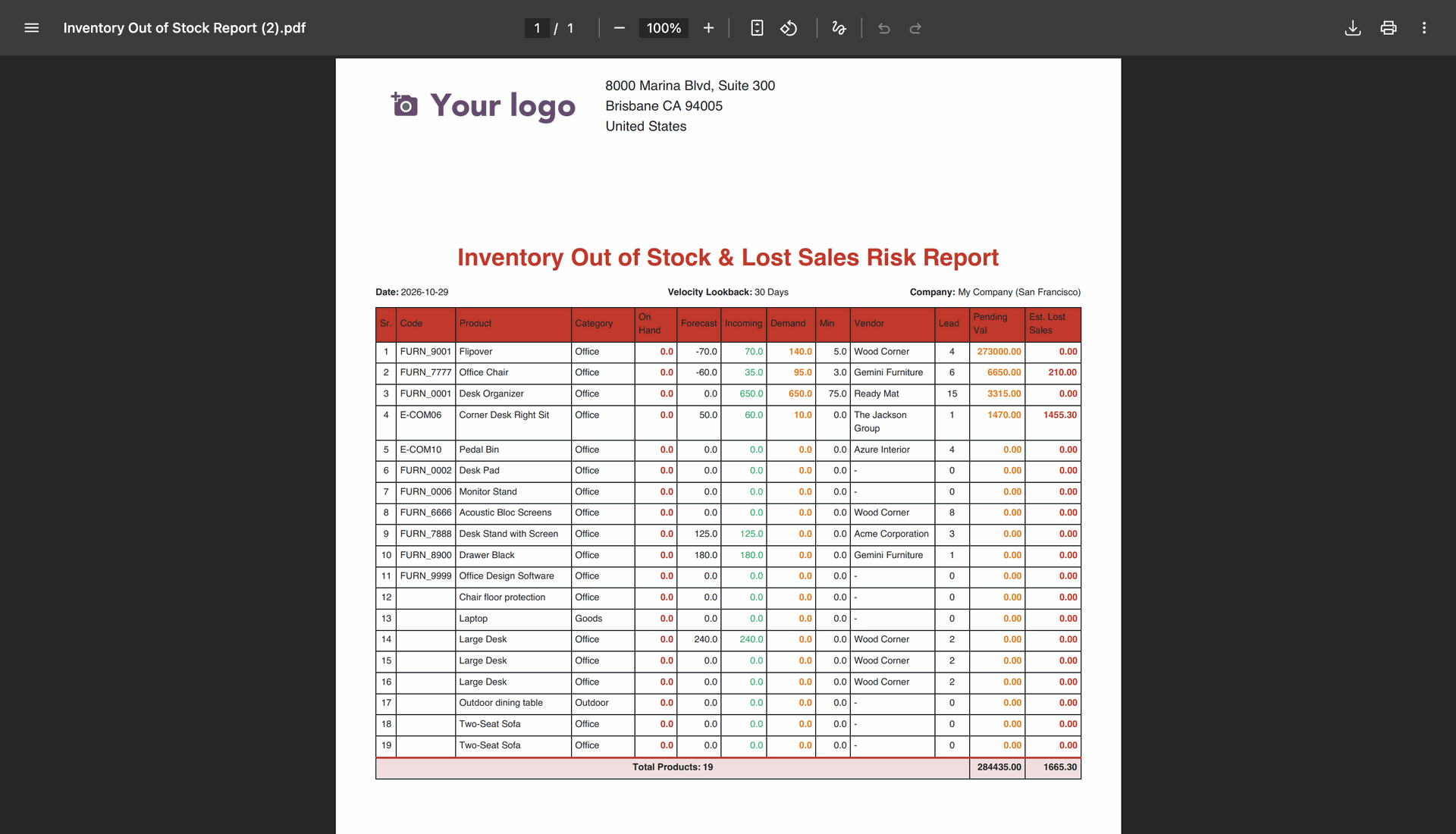
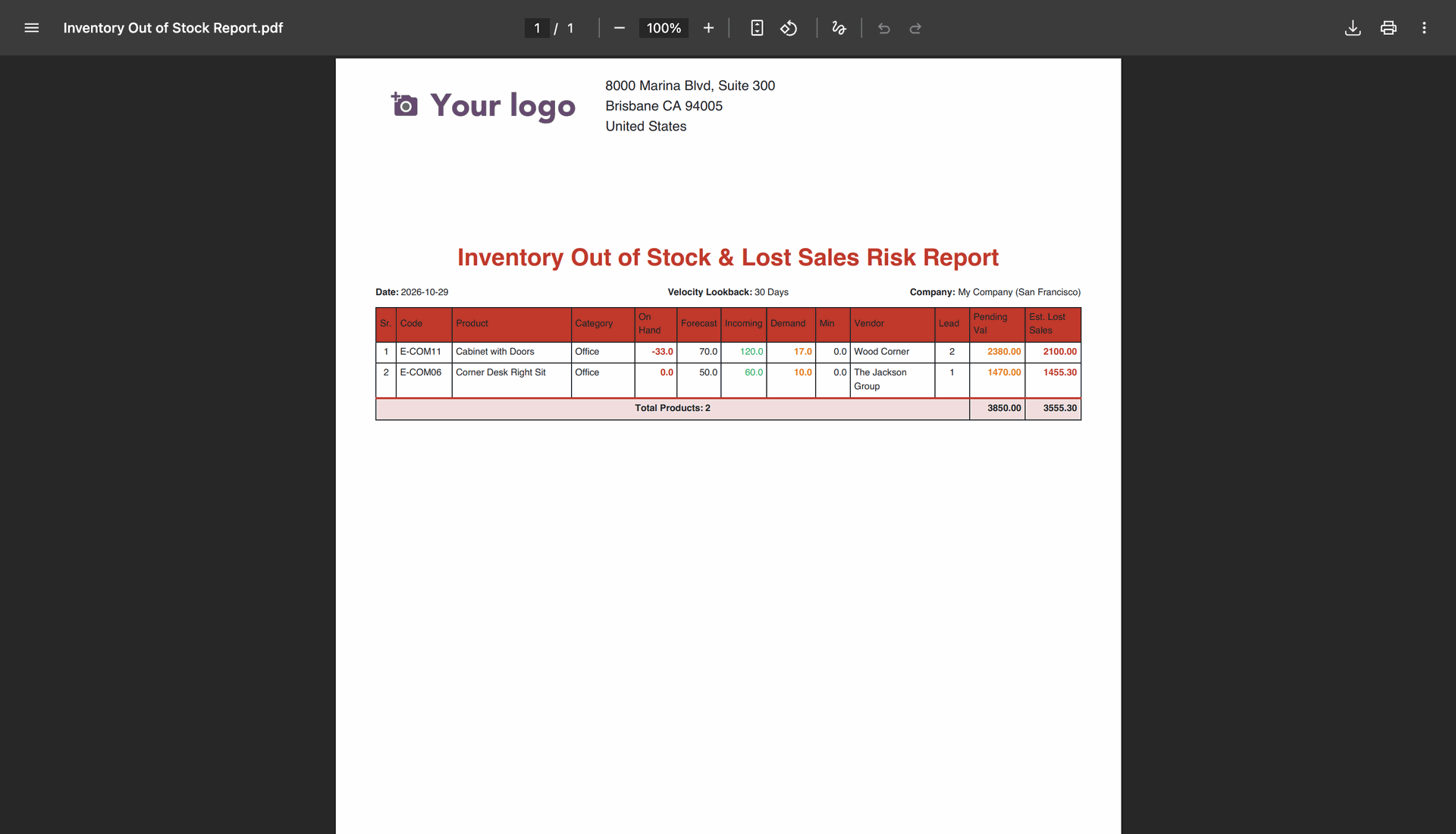
Review the PDF table of out-of-stock items with forecast, incoming stock, demand, and sales risk.
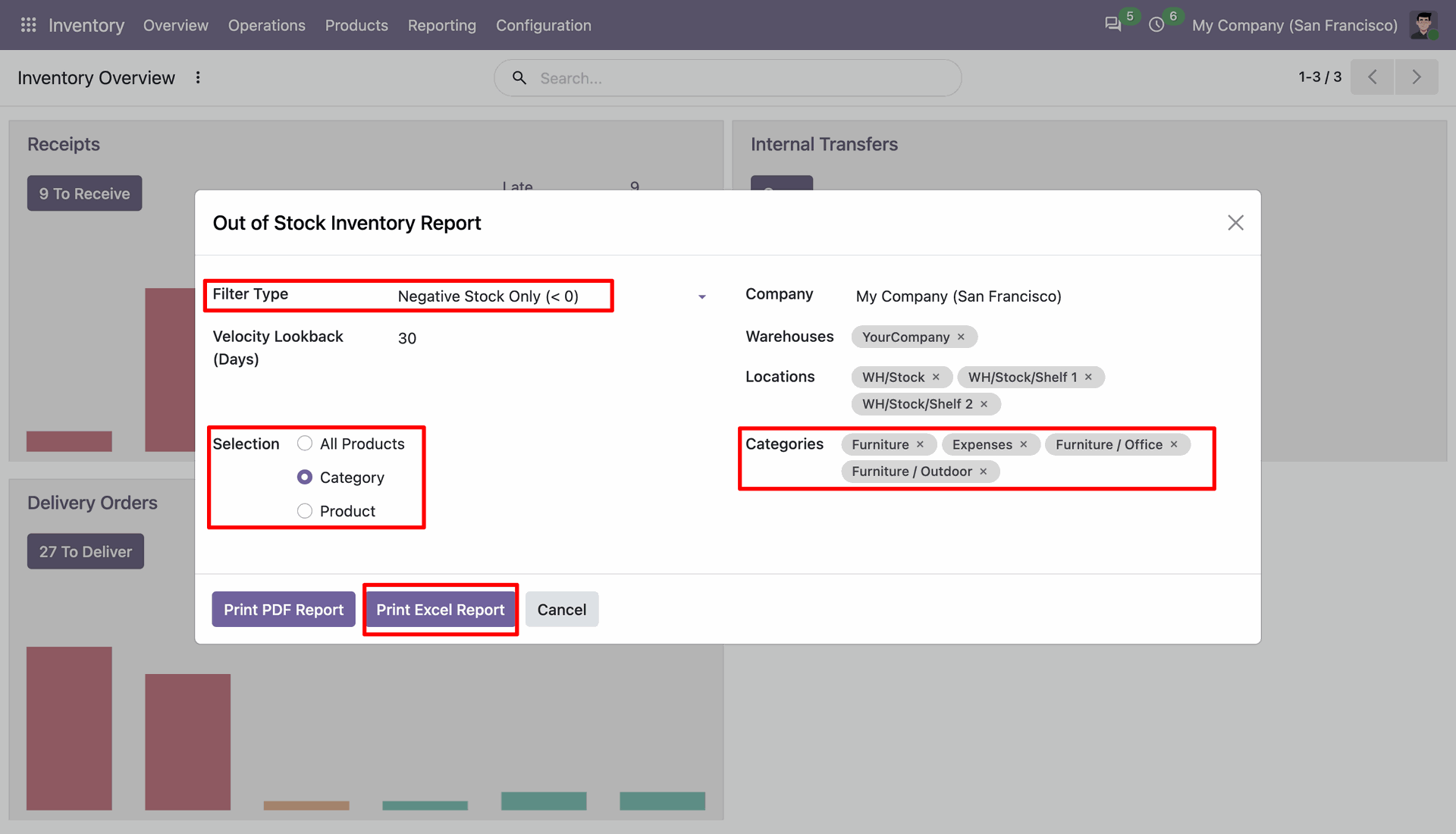
Set Negative Stock Only and press Print Excel Report to export products with negative quantities.
The exported sheet lists negative-stock products with quantity, demand, vendor, and estimated lost-sales columns.

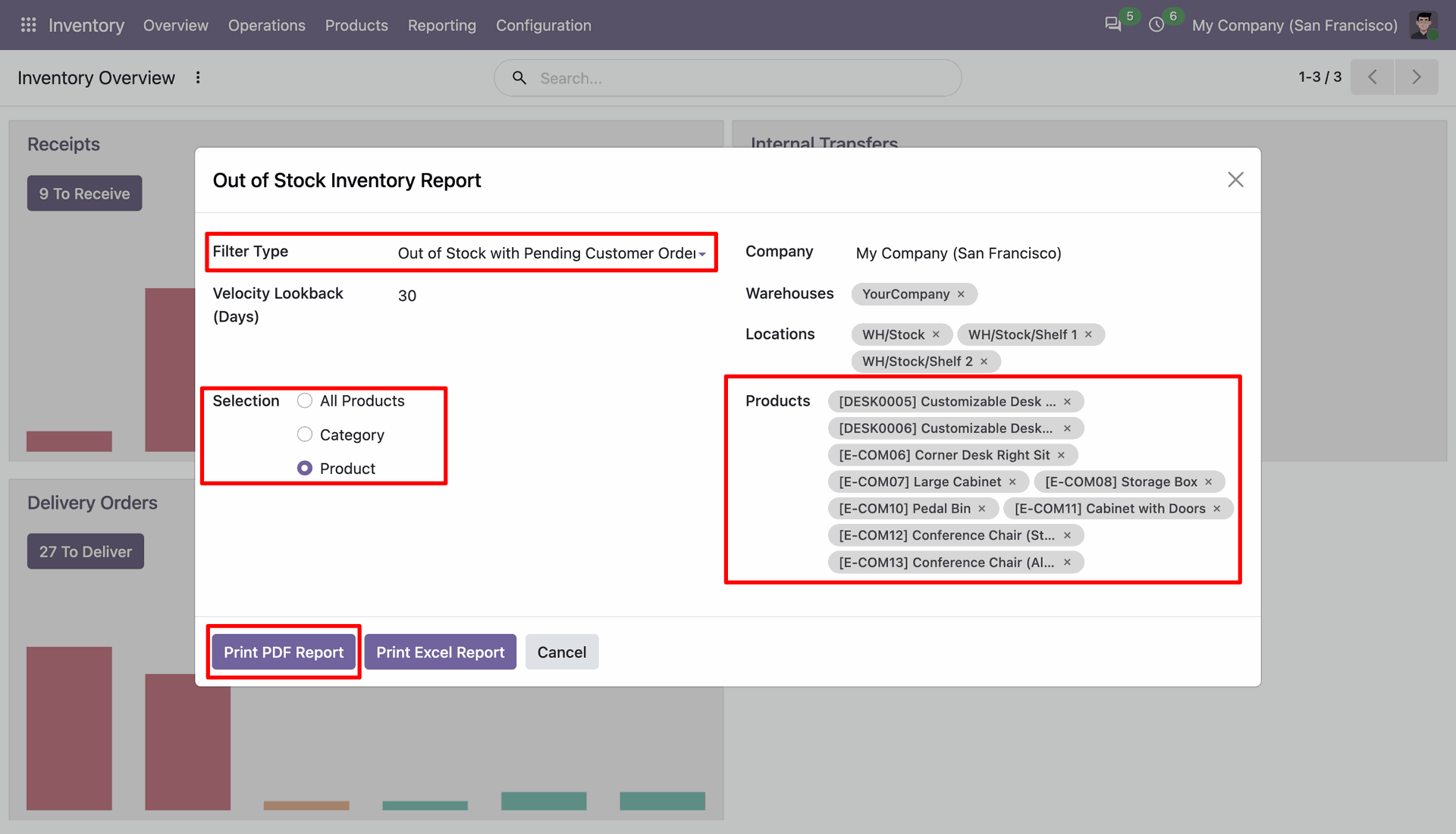
Choose pending customer orders and press Print PDF Report to show matching stock risks.
Review the generated PDF showing available stock, forecasts, demand, vendor details, and estimated lost sales.
Features
- Identify products with excess stock beyond the required inventory levels.
- Monitor overstocked products to avoid unnecessary inventory accumulation.
- Analyze excess quantities to optimize warehouse space and holding costs.
- Improve purchasing decisions with better visibility into overstocked inventory.
Open the user record in Settings to grant access to Inventory Overstock Report.
Use Inventory Reporting to open the Inventory Overstock Report from the stock dashboard.
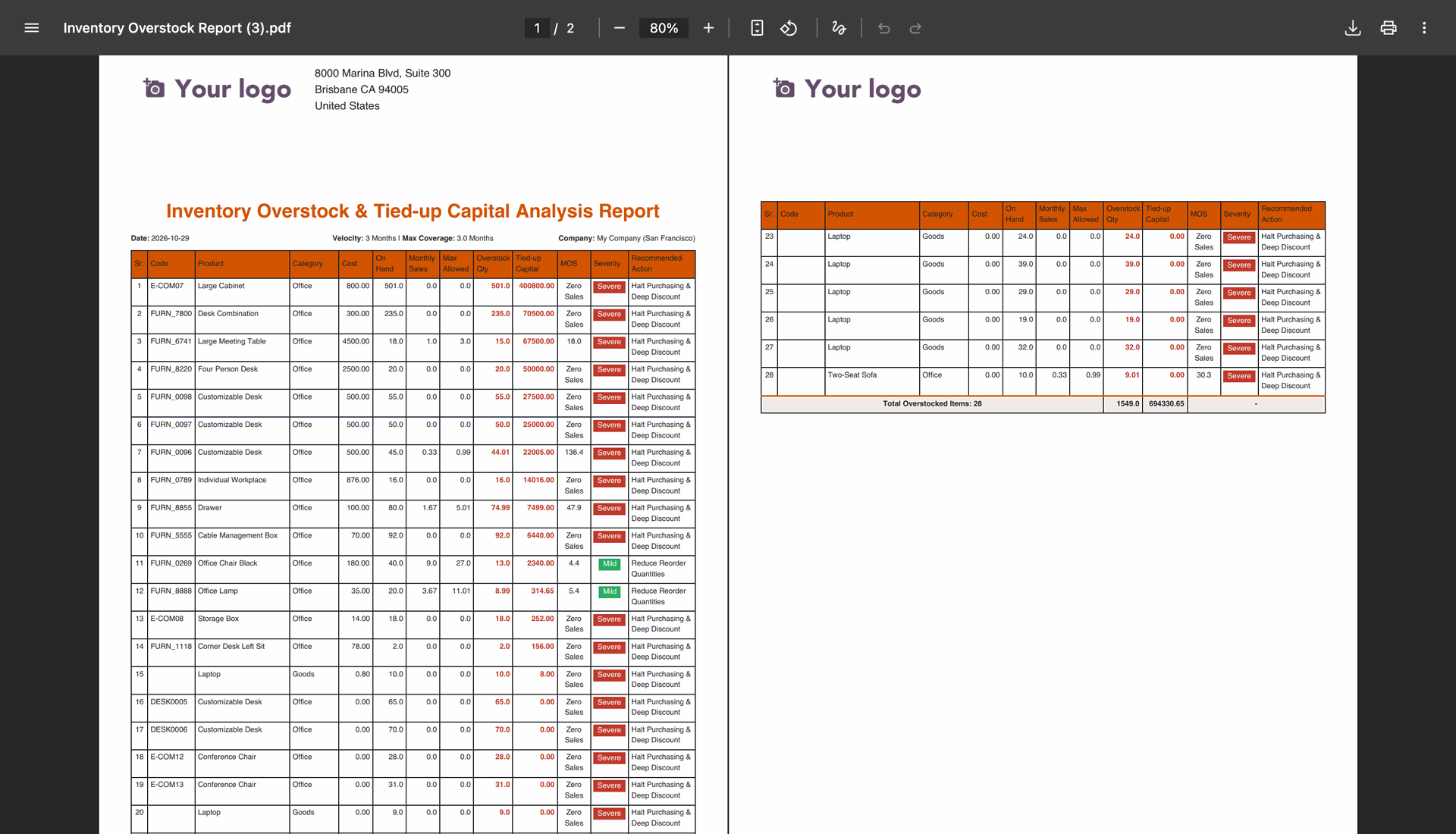
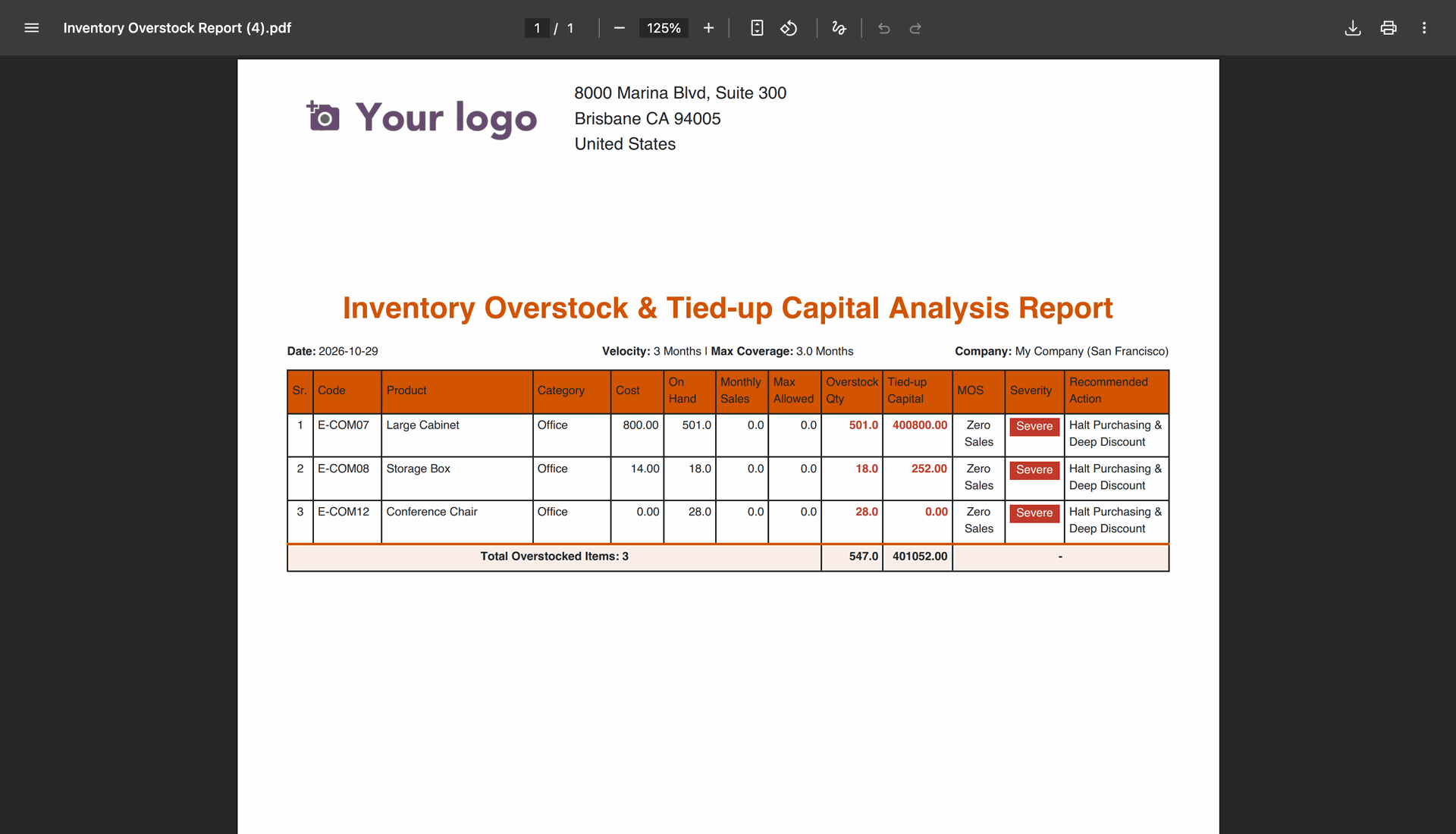
Review overstock products with coverage, tied-up capital, severity, and suggested next actions.
The PDF summary compares stock levels with sales and highlights excess inventory by product.
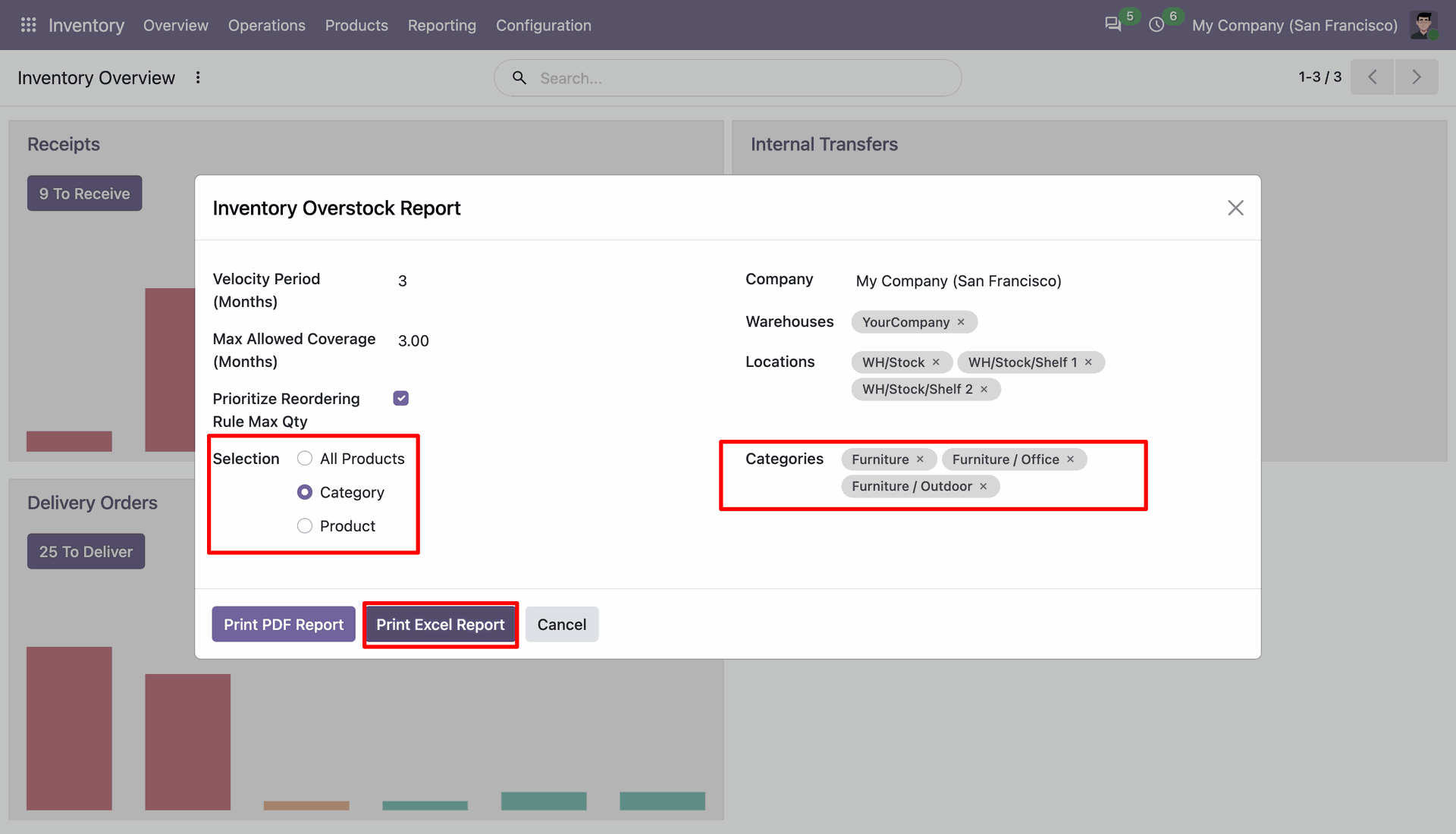
Choose product categories and press Print Excel Report to compare excess stock and reordering priorities.
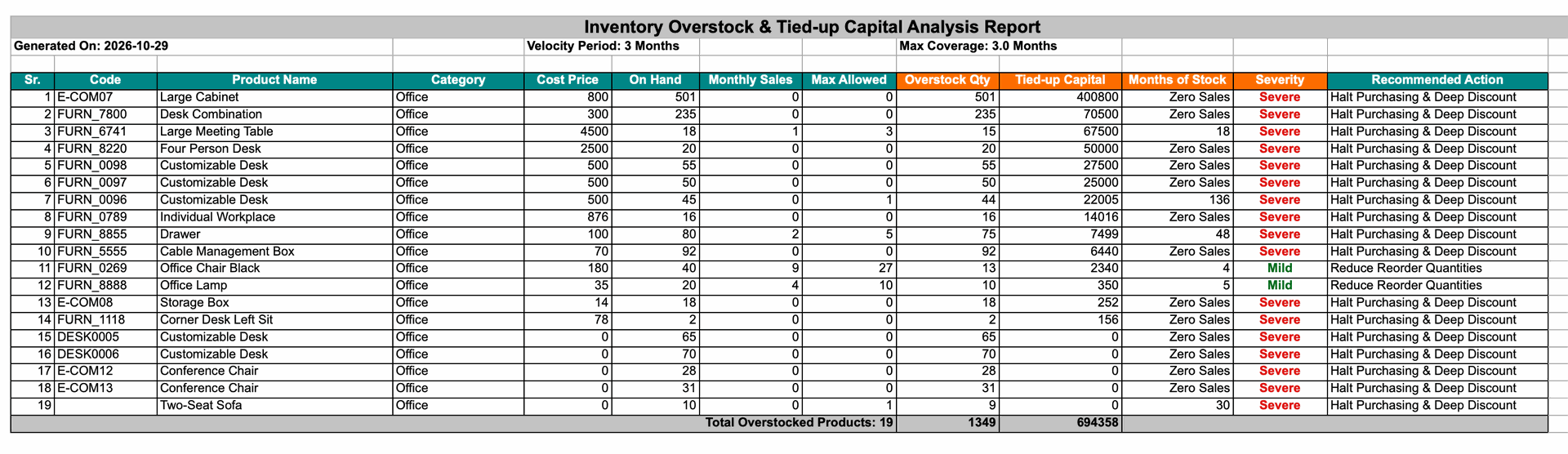
Use the spreadsheet to compare overstock quantities, months of stock, severity, and recommendations.
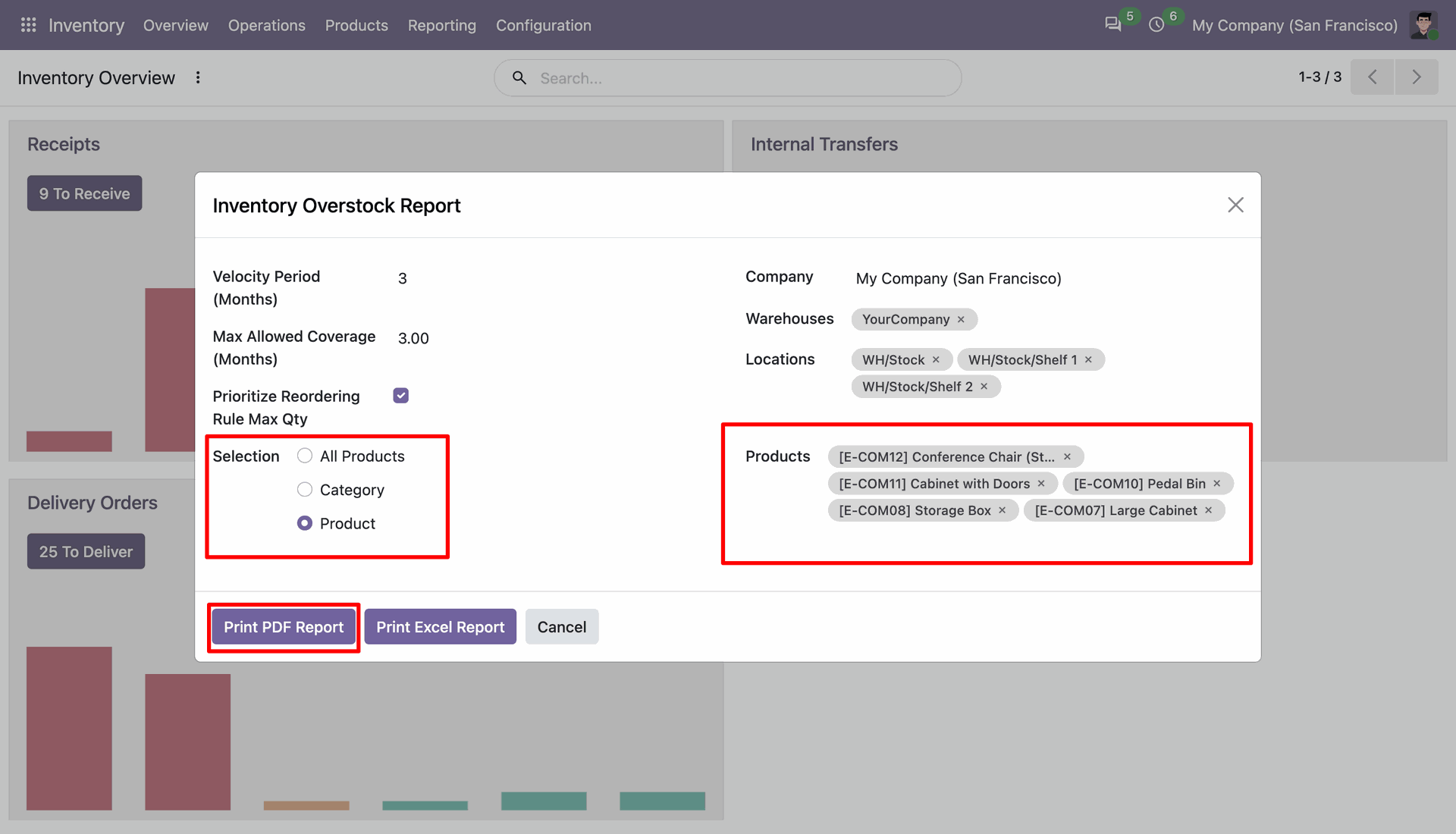
Select individual products and press Print PDF Report to focus the overstock analysis.
Inspect selected product values and suggested purchasing actions in the generated overstock report.
Features
- Classify inventory based on FSN (Fast, Slow & Non-Moving) and XYZ demand variability.
- Identify fast-moving, slow-moving, and non-moving products with demand patterns.
- Analyze stock movement and demand fluctuations for better inventory planning.
- Optimize purchasing and replenishment strategies using combined FSN-XYZ analysis.
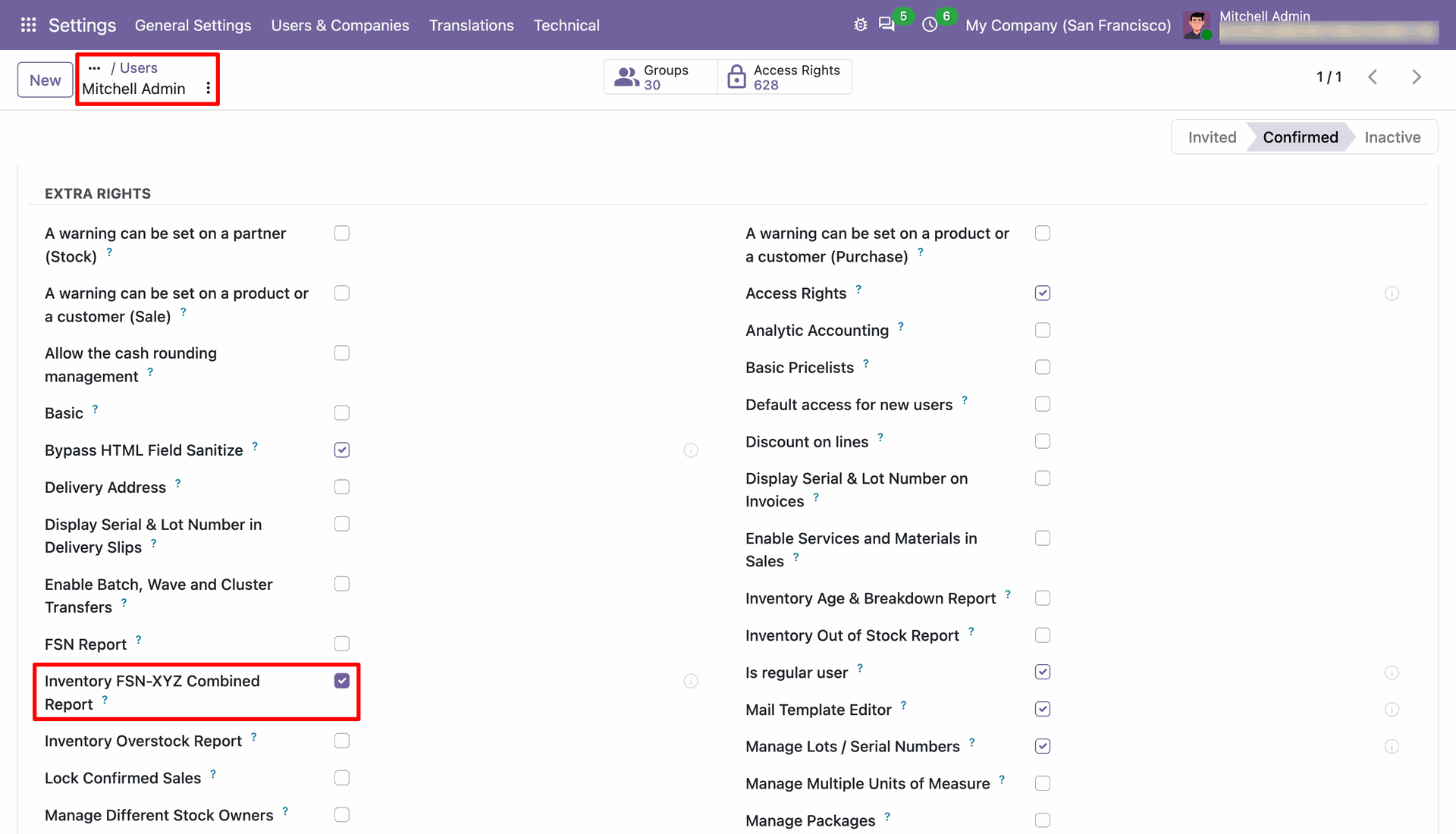
Open the user record in Settings to grant access to Inventory FSN XYZ Combined Report.
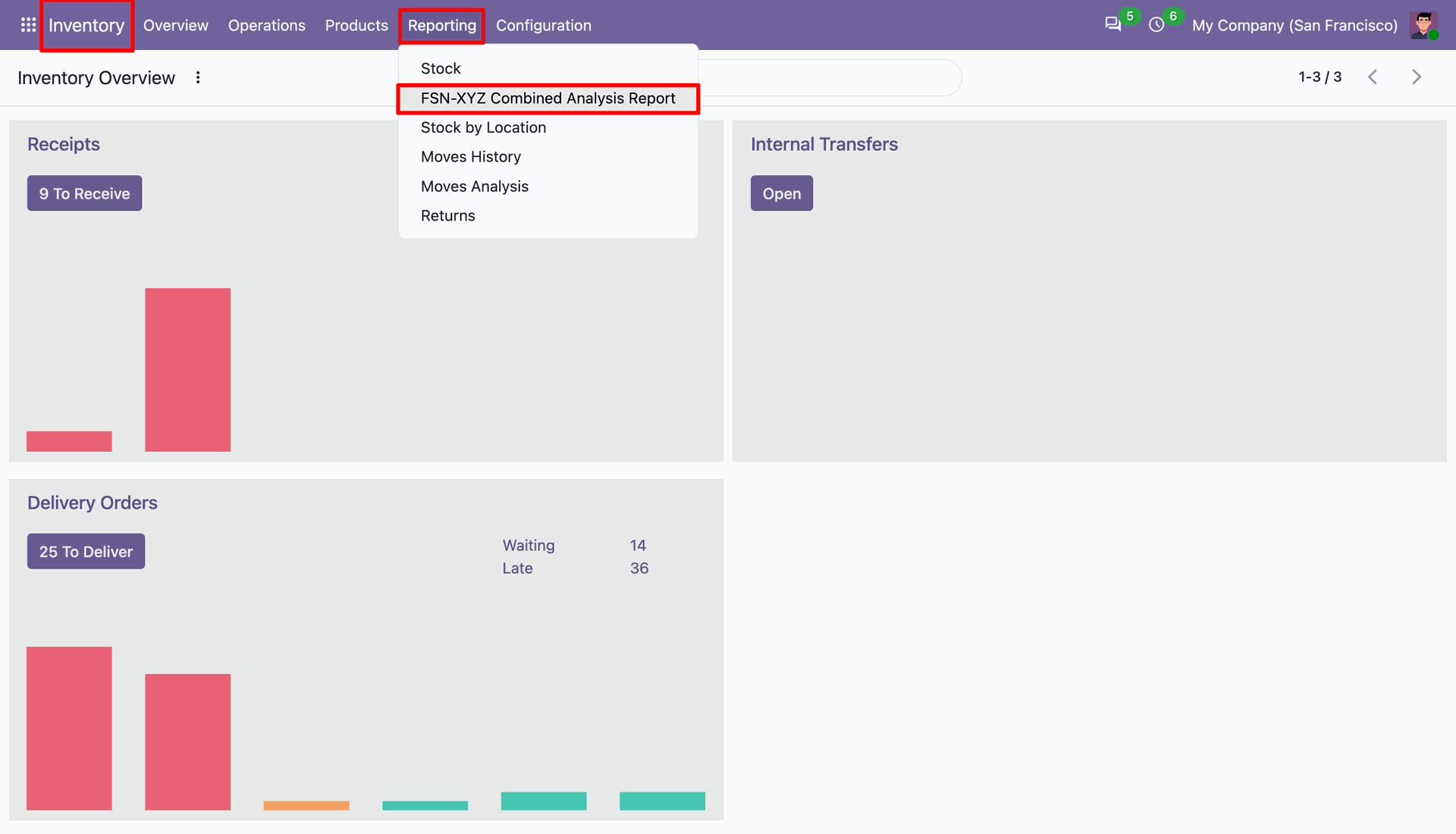
Use Inventory Reporting to open the Inventory FSN XYZ Combined Analysis Report from the stock dashboard.
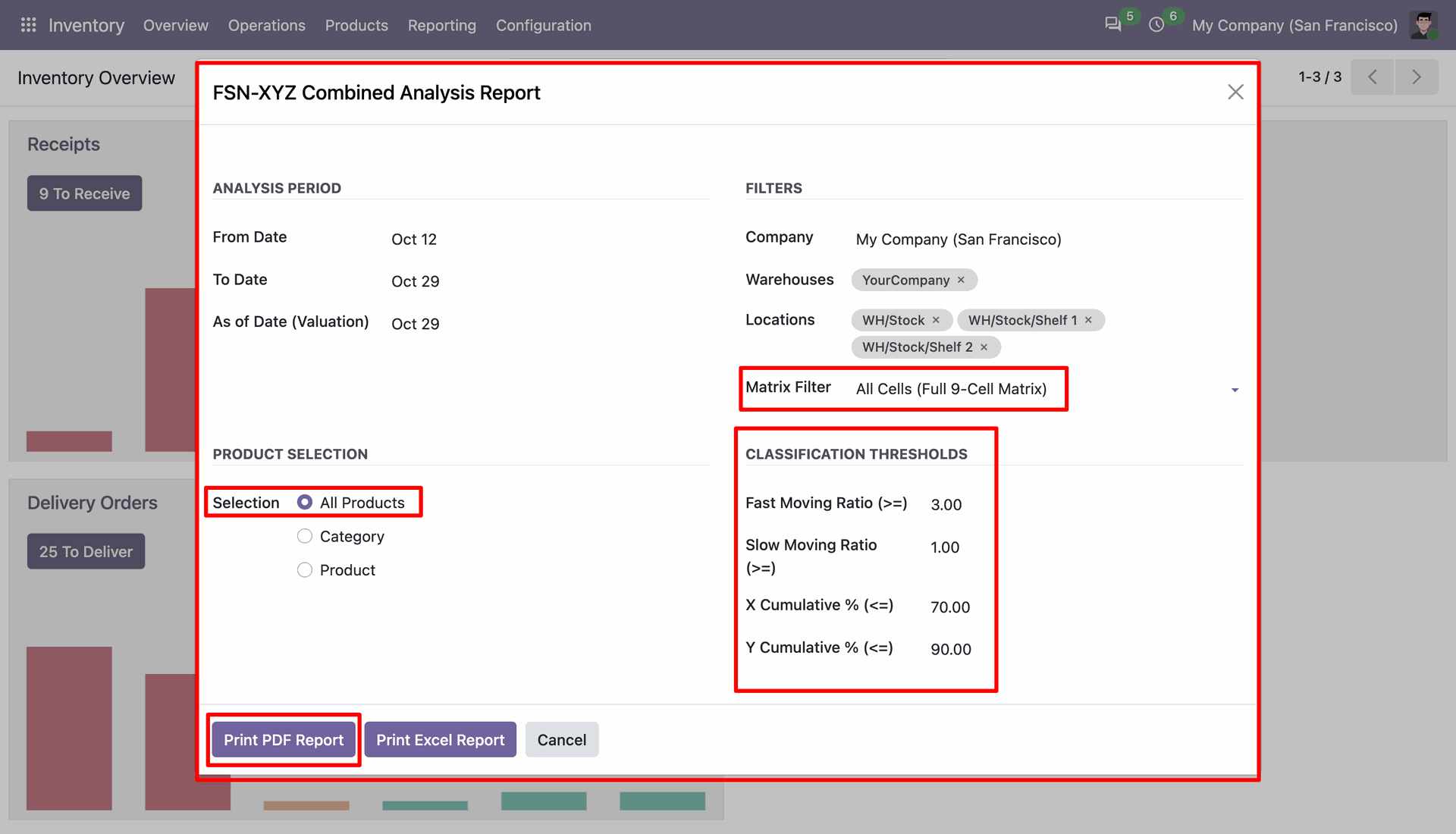
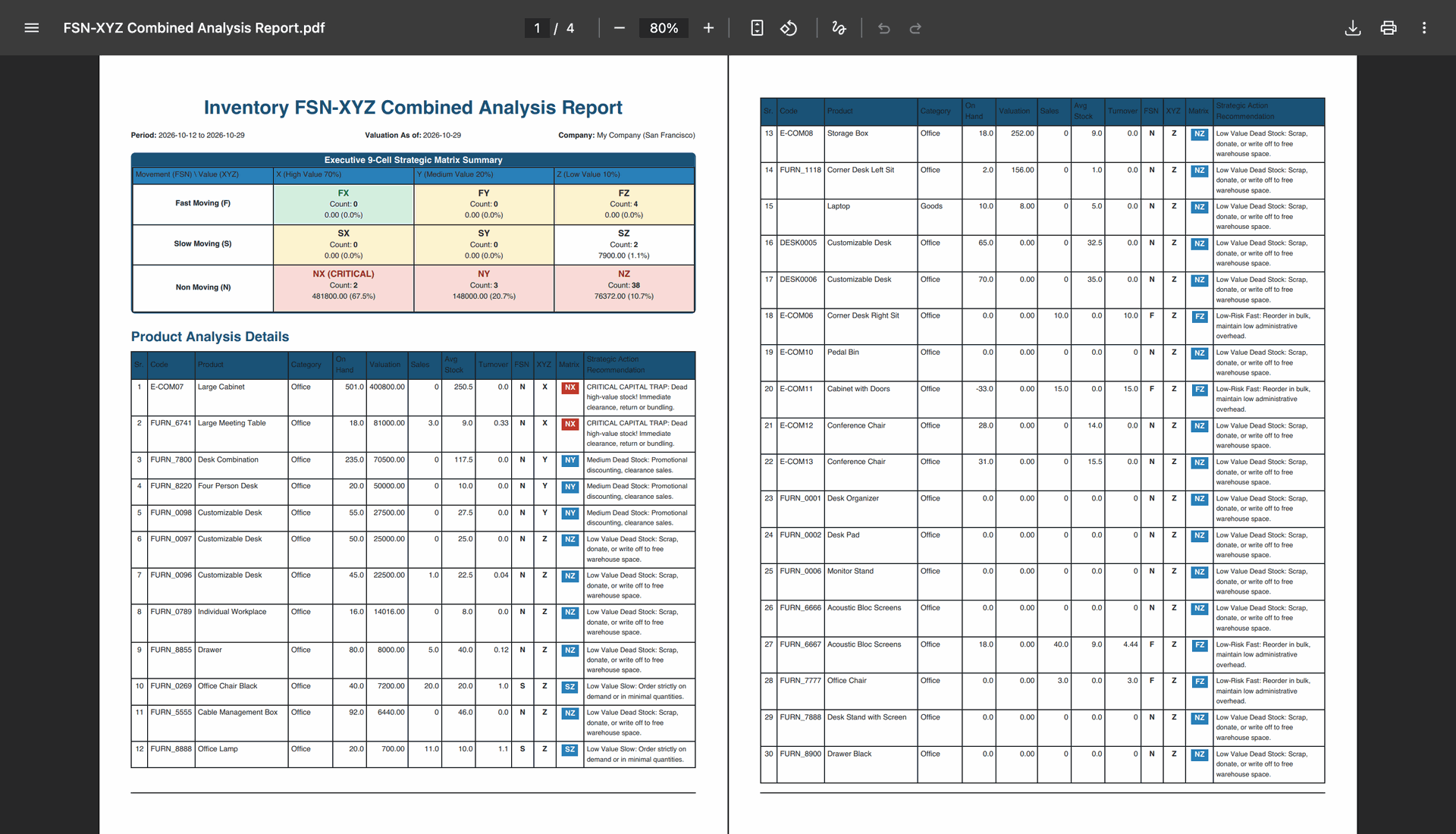
Set the dates and filters, then press Print PDF Report to view the full nine-cell matrix.
Review product-level movement, valuation, matrix classifications, and strategic recommendations in the report.
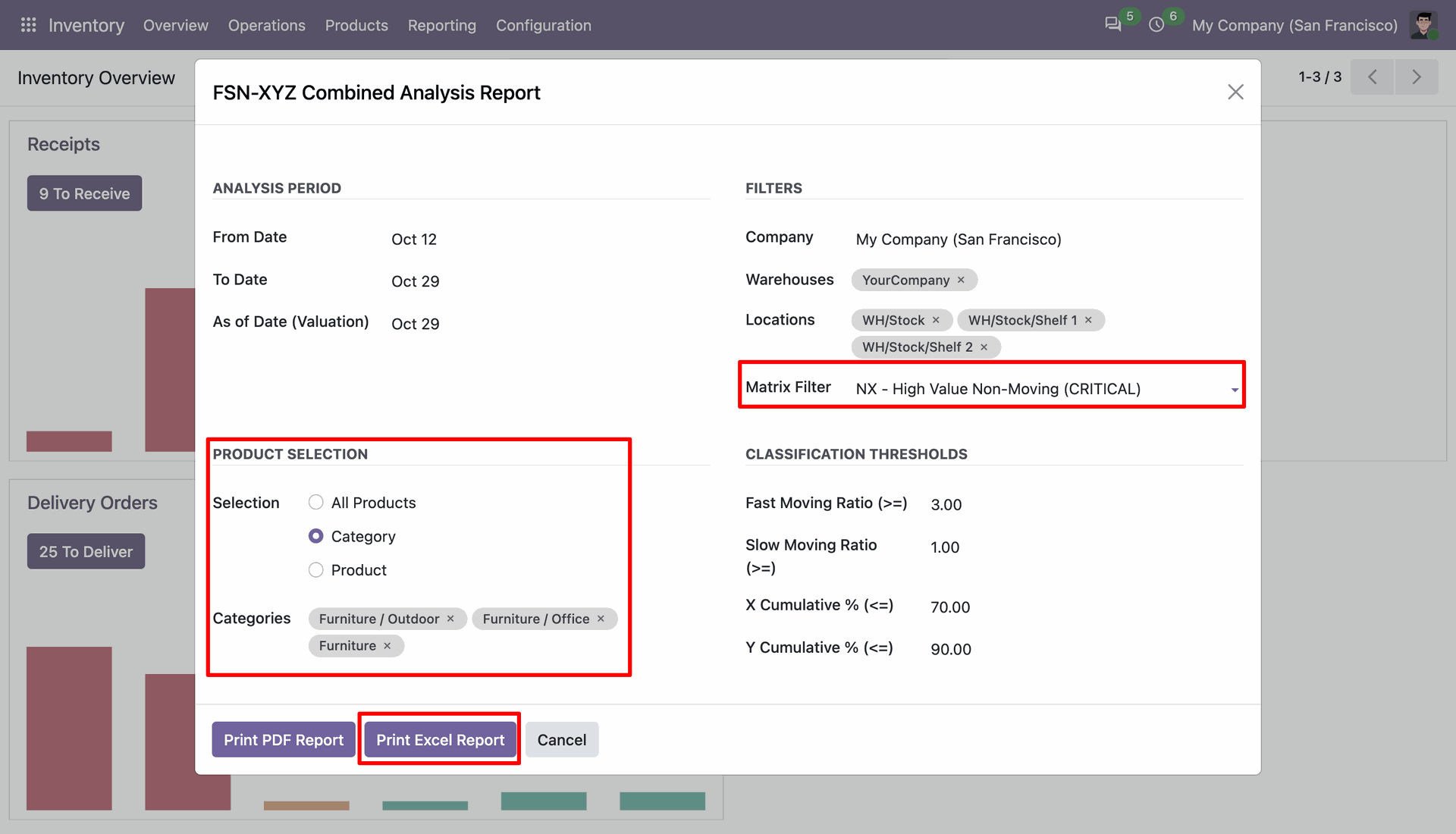
Choose a critical matrix filter, then press Print Excel Report to export selected category classifications.
Compare fast, slow, and non-moving stock across value groups in the summary spreadsheet.

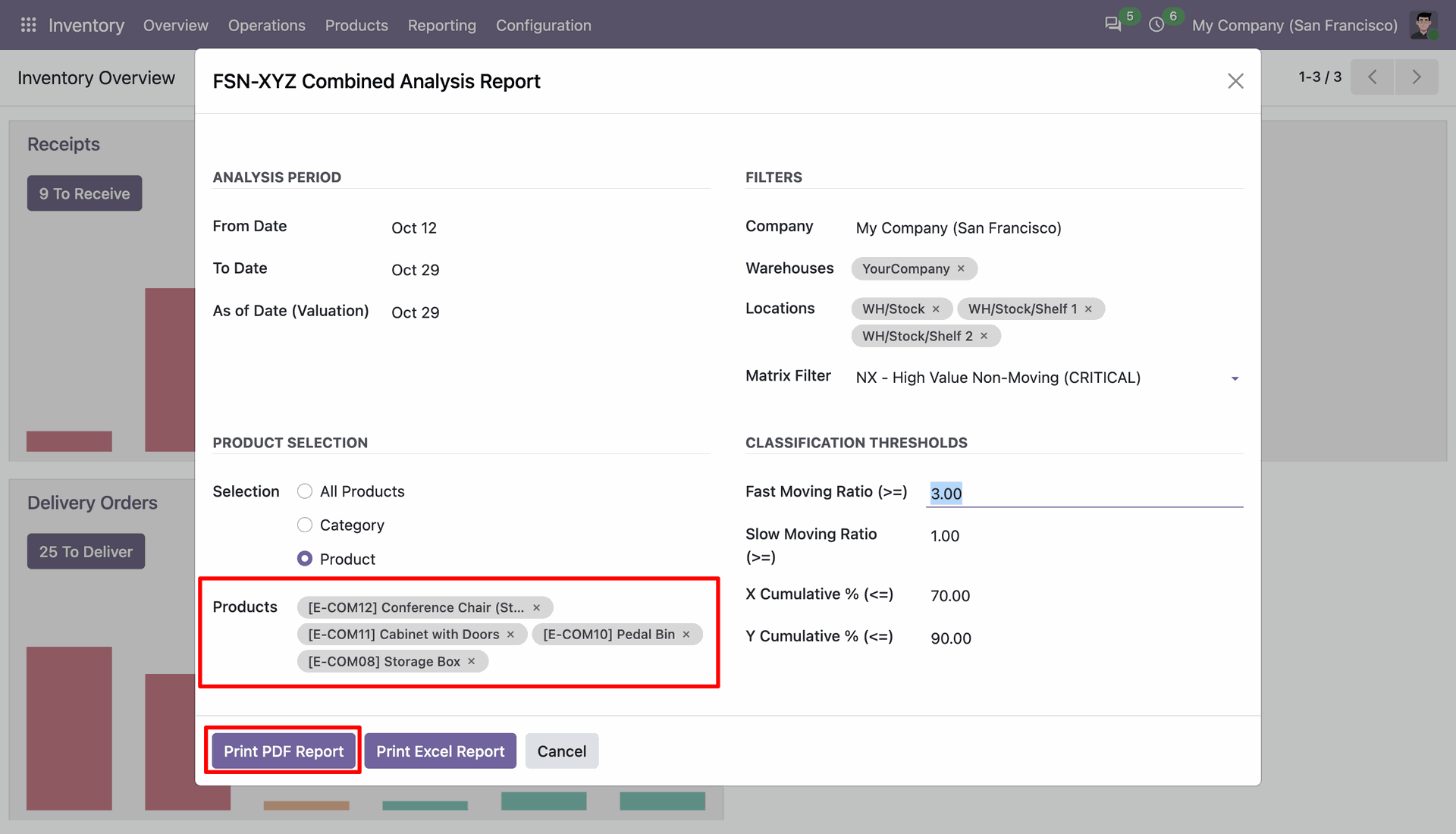
Select specific products and press Print PDF Report to view movement and value classifications.
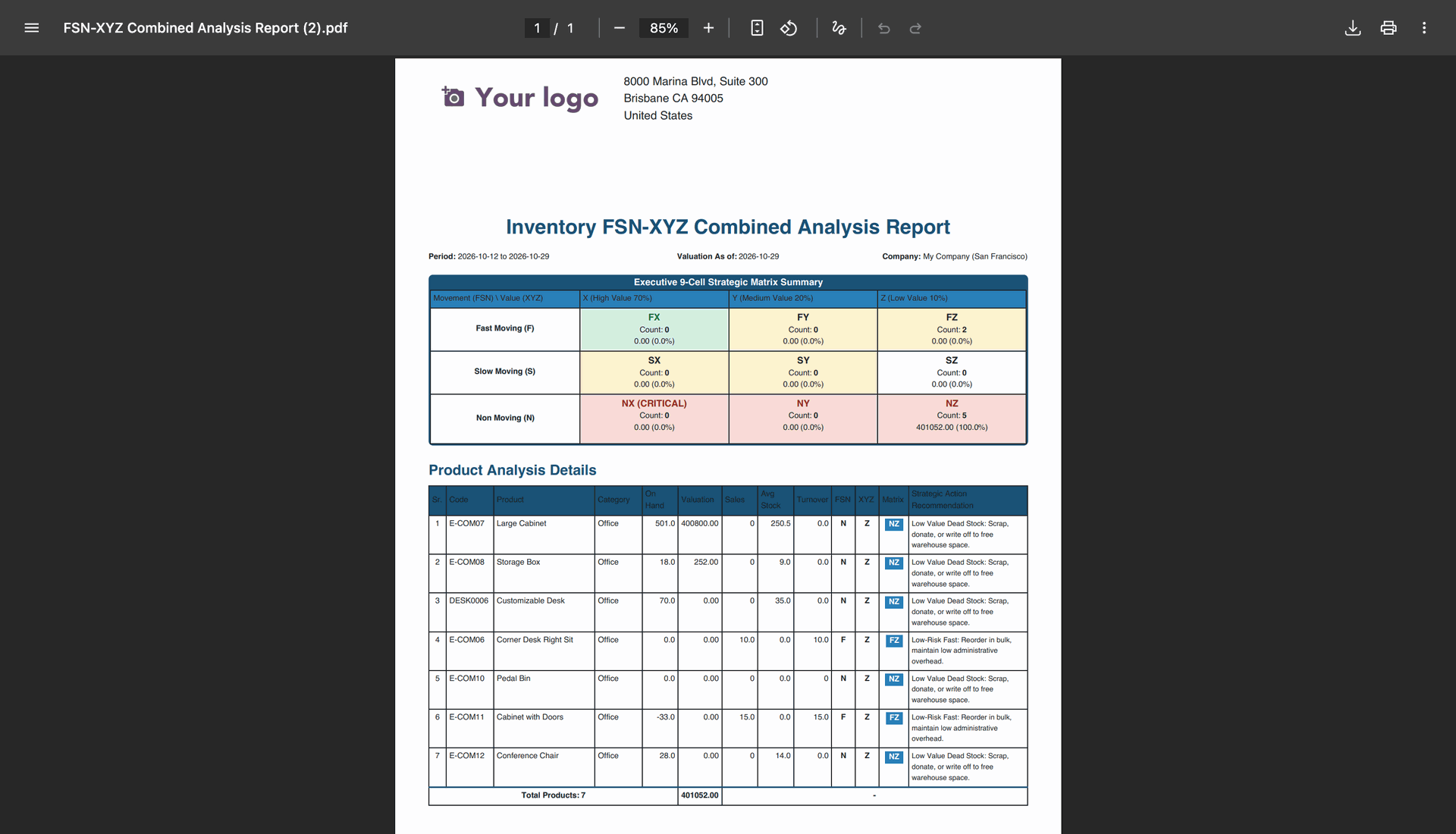
Review the combined matrix summary and product analysis details in the exported PDF.
Version 20.0.2.0.0 | Released on : 05th November 2026
Version 20.0.1.0.0 | Released on : 06rd October 2026
- Yes, this app works perfectly with Odoo Enterprise (Odoo.sh & Premise) as well as Community.
- No, this application is not compatible with odoo.com(odoo saas/Odoo Online)
- Yes, we are deleting the valuation layer history as part of the process. Let us know if you have any questions.
- In this module we have not consider cost method & cost price.
- Yes, to test this module, please contact us at sales@softhealer.com.
- Please contact us at sales@softhealer.com to request customization.
- Yes, we provide free lifetime support for the version you purchased.
- Yes, you will receive lifetime free updates for the version of the module you purchased.
- No, there is no need to install any additional libraries.
- Yes, for version 12 and above, you need to purchase the module separately for each version you intend to use.
- No, exchanges or refunds are not allowed. Please make sure to select the correct version before purchasing.
- You can contact us at support@softhealer.com for language translation support. We use Google Translator tools to provide translations in multiple languages, so the accuracy may vary. We welcome your suggestions to help improve translations.
Discover Our Latest Apps