











All In One Product Image, Serial Number, Tax Remove In Report

This module helps to manage the sales, purchase, invoice, warehouse & bill of material product. You can hide/show tax, serial numbers & product images in the report. If you want to show the product image then you have an image size option in the product image.

Features
- Easy to show/hide product images with different sizes.
- Easy to show/hide product images the invoice & bill.
- Easy to show/hide product images the picking operation & delivery slip.
- Easy to show/hide serial numbers in report.
- Easy to show/hide tax in the Purchase order or RFQ report.
- Easy to show/hide tax in the sale order or quotation report.
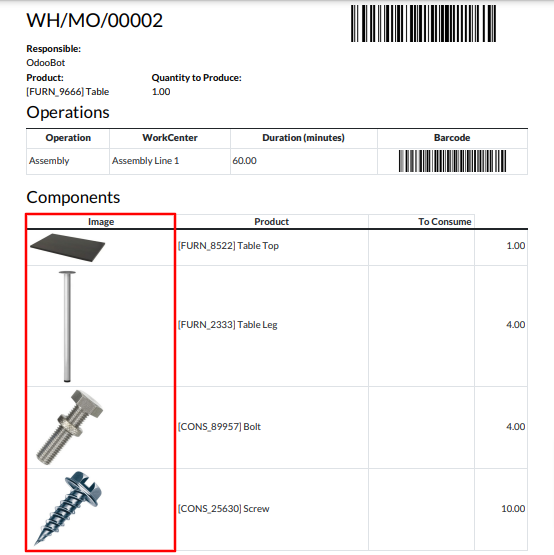
- Works with both BOM and Manufacturing Order in view and reports.

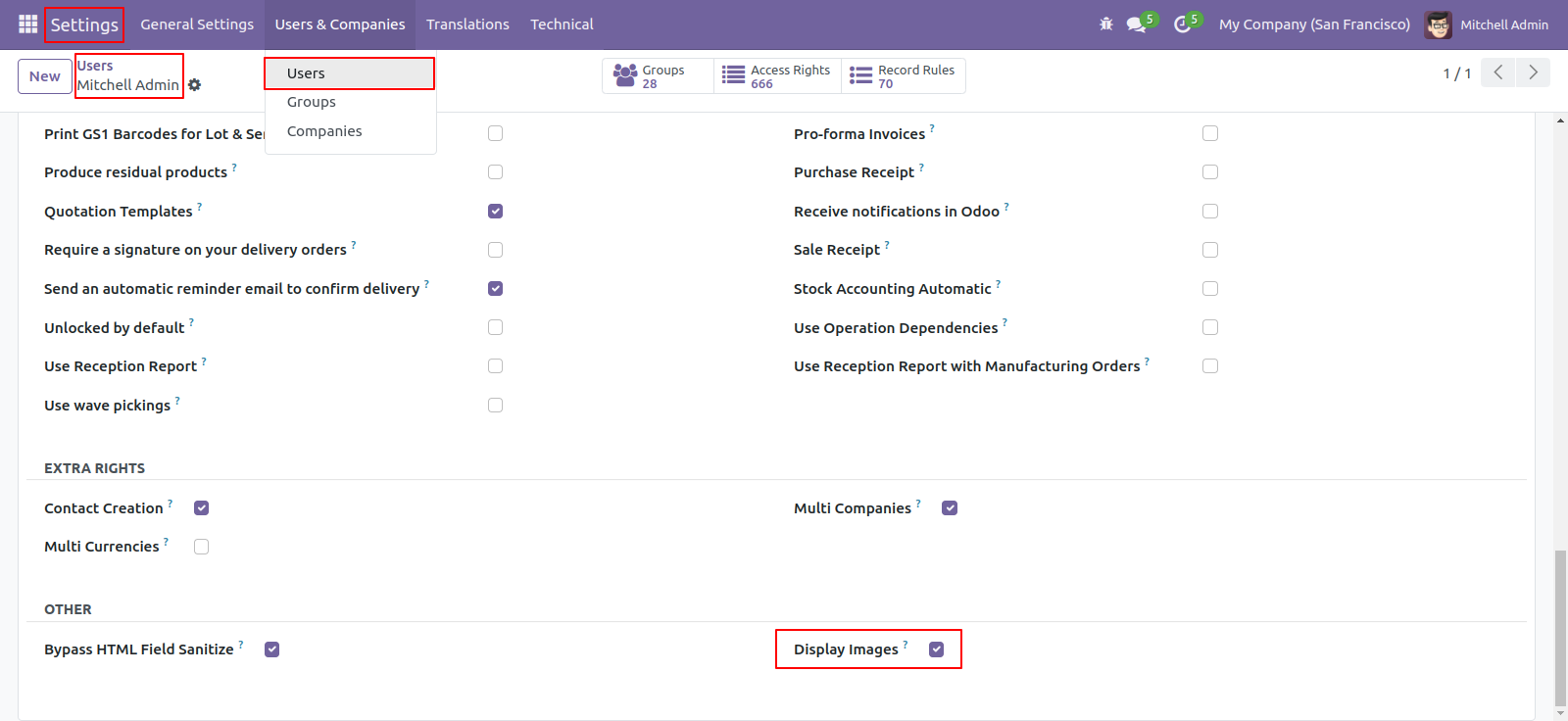
"Go to users and tick 'Display Images'.
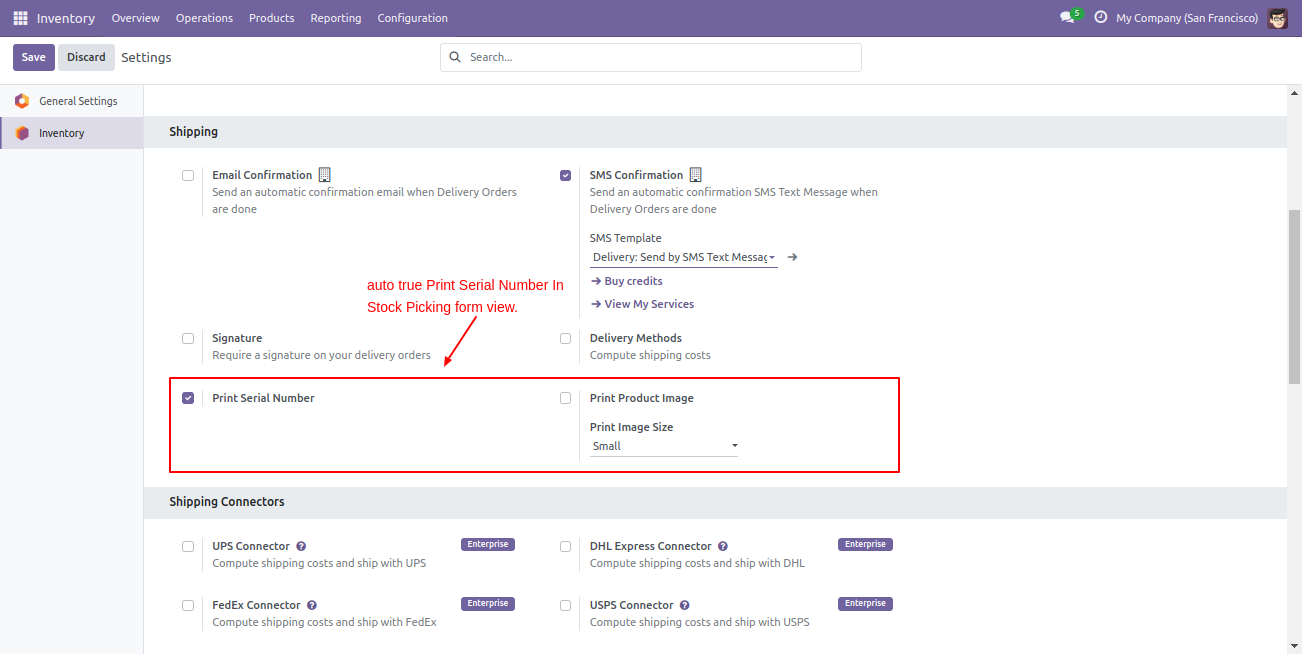
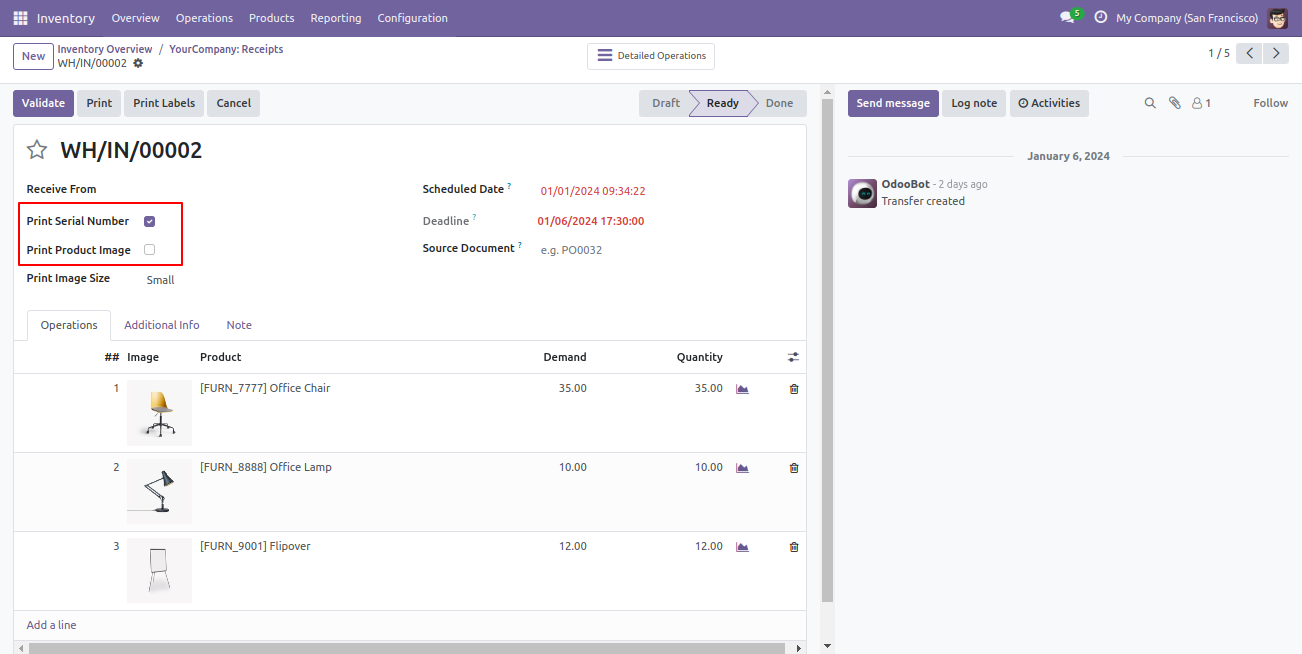
Go to inventory setting >> select the report print option. If you select 'Print Serial Numbers', The 'Print Serial Numbers' option is automatically selected in the form view.
Here, you can see, Automatically select the 'Print Serial Numbers' option. You can enable/disable it from here also.
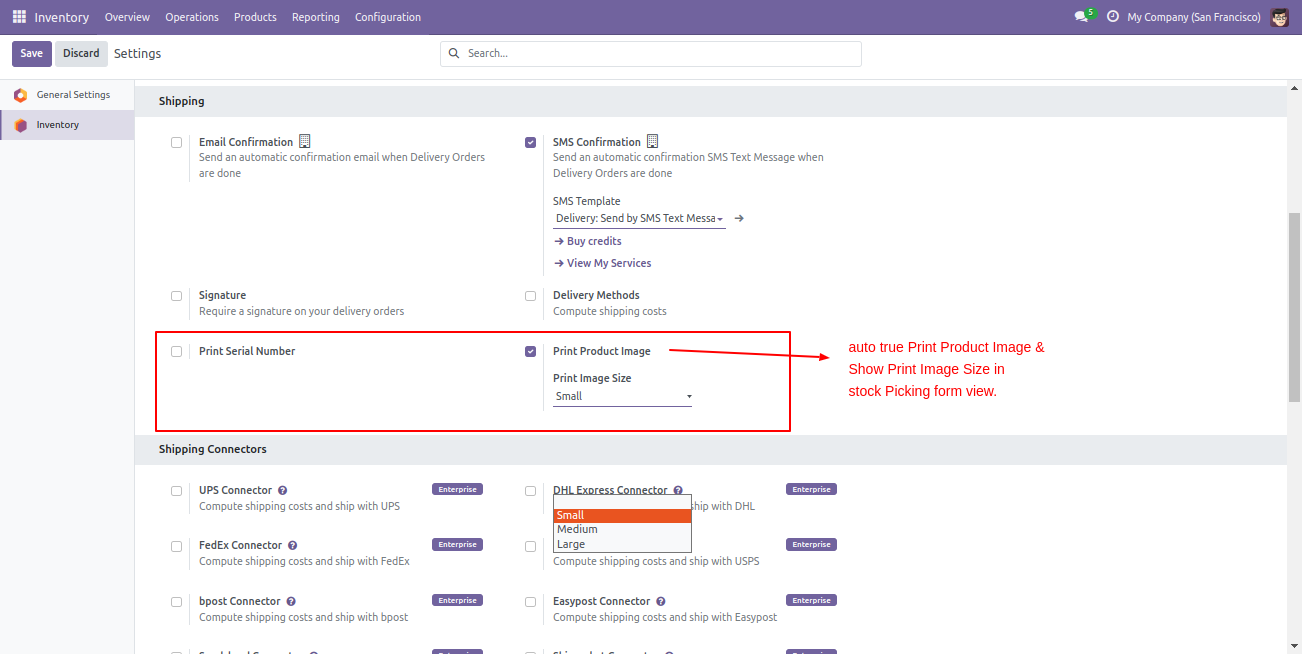
If you select 'Print Product Image' and 'Print Image Size', The 'Print Product Image' and 'Print Image Size' option is automatically selected in the form view.
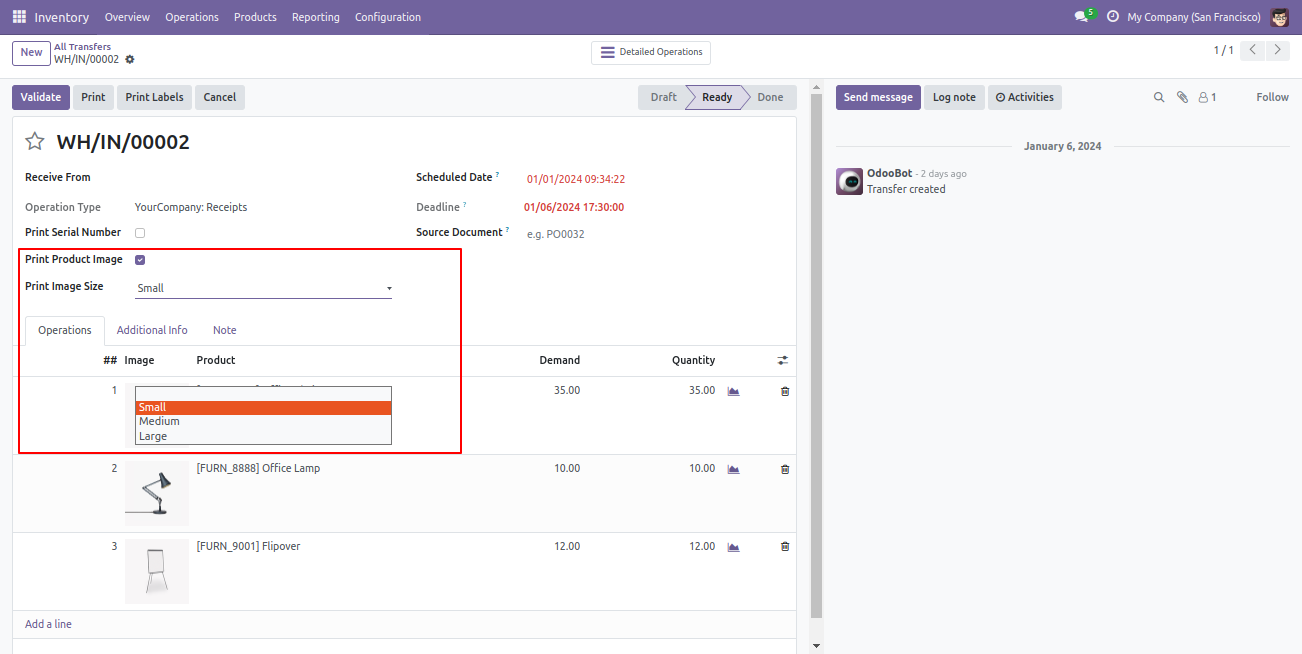
Here, you can see, Automatically select the 'Print Product Image' and 'Print Image Size' options. You can enable/disable it from here also.
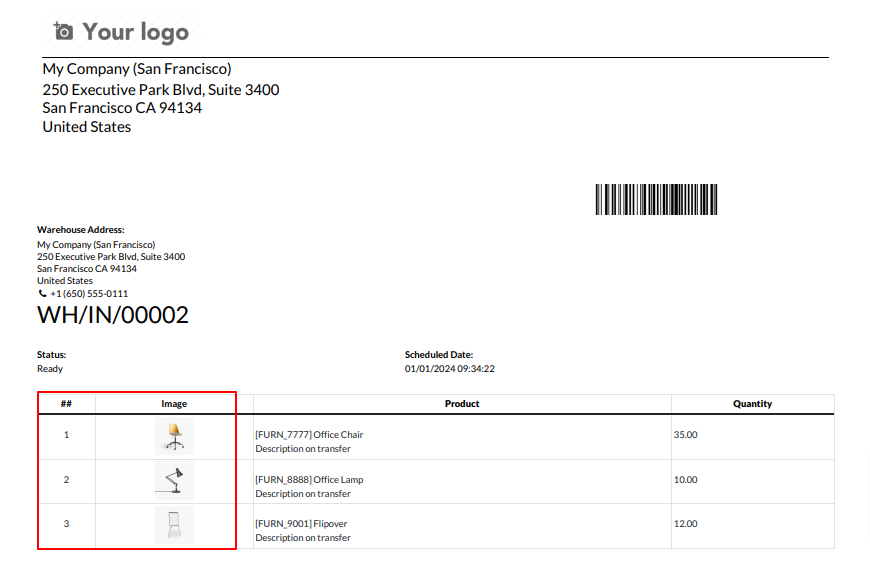
PDF Report.
Go to Purchase Settings, then select the 'Report Print' option. If you choose to 'Print Taxes', this option will be automatically selected in the form view of the Requests for Quotation.
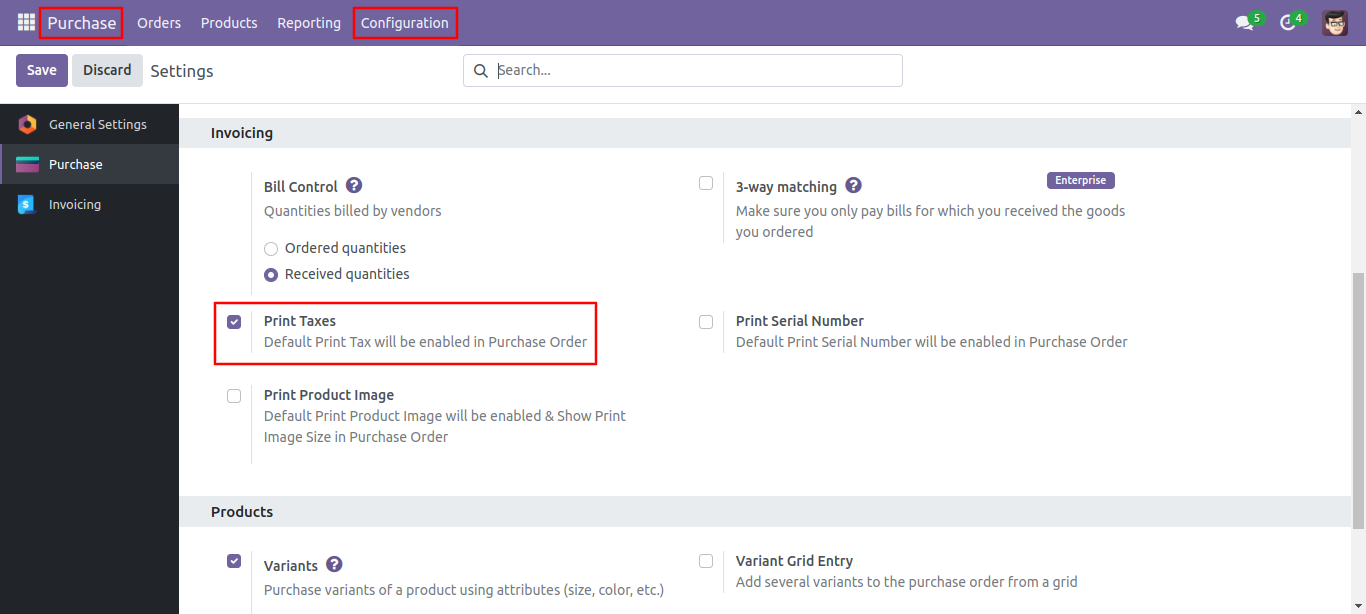
Here, you can observe the 'Print Taxes' option is automatically selected. You also have the ability to enable or disable it from this location.
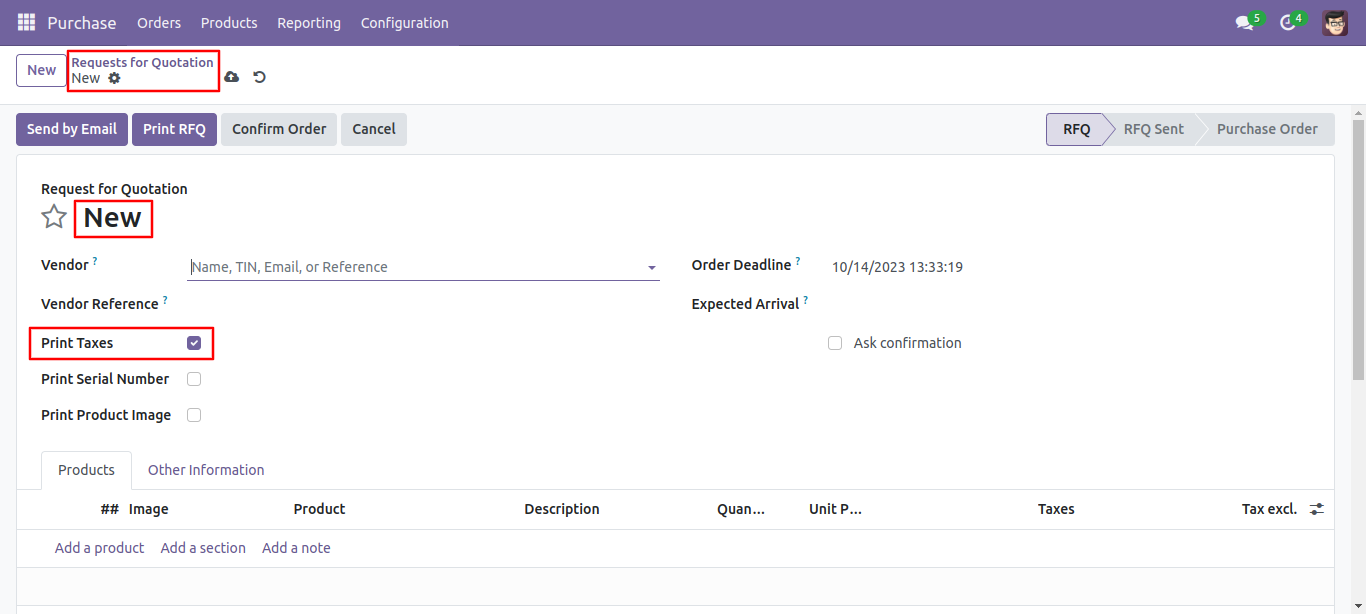
If you select 'Print Serial Numbers', The 'Print Serial Numbers' option is automatically selected in the form view of the requests for quotation.
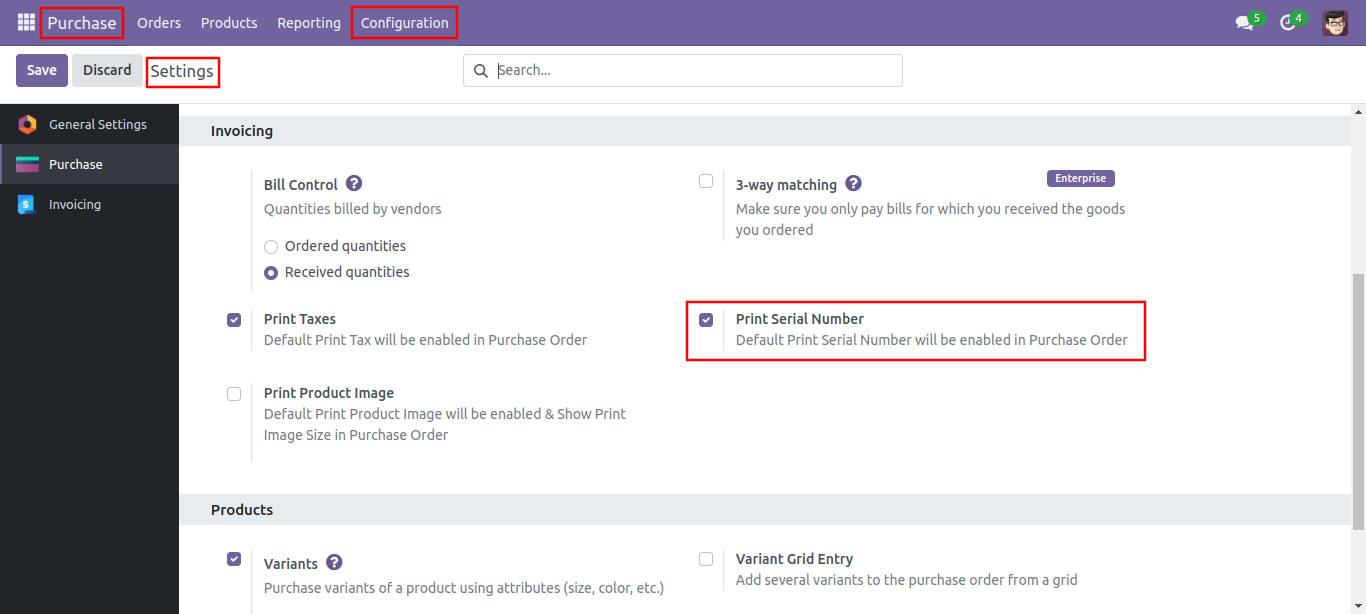
Here, you can automatically select the 'Print Serial Numbers' option. You can also enable or disable it from here.
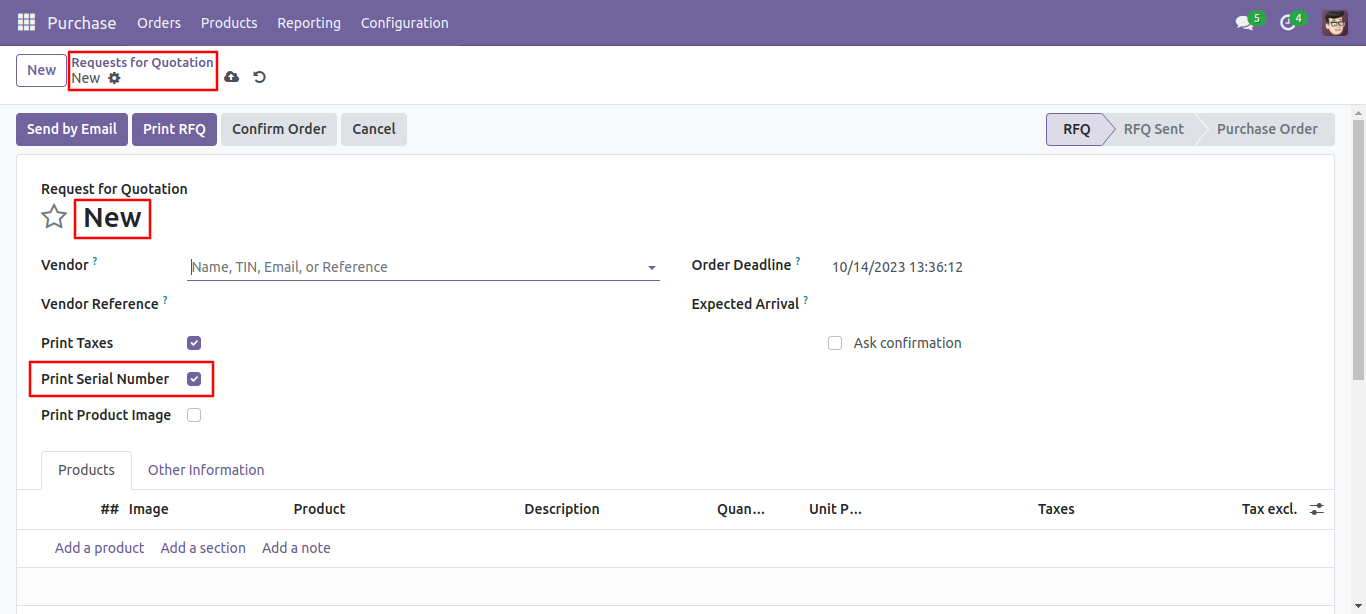
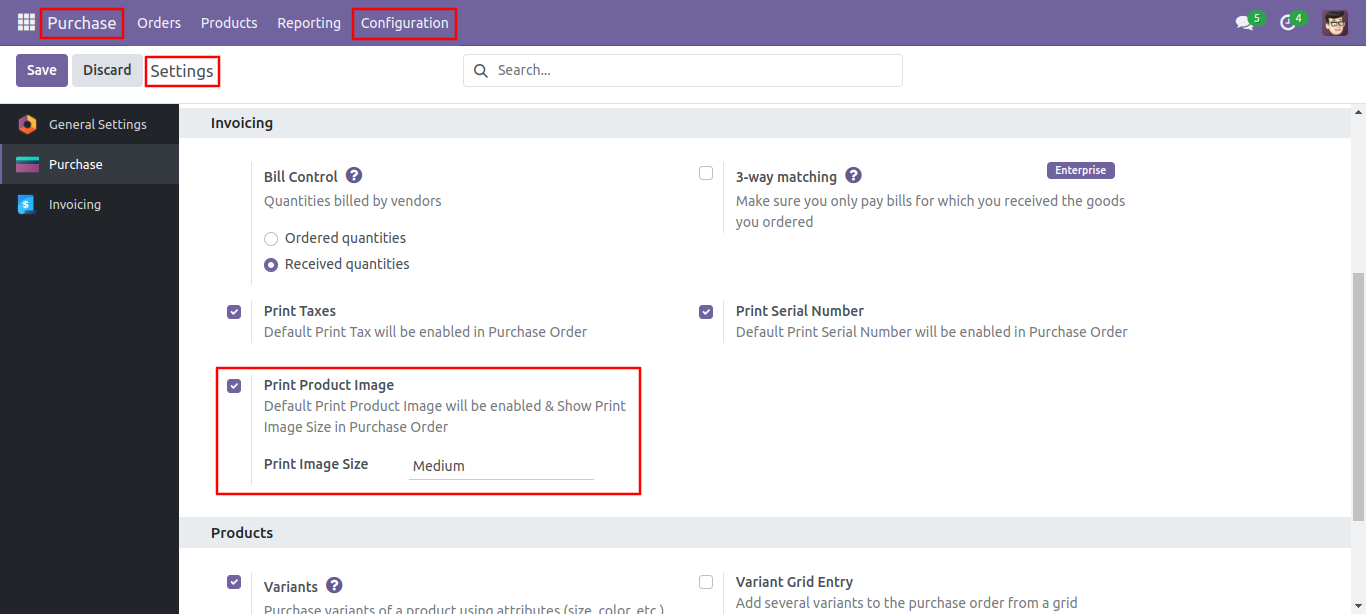
Go to the purchase settings, then select the 'Report Print' option. If you choose 'Print Product Image' and 'Print Image Size,' the 'Print Product Image' and 'Print Image Size' options will be automatically selected in the form view of the requests for quotation
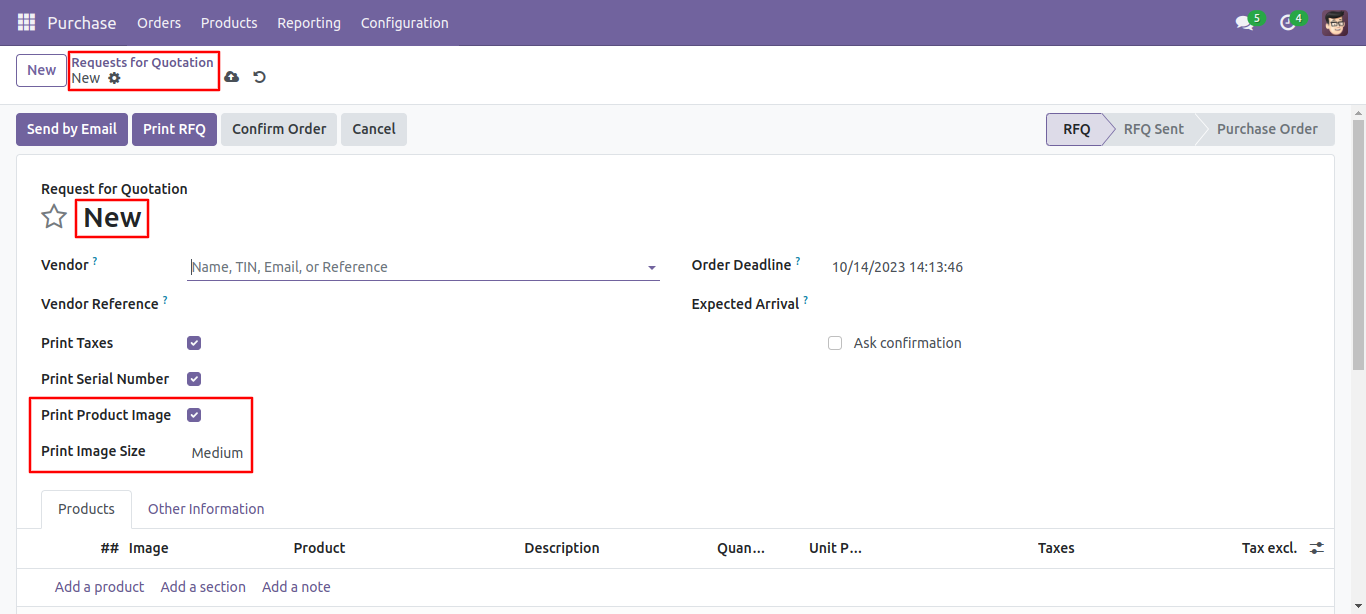
Here, you can see, Automatically select the 'Print Product Image' and 'Print Image Size' options. You can enable/disable it from here also.
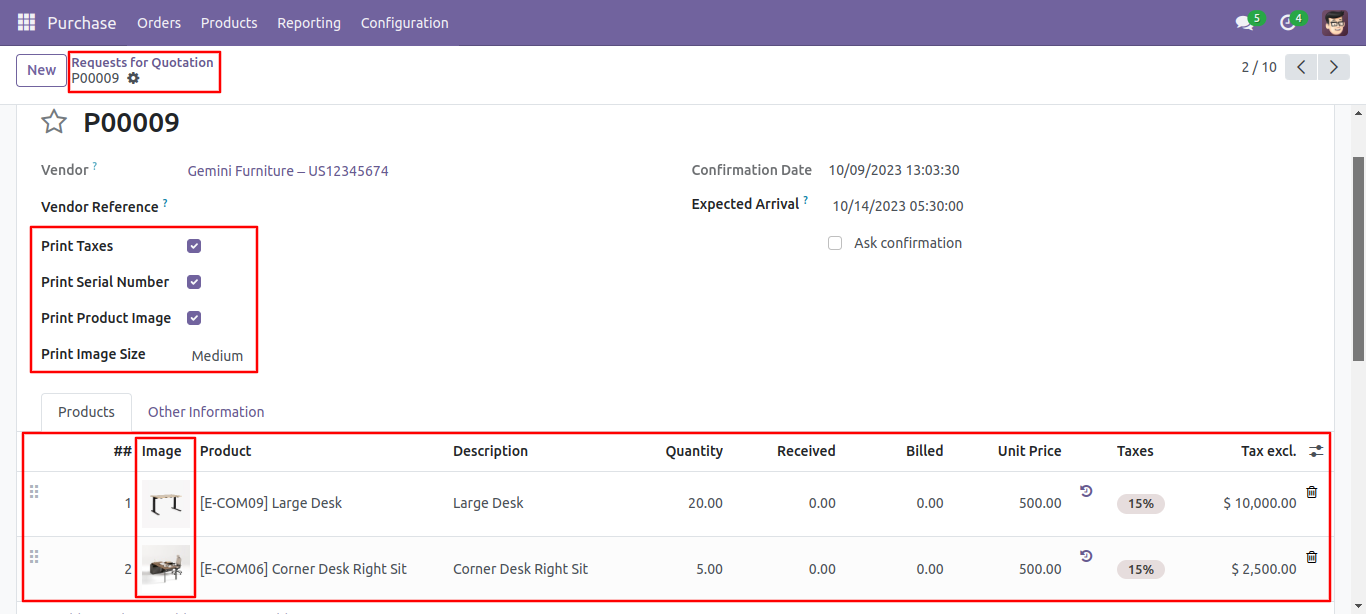
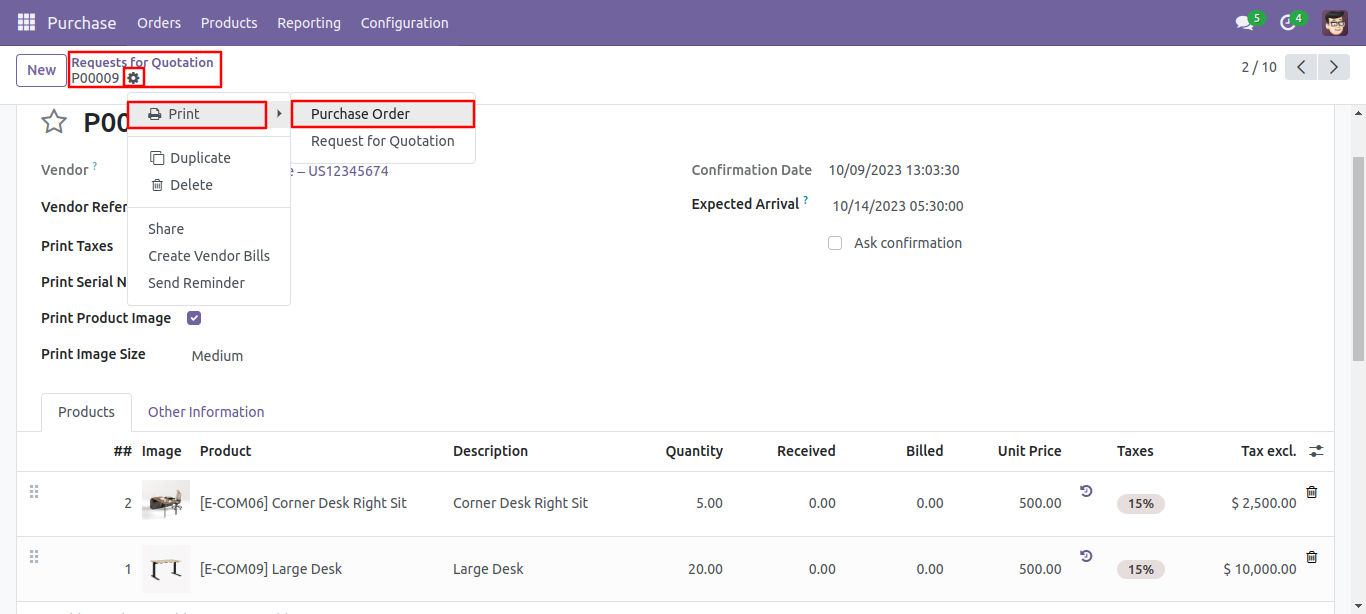
You can see the product image in the products tab.
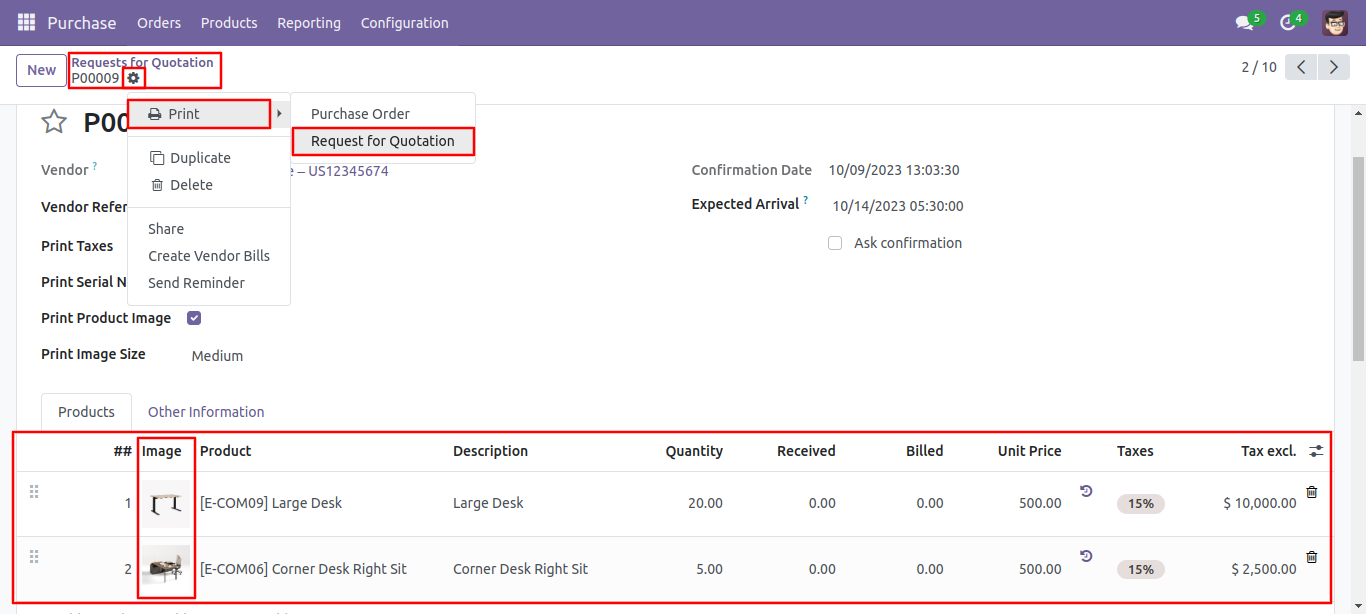
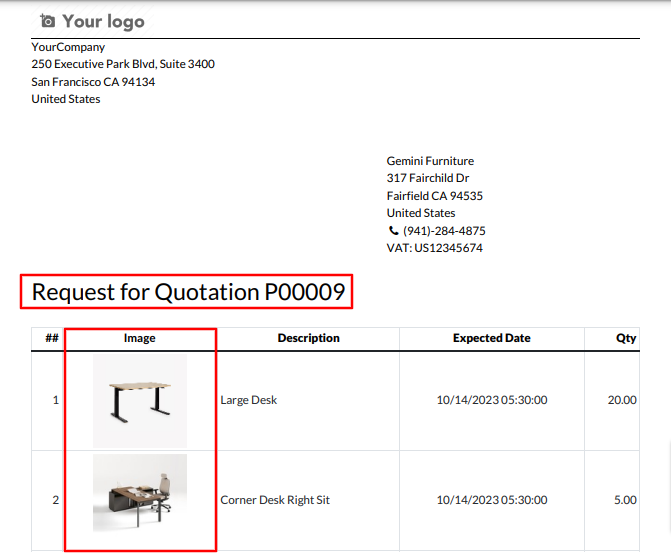
You can print 'Request for quotation' report pdf from the action button.
PDF Report.
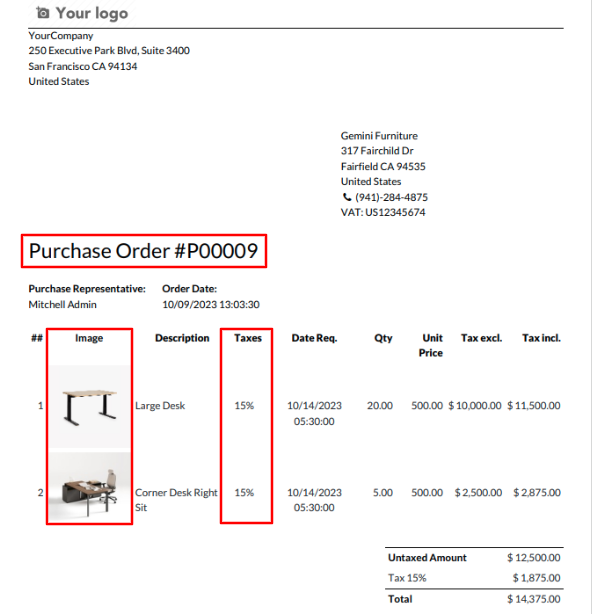
You can print 'purchase' report pdf from the action button.
PDF Report.
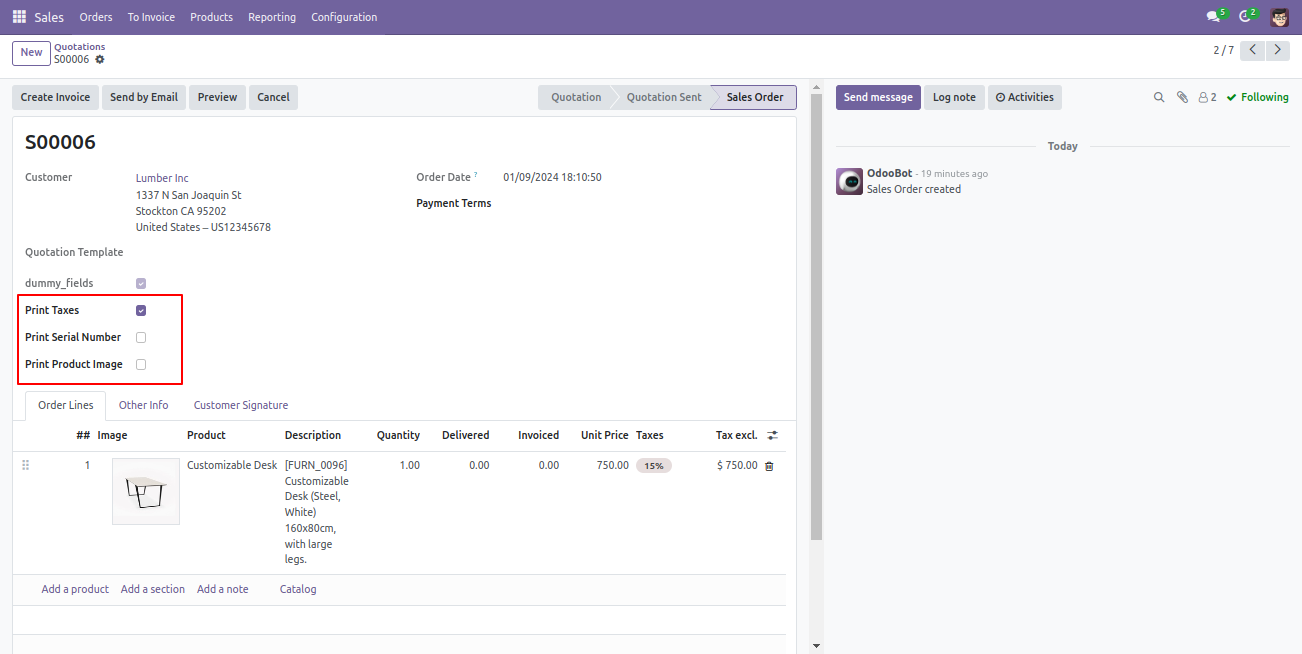
Go to sales setting >> select the report print option. If you select 'Print Taxes', The 'Print Taxes' option is automatically selected in the form view of the quotation.
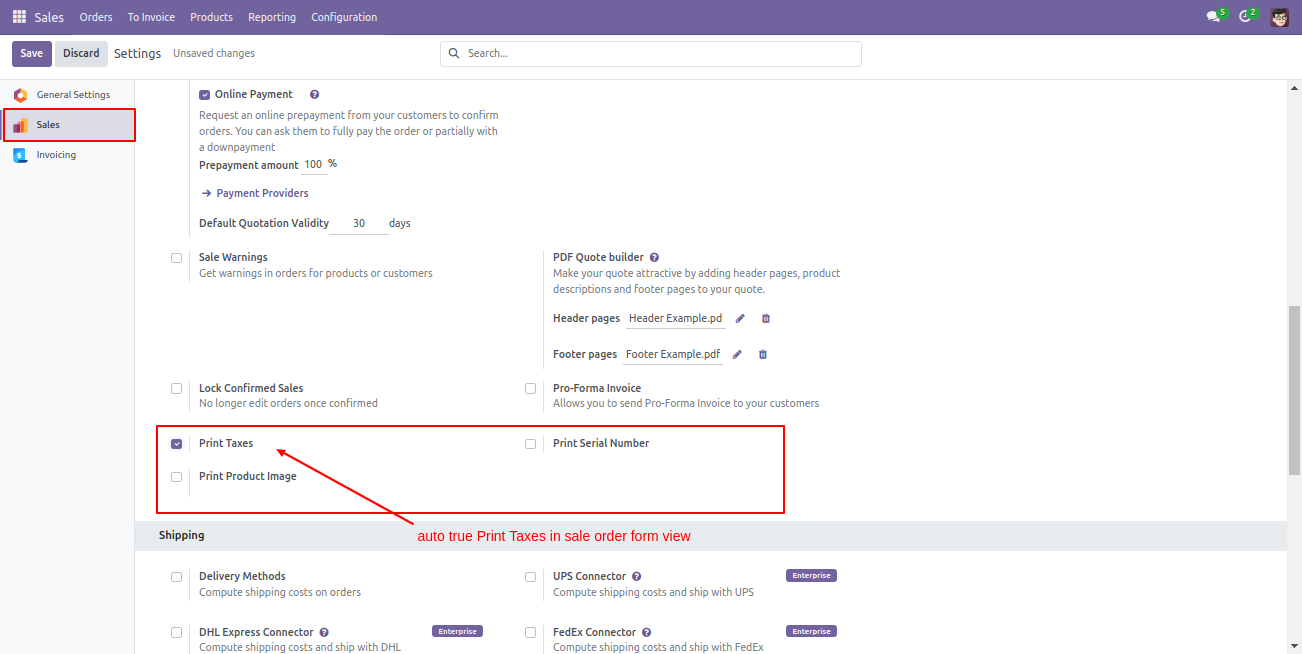
Here, you can see, Automatically select the 'Print Taxes' option. You can enable/disable it from here also.
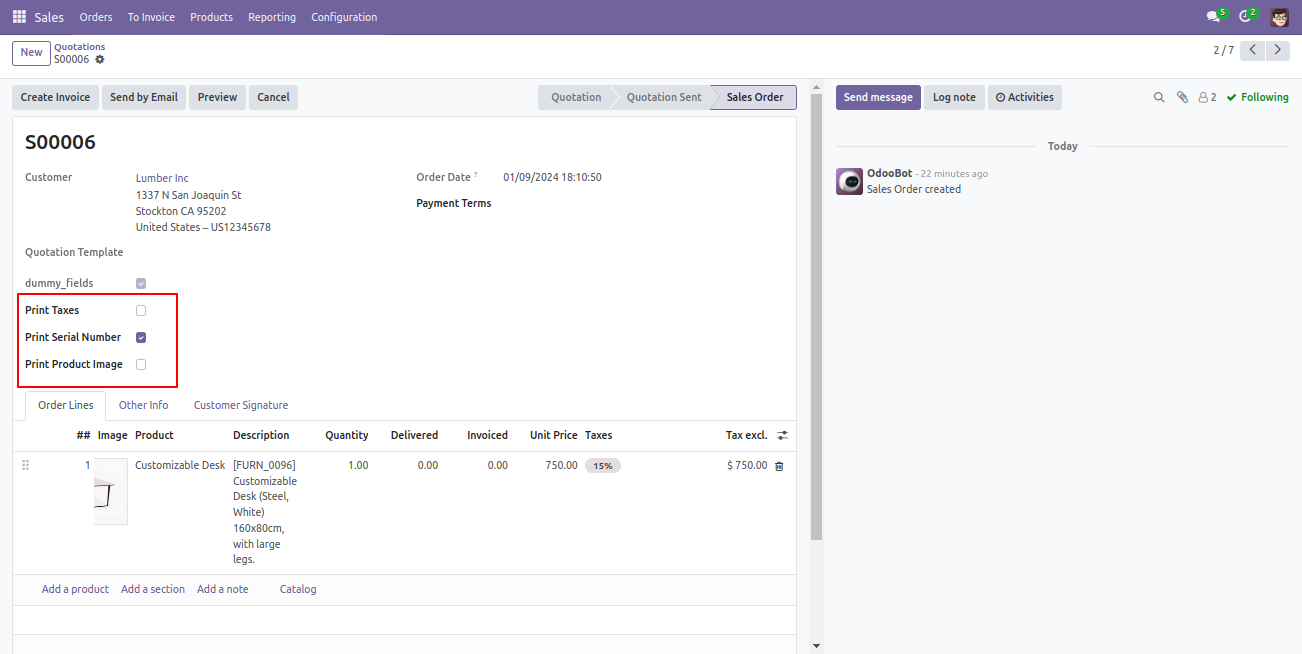
If you select 'Print Serial Numbers', The 'Print Serial Numbers' option is automatically selected in the form view of the quotation.
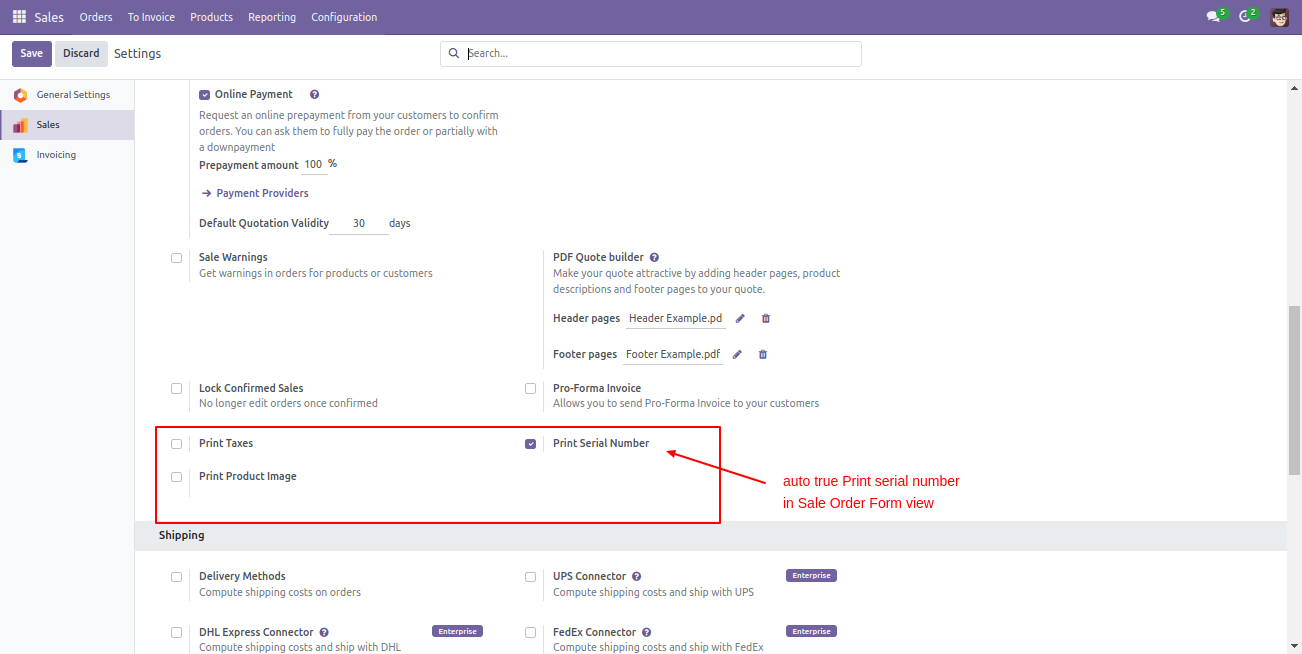
Here, you can see, Automatically select the 'Print Serial Numbers' option. You can enable/disable it from here also.
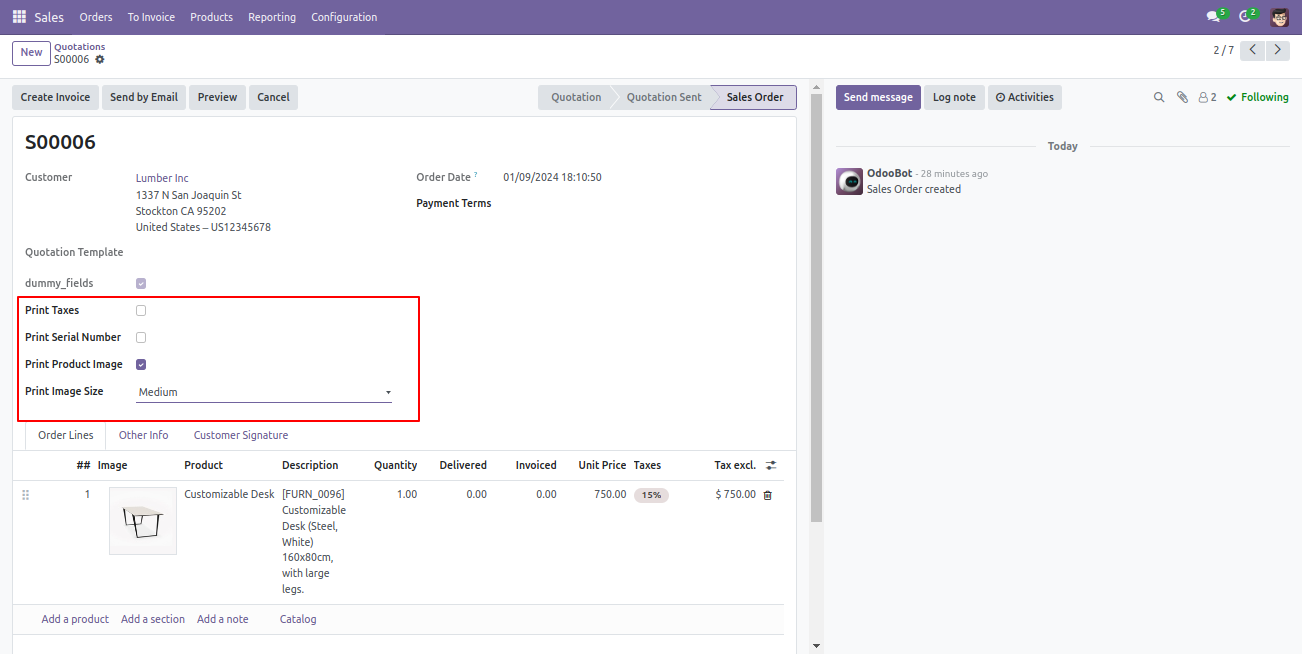
Go to sales setting >> select the report print option. If you select 'Print Product Image' and 'Print Image Size', The 'Print Product Image' and 'Print Image Size' option is automatically selected in the form view of the quotation.
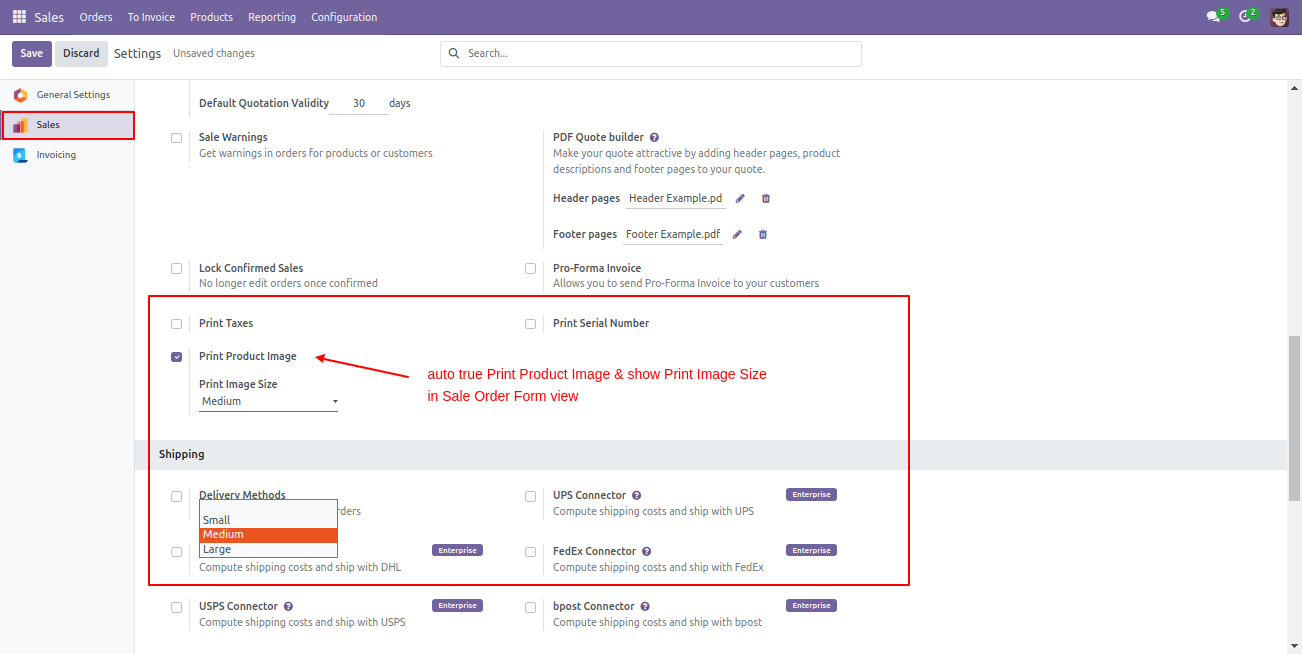
Here, you can see, Automatically select the 'Print Product Image' and 'Print Image Size' options. You can enable/disable it from here also.
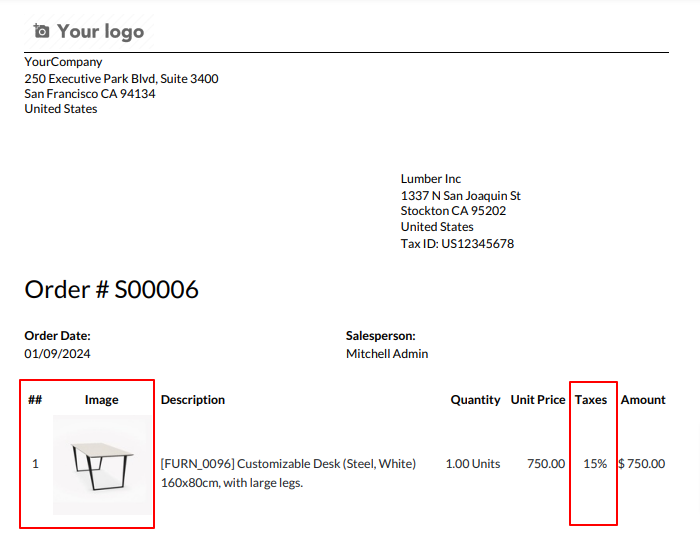
PDF Report.
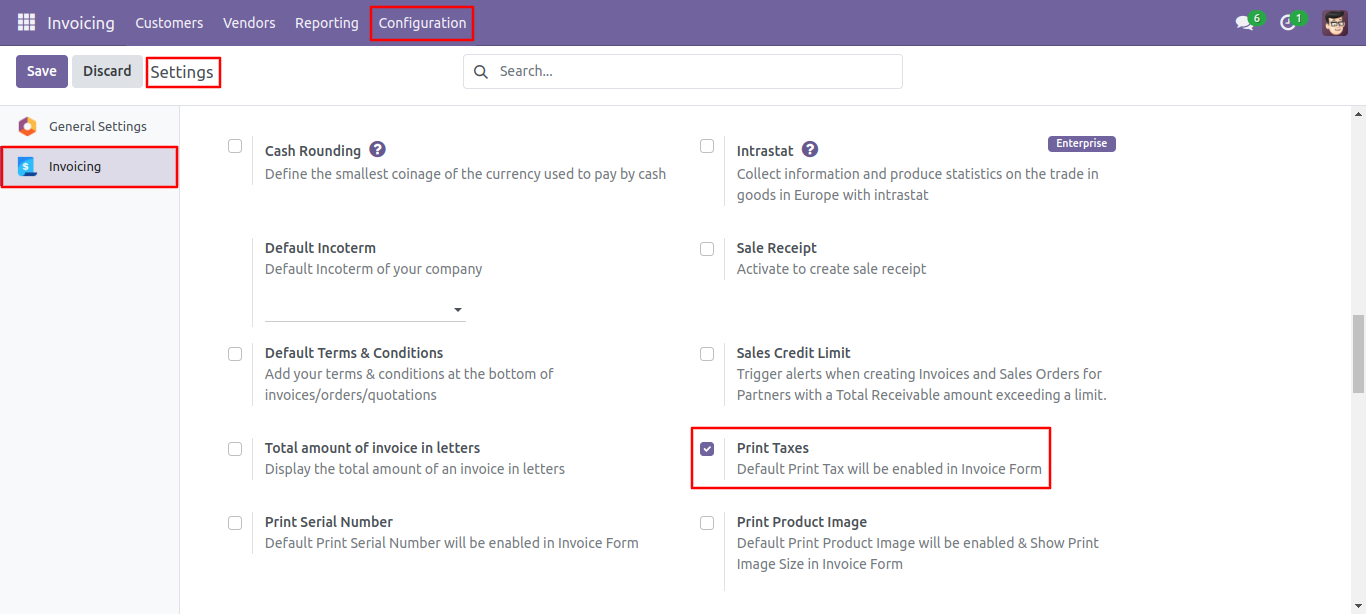
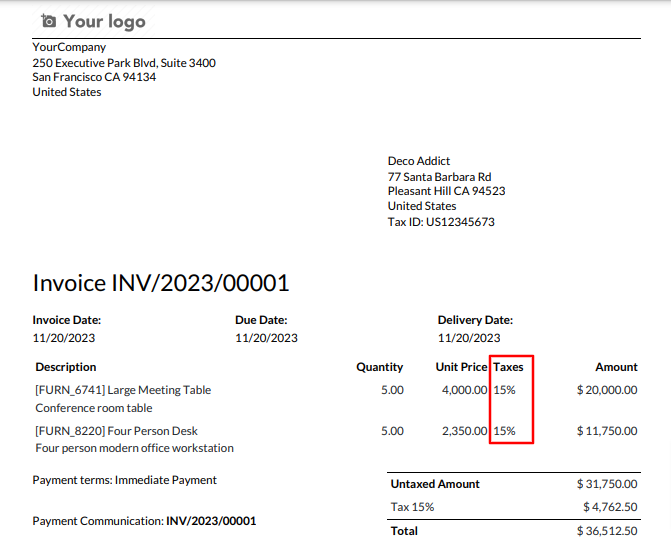
Go to invoice setting >> select the report print option. If you select 'Print Taxes', The 'Print Taxes' option is automatically selected in the form view.
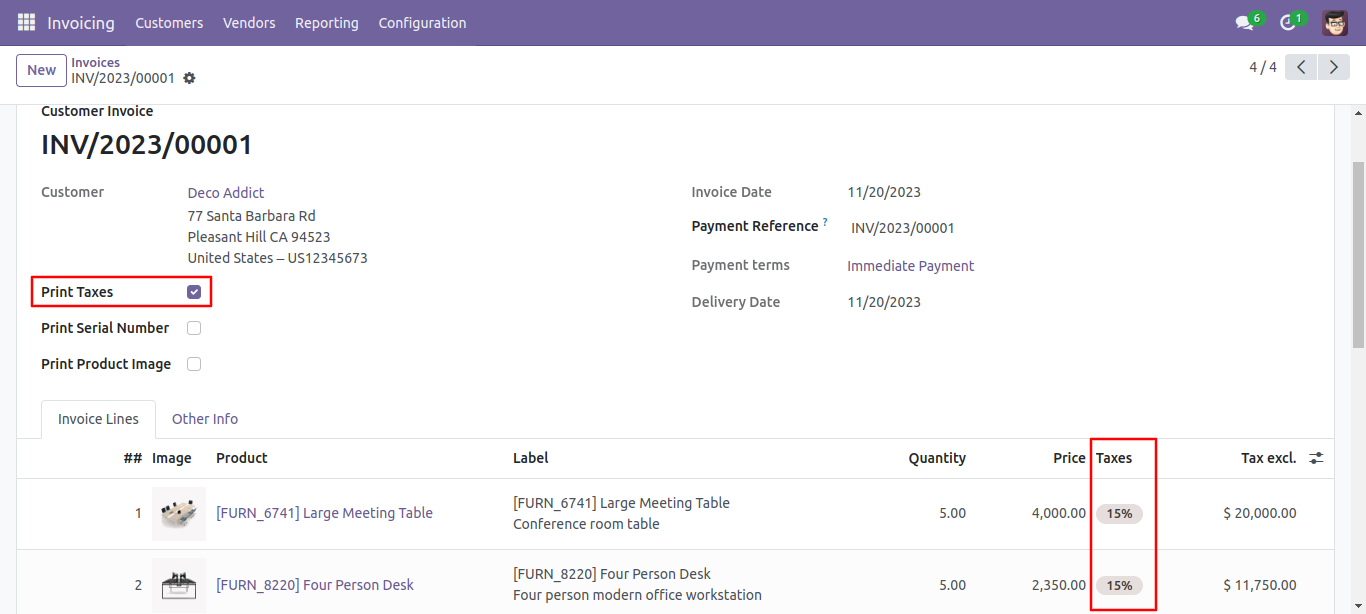
Here, you can see, Automatically select the 'Print Taxes' option. You can enable/disable it from here also.
PDF Report.
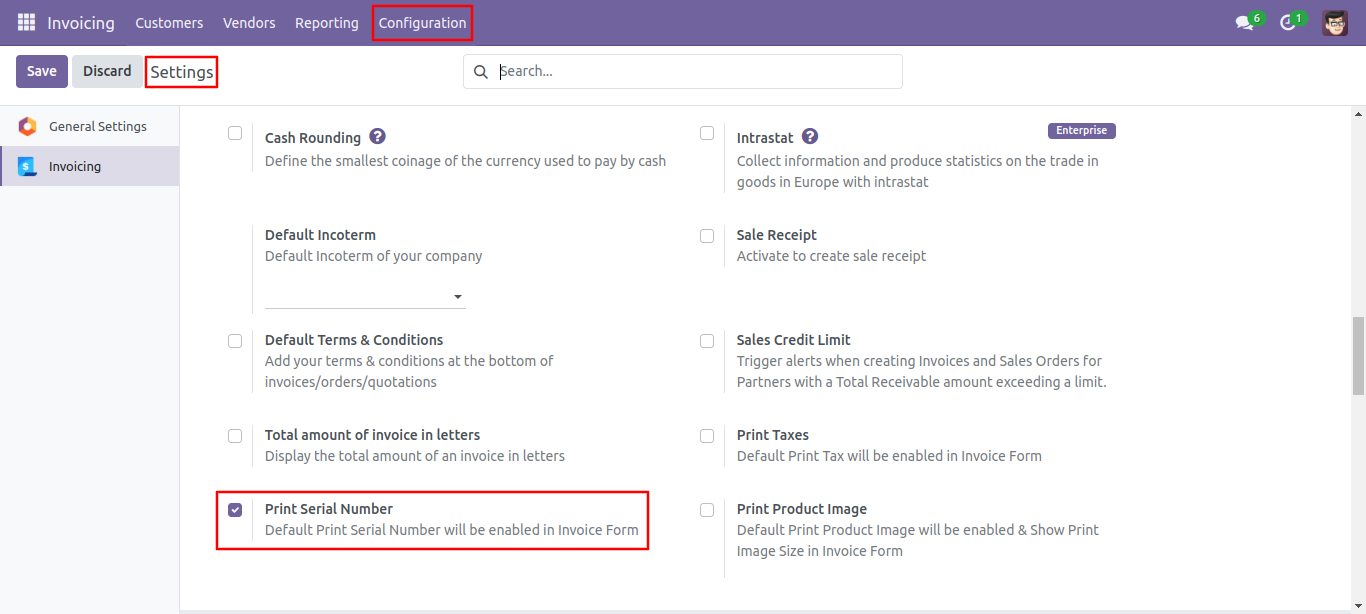
If you select 'Print Serial Numbers', The 'Print Serial Numbers' option is automatically selected in the form view.
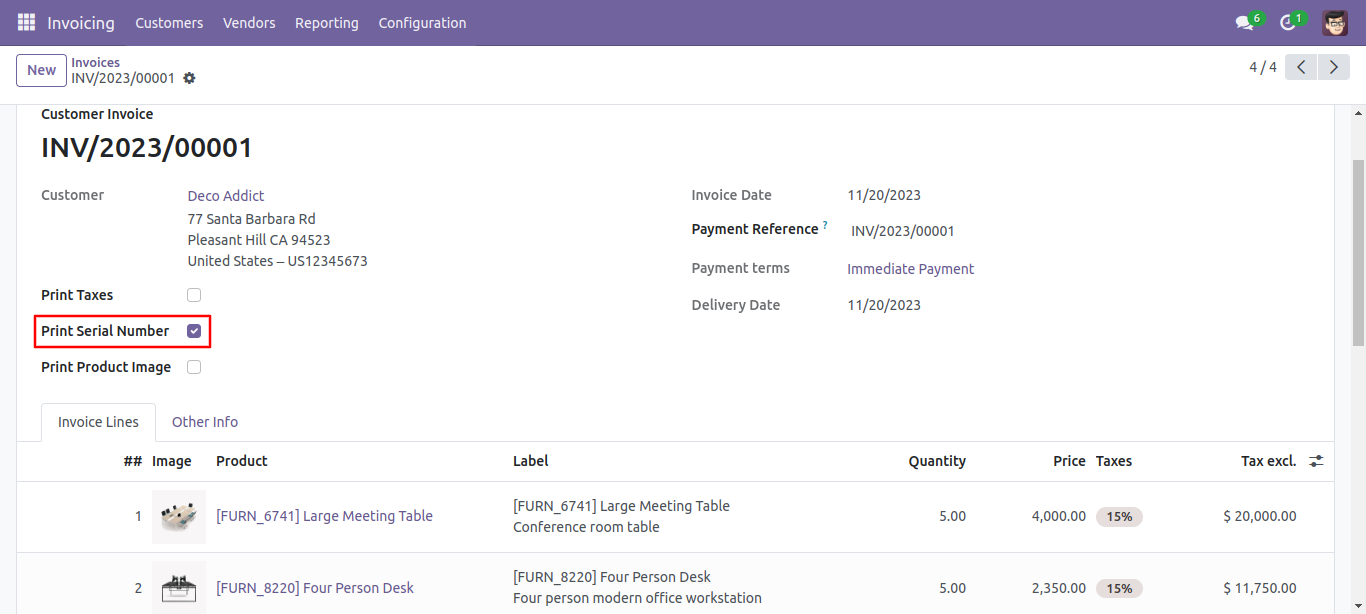
Here, you can see, Automatically select the 'Print Serial Numbers' option. You can enable/disable it from here also.
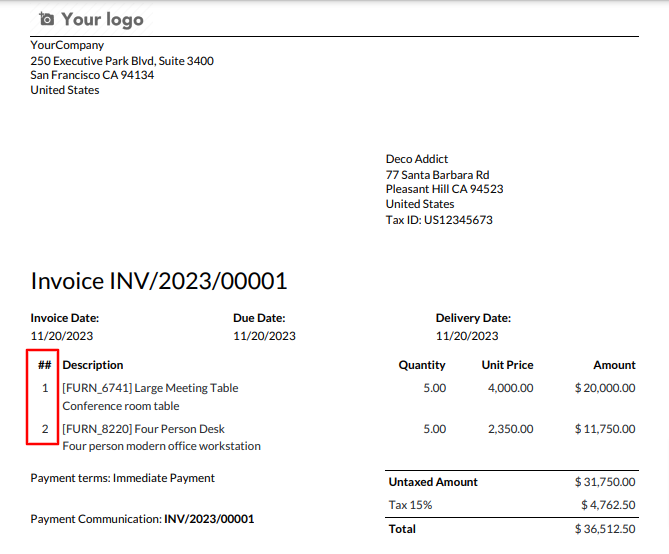
PDF Report.
Go to invoice setting >> select the report print option. If you select 'Print Product Image' and 'Print Image Size', The 'Print Product Image' and 'Print Image Size' option is automatically selected in the form view.
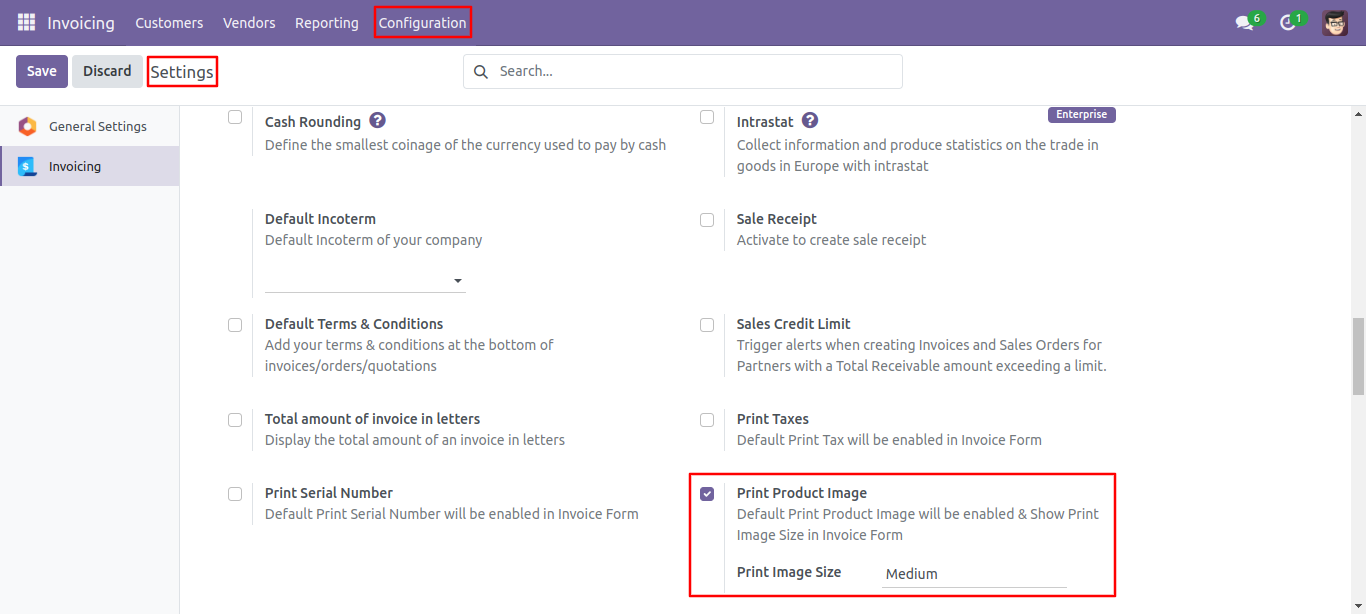
Here, you can see, Automatically select the 'Print Product Image' and 'Print Image Size' options. You can enable/disable it from here also.
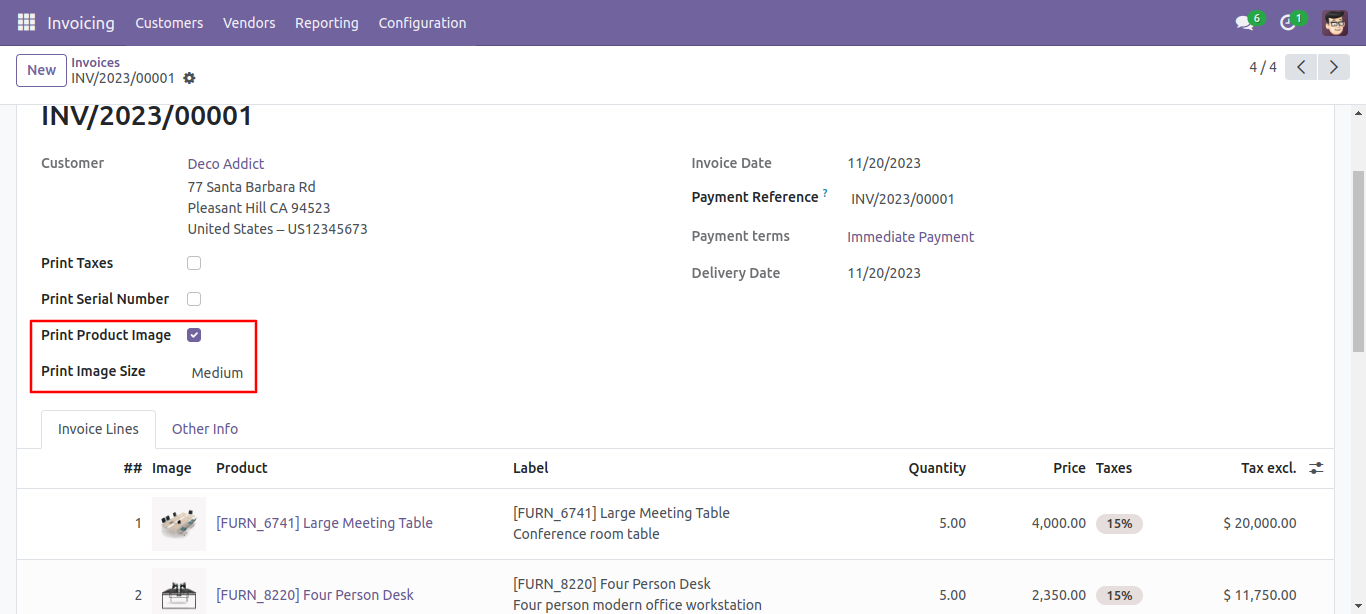
PDF Report.
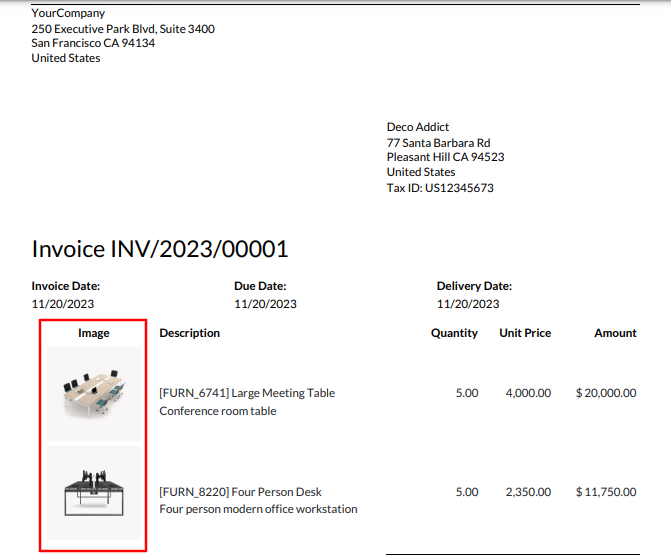
If you select the report print options 'Print Serial Numbers', 'Print Taxes',
'Print Product Image' and 'Print Image Size'.
Here, you can see, All thouse options are Automatically select.
You can enable/disable it from here also.
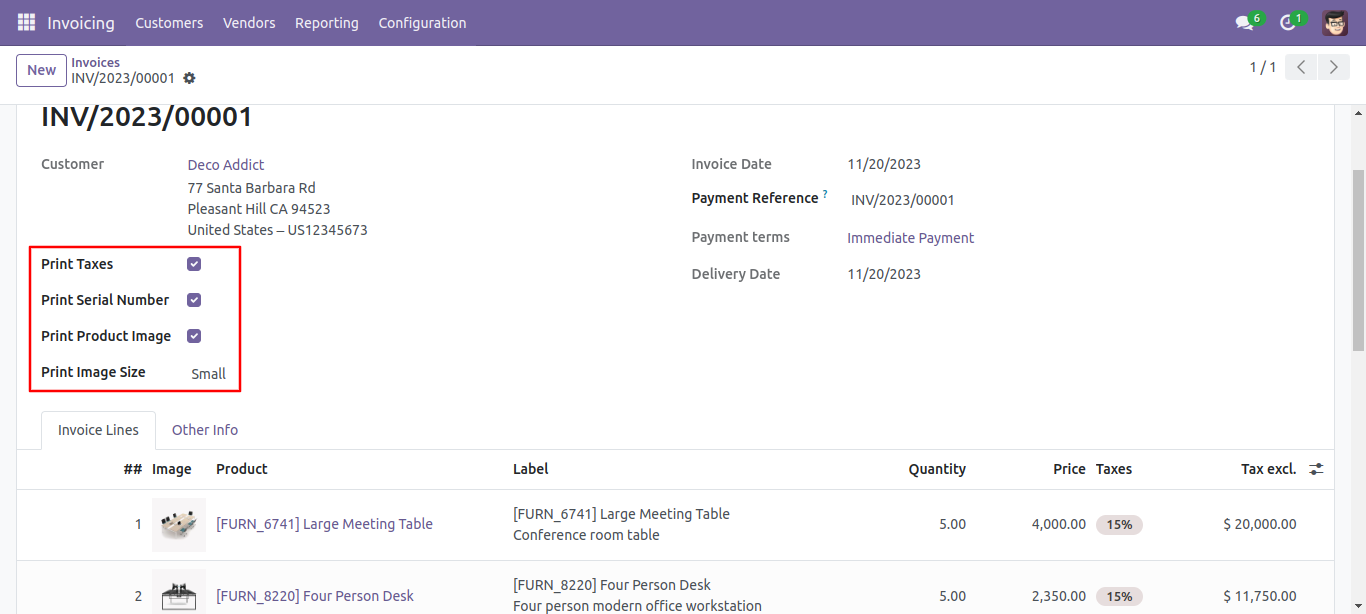
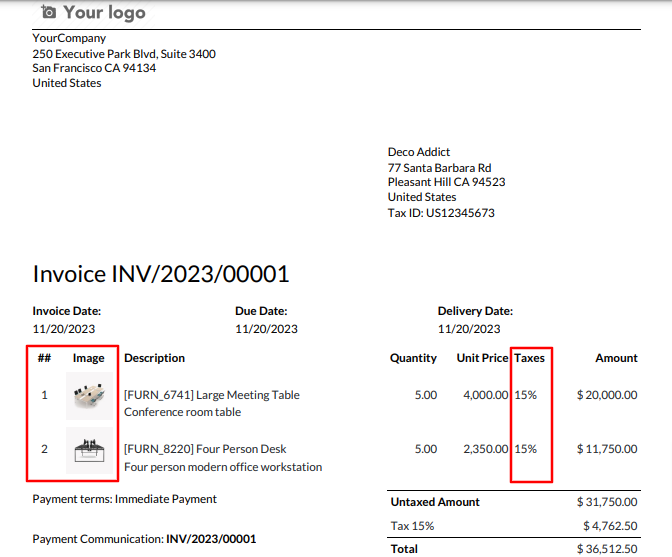
PDF Report.
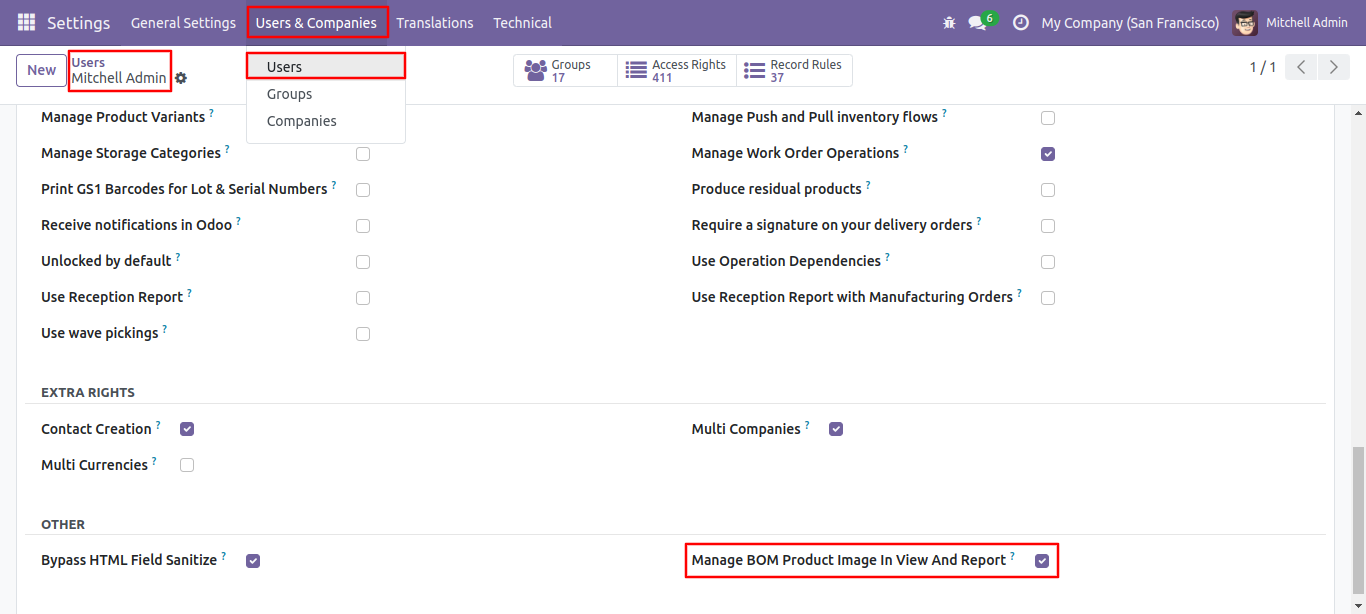
Go to the users setting and tick 'Manage BOM Product Image In View And Report'.
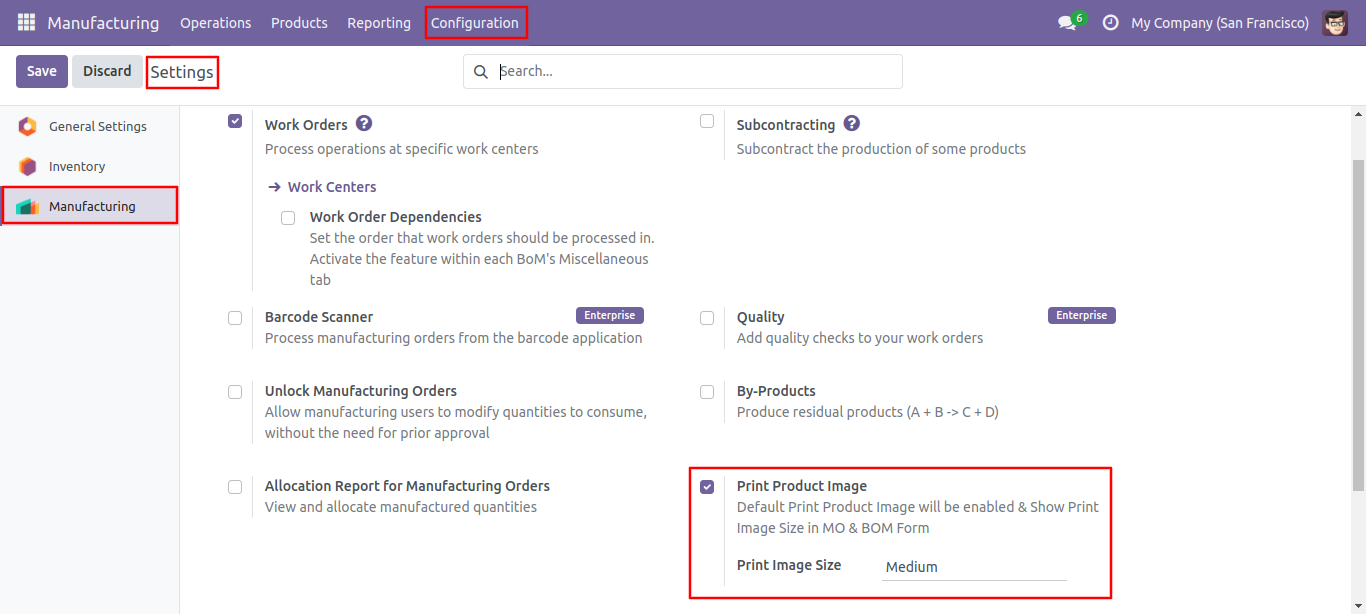
Go to manufacturing settings.
If you select 'Print Product Image' and 'Print Image Size',
The 'Print Product Image' and 'Print Image Size' option is automatically
selected in the form view.
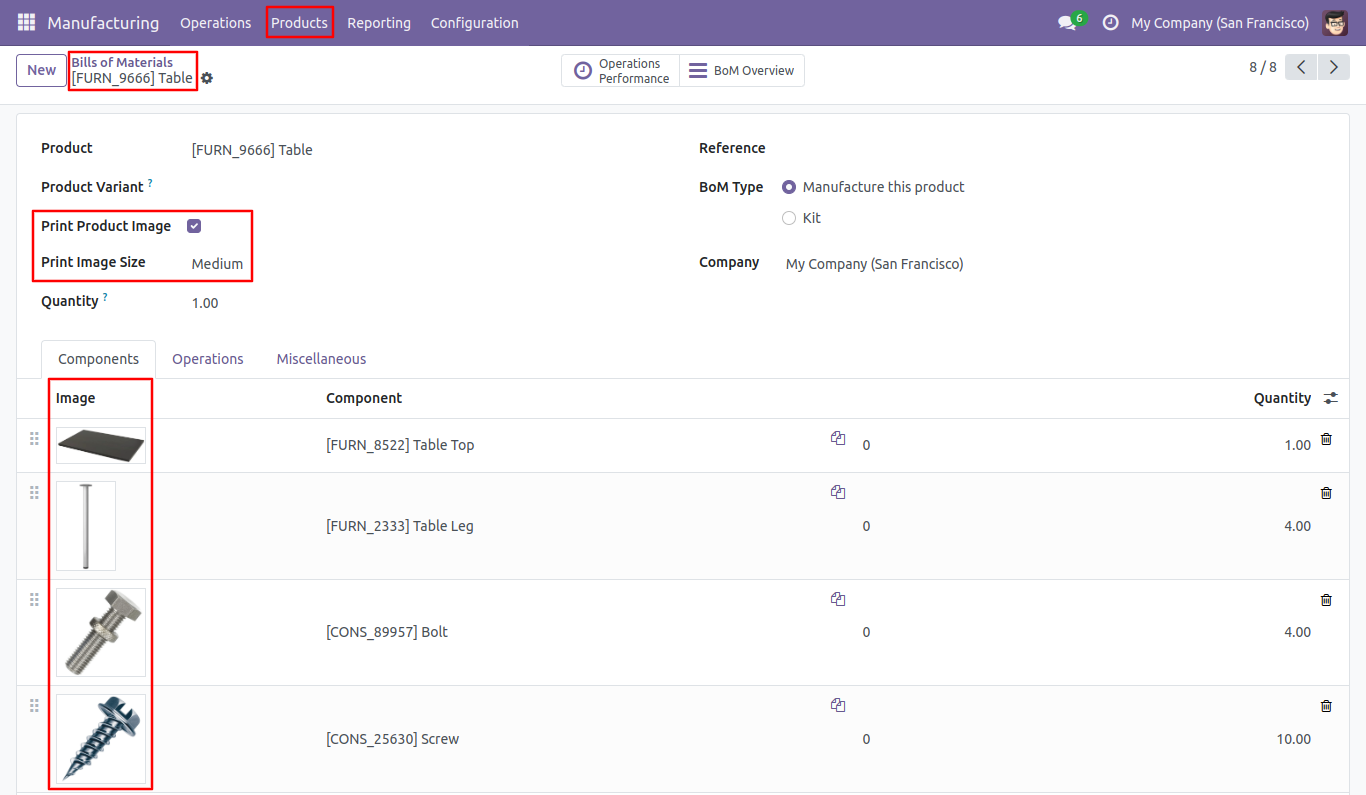
Here, you can see, Automatically select the 'Print Product Image' and 'Print Image Size' options. You can enable/disable it from here also.
PDF Report.
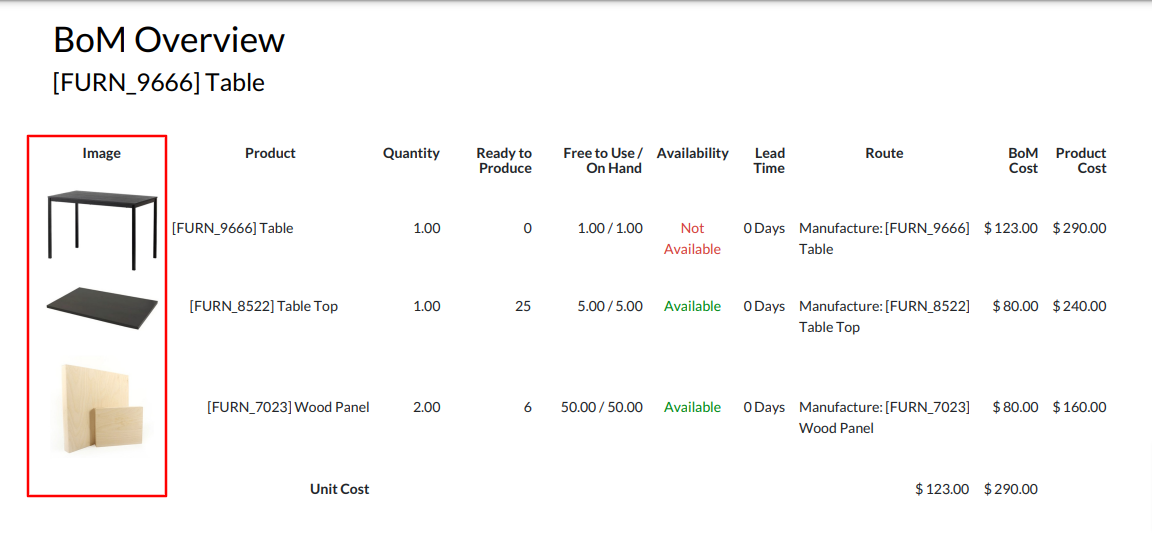
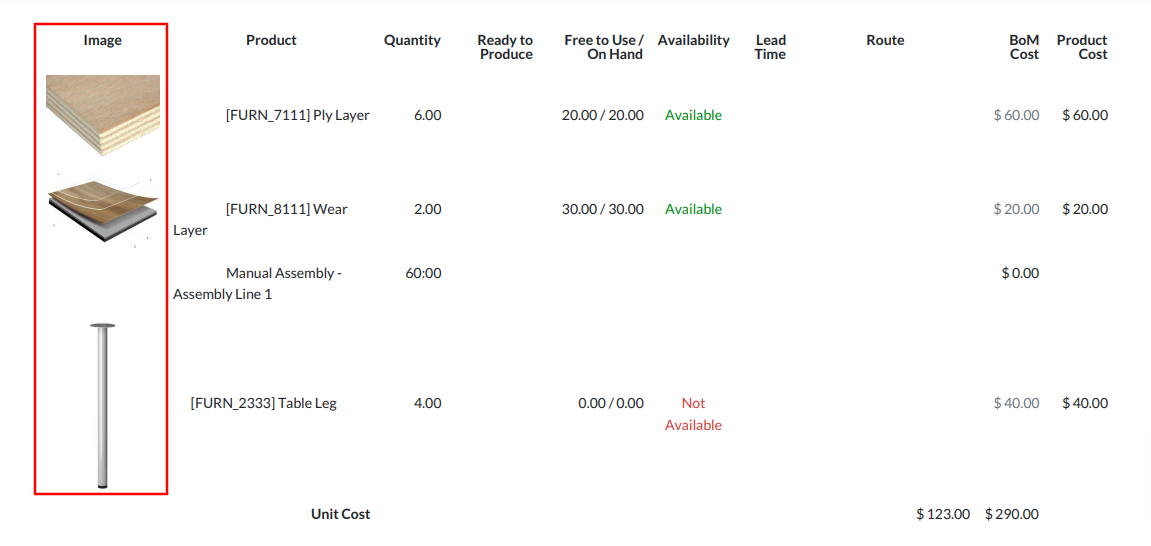
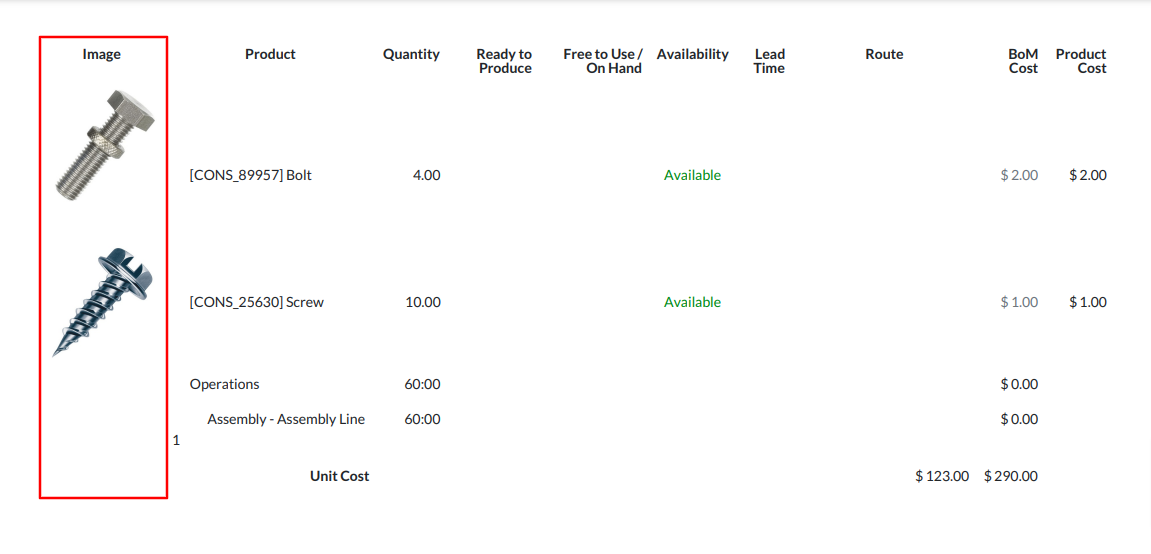
Here, you can see, Automatically select the 'Print Product Image' and 'Print Image Size' options. You can enable/disable it from here also.
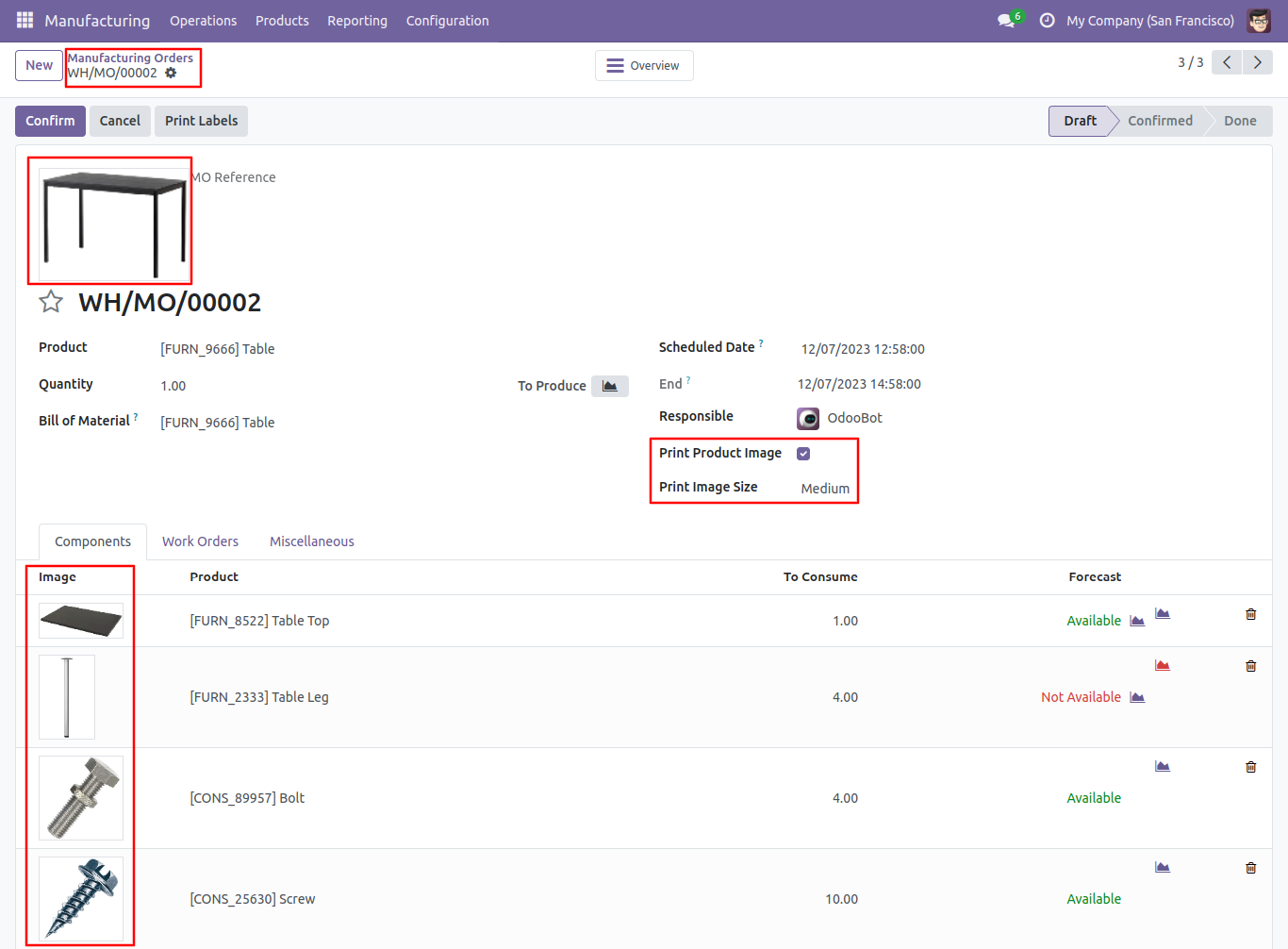
PDF Report.
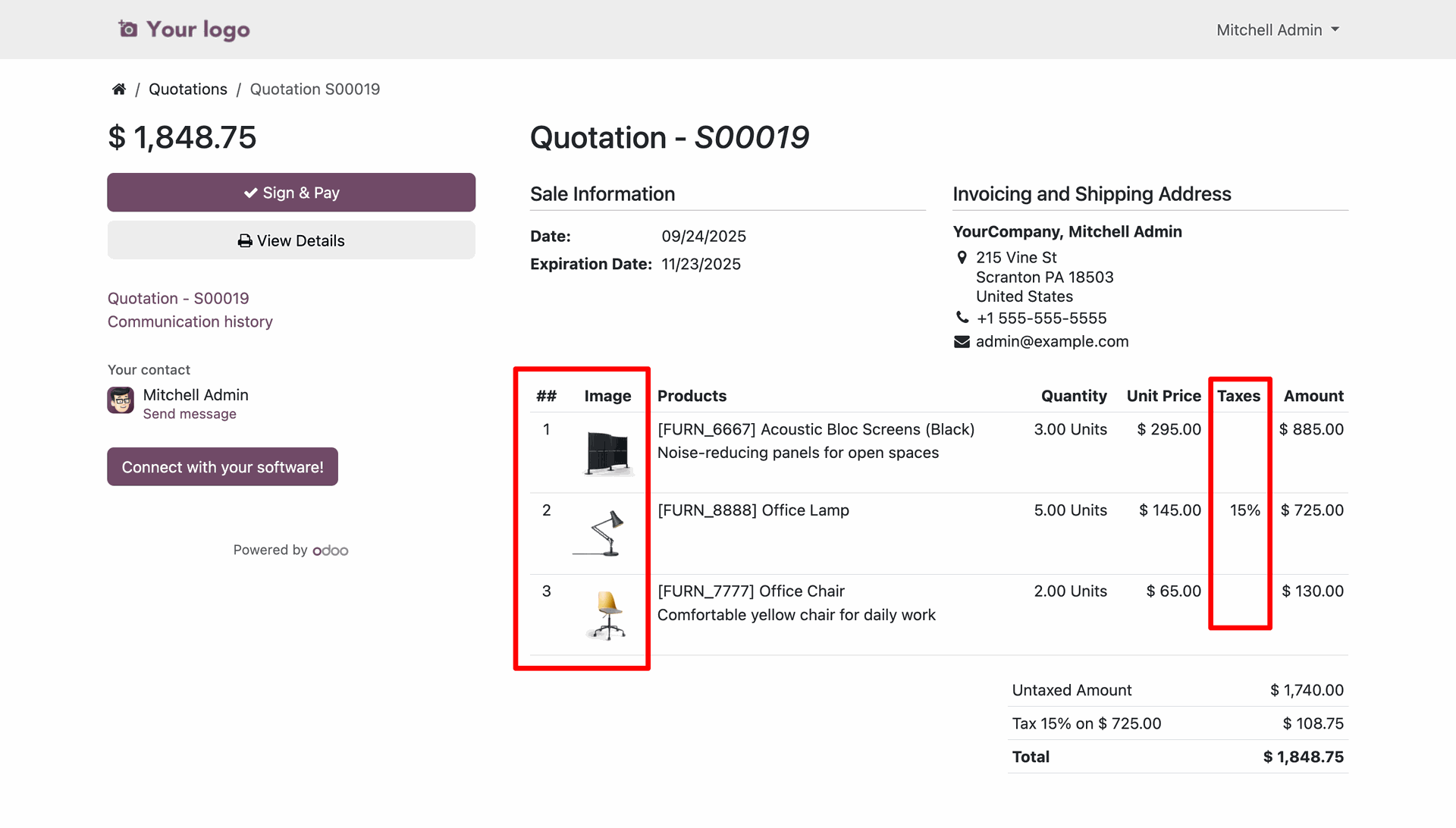
You can now view the Product Image, Sequence Number, and Tax information in the portal view.
Version 19.0.2 | Released on : 24th October 2025
Version 19.0.1 | Released on : 19th September 2025
- Yes, this app works perfectly with Odoo Enterprise (Odoo.sh & Premise) as well as Community.
- No, this application is not compatible with odoo.com(odoo saas/Odoo Online)
- Yes, to test this module, please contact us at sales@softhealer.com.
- Please contact us at sales@softhealer.comto request customization.
- Yes, we provide free support for 365 days from the date of purchase.
- Yes, you will receive lifetime free updates for the version of the module you purchased.
- No, there is no need to install any additional libraries.
- Yes, for version 12 and above, you need to purchase the module separately for each version you intend to use.
- No, exchanges or refunds are not allowed. Please make sure to select the correct version before purchasing.
- You can contact us at support@softhealer.com for language translation support. We use Google Translator tools to provide translations in multiple languages, so the accuracy may vary. We welcome your suggestions to help improve translations.
Discover Our Latest Apps