




















Key
Features

Multi-Discount Analysis Dashboard
Analyze discounts, savings, and discount performance from a centralized dashboard.
Watch VideoPredefined Discount Templates
 LATEST
Create and manage discount templates to quickly apply predefined discounts to orders.
Watch Video Discount Breakdown
LATEST
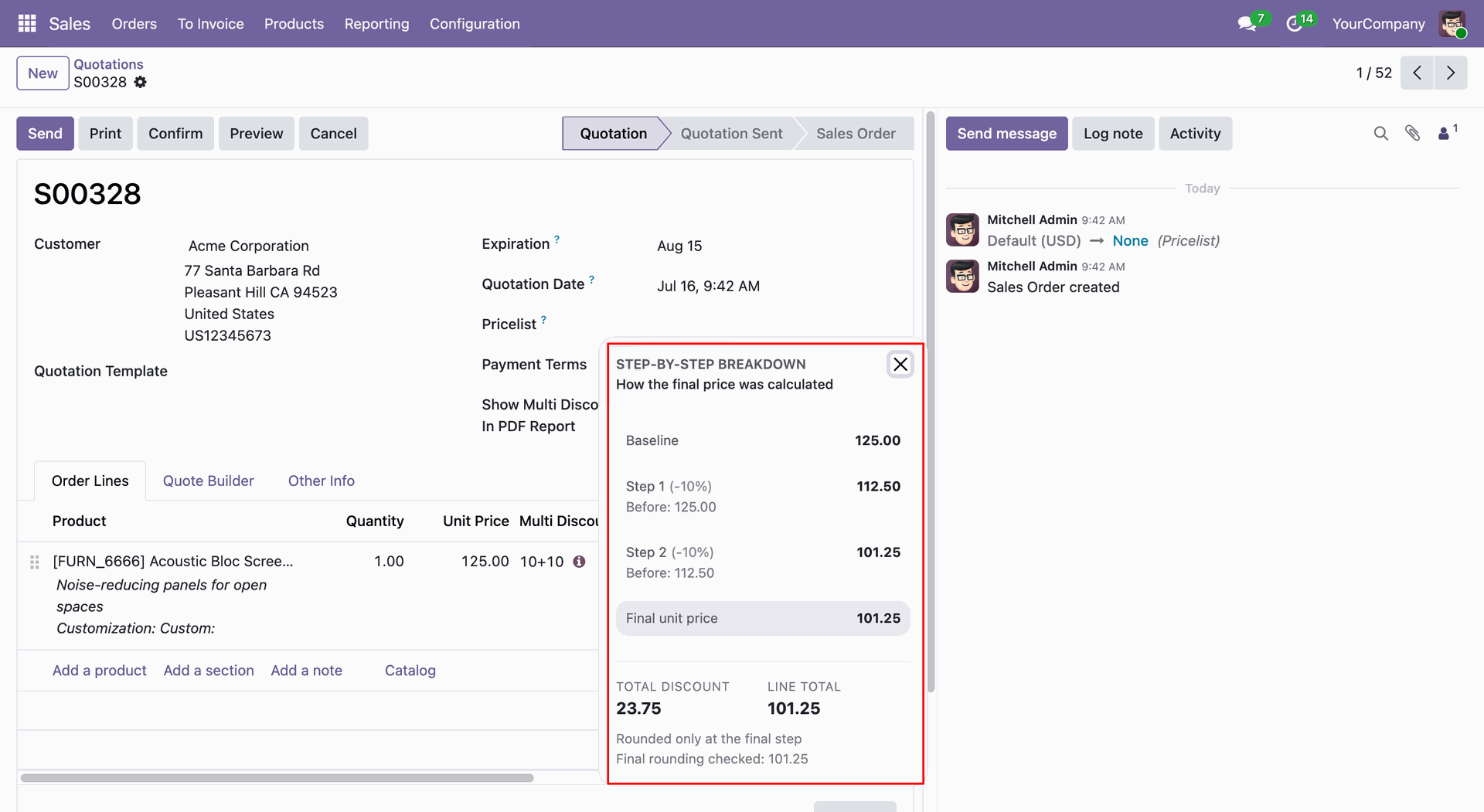
View a step-by-step breakdown of all applied discounts using an interactive popover.
Watch Video Import/Export Recalculation
LATEST
Automatically recalculate discounts when importing or exporting records.
Watch Video Hybrid Discount Chains
LATEST
Combine fixed-amount and percentage discounts in a single discount chain.
Watch Video Profit Margin Protection
LATEST
Prevent discounts from reducing the product price below the configured cost or profit margin.
Watch VideoBulk Discount Append
LATEST
Add discounts to multiple products or order lines using a bulk wizard.
Watch VideoDiscount Reason
LATEST
Record discount reasons and track discount changes for better control and auditing.
Watch VideoCustomer Savings Summary
LATEST
Show customers the total savings received from applied discounts.
Watch VideoMulti-Currency Discount Precision
LATEST
Adjust discount calculations accurately for different currencies.
Watch VideoPricelist Integration
LATEST
Apply and manage multiple discounts together with existing pricelist rules.
Watch VideoMulti-Company Discount Security
LATEST
Control multi-discount access and configuration separately for each company.
Watch Video
Time-Based Discounts
LATEST
Set discounts that automatically expire after a configured date or time.
Watch VideoAutomatic Tag-Based Discounts
LATEST
Automatically apply discounts based on customer or product tags.
Watch VideoMulti-Discount Management
Apply multiple discounts to Sale Orders, Purchase Orders, and Invoices with ease.
Multi-Discount Printing
Print multiple applied discounts in PDF reports.
Discount PDF Display Control
Show or hide multiple discounts in PDF reports using a simple setting.
Discounted Unit Price
Automatically calculate and display the discounted unit price.
Discounted Total Amount
Easily view the total amount after applying multiple discounts.
Unit Discount Amount
View the discount amount applied to each product unit.
 Setup & Configuration
 Release Notes
 Support
 FAQ's
FAQ's
-
 Analysis Dashboard
-
 Base Flow
-
 Predefined Discount Templates
-
 Discount Breakdown
-
 Discount Approval
-
 Rounding Policy
-
 Import/Export Recalculation
-
 Hybrid Discount Chains
-
 Profit Margin Protection
-
 Bulk Discount Append
-
 Discount Reasons
-
 Customer Savings Summary
-
 Multi Currency Precision
-
 Pricelist Integration
-
 Multi Company Security
-
 Automatic Tag-Based Discounts
-
 Time-Based Discount Expiry
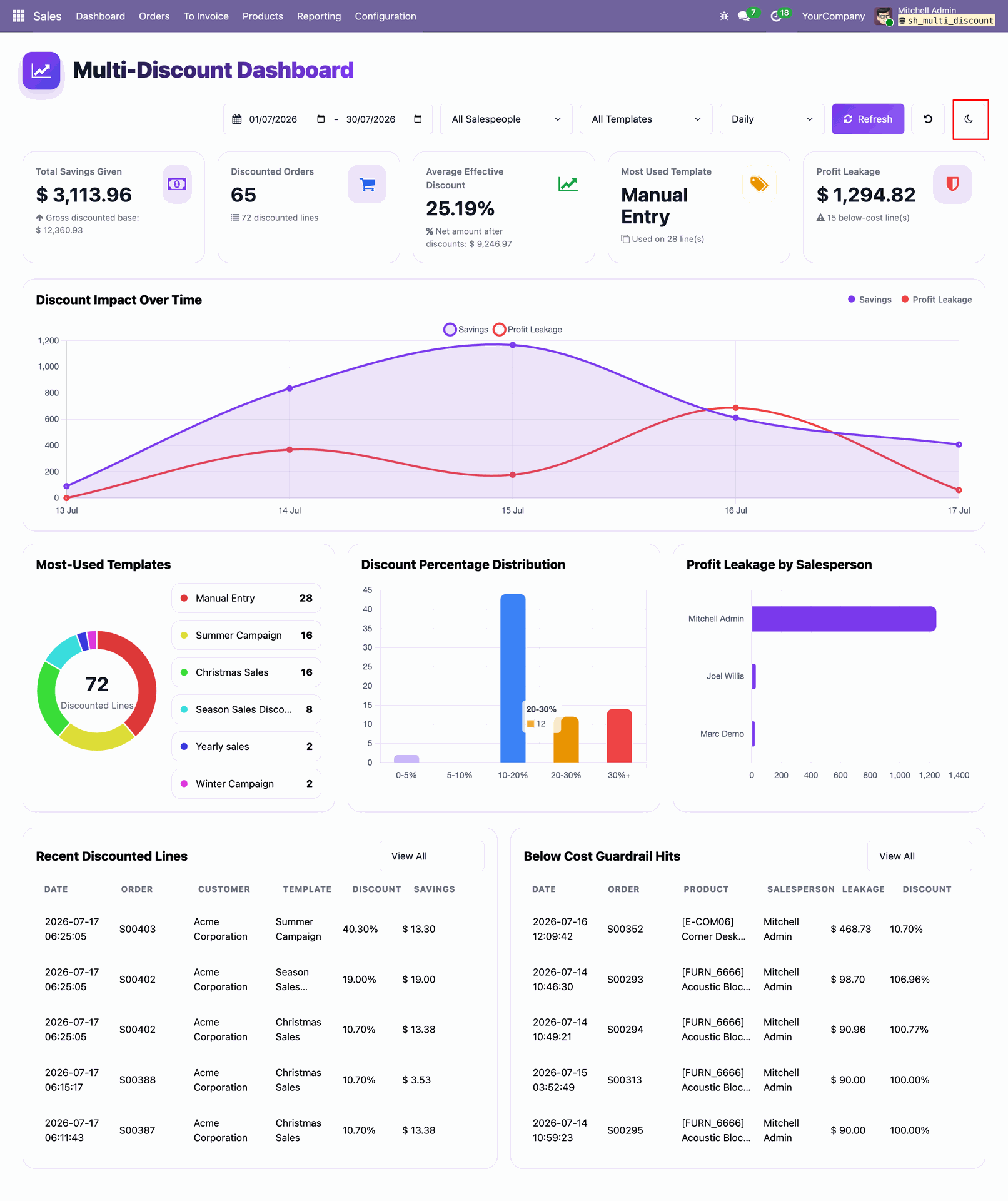
The Multi Discount Dashboard displays key discount insights, including Total Savings Given, Discounted Orders, Average Effective Discount, Most Used Template, and Profit Leakage Count.
Users can also filter the dashboard by Date Range, Salesperson, and Discount Template, with Daily, Weekly, and Yearly filter options for analyzing discount trends.
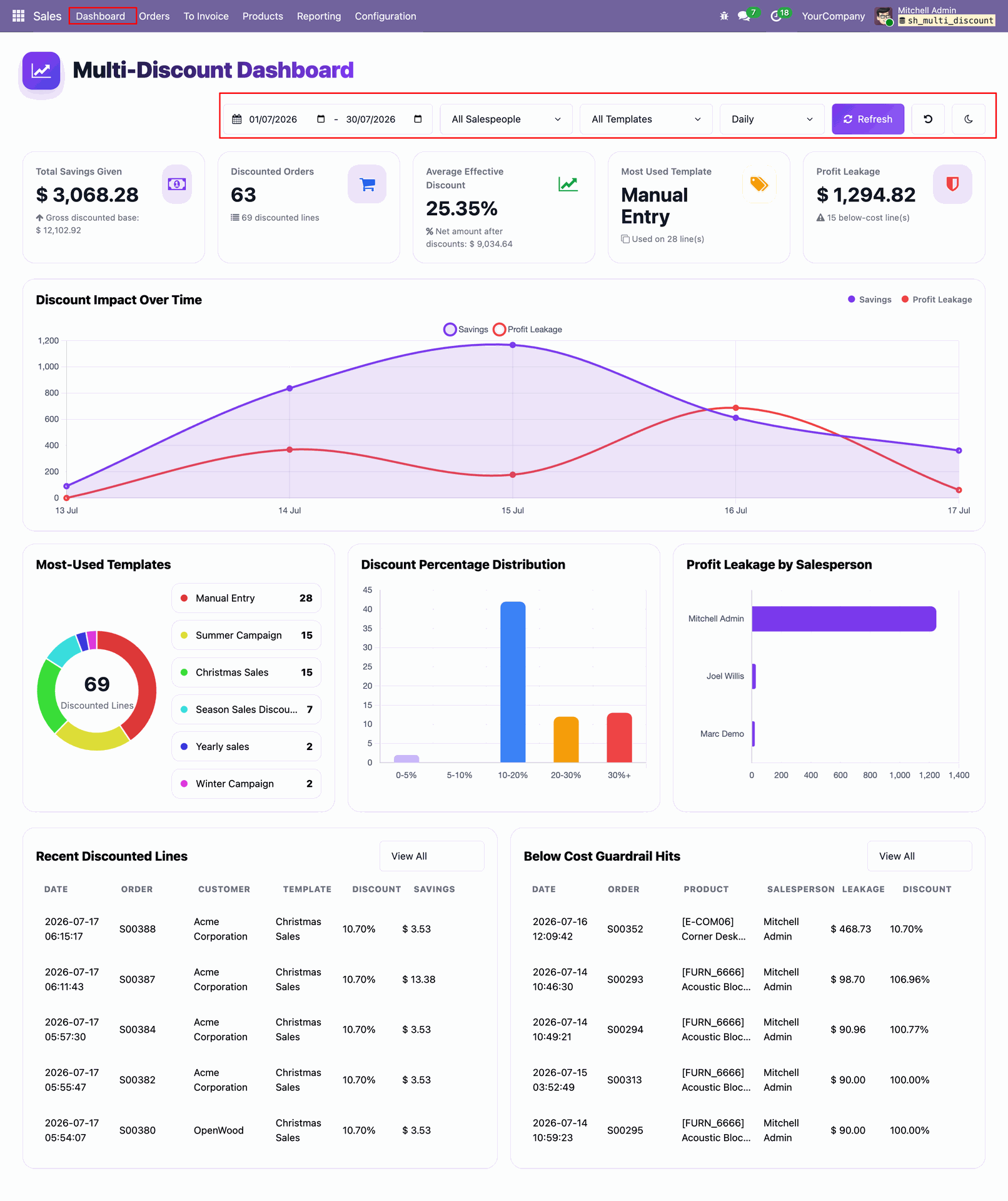
Click the Total Savings Given tile on the Multi Discount Dashboard to view the details of the total savings provided through discounts.
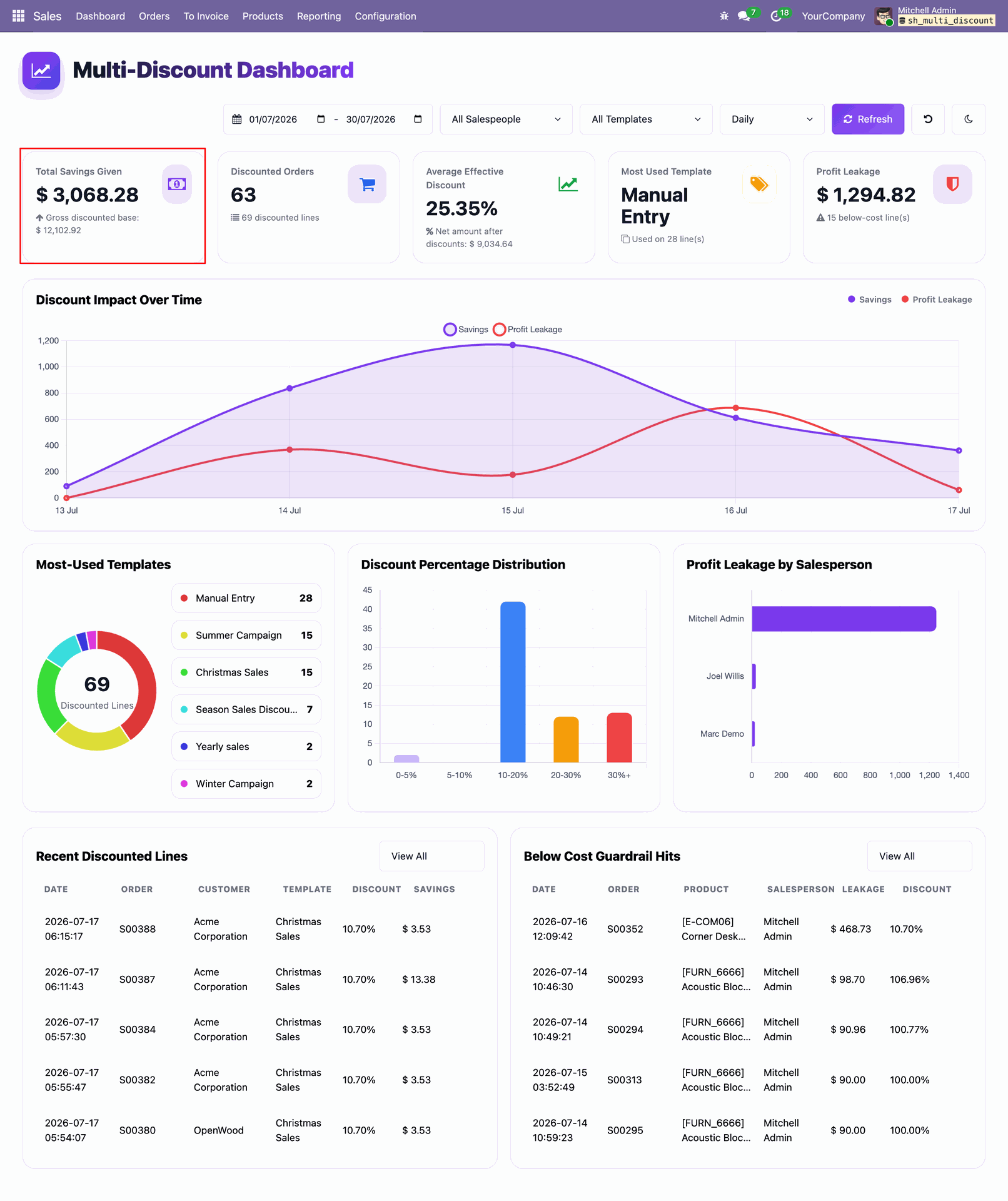
Clicking the Total Savings Given tile opens the Discounted Sales Lines list view, displaying the sales lines where discounts have been applied.
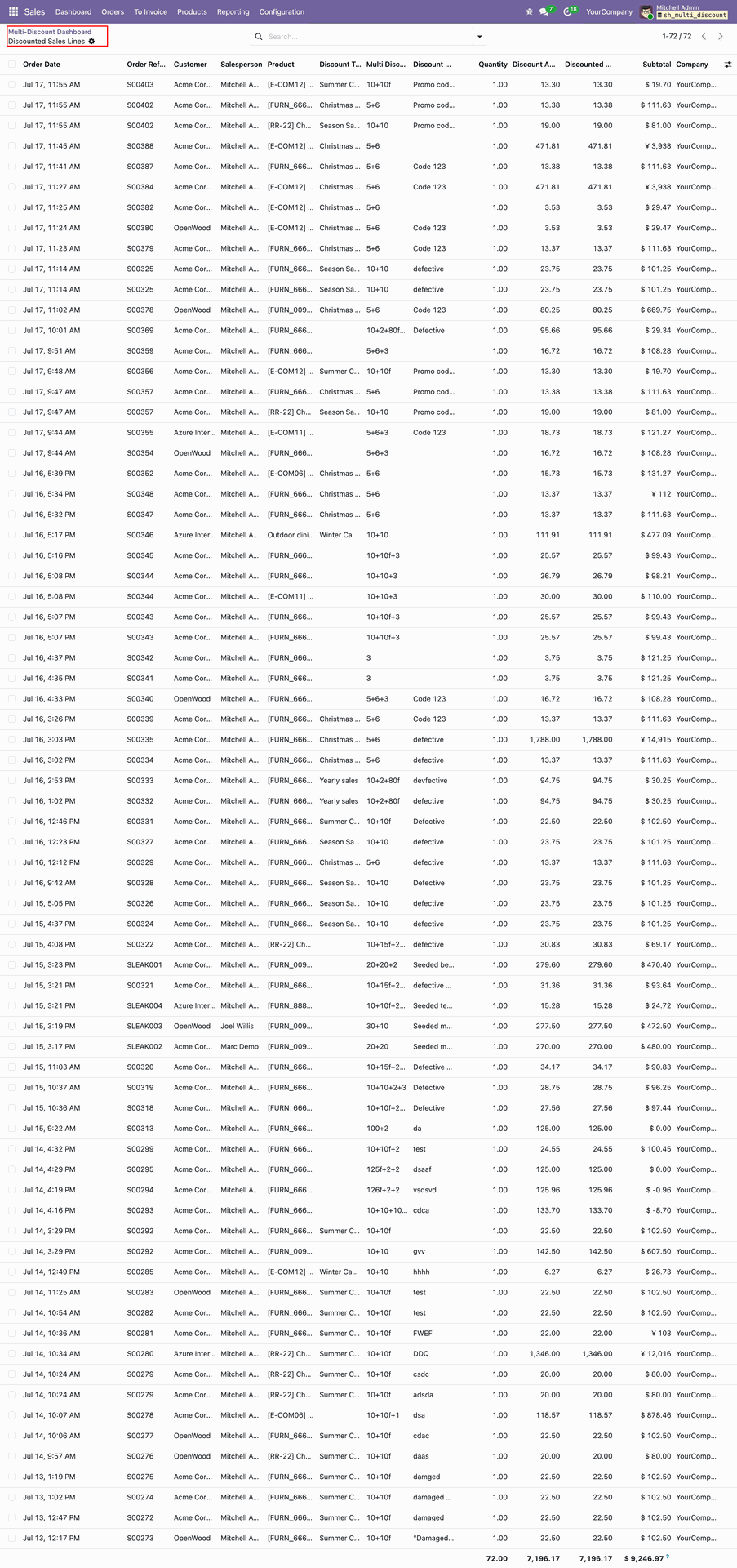
The Multi Discount Dashboard displays charts for Discount Impact Over Time, Most Used Discount Templates, Discount Percentage Distribution, and Profit Leakage by Salesperson.
The dashboard also displays Recent Discounted Lines and Below-Cost Guardrail Hits tables.
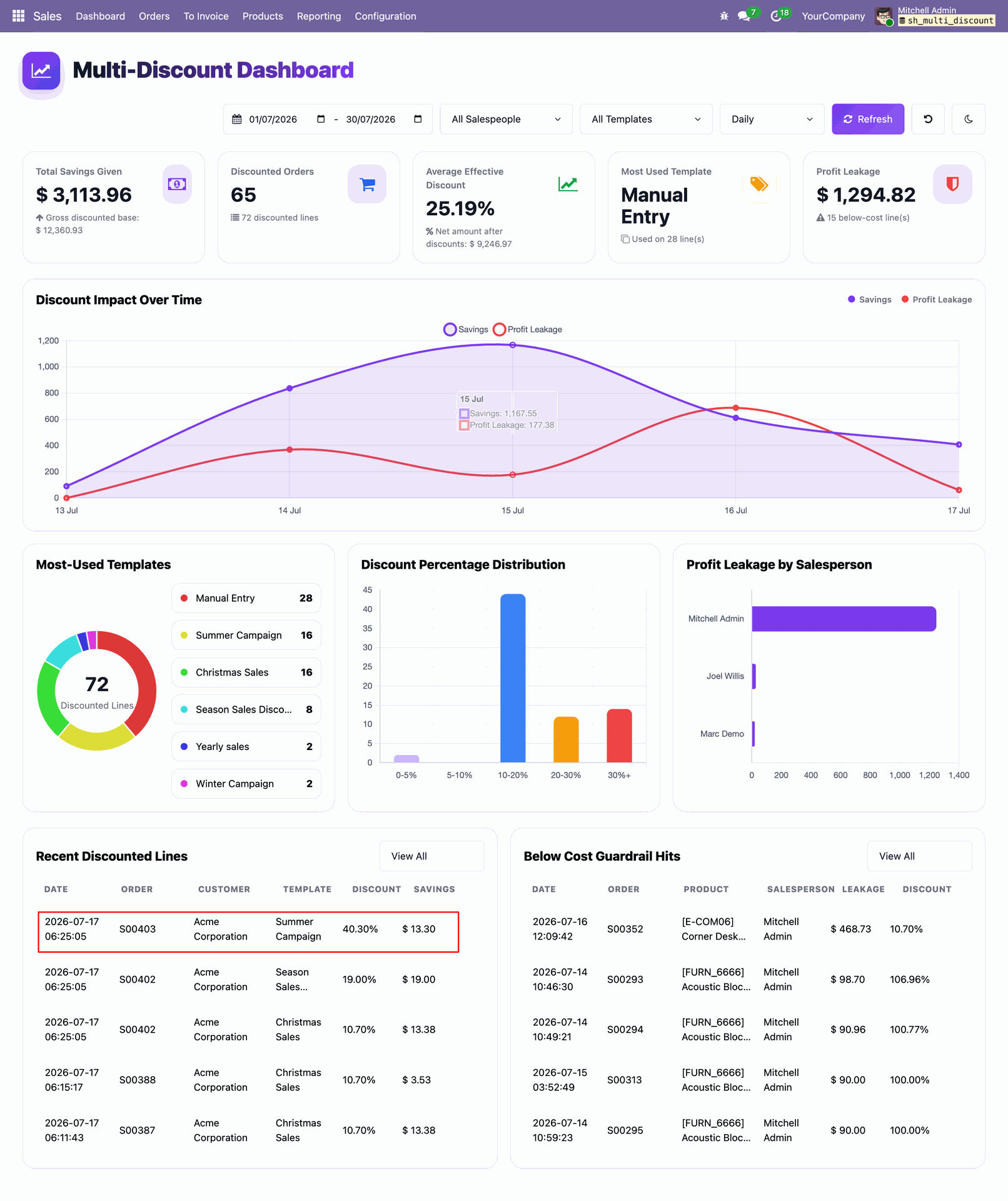
By clicking on a Discounted Line from the dashboard, the corresponding Discounted Line form view will open.
If the user wants to switch the dashboard to Night Mode, they can click the Night Mode icon.
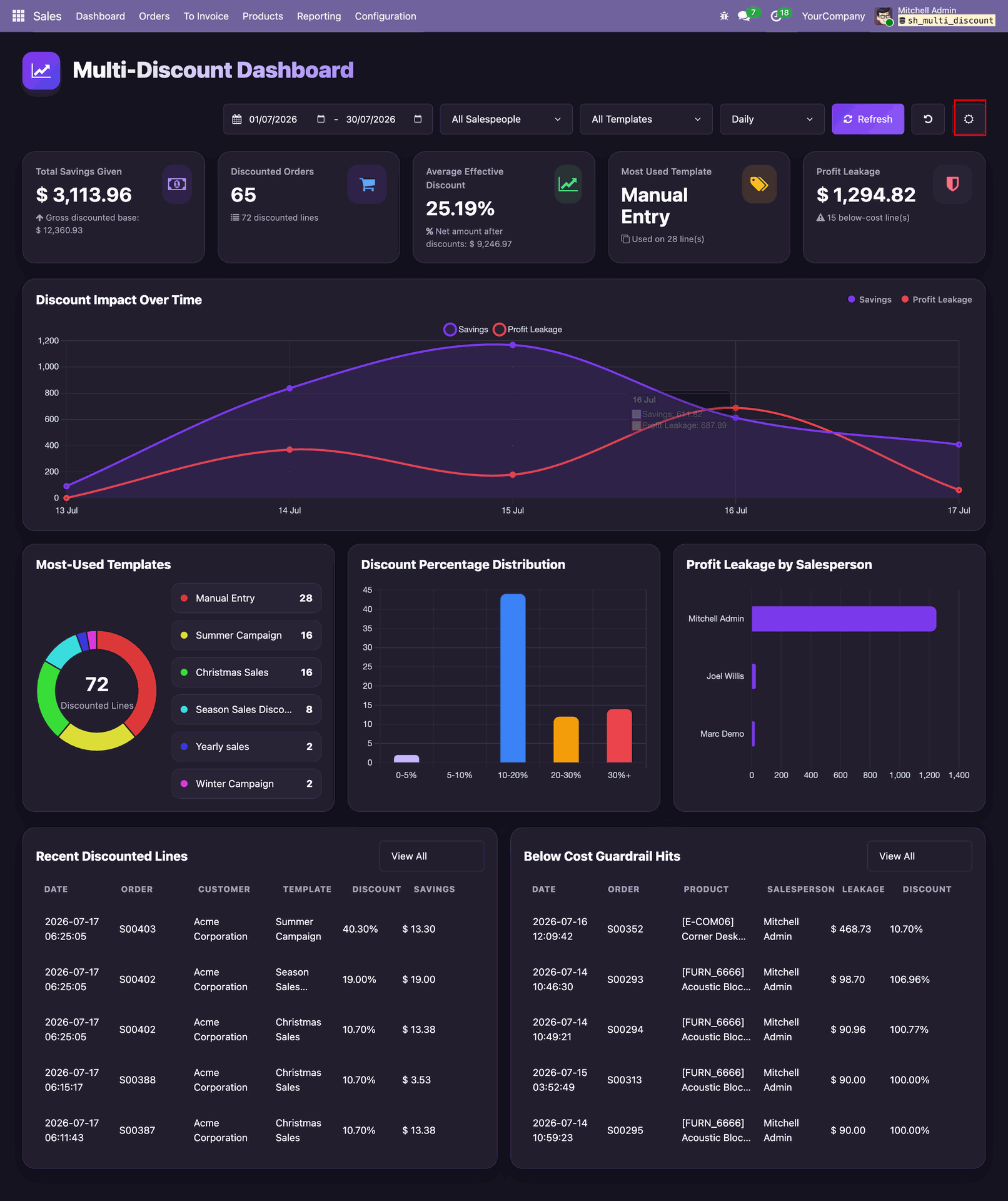
The Night Mode theme will be applied to the dashboard.
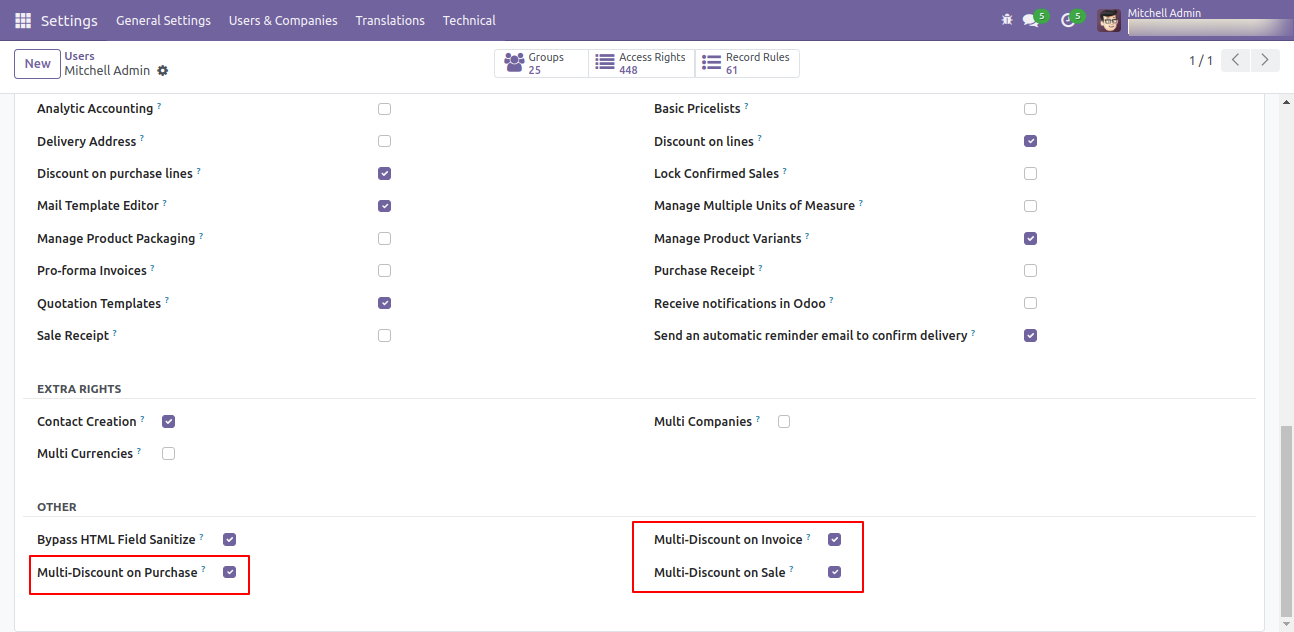
Go to users and enable configurations as per user.
Go to sales configurations and on discount feature.
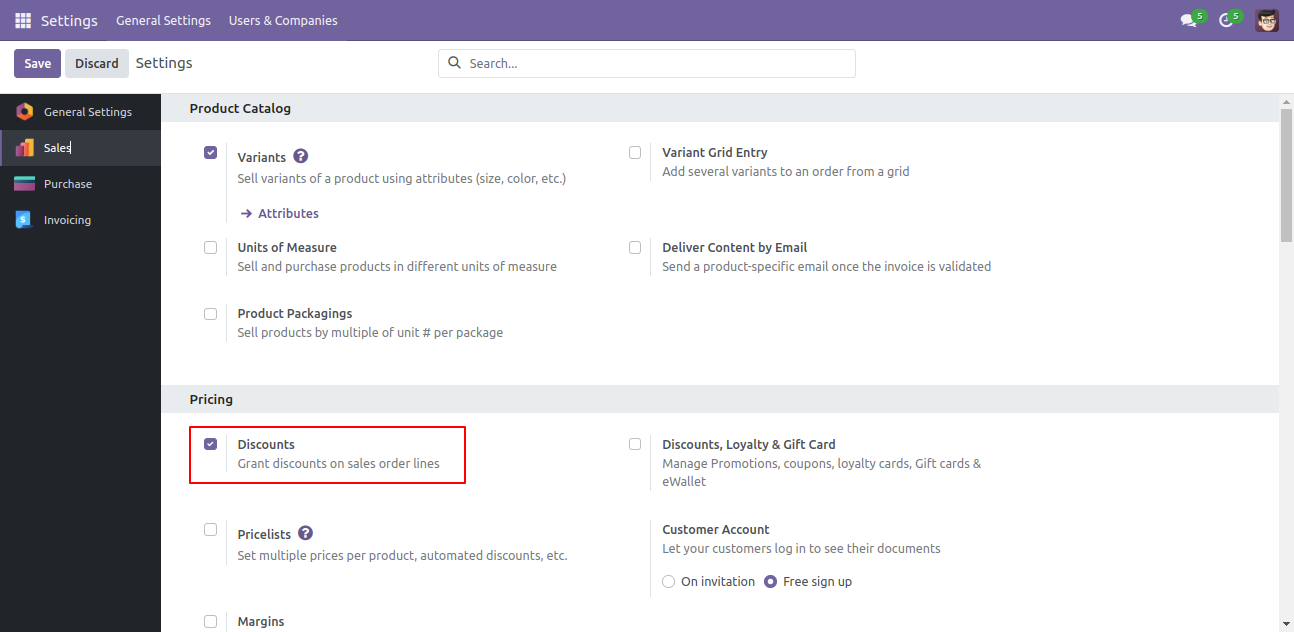
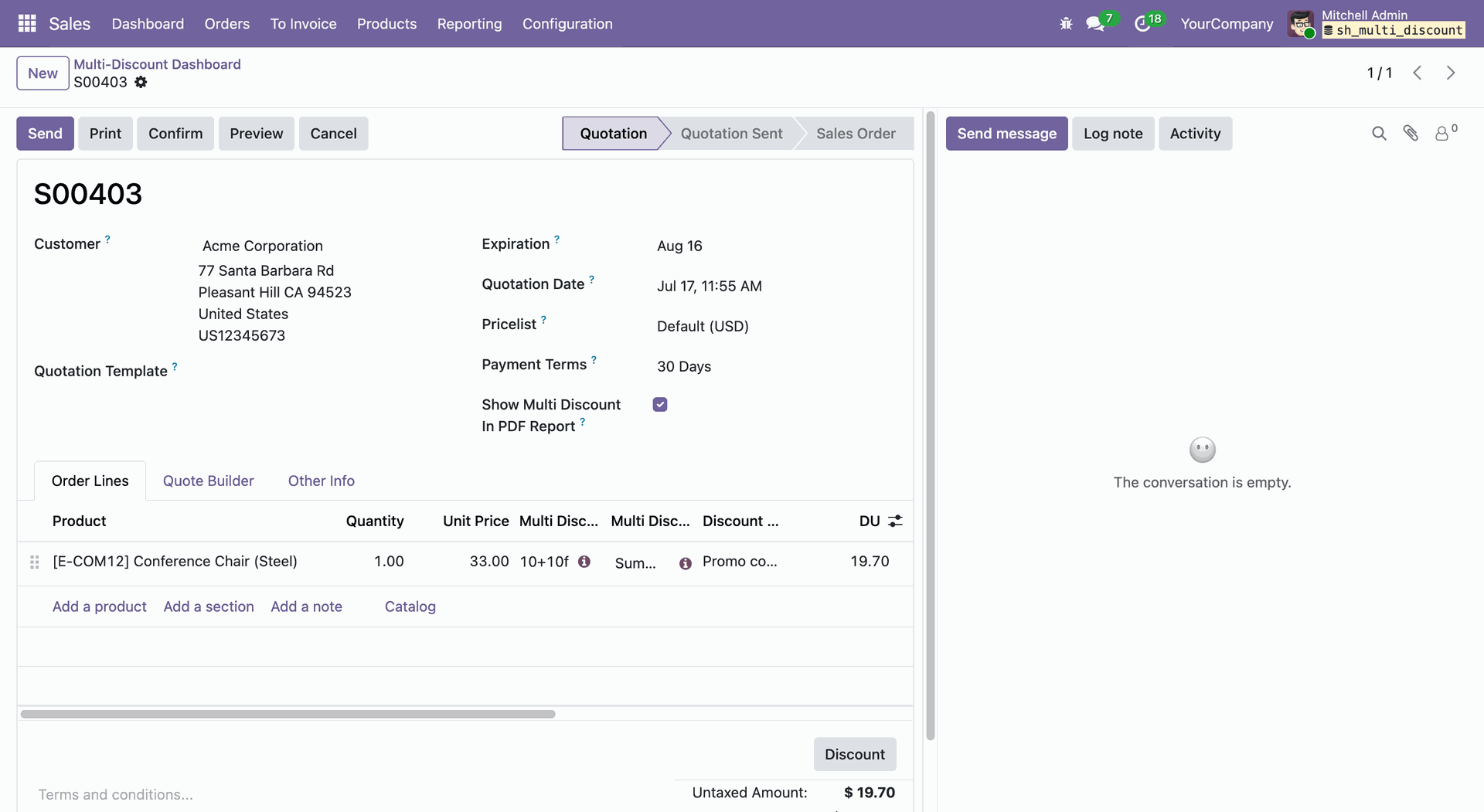
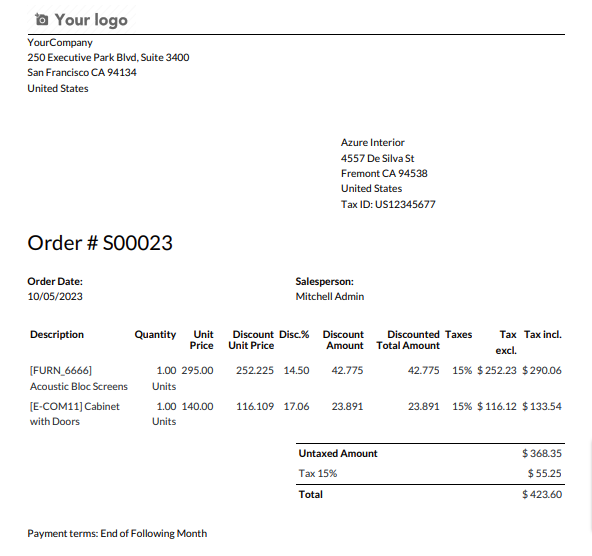
'Multi Discount' field in the Sale order line. and the Boolean field for the multi discount in PDF Report.

'Multi Discount' in Quotation PDF Report.

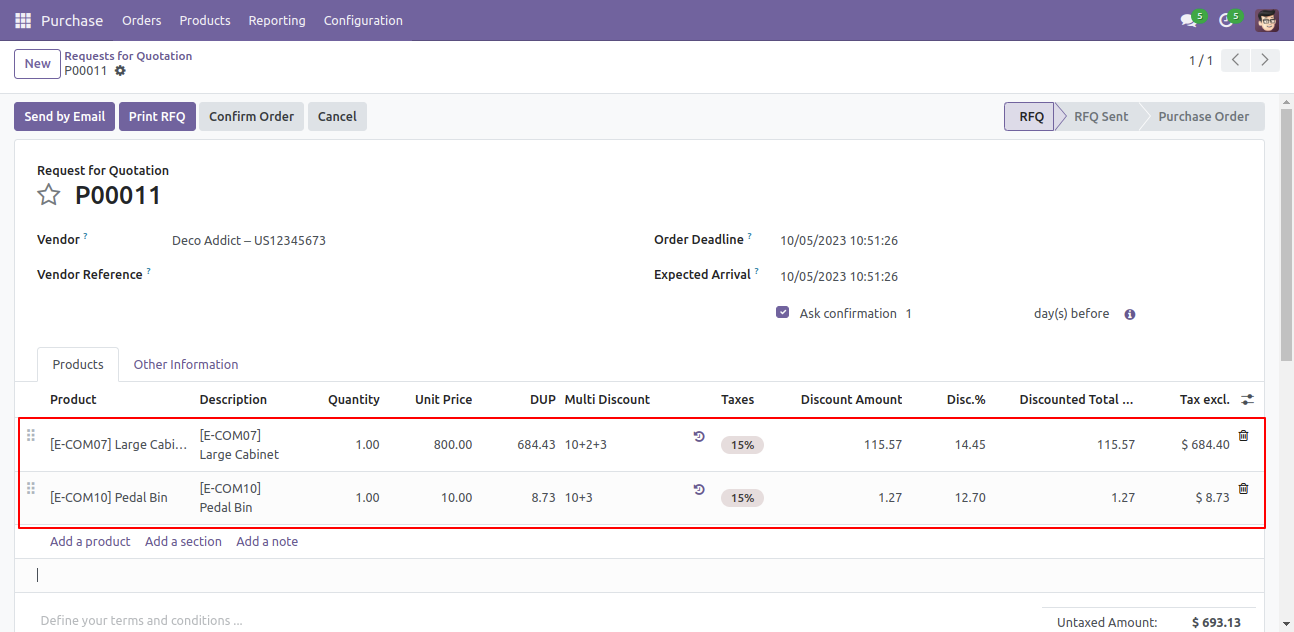
'Multi Discount' field in the RFQ order line.
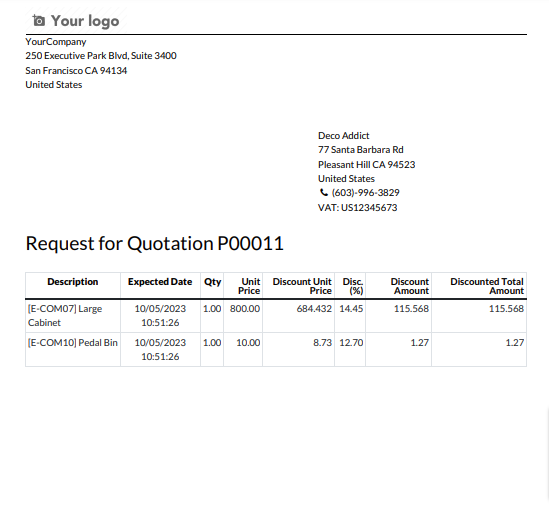
'Multi Discount' in the RFQ PDF Report.
'Multi Discount' in the Purchase order PDF Report.
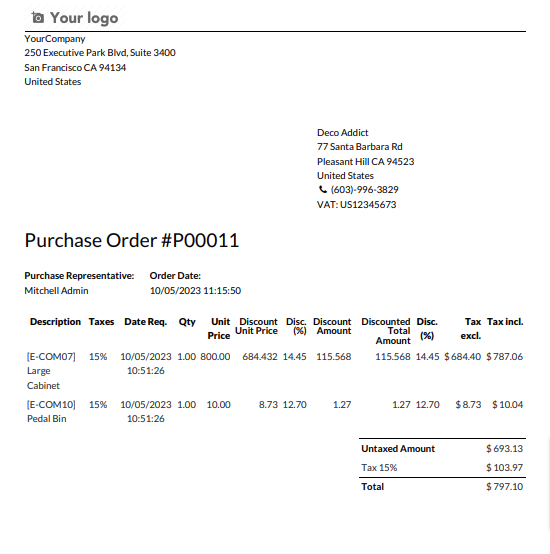
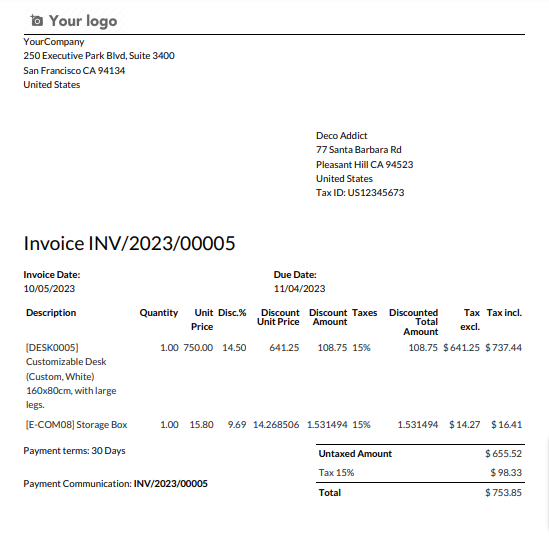
'Multi Discount' field in Invoice lines. and the Boolean field for the multi discount in PDF Report.
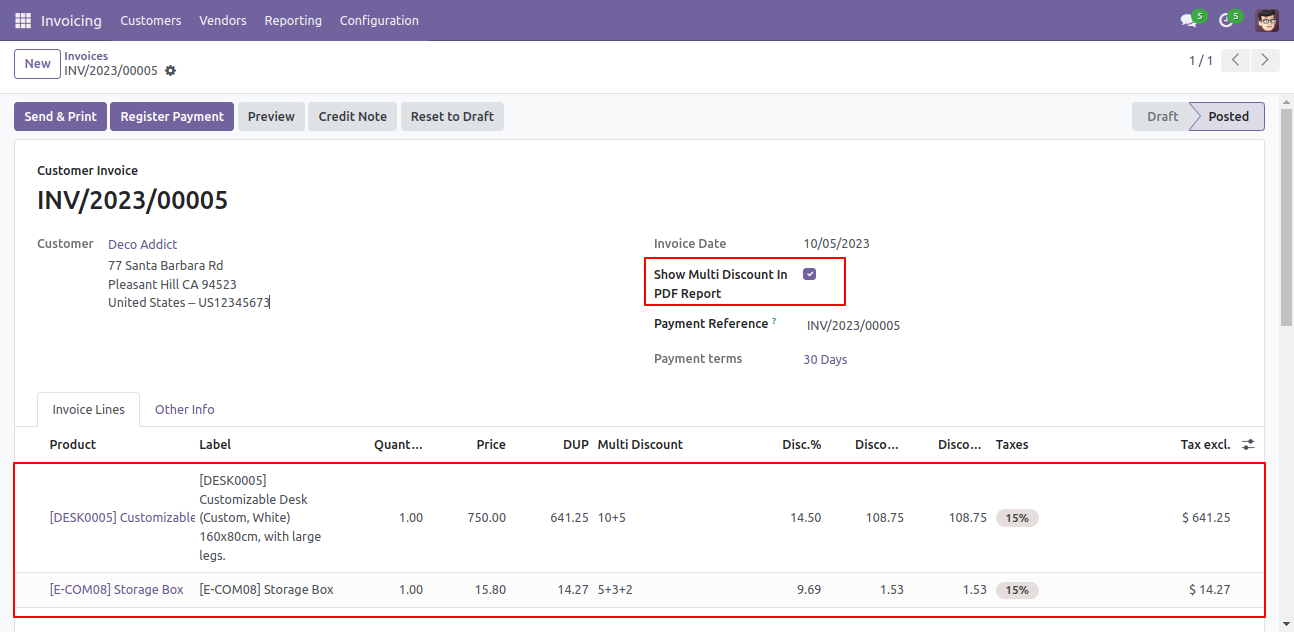
"Multi Discount" in the Draft Invoice PDF Report.
'Multi Discount' field in Vendor Bill. and the Boolean field for the multi discount in PDF Report.

'Multi Discount' in Bill PDF Report.

Go to Sales -> Configuration and select the Predefined Discount Templates menu.
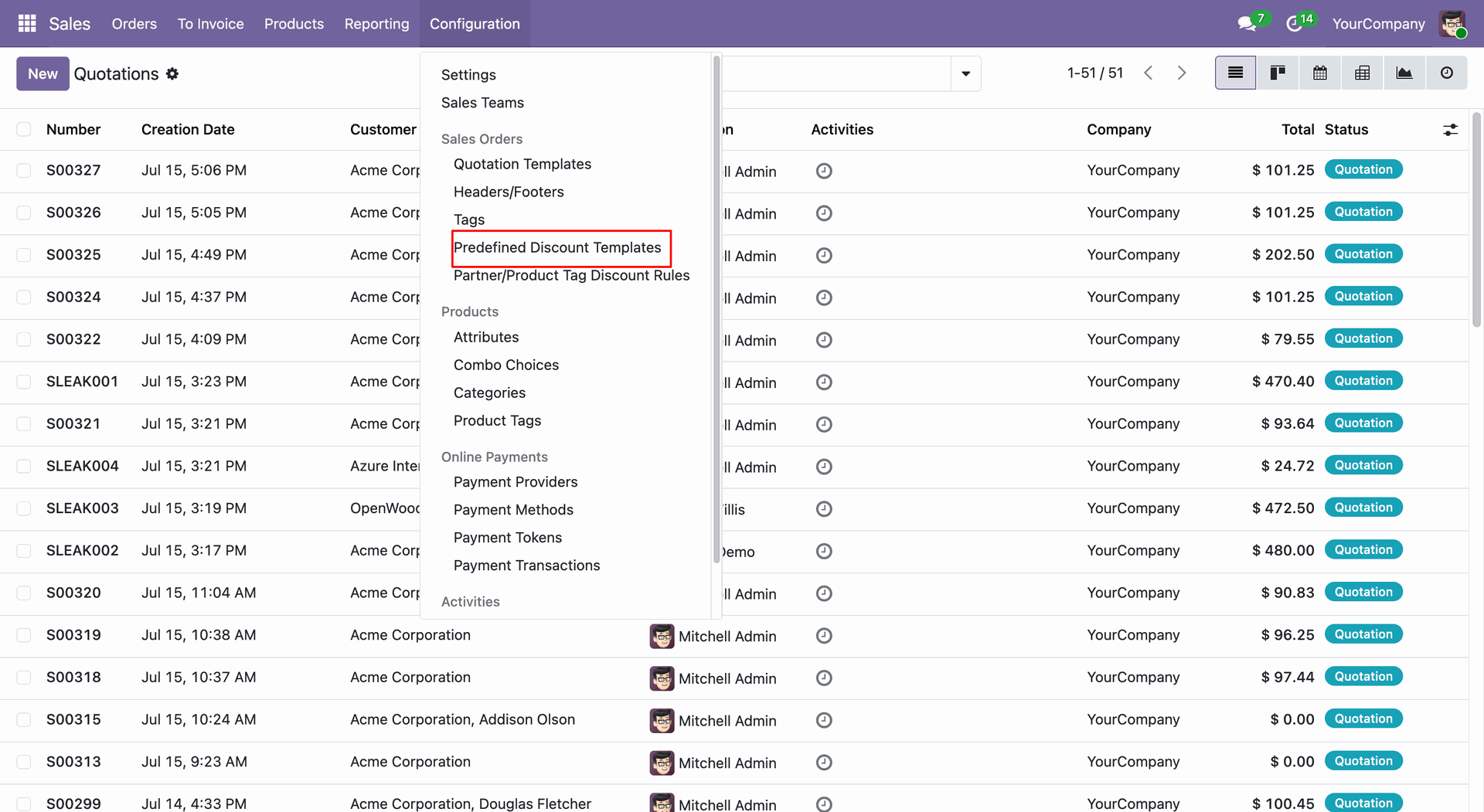
The Discount Template list view will open. Click on a template from the list view to open its form view.
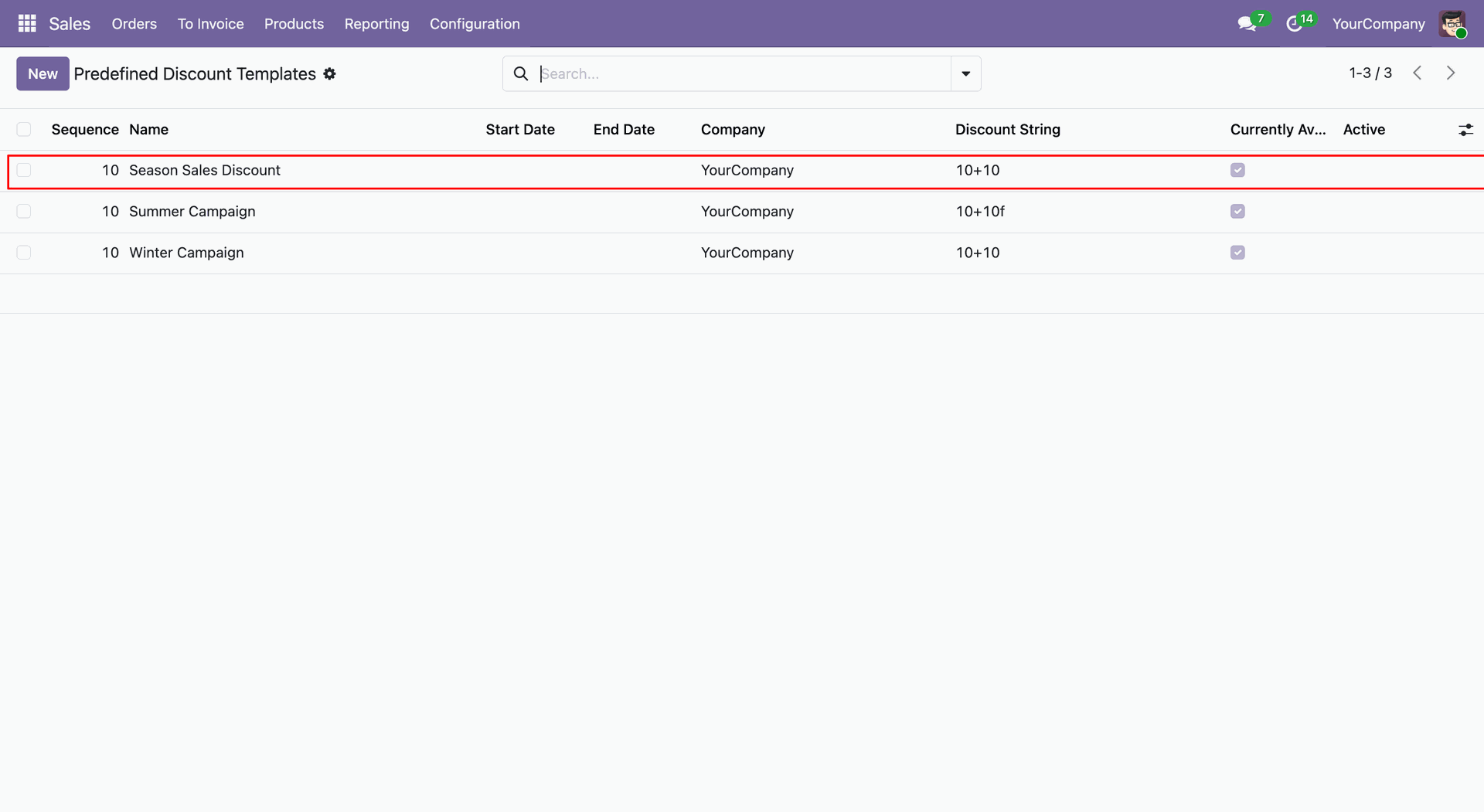
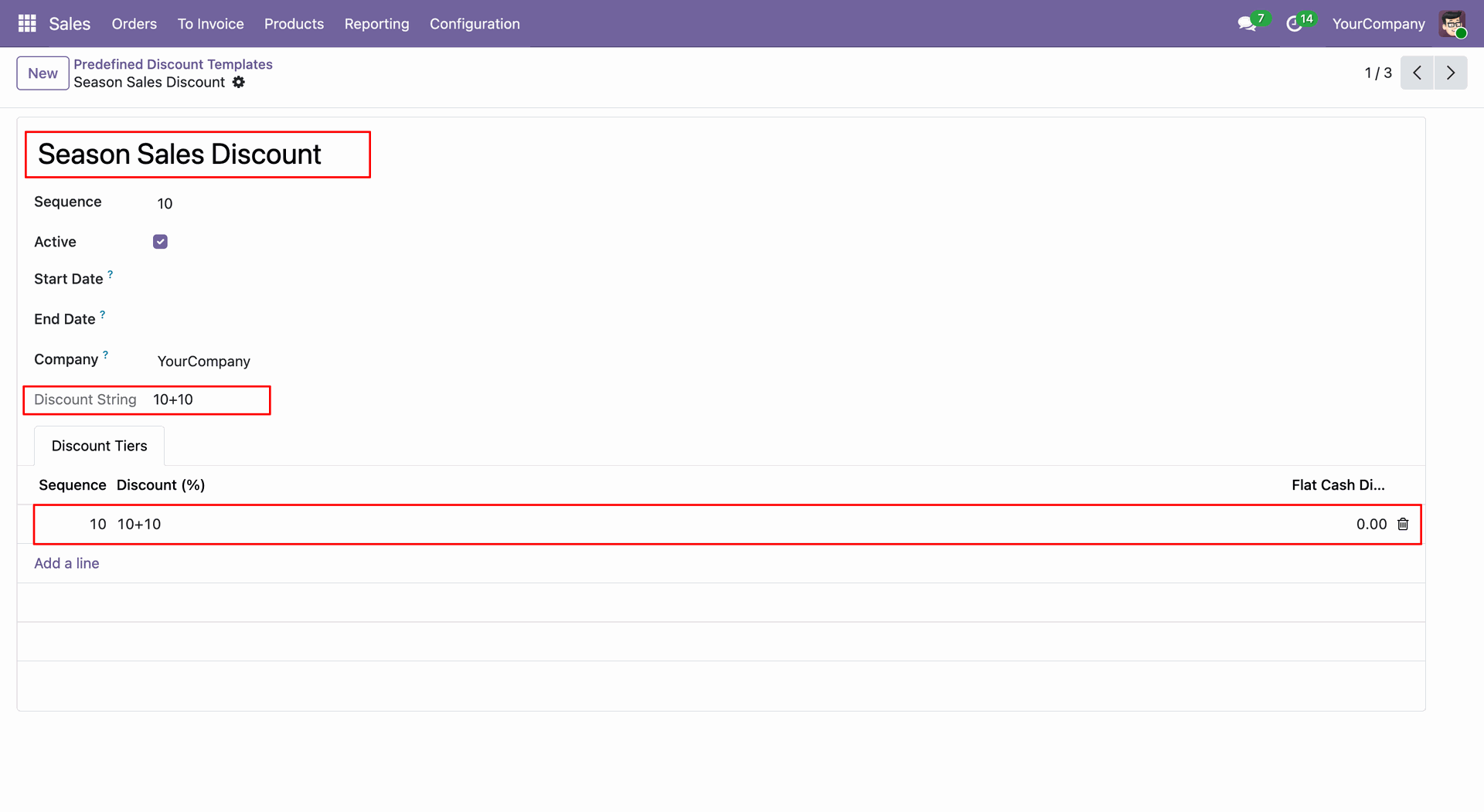
In the Template Form View, add the required Discount Tiers.
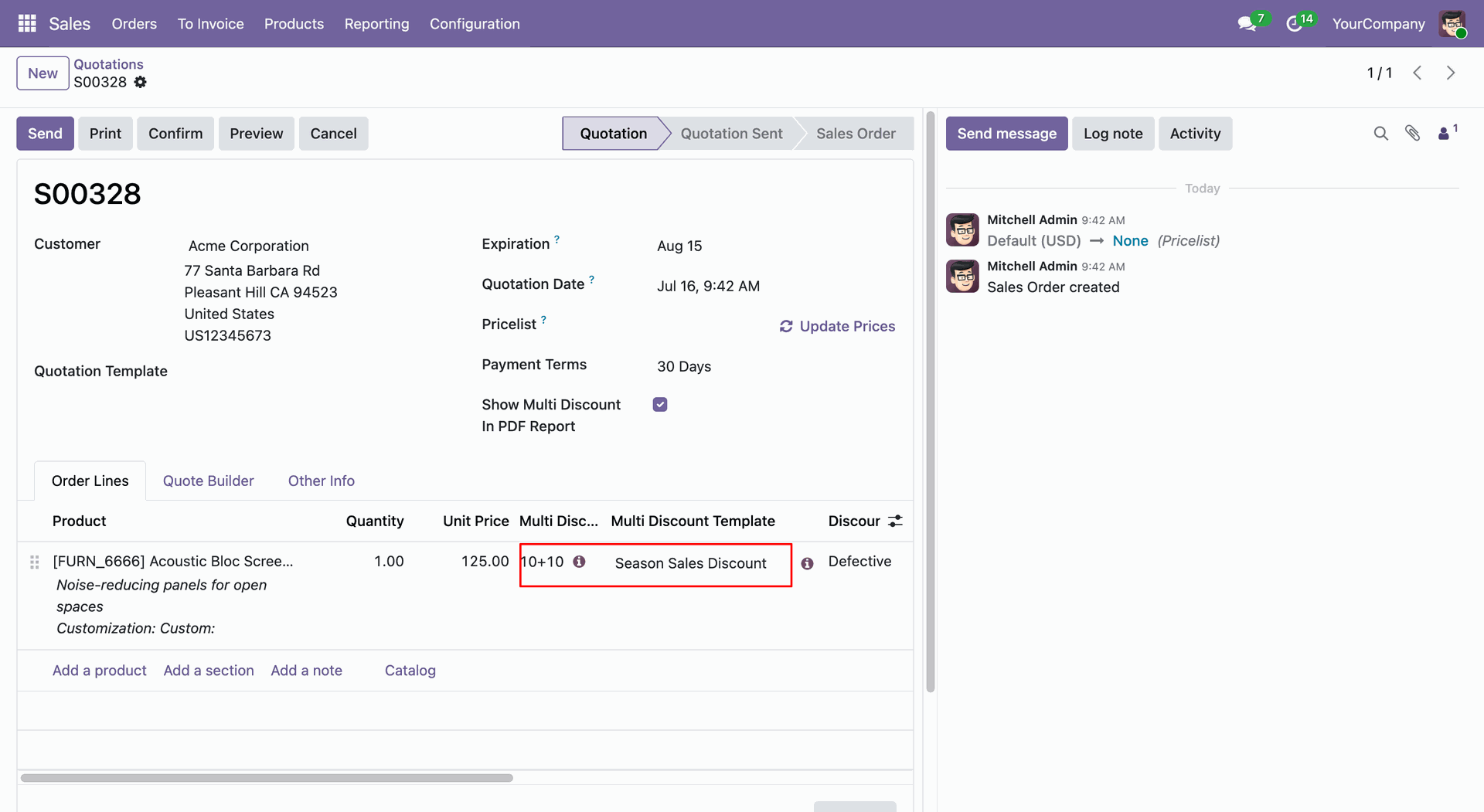
Go to the Sales Order and select a Discount Template in the order lines. The discount will be applied according to the configuration defined in the selected template.
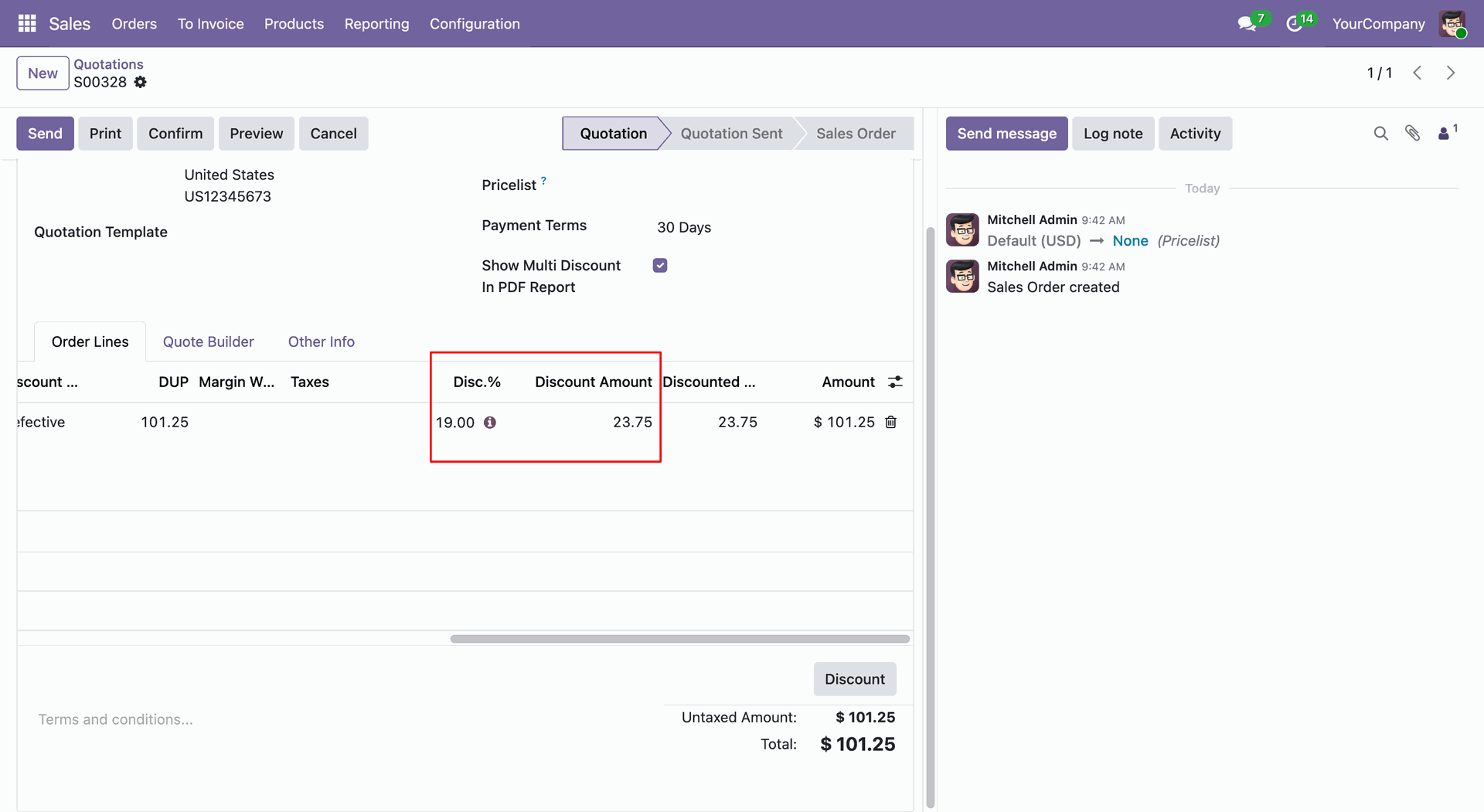
The Discount Percentage and Discount Amount will be displayed on the Order Lines.
Click the ⓘ (Info) icon on the Order Lines to view additional discount details.
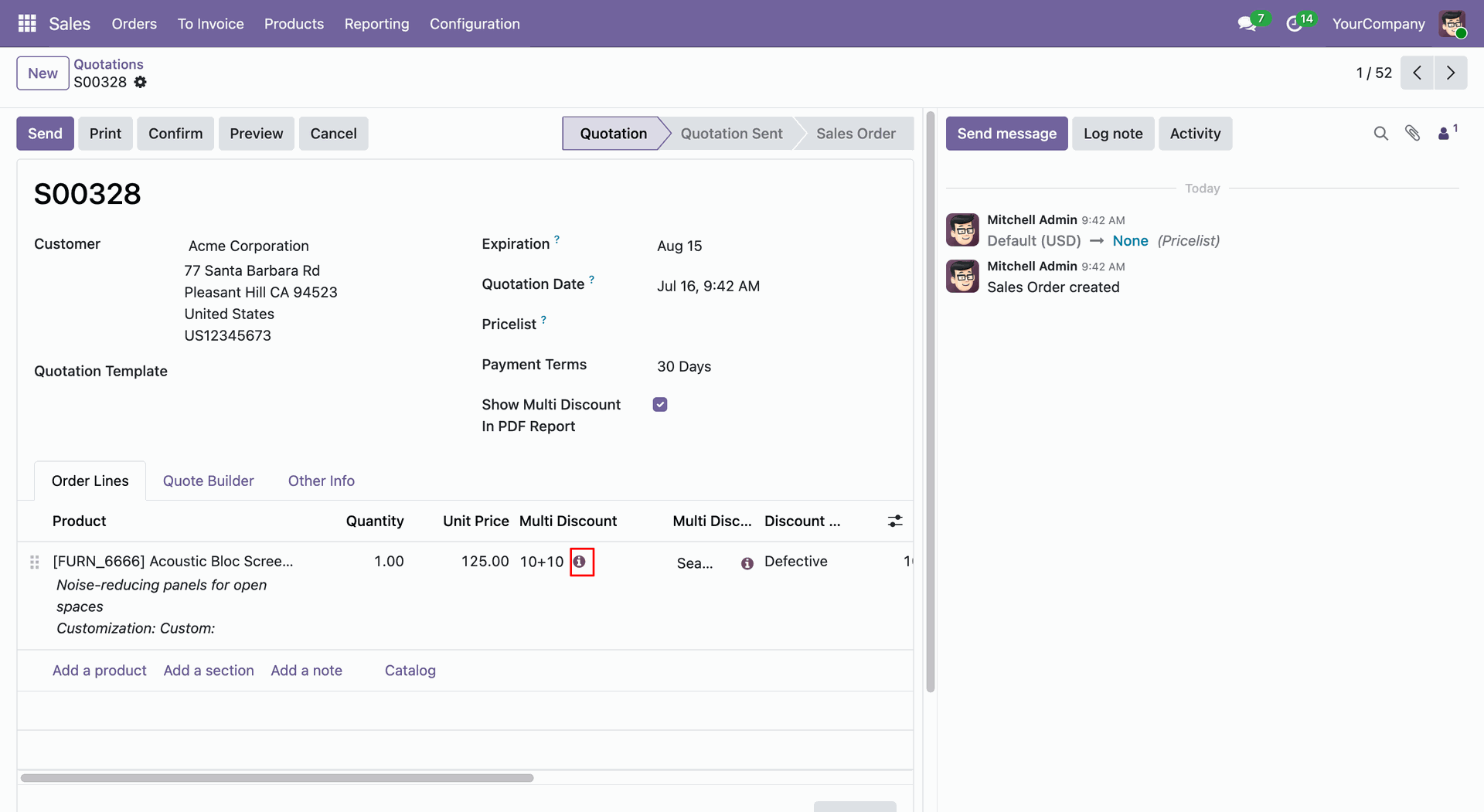
t will open a step-by-step breakdown of the applied discounts.
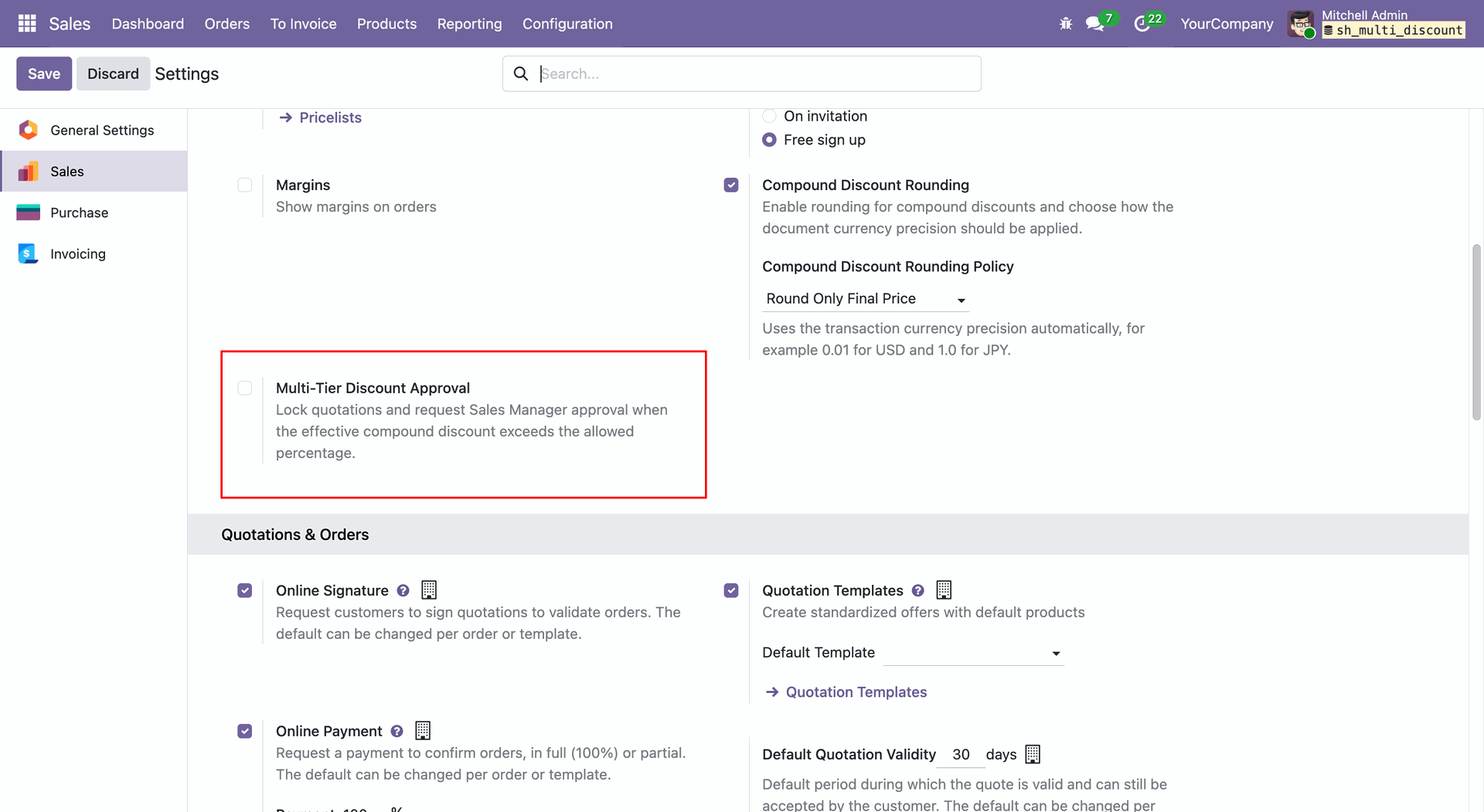
Go to Sales -> Settings and enable the Multi-Tier Discount Approval option.
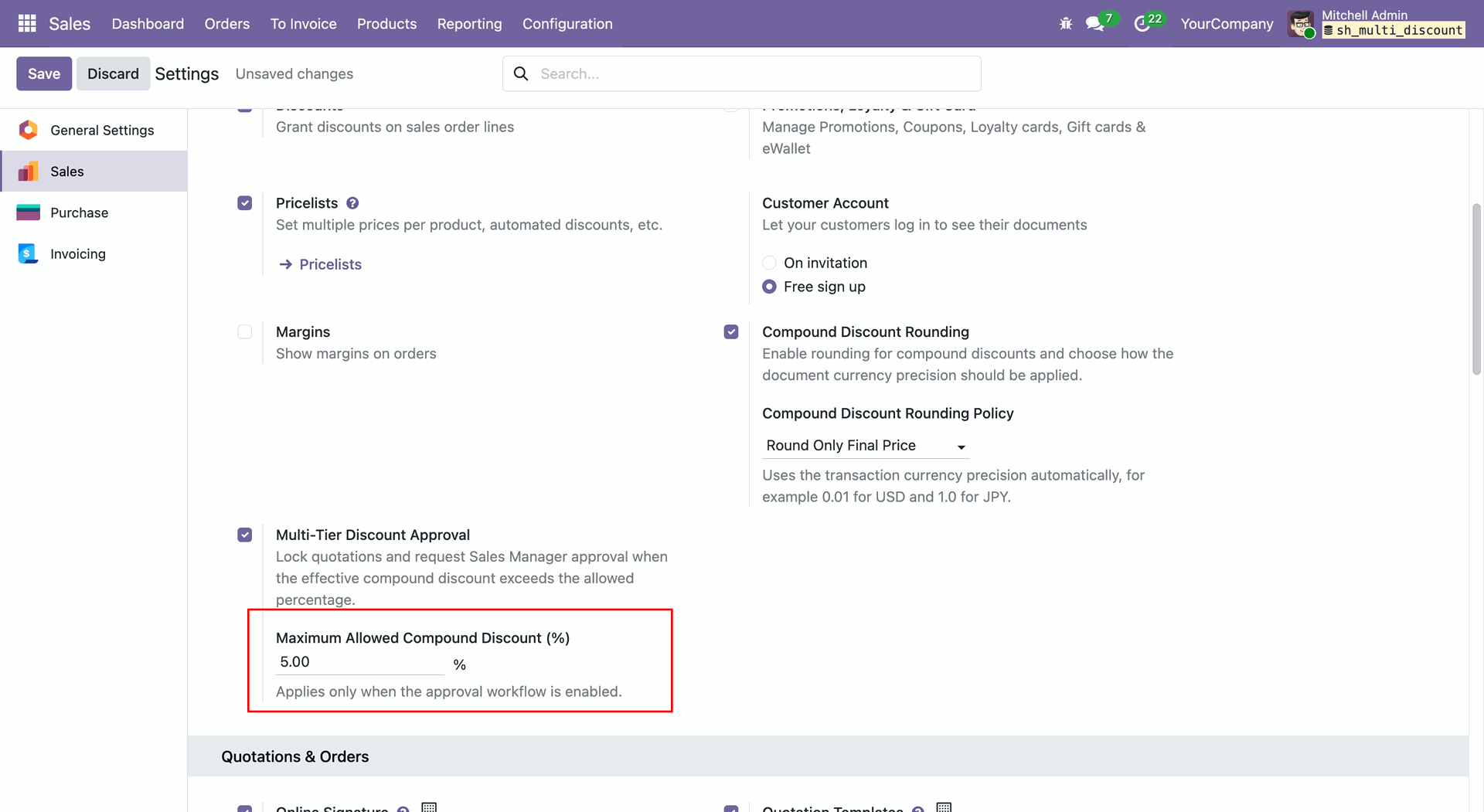
Set the Maximum Allowed Compound Discount Percentage from the Sales Settings.
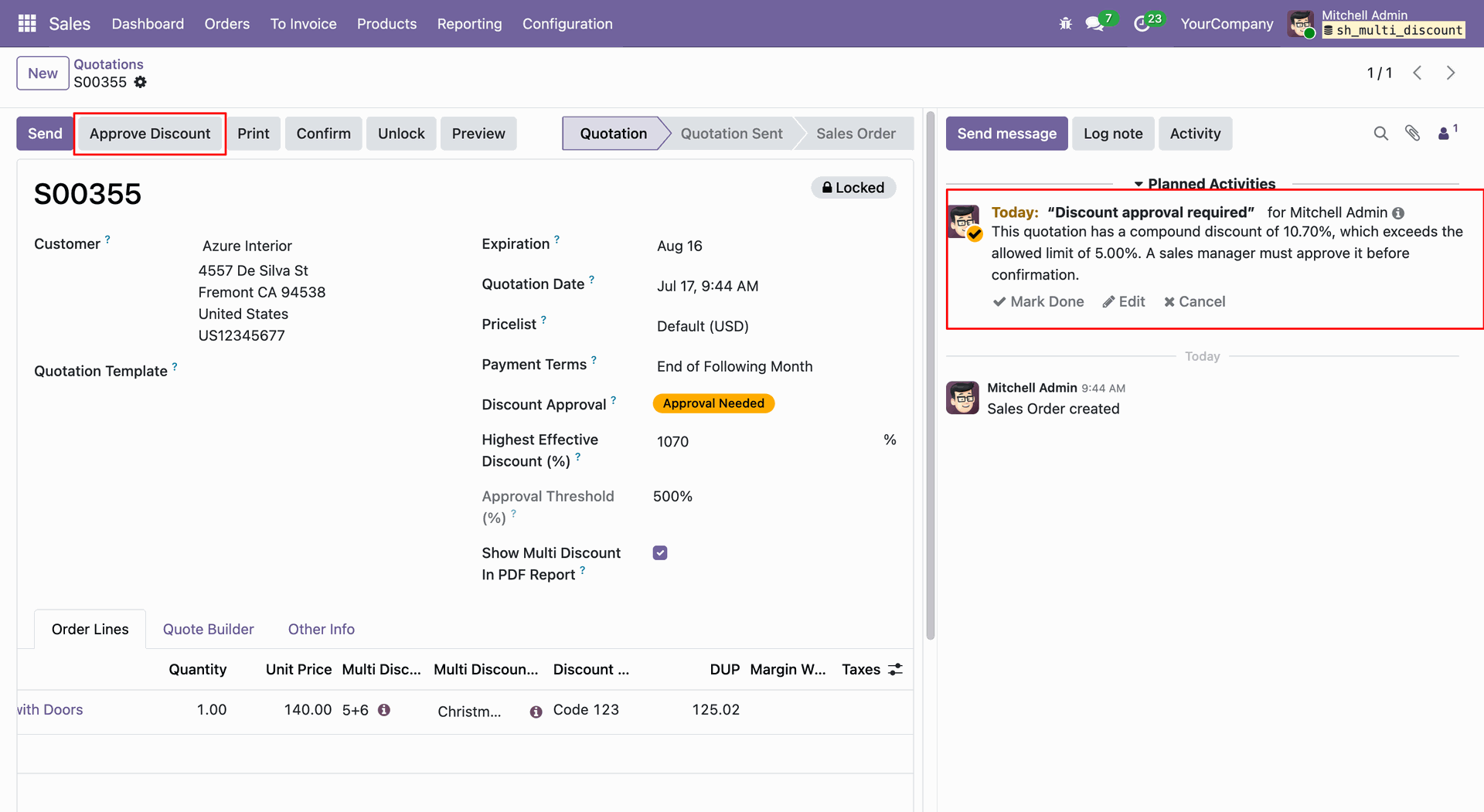
Go to the Sales Order and apply the discount. An activity for discount approval will be created for the manager.
To approve the discount, click the Approve Discount button.
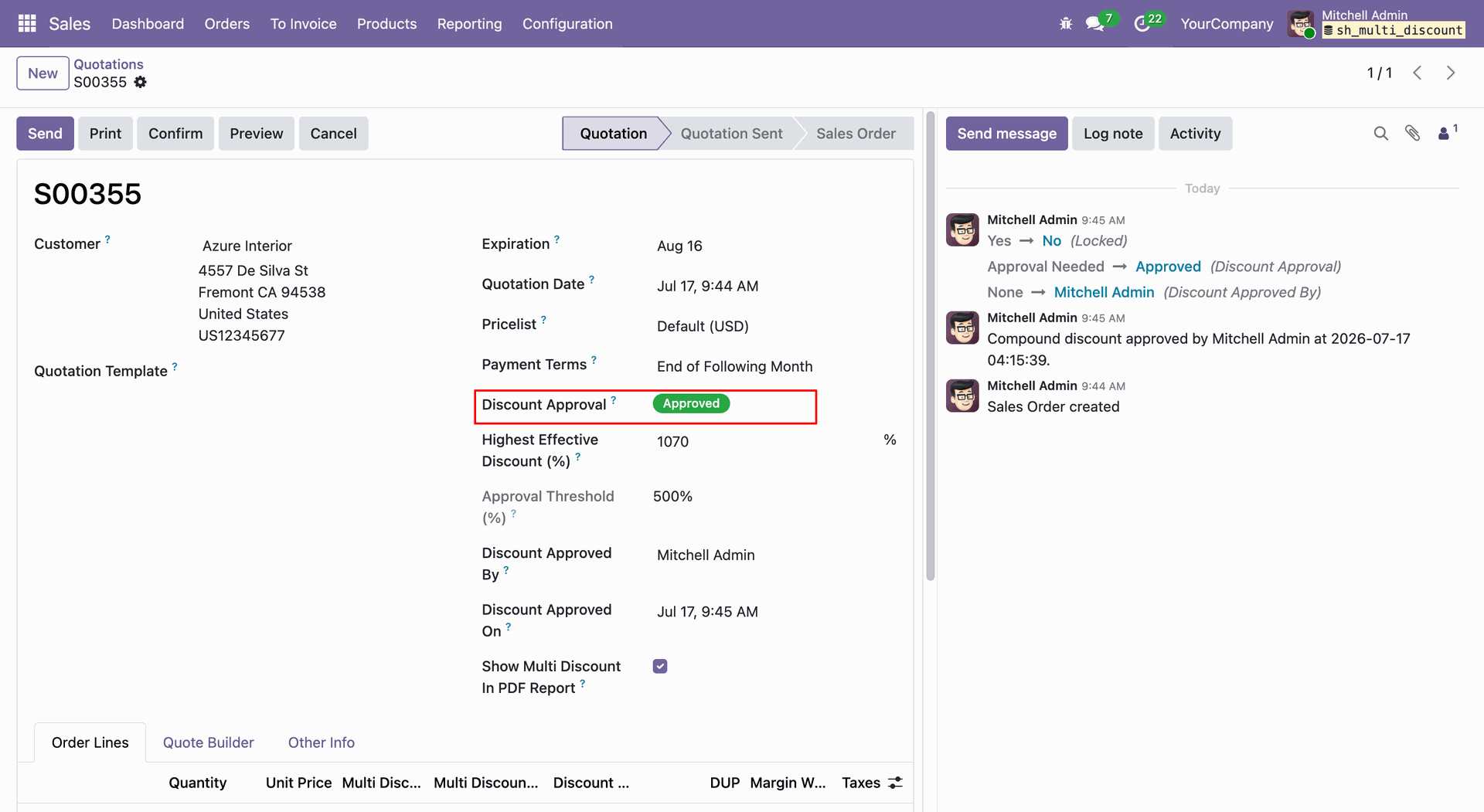
The Discount Approval Approved tag will be displayed on the Sales Order form.
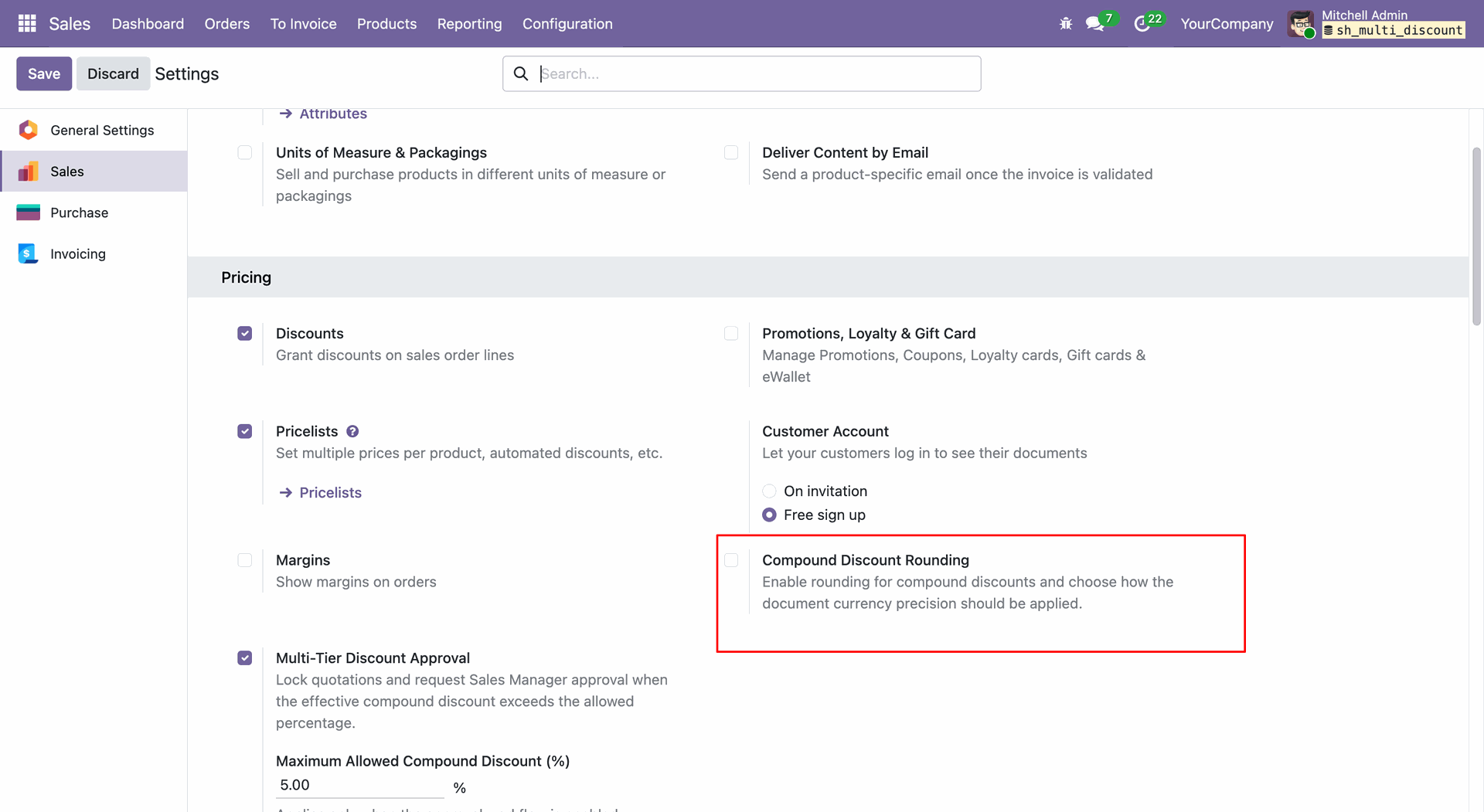
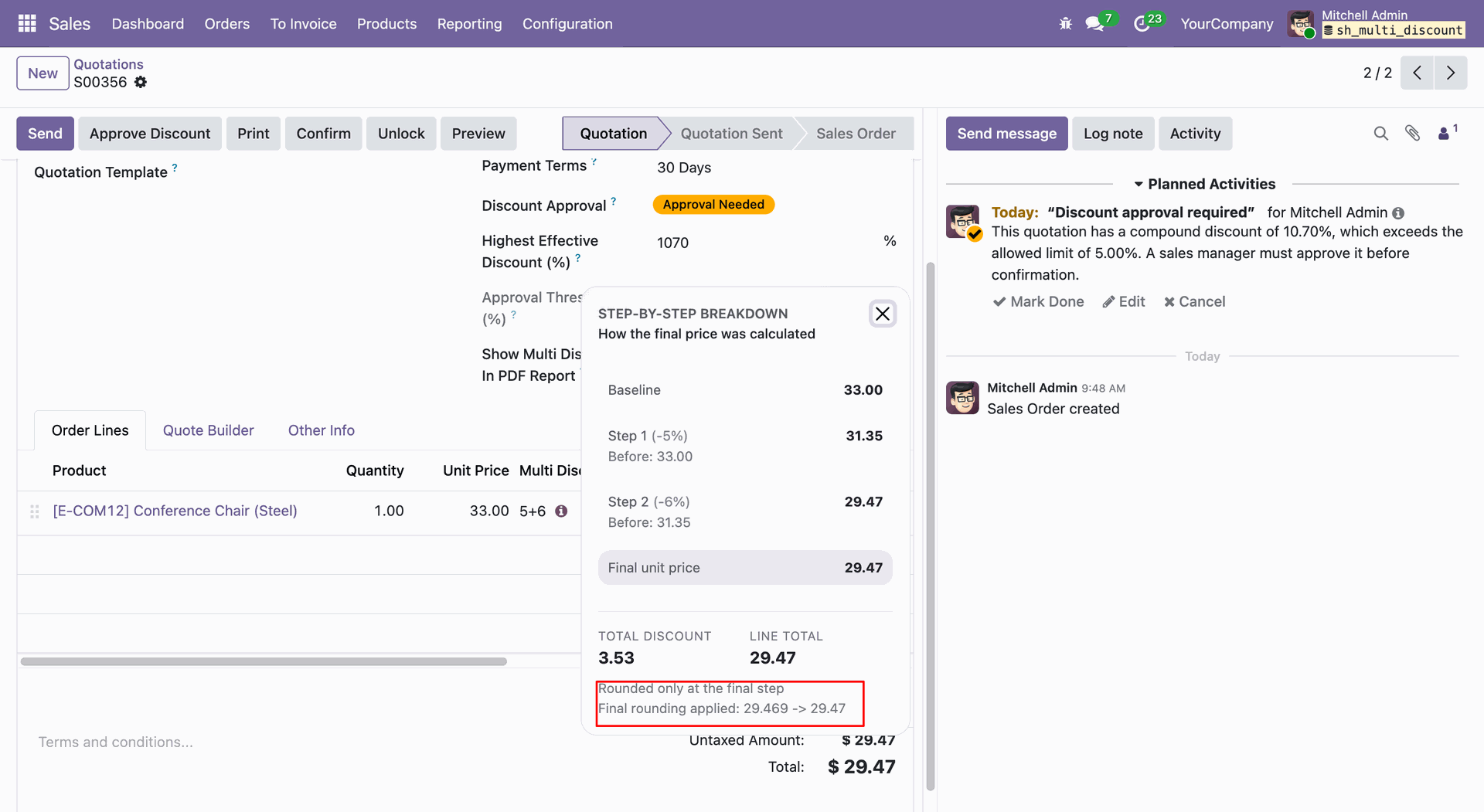
Go to Sales -> Settings and enable the Compound Discount Rounding option.
Select the Round Only Final Price Option from the Sales Settings.
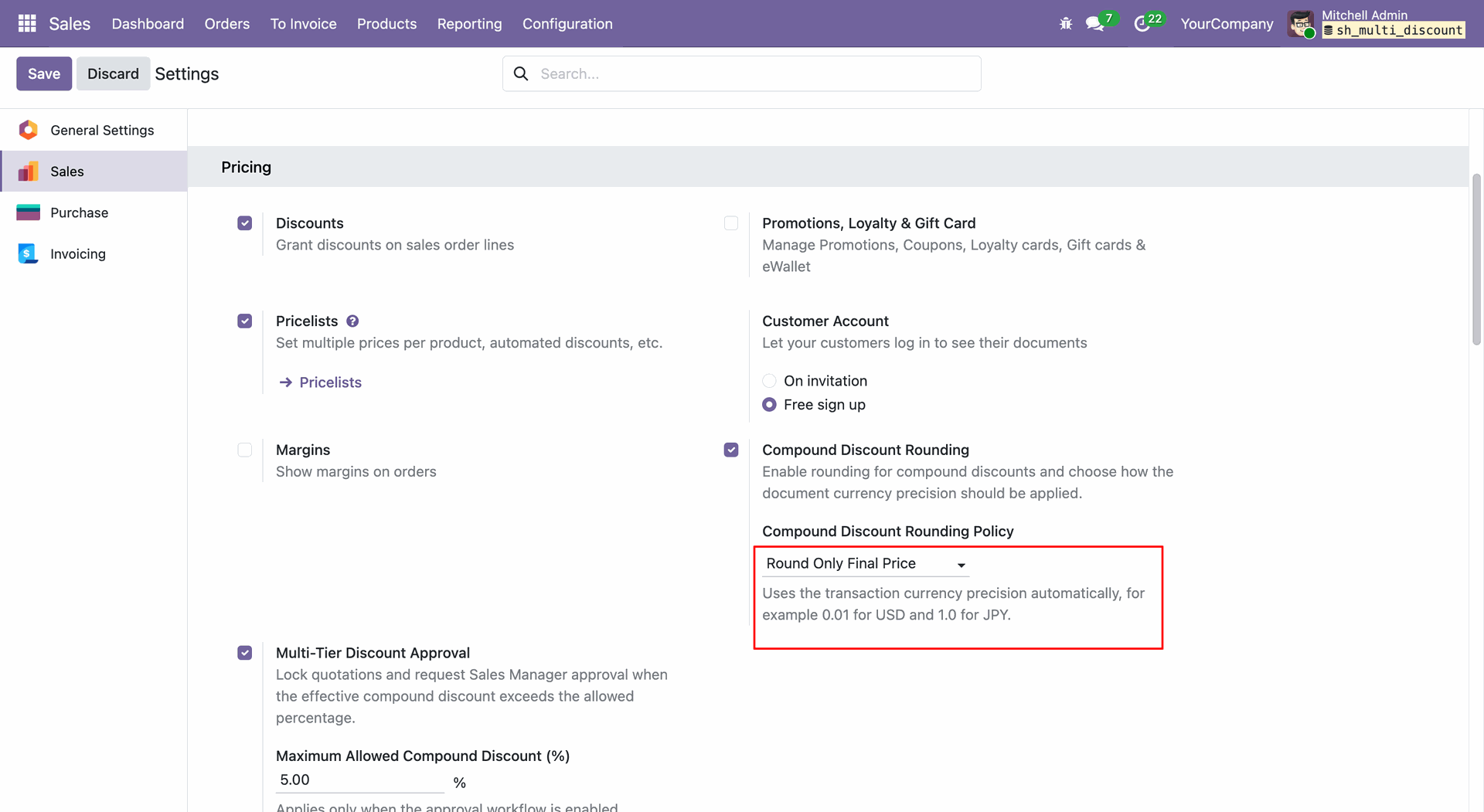
Rounding will be applied to the final amount and will be displayed in the discount breakdown..
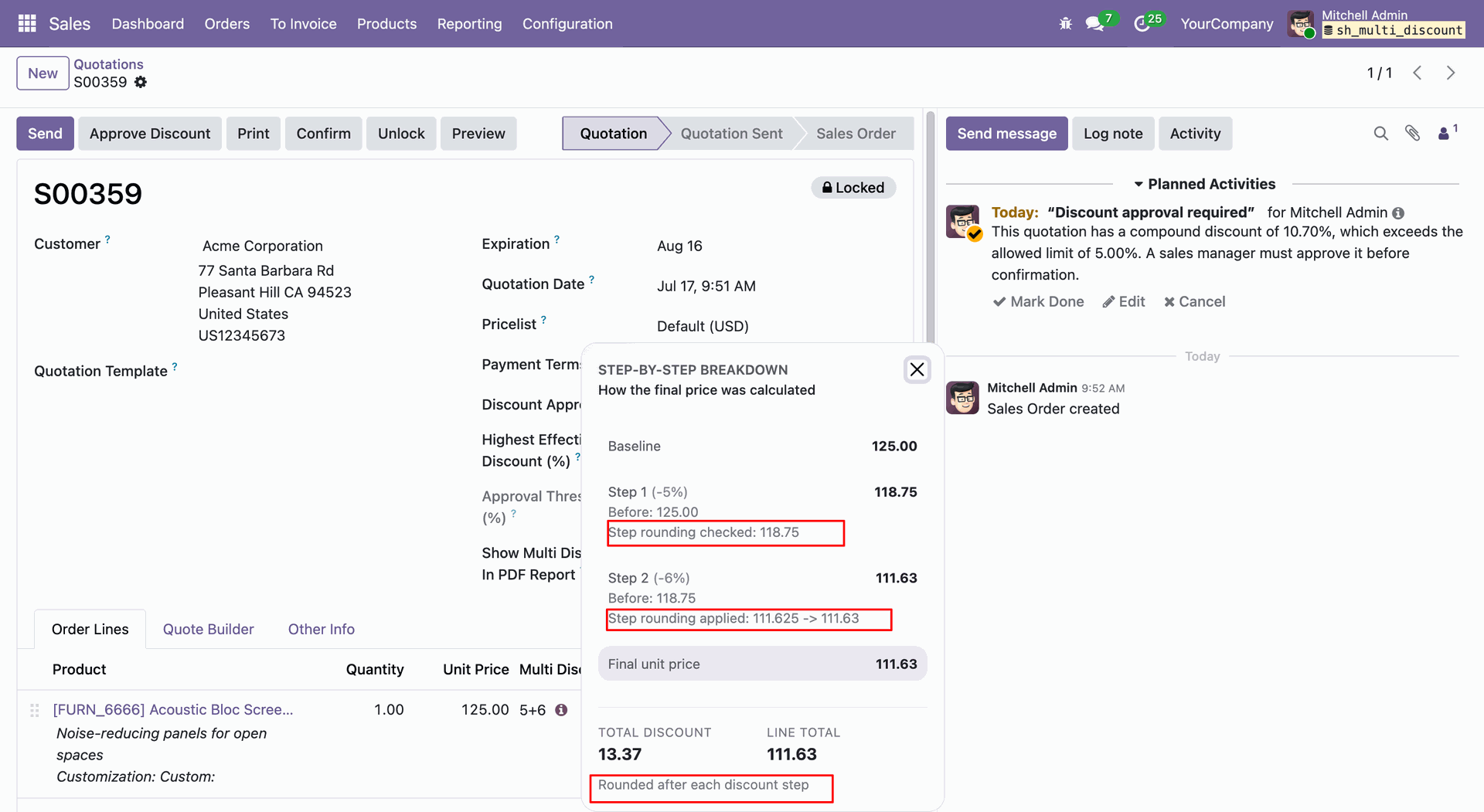
Select the Round After Each Discount Step Option from the Sales Settings.
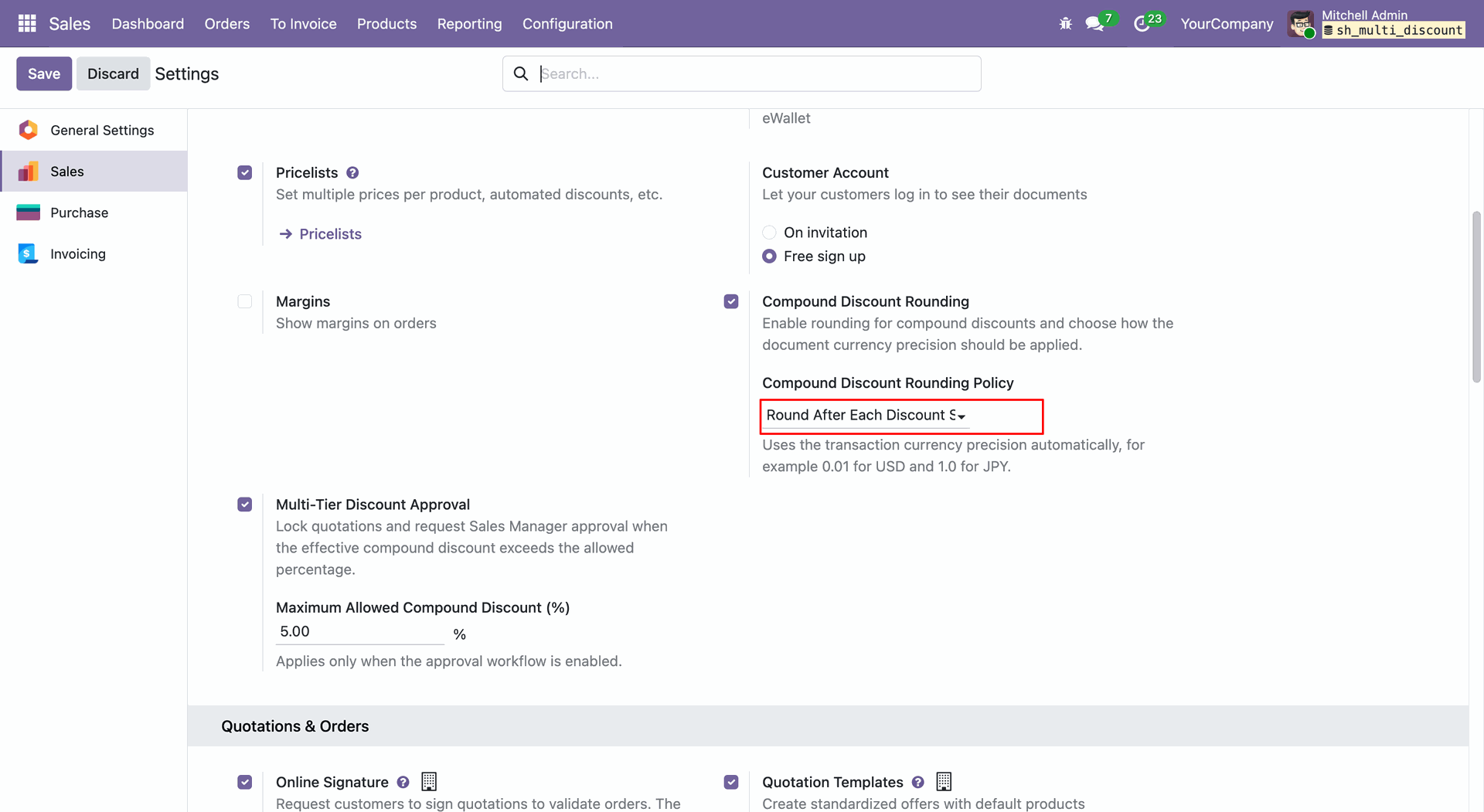
Rounding will be applied to each discount step and will be displayed in the discount breakdown.
Create multiple Sales Orders.
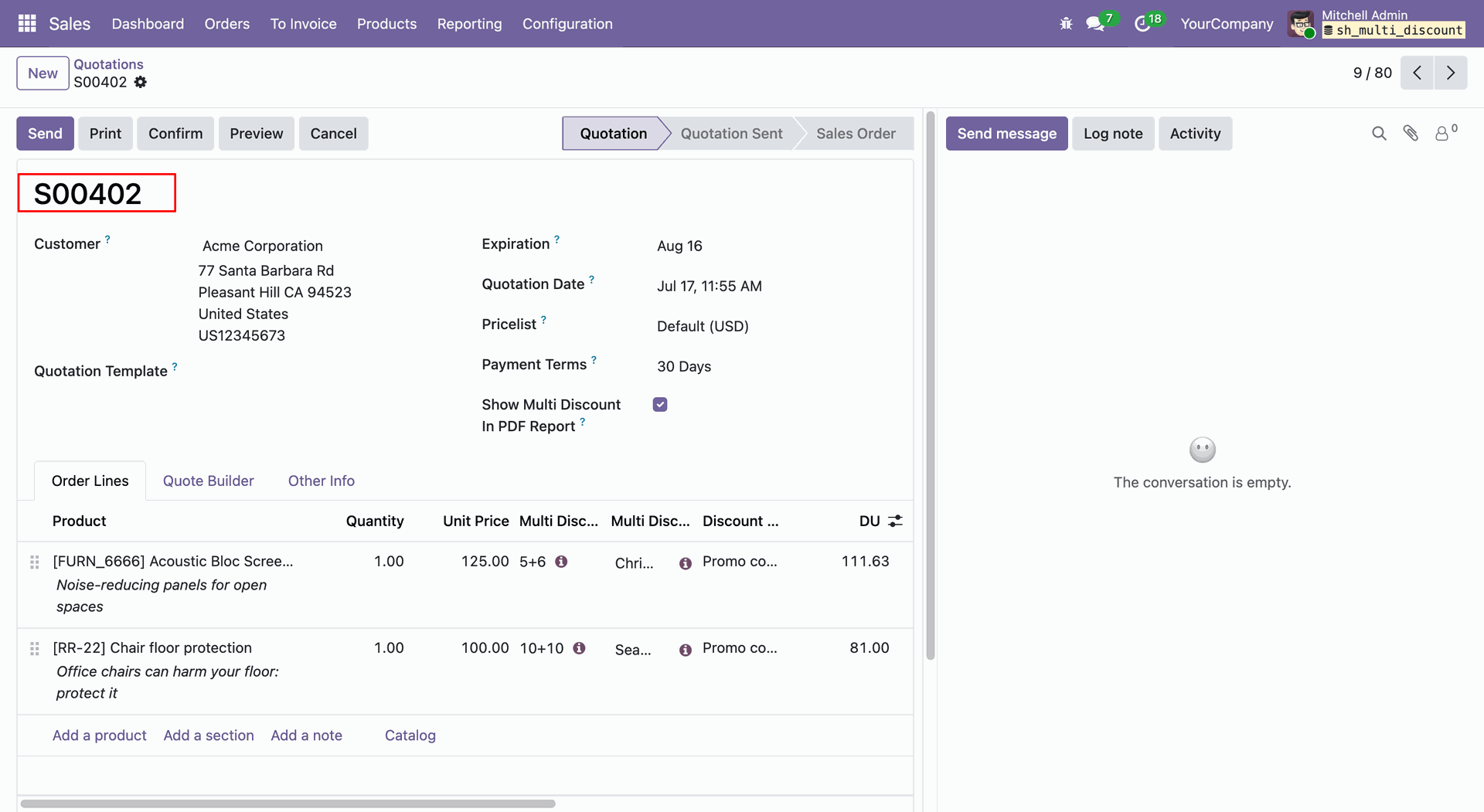
Create multiple Sales Orders.
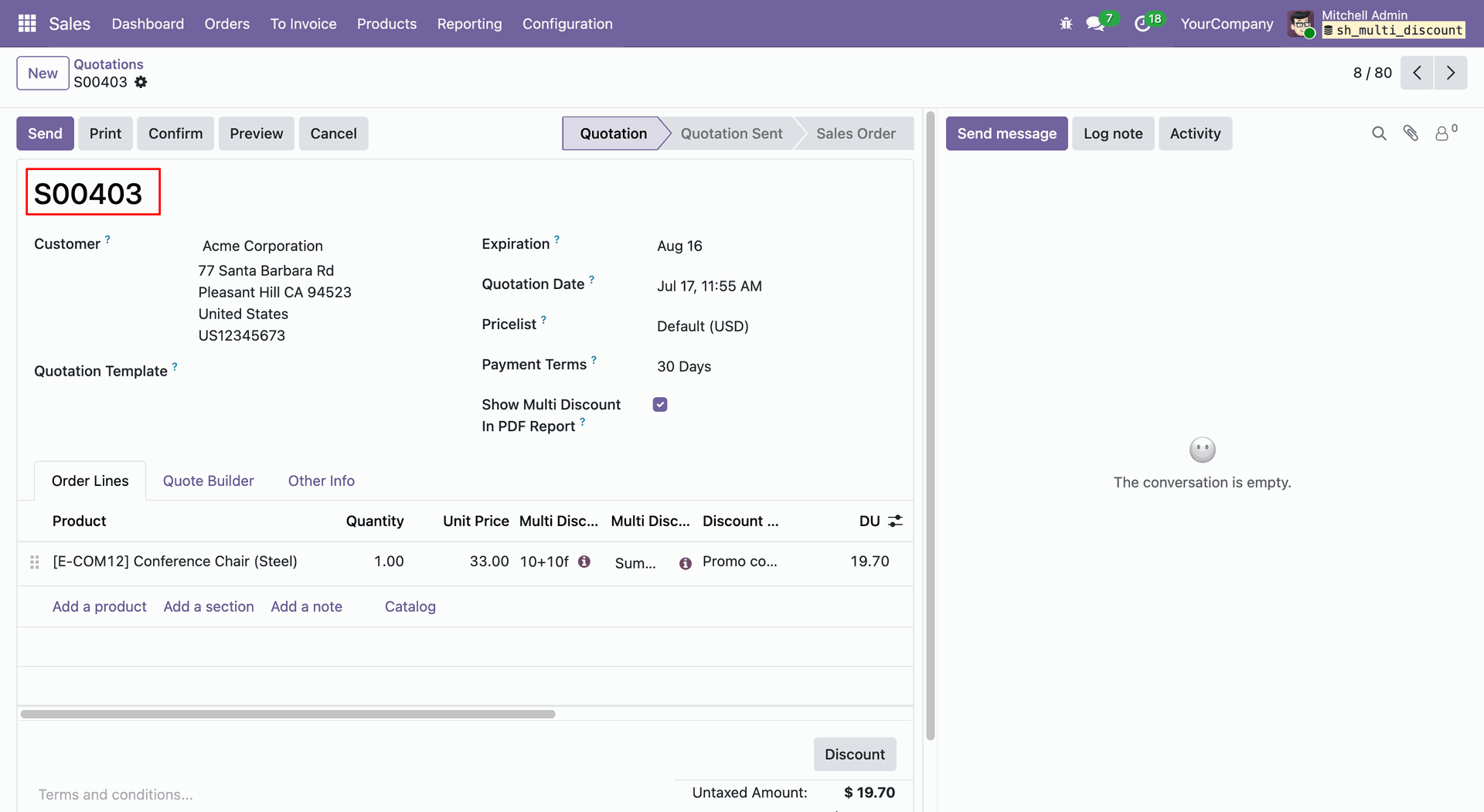
Select the created Sales Orders from the list view and click Export from the Action.
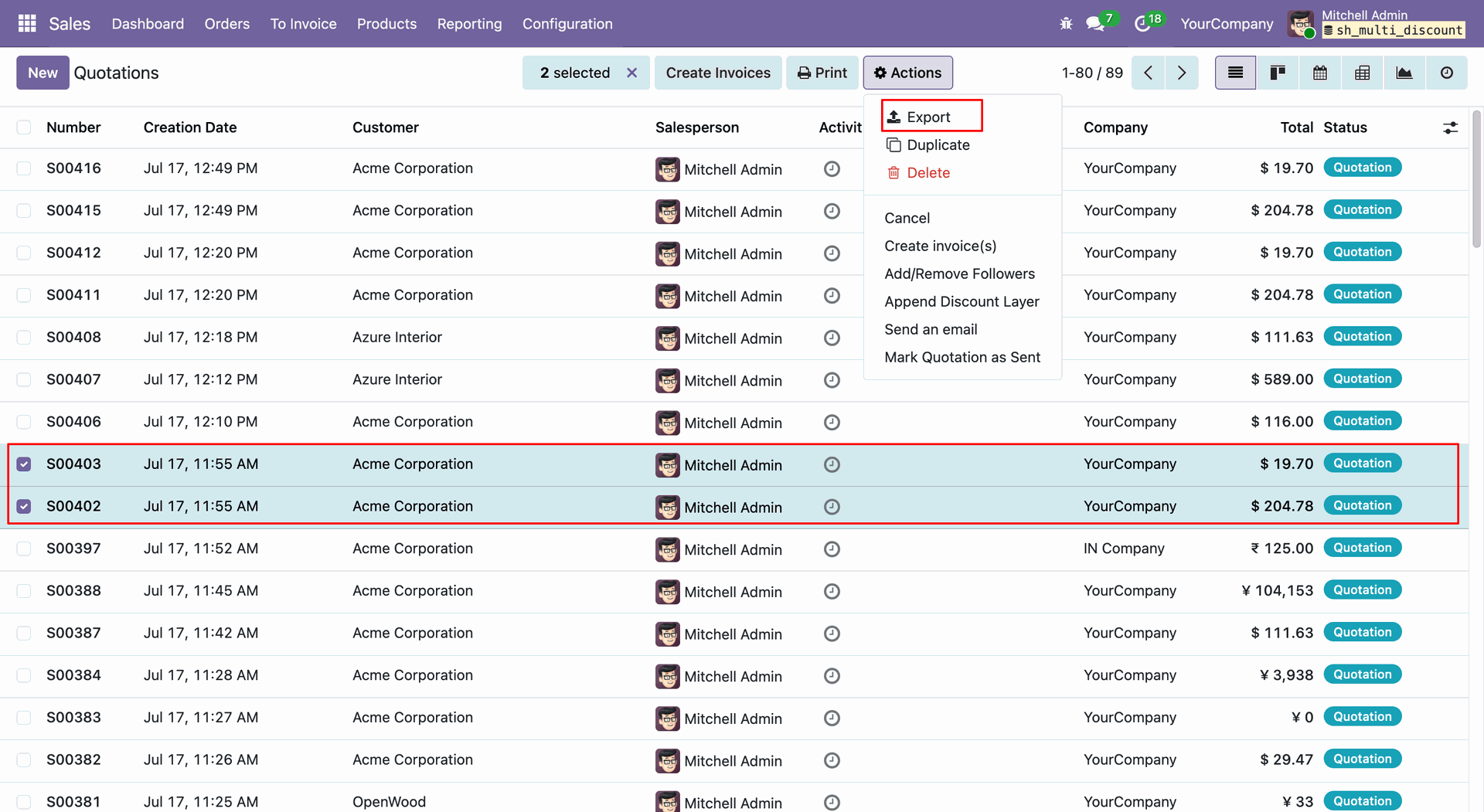
The selected Sales Orders will be exported in Excel format.
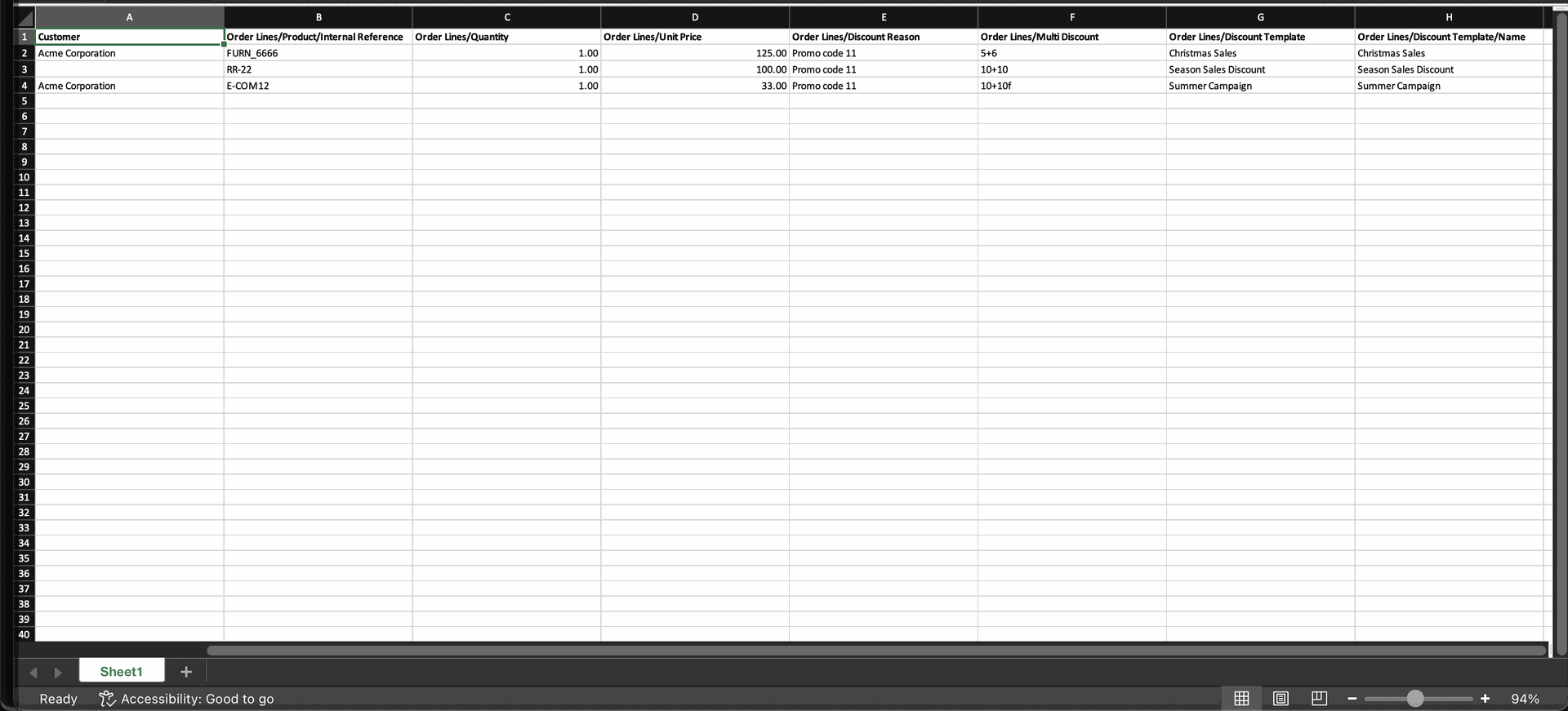
Importing the Excel file will create new Sales Orders with the imported details.
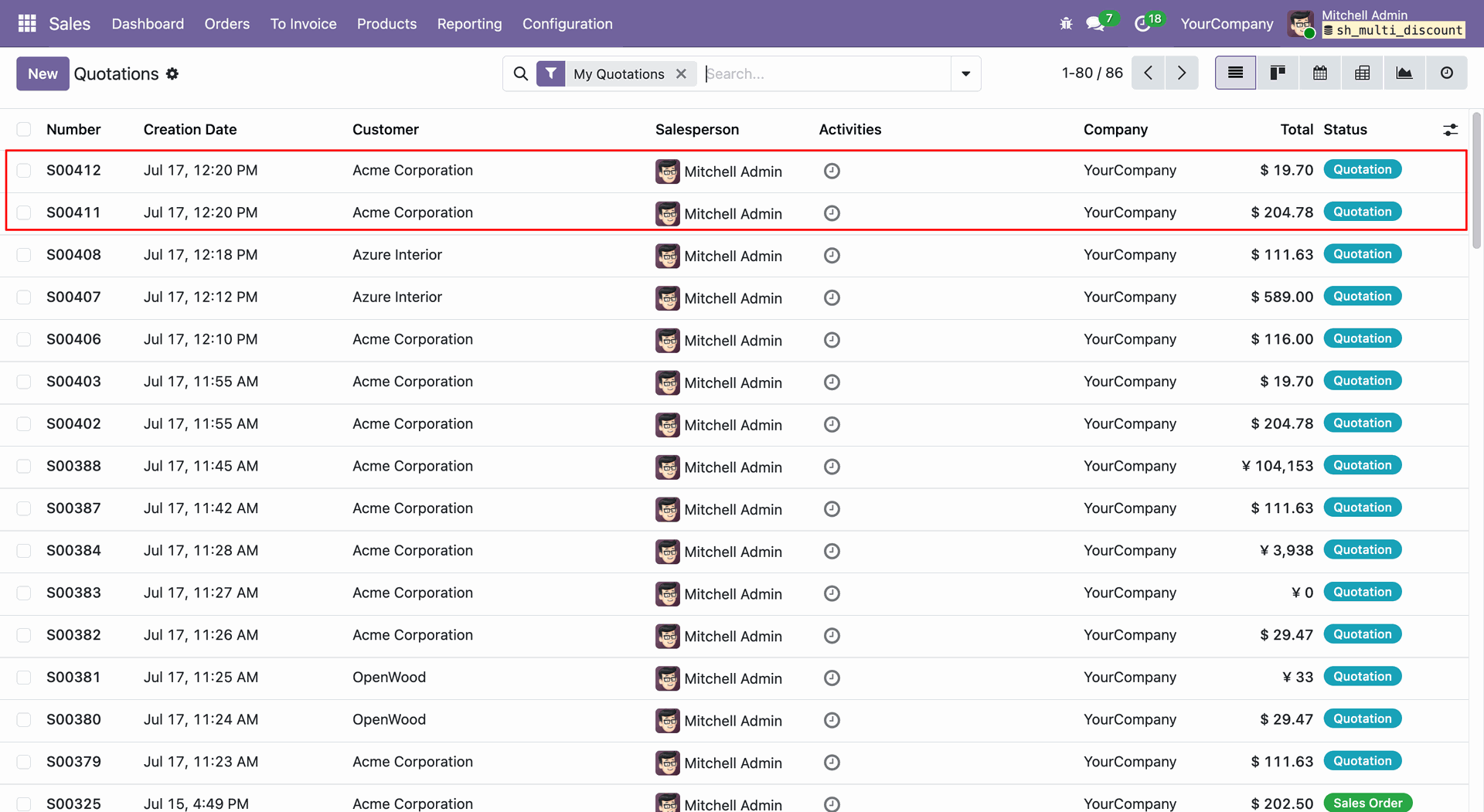
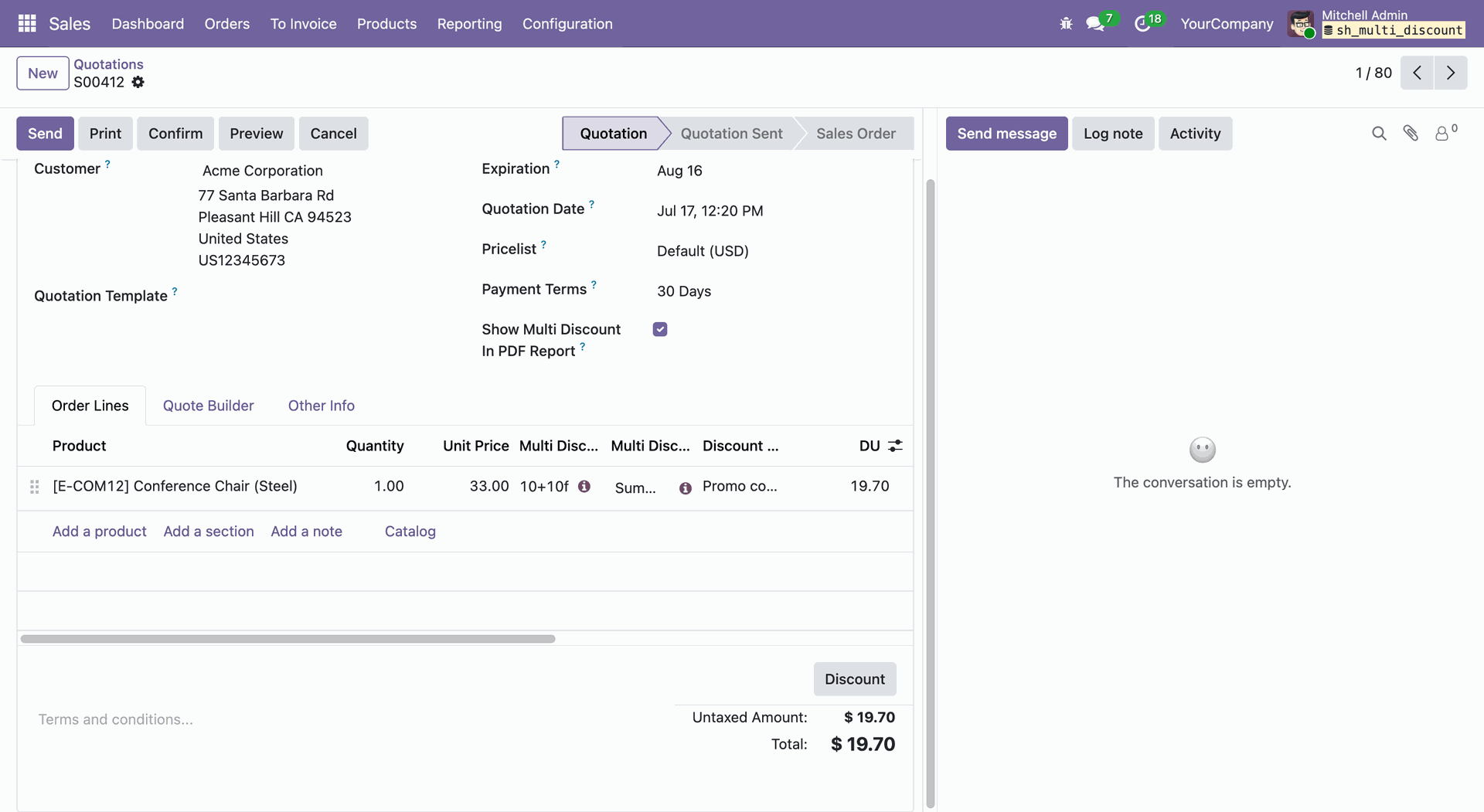
The imported Sales Order form view with all the imported details.
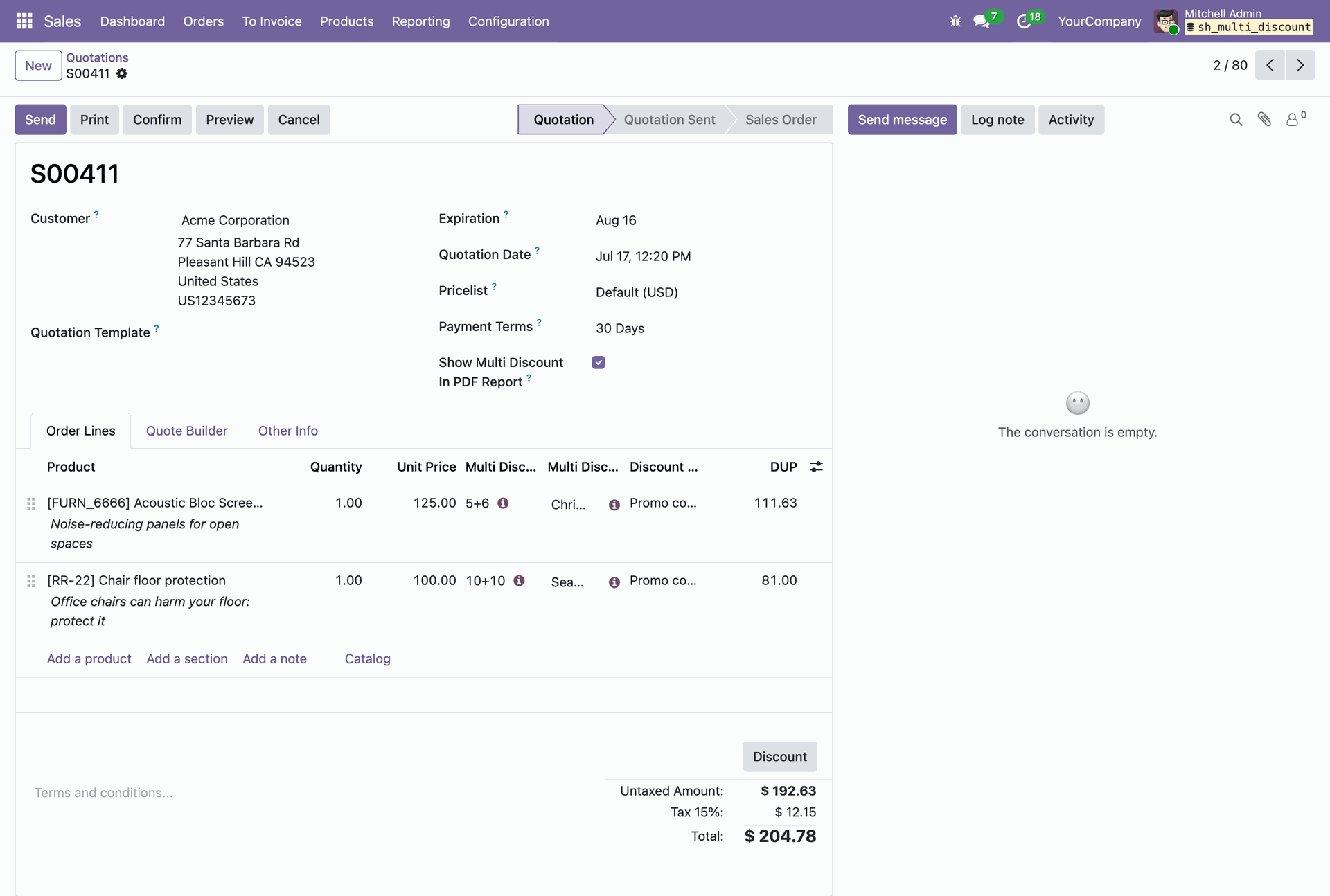
The imported Sales Order form view with all the imported details.
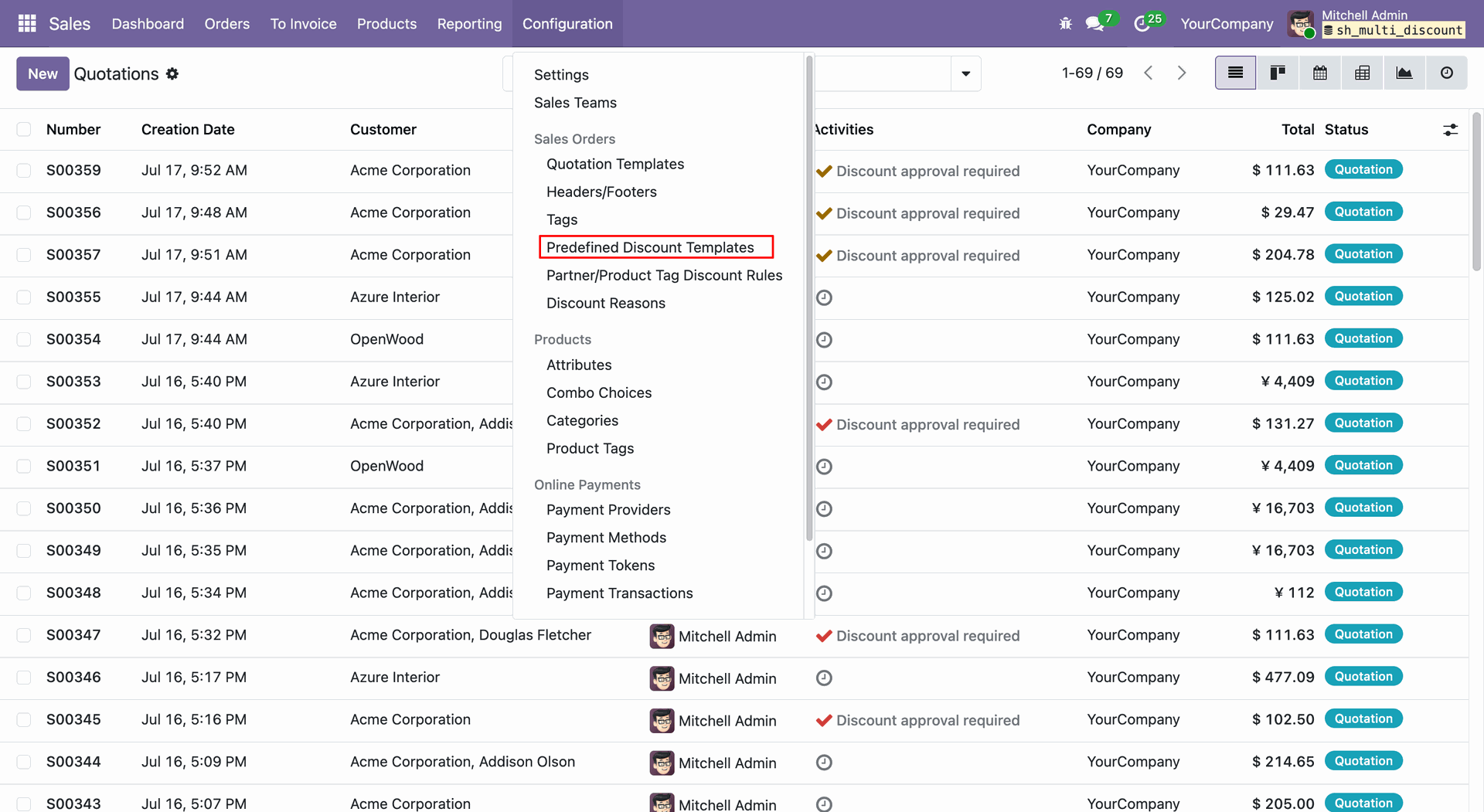
Go to Sales -> Configuration and select the Predefined Templates menu.
The Discount Template list view will open. Click on a template from the list view to open its form view.
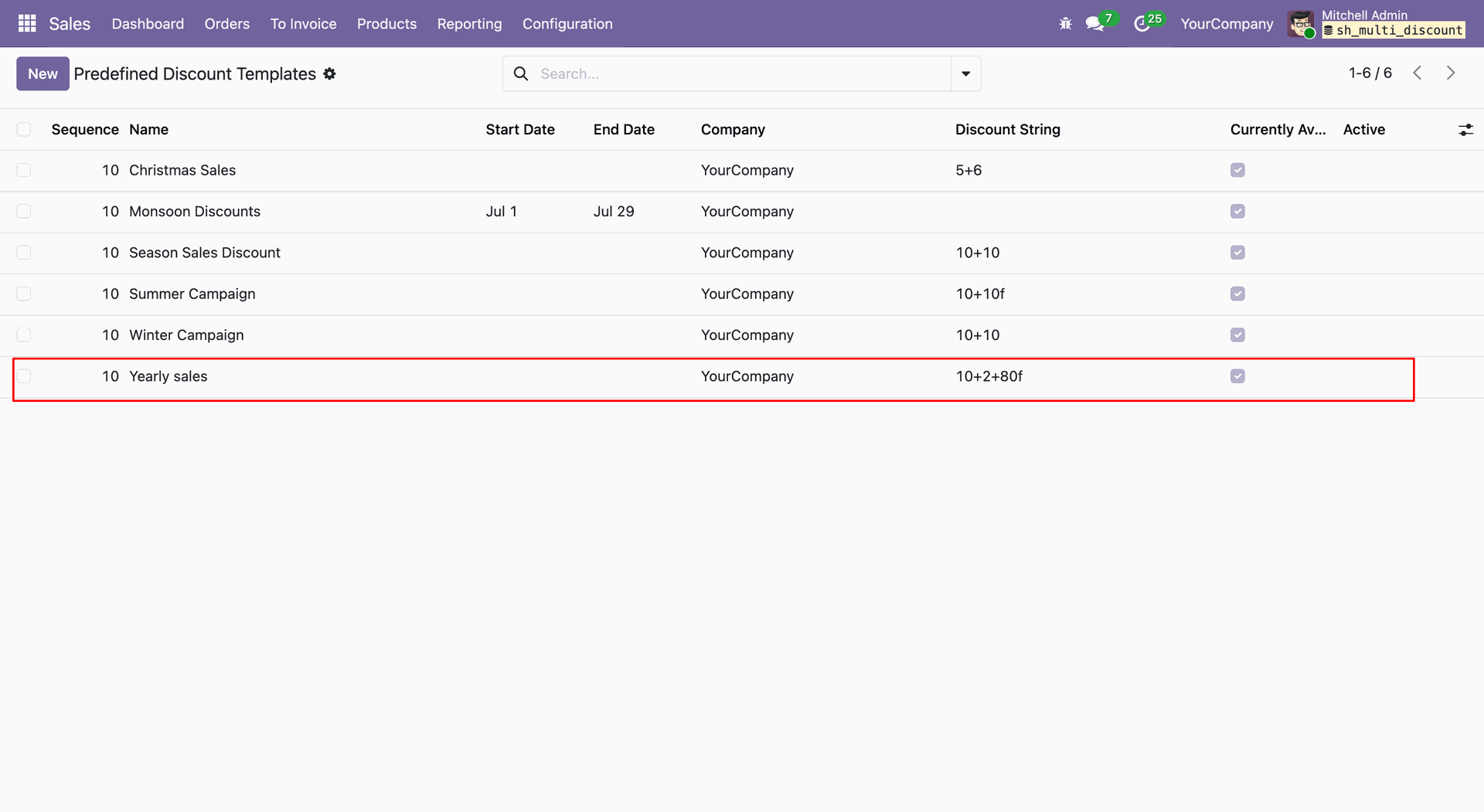
In the Template Form View, add the required Discount Tiers and flat cash discount amount.
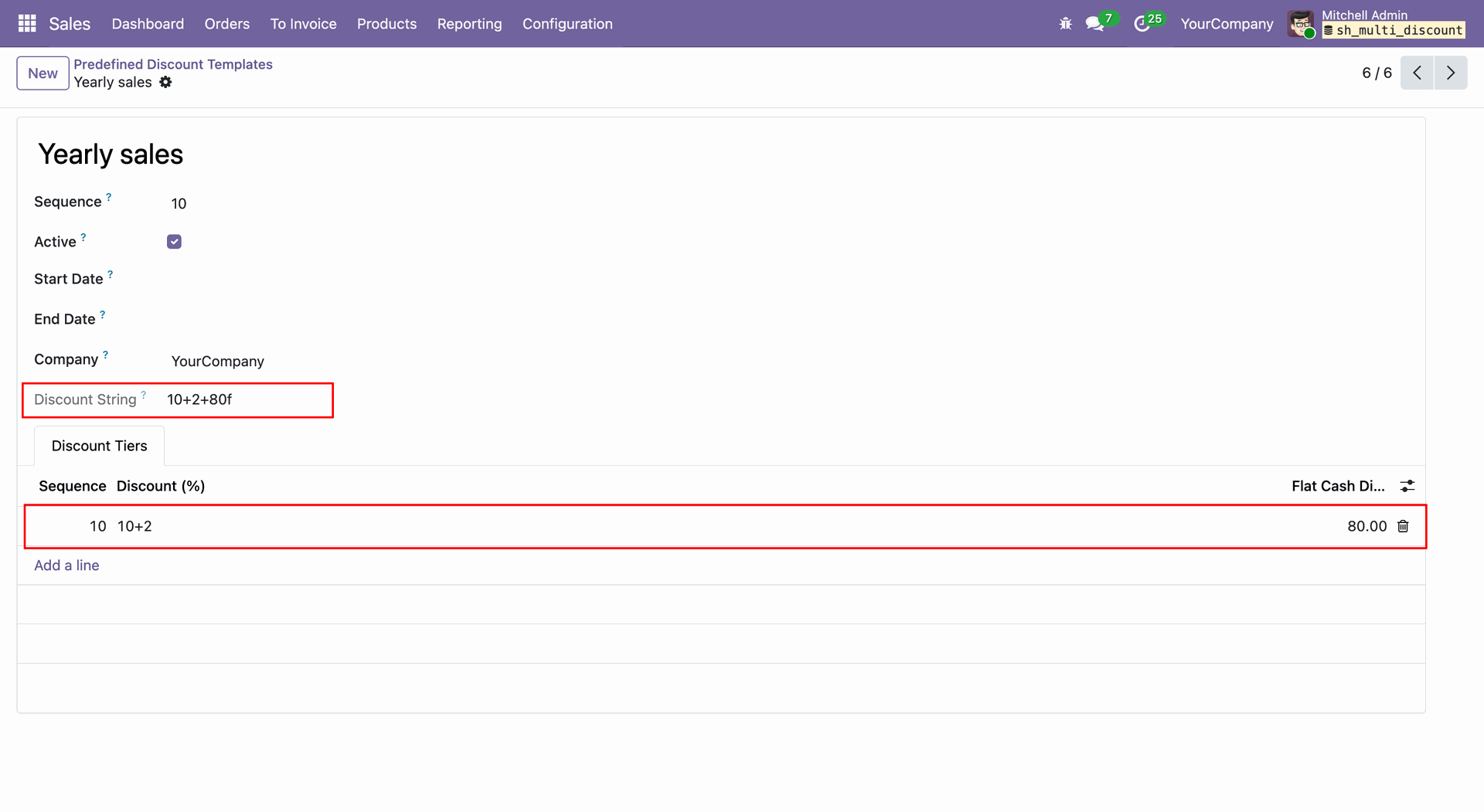
Go to the Sales Order and select a Discount Template in the order lines.
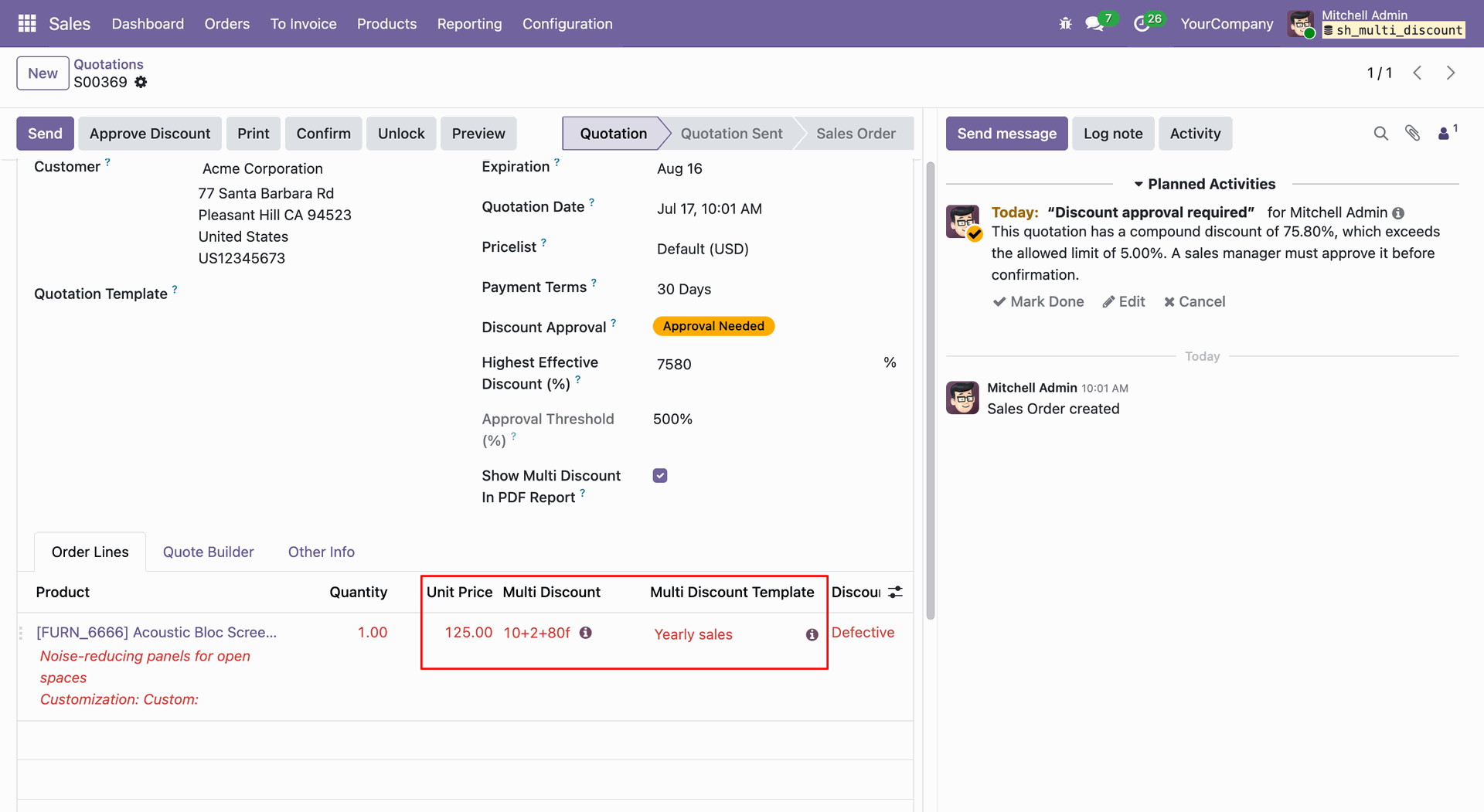
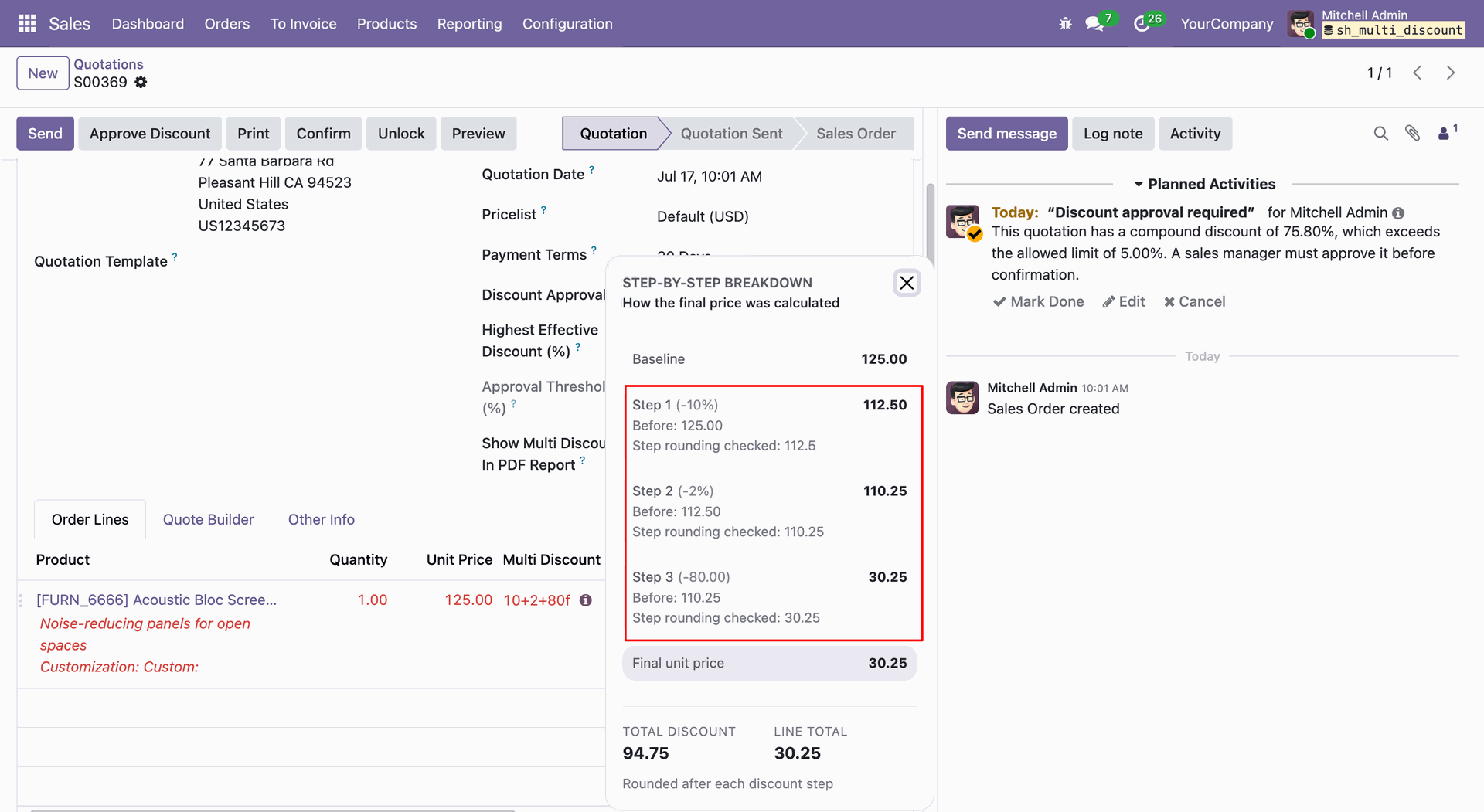
The discount will be applied according to the configuration defined in the selected template and will be displayed in the discount breakdown.
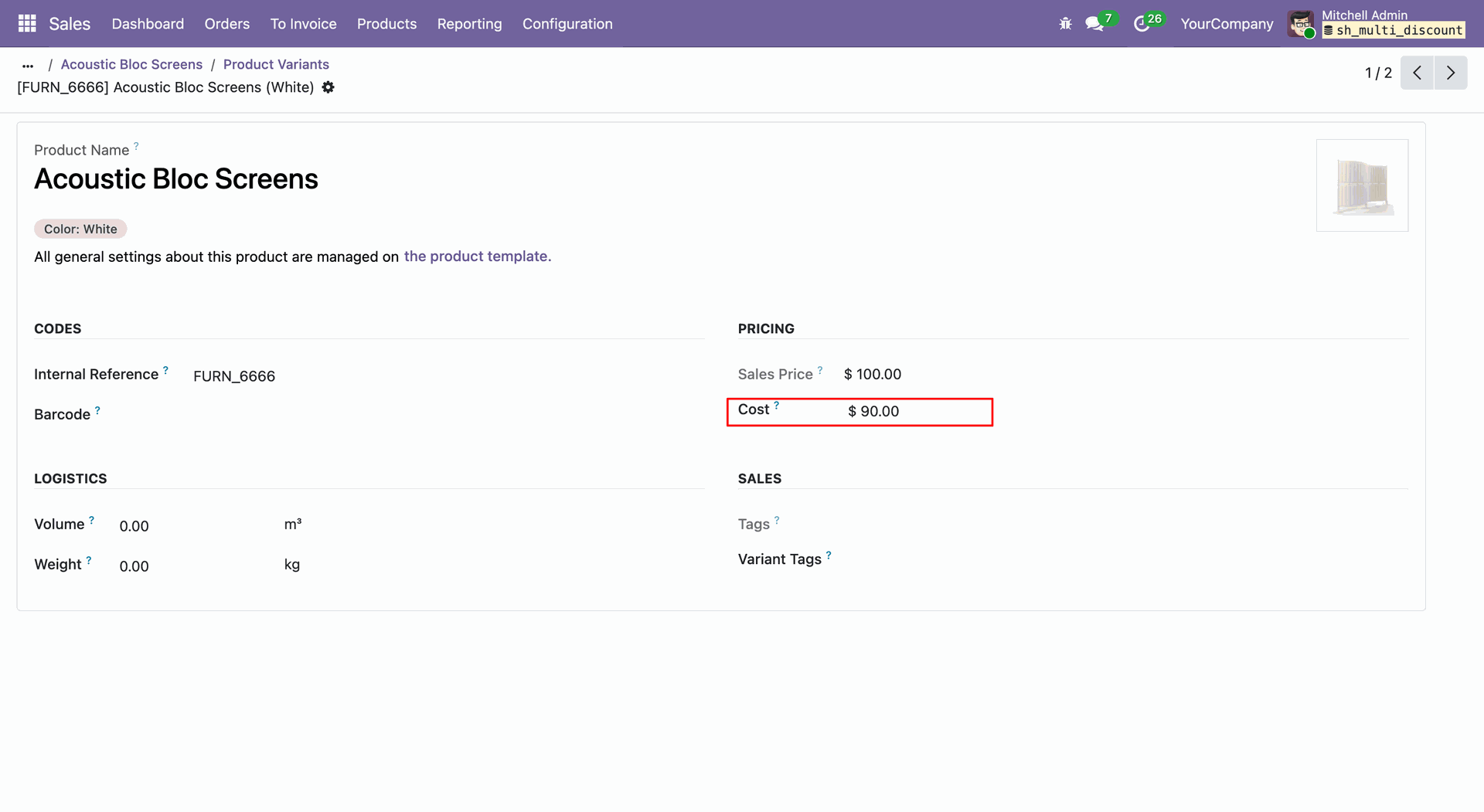
Set the Cost Price in the Product Form View.
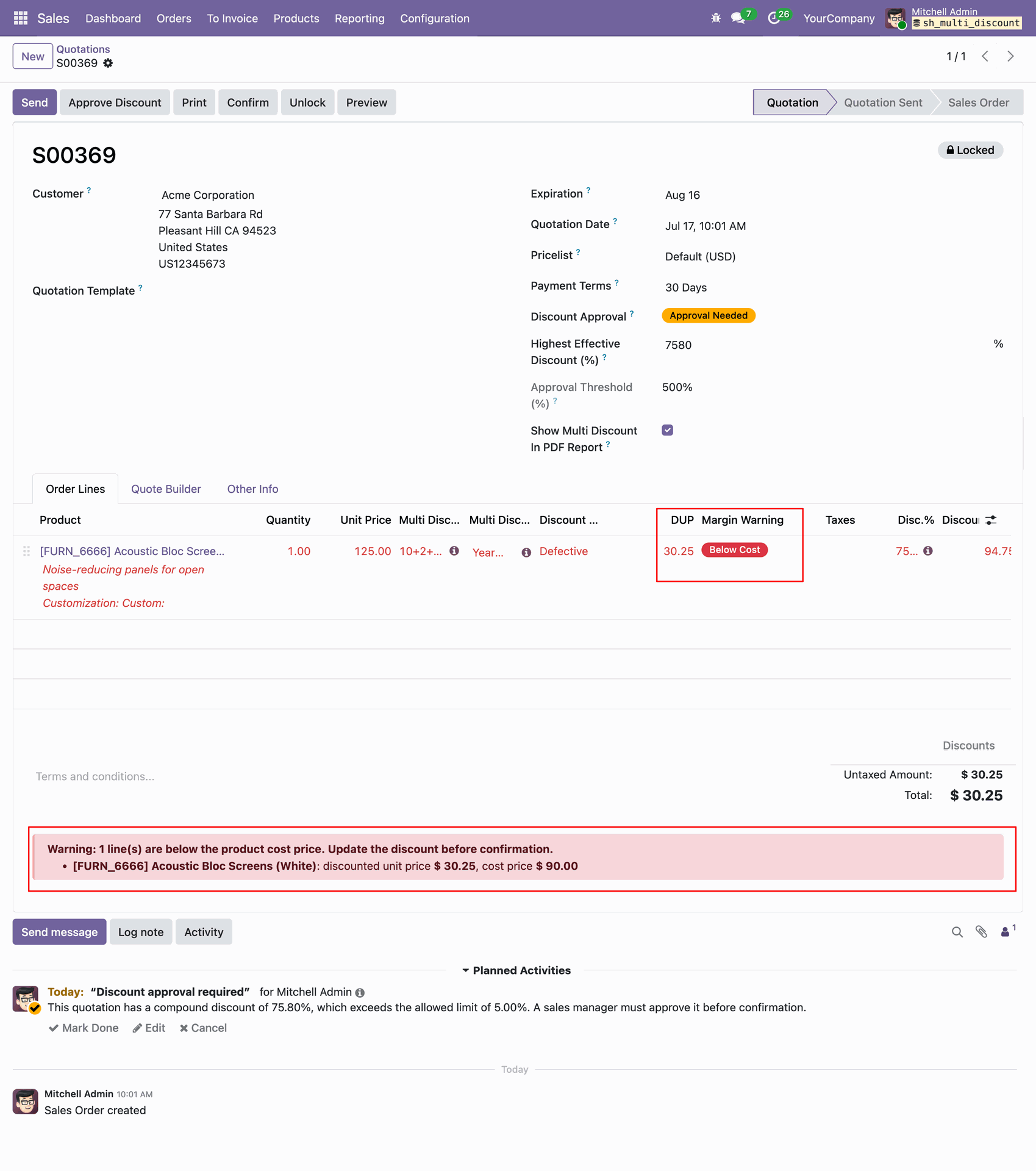
Create a Sales Order and apply a discount. If the product amount falls below its cost price after applying the discount, a warning will be displayed.
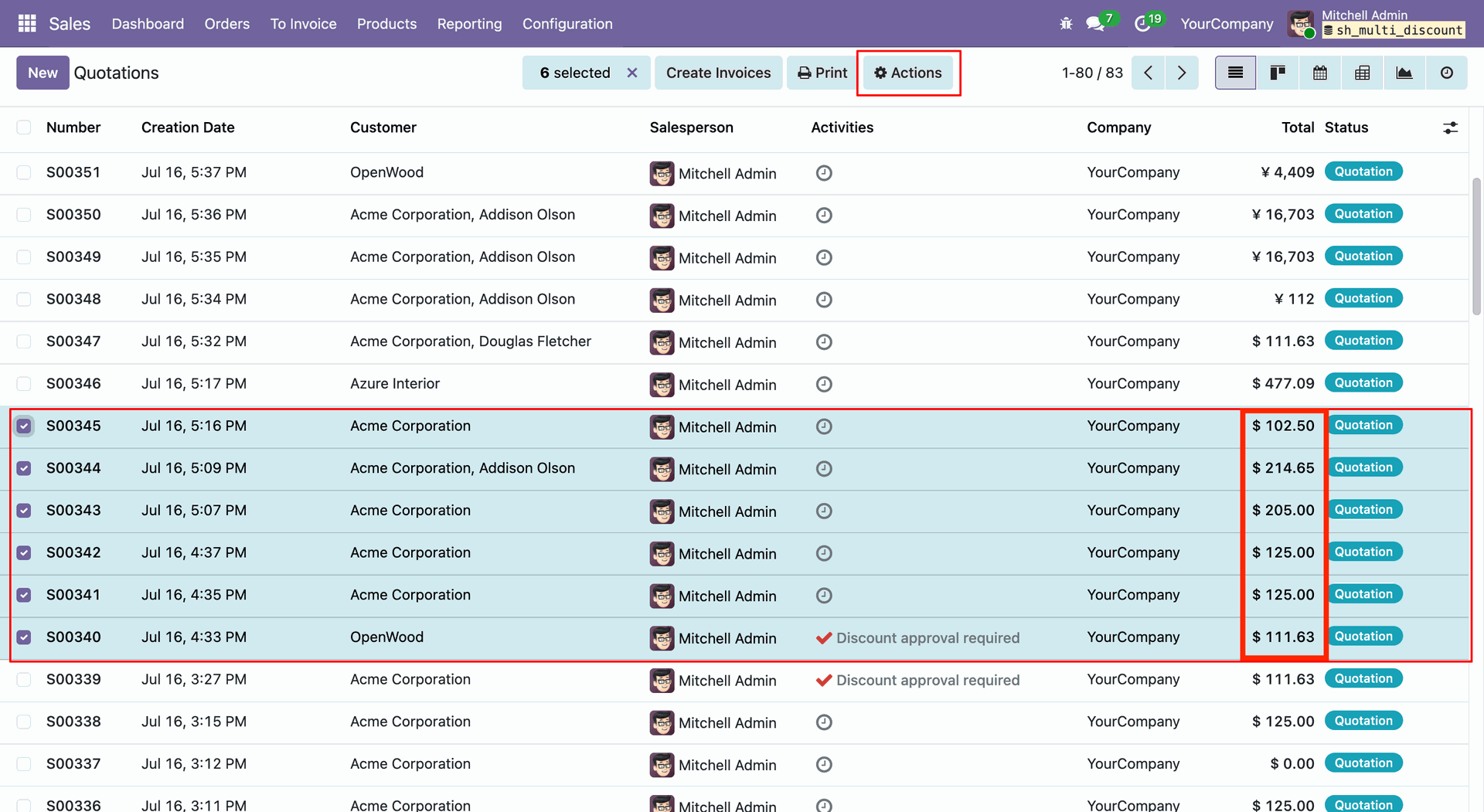
Select multiple Sales Orders from the list view and click the Action button.
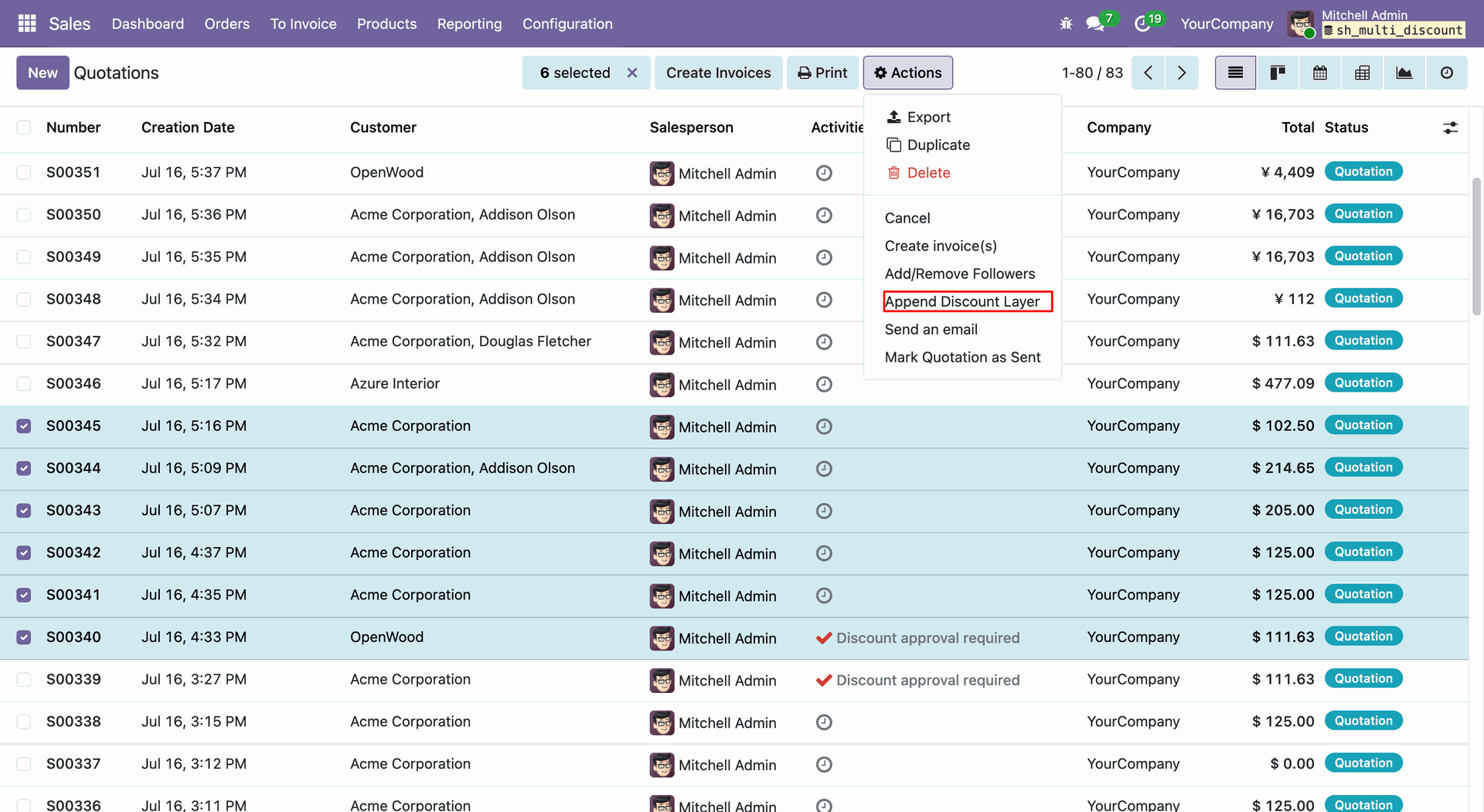
Select Append Discount Layer from the Action.
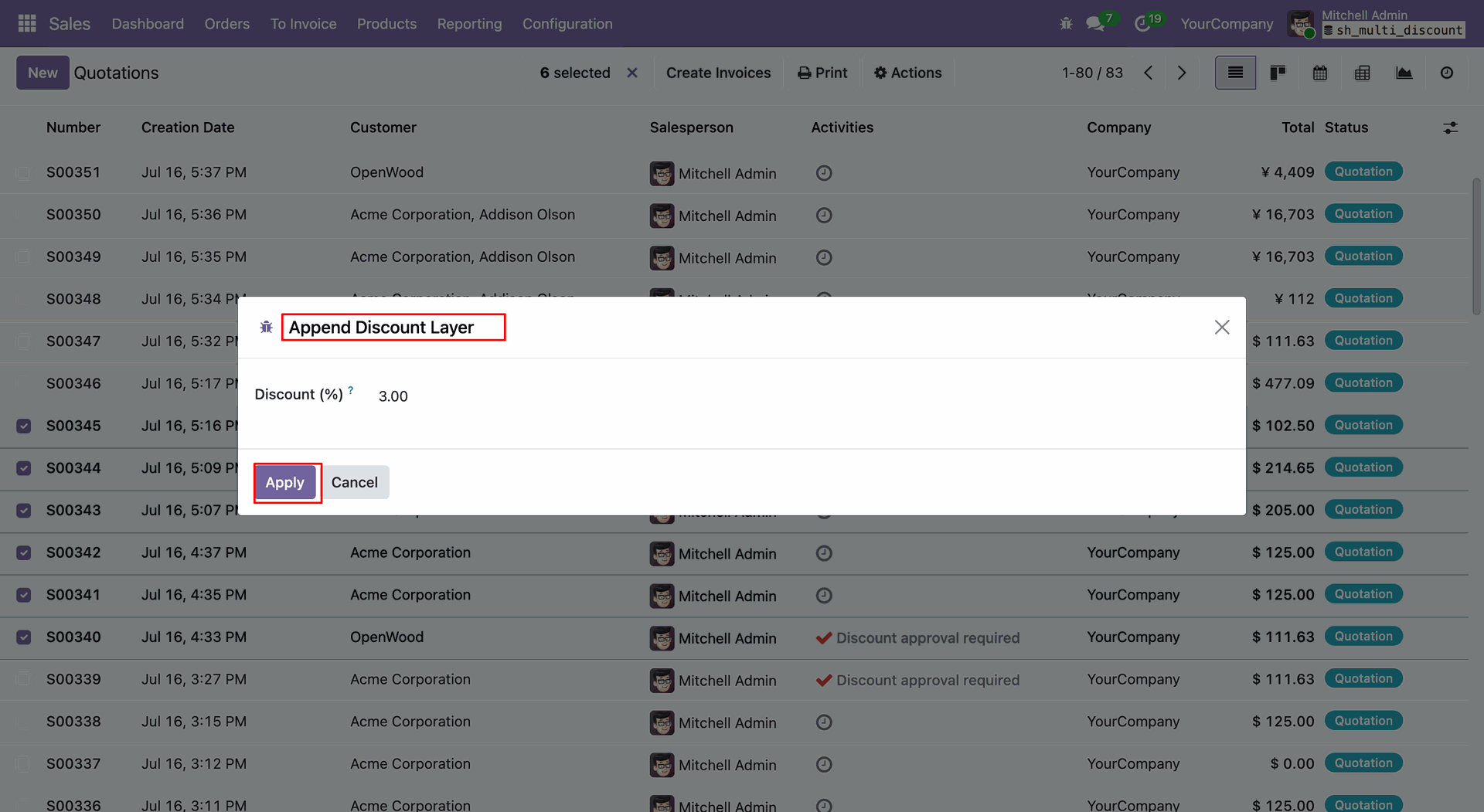
It will open a wizard where you can enter the Discount Percentage and click the Apply button.
The discount will be applied to all the selected Sales Orders.
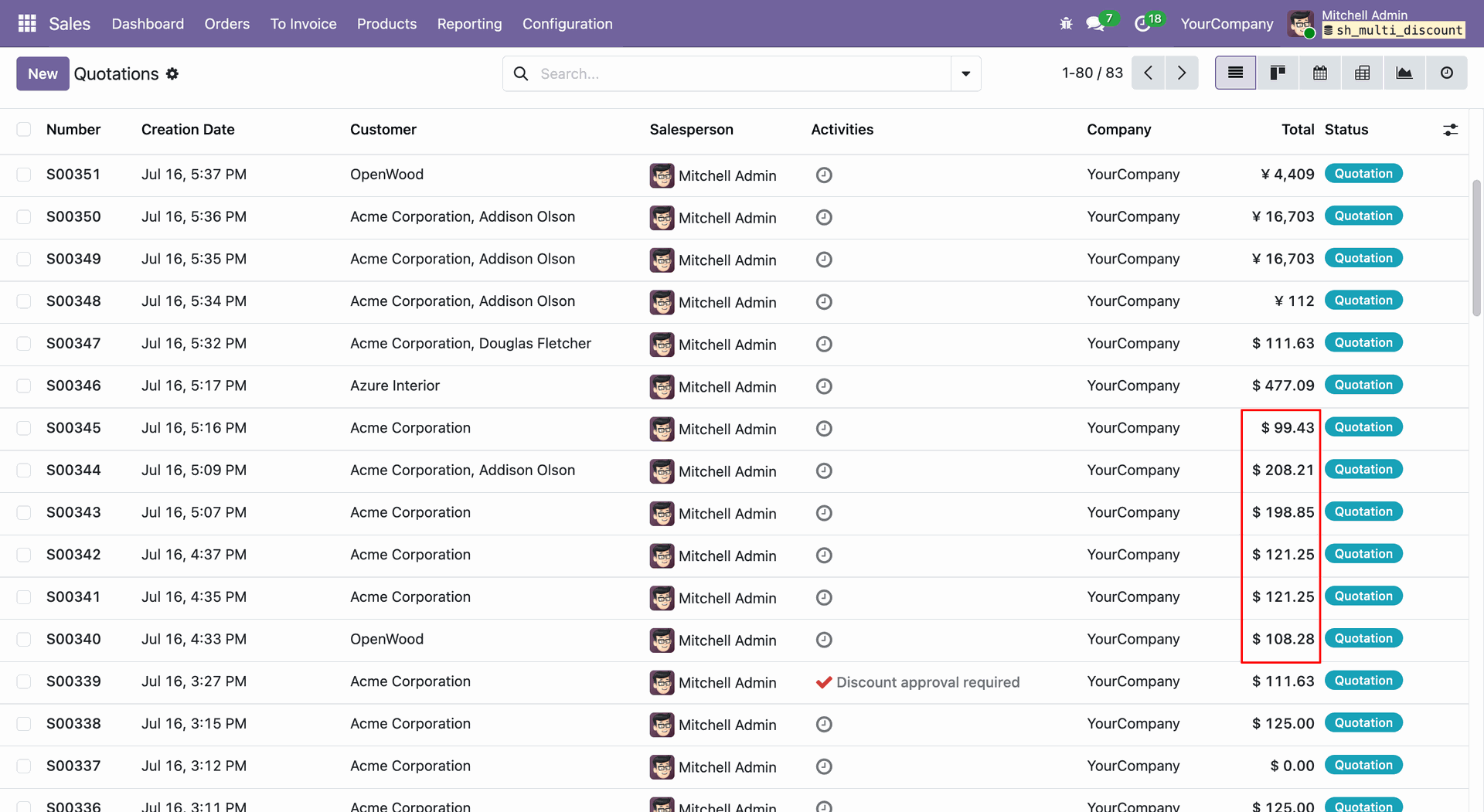
Go to Sales -> Configuration and select the Discount Reasons submenu.
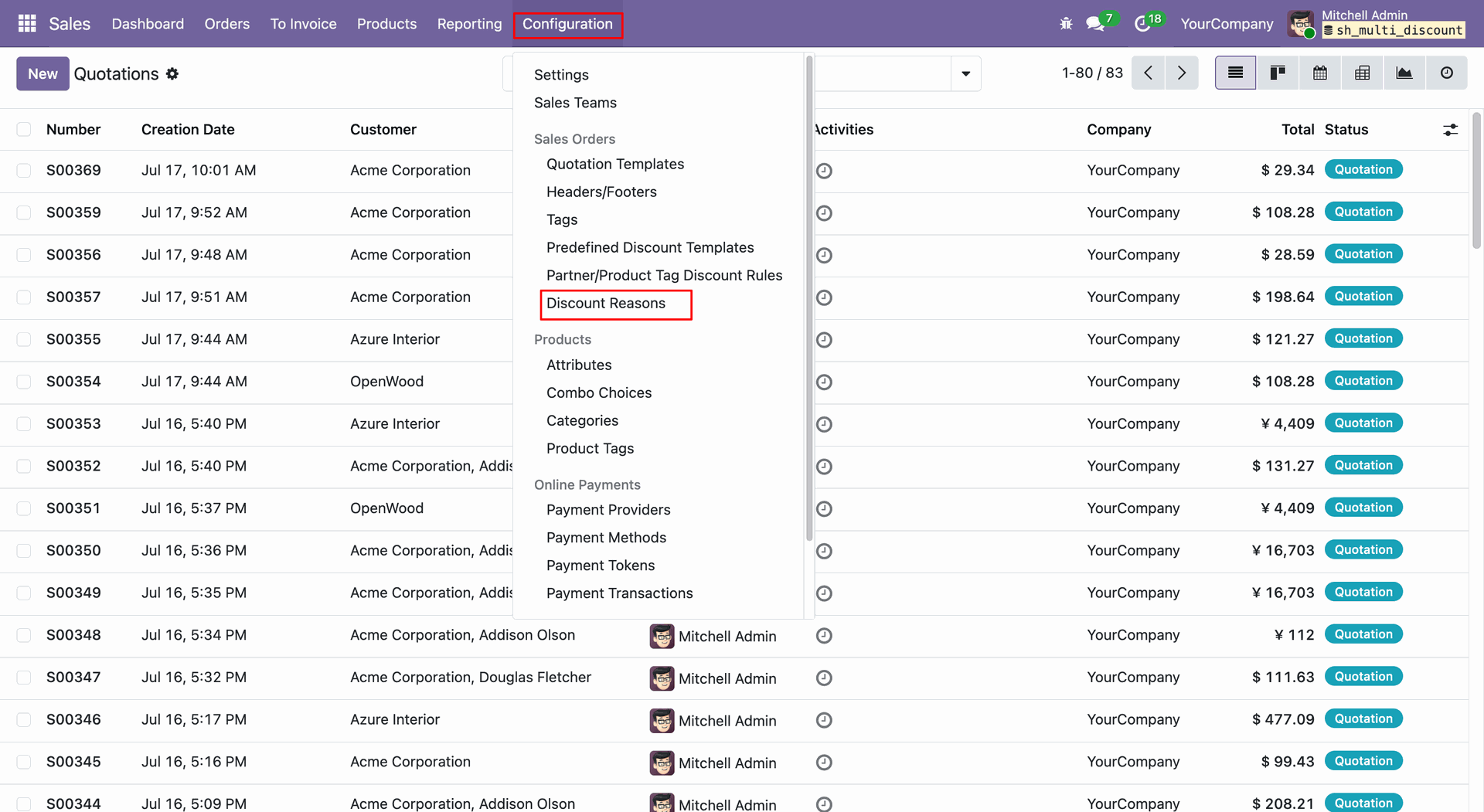
The Discount Reasons list view will open. Click on a discount reason from the list to open its form view.
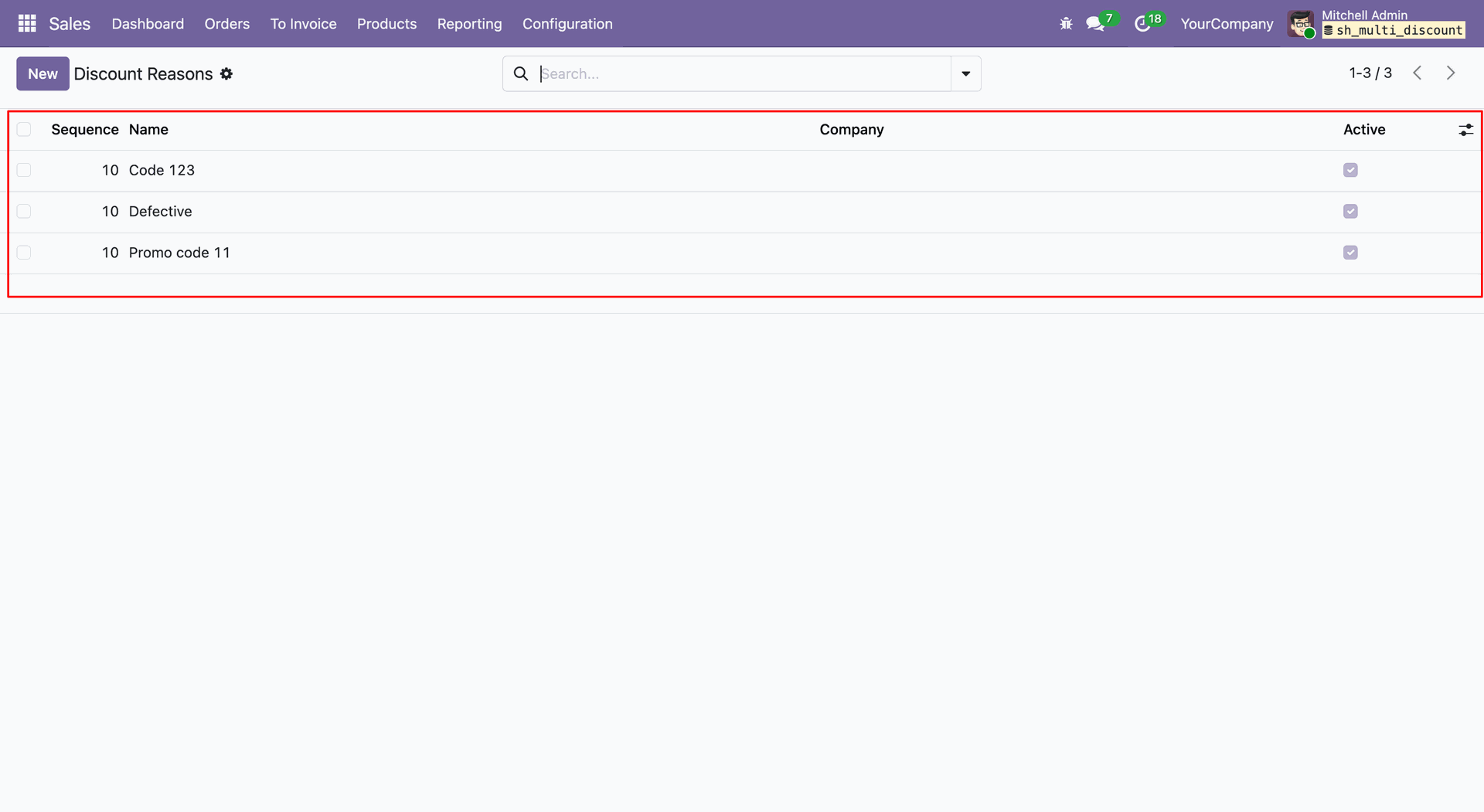
It will open the Discount Reason form view.
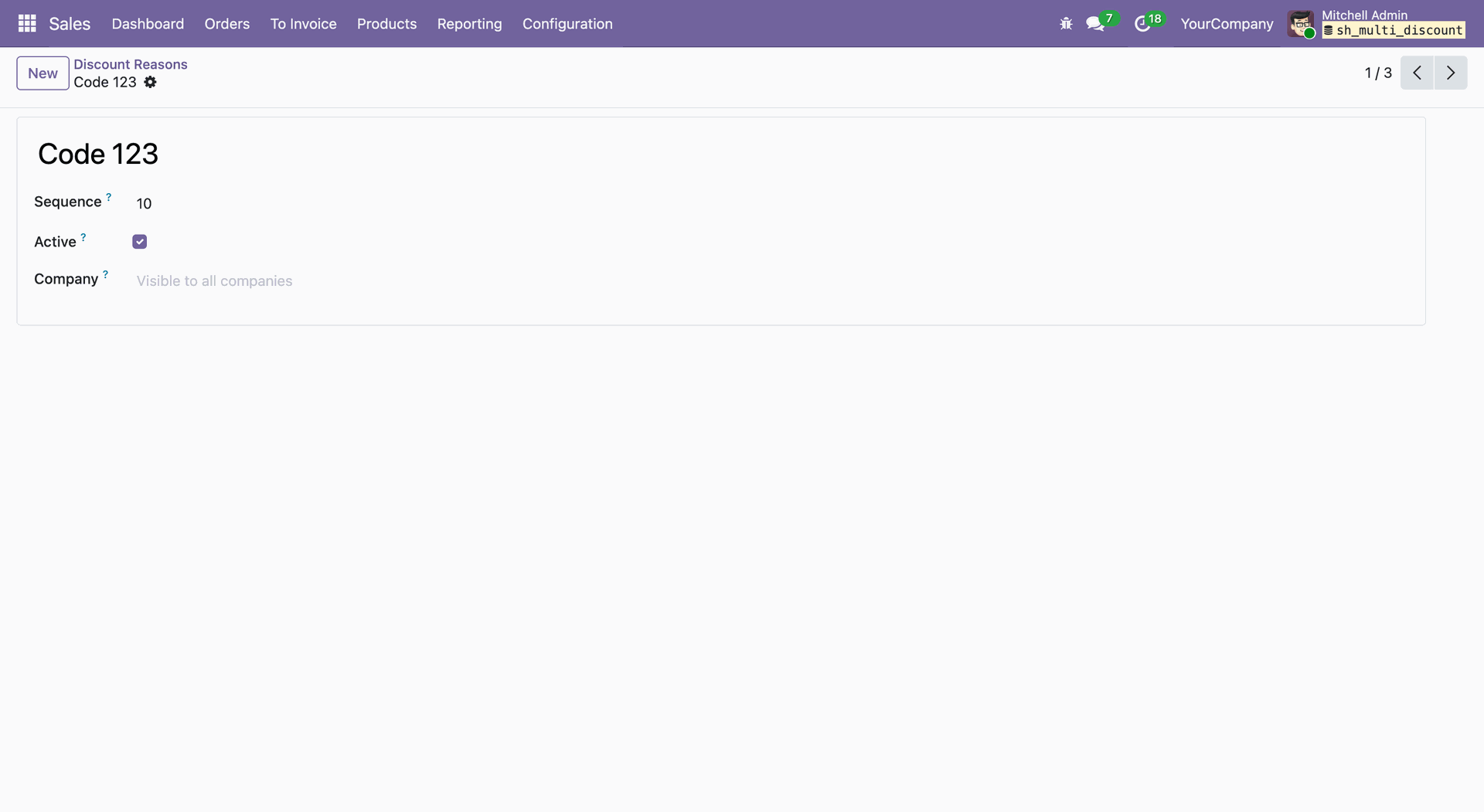
Create a Quotation/Sales Order, apply a discount, and select the appropriate Discount Reason for the order lines.
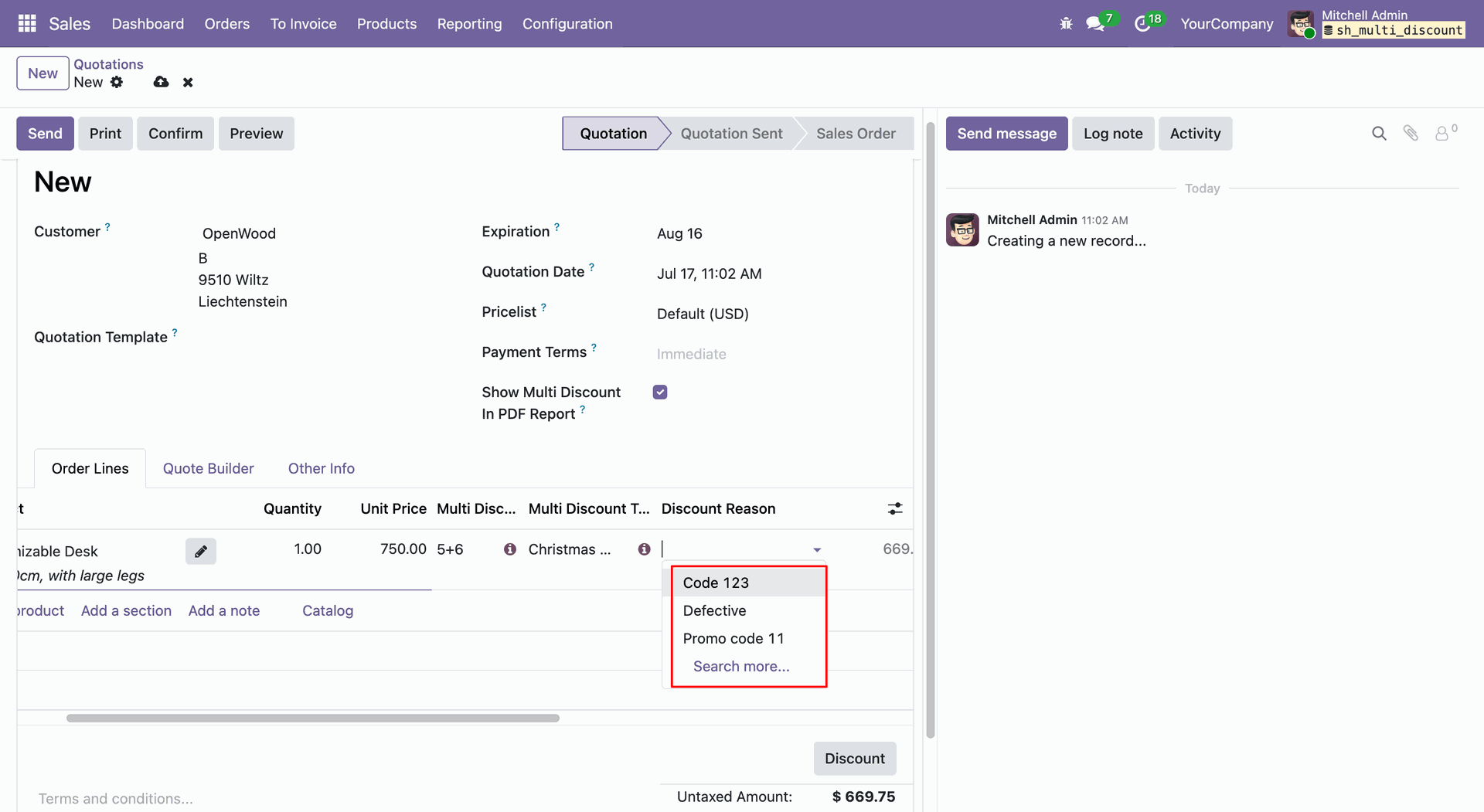
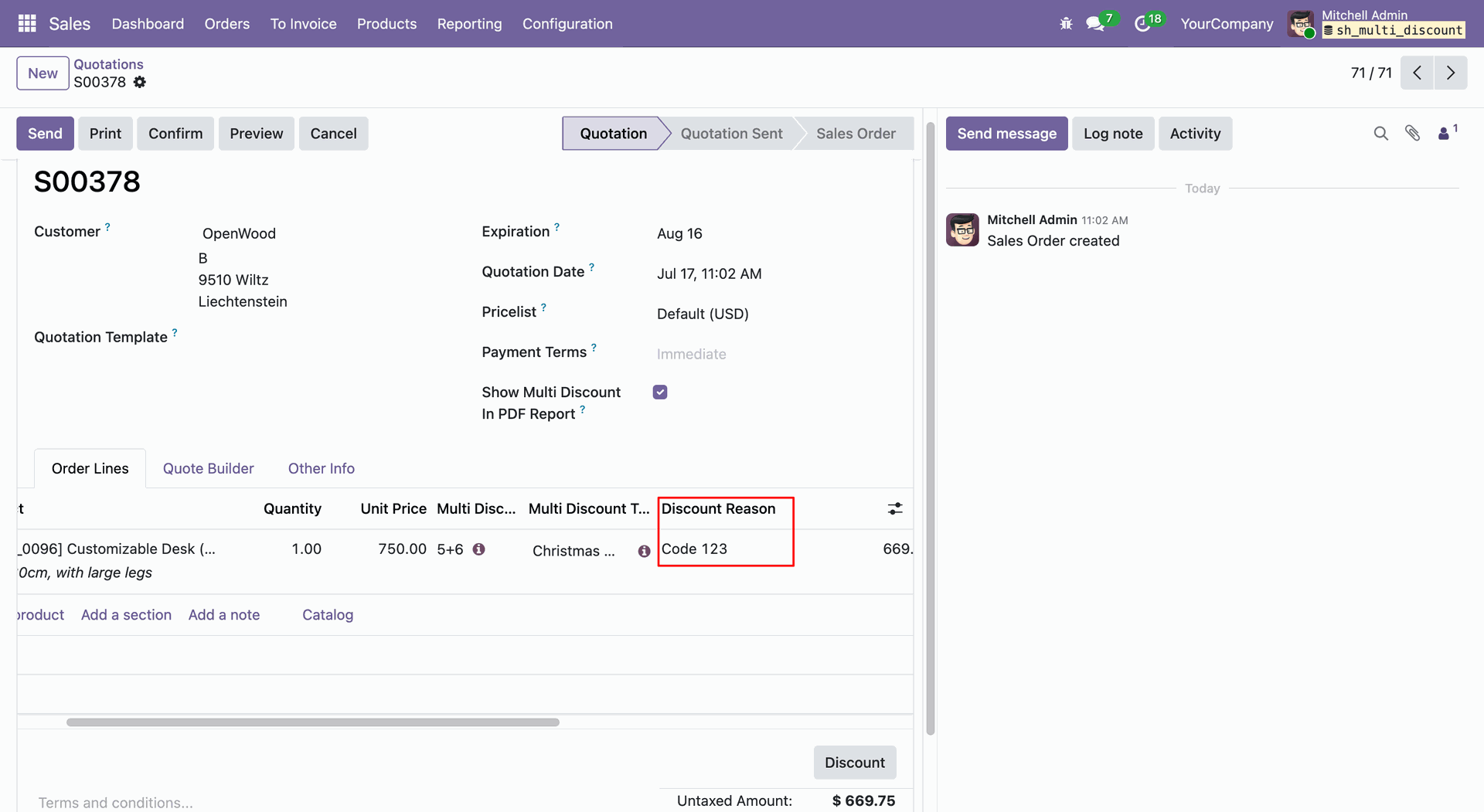
The Discount Reason will be added to the Order Lines.
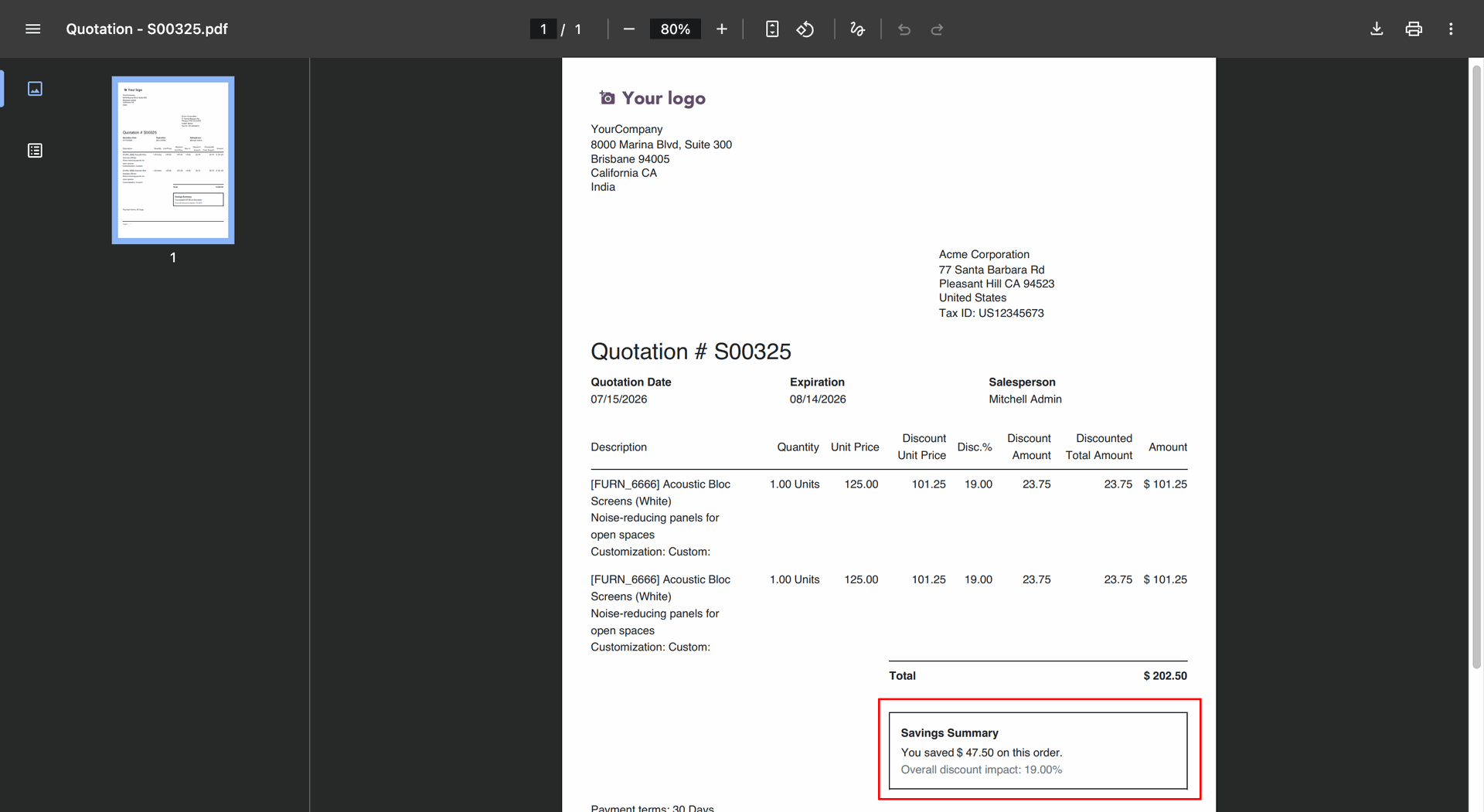
The Discount Summary will be added to the Quotation PDF.
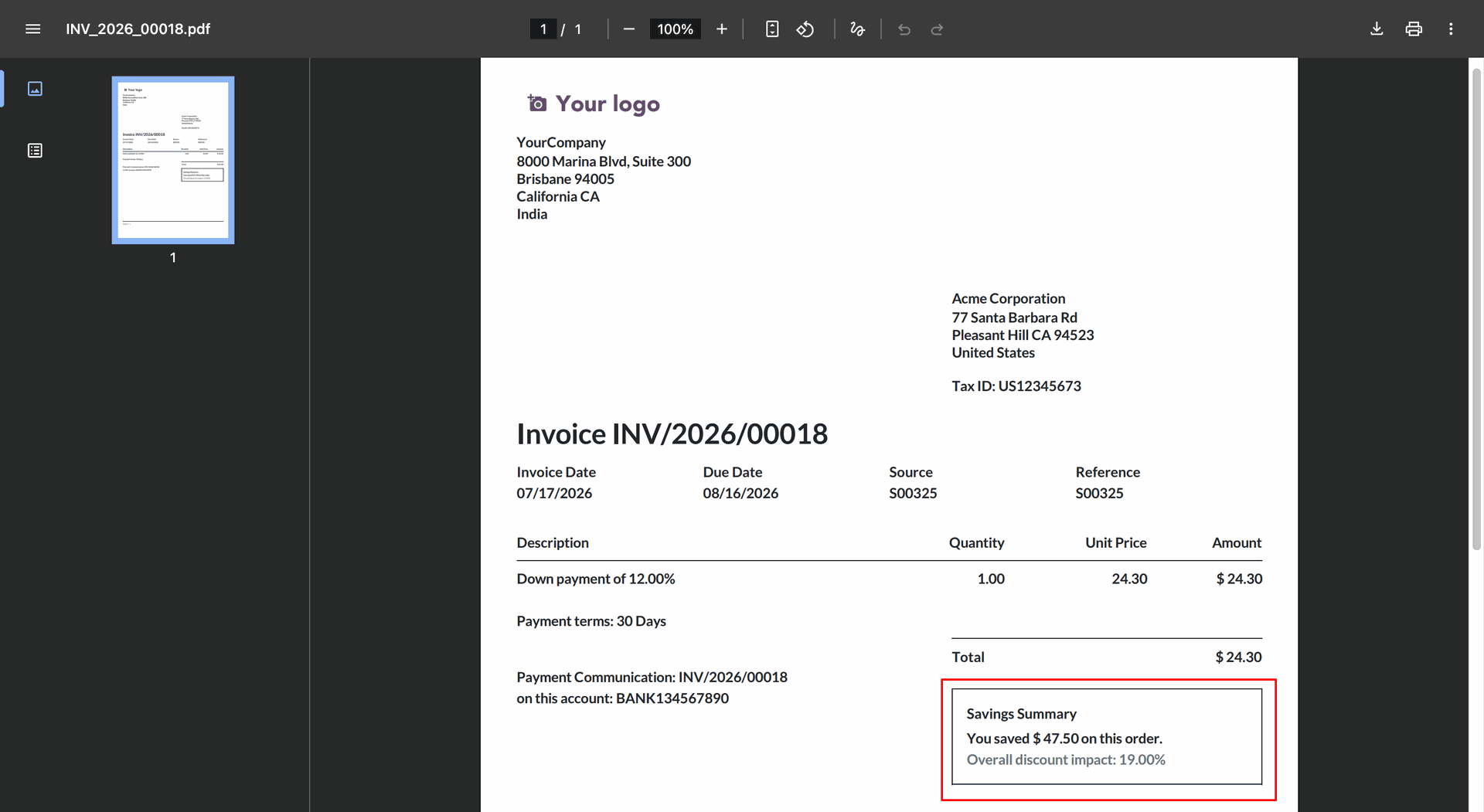
The Discount Summary will be added to the Invoice PDF.
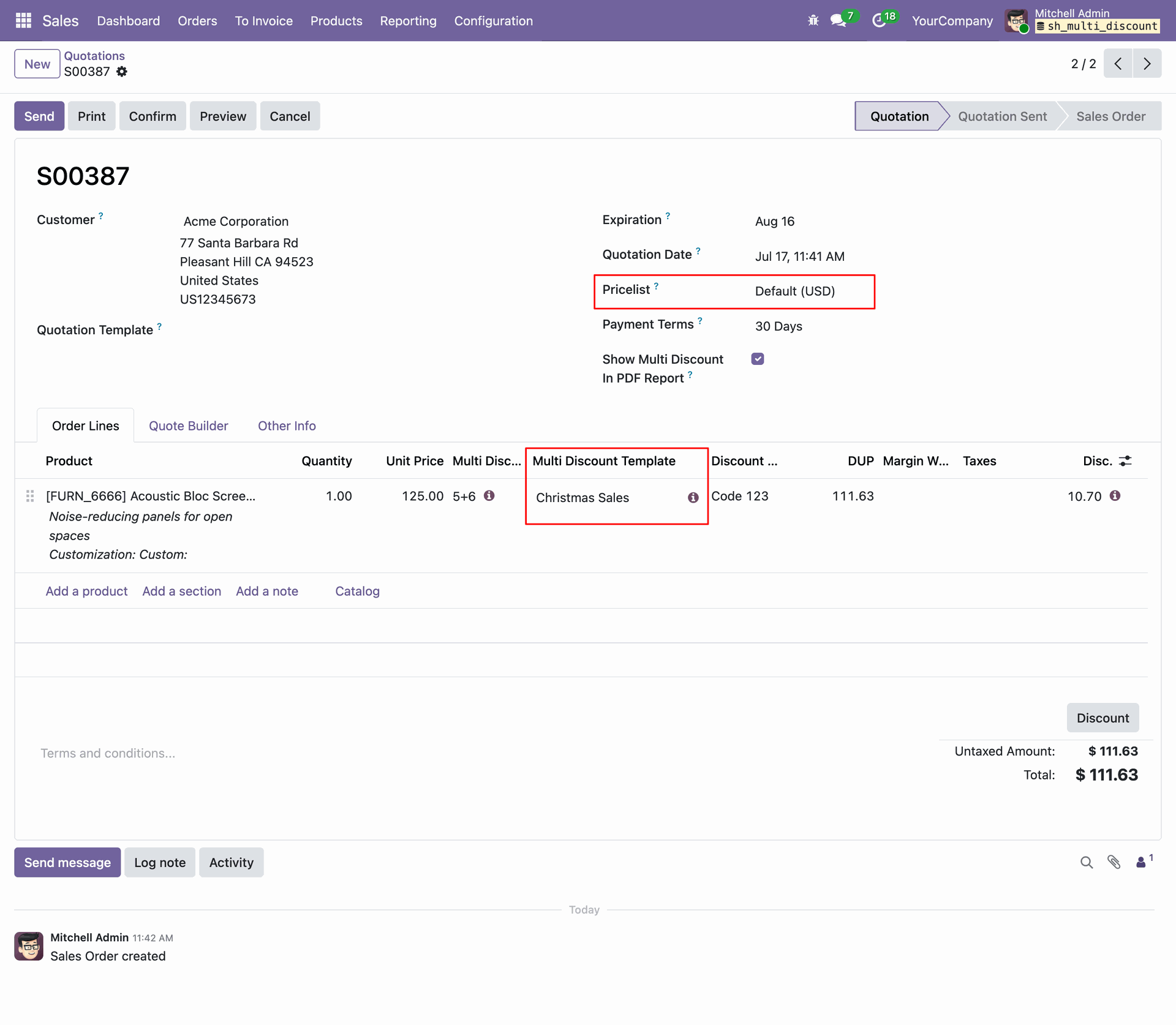
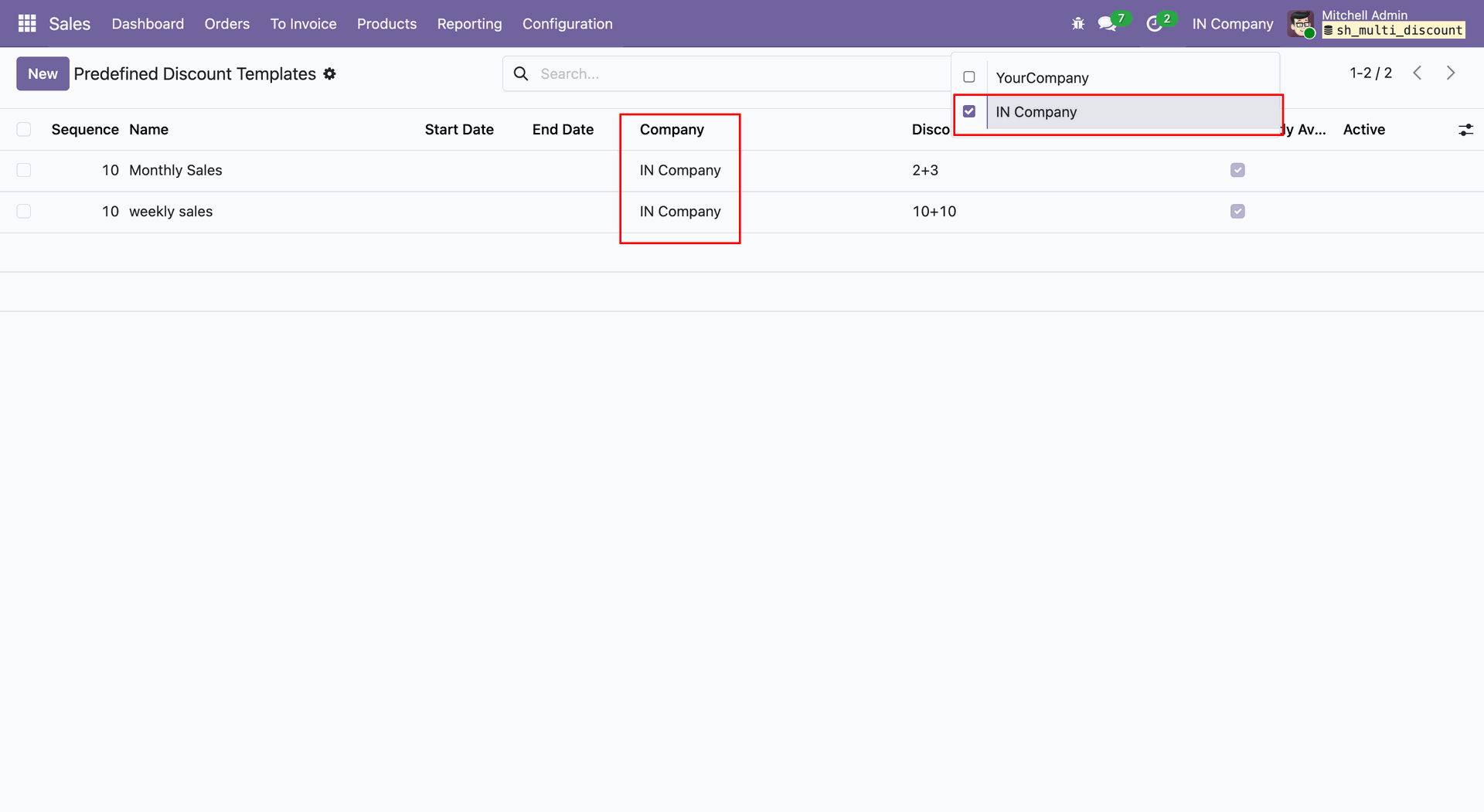
Create a Sales Order and select the required Pricelist and Dicount Template.
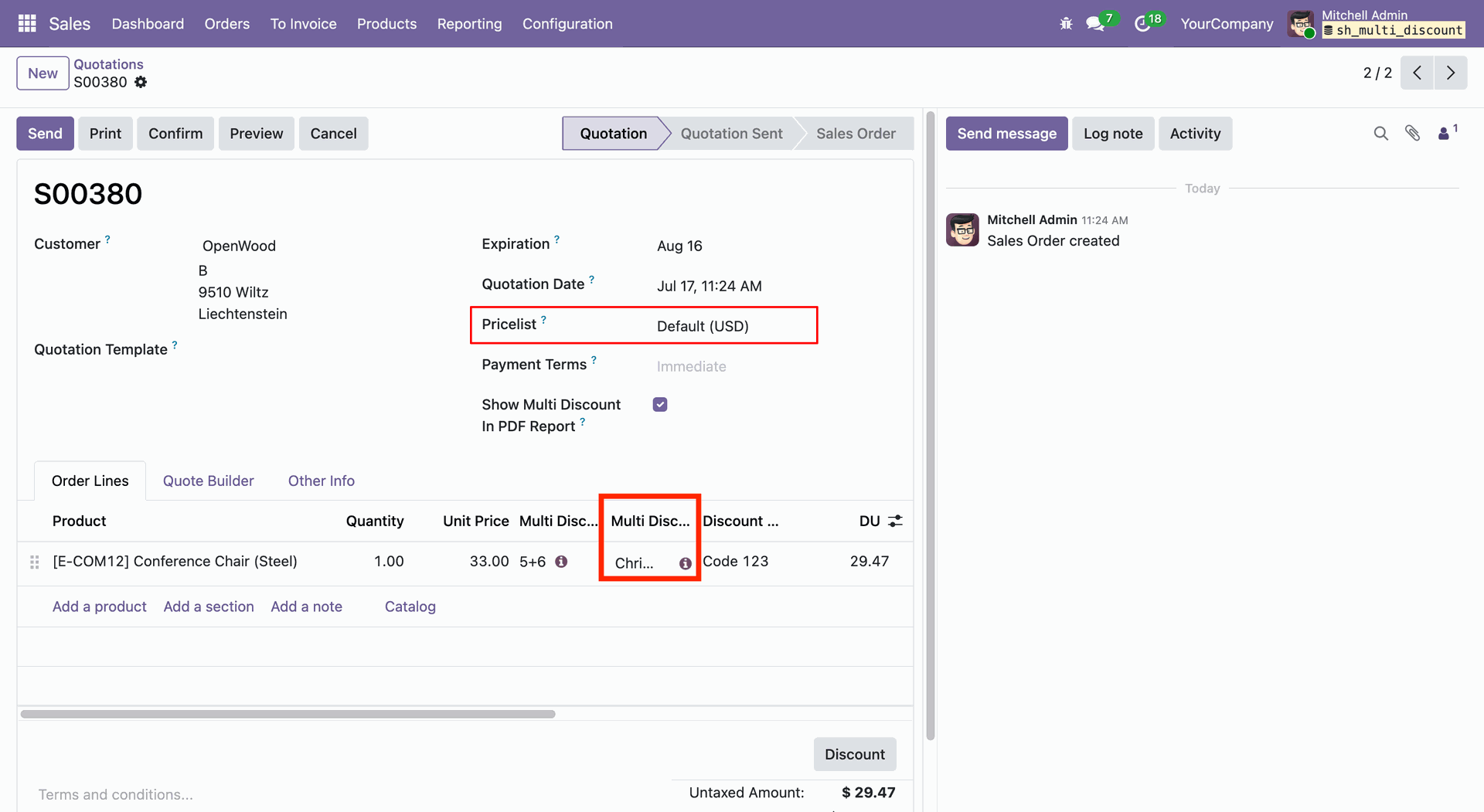
The discount will be applied based on the currency of the selected Pricelist.
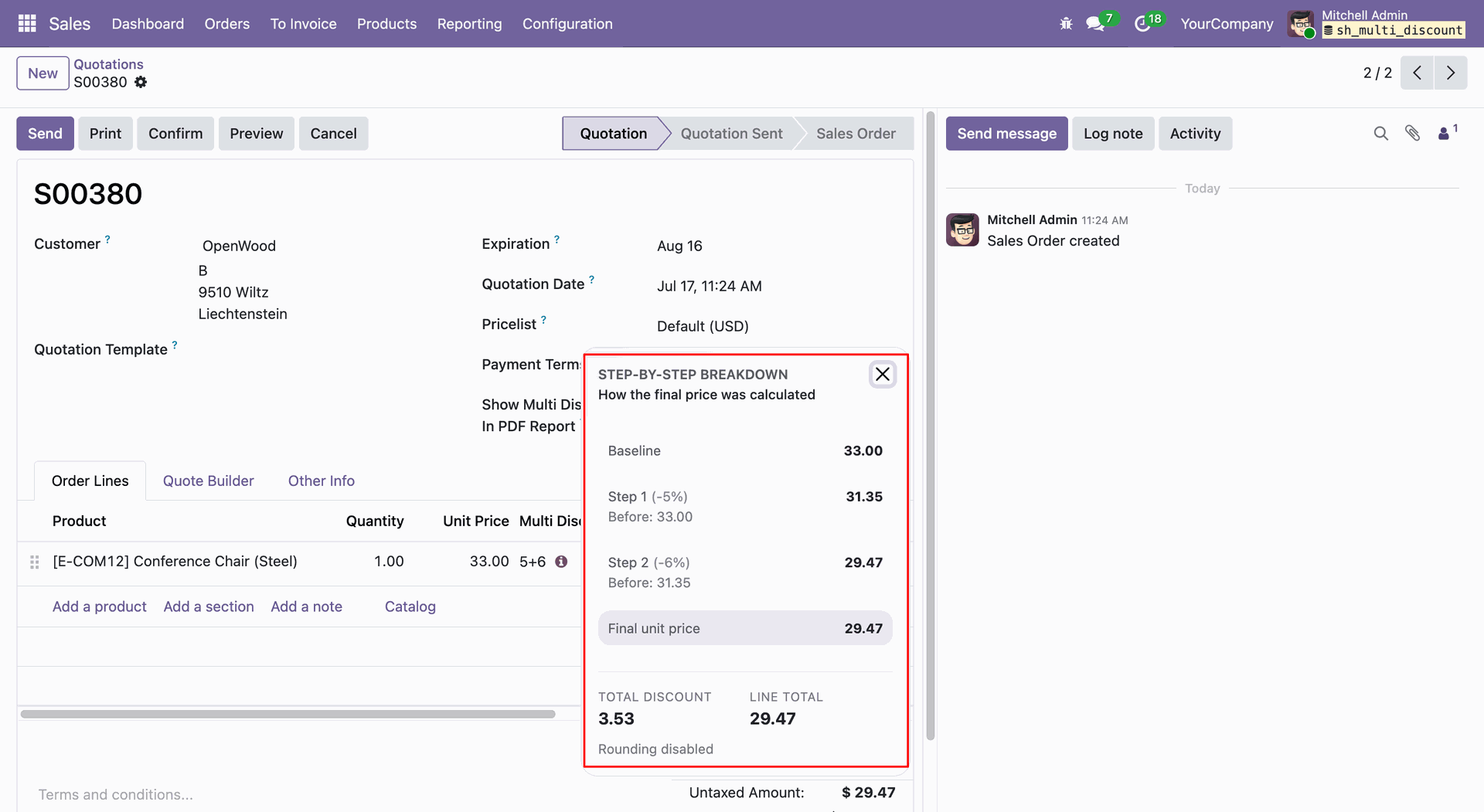
Create a Sales Order and select the required Pricelist and Dicount Template.
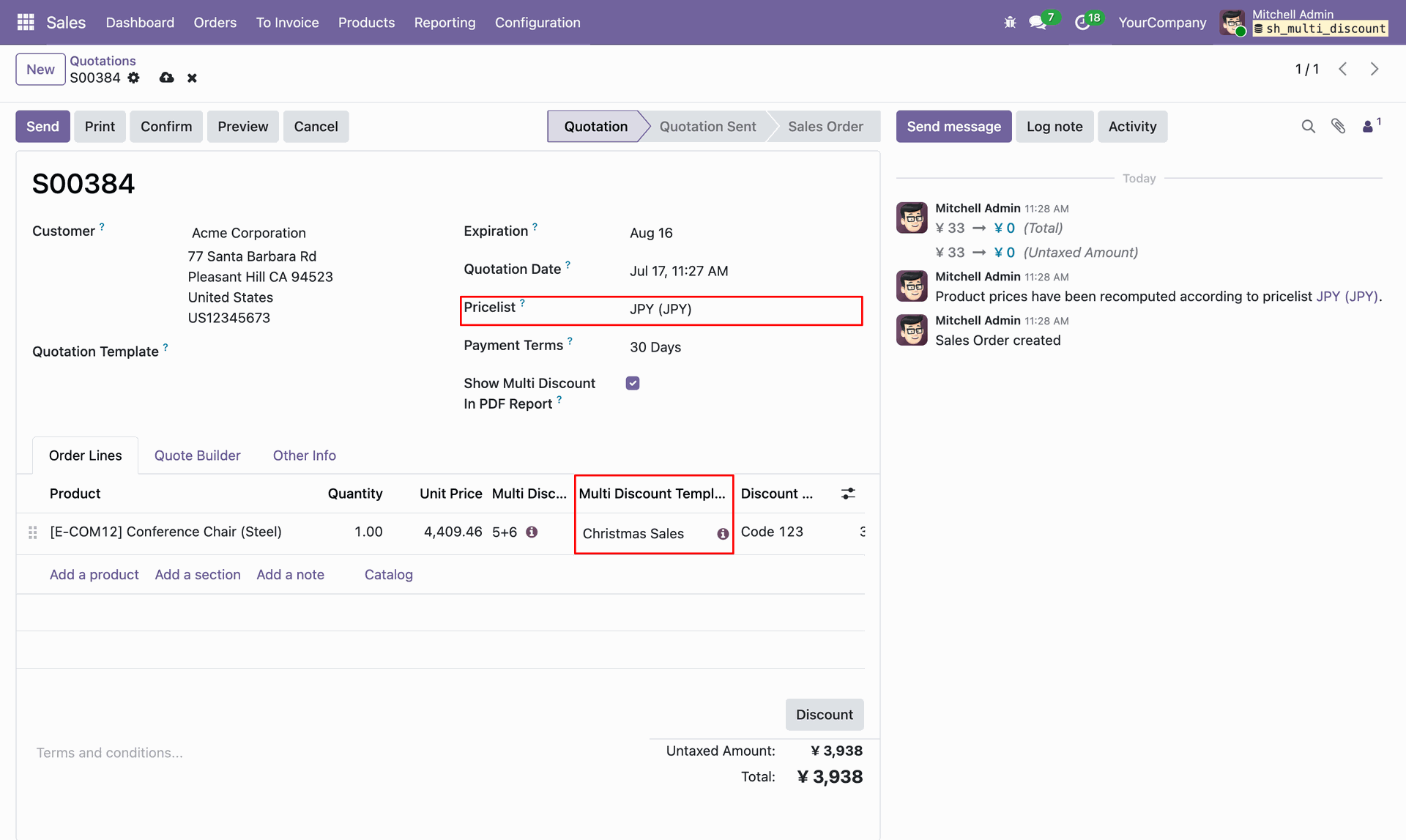
The discount will be applied based on the currency of the selected Pricelist.
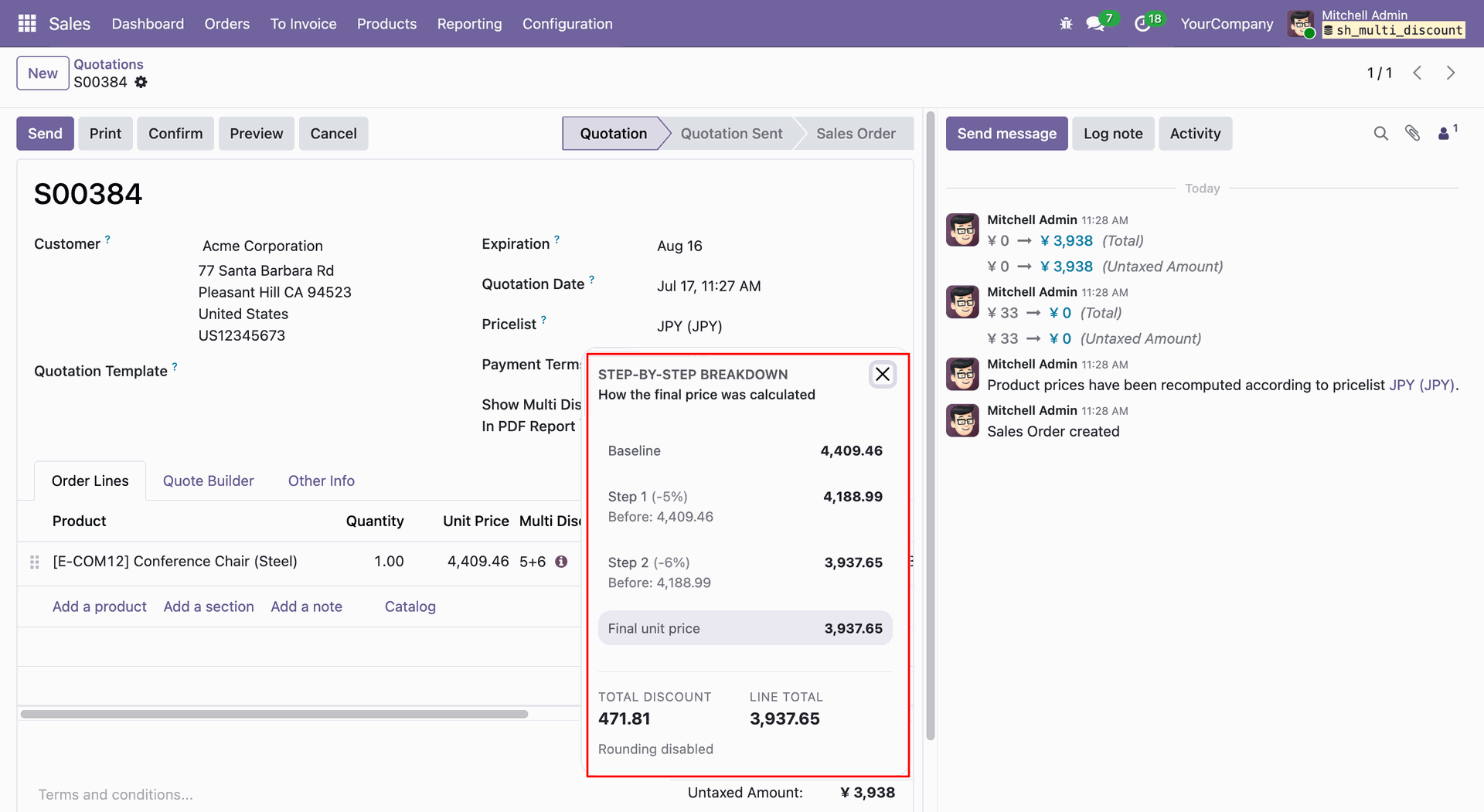
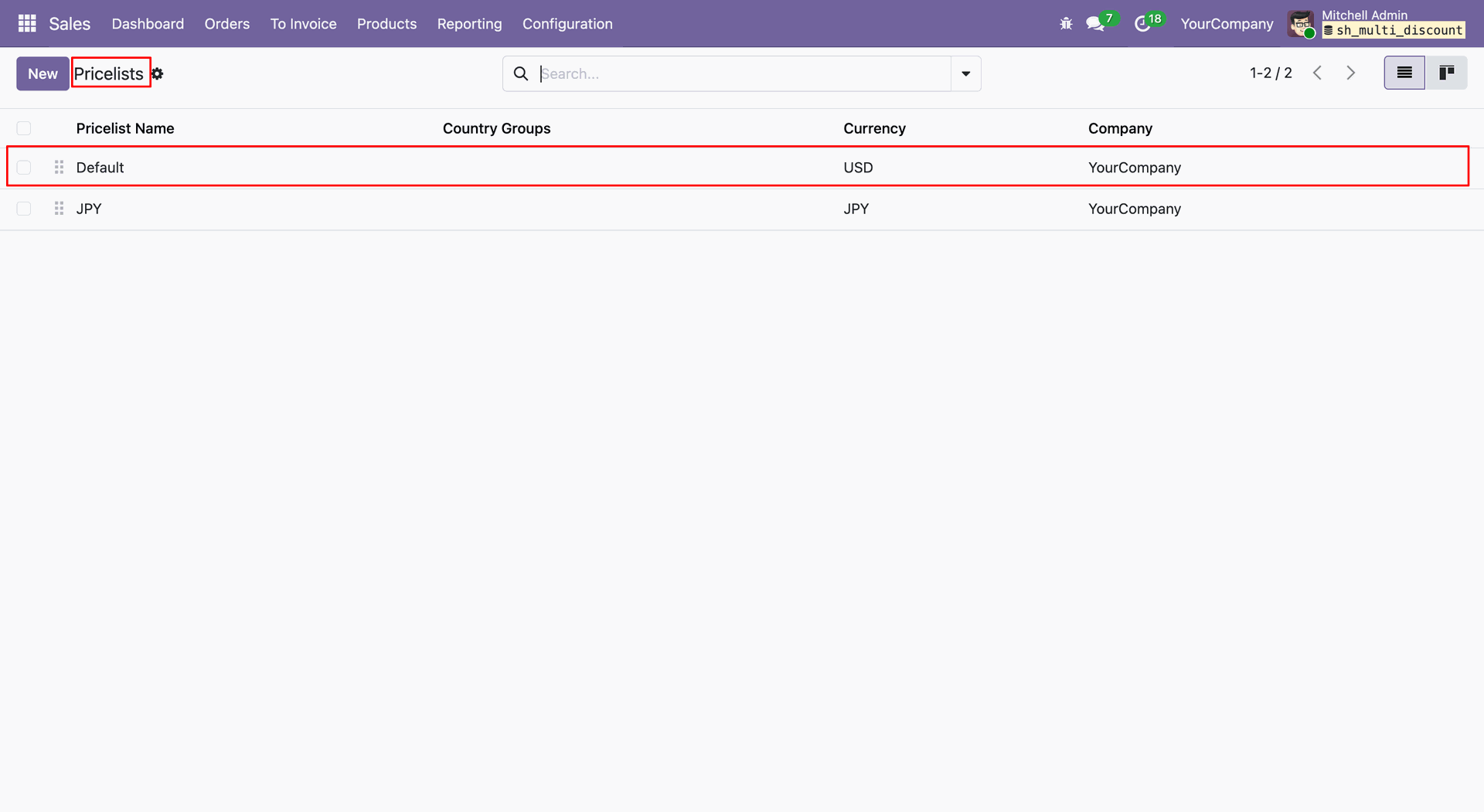
Open the Pricelists menu and select the required pricelist from the list view.
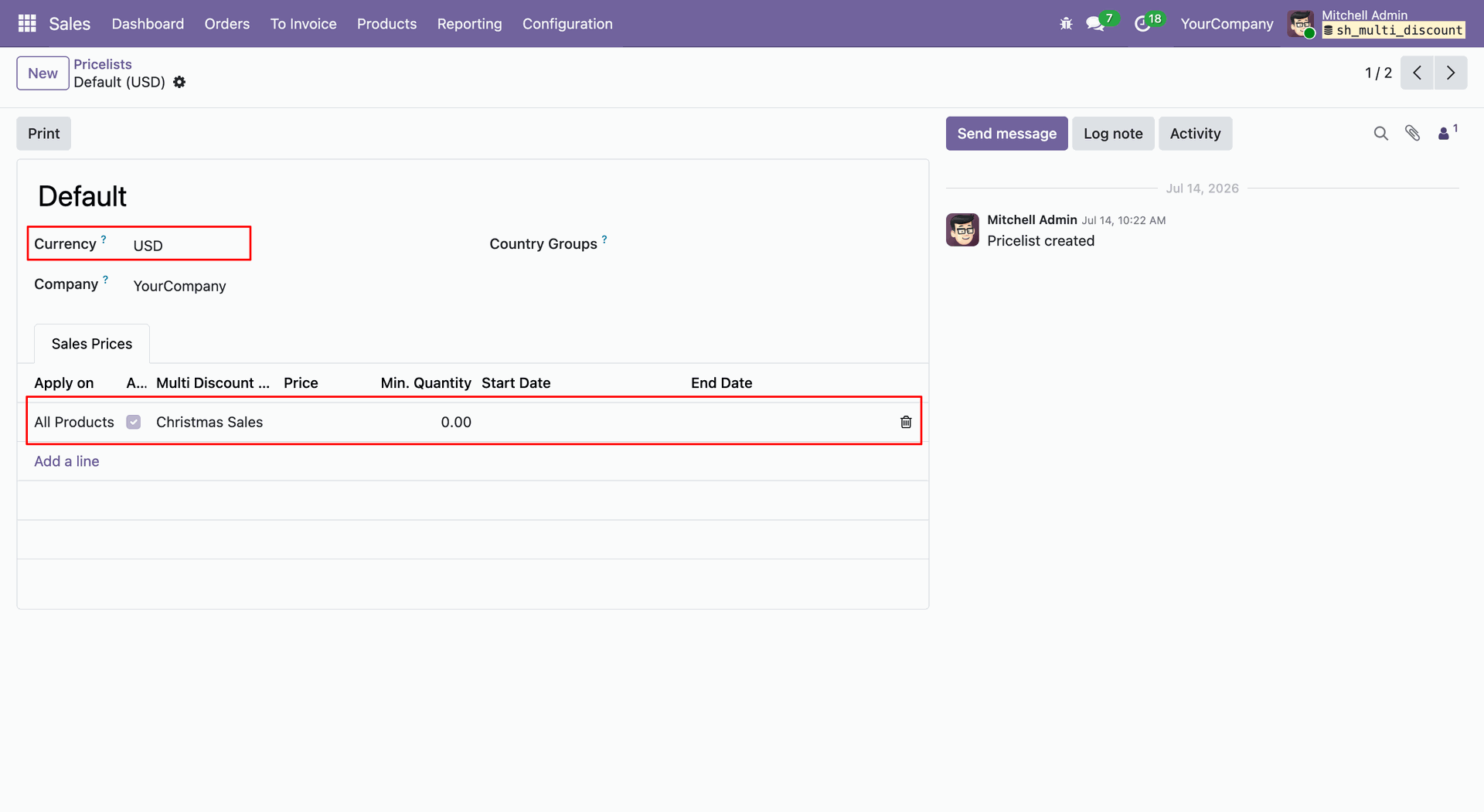
The Pricelist Form View will open.
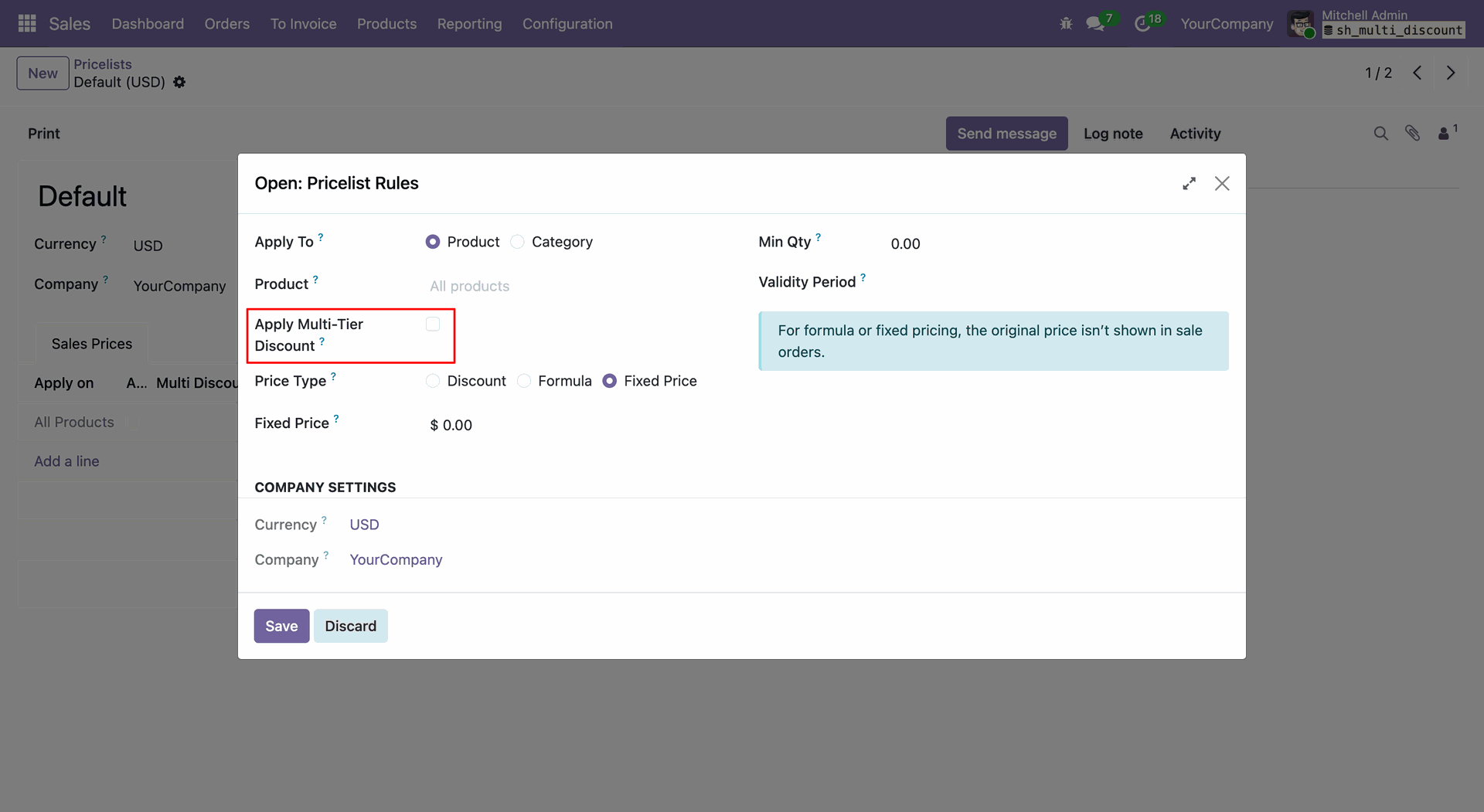
Open the Pricelist Rules wizard and enable the Apply Multi-Tier Discount option.
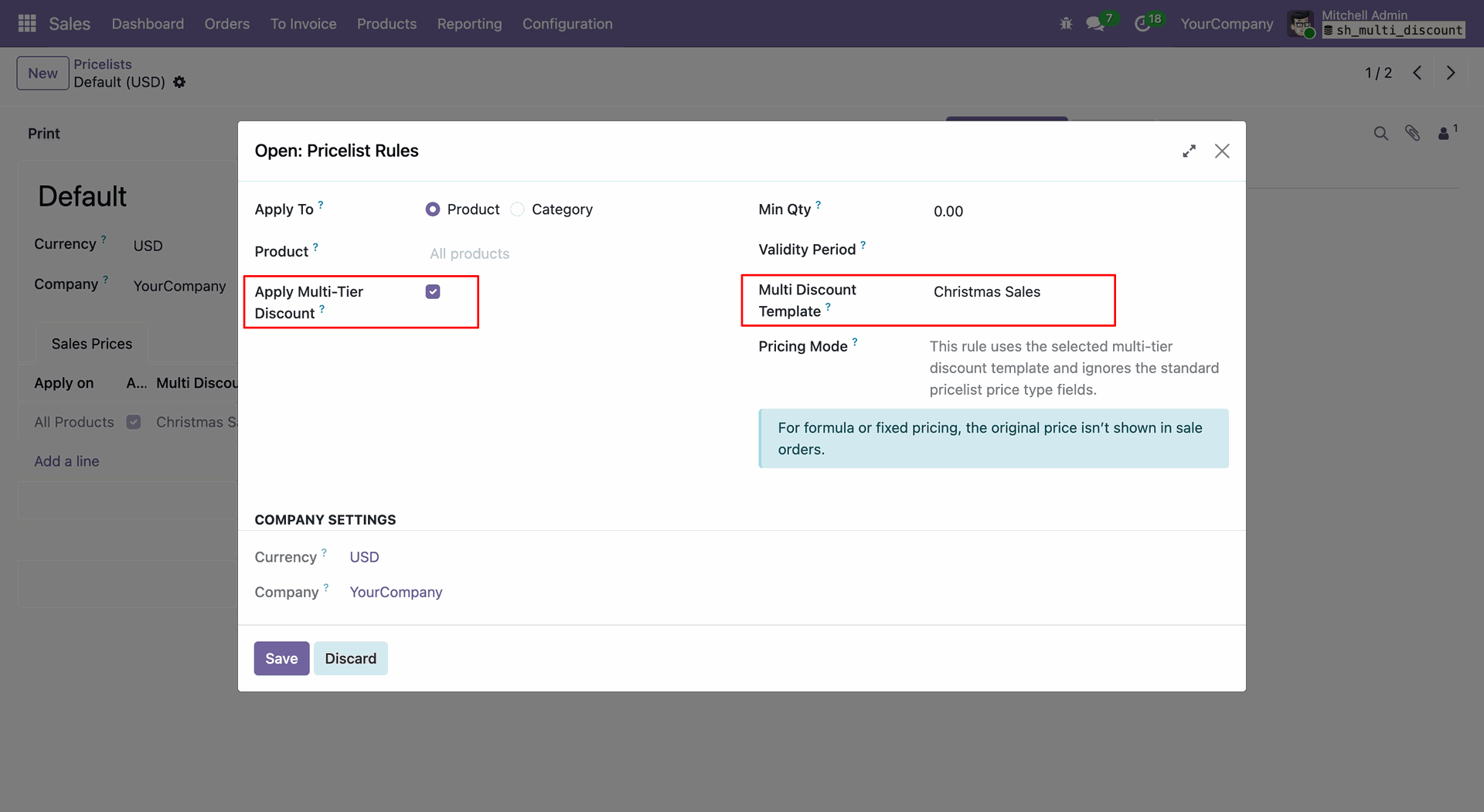
Select the required Discount Template from the wizard.
Create a Sales Order and select the required Pricelist. When you select a product, the Discount Template will be automatically applied based on the configured Pricelist Rule.
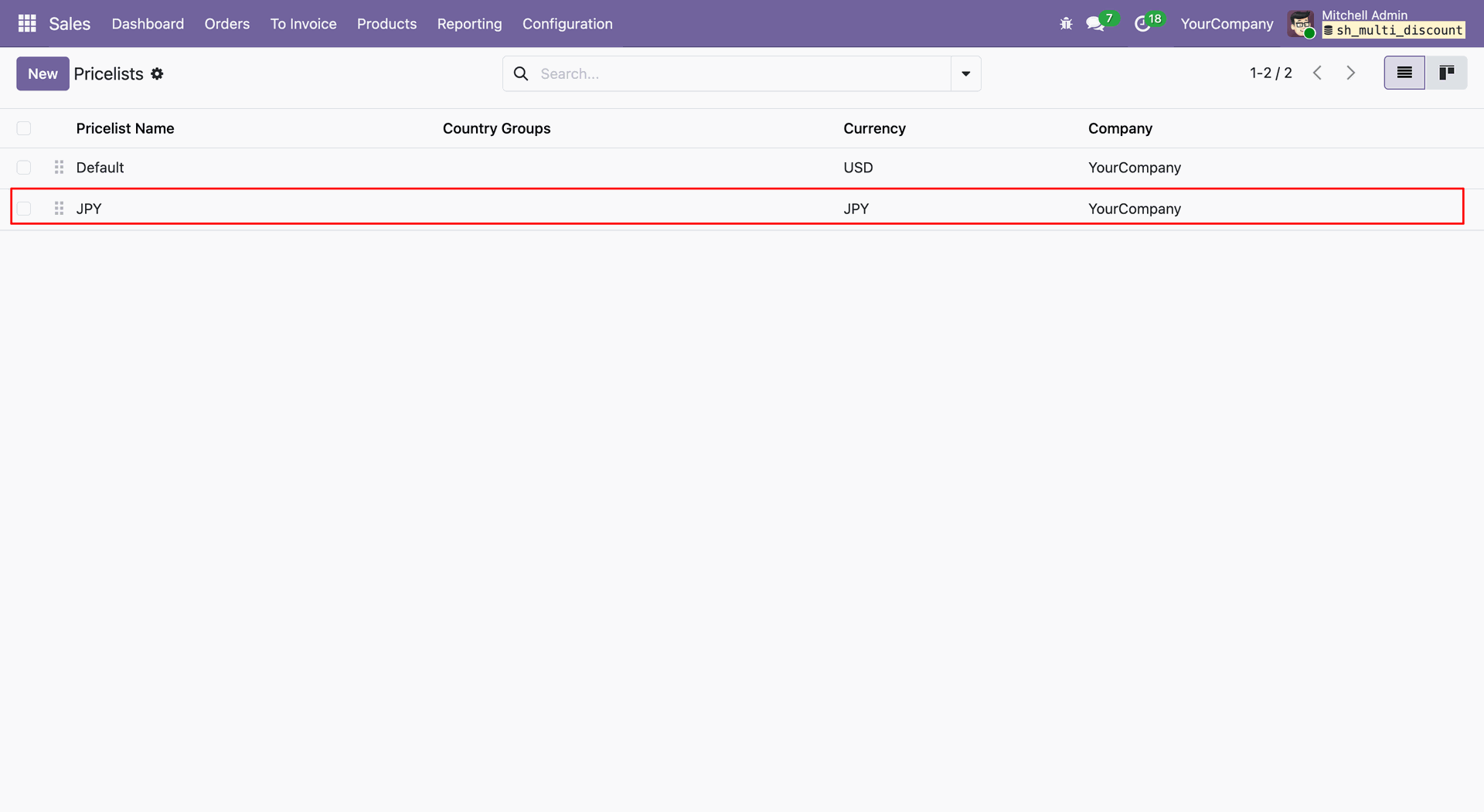
Create another Pricelist with a different Currency.
Create a Pricelist Rule for the specific product.
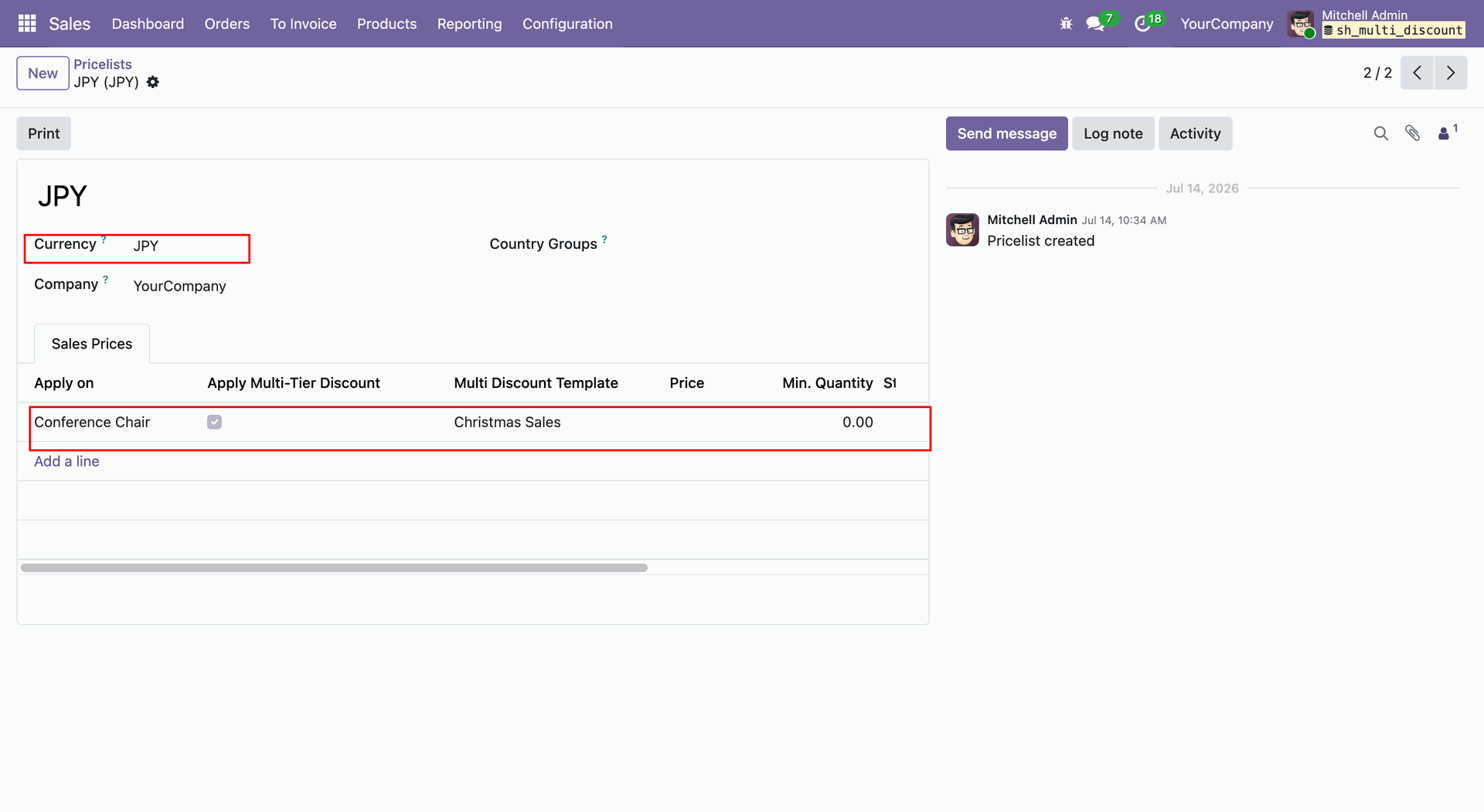
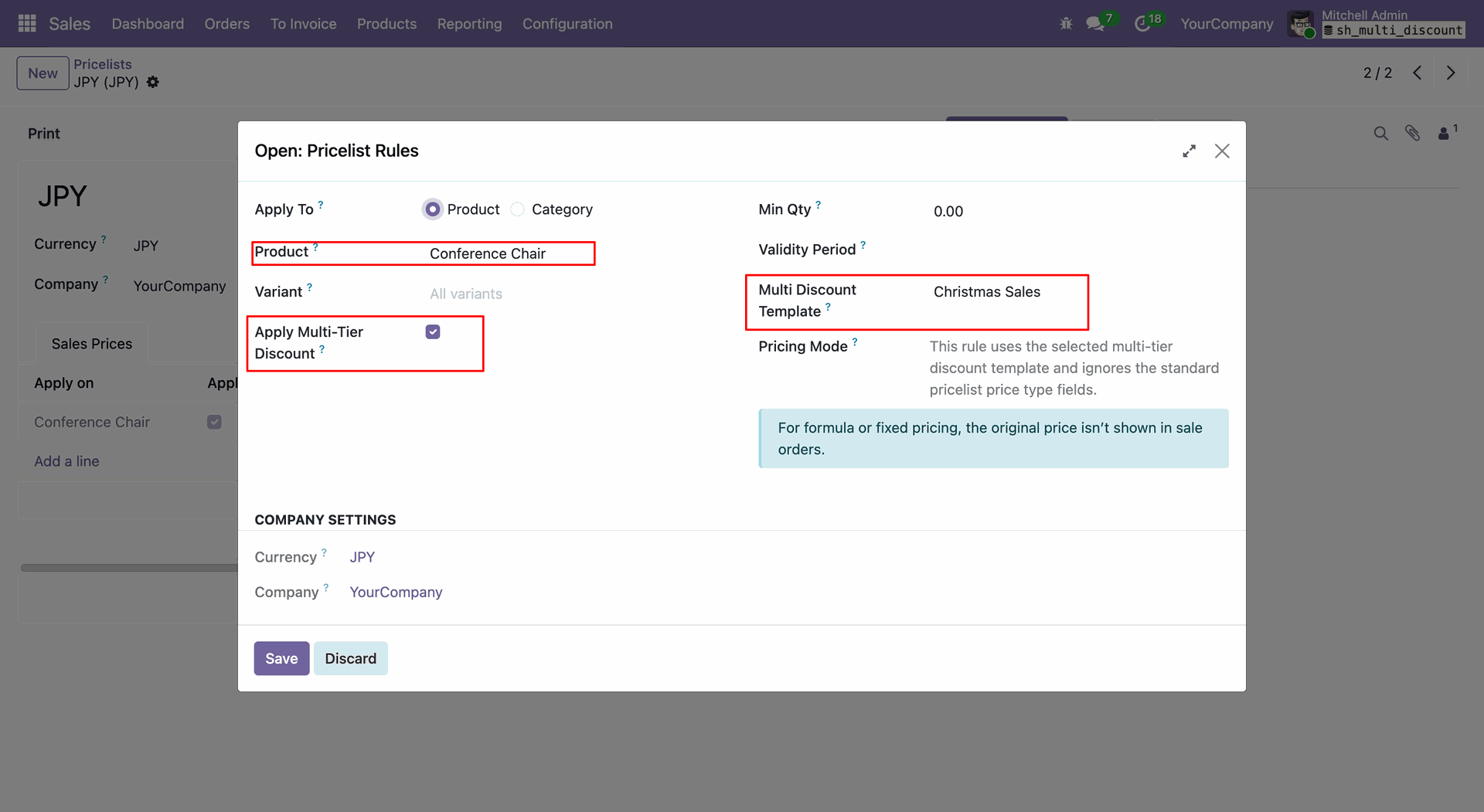
Select the required Discount Template for the specific product.
Create a Sales Order, select the required Pricelist, and add the product. Based on the configured Pricelist Rule, the Discount Template will be automatically added to the order line.
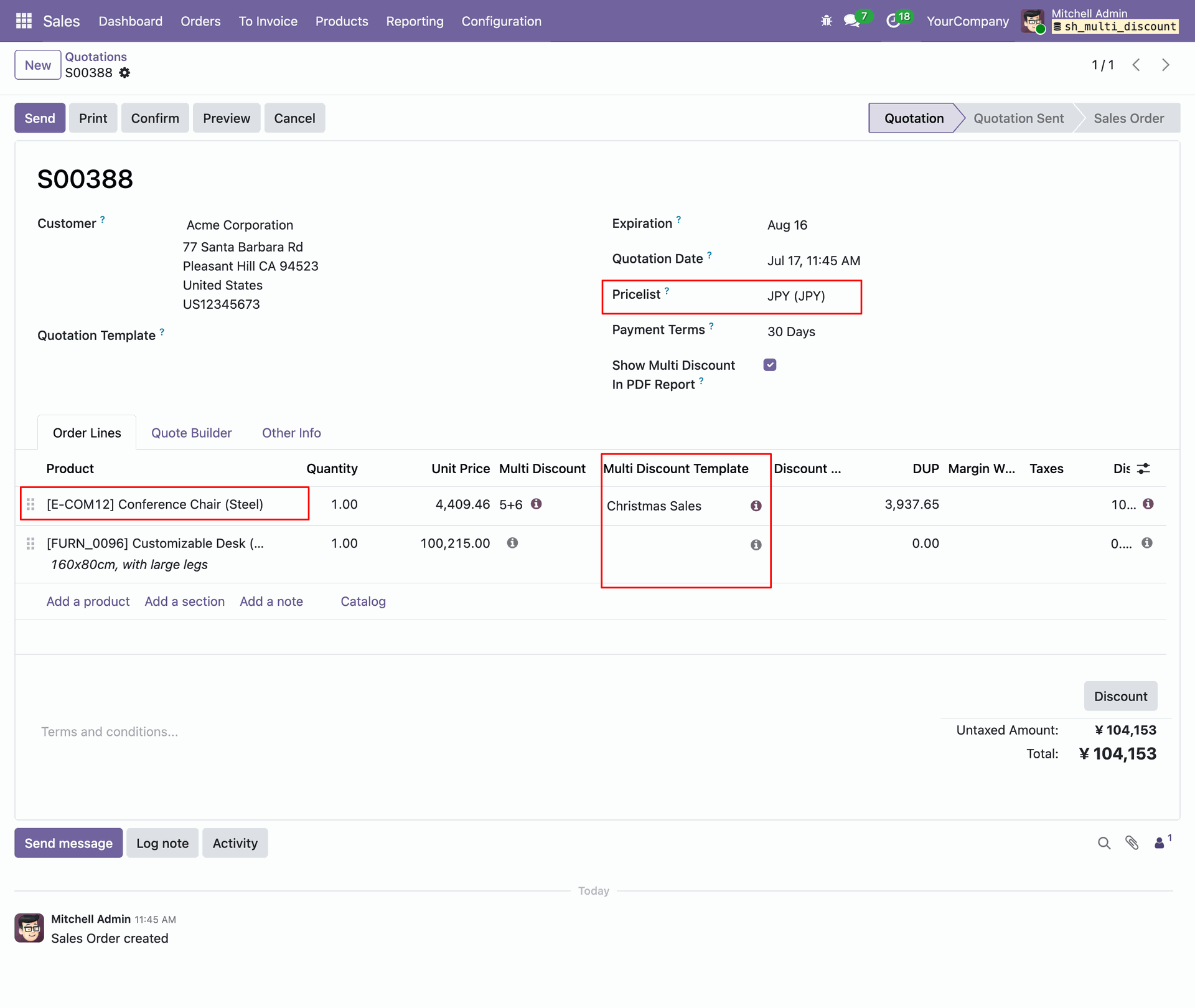
Create a Predefined Discount Template, select the company and enable the All Companies option. The template will then be available across all companies.
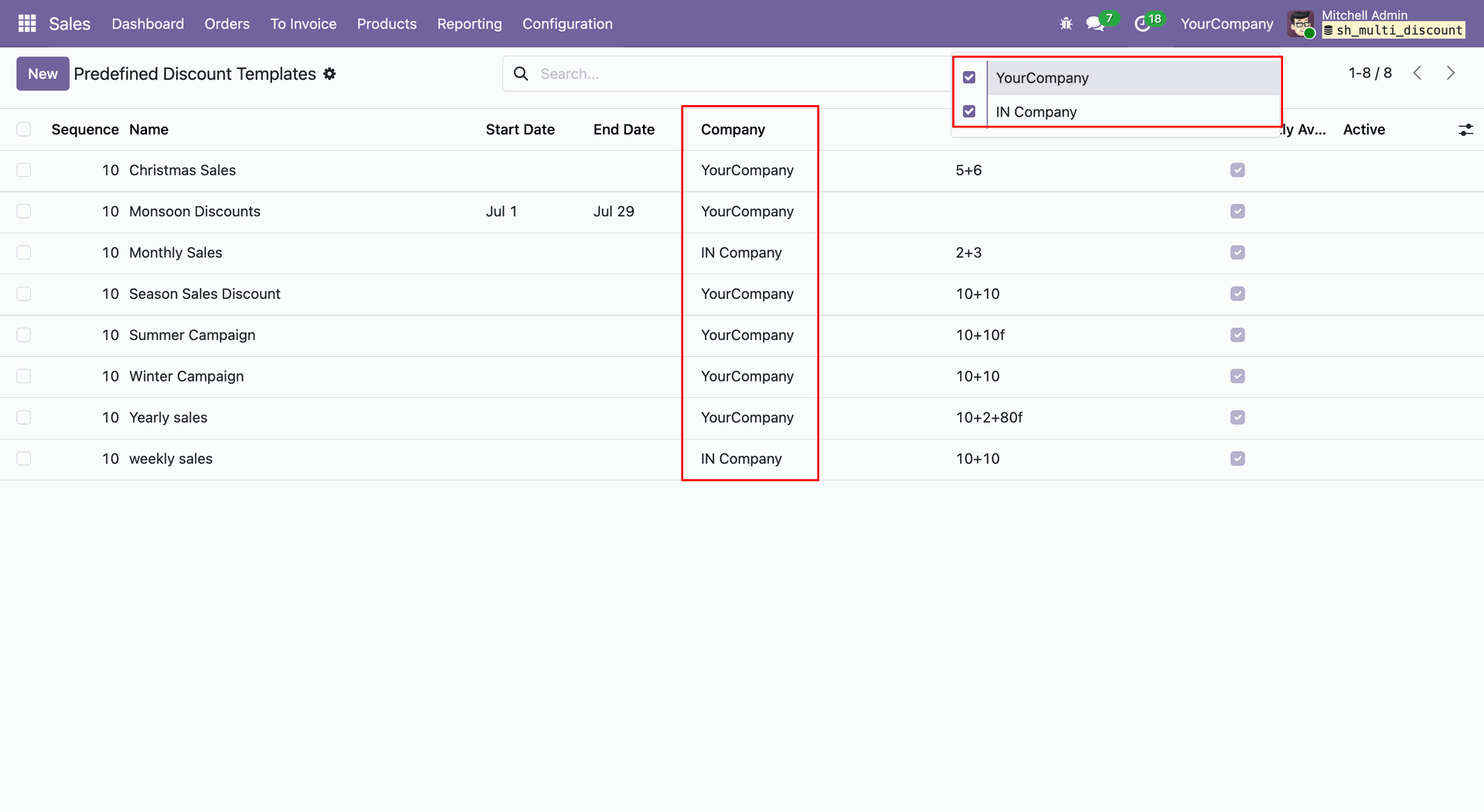
The Predefined Discount Template will be available for the active company.
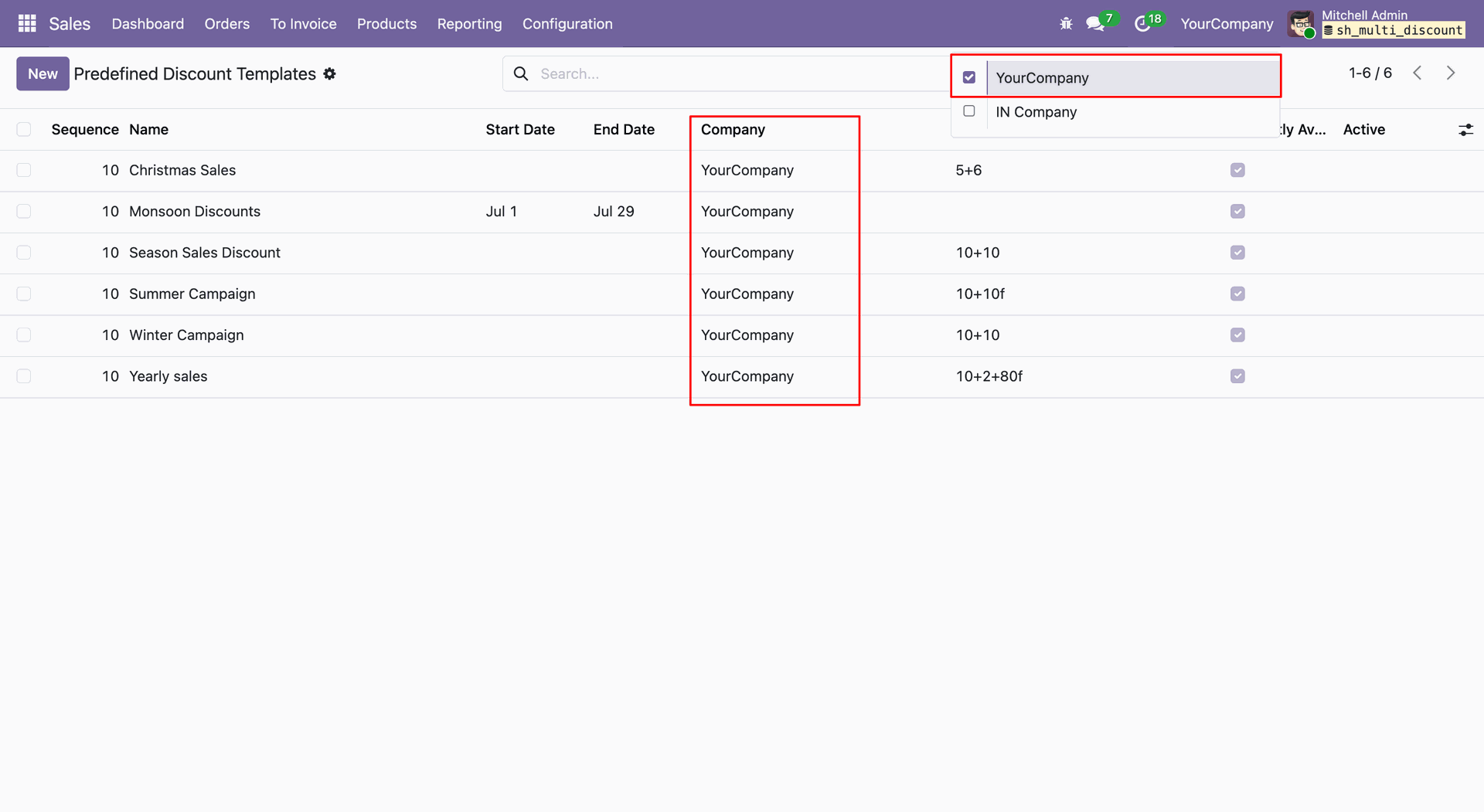
The Predefined Discount Template will be available for the active company.
Go to Sales -> Configuration and select the Product/Partner Tag Discount Rules submenu.
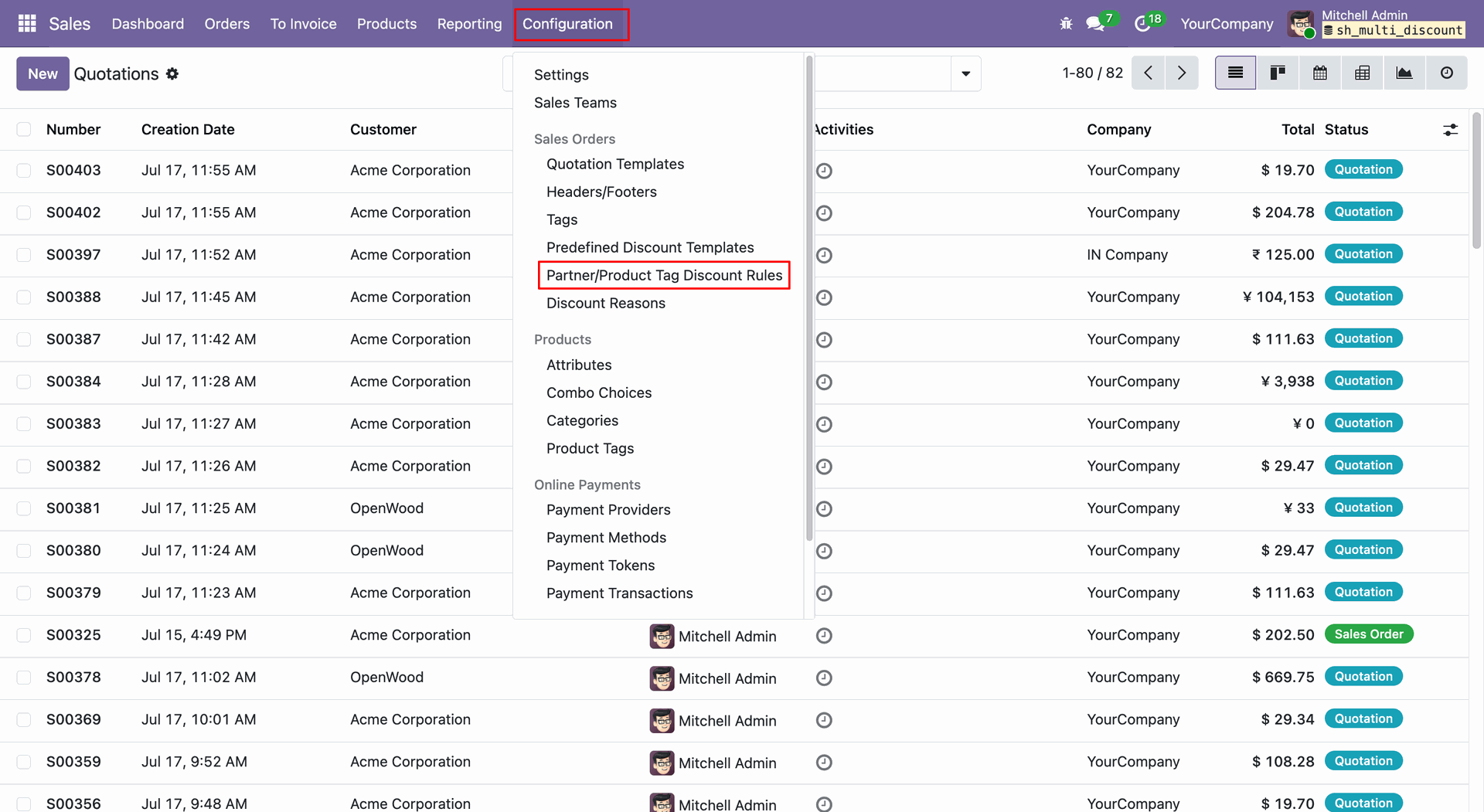
The Product/Partner Tag Discount Rules list view will open. Click on a rule to open its form view.
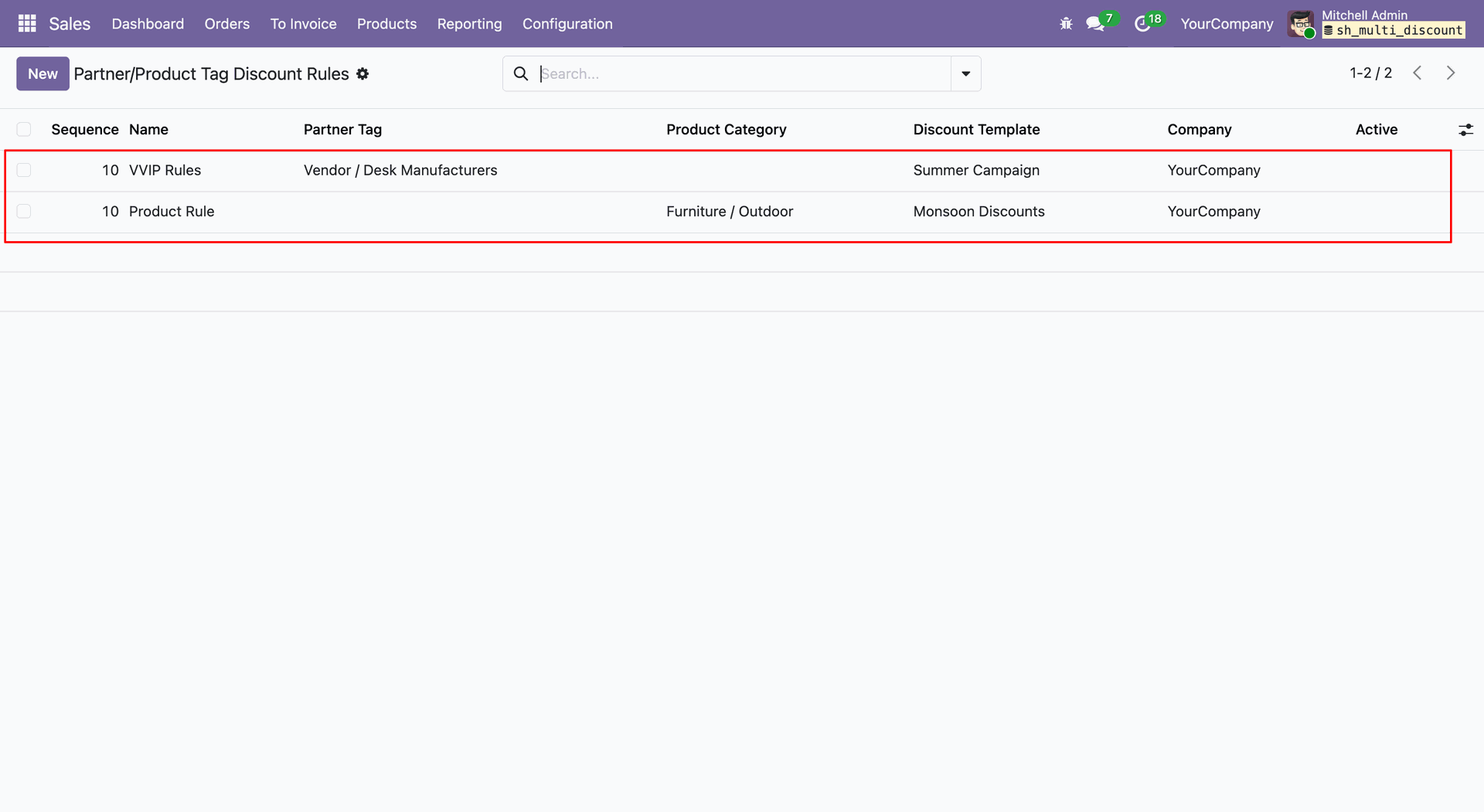
The Product/Partner Tag Discount Rules form view will open.
Set the required Discount Template and Partner Tag.
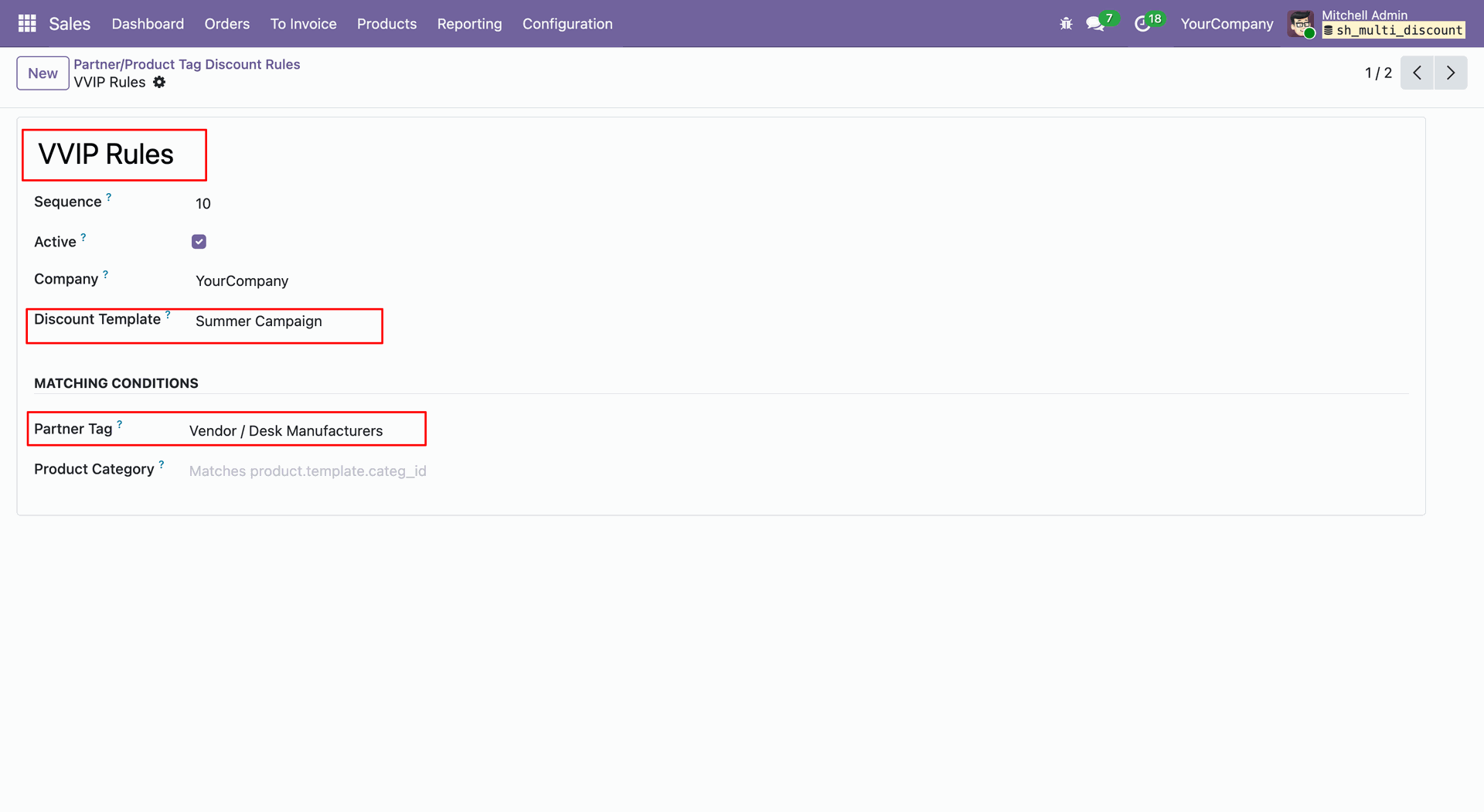
Go to the Contact Form View and add the required Partner Tag.
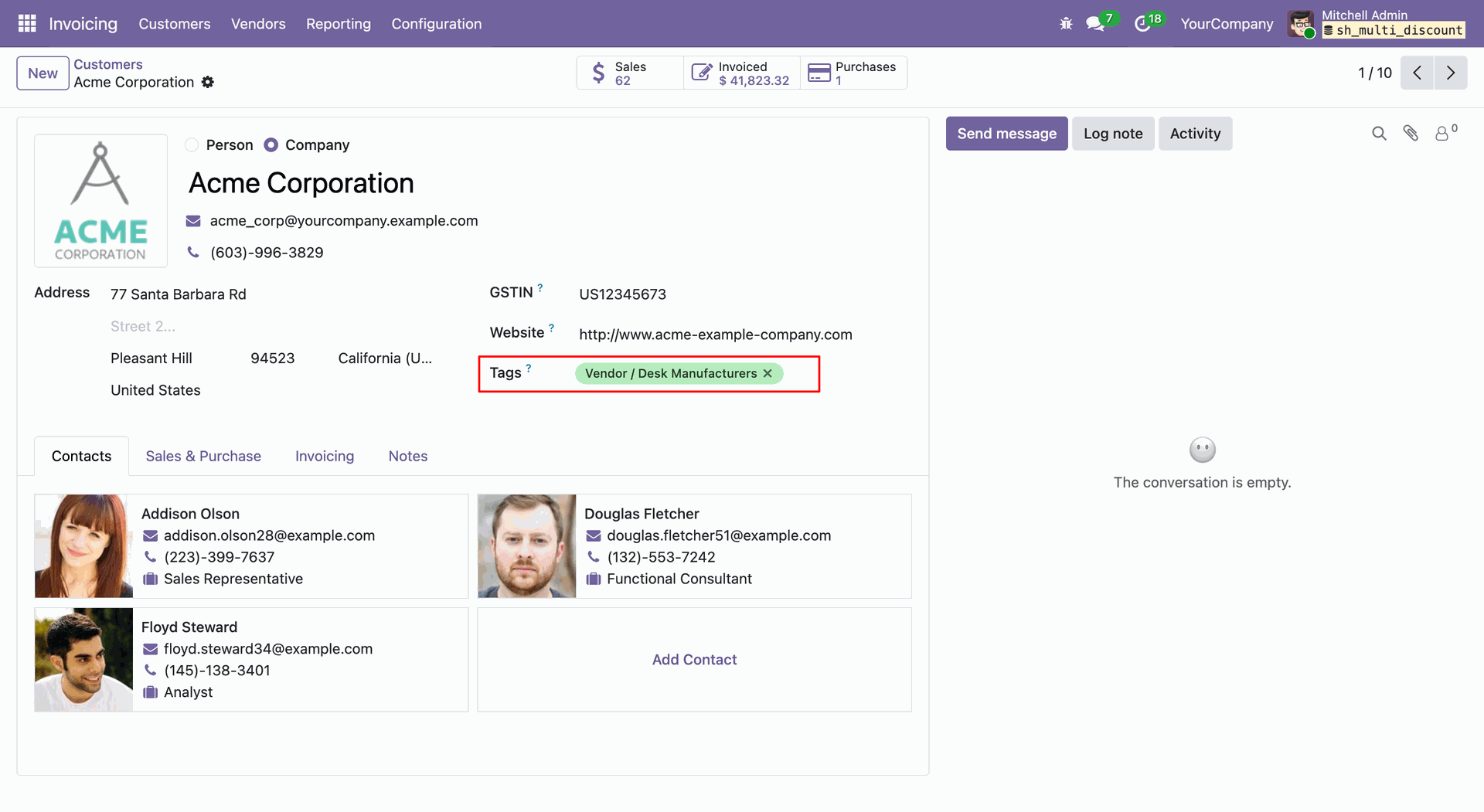
Create a Quotation and select the customer. Based on the selected customer Tag, the corresponding Discount Template will be automatically applied to the order lines.
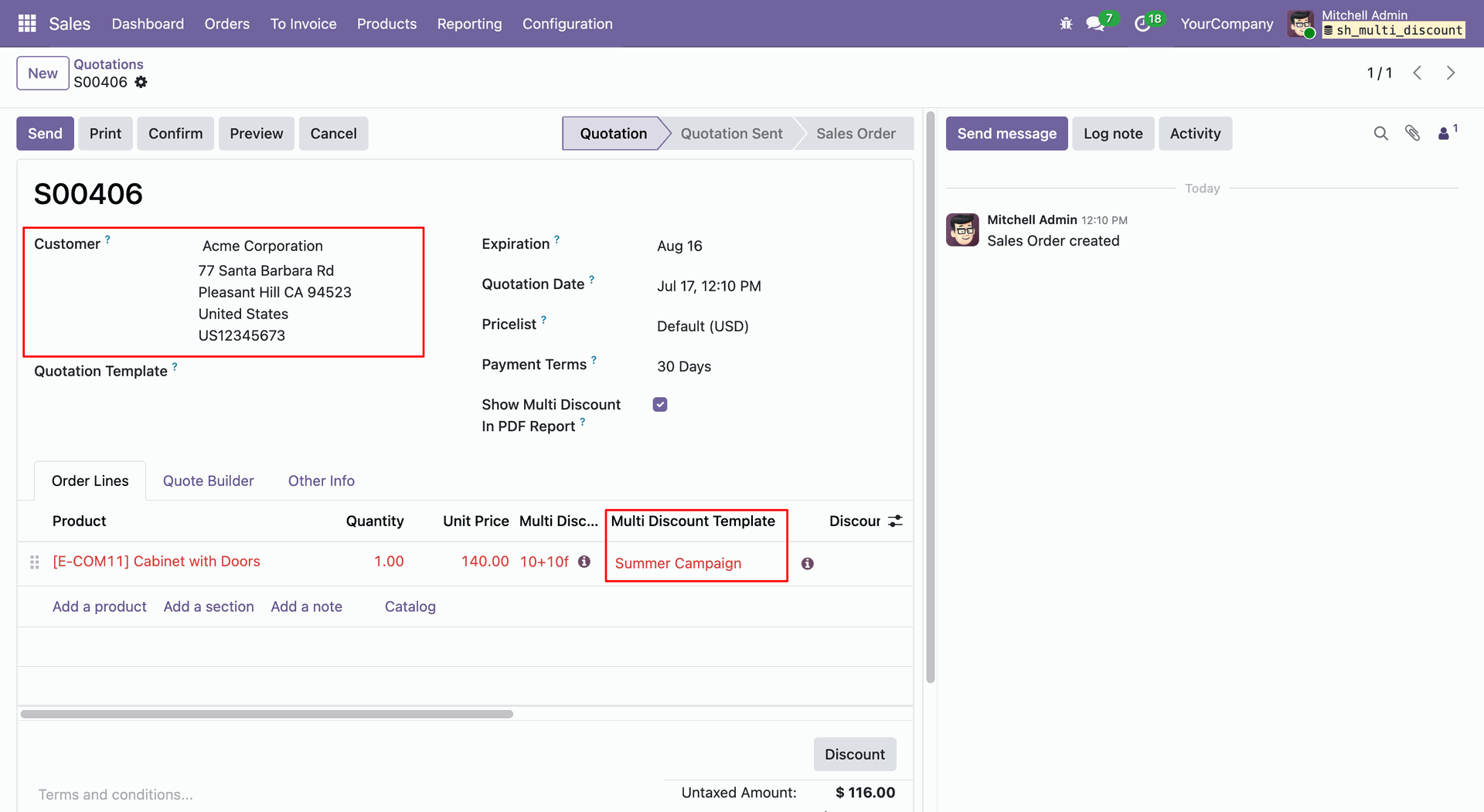
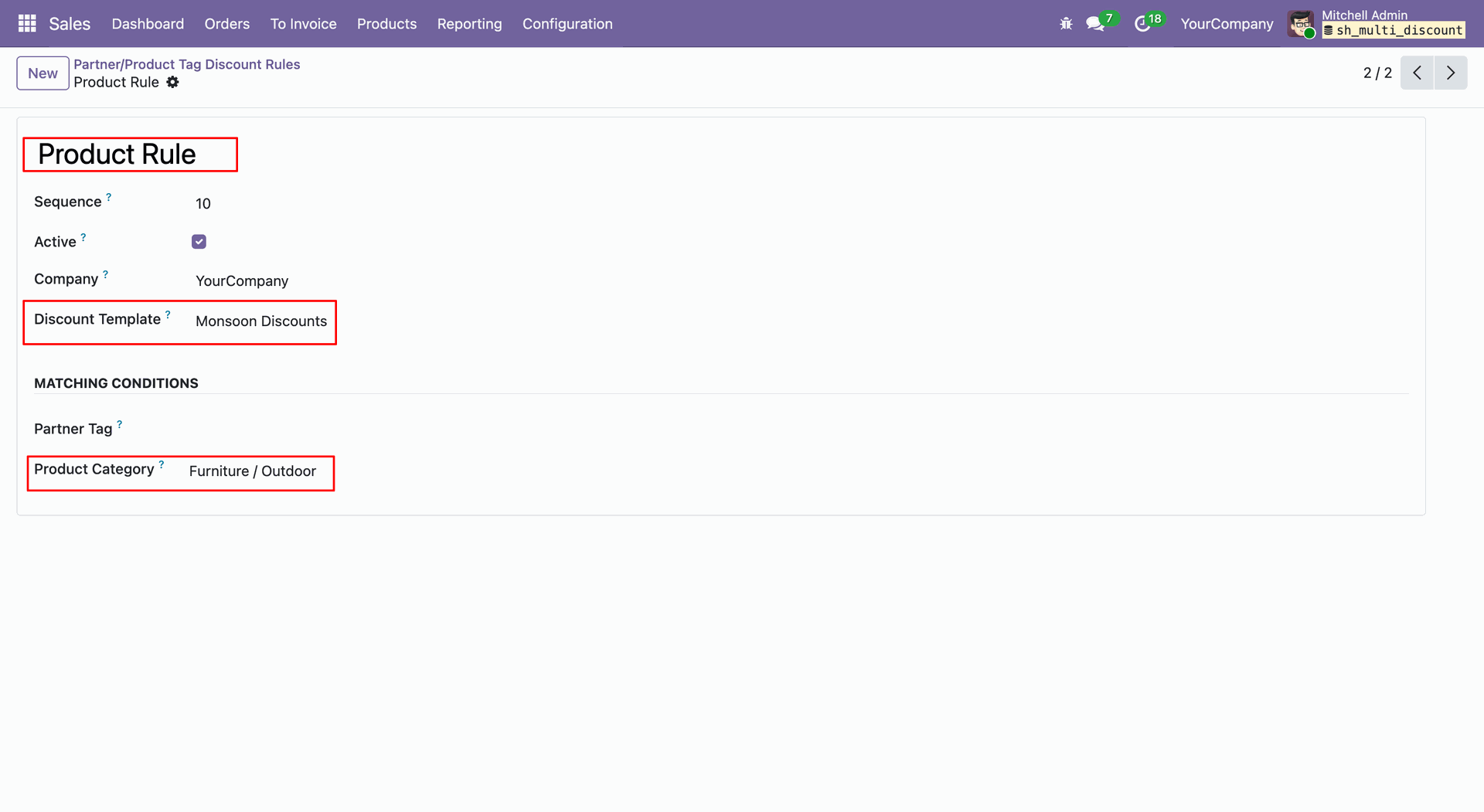
Set the required Discount Template and Product Category.
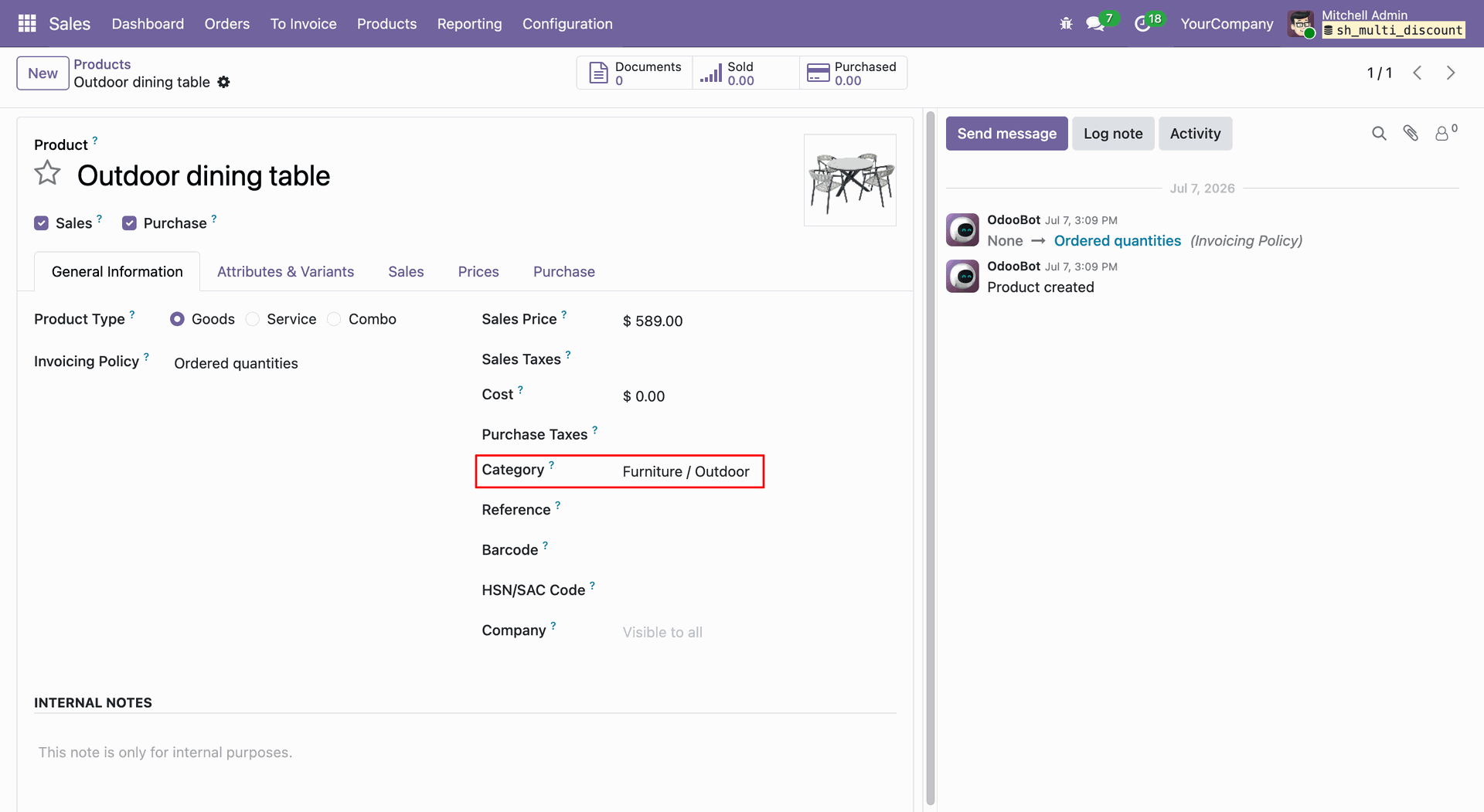
Go to the Product Form View and add the product category.
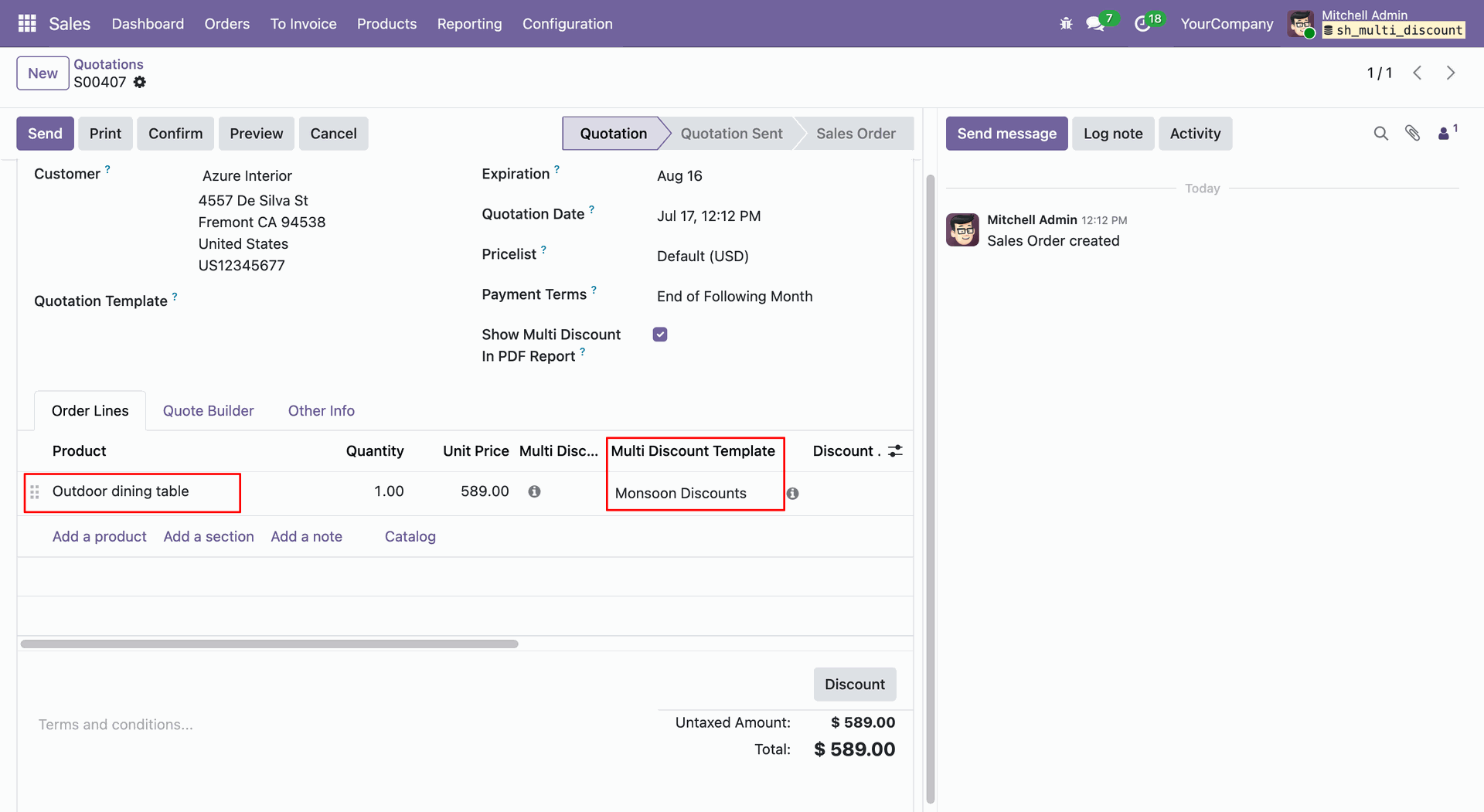
Create a Quotation and select the product. Based on the selected products' category, the corresponding Discount Template will be automatically applied to the order lines.
Open the Predefined Discount Template and set the Start Date and End Date.
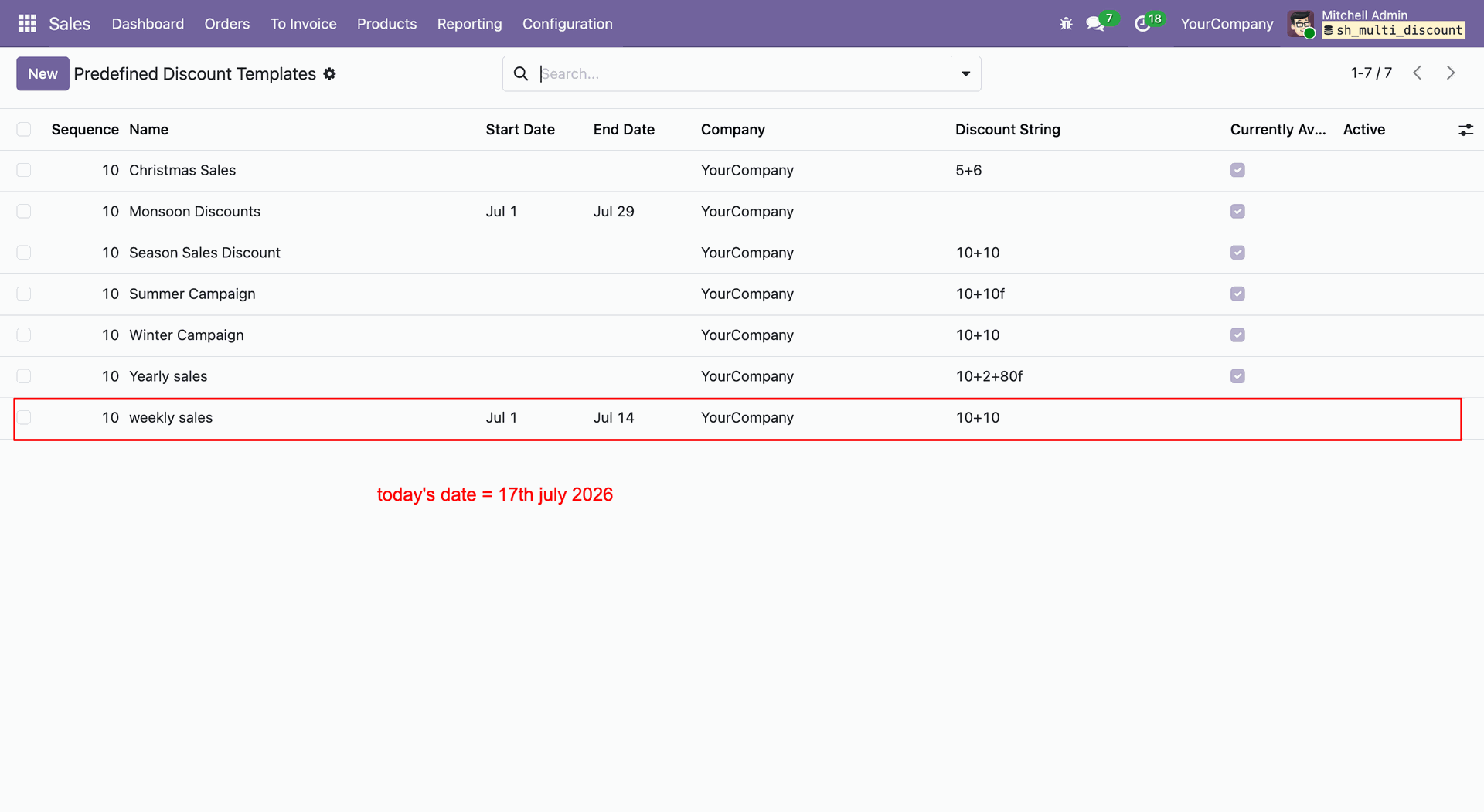
Go to the Sales Order and select the required Discount Template.
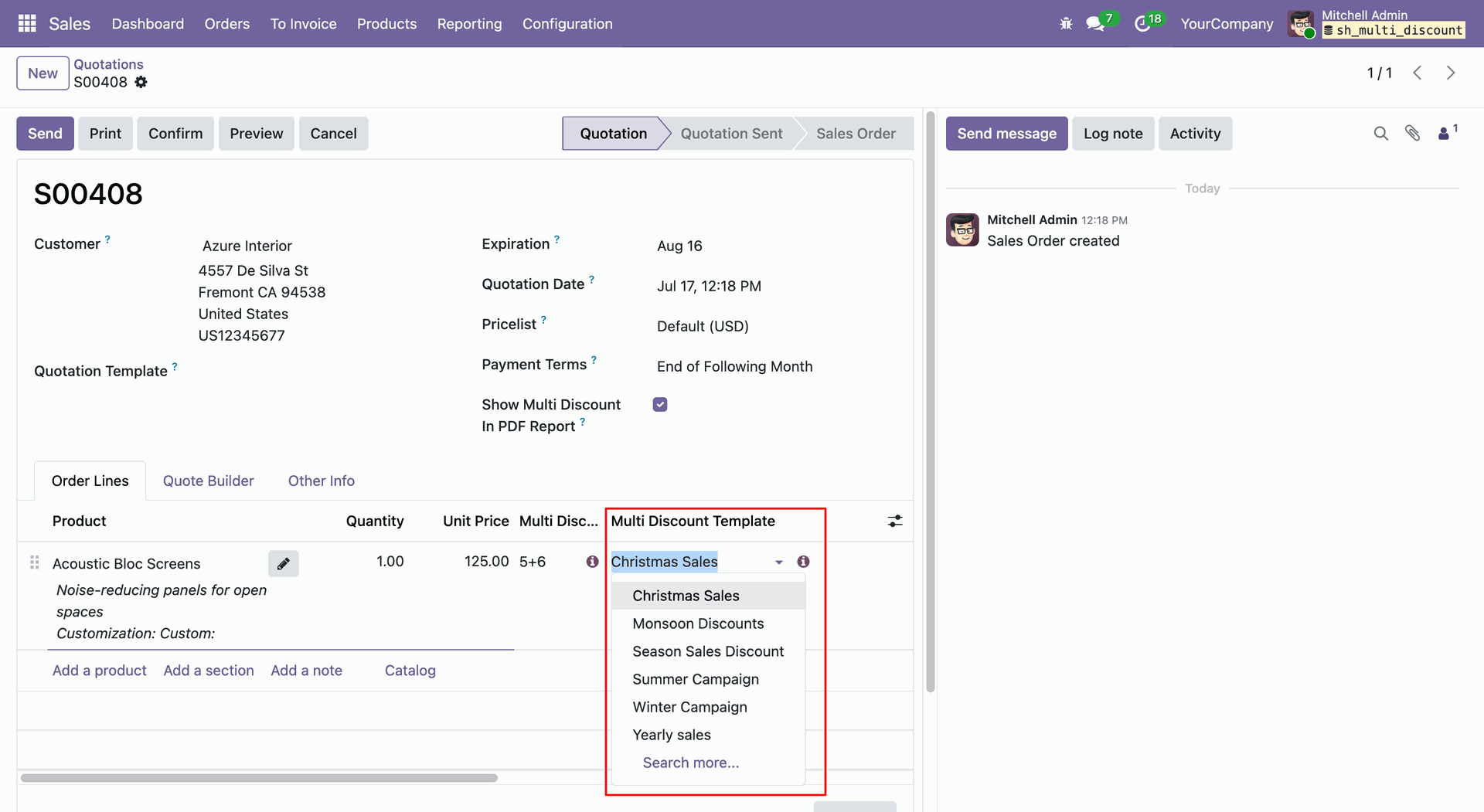
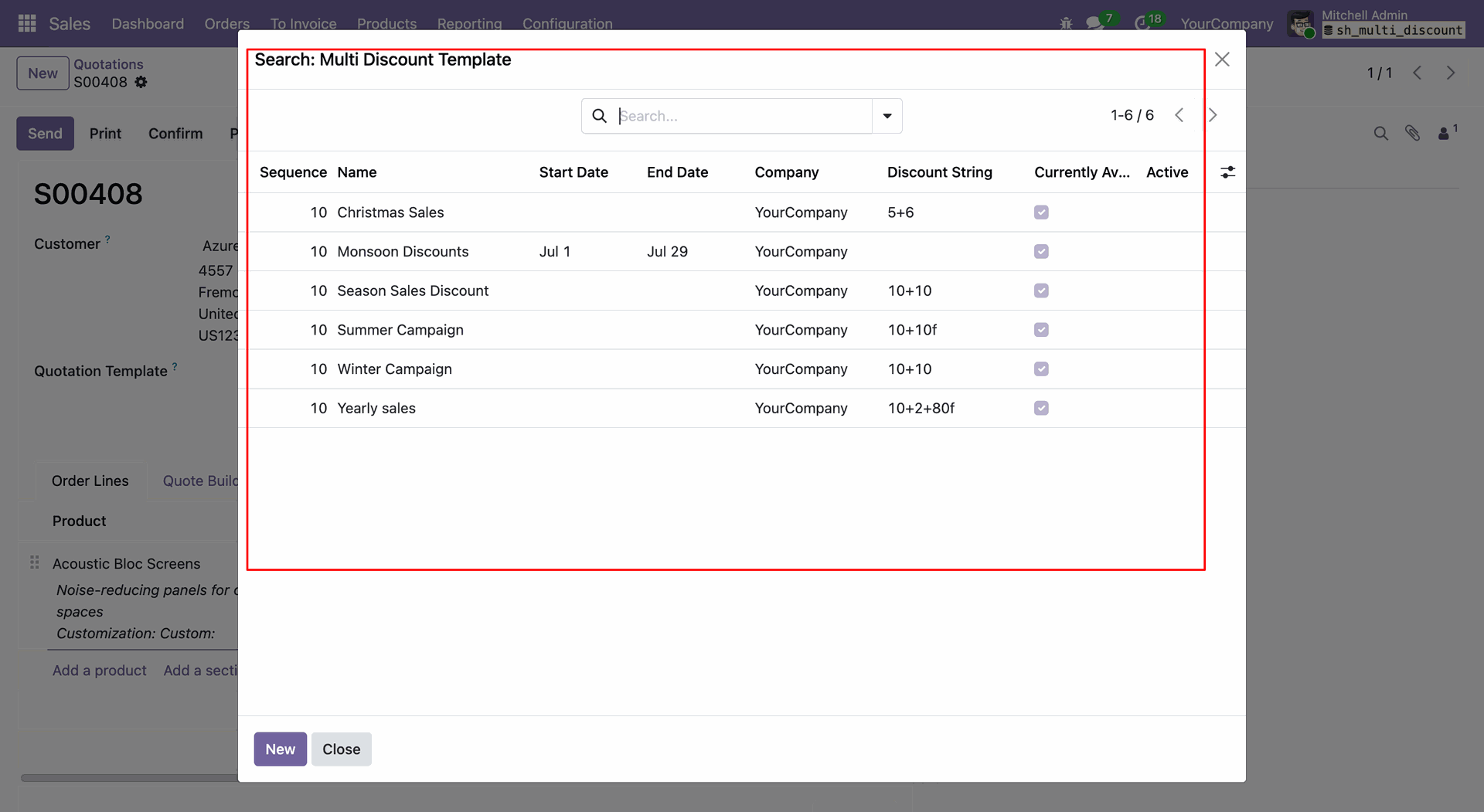
Expired Discount Templates will not be visible for selection.
Release Notes
Track every update, enhancement, and new feature across all versions.
Version 18.0.2.0.0 | Released on : 21st August 2026
Version 18.0.1.0.0 | Released: 22nd August 2024


 Buy Once, Supported Forever

 Scan to email sales




 Your Ideas Shape Our Roadmap
 Got an Idea? We'll Build It
Frequently Asked Questions
Everything you need to know before getting started.
Trusted by Businesses Worldwide


Abdulhamid Abdulwaheed
Best module for our online store. Highly adaptable, exceptional customer service, and very advanced modules.
Factura Venta POS
They have everything you need. Technical support is excellent, responds quickly, and keeps the module updated. 100% recommended!
Mehmet Muhanna
Great company and support team. Had a problem in my local Odoo server - they solved it in 5 minutes. Highly recommend.
Billy Jeffs
Customised an Odoo app for me which works perfectly. Many requirements, got it right every time. Very confident in their ability.
HP
Consistently excellent service over years of working together. Knowledge and commitment to keeping clients informed truly sets them apart.
Michal Kolasinski
Multiple addons + two custom modules. Communication always friendly and precise. Delivered on time, worked out of the box. Highly recommended!

Multi-Language
8 built-in translations







You May Also Like
Discover more Softhealer modules that integrate seamlessly with your Odoo environment.






Most Demanded Apps
The Softhealer modules our customers reach for most — trusted across 100+ countries.
Activities Management
Manage, schedule, and automate Odoo activities across all departments from one view.
View Module
Access Management
Granular access control over menus, fields, buttons, and records for every user role.
View Module
Backdate Advanced
Backdate any transaction across invoices, journals, pickings, and more with full audit.
View Module
All-in-One Helpdesk
Full-featured customer support with tickets, SLA, and customer portal built for Odoo.
View Module
All-in-One Mobile Backend
Access your full Odoo backend from any mobile device with an optimized interface.
View Module
All-in-One Import
Import any Odoo model data from CSV, Excel, and JSON files with mapping and validation.
View Module
Our Services
End-to-end Odoo expertise - from setup to scale.

AI & Business Integration

Odoo Implementation

Odoo Customization

Support & Maintenance

Mobile Apps

Migration Service

Third-Party Integration

Odoo Training
Ready to automate All in One Multi Discount?
Join 10,000+ businesses - Softhealer, 11+ years of Odoo gold partnership expertise across 100+ countries.

