
All in One Mobile Barcode Scanner

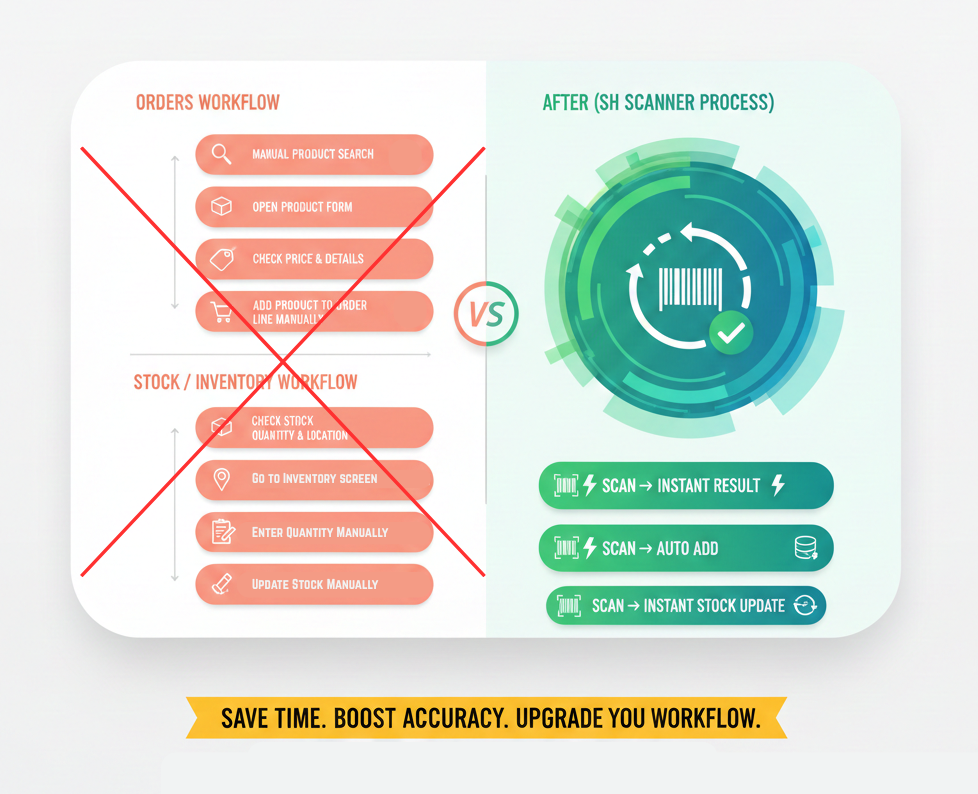
Do you want to scan Barcode/QRCode in your mobile/tablet? Do your time wasting in odoo operations by manual product selection ? So here is the solutions this modules useful do quick operations of odoo mobile/tablet Barcode/QRCode scanner. You no need to select product and do one by one. scan it and you done!It helps to manage the product Serial numbers/Lot numbers in the purchase(Incoming Order) process and sale(Delivery Order) process & internal transfer easily, so you can easily scan the Barcode/QRCode of Serial numbers/Lot numbers in Picking (Shipment/Delivery) & Internal transfer. So be very quick in all operations of odoo in mobile/tablet and cheers!
Related Modules
Benefits of mobile Barcode/QR Scanner
- Handy Tool: It's handy tools. mobile is very common now a days. everyone have mobile. user can easily use that device to scan Barcode or QRCode in mobile. user can easily use mobile camera and scan Barcode or QRCode so it will do all operations of odoo.
- Time Savers: User don't need to select products and all manually. manually its take more time in mobile devices as screen very small. our module will make this very easy as user just simply need to scan using mobile camera.
- Less Mistakes: Again, human error can be blamed on so many clerical errors, which in turn can cause problems in every facet of business. So using this it will make less mistakes in operations.
- Smoother Internal/External Operations: Our module available in different operations of odoo like sales/purchase/inventory/accounting/manufactuing. so this makes all flows of operations smoother.
Features

Scan Products from Order Line
Scan Barcode/QRCode directly from the order line using the scan button.

Global Search by Barcode/QRCode
Search any Odoo record globally using Barcode/QRCode from the search bar.

Global Document Search via Barcode
Quickly locate documents anywhere in Odoo by scanning a Barcode.

Auto-Fill Barcode Field
Scanning a Barcode automatically fills the Barcode field on the product.

Auto-Fill QRCode Field
Scanning a QRCode automatically fills the QRCode field on the product.

Manage Serial/Lot Numbers Everywhere
Easily manage Serial/Lot numbers in purchase(Incoming Order) process and sale(Delivery Order) process and Internal Transfers.

Scan New or Existing Serial/Lot Numbers
Scan any Serial/Lot number whether newly created or already existing with Barcode/QRCode..

Add Products by Mobile or Webcam Scan
Scan Barcode/QRCode using mobile camera or webcam to add products instantly.

Supports Both Barcode & QR Codes
Scan any type of code — Barcodes or QRCodes — without extra setup.

Add Products Using Mobile Scanner
Quickly add products to order lines using your mobile scanner.

Fast & Handy Product Scanning
Scan products instantly without typing — a fast and efficient tool.

No Native App Required
Use all scanning features inside Odoo web without needing a native app.

Cost-Effective Scanning Solution
Save cost by using smart scanning instead of expensive native apps.

Select Product Scan Source
Choose Internal Reference, Barcode, QRCode, or All for product detection.

Continuous Scanning Mode
Enable continuous scanning to scan multiple items without restarting camera.

Single Scan Mode
Disable continuous mode to scan one item at a time.

Show Sale Price
Enable this to display product sale price during scanning.

Show Forecast Quantity
Display forecasted product quantity inside product details.

Show On-Hand Quantity
Enable display of real-time on-hand stock quantity.

Show Internal Reference
Enable display of product’s internal reference number inside product details.

Success Notification
Receive notifications when a scanned product is successfully recognized by Barcode/QRCode.

Failure Notification
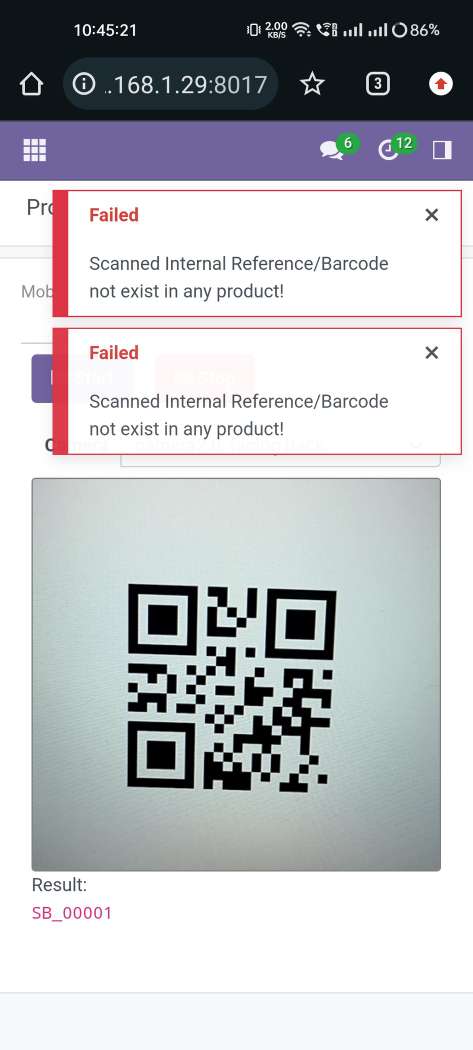
Get notified instantly when a scanned code does not match any product by Barcode/QRCode.

No hardware scanner needed
Enable mobile scanning and instantly start scanning using any standard smartphone camera.

No external dependency
Enable built-in barcode processing to scan without installing any third-party apps or libraries.

Clean UI optimized for mobile use
Enable mobile layout mode to get a simplified, tap-friendly interface for faster operations.

Covers all major business operations
One scanning tool for all your day-to-day business activities.
Notes
- For Android Tested in chrome & For iOS Tested in Safari Browser.
- SSL required if you are on the cloud or using IP. As without SSL permission of camera not work. If you are running odoo on the localhost (http://localhost) then it's not required SSL.
- Tested in Android and iOS Operating System.
- Barcode Format Supported UPC-E, EAN-8, EAN-13,Code 39,Code 93,Code 128.
- QR Code Supported.
- Please ask us on sales@softhealer.com if any doubt.

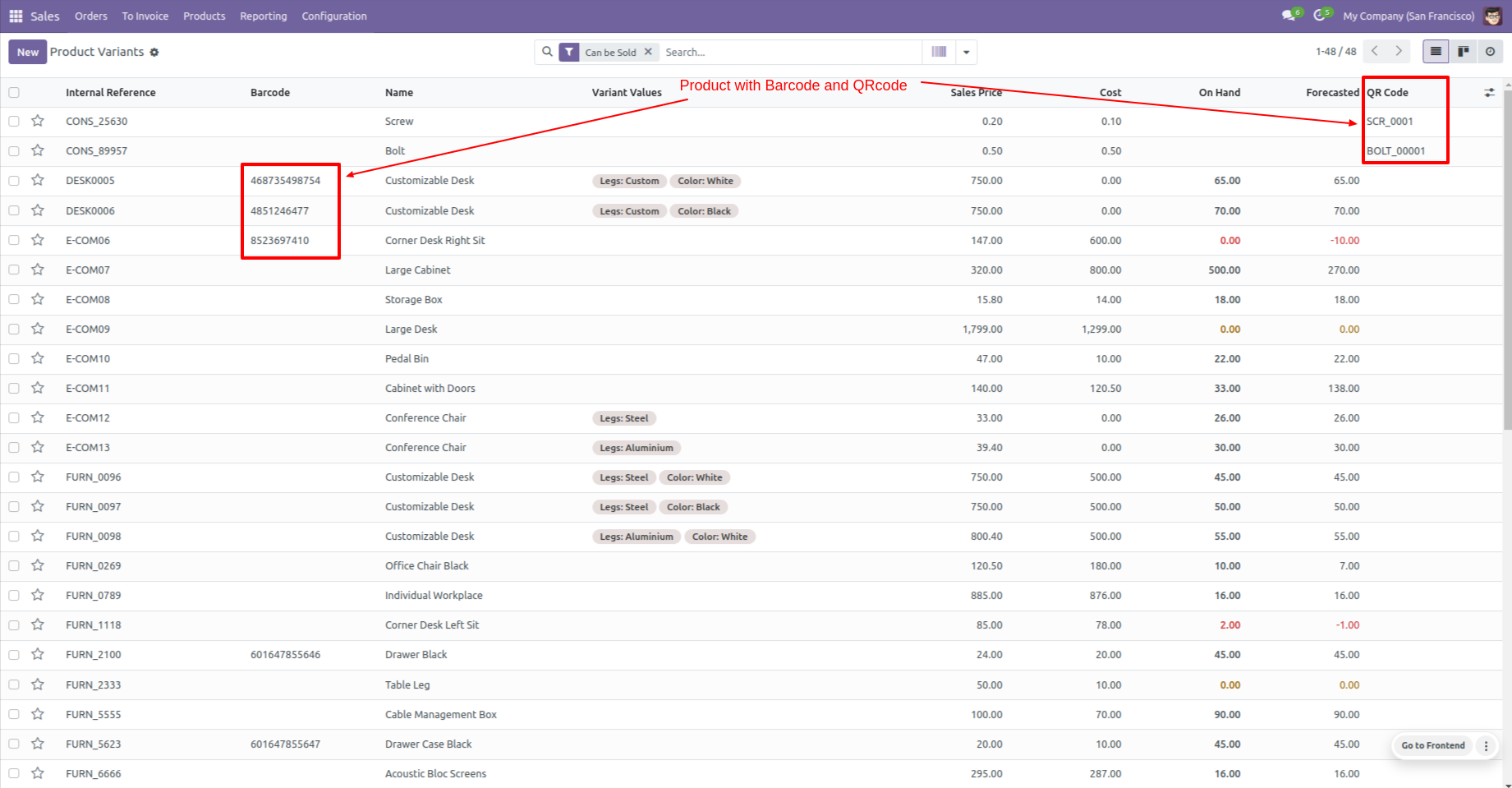
Products with the Barcode & QRCode.
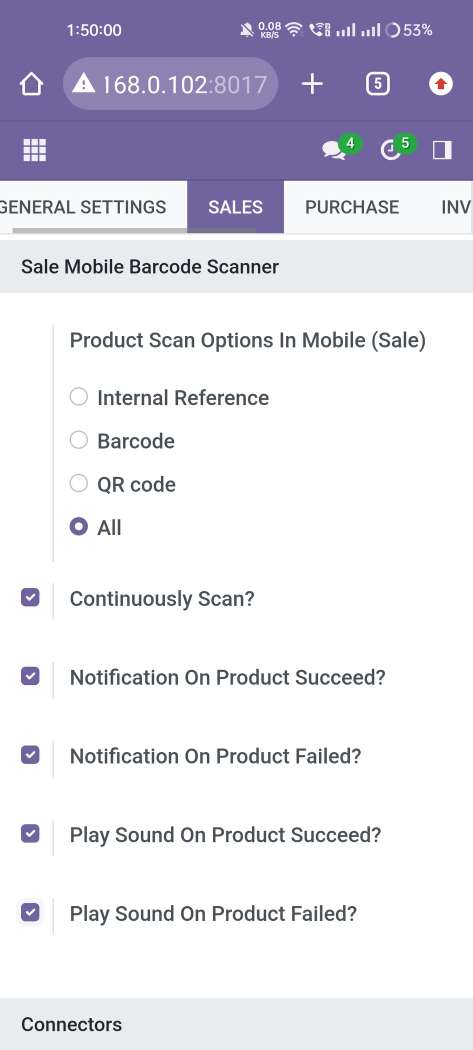
Product scan option in sale settings whether you want to scan product by Barcode, Internal Reference, QR or All.
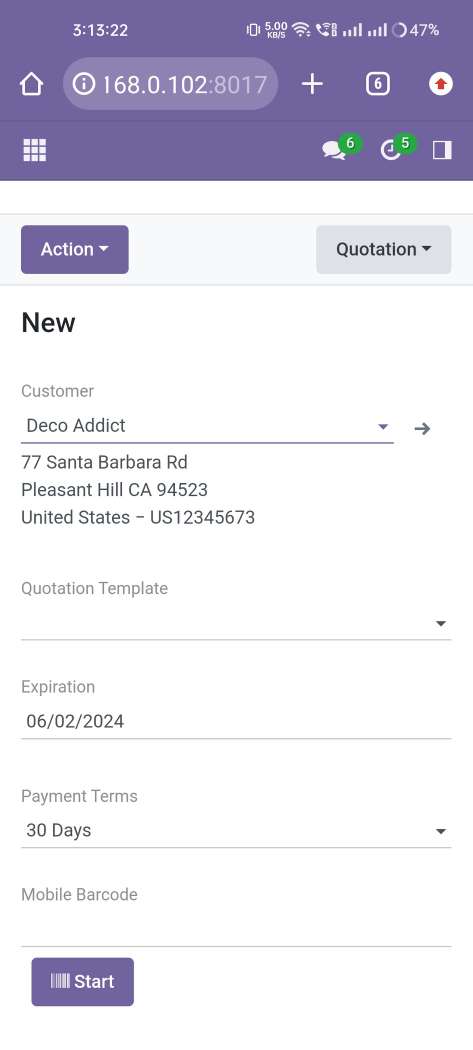
Tap the "Start" button to scan on mobile.
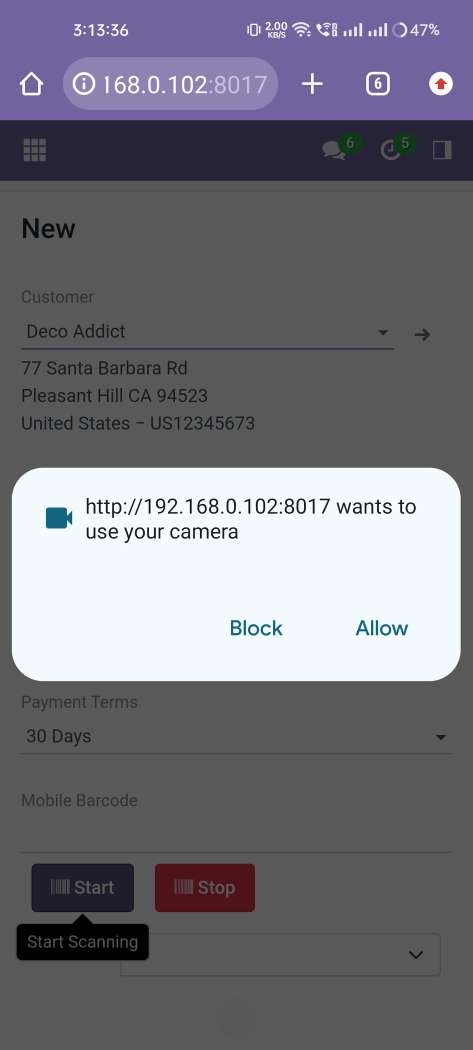
Allow permission to scan from the mobile camera.
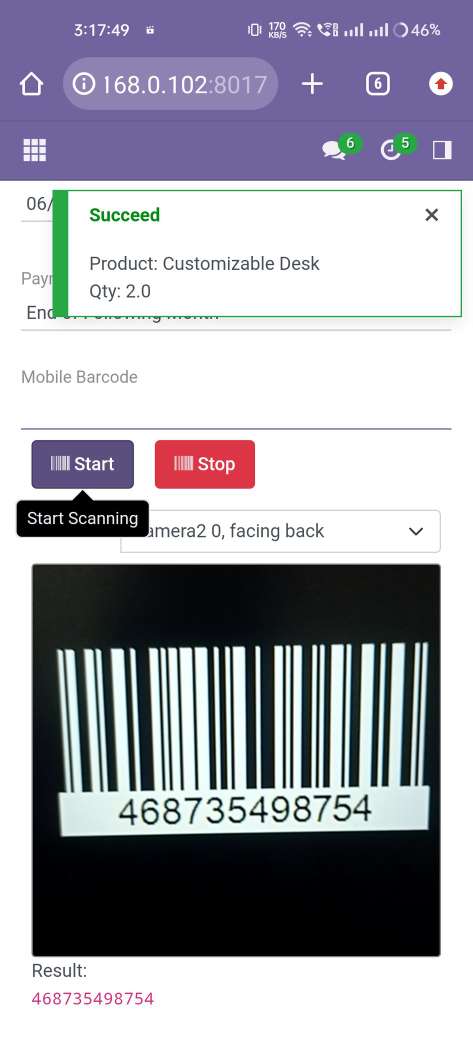
scanned product with Barcode automatically added in order lines if the product already existed then ordered qty increased by 1.
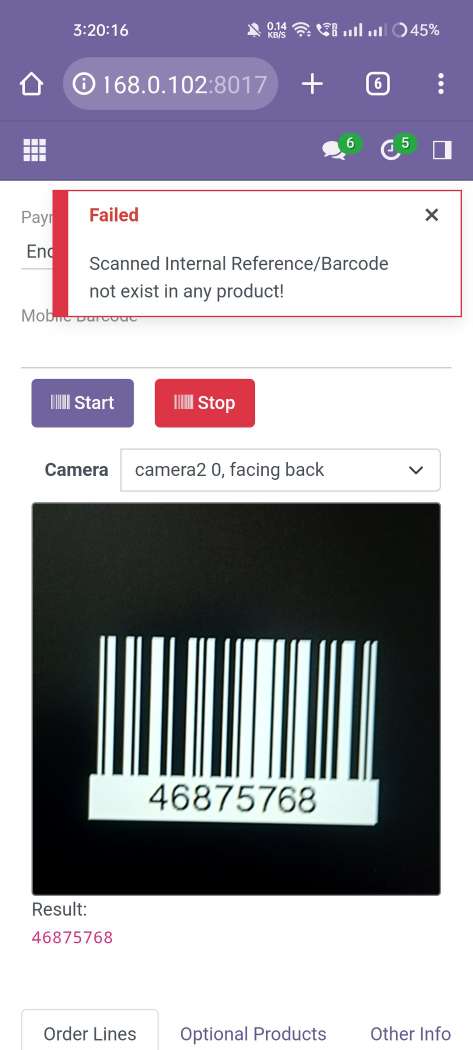
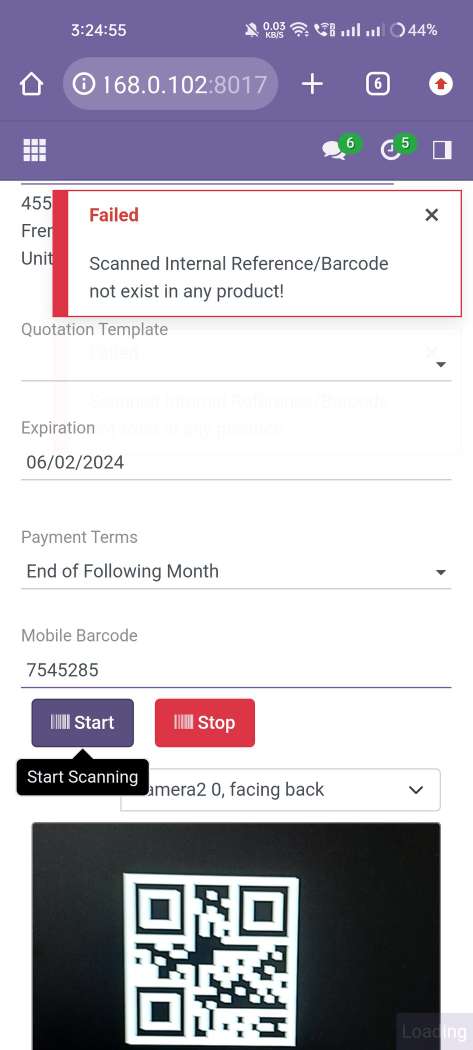
The error message is given if no matching product found.
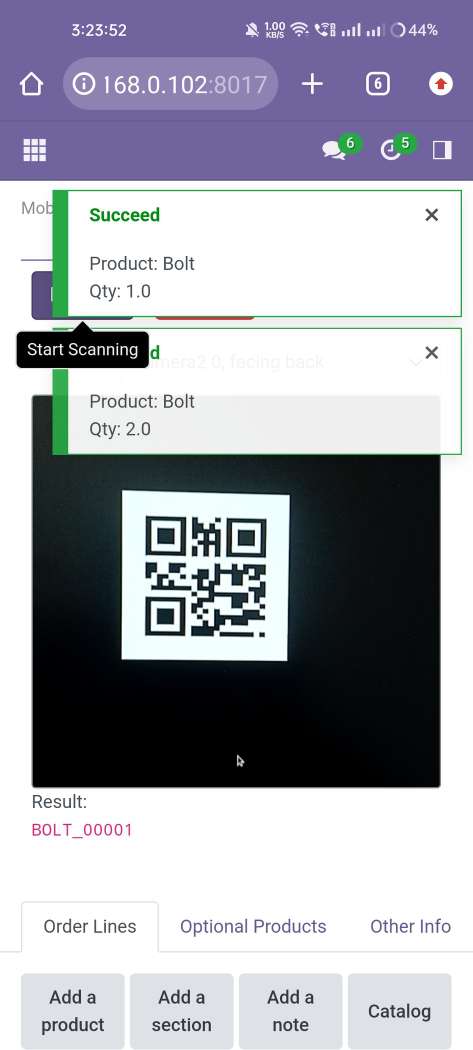
scanned product with QRCode automatically added in order lines if the product already existed then ordered qty increased by 1.
The error message is given if no matching product found.
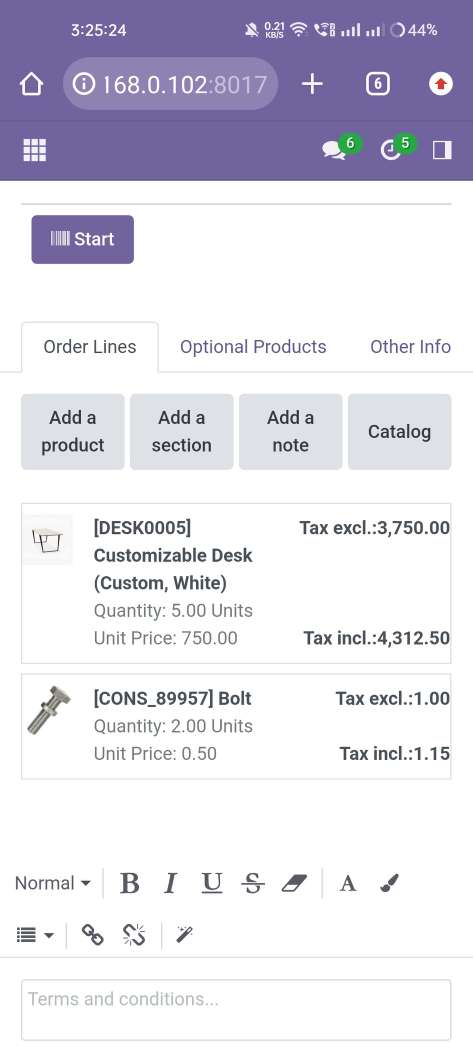
The added product looks like below.
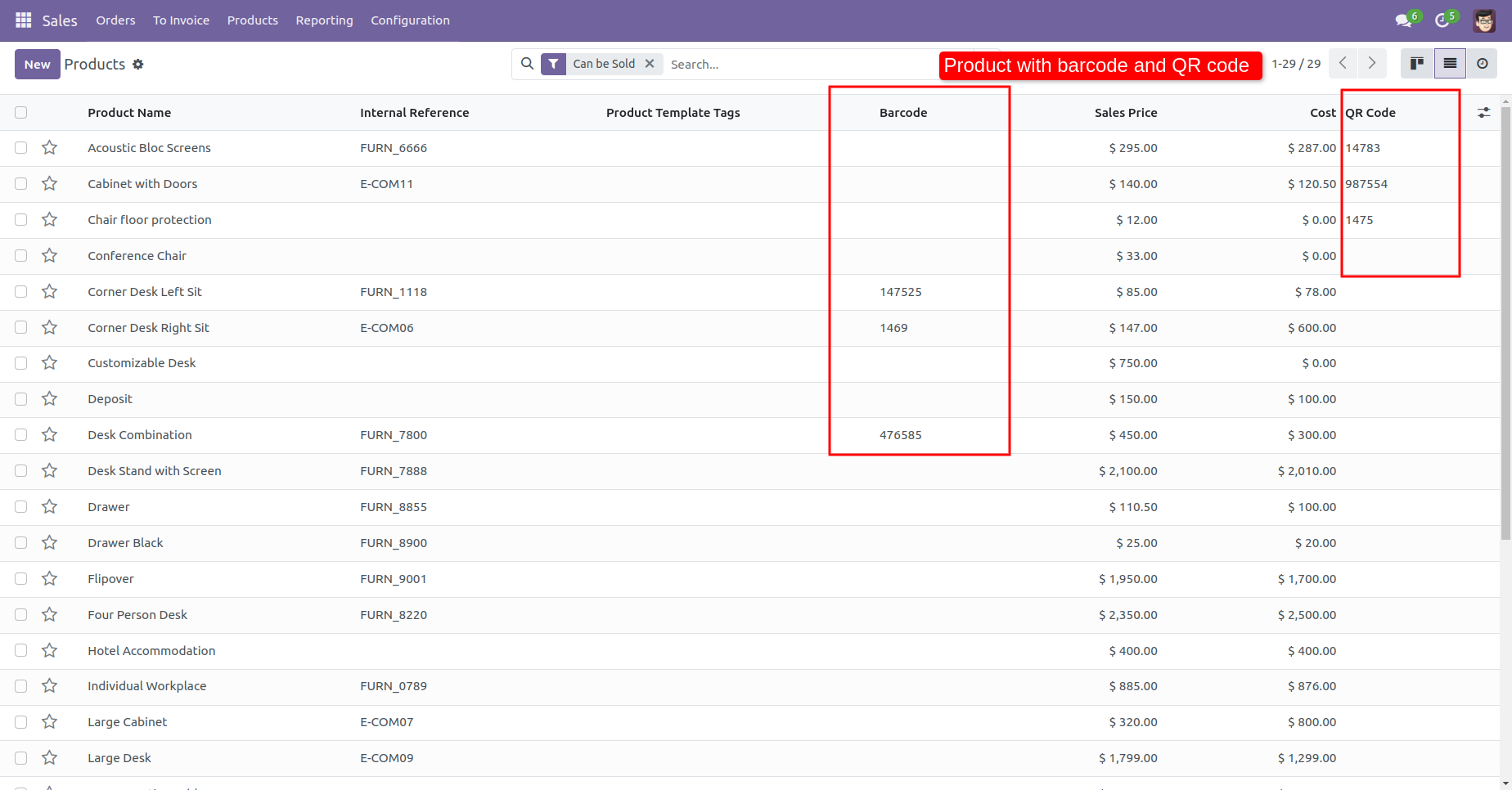
Products with the Barcode & QRCode.
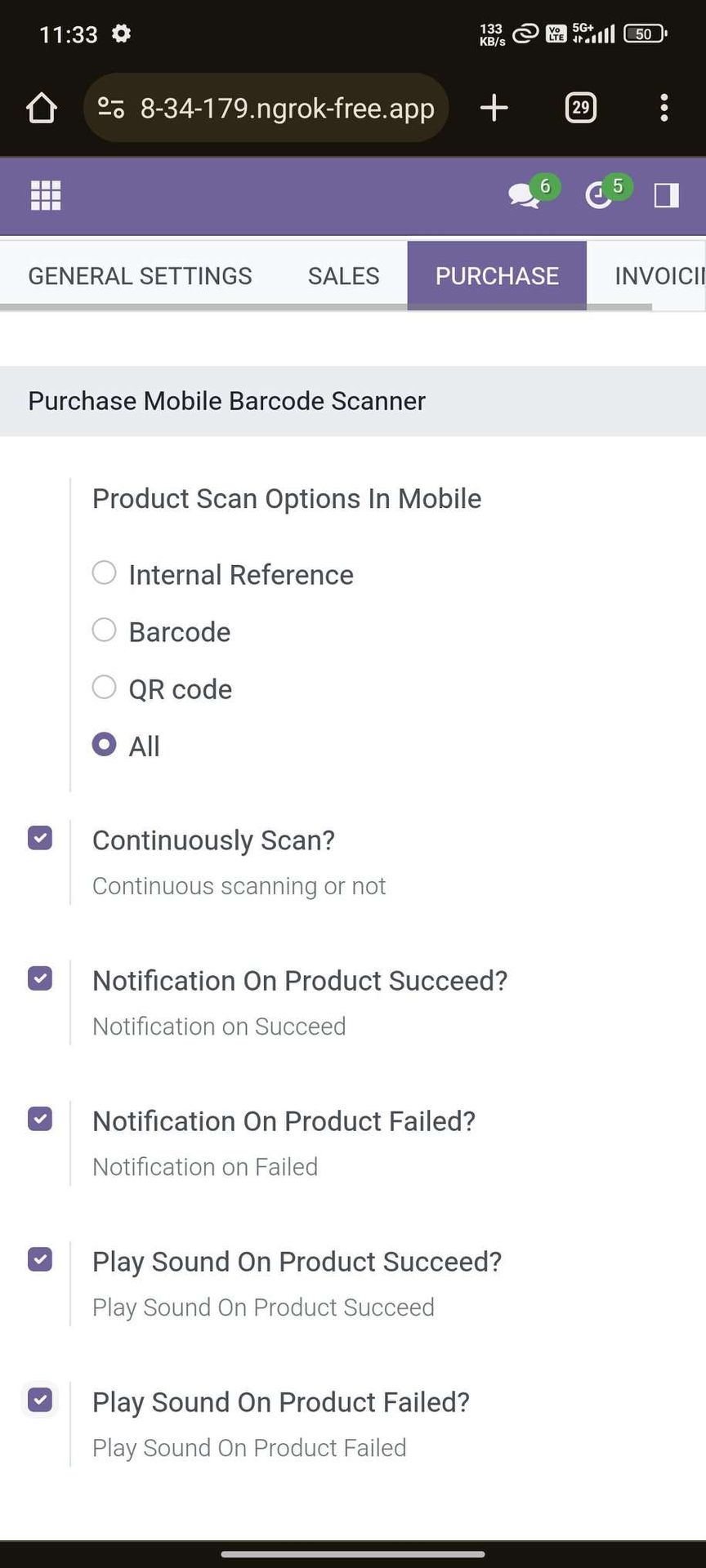
Product scan option in purchase settings whether you want to scan product by Barcode, Internal Reference, QR or All.
Tap the "Start" button to scan on mobile.
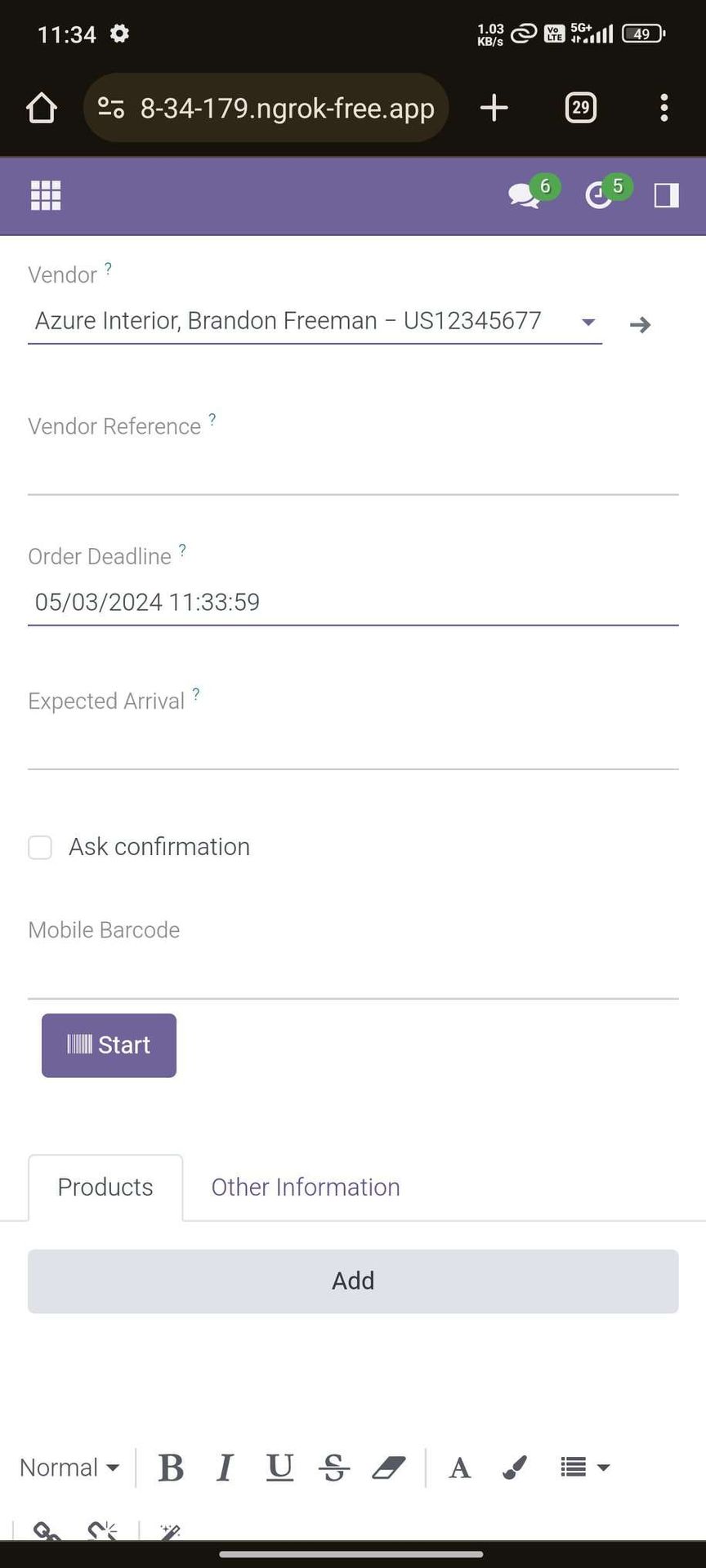
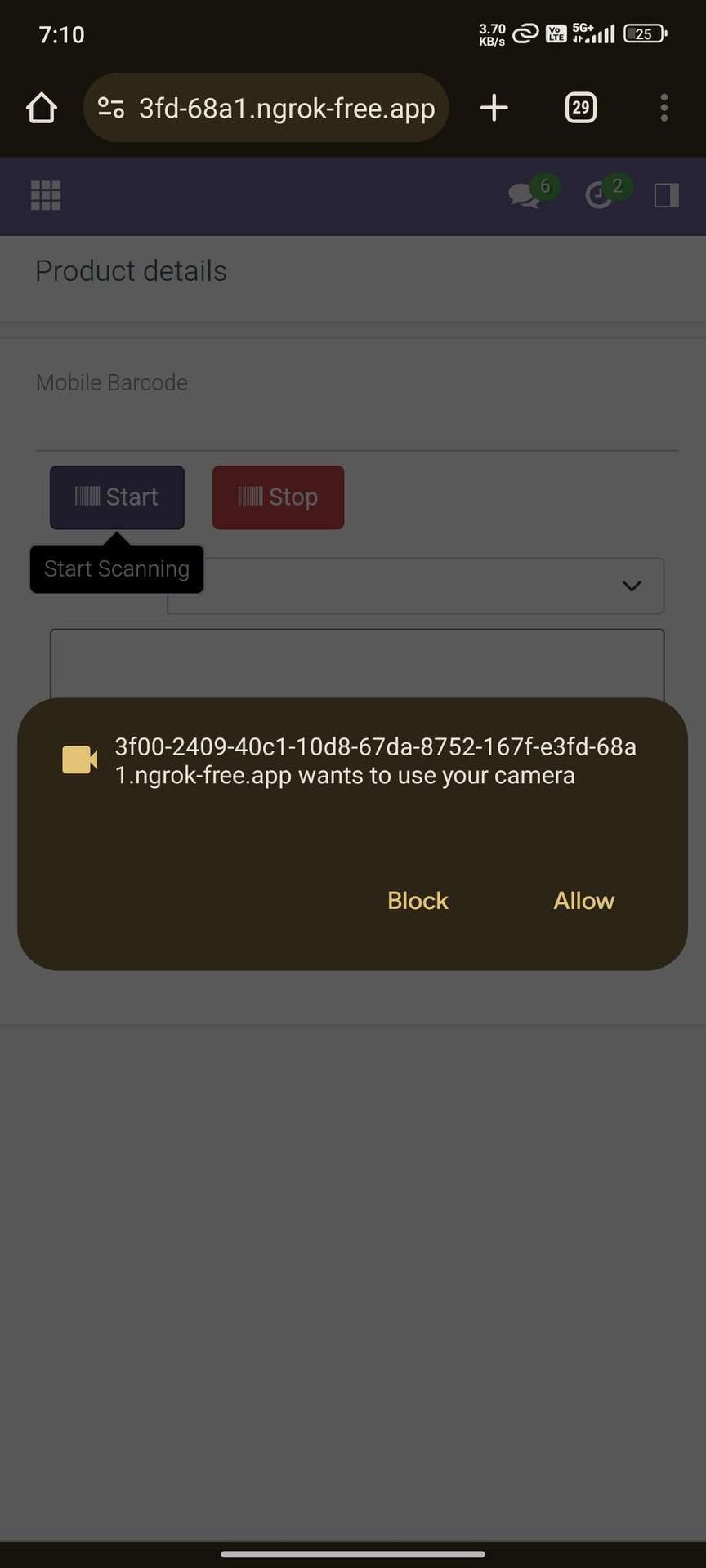
Allow permission to scan from the mobile camera.
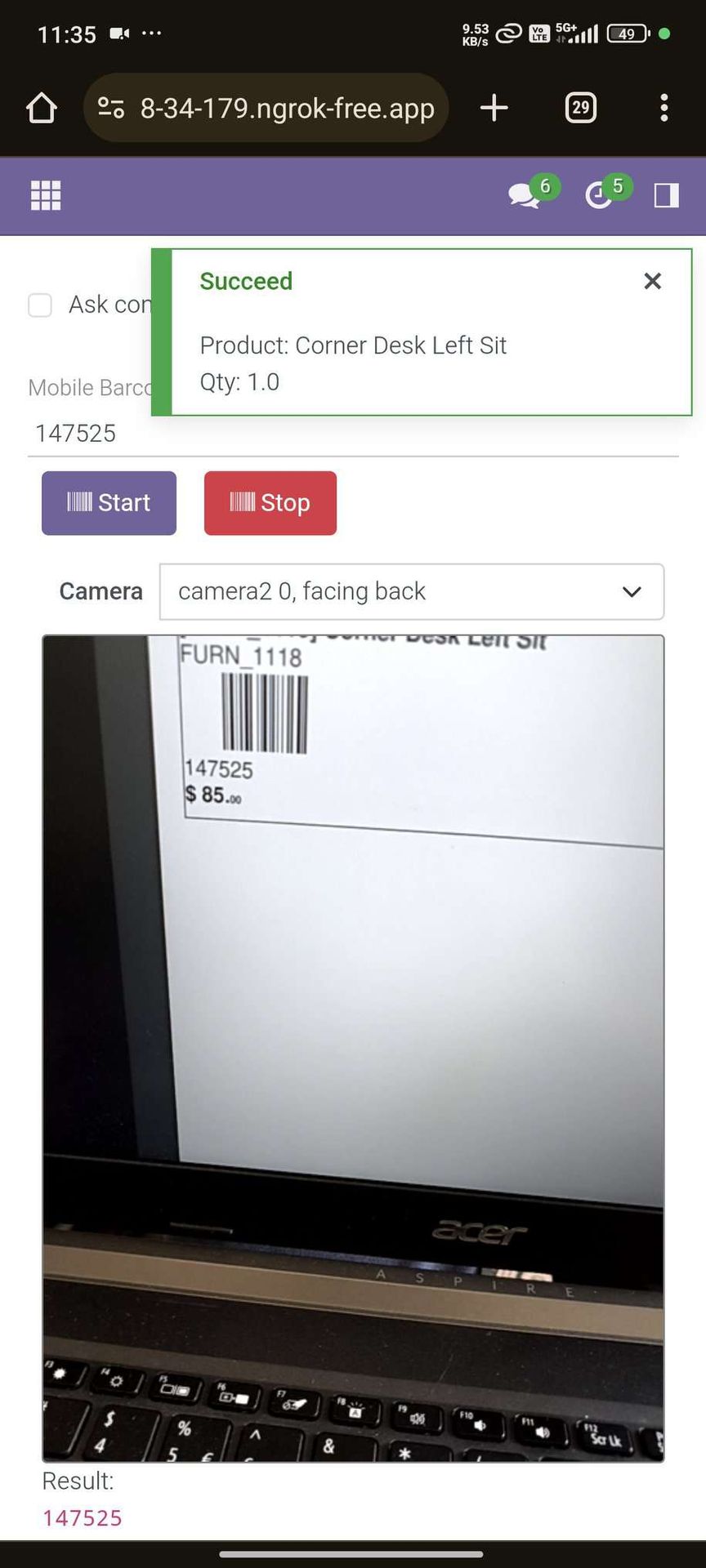
scanned product with Barcode automatically added in products if the product already existed then ordered qty increased by 1.
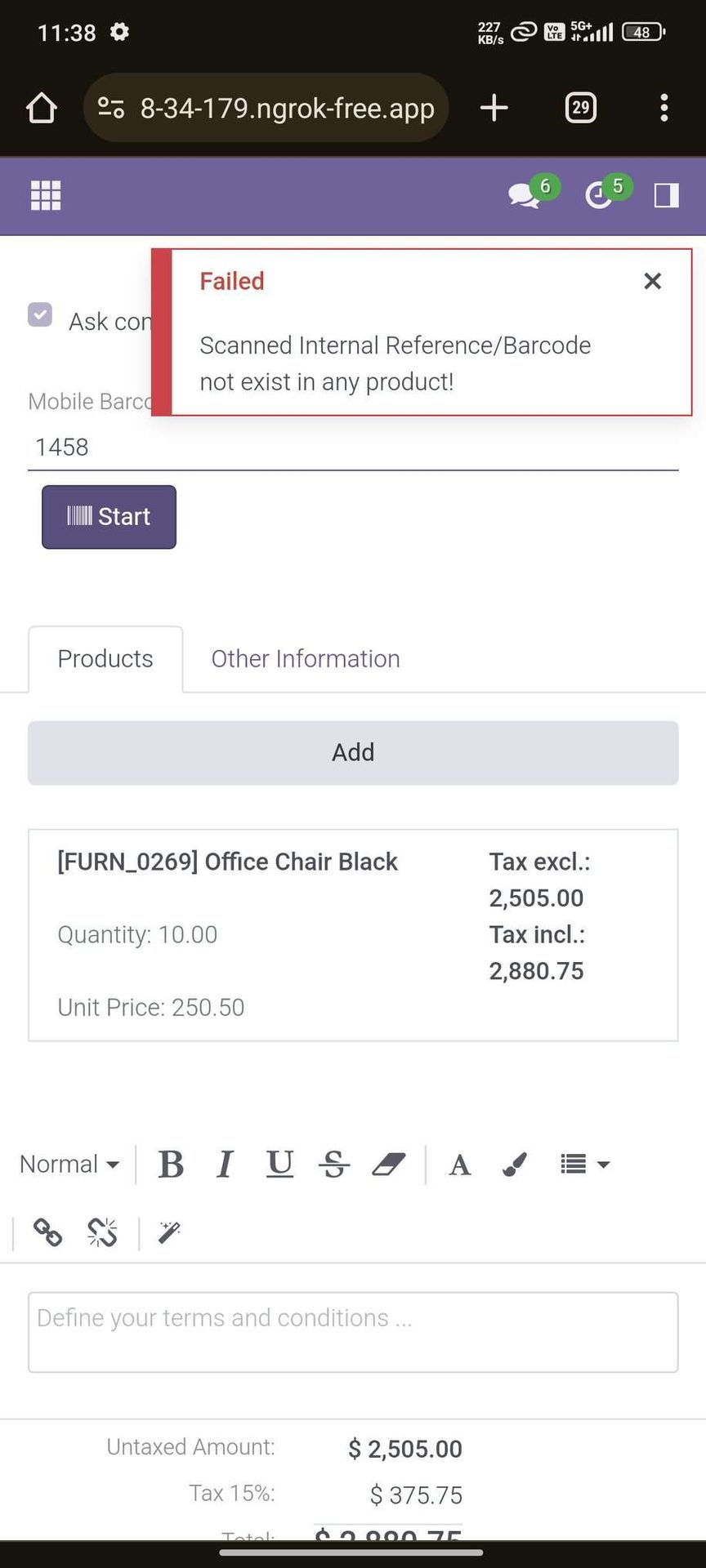
The error message is given if no matching product found.
scanned product with QRCode automatically added in products if the product already existed then ordered qty increased by 1.
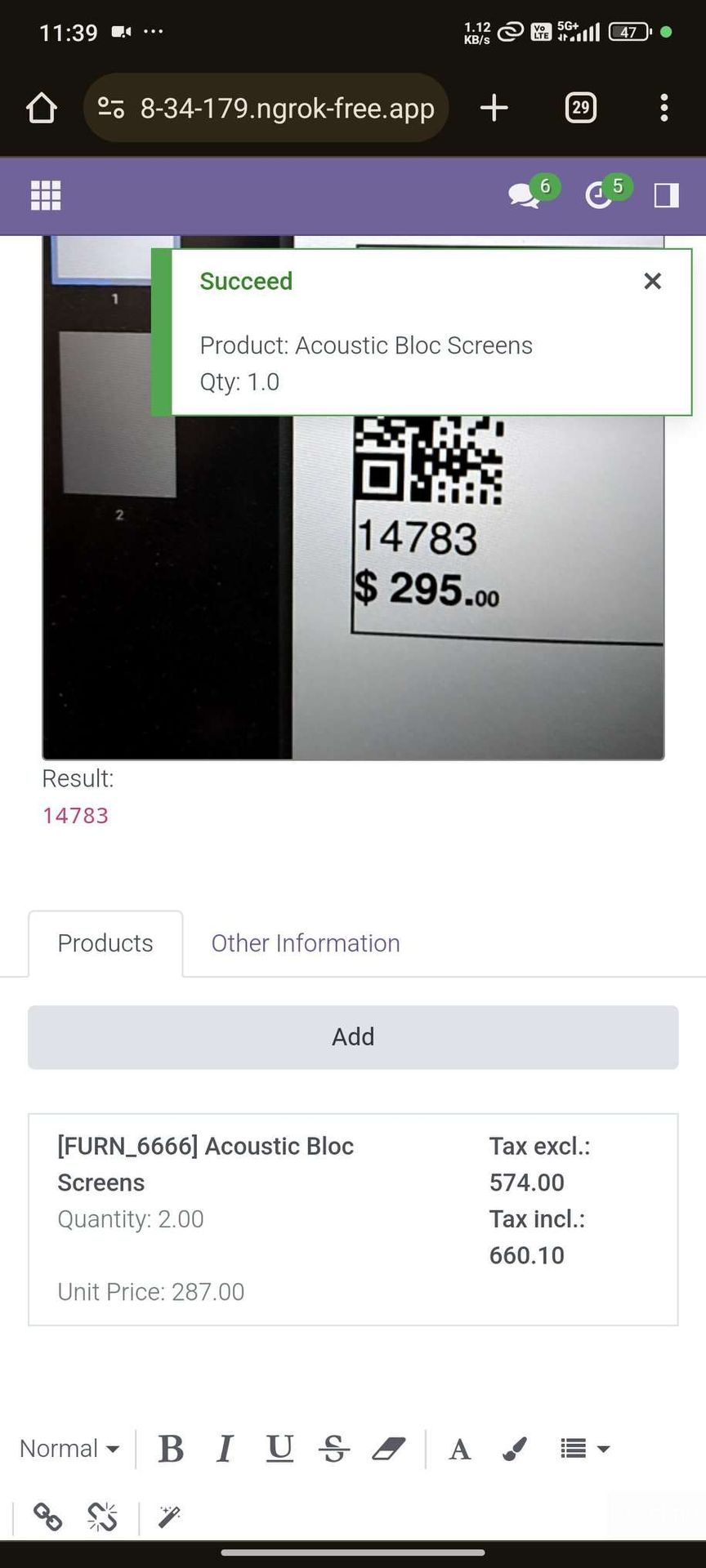
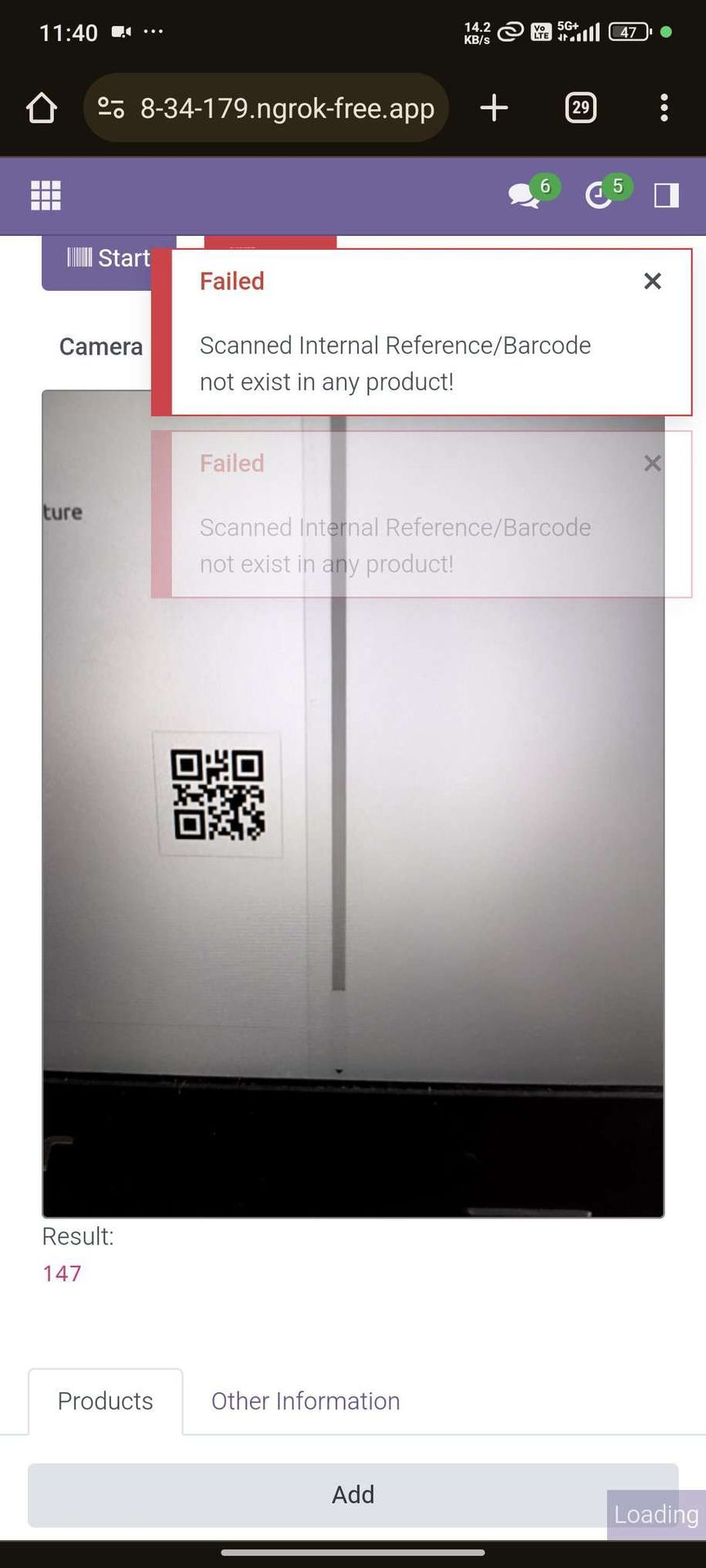
The error message is given if no matching product found.
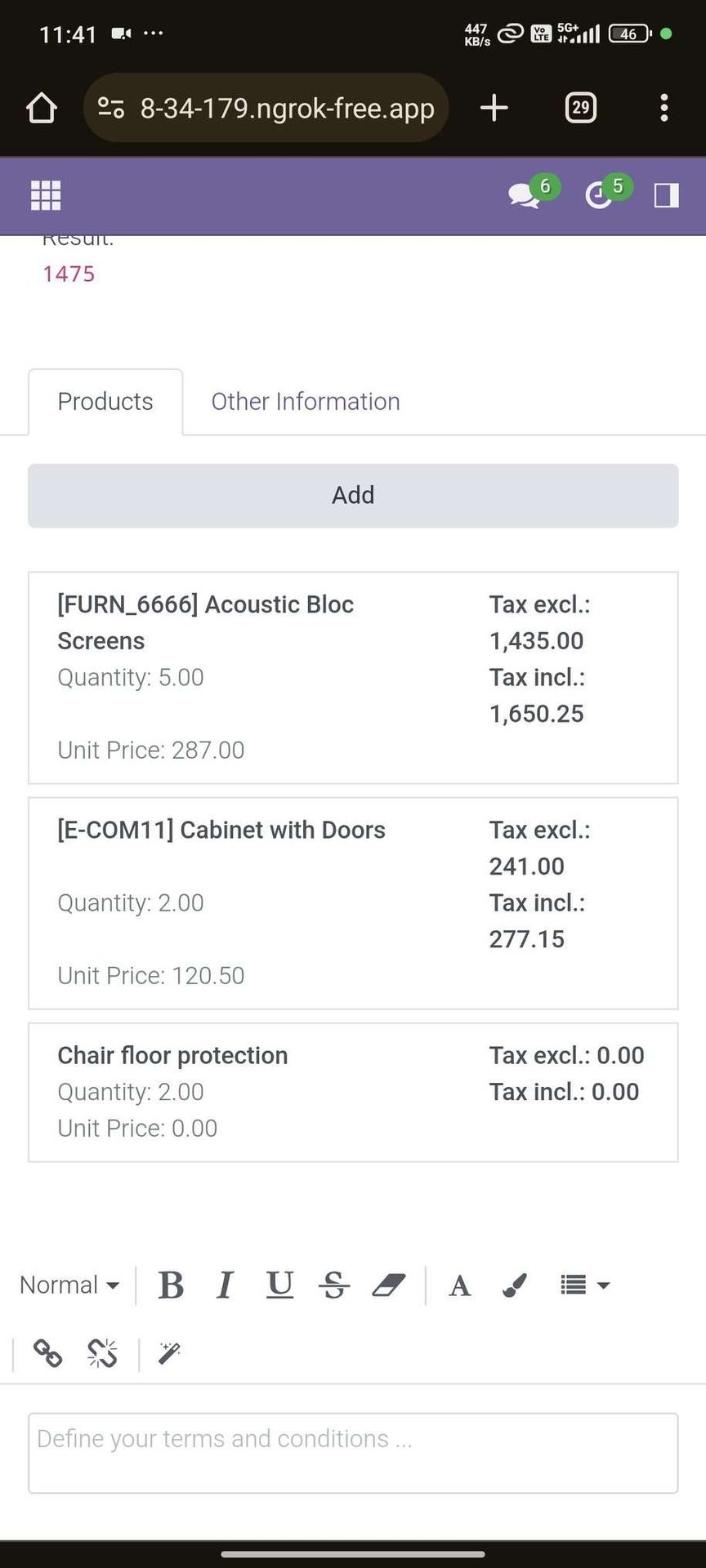
The added product looks like below.
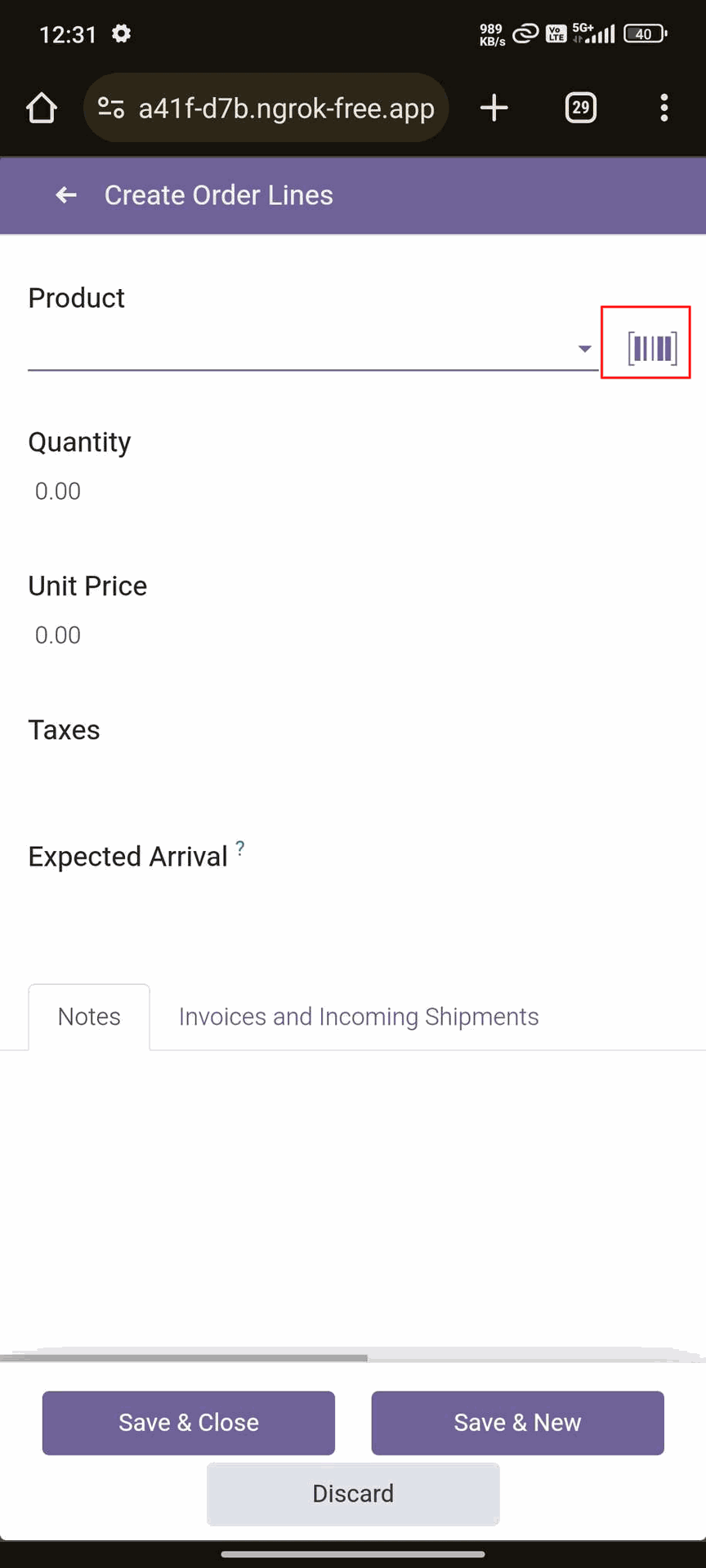
Here, You can see the scanning button in order line.
Products with the Barcode & QRCode.
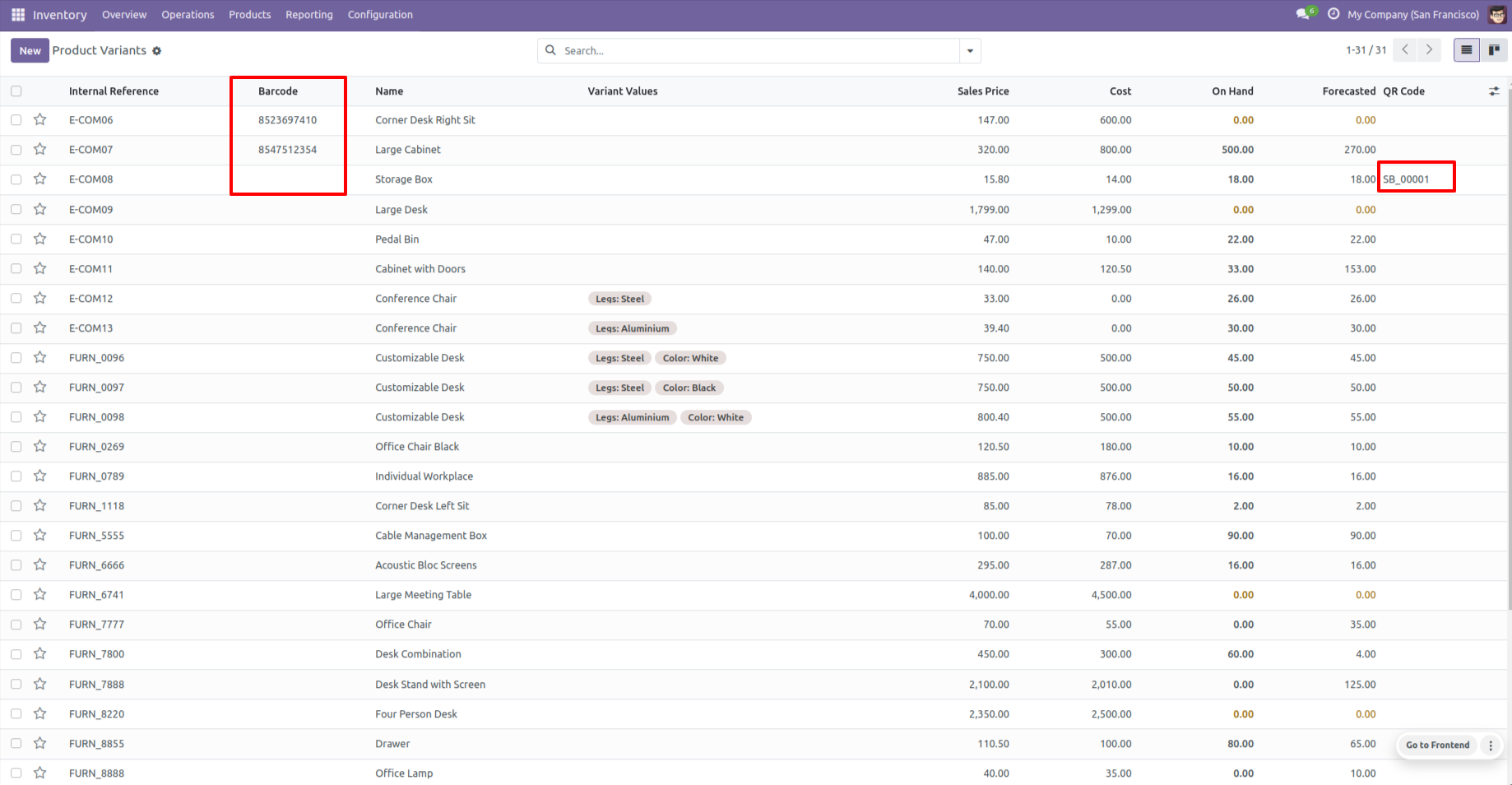
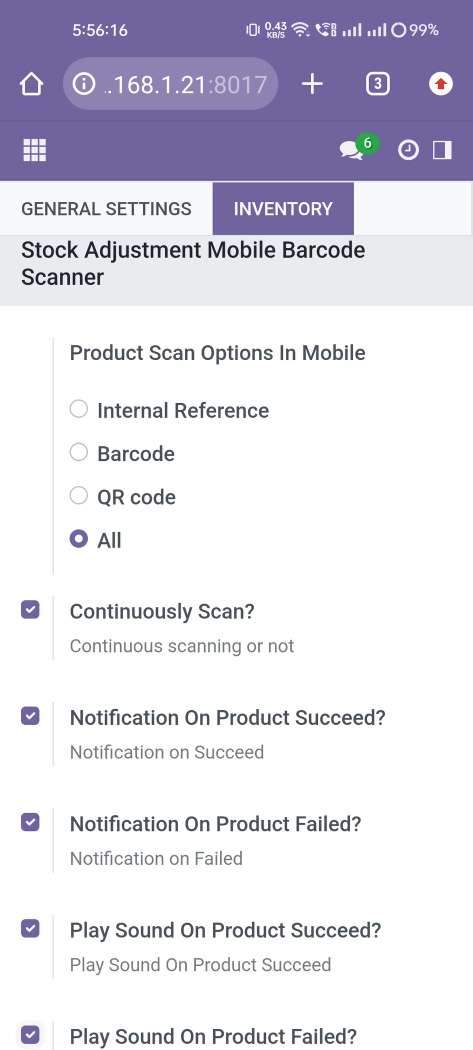
Product scan option in inventory settings whether you want to scan product by Barcode, Internal Reference, QR or All.
Note: Is add a new product in picking? (Stock Picking)
==> You can uncheck it in order to show a warning if the product is not found in the picking order line.
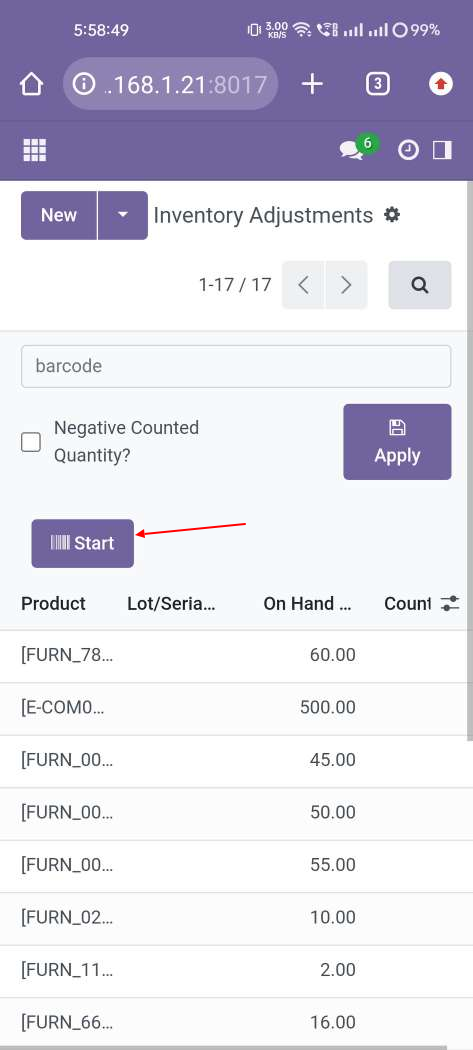
Tap the "Start" button to scan on mobile.
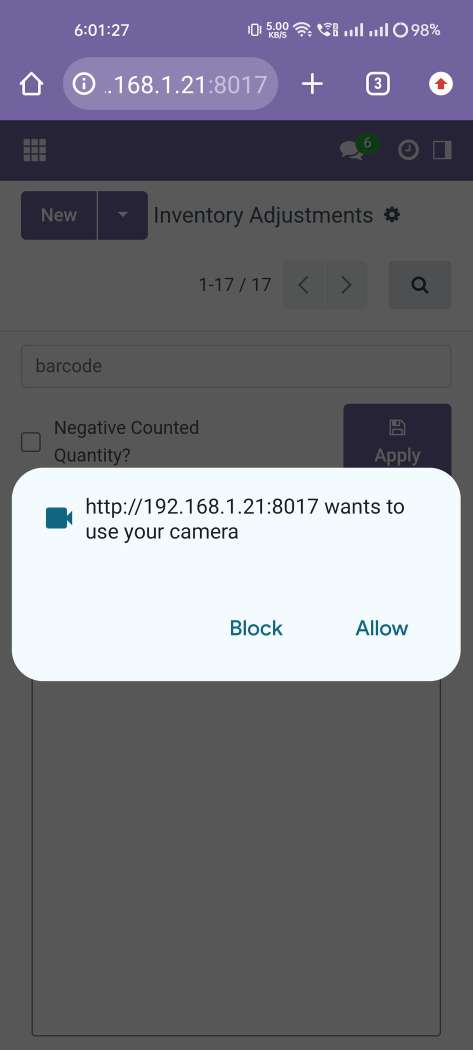
Allow permission to scan from the mobile camera.
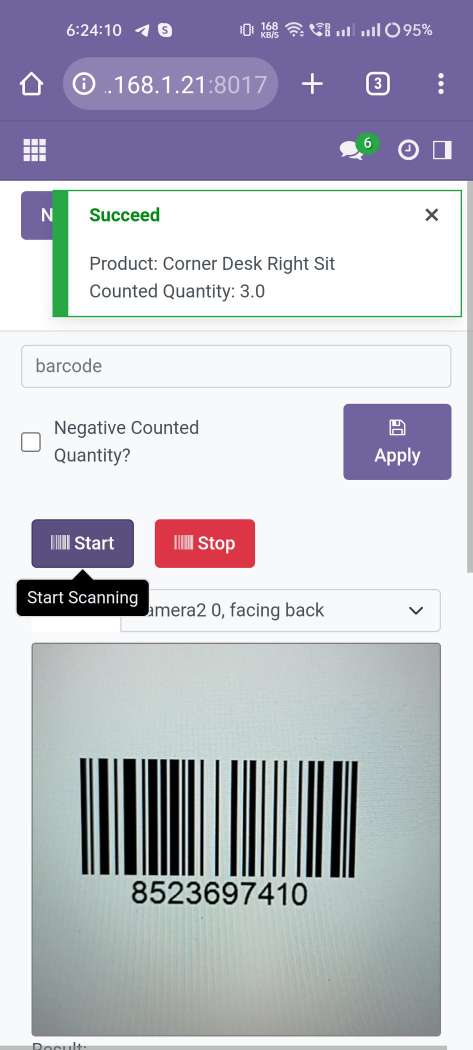
scanned product with Barcode automatically added in detailed operations if the product already existed then ordered qty increased by 1.
==> The user can deliver a higher quantity than the demand quantity.
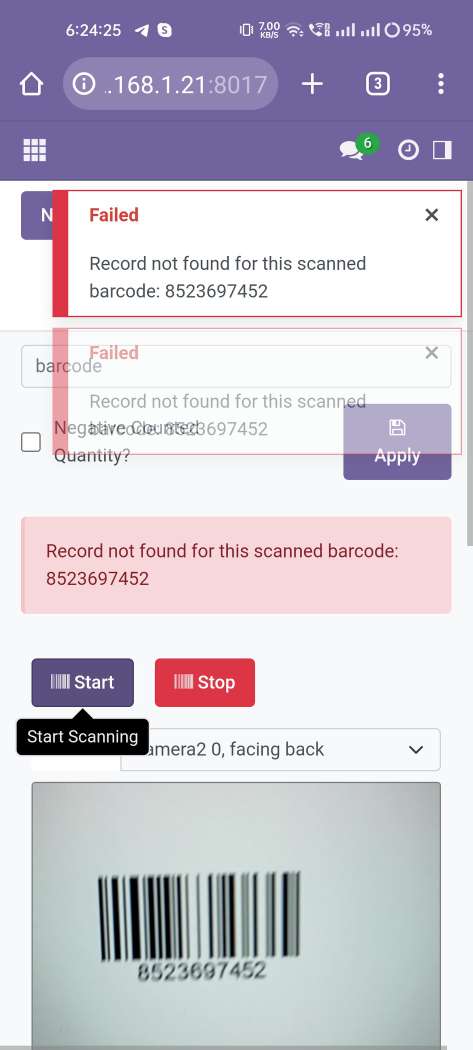
The error message is given if no matching product found.
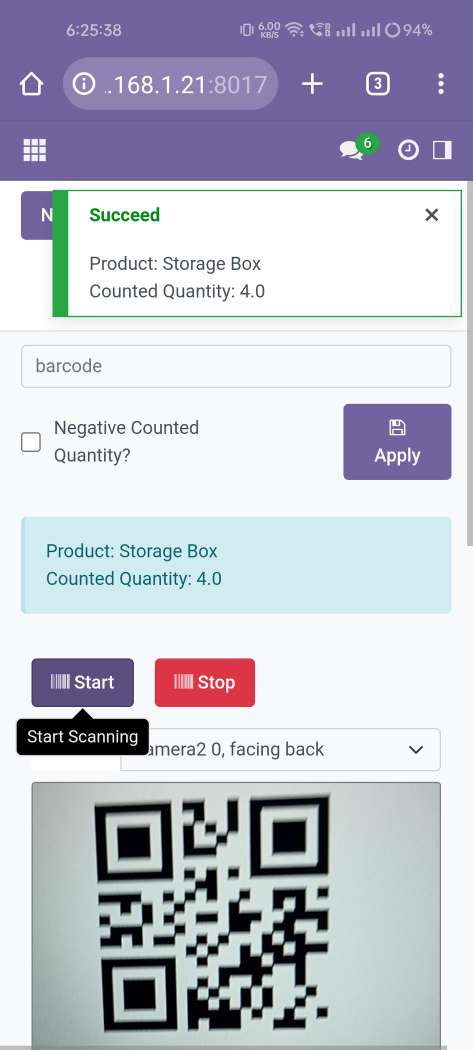
scanned product with QRCode automatically added in detailed operations if the product already existed then ordered qty increased by 1.
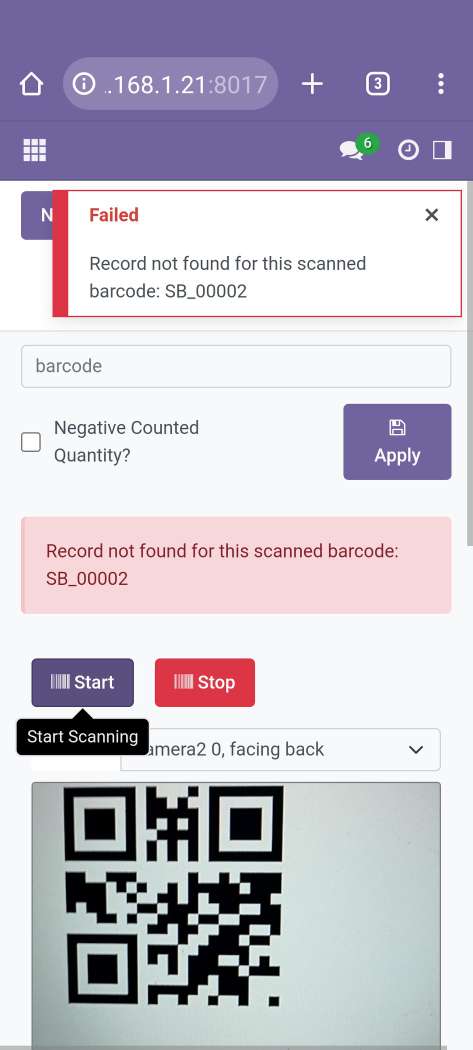
The error message is given if no matching product found.
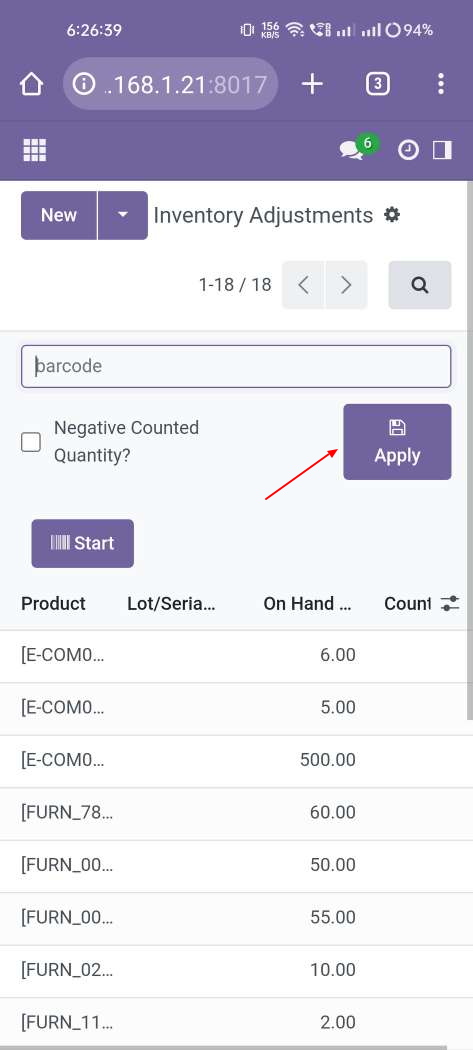
Press "Apply" to apply that difference.
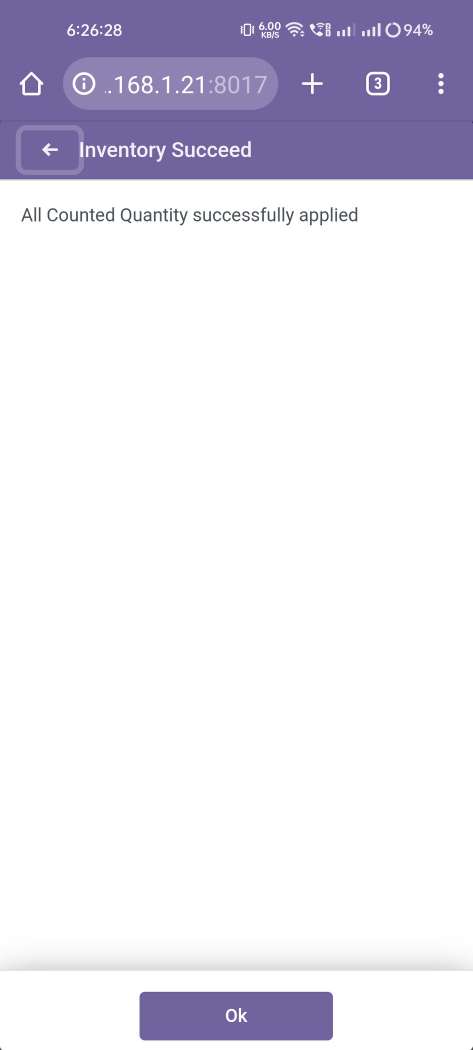
Product qty difference applied.
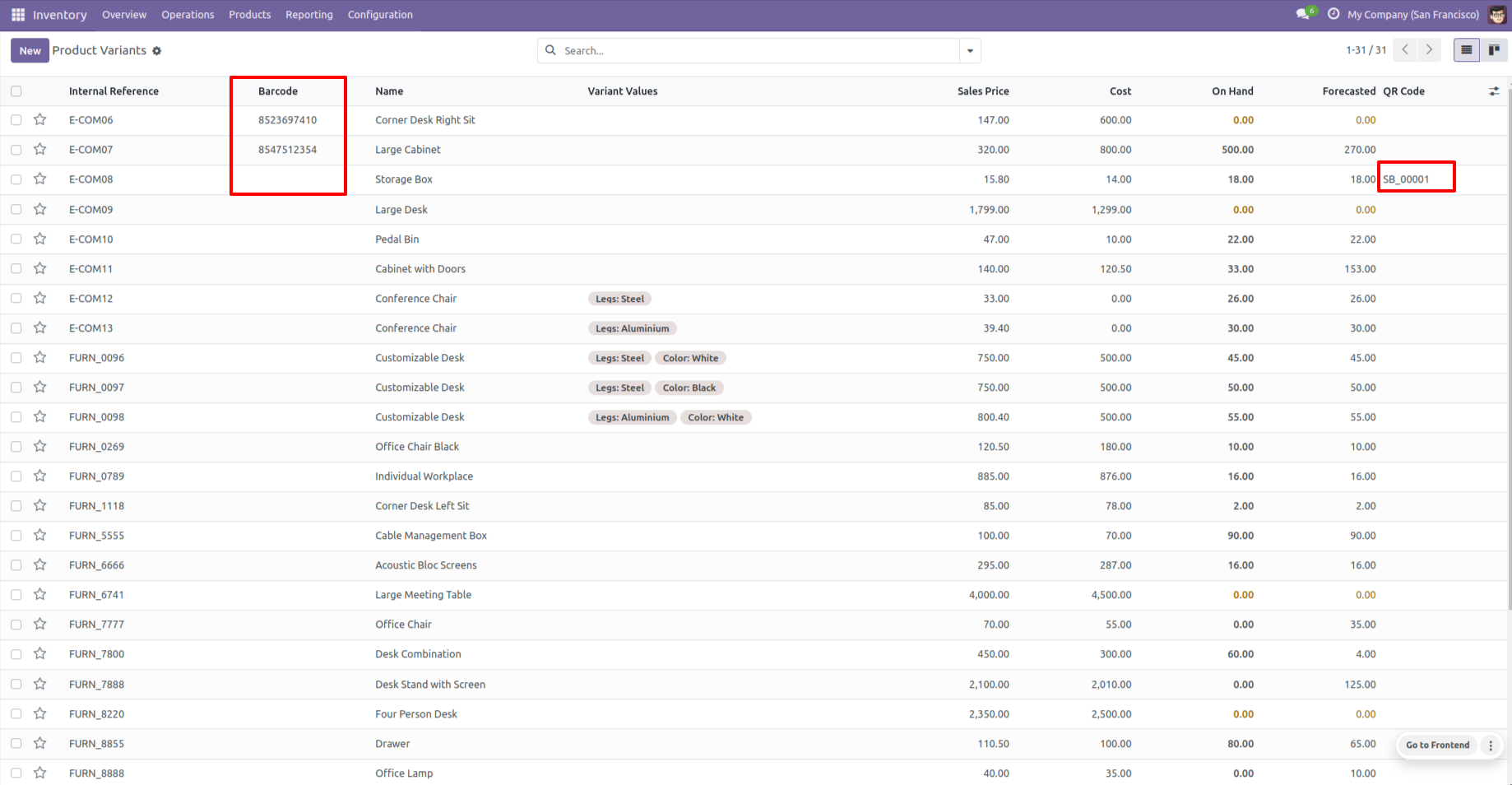
Product with the Barcode & QRCode.
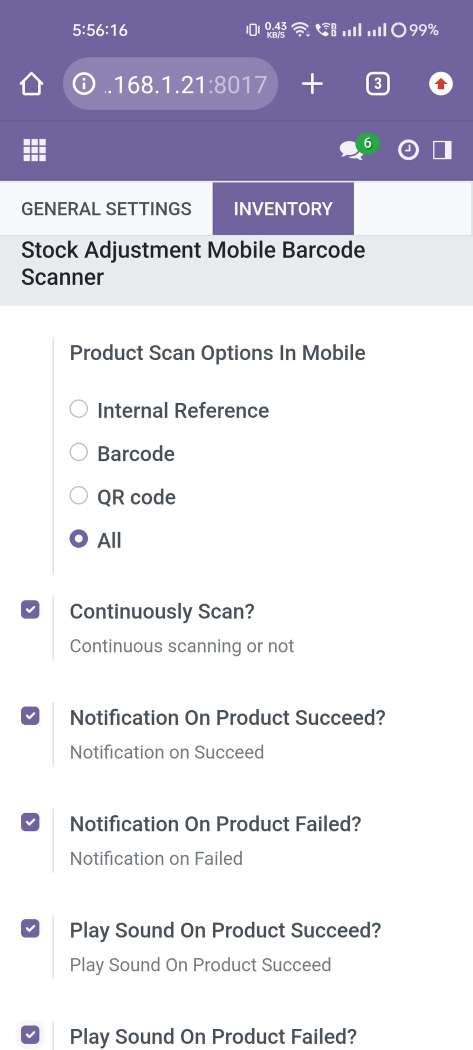
Product scan option in inventory settings whether you want to scan product by Barcode, Internal Reference, QRCode or All.
Tap the "Start" button to scan on mobile.

Allow permission to scan from the mobile camera.
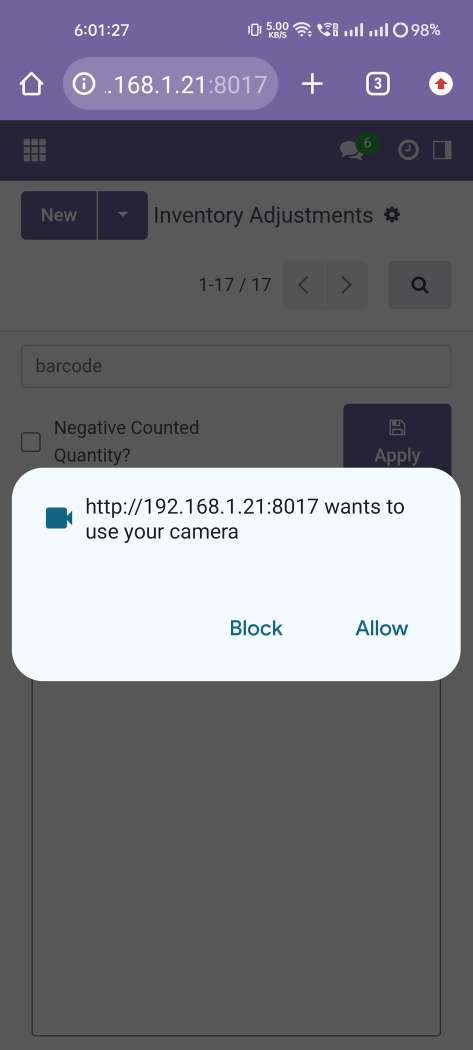
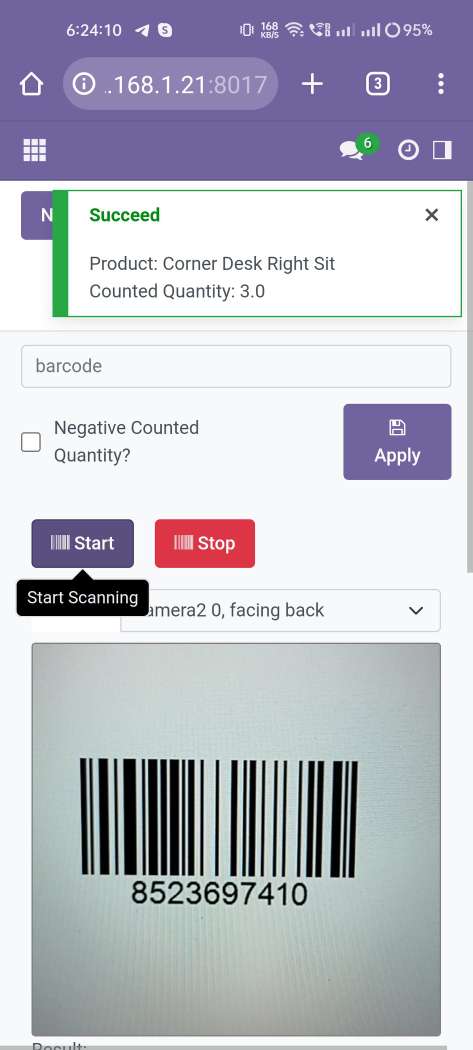
scanned product with Barcode automatically added in inventory details if the product already existed in inventory details then ordered qty increased by 1.
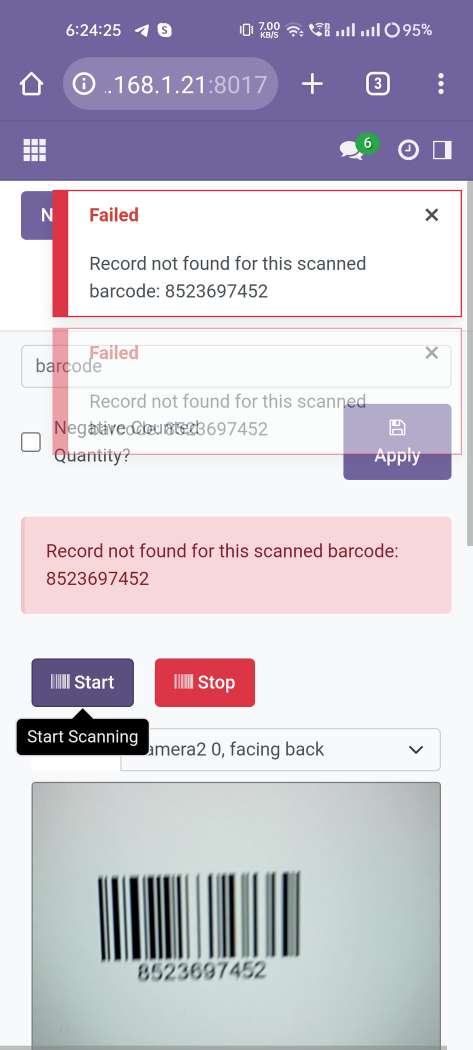
The error message is given if no matching product found.
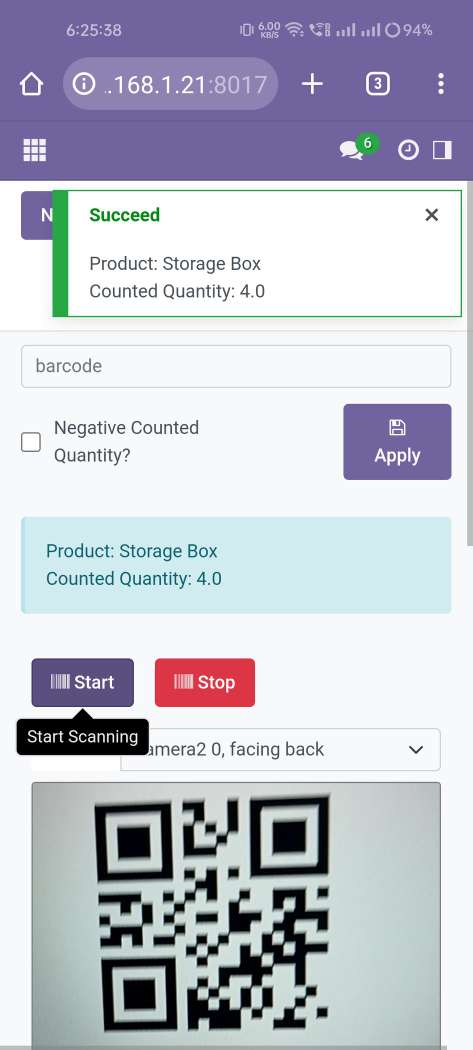
scanned product with QRCode automatically added in detailed operations if the product already existed in inventory details then ordered qty increased by 1.
The error message is given if no matching product found.
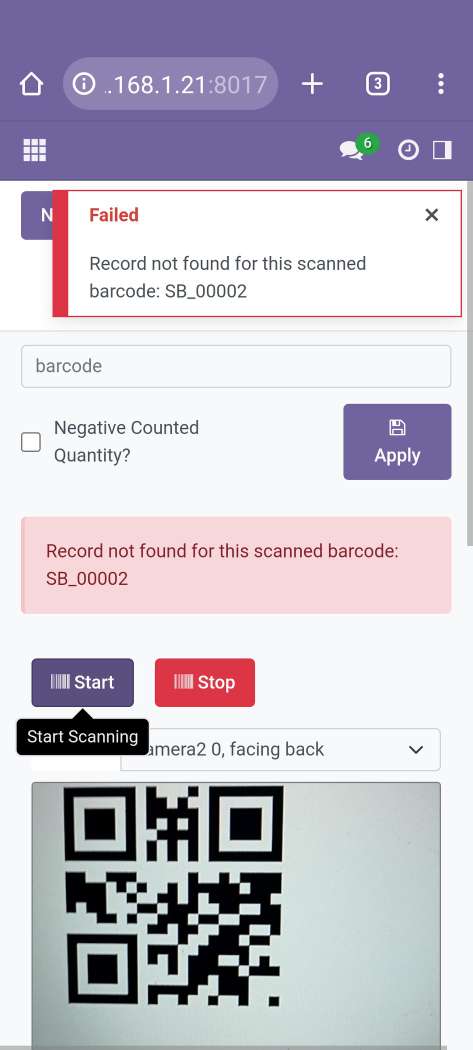
The added product in detailed operations looks like below.

The added product in detailed operations looks like below.
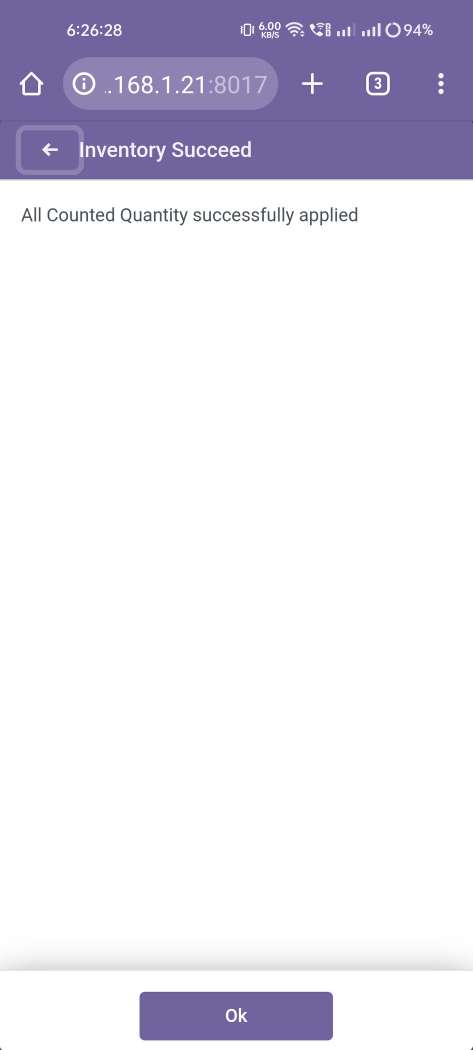
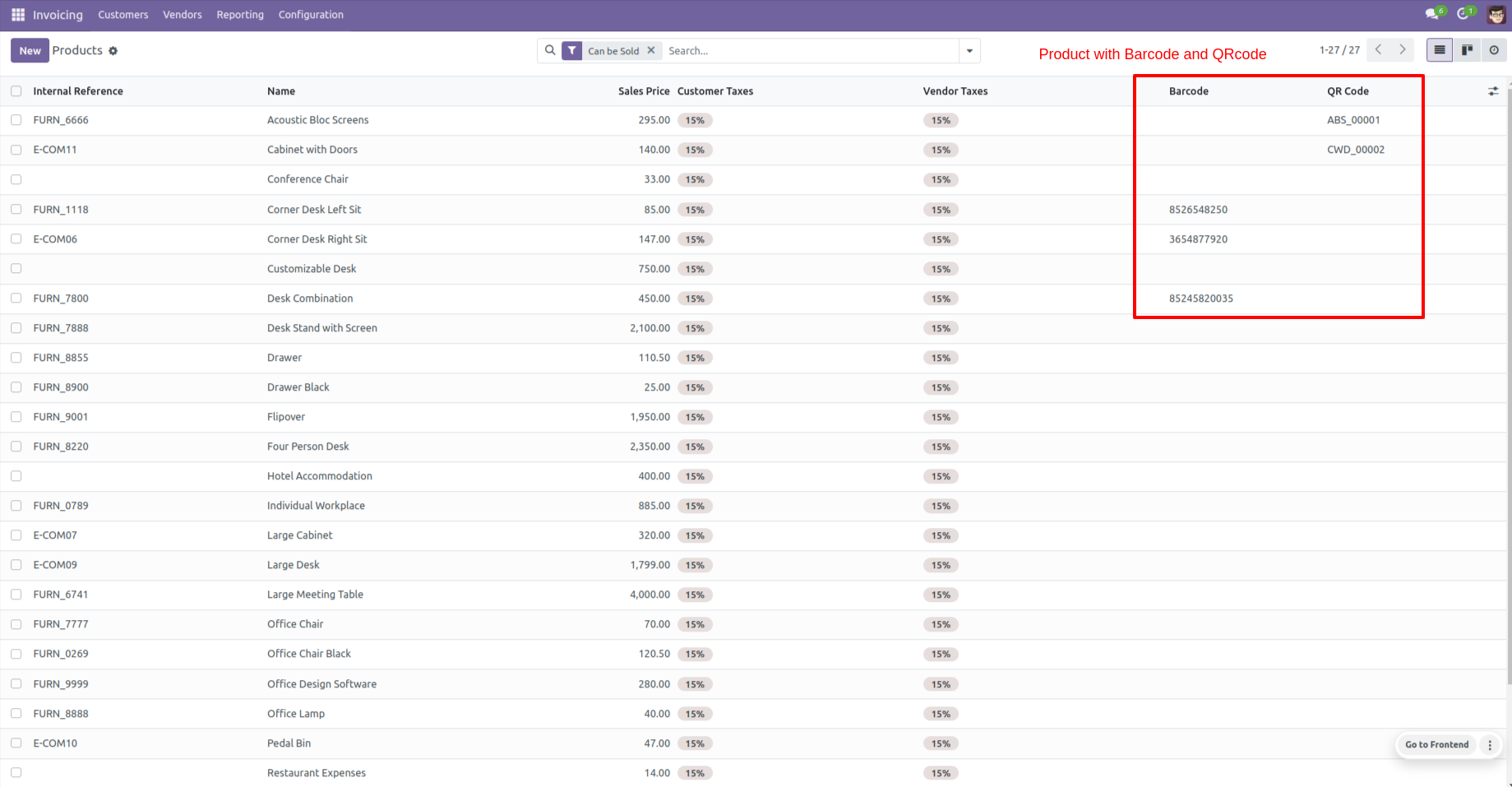
Product with the Barcode & QRCode.
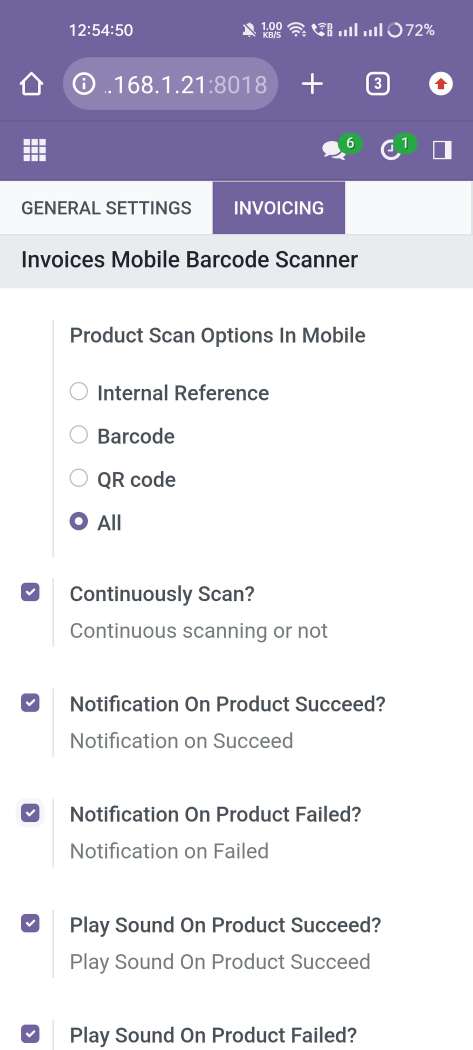
Product scan option in invoice settings whether you want to scan product by Barcode, Internal Reference, QR or All.
Tap the "Start" button to scan on mobile.
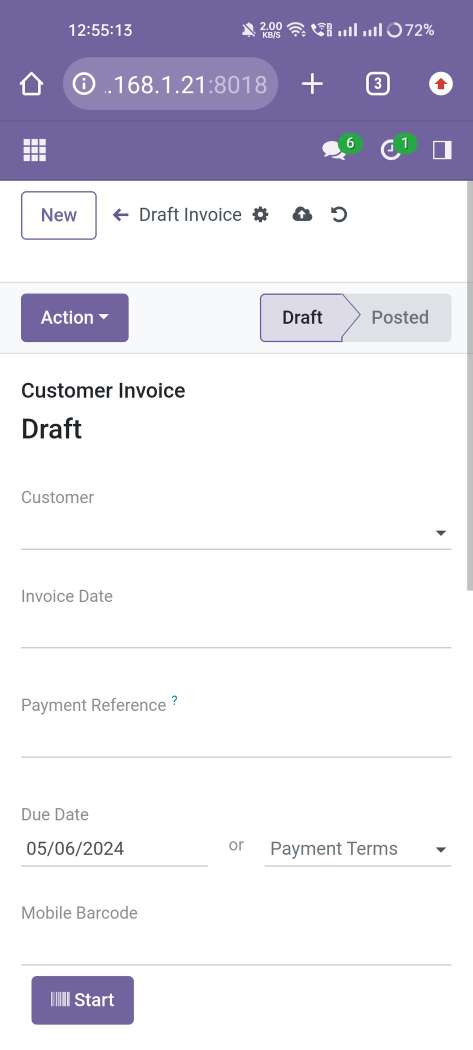
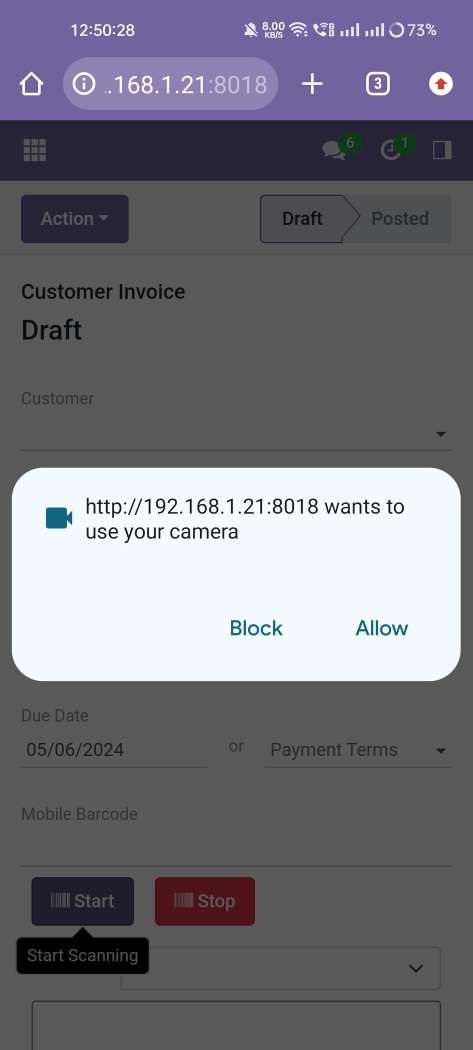
Allow permission to scan from the mobile camera.
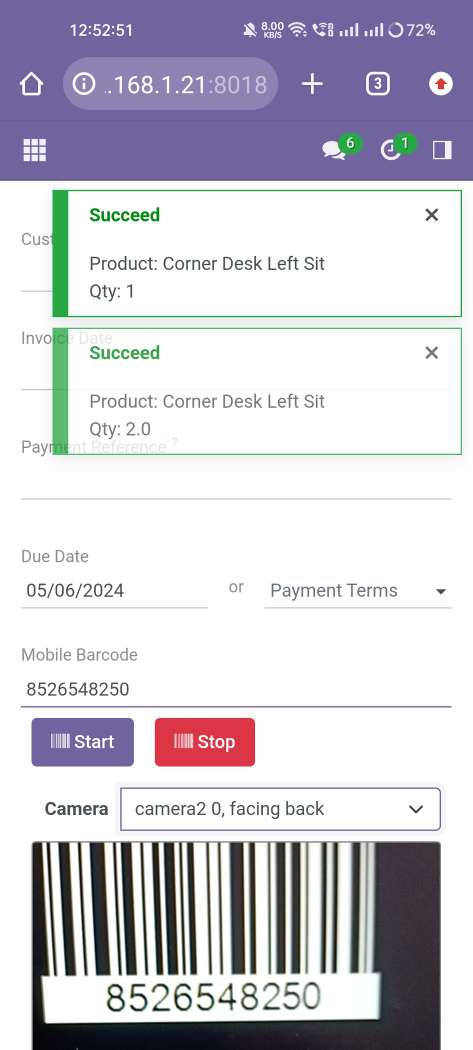
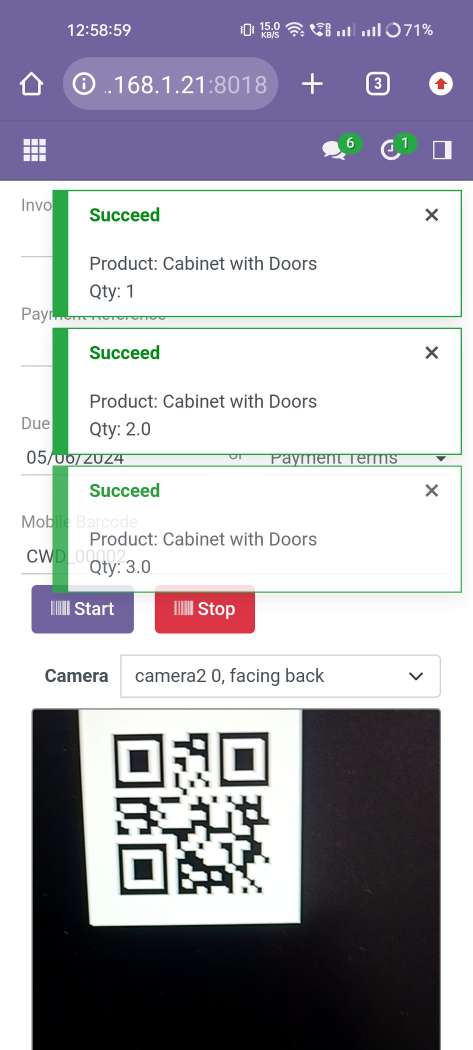
scanned product with QRCode automatically added in invoice line if the product already existed then ordered qty increased by 1.
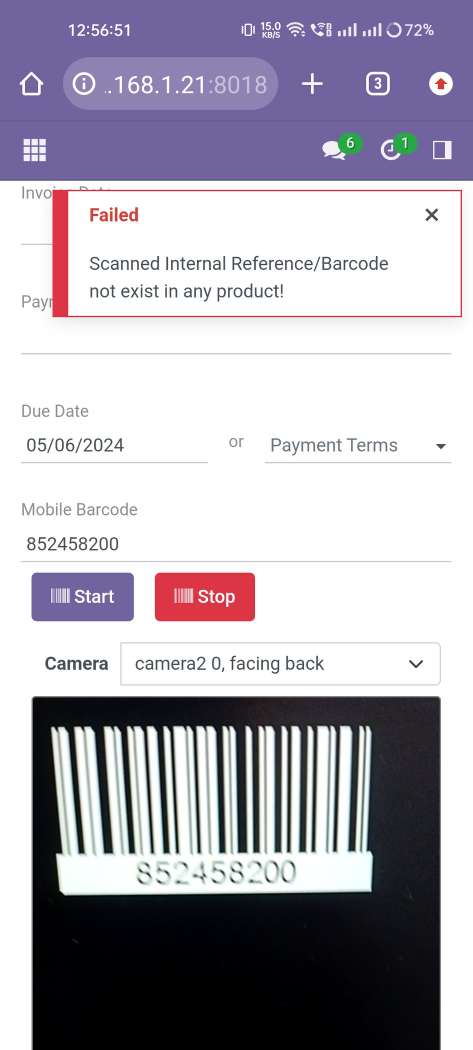
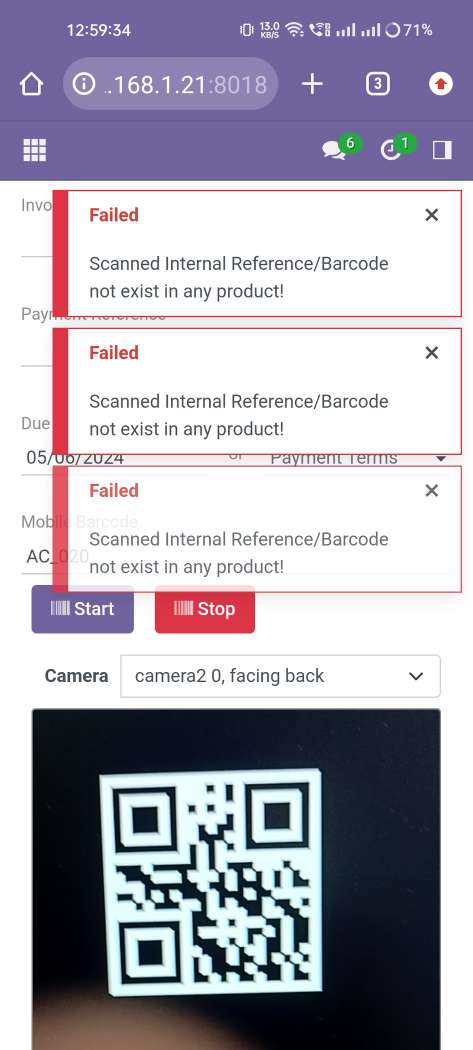
The error message is given if no matching product found.
scanned product with QRCode automatically added in detailed operations if the product already existed in inventory details then ordered qty increased by 1.
The error message is given if no matching product found.
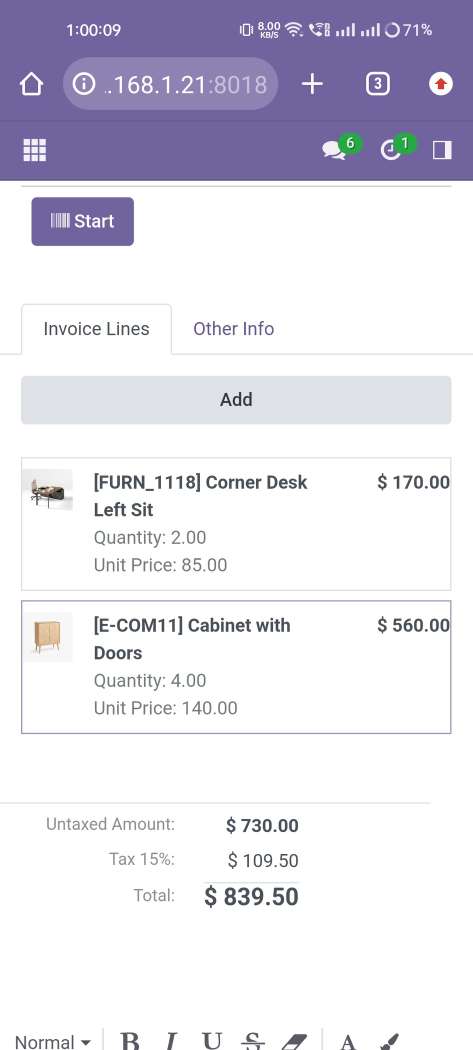
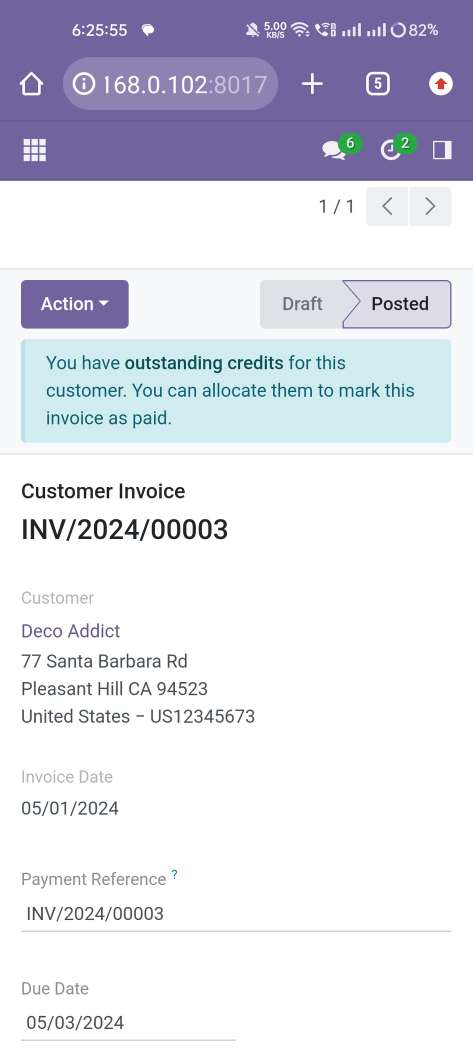
The added product in invoice line looks like below.
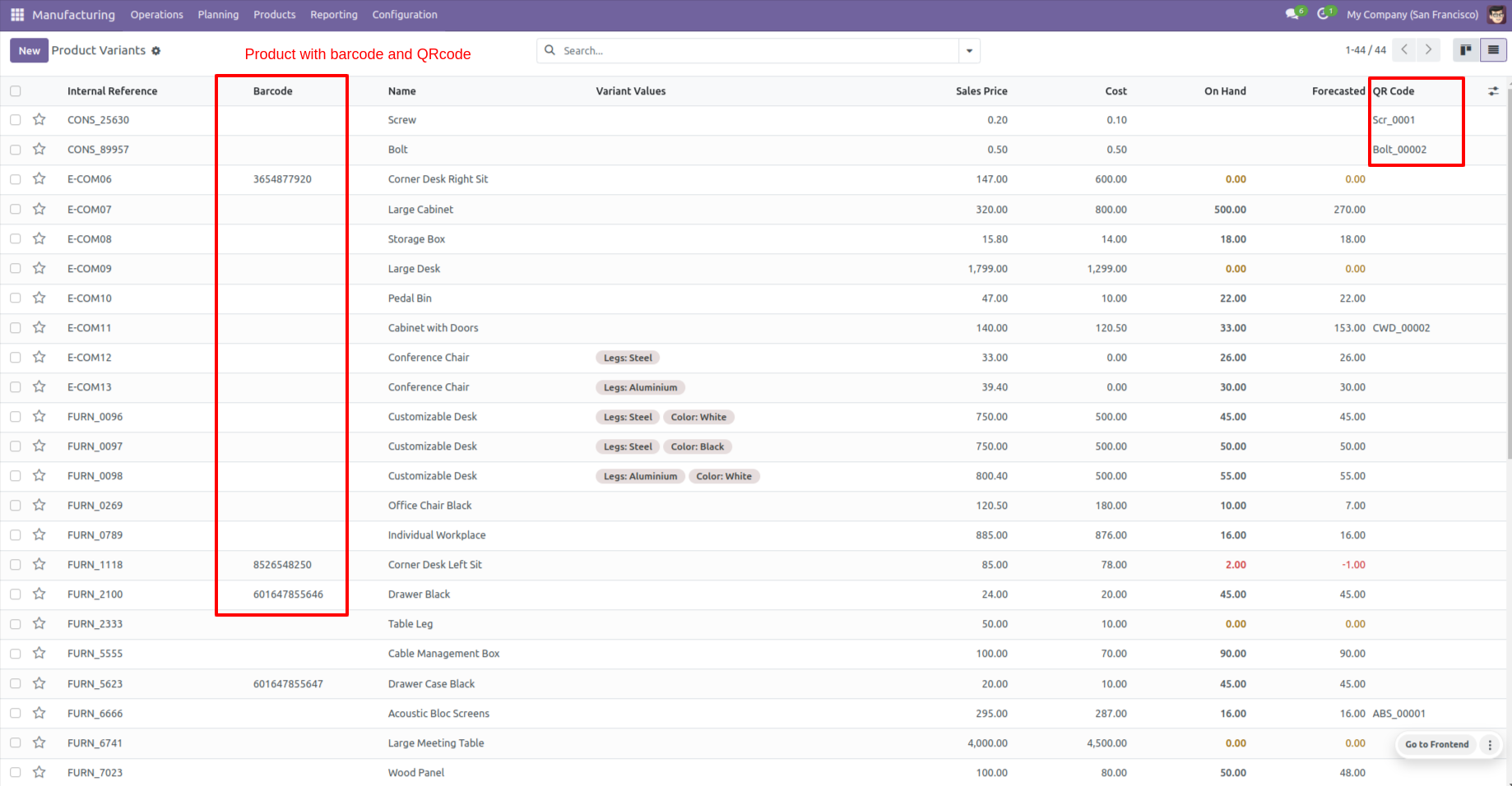
Product with the Barcode & QRCode.
Product scan option in manufacturing settings whether you want to scan product by Barcode, Internal Reference, QRCode or All.
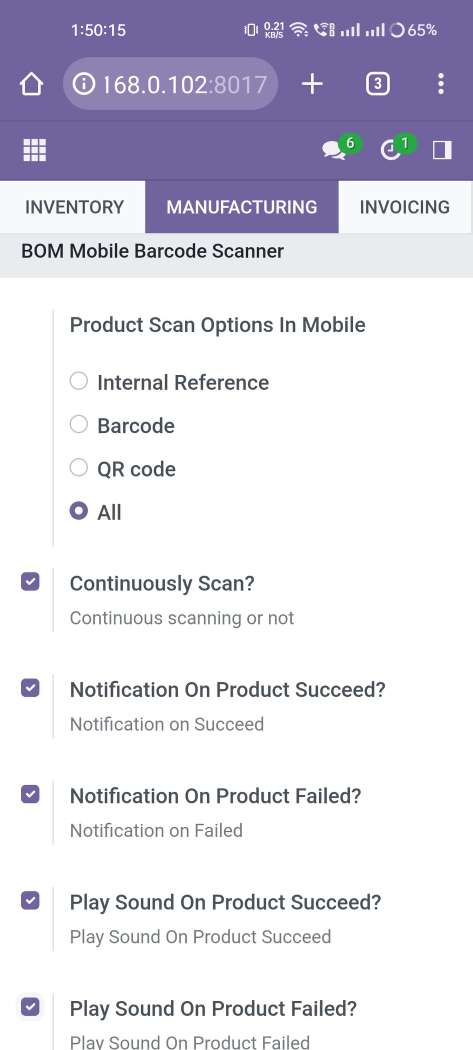
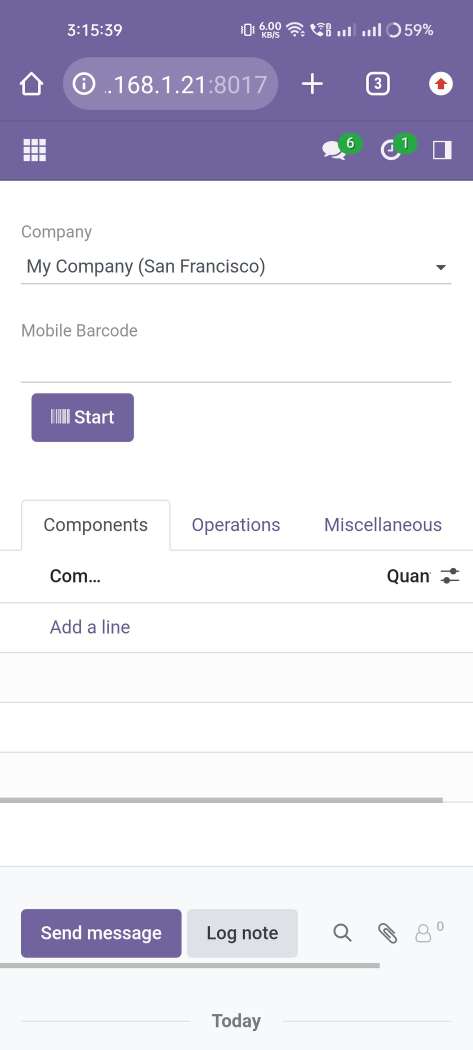
Tap the "Start" button to scan on mobile.
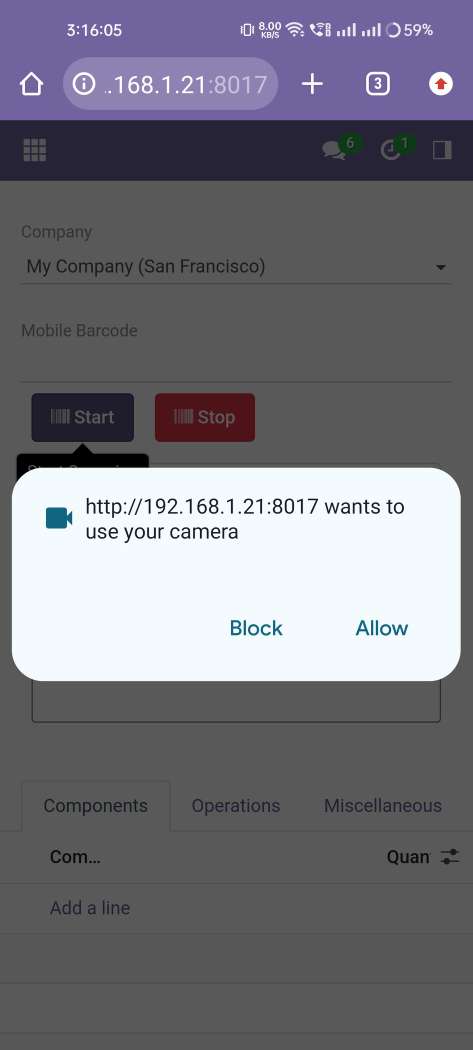
Allow permission to scan from the mobile camera.
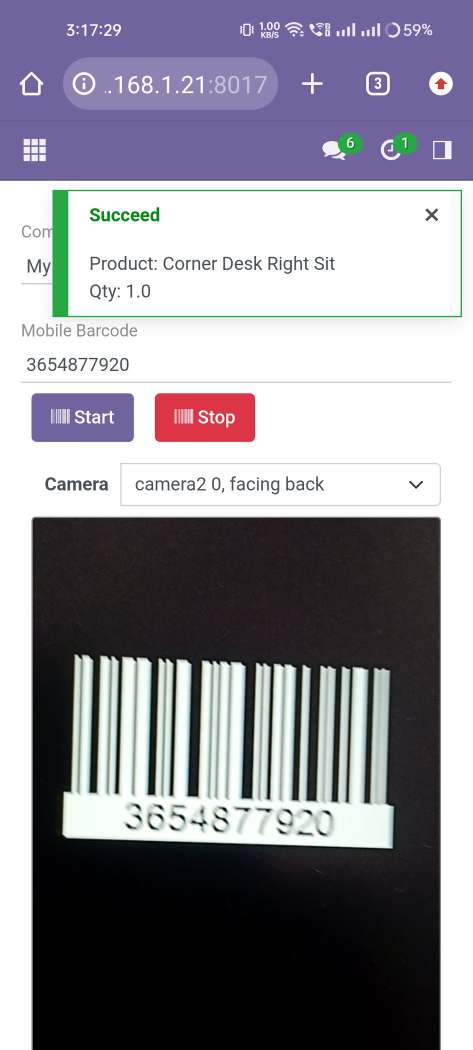
scanned product with Barcode automatically added in bom line if the product already existed in bom line then ordered qty increased by 1.
The error message is given if no matching product found.
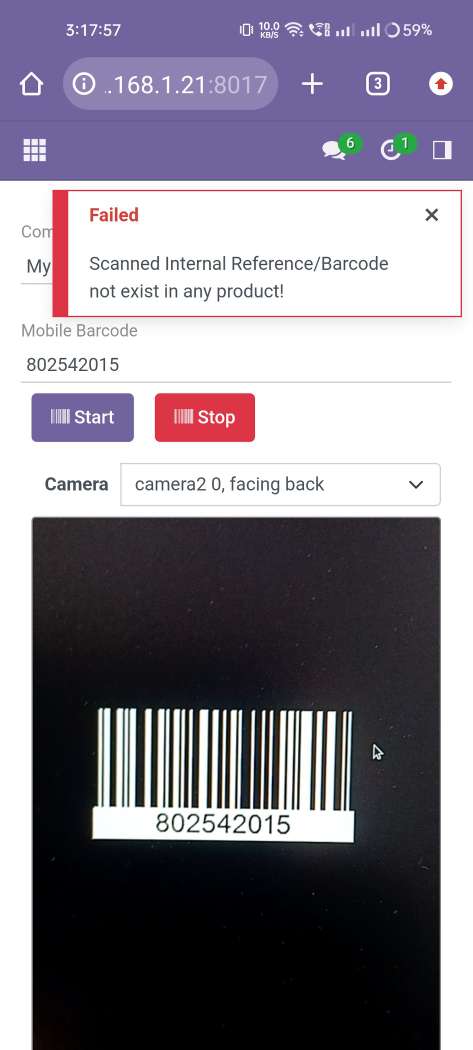
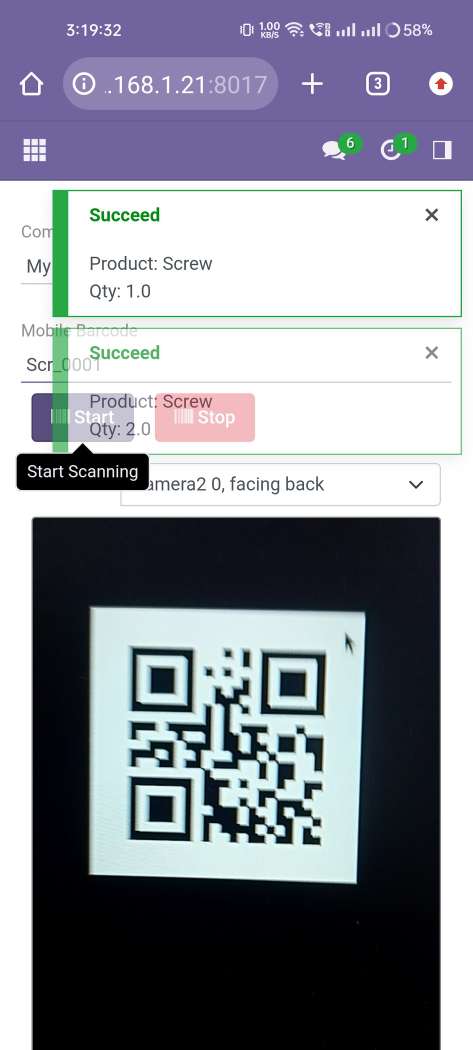
scanned product with QRCode automatically added in bom line if the product already existed in bom line then ordered qty increased by 1.
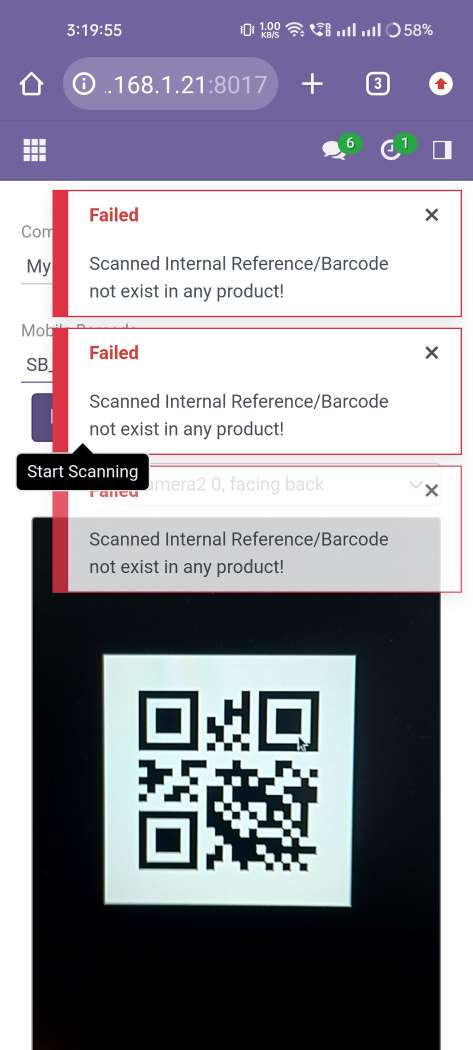
The error message is given if no matching product found.
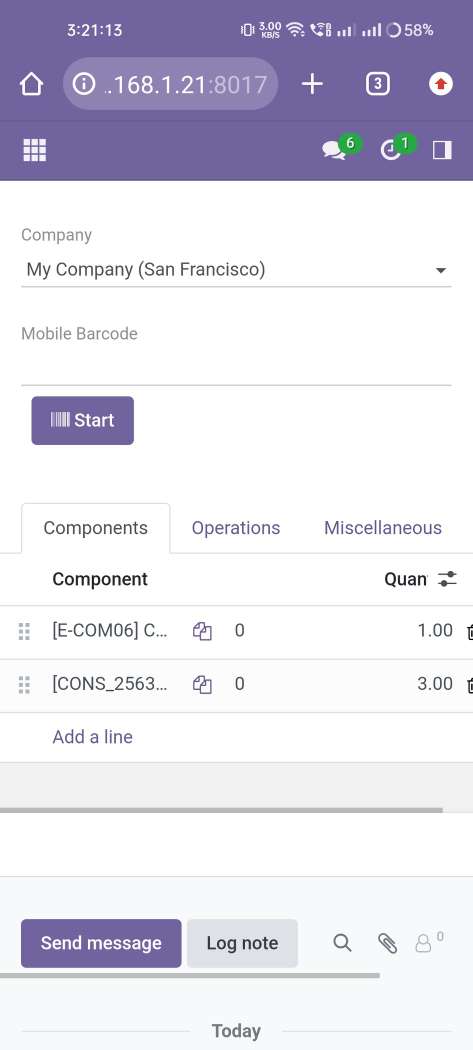
The added product in BOM looks like below.
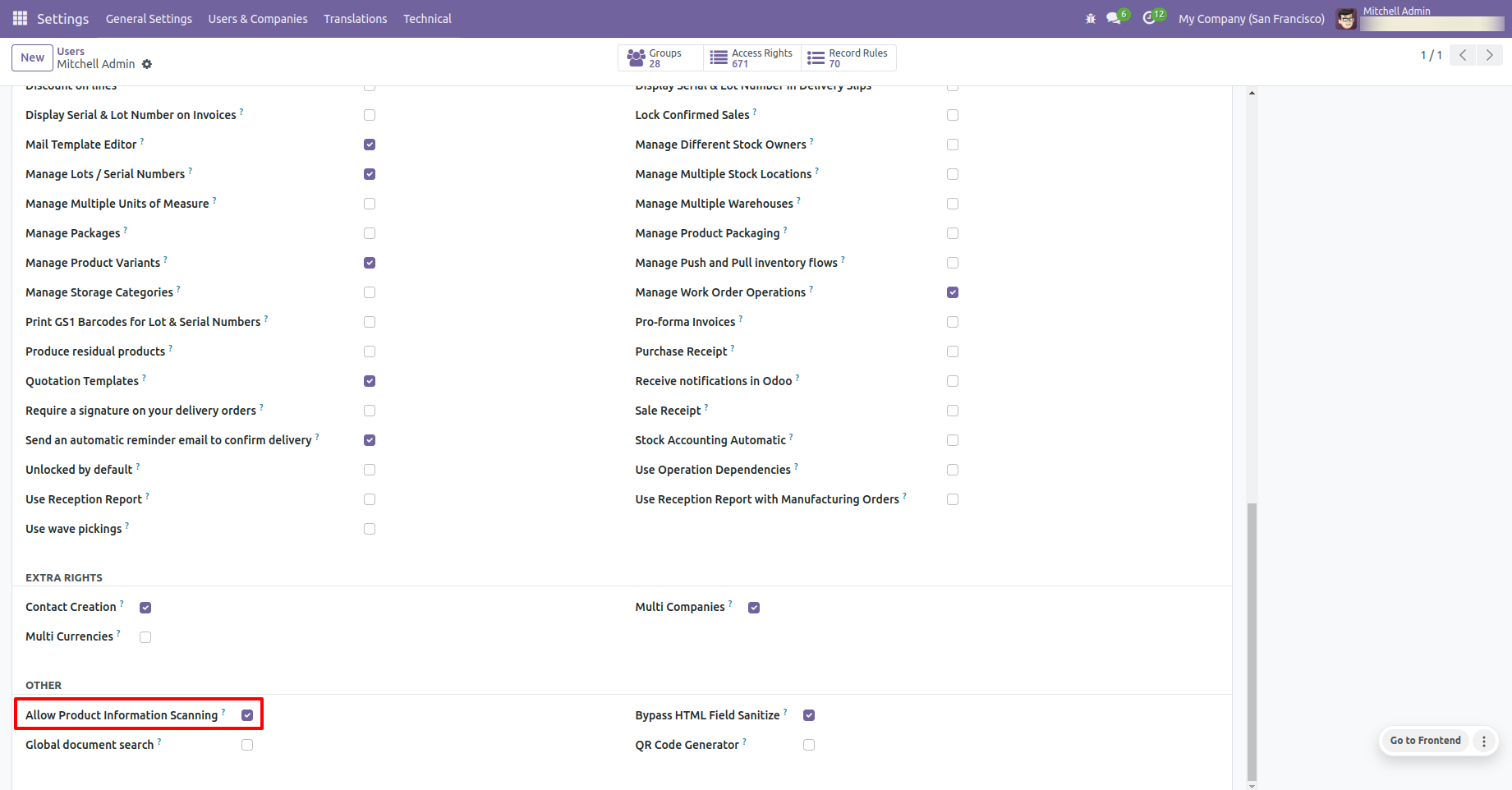
User Setting: Just enable the 'Allow Product Information Scanning' option.
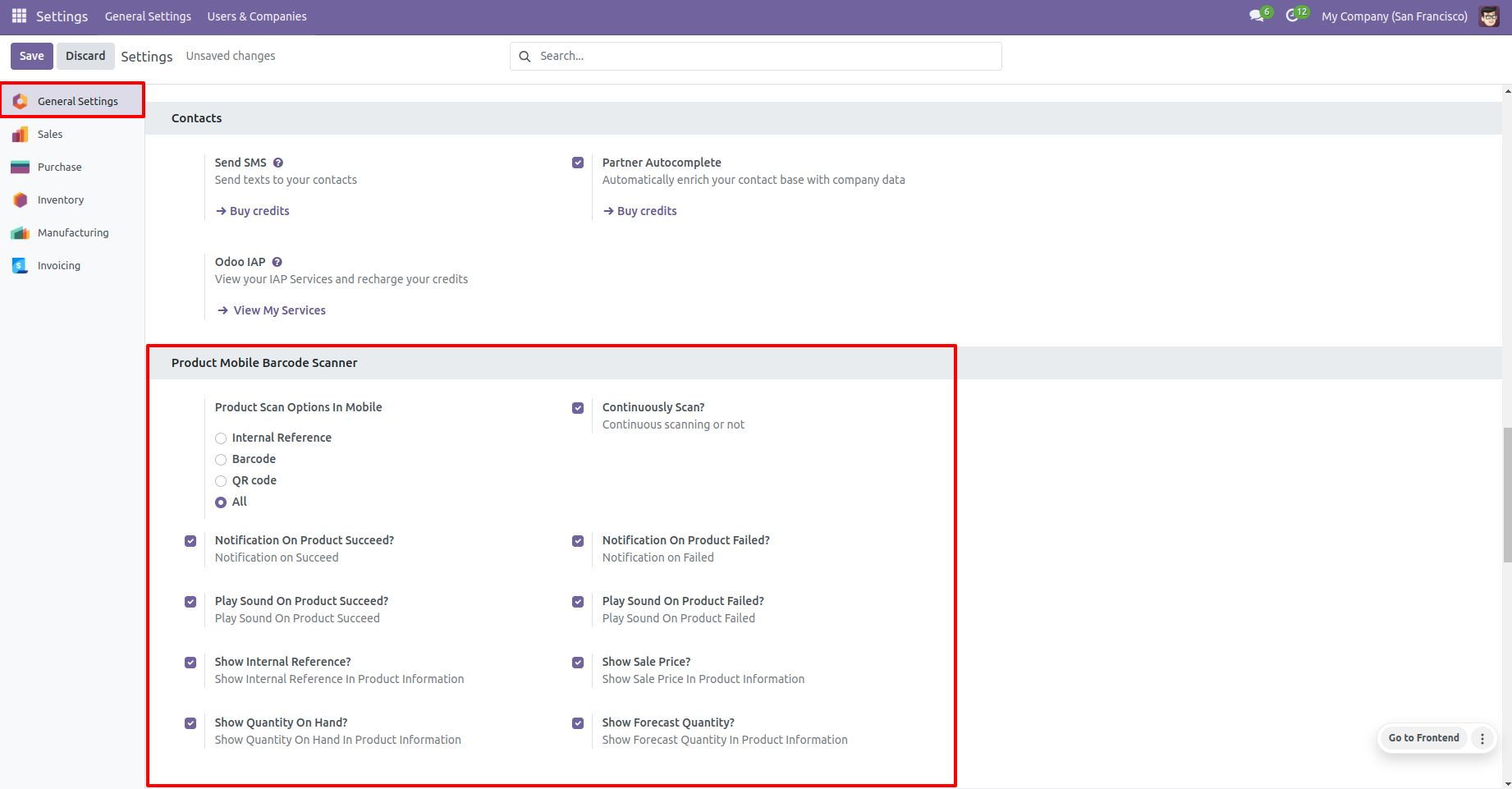
Product scan option in general settings whether you want to scan product by Barcode, Internal Reference, QRCode or All.
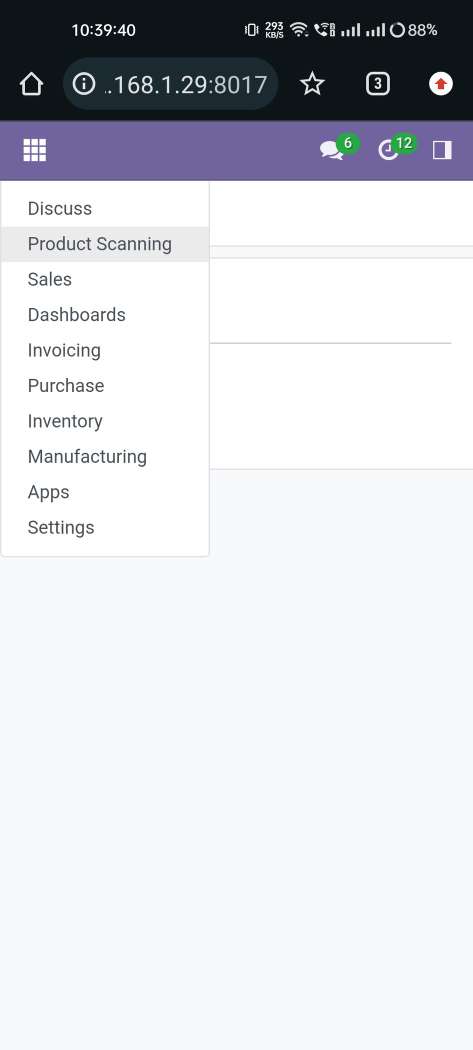
"Product Scanning" option in the menu.
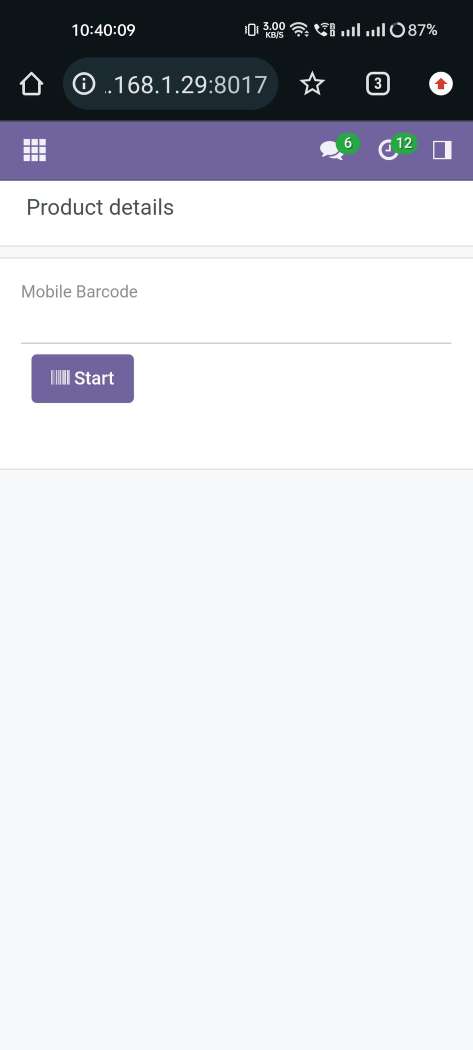
Tap the "Start" button to scan on mobile.
Allow permission to scan from the mobile camera.
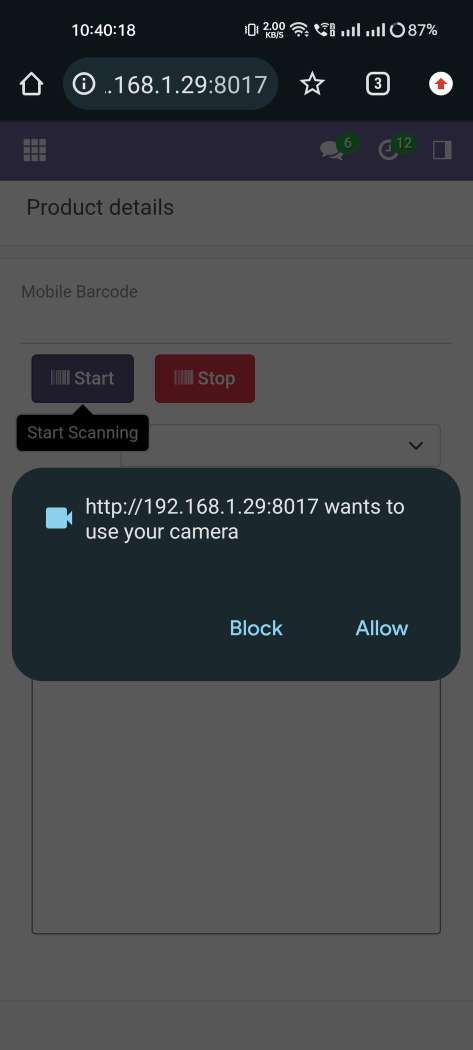
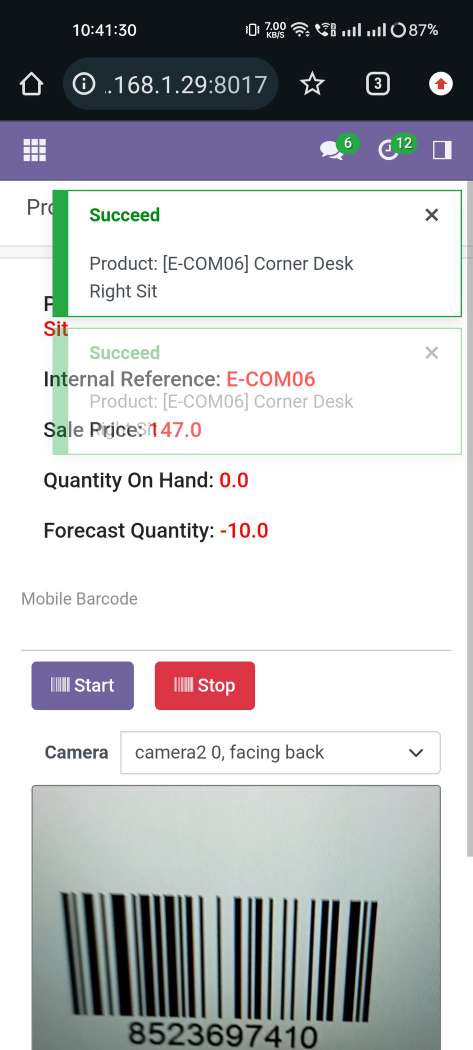
scanned product price with Barcode/Internal Reference No and if success than show popup and show sales price, product on-hand & forecast qty.
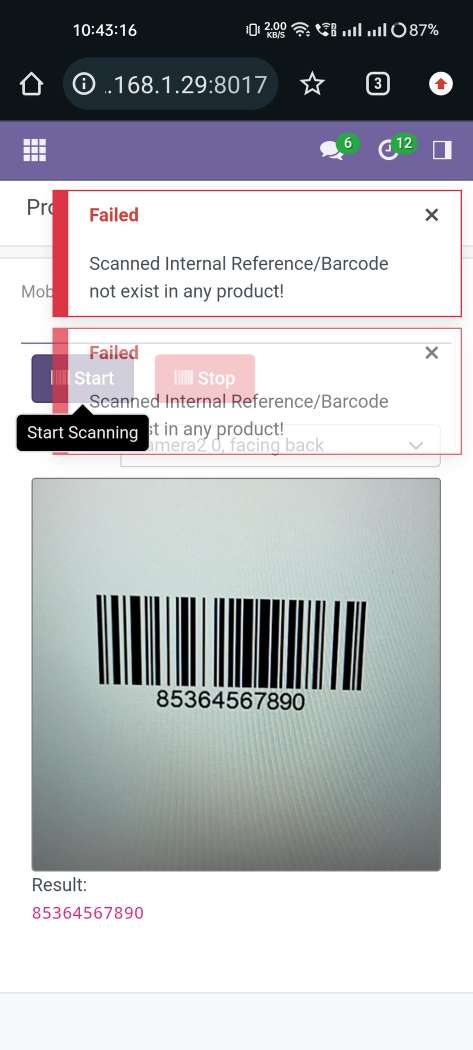
The error message is given if no matching product found.
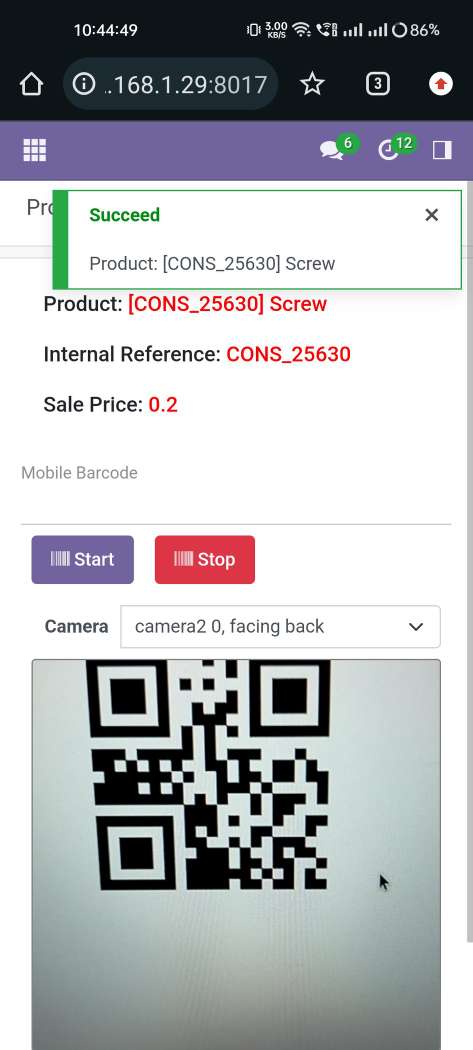
scanned product price with QRCode.
The error message is given if no matching product found.
General Settings
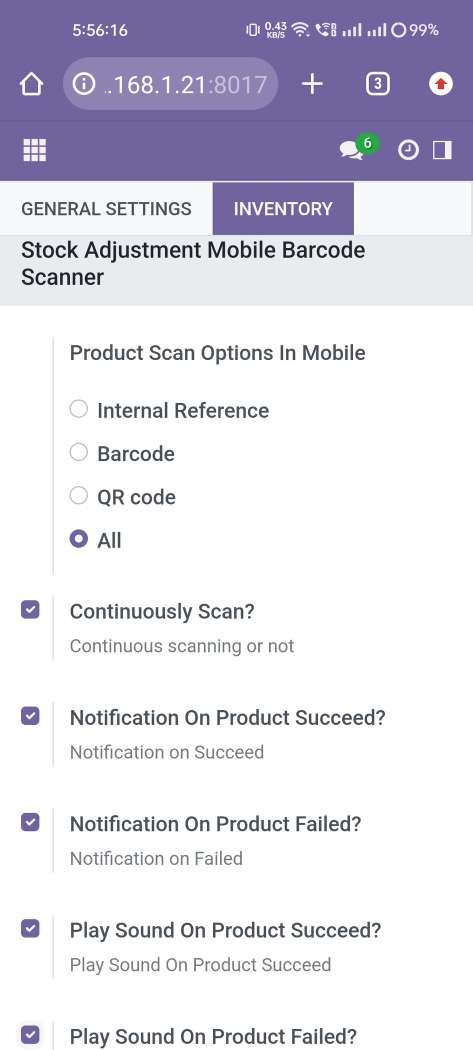
Product scan option in inventory settings whether you want to scan product by Barcode, Internal Reference, QRCode or All.
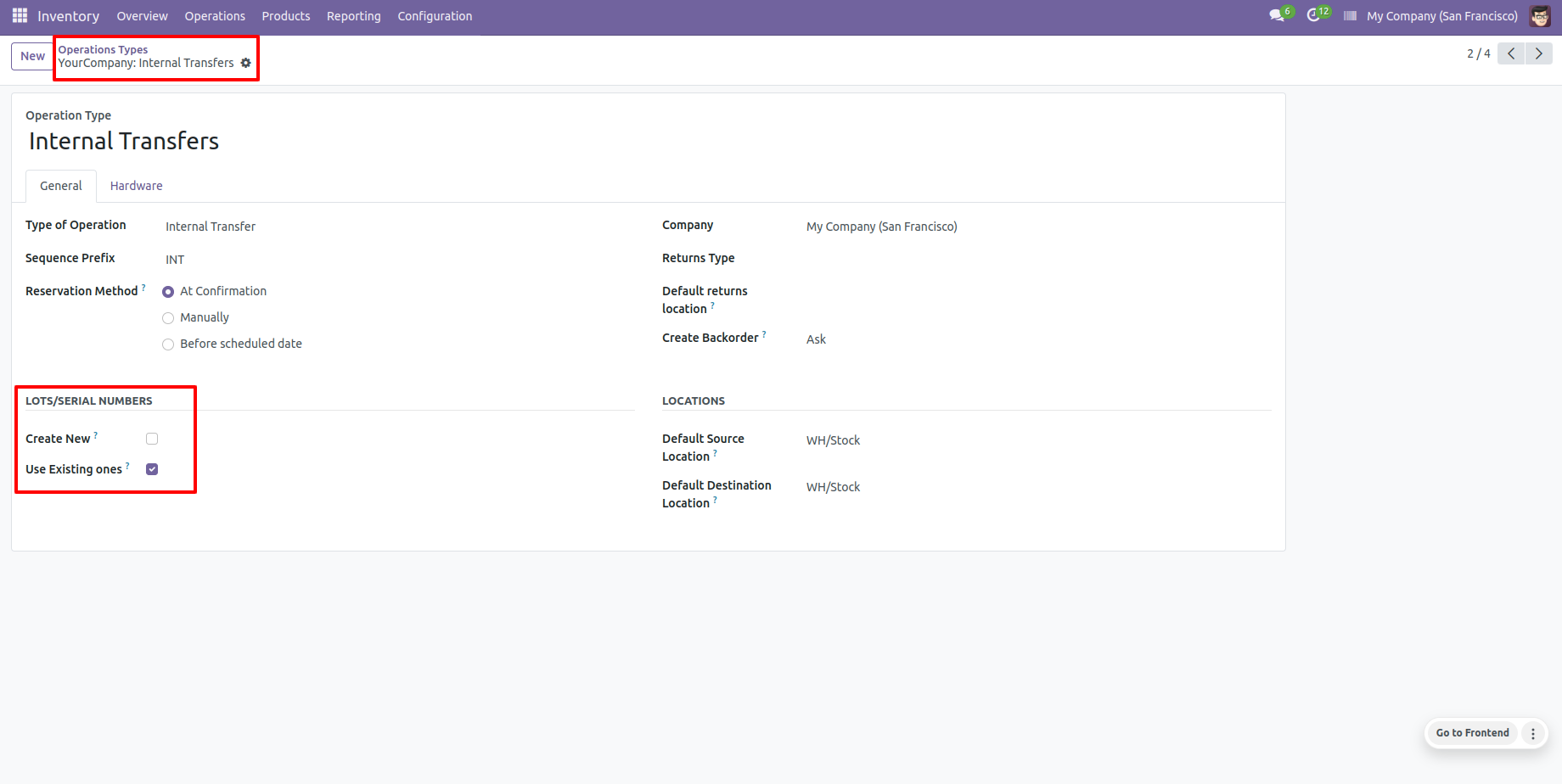
Tick 'USe Existing Ones'.
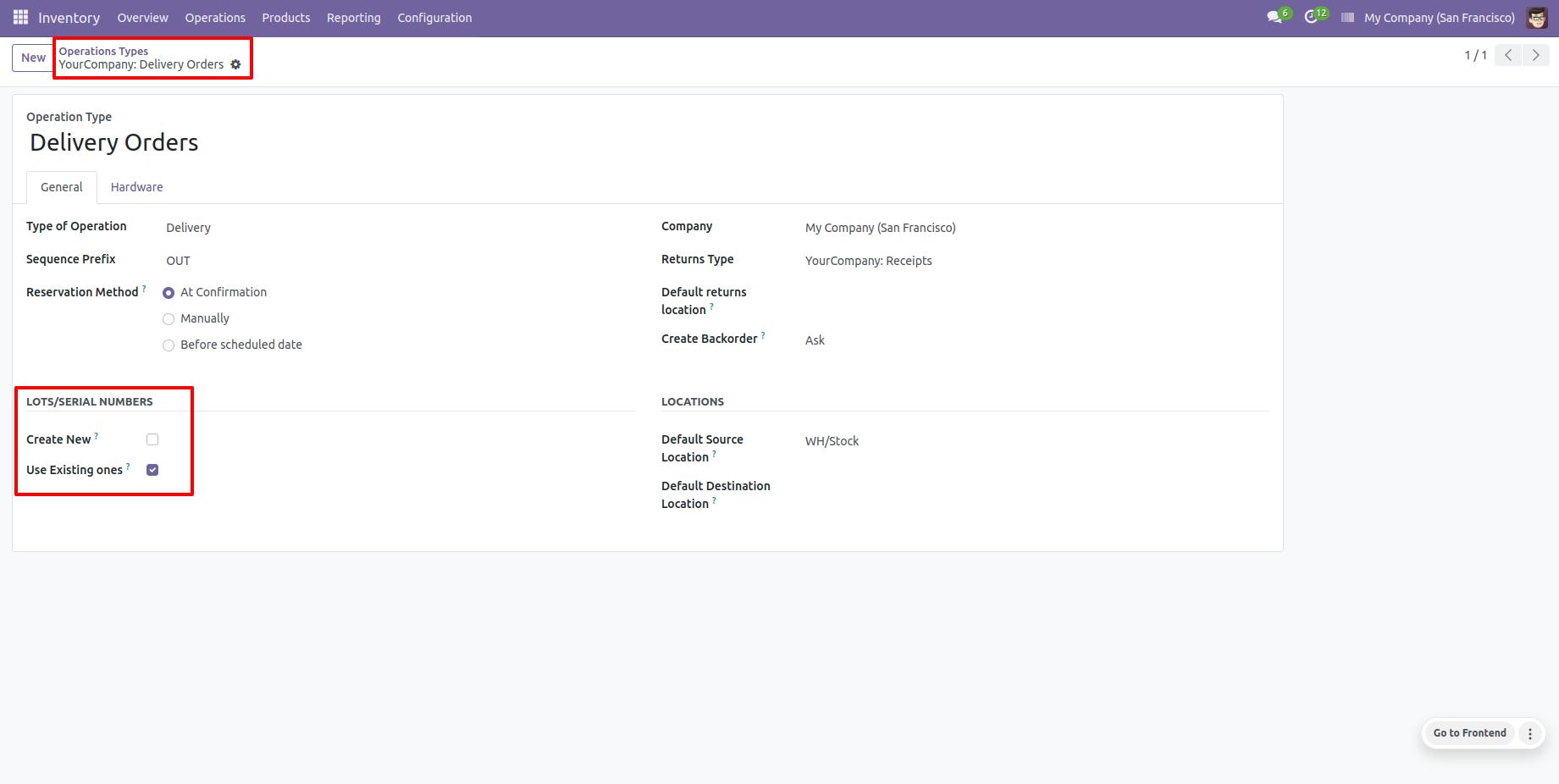
Tick 'USe Existing Ones'.
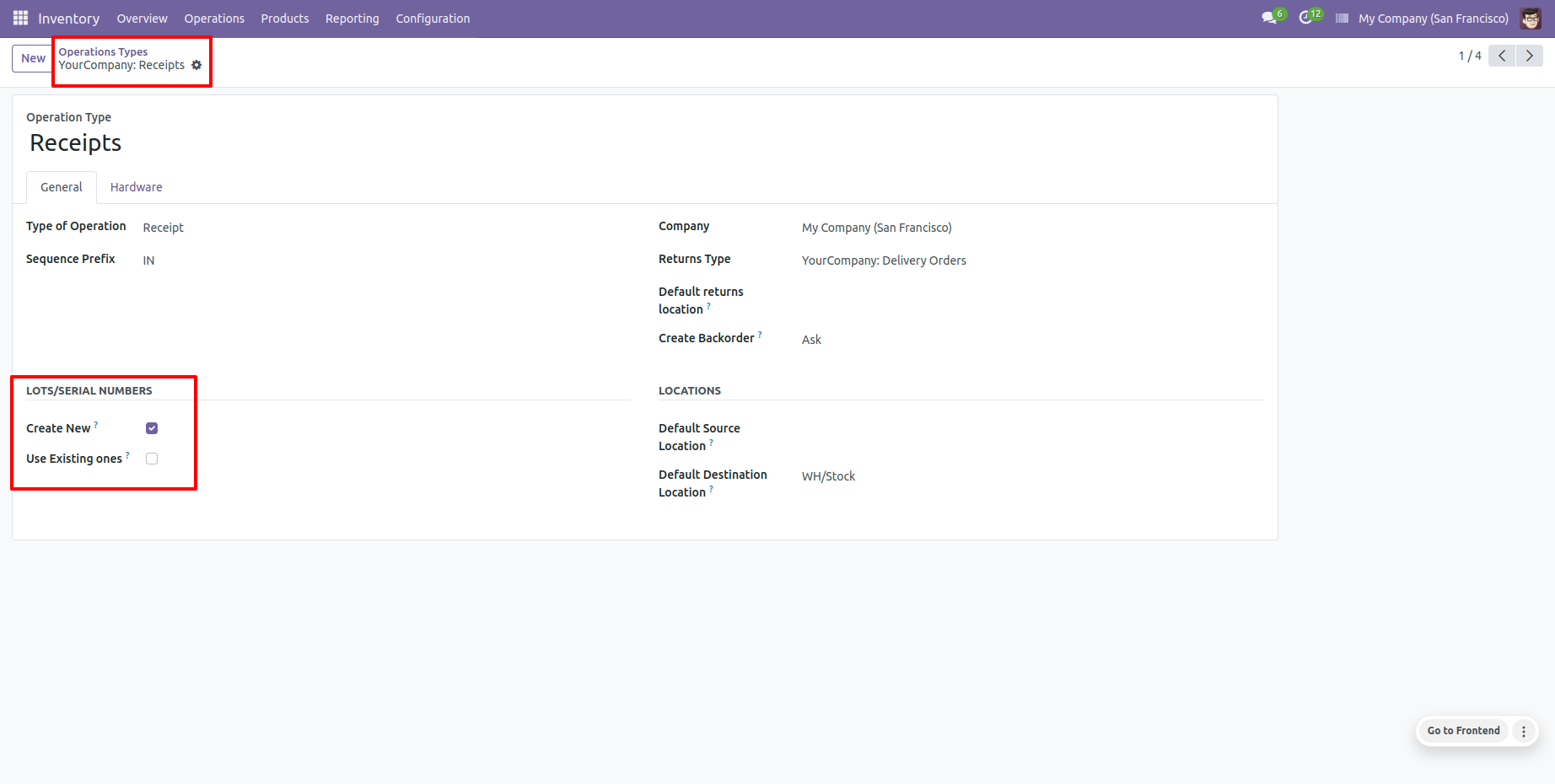
Tick 'Create New'.
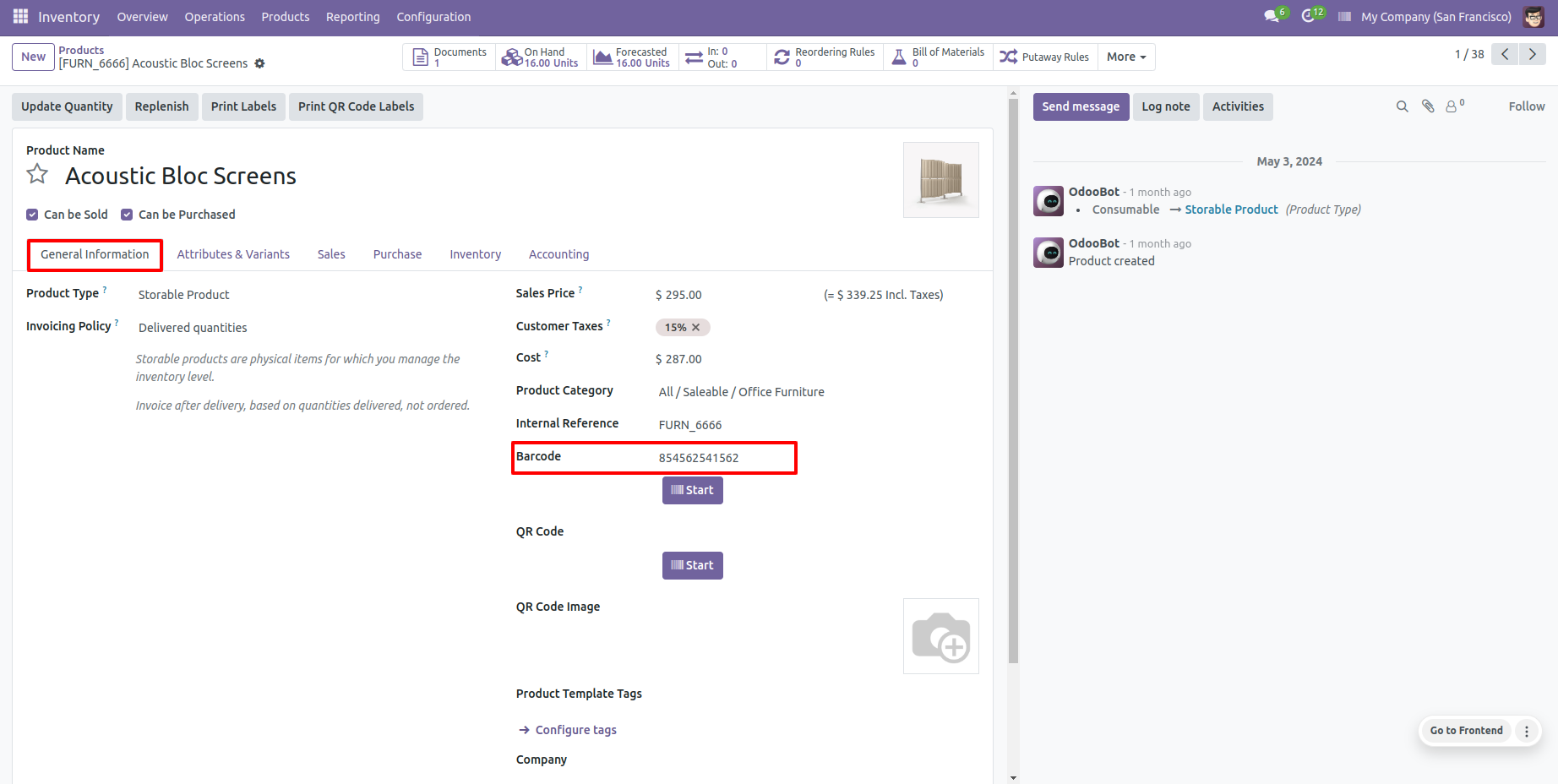
You can see the product with a barcode number.
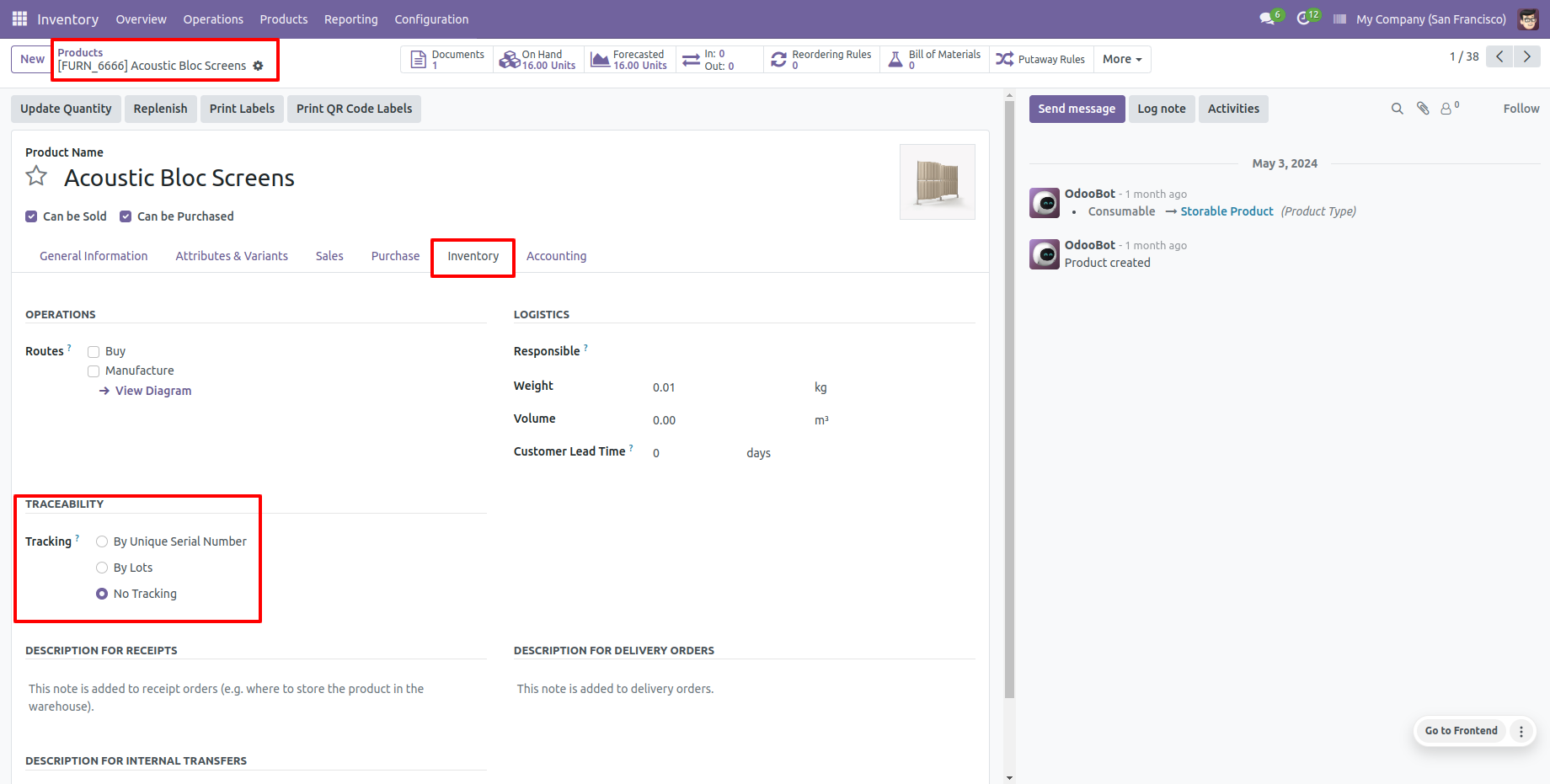
Select product with traceability "No Tracking" and you can see a product with none traceability.
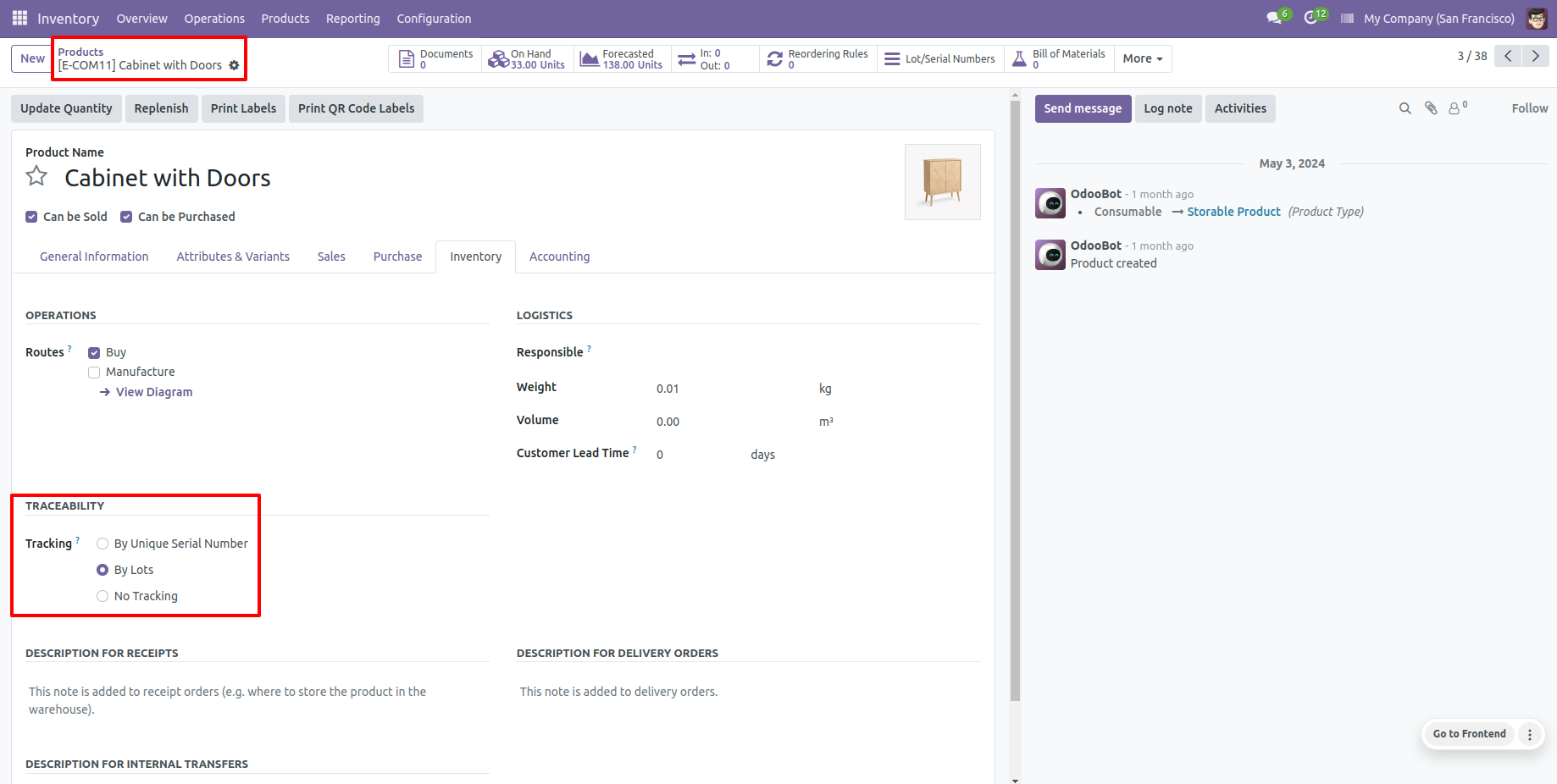
Select product traceability "By Lot Numbers" if you want to track product in Lot.
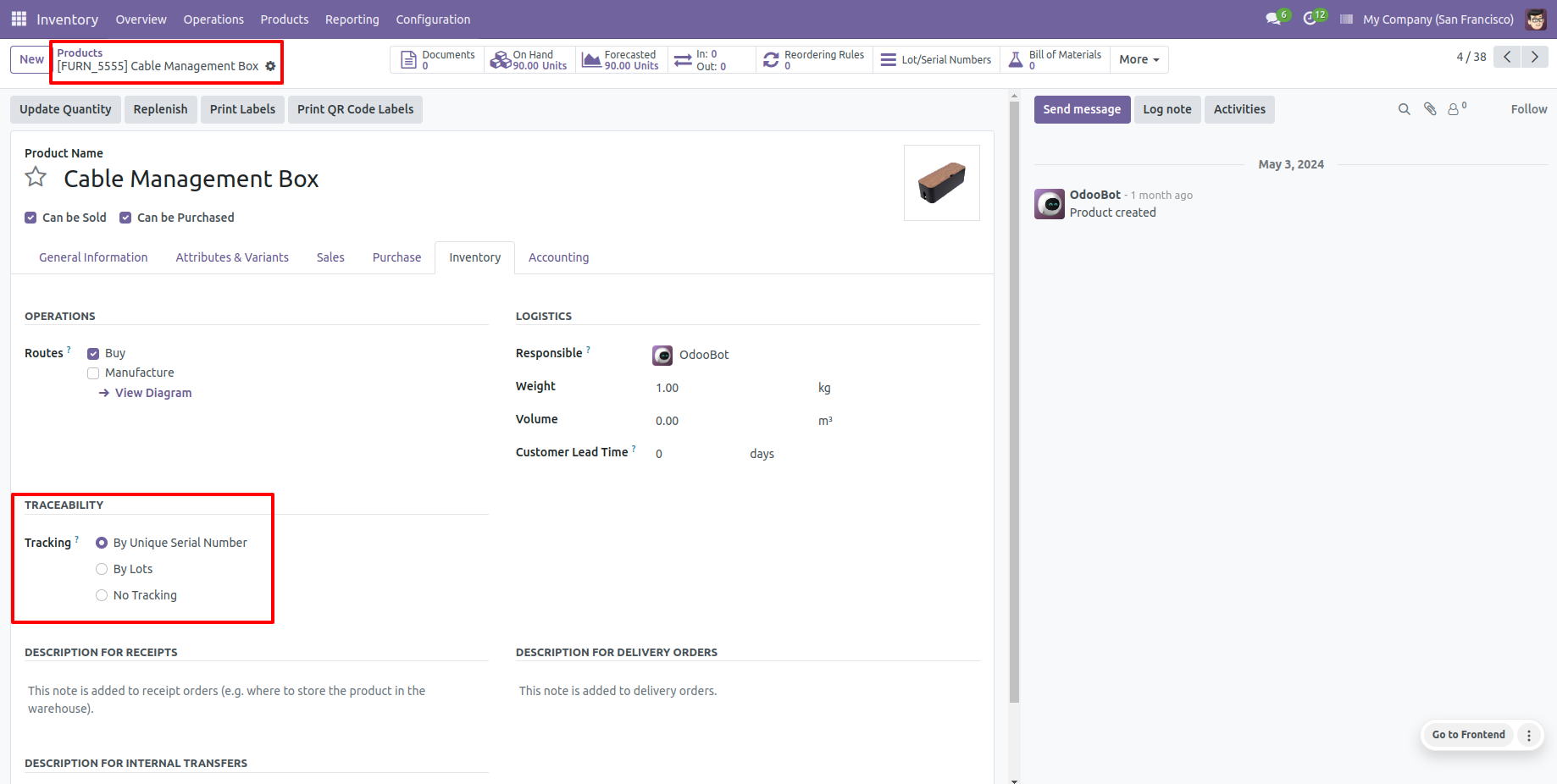
Select product traceability "By Unique Serial Number" if you want to track the product by its unique serial number.
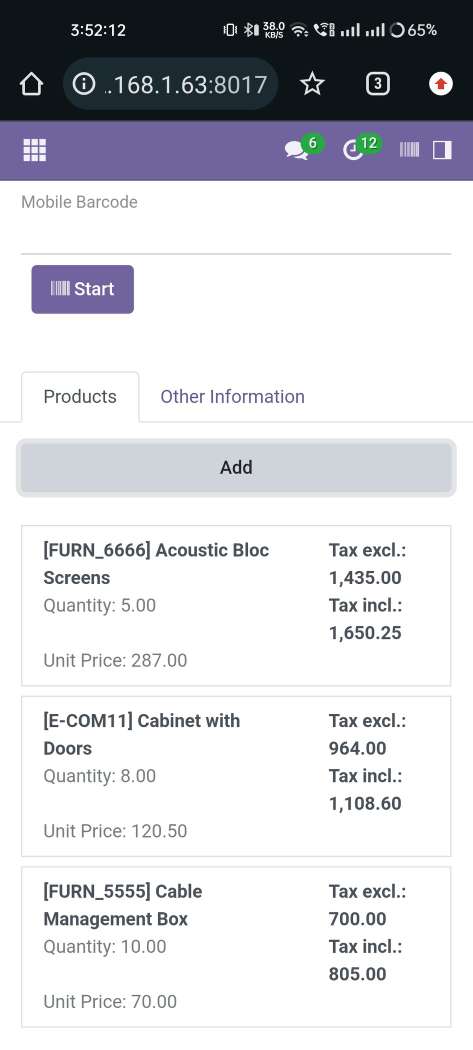
Purchase Order To Shipment Process
Purchase order products with the Lot/Serial Number.
In the "Detailed Operations," you can scan your Barcode/QRCode. If the same Barcode/QRCode scanned again than done quantity will be increased by one. If another Barcode/QRCode is scanned than will be another entry for new Lot/Serial Number in the next line.
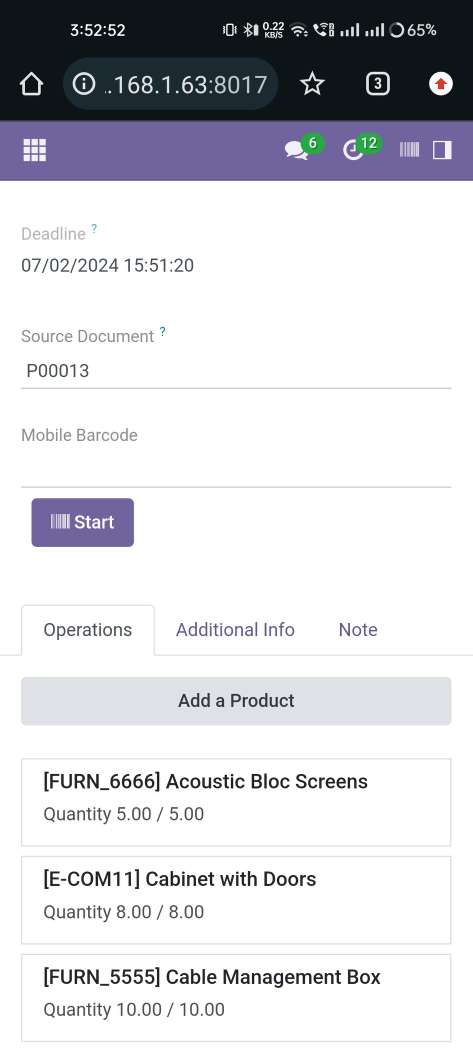
Tap the "Start" button to scan on mobile.
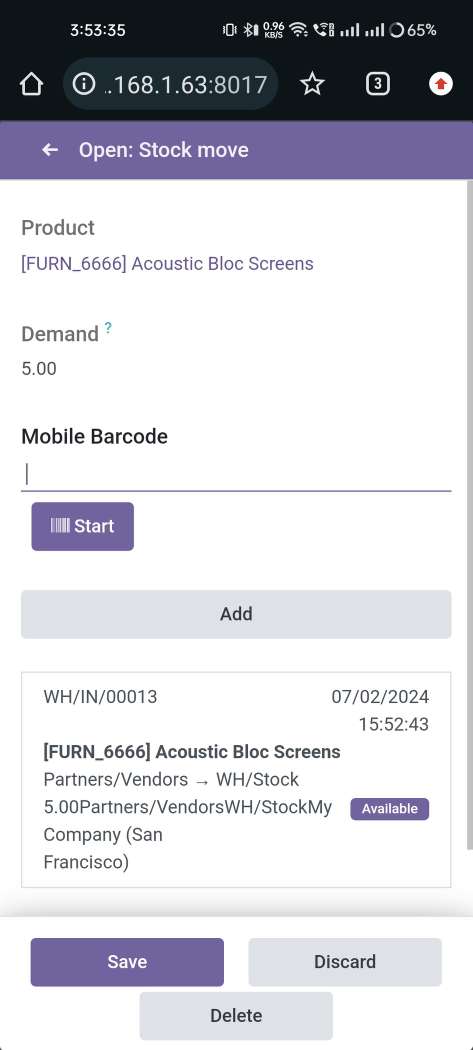
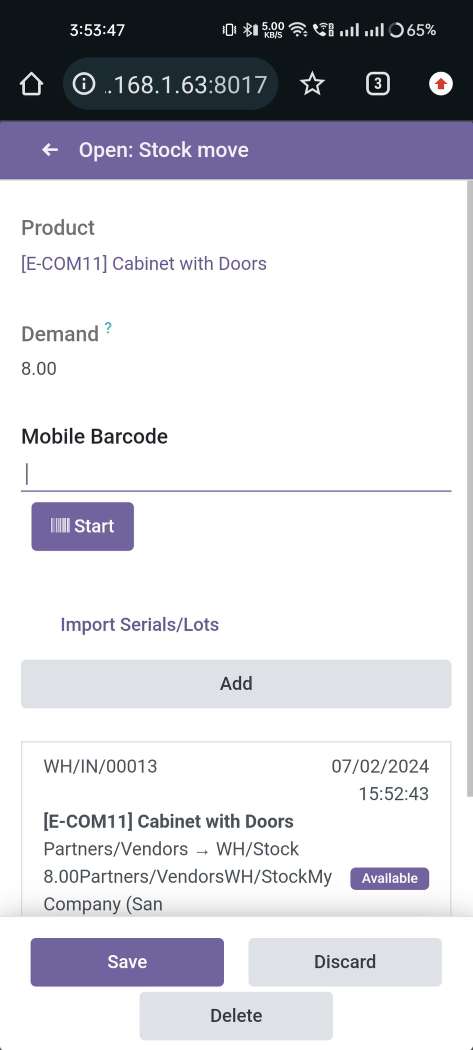
The "Detailed Operations" wizard opens, which shows product details.
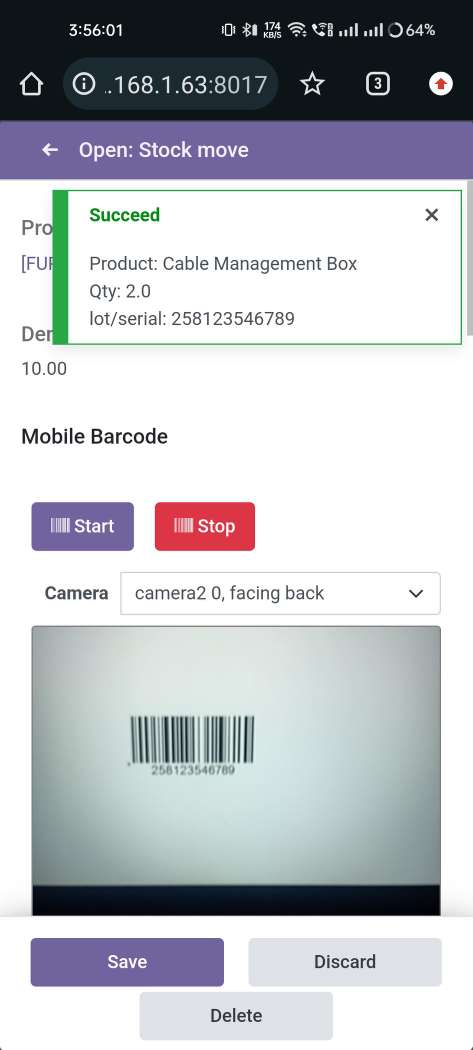
The scanned product automatically added in products if the product already existed then ordered qty increased by 1.
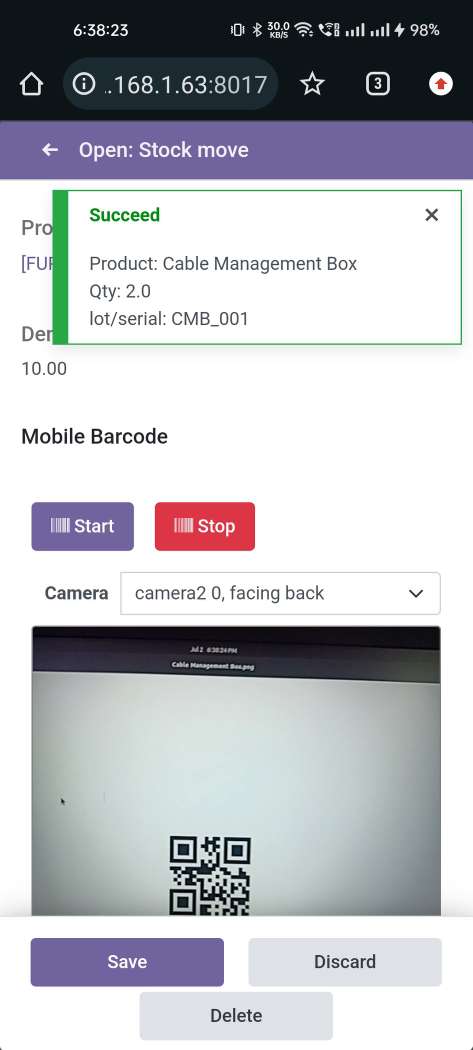
The scanned product automatically added in products if the product already existed then ordered qty increased by 1.
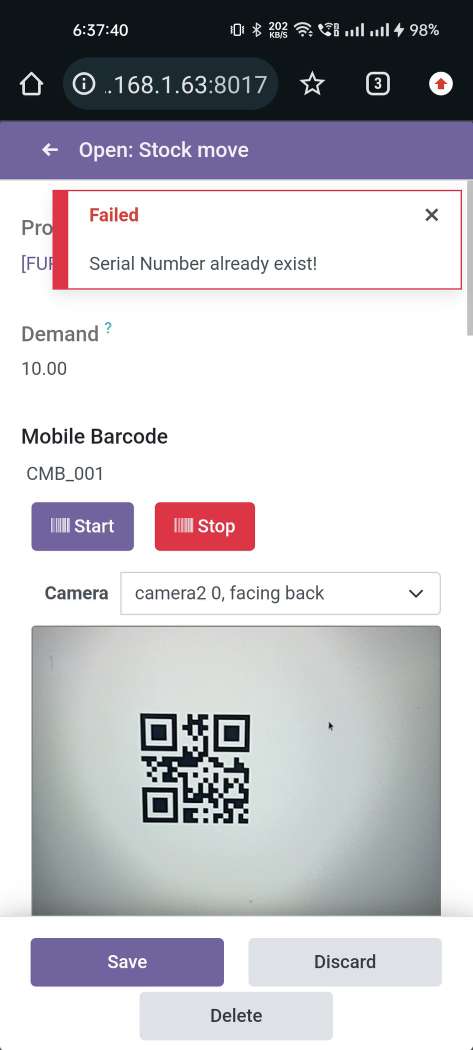
The error message is given if no matching product found.
The scanned product automatically added in products, If another Barcode/QRCode is scanned than will be another entry for Serial Number in the next line.
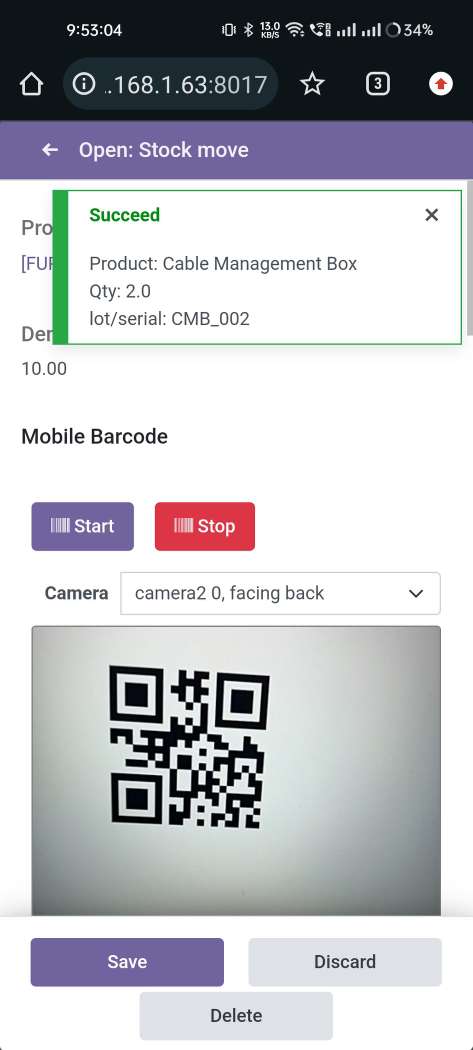
Before added products look like below.
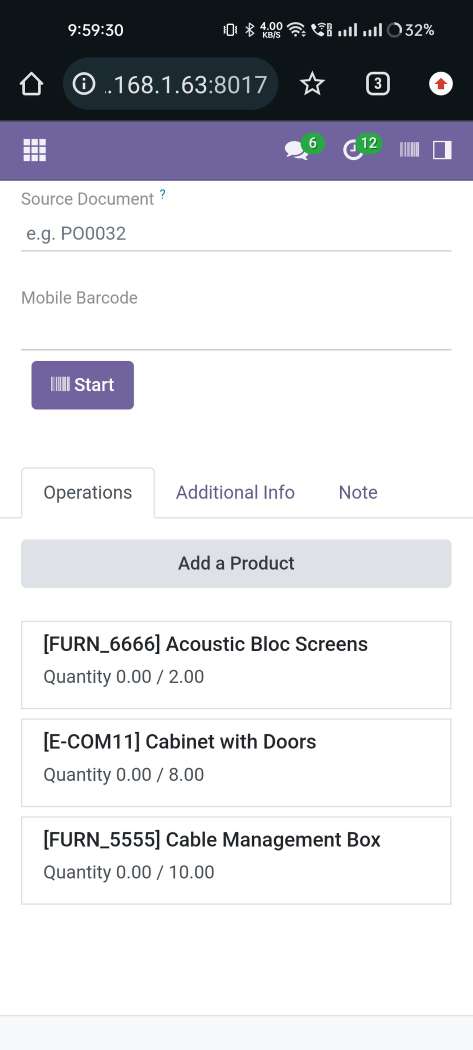
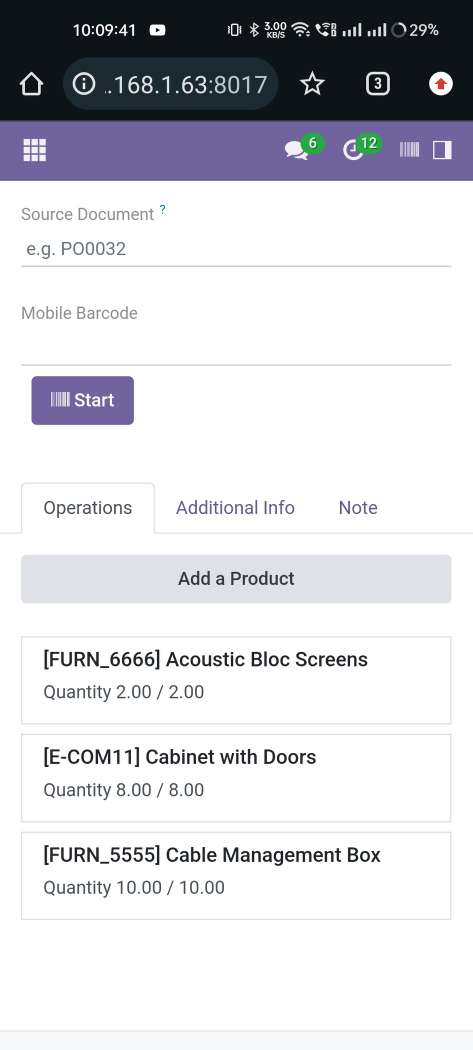
The added product looks like below.
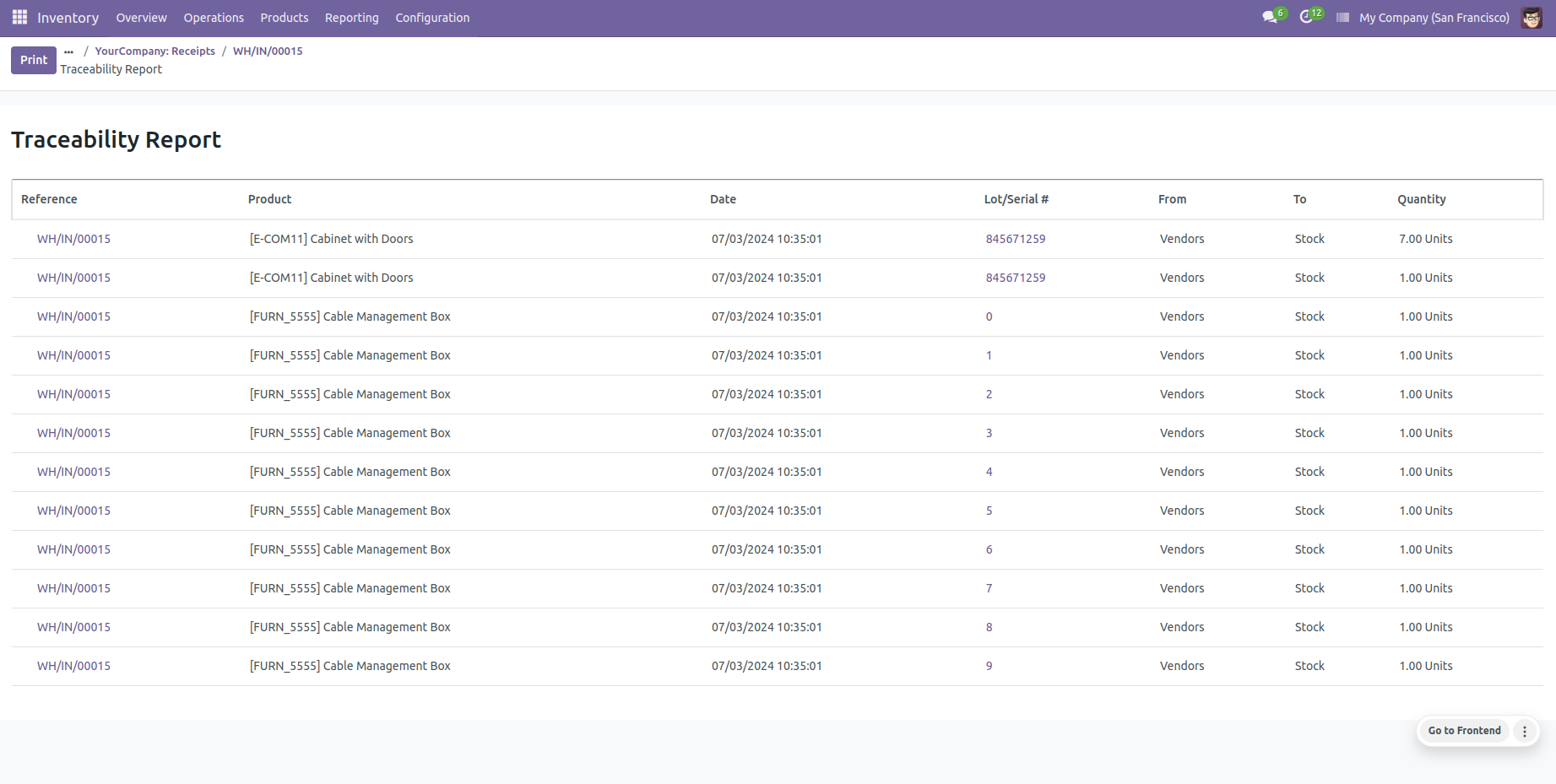
Press the "Traceability" button to print that report.
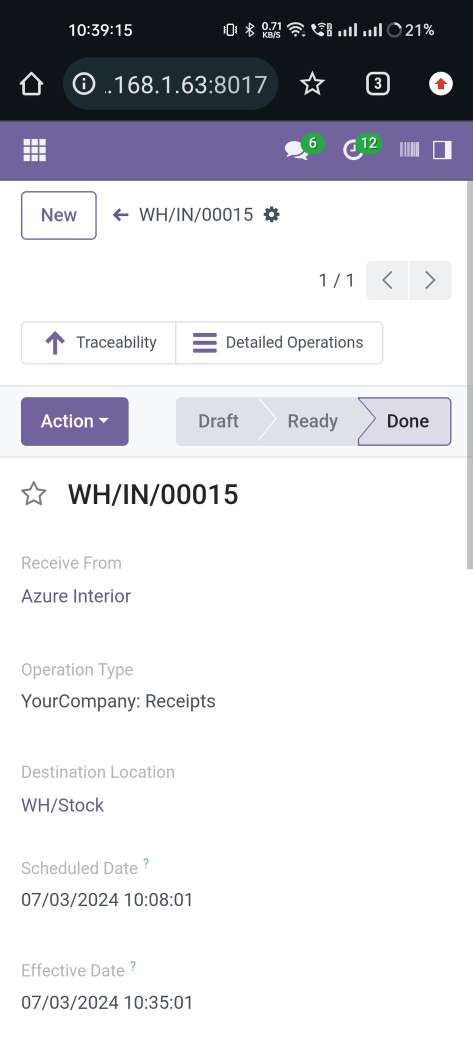
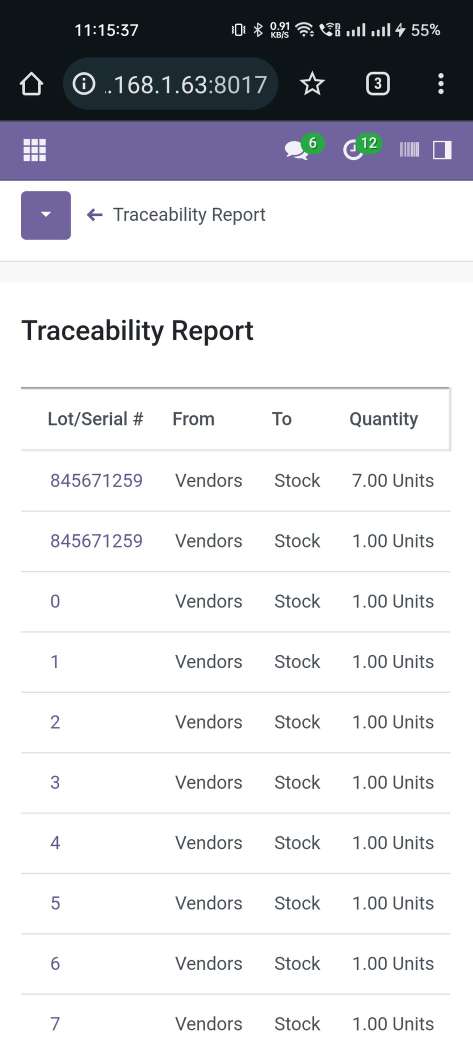
The "Traceability" report in the mobile view.
The "Traceability" report in the desktop view.
Sale Order To Delivery Order Process
Sale order products with the Lot/Serial Number.
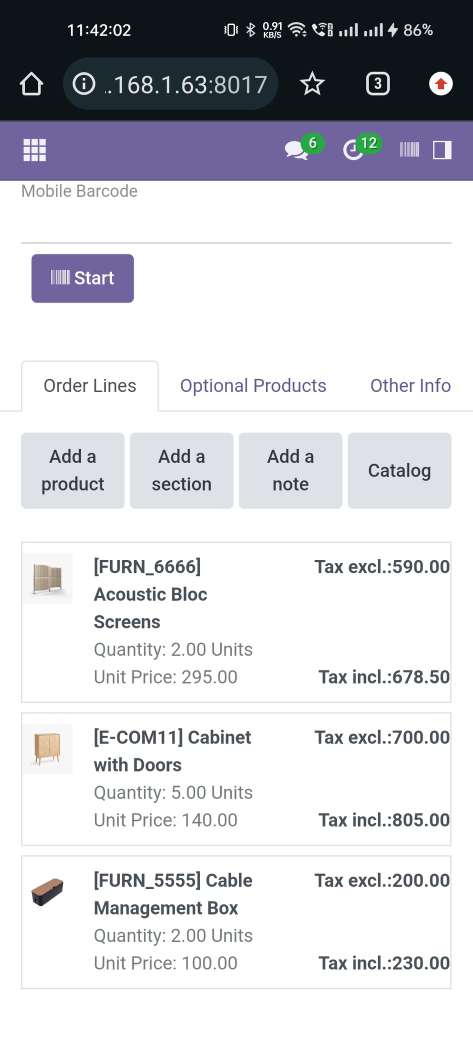
Confirmed sale order with products.
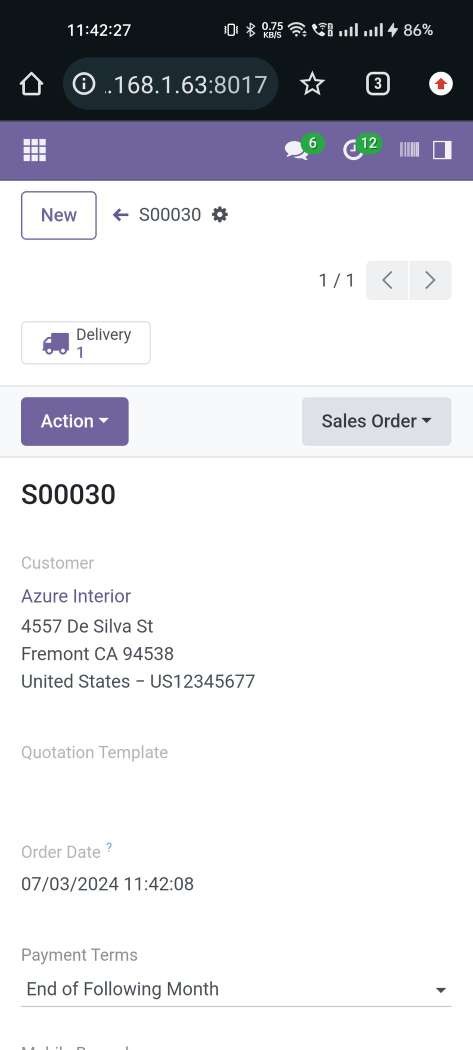
Delivery order with products.
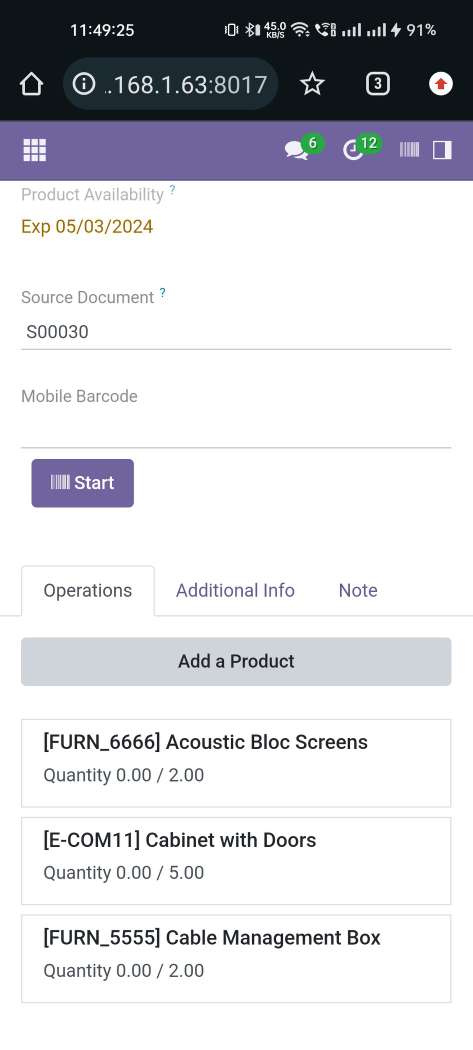
The scanned product automatically added in products if the product already existed then ordered qty increased by 1.
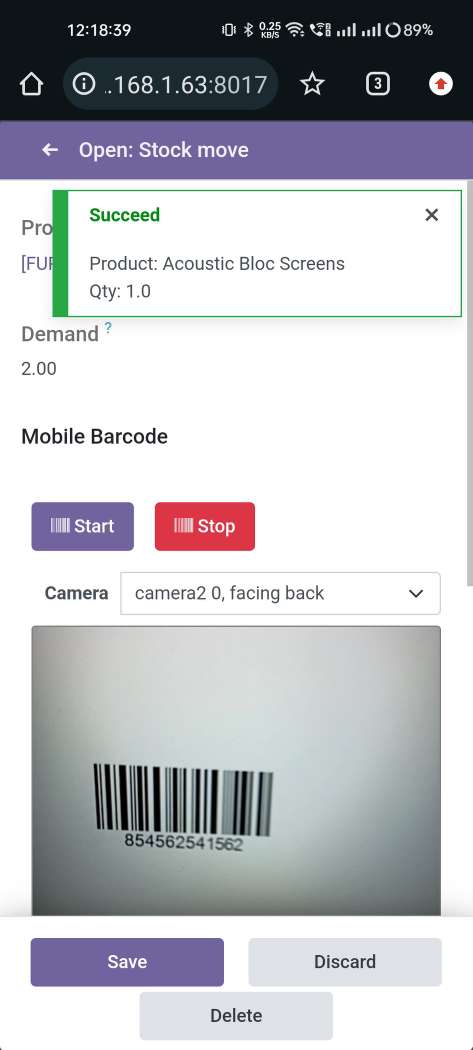
The scanned product automatically added in products if the product already existed then ordered qty increased by 1 & If another Barcode/QRCode is scanned than will be another entry for new Lot Numbers in the next line.
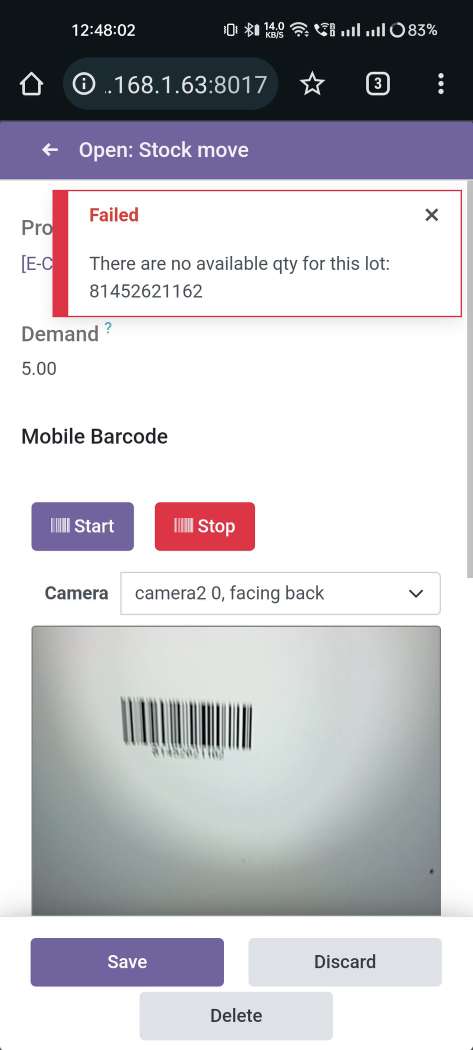
The error message is given if no matching product found.
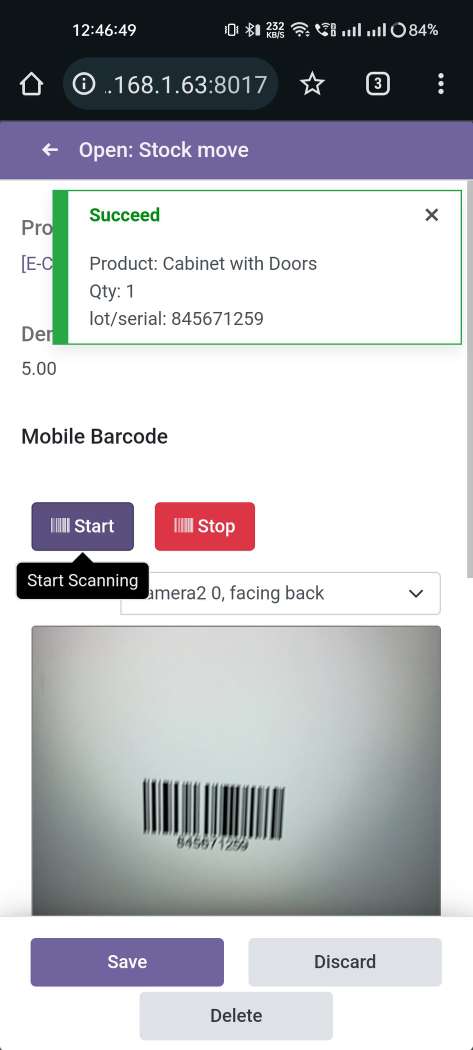
The scanned product automatically added in products if the product already existed then ordered qty increased by 1 & If another Barcode/QRCode is scanned than will be another entry for new Lot Numbers in the next line.
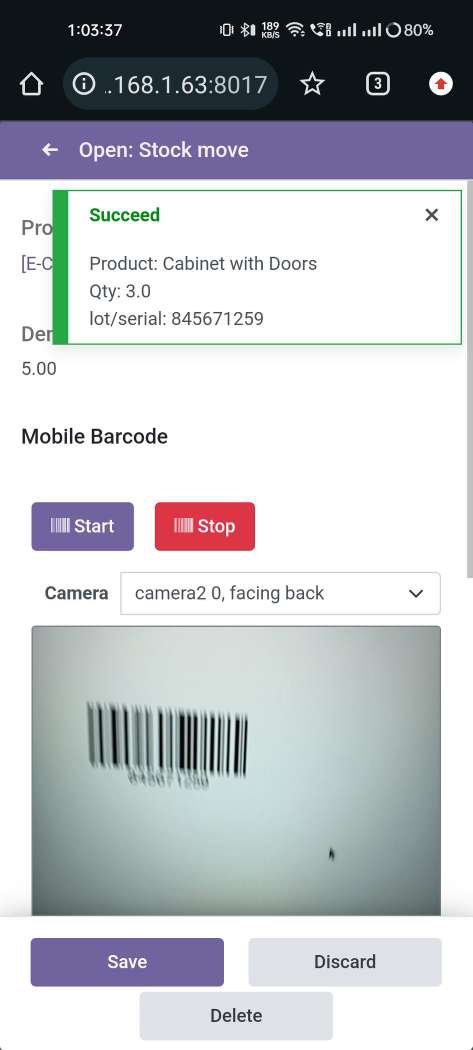
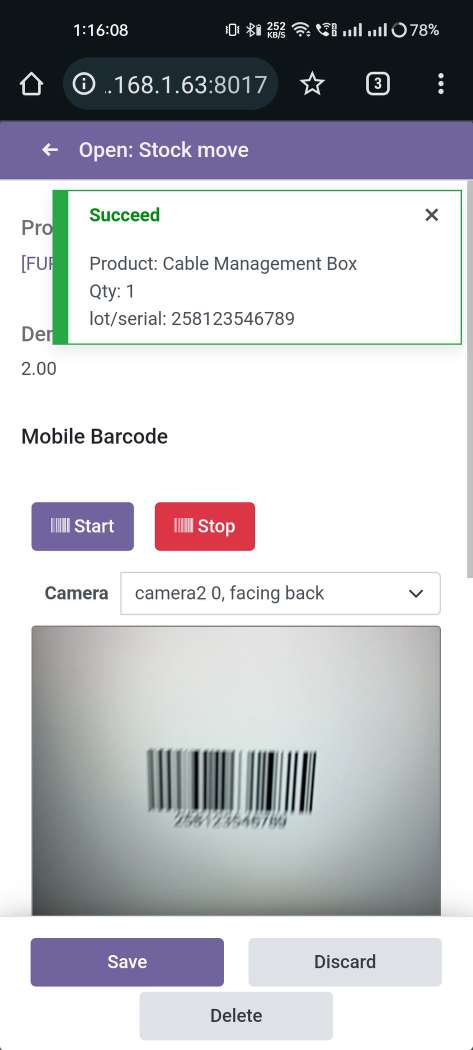
Now we scan other product.
Tap the "Start" button to scan on mobile.
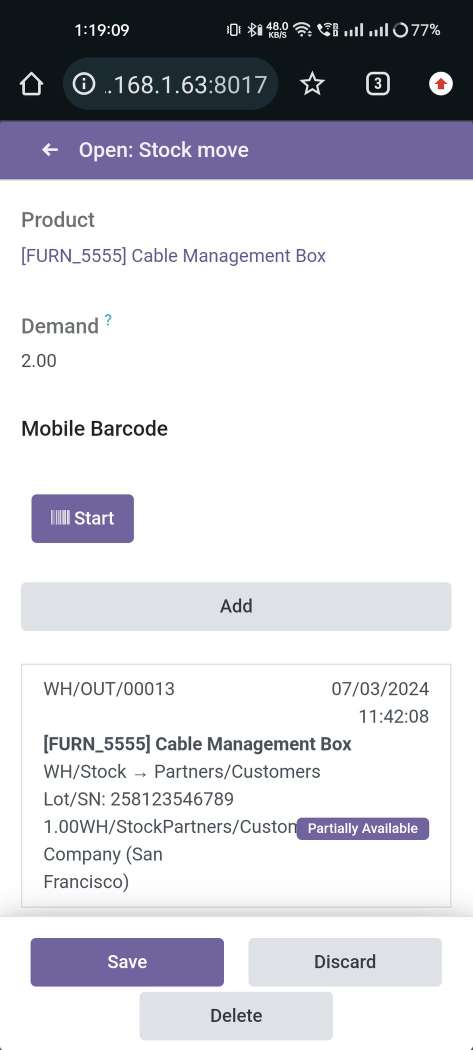
The scanned product automatically added in products, If another Barcode/QRCode is scanned than will be another entry for Serial Number in the next line.
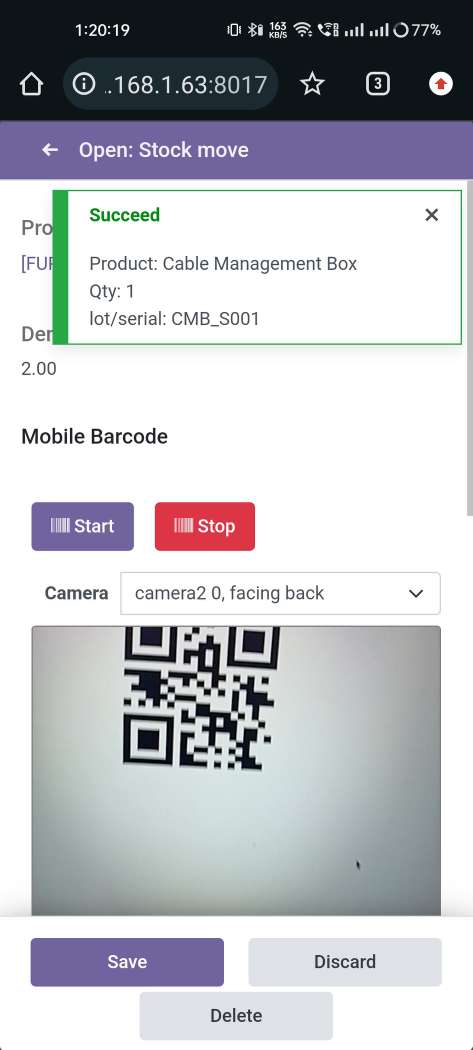
The error message is given if no matching product found.
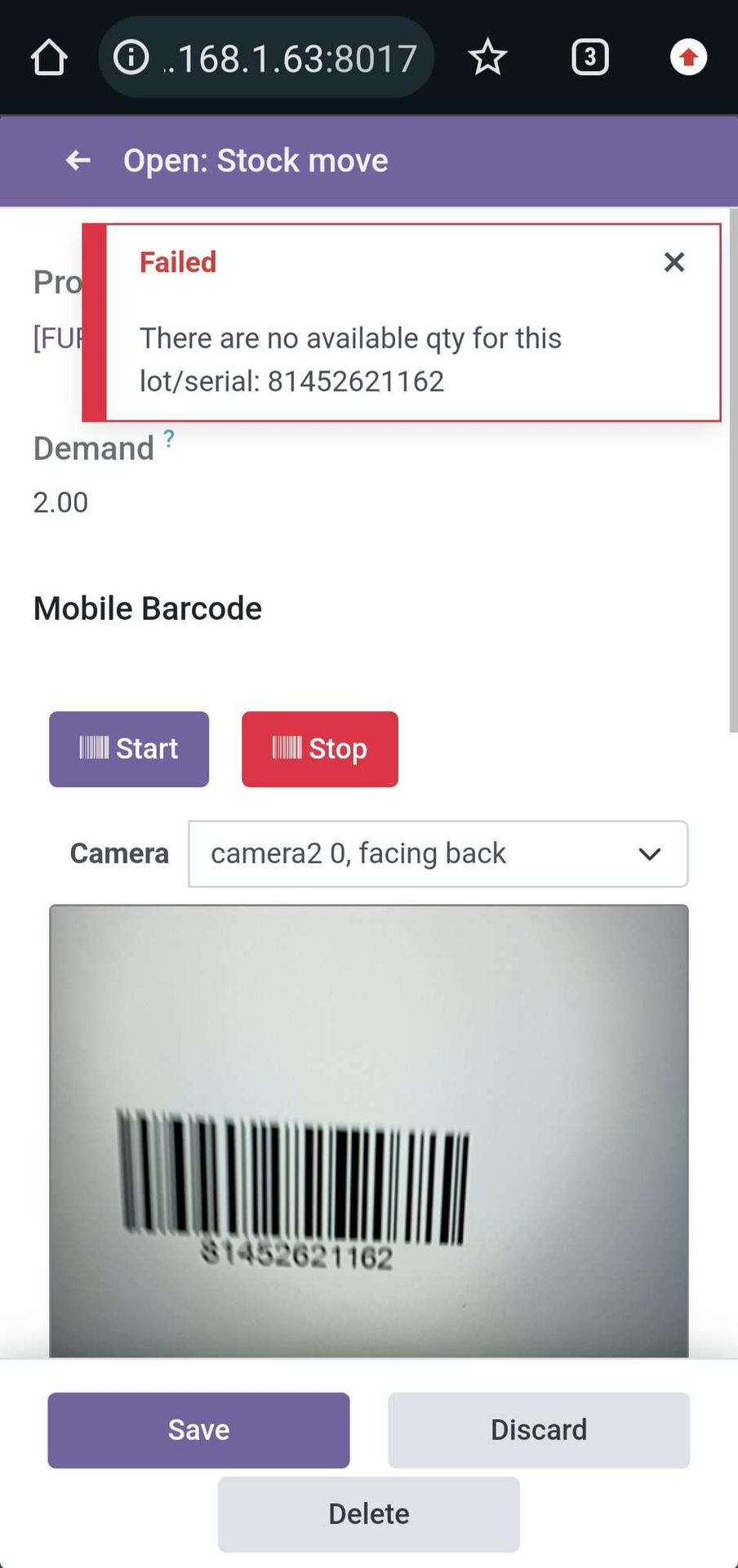
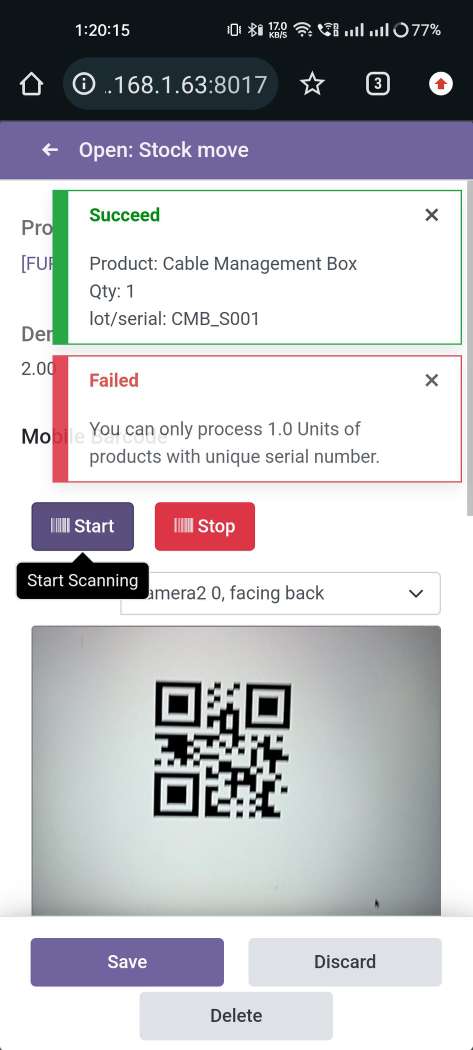
It generates popup on success and if you scan products after done all qty then it shows alert.
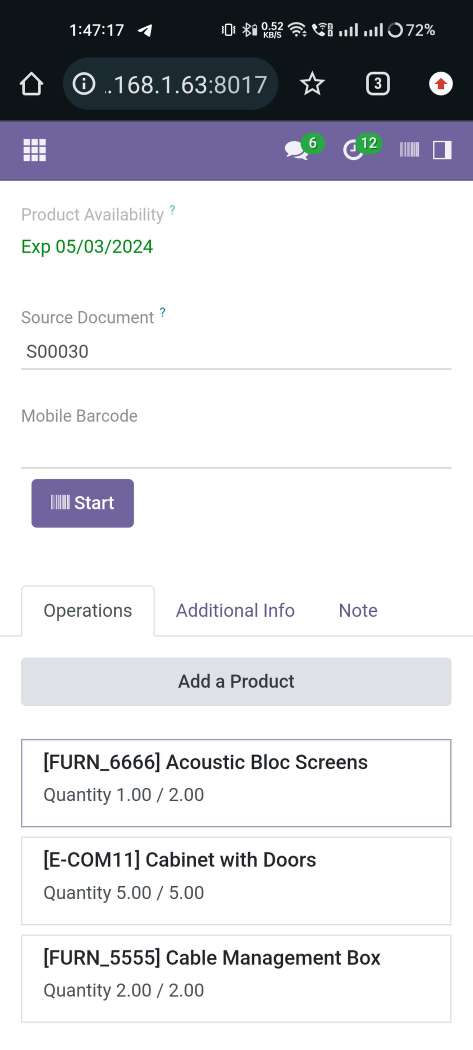
The added product looks like below.
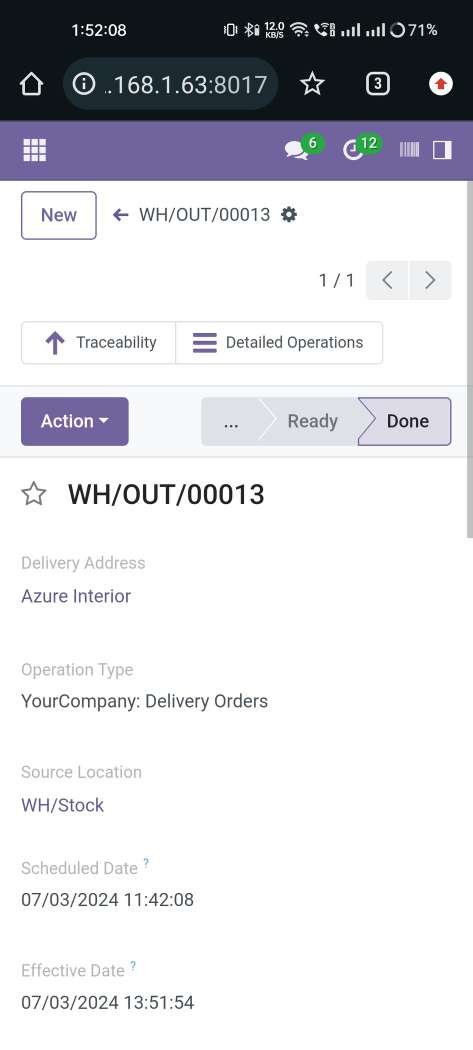
Press the "Traceability" button to print that report.
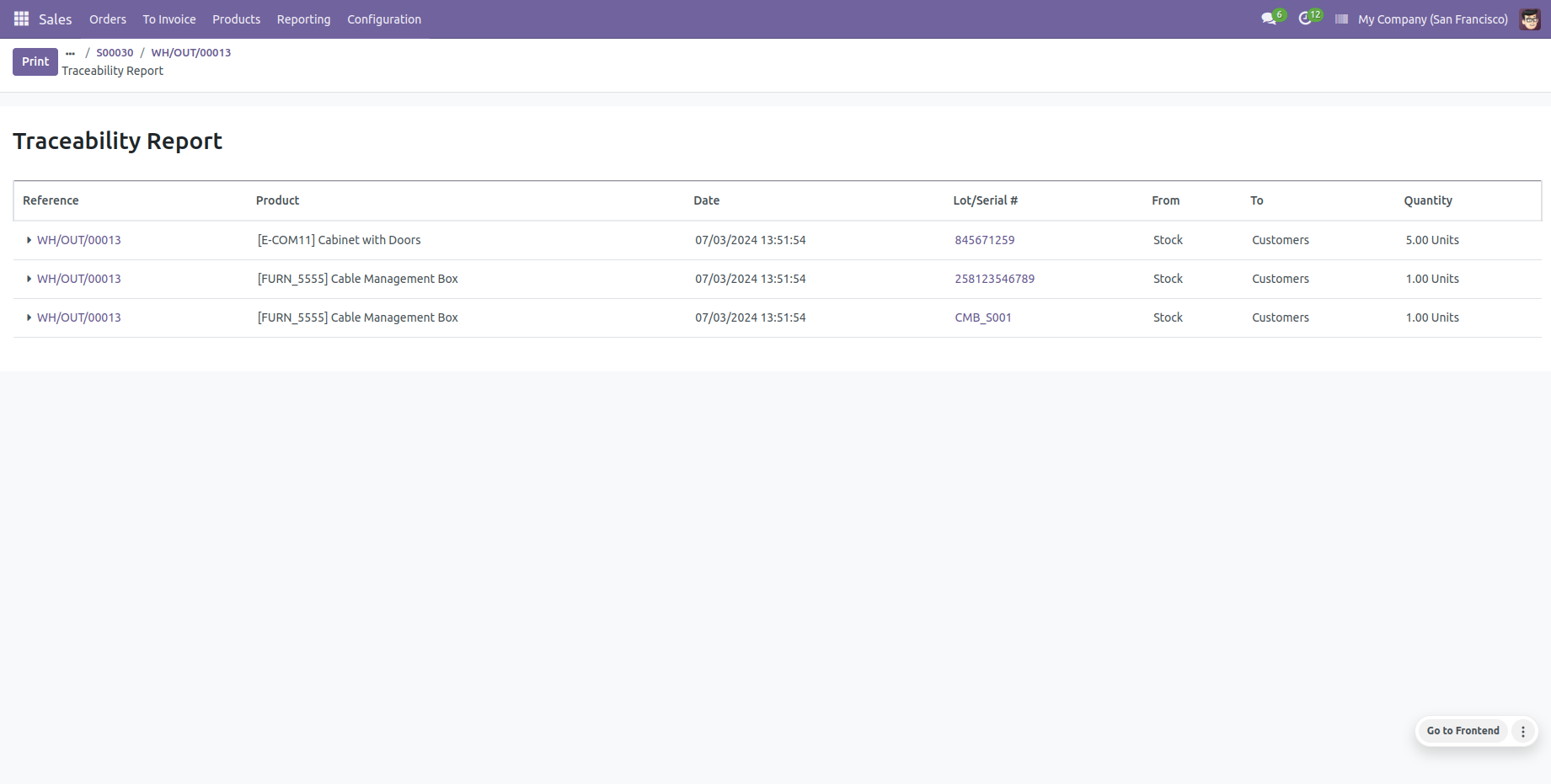
The "Traceability" report in the desktop view.
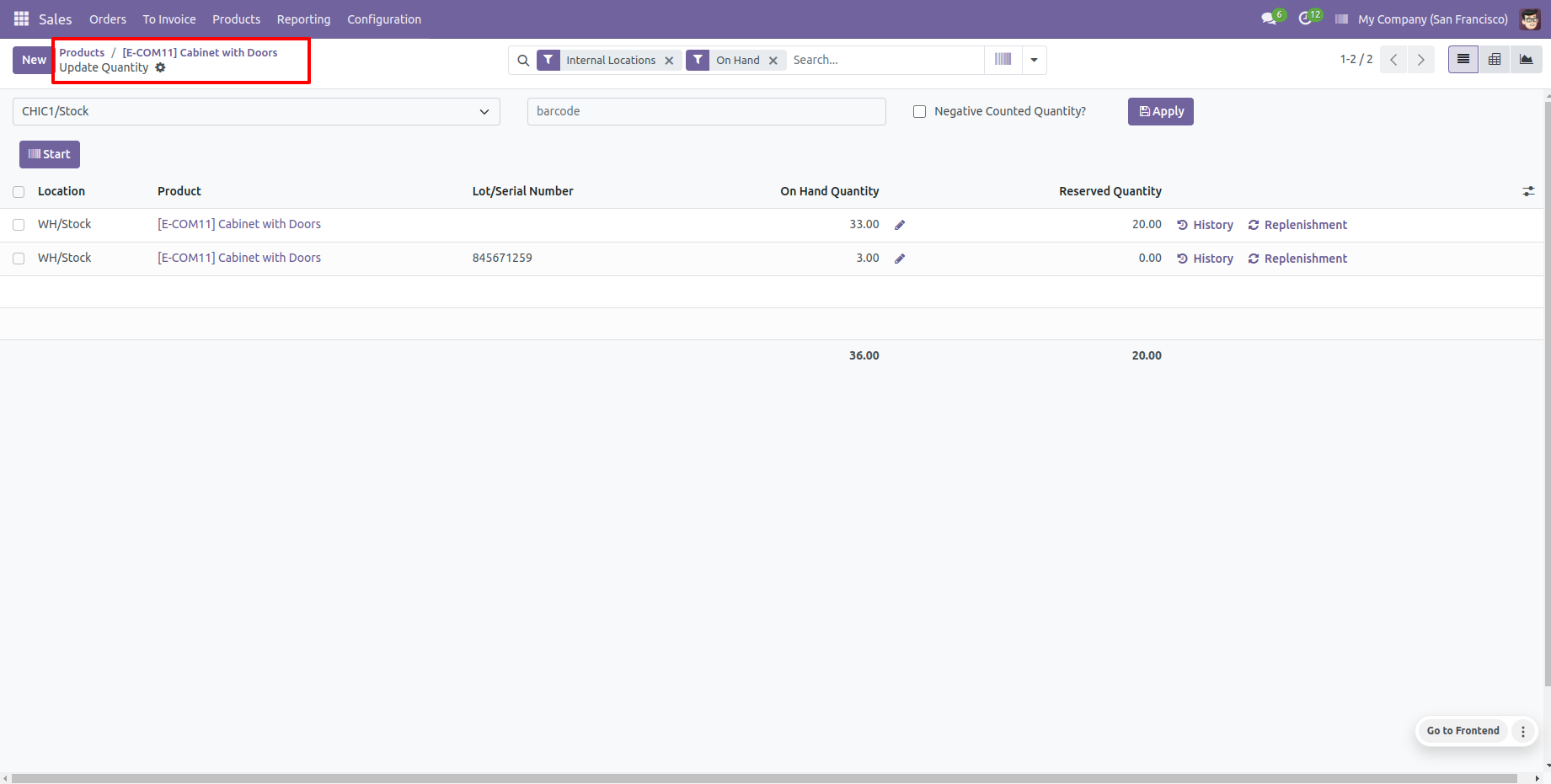
You can see the product on-hand quantity with traceability "By Lot Numbers".
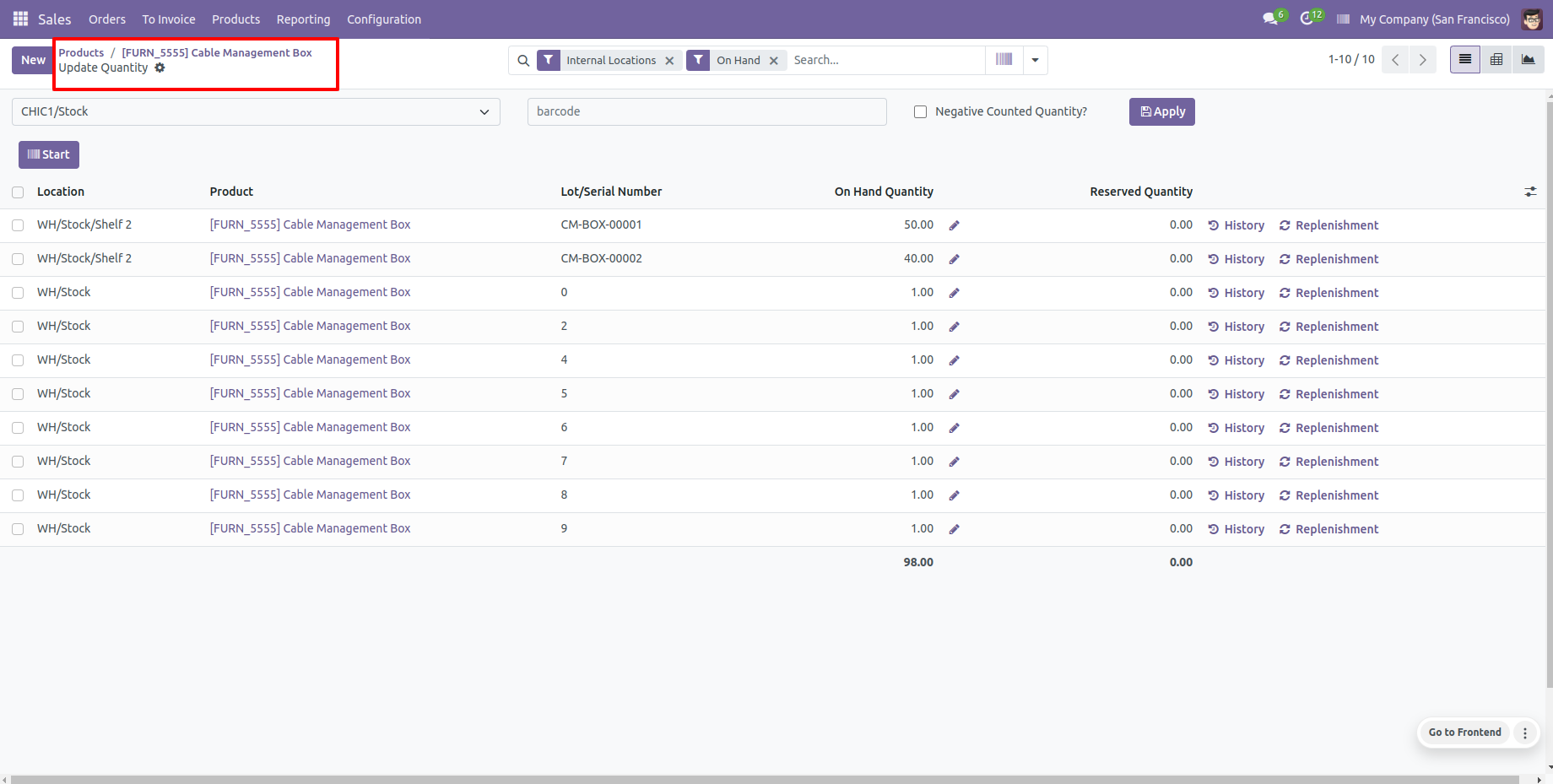
You can see the product on-hand quantity with traceability "By Unique Serial Number".
Internal Transfer Process
Products with the Lot/Serial Number.
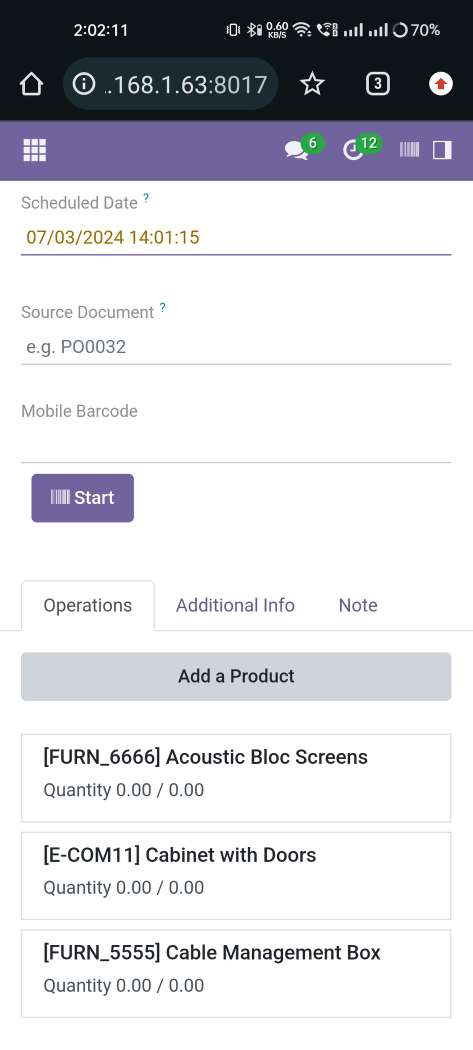
Tap the "Start" button to scan on mobile.
The error message is given if no matching product found.
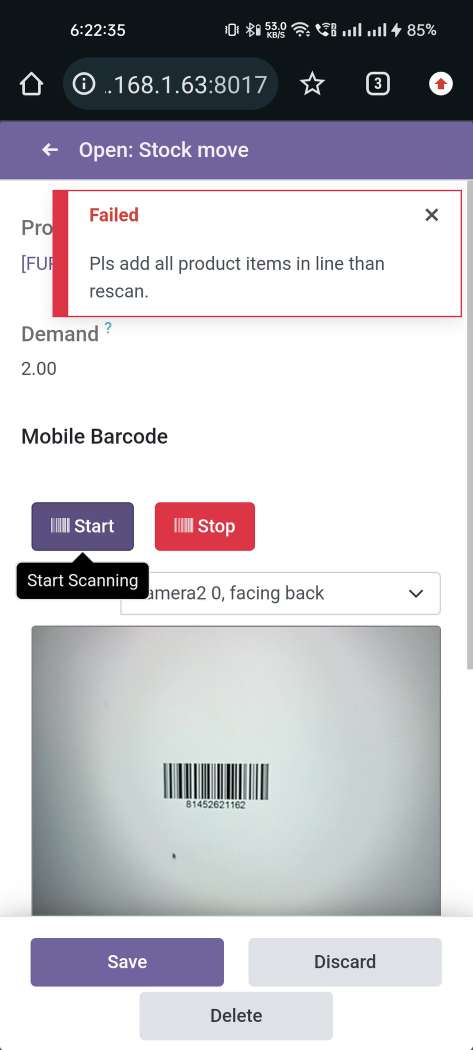
The scanned product automatically added in products if the product already existed then ordered qty increased by 1.
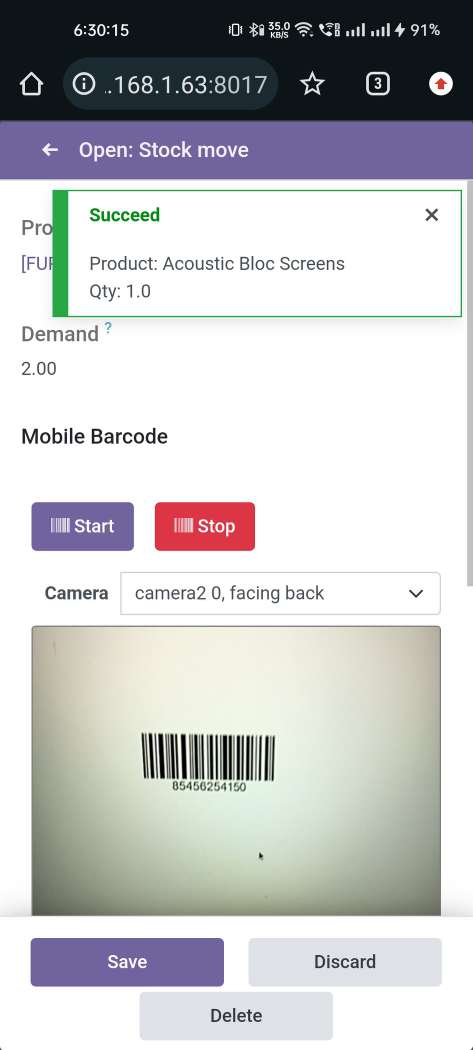
The scanned product automatically added in products if the product already existed then ordered qty increased by 1 & If another Barcode/QRCode is scanned than will be another entry for new Lot Numbers in the next line.
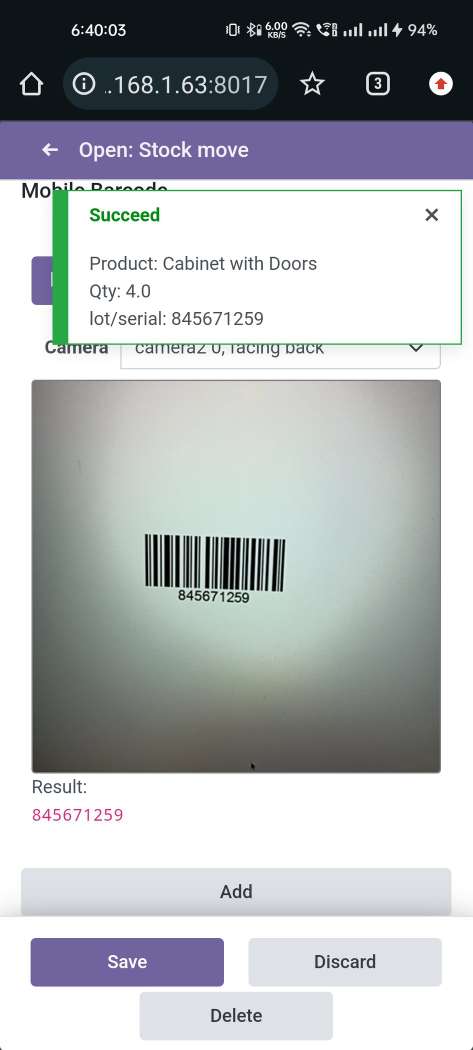
The error message is given if no matching product found.
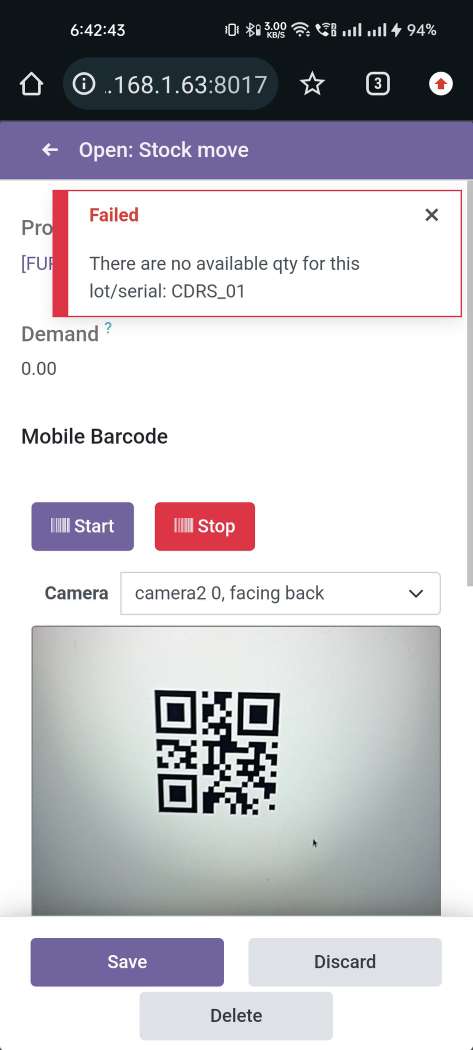
The scanned product automatically added in products, If another Barcode/QRCode is scanned than will be another entry for Serial Number in the next line.
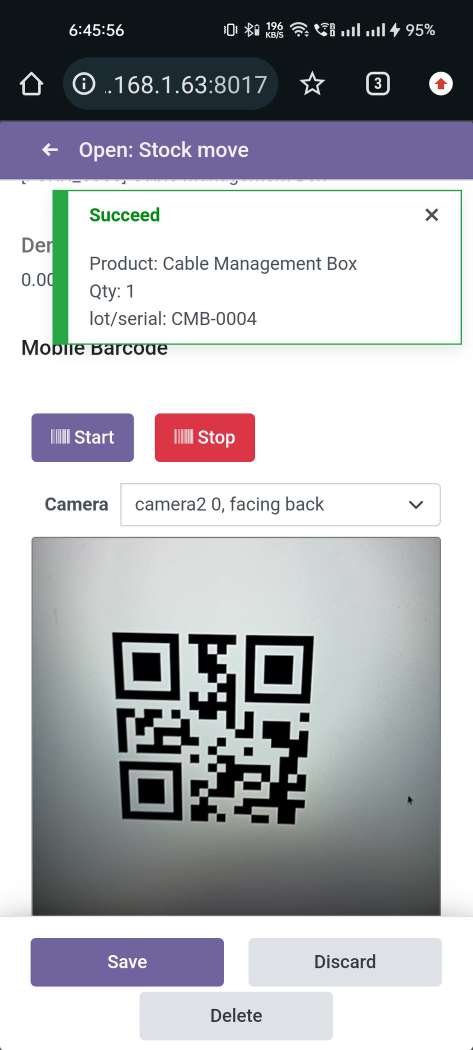
The added product looks like below.
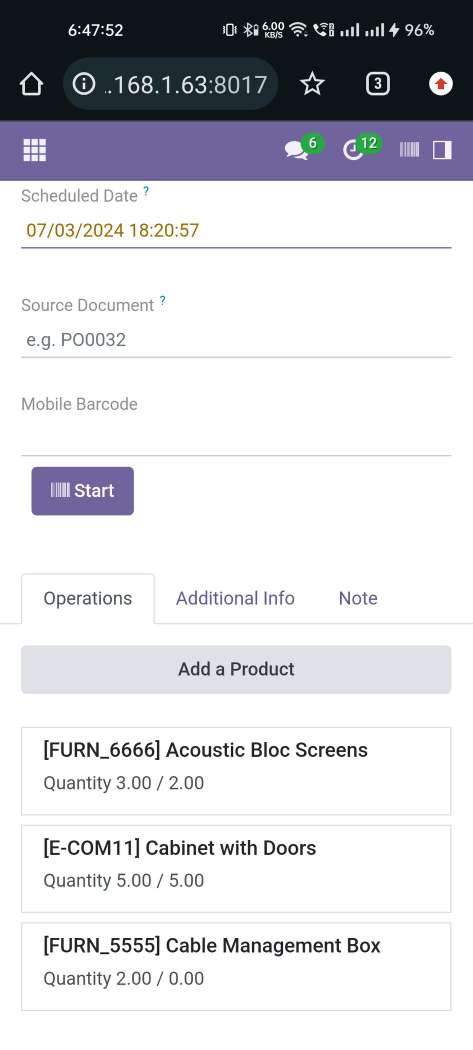
The "Traceability" report in the desktop view.
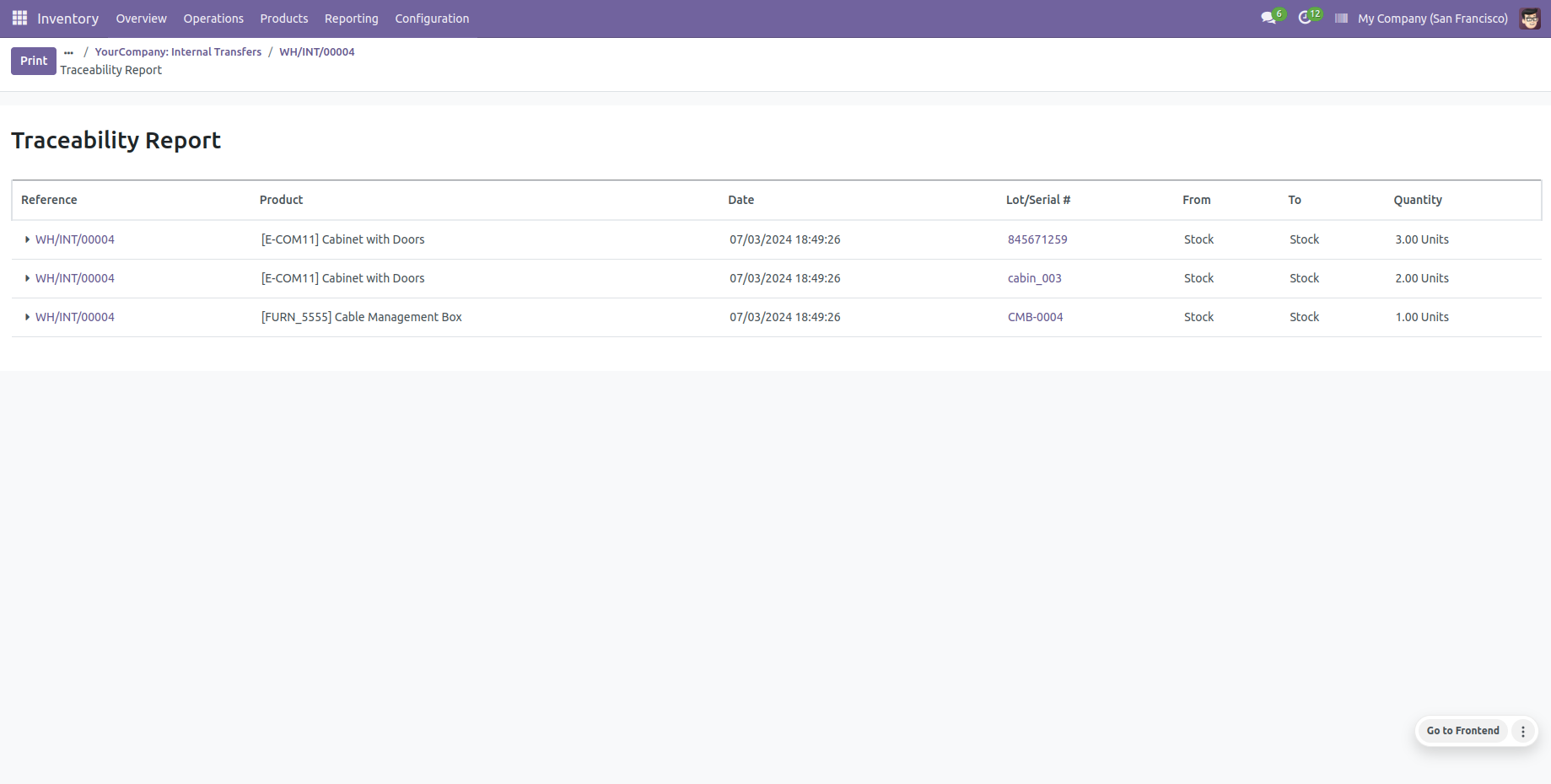
You can see the product on-hand quantity with traceability "By Lot Numbers".
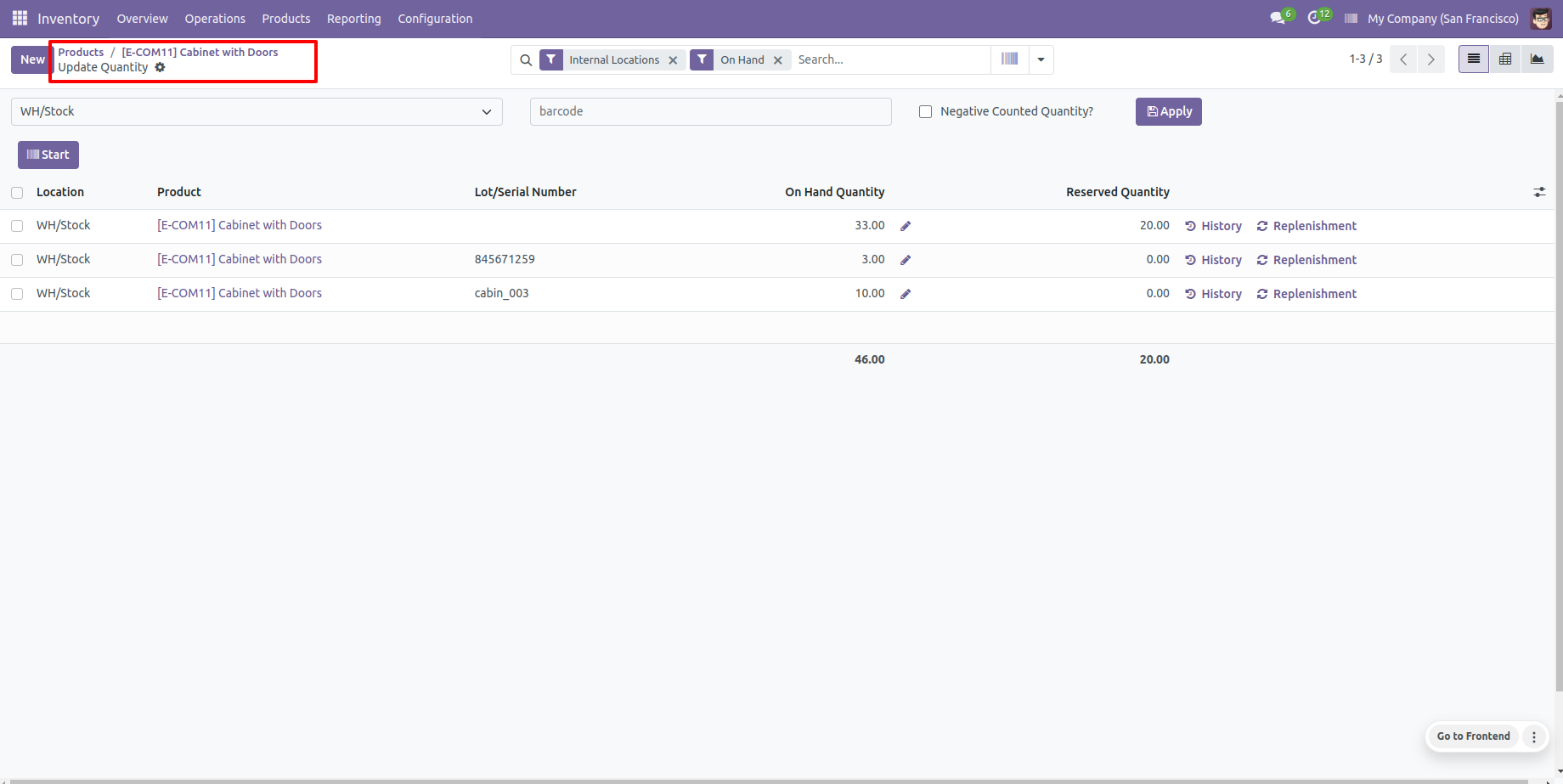
You can see the product on-hand quantity with traceability "By Unique Serial Number".
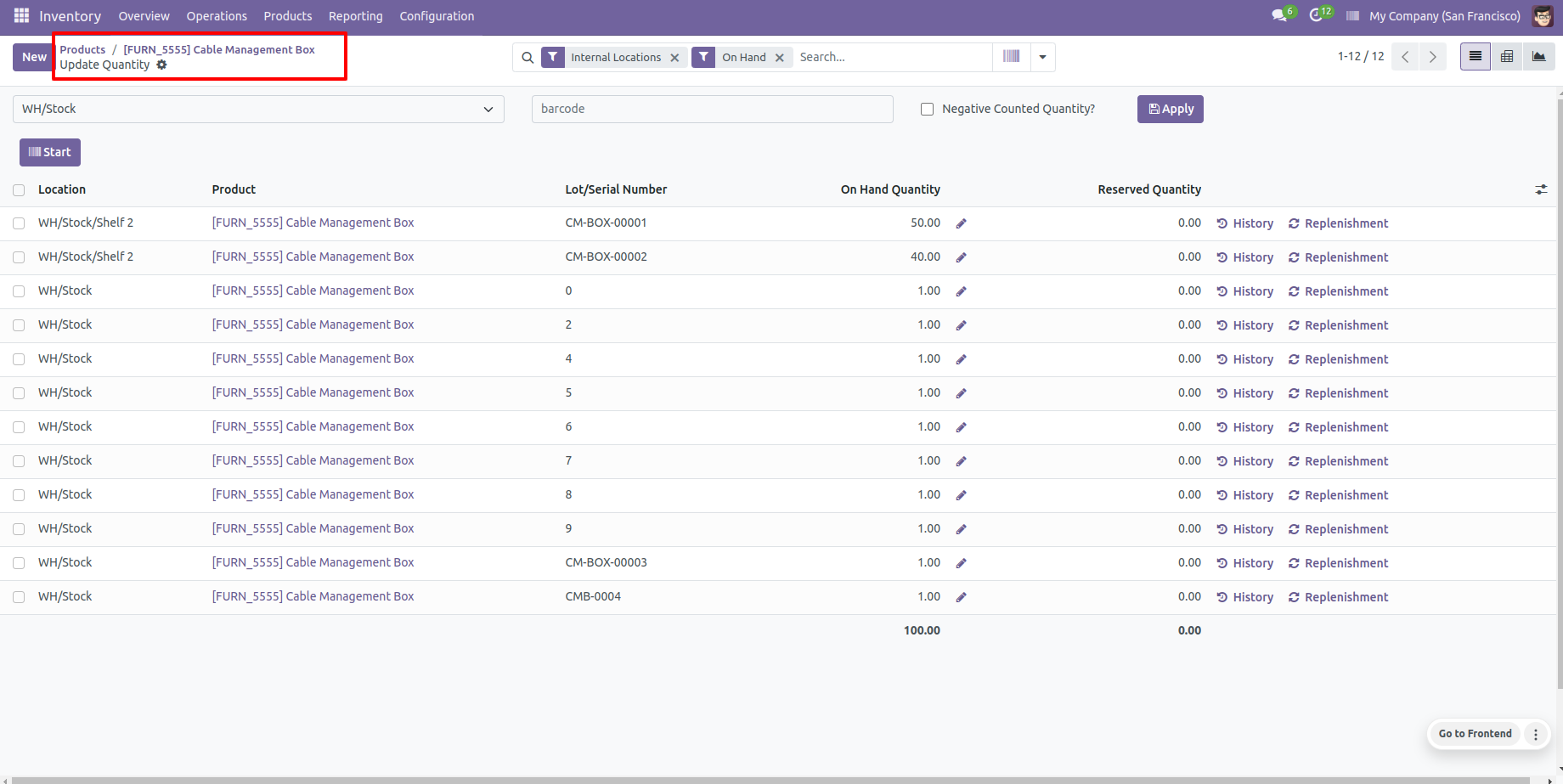
User Setting: Just enable the 'Global Doscument Search' option.
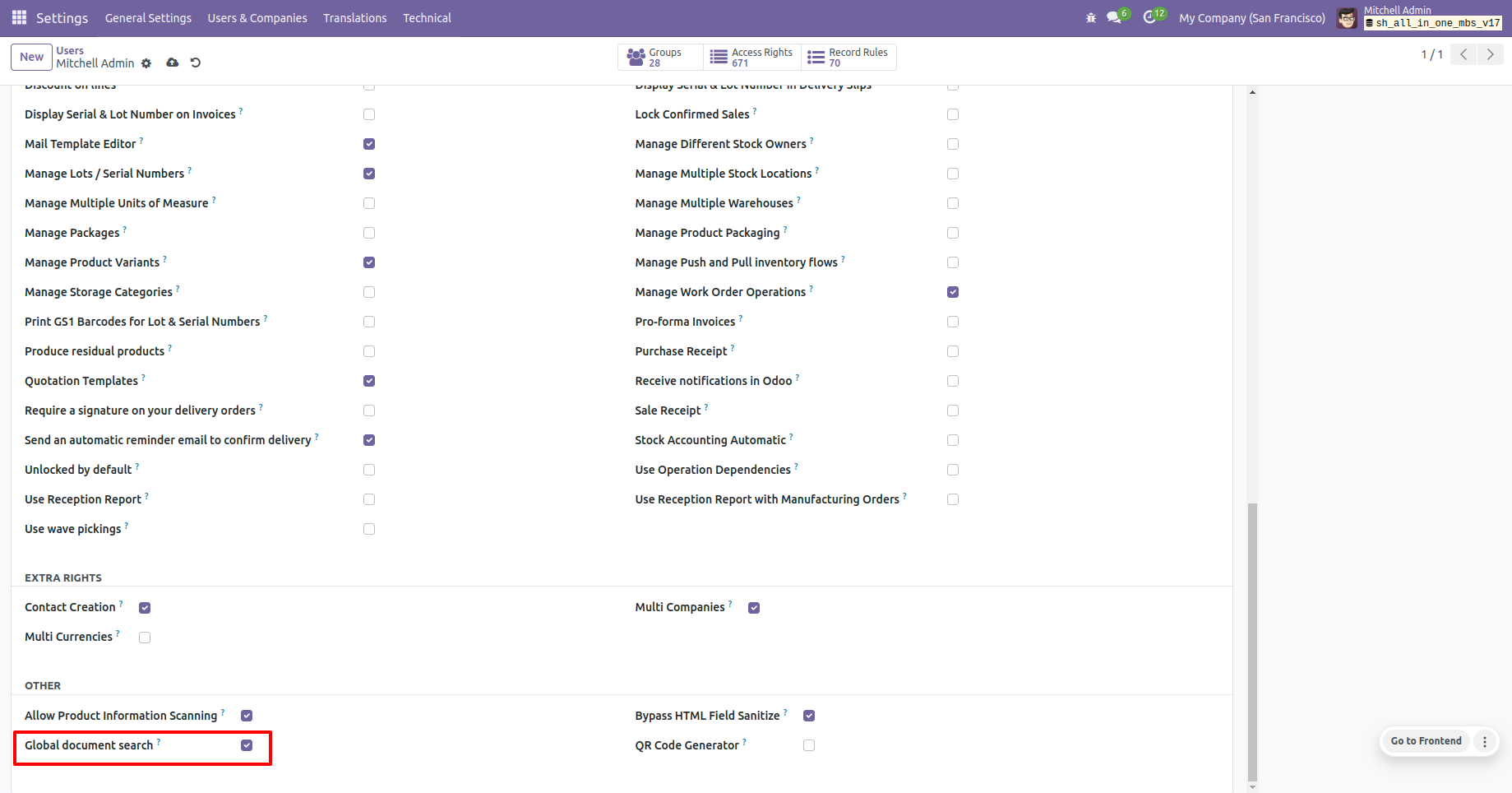
Global document search configuration.
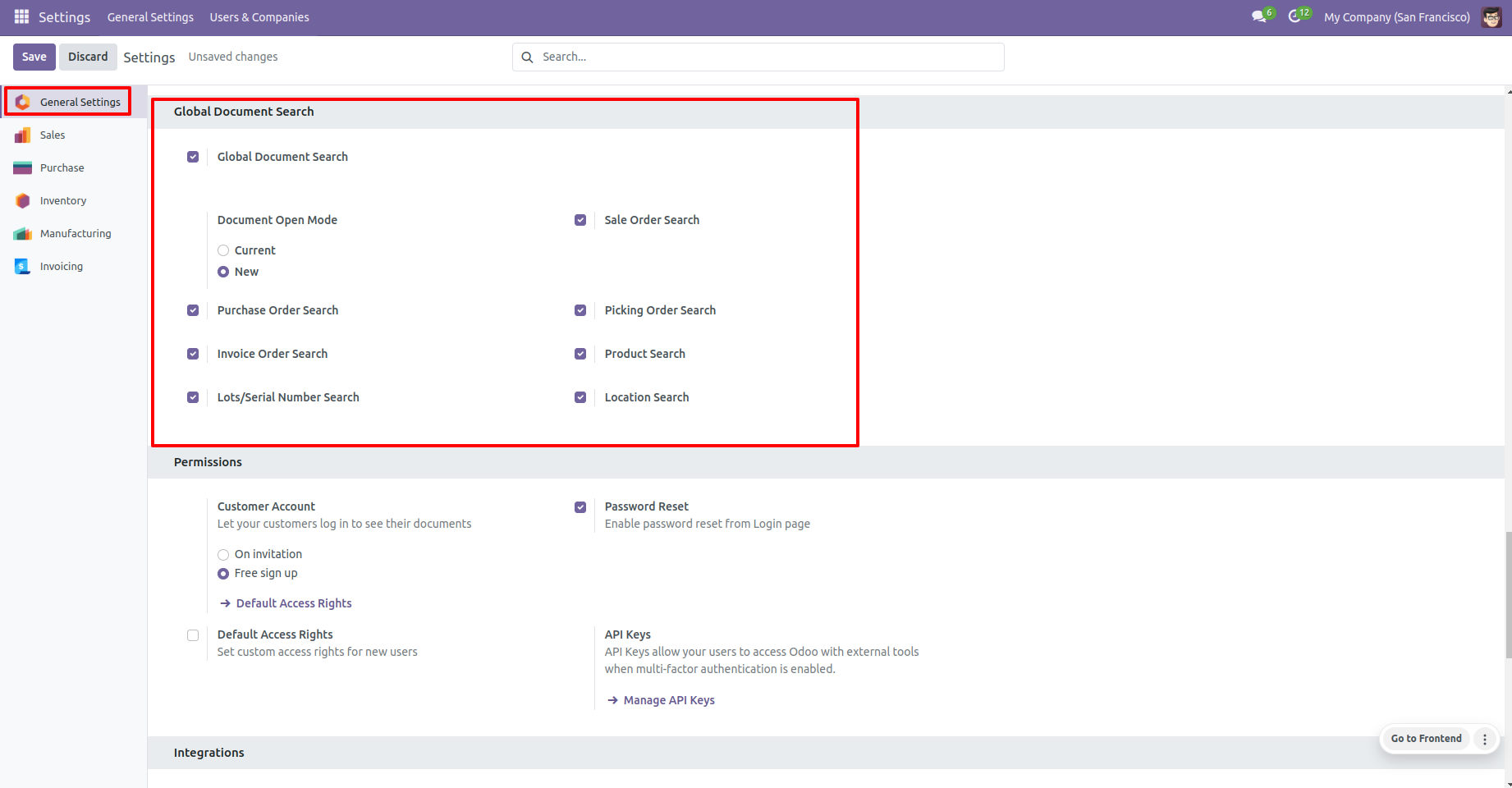
Click on the barcode icon to open the barcode popup and scan the barcode.
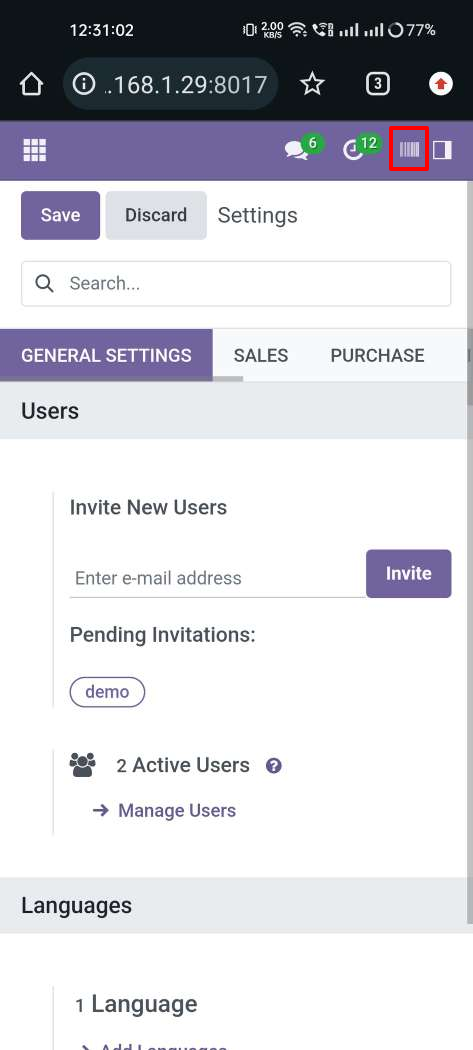
You can filter documents based on the configuration settings.
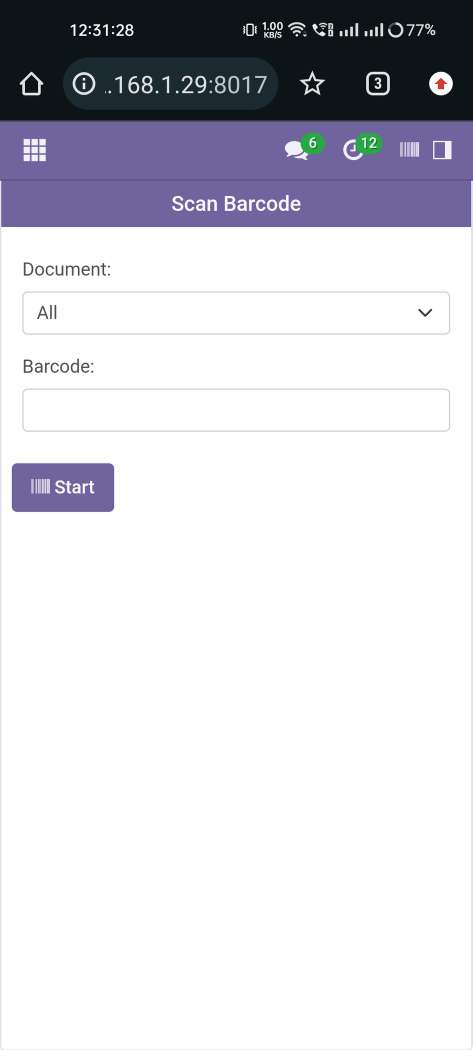
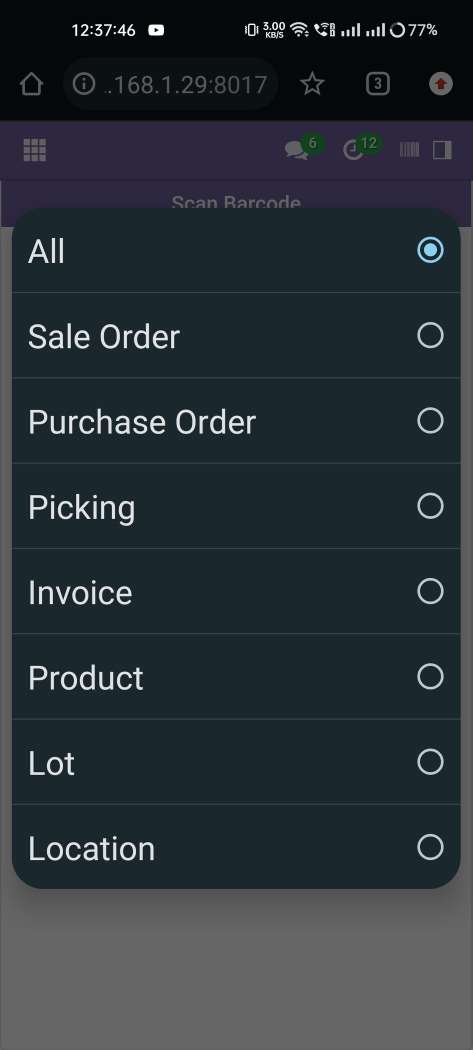
Now Select the 'All' document option & tap the "Start" button to scan on mobile.
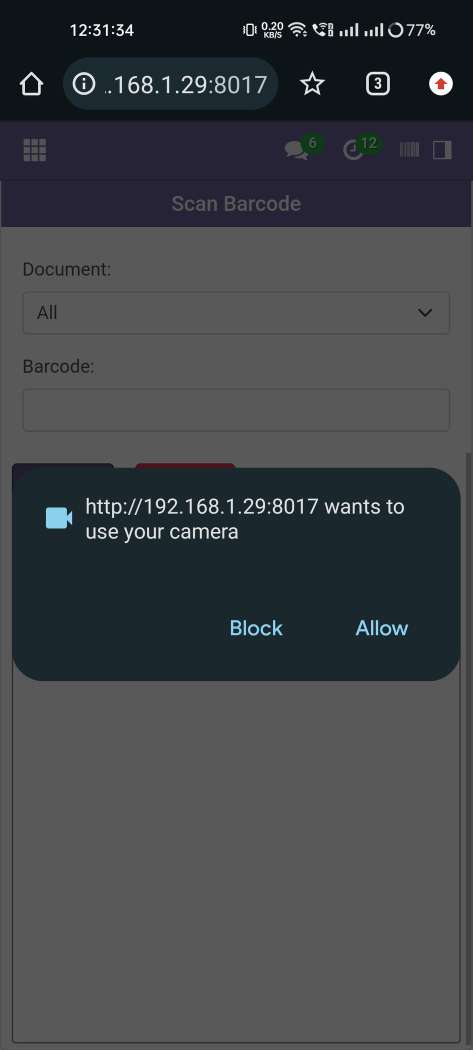
Allow permission to scan from the mobile camera.
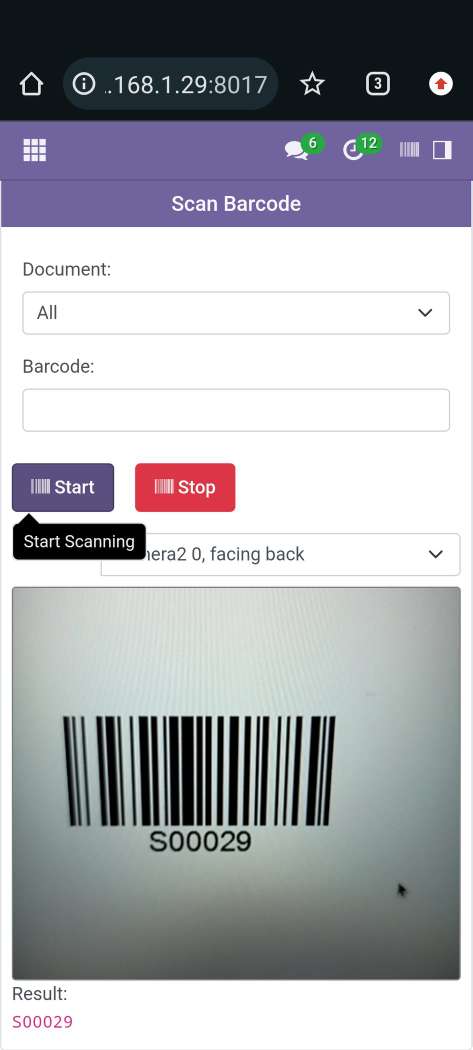
Now scan the barcode to open the document.
After scanning the barcode the document will be open.
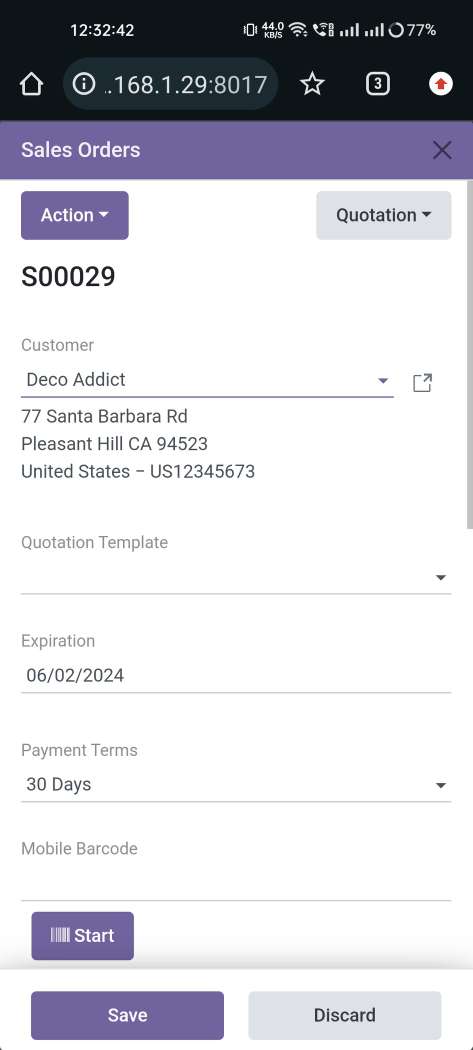
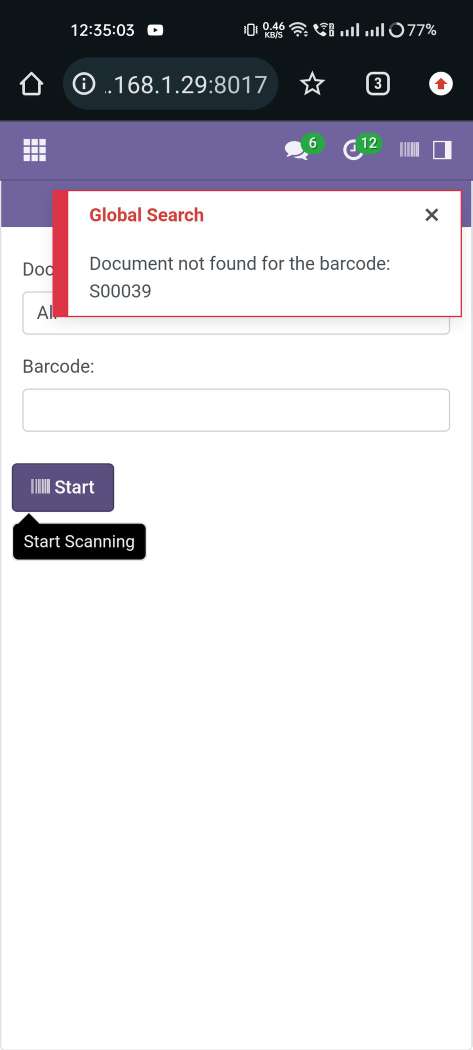
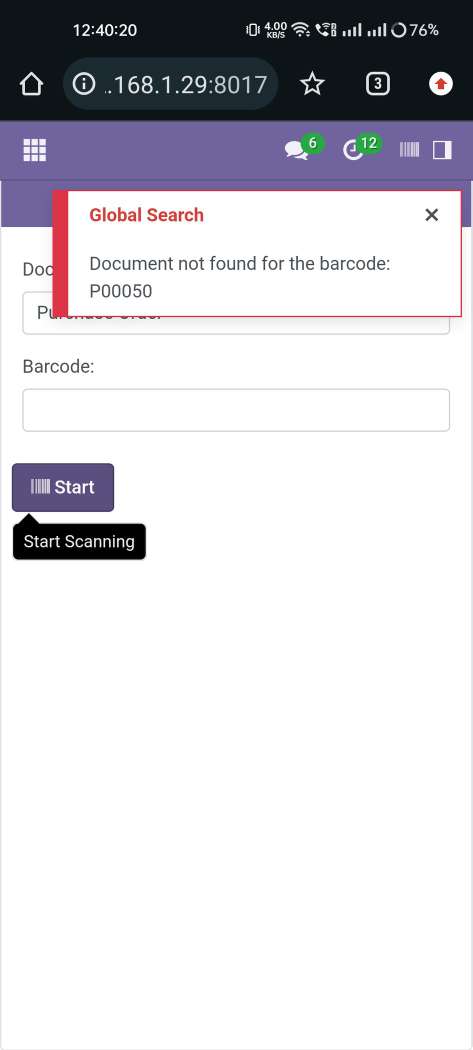
It shows the alert if the document is not found.
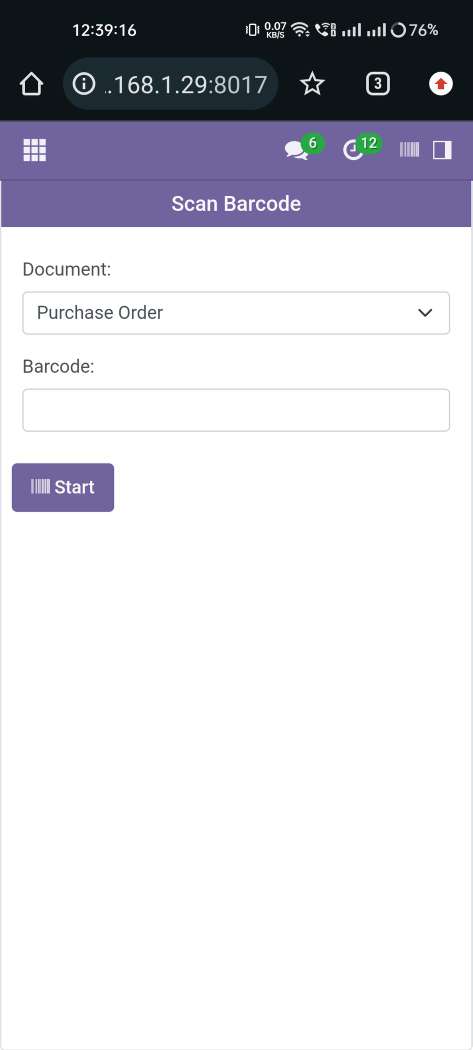
Now Select the 'Purchase Order' document option.
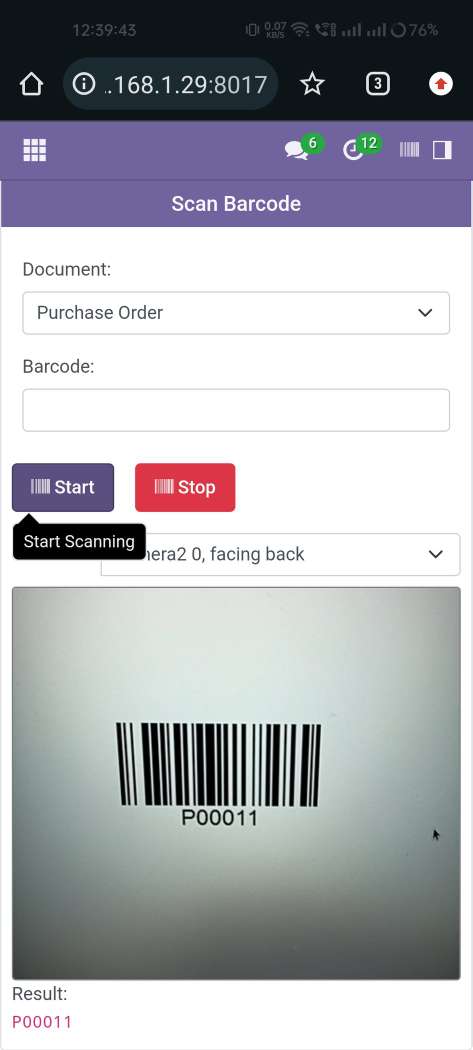
Now scan the barcode to open the purchase order document.
After scanning the barcode the purchase order document will be open.
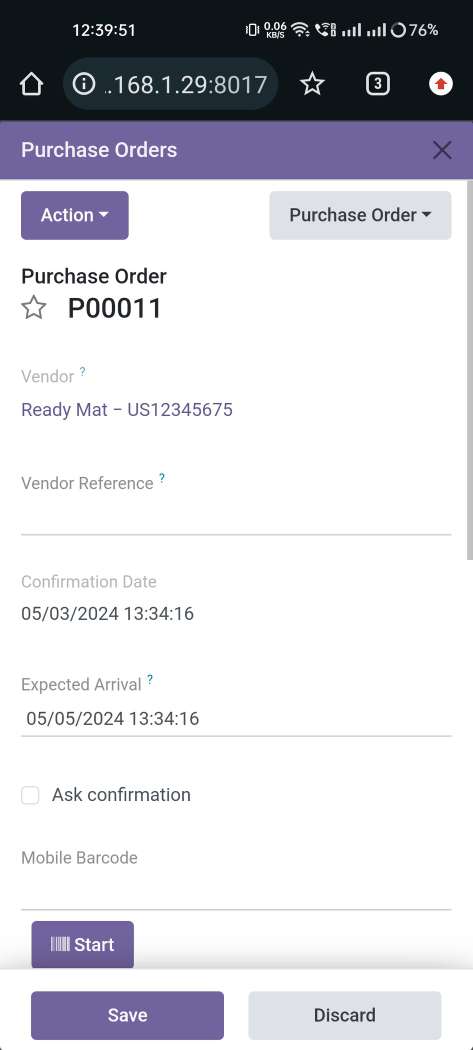
It shows the alert if the document is not found.
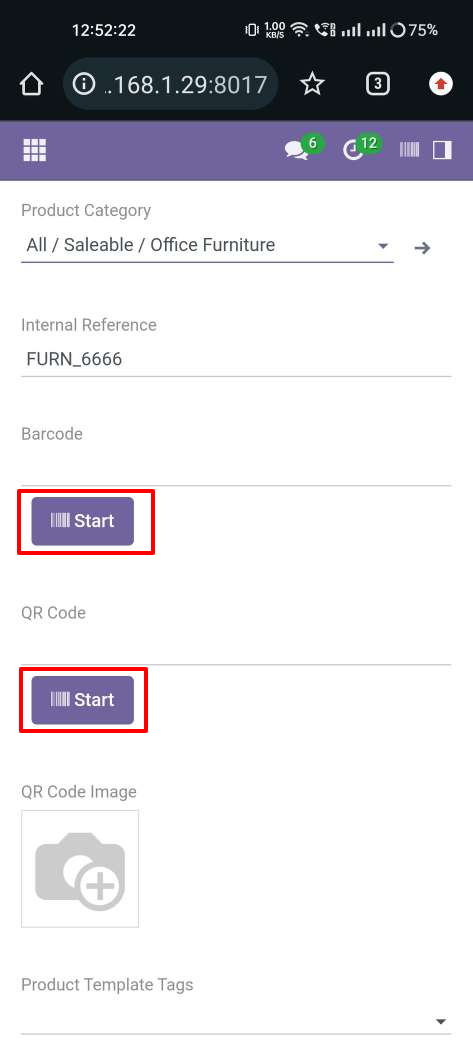
Press the start button to scan the Barcode/QRCode.
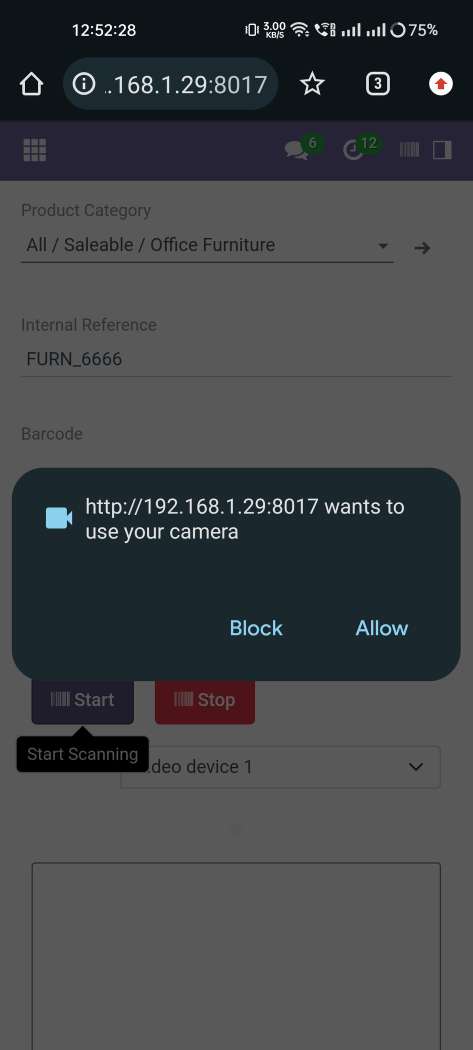
Allow permission to scan from the mobile camera.
Now scan the barcode.
After that, it will auto-add the barcode into the barcode field.
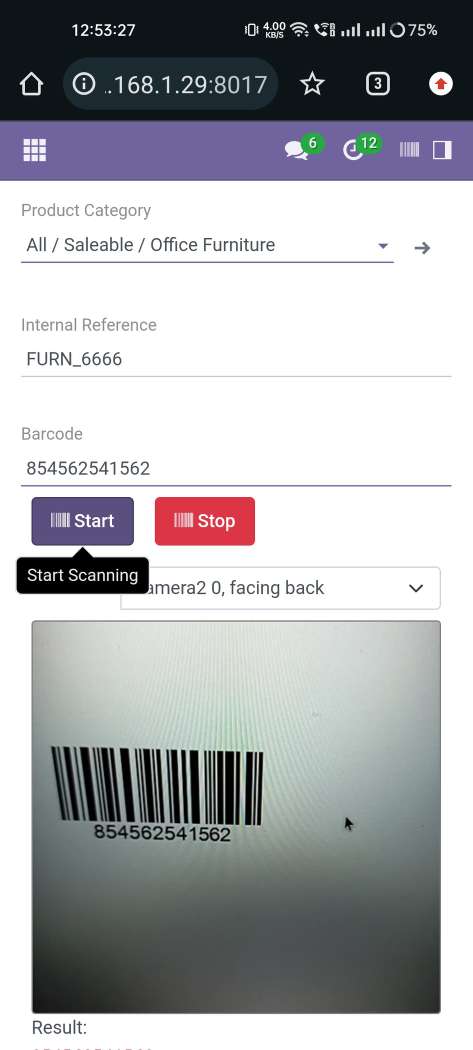
Now scan the QRcode.
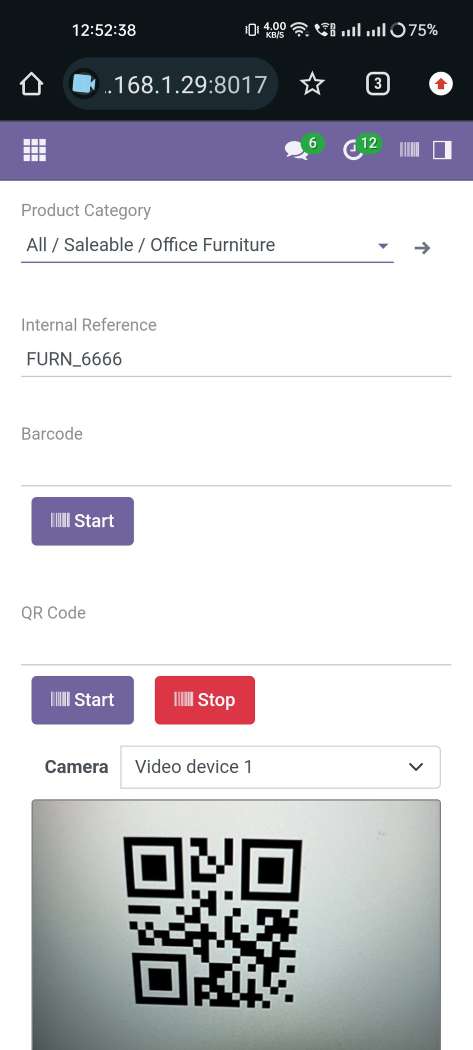
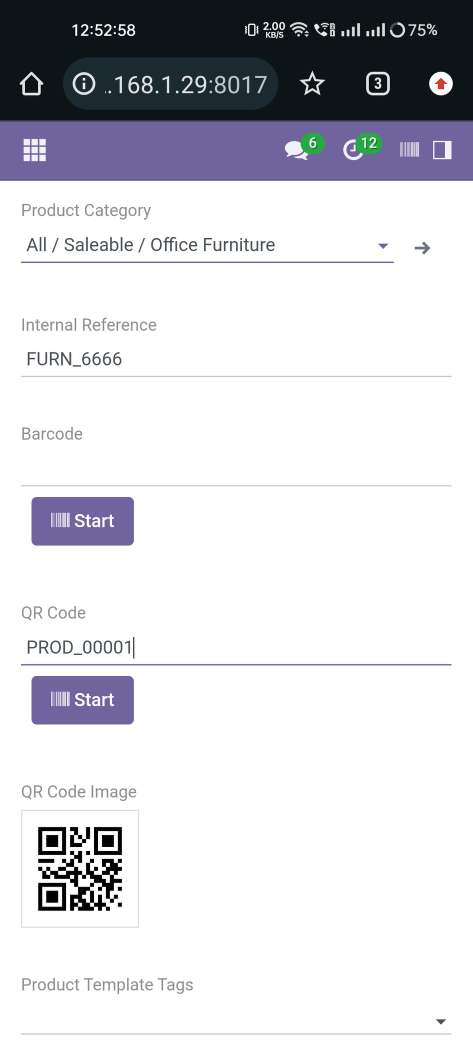
After that, it will auto-add the QRcode into the QRcode field.
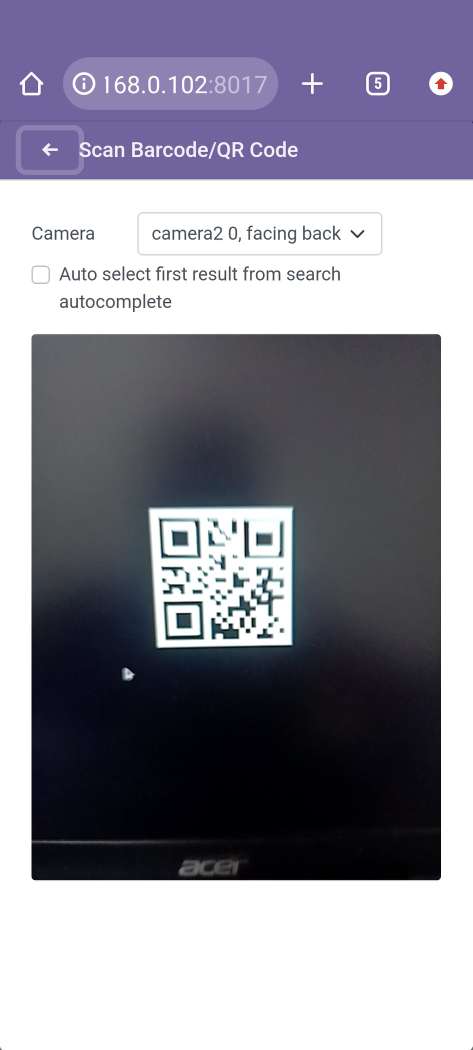
We search records by scan Barcode/QRCode from the search bar. So press the button that is given in the search bar.
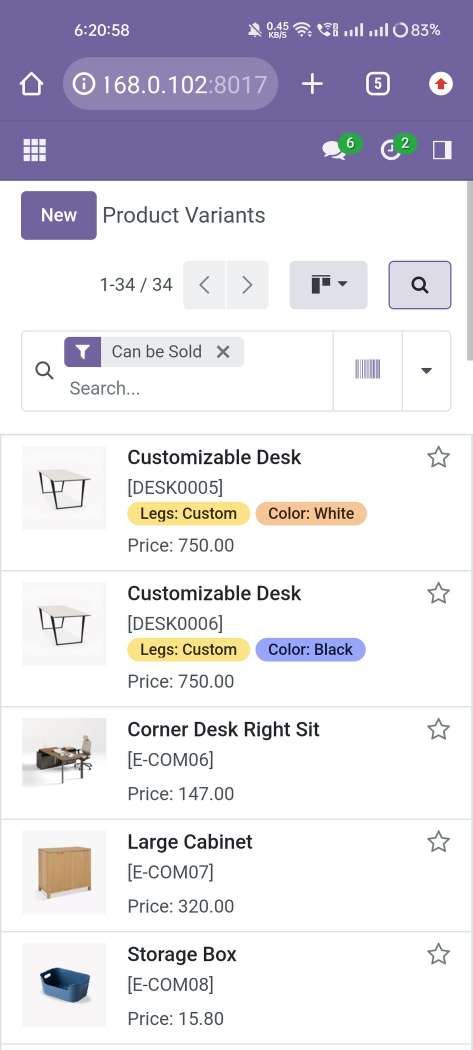
Now scan the Barcode/QRCode.
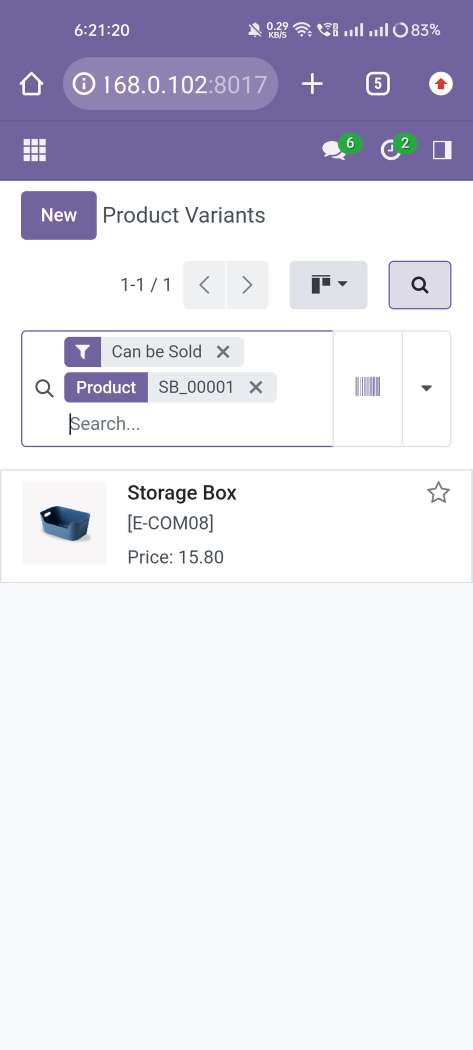
Scanned Barcode/QRCode search result comes in the search bar.
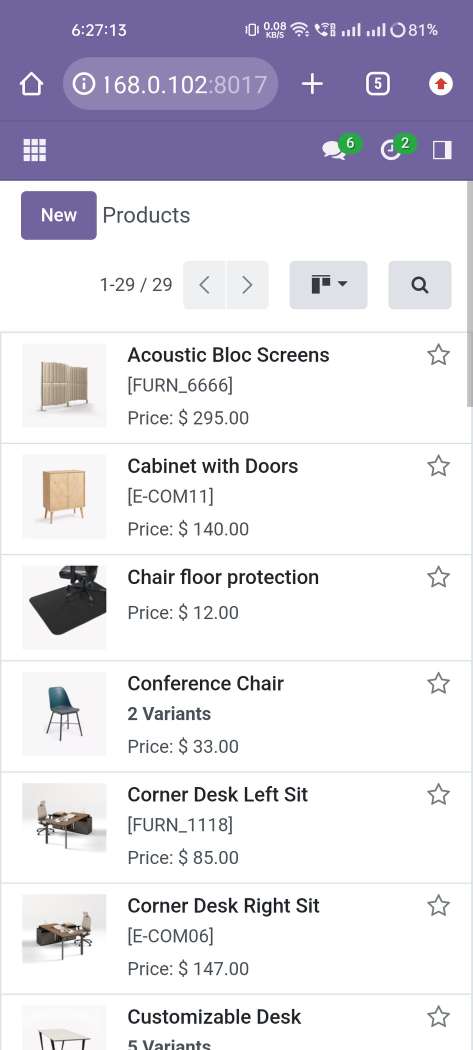
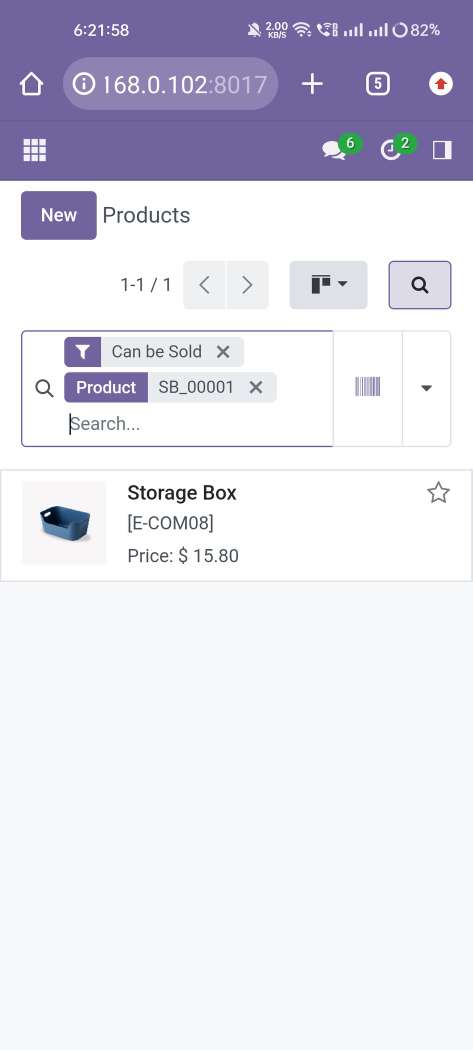
Now we search the product from the search bar. So press the button that is given in the search bar.
Now scan the Barcode/QRCode.
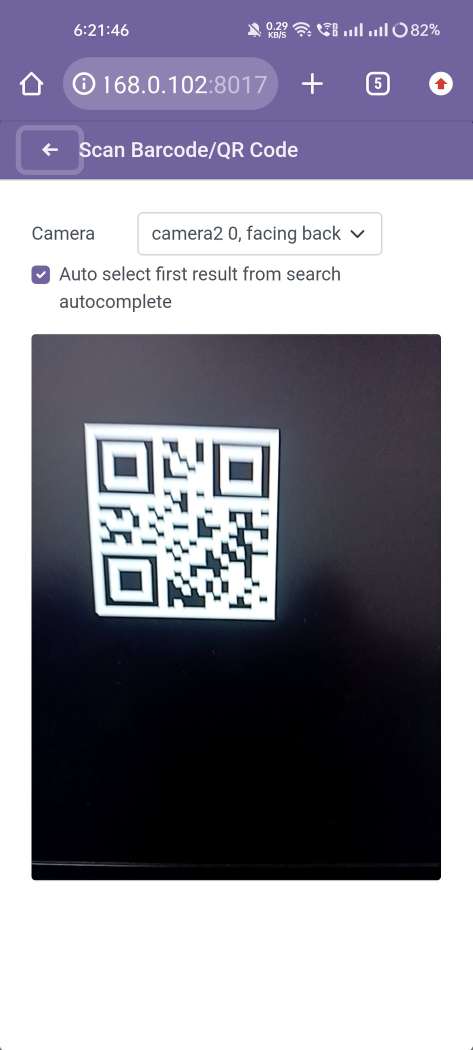
Scanned Barcode/QRCode search result comes in the search bar.
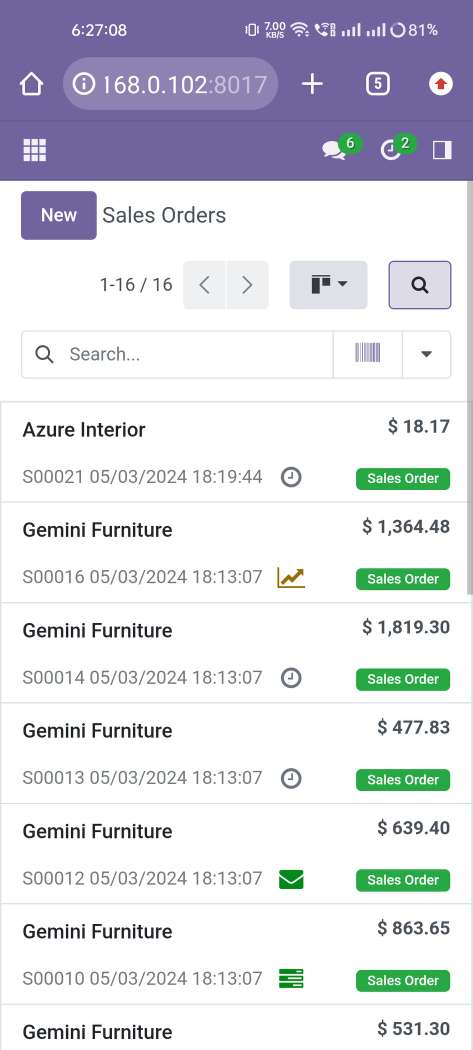
Now we search the sale order from the search bar. So press the button that is given in the search bar.
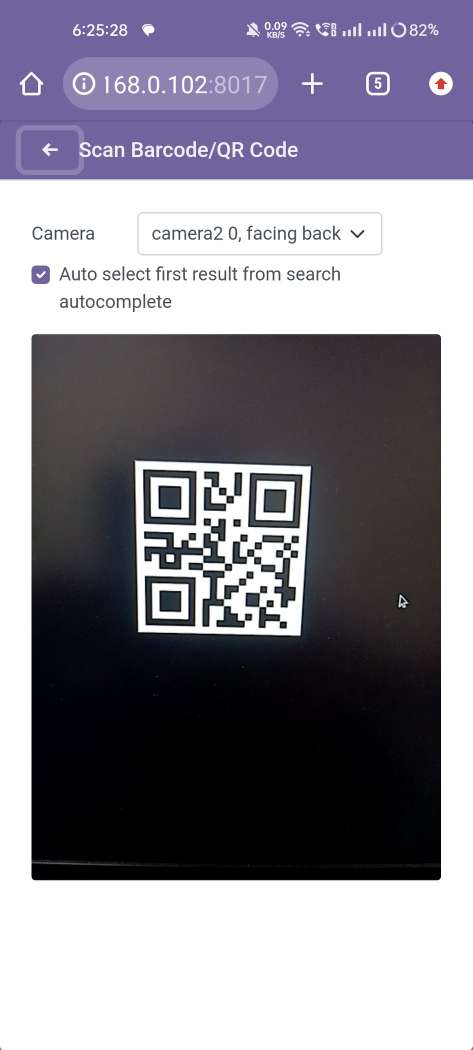
Now scan the Barcode/QRCode.
Scanned Barcode/QRCode search result comes in the search bar.
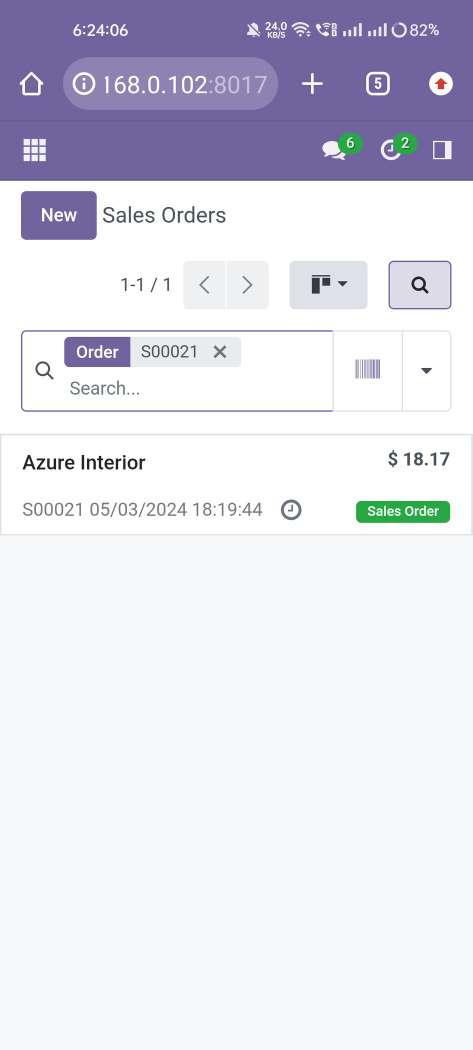
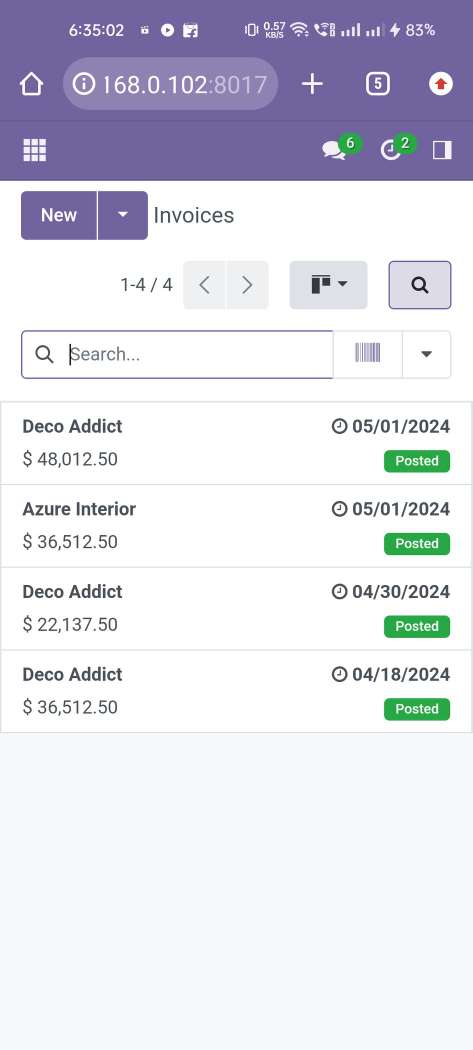
Open record from the search view.
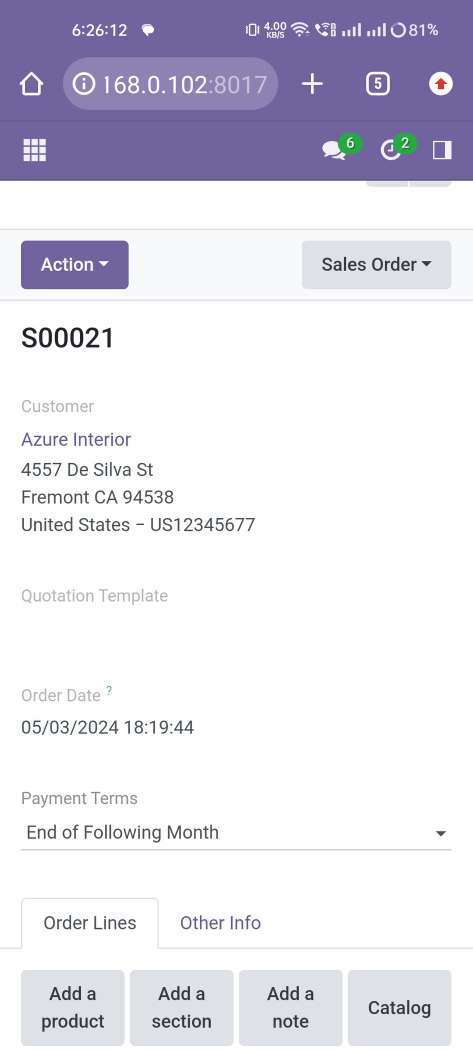
Now we search the invoices from the search bar. So press the button that is given in the search bar.
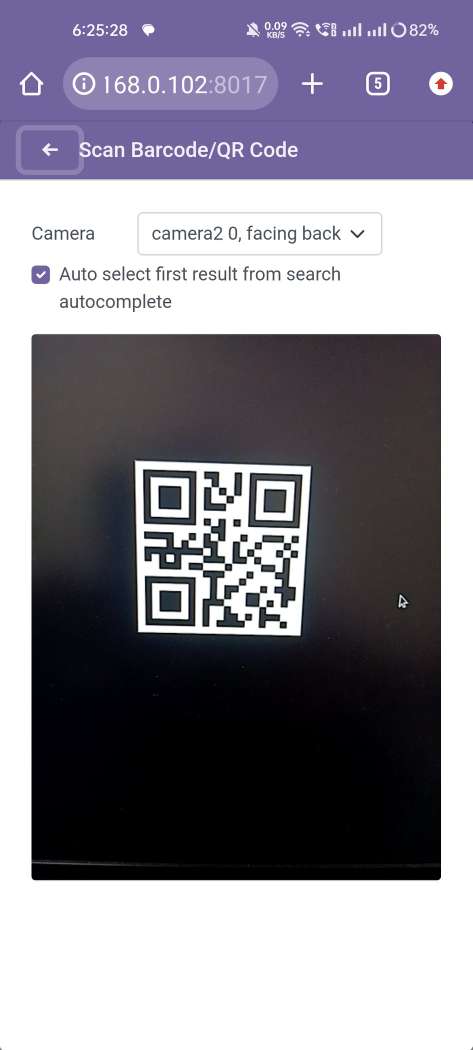
Now scan the Barcode/QRCode.
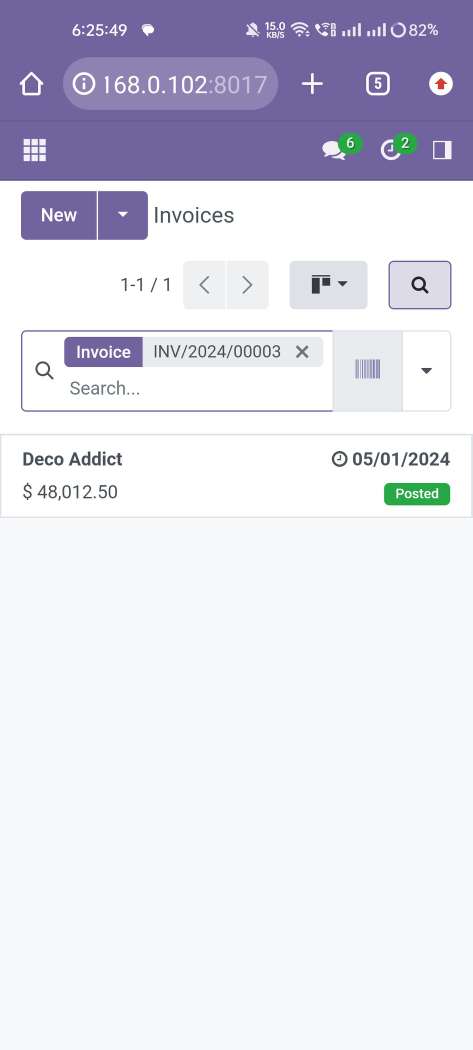
Scanned Barcode/QRCode search result comes in the search bar.
Open record from the search view.
Version 17.0.4 | Released on : 07th July 2025
Version 17.0.3 | Released on : 03rd July 2025
Version 17.0.2 | Released on : 23rd June 2025
Version 17.0.1 | Released on : 21st November 2023
- Yes, this app works perfectly with Odoo Enterprise (Odoo.sh & Premise) as well as Community.
- No, this application is not compatible with odoo.com(odoo saas).
- No, We have already added as dependacy so when you add to cart it will auto add this module.
Product QR Code Generator
- No, You need to purchase our barcode generator module for that, You can download using below link.
Product Barcode Generator
- Please Contact Us at sales@softhealer.comto request customization.
- Yes, we provide free support for 100 days.
- As in odoo community mobile UI is not good so We have used our own backend theme called Backmate Backend Theme Advance Which help our module to see module features mobile friendly. You need to purchase this theme separatly if you want good mobile UI experience!
- Yes, you will get free update for lifetime.
- No, you don't need to install addition libraries.
- Yes, You have to download module for each version (13,14,15) except in version 12 or lower.
- No, We do not provide any kind of exchange.
